HiTACHi
inspire the Ne×
PROJECTION COLOR TELEVISION
Operating Guide for 51F59, 51F59A
57F59A, 57F59J
65F59, 65F59A, 65F59J.
IMPORTANT SAFETY INSTRUCTIONS ....................................................................................... 2-3
FIRST TIME USE ....................................................................................................................... 4-17
TH E REMOTE CONTROL ..................................................................................... 18-31
ON-SCREEN DISPLAY ..................................................................................................... 32-60
USEFUL INFORMATION ................................................................................................ 61-71
END USER LICENSE AGREEMENT FOR HITACHI DTV SOFTWARE ................................... 71
INDEX ........................................................................................................................................... 72
As an Energy Star _ Partner,
Hitachi, Ltd. has determined
that this product meets the
Energy StaF _guidelines for
energy efficiency
SAFETY POINTS YOU SHOULD KNOW ABOUT
YOUR HITACHI TELEVISION
Our reputation has been built on the quality,
performance, and ease of service of HITACHI
televisions.
Safety is also foremost in our minds in the design of
these units. To help you operate these products
properly, this section illustrates safety tips which will be
of benefit to you. Please read it carefully and apply the
knowledge you obtain from it to the proper operation of
your HITACHI television.
Please fill out your warranty card and mail it to
HITACHI. This will enable HITACHI to notify you
promptly in the improbable event that a safety problem
should be discovered in your product model.
Follow all warnings and instructions marked on
this television.
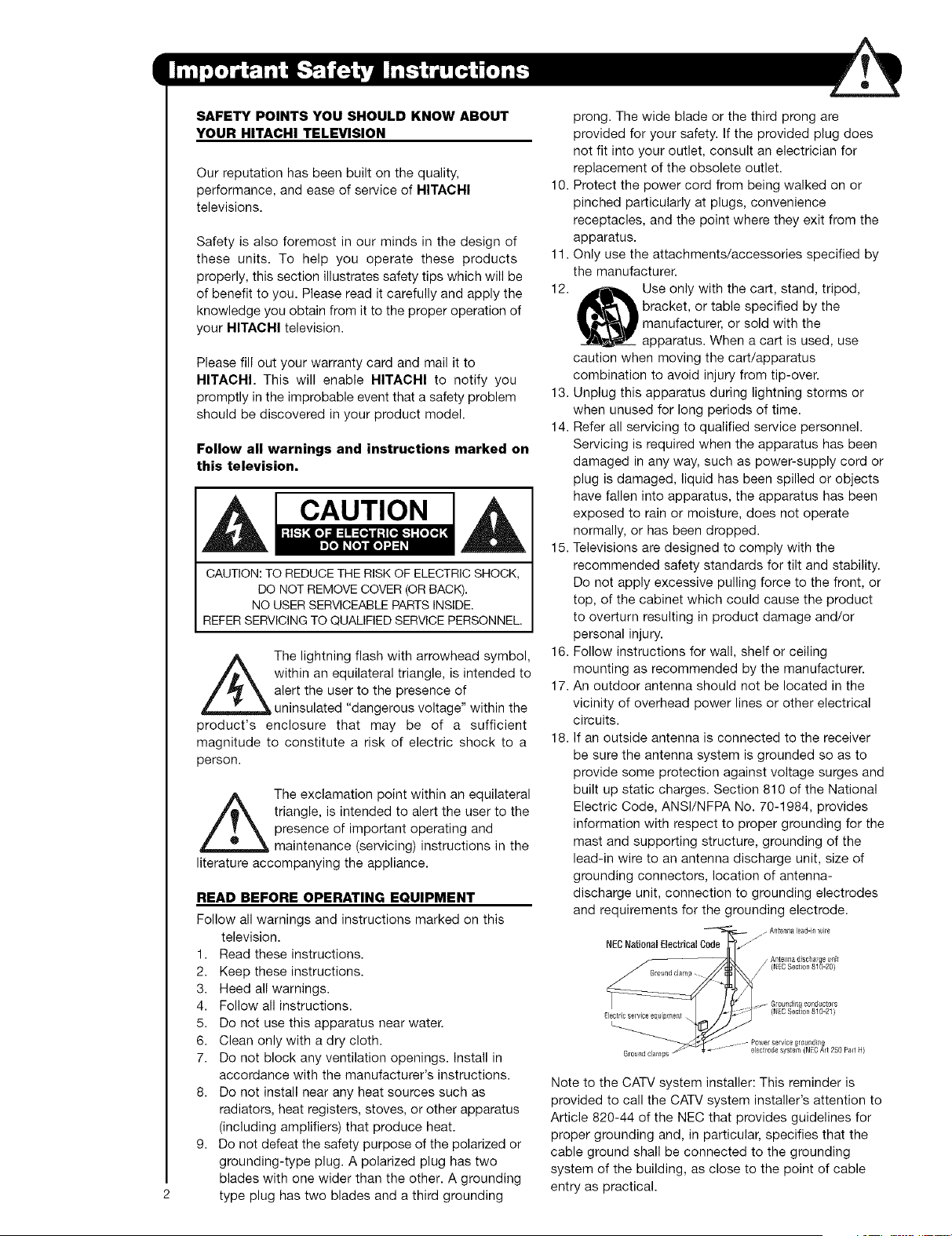
CAUTION I
CAUTION: TO REDUCE THE RISK OF ELECTRIC SHOCK,
DO NOT REMOVE COVER (OR BACK).
NO USER SERVICEABLE PARTS INSIDE.
REFER SERVICING TO QUALIFIED SERVICE PERSONNEL.
The lightning flash with arrowhead symbol,
within an equilateral triangle, is intended to
alert the user to the presence of
uninsulated "dangerous voltage" within the
product's enclosure that may be of a sufficient
magnitude to constitute a risk of electric shock to a
person.
,_The exclamation point within an equilateral
triangle, is intended to alert the user to the
presence of important operating and
maintenance (servicing) instructions in the
literature accompanying the appliance.
READ BEFORE OPERATING EQUIPMENT
Follow all warnings and instructions marked on this
television.
1. Read these instructions.
2. Keep these instructions.
3. Heed all warnings.
4. Follow all instructions.
5. Do not use this apparatus near water.
6. Clean only with a dry cloth.
7. Do not block any ventilation openings. Install in
accordance with the manufacturer's instructions.
8. Do not install near any heat sources such as
radiators, heat registers, stoves, or other apparatus
(including amplifiers) that produce heat.
9. Do not defeat the safety purpose of the polarized or
grounding-type plug. A polarized plug has two
blades with one wider than the other. A grounding
type plug has two blades and a third grounding
prong. The wide blade or the third prong are
provided for your safety. If the provided plug does
not fit into your outlet, consult an electrician for
replacement of the obsolete outlet.
10. Protect the power cord from being walked on or
pinched particularly at plugs, convenience
receptacles, and the point where they exit from the
apparatus.
11. Only use the attachments/accessories specified by
the manufacturer.
12. Use only with the cart, stand, tripod,
bracket, or table specified by the
I manufacturer, or sold with the
apparatus. When a cart is used, use
caution when moving the cart/apparatus
combination to avoid injury from tip-over.
13. Unplug this apparatus during lightning storms or
when unused for long periods of time.
14. Refer all servicing to qualified service personnel.
Servicing is required when the apparatus has been
damaged in any way, such as power-supply cord or
plug is damaged, liquid has been spilled or objects
have fallen into apparatus, the apparatus has been
exposed to rain or moisture, does not operate
normally, or has been dropped.
15. Televisions are designed to comply with the
recommended safety standards for tilt and stability.
Do not apply excessive pulling force to the front, or
top, of the cabinet which could cause the product
to overturn resulting in product damage and/or
personal injury.
16. Follow instructions for wall, shelf or ceiling
mounting as recommended by the manufacturer.
17. An outdoor antenna should not be located in the
vicinity of overhead power lines or other electrical
circuits.
18. If an outside antenna is connected to the receiver
be sure the antenna system is grounded so as to
provide some protection against voltage surges and
built up static charges. Section 810 of the National
Electric Code, ANSl/NFPA No. 70-1984, provides
information with respect to proper grounding for the
mast and supporting structure, grounding of the
lead-in wire to an antenna discharge unit, size of
grounding connectors, location of antenna-
discharge unit, connection to grounding electrodes
and requirements for the grounding electrode.
C_-'_r=_'-'Ode_'_" / Anten_,a le_d-ill wire
NEC National Electrical _"
_/ ntelllla discilalg8 {_nit
(NECSection 810-20}
e__ Gt0undi_,g conductors
(NECSectton 810 21_
_leclricservice equpner_t. , - /
_ower service grounding
Gr0_d clamps _ "_ ...... elecirode system (NEe Art 250 Part 14)
Note to the CATV system installer: This reminder is
provided to call the CATV system installer's attention to
Article 820-44 of the NEC that provides guidelines for
proper grounding and, in particular, specifies that the
cable ground shall be connected to the grounding
system of the building, as close to the point of cable
entry as practical.
Power source
This television is designed to operate on 120 volts
60 Hz, ac current. Insert the power cord into a 120 volt
60 Hz outlet.The power cord is used as the disconnect
device and shall remain readily operable.
To prevent electric shock, do not use the television's
(polarized) plug with an extension cord, receptacle, or
other outlet unless the blades and ground terminal can
be fully inserted to prevent blade exposure.
Never connect the television to 50 Hz, direct current, or
anything other than the specified voltage.
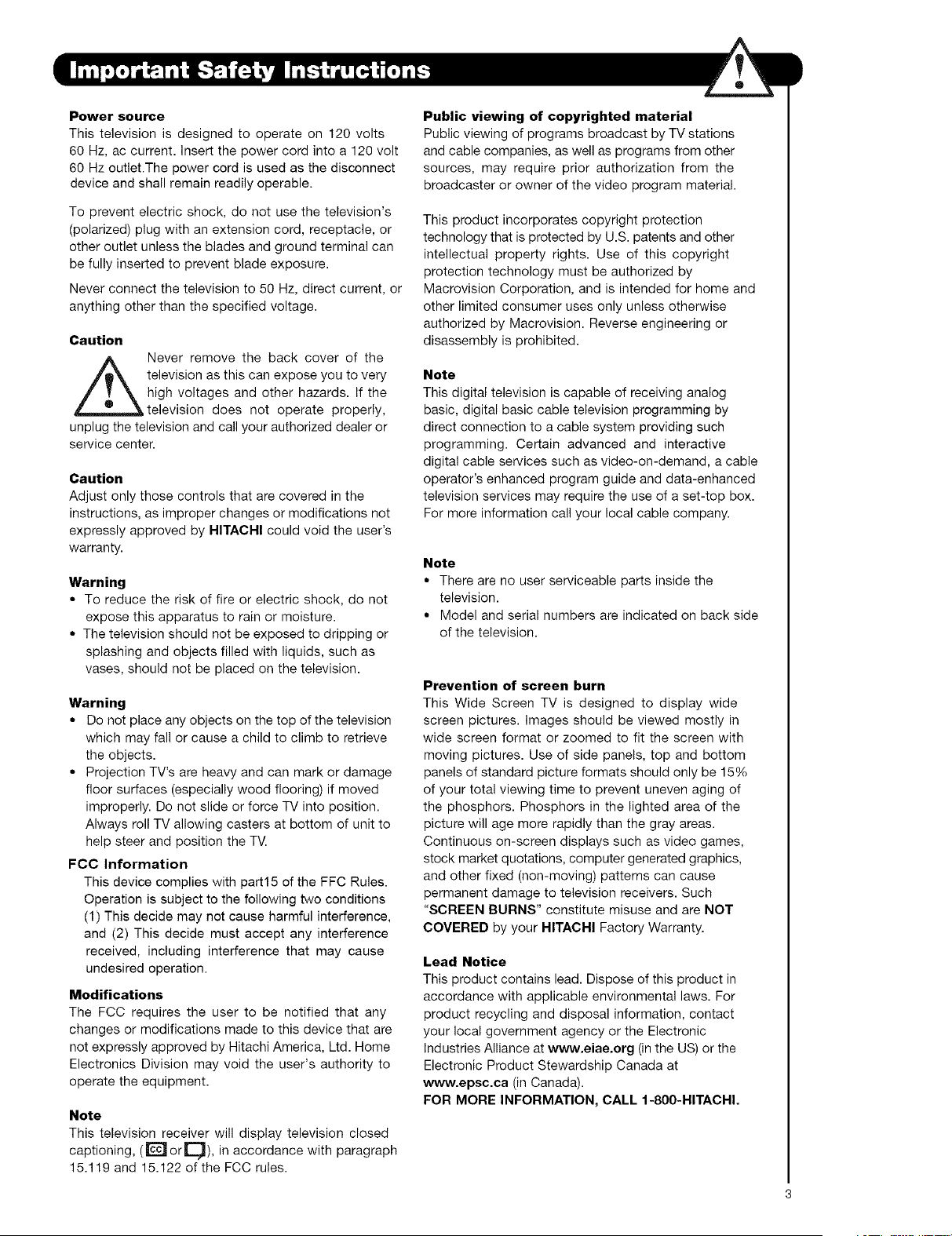
Caution
Never remove the back cover of the
television as this can expose you to very
high voltages and other hazards. If the
television does not operate properly,
unplug the television and call your authorized dealer or
service center.
Caution
Adjust only those controls that are covered in the
instructions, as improper changes or modifications not
expressly approved by HITACHI could void the user's
warranty.
Warning
• To reduce the risk of fire or electric shock, do not
expose this apparatus to rain or moisture.
• The television should not be exposed to dripping or
splashing and objects filled with liquids, such as
vases, should not be placed on the television.
Warning
• Do not place any objects on the top of the television
which may fall or cause a child to climb to retrieve
the objects.
• Projection TV's are heavy and can mark or damage
floor surfaces (especially wood flooring) if moved
improperly. Do not slide or force TV into position.
Always roll TV allowing casters at bottom of unit to
help steer and position the TV.
FCC Information
This device complies with part15 of the FFC Rules.
Operation is subject to the following two conditions
(1) This decide may not cause harmful interference,
and (2) This decide must accept any interference
received, including interference that may cause
undesired operation.
Modifications
The FCC requires the user to be notified that any
changes or modifications made to this device that are
not expressly approved by Hitachi America, Ltd. Home
Electronics Division may void the user's authority to
operate the equipment.
Note
This television receiver will display television closed
captioning, ([_ or[_), in accordance with paragraph
15.119 and 15.122 of the FCC rules.
Public viewing of copyrighted material
Public viewing of programs broadcast by TV stations
and cable companies, as well as programs from other
sources, may require prior authorization from the
broadcaster or owner of the video program material.
This product incorporates copyright protection
technology that is protected by U.S. patents and other
intellectual property rights. Use of this copyright
protection technology must be authorized by
Macrovision Corporation, and is intended for home and
other limited consumer uses only unless otherwise
authorized by Macrovision. Reverse engineering or
disassembly is prohibited.
Note
This digital television is capable of receiving analog
basic, digital basic cable television programming by
direct connection to a cable system providing such
programming. Certain advanced and interactive
digital cable services such as video-on-demand, a cable
operator's enhanced program guide and data-enhanced
television services may require the use of a set-top box.
For more information call your local cable company.
Note
• There are no user serviceable parts inside the
television.
• Model and serial numbers are indicated on back side
of the television.
Prevention of screen burn
This Wide Screen TV is designed to display wide
screen pictures. Images should be viewed mostly in
wide screen format or zoomed to fit the screen with
moving pictures. Use of side panels, top and bottom
panels of standard picture formats should only be 15%
of your total viewing time to prevent uneven aging of
the phosphors. Phosphors in the lighted area of the
picture will age more rapidly than the gray areas.
Continuous on-screen displays such as video games,
stock market quotations, computer generated graphics,
and other fixed (non-moving) patterns can cause
permanent damage to television receivers. Such
"SCREEN BURNS" constitute misuse and are NOT
COVERED by your HITACHI Factory Warranty.
Lead Notice
This product contains lead. Dispose of this product in
accordance with applicable environmental laws. For
product recycling and disposal information, contact
your local government agency or the Electronic
Industries Alliance at www.eiae.org (in the US) or the
Electronic Product Stewardship Canada at
www.epsc.ca (in Canada).
FOR MORE INFORMATION, CALL 1-800-HITACHI.

Check to make sure you have the following accessories before disposing of the packing material,
O Remote Control _ Two "AA" size,
1.5V batteries
: , j i
iVOLi i c_i
MUTE L_T CH
f_
_) "Z" Allen Key
(65" Models Only)
O Remote Control Unit CLU-4361S (Part No. HL02291),
Two "AA" size, 1.5V batteries (For Remote Control Unit).
"Z" Allen Key (Part No. 61010122). Provided only when Allen Screws are used.
REMOTE CONTROL BATTERY INSTALLATION AND REPLACEMENT
1. Open the battery compartment cover of the remote control
by pulling back the TAB and lifting up to remove the cover.
2. Insert two new "AA" size batteries into the remote control.
When replacing old batteries, push them back towards
the springs and lift out.
3. Match the batteries to the (+) and (-) marks in the battery
compartment.
4. insert the (-) side, into the battery compartment, the slide
the battery inwards and insert the second battery. Do not
force the battery into the battery compartment.
5. Replace the battery compartment cover.
Bottom View (Remote Control)
Pull up tab to remove back cover.
ANTENNA
Unless your TV is connected to a cable TV system or to a centralized antenna system, a good outdoor TV antenna
is recommended for best performance. However, if you are located in an exceptionally good signal area that is free
from interference and multiple image ghosts, an indoor antenna may be sufficient.
LOCATION
Select an area where sunlight or bright indoor illumination will not fall directly on the picture screen. Also, be sure
that the location selected allows a free flow of air to and from the perforated back cover of the set. To avoid
cabinet warping, cabinet color changes, and increased chance of set failure, do not place the TV where
temperatures can become excessively hot, for example, in direct sunlight or near a heating appliance, etc.
VIEWING
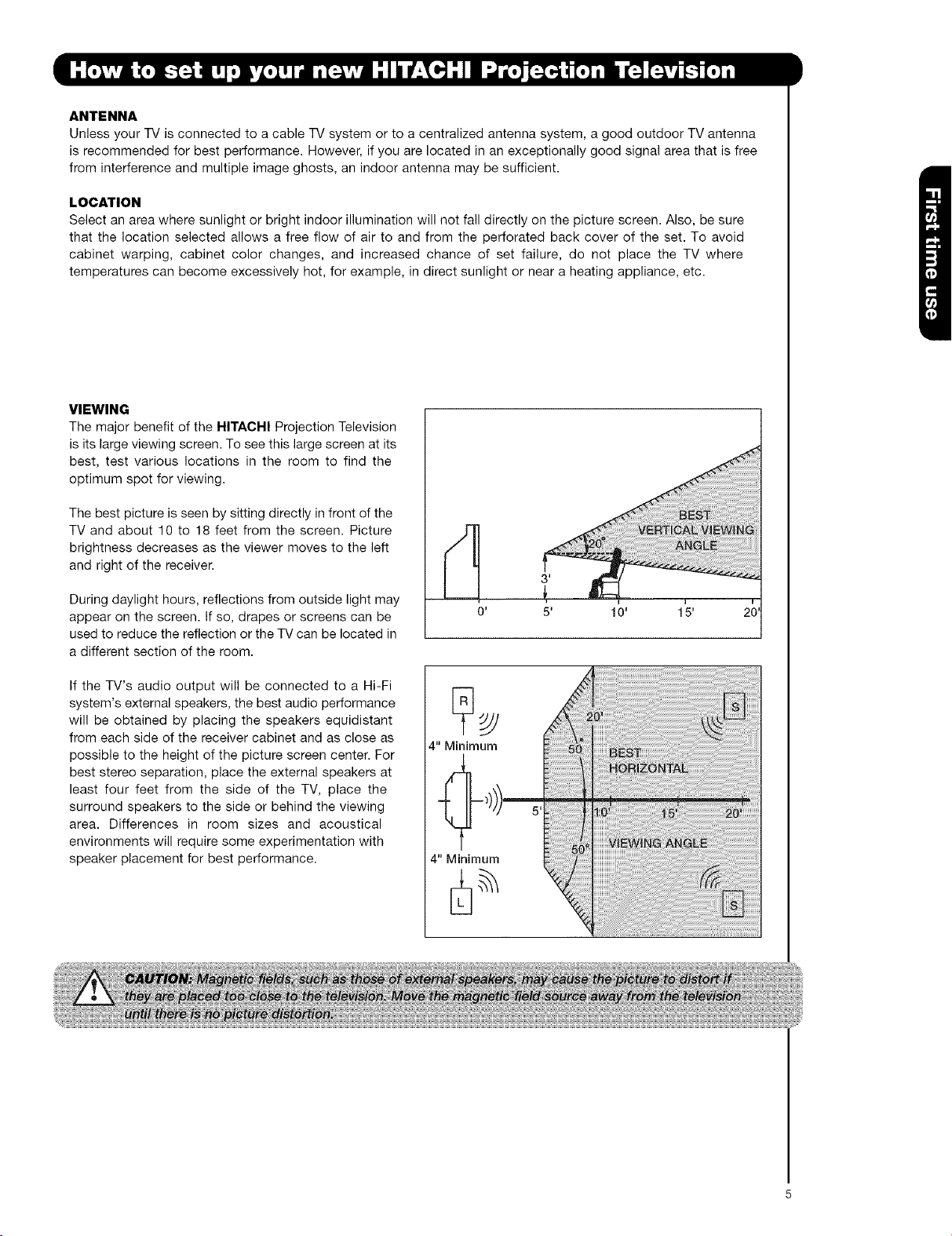
The major benefit of the HITACHI Projection Television
is its large viewing screen. To see this large screen at its
best, test various locations in the room to find the
optimum spot for viewing.
The best picture is seen by sitting directly in front of the
TV and about 10 to 18 feet from the screen. Picture
brightness decreases as the viewer moves to the left
and right of the receiver.
During daylight hours, reflections from outside light may
appear on the screen. If so, drapes or screens can be
used to reduce the reflection or the TV can be located in
a different section of the room.
If the TV's audio output will be connected to a Hi-Fi
system's external speakers, the best audio performance
will be obtained by placing the speakers equidistant
from each side of the receiver cabinet and as close as
possible to the height of the picture screen center. For
best stereo separation, place the external speakers at
least four feet from the side of the TV, place the
surround speakers to the side or behind the viewing
area. Differences in room sizes and acoustical
environments will require some experimentation with
speaker placement for best performance.
10' 1_5' 20'
4" Minimum
4" Minimum
+i_!_!lil!li!i!+i!+i!+i!+i!+i!+i!+i!+i!+i!+i!+i!+!_!+!+!!i!+!i!;i!i+_ilililililililililililililililililili_i¸ii¸ii¸ii¸ii++i
iiiilili%!!!i!!i!!!!!i!iiiilililiiiiiiiiiii!ii!ii!ii!ii!ii!ii!ii!iiiii
iiiiiiiii!i!!!!!i!!!!!i!!i!!i!i!i!i!i!!ii!!ii!!iiiiiiiiili++Diiiiiiill
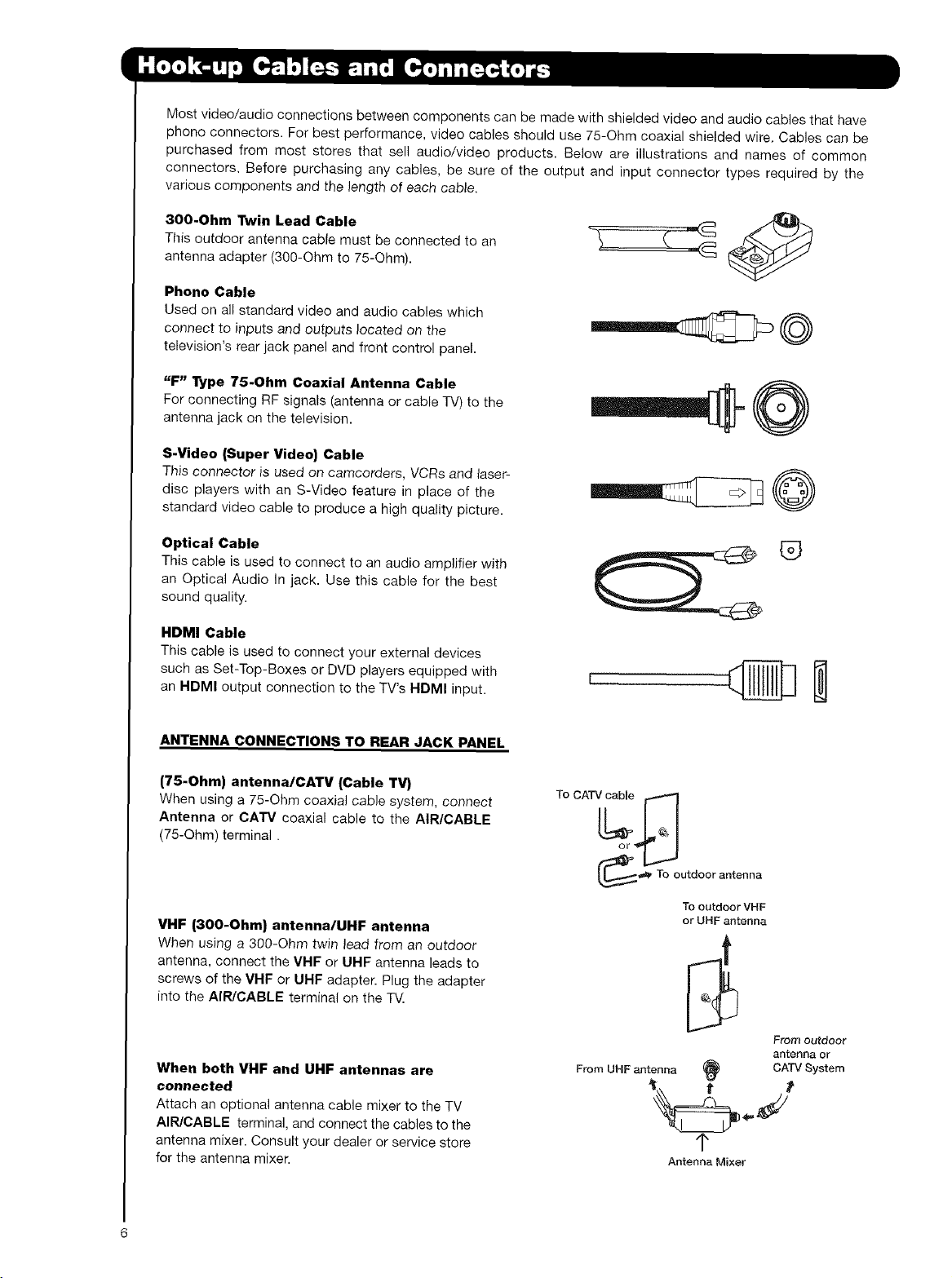
Most video/audio connections between components can be made with shielded video and audio cables that have
phono connectors. For best performance, video cables should use 75-Ohm coaxial shielded wire. Cables can be
purchased from most stores that sell audio/video products. Below are illustrations and names of common
connectors. Before purchasing any cables, be sure of the output and input connector types required by the
various components and the length of each cable.
300.Ohm Twin Lead Cable
This outdoor antenna cable must be connected to an
antenna adapter (300-Ohm to 75-Ohm).
Phone Cable
Used on all standard video and audio cables which
connect to inputs and outputs located on the
television's rear jack panel and front control panel.
"F" Type 75-Ohm Coaxial Antenna Cable
For connecting RF signals (antenna or cable TV) to the
antenna jack on the television.
S-Video (Super Video) Cable
This connector is used on camcorders, VCRs and laser-
disc players with an S-Video feature in place of the
standard video cable to produce a high quality picture.
Optical Cable
This cable is used to connect to an audio amplifier with
an Optical Audio In jack. Use this came for the best
sound quality.
HDMI Cable
This cable is used to connect your external devices
such as Set-Top-Boxes or DVD players equipped with
an HDMI output connection to the TV's HDMI input.
®
ANTENNA CONNECTIONS TO REAR JACK PANEL
(75-Ohm) antenna/CATV (Cable TV)
When using a 75-Ohm coaxial cable system, connect
Antenna or CATM coaxial came to the AIR/CABLE
(75-Ohm) terminal.
VHF (300-Ohm) antenna/UHF antenna
When using a 300-Ohm twin lead from an outdoor
antenna, connect the VHF or UHF antenna leads to
screws of the VHF or UHF adapter. Plug the adapter
into the AIR/CABLE terminal on the T_Z
When both VHF and UHF antennas are
connected
Attach an optional antenna cable mixer to the TV
AIR/CABLE terminal, and connect the cables to the
antenna mixer. Consult your dealer or service store
for the antenna mixer.
____._, To outdoor antenna
To outdoorVHF
or UHF antenna
From UHF antenna (_
q,
Antenna Mixer
From outdoor
antenna or
CATV System
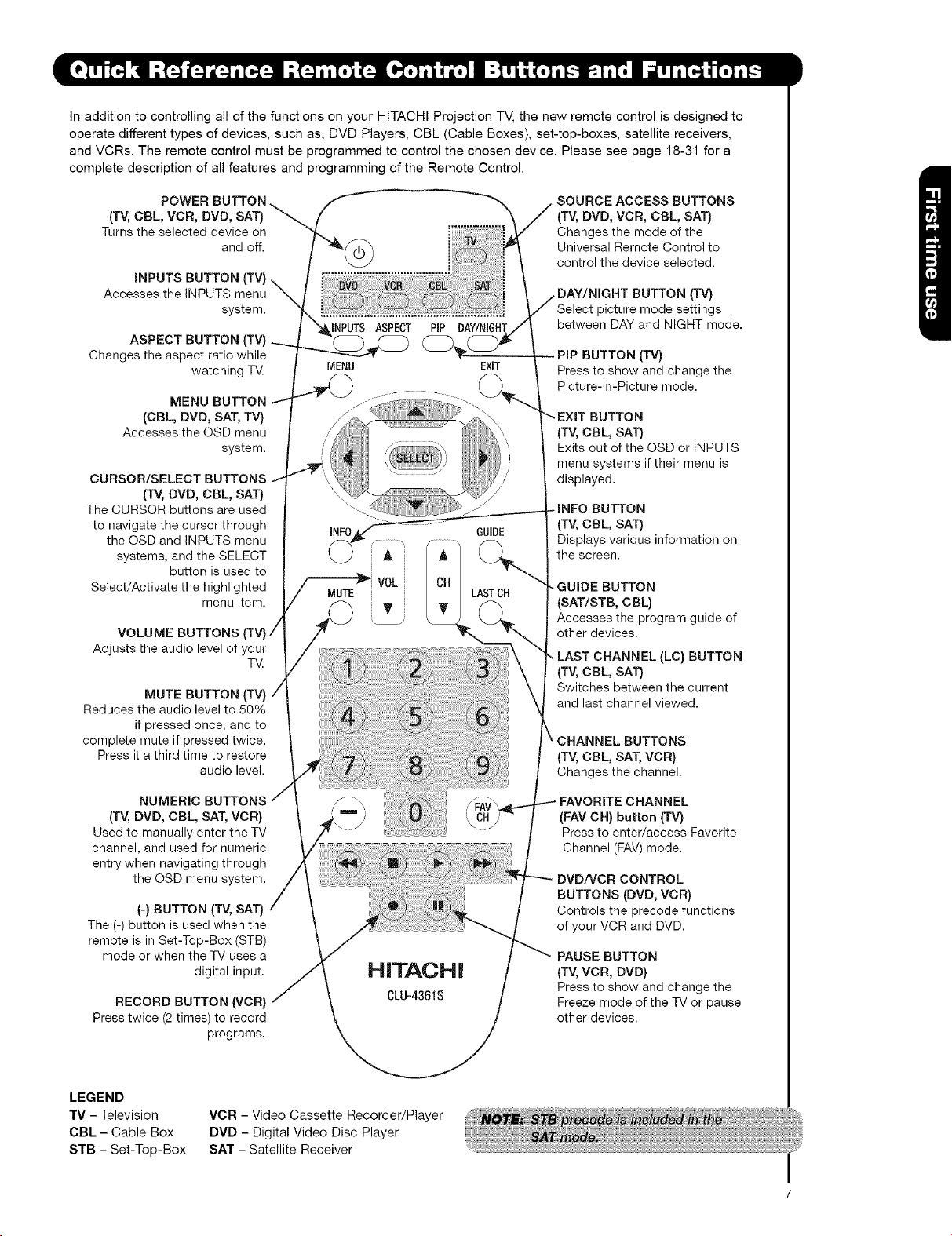
In addition to controlling all of the functions on your HITACHI Projection TV, the new remote control is designed to
operate different types of devices, such as, DVD Players, CBL (Cable Boxes), set-top-boxes, satellite receivers,
and VCRs. The remote control must be programmed to control the chosen device. Please see page 18-31 for a
complete description of all features and programming of the Remote Control.
POWER BUTTON
(TV, CBL, VCR, DVD, SAT)
Turns the selected device on
and off.
iNPUTS BUTTON
Accesses the INPUTS menu
system.
ASPECT BUTTON
Changes the aspect ratio while
watching TV.
MENU BUTTON
(CBL, DVD, SAT, TV}
Accesses the OSD menu
system.
CURSOR/SELECT BUTTONS
(TV, DVD, CBL, SAT)
The CURSOR buttons are used
to navigate the cursor through
the OSD and INPUTS menu
systems, and the SELECT
button is used to
Select/Activate the highlighted
menu item.
VOLUME BUTTONS
Adjusts the audio level of your
TV.
MUTE BUTTON (TV}
Reduces the audio level to 50%
if pressed once, and to
complete mute if pressed twice.
Press it a third time to restore
audio level.
SOURCE ACCESS BUTTONS
(TV, DVD, VCR, CBL, SAT}
Changes the mode of the
Universal Remote Control to
control the device selected.
(Tv}
Select picture mode settings
between DAY and NIGHT mode.
BUTTON (TV}
Press to show and change the
Picture-in-Picture mode.
BUTTON
(TV, CBL, SAT}
Exits out of the OSD or INPUTS
menu systems if their menu is
displayed.
-INFO BUTTON
(TV, CBL, SAT}
Displays various information on
the screen.
-GUIDE BUTTON
(SAT/STB, CBL}
Accesses the program guide of
other devices.
LAST CHANNEL (LC} BUTTON
(TV, CBL, SAT}
Switches between the current
and last channel viewed.
CHANNEL BUTTONS
(TV, CBL, SAT, VCR}
Changes the channel.
(TV, DVD, CBL, SAT, VCR}
Used to manually enter the TV
channel, and used for numeric
entry when navigating through
the OSD menu system.
(-) BUTTON (TV, SAT)
The (-) button is used when the
remote is in Set-Top-Box (STB)
mode or when the "iV uses a
digital input.
RECORD BUTTON (VCR)
Press twice (2 times) to record
programs.
CHANNEL
(FAV CH) button (TV}
Press to enter/access Favorite
Channel (FAV) mode.
DVD/VCR CONTROL
BUTTONS (DVD, VCR)
Controls the precode functions
of your VCR and DVD.
PAUSE BUTTON
(TV, VCR, DVD}
Press to show and change the
Freeze mode of the TV or pause
other devices.
LEGEND
"rv - Television
CBL - Cable Box
STB - Set-Top-Box
VCR - Video Cassette Recorder/Player
DVD - Digital Video Disc Player
SAT - Satellite Receiver
IN_JT _ @
i
FOCLI8 _ '_ _ T CH & INL_II" MENU POWER
0 0 0 0
_o_R0
]
0
0
O
0
0
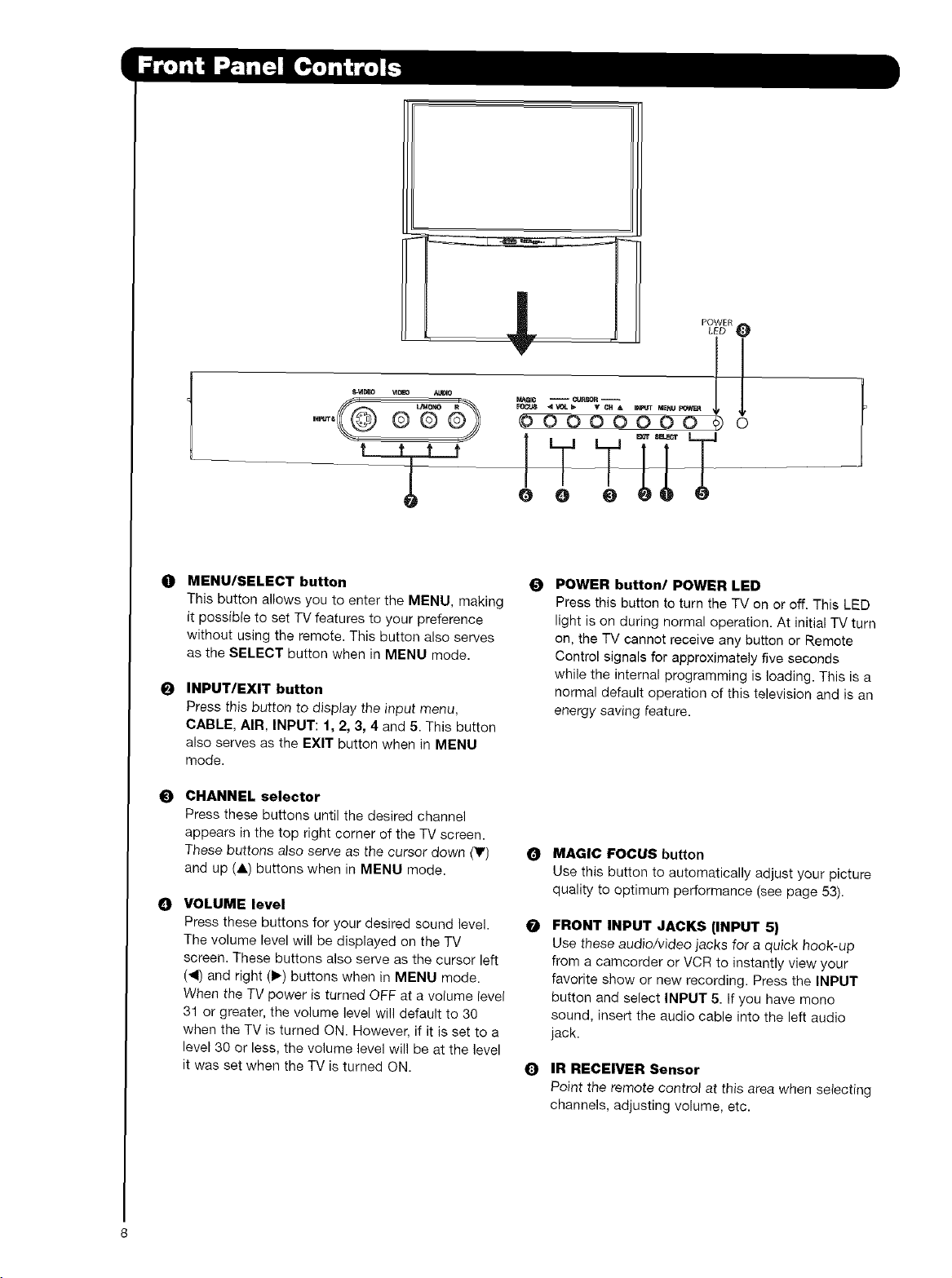
MENU/SELECT button
This button allows you to enter the MENU, making
it possible to set TV features to your preference
without using the remote. This button also serves
as the SELECT button when in MENU mode.
INPUT/EXIT button
Press this button to display the input menu,
CABLE, AIR, INPUT: 1,2, 3, 4 and 5. This button
also serves as the EXIT button when in MENU
mode.
CHANNEL selector
Press these buttons until the desired channel
appears in the top right corner of the TV screen.
These buttons also serve as the cursor down (Y)
and up (&) buttons when in MENU mode.
O
O
POWER button/POWER LED
Press this button to turn the TV on or off. This LED
light is on during normal operation. At initial TV turn
on, the TV cannot receive any button or Remote
Control signals for approximately five seconds
while the internal programming is loading. This is a
normal default operation of this television and is an
energy saving feature.
VOLUME level
Press these buttons for your desired sound level. O
The volume level will be displayed on the TV
screen. These buttons also serve as the cursor left
(_1) and right (1_) buttons when in MENU mode.
When the TV power is turned OFF at a volume level
31 or greater, the volume level will default to 30
when the TV is turned ON. However, if it is set to a
level 30 or less, the volume level will be at the level
it was set when the TV is turned ON. Q
MAGIC FOCUS button
Use this button to automatically adjust your picture
quality to optimum performance (see page 53).
FRONT INPUT JACKS (INPUT 5)
Use these audio/video jacks for a quick hook-up
from a camcorder or VCR to instantly view your
favorite show or new recording. Press the INPUT
button and select INPUT 5. If you have mono
sound, insert the audio cable into the left audio
jack.
IR RECEIVER Sensor
Point the remote control at this area when selecting
channels, adjusting volume, etc.
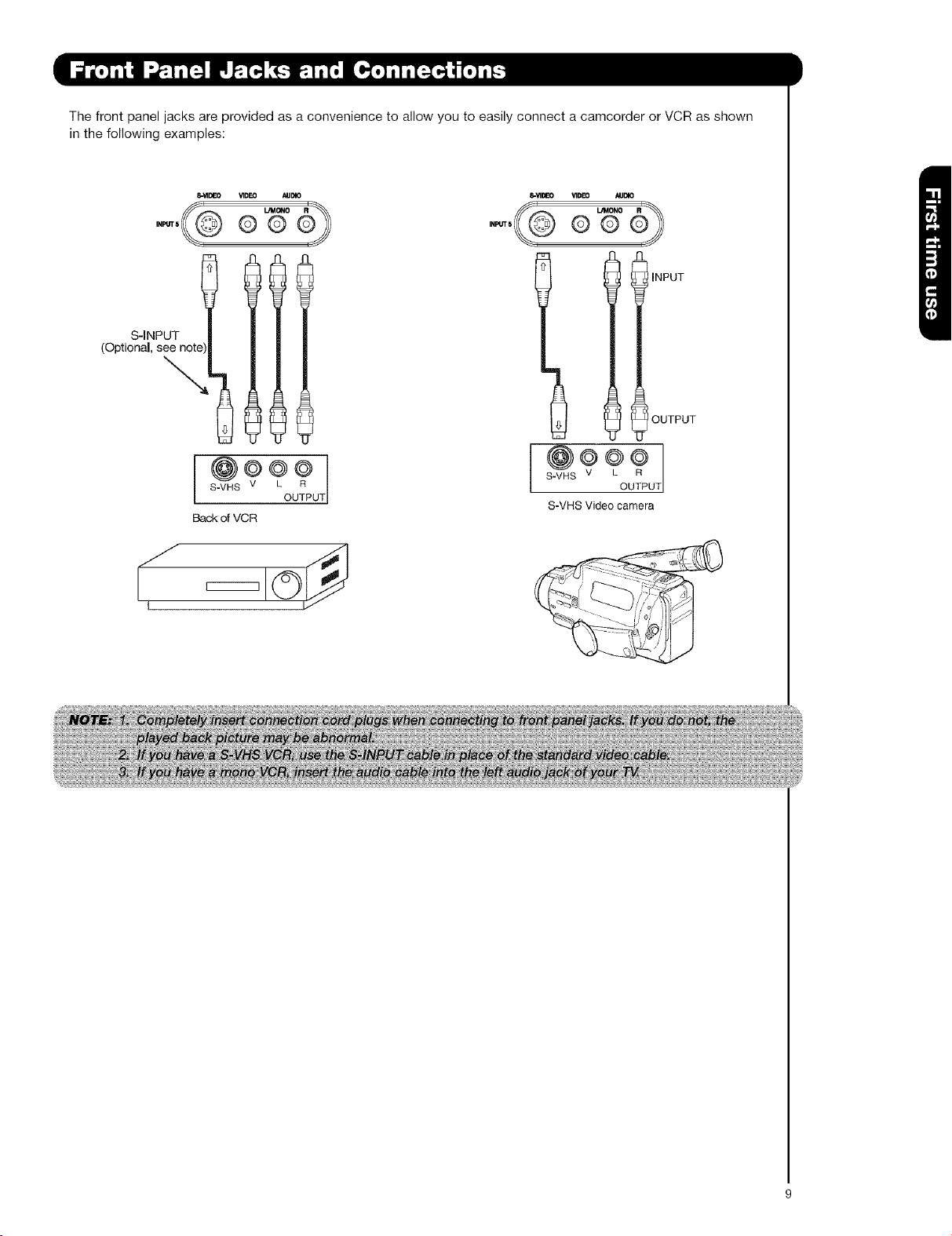
ThefrontpaneljacksareprovidedasaconveniencetoallowyoutoeasilyconnectacamcorderorVCRasshown
inthefollowingexamples:
S-INPUT
(Optional,seenote
\
S-VIDEO _DEO AUDIO
,-. @ ®®
i
S-VHS V UT
Back of VCR
J ..d
, =:z ©I_ j
i
INPUTs @
VIDEO ,_BIO
L/MONO _
©®
l INPUT
OUTPUT
S-VHS UT
S-VHS Video camera
AIR/ CABLE
_0
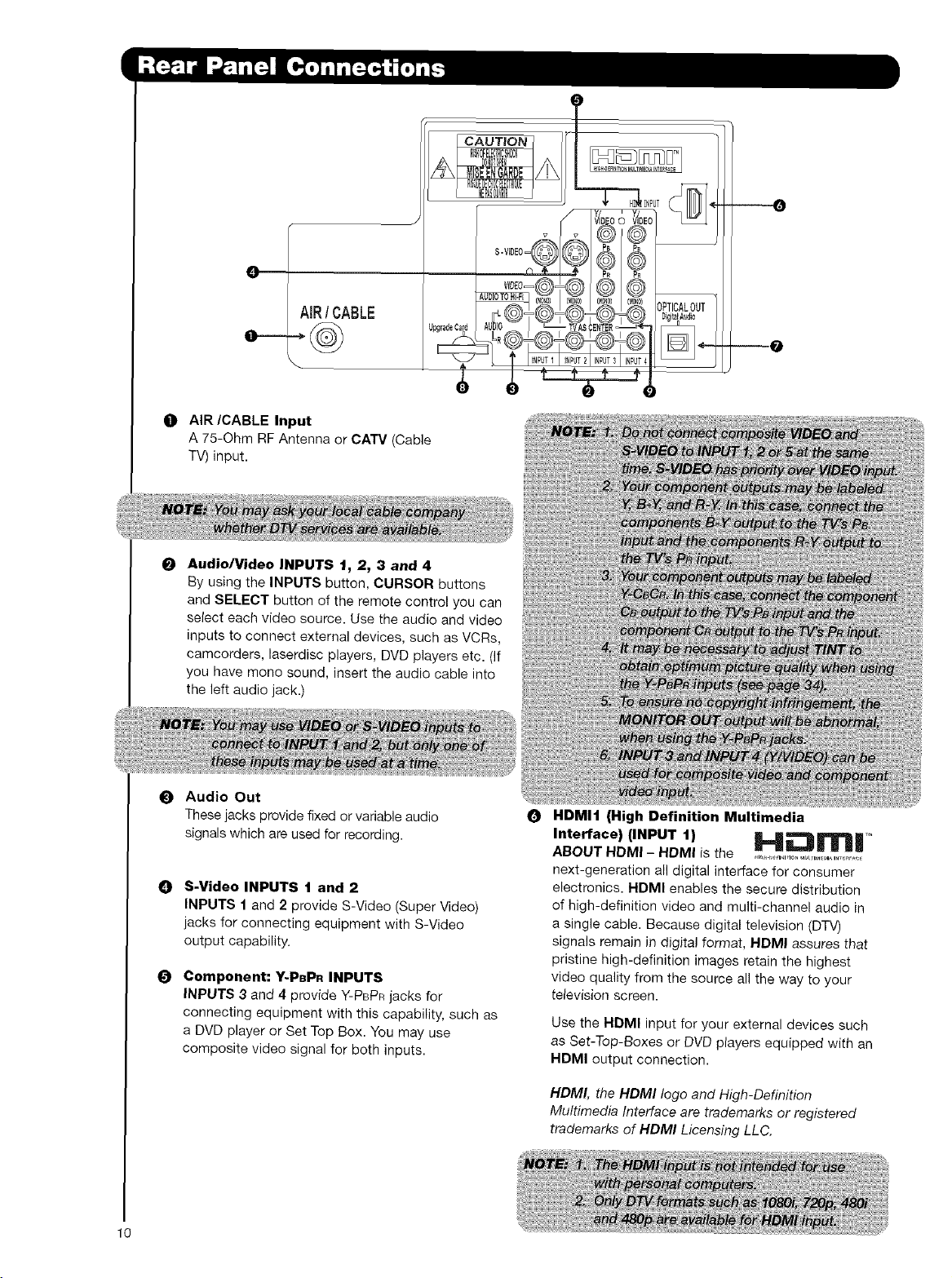
O AIR/CABLE Input
A 75-Ohm RF Antenna or CATV (Cable
TV) input.
t_ Audio/Video INPUTS t, 2, 3 and 4
By using the INPUTS button, CURSOR buttons
and SELECT button of the remote control you can
select each video source. Use the audio and video
inputs to connect external devices, such as VCRs,
camcordere, laserdisc players, DVD players etc. (if
you have mono sound, insert the audio cable into
the left audio jack.)
0 Audio Out
These jacks provide fixed or variable audio
signals which are used for recording.
O
O
S-Video INPUTS t and 2
INPUTS I and 2 provide S-Video (Super Video)
jacks for connecting equipment with S-Video
output capability.
Component: Y-PBPn INPUTS
INPUTS 3 and 4 provide Y-PBPR jacks for
connecting equipment with this capability, such as
a DVD player or Set Top Box. You may use
composite video signal for both inputs.
0
ta_
d_x_
mDo;_
_loOBe
Ut te_
)o_neo_
HDMI1 (High Definition Multimedia
Interface) (INPUT 1) __T_
ABOUT HDMI - HDMI is the ..................................
next-generation all digital interface for consumer
electronics. HDMI enables the secure distribution
of high-definition video and multi-channel audio in
a single cable. Because digital television (DTV)
signals remain in digital format, HDMI assures that
pristine high-definition images retain the highest
video quality from the source all the way to your
tetevision screen.
Use the HDMI input for your external devices such
as Set-Top-Boxes or DVD players equipped with an
HDMI output connection.
HDMI, the HDMI logo and High-Definition
Multimedia Interface are trademarks or registered
trademarks of HDMI Licensing LLC.
10
¢
O---
AIR/ CABLE
--0
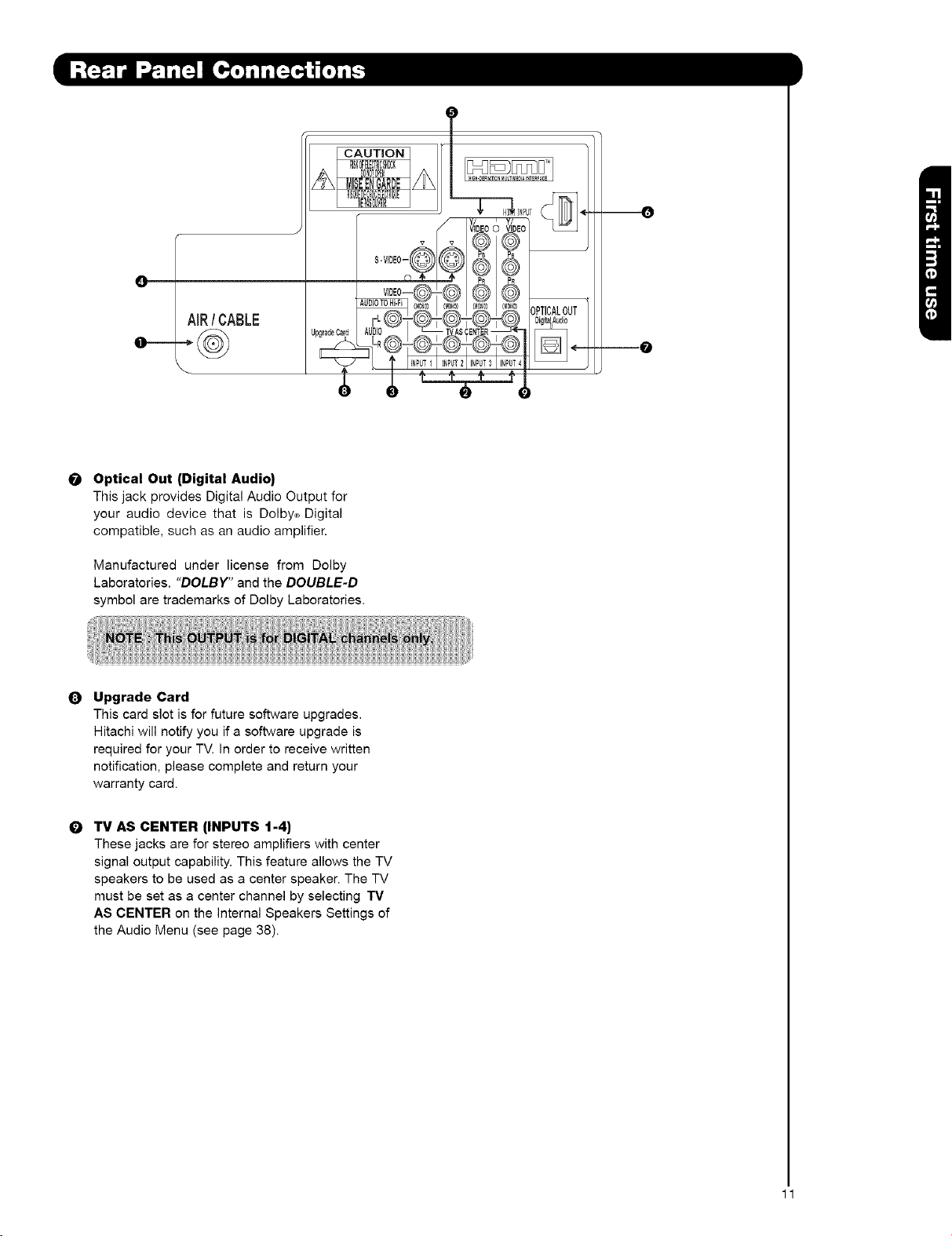
O Optical Out (Digital Audio)
This jack provides Digital Audio Output for
your audio device that is Dolby® Digital
compatible, such as an audio amplifier.
Manufactured under license from Dolby
Laboratories. "DOLBY" and the DOUBLE-D
symbol are trademarks of Dolby Laboratories,
0
0
Upgrade Card
This card slot is for future software upgrades.
Hitachi will notify you if a software upgrade is
required for your TV. In order to receive written
notification, please complete and return your
warranty card.
TV AS CENTER (INPUTS 1-4)
These jacks are for stereo amplifiers with center
signal output capability. This feature allows the TV
speakers to be used as a center speaker. The TV
must be set as a center channel by selecting TV
AS CENTER on the Internal Speakers Settings of
the Audio Menu (see page 38).
11

TIPS ON REAR PANEL CONNECTIONS
S-VIDEO, Y-PBPR and HDMI
connections are provided for
high performance laserdisc
players, VCRs etc. that have
this feature. Use these
connections in place of the
standard video connection if
your device has this feature.
If your device has only one
audio output (mono sound),
connect it to the left audio
jack on the television.
Refer to the operating guide of
your other electronic equipment
for additional information on
connecting your hook-up
cables.
An AUDIO system can be used
by connecting the AUDIO TO HI-FI
output of the TV. This can be
use when you like to control the
volume output by changing the
volume of the TV.
Outside Antenna
or Cable
You may use VIDEO or
S-VIDEO inputs to connect to
INPUT 1, INPUT 2 or INPUT 5,
but only one of these may be
used at a time.
i
AIR/ CABLE
}@
ii iii! ii!i ii!ii
OUTPUT _} OUTPUT
SVIDEOV L Y PB/G PR/Q_ L R
@oo _oooo
Connect only one component
_VCR, DVD player, camcorder,
etc.) to each input jack.
AUDIO AMP Laserdisc player, VCR, VCR #1 DVD Player
External
Digital
Component
with HDMI
output
capability
To an
amplifier/
receiver with
optical input
capability.
COMPONENT: Y-PBPR (INPUT 3 and INPUT 4)
connections are provided for high performance
components, such as DVD players and set-top-
boxes. Use these connections in place of the
standard video connection if your device has this
feature. INPUT 3 and INPUT 4 accepts both
composite and component video signals.
• When using an I-tDMI input from a Set-Top-Box, it
is recommended that a 1080i or 720p input signal
is used.
Your component outputs may be labeled Y, B-Y,
and R-Y. In this case, connect the components
B-Y output to the TV's PB input and the
components R-Y output to the TV's PR input.
Your component outputs may be labeled Y-CBCR.
In this case, connect the components CB output to
the TV's PB input and the components CR output to
the TV's PR input.
12
• You may use composite and component video
signals for INPUT 3 and INPUT 4.
• It may be necessary to adjust TINT to obtain
optimum picture quality when using the Y-PaPa
inputs (see page 34).
|_NOTJ:
_ $}Qt'J,_J
_Z_ DV'
D ;IVICle(
Mtchthenumbesbeowtothedgramfor /
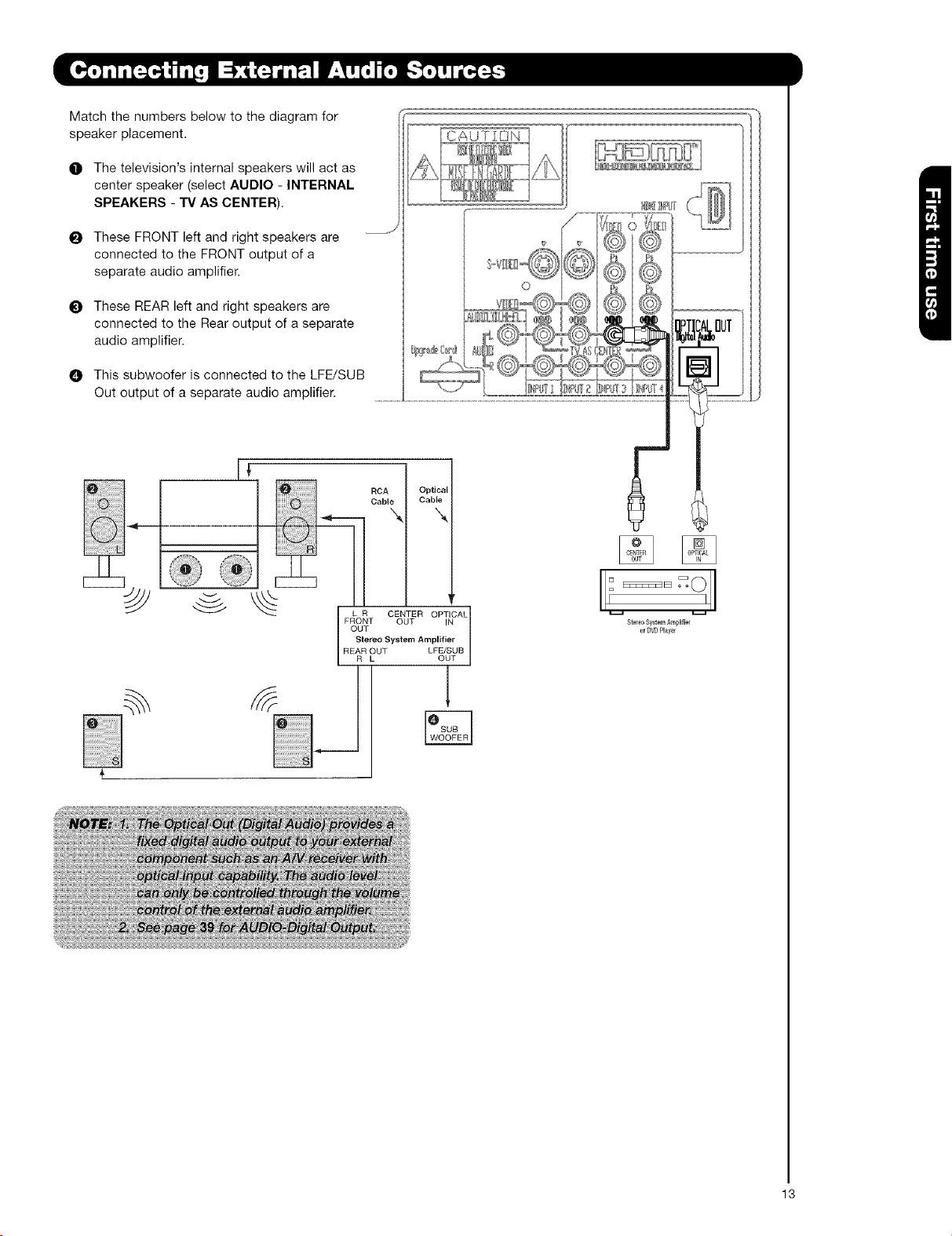
speaker placement. C A U [3 N
O The television's internal speakers will act as _ _
center speaker (select AUDIO - INTERNAL
SPEAKERS - TV AS CENTER).
I_ These FRONT left and right speakers are --J/ _ /
connected to the FRONT output of a / @_ _ _
separate audio amplifier. !,:oV_@
t_ These REAR left and right speakers are _ _ 'i/
connected to the Rear output of a separate
audio amplifier. _® _:_!, _?_ _ _
0 This subwoofer is connected to the LFE/SUB
Out output of a separate audio amplifier. ......................... ::r: :
RCA Optical
Cable Cable
L R CENTER OPTICAL
FRONT OUT IN
OITL OUT
Ste_o System Amplifier
REAR OUT LF_SUB
StereoSystemAm_#ie_
or DVDPlayel
13
TheexactarrangementyouusetoconnecttheVCR,camcorder,laserdiscplayer,DVDplayer,orHDTVSetTop
BoxtoyourTVsetisdependentonthemodelandfeaturesofeachcomponent.Checktheowner'smanualof
eachcomponentforthelocationofvideoandaudioinputsandoutputs.
Thefollowingconnectiondiagramsareoffered as suggestions. However, you may need to modify them to
accommodate your particular assortment of components and features. For best performance, video and audio
cables should be made from coaxial shielded wire.
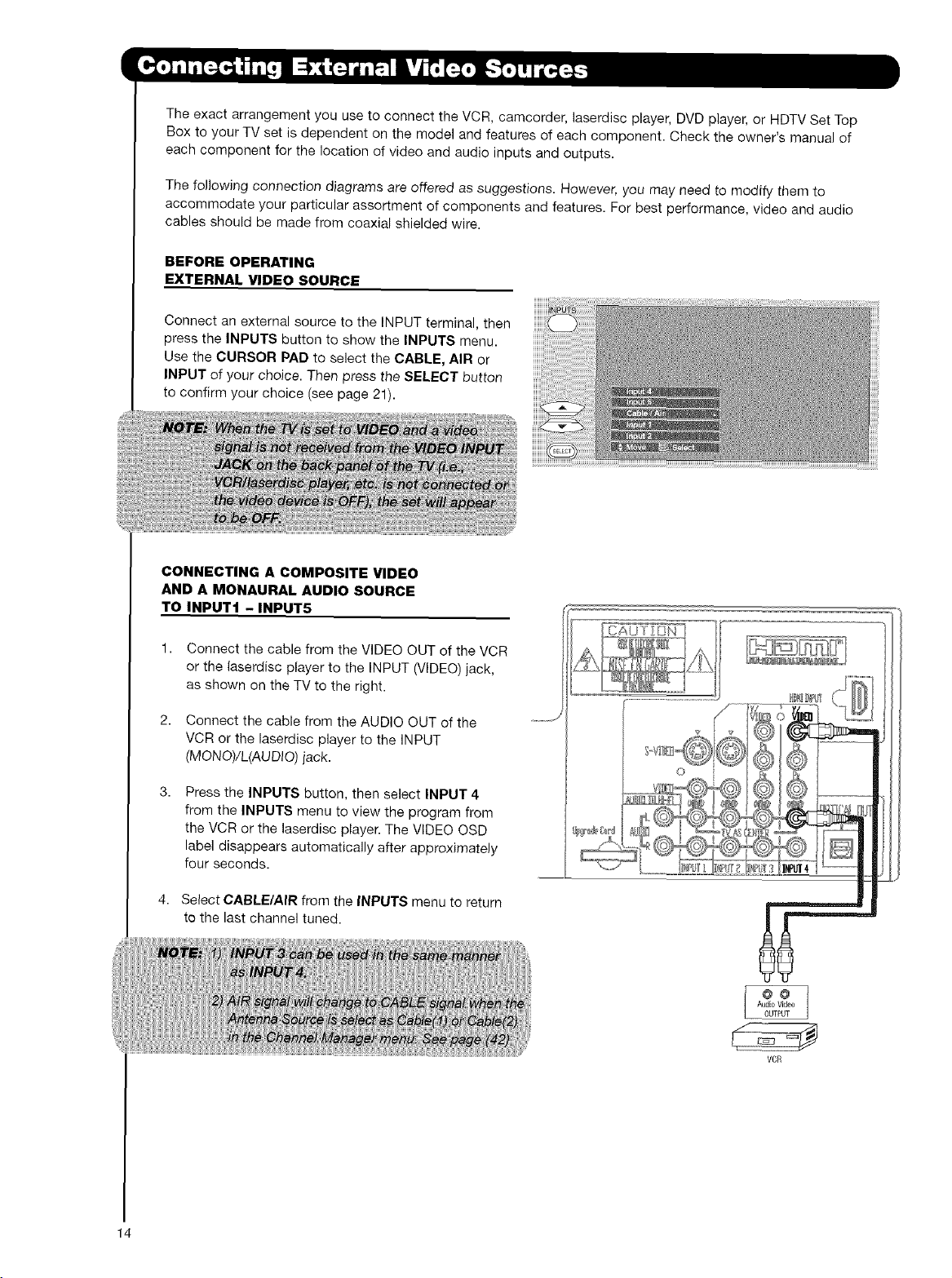
BEFORE OPERATING
EXTERNAL VIDEO SOURCE
Connect an external source to the INPUT terminal, then
press the INPUTS button to show the INPUTS menu.
Use the CURSOR PAD to select the CABLE, AIR or
INPUT of your choice. Then press the SELECT button
to confirm your choice (see page 21).
[S_Ot
_set
_ Wde
)EO_#
_n_ec;
fill _ol
CONNECTING A COMPOSITE VIDEO
AND A MONAURAL AUDIO SOURCE
TO INPUT1 - INPUT5
Connect the cable from the VIDEO OUT of the VCR
or the laserdisc player to the INPUT (VIDEO) jack,
as shown on the TV to the right.
Connect the cable from the AUDIO OUT of the
VCR or the laserdisc player to the INPUT
(MONO)tL(AUDIO) iack.
Press the INPUTS button, then select INPUT 4
from the INPUTS menu to view the program from
the VCR or the laserdise player. The VIDEO OSD
label disappears automatically after approximately
four seconds.
Select CABLE/AIR from the INPUTS menu to return
to the last channel tuned.
VCR
14
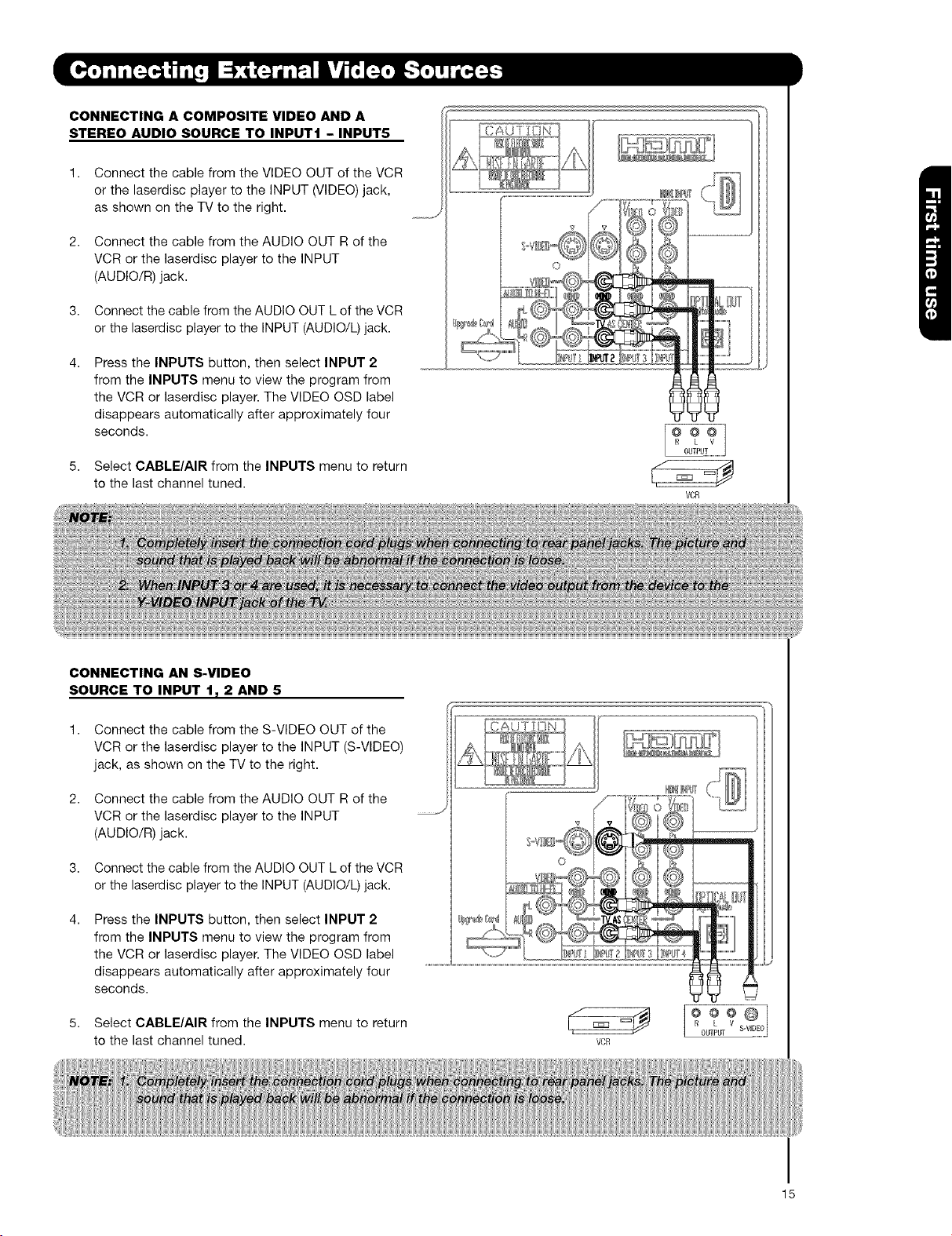
CONNECTING A COMPOSITE VIDEO AND A
STEREO AUDIO SOURCE TO INPUT1 - INPUT5 ]AUT IN
Connect the cable from the VIDEO OUT of the VCR
or the laserdisc player to the INPUT (VIDEO) jack,
as shown on the TV to the right.
Connect the cable from the AUDIO OUT R of the
VCR or the laserdisc player to the INPUT
(AUDIO/R) jack.
Connect the cable from the AUDIO OUT L of the VCR
or the laserdisc player to the INPUT (AUDIO/L)jack.
Press the INPUTS button, then select INPUT 2
from the INPUTS menu to view the program from
the VCR or laserdisc player. The VIDEO OSD label
disappears automatically after approximately four
seconds.
.... J
5. Select CABLE/AIR from the INPUTS menu to return
to the last channel tuned.
VCR
CONNECTING AN S-VIDEO
SOURCE TO INPUT 1_ 2 AND 5
1. Connect the cable from the S-VIDEO OUT of the
VCR or the laserdisc player to the INPUT (S-VIDEO)
jack, as shown on the TV to the right.
2. Connect the cable from the AUDIO OUT R of the
VCR or the laserdisc player to the INPUT
(AUDIO/R) jack.
3. Connect the cable from the AUDIO OUT L of the VCR
or the laserdisc player to the INPUT (AUDIO/L) jack.
Press the INPUTS button, then select INPUT 2
from the INPUTS menu to view the program from
the VCR or laserdisc player. The VIDEO OSD label
disappears automatically after approximately four
seconds.
5. Select CABLE/AIR from the INPUTS menu to return
to the last channel tuned.
__.J
Qoo@
R OUTPUT V S-VDEO
VCR
15
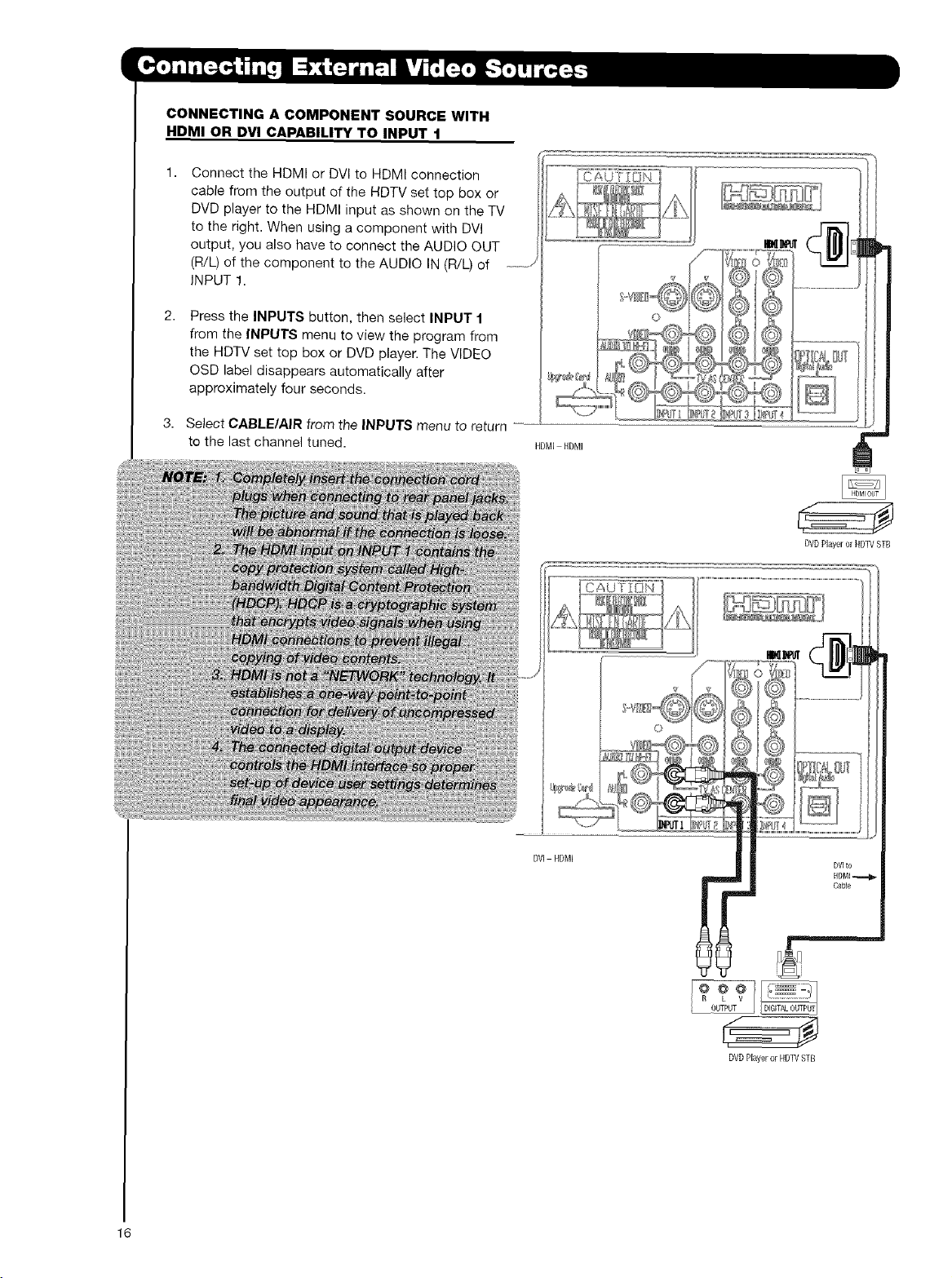
CONNECTING A COMPONENT SOURCE WITH
HDMI OR DVI CAPABILITY TO INPUT 1
Connect the HDMI or DVl to HDMI connection
cable from the output of the HDTV set top box or
DVD player to the HDMI input as shown on the TV
to the right. When using a component with DVl
output, you also have to connect the AUD}O (bUT
(R/L) of the component to the AUDIO IN (R/L) of
INPUT 1.
Press the INPUTS button, then select INPUT 1
from the INPUTS menu to view the program from
the HDTV set top box or DVD player. The VIDEO
OSD label disappears automatically after
approximately four seconds.
Select CABLE/AIR from the INPUTS menu to return
to the last channel tuned.
HDMI HDMI
DVI HOMI
CAUTION
DVDPlaye_orRDTVSTB
I°
R L V
: OUTPUT
DVDPlayeror HDTVSTB
16

CONNECTING A COMPONENT AND AN AUDIO
SOURCE TO INPUT 3 OR 4: Y-PBPR.
Connect the cable from the Y OUT of the
Laserdisc/DVD player or HDTV set top box to the
INPUT (Y) jack, as shown on the TV to the right.
Connect the cable from the CB/PB OUT or B-Y OUT
of the Laserdisc/DVD player or HDTV set top box
to the INPUT (PB) jack.
Connect the cable from the CR/PR OUT or R-Y OUT
of the laserdisc/DVD player or HDTV set top box to
the INPUT (PR) jack.
Connect the cable from the AUDIO ©UT R of the
Laserdisc/DVD player or HDTV set top box to the
INPUT (AUDIO/R) jack.
Connect the cable from the AUDIO OUT L of the
Laserdisc/DVD player or HDTV set top box to the
INPUT (AUDIO/L) jack.
Press the the INPUTS button, then select INPUT 3
from the INPUTS menu to view the program from
the Laserdisc/DVD player or HDTV set top box. The
VIDEO OSD label disappears automatically after
approximately four seconds.
Select CABLE/AIR from the INPUTS menu to return
to the last channel tuned.
@@@@@
R L PR PB Y
OUTPUT
DVDHayer
17
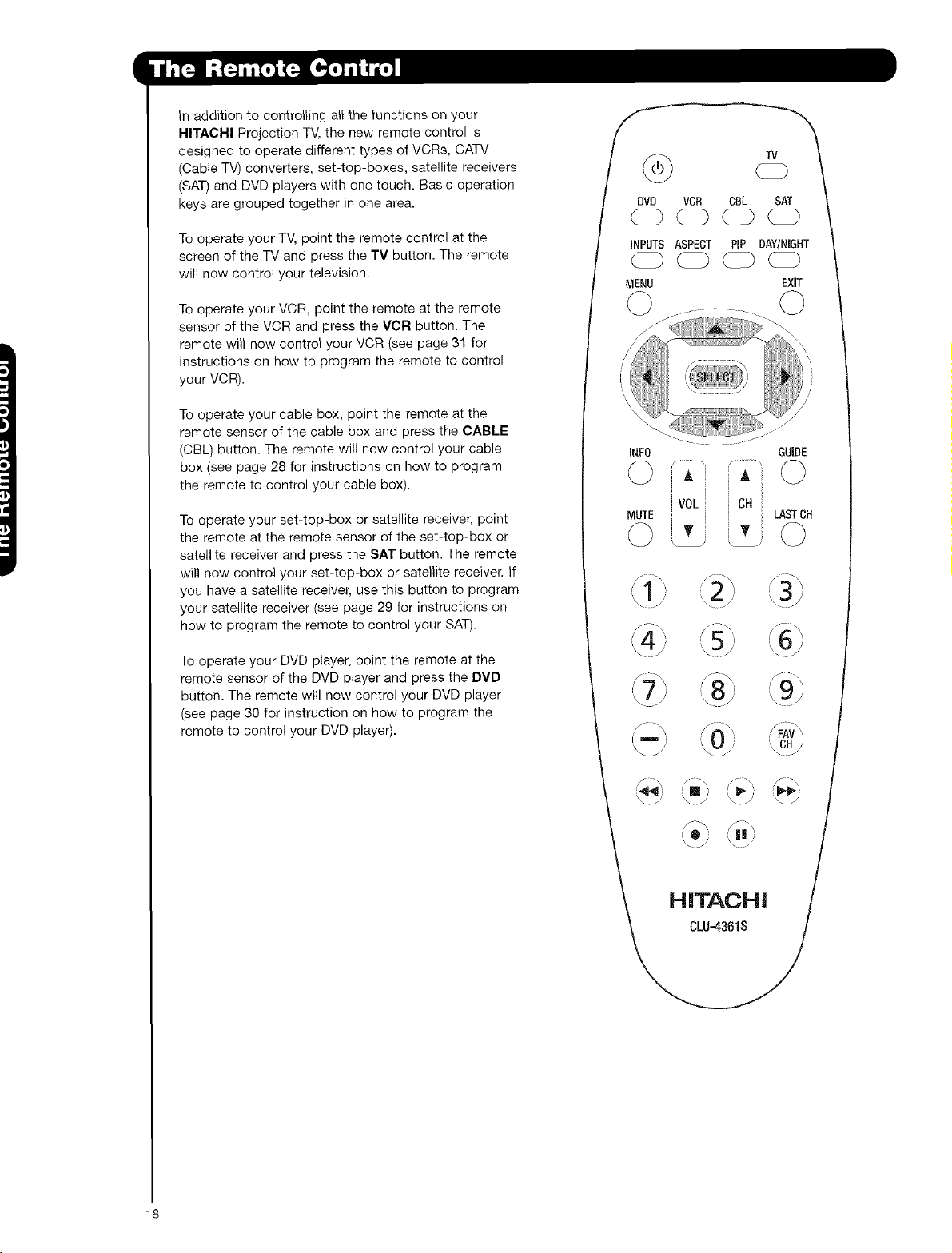
}nadditiontocontrollinga_lthefunctionsonyour
HITACHI Projection TV, the new remote control is
designed to operate different types of VCRs, CATV
(Cable TV) converters, set-top-boxes, satellite receivers
(SAT) and DVD players with one touch. Basic operation
keys are grouped together in one area.
To operate your TV, point the remote control at the
screen of the TV and press the TV button. The remote
will now control your television.
To operate your VCR, point the remote at the remote
sensor of the VCR and press the VCR button. The
remote will now control your VCR (see page 31 for
instructions on how to program the remote to control
your VCR).
To operate your cable box, point the remote at the
remote sensor of the cable box and press the CABLE
(CBL) button. The remote will now control your cable
box (see page 28 for instructions on how to program
the remote to control your cable box).
To operate your set-top-box or satellite receiver, point
the remote at the remote sensor of the set-top-box or
satellite receiver and press the SAT button. The remote
will now control your set-top-box or satel}ite receiver, if
you have a satellite receiver, use this button to program
your satellite receiver (see page 29 for instructions on
how to program the remote to control your SAT).
To operate your DVD player, point the remote at the
remote sensor of the DVD player and press the DVD
button. The remote will now control your DVD player
(see page 30 for instruction on how to program the
remote to control your DVD player).
VCR CBL S
iNPUTS ASPECT PiP DAY/
MENU EXiT
© ©
[NFO GUIDE
iAi
i i
ivo,i ' c.
MUTE i '_'
O i,T_ , .
LASTCH
©
\'S
S \" j
\8/¸
,/ _, ,/_'\. !_FAV_\
\ HITAc. /
18

INFO _' GUIDE
LASTCH
-0
0
e
0
POWER button
Press this button to turn the TV set on or off when
the remote is in TV mode. (See page 20 for
instructions on how to set the remote control to TV
mode.)
MODE buttons
These buttons allow the remote to control your TV,
VCR, DVD, Cable box/Satellite box depending on
which button is pressed.
PAUSE button
Press the PAUSE button to freeze the picture.
Press the EXIT button to return the picture to
motion. Press the PAUSE button repeatedly to
cycle through the three different freeze modes (see
page 24).
iiiiiiiiiiiiiiiiiiiiiiiiiiiiiiiiiiii!i Freeze
iiiiiiiiiiiiiiiiiiii..................iiiiiiiiiiiiiiiiiiiiiiii!iii!i!ii!iiiillI Froeze
_ii !_!i_i_i_i_i_i_i_i_ Freeze
O
DAY/NIGHT button
Press this button to toggle between Day and Night
picture mode settings. Select DAY for day time
viewing with more brightness and contrast to
compete with room light. Select NIGHT for night
time viewing with less brightness and contrast for a
more detailed picture (see page 34 for settings
changes).
19
20
O
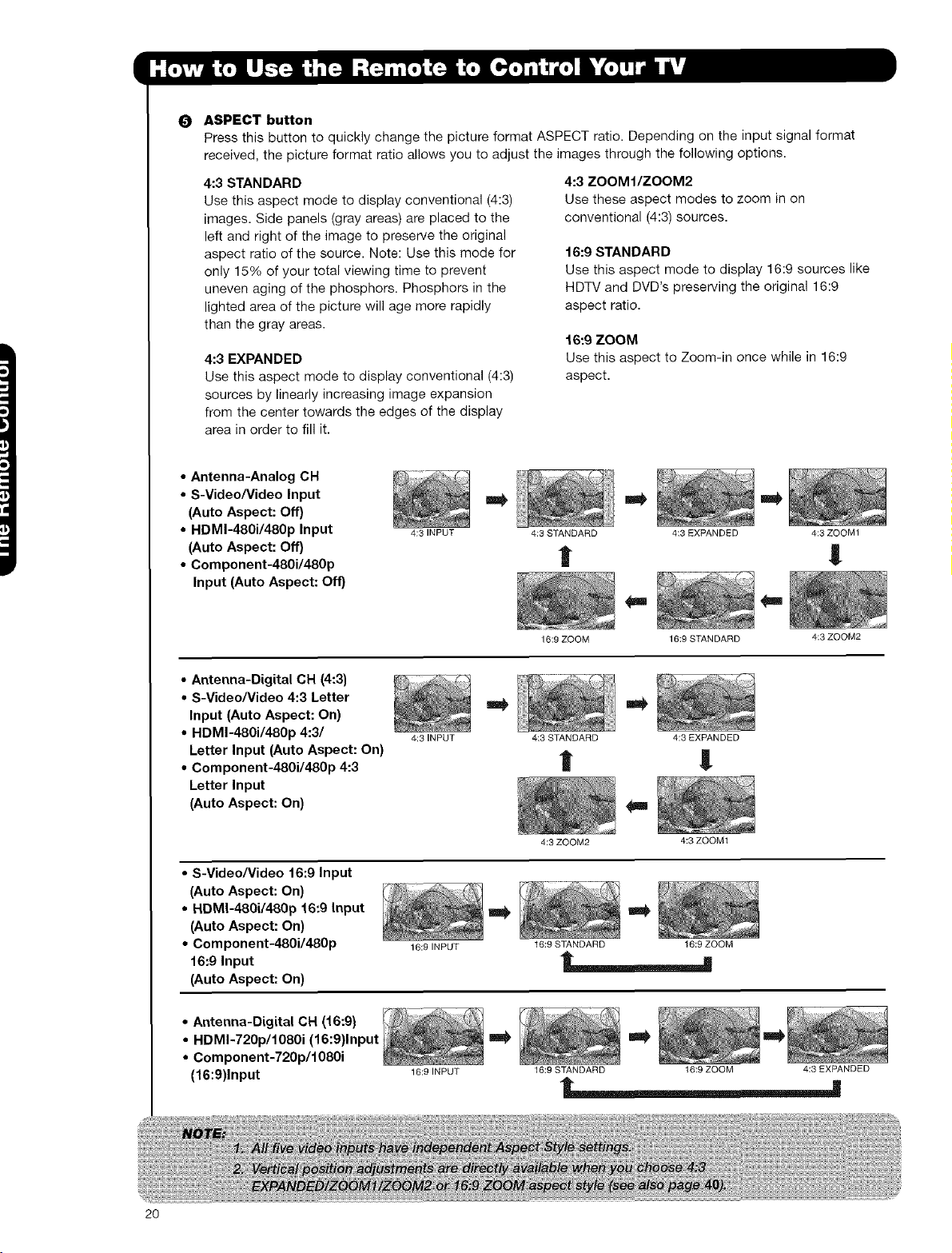
ASPECT button
Press this button to quickly change the picture format ASPECT ratio. Depending on the input signal format
received, the picture format ratio allows you to adjust the images through the following options.
4:3 STANDARD
Use this aspect mode to display conventional (4:3)
images. Side panels (gray areas) are placed to the
left and right of the image to preserve the original
aspect ratio of the source. Note: Use this mode for
only 15% of your total viewing time to prevent
uneven aging of the phosphors. Phosphors in the
lighted area of the picture will age more rapidly
than the gray areas.
4:3 EXPANDED
Use this aspect mode to display conventional (4:3)
sources by linearly increasing image expansion
from the center towards the edges of the display
area in order to fill it.
4:3 ZOOMt/ZOOM2
Use these aspect modes to zoom in on
conventional (4:3) sources.
16:9 STANDARD
Use this aspect mode to display 16:9 sources like
HDTV and DVD's preserving the original 16:9
aspect ratio.
16:9 ZOOM
Use this aspect to Zoom-in once while in 16:9
aspect.
• Antenna-Analog CH
• S-Video/Video Input
(Auto Aspect: Off)
• HDMI-480i/480p Input
(Auto Aspect: Off)
• Component-480i/480p
Input (Auto Aspect: Off)
4:3 INPUT 4:3 STANDARD 4:3 EXPANDED 4;3 ZOOM1
l !
16:9 ZOOM 16:9 STANDARD 4:3 ZOOM2
• Antenna-Digital CH (4:3)
• S-Video/Video 4:3 Letter
Input (Auto Aspect: On)
• HDMI-480i/480p 4:3/
Letter Input (Auto Aspect: On)
• Component-480i/480p 4:3
Letter Input
(Auto Aspect: On)
4:3 INPUT
m
4:3 STANDARD 4:3 EXPANDED
| !
4:3ZOOM2 4:3ZOOM1
• S-Video/Video 16:9 input
(Auto Aspect: On)
• HDM|-480i/480p 16:9 Input
(Auto Aspect: On)
• Component-480i/480p
16:9 Input
(Auto Aspect: On)
16:9 INPUT
I
16:9 STANDARD 16;9 ZOOM
• Antenna-Digital CH (16:9)
• HDMI-720p/1080i (
• Component-720p/1080i
(16:9)Input
16:9 INPUT
16:9 STANDARD 16:9 ZOOM 4:3 EXPANDED
0
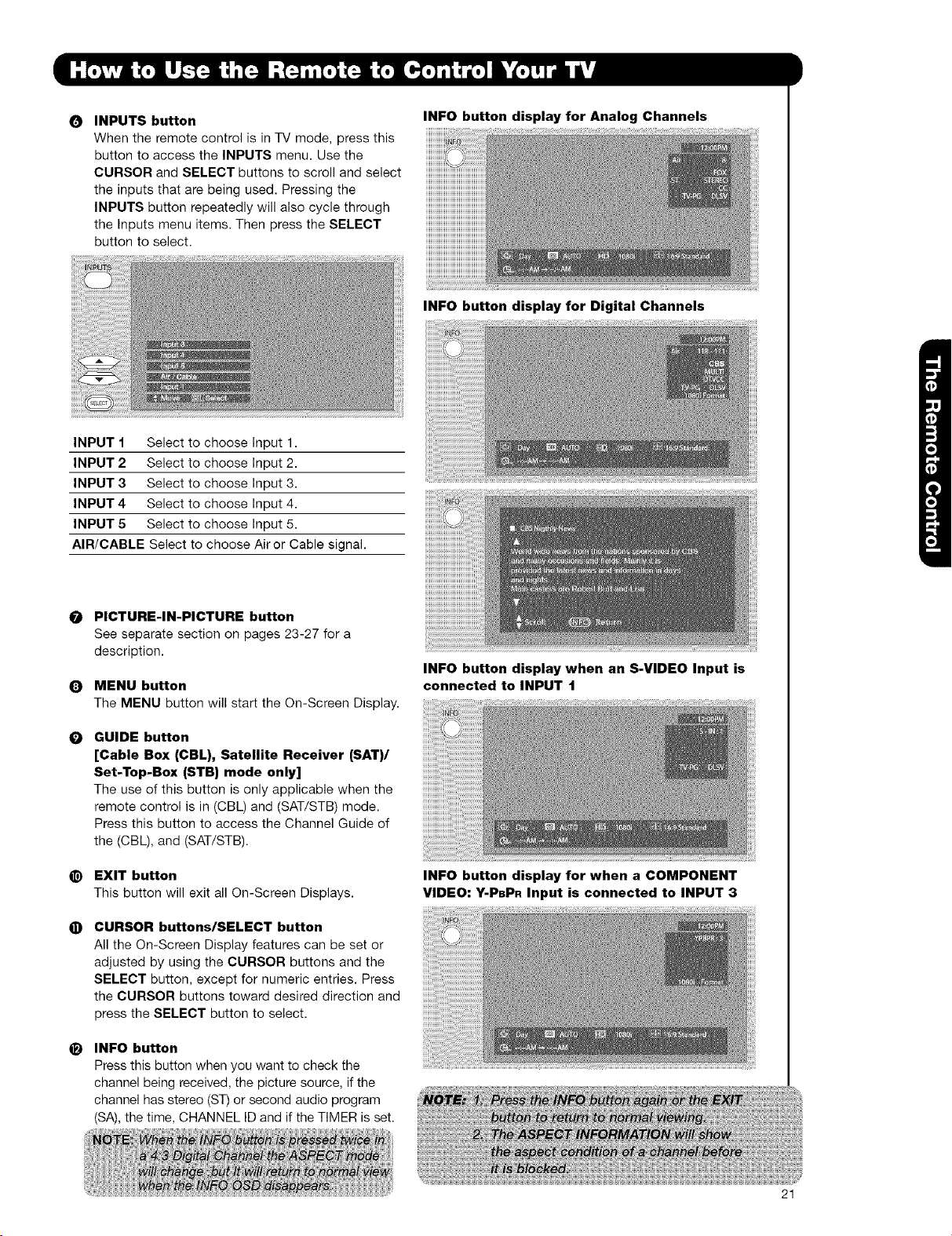
INPUTS button
When the remote control is in TV mode, press this
button to access the INPUTS menu. Use the
CURSOR and SELECT buttons to scroll and select
the inputs that are being used. Pressing the
INPUTS button repeatedly will also cycle through
the Inputs menu items. Then press the SELECT
button to select.
INFO button display for Analog Channels
INPUT 1 Select to choose Input 1.
INPUT 2 Select to choose Input 2.
INPUT 3 Select to choose Input 3.
INPUT 4 Select to choose Input 4.
INPUT 5 Select to choose Input 5.
AIR/CABLE Select to choose Airor Cable signal.
O
Q
O
@
O
e)
PICTURE-IN-PICTURE button
See separate section on pages 23-27 for a
description.
MENU button
The MENU button will start the On-Screen Display.
GUIDE button
[Cable Box (CBL), Satellite Receiver (SAT)/
Set-Top-Box (STB) mode only]
The use of this button is only applicable when the
remote control is in (CBL) and (SAT/STB) mode.
Press this button to access the Channel Guide of
the (CBL), and (SAT/STB).
EXIT button
This button will exit all On-Screen Displays.
CURSOR buttons/SELECT button
All the On-Screen Display features can be set or
adjusted by using the CURSOR buttons and the
SELECT button, except for numeric entries. Press
the CURSOR buttons toward desired direction and
press the SELECT button to select.
INFO button
Press this button when you want to check the
channel being received, the picture source, if the
channel has stereo (ST) or second audio program
(SA), the time, CHANNEL ID and if the TIMER is set.
INFO button display for Digital Channels
INFO button display when an S-VIDEO Input is
connected to INPUT 1
VIDEO: Y-PBPR Input is connected to INPUT 3
INFO button display for when a COMPONENT
21
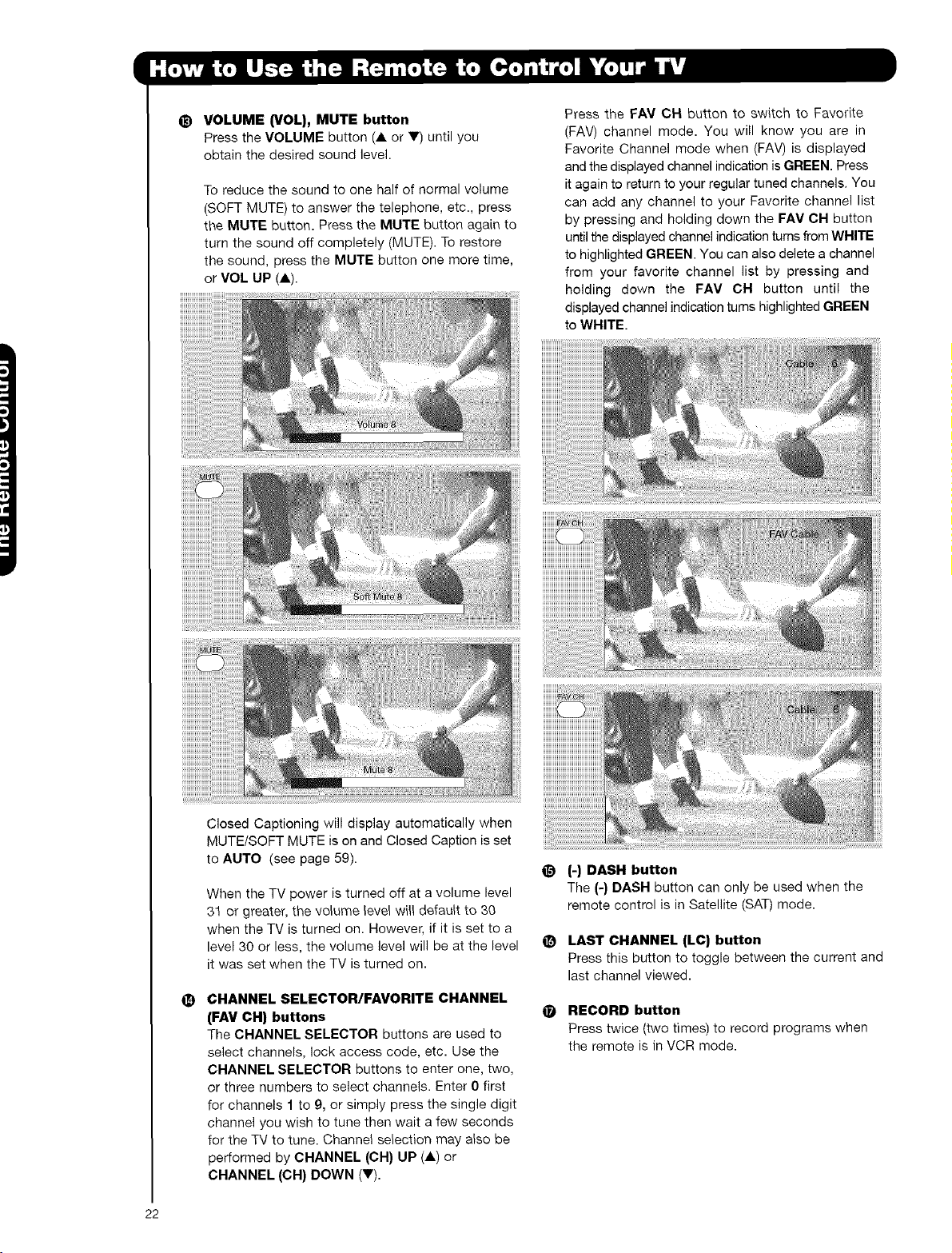
VOLUME (VOL), MUTE button
Press the VOLUME button (A or V) until you
obtain the desired sound level.
To reduce the sound to one half of normal volume
(SOFT MUTE) to answer the telephone, etc., press
the MUTE button. Press the MUTE button again to
turn the sound off completely (MUTE). To restore
the sound, press the MUTE button one more time,
or VOL UP (A).
Press the FAV CH button to switch to Favorite
(FAV) channel mode. You will know you are in
Favorite Channel mode when (FAV) is displayed
and the displayed channel indication is GREEN. Press
it again to return to your regular tuned channels, You
can add any channel to your Favorite channel list
by pressing and holding down the FAV CH button
until the displayed channel indication turns from WHITE
to highlighted GREEN. You can also delete a channel
from your favorite channel list by pressing and
holding down the FAV CH button until the
displayed channel indication turns highlighted GREEN
to WHITE.
@
Closed Captioning will display automatically when
MUTE/SOFT MUTE is on and Closed Caption is set
to AUTO (see page 59).
When the TV power is turned off at a volume level
31 or greater, the volume level will default to 30
when the TV is turned on. However, if it is set to a
level 30 or less, the volume level will be at the level
it was set when the TV is turned on.
CHANNEL SELECTOR/FAVORITE CHANNEL
(FAV CH) buttons
Tile CHANNEL SELECTOR buttons are used to
select channels, lock access code, etc. Use the
CHANNEL SELECTOR buttons to enter one, two,
or three numbers to select channels. Enter 0 first
for channels I to 9, or simply press the single digit
channel you wish to tune then wait a few seconds
for the TV to tune. Channe_ selection may also be
performed by CHANNEL (OH) UP (A) or
CHANNEL (CH) DOWN (V).
e
@
o
(-) DASH button
The (-) DASH button can only be used when the
remote control is in Satellite (SAT) mode.
LAST CHANNEL (LC) button
Press this button to toggle between the current and
last channel viewed.
RECORD button
Press twice (two times) to record programs when
the remote is in VCR mode.
22
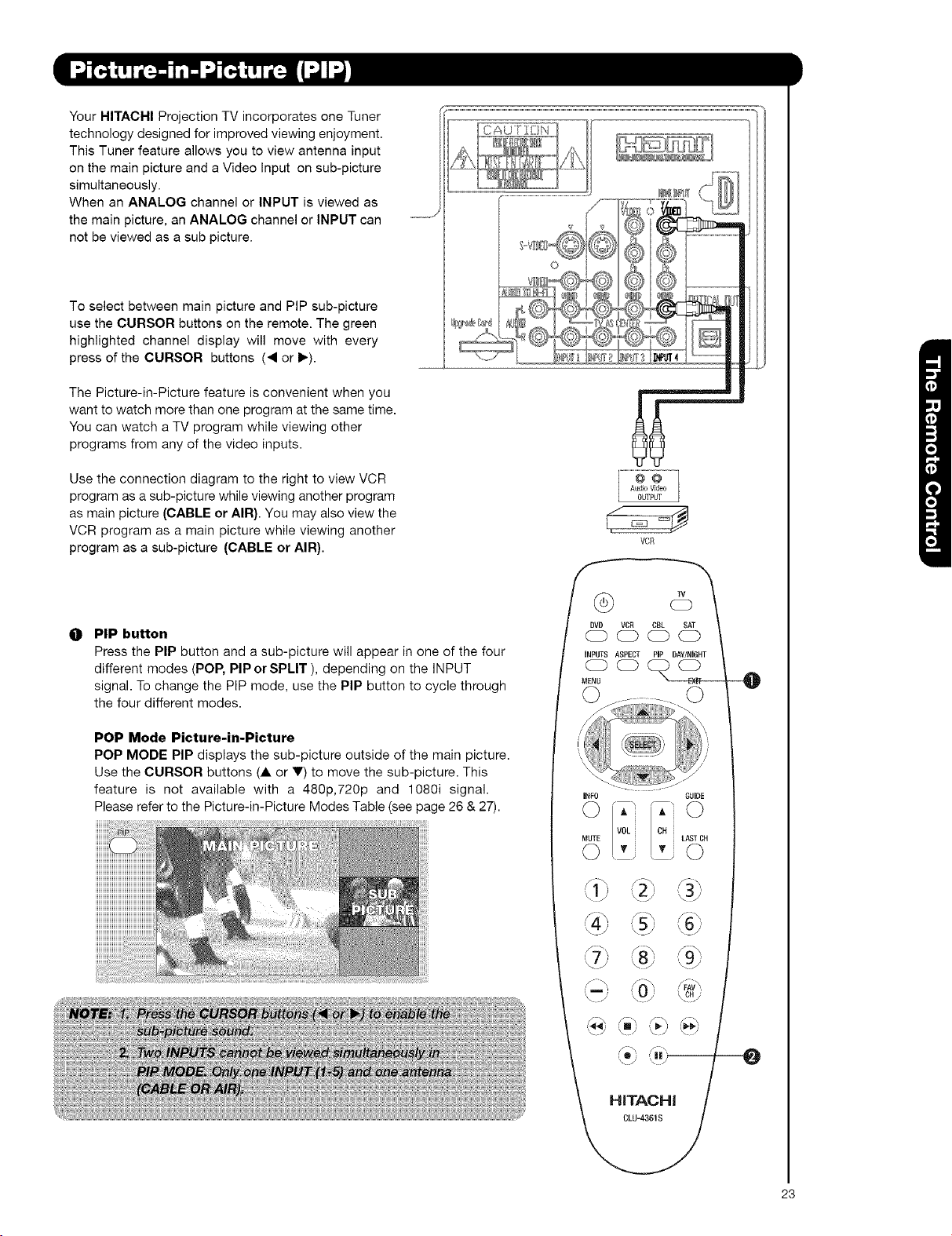
YourHITACHIProjectionTVincorporatesoneTuner
technologydesignedforimprovedviewingenjoyment.
ThisTunerfeatureallowsyoutoviewantennainput
onthemainpictureandaVideoInputonsub-picture
simultaneously.
WhenanANALOGchannelorINPUTisviewedas
themainpicture,anANALOGchannelorINPUTcan
notbeviewedasasubpicture.
ToselectbetweenmainpictureandPIPsub-picture
usetheCURSORbuttonsontheremote.Thegreen
highlightedchanneldisplaywillmovewithevery
pressoftheCURSORbuttons(4orI_).
ThePicture-in-Picturefeatureisconvenientwhenyou
wanttowatchmorethanoneprogramatthesametime.
YoucanwatchaTVprogramwhileviewingother
programsfromanyofthevideoinputs.
UsetheconnectiondiagramtotherighttoviewVCR
programasasub-picturewhileviewinganotherprogram
asmainpicture(CABLEorAIR).Youmayalsoviewthe
VCRprogramasamainpicturewhileviewinganother
programasasub-picture(CABLEorAIR).
@
PIP button
Press the PIP button and a sub-picture will appear in one of the four
different modes (POP, PIPorSPLIT ), depending on the INPUT
signal. To change the PIP mode, use the PIP button to cycle through
the four different modes.
POP Mode Picture-in-Picture
POP MODE PIP displays the sub-picture outside of the main picture.
Use the CURSOR buttons (A or V) to move the sub-picture. This
feature is not available with a 480p,720p and 1080i signal.
Please refer to the Picture-in-Picture Modes Table (see page 26 & 27).
INFO GUIDE
vo"¸'
AiC)
L LAST CH
, , ©
I\!/J
J '_ ) \' ) \ )
'\ ./ \ J
HITACHI
O
23
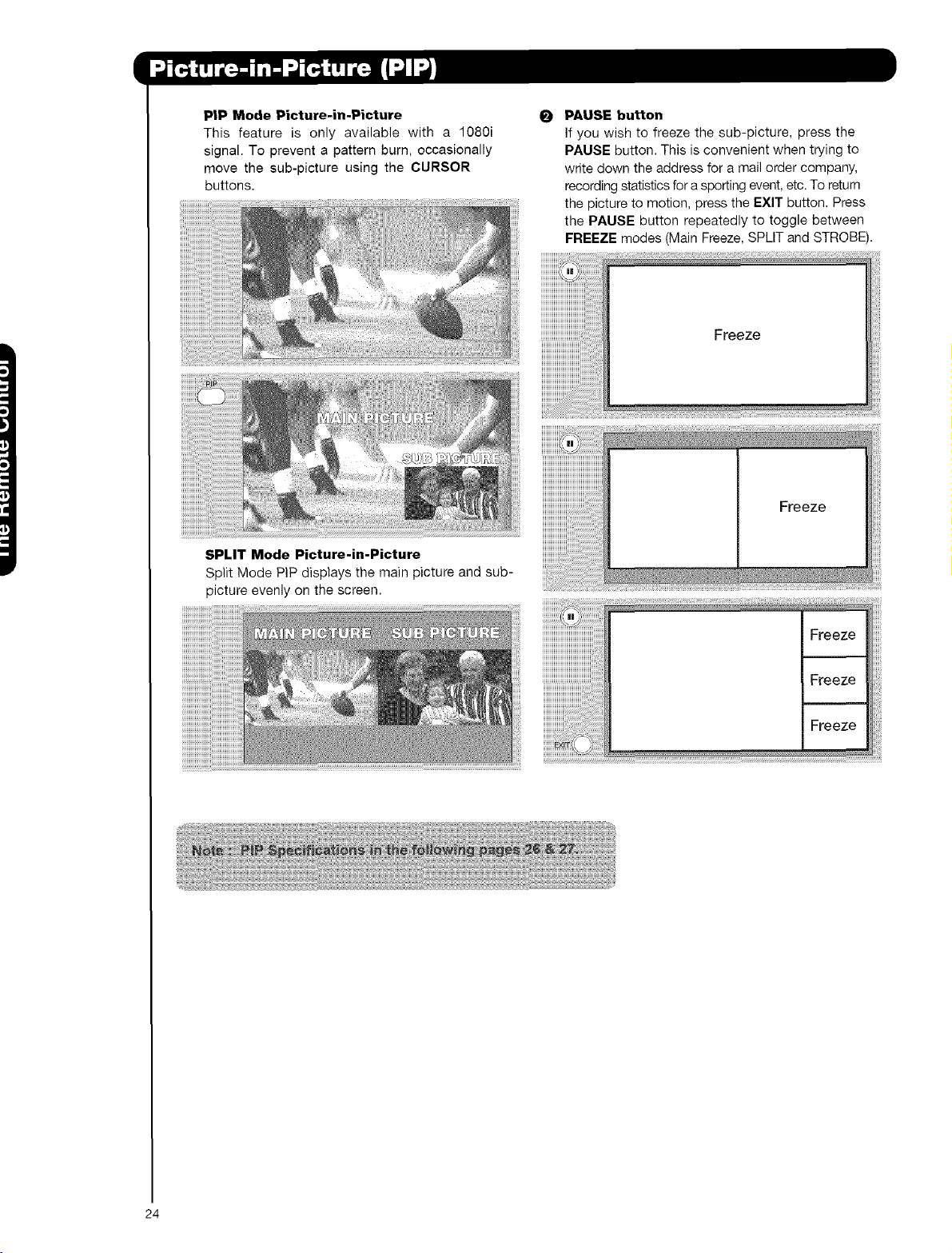
PIP Mode Picture-in-Picture
This feature is only available with a 1O8Oi
signal. To prevent a pattern burn, occasionally
move the sub-picture using the CURSOR
buttons.
O
PAUSE button
If you wish to freeze the sub-picture, press the
PAUSE button. This is convenient when trying to
write down the address for a mail order company,
recording statistics for a sporting event, etc. To return
the picture to motion, press the EXIT button. Press
the PAUSE button repeatedly to toggle between
FREEZE modes (Main Freeze, SPLIT and STROBE).
SPLIT Mode Picture-in-Picture
Split Mode PIP displays the main picture and sub-
picture evenly on the screen.
24
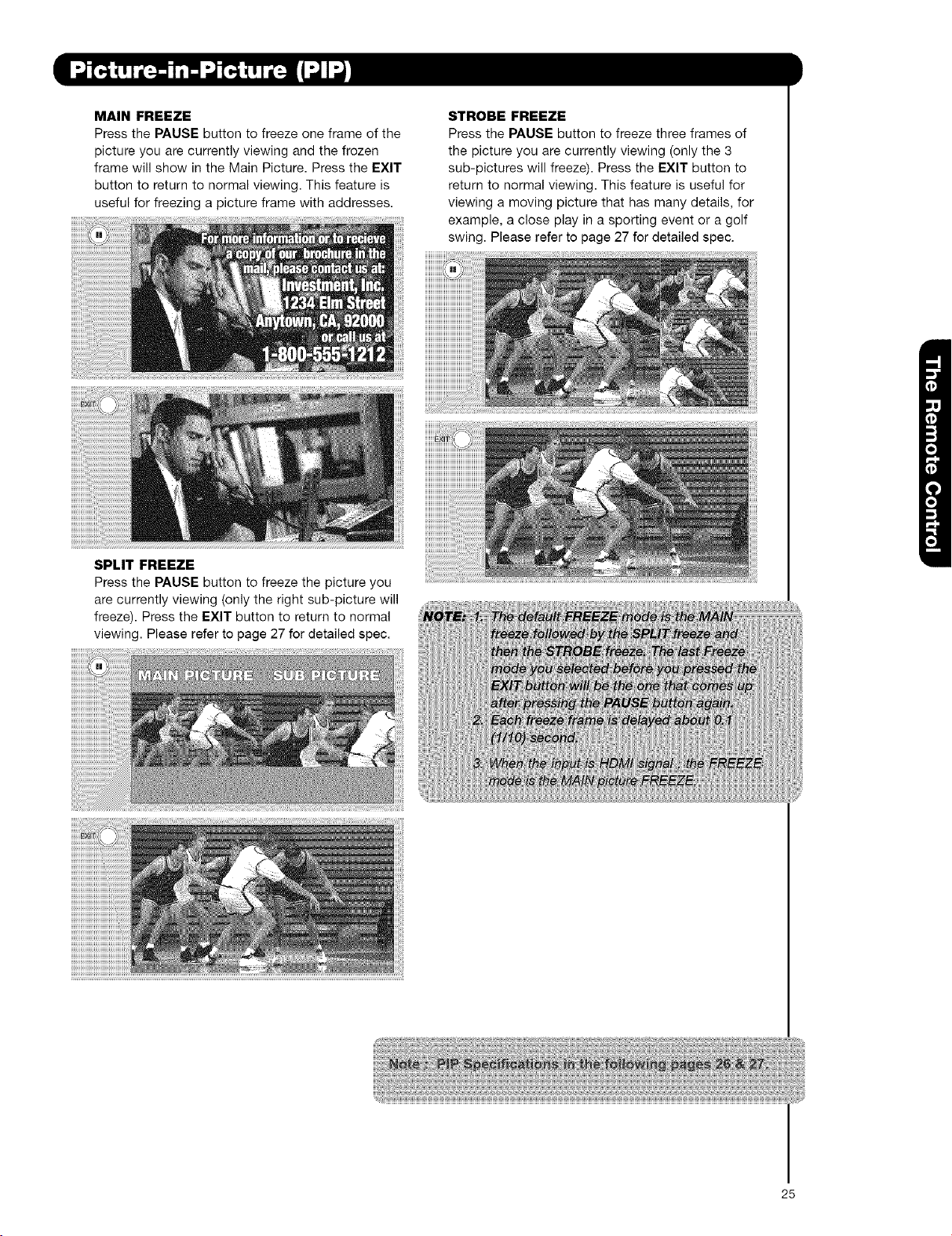
MAIN FREEZE
Press the PAUSE button to freeze one frame of the
picture you are currently viewing and the frozen
frame will show in the Main Picture. Press the EXIT
button to return to normal viewing. This feature is
useful for freezing a picture frame with addresses.
STROBE FREEZE
Press the PAUSE button to freeze three frames of
the picture you are currently viewing (only the 3
sub-pictures will freeze). Press the EXIT button to
return to normal viewing. This feature is useful for
viewing a moving picture that has many details, for
example, a close play in a sporting event or a golf
swing. Please refer to page 27 for detailed spec.
SPLIT FREEZE
Press the PAUSE button to freeze the picture you
are currently viewing (only the right sub-picture will
freeze). Press the EXIT button to return to normal
viewing. Please refer to page 27 for detailed spec.
25
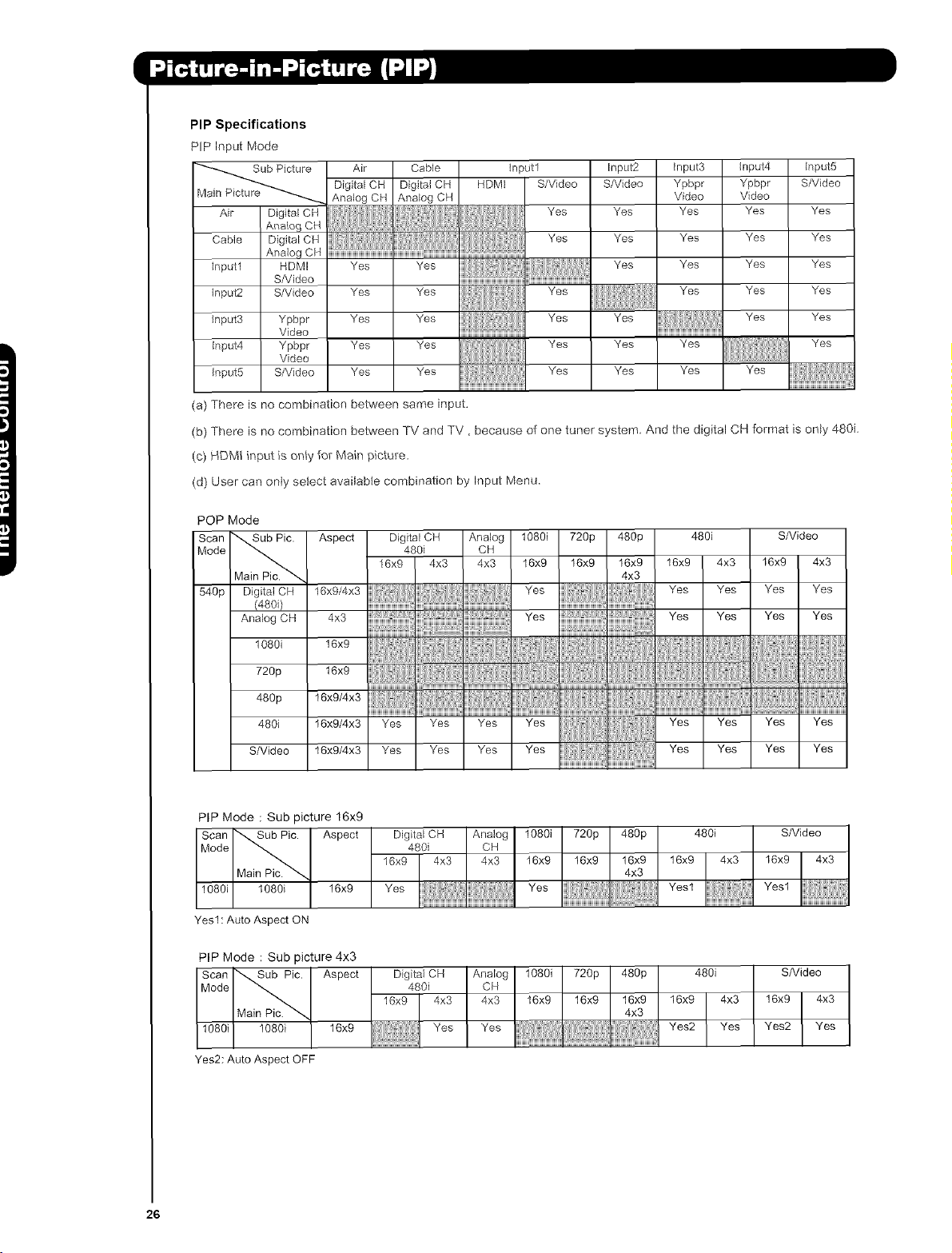
PIP Specifications
PIP Input Mode
_Sub Picture Air Cable
Pictar'_._ Digital CH Digital CH
Main
Analog CH Analog CH
Air Digital CH
Analog CH
Cable Digital CH
Analog CH
lnputl HDMI Yes Yes [::i :[ }
S/Video ....................................................................
input2 S/Video Yes Yes
input1 Inpu_ input3 input4 input5
HDMI S/Video S/Video Ypbpr Ypbpr S/video
Video Video
Yes Yes Yes Yes Yes
Yes Yes Yes Yes Yes
Yes Yes Yes Yes
Yes Yes Yes Yes
input3 Ypbpr Yes Yes HH , Yes
Video iiiiiiiiiiiiiiiiiiiiiiiiiiiiiiiiiiiiiiiiiiiiiiiiiiiiiiiiii_
input4 Ypbpr Yes Yes Yes
Video
,npot5 S/video Yes Yes Yes
Yes H: r'_ ' Yes Yes
Yes Yes Yes
Yes Yes Yes
(a) There is no combination between same input.
(b) There is no combination between TV and TV, because of one tuner system And the digital CH format is only 480i
(c) HDMI input is only for Main picture.
(d) User can onty select avaitabte combination by Input Menu.
POP Mode
Scan "',,,_ub Pic.
Mode Main _
540p Digital CH
(480i)
Analog CH
Aspect Digital CH Analog 1080i 720p 480p 480i S/Video
480i CH
16x9 4x3 4x3 16x9 16x9 16x9 16x9 4x3 16x9 4x3
4x3
Yes Yes Yes Yes
1080i
720p
480p
480i
S/Video
xg/4x3 Yes
4x3 Yes
1 x9
16x9/4x3 Yes Yes Yes Yes
Yes Yes Yes Yes
Yes Yes Yes Yes
16x9/4x3 Yes Yes Yes Yes
Yes Yes Yes Yes
PIP Mode : Sub picture 16x9
Scan _. Aspect Digital CH Analog 1080i 720p 480p 480i S/Video
Mode _ 480i CH16x9 4x3 4x3 I6x9 16x9 16x9 16x9 4x3 16x9 4x3
Main Pic. _ 4x3
1080i 1080i 16x9 Yes Yes Yes1 Yes1
Yes1 : Auto Aspect ON
PIP Mode : Sub picture 4x3
Scan "',,,,,,.Sub Pic. Aspect Digital CH Analog 1080i 720p 480p 480i S/Video
Mode _ 480i CH
16x9 4x3 4x3 I6x9 16x9 16x9 16x9 4x3 16x9 4x3
Main 4x3
10891 1080i 16x9 _'es Yes Yes2 Yes Yes2 Yes
Yes2: Auto Aspect OFF
26
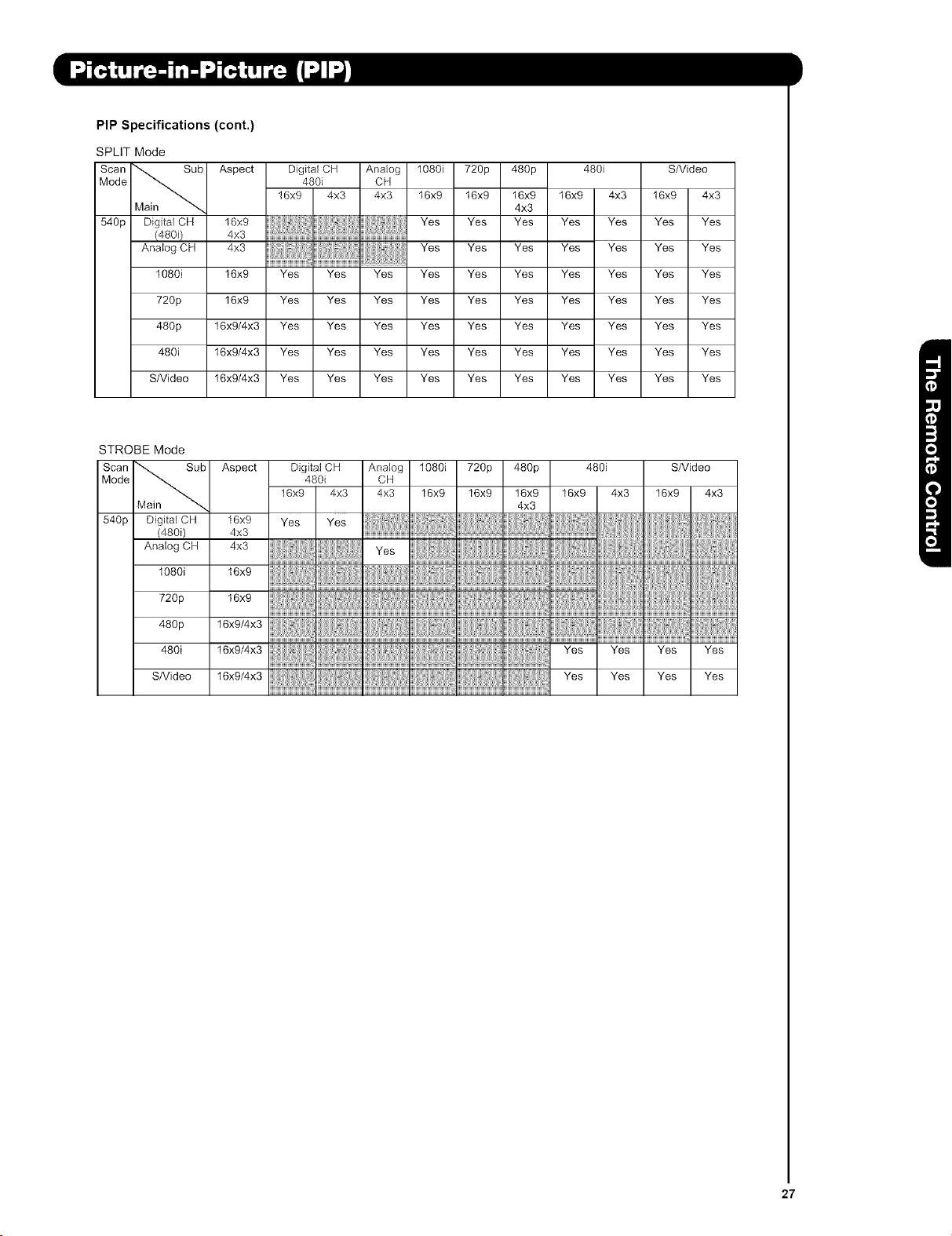
PIP Specifications (cont.)
SPLIT Mode
Scan ",,,,,Sub Aspect Digital CH Analog 1080i 720p 480p 480i S/video
Mode _ 480i CH16x9 4x3 4x3 16x9 16x9 16x9 16x9 4x3 16x9 4x3
Main _ 4x3
540p Digital OH 16x9 ,' ' Yes Yes Yes Yes Yes Yes Yes
(480i) 4x3 ....................................i...........................
Ana,og OH 4x3 Yes Yes Yes Yes Yes Yes Yes
1080i 16x9 Yes Yes Yes Yes Yes Yes Yes Yes Yes Yes
720p 16x9 Yes Yes Yes Yes Yes Yes Yes Yes Yes Yes
480p 16x9/4x3 Yes Yes Yes Yes Yes Yes Yes Yes Yes Yes
480i 16x9/4x3 Yes Yes Yes Yes Yes Yes Yes Yes Yes Yes
S/Video 16x9/4x3 Yes Yes Yes Yes Yes Yes Yes Yes Yes Yes
STROBE Mode
Scan ""_ SLIb Aspect Digka4 CH Analog 1080i 720p 480p 480i S/video
Mode _ 480i CH16x9 4x3 4x3 16x9 16x9 16x9 16x9 4x3 16x9 4x3
Main _ 4x3
(480i) 4x3 ................................................................................................
Ana,ogo.4x3 _os ................................................
720p_6x9iiiiiiiiiii;:iiiiii_iiii;:iiiiYi_iiiiii_ ...........
480p16xg,4x3i!!
480i 16x9/4x3 Yes Yes Yes Yes
s/Video1_x_,4x3 _es _es _es _es
27
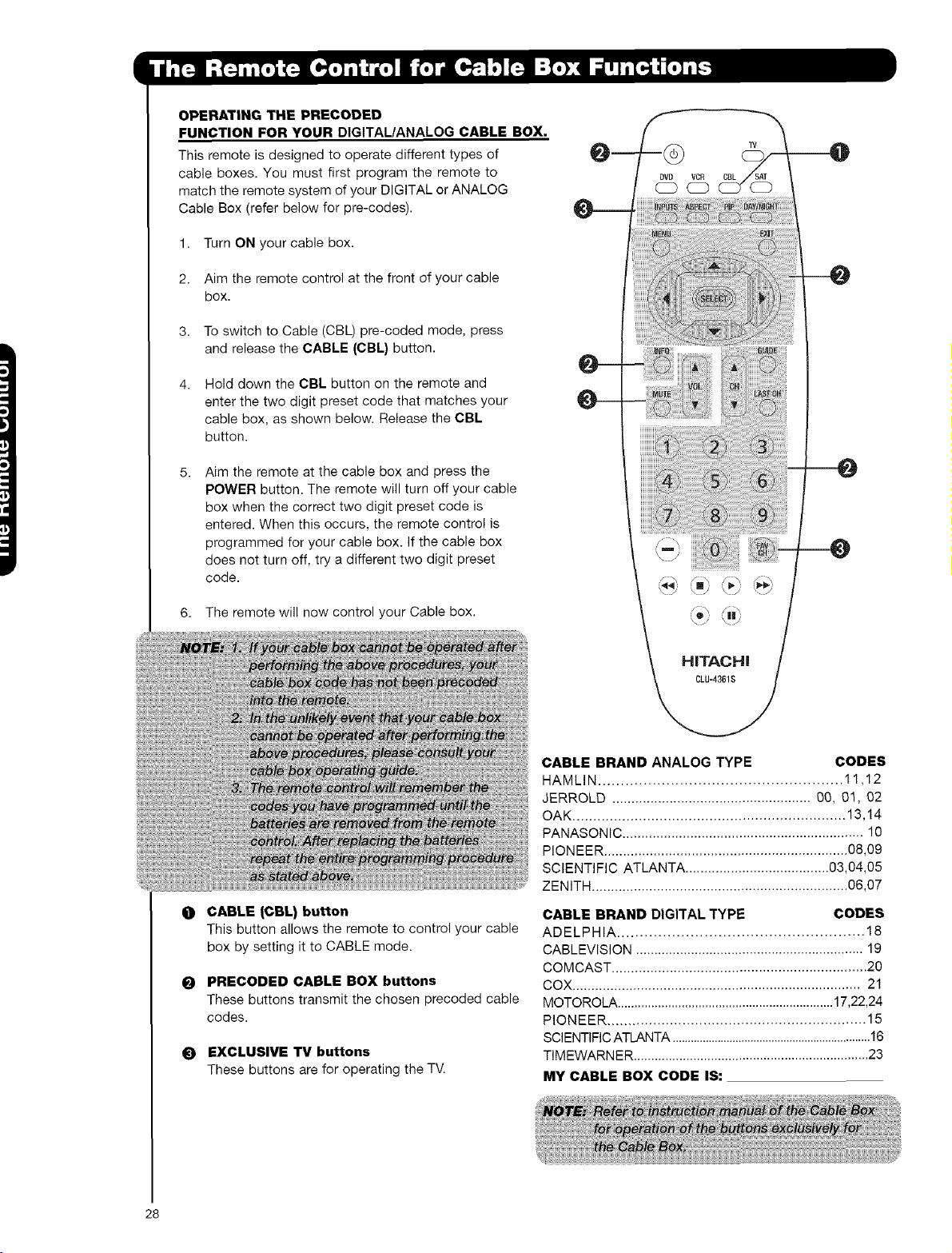
OPERATING THE PRECODED
FUNCTION FOR YOUR DIGITAL/ANALOG CABLE BOX.
This remote is designed to operate different types of
cable boxes. You must first program the remote to
match the remote system of your DIGITAL or ANALOG
Cable Box (refer below for pre-codes).
1. Turn ON your cable box.
2. Aim the remote control at the front of your cable
box.
3. To switch to Cable (CBL) pre-coded mode, press
and release the CABLE (CBL} button.
4, Hold down the CBL button on the remote and
enter the two digit preset code that matches your
cable box, as shown below. Release the CBL
button.
5, Aim the remote at the cable box and press the
POWER button. The remote will turn off your cable
box when the correct two digit preset code is
entered. When this occurs, the remote control is
programmed for your cable box. If the cable box
does not turn off, try a different two digit preset
code.
6. The remote will now control your Cable box.
HITACHi
--Q
O CABLE [CBL) button
This button allows the remote to control your cable
box by setting it to CABLE mode.
O PRECODED CABLE BOX buttons
These buttons transmit the chosen precoded cable
codes.
O EXCLUSIVE TV buttons
These buttons are for operating the TV.
CABLE BRAND ANALOG TYPE CODES
HAMLIN ...................................................... 11,12
JERROLD .................................................... OO, 01, 02
OAK .................................................................. 13,14
PANASONIC ................................................................ 10
PIONEER ................................................................ 08,09
SCIENTIFIC ATLANTA ...................................... 03,04,05
ZENITH ................................................................... 06,07
CABLE BRAND DIGITAL TYPE CODES
ADELPHIA ...................................................... 18
CABLEVISION .............................................................. 19
COMCAST .................................................................. 20
COX ............................................................................ 21
MOTOROLA ................................................................ 17,22,24
PIONEER .............................................................. 15
SCIENTIFIC ATLANTA ..................................................................16
TIMEWARNER ................................................................... 23
MY CABLE BOX CODE IS:
28
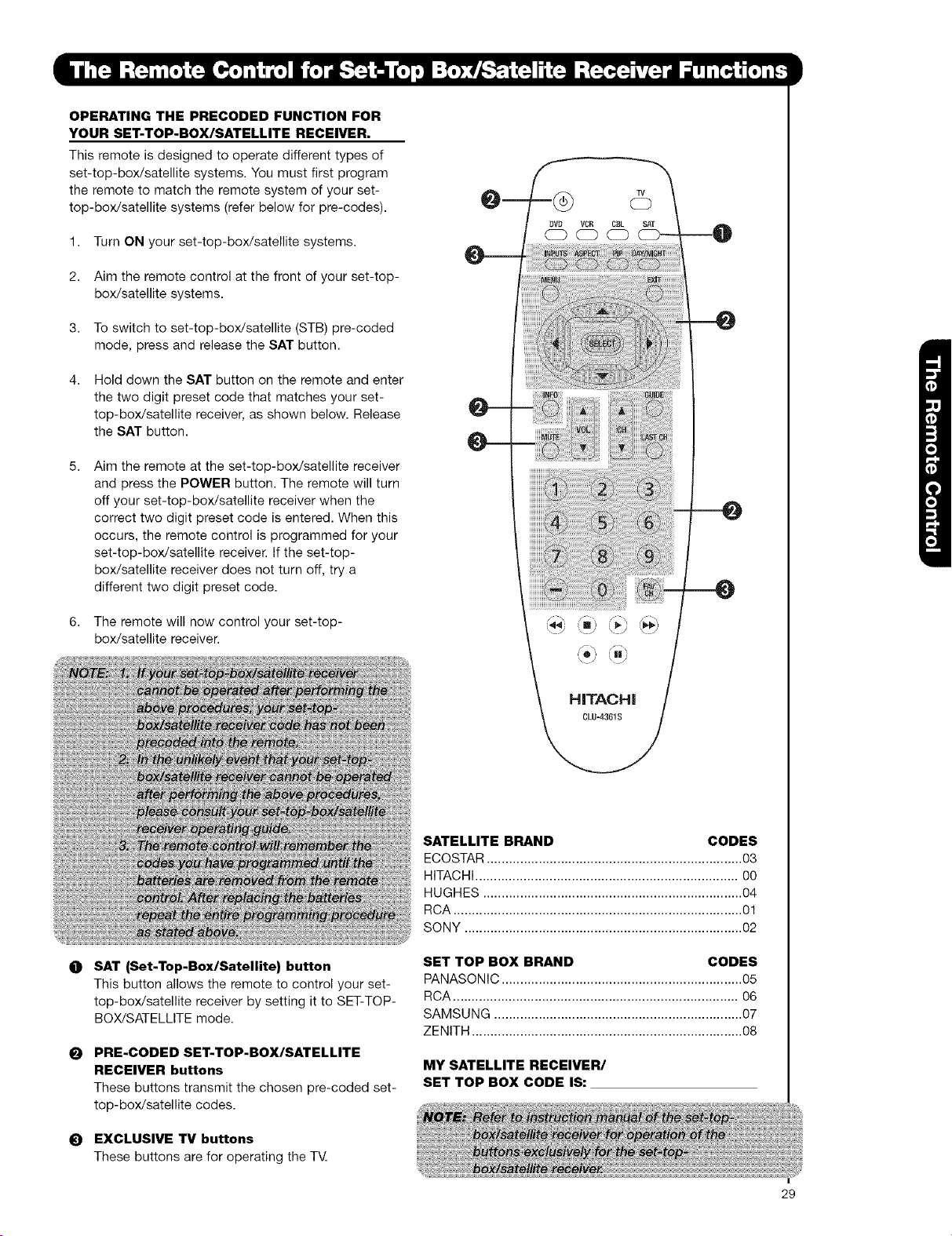
OPERATING THE PRECODED FUNCTION FOR
YOUR SET-TOP-BOX/SATELLITE RECEIVER.
This remote is designed to operate different types of
set-top-box/satellite systems. You must first program
the remote to match the remote system of your set-
top-box/satellite systems (refer below for pre-codes).
1. Turn ON your set-top-box/satellite systems.
2. Aim the remote control at the front of your set-top-
box/satellite systems.
3. To switch to set-top-box/satellite (STB) pre-coded
mode, press and release the SAT button.
Hold down the SAT button on the remote and enter
the two digit preset code that matches your set-
top-box/satellite receiver, as shown below. Release
the SAT button.
Aim the remote at the set-top-box/satellite receiver
and press the POWER button. The remote will turn
off your set-top-box/satellite receiver when the
correct two digit preset code is entered. When this
occurs, the remote control is programmed for your
set-top-box/satellite receiver. If the set-top-
box/satellite receiver does not turn off, try a
different two digit preset code.
6. The remote will now control your set-top-
box/satellite receiver.
TV
O SAT |Set-Top-Box/Satellite) button
This button allows the remote to control your set-
top-box/satellite receiver by setting it to SET-TOP-
BOX/SATELLITE mode.
O
PRE-CODED SET-TOP-BOX/SATELLITE
RECEIVER buttons
These buttons transmit the chosen pre-coded set-
top-box/satellite codes.
_) EXCLUSIVE TV buttons
These buttons are for operating the T_
SATELLITE BRAND CODES
ECOSTAR ..................................................................... 03
HITACHI....................................................................... 00
HUGHES ...................................................................... 04
RCA .............................................................................. 01
SONY ........................................................................... 02
SET TOP BOX BRAND CODES
PANASONIC ................................................................. 05
RCA ............................................................................. 06
SAMSUNG ................................................................... 07
ZENITH ......................................................................... 08
MY SATELLITE RECEIVER/
SET TOP BOX CODE IS:
29
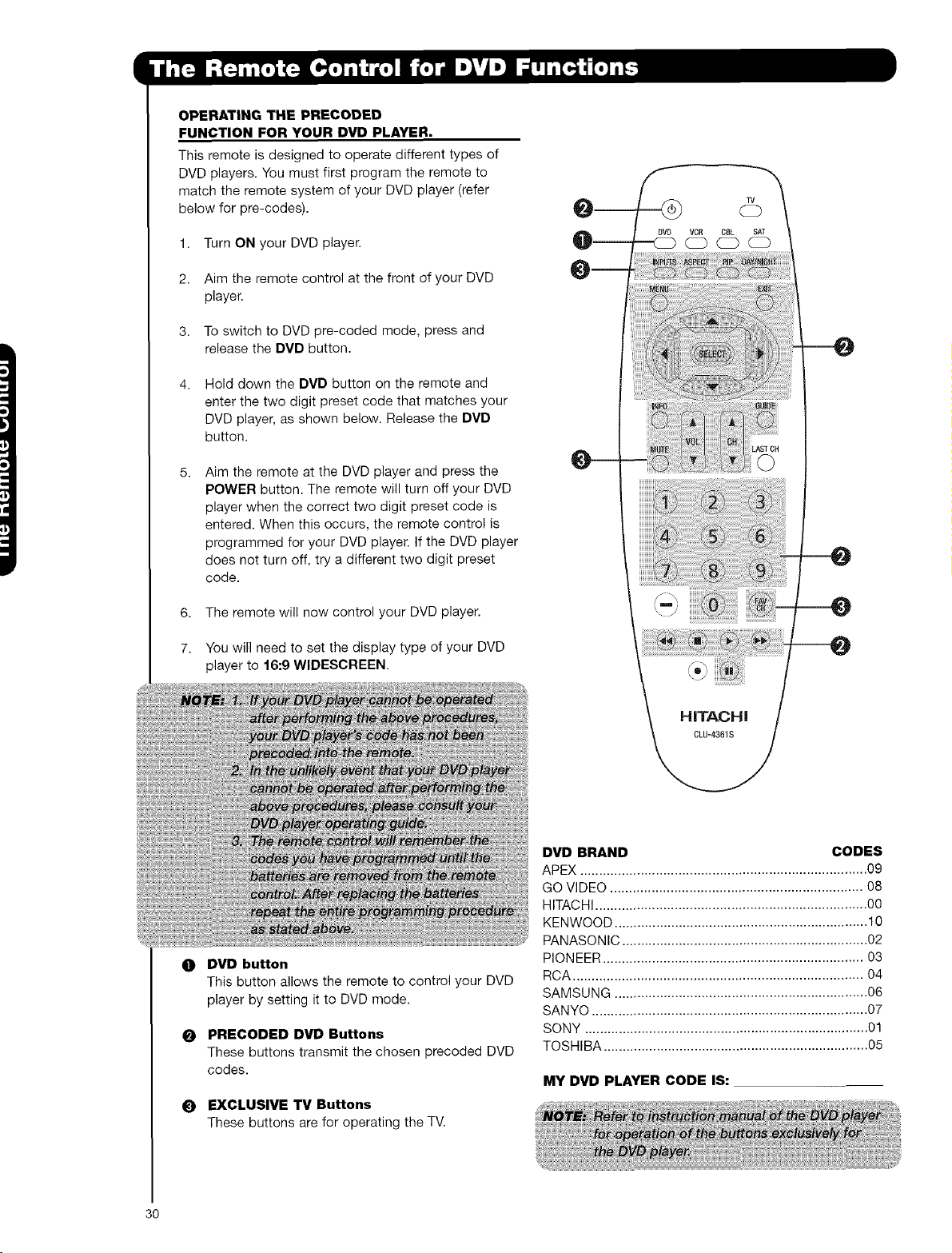
OPERATING THE PRECODED
FUNCTION FOR YOUR DVD PLAYER.
This remote is designed to operate different types of
DVD players. You must first program the remote to
match the remote system of your DVD player (refer
below for pre-codes).
1. Turn ON your DVD player.
2. Aim the remote control at the front of your DVD
player.
3. To switch to DVD pre-coded mode, press and
release the DVD button.
4, Hold down the DVD button on the remote and
enter the two digit preset code that matches your
DVD player, as shown below. Release the DVD
button.
5,
Aim the remote at the DVD player and press the
POWER button. The remote will turn off your DVD
player when the correct two digit preset code is
entered. When this occurs, the remote control is
programmed for your DVD player. If the DVD player
does not turn off, try a different two digit preset
code.
6. The remote will now control your DVD player.
7. You will need to set the display type of your DVD
player to 16:9 WlDESCREEN.
O DVD button
This button allows the remote to control your DVD
player by setting it to DVD mode.
PRECODED DVD Buttons
These buttons transmit the chosen precoded DVD
codes.
O EXCLUSIVE TV Buttons
These buttons are for operating the TV.
DVD BRAND CODES
APEX ............................................................................ 09
GO VIDEO ................................................................... 08
HITACHI ........................................................................ 00
KENWOOD ................................................................... 10
PANASON IC ................................................................. 02
PIONEER ..................................................................... 03
RCA ............................................................................. 04
SAMSUNG ................................................................... 06
SANYO ......................................................................... 07
SONY ........................................................................... 01
TOSHIBA ...................................................................... 05
MY DVD PLAYER CODE IS:
3O
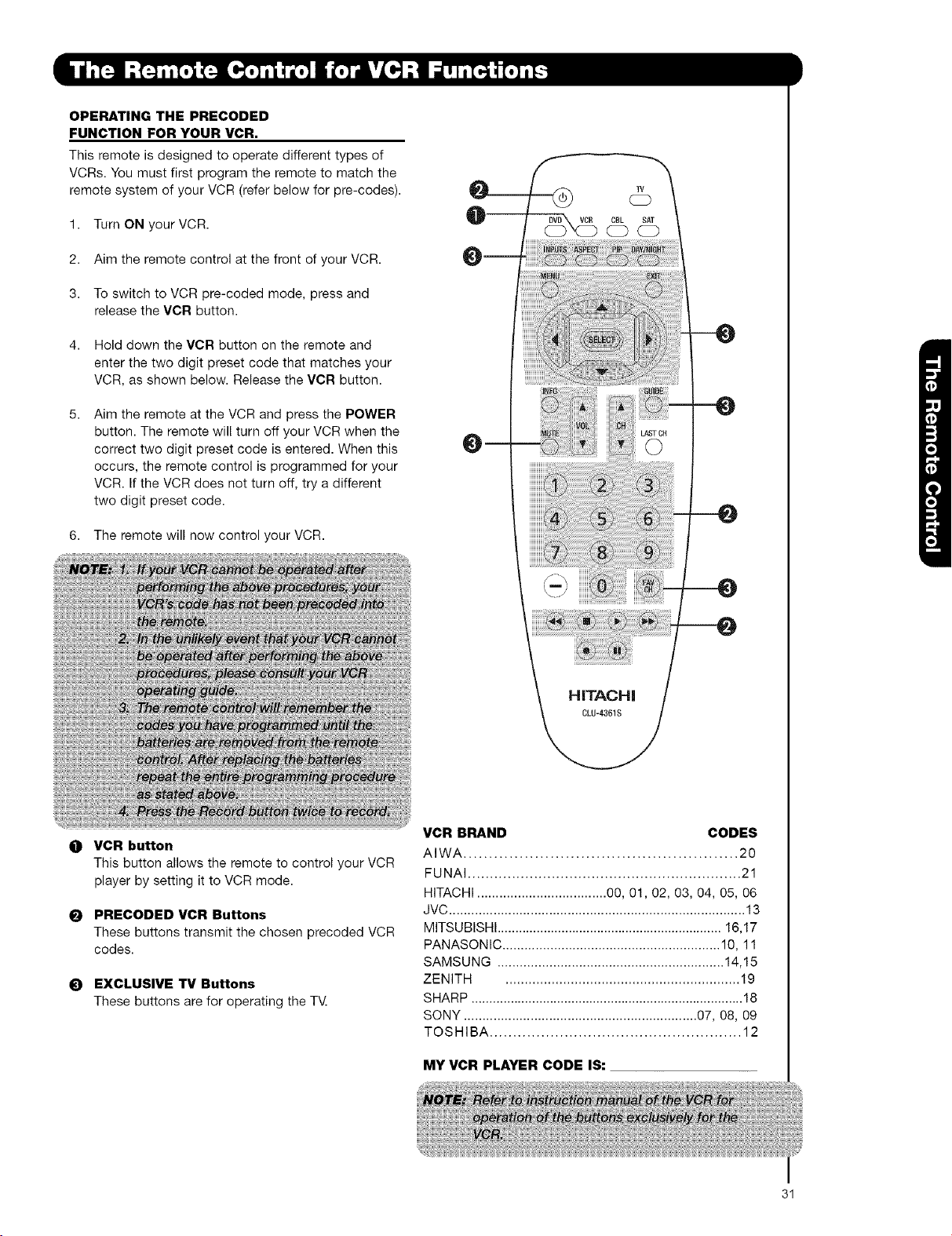
OPERATING THE PRECODED
FUNCTION FOR YOUR VCR.
This remote is designed to operate different types of
VCRs. You must first program the remote to match the
remote system of your VCR (refer below for pre-codes).
1. Turn ON yourVCR.
2. Aim the remote control at the front of your VCR.
3. To switch to VCR pre-coded mode, press and
release the VCR button.
4. Hold down the VCR button on the remote and
enter the two digit preset code that matches your
VCR, as shown below. Release the VCR button.
Aim the remote at the VCR and press the POWER
button. The remote will turn off your VCR when the
correct two digit preset code is entered. When this
occurs, the remote control is programmed for your
VCR. If the VCR does not turn off, try a different
two digit preset code.
6. The remote will now control your VCR.
m
-0
O VCR button
This button allows the remote to control your VCR
player by setting it to VCR mode.
PRECODED VCR Buttons
These buttons transmit the chosen precoded VCR
codes.
_) EXCLUSIVE TV Buttons
These buttons are for operating the T_
VCR BRAND CODES
AIWA ...................................................... 20
FUNAI .............................................................. 21
HITACHI ................................... 00, 01, 02, 03, 04, 05, 06
JVC ................................................................................ 13
MITSUBISHI ............................................................... 16,17
PANASONIC ........................................................... 10, 11
SAMSUNG ............................................................. 14,15
ZENITH ............................................................. 19
SHARP ............................................................................ 18
SONY ............................................................... 07, 08, 09
TOSHIBA ...................................................... 12
MY VCR PLAYER CODE IS:
31
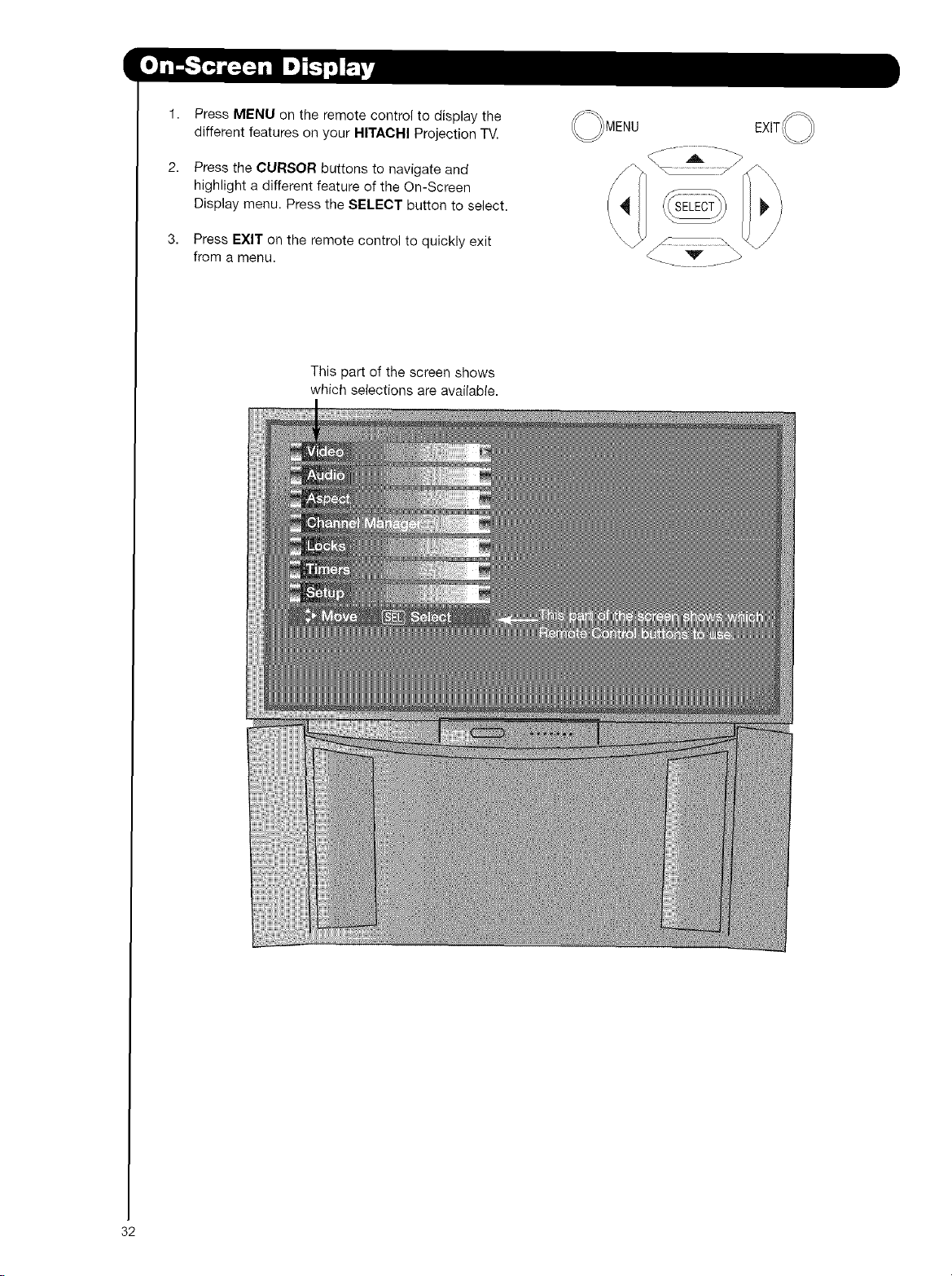
t,
2,
3,
Press MENU on the remote control to display the
different features on your HITACHI Projection TV.
Press the CURSOR buttons to navigate and
highlight a different feature of the On-Screen
Display menu. Press the SELECT button to select.
Press EXIT on the remote control to quickly exit
from a menu.
This part of the screen shows
which selections are available.
32
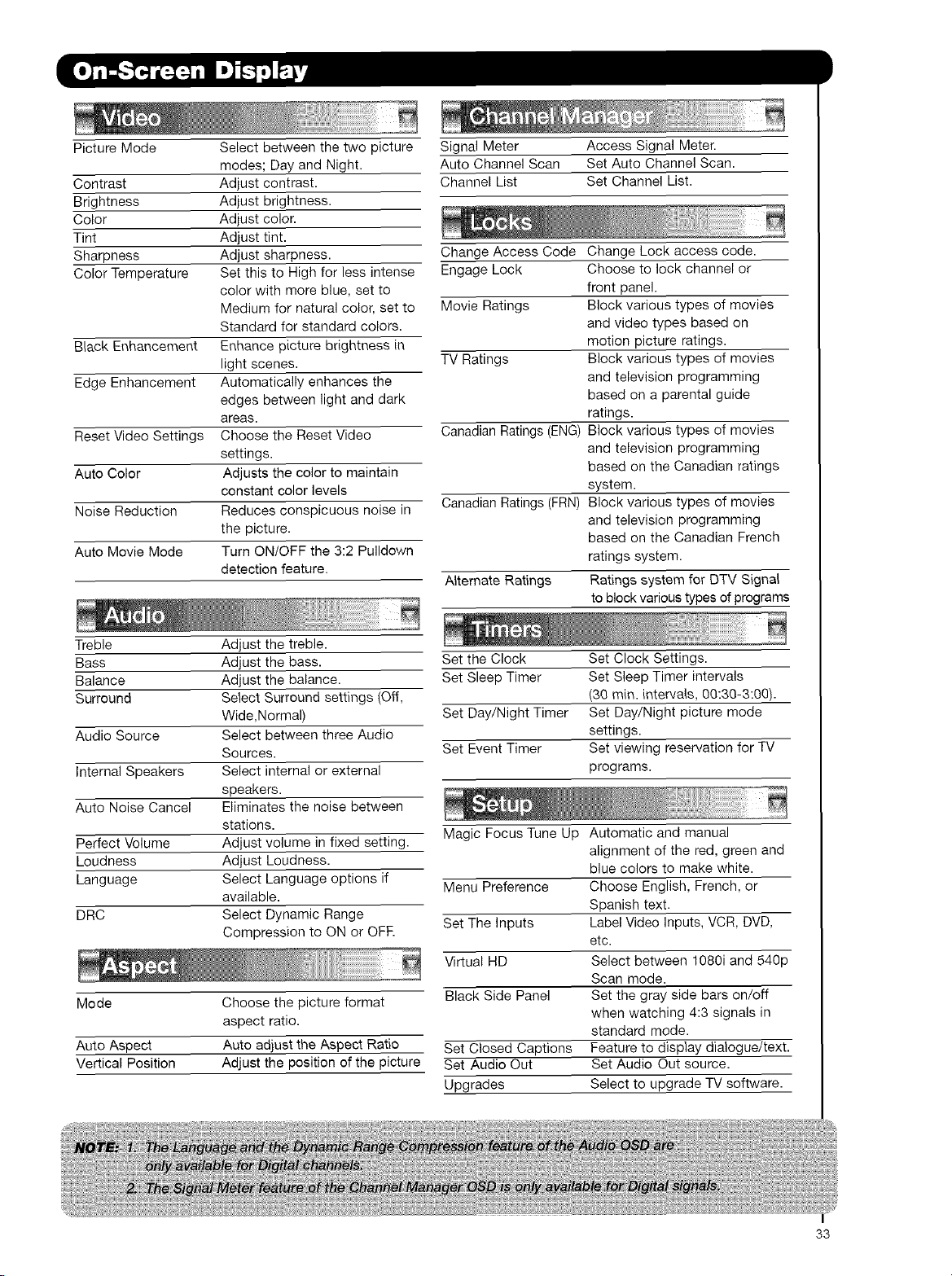
PictureMode Selectbetweenthetwopicture
modes;DayandNight.
Contrast Adjustcontrast.
Brightness Adjustbrightness.
Color Adjustcolor.
Tint Adjusttint.
Sharpness Adjustsharpness.
ColorTemperatureSetthistoHighforlessintense
colorwithmoreblue,setto
Mediumfornaturalcolor,setto
Standardforstandardcolors.
BlackEnhancementEnhancepicturebrightnessin
lightscenes.
EdgeEnhancementAutomaticallyenhancesthe
edgesbetweenlightanddark
areas.
ResetVideoSettingsChoosetheResetVideo
settings.
AutoColor Adjuststhecolortomaintain
constantcolorlevels
NoiseReduction Reducesconspicuousnoisein
thepicture.
AutoMovieMode TurnON/OFFthe3:2Pulldown
detectionfeature.
SignalMeter AccessSignalMeter.
AutoChannelScan SetAutoChannelScan.
ChannelList SetChannelList.
ChangeAccessCodeChangeLockaccesscode.
EngageLock Choosetolockchannelor
frontpanel.
MovieRatings Blockvarioustypesofmovies
andvideotypesbasedon
motionpictureratings.
TVRatings Blockvarioustypesofmovies
andtelevisionprogramming
basedonaparentalguide
ratings.
CanadianRatings(ENG)Blockvarioustypesofmovies
andtelevisionprogramming
basedontheCanadianratings
system.
CanadianRatings(FRN)Blockvarioustypesofmovies
andtelevisionprogramming
basedontheCanadianFrench
ratingssystem.
A_ternateRatings RatingssystemforDTVSignal
toblockvarioustypesofprograms
SettheClock SetClockSettings.
SetSleepTimer SetSleepTimerintervals
(30min.intervals,00:30-3:00).
SetDay/NightTimer SetDay/Nightpicturemode
settings.
SetEventTimer SetviewingreservationforTV
programs.
Treble Adjustthetreble.
Bass Adjustthebass.
Balance Adjustthebalance.
Surround SelectSurroundsettings(Off,
Wide,Normal)
AudioSource SelectbetweenthreeAudio
Sources.
InternalSpeakers Selectinternalorexternal
speakers.
AutoNoiseCancel Eliminatesthenoisebetween
stations.
Perfect Volume Adjust volume in fixed setting.
Loudness Adjust Loudness.
Language Select Language options if
available.
DRC Select Dynamic Range
Compression to ON or OFR
Mode Choose the picture format
aspect ratio.
Auto Aspect Auto adjust the Aspect Ratio
Vertical Position Adjust the position of the picture
Magic Focus Tune Up Automatic and manual
alignment of the red, green and
blue colors to make white.
Menu Preference Choose English, French, or
Spanish text.
Set The Inputs Label Video Inputs, VCR, DVD,
etc.
Virtual HD Select between 1080i and 540p
Scan mode.
Black Side Panel Set the gray side bars on/off
when watching 4:3 signals in
standard mode.
Set Closed Captions Feature to display dialogue/text.
Set Audio Out Set Audio Out source.
Upgrades Select to upgrade TV software.
33
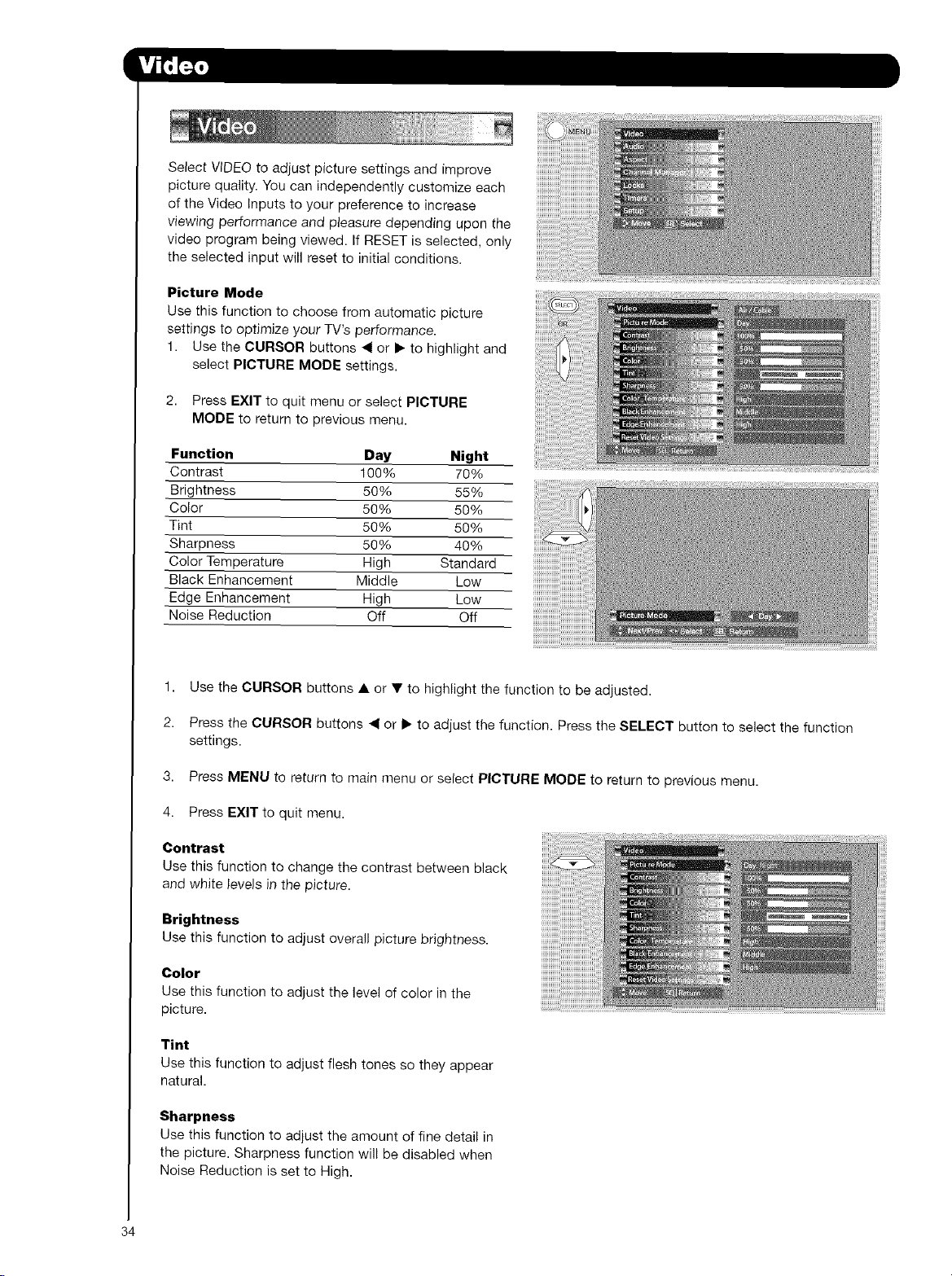
SelectVIDEOtoadjustpicturesettingsandimprove
picturequality.Youcanindependentlycustomizeeach
oftheVideoInputstoyourpreferencetoincrease
viewing performance and pleasure depending upon the
video program being viewed. If RESET is selected, only
the selected input will reset to initial conditions.
Picture Mode
Use this function to choose from automatic picture
settings to optimize your TV's performance.
1. Use the CURSOR buttons _1 or • to highlight and
select PICTURE MODE settings.
2. Press EXIT to quit menu or select PICTURE
MODE to return to previous menu.
Function Day Night
Contrast 100% 70%
Brightness 50% 55%
Color 50% 50%
Tint 50% 50%
Sharpness 50% 40%
Color Temperature High Standard
Black Enhancement Middle Low
Edge Enhancement High Low
Noise Reduction Off Off
1. Use the CURSOR buttons • or • to highlight the function to be adjusted.
2. Press the CURSOR buttons _1 or • to adjust the function. Press the SELECT button to select the function
settings.
3. Press MENU to return to main menu or select PICTURE MODE to return to previous menu.
4. Press EXIT to quit menu.
Contrast
Use this function to change the contrast between black
and white levels in the picture.
Brightness
Use this function to adjust overall picture brightness.
Color
Use this function to adjust the level of color in the
picture.
Tint
Use this function to adjust flesh tones so they appear
natural.
Sharpness
Use this function to adjust the amount of fine detail in
the picture. Sharpness function will be disabled when
Noise Reduction is set to High.
34
Color Temperature
Set this to High for cooler color with more blue, set to Medium for more natural color, set to Standard for accurate
color.
Black Enhancement
Use this function to enhance Picture brightness in light scenes using the settings off, low, middle and high.
Edge Enhancement
Use this function to automatically enhance the edges between light and dark areas using the settings Off, Low,
Middle and High.
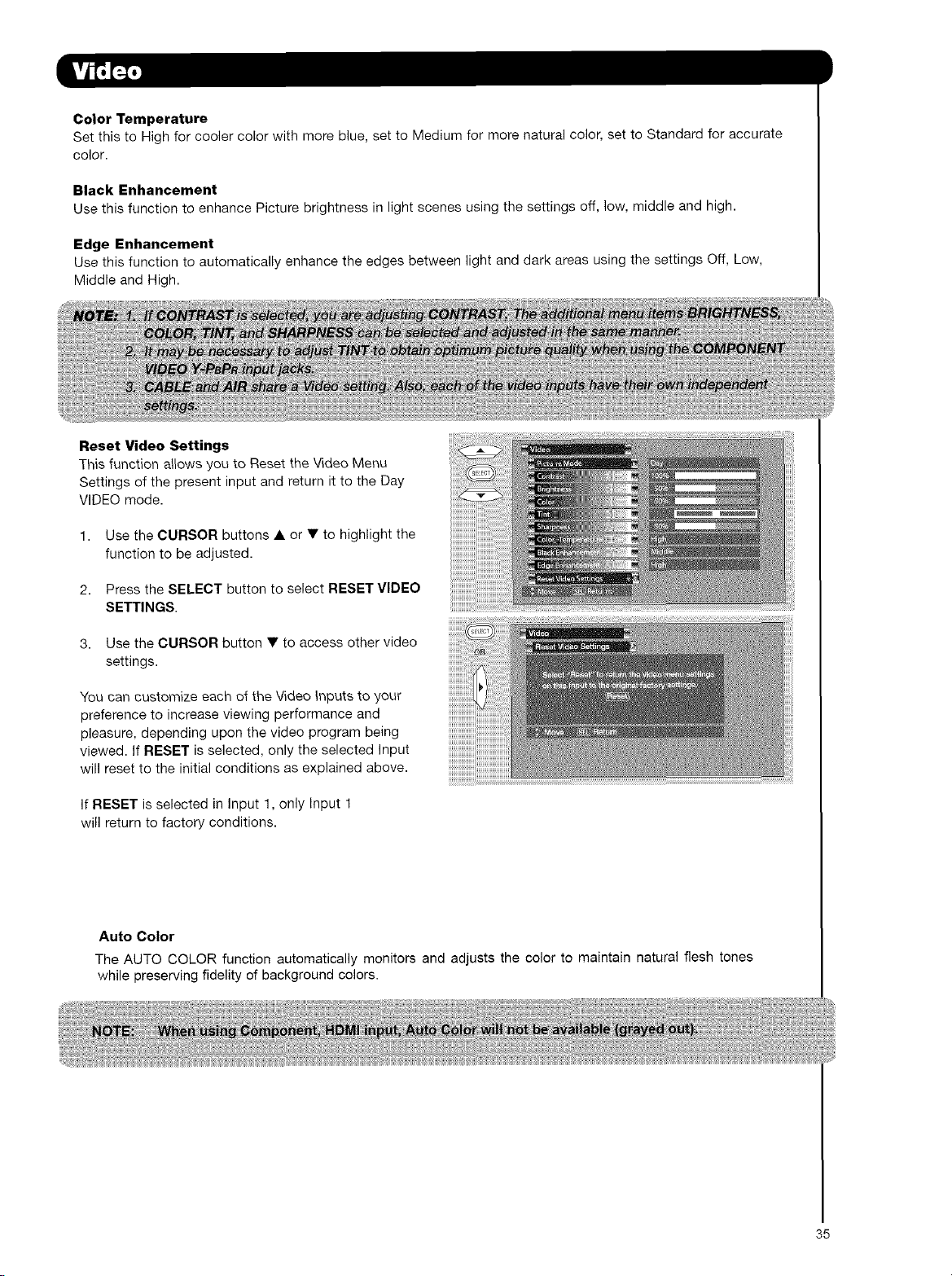
Reset Video Settings
This function allows you to Reset the Video Menu
Settings of the present input and return it to the Day
VIDEO mode.
1. Use the CURSOR buttons • or • to highlight the
function to be adjusted.
2. Press the SELECT button to select RESET VIDEO
SETTINGS.
3. Use the CURSOR button • to access other video
settings.
You can customize each of the Video _nputs to your
preference to increase viewing performance and
pleasure, depending upon the video program being
viewed. If RESET is selected, only the selected Input
will reset to the initial conditions as explained above.
If RESET is selected in Input 1, only Input 1
will return to factory conditions.
Auto Color
The AUTO COLOR function automatically monitors and adjusts the color to maintain natural flesh tones
while preserving fidelity of background colors.
35
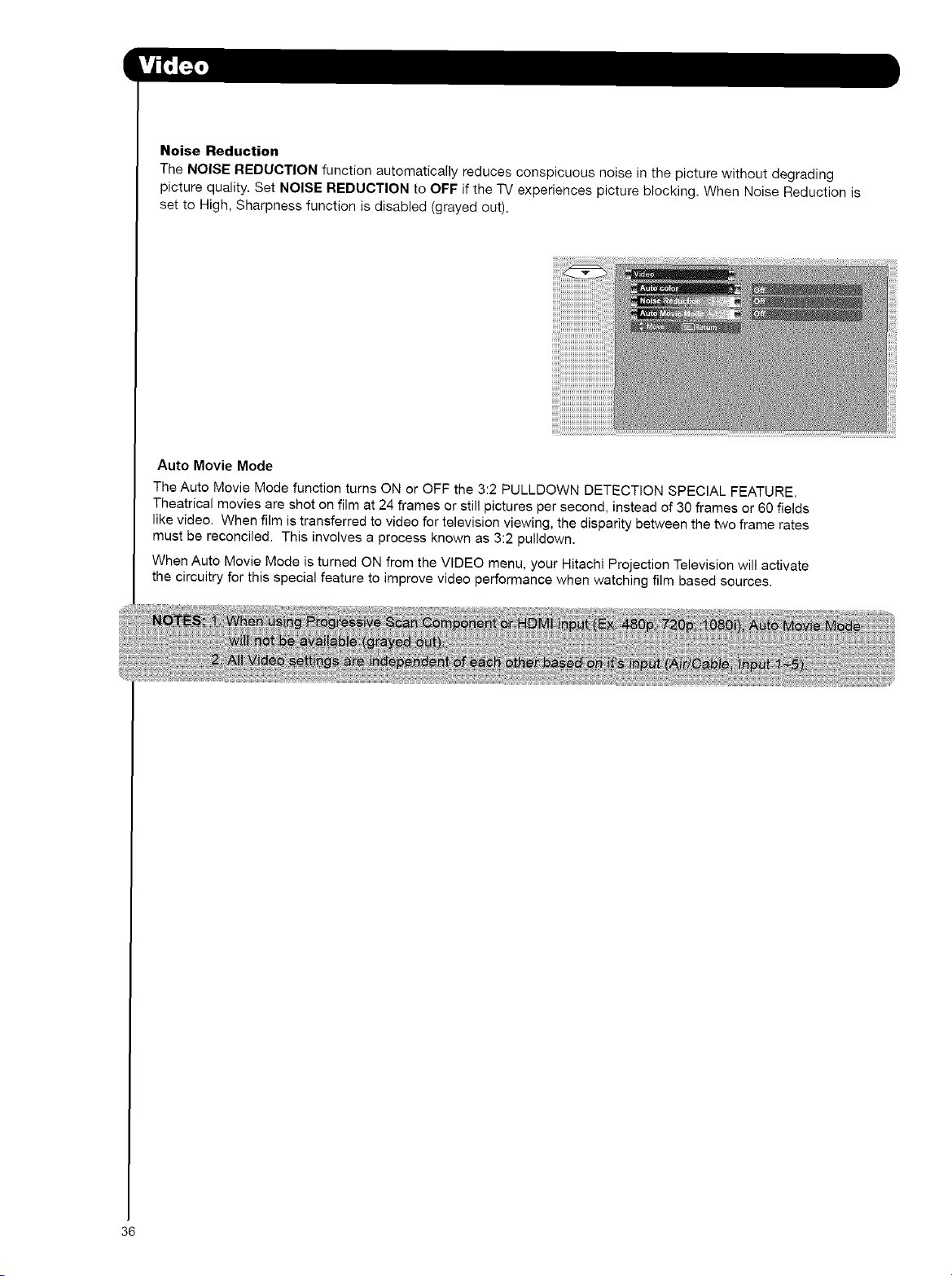
Noise Reduction
The NOISE REDUCTION function automatically reduces conspicuous noise in the picture without degrading
picture quality. Set NOISE REDUCTION to OFF if the TV experiences picture blocking. When Noise Reduction is
set to High, Sharpness function is disabled (grayed out).
Auto Movie Mode
The Auto Movie Mode function turns ON or OFF the 3:2 PULLDOWN DETECTION SPECIAL FEATURE.
Theatrical movies are shot on film at 24 frames or still pictures per second, instead of 30 frames or 60 fields
like video. When film is transferred to video for television viewing, the disparity between the two frame rates
must be reconciled. This involves a process known as 3:2 put,down.
When Auto Movie Mode is turned ON from the VIDEO menu, your Hitachi Projection Television will activate
the circuitry for this special feature to improve video performance when watching film based sources.
36
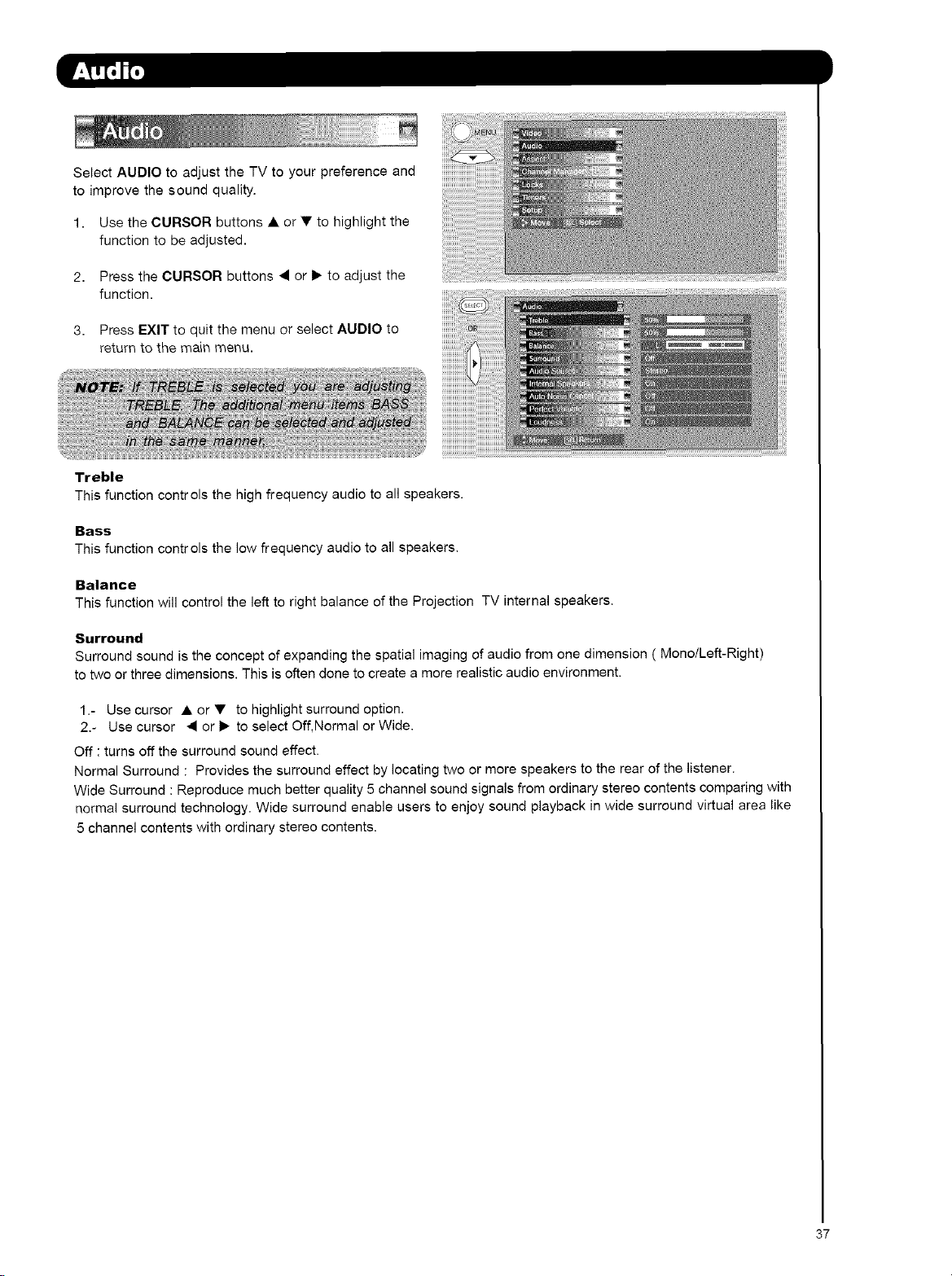
SelectAUDIOtoadjusttheTVtoyourpreferenceand
toimprovethesoundquality.
1. Use the CURSOR buttons • or • to highlight the
function to be adjusted.
2. Press the CURSOR buttons 4 or I_ to adjust the
function.
3. Press EXIT to quit the menu or select AUDIO to
return to the main menu.
Treble
This function controls the high frequency audio to all speakers.
Bass
This function controls the low frequency audio to all speakers.
Balance
This function will control the left to right balance of the Projection TV internal speakers.
Surround
Surround sound is the concept of expanding the spatial imaging of audio from one dimension (Mono/Left-Right)
to two or three dimensions. This is often done to create a more realistic audio environment.
1.- Use cursor • or • to highlight surround option.
2.- Use cursor 4 or I_ to select Off, Normal or Wide.
Off : turns off the surround sound effect.
Normal Surround : Provides the surround effect by locating two or more speakers to the rear of the listener.
Wide Surround : Reproduce much better quality 5 channel sound signals from ordinary stereo contents comparing with
normal surround technology. Wide surround enable users to enjoy sound playback in wide surround virtual area like
5 channel contents with ordinary stereo contents.
37
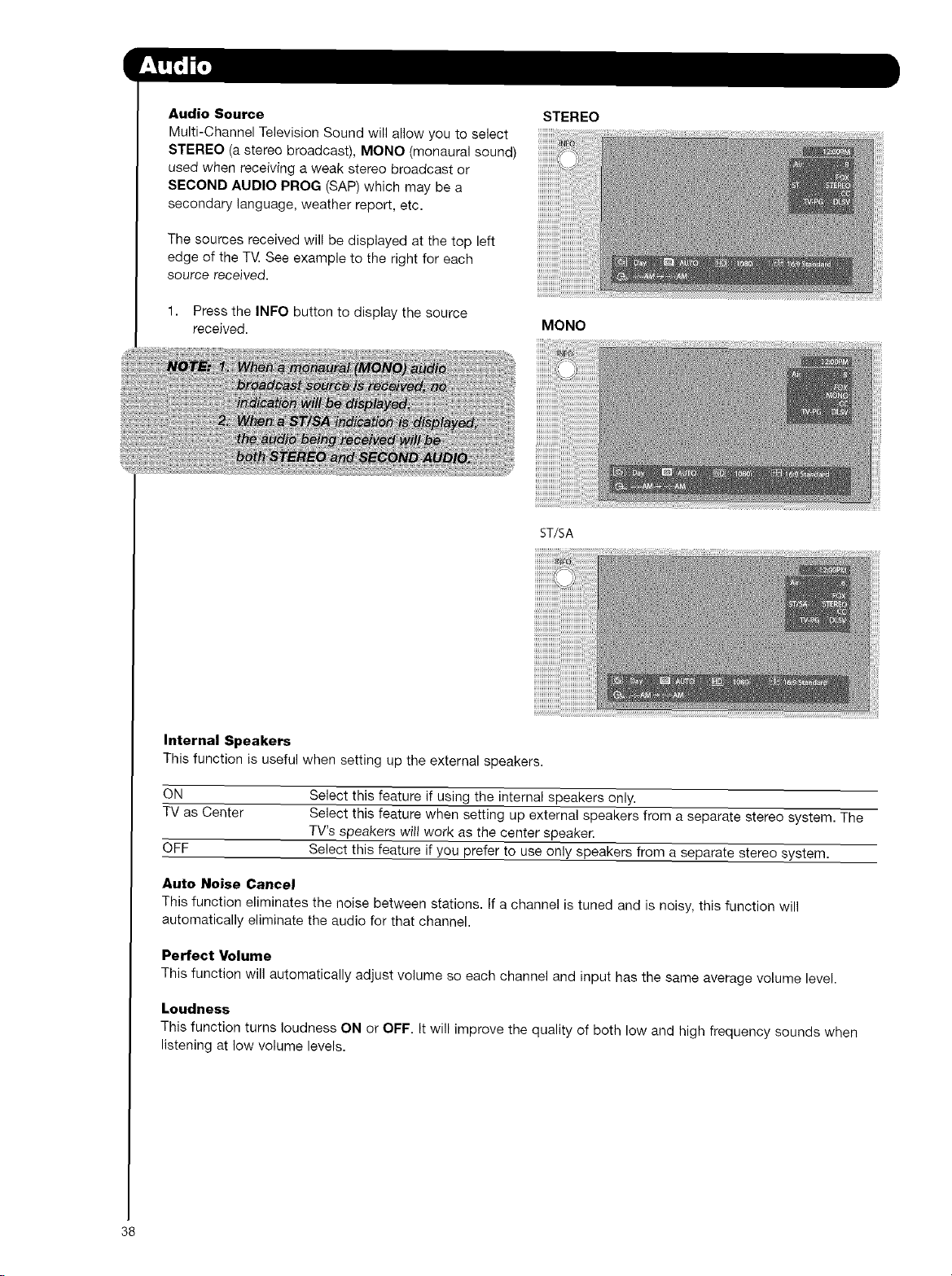
Audio Source
Multi-Channel Television Sound will allow you to select
STEREO (a stereo broadcast), MONO (monaural sound)
used when receiving a weak stereo broadcast or
SECOND AUDIO PROG (SAP) which may be a
secondary language, weather report, etc.
The sources received will be displayed at the top left
edge of the T_ See example to the right for each
source received.
1. Press the INFO button to display the source
received.
STEREO
MONO
ST/SA
Internal Speakers
This function is useful when setting up the external speakers.
ON Select this feature if using the internal speakers only.
TV as Center Select this feature when setting up external speakers from a separate stereo system. The
TV's speakers will work as the center speaker.
OFF Select this feature if you prefer to use only speakers from a separate stereo system.
Auto Noise Cancel
This function eliminates the noise between stations. If a channel is tuned and is noisy, this function will
automatically eliminate the audio for that channel.
Perfect Volume
This function will automatically adjust volume so each channel and input has the same average volume level.
Loudness
This function turns loudness ON or OFF. It will improve the quality of both low and high frequency sounds when
listening at low volume levels.
38
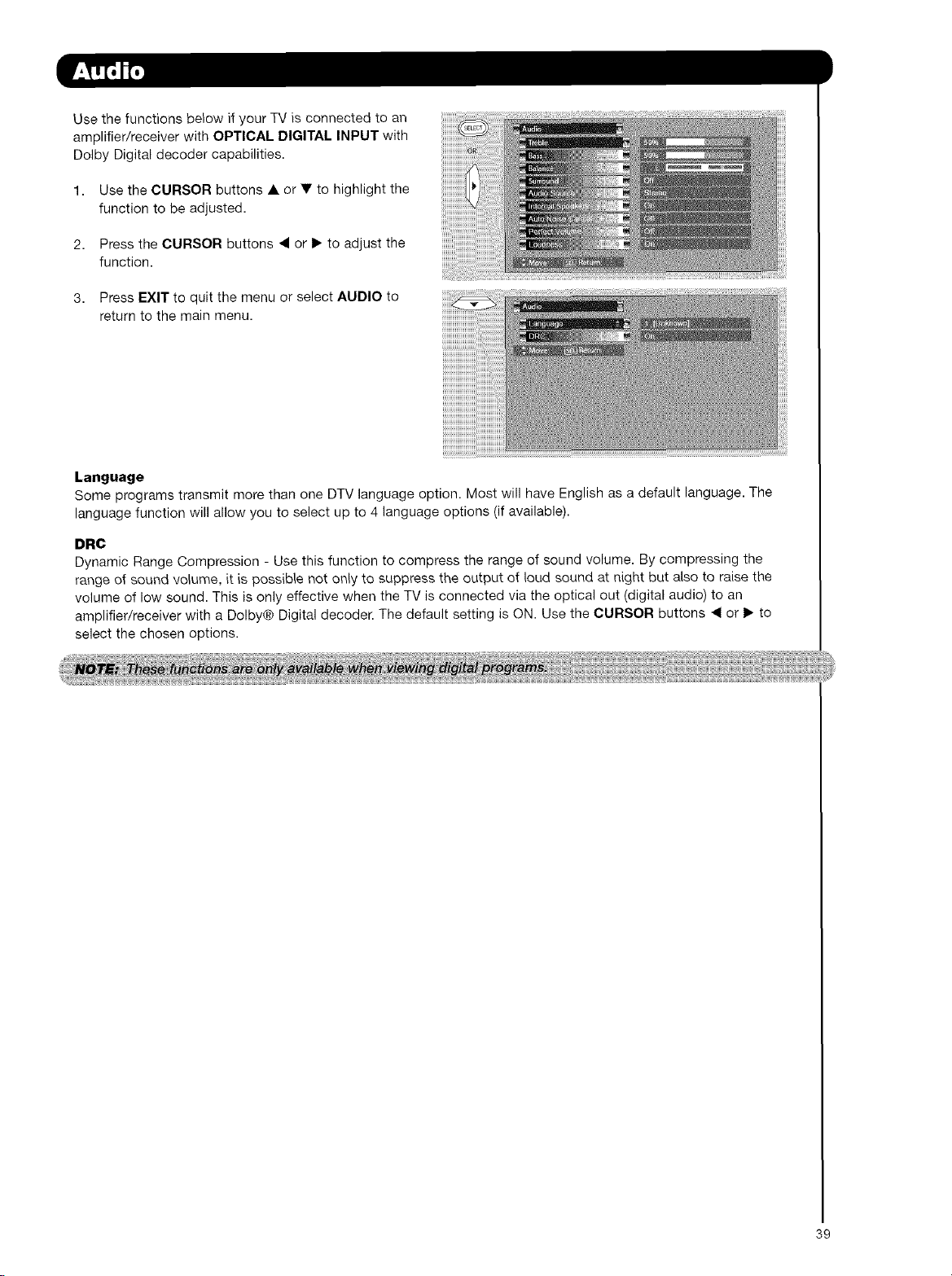
UsethefunctionsbelowifyourTVisconnectedtoan
amplifier/receiverwithOPTICALDIGITAL INPUT with
Dolby Digital decoder capabilities.
1. Use the CURSOR buttons • or • to highlight the
function to be adjusted.
2. Press the CURSOR buttons 4 or I_ to adjust the
function.
3. Press EXIT to quit the menu or select AUDIO to
return to the main menu.
Language
Some programs transmit more than one DTV language option. Most will have English as a default language. The
language function will allow you to select up to 4 language options (if available).
DRC
Dynamic Range Compression - Use this function to compress the range of sound volume. By compressing the
range of sound volume, it is possible not only to suppress the output of loud sound at night but also to raise the
volume of low sound. This is only effective when the TV is connected via the optical out (digital audio) to an
amplifier/receiver with a Dolby® Digital decoder. The default setting is ON. Use the CURSOR buttons _1 or I_ to
select the chosen options.
39
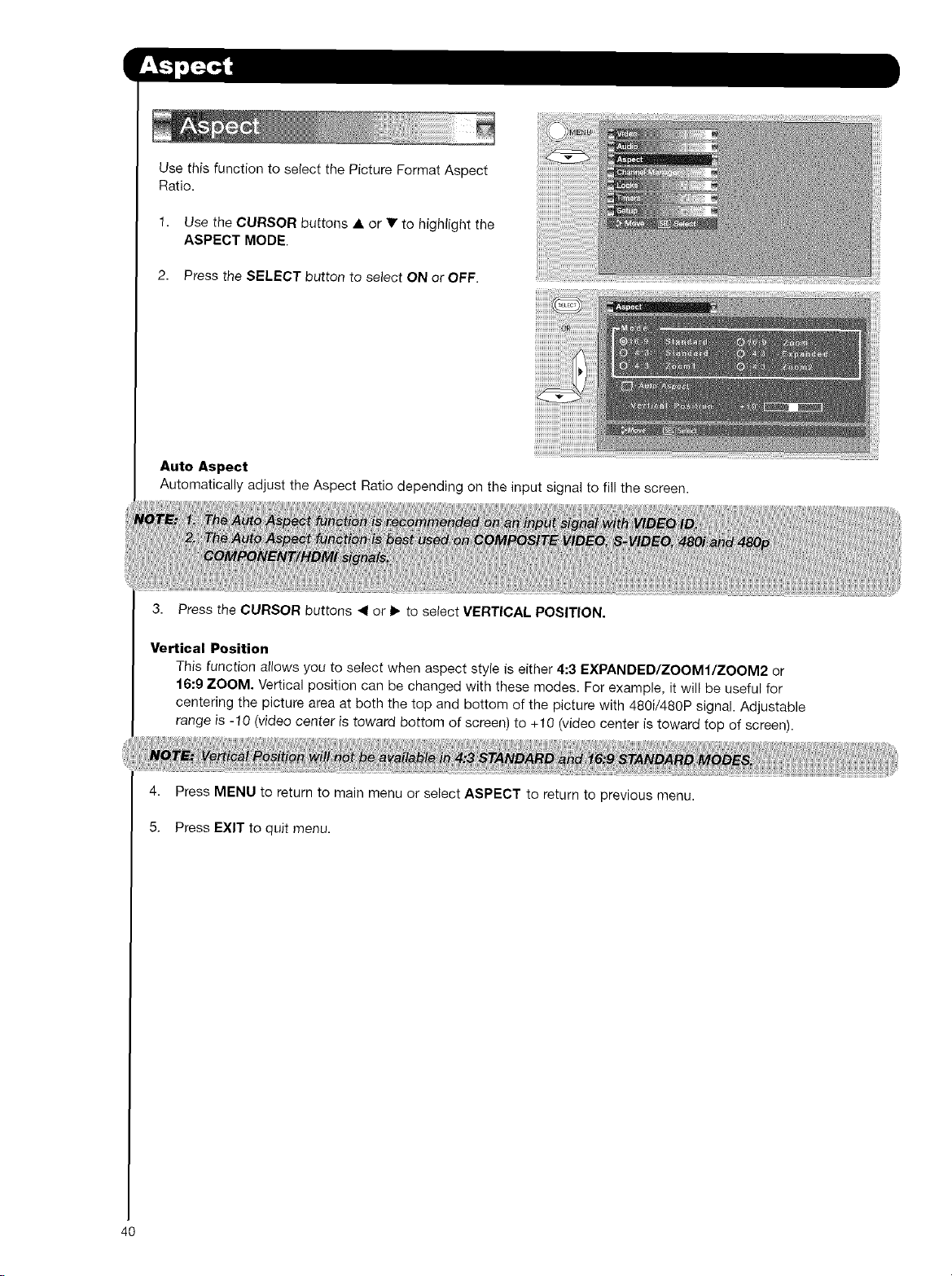
UsethisfunctiontoselectthePictureFormatAspect
Ratio.
1. Use the CURSOR buttons • or 'V to highlight the
ASPECT MODE.
2. Press the SELECT button to select ON or OFF.
Auto Aspect
Automatically adjust the Aspect Ratio depending on the input signal to fill the screen.
3. Press the CURSOR buttons <1 or 1_ to select VERTICAL POSITION.
Vertical Position
This function allows you to select when aspect style is either 4:3 EXPANDED/ZOOMI/ZOOM2 or
16:9 ZOOM. Vertical position can be changed with these modes. For example, it will be useful for
centering the picture area at both the top and bottom of the picture with 480i/480P signal. Adjustable
range is -10 (video center is toward bottom of screen) to +10 (video center is toward top of screen).
4. Press MENU to return to main menu or select ASPECT to return to previous menu.
5. Press EXIT to quit menu.
40

SelectCHANNELMANAGER to set your Antenna
options, run Auto Channel Scan, Check Signal Meter
and Set Channel List.
1. Use the CURSOR buttons • or • to highlight the
function to be adjusted.
2. Press the SELECT button or CURSOR button I_ to
select.
Signal Meter
Select SIGNAL METER when using an indoor or
outdoor antenna. This feature will show the signal
strength and peak values of the Antenna signal to help
you adjust your antenna to optimize signal reception.
1. Use the CURSOR buttons • or • to highlight
SIGNAL METER.
2. Press the SELECT button to select.
41
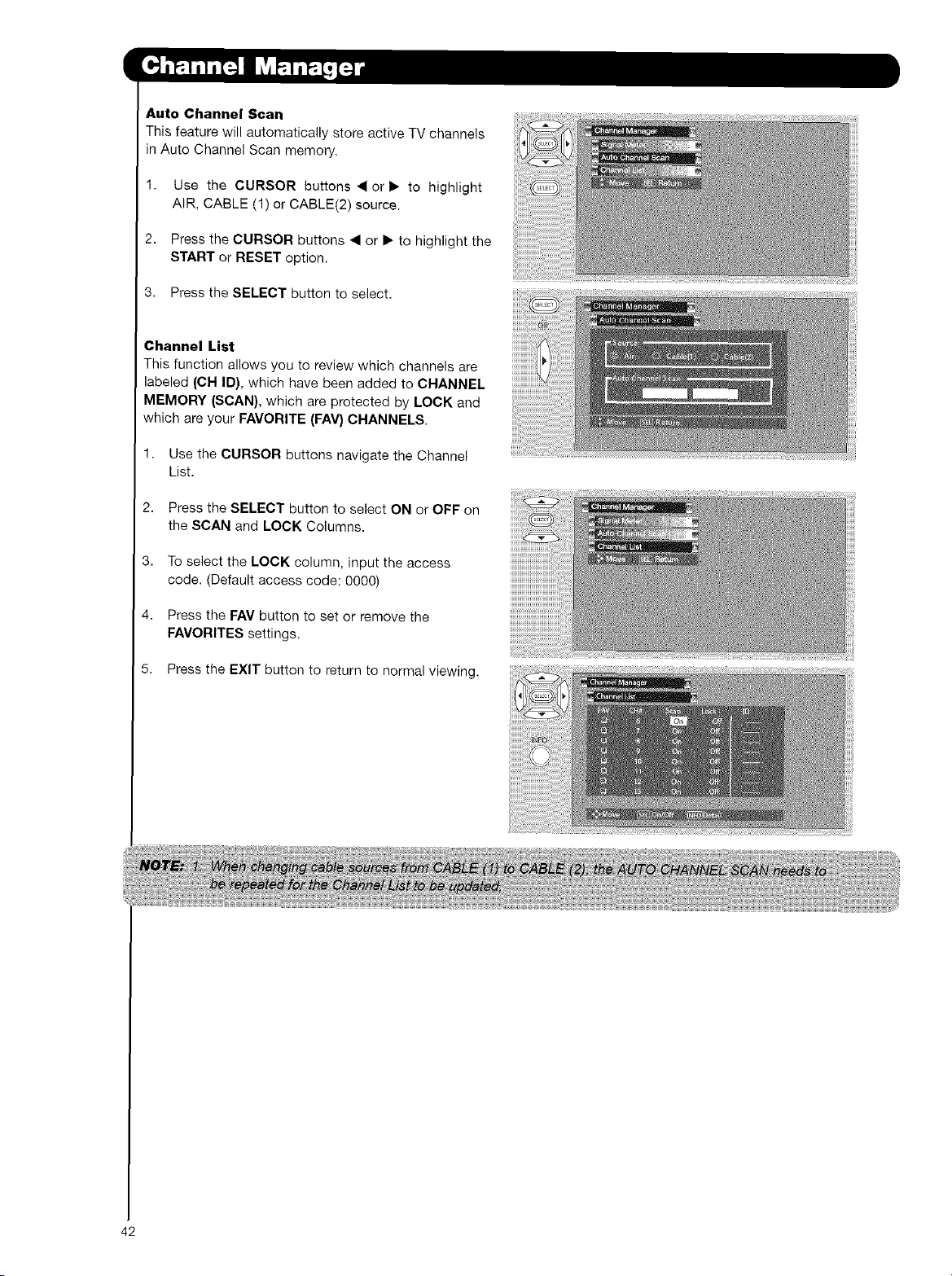
Auto Channel Scan
This feature will automatically store active TV channels
in Auto Channel Scan memory,
1. Use the CURSOR buttons • or • to highlight
AIR, CABLE (1) or CABLE(2) source.
2. Press the CURSOR buttons • or • to highlight the
START or RESET option.
3. Press the SELECT button to select.
Channel List
This function allows you to review which channels are
labeled (CH ID), which have been added to CHANNEL
MEMORY (SCAN), which are protected by LOCK and
which are your FAVORITE (FAV) CHANNELS.
1. Use the CURSOR buttons navigate the Channel
List.
2. Press the SELECT button to select ON or OFF on
the SCAN and LOCK Columns.
4,
To select the LOCK column, input the access
code. (Default access code: 0000)
Press the FAV button to set or remove the
FAVORITES settings.
5. Press the EXIT button to return to normal viewing.
42
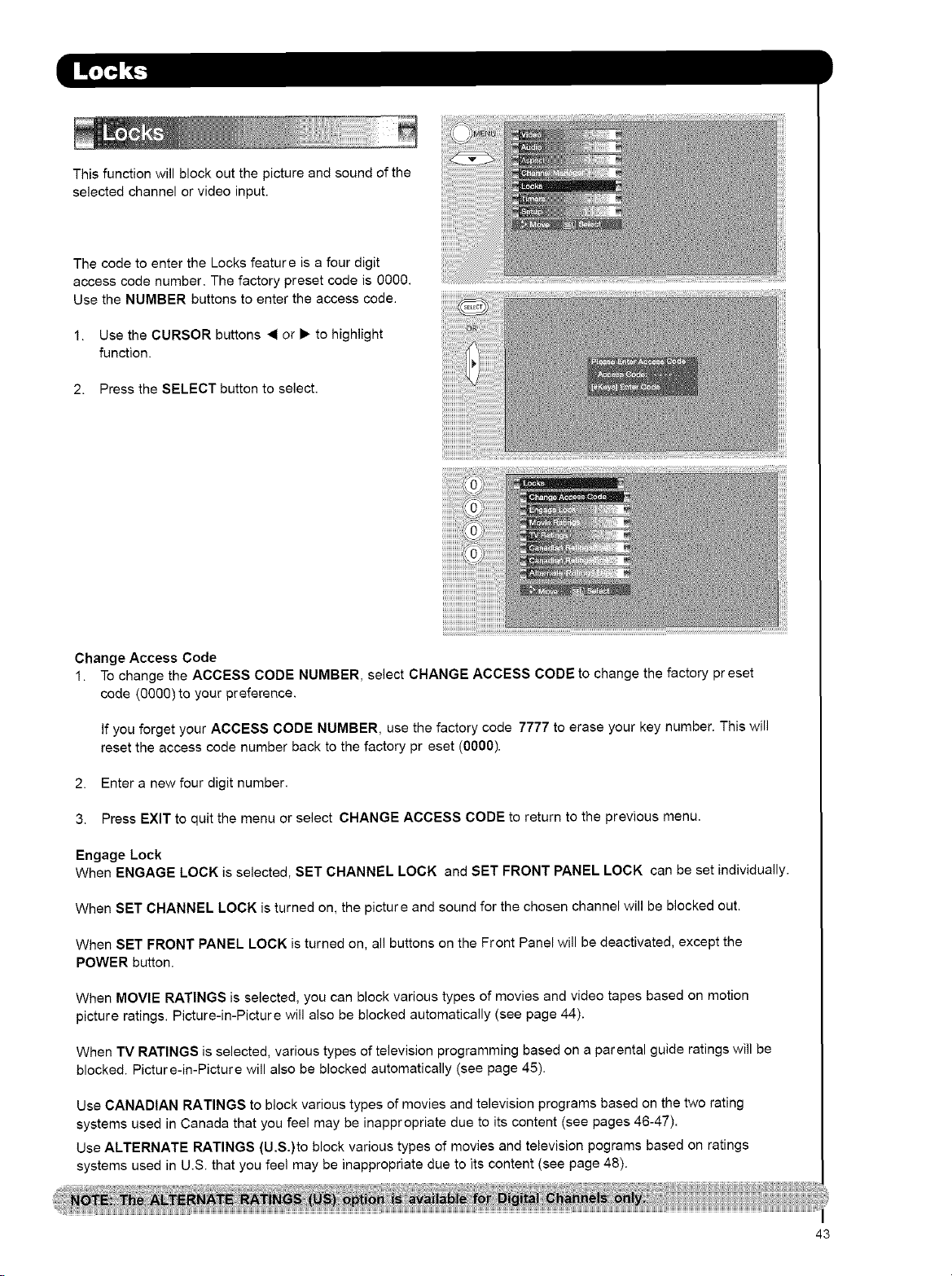
Thisfunctionwillblockoutthepictureandsoundofthe
selectedchannelorvideoinput.
ThecodetoentertheLocksfeatureisafourdigit
accesscodenumber.Thefactorypresetcodeis0000.
UsetheNUMBERbuttonstoentertheaccesscode.
1. UsetheCURSORbuttons_1or• tohighlight
function.
2. PresstheSELECTbuttontoselect.
ChangeAccess Code
1. To change the ACCESS CODE NUMBER, select CHANGE ACCESS CODE to change the factory preset
code (0000) to your preference.
If you forget your ACCESS CODE NUMBER, use the factory code 7777 to erase your key number. This will
reset the access code number back to the factory preset (0000).
2. Enter a new four digit number.
3. Press EXIT to quit the menu or select CHANGE ACCESS CODE to return to the previous menu.
Engage Lock
When ENGAGE LOCK is selected, SET CHANNEL LOCK and SET FRONT PANEL LOCK can be set individually.
When SET CHANNEL LOCK is turned on, the picture and sound for the chosen channel will be blocked out.
When SET FRONT PANEL LOCK is turned on, all buttons on the Front Panel will be deactivated, except the
POWER button.
When MOVIE RATINGS is selected, you can block various types of movies and video tapes based on motion
picture ratings. Picture-in-Picture will also be blocked automatically (see page 44).
When TV RATINGS is selected, various types of television programming based on a parental guide ratings will be
blocked. Picture-in-Picture will also be blocked automatically (see page 45).
Use CANADIAN RATINGS to block various types of movies and television programs based on the two rating
systems used in Canada that you feel may be inappropriate due to its content (see pages 46-47).
Use ALTERNATE RATINGS (U.S.)to block various types of movies and television pograms based on ratings
systems used in U.S. that you feel may be inappropriate due to its content (see page 48).
43
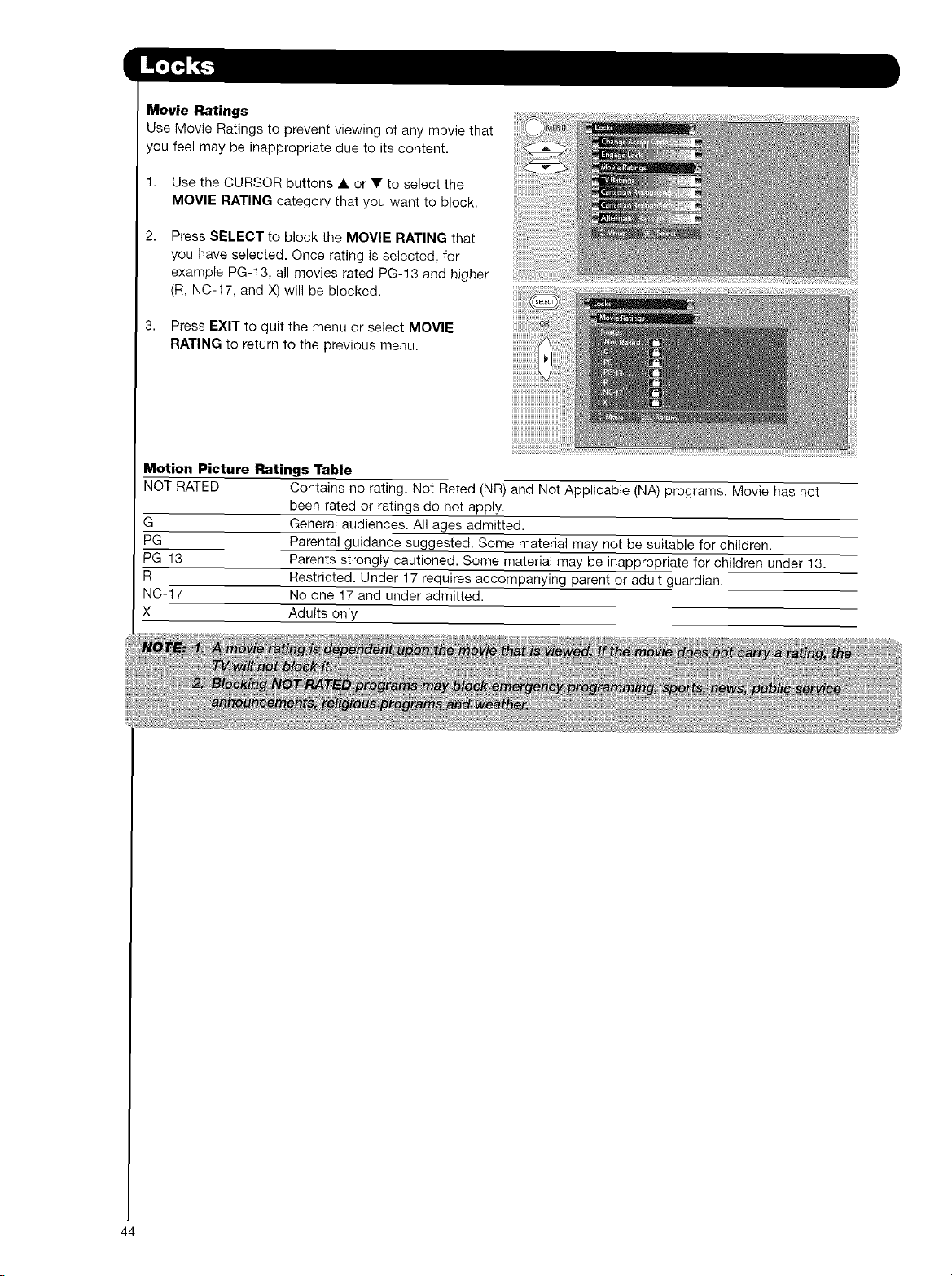
Movie Ratings
Use Movie Ratings to prevent viewing of any movie that
you feel may be inappropriate due to its content.
1. Use the CURSOR buttons • or • to select the
MOVIE RATING category that you want to block.
2,
Press SELECT to block the MOVIE RATING that
you have selected. Once rating is selected, for
example PG-13, all movies rated PG-13 and higher
(R, NC-17, and X) will be blocked.
3. Press EXIT to quit the menu or select MOVIE
RATING to return to the previous menu.
Motion Picture Ratings Table
NOT RATED Contains no rating. Not Rated (NR) and Not Applicable (NA) programs. Movie has not
been rated or ratings do not apply.
G General audiences. All ages admitted.
PG Parental guidance suggested. Some material may not be suitable for children.
PG-13 Parents strongly cautioned. Some material may be inappropriate for children under 13.
R Restricted. Under 17 requires accompanying parent or adult guardian.
NC-17 No one 17 and under admitted.
X Adults only
44
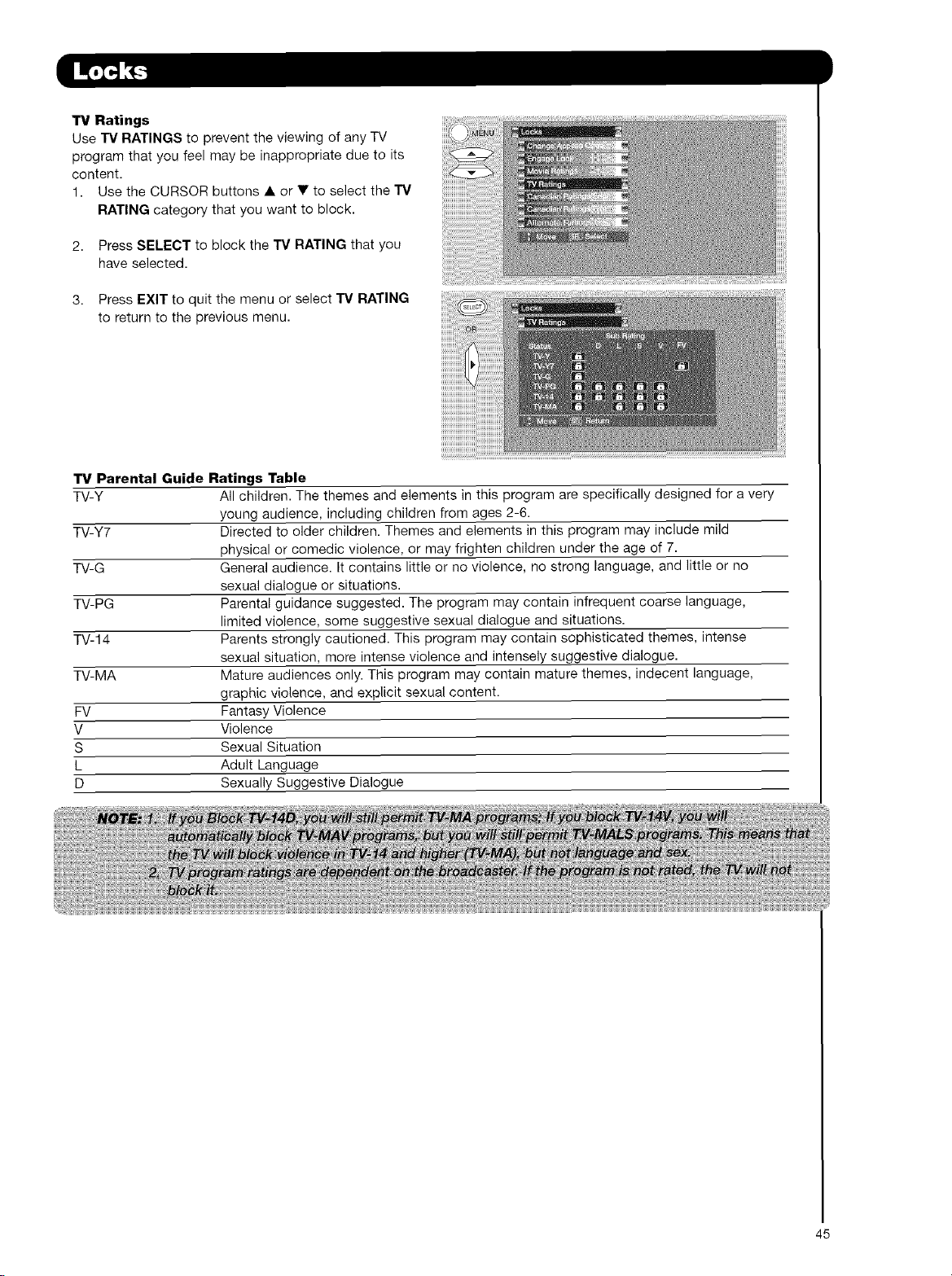
TV Ratings
Use "IV RATINGS to prevent the viewing of any TV
program that you feel may be inappropriate due to its
content.
1. Use the CURSOR buttons • or • to select the "IV
RATING category that you want to block.
2. Press SELECT to block the "IV RATING that you
have selected.
3. Press EXIT to quit the menu or select "IV RATING
to return to the previous menu.
"IV Parental Guide Ratings Table
TV-Y All children. The themes and elements in this program are specifically designed for a very
young audience, including children from ages 2-6.
TV-Y7 Directed to older children. Themes and elements in this program may include mild
physical or comedic violence, or may frighten children under the age of 7.
TV-G General audience. It contains little or no violence, no strong language, and little or no
sexual dialogue or situations.
TV-PG Parental guidance suggested. The program may contain infrequent coarse language,
limited violence, some suggestive sexual dialogue and situations.
TV-14 Parents strongly cautioned. This program may contain sophisticated themes, intense
sexual situation, more intense violence and intensely suggestive dialogue.
TV-MA Mature audiences only. This program may contain mature themes, indecent language,
graphic violence, and explicit sexual content.
FV Fantasy Violence
V Violence
S Sexual Situation
L Adult Language
D Sexually Suggestive Dialogue
45
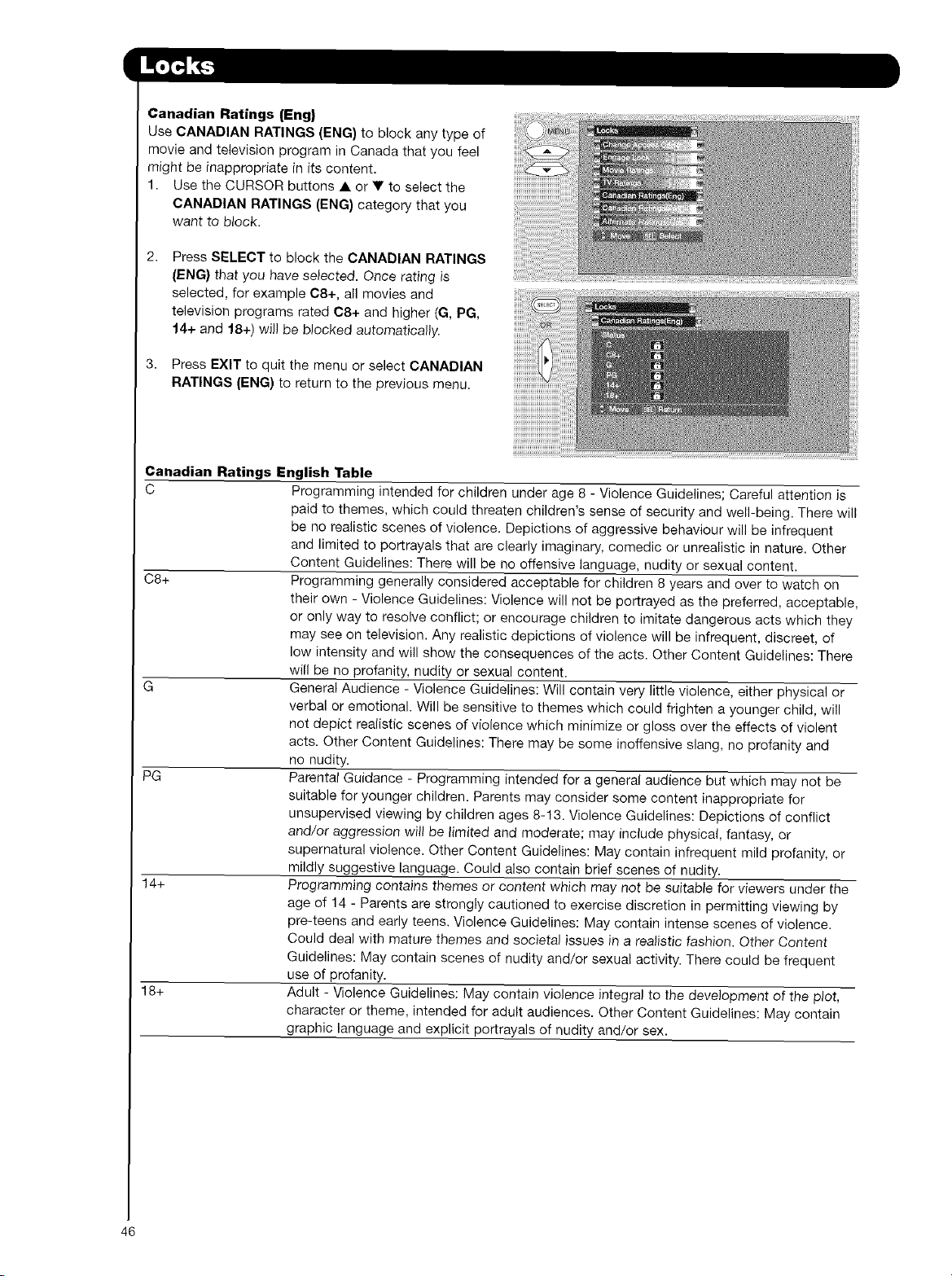
Canadian Ratings (Eng)
Use CANADIAN RATINGS (ENG) to block any type of
movie and television program in Canada that you feel
might be inappropriate in its content.
1. Use the CURSOR buttons • or • to select the
CANADIAN RATINGS (ENG) category that you
want to block.
Press SELECT to block the CANADIAN RATINGS
(ENG) that you have selected. Once rating is
selected, for example C8+, all movies and
television programs rated C8+ and higher (G, PG,
14+ and 18+) will be blocked automatically.
3. Press EXIT to quit the menu or select CANADIAN
RATINGS (ENG) to return to the previous menu.
Canadian Ratings English Table
C Programming intended for children under age 8 - Violence Guidelines; Careful attention is
paid to themes, which could threaten children's sense of security and well-being. There will
be no realistic scenes of violence. Depictions of aggressive behaviour will be infrequent
and limited to portrayals that are clearly imaginary, comedic or unrealistic in nature. Other
Content Guidelines: There will be no offensive language, nudity or sexual content.
C8+ Programming generally considered acceptable for children 8 years and over to watch on
their own - Violence Guidelines: Violence will not be portrayed as the preferred, acceptable,
or only way to resolve conflict; or encourage children to imitate dangerous acts which they
may see on television. Any realistic depictions of violence will be infrequent, discreet, of
low intensity and will show the consequences of the acts. Other Content Guidelines: There
wifl be no profanity, nudity or sexual content.
G General Audience - Violence Guidelines: Will contain very little violence, either physical or
verbal or emotional. Will be sensitive to themes which could frighten a younger child, will
not depict realistic scenes of violence which minimize or gloss over the effects of violent
acts. Other Content Guidelines: There may be some inoffensive slang, no profanity and
no nudity.
PG Parental Guidance - Programming intended for a general audience but which may not be
suitable for younger children. Parents may consider some content inappropriate for
unsupervised viewing by children ages 8-13. Violence Guidelines: Depictions of conflict
and/or aggression will be limited and moderate; may include physical, fantasy, or
supernatural violence. Other Content Guidelines: May contain infrequent mild profanity, or
mildly suggestive language. Could also contain brief scenes of nudity.
14+ Programming contains themes or content which may not be suitable for viewers under the
age of 14 - Parents are strongly cautioned to exercise discretion in permitting viewing by
pre-teens and early teens, Violence Guidelines: May contain intense scenes of violence.
Could deal with mature themes and societal issues in a realistic fashion. Other Content
Guidelines: May contain scenes of nudity and/or sexual activity. There could be frequent
use of profanity.
18+ Adult - Violence Guidelines: May contain violence integral to the development of the plot,
character or theme, intended for adult audiences. Other Content Guidelines: May contain
graphic language and explicit portrayals of nudity and/or sex.
46
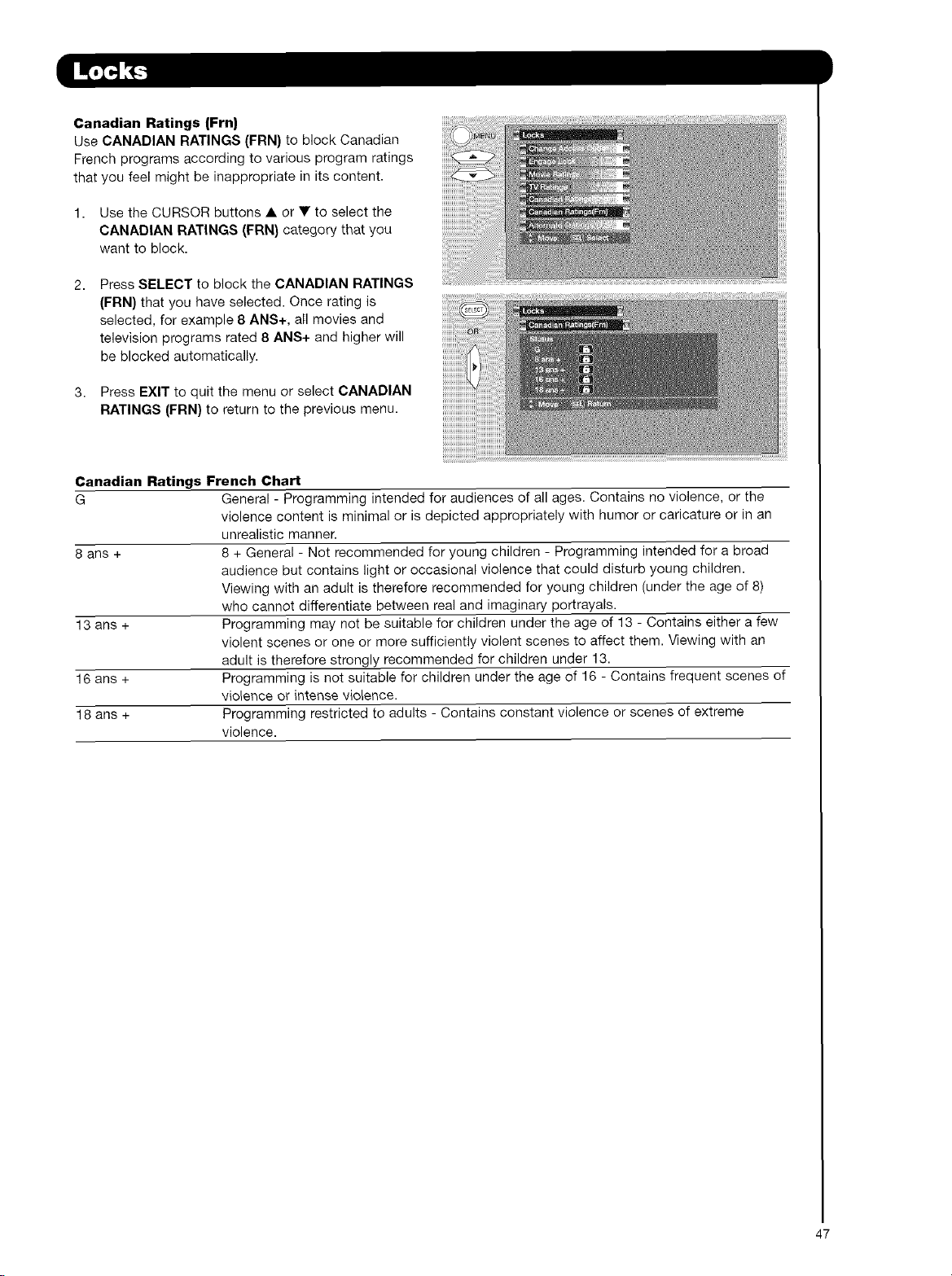
Canadian Ratings (Frn)
Use CANADIAN RATINGS (FRN) to block Canadian
French programs according to various program ratings
that you feel might be inappropriate in its content.
1. Use the CURSOR buttons • or • to select the
CANADIAN RATINGS (FRN) category that you
want to block.
2, Press SELECT to block the CANADIAN RATINGS
(FRN) that you have selected. Once rating is
selected, for example 8 ANS+, all movies and
television programs rated 8 ANS+ and higher will
be blocked automatically.
3. Press EXIT to quit the menu or select CANADIAN
RATINGS (FRN) to return to the previous menu.
Canadian Ratings French Chart
G General - Programming intended for audiences of all ages. Contains no violence, or the
violence content is minimal or is depicted appropriately with humor or caricature or in an
unrealistic manner.
8 ans + 8 + General - Not recommended for young children - Programming intended for a broad
audience but contains light or occasional violence that could disturb young children.
Viewing with an adult is therefore recommended for young children (under the age of 8)
who cannot differentiate between real and imaginary portrayals.
13 ans + Programming may not be suitable for children under the age of 13 - Contains either a few
violent scenes or one or more sufficiently violent scenes to affect them. Viewing with an
adult is therefore strongly recommended for children under 13.
16 ans + Programming is not suitable for children under the age of 16 - Contains frequent scenes of
violence or intense violence.
18 ans + Programming restricted to adults - Contains constant violence or scenes of extreme
violence.
47
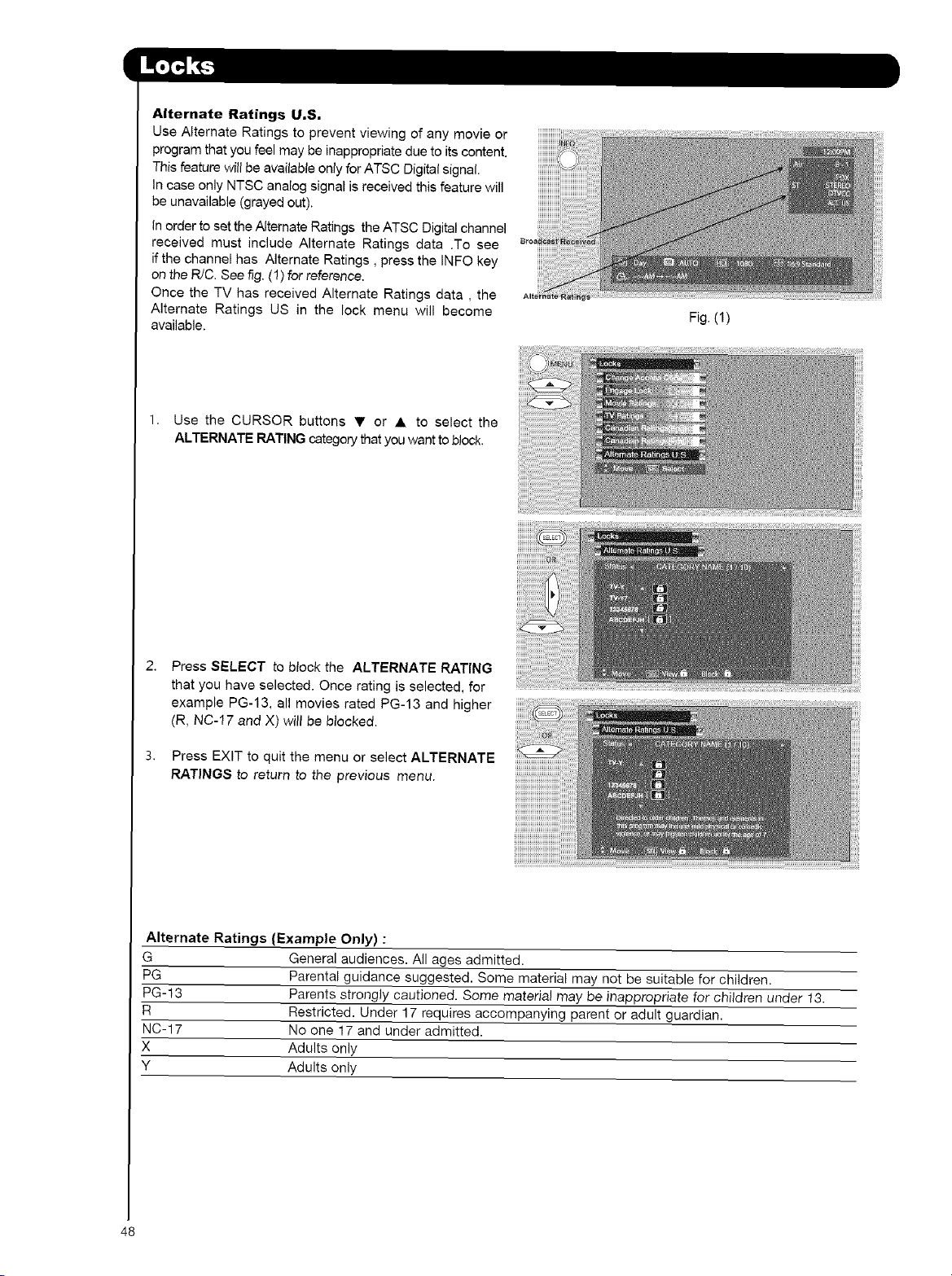
Alternate Ratings U.S,
Use Alternate Ratings to prevent viewing of any movie or
program that you feel may be inappropriate due to its content.
This feature will be available only for ATSC Digital signal.
In case only NTSC analog signal is received this feature will
be unavailable (grayed out).
in order to set the Alternate Ratings the ATSC Digital channel
received must include Alternate Ratings data .To see
if the channel has Alternate Ratings, press the INFO key
on the R/C. See fig. (1) for reference.
Once the TV has received Alternate Ratings data, the
Alternate Ratings US in the lock menu will become
available.
1. Use the CURSOR buttons • or • to select the
ALTERNATE RATING category that you want to block.
Fig. (1)
2.
3.
Press SELECT to block the ALTERNATE RATING
that you have selected. Once rating is selected, for
example PG-13, all movies rated PG-13 and higher
(R, NC-17 and X) will be blocked.
Press EXIT to quit the menu or select ALTERNATE
RATINGS to return to the previous menu.
Alternate Ratings (Example Only) :
G General audiences. All ages admitted.
PG Parental guidance suggested. Some material may not be suitable for children.
PG-13 Parents strongly cautioned. Some material may be inappropriate for children under t 3.
R Restricted. Under 17 requires accompanying parent or adult guardian.
NC-17 No one 17 and under admitted.
X Adults only
Y Adults only
48

49
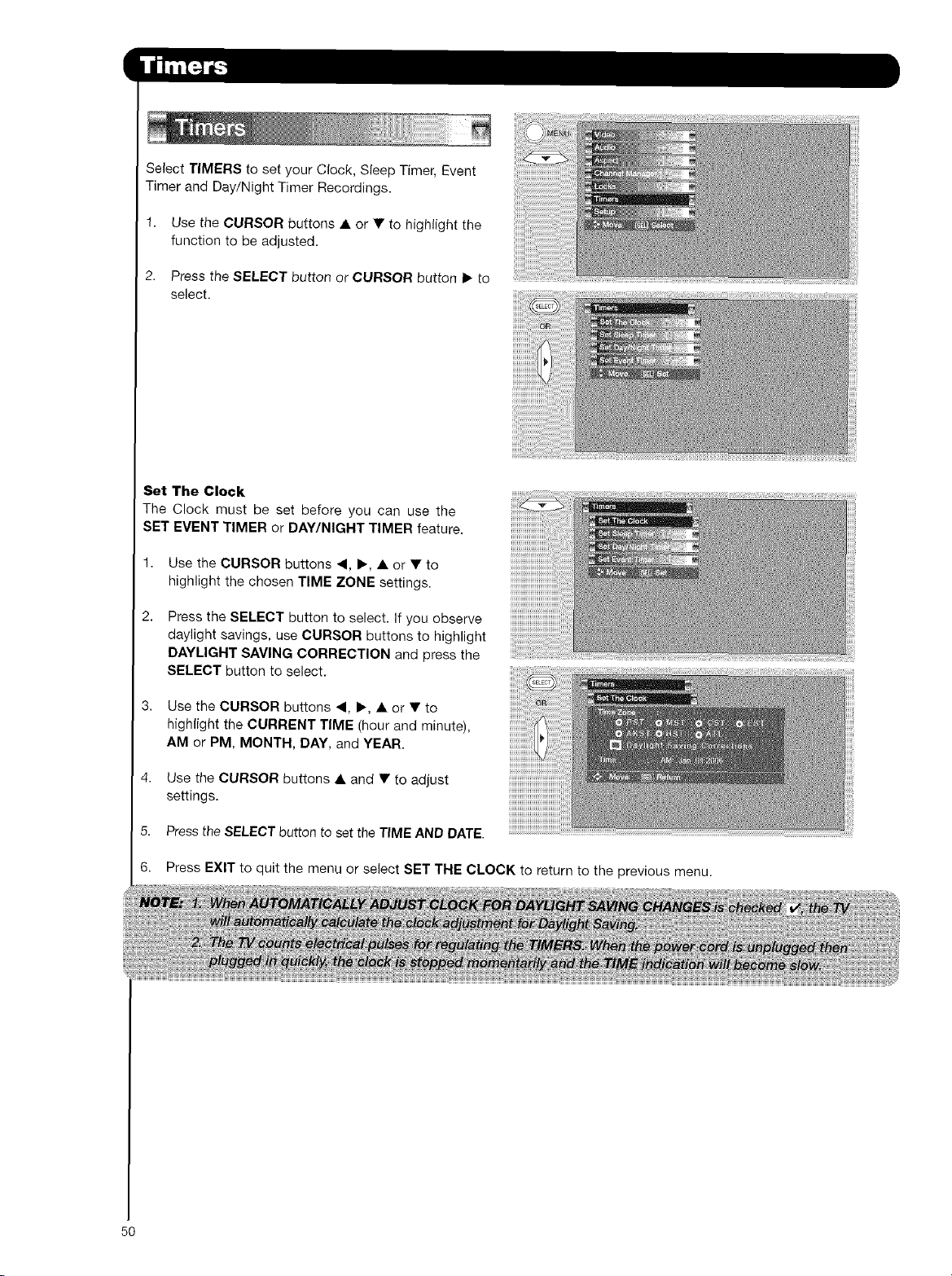
Select TIMERS to set your Clock, Sleep Timer, Event
Timer and Day/Night Timer Recordings.
1. Use the CURSOR buttons A or • to highlight the
function to be adjusted.
2. Press the SELECT button or CURSOR button • to
select.
Set The Clock
The Clock must be set before you can use the
SET EVENT TIMER or DAY/NIGHT TIMER feature.
1. Use the CURSOR buttons .4, •, • or • to
highlight the chosen TIME ZONE settings.
Press the SELECT button to select. If you observe
daylight savings, use CURSOR buttons to highlight
DAYLIGHT SAVING CORRECTION and press the
SELECT button to select.
3. Use the CURSOR buttons 4, •, • or • to
highlight the CURRENT TIME (hour and minute),
AM or PM, MONTH, DAY, and YEAR.
4. Use the CURSOR buttons • and • to adjust
settings.
5. Press the SELECT button to set the TIME AND DATE.
6. Press EXIT to quit the menu or select SET THE CLOCK to return to the previous menu.
5O
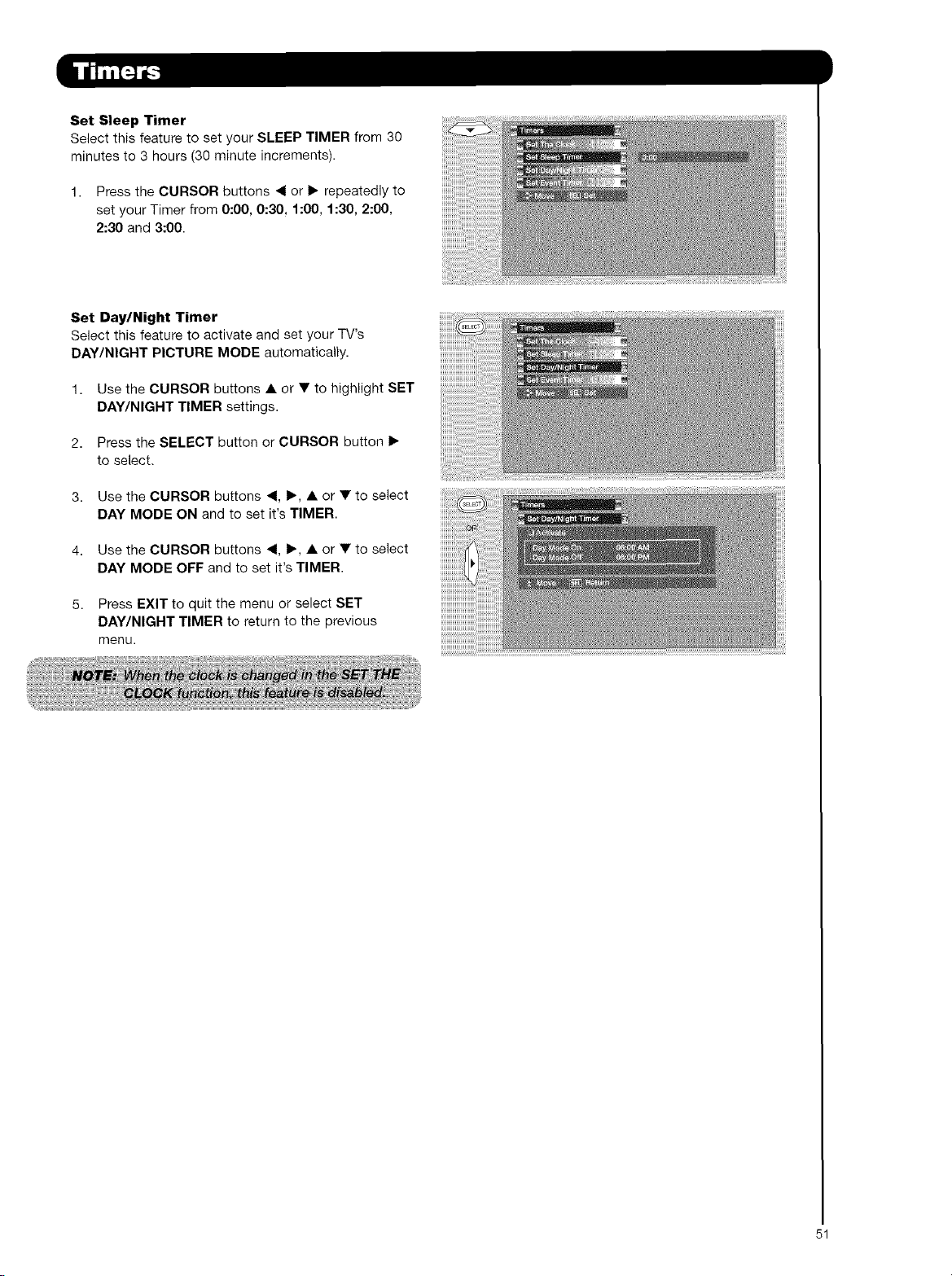
Set Sleep Timer
Select this feature to set your SLEEP TIMER from 30
minutes to 3 hours (30 minute increments).
1. Press the CURSOR buttons _1 or I_ repeatedly to
set your Timer from 0:00, 0:30, 1:00, 1:30, 2:00,
2:30 and 3:00.
Set Day/Night Timer
Select this feature to activate and set your TV's
DAY/NIGHT PICTURE MODE automatically.
1. Use the CURSOR buttons • or • to highlight SET
DAY/NIGHT TIMER settings.
2. Press the SELECT button or CURSOR button I_
to select.
3. Use the CURSOR buttons _1, I_, • or • to select
DAY MODE ON and to set it's TIMER.
4. Use the CURSOR buttons _1, I_, • or • to select
DAY MODE OFF and to set it's TIMER.
5. Press EXIT to quit the menu or select SET
DAY/NIGHT TIMER to return to the previous
menu.
51
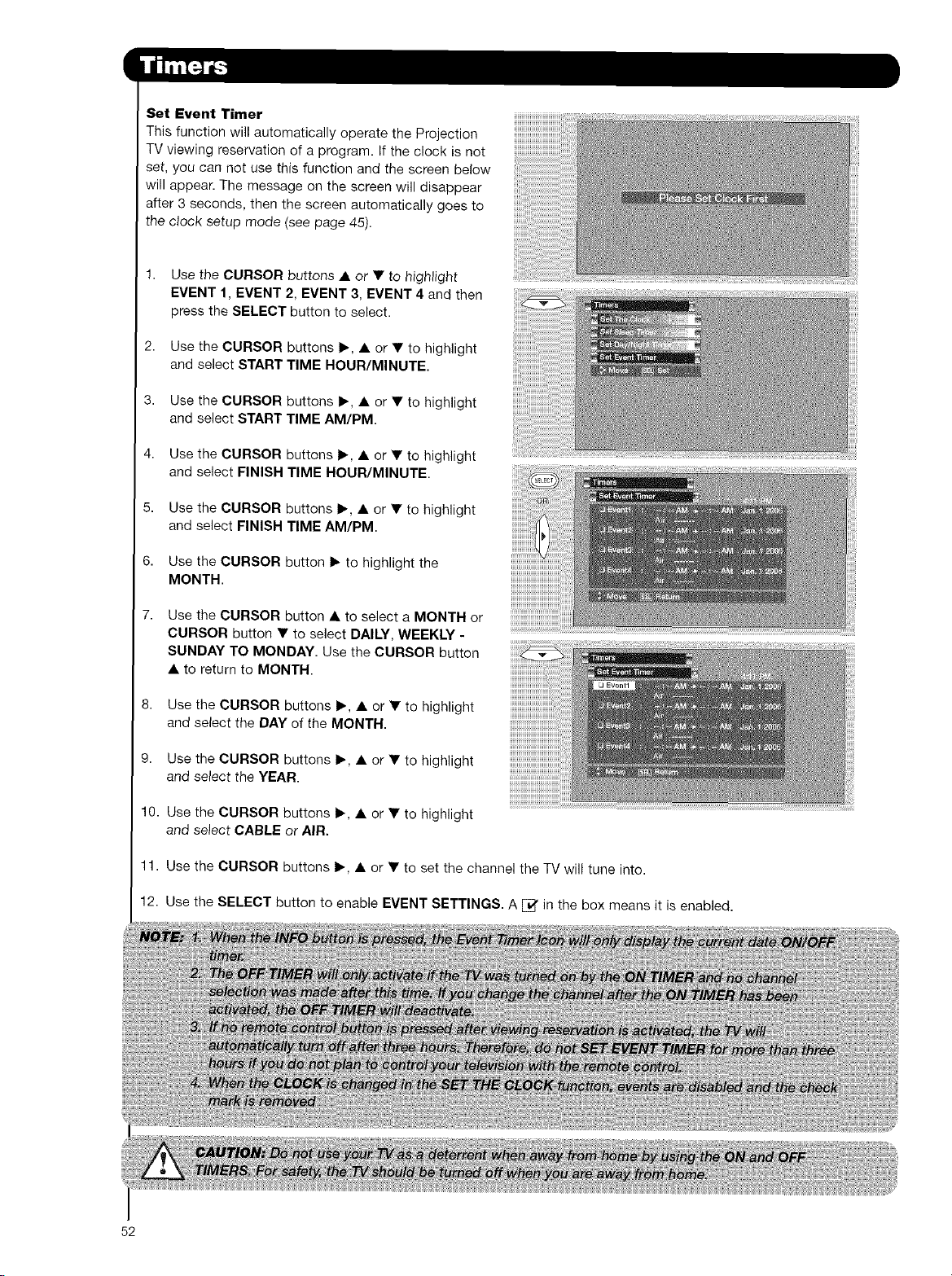
SetEvent Timer
This function will automatically operate the Projection
TV viewing reservation of a program. If the clock is not
set, you can not use this function and the screen below
will appear. The message on the screen will disappear
after 3 seconds, then the screen automatically goes to
the clock setup mode (see page 45).
2,
8,
9,
10.
11.
12.
Use the CURSOR buttons • or • to highlight
EVENT 1, EVENT 2, EVENT 3, EVENT 4 and then
press the SELECT button to select.
Use the CURSOR buttons I_, • or • to highlight
and select START TIME HOUR/MINUTE
Use the CURSOR buttons I_, • or • to highlight
and select START TIME AM/PM.
Use the CURSOR buttons I_, • or • to highlight
and select FINISH TIME HOUR/MINUTE
Use the CURSOR buttons I_, • or • to highlight
and select FINISH TIME AM/PM.
Use the CURSOR button I_ to highlight the
MONTH.
Use the CURSOR button • to select a MONTH or
CURSOR button • to select DAILY, WEEKLY -
SUNDAY TO MONDAY. Use the CURSOR button
• to return to MONTH.
Use the CURSOR buttons I_, • or • to highlight
and select the DAY of the MONTH.
Use the CURSOR buttons 1_, • or • to highlight
and select the YEAR.
Use the CURSOR buttons i_, • or • to highlight
and select CABLE or AIR.
Use the CURSOR buttons 1_, • or • to set the channel the TV will tune into.
Use the SELECT button to enable EVENT SETTINGS. A [_' in the box means it is enabled.
52
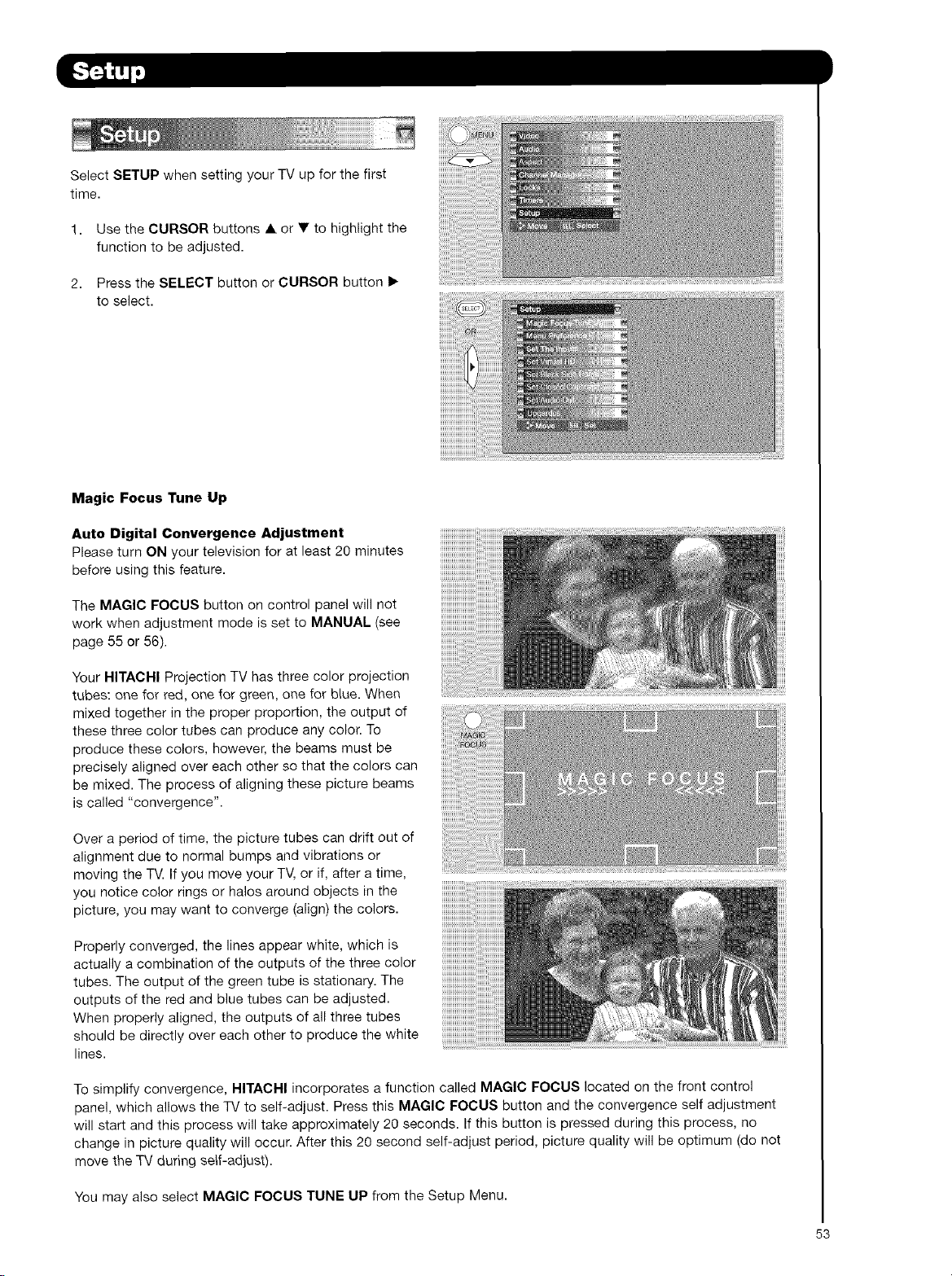
Select SETUP when setting your TV up for the first
time.
1. Use the CURSOR buttons • or • to highlight the
function to be adjusted.
2. Press the SELECT button or CURSOR button I_
to select.
Magic Focus Tune Up
Auto Digital Convergence Adjustment
Please turn ON your television for at least 20 minutes
before using this feature.
The MAGIC FOCUS button on control panel will not
work when adjustment mode is set to MANUAL (see
page 55 or 56),
Your HITACHI Projection TV has three color projection
tubes: one for red, one for green, one for blue. When
mixed together in the proper proportion, the output of
these three color tubes can produce any color. To
produce these colors, however, the beams must be
precisely aligned over each other so that the colors can
be mixed. The process of aligning these picture beams
is called "convergence".
Over a period of time, the picture tubes can drift out of
alignment due to normal bumps and vibrations or
moving the TV. If you move your TV, or if, after a time,
you notice color rings or halos around objects in the
picture, you may want to converge (align) the colors.
Properly converged, the lines appear white, which is
actually a combination of the outputs of the three color
tubes. The output of the green tube is stationary. The
outputs of the red and blue tubes can be adjusted.
When properly aligned, the outputs of all three tubes
should be directly over each other to produce the white
lines.
To simplify convergence, HITACHI incorporates a function called MAGIC FOCUS located on the front control
panel, which allows the TV to self-adjust. Press this MAGIC FOCUS button and the convergence self adjustment
will start and this process will take approximately 20 seconds. If this button is pressed during this process, no
change in picture quality will occur. After this 20 second self-adjust period, picture quality will be optimum (do not
move the TV during self-adjust).
You may also select MAGIC FOCUS TUNE UP from the Setup Menu.
53
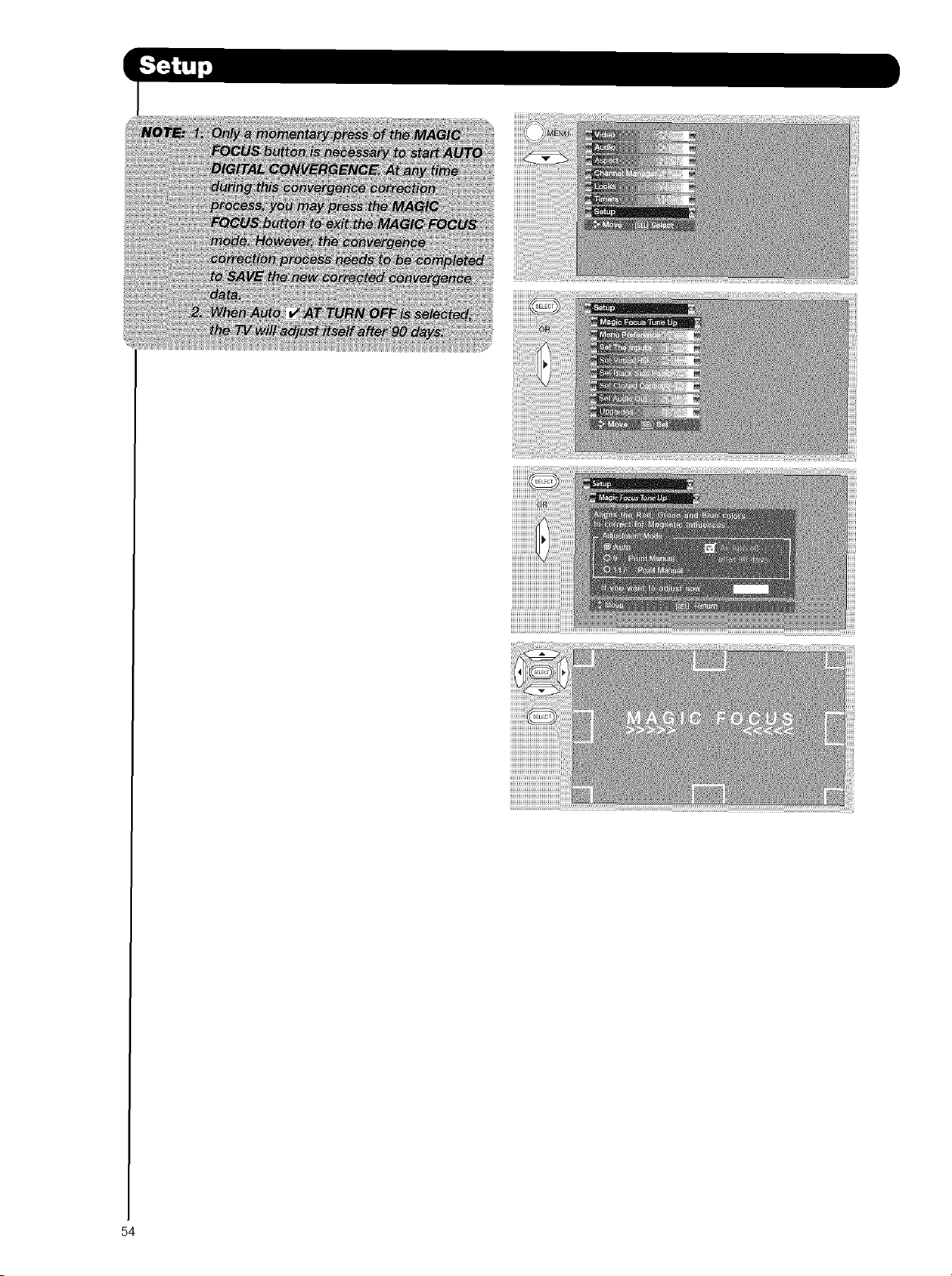
54
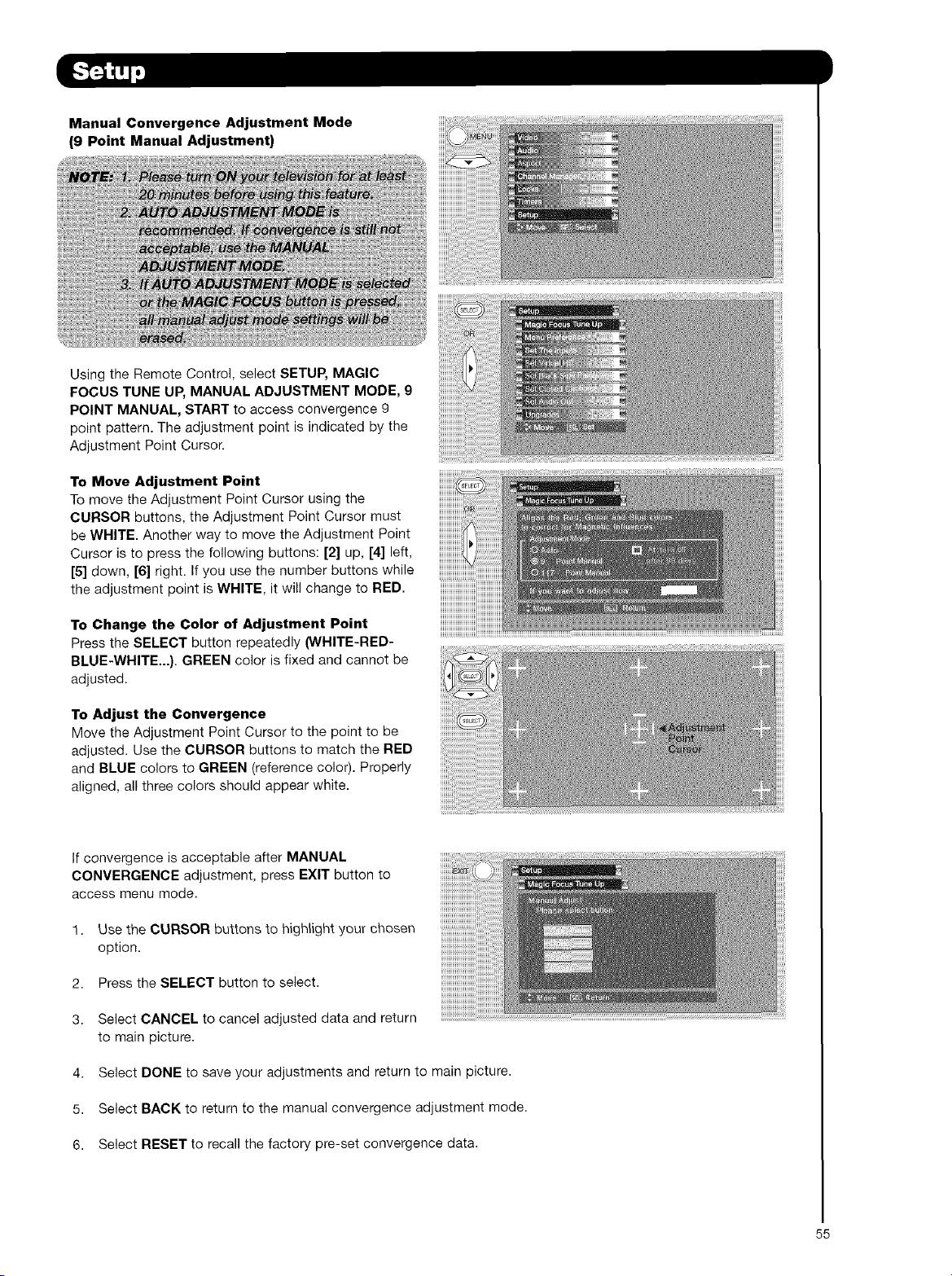
Manual Convergence Adjustment Mode
(9 Point Manual Adjustment)
Using the Remote Control, select SETUP, MAGIC
FOCUS TUNE UP, MANUAL ADJUSTMENT MODE, 9
POINT MANUAL, START to access convergence 9
point pattern. The adjustment point is indicated by the
Adjustment Point Cursor.
To Move Adjustment Point
To move the Adjustment Point Cursor using the
CURSOR buttons, the Adjustment Point Cursor must
be WHITE. Another way to move the Adjustment Point
Cursor is to press the following buttons: [2] up, [4] left,
[5] down, [6] right. If you use the number buttons while
the adjustment point is WHITE, it will change to RED.
To Change the Color of Adjustment Point
Press the SELECT button repeatedly (WHITE-RED-
BLUE-WHITE...). GREEN color is fixed and cannot be
adjusted.
To Adjust the Convergence
Move the Adjustment Point Cursor to the point to be
adjusted. Use the CURSOR buttons to match the RED
and BLUE colors to GREEN (reference color). Properly
aligned, all three colors should appear white.
If convergence is acceptable after MANUAL
CONVERGENCE adjustment, press EXIT button to
access menu mode.
1. Use the CURSOR buttons to highlight your chosen
option.
2. Press the SELECT button to select.
3. Select CANCEL to cancel adjusted data and return
to main picture.
4. Select DONE to save your adjustments and return to main picture.
5. Select BACK to return to the manual convergence adjustment mode.
6. Select RESET to recall the factory pre-set convergence data.
55
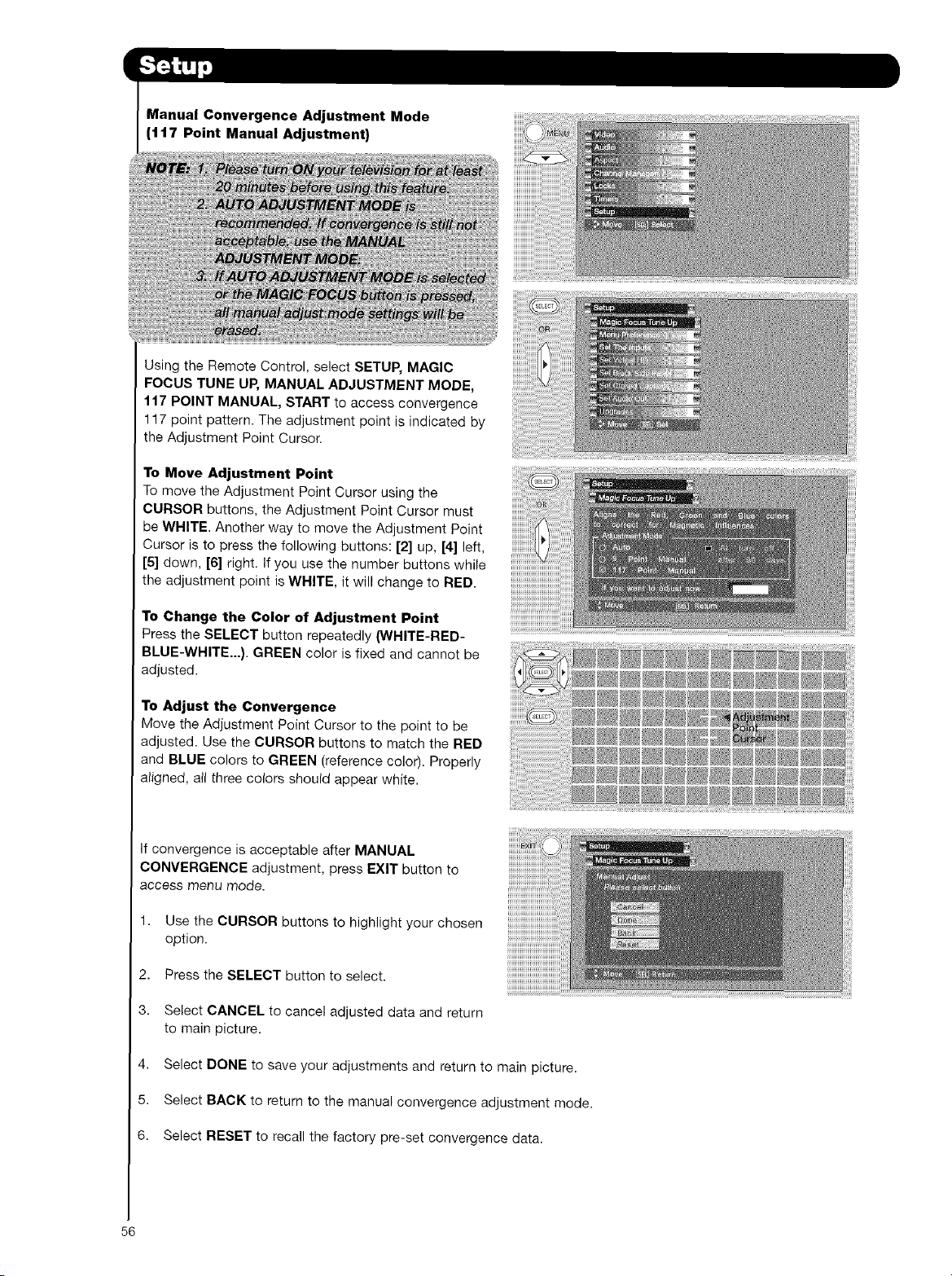
Manual Convergence Adjustment Mode
(117 Point Manual Adjustment)
Using the Remote Control, select SETUP, MAGIC
FOCUS TUNE UP, MANUAL ADJUSTMENT MODE,
117 POINT MANUAL, START to access convergence
117 point pattern. The adjustment point is indicated by
the Adjustment Point Cursor.
To Move Adjustment Point
To move the Adjustment Point Cursor using the
CURSOR buttons, the Adjustment Point Cursor must
be WHITE. Another way to move the Adjustment Point
Cursor is to press the following buttons: [2] up, [4] left,
[5] down, [6] right. If you use the number buttons while
the adjustment point is WHITE, it will change to RED.
To Change the Color of Adjustment Point
Press the SELECT button repeatedly (WHITE-RED-
BLUE-WHITE...). GREEN color is fixed and cannot be
adjusted.
To Adjust the Convergence
Move the Adjustment Point Cursor to the point to be
adjusted. Use the CURSOR buttons to match the RED
and BLUE colors to GREEN (reference color). Properly
aligned, all three colors should appear white.
If convergence is acceptable after MANUAL
CONVERGENCE adjustment, press EXIT button to
access menu mode.
1. Use the CURSOR buttons to highlight your chosen
option.
2. Press the SELECT button to select.
3. Select CANCEL to cancel adjusted data and return
to main picture.
4. Select DONE to save your adjustments and return to main picture.
5. Select BACK to return to the manual convergence adjustment mode.
6. Select RESET to recall the factory pre-set convergence data.
56
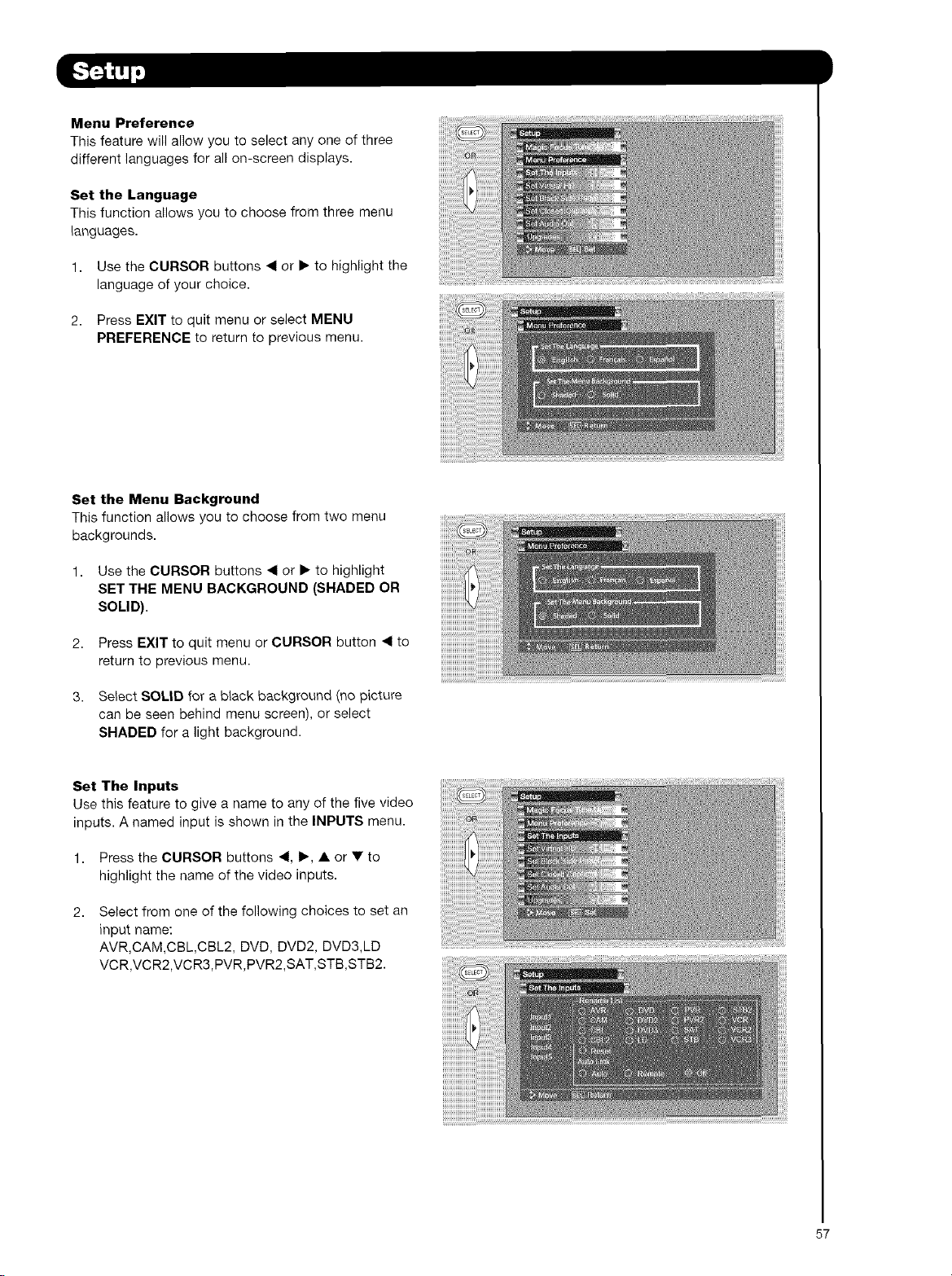
Menu Preference
This feature will allow you to select any one of three
different languages for all on-screen displays.
Set the Language
This function allows you to choose from three menu
languages.
1. Use the CURSOR buttons _1 or • to highlight the
language of your choice.
2. Press EXIT to quit menu or select MENU
PREFERENCE to return to previous menu.
Set the Menu Background
This function allows you to choose from two menu
backgrounds.
1. Use the CURSOR buttons _1or • to highlight
SET THE MENU BACKGROUND (SHADED OR
SOLID).
2. Press EXIT to quit menu or CURSOR button _1 to
return to previous menu.
3. Select SOLID for a black background (no picture
can be seen behind menu screen), or select
SHADED for a light background.
Set The Inputs
Use this feature to give a name to any of the five video
inputs. A named input is shown in the INPUTS menu.
1. Press the CURSOR buttons 4, •, • or • to
highlight the name of the video inputs.
2,
Select from one of the following choices to set an
input name:
AVR,CAM,CBL,CBL2, DVD, DVD2, DVD3,LD
VCR,VCR2,VCR3,PVR,PVR2,SAT,STB,STB2.
57
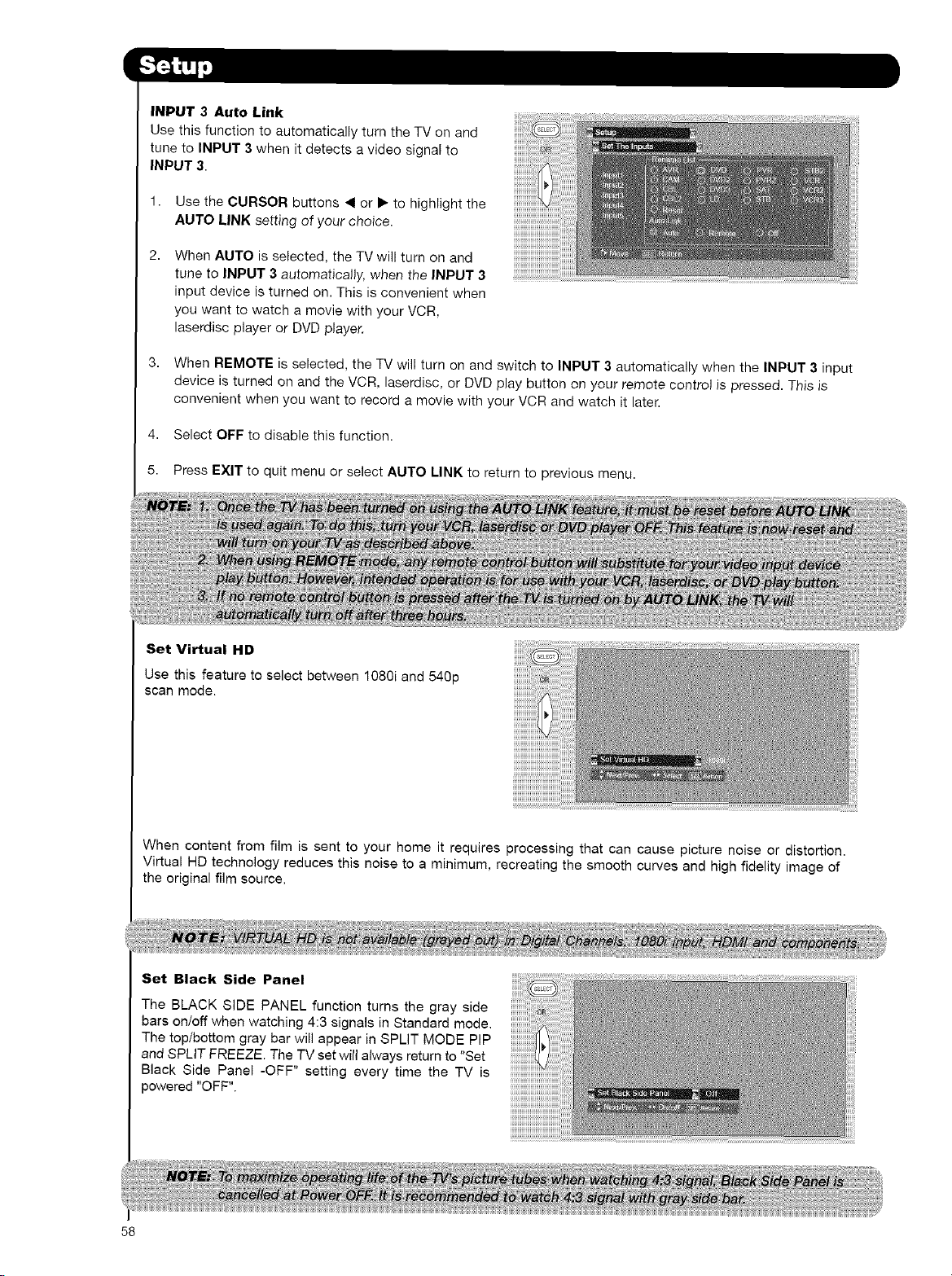
58
INPUT 3 Auto Link
Use this function to automatically turn the TV on and
tune to INPUT 3 when it detects a video signal to
INPUT 3.
1. Use the CURSOR buttons < or • to highlight the
AUTO LINK setting of your choice.
2,
When AUTO is selected, the TV will turn on and
tune to INPUT 3 automatically, when the INPUT 3
input device is turned on. This is convenient when
you want to watch a movie with your VCR,
laserdisc player or DVD player.
3. When REMOTE is selected, the TV will turn on and switch to INPUT 3 automatically when the INPUT 3 input
device is turned on and the VCR, laserdisc, or DVD play button on your remote control is pressed. This is
convenient when you want to record a movie with your VCR and watch it later.
4. Select OFF to disable this function.
5. Press EXIT to quit menu or select AUTO LINK to return to previous menu.
_en
_ tl
TE
'er, rntende_
}1:_b
:)_:, ttte-r :tht_
Set Virtual HD
Use this feature to select between 1080i and 540p
scan mode.
iiiiiiiiiiiiiili ii i!ii
i!i!i!i!i!i!i!
ii_,i!i!i!i!
i(((((Lii
When content from film is sent to your home it requires processing that can cause picture noise or distortion.
Virtual HD technology reduces this noise to a minimum, recreating the smooth curves and high fidelity image of
the original film source.
Set Black Side Panel
The BLACK SIDE PANEL function turns the gray side
bars on/off when watching 4:3 signals in Standard mode.
The top/bottom gray bar will appear in SPLIT MODE PIP
and SPLIT FREEZE. The TV set witl always return to "Set
Black Side Pane_ -OFF" setting every time the TV is
powered "OFF". i
i'i ii!i!!i!!i!i!ii!iiii!iii1
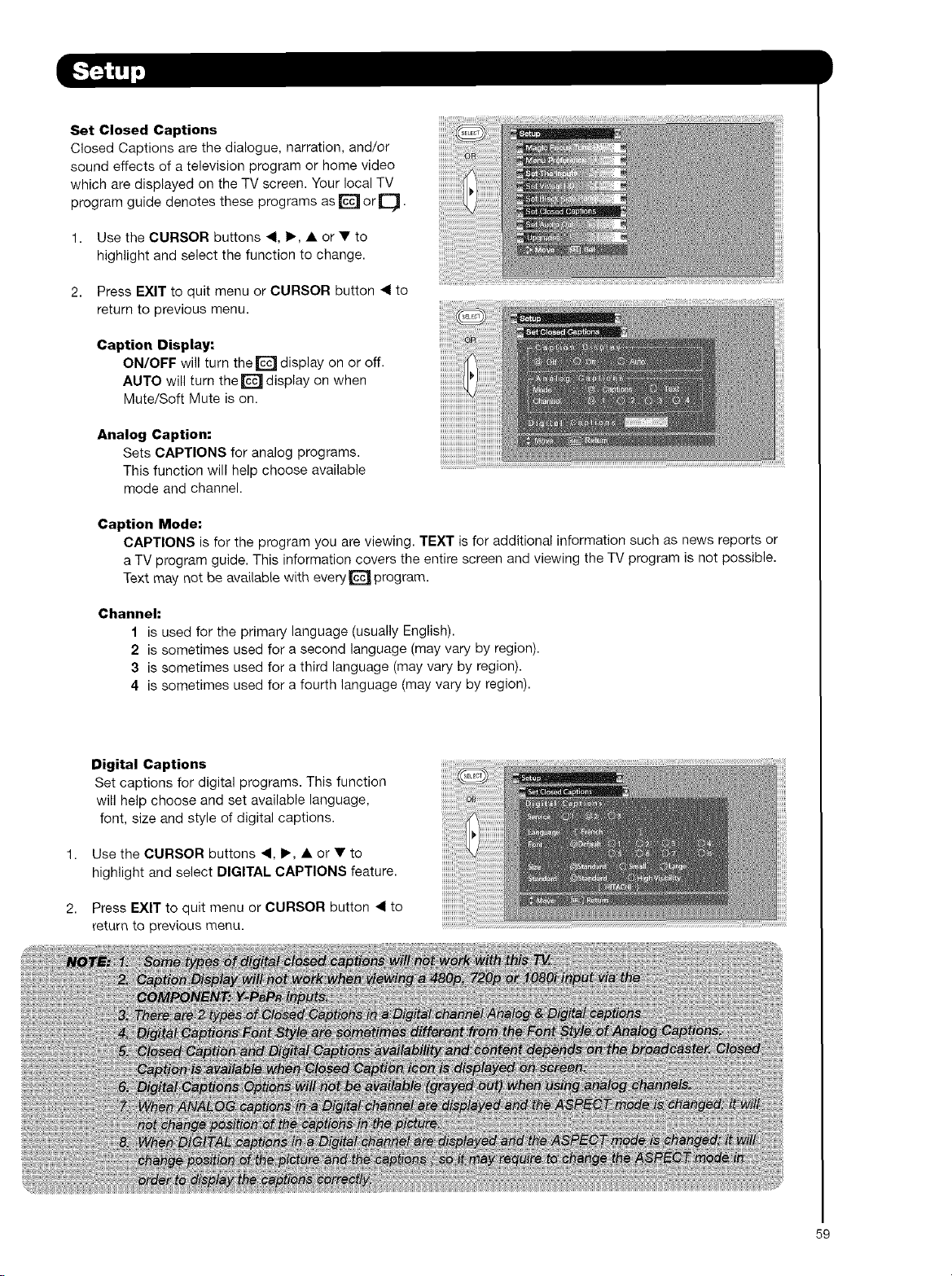
Set Closed Captions
Closed Captions are the dialogue, narration, and/or
sound effects of a television program or home video
which are displayed on the TV screen. Your local TV
program guide denotes these programs as D orQ.
1. Use the CURSOR buttons 4, I_, • or • to
highlight and select the function to change.
2. Press EXIT to quit menu or CURSOR button _1 to
return to previous menu.
Caption Display:
ON/OFF will turn the D display on or off.
AUTO will turn the _ display on when
Mute/Soff Mute is on.
Analog Caption:
Sets CAPTIONS for analog programs.
This function will help choose available
mode and channel.
Caption Mode:
CAPTIONS is for the program you are viewing. TEXT is for additional information such as news reports or
a TV program guide. This information covers the entire screen and viewing the TV program is not possible.
Text may not be available with every _ program.
Channel:
1 is used for the primary language (usually English).
2 is sometimes used for a second language (may vary by region).
3 is sometimes used for a third language (may vary by region).
4 is sometimes used for a fourth language (may vary by region).
1,
2,
Digital Captions
Set captions for digital programs. This function
will help choose and set available language,
font, size and style of digital captions.
Use the CURSOR buttons 4, I_, • or • to
highlight and select DIGITAL CAPTIONS feature.
Press EXIT to quit menu or CURSOR button 4 to
return to previous menu.
59
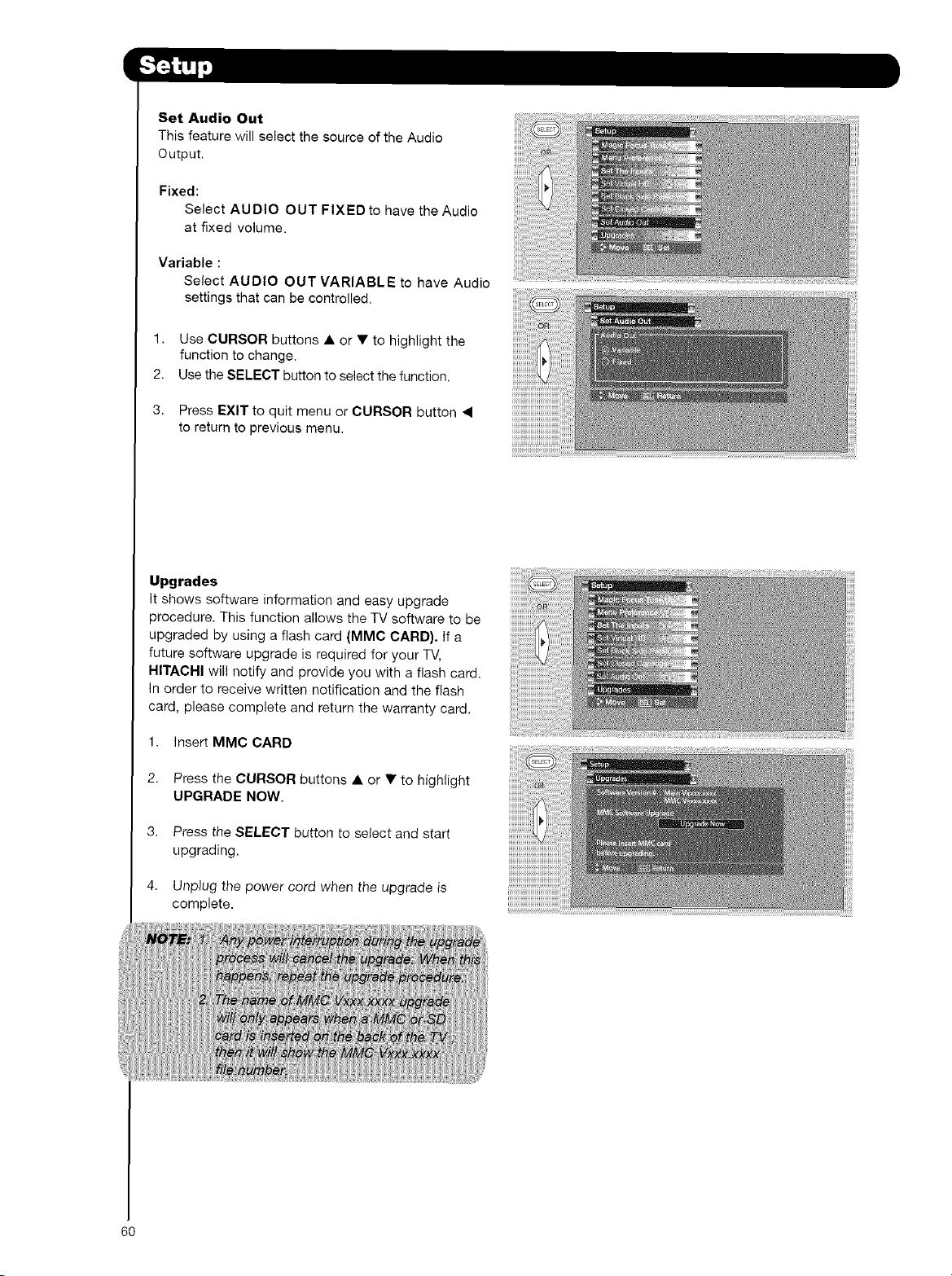
1,
2.
3.
Set Audio Out
This feature will select the source of the Audio
Output.
Fixed:
Select AUDIO OUT FIXED to have the Audio
at fixed volume.
Variable :
Select AUDIO OUT VARIABLE to have Audio
settings that can be controlled.
Use CURSOR buttons • or • to highlight the
function to change.
Use the SELECT button to select the function,
Press EXIT to quit menu or CURSOR button •
to return to previous menu.
Upgrades
It shows software information and easy upgrade
procedure. This function allows the TV software to be
upgraded by using a flash card (MMC CARD). If a
future software upgrade is required for your TV,
HITACHI will notify and provide you with a flash card.
In order to receive written notification and the flash
card, please complete and return the warranty card.
1. Insert MMC CARD
2. Press the CURSOR buttons • or • to highlight
UPGRADE NOW.
3. Press the SELECT button to select and start
upgrading.
4. Unplug the power cord when the upgrade is
complete.
60
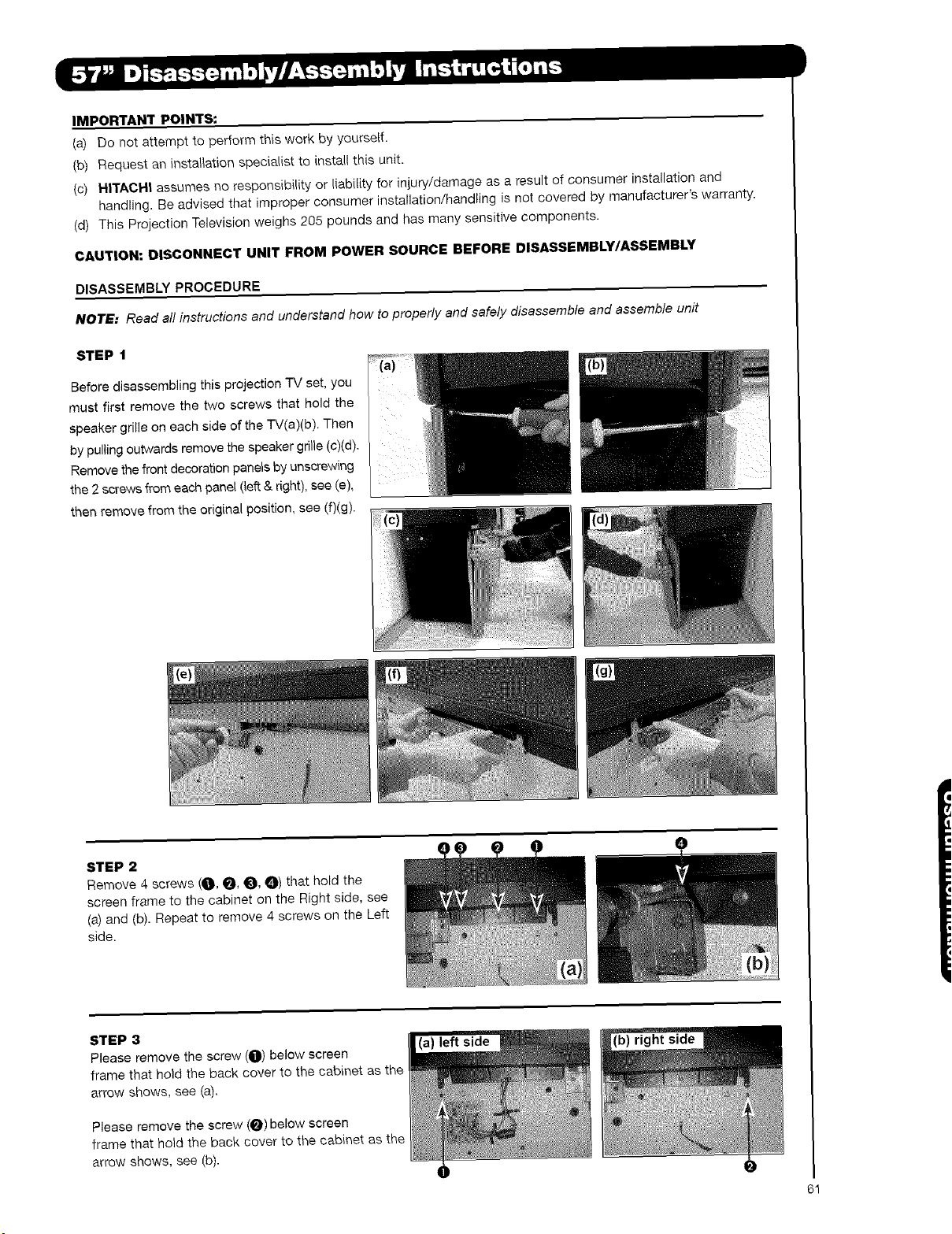
IMPORTANT POINTS:
(a) Do not attempt to perform this work by yourself.
(b) Request an installation specialist to install this unit.
(c) HITACHI assumes no responsibility or liability for injury/damage as a result of consumer installation and
handling. Be advised that improper consumer installation/handling is not covered by manufacturer's warranty.
(d) This Projection Television weighs 205 pounds and has many sensitive components.
CAUTION: DISCONNECT UNIT FROM POWER SOURCE BEFORE DISASSEMBLY/ASSEMBLY
DISASSEMBLY PROCEDURE
NOTE: Read all instructions and understand how to properly and safely disassemble and assemble unit
STEP 1
Before disassembling this projection TV set, you
must first remove the two screws that hold the
speaker grille on each side of the TV(a)(b). Then
by pulling outwards remove the speaker grille (c)(d).
Remove the front decoration panels by unscrewing
the 2 screws from each panel (left & dght), see (e),
then remove from the original position, see (f)(g).
STEP 2
Remove 4 screws (O, 0, _, a) that hold the
screen frame to the cabinet on the Right side, see
(a) and (b). Repeat to remove 4 screws on the Left
side.
STEP 3
Please remove the screw (O) below screen
frame that hold the back cover to the cabinet as the
arrow shows, see (a).
Please remove the screw (0) below screen
frame that hold the back cover to the cabinet as the
arrow shows, see (b).
(a) left side
61
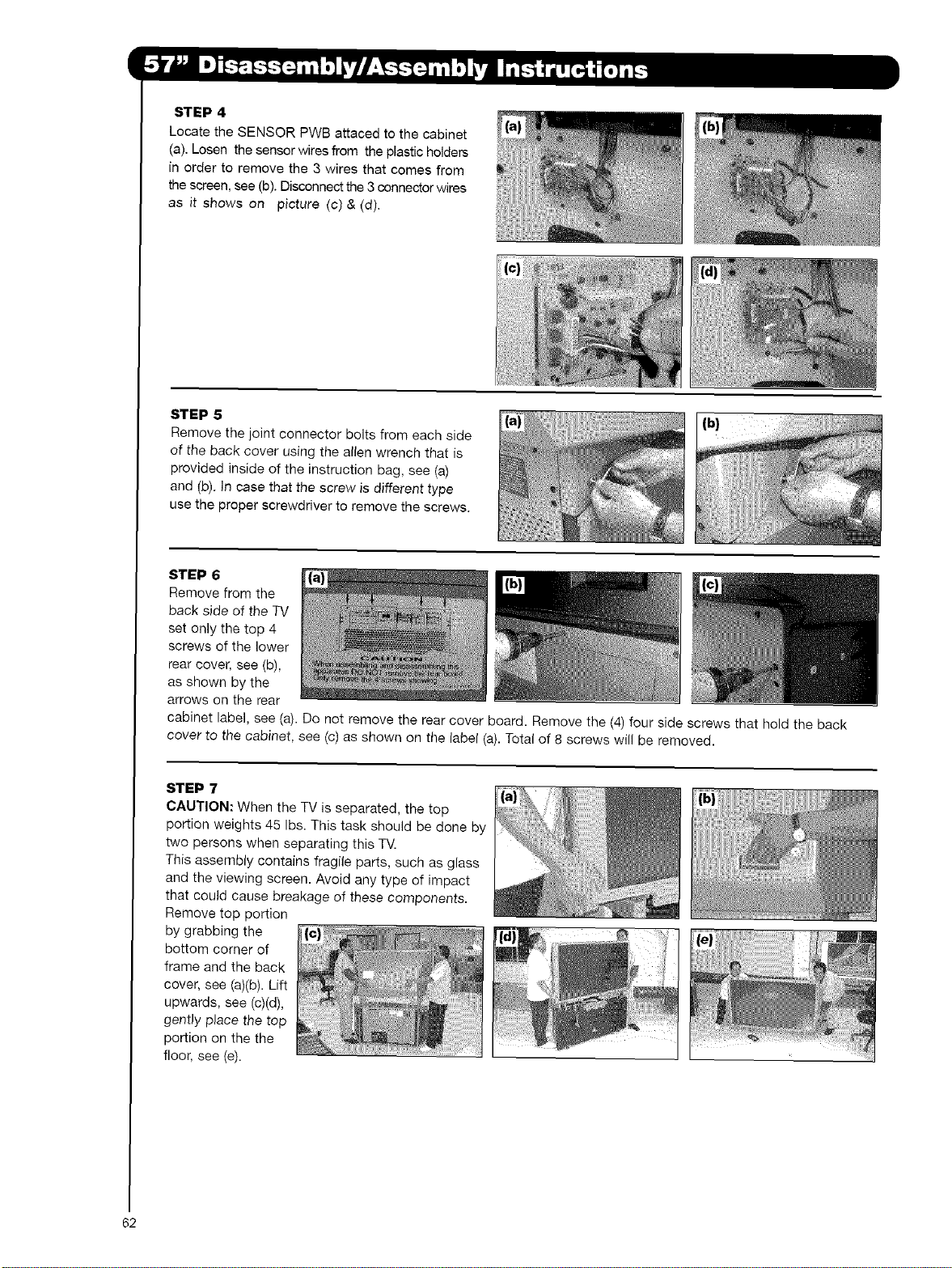
STEP 4
Locate the SENSOR PWB attaced to the cabinet
(a). Losen the sensor wires from the plastic holders
in order to remove the 3 wires that comes from
the screen, see (b). Disconnect the 3 connector wires
as it shows on picture (c)& (d).
STEP 5
Remove the joint connector bolts from each side
of the back cover using the alien wrench that is
provided inside of the instruction bag, see (a)
and (b). In case that the screw is different type
use the proper screwdriver to remove the screws.
(b)
STEP 6
Remove from the
back side of the TV
set only the top 4
screws of the lower
rear cover, see (b),
as shown by the
arrows on the rear
cabinet label, see (a). Do not remove the rear cover board. Remove the (4) four side screws that hold the back
cover to the cabinet, see (c) as shown on tile label (a). Total of 8 screws will be removed.
STEP 7
CAUTION: When the TV is separated, the top
portion weights 45 Ibs. This task should be done by
two persons when separating this TV.
This assembly contains fragile parts, such as glass
and the viewing screen. Avoid any type of impact
that could cause breakage of these components.
Remeve top portion
by grabbing the
bottom corner of
frame and the back
cover, see (a)(b). Lift
upwards, see (c)(d),
gently place the top
portion on the the
floor, see (e).
_',,,' i "i'_iiiiiiiiiiiiiiiiiiiiiii!iiiilii¸ fill,i
_"__,z_J_i_ii_i_;iiiiii_iiiii:i:iiiiiiiii_ii!i!:_i_!:_i:!i¸_,'I_
62
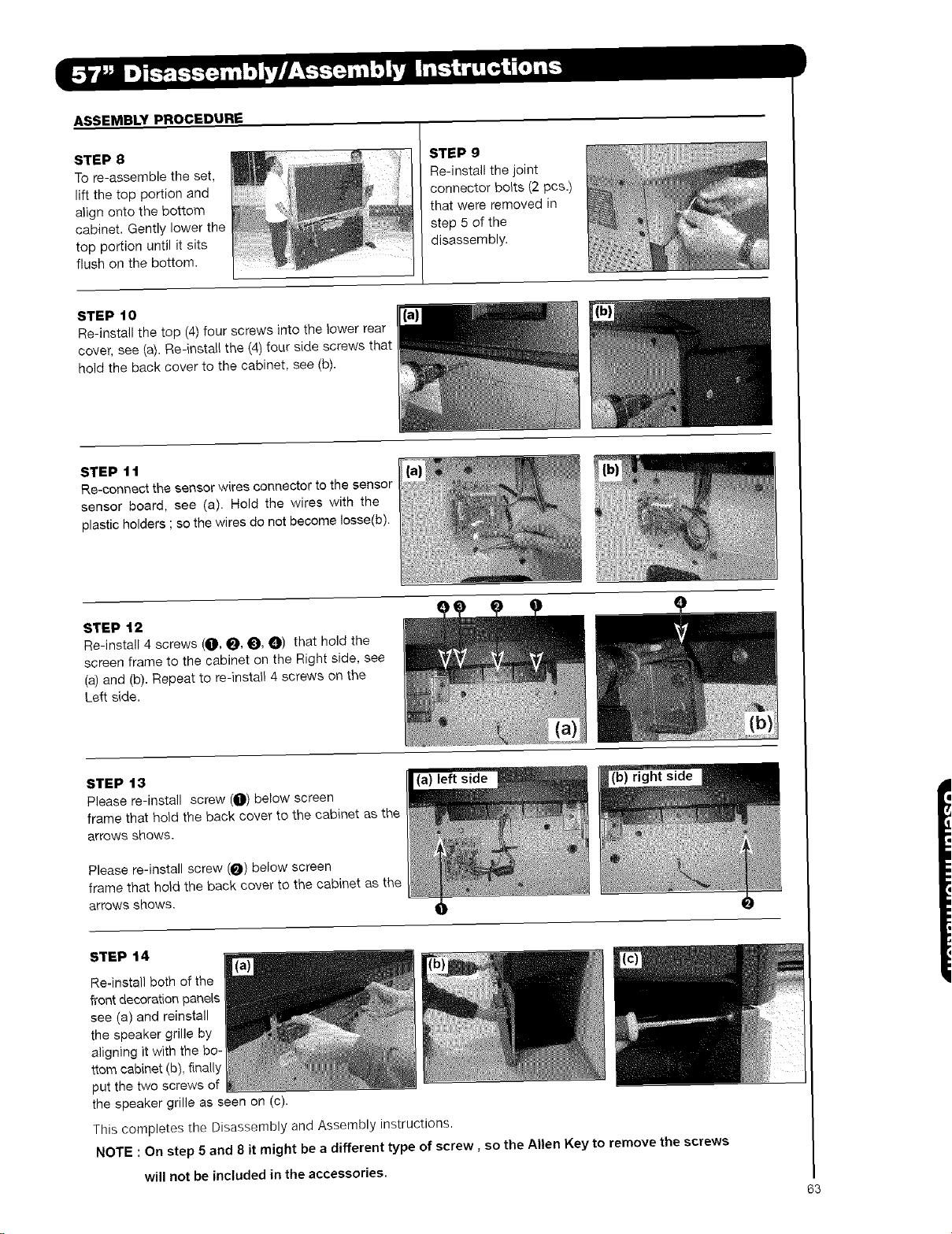
ASSEMBLY PROCEDURE
STEP 8
To re-assemble the set,
lift the top portion and
align onto the bottom
cabinet. Gently lower the
top portion until it sits
flush on the bottom.
STEP 9
Re-install the joint
connector bolts (2 pcs.)
that were removed in
step 5 of the
disassembly.
STEP t0
Re-install the top (4) four screws into the }ower rear
cover, see (a}. Re-instal{ the (4) four side screws that
hold the back cover to the cabinet, see (b).
STEP 11
Re-connect the sensor wires connector to the sensor
sensor board, see (a). Hold the wires with the
plastic holders ; so the wires do not become Iosse(b).
STEP 12
Re-install 4 screws (O, _, 0, 0) that hold the
screen frame to the cabinet on the Right side, see
(a) and (b). Repeat to re-install 4 screws on the
Left side.
STEP 13
Please re-install screw (O) below screen
frame that hold the back cover to the cabinet as the
arrows shows.
Please re-install screw (_) below screen
frame that hold the back cover to the cabinet as the
arrows shows.
right side
STEP 14
Re-install both of the
front decoration panels
see (a) and reinstall
the speaker grille by
aligning it with the bo-
ttom cabinet (b), finally
put the two screws of
the speaker grille as seen on (c).
This completes the Disassembly and Assembly instructions.
NOTE : On step 5 and 8 it might be a different type of screw, so the Allen Key to remove the screws
will not be included in the accessories.
63
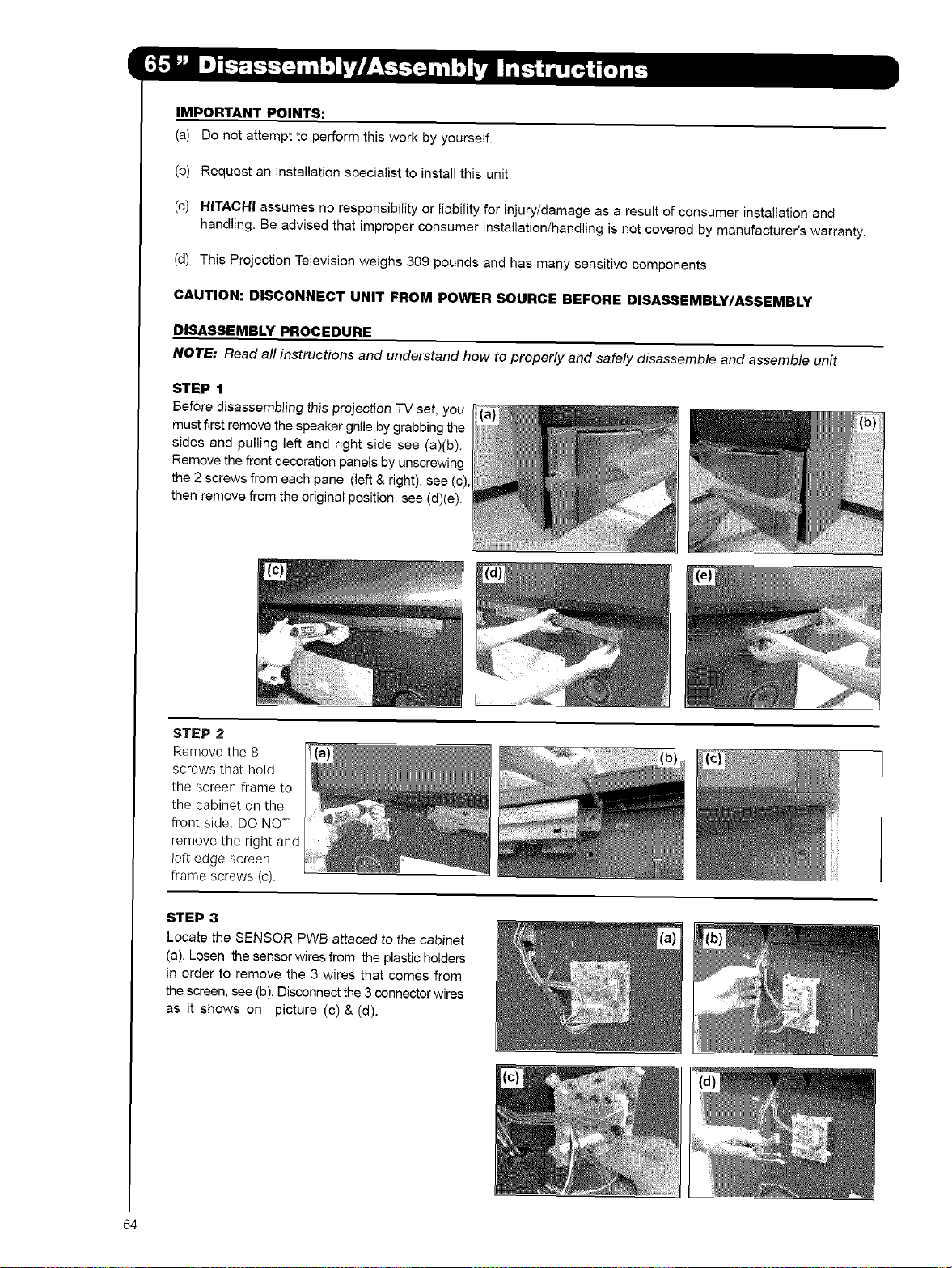
IMPORTANT POINTS:
(a) Do not attempt to perform this work by yourself.
(b) Request an installation specialist to install this unit.
(c) HITACHI assumes no responsibility or liability for injury/damage as a result of consumer installation and
handling. Be advised that improper consumer installation/handling is not covered by manufacturer's warranty.
(d) This Projection Television weighs 309 pounds and has many sensitive components.
CAUTION: DISCONNECT UNIT FROM POWER SOURCE BEFORE DISASSEMBLY/ASSEMBLY
DISASSEMBLY PROCEDURE
NOTE: Read all instructions and understand how to properly and safely disassemble and assemble unit
STEP 1
Before disassembling this projection TV set, you
must first remove the speaker grille by grabbing the
sides and pulling left and right side see (a)(b).
Remove the front decoration panels by unscrewing
the 2 screws from each panel (_eft & right), see (c),
then remove from the original position, see (d)(e).
STEP 2
Remove the 8
screws that hold
the screen frame to
the cabinet on the
front side. DO NOT
remove the right and
left edge screen
frame screws (c).
STEP 3
Locate the SENSOR PWB attaced to the cabinet
(a). Losen the sensor wires from the plastic holders
in order to remove the 3 wires that comes from
the screen, see (b), Disconnect the 3 connector wires
as it shows on picture (c)& (d).
64
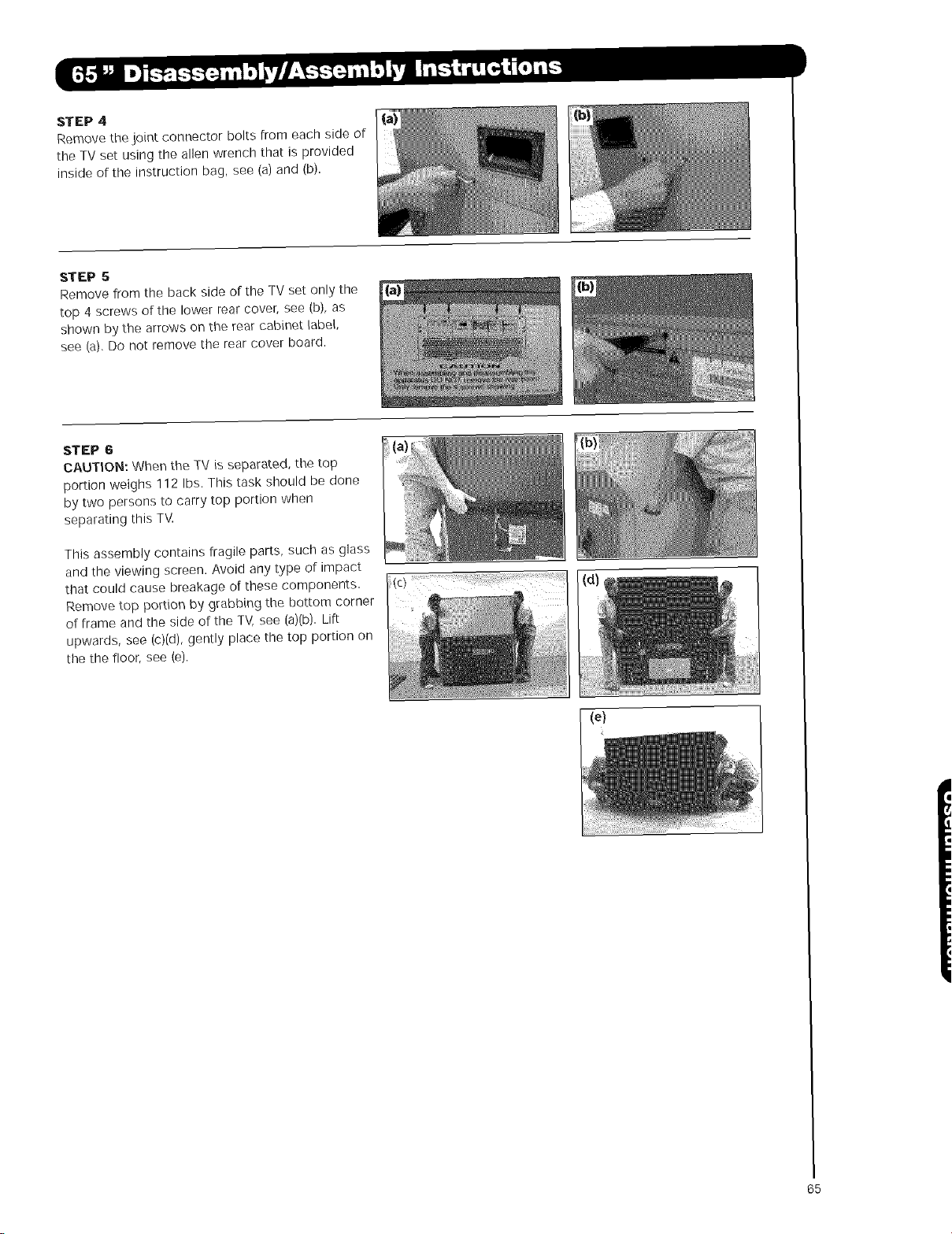
STEP 4
Remove the joint connector bolts from each side of
the TV set using the allen wrench that is provided
inside of the instruction bag, see (a) and (b).
STEP 5
Remove from the back side of the TV set only the
top 4 screws of the lower rear cover, see (b), as
shown by the arrows on the rear cabinet label,
see (a), Do not remove the rear cover board.
STEP 6
CAUTION: When the TV is separated, the top
portion weighs 112 Ibs. This task should be done
by two persons to carry top portion when
separating this TV.
This assembly contains fragile parts, such as glass
and the viewing screen. Avoid any type of impact
that could cause breakage of these components.
Remove top portion by grabbing the bottom corner
of frame and the side of the TV, see (a)(b), Lift
upwards, see (c)(d), gently place the top portion on
the the floor, see {e).
(e)
65
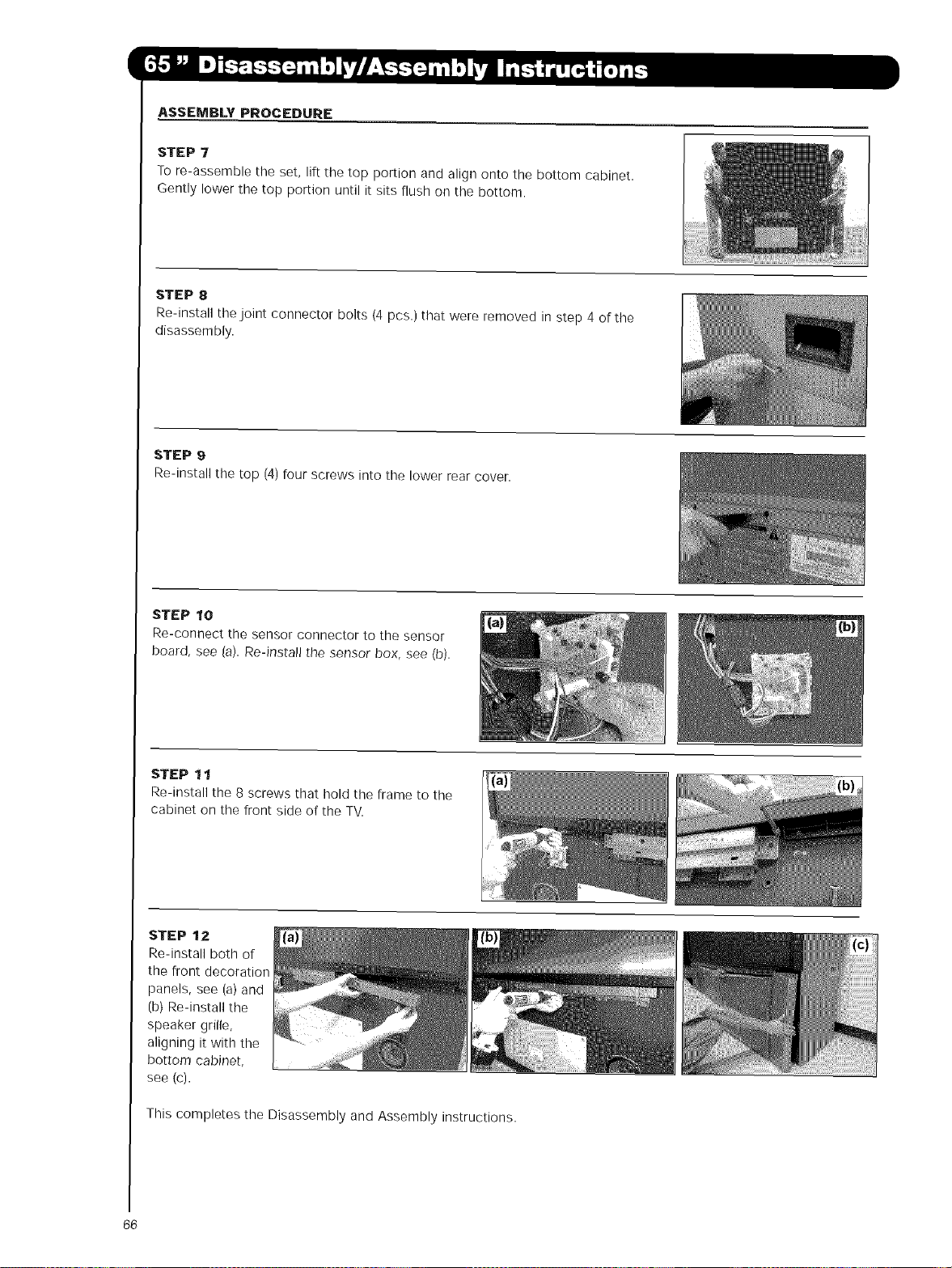
ASSEMBLY PROCEDURE
STEP 7
To re-assemble the set, lift the top portion and align onto the bottom cabinet.
Gently lower the top portion until it sits flush on the bottom.
STEP 8
Re-install the joint connector bolts (4 pcs.) that were removed in step 4 of the
disassembly.
STEP 9
Re-install the top (4) four screws into the lower rear cover.
STEP 10
Re-connect the sensor connector to the sensor
board, see {a). Re-install the sensor box, see (b).
STEP 11
Re-install the 8 screws that hold the frame to the
cabinet on the front side of the TV.
STEP 12
Re-install both of
the front decoration
panels, see (a) and
(b) Re-install the
speaker grille,
aligning it with the
bottom cabinet,
see (c),
This completes the Disassembly and Assembly instructions.
66
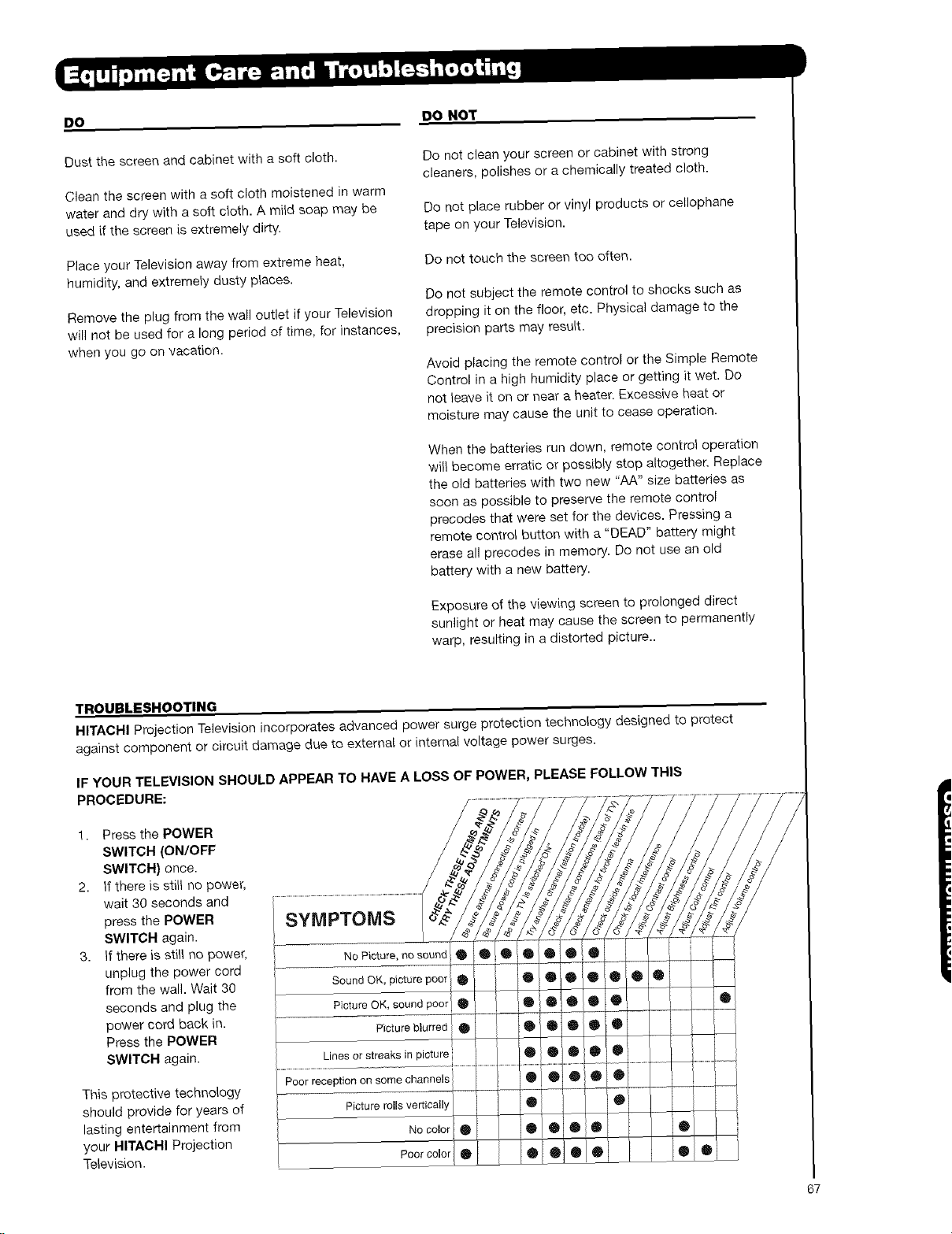
DO DO NOT
Dust the screen and cabinet with a soft cloth.
Clean the screen with a soft cloth moistened in warm
water and dry with a soft cloth. A mild soap may be
used if the screen is extremely dirty.
Place your Television away from extreme heat,
humidity, and extremely dusty places.
Remove the plug from the wall outlet if your Television
will not be used for a long period of time, for instances,
when you go on vacation.
Do not clean your screen or cabinet with strong
cleaners, polishes or a chemically treated cloth.
Do not place rubber or vinyl products or cellophane
tape on your Television.
Do not touch the screen too often.
Do not subject the remote control to shocks such as
dropping it on the floor, etc. Physical damage to the
precision parts may result.
Avoid placing the remote control or the Simple Remote
Control in a high humidity place or getting it wet. Do
not leave it en or near a heater. Excessive heat or
moisture may cause the unit to cease operation.
When the batteries run down, remote control operation
will become erratic or possibly stop altogether. Replace
the old batteries with two new "AA" size batteries as
soon as possible to preserve the remote control
precodes that were set for the devices. Pressing a
remote control button with a "DEAD" battery might
erase all precodes in memory. Do not use an old
battery with a new battery.
Exposure of the viewing screen to prolonged direct
sunlight or heat may cause the screen to permanently
warp, resulting in a distorted picture..
TROUBLESHOOTING
HITACHI Projection Television incorporates advanced power surge protection technology designed to protect
against component or circuit damage due to external or internal voltage power surges.
IF YOUR TELEVISION SHOULD APPEAR TO HAVE A LOSS OF POWER, PLEASE FOLLOW THIS
PROCEDURE:
1. Press the POWER
SWITCH (ON/OFF
SWITCH) once.
2. If there is still no power,
wait 30 seconds and
press the POWER
SWITCH again.
3. if there is stiff no power,
unplug the power cord
from the wall. Wait 30
seconds and plug the
power cord back in.
Press the POWER
SWITCH again.
This protective technology
should provide for years of
lasting entertainment from
your HITACHI Projection
Television.
67
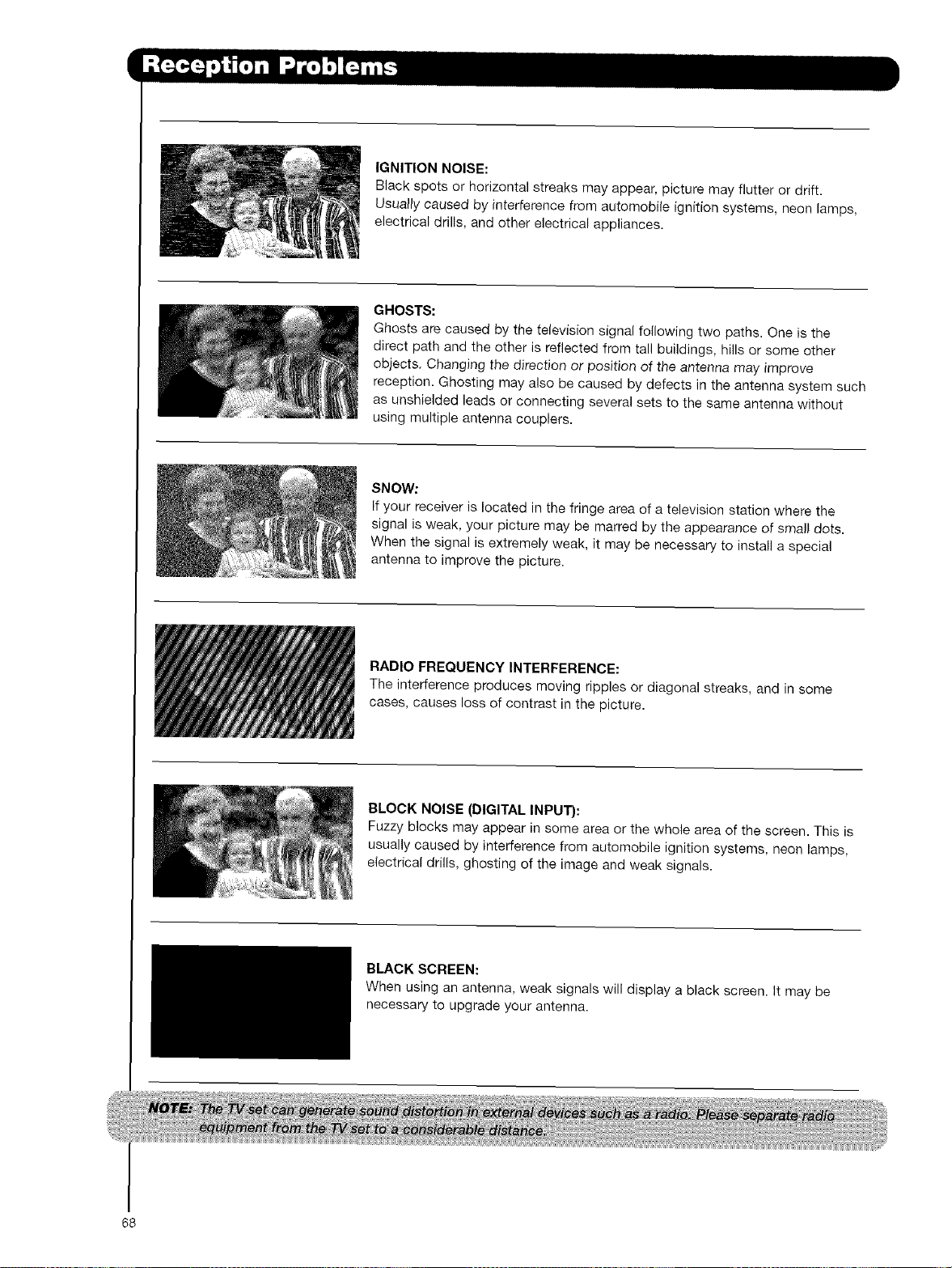
IGNITIONNOISE:
Blackspotsorhorizontalstreaksmayappear,picturemayflutterordrift.
Usua}lycausedbyinterferencefromautomobileignitionsystems,neonlamps,
electricaldrills,andotherelectricalappliances.
GHOSTS:
Ghostsarecausedbythetelevisionsignalfollowingtwopaths.Oneisthe
directpathandtheotherisreflectedfromtallbuildings,hillsorsomeother
objects.Changingthedirectionor position of the antenna may improve
reception. Ghosting may also be caused by defects in the antenna system such
as unshielded leads or connecting several sets to the same antenna without
using multiple antenna couplers.
SNOW:
If your receiver is located in the fringe area of a television station where the
signal is weak, your picture may be marred by the appearance of sinai) dots.
When the signal is extremely weak, it may be necessary to install a special
antenna to improve the picture.
RADIO FREQUENCY INTERFERENCE:
The interference produces moving ripples or diagonal streaks, and in some
cases, causes loss of contrast in the picture.
BLOCK NOISE (DIGITAL INPUT):
Fuzzy blocks may appear in some area or the whole area of the screen. This is
usually caused by interference from automobile ignition systems, neon lamps,
electrical drills, ghosting of the image and weak signals.
BLACK SCREEN:
When using an antenna, weak signals will display a black screen. It may be
necessary to upgrade your antenna.
68
FEATURES:
• Superfine Picture Qua})ty; 1280 Line Horizontal
Resolution
• Remote (Controls many PVR/VCR brands, cable
boxes, satellite boxes, and other audio equipment).
• New Easy-to-Use (3-Language) On-Screen Menu
• Full Set of input Jacks, including S-Video
• COMPONENT VIDEO: Y-PdPR
• Velocity Modulation
• Six Aspect Modes
• Closed Caption Decoder
• 1-Tuner Picture in Picture
• Magic Focus (Auto Digital Convergence and 9-
point/117-point Manual Adjustment)
• 1 Antenna Input (Either for Analog/Digital)
• Video Input Sensor
• HDMI (High Definition Multimedia Interface) (High
Bandwidth Digital Content Protection V1.1
compatible).
• Digital Audio Output (Dolby ® Digital)
• 3 Dimensional Y/C Comb Filter
• Compatible with 1080i, 720p, 480p and 480i input
signals.
• BB_° Technology.
Manufactured under license from Dolby
Laboratories. _olby" and the double-D symbol are
trademarks of Dolby Laboratories.
• H m,! Technology
HDMI, the HDMI logo and High-Definition
Multimedia Interface are trademal_s or registered
trademarks of HDMI Licensing LLC.
INPUTS:
• Power input ........................................AC 120V, 60Hz
• Stand-by Power .................................................0.4W
• Power Consumption - Refer to rear panel at the
back of the T.V.
• Antenna input impedance .............................75 Ohm
• Channel coverage
VHF-Band .....................................................2- 13
UHF-Band ...................................................14 - 69
CATV Band .................................................1 - 135
• Television System
NTSC Standard
ATSC Starndard (SVSB)
• Video ..............................................1.0Vp-p, 75 Ohm
• S-Video
Luminance (¥) .............................1.0Vp-p, 75 Ohm
Chrominance (C) .....................0.286Vp-p, 75 Ohm
• Component Video
Luminance (Y) .............................1.0Vp-p, 75 Ohm
Chrominance (P 8/PR) ..................0.7Vp-p, 75 Ohm
• Audio input Impedance ...............................47k Ohm
• Average inputlevel ...................................470mVrms
• HDMI .....................................................HDM119 PiN
OUTPUTS:
• Audio (Fixed) .............................. 470mVrms, lk Ohm
• S-Video
Luminance (Y) ............................. 1.0Vp-p, 75 Ohm
Chrominanee (C) ..................... 0.286Vp-p, 75 Ohm
• Optical Out (Digital Audio) .......... 1 optical connector
DIMENSIONS:
51F59/A/J 57F59/A/J 65F59/AIJ
Height (in.} 50-3/8 54-9/16 59-15/16
(ram) 1,279.0 1,385.6 1,521.0
Width (in.) 48-3/4 54 61
(ram) 1,239.0 1,372.0 1,549.0
Depth (in.) 21-7/8 23-5/16 25-318
(mm) 557 592.5 644
Weight (Ibs.) 187.4 205 309
(kg.) 85 93 140
Lip Sync. Notice
The on-screen motion of an actor's lips or other moving object may not be in sync with the associated audio
heard from the TV's speakers. This is caused by timing differences in the broadcast signal or DVD content
and is not caused by a defect in the television.
69
To locate an authorized HITACHI
service facility in the continental
U.S.A. and Canada,
DIAL TOLL FREE
7 days a week, 24 hours a day
1-800-HITACHI
(1-800-448-2244)
HITACHI AMERICA, LTD.
HOME ELECTRONICS DIVISION
HITACHI has made every effort to assure you hours of
trouble free operation from your unit. However, should
you require service, a network of HITACHI Authorized
Service Facilities has been established in all 50 states
and Puerto Rico. Each facility will provide you with
convenient and expedient assistance. Our service
hotline operator will direct you to the HITACHI
Authorized Service Facility nearest you. Just present
proof of purchase and/or delivery receipts to the
Hitachi Authorized Service Facility, and service will be
rendered in accordance with the terms of the limited
warranty as stated on your warranty card or operating
guide,
Should you have any questions regarding warranty,
service, operation, or technical assistance, please
contact:
Hitachi America, LTD.
Home Electronics Division
900 Hitachi Way
Chula Vista, CA 91914-3556
HITACHI CANADA, LTD.
DIGITAL MEDIA DIVISION
Should you have any questions regarding warranty,
service, operation, or technical assistance, please
contact:
In Canada: 1-800-HITACHI (t-800-448-2244)
Monday - Friday (EST) ......................... 9:00am - 7:00pm
Saturday (EST) ..................................... 9:00am - 5:00pm
Look for your French Manual on the outside of the
box. If the manual is missing, call 1-800-HITACHI
(1-800-448-22441 for a copy.
Pour de plus amples renseignements sur le service
durant la periode couverte par la garantie, sur le
fonctionnement ou pour de I'assistance technique
communiquez avec:
Au Canada: 1.800-HITACHI (1-800-448-2244)
Lundi - Vendredi L'EST ........................ 9:00am - 7:00pm
Samedi L'EST ....................................... 9:00am - 5:00pm
La version frangais de votre manual se trouve a
I'exterieur de la bo_te. Si le manuel est manquant,
coposez le 1-80O-HITACHI (1-800-448-2244) pour
obenir votre copie.
HITACHI CANADA_ LTD.
249S Meadowpine Blvd.
Mississauga, Ontario L5N 6C3
70
END USER LICENSE AGREEMENT FOR HITACHI DTV SOFTWARE
IMPORTANT- READ CAREFULLY: This End User License Agreement for
HITACHI DTV Software (this "Agreement") is a legal agreement between
you ("you" or "your"), in your capacity as the owner of a HITACHI brand
digital televisiol_ {the "DTV"), and HITACHI America, Ltd., Home
Electronics Division ("HITACHI"). By using the DTV or the operating
system software installed on the DTV (the "System Software") or any
Upgrade (as defined below, and together with the System Software, the
"Software"), you agree to be bound by the terms and conditions of this
Agreement. IF YOU DO NOT AGREE TO BE BOUND BY THIS LICENSE
AGREEMENT, DO NOT USE THE DTV OR THE SOFTWARE.
LICENSE GRANT. HITACHI grants to you, for the life of the DTV, a
non-exclusive, non-transferable, revocable license to install and
use one copy of the Software on the DTV, subject to the following
limitations and restrictions:
a. You may not share, duplicate, republish or redistribute the
Software;
b. You may not resell, rent, lease, sublicense, gift, loan, assign or
otherwise traosfer the Software or any of your rights under
this Agreement;
c. You may not modify, adapt, translate, reverse engineer
deosmpile, disassemble or make derivative works from the
Software or use the Software il_ combination with any non-
Hitachi software; and
d. You may not use the Software for any commercial purpose.
VIOLATIONS; INDEMNITY. You understand and agree that your
use of the Software in any manner except as permitted under this
Agreement could constitute a serious crime and could subject you
to damages and an awed to HITACHI of attorneys' fees in
connection with your violation of this Agreement. You further
understand that you may be held legally responsible for any
copyright infringement or other violation of intellectual property
rights caused or facilitated by your failure to abide by the terms of
this Agreement. You agree to defend, indemnify and hold HITACHI
and its parent and affiliate companies harmless from and against
any and all liability resulting from any breach by you of this
Agreement.
INTELLECTUAL PROPERTY, The Software is protected by federal
copyright laws, international copyright treaties and other intellectual
property laws and treaties. The Software is licensed, not so}d, to
you. All right, title and interest in and to the Software and any
intellectual property associated therewith, including any
accompanying printed materials, shall belong to HITACHI and its
licensors and suppliers. Except as expressly provided herein,
neither HITACHI nor any of its licensors or suppliers grants to you
under this Agreement any express or implied right in or to any
patents, copyrights, trademarks, trade secrets or other intellectual
property. Aft right, title and interest in and to the intellectual
property rights associated with any content that is accessible
through use of tile Software shall belong to the applicable content
owners and may be protected by copyrigbt or other inteLLectuaL
property laws and treaties. This Agreement grants you no rights to
use such content. Any rights of HITACHI not expressly granted to
you hereunder are reserved expressly by Hitachi.
4, SOFTWARE UPGRADES. In the future, HITACHI may release or
make available one or more upgrades to the System Software
{each, an "Upgrade"). You understand and agree that if you decide
to install or use any Upgrade, your installation and use of such
Upgrade and/or any other software or intellectual property
HITACHI may provide in connection therewith shall be governed by
the terms and conditions of this Agreement, except to the extent
that HITACHI provides different or supplementary license terms or
conditions that accompany such Upgrade or other _oftware or
intellectual property. In the event HITACHI provides you with a
"flash card" or other media to effect or facilitate an Upgrade, you
understand and acknowledge that your failure to return such flash
card or other media to HITACHI as HITACHI may require could
result in HITACHI placing your name and your DTV's serial number
on a "No Further Upgrades" list, which will prohibit you from
receiving any subsequent Upgrades HITACHI may later release or
make available. IF YOU DO NOT AGREE WITH ALL THE TERMS
AND CONDITIONS OF THIS AGREEMENT OR ALL THE TERMS
AND CONDITIONS OF ANY DIFFERENT OR SUPPLEMENTARY
LICENSE THAT MAY ACCOMPANY SUCH UPGRADE, (A) DO NOT
USE ANY HITACHI-PROVIDED FLASH CARD OR OTHER MEDIA,
(B) DO NOT PERFORM _NSTALL ANY HLTACHt-PROVIDED
UPGRADE SOFTWARE ON YOUR DTV, AND (C) PROMPTLY
RETURN SUCH FLASH CARD OR OTHER MEDLA TO HLTACHL
10.
11.
EXPORT RESTRICTIONS. HITACHI is (iceosing the Software for
use within North America only. You agree that you will not export or
re-export the Software. You specifically agree not to export or re-
export the Software: (i) to any country to which the U.S. has
embargoed or restricted the export of goods or services, which
currently include, but are not necessarily limited to Cuba, Iran,
Libya, North Korea, Sudan and Syria, or to any national of any such
country, wherever located, who intends to transmit or transport the
Software back to such country; (if) to any person or entity who you
khow or have reason to know will utilize the Software in the design,
development, or production of nuclear, chemical, or biological
weapons; or {iii) to any person or entity who has been prohibited
from participating in U,S. export transactions by any federal agency
ot the U.G. government. You warrant and represent that neither the
U.S. Bureau of Industry and Security nor any other U.S federal
Agency has suspended, revoked, or denied your export privileges.
NO WARRANTIES. The software is provided to you in "as is"
condition and HITACHI makes no warranties of any kind
whatsoever regarding the software and, to the maximum extent
permitted by law, hereby expressly disclaims all warranties of any
kind whatsoever, express or implied, with respect to the software.
All implied warranties, including without limitation, the implied
warranties of non-infringement, merchantability and fitness for a
particular purpose are hereby expressly disclaimed by hitachi to
the maximum extent permitted by law.
LIMITATION OF LIABILITY. To the maximum extent permitted by
applicable law, H_TACHL its Liceasors, suppliers, parent
companies, affiliates, subsidiaries, employees and agents shall not
under any circumstances be liable to you or any third parties for
any damages of any nature arising Jn any way from this agreement,
your use of the software or otherwise, whether indirect, special
incidental, consequential or otherwise, including, without limitation,
any claims for lost profits, lost good will, lost data, business
interruption, procurement of substitute goods or services, or
expenditures made or committed for in reliance on the continuation
of this agreement, even Jfadvised in advance of the pessiblity of
such damages.
NO FAILURE OF ESSENTIAL PURPOSE, You agree that neither
HITACHI'S breach of this agreement nor its failure to repair a
defect, error or bug in the software shall constitute a failure of the
essential purpose of this agreement.
CRYPTOGRAPHIC SOFTWARE. The software contains software
developed by the openssl project, including cryptographic software
wrfften by eric young (the "cryptographic software"). The
cryptographic software is provided by the openssl project in "as is"
condition and any express or implied warranties, including but not
limited to, the implied warranties of merchantability and fitness for
a particular purpose are hereby expressly disc/airned to the
maximum extent permitted by law. In no event shall the openssl
project, its contributors, HITACHI or any of its parent or affiliate
compaaies be liable for any direct, indirect, incidental, special,
exemplary, or consequential damages (including, but not limited to,
procurement of substitute goods or services; loss of use, data, or
profits; or business interruption) however caused and on any theory
of liability, whether in contract, strict LiabiLity, or tort (including
negligence or otherwise) arising in any way out of the use of the
software or the cryptographic software, evel_ if advised in advance
of the possibility of such damages.
TERMINATION, HITACHI may terminate this Agreement
immediately at any time by providing notice to you.
GOVERNING LAW; SEVERABILITY. This Agreement will be
governed by the laws of the State of New York, and you consent to
the exclusive jurisdiction and venue in the federal courts sitting in
the Southern District of New York, unless no federal subject matter
jurisdiction exists, in which case you consent to the exclusive
jurisdiction and venue in the Borough of Manhattan, New York,
USA.
71
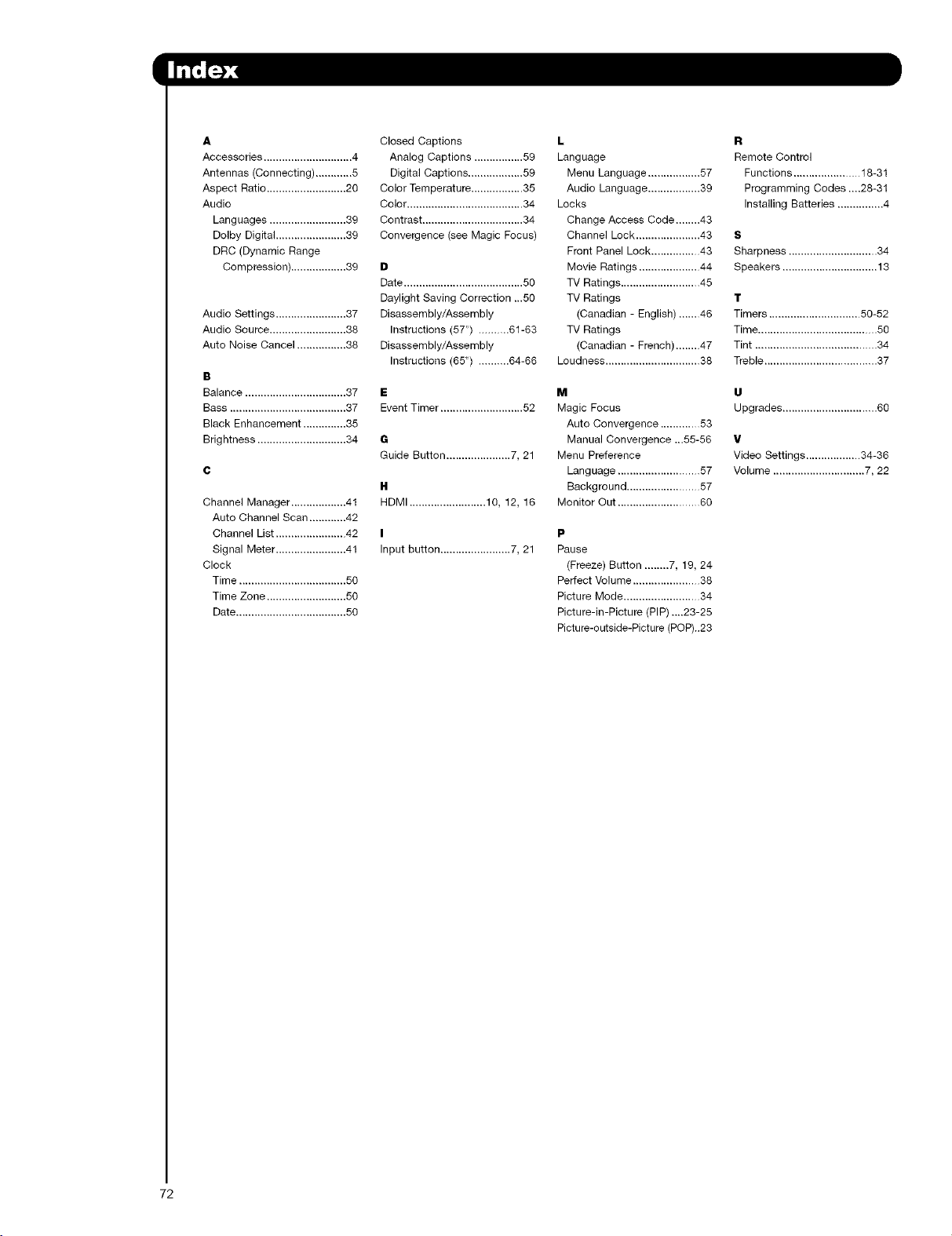
A
Accessories ............................. 4
Antennas (Connecting) ............ 5
Aspect Ratio .......................... 20
Audio
Languages ......................... 39
Dolby Digital ....................... 39
DRC (Dynamic Range
Compression) .................. 38
Audio Settings ....................... 37
Audio Source ......................... 38
Auto Noise Cancel ................ 38
B
Balance ................................. 37
Bass ...................................... 37
Black Enhancement .............. 35
Brightness ............................. 34
Channel Manager .................. 41
Auto Channel Scan ............ 42
Channel List ....................... 42
Signal Meter ....................... 41
Clock
Time ................................... 50
Time Zone .......................... 50
Date .................................... 50
Closed Captions
Analog Captions ................ 59
Digital Captions .................. 59
Color Temperature ................. 35
Color ...................................... 34
Contrast ................................. 34
Convergence (see Magic Focus)
D
Date ....................................... 50
Daylight Saving Correction ...50
Disassembly/Assembly
Instructions (5T') .......... 61-63
Disassembly/Assembly
Instructions (65") .......... 64-66
E
Event Timer ........................... 52
6
Guide Button ..................... 7, 21
H
HDMI ......................... 10,12,16
I
Input button ....................... 7, 21
L
Language
Menu Language ................. 57
Audio Language ................. 39
Locks
Change Access Code ........ 43
Channel Lock ..................... 43
Front Panel Lock ................ 43
Movie Ratings .................... 44
TV Ratings .......................... 45
TV Ratings
(Canadian - English) ....... 46
TV Ratings
(Canadian - French) ........ 47
Loudness ............................... 38
M
Magic Focus
Auto Convergence ............. 53
Manual Convergence ...55-56
Menu Preference
Language ........................... 57
Background ........................ 57
Monitor Out ........................... 60
P
Pause
(Freeze) Button ........ 7, 19, 24
Perfect Volume ...................... 38
Picture Mode ......................... 34
Picture-in-Picture (PIP)....23-25
Picture-outside-Picture (POP)..23
R
Remote Control
Functions ...................... 18-31
Programming Codes ....28-31
Installing Batteries ............... 4
S
Sharpness ............................. 34
Speakers ............................... 13
T
Timers .............................. 50-52
Time ....................................... 50
Tint ........................................ 34
Treble ..................................... 37
U
Upgrades ............................... 60
V
Video Settings .................. 34-36
Volume .............................. 7, 22
72

73

74

HITACHI
inspire the Ne×_
QR66561