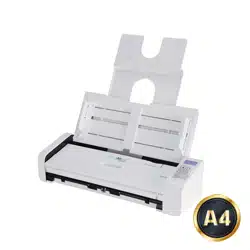
USER’S MANUAL
Portable Document
canner
S
Regulatory Model Number: FL-1507B
www.avision.com

User’s Manual
ii
Trademarks
Microsoft is a U.S. registered trademark of Microsoft Corporation.
Windows, Windows Vista, Windows 7, Windows 8, and Windows 10 are either registered
trademarks or trademarks of Microsoft Corporation in the United States and/or other
countries.
Energy Star
®
is a registered trademark of the U.S. government.
IBM, IBM PC are registered trademarks of International Business Machines Corp.
Other brands and product names herein are trademarks or registered trademarks of their
respective holders.
Copyright
All rights reserved. No part of this publication may be reproduced, transmitted,
transcribed, stored in a retrieval system, or translated into any language or computer
language, in any form or by any means, electronic, mechanical, magnetic, optical,
chemical, manual, or otherwise, without the prior written permission of Avision Inc.
Material scanned by this product may be protected by governmental laws and other
regulations, such as copyright laws, the customer is solely responsible for complying with
all such laws and regulations.
Information in this document is subject to change without notice. The software described
in this document is furnished under a license agreement or nondisclosure agreement.
The software may be used or copied only in accordance with the terms of those
agreements. No part of this publication can be reproduced in any form or by any means
without prior written permission of Avision Inc.
The optional Optical characters recognition (OCR) capabilities are provided by Nuance
Communications, Inc.
OmniPage Capture SDK
Copyright
©
2017 Nuance Communications, Inc. All rights reserved.
Omnipage is the trademark or registered trademark of Nuance Communications, Inc.
Warranty
The information contained in this document is subject to change without notice.
Avision makes no warranty of any kind with regard to this material, including, but not
limited to, the implied warranties of fitness for a particular purpose.
Avision shall not be liable for errors contained herein or for incidental or consequential
damages in connection with the furnishing, performance, or use of this material.

User’s Manual
iii
Federal Communications Commission (FCC) compliance information statement
Part 15
This equipment has been tested and found to comply with the limits for a Class B digital
device, pursuant to Part 15 of the FCC Rules. These limits are designed to provide
reasonable protection against harmful interference in a residential installation. This
equipment generates, uses and can radiate radio frequency energy and, if not installed
and used in accordance with the instructions, may cause harmful interference to radio
communications.
However, there is no guarantee that interference will not occur in a particular installation.
If this equipment does cause harmful interference to radio or television reception, which
can be determined by turning the equipment off and on, the user is encouraged to try to
correct the interference by one of the following measures:
Reorient or relocate the receiving antenna.
Increase the separation between the equipment and receiver.
Connect the equipment into an outlet on a circuit different from that to which the
receiver is connected.
Consult the dealer or an experienced radio/TV technician for help.
This device complies with Part 15 of the FCC Rules. Operation is subject to the following
two conditions: (1) This device may not cause harmful interference, and (2) this device
must accept any interference received, including interference that may cause undesired
operation.
European Union Regulatory Notice
Products bearing the CE marking comply with the following EU
Directives:
Low Voltage Directive 2014/35/EC
EMC Directive 2014/30/EC
Restriction of the use of certain hazardous substances
(RoHS) Directive 2011/65/EU
RED (Radio Equipment Directive) (2014/53/EC)
CE compliance of this product is valid if powered with the correct CE-
marked AC adapter provide by Avision.
This product satisfies the Class B limits of EN55022, EN55024,
safety requirements of EN 60950 and ROHS requirements of
EN50581.
*This machine is certified as Class 1 LED product.

User’s Manual
iv
Disposal of Waste Equipment by Users in Private Union
This symbol on the product or on its packaging indicates that the
product can not be disposed of with your other household waste.
Instead it should be sent to appropriate facilities for recovery and
recycling in an effort to protect human health and the
environment. Fore more information about where you can drop off
your waste equipment for recycling, please contact your local city
office, your household waste disposal service or the shop where
you purchased the product.
As an ENERGY STAR
®
Partner, Avision Inc. has determined that
this product meets the ENERGY STAR guidelines for energy
efficiency.
System Requirements
CPU:
Intel
®
i3 or higher
Memory: 32 bit: 2 GB
64 bit: 4 GB
Optical Drive: DVD-ROM Drive
USB Port: USB port (compatible with USB 3.0)
Compatible Operating System: Microsoft Windows 10 (32 bits/64 bits),
Windows 8 (32 bits/64 bits), Windows 7,
Windows Vista, Windows XP (SP3),

User’s Manual
v
“Contains FCC ID: QUYMODULEWH02”
FCC Caution:
Any changes or modifications not expressly approved by the party responsible for
compliance could void the user’s authority to operate this equipment.
This device is intended only for OEM integrators under the following conditions:
1) The antenna must be installed such that 20 cm is maintained between the antenna
and users.
2) The transmitter module may not be co-located with any other transmitter or antenna.
Important Notice:
FCC Radiation Exposure Statement:
This equipment complies with FCC radiation exposure limits set forth for an
uncontrolled environment. This equipment should be installed and operated with
minimum distance 20cm between the radiator & your body. To maintain compliance
with FCC RF exposure compliance requirements, please avoid direct contact to the
transmitting antenna during transmitting.
IC Notice:
Operation is subject to the following two conditions:
1) This device may not cause interference and
2) This device must accept any interference, including interference that may cause
undesired operation of the device.
IMPORTANT NOTE:
IC Radiation Exposure Statement:
This equipment complies with IC radiation exposure limits set forth for an uncontrolled
environment. End users must follow the specific operating instructions for satisfying RF
exposure compliance. This equipment should be installed and operated with minimum
distance 20cm between the radiator & your body.
This transmitter must not be co-located or operating in conjunction with any other
antenna or transmitter.
Règlementd’ Industry Canada
Les conditions de fonctionnement sont sujettes à deux conditions:
(1) Ce périphérique ne doit pas causer d’interférence et.
(2) Ce périphérique doit accepter toute interférence, y compris les interférences
pouvant perturber le bon fonctionnement de ce périphérique.

User’s Manual
vi
Product Safety Guide
Please clearly read all these instructions, and follow all instructions and warnings before
installing and using the device.
The following indications are used in this document to obviate any chance of accident or
damage to you and/or the device.
WARNING
CAUTION
Indicates potentially hazardous situations, which if
instructions are not followed, could result in death or
serious injury.
Indicates a potentially hazardous situation which, if
instructions are not followed, may result in minor or
moderate injury or damage to property.
WARNING
Use only the AC power cord and USB cable that came with your device and avoid
abrasions, cuts, fraying, crimping, and kinking. Using any other AC power cord
and USB cable could cause fire, electrical shock, or injury.
Do not place objects on top of the AC power cord, and do not allow the AC
power adapter or the AC power cord to be stepped on or run over.
Place the device and its AC power adapter near an electrical outlet where the AC
power adapter can easily be unplugged.
If you use an extension cord with the device, make sure that the total ampere
rating of the devices plugged into the extension cord does not exceed the cord's
ampere rating.
Place the device close enough to the computer so that the interface cable can
easily reach between the device and the computer.
Do not place or store the device or its AC power adapter:
Outdoors
Near excessive dirt or dust, water, or heat sources
In locations subject to shocks, vibrations, high temperature or humidity,
direct sunlight, strong light sources, or rapid changes in temperature or
humidity
Do not use the device with wet hands.
Never disassemble, modify, or attempt to repair the AC power adapter, device,
or device option by yourself, except as specifically explained in the device's
documentation. This could cause fire, electrical shock, or injury.
Do not insert objects into any opening, as they may touch dangerous voltage
points or short-out components. Beware of electrical shock hazards.

User’s Manual
vii
Unplug the device and the AC power adapter, and refer servicing to qualified
service personnel under the following conditions:
The AC power adapter or plug is damaged.
Liquid has entered the device or the AC power adapter.
Object has entered the device or the AC power adapter.
The device or the AC power adapter has been dropped, or the case has
been damaged.
The device or the AC power adapter does not operate normally (i.e.
appearance of smoke, strange smell, odd noise, etc.), or exhibits a distinct
change in performance
Unplug the device and the AC power adapter before cleaning.
CAUTION:
Do not locate the device on rackety or aslope tables. Do not locate the device
on unstable surface. The device may fall down and this may result in injury.
Do not place heavy objects on the unit. It may cause unbalance and the device
may fall down. This may result in injury.
Store the AC Power cord/USB cable bundled out of the reach of children to
avoid the risk of injury.
Keep plastic bags bundled out of the reach of children or throw them away to
avoid the danger of suffocation.
If you are not going to use the device for a long period, unplug the USB cable
from the electrical outlet.

User’s Manual
1
1
1. INTRODUCTION
1.1 Overview
Thank you for purchasing PaperAir 215 scanner. The PaperAir 215 scanner is compact
and easy to travel with your laptop computer. With the 20-page auto document feeder,
the PaperAir 215 is your ideal portable solution for batches scanning. The main features
of the PaperAir 215 are as follows:
Easy to Scan
Simply press the Scan button, the scan is started with the predefined scan
settings and the scanned image is stored in a predefined file location.
Easy to search
Simply enter your keyword(s), your document(s) can be easily searched from
the file name, tag information, and document contents within seconds as all
your document contents become searchable and editable after the text
recognition process and stored into a database.
Create searchable PDF files
You can create searchable PDF files by performing automatic text recognition
for PDF files after scanning.
Convert paper documents into Microsoft Word/Excel/PowerPoint files
Automatically recognize image text and save image and the text into a
Microsoft Word/Excel/PowerPoint file.
E-mail or print a scanned image directly from scanning
You can attach the scanned image to your default e-mail software application or
print it out with your printer instead of using a copy machine.
User’s Manual
2
1.2 Package Items
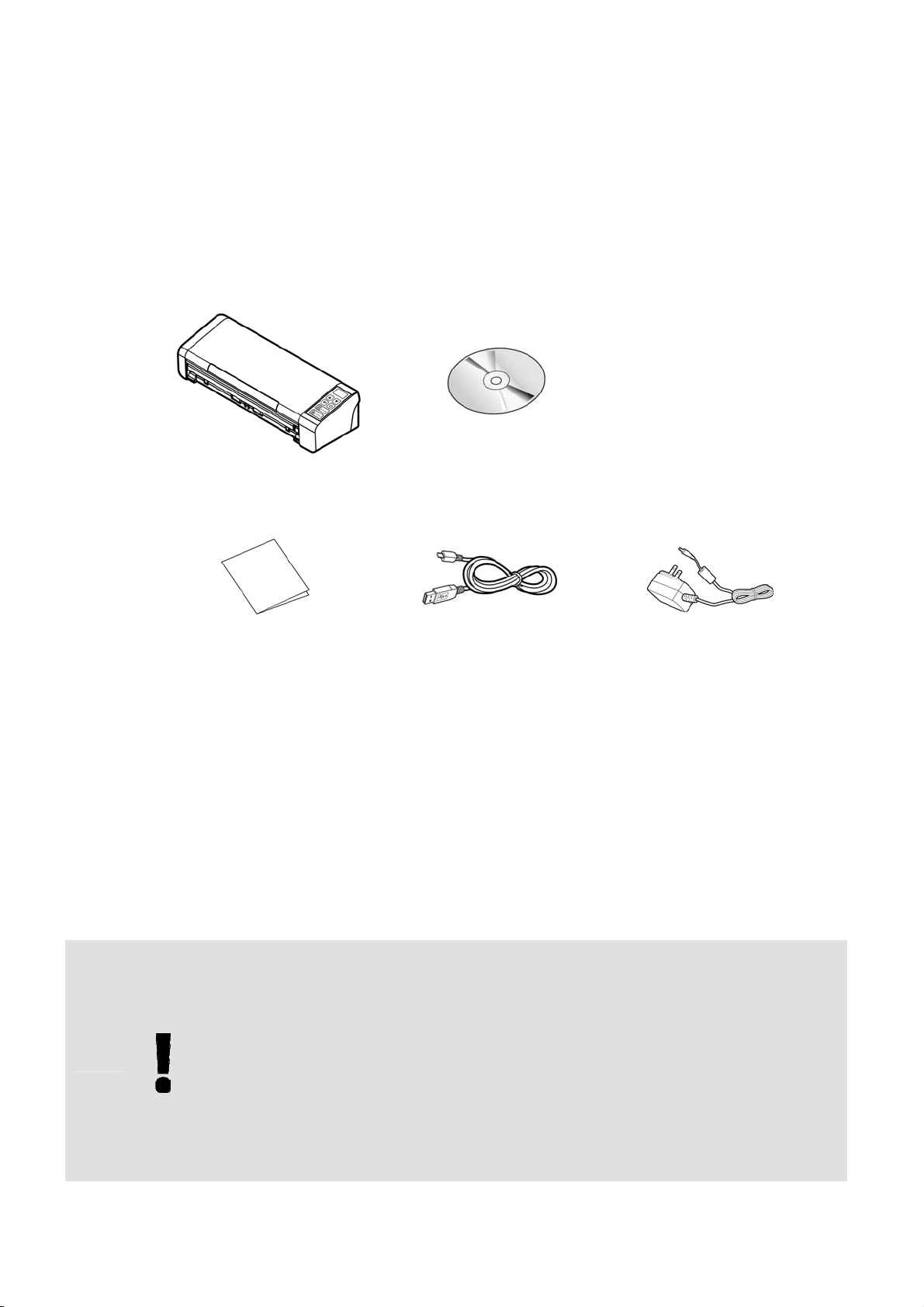
The following figure indicates the package contents. Please check all the items against
your checklist. If you do not receive all the items, please contact your authorized local
dealer immediately.
Scanner
Software CD
Quick Guide
Micro USB Cable
Power Adapter
NOTE
1. Only use the AC adapter WA-36A24R by APD included in the
machine. Using other AC adapters may damage the machine and
void the warranty.
2. Please unpack the packing carefully, and check the contents
against the checklist. If any items are missing or damaged, please
contact your dealer immediately.
3. To access more service supports, visit www.avision.com to register
your Avision’s product.
User’s Manual
3
1.3 Front View
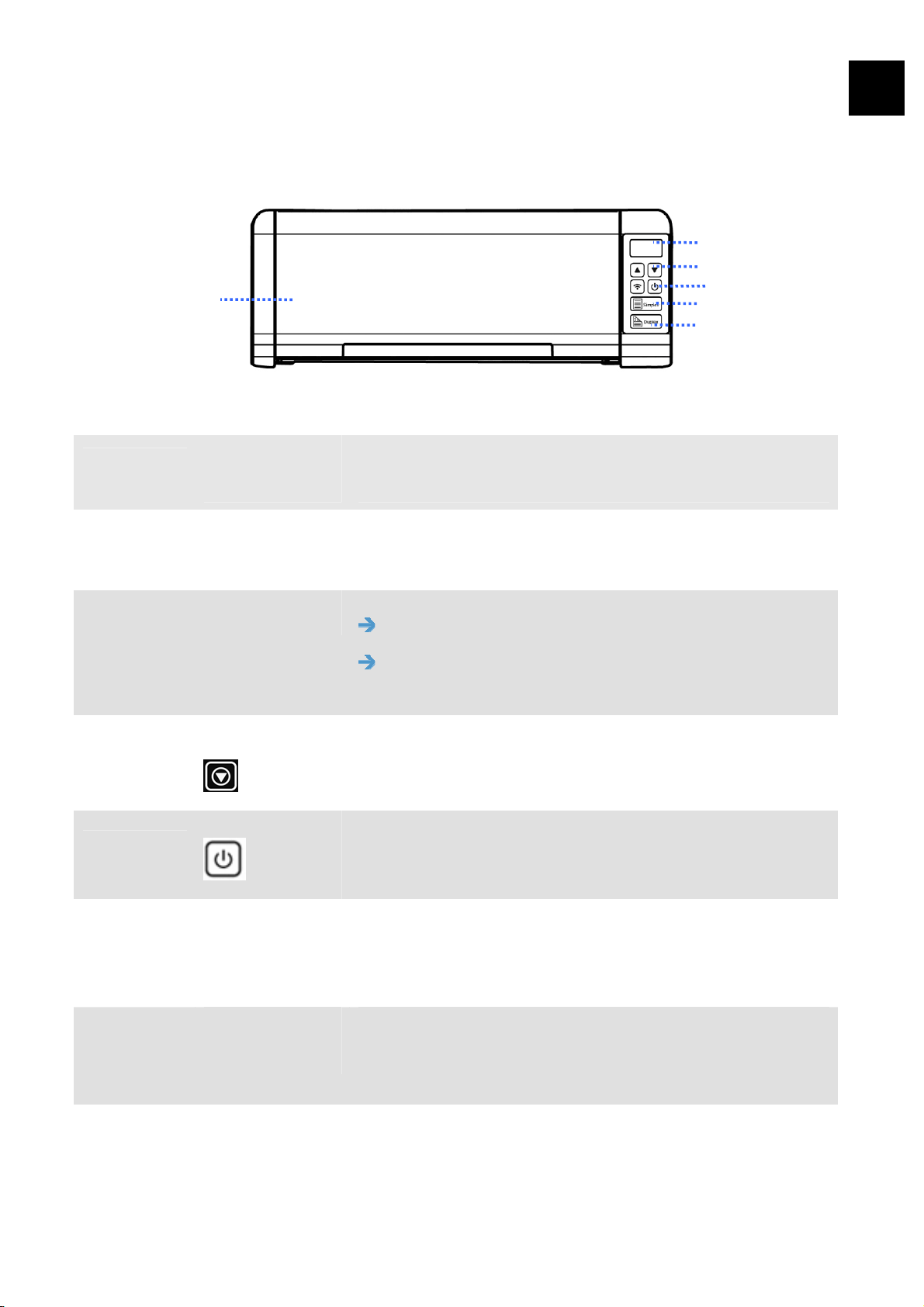
1
/
ITEM NAME DESCRIPTION
1
LCD Display Displays the scanner’s status.
Up/Down
Arrow
Used to scroll up and down to select your function
button. (Only available in the [Direct Scan] mode.
2
Wi-Fi button Press 2 seconds to turn on or off the Wi-Fi
connection.
Flash in blue to indicate Wi-Fi connection is
ready.
3
Cancel
Press to cancel a scanning job during operation. (Only
available in the [Direct Scan] mode.
4
Press to turn on the power.
Press and hold for three seconds to turn off the power.
5
Simplex Make your 1-sided document face up and press to
scan your document. (Only available in the [Direct
Scan] mode.
6
Duplex
Make your 2-sided document face up and press to
scan both sides of your document. (Only available in
the [Direct Scan] mode.
7
ADF Paper
Tray
This tray is used for feeding documents. Open it when
scanning documents.
User’s Manual
4
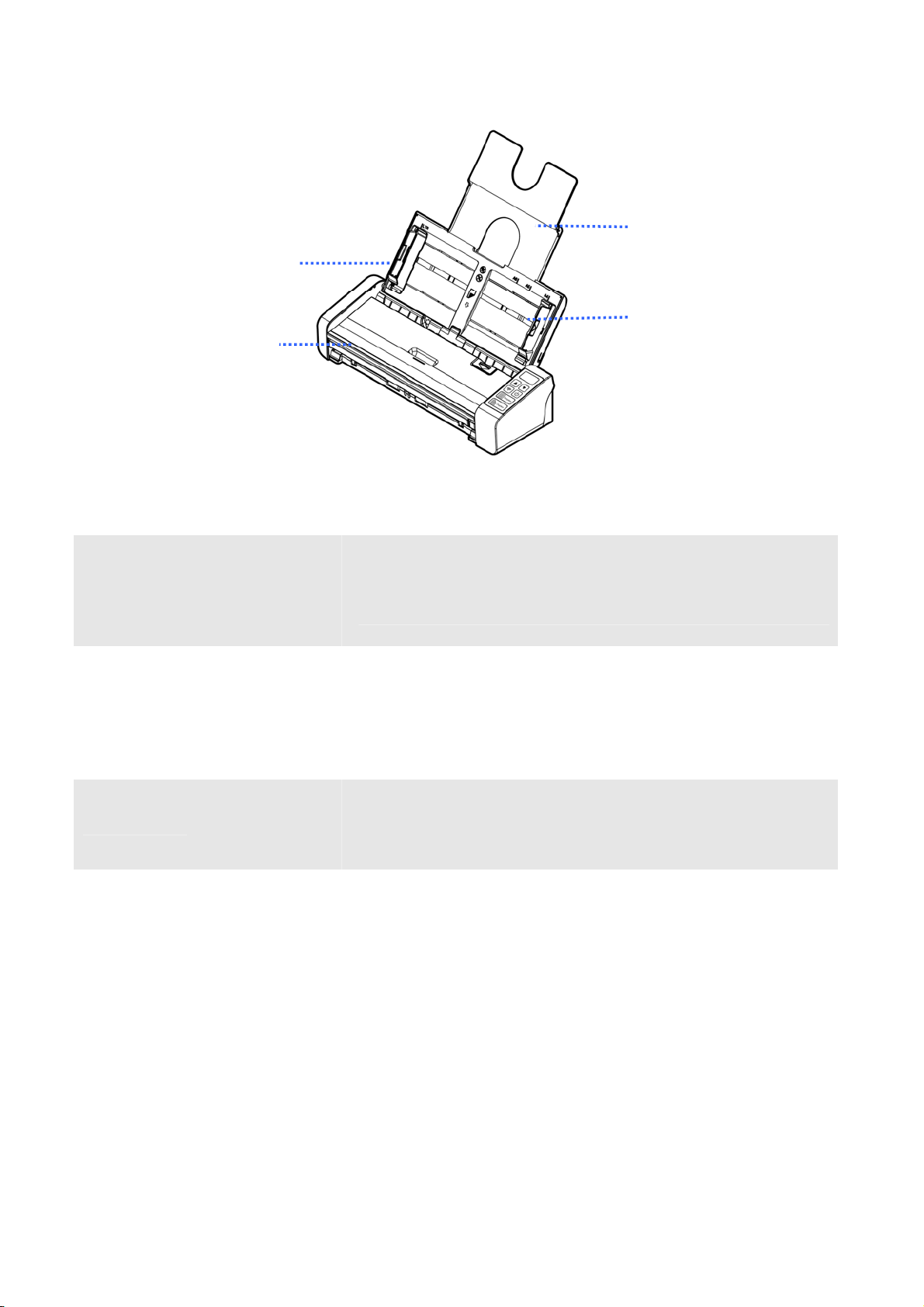
ITEM NAME DESCRIPTION
1
Document
Extension
Plate
Open the plate to support the document when loading
a long document.
2
Document
Guides
These guides ensure documents are fed straight.
Raise the guides when loading a document, and then
align them to the edges of the document to be
scanned.
3
Front Feed
Tray
This tray is used for feeding documents. Open it when
scanning documents.
User’s Manual
5
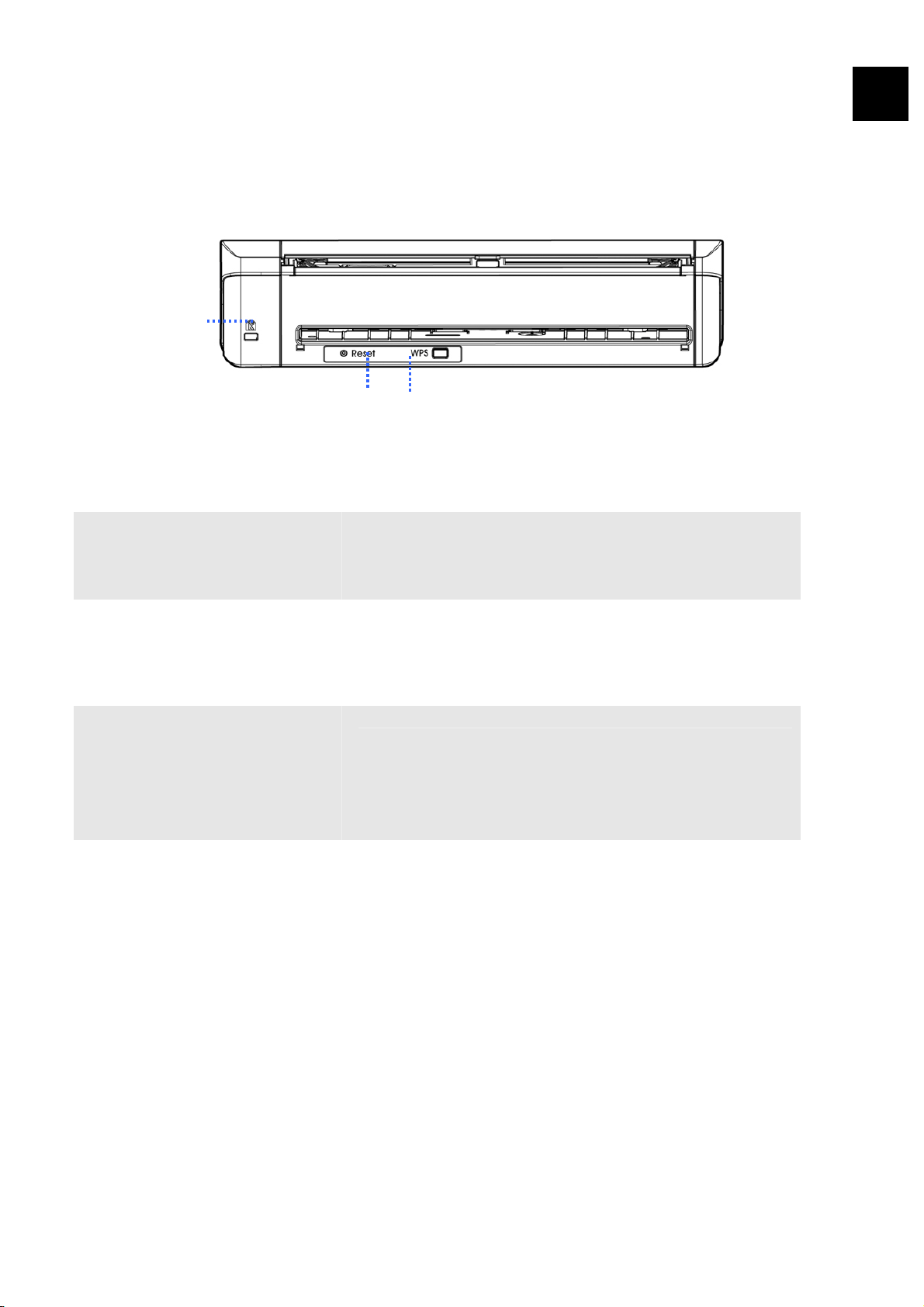
1
1.4 Rear View
ITEM NAME DESCRIPTION
1
Kensington
Security Slot
Attach to a lock to secure the scanner.
2
Reset
Press to reset Wi-Fi login to factory default
settings.
3
WPS Button
Press to use WPS (Wi-Fi Protected Setup) to
connect to a wireless access point which supports
WPS.

User’s Manual
6
1.5 Side View
ITEM NAME DESCRIPTION
1
Power Jack Connect the AC adapter to the scanner.
2
Micro USB
Port
Used to plug the micro USB end of the USB cable to
connect to PC.
User’s Manual
Installation
7
2
2. SCANNER INSTALLATION
2.1 Precautions
Keep the scanner out of direct sunlight. Direct exposure to the sun or
excessive heat may cause damage to the unit.
Be sure to use the proper AC power source.
Do not install the scanner in a humid or dusty place.
Place the scanner securely on an even, flat surface. Tilted or uneven
surfaces may cause mechanical or paper-feeding problems.
Retain the scanner box and packing materials for shipping purposes.
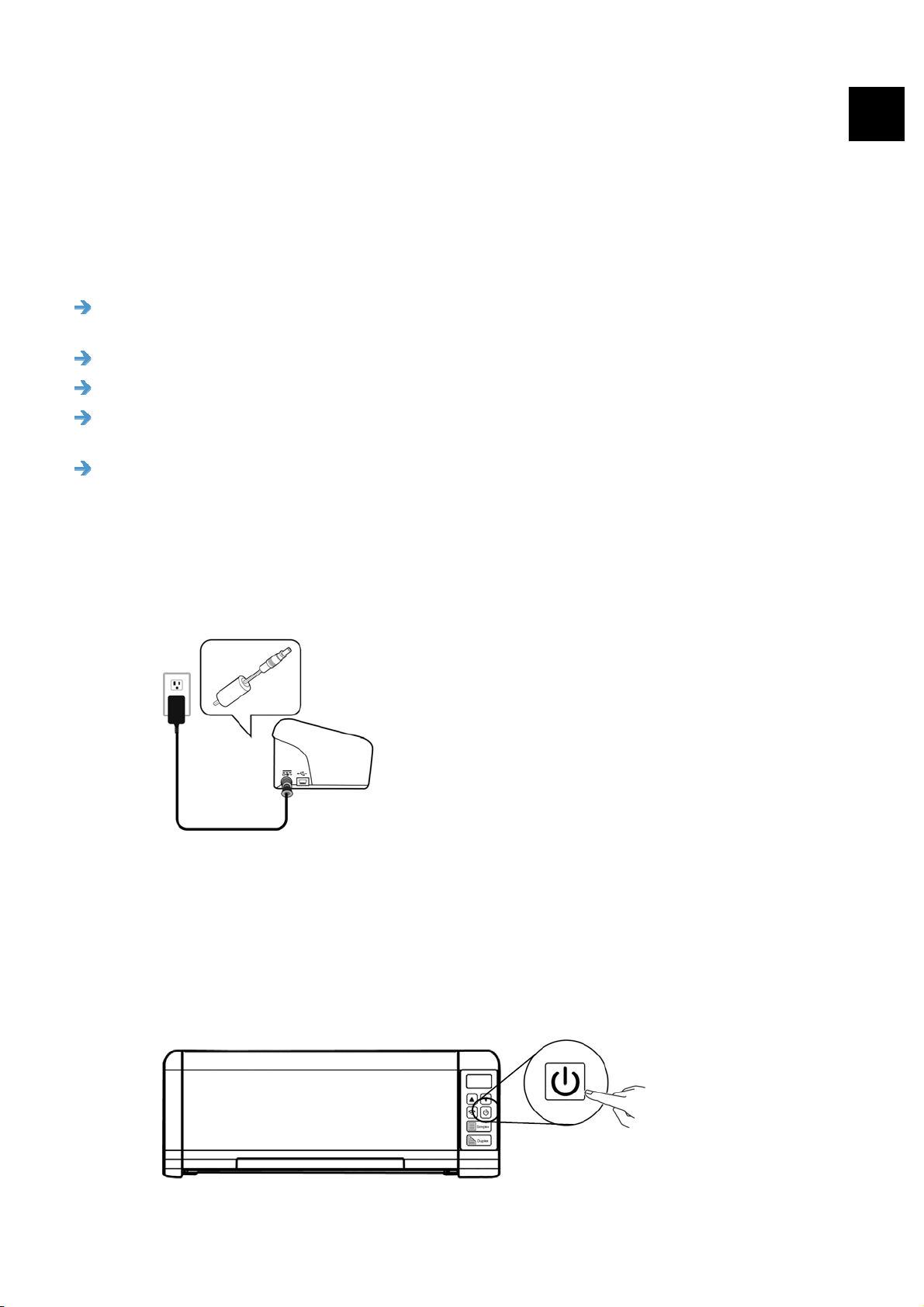
2.2 Connecting to Power
Plug the small end of the power adaptor into the power jack of your scanner. Insert the
other end to an appropriate power outlet.
2.3 Turning on the Power
Press the Power Switch button on the front panel, the Power LED will flash. When it is
finished and ready to scan, the LED indicator will stop flashing and become steadily on.
To turn off the scanner, press the Power Switch button for about 3 seconds, the Power
LED will be off.
User’s Manual
Installation
8
2
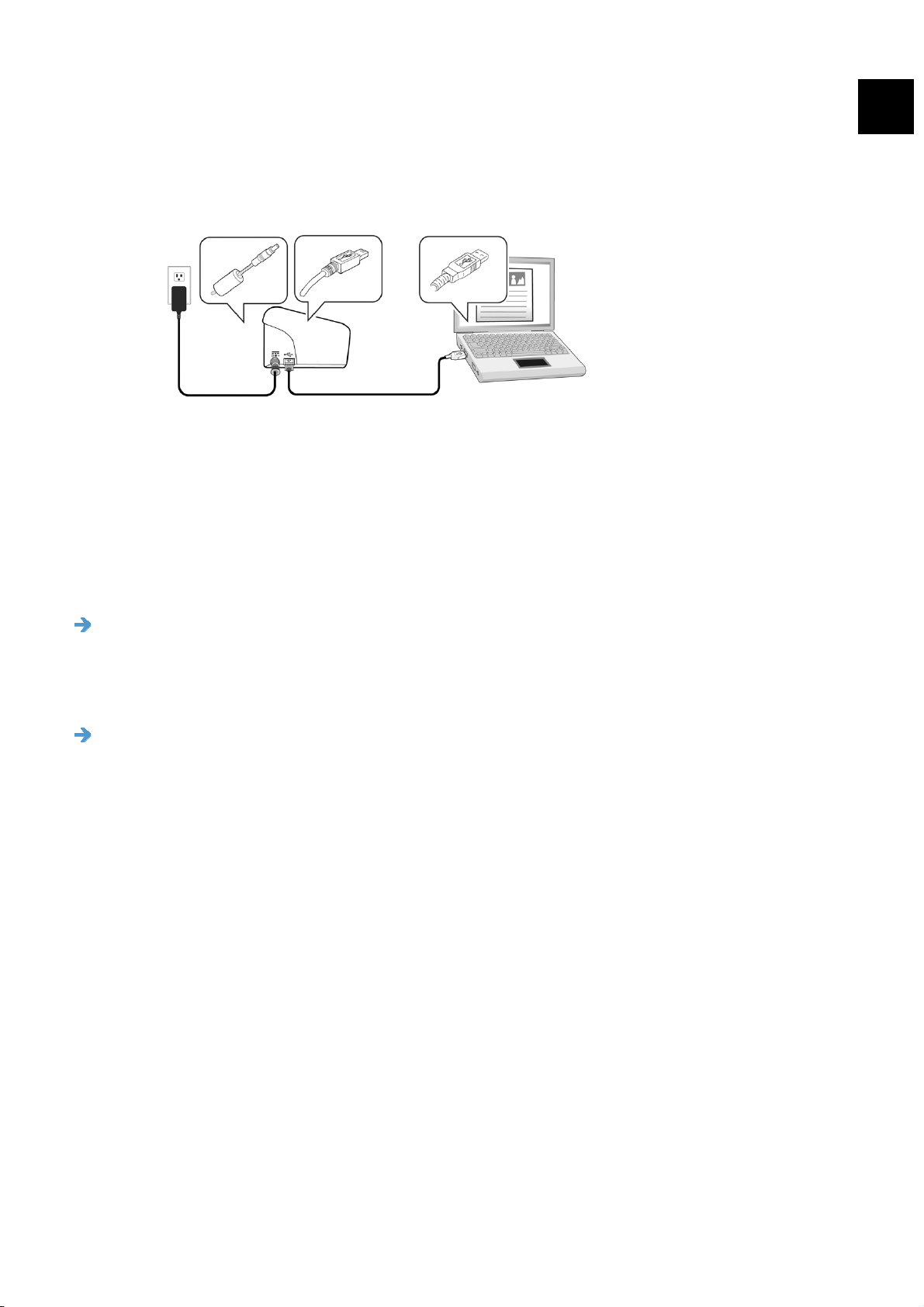
2.4 Connecting to the Computer
Connect the micro-USB end of the USB cable into the micro-USB port on your scanner. Plug
the rectangle end to the USB port at the rear side of your computer.
2.5 Installing the Software
2.5.1 Bundled Software Application
The PaperAir 215 scanner comes with the following software applications:
PaperAir Manager - An easy-to-use scanning software application
Install the application to scan paper documents to searchable PDF, or JPEG files
and send the scanned image to a specified destination or application such as E-
Mail, and Printer to access your documents more conveniently.
NewSoft Presto! BizCard – A software application used to scan and
manage your business cards
You can use this application to efficiently digitalize a large number of business
cards by performing text recognition on them. By creating your business cards
into a database, your contact information can be managed and searched more
efficiently.
2.5.2 Installation Steps
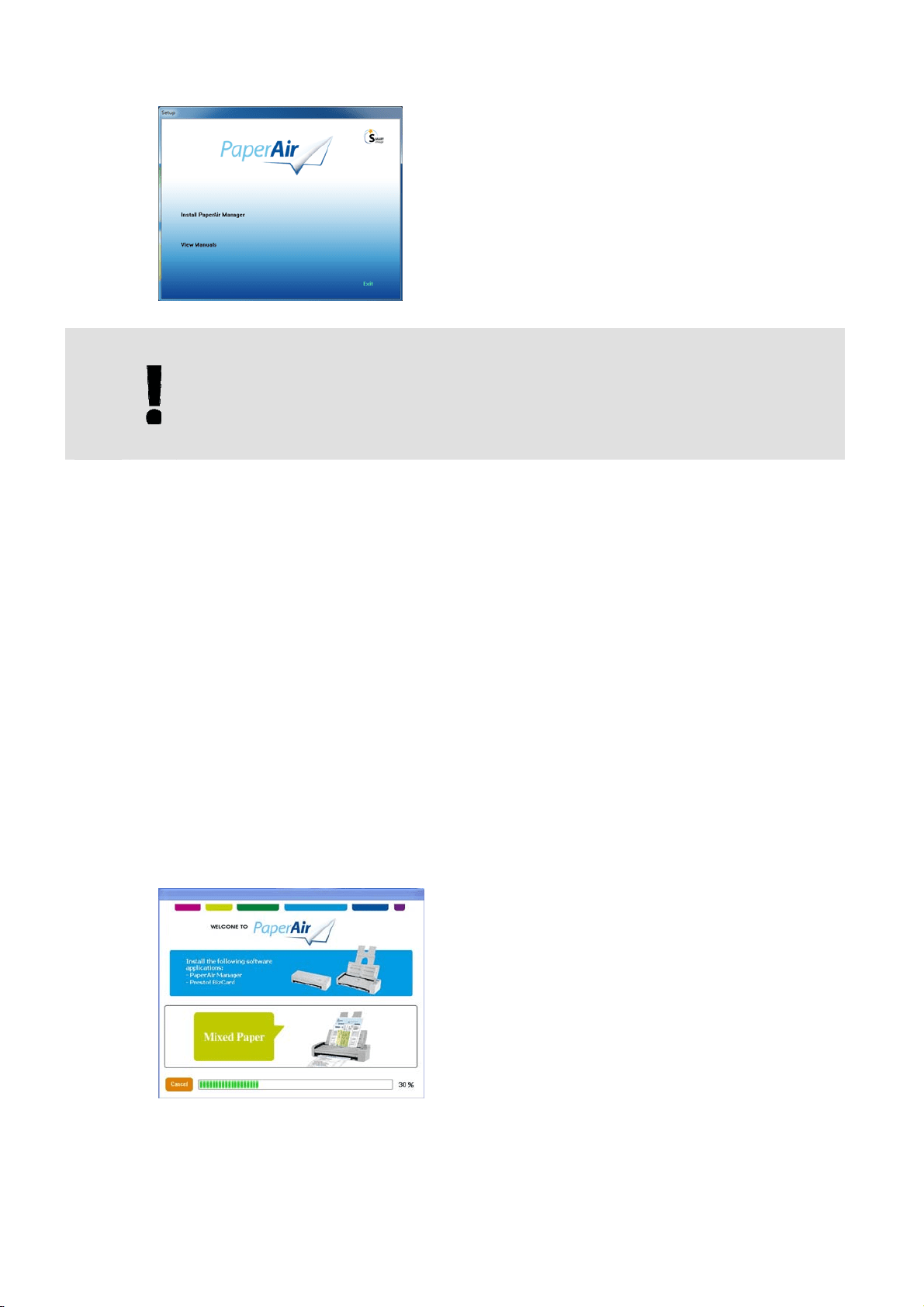
1. Insert the Setup DVD-ROM into the DVD-ROM drive on your computer.
>> The following [Installation] graphic appears. Click [Install PaperAir
Manager].
User’s Manual
Installation
9
NOTE
If the [Installation] graphic does not appear, double-click "Setup.exe" in
the Setup DVD-ROM via Windows Explorer.
2. Select the language you will be used during the installation and click the [Next]
button.
>> A confirmation about accepting the license agreement appears.
3. Read the [END-USER LICENSE AGREEMENT], select [I accept the terms of
the license agreement], and then click the [Next] button.
>> A confirmation about accepting our privacy policy appears.
4. Read the [PRIVACY POLICY], select [I accept the terms of the privacy
policy], and then click the [Next] button.
Choose [Accept] to help us improve our product by collecting your operational
information and let us provide better service to you. If you do not accept our
privacy policy, you may continue to install the program.
>> A [Ready to Install the Program] dialog box appears.
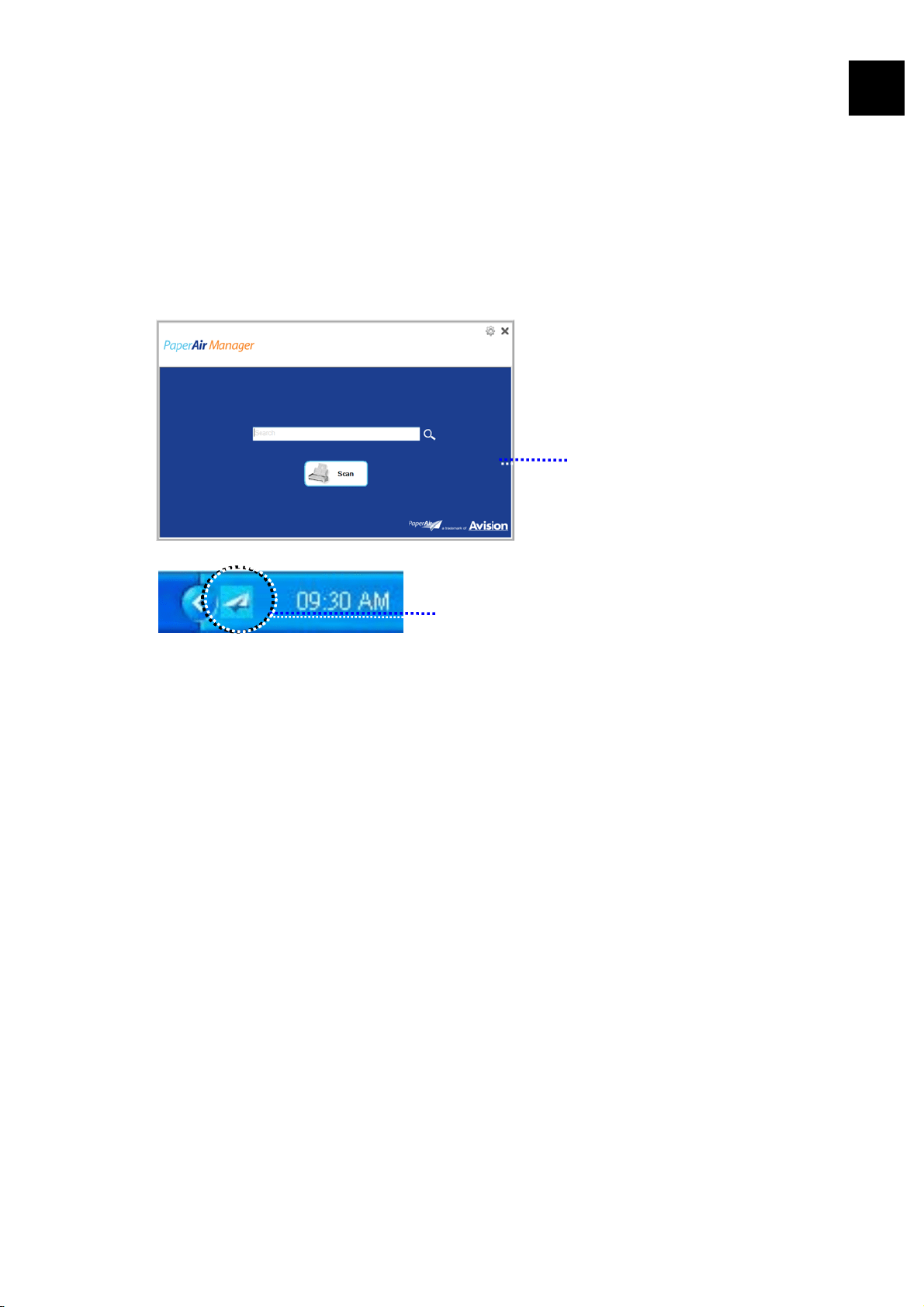
5. Click [Install] to begin the installation.
6. Installation starts. When the installation is complete, the [How to connect the
scanner] dialog box appears.
User’s Manual
Installation
10
7. Follow the instructions to turn on your scanner and connect the scanner to your
computer with the USB cable.
8. Click the [Finish] button when the installation complete notification is displayed.
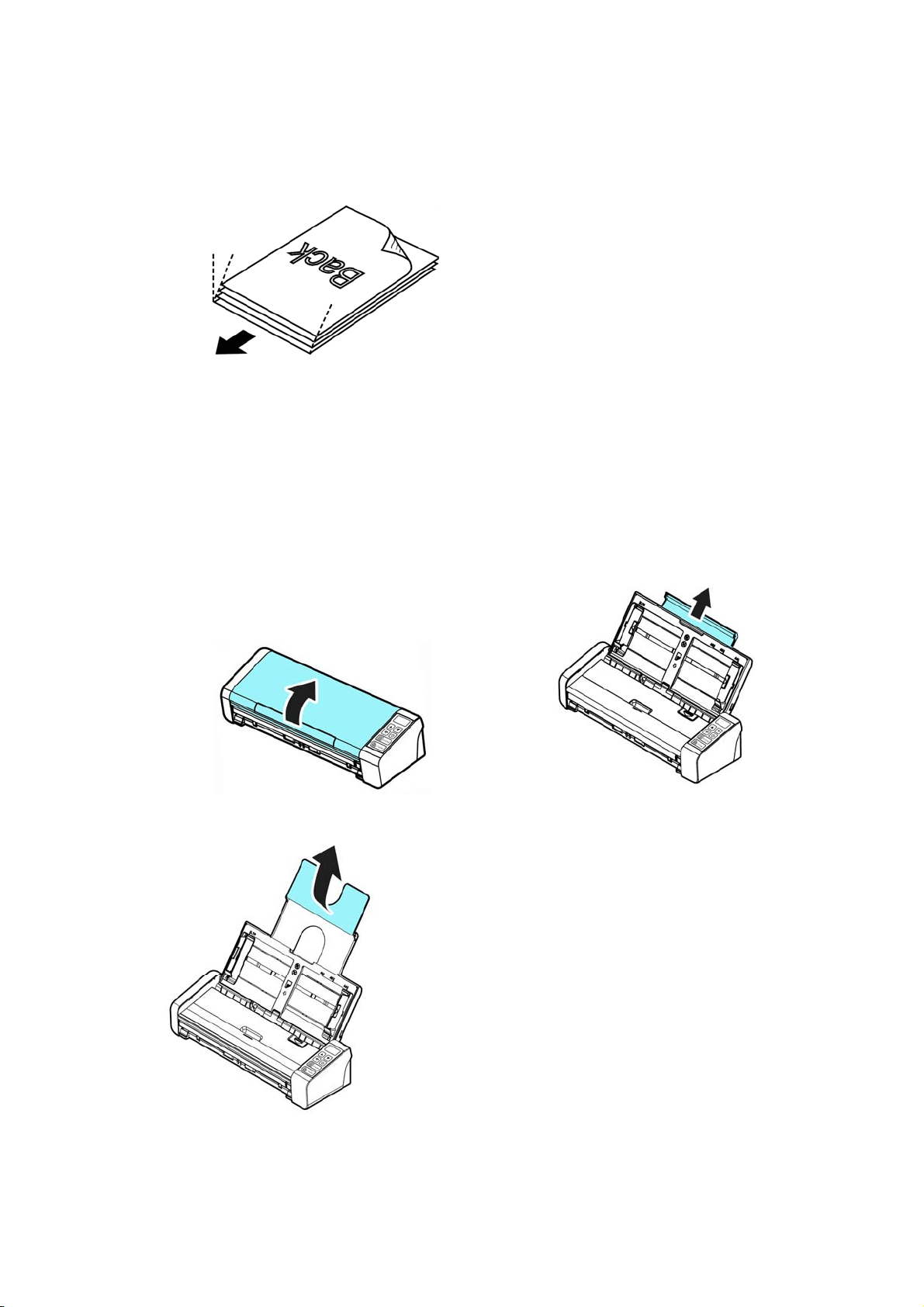
>>If the installation is successful, the PaperAir Manager’s main window will be
displayed and the PaperAir Manager’s icon will be displayed in Windows system
tray. If not, check if the scanner has been turned on and if the USB cable
connection is correct.
PaperAir Manager icon in the System Tray
PaperAir Manager’s Main Window
2
9. Remove the Setup DVD-ROM from the DVD-ROM drive.

User’s Manual
Completing Your First Scan
11
3
3. COMPLETING YOUR FIRST SCAN
3.1 Loading Your Paper
3.1.1 Notice on Using the ADF
Before using the ADF, please make sure that your paper meets the following
specifications:
Document (s) can range in size from 50 x 50 mm (2 x 2 in.) to 216 x 356
mm (8.5 x 14 in.)
Document (s) can range in weight from 50 ~ 105 g/m
2
(13 ~ 28 lb.) through ADF
Document (s) can range in weight from 27 ~ 413 g/m
2
(7 ~ 110 lb.) through the
Front Tray
ID cards up to 1.25 mm (0.05 in.) thick
Document(s) should be square or rectangular and in good condition (not fragile or
worn).
Document(s) should be free of curl, wrinkle, tears, wet ink, or punch holes.
Document(s) should be free of staples, paper clips, paper sticky notes.
3.1.2 Loading Your Document into the ADF Paper Tray
Fanning Your Document
IMPORTANT
To avoid occasional multi-feeds or paper jams, please fan your documents
and align the top edges before feeding them into the scanner.
1. Hold both ends of the documents and fan them a few times.
User’s Manual
Completing Your First Scan
12
2. Rotate the documents by 90 degrees and fan them in the same manner.
3. Align the edges of the documents in a step-like pattern (see picture below)
Step-like
Scanning
Direction
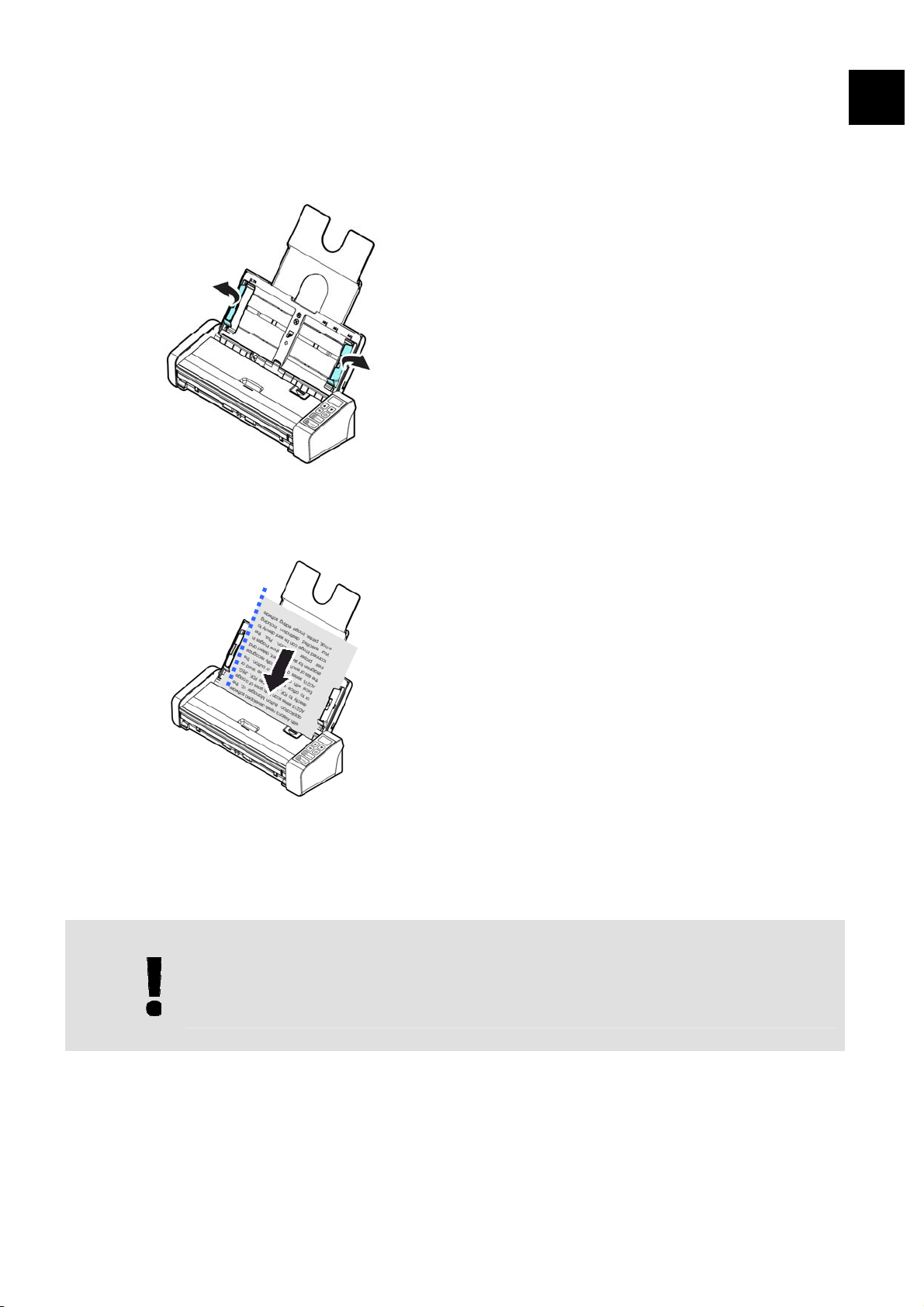
3.1.3 Loading Paper to the Document Feeder
1. Unfold the document feeder and its extension.
User’s Manual
Completing Your First Scan
13
3
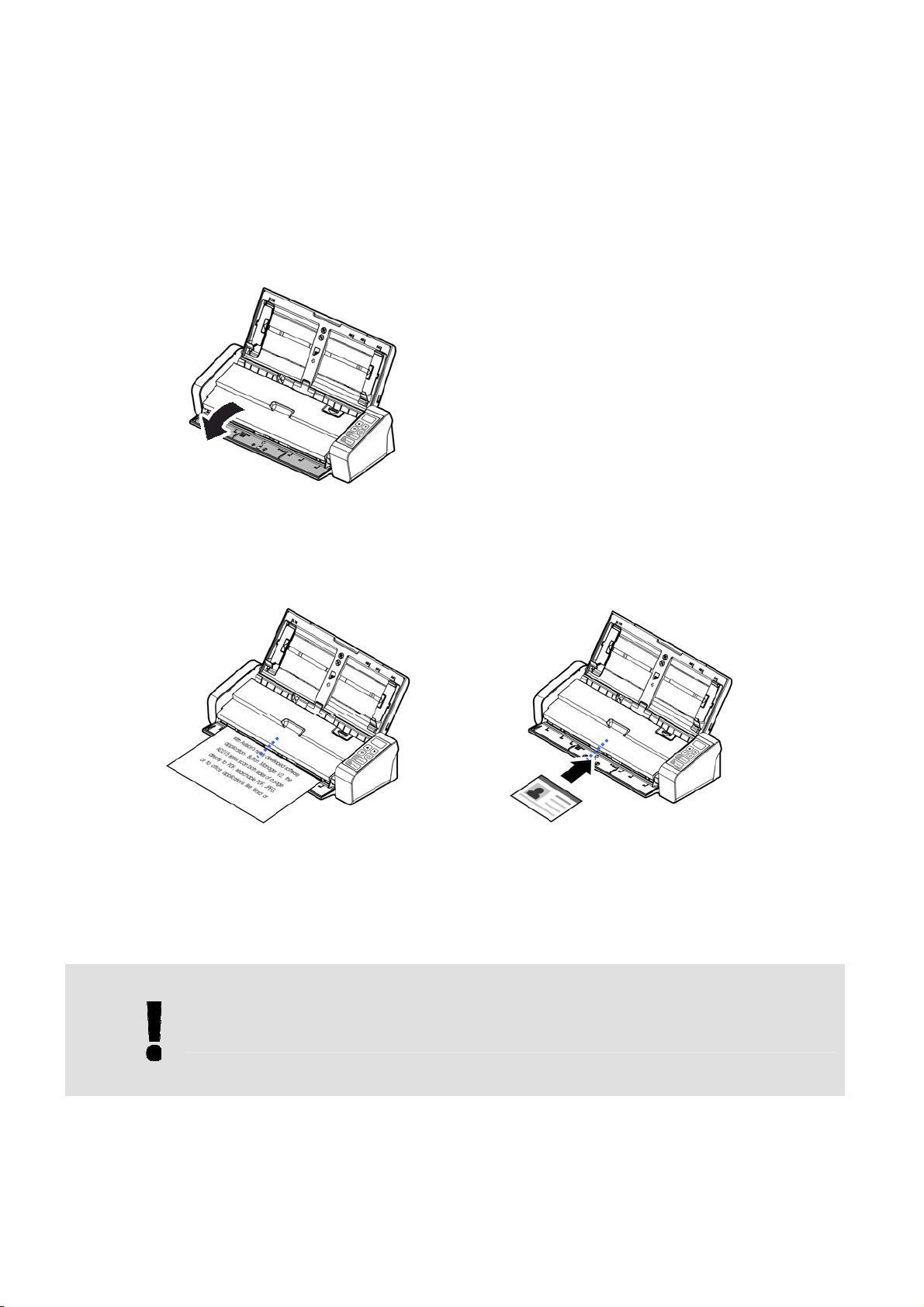
2. Raise the paper guide to hold your multi-page document.
3. Load the stack of document Facing Down with the top of the pages pointing into
the feeder.
4. Verify that the paper guides are aligned with the edges of the stack.
IMPORTANT
To load paper through the automatic document feeder, be sure to close the
cover of the front input tray.
User’s Manual
Completing Your First Scan
14
3.1.4 Loading A Single-Page Document into the Front
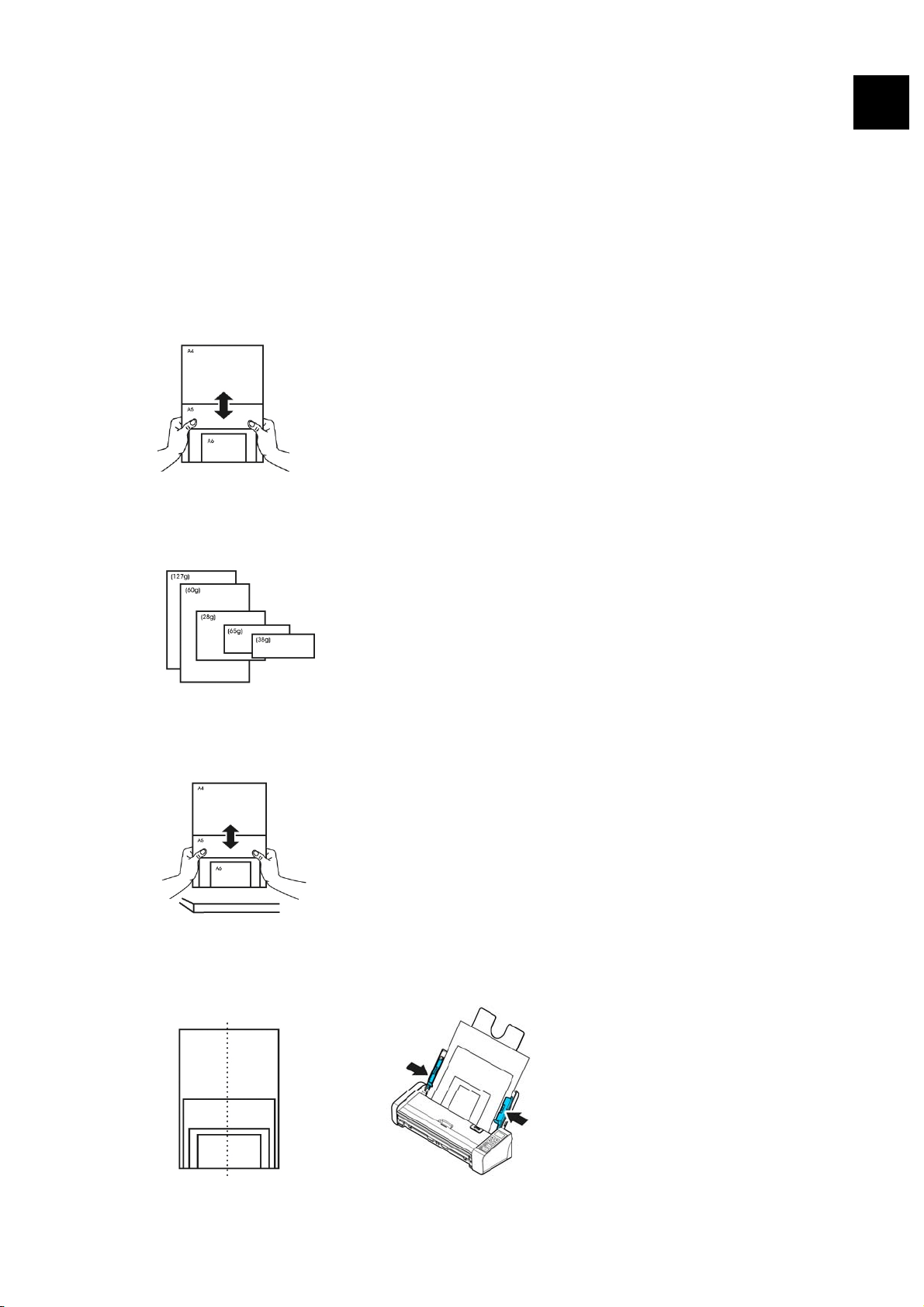
Input Tray
1. Open the cover of the front input tray.
2. Load your singe-page document to the front input tray with the top of the page
pointing to the front input tray. Load one-sided document with the text facing
up.
3. Center your document with the paper size marks.
IMPORTANT
Only one sheet of paper is allowed to load in the front paper tray.
User’s Manual
Completing Your First Scan
15
3
3.1.5 Scanning a Stack of Document with Various Sizes
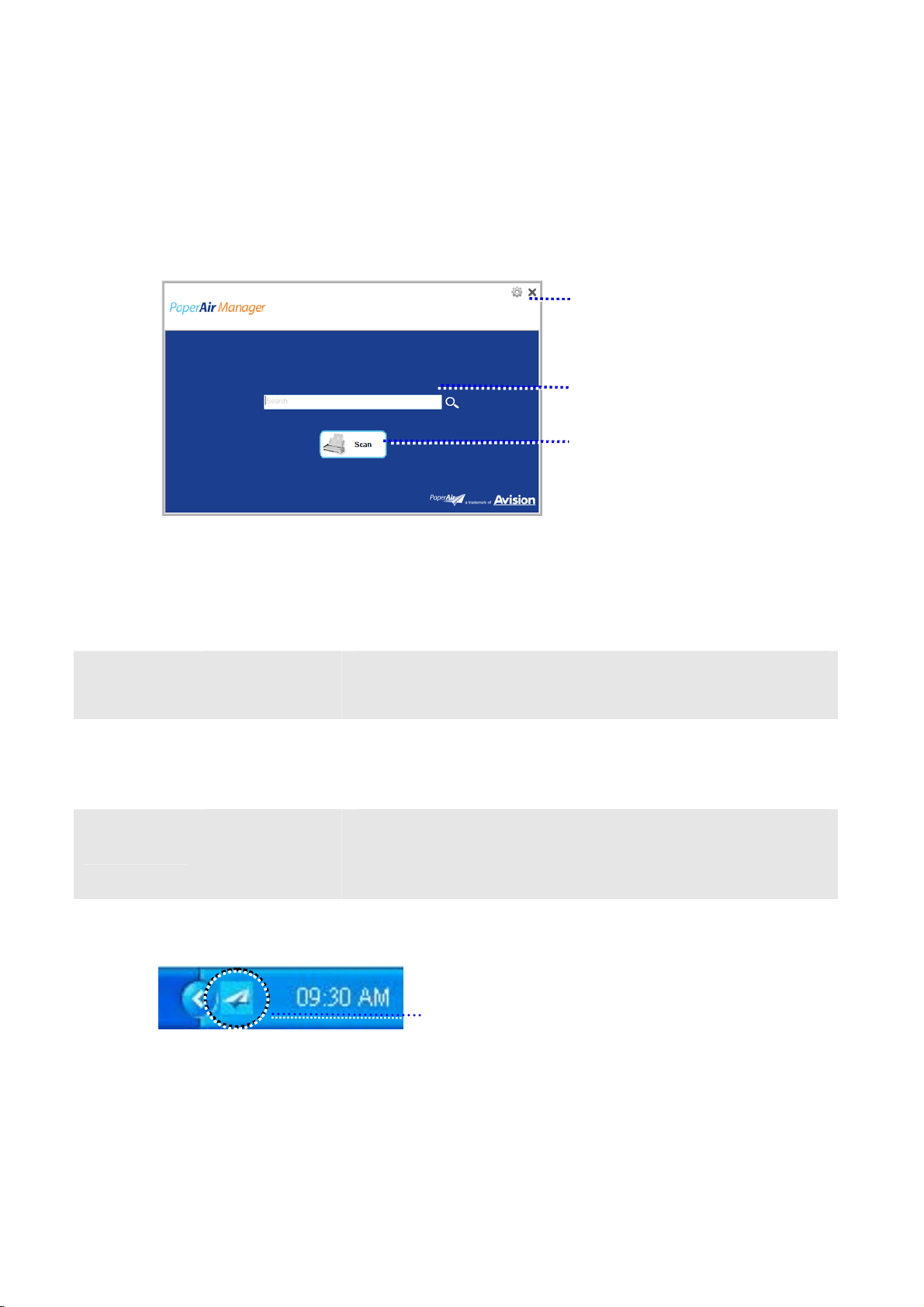
and Weights
When scanning a batch of documents with different sizes and weights, be sure to follow
these guidelines to avoid a skewed image or a paper jam:
1. Align the documents TOP EDGE first in the sequence of paper size from large
to small.
2. If two pages are of the same size yet with different weight, arrange these pages
in the sequence of paper weight from heavyweight to lightweight.
3. Align the edges of the documents by tapping the bottom of the stack against
the table top.
4. Center these pages in the document feeder and make sure that the edges of
page of the largest size slightly touch the Paper Guide.
User’s Manual
Completing Your First Scan
16
3.2 Starting PaperAir Manager
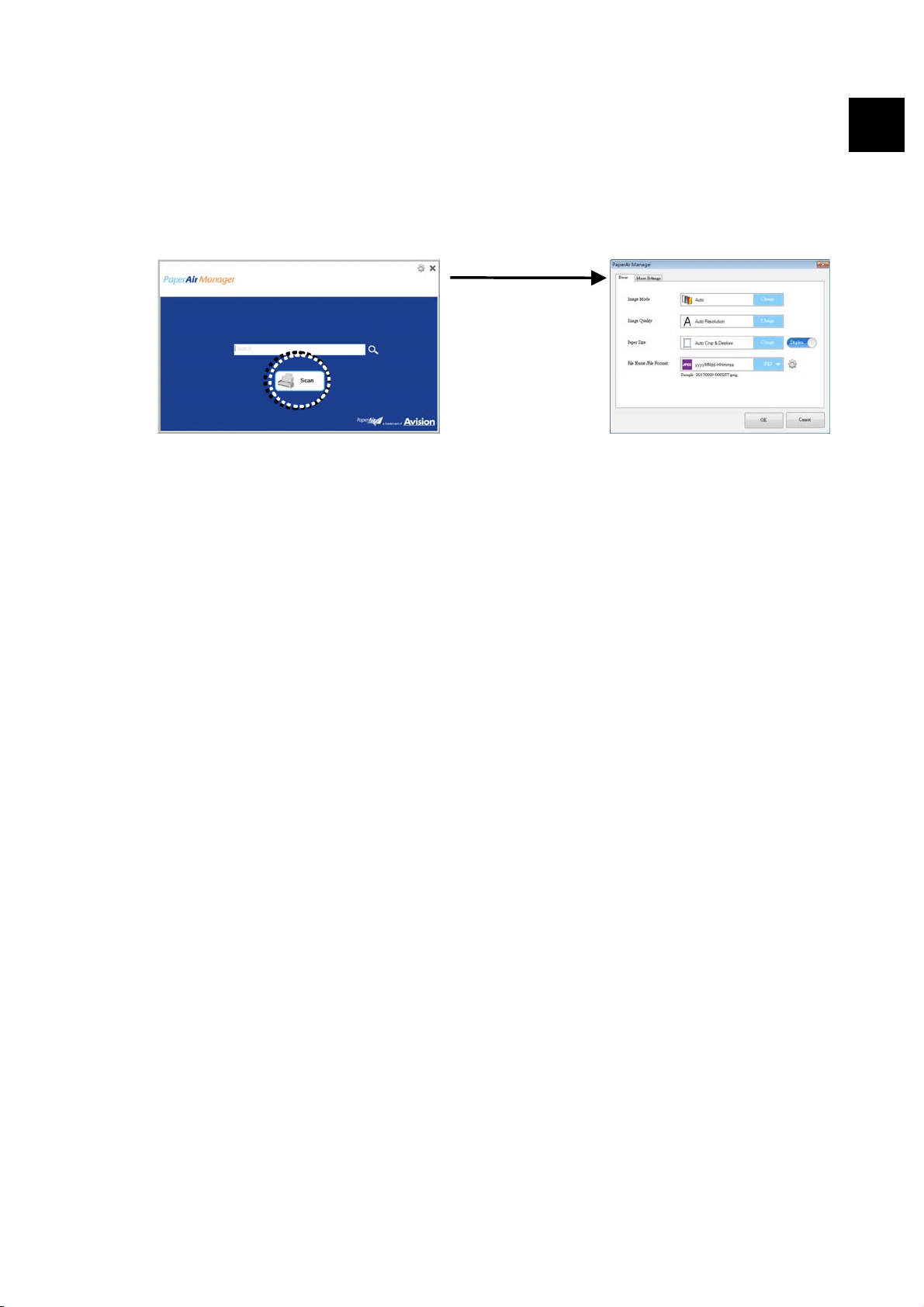
After the PaperAir Manager software application has been properly installed, the PaperAir
Manager is started. The main window of PaperAir Manager and its icon will be displayed.
PaperAir Manager’s Main Window
ITEM NAME DESCRIPTION
1
Options More settings of the PaperAir Manager.
2
The Keyword
Field
Enter your keyword(s) to search your scanned
document from the database.
3
The Scan
Button
Click to start a scan with predefined scan settings.
PaperAir Manager’s icon in the System Tray
User’s Manual
Completing Your First Scan
17
3
3.3 Checking Scan Settings Before Scanning
Right-click the [Scan] button to prompt the [Scan Settings] window.
The Scan Settings window consists of the following options:

User’s Manual
Completing Your First Scan
18
NAME DESCRIPTION
Image Mode
Choose proper image mode for the scanned image.
Choice: *Auto, Color, Gray, and Black and White.
Auto: Automatically convert image mode according to your
original document.
Resolution
Choose your ideal resolution for the scanned image.
Choice: *Auto Resolution, High (600 dpi), Medium (300
dpi), Low (200 dpi)
Auto Resolution: Automatically select proper resolution to
start a scan according to your original document.
Paper Size
Choose your ideal scan size.
Choice:
*Auto Crop & Deskew
A4 – 8.2 x 11.6 in.
A5 – 5.8 x 8.2 in.
A6 – 4.1 x 5.8 in.
B5 – 6.9 x 9.8 in.
B6 – 4.9 x 6.9 in.
Postcard – 5.8 x 3.9 in.
Business Card – 3.5 x 2.1 in.
Letter – 8.5 x 11 in.
Legal – 8.5 x 14 in.
Auto Crop & Deskew: Automatically adjusts the cropping
window according to different document sizes and
automatically straighten a skew image.
Simplex/Duplex
Click this button to switch between Simplex/Duplex.
Simplex: Choose to scan one side of document.
*Duplex: Choose to scan the front and rear side of document.
File Name/File
Format
Select your desired file name and file format.
Choice: * JPEG、 PDF、DOCX、XLSX、PPTX
*: Default Setting
If you wish to change the setting, use this window to reset the settings. For detailed
information on how to change the scan settings, see “Customizing the PaperAir Manager”
in the subsequent section to reset the settings.
2. Click [OK] to leave the window.
User’s Manual
Completing Your First Scan
19
3
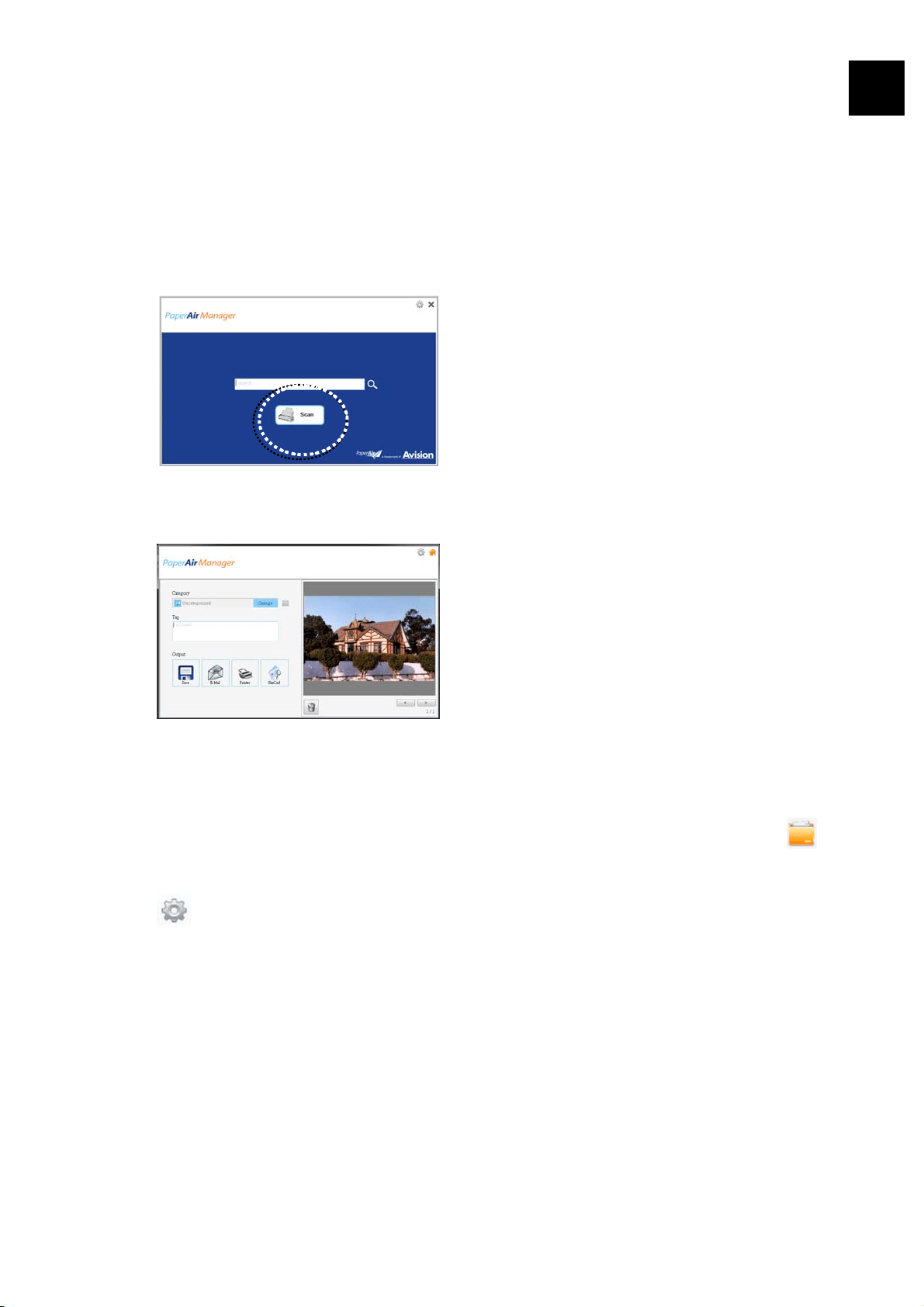
3.4 Scanning Your Document
1. Load paper to your scanner.
2. Click the [Scan] button to start a scan.
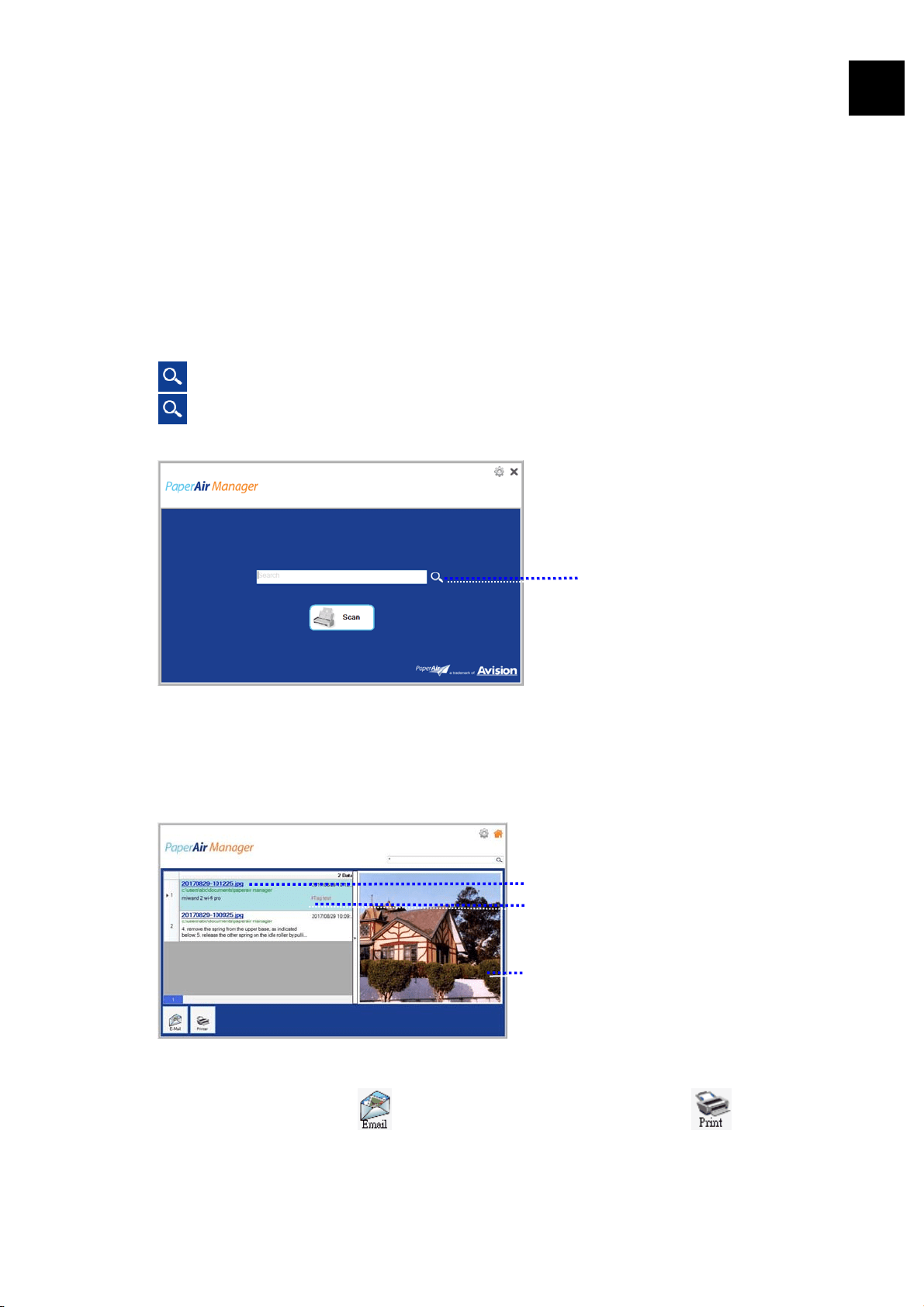
3. After the scan is completed, the following [Preview] dialog box appears.
4. On the [Preview] dialog box, if the previewed image is fine, choose the
following action:
Category: This option is disabled by default. Enable it and then select [
] if
you wish to create a new category in a default file location (default file location:
Documents\PaperAir Manager). To enable the option, click the [Options] icon
on the upper-right corner to prompt the [Options] dialog box. Choose
[More] tab and then check [Disable to create a new category].
Tag: Click the tag icon to enter the tag information in the pop-up dialog box.
Entering tag information helps to create a better search result since our search
database including your file name, tag information, and the recognized image
text after text recognition process.
Output: Send your scanned image to a list of destinations including Save, E-
Mail, Print, and BizCard software application.

User’s Manual
Completing Your First Scan
20
ITEM DESCRIPTION
Save Click to save the scanned image in a preset path (default path: My
Documents\PaperAir Manager).
E-Mail Click to open your default E-mail software and send the scanned image to
your recipient as an attachment.
Printer Click to send the scanned image to a default printer to print the scanned
image.
BizCard Click to read the text on your name card. Text recognition is performed on
the scanned image data which is then managed into a card database.
5. The scanned image will be sent to your specified destination.
User’s Manual
Completing Your First Scan
21
3.5 Searching Your Document
PaperAir Manager allows you to search your documents from the database of all
previously scanned text, file names, and tag information. The image text has been
recognized after the text recognition process and saved into a database.
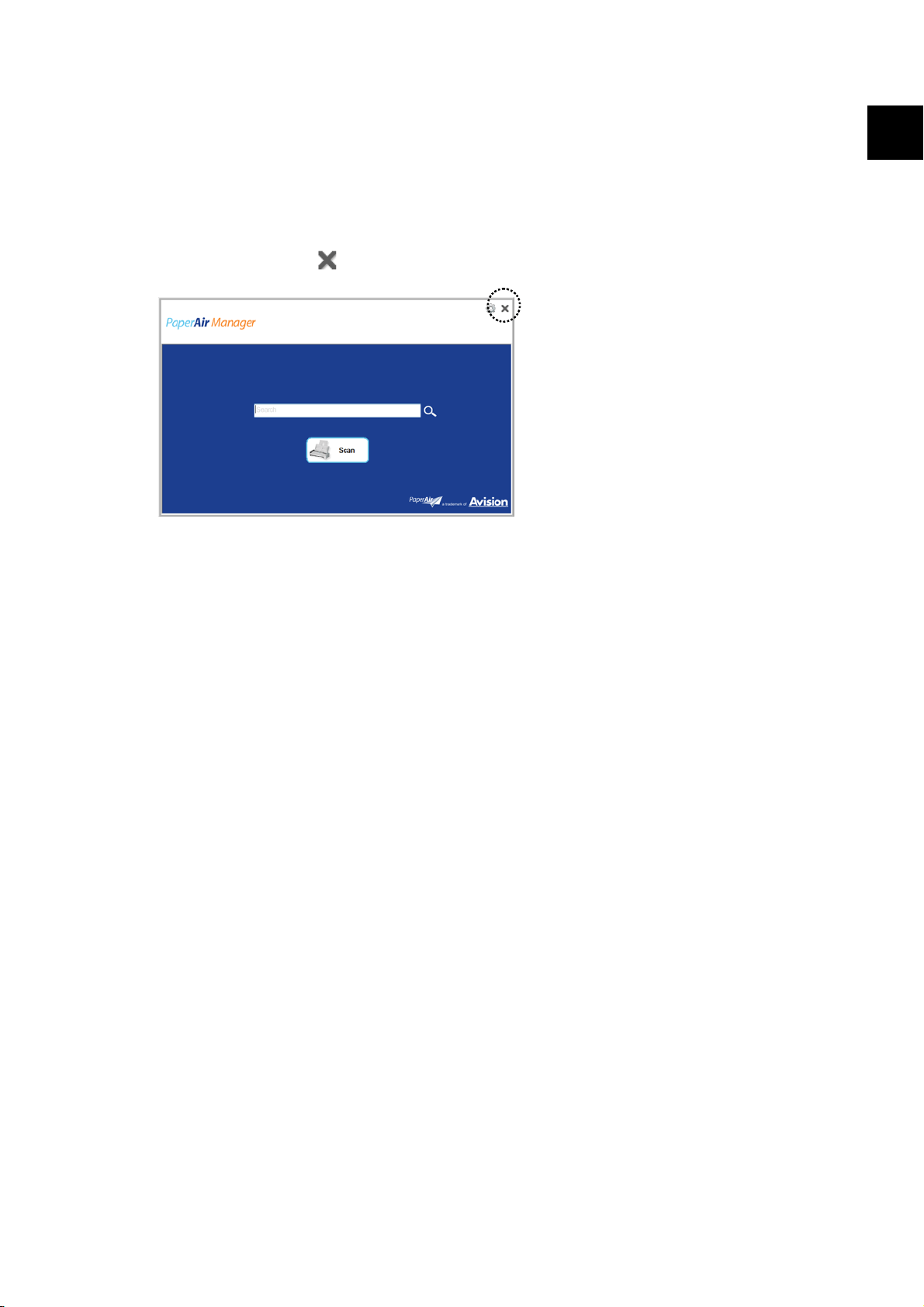
To search your document,
1. On the main window, type your keyword (one or more) in the Keyword field.
For example, Document or Document scan. And then press the Search icon
. Or you may enter * in the Keyword field and then press the Search icon
to find all documents.
2. In a second, the search results will be displayed. Simply select the image file
and the image will be displayed in the Preview frame. (Note: PaperAir Manager
does not support documents in DOCX, PPTX, XLSX file formats to be displayed
in the Preview frame.)
T
ype your keyword(s)
here.
Document
File Name
Tag Information
3
The Preview Image
If desired, you may also send your document to an E-Mail recipient as an
attachment by clicking
or print your document by clicking .

User’s Manual
Completing Your First Scan
22
NOTE
1. If you are scanning from a mobile device (refer to Chapter 6), the
text recognition process will not be performed and therefore the
scanned images can not be searched.
2. Note the following factors which may affect the OCR accuracy and
the Search result:
Document contains stamps or handwritten remarks.
Font size too small (If this is the case, try to scan in 600 dpi
(resolution)
3. PaperAir Manager is able to perform text recognition and include the
recognized text in its search database for all the images (in JPEG,
TIFF, BMP, GIF, PNG file format), pdf files, and Microsoft Office files
(in ppt, pptx, xls, xlsx, doc, docx file format) you have copied and
pasted to the [PaperAir Manager] folder. Yet this feature is only
available on the following conditions:
You have agreed our Privacy Policy during installation.
Your computer is in the internet environment.
SEARCH TIPS
Note PaperAir Manager’s search engine is designed somehow different
with Googles’. If you can not find your document in the first search,
try to enter keywords in different sequence or combination. For
example, if your first entry of keyword is [confidential invoice], you
can try [invoice] or [invoice confidential] to find your document.
You may enter [?] or [*] in the keyword where you are not sure about
its spelling. For example, you may enter T?ipei or T*pei to search for
document text containing Taipei.
User’s Manual
Completing Your First Scan
23
3.6 Exiting PaperAir Manager
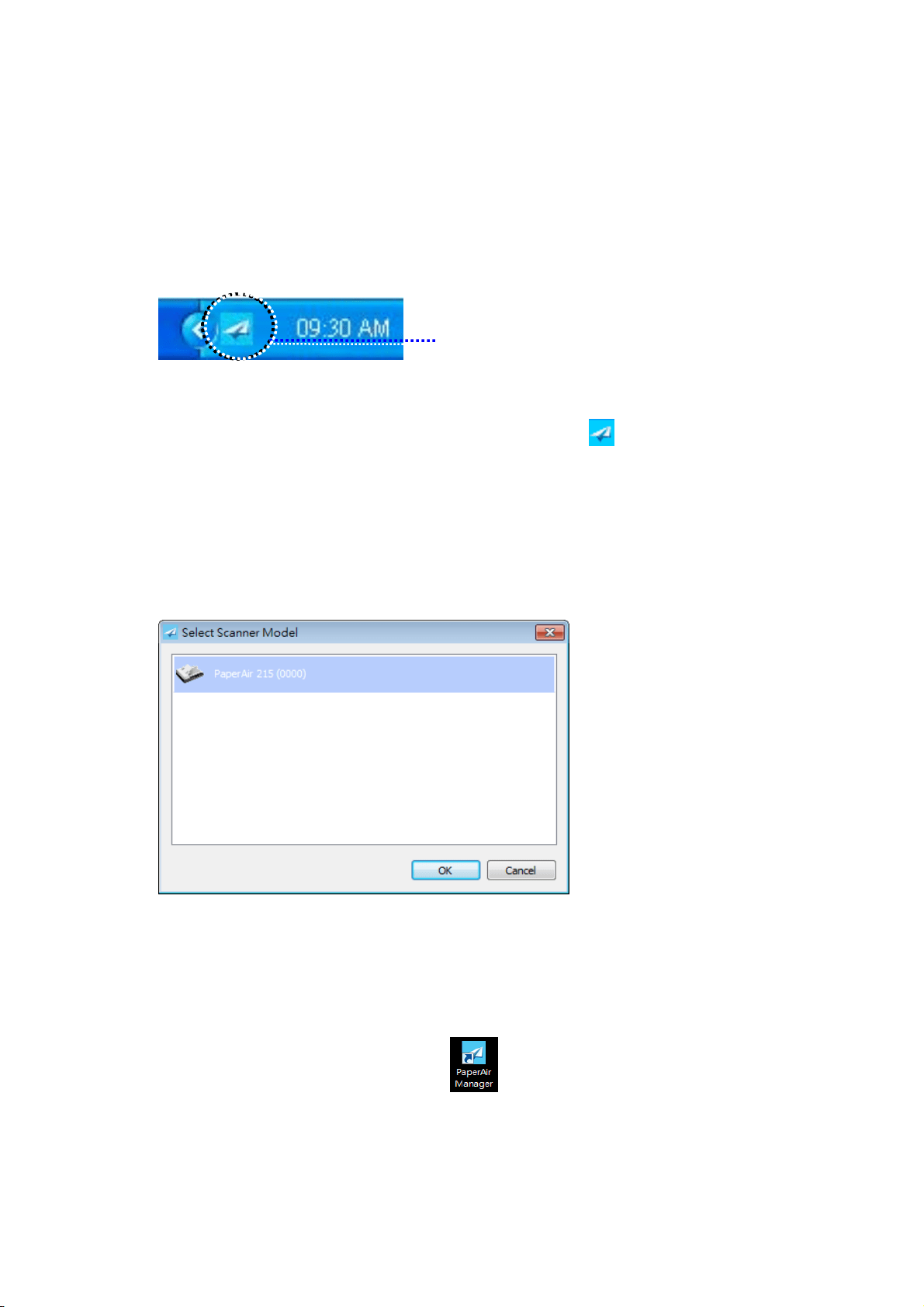
To exit the PaperAir Manager application,
Simply click the [Exit] icon
to leave the main window.
3
User’s Manual
Completing Your First Scan
24
3.7 Restarting PaperAir Manager
To restart the PaperAir Manager application,
Simply click the PaperAir icon in the System Tray and the main window will be displayed.
PaperAir Manager’s icon in the System Tray
Or
If you have accidentally closed the PaperAir Manager’s icon
in the System Tray,
restart PaperAir Manager by following these steps:
1. From the [Start] menu, select [All Programs/Programs]>[Avision
PaperAir 215 scanner]>[PaperAir Mnager].
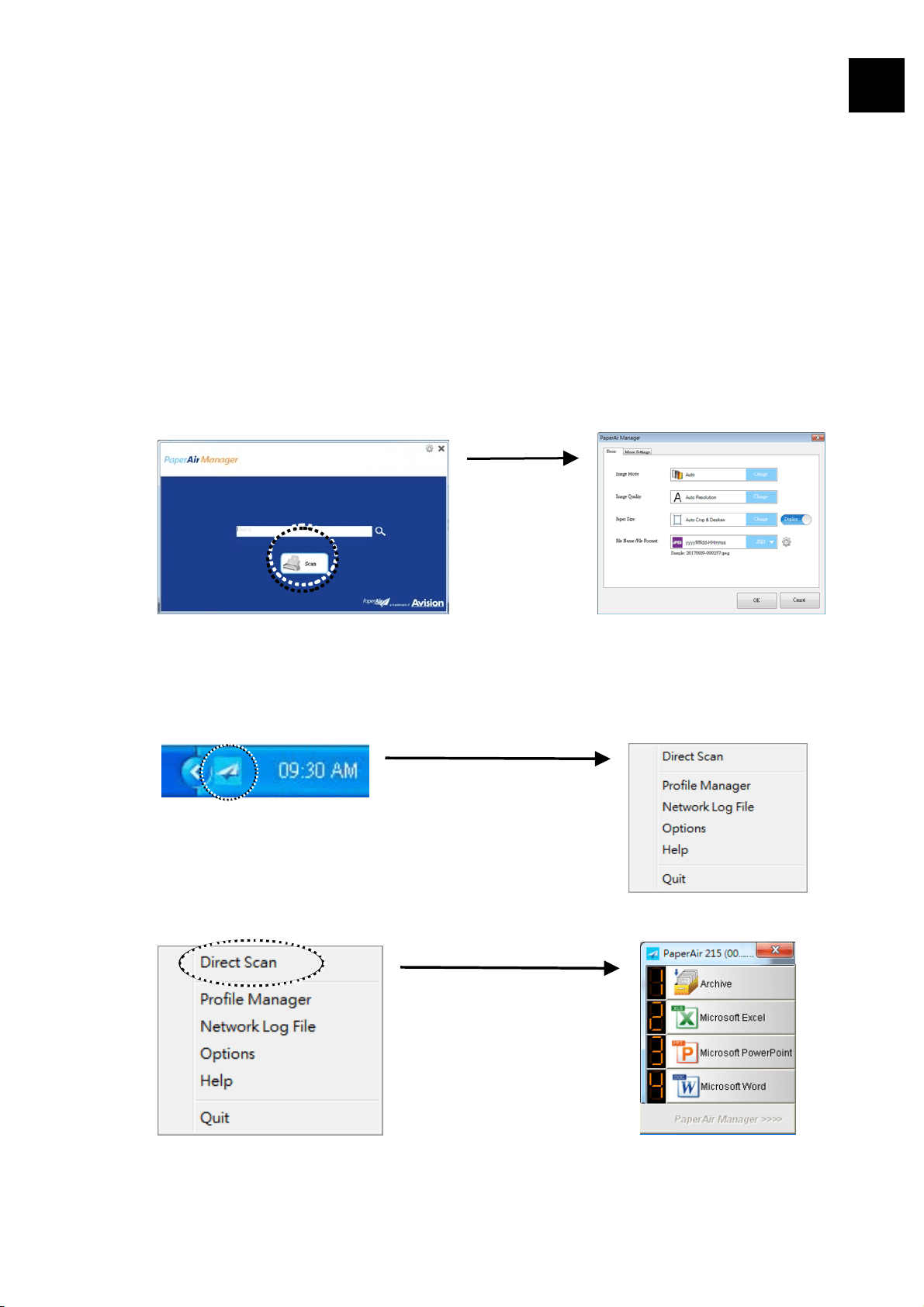
2. A [Select Scanner Model] dialog box appears.
3. Choose your scanner model and click [OK]. The PaperAir Manager’s main
window will be displayed.
Or
Double click the PaperAir Manager shortcut
on your desktop.
User’s Manual
Completing Your First Scan
25
3
3.8 Using PaperAir Manager Without Connecting to a
Scanner
PaperAir Manager is a scanning software application. Yet, without connecting to the
scanner, you can still launch it and use the search feature. This is especially useful when
you are away on business without carrying the scanner.
To run PaperAir Manager without connecting to a scanner, please follow these steps :
1. From the [Start] menu, choose [All Programs/Programs]>[Avision
PaperAir 215 scanner]>[PaperAir Manager].
Or
1. Choose PaperAir Manager’s shorcut
on your desktop.
2. A [Select Scanner Model] dialog box appears.
3. Choose any scanner and then click [OK]. The PaperAir Manager’s main window
will be displayed.
4. Enter your keyword in the [Keyword] field to search your document. A few
seconds, the search results will be displayed.
User’s Manual
Customizing PaperAir Manager
26
4
4. CUSTOMIZING PaperAir Manager
This section explains how to customize scan settings to suit your various scanning tasks.
4.1 Using the Scan Settings Window
To customize the settings for each button, you need to use the [Scan Settings] window.
[Scan Settings] window can be started in the following way.
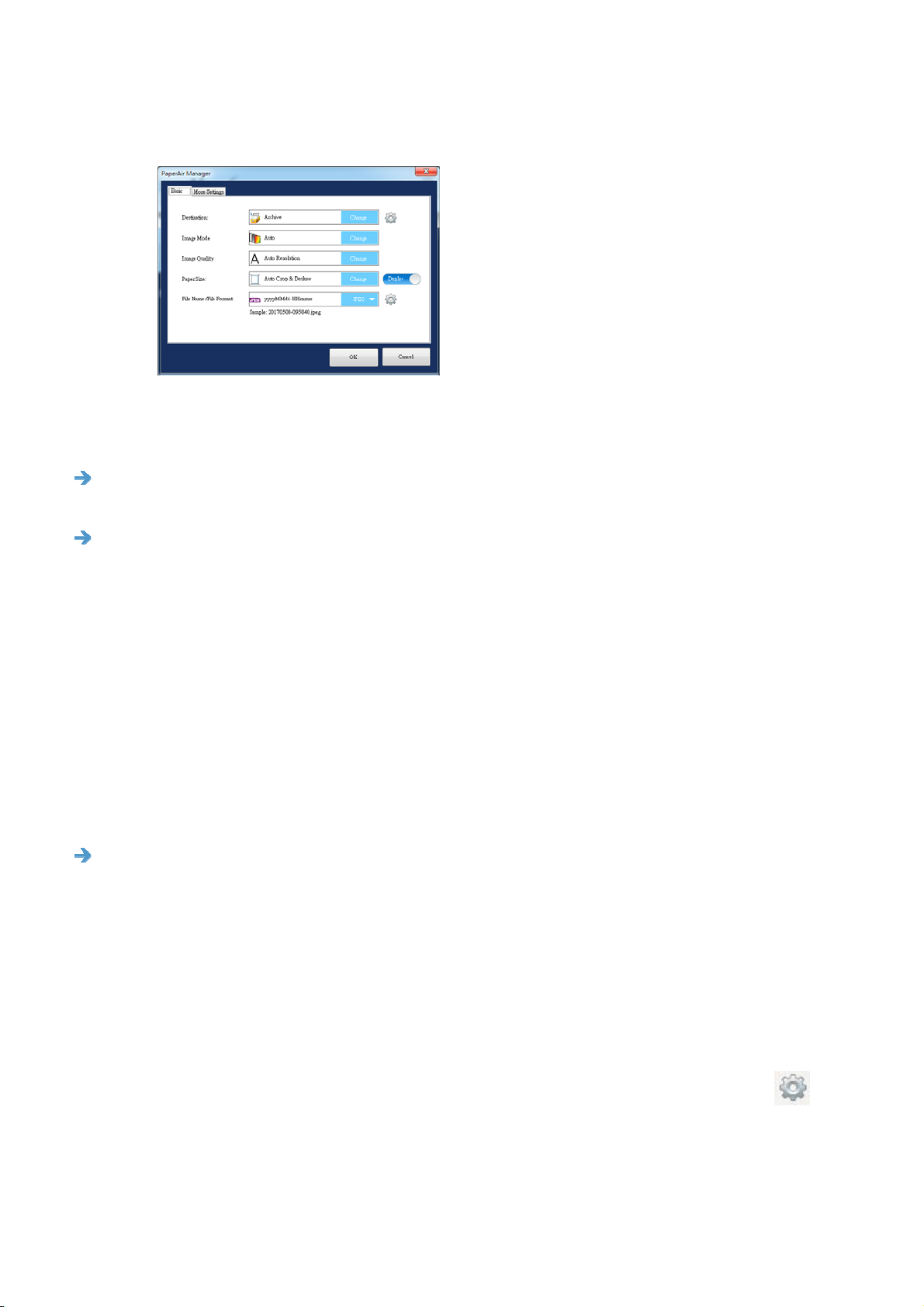
1. On the main window, right-click the [Scan] button. The [Scan Settings]
window will be displayed.
Or
1. Right-click the PaperAir Manager icon to prompt the following pop-up menu.
2. Click the [Direct Scan] option to prompt the following [Direct Scan] panel.
User’s Manual
Customizing PaperAir Manager
27
3. Right-click the button (function) you wish to check, the [Scan Settings]
window appears.
The [Scan Settings] window consists of the following tabs:
The Basic tab—Provide basic scan settings including the image mode, image
quality, paper size, file name and file format.
The More Settings tab—Provide more scan settings including the options of
removing blank images, rotating the image, and enabling multi-feed detection.
4.2 The Basic Tab
From the Basic tab, most of your configurations can be completed. The Basic tab allows
you to set basic settings including basic scan settings, file name, and file format for the
scanned image.
4.2.1 Selecting Your Destination
Destination:
Choose your destination to send your scanned image to the destination or
application. This option is only available for the [Direct Scan] mode. (For more
information about how to use the [Direct Scan] mode, please refer to Chapter
5 – Using the Direct Scan Mode)
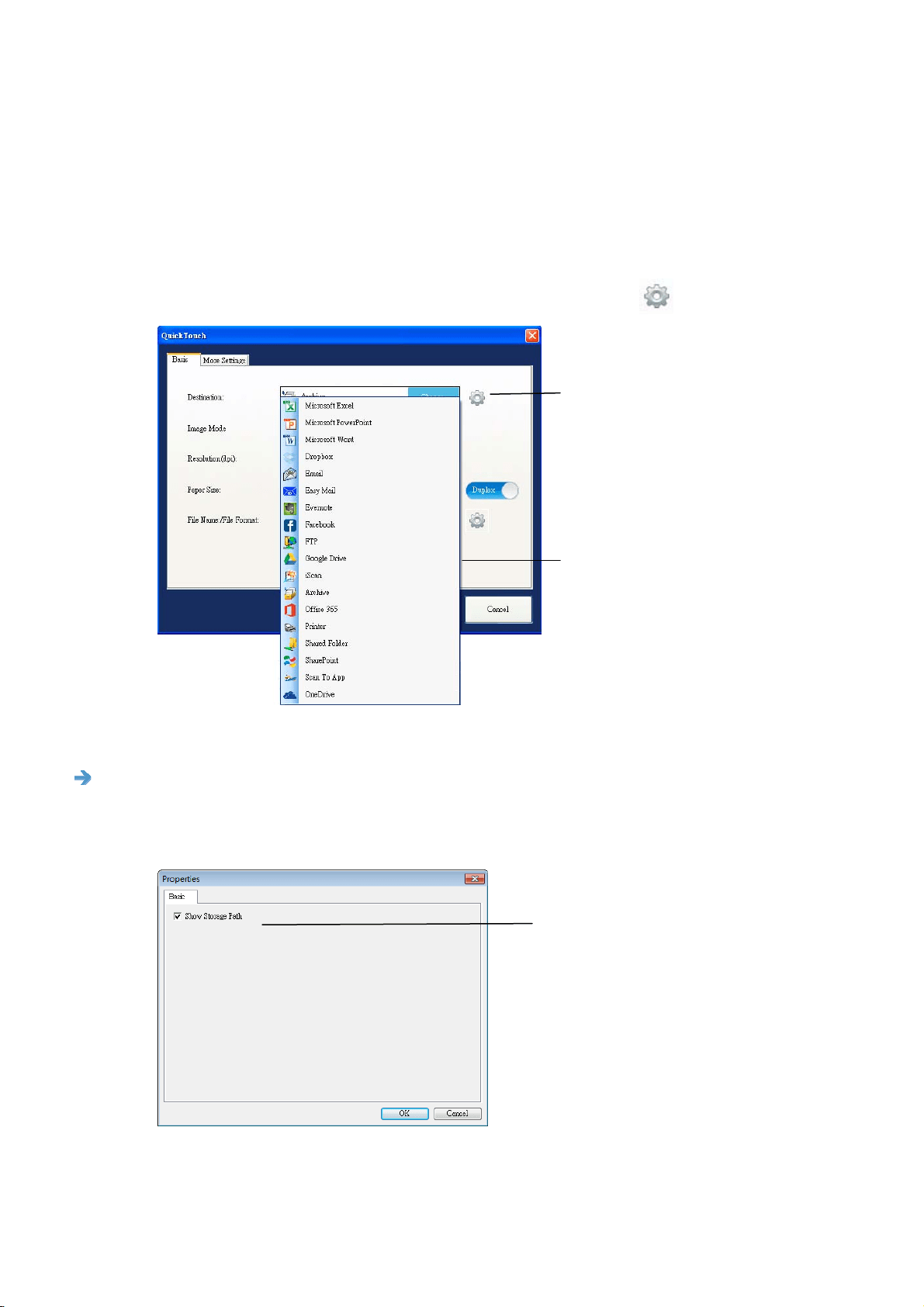
Choice: Microsoft Excel, Microsoft PowerPoint, Microsoft Word, Dropbox, E-mail
(your default e-mail software), Easy Mail, Evernote, facebook, FTP, Google
Drive, iScan, Archive, Office 365, Printer (your default printer), Shared Folder,
SharePoint, Scan to App, One Drive.
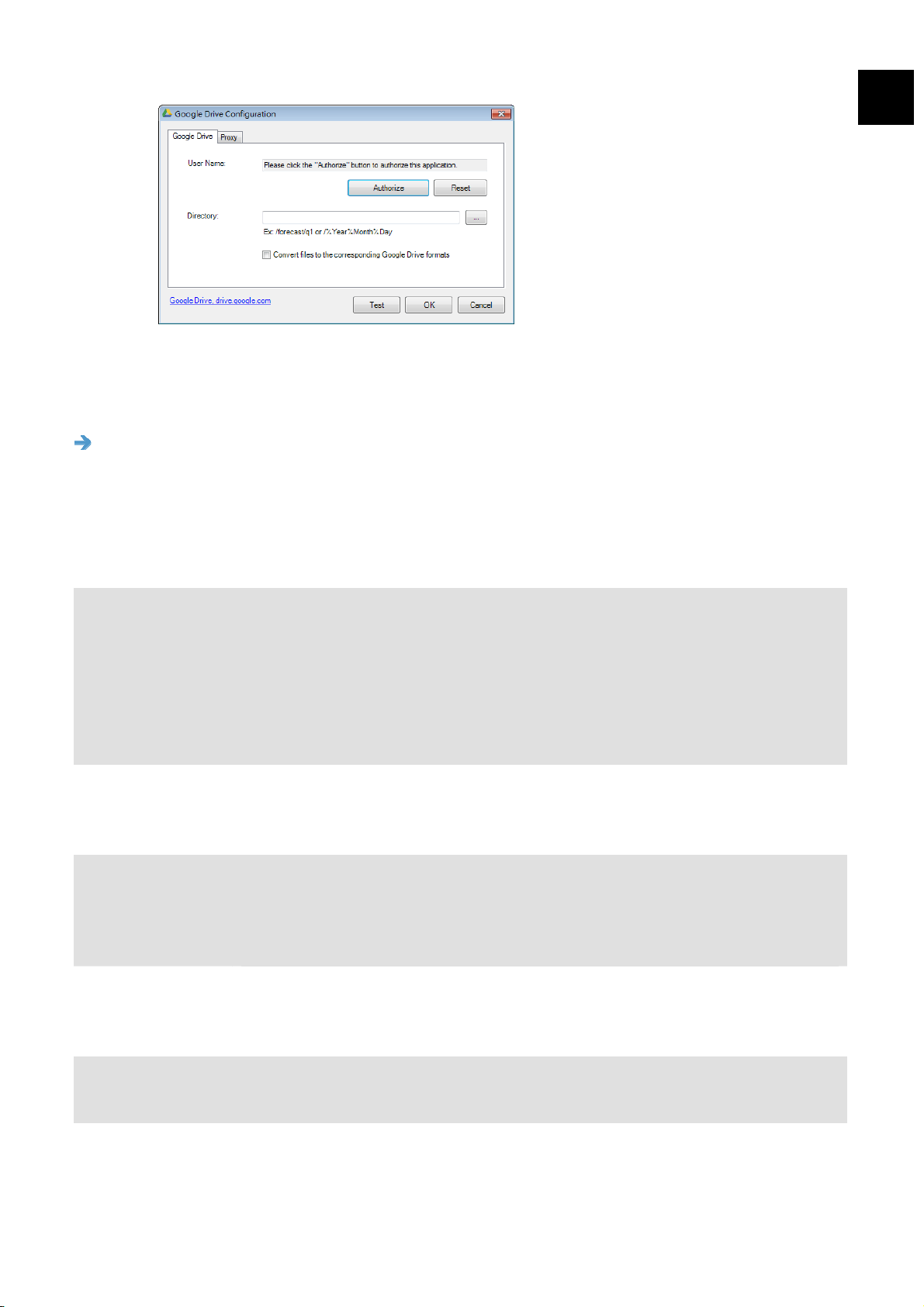
Destination Configuration:
To upload your scanned image to a network file server, be sure to click
(Configurations) and enter your account information. For example, to upload
image to Google Drive, you need to sign up for an account at Google’s web site.
User’s Manual
Customizing PaperAir Manager
28
4
4.2.2 Selecting Your Image Mode
Image Mode:
Select proper image mode for the scanned image.
Choice: *Auto, Color, Gray, and Black and White.
ITEM DESCRIPTION
Auto Click to automatically detect and scan your color document in color
image mode. If your document is in colors, the scanner will
automatically scan the document into a color image. If your
document is non-color, the scanner will scan your document in Black
and White mode. This option is useful when you have a mixture of
color and non-color document.
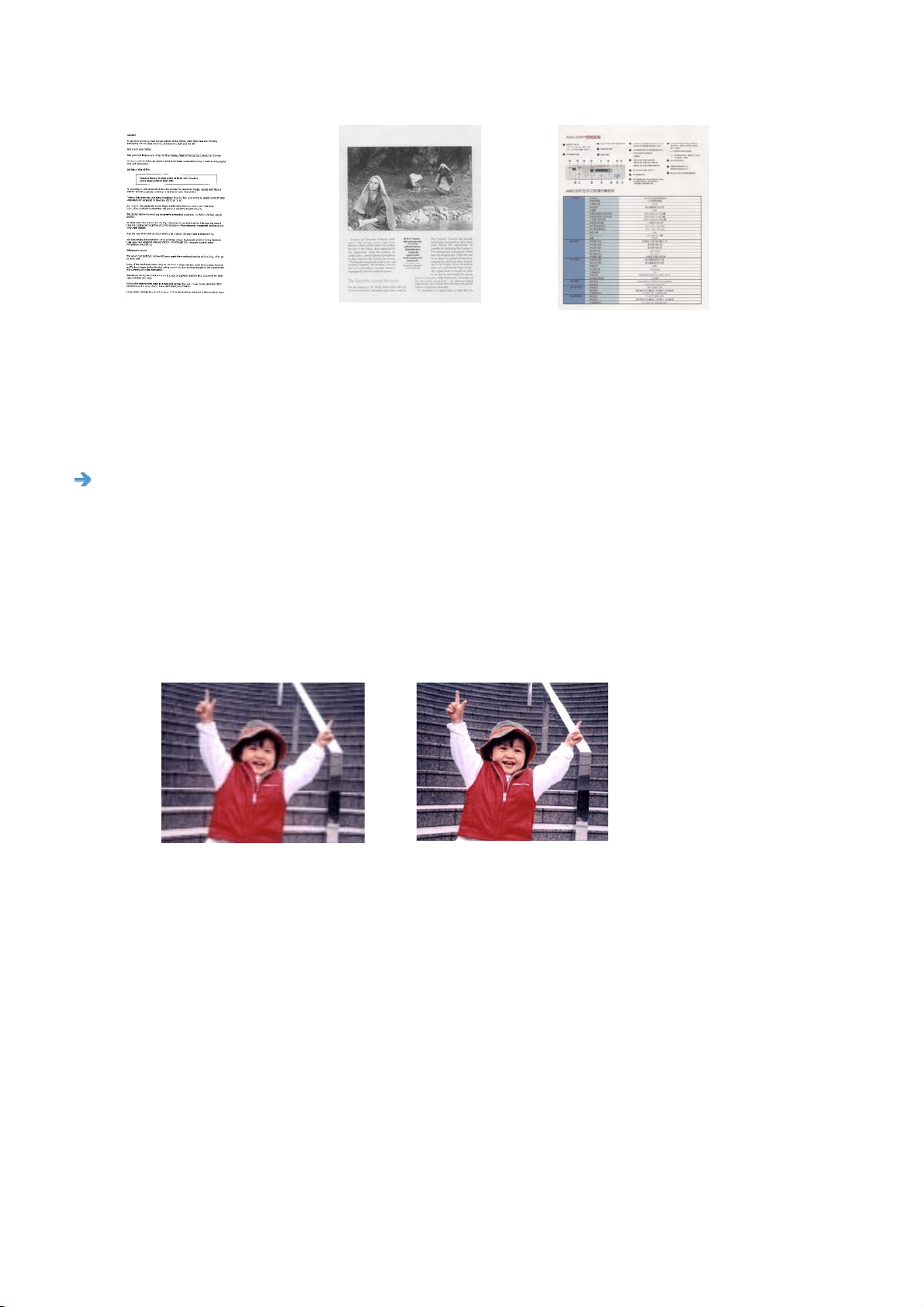
Color Choose Color to scan color photographs or color documents. Color
scan produces the largest file size.
Gray Choose Gray to scan documents containing drawings or black and
white photographs. This scanning produces an image of up to 256
shades of gray.
Black and
White
Choose Black and White to scan document containing purely text,
pencil, or ink sketch. This scan mode produces the smallest file size.
*: Default Setting
User’s Manual
Customizing PaperAir Manager
29
B&W Gray Color
4.2.3 Selecting Your Image Quality
Image Quality:
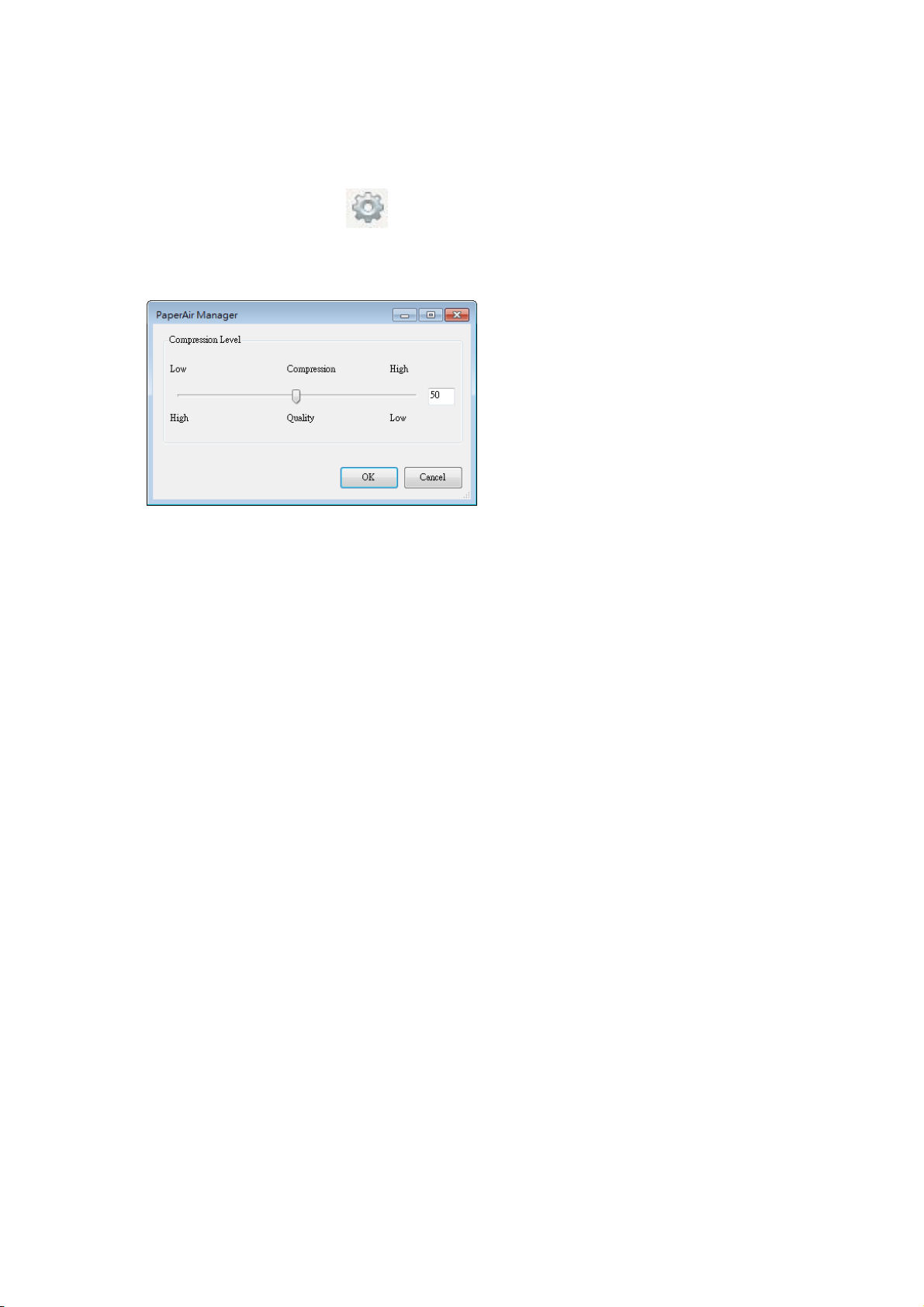
The image quality (resolution) is measured in pixels per inch (ppi) (sometimes
referred to as dots per inch or dpi). Higher resolutions result in more detail in
the scan, slower scanning and in general, greater file sizes.
Choice: *Auto Resolution, Low (200 dpi), Medium (300 dpi), and High
(600 dpi).
Auto Resolution: Automatically select a proper resolution to start a scan
according to your original document.
Low Resolution
Medium Resolution

User’s Manual
Customizing PaperAir Manager
30
4
4.2.4 Selecting Your Desired Paper Size
Paper Size:
Select one of the pre-defined paper sizes that matches the size of the original
document.
Choice:
*Auto Crop & Deskew
A4 – 8.2 x 11.6 in.
A5 – 5.8 x 8.2 in.
A6 – 4.1 x 5.8 in.
B5 – 6.9 x 9.8 in.
B6 – 4.9 x 6.9 in.
Postcard – 5.8 x 3.9 in.
Business Card – 3.5 x 2.1 in.
Letter – 8.5 x 11 in.
Legal – 8.5 x 14 in.
Auto Crop & Deskew: Automatically adjusts the cropping window according to
different document sizes and automatically straighten a skew image. Use this
option for batches of mixed-sized documents.
4.2.5 Selecting Simplex (One-Side) or Duplex (Two-Side)
Simplex/Duplex: Click this button to switch between Simplex/Duplex.
Simplex: Choose to scan one side of document.
*Duplex: Choose to scan the front and rear side of document. Note: The
availability of this feature varies depending on scanner type.
*: Default Setting
4.2.6 Setting File Name, and File Format
File Name:
The available file name consists of date and time which are jointed with a dash.
Choice: * yyyyMMdd-HHmmss, MMddyyyy-HHMMSS, and yyyy-MM-dd-HH-MM-
ss. For example, 20170417-154235 indicates date (year/month/date) and
154235 indicate time (hour/minute/second).
File Format:
The file format that you have selected determined the file format for the
scanned image of your document. Choose your ideal file format for the specific
destination. Choice: * JPEG、 PDF、DOCX、XLSX、PPTX
User’s Manual
Customizing PaperAir Manager
31
JPEG:
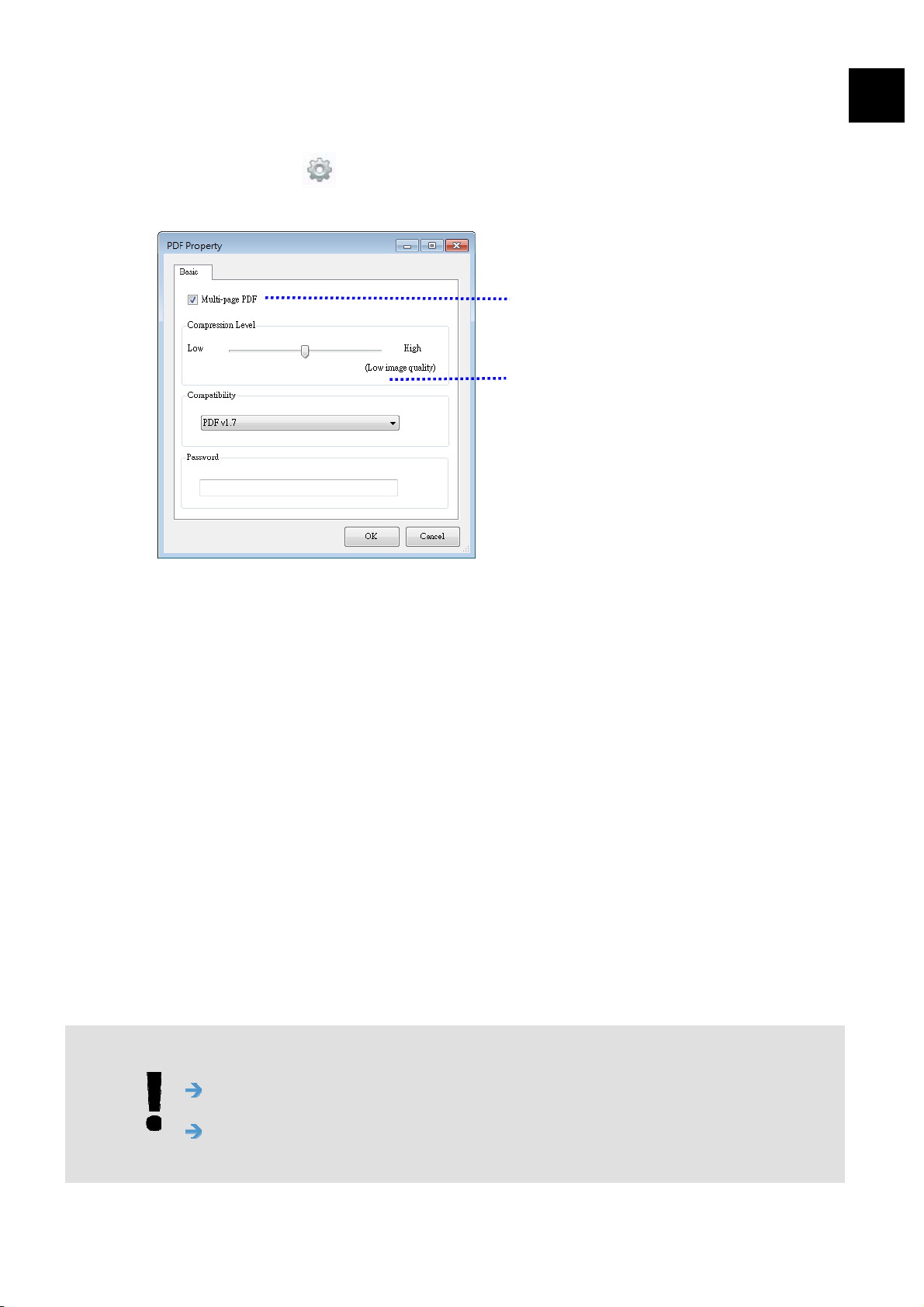
JPEG (Joint Photographic Experts Group) compression provides the best results
with continuous-tone color and the smallest file size. To compress your file size,
click the “Properties”
button. Move the slider to the right or to the left to
increase or decrease the level of compression. Note the greater the compression
level, the lower image quality.
PDF/Multi-Page PDF:
PDF (Portable Document Format) is a very popular file format used by Adobe.
You can view PDF files using Adobe Acrobat or Adobe Reader.
User’s Manual
Customizing PaperAir Manager
32
4
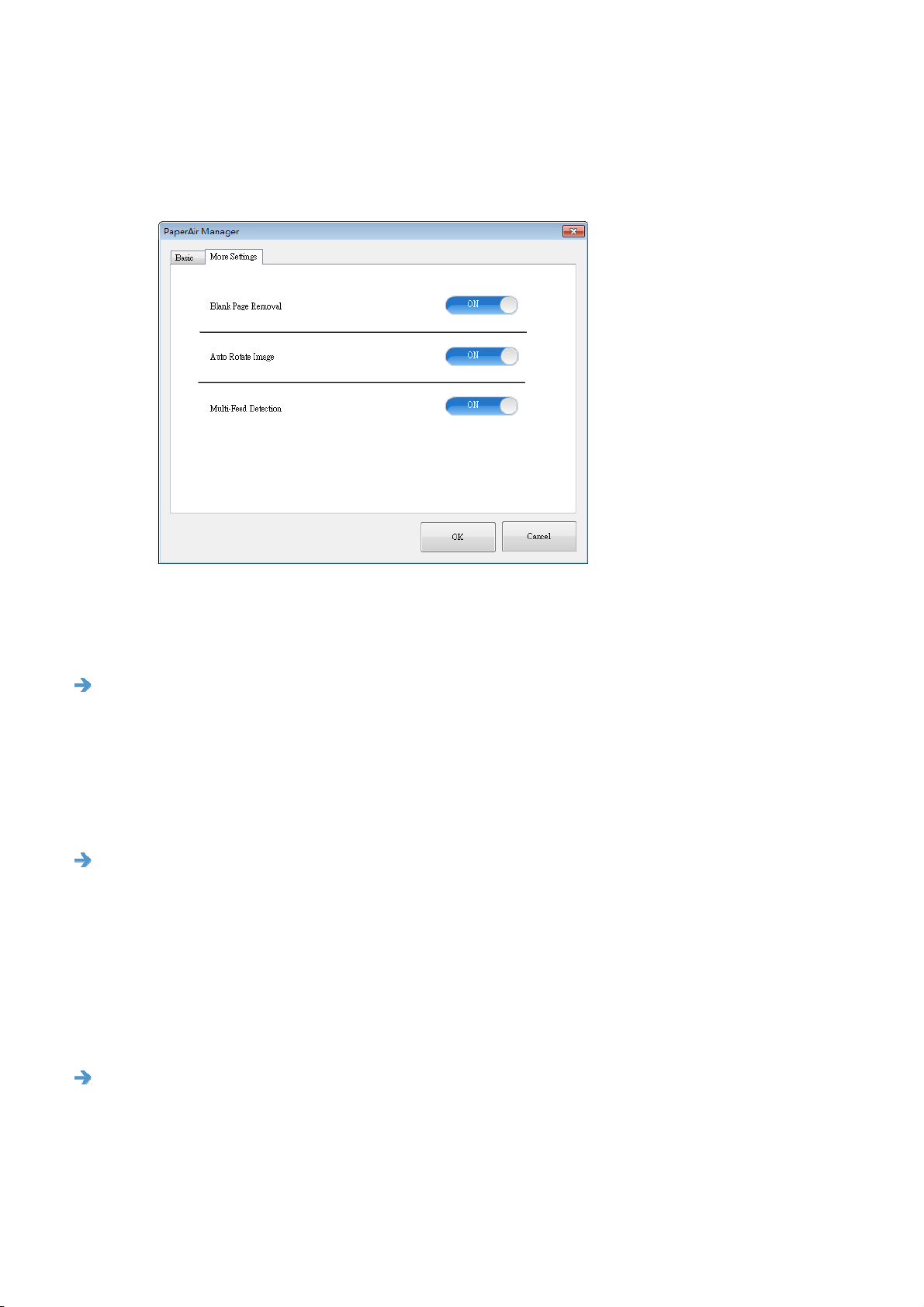
Multi-Page PDF: You may create a multi-page PDF file format by clicking the
Properties button
and then check [Multi-Page PDF]. Multi-PDF combines
all the scanned images into a single PDF file.
Check this button if you wish to
convert into a multi-page PDF
file.
Move the slider to change your
compression level.
More Options
- Compression Level: Increase your compression level by moving the
compression slider to the right or decrease your compression level by
moving the slider to the left. Note: The higher compression level, the lower
image quality.
- Compatibility: Choose your PDF version from the “Compatibility” option
including PDF (Quick Mode), PDF V1.0 ~ V1.7, PDF/A 1a, PDF/A 1b, PDF/A
2a, PDF/A 2b, PDF/A 3a, PDF/A 3b, PDF/A 3u. The specifications for PDF are
backward inclusive. The PDF 1.7 specification includes all of the functionality
previously documented in the Adobe PDF Specifications for versions 1.0
through 1.6.
- Password: If you wish to add security to your file, type your password from
the “Password” option and type your password.
PPTX: a file extension for a presentation file format used by Microsoft
PowerPoint.
DOCX: a document file format used by Microsoft Words.
XLSX: a file extension for a spreadsheet file format used by Microsoft Excel.
NOTES
Save your document to Microsoft Word/PowerPoint/Excel when
you need to edit the text of your document.
To save your document in Microsoft Word/PowerPoint/Excel, note
the font type may not be the same with your original document.
User’s Manual
Customizing PaperAir Manager
33
4.3 The More Settings Tab
The [More Settings] tab provides the following options.
4.3.1 Removing Blank Page
Blank Page Removal:
Automatically remove blank page according to optimized threshold.
Choice: *On, Off
4.3.2 Rotating Your Images
Auto Rotate Image
Automatically rotate image based on the contents of document.
Choice: *On, Off
4.3.3 Enabling Multi-Feed Detection
Multi-Feed Detection
Multi-Feed Detection allows you to detect overlapped document that go through
the auto document feeder. Multi-Feed usually occurs due to stapled documents,
adhesives on documents, or electro-statically charged document. If Multi-Feed
is detected, a warning dialog box will be displayed.

User’s Manual
Customizing PaperAir Manager
34
4
Action:
1. Follow the instruction on the Warning dialog box to remove the rest
pages on the feeder.
2. Click OK to close the Warning dialog box.
3. Scan the rest pages.
User’s Manual
Customizing PaperAir Manager
35
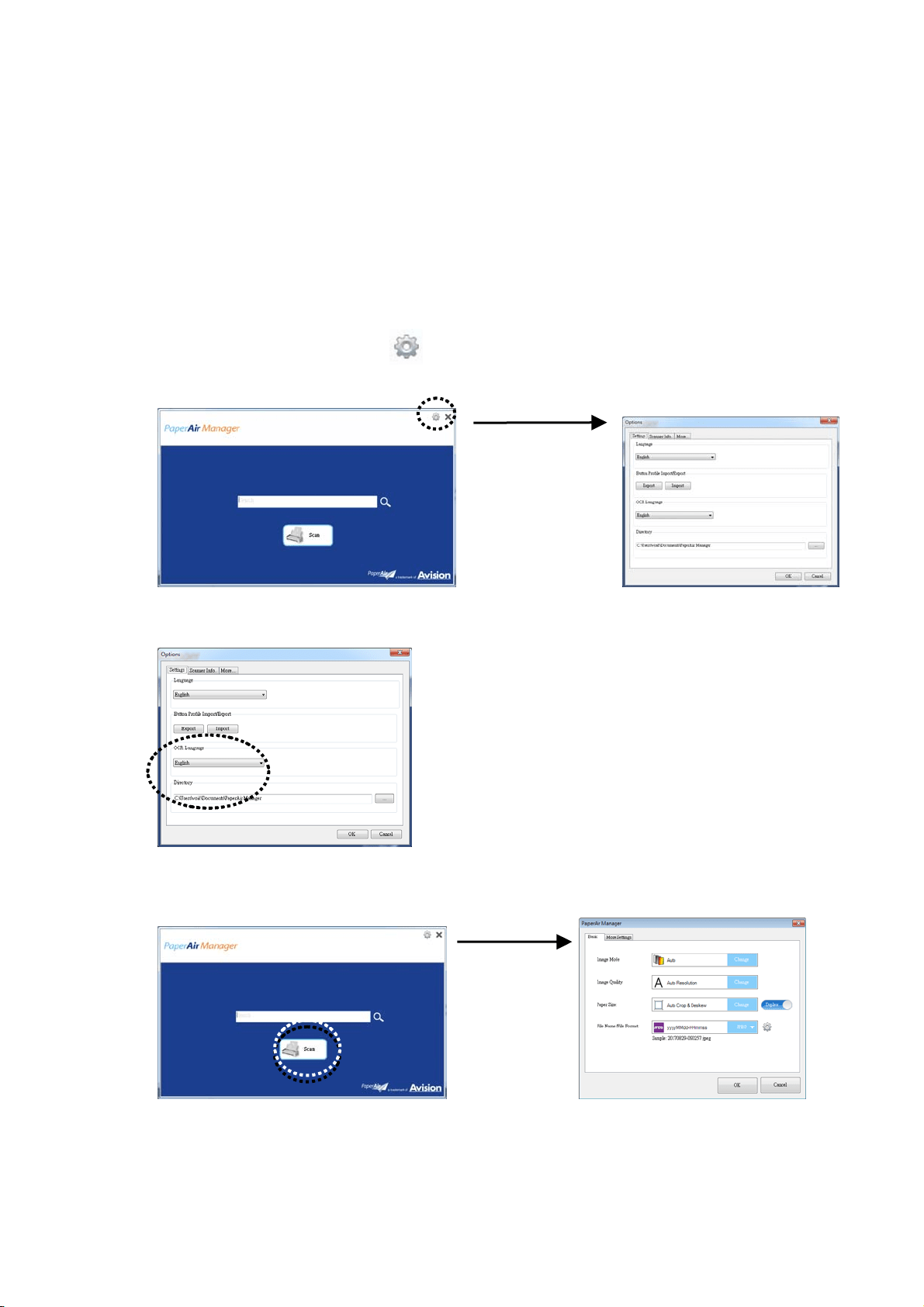
4.4 Creating a Searchable PDF File
PaperAir Manager allows you to save your scanned images in PDF or searchable PDF file
format. With the OCR (Optical Character Recognition) engine which supports over a
hundred of languages, your electronic documents can be searched and managed more
effectively.
To save your images in searchable PDF file format,
1. On the main window, click
on the upper-right corner. This will prompt the
[Options] dialog box.
2. Choose your desired language from the [OCR Language] option.
3. On the main window, right-click the [Scan] button to prompt the [Scan
Settings] dialog box.
4. Choose [PDF] from the [File Format] option and click [OK] to save the
settings and leave the dialog box.
User’s Manual
Customizing PaperAir Manager
36
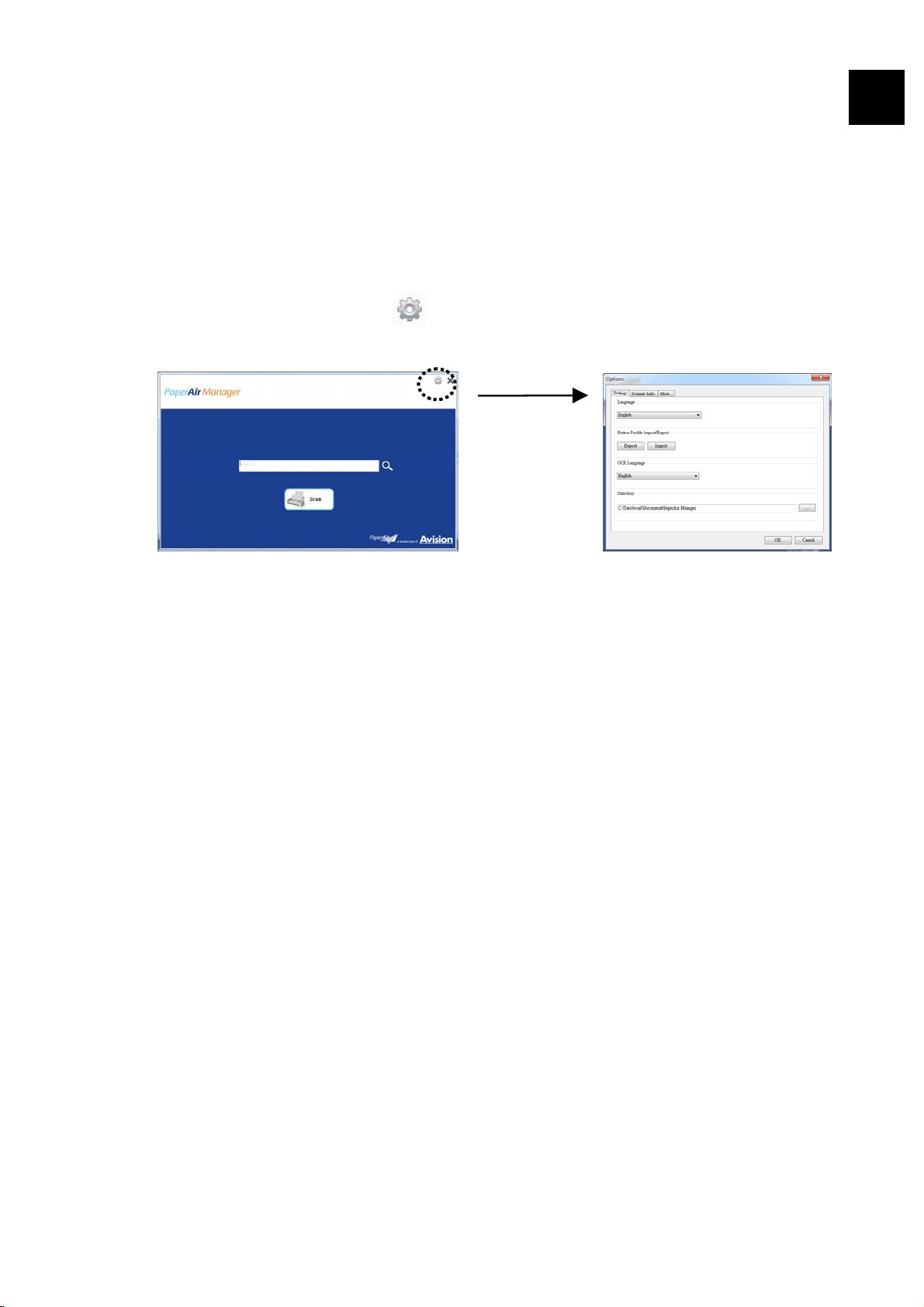
4.5 Using the Options Menu
The Options menu allows you to change the application’s default settings and view
detailed information; such as changing the user interface language and viewing the scan
count.
To access the PaperAir Manager Options Menu:
1. On the main window, click
on the upper-right corner. This will prompt the
[Options] dialog box.
4
The [Options] dialog box includes the [Settings] and [Scanner Info] tabs
which will be described in the following section.
User’s Manual
Customizing PaperAir Manager
37
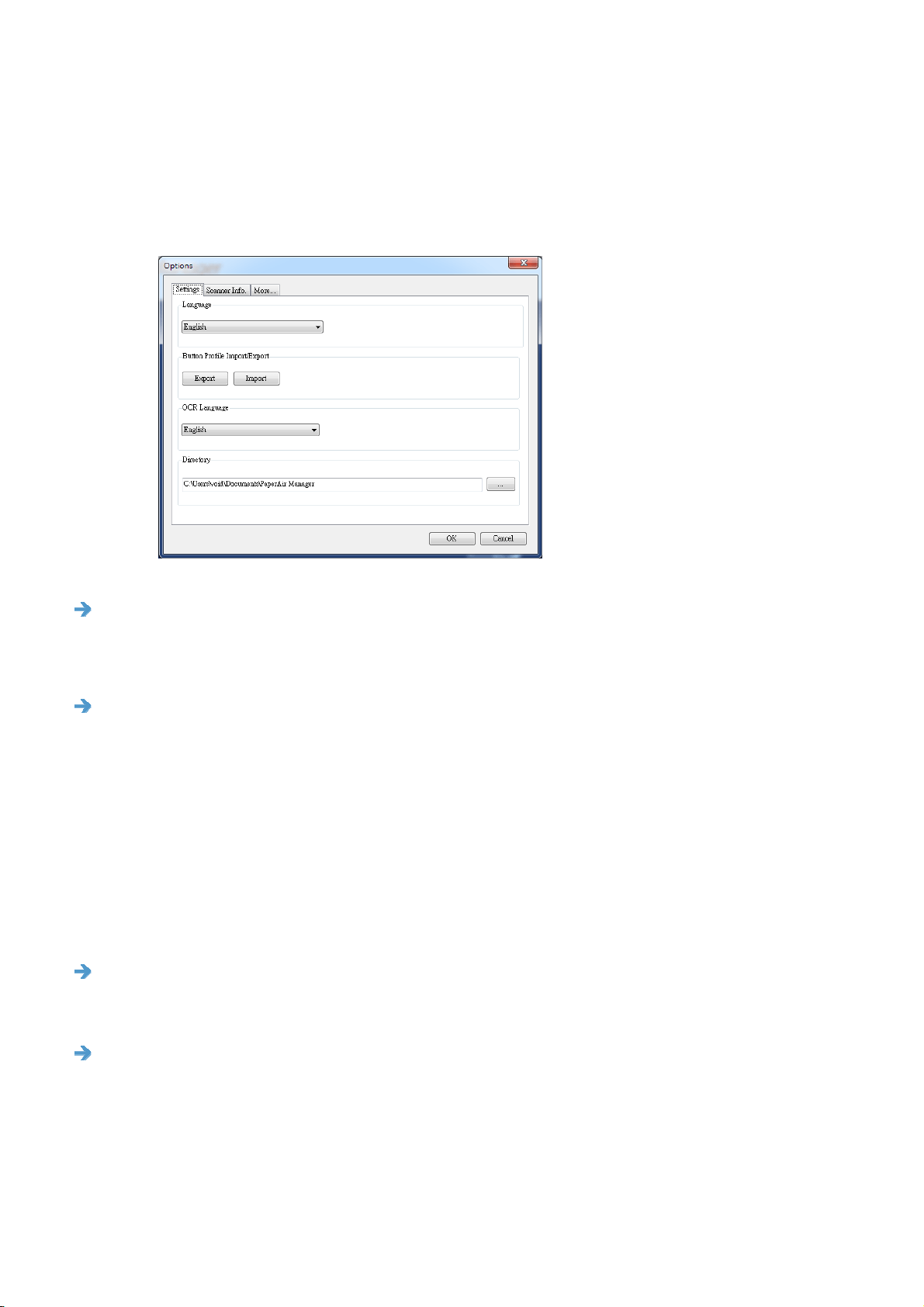
4.5.1 The Settings Tab
The Settings tab contains the following options:
Language
Select your desired language shown from the combo box. After clicking the OK
button, the specified language will be immediately displayed.
Button Profile Import/Export
This feature allows you to copy the button profiles of one PaperAir 215 to
another PaperAir 215 without having to creating the same button profiles
repeatedly.
Export:
Click [Export] to save current button profiles (destinations and scan settings)
to a .bm2 file.
Import:
Click [Import] to import the button profiles (.bm2 file) of one PaperAir 215 to
another PaperAir 215.
OCR Language
If you wish to convert your file to searchable PDF, choose your OCR language
from the “OCR Language” option.
Directory
If desired, you may click the Browse button to change the location where all the
scanned documents will be saved and searched.

User’s Manual
Customizing PaperAir Manager
38
4
NOTE
1. The following folder or drive can not be used to store the scanned
images.
The [Windows] folder in your system drive
A shortcut folder
A removable USB drive
A CD or DVD-ROM drive
2. A [PaperAir Manager] subfolder will be automatically added to
your specified folder.
3. The specified folder must be writeable and accessible.
User’s Manual
Customizing PaperAir Manager
39
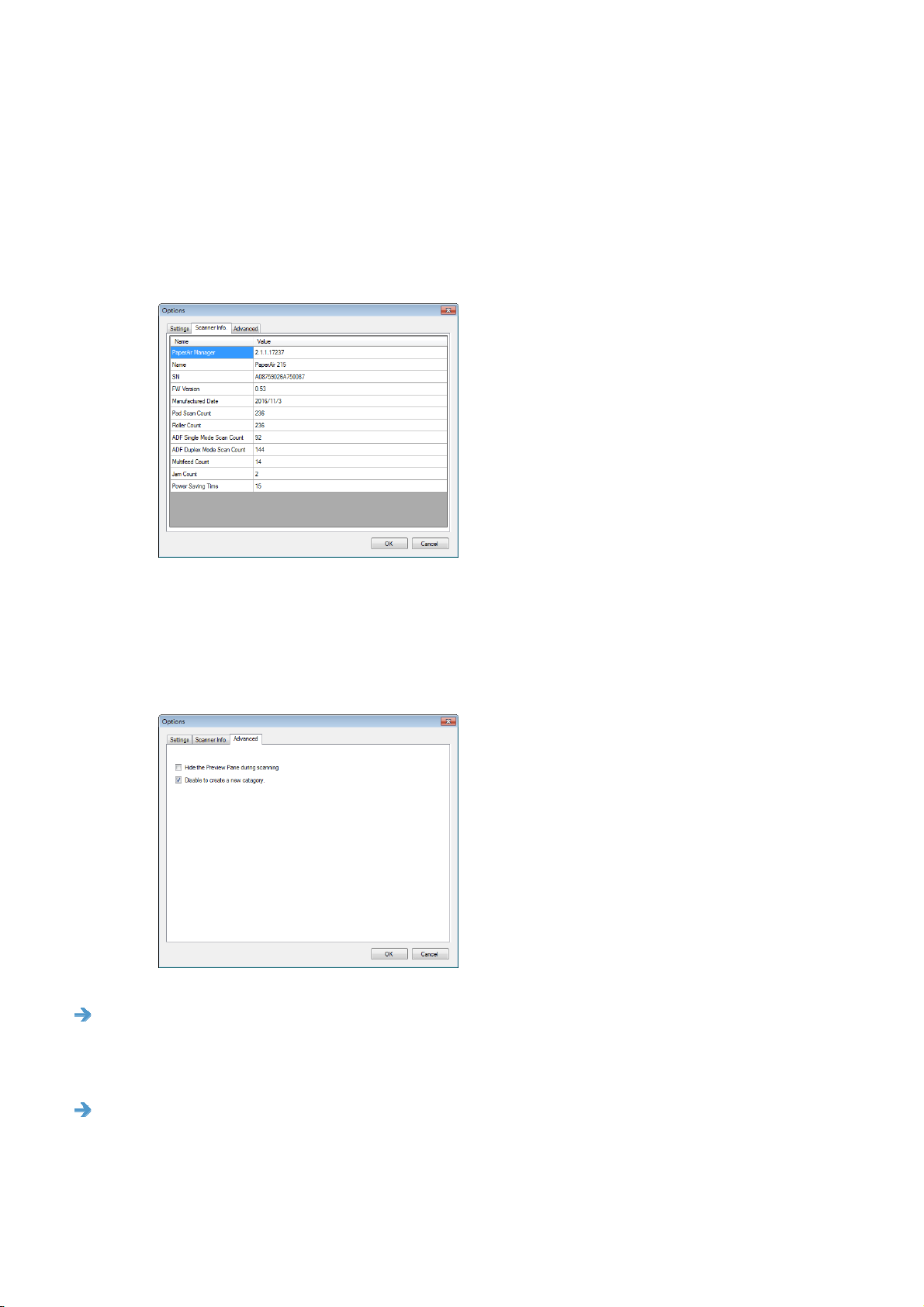
4.5.2 The Scanner Information Tab
The Scanner Info. Tab allows you to view all the information about the scanner
including serial number, pad count, roller count, and firmware version. These are helpful
information when you report a problem to the service personnel.
4.5.3 The More Tab
The More Tab contains the following options:
Hide the Preview Pane during scanning
Check this item to hide the Preview Pane during scanning to increase your
scanning speed.
Disable to create a new category
Check this item to create a new category in a preset directory for the scanned
images.
User’s Manual
Using the Direct Scan Mode
40
5
5. USING THE DIRECT SCAN MODE
5.1 Starting PaperAir Manager
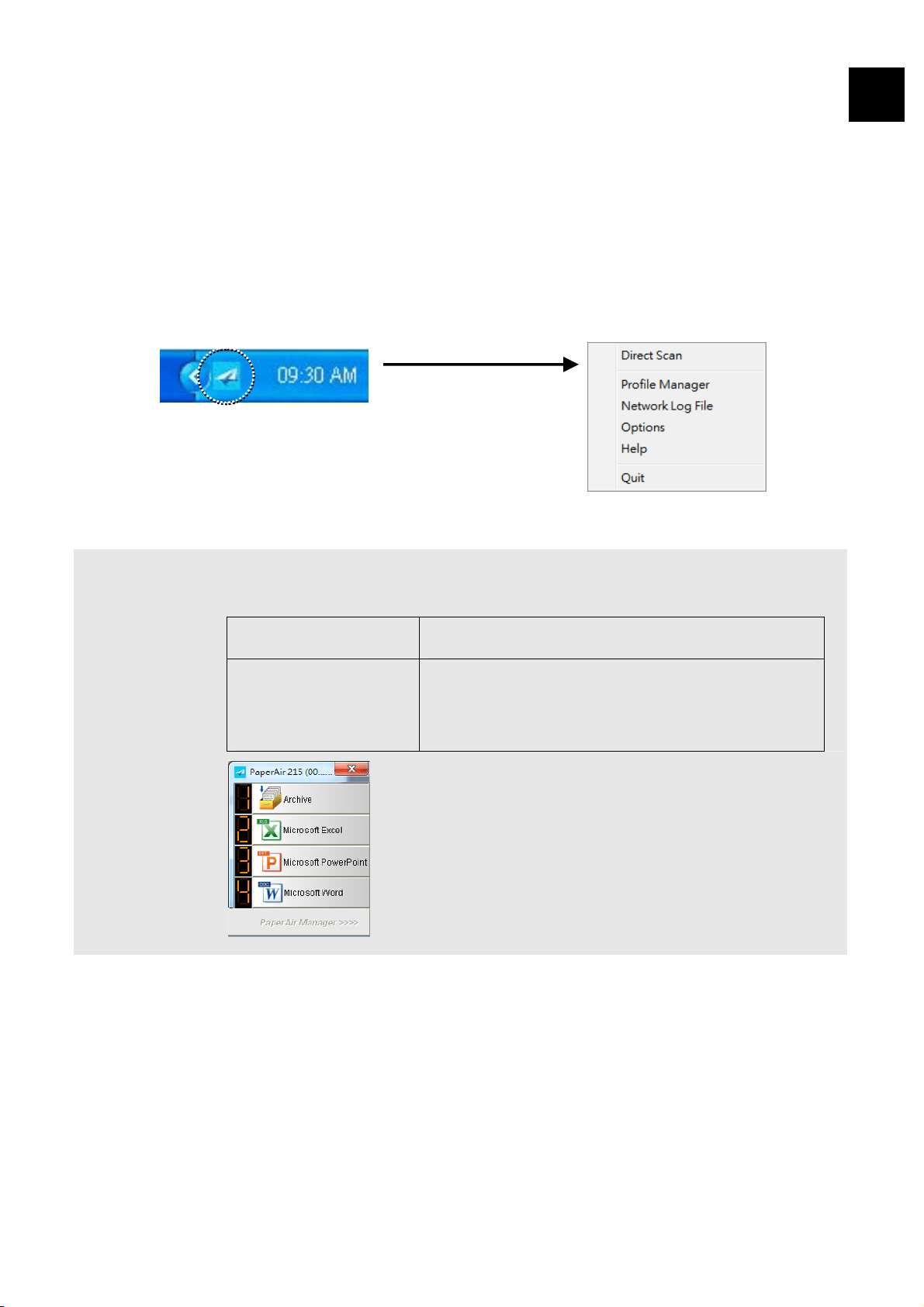
1. Right-click the PaperAir Manager icon to prompt the following Pop-Up Menu.
ITEM DESCRIPTION
Direct Scan Click to displays the following [Direct Scan] panel.
Archive Press to scan your document and store the
image to a specified folder.
Microsoft Excel
Microsoft
PowerPoint
Microsoft Word
Press to recognize your text and insert the
text to a Microsoft Excel/PowerPoint/Word
file.
User’s Manual
Using the Direct Scan Mode
41
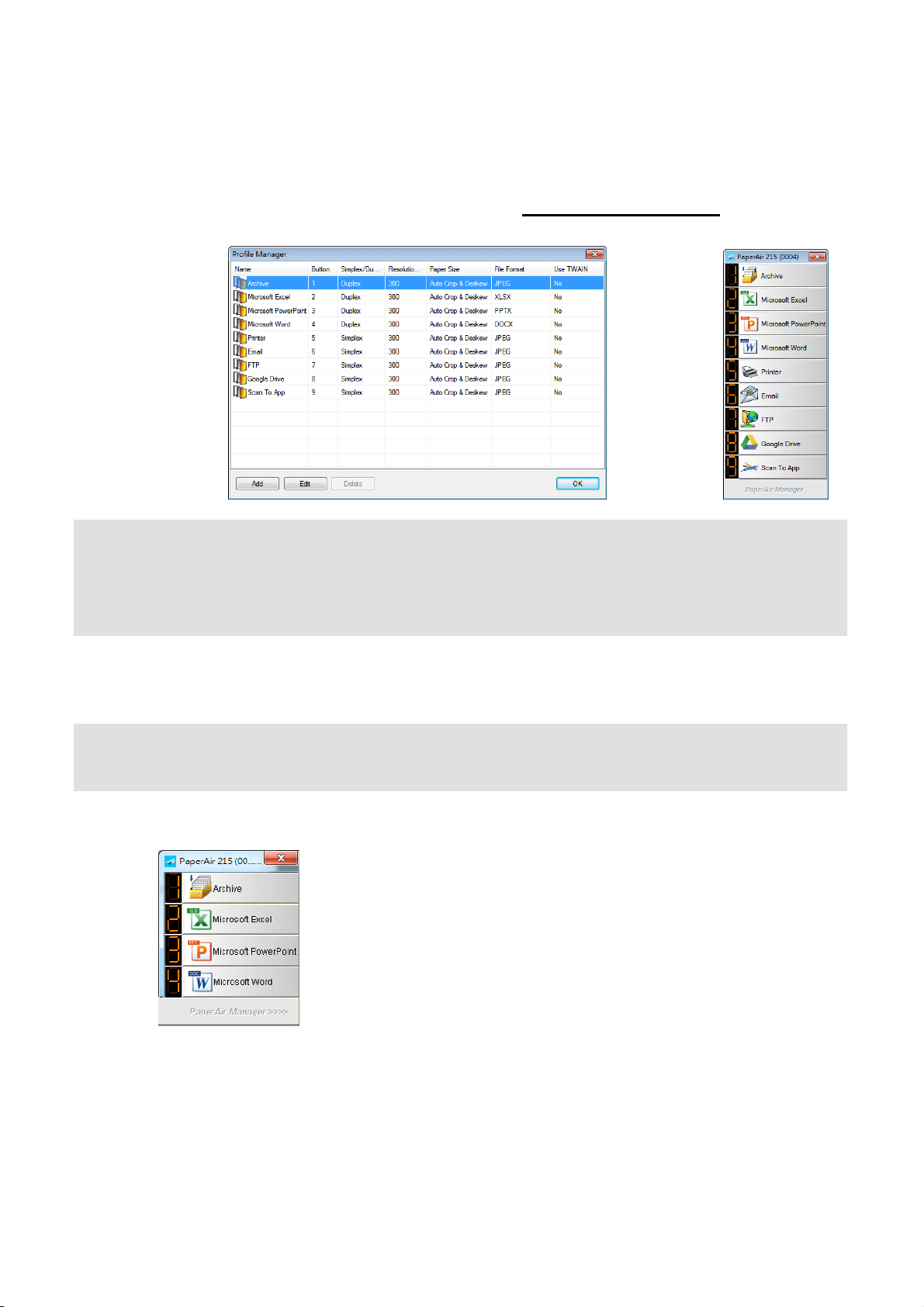
Profile
Manager
Check [Profile Manager] to prompt the following [Profile Manager]
dialog box. The [Profile Manager] dialog box allows you to create the
first 9 profiles to be displayed in the [Direct Scan] panel. See more
details in the subsequent section, Working with Profile
on how to
create your profiles.
Network Log
File
Save the network log file each time your scanned image is sent to the
network. The log file lets you know if the scanned image has been
successfully sent to the network.
Options The Options menu allows you to change more settings or view more
detailed information.
Help Displays the online Help.
2. Check [Direct Scan] and the following [Direct Scan] Panel will be displayed.
User’s Manual
Using the Direct Scan Mode
42
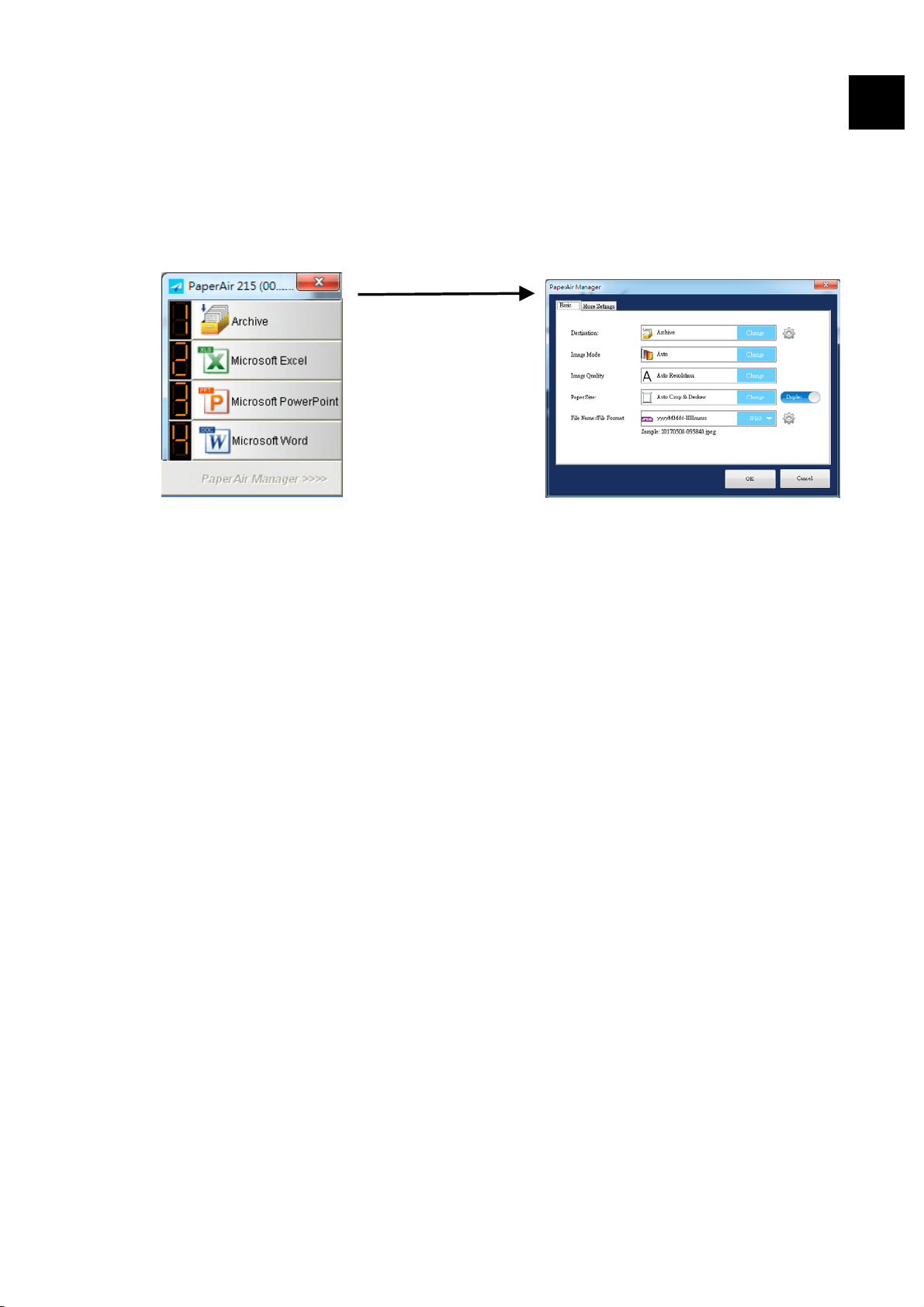
5.2 Checking Scan Settings Before Scanning
Right-click the button (function) you wish to check, the [Scan Settings] window appears.
5
The Scan Settings window consists of the following options:

User’s Manual
Using the Direct Scan Mode
43
NAME DESCRIPTION
Destination
Choose your destination to send your scanned image to the
destination. This option is only available in the [Direct Scan]
mode.
Choice: Microsoft Excel, Microsoft Word, Microsoft PowerPoint,
Dropbox, Easy Mail, E-Mail, Evernote, Facebook, FTP, Google
Drive, iScan, * Archive, Office 365, Printer, SharePoint,
Shared Folder, Scan to App, OneDrive.
Image Mode
Choose proper image mode for the scanned image.
Choice: *Auto, Color, Gray, and Black and White.
Auto: Automatically convert image mode according to your
original document.
Resolution
Choose your ideal resolution for the scanned image.
Choice: *Auto Resolution, High (600 dpi), Medium (300
dpi), Low (200 dpi)
Auto Resolution: Automatically select proper resolution to
start a scan according to your original document.
Paper Size
Choose your ideal scan size.
Choice:
*Auto Crop & Deskew
A4 – 8.2 x 11.6 in.
A5 – 5.8 x 8.2 in.
A6 – 4.1 x 5.8 in.
B5 – 6.9 x 9.8 in.
B6 – 4.9 x 6.9 in.
Postcard – 5.8 x 3.9 in.
Business Card – 3.5 x 2.1 in.
Letter – 8.5 x 11 in.
Legal – 8.5 x 14 in.
Auto Crop & Deskew: Automatically adjusts the cropping
window according to different document sizes and
automatically straighten a skew image.
Simplex/Duplex
Click this button to switch between Simplex/Duplex.
Simplex: Choose to scan one side of document.
*Duplex: Choose to scan the front and rear side of document.
File Name/File
Format
Select your desired file name and file format.
Choice: * JPEG、 PDF、DOCX、XLSX、PPTX

User’s Manual
Using the Direct Scan Mode
44
5
*: Default Setting
If you wish to change the setting, use this window to reset the settings. For detailed
information on how to change the scan settings, see “Customizing the PaperAir Manager”
in the subsequent section to reset the settings.
2. Click [OK] to leave the window.
User’s Manual
Using the Direct Scan Mode
45
5.3 Scanning Your Document
1. Load paper to your scanner.
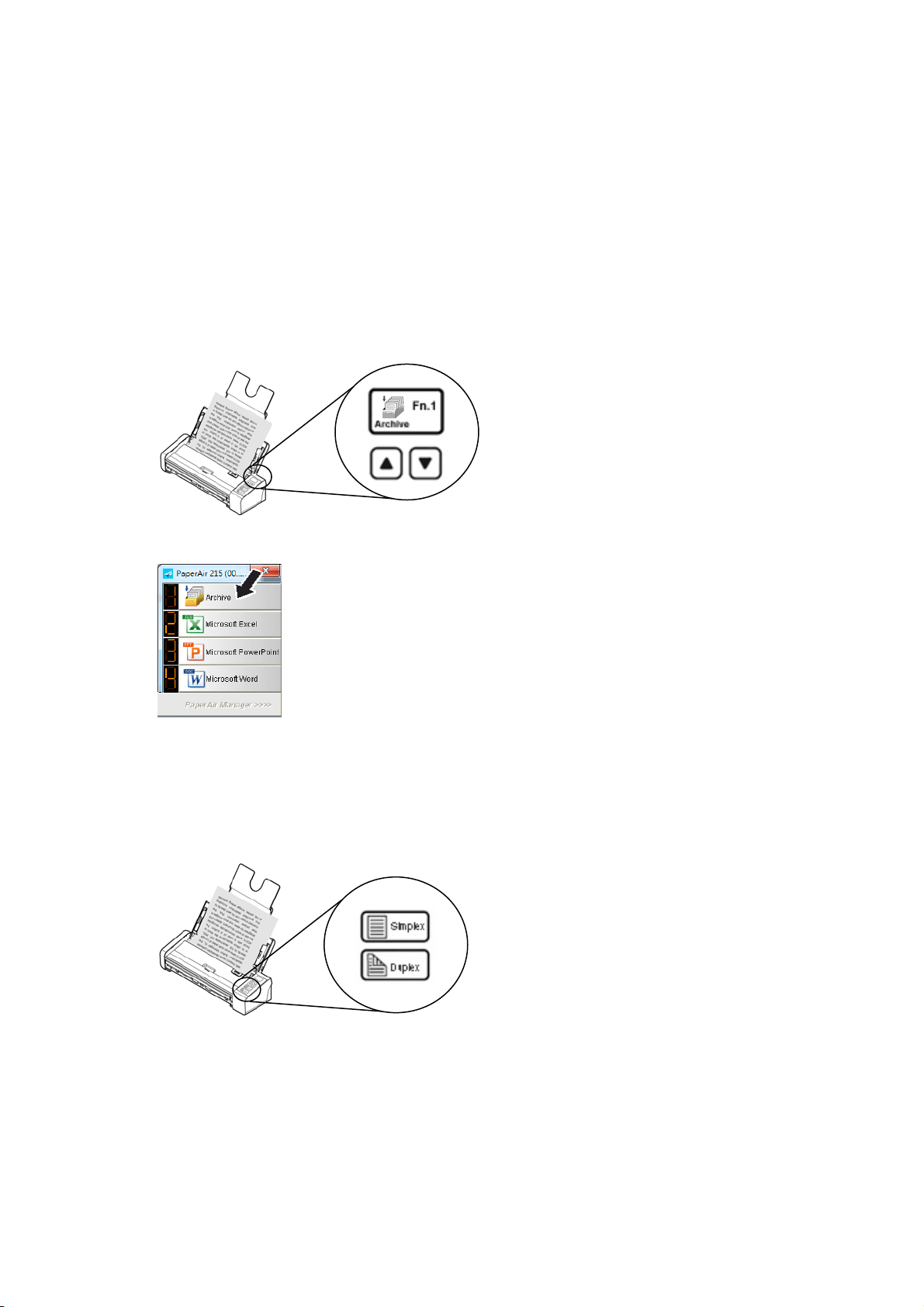
2. Check the number on LCD screen on the scanner to ensure if you are selecting
the proper scan settings and destination application. (For example, if you wish
to scan with button #1 [Archive] which scans and sends the scanned image to
a preset specified location, the LCD screen should show [Archive Fn1])
3. Click [Archive] on the [Direct Scan] Menu to start a scan.
Or
3. Press the Simplex (1-Side) or Duplex (2-Side) button on scanner to start a
scan.
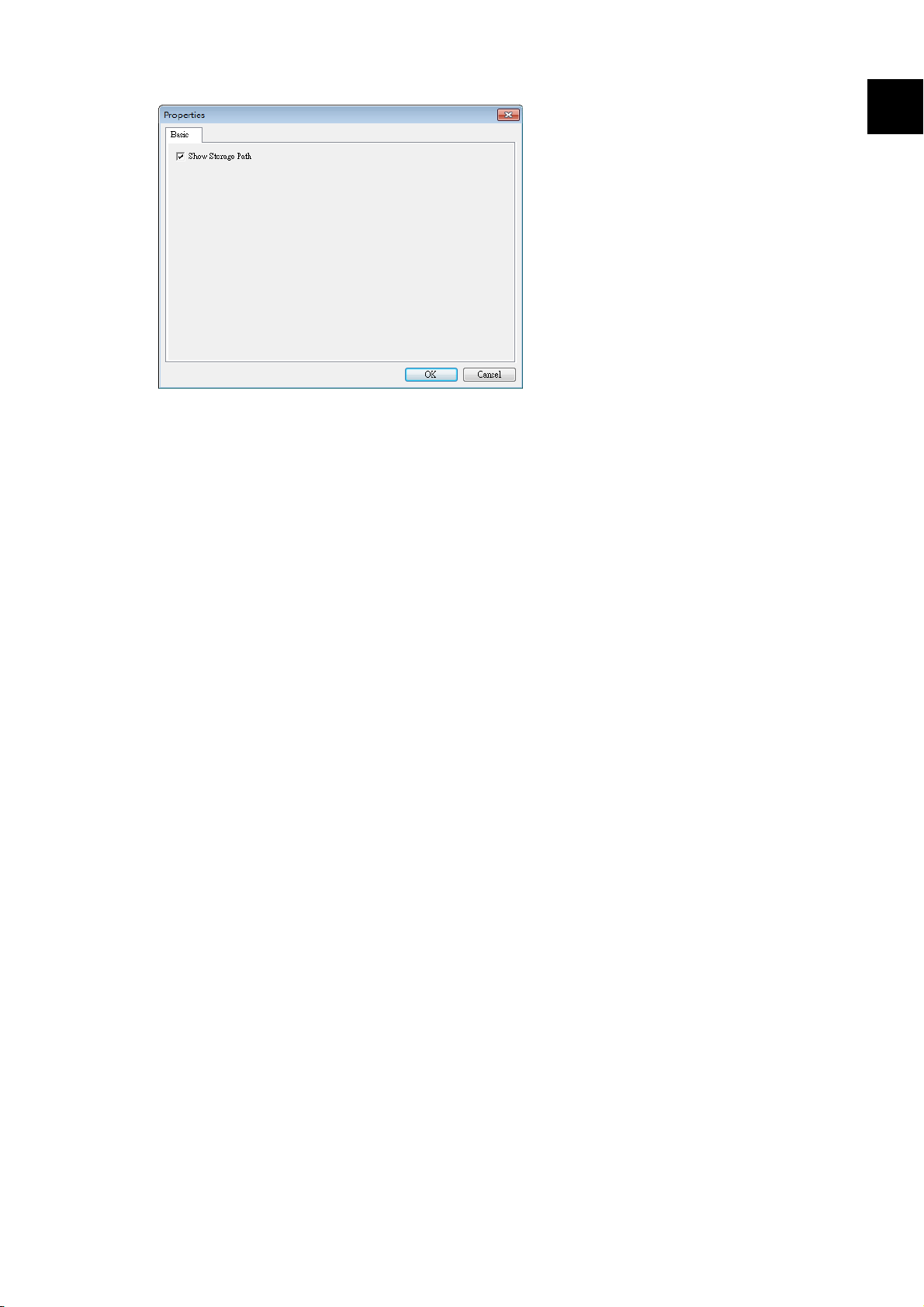
4. A [Show Storage Path] dialog box will be first displayed. Select [Show Storage
Path] and choose [OK] to show the preset location after scan.
User’s Manual
Using the Direct Scan Mode
46
5
5. Paper begins feeding through the scanner and a scanning progress bar appears.
During scan, a Status pop-up menu will be displayed in the system tray. When
the scan is finished, an OK message will be displayed.
If [Show Storage Path] is selected, the specified location will be displayed.
User’s Manual
Using the Direct Scan Mode
47
5.4 Exiting PaperAir Manager
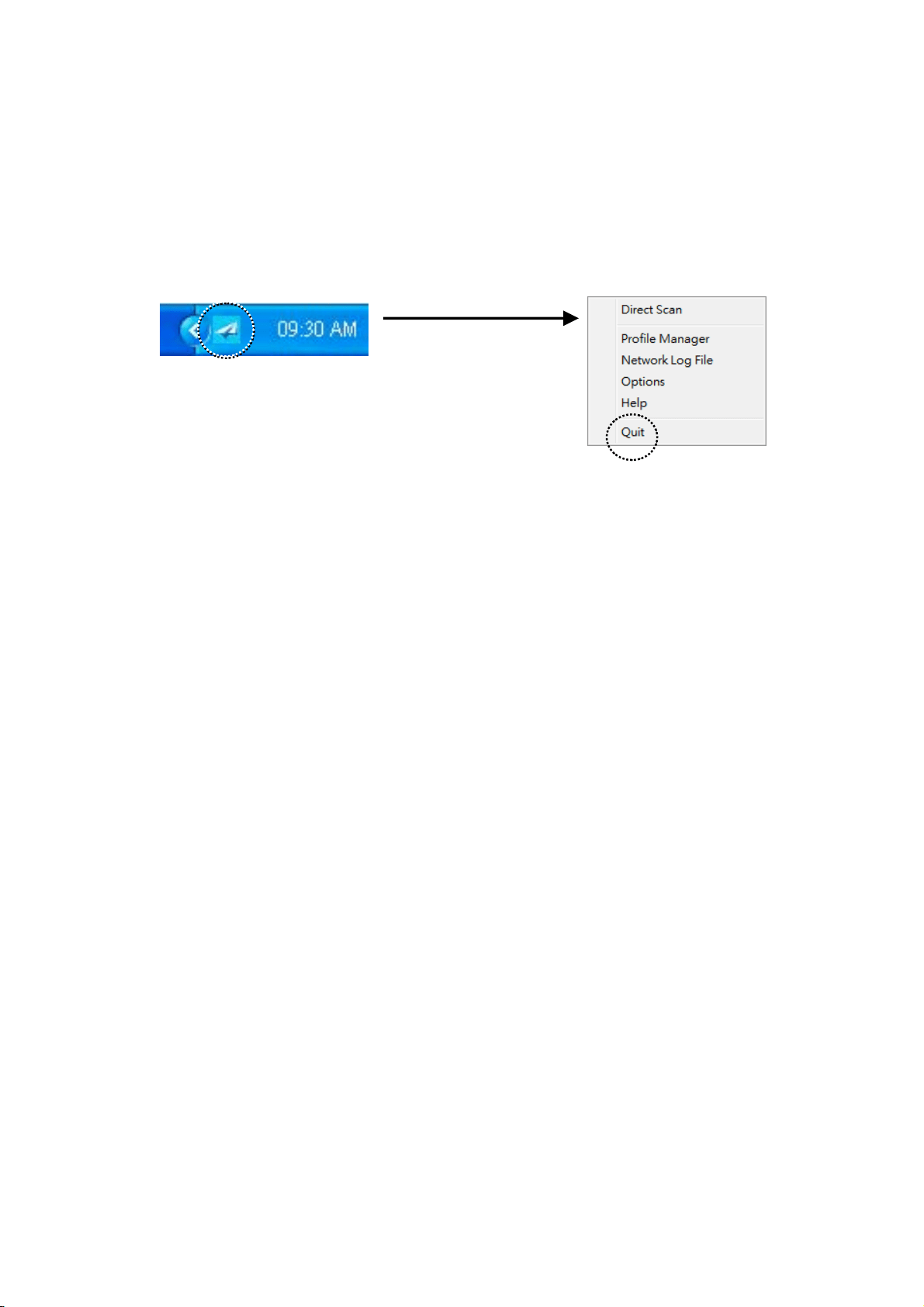
Simply choose [Quit] from the right-mouse menu of the PaperAir icon.
User’s Manual
Using the Direct Scan Mode
48
5
5.5 Working with Your Profiles
This section explains how to add, or modify your profiles. Each profile consists of a
destination and a set of scan settings. Note the profile is only available in the [Direct
Scan] mode.
5.5.1 Adding a New Profile
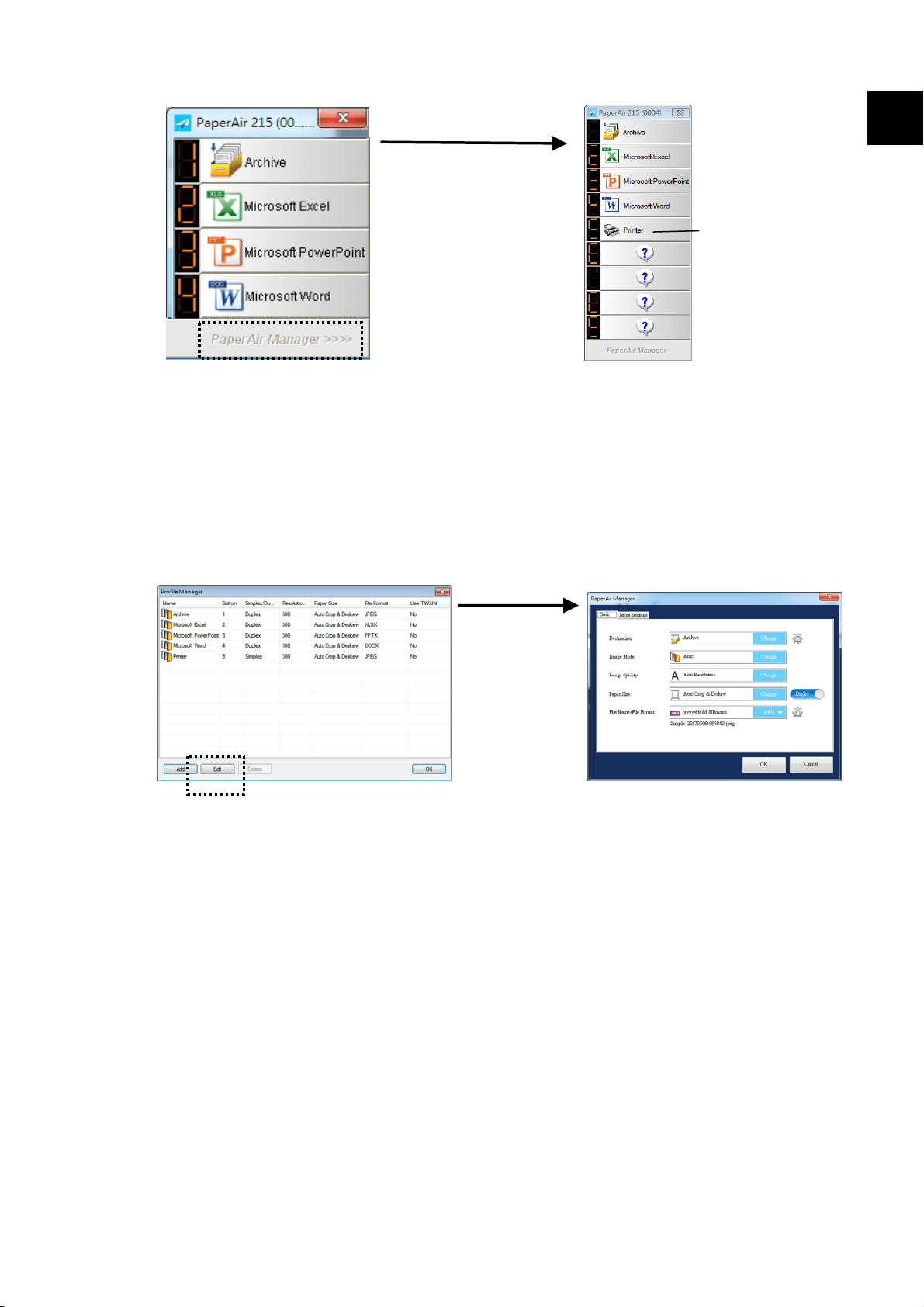
PaperAir Manager is preset with four button profiles. You can specify up to 9 profiles for
your frequently scanning tasks. A profile is useful for quickly loading particular settings
that you need for certain documents.
To add a new profile,
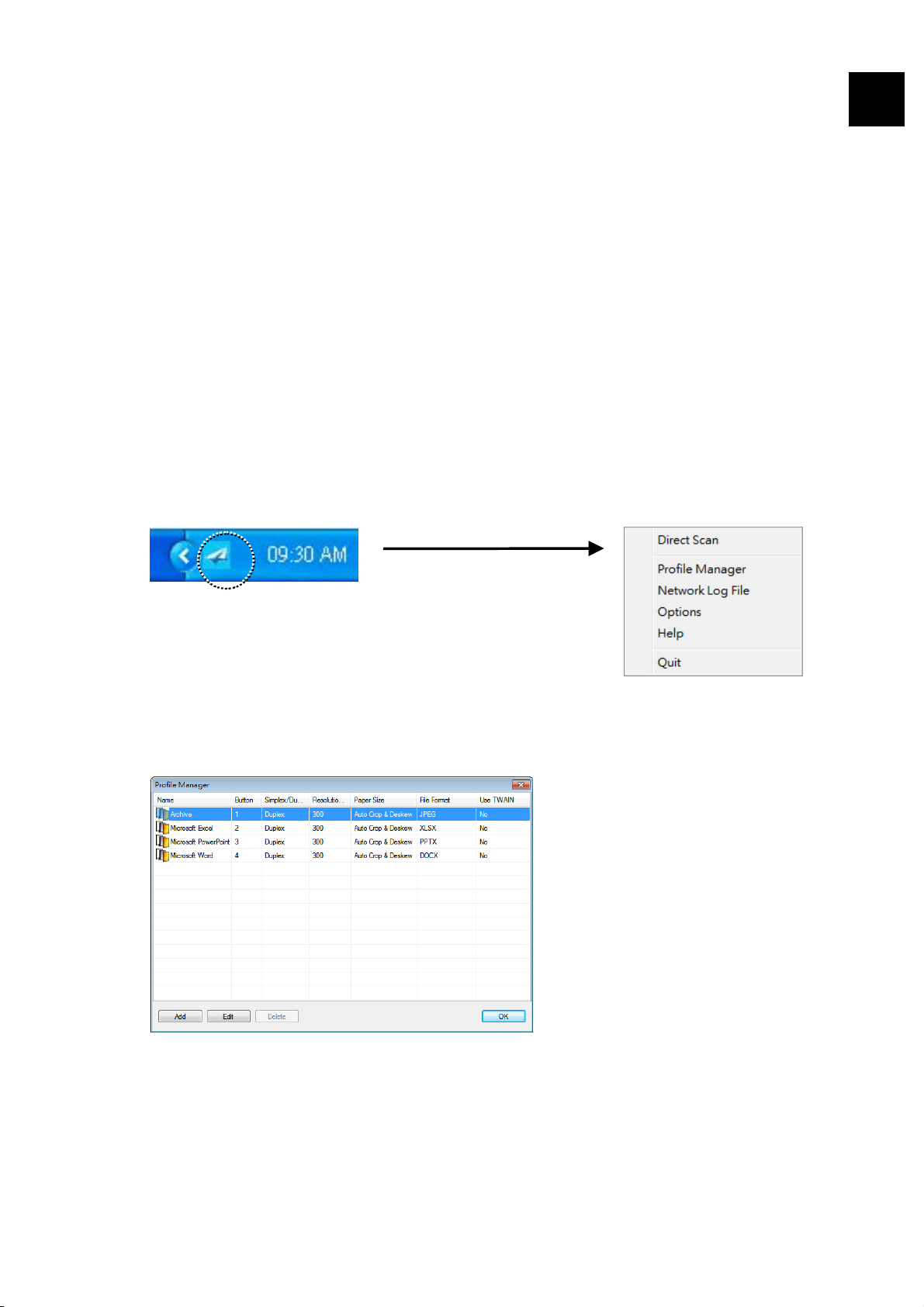
1. Right-click the PaperAir Manager icon to prompt the following Pop-Up Menu.
2. Choose [Profile Manager] to prompt the following [Profile Manager] dialog
box.
3. Choose any of the preset profiles
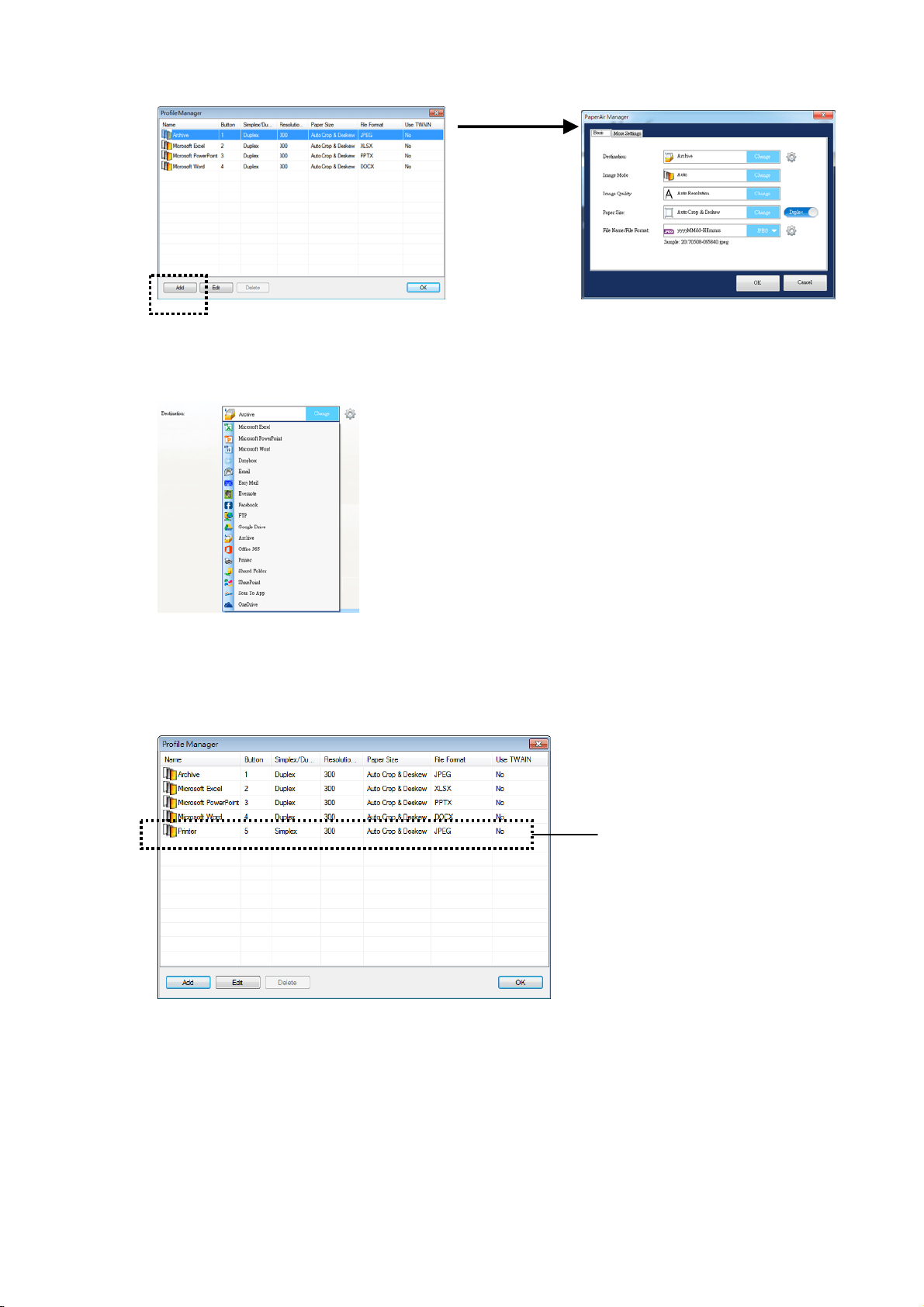
and click the [Add] button. A [Scan
Settings] dialog box appears.
User’s Manual
Using the Direct Scan Mode
49
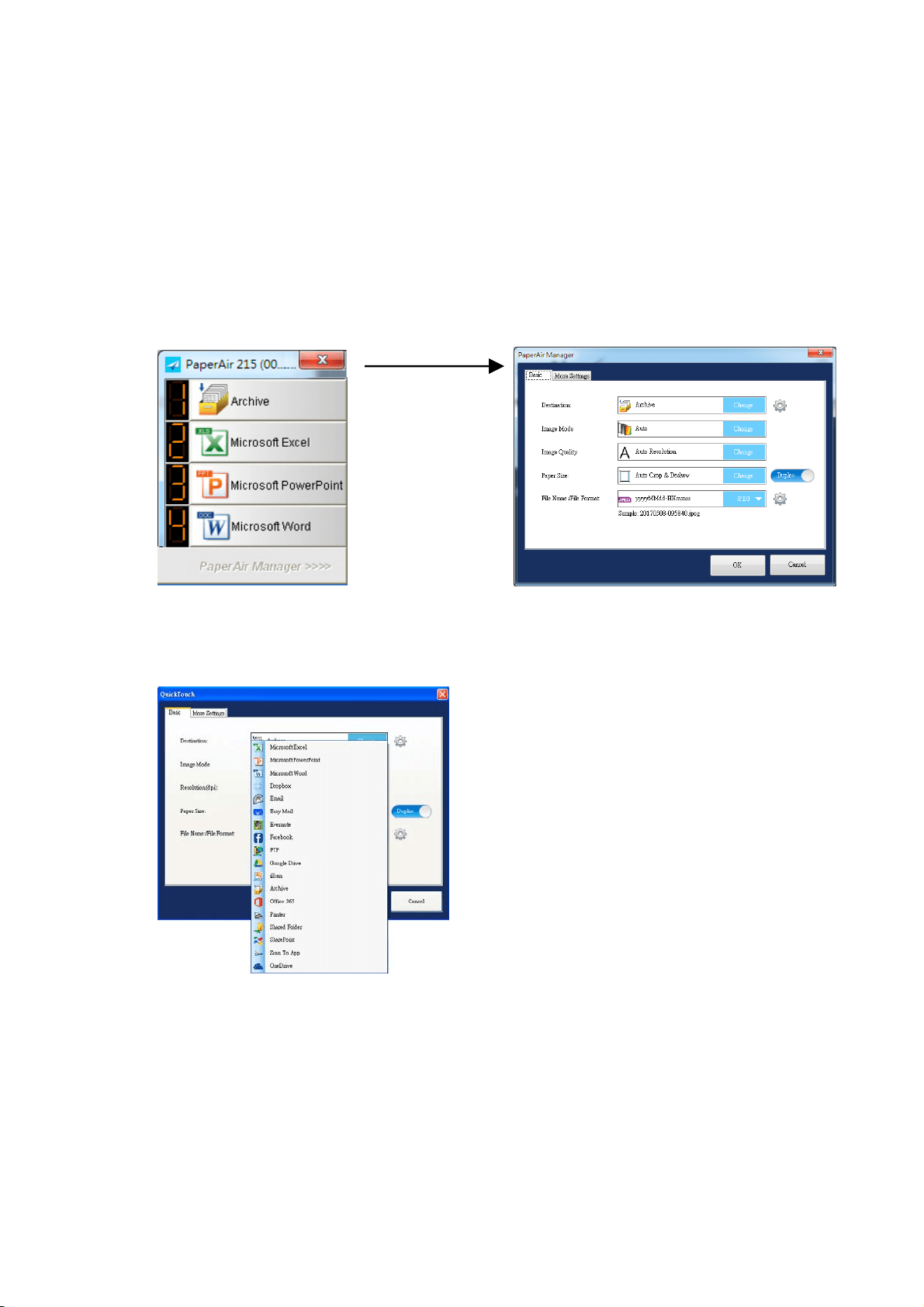
4. Specify your desired destination by clicking [Change] from the [Destination]
and selecting your destination.
5. If desired, change other scan settings to suit your need.
6. If all scan settings are satisfactory, click [OK] to complete. A new profile will be
created and displayed in the list.
A Newly Added Profile
7. Click the Arrow key on the bottom of the [Direct Scan] panel. The newly
created profile is displayed. The profile name is the name of your selected
destination.
User’s Manual
Using the Direct Scan Mode
50
5.5.2 Editing a Current Profile
To edit a current profile, follow these steps:
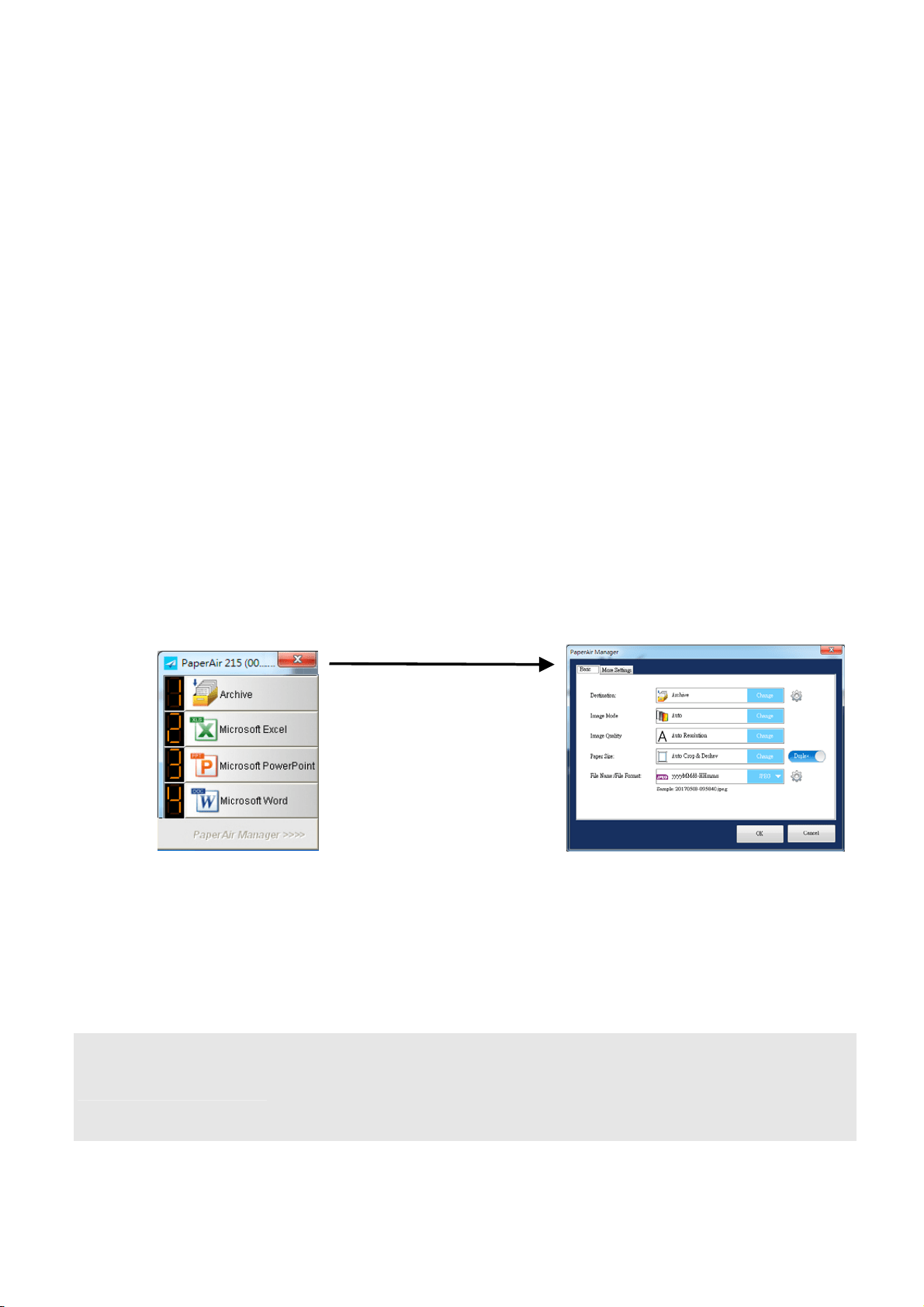
1. On the [Profile Manager] dialog box, choose the profile you want to edit
and then click the [Edit] button . A [Scan Settings] dialog box appears.
A Newly Added
Profile
5
2. Change your scan settings respectably.
3. Click [OK] to save your settings and leave this dialog box.
User’s Manual
Using the Direct Scan Mode
51
5.5.3 Deleting a Current Profile
1. On the [Profile Manager] dialog box, choose the profile you want to delete and
then click the [Delete] button. A [Confirmation] dialog box appears.
2. Click [OK] to delete the selected profile.
5.6 Managing Your Destination
The section explains how to add, edit, or delete your destination to send your scanned
image.
5.6.1 Adding a New Destination
To add a new destination, follow these steps:
1. Right-click the button (function) on the [Direct Scan] panel, the [Scan
Settings] window appears.
2. On the [Destination] option, click [Change] to choose your desired
destination/application from the destination list.
DESTINATION DESCRIPTION
Microsoft Excel Select this button when you want to edit the text on your
document in an Excel file. Text recognition is performed on the
scanned image data which is then converted to an Excel file.

User’s Manual
Using the Direct Scan Mode
52
5
Microsoft
PowerPoint
Select this button when you want to edit the text on your
document in a PowerPoint file. Text recognition is performed on the
scanned image data which is then converted to a PowerPoint file.
Microsoft Word Select this button when you want to edit the text on your
document in a Word file. Text recognition is performed on the
scanned image data which is then converted to a Word file.
Dropbox
Select this button then click
next to it to login to Dropbox
when you want to scan a document and save the image to a
network file server such as Dropbox.
E-mail Select this button when you want to scan a document and send
the image from your specified e-mail software to an e-mail
recipient as an attachment.
Easy Mail Select this button when you want to scan a document and send
the image from your specified e-mail software to an e-mail
recipient as an attachment.
Evernote
Select this button and then click next to it to login to Evernote
when you want to scan a document and save the image to a
network file server such as Evernote.
Facebook
Select this button and then click
next to it to login to
Facebook when you want to scan a document and save the image
to a network file server such as Facebook.
FTP
Select this button and then click next to it to login to FTP
server when you want to scan a document and save the image to
a network file server such as FTP.
Google Drive
Select this button and then click
next to it to login to Google
Drive when you want to scan a document and save the image to a
network file server such as Google Drive.

User’s Manual
Using the Direct Scan Mode
53
iScan Select this button when you want to scan a document and insert a
scanned image to your application which is already opened.
Archive Select this button when you want to scan a document and save
the image to a specified location.
Office 365
Select this button and then click next to it to login to Microsoft
Office 365 when you want to scan a document and save the image
to a network file server such as Office 365.
Printer Select this button when you want to scan a document and print it
from your default printer.
SharedFolder
Select this button and then click next to it to login to the
shared folder when you want to scan a document and save the
image to a shared folder in the network.
SharePoint
Select this button and then click
next to it to login to
MicroSoft SharePoint when you want to scan a document and save
the image to a network file server such as Microsoft SharePoint
server.
Scan To App
Select this button and then click next to it to select your
desired software application when you want to scan a document
and send the image to your chosen application.
OneDrive
Select this button and then click
next to it to login to Microsoft
OneDrive when you want to scan a document and save the image
to a network file server such as Microsoft OneDrive.
3. If the above settings have been made OK, click [OK] to complete the settings.

User’s Manual
Using the Direct Scan Mode
54
5
NOTE
To accurately send your scanned image over the network, you need
to setup your computer in an internet environment and install the
necessary software applications such as E-mail software, or printer
before installing PaperAir Manager.
To send your scanned images to a network server such as FTP,
Microsoft SharePoint, Evernote, Dropbox, Facebook, Office 365, or
Google Drive, you need to setup your computer in an internet
environment and make sure you have the privilege to access the
network server. For example you need to create a login name and
password first.
Microsoft .NET Framework: To accurately send your scanned
images to a network server, Microsoft .NET Framework 2.0 or higher
is required. (Check the program and the version by choosing
Start>Control Panel>Add or Remove Programs. A list of programs
will be displayed. If you have installed Microsoft .NET Framework,
the program and the version will be shown in the list.).
Google Drive: Google provides a document hosting, management
and editing service called Google Drive to every user that has signed
up for an account at Google web site (http://drive.google.com).
Microsoft SharePoint: Microsoft SharePoint is a collaboration and
document library tool developed by Microsoft for file sharing and
web publishing. You may need to contact your system administrator
to get the correct URL for the SharePoint server. Your system
administrator will also give you access to the SharePoint and a valid
user login and password.
User’s Manual
Using the Direct Scan Mode
55
5.6.2 Configuring Your Destination Application
Different types of Destinations have various configurations that you can select.
1. On the [Scan Settings] dialog box, click [Change] from the [Destination]
box.
2. Select a destination and then click the Configurations
button.
Click the
Configuration
button
Archive Configurations
These options apply to the Destination named Archive. The Archive
Configuration allows you to show the file location path in Windows explorer, for
easy access after the scan is completed.
Click a
destination
application
Select this option and
the file location for the
scanned image will be
displayed after the
scan is completed.
User’s Manual
Using the Direct Scan Mode
56
5
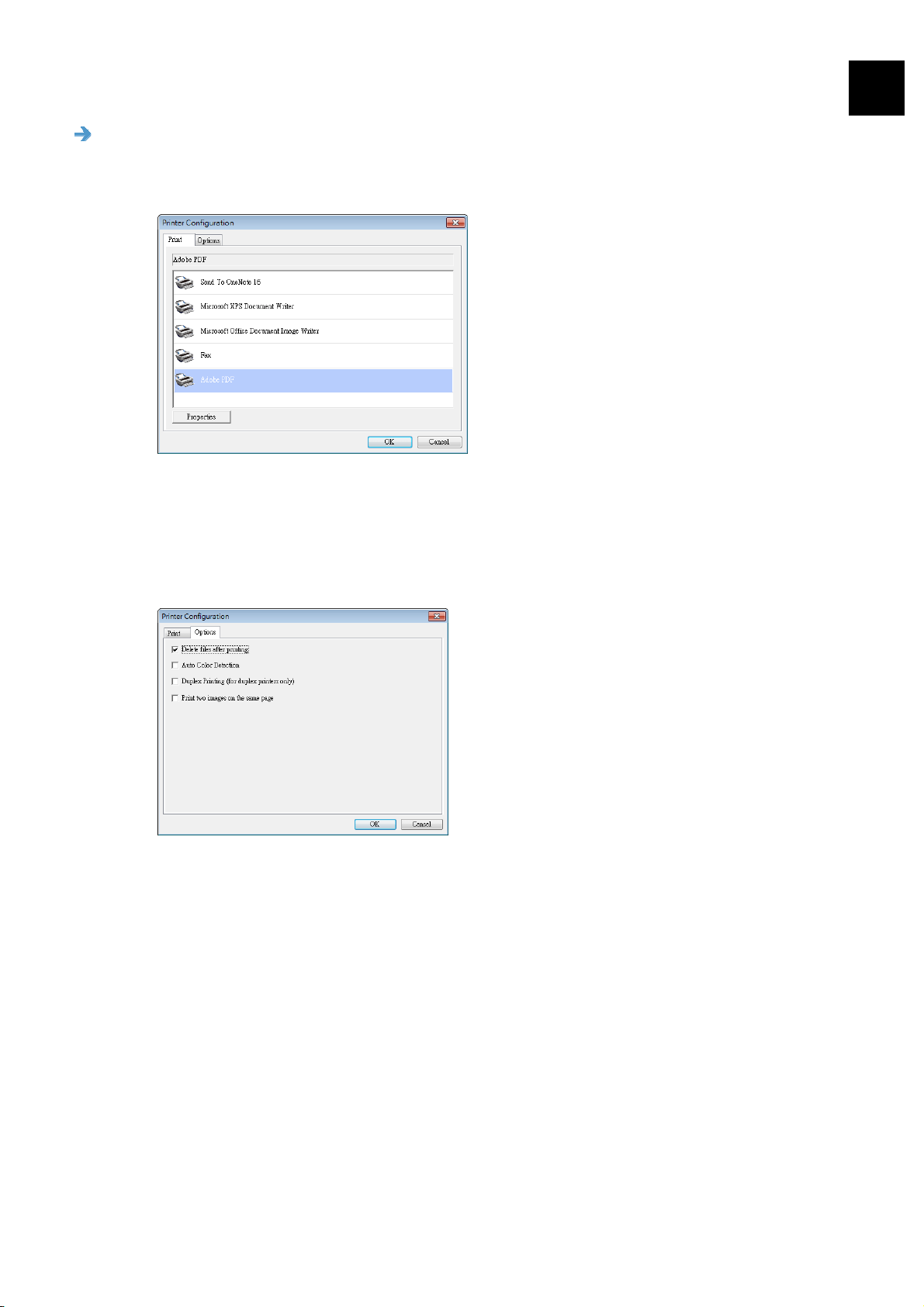
Printer Configurations
These options apply to the Destination named Printer. The Printer Configuration
allows you to select your printer and set the print settings.
a. If you do not want to print your images from the default printer, select the
printer you want to use from the list. Click Properties to prompt the
Properties dialog box to change your desired print settings and click OK to
complete and close the dialog box.
b. Click Options to show the Options dialog box.
Delete files after printing—to delete the files (the scanned images) after
printing is finished.
Auto Color Detection—Choose to automatically detect the image type of
the scanned image and print the images according to the image type. For
example, if the scanned image is color, the image will be printed in color if
the specified printer is a color printer; if the scanned image is black and
white, the image will be printed in black and white.
Duplex Printing (for duplex printer only)—Choose to print the scanned
images in both the front and rear side of a page. This option will be available
only if the specified printer supports duplex (double-sided) printing.
Print two images on the same page—Choose to print two images on the
same side of a sheet. This option is useful when you wish to print the front
and rear side of your original such as ID card or driver license on the same
page. If you have purchased a duplex scanner, use this option to print two
sides of your original in one side of a sheet.
User’s Manual
Using the Direct Scan Mode
57
c. Click OK to complete and close the dialog box.
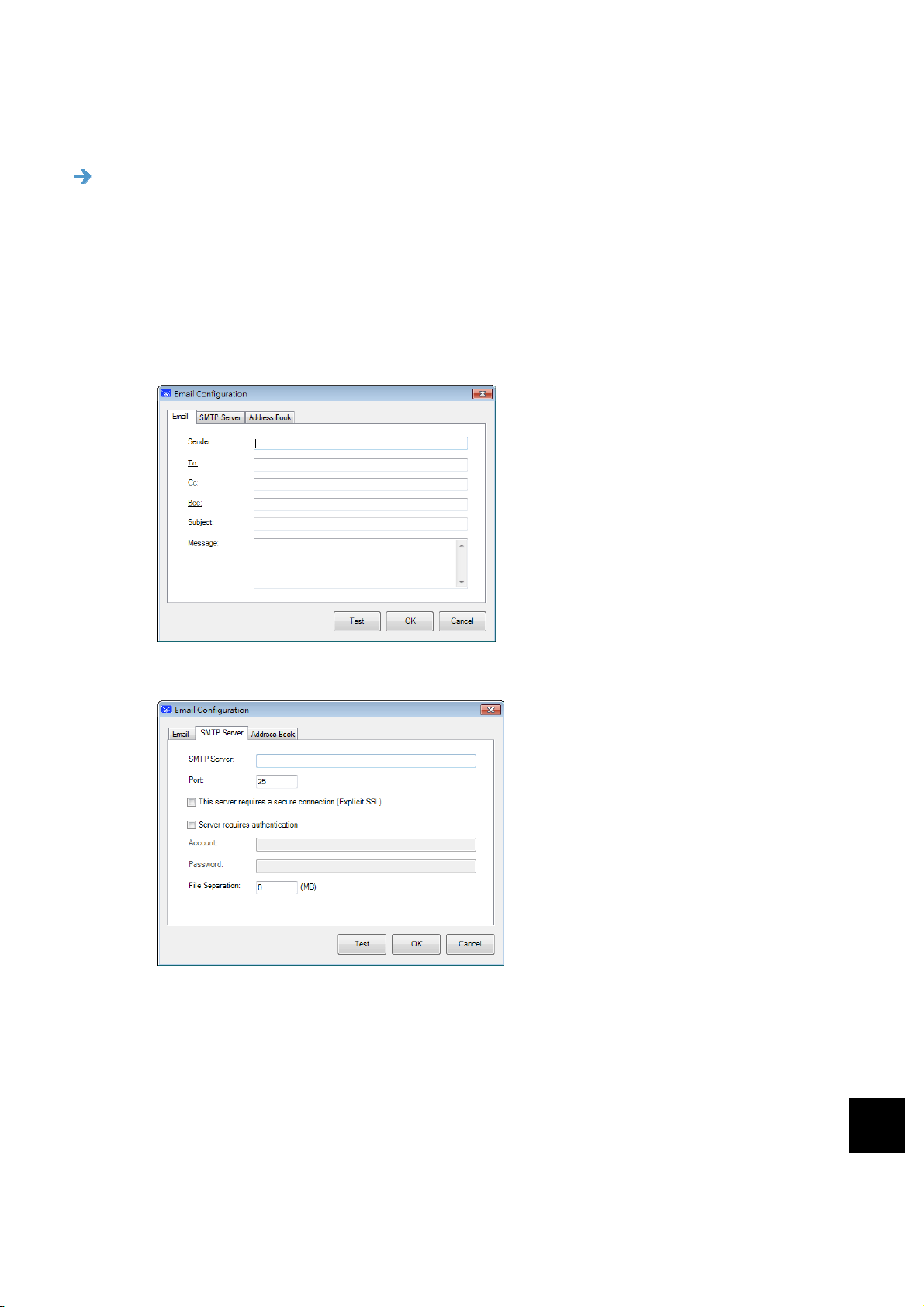
Easy Mail Configurations
These options apply to the Destination named Easy Mail. By specifying your
recipient and subject in advance, the Easy Mail Configuration allows you to send
the scanned image directly to an already selected recipient with a single click.
1. On the E-mail tab,
- Enter the e-mail address of the sender and recipient.
- Type your subject and message on the Subject field and Message field.
- If desired, enter the e-mail address of the CC and BCC field.
2. Click the “SMTP” tab to display the SMTP dialog box.
- SMTP Server: Enter the IP address of your SMTP server.
- Port: Enter the port number of your SMTP server. Default: 25
- If the SMTP server requires authentication, check “Server requires
authentication” and then enter your account name and password.
- If there is a file size limitation, enter the limited value on the “File
Separation” field.
5
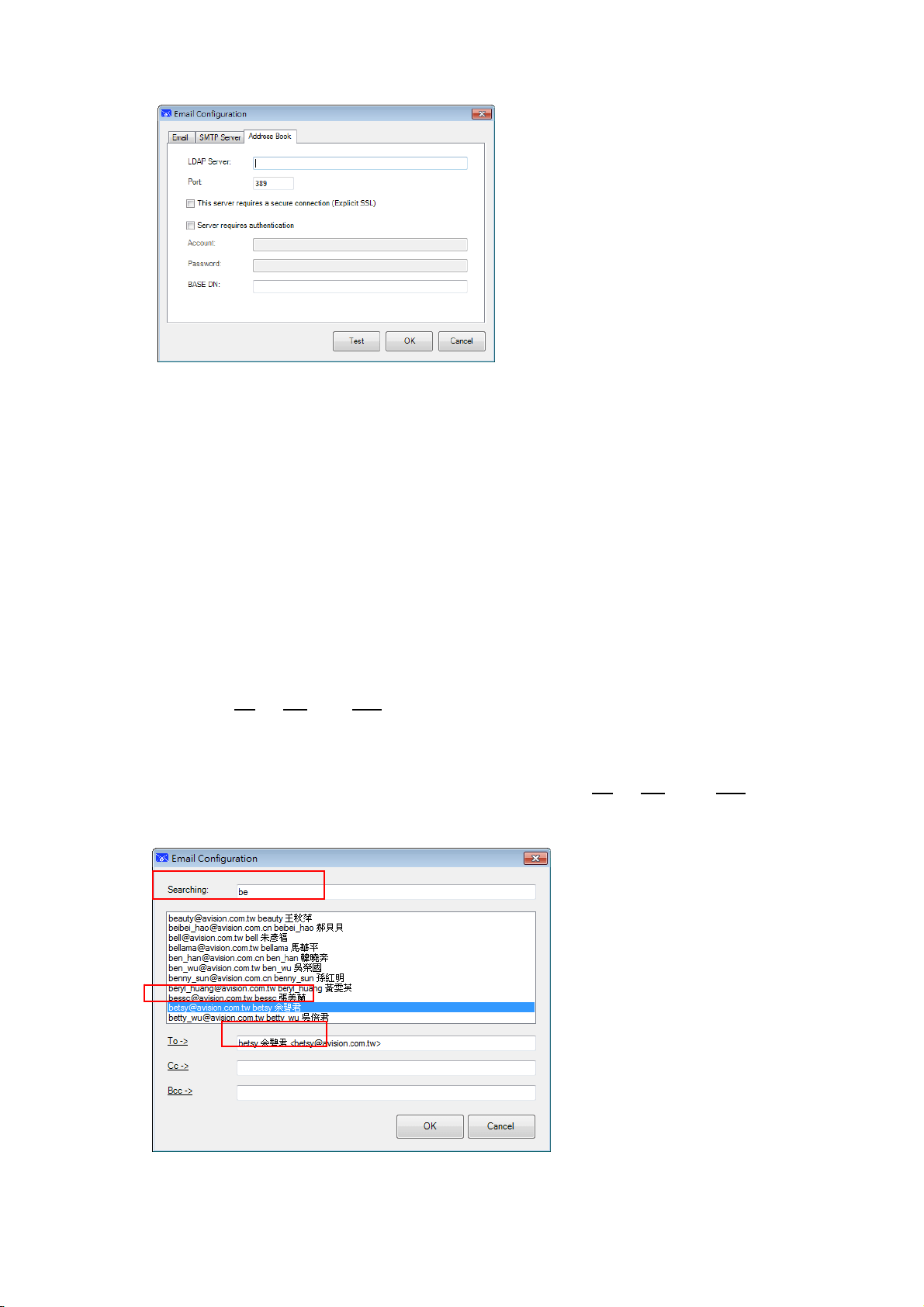
3. You may search your e-mail address of “To”, “CC”, and “BCC” field from
the LDAP server by clicking the “Address Book” tab to display the LDAP
dialog box.
User’s Manual
Using the Direct Scan Mode
58
- LDAP Server: Enter the IP address of your LDAP server.
- Port: Enter the port number of your LDAP server. Default: 389
- If the LDAP server requires a secure connection, check “This server requires
a secure connection”. Contact your System Administrator for the details.
- If the LDAP server requires authentication, check “Server requires
authentication” and then enter your account name and password.
- BASE DN: Enter your base DN. Base DN (distinguished name) identifies the
starting point of a search. A dn indicates what record to view in an LDAP tree.
The top level of the LDAP directory tree is the base, referred to as the "base
DN". For example, you could indicate a base of dc=com, dc=net for a search
that starts at the top and proceeds downward. Contact your System
Administrator for the details.
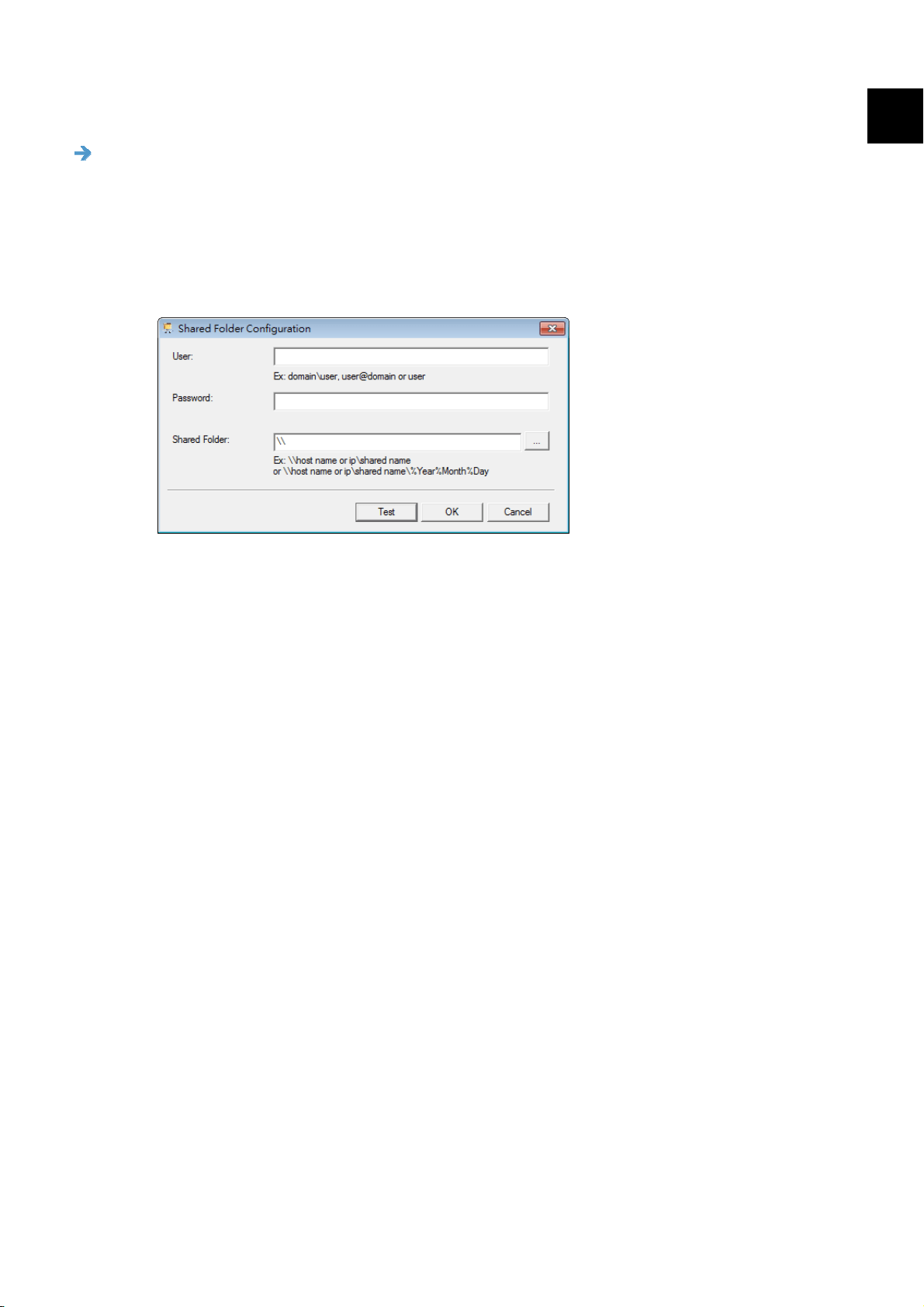
- To test if your setting of LDAP server is OK, click the “E-mail” tab.
a. Click “To
”, “CC” or “Bcc”, a Search dialog box appears.
b. Enter the keyword to search on the “Searching” field . The search result
containing your keyword will be displayed.
c. Select your desired e-mail address and click “To
”, “CC”, or “Bcc” which you
need to set the e-mail address . The e-mail address will be pasted on your
selected field.
4. Click “OK” to complete.

User’s Manual
Using the Direct Scan Mode
59
NOTE
LDAP: Stands for Lightweight Directory Access Protocol. LDAP
enables users to access directories and address books directly from
external networked devices to simplify document distribution.
SSL (Secure Sockets Layer) is a standard security technology for
establishing an encrypted link between a server and a client—
typically a web server (website) and a browser; or a mail server and
a mail client (e.g., Outlook).
You must enter your “Sender” address. Or the scanned image can
not be forwarded to the recipient.
User’s Manual
Using the Direct Scan Mode
60
5
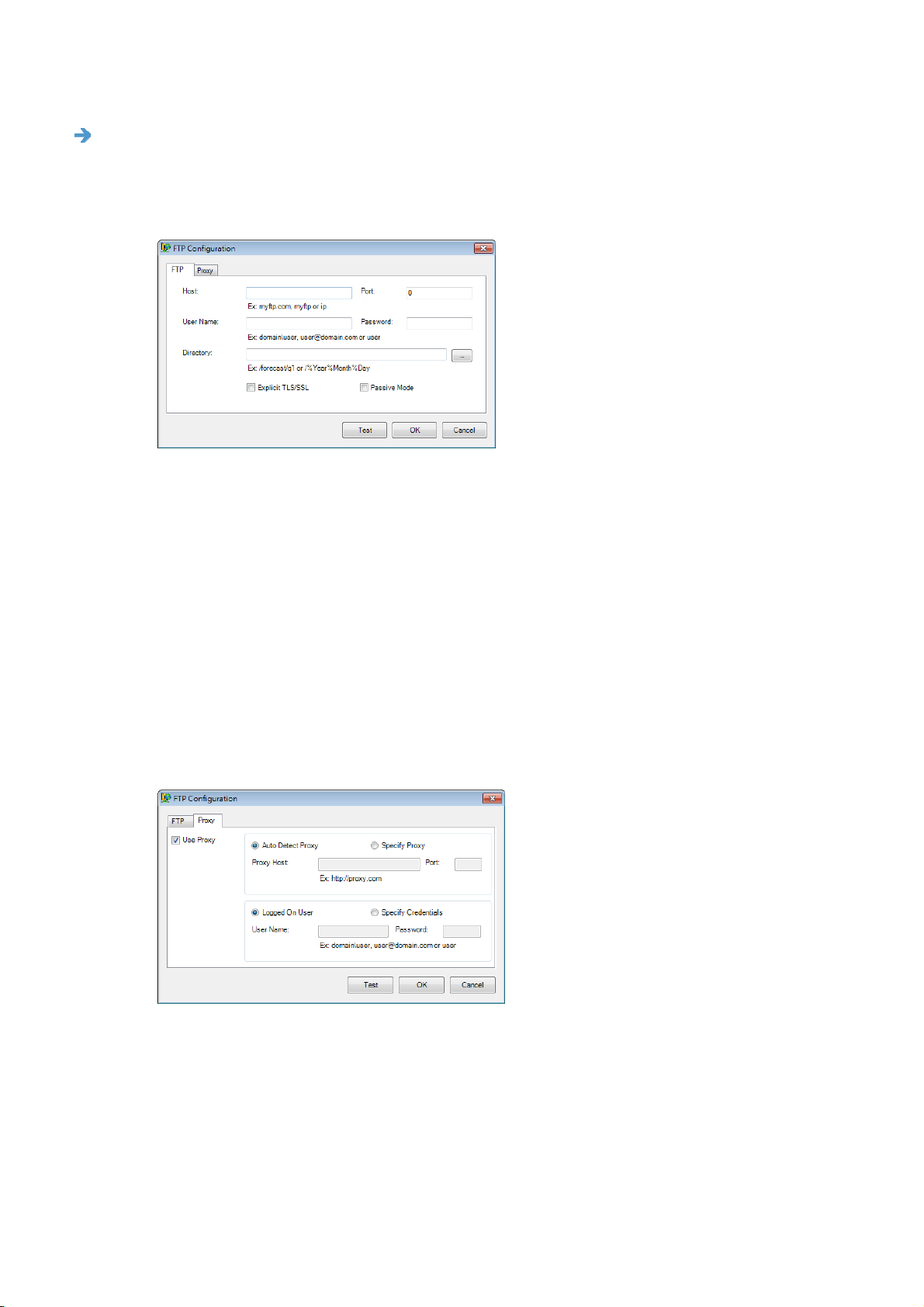
Shared Folder Configurations
These options apply to the Destination named Shared Folder. The Shared Folder
Configurations allow you to enter your login name and password information
before sending your scanned images to a shared folder on the network.
1. Enter your login name and password. Contact your System Administrator for
authorization to send documents to the folder.
The User login name may include a domain name. If a domain name is
included, the format that is required by the user would be: domain\username
(domain name followed by a backslash then the user login name).
Input or Browse to a folder Name.
2. Click OK to complete. You can click Test to see if the account works.
User’s Manual
Using the Direct Scan Mode
61
FTP Configurations
These options apply to the Destination named FTP. The FTP configuration allows
you to enter your login name and password information for sending your
scanned images to the FTP server.
1. Enter a Host Name URL. The format of the URL is
ftp://yourhostname/yoursite. This consists of the following:
Scheme — ftp.
Host name — the name of the server.
Port — the port number
Enter your login name and password. Contact your System Administrator for
authorization to send documents to the site.
The User login name may include a domain name. If a domain name is
included, the format that is required by the user would be:
domain\username (domain name followed by a backslash then the user
login name).
Input or Browse for a folder name.
2. Click the Proxy tab to display the following Proxy dialog box.
3. Select your Proxy server to be Auto Detect or Specify Proxy. If Specify
Proxy is selected, enter the IP address and port number of your Proxy
server. Enter the user name and password if required.
4. Click OK to complete. You can click Test to try if the account works.
User’s Manual
Using the Direct Scan Mode
62
5
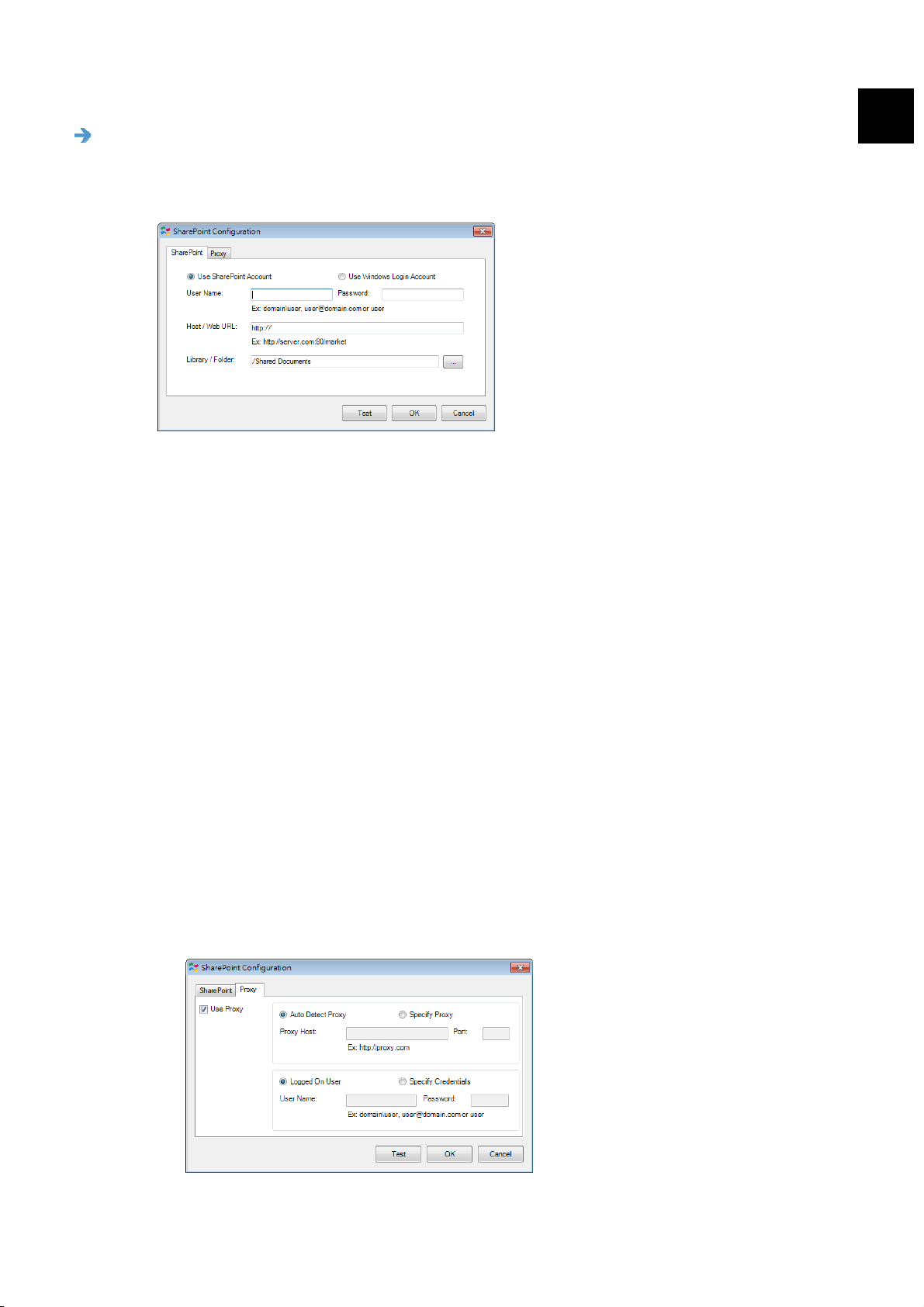
SharePoint Configurations
These options apply to the Destination named SharePoint. The SharePoint
configurations allow you to enter your login name and password information for
sending your scanned images to Microsoft SharePoint.
1. Select a login option. Contact your System Administrator for authorization to
send documents to the site.
Select Use SharePoint account if you want to access the SharePoint
server with a unique user login and password. If you check this option, you
must make an entry in the User login and Password fields.
Select Use Windows login if you want to access the SharePoint server by
using the same user login and password that you use to login into Windows
on your PC.
The User login name may include a domain name. If a domain name is
included, the format that is required by the user would be:
domain\username (domain name followed by a backslash then the user
login name).
Enter a Host Name URL. The format of the URL is
http://yourhostname/yoursite. This consists of the following:
Scheme — http.
Host name — the name of the server. This may include a port number.
Site — (optional; may also be entered in the Site Name field.)
Input or Browse for a Library or folder Name. Any Document or Picture
Library can be entered here. To view only a list of Document Libraries when
browsing, select the Show only document libraries checkbox in the
Browse window.
2. Click the Proxy tab to display the following Proxy dialog box.
3. Select your Proxy server to be Auto Detect or Specify Proxy. If Specify
User’s Manual
Using the Direct Scan Mode
63
Proxy is selected, enter your IP address and port number of your Proxy server.
Enter user name and password if required. You can check with your network
administrator for the details.
4. Click OK to complete. You can click Test to try if the account works.
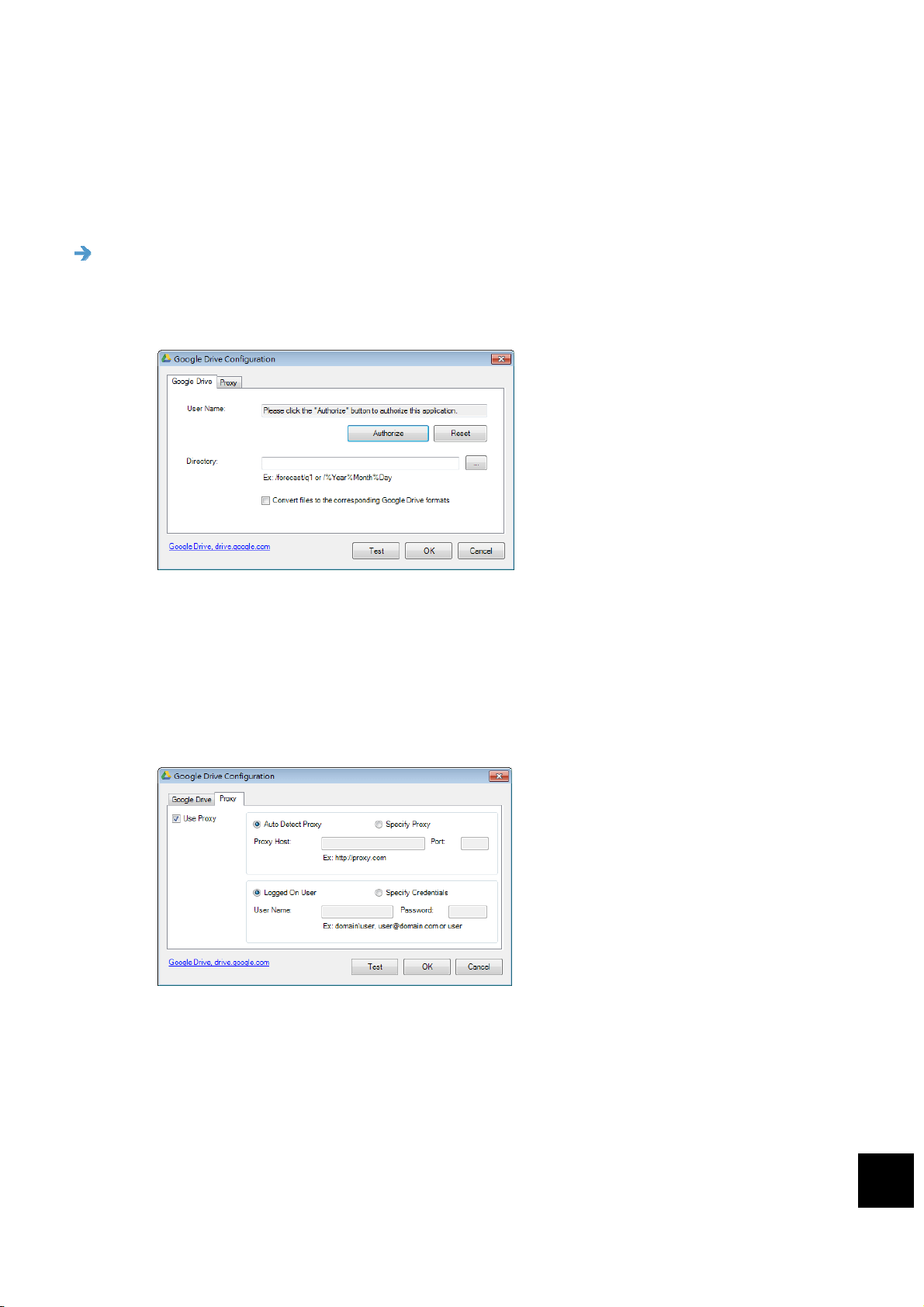
Google Drive Configurations
These options apply to the Destination named Google Drive. The Google Drive
configurations allow you to enter your login name and password information for
sending your scanned images to Google Drive.
1. Input your account, password and folder information.
Convert files to the corresponding Google Drive formats:
Check this option to convert uploaded files to a Google document.
File formats such as JPEG, GIF, or PNG can be converted to a Google
document.
2. Click the Proxy tab to display the following Proxy dialog box.
3. Select your Proxy server to be Auto Detect or Specify Proxy. If Specify
Proxy is selected, enter your IP address and port number of your Proxy server.
Enter user name and password if required. You can check with your network
administrator for the details.
4. Click OK to complete. You can click Test to try if the account works.
5
User’s Manual
Using the Direct Scan Mode
64
NOTE
After scanning and uploading your documents to Google Drive, the Google
web site will not automatically displayed on your computer screen. Please
follow these steps to open or view your documents:
1. Start your browser and go to the web site of Google.
2. Choose Cloud from the More option.
3. Sign in with your Google account.
4. View your document.
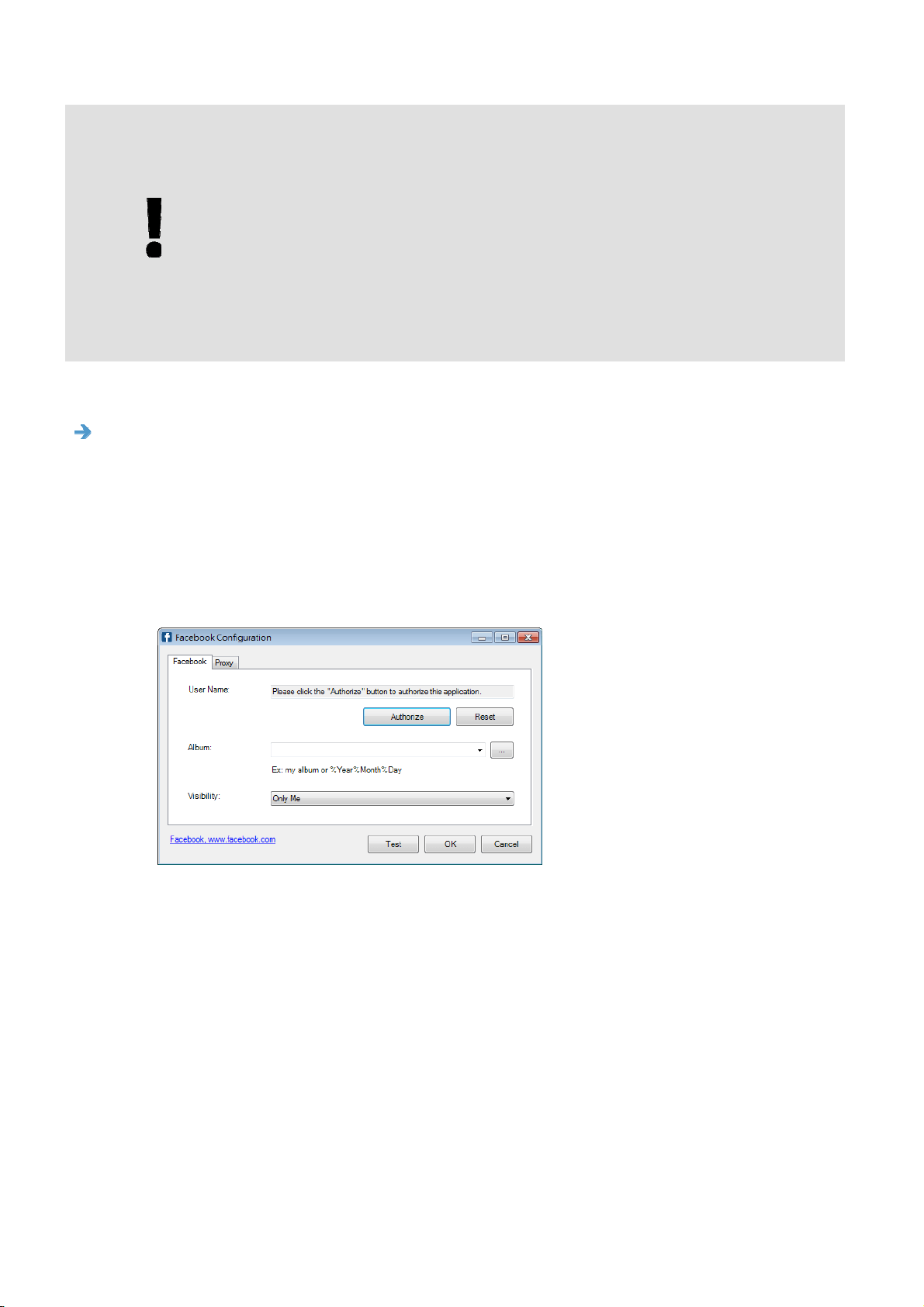
Facebook Configurations
These options apply to the Destination named Facebook. The Facebook
configuration allows you to enter your login name and password information for
sending your scanned images to the FTP server.
1. Click the Authorize button first to open the Facebook web site and then
complete the Login and authorization. If successful, your Facebook account
will be displayed in the User Name field as shown.
2. If desired, enter your album name to be shared.
3. Select your visibility level from the Visibility drop-down menu.
4. Click the Proxy tab. If your Facebook account has been displayed in the
User Name field, normally, the proxy server in the Proxy tab will be
automatically set to “Auto detect”. You may enter your Proxy server
information if desired. For more information, see your Network Administrator.
5. Click OK to complete. You can click Test to try if the account works.
User’s Manual
Using the Direct Scan Mode
65
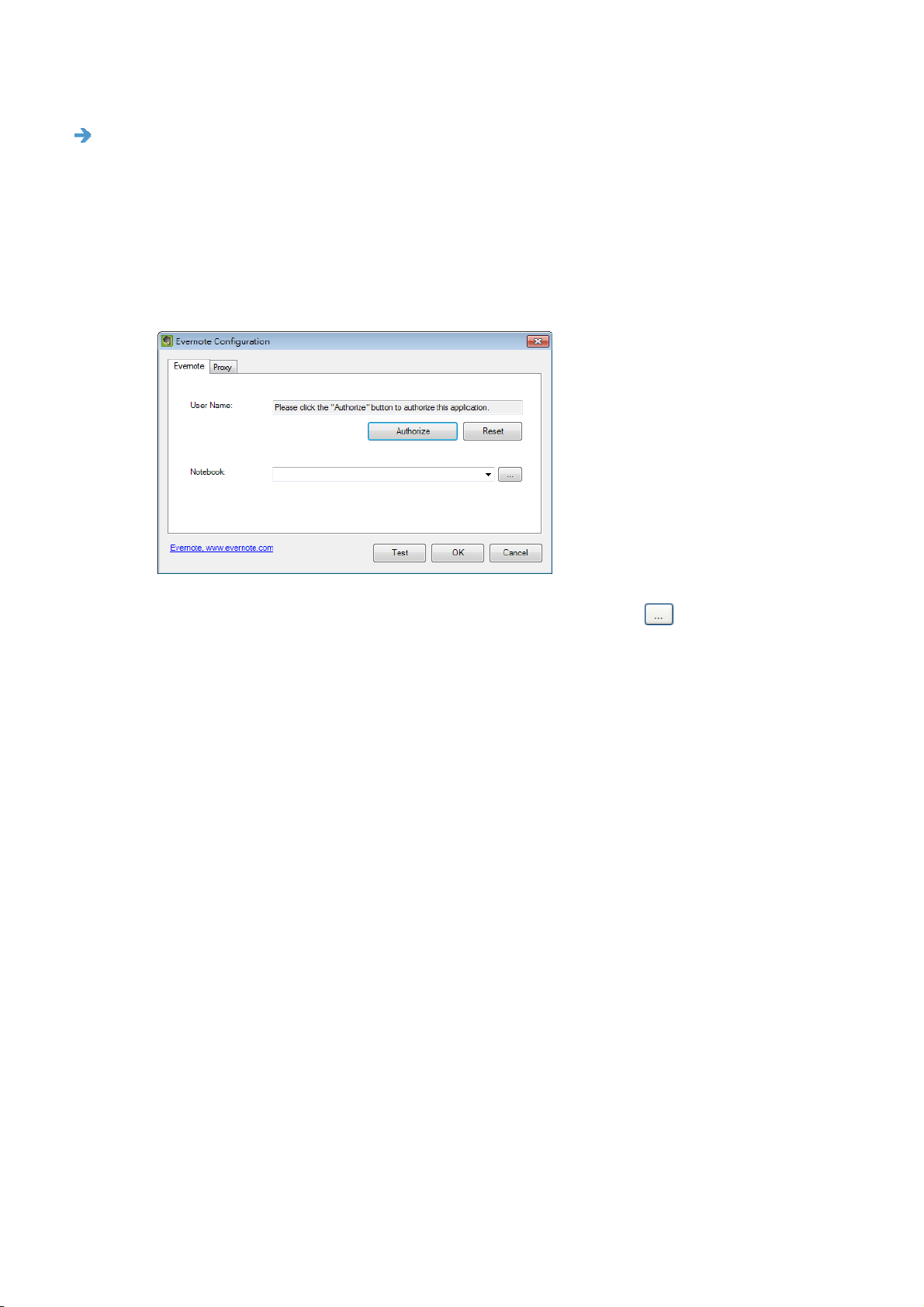
Evernote Configurations
These options apply to the Destination named Evernote. The Evernote
configuration allows you to enter your login name and password information for
sending your scanned images to the Evernote server.
1. Click the Authorize button to open the Evernote web site and then
complete the Login and authorization. If successful, your Evernote account
will be displayed in the User Name field as shown.
2. Specify your notebook in the Notebook field or click
(Browse) to search
for your notebook.
3. Click the Proxy tab. If your Evernote account has been displayed in the
User Name field, normally, the proxy server in the Proxy tab will be
automatically set to “Auto detect”. You may enter your Proxy server
information if desired. For more information, check with your Network
Administrator.
4. Click OK to complete. You can click Test to try if the account works.
User’s Manual
Using the Direct Scan Mode
66
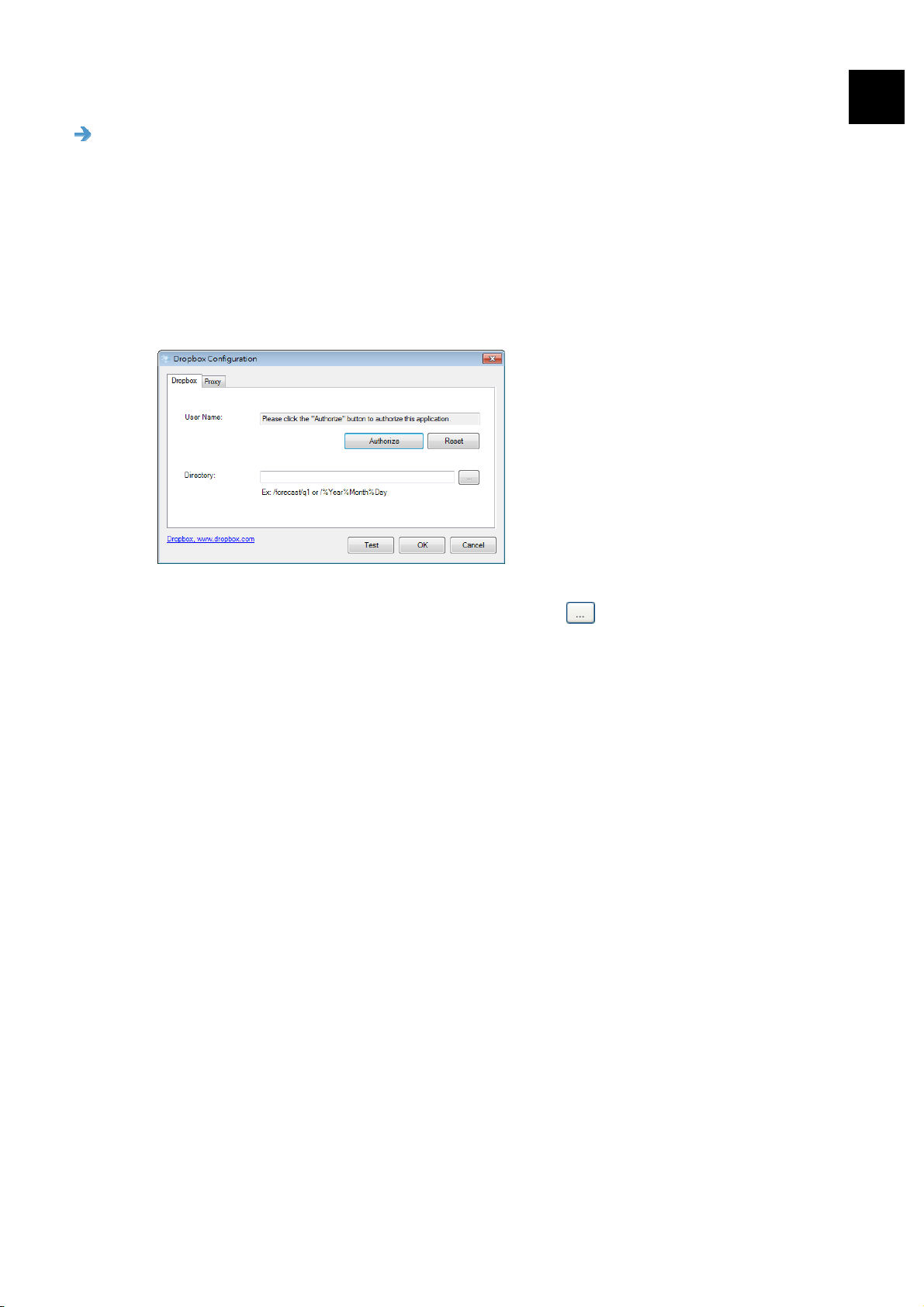
Dropbox Configurations
These options apply to the Destination named Dropbox. The Dropbox
configuration allows you to enter your login name and password information for
sending your scanned images to the Dropbox server.
5
1. Click the Authorize button first to open the Dropbox web site and then
complete the Login and authorization. Then click the Get Account button to
get your Dropbox account. If successful, your Dropbox account will be
displayed in the User Name field as shown.
2. In the Directory field, type a name or click
(Browse) to search for a
specific folder. If you are typing a folder name, you can use special
attributes for naming folders to help segregate files.
3. Click the Proxy tab. If your Dropbox account has been displayed in the
User Name field, normally, the proxy server in the Proxy tab will be
automatically set to “Auto detect”. You may enter your Proxy server
information if desired. For more information, see your Network Administrator.
4. Click OK to complete. You can click Test to try if the account works.
User’s Manual
Using the Direct Scan Mode
67
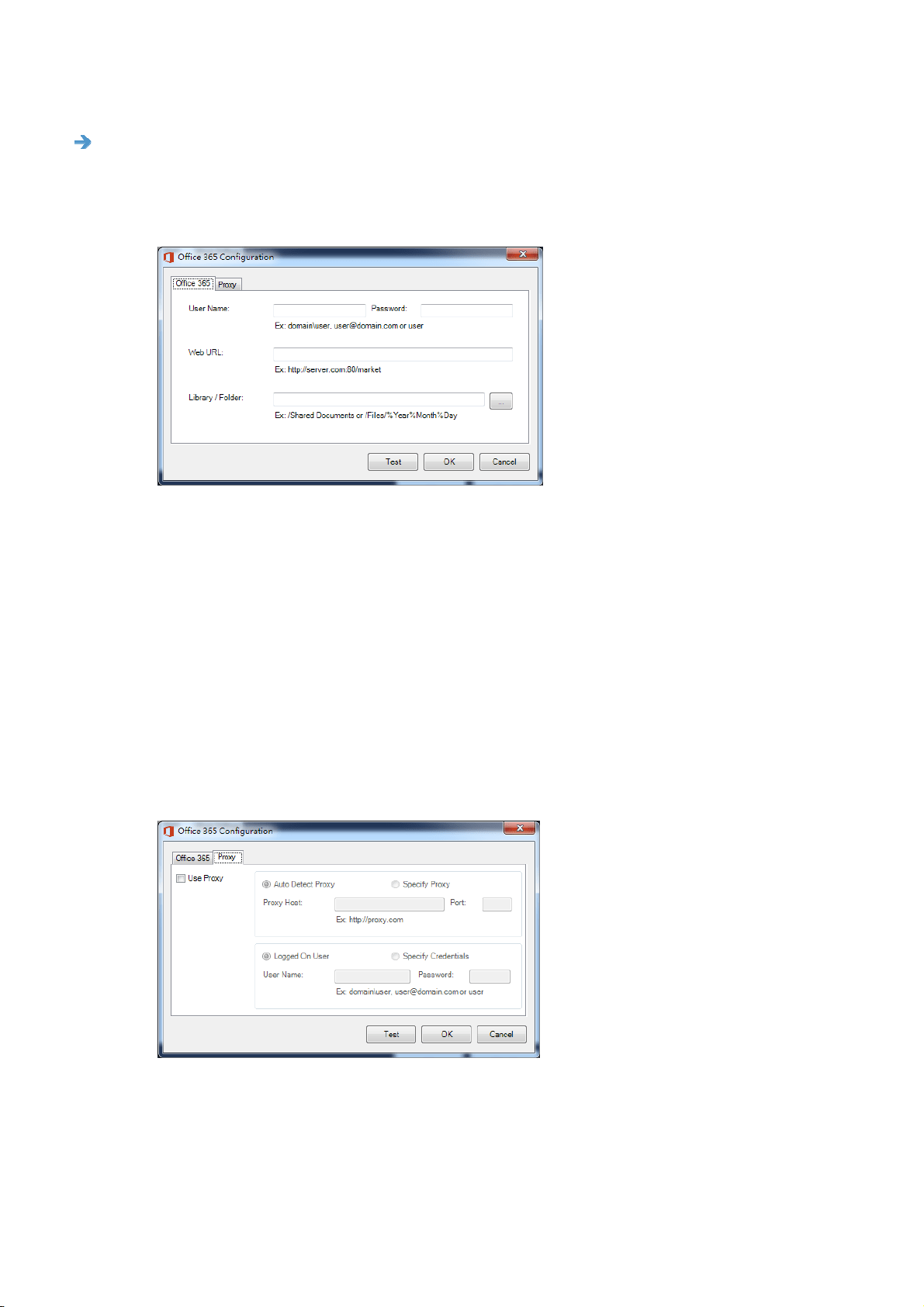
Office 365 Configurations
These options apply to the Destination named Office 365. The Office 365
configuration allows you to enter your login name and password information for
sending your scanned images to the Office 365 server.
1. Enter a Host Name URL. The format of the URL is
ftp://yourhostname/yoursite. This consists of the following:
Scheme — ftp.
Host name — the name of the server.
Port — the port number
Enter your login name and password. Contact your System Administrator for
authorization to send documents to the site.
The User login name may include a domain name. If a domain name is
included, the format that is required by the user would be:
domain\username (domain name followed by a backslash then the user
login name).
Input or Browse for a folder name.
2. Click the Proxy tab to display the following Proxy dialog box.
3. Select your Proxy server to be Auto Detect or Specify Proxy. If Specify
Proxy is selected, enter the IP address and port number of your Proxy server.
Enter the user name and password if required.
4. Click OK to complete. You can click Test to try if the account works.
User’s Manual
Using the Direct Scan Mode
68
5
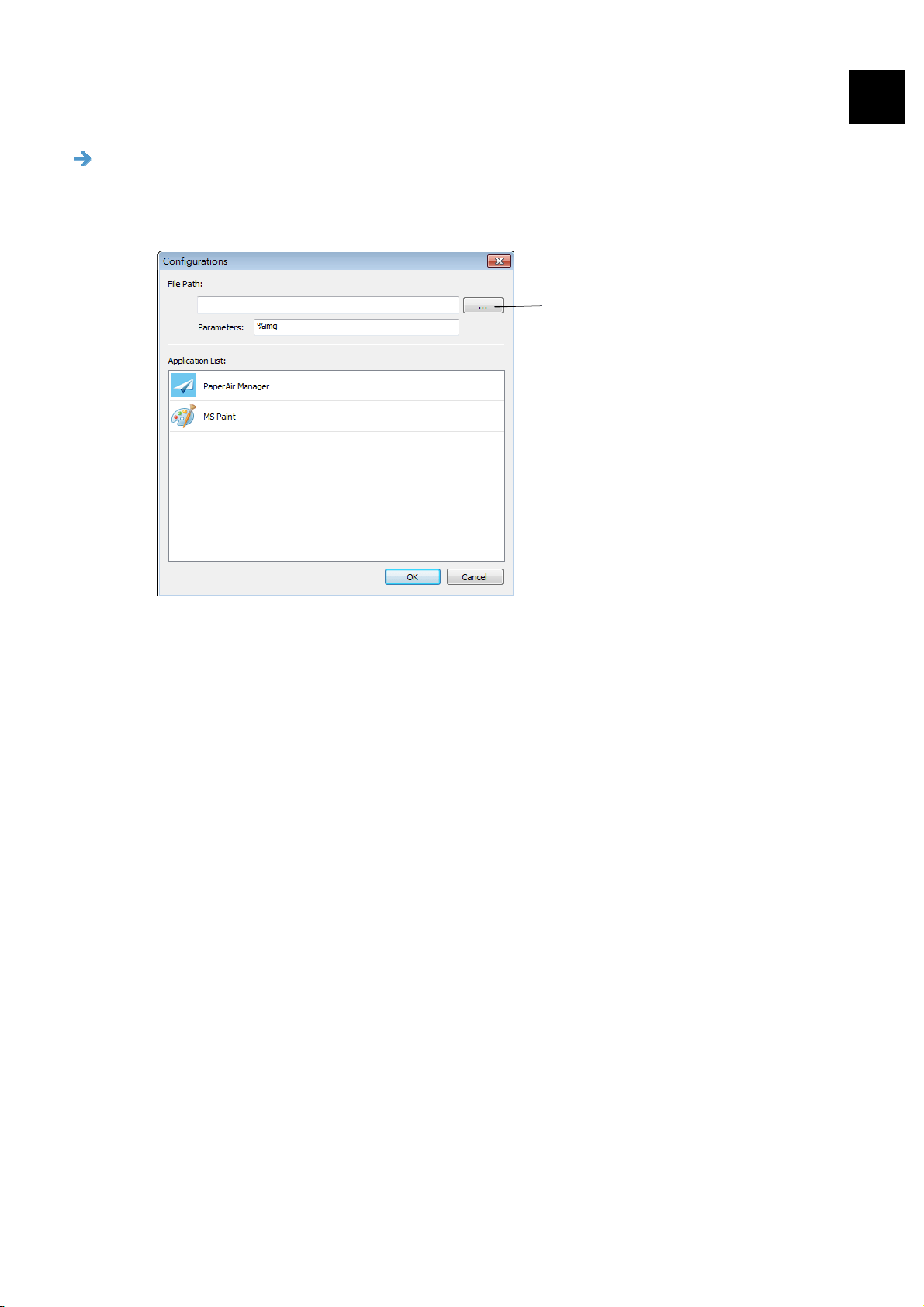
Scan to App Configurations
These options apply to the Destination named [Scan to App]. The [Scan to
App] Configuration allows you to specify your desired destination application to
send the scanned image to the application.
Click this
button to
browse to the
executable file
for the
application.
1. You can use the following ways to add a new software application:
If the software application is pre-installed on your computer, prior to
installing PaperAir Manager, the PaperAir Manager will automatically search
for the image-editing software application on your computer and display it
in the Application List. Choose the application you want to add from the
Application List. The application path will be shown in the File Path field.
Or
Enter the Application path or browse to the application’s executable file
(e.g. the *.exe file of that software application, for example,
D:\f\phoshop8\Photoshop\Photoshop.exe).
Or
Browse to the application’s executable file in Windows Explorer and drag the
*.exe file into the “File Path” field.
2. Choose the OK button to save the settings and leave the Configuration
dialog box.
User’s Manual
Using the Direct Scan Mode
69
5.6.3 Modifying a Current Destination
To modify a current destination, follow these steps:
1. Right-cilck the button that you wish to modify its destination on the [Direct
Scan] panel. The [Scan Settings] window appears.
2. Click [Change] on the Destination option. A list of available destinations is
displayed.
3. Choose your desired destination from the list.
4. Click [OK] to complete the setting.

User’s Manual
Using the Direct Scan Mode
70
5
5.7 Problems Solving
The following conditions may occur while PaperAir Manager is uploading a file to a
network file server such as FTP, SharePoint, Evernote, Dropbox, OneDrive, or Google
Drive.
ERROR MESSAGE DESCRIPTION POSSIBLE SOLUTIONS
Invalid host. The entry in the Host
name field is not
correctly formatted.
Make sure the syntax is correct and
the required parts of the path to the
network file server are provided.
User name can not
be empty.
The user name is
empty.
Make sure user name has been
entered.
Incorrect user name
or password.
The user login may not
be authorized to access
the server or the
incorrect password was
entered.
Make sure the user login and
password are correct. You may also
need to contact your System
Administrator to make sure you
have permission to access the
network file server.
Invalid proxy host
URL.
Your proxy host URL
may not be correct.
Check with your System
Administrator to enter the correct
proxy host URL.
Invalid port
number.
The port number for
the network server may
not be correct.
Check with your System
Administrator to enter the correct
port number for the network server.
Unable to get proxy
setting
automatically.
Proxy configuration
is incorrect.
The proxy settings may
not be correct.
Check with your System
Administrator to enter the correct
proxy setting.
Desired directory does
not exist and unable to
create it.
The subfolder may not
exist.
Check with your System
Administrator if you have the
permission to create the subfolder.

User’s Manual
Using the Direct Scan Mode
71
The remote service
point could not be
contacted.
The remote server can
not be reached.
This may occur due to network
problem. You can try again later or
you may check with your System
Administrator.
The connection was
prematurely closed.
The network connection
may be temporarily
stopped.
This may occur due to network
problem. You can try again later or
you may check with your System
Administrator.
Exceeded the
specified size limit.
The image file you have
uploaded to the server
may be too large and
exceed limit.
You may check with your System
Administrator for the details.
Unable to resolve
the host name.
The host name may be
incorrect.
You may check with your System
Administrator for the correct host
name.
Unable to resolve
the proxy name.
The proxy host name
may be incorrect.
You may check with your System
Administrator for the correct proxy
host name.
Unable to receive
complete response
from server.
The request may not be
received by the server.
This may occur due to the network
connection problem. Please try again
later or check with your System
Administrator.
The request was
cancelled.
The request may not be
received by the server.
This may occur due to the network
connection problem. Please try again
later or check with your System
Administrator.
The request was not
permitted by the
proxy.
You may check with your System
Administrator for the details about
the proxy server.
A complete request
could not be sent to
the remote server.
This may occur due to the network
connection problem. You can try
later or you may check with your
System Administrator.

User’s Manual
Using the Direct Scan Mode
72
An error occurred
while establishing a
connection using
SSL.
The network server
may not support SSL.
You may check with your System
Administrator for the details.
No response was
received during the
time-out.
The scanned file could
not be uploaded to the
server before the
connection timed out.
The network connection speed may
be too slow. You may try again
later.
A server certificated
could not be
validated.
You may need to contact your
System Administrator to make sure
you have permission to access the
network file server.
Invalid Document
Library/Folder.
The library name or
folder name could not
be found on the server.
Make sure the library and folder
names are correct.
Method not allowed.
You are not allowed to
access the network file
server.
You may need to contact your
System Administrator to make sure
you have permission to access the
network file server.
Unknown error. The document failed to
upload for an
undetermined reason.
This may also occur if
PaperAir Manager
cannot establish a
connection with the
network server.
Check all network settings of the
PaperAir Manager to make sure they
are correct.
NOTE
If you are having trouble uploading files, make sure you can access the
network file server using an internet browser. If the network file server is
not working or there is a problem with the network connection between
your PC and the network file server, PaperAir Manager will not be able to
upload files.
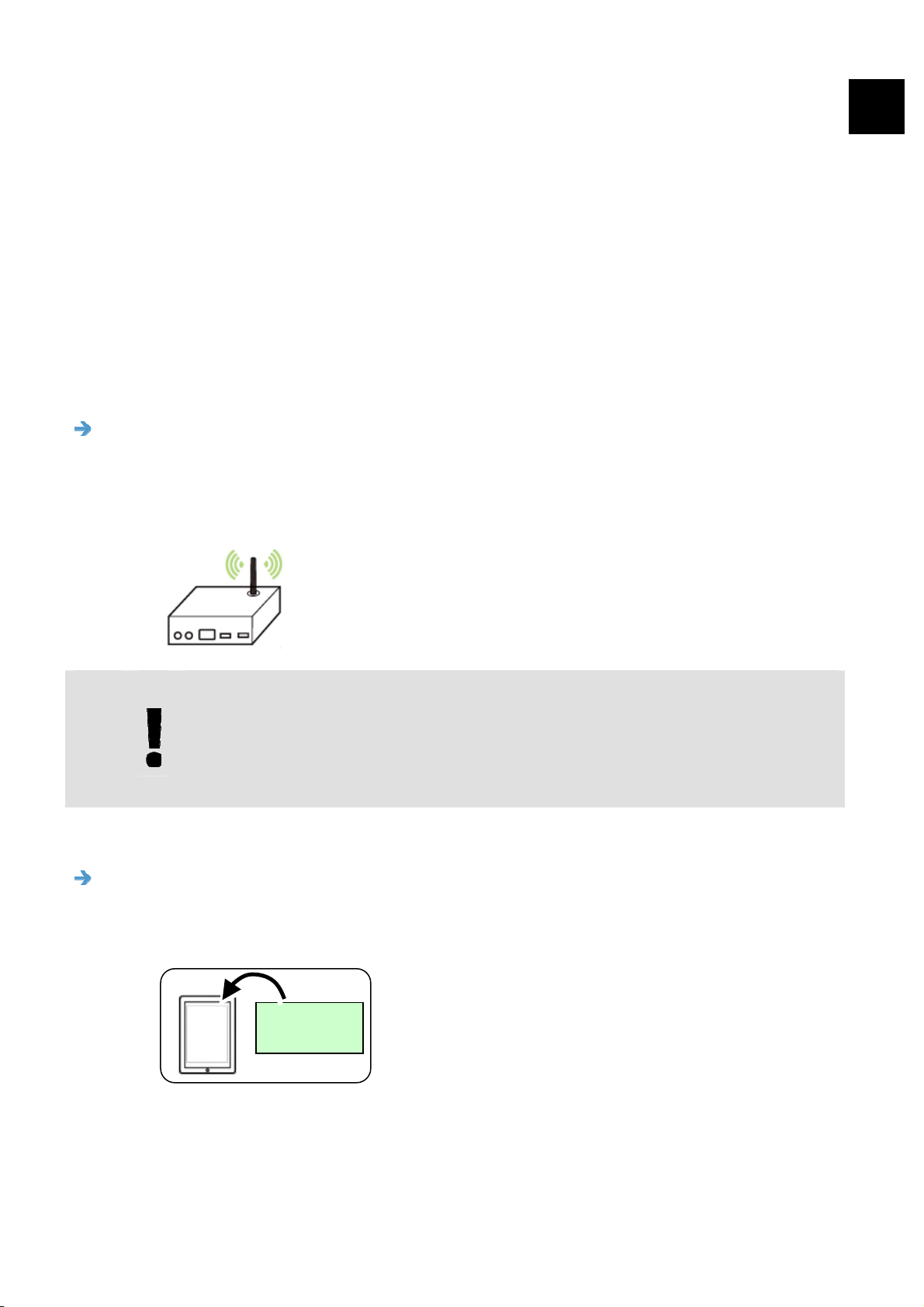
User’s Manual
Mobile Scanning
73
6. STARTING A SCAN FROM YOUR MOBILE
DEVICE
With a built-in Wi-Fi module, the scanner can be converted into a wireless device. When
a mobile device is use, the scanned images can be received from the mobile device.
6.1 Making Preparation
To connect the scanner to a wireless LAN, prepare the followings:
An environment in which a wireless LAN is available
When connecting the scanner to a wireless LAN, you may need information for a
wireless access point such as an SSID (network name) and a security key
(password). For details, contact your Network Administrator or refer to the
manual for the wireless access point.
ATTENTION
Do not place obstacles that block radio waves (e.g. walls or metal plates)
or devices that cause radio wave interference (e.g. cordless phones) within
100 mm of the scanner, or near your wireless access point.
MB App
Download the MB Application on your mobile device from an application store
such as Google Play.
6
MB
Application
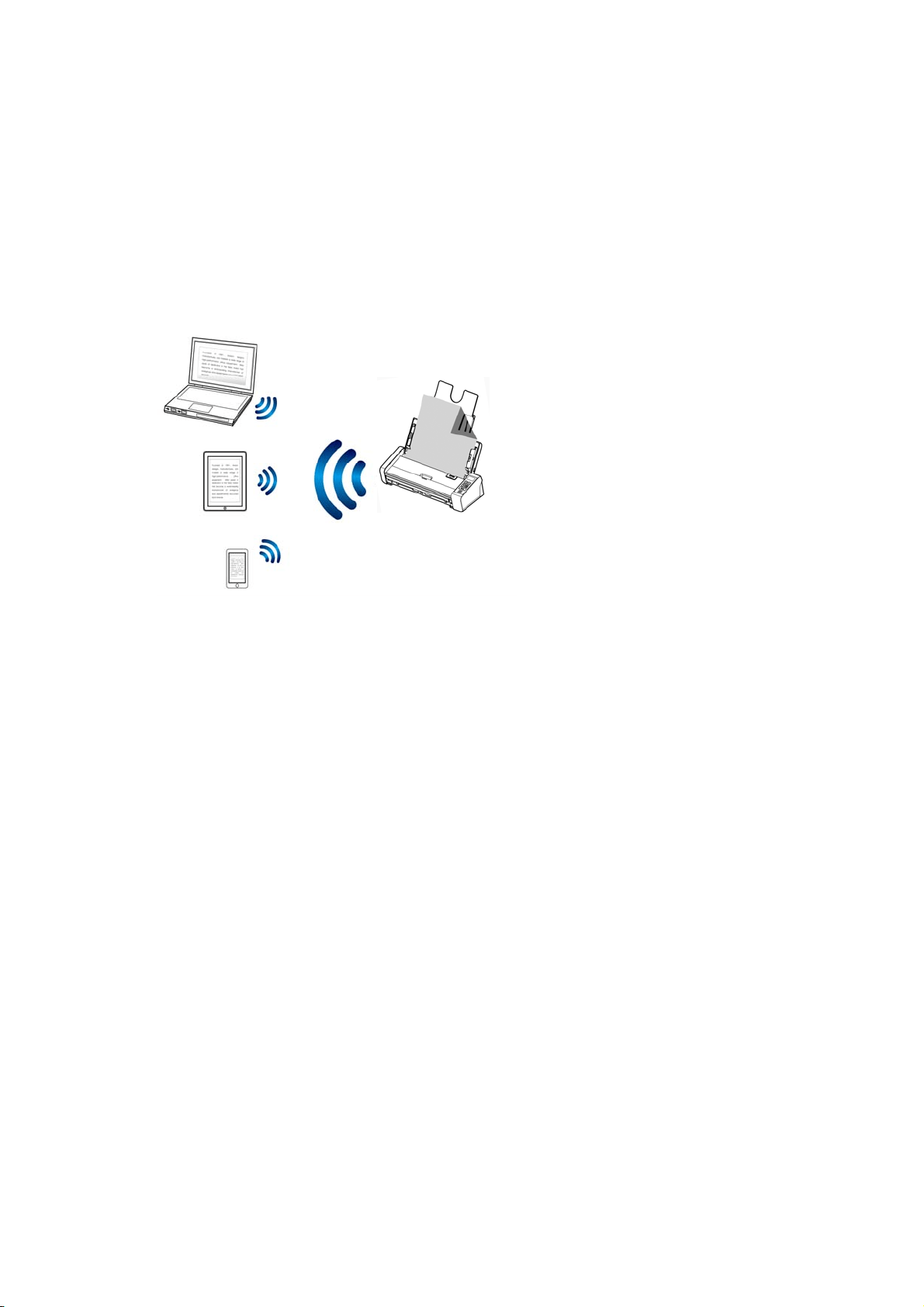
User’s Manual
Mobile Scanning
74
6.2 Connecting to a wireless network
6.2.1 Connect to a Wi-Fi network in an AP (Access Point)
mode
In AP (Access Point) mode, your mobile devices and the scanner are connected
wirelessly without an additional AP (Access Point) since the scanner itself works
as an AP.
- AP (Access Point)
8. Press the Wi-Fi button to turn on Wi-Fi. If the connection is successful, the blue
Wi-Fi LED light will be flashing.
9. On your mobile devices, make sure Avision–xxxx (xxxx indicates the last four
digits of the Mac Address at the back of the scanner) has been selected as your
network name (SSID).
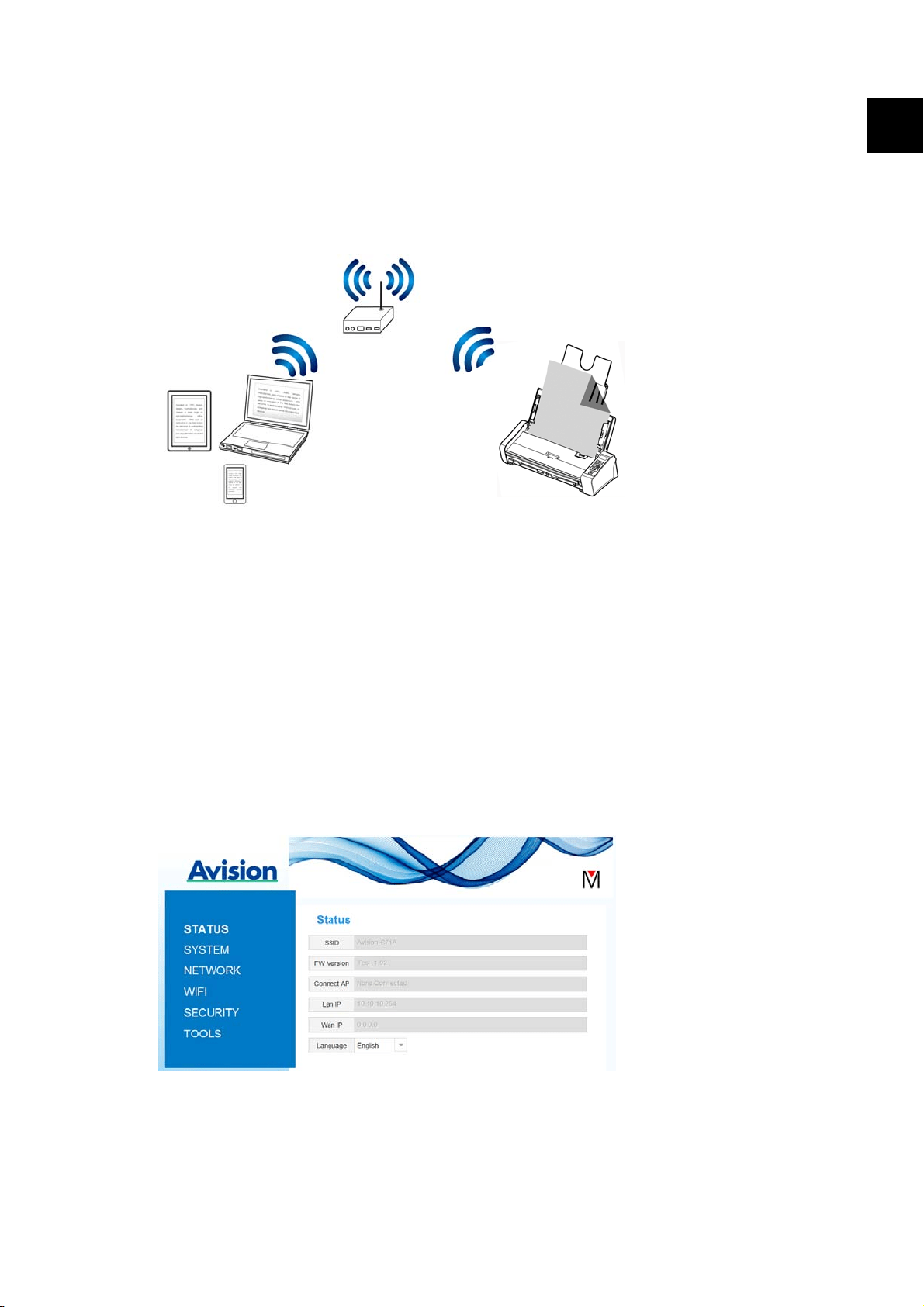
User’s Manual
Mobile Scanning
75
6
6.2.2 Connect the scanner to a Wi-Fi network in a client
mode (default mode)
In a Client mode, your mobile devices and scanner are connected wirelessly through an
additional AP (Access Point). This mode is also the default wireless mode.
- AP (Access Point)
Connect Your Scanner to an Access Point:
1. Press the Wi-Fi button on the scanner to turn on Wi-Fi. If connection is
successful, the blue Wi-Fi LED light will be flashing.
2. On your wireless computer or mobile devices such as smartphone or tablet,
open your browser (i.e. 10 or above).
3. Type the scanner’s permanent IP (10.10.10.254) address on the URL bar
(http://10.10.10.254
).
4. A login dialog box will be first displayed. Type the default user name and
password – [admin] to login the scanner’s embedded web page. (If desired, the
default password can be changed later in the web page.)
5. Choose [WIFI] to prompt the WIFI page.
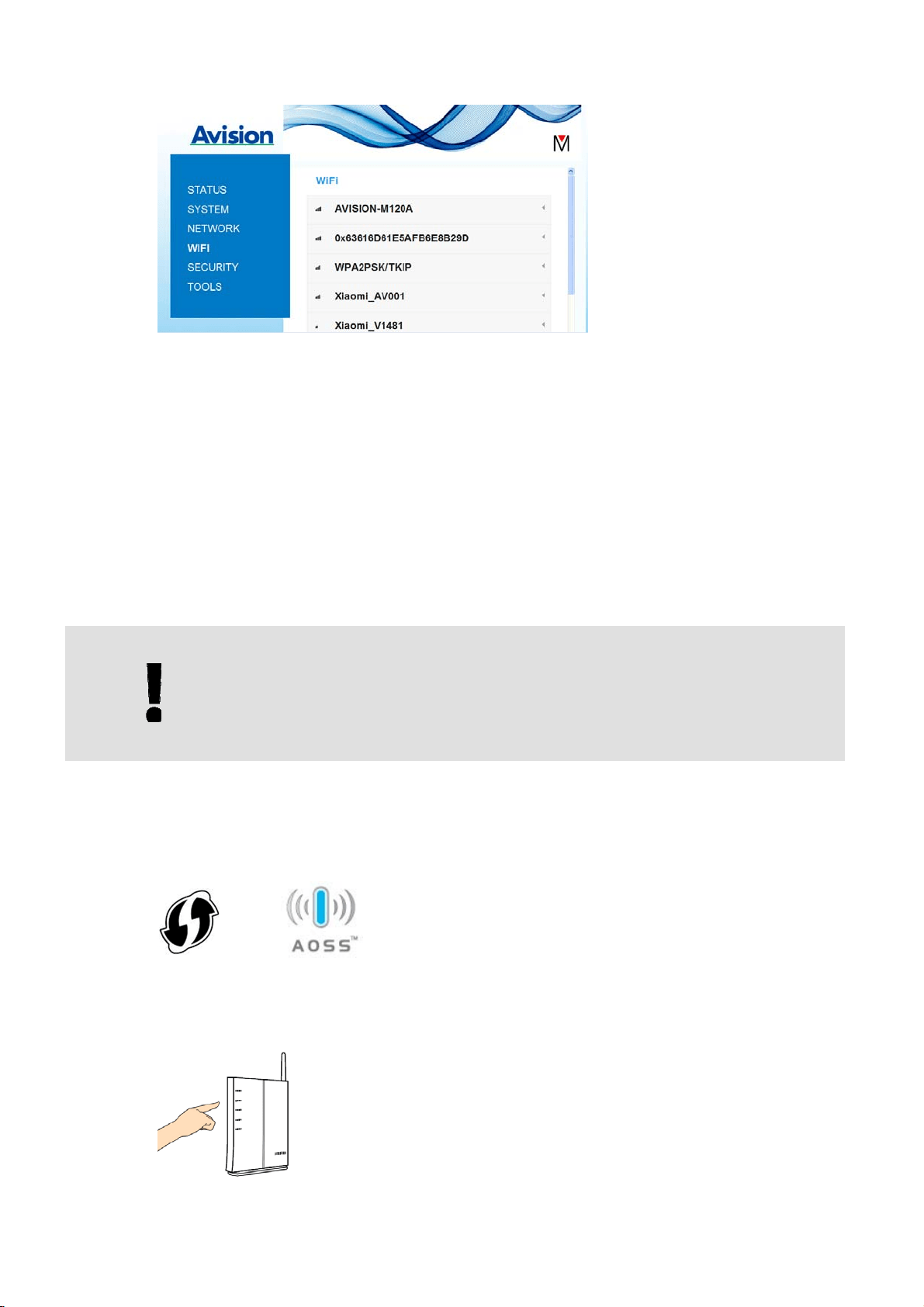
User’s Manual
Mobile Scanning
76
6. Choose your desired [Network Name] (SSID) and click [Connect]. Wait for 60
seconds for the connected status confirmation.
After the Wi-Fi connection is successful, choose [Status] to check the [WAN IP]
address is available from the selected network.
6.2.3 Connect to a wireless access point using the WPS
button
You may connect the scanner to a WPS compatible wireless access point by pressing the
WPS button on the back of the scanner.
BEFORE YOU BEGIN
To enable the WPS connection of your access point, please refer to the
user’s guide of your access point.
Perform the following procedure to connect.
1. Confirm your wireless access point/router has the WPS or AOSS
TM
symbol as
shown below.
2. Press the WPS button of your wireless access point. (You may refer to the
user’s guide of your access point/router for instructions on how to use the WPS
button.)
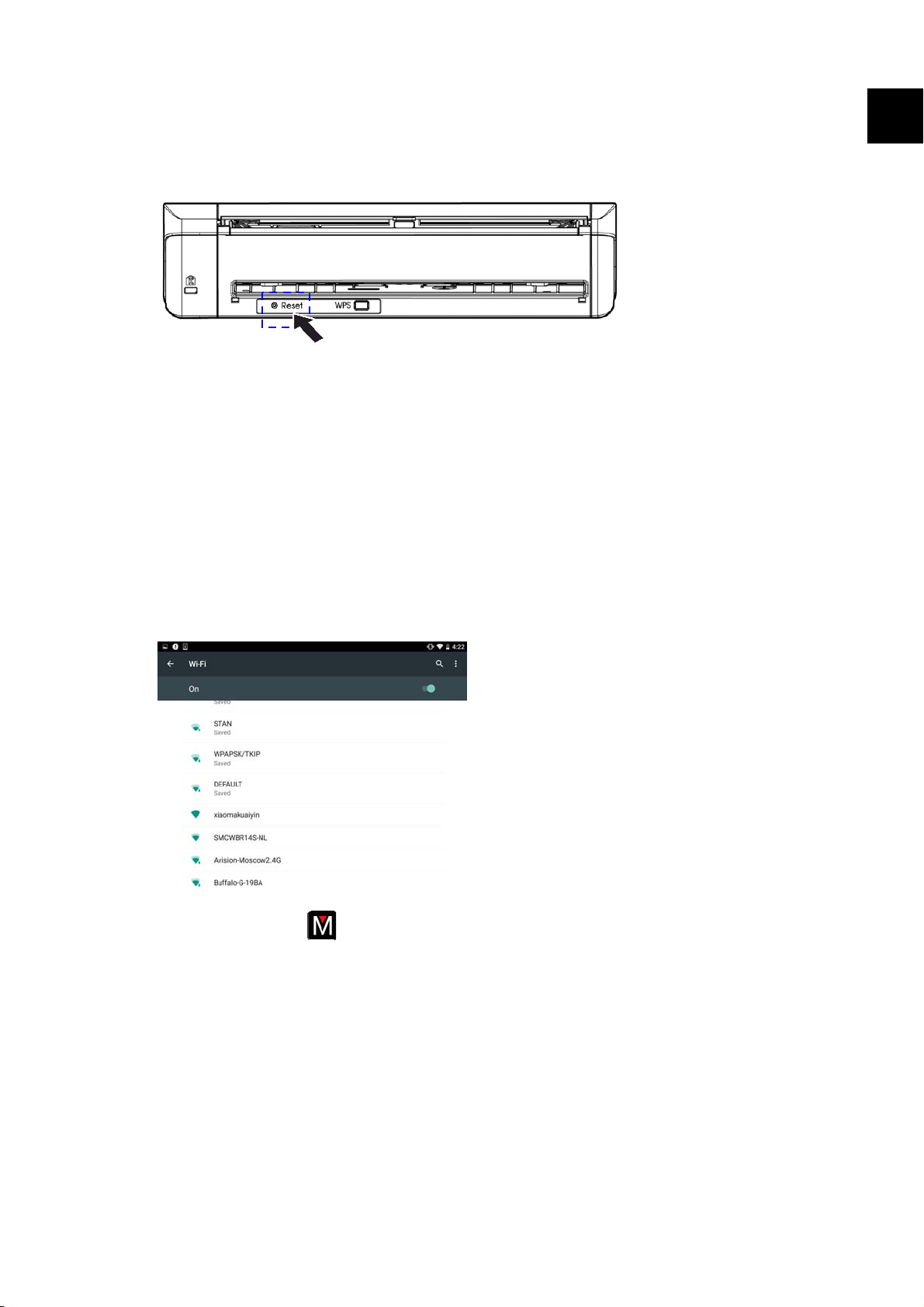
User’s Manual
Mobile Scanning
77
3. Press and hold the WPS button on the back of the scanner for about 5 seconds
within 2 minutes after pressing the WPS button of your wireless access point.
6
4. If the connection is successful, the Wi-Fi LED light of the scanner will be flashing.
(Refer to the user’s guide of your access point for the connection result.)
6.3 Scanning a document from a mobile device
Make sure that the MB Application (Scan App) has been installed on your mobile device.
The MB Application can be purchased for free from an application store such as Google
Play.
1. Enable [Wi-Fi] from [Settings] of your wireless computer, smartphone, or
tablet and then choose the same network name (SSID) of your scanner.
2. Tap the MB app (
) on the screen to launch the Scan Application. The main
window will be displayed and the application will automatically search a scanner
in the same wireless LAN. If successful, [Start scan] will be displayed at the
bottom as shown below.
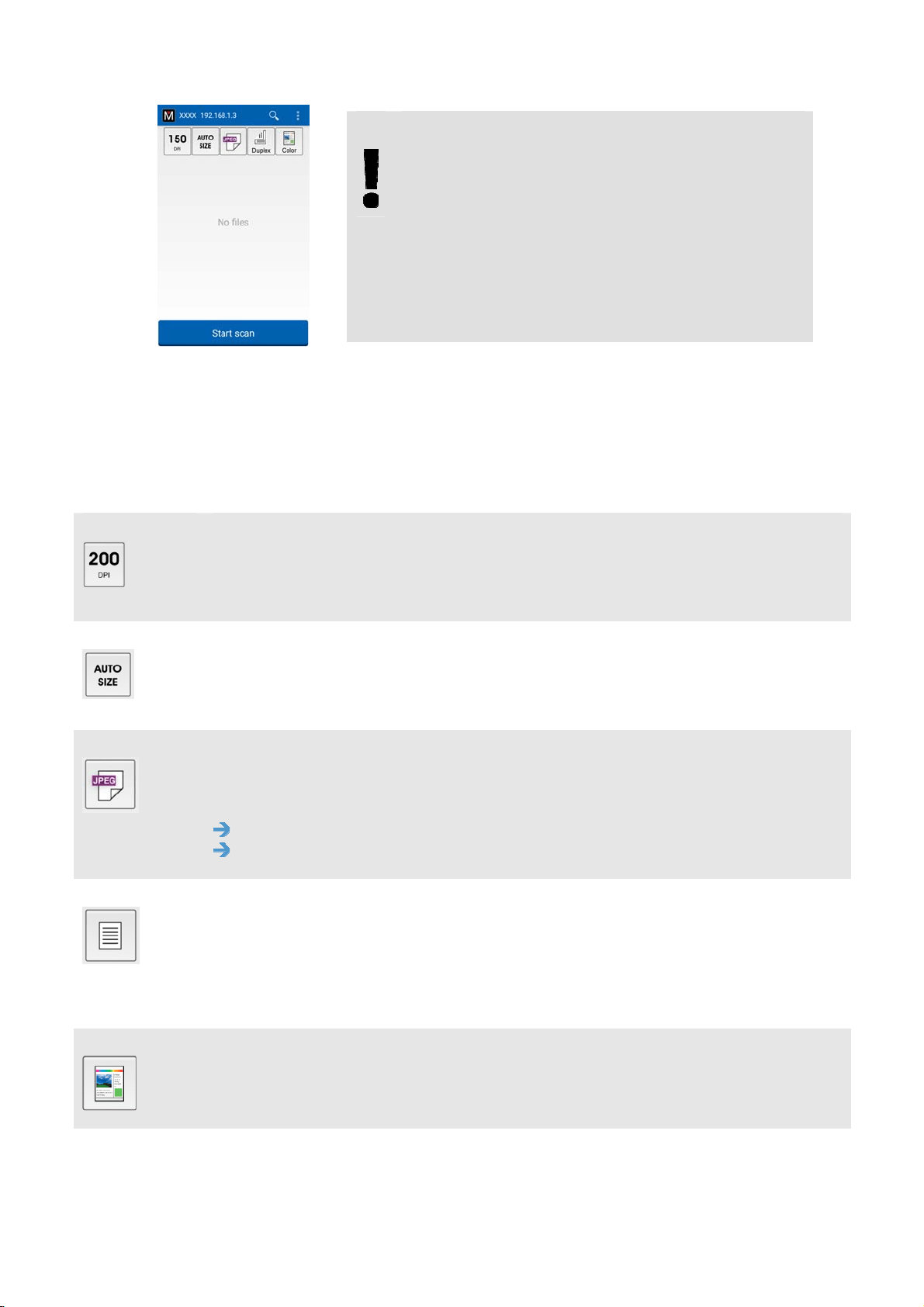
User’s Manual
Mobile Scanning
78
ATTENTION
If the scanner is not found, please check
the followings:
1. The scanner is not ready yet. Tap [More
Settings] and then [Search scanner] to
search the scanner again.
2. Check if the mobile device and the scanner
are in the same wireless LAN.
3. Check if the default settings meet your requirements. If not, change the scan
settings to fit your specific scanning task.
ITEM DESCRIPTION
Resolution: Select your desired resolution. The higher resolution, the
greater the image quality and disk space.
Choice: *150, 200, 300 dpi
Scan Size: Select your paper size or you may choose Auto to let the
scanner detect your document size automatically.
Choice: *Auto size, A4, LTR (Letter), LGL (Legal), 4x6, 5x7
File Format: Select the file format for your image.
Choice: *JPEG, PDF, TIFF
Note:
The JPEG file does not support the B&W image.
The TIFF file format supports only the B&W image.
Select to scan the front side (simplex) or both the front side and the rear
side (duplex) of your document.
Choice: *Simplex, Duplex
Note: The duplex mode is available to scan from the auto document
feeder only.
Color Mode: Select your desired image mode.
Choice: *Color, B&W, Gray
* Default settings
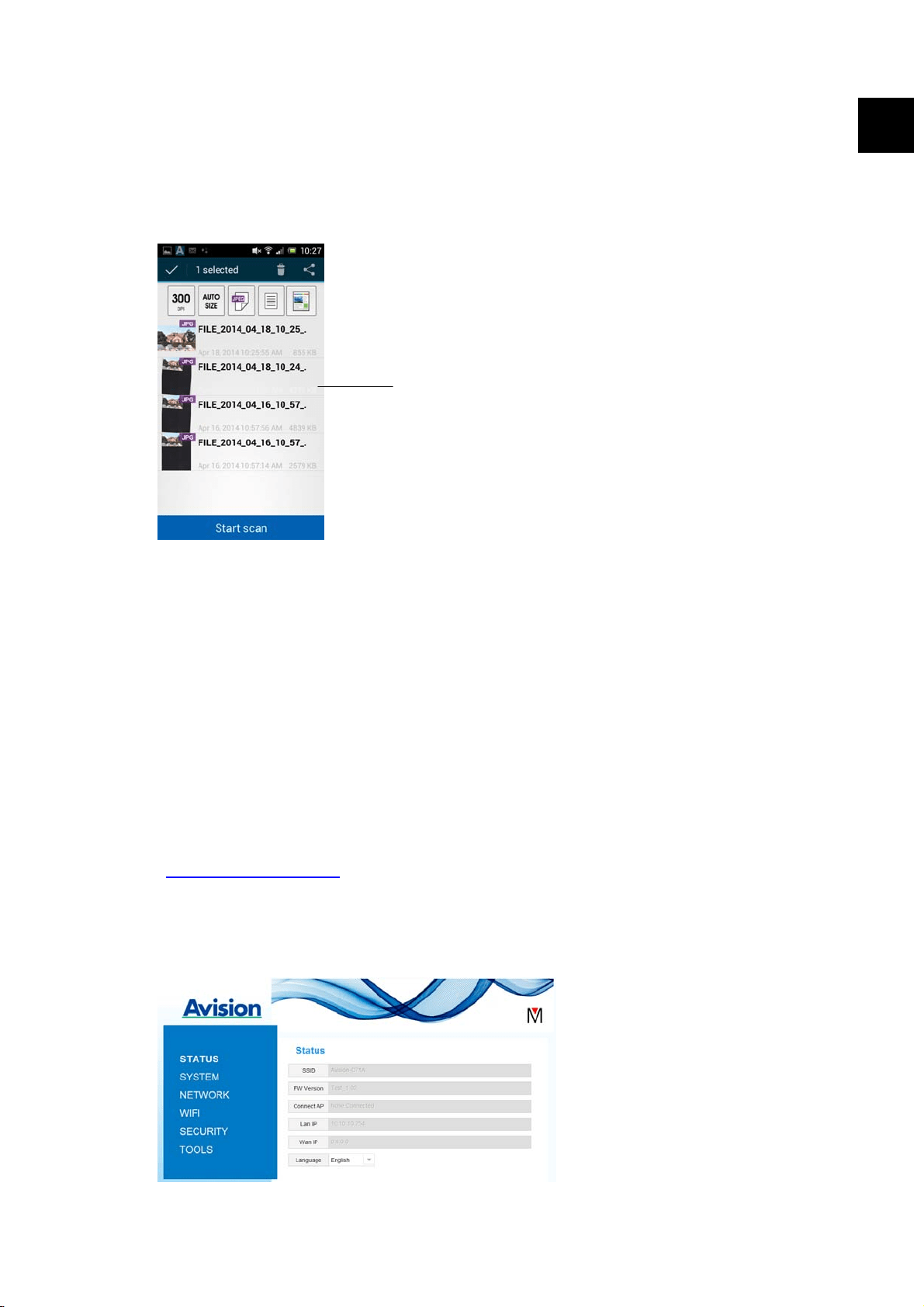
User’s Manual
Mobile Scanning
79
6
4. Load a page to the auto document or place a page on the flat bed.
5. Tap the [Start scan] button. (Choose your scanner if there is more than one
scanner connected to the network). In a second, the scanner begins scanning
the document and the thumbnail scanned image will be displayed.
The Thumbnail Image
6. Tap the thumbnail image to view the entire image.
6.4 Use the Embedded Web Page
6.4.1 View the Embedded Web Page
1. Press the Wi-Fi button on the scanner to turn on Wi-Fi. The blue Wi-Fi LED light
will be flashing.
2. On your wireless computer, open your browser (i.e. 10 or above).
3. Type the scanner’s permanent IP (10.10.10.254) address on the URL bar
(http://10.10.10.254
).
4. A login dialog box will be first displayed. Type the default user name and
password – [admin] to login the scanner’s embedded web page. (If desired, the
default password can be changed later in the web page.)
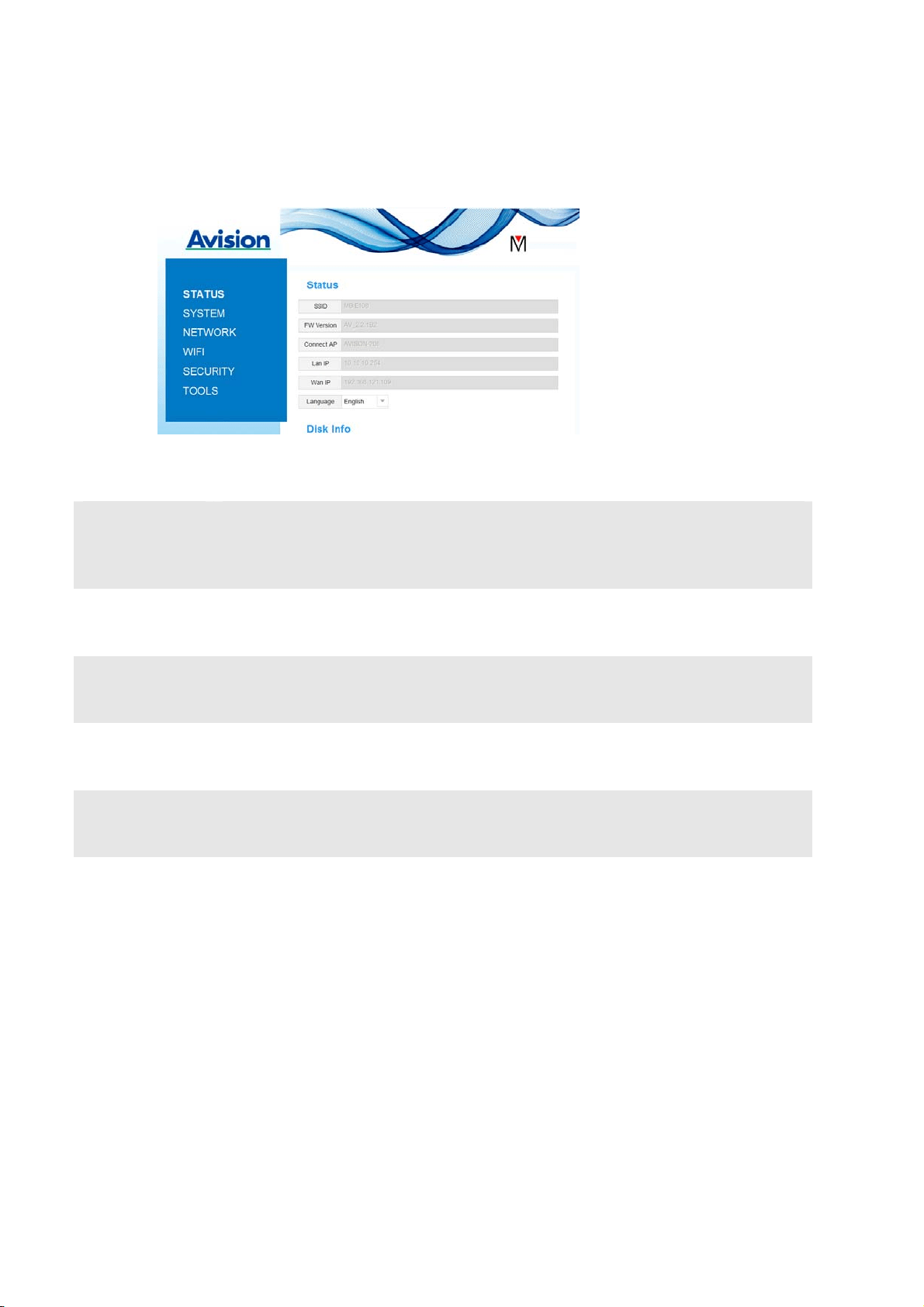
User’s Manual
Mobile Scanning
80
6.4.2 The Status Page
The [Status] page includes the following information:
NAME DESCRIPTION
SSID Displays current network name for the scanner.
You may change the name on the “Network” option.
FW Version Displays current firmware version.
Connect AP Displays connected Access Point (AP).
LAN IP Displays IP address obtained from wired Ethernet network.
WAN IP Displays Wireless IP address.
Language Displays current language for the web page.
Choice: English, Chinese

User’s Manual
Mobile Scanning
81
6
6.4.3 The System Page
The [System] page includes the following options:
NAME DESCRIPTION
Factory
Default
Restore the network security settings to factory default.
Reboot Restart the scanner. The Net LED light turns off and then turns on.
To restore network security settings to factory default,
1. Press the [Factory Default] button. A [Confirmation] dialog box appears.
2. Press [Yes] to complete the settings.
3. The blue [Wi-Fi LED] light turns off.
4. Wait for about 30 seconds until the blue Network LED turns on and starts
blinking again.
Alternatively,
You may press the [Reset] button on Scanner to restore network security settings to
default.
1. Use your pen to press and hold the [Reset] button for about 5 seconds until the
blue network LED turns off.
2. Wait for about 30 seconds until the blue Wi-Fi LED turns on and starts blinking
again.

User’s Manual
Mobile Scanning
82
6.4.4 The Network Page
The [Network] page allows you to change the SSID name or login password if required.
NAME DESCRIPTION
SSID Displays current network name for the scanner. You may type your
desired name on the SSID field and then click [Apply] to complete.
Device
Name
Displays current device name for the scanner. You may type your
desired name on the field and then click [Apply] to complete.
Timeout Timeout for the connected network scanner: The allowable connection
time after your last action. Range: 10 ~ 3,600 seconds. (Default is 0).
If 0 second is set, this means no restriction on the connection time. If
300 seconds (5 minutes) is set, this means the network scanner will be
disconnected 5 minutes after your last action.
Connection
Type
Choice: DHCP (default), Static
DHCP: Choose DHCP to obtain IP/subnet/gateway addresses
automatically provided by the DHCP server.
Static: Choose Static to assign your designated IP address. Type IP
address on the following fields such as IP address, Subnet Mask,
Gateway IP, Primary DNS, and Secondly DNS.
DNS: Domain Name Server
Login Displays current login user name for the web page. You may type your
desired password on the password field and then click [Apply] to
complete.
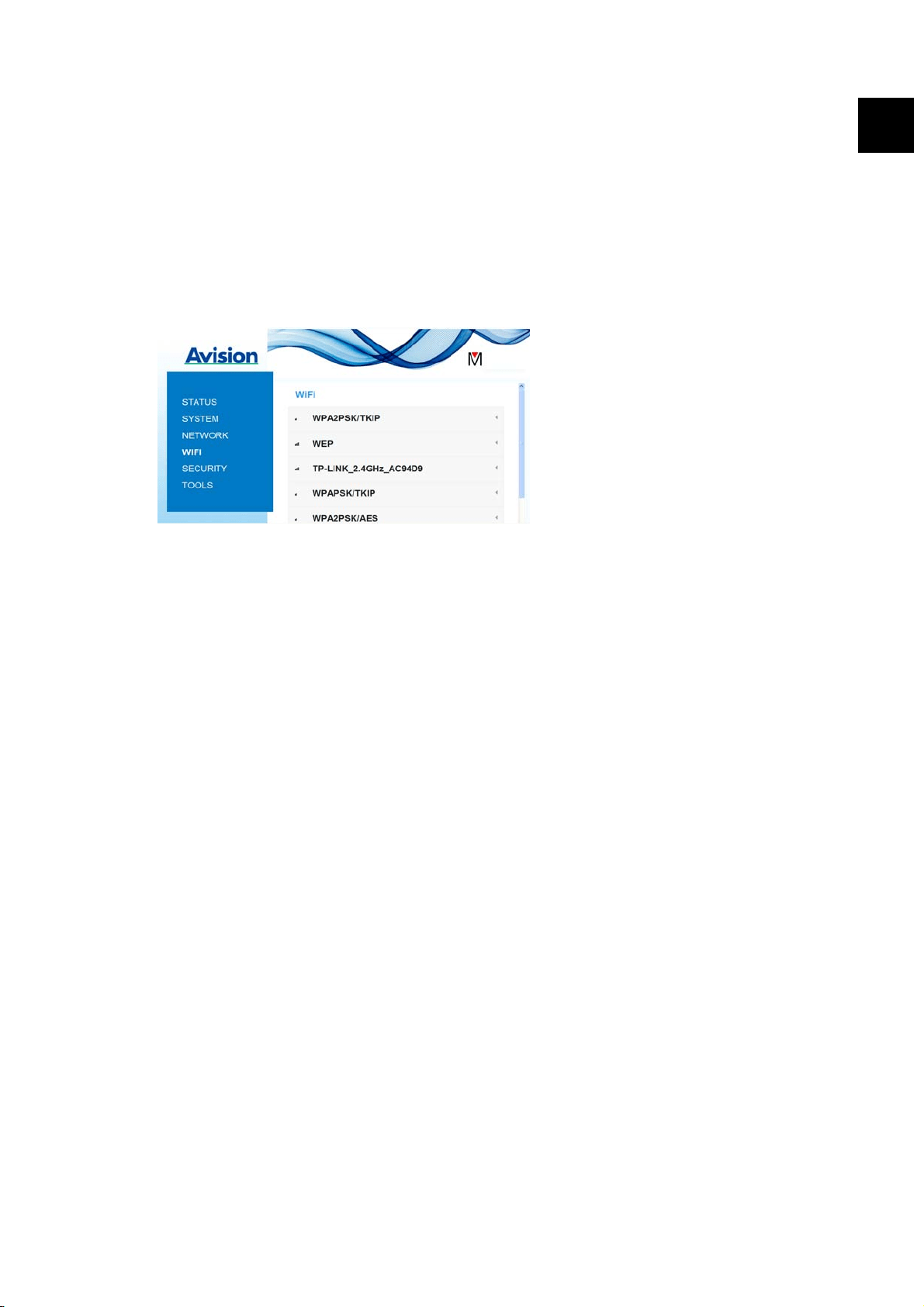
User’s Manual
Mobile Scanning
83
6
6.4.5 The WIFI Page
The [WIFI] page allows you to connect Scanner to a wireless network.
To connect Scanner to a wireless network,
1. Click [WIFI]. All the available wireless networks will be displayed.
2. Choose the network name (SSID) which you wish to connect to and then click the
[Connect] button. (Wait for 60 seconds while the connection is processed.) If
required, type your network password (or security key) and click [OK].
3. After successful connection, the selected Network Name (SSID) will be marked with
[connected].
To disconnect the network, highlight it and click [Disconnect].
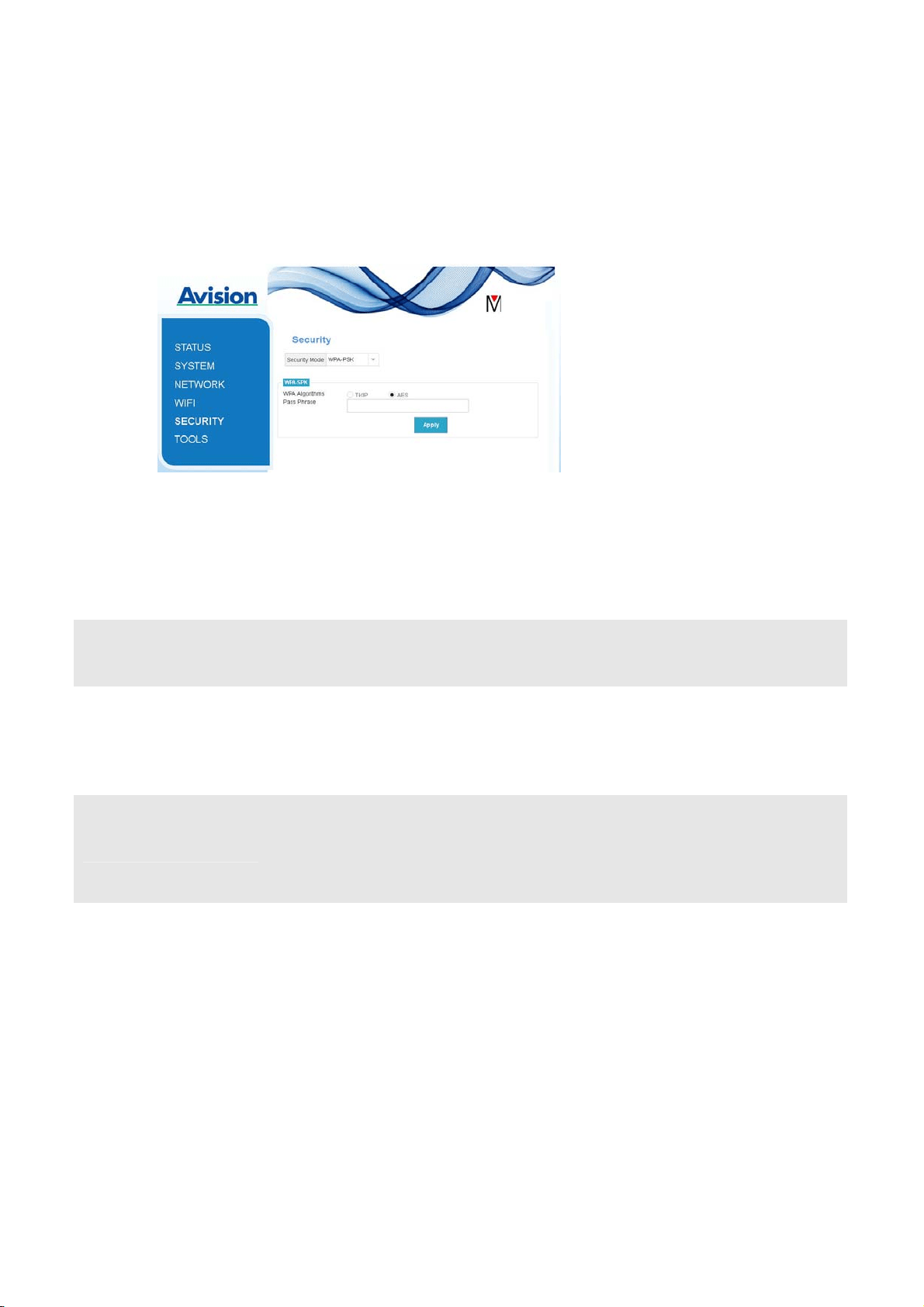
User’s Manual
Mobile Scanning
84
6.4.6 The Security Page
The [Security] page provides the following authentication mode (security protocol)
Choice: Disable, WEP, WPA-PSK, WPA2-PSK.
Choice for the encryption protocols includes TKIP, AES.
AUTHENTICATION
(SECURITY)
METHOD
ENCRYPTION METHOD
Disable None
WEP WEP
Up to four WEP key can be set. Type your WEP in the field and
then click [Apply] to complete.
WPA-PSK Choice: TKIP/AES
Type your desired pass phrase in the [Pass Phrase] field and
then click [Apply] to complete.
WPA2-PSK Choice: TKIP/AES
(Pass Phrase: 12345678)
You may change your [Pass Phrase] by entering the new pass
phrase in the field and then click [Apply] to complete.
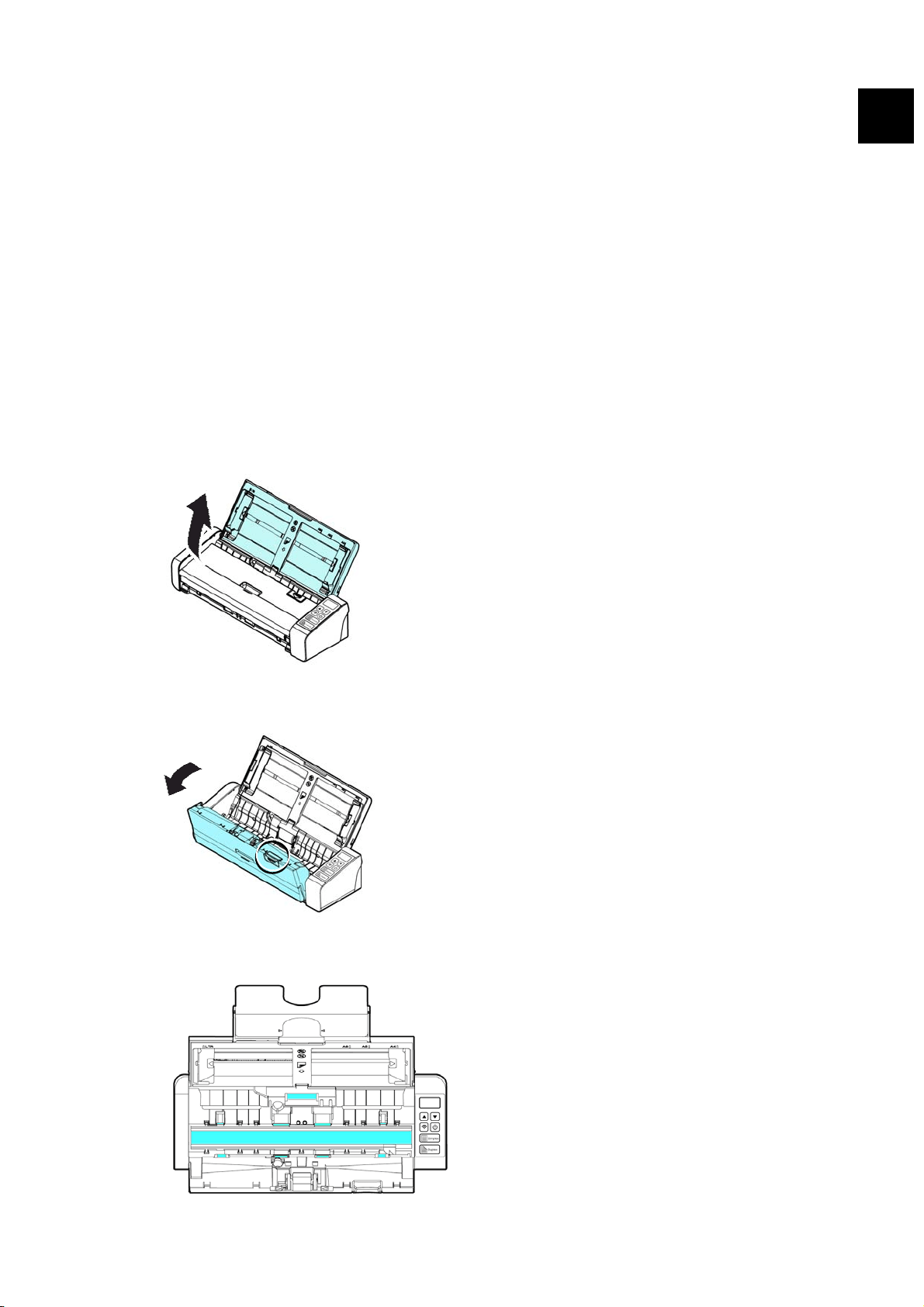
User’s Manual
Maintenance
85
7
7. MAINTENANCE
7.1 Clean the Glass, Separation Pad, and Rollers
If the scanned images contain streaks or scanned documents become dirty, the scanning
glass, separation pad and roller inside the scanner are likely to be dirty. Clean them
periodically.
Use only the recommended or supplied tool to clean the scanner and feeder dock.
Cleaning steps:
1. Open the feed tray.
2. Press the ADF Release button to open the feeder cover.
3. Wipe the separation pad, rollers and the glass with the cleaning cloth.
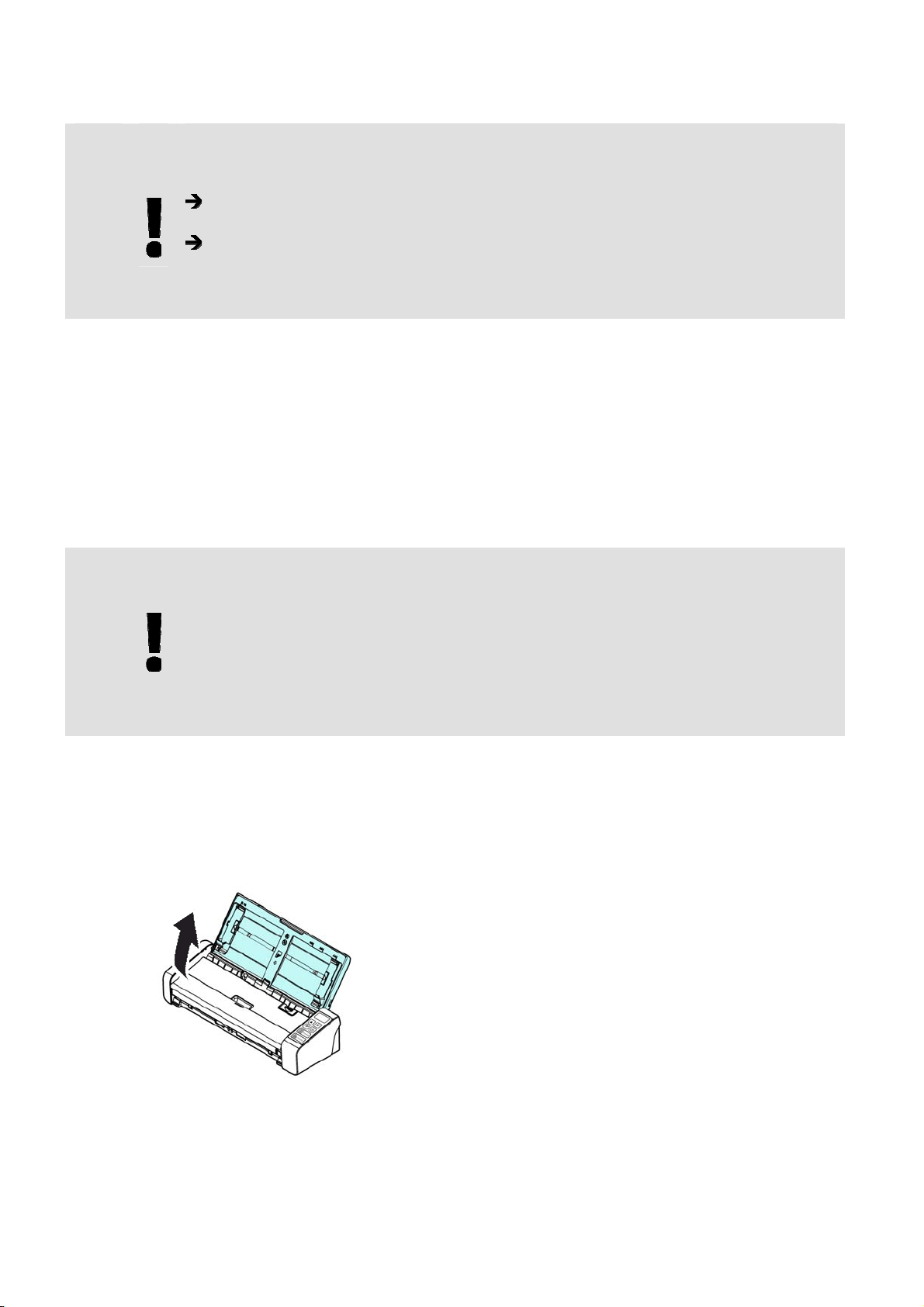
User’s Manual
Maintenance
86
NOTE
Adding some isopropyl alcohol (95%) on the cleaning cloth is more
efficient when cleaning the rollers.
Do not use any solvents or corrosive liquid (i.e., alcohol, kerosene,
etc.) to clean any part of the scanner, otherwise the plastic material
will be permanently damaged.
7.2 Replace the Feed Rollers
The feed roller and separation pad inside the scanner wear with scanning. If the feed
roller and separation pad are worn, documents may not feed correctly and paper jams
may occur. When document feed performance deteriorates, replace the feed roller and
separation pad.
NOTE
It is recommended to replace the feed roller or separation pad when the
total number of pages of documents fed in the scanner exceeds one of the
following quantities:
Feed Roller: 100,000 sheets
Separation Pad: 30,000 sheets
Follow these steps to replace the separation pad and feed roller.
To replace the Feed Roller,
1. Open the feed tray.
2. Press the ADF Release button to open the feeder cover.
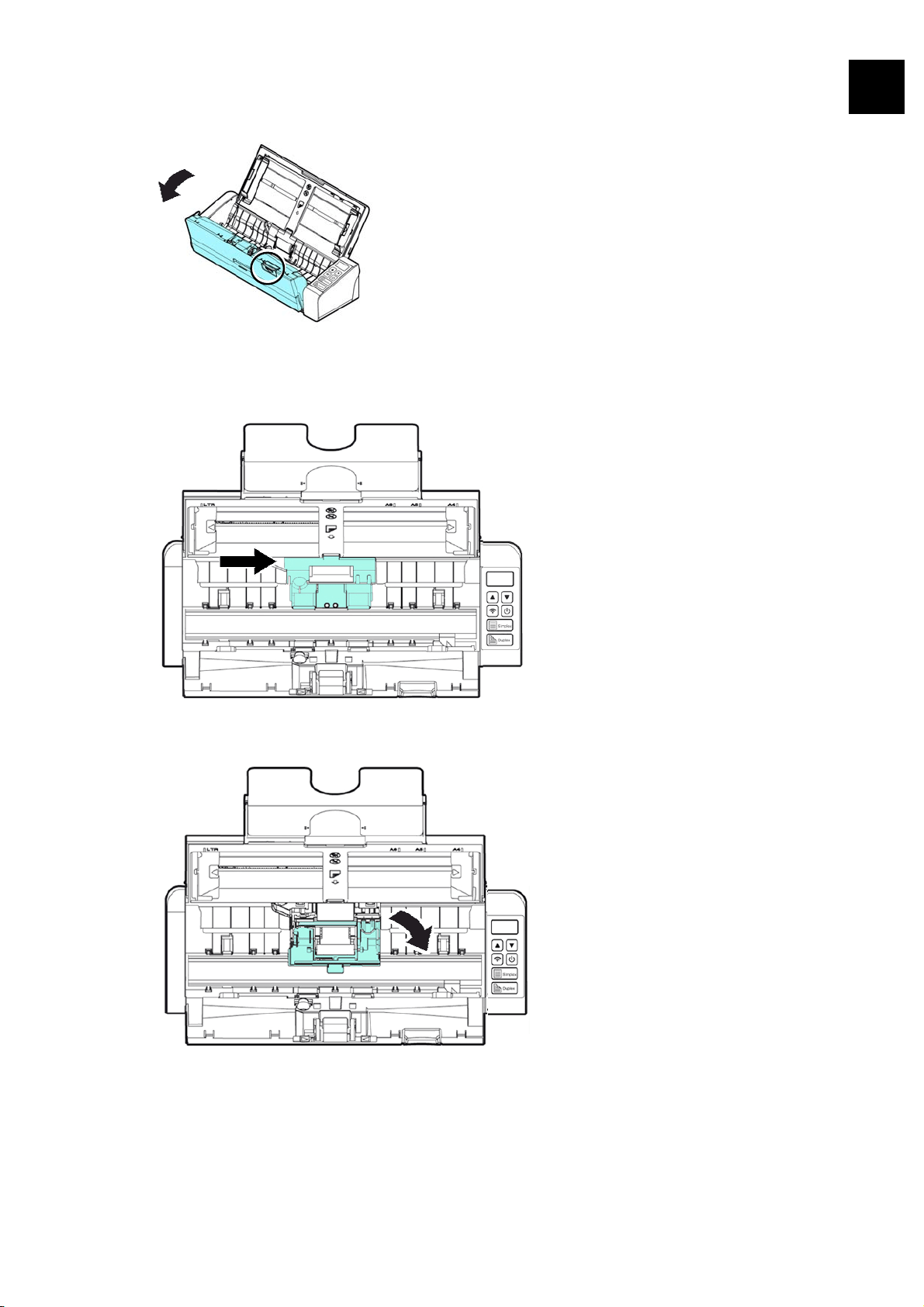
User’s Manual
Maintenance
87
7
3. Open the roller cover.
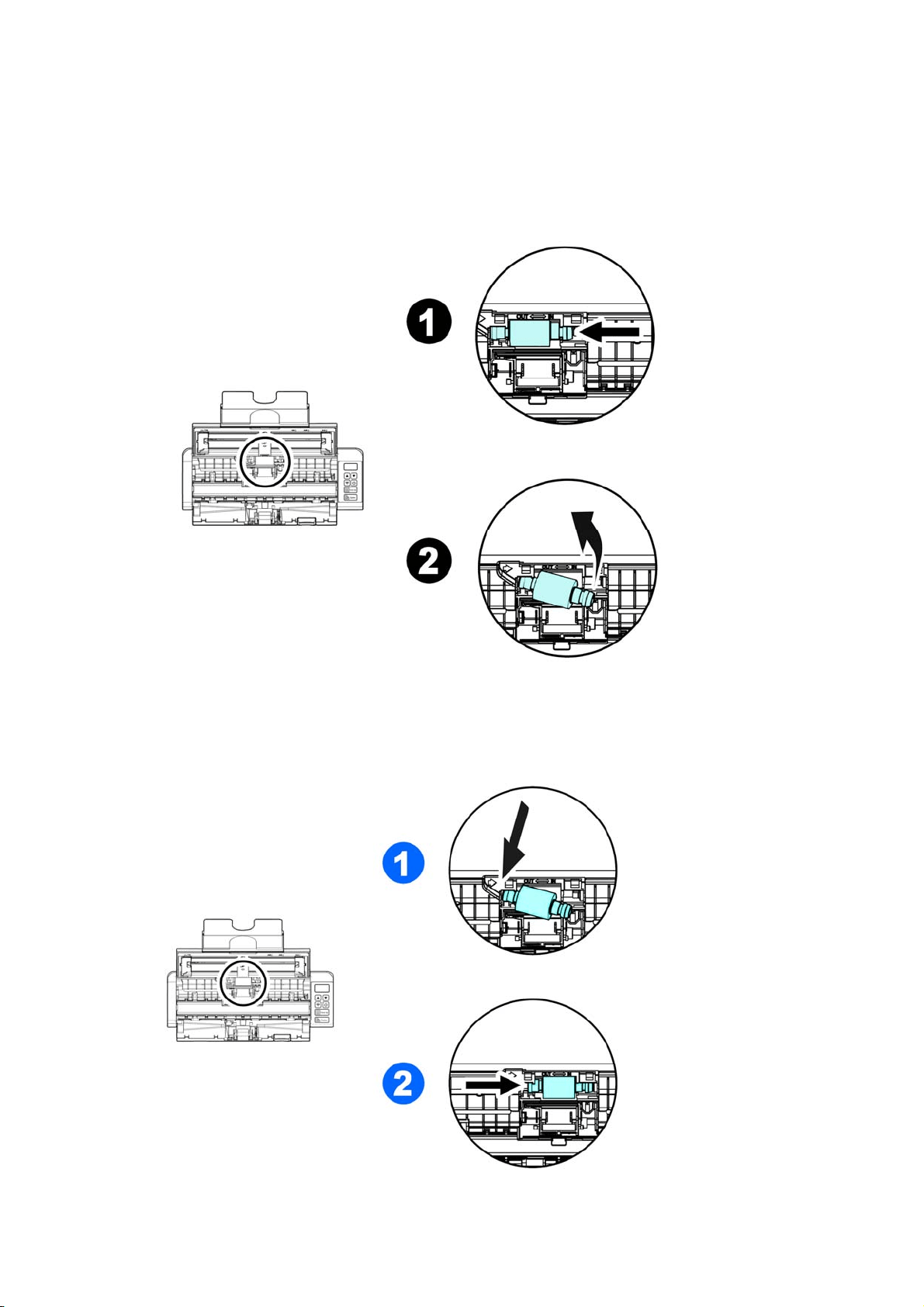
User’s Manual
Maintenance
88
4. Slide the feed rollers to the left.
5. Remove the feed rollers.
6. Attach the new feed rollers. Insert the left end of the shaft to the notch and
slide the feed roller to the right. A snap-in sound could be heard.
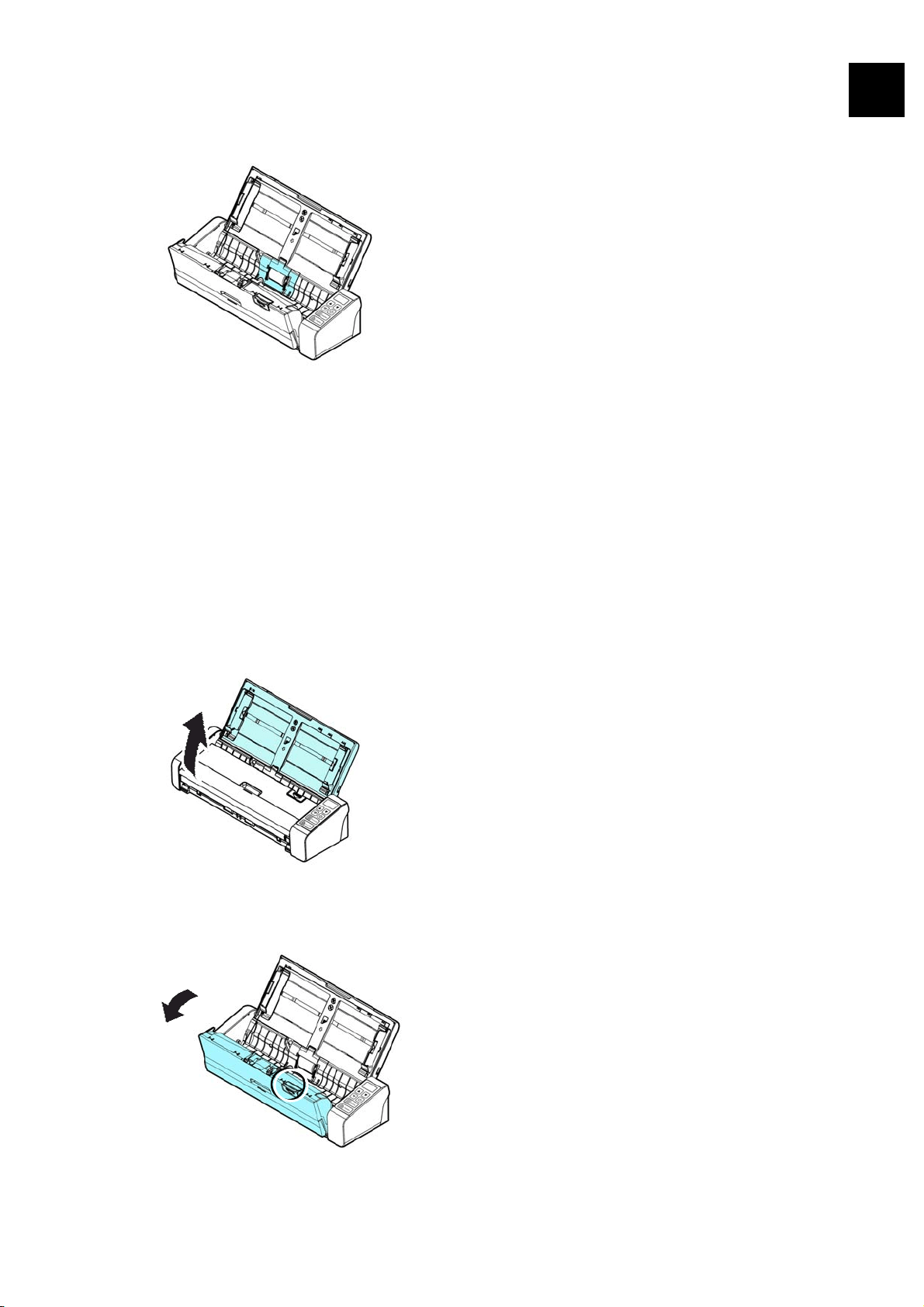
User’s Manual
Maintenance
89
7. Completely close the roller cover so that it clicks into place.
8. Close the feeder cover.
7.3 Replace the Separation Pad
To replace the Separation Pad,
1. Open the feed tray.
2. Open the feeder cover.
7
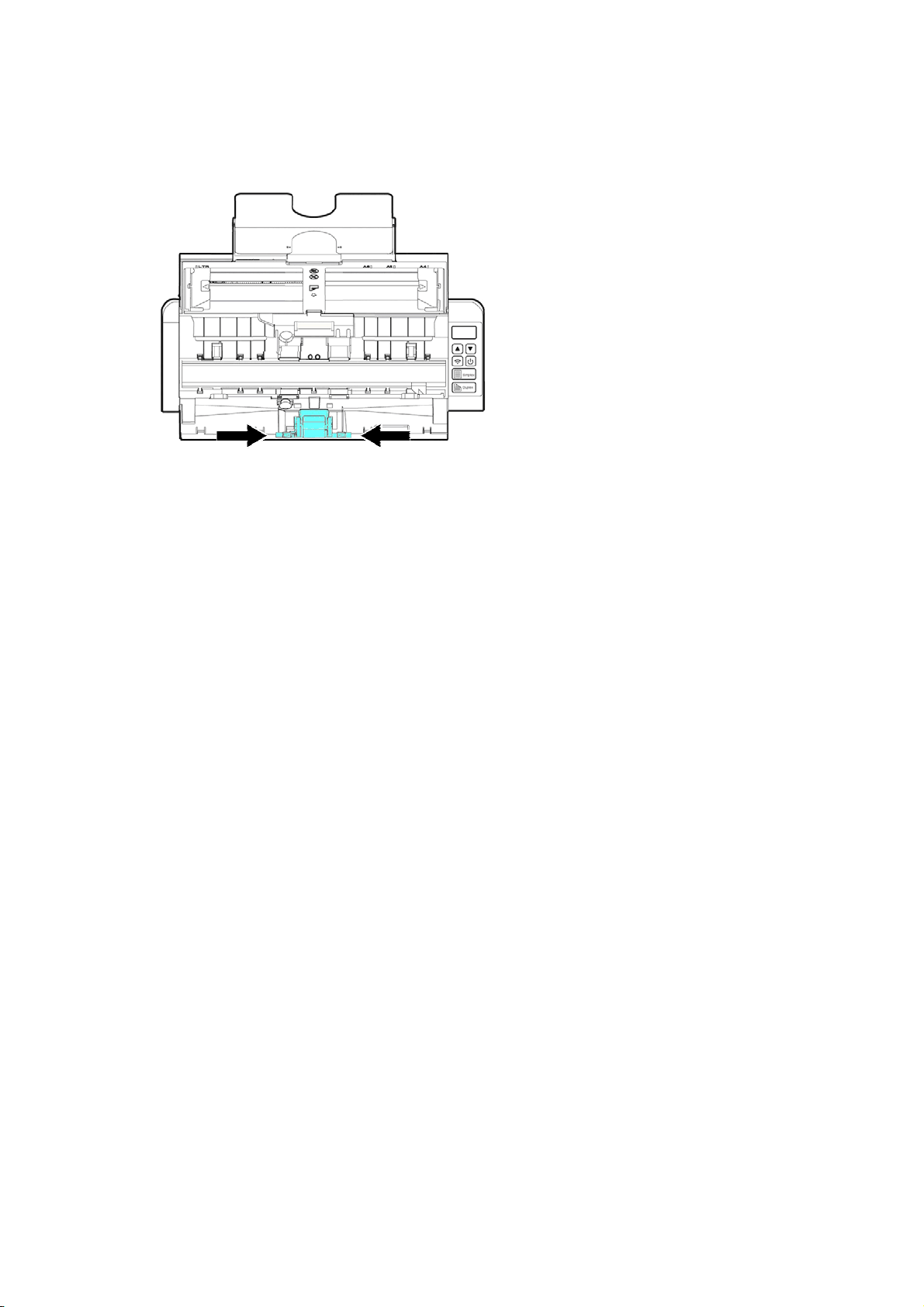
User’s Manual
Maintenance
90
3. Press two arms of the separation pad inwardly with two fingers (
) and lift it
up (
) to remove the separation pad.
4. Hold two arms of the separation pad with two fingers and attach the new
separation pad to the scanner.
5. Close the feeder cover.
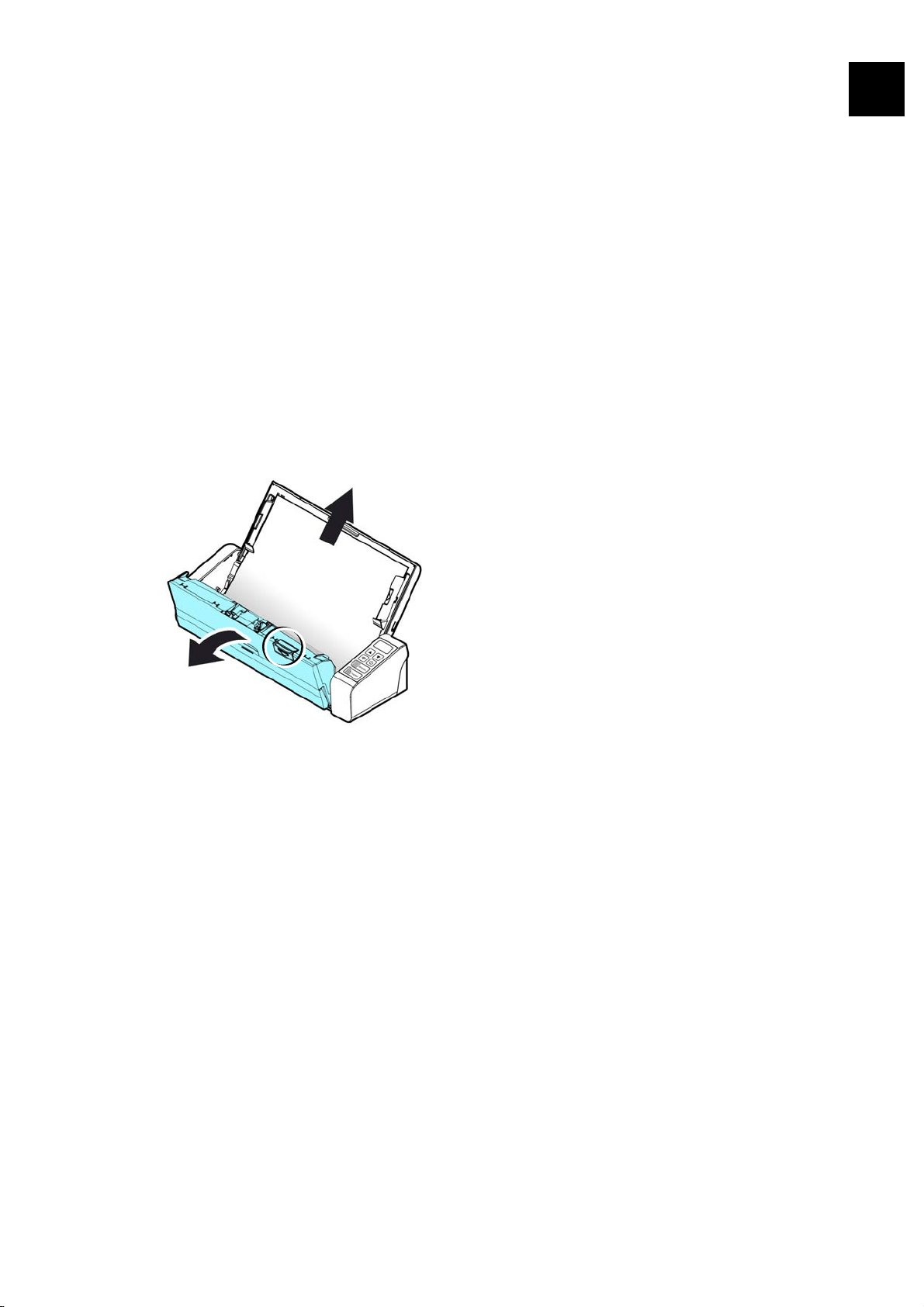
User’s Manual
Troubleshooting
91
8
8. TROUBLESHOOTING
8.1 Clear a PaperJam
In the event of a paper jam, follow the procedures below to remove the paper:
1. Press the ADF Release button to open the feeder cover.
2. Carefully pull the paper out of the feed tray.
3. Close the feeder cover. Your Scanner is now ready to use.
User’s Manual
Troubleshooting
92
8.2 Error Conditions
If there is error during scanning, the LED light will be flashing in red color and error
drawing will be displayed. Refer to the following table to clear the error conditions.
ERROR
DRAWING/MEANING
CAUSE HOW TO RESTORE
Paper jam
1. Original has become stuck
in the feeder.
2. Original exceeds max.
length [300 dpi: 36 in.
(914mm), 600 dpi: 14 in.
(356mm)]
Open the feeder
cover and pull the
original out of the
feeder.
Cover opens
Feeder cover opens. Close the feeder
cover.

User’s Manual
Troubleshooting
93
8
8.3 Frequently Asked Questions and Answers
Q Paper becomes jammed or multi-fed.
A 1. Flatten the corners and edges of your documents.
2. Thoroughly fan your documents before loading them into the scanner.
3. Reduce the number of pages that you load into the scanner at one time.
Q Paper becomes skewed in the scanner.
A
1. Align the document guides to fit the documents as closely as possibly
and place the documents so that they feed in straight.
2. Check the condition of the feeding roller. If necessary, follow the
cleaning directions in Section 5.1 and perform the cleaning.
Q When I choose optical resolution to be 600 dpi, the "auto crop" and
"deskew" functions will be disabled.
A Since to perform auto crop and deskew consumes great deal of system
memory, it is suggested if you wish to perform "auto crop" and "deskew"
functions, please choose your optical resolution to be smaller than 600 dpi to
prevent an error message.

User’s Manual
Troubleshooting
94
8.4 Technical Service
Before contacting Avision, please prepare the following information:
Scanner serial & revision number (located on the bottom of the scanner);
Hardware configuration (e.g., your host CPU type, RAM size, free disk space,
display card, interface card);
The version of PaperAir Manager;
Please call us at:
Headquarter
Avision Inc.
No. 20, Creation Road I, Science-Based Industrial Park,
Hsinchu 300, Taiwan, ROC
TEL: +886 (3) 578-2388 FAX: +886 (3) 577-7017
E-MAIL: [email protected] Web Site: http://www.avision.com.tw
US and Canada Area
Avision Labs, Inc.
6815 Mowry Ave., Newark CA 94560, USA
TEL: +1 (510) 739-2369 FAX: +1 (510) 739-6060
E-MAIL: [email protected] Web Site: http://www.avision.com
China Area
Hongcai Technology Limited
7A, No.1010, Kaixuan Road, Shanghai 200052 P.R.C.
TEL:+86-21-62816680 FAX:+86-21-62818856
Europe Area
Avision Europe GmbH
Bischofstr. 101 D-47809 Krefeld Germany
TEL: +49-2151-56981-40 FAX: +49-2151-56981-42
E-MAIL: [email protected] Web Site: http://www.avision.de
Espaço Brasil
Avision Brasil Ltda.
Avenida Jabaquara, 2958 - Cj. 75 - Mirandópolis –
CEP: 04046-500 - São Paulo, Brasil TEL: +55-11-2925-5025
E-MAIL: [email protected] Web Site: http://www.avision.com.br

User’s Manual
Specifications
95
9
9. SPECIFICATIONS
All specifications are subject to change without notice. For the most up-to-date
and detailed specifications, please refer to our web site at http://www.avision.com
Model Number: FL-1507B
Optical Resolution: 600 dpi
Scanning Modes: Black & White / Gray / Color
ADF Capacity: Up to 20 pages (70 g/m
2
) (20 lb.)
Max. Document Size: 216 x 356 mm (8.5 x 14 in.)
Min. Document Size: 50 x 50 mm (2 x 2 in.)
Paper Weight: Front Tray: 27 ~ 413 g/m
2
(7~110 lb.)
ADF: 50~105 g/m
2
(13~28 lb.)
ID Card Thickness: < 1.25 mm (0.05 in.)
(Front tray, landscape feeding, embossed side face up)
Interface: Micro USB
Power (Input): 100~240Vac, 50/60Hz
Power (Output): 24V, 1.5A (Adapter)
Operating Temperature: 10º C~35º C
Dimensions: (WxDxH)
Min. 299 x 104 x 74 mm
(11.77 x 4.09 x 2.91 in.)
Max. 299 x 254 x 255 mm
(11.77 x 10 x 10 in.)
Weight: 1.5 kg (3.3 lb.)

User’s Manual
Specifications
96
Wi-Fi Specifications:
Model: Module_WH_02
Main Chipset MediaTek MT7620
DDR2 SDRAM 64MB
SPI Flash 8MB
Standard
Conformance
IEEE 802.11b, IEEE 802.11g, IEEE
802.11n
Frequency Range 2.4 ~ 2.4835GHz
Modulation
Technique
DSSS with CCK, DQPSK, DBPSK
OFDM with BPSK, QPSK, 16QAM,
64QAM
Data Rate 802.11b: Up to 11Mbps
802.11g: Data Rate Up to 54Mbps
802.11n: Up tp 300Mbps
Transmit Power 20dBm(max)
Sensitivity 300M_2.4G:-70dBm
270M_2.4G:-70dBm
195M_2.4G:-71dBm
130M_2.4G:-74dBm
54M_2.4G:-79dBm
6M_2.4G:-94dBm
Antenna IPEX connector *2