TOSHIBA
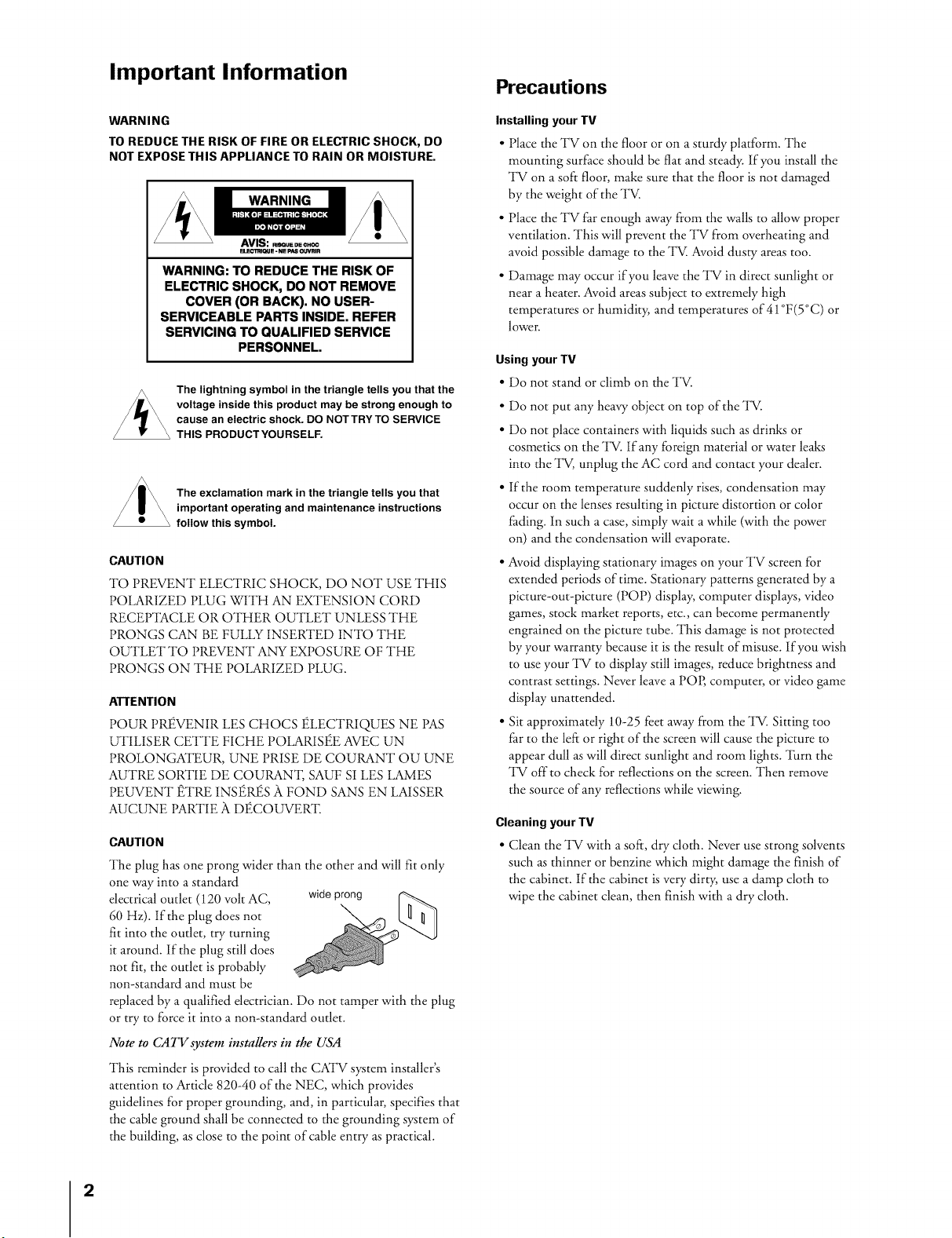
Important Information
WARNING
TO REDUCE THE RISK OF FIRE OR ELECTRIC SHOCK, DO
NOT EXPOSE THIS APPLIANCE TO RAIN OR MOISTURE.
WARNING
WARNING: TO REDUCE THE RISK OF
ELECTRIC SHOCK, DO NOT REMOVE
COVER (OR BACK). NO USER-
SERVICEABLE PARTS INSIDE. REFER
SERVICING TO QUALIFIED SERVICE
PERSONNEL.
The lightning symbol in the triangle tells you that the
voltage inside this product may be strong enough to
cause an electric shock. DO NOTTRYTO SERVICE
THIS PRODUCTYOURSELF.
The exclamation mark in the triangle tells you that
important operating and maintenance instructions
follow this symbol.
CAUTION
TO PREVENT ELECTRIC SHOCK, DO NOT USE THIS
POLARIZED PLUG WITH AN EXTENSION CORD
_CElYlACLE OR OTHER OUTLET UNLESS THE
PRONGS CAN BE FULLY INSERTED INTO THE
OUTLET TO P_VENT ANY EXPOSURE OF THE
PRONGS ON THE POLARIZED PLUG.
ATTENTION
POUR P_VENIR LES CHOCS ELECTRIQUES NE PAS
UTILISER CETTE FICHE POLARISEE AVEC UN
PROLONGATEUR, UNE PRISE DE COURANT OU UNE
AUTRE SORTIE DE COURAN'I, SAUF SI LES LAMES
PEUVENT ETRE INSETS }l FOND SANS EN LAISSER
AUCUNE PARTIE A DECOUVER'E
CAUTION
The plug has one prong wider than the other and will fit only
one way into a standard
electrical outlet (120 volt AC, wideprong
60 Hz). If the plug does not
fit into the outlet, try turning
it around, if the plug still does
not fit, the outlet is probably
non-standard and must be
replaced by a qualified electrician. Do not tamper with the plug
or try to force it into a non-standard outlet.
Note to CAll'system installers in the USA
This reminder is provided to call the CATV system installer's
attention to Article 820-40 of the NEC, which provides
guidelines for proper grounding, and, in particular, specifies that
the cable ground shall be connected to the grounding system of
the building, as close to the point of cable entry as practical.
Precautions
Installing your TV
• Place the TV on the floor or on a sturdy platform. The
mounting surface should be flat and steady. If you install the
TV on a soft floor, make sure that the floor is not damaged
by the weight of the TV.
• Place the TV far enough away from the walls to allow proper
ventilation. This will prevent the TV from overheating and
avoid possible damage to the TV. Avoid dusty areas too.
• Damage may occur if you leave the TV in direct sunlight or
near a heater. Avoid areas subject to extremely high
temperatures or humidity, and temperatures of 41 °F (5 °C) or
lower.
Using your TV
• Do not stand or climb on the TV.
• Do not put any heavy object on top of the TV.
• Do not place containers with liquids such as drinks or
cosmetics on the TV. if any foreign material or water leaks
into the TV, unplug the AC cord and contact your dealer.
• If the room temperature suddenly rises, condensation may
occur on the lenses resulting in picture distortion or color
fading, in such a case, simply wait a while (with the power
on) and the condensation will evaporate.
• Avoid displaying stationary images on your TV screen for
extended periods of time. Stationary patterns generated by a
picture-out-picture (POP) display, computer displays, video
games, stock market reports, etc., can become permanently
engrained on the picture tube. This damage is not protected
by your warranty because it is the result of misuse, if you wish
to use your TV to display still images, reduce brighmess and
contrast settings. Never leave a POP, computer, or video game
display unattended.
• Sit approximately 10-25 feet away from the TV. Sitting too
far to the left or right of the screen will cause the picture to
appear dull as will direct sunlight and room lights. "lhrn the
TV off to check for reflections on the screen. Then remove
the source of any reflections while viewing.
Cleaning your TV
• Clean the TV with a soft, dry cloth. Never use strong solvents
such as thinner or benzine which might damage the finish of
the cabinet. If the cabinet is very dirty, use a damp cloth to
wipe the cabinet clean, then finish with a dry cloth.
2
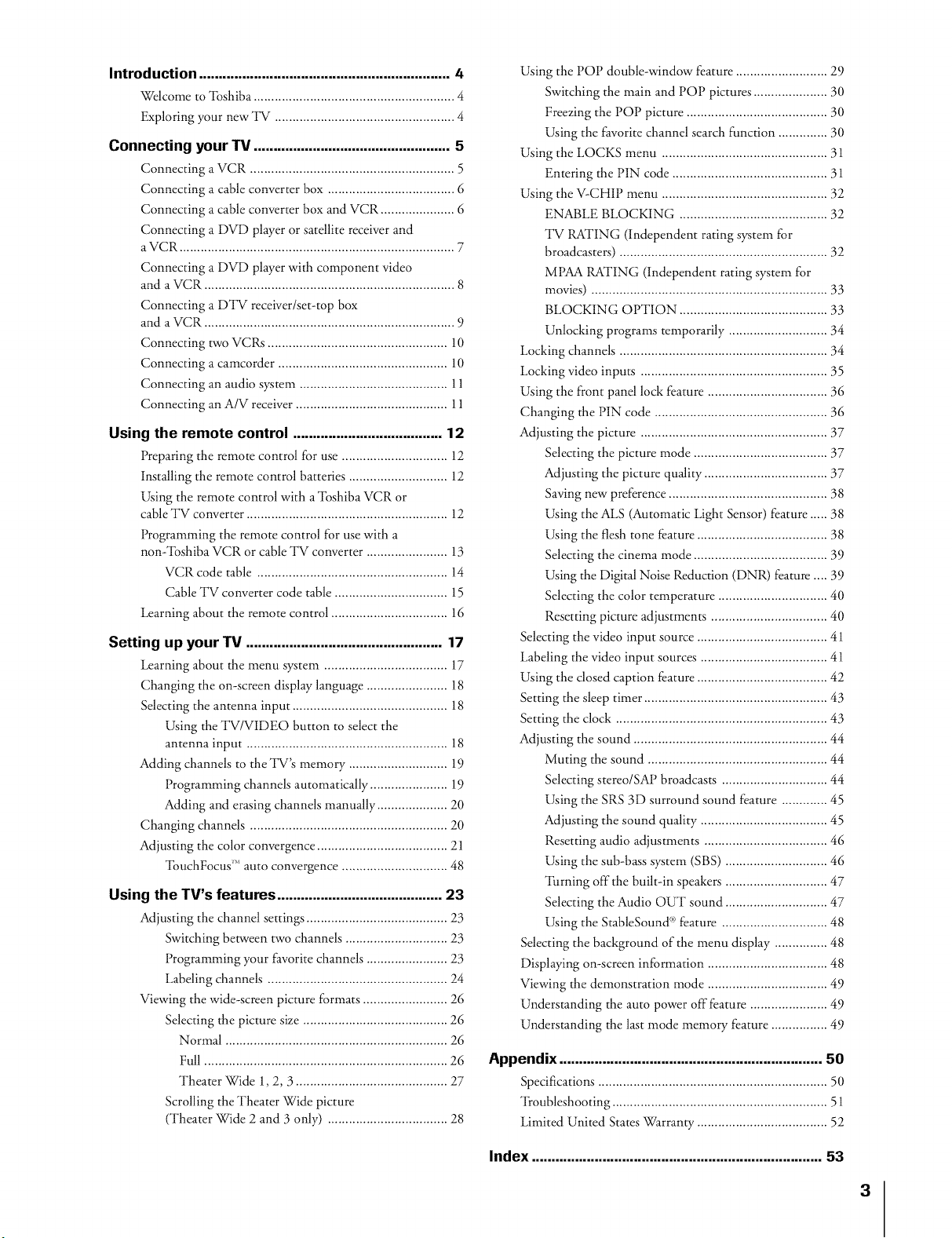
Introduction ......................................................... 4
Wdcome to qbshiba ......................................................... 4
Exploring your new TV ............................................ 4
Connecting your TV .................................................. 5
Connecting a VCR .......................................................... 5
Connecting a cable converter box .................................... 6
Connecting a cable converter box and VCR ..................... 6
Connecting a DVD player or satellite receiver and
a VCR .............................................................................. 7
Connecting a DVD player with component video
and a VCR ....................................................................... 8
Connecting a DTV receiver/set-top box
and a VCR ....................................................................... 9
Connecting two VCRs ................................................... 10
Connecting a camcorder ................................................ 10
Connecting an audio system .......................................... 11
Connecting an A/V receiver ........................................... 11
Using the remote control ...................................... 12
Preparing tile remote control for use .............................. 12
Installing tile remote control batteries ............................ 12
Using tile remote control with a 'lbshiba VCR or
cable TV converter ......................................................... 12
Dogramming tile remote control for use with a
non-%shiba VCR or cable TV converter ....................... 13
VCR code table ...................................................... 14
Cable TV converter code table ................................ 15
Learning about tile remote control ................................. 16
Setting up your TV .................................................. 17
Learning about the menu system ................................... 17
Changing the on-screen display language ....................... 18
Sdecting the antenna input ............................................ 18
Using the TV/VIDEO button to sdect the
antenna input ......................................................... 18
Adding channels to the TV's memory ............................ 19
Dogramming channds automatically ...................... 19
Adding and erasing channels manually .................... 20
Changing channds ........................................................ 20
Adjusting the color convergence ..................................... 21
'lbuchFocus ''_auto convergence .............................. 48
Using the TV's features .................................... 23
Adjusting the channd settings .................................. 23
Switching between two channels ............................. 23
Dogramming your favorke channels ....................... 23
Labding channds ................................................... 24
Viewing the wide-screen picture formats ........................ 26
Sdecting the picture size ......................................... 26
Normal ............................................................... 26
Full ..................................................................... 26
Theater Wide 1, 2, 3 ........................................... 27
Scrolling tile Theater Wide picture
Wheater Wide 2 and 3 only) .................................. 28
Using tile POP double-window feature .......................... 29
Switching the main and POP pictures ..................... 30
Freezing the POP picture ........................................ 30
Using tile favorite channd search function .............. 30
Using tile LOCKS menu ............................................... 31
Entering the PIN code ............................................ 31
Using tile V-CHIP menu ............................................... 32
ENABLE BLOCKING .......................................... 32
TV RKI'ING (independent rating system for
broadcasters) ........................................................... 32
MPAA RKFING (independent rating system for
movies) ........................................................... 33
BLOCKING OP'lION .......................................... 33
Unlocking programs temporarily ....................... 34
Locking channds ........................................................... 34
Locking video inputs ..................................................... 35
Using the front pand lock feature .................................. 36
Changing the PIN code ......................................... 36
Adjusting the picture .............................................. 37
Sdecdng the picture mode ...................................... 37
Adjusting the picture quality ................................... 37
Saving new preference ............................................. 38
Using tile ALS (Automatic Light Sensor) feature ..... 38
Using the flesh tone feature ..................................... 38
Selecting the cinema mode ...................................... 39
Using the Digital Noise Reduction (DNR) feature .... 39
Sdecting the color temperature ............................... 40
Resetting picture adjustments ................................. 40
Sdecdng the video input source ................................ 41
Labding the video input sources .................................... 41
Using the dosed caption feature ................................ 42
Setting the sleep timer .................................................... 43
Setting the dock ................................................... 43
Adjusting the sound ............................................... 44
Muting the sound ............................................. 44
Sdecdng stereo/SAP broadcasts ........................... 44
Using the SRS 3D surround sound feature ........... 45
Adjusting the sound quality .................................... 45
Resetting audio adjustments ............................... 46
Using the sub-bass system (SBS) ......................... 46
'lhrning off the built-in speakers ......................... 47
Selecting the Audio OUT sound ......................... 47
Using tile StableSound _'_feature ........................... 48
Selecting the background of tile menu display ............ 48
Displaying on-screen information ............................. 48
Viewing the demonstration mode ............................. 49
Understanding tile auto power offfeamre .................... 49
Understanding the last mode memory feature .............. 49
Appendix .............................................. 50
Specifications ................................................................. 50
Troubleshooting ............................................................. 51
Limited United States Warranty ..................................... 52
Index ............................... 53
3
Introduction
Welcome to Toshiba
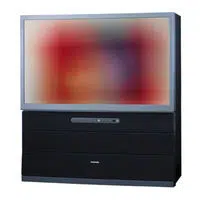
Congratulations! You have purchased one of the finest projection TVs
on the market. The goal of this manual is to guide you through
setting up and operating your "lbshiba TV as quickly as possible.
This manual applies to models 42H81, 50H81, 57H81, and 65H81.
Before you start reading, check the model number on the back of the
TV.
Instructions in this manual are based on using the remote control.
You can also use the controls on the TV if they have the same name as
those on the remote control.
Please read all the safety and operating instructions carefully, and keep
the manual for future reference.
Please Note
On some mode/s, the SET UP
menu autornatica/lyappears
on-screen the first time the TV is
turned on.
Tochange the menu settings, see
"Setting Up Your TV" on page 1Z
Toclose the menu, either press
EXIT or turn off the Tt_
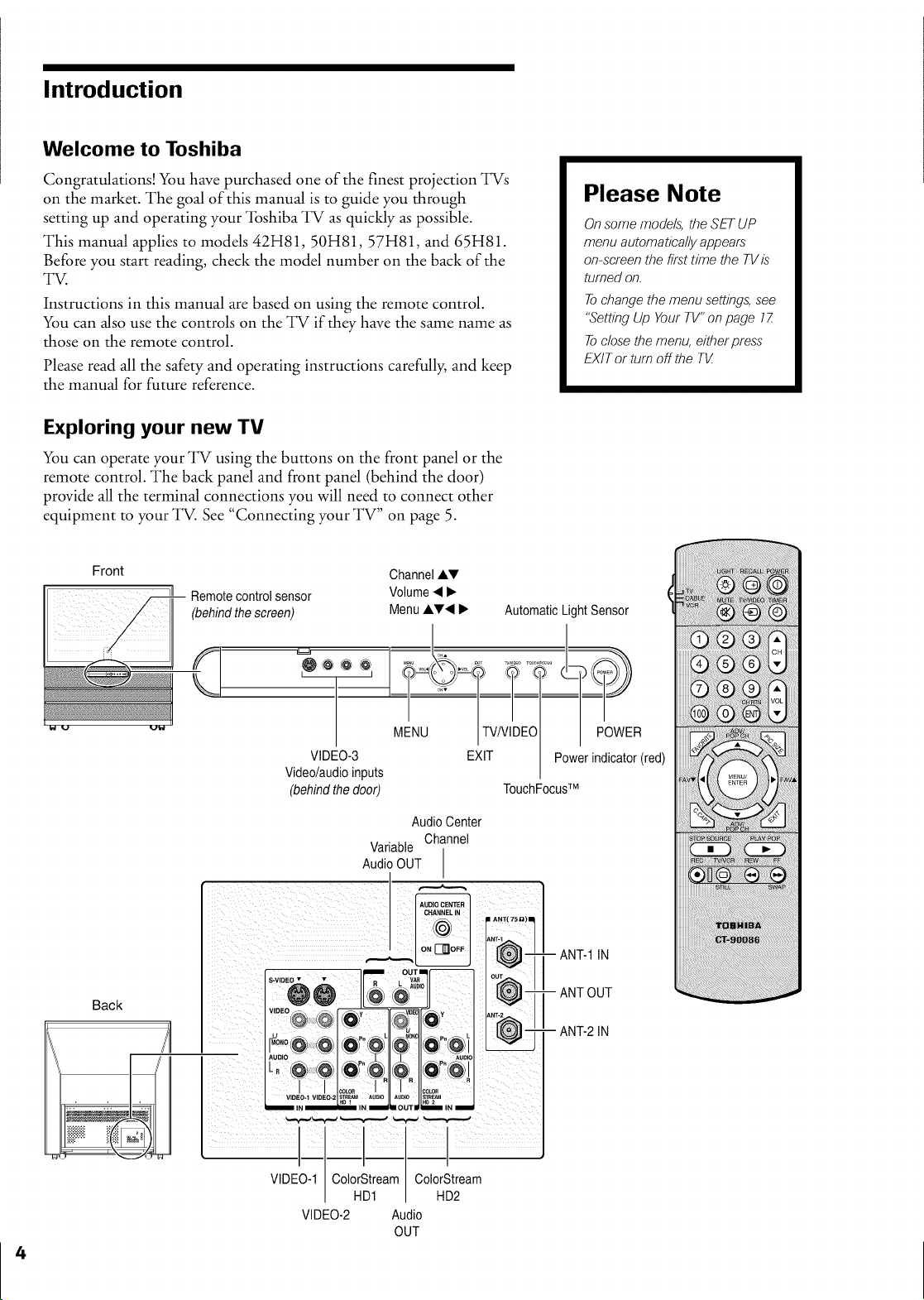
Exploring your new TV
You can operate your TV using the buttons on the front panel or the
remote control. The back panel and front panel (behind the door)
provide all the terminal connections you will need to connect other
equipment to your TV. See "Connecting your TV" on page 5.
Front Channel ,&V
ill Remote control sensor Volume •_.
(behind the screen) Menu AV• I_ Automatic Light Sensor
Back
VIDEO-3
Videolaudio inputs
(behind the door)
MENU
EXIT
POWER
Power indicator (red)
TouchFocusTM
AudioCenter
Channel
Variable
Audio OUT
. ,_.._,
-- ANT-1 IN
- ANT OUT
- ANT-2 IN
VIDEO-1 ColorStream ColorStream
HD1 HD2
VIDEO-2 Audio
OUT
Connecting your TV
Note: Cables are not supplied withyour 7qZ
• Coaxial cable is the standard cable that comes in from your
antenna, cable TV company, or cable converter box. Coaxial cables
use "F" connectors.
• Standard A/V (audio/video) cables are usually color-coded
according to use: yellow for video, red for stereo right audio, and
white for stereo left (or mono) audio. On the back of the TV, the
jacks are color-coded in the same manner as the cables.
• S-video cables provide better picture performance than a standard
video cable. S-video cables can only be used with S-video
compatible equipment.
• Component video cables come in sets of three and provide the best
picture performance. Component video cables can only be used
with component video compatible equipment.
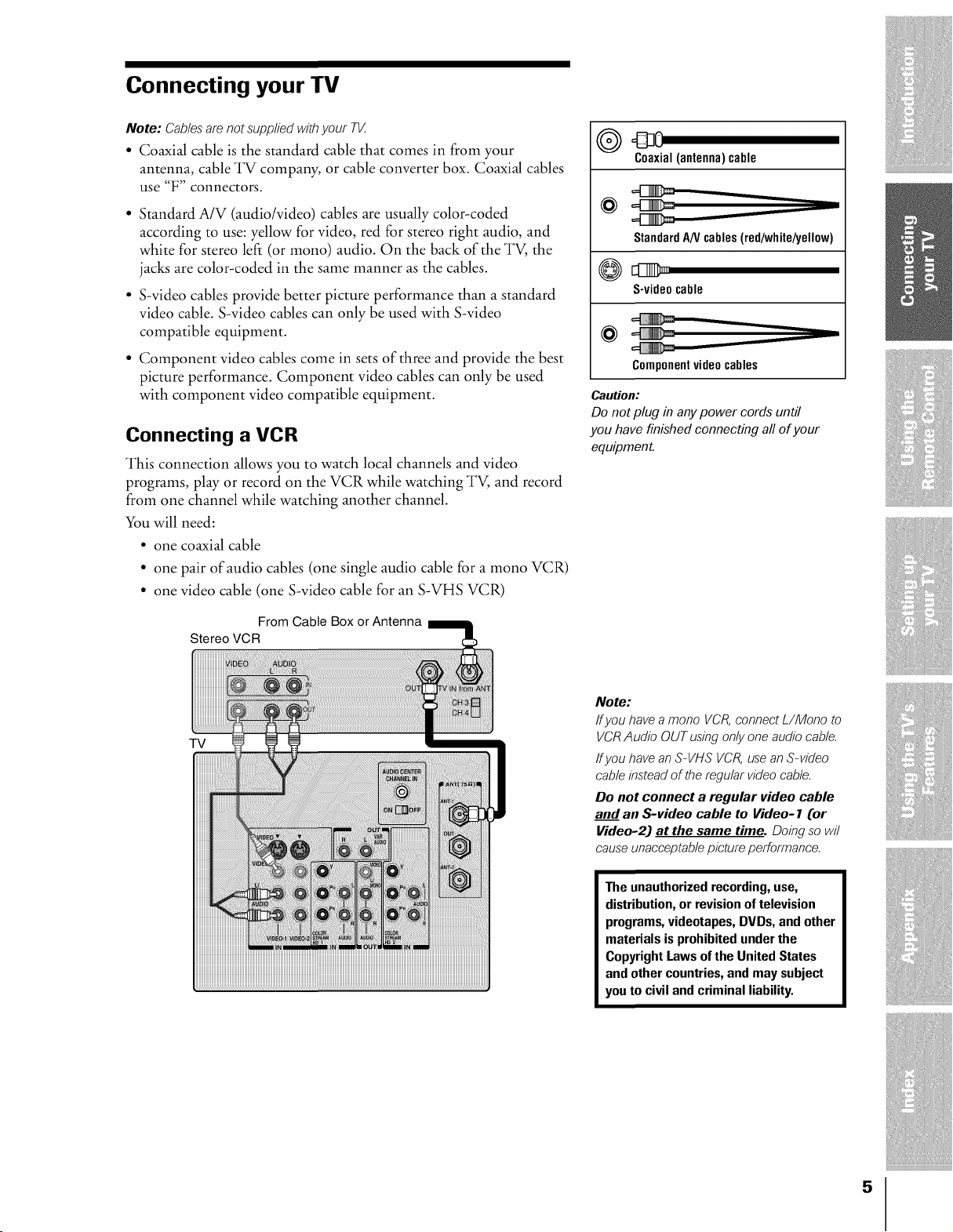
Connecting a VCR
This connection allows you to watch local channels and video
programs, play or record on the VCR while watching TV, and record
from one channel while watching another channel.
You will need:
• one coaxial cable
• one pair of audio cables (one single audio cable for a mono VCR)
• one video cable (one S-video cable for an S-VHS VCR)
From Cable Box or Antenna
Stereo VCR
O 43 0
Coaxial(antenna)cable
@
StandardAN cables(red/white/yell0w)
S-videocable
@
Componentvideocables
Caution:
Do not plug in any power cords until
you have finished connecting all of your
equipment.
TV
Note:
If you have a mono VCR, connect L/Mono to
VCR Audio OUT using only one audio cable.
ff you have an S-VHS VCR, use an S-video
cable instead of the regular video cable.
Do not connect a regular video cable
and an S-video cable to Video- 1 Cor
Video-2J at the same time. Doing so wil
cause unacceptable picture performance.
The unauthorizedrecording, use,
distribution,or revisionof television
programs,videotapes, DVDs, and other
materials is prohibited underthe
Copyright Laws of the United States
and other countries,and may subject
you to civil and criminal liability.
5
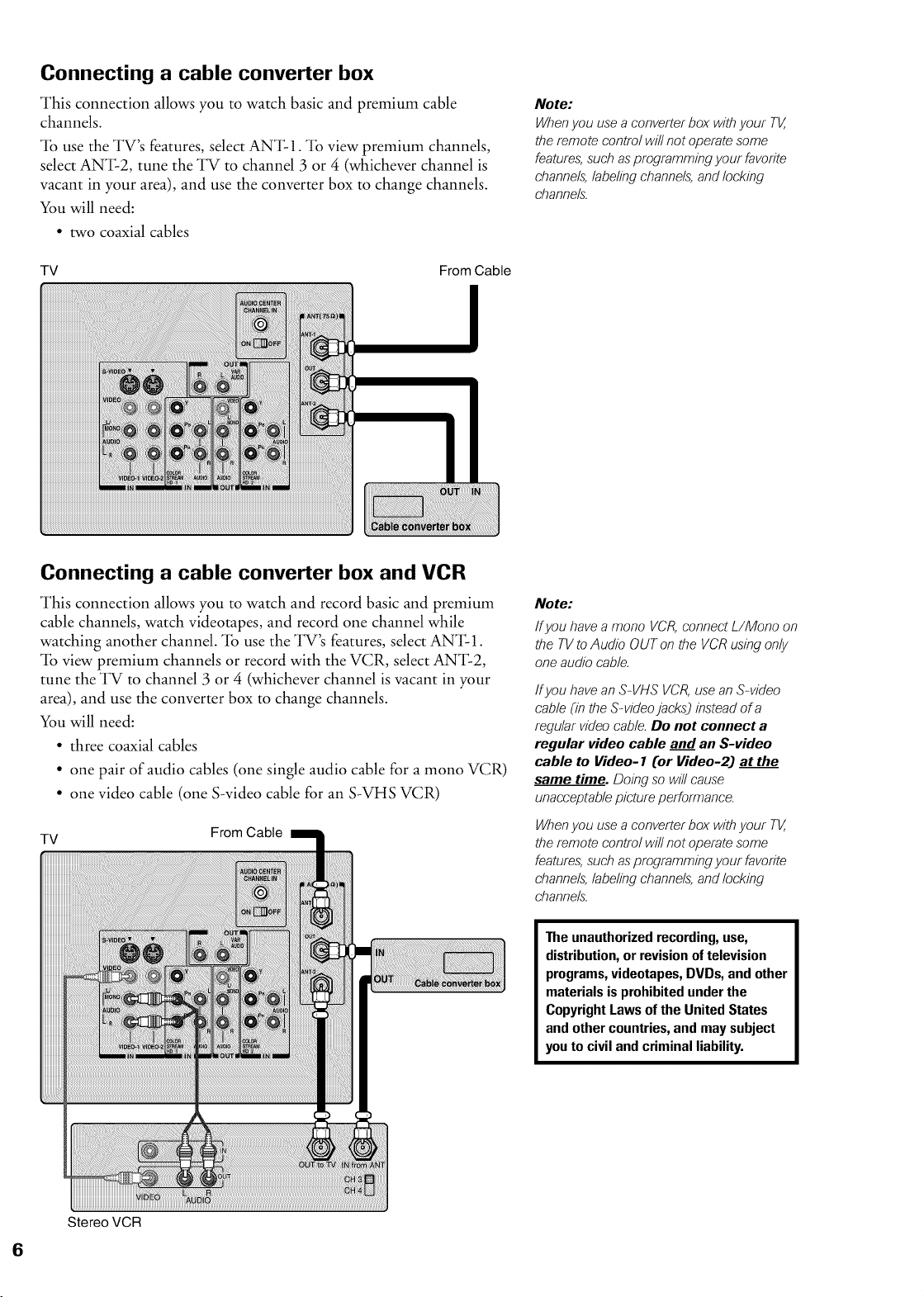
Connecting a cable converter box
This connection allows you to watch basic and premium cable
channels.
"lb use the TV's features, select ANT-1. "lb view premium channels,
select ANT-2, tune the TV to channel 3 or 4 (whichever channel is
vacant in your area), and use the converter box to change channels.
You will need:
• two coaxial cables
TV From Cable
!
Note:
When you use a converter box with your TV,
the remote control will not operate some
features, such as prograrnrning your favorite
channels, labeling channels, and locking
channels"
Connecting a cable converter box and VCR
This connection allows you to watch and record basic and premium
cable channels, watch videotapes, and record one channel while
watching another channel. "lb use the TV's features, select ANT-1.
"lb view premium channels or record with the VCR, select ANT-2,
tune the TV to channel 3 or 4 (whichever channel is vacant in your
area), and use the converter box to change channels.
You will need:
• three coaxial cables
• one pair of audio cables (one single audio cable for a mono VCR)
• one video cable (one S-video cable for an S-VHS VCR)
TV
From Cable
Note:
If you have a mono VCR, connect L/Mono on
theTVto AudioOUTonthe VCRusingonly
oneaudiocable
If you have an S-VHS VCR, use an S-video
cable (in the S-video jacks) instead of a
regular video cable Do not connect a
regular video cable and an S-video
cable to Video- 1 Cor Video-2) at the
same time. Doing so wi// cause
unacceptable picture performance
When you use a converter box with your TV,
the remote control wi// not operate some
features, such as prograrnrning your favorite
channels, labeling channels, and locking
channels"
The unauthorized recording, use,
distribution,or revisionof television
programs,videotapes, DVDs, and other
materials is prohibited underthe
Copyright Laws of the United States
and other countries,and may subject
youto civil and criminal liability.
Stereo VCR
6
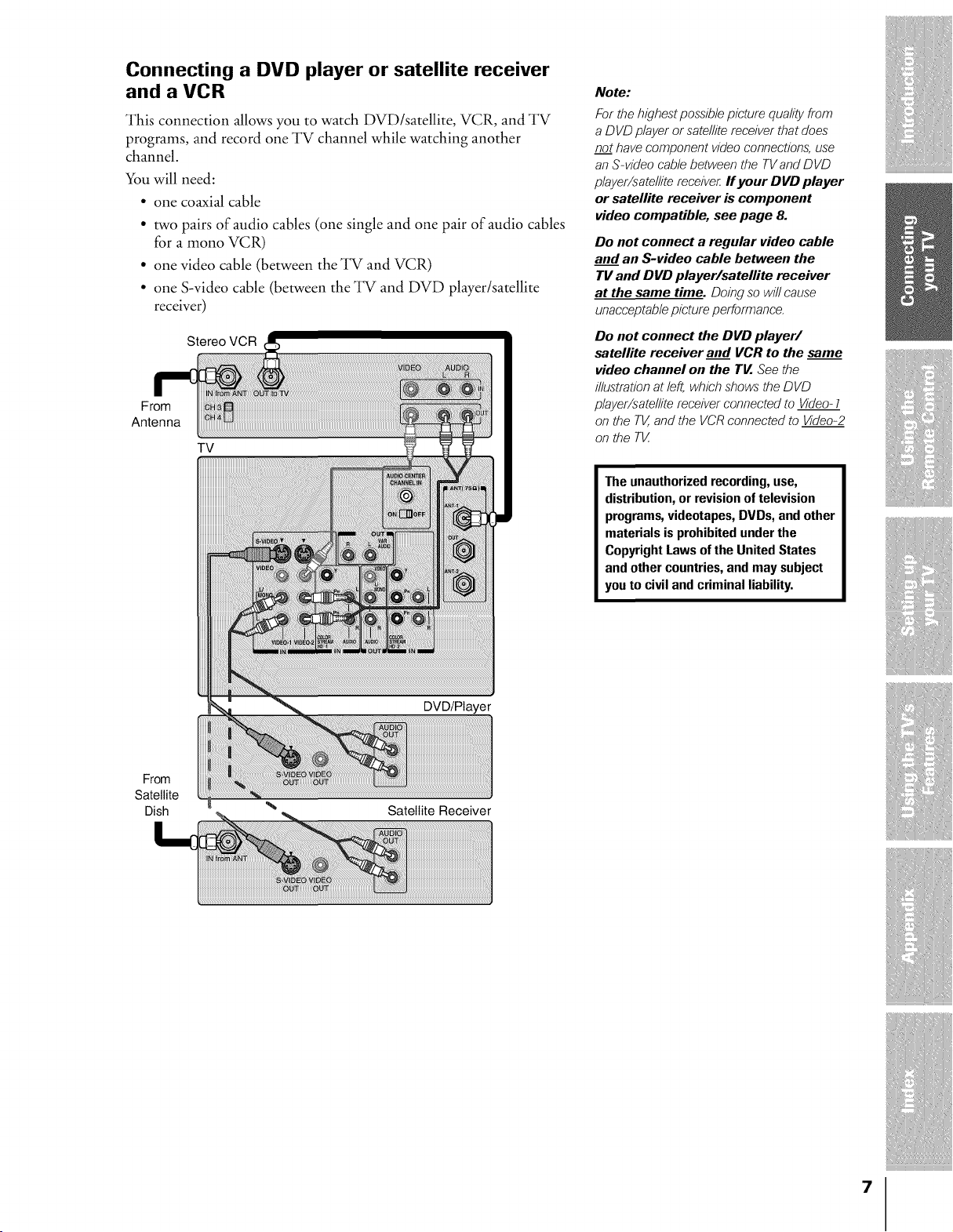
Connecting a DVD player or satellite receiver
and a VCR
This connection allows you to watch DVD/satellite, VCR, and TV
programs, and record one TV channel while watching another
channel.
You will need:
• one coaxial cable
• two pairs of audio cables (one single and one pair of audio cables
for a mono VCR)
• one video cable (between the TV and VCR)
• one S-video cable (between the TV and DVD player/satellite
receiver)
Stereo VCR
From
Antenna
TV
Note:
For the highest possible picture quality from
a DVD player or satellite receiver that does
no_t have component video connections, use
an S-video cable between the TV and DVD
player/satellite receive_ If your DVD player
or satellite receiver is component
video compatible, see page 8.
Do not connect a regular video cable
and an S-video cable between the
TV and DVD player/satellite receiver
at the same time. Doing 6'0wi// cause
unacceptablepicture performance
Do not connect the DVD player/
satellite receiver and VCR to the same
video channel on the TV. See the
illustration at left, which shows"the DVD
player/satellite receiver connected to Video 1
on the TV,and the VCRconnected to Video-2
on the T[_
The unauthorizedrecording, use,
distribution,or revision of television
programs,videotapes, DVDs, and other
materials is prohibited underthe
Copyright Laws of the United States
and other countries,and may subject
you to civil and criminal liability.
DVD/Player
From
Satellite
Dish Satellite Receiver
7
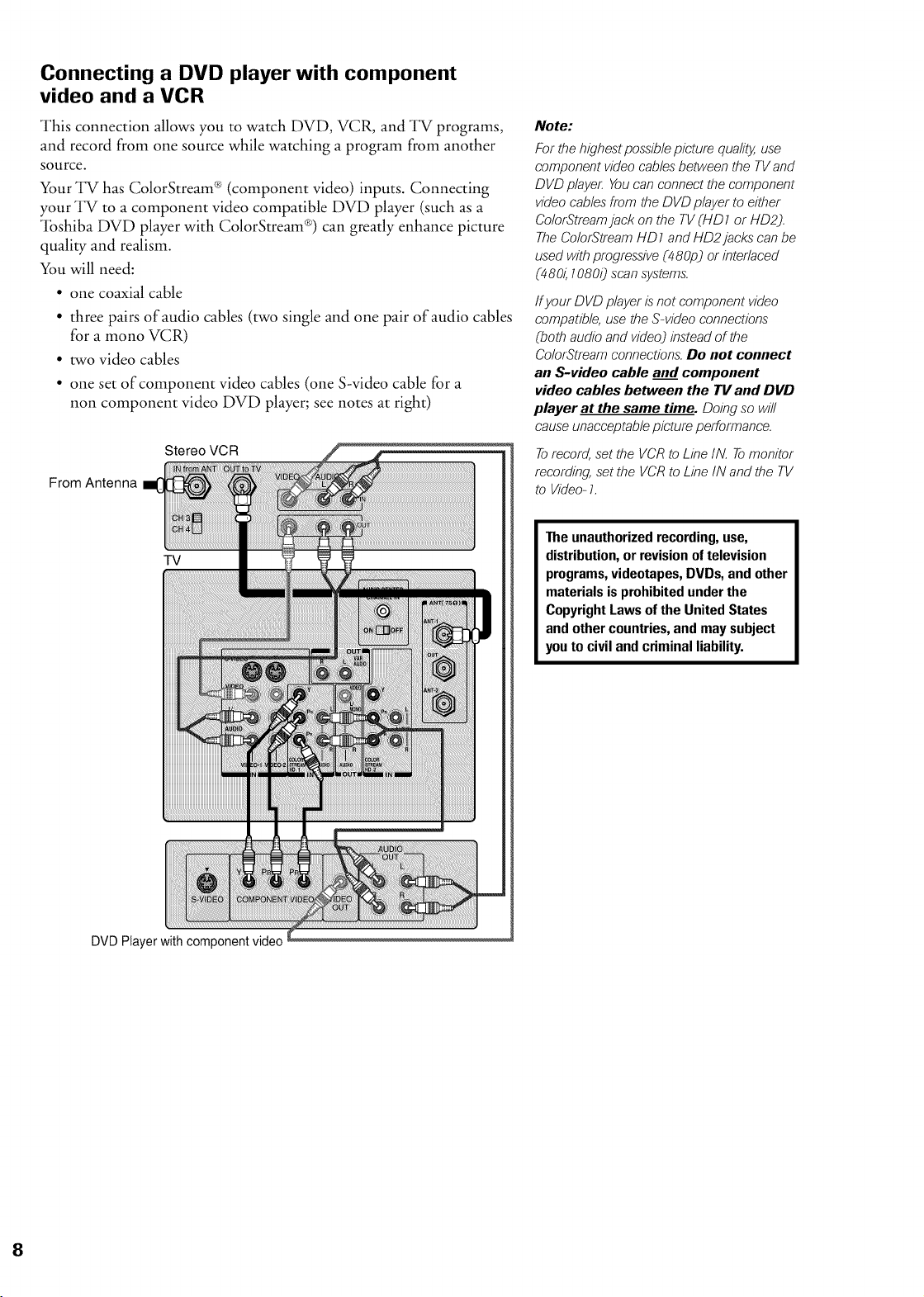
Connecting a DVD player with component
video and a VCR
This connection allows you to watch DVD, VCR, and TV programs,
and record from one source while watching a program from another
source.
Your TV has ColorStream ® (component video) inputs. Connecting
your TV to a component video compatible DVD player (such as a
"lbshiba DVD player with ColorStream ®) can greatly enhance picture
quality and realism.
You will need:
• one coaxial cable
• three pairs of audio cables (two single and one pair of audio cables
for a mono VCR)
• two video cables
• one set of component video cables (one S-video cable for a
non component video DVD player; see notes at right)
From Antenna
Stereo VCR
Note:
For the highest possible picture qualitj_ use
component video cables" between the TV and
DVD playe_ You can connect the component
video cables from the DVD player to either
ColorStream jack on the TV (HD1 or HD2).
The ColorStream HD1 and HD2jacks can be
used with progressive (480p) or interlaced
(480_ 10800 scan systems.
If your DVD player is"not component video
compatible, use the S-video connections
(both audio and video) instead of the
ColorStream connection& Do not connect
an S-video cable and component
video cables between the TV and DVD
player at the same time. Doing so will
cause unacceptable picture performance.
Torecord, set the VCR to Line IN. To monitor
recording, set the VCR to Line IN and the TV
to Video- 1.
TV
The unauthorized recording, use,
distribution,or revisionof television
programs,videotapes, DVDs, and other
materials is prohibited underthe
Copyright Laws of the United States
and other countries,and may subject
youto civil and criminal liability.
DVD Player with component video
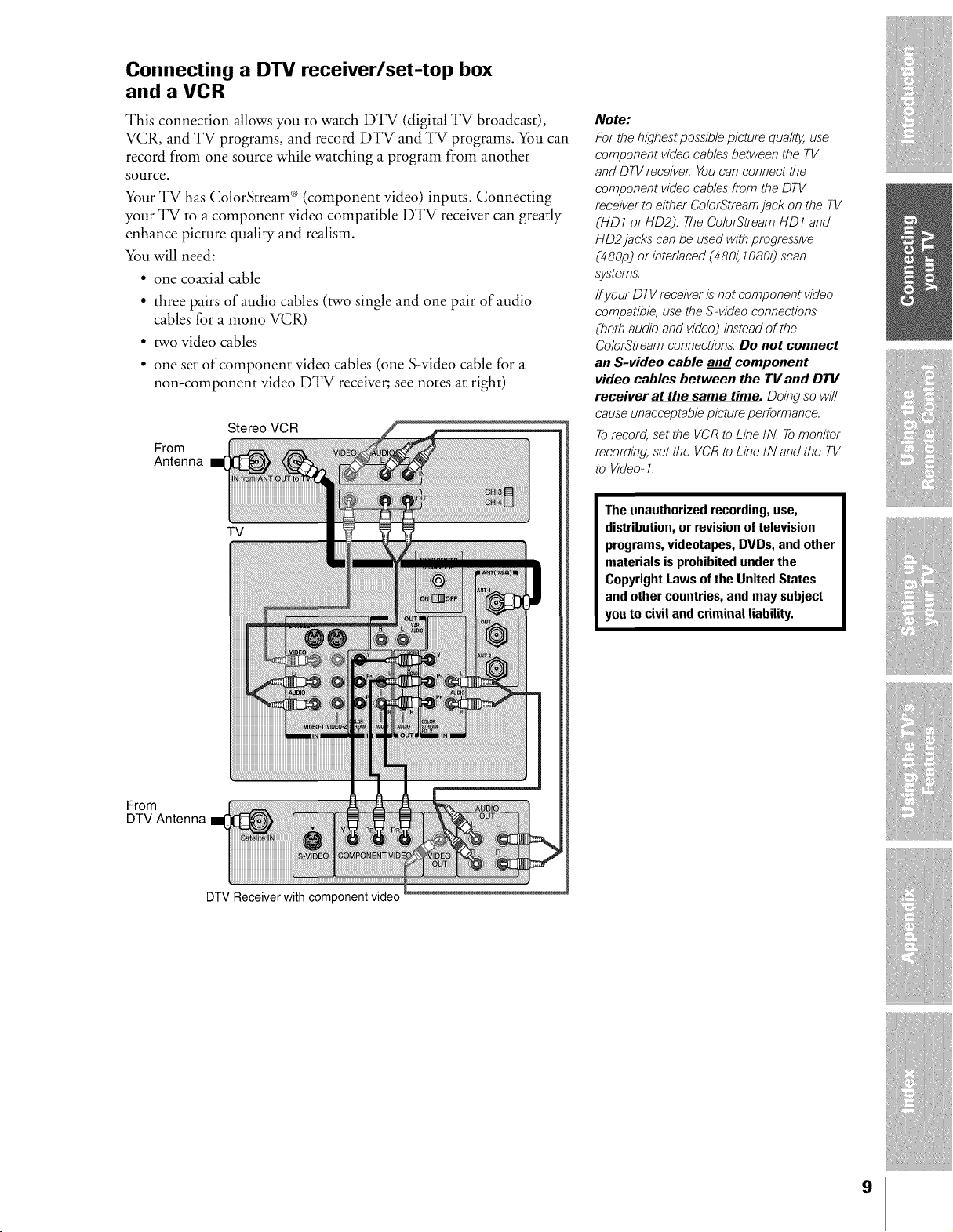
Connecting a DTV receiver/set-top box
and a VCR
This connection allows you to watch DTV (digital TV broadcast),
VCR, and TV programs, and record DTV and TV programs. You can
record from one source while watching a program from another
source.
Your TV has ColorStream ® (component video) inputs. Connecting
your TV to a component video compatible DTV receiver can greatly
enhance picture quality and realism.
You will need:
• one coaxial cable
• three pairs of audio cables (two single and one pair of audio
cables for a mono VCR)
• two video cables
• one set of component video cables (one S-video cable for a
non-component video DTV receiver; see notes at right)
Stereo VCR
From
Antenna
Note:
For the highest possible picture quality, use
component video cables" between the TV
and DTV receiveL You can connect the
component video cables" from the DTV
receiver to either ColorStrearn jack on the TV
(HD 1 or HD2). The ColorStrearn HD 1 and
HD2 jacks can be used with progressive
(480p) or interlaced (480_ 10800 scan
s;vsterns.
ff your DTV receiver is"not component video
compatible, use the S-video connections
(both audio and video) instead of the
ColorStrearn connection& Do not connect
an S-video cable and component
video cables between the TV and DTV
receiver at the same time. Doing so w/l/
cause unacceptable picture performance.
Torecord, set the VCR to Line IN. Tomonitor
recording, set the VCR to Line IN and the TV
to Video- 1.
TV
The unauthorizedrecording, use,
distribution,or revision of television
programs,videotapes, DVDs, and other
materials is prohibited underthe
Copyright Laws of the United States
and other countries,and may subject
you to civil and criminal liability.
From
DTV Antenna
DTV Receiver with component video
9
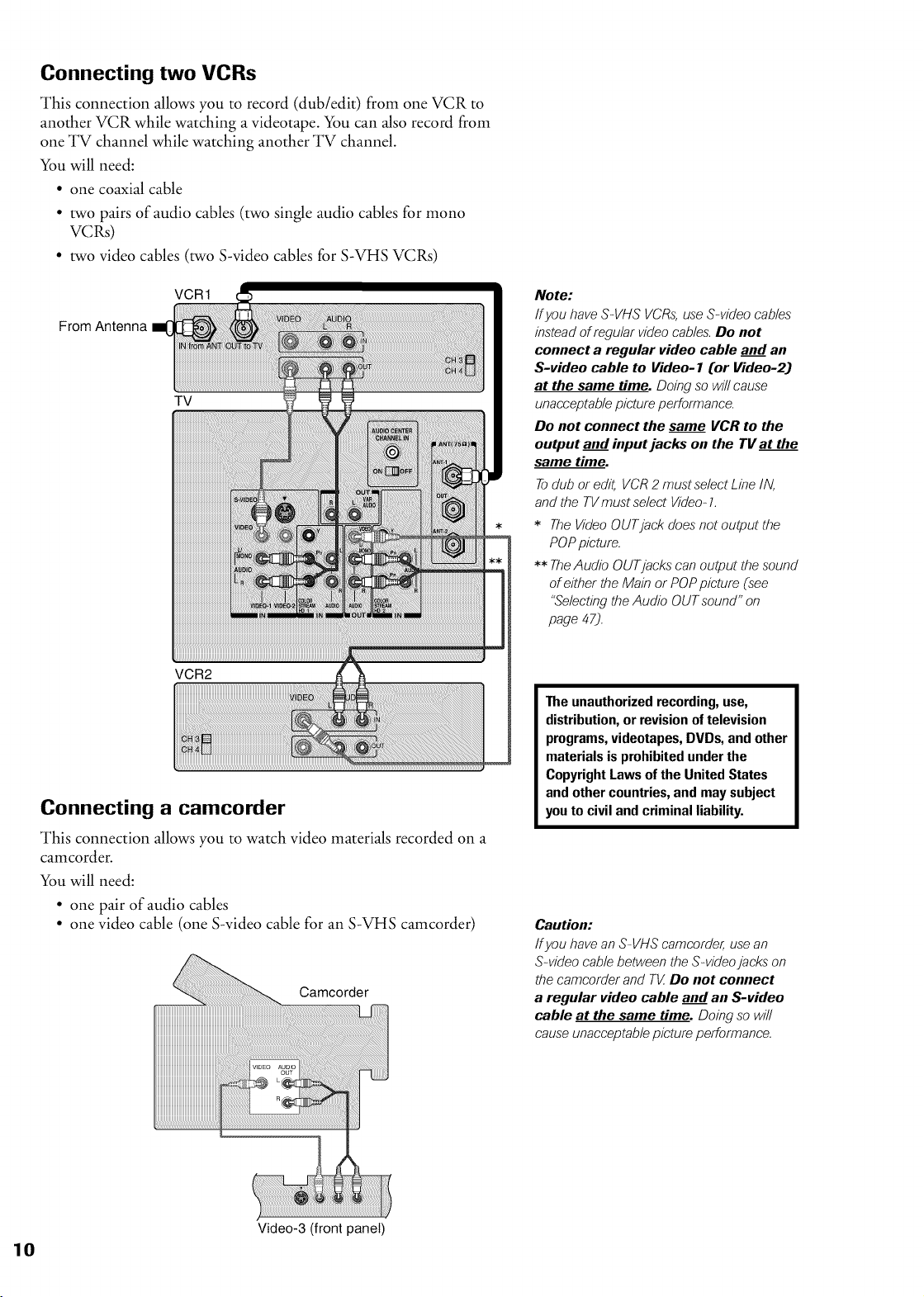
Connecting two VCRs
This connection allows you to record (dub/edit) from one VCR to
another VCR while watching a videotape. You can also record from
one TV channel while watching another TV channel.
You will need:
• one coaxial cable
• two pairs of audio cables (two single audio cables for mono
VCRs)
• two video cables (two S-video cables for S-VHS VCRs)
VCR1
From Antenna
TV
VCR2
Connecting a camcorder
This connection allows you to watch video materials recorded on a
camcorder.
You will need:
• one pair of audio cables
• one video cable (one S-video cable for an S-VHS camcorder)
Camcorder
Note:
Ifyou have S-VHS VCRs,use S-video cables"
instead of regular video cables'.Do not
connect a regular video cable and an
S-video cable to Video- 1 (or Video-2)
at the same time. Doing so wi// cause
unacceptablepicture performance
Do not connect the same VCR to the
output and input jacks on the TV at the
same time.
Todub or edit, VCR 2 must select Line IN,
and the TVrnust select Video-1.
* The VideoOUTjack does"not output the
POPpicture.
** TheAudio OUTjacks can output the sound
of either the Main or POPpicture (see
"Selectingthe Audio OUT sound" on
page 47).
The unauthorized recording, use,
distribution,or revisionof television
programs,videotapes, DVDs, and other
materials is prohibited underthe
Copyright Laws of the United States
and other countries,and may subject
youto civil and criminal liability.
Caution:
If you have an S-VHS camcorder, use an
S-video cable between the S-video jacks on
the carncorder and T[_ Do not connect
a regular video cable and an S-video
cable at the same time. Doing so wi//
cause unacceptable picture performance.
Video-3 (front panel)
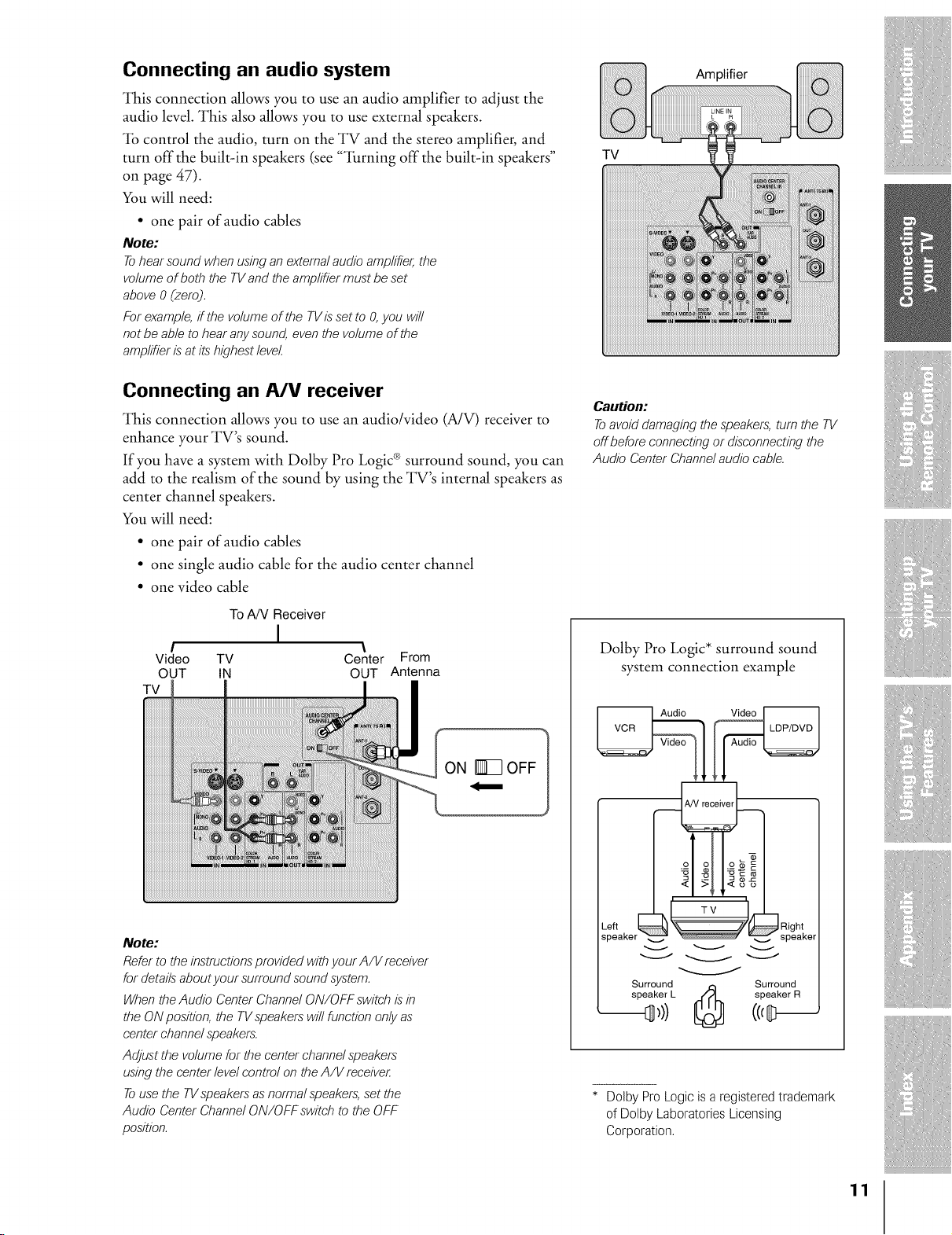
Connecting an audio system
This connection allows you to use an audio amplifier to adjust the
audio level. This also allows you to use external speakers.
"lb control the audio, turn on the TV and the stereo amplifier, and
turn off the built-in speakers (see "'lhrning off the built-in speakers"
on page 47).
You will need:
• one pair of audio cables
Note:
Tohear sound whenusing an externalaudio amplifier,the
volume of both the TVand the arnp/ifiermust be set
above 0 Czero).
For example,ff the volume of the TVis set to O,you will
not be able to hear any sound, eventhe volume of the
arnp/ifieris"at its"highest level.
Connecting an A/V receiver
This connection allows you to use an audio/video (A/V) receiver to
enhance your TV's sound.
If you have a system with Dolby Pro Logic ® surround sound, you can
add to the realism of the sound by using the TV's internal speakers as
center channel speakers.
You will need:
• one pair of audio cables
• one single audio cable for the audio center channel
• one video cable
To A/V Receiver
I
/ \
Video TV Center From
OUT IN OUT Antenna
TV
Note:
Refer to the instructionsprovided withyour A/V receiver
for details"aboutyour surround sound system.
When theAudio Center Channel ON/OFF switch is"in
the ON position, the TV speakerswill function only as
center channel speakers.
Adjust the volume for the center channel speakers"
usingthe center level control on theA/V receiveL
Touse the TVspeakers"as normal speakers,set the
Audio Center Channel ON/OFF switch to the OFF
position.
Amplifier
TV
Caution:
Toavoid damaging the speakers,turn the TV
off before connecting or disconnecting the
Audio Center Channelaudio cable.
Dolby Pro Logic* surround sound
system connection example
:_ a i :_'_
_peaker_ '_' _speake
Surround _ Surround
speaker L .._L speaker R
* Dolby Pro Logic is a registered trademark
of Dolby Laboratories Licensing
Corporation.
11
Using the remote control
Preparing the remote control for use
With the remote control, you can operate your TV, most VCR
models, and cable TV converters together, even if they are different
brands. If you will be using your TV with a'lbshiba VCR or cable TV
converter, your remote control is already programmed and ready to
use. If you own different brands ofVCRs and/or converters, you must
program the remote control. (See "Programming the remote control
for use with a non$1bshiba VCR or a cable TV converter" on page
13.)
Installing the remote control batteries
_lb install the batteries:
1. Slide the battery cover off the back of the remote control.
2. Install two "AA" size alkaline batteries. Match the + and - signs on
the batteries to the signs on the battery compartment.
.
Slide the battery cover back on to the remote control until the
lock snaps.
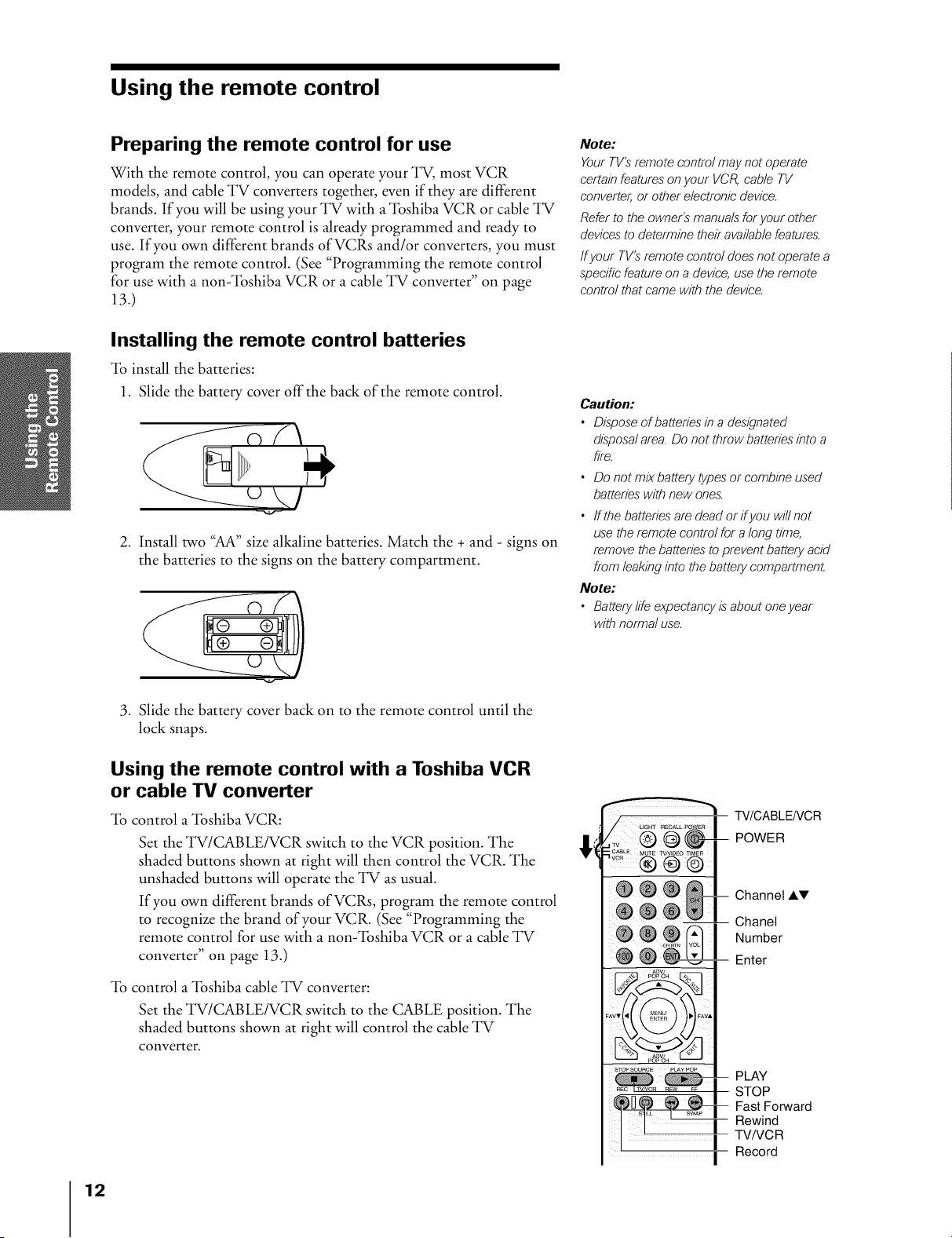
Using the remote control with a Toshiba VCR
or cable TV converter
"lb control a "lbshiba VCR:
Set the TV/CABLE/VCR switch to the VCR position. The
shaded buttons shown at right will then control the VCR. The
unshaded buttons will operate the TV as usual.
If you own different brands of VCRs, program the remote control
to recognize the brand of your VCR. (See "Programming the
remote control for use with a non$1bshiba VCR or a cable TV
converter" on page 13.)
"lb control a "lbshiba cable TV converter:
Set the TV/CABLE/VCR switch to the CABLE position. The
shaded buttons shown at right will control the cable TV
converter.
Note:
Your TV'S"rernote control may not operate
certain features" on your VCR, cable TV
converter, or other electronic device.
Refer to the owner's" rnanuals for your other
devices"to deterrnine their available features.
If your TV's"rernote control does not operate a
specific feature on a device, use the remote
control that came with the device.
Caution:
• Dispose of batteries in a designated
disposa/ area. Do not throw batteries into a
fir e.
• Do not mix battery types"or combine used
batteries" with new ones.
• ffthe batteries are dead or ifyou will not
use the remote control for a long time,
remove the batteries to prevent battery acid
from leaking into the battery cornpartment.
Note:
• Battery life expectancy is"about one year
with norrna/ use.
®!®°61
TV/CABLE/VCR
POWER
Channel AV
-- ChaneI
Number
-- Enter
STOP SOURCE pL&y POP
I
[ ! I
I
-- PLAY
STOP
Fast Forward
-- Rewind
TV/VCR
Record
12
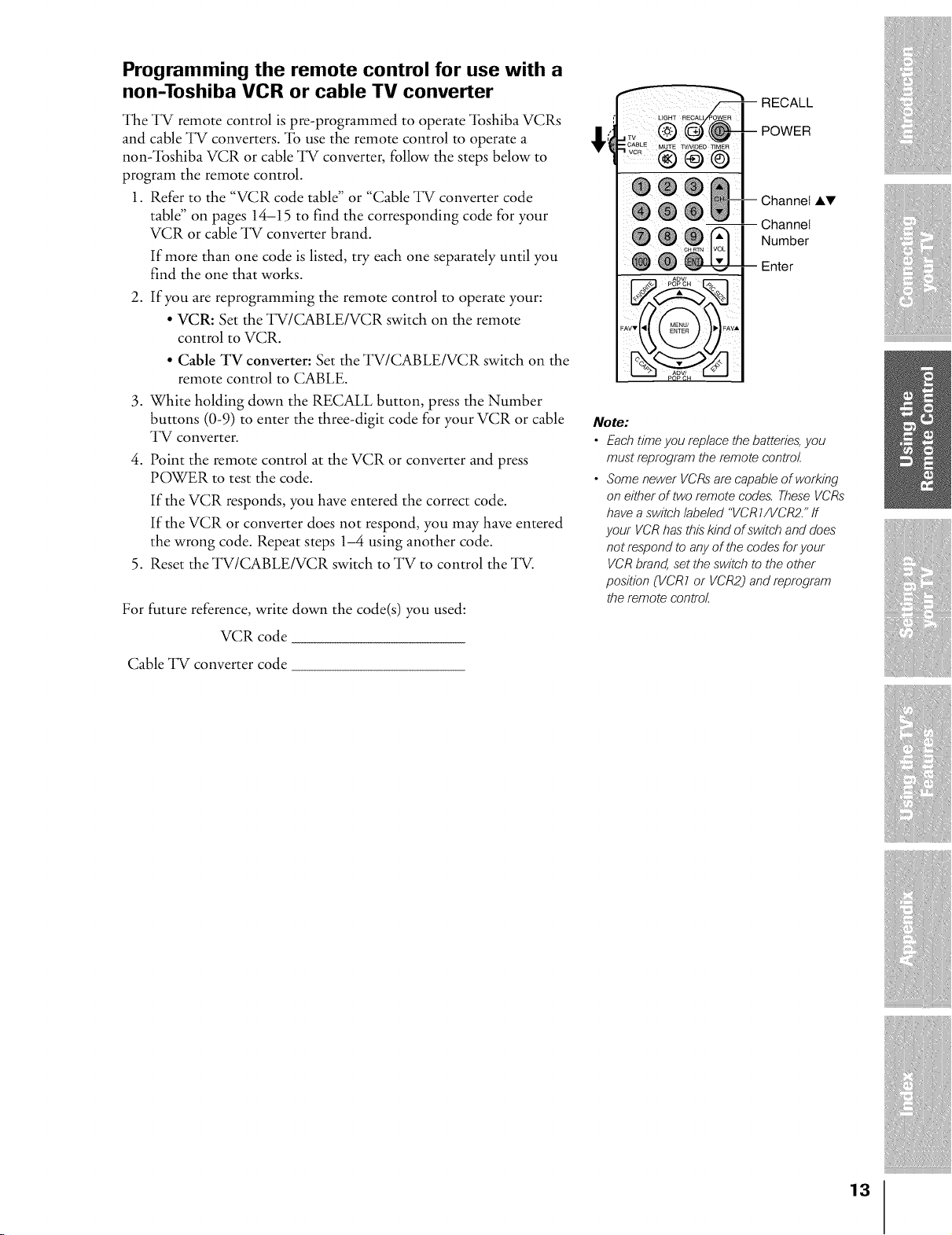
Programming the remote control for use with a
non-Toshiba VCR or cable TV converter
The TV remote control is pre-programmed to operate "lbshiba VCRs
and cable TV converters. "lb use the remote control to operate a
non:lbshiba VCR or cable TV converter, follow the steps below to
program the remote control.
1. Refer to the "VCR code table" or "Cable TV converter code
table" on pages 14-15 to find the corresponding code for your
VCR or cable TV converter brand.
If more than one code is listed, try each one separately until you
find the one that works.
2. If you are reprogramming the remote control to operate your:
• VCR: Set the TV/CABLE/VCR switch on the remote
control to VCR.
• Cable TV converter: Set the TV/CABLE/VCR switch on the
remote control to CABLE.
3. White holding down the RECALL button, press the Number
buttons (0-9) to enter the three-digit code for your VCR or cable
TV converter.
4. Point the remote control at the VCR or converter and press
POWER to test the code.
If the VCR responds, you have entered the correct code.
If the VCR or converter does not respond, you may have entered
the wrong code. Repeat steps 1-4 using another code.
5. Reset the TV/CABLE/VCR switch to TV to control the TV.
For future reference, write down the code(s) you used:
VCR code
Cable TV converter code
RECALL
POWER
Channel Ai,V
I Channel
Number
i Enter
Note:
• Each time you replace the batteries, you
must reprogram the remote control.
• Some newer VCRs are capable of working
on either of two remote codes'. These VCRs
have a switch labeled "VCR 1/VCR2." ff
your VCR has this"kind of switch and does"
not respond to any of the codes" for your
VCR brand, set the switch to the other
position (VCR1 or VCR2) and reprogram
the remote control.
13
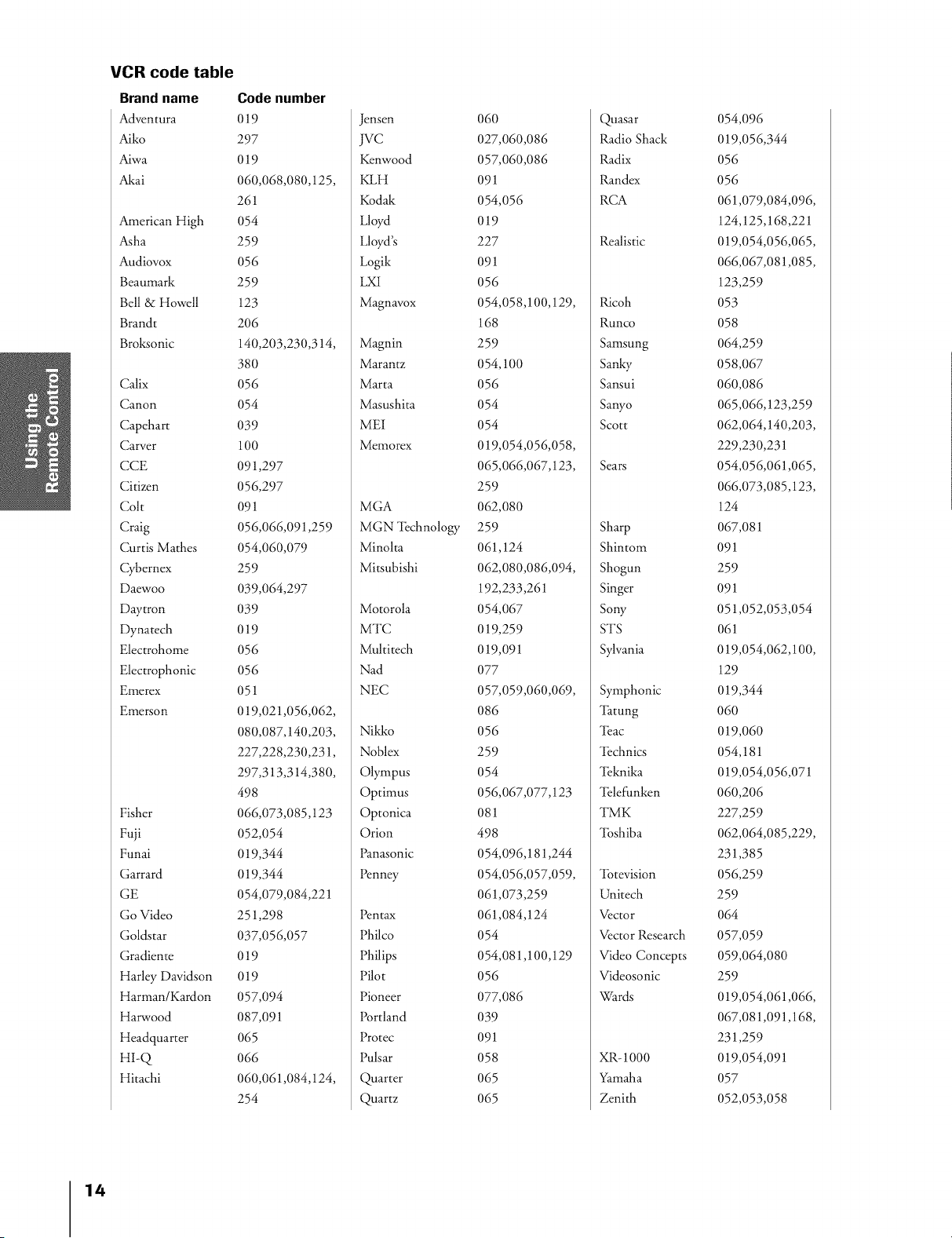
VCR code table
Brand name
Adventura
Aiko
Aiwa
Akai
American High
Asha
Audiovox
Beamnark
Bell & Howell
Brandt
Broksonic
Calix
Canon
Capehart
Carver
CCE
Citizen
Colt
Craig
Curtis Mathes
Cybernex
Daewoo
Daytron
Dynatech
Electrohome
Electrophonic
Emerex
Emerson
Fisher
Fuji
Funai
Garrard
GE
Go Video
Goldstar
Gradiente
Harley Davidson
Harman/Kardon
Harwood
Headquarter
HI-Q
Hitachi
Code number
019
297
019
060,068,080,125,
261
O54
259
O56
259
123
206
140,203,230,314,
38O
O56
O54
039
100
091,297
056,297
091
056,066,091,259
054,060,079
259
039,064,297
O39
019
O56
O56
051
019,021,056,062,
080,087,140,203,
227,228,230,231,
297,313,314,380,
498
066,073,085,123
052,054
019,344
019,344
054,079,084,221
251,298
037,056,057
019
019
057,094
087,091
O65
066
060,061,084,124,
254
Jensen
jvc
Kenwood
KLH
Kodak
Lloyd
Lloyd's
Logik
LXI
Magnavox
Magnin
marantz
marta
Masushita
MEI
memorex
MGA
MGN 'l_chnology
Minolta
Mitsubishi
Motorola
MTC
Multitech
Nad
NEC
Nild<o
Noblex
Olympus
Optimus
Optonica
Orion
Panasonic
Penney
Pentax
Philco
Philips
Pilot
Pioneer
Portland
Protec
Pulsar
Quarter
Quartz
O6O
027,060,086
057,060,086
091
054,056
019
227
091
O56
054,058,100,129,
168
259
054,100
O56
O54
O54
019,054,056,058,
065,066,067,123,
259
062,080
259
061,124
062,080,086,094,
192,233,261
054,067
019,259
019,091
077
057,059,060,069,
O86
O56
259
O54
056,067,077,123
081
498
054,096,181,244
054,056,057,059,
061,073,259
061,084,124
O54
054,081,100,129
O56
077,086
039
091
O58
O65
O65
Quasar
Radio Shack
Radix
Randex
RCA
Realistic
Ricoh
Runco
Samsung
Sanky
Sansui
Sanyo
Scott
Sears
Sharp
Shintom
Shogun
Singer
Sow
STS
Sylvania
Symphonic
'lhtung
'l_ac
'l_chnics
'l_knika
'l_lefunken
TMK
'lbshiba
'lbtevision
Unitech
Vector
Vector Research
Video Concepts
Videosonic
V_ards
XR-1000
Yamaha
Zenith
054,096
019,056,344
056
056
061,079,084,096,
124,125,168,221
019,054,056,065,
066,067,081,085,
123,259
O53
O58
064,259
058,067
060,086
065,066,123,259
062,064,140,203,
229,230,231
054,056,061,065,
066,073,085,123,
124
067,081
091
259
091
051,052,053,054
061
019,054,062,100,
129
019,344
O6O
019,060
054,181
019,054,056,071
060,206
227,259
062,064,085,229,
231,385
056,259
259
064
057,059
059,064,080
259
019,054,061,066,
067,081,091,168,
231,259
019,054,091
O57
052,053,058
14
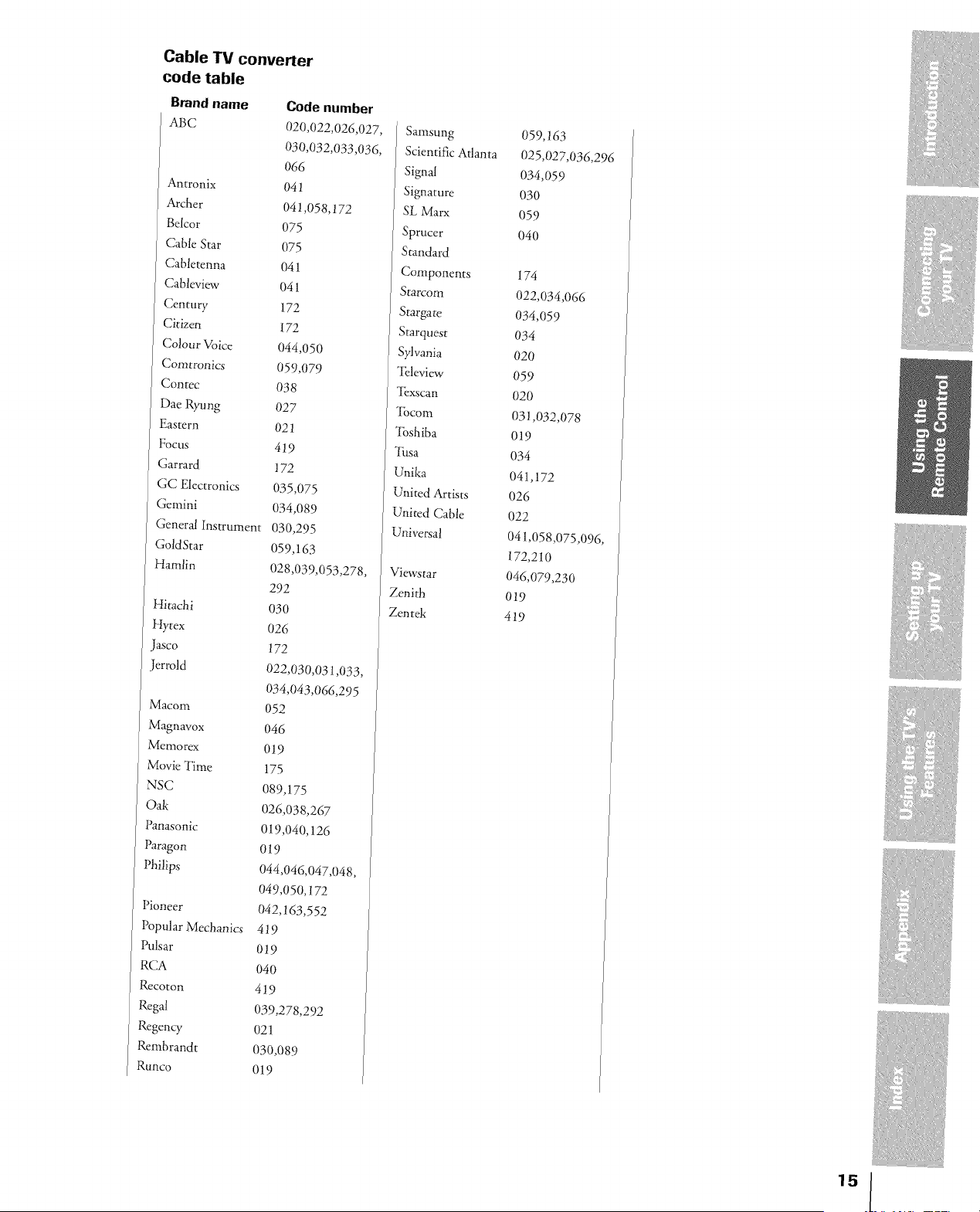
Cable TV converter
code table
Brand name
ABC
Antronix
Archer
Belcor
Cable Star
Cabletenna
Cableview
Century
Citizen
Colour Voice
Comtronics
Contec
Dae Ryung
Eastern
Focus
Garrard
GC Electronics
Gemini
General Instrument
GoldStar
Hamlin
Hitachi
Hytex
Jasco
Jerrold
macom
Magnavox
Memorex
Movie Time
NSC
Oak
Panasonic
Paragon
Pbilips
Pioneer
Popular Mechanics
Pulsar
RCA
Rccoton
Regal
Regency
Remhrandt
Runco
Code number
020,022,026,027,
030,032,033,036,
066
041
041,058,172
075
075
041
041
172
172
044,050
059,079
038
027
021
419
172
035,075
034,089
030,295
059,163
028,039,053,278,
292
O30
026
172
022,030,031,033,
034,043,066,295
O52
046
019
175
089,175
026,038,267
019,040,126
019
044,046,047,048,
049,050,172
042,163,552
419
019
04O
419
039,278,292
021
030,089
019
Samsung 059,163
Scientific Atlanta 025,027,036,296
Signal 034,059
Signature 030
SL Marx 059
Sprucer 040
Standard
Components 174
Starcom 022,034,066
Stargate 034,059
Starquest 034
Sylvania 020
%leview 059
"[_xscan 020
"ibcom 031,032,078
_lbshiba 019
_lhsa 034
Unika 041,172
United Artists 026
United Cable 022
Universal 041,058,075,096,
172,210
Viewstar 046,079,230
Zenith 019
Zen tek 419
15
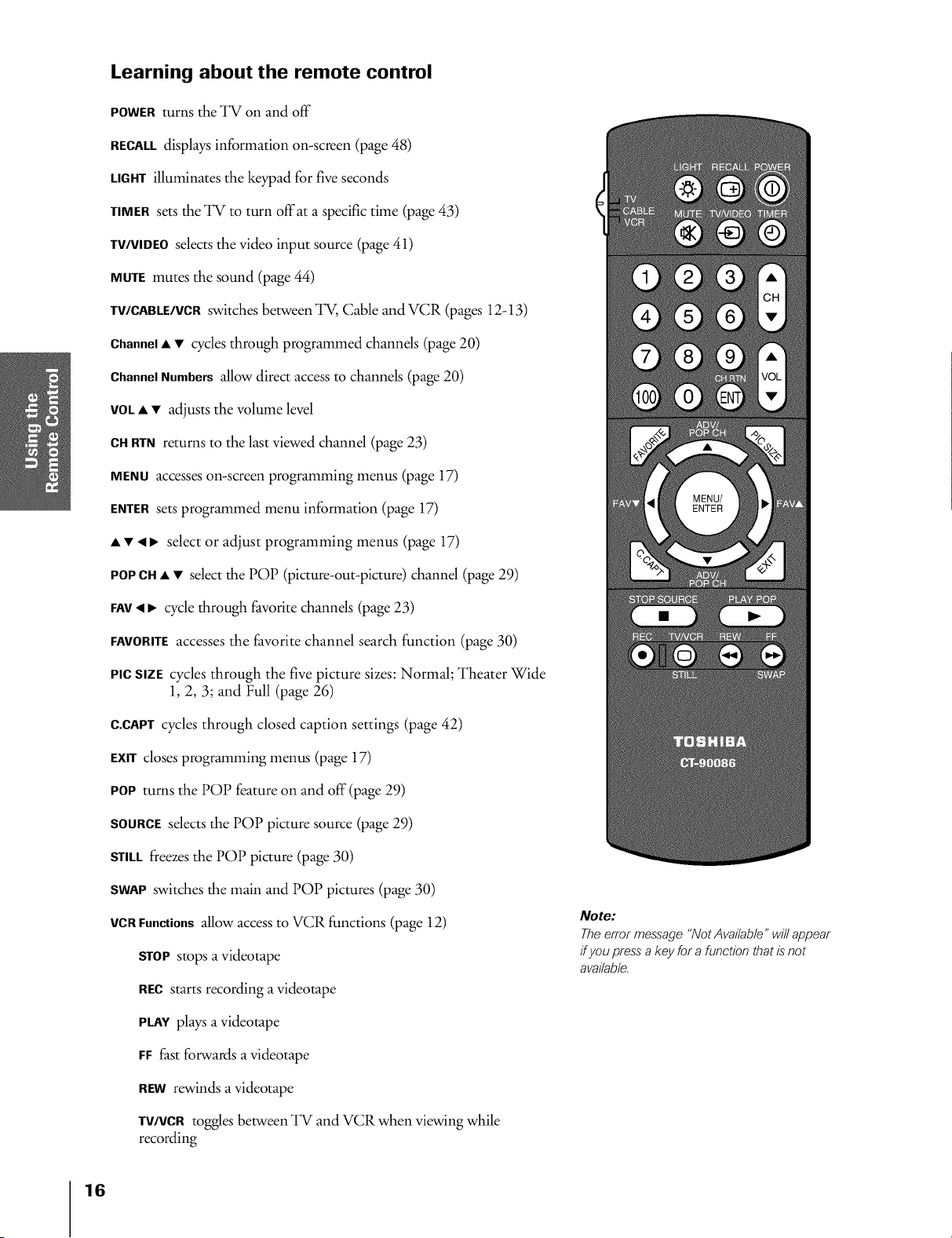
Learning about the remote control
POWERturns the TV on and off
RECALLdisplays information on-screen (page 48)
LIGHTilluminates the keypad for five seconds
TIMERsets the TV to turn offat a specific time (page 43)
TV/VlDEOselects the video input source (page 41)
MUTEmutes the sound (page 44)
TV/CABLE/VCRswitches between TV, Cable and VCR (pages 12-13)
Channel• • cycles through programmed channds (page 20)
ChannelNumbers allow direct access to channels (page 20)
VOL• • adjusts the volume level
CHRTN returns to the last viewed channd (page 23)
MENU accesses on-screen programming menus (page 17)
ENTERsets programmed menu information (page 17)
• • 4 I_ select or adjust programming menus (page 17)
POPCH• • select the POP (picture-out-picture) channel (page 29)
FAY,4 I_ cycle through favorite channds (page 23)
FAVORITEaccesses the favorite channel search function (page 30)
PICSIZE cycles through the five picture sizes: Normal; Theater Wide
1, 2, 3; and Full (page 26)
C.CAPTcycles through closed caption settings (page 42)
EXITcloses programming menus (page 17)
POP turns the POP feature on and off (page 29)
SOURCEsdects the POP picture source (page 29)
STILLfreezes the POP picture (page 30)
SWAPswitches the main and POP pictures (page 30)
VCRFunctions allow access to VCR functions (page 12)
STOP stops a videotape
RECstarts recording a videotape
PLAYplays a videotape
FF fast forwards a videotape
REWrewinds a videotape
TV/VCRtoggles between TV and VCR when viewing while
recording
Note:
The error message "Not Available" will appear
ff you press" a key for a function that is"not
available.
16
Setting up your TV
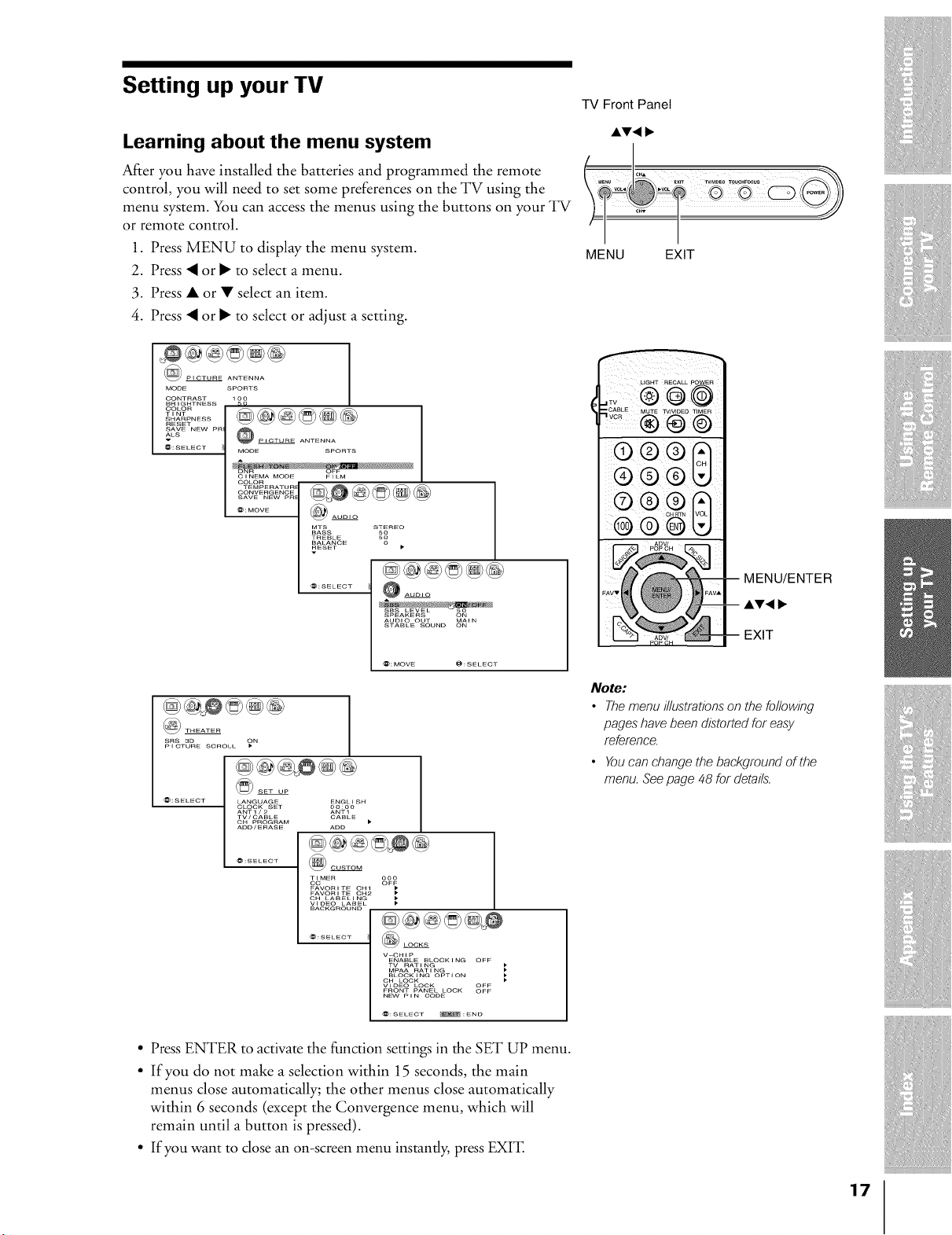
Learning about the menu system
After you have installed the batteries and programmed the remote
control, you will need to set some preferences on the TV using the
menu system. You can access the menus using the buttons on your TV
or remote control.
1. Press MENU to display the menu system.
2. Press _ or • to select a menu.
3. Press • or • select an item.
4. Press _ or • to select or adjust a setting.
_@@@@@
PICTURE ANTENNA
MODE SPORTS
BRIGHTNESS
COLOR 1
.... @@@@@®
SHARPNESS
RESET
ALsSAVE NEW PR @
v PICTURE ANTENNA
@:SELECT / MODE SPORTS
CINEMA MODE FELM
COLOR
CONVERGENCE
SAVE NEW PR
...... ]@ .....
......... ®@
BASS SO
TREBLE 50
BALANCE 0
_ESET •
AUDIO OUT MAIN
STABLE SOUND ON
THEATER
SRS 3D ON
P I CTURE SCROLL
SET UP
LANGUAGE ENGLISH
CLOCK SET oo:oo
ANT1/2 ANT1
TV/CABLE CABLE
OH PROGRAM )
ADD/ERASE ADD
@@@@_®
@:SELECT @CUSTOM
TIMER ooo
oc OF_
FAVORITE OH1
FAVORITE OH2
OH LABELINI
VIDEO LABEL
BACKGROUND
@:SELECT
@@@@@_
V-CHI p
ENABLE BLOCKING OFF
TV RATING
MpAA RAT I NG
BLOCKING OPTION
OH LOCK
VIDEO LOCK OFF
FRONT PANEL LOCK OFF
NEW P I N CODE
@:SELECT _ :END
TV Front Panel
MENU EXIT
LIGHT RECALL POWER
@
_lovabLEMU_Ew/woEoV_ME_
®®©
® ® ®
MENU/ENTER
AV,
EXIT
Note:
• The menu illustrations on the following
pages have been distorted for easy
reference.
• You can change the background of the
menu. See page 48 for details'.
• Press ENTER to activate the function settings in the SET UP menu.
• If you do not make a selection within 15 seconds, the main
menus close automatically; the other menus close automatically
within 6 seconds (except the Convergence menu, which will
remain until a button is pressed).
• If you want to close an on-screen menu instantly, press EXFE
17
Changing the on-screen display language
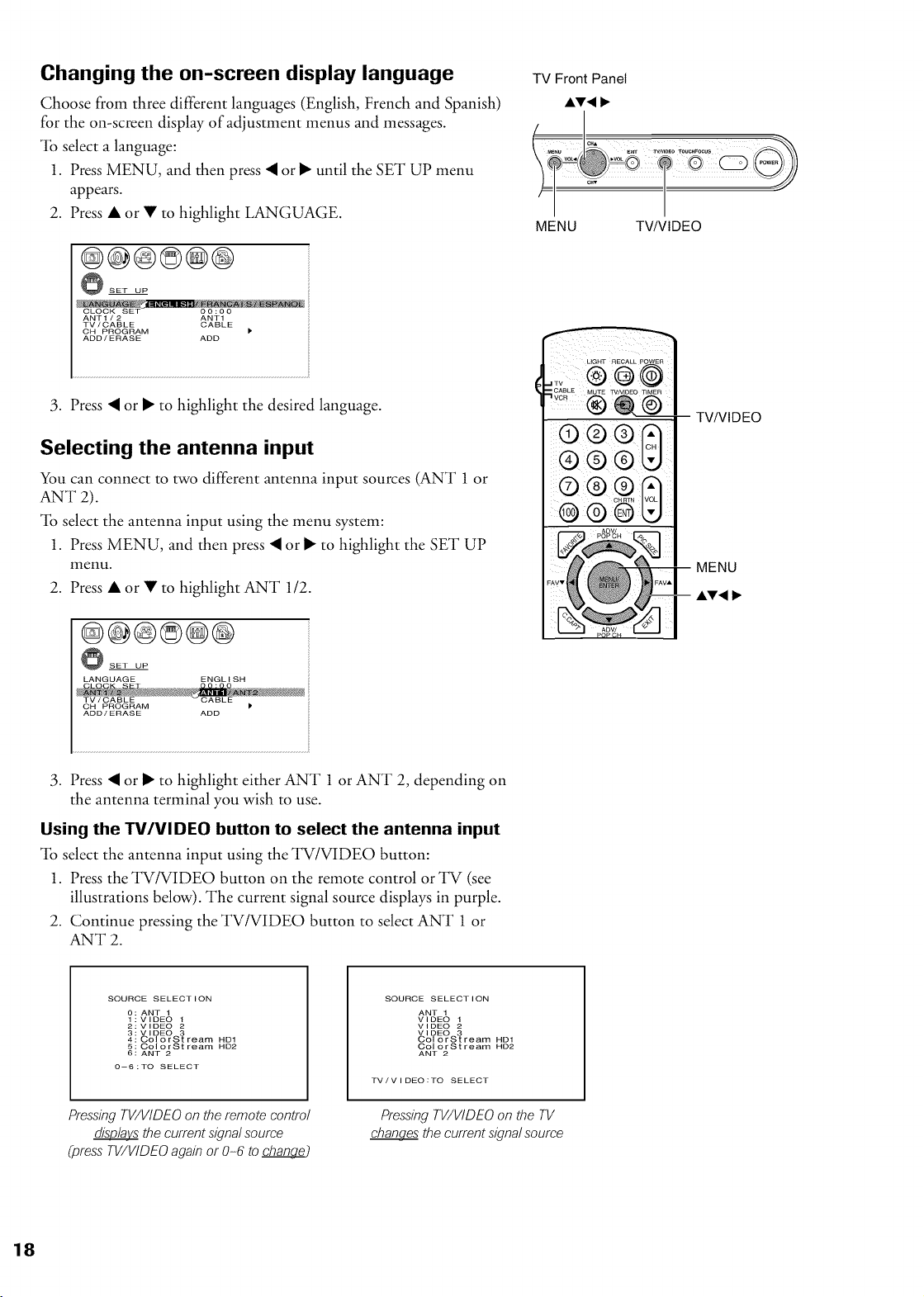
Choose from three different languages (English, French and Spanish)
for the on-screen display of adjustment menus and messages.
_lb select a language:
1. Press MENU, and then press _ or • until the SET UP menu
appears.
2. Press • or • to highlight LANGUAGE.
@@@©@@
SET UP
CLOCK SET 00:00
ANT1/2 ANT1
CABLETV/CABLE
OH PROGRAM
ADD/ERASE ADD
3. Press _ or • to highlight the desired language.
Selecting the antenna input
You can connect to two different antenna input sources (ANT 1 or
ANT 2).
"lb select the antenna input using the menu system:
1. Press MENU, and then press _ or • to highlight the SET UP
menu.
2. Press • or • to highlight ANT 1/2.
@@@©@@
SET UP
LANGUAGE ENGL ISH
CH PROGRAM )
ADD/ERASE ADD
TV Front Panel
AV,
MENU TV/VIDE0
LIGHT RECALL POWER
@
,._CABL E MUTE TVNIDEO TIMER
®
i'--2q 4%. F--I
-- TV/VIDE0
MENU
3. Press _ or • to highlight either ANT 1 or ANT 2, depending on
the antenna terminal you wish to use.
Using the TV/VIDEO button to select the antenna input
_lb select the antenna input using the TV/VIDEO button:
1. Press the TV/VIDEO button on the remote control or TV (see
illustrations below). The current signal source displays in purple.
2. Continue pressing the TV/VIDEO button to select ANT 1 or
ANT 2.
SOURCE SELECT ION
1° i ANT 1
VIDEO
2i VIDEO _
43! VIDEO 3
ColorSt ream HD1
65i O010rStream HD2
ANT 2
0--6 : TO SELECT
Pressing TV/VIDEO on the remote control
the current signal source
(press TV/VIDEO again or 0-6 to chan_€.)
SOURCE SELECT ION
ANT 1
VIDEO
VIDEO _
VIDEO 3
ColorSt ream HD1
ColorSt ream HD2
ANT 2
PressingTV/VIDEO on the TV
chanc¢__the current signal source

Adding channels to the TV's memory
When you press Channel • or V, your TV will select only the
channels stored in the TV's channel memory.
Follow the steps below and on the next page to program all active
channels into the TV's memory.
Programming channels automatically
Your TV can automatically detect all active channels in your area and
store them in its memory. After the channels are stored automatically,
you can manually add or erase individual channels (see page 20).
If you use both ANT-1 and ANT-2 terminals, you must program
channels for each input source.
"lb program channels automatically:
1. Press MENU, and then press _ or • until the SET UP menu
appears.
2. Press • or • until TV/CABLE is highlighted.
3. Press _ or • to highlight either TV or (]ABLE, depending on
which you use. If you use an antenna, highlight TV; if you use
cable, highlight (]ABLE.
@@@©@@
SET UP
LANGUAGE ENGLISH
CLOCK SET 00:00
CH PROGRAM _ •
ADD/ERASE ADD
Note:
Totune the TV to a channel not programmed
in the channel memory, use the Channel
Number buttons on the remote control.
®®@
-- Channel AV
Channel
Numbers
MENU
4. Press • to select CH PROGRAM.
@@@@@@
SET UP
LANGUAGE ENGL ISH
CLOCK SET 00:00
ANT1/2 ANTI
ADD/ERASE ADD
5. Press _ or • to start channel programming. The TV will
automatically cycle through all the TV or Cable channels
(depending on which you selected), and store all active channels
in the channel memory.
While the TV is cycling through the channels, the message
"Programming Now--Please Wait" appears.
6. When channel programming is complete, the message
"Completed" appears.
7. Press Channel • or • to view the programmed channels.
19
Adding and erasing channels manually
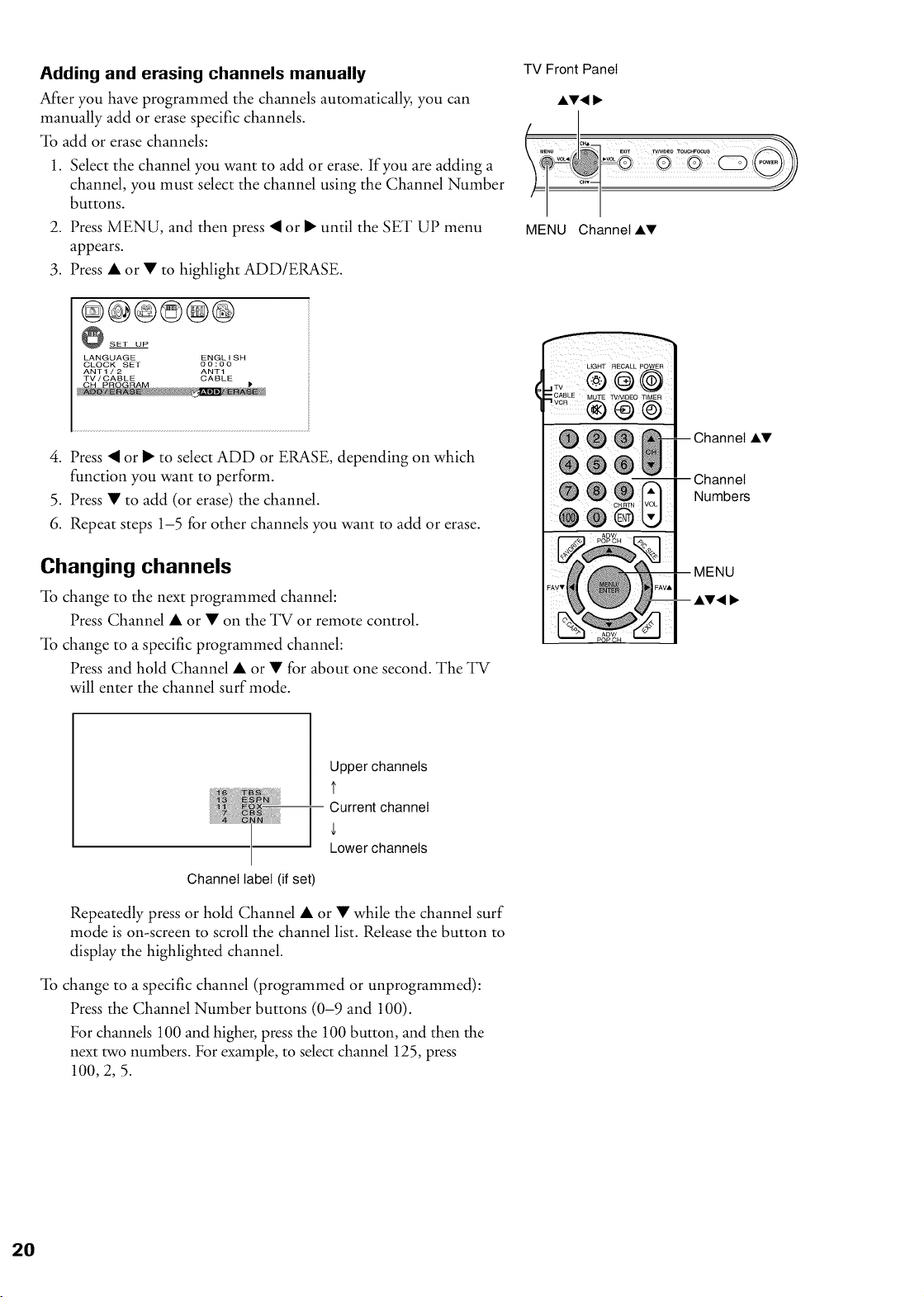
After you have programmed the channels automatically, you can
manually add or erase specific channels.
"lb acid or erase channels:
1. Select the channel you want to add or erase. If you are adding a
channel, you must select the channel using the Channel Number
buttons.
2. Press MENU, and then press _ or • until the SET UP menu
appears.
3. Press • or • to highlight ADD/ERASE.
@@@©@®
SET UP
LANGUAGE ENGLISH
OLOCK SET 00:00
ANT1/2 ANT1
TV/CABLE CABLE
4. Press _ or • to select ADD or ERASE, depending on which
function you want to perform.
5. Press • to add (or erase) the channel.
6. Repeat steps 1-5 for other channels you want to add or erase.
Changing channels
_lb change to the next programmed channel:
Press Channel • or • on the TV or remote control.
"lb change to a specific programmed channel:
Press and hold Channel • or • for about one second. The TV
will enter the channel surf mode.
TV Front Panel
,I,V, I_
,_ c._ _xrr Tv_o T_.FOCUS
MENU Channel AV
AV
Upper channels
t
-- Current channel
Lower channels
Channel label (if set)
Repeatedly press or hold Channel • or • while the channel surf
mode is on-screen to scroll the channel list. Release the button to
display the highlighted channel.
"lb change to a specific channel (programmed or unprogrammed):
Press the Channel Number buttons (0-9 and 100).
For channels 100 and higher, press the 100 button, and then the
next two numbers. For example, to select channel 125, press
100,2, 5.
Adjusting the color convergence
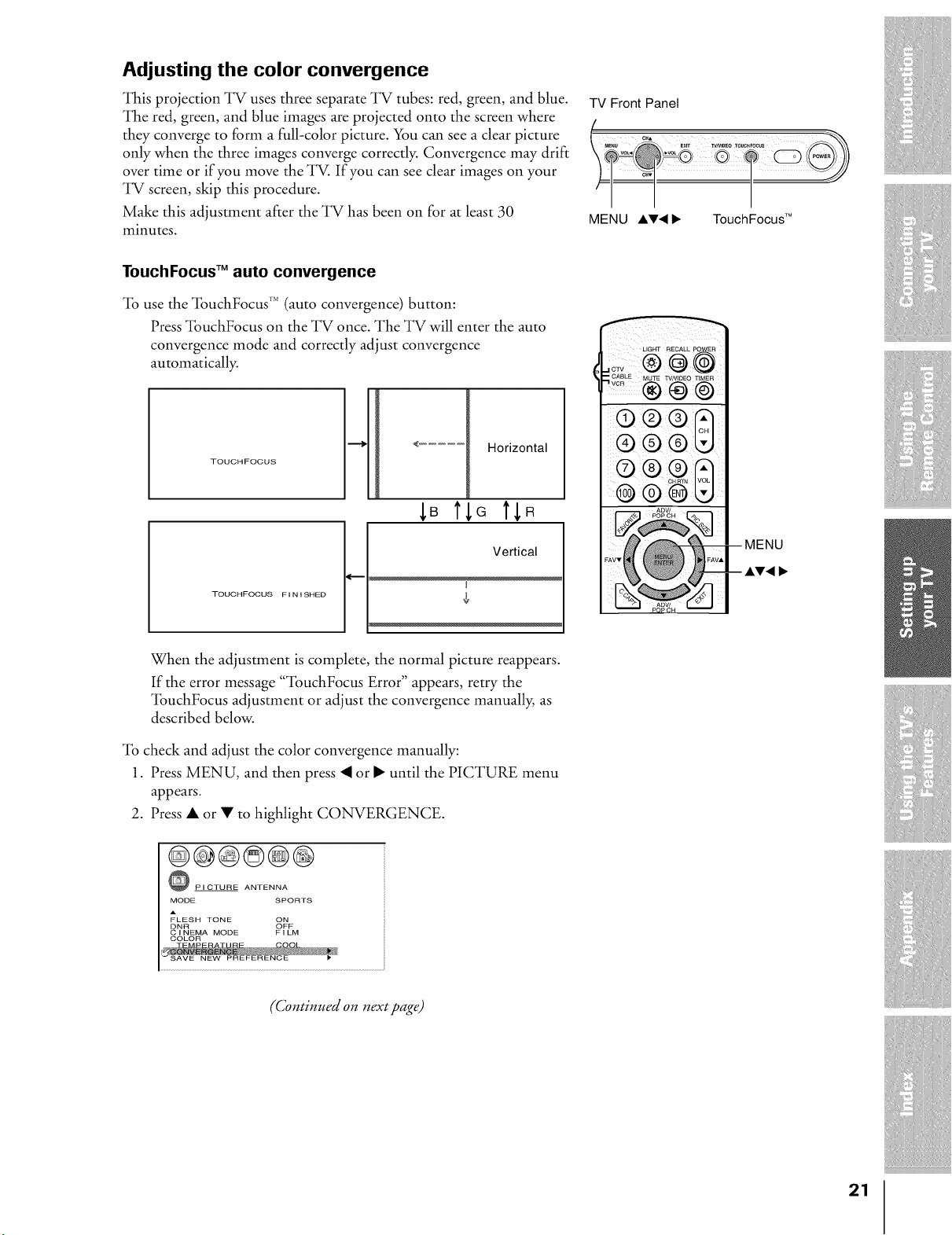
This projection TV uses three separate TV tubes: red, green, and blue.
The red, green, and blue images are projected onto the screen where
they converge to form a full-color picture. You can see a clear picture
only when the three images converge correctly. Convergence may drift
over time or if you move the TV. If you can see clear images on your
TV screen, skip this procedure.
Make this adjustment after the TV has been on for at least 30
minutes.
TV Front Panel
MENU AV, I_ TouchFocus TM
TouchFocus TM auto convergence
"lb use the "lbuchFocus TM (auto convergence) button:
Press "lbuchFocus on the TV once. The TV will enter the auto
convergence mode and correctly adjust convergence
automatically.
TOUCHFOCUS
<.......... Horizontal
TOUCHFOCUS FIN I SHED
_B rig tfR
Vertica
When the adjustment is complete, the normal picture reappears.
If the error message "'lbuchFocus Error" appears, retry the
"lbuchFocus adjustment or adjust the convergence manually, as
described below.
"lb check and adjust the color convergence manually:
1. Press MENU, and then press _I or • until the PICTURE menu
appears.
2. Press • or • to highlight CONVERGENCE.
@@@@@@
PICTURE ANTENNA
MODE SPORTS
A
FLESH TONE ON
DNR OFF
CINEMA MODE FILM
COLOR
LIGHT RECALL POWER
___LE..... _...........
® ® @
®® ®
® ®
o ®o
O 0 O "0
(Continued on next page)
21
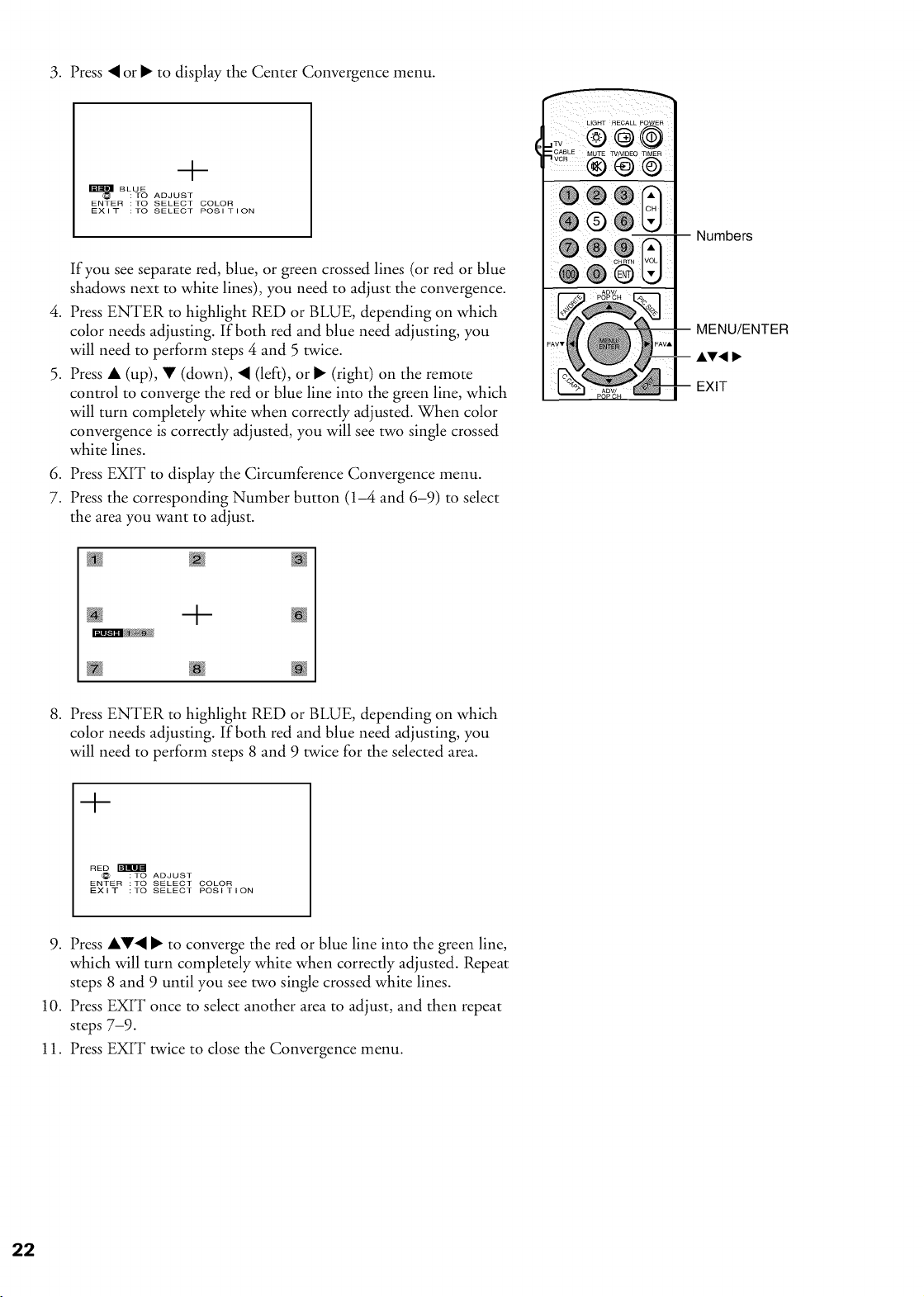
3. Press _ or • to display the Center Convergence menu.
.
.
t
BLUE
: TO ADJUST
ENTER :TO SELECT COLOR
EXIT :TO SELECT POSITION
If you see separate red, blue, or green crossed lines (or red or blue
shadows next to white lines), you need to adjust the convergence.
Press ENTER to highlight RED or BLUE, depending on which
color needs adjusting. If both red and blue need adjusting, you
will need to perform steps 4 and 5 twice.
Press • (up), • (down), _ (left), or • (right) on the remote
control to converge the red or blue line into the green line, which
will turn completely white when correctly adjusted. When color
convergence is correctly adjusted, you will see two single crossed
white lines.
6. Press EXIT to display the Circumference Convergence menu.
7. Press the corresponding Number button (1-4 and 6-9) to select
the area you want to adjust.
LIGHT RECALL POWER
<!!®
-- Numbers
MENU/ENTER
AV, I,,
EXIT
÷
8. Press ENTER to highlight RED or BLUE, depending on which
color needs adjusting. If both red and blue need adjusting, you
will need to perform steps 8 and 9 twice for the selected area.
-4-
RED
:TO ADJUST
ENTER :TO SELECT COLOR
EXIT :TO SELECT POSITION
9. Press ••4 • to converge the red or blue line into the green line,
which will turn completely white when correctly adjusted. Repeat
steps 8 and 9 until you see two single crossed white lines.
10. Press EXIT once to select another area to adjust, and then repeat
steps 7-9.
11. Press EXIT twice to close the Convergence menu.
I I_,_v_===_:_l w _==v v==_====v= vv_===_:_lWv
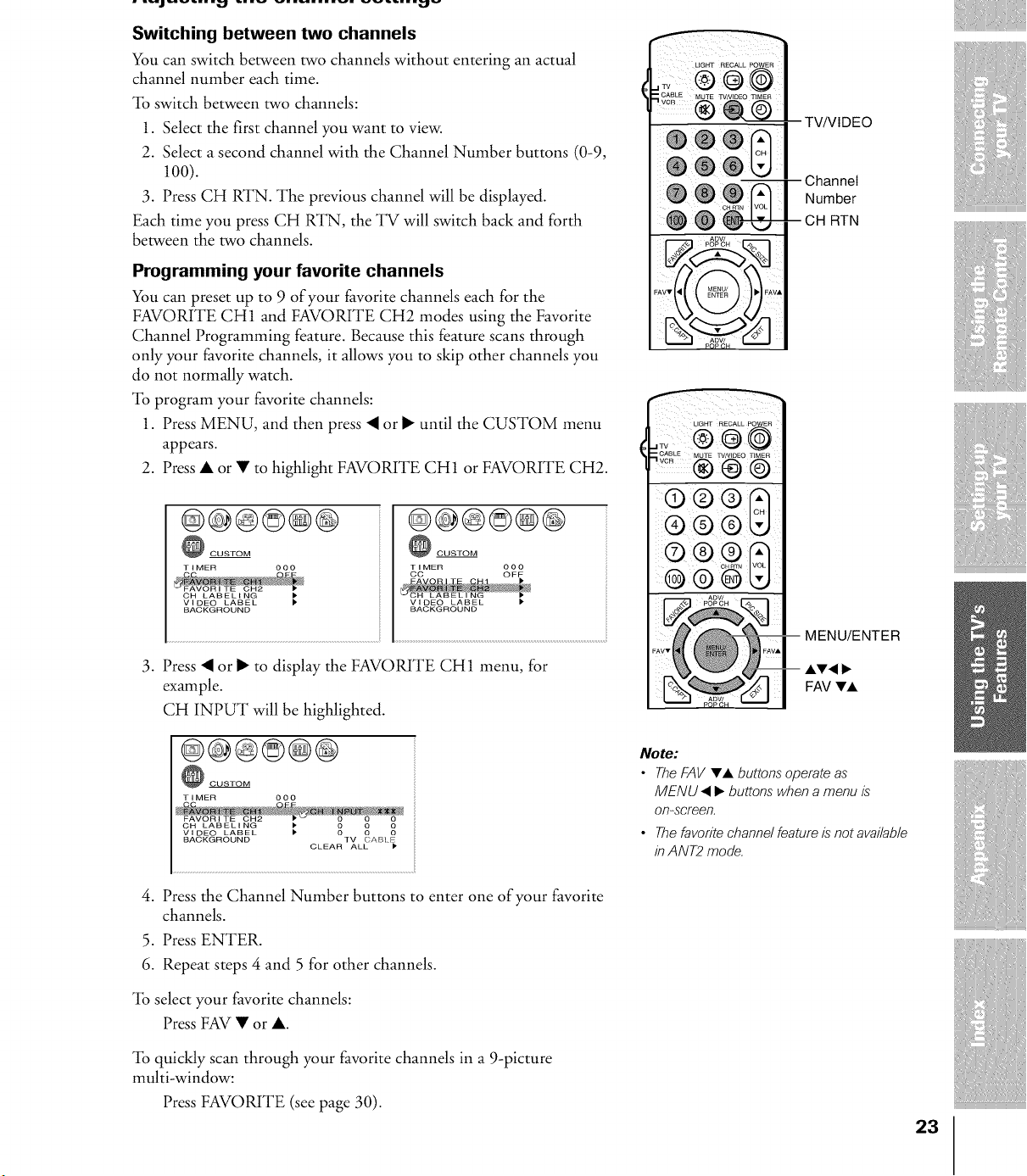
Switching between two channels
You can switch between two channels without entering an actual
channel number each time.
"lb switch between two channels:
1. Select the first channel you want to view.
2. Select a second channel with the Channel Number buttons (0-9,
100).
3. Press CH RTN. The previous channel will be displayed.
Each time you press CH RTN, the TV will switch back and forth
between the two channels.
Programming your favorite channels
You can preset up to 9 of your favorite channels each for the
FAVORITE CH1 and FAVORITE CH2 modes using the Favorite
Channel Programming feature. Because this feature scans through
only your favorite channels, it allows you to skip other channels you
do not normally watch.
"lb program your favorite channels:
1. Press MENU, and then press _I or • until the CUSTOM menu
appears.
2. Press • or • to highlight FAVORITE CH1 or FAVORITE CH2.
@@@©@@
CUSTOM
TIMER 000
CH LABELING
VIDEO LABEL
BACKGROUND
@@@©@@
CUSTOM
TIMER 000
CC OFF
BACKGROUND
3. Press _I or • to display the FAVORITE CH1 menu, for
example.
CH INPUT will be highlighted.
i REoA:LPoWE
TWVIDEO
I
®®®N
-- -- Channel
Number
-- CH RTN
,._CABL E MUTE W/VIDEO TIMER
® ¢ @
@ ® @
MENU/ENTER
AV• I_
FAV VA
@@@@@@
CUSTOM
TIMER 000
FAVORITE CH2 0 0 0
CH LABELING _ 0 O 0
VIDEO LABEL _ 0 0 0
BACKGROUND TV CABLE
CLEAR ALL
4. Press the Channel Number buttons to enter one of your favorite
channels.
5. Press ENTER.
6. Repeat steps 4 and 5 for other channels.
Note:
• The FAV VA buttons" operate as'
MENU • I_ buttons when a menu is"
on-screen.
• The favorite channel feature is"not available
in ANT2 mode.
"lb select your favorite channels:
Press FAV • or •.
"lb quickly scan through your favorite channels in a 9-picture
multi-window:
Press FAVORITE (see page 30).
23
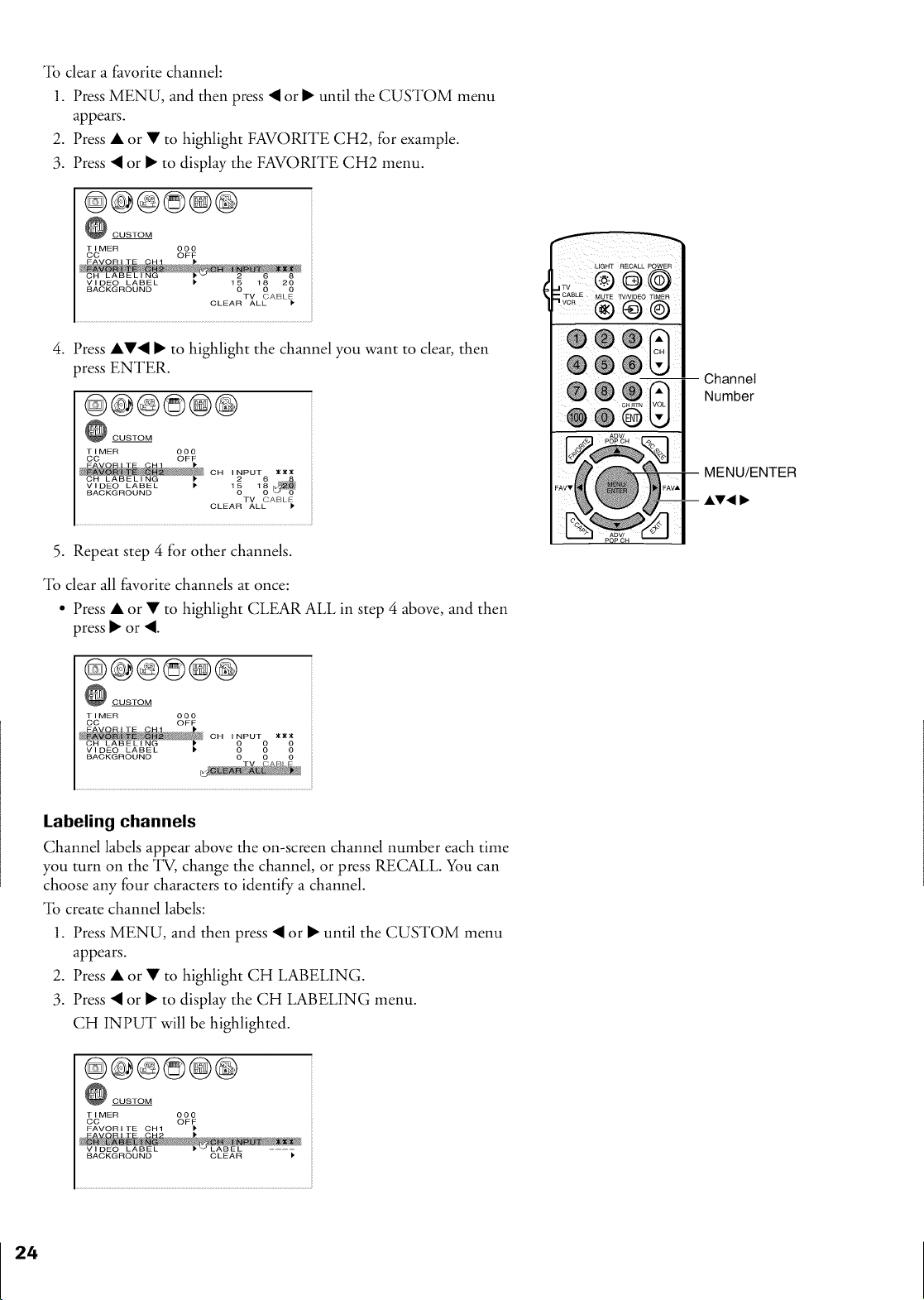
*lbclear a favorite channel:
1. Press MENU, and then press _I or • until the CUSTOM menu
appears.
2. Press • or • to highlight FAVORITE CH2, for example.
3. Press _I or • to display the FAVORITE CH2 menu.
@@@©@@
CUSTOM
TIMER 000
CC OFF
VIDEO LABEL 15 18 20
BACKGROUND 0 0 0
TV (}ABLE
CLEAR ALL
4. Press ••_I • to highlight the channel you want to clear, then
press ENTER.
@@@@@@
CUSTOM
TIMER 000
CC OFF
CH INPUT 6 X_X
BACKGROUND 0 0
TV CABL E
CLEAR ALL )
5. Repeat step 4 for other channels.
*lbclear all favorite channels at once:
• Press • or • to highlight CLEAR ALL in step 4 above, and then
press • or _I.
@@@@@@
CUSTOM
TIMER 000
CO OFF
CN,0.PUT° **0"
VI DEC LABEL 0 0 0
BACKGROUND
Labeling channels
Channel labels appear above the on-screen channel number each time
you turn on the TV, change the channel or press RECALL. You can
choose any four characters to identify a channel.
*lbcreate channel labels:
1. Press MENU, and then press _I or • until the CUSTOM menu
appears.
2. Press • or • to highlight CH LABELING.
3. Press _I or • to display the CH LABELING menu.
CH INPUT will be highlighted.
@@@@@@
CUSTOM
TIMER 000
CO OFF
FAVORITE OH1
LIGHT RECALL POWER
,;v@ @@
®®©
Channel
Number
_CUSTOM
TIMER 000
CO OF F
FAVORITE CH1
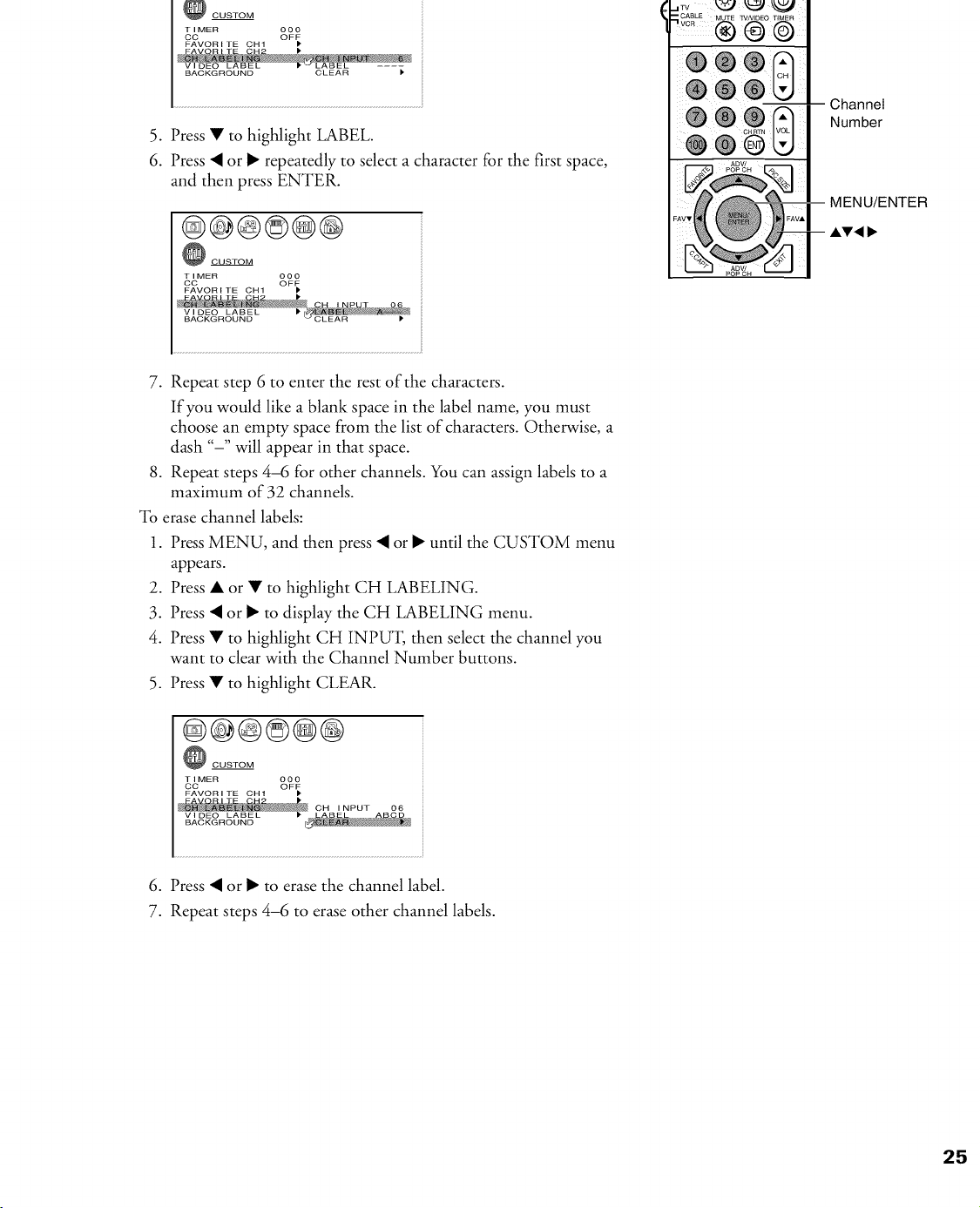
5. Press • to highlight LABEL.
6. Press _ or • repeatedly to select a character for the first space,
and then press ENTER.
@@@©®@
CUSTOM
TIMER 000
CC OFF
FAVORITE CH1
-- Channel
Number
MENU/ENTER
7. Repeat step 6 to enter the rest of the characters.
If you would like a blank space in the label name, you must
choose an empty space from the list of characters. Otherwise, a
dash "-" will appear in that space.
8. Repeat steps 4-6 for other channels. You can assign labels to a
maximum of 32 channels.
To erase channel labels:
1. Press MENU, and then press _ or • until the CUSTOM menu
appears.
2. Press • or • to highlight CH LABELING.
3. Press _ or • to display the CH LABELING menu.
4. Press • to highlight CH INPU'I, then select the channel you
want to clear with the Channel Number buttons.
5. Press • to highlight CLEAR.
@@@©@@
_ CUSTOM
TIMER 000
CO OF F
FAVORITE CH1
6. Press _ or • to erase the channel label.
7. Repeat steps 4-6 to erase other channel labels.
25

Viewing the wide-screen picture formats
You can view programs that have the conventional TV picture format
(4:3 aspect ratio) and the wide-screen format (16:9 aspect ratio) in a
variety of picture sizes.
Selecting the picture size
Repeatedly press PIC SIZE to select either Nomal, Theater Wide 1,
Theater Wide 2, Theater Wide 3, or Full picture size, as described
below.
P I CTURE S I ZE
0 : NORMAL
1 : THEATER W I DE 1
2 : THEATER W I DE
2
3 : THEATER W I DE 3
4: FULL
0-4 :TO SELECT
While the above menu is on-screen, select the desired picture size by
pressing the corresponding number button (0-4).
LIGHT RECALL POWER
=._CABL E MUTE TVNIDEO TIMER
® ®13
®®
PIC SIZE
MENU
AV, I_
Normal
The Normal picture size displays the picture in the conventional 4:3
aspect ratio, with bars at the left and right.
ISSS /SSS/
Conventional picture on a Conventional picture in Normal size
conventional TV screen on a wide-screen TV
Note:
If you select the Theater Wide picture size for
conventiona/ size programs, parts" of the
picture at the top and bottom of the screen
may be hidden. You can adjust the height of
the picture or scro// the picture (see "Theater
Wide 1, 2, 3" on page 27 and "Scro/ling the
Theater Wide picture" on page 28.)
Full
Full picture size stretches the picture to fill the screen width (distorts
the picture).
Conventional picture on a
conventional TV screen
C}OC}
Conventional picture in Full size on a
wide-screen TV
Wide-screenpictureon
conventionalTVscreen(also
knownas"letterbox"format,
withbarsattopandbottom)
©©0
©©0
Wide-screen picture in Theater Wide
size on wide-screen TV
......
Conventional picture on
conventional TV screen
Theater Wide 1
Theater Wide 2
Theater Wide 3
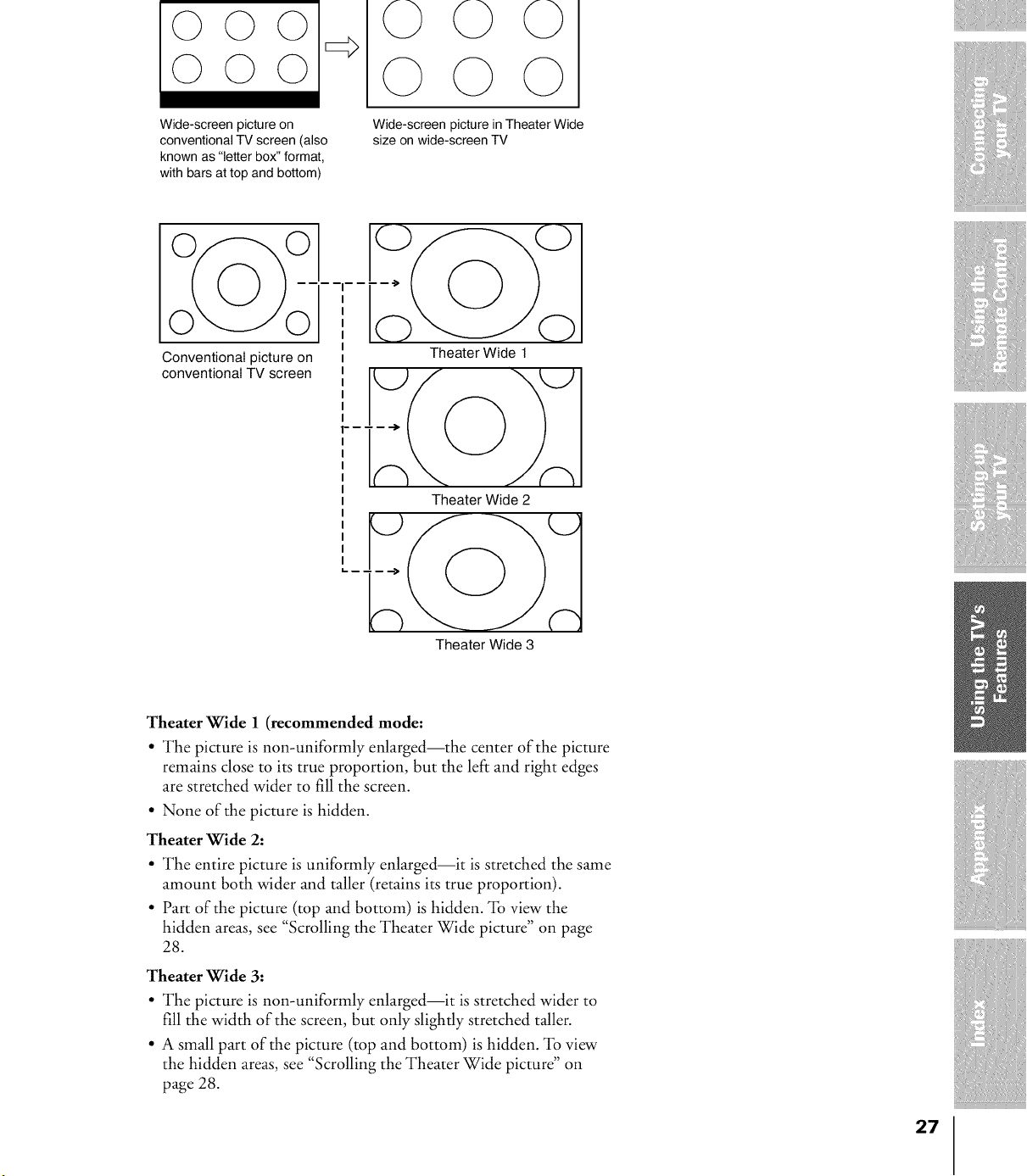
Theater Wide 1 (recommended mode:
• The picture is non-uniformly enlarged--the center of the picture
remains close to its true proportion, but the left and right edges
are stretched wider to fill the screen.
• None of the picture is hidden.
Theater Wide 2:
• The entire picture is uniformly enlarged--it is stretched the same
amount both wider and taller (retains its true proportion).
• Part of the picture (top and bottom) is hidden. % view the
hidden areas, see "Scrolling the Theater Wide picture" on page
28.
Theater Wide 3:
• The picture is non-uniformly enlarged--it is stretched wider to
fill the width of the screen, but only slightly stretched taller.
• A small part of the picture (top and bottom) is hidden. "lb view
the hidden areas, see "Scrolling the Theater Wide picture" on
page 28.
27
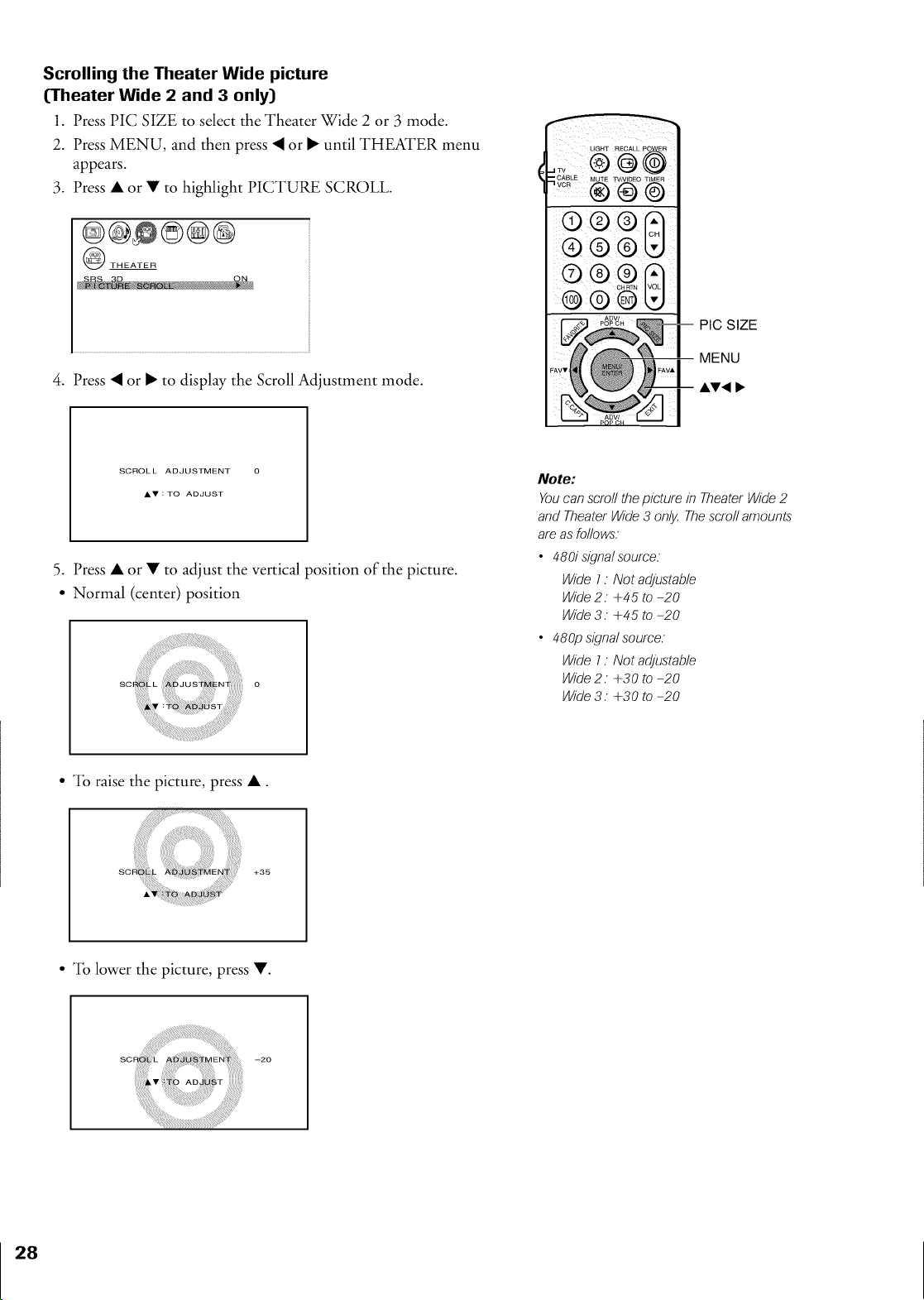
Scrolling the Theater Wide picture
(Theater Wide 2 and 3 only)
1. Press PIC SIZE to select the Theater Wide 2 or 3 mode.
2. Press MENU, and then press _I or • until THEATER menu
appears.
3. Press • or • to highlight PICTURE SCROLL.
@@@@@@
THEATER
4. Press _I or • to display the Scroll Adjustment mode.
LIGHT RECALL POWER
@
.._CABL E MUTE TVNIDEO TIMER
®® ®
®®
PIC SIZE
MENU
SCROLL ADJUSTMENT O
AV:TO ADJUST
5. Press • or • to adjust the vertical position of the picture.
• Normal (center) position
o
Note:
You can scroll the picture in Theater Wide 2
andTheaterWide3 onl,_Thescro//amounts
areasfo/Iows.
• 480isigna/source.
Wide1: Notadjustable
Wide2. +45 to -20
Wide3. +45 to -20
• 480p signa/source.
Wide1: Notadjustable
Wide2. +30 to -20
Wide3. +30 to -20
• "lb raise the picture, press •.
SDd L +G5
• "lb lower the picture, press •.
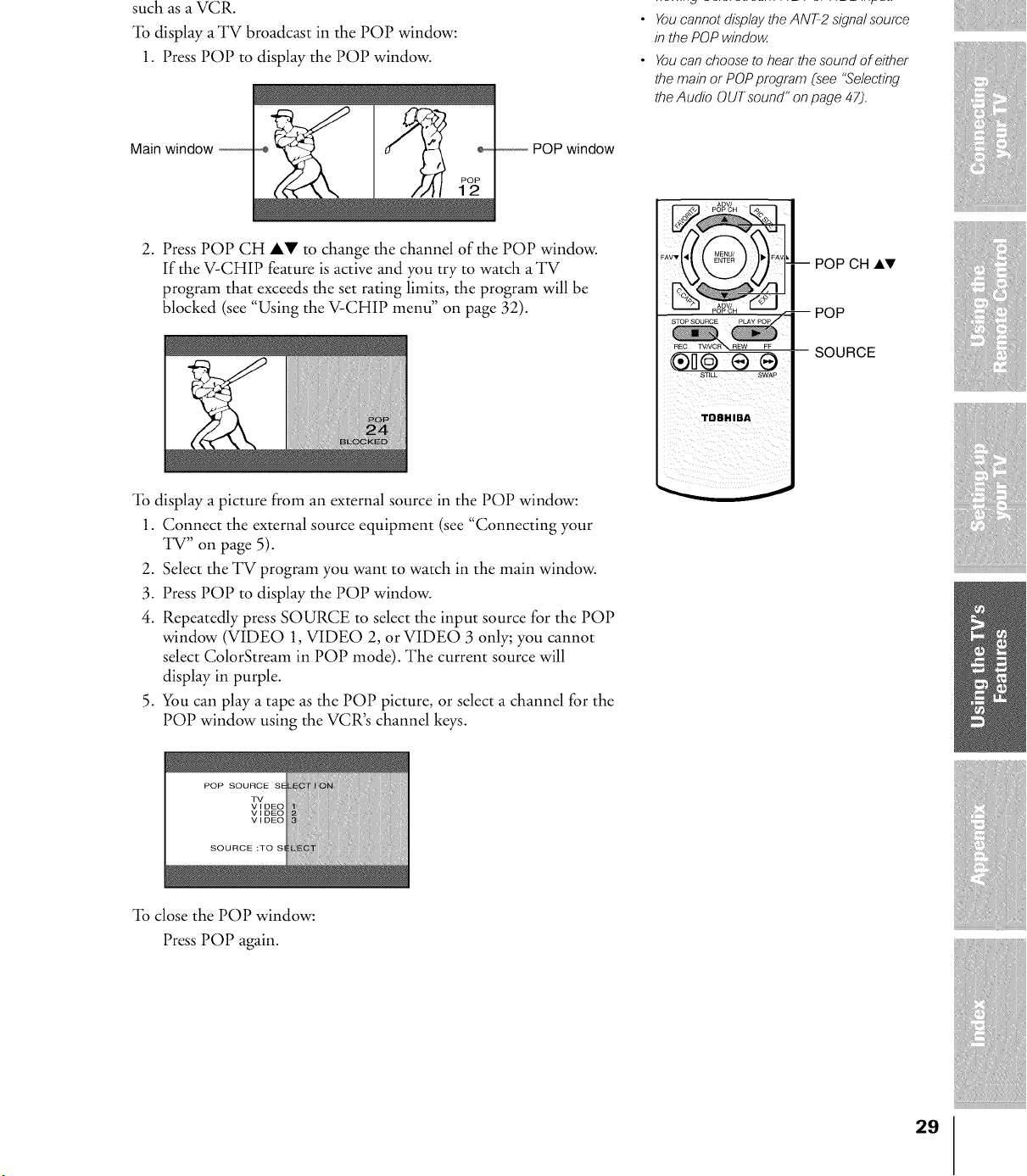
suchasaVCR.
"lbdisplayaTV broadcastin thePOPwindow:
1. PressPOPtodisplaythePOPwindow.
Main window, - -- POP window
YoucannotdisplaytheANT-2signalsource
in thePOPwindow
Youcanchooseto hearthesoundof either
themainorPOPprogram(see "Selecting
theAudio OUTsound"onpage47).
2. Press POP CH A! to change the channel of the POP window.
If the V-CHIP feature is active and you try to watch a TV
program that exceeds the set rating limits, the program will be
blocked (see "Using the V-CHIP menu" on page 32).
POP CH AV
POP
SOURCE
"lb display a picture from an external source in the POP window:
1. Connect the external source equipment (see "Connecting your
TV" on page 5).
2. Select the TV program you want to watch in the main window.
3. Press POP to display the POP window.
4. Repeatedly press SOURCE to select the input source for the POP
window (VIDEO 1, VIDEO 2, or VIDEO 3 only; you cannot
select ColorStream in POP mode). The current source will
display in purple.
5. You can play a tape as the POP picture, or select a channel for the
POP window using the VCR's channel keys.
_lb close the POP window:
Press POP again.
29
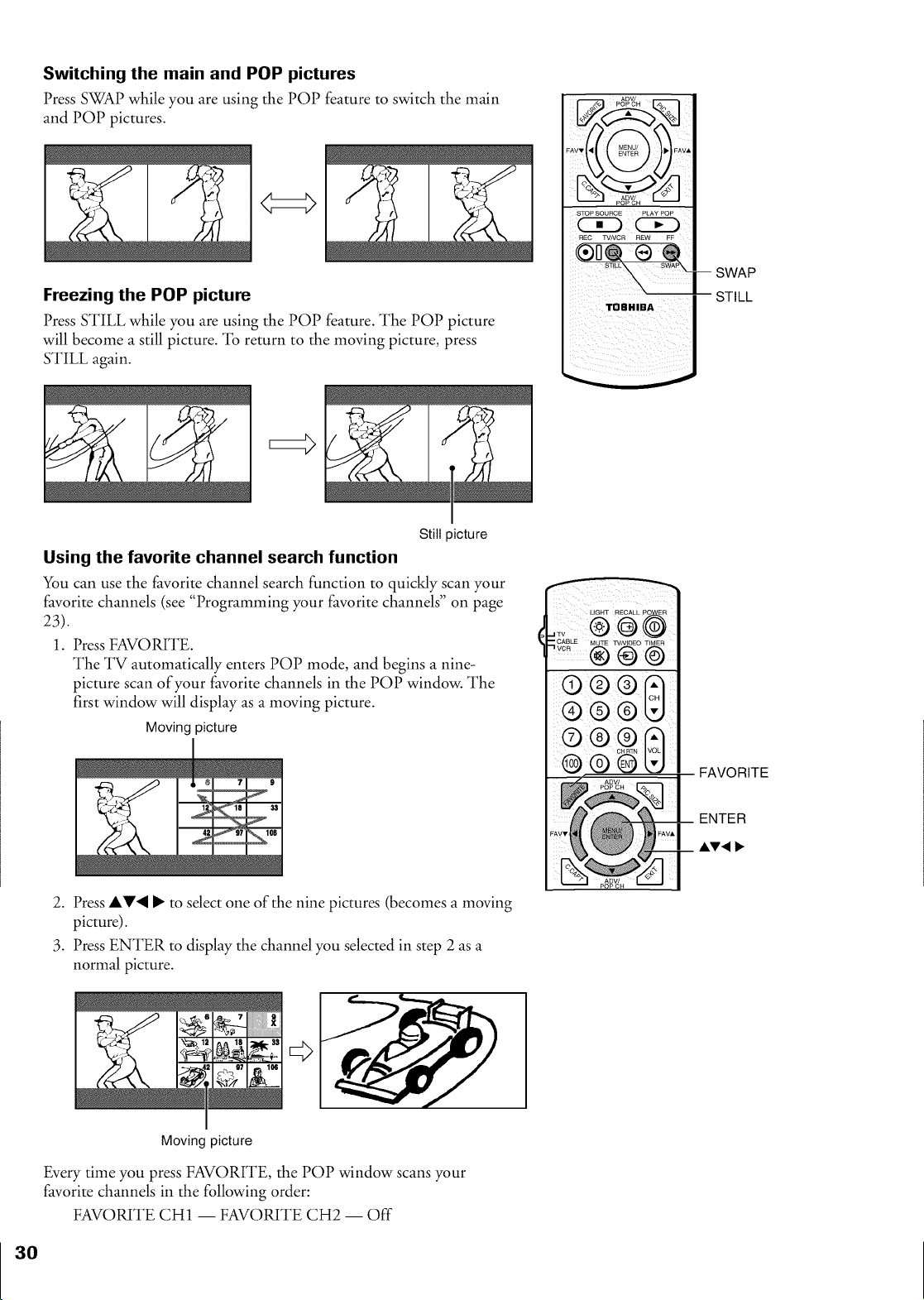
Switching the main and POP pictures
Press SWAP while you are using the POP feature to switch the main
and POP pictures.
Freezing the POP picture
Press STILL while you are using the POP feature. The POP picture
will become a still picture. *lb return to the moving picture, press
STILL again.
Still picture
Using the favorite channel search function
You can use the favorite channel search function to quickly scan your
favorite channels (see "Programming your favorite channels" on page
23).
1. Press FAVORITE.
The TV automatically enters POP mode, and begins a nine-
picture scan of your favorite channels in the POP window. The
first window will display as a moving picture.
Moving picture
2. Press AV<I • to sdect one of the nine pictures (becomes a moving
picture).
3. Press ENTER to display the channel you selected in step 2 as a
normal picture.
Moving 3icture
Every time you press FAVORITE, the POP window scans your
favorite channels in the following order:
FAVORITE CH1 -- FAVORITE CH2 -- Off
ik ii
REC TV/VCR REW FF
N
i \ I-SWA
STILL
® ® ®
FAVORITE
ENTER
AV<
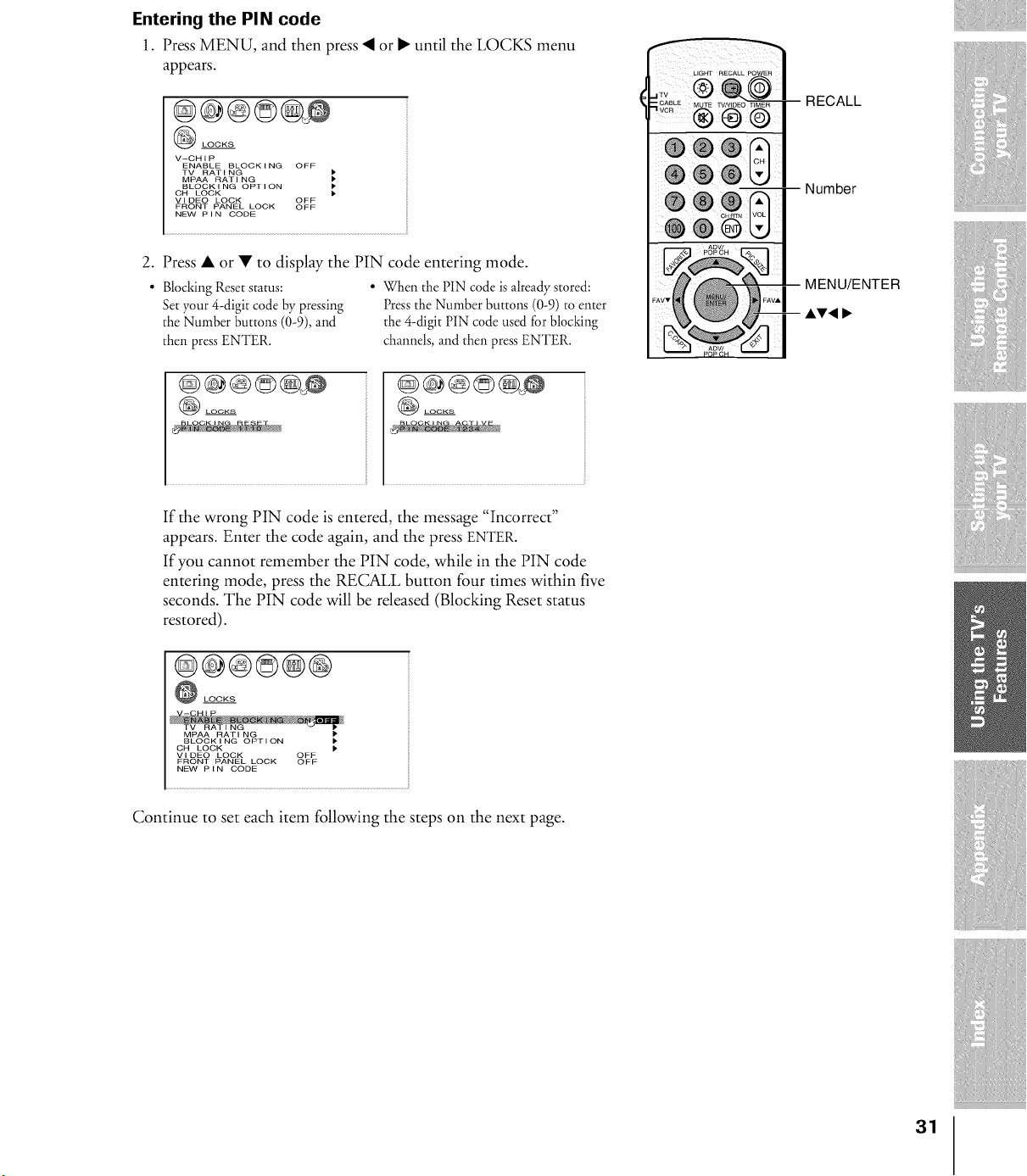
Entering the PIN code
1. Press MENU, and then press _I or • until the LOCKS menu
appears.
LOCKS
V-CHIP
ENABLE BLOCKING OFF
TV RATING
MPAA RATING
BLOCKING OPTION
OH LOCK
VIDEO LOCK OFF
FRONT PANEL LOCK OFF
NEW PIN CODE
2. Press • or • to display the PIN code entering mode.
• Blocking Reset status: • When the PIN code is already stored:
Set your 4-digit code by pressing Press the Nmnber buttons (0-9) to enter
the Number buttons (0-9), and the 4-digit PIN code used for blocking
then press ENTER. channels, and then press ENTER.
LOCKS LOCKS
If the wrong PIN code is entered, the message "Incorrect"
appears. Enter the code again, and the press ENTER.
If you cannot remember the PIN code, while in the PIN code
entering mode, press the RECALL button four times within five
seconds. The PIN code will be released (Blocking Reset status
restored).
@@@©@@
LOCKS
MPAA RATING
BLOCKING OPTION
CH LOCK p
VIDEO LOCK OFF
FRONT PANEL LOCK OFF
NEVVPIN CODE
Continue to set each item following the steps on the next page.
LIGHT RECALL POWER
-- RECALL
Number
MENU/ENTER
,AV, I_
31
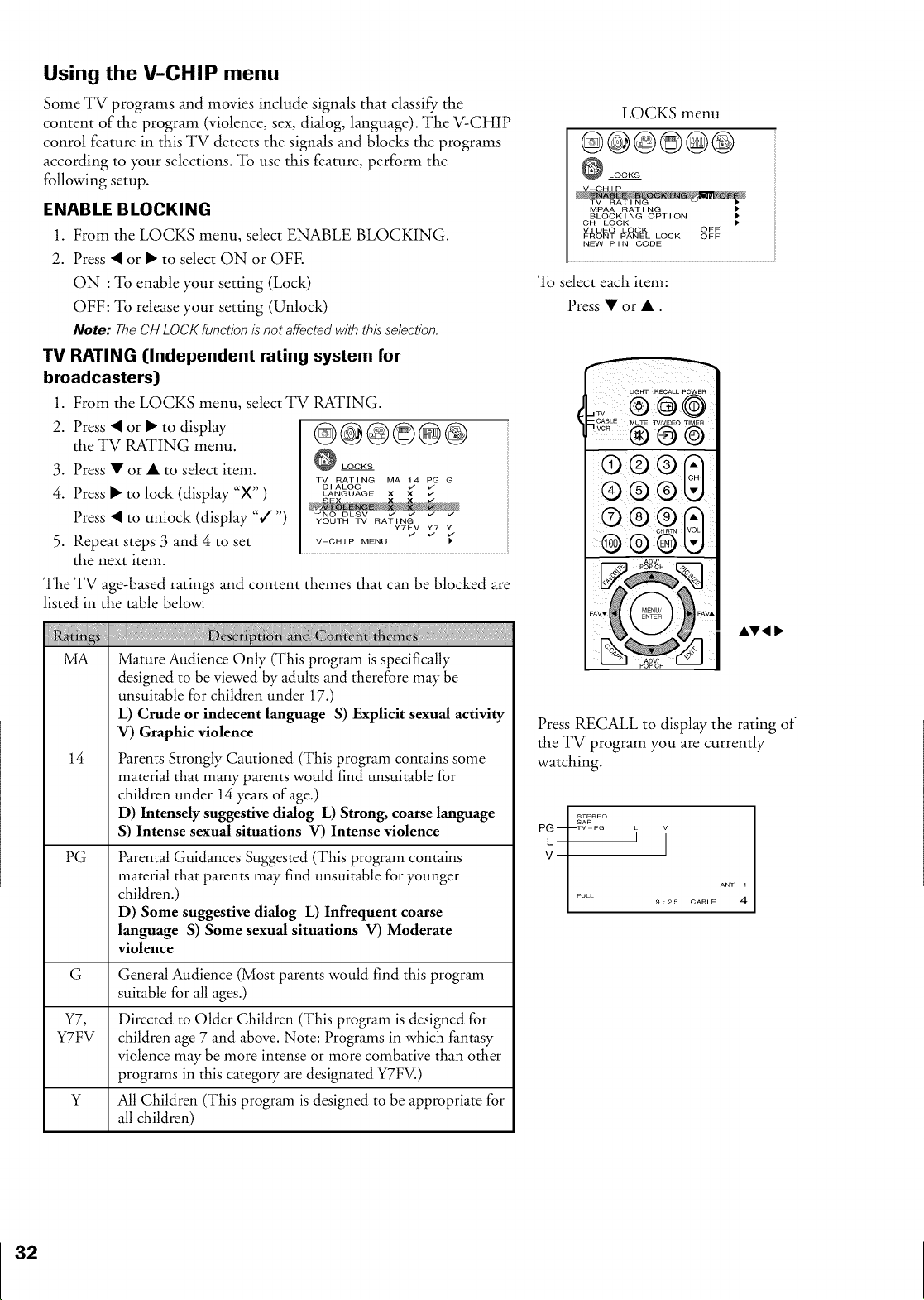
Using the V-CHIP menu
Some TV programs and movies include signals that classify the
content of the program (violence, sex, dialog, language). The V-CHIP
conrol feature in this TV detects the signals and blocks the programs
according to your selections. "lb use this feature, perform the
following setup.
ENABLE BLOCKING
1. From the LOCKS menu, select ENABLE BLOCKING.
2. Press _I or • to select ON or OFE
ON : "lb enable your setting (Lock)
OFF: "lb release your setting (Unlock)
Note: The CH LOCK function is'not affected with this"selection.
TV RATING (Independent rating system for
broadcasters)
1. From the LOCKS menu, select TV RATING.
2. Press _I or • to display
the TV RATING menu.
3. Press • or • to select item.
4. Press • to lock (display "X" )
Press _I to unlock (display "V"")
5. Repeat steps 3 and 4 to set
the next item.
@@@@@@
LOCKS
TV RAT I NG MA G
.... oG b4 _G
V--CHIP MENU
The TV age-based ratings and content themes that can be blocked are
listed in the table below.
MA
14
PG
Mature Audience Only (This program is specifically
designed to be viewed by adults and therefore may be
unsuitable for children under 17.)
L) Crude or indecent language S) Explicit sexual activity
V) Graphic violence
Parents Strongly Cautioned (This program contains some
material that many parents would find unsuitable for
children under 14 years of age.)
D) Intensely suggestive dialog L) Strong, coarse language
S) Intense sexual situations V) Intense violence
Parental Guidances Suggested (This program contains
material that parents may find unsuitable for younger
children.)
D) Some suggestive dialog L) Infrequent coarse
language S) Some sexual situations V) Moderate
violence
G General Audience (Most parents would find this program
suitable for all ages.)
Y7, Directed to Older Children (This program is designed for
Y7FV children age 7 and above. Note: Programs in which fantasy
violence may be more intense or more combative than other
programs in this category are designated Y7FV.)
Y All Children (This program is designed to be appropriate for
all children)
LOCKS menu
@@@@@@
LOCKS
MPAA RAT I NG I'
BLOCK I NG OPTI ON
CH LOCK
Vl DEO LOCK OFF
FRONT PANEL LOCK OFF
NEVV P I N CODE
"lb select each item:
Press • or •.
UGHT RECALL POWER
® ® @
® ®
Press RECALL to display the rating of
the TV program you are currently
watching.
p vv pG
ANT 1
FULL 9 : 2s CABLE 4
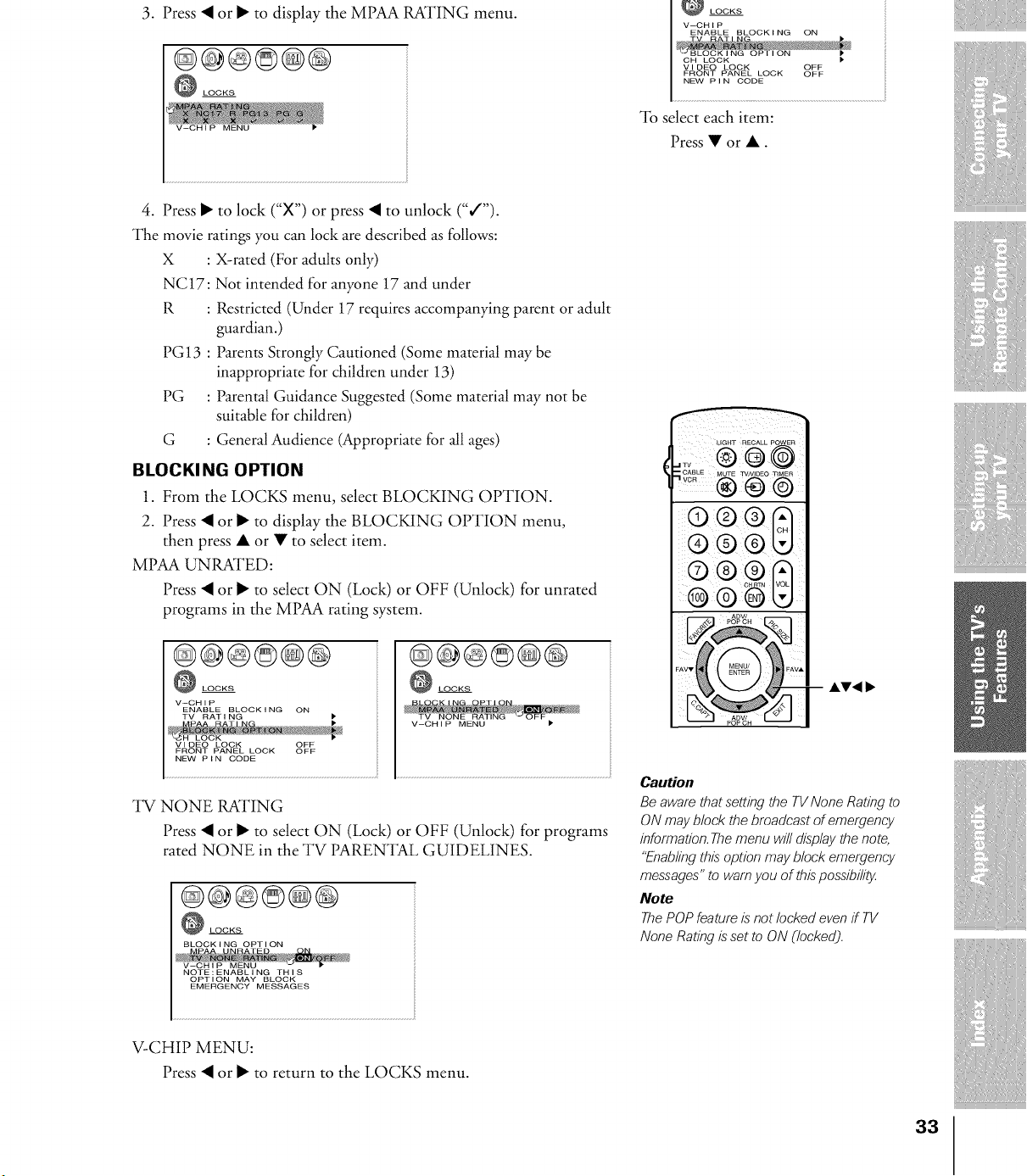
3. Press '4 or • to display the MPAA RATING menu.
@@@©@@
LOCKS
"lb select each item:
Press • or •.
4. Press • to lock ("X") or press '4 to unlock ("J'").
The movie ratings you can lock are described as follows:
X : X-rated (For adults only)
NC17: Not intended for anyone 17 and under
R : Restricted (Under 17 requires accompanying parent or adult
guardian.)
PG 13 : Parents Strongly Cautioned (Some material may be
inappropriate for children under 13)
PG : Parental Guidance Suggested (Some material may not be
suitable for children)
G : General Audience (Appropriate for all ages)
BLOCKI NG OPTION
1. From the LOCKS menu, select BLOCKING OPTION.
2. Press '4 or • to display the BLOCKING OPTION menu,
then press • or • to select item.
MPAA UNRATED:
Press '4 or • to select ON (Lock) or OFF (Unlock) for unrated
programs in the MPAA rating system.
@@®©@@
LOCKS
V-OH I P
ENABLE BLOCK I NG ON
VIDEO LOCK OFF
FRONT PANEL LOCK OFF
NEW PIN CODE
@@®©@@
LOCKS
TV NONE RATING
Press '4 or • to select ON (Lock) or OFF (Unlock) for programs
rated NONE in the TV PARENTAL GUIDELINES.
@@®©@@
LOCKS
BLOCKING OPTION
V--CHiP MENU
NOTE:ENABLING THIS
OPTION MAY BLOCK
EMERGENCY MESSAGES
LIGHT RECALL POWER
J;: @@ @
® ® ©
@ ® @
-- AV< t,
Caution
Be aware that setting the TV None Rating to
ON may block the broadcast of emergency
inforrnation. The menu will display the note,
"Enabling this"option may block emergency
messages" to warn you of this possibili_
Note
The POP feature is"not locked even if TV
None Rating is"set to ON Clocked).
V-CHIP MENU:
Press _I or • to return to the LOCKS menu.
33
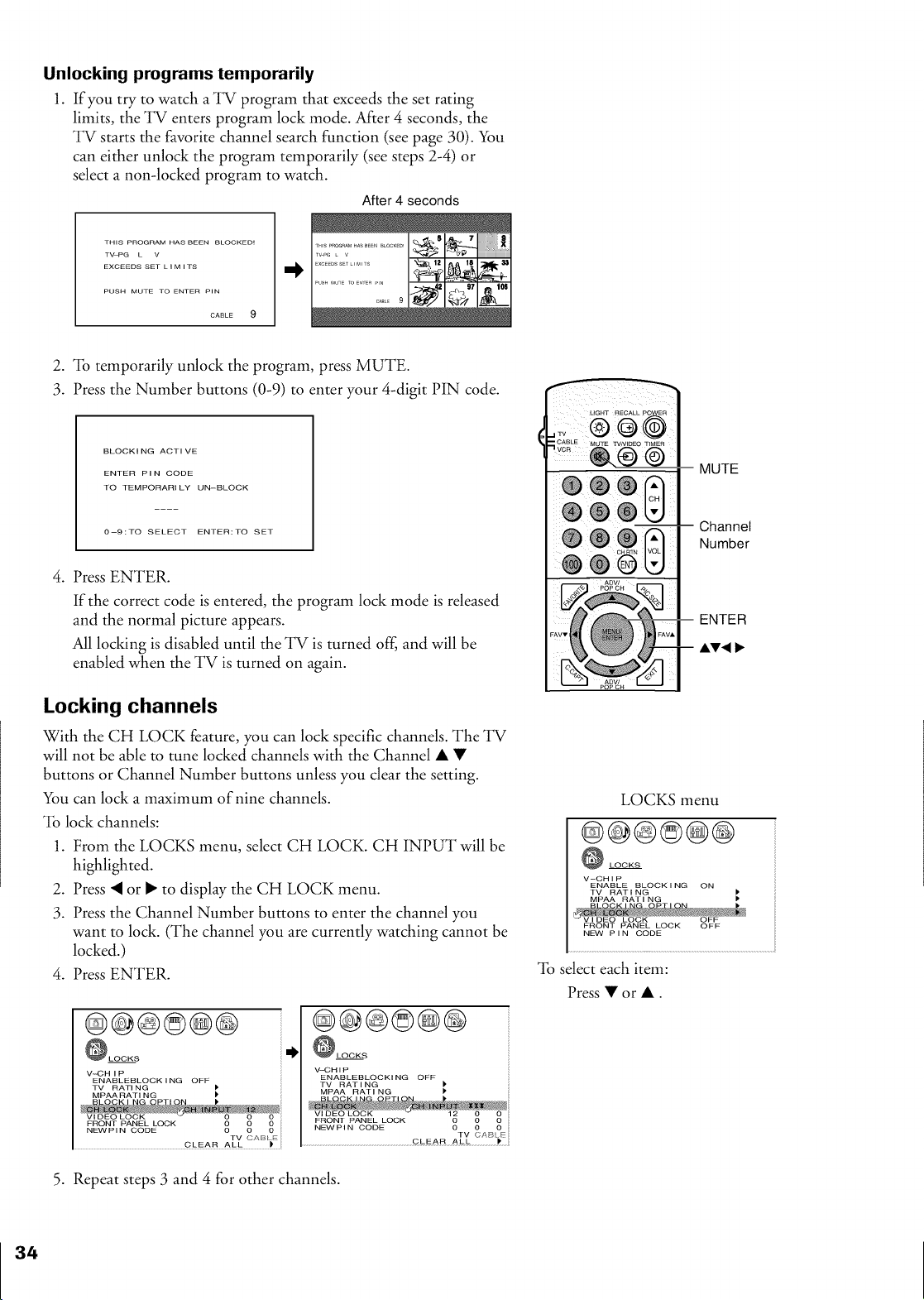
Unlocking programs temporarily
1. If you try to watch a TV program that exceeds the set rating
limits, the TV enters program lock mode. After 4 seconds, the
TV starts the favorite channel search function (see page 30). You
can either unlock the program temporarily (see steps 2-4) or
select a non-locked program to watch.
After 4 seconds
THIS PROGRAM HAS BEEN BLOCKED!
TVq3G • V
EXCEEDS SET LIMITS
CABLE 9
=I,
2. "lb temporarily unlock the program, press MUTE.
3. Press the Number buttons (0-9) to enter your 4-digit PIN code.
BLOCKING ACTIVE
ENTER PIN CODE
TO TEMPORARILY UN--BLOCK
0--9:TO SELECT ENTER:TO SET
4. Press ENTER.
If the correct code is entered, the program lock mode is released
and the normal picture appears.
All locking is disabled until the TV is turned off, and will be
enabled when the TV is turned on again.
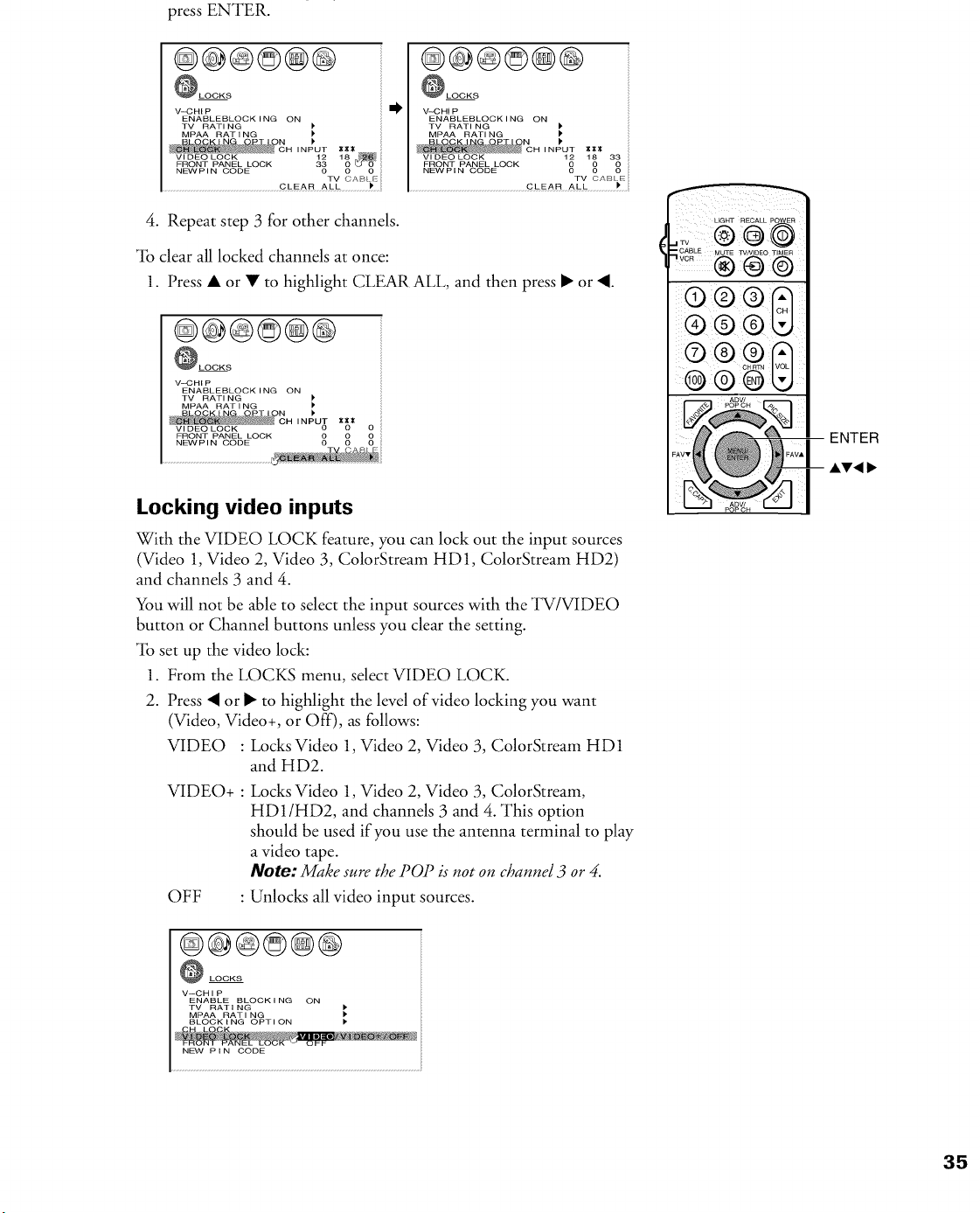
Locking channels
With the CH LOCK feature, you can lock specific channels. The TV
will not be able to tune locked channels with the Channel • •
buttons or Channel Number buttons unless you clear the setting.
You can lock a maximum of nine channels.
"lb lock channels:
1. From the LOCKS menu, select CH LOCK. CH INPUT will be
highlighted.
2. Press _ or • to display the CH LOCK menu.
3. Press the Channel Number buttons to enter the channel you
want to lock. (The channel you are currently watching cannot be
locked.)
4. Press ENTER.
@@@©@@
LOCKS
V-_HIP
ENABLEBLOCKING OFF
TV RATING
MPAARATING
TV CAB_E
CLEAR ALL )
@@@©®@
LOCKS
V-4DN I P
ENABLEBLOCKI NG OFF
TV RAT I NG )'
TV CAB_E
CLEAR ALL )
5. Repeat steps 3 and 4 for other channels.
(_) MUTE
Channel
Number
LOCKS menu
@@@©@@
LOCKS
V-CHIP
ENABLE BLOCKING ON
TV RATING
MPAA RATING
FRONT PANEL LOCK OFF
N_ PIN CODE
"lb select each item:
Press • or •.
press ENTER.
@@@©@@
LOCKS
V--C HI P
ENABLEBLOCK ING ON
TV RATING 1'
MPAA RAT I NG
P
H INPUT _;_;_
.... OLOO.... _ _
FRONT PANEL LOCK 33
NEW'PIN CODE 0 0 0
TV CAB_ E
CLEAR ALL )'
@@@@@@
LOCKS
V-43 HI P
ENABLEBLOCK I NG ON
TV RATI NG )"
MPAA RATI NG
).
H INPUT _X
.... CLOCK 102 18 33
FRONT PANEL LOCK
NEVV PI N CODE 0 0 0
TV CAB[ E
CLEAR ALL )
4. Repeat step 3 for other channels.
"lb clear all locked channels at once:
1. Press • or • to highlight CLEAR ALL, and then press • or 4.
@@@@@@
LOCKS
V--C HI P
ENABLEBLOCK ING ON
TV RATING )'
MPAA RAT I NG
P
OH X_
INPUT
Vl DEC LOCK 0
FRONT PANEL LOCK
..... CODE °o o o
Locking video inputs
With the VIDEO LOCK feature, you can lock out the input sources
(Video 1, Video 2, Video 3, ColorStream HD1, ColorStream HD2)
and channels 3 and 4.
You will not be able to select the input sources with the TV/VIDEO
button or Channel buttons unless you clear the setting.
"lb set up the video lock:
1. From the LOCKS menu, select VIDEO LOCK.
2. Press _ or • to highlight the level of video locking you want
(Video, Video+, or Off), as follows:
VIDEO : Locks Video 1, Video 2, Video 3, ColorStream HD1
and HD2.
VIDEO+ :
Locks Video 1, Video 2, Video 3, ColorStream,
HD1/HD2, and channels 3 and 4. This option
should be used if you use the antenna terminal to play
a video tape.
Note: Make sure the POP is not on channel 3 or 4.
OFF : Unlocks all video input sources.
@@@@@@
LOCKS
V--OH IP
ENABLE BLOCK I NG ON
TV RATING I,,
MPAA RATI NG
BLOCK I NG OPTI ON I_.
NEW P I N CODE
UGHT RECALL POWER
;;; ®@@
__LE...... _,..... _.....
® ® @
® ®
® ® U
ENTER
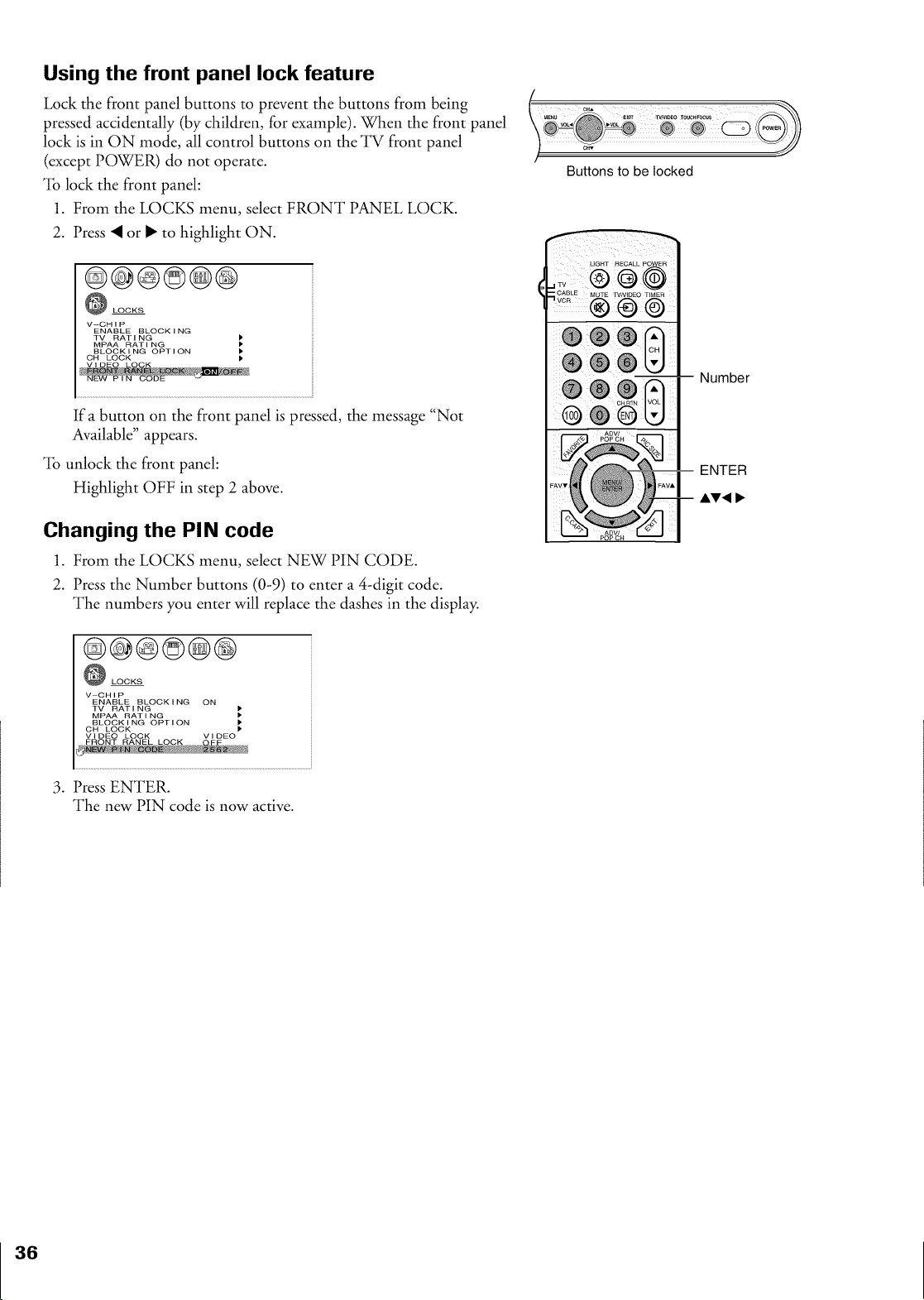
Using the front panel lock feature
Lock the front panel buttons to prevent the buttons from being
pressed accidentally (by children, for example). When the front panel
lock is in ON mode, all control buttons on the TV front panel
(except POWER) do not operate.
% lock the front panel:
1. From the LOCKS menu, select FRONT PANEL LOCK.
2. Press _I or • to highlight ON.
@@@©@@
LOCKS
V--CH I P
ENABLE BLOCK I NG
TV RATI NG )
MPAA RAT I NG
BLOCK I NG OPTI ON P
CH LOCK
Ifa button on the front panel is pressed, the message "Not
Available" appears.
% unlock the front panel:
Highlight OFF in step 2 above.
Changing the PIN code
1. From the LOCKS menu, select NEW PIN (]ODE.
2. Press the Number buttons (0-9) to enter a 4-digit code.
The numbers you enter will replace the dashes in the display.
@@@©@@
LOCKS
V-CHIP
ENABLE BLOCKING ON
TV RATING
MPAA RATING
BLOCKING OPTION
OH LOCK
Buttons to be locked
LIGHT RECALL POWER
® @@
Number
ENTER
AV, I_
3. Press ENTER.
The new PIN code is now active.
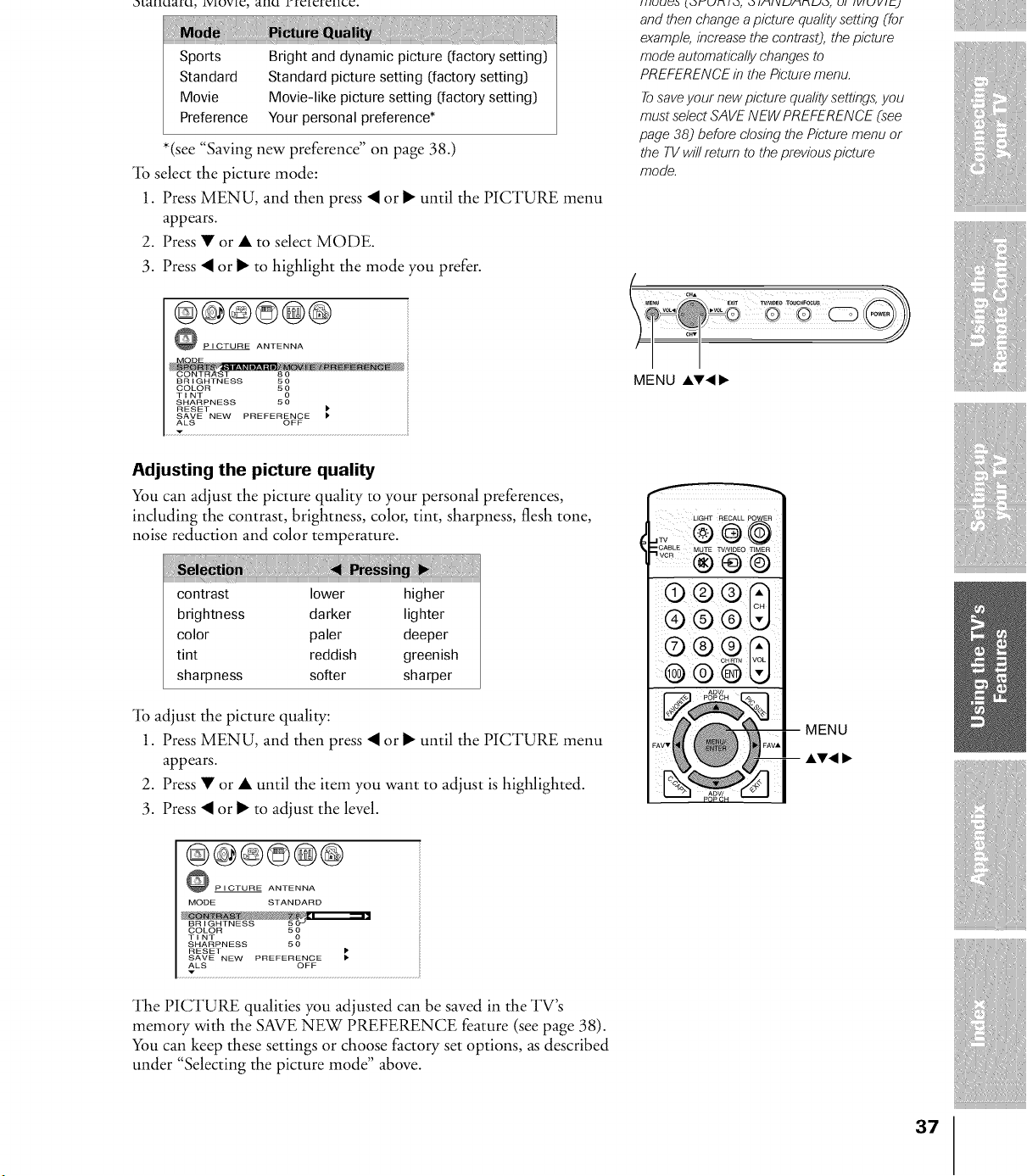
O[_[1LI_fLI, LVIOVIC, _[1LI U[CfC[C[1CC.
Sports
Standard
Movie
Preference
Bright and dynamic picture (factory setting)
Standard picture setting (factory setting)
Movie-like picture setting (factory setting)
Your personal preference*
*(see "Saving new preference" on page 38.)
"lb select the picture mode:
1. Press MENU, and then press 41or • until the PICTURE menu
appears.
2. Press • or • to select MODE.
3. Press 41 or • to highlight the mode you prefer.
@@@©@@
PICTURE ANTENNA
COLOR 50
TINT 0
SHARPNESS 50
RESET
SAVE NEW PREFERENCE
ALS OFF
Adjusting the picture quality
You can adjust the picture quality to your personal preferences,
including the contrast, brightness, color, tint, sharpness, flesh tone,
noise reduction and color temperature.
contrast lower higher
brightness darker lighter
color paler deeper
tint reddish greenish
sharpness softer sharper
"lb adjust the picture quality:
1. Press MENU, and then press 41or • until the PICTURE menu
appears.
2. Press • or • until the item you want to adjust is highlighted.
3. Press 41 or • to adjust the level.
@@@©@@
PICTURE ANTENNA
MODE STANDARD
BRIGHTNESS 5O-"
COLOR 5_
TINT
SHARPNESS 50
RESET
SAVE NEW PREFERENCE
ALS OFF
v
The PICTURE qualities you adjusted can be saved in the TV's
memory with the SAVE NEW PREFERENCE feature (see page 38).
You can keep these settings or choose factory set options, as described
under "Selecting the picture mode" above.
IIIOU_,_ {OI_UI_IO, OI/IlVU/II_UO, Ol IVIUVll-J
andthenchangeapicturequalitysetting(for
example, increasethe contrast), the picture
modeautornatica/lychangesto
PREFERENCEinthePicturemenu.
Tosaveyournewpicturequalitysettings,you
mustselectSAVENEWPREFERENCE(see
page38) beforeclosingthePicturemenuor
the TVwillreturnto theprevious picture
mode.
MENU AV_ I_.
LIGHT RECALL POWER
® ® ® Q
O 0 O "0
37
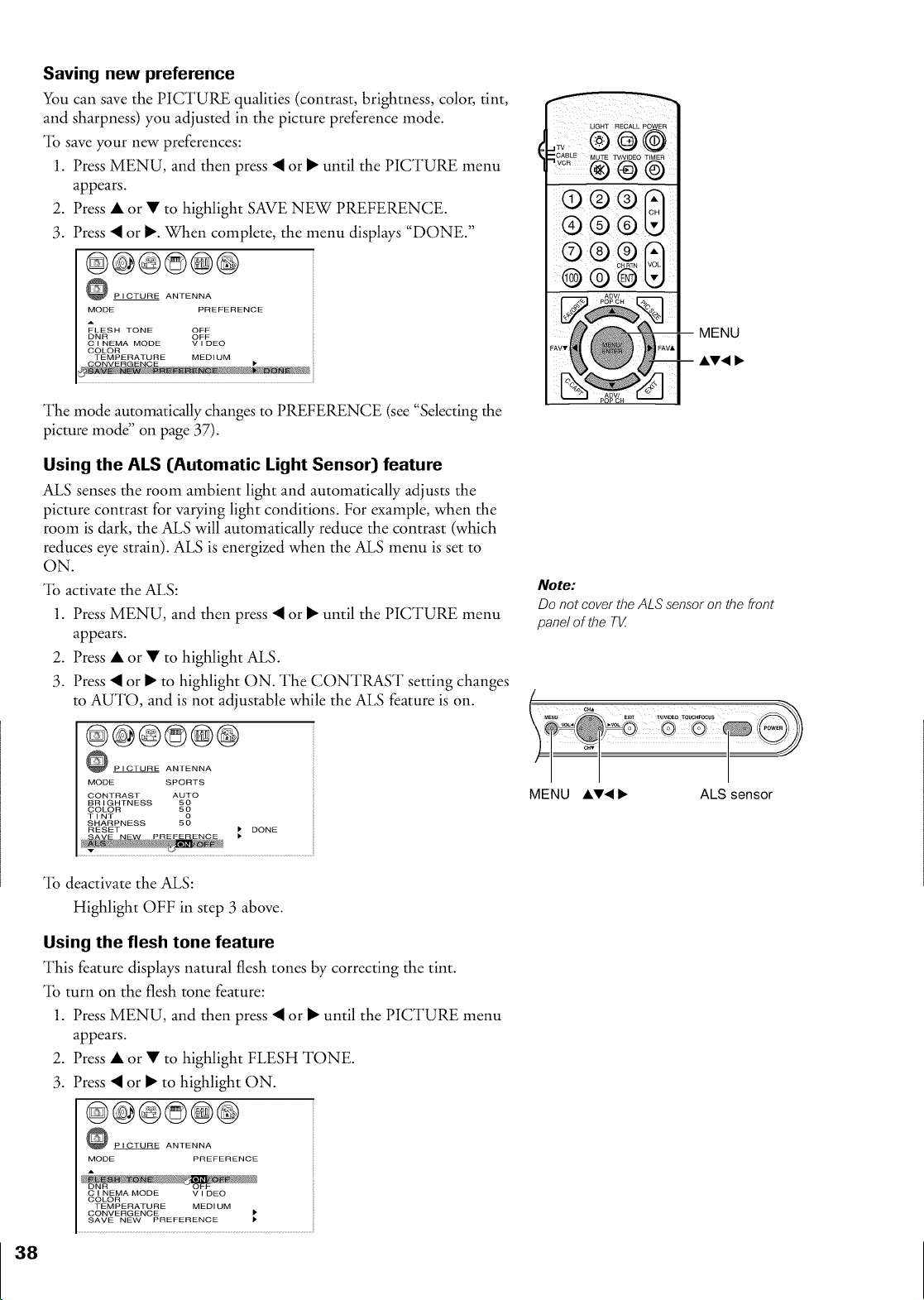
Saving new preference
You can save the PICTURE qualities (contrast, brightness, color, tint,
and sharpness) you adjusted in the picture preference mode.
_lb save your new preferences:
1. Press MENU, and then press < or • until the PICTURE menu
appears.
2. Press • or • to highlight SAVE NEW PREFERENCE.
3. Press < or •. When complete, the menu displays "DONE."
®@@©@@
PICTURE ANTENNA
MODE PREFERENCE
A
FLESH TONE OFF
DNR OFF
C I NEMA MODE V I DEO
COLOR
TEMPERATURE MEDI UM I,
® ®®
o®o
MENU
AV<
The mode automatically changes to PREFERENCE (see "Selecting the
picture mode" on page 37).
Using the ALS (Automatic Light Sensor) feature
ALS senses the room ambient light and automatically adjusts the
picture contrast for varying light conditions. For example, when the
room is dark, the ALS will automatically reduce the contrast (which
reduces eye strain). ALS is energized when the ALS menu is set to
ON.
_lb activate the ALS:
1. Press MENU, and then press _ or • until the PICTURE menu
appears.
2. Press • or • to highlight ALS.
3. Press _ or • to highlight ON. The CONTRAST setting changes
to AUTO, and is not adjustable while the ALS _ature is on.
@@@@@@
PICTURE ANTENNA
MODE SPORTS
CONTRAST AUTO
BRIGHTNESS 50
COLOR 50
TINT 0
SHARPNESS 50
RESET
DONE
Note:
Do not cover the ALS sensor on the front
panel of the T[_
M_NU EXIT TVJV_EO T_HFOCUS
MENU AV<I_ ALS sensor
"lb deactivate the ALS:
Highlight OFF in step 3 above.
Using the flesh tone feature
This feature displays natural flesh tones by correcting the tint.
"lb turn on the flesh tone feature:
1. Press MENU, and then press _I or • until the PICTURE menu
appears.
2. Press • or • to highlight FLESH TONE.
3. Press _I or • to highlight ON.
@@@@@@
P I CTURE ANTENNA
MODE PREFERENCE
C I NEMA MODE V I DEO
COLOR
TEMPERATURE MEDI UM
CONVERGENCE
SAVE NEW PREFERENCE
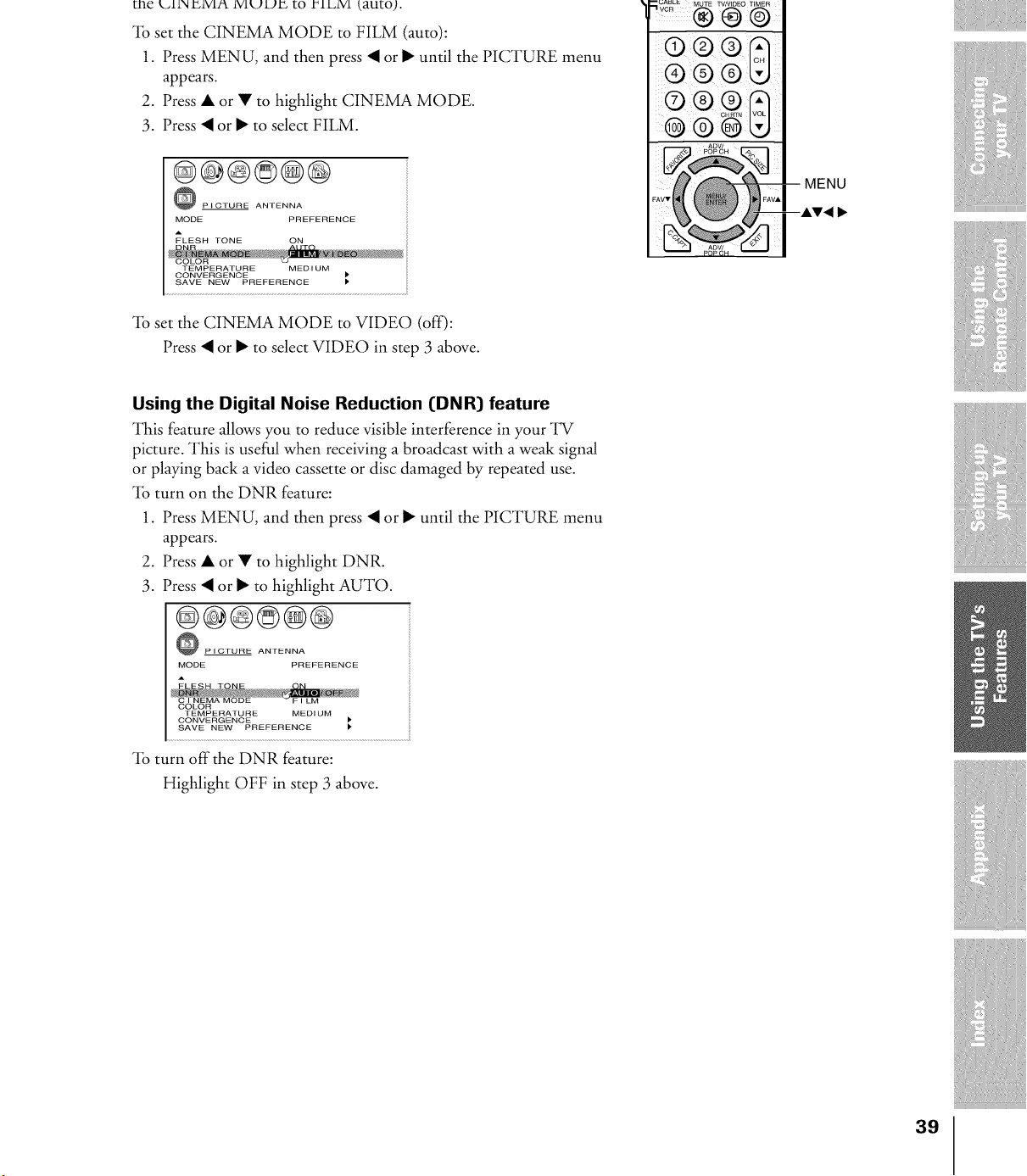
me _..IIXLIVIA IVlUUL to tqLlVl _auto).
% set the CINEMA MODE to FILM (auto):
1. Press MENU, and then press _I or • until the PICTURE menu
appears.
2. Press • or • to highlight CINEMA MODE.
3. Press _I or • to select FILM.
@@@©@@
PICTURE ANTENNA
MODE PREFERENCE
A
FLESH TONE ON
TEMPERATURE MEDIUM
CONVERGENCE
SAVE NEW PREFERENCE
% set the CINEMA MODE to VIDEO (off):
Press _ or • to select VIDEO in step 3 above.
,_CASL E MUTE TV/VIDEO TIMER
® ® @
® ®
Using the Digital Noise Reduction (DNR) feature
This feature allows you to reduce visible interference in your TV
picture. This is useful when receiving a broadcast with a weak signal
or playing back a video cassette or disc damaged by repeated use.
"lb turn on the DNR feature:
1. Press MENU, and then press _ or • until the PICTURE menu
appears.
2. Press • or • to highlight DNR.
3. Press _ or • to highlight AUTO.
@@@@@@
PICTURE ANTENNA
MODE PREFERENCE
TEMPERATURE MEDI UM
CONVERGENCE
SAVE NEW PREFERENCE
% turn off the DNR feature:
Highlight OFF in step 3 above.
39
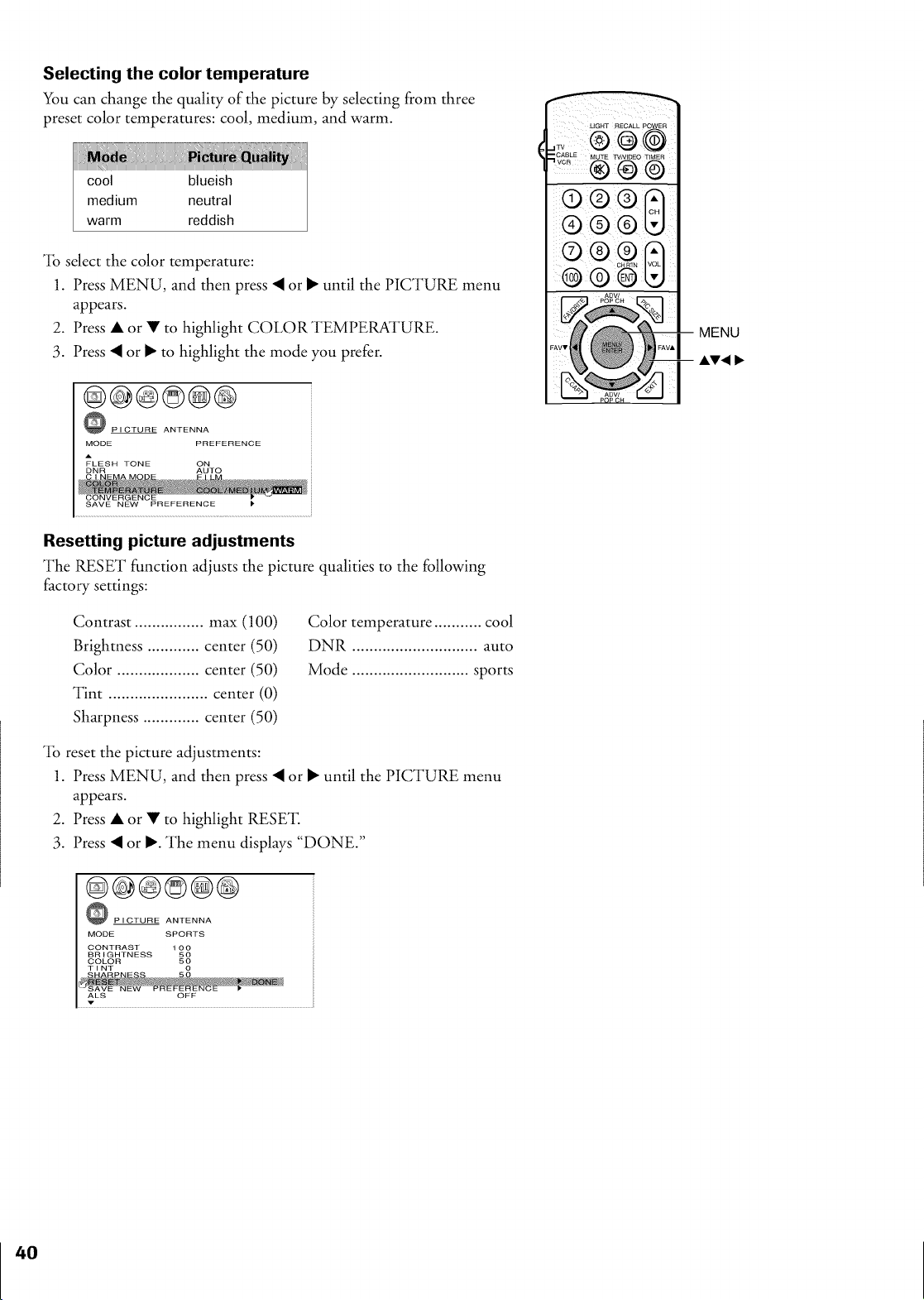
Selecting the color temperature
You can change the quality of the picture by selecting from three
preset color temperatures: cool, medium, and warm.
"lb select the color temperature:
1. Press MENU, and then press _ or • until the PICTURE menu
appears.
2. Press • or • to highlight COLOR TEMPERATURE.
3. Press _ or • to highlight the mode you prefer.
@@@©@@
PICTURE ANTENNA
MODE PREFERENCE
A
FLESH TONE ON
DNR AUTO
SAVE NEW PREFERENCE
Resetting picture adjustments
The RESET function adjusts the picture qualities to the following
factory settings:
Contrast ................ max (100)
Brightness ............ center (50)
Color ................... center (50)
Tint ....................... center (0)
Sharpness ............. center (50)
Color temperature ........... cool
DNR ............................. auto
Mode ........................... sports
"lb reset the picture adjustments:
1. Press MENU, and then press _ or • until the PICTURE menu
appears.
2. Press • or • to highlight RESE'E
3. Press _ or •. The menu displays "DONE."
@@@©@@
PICTURE ANTENNA
MODE SPORTS
CONTRAST 100
BRIGHTNESS 50
COLOR 50
TINT
ALS OFF
CABLE M TE
VCB U TVNIDEO TIMER
o ®
MENU
AV<
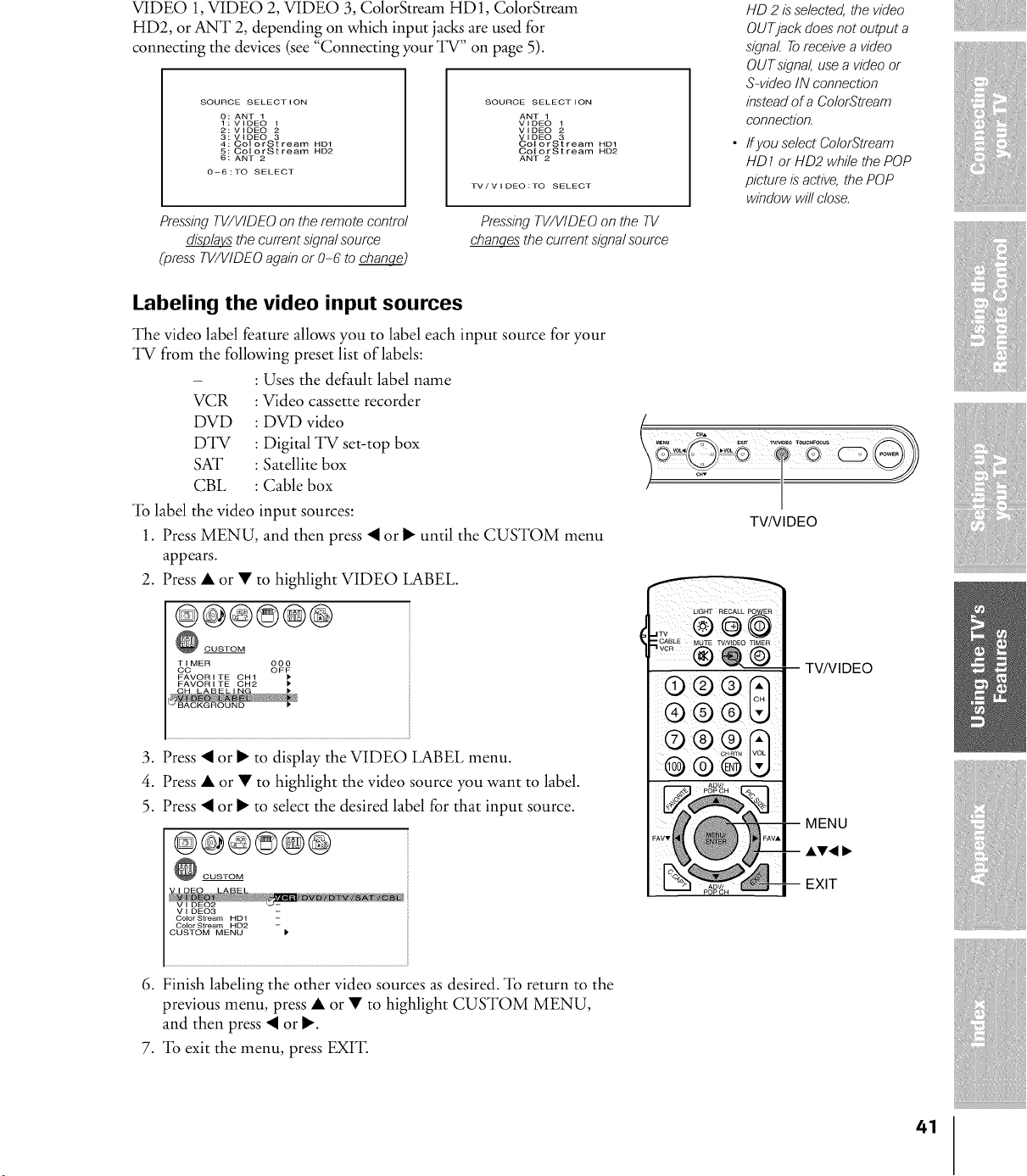
VIDEO 1,VIDEO 2, VIDEO 3, ColorStream HD1, ColorStream
HD2, or ANT 2, depending on which input jacks are used for
connecting the devices (see "Connecting your TV" on page 5).
SOURCE SELECT ION
0 : ANT 1
1 : VIDEO
2: VIDEO _
3: VIDEO 3
4: O010rStream HD1
5: ColorStream HD2
6: ANT 2
0--6 :TO SELECT
Pressing TV/VIDEO on the remote control
_" the current signal source
(press TV/VIDEO again or 0-6 to chang__
SOURCE SELECTION
ANT 1
VIDEO
VIDEO _
VIDEO 3
ColorStream HD1
ColorStream HD2
ANT 2
PressingTV/VIDEO on the TV
chang__the current signal source
HD 2 is"selected,the video
OUTjack does"not output a
signal. Toreceive a video
OUTsignal, usea videoor
S-video IN connection
instead of a ColorStrearn
connection.
ff you select ColorStrearn
HD 1or HD2 while the POP
picture is"active, the POP
window will close.
Labeling the video input sources
The video label feature allows you to label each input source for your
TV from the following preset list of labels:
- : Uses the default label name
VCR : Video cassette recorder
DVD : DVD video
DTV : Digital TV set-top box
SAT : Satellite box
CBL : Cable box
"lb label the video input sources:
1. Press MENU, and then press _I or • until the CUSTOM menu
appears.
2. Press • or • to highlight VIDEO LABEL.
@@@©@@
CUSTOM
°oT'MER gO_
FAVORITE OH1
FAVORITE OH2 I_
3. Press _I or • to display the VIDEO LABEL menu.
4. Press • or • to highlight the video source you want to label.
5. Press _I or • to select the desired label for that input source.
@@@©®@
CUSTOM
Color Stream ND1
Color Stream HD2 -
CUSTOM MENU I_
c.. 20
MENU EXrt TVJV©EO TOU_FOOUS
TV/VIDEO
LIGHT RECALL POWER
1;;® @ @
®
0 0 0
0 O O 0
O 0 O 0
--TV/VIDE0
MENU
AV, I_
EXIT
6. Finish labeling the other video sources as desired. "lb return to the
previous menu, press • or • to highlight CUSTOM MENU,
and then press _I or •.
7. "lb exit the menu, press EXIT.
41
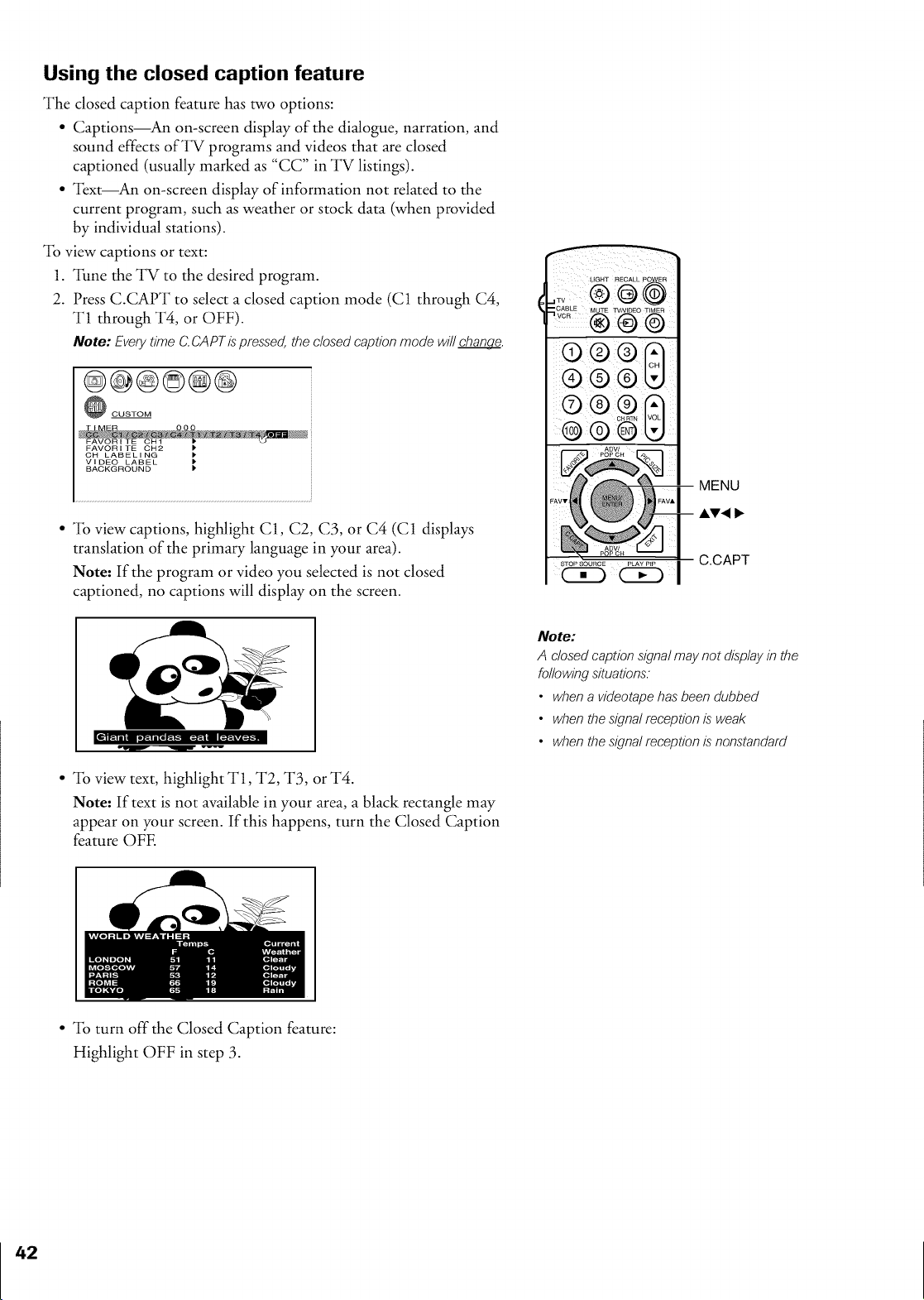
Using the closed caption feature
The closed caption feature has two options:
• Captions_An on-screen display of the dialogue, narration, and
sound effects of TV programs and videos that are closed
captioned (usually marked as "CC" in TV listings).
• Text--An on-screen display of information not related to the
current program, such as weather or stock data (when provided
by individual stations).
]b view captions or text:
1. ]hne the TV to the desired program.
2. Press C.CAPT to select a closed caption mode (C1 through C4,
T1 through T4, or OFF).
Note: Every time C gAPT is pressed, the closed caption mode will change_.
@@@@@@
CUSTOM
CH LABELING
VIDEO LABEL
BACKGROUND
• *lb view captions, highlight C1, C2, C3, or C4 (C1 displays
translation of the primary language in your area).
Note= If the program or video you selected is not closed
captioned, no captions will display on the screen.
TVNIDEO TIMER
®@
®® ®
C.CAPT
[lll_ I ll'l.II[lII.l.'l:-ll.I 111-II.|vl:-_'I.. -. -. -
• ]b view text, highlight T1, T2, T3, or T4.
Note" If text is not available in your area, a black rectangle may
appear on your screen. If this happens, turn the Closed Caption
feature OFE
Note:
A closed caption signal may not display in the
following situations.
• when a videotape has been dubbed
• when the signal reception is' weak
• when the signal reception is'nonstandard
• *lb turn off the Closed Caption feature:
Highlight OFF in step 3.
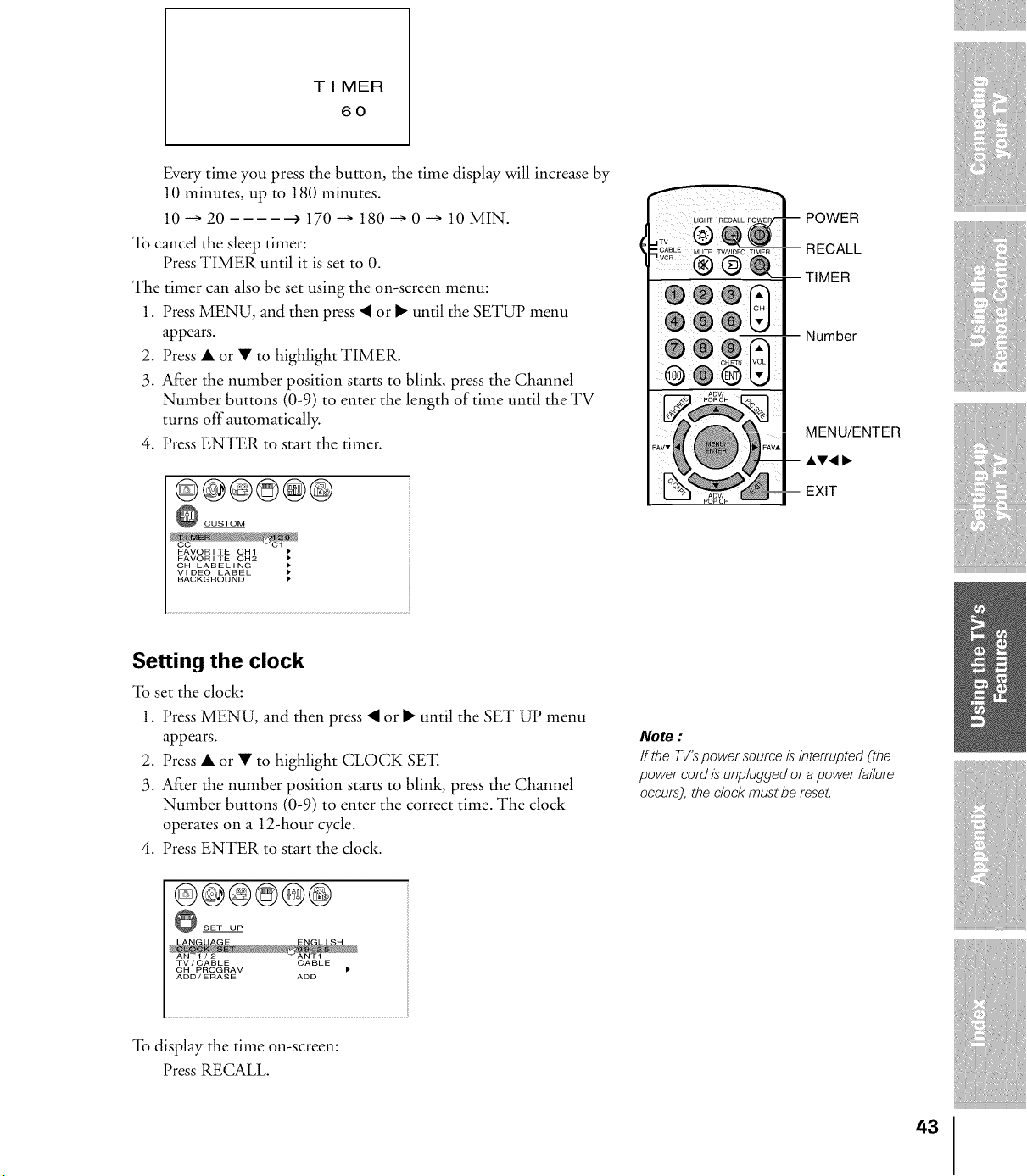
T I MER
60
Every time you press the button, the time display will increase by
10 minutes, up to 180 minutes.
10 -+ 20 _ 170 -+ 180 -+ 0 -+ 10 MIN.
"lb cancel the sleep timer:
Press TIMER until it is set to 0.
The timer can also be set using the on-screen menu:
1. Press MENU, and then press < or • until the SETUP menu
appears.
2. Press • or • to highlight TIMER.
3. After the number position starts to blink, press the Channel
Number buttons (0-9) to enter the length of time until the TV
turns off automatically.
4. Press ENTER to start the timer.
@@@©@@
CUSTOM
FAVORITE CH1
FAVORITE CH2
OH LABELING
VIDEO LABEL
BACKGROUND )
POWER
RECALL
TIMER
Number
MENU/ENTER
AV< I_
EXIT
Setting the clock
_Ibset the clock:
1. Press MENU, and then press < or • until the SET UP menu
appears.
2. Press • or • to highlight CLOCK SE'I:
3. After the number position starts to blink, press the Channel
Number buttons (0-9) to enter the correct time. The clock
operates on a 12-hour cycle.
4. Press ENTER to start the clock.
Note :
If the TV's power source is interrupted (the
power cord is"unplugged or a power failure
occurs), the clock must be reseL
@@@©@@
SET UP
CABLETV/CABLE
CH PROGRAM
ADD/ERASE ADD
"lb display the time on-screen:
Press RECALL.
43
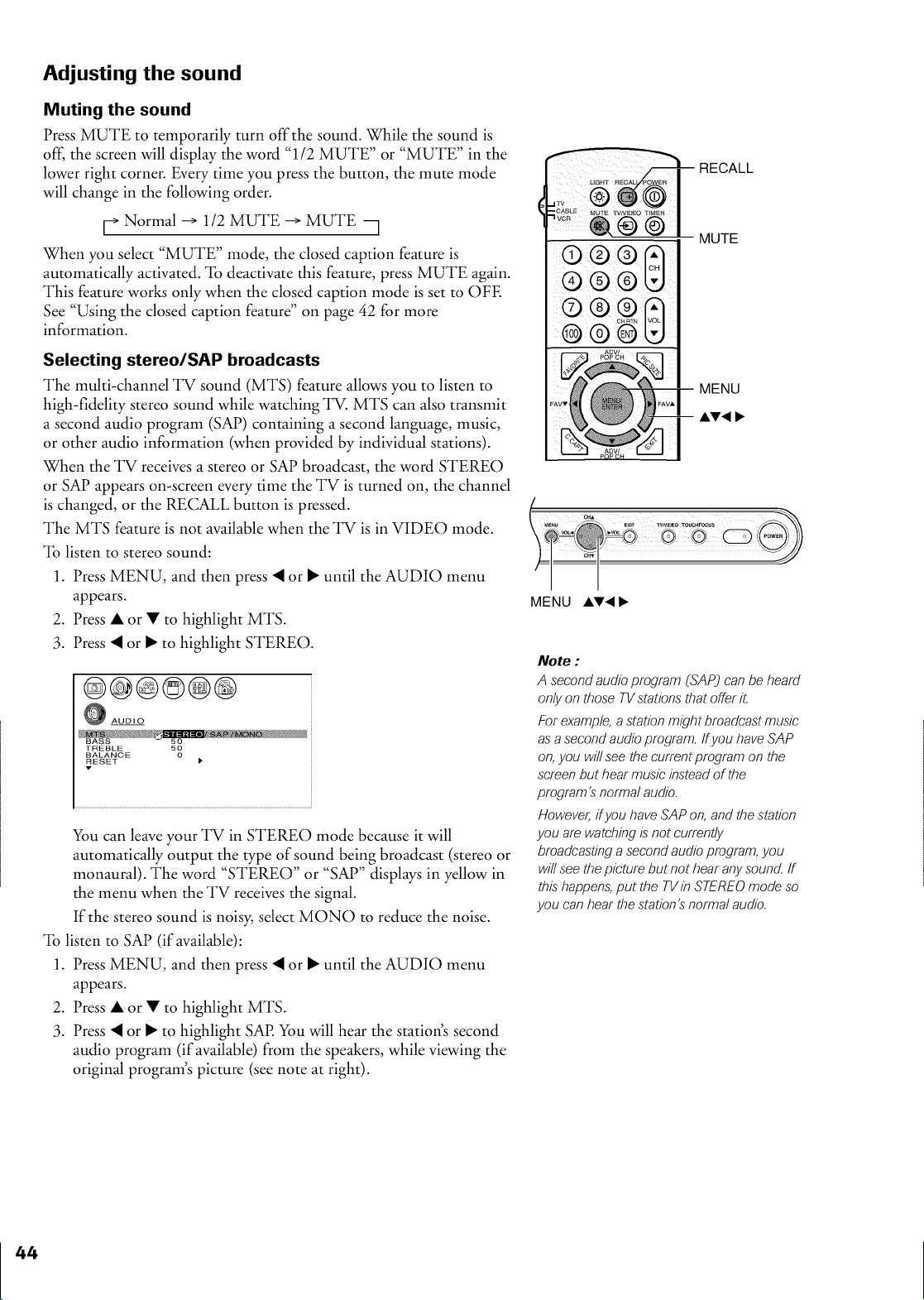
Adjusting the sound
Muting the sound
Press MUTE to temporarily turn offthe sound. While the sound is
off, the screen will display the word "1/2 MUTE" or "MUTE" in the
lower right corner. Every time you press the button, the mute mode
will change in the following order.
[-+ Normal -+ 1/2 MUTE -+ MUTE --I
When you select "MUTE" mode, the closed caption feature is
automatically activated. "lb deactivate this feature, press MUTE again.
This feature works only when the closed caption mode is set to OFE
See "Using the closed caption feature" on page 42 for more
information.
Selecting stereo/SAP broadcasts
The multi-channel TV sound (MTS) feature allows you to listen to
high-fidelity stereo sound while watching TV. MTS can also transmit
a second audio program (SAP) containing a second language, music,
or other audio information (when provided by individual stations).
When the TV receives a stereo or SAP broadcast, the word STEREO
or SAP appears on-screen every time the TV is turned on, the channel
is changed, or the RECALL button is pressed.
The MTS feature is not available when the TV is in VIDEO mode.
"lb listen to stereo sound:
1. Press MENU, and then press _I or • until the AUDIO menu
appears.
2. Press • or • to highlight MTS.
3. Press _I or • to highlight STEREO.
@@®©@@
AUDIO
TREBLE 50
BALANCE O
RESET I'
v
You can leave your TV in STEREO mode because it will
automatically output the type of sound being broadcast (stereo or
monaural). The word "STEREO" or "SAP" displays in yellow in
the menu when the TV receives the signal.
If the stereo sound is noisy, select MONO to reduce the noise.
"lb listen to SAP (if available):
1. Press MENU, and then press _I or • until the AUDIO menu
appears.
2. Press • or • to highlight MTS.
3. Press _I or • to highlight SAP. You will hear the station's second
audio program (if available) from the speakers, while viewing the
original program's picture (see note at right).
RECALL
o o o
O 0 O 0
o
O 0 O "k9
MUTE
MENU
AV<
MENU ,AV< I_
Note :
A second audio program (SAP) can be heard
only on those TVstations that offer it.
For example,a station might broadcast music
as a second audio prograrn, ffyou have SAP
on,you wi/I see the current prograrn on the
screen but hear music instead of the
program's"norrna/ audio.
However, ffyou have SAP on, and the station
you are watchingis"not currently
broadcasting a second audio program, you
wi/I see the picture but not hear any sound, ff
this"happens,put the TVin STEREOmode so
you can hear the station's"norrna/ audio.
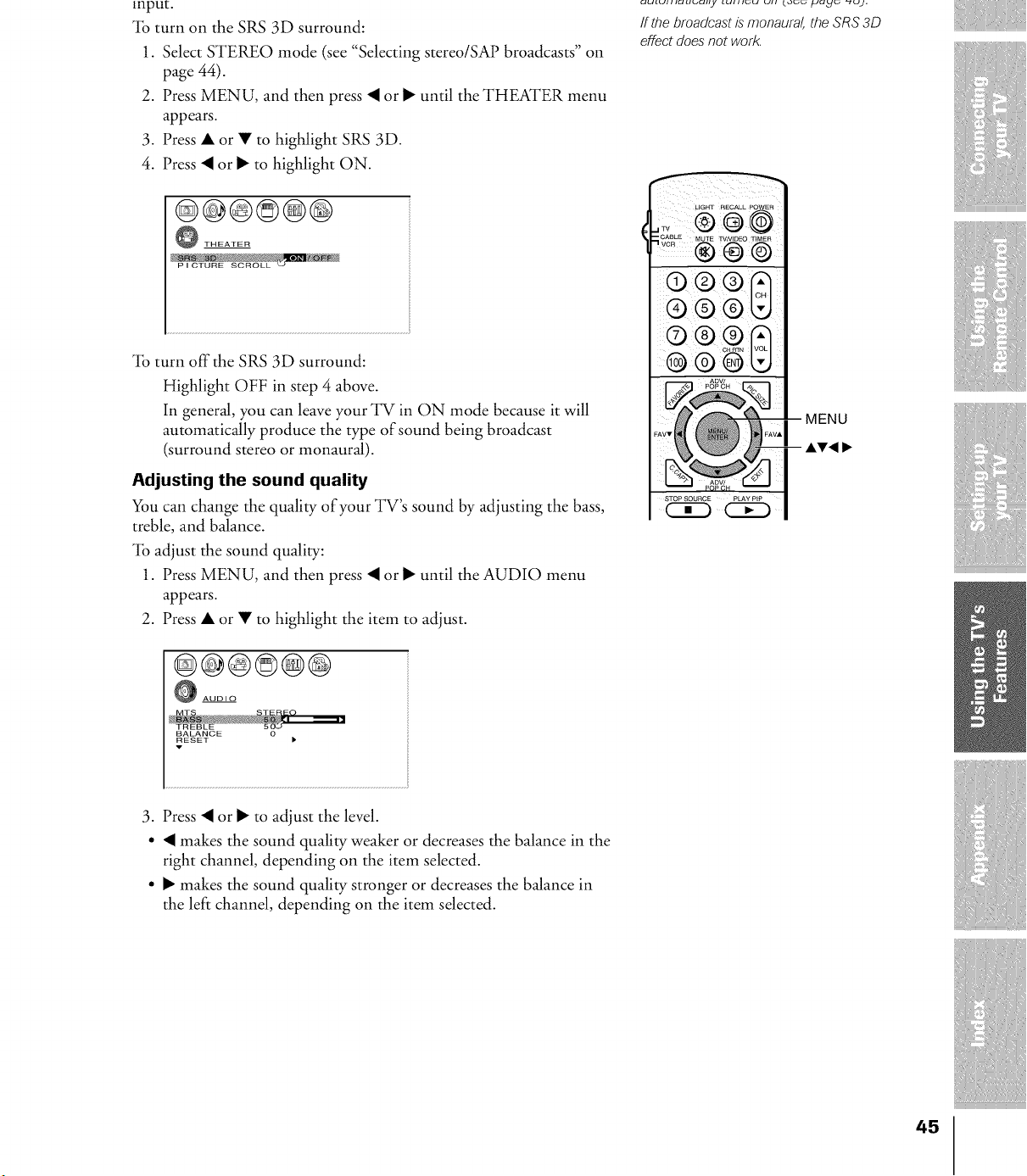
input.
"lb turn on the SRS 3D surround:
1. Select STEREO mode (see "Selecting stereo/SAP broadcasts" on
page 44).
2. Press MENU, and then press _I or • until the THEATER menu
appears.
3. Press • or • to highlight SRS 3D.
4. Press _I or • to highlight ON.
@@@©@@
THEATER
"lb turn off the SRS 3D surround:
Highlight OFF in step 4 above.
In general, you can leave your TV in ON mode because it will
automatically produce the type of sound being broadcast
(surround stereo or monaural).
Adjusting the sound quality
You can change the quality of your TV's sound by adjusting the bass,
treble, and balance.
% adjust the sound quality:
1. Press MENU, and then press _I or • until the AUDIO menu
appears.
2. Press • or • to highlight the item to adjust.
@@@@@@
AUDIO
BALANCE 0
RESET )
v
CIULUIIli_71LIt_CIIly LUltI_U UII [0_ /JC]_ "_uJ.
/f the broadcast is monaura/, the SRS 3D
effectdoes"not work.
®®
® ®
MENU
3. Press _I or • to adjust the level.
• _I makes the sound quality weaker or decreases the balance in the
right channel, depending on the item selected.
• • makes the sound quality stronger or decreases the balance in
the left channel, depending on the item selected.
45
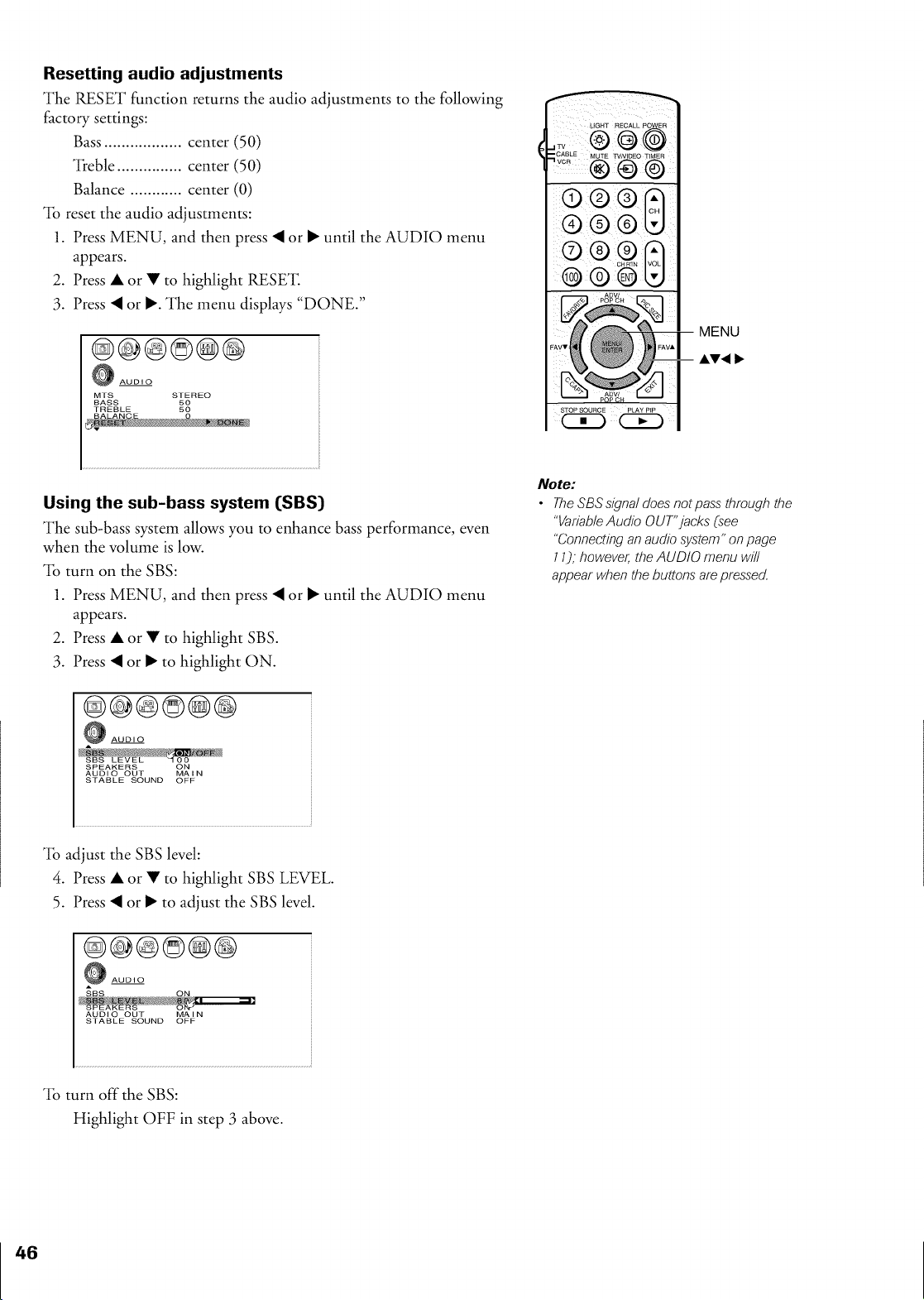
Resetting audio adjustments
The RESET function returns the audio adjustments to the following
factory settings:
Bass .................. center (50)
Treble ............... center (50)
Balance ............ center (0)
"lb reset the audio adjustments:
1. Press MENU, and then press _ or • until the AUDIO menu
appears.
2. Press • or • to highlight RESE'E
3. Press _ or •. The menu displays "DONE."
@@@©@@
AUDIO
MTS STEREO
BASS 50
TREBLE 50
LIGHT RECALL POWER
.,,_CvABLE MUTE TVNIDE0 TIMER
® ® ©
® ® ®
Using the sub-bass system [SBS]
The sub-bass system allows you to enhance bass performance, even
when the volume is low.
"lb turn on the SBS:
1. Press MENU, and then press _ or • until the AUDIO menu
appears.
2. Press • or • to highlight SBS.
3. Press _ or • to highlight ON.
@@@@@@
AUDIO
SPEAKERS ON
AUDIO OUT MAIN
STABLE SOUND OFF
Note:
• TheSBS signal does"notpass through the
"VariableAudio OUT'jacks (see
"Connectingan audio system" onpage
11); however, the AUDIO menu will
appear when the buttons are pressed.
"lb adjust the SBS level:
4. Press • or • to highlight SBS LEVEL.
5. Press _ or • to adjust the SBS level.
@@@@@@
AUDIO
A
AUDIO OUT MAIN
STABLE SOUND OFF
"lb turn off the SBS:
Highlight OFF in step 3 above.
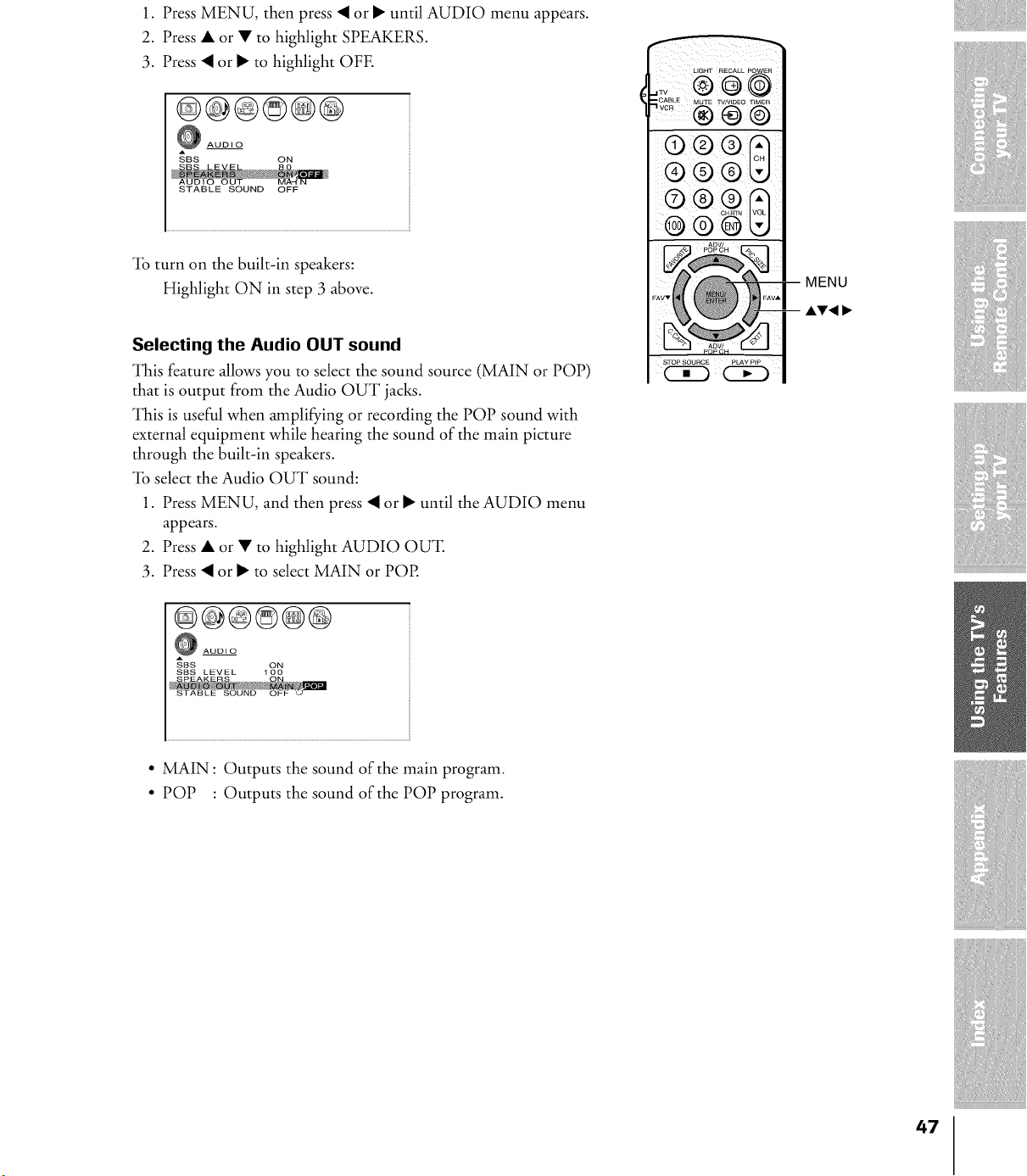
1. PressMENU,thenpress_Ior• untilAUDIOmenuappears.
2. Press• or• to highlight SPEAKERS.
3. Press _I or • to highlight OFE
@@@©@@
AUDIO
_BS ON
STABLE SOUND OFF
"lb turn on the built-in speakers:
Highlight ON in step 3 above.
Selecting the Audio OUT sound
This feature allows you to select the sound source (MAIN or POP)
that is output from the Audio OUT jacks.
This is useful when amplifying or recording the POP sound with
external equipment while hearing the sound of the main picture
through the built-in speakers.
"lb select the Audio OUT sound:
1. Press MENU, and then press _I or • until the AUDIO menu
appears.
2. Press • or • to highlight AUDIO OU']:
3. Press _I or • to select MAIN or POP.
@@@©@@
AUDIO
_BS ON
SBS LEVEL 1 O0
STABLE SOUND OFF
LIGHT RECALL POWER
;: @@@
_Cv_LE MU_Ew/woEoT_ME,_
®®©
® ® ®
® ® ®
® ® _ I_
® ® ®
MENU
• MAIN : Outputs the sound of the main program.
• POP : Outputs the sound of the POP program.
47
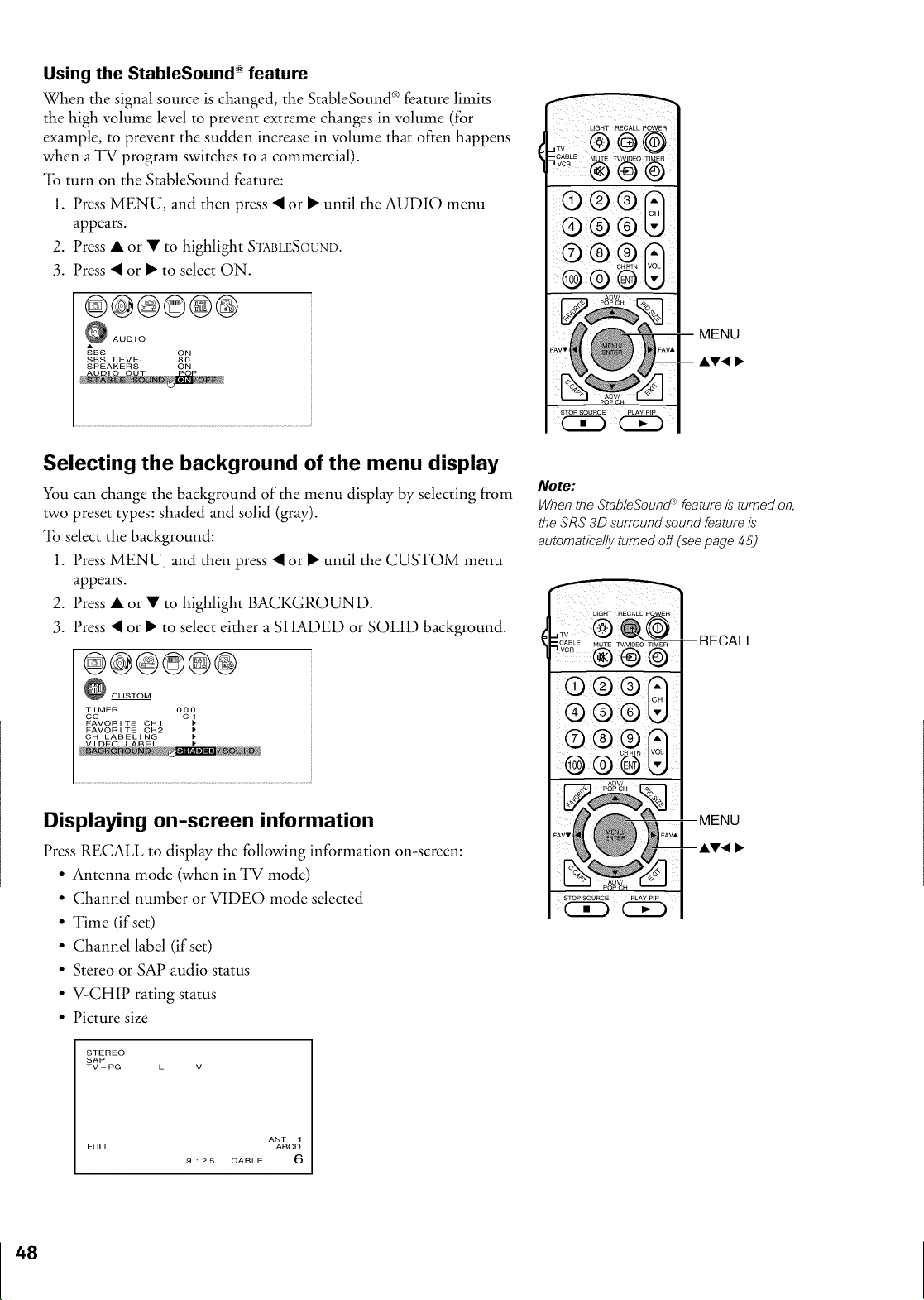
Using the StableSound *_feature
When the signal source is changed, the StableSound ® feature limits
the high volume level to prevent extreme changes in volume (for
example, to prevent the sudden increase in volume that often happens
when a TV program switches to a commercial).
_lb turn on the StableSound feature:
1. Press MENU, and then press _ or • until the AUDIO menu
appears.
2. Press • or • to highlight S'rAt_LESOuND.
3. Press _ or • to select ON.
@@@©@@
AUDIO
SBS ON
SBS LEVEL 80
SPEAKERS ON
Selecting the background of the menu display
You can change the background of the menu display by selecting from
two preset types: shaded and solid (gray).
"lb select the background:
1. Press MENU, and then press _I or • until the CUSTOM menu
appears.
2. Press • or • to highlight BACKGROUND.
3. Press _I or • to select either a SHADED or SOLID background.
@@@©@@
CUSTOM
TIMER O0O
CC C
FAVORITE CH1
FAVORI TE CH2 1'
Displaying on-screen information
Press RECALL to display the following information on-screen:
• Antenna mode (when in TV mode)
• Channel number or VIDEO mode selected
• Time (if set)
• Channel label (if set)
• Stereo or SAP audio status
• V-CHIP rating status
• Picture size
STEREO
SAP
TV -- PG L V
LIGHT RECALL POWER
.,Tv
,.,,_CvABLE MUTE TWVIDEO TIMER
® ® @
® ® ®
Note:
When the StableSound '_ feature is turned on,
the SRS 3D surround sound feature is"
autornatica/ly turned off (see page 4 5).
LIGHT RECALL POWER
®®
--RECALL
ANT 1
FULL ABCD
9 : 25 CABLE 6
"lb start the demo:
Press and hold the MENU button on the TV front panel for
4 seconds.
"lb stop the demo:
Press RECALL, EXF1, or POWER.
Understanding the auto power off feature
The TV will automatically turn itself off after approximately 15
minutes if it is tuned to a vacant channel or a station that completes
its broadcast for the day. This feature does not work in VIDEO mode.
Understanding the last mode memory feature
If the power is cut off while you are viewing the TV, the Last Mode
Memory feature turns the TV on automatically when the power is
resupplied.
If the power is going to be off for a long time and you are going to be
away from the TV, unplug the power cord to prevent the TV from
turning on in your absence.
49
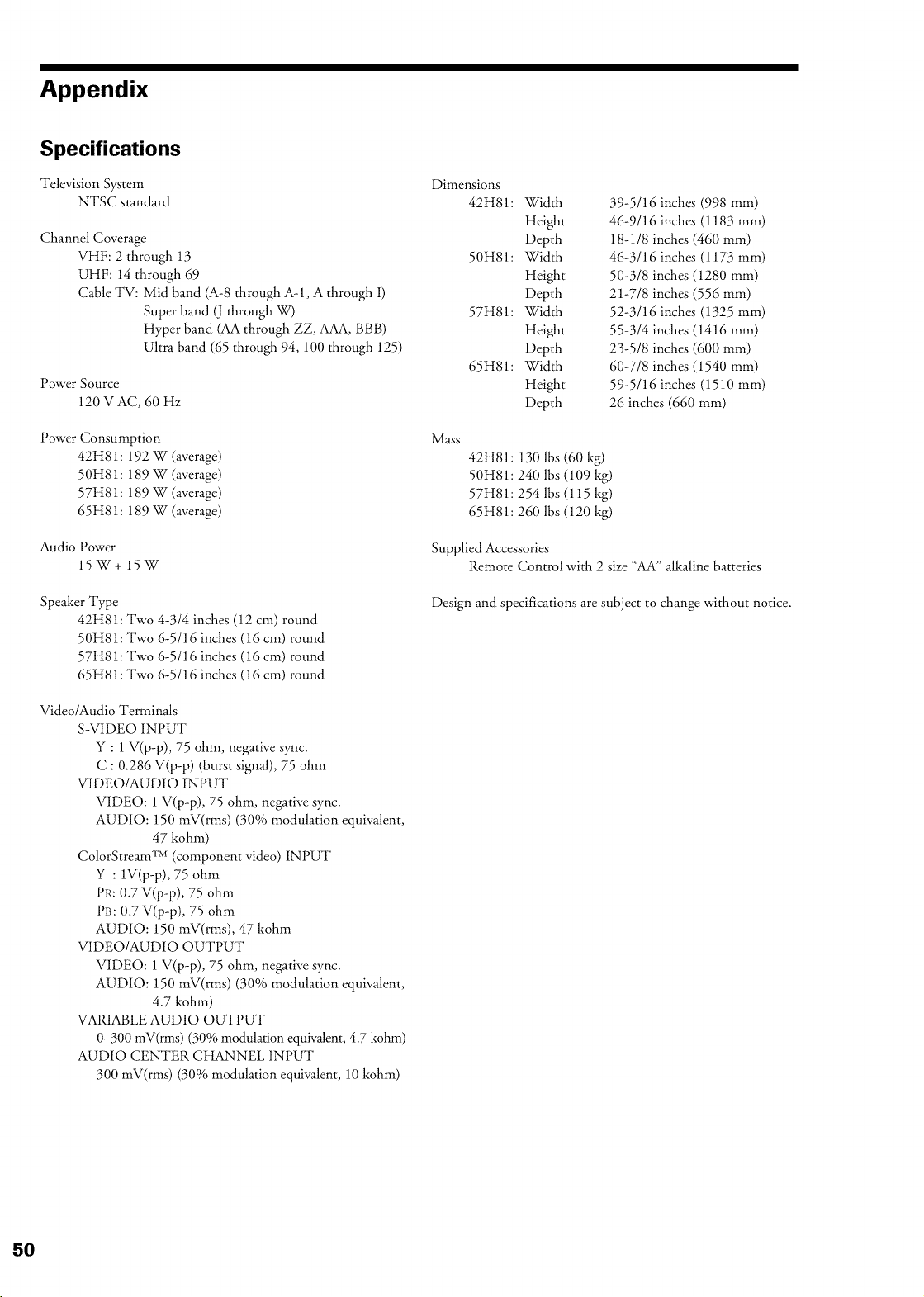
Appendix
Specifications
Television System
NTSC standard
Channel Coverage
VHF: 2 through 13
UHF: 14 through 69
Cable TV: Mid band (A-8 through A-l, A through i)
Super band (J through W)
Hyper band (AA through ZZ, AAA, BBB)
Ultra band (65 through 94, 100 through 125)
Power Source
120 VAC, 60 Hz
Power Consumption
42H81 : 192 W (average)
50H81 : 189 W (average)
57H81 : 189 W (average)
65H81 : 189 W (average)
Audio Power
15W+ 15W
Speaker Type
42H81 : Two 4-314 inches (12 cm) round
50H81: Two 6-5116 inches (16 cm) round
57H81: Two 6-5116 inches (16 cm) round
65H81: Two 6-5116 inches (16 cm) round
Video/Audio Terminals
S-VIDEO INPUT
Y : 1 V(p-p), 75 ohm, negative sync.
C : 0.286 V(p-p) (burst signal), 75 ohm
VIDEO/AUDIO INPUT
VIDEO: 1 V(p-p), 75 ohm, negative sync.
AUDIO: 150 mV(rms) (30% modulation equivalent,
47 l,ohm)
ColorStream TM (component video) INPUT
Y : iV(p-p), 75 ohm
PF,:0.7 V(p-p), 75 ohm
PB: 0.7 V(p-p), 75 ohm
AUDIO: 150 mV(rms), 47 kohm
VIDEO/AUDIO OUTPUT
VIDEO: 1 V(p-p), 75 ohm, negative sync.
AUDIO: 150 mV(rms) (30% modulation equivalent,
4.7 kohm)
VARIABLE AUDIO OUTPUT
0-300 mV(rms) (30% modulation equivalent, 4.7 kohm)
AUDIO CENTER CHANNEL INPUT
300 mV(rms) (30% modulation equivalent, 10 kohm)
Dimensions
42H81:
50H81:
57H81:
65H81:
Width
Height
Depth
Width
Height
Depth
Width
Height
Depth
Width
Height
Depth
39-5116 inches (998 mm)
46-9116 inches (1183 mm)
18-118 inches (460 mm)
46-3116 inches (1173 mm)
50-318 inches (1280 mm)
21-718 inches (556 mm)
52-3116 inches (1325 mm)
55-314 inches (1416 mm)
23-518 inches (600 mm)
60-718 inches (1540 mm)
59-5116 inches (1510 mm)
26 inches (660 mm)
Mass
42H81:130 lbs (60 kg)
50H81:240 lbs (109 kg)
57H81:254 lbs (115 kg)
65H81:260 lbs (120 kg)
Supplied Accessories
Remote Control with 2 size "AA" alkaline batteries
Design and specifications are subject to change without notice.
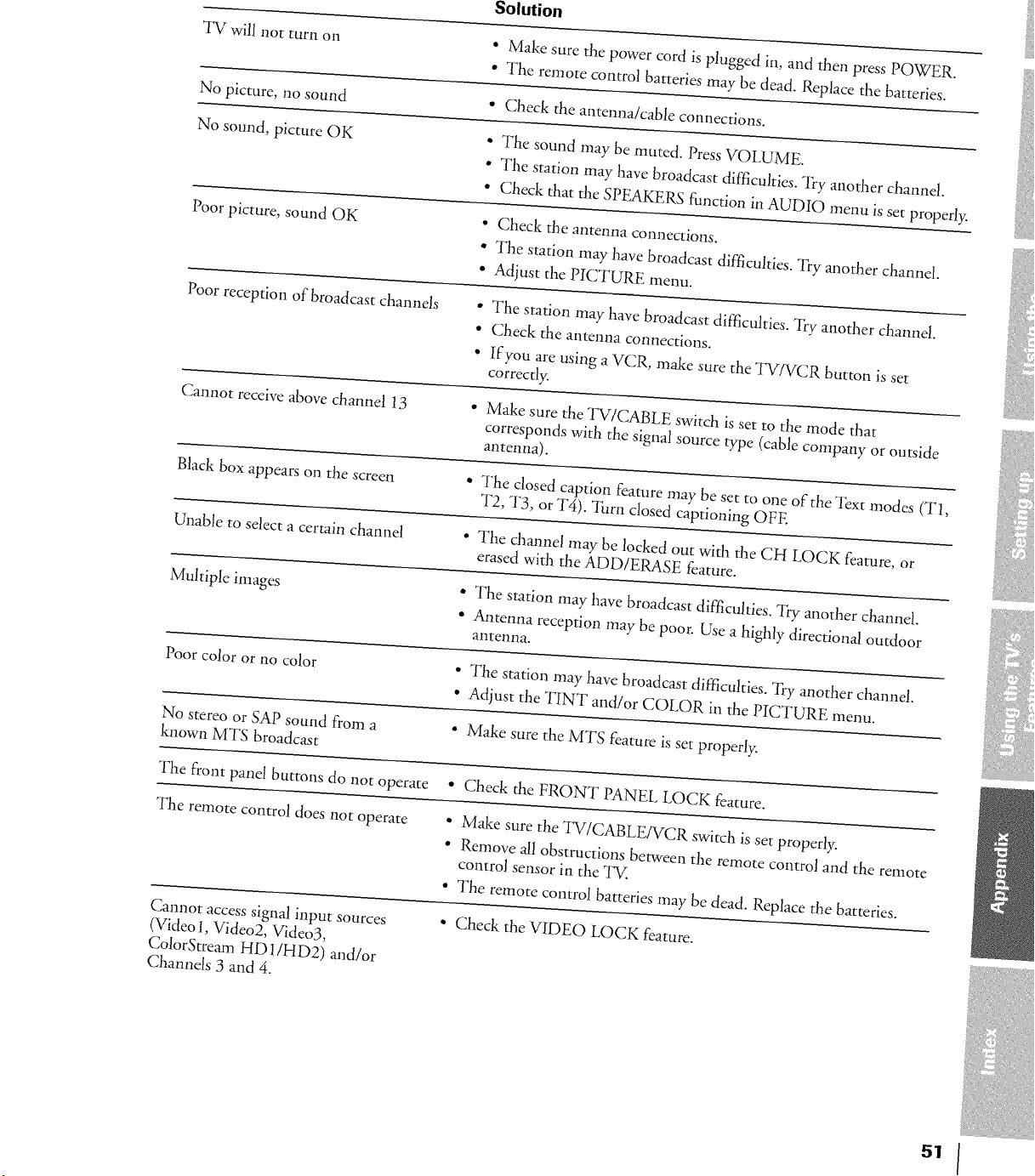
TV will not turn on
• Make sure the power cord is plugged in, and then press POWER.
• The remote control batteries may be dead. Replace the batteries.
No picture, no sound
° Check the antenna/cable connections.
No sound, picture OK ° The sound may be muted. Press VOLUME.
o The station may have broadcast difficulties. Try another channel.
• Check that the SPEAKERS function in AUDIO menu is set properly.
Poor picture, sound OK
• Check the antenna connectkms.
° The station may have broadcast difficulties. "l_y another channel.
• Adjust the PICTURE menu.
Poor reception of broadcast channels • The station may have broadcast difficulties. "Dy another channel.
• Check the antenna connections.
• If you are using a VCR, make sure the TV/VCR button is set
correctly.
Cannot receive above channel 13 • Make sure the TV/CABLE switch is set to the mode that
corresponds with the signal source type (cable company or outside
antenna).
Bla& box appears on the screen ° The closed caption feature may be set to one of the Text modes (T1,
T2, T3, or T4). Turn closed captioning OFE
Unable to select a certain channel • The channel may be locked out with the CH LOCK feature, or
erased with the ADD/ERASE feature.
Multiple images ° The station may have broadcast difficulties. "l?y another channel.
• Antenna reception may be poor. Use a highly directional outdoor
antenna.
Poor color or no color • The station may have broadcast difficulties. Try another channel.
• Adjust the TINT and/or COLOR in the PICTURE menu.
No stereo or SAP sound from a • Make sure the MTS feature is set properly.
known MTS broadcast
The front panel buttons do not operate • Check the FRONT PANEL LOCK feature.
The remote control does not operate ° Make sure the "I_V/CABLE/VCR switch is set properly.
• Remove all obstructions between the remote control and the remote
control sensor in the TV.
• The remote control batteries may be dead. Replace the batteries.
Cannot access signal input sources
(Video 1, Video2, Video3,
ColorStream HD 1/HD2) and/or
Channels 3 and 4.
° Check the VIDEO LOCK feature.
iiiUiii_i_iWiiiiii
7'_"
Limited United States Warranty
Toshiba America Consumer Products, Inc. ("TACP") and Toshiba Hawaii Inc. ("THI") make the following limited warranties. These limited
warranties extend to the original consumer purchaser or any person receiving this set as a gift fi'om the original consumer purchaser and to no other
purchaser or transferee.
Limited One (1) Year Warranty
TACP and THI warrant this product and its parts against defects in
materials or workmanship fbr a period of one (1) year a_er the date of
original retail purchase. During this period, TACP and THI will repair
or replace a defective part, at their option, with a new or reiilrbished
part, without charge to you. TACP/THI Authorized Service Station
personnel will come to your home when warranty service is required.
Depending on the type of repair required, the service will either be
perfbrmed in your home or the set will be taken to the TACP/THI
authorized service station fbr repair and returned to your home at no
cost to you.
Limited Two (2) Year Warranty of Picture Tube
TACP and THI fhrther warrant the picture tube in this product against
defects in materials or workmanship fbra period of two (2) years after
the date of original retail purchase. During this period, TACP and THI
will repair or replace a defective picture tube at their option, with a new
or refhrbished picture tube, without charge to you, except that ira
defective picture tube is replaced after one (1) year fi'om the date of the
original retail purchase, you pay labor charges involved in the
replacement.
Rental Units
The warranty fbr rental units begins with the first rental or thirty (30)
days fi'om the date of shipment to the rental firm, whichever comes
first.
Commercial Units
Products sold and used fbr commercial use have a limited ninety (90)
day warranty fbr all parts, labor and picture tube.
Owner's Manual and Demographic Card
You should read this owner's manual thoroughly befbre operating this
product. You should complete and mail the enclosed Demographic card
within ten days after you., or the person who has given you this product
as a gift, purchased this product. This is one way to enable TACP/THI
to provide you with better customer service and improved products.
Failure to return the Demographic card will not af'_ectyour rights under
this warranty.
Your Responsibility
The above warranties are subject to the fbllowing conditions;
(1) You must retain your bill of sale or provide other proof of
purchase.
(2) All warranty servicing of this product must be made by an
Authorized TACP/THI Service Station.
(3)
(4)
(5)
These warranties are efl_ctive only if the product is purchased and
operated in the U.S.A. or Puerto Rico.
Labor service charges fbr set installation, set up, adjustment of
customer controls and installation or repair of antenna systems are
not covered by this warranty. Reception problems caused by
inadequate antenna systems are your responsibility.
Warranties extend only to defects in materials or workmanship as
limited above and do not extend to aW product or parts which
have been lost or discarded by you or to damage to products or
parts caused by misuse, accident, damage caused by Acts of God,
such as lightning or fluctuations in electric power, improper
installation, improper maintenance or use in violation of
instructions fhrnished by us; or to units which have been
modified or had the serial number removed, altered, defaced or
rendered illegible.
How to Obtain Warranty Service
If after fbllowing all of the operating instructions in this manual and checking the "Troubleshooting" section, you find that service is needed:
(1) Call the TACP toll-fi'ee number 1-800-631-3811 to find the nearest
TOSHIBA Authorized Service Station. In Hawaii, contact Toshiba Hawaii,
Inc. 327 Kamakee Street, Honolulu, Hawaii 96814 (808) 591-9281
(2) Present your bill of sale or other proof to the Authorized Service Station.
"Authorized TACP/THI service station personnel will come to your home
when warranty service is required. Depending on the type of repair required,
the service will either be perfbrmed in your home or the set will be taken to the
TACP/THI Authorized service station fbrrepair and returned to your home at
no COSt to you,"
For additional information,
visit our web site:
www.toshiba.com
All warranties implied by state law, including the implied warranties of merchantability and fimess fbr a particular purpose, are expressly limited to
the duration of the limited warranties set fbrth above. With the exception of any warranties implied by state law as hereby limited, the fbregoing
warranty is exclusive and in lieu of all other warranties, guarantees, agreements and similar obligations ofmanufhcturer or seller with respect to the
repair or replacement of any parts. In no event shall TACP or THI be liable fbr consequential or incidental damages.
No person, agent, distributor, dealer or compa W is authorized to change, modify or extend the terms of these warranties in aW manner whatsoever.
The time within which action must be commenced to enfbrce any obligation of TACP or THI arising under this warranty or under any state, or
law of the United States or any state thereof; is hereby limited to 90 days fi'om the date you discover or should have discovered, the defect. This
limitation does not apply to implied warranties arising under state law.
This warranty gives you specific legal rights and you may also have other rights which may vary fi'om state to state. Some states do not allow
limitation on how long an implied warranty lasts, when an action may be brought, or the exclusion or limitation of incidental or consequential
damages, so the above provisions may not apply to you.
ATTENTION CANADIAN CONSUM ERS:
Canadian consumers are requested to complete the special Canadian "Warranty Registration Form" enclosed, and
forward this completed form with a copy of bill of sale to TOSHIBA OF CANADA to "Register and Validate" their
warranty.
Products purchased in the U.S.A.and used in Canada are not covered by these warranties.
Products Purchased in Canada and used in the U.S.A. are not covered by these warranties.
REV. 09-01
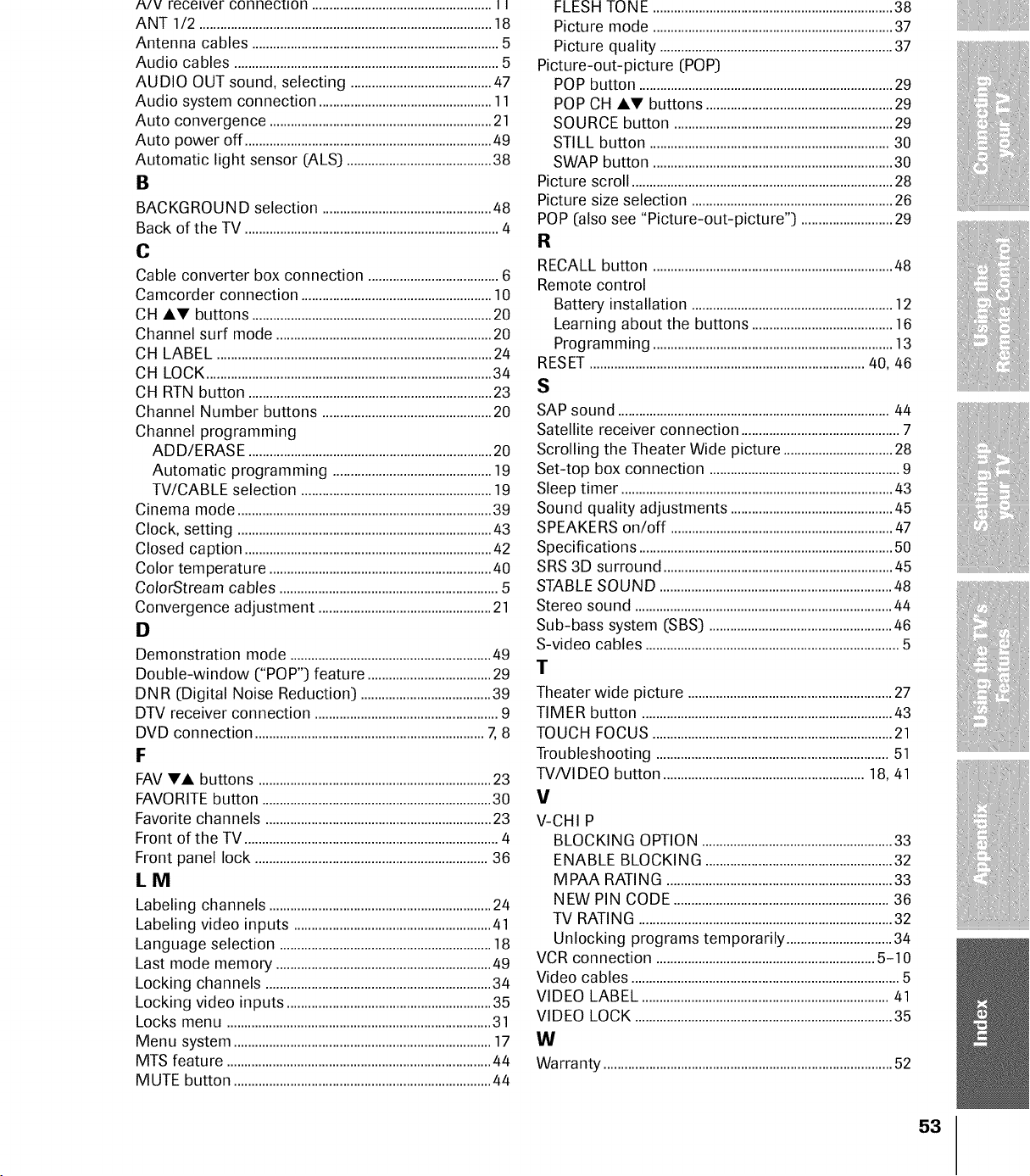
,%'V receiver connection ................................................... I I
ANT 1/2 ...................................................................................18
Antenna cables ......................................................................5
Audio cables ...........................................................................5
AUDIO OUT sound, selecting ........................................47
Audio system connection .................................................11
Auto convergence ...............................................................21
Auto power off ......................................................................49
Automatic light sensor (ALS) .........................................38
B
BACKGROUND selection ................................................48
Back of the TV ........................................................................4
O
Cable converter box connection .....................................6
Camcorder connection ......................................................10
CH Ai,V buttons ....................................................................20
Channel surf mode .............................................................20
CH LABEL ..............................................................................24
CH LOCK.................................................................................34
CH RTN button .....................................................................23
Channel Number buttons ................................................20
Channel programming
ADD/ERASE .....................................................................20
Automatic programming .............................................19
TWCABLE selection ......................................................19
Cinema mode ........................................................................39
Clock, setting ........................................................................43
Closed caption ......................................................................42
Color temperature ...............................................................40
ColorStream cables ..............................................................5
Convergence adjustment .................................................21
I:1
Demonstration mode .........................................................49
Double-window ("POP") feature ...................................29
DN R (Digital Noise Reduction) .....................................39
DTV receiver connection ....................................................9
DVD connection .................................................................7, 8
F
FAVTA buttons ..................................................................23
FAVORITEbutton .................................................................30
Favorite channels ................................................................23
Front of the TV ........................................................................4
Front panel lock ..................................................................36
LM
Labeling channels ...............................................................24
Labeling video inputs ........................................................41
Language selection ............................................................18
Last mode memory .............................................................49
Locking channels ................................................................34
Locking video inputs ..........................................................35
Locks menu ...........................................................................31
Menu system .........................................................................17
MTS feature ...........................................................................44
MUTE button .........................................................................44
FLESHTONE ....................................................................38
Picture mode ....................................................................37
Picture quality ..................................................................37
Picture-out-picture (POP)
POP button ........................................................................29
POP CH Ai,V buttons .....................................................29
SOURCE button ..............................................................29
STILL button ....................................................................30
SWAP button ....................................................................30
Picture scroll ..........................................................................28
Picture size selection .........................................................26
POP (also see "Picture-out-picture") ..........................29
R
RECALL button ....................................................................48
Remote control
Battery installation .........................................................12
Learning about the buttons ........................................16
Programming ....................................................................13
RESET..............................................................................40, 46
S
SAP sound .............................................................................44
Satellite receiver connection .............................................7
Scrolling the Theater Wide picture ...............................28
Set-top box connection ......................................................9
Sleep timer .............................................................................43
Sound quality adjustments ..............................................45
SPEAKERS on/off ...............................................................47
Specifications ........................................................................50
SRS 3D surround .................................................................45
STABLE SOUND ..................................................................48
Stereo sound .........................................................................44
Sub-bass system (SBS) ....................................................46
S-video cables ........................................................................5
T
Theater wide picture ..........................................................27
TIMER button .......................................................................43
TOUCH FOCUS ....................................................................21
Troubleshooting ..................................................................51
TV/VIDEO button .........................................................18, 41
V
V-CHI P
BLOCKING OPTION ......................................................33
ENABLE BLOCKING .....................................................32
MPAA RATING ................................................................33
NEW PIN CODE .............................................................36
TV RATING ........................................................................32
Unlocking programs temporarily ..............................34
VCR connection ..............................................................5-10
Video cables ............................................................................5
VIDEO LABEL ......................................................................41
VIDEO LOCK .........................................................................35
IN
Warranty ..................................................................................52
53

TOSHIBA AMERICA CONSUMER PRODUCTS, INC.
HEAD OFFICE/82 TOTOWA ROAD, WAYNE, NEW JERSEY 07470
NATIONAL SERVICE DIVISION:1420B TOSHIBA DRIVE, LEBANON, TN. 37087
TOSHIBA HAWAII, INC.
HEAD OFFICE/327 KAMAKEE STREET, HONOLULU, HAWAII 96814, U.S.A. TEL: (808) 591-9281
TOSHIBA OF CANADA LTD.
HEAD OFFICE/191 McNABB STREET MARKHAM, ONTARIO L3R 8H2, CANADA TEL: (905) 470-5400
SERVICE CENTERS/TORONTO: 191 McNABB STREET MARKHAM, ONTARIO L3R 8H2, CANADA TEL: (905) 470- 5400
MONTREAL: 1643, NORTH SERVICE RD., TRANS-CANADA HIGHWAY, DORVAL QUEBEC, H9P 1J1, CANADA
TEL: (514) 856-4100
VANCOUVER: 22171 FRASERWOOD WAY, RICHMOND, B.C. V6W 1J5, CANADA TEL: (604) 303-2500
MANUFACTURED BY
TOSHIBA AMERICA CONSUMER PRODUCTS, INC.
ColorStream and StabieSound are registered trademarks and TouchFocus is a trademark of Toshiba America Consumer Products, Inc.
SRS and the ([0) symbol are trademarks of SRS Labs, Inc. SRStechnology is incorporated under license from SRS Labs, Inc.
PRINTED IN USA
(O2-O2) R
42/50/57/65H81 {E]
TOSHIBA
23565268B