
Dear Customer,
Thank you for purchasing this Toshiba TV.This manual will
help you use the many exciting features of your new TV.
Before operating the TV, please read this manual
completely, and keep it nearby for future reference.
Safety Precautions
WARNING
TO REDUCE THE RISK OF FIRE OR ELECTRIC SHOCK,
DO NOT EXPOSE THIS APPLIANCE TO RAIN OR
MOISTURE.
WARNING: TO REDUCE THE RISK OF ELECTRIC
SHOCK, DO NOT REMOVE COVER (OR BACK).
NO USER-SERVICEABLE PARTS INSIDE. REFER
SERVICING TO QUALIFIED SERVICE PERSONNEL.
The lightning symbol in the triangle tells you that the
voltage inside this product may be strong enough to
cause an electric shock. DO NOTTRY TO SERVICE
THIS PRODUCTYOURSELF.
The exclamation mark in the triangle tells you that
important operating and maintenance instructions
follow this symbol.
NOTETOCAW INSTALLERSIN THEUSA
This is a reminder to call the CATV system installer's
attention to Article 820-40 of the NEC, which provides
guidelines for proper grounding and, in particular, specifies
that the cable ground shall be connected to the grounding
system of the building, as close to the point of cable entry
as practical. For additional antenna grounding information,
see items 24 and 25 on page 4.
NOTICEOFPOSSIBLEADVERSEEFFECTS
ONTV PICTURETUBE
If a fixed (non-moving) pattern remains on the TV
screen for long periods of time, the image can become
permanently engrained in the picture tube. This type of
damage is NOT COVERED BY YOUR WARRANTY.
See item 32 on page 4.
2
05/02._
ChildSafety
It MakesA Difference
WhereYourTV Stands
Congratulations on your purchase! As you enjoy
your new TV, keep these safety tips in mind:
The Issue
E3Ifyou arelike mostAmericans,you havea TVin your home.
Manyhomes,in fact,havemorethan one TV.
E3Thehometheaterentertainmentexperienceis a growing
trend,andlargerTVsare popularpurchases;however,they
arenot alwayssupportedon the properTVstands.
E3SometimesTVsareimproperlysecuredor inappropriately
situatedon dressers,bookcases,shelves,desks,audio
speakers,chests,orcarts.As a result,TVsmay fall over,
causingunnecessaryinjury.
ToshibaCares!
D Theconsumerelectronicsindustry
is committedto making home
entertainmentenjoyableand safe.
D TheConsumerElectronics
Associationformedthe Home
EntertainmentSupportSafety
Committee,comprisedof TV and
consumerelectronicsfurniture
manufacturers,to advocate
children'ssafetyand educate
consumersandtheir familiesabout
televisionsafety.
TuneInto Safety
E3OnesizedoesNOTfitall! Useappropriate
furniturelargeenoughto supportthe weightof your
TV (andotherelectroniccomponents).
E3Useappropriateangle braces,straps,andanchorsto secure
your furnitureto the wall (but neverscrewanythingdirectly
intothe TV).
E3Carefullyread and understandthe otherenclosed
instructionsfor properuseof this product.
E3Do notallow childrento climbon or playwith furniture
andTVs.
E3Avoid placinganyitemon top of yourTV (suchas a VCR,
remotecontrol,or toy) that a curiouschild mayreachfor.
E3Rememberthat childrencan becomeexcitedwhilewatching
a programand can potentiallypushor pull a TVover.
E3Shareoursafetymessageaboutthis hiddenhazardof the
home with your family and friends. Thank you!
2500Wilson Blvd.
Arlington, VA 22201 U.S.A.
Tel. 703-907-7600 Fax703-907-7690
www.CEorg
CEAis the Sponsor,Producerand
Q_r_ rr_r _Nctro_J_A_socbtio_ Managerof the InternationalCES_
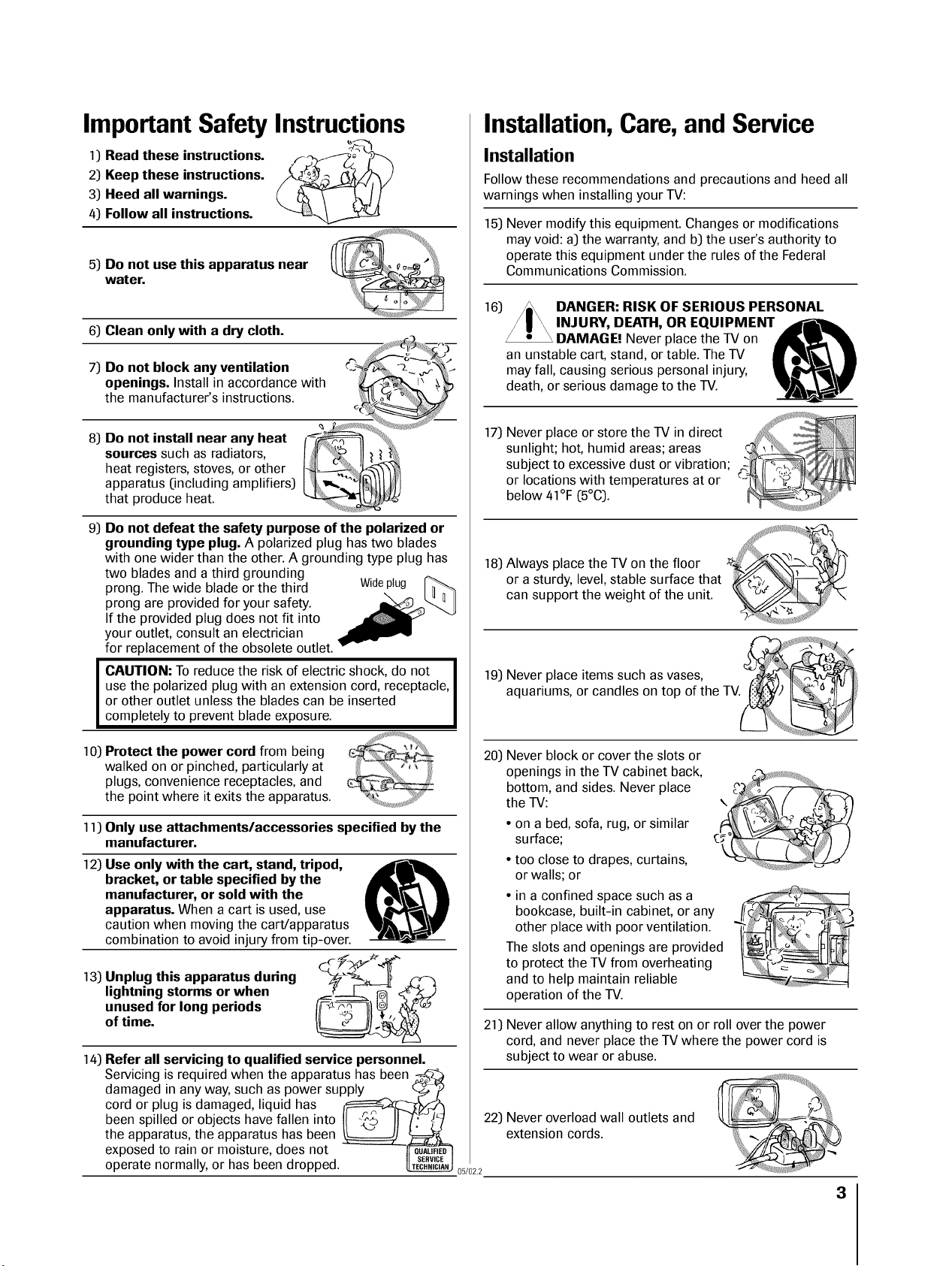
Important Safety Instructions
1) Read these instructions.
2) Keep these instructions.
3) Heed all warnings.
4) Follow all instructions.
5) Do not use this apparatus near
water.
6) Clean only with a dry cloth.
7) Do not block any ventilation
openings. Install in accordance with
the manufacturer's instructions.
8) Do not install near any heat
sources such as radiators,
heat registers, stoves, or other
apparatus (including amplifiers)
that produce heat.
9) Do not defeat the safety purpose of the polarized or
grounding type plug. A polarized plug has two blades
with one wider than the other. A grounding type plug has
two blades and a third grounding
prong. The wide blade or the third Wideplug
prong are provided for your safety.
If the provided plug does not fit into
your outlet, consult an electrician
for replacement of the obsolete outlet.
CAUTION: To reduce the risk of electric shock, do not
use the polarized plug with an extension cord, receptacle,
or other outlet unless the blades can be inserted
completely to prevent blade exposure.
10) Protect the power cord from being
walked on or pinched, particularly at
plugs, convenience receptacles, and
the point where it exits the apparatus.
11) Only use attachmentslaccessories specified by the
manufacturer.
12) Use only with the cart, stand, tripod,
bracket, or table specified by the
manufacturer, or sold with the
apparatus. When a cart is used, use
caution when moving the cart/apparatus
combination to avoid injury from tip-over.
13) Unplug this apparatus during C__S; _
lightning storms or when
ofUnusedtime.for long periods _,,_
14) Refer all servicing to qualified service personnel.
Installation, Care, and Service
Installation
Follow these recommendations and precautions and heed all
warnings when installing your TV:
15) Never modify this equipment. Changes or modifications
may void: a) the warranty, and b] the user's authority to
operate this equipment under the rules of the Federal
Communications Commission.
16)
]7)
DANGER: RISK OF SERIOUS PERSONAL
INJURY, DEATH, OR EQUIPMENT ,dr_--,mL
DAMAGE! Never place the TV on
an unstable cart, stand, or table. The TV
may fall, causing serious personal injury,
death, or serious damage to the TV.
Never place or store the TV in direct _ C
sunlight; hot, humid areas; areas _ _%
subject to excessive dust or vibration; __
or locations with temperatures at or
below 41°F (5°C).
18) Always place the TV on the floor
or a sturdy, level, stable surface that
can support the weight of the unit.
19] Never place items such as vases,
aquariums, or candles on top of the TV.
20) Never block or cover the slots or
openings in the TV cabinet back,
bottom, and sides. Never place
the TV:
• on a bed, sofa, rug, or similar
surface;
• too close to drapes, curtains,
or walls; or
• in a confined space such as a
bookcase, built-in cabinet, or any
other place with poor ventilation.
The slots and openings are provided
to protect the TV from overheating
and to help maintain reliable
operation of the TV.
z
I
21] Never allow anything to rest on or roll over the power
cord, and never place the TV where the power cord is
subject to wear or abuse.
Servicing is required when the apparatus has been
damaged in any way, such as power supply _ (_____/)
cord or plug is damaged, liquid has /__-'_r21
been spilled or objects have fallen into II _,'_, II _i;_/_ 22) Never overload wall outlets and
the apparatus, the apparatus has been _::::=_,_i_ extension cords.
exposed to rain or moisture, does not -_-]
operate normally, or has been dropped. _ os/oz_
3
23) Always operate this equipment from
a 120 VAC, 60 Hz power source only.
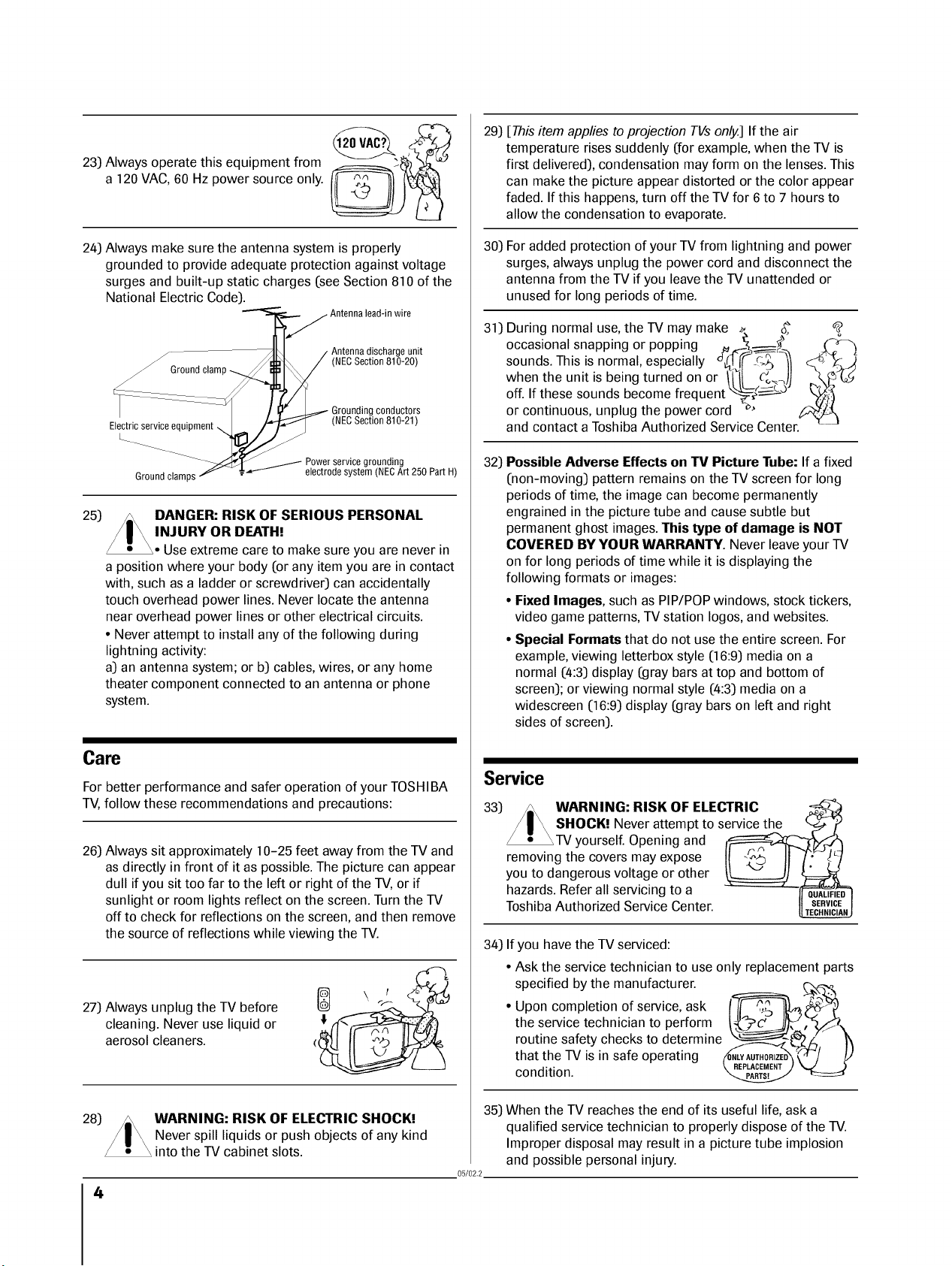
24) Always make sure the antenna system is properly
grounded to provide adequate protection against voltage
surges and built-up static charges (see Section 810 of the
National Electric Code).
Antenna discharge unit
(NECSection 810-20)
Ground clam
/
/
Electricservice equipment
L
Ground clamps
Grounding conductors
(NECSection 810-21)
Power service grounding
electrodesystem (NECArt 250 Part H)
25) /_ DANGER: RISK OF SERIOUS PERSONAL
/ I \ INJURYORDEATH!
_• Use extreme care to make sure you are never in
a position where your body (or any item you are in contact
with, such as a ladder or screwdriver) can accidentally
touch overhead power lines. Never locate the antenna
near overhead power lines or other electrical circuits.
• Never attempt to install any of the following during
lightning activity:
a) an antenna system; or b) cables, wires, or any home
theater component connected to an antenna or phone
system.
Care
For better performance and safer operation of your TOSHIBA
TV, follow these recommendations and precautions:
26) Always sit approximately 10-25 feet away from the TV and
as directly in front of it as possible. The picture can appear
dull if you sit too far to the left or right of the TV, or if
sunlight or room lights reflect on the screen. Turn the TV
off to check for reflections on the screen, and then remove
the source of reflections while viewing the TV.
27) Always unplug the TV before
cleaning. Never use liquid or
aerosol cleaners.
28)
WARNING: RISK OF ELECTRIC SHOCK!
Never spill liquids or push objects of any kind
into the TV cabinet slots.
4
29) [This item applies to projection TVs only.] If the air
temperature rises suddenly (for example, when the TV is
first delivered), condensation may form on the lenses. This
can make the picture appear distorted or the color appear
faded. If this happens, turn off the TV for 6 to 7 hours to
allow the condensation to evaporate.
30) For added protection of your TV from lightning and power
surges, always unplug the power cord and disconnect the
antenna from the TV if you leave the TV unattended or
unused for long periods of time.
31) During normal use, the TV may make _, _ @
occasional snapping or popping " _ /4_
sounds. This is normal, especially _(_¢ _-_
when the unit is being turned on or /H_ _-_-_,))
off. If these sounds become frequent ____.___L,)
or continuous, unplug the power cord _'
and contact a Toshiba Authorized Service Center.
32) Possible Adverse Effects on "IV Picture Tube: If a fixed
(non-moving) pattern remains on the TV screen for long
periods of time, the image can become permanently
engrained in the picture tube and cause subtle but
permanent ghost images. This type of damage is NOT
COVERED BY YOUR WARRANTY. Never leave your TV
on for long periods of time while it is displaying the
following formats or images:
• Fixed Images, such as PiP/POP windows, stock tickers,
video game patterns, TV station Iogos, and websites.
• Special Formats that do not use the entire screen. For
example, viewing letterbox style (16:9) media on a
normal (4:3) display (gray bars at top and bottom of
screen); or viewing normal style (4:3) media on a
widescreen (16:9)display (gray bars on left and right
sides of screen).
Service
33) /,,\ WARNING: RISK OF ELECTRIC
/ | _ SHOCK! Never attempt to service the _ /_
_TV yourself. Opening and _F/_
removing the covers may expose I! II /i" !V
you to dangerous voltage or other _
hazards. Refer all servicing to a -= ' _[Eo_
Toshiba Authorized Service Center.
34) If you have the TV serviced:
• Ask the service technician to use only replacement parts
specified by the manufacturer, c,,_,,o
• Upon completion of service, ask t__
the service technician to perform !_C=_, :-_,
routine safety checks to determine f_ _.-__-__n___b z' "_,,
that the -rV is in safe operating _u_X_-_/ _]J
condition. "_ "_:=_
35) When the TV reaches the end of its useful life, ask a
qualified service technician to properly dispose of the TV.
Improper disposal may result in a picture tube implosion
and possible personal injury.
05/02.2
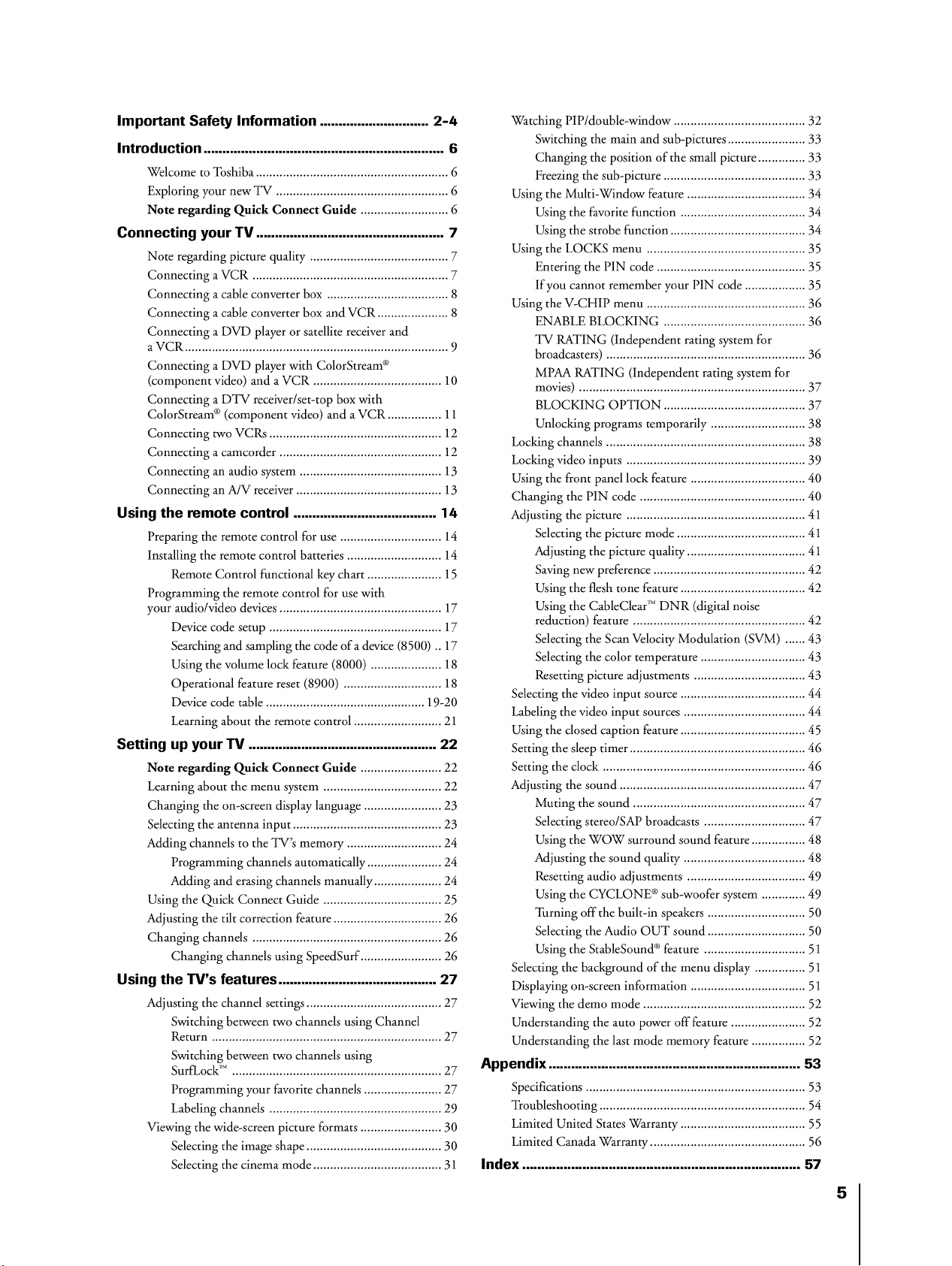
Important Safety Information ............................. 2-4
Introduction ......................................................... 6
Welcome to Toshiba ......................................................... 6
Exploring your new TV ............................................. 6
Note regarding Quick Connect Guide ........................ 6
Connecting your TV.................................................. 7
Note regarding picture quality ......................................... 7
Connecting a VCR .......................................................... 7
Connecting a cable converter box .................................... 8
Connecting a cable converter box and VCR ..................... 8
Connecting a DVD player or satellite receiver and
a VCR .............................................................................. 9
Connecting a DVD player with ColorStream ®
(component video) and a VCR ...................................... 10
Connecting a DTV receiver/set-top box with
ColorStream ® (component video) and a VCR ................ 11
Connecting two VCRs ................................................... 12
Connecting a camcorder ................................................ 12
Connecting an audio system .......................................... 13
Connecting an A!V receiver ....................................... 13
Using the remote control ...................................... 14
Preparing the remote control for use .............................. 14
Installing the remote control batteries ............................ 14
Remote Control functional key chart ...................... 15
Programming the remote control for use with
your audio/video devices ................................................ 17
Device code setup ................................................... 17
Searching and sampling the code of a device (8500) .. 17
Using the volume lock feature (8000) ..................... 18
Operational feature reset (8900) ............................. 18
Device code table ............................................... 19-20
Learning about the remote control .......................... 21
Setting up your TV .................................................. 22
Note regarding Quick Connect Guide ........................ 22
Learning about the menu system ................................... 22
Changing the on-screen display language ....................... 23
Selecting the antenna input ............................................ 23
Adding channels to the TV's memory ............................ 24
Programming channels automatically ...................... 24
Adding and erasing channels manually .................... 24
Using the Quick Connect Guide ................................... 25
Adjusting the tilt correction feature ................................ 26
Changing channds ........................................................ 26
Changing channels using SpeedSurf ........................ 26
Using the lV's features .......................................... 27
Adjusting the channel settings ........................................ 27
Switching between two channels using Channel
Return .................................................................... 27
Switching between two channels using
SurfLock 'M.............................................................. 27
Programming your favorite channels ....................... 27
Labeling channels ................................................... 29
Viewing the wide-screen picture formats ........................ 30
Selecting the image shape ........................................ 30
Selecting the cinema mode ...................................... 31
Watching PlP/double-window ....................................... 32
Switching the main and sub-pictures ....................... 33
Changing the position of the small picture ............ 33
Freezing the sub-picture .......................................... 33
Using the Multi-Window feature ................................... 34
Using the favorite function ..................................... 34
Using the strobe function ................................... 34
Using the LOCKS menu ............................................... 35
Entering the PIN code ....................................... 35
If you cannot remember your PIN code ............... 35
Using the V-CHIP menu ............................................... 36
ENABLE BLOCKING .......................................... 36
TV RATING (Independent rating system for
broadcasters) ........................................................... 36
MPAA RATING (In&pendent rating system for
movies) ................................................................... 37
BLOCKING OPTION .................................... 37
Unlocking programs temporarily ............................ 38
Locking channels ........................................................... 38
Locking video inputs ..................................................... 39
Using the front panel lock feature .................................. 40
Changing the PIN code ................................................. 40
Adjusting the picture ..................................................... 41
Selecting the picture mode ...................................... 41
Adjusting the picture quality ............................... 41
Saving new preference ............................................. 42
Using the flesh tone feature ..................................... 42
Using the CableClear _MDNR (digital noise
reduction) feature ................................................... 42
Selecting the Scan Velocity Modulation (SVM) ...... 43
Selecting the color temperature ............................... 43
Resetting picture adjustments ................................. 43
Selecting the video input source ..................................... 44
Labeling the video input sources .................................... 44
Using the dosed caption feature ..................................... 45
Setting the ,sleeptimer .............................................. 46
Setting the dock ............................................................ 46
Adjusting the sound ....................................................... 47
Muting the sound ............................................. 47
Selecting stereo/SAP broadcasts .............................. 47
Using the WOW surround sound feature ................ 48
Adjusting the sound quality .................................... 48
Resetting audio adjustments ................................... 49
Using the CYCLONE ® sub-woofer system ............. 49
Turning off the built-in speakers ............................. 50
Selecting the Audio OUT sound ......................... 50
Using the StableSound ®feature .............................. 51
Selecting the background of the menu display ............... 51
Displaying on-screen information .................................. 51
Viewing the demo mode ................................................ 52
Understanding the auto power off feature ...................... 52
Understanding the last mode memory feature ................ 52
Appendix ............................................. 53
Specifications ................................................................. 53
Troubleshooting ............................................................. 54
Limited United States Warranty ..................................... 55
Limited Canada Warranty .............................................. 56
Index .......................................................................... 57
5
Introduction
Welcome to Toshiba
Congratulations! You have purchased one of the finest TVs on the
market. The goal of this manual is to guide you through setting up
and operating your Toshiba TV as quickly as possible.
This manual applies to models 32HFX72 and 36HFX72. Before you
start reading, check your model number by looking at the rear of the
TV.
Instructions in this manual are based on using the remote control.
You can also use the controls on the TV if they have the same name as
those on the remote control.
Please read all the safety and operating instructions carefully, and keep
the manual for future reference.
Exploring your new TV
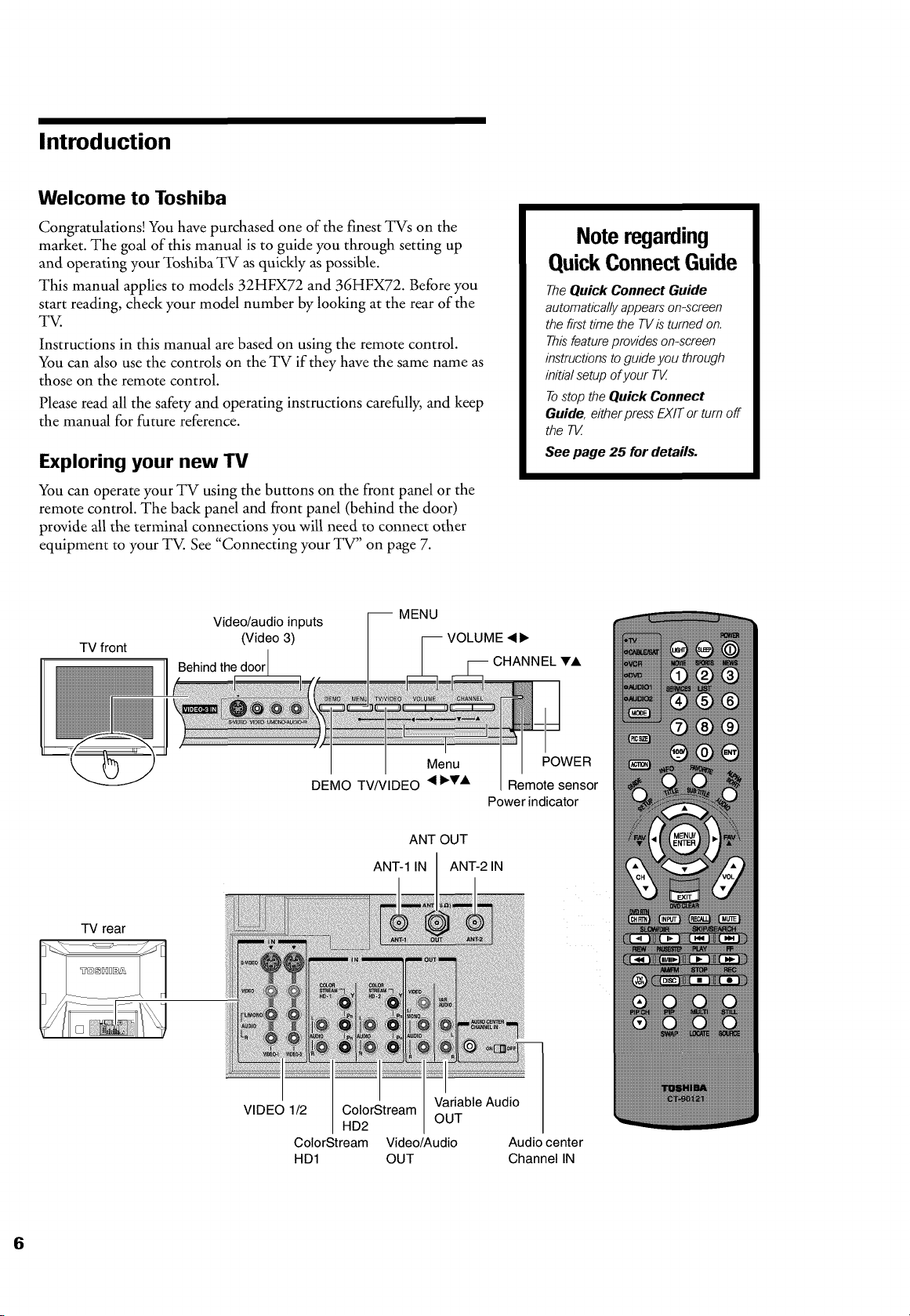
You can operate your TV using the buttons on the front panel or the
remote control. The back panel and front panel (behind the door)
provide all the terminal connections you will need to connect other
equipment to your TV. See "Connecting your TV" on page 7.
Note regarding
QuickConnectGuide
TheQuick Connect Guide
automatically appearson-screen
thefirsttimethe TVisturnedon.
Thisfeatureprovideson-screen
instructionstoguideyouthrough
initial setup of your T_
TostoptheQuickConnect
Guide, either press EXITor turnoff
the 7qZ
See page 25 fordetails.
TV front
Video/audio inputs
(Video 3)
Behind the door
-- MENU
VOLUME 4 I_
CHANNEL V,k
Menu POWER
DEMO TV/VIDEO 4 I_VA Remote sensor
Power indicator
TV rear
ANT OUT
ANT-1 IN ANT-2 IN
Variable Audio
VIDEO 1/2 ColorStream
OUT
HD2
ColorStream Video/Audio Audio center
HD1 OUT Channel IN
Connecting your TV
Note: Cables are not supplied withyour T_
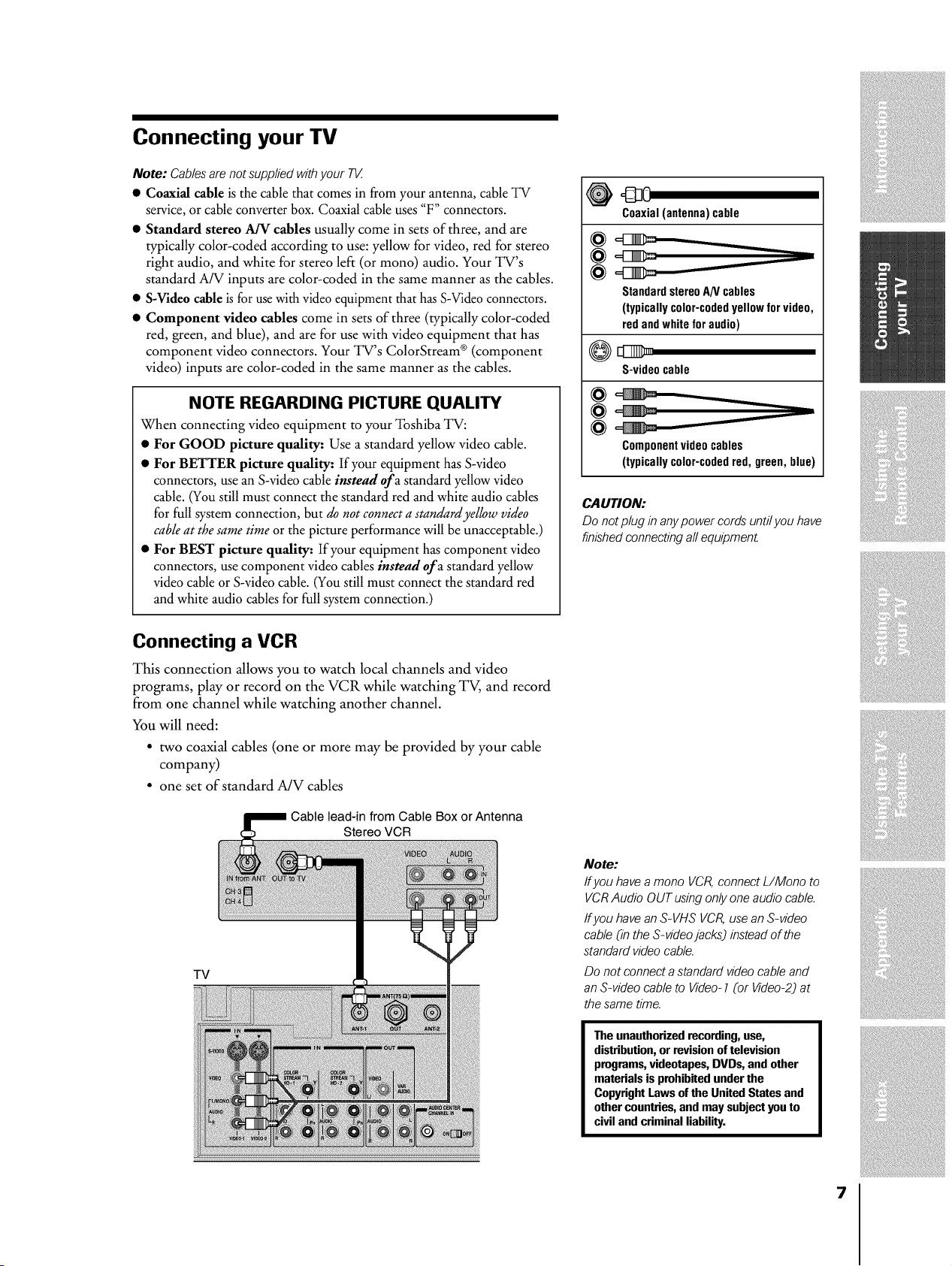
• Coaxial cable is the cable that comes in from your antenna, cable TV
service, or cable converter box. Coaxial cable uses "F" connectors.
• Standard stereo A/V cables usually come in sets of three, and are
typically color-coded according to use: yellow for video, red for stereo
right audio, and white for stereo left (or mono) audio. Your TV's
standard A/V inputs are color-coded in the same manner as the cables.
• S-Video cable is for use with video equipment that has S-Video connectors.
• Component video cables come in sets of three (typically color-coded
red, green, and blue), and are for use with video equipment that has
component video connectors. Your TV's ColorStream ® (component
video) inputs are color-coded in the same manner as the cables.
NOTE REGARDING PICTURE QUALITY
When connecting video equipment to your Toshiba TV:
• For GOOD picture quality: Use a standard yellow video cable.
• For BETTER picture quality: If your equipment has S-video
connectors, use an S-video cable instead of a standard yellow video
cable. (You still must connect the standard red and white audio cables
for full system connection, but do not connect a standard yellow video
cable at the same time or the picture performance will be unacceptable.)
• For BEST picture quality: If your equipment has component video
connectors, use component video cables instead of a standard yellow
video cable or S-video cable. (You still must connect the standard red
and white audio cables for full system connection.)
Coaxial(antenna)cable
StandardstereoAN cables
(typicallycolor-codedyellowforvideo,
redandwhiteforaudio)
S-videocable
@
Componentvideocables
(typicallycolor-codedred,green,blue)
CAUTION:
Do not plug in anypower cords until you have
finished connecting all equipment
Connecting a VCR
This connection allows you to watch local channels and video
programs, play or record on the VCR while watching TV, and record
from one channel while watching another channel.
You will need:
• two coaxial cables (one or more may be provided by your cable
company)
• one set of standard A/V cables
from Cable Box or Antenna
Stereo VCR
TV
Note:
If you have a mono VCR, connect L/Mono to
VCR Audio OUT using only one audio cable.
ff you have an S-VHS VCR, use an S-video
cable (in the S-video jacks) instead of the
standard video cable.
Do not connect a standard video cable and
an S-video cable to Video- 1 (or Video-2) at
the same time.
The unauthorized recording, use,
distribution, or revision of television
programs, videotapes, DVDs, and other
materials is prohibited under the
Copyright Laws of the United States and
other countries, and may subject you to
civil and criminal liability.
7
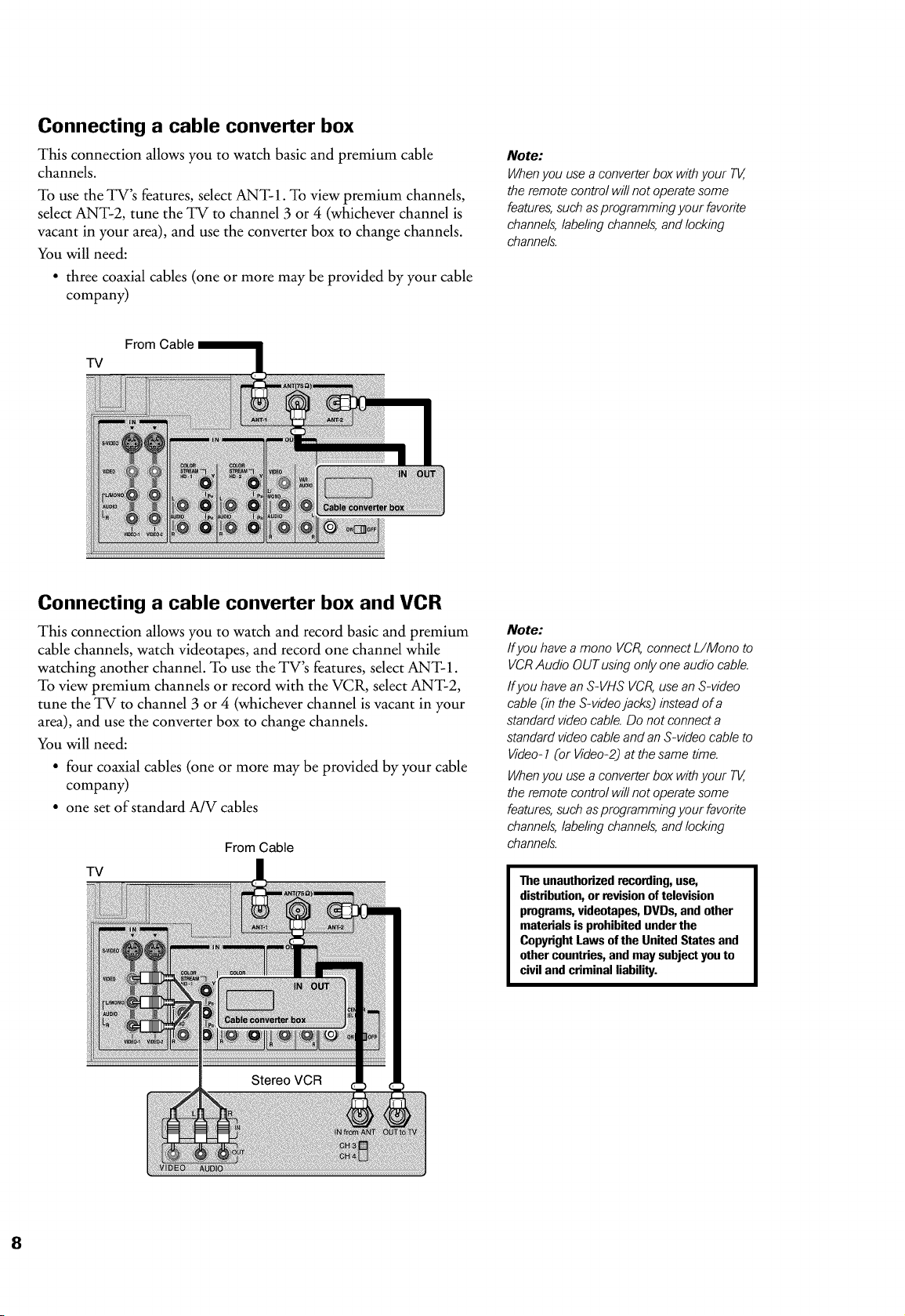
Connecting a cable converter box
This connection allows you to watch basic and premium cable
channels.
To use the TV's features, select ANT-1. To view premium channels,
select ANT-2, tune the TV to channel 3 or 4 (whichever channel is
vacant in your area), and use the converter box to change channels.
You will need:
• three coaxial cables (one or more may be provided by your cable
company)
Note:
Whenyou use a converter box withyour T_,
the remote control will not operate some
features,such as programming your favorite
channels,labeling channels,and locking
channels.
From
TV
Connecting a cable converter box and VCR
This connection allows you to watch and record basic and premium
cable channels, watch videotapes, and record one channel while
watching another channel. To use the TV's features, select ANT-1.
To view premium channels or record with the VCR, select ANT-2,
tune the TV to channel 3 or 4 (whichever channel is vacant in your
area), and use the converter box to change channels.
You will need:
• four coaxial cables (one or more may be provided by your cable
company)
• one set of standard A/V cables
TV
From Cable
Note:
If you have a mono VCR,connect L/Mono to
VCRAudio OUT using only one audio cable.
ff you have an S-VHS VCR,use an S-video
cable (in the S-videojacksj instead of a
standard videocable. Do not connect a
standard videocable and an S-video cable to
Video-1 (or Video-2) at thesame time.
Whenyou use a converter box withyour T_,
the remote control will not operate some
features,such as programming your favorite
channels,labeling channels,and locking
channels.
The unauthorized recording, use,
distribution, or revision of television
programs, videotapes, DVDs, and other
materials is prohibited under the
Copyright Laws of the United States and
other countries, and may subject you to
civil and criminal liability.
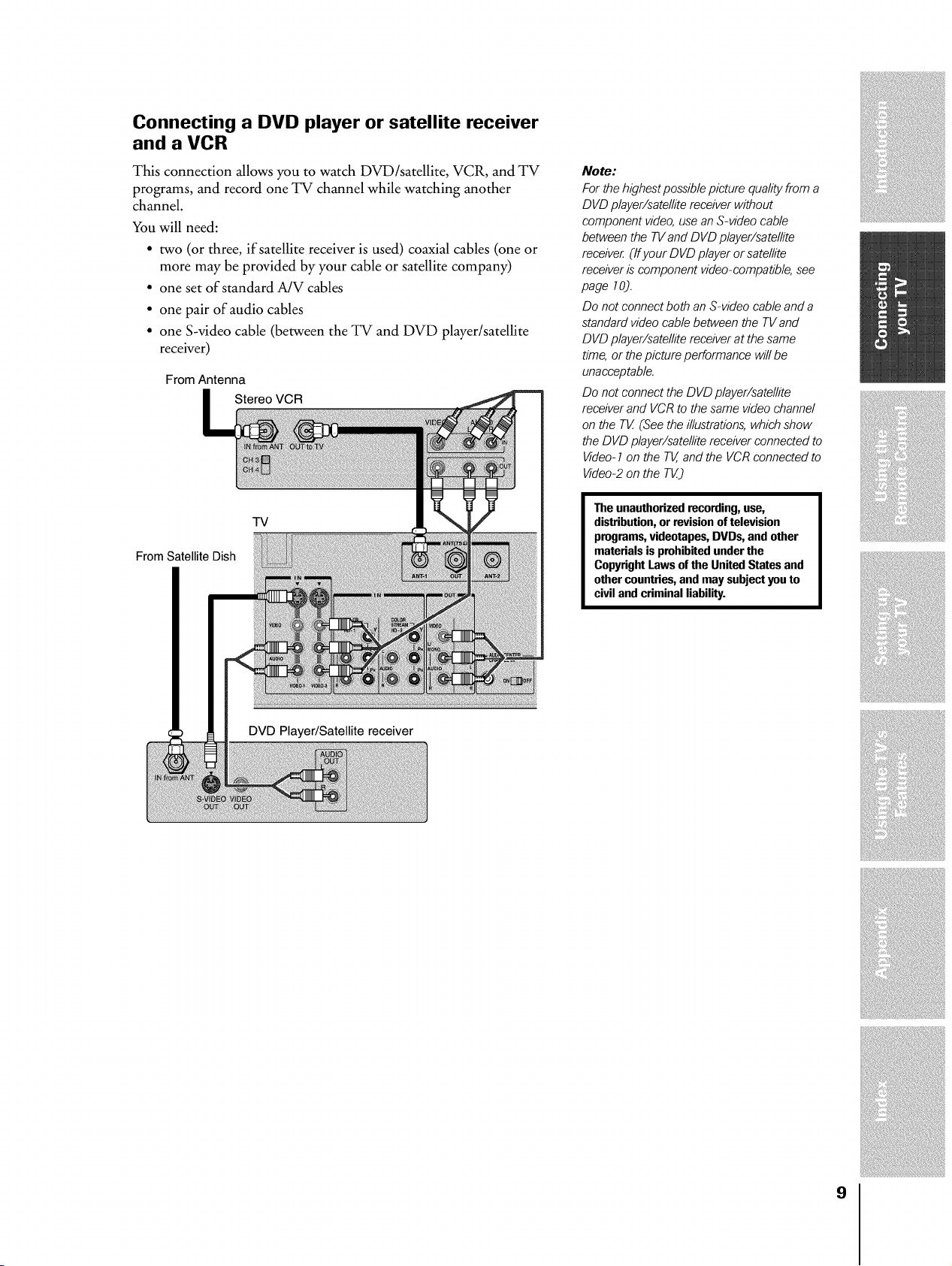
Connecting a DVD player or satellite receiver
and a VCR
This connection allows you to watch DVD/satellite, VCR, and TV
programs, and record one TV channel while watching another
channel.
You will need:
• two (or three, if satellite receiver is used) coaxial cables (one or
more may be provided by your cable or satellite company)
• one set of standard A/V cables
• one pair of audio cables
• one S-video cable (between the TV and DVD player/satellite
receiver)
From Antenna
Stereo VCR
TV
From Satellite Dish
Note:
For the highest possiblepicture quality from a
DVD player/satellite receiver without
component video, use an S-video cable
between the TVand DVD player/satellite
receive_ (Ifyour DVD player or satellite
receiver is component video-compatible, see
page 70).
Do not connect both an S-video cable and a
standard videocable between the TVand
DVD player/satellite receiverat the same
time, or the picture performance will be
unacceptable.
Do not connect the DVD player/satellite
receiver and VCRto the same video channel
on the TV (See the illustrations,which show
the DVD player/satellite receiver connected to
Video=1 on the TV,and the VCR connected to
Video-2 on the T_)
The unauthorized recording, use,
distribution, or revision of television
programs, videotapes, DVDs, and other
materials is prohibited under the
Copyright Laws of the United States and
other countries, and may subject you to
civil and criminal liability.
DVD Player/Satellite receiver
9
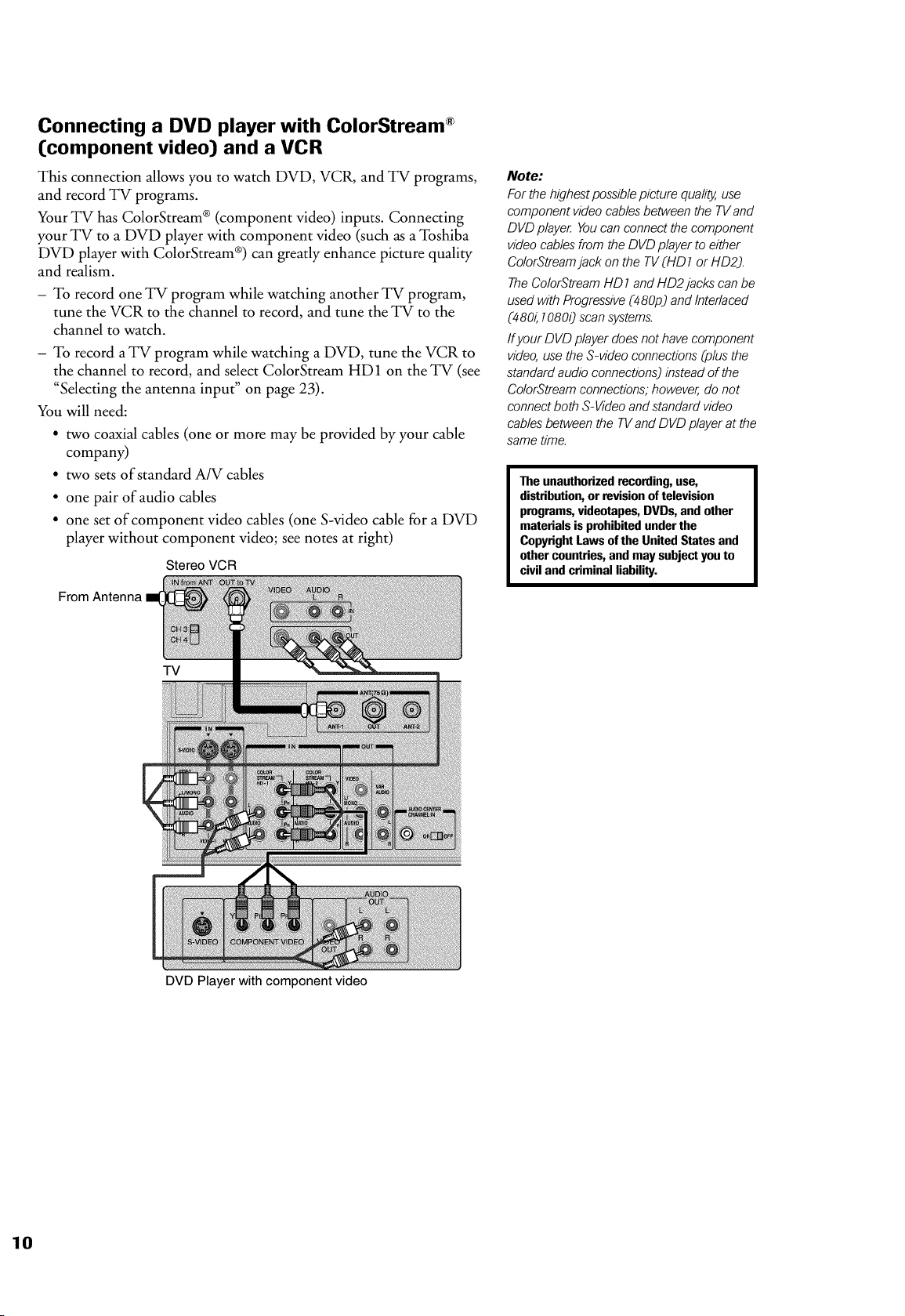
Connecting a DVD player with ColorStream ®
(component video] and a VCR
This connection allows you to watch DVD, VCR, and TV programs,
and record TV programs.
Your TV has ColorStream ® (component video) inputs. Connecting
your TV to a DVD player with component video (such as a Toshiba
DVD player with ColorStream ®) can greatly enhance picture quality
and realism.
- To record one TV program while watching another TV program,
tune the VCR to the channel to record, and tune the TV to the
channel to watch.
- To record a TV program while watching a DVD, tune the VCR to
the channel to record, and select ColorStream HD1 on the TV (see
"Selecting the antenna input" on page 23).
You will need:
• two coaxial cables (one or more may be provided by your cable
company)
• two sets of standard A/V cables
• one pair of audio cables
• one set of component video cables (one S-video cable for a DVD
player without component video; see notes at right)
Stereo VCR
From Antenna
TV
DVD Player with component video
Note:
For the highest possiblepicture quality,use
component video cablesbetween the TVand
DVD playe_ Youcan connect the component
videocables from the DVD player to either
ColorStreamjack on the TV(HD 1 or HD2).
The ColorStream HD 1and HD2 jacks can be
used with Progressive(480p) and Interlaced
(480_108O0scan systems.
ff your DVD player doesnot have component
video,use the S-video connections (plus the
standardaudio connections) instead of the
ColorStreamconnections; however, do not
connect both S-Video andstandard video
cables between the TVand DVD player at the
same time.
The unauthorized recording, use,
distribution, or revision of television
programs, videotapes, DVDs, and other
materials is prohibited under the
Copyright Laws of the United States and
other countries, and may subject you to
civil and criminal liability.
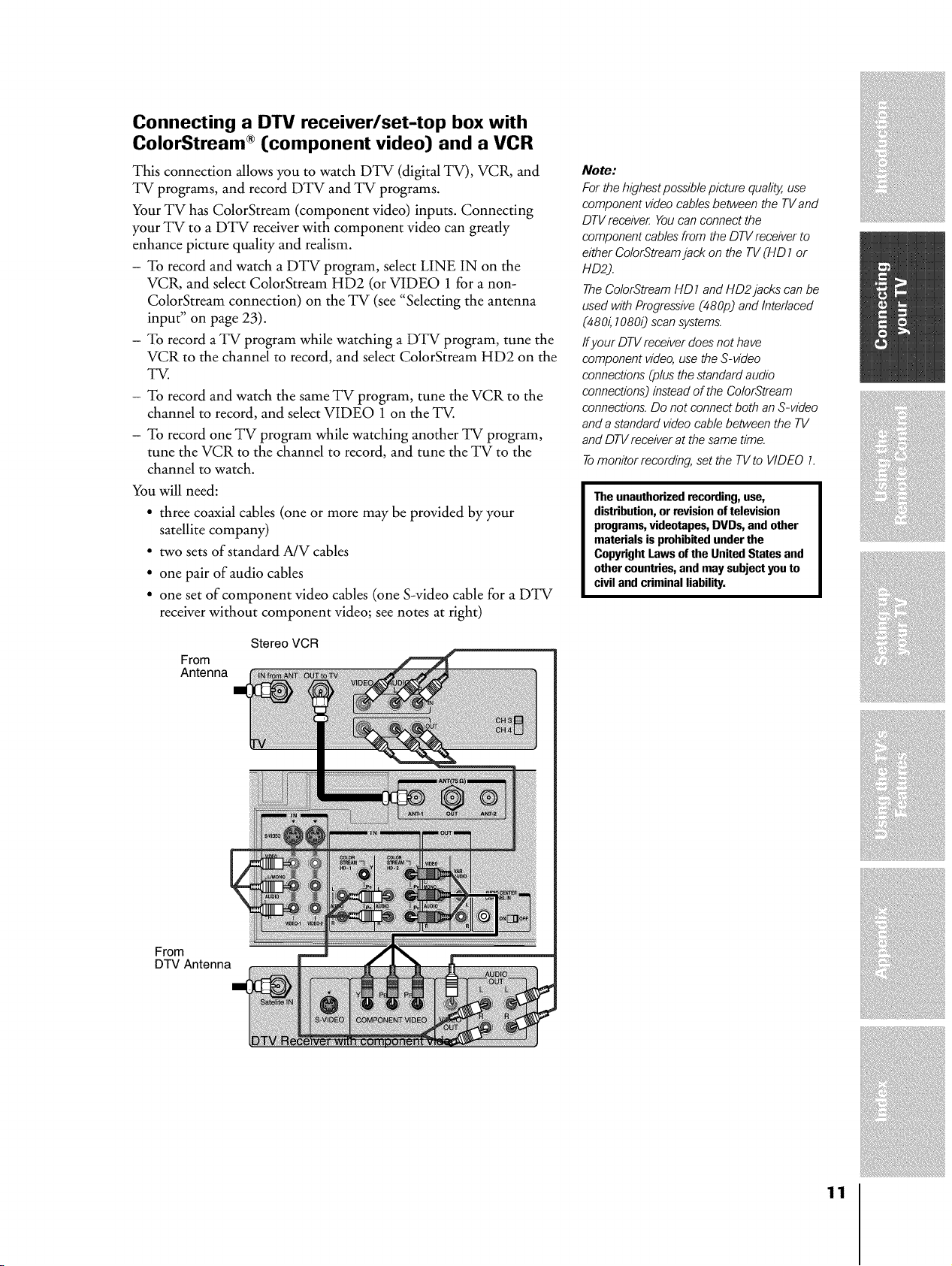
Connecting a DTV receiver/set-top box with
ColorStream ® (component video) and a VCR
This connection allows you to watch DTV (digital TV), VCR, and
TV programs, and record DTV and TV programs.
Your TV has ColorStream (component video) inputs. Connecting
your TV to a DTV receiver with component video can greatly
enhance picture quality and realism.
- To record and watch a DTV program, select LINE IN on the
VCR, and select ColorStream HD2 (or VIDEO 1 for a non-
ColorStream connection) on the TV (see "Selecting the antenna
input" on page 23).
- To record a TV program while watching a DTV program, tune the
VCR to the channel to record, and select ColorStream HD2 on the
TV.
- To record and watch the same TV program, tune the VCR to the
channel to record, and select VIDEO 1 on the TV.
- To record one TV program while watching another TV program,
tune the VCR to the channel to record, and tune the TV to the
channel to watch.
You will need:
• three coaxial cables (one or more may be provided by your
satellite company)
• two sets of standard A/V cables
• one pair of audio cables
• one set of component video cables (one S-video cable for a DTV
receiver without component video; see notes at right)
Stereo VCR
From
Antenna
Note:
For the highest possible picture quality, use
component video cables between the TV and
DTV receive_ You can connect the
component cables from the DTV receiver to
either ColorStream jack on the TV (HD1 or
H D2).
The ColorStream HD 7 and HD2 jacks can be
used with Progressive (480p) and Interlaced
(480_ 70800 scan systems.
ff your DTV receiver does not have
component video, use the S-video
connections (plus the standard audio
connections) instead of the ColorStream
connections. Do not connect both an S-video
and a standard video cable between the TV
and DTV receiver at the same time.
Tomonitor recording, set the TV to VIDEO 7.
The unauthorized recording, use,
distribution, or revision of television
programs, videotapes, DVDs, and other
materials is prohibited under the
Copyright Laws of the United States and
other countries, and may subject you to
civil and criminal liability.
From
DTV Antenna
11
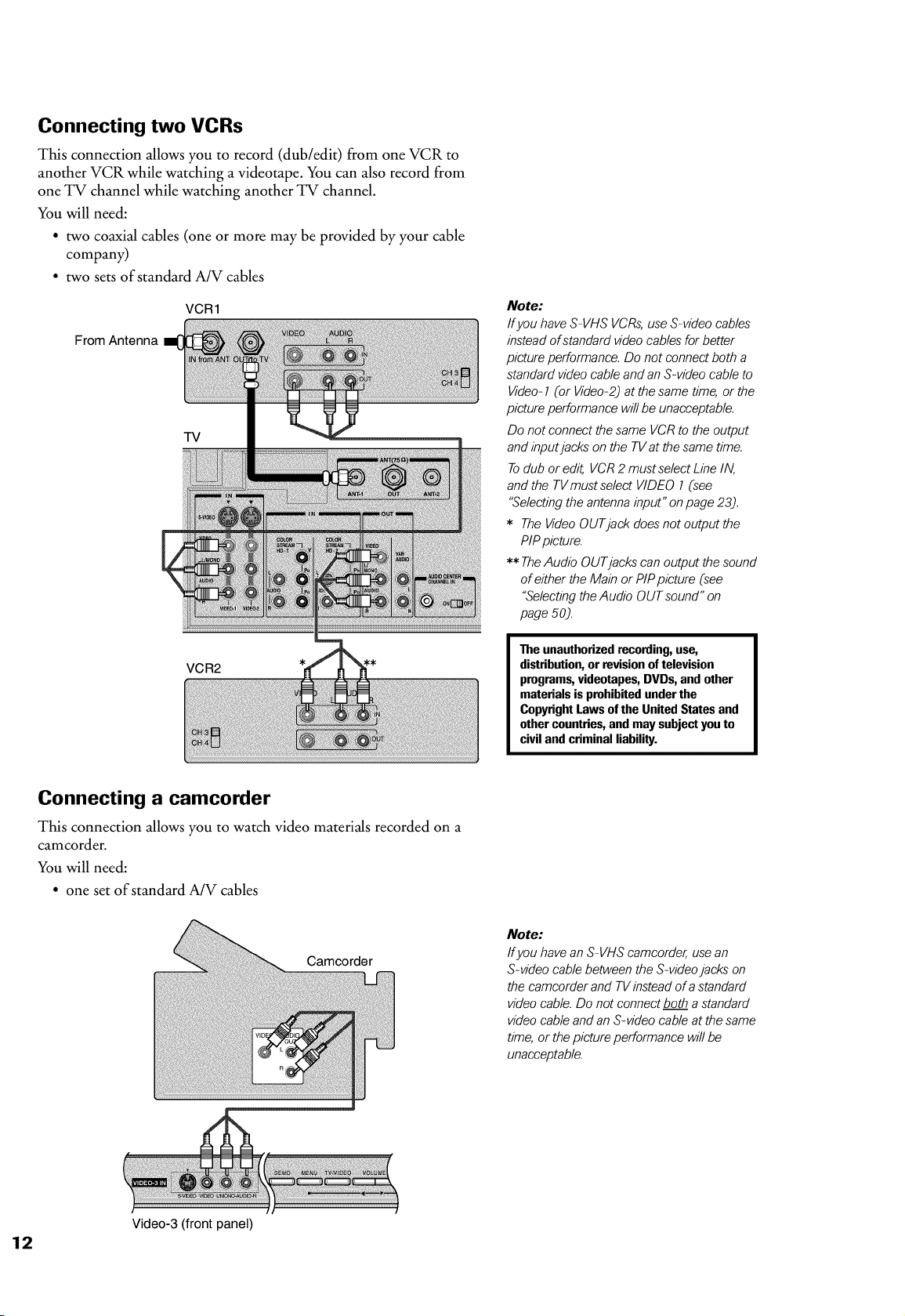
Connecting two VCRs
This connection allows you to record (dub/edit) from one VCR to
another VCR while watching a videotape. You can also record from
one TV channel while watching another TV channel.
You will need:
• two coaxial cables (one or more may be provided by your cable
company)
• two sets of standard A/V cables
VCR1
From Antenna
TV
VCR2
Note:
If you have S-VHS VCRs,use S-video cables
instead of standard video cablesfor better
picture performance. Do not connect both a
standard videocable and an S-video cable to
Video-1 (or Video-2) at thesame time, or the
picture performance will be unacceptable.
Do not connect the same VCR to the output
and inputjacks on the TV at the same time.
Todub or edit, VCR2 mustse/ect Line/IV,
and the TVmust se/ect VIDEO 1 (see
"Selectingthe antenna input" on page 23).
* The VideoOUTjack doesnot output the
PiPpicture.
** TheAudio OUTjacks can output the sound
of either the Main or P/P picture (see
"SelectingtheAudio OUT sound" on
page 50).
The unauthorized recording, use,
distribution, or revision of television
programs, videotapes, DVDs, and other
materials is prohibited under the
Copyright Laws of the United States and
other countries, and may subject you to
civil and criminal liability.
Connecting a camcorder
This connection allows you to watch video materials recorded on a
camcorder.
You will need:
• one set of standard A/V cables
Camcorder
Note:
If you have an S-VHS camcorder, use an
S-video cable between the S-videojacks on
the camcorder and TV instead of a standard
videocable. Do not connect both a standard
videocable and an S-video cable at the same
time, or the picture performance will be
unacceptable.
Video-3 (front panel)
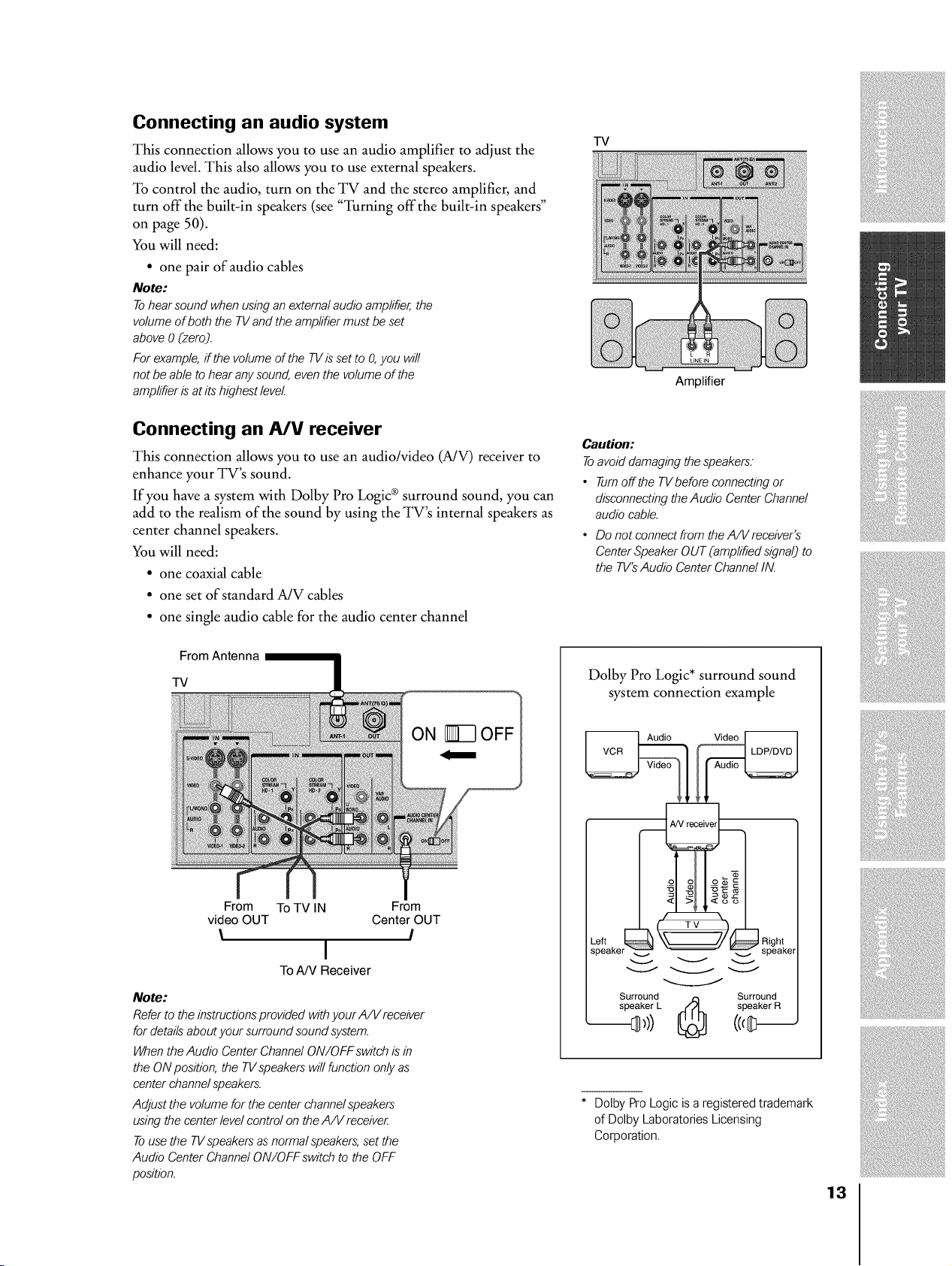
Connecting an audio system
This connection allows you to use an audio amplifier to adjust the
audio level. This also allows you to use external speakers.
To control the audio, turn on the TV and the stereo amplifier, and
turn off the built-in speakers (see "Turning off the built-in speakers"
on page 50).
You will need:
• one pair of audio cables
Note:
Tohear sound when using an externalaudio amplifier,the
volume of both the TVand the amplifier must be set
above 0 (zeroj.
For example,if the volume of the TVis set to O,you will
not be able to hear anysound, even the volume of the
amplifier is at its highest level
Connecting an PJV receiver
This connection allows you to use an audio/video (A/V) receiver to
enhance your TV's sound.
If you have a system with Dolby Pro Logic ® surround sound, you can
add to the realism of the sound by using the TV's internal speakers as
center channel speakers.
You will need:
• one coaxial cable
• one set of standard A/V cables
• one single audio cable for the audio center channel
From Antenna
TV
From To TV IN From
video OUT Center OUT
\ I
I
To A/V Receiver
Note:
Refer to the instructionsprovided with your A/V receiver
for detailsabout your surround sound system.
When the Audio Center Channel ON/OFF switch is in
the ON position, the TVspeakerswill function only as
center channelspeakers.
Adjust the volume for the center channel speakers
using the center level control on theA/V receive_
Touse the TVspeakersas normal speakers,set the
Audio Center Channel ON/OFF switch to the OFF
position.
TV
Amplifier
Caution:
Toavoid damaging the speakers.
• Tumoffthe TVbefore connecting or
disconnecting the Audio Center Channel
audio cable.
• Do not connect from the A/Vreceiver's
Center Speaker OUT (amplified signal) to
the TV'sAudio Center Channel IN.
Dolby Pro Logic* surround sound
system connection example
Surround ,-, Surround
speaker L _ speaker R
* Dolby ProLogic is a registered trademark
of Dolby Laboratories Licensing
Corporation.
13
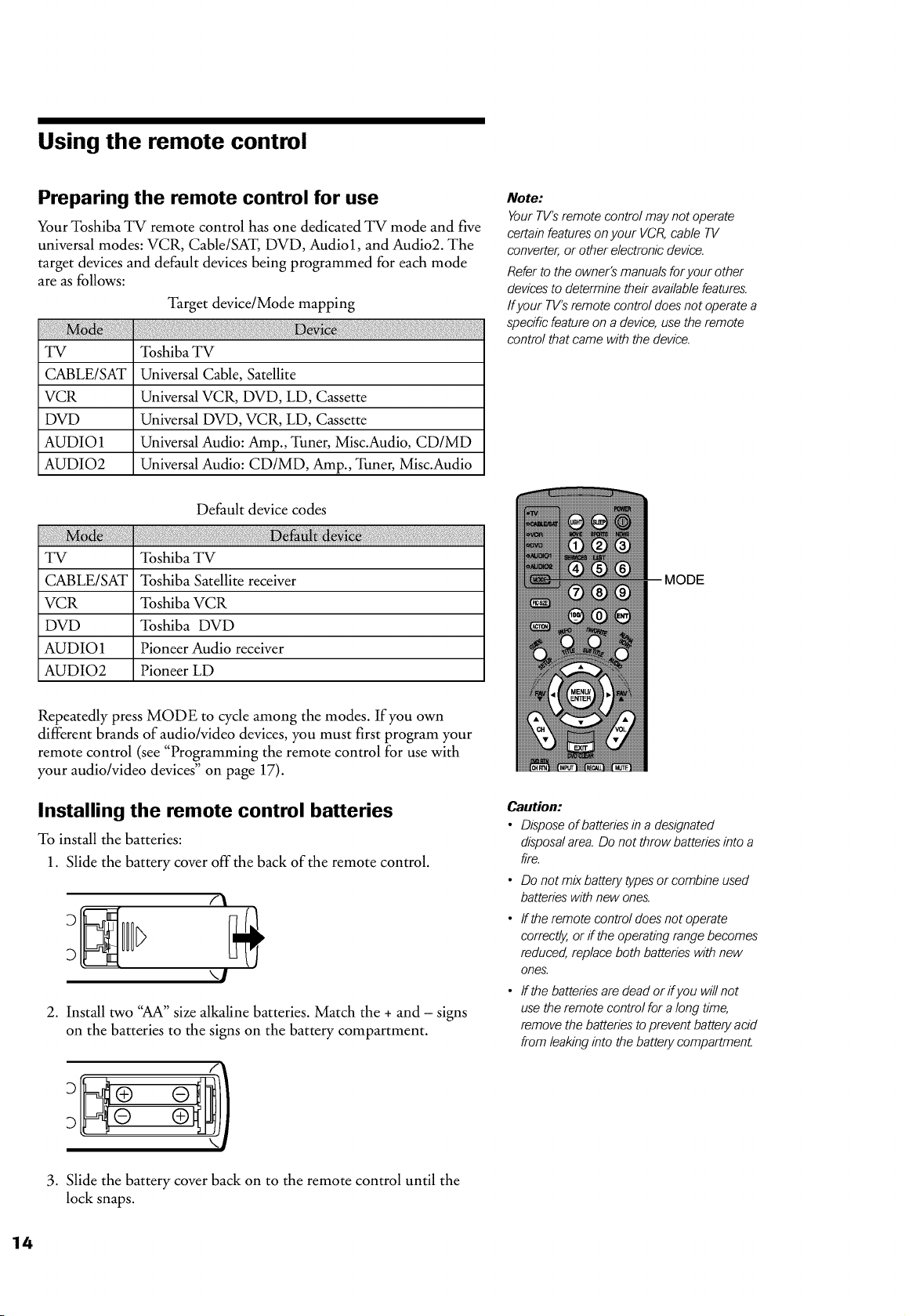
Using the remote control
Preparing the remote control for use
Your Toshiba TV remote control has one dedicated TV mode and five
universal modes: VCR, Cable/SAT, DVD, Audio1, and Audio2. The
target devices and default devices being programmed for each mode
are as follows:
Target device/Mode mapping
TV Toshiba TV
CABLE/SAT Universal Cable, Satellite
VCR Universal VCR, DVD, LD, Cassette
DVD Universal DVD, VCR, LD, Cassette
AUDIO 1 Universal Audio: Amp., Tuner, Misc.Audio, CD/MD
AUDIO2 Universal Audio: CD/MD, Amp., Tuner, Misc.Audio
Default device codes
a i faul
TV Toshiba TV
CABLE/SAT Toshiba Satellite receiver
VCR Toshiba VCR
DVD Toshiba DVD
AUDIO1 Pioneer Audio receiver
AUDIO2 Pioneer LD
Note:
Your TV'Sremote control may not operate
certain featureson your VCR,cable TV
converter, or other electronic device.
Refer to the owner's manuals foryour other
devicesto determine their availablefeatures.
ff your TV'sremote control does not operate a
specific feature on a device,use the remote
control that came with the device.
Repeatedly press MODE to cycle among the modes. If you own
different brands of audio/video devices, you must first program your
remote control (see "Programming the remote control for use with
your audio/video devices" on page 17).
Installing the remote control batteries
To install the batteries:
1. Slide the battery cover off the back of the remote control.
r\
\1
2. Install two "AA" size alkaline batteries. Match the + and - signs
on the batteries to the signs on the battery compartment.
3. Slide the battery cover back on to the remote control until the
lock snaps.
MODE
Caution:
• Dispose of batteriesin a designated
disposalarea.Do not throw batteries into a
fire.
• Do not mix battery types or combine used
batteries with new ones.
• ffthe remote control doesnot operate
correctly,or if the operating range becomes
reduced,replace both batteries with new
ones.
• ffthe batteries are dead orifyou willnot
use the remote control for a long time,
remove the batteries to prevent battery acid
from leaking into the battery compartment
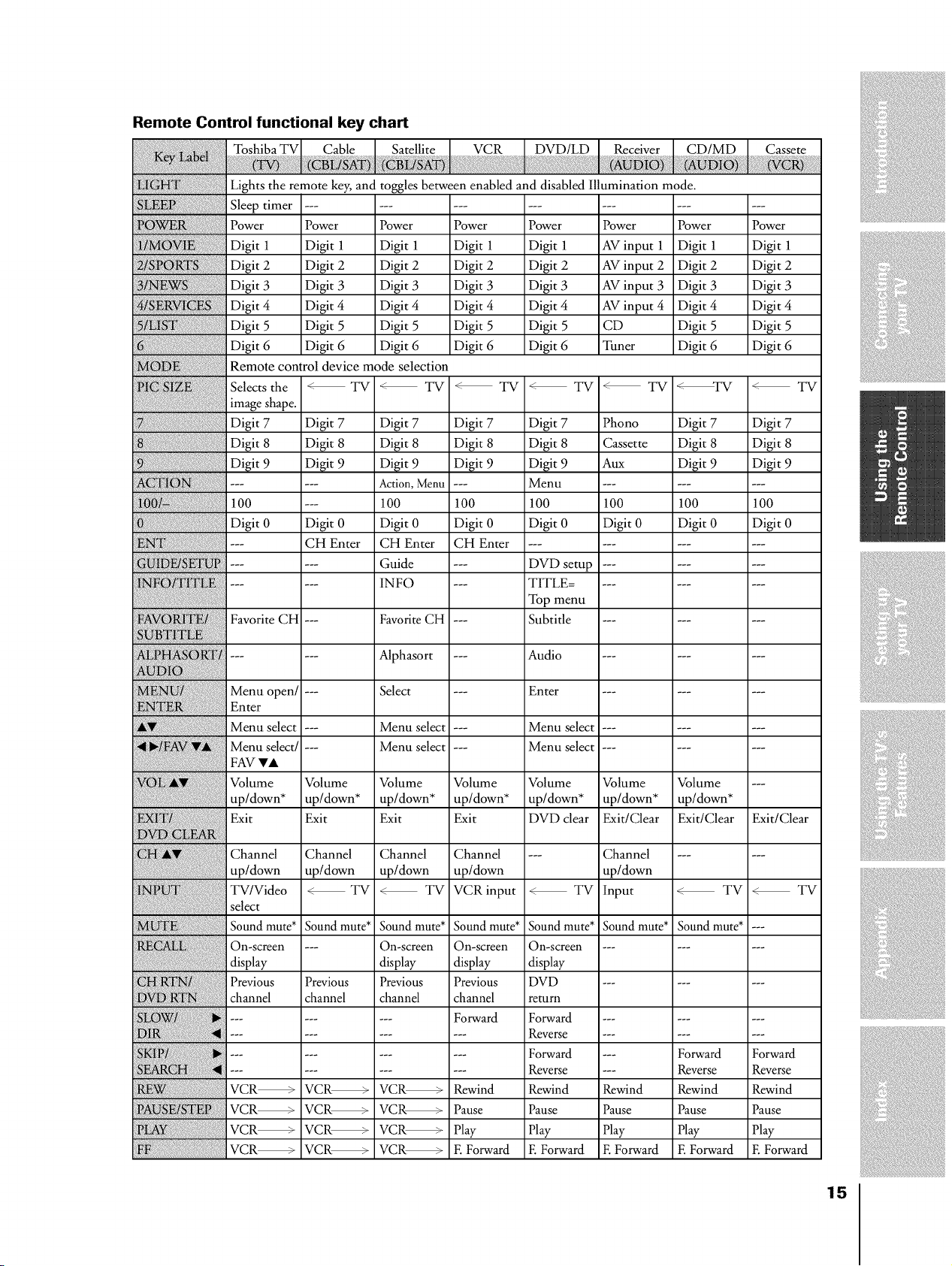
Remote Control functional key chart
Toshiba TV Cable DVD/LD Receiver CD/MD Cassete
Lights the remote key, and toggles between enabled and disabled Illumination mode.
Sleep timer .....................
Power Power Power Power Power Power Power Power
Digit 1 Digit 1 Digit 1 Digit 1 Digit 1 AV input 1 Digit 1 Digit 1
Digit 2 Digit 2 Digit 2 Digit 2 Digit 2 AV input 2 Digit 2 Digit 2
Digit 3 Digit 3 Digit 3 Digit 3 Digit 3 AV input 3 Digit 3 Digit 3
Digit 4 Digit 4 Digit 4 Digit 4 Digit 4 AV input 4 Digit 4 Digit 4
Digit 5 Digit 5 Digit 5 Digit 5 Digit 5 CD Digit 5 Digit 5
Digit 6 Digit 6 Digit 6 Digit 6 Digit 6 Tuner Digit 6 Digit 6
Remote control device mode selection
Selects the _TV _ TV _ TV _ TV _ TV _TV _ TV
image shape.
Digit 7 Digit 7 Digit 7 Digit 7 Digit 7 Phono Digit 7 Digit 7
Digit 8 Digit 8 Digit 8 Digit 8 Digit 8 Cassette Digit 8 Digit 8
Digit 9 Digit 9 Digit 9 Digit 9 Digit 9 Aux Digit 9 Digit 9
...... Action, Menu --- Menu .........
100 --- 100 100 100 100 100 100
Digit 0 Digit 0 Digit 0 Digit 0 Digit 0 Digit 0 Digit 0 Digit 0
--- CH Enter CH Enter CH Enter ............
...... Guide --- DVD setup .........
iN ...... INFO --- TITLE ..........
{ { { { Top menu
Favorite CH --- Favorite CH --- Subtitle .........
...... Alphasort --- Audio .........
[
Menu open/ --- Select --- Enter .........
Enter
Menu select --- Menu select --- Menu select .........
Menu select/ --- Menu select --- Menu select .........
FAV Ira
Volume Volume Volume Volume Volume Volume Volume ---
up/down* up/down* up/down* up/down* up/down* up/down* up/down*
Exit Exit Exit Exit DVD clear Exit/Clear Exit/Clear Exit/Clear
Channel Channel Channel Channel --- Channel ......
up/down up/down up/down up/down up/down
TV/Video _ TV _ TV VCRinput _ TV Input _ TV _ TV
select
Sound mute* Sound mute* Sound mute* Sound mute* Sound mute* Sound mute* Sound mute* ---
On-screen --- On-screen On-screen On-screen .........
display display display display
Previous Previous Previous Previous DVD .........
channel channel channel channel return
...... Forward Forward .........
......... Reverse .........
......... Forward --- Forward Forward
......... Reverse --- Reverse Reverse
VCR_ VCR_ VCR_ Rewind Rewind Rewind Rewind Rewind
VCR_ VCR_ VCR_ Pause Pause Pause Pause Pause
VCR_ VCR_ VCR_ Play Play Play Play Play
VCR_ VCR_ VCR_ E Forward E Forward E Forward E Forward E Forward
15
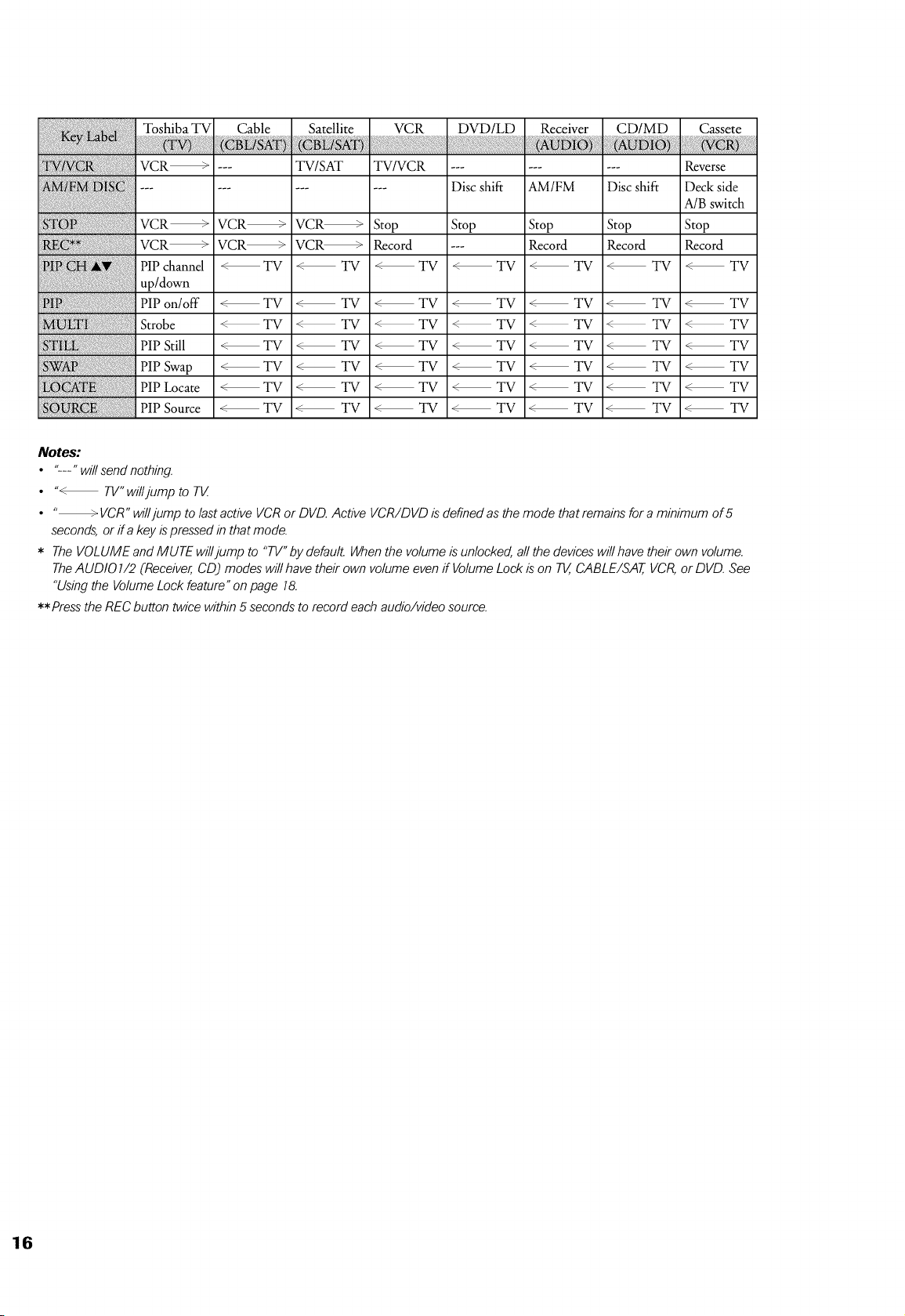
VCR_ --- TWSAT TWVCR ......... Reverse
............ Disc shift AM/FM Disc shift Deck side
A/B switch
VCR_ VCR_ VCR_ Stop Stop Stop Stop Stop
VCR_ VCR_ VCR_ Record --- Record Record Record
PIP channel _TV _TV _TV _TV _TV _TV _TV
up/down
PIP on/off _TV _TV _TV _TV _TV _ TV _TV
Strobe _TV _TV _TV _TV _TV _ TV _TV
PIP Still _TV _TV _TV _TV _TV _ TV _TV
PIP Swap < TV _TV _TV _TV _TV _ TV _TV
PIP Locate _TV _TV _TV _TV _TV _ TV _TV
PIP Source _TV _TV _TV _TV _TV _ TV _TV
Notes:
• "---" will send nothing.
• "_ TV"willjump to TV
• _ VCR" will jump to last active VCR or DVD. Active VCR/DVD is defined as the mode that remains for a minimum of 5
seconds, or if a key is pressed in that mode.
* The VOLUME and MUTE willjump to "TV" by default. When the volume is unlocked, all the devices will have their own volume.
The AUDIO1/2 (Receiver, CD) modes will have their own volume even if Volume Lock is on T_, CABLE/SAT, VCR, or DVD. See
"Using the Volume Lock feature" on page 18.
** Press the REC button twice within 5 seconds to record each audio/video source.
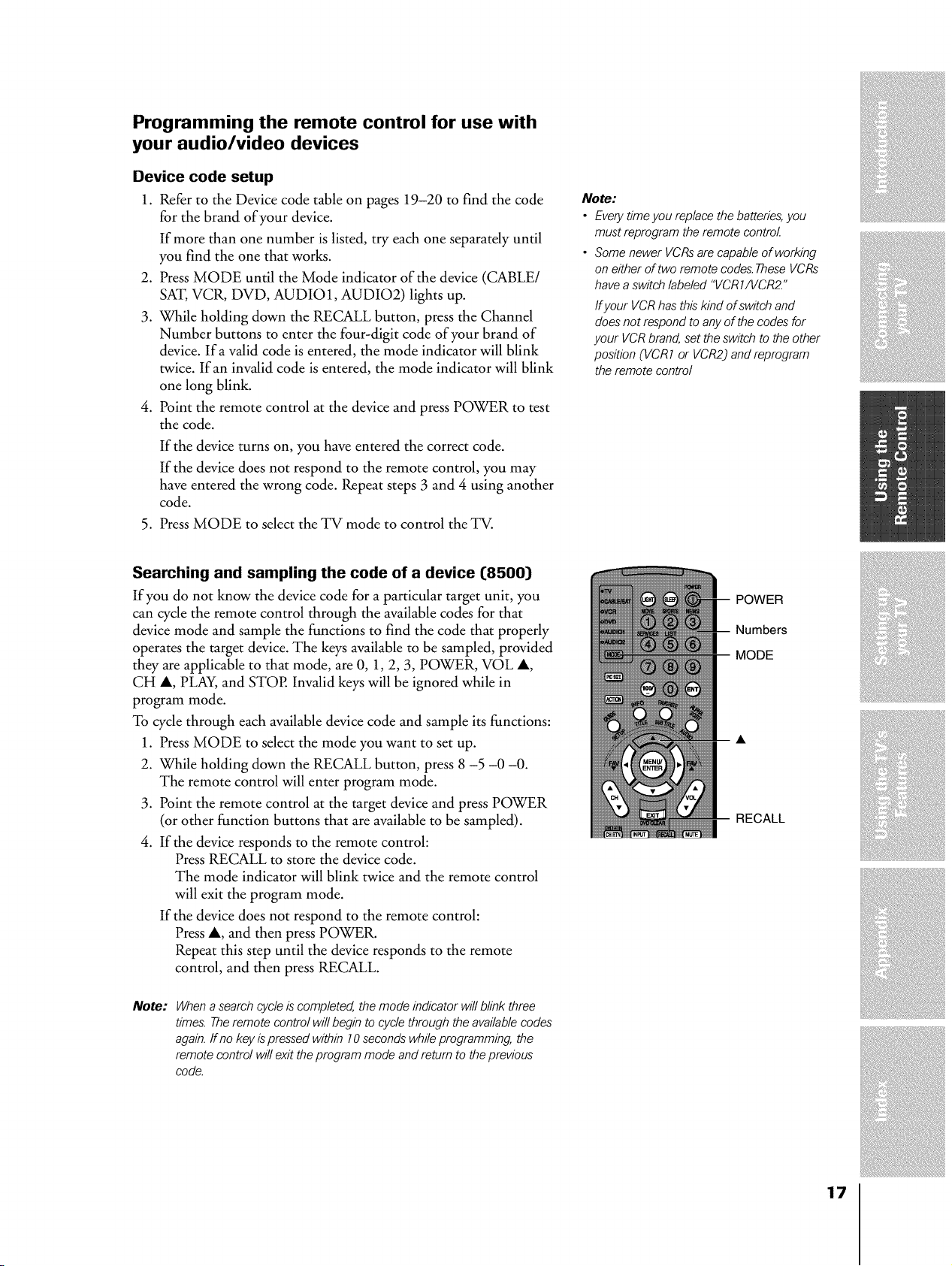
Programming the remote control for use with
your audio/video devices
Device code setup
1. Refer to the Device code table on pages 19-20 to find the code
for the brand of your device.
If more than one number is listed, try each one separately until
you find the one that works.
2. Press MODE until the Mode indicator of the device (CABLE/
SAT, VCR, DVD, AUDIO1, AUDIO2) lights up.
3. While holding down the RECALL button, press the Channel
Number buttons to enter the four-digit code of your brand of
device. Ifa valid code is entered, the mode indicator will blink
twice. If an invalid code is entered, the mode indicator will blink
one long blink.
4. Point the remote control at the device and press POWER to test
the code.
If the device turns on, you have entered the correct code.
If the device does not respond to the remote control, you may
have entered the wrong code. Repeat steps 3 and 4 using another
code.
5. Press MODE to select the TV mode to control the TV.
Note:
• Everytime you replace the batteries,you
must reprogram the remote control
• Some newer VCRsare capable of working
on either of two remote codes.TheseVCRs
havea switch labeled "VCR1/VCR2."
ffyour VCR hasthis kind of switch and
doesnot respond to any of the codes for
your VCRbrand, set the switch to the other
position (VCR1 or VCR2) and reprogram
the remote control
Searching and sampling the code of a device (8500}
If you do not know the device code for a particular target unit, you
can cycle the remote control through the available codes for that
device mode and sample the functions to find the code that properly
operates the target device. The keys available to be sampled, provided
they are applicable to that mode, are 0, 1, 2, 3, POWER, VOL A,
CH A, PLAY, and STOP. Invalid keys will be ignored while in
program mode.
To cycle through each available device code and sample its functions:
1. Press MODE to select the mode you want to set up.
2. While holding down the RECALL button, press 8 -5 -0 -0.
The remote control will enter program mode.
3. Point the remote control at the target device and press POWER
(or other function buttons that are available to be sampled).
4. If the device responds to the remote control:
Press RECALL to store the device code.
The mode indicator will blink twice and the remote control
will exit the program mode.
If the device does not respond to the remote control:
Press A, and then press POWER.
Repeat this step until the device responds to the remote
control, and then press RECALL.
Note:
When a search cycleis completed, the mode indicator will blink three
times. Theremote control will begin to cyclethrough the availablecodes
again, ff no key is pressed within 10 seconds while programming the
remote control will exit the program mode and return to theprevious
code.
POWER
Numbers
MODE
RECALL
17
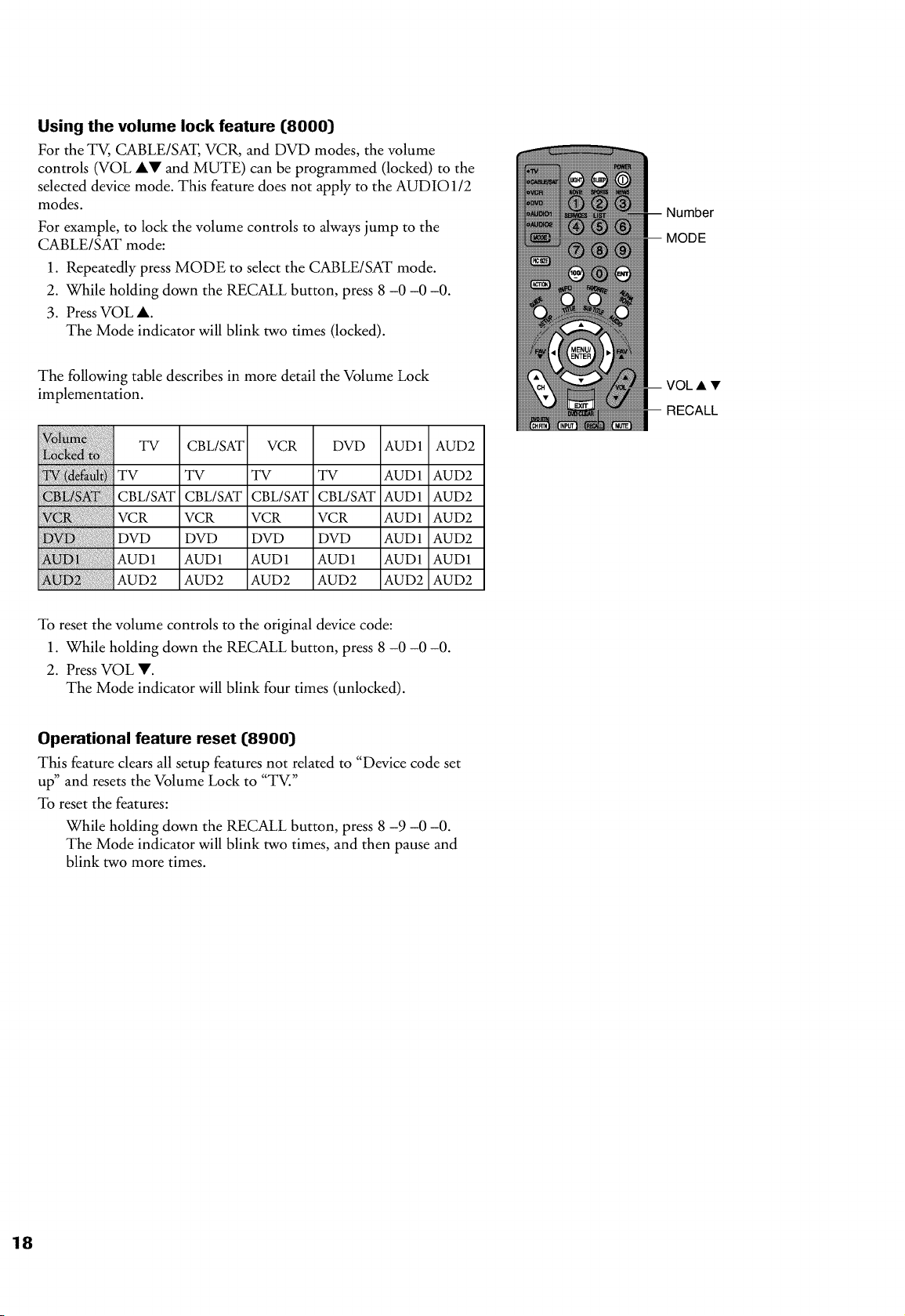
Using the volume lock feature (8000)
For the TV, CABLE/SAT, VCR, and DVD modes, the volume
controls (VOL A! and MUTE) can be programmed (locked) to the
selected device mode. This feature does not apply to the AUDIO 1/2
modes.
For example, to lock the volume controls to always jump to the
CABLE/SAT mode:
1. Repeatedly press MODE to select the CABLE/SAT mode.
2. While holding down the RECALL button, press 8 -0 -0 -0.
3. Press VOL A.
The Mode indicator will blink two times (locked).
The following table describes in more detail the Volume Lock
implementation.
TV
TV
CBL/SAT
VCR
DVD
AUD 1
AUD2
CBL/SAT VCR DVD AUD1 AUD2
TV TV TV AUD1 AUD2
CBL/SAT CBL/SAT CBL/SAT AUD1 AUD2
VCR VCR VCR AUD1 AUD2
DVD DVD DVD AUD1 AUD2
AUD1 AUD1 AUD1 AUD1 AUD1
AUD2 AUD2 AUD2 AUD2 AUD2
Number
MODE
VOL • •
RECALL
To reset the volume controls to the original device code:
1. While holding down the RECALL button, press 8 -0 -0 -0.
2. Press VOL !.
The Mode indicator will blink four times (unlocked).
Operational feature reset (8900}
This feature clears all setup features not related to "Device code set
up" and resets the Volume Lock to "TV."
To reset the features:
While holding down the RECALL button, press 8 -9 -0 -0.
The Mode indicator will blink two times, and then pause and
blink two more times.
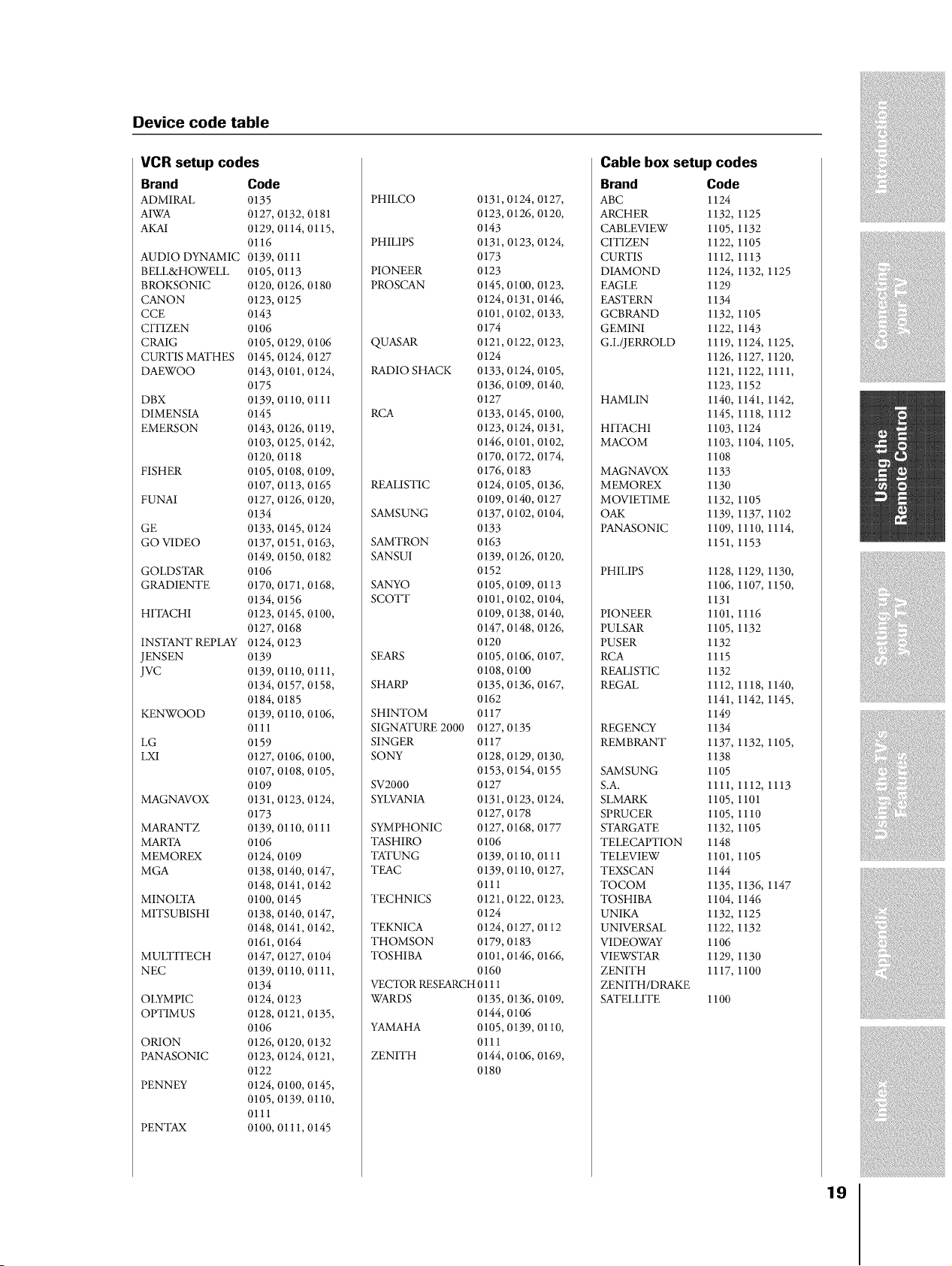
Device code table
VCR setup codes
Brand
ADMIRAL
AIWA
AKAI
AUDIO DYNAMIC
BELL&HOWELL
BROKSONIC
CANON
CCE
CITIZEN
CRAIG
CURTIS MATHES
DAEWOO
DBX
DIMENSIA
EMERSON
FISHER
FUNAI
GE
GO VIDEO
GOLDSTAR
GRADIENTE
HITACHI
INSTANT REPLAY
JENSEN
jvc
KENWOOD
LG
LXI
MAGNAVOX
MARANTZ
MARTA
MEMOREX
MGA
MINOLTA
MITSUBISHI
MULTITECH
NEC
OLYMPIC
OPTIMUS
ORION
PANASONIC
PENNEY
PENTAX
Code
0135
0127,0132,0181
0129,0114,0115,
0116
0139,0111
0105,0113
0120,0126,0180
0123,0125
0143
0106
0105,0129,0106
0145,0124,0127
0143,0101,0124,
0175
0139,0110,0111
0145
0143,0126,0119,
0103,0125,0142,
0120,0118
0105,0108,0109,
0107,0113,0165
0127,0126,0120,
0134
0133,0145,0124
0137,0151,0163,
0149,0150,0182
0106
0170,0171,0168,
0134,0156
0123,0145,0100,
0127,0168
0124,0123
0139
0139,0110,0111,
0134,0157,0158,
0184,0185
0139,0110,0106,
0111
0159
0127,0106,0100,
0107,0108,0105,
0109
0131,0123,0124,
0173
0139,0110,0111
0106
0124,0109
0138,0140,0147,
0148,0141,0142
0100,0145
0138,0140,0147,
0148,0141,0142,
0161,0164
0147,0127,0104
0139,0110,0111,
0134
0124,0123
0128,0121,0135,
0106
0126,0120,0132
0123,0124,0121,
0122
0124,0100,0145,
0105,0139,0110,
0111
0100,0111,0145
PHILCO 0131,0124,0127,
0123,0126,0120,
0143
PHILIPS 0131,0123,0124,
0173
PIONEER 0123
PROSCAN 0145,0100,0123,
0124,0131,0146,
0101,0102,0133,
0174
QUASAR 0121, 0122, 0123,
0124
RADIO SHACK 0133,0124,0105,
0136,0109,0140,
0127
RCA 0133,0145,0100,
0123,0124,0131,
0146,0101,0102,
0170,0172,0174,
0176,0183
REALISTIC 0124,0105,0136,
0109,0140,0127
SAMSUNG 0137, 0102, 0104,
0133
SAMTRON 0163
SANSUI 0139,0126,0120,
0152
SANYO 0105,0109,0113
SCOTT 0101,0102,0104,
0109,0138,0140,
0147,0148,0126,
0120
SEARS 0105,0106,0107,
0108,0100
SHARP 0135,0136,0167,
0162
SHINTOM 0117
SIGNATURE 2000 0127, 0135
SINGER 0117
SONY 0128, 0129, 0130,
0153,0154,0155
SV2000 0127
SYLVANIA 0131,0123,0124,
0127,0178
SYMPHONIC 0127,0168,0177
TASHIRO 0106
TATUNG 0139, 0110, 0111
TEAC 0139,0110,0127,
0111
TECHNICS 0121,0122, 0123,
0124
TEKNICA 0124,0127,0112
THOMSON 0179,0183
TOSHIBA 0101,0146,0166,
0160
VECTOR RESEARCH0111
WARDS 0135,0136,0109,
0144,0106
YAMAHA 0105, 0139, 0110,
0111
ZENITH 0144,0106,0169,
0180
Cable box setup codes
Brand Code
ABC 1124
ARCHER 1132, 1125
CABLEVIEW 1105, 1132
CITIZEN 1122, 1105
CURTIS 1112, 1113
DIAMOND 1124, 1132, 1125
EAGLE 1129
EASTERN 1134
GCBRAND 1132, 1105
GEMINI 1122, 1143
G.I./JERROLD 1119, 1124, 1125,
1126, 1127, 1120,
1121, 1122, 1111,
1123, 1152
HAMLIN 1140, 1141, 1142,
1145, 1118, 1112
HITACHI 1103, 1124
MACOM 1103, 1104, 1105,
1108
MAGNAVOX 1133
MEMOREX 1130
MOVIETIME 1132, 1105
OAK 1139, 1137, 1102
PANASONIC 1109, 1110, 1114,
1151, 1153
PHILIPS 1128, 1129, 1130,
1106, 1107, 1150,
1131
PIONEER 1101, 1116
PULSAR 1105, 1132
PUSER 1132
RCA 1115
REALISTIC 1132
REGAL 1112, 1118, 1140,
1141, 1142, 1145,
1149
REGENCY 1134
REMBRANT 1137, 1132, 1105,
1138
SAMSUNG 1105
S.A. 1111, 1112, 1113
SLMARK 1105, 1101
SPRUCER 1105, 1110
STARGATE 1132, 1105
TELECAPTION 1148
TELEVIEW 1101, 1105
TEXSCAN 1144
TOCOM 1135, 1136, 1147
TOSHIBA 1104, 1146
UNIKA 1132, 1125
UNIVERSAL 1122, 1132
VIDEOWAY 1106
VIEWSTAR 1129, 1130
ZENITH 1117, 1100
ZENITH/DRAKE
SATELLITE 1100
19
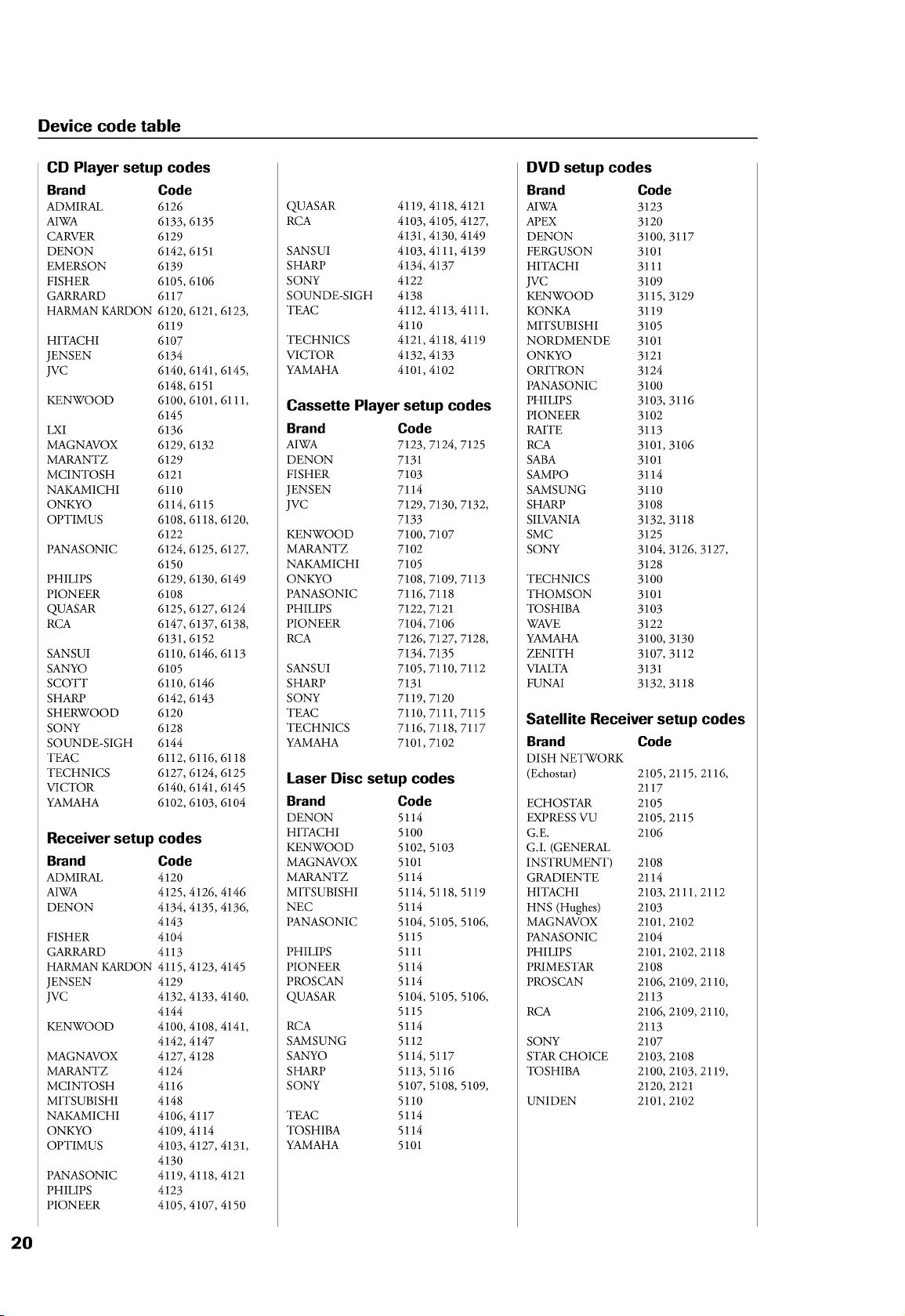
Device code table
CD Player setup codes
Brand Code
ADMIRAL 6126
AIWA 6133, 6135
CARVER 6129
DENON 6142, 6151
EMERSON 6139
FISHER 6105, 6106
GARRARD 6117
HARMAN KARDON 6120, 6121, 6123,
6119
HITACHI 6107
JENSEN 6134
JVC 6140, 6141, 6145,
6148, 6151
KENWOOD 6100, 6101, 6111,
6145
LXI 6136
MAGNAVOX 6129, 6132
MARANTZ 6129
MCINTOSH 6121
NAKAMICHI 6110
ONKYO 6114, 6115
OPTIMUS 6108, 6118, 6120,
6122
PANASONIC 6124, 6125, 6127,
6150
PHILIPS 6129, 6130, 6149
PIONEER 6108
QUASAR 6125, 6127, 6124
RCA 6147, 6137, 6138,
6131, 6152
SANSUI 6110, 6146, 6113
SANYO 6105
SCOTT 6110, 6146
SHARP 6142, 6143
SHERWOOD 6120
SONY 6128
SOUNDE-SIGH 6144
TEAC 6112, 6116, 6118
TECHNICS 6127, 6124, 6125
VICTOR 6140, 6141, 6145
YAMAHA 6102, 6103, 6104
Receiver setup
Brand
ADMIRAL
AIWA
DENON
FISHER
GARRARD
HARMAN KARDON
JENSEN
JVC
KENWOOD
MAGNAVOX
MARANTZ
MCINTOSH
MITSUBISHI
NAKAMICHI
ONKYO
OPTIMUS
PANASONIC
PHILIPS
PIONEER
codes
Code
4120
4125, 4126, 4146
4134, 4135, 4136,
4143
4104
4113
4115, 4123, 4145
4129
4132, 4133, 4140,
4144
4100, 4108, 4141,
4142, 4147
4127, 4128
4124
4116
4148
4106, 4117
4109, 4114
4103, 4127, 4131,
4130
4119, 4118, 4121
4123
4105, 4107, 4150
QUASAR 4119, 4118, 4121
RCA 4103,4105,4127,
4131,4130,4149
SANSUI 4103,4111,4139
SHARP 4134,4137
SONY 4122
SOUNDE-SIGH 4138
TEAC 4112, 4113, 4111,
4110
TECHNICS 4121,4118,4119
VICTOR 4132, 4133
YAMAHA 4101,4102
Cassette Player setup codes
Brand Code
AIWA 7123, 7124, 7125
DENON 7131
FISHER 7103
JENSEN 7114
JVC 7129, 7130, 7132,
7133
KENWOOD 7100, 7107
MARANTZ 7102
NAKAMICHI 7105
ONKYO 7108, 7109, 7113
PANASONIC 7116, 7118
PHILIPS 7122, 7121
PIONEER 7104, 7106
RCA 7126, 7127, 7128,
7134, 7135
SANSUI 7105, 7110, 7112
SHARP 7131
SONY 7119, 7120
TEAC 7110, 7111, 7115
TECHNICS 7116, 7118, 7117
YAMAHA 7101, 7102
Laser Disc setup codes
Brand Code
DENON 5114
HITACHI 5100
KENWOOD 5102, 5103
MAGNAVOX 5101
MARANTZ 5114
MITSUBISHI 5114, 5118, 5119
NEC 5114
PANASONIC 5104, 5105, 5106,
5115
PHILIPS 5111
PIONEER 5114
PROSCAN 5114
QUASAR 5104, 5105, 5106,
5115
RCA 5114
SAMSUNG 5112
SANYO 5114, 5117
SHARP 5113, 5116
SONY 5107, 5108, 5109,
5110
TEAC 5114
TOSHIBA 5114
YAMAHA 5101
DVD setup codes
Brand Code
AIWA 3123
APEX 3120
DENON 3100, 3117
FERGUSON 3101
HITACHI 3111
JVC 3109
KENWOOD 3115, 3129
KONKA 3119
MITSUBISHI 3105
NORDMENDE 3101
ONKYO 3121
ORITRON 3124
PANASONIC 3100
PHILIPS 3103, 3116
PIONEER 3102
RAITE 3113
RCA 3101, 3106
SABA 3101
SAMPO 3114
SAMSUNG 3110
SHARP 3108
SILVANIA 3132, 3118
SMC 3125
SONY 3104, 3126, 3127,
3128
TECHNICS 3100
THOMSON 3101
TOSHIBA 3103
WAVE 3122
YAMAHA 3100, 3130
ZENITH 3107, 3112
VIALTA 3131
FUNAI 3132, 3118
Satellite Receiver setup codes
Brand
DISH NETWORK
(Echostar)
ECHOSTAR
EXPRESS VU
G.E.
G.I. (GENERAL
INSTRUMENT)
GRADIENTE
HITACHI
HNS (Hughes)
MAGNAVOX
PANASONIC
PHILIPS
PRIMESTAR
PROSCAN
RCA
SONY
STAR CHOICE
TOSHIBA
UEqIDEN
Code
2105,2115,2116,
2117
2105
2105,2115
2106
2108
2114
2103,2111,2112
2103
2101,2102
2104
2101,2102,2118
2108
2106,2109,2110,
2113
2106,2109,2110,
2113
2107
2103,2108
2100,2103,2119,
2120,2121
2101,2102
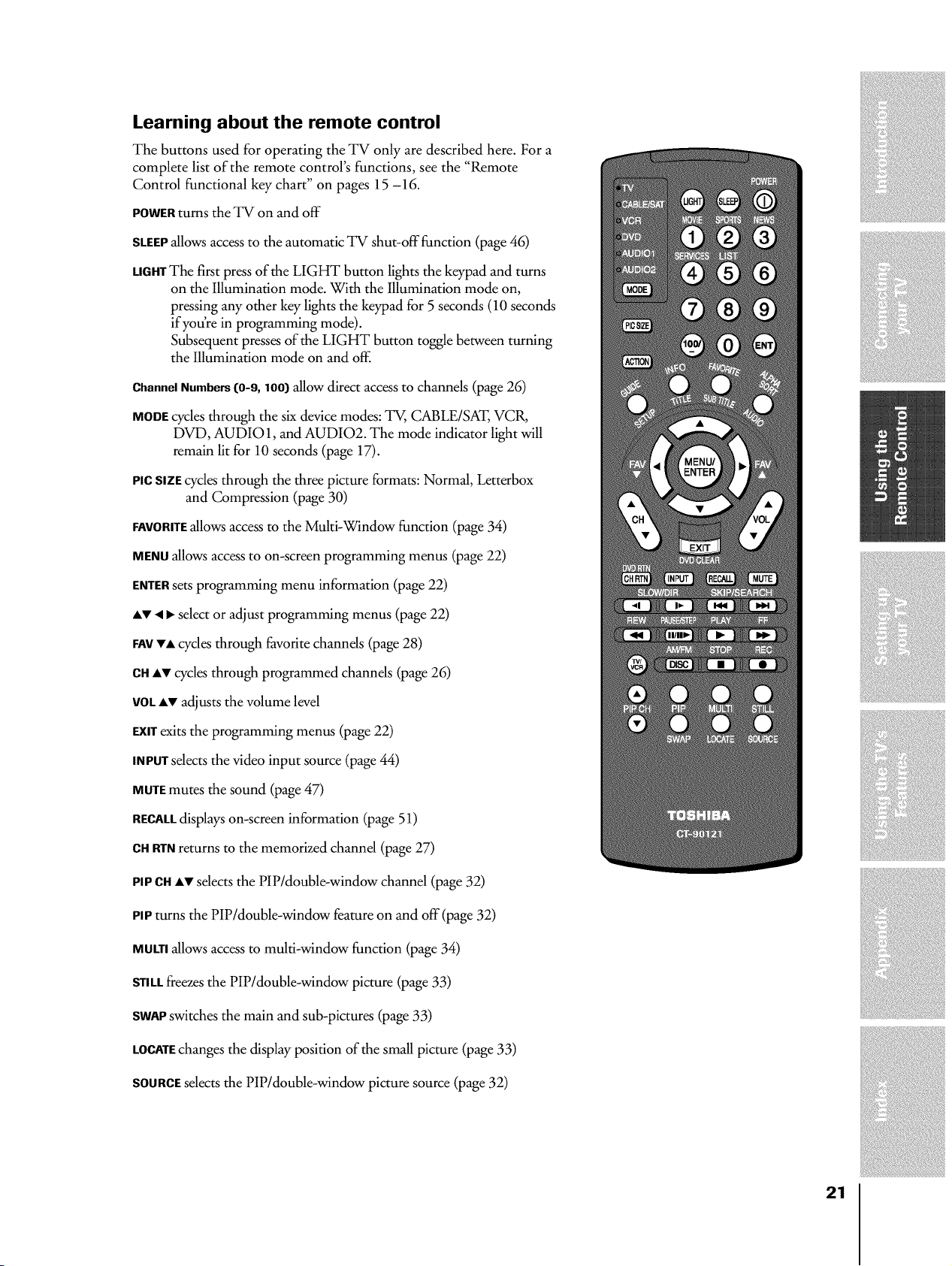
Learning about the remote control
The buttons used for operating the TV only are described here. For a
complete list of the remote control's functions, see the "Remote
Control functional key chart" on pages 15 -16.
POWERturns the TV on and off
SLEEPallows access to the automatic TV shut-off function (page 46)
LIGHTThe first press of the LIGHT button lights the keypad and turns
on the Illumination mode. With the Illumination mode on,
pressing any other key lights the keypad for 5 seconds (10 seconds
if you're in programming mode).
Subsequent presses of the LIGHT button toggle between turning
the Illumination mode on and off.
ChannelNumbers([0-9,100[ allow direct access to channels (page 26)
MODEcycles through the six device modes: TV, CABLE/SAT, VCR,
DVD, AUDIO 1, and AUDIO2. The mode indicator light will
remain lit for 10 seconds (page 17).
PICSIZEcycles through the three picture formats: Normal, Letterbox
and Compression (page 30)
FAVORITEallows access to the Multi-Window function (page 34)
MENUallows access to on-screen programming menus (page 22)
ENTERsets programming menu information (page 22)
iV < _, select or adjust programming menus (page 22)
FAVVi cycles through favorite channels (page 28)
C8 iv cycles through programmed channels (page 26)
VOLiV adjusts the volume level
EXITexits the programming menus (page 22)
INPUTselects the video input source (page 44)
MUTEmutes the sound (page 47)
RECALLdisplays on-screen information (page 51)
C8 RTNreturns to the memorized channel (page 27)
PIPc8 iv selects the PiP/double-window channel (page 32)
PIPturns the PiP/double-window feature on and off (page 32)
MULTIallows access to multi-window function (page 34)
STILLfreezes the PiP/double-window picture (page 33)
SWAPswitches the main and sub-pictures (page 33)
LOCATEchanges the display position of the small picture (page 33)
SOURCEselects the PiP/double-window picture source (page 32)
21
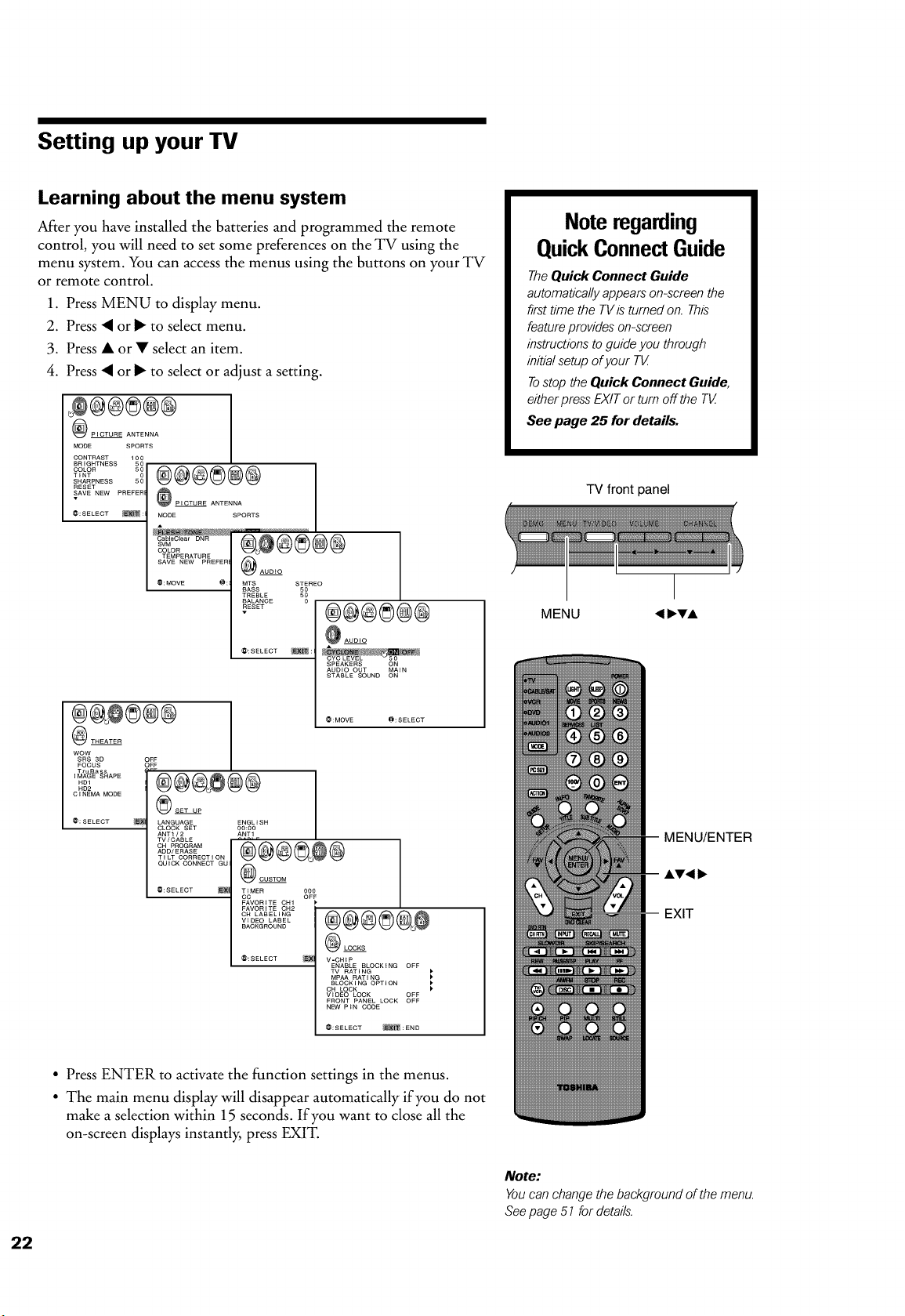
Setting up your TV
Learning about the menu system
After you have installed the batteries and programmed the remote
control, you will need to set some preferences on the TV using the
menu system. You can access the menus using the buttons on your TV
or remote control.
1. Press MENU to display menu.
2. Press • or I_ to select menu.
3. Press • or • select an item.
4. Press • or I_ to select or adjust a setting.
PICTURE ANTENNA
MODE SPORTS
CONTRAST 100
BRIGHTNESS 50
TINT...... g@@@@@@
SHARPNESS 50
RESET
SAVE NEW PREFER __PICTURE
ANTENNA
@:SELECT _: MODE SPORTS
.............COLoRS
TEMPERATURE @
SAVE NEW PREFER
AUDIO
@:MOVE @: MTS STEREO
BASS _!
TREBLE
BALANCE
RESET
@:SELECT _:
®@@®@@
THEATER
WOW
SRS 3D
FOCUS
i_k%_%_APE
ND1
ND2
CINEMA MODE
@:SELECT
@@@@@@
AUDIO
AUDIO OUT MAIN
STABLE SOUND ON
@:MOVE @:SELECT
OFF
OFF
LANGUAGE ENGLISH
CLOCK SET 00:00
ANT1/2 ANT1
TV/CABLE
.........
ADD/ERASE
TILT CORRECTION
QUICK CONNECT GU @CUSTOM
@:SELECT _ TIMER 000
CC OFF
FAVORITE CH1
FAVORITE OH2
CH LABELING
VIDEO LABEL
BACKGROUND
@:SELECT
LOCKS
V-CHIP
ENABLE BLOCKING OFF
TV RAT I NG )
MPAA RATING )
BLOCK I NG OPTI ON )
CH LOCK
)
VIDEO LOCK OFF
FRONT PANEL LOCK OFF
NEW P iN CODE
@:SELECT _:END
• Press ENTER to activate the function settings in the menus.
• The main menu display will disappear automatically if you do not
make a selection within 15 seconds. If you want to close all the
on-screen displays instantly, press EXIT.
Note regarding
QuickConnectGuide
The Quick Connect Guide
automatically appears on-screen the
first time the TVis turned on. This
feature provides on-screen
instructions to guide you through
initial setup of your T_
Tostop the Quick Connect Guide,
either press EXIT or turn off the T_
See page 25 for details.
TV front panel
MENU
MENU/ENTER
A'V'4 I1_
EXIT
Note:
Youcan change the background of the menu.
Seepage 5 7 for details.
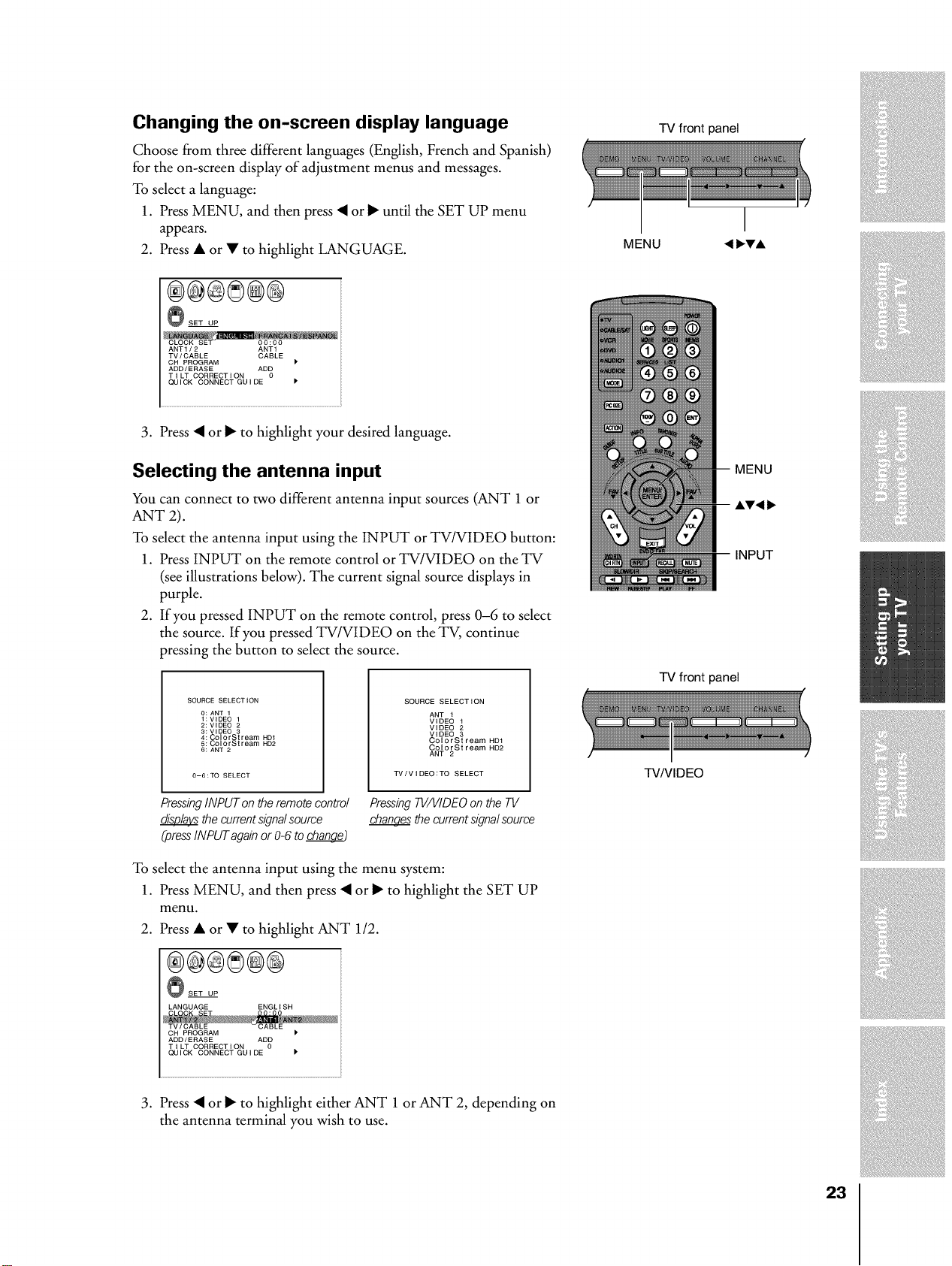
Changing the on-screen display language
Choose from three different languages (English, French and Spanish)
for the on-screen display of adjustment menus and messages.
To select a language:
1. Press MENU, and then press • or _ until the SET UP menu
appears.
2. Press • or • to highlight LANGUAGE.
®@®®®@
_SET UP
ANT1/2 ANT1
TV/CABLE CABLE
CH PROGRAM
ADD/ERASE AD_
T I LT CORRECT I ON
QUICK CONNECT GUIDE
3. Press • or I_ to highlight your desired language.
Selecting the antenna input
You can connect to two different antenna input sources (ANT 1 or
ANT 2).
To select the antenna input using the INPUT or TV/VIDEO button:
1. Press INPUT on the remote control or TV/VIDEO on the TV
(see illustrations below). The current signal source displays in
purple.
2. If you pressed INPUT on the remote control, press 0-6 to select
the source. If you pressed TV/VIDEO on the TV, continue
pressing the button to select the source.
SOURCE SELECTION
0: ANT 1
1 : VIDEO 1
2: VIDEO 2
3: VIDEO 3
4: ColorSt ream HD1
5: ColorSt ream HD2
6: ANT 2
SOURCE SELECTION
ANT 1
VIDEO 1
VIDEO 2
VIDEO 3
ColorStream HD1
ColorStream HD2
ANT 2
TV/VIDEO:TO SELECT
PressingINPUT on the remote control PressingTV/VIDEOon the TV
thecurrentsignalsource changesthecurrentsignalsource
(pressINPUTagainor 0-6 to change)
To select the antenna input using the menu system:
1. Press MENU, and then press • or I_ to highlight the SET UP
menu.
2. Press • or • to highlight ANT 112.
®®@8@@
_SET UP
LANGUAGE ENGL I SH
CH PROGRAM
ADD/ERASE AD_
TILT CORRECTION
QUICK CONNECT GUIDE
3. Press • or I_ to highlight either ANT 1 or ANT 2, depending on
the antenna terminal you wish to use.
TV front panel
MENU
MENU
INPUT
TV front panel
TV/VIDEO
23
Adding channels to the TV's memory
When you press Channel • or V, your TV will stop only on the
channels stored in the TV's channel memory.
Follow the steps below and on the next page to program all active
channels into the TV's memory.
Programming channels automatically
Your TV can automatically detect all active channels in your area and
store them in its memory. After the channels are stored automatically,
you can manually add or erase individual channels (see below).
To program channels automatically:
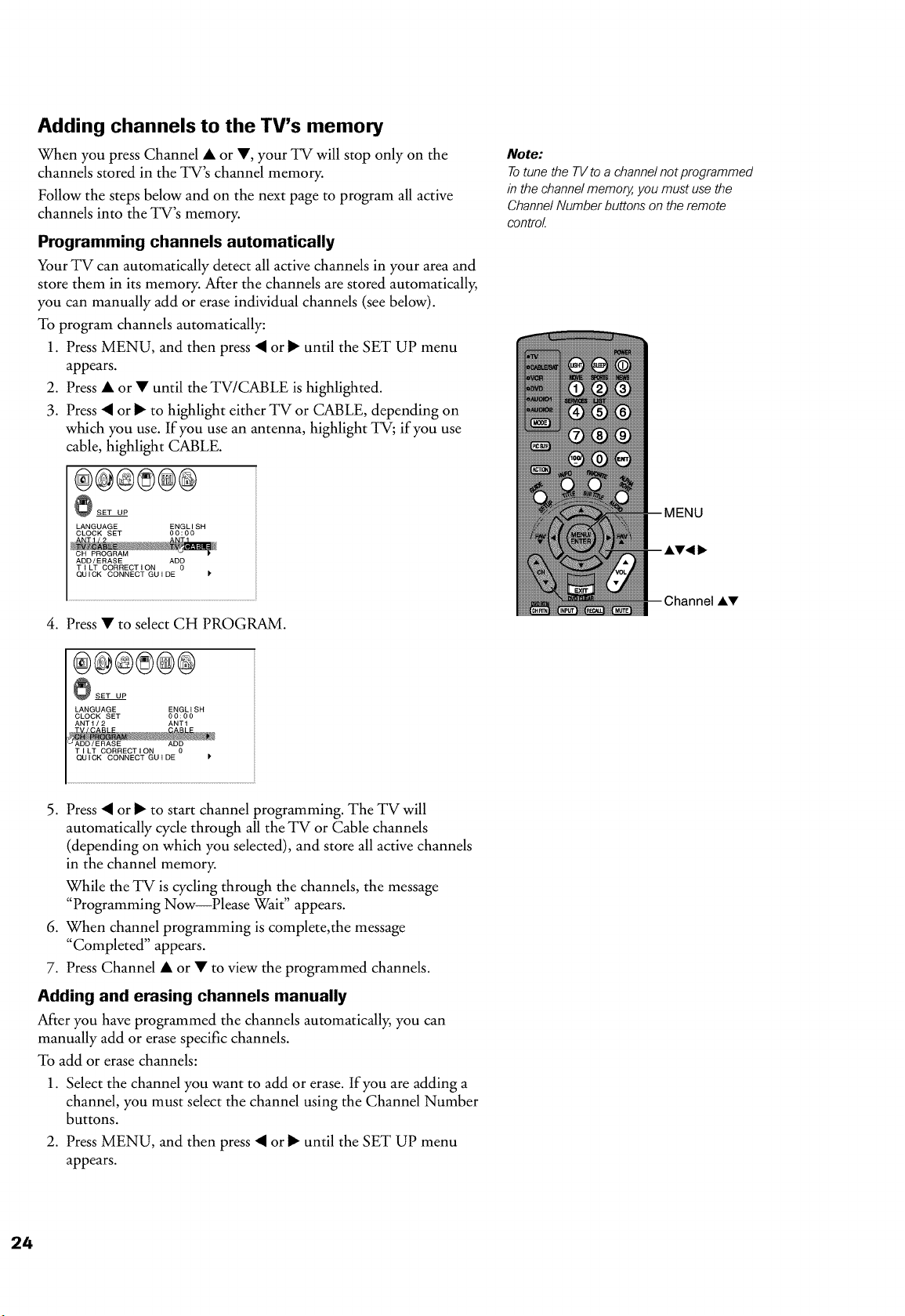
1. Press MENU, and then press • or I_ until the SET UP menu
appears.
2. Press • or • until the TV/CABLE is highlighted.
3. Press • or I_ to highlight either TV or CABLE, depending on
which you use. If you use an antenna, highlight TV; if you use
cable, highlight CABLE.
®®®8@@
_SET UP
LANGUAGE ENGL I SH
CLOCK SET 00:00
ADD/ERASE ADD
TILT CORRECTION 0
QUICK CONNECT GUIDE k
4. Press • to select CH PROGRAM.
®@®8@®
_SET UP
LANGUAGE ENGL I SH
CLOCK SET 00:00
ANT1 / 2 ANT1
T I LT CORRECT I ON 0
QUICK CONNECT GU I DE P
5. Press • or I_ to start channel programming. The TV will
automatically cycle through all the TV or Cable channels
(depending on which you selected), and store all active channels
in the channel memory.
While the TV is cycling through the channels, the message
"Programming Now--Please Wait" appears.
6. When channel programming is complete,the message
"Completed" appears.
7. Press Channel • or • to view the programmed channels.
Adding and erasing channels manually
After you have programmed the channels automatically, you can
manually add or erase specific channels.
To add or erase channels:
1. Select the channel you want to add or erase. If you are adding a
channel, you must select the channel using the Channel Number
buttons.
2. Press MENU, and then press • or I_ until the SET UP menu
appears.
Note:
Totune the TVto a channel not programmed
in the channel memory,you must use the
ChannelNumber buttons on the remote
control
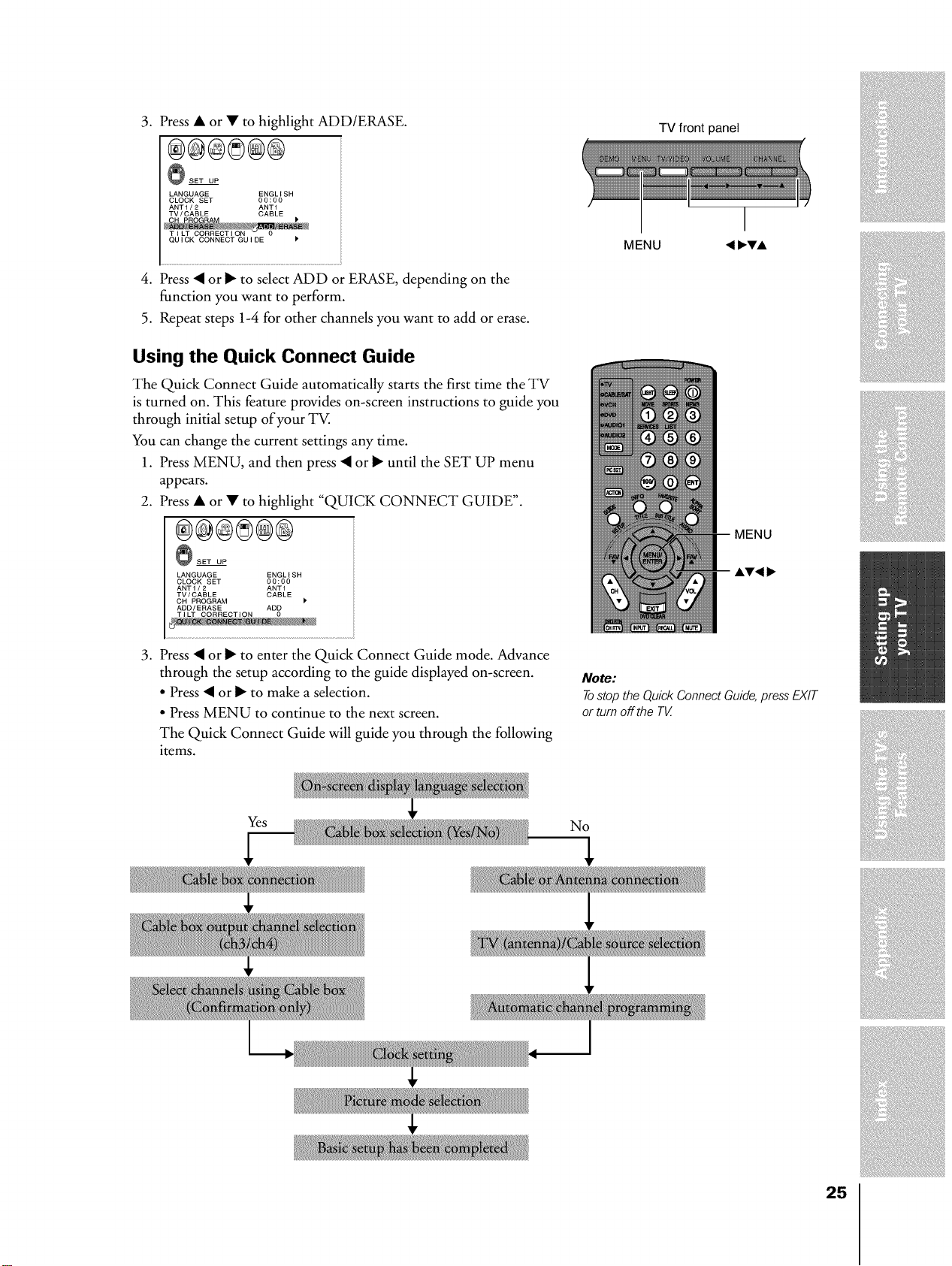
3. Press • or • to highlight ADD/ERASE.
®®®®@®
_SET UP
LANGUAGE ENGLISH
CLOCK SET 00:00
ANT1/2 ANT1
TV/CABLE CABLE
4. Press • or _ to select ADD or ERASE, depending on the
function you want to perform.
5. Repeat steps 1-4 for other channels you want to add or erase.
Using the Quick Connect Guide
The Quick Connect Guide automatically starts the first time the TV
is turned on. This feature provides on-screen instructions to guide you
through initial setup of your TV.
You can change the current settings any time.
1. Press MENU, and then press • or I_ until the SET UP menu
appears.
2. Press • or • to highlight "QUICK CONNECT GUIDE".
®®@8®®
@SET UP
LANGUAGE ENGLISH
CLOCK SET 00:00
ANT1/2 ANT1
TV/CABLE CABLE
CH PROGRAM P
ADD/ERASE AD_
TILT CORRECTION
3. Press • or I_ to enter the Quick Connect Guide mode. Advance
through the setup according to the guide displayed on-screen.
• Press • or _ to make a selection.
• Press MENU to continue to the next screen.
The Quick Connect Guide will guide you through the following
items.
TV front panel
MENU
Note:
Tostop the Quick Connect Guide,press EXIT
or turn off the T_
Yes
No
25
Adjusting the tilt correction feature
When you install the TV or change the direction of the TV, the
picture may suffer from color shading and/or tilt of the picture
because of terrestrial magnetism. If so, the following adjustment
should be made for the best possible picture.
To adjust the tilt correction:
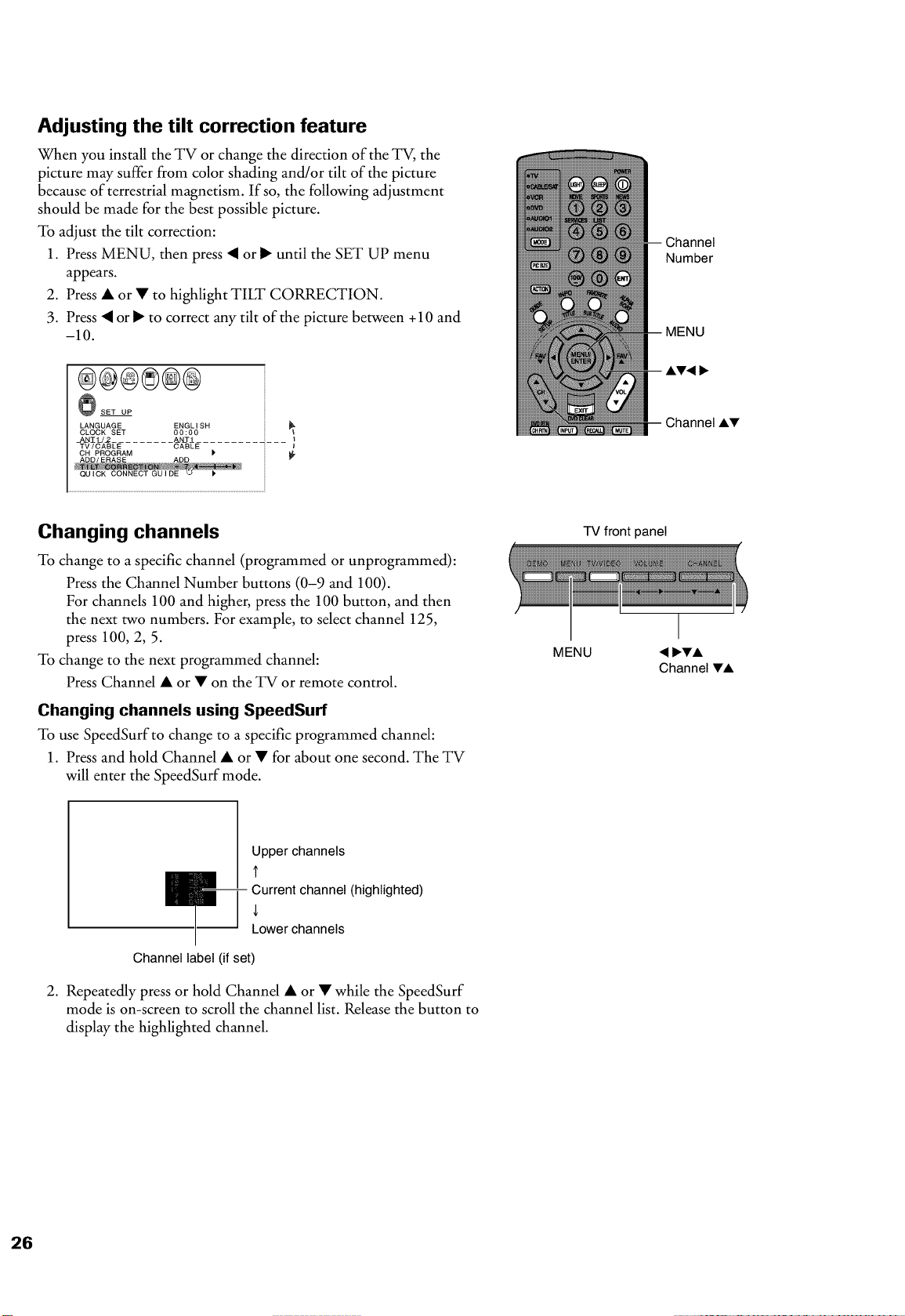
1. Press MENU, then press • or I_ until the SET UP menu
appears.
2. Press • or • to highlight TILT CORRECTION.
3. Press • or I_ to correct any tilt of the picture between + 10 and
-10.
®@@8@@
_SET UP
LANGUAGE ENGLISH
CLOCK SET 00:00
_I_2 ......... _J_TJ
TV/CABLE CABLE
€
Channel
Number
MENU
AT4 i_
Channel AT
Changing channels
To change to a specific channel (programmed or unprogrammed):
Press the Channel Number buttons (0-9 and 100).
For channels 100 and higher, press the 100 button, and then
the next two numbers. For example, to select channel 125,
press 100, 2, 5.
To change to the next programmed channel:
Press Channel • or • on the TV or remote control.
Changing channels using SpeedSurf
To use SpeedSurfto change to a specific programmed channel:
1. Press and hold Channel • or • for about one second. The TV
will enter the SpeedSurf mode.
MENU
TV front panel
Upper channels
t
Currentchannel(highlighted)
Lower channels
Channel label (if set)
2. Repeatedly press or hold Channel • or • while the SpeedSurf
mode is on-screen to scroll the channel list. Release the button to
display the highlighted channel.
Using the TV's features
Adjusting the channel settings
Switching between two channels using Channel Return
The Channel Return feature allows you to switch between two
channels without entering an actual channel number each time.
1. Select the first channel (or video mode) you want to view.
2. Select a second channel using the Channel Number buttons
(0-9, 100).
3. Press CH RTN. The previous channel will display.
Each time you press CH RTN, the TV will switch back and forth
between the last two channels that were selected.
Switching between two channels using Surf Lock TM
The SurfLock TM feature temporarily "memorizes" one channel in the
CH RTN button, so you can return to that channel quickly from any
other channel by pressing CH RTN.
To memorize a channel in the CH RTN button:
1. Select the channel you want to program into the CH RTN
button.
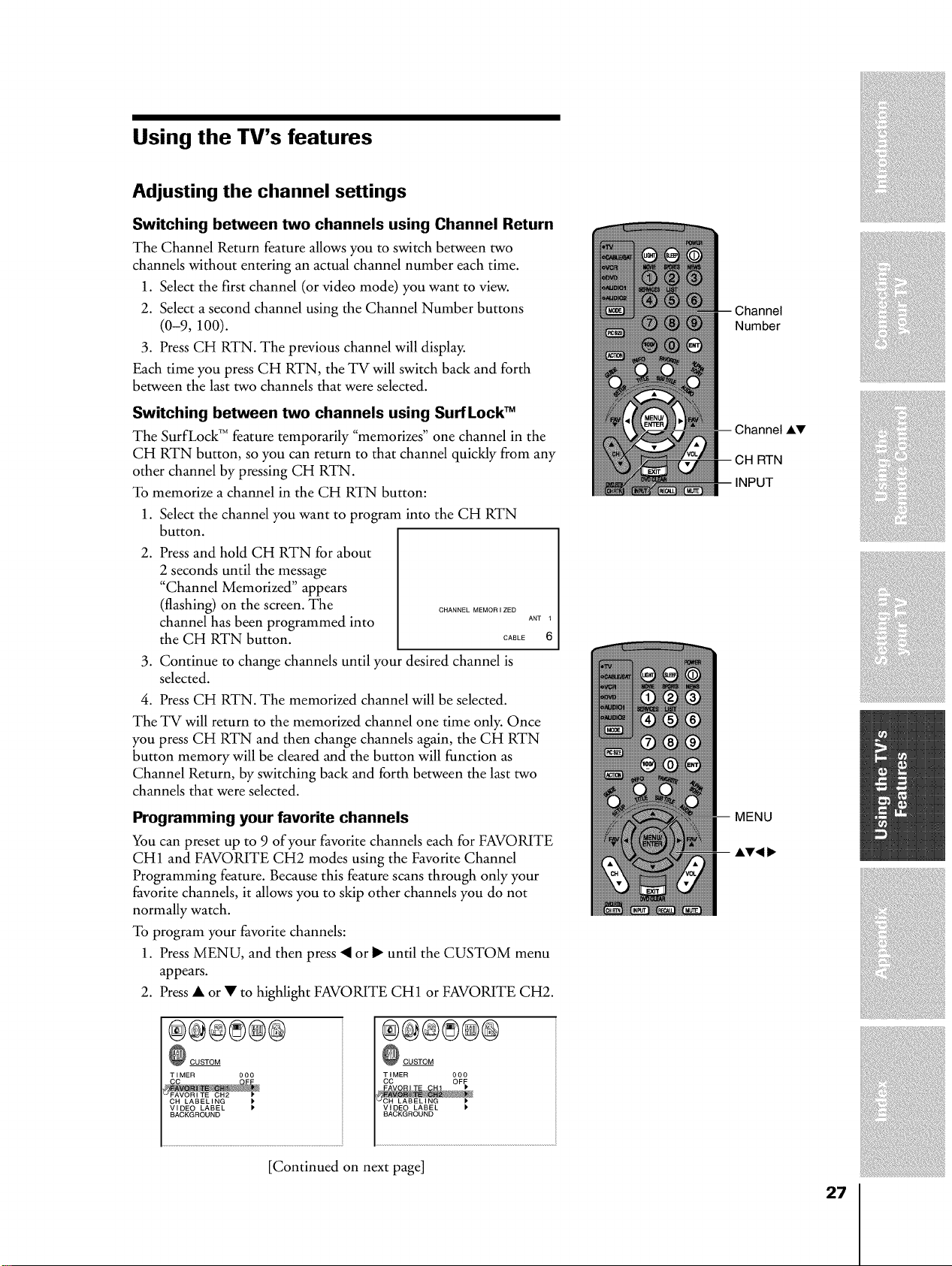
2. Press and hold CH RTN for about
2 seconds until the message
"Channel Memorized" appears
(flashing) on the screen. The
channel has been programmed into
the CH RTN button.
CHANNEL MEMORIZED
ANT
CABLE 6
3. Continue to change channels until your desired channel is
selected.
4. Press CH RTN. The memorized channel will be selected.
The TV will return to the memorized channel one time only. Once
you press CH RTN and then change channels again, the CH RTN
button memory will be cleared and the button will function as
Channel Return, by switching back and forth between the last two
channels that were selected.
Programming your favorite channels
You can preset up to 9 of your favorite channels each for FAVORITE
CH 1 and FAVORITE CH2 modes using the Favorite Channel
Programming feature. Because this feature scans through only your
favorite channels, it allows you to skip other channels you do not
normally watch.
To program your favorite channels:
1. Press MENU, and then press • or I_ until the CUSTOM menu
appears.
2. Press • or • to highlight FAVORITE CH1 or FAVORITE CH2.
®®®8@®
O CUSTOM
TIMER 000
CH LABELING
VIDEO LABEL
BACKGROUND
®®®8@®
_ CUSTOM
TIMER 000
CC
VIDEO LABEL
BACKGROUND
[Continued on next page]
Number
Channel AV
RTN
INPUT
MENU
27
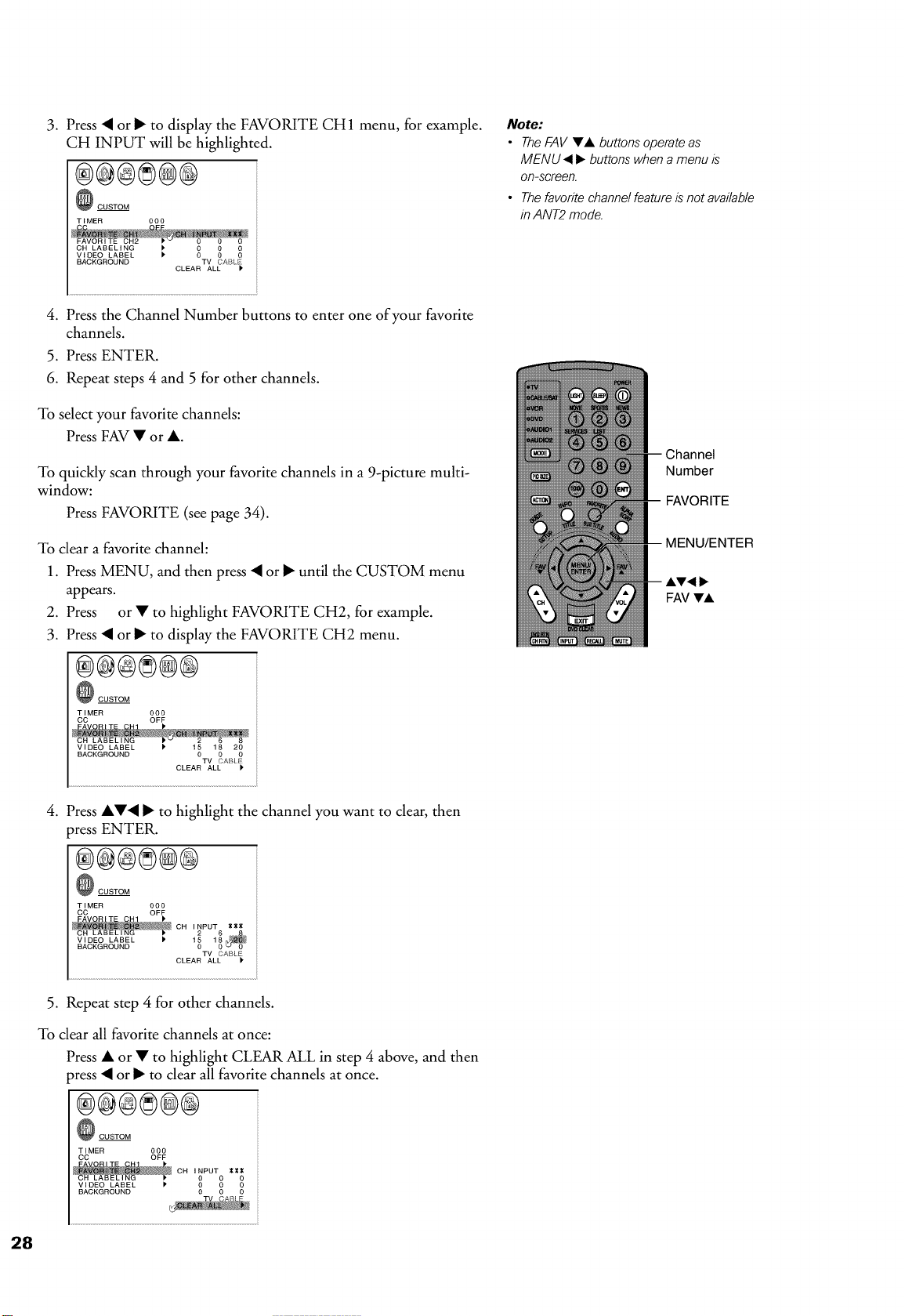
.
Press • or I_ to display the FAVORITE CH 1 menu, for example.
CH INPUT will be highlighted.
®®®8@@
CUSTOM
TIMER 000
CH LABELING
VIDEO LABEL ' _ _
BACKGROUND TV CABLE
CLEAR ALL
4. Press the Channel Number buttons to enter one of your favorite
channels.
5. Press ENTER.
6. Repeat steps 4 and 5 for other channels.
To select your favorite channels:
Press FAV • or A.
To quickly scan through your favorite channels in a 9-picture multi-
window:
Press FAVORITE (see page 34).
To clear a favorite channel:
1. Press MENU, and then press • or I_ until the CUSTOM menu
appears.
2. Press or • to highlight FAVORITE CH2, for example.
3. Press • or I_ to display the FAVORITE CH2 menu.
®®®8@®
CUSTOM
TIMER 000
CC OFF
VIDEO LABEL 1' 15 18 20
BACKGROUND 0 0 0
TV CARLE
CLEAR ALL )'
.
Press A•• I_ to highlight the channel you want to clear, then
3ress ENTER.
®®®8®®
CUSTOM
TIMER 000
CC OFF
__CH INPUT _
LABEL _ 2 6 _
VIDEO 15 18
BACKGROUND 0 0 u o
TV CABLE
CLEAR ALL
5. Repeat step 4 for other channels.
To clear all favorite channels at once:
Press • or • to highlight CLEAR ALL in step 4 above, and then
3ress • or I_ to clear all favorite channels at once.
®@@8@®
CUSTOM
TIMER 000
CC OFF
I' 0 0 0
BACKGROUND 0 0 0
Note:
• TheFAV VA buttons operateas
MENU _I 1_buttons when a menu is
on-screen.
• The favorite channel feature is not available
in ANT2 mode.
Channel
Number
FAVORITE
MENU/ENTER
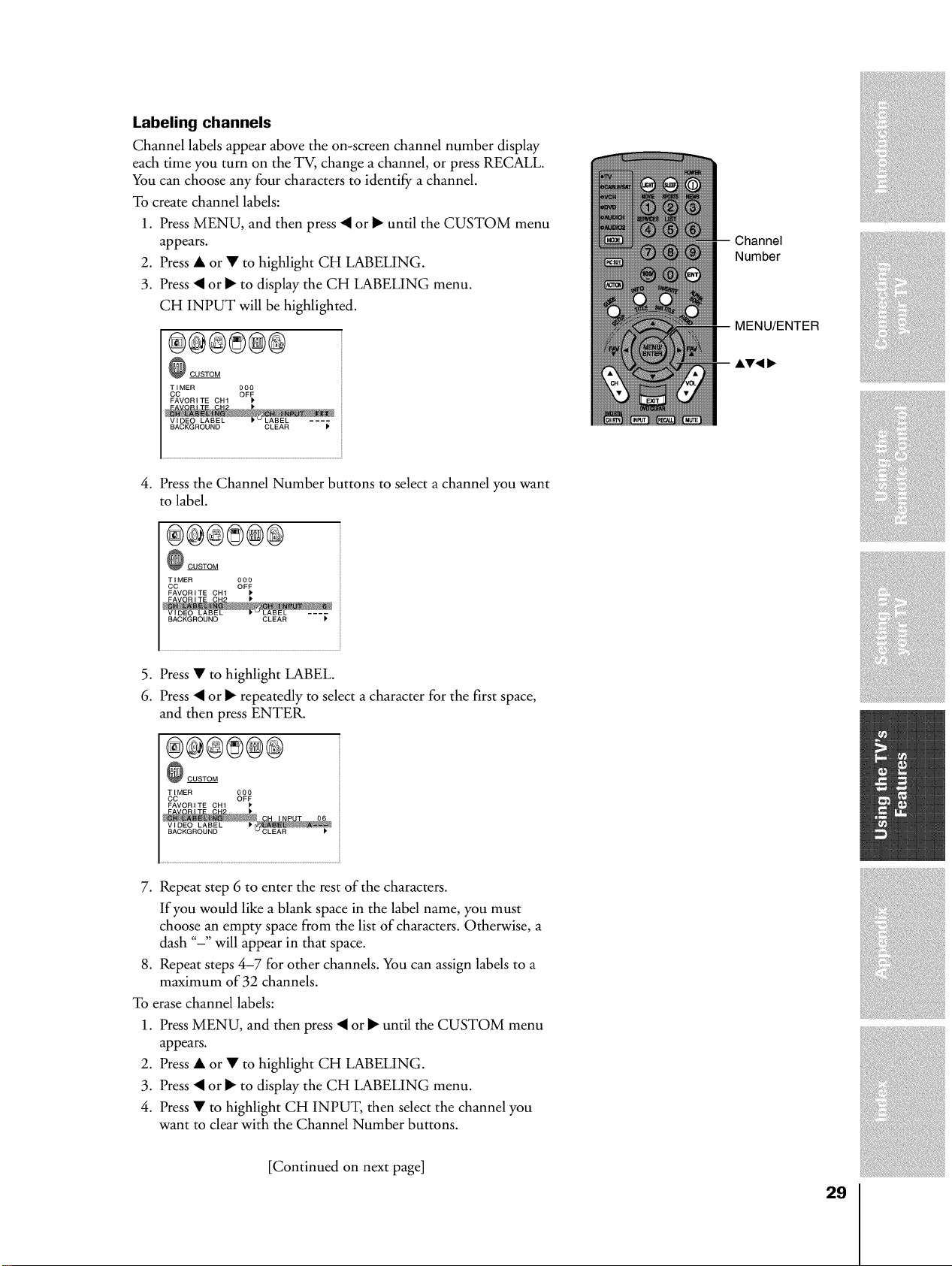
Labeling channels
Channel labels appear above the on-screen channel number display
each time you turn on the TV, change a channel, or press RECALL.
You can choose any four characters to identify a channel.
To create channel labels:
1. Press MENU, and then press • or I_ until the CUSTOM menu
appears.
2. Press • or • to highlight CH LABELING.
3. Press • or I_ to display the CH LABELING menu.
CH INPUT will be highlighted.
®®®®®@
_ CUSTOM
TIMER 000
CC OFF
FAVORITE CH1 k
BACKGROUND CLEAR
Number
MENU/ENTER
4. Press the Channel Number buttons to select a channel you want
to label.
®®®®@@
_ CUSTOM
TIMER 000
CC OFF
FAVORITE CH1 1'
BACKGROUND CLEAR P
5. Press • to highlight LABEL.
6. Press • or _ repeatedly to select a character for the first space,
and then press ENTER.
®®®®®@
_ CUSTOM
TIMER 000
CC OFF
BACKGROUND
7. Repeat step 6 to enter the rest of the characters.
If you would like a blank space in the label name, you must
choose an empty space from the list of characters. Otherwise, a
dash "-" will appear in that space.
8. Repeat steps 4-7 for other channels. You can assign labels to a
maximum of 32 channels.
To erase channel labels:
1. Press MENU, and then press • or I_ until the CUSTOM menu
appears.
2. Press • or • to highlight CH LABELING.
3. Press • or I_ to display the CH LABELING menu.
4. Press • to highlight CH INPUT, then select the channel you
want to clear with the Channel Number buttons.
[Continued on next page]
29
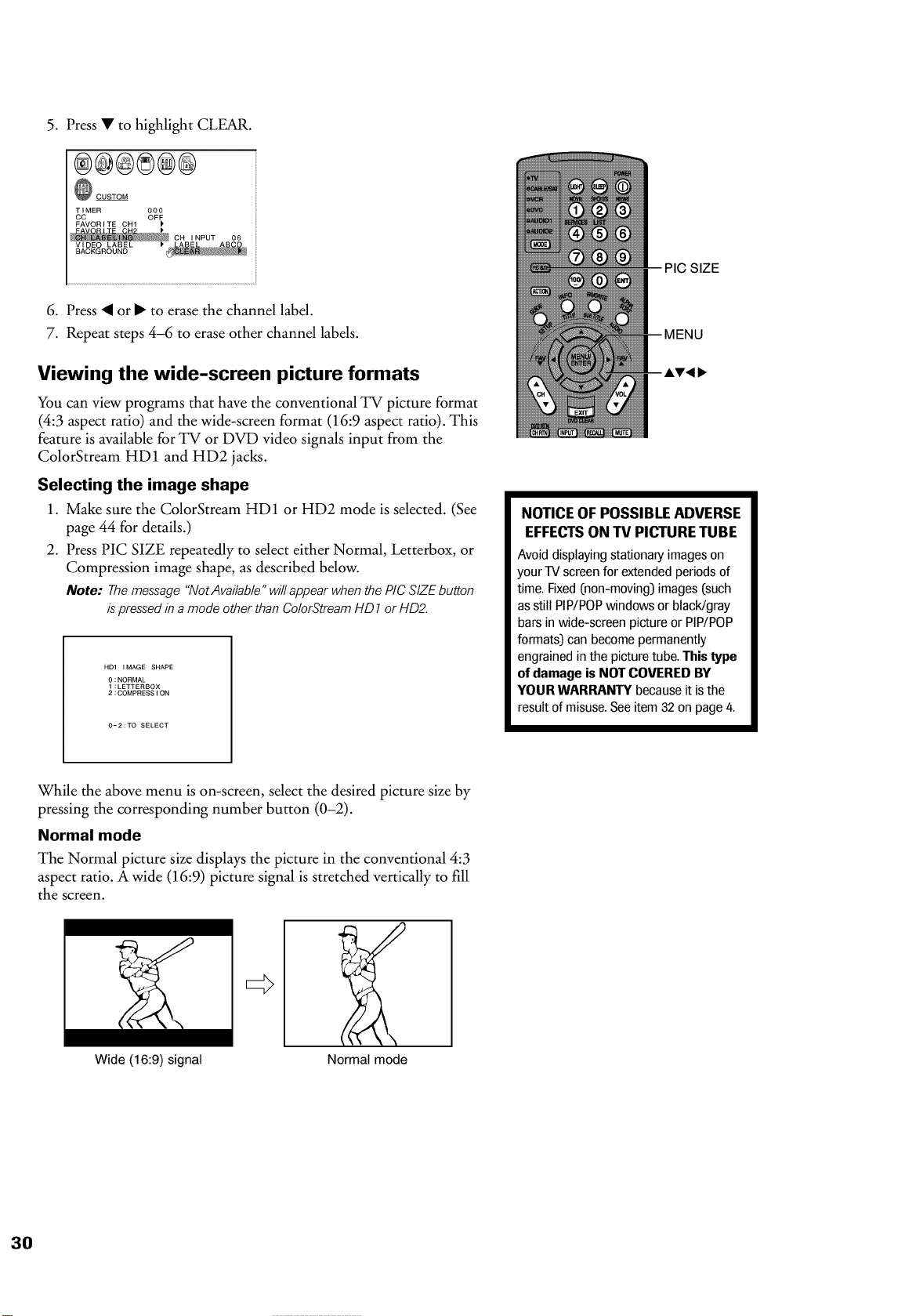
5. Press • to highlight CLEAR.
®@@8@®
CUSTOM
TIMER O00
CC OFF
FAVORITE CH1
6. Press • or I_ to erase the channel label.
7. Repeat steps 4-6 to erase other channel labels.
Viewing the wide-screen picture formats
You can view programs that have the conventional TV picture format
(4:3 aspect ratio) and the wide-screen format (16:9 aspect ratio). This
feature is available for TV or DVD video signals input from the
ColorStream HD 1 and HD2 jacks.
Selecting the image shape
1. Make sure the ColorStream HD1 or HD2 mode is selected. (See
page 44 for details.)
2. Press PIC SIZE repeatedly to select either Normal, Letterbox, or
Compression image shape, as described below.
Note: Themessage"NotAvailable"willappearwhenthePig SIZEbutton
ispressedinamodeotherthanColorStreamHD 7or HD2.
HD1 IMAGE SHAPE
0:NORMAL
I:LETTERBOX
2:COMPRESSION
0-2:TO SELECT
PIC SIZE
NOTICE OF POSSIBLE ADVERSE
EFFECTS ON TV PICTURE TUBE
Avoid displaying stationary images on
your TV screen for extended periodsof
time. Fixed (non-moving) images (such
as still PIP/POPwindows or blacWgray
bars in wide-screen picture or PIP/POP
formats) can become permanently
engrained in the picturetube. ]'his type
of damage is NOT COVERED BY
YOUR WARRANTY because itisthe
result of misuse.Seeitem 32 on page 4.
While the above menu is on-screen, select the desired picture size by
pressing the corresponding number button (0-2).
Normal mode
The Normal picture size displays the picture in the conventional 4:3
aspect ratio. A wide (16:9) picture signal is stretched vertically to fill
the screen.
<>
Wide (16:9) signal Normal mode
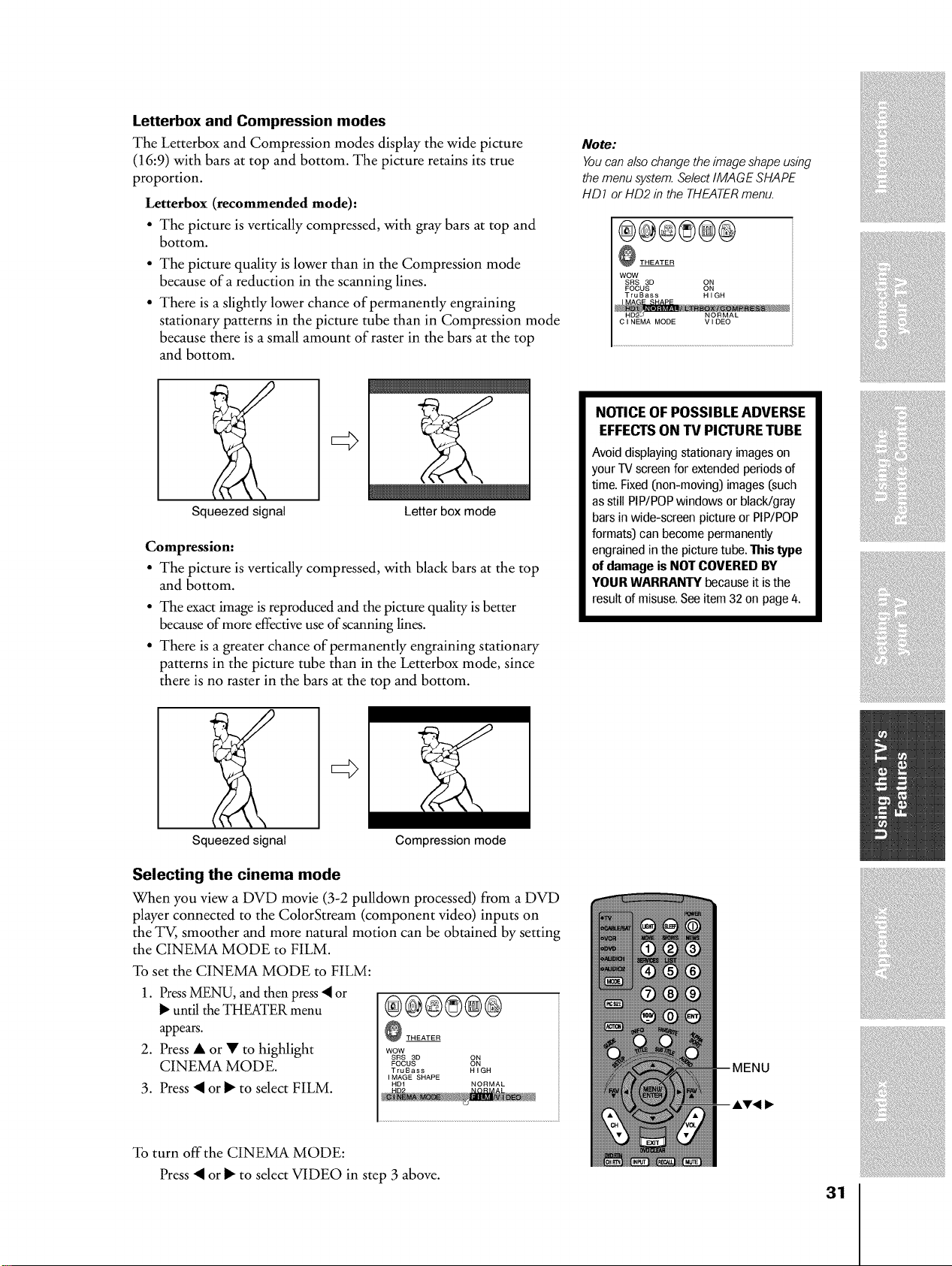
Letterbox and Compression modes
The Letterbox and Compression modes display the wide picture
(16:9) with bars at top and bottom. The picture retains its true
proportion.
Letterbox (recommended mode):
• The picture is vertically compressed, with gray bars at top and
bottom.
• The picture quality is lower than in the Compression mode
because of a reduction in the scanning lines.
• There is a slightly lower chance of permanently engraining
stationary patterns in the picture tube than in Compression mode
because there is a small amount of raster in the bars at the top
and bottom.
Squeezed signal
Letter box mode
Compression:
• The picture is vertically compressed, with black bars at the top
and bottom.
• The exact image is reproduced and the picture quality is better
bemuse of more effective use of scanning lines.
• There is a greater chance of permanently engraining stationary
patterns in the picture tube than in the Letterbox mode, since
there is no raster in the bars at the top and bottom.
Note:
Youcan also change the image shape using
the menu system. SelectIMAGE SHAPE
HD1 or HD2 in the THEATERmenu.
®®®8@@
THEATER
WOW
SRS 3D ON
FOCUS ON
TruBass HIGH
H
CINEMA MODE VIDEO
NOTICE OF POSSIBLE ADVERSE
EFFECTSON TV PICTURETUBE
Avoid displaying stationary images on
your TV screen for extended periodsof
time. Fixed (non-moving) images (such
as still PIP/POPwindows or blacWgray
bars in wide-screen picture or PIP/POP
formats) can become permanently
engrained in the picture tube. This type
of damage is NOT COVERED BY
YOUR WARRANTY because it is the
result of misuse.Seeitem 32 on page 4.
Squeezed signal Compression mode
Selecting the cinema mode
When you view a DVD movie (3-2 pulldown processed) from a DVD
player connected to the ColorStream (component video) inputs on
the TV, smoother and more natural motion can be obtained by setting
the CINEMA MODE to FILM.
To set the CINEMA MODE to FILM:
1. Press MENU, and then press < or
I_until the THEATER menu
appears.
2. Press • or • to highlight
CINEMA MODE.
3. Press < or I_ to select FILM.
®®®8@@
THEATER
WOW
SRS 3D ON
FOCUS ON
TruBass HIGH
IMAGE SHAPE
HD1 NORMAL
To turn offthe CINEMA MODE:
Press • or I_ to select VIDEO in step 3 above.
31
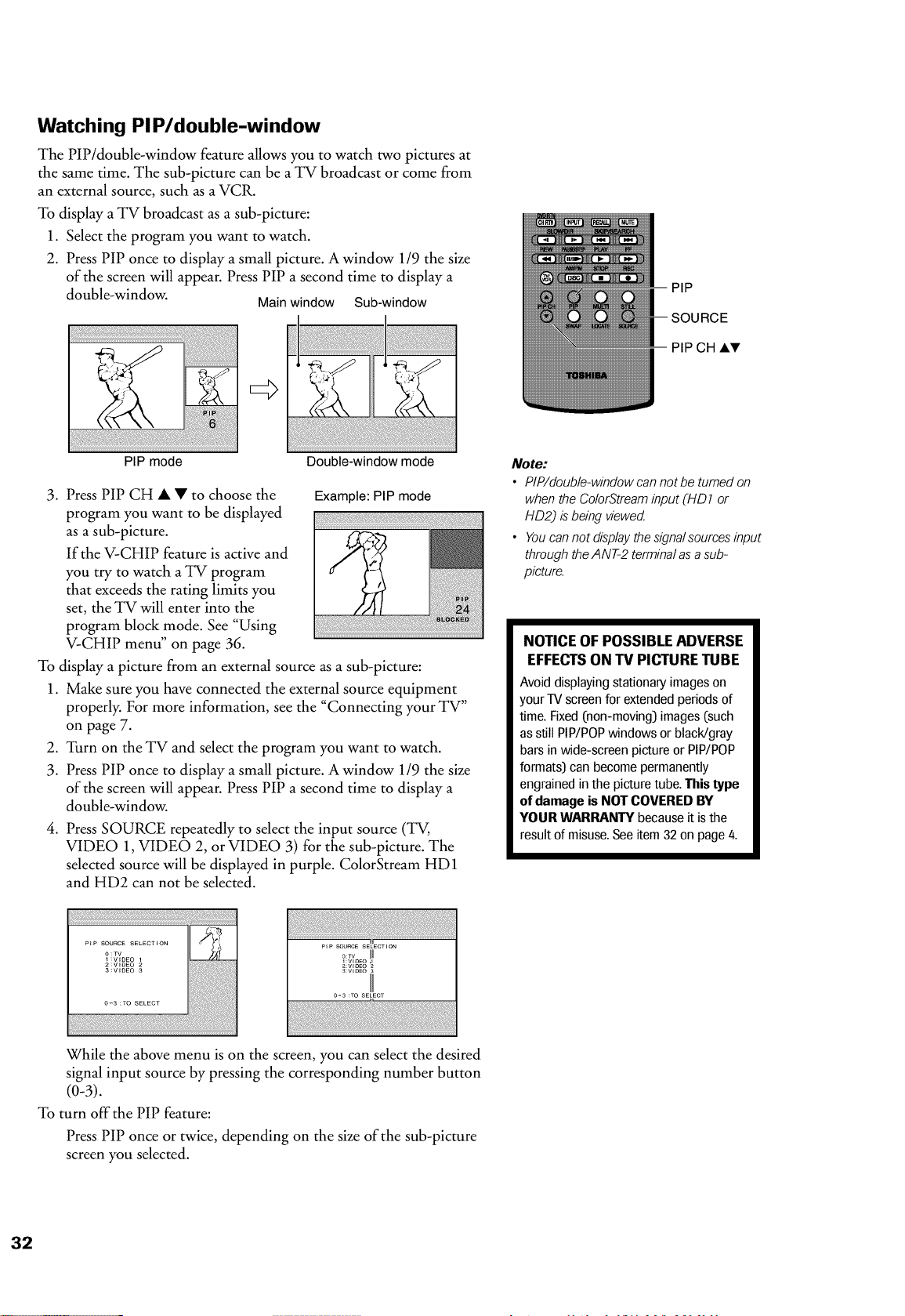
Watching PI P/double-window
The PIP/double-window feature allows you to watch two pictures at
the same time. The sub-picture can be a TV broadcast or come from
an external source, such as a VCR.
To display a TV broadcast as a sub-picture:
1. Select the program you want to watch.
2. Press PIP once to display a small picture. A window 119 the size
of the screen will appear. Press PIP a second time to display a
double-window.
Main window Sub-window
PIP mode
<>
Double-window mode
.
Press PIP CH • • to choose the
program you want to be displayed
as a sub-picture.
If the V-CHIP feature is active and
you try to watch a TV program
that exceeds the rating limits you
set, the TV will enter into the
program block mode. See "Using
V-CHIP menu" on page 36.
Example: PIP mode
To display a picture from an external source as a sub-picture:
1. Make sure you have connected the external source equipment
properly. For more information, see the "Connecting your TV"
on page 7.
2. Turn on the TV and select the program you want to watch.
3. Press PIP once to display a small picture. A window 119 the size
of the screen will appear. Press PIP a second time to display a
double-window.
.
Press SOURCE repeatedly to select the input source (TV,
VIDEO 1, VIDEO 2, or VIDEO 3) for the sub-picture. The
selected source will be displayed in purple. ColorStream HD 1
and HD2 can not be selected.
PiP SOURCE SELECTION i "
0:TV i
t:VIDEO I
2 : VIDEO 2
3 :VIDEO 3
............
0:vv liiil
2:WDEO 2
a:WDEO 3
H
While the above menu is on the screen, you can select the desired
signal input source by pressing the corresponding number button
(0-3).
To turn offthe PIP feature:
Press PIP once or twice, depending on the size of the sub-picture
screen you selected.
PIP
SOURCE
PIP CH AV
Note:
• PIP/double-window can not be turned on
when the ColorStreaminput (HD 1 or
HD2_ is being viewecZ
• You can not display thesignal sources input
through the ANT-2 terminal as a sub-
picture.
NOTICE OF POSSIBLE ADVERSE
EFFECTS ON TV PICTURE TUBE
Avoid displaying stationary images on
your TV screen for extended periods of
time. Fixed(non-moving) images (such
as still PiP/POPwindows or blacWgray
bars in wide-screen picture or PiP/POP
formats) can become permanently
engrained in the picture tube. This type
of damage is NOT COVERED BY
YOUR WARRANTY becauseit is the
result of misuse.See item 32 on page 4.
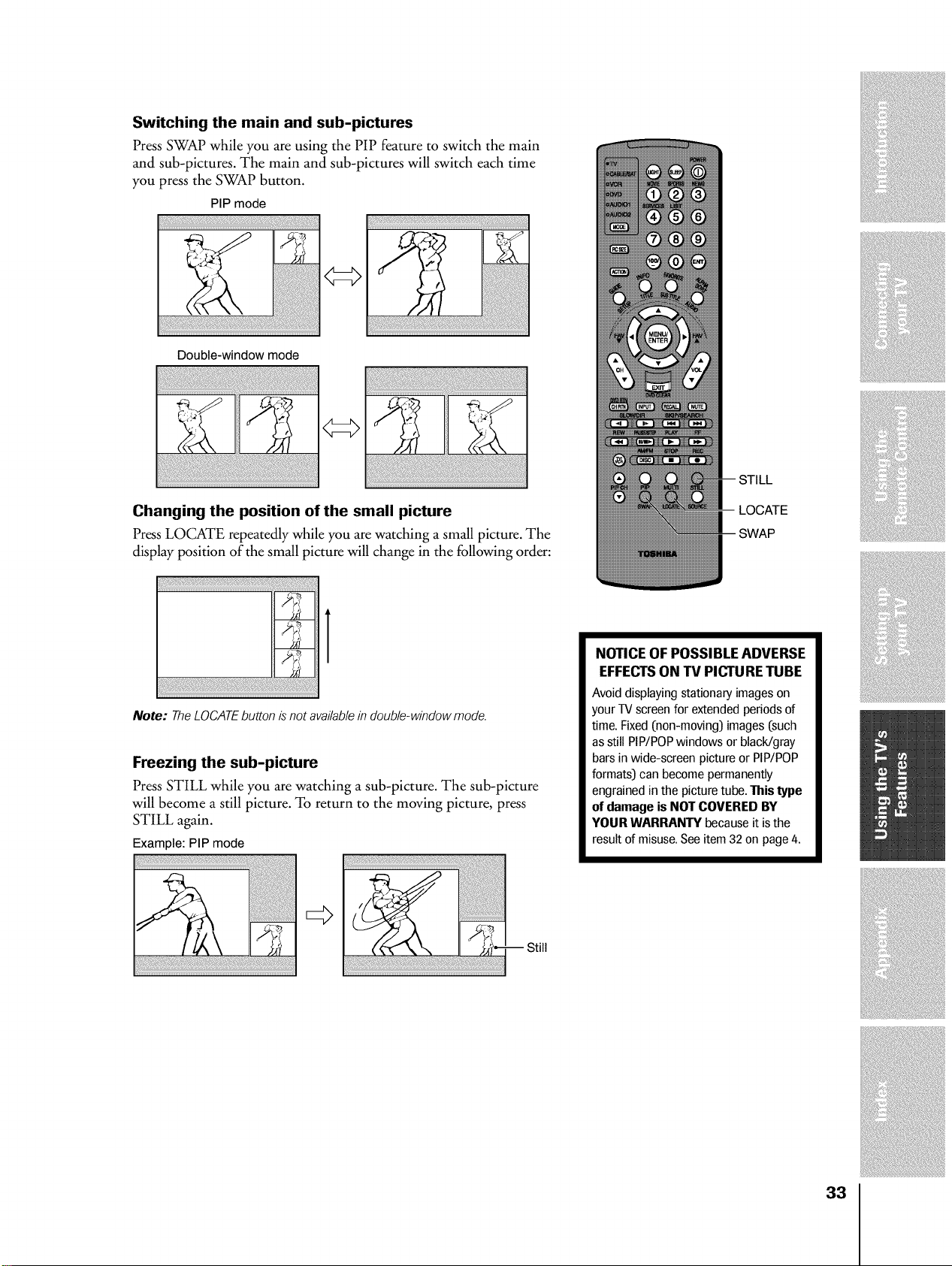
Switching the main and sub-pictures
Press SWAP while you are using the PIP feature to switch the main
and sub-pictures. The main and sub-pictures will switch each time
you press the SWAP button.
PIP mode
Double-window mode
!ii! iiiiiii!
Changing the position of the small picture
Press LOCATE repeatedly while you are watching a small picture. The
display position of the small picture will change in the following order:
Note: The LOCATE button is not available in double-window mode.
Freezing the sub-picture
Press STILL while you are watching a sub-picture. The sub-picture
will become a still picture. To return to the moving picture, press
STILL again.
Example: PIP mode
!i!ii!!ii!ii_i!_ili!i!iiiii!i!!ili¸_{_i_ii!!_ii!i!i_i!!i!i!_y!!!_!i_ii_i_!ii_:i!i!!!_!_!_i!!_J_!_ii_!_!i_i!!_!_!_i:_i_i_ii_i_!i_i_!!!!!_i_i!_ii_!_!i_i!!_!_!_i:_i_i_ii_i_!i_i_!!!!!_i_i!_ii_!_!i_i!!_!_!_i:_i_i_ii_i_!i_i_!!!!!_i_i!_ii_!_!i_i!!_!_i:_i_i_ii_i_!i_i_!!!!!_i_i!_ii!!_!i_!
m Still
STILL
LOCATE
SWAP
NOTICE OF POSSIBLE ADVERSE
EFFECTS ON TV PICTURE TUBE
Avoid displaying stationary images on
your TV screen for extended periodsof
time. Fixed (non-moving) images (such
as still PIP/POPwindows or blacWgray
bars in wide-screen picture or PIP/POP
formats) can become permanently
engrained in the picture tube. This type
of damage is NOT COVERED BY
YOUR WARRANTY because it is the
result of misuse.Seeitem 32 on page 4.
33
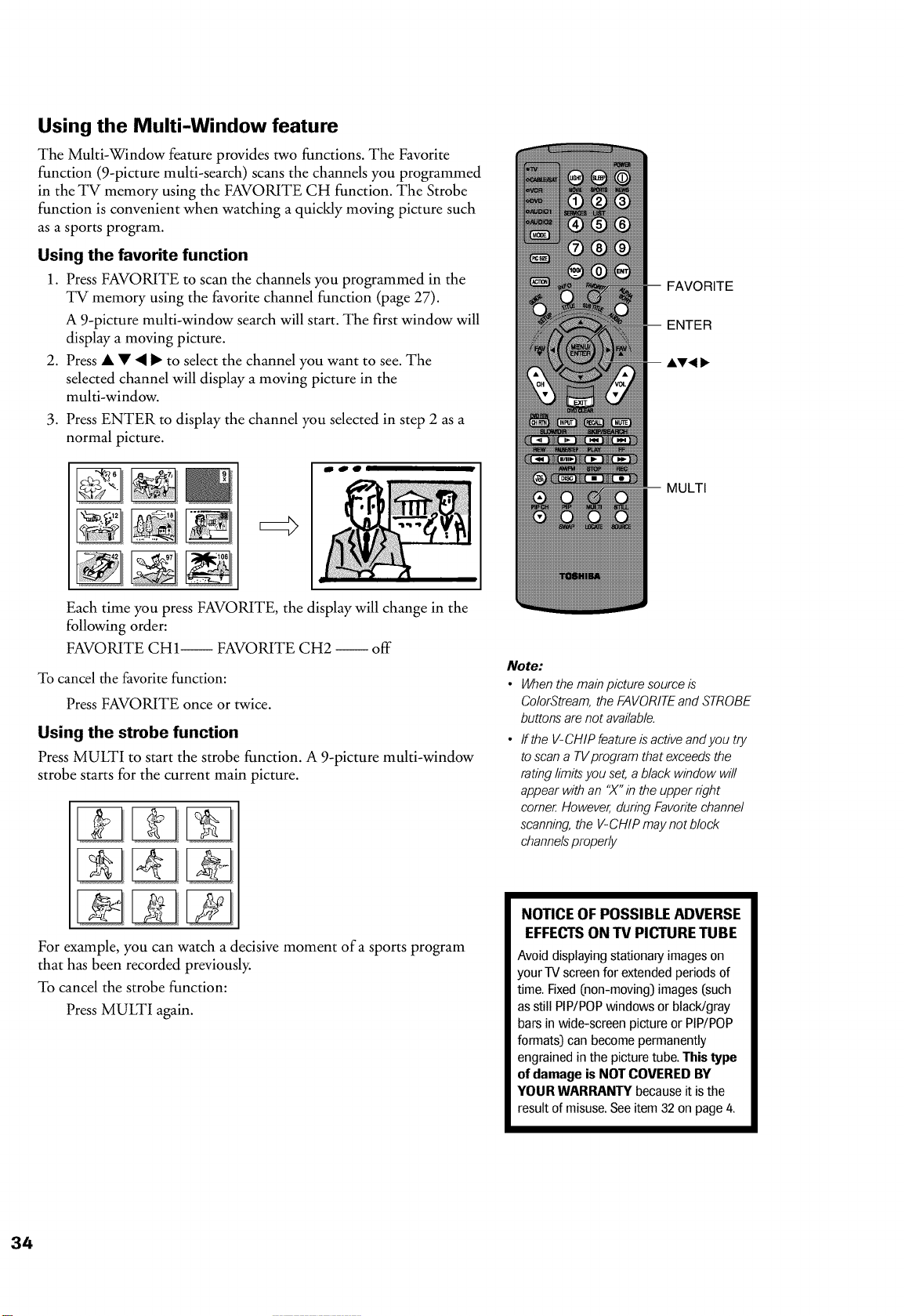
Using the Multi-Window feature
The Multi-Window feature provides two functions. The Favorite
function (9-picture multi-search) scans the channels you programmed
in the TV memory using the FAVORITE CH function. The Strobe
function is convenient when watching a quickly moving picture such
as a sports program.
Using the favorite function
1. Press FAVORITE to scan the channels you programmed in the
TV memory using the favorite channel function (page 27).
A 9-picture multi-window search will start. The first window will
display a moving picture.
2. Press • • • I_ to select the channel you want to see. The
selected channel will display a moving picture in the
multi-window.
.
Press ENTER to display the channel you selected in step 2 as a
normal picture.
Each time you press FAVORITE, the display will change in the
following order:
FAVORITE CH1-- FAVORITE CH2 -- off
To cancel the favorite function:
Press FAVORITE once or twice.
Using the strobe function
Press MULTI to start the strobe function. A 9-picture multi-window
strobe starts for the current main picture.
For example, you can watch a decisive moment of a sports program
that has been recorded previously.
To cancel the strobe function:
Press MULTI again.
FAVORITE
ENTER
-- AT< 1_
MULTI
Note:
• When the main picture source is
ColorStream,the FAVORITEand STROBE
buttons are not available.
• ffthe V-CHIP featureis active andyou try
to scan a TVprogram that exceeds the
rating limitsyou set, a black window will
appear withan 'X" in the upper right
come_ However, during Favoritechannel
scanning, the V-CHIPmay not block
channelsproperly
NOTICE OF POSSIBLE ADVERSE
EFFECTS ON TV PICTURE TUBE
Avoid displaying stationary images on
your TV screen for extended periodsof
time. Fixed (non-moving) images (such
as still PiP/POPwindows or blacWgray
bars in wide-screen picture or PiP/POP
formats) can become permanently
engrained in the picturetube. This type
of damage is NOT COVERED BY
YOUR WARRANTY because it is the
result of misuse.Seeitem 32 on page 4.
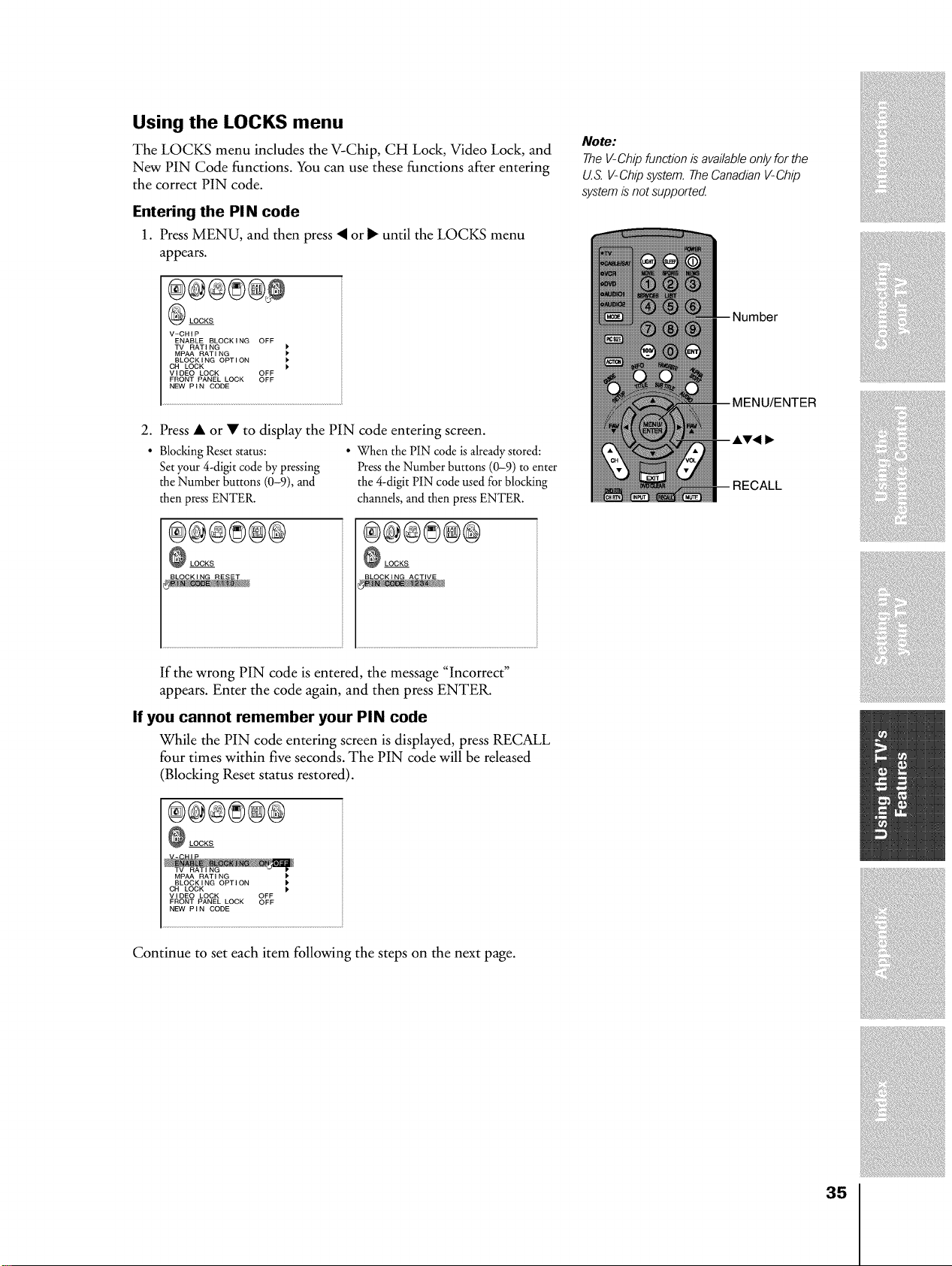
Using the LOCKS menu
The LOCKS menu includes the V-Chip, CH Lock, Video Lock, and
New PIN Code functions. You can use these functions after entering
the correct PIN code.
Entering the PIN code
1. Press MENU, and then press • or I_ until the LOCKS menu
appears.
@ LOCKS
V-CHIP
ENABLE BLOCKING OFF
TV RATING
MPAA RATING
BLOCKING OPTION
CH LOCK
VIDEO LOCK OFF
FRONT PANEL LOCK OFF
NEW P I N CODE
2. Press • or • to display the PIN code entering screen.
• Blocking Reset status: • When the PIN code is already stored:
Set your 4-digit code by pressing Press the Number buttons (0-9) to enter
the Number buttons (0-9), and the 4-digit PIN code used for blocking
then press ENTER. channels, and then press ENTER.
®@@8@@
LOCKS
®®®8®@
LOCKS
If the wrong PIN code is entered, the message "Incorrect"
appears. Enter the code again, and then press ENTER.
If you cannot remember your PIN code
While the PIN code entering screen is displayed, press RECALL
four times within five seconds. The PIN code will be released
(Blocking Reset status restored).
®®®8@@
LOCKS
MPAA RATING
BLOCKING OPTION
CH LOCK
VIDEO LOCK OFF
FRONT PANEL LOCK OFF
NEW' PIN CODE
Continue to set each item following the steps on the next page.
Note:
The V-Chip function is availableonly for the
U.S.V-Chip system. TheCanadian V-Chip
systemis not supported
/ENTER
RECALL
35
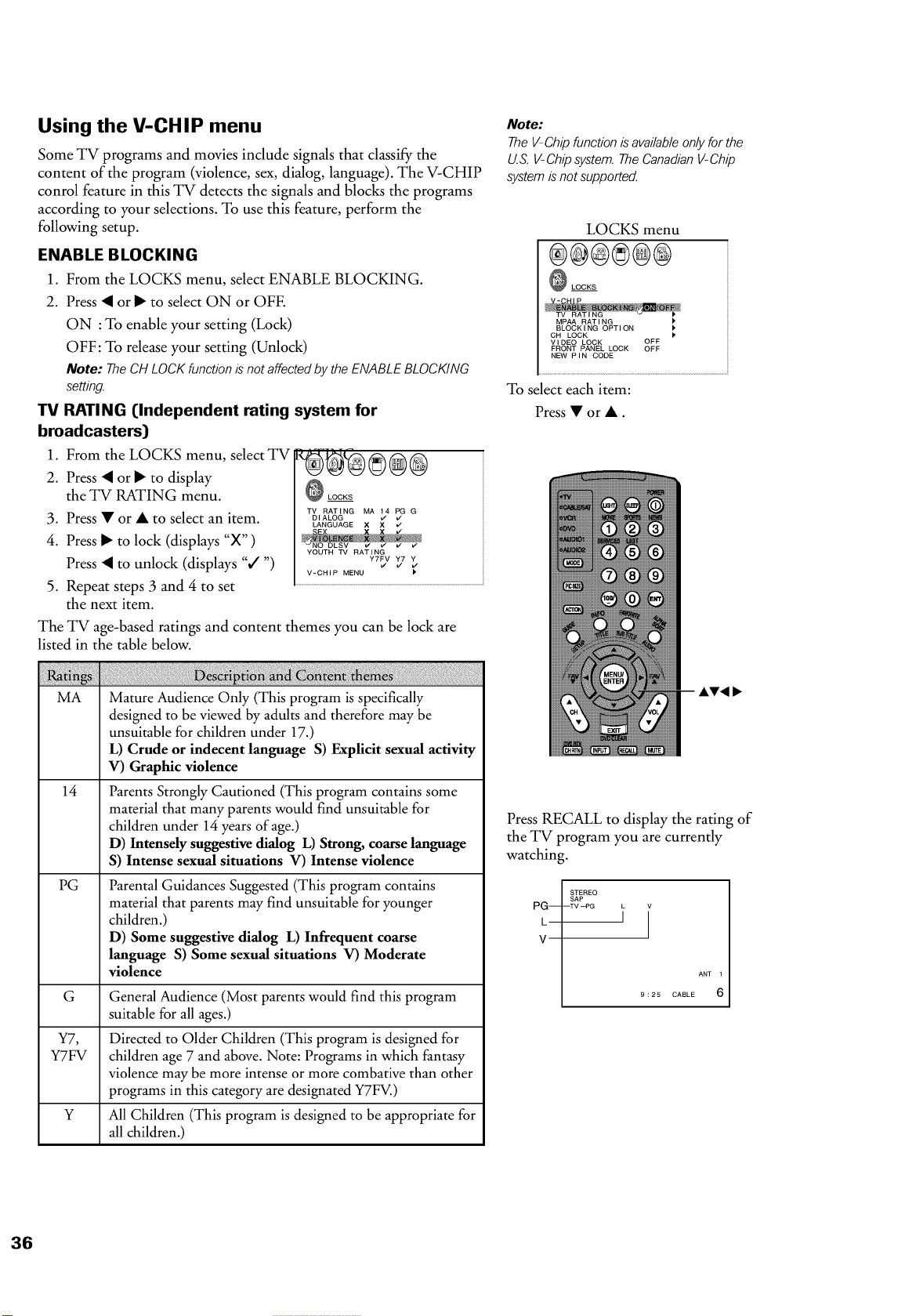
Using the V-CHIP menu
Some TV programs and movies include signals that classify the
content of the program (violence, sex, dialog, language). The V-CHIP
conrol feature in this TV detects the signals and blocks the programs
according to your selections. To use this feature, perform the
following setup.
ENABLE BLOCKING
1. From the LOCKS menu, select ENABLE BLOCKING.
2. Press • or I_ to select ON or OFE
ON :To enable your setting (Lock)
OFF:To release your setting (Unlock)
Note: TheCHLOCKfunctionisnotaffectedbythe ENABLEBLOCKING
setting.
RATING [Independent rating system for
TV
broadcasters)
1. From the LOCKS menu, select TV
2. Press • or I_ to display
the TV RATING menu.
3. Press • or • to select an item.
4. Press I_ to lock (displays "X" )
¢ LOCKS
TV RATING MA
D,ALOG _45GG
LANGUAGE X X v"
Press • to unlock (displays "¢" ")
J J J
V-CHIP MENU I'
5. Repeat steps 3 and 4 to set .....................................................................................................................................................................
the next item.
The TV age-based ratings and content themes you can be lock are
listed in the table below.
MA
14
PG
Mature Audience Only (This program is specifically
designed to be viewed by adults and therefore may be
unsuitable for children under 17.)
L) Crude or indecent language S) Explicit sexual activity
V) Graphic violence
Parents Strongly Cautioned (This program contains some
material that many parents would find unsuitable for
children under 14 years of age.)
D) Intensely suggestive dialog L) Strong, coarse language
S) Intense sexual situations V) Intense violence
Parental Guidances Suggested (This program contains
material that parents may find unsuitable for younger
children.)
D) Some suggestive dialog L) Infrequent coarse
language S) Some sexual situations V) Moderate
violence
G General Audience (Most parents would find this program
suitable for all ages.)
Y7, Directed to Older Children (This program is designed for
¥7FV children age 7 and above. Note: Programs in which fantasy
violence may be more intense or more combative than other
programs in this category are designated ¥7FV.)
Y MI Children (This program is designed to be appropriate for
all children.)
Note:
The V-Chip function is available only for the
U.S.V-Chip system. TheCanadian V-Chip
systemis not supported.
LOCKS menu
®®@®@@
_ LOCKS
MPAA RATING
BLOCKING OPTION
CH LOCK
VIDEO LOCK OFF
FRONT PANEL LOCK OFF
NEW PIN CODE
To select each item:
Press • or •.
AT4
Press RECALL to display the rating of
the TV program you are currently
watching.
PG--
L
V
STEREO
SAP
....
ANT 1
6
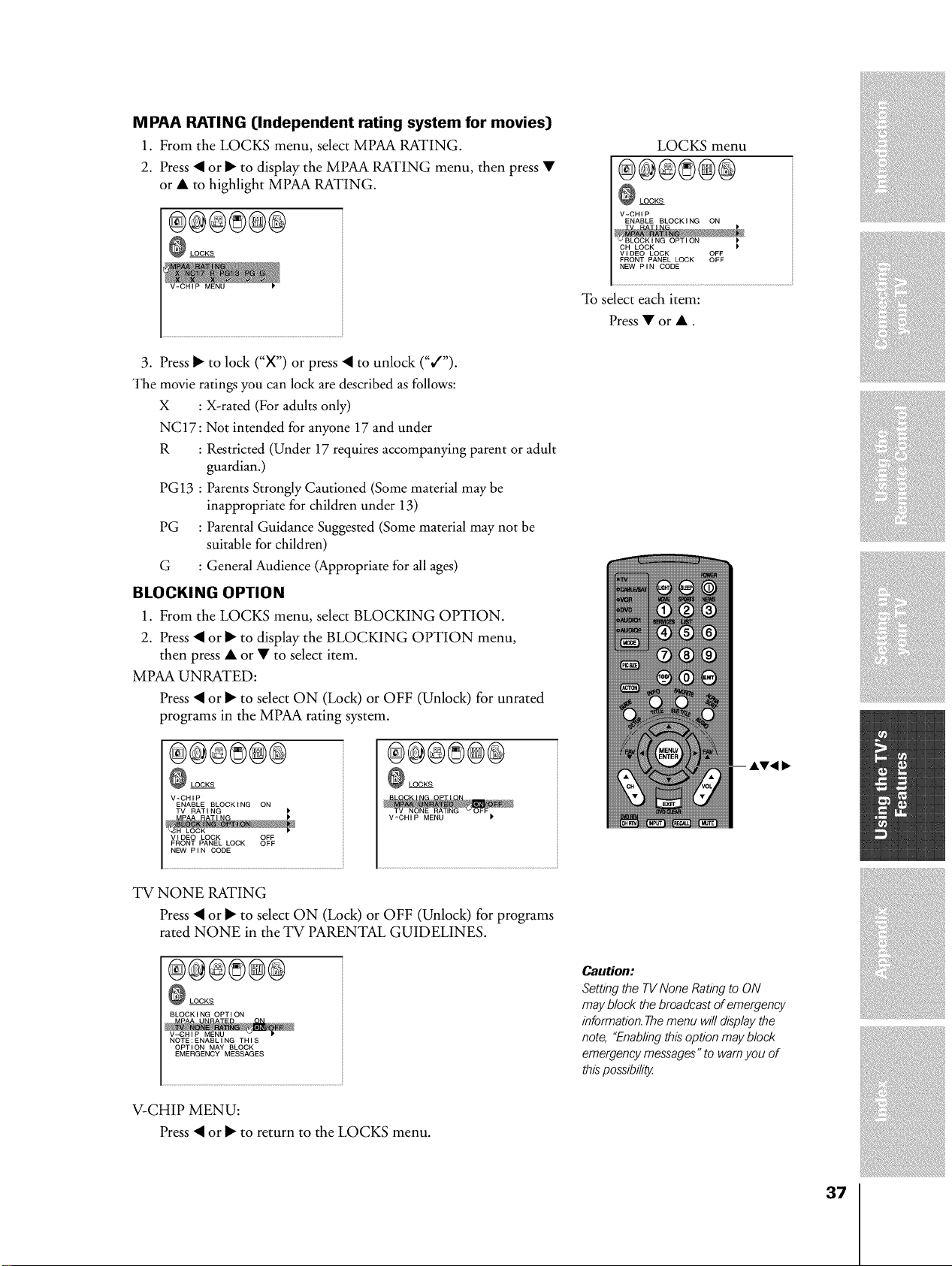
M PAP_ RP,TIN G [Independent rating system for movies)
1. From the LOCKS menu, select MPAA RATING.
2. Press • or _ to display the MPAA RATING menu, then press •
or • to highlight MPAA RATING.
®®®®@@
LOCKS
3. Press _ to lock ("X") or press • to unlock ("¢'").
The movie ratings you can lock are described as follows:
X : X-rated (For adults only)
NC17: Not intended for anyone 17 and under
R : Restricted (Under 17 requires accompanying parent or adult
guardian.)
PG13 : Parents Strongly Cautioned (Some material may be
inappropriate for children under 13)
PG : Parental Guidance Suggested (Some material may not be
suitable for children)
G : General Audience (Appropriate for all ages)
BLOCKING OPTION
1. From the LOCKS menu, select BLOCKING OPTION.
2. Press • or _ to display the BLOCKING OPTION menu,
then press • or • to select item.
MPAA UNRATED:
Press • or _ to select ON (Lock) or OFF (Unlock) for unrated
programs in the MPAA rating system.
®®@8®@
LOCKS
V-CHIP
ENABLE BLOCKING ON
VIDEO LOCK OFF
FRONT PANEL LOCK OFF
NEW PIN CODE
®®@8®®
LOCKS
V-CHIP MENU )
TV NONE RATING
Press • or _ to select ON (Lock) or OFF (Unlock) for programs
rated NONE in the TV PARENTAL GUIDELINES.
®®®8®®
LOCKS
BLOCK I NG OPT I ON
NOTE:ENABLING THIS
OPTION MAY BLOCK
EMERGENCY MESSAGES
V-CHIP MENU:
Press • or _ to return to the LOCKS menu.
LOCKS menu
®@®8@®
LOCKS
V-CHIP
ENABLE BLOCKING ON
CH LOCK
VIDEO LOCK OFF
FRONT PANEL LOCK OFF
NEW PIN CODE
To select each item:
Press•or•.
Caution:
Setting the TVNone Rating to ON
may block the broadcast of emergency
information.Themenu will displaythe
note, "Enablingthis option may block
emergency messages"to wamyou of
this possibility
37
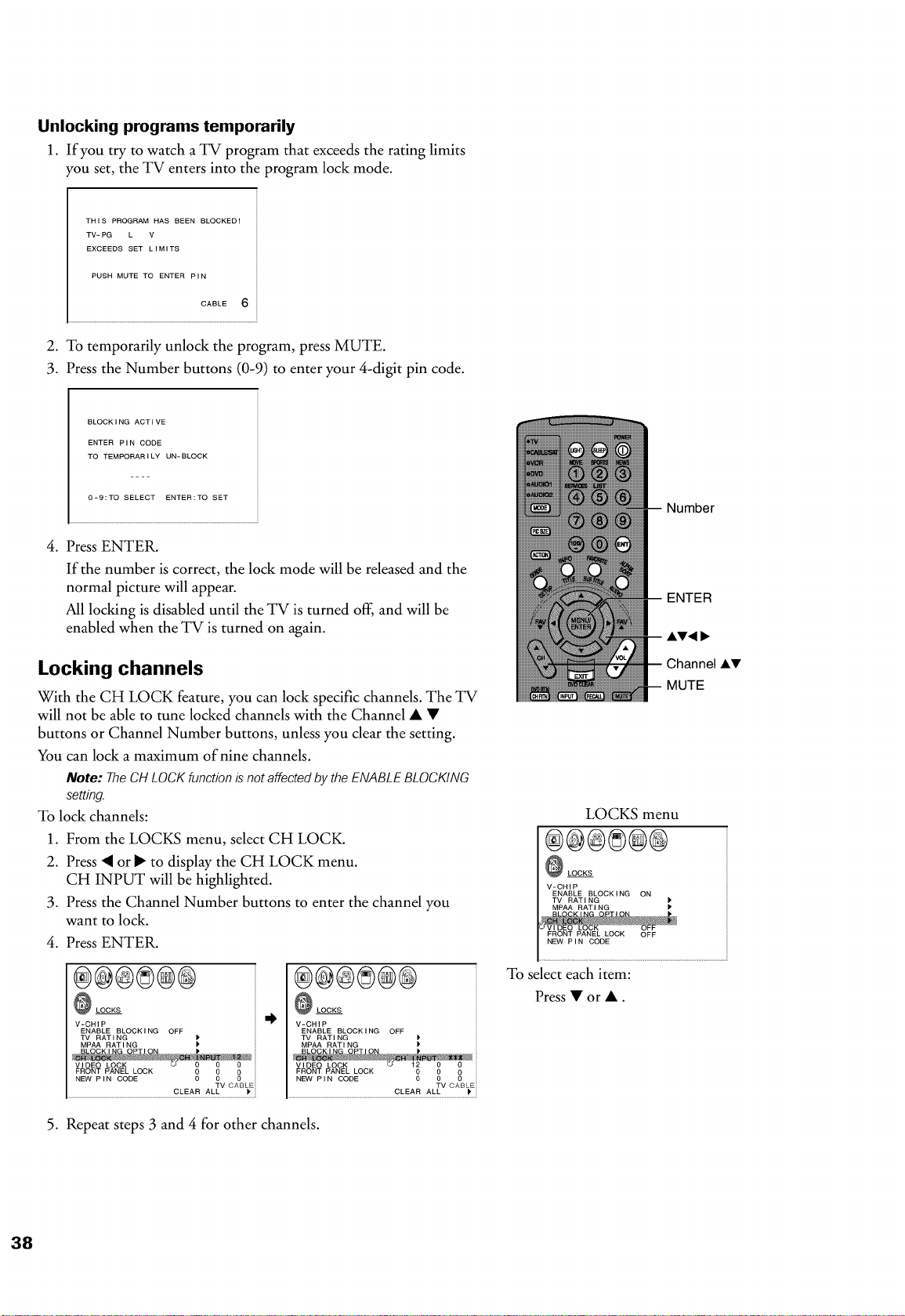
Unlockingprogramstemporarily
1. If you try to watch a TV program that exceeds the rating limits
Tou set, the TV enters into the program lock mode.
THIS PROGRAM HAS BEEN BLOCKED!
TV-PG L V
EXCEEDS SET LIMITS
PUSH MUTE TO ENTER PIN
CABLE 6
2. To temporarily unlock the program, press MUTE.
3. Press the Number buttons (0-9) to enter your 4-digit pin code.
BLOCKING ACTIVE
ENTER PIN CODE
TO TEMPORARILY UN-BLOCK
0-9:TO SELECT ENTER:TO SET
4. Press ENTER.
If the number is correct, the lock mode will be released and the
normal picture will appear.
All locking is disabled until the TV is turned off, and will be
enabled when the TV is turned on again.
Locking channels
With the CH LOCK feature, you can lock specific channels. The TV
will not be able to tune locked channels with the Channel • •
buttons or Channel Number buttons, unless you clear the setting.
You can lock a maximum of nine channels.
Note: The CH LOCK function is not affected by the ENABLE BLOCKING
setting.
To lock channels:
1. From the LOCKS menu, select CH LOCK.
2. Press • or I_ to display the CH LOCK menu.
CH INPUT will be highlighted.
3. Press the Channel Number buttons to enter the channel you
want to lock.
4. Press ENTER.
®@®®@@
LOCKS
V-CHIP
ENABLE BLOCKING OFF
TV RATI NG P
MPAA RATING
P
VIDEO LOCK
FRONT PANEL LOCK
NEW' PIN CODE _ _
TV CAB Eii
,1.
®@®®®@
_ LOCKS
V-CHIP
ENABLE BLOCKi NG OFF
TV RATING )*
MPAA RATING
I'
VIDEO LOCK
FRONT PANEL LOCK
NEW PIN CODE 0 00 0
CLEAR AL TV CABL_
5. Repeat steps 3 and 4 for other channels.
Number
ENTER
AT< 1_
Channel AV
MUTE
LOCKS menu
LOCKS
V-CHIP
ENABLE BLOCKING ON
TV RATING
MPAA RATING
FRONT PANEL LOCK OFF
NEW PIN CODE
To select each item:
Press • or •.
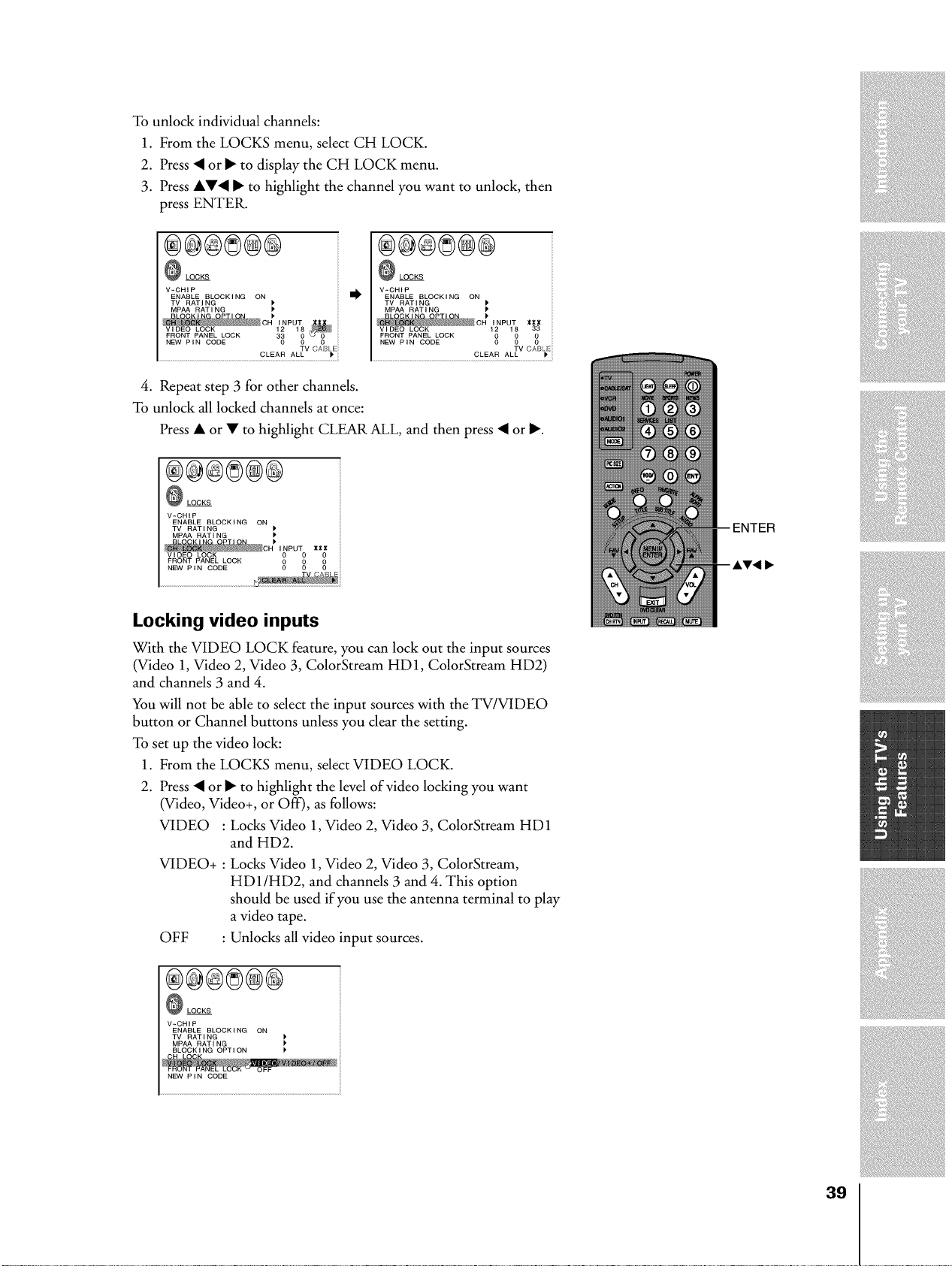
Tounlockindividualchannels:
1. FromtheLOCKSmenu,selectCHLOCK.
2. Press• orI_todisplaytheCHLOCKmenu.
3. PressAV• I_tohighlightthechannelyouwanttounlock,then
pressENTER.
®@®®@®
LOCKS
V-CHIP
ENABLE BLOCKING ON
TV RATI NG
MP_ RATING
_CH INPUT
12 18
FRONT PANEL LOCK 33 0
NEW PIN CODE 0 0
TV CABt.Eii
CLEAR ALL
®@@8@®
LOCKS
V-CHIP
ENABLE BLOCKING ON
TV RATING I*
MPAA RAT I NG )'
__c;1,#P % ,,,
Vl DEO LOCK 33
FRONT PANEL LOCK
NEW P,N CODE 00 0 00
TV CABLE
CLEAR ALL _*
4. Repeat step 3 for other channels.
To unlock all locked channels at once:
Press • or • to highlight CLEAR ALL, and then press • or I_.
®@®8®®
LOCKS
V-CHIP
ENABLE BLOCKING ON
TV RATING
MP_ RATING )
CR''_P_2v,BEOLOCK '_i
FRONT PANEL LOCK
NEW' PIN CODE _ _ 0
Locking video inputs
With the VIDEO LOCK feature, you can lock out the input sources
(Video 1, Video 2, Video 3, ColorStream HD1, ColorStream HD2)
and channels 3 and 4.
You will not be able to select the input sources with the TV/VIDEO
button or Channel buttons unless you clear the setting.
To set up the video lock:
1. From the LOCKS menu, select VIDEO LOCK.
2. Press • or I_ to highlight the level of video locking you want
(Video, Video+, or Off), as follows:
VIDEO : Locks Video 1, Video 2, Video 3, ColorStream HD1
and HD2.
VIDEO+ : Locks Video 1, Video 2, Video 3, ColorStream,
HDI/HD2, and channels 3 and 4. This option
should be used if you use the antenna terminal to play
a video tape.
OFF : Unlocks all video input sources.
®@®8@®
LOCKS
V-CHIP
ENABLE BLOCKING ON
TV RATING
MP_ RATING
BLOCKING OPTION
N_ P IN CODE
39
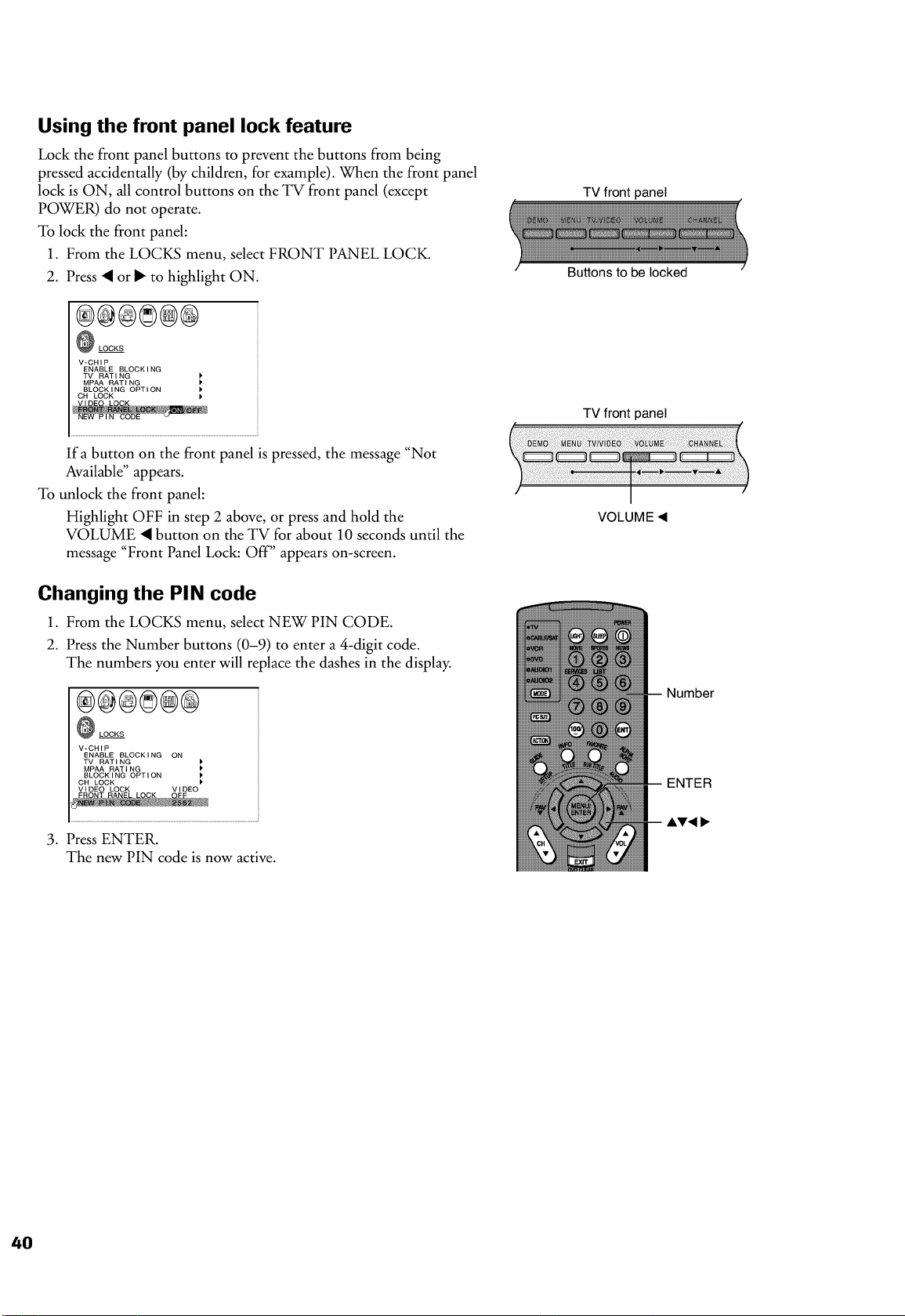
Using the front panel lock feature
Lock the front panel buttons to prevent the buttons from being
pressed accidentally (by children, for example). When the front panel
lock is ON, all control buttons on the TV front panel (except
POWER) do not operate.
To lock the front panel:
1. From the LOCKS menu, select FRONT PANEL LOCK.
2. Press • or _ to highlight ON.
®®®8@®
LOCKS
V-CHIP
ENABLE BLOCK I NG
TV RAT I NG )'
MPAA RATING P
BLOCK I NG OPT I ON [P
CH LOCK
Ifa button on the front panel is pressed, the message "Not
Available" appears.
To unlock the front panel:
Highlight OFF in step 2 above, or press and hold the
VOLUME • button on the TV for about 10 seconds until the
message "Front Panel Lock: Off" appears on-screen.
Changing the PIN code
1. From the LOCKS menu, select NEW PIN CODE.
2. Press the Number buttons (0-9) to enter a 4-digit code.
The numbers you enter will replace the dashes in the display.
®®@8@®
LOCKS
V-CHIP
ENABLE BLOCKING ON
TV RATING
MP_ RATING
BLOCKING OPTION
CH LOCK
VIDEO LOCK VIDEO
3. Press ENTER.
The new PIN code is now active.
TV front panel
Buttons to be locked
TV front panel
I
VOLUME 4
Number
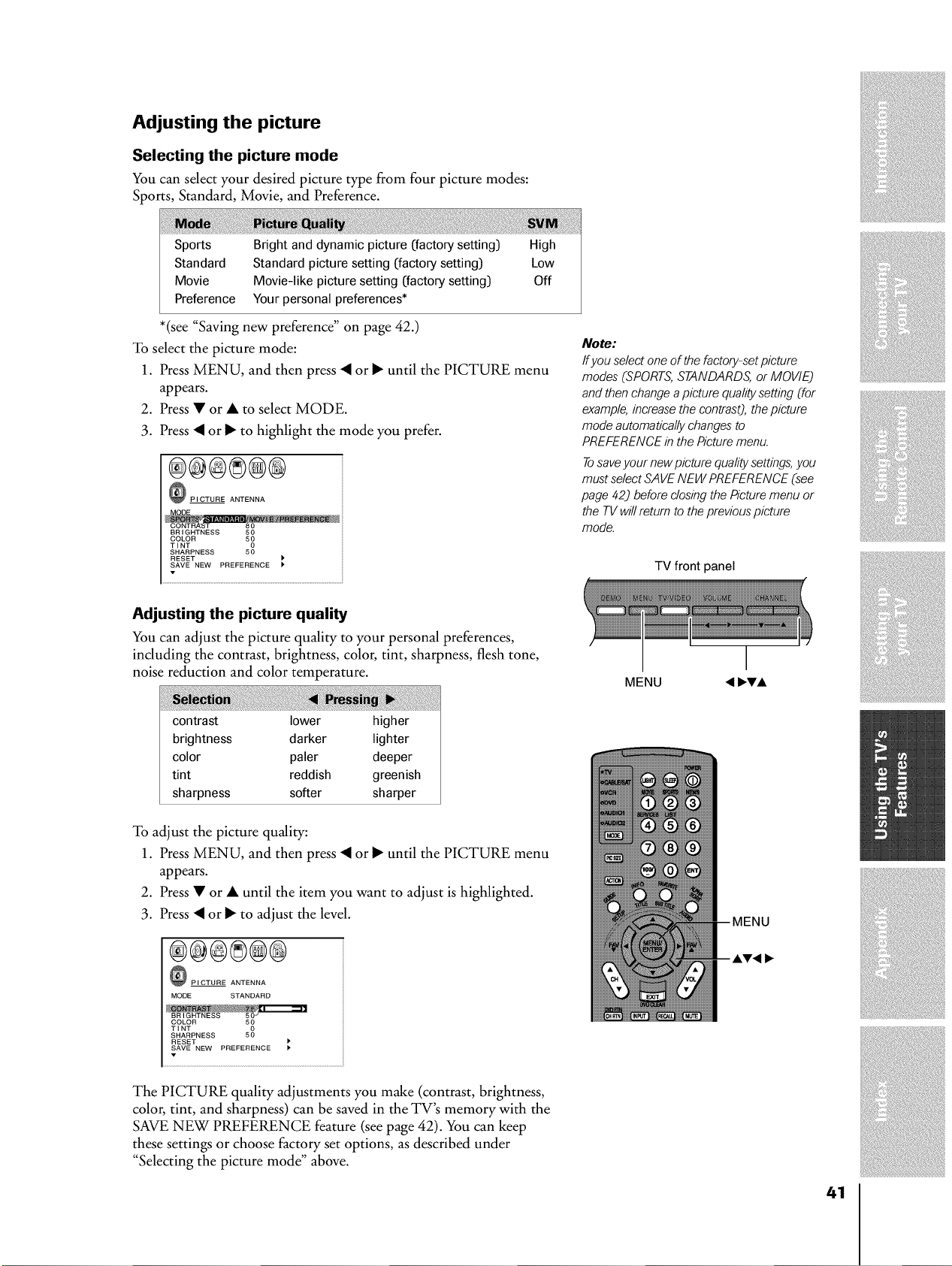
Adjusting the picture
Selecting the picture mode
You can select your desired picture type from four picture modes:
Sports, Standard, Movie, and Preference.
Sports
Standard
Movie
Preference
Bright and dynamic picture (factory setting] High
Standard picture setting (factory setting] Low
Movie-like picture setting (factory setting] Off
Your personal preferences*
*(see "Saving new preference" on page 42.)
To select the picture mode:
1. Press MENU, and then press • or I_ until the PICTURE menu
appears.
2. Press • or • to select MODE.
3. Press • or I_ to highlight the mode you prefer.
®@®®@®
_ PICTURE ANTENNA
BRIGHTNESS 50
COLOR 50
TINT 5_
SHARPNESS
RESET
SAVE NEW PREFERENCE
Adjusting the picture quality
You can adjust the picture quality to your personal preferences,
including the contrast, brightness, color, tint, sharpness, flesh tone,
noise reduction and color temperature.
contrast lower higher
brightness darker lighter
color paler deeper
tint reddish greenish
sharpness softer sharper
To adjust the picture quality:
1. Press MENU, and then press • or I_ until the PICTURE menu
appears.
2. Press • or • until the item you want to adjust is highlighted.
3. Press • or I_ to adjust the level.
PICTURE ANTENNA
MODE STANDARD
COLOR 50
TINT 5_
SHARPNESS
RESET
SAVE NEW PREFERENCE
The PICTURE quality adjustments you make (contrast, brightness,
color, tint, and sharpness) can be saved in the TV's memory with the
SAVE NEW PREFERENCE feature (see page 42). You can keep
these settings or choose factory set options, as described under
"Selecting the picture mode" above.
Note:
If you select one of the factory-setpicture
modes (SPORTS,STANDARDS, or MOVIEj
and then change a picture qualitysetting (for
example, increasethe contrasO,the picture
mode automatically changesto
PREFERENCEin the Picture menu.
Tosaveyour new picture qualitysettings,you
must select SAVE NEW PREFERENCE(see
page 42j before closing the Picture menu or
the TV willreturn to the previouspicture
mode.
TV front panel
MENU
41
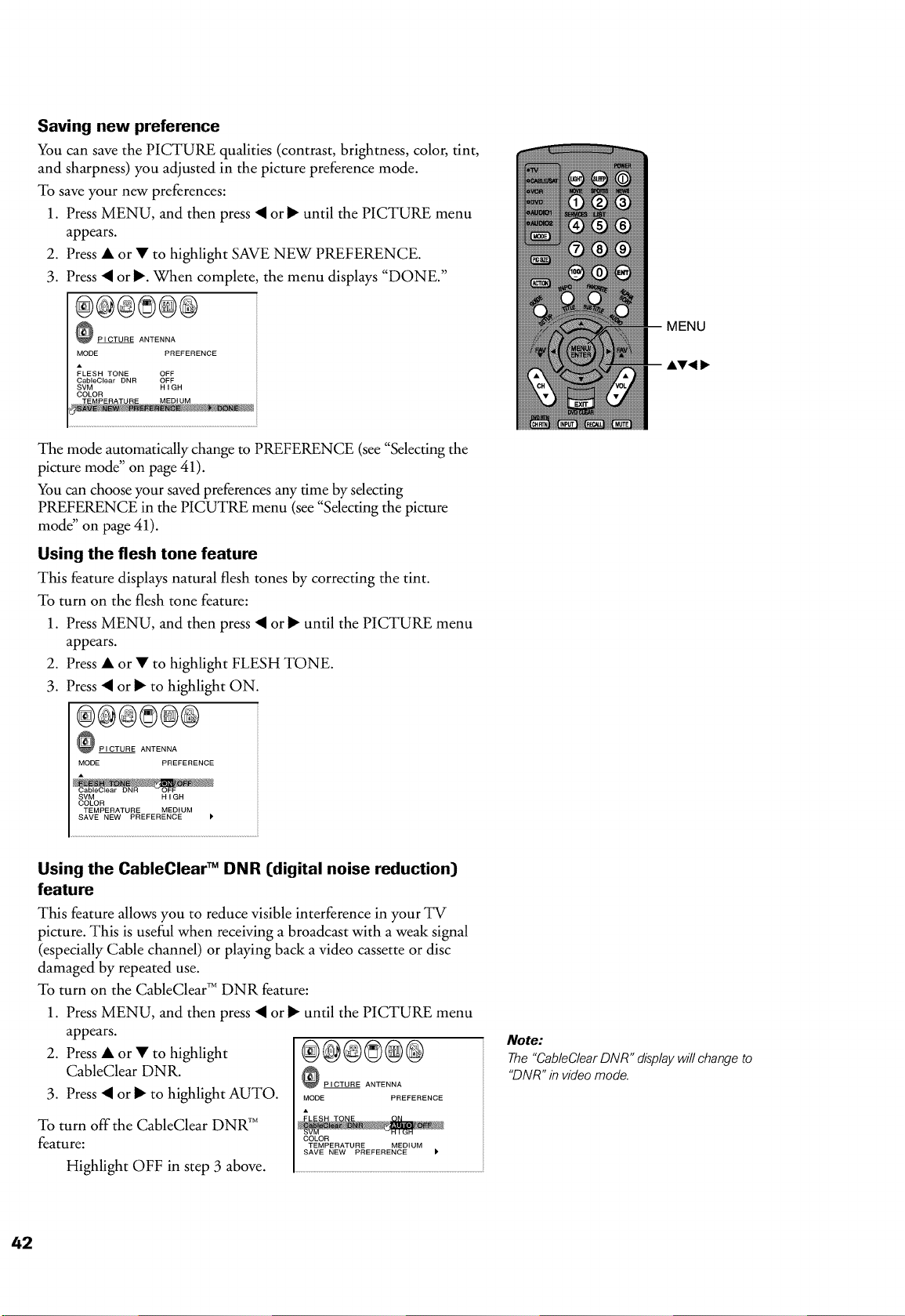
Saving new preference
You can save the PICTURE qualities (contrast, brightness, color, tint,
and sharpness) you adjusted in the picture preference mode.
To save your new preferences:
1. Press MENU, and then press • or I_ until the PICTURE menu
appears.
2. Press • or • to highlight SAVE NEW PREFERENCE.
3. Press • or I_. When complete, the menu displays "DONE."
®@®8@@
PICTURE ANTENNA
MODE PREFERENCE
A
FLESH TONE OFF
CableCiear DNR OFF
SVM H I GH
COLOR
The mode automatically change to PREFERENCE (see "Selecting the
picture mode" on page 41).
You can choose your saved preferences any time by selecting
PREFERENCE in the PICUTRE menu (see "Selecting the picture
mode" on page 41).
Using the flesh tone feature
This feature displays natural flesh tones by correcting the tint.
To turn on the flesh tone feature:
1. Press MENU, and then press • or I_ until the PICTURE menu
appears.
2. Press • or • to highlight FLESH TONE.
3. Press • or I_ to highlight ON.
®@@8@@
_ PICTURE ANTENNA
MODE PREFERENCE
SVM HIGH
COLOR
TEMPERATURE MEDIUM
SAVE NEW PREFERENCE P
Using the CableClear TM DNR (digital noise reduction)
feature
This feature allows you to reduce visible interference in your TV
picture. This is useful when receiving a broadcast with a weak signal
(especially Cable channel) or playing back a video cassette or disc
damaged by repeated use.
To turn on the CableClear TM DNR feature:
1. Press MENU, and then press • or I_ until the PICTURE menu
appears.
2. Press • or • to highlight
CableClear DNR.
3. Press • or I_ to highlight AUTO.
To turn off the CableClear DNR TM
feature:
Highlight OFF in step 3 above.
®@®80®
PICTURE ANTENNA
MODE PREFERENCE
COLOR
TEMPERATURE MEDIUM
SAVE NEW PREFERENCE
Note:
The "CableClear DNR" display will change to
"DNR" in video mode.
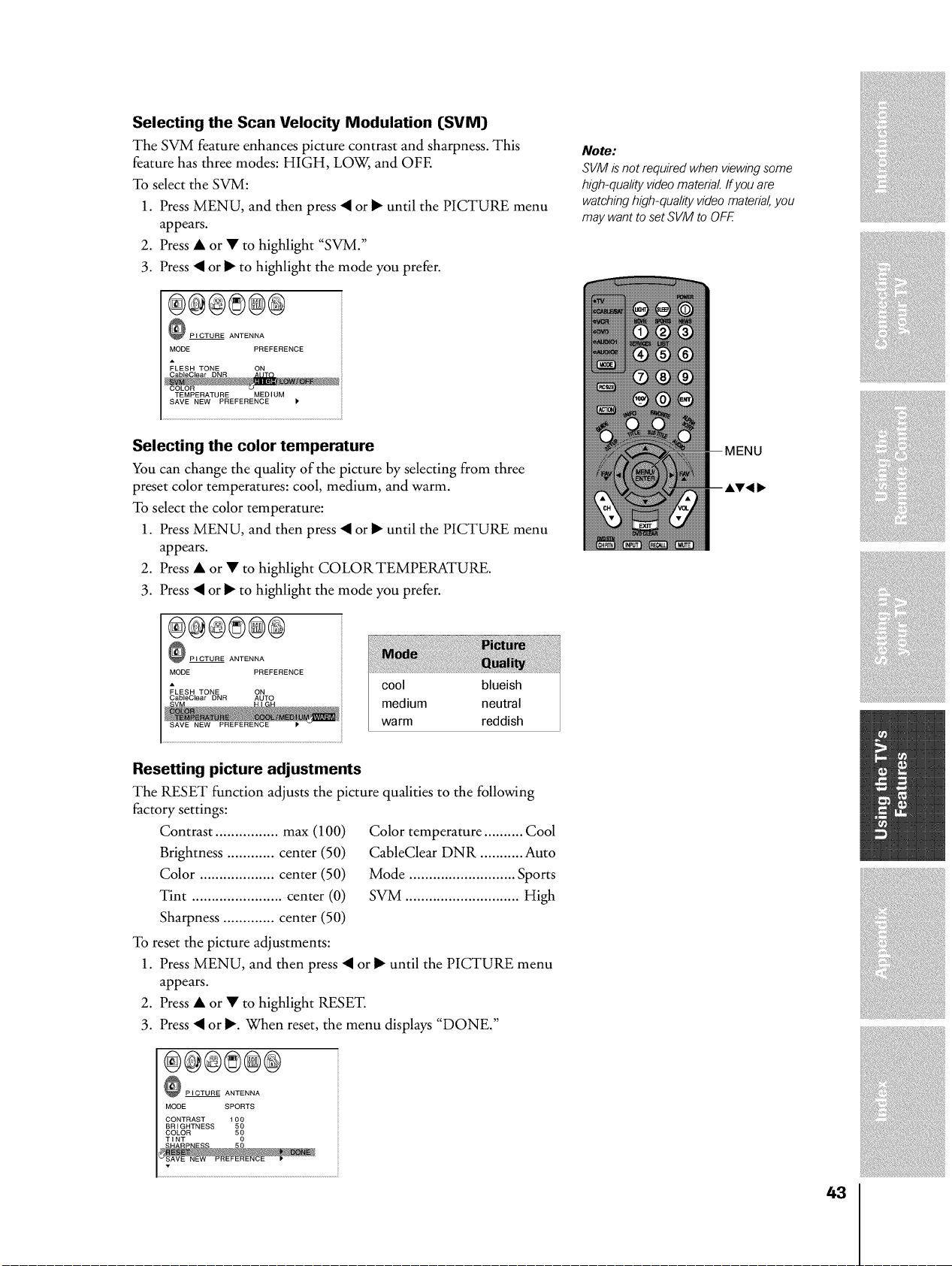
Selecting the Scan Velocity Modulation (SVM}
The SVM feature enhances picture contrast and sharpness. This
feature has three modes: HIGH, LOW, and OFE
To select the SVM:
1. Press MENU, and then press • or I_ until the PICTURE menu
appears.
2. Press • or • to highlight "SVM."
3. Press • or I_ to highlight the mode you prefer.
®®®8@®
PICTURE ANTENNA
MODE PREFERENCE
FLESH TONE ON
Note:
SVM is not required when viewing some
high-quality videomaterial ffyou are
watchinghigh-quality video material,you
may want to set SVM to OFF
TEMPERATURE MEDIUM
SAVE NEW PREFERENCE P
Selecting the color temperature
You can change the quality of the picture by selecting from three
preset color temperatures: cool, medium, and warm.
To select the color temperature:
1. Press MENU, and then press • or I_ until the PICTURE menu
appears.
2. Press • or • to highlight COLORTEMPERATURE.
3. Press • or I_ to highlight the mode you prefer.
®®®8@®
PICTURE ANTENNA
MODE PREFERENCE
FLESH TONE ON
CableClear DNR AUTO
cool blueish
medium neutral
warm reddish
Resetting picture adjustments
The RESET function adjusts the picture qualities to the following
factory settings:
Contrast ................ max (100)
Brightness ............ center (50)
Color ................... center (50)
Tint ....................... center (0)
Sharpness ............. center (50)
To reset the picture adjustments:
1. Press MENU, and then press • or I_ until the PICTURE menu
appears.
2. Press • or • to highlight RESET.
3. Press • or I_. When reset, the menu displays "DONE."
Color temperature .......... Cool
CableClear DNR ........... Auto
Mode ........................... Sports
SVM ............................. High
®®®8®®
PICTURE ANTENNA
MODE SPORTS
CONTRAST 100
BRIGHTNESS 50
COLOR 50
TINT 0
43
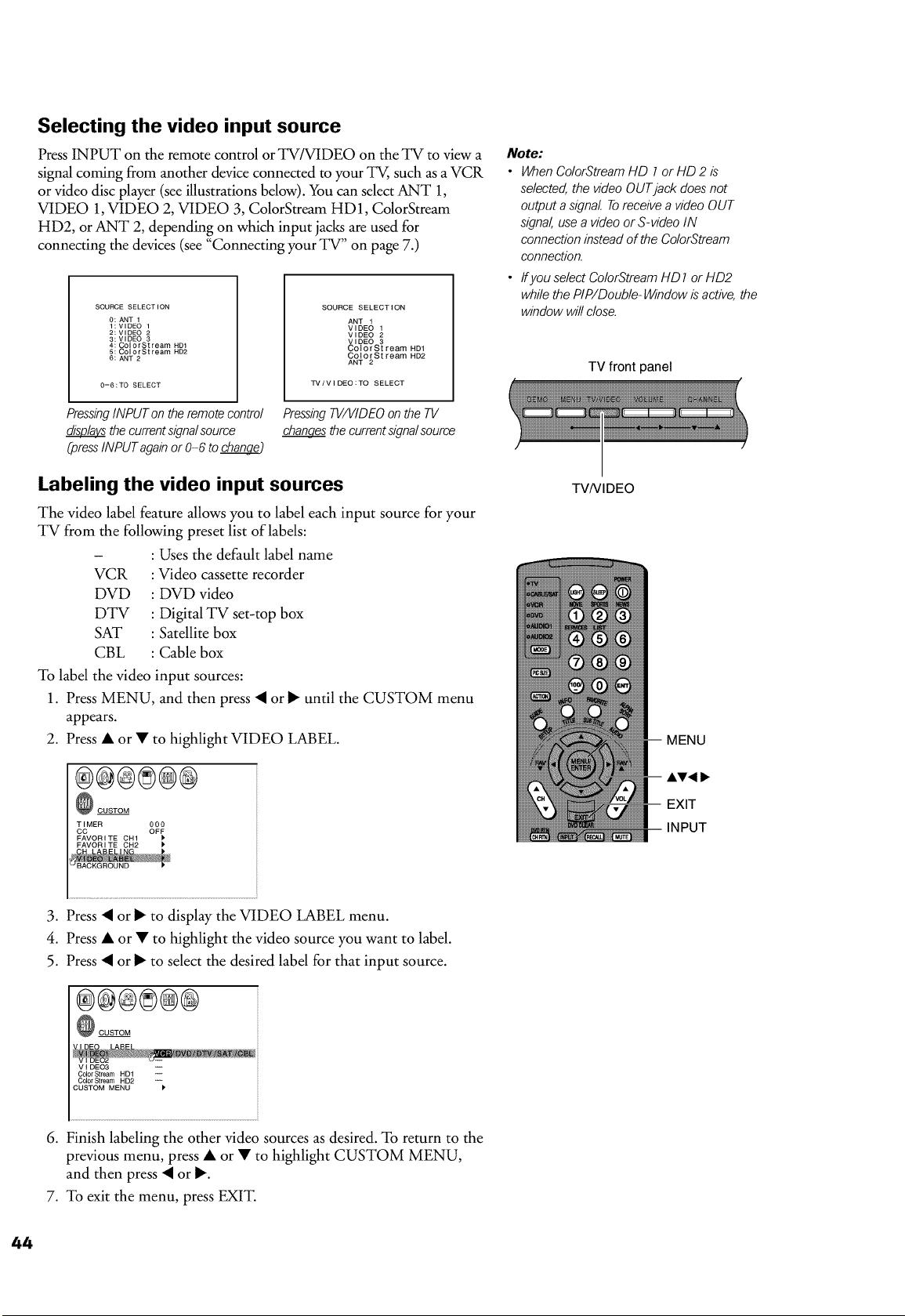
Selecting the video input source
Press INPUT on the remote control or TV/VIDEO on the TV to view a
signal coming from another device connected to your TV, such as a VCR
or video disc player (see illustrations below). You can select ANT 1,
VIDEO 1, VIDEO 2, VIDEO 3, ColorStream HD1, ColorStream
HD2, or ANT 2, depending on which input jacks are used for
connecting the devices (see "Connecting your TV" on page 7.)
SOURCE SELECTION
0: ANT 1
1: VIDEO 1
2: VIDEO 2
3: VIDEO 3
4: ColorStrearn HDI
5: ColorStrearn HD2
6: ANT 2
0-6:TO SELECT
PressingINPUT on theremotecontrol
the currentsignalsource
(pressINPUTagainor 0-6 to chan_._
SOURCE SELECTION
ANT 1
VIDEO 1
VIDEO 2
VIDEO 3
ColorStream HD1
ColorStream HD2
ANT 2
TV/VIDEO:TO SELECT
PressingTV/VIDEOon the TV
chang.__the currentsignalsource
Labeling the video input sources
The video label feature allows you to label each input source for your
TV from the following preset list of labels:
- : Uses the default label name
VCR : Video cassette recorder
DVD : DVD video
DTV : Digital TV set-top box
SAT : Satellite box
CBL : Cable box
To label the video input sources:
1. Press MENU, and then press • or I_ until the CUSTOM menu
appears.
2. Press • or • to highlight VIDEO LABEL.
®®®8@@
CUSTOM
TIMER 000
CC OFF
FAVORITE CH1
FAVORITE CH2
Note:
• When Co/orStreamHD 7 or HD 2 is
selected, the video OUTjack does not
output a signal Toreceive a video OUT
signal, use a video or S-video IN
connection instead of the ColorStream
connection.
• ffyou select ColorStream HD 1or HD2
while the PIP/Double-Window is active, the
window will close.
TV front panel
TVNIDEO
3. Press • or I_ to display the VIDEO LABEL menu.
4. Press • or • to highlight the video source you want to label.
5. Press • or I_ to select the desired label for that input source.
®@@8®@
CUSTOM
VIDEO3
ColorStream HD1
ColorStream HD2
CUSTOM MENU
.
Finish labeling the other video sources as desired. To return to the
previous menu, press • or • to highlight CUSTOM MENU,
and then press • or 1_.
7. To exit the menu, press EXIT.
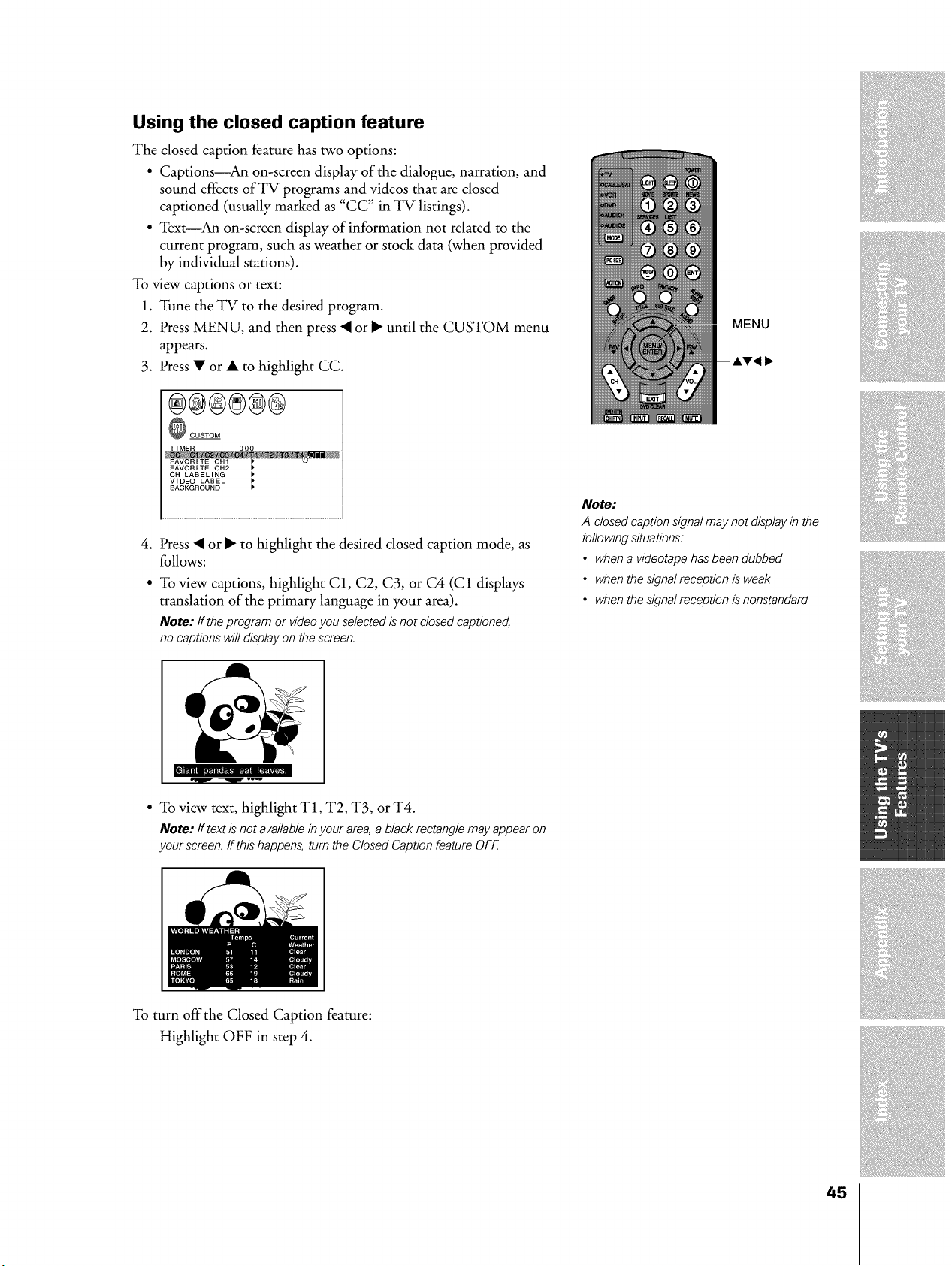
Using the closed caption feature
The closed caption feature has two options:
• Captions_An on-screen display of the dialogue, narration, and
sound effects of TV programs and videos that are closed
captioned (usually marked as "CC" in TV listings).
• Text An on-screen display of information not related to the
current program, such as weather or stock data (when provided
by individual stations).
To view captions or text:
1. Tune the TV to the desired program.
2. Press MENU, and then press • or _ until the CUSTOM menu
appears.
3. Press • or • to highlight CC.
®@®8@®
_ CUSTOM
FAVORITE CH2 P
CH LABELING
VIDEO LABEL
BACKGROUND P
4. Press • or _ to highlight the desired closed caption mode, as
follows:
• To view captions, highlight C1, C2, C3, or C4 (C1 displays
translation of the primary language in your area).
Note: If the program or videoyou selected is not closed captioned,
no captions wi//displayon the screen.
• To view text, highlight T1, T2, T3, orT4.
Note: Iftextisnotavailableinyourarea,a blackrectanglemayappearon
yourscreen,if thishappens,turntheClosedCaptionfeatureOFF
Note:
A closed caption signal may not display in the
following situations.
• when a videotape has been dubbed
• when the signal reception is weak
• when the signal reception is nonstandard
To turn offthe Closed Caption feature:
Highlight OFF in step 4.
45
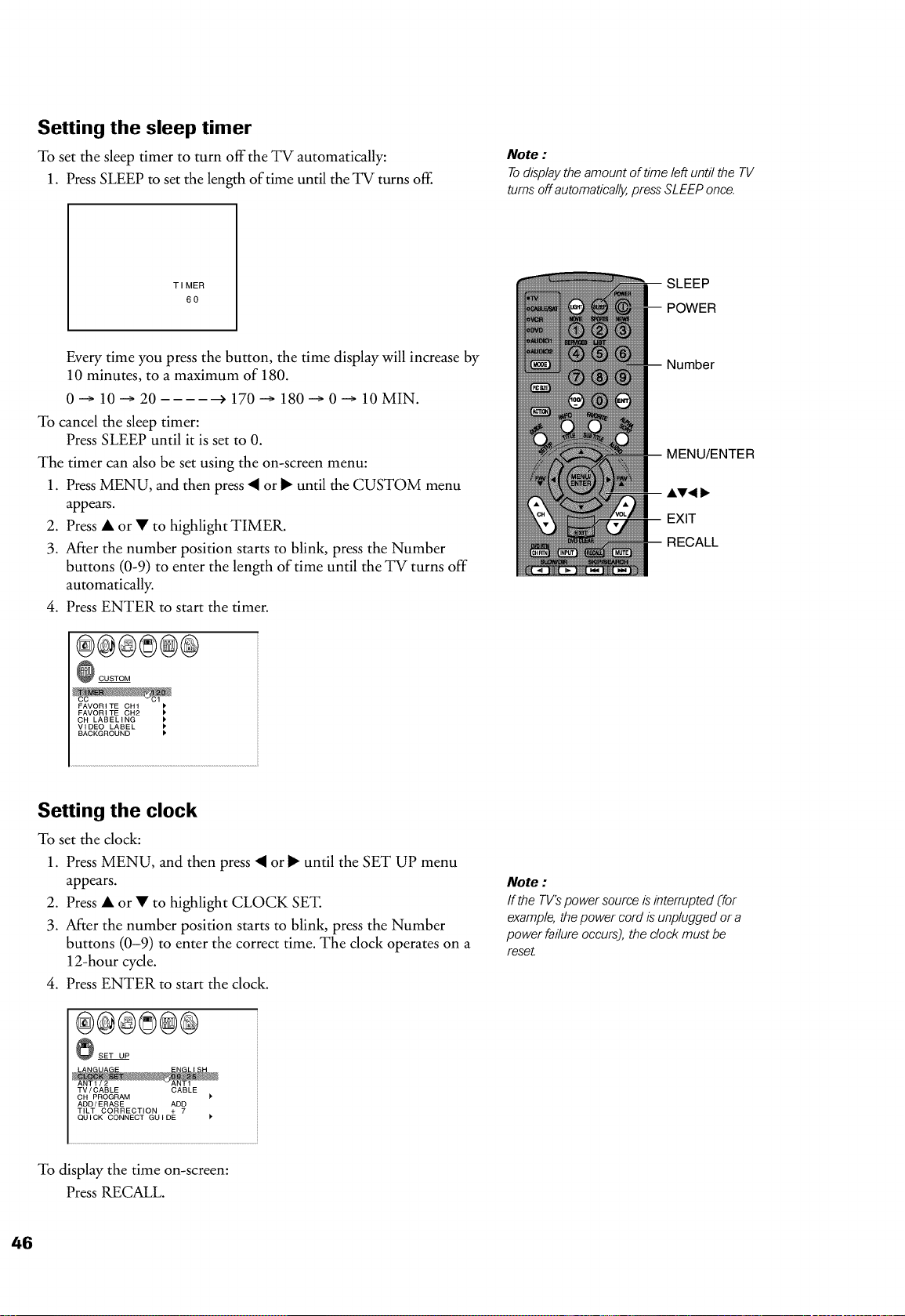
Setting the sleep timer
To set the sleep timer to turn off the TV automatically:
1. Press SLEEP to set the length of time until the TV turns off.
Note :
Todisplay the amount of time left until the TV
turns off automatically, press SLEEP once.
TIMER
60
Every time you press the button, the time display will increase by
10 minutes, to a maximum of 180.
0 --+ 10 --+ 20 _ 170 --+ 180 --+ 0 --+ 10 MIN.
To cancel the sleep timer:
Press SLEEP until it is set to 0.
The timer can also be set using the on-screen menu:
1. Press MENU, and then press • or I_ until the CUSTOM menu
appears.
2. Press • or • to highlight TIMER.
3. After the number position starts to blink, press the Number
buttons (0-9) to enter the length of time until the TV turns off
automatically.
4. Press ENTER to start the timer.
®®@8@@
CUSTOM
FAVORITE CH1 P
FAVORITE CH2
CH LABELING
VIDEO LABEL
BACKGROUND P
SLEEP
POWER
Number
MENU/ENTER
AT< I_
EXIT
RECALL
Setting the clock
To set the clock:
1. Press MENU, and then press • or I_ until the SET UP menu
appears.
2. Press • or • to highlight CLOCK SET.
3. After the number position starts to blink, press the Number
buttons (0-9) to enter the correct time. The clock operates on a
12-hour cycle.
4. Press ENTER to start the clock.
®®@8@@
@SET UP
Note :
If the TV'spower source is interrupted (for
example, thepower cord is unplugged or a
power failure occurs), the dock must be
reset
TV/CABLE CABLE
CH PROGRAM P
ADD/ERASE ADD
TILT CORRECTION + 7
QUICK CONNECT GUIDE
To display the time on-screen:
Press RECALL.
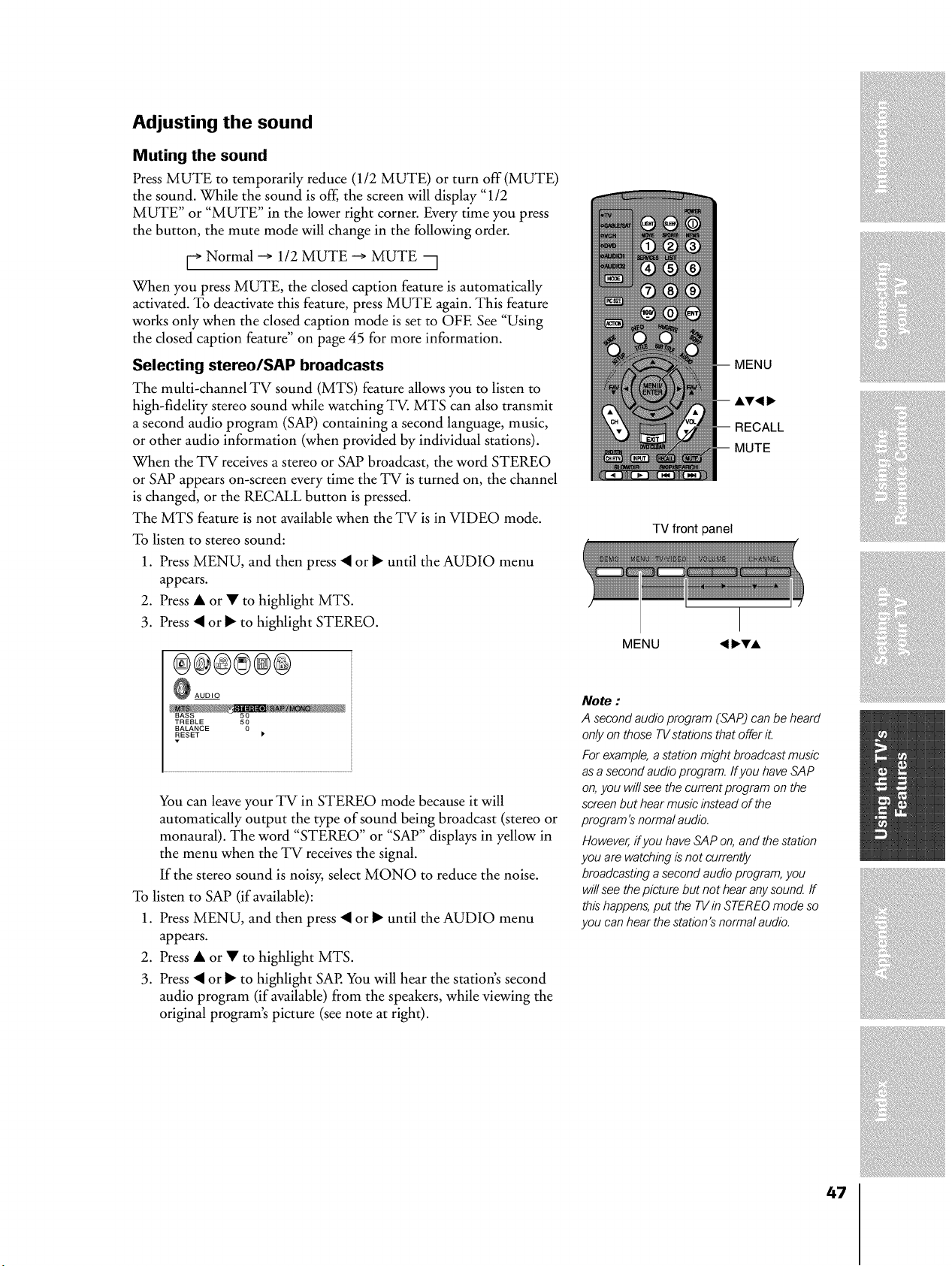
Adjusting the sound
Muting the sound
Press MUTE to temporarily reduce (112 MUTE) or turn off (MUTE)
the sound. While the sound is off, the screen will display "1/2
MUTE" or "MUTE" in the lower right corner. Every time you press
the button, the mute mode will change in the following order.
[-, Normal -+ 1/2 MUTE -+ MUTE --]
When you press MUTE, the closed caption feature is automatically
activated. To deactivate this feature, press MUTE again. This feature
works only when the closed caption mode is set to OFE See "Using
the closed caption feature" on page 45 for more information.
Selecting stereo/SAtP broadcasts
The multi-channel TV sound (MTS) feature allows you to listen to
high-fidelity stereo sound while watching TV. MTS can also transmit
a second audio program (SAP) containing a second language, music,
or other audio information (when provided by individual stations).
When the TV receives a stereo or SAP broadcast, the word STEREO
or SAP appears on-screen every time the TV is turned on, the channel
is changed, or the RECALL button is pressed.
The MTS feature is not available when the TV is in VIDEO mode.
To listen to stereo sound:
1. Press MENU, and then press • or I_ until the AUDIO menu
appears.
2. Press • or • to highlight MTS.
3. Press • or I_ to highlight STEREO.
®@@8®@
@ AUDIO
TREBLE 50
BALANCE
RESET P
You can leave your TV in STEREO mode because it will
automatically output the type of sound being broadcast (stereo or
monaural). The word "STEREO" or "SAP" displays in yellow in
the menu when the TV receives the signal.
If the stereo sound is noisy, select MONO to reduce the noise.
To listen to SAP (if available):
1. Press MENU, and then press • or I_ until the AUDIO menu
appears.
2. Press • or • to highlight MTS.
3. Press • or I_ to highlight SAP. You will hear the station's second
audio program (if available) from the speakers, while viewing the
original program's picture (see note at right).
RECALL
MUTE
TV front panel
Note :
A second audio program (SAP) can be heard
only on those TVstations that offer it.
For example,a station might broadcast music
as a second audio program, ff you have SAP
on,you will seethe current program on the
screen but hear music instead of the
program's normal audio.
However, if you haveSAP on, and the station
you are watching is not currently
broadcasting a second audio program,you
willsee the picture but not hear any sound ff
this happens,put the TVin STEREOmode so
you can hear the station's normal audio.
47
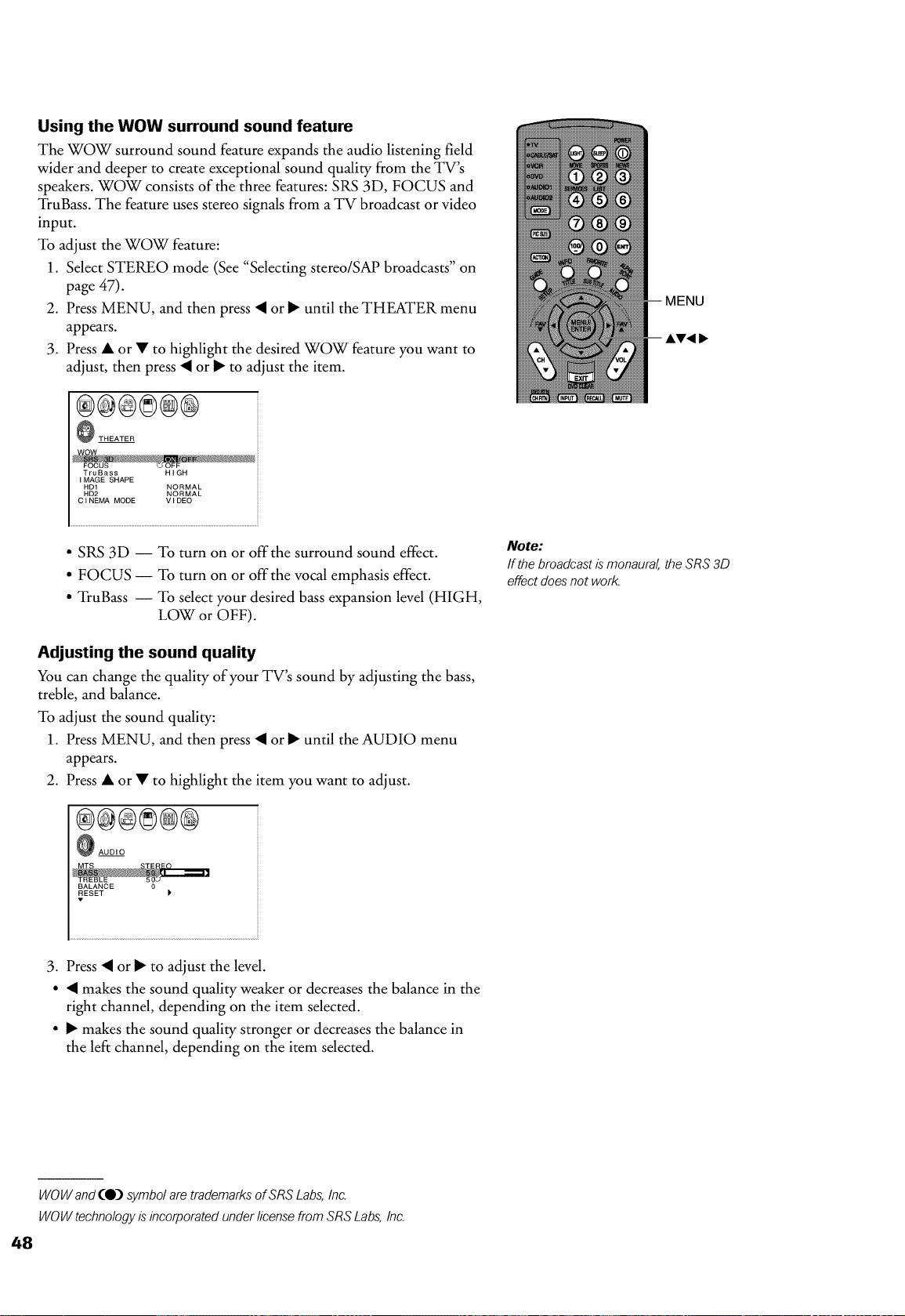
Using the WOW surround sound feature
The WOW surround sound feature expands the audio listening field
wider and deeper to create exceptional sound quality from the TV's
speakers. WOW consists of the three features: SRS 3D, FOCUS and
TruBass. The feature uses stereo signals from a TV broadcast or video
input.
To adjust the WOW feature:
1. Select STEREO mode (See "Selecting stereo/SAP broadcasts" on
page 47).
2. Press MENU, and then press • or I_ until the THEATER menu
appears.
3. Press • or • to highlight the desired WOW feature you want to
adjust, then press • or I_ to adjust the item.
®®®®®@
THEATER
TruBass HIGH
IMAGE SHAPE
HD1 NORMAL
HD2 NORMAL
CINEMA MODE VIDEO
• SRS 3D -- To turn on or offthe surround sound effect.
• FOCUS -- To turn on or offthe vocal emphasis effect.
• TruBass -- To select your desired bass expansion level (HIGH,
LOW or OFF).
Adjusting the sound quality
You can change the quality of your TV's sound by adjusting the bass,
treble, and balance.
To adjust the sound quality:
1. Press MENU, and then press • or I_ until the AUDIO menu
appears.
2. Press • or • to highlight the item you want to adjust.
®®®8@@
AUDIO
Note:
If the broadcast is monaural, the SRS 3D
effect does not work.
RESET
3. Press • or I_ to adjust the level.
• • makes the sound quality weaker or decreases the balance in the
right channel, depending on the item selected.
• I_ makes the sound quality stronger or decreases the balance in
the left channel, depending on the item selected.
WOWand (0) symbol are trademarks of SRS Labs,Inc.
WOW technology is incorporated under license from SRS Labs,Inc.
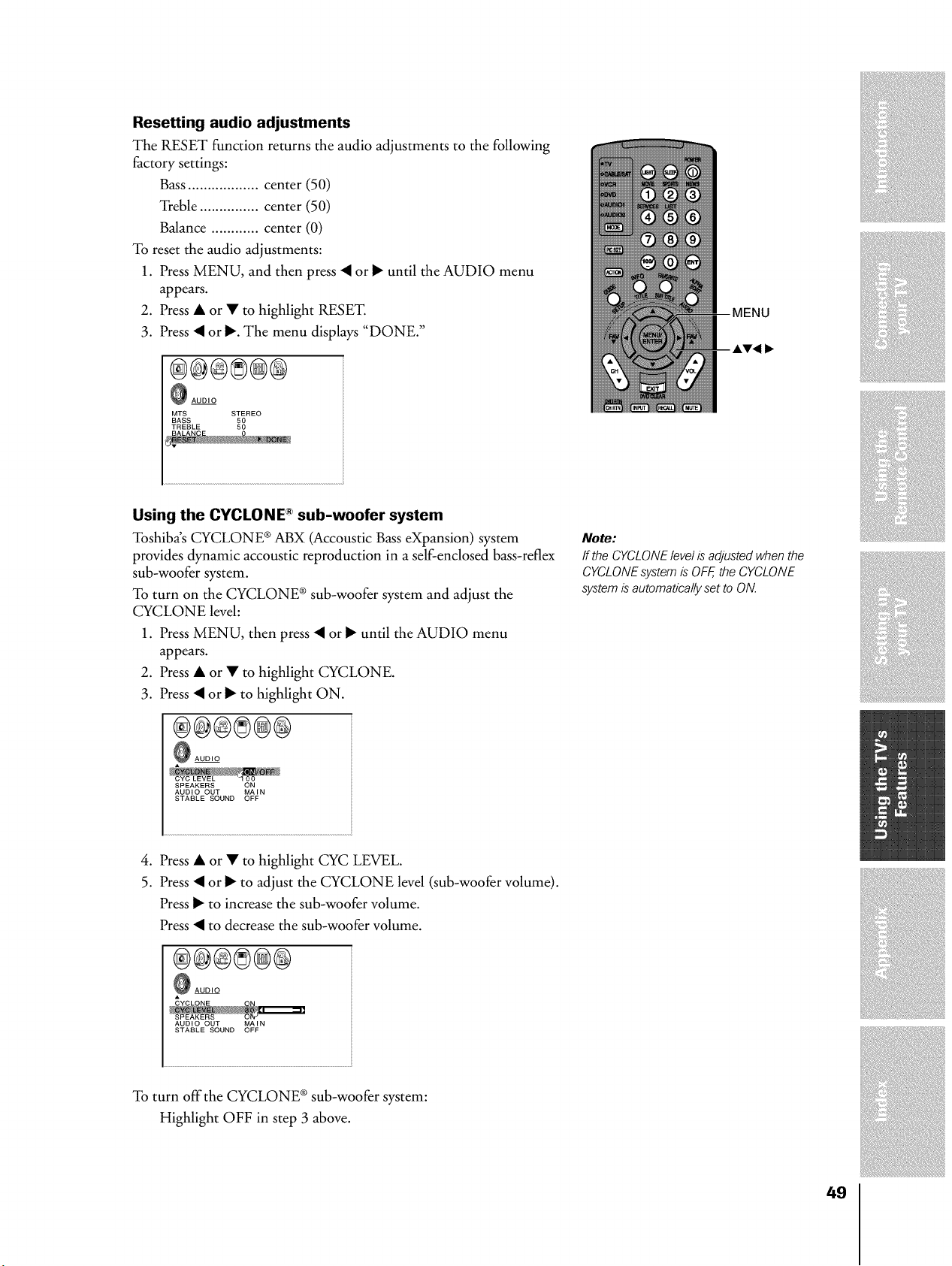
Resetting audio adjustments
The RESET function returns the audio adjustments to the following
factory settings:
Bass .................. center (50)
Treble ............... center (50)
Balance ............ center (0)
To reset the audio adjustments:
1. Press MENU, and then press • or I_ until the AUDIO menu
appears.
2. Press • or • to highlight RESET.
3. Press • or I_. The menu displays "DONE."
®®®8@®
AUDIO
MTS STEREO
BASS 50
TREBLE 50
Using the CYCLONE _ sub-woofer system
Toshiba's CYCLONE ®ABX (Accoustic Bass eXpansion) system
provides dynamic accoustic reproduction in a self-enclosed bass-reflex
sub-woofer system.
To turn on the CYCLONE ®sub-woofer system and adjust the
CYCLONE level:
1. Press MENU, then press • or I_ until the AUDIO menu
appears.
2. Press • or • to highlight CYCLONE.
3. Press • or I_ to highlight ON.
®@®8@®
AUDIO
SPEAKERS ON
AUDIO OUT MAIN
STABLE SOUND OFF
Note:
If the CYCLONElevel is adjusted when the
CYCLONEsystemis OFF,the CYCLONE
systemis automatically set to ON.
4. Press • or • to highlight CYC LEVEL.
5. Press • or _ to adjust the CYCLONE level (sub-woofer volume).
Press _ to increase the sub-woofer volume.
Press • to decrease the sub-woofer volume.
®®®8@®
AUDIO
AUDIO OUT MAIN
STABLE SOUND OFF
To turn offthe CYCLONE ® sub-woofer system:
Highlight OFF in step 3 above.
49
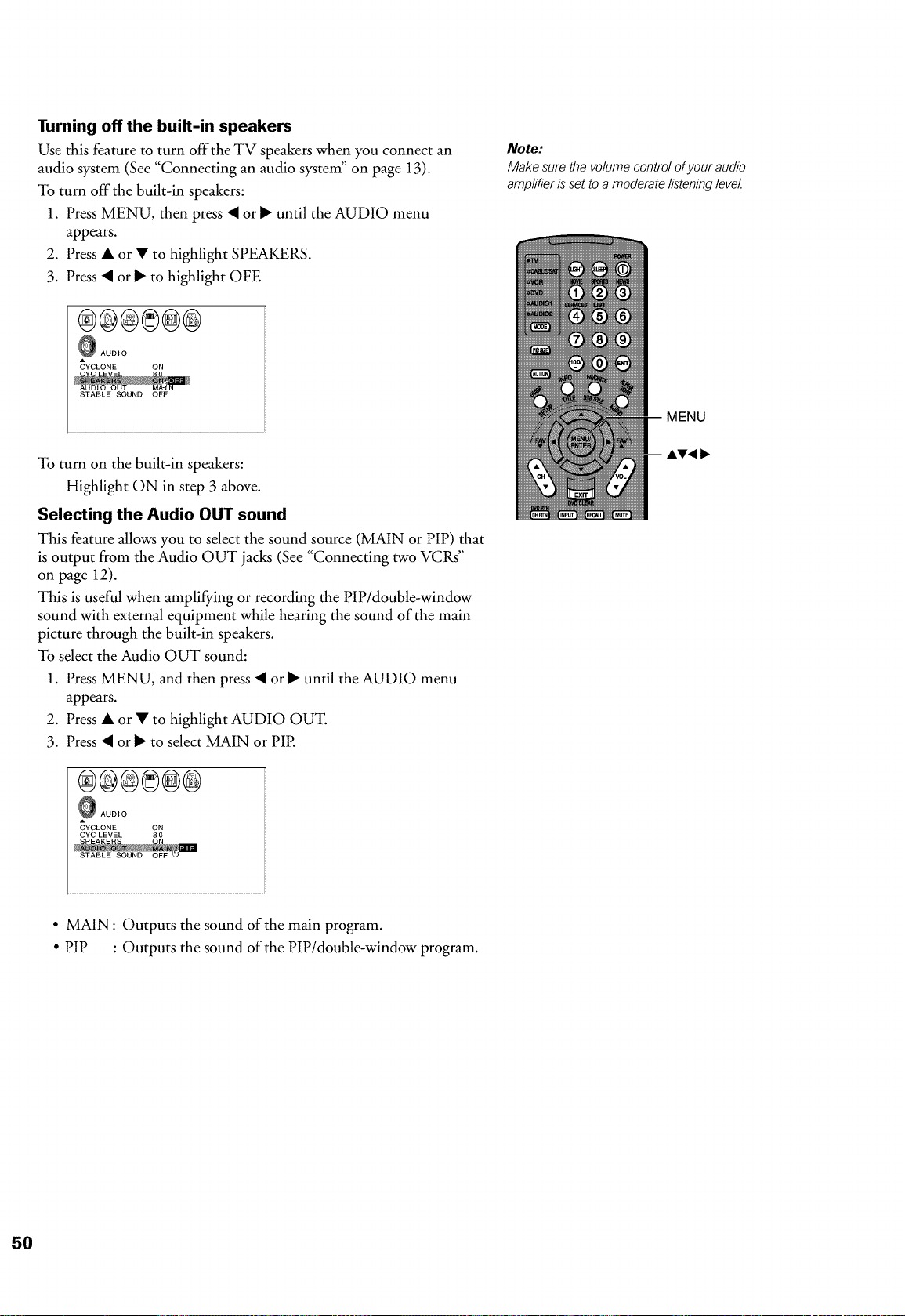
Turning off the built-in speakers
Use this feature to turn offthe TV speakers when you connect an
audio system (See "Connecting an audio system" on page 13).
To turn off the built-in speakers:
1. Press MENU, then press • or _ until the AUDIO menu
appears.
2. Press • or • to highlight SPEAKERS.
3. Press • or _ to highlight OFE
AUDIO
_YCLONE ON
STABLE SOUND OFF
To turn on the built-in speakers:
Highlight ON in step 3 above.
Selecting the Audio OUT sound
This feature allows you to select the sound source (MAIN or PIP) that
is output from the Audio OUT jacks (See "Connecting two VCRs"
on page 12).
This is useful when amplifying or recording the PiP/double-window
sound with external equipment while hearing the sound of the main
picture through the built-in speakers.
To select the Audio OUT sound:
1. Press MENU, and then press • or _ until the AUDIO menu
appears.
2. Press • or • to highlight AUDIO OUT.
3. Press • or I_ to select MAIN or PIP.
®@®8@@
AUDIO
_YCLONE ON
CYC LEVEL 8 0
Note:
Make sure the volume control of your audio
amplifier is set to a moderate listeninglevel
MENU
• MAIN: Outputs the sound of the main program.
• PIP : Outputs the sound of the PIP/double-window program.
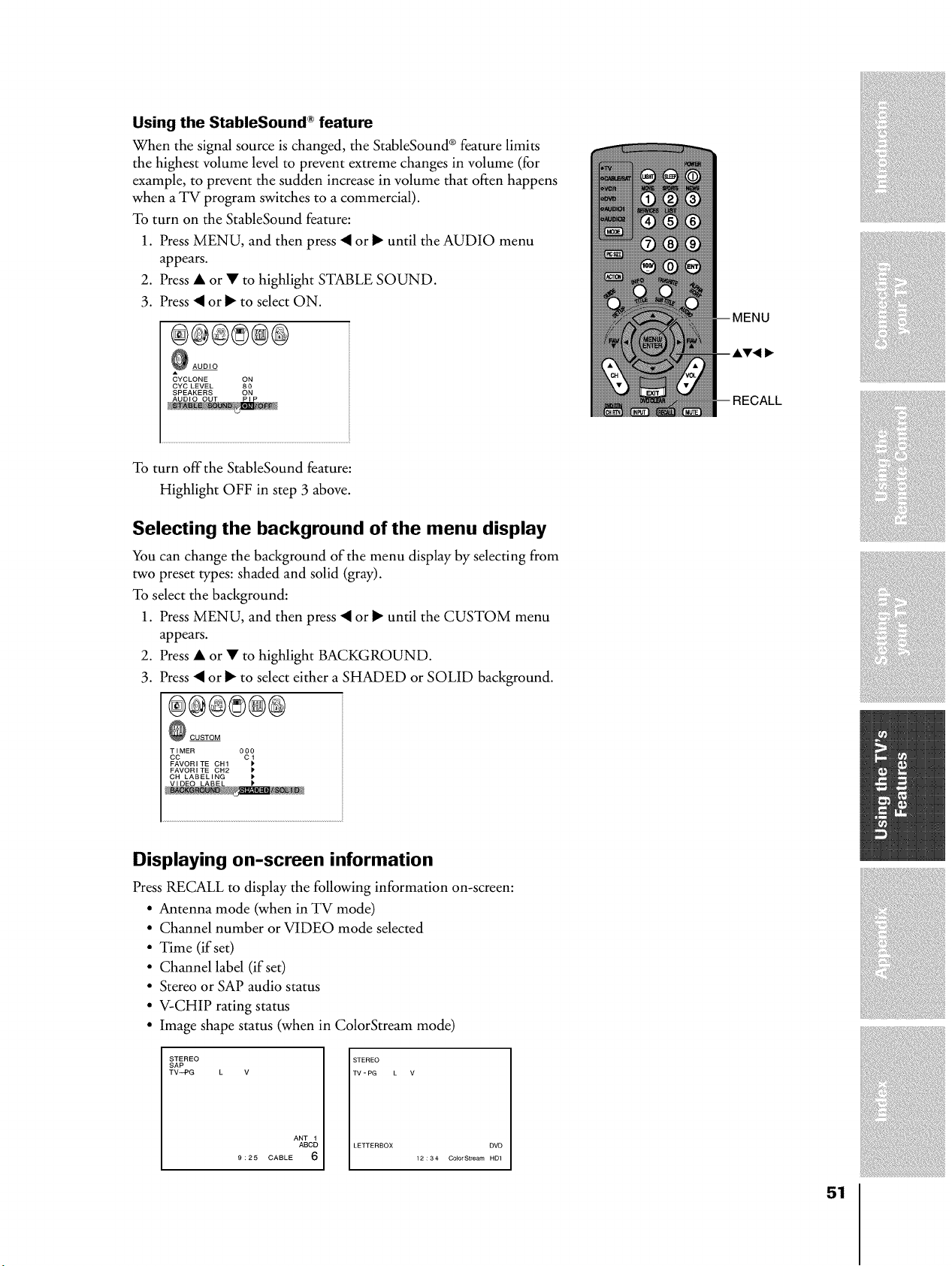
Using the StableSound _ feature
When the signal source is changed, the StableSound ®feature limits
the highest volume level to prevent extreme changes in volume (for
example, to prevent the sudden increase in volume that often happens
when a TV program switches to a commercial).
To turn on the StableSound feature:
1. Press MENU, and then press • or I_ until the AUDIO menu
appears.
2. Press • or • to highlight STABLE SOUND.
3. Press • or _ to select ON.
®®@8®@
_ AUDIO
CYCLONE ON
CYC LEVEL 80
SPEAKERS ON
;ALL
To turn offthe StableSound feature:
Highlight OFF in step 3 above.
Selecting the background of the menu display
You can change the background of the menu display by selecting from
two preset types: shaded and solid (gray).
To select the background:
1. Press MENU, and then press • or I_ until the CUSTOM menu
appears.
2. Press • or • to highlight BACKGROUND.
3. Press • or I_ to select either a SHADED or SOLID background.
®@®8@®
_ CUSTOM
TIMER 000
CC C 1
FAVORITE CH1 P'
FAVORITE CH2 I'
Displaying on-screen information
Press RECALL to display the following information on-screen:
• Antenna mode (when in TV mode)
• Channel number or VIDEO mode selected
• Time (if set)
• Channel label (if set)
• Stereo or SAP audio status
• V-CHIP rating status
• Image shape status (when in ColorStream mode)
STEREO
SAP
TV_PG
ANT 1
ABCD
9:25 CABLE 6
STEREO
TV-PG L
LETTERBOX DVD
Color Stream HD1
51
Viewing the demo mode
The demo mode automatically demonstrates several of your TV's
features. This function is provided for demonstration purposes only.
To start the demo:
Press DEMO on the TV front panel.
To stop the demo:
Press DEMO again.
Understanding the auto power off feature
The TV will automatically turn itself off after approximately 15
minutes if it is tuned to a vacant channel or a station that completes
its broadcast for the day. This feature does not work in VIDEO mode.
Understanding the last mode memory feature
If the power is cut off while you are viewing the TV, the Last Mode
Memory feature turns on the TV automatically when the power is
resupplied.
If the power is going to be offfor a long time and you are going to be
away from your TV, unplug the power cord to prevent the TV from
turning on in your absence.
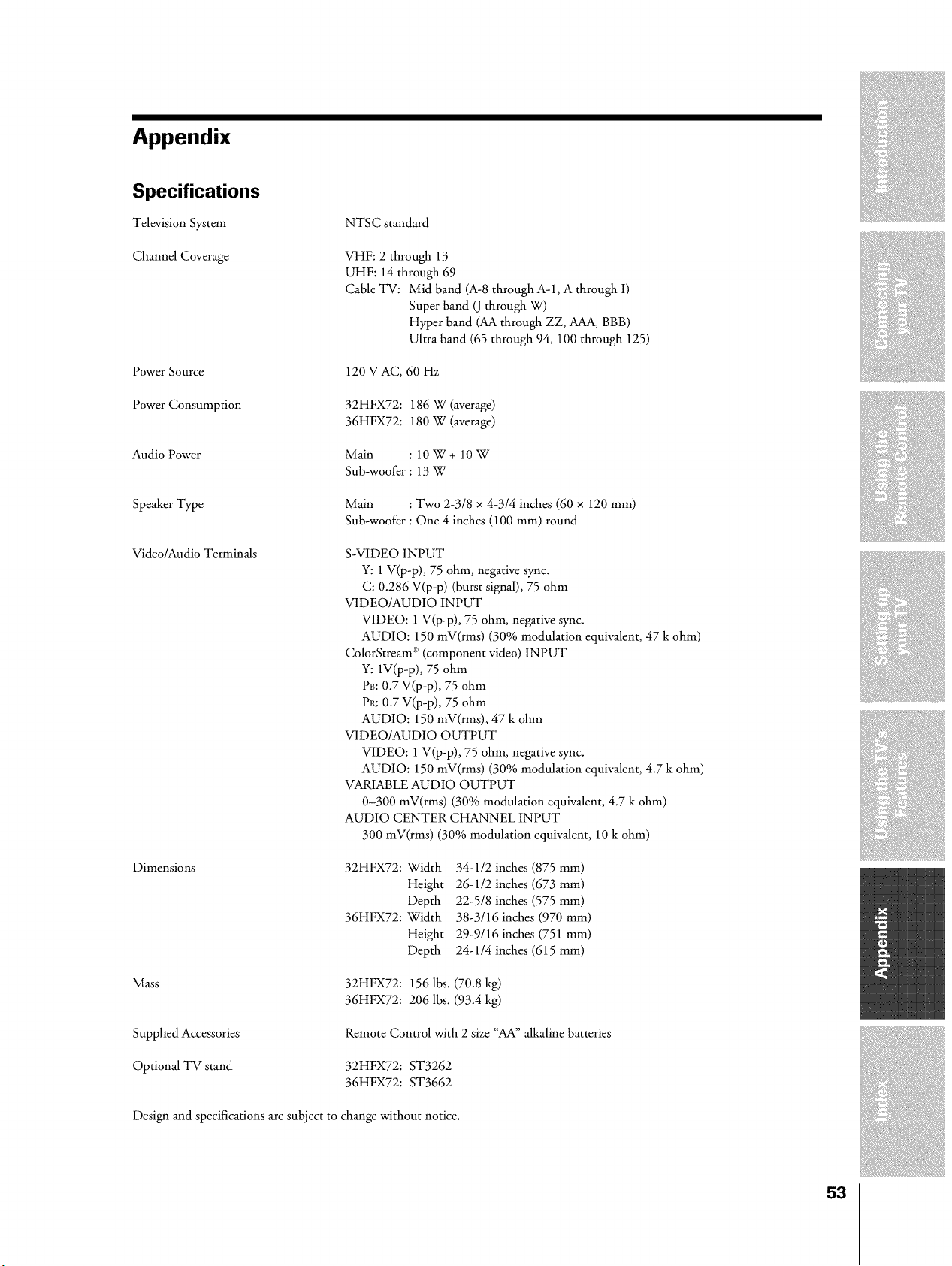
Appendix
Specifications
Television System
NTSC standard
Channel Coverage VHF: 2 through 13
UHF: 14 through 69
Cable TV: Mid band (A-8 through A-l, A through I)
Super band (J through W)
Hyper band (AA through ZZ, AAA, BBB)
Ultra band (65 through 94, 100 through 125)
Power Source
120 VAC, 60 Hz
Power Consumption 32HFX72:186 W (average)
36HFX72:180 W (average)
Audio Power Main : 10W+ 10W
Sub-woofer : 13 W
Speaker Type
Main : Two 2-318 × 4-314 inches (60 × 120 mm)
Sub-woofer : One 4 inches (100 mm) round
Video/Audio Terminals
Dimensions
Mass
S-VIDEO INPUT
Y: 1 V(p-p), 75 ohm, negative sync.
C: 0.286 V(p-p) (burst signal), 75 ohm
VIDEO/AUDIO INPUT
VIDEO: 1 V(p-p), 75 ohm, negative sync.
AUDIO: 150 mV(rms) (30% modulation equivalent, 47 k ohm)
ColorStream ® (component video) INPUT
Y: iV(p-p), 75 ohm
PB: 0.7 V(p-p), 75 ohm
PR: 0.7 V(p-p), 75 ohm
AUDIO: 150 mV(rms), 47 k ohm
VIDEO/AUDIO OUTPUT
VIDEO: 1 V(p-p), 75 ohm, negative sync.
AUDIO: 150 mV(rms) (30% modulation equivalent, 4.7 k ohm)
VARIABLE AUDIO OUTPUT
0-300 mV(rms) (30% modulation equivalent, 4.7 k ohm)
AUDIO CENTER CHANNEL INPUT
300 mV(rms) (30% modulation equivalent, 10 k ohm)
32HFX72:
36HFX72:
Width
Height
Depth
Width
Height
Depth
34-112 inches (875 mm)
26-112 inches (673 mm)
22-5/8 inches (575 mm)
38-3116 inches (970 mm)
29-9/16 inches (751 mm)
24-114 inches (615 mm)
32HFX72:156 lbs. (70.8 kg)
36HFX72:206 lbs. (93.4 kg)
Supplied Accessories
Optional TV stand
Remote Control with 2 size "AA" alkaline batteries
32HFX72:ST3262
36HFX72:ST3662
Design and specifications are subject to change without notice.
53
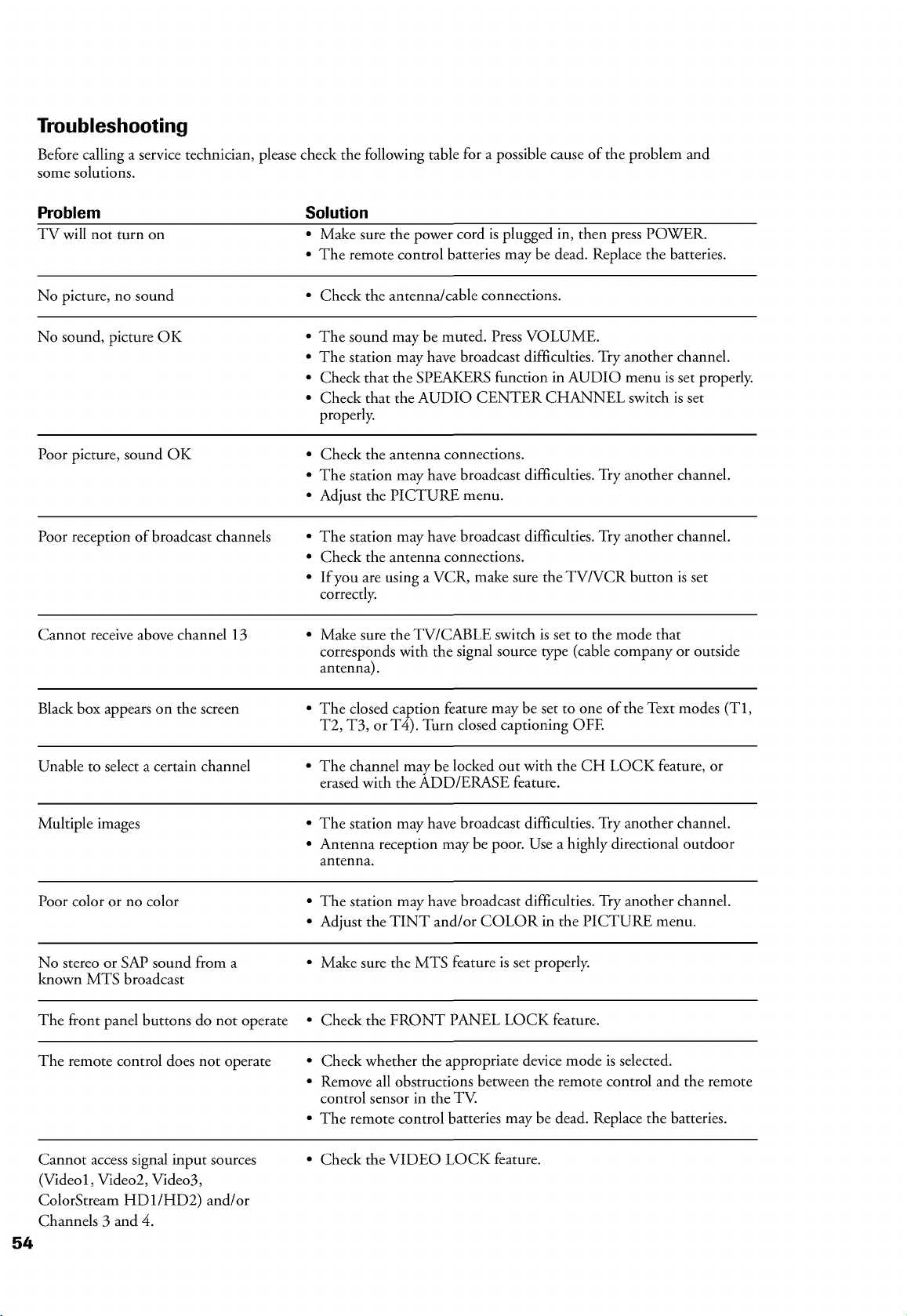
Troubleshooting
Before calling a service technician, please check the following table for a possible cause of the problem and
some solutions.
Problem Solution
TV will not turn on • Make sure the power cord is plugged in, then press POWER.
• The remote control batteries may be dead. Replace the batteries.
No picture, no sound • Check the antenna/cable connections.
No sound, picture OK • The sound may be muted. Press VOLUME.
• The station may have broadcast difficulties. Try another channel.
• Check that the SPEAKERS function in AUDIO menu is set properly.
• Check that the AUDIO CENTER CHANNEL switch is set
properly.
Poor picture, sound OK
• Check the antenna connections.
• The station may have broadcast difficulties. Try another channel.
• Adjust the PICTURE menu.
Poor reception of broadcast channels • The station may have broadcast difficulties. Try another channel.
• Check the antenna connections.
• If you are using a VCR, make sure the TV/VCR button is set
correctly.
Cannot receive above channel 13 • Make sure the TV/CABLE switch is set to the mode that
corresponds with the signal source type (cable company or outside
antenna).
Black box appears on the screen
• The closed caption feature may be set to one of the Text modes (T1,
T2, T3, or T4). Turn closed captioning OFE
Unable to select a certain channel
• The channel may be locked out with the CH LOCK feature, or
erased with the ADD/ERASE feature.
Multiple images • The station may have broadcast difficulties. Try another channel.
• Antenna reception may be poor. Use a highly directional outdoor
antenna.
Poor color or no color • The station may have broadcast difficulties. Try another channel.
• Adjust the TINT and/or COLOR in the PICTURE menu.
No stereo or SAP sound from a • Make sure the MTS feature is set properly.
known MTS broadcast
The front panel buttons do not operate • Check the FRONT PANEL LOCK feature.
The remote control does not operate • Check whether the appropriate device mode is selected.
• Remove all obstructions between the remote control and the remote
control sensor in the TV.
• The remote control batteries may be dead. Replace the batteries.
Cannot access signal input sources
(Video 1, Video2, Video3,
ColorStream HDI/HD2) and/or
Channels 3 and 4.
• Check the VIDEO LOCK feature.
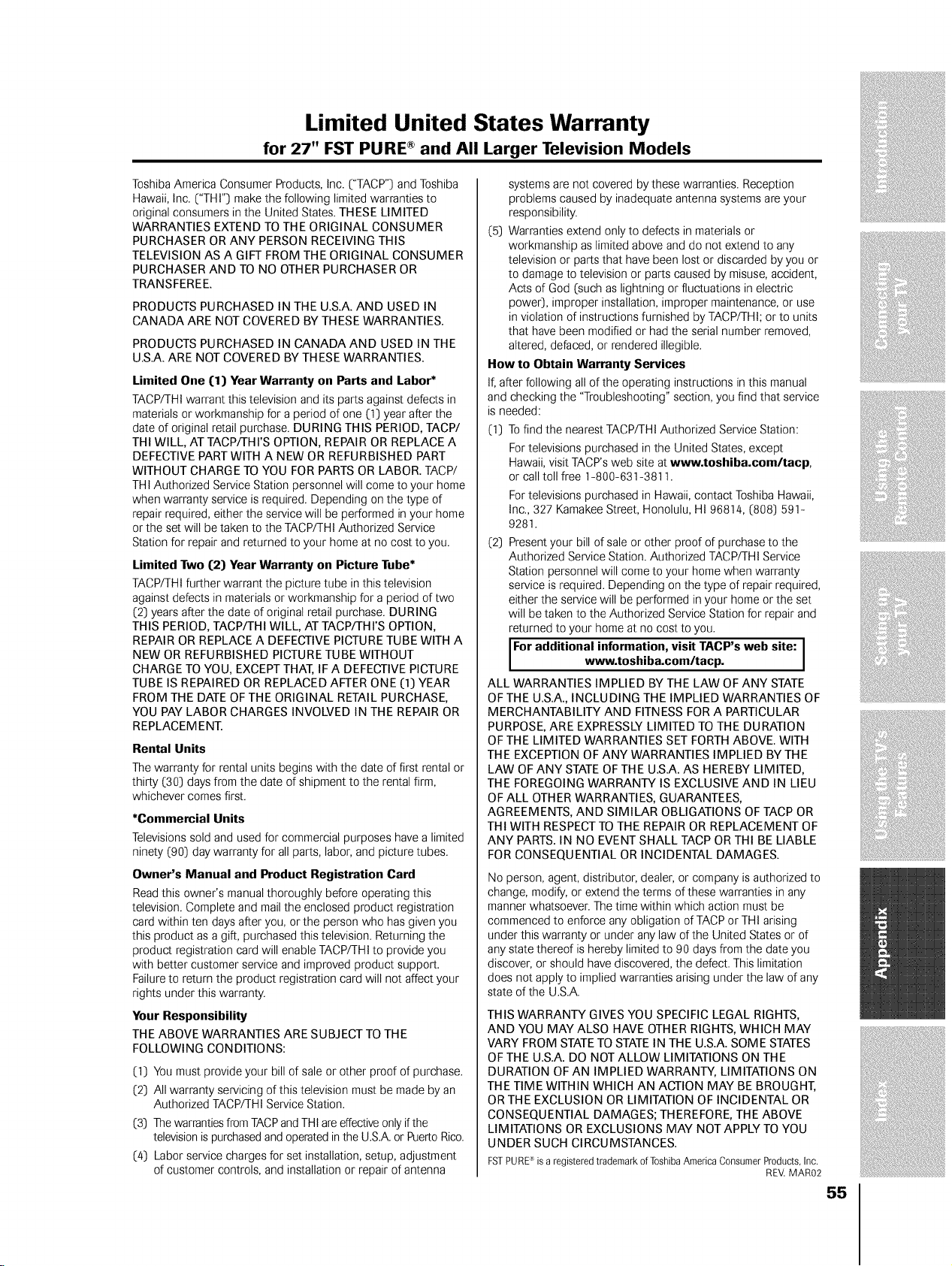
Limited United States Warranty
for 27" FST PURE ® and All Larger Television Models
Toshiba America Consumer Products, Inc. ("TACP") and Toshiba
Hawaii, Inc. ("THI") make the following limited warranties to
original consumers in the United States. THESE LIMITED
WARRANTIES EXTEND TO THE ORIGINAL CONSUMER
PURCHASER OR ANY PERSON RECEIVING THIS
TELEVISION AS A GIFT FROM THE ORIGINAL CONSUMER
PURCHASER AND TO NO OTHER PURCHASER OR
TRANSFEREE.
PRODUCTS PURCHASED IN THE U.S.A. AND USED IN
CANADA ARE NOT COVERED BY THESE WARRANTIES.
PRODUCTS PURCHASED IN CANADA AND USED IN THE
U.S.A. ARE NOT COVERED BY THESE WARRANTIES.
Limited One (1) Year Warranty on Parts and Labor*
TACP/THI warrant this television and its parts against defects in
materials or workmanship for a period of one (1) year after the
date of original retail purchase. DURING THIS PERIOD, TACP/
THI WILL, AT TACP/TH rs OPTION, REPAIR OR REPLACE A
DEFECTIVE PART WITH A NEW OR REFURBISHED PART
WITHOUT CHARGE TO YOU FOR PARTS OR LABOR. TACP/
THI Authorized Service Station personnel will come to your home
when warranty service is required. Depending on the type of
repair required, either the service will be performed in your home
or the set will be taken to the TACP/THI Authorized Service
Station for repair and returned to your home at no cost to you.
Limited Two (2) Year Warranty on Picture Tube*
TACP/THI further warrant the picture tube in this television
against defects in materials or workmanship for a period of two
(2) years after the date of original retail purchase. DURING
THIS PERIOD, TACP/THI WILL, AT TACP/TH rs OPTION,
REPAIR OR REPLACE A DEFECTIVE PICTURE TUBE WITH A
NEW OR REFURBISHED PICTURE TUBE WITHOUT
CHARGE TO YOU, EXCEPT THAT, IF A DEFECTIVE PICTURE
TUBE IS REPAIRED OR REPLACED AFTER ONE (1) YEAR
FROM THE DATE OF THE ORIGINAL RETAIL PURCHASE,
YOU PAY LABOR CHARGES INVOLVED IN THE REPAIR OR
REPLACEMENT.
Rental Units
The warranty for rental units begins with the date of first rental or
thirty (30) days from the date of shipment to the rental firm,
whichever comes first.
*Commercial Units
Televisions sold and used for commercial purposes have a limited
ninety (90) day warranty for all parts, labor, and picture tubes.
Owner's Manual and Product Registration Card
Read this owner's manual thoroughly before operating this
television. Complete and mail the enclosed product registration
card within ten days after you, or the person who has given you
this product as a gift, purchased this television. Returning the
product registration card will enable TACP/THI to provide you
with better customer service and improved product support.
Failure to return the product registration card will not affect your
rights under this warranty.
Your Responsibility
THE ABOVE WARRANTIES ARE SUBJECT TO THE
FOLLOWING CONDITIONS:
(1) You must provide your bill of sale or other proof of purchase.
(2) All warranty servicing of this television must be made by an
Authorized TACP/THI Service Station.
(3) The warranties from TACPand THI are effective only if the
television is purchased and operated in the U.S.A. or Puerto Rico.
(4) Labor service charges for set installation, setup, adjustment
of customer controls, and installation or repair of antenna
systems are not covered by these warranties. Reception
problems caused by inadequate antenna systems are your
responsibility.
(5) Warranties extend only to defects in materials or
workmanship as limited above and do not extend to any
television or parts that have been lost or discarded by you or
to damage to television or parts caused by misuse, accident,
Acts of God (such as lightning or fluctuations in electric
power), improper installation, improper maintenance, or use
in violation of instructions furnished by TACP/THI; or to units
that have been modified or had the serial number removed,
altered, defaced, or rendered illegible.
How to Obtain Warranty Services
If, after following all of the operating instructions in this manual
and checking the "Troubleshooting" section, you find that service
is needed:
(1) To find the nearest TACP/THI Authorized Service Station:
For televisions purchased in the United States, except
Hawaii, visit TACP's web site at www.toshiba.com/tacp,
or call toll free 1-800-631-3811.
For televisions purchased in Hawaii, contact Toshiba Hawaii,
Inc., 327 Kamakee Street, Honolulu, HI 96814, (808) 591-
9281.
(2) Present your bill of sale or other proof of purchase to the
Authorized Service Station. Authorized TACP/THI Service
Station personnel will come to your home when warranty
service is required. Depending on the type of repair required,
either the service will be performed in your home or the set
will be taken to the Authorized Service Station for repair and
returned to your home at no cost to you.
For additional information, visit TACP's web site:
www.toshiba.com/tacp. [
ALL WARRANTIES IMPLIED BY THE LAW OF ANY STATE
OF THE U.S.A., INCLUDING THE IMPLIED WARRANTIES OF
MERCHANTABILITY AND FITNESS FOR A PARTICULAR
PURPOSE, ARE EXPRESSLY LIMITED TO THE DURATION
OF THE LIMITED WARRANTIES SET FORTH ABOVE. WITH
THE EXCEPTION OF ANY WARRANTIES IMPLIED BY THE
LAW OF ANY STATE OF TH E U.S.A. AS H EREBY LIM ITED,
THE FOREGOING WARRANTY IS EXCLUSIVE AND IN LIEU
OF ALL OTHER WARRANTIES, GUARANTEES,
AGREEMENTS, AND SIMILAR OBLIGATIONS OF TACP OR
THI WITH RESPECT TO THE REPAIR OR REPLACEMENT OF
ANY PARTS. IN NO EVENT SHALL TACP OR THI BE LIABLE
FOR CONSEQUENTIAL OR INCIDENTAL DAMAGES.
No person, agent, distributor, dealer, or company is authorized to
change, modify, or extend the terms of these warranties in any
manner whatsoever. The time within which action must be
commenced to enforce any obligation of TACP or THI arising
under this warranty or under any law of the United States or of
any state thereof is hereby limited to 90 days from the date you
discover, or should have discovered, the defect. This limitation
does not apply to implied warranties arising under the law of any
state of the U.S.A.
THIS WARRANTY GIVES YOU SPECIFIC LEGAL RIGHTS,
AND YOU MAY ALSO HAVE OTHER RIGHTS, WHICH MAY
VARY FROM STATE TO STATE IN THE U.S.A. SOME STATES
OF THE U.S.A. DO NOT ALLOW LIMITATIONS ON THE
DURATION OF AN IMPLIED WARRANTY, LIMITATIONS ON
THE TIME WITHIN WHICH AN ACTION MAY BE BROUGHT,
OR THE EXCLUSION OR LIMITATION OF INCIDENTAL OR
CONSEQUENTIAL DAMAGES; THEREFORE, THE ABOVE
LIMITATIONS OR EXCLUSIONS MAY NOT APPLY TO YOU
UNDER SUCH CIRCUMSTANCES.
FSTPURE*is a registeredtrademarkofToshibaAmericaConsumerProducts,Inc.
REV.MAR02
55
Limited Canada Warranty
for 27" FST PURE ® and All Larger Television Models
Toshiba of Canada Limited ("TCU') makes the following limited
warranties to original consumers in Canada.
THESE LIMITED WARRANTIES EXTEND TO THE ORIGINAL
CONSUMER PURCHASER OR ANY PERSON RECEIVING
THIS TELEVISION AS A GIFT FROM THE ORIGINAL
CONSUMER PURCHASER AND TO NO OTHER
PURCHASER OR TRANSFEREE.
PRODUCTS PURCHASED IN THE U.S.A. AND USED IN
CANADA ARE NOT COVERED BY THESE WARRANTIES.
PRODUCTS PURCHASED IN CANADA AND USED IN THE
U.S.A. ARE NOT COVERED BY THESE WARRANTIES.
Limited One (1) Year Warranty on Parts and Labor*
TCL warrants this television and its parts against defects in
materials or workmanship for a period of one (1) year after the
date of original retail purchase. DURING THIS PERIOD, TCL
WILL, AT TCL'S OPTION, REPAIR OR REPLACE A DEFECTIVE
PART WITH A NEW OR REFURBISHED PART WITHOUT
CHARGE TO YOU FOR PARTS OR LABOR. TCL Authorized
Service Depot personnel will come to your home when warranty
service is required. Depending on the type of repair required,
either the service will be performed in your home or the set will
be taken to the TCL Authorized Service Depot for repair and
returned to your home at no cost to you. IN-HOME SERVICE
ONLY APPLIES WITHIN 100 KILOMETERS OF AN
AUTHORIZED TCL SERVICE DEPOT.
Limited Two (2) Year Warranty on Picture Tube*
TCL further warrants the picture tube in this television against
defects in materials or workmanship for a period of two (2) years
after the date of original retail purchase. DURING THIS
PERIOD, TCL WILL, AT TCUS OPTION, REPAIR OR REPLACE
A DEFECTIVE PICTURE TUBE WITH A NEW OR
REFURBISHED PICTURE TUBE WITHOUT CHARGE TO YOU,
EXCEPT THAT, IF A DEFECTIVE PICTURE TUBE IS REPAIRED
OR REPLACED AFTER ONE (1) YEAR FROM THE DATE OF
THE ORIGINAL RETAIL PURCHASE, YOU PAY LABOR
CHARGES INVOLVED IN THE REPAIR OR REPLACEMENT.
Rental Units
The warranty for rental units begins with the date of first rental or
thirty (30) days from the date of shipment to the rental firm,
whichever comes first.
*Commercial Units
Televisions sold and used for commercial purposes have a limited
ninety (90) day warranty for all parts, labor, and picture tubes.
Owner's Manual
Read this owner's manual thoroughly before operating this
television.
Your Responsibility
THE ABOVE WARRANTIES ARE SUBJECT TO THE
FOLLOWING CONDITIONS:
(1) You must provide your bill of sale or other proof of purchase.
(2) All warranty servicing of this television must be made by an
Authorized TCL Service Depot.
(3) The warranties from TCL are effective only if the television is
purchased in Canada from an authorized TCL dealer and
operated in Canada.
(4) Labor service charges for set installation, setup, adjustment
of customer controls, and installation or repair of antenna
systems are not covered by these warranties. Reception
problems caused by inadequate antenna systems are your
responsibility.
(5) Warranties extend only to defects in materials or
workmanship as limited above and do not extend to any
television or parts that have been lost or discarded by you or
to damage to television or parts caused by misuse, accident,
Acts of God (such as lightning or fluctuations in electric
power), improper installation, improper maintenance, or use
in violation of instructions furnished by TCL; or to units that
have been modified or had the serial number removed,
altered, defaced, or rendered illegible.
How to Obtain Warranty Services
If, after following all of the operating instructions in this manual
and checking the "Troubleshooting" section, you find that service
is needed:
(1) To find the nearest TCL Authorized Service Depot, visit TCEs
web site: www.toshiba.ca
(2) Present your bill of sale or other proof of purchase to the
Authorized Service Depot. Authorized TCL Service Depot
personnel will come to your home when warranty service is
required. Depending on the type of repair required, either
the service will be performed in your home or the set will be
taken to the Authorized Service Depot for repair and
returned to your home at no cost to you. IN-HOME
SERVICE ONLY APPLIES WITHIN 100 KILOMETERS OF
AN AUTHORIZED TCL SERVICE DEPOT.
For additional information, visit TCL's web site:www.toshiba.ca
ALL WARRANTIES IMPLIED BY THE LAW OF ANY
PROVINCE OF CANADA, INCLUDING THE IMPLIED
WARRANTIES OF MERCHANTABILITY AND FITNESS FOR
A PARTICULAR PURPOSE, ARE EXPRESSLY LIMITED TO
THE DURATION OF THE LIMITED WARRANTIES SET FORTH
ABOVE. WITH THE EXCEPTION OF ANY WARRANTIES
IMPLIED BY THE LAW OF ANY PROVINCE OF CANADA AS
HEREBY LIMITED, THE FOREGOING WARRANTY IS
EXCLUSIVE AND IN LIEU OF ALL OTHER WARRANTIES,
GUARANTEES, AGREEMENTS, AND SIMILAR
OBLIGATIONS OF TeL WITH RESPECT TO THE REPAIR OR
REPLACEMENT OF ANY PARTS. IN NO EVENT SHALL TCL
BE LIABLE FOR CONSEQUENTIAL OR INCIDENTAL
DAMAGES.
No person, agent, distributor, dealer, or company is authorized to
change, modify, or extend the terms of these warranties in any
manner whatsoever. The time within which action must be
commenced to enforce any obligation of TCL arising under this
warranty or under any law of Canada or of any province thereof,
is hereby limited to 90 days from the date you discover, or should
have discovered, the defect. This limitation does not apply to
implied warranties arising under the law of any province of
Canada.
THIS WARRANTY GIVES YOU SPECIFIC LEGAL RIGHTS,
AND YOU MAY ALSO HAVE OTHER RIGHTS, WHICH MAY
VARY FROM PROVINCE TO PROVINCE IN CANADA. SOME
PROVINCES OF CANADA DO NOT ALLOW LIMITATIONS
ON THE DURATION OF AN IMPLIED WARRANTY,
LIMITATIONS ON THE TIME WITHIN WHICH AN ACTION
MAY BE BROUGHT, OR THE EXCLUSION OR LIMITATION
OF INCIDENTAL OR CONSEQUENTIAL DAMAGES;
THEREFORE, THE ABOVE LIMITATIONS OR EXCLUSIONS
MAY NOT APPLY TO YOU UNDER SUCH
CIRCU MSTANCES.
FSTPURP is a registered trademark of Toshiba America Consumer Products, Inc.
REV. MAR02
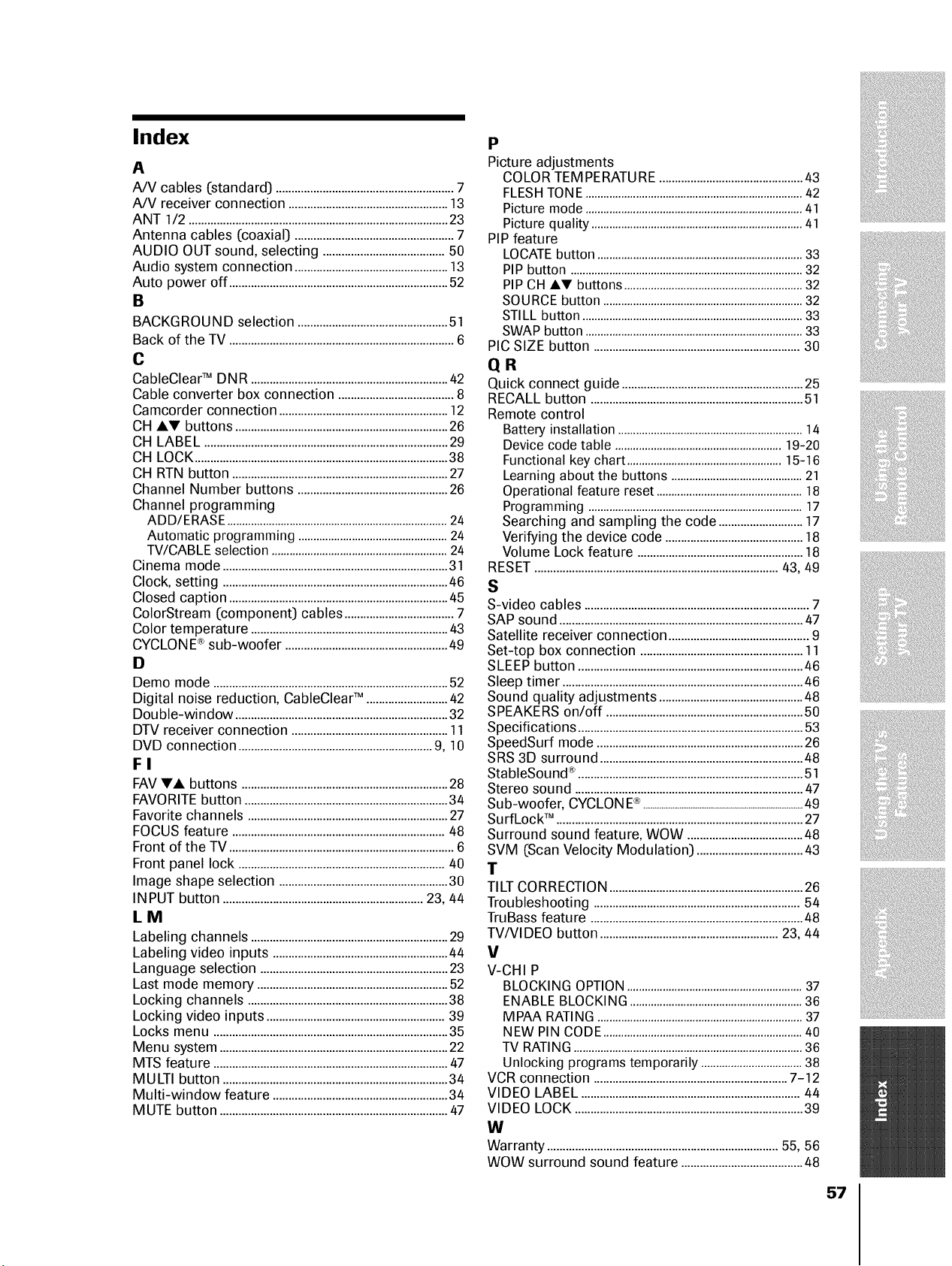
Index
A
A/V cables (standard) .........................................................7
A/V receiver connection ...................................................13
ANT 1/2 .......................................... 23
Antenna cables (coaxial) ...................................................7
AUDIO OUT sound, selecting .......................................50
Audio system connection ..................................... 13
Auto power off ............................. 52
B
BACKGROUND selection ................. 51
Back of the TV ........................... 6
C
CableClearTM DNR ...............................................................42
Cable converter box connection .....................................8
Camcorder connection ......................................................12
CH AV buttons ............................... 26
CH LABEL ....................................................... 29
CH LOCK ........................... 38
CH RTN button ....................... 27
Channel Number buttons ................................................26
Channel programming
ADD/ERASE ..........................................................................24
Automatic programming ..................................................24
TWCABLE selection ...........................................................24
Cinema mode ........................ 31
Clock, setting ........................ 46
Closed caption ............................................... 45
ColorStream (component) cables ............ 7
Color temperature ...............................................................43
CYCLONE®sub-woofer .................. 49
I]
Demo mode ...........................................................................52
Digital noise reduction, CableClear TM ..........................42
Double-window .............................................. 32
DTV receiver connection ..................................................11
DVD connection ................................. 9, 10
FI
FAV yA buttons .................................. 28
FAVORITEbutton ...................... 34
Favorite channels ................................................................27
FOCUS feature ....................................................................48
Front of the TV ........................... 6
Front panel lock ......................... 40
Image shape selection .................. 30
INPUT button ................................................................23, 44
LM
Labeling channels ...............................................................29
Labeling video inputs ................... 44
Language selection ............................................... 23
Last mode memory .............................................................52
Locking channels ................................................................38
Locking video inputs ...................................... 39
Locks menu ................................................... 35
Menu system ........................................... 22
MTS feature ...........................................................................47
MULTI button ........................ 34
Multi-window feature ................... 34
MUTE button .........................................................................47
P
Picture adjustments
COLOR TEMPERATURE ................................ 43
FLESHTONE.........................................................................42
Picture mode .........................................................................41
Picture quality ......................................................................41
PIP feature
LOCATEbutton .....................................................................33
PIP button ..............................................................................32
PIP CH AV buttons ...........................................................32
SOURCE button ...................................................................32
STILL button ..........................................................................33
SWAP button .........................................................................33
PIC SIZE button ..................................................................30
QR
Quick connect guide ...................................... 25
RECALL button ...................................................................51
Remote control
Battery installation ..............................................................14
Device code table ........................................................19-20
Functional key chart ....................................................15-16
Learning about the buttons ............................................21
Operational feature reset .................................................18
Programming ........................................................................17
Searching and sampling the code ...........................17
Verifying the device code .............................. 18
Volume Lock feature .................................... 18
RESET..............................................................................43, 49
S
S-video cables ........................ 7
SAP sound .............................................................................47
Satellite receiver connection ............................................9
Set-top box connection ................................. 11
SLEEP button .......................................................................46
Sleep timer .............................................................................46
Sound quality adjustments ..............................................48
SPEAKERS on/off ..............................................................50
Specifications ................................................. 53
SpeedSurf mode .................................................................26
SRS 3D surround ................................................................48
StableSound ®.......................................................................51
Stereo sound .........................................................................47
Sub-woofer, CYCLONE®........................................................................................49
SurfLock TM ...............................................................................27
Surround sound feature, WOW ...................................48
SVM (Scan Velocity Modulation) ........................ 43
T
TILT CORRECTION .......................................... 26
Troubleshooting ..................................................................54
TruBass feature ....................................................................48
TV/VlDEO button .........................................................23, 44
!/
V-CHI P
BLOCKING OPTION...........................................................37
ENABLE BLOCKING.........................................................36
MPAA RATING.....................................................................37
NEW PIN CODE..................................................................40
TV RATING.............................................................................36
Unlocking programs temporarily ..................................38
VCR connection .............................................................7-12
VIDEO LABEL .....................................................................44
VIDEO LOCK ........................................................................39
W
Warranty ..........................................................................55, 56
WOW surround sound feature .......................................48
57

TOSHIBA AMERICA CONSUMER PRODUCTS, INC.
HEAD OFFICE: 82 TOTOWA ROAD, WAYNE, NJ 07470, U.S.A.
NATIONAL SERVICE DIVISION:1420-B TOSHIBA DRIVE, LEBANON, TN 37087, U.S.A.
TOSHIBA HAWAII, INC.
HEAD OFFICE: 327 KAMAKEE STREET, HONOLULU, HI 96814, U.S.A.- TEL: (808) 591-9281
TOSHIBA OF CANADA LTD.
HEAD OFFICE: 191 McNABB STREET, MARKHAM, ONTARIO, L3R 8H2, CANADA- TEL: (905) 470-5400
SERVICE CENTERS:
TORONTO: 191 McNABB STREET, MARKHAM, ONTARIO L3R 8H2, CANADA- TEL: (905) 470- 5400
MONTREAL: 1643 NORTH SERVICE RD., TRANS-CANADA HIGHWAY, DORVAL QUEBEC, H9P 1J1, CANADA-TEL: (514) 856-4100
VANCOUVER: 22171 FRASERWOOD WAY, RICHMOND, B.C., V6W 1J5, CANADA-TEL: (604) 303-2500
MANUFACTURED BY
TOSHIBA AMERICA CONSUMER PRODUCTS, INC.
CYCLONE is a registered trademark of Toshiba Corp.
ColorStream and StableSound are registered trademarks of Toshiba America Consumer Products, Inc.
CableClear and Surf Lock are trademarks of Toshiba America Consumer Products, Inc.
PRINTED IN USA TOSHIBA
(02-06) B 23565643