Version 160607 v1.2
User Guide

Content
1 Introduction 8
1.1 System Requirements 9
1.2 General Technical Specications 10
1.3 H6D-50c 11
Technical Specications 11
1.4 H6D-100c 12
Technical Specications 12
2 Safety 13
2.1 Warnings 14
2.2 Cautions 14
2.3 Disposal 15
2.4 FCC 16
2.5 ISED 16
3 Overview 17
3.1 The H6D Interaction Displays 18
3.2 Main Camera Parts 19
3.3 Parts, Components, Buttons and Controls 20
3.4 Grip Buttons and Controls 23
3.5 Camera Body Buttons and Controls 24
3.6 Sensor Unit 25
3.7 Viewnder 26
3.8 Lenses 27
3.9 Display Information 28
3.10 Sensor Unit Display and Controls 29
3.11 Grip Display 30
3.12 Viewnder Display 31
Typical Viewnder Display 31
3.13 Re-assignable Grip Buttons Function Options 33
3.14 Short cuts 34
3.15 Phocus Overview 35
3.16 Camera Conguration in Phocus 36
3.17 Battery and Battery Grip 37
3.18 Battery Charger 38
Charge the Battery 38
Rechargeable Battery Grip Specication 39
Battery Life and Battery Warning 40
3.19 Temperature Warning 40
3.20 Power Modes 41
3.21 Automatic Settings 42
H6D www.hasselblad.com
USER GUIDE
2

3.22 Remove and Attach the Viewnder 43
3.23 Eyepiece Adjustment 44
3.24 Rubber Eye Cup 44
3.25 Accessory Connection 45
3.26 PC Flash Connector 45
3.27 Protective Baseplate 46
Remove the Protective Baseplate 46
Attach the Protective Baseplate 46
3.28 Memory Cards 47
To Insert a Memory Card 48
To Remove a Memory Card 49
Formatting Memory Cards 50
Format Button 50
Format Memory Cards via Sensor Unit 50
3.29 Carrying Strap 51
3.30 Remove the Carrying Strap 52
3.31 Change Lens 53
Attach a Lens 53
Remove a Lens 53
4 To Prepare 54
4.1 Check the Delivery 55
4.2 Reassign Grip Buttons 56
4.3 Connect to a Computer 57
4.4 Camera Interval Settings 58
4.5 Set Date and Time 59
4.6 Set Language 60
4.7 Set Brightness of the Display 61
4.8 Insert a Memory Card (CFast or SD) 62
4.9 Remove a Memory Card (CFast or SD) 63
4.10 Format a CFast Card 64
Format Button 64
Format Memory Cards via Sensor Unit 64
4.11 Set Drive Mode 65
5 To Use 66
5.1 Navigating the Menus 67
Description of the Sensor Unit Menu Items 67
Overview of Menus and Settings on Sensor Unit 68
Touch Screen Navigation 69
5.2 Sensor Unit Display Navigation 70
Control Screen 70
Control Screen Description 71
Add And Remove Favourite Functions to Control Screen 75
H6D www.hasselblad.com
USER GUIDE
3

5.3 Camera Settings Menu 76
5.4 Camera Exposure Settings 77
ISO and White Balance 78
ISO and White Balance on Grip 79
Exposure Settings Modes 80
Select Metering / Exposure Setting Modes 80
Manual Exposure Mode 81
Automatic Exposure Mode 82
Automatic Exposure - P and PV Mode 83
AE-L Button 84
Fixed Exposure Compensation Setting 85
Light Meter Exposure Mode 86
True Exposure 87
White Balance Settings - Presets and Manual 89
White Balance Setting by Using a “Grey Card” 90
Exposure Adjust 91
Exposure Compensation / Quick Adjust 92
Flash Settings 93
Flash and Strobe Settings 94
Access to Flash Controls 95
Integral Flash 96
Separate Flash Unit Connection 97
Flash Measure of Separate Flash Unit 98
Exposure Lock 99
AE-Lock / Quick Adjust 100
Mirror Settings 101
Image Orientation 102
5.5 Camera Focus Settings 103
Focusing Distance Calculation 104
Stop Down / Depth of Field Preview 104
Infrared Focus Setting 105
Focus Assist 106
Manual Focus 107
Manual Override in Autofocus Mode 107
Auto / Manual Focus Setting 107
Autofocus 108
Autofocus Check in Manual Mode 108
Single Shot Focus 109
Continuous Focus 109
5.6 Camera True Focus 110
True Focus and Absolute Position Lock 111
True Focus and Camera Handling 112
Focus Checking 112
H6D www.hasselblad.com
USER GUIDE
4

5.7 Camera True Focus Methods 113
Activated By Shutter Release - True Focus Retained 113
Temporarily Activated - Autofocus Retained 114
Activated by True Focus - Autofocus Deactivated 115
Activated by an Assigned Button - Manual Focus Retained 116
5.8 Camera Self Timer 117
5.9 Camera Interval Settings 118
5.10 Camera Bracketing Settings 119
Bracketing Function 119
5.11 Camera Live View Settings 120
Live View 121
Zooming in Live View 121
Focus in Live View 121
Live View with HDMI External Screen 122
5.12 Camera Controls Settings 123
5.13 Video Settings Menu 124
Video Settings 124
5.14 Video Quality Settings 125
Video Quality Settings 125
5.15 Video Recording 126
5.16 General Settings Menu 127
General Settings WI-FI 128
5.17 General Settings Display 129
5.18 General Settings Storage 130
Format CFast and SD cards 131
Format Button 131
Format Memory Cards via Sensor Unit 131
Image and Video Destination 132
5.19 General Settings Date and Time 133
5.20 General Settings Power and Timeouts 134
Set Display Off Mode 135
Power Off 135
5.21 General Settings Language 136
5.22 General Settings Service 137
5.23 General Settings Check for Update 138
5.24 General Settings About 139
5.25 Grip Display Navigation 140
Buttons and Controls on Grip Display 140
To Adjust Shutter and Aperture on Grip 141
Grip Display Navigation 142
5.26 Viewnder Display Navigation 145
Typical Viewnder Display 145
Viewnder Display Navigation Overview 146
Viewnder Display Examples 147
H6D www.hasselblad.com
USER GUIDE
5

5.27 Remove / Attach Viewnder 150
Remove the Viewnder 150
Attach the Viewnder 150
Adjust the Eyepiece 151
Change Focusing Screen 152
5.28 Preview, Histogram and Browsing 153
Preview Modes 153
Standard Preview 154
9 View Mode 154
Histogram Types 155
Histogram Mode 155
Capture Details Mode 155
Luminance Histogram Mode 155
Separate Histogram RBG Mode 155
Histogram Mode - Exposure 156
Browsing 157
Zoom in and out 158
5.29 Phocus 159
Features in Phocus 159
Phocus Mobile 159
Phocus and Hasselblad Capture Files 160
5.30 Lenses and Focus Modes 161
Remove the Lens 161
Attach the Lens 162
Remove the Lens Cap 163
Attach the Lens Cap 163
Remove the Lens Shade 164
Attach the Lens Shade 164
Filters 165
To Set Focus Distance 166
5.31 Battery 167
Charge the Battery 167
Check the Battery Status 168
5.32 Protective Baseplate 169
Remove the Protective Baseplate 169
Attach the Protective Baseplate 169
H6D www.hasselblad.com
USER GUIDE
6

5.33 Store the Camera 170
6 Accessories 171
6.1 Accessories Connectivity Diagram 172
6.2 HC Lens Range 173
6.3 Optional HC Lens Accessories 174
HTS 1.5 174
CF Adapter 174
H 13, 26 and 52 Extension tubes 174
Converter H 1.7X 174
Macro Converter H 174
6.4 Optional Accessories 175
HVM waist level viewnder 175
Pro shade V/H 60 – 95 175
Pro shade adapters 175
GIL (Global Image Locator) 175
Tripod quick coupling H 175
Flash adapter SCA 3902 176
UV-sky lters 176
Pola lters 176
Support strap with Quick plate H 176
Camera strap H 176
Focusing screens 176
Release cord H 177
HVM correction lens holder 177
HVD 90x / HV 90x & 90x-II viewnders 177
Angle nder H 177
DC power grip 177
6.5 HM 16-32 Film Magazine 178
7 Troubleshooting 186
7.1 Error Messages 188
7.2 Change Language on Sensor Unit from Unknown Language 189
7.3 Clean the Lens Glass 190
Remove Dust 190
Remove Smear 190
7.4 Clean the Sensor Unit Filter 191
H6D www.hasselblad.com
USER GUIDE
7

1 INTRODUCTION

H6D www.hasselblad.com
USER GUIDE
Introduction
9
1.1 SYSTEM REQUIREMENTS
Storage and editing of images requires a certain minimum
standard regarding computer capabilities. Large images require
a reasonably high-performance computer with sufcient memory,
advanced graphics capabilities and a recent operating system.
It is recommended that the computer has a USB 3 connector,
which will allow you to load images more quickly from the
camera.
A USB CFast card and SD card reader can also be used for
image transfer from the CFast and SD cards.
H6D www.hasselblad.com
USER GUIDE
Introduction
10
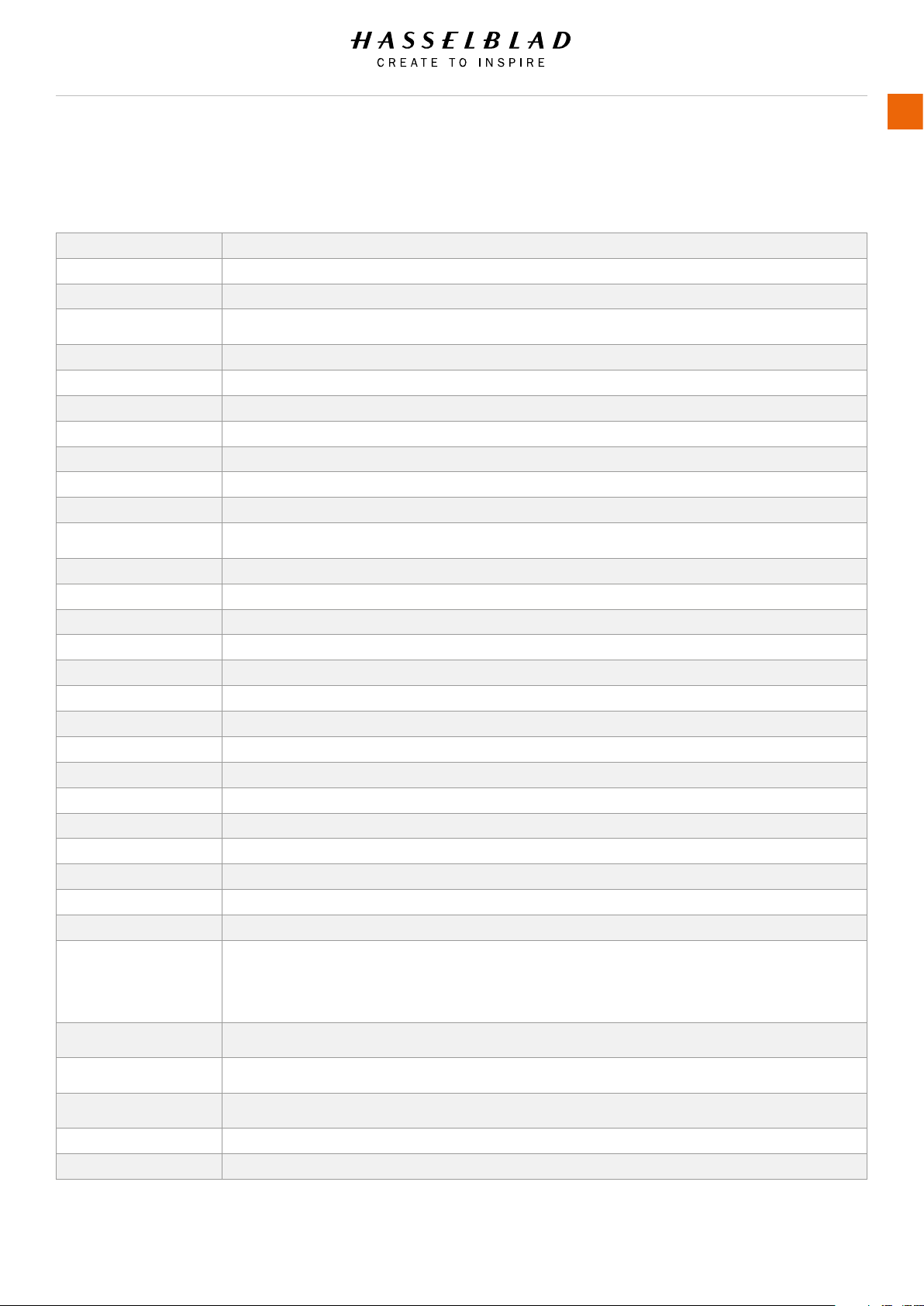
1.2 GENERAL TECHNICAL SPECIFICATIONS
Camera Type Medium Format Digital SLR camera with Auto-focus, Auto-exposure, interchangeable Viewnders and Lenses.
Construction
One piece stainless steel shell. Die-cast aluminium internal structure. Tripod sockets (1/4 and 3/8”) and quick coupling tripod plate
for rapid mounting.
Lenses
Hasselblad HC/HCD lenses with built-in electronically controlled shutter and aperture. Automatic or manual
focusing with instant manual focus override. All HC/HCD lenses meet the exacting requirements of digital photography. Lens shades
can be mounted in reverse for transport. V- system lenses can be used with a CF adapter.
Lens factor HC – 1.0 / HCD –1.0.
Viewnder (HV 90x-II for 100c
with 2.7 times magnication
and HVD 90x for 50c 3.1 times
magnication)
A 90° reex viewnder, providing 100% eld of view even when wearing eyeglasses, and built-in multi-mode light
metering system. Image magnication 3.1x. Integrated ll-in ash with guide number 12. Hot-shoe for automatic
ash (Metz SCA3002 system / adapter SCA3902). Dot matrix display with presentation of all relevant information. Built-in diopter
adjustment from -5 to + 3.5D. Interchangeable.
Focusing
Automatic and manual focusing with electronic focus aid in manual mode. Instant manual focus override. Automatic focusing using
passive central cross type phase detection sensor. AF metering range EV 1 to 19 (ISO 100).
Shutter Electronically controlled lens shutter with speeds up to 1/1000. Flash sync at all speeds.
Flash control
TTL centre-weighted system. Can be used with the built-in ash or a wide variety of ashes compatible with the
SCA3002 (Metz) system using adapter SCA3902. ISO range 16 to 6400. Flash output can be adjusted (-3 to +3EV) for ll-in
purposes independent of ambient light. Synch at all shutter speeds.
Flash measurement The H6D has a built-in measurement system that measures ash light from non-TTL ashes, such as studio ashes.
Exposure metering
Multi-mode exposure metering using 90° reex viewnder. Metering options are: Spot (diameter 7.5 mm),
Centre Weighted, and CentreSpot. Metering range at f/2.8 and ISO100: Spot: EV2 to 21, Centre-weighted: EV1 to 21, CentreSpot:
EV1 to 21.
Auto bracketing Bracketing using predetermined number of captures (2, 3, 5, 7 or 9) in 1/3, 1/2, or 1 EV step difference intervals.
Interval timer Number of captures from 2 to ‘no limit’ and interval from 1 second to 1 hour.
ISO range ISO range: H6D-50c ISO 100 - 6400. H6D-100c 64 - 12800.
Displays
The camera features two dot-matrix displays that provide clear and easy-to-understand information to the user. One is located on the
grip and the other in the 90° viewnder. The sensor unit has a high resolution full touch 3 inch TFT display.
Focusing screen Bright Spherical Acute-Matte type D with sensor format markings. Grid marked type also available as option.
Compatibility All H System lenses and accessories except lm magazines. V system C type lenses with optional CF lens adapter.
Accessory connection Provided with two M5 threads and an electrical connector for accessories.
Customization
A large number of the H6D’s functions can be customized by the user to suit specic styles or situations through the built-in menu
system.
User interface
Full touch user interface, including swipe, scroll and pinch/spread to zoom. Camera grip with buttons and control wheels. Many
camera functions and settings can be controlled from a tethered computer or iPhone/iPad over Wi-Fi.
Rechargeable battery grip Li-ion 3200 mAh output.
H6D www.hasselblad.com
USER GUIDE
Introduction
11
1.3 H6D-50C
TECHNICAL SPECIFICATIONS
Sensor type CMOS, 50 megapixels (8272 × 6200 pixels, 5.3 × 5.3 µm)
Sensor dimensions 43.8 × 32.9mm
Image size Stills: RAW 3FR capture 65MB on average. TIFF 8 bit: 154MB; Video: HD (1920 x 1080p)
File format
Stills: Hasselblad 3FR
Video: H.264 Compressed (25 fps)
Shooting mode Single shot stills, Video
Colour denition 16 bit; Dynamic range approx. 14 stops
ISO speed range ISO 100, 200, 400, 800, 1600, 3200, 6400
Storage options CFast card, SD card or tethered to Mac or PC
Colour management Hasselblad Natural Colour Solution, HNCS
Storage capacity 16GB card holds 240 images on average
Capture rate TBD
Display
3 inch TFT type, 24 bit colour, 920K pixels; Touch functionality: Yes, full support
Live View: On camera, host and iOS device with high frame rate
Histogram feedback Yes, on Sensor Unit Display
IR lter Mounted in front of sensor
Software Phocus for Mac and Windows
Platform support Macintosh: OSX version 10.9; PC: XP/Vista/Windows 7 (32 and 64 bit)/ 8 / 10
Host connection type USB 3.0 (5 Gbit/s) Type-C connector, Mini HDMI, Audio In/Out
Additional connections Mini HDMI, Audio In/Out, Flash sync In/Out, Power In
View camera compatibility Yes, Mechanical shutters controlled via ash sync. Electronic shutters can be controlled from Phocus
Operating temperature -10 - 45 ˚C / 14 - 113 ˚F
Wi-Fi 802.11 a, b, g, n (depending on region), ac
Dimensions Complete camera w/ HC80 lens: 153 x 131 x 205mm [W x H x D]
Weight 2105g (Complete camera w/ HC80 lens, Li-Ion battery and card)
Camera type Large sensor medium format DSLR
Lenses Hasselblad H system lens line with integral central lens shutter
Shutter speed range 60 minutes to 1/2000 sec (depending on lens type used)
Flash sync speed Flash can be used at all shutter speeds
Viewnder options
HVD 90x: 90° eye-level viewnder w. dioptre adjustment (-5 to +3.5D). Image magnication 3.1x.
Integral ll-ash (GN. 12 @ ISO100). Hot shoe for SCA3002-system ashes from Metz™
HV 90x II: 90° eye-level viewnder w. dioptre adjustment (-4 to +2.5D). Image magnication 2.7x.
Integral ll-ash (GN. 12 @ ISO100). Hot shoe for SCA3002-system ashes from Metz™
HVM: Waist-level viewnder. Image magnication 3.2x
Focusing
Autofocus metering with passive central cross-type sensor. Ultra focus digital feedback.
Instant manual focus override. Metering range EV 1 to 19 at ISO 100
Flash control
Automatic TTL centre weighted system. Uses built-in ash or ashes compatible with SCA3002 (Metz™).
Output can be adjusted from -3 to +3EV. For manual ashes a built-in metering system is available
Exposure metering
Spot, Center Weighted and Center Spot
Metering range Spot: EV2 to 21, Center Weighted: EV1 to 21, Center Spot: EV1 to 21
Power supply Rechargeable Li-ion battery (7.2 VDC/3200 mAh); Socket for external power
Film compatibility Yes
H6D www.hasselblad.com
USER GUIDE
Introduction
12
1.4 H6D-100C
TECHNICAL SPECIFICATIONS
Sensor type CMOS, 100 megapixels (11600 × 8700 pixels, 4.6 × 4.6 µm)
Sensor dimensions 53.4 × 40.0mm
Image size Stills: RAW 3FR capture 120MB on average. TIFF 8 bit: 289MB; Video: HD (1920 x 1080p), UHD (3840 x 2160p)
File format
Stills: Hasselblad 3FR
Video: Hasselblad RAW (UHD, 30 fps)
Shooting mode Single shot stills, Video
Colour denition 16 bit; Dynamic range 15 stops
ISO speed range ISO TBD: 64, 100, 200, 400, 800, 1600, 3200, 6400, 12800
Storage options CFast card, SD card or tethered to Mac or PC
Colour management Hasselblad Natural Colour Solution, HNCS
Storage capacity 16GB card holds 120 images on average
Capture rate TBD
Display
3 inch TFT type, 24 bit colour, 920K pixels; Touch functionality: Yes, full support
Live View: On camera, host and iOS device with high frame rate (30 fps)
Histogram feedback Yes (on rear display and on camera grip display)
IR lter Mounted in front of sensor
Software Phocus for Mac and Windows
Platform support Macintosh: OSX version 10.9; PC: XP/Vista/Windows 7 (32 and 64 bit)/ 8 / 10
Host connection type USB 3.0 (5 Gbit/s) Type-C connector, Mini HDMI, Audio In/Out
Additional connections Mini HDMI, Audio In/Out, Flash sync In/Out, Power In
View camera compatibility Yes, Mechanical shutters controlled via ash sync. Electronic shutters can be controlled from Phocus
Operating temperature -10 - 45 ˚C / 14 - 113 ˚F
Wi-Fi 802.11 a, b, g, n (depending on region), ac
Dimensions Complete camera w/ HC80 lens: 153 x 131 x 205mm [W x H x D]
Weight 2105g (Complete camera w/ HC80 lens, Li-Ion battery and card)
Camera type Large sensor medium format DSLR
Lenses Hasselblad H system lens line with integral central lens shutter
Shutter speed range 60 minutes to 1/2000 sec (depending on lens type used)
Flash sync speed Flash can be used at all shutter speeds
Viewnder options
HVD 90x: 90° eye-level viewnder w. dioptre adjustment (-5 to +3.5D). Image magnication 3.1x.
Integral ll-ash (GN. 12 @ ISO100). Hot shoe for SCA3002-system ashes from Metz™
HV 90x II: 90° eye-level viewnder w. dioptre adjustment (-4 to +2.5D). Image magnication 2.7x.
Integral ll-ash (GN. 12 @ ISO100). Hot shoe for SCA3002-system ashes from Metz™
HVM: Waist-level viewnder. Image magnication 3.2x
Focusing
Autofocus metering with passive central cross-type sensor. Ultra focus digital feedback.
Instant manual focus override. Metering range EV 1 to 19 at ISO 100
Flash control
Automatic TTL centre weighted system. Uses built-in ash or ashes compatible with SCA3002 (Metz™).
Output can be adjusted from -3 to +3EV. For manual ashes a built-in metering system is available
Exposure metering
Spot, Centre Weighted and CentreSpot
Metering range Spot: EV2 to 21, Centre Weighted: EV1 to 21, CentreSpot: EV1 to 21
Power supply Rechargeable Li-ion battery (7.2 VDC/3200 mAh); Socket for external power
Film compatibility Yes

2 SAFETY

H6D www.hasselblad.com
USER GUIDE
Safety
14
2.1 WARNINGS
Warning!
Do not place cables between camera and computer so that
there is a risk for people to trip and fall. This can cause
personal injury and/or damage to the equipment.
Warning!
If you use spare battery packs, make sure to use protective
caps on the contacts. The contacts can short-circuit and catch
re if not protected. This can cause personal injury and/or
damage to the equipment.
Warning!
Do not expose batteries (battery pack and batteries installed) to
excessive heat such as sunshine, re or similar. If exposed, the
batteries can catch re. This can cause personal injury, damage
to the equipment and the surrounding environment.
Warning!
Be careful when working with strobe and ash units. This will
prevent personal injury and/or damage to the equipment.
2.2 CAUTIONS
Caution!
Be careful when you use the camera. The camera is a precision
instrument. This will help prevent damage to the camera.
Caution!
Danger of explosion if battery is incorrectly replaced. Replace
only with the same or equivalent type.
Caution!
Do not use batteries other than specied. This can cause
damage to the batteries.
Caution!
Use protective covers as much as possible. The protective
covers will help prevent damage to the equipment.
Caution!
Use a protective case or camera bag when you transport the
equipment. This will help prevent damage to the equipment.
Caution!
Protect the equipment from oil fumes, steam, humid conditions
and dust. This will help prevent damage to the equipment.
Caution!
Seal all equipment in a plastic bag or similar if you enter damp
and humid condition from dry and cold condition. Wait until the
equipment has acclimatized to the new temperature before you
remove the equipment from bag. This will help prevent damage
to the equipment.
Caution!
Avoid frequent and high temperature changes. This can cause
damage to the equipment.
Caution!
Keep camera and equipment away from moisture. If your camera
becomes wet, disconnect from electric power and let camera
dry before further use. This will help prevent damage to the
equipment.
Caution!
Store the equipment in a dry environment. This will help prevent
damage to the equipment.
Caution!
Be careful when you attach/detach the components to/from
the camera. This will help prevent damage to the data bus
connections.
Caution!
Use the grip or strap when you lift and handle to camera. This
will help prevent damage to the camera.
Caution!
Do not insert ngers into the camera body. This can cause
damage to the equipment.
Caution!
Do not touch the glass surface with your ngers. This can cause
damage to the equipment.
Caution!
Do not touch the CMOS/Sensor with your ngers. This can
cause damage to the equipment.
Caution!
When you remove the sensor unit, keep foreign objects away
from the camera opening. The camera opening is very sensitive.
This will help prevent damage to the equipment.
Caution!
When you remove the sensor unit, make sure to be careful with
the CMOS sensor protective lter. The CMOS sensor protective
lter is very sensitive. This will help prevent damage to the
equipment.
H6D www.hasselblad.com
USER GUIDE
Safety
15
Caution!
Keep all equipment out of reach of small children. This will
prevent damage to the equipment.
Caution!
When cleaning the camera, remove the batteries. This will
prevent damage to the camera.
Caution!
If you leave the camera unused for a long period, remove the
batteries. This will prevent damage to the equipment.
Caution!
Do not open the sensor unit. This can cause damage to the
sensor unit.
Caution!
Do not cover the ventilation openings on the sensor unit. It can
overheat and cause damage to the equipment.
Caution!
Before you connect the sensor unit to camera after storage,
always replace the protective CMOS/lter cover. This will prevent
damage to the equipment.
Caution!
Do not try to remove the glass IR lter from the front of the
CMOS (due to dust or similar). This can cause damage to the
equipment. Always contact your local Hasselblad Authorized
Service Center.
Caution!
If you use canned compressed air to clean the glass of IR lter,
read the instructions very carefully before use. This will help
prevent damage to the lter.
2.3 DISPOSAL
This product must be put in municipal waste.
Check local regulations for disposal.

H6D www.hasselblad.com
USER GUIDE
Safety
16
2.5 ISED
RSS-Gen Information for the Certication of Radio
Apparatus
This device complies with ISED licence-exempt RSS
standard(s). Operation is subject to the following two
conditions:
1. this device may not cause interference, and
2. this device must accept any interference, including
interference that may cause undesired operation of
the device.
Cet appareil est conforme au(x) standard(s) RSS
exempt(s) de licence de ISED. Son fonctionnement est
sujet aux deux conditions suivantes:
1. cet appareil ne doit pas occasionner d’interférence
2. cet appareil doit supporter toutes les interférences, y
compris celles qui pourraient provoquer un mauvais
fonctionnement de cet appareil.
RSS-102 RF Exposure Compliance of Radiocommunication
Apparatus
The H6D-50c has been designed to comply with safety
requirements for exposure to radio waves. SAR testing
has been performed in accordance with RSS-102, with the
H6D-50c transmitting at its highest certied power level in
all used frequency bands. The highest SAR value for the
H6D-50c when tested was 0.024W/kg against a limit of
1.6W/kg.
Please follow the instructions included in the user guide
for product installation and use.
Le H6D-50c a été conçu pour se conformer aux exigences
de sécurité en matière d’exposition aux ondes radio.
Des tests SAR ont été effectués conformément à la
RSS-102 avec le H6D-50c transmettant à son plus haut
niveau de puissance certié dans toutes les bandes de
fréquences utilisées.
La valeur SAR la plus élevée pour la H6D-50c lors des
tests était de 0,024 W / Kg contre une limite de 1.6W /
Kg.
Merci de suivre les instructions fournies dans le mode
d’emploi pour l’installation et l’utilisation du produit.
2.4 FCC
Federal Communication Commission Interference
Statement:
This equipment has been tested and found to comply with
the limits for a Class B digital device, pursuant to Part 15
of the FCC Rules. These limits are designed to provide
reasonable protection against harmful interference in a
residential installation.
This equipment generates, uses and can radiate radio
frequency energy and, if not installed and used in
accordance with the instructions, may cause harmful
interference to radio communications. However, there
is no guarantee that interference will not occur in a
particular installation. If this equipment does cause
harmful interference to radio or television reception, which
can be determined by turning the equipment off and on,
the user is encouraged to try to correct the interference
by one of the following measures:
• Reorient or relocate the receiving antenna.
• Increase the separation between the equipment and
receiver.
• Connect the equipment into an outlet on a circuit
different from that to which the receiver is connected.
• Consult the dealer or an experienced radio/TV
technician for help.
FCC Caution: Any changes or modications not expressly
approved by the party responsible for compliance could
void the user’s authority to operate this equipment.
This device complies with Part 15 of the FCC Rules.
Operation is subject to the following two conditions:
1. This device may not cause harmful interference, and
2. this device must accept any interference received,
including interference that may cause undesired
operation.
FCC Radiation Exposure Statement:
This equipment complies with FCC radiation exposure
limits set forth for an uncontrolled environment. The
highest SAR value as reported to the authorities for the
H6D-50c when tested for use by the Body is 0.024W/kg
against a limit of 1.6W/kg.

3 OVERVIEW
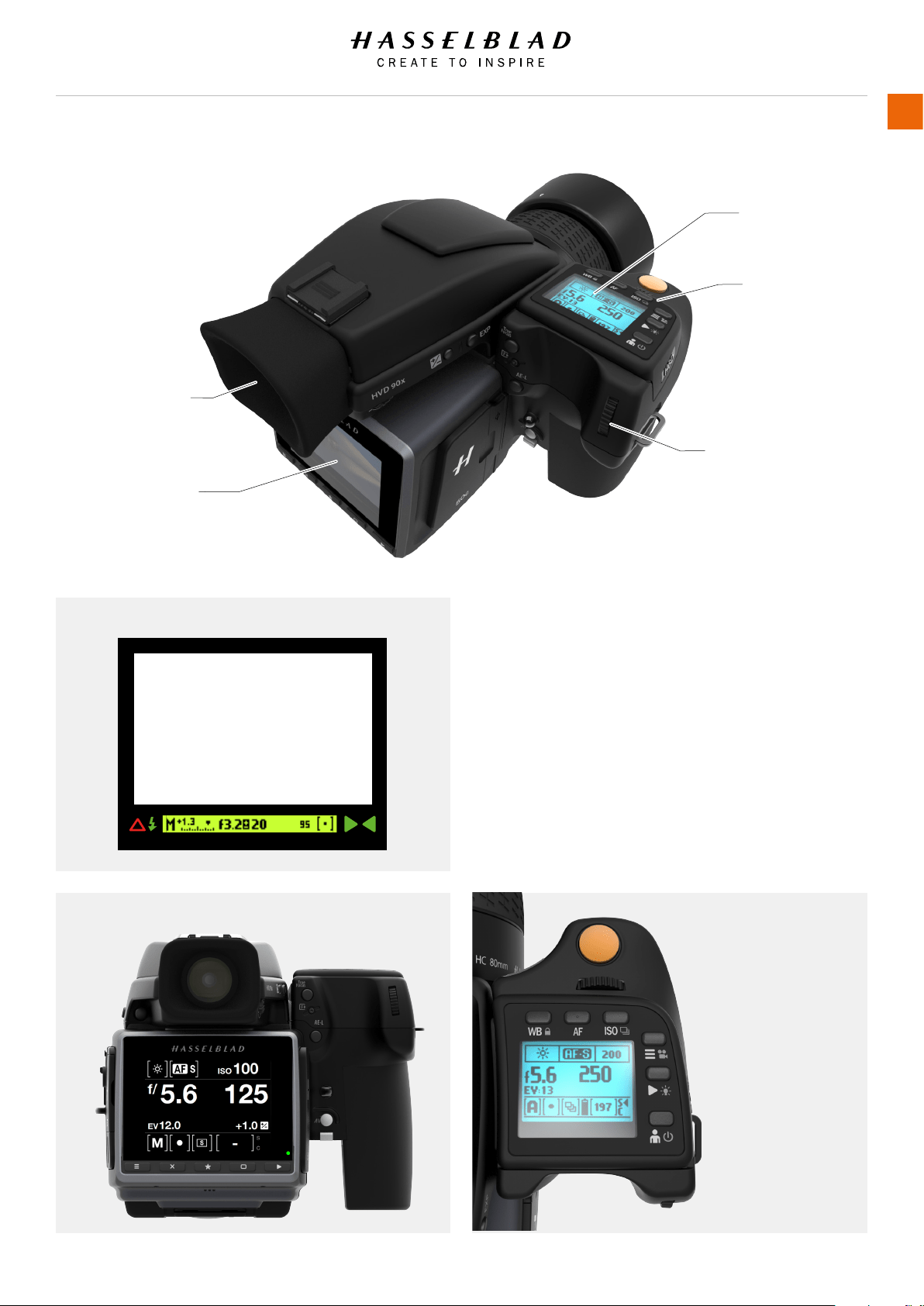
GRIP DISPLAY
Front Scroll Wheel
VIEWFINDER DISPLAY
SENSOR UNIT DISPLAY
Rear Scroll Wheel
Viewnder Display
Sensor Unit Display Grip Display
Sensor Unit Display
This display is touch sensitive and you can use it in the same
way you navigate on a smart phone. Swipe, select, pinch and
spread to zoom for example. You can also navigate by using
the 5 soft buttons under the display and scroll wheels on the
Camera Grip.
Grip Display and Viewnder Display
Press the WB, AF, ISO, Menu, Play or Prole buttons near the
Grip display. The + / - and EXP buttons on the side of the
Viewnder are part of the Grip interaction. Change settings by
scrolling the Front Scroll Wheel or the Rear Scroll Wheel. Press
the same button again to Exit and Save.
3.1 THE H6D INTERACTION DISPLAYS
H6D www.hasselblad.com
USER GUIDE
Overview
18
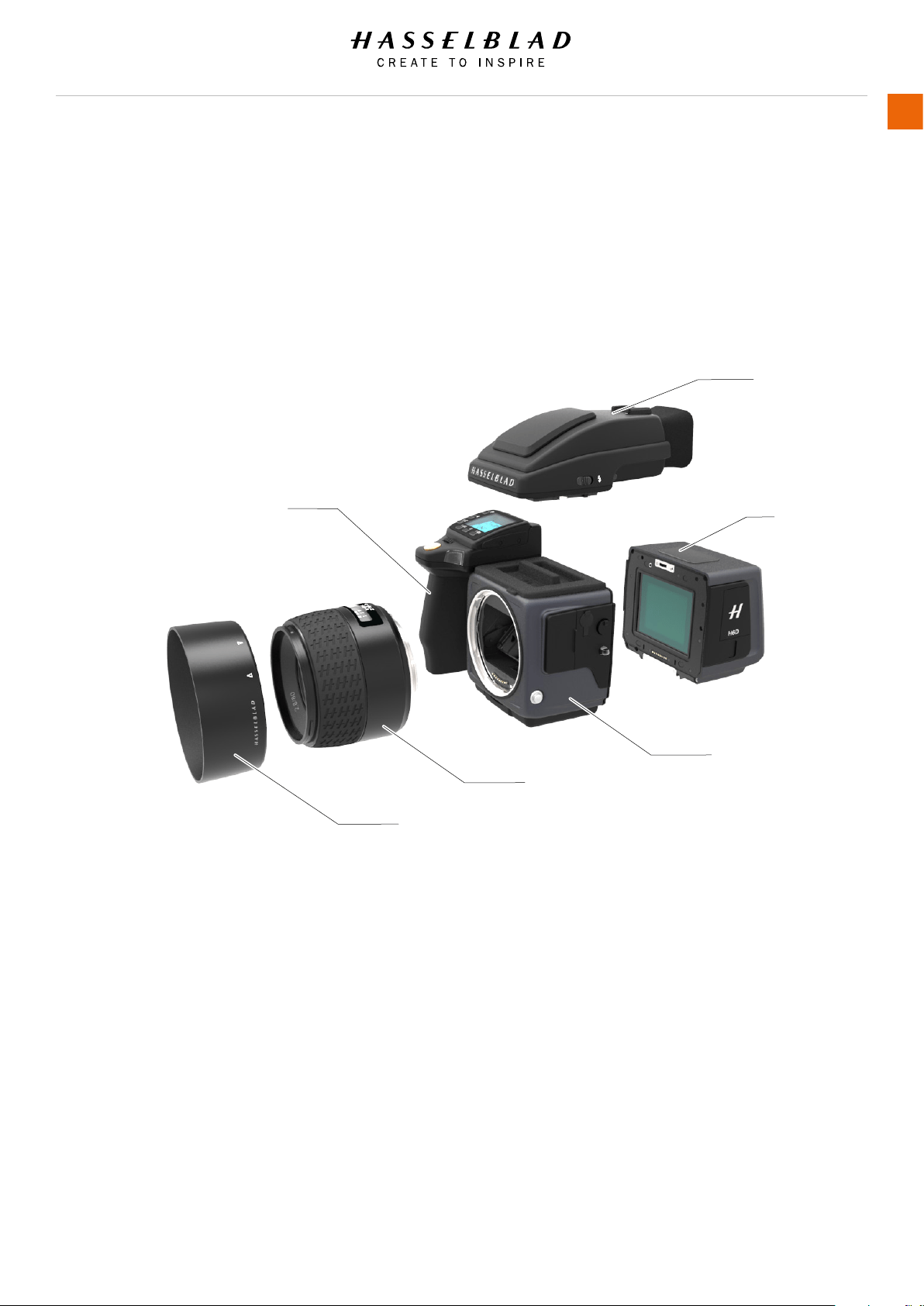
VIEWFINDER
SENSOR UNIT
CAMERA BODY
GRIP WITH BATTERY
LENS
LENS HOOD
3.2 MAIN CAMERA PARTS
H6D www.hasselblad.com
USER GUIDE
Overview
19

3.3 PARTS, COMPONENTS, BUTTONS AND
CONTROLS
All items mentioned on this page are described in greater detail
elsewhere in this manual.
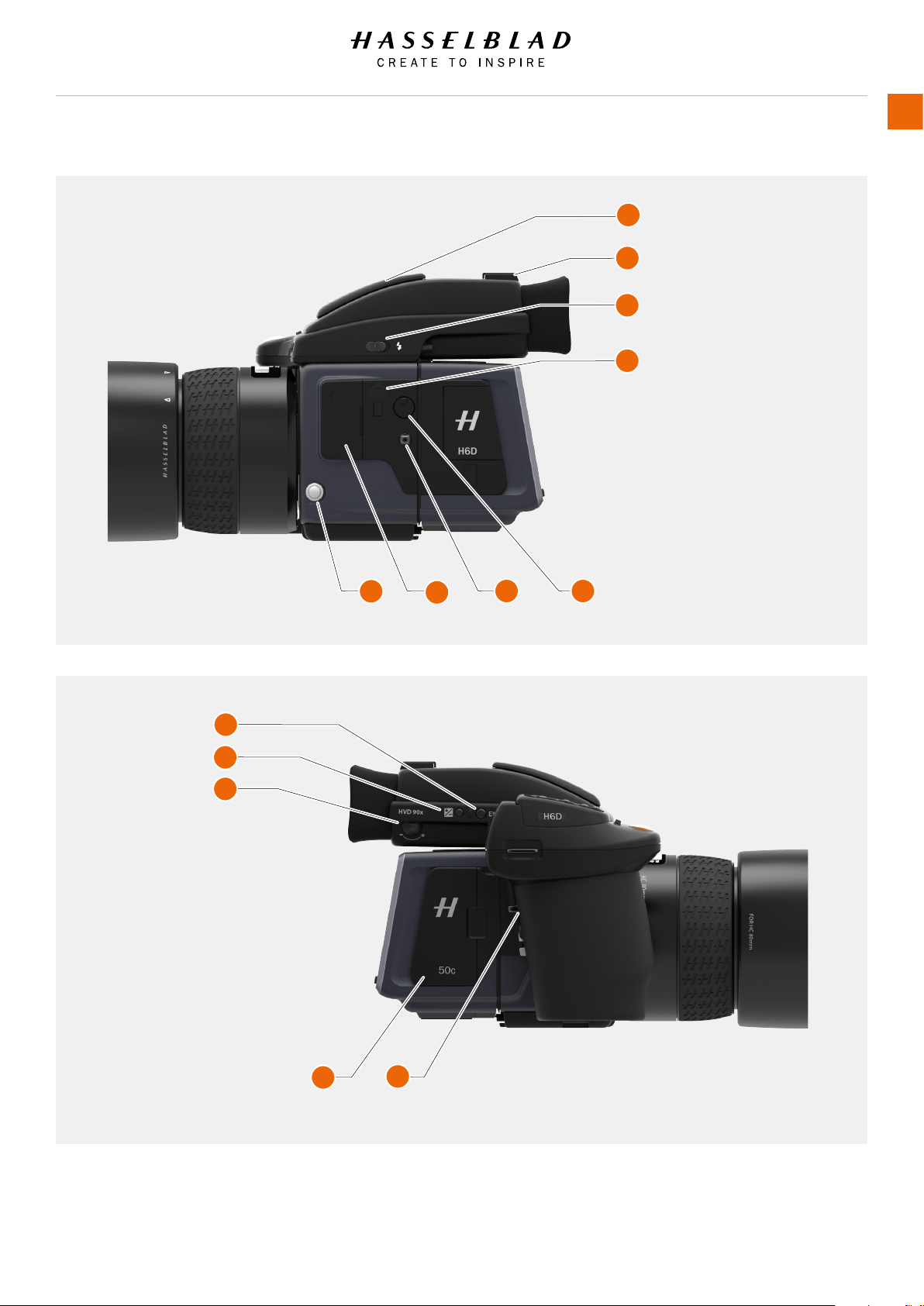
1 Focus assist illuminator
2 Mirror Up button
3 Remote release port
4 Stop Down button
5 Battery grip
1
2
3
4
5
1
2
1 True Focus button
2 Card Format button
3 AE-L button
4 Camera strap holder
5 Grip lever release button
6 Battery grip locking lever
3
4
5
6
1 Speaker
2 Product number
3 Sensor unit
1
2
3
H6D www.hasselblad.com
USER GUIDE
Overview
20
2
3
1 Exposure mode / metering
mode button
2 Exposure compensation button
3 Eyesight adjustment wheel
4 CFast and SD card slot cover
5 Camera strap lug
1 Integral ash
2 Hot shoe
3 Integral ash release
4 PC connect port
5 Lens release button
6 Accessory port cover
7 Camera strap lug
8 Sensor unit
release button
2
3
4
5
4
5
1
1
6
7 8
H6D www.hasselblad.com
USER GUIDE
Overview
21
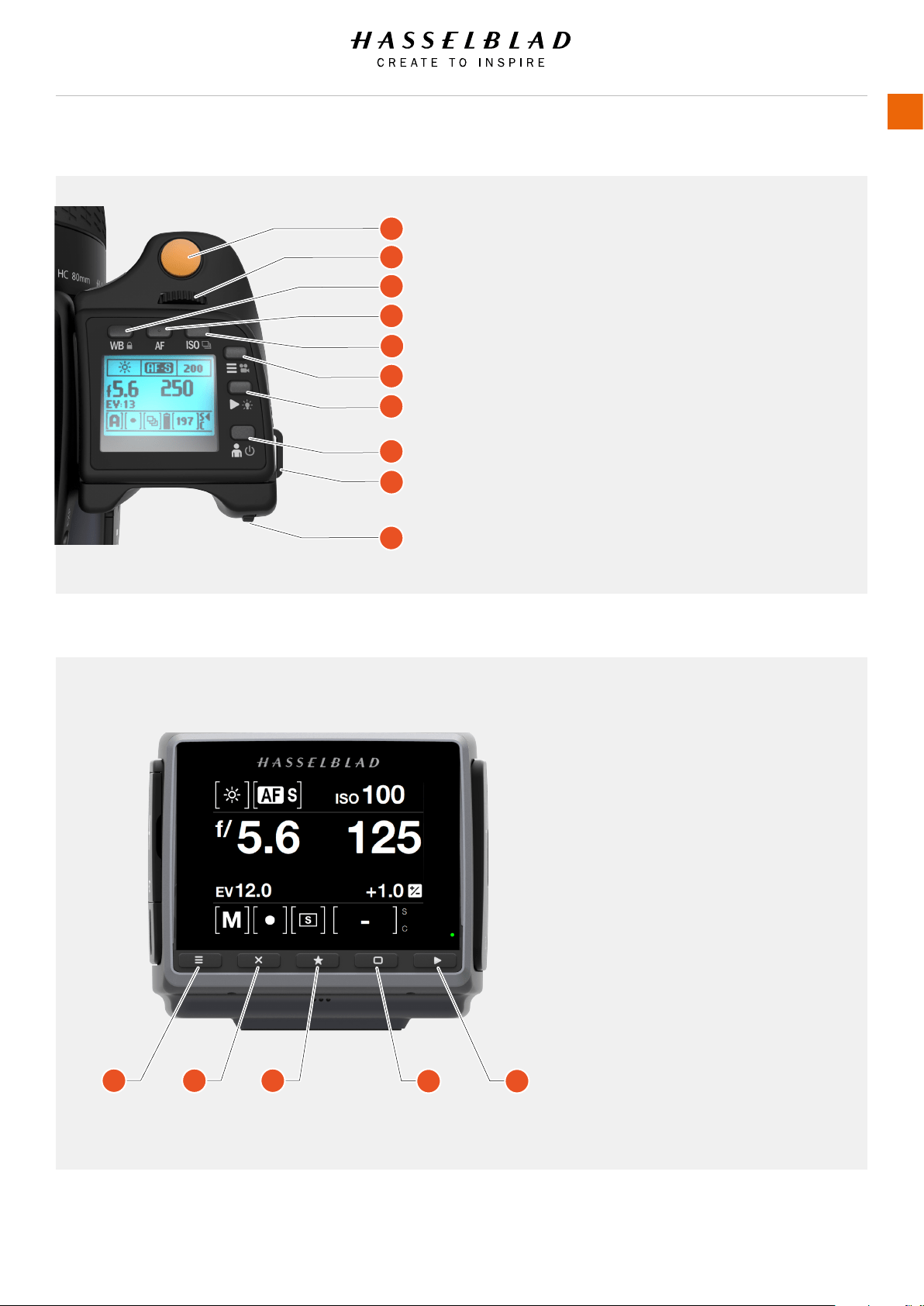
1 Shutter release button
2 Front scroll wheel
3 White balance button
4 AF button
5 ISO button
6 MENU and Video button
7 Play/Browse mode
8 ON / OFF button
9 Hand strap lug
10 Rear scroll wheel
1
2
3
4
5
6
7
8
9
10
1 2 3
4 5
1 Menu button - activates main menu
2 Soft button - function depends on
screen information
3 Image rating button - rate image 1-5
stars or green/yellow/red. Also works
as soft button.
4 Soft button - function depends on
screen information
5 Browse button - starts display and
shows the last image. The user can
review images, browse and zoom
H6D www.hasselblad.com
USER GUIDE
Overview
22
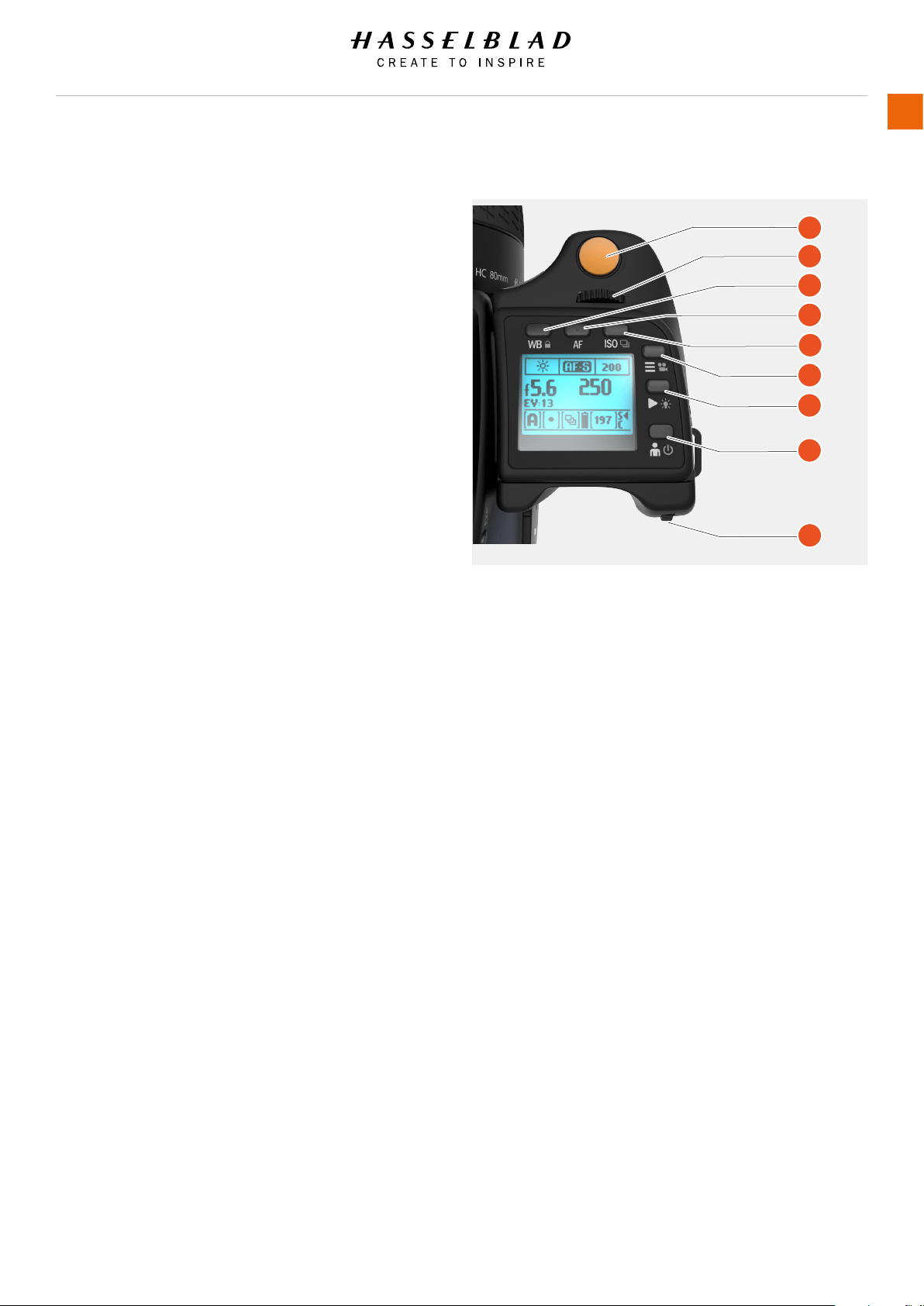
3.4 GRIP BUTTONS AND CONTROLS
Note that some of the buttons have multiple functions according
to the settings made.
1 Shutter release button
This button has two positions. Press half-way (or softly)
to activate the camera, auto focus function and exposure
meter. Press all the way down (or more rmly) to release the
shutter. The chosen exposure procedure and the self timer
are also activated with this button.
2 Front scroll wheel
The front and rear scroll wheels are used to make changes
in exposure settings, provide access to the grip menu for
settings, navigate the sensor unit’s menu as well as acting
as browse controls.
3 WB button / (Control Lock)
This is a triple function button.
Press the button for one second and the beeper will sound
(if set) and a key symbol will appear on the grip display
signifying that the controls (except the shutter release) have
been locked and therefore cannot be altered unintentionally.
Press the button for one second again to unlock.
4 AF button
Press this button to directly access the autofocus/manual
focus selection screen from the main screen. See under
Lenses for full details.
5 ISO
This is a triple function button.
It provides direct access to the ISO settings (see Light
Metering & Exposure Control for full details). A long press
on the ISO button toggles Drive Mode between Single and
Continuous.
6 MENU / Video button
Press this button to activate the Main Menu on the Sensor
Unit Display. A long press activates Video Recording Mode. A
long press again returns to Camera Mode.
7 Browse Mode / Illumination
One click enters Browse mode. Click again to exit Browse
mode. The wheels now controls Aperture/Shutter. A long
press illuminates the display. Remains active until the
camera enters Display Off mode.
8 ON / OFF (Proles) button
Press the button for 1 second to activate the camera. The
H6D start-up logo will appear and then the main screen.
After a few seconds (customizable) the camera will enter
Display Off mode. A long press of the button turns the
camera off completely (even from Display Off mode) signied
by an audible signal (if set). Click on the button to access
the Proles feature (see later section for details).
9 Rear scroll wheel
The scroll wheel is used to make changes in exposure
settings, to provide access to the grip menu for settings, to
navigate the sensor unit’s menu as well as acting as browse
control.
Note!
For the soft buttons 3 to 8 there is a difference between a short
click and a long press. A long press is at least one second. Soft
button 4 does not have any long press function.
1
2
3
4
5
6
7
8
9
H6D www.hasselblad.com
USER GUIDE
Overview
23
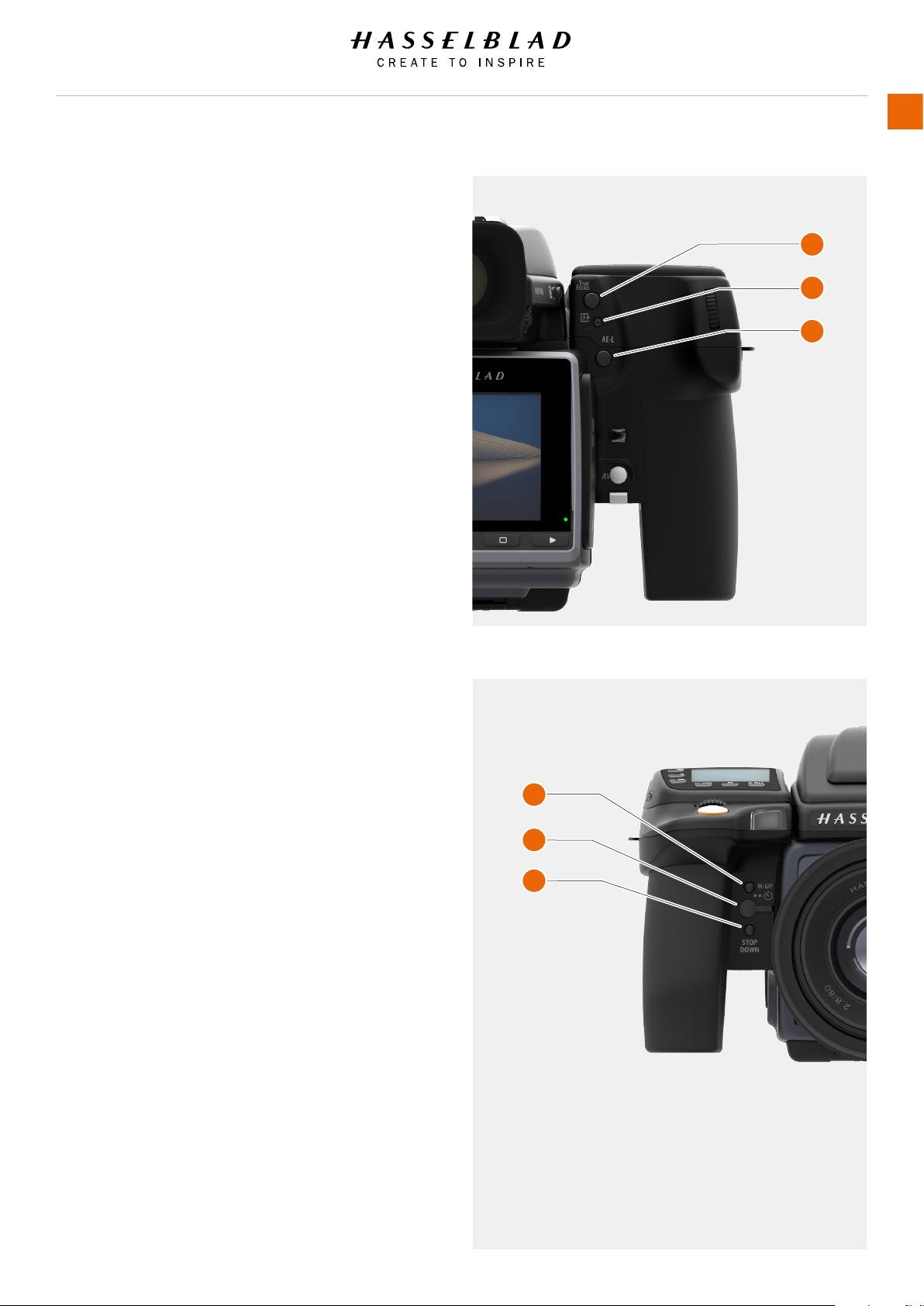
3.5 CAMERA BODY BUTTONS AND CONTROLS
1 True Focus button
As default setting, this button activates True Focus (see
separate section for description), but it also acts as a Zoom-
in button when browsing or as Selector button when making
a setting change on the sensor unit, according to mode. This
button can be programmed to have other functions.
2 CFast and SD Card format button
This button displays the Format Dialogue on the Sensor Unit
Display. It is recessed to prevent unintentional use.
3 AE-L button
As default setting, this button activates AE-L that locks a
light reading made in both automatic and manual exposure
modes. It also acts as a Zoom out button when browsing or
as Exit button when making a setting change on the sensor
unit, according to mode. This button can be programmed
to have other functions. See Light Metering and Exposure
Control/AE-L button for full details.
4 M.UP button
This button has a toggle function: press to raise the mirror
and press again to lower it. A quick double press of the
button (two within a half second) will access the Self timer
function. This button can be programmed to have other
functions.
5 Remote release cord port
Port to attach a remote release cord (electrical). The socket
is protected by a captive rubber plug.
6 STOP DOWN button
Press to make a visual check of the depth-of-eld on the
viewnder screen at the chosen aperture. The aperture will
close according to the setting and remain closed as long as
the pressure is maintained. You can alter the aperture at the
same time to see the changes taking place. This button can
be programmed to have other functions.
Note!
Some buttons can be re-assigned to other functions. There are
three control buttons on the rear of the grip.
Note!
Customizable buttons True Focus, AE-L, M.UP and
Stop Down, are very useful and can save you a great
deal of time and effort. See separate sections for
full details.
1
2
3
4
5
6
H6D www.hasselblad.com
USER GUIDE
Overview
24
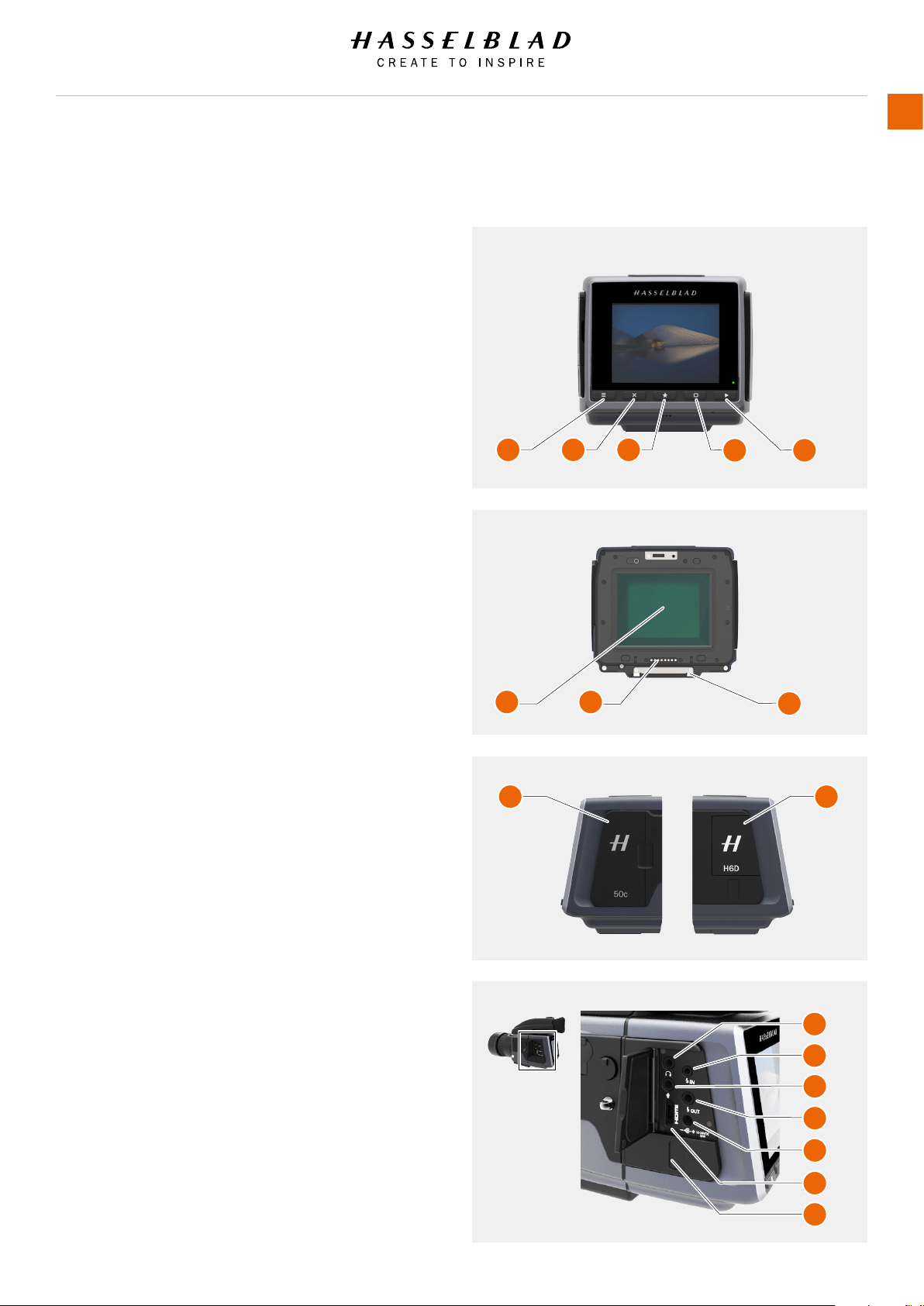
3.6 SENSOR UNIT
1 MENU / (EXIT) button
This button opens and closes the menu system. It is also
used for other tasks (for example EXIT button) as you issue
commands navigating the menu system.
2 Soft button
This button is “delete image” in browse mode. Can also be
soft button depending on screen information.
3 Image rating button
Rate image 1-5 stars or green/yellow/red. Also works as
soft button. (Only available in a later Firmware release).
4 Soft button
Function depends on screen information.
5 Browse button
Starts display and shows the last image. The user can
review images, browse and zoom. Preview images and zoom
in to view close-ups of previews for focus checking. Zoom
out to view several at once and nally to view and select
folders and media.
6 CMOS and IR lter
The sensor is positioned behind a permanently mounted
IR lter. Always be very careful not to touch or scratch
the surface of the lter when it is exposed. Replace the
protective cover whenever the sensor unit is not mounted on
a camera.
7 Data bus connectors
Connectors for digital communication with the camera body.
8 Retaining bar
Main support for the sensor unit.
9 Storage media cover
CFast or SD cards.
10 Connections cover
Cover for External Connections.
11 Audio Out
Connector for external 3.5 mm Stereo Audio Out Plug.
12 Flash sync input
Connector for 2.5 mm Flash Sync input plug.
13 Audio in
Connector for Audio In Microphone 3.5 mm stereo plug.
14 Flash sync output
Connector for 3.5 mm Flash Sync output plug.
15 External power in
Connector for External Power in plug.
16 HDMI
Connector for Mini HDMI plug.
17 USB 3 Tethering plug
Connector behind protective door for USB 3 plug.
1 2 3
4 5
6 7
8
9 10
11
12
13
14
15
16
17
H6D www.hasselblad.com
USER GUIDE
Overview
25
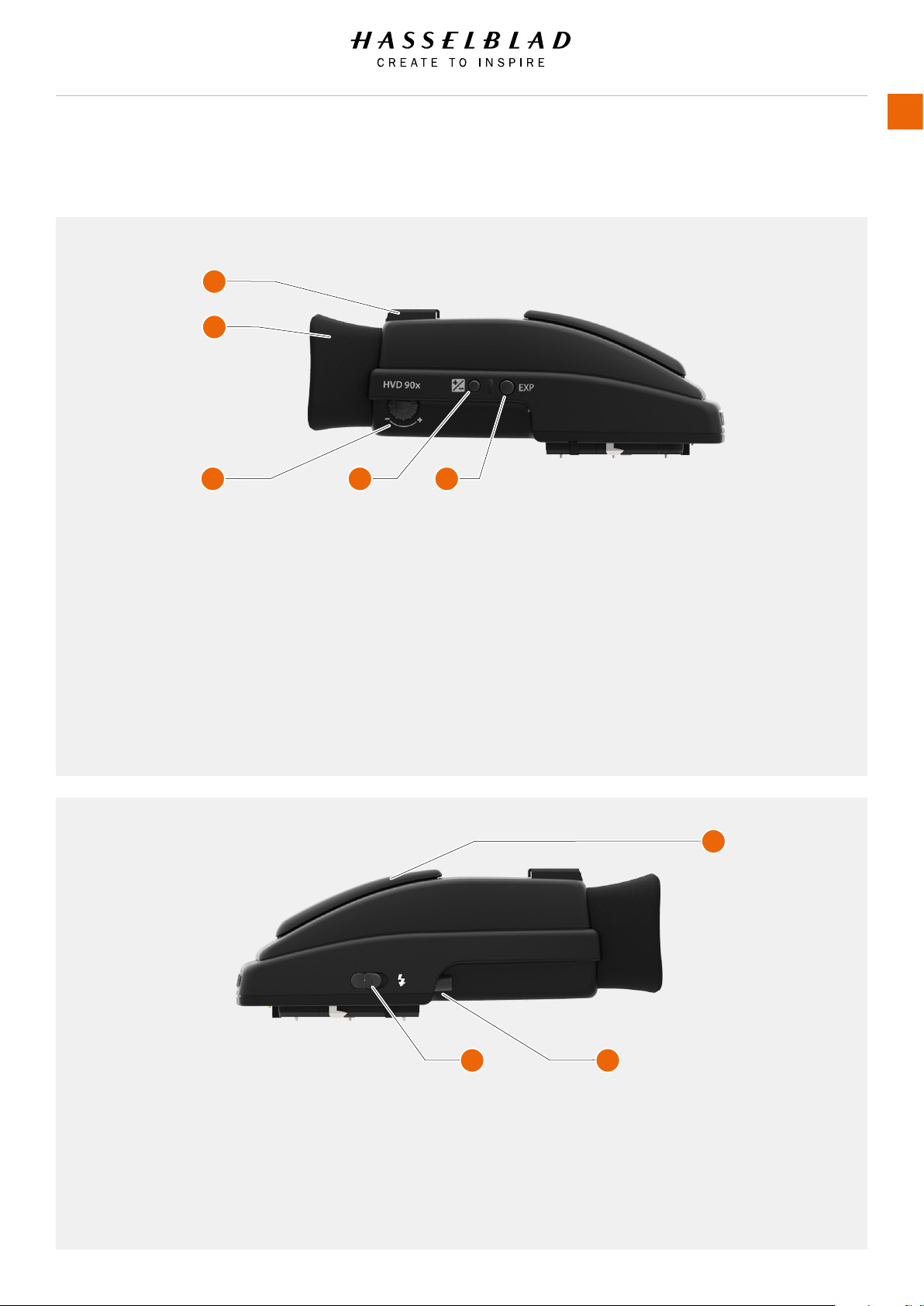
3.7 VIEWFINDER
1
2
3 4 5
6
7 8
1 Hot shoe
Connection for automatic ash unit (with SCA 3902
adapter) or for wireless ash trigger.
2 Rubber eye cup
Can be exchanged for another model.
3 Eyesight adjustment wheel
The personal eyesight adjustment facility has a
dioptre range of -5 to +3.5, to suit most users.
4 Exposure and ash compensation button
Press this button to access the EV compensation
screen. Flash settings are made with the front scroll
wheel. Exposure settings are made with the rear
wheel. The EV correction values are shown on
the grip. In the viewnder display, a plus or minus
symbol is shown, if the value differs from zero.
5 Exposure mode / Metering mode
The EXP (Exposure) button accesses the exposure
and metering mode options screen. Settings are
made with the front and rear scroll wheels and
the appropriate symbols appear on the grip and
viewnder displays accordingly.
6 Integral ash unit
Manually opened with ash unit release button.
7 Integral ash unit release button
Slide the button towards the rear of the camera to
raise the integrated ash. Activation is automatic.
8 Viewnder release button
Press towards the front of the camera and lift the
viewnder upwards. Mount protection lid.
H6D www.hasselblad.com
USER GUIDE
Overview
26
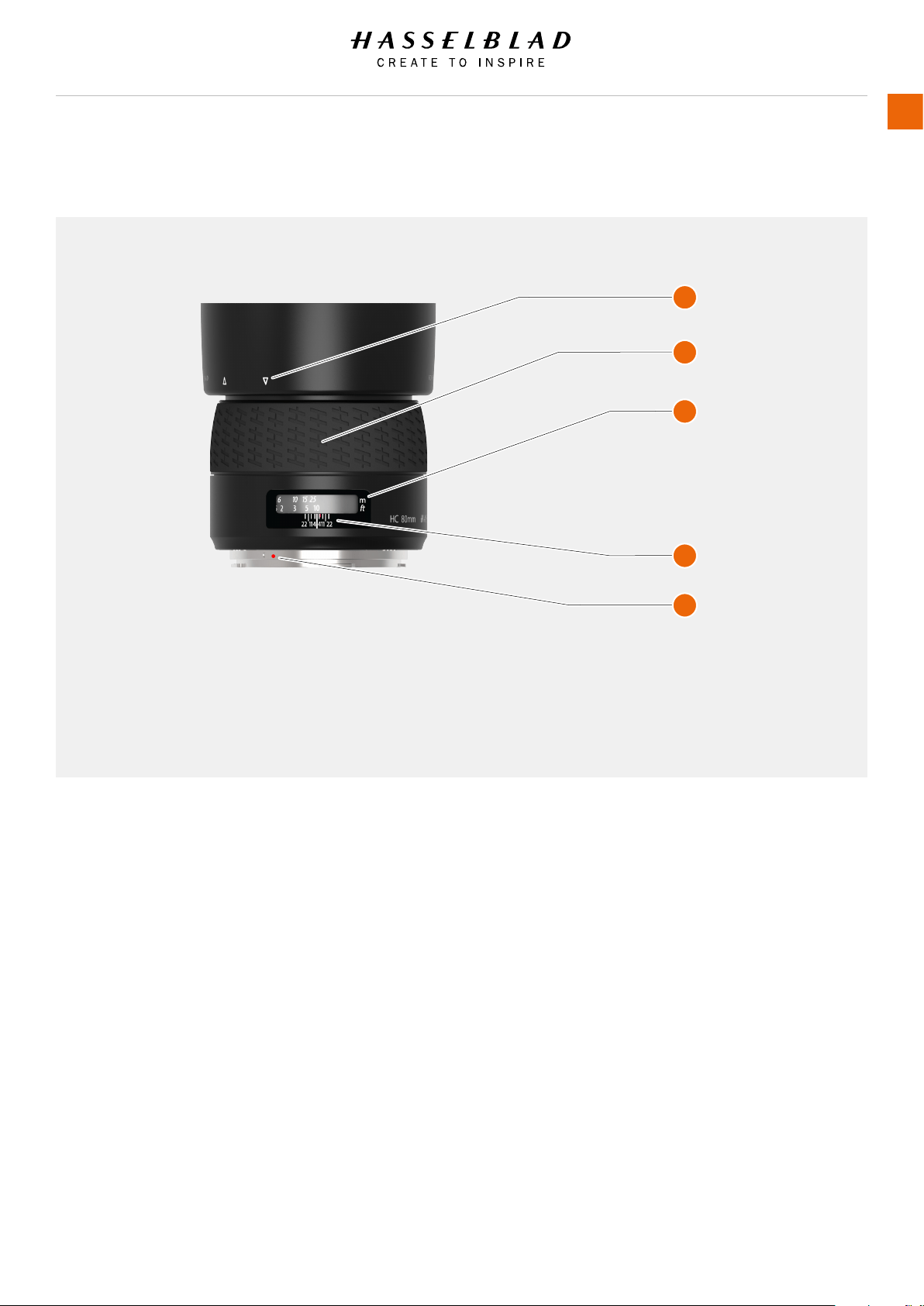
3.8 LENSES
You can also download technical data sheets from the
Hasselblad website, www.hasselblad.com, or you can download
a combined version. You can also download a lens booklet that
contains a round up of the available lenses and some general
information.
1 Lens shade index
2 Manual focus ring
3 Focusing distance scales
4 Depth of eld scales
5 Lens index
1
2
3
4
5
H6D www.hasselblad.com
USER GUIDE
Overview
27
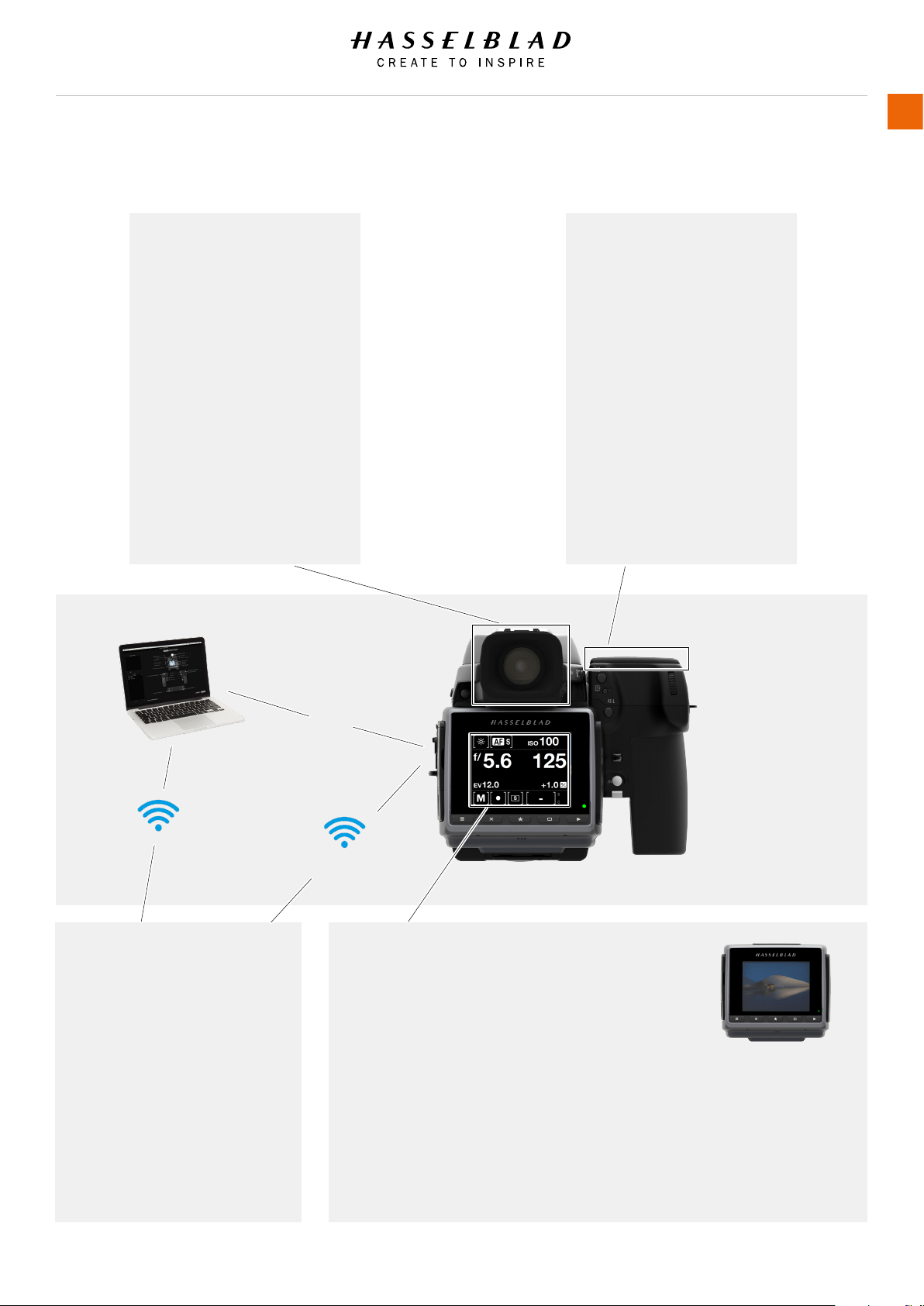
3.9 DISPLAY INFORMATION
Grip LCD information
Metering method
Aperture setting
Shutter speed
Exposure method
Capture counter
ISO
White Balance
Flash indication
Focus
Drive
EV
Battery status
Histogram (optional)
Memory Card Status
Viewnder information
Metering method
Aperture setting
Shutter speed
Exposure method
Capture counter
Exposure compensation
Focus assist
Warning triangle
Flash warning
Spirit level
ISO
WB
PHOCUS / PHOCUS MOBILE
INFORMATION
Metering method
Aperture setting
Shutter speed
Exposure method
ISO
White Balance
Flash indication
Focus
Drive
EV
Rear LCD information
ISO / White Balance
IAA rating
Storage medium
OPTIONAL
Exposure comp.
Histogram
Date
Time
Lens focal length
Spirit level
Optional accessible full screen display of grip
information to show:
Metering method, Aperture setting, Shutter
speed, Flash indication, Focus, Drive, EV, Battery
status, Exposure method, Capture counter, ISO,
White balance.
USB 3
Wi-Fi
H6D www.hasselblad.com
USER GUIDE
Overview
28
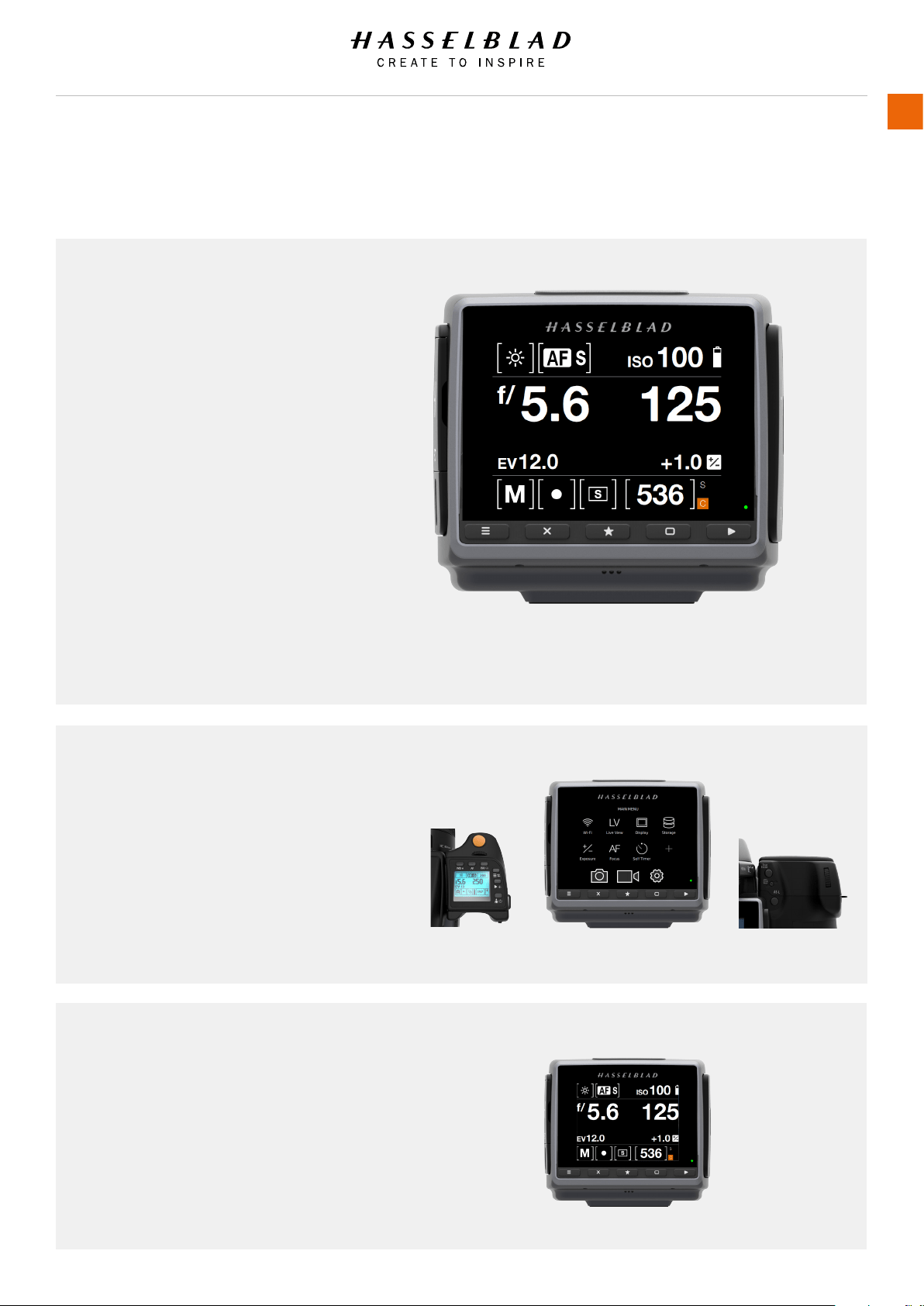
3.10 SENSOR UNIT DISPLAY AND CONTROLS
When shooting, the Sensor Unit can
display the information most often
required for a quick settings check. The
unit’s buttons, grip scroll wheels and
camera buttons together with the touch
display are used to navigate the main
menu and change settings.
The touch display can show all saved
captures on a CFast or SD card. You
can Browse and Zoom the Captures for
detailed inspection.
When shooting, you can control the
amount of information visible together
with the current preview by choosing
various modes.
Buttons and scroll wheels
In Browse mode, the Scroll Wheels, True Focus
and AE-L buttons are used for navigation.
Activate Browse mode by pressing on the right
button below the Sensor Unit Display or on the
Browse button on the Grip.
Control Screen with Grip information
The Control Screen is interactive. Swipe down to
display the Control Screen. Select any of the settings
to change the value. Aperture setting, shutter speed,
focus setting, drive, EV, battery status, exposure
method, capture counter, ISO and white balance can
simultaneously be displayed and changed on the
sensor unit on the Control Screen.
H6D www.hasselblad.com
USER GUIDE
Overview
29
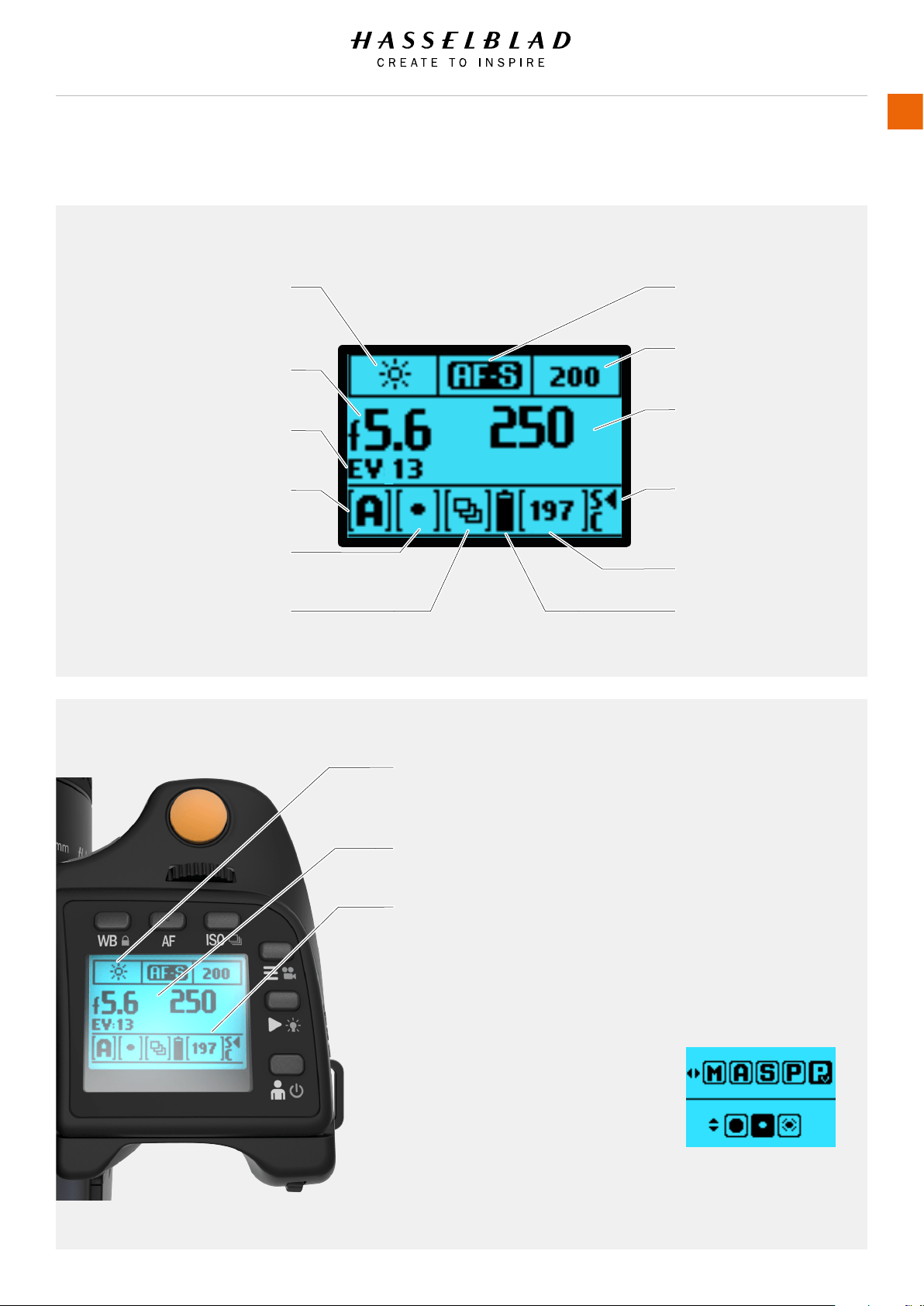
3.11 GRIP DISPLAY
White balance settings
(Daylight)
Aperture setting
(f/5.6)
Exposure Value (EV) display
(Displays EV, 13)
Exposure mode indication
(Aperture priority)
Light metering mode
(Spot)
Drive mode
(Continuous)
Focus mode
(Single)
ISO setting
(ISO 200)
Shutter speed setting
(1/250s)
Card - SD (S) or CFast
(C). Displays SD card
as primary storage.
Remaining captures
Battery status
1 White Balance, Autofocus and ISO settings
The upper row on the screens display the White Balance (WB) the
selected Autofocus (AF) and ISO settings selected.
2 Settings symbols
Symbolize the options available when settings are changed.
3 Setting information
The lower row on the screen displays
information about the current state of the setting.
Note!
Scroll wheel description and direction
Arrowheads symbolize which scroll
wheel should be used to change setting.
left and right arrow = front scroll wheel
up and down arrow = rear scroll wheel
TYPICAL GRIP DISPLAY
TYPICAL GRIP DISPLAY WHEN CHANGING SETTINGS
H6D www.hasselblad.com
USER GUIDE
Overview
30
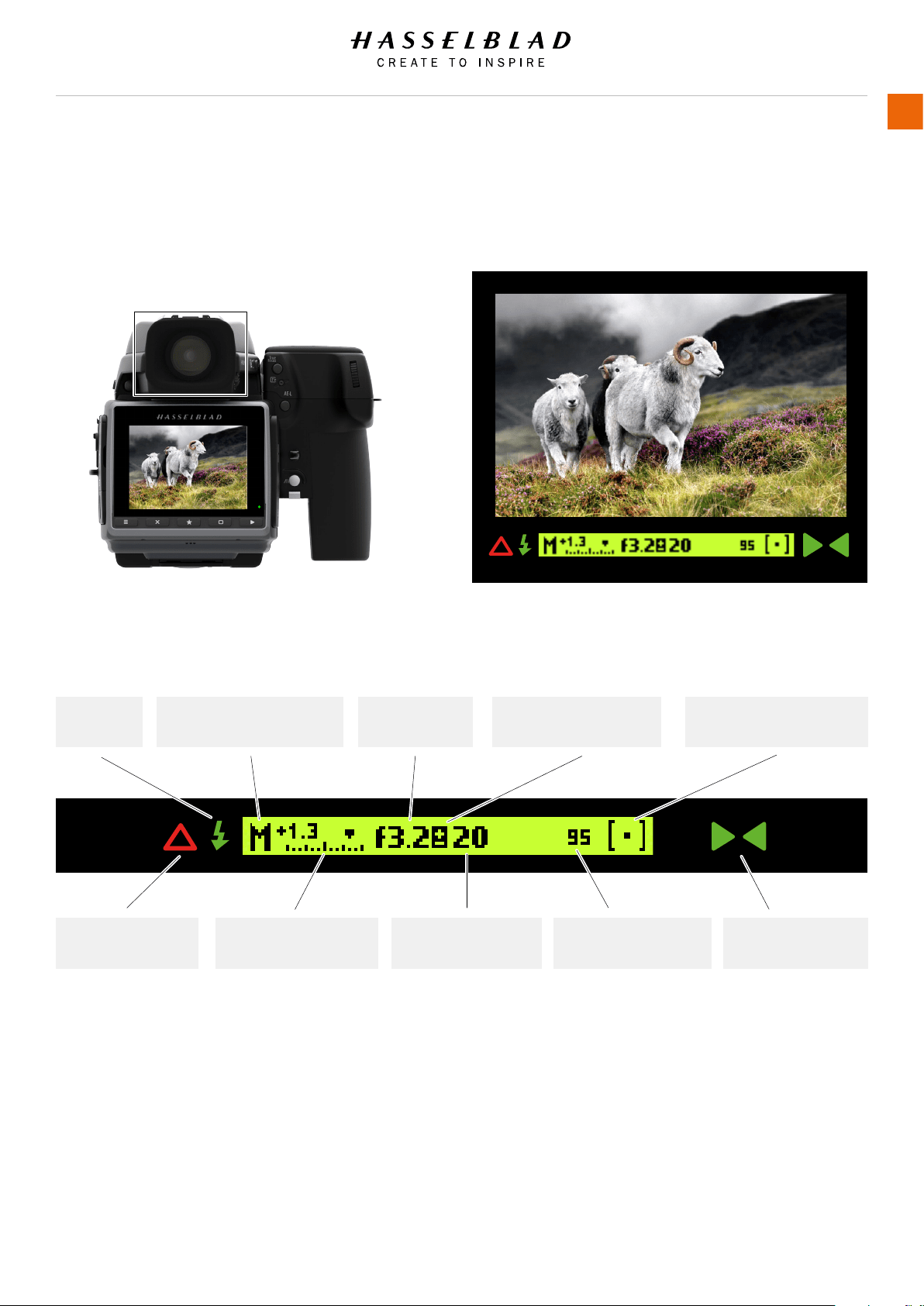
3.12 VIEWFINDER DISPLAY
Note!
The LED’s will only be visible when activated by the camera or a setting.
Exposure method indication
(Manual mode)
Aperture setting
(f/3.2)
Exposure compensation
setting reminder symbol
Metering method setting
(Spot)
Focus Assist LED
Warning triangle LED Shutter speed setting
(1/20 seconds)
Exposure compensation
setting (+1.3 EV)
95 frames remaining
Flash LED
TYPICAL VIEWFINDER DISPLAY
Viewnder Display visual user interface
H6D www.hasselblad.com
USER GUIDE
Overview
31
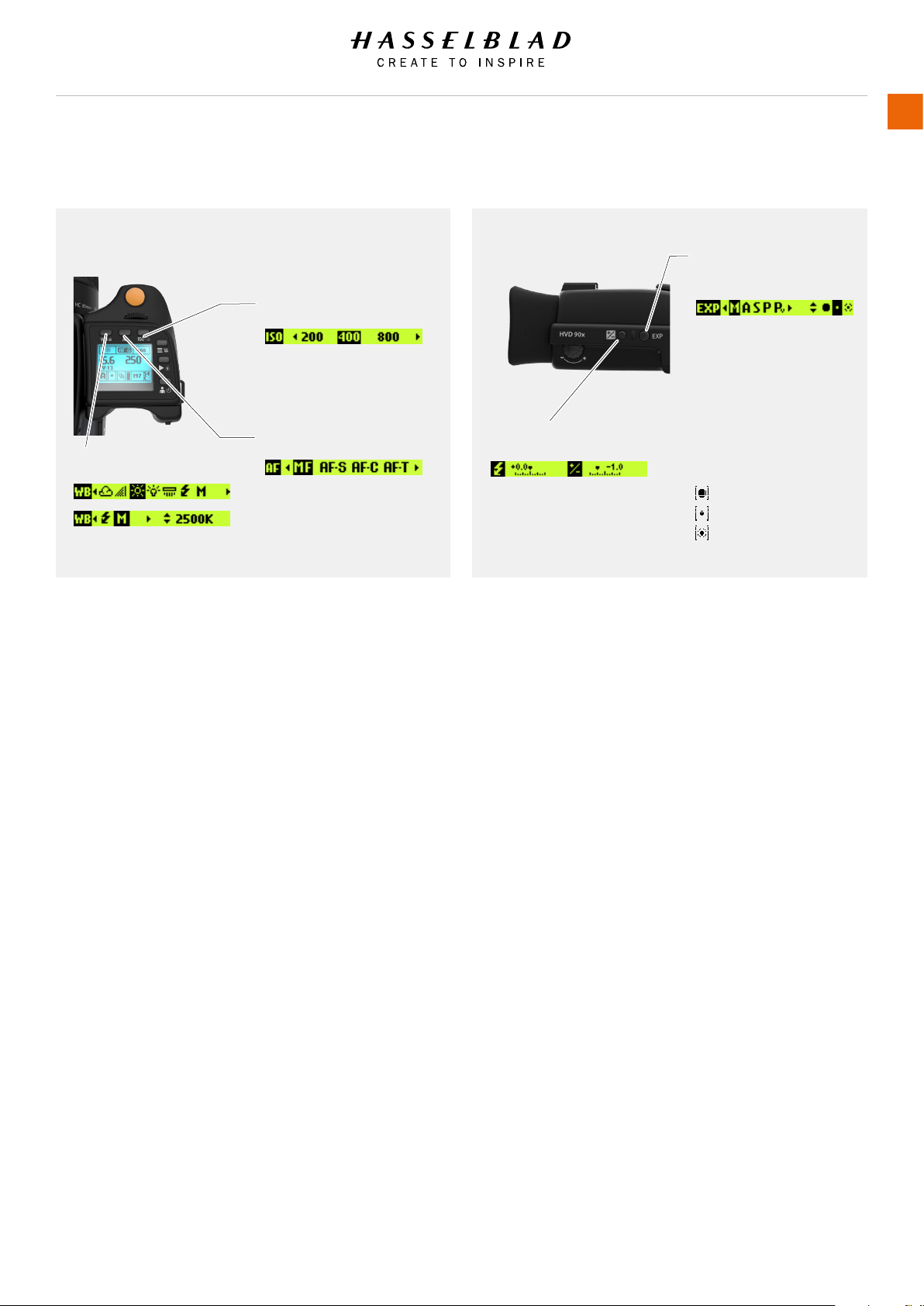
WB
AF mode (AF-S)
ISO (ISO 400)
VIEWFINDER DISPLAY ACCORDING TO SETTING
Exposure and metering
mode examples
Exposure compensation mode
M = Manual
A = Aperture priority
S = Shutter priority
P = Program
Pv = Program (variable)
Center Weighted
Center Spot
Spot
H6D www.hasselblad.com
USER GUIDE
Overview
32
Exposure and metering mode examples
M = Manual
A = Aperture priority
S = Shutter priority
P = Program
Pv = Program (variable)
Center Weighted
Center Spot
Spot
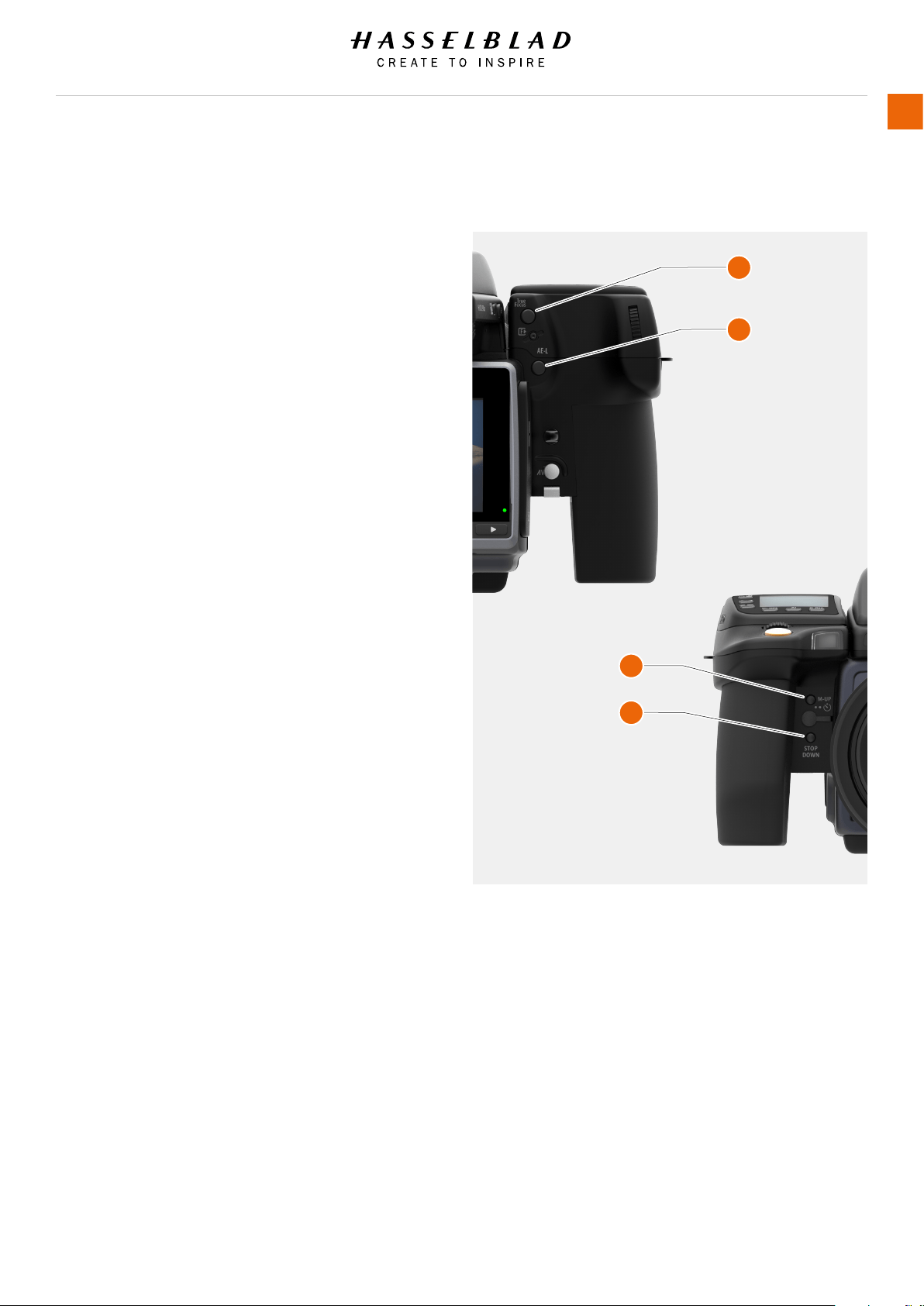
3.13 RE-ASSIGNABLE GRIP BUTTONS FUNCTION
OPTIONS
These four grip buttons are by default assigned according to
name but can be reassigned (in Main Menu > Camera Settings
> Controls or in the Camera Conguration tool in Phocus) to
various other functions listed here.
True Focus
Temporarily activates True Focus function.
AF-Drive
Temporarily activates AF Drive.
AE-L
Temporarily locks a light reading in auto or manual modes. Also
used in Zone metering.
M.UP / Mirror up
Locks mirror up for minimal vibration.
Stop down
Activates stop down function for depth of eld checking.
Self timer
Sets self timer mode. Provides a timed remote shutter release
function with the option of a change in sequence of the mirror
movement (to reduce vibration).
Bracketing
Sets Bracketing mode. This function provides an automatic
series of captures; one at the standard exposure setting,
Manual or Auto, and the others with predetermined deviations in
EV from the standard exposure.
B mode
Sets B mode shutter setting. Shutter stays open as long a
pressure is maintained on shutter release button.
T mode
Sets T mode shutter setting. Shutter stays open after rst press
of shutter release button (toggle function to close again).
Flash Measure
Activates manual ash measure function.
Interval timer
Activates interval function start screen.
Cycle Light Meter mode
Selects next light metering mode.
Expose
Provides alternative to shutter release button.
1
2
3
4
1 True Focus
2 AE - L
3 M.UP
4 STOP DOWN
H6D www.hasselblad.com
USER GUIDE
Overview
33
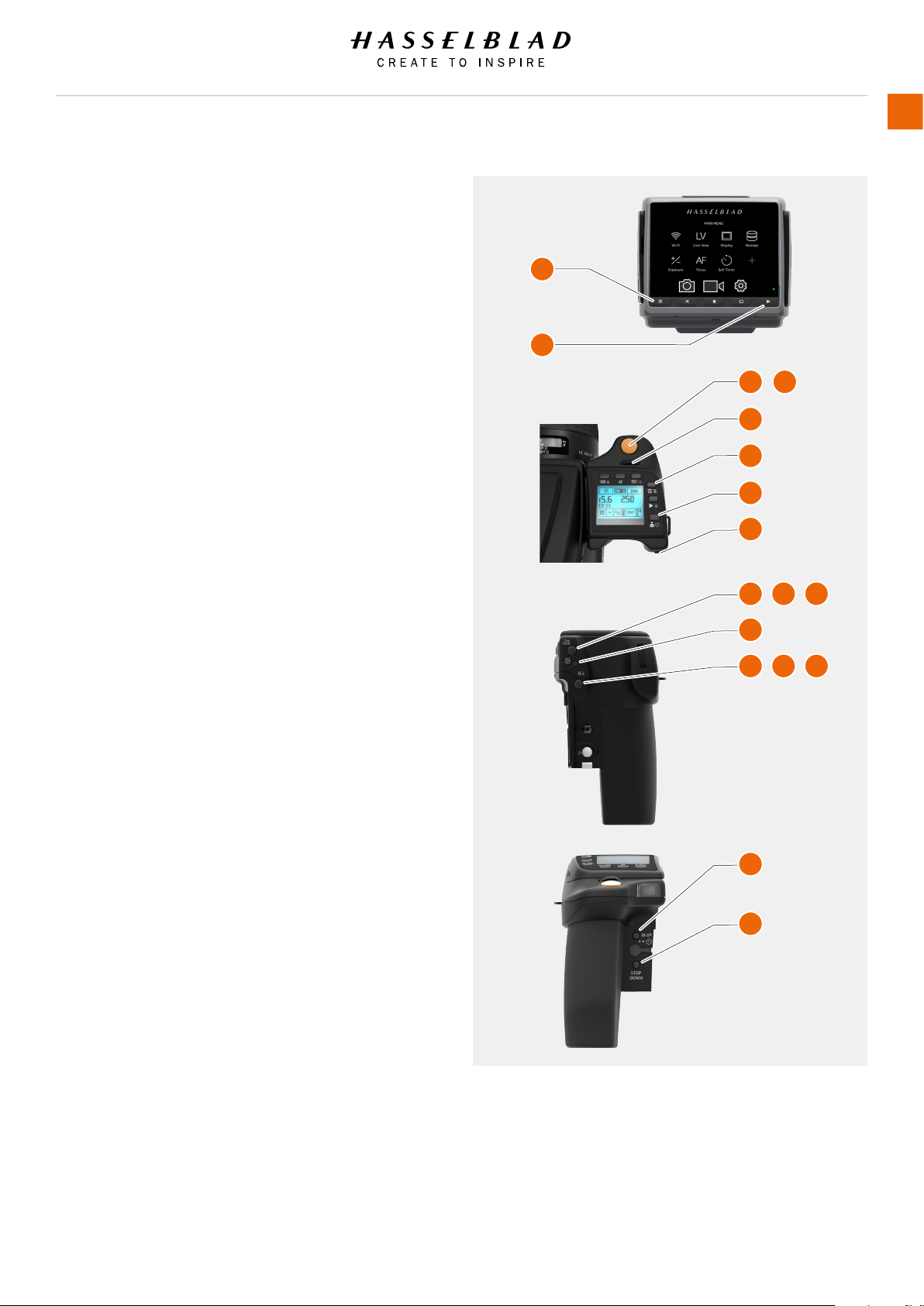
3.14 SHORT CUTS
1 Menu button – Setting option access. Press MENU button
on the Sensor Unit.
2 Browse button – Starts image browse mode.
3 Shutter release button – Camera activation. Re-activates
camera from Display Off mode. After making any changes, press
EXIT (Menu button) or shutter release button to save the new
setting.
4 Shutter release button – A half press always exits all menus
and returns to shooting mode.
5 Front scroll wheel – Menu navigator / Browser. Functions as
a horizontal navigator on sensor unit menu as well as a capture
browser in Browse mode.
6 Menu button – Toggles the Grip Menu Mode On and Off
When in Menu Mode the wheel is used to navigate the menus of
the Sensor Unit. When not in Menu Mode the wheel controls the
Aperture and Shutter speed. A long press on this button toggles
the camera between video and camera mode.
7 Proles button – Camera activation
Enters Proles menu. Proles will be available in a rmware
update. Re-activates camera from Display Off mode.
8 Rear scroll wheel – Menu navigator
Functions as a vertical navigator on sensor unit menu while in
menu mode. When not in Menu Mode the wheel controls the
Aperture or Shutter speed.
9 True Focus button – Camera activation
Re-activates camera from Display Off mode.
10 True Focus button – Zoom-in button
Automatically acts as Zoom-in button when in Browse mode.
11 True Focus button – Selection button
Automatically acts as value selector on sensor unit
menu when in Menu mode.
12 CFast and SD Card format button – Formats the current
inserted CFast or SD card (requires conrmation).
13 AE-L button – Re-activates camera from Display Off mode.
14 AE-L button – Zoom-out button. Automatically acts as zoom-
in button when in Browse mode.
15 AE-L button – Selection button. Automatically acts as value
selector on sensor unit menu when in Menu mode.
16 Mirror Up button – Camera activation. Re-activates camera
from Display Off mode.
17 Stop Down button – Re-activates camera from Display Off
mode.
1
2
3 4
5
7
6
8
9 10 11
12
13 14 15
16
17
H6D www.hasselblad.com
USER GUIDE
Overview
34
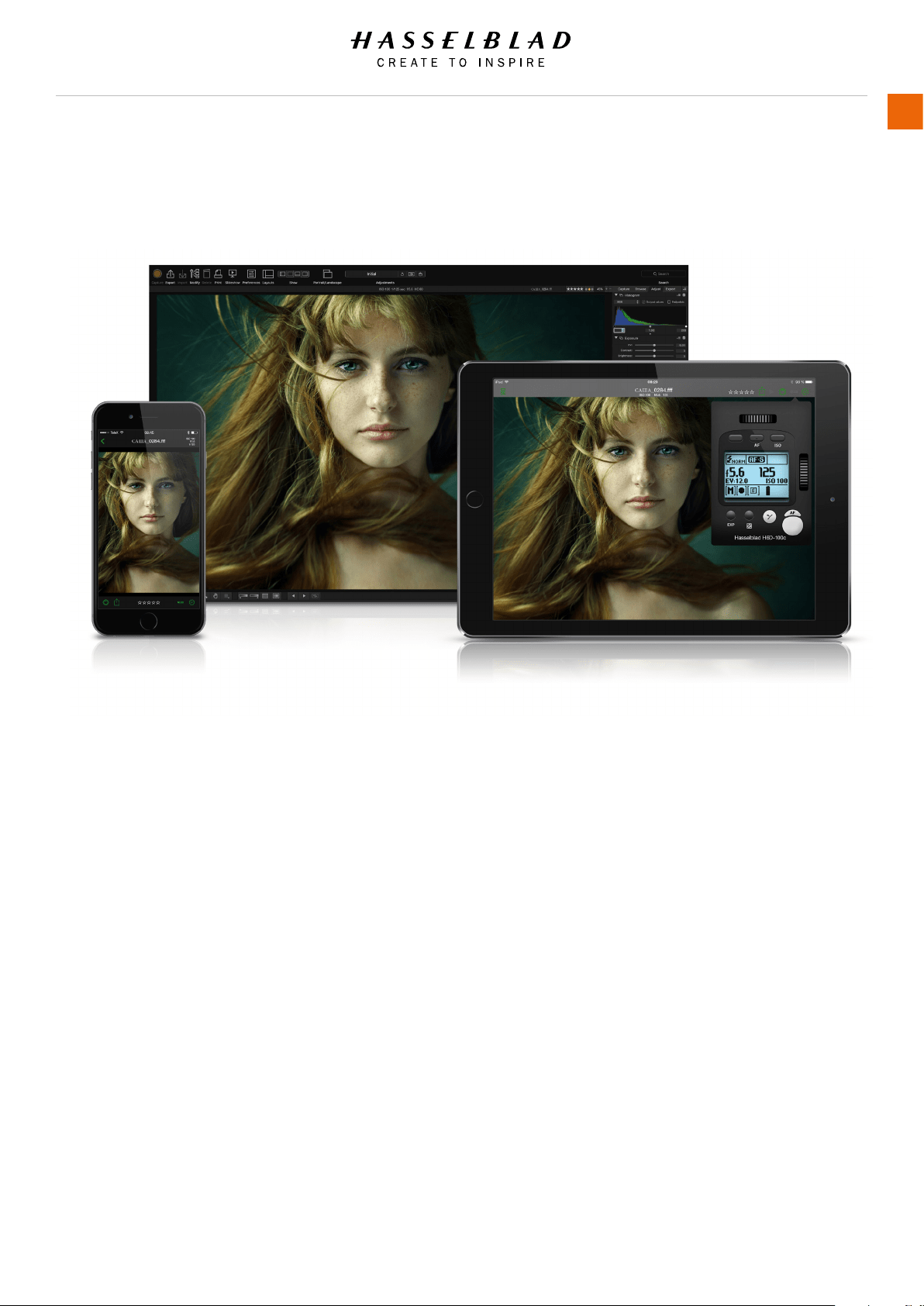
3.15 PHOCUS OVERVIEW
Phocus
Phocus is the Capture Processing and File Management
application aimed primarily at Hasselblad 3F le handling.
Phocus is available for both Mac and Windows.
Professional Image Quality
Phocus combines Hasselblad Natural Colour Solution (HNCS)
with Digital Auto Correction (DAC) to provide high digital
image quality in the images you create. With Phocus, the
moiré effect that can occur on even extremely high resolution
images is effectively removed automatically and directly on
the raw data, leaving the image quality intact and saves time
in post production work. Tethered shooting is efcient with
Phocus Remote camera controls providing a number of remote
functions. For example remote focusing, live view, aperture and
exposure time controls.
Phocus Mobile
Phocus Mobile is available for iPhone®, iPad® and iPod Touch®.
It enables you to connect wireless to a computer running
Phocus and to remotely browse your high-resolution RAW, JPEG
and TIFF images. This provides a solution for working with
clients in the studio, enabling each person to view images on
an individual iOS device, rather than all gathering around a
single computer. Phocus Mobile also allows users to remotely
operate and trigger a tethered camera, giving control of many
parameters, all neatly presented in a virtual camera display.
This feature is very convenient for remote control of the camera
when it’s located in a difcult to access position.
Phocus Mobile is available for free download in the Apple App
Store. www.apple.com.
H6D www.hasselblad.com
USER GUIDE
Overview
35
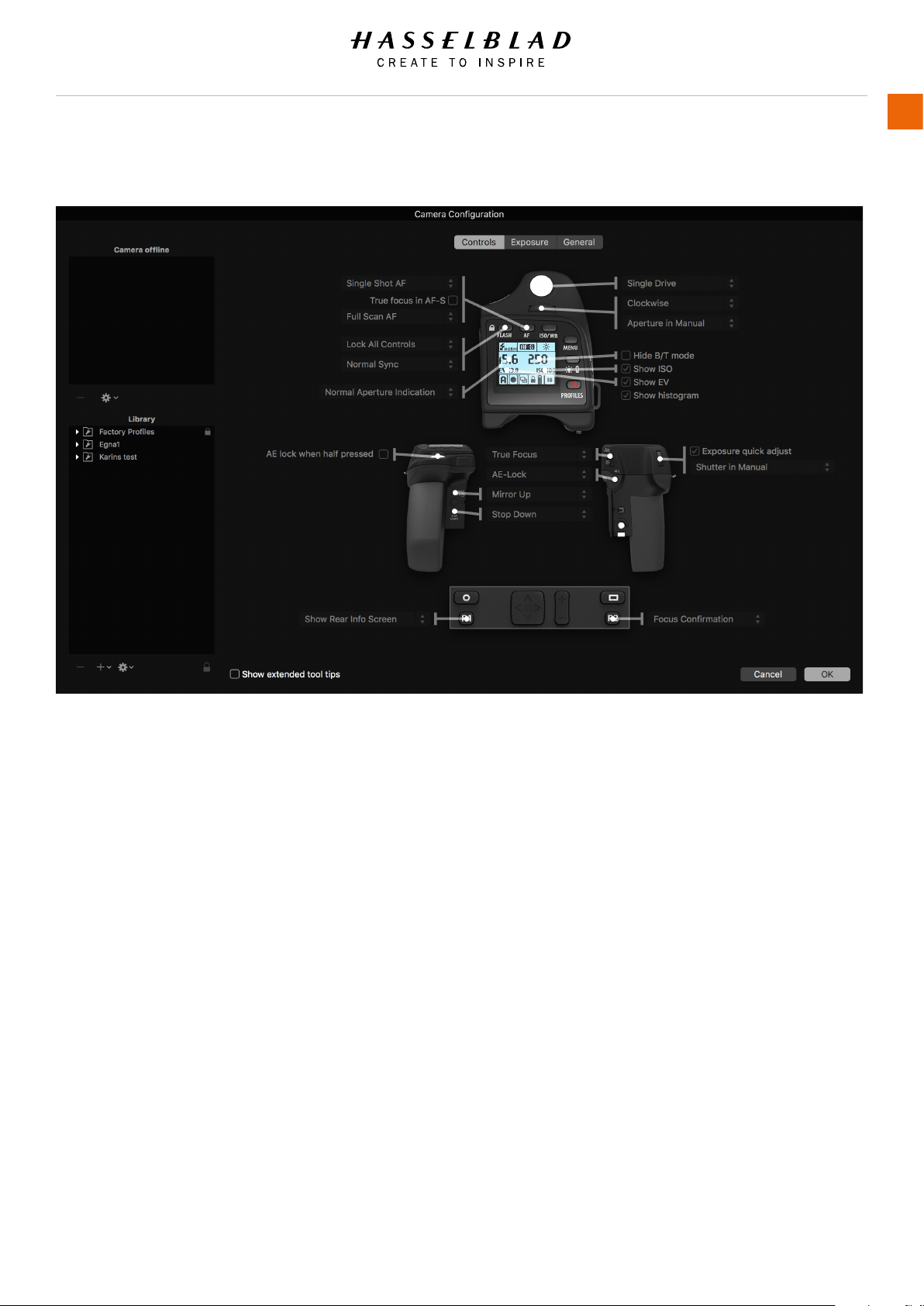
3.16 CAMERA CONFIGURATION IN PHOCUS
Creating a prole
1 Open Camera Conguration located under the Windows
menu.
2 Connect the camera and in the Camera list click on a prole
you want to change or a spare pro le and name it.
3 Cycle through the three windows, Controls, Exposure and
General, making the appropriate selections that you require.
When complete, select the new pro le and drag and drop or
right click it to store in the Library.
4 Right click the Library version of the prole to access the
Transfer Prole Set to Camera option then click on OK to
complete the action. This causes the new prole to appear
on the grip display for selection when you click on the
Proles button.
Right click a prole in Library to access the Rename, Reset to
Standard, Delete and Export options if required. Import, Export,
Transfer, Add Prole etc. tools are also available.
The Camera Conguration tool in Phocus offers a very thorough
and secure way of creating comprehensive proles for the H6D.
There are three windows – Controls, Exposure and General –
that present virtually all parameters to enable total control at
the press of a button. This means that separate and specic
custom proles created in advance can cover a number of
shooting scenarios.
In addition these proles can be easily imported and exported.
For instance, you can create a special prole to suit a specic
type of shoot and keep it on a memory stick or laptop. So, when
renting an H6D for example, you only have to upload the saved
prole to ensure that all parameters have been reset without
you having to go through each detail – simple and secure.
The interface has three tabs at the top, Controls, Exposure
and General, that access the windows. Descriptive information
appears as you mouse over the various menus and extra tool
tips are additionally available as an option. To take an example,
the Controls window is illustrated here. On the left are two
lists: Camera and Library. The Camera list includes the various
available conguration proles already stored in the camera –
the prole currently in use as well as the default settings and
those you have created or imported from other sources. Library
contains the factory pre-sets stored on disk.
H6D www.hasselblad.com
USER GUIDE
Overview
36
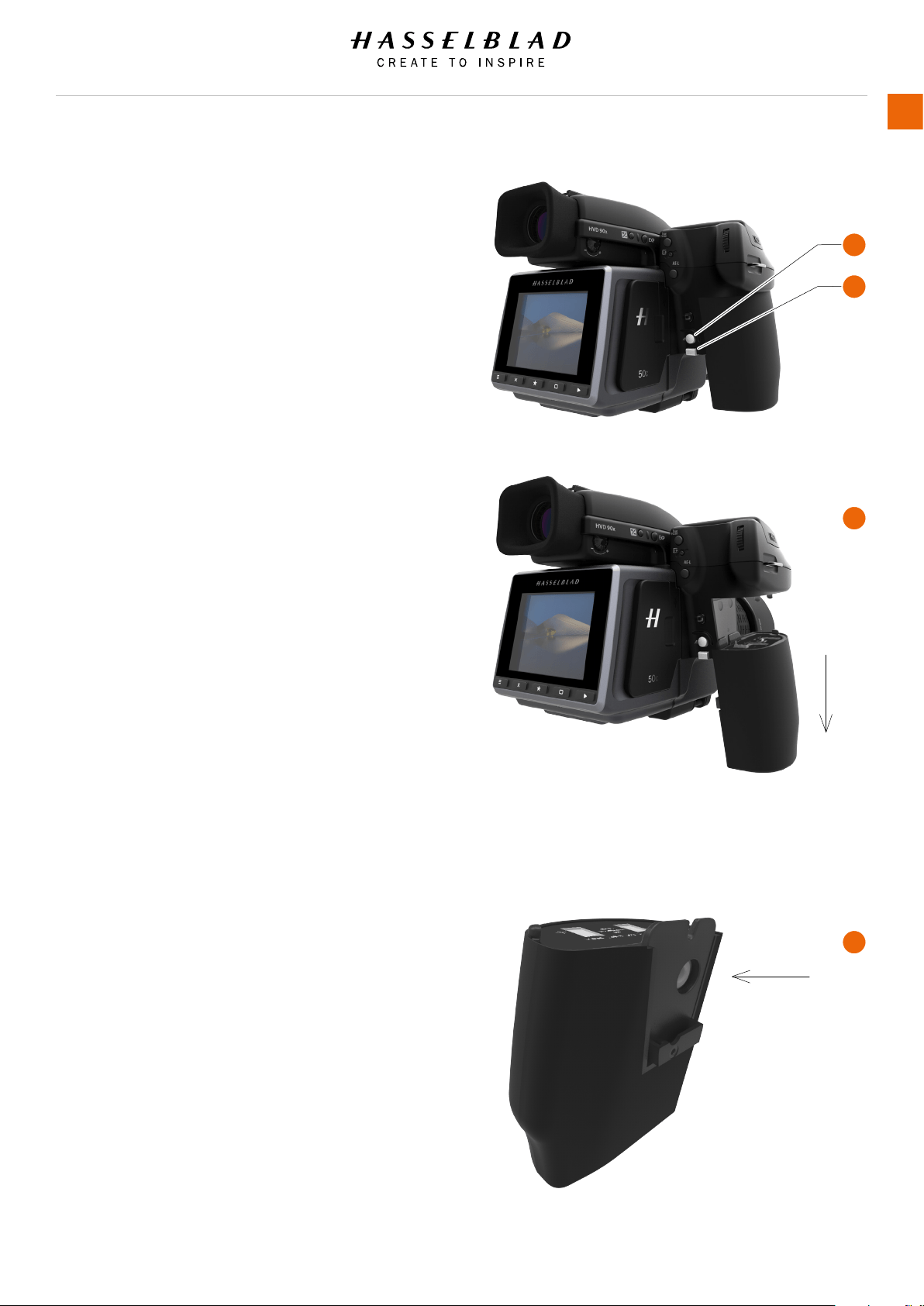
3.17 BATTERY AND BATTERY GRIP
Rechargeable battery grip
The environmentally approved Battery grip Li-ion (3043357)
is the standard power source for the H6D camera. The H6D
requires a power supply for all actions as there is no mechanical
reserve facility. It is therefore advisable to keep a reserve
rechargeable battery grip at hand. As is the case with most
batteries, problems might be encountered when used in very
low temperatures. In this situation it is advisable to keep the
reserve battery in an inside pocket, for example, to maintain it
near body temperature.
Remove a battery
Remove the battery from the camera by pressing the battery
holder button (1) and simultaneously swinging the battery
holder retaining lever (2) down until it stops.
Pull the battery downwards (3).
Mount a battery
To t, hold the battery at against the camera body and
aligning the two upper lugs with the slot, slide it back into
position as far as it will go. Swing back the battery holder
retaining lever (2) until it clicks back into place.
Store a battery
If you intend to store the battery separate from the camera,
ensure the safety cover is mounted over the electric connections
on the battery to prevent short-circuiting. It snaps into place and
is removed by pulling outwards and upwards on the locking clip.
Connect battery to charger
Mount the charger plug in the plug connector on the inside of
the battery (4).
See next page for more in depth information.
1
2
3
4
H6D www.hasselblad.com
USER GUIDE
Overview
37
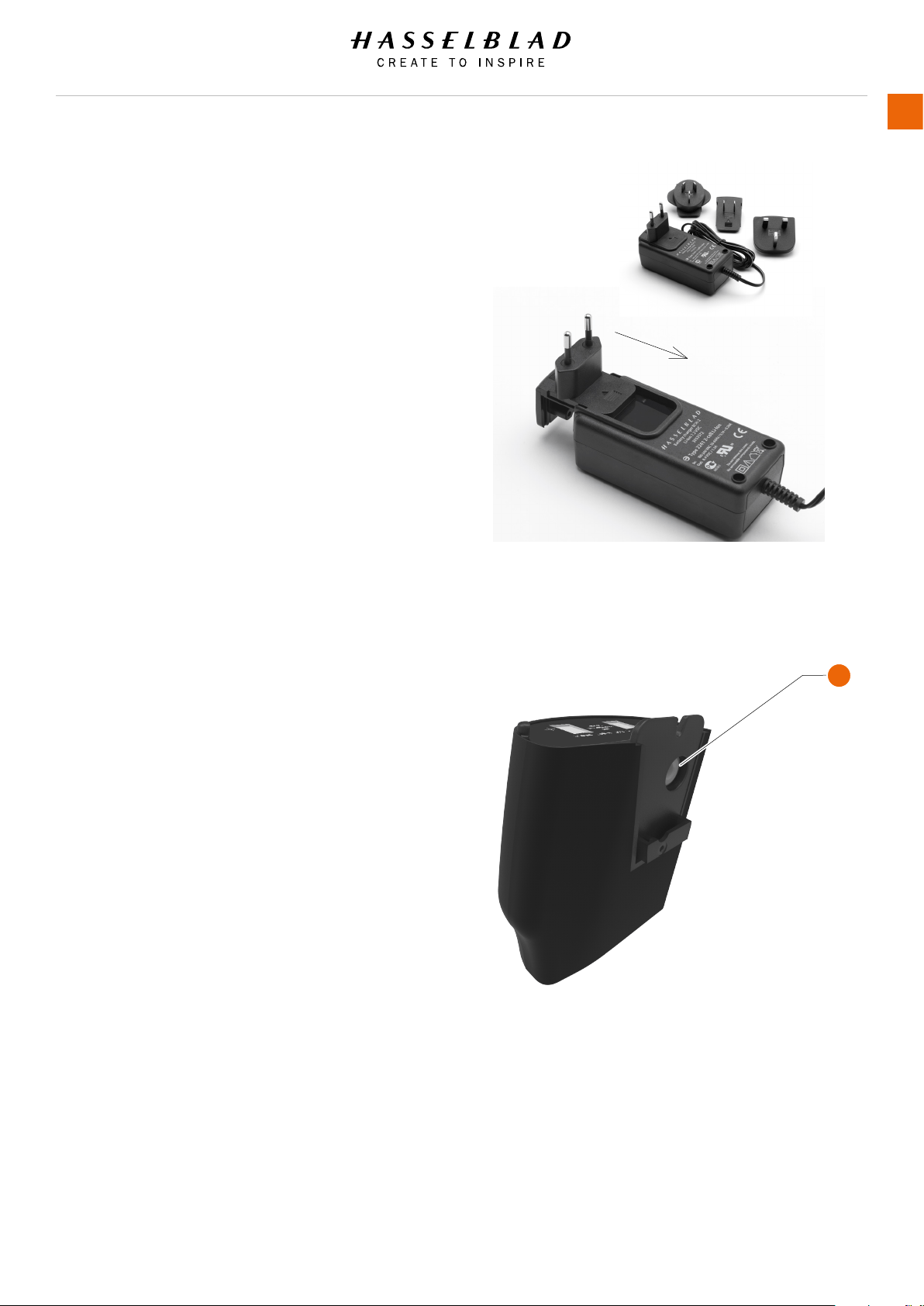
3.18 BATTERY CHARGER
The battery charger is supplied with a number of plug
attachments to suit various types of domestic electrical sockets
available worldwide. Other types of socket will require a
domestic socket converter.
Attach the chosen plug by sliding it into position as in the
diagram. Removal is by the reverse procedure.
Please note that the Battery charger BCH-2 (3053572)
is designed for use with Battery grip Li-ion 3200 (3043357)
but can also be used together with the Battery grip rechargeable
7.2V Li-Ion 2900 (3043356) intended for H5D use.
CHARGE THE BATTERY
With the battery removed from the camera, insert the jack
plug from the battery charger into the socket on the battery
grip (1). Insert the battery charger into a standard (100–240V~
/50–60 Hz) domestic socket.
During the charging procedure, the lamp on the charger
signies the following:
Steady Green light: Standby (no battery connected)
Steady Yellow light: Charging
Steady Green light: Ready!
NOTE!
It can take about 6 hours to charge the battery completely up to
100% the rst time.
See next page for more details and precautions.
1
H6D www.hasselblad.com
USER GUIDE
Overview
38

RECHARGEABLE BATTERY GRIP SPECIFICATION
LI-ION/ BATTERY CHARGER 3053572 BCH-2
– PRECAUTIONS and GENERAL
The battery should be charged for approximately 6 hours
before rst time use.
The battery must be charged at room temperature.
Maximum battery capacity is reached only after the battery
has been charged and discharged several times.
Avoid frequent full discharges (a full discharge is signalled
by the appearance of the Replace battery warning on
the grip display). As the battery is a Li-ion type, it has no
‘memory effect’ of practical importance and therefore frequent
recharges will cause no problems such as loss of capacity
or poor performance. It is therefore better policy to
recharge the battery at very regular intervals, regardless
of use.
Remove the battery if you intend to store the camera
for some while as it will eventually become completely
drained, even though the camera is turned off.
The battery has an integrated ‘fuel gauge’ capability that
supports the Replace battery and Battery status functions
on the grip display. As with most Li-ion batteries, this capability
should be occasionally calibrated, depending on
how much the battery is used. To do this, leave the camera
on (or use it), until the Replace battery warning appears.
Then, recharge the battery for 6 hours. This will improve
the accuracy of the measurements.
When removing a battery from the charger and immediately
replacing it with another, allow a few seconds to
elapse so that the charger can automatically reset for the
next charging procedure.
It is perfectly normal for the battery to become warm
when being charged.
A slight temporary loss of battery performance might
be noticed at very high or low temperatures. Take the
appropriate measures if this is the case.
If you do not intend to use the battery for a while, it is best
to store it at room temperature with an approximate 30
to 40% charge.
The battery should have a usable service life of around
400 recharge/discharge cycles.
Connect the battery grip to the camera correctly.
Keep the protective cover in place when not in use. (Short
circuiting across keys in a pocket, for example, could cause a
re risk).
Do not immerse the battery grip in liquids.
Do not incinerate the battery grip.
Please recycle or discard in an environmentally approved
manner.
Use indoors only (protect against moisture).
Do not short circuit the jack plug.
Do not alter the charger in any way other than changing
the plug attachment.
Note!
You can save battery consumption by changing the Display Off /
Sleep / Power Off settings as well as the brightness settings of
the display.
H6D www.hasselblad.com
USER GUIDE
Overview
39
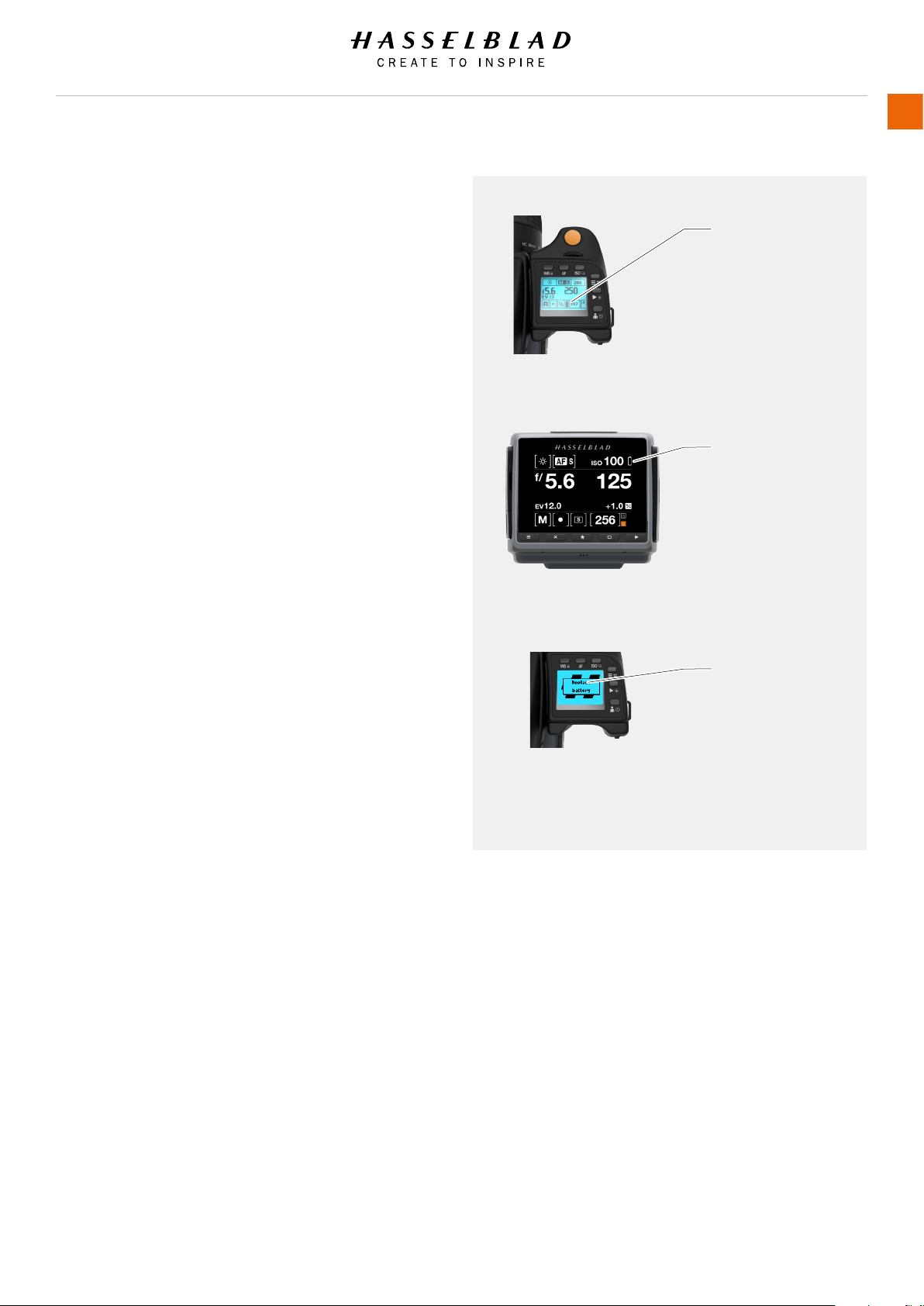
BATTERY LIFE AND BATTERY WARNING
Battery life is dependent on a number of variable factors
and therefore cannot be exactly predicted. If the camera is
left in the active state instead of Display Off or Sleep modes
for long periods, for example, then the battery will become
exhausted much faster. A low camera battery state is
indicated by a symbol on the grip display, in the viewnder as
well as on the sensor unit display. In addition, an audible
signal sounds. When the battery is almost completely
exhausted, a warning message “Replace battery” will
appear on the grip display.
3.19 TEMPERATURE WARNING
Many rapidly taken captures make heavy demands on the
processor in the sensor unit which in turn produces heat. This,
particularly in combination with high ambient temperature,
can result in noise in the image les. To prevent this, the sensor
unit displays a warning icon when the temperature rises.
At ca. 60° C a warning dialogue appears notifying that the
sensor unit is temporarily shutting down to allow the unit to
cool.
Quick visual check
Low battery warning
Exhausted battery
warning
H6D www.hasselblad.com
USER GUIDE
Overview
40
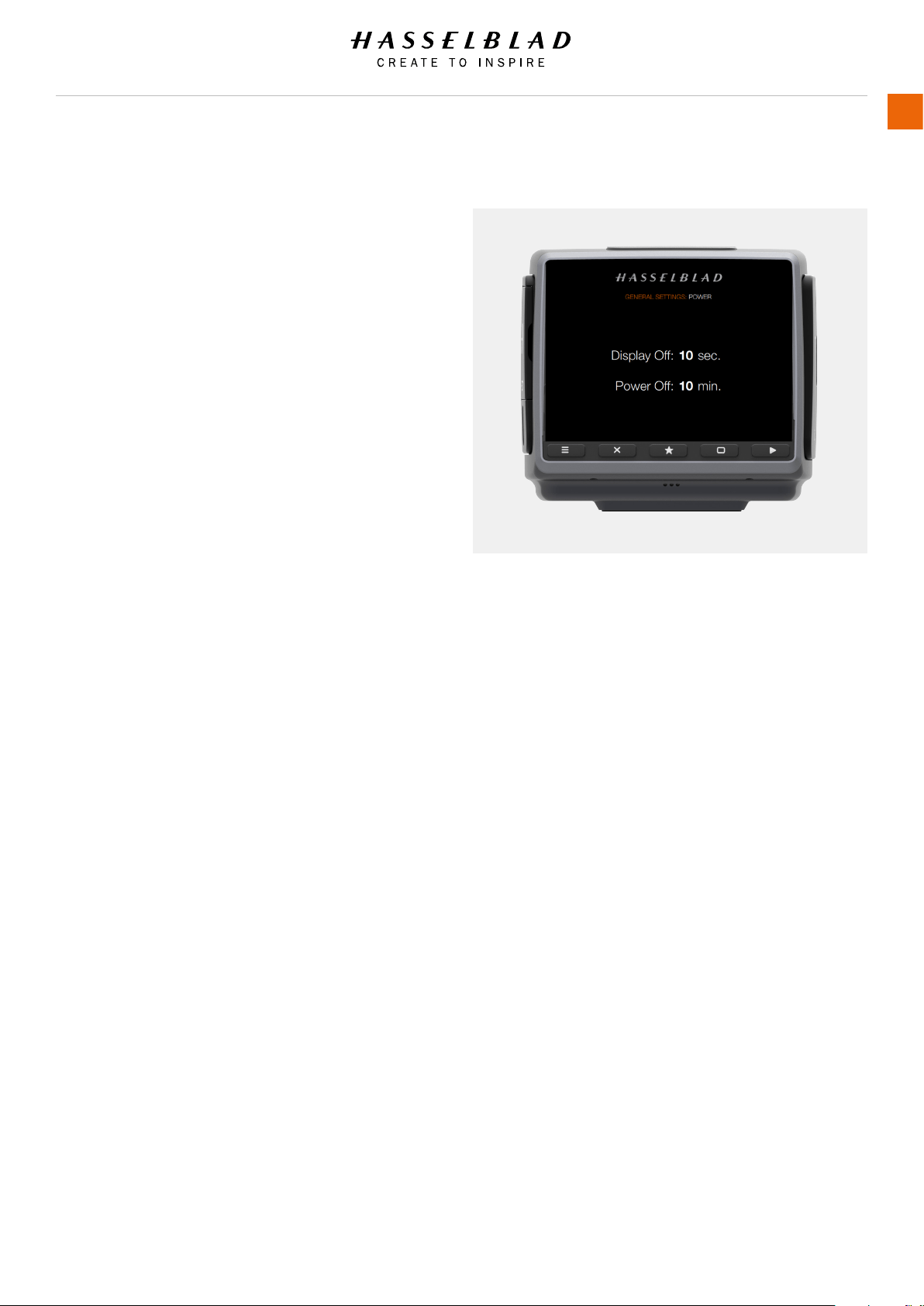
3.20 POWER MODES
MAIN MENU > GENERAL SETTINGS > POWER & TIMEOUT
The H6D Camera can be set to automatically turn off the Sensor
Unit Display after a set amount of seconds to save battery for
example.
It can also be set to Power Off after 5, 10 or 30 minutes.
1 Press the General Settings icon on the Sensor unit display.
2 The General Settings Menu will appear.
3 Press the Power and Timeouts icon.
Swipe right or press Menu / EXIT button to get back to Main
Menu.
Power and Timeouts Menu
Display Off
Select Display Off Settings.
- 3 seconds.
- 5 seconds.
- 10 seconds.
- 20 seconds.
- 30 seconds.
- 60 seconds.
- Never.
Power Off
Select Display Power Off Settings.
- 5 minutes.
- 10 minutes.
- 30 minutes.
- Never.
H6D www.hasselblad.com
USER GUIDE
Overview
41
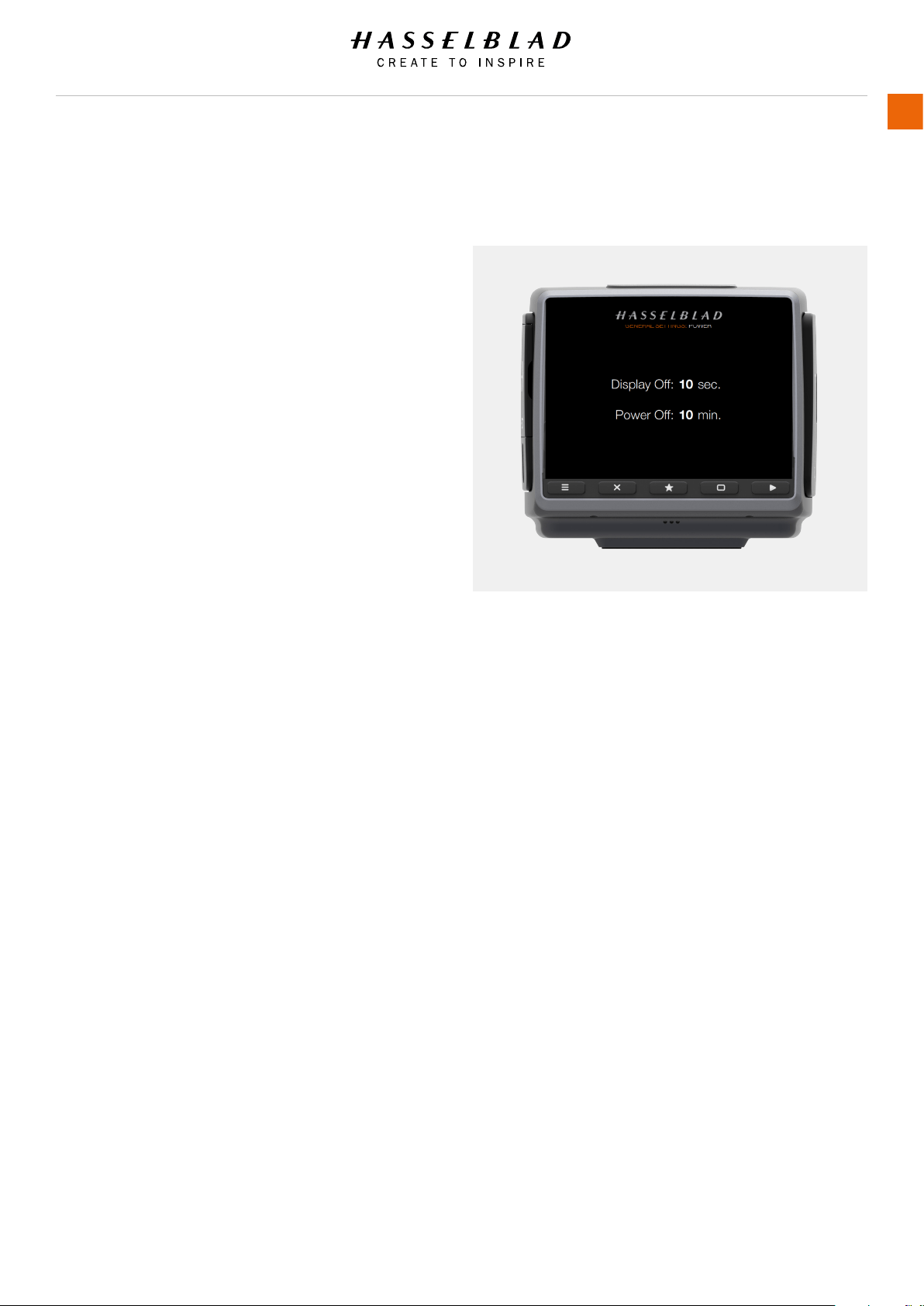
3.21 AUTOMATIC SETTINGS
DISPLAY OFF
MAIN MENU > GENERAL SETTINGS > POWER AND TIMEOUTS >
DISPLAY OFF
In this mode the camera turns off the grip and sensor unit
displays but remains ready to be immediately reactivated to the
ON mode. The time intervals are: 3, 5, 10, 20, 30, 60 seconds
and Never.
POWER OFF
MAIN MENU > GENERAL SETTINGS > POWER AND TIMEOUTS >
DISPLAY OFF
In this mode the camera is completely without power and has to
be started by pressing the ON button again - simple reactivation
is not sufcient. The time intervals are 5, 10, 30 minutes and
Never.
H6D www.hasselblad.com
USER GUIDE
Overview
42

3.22 REMOVE AND ATTACH THE VIEWFINDER
To remove, hold the viewnder in the right hand and while
pressing the viewnder release button (1), lift the rear of the
viewnder up and away from the camera body (2).
To attach, hold the viewnder at a slight angle and rest it
on the top of the camera. Slide the viewnder forward until
the front locating pin is in position in the recess in the front
edge of the viewnder screen aperture on camera body.
Press the rear part of the viewnder rmly downwards until
it clicks into place.
Ensure that both sides of the viewnder are seated correctly
and that it has been rmly attached and locked into position.
Failure to do so could cause an intermittent malfunction
if the data bus interface connections between the viewnder
and camera body are not positively secured.
Note!
Do not lift or hold the camera by the viewnder alone.
1
2
H6D www.hasselblad.com
USER GUIDE
Overview
43
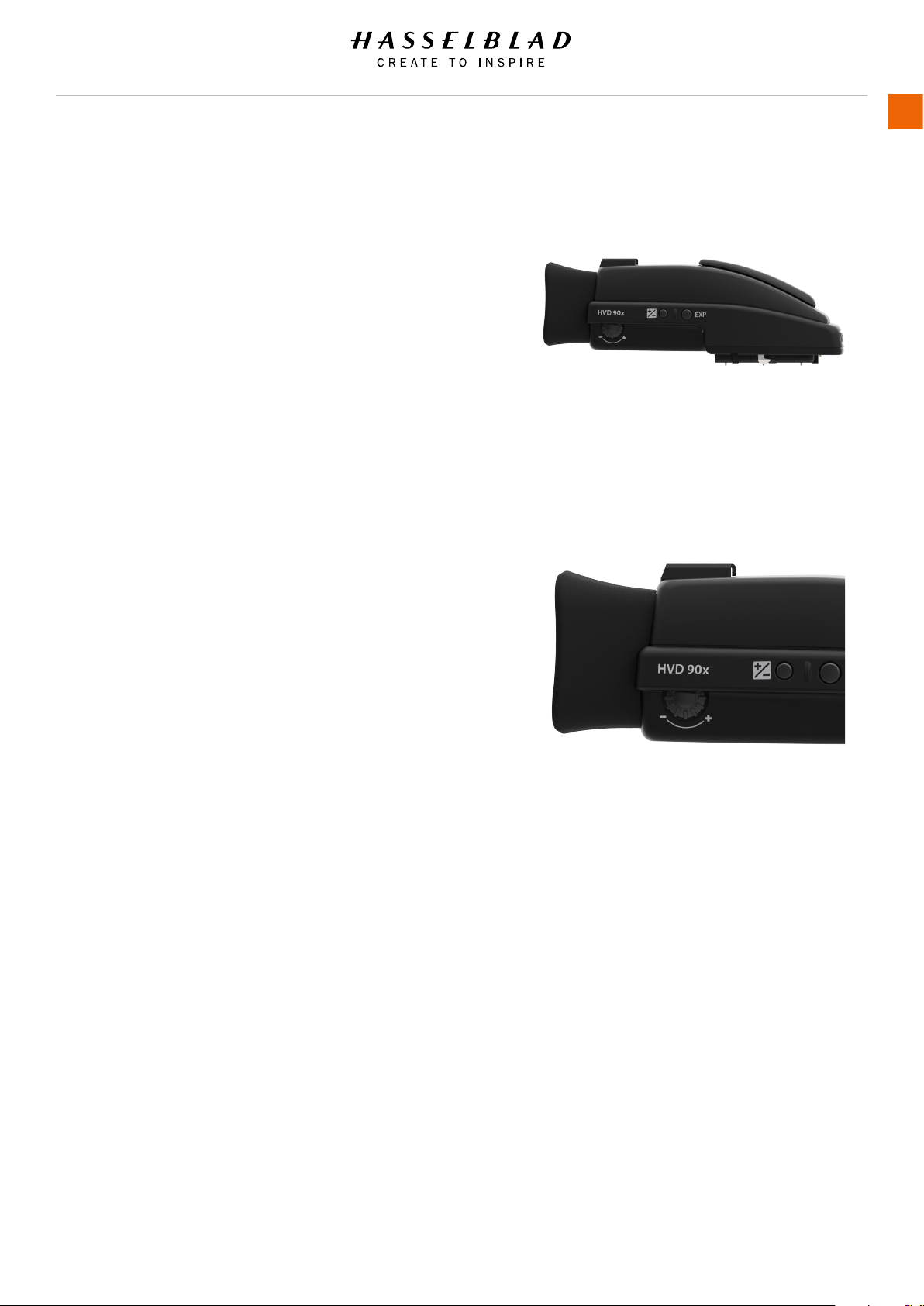
3.23 EYEPIECE ADJUSTMENT
No corrective lenses are needed to adjust the eyepiece to suit
most requirements. The dioptre range is from -5 to +3.5D.
Eyeglass wearers can rapidly and accurately change the settings
according to whether they wish to wear eyeglasses for viewing
or not. Personal eyepiece adjustments can be carried out by
pointing the camera at the sky or similar smoothly toned area.
While holding the camera in your left hand, you can with your
right thumb turn the adjustment wheel until the markings on the
viewnder screen reach the optimum sharpness for your
eyesight. If you normally wear eyeglasses for distance viewing
and intend to wear them for camera use then do not remove
them for the above procedure. If, on the other hand, you prefer
to remove your eyeglasses for camera work, then repeat the
above procedure without wearing your eyeglasses.
3.24 RUBBER EYE CUP
Two rubber eye cups are available for the H6D. The one supplied
is suitable for users who do not intend to use eyeglasses when
photographing. The second shorter eye cup is for those who
either prefer to position their eye further from the viewnder and
those who wish to wear eyeglasses. The eye cups can be rapidly
changed by a Hasselblad Authorized Service Center.
H6D www.hasselblad.com
USER GUIDE
Overview
44
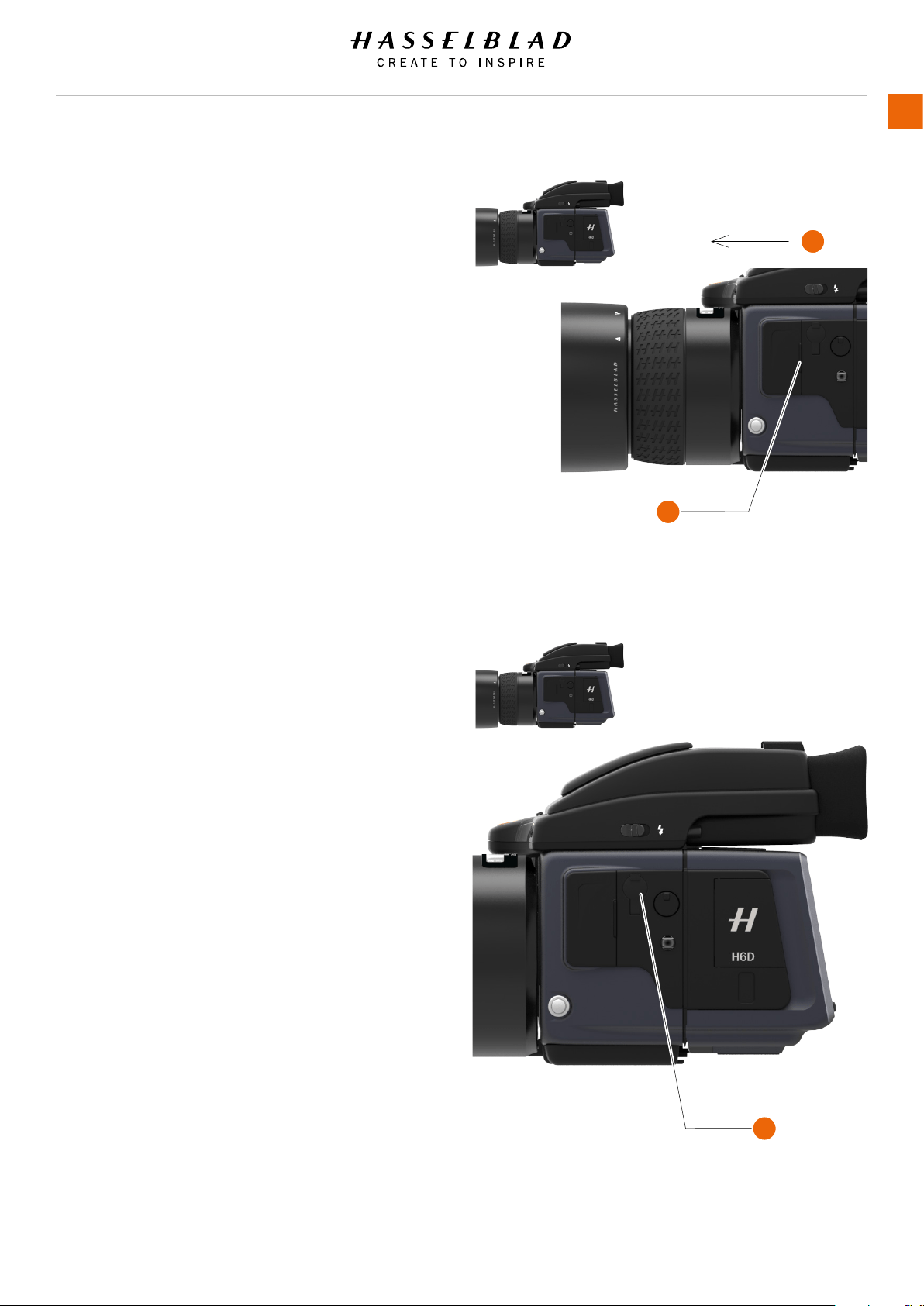
3.25 ACCESSORY CONNECTION
There are two accessory retaining screw threads (M5) as
well as a data bus connector on the left hand side of the
camera body, protected beneath a cover (1).
The cover can be removed by rst lifting the left hand edge
(1) a little and then sliding the cover to the left (2), as in the
illustration.
Lift the front edge of the cover rst (1).
3.26 PC FLASH CONNECTOR
A PC connector for non TTL ash synchronisation (3) is located
on the left side of the body. It is protected by a captive rubber
plug.
1
2
3
H6D www.hasselblad.com
USER GUIDE
Overview
45
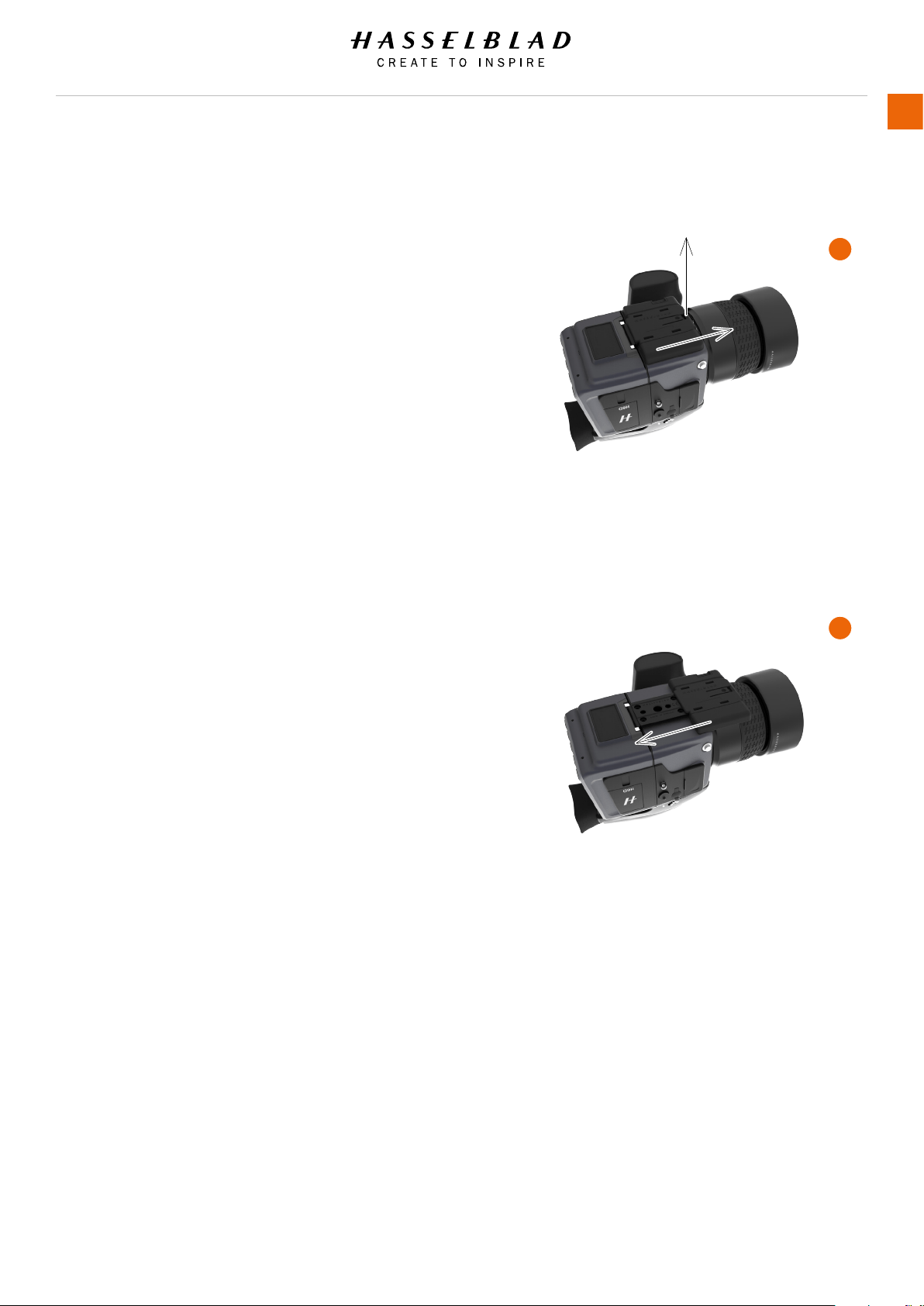
3.27 PROTECTIVE BASEPLATE
REMOVE THE PROTECTIVE BASEPLATE
1 To remove the protective base plate, lift the securing catch
while pushing the plate towards the lens (A).
ATTACH THE PROTECTIVE BASEPLATE
1 To attach it again, slip it over the camera foot until it stops
and the securing catch snaps into place (B).
A
B
H6D www.hasselblad.com
USER GUIDE
Overview
46
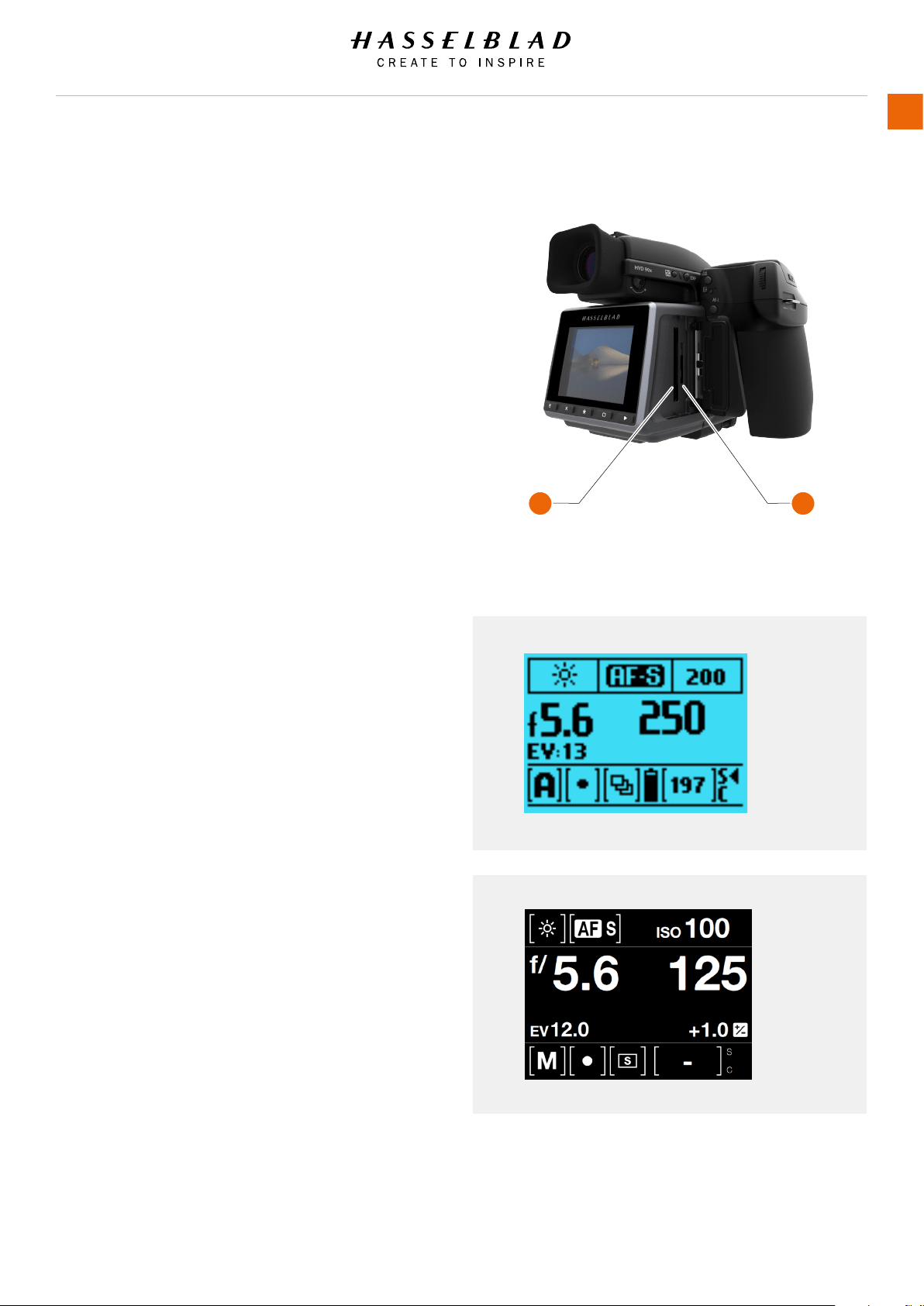
3.28 MEMORY CARDS
There are two types of memory cards that can be used with the
H6D camera.
1 CFast card.
2 SD card.
When using a CFast card or SD card, the H6D is completely
self contained. No additional wires or connectors need to be
attached.
The recommended type is UDMA/type 4 /60MBs (400x) or
better. Please see the Appendix in this manual for a list of
recommended cards.
The H6D is shipped with an 16 GB SDXC SD card, which is
capable of holding approximately 75 − 150 captures (according
to model).
Note!
All cards should be formatted in the camera before rst use!
Memory Card Status Display
CFast card
C = Inserted, non active.
C< = Inserted, active.
C[0] = Full.
C! = Card Error.
No Symbol = No Card inserted.
SD card
S = Inserted, non active.
S< = Inserted, active.
S[0] = Full.
S! = Card Error.
Lock Symbol = Card Write Protected.
No Symbol = No Card inserted.
1 2
H6D www.hasselblad.com
USER GUIDE
Overview
47
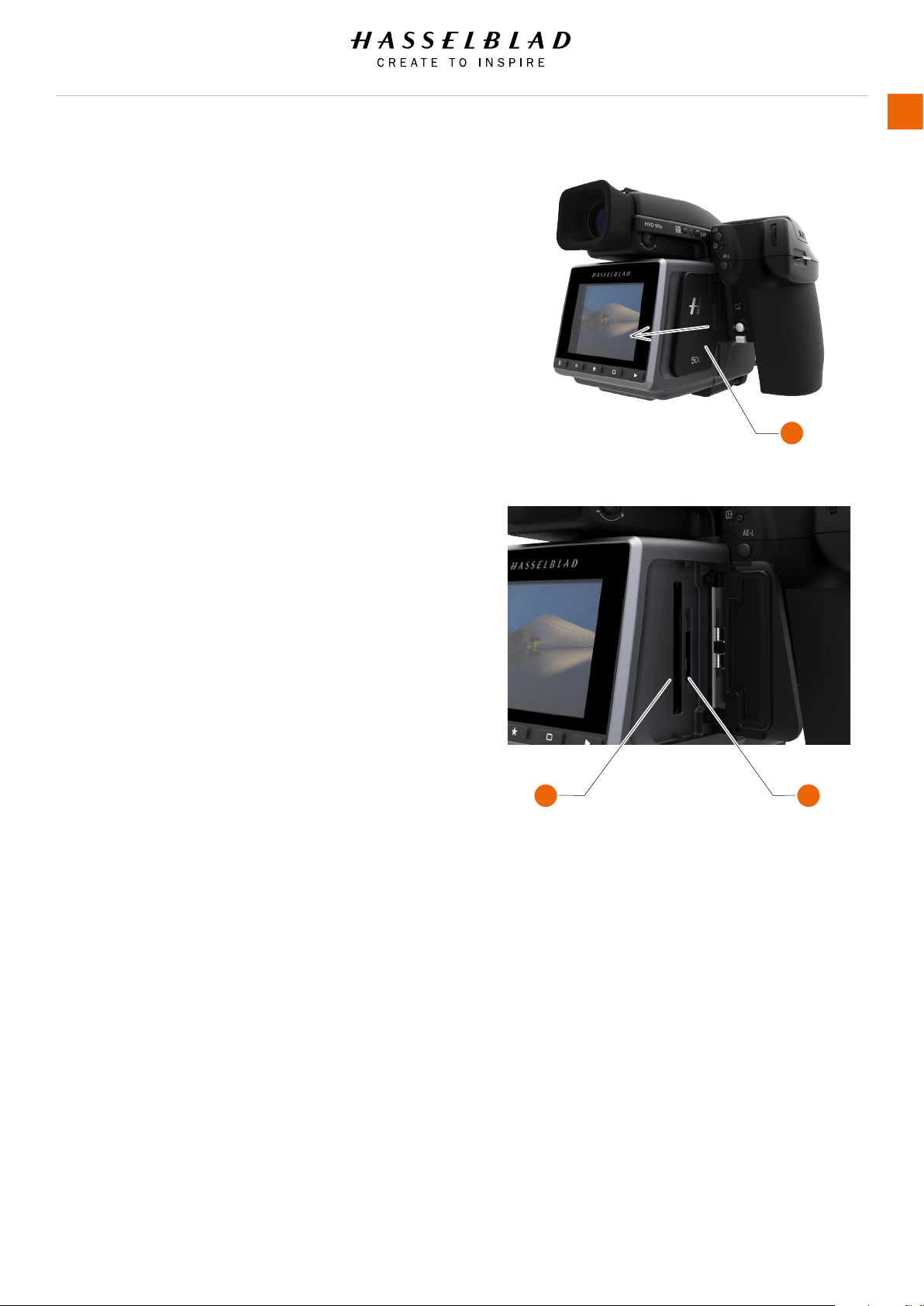
TO INSERT A MEMORY CARD
Insert CFast card
Open the CFast card cover (1) on the sensor unit by inserting
a thumb in the recess and then sliding the slot cover backwards.
Behind the cover, you will see a cover for the CFast card (2) and
a cover for the smaller SD card (3).
Hold the CFast card so that the connector holes face into the
slot and you can read the brand label when you are behind the
camera.
Gently press the CFast card into the slot. If you encounter
resistance, it might be because you are holding the card
backwards or upside down.
If the card can be easily inserted nearly all the way into the
back, then you are inserting it correctly. Press the card another
couple of millimetres rmly into place.
Close the slot cover and slide it to the right to lock it.
Insert SD card
When the card slot cover door is opened, mount the SD card in
the SD card slot (3).
Close the slot cover and slide it forward to lock it.
3 4
1
H6D www.hasselblad.com
USER GUIDE
Overview
48
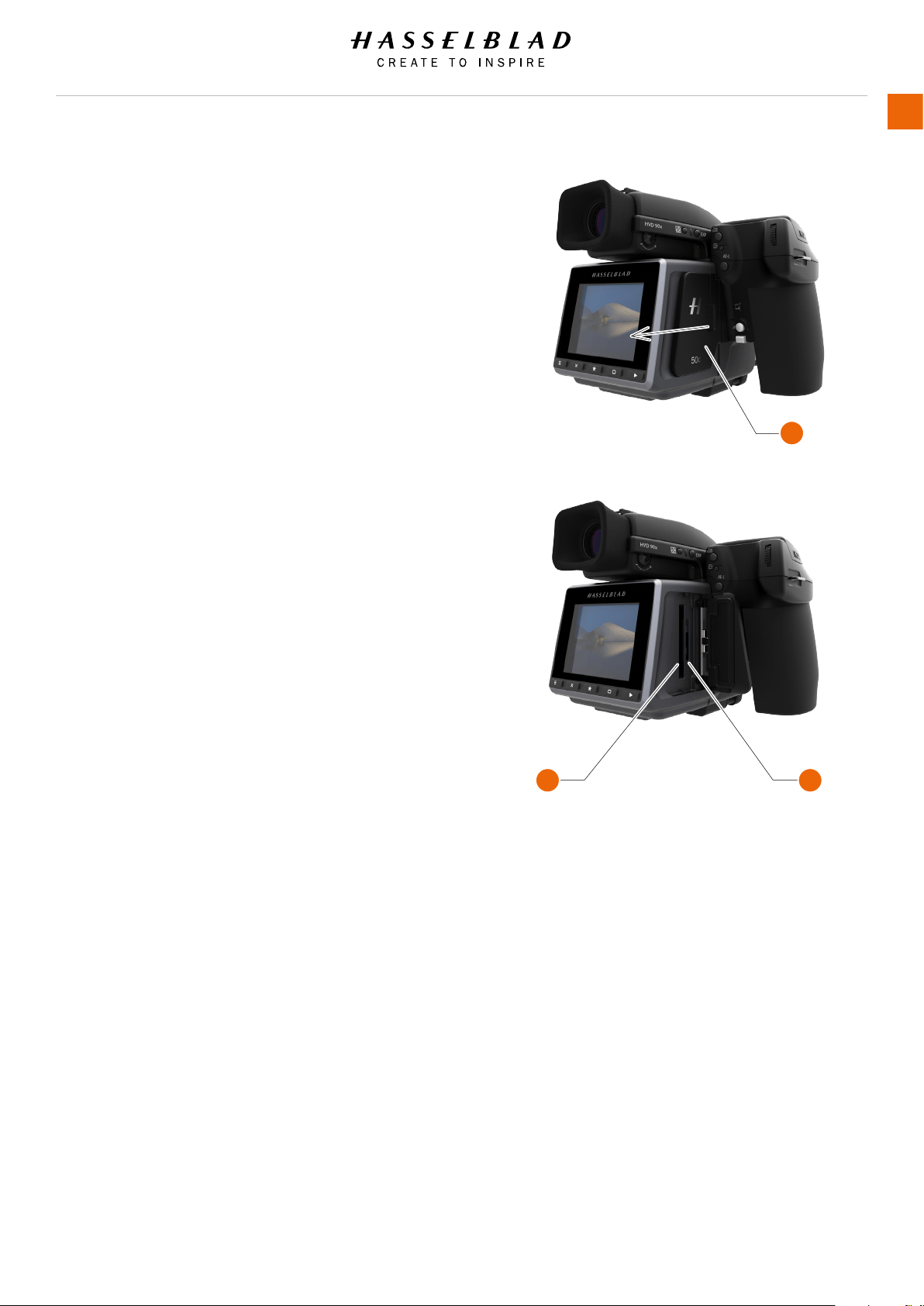
TO REMOVE A MEMORY CARD
Remove CFast card
Open the memory card slot cover on the sensor unit (1).
Press the CFast card (2) a little way in and then release
it.
As you do this, the card will be pushed out a few millimeters.
Grab the card and pull it away from the sensor unit.
Close the slot cover door.
Remove SD card
Open the memory card slot cover on the sensor unit (1).
Press the SD card a little way in and then release
it. The SD card will then move out from the SD card slot (3).
Grab the card and pull it away from the sensor unit.
Close the slot cover door.
Note!
Do not remove a CFast or SD card from the sensor unit if the
“ready” light is blinking! The “ready” light is displayed in the
lower right corner on the Sensor Unit Display. All les on the
card may become corrupted (and consequently lost) if you do so
and new formatting may also be necessary.
2 3
1
H6D www.hasselblad.com
USER GUIDE
Overview
49
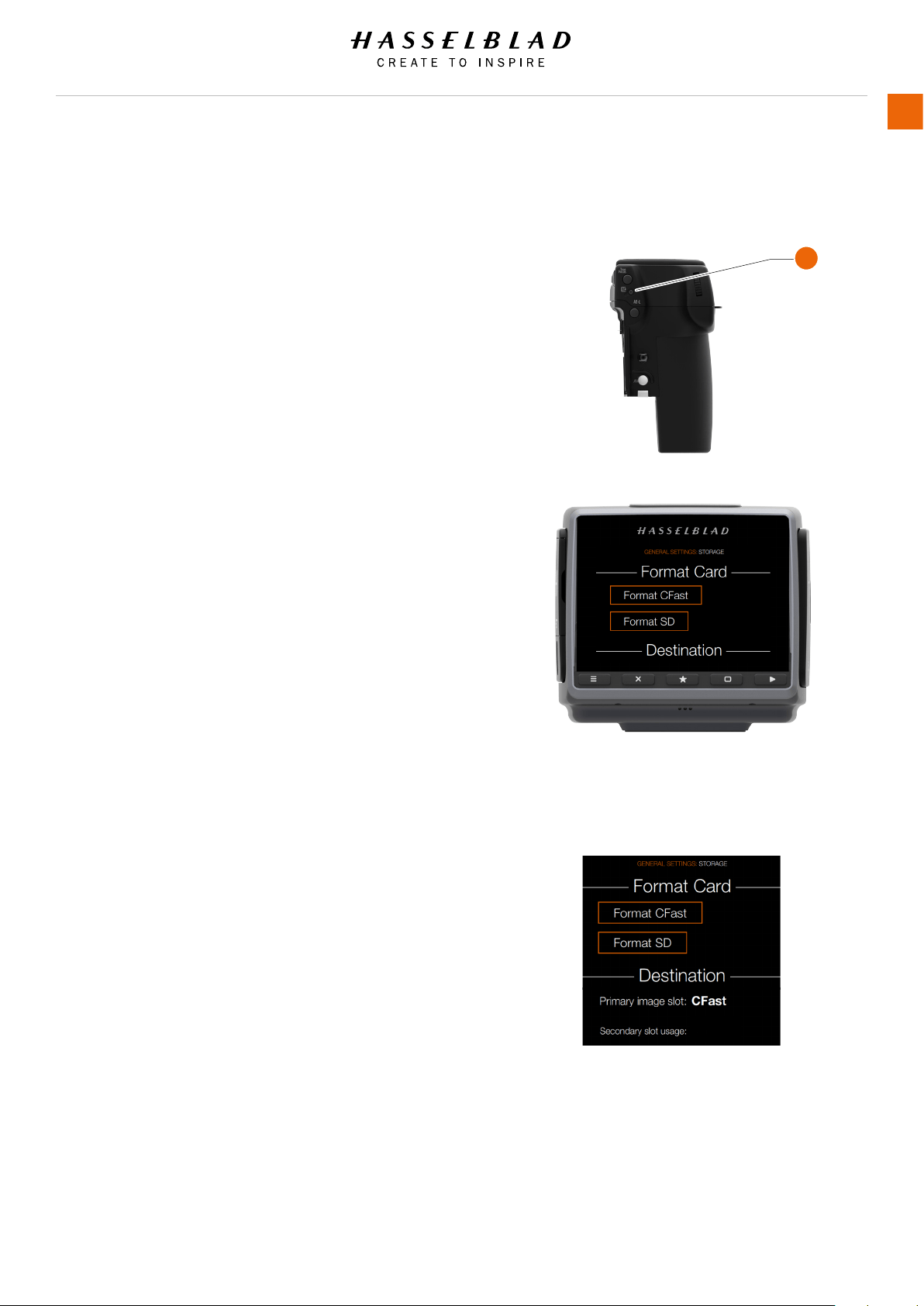
FORMATTING MEMORY CARDS
MAIN MENU > GENERAL SETTINGS > STORAGE
The camera is only able to read and write to storage media
that have been formatted correctly. New cards sometimes
have no formatting, or you might want to convert a card that
is currently using a format that the camera cannot read. In
either case, you must reformat both CFast cards and SD cards
in the sensor unit for H6D use.
There are two ways to format cards. The quickest way is to
use the Format card button on the grip but if you prefer, you
can also use the menu on the sensor unit.
FORMAT BUTTON
Press the Format button (A) on the camera grip. It is purposely
recessed to avoid unintentional use, so use a ballpoint pen
or similar. It is also possible to click the button with a hard
press with the tip of your thumb. A prompt is displayed on the
sensor unit for conrmation.
FORMAT MEMORY CARDS VIA SENSOR UNIT
MAIN MENU > GENERAL SETTINGS > STORAGE
1 Press MENU.
2 Navigate to General Settings.
3 Choose Storage.
4 Navigate to Format Card.
5 Navigate to Format CFast or Format SD.
6 Conrm by pressing OK (Display button).
Note!
Only UDMA/type 4/60MBs (or 400x) cards or better are
recommended for H6D use. See full list in ‘Appendix’ in this
manual.
Note!
All CFast and SD memory cards should be formatted in the
sensor unit before using them the rst time.
Note!
You can add a Favourite function on the Main Menu if you often
use formatting.
Storage Menu
Overow
A
H6D www.hasselblad.com
USER GUIDE
Overview
50
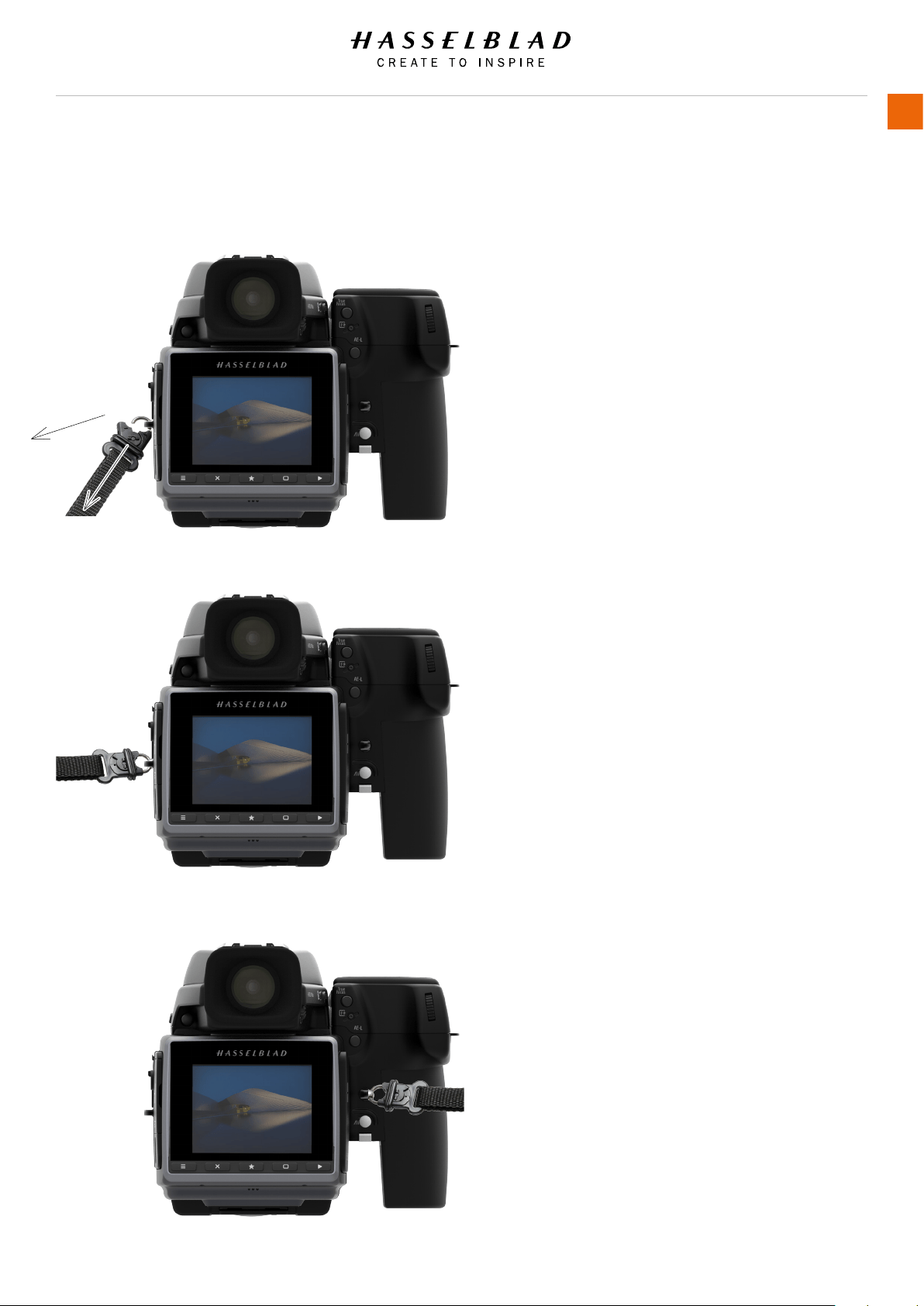
3.29 CARRYING STRAP
Carrying strap
First withdraw the safety collar. The hook is then freed and
can be attached to the strap lug. Slide back the safety collar
to ensure the hook remains in the locked position between
the small protruding lugs. The collar is purposely a tight t to
avoid unintentionally slipping back and therefore might need
some effort to slide.
H6D www.hasselblad.com
USER GUIDE
Overview
51
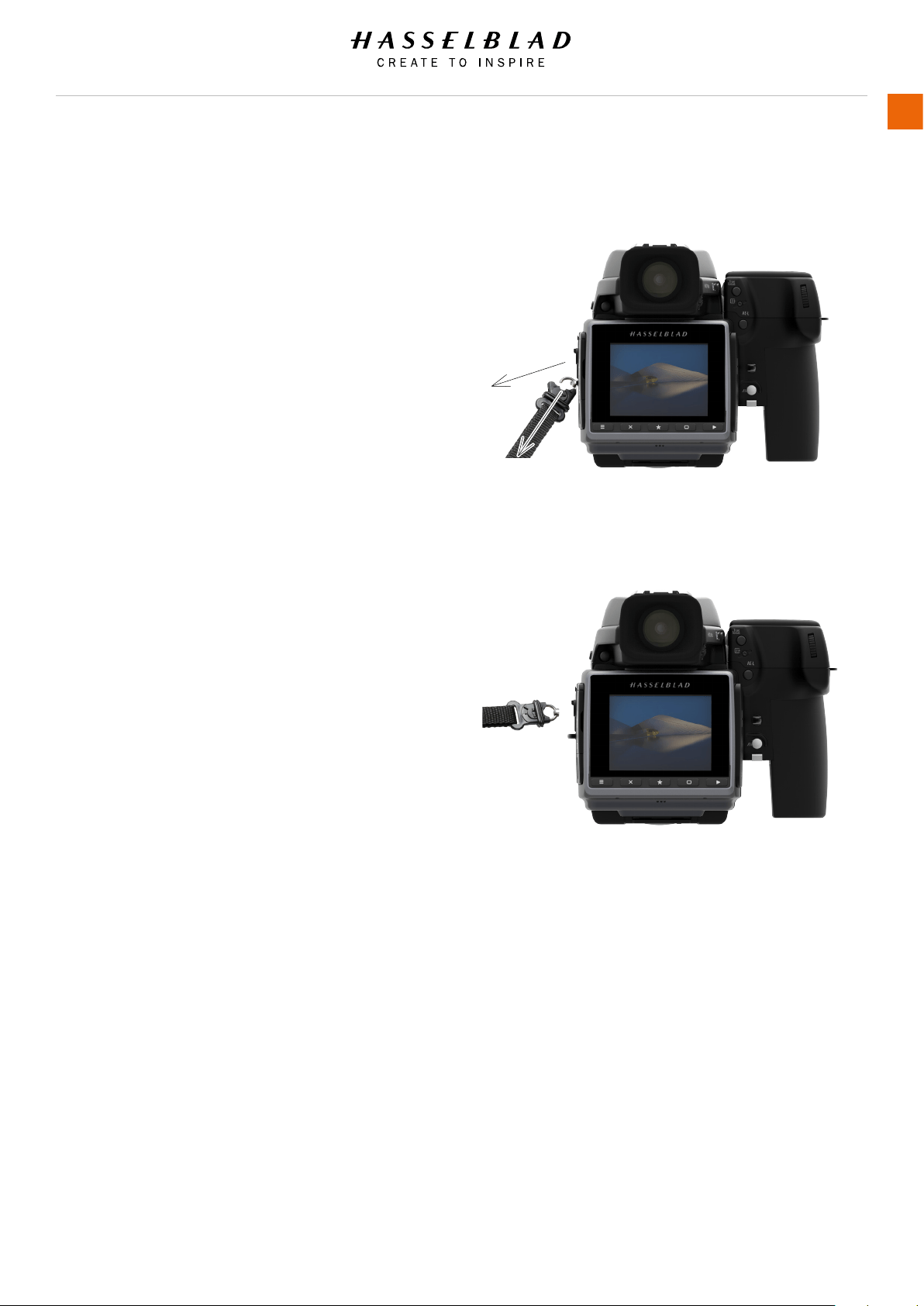
3.30 REMOVE THE CARRYING STRAP
1 Withdraw the safety collar.
2 Remove the opened hook from the strap lug.
H6D www.hasselblad.com
USER GUIDE
Overview
52
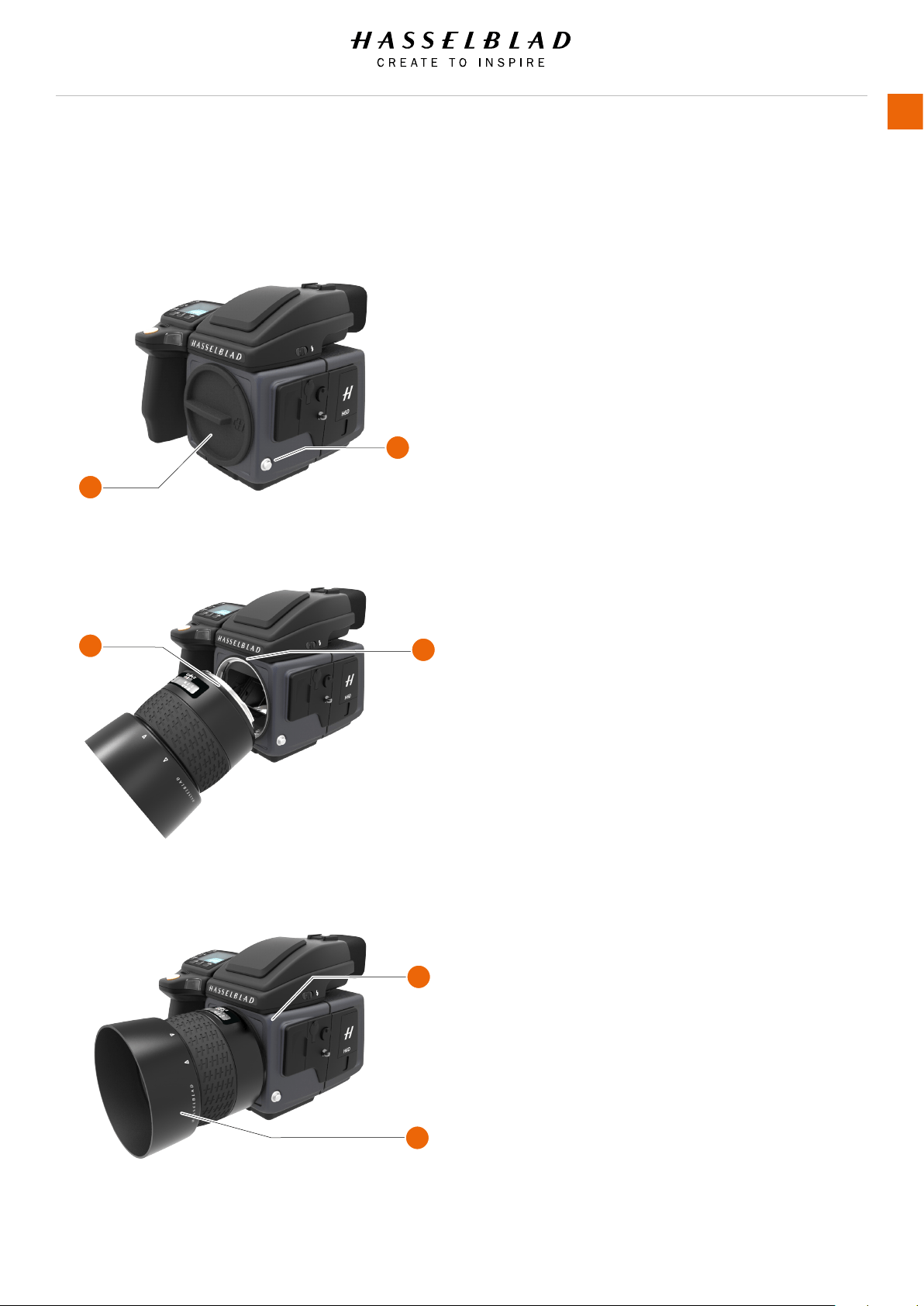
3.31 CHANGE LENS
ATTACH A LENS
1 Push the lens removal button (A) and remove
protection cover lid (B) from the camera body.
2 Rotate the lens so that the red mark on the lens (C)
lines up with the red mark (D) on the camera body.
3 Mount the lens into the camera body (E) and then
turn the lens clockwise to lock its position.
4 Make sure the lens is locked to the camera body
before using or moving the camera.
REMOVE A LENS
1 Hold the lens with one hand and hold the camera
body (E) still.
2 Push the lens removal button (A).
3 Rotate the lens counter clockwise.
4 Push the lens away from the camera body.
5 Attach the protection cover lid (B) on the camera
body directly.
6 Attach a lens protection lid on the detached lens to
prevent damage.
7 Store the lens with both lens protection lids on and
the lens hood (F) inverted over the lens instead of in
front of the lens.
A
B
C
D
E
F
H6D www.hasselblad.com
USER GUIDE
Overview
53

4 TO PREPARE
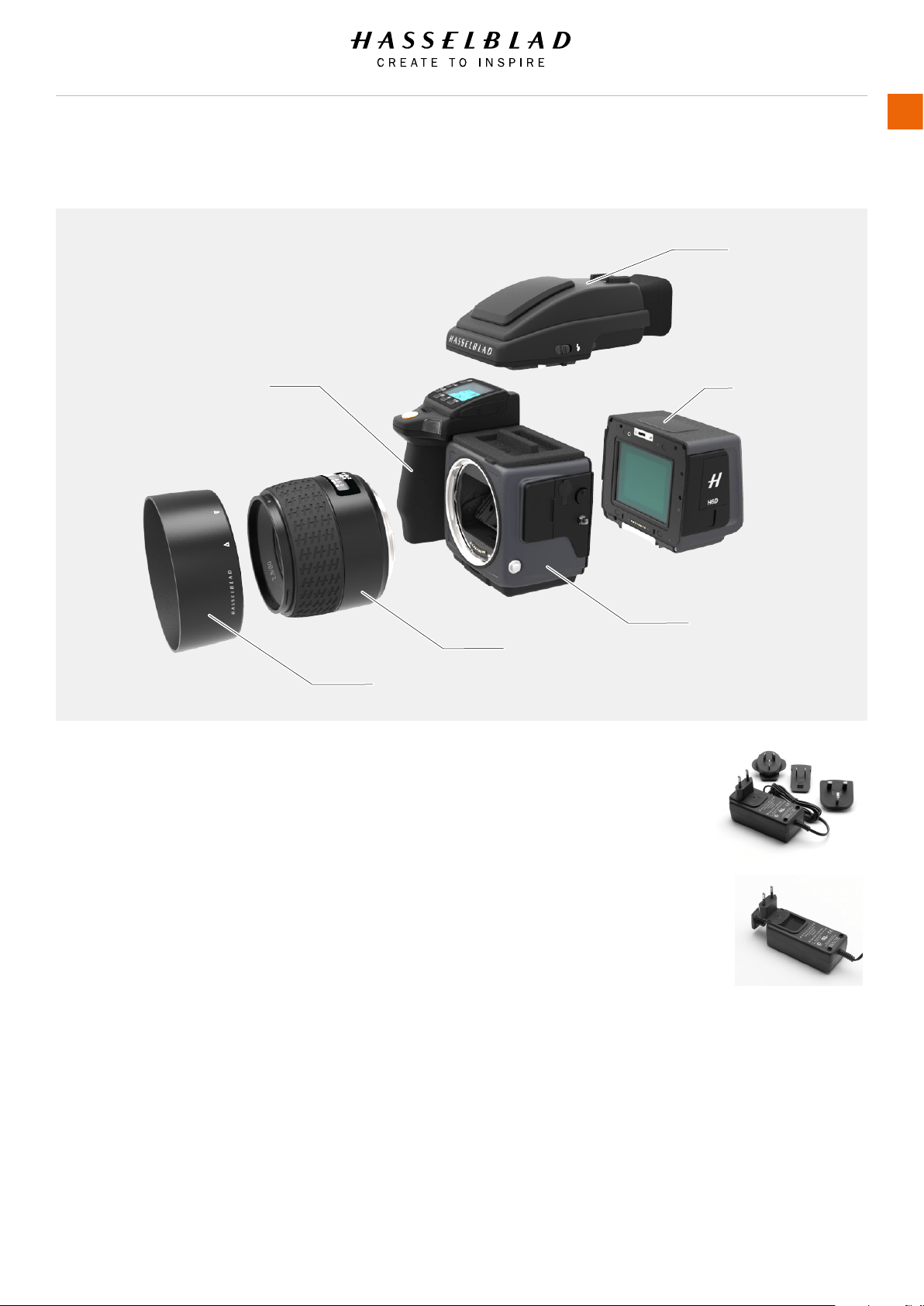
4.1 CHECK THE DELIVERY
1 Unpack all items.
2 Make sure that all the items listed on the attached package
information are supplied.
3 Inspect all the items for damage.
4 If any items are missing or damaged, write down the product
number of that item. If not, proceed to step 6.
5 Contact your Hasselblad dealer or distributor and tell them
the product number of the item missing or damaged.
6 Keep the purchase details and the warranty in a safe place.
In the package
USB stick with instruction
manual and Phocus software.
Viewnder
Grip with battery
Sensor unit
Sensor unit protection lid
Camera body
Camera body protection lid
Lens (if included in purchase)
Lens hood
Lens protection lid x2
Battery
Battery electric socket
protection lid
Battery charger plus
connectors and cable
1 SD card included
USB 3 cable
Carrying strap
VIEWFINDER
SENSOR UNIT
CAMERA BODY
GRIP WITH BATTERY
LENS
LENS HOOD
H6D www.hasselblad.com
USER GUIDE
To Prepare
55
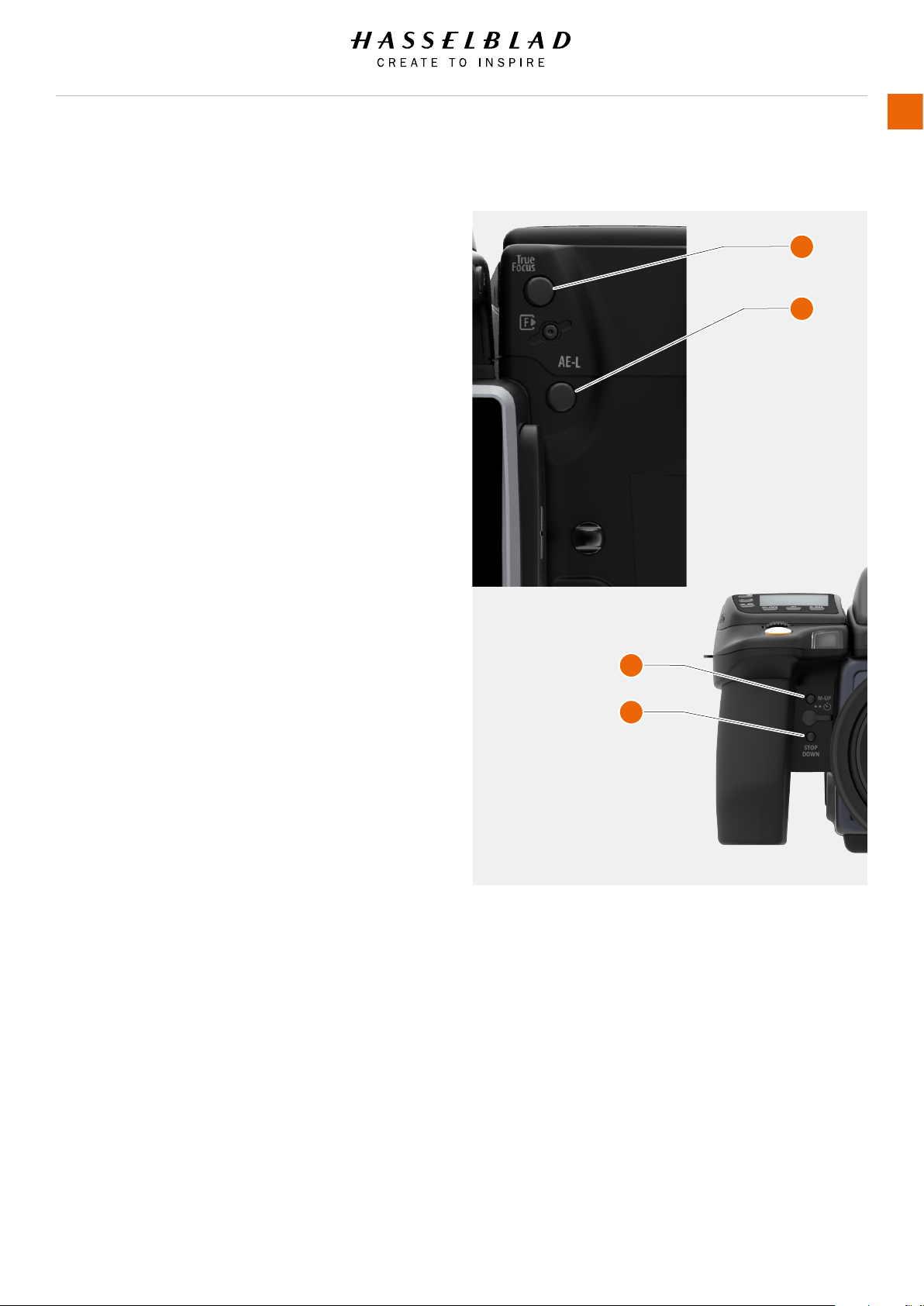
4.2 REASSIGN GRIP BUTTONS
These four grip buttons by default are assigned according to
name but can be reassigned (in Main Menu > General Settings
or in the Camera Conguration tool in Phocus) to various other
functions listed here.
True Focus
Temporarily activates True Focus function.
AF-Drive
Temporarily activates AF Drive.
AE-L
Temporarily locks a light reading in auto or manual modes. Also
used in Zone metering.
Self timer
Sets self timer mode. Provides a timed remote shutter release
function with the option of a change in sequence of the mirror
movement (to reduce vibration).
Bracketing
Sets Bracketing mode. This function provides an automatic
series of captures; one at the standard exposure setting,
Manual or Auto, and the others with predetermined deviations in
EV from the standard exposure.
M.UP / Mirror up
Locks mirror up for minimal vibration.
Stop down
Activates stop down function for depth of eld check.
B mode
Sets B mode shutter setting. Shutter stays open as long a
pressure is maintained on shutter release button.
T mode
Sets T mode shutter setting. Shutter stays open after rst press
of shutter release button. Press the shutter release button
again to close the shutter.
Flash Measure
Activates manual ash measure function visible in grip display.
Interval
Activates interval function start screen.
Cycle Light Meter mode
Selects next light metering mode.
Expose
Provides alternative to shutter release button.
1
2
3
4
1 True Focus
2 AE - L
3 M.UP
4 STOP DOWN
H6D www.hasselblad.com
USER GUIDE
To Prepare
56
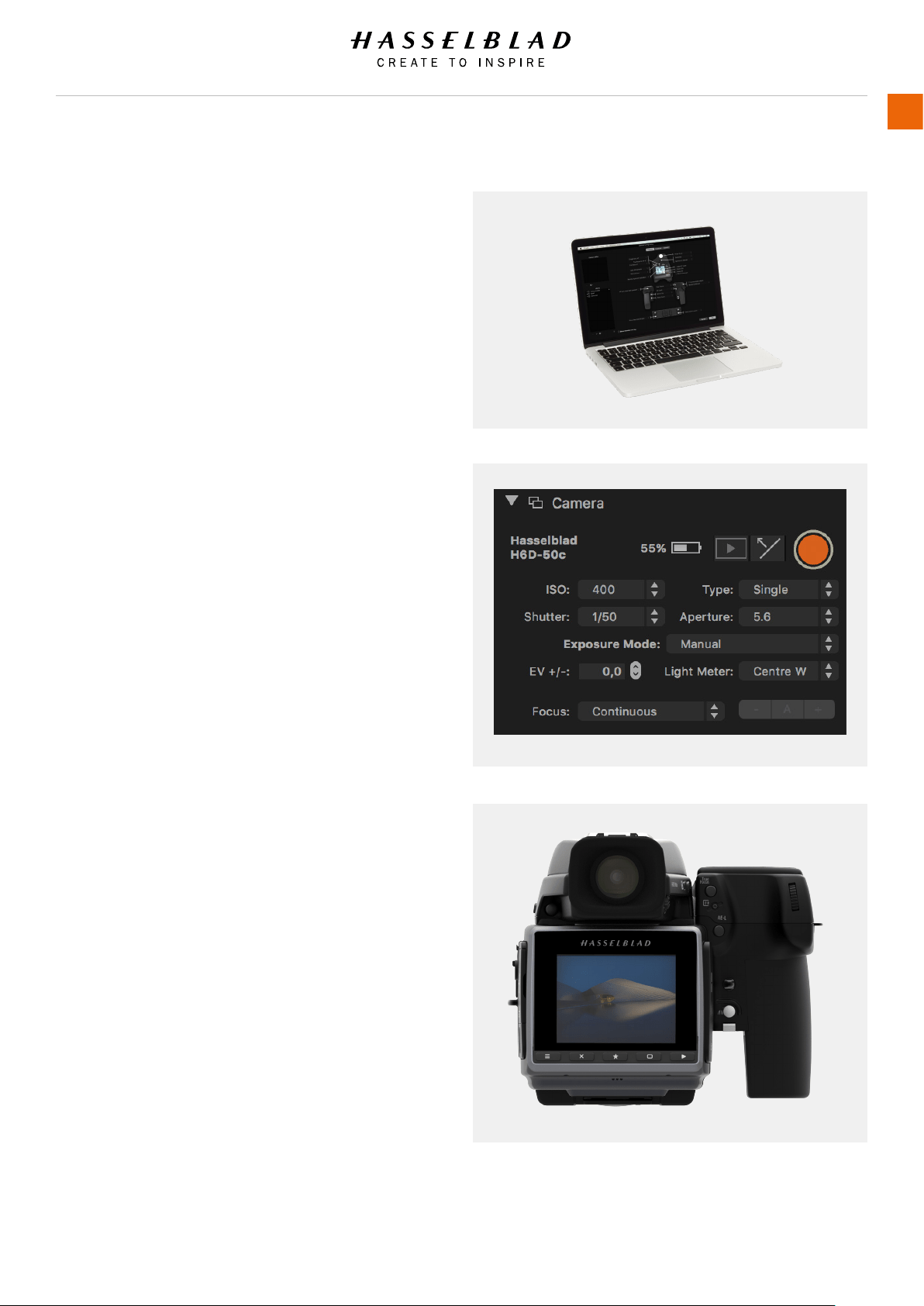
4.3 CONNECT TO A COMPUTER
1 Connect a USB 3 cable to the USB port on the computer.
2 Open the hinged cover on the camera.
3 Connect the USB 3 cable to the USB port on the camera.
Note!
When connected to a computer, the following applies:
● The destination medium and location are controlled from
Phocus.
● All exposure settings, including ISO, aperture and
exposure time, are controlled from Phocus if you choose
to expose from Phocus. In addition extra tools such as
Live Video, remote focus control etc. are available. See
Phocus user manual for full description.
Note!
Please note that the buttons on the unit have no function in this
mode.
When initiating a shot from Phocus, the computer sends
a signal to the sensor unit, which triggers the shutter (and
strobe/ash, if any). The back then sends the capture over the
USB connection to the computer, where it is displayed on the
computer screen and saved as a 16-bit 3F le in the currently
selected folder on the computer hard disk.
H6D www.hasselblad.com
USER GUIDE
To Prepare
57
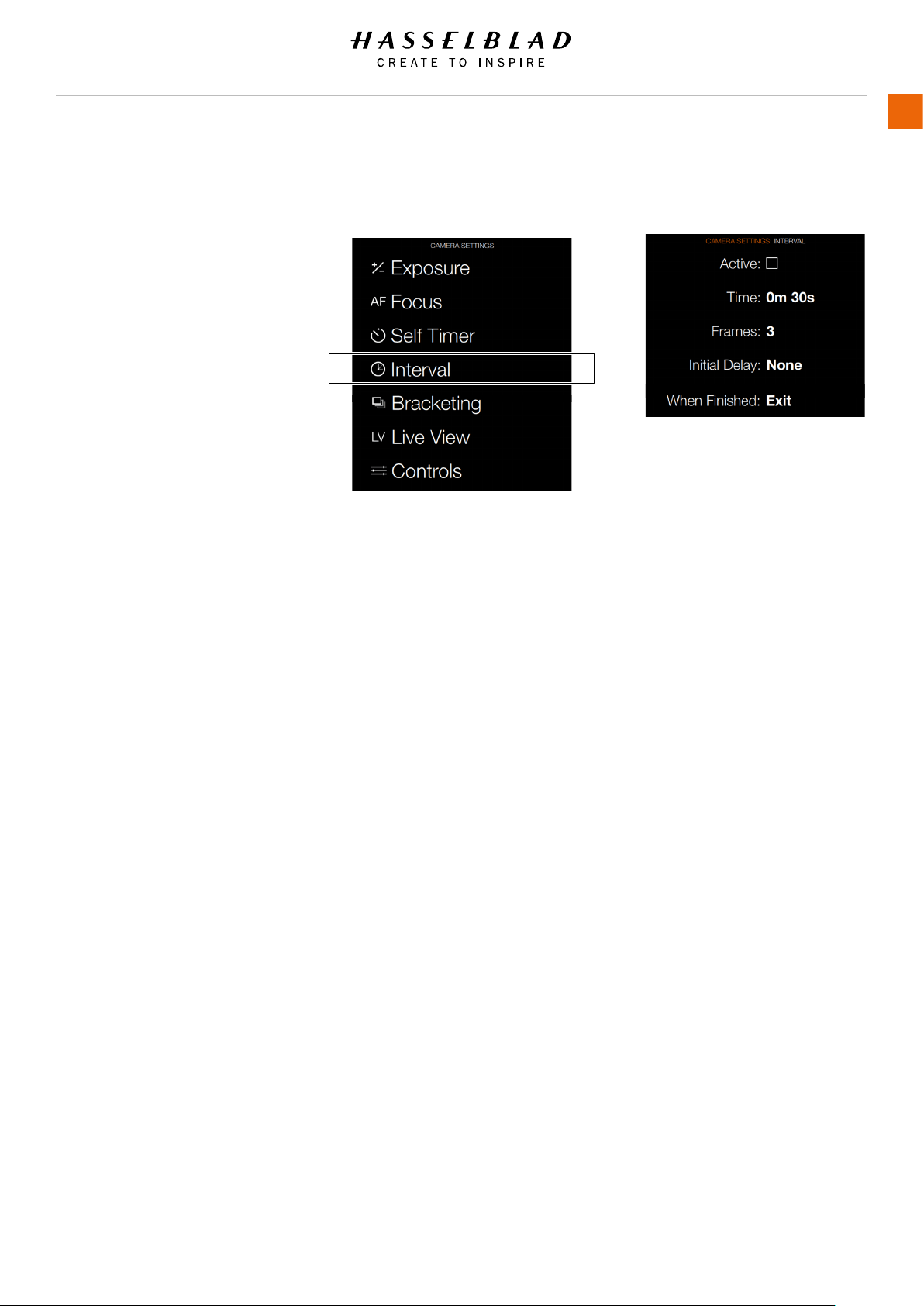
4.4 CAMERA INTERVAL SETTINGS
MAIN MENU > CAMERA SETTINGS >
INTERVAL
Press the Camera icon on the Sensor unit
display. The Camera Settings Menu will
appear.
Select the Interval Settings Menu.
Swipe right or press Menu / EXIT button to
get back to Main Menu.
Interval Settings Menu
Active
On / Off.
Time
Select time between exposures in
minutes and seconds.
Frames
Select number of Frames.
Initial Delay
Select initial Delay.
When Finished
Settings for Action When Finished.
Camera Menu Interval Settings Menu
H6D www.hasselblad.com
USER GUIDE
To Prepare
58
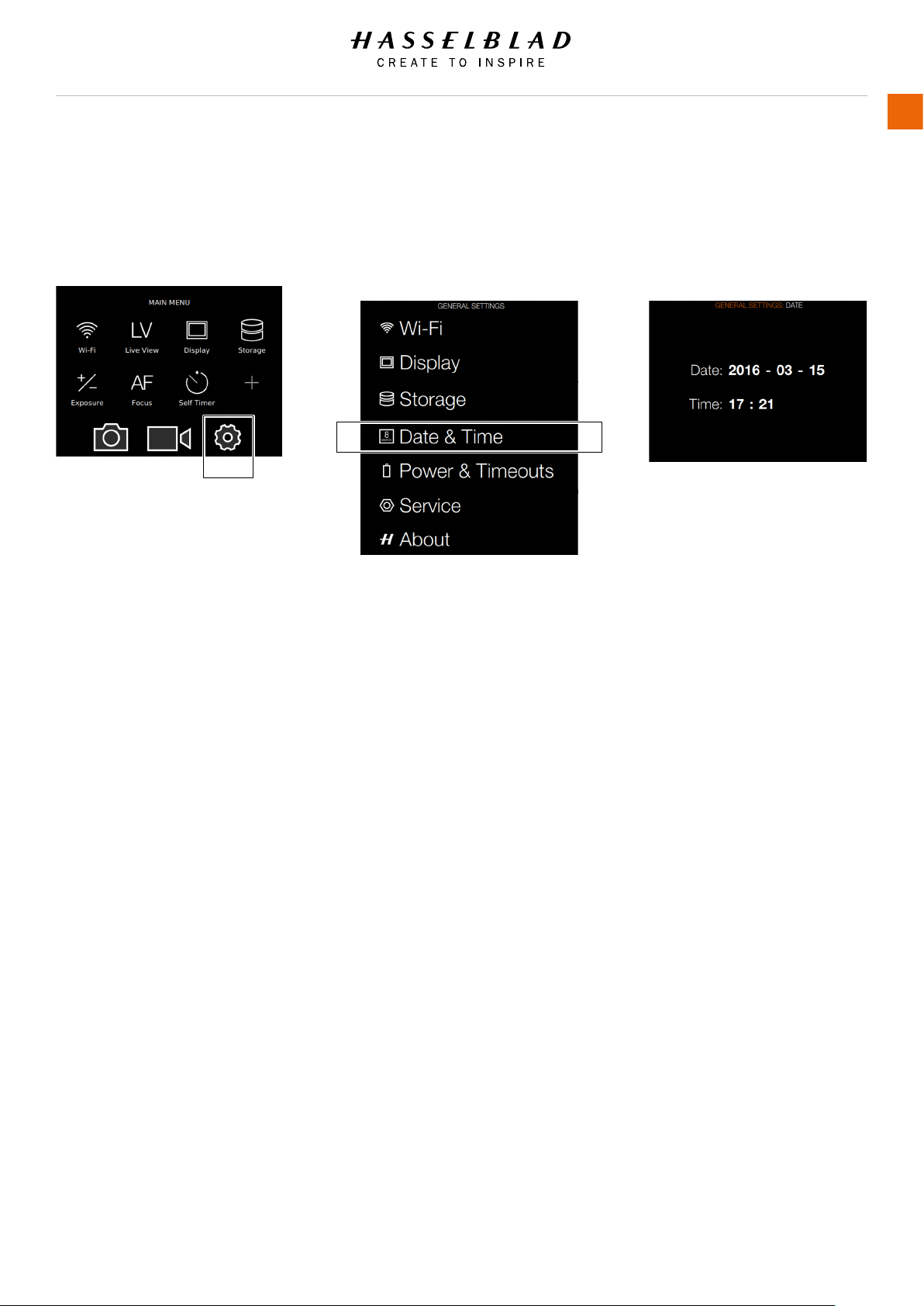
Main Menu
General
Settings icon
Set Date and Time
1 Press the General Settings icon on
the Sensor unit display.
2 The General Settings Menu will
appear.
3 Press the Date and Time icon.
Swipe right or press Menu / EXIT
button to get back to Main Menu.
Date and Time Menu Settings
Date
Set Date by changing year, month
and day using the pop up menus.
Time
Set Time by changing hour and
minute using the pop up menus.
Date and Time Menu
General Settings Menu
4.5 SET DATE AND TIME
MAIN MENU > GENERAL SETTINGS > DATE AND TIME
H6D www.hasselblad.com
USER GUIDE
To Prepare
59
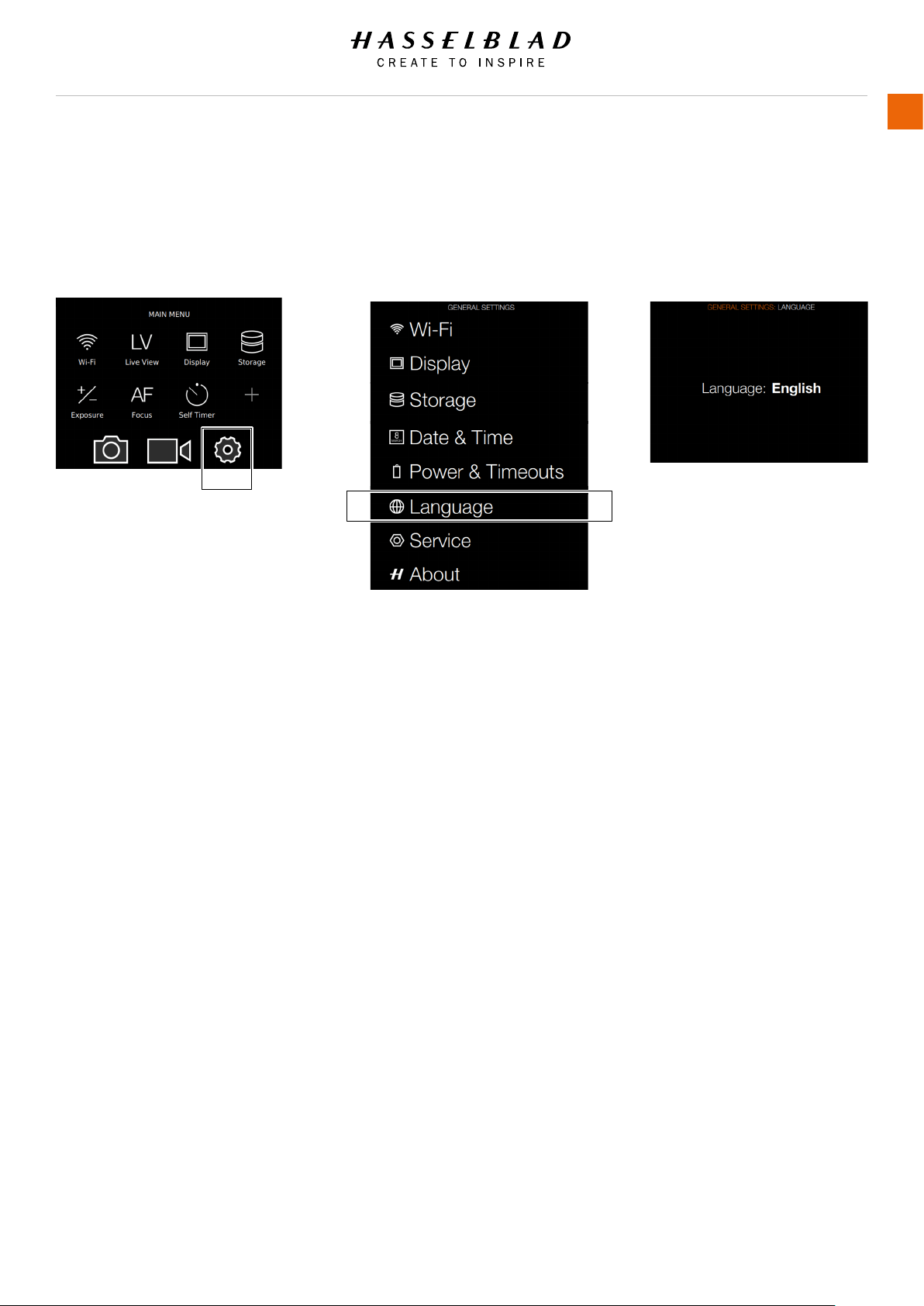
4.6 SET LANGUAGE
Main Menu
General
Settings icon
Language Menu Settings
More language options will be added
in a future Firmware release.
Available Language:
● English
1 Press MENU button on the Sensor
Unit Display.
2 Navigate to General Settings.
3 Navigate to Language.
4 Select Language.
5 Close the pop up Menu by a click
outside the pop up.
Note!
If the sensor unit has been set to
a language you don’t understand (a
rented camera, for example), see
Chapter Troubleshooting for solution.
Language Menu
General Settings Menu
MAIN MENU > GENERAL SETTINGS > LANGUAGE
H6D www.hasselblad.com
USER GUIDE
To Prepare
60
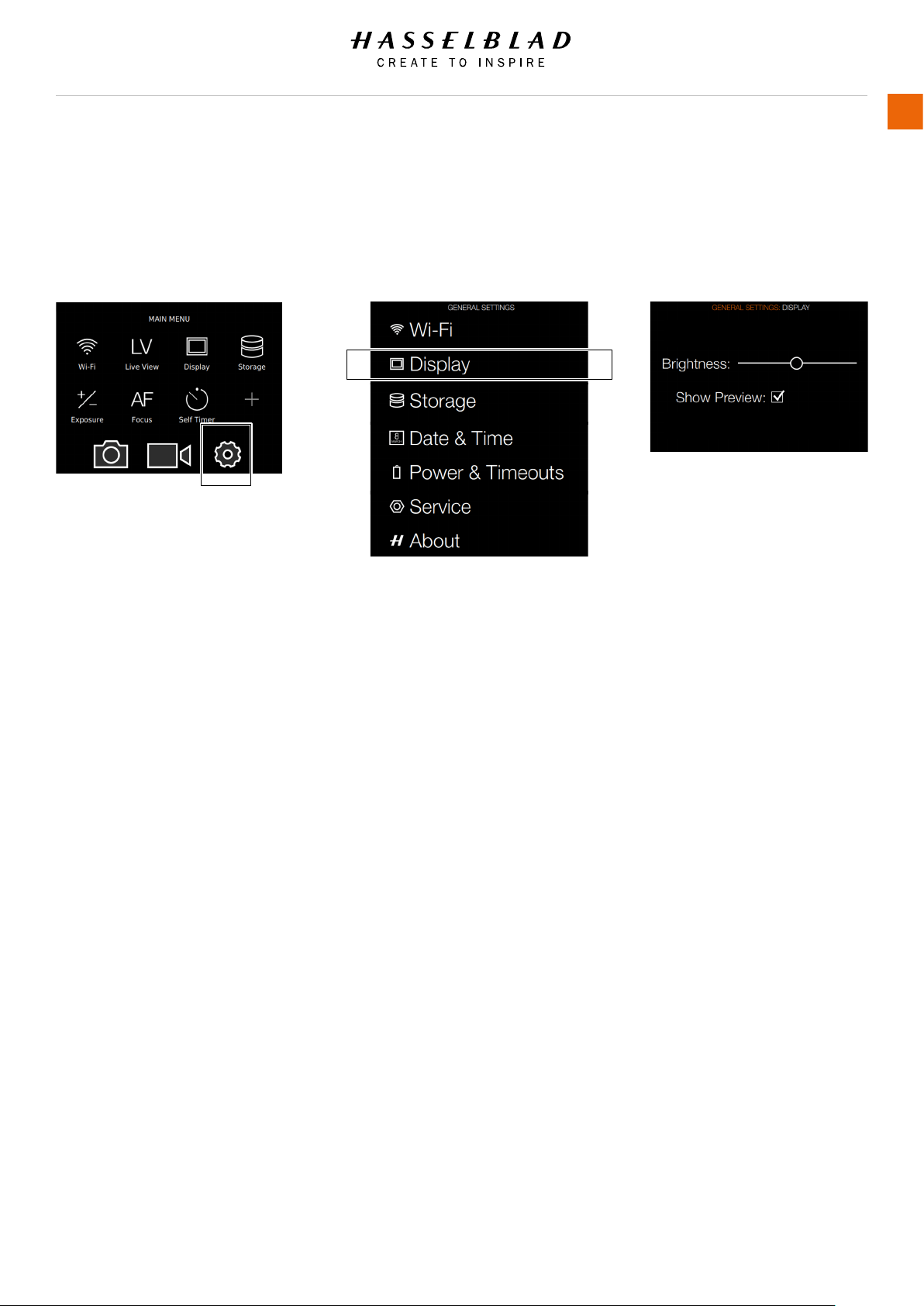
4.7 SET BRIGHTNESS OF THE
DISPLAY
Main Menu
General
Settings icon
Set Display Brightness
1 Press the Settings icon on the Sensor
Unit Display.
2 The General Settings Menu will
appear.
3 Select Display.
Swipe right or press Menu / EXIT button
to get back to Main Menu.
Display Menu Settings
Brightness
Slide Left or Right to change
Brightness.
Show Preview
Select On / Off. On displays a preview
of the capture after every exposure.
General Settings Menu
Display Menu
MAIN MENU > GENERAL SETTINGS > DISPLAY
H6D www.hasselblad.com
USER GUIDE
To Prepare
61
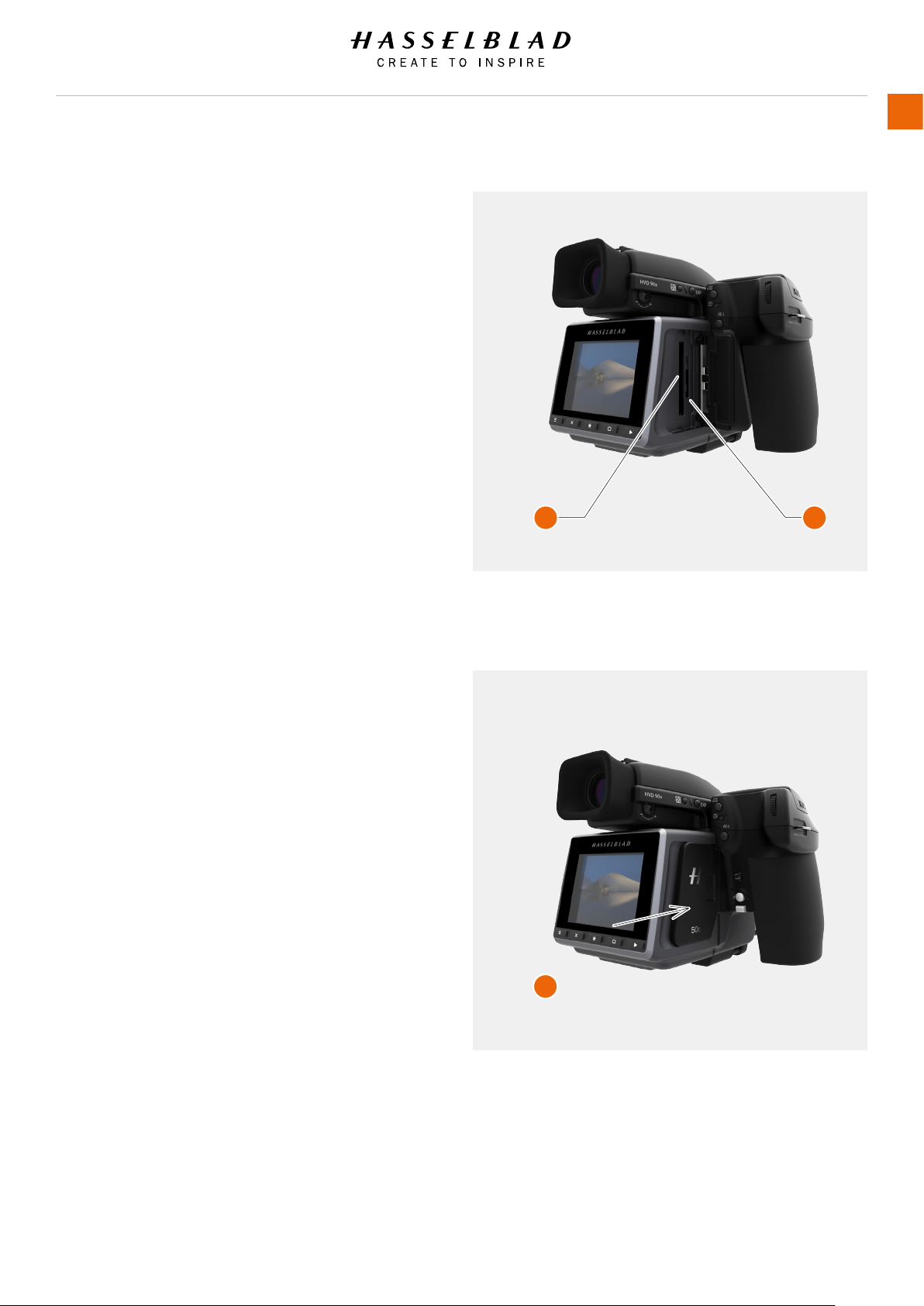
4.8 INSERT A MEMORY CARD (CFAST OR SD)
There are two types of memory cards that can be used with the
H6D camera. CFast card and SD card.
Insert CFast card
1 Open the CFast and SD card slot cover on the sensor unit by
pushing it to the left or towards the back of the camera. The
slot cover will then rotate out 90 degrees.
2 Insert a thumb in the recess and then slide it to the left.
Behind the cover, there is a slot for the CFast card (A).
3 Hold the CFast card so that the connector holes face into
the slot and you can read the brand label when you are
behind the camera. Gently press the CFast card into the slot.
If you encounter resistance, ensure you are not holding the
card backwards or upside down.
4 If the card can be easily inserted nearly all the way into the
back, you are inserting it correctly. Press the card another
couple of millimetres rmly into place.
5 Close the slot cover by rotating it back and pushing it in
place towards the front of the camera to lock it into position.
Insert SD card
1 When the card slot cover door is opened, mount the SD card
in the SD card slot (B).
2 Close the slot cover by rotating it back and pushing it in
place towards the front of the camera to lock it into position.
Currently approved cards
CFast:
• SanDisk Extreme PRO CFast 2.0
• Lexar Professional 3400x CFast 2.0
SD:
• Sandisk Extreme PRO SDHC/SDXC UHS-I
For an updated list, please check www.hasselblad.com.
A B
C
H6D www.hasselblad.com
USER GUIDE
To Prepare
62
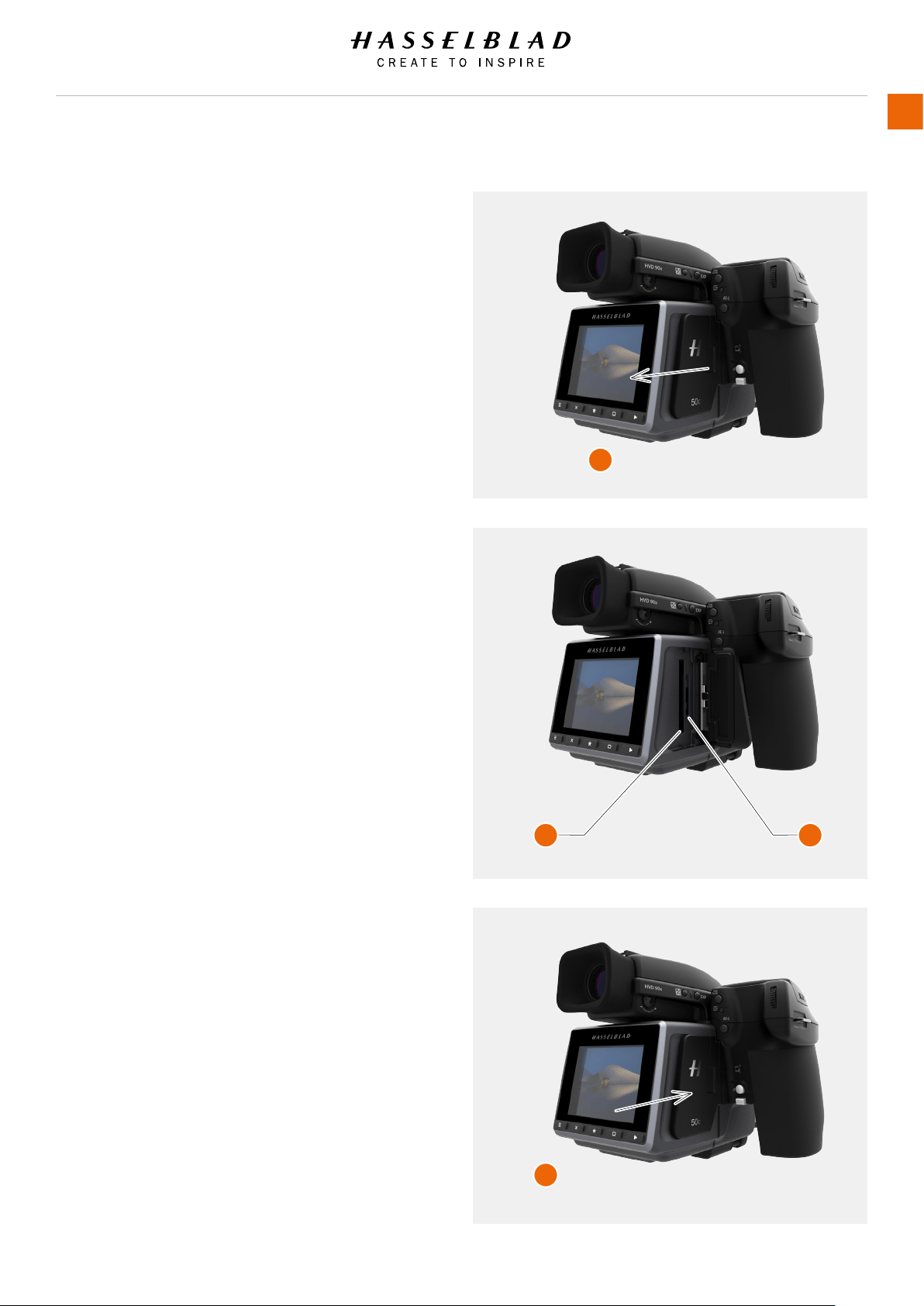
4.9 REMOVE A MEMORY CARD (CFAST OR SD)
Remove CFast card
1 Open the CFast and SD card slot cover on the sensor unit (A)
by pushing it to the left or towards the back of the camera.
The slot cover will then rotate out 90 degrees.
2 Press the CFast card (B) a little way in and then release it.
The CFast card will then move out from the CFast card slot
(B).
3 Grab the card and pull it away from the sensor unit.
4 Close the slot cover (D) by rotating it back and pushing it in
place towards the front of the camera to lock it into position.
Remove SD card
1 Open the memory card slot cover on the sensor unit (A).
2 Press the SD card (C) a little way in and then release it. The
SD card will then move out from the SD card slot (C).
3 Grab the card and pull it away from the sensor unit.
4 Close the slot cover (D) by rotating it back and pushing it in
place towards the front of the camera to lock it into position.
Note!
Do not remove a memory card from the sensor unit if the ‘ready’
light is blinking (placed in the lower right corner on the Sensor
Unit Display), as this will corrupt the les on the card and result
in data loss. The card will also need to be reformatted.
A
B C
D
H6D www.hasselblad.com
USER GUIDE
To Prepare
63
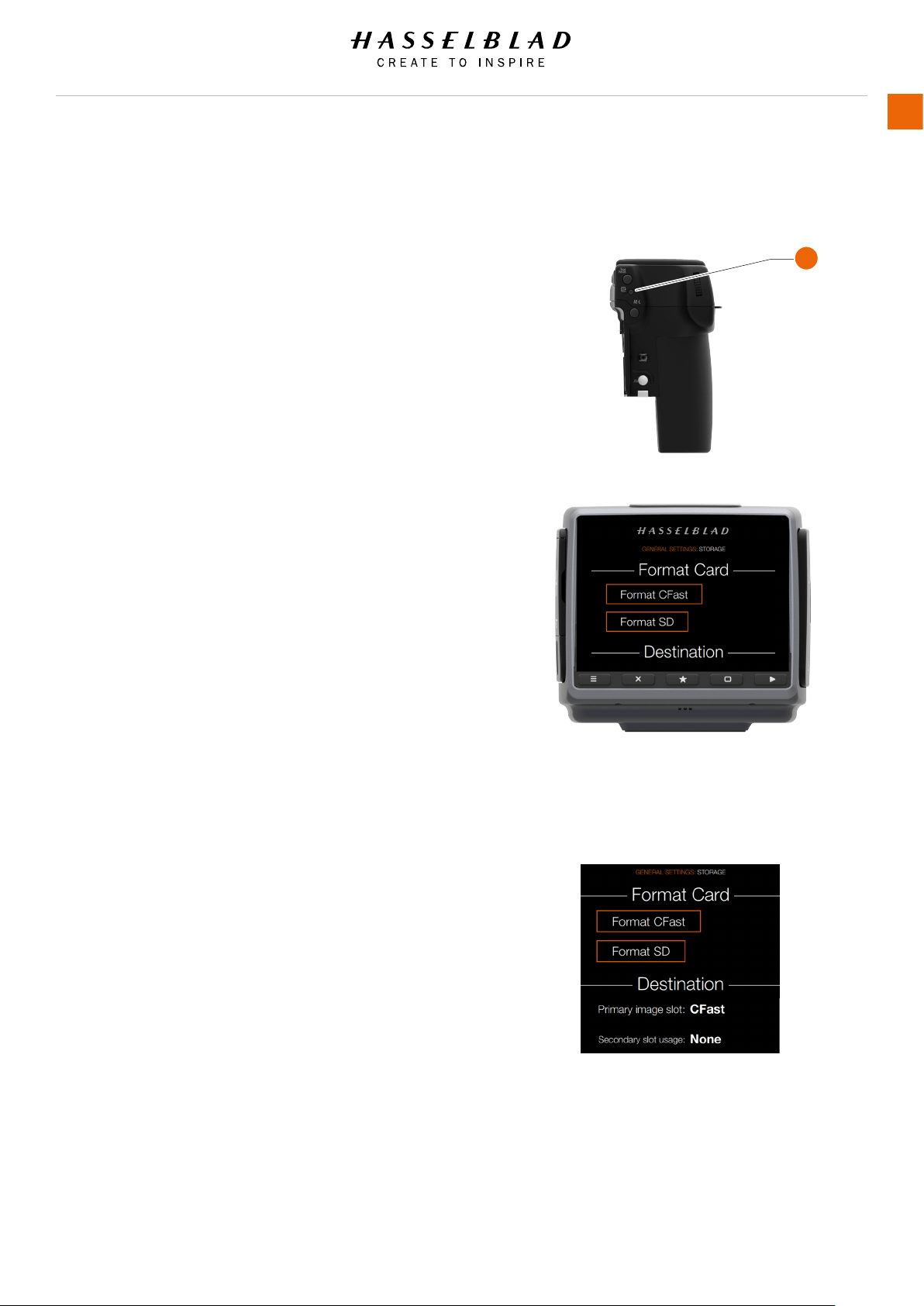
4.10 FORMAT A CFAST CARD
MAIN MENU > GENERAL SETTINGS > STORAGE > FORMAT
The camera is only able to read and write to storage media
that have been formatted correctly. New cards sometimes
have no formatting, or you might want to convert a card that
is currently using a format that the camera cannot read. In
either case, you must reformat both CFast cards and SD cards
in the sensor unit for H6D use.
There are two ways to format cards. The quickest way is to
use the Format card button on the grip but if you prefer, you
can also use the menu on the sensor unit.
FORMAT BUTTON
Press the Format button (A) on the camera grip. It is purposely
recessed to avoid unintentional use, so use a ballpoint pen
or similar. A prompt is displayed on the sensor unit for
conrmation.
FORMAT MEMORY CARDS VIA SENSOR UNIT
MAIN MENU > GENERAL SETTINGS > STORAGE > FORMAT
Use the Rear scroll wheel or navigate via the touch screen and
the dedicated 5 buttons under the Sensor Unit Display.
1 Press MENU.
2 Navigate to Storage
3 Navigate to Format
4 Navigate to Format CFast or SD card.
5 Conrm by pressing OK (Display button).
Note!
The H6D is capable of writing 78 MB/s to SD card and up to
400 MB/s to CFast cards.
Note!
All CFast and SD memory cards should be formatted in the
sensor unit before using them the rst time.
Storage Menu
A
H6D www.hasselblad.com
USER GUIDE
To Prepare
64
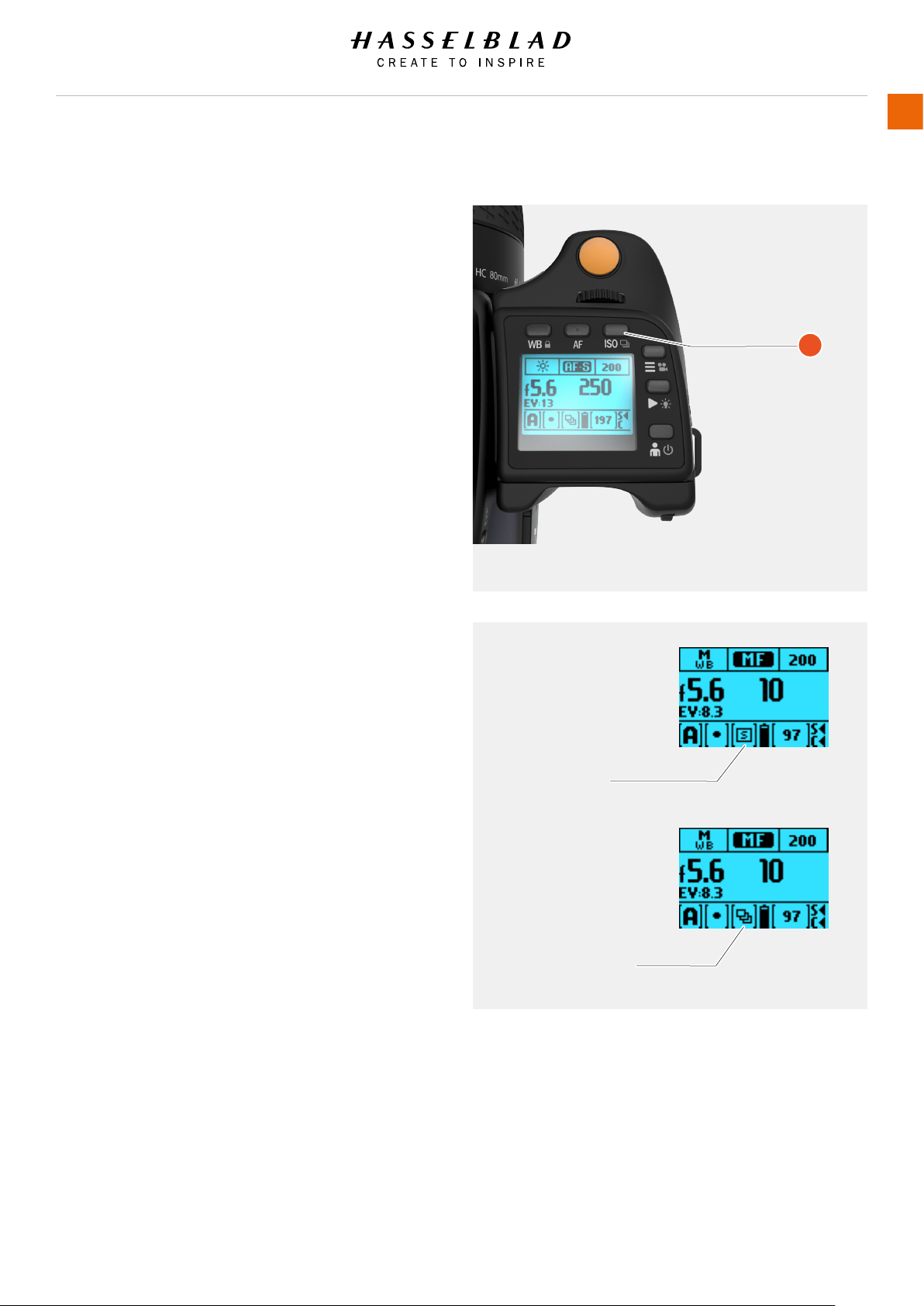
4.11 SET DRIVE MODE
There are two drive modes: Single drive and Continuous drive.
Long press on ISO button (D) toggles between Single drive and
Continuous drive mode. It can also be set from Main Menu or
Control Screen.
In Single mode, a capture is made when the shutter release
button is pressed and the camera is made ready for the next
capture.
To make the next capture however, you must rst release the
shutter release button and then press again.
In Continuous mode, the camera automatically makes captures
and makes ready for the next capture in a continuous
manner as long as you maintain pressure on the shutter
release.
Please note the speed is dependent on the time taken
to save the capture according to equipment.
A
Single drive
Continuous drive
H6D www.hasselblad.com
USER GUIDE
To Prepare
65

5 TO USE
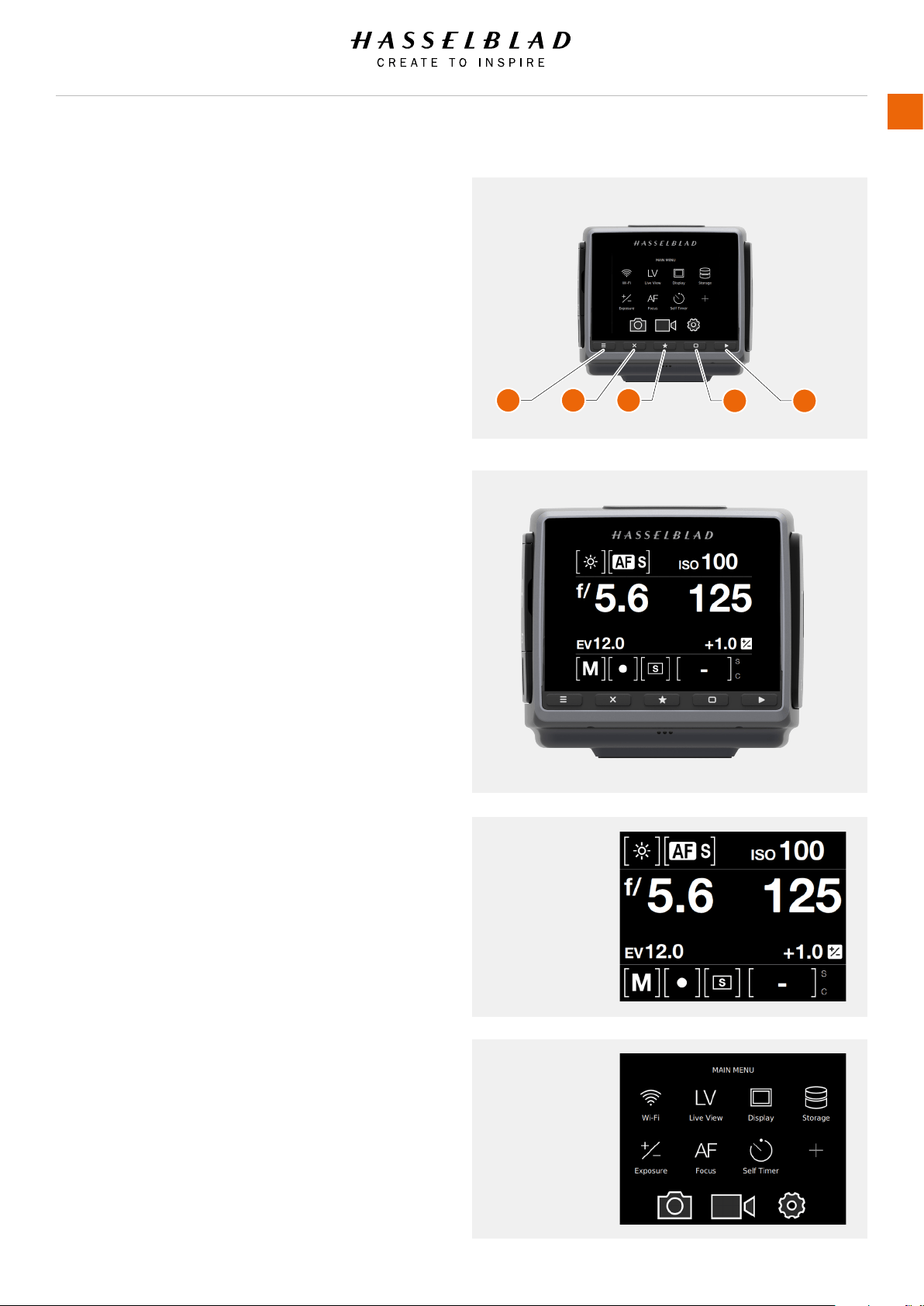
5.1 NAVIGATING THE MENUS
DESCRIPTION OF THE SENSOR UNIT MENU ITEMS
The H6D Sensor Unit Screen is Touch Sensitive and you can
swipe with one nger in different directions to move up, down,
forward and backward through the user interface.
Button Screen function
1 MENU / (EXIT) button Back to Main Menu
2 Soft button Up
3 Image rating button Select
4 Soft button Down
5 Browse button Go to image browse
1 MENU / (EXIT) button
This button opens the Main Menu. It is also used for other
tasks (for example EXIT button) as you issue commands
navigating the menu system.
2 Soft button
Function depends on screen information. Also acts as Delete
Image button in Browse Mode.
3 Image rating button
Rate image 1-5 stars or green/yellow/red. Also works as
soft button. Also toggles between 1-view and 9-view in
Browse Mode.
4 Soft button
Function depends on screen information
5 Browse button
Starts display and shows the last image. The user can
review images, browse and zoom. Preview images and zoom
in to view close-ups of previews for focus checking. Zoom
out to view several at once and nally to view and select
folders and media.
By using the buttons on the control panel and the scroll wheels
on the grip you can navigate through the various levels in the
menu. Here is an overview of the setting options available.
H6D www.hasselblad.com
USER GUIDE
To Use
67
Control Screen
Main Menu
1 2 3
4 5
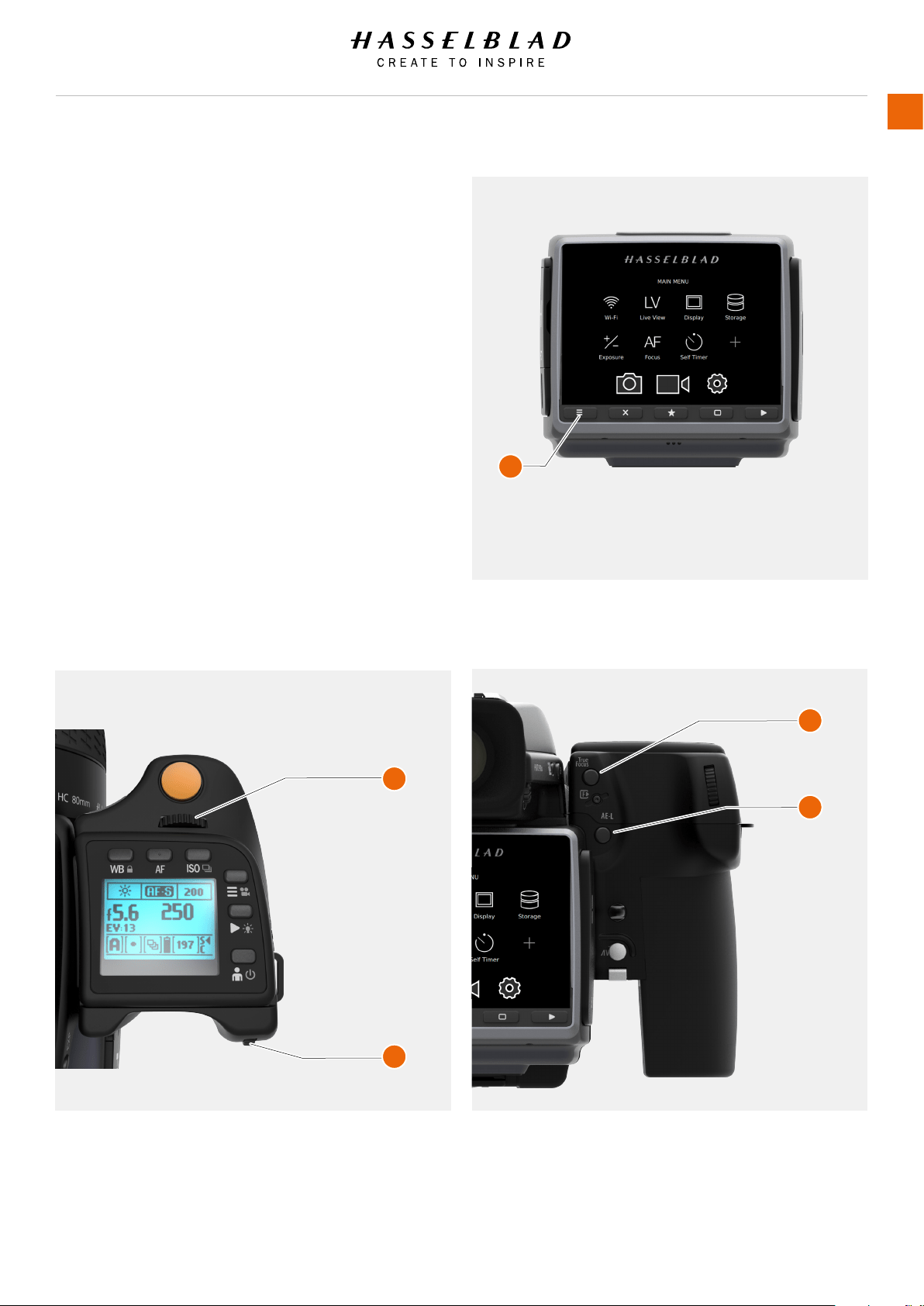
H6D www.hasselblad.com
USER GUIDE
To Use
68
OVERVIEW OF MENUS AND SETTINGS ON SENSOR UNIT
The Sensor Unit Display can be controlled directly on the touch
sensitive screen by pressing the menus and icons. You can
scroll up, down and from left to right as described in previous
chapters. You can also navigate the on screen menus by using
the following buttons and scroll wheels:
A Control buttons under the Sensor Unit Display for example
Menu / Exit button
B Front Scroll Wheel
C Rear Scroll Wheel
D True Focus Button
E AE-L Button
The Main Menu on the Sensor Unit Displays:
Camera Settings, Video Settings and General Settings. Above
them the Favourite Settings Short Cuts are displayed. You
can add or delete these Short Cuts to access your most used
functions directly from the Main Menu for better work ow.
The Menu Button (A) navigates back to Main Menu.
A
B
C
D
E
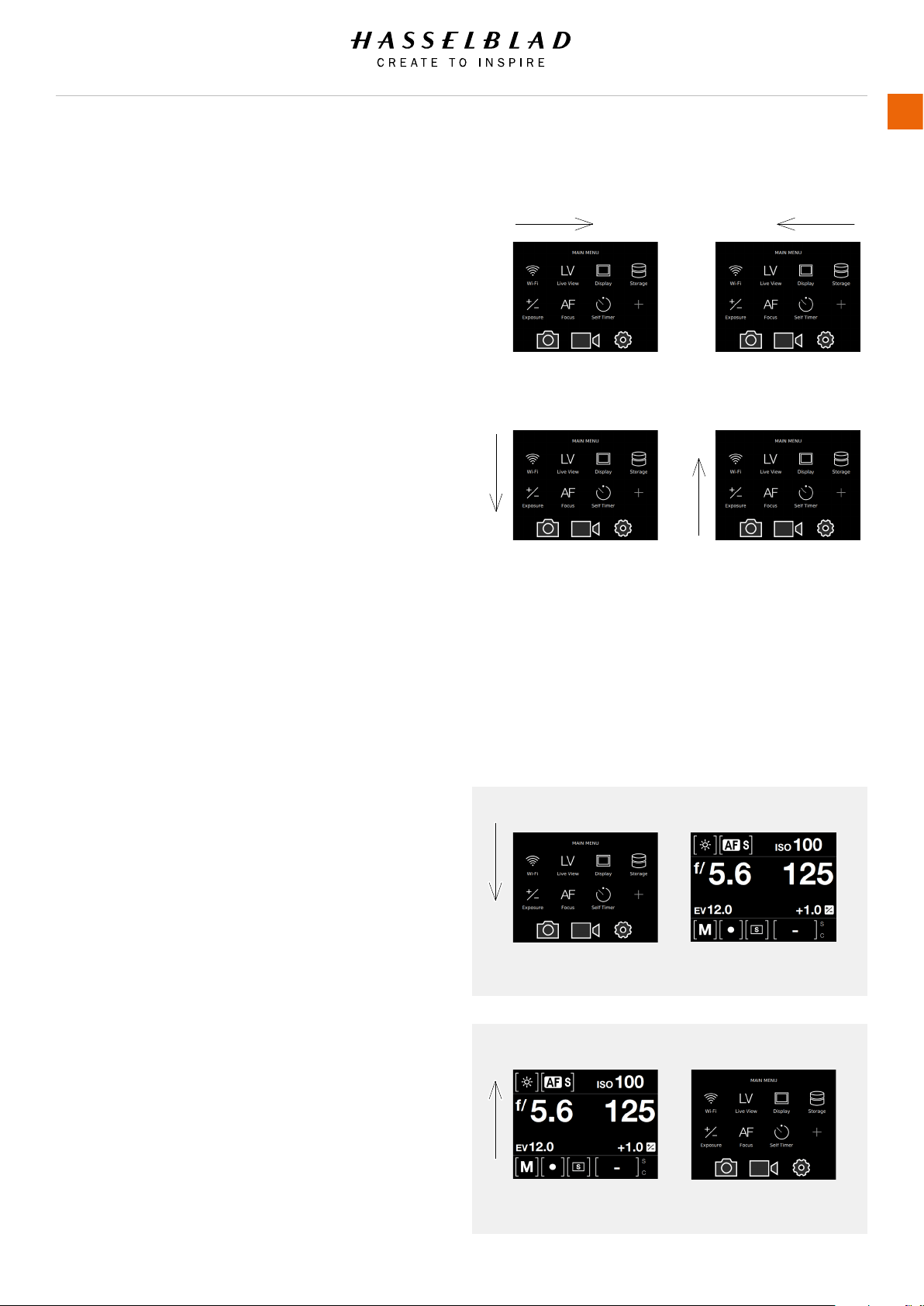
H6D www.hasselblad.com
USER GUIDE
To Use
69
TOUCH SCREEN NAVIGATION
The Touch Screen on the H6D Sensor Unit is similar to a Phone
or Tablet with touch sensitivity. The following gestures can be
used to navigate and control the camera:
Action Function
Swipe Right Move back / Move image right.
Swipe Left Move image left. Only in Browse
mode.
Swipe Down Display Control Screen.
Swipe Up Hide Control Screen.
Tap / Press Select action / button / setting.
Double Tap Zoom in to 100%. Double Tap again
to Zoom out to full View.
Function Action
Select Tap / Press with one nger.
Display Control Screen Swipe down from the top of the
screen.
Hide Control Screen Swipe up.
Move back Swipe right.
Zoom in Spread (move two ngers apart).
Zoom out Pinch (move two ngers together).
Display Control Screen from Main Menu
1 Swipe down over Main Menu to display the Control Screen.
Swipe down by starting on the upper part of the Sensor Unit
Display near the top edge.
2 The Control Screen displays the Camera Settings.
3 The Control Screen is interactive, select any of the settings
to make a quick adjustment within the Control Screen
Interface.
4 Swipe Up to hide the Control Screen and display the Main
Menu.
Swipe Right
Swipe Down
Swipe Down
Swipe Up
Main Menu
Main Menu
Control Screen
Control Screen
Swipe Left
Swipe Up
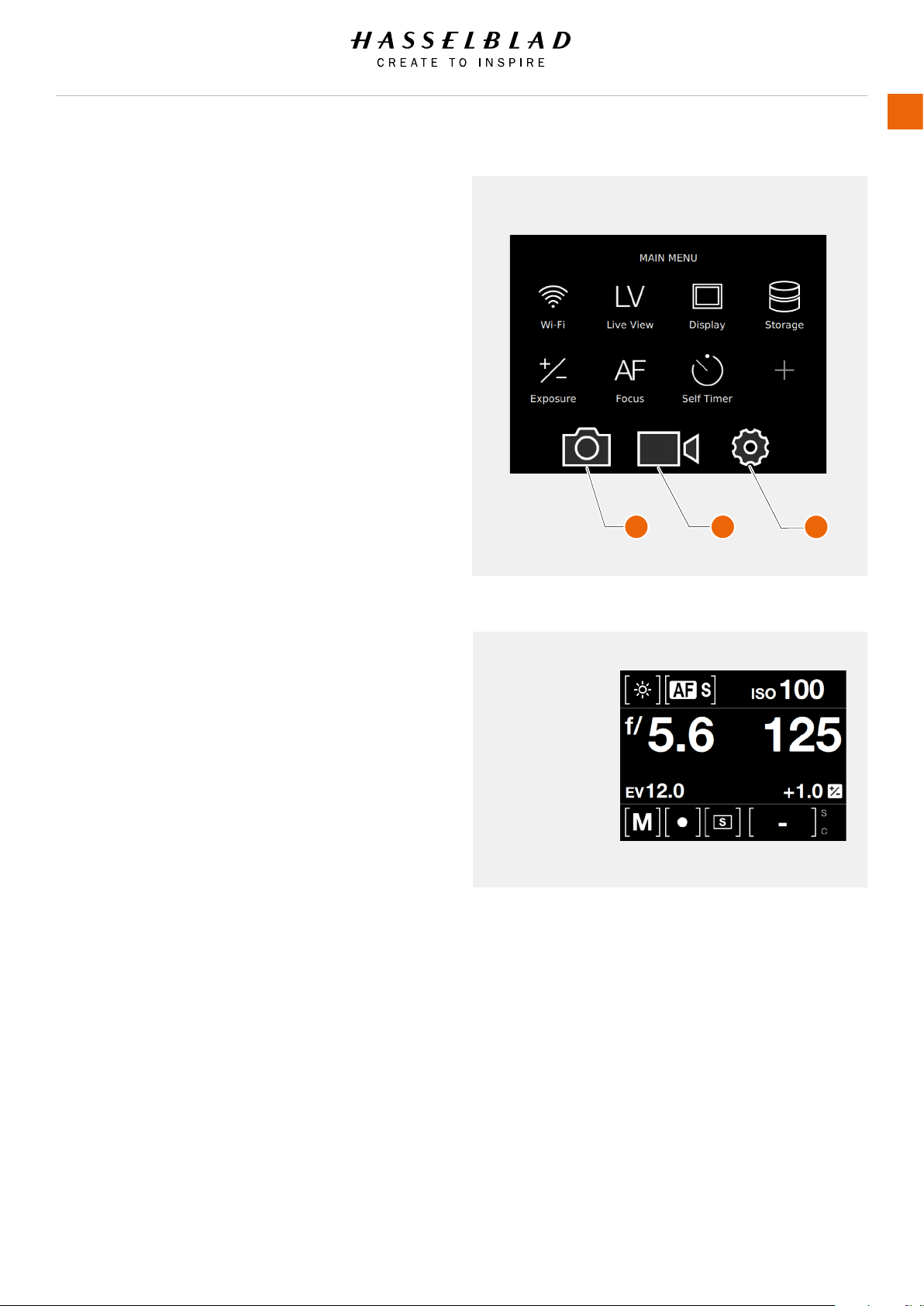
5.2 SENSOR UNIT DISPLAY NAVIGATION
MAIN MENU
In the Main Menu you will nd the following options.
1 Camera Settings
2 Video Settings
3 General Settings
Wi-Fi
Live View mode
Display
Storage
Exposure
Focus
Self Timer
+ (Plus) Add your own function by selecting the + icon.
CONTROL SCREEN
Display Control Screen
Swipe down from the top of the display on the Sensor
Unit Display or press the left soft button under the
display you can always display the Control Screen.
Close the Control Screen
Swipe up from the top of the display on the Sensor
Unit Display or press the left soft button again under
the display you can always display the Control Screen.
H6D www.hasselblad.com
USER GUIDE
To Use
70
Main Menu
Control Screen
2
3
1
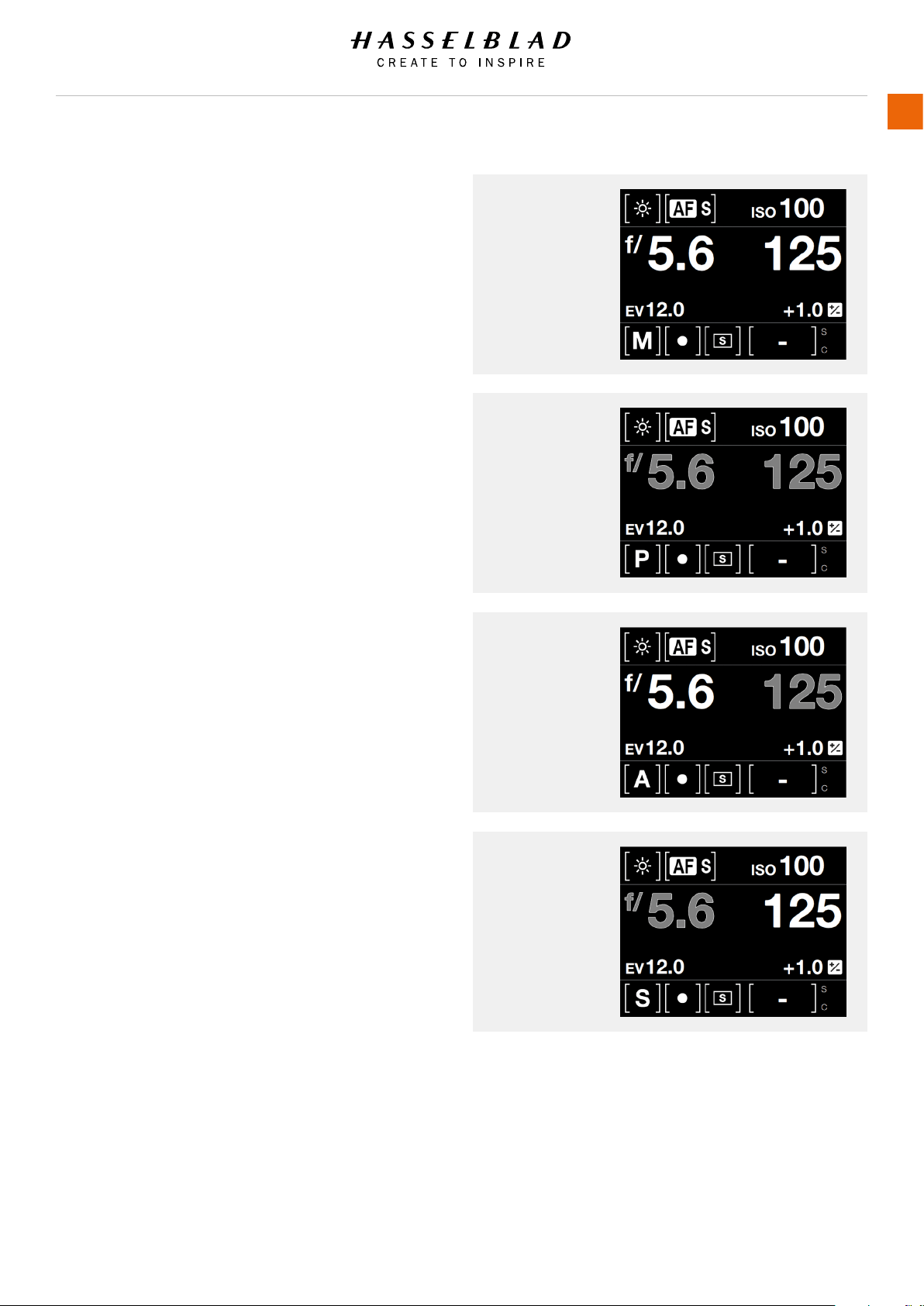
CONTROL SCREEN DESCRIPTION
The Control screen is a quick way to adjust settings.
Tap / Select the desired function and change the
setting directly in the Control Screen.
Locked Values on the Control Screen
P and Pv Mode
When you select P or Pv, the Aperture (5.6) and Shutter
(125) are automatic and displayed in grey colour that
indicates that you cannot change these settings.
A Mode
For Aperture priority (A) you can change the Aperture
value and the Shutter value will be automatic and
displayed in grey.
S Mode
For Shutter priority (S) you can change the Shutter
value and the Aperture value will be automatic and
displayed in grey.
H6D www.hasselblad.com
USER GUIDE
To Use
71
Control Screen
Control Screen
P Mode
Control Screen
A Mode
Control Screen
S Mode
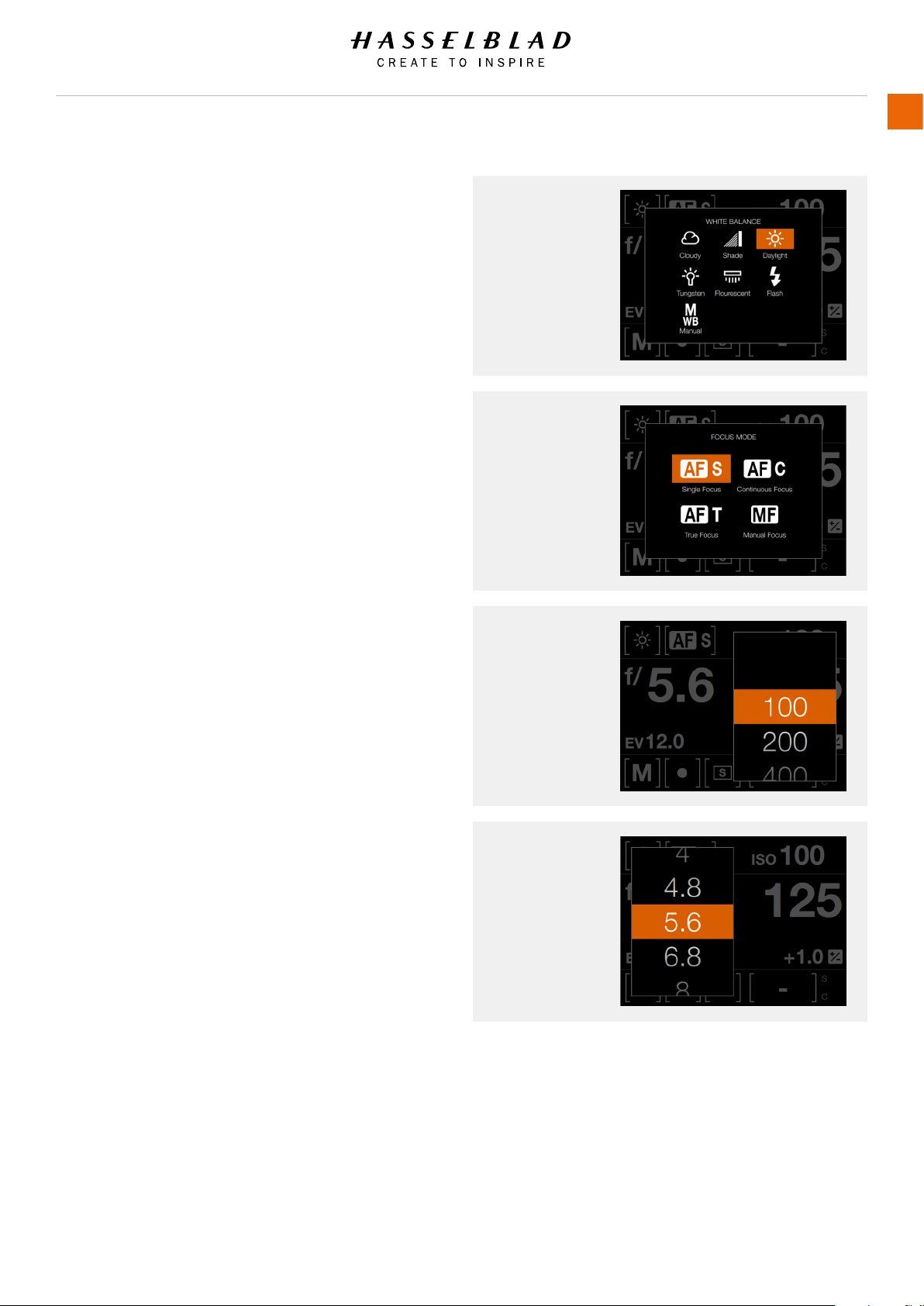
H6D www.hasselblad.com
USER GUIDE
To Use
72
White Balance
AF Focus
ISO
Aperture
Settings on the Control Screen
White Balance
- Cloudy
- Shade
- Daylight
- Tungsten
- Flourescent
- Flash
- Manual
AF Focus
- AF-S Single Focus
- AF-C Continuous Focus
- AF-T True Focus
- MF Manual Focus
ISO
- Select ISO value.
Aperture
- Select Aperture value.
This Chapter continues on the next page.
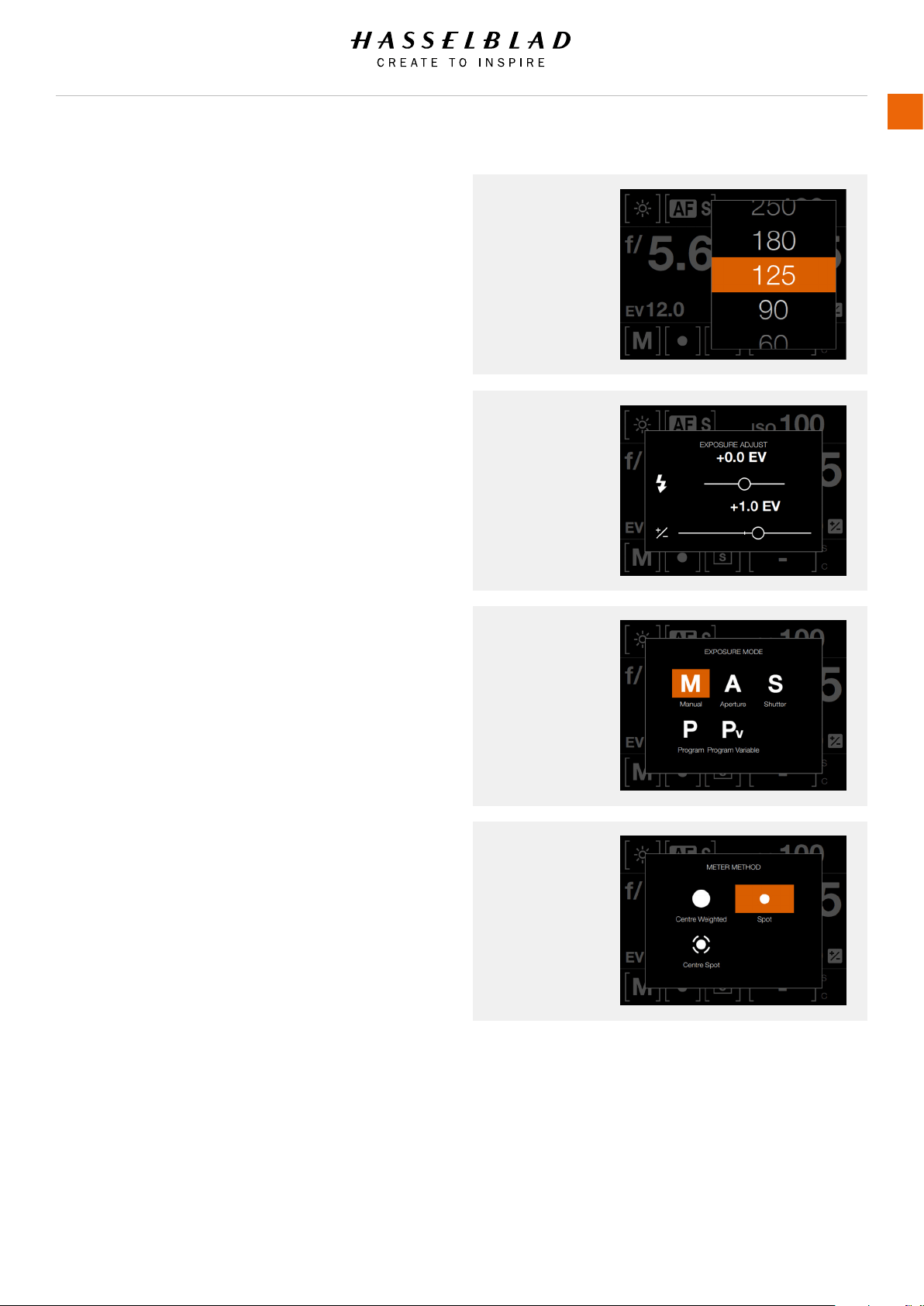
H6D www.hasselblad.com
USER GUIDE
To Use
73
Settings on the Control Screen
Shutter
- Select Shutter value.
Exposure Adjust
- Adjust Flash Exposure by sliding right (+) or left (-).
- Adjust Exposure by sliding right (+) or left (-).
Exposure Mode
- M Manual
- A Aperture Priority
- S Shutter Priority
- P Program
- Pv Program Variable
Metering Mode
- Center Weighted
- Spot Weighted
- Center Spot Weighted
This Chapter continues on the next page.
Exposure Adjust
Shutter
Exposure Mode
Metering Mode
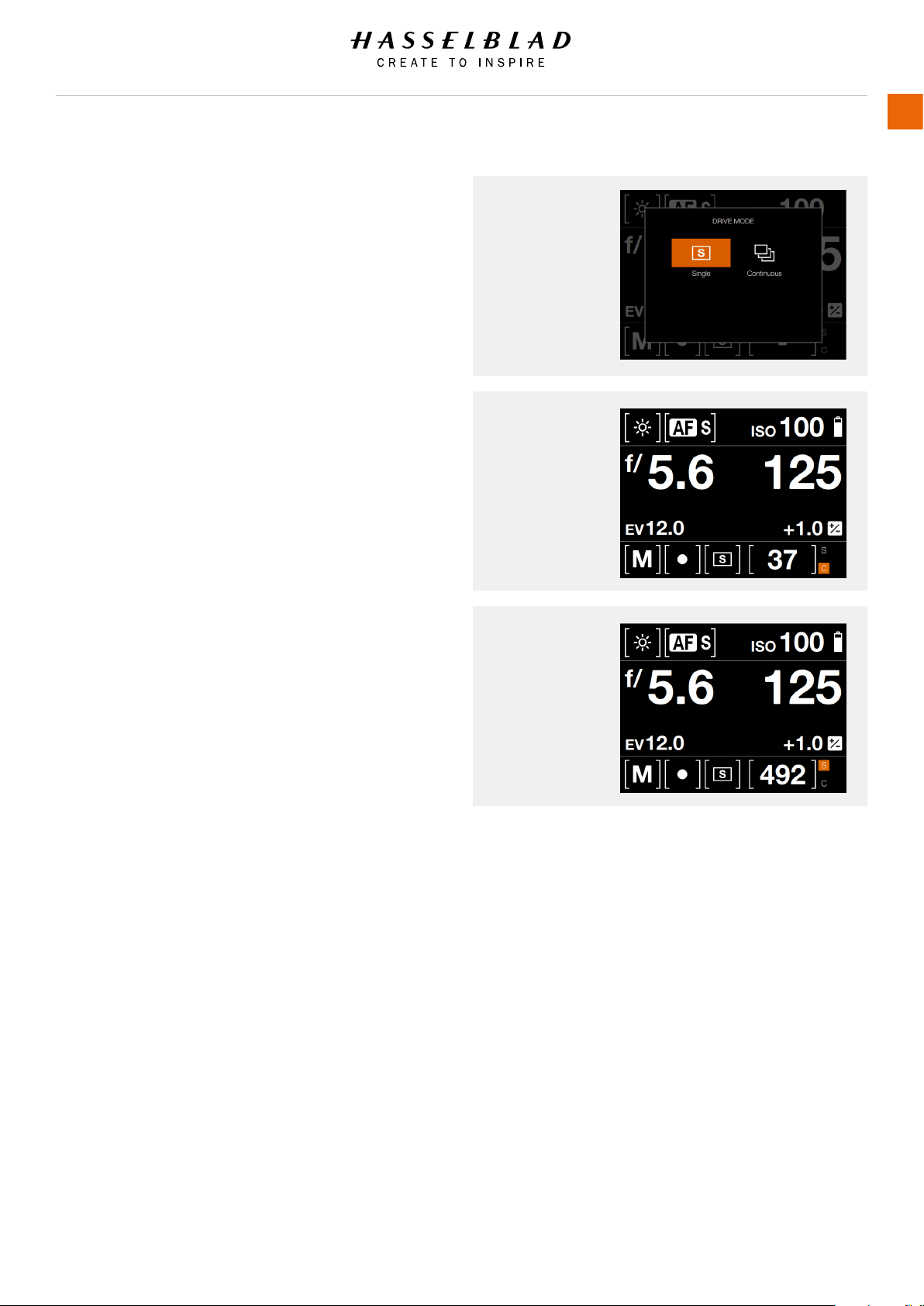
H6D www.hasselblad.com
USER GUIDE
To Use
74
Settings on the Control Screen
Drive Mode
- Single Drive Mode
- Continuous Drive Mode
Remaining Captures
- Displays the number of remaining Captures.
Memory Card
- S for SD Card
- C for CFast Card
Drive Mode
Remaining
Captures
Memory Card
S - SD Card.
C - CFast Card.
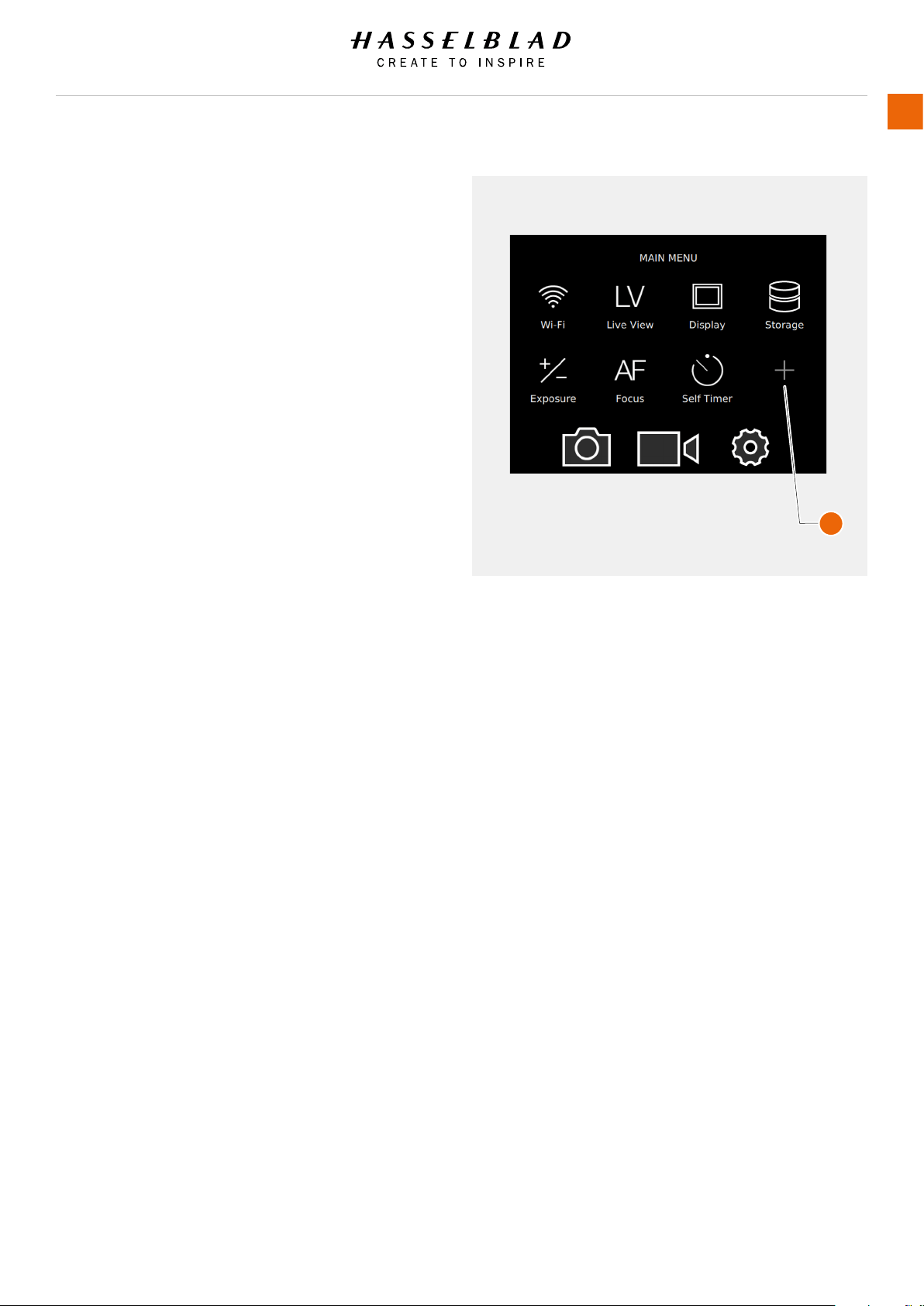
H6D www.hasselblad.com
USER GUIDE
To Use
75
Settings on the Control Screen
ADD AND REMOVE FAVOURITE FUNCTIONS TO
CONTROL SCREEN
1 Add a favourite function by selecting the + icon (1)
on the Main Menu.
2 Remove a function from the Control Screen by a
long press on the icon to be removed.
Main Menu
1
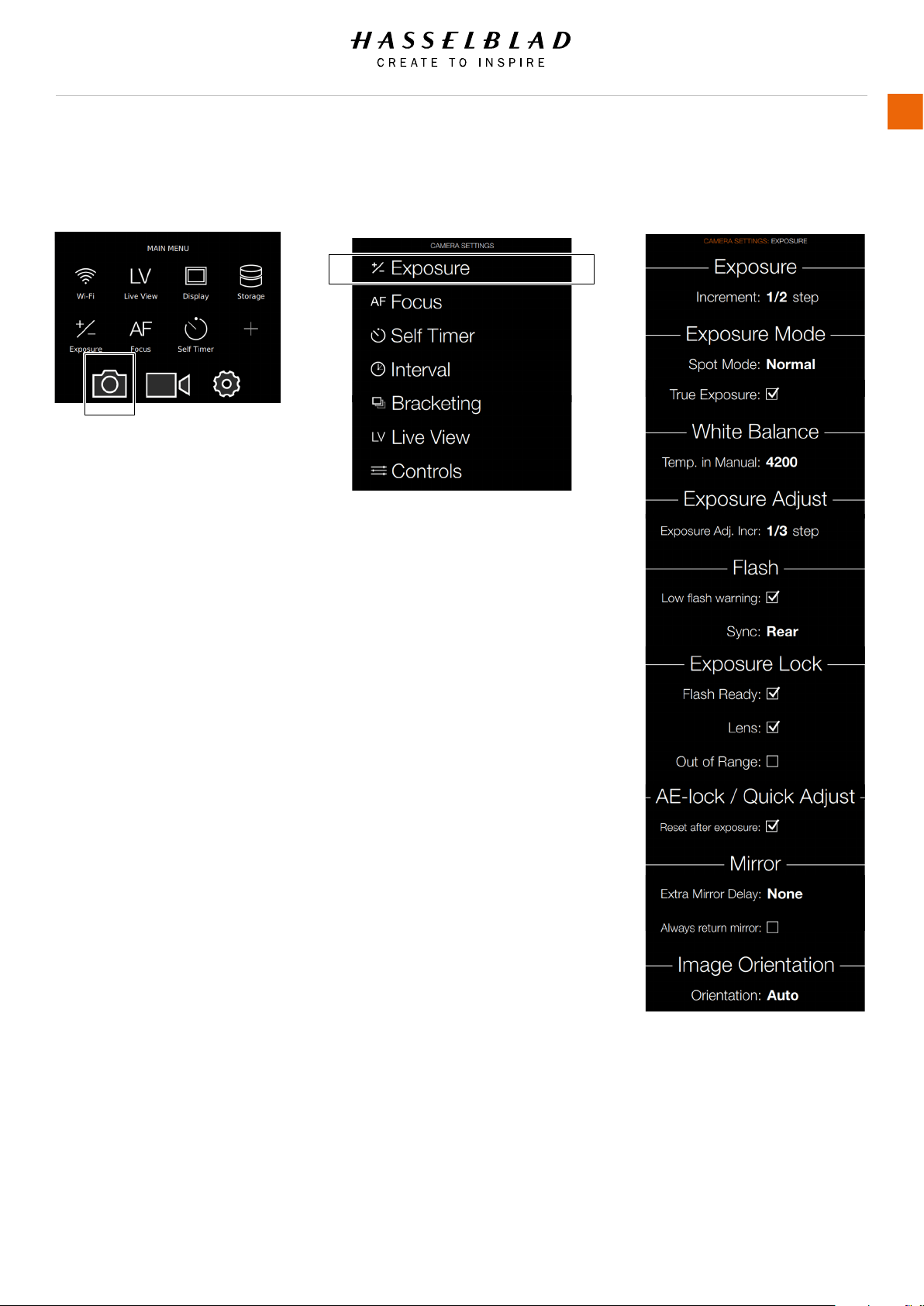
H6D www.hasselblad.com
USER GUIDE
To Use
76
Camera Settings Menu
5.3 CAMERA SETTINGS MENU
MAIN MENU > CAMERA SETTINGS
Press the Camera icon on the Sensor unit
display. The Camera Settings Menu will
appear.
Swipe right or press Menu / EXIT button
to get back to Main Menu.
Main Menu
Camera icon
Exposure Settings Menu
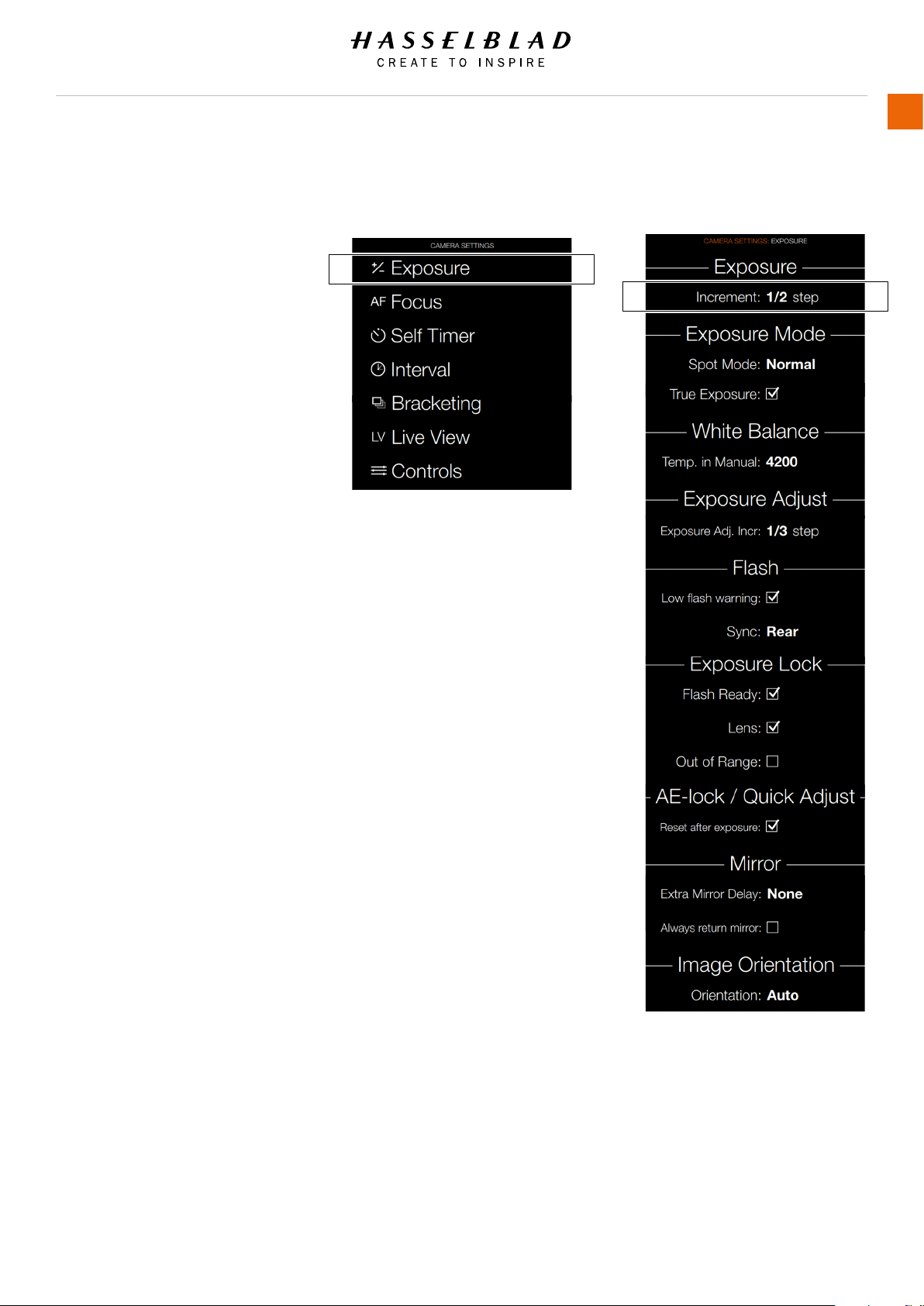
H6D www.hasselblad.com
USER GUIDE
To Use
77
5.4 CAMERA EXPOSURE SETTINGS
MAIN MENU > CAMERA SETTINGS >
EXPOSURE
Press the Camera icon on the Sensor unit
display. The Camera Settings Menu will
appear.
Press the Exposure Settings Menu.
Swipe right or press Menu / EXIT button
to get back to Main Menu.
Exposure Settings
Increment
Select the Increment setting.
Camera Menu Exposure Settings Menu
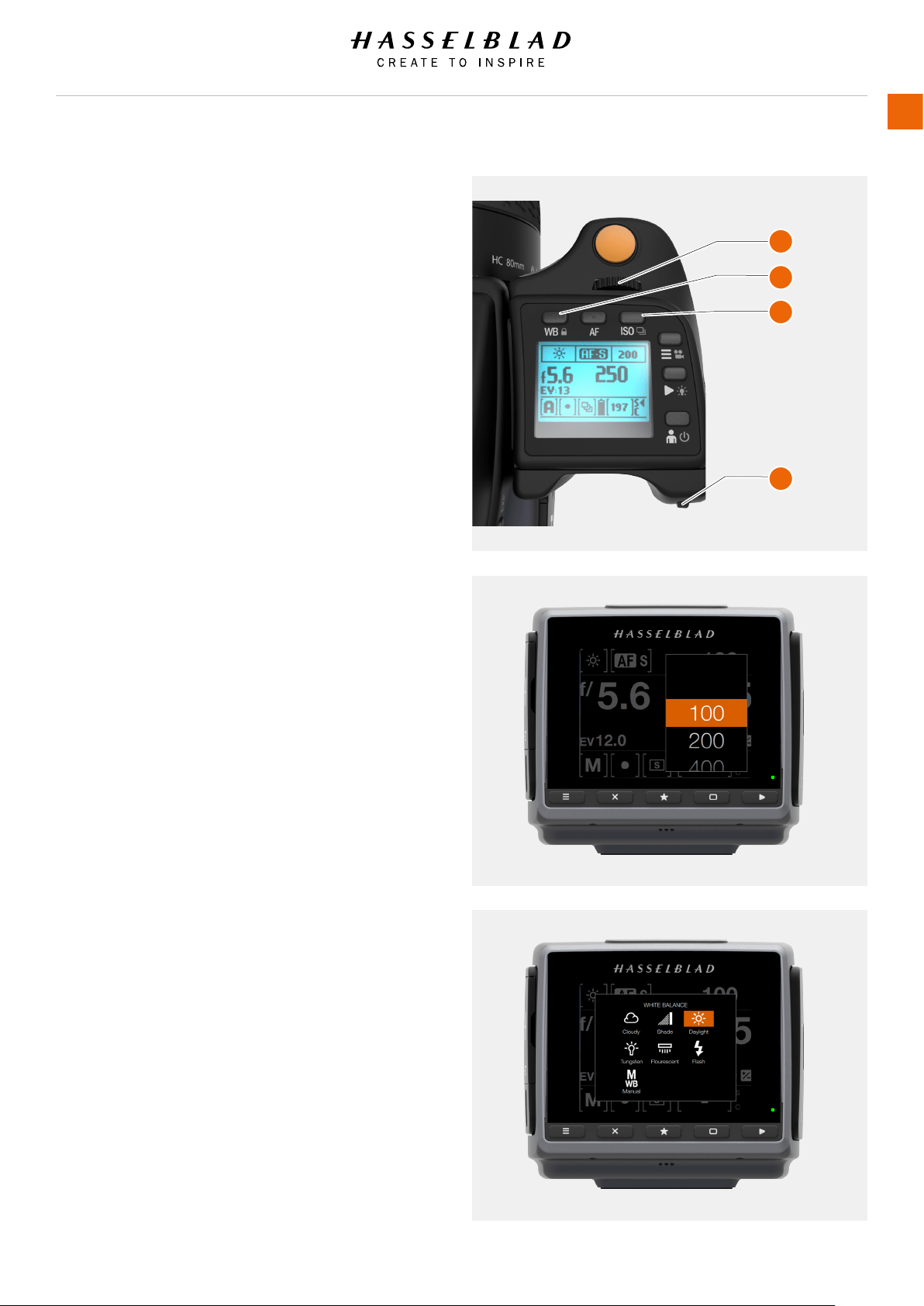
H6D www.hasselblad.com
USER GUIDE
To Use
78
ISO AND WHITE BALANCE
ISO and White Balance are set either via the Grip, the Sensor
Unit Display or, when tethered, via Phocus.
● On the grip, the WB (B) and ISO button (C) provides
immediate access to ISO and White Balance settings.
The front scroll wheel (A) and rear scroll wheel (D) are
used to make the desired changes. These appears
on the grip display, the sensor unit display and in the
viewnder.
● For the sensor unit display, settings are changed on the
touch display or via the soft buttons under the display.
● In Phocus there is a specic tool to control camera
settings.
The settings are automatically and simultaneously transferred
from the grip to the sensor unit. Likewise all changes on the
sensor unit are automatically transferred to the grip display.
Please note that the changes are only displayed on the sensor
unit when the settings have been saved.
See more information about making manual white balance
settings in the ‘Sensor Unit Settings’ section.
A
C
B
D
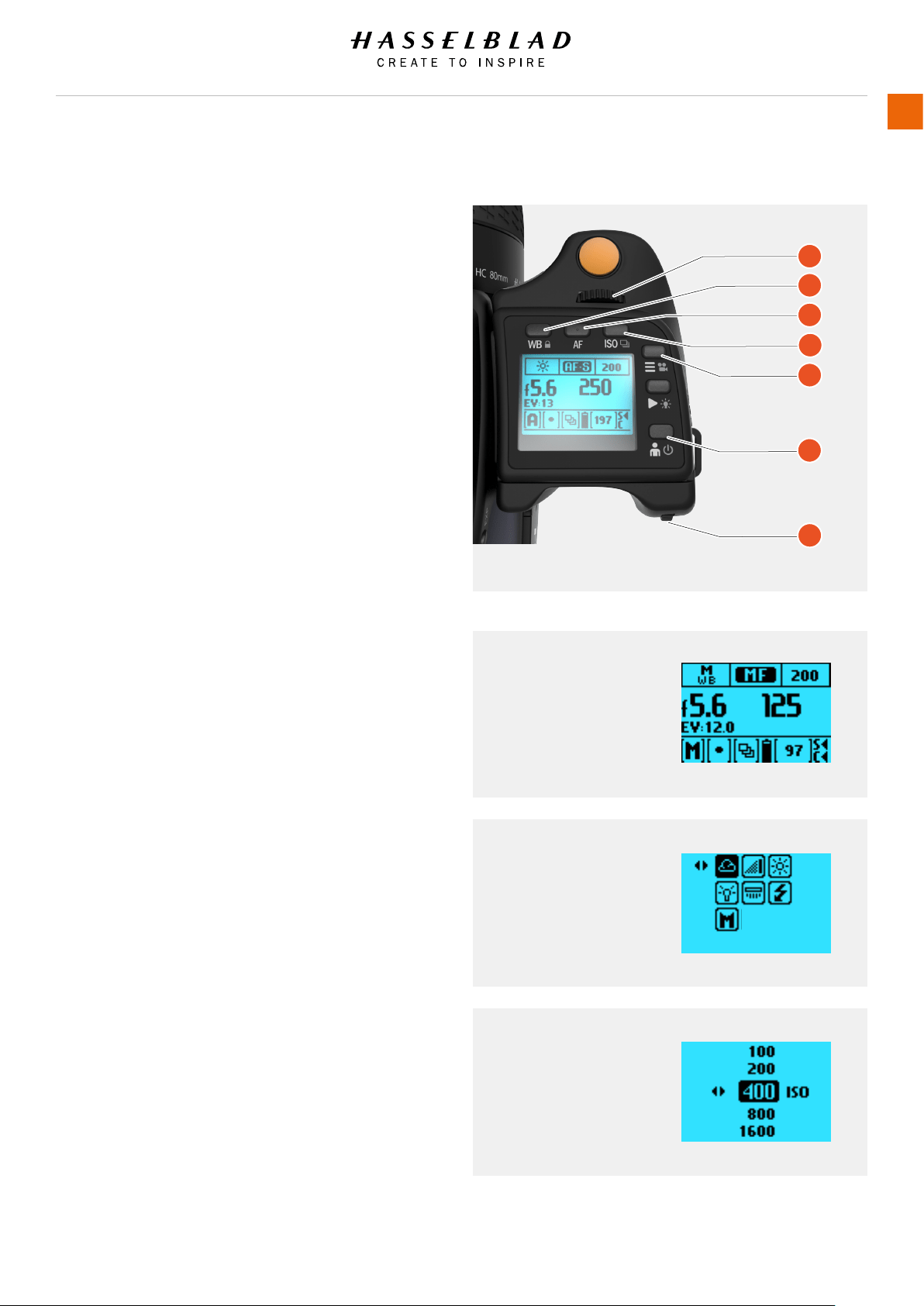
ISO AND WHITE BALANCE ON GRIP
ISO
1 Press ISO button (D).
2 Turn the Front scroll wheel (A) to select ISO setting.
White Balance WB
1 Press WB button (B).
2 Turn the Front scroll wheel (A) to select WB (Daylight, Shade,
Cloudy, Flash, Fluorescent or Tungsten).
3 To set the Colour Temperature manually, scroll the Front
Scroll Wheel until “M” is displayed. Then the colour
temperature value is displayed at the bottom of the screen.
Note!
White Balance settings are technically not necessary for 3F/3FR
les. The raw format les contain all the information required
for correction in Phocus and/or other software, regardless of
the original colour temperature of the light source or colour
temperature setting of the camera at the time of exposure.
If you intend to shoot RAW & JPEG or use Phocus for JPEG
production and plan to deliver or print the JPEG les directly,
then you should make a White Balance setting.
Note!
ISO and White Balance settings are made either on the grip or
the sensor unit. The settings are automatically updated on both.
A
B
C
D
E
F
G
White Balance
Manual mode selected.
White Balance menu
Cloudy mode selected.
ISO menu
ISO 400 selected.
H6D www.hasselblad.com
USER GUIDE
To Use
79
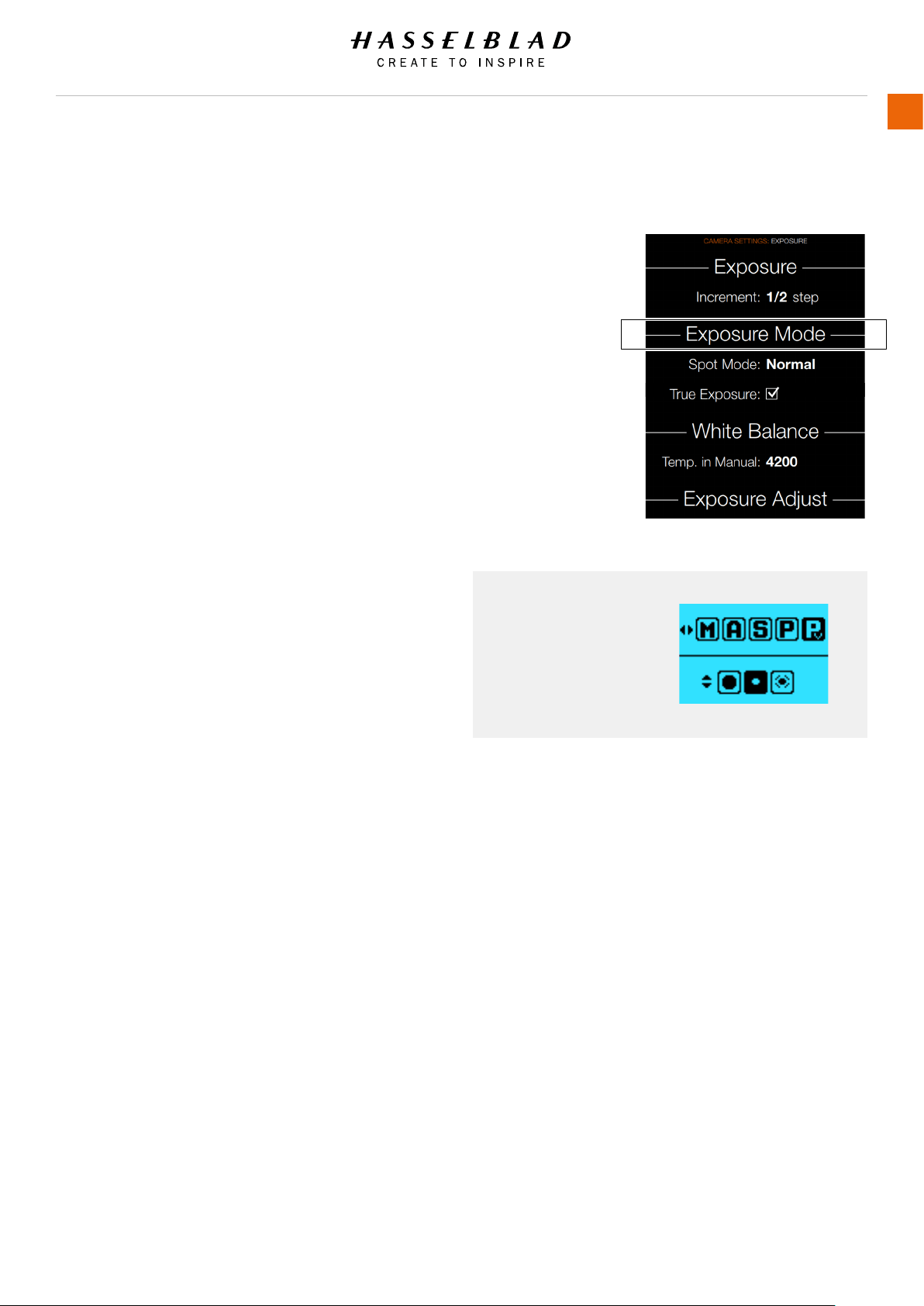
H6D www.hasselblad.com
USER GUIDE
To Use
80
EXPOSURE SETTINGS MODES
MAIN MENU > CAMERA SETTINGS > EXPOSURE
Press the Camera icon on the Sensor unit display. The Camera
Settings Menu will appear.
Press the Exposure Mode Settings Menu.
Swipe right or press Menu / EXIT button to get back to Main
Menu.
Here you can only select the Spot Mode and set True Exposure
On or Off.
To change the Exposure mode Swipe Down to display the Control
Screen or press the EXP button on the Viewnder.
Exposure are controlled either manually or by using one of four
automatic modes. These have the following designations on the
grip display:
M – Manual
A – Aperture (priority)
S – Shutter (priority)
P – Program
Pv – Program variable
In each mode you can see both the aperture and the shutter
speed information on the grip display, viewnder display and if
set, the sensor unit display.
In manual mode, aperture is set by the front scroll wheel and
the shutter speed by the rear scroll wheel unless set otherwise
in Camera Settings > Controls > Front Wheel.
In the automatic modes, the aperture and shutter speed
settings are controlled by the camera, either partially or
completely according to setting. Within this mode there are four
choices.
Note!
Please see the Appendix for P and Pv mode charts that describe
the aperture and shutter speed setting combinations.
SELECT METERING / EXPOSURE SETTING MODES
Proceed as follows with the camera in active mode:
1 Press the EXP button on the viewnder.
2 Turn the Rear scroll wheel to make a Metering method
selection and the Front scroll wheel to make an Exposure
method selection.
3 Press the EXP button again or half press the exposure trigger
button to leave the menu.
Grip Display View
Exposure settings on
Grip Display.
Exposure Settings Menu
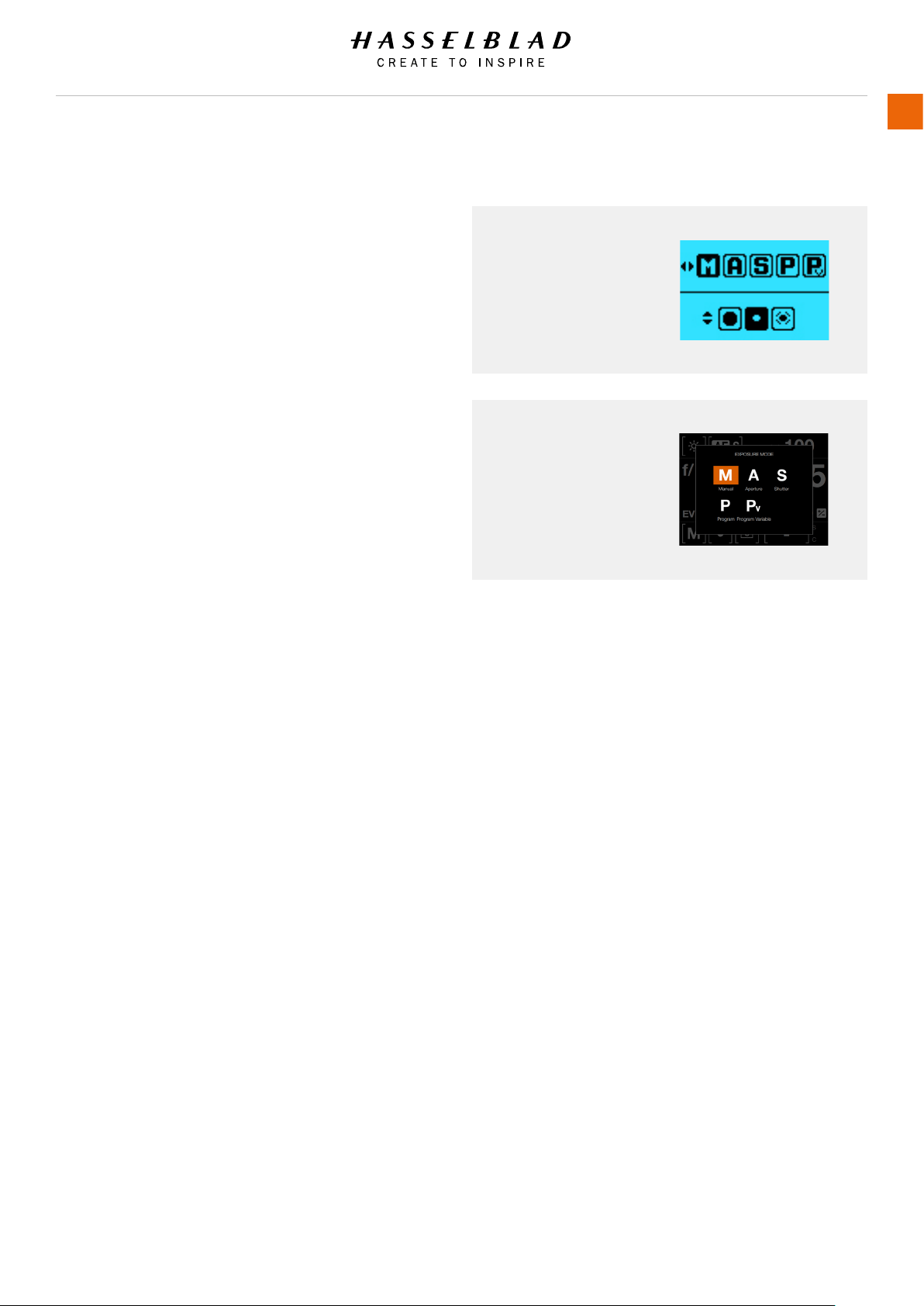
H6D www.hasselblad.com
USER GUIDE
To Use
81
Exposure Modes
Grip Display.
Exposure Modes
Sensor Unit Display.
MANUAL EXPOSURE MODE
To change the Exposure mode Swipe Down to display the Control
Screen or press the EXP button on the Viewnder.
Manual mode provides total user control of the shutter and
aperture settings. In this mode the shutter speed and aperture
settings are manually chosen by turning the front and rear scroll
wheels.
The standard exposure setting is obtained when the pointer over
the exposure scale is positioned above the central index (in the
viewnder display).
Any deviation from this standard setting is displayed by:
● the pointer appearing elsewhere than above the central
index
● by gures above the scale representing the amount of
adjustment in EV's.
A ‘+ 0.7’ above the scale in the display, would indicate a ‘0.7
EV overexposure’ setting. Conversely, a ‘-2’, for example,
would indicate a ‘2EV underexposure’ setting. Note that the
appearance of a +/- symbol on the grip and viewnder displays
in manual mode means that a change has been made to the
exposure compensation setting. See later section on Exposure
compensation.
The actual aperture settings and shutter speeds are indicated
to the right of the exposure scale in the conventional manner.
(Note: ‘full-stops’, ‘half-stops’ and ‘third-stops’ are also
displayed, according to setting (see increment setting). For
example, a setting between f/8 and f/11 will appear as f/9,5 if
‘half-stop’ is chosen).
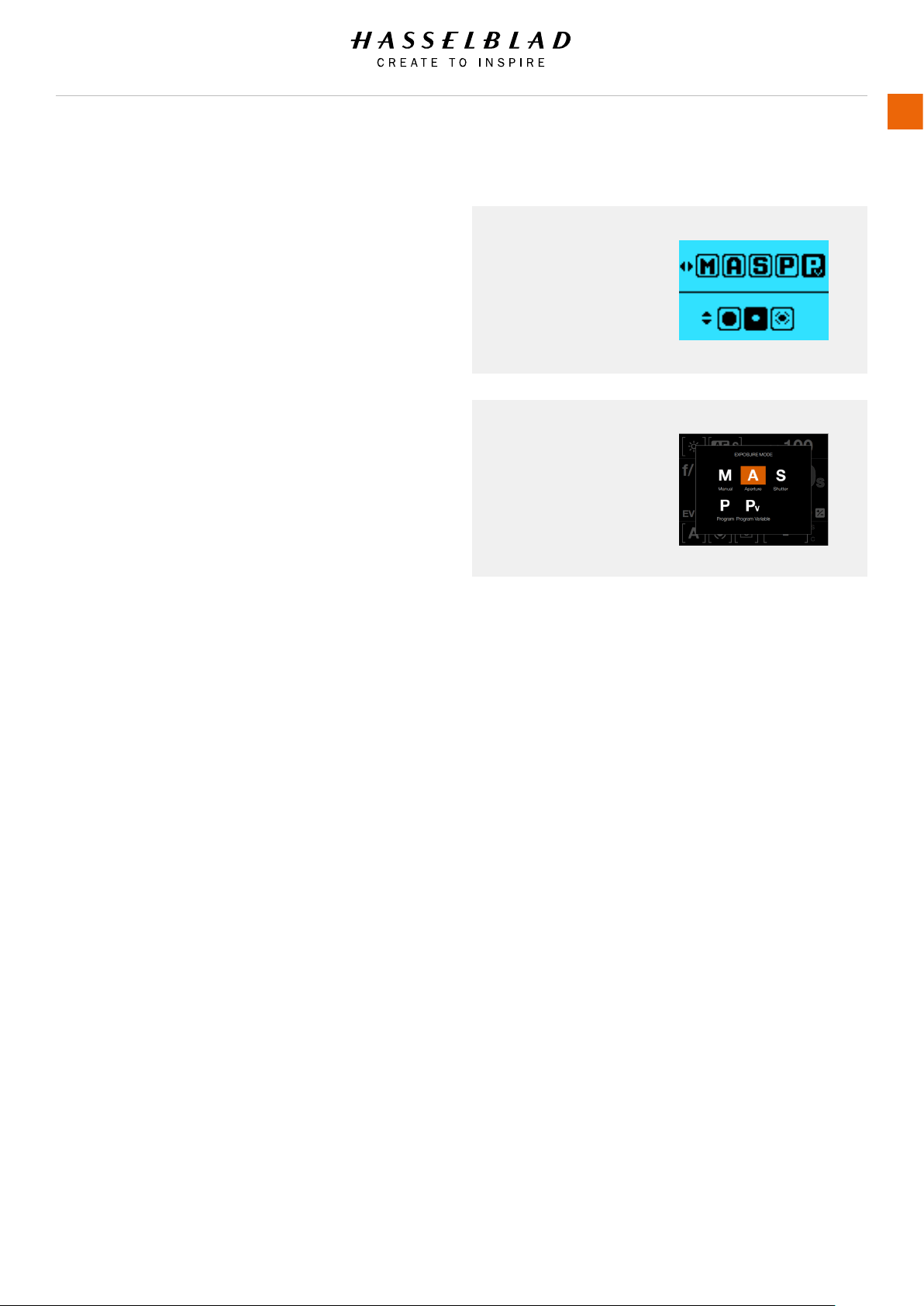
AUTOMATIC EXPOSURE MODE
To change the Exposure mode Swipe Down to display the Control
Screen or press the EXP button on the Viewnder.
Automatic exposure provides a choice of two ways to control the
shutter speed and aperture settings semi-automatically and two
ways fully automatically:
Aperture priority A
The aperture is manually chosen by you by turning the front
scroll wheel, and the shutter speed is automatically chosen by
the camera.
Shutter priority S
The shutter speed is manually chosen by you by turning the front
scroll wheel, and the aperture is automatically chosen by the
camera.
Programmed P
In this mode, an aperture/shutter combination is chosen by
the camera according to the EV measured (metering method
remains as your choice), though only within pre-set appropriate
limitations to suit various requirements and applications.
Programmed variable Pv
This mode is very similar to Programmed, except with the
additional parameters of lens focal length being automatically
taken into account. For example, long shutter speeds will
automatically be avoided with a long focal length lens (see
illustration on the following page).
In Automatic mode the front scroll wheel selects alternative
aperture/shutter combinations while maintaining the same
EV and the rear scroll wheel alters the amount of exposure
compensation. The compensation appears as a +/- symbol on
the grip display and viewnder display.
Note!
Aperture and shutter speed settings can both be changed even
while the busy light on sensor unit is ashing.
H6D www.hasselblad.com
USER GUIDE
To Use
82
Exposure Modes
Grip Display.
Exposure Modes
Sensor Unit Display.
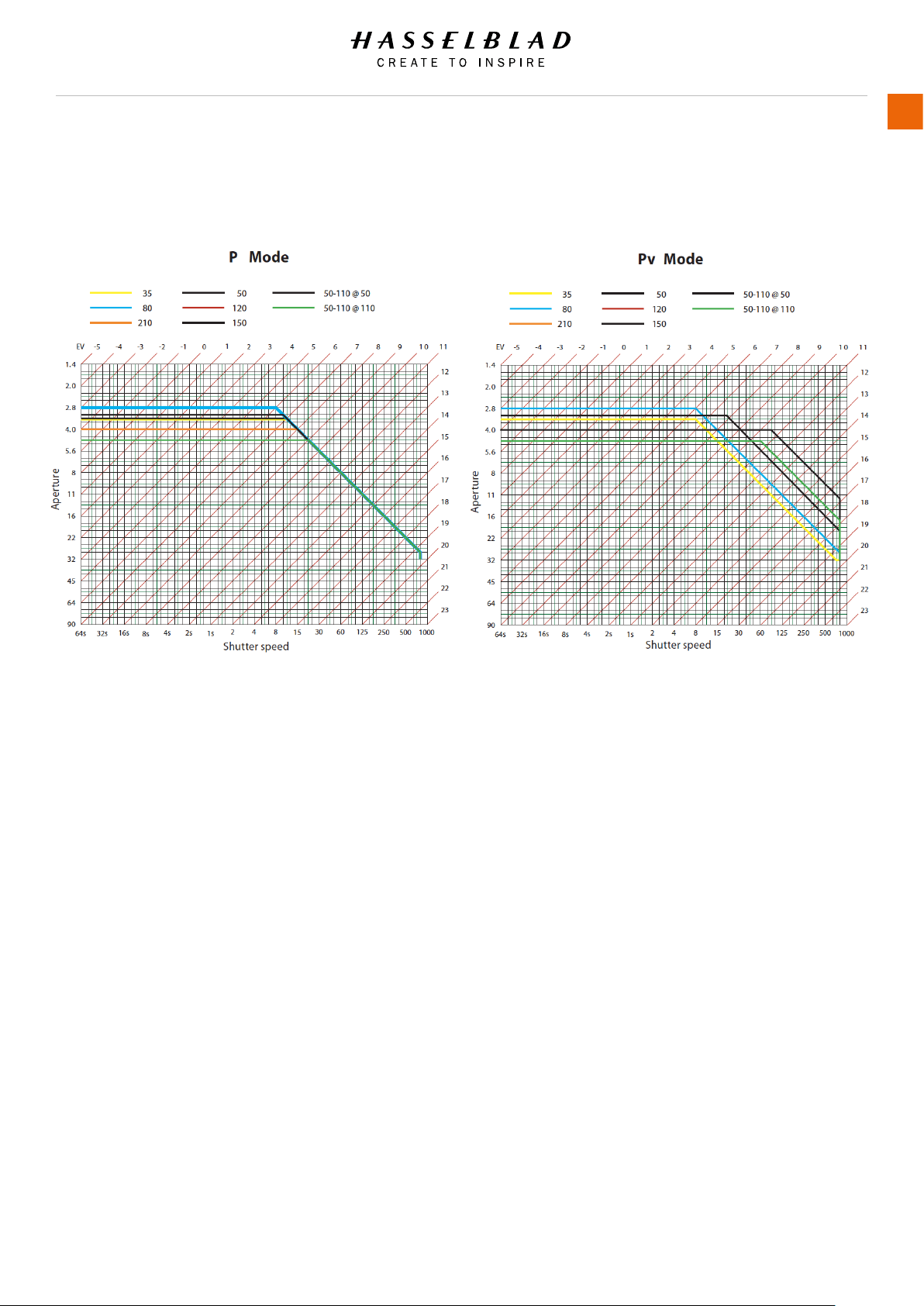
H6D www.hasselblad.com
USER GUIDE
To Use
83
AUTOMATIC EXPOSURE - P AND PV MODE
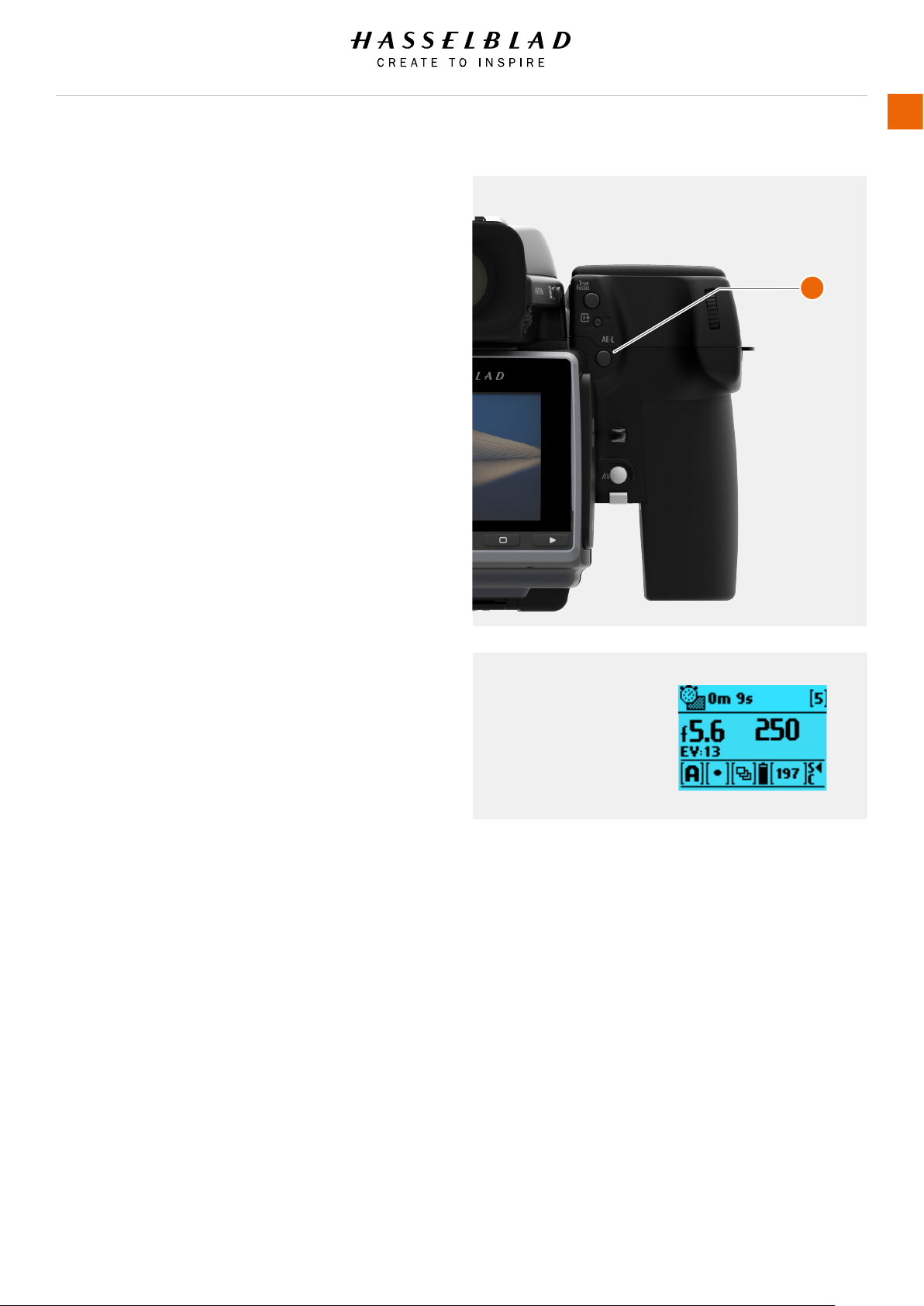
AE-L BUTTON
The AE-L button (A) has two main functions that can be
incorporated in various working methods involving exposure
locking. It also has an extra function for the ash measure
capability (see AE-L section under Flash). The AE-L button can:
Lock an EV setting in manual and automatic modes
When the button is pressed, the light metering facility is locked
to the EV setting at that moment. An L (=locked) symbol
appears between the shutter speed and the aperture indication
on the grip display and viewnder display to conrm the status.
Press the AE-L button again to unlock (a toggle function).
In the locked setting, the aperture and shutter speed become
interlocked. In this way, a new aperture/shutter combination
that still represents the same EV, can be rapidly chosen. For
example, if the shutter is set to 1/125s and the aperture to
f/8 and are locked together, you can access new EV-equivalent
combinations of, for example, 1/30s a f/16 or 1/500s at f/4
just by moving the front scroll wheel.
In practice this means you can, for example, in auto mode
position the metering area (spot setting) over an area in the
subject that you determine to be equivalent to a mid-grey and
lock it with the AE-L button. You can then recompose the picture
with the metering zone positioned over an area much brighter
or darker while still retaining the original exposure setting and
choose a new combination of aperture and shutter speed
settings.
Be used as a Zone System placement button
The AE-L button also allows the spot metering function to make
zone placements. When the AE-L button is pressed, the metered
area is saved as a mid-grey (Zone 5). When the spot area is
then placed over another part of the scene, the new area is then
compared to the saved area and the difference can be read off
the scale seen in the viewnder. For example, in a landscape
situation you could meter the foreground, lock the reading with
the AE-L button (thereby locking that area to be reproduced as
the equivalent to a mid-grey 18%), point the camera at some
rocks to see by how much darker they are compared to the
foreground by the EV difference read off the scale.
If you have chosen Spot together with Zone display as well
as one of the automatic modes A, S, P or Pv, point the spot
marking at an area that you decide should be a Zone 5 and click
the AE-L button. The meter will now display different parts of
the subject as zone values in the viewnder display, instead of
EV deviations, as you move the spot marking over the subject.
(Included are Lo and Hi to signify areas beyond the range of the
sensor).
Alternatively you can choose to re-classify an area as another
zone and then check the rest of the subject to see how other
areas fall on the zone scale. Do this by following the above
procedure and then turning the rear scroll wheel until you see
the new desired zone value in the viewnder display. You will
also see the new exposure that will now produce that new
zone. For example, you might have measured a rock at zone
5 but wish to make it darker. By moving the rear scroll wheel
you could re-classify it as zone 4. You will then be able to see,
for example, whether white clouds are now falling within the
exposure range by their new zone classication.
Alternatively, you can also pre-set the initial zone reading in
order to save time and effort where there is no freely available
‘zone 5’ subject for light measuring. For example, you might
be on a sandy beach where you know that sand is normally
classied as zone 6. You can pre-programme the zone
placement by holding down the AE-L button while choosing the
new zone value and turning the front scroll wheel until zone 6
appears. All new placements will then be zone 6.
H6D www.hasselblad.com
USER GUIDE
To Use
84
Grip Display View
Lock
A
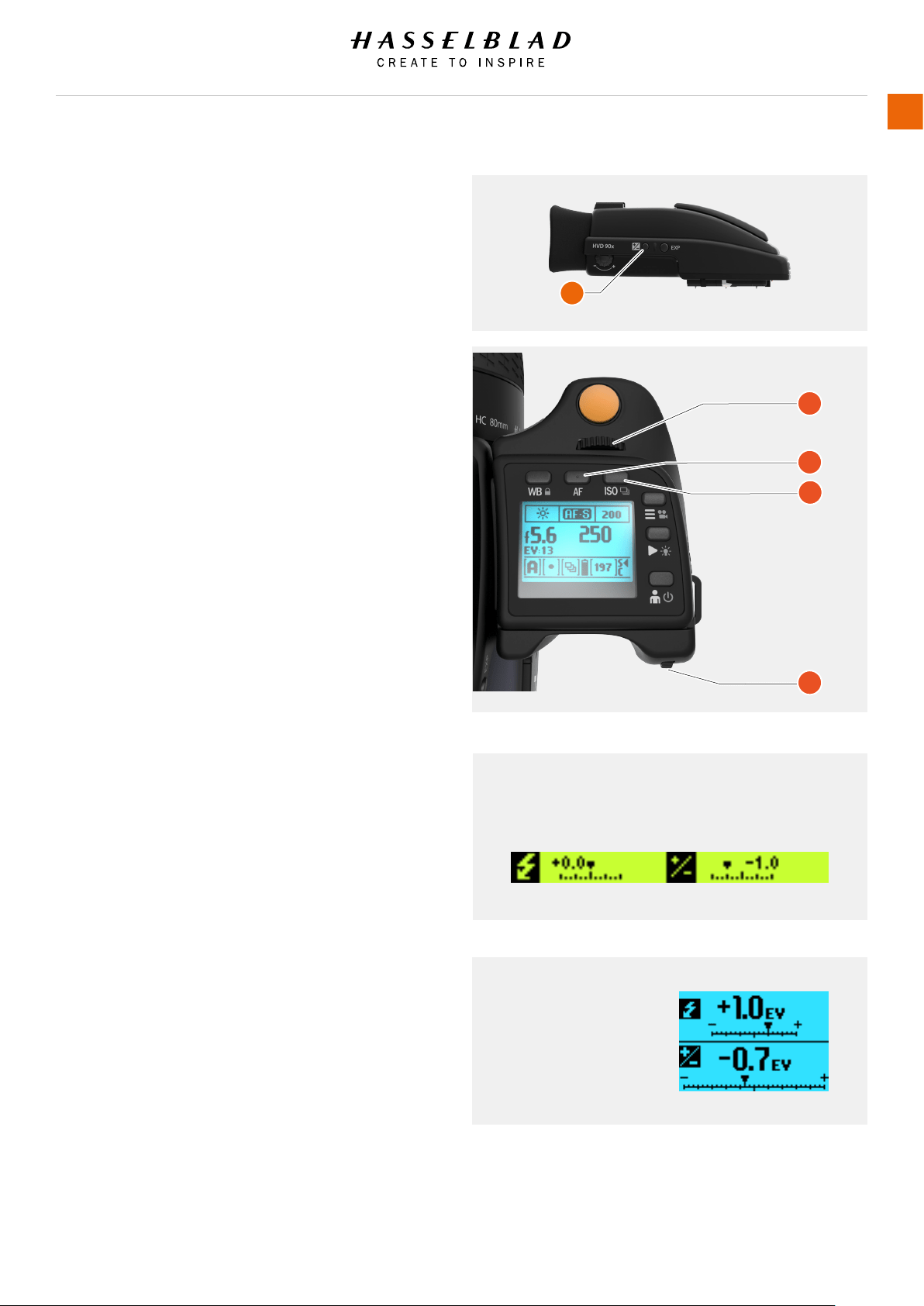
FIXED EXPOSURE COMPENSATION SETTING
1 Press the ‘±’ button on the viewnder (A).
2 Turn the Front Scroll Wheel (B) to change the Flash
compensation and the Rear Scroll Wheel (E) on the grip to
increase or decrease the amount of Exposure Compensation
in 1/3 EV steps.
3 The amount is displayed in the viewnder as both an
EV gure complete with a ‘minus’ or ‘plus’ prex (A in
illustration), and as a marker above a ‘minus’ to ‘plus’ scale,
4 Press (C - AF Button) to reset any compensation back to
zero.
5 Press Save (D - ISO Button) to retain the setting.
6 A ‘±’ symbol is then displayed between the aperture and
shutter speed setting as conrmation of the setting.
H6D www.hasselblad.com
USER GUIDE
To Use
85
Viewnder Display View
Exposure compensation EV +1.3
Grip Display View
Flash Exposure
Camera Exposure
B
C
D
E
A
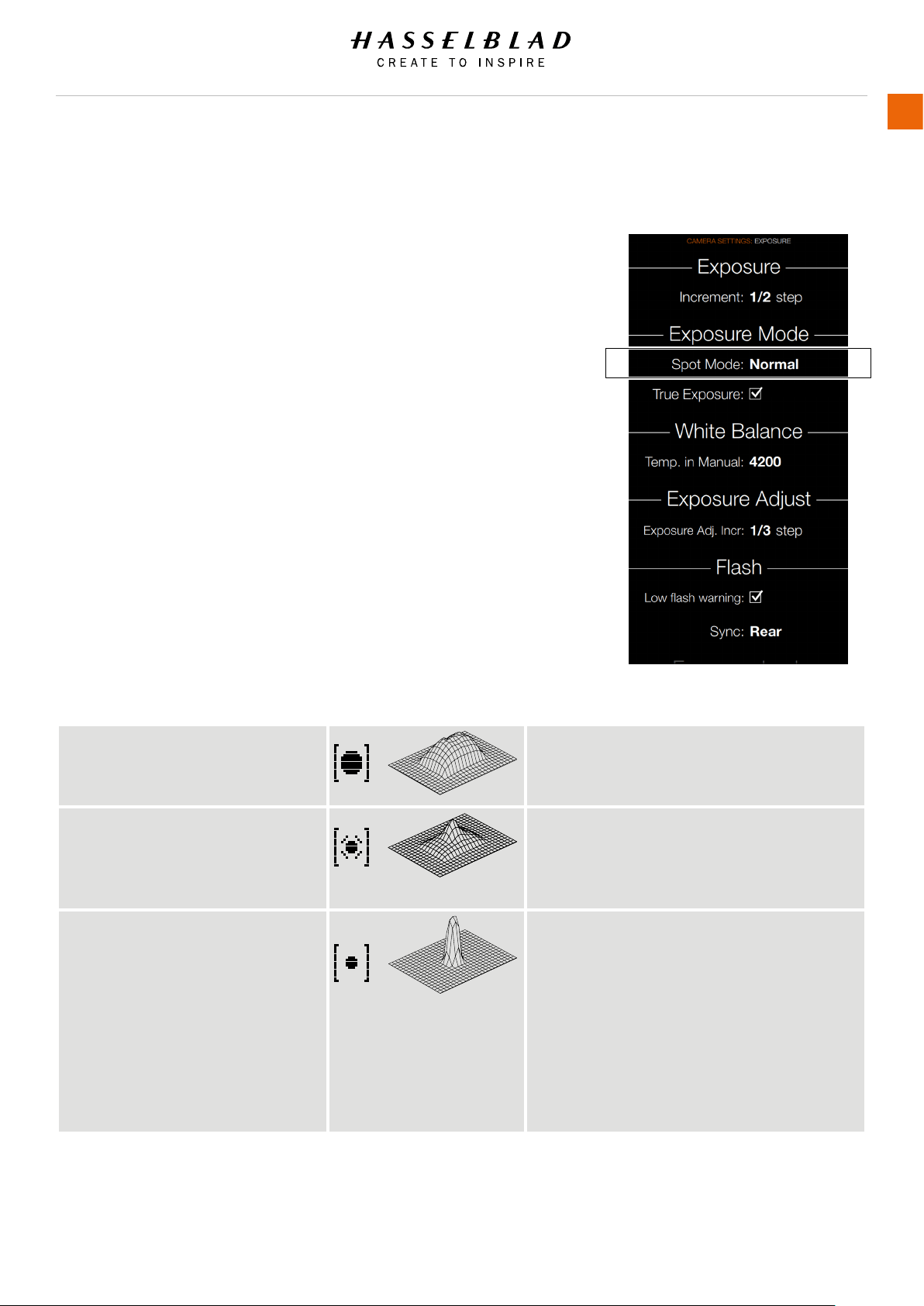
H6D www.hasselblad.com
USER GUIDE
To Use
86
LIGHT METER EXPOSURE MODE
The Light Meter Exposure Mode can be changed on the Control
Screen or by pressing the EXP button on the Viewnder. Use the
Rear Wheel to select.
Different Light Metering Modes
There are three reective metering modes available.
Center Weighted
Center Spot
Spot
Light metering mode Description
Center Weighted Used for light situations where there is no
particular dominance of light or dark areas across
the tonal range. Takes into account approximately
25% of the image seen in the viewnder.
Center Spot Emphasizes the central section of the focusing
screen equivalent to approximately 25% of the
image. This provides a balanced assessment and
is a typical choice where the main subject is in the
centre of the image.
Spot The sensitive area is equivalent to approximately
2.5% of the image area (the central spot on the
viewnder screen). Any parts of the image outside of
this area will not affect the exposure reading. This
provides a very accurate measurement of specic
tones. Typically used in the zone system and similar
light measuring situations where maximum control
is required. Also excellent for tonal comparison
measurements. The spot mode can display ‘zones’
instead of EV's in the viewnder display.
Exposure Settings Menu
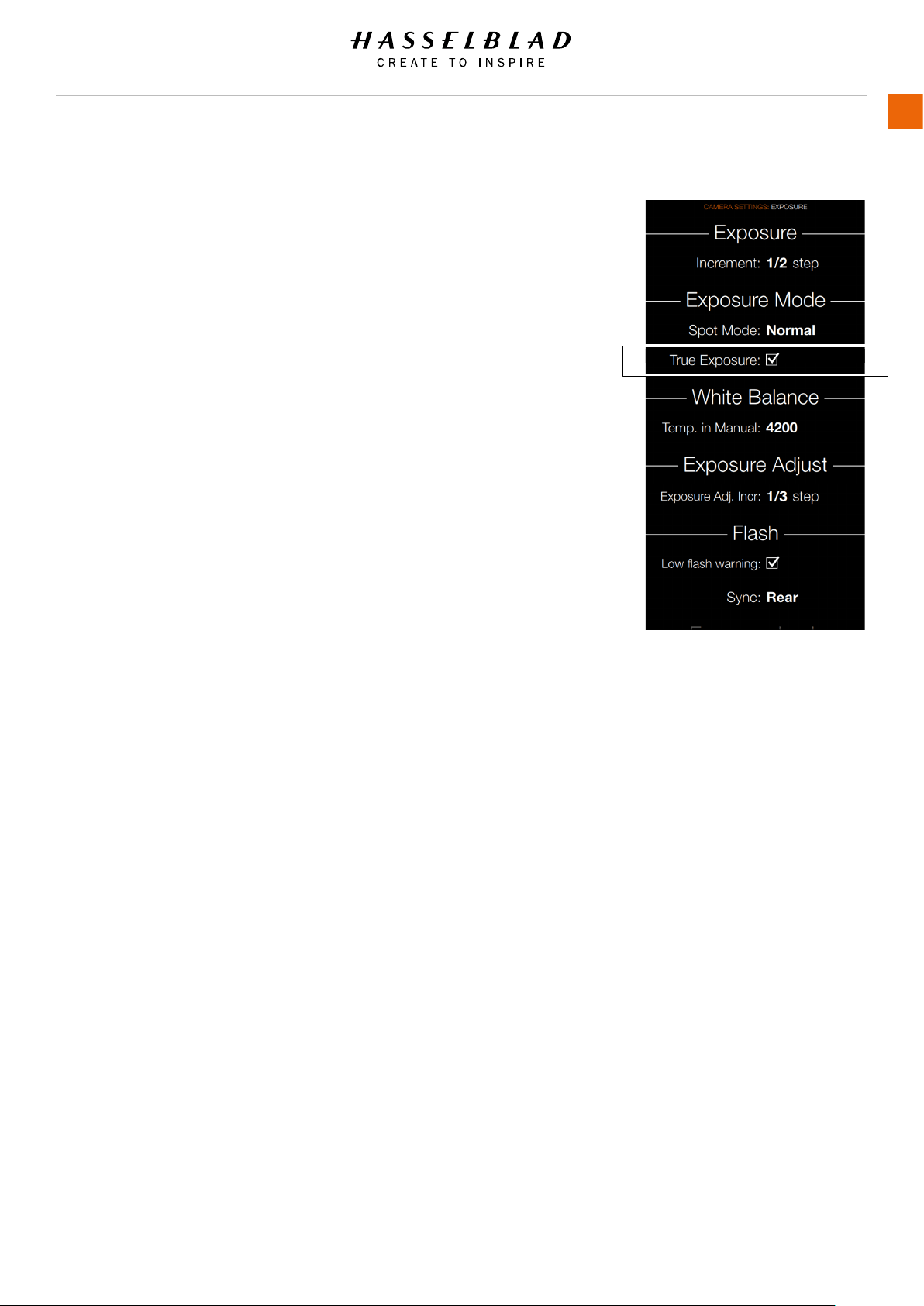
H6D www.hasselblad.com
USER GUIDE
To Use
87
TRUE EXPOSURE
MAIN MENU > CAMERA SETTINGS > EXPOSURE > TRUE
EXPOSURE
Press the Camera icon on the Sensor unit display. The Camera
Settings Menu will appear.
Press the Exposure Settings Menu.
Select True Exposure Mode.
Swipe right or press Menu / EXIT button to get back to Main
Menu.
True Exposure Settings
Select On or Off. Determines whether the exposure is
automatically adjusted to create a true exposure setting. On
allows the adjustment. Off retains the normal setting.
Note!
If using ash/strobe as the main light source and 1/800s or
1/1000 shutter speed (depending on lens type), remember to
turn off the True Exposure option.
Exposure Settings Menu
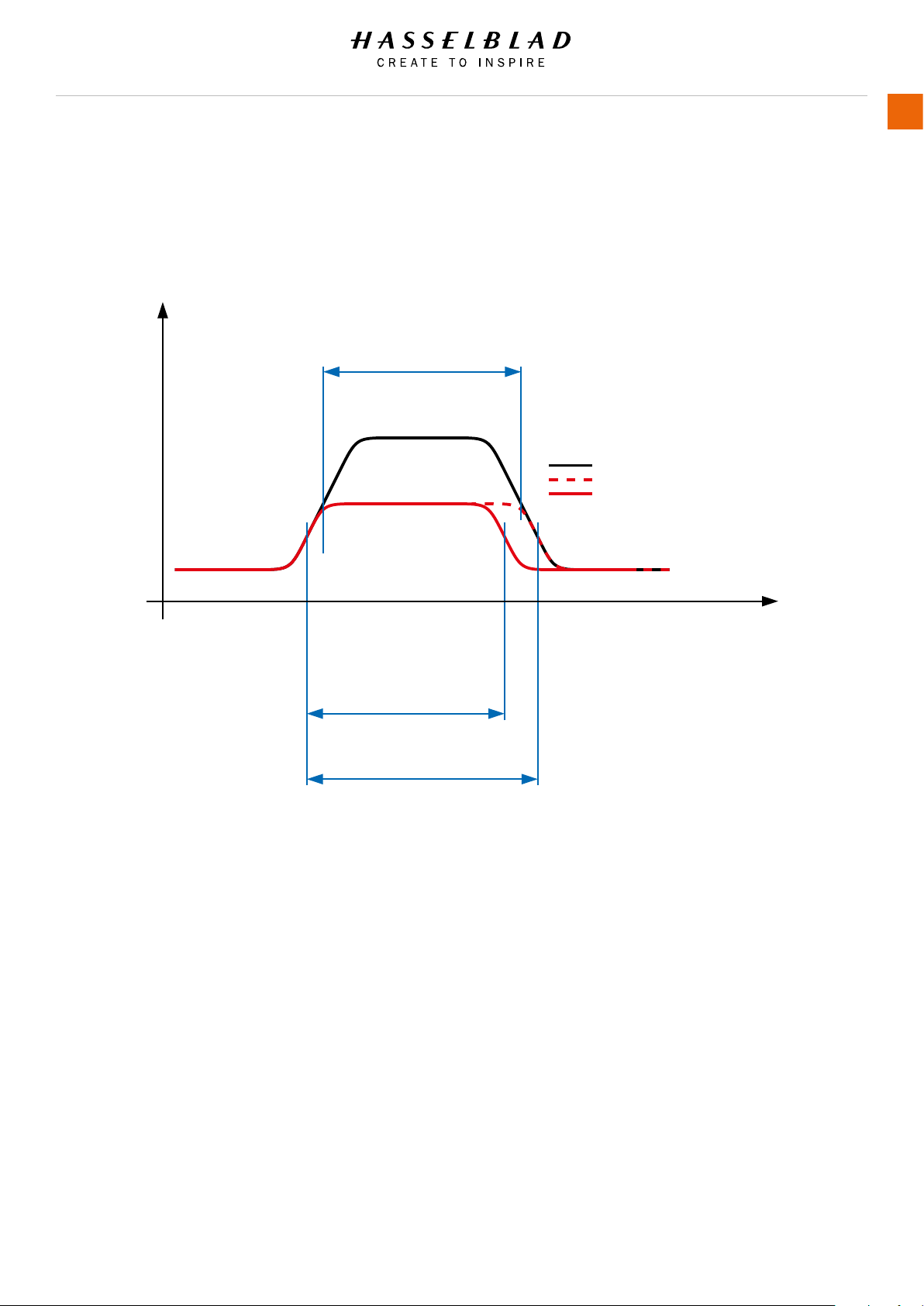
H6D www.hasselblad.com
USER GUIDE
To Use
88
True Exposure explained
True Exposure is an HC/HCD lens function that allows the
shutter speed to remain unaffected when stopping down. This
effect is perhaps not so commonly understood as it is restricted
specically to integral lens shutters as opposed to focal plane
shutters.
When a lens is stopped down, the effective shutter speed
becomes longer, consequently affecting the set exposure. At
slow shutter speeds the effect is minimal but at faster speeds,
e.g. 1/500s, the effect becomes clearly visible. Automatic
compensatory measures in speed setting adjustments are
employed.
As compensation can only be put into effect where speeds can
be adjusted, this prevents the possibility of adjusting the fastest
speed of 1/800s. To counter this, compensatory adjustments
are therefore made to the aperture instead to retain the set
exposure. This compensation is not always required and
when using ash/strobe as the main light source it is actually
undesirable because compensation will result in underexposure.
Therefore, when using ash/strobe as the main light source,
you should set True Exposure to OFF in Main Menu > Camera
Settings > Exposure > True Exposure in the Camera Sensor Unit
Display.
You can download a complete explanation of this situation from
www.hasselblad.com.
Light level at
image plane
Time
Max aperture
Stopped down one stop with True Exposure Mode OFF
Stopped down one stop with True Exposure Mode ON
T fully open
T stopped down = Tully open
T stopped down > T fully open
(using True Exposure)
(without True Exposure)
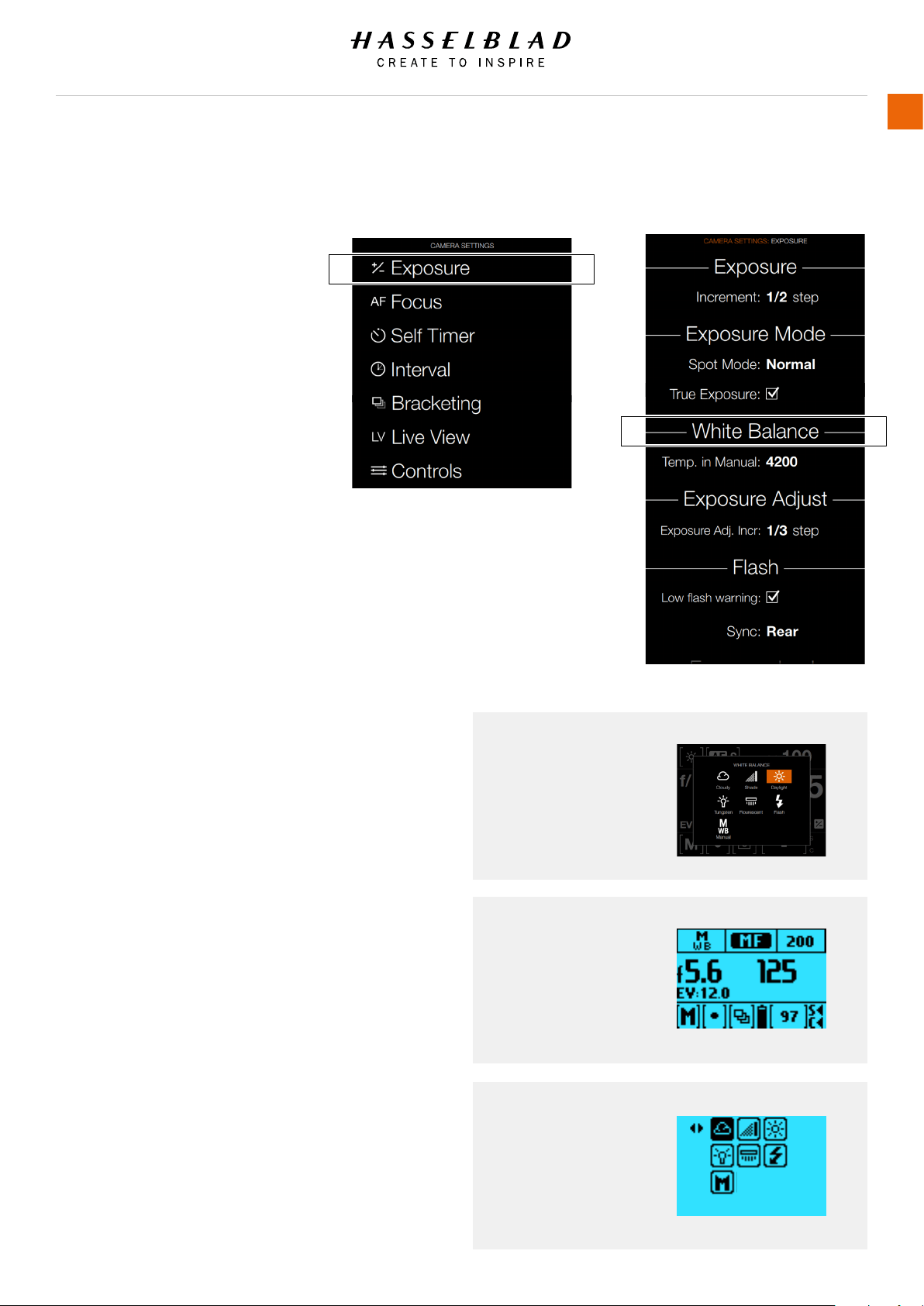
WHITE BALANCE SETTINGS - PRESETS
AND MANUAL
MAIN MENU > CAMERA SETTINGS >
EXPOSURE > WHITE BALANCE
Set Temperature in Manual White
Balance:
1 Press Camera Settings.
2 Choose Exposure.
3 Choose White Balance.
4 Set Temperature in Manual Mode.
White Balance can only be set from the
Control Screen or on the Grip Menu.
White Balance Options
There are six ‘White Balance’ presets plus a Manual
setting to choose from.
Cloudy
Shade
Daylight
Tungsten
Flourescent
Flash
Manual (M WB)
H6D www.hasselblad.com
USER GUIDE
To Use
89
Camera Menu Exposure Settings Menu
Grip Display View
White Balance Manual
mode selected.
Control Screen View
White Balance Daylight
mode selected.
Grip Display View
White Balance menu
with Cloudy mode
selected.

WHITE BALANCE SETTING BY USING A “GREY CARD”
There are two ways to make manual white/grey balance settings
using a ‘Grey card’ or ‘Qp card’. If colour accuracy is not
critical, you can use any neutrally coloured area or surface close
to a mid grey value (concrete, overcast sky, or even white paper,
for example). It won’t be perfect but just try to ensure that it is
as neutral as possible in colour value.
● Make the rst shot a grey card/Qp card close-up and
then make the adjustment in Phocus for the session.
● Use the integral white balance from the grey card
function to make an in-camera setting for the session.
White balance settings are mirrored after being saved on the
grip, sensor unit and in Phocus when tethered.
The most common work ow for using a Grey Card is to make
a capture with the Grey Card present during the photo session.
This capture will then be used in Phocus to neutralize all other
captures in that same light.
H6D www.hasselblad.com
USER GUIDE
To Use
90
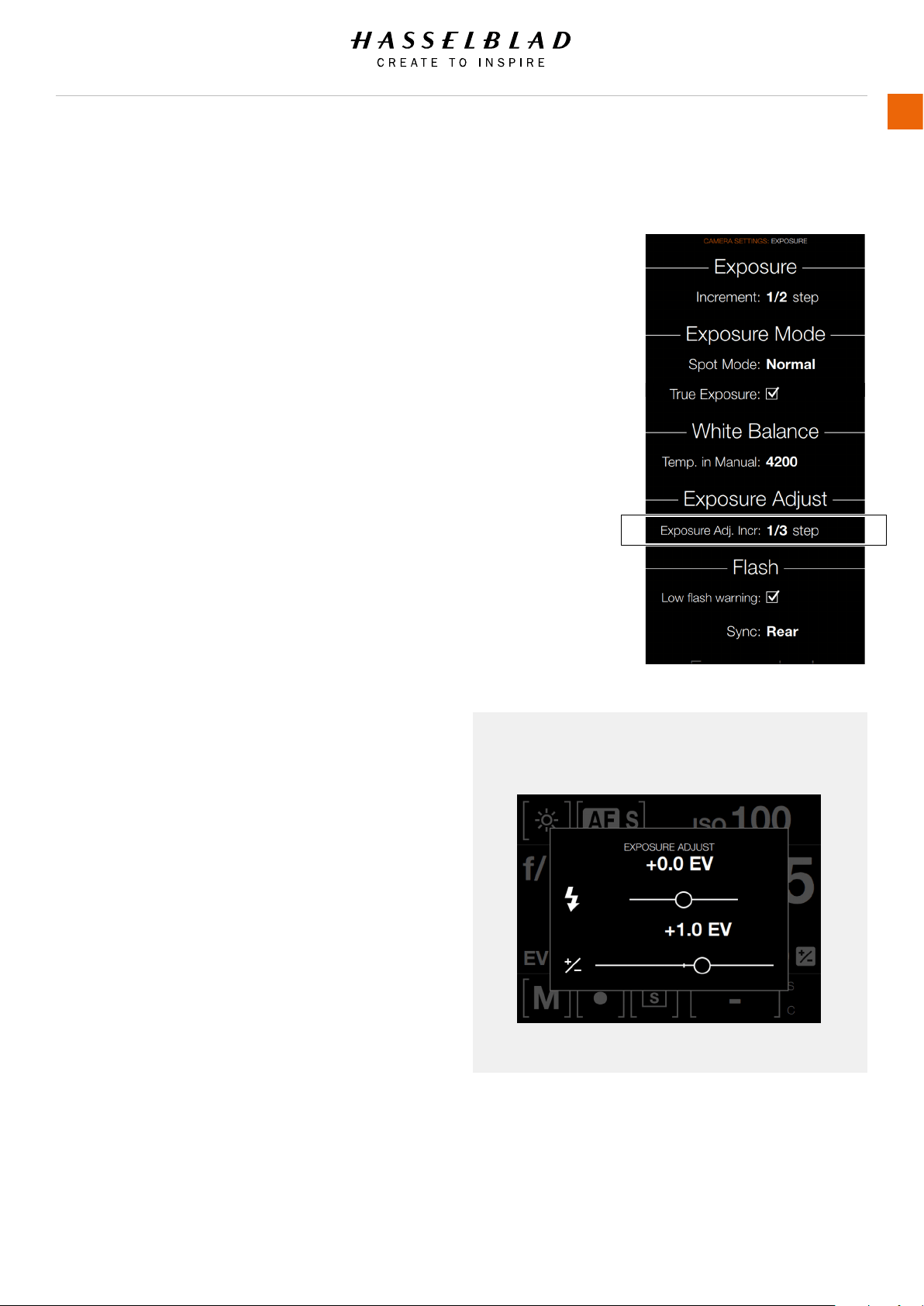
H6D www.hasselblad.com
USER GUIDE
To Use
91
Control Screen View
Exposure Adjust.
EXPOSURE ADJUST
MAIN MENU > CAMERA SETTINGS > EXPOSURE > EXPOSURE
ADJUST
Press the Camera icon on the Sensor unit display. The Camera
Settings Menu will appear.
Press the Exposure Settings Menu.
Select Exposure Adjust.
Swipe right or press Menu / EXIT button to get back to Main
Menu.
Exposure Adjust
Exposure Adjust Increment: Select Step.
Adjust the Exposure on the Control Screen
1 Swipe Down on the Sensor Unit Display to access the
Control Screen.
2 Select Exposure Adjust.
3 Adjust sliders to the left or right to change values.
4 Close the Exposure Adjust pop up by clicking outside of it
5 Swipe Up to exit Control Screen and return to Main Menu.
The following page explains how to adjust exposure on the
Viewnder + / - button.
Exposure Settings Menu
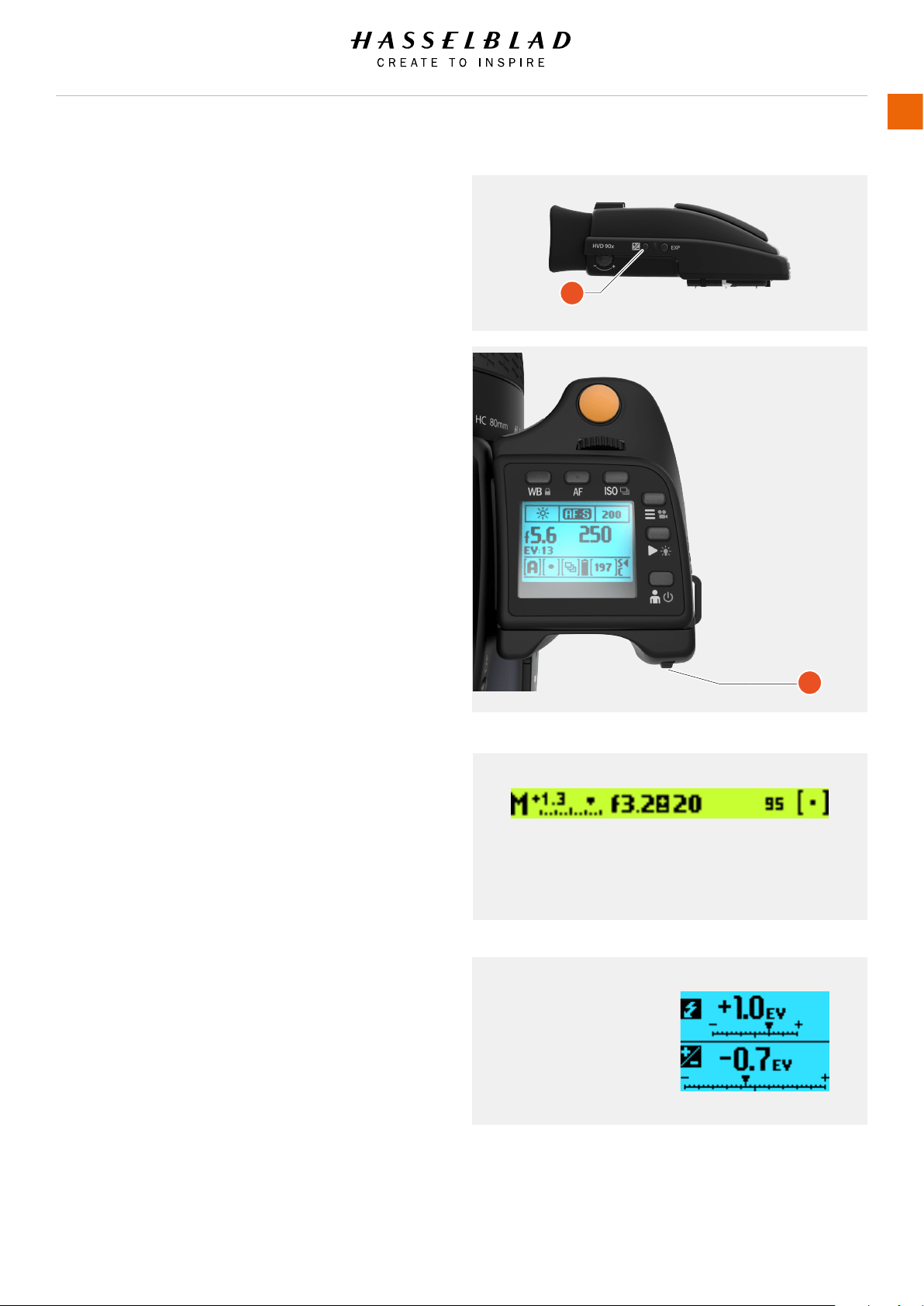
EXPOSURE COMPENSATION / QUICK ADJUST
The exposure compensation function, for both manual and
automatic modes can be set from -5 to +5 EV, in 1/3, 1/2 or 1
EV increments and is visible above the scale in the viewnder
and as a ± symbol on the grip display.
The quickest way to make an adjustment in auto exposure mode
is to use the rear scroll wheel (B).
Temporary compensation setting in an auto-exposure mode
using the Quick Adjust function:
1 Select auto exposure mode (A).
2 Turn the rear scroll wheel (B) to select the chosen amount of
compensation.
The amount is displayed in the viewnder as both an EV
gure complete with a ‘minus’ or ‘plus’ prex and as a
marker above a ‘minus’ to ‘plus’ scale.
Default settings provide 1/3 EV compensation and an
immediate clearing of the setting after capture.
H6D www.hasselblad.com
USER GUIDE
To Use
92
Viewnder Display View
Exposure compensation EV +1.3
Grip Display View
Flash Exposure
Camera Exposure
B
A
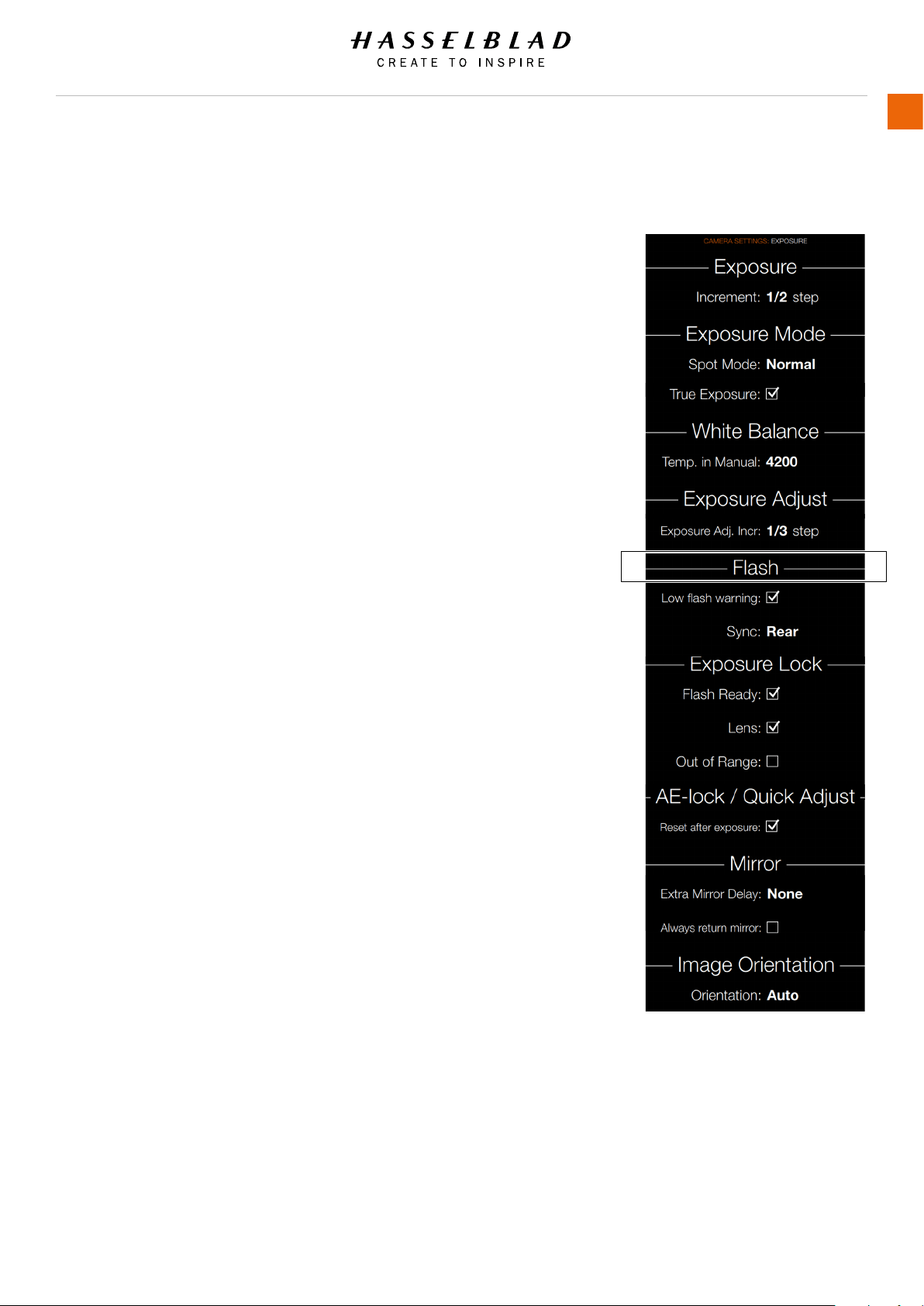
H6D www.hasselblad.com
USER GUIDE
To Use
93
FLASH SETTINGS
MAIN MENU > CAMERA SETTINGS > EXPOSURE > FLASH
Press the Camera icon on the Sensor unit display. The Camera
Settings Menu will appear.
Press the Exposure Settings Menu.
Select Flash.
Swipe right or press Menu / EXIT button to get back to Main
Menu.
Flash
Low Flash warning
Select On or Off.
Sync
Select Flash Sync Settings.
- Normal.
- Rear.
This Chapter continues on next page.
Exposure Settings Menu

FLASH AND STROBE SETTINGS
The H6D can be used together with most ash units in manual
mode. However, to make use of a TTL automatic function, it
must ensured that the ash unit is compatible with the SCA
3002 system. Connection is either by the PC socket or by the
hot shoe (see warning below).
The viewnder houses an integral ll-ash with a guide number
of 12 and features OTF/TTL ash control. This ash is capable
of providing enough illumination for many ll ash functions
outdoors as well as simple indoor shots at shorter distances.
General information
When using the A or S setting together with ash, the exposure
requirements of the camera will dominate which might produce
slow shutter speeds indoors, for example, requiring the use of
a tripod. If P or Pv is selected instead, a shutter speed of 1/60
or faster is automatically chosen by the camera enabling the
camera to be hand held.
When using ash close up or when using larger aperture
settings, remember that the ash unit’s output has a specic
minimum duration which might still be too great for correct
exposure. Read the back’s output specications for further
information regarding any potential restrictions.
It is possible to use the ash metering capability with external
ash units of all kinds (TTL ashes must be set to Manual
mode).
Rear sync is a useful feature used either for effect or to produce
a more ‘natural’ look when combining long exposures involving
light trails and ash.
When using suitable dedicated backs (compatible with SCA3002
compatible ash unit regarding the two functions, exposure
compensation and shutter sync, is via the grip. The ash
measure function can be used for ash units that are not SCA
3002 compatible or for SCA 3002 compatible backs at manual
setting.
To change the balance between ash output and camera
exposure requirements to produce a variety of effects, use the
exposure compensation function. For various long exposure
effects use the sync function. To make ash exposure tests use
the ash measure function.
Notes and WARNINGS!
Only ash units specially adapted for use with the H6D should
be connected to the hot shoe on the camera.
Note!
Do not attempt to connect a ash unit dedicated for use with
another camera brand via the hot shoe. The ash unit and / or
camera could be damaged.
Note!
If using ash/strobe as the main light source and 1/800s
shutter speed, remember to turn off the True Exposure function.
As with all strobe/studio ash use, very particular attention
should be taken to ensure correct connections and general
handling practice. Potential dangers might increase when
cameras are also connected to electronic peripherals
(computers, lighting backs, etc.) and should diminish when IR
and similar wireless ash release devices are used.
Victor Hasselblad AB cannot accept any responsibility what so
ever for accidents that might occur or damage caused when
Hasselblad equipment is used in combination with third party
backs of any description.
This Chapter continues on next page.
H6D www.hasselblad.com
USER GUIDE
To Use
94
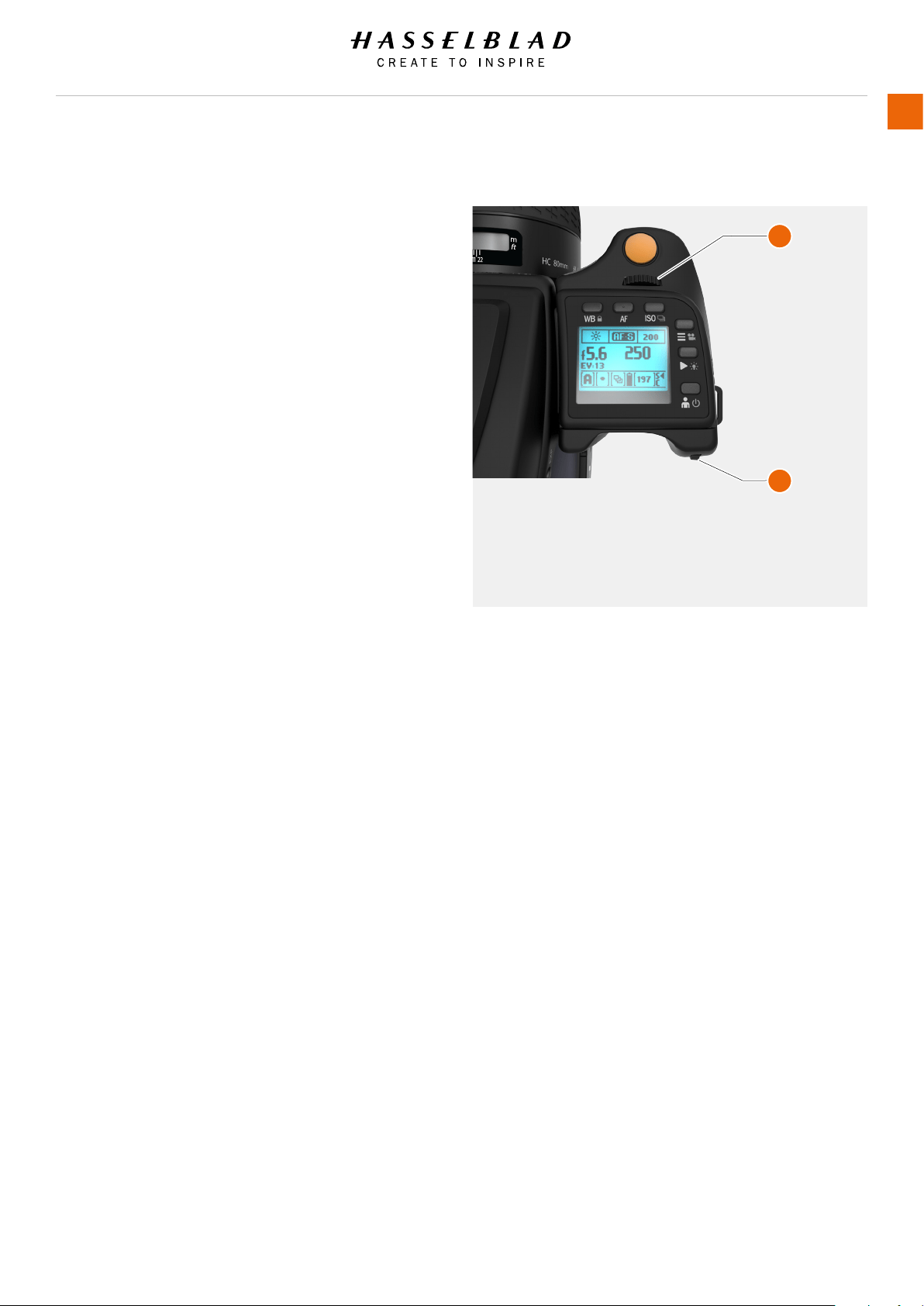
ACCESS TO FLASH CONTROLS
1 Activate the camera and press the + / - button on the
Viewnder once.
2 Turn the Front scroll wheel (1) to set the amount of
compensation required from +3 EV through -3 EV.
3 Turn the Rear Scroll Wheel (2) to set whether the ash is
triggered just after the shutter opens or just before the
shutter closes go to Camera Settings/Exposure/Flash and
set Sync to Normal or Rear.
4 To set Flash Measure program a button in Camera Settings/
Controls to “Flash Measure”. Then trigger Flash Measure
using this button. A specic screen on the grip display
request you to press the AE-L button in order to make a
reading.
5 When set to Flash Measure, a specic screen requests you
to press the AE-L button in order to make a reading.
H6D www.hasselblad.com
USER GUIDE
To Use
95
1
2
1 Front Scroll Wheel
2 Rear Scroll Wheel
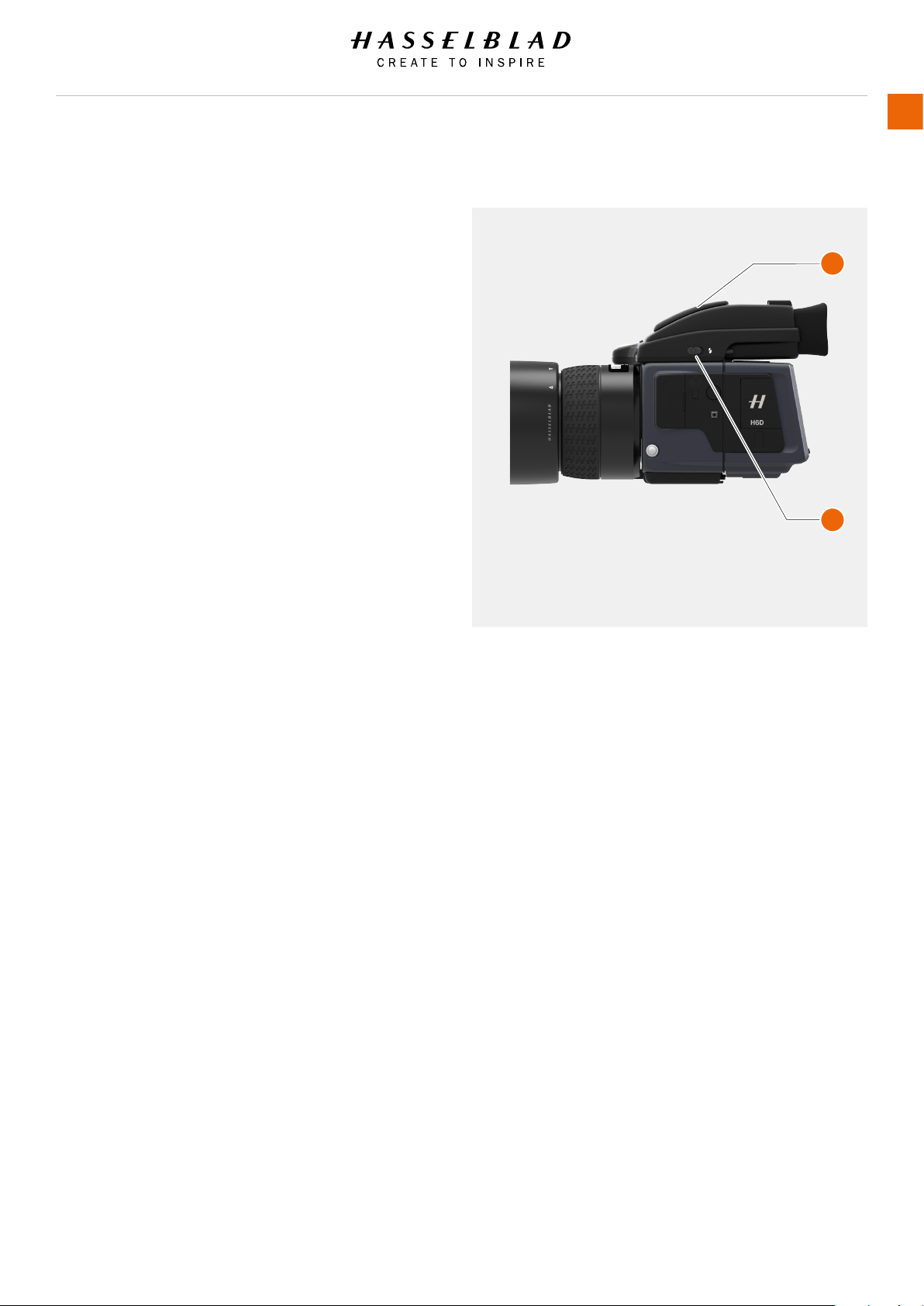
INTEGRAL FLASH
The integral ash unit features the following specications:
Guide no. 12
Coverage 56º horizontal, 44º vertical
Maximum light fall-off at side centres - 1EV (50%)
Colour temperature (full ash) 5,000 – 5,600º K
To raise the ash unit into its operative position, slide the ash-
back catch backwards in the direction of the ash symbol. To
return the ash unit into its closed position, push down on the
top of the back until it clicks back into place. The ash unit is
automatically activated when it is in the operative position and
de-activated when returned to its stored position.
The green LED ash symbol blinks in the viewnder when the
ash unit is charging and remains stationary when fully charged.
The ash output can also be adjusted for optimum light balance
in ll-ash situations.
Using the integral ash:
1 Slide the ash-back catch backwards in the direction of the
ash symbol.
2 On the Camera Sensor Unit Display select Camera >
Exposure and scroll down to Flash..
3 Choose between Normal or Rear sync.
4 Exit the Main Menu to Save and make an exposure.
5 If the settings were incorrect to match the output of the ash
unit, the viewnder display shows a red triangle alongside a
ashing green ‘ash’ symbol plus a warning message - ‘Low
ash’. The grip display will also show a warning message -
‘Low ash’.
Conventional measures should then be taken to correct
the situation, move closer to the main subject, use a larger
aperture setting or use a higher ISO setting.
Note!
Do not use the integral ash together when another external TTL
ash unit is connected (and used in TTL or A mode).
Note!
For full coverage with the integral ash, use 80mm or longer
lenses (without a lens shade).
H6D www.hasselblad.com
USER GUIDE
To Use
96
1 Integral ash
2 Integral ash release
1
2
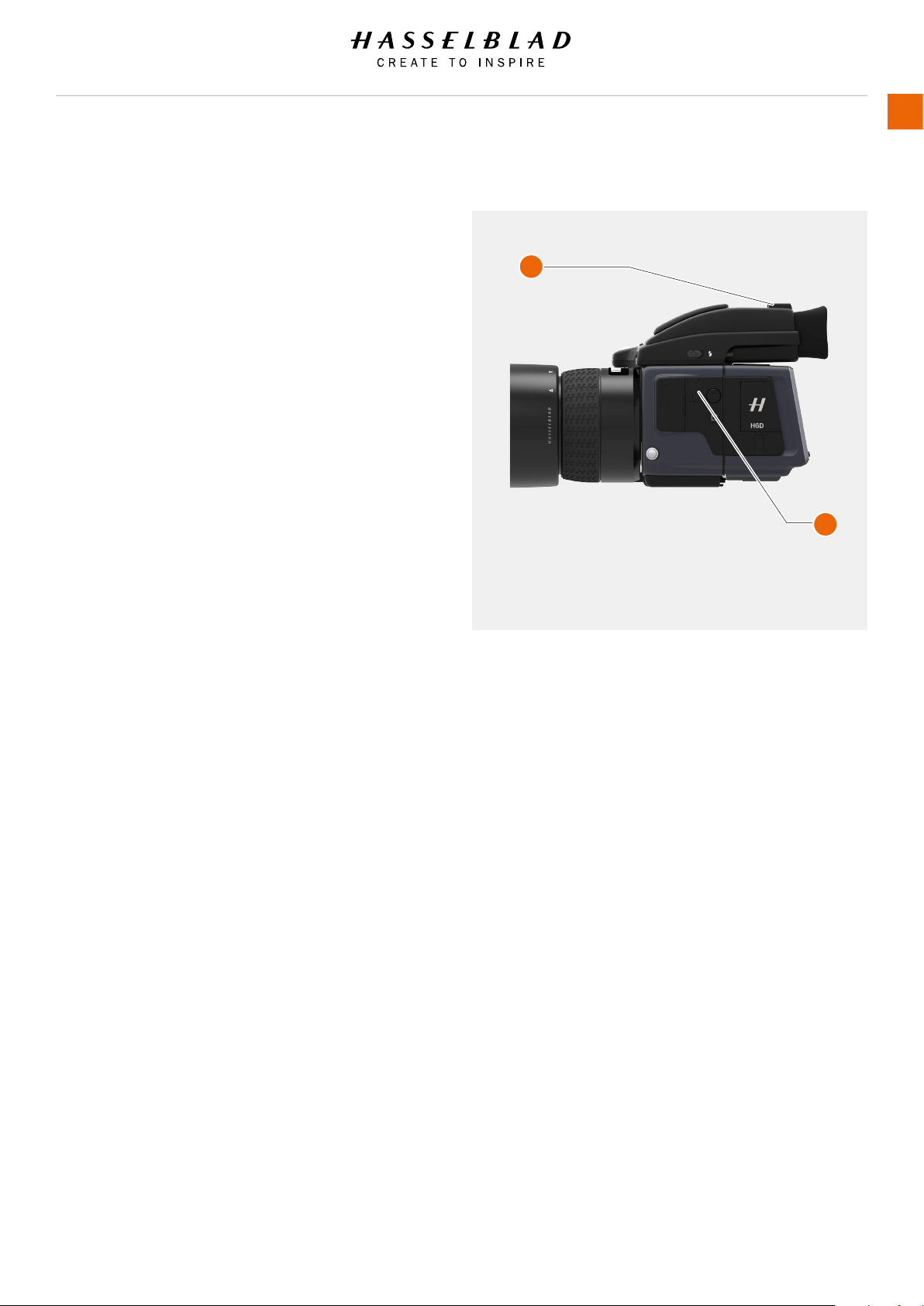
SEPARATE FLASH UNIT CONNECTION
Separate ash units can be electrically connected either by way
of the hot shoe accessory holder (see previous warnings) on the
top of the viewnder (1) or via a cord to the PC connection port
(2) on the left hand side of the camera body. Slave unit switches
/ transmitters can also be connected on unit the (see specic
user manuals for details).
Keep the plastic safety cover in place in the hot shoe (1) when
not in use.
H6D www.hasselblad.com
USER GUIDE
To Use
97
1 Hot Shoe
2 PC Connection Port
1
2

FLASH MEASURE OF SEPARATE FLASH UNIT
You can measure the effect of an attached ash unit (with PC
connected ash units and SCA3902 compatible ash units
set to M mode), where the camera acts as a ash meter. The
aperture setting can be adjusted and more trial exposures made
until the information on the grip display is satisfactory.
To use ash measure:
1 Assign a button as FLASH button.
2 Press the Assigned button on to access the ash option
screen.
3 Turn the Rear control wheel until Flash measure appears.
4 Make preliminary required aperture setting by turning the
front control wheel.
5 Press the AE-L button. The camera will close the aperture,
raise the mirror and re the ash. Light reected from the
ash lit subject will be reected off a white spot on the
auxiliary shutter to the meter sensor.
6 Deviations from a normal exposure are displayed as
differences in EV on the grip display and the viewnder
display. If ‘High’ or ‘Low’ appears, change the aperture
accordingly and make a new test reading.
Change the aperture until Diff EV: 0 appears, or the desired
amount of deviation from the normal exposure.
Diff EV
Low = more than 2 EV below.
Diff EV
High = more than 2 EV above.
Note!
The ‘Low Flash’ warning can be disabled in Main Menu on the
Sensor Unit Display Settings.
H6D www.hasselblad.com
USER GUIDE
To Use
98
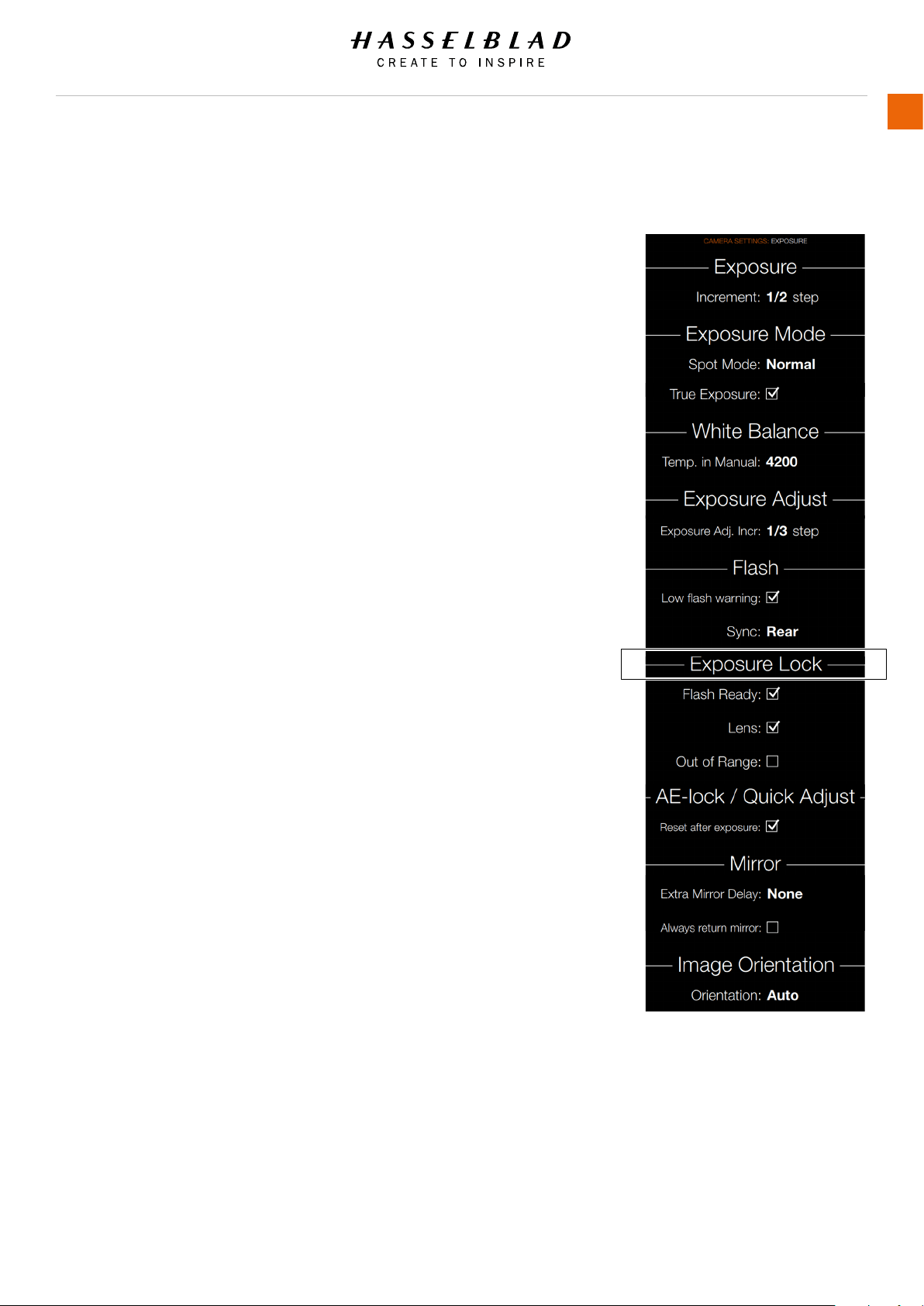
H6D www.hasselblad.com
USER GUIDE
To Use
99
EXPOSURE LOCK
MAIN MENU > CAMERA SETTINGS > EXPOSURE > EXPOSURE
LOCK
Press the Camera icon on the Sensor unit display. The Camera
Settings Menu will appear.
Press the Exposure Settings Menu.
Scroll down to Exposure Lock.
Swipe right or press Menu / EXIT button to get back to Main
Menu.
Exposure Lock
Flash Ready
Select On or Off.
Lens
Select On or Off. If Lens is selected, it is not possible to
expose without the Lens mounted.
Out of Range
Select On or Off.
Exposure Lock Settings Menu
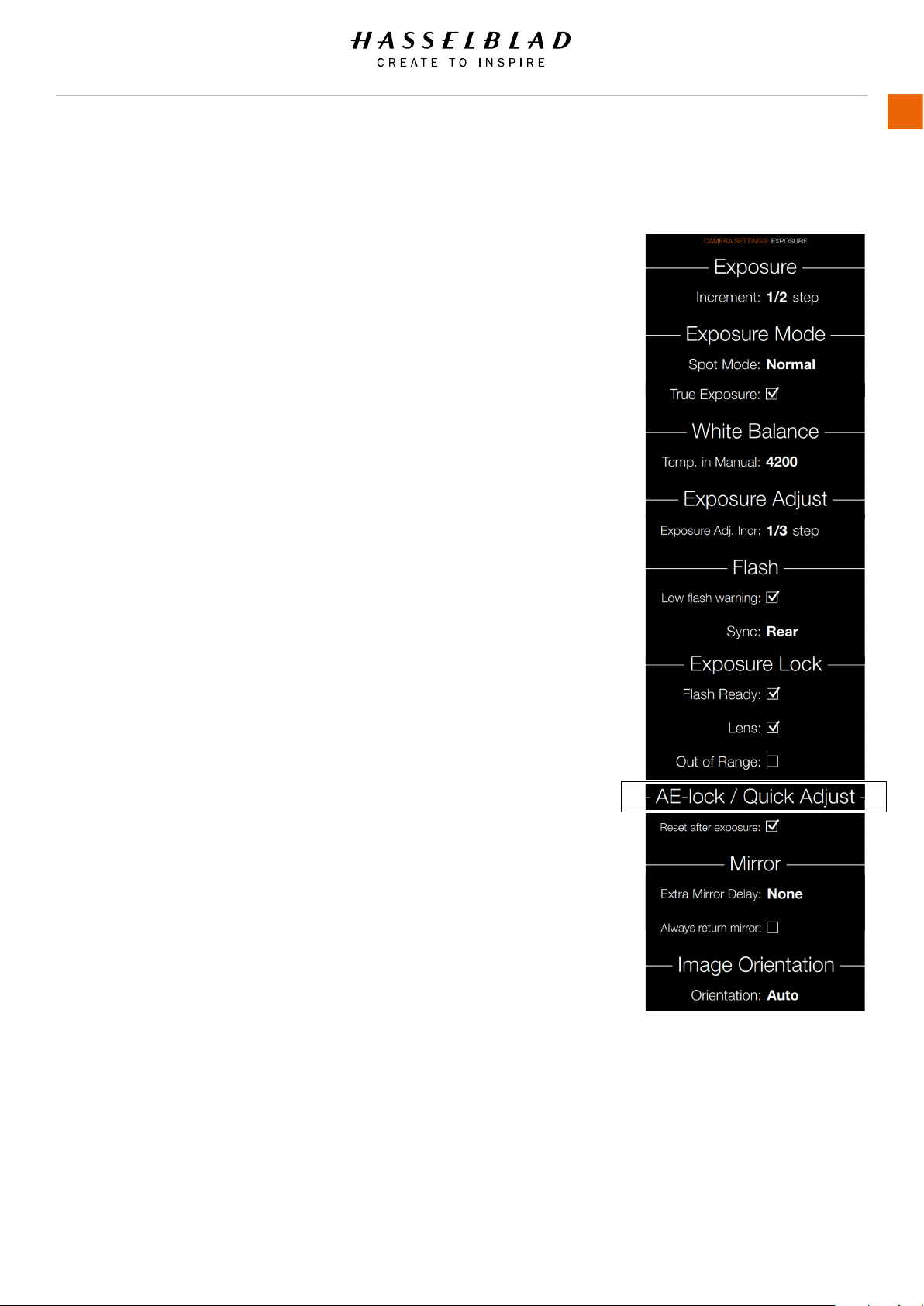
H6D www.hasselblad.com
USER GUIDE
To Use
100
AE-LOCK / QUICK ADJUST
MAIN MENU > CAMERA SETTINGS > EXPOSURE > AE-LOCK /
QUICK ADJUST
Press the Camera icon on the Sensor unit display. The Camera
Settings Menu will appear.
Press the Exposure Settings Menu.
Scroll down to AE-Lock / Quick Adjust.
Swipe right or press Menu / EXIT button to get back to Main
Menu.
AE-Lock / Quick Adjust
Reset after exposure
Select On or Off.
AE-Lock / Quick Adjust Menu
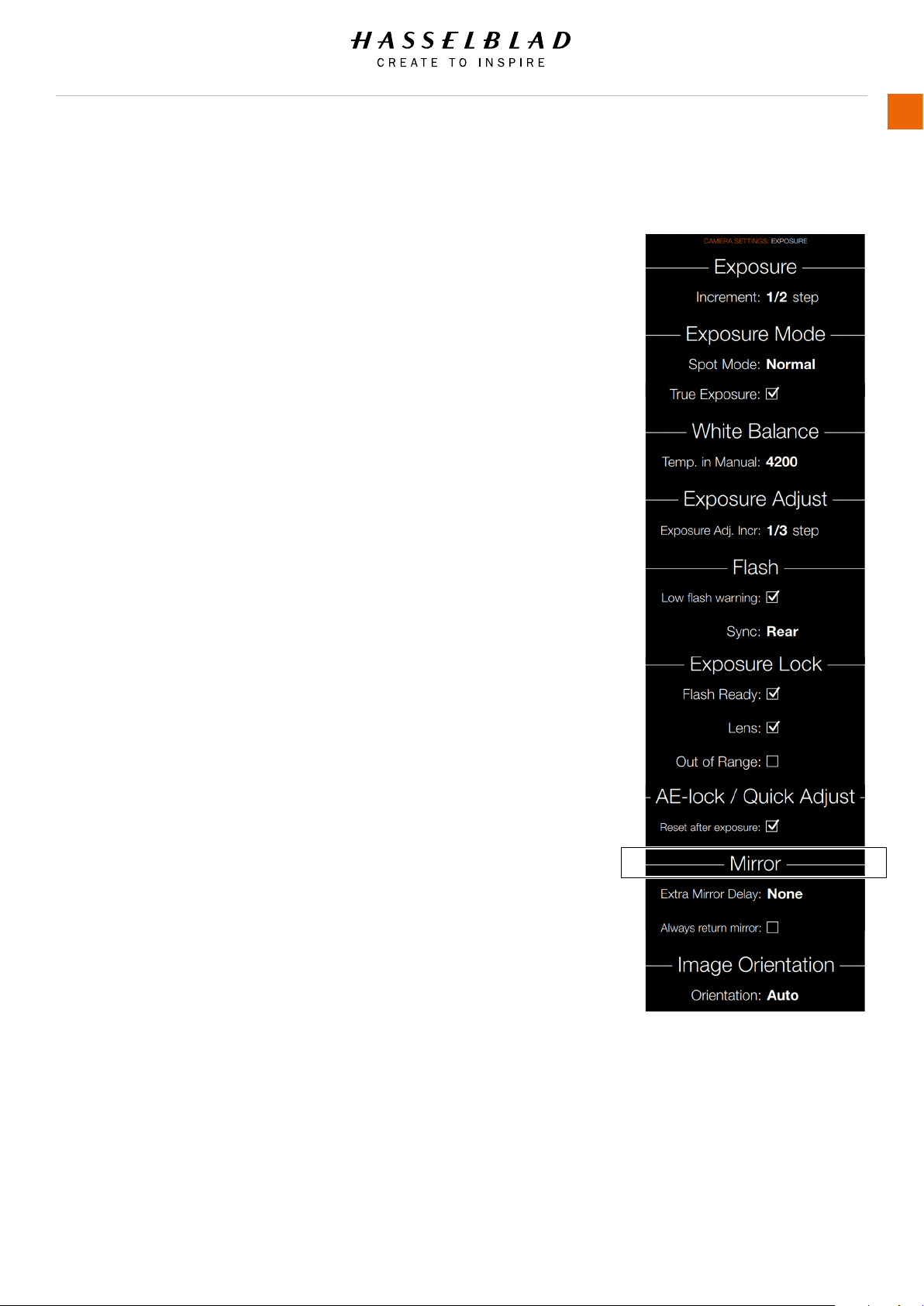
H6D www.hasselblad.com
USER GUIDE
To Use
101
MIRROR SETTINGS
MAIN MENU > CAMERA SETTINGS > EXPOSURE > MIRROR
SETTINGS
Press the Camera icon on the Sensor unit display. The Camera
Settings Menu will appear.
Press the Exposure Settings Menu.
Select Mirror Settings.
Swipe right or press Menu / EXIT button to get back to Main
Menu.
Mirror Settings
Extra Mirror Delay
Select Extra Mirror Delay Settings.
- None
- 25 ms
- 50 ms
- 100 ms
- 200 ms
Always Return Mirror
Select On or Off.
Mirror Settings Menu
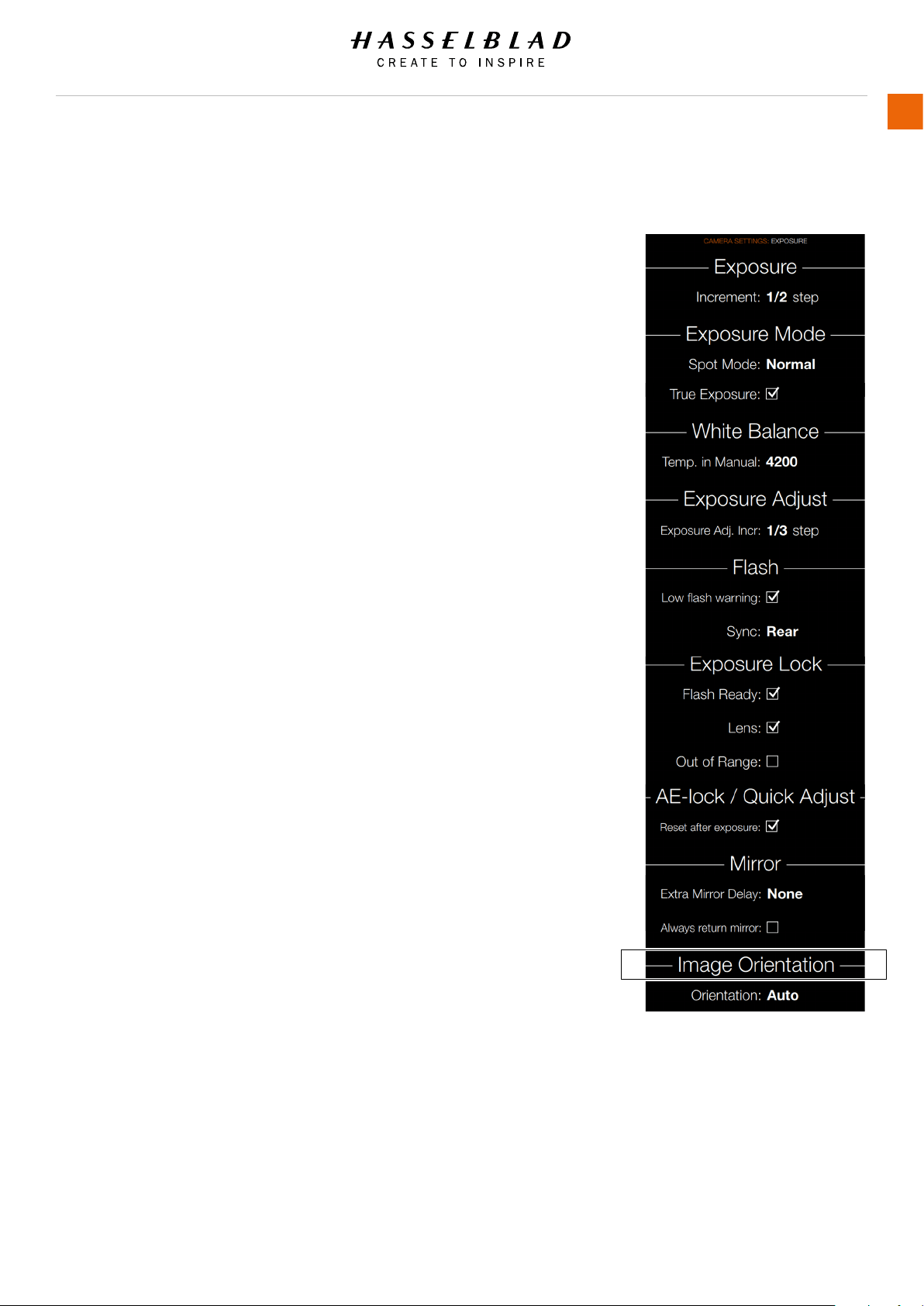
H6D www.hasselblad.com
USER GUIDE
To Use
102
IMAGE ORIENTATION
MAIN MENU > CAMERA SETTINGS > EXPOSURE > IMAGE
ORIENTATION
Press the Camera icon on the Sensor unit display. The Camera
Settings Menu will appear.
Press the Exposure Settings Menu.
Select Image Orientation Settings.
Swipe right or press Menu / EXIT button to get back to Main
Menu.
Image Orientation
Sets the viewing orientation of captures when they appear in
Phocus. To avoid unintentional orientation changes when the
camera is pointing straight up or down, the orientation setting
can be locked.
Optional Settings
Auto.
Lock at 0 degrees.
Lock at 90 degrees.
Lock at 180 degrees.
Lock at 270 degrees.
Image Orientation Settings Menu
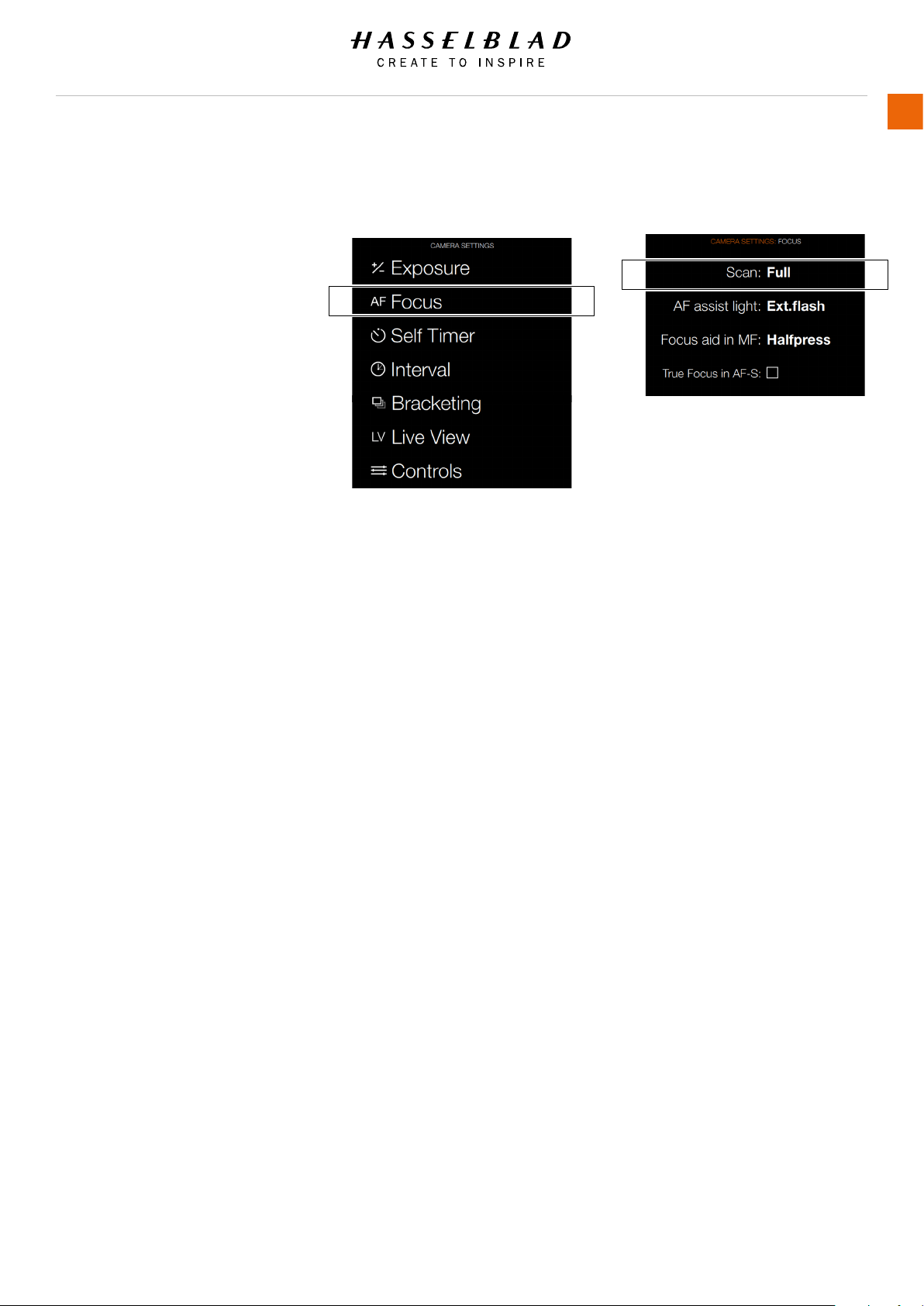
H6D www.hasselblad.com
USER GUIDE
To Use
103
5.5 CAMERA FOCUS SETTINGS
MAIN MENU > CAMERA SETTINGS > FOCUS
Select the Camera icon on the Sensor unit
display. The Camera Settings Menu will
appear.
Press the Focus Settings Menu.
Swipe right or press Menu / EXIT button to
get back to Main Menu.
Focus Settings Menu Contents
Scan
Settings for Scan Range (for Macro
Lens only).
- Near
- Far
- Full
AF assist light
Autofocus assist light.
- Camera
- Ext. Flash
- Off
Focus aid in MF
This is a focus aid in Manual Focus
Mode MF. Indicates how the focus aid
arrowhead LED symbols appear in the
view nder display in manual focus
mode.
- Always. Always makes them visible all
of the time when camera is active.
- Half press. Half press makes them
visible when the shutter release button
is pressed half way.
- Off. Off disables them completely.
True Focus in AF-S
Select True Focus in AF-S mode.
- On or Off.
Camera Menu Focus Settings Menu
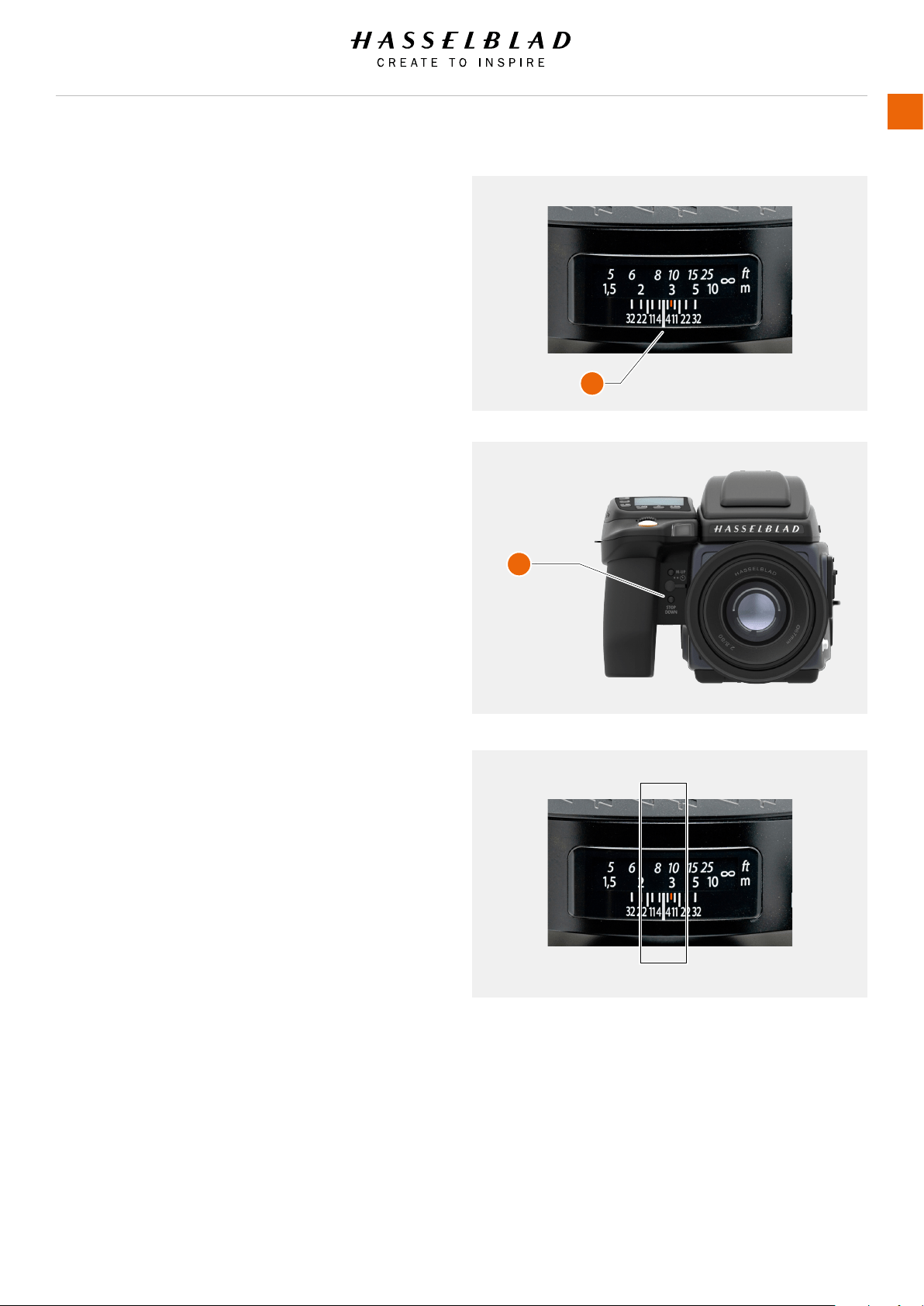
FOCUSING DISTANCE CALCULATION
There are two distance scales (in feet and metres) visible
through the window on the upper part of the lens barrel.
The focusing distance is read off the chosen scale from the
central lens index (A).
STOP DOWN / DEPTH OF FIELD PREVIEW
A visual depth-of-eld preview can be made by pressing the
STOP DOWN button (B) while viewing the image in the viewnder.
Depth-of-eld is calculated as follows:
1 Focus the lens as required.
2 Make an exposure reading (auto or manual) and note the
aperture setting.
3 Find the markings on either side of the central index that
correspond to the chosen aperture.
4 From these two markings, read off on the required lens
distance scale the two corresponding distances.
5 The depth-of-eld (at that particular aperture and focus
setting) is the area included between these two distances.
In the example given here, the focusing distance is set at
nearly 3 metres. At an aperture of f/22, the depth-of-eld would
therefore extend from just over 2 m to approximately 4.5 m.
Note that depth of eld is not an absolute. Perception of it
depends on several factors and so it should be seen only as a
rough guide.
H6D www.hasselblad.com
USER GUIDE
To Use
104
A
B
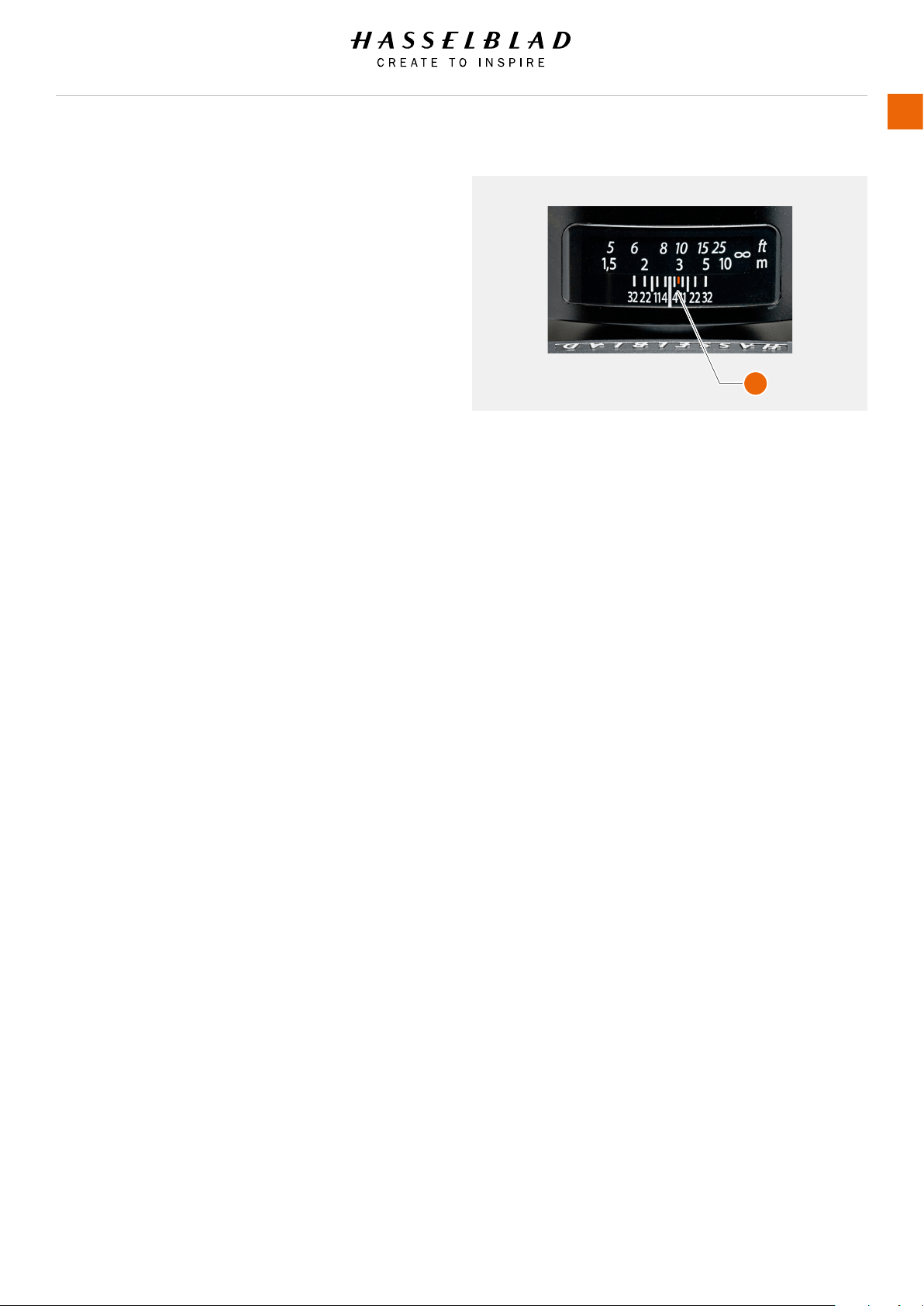
INFRARED FOCUS SETTING
As infrared rays form an image at a plane different to that
formed by visible light, the normal focus settings do not apply.
Proceed as follows in manual focus mode:
1 Focus the lens.
2 Note the distance setting at the central lens index.
3 Realign this distance setting against the infrared mark
(coloured red) instead of to the central lens index.
If the distance is calculated, a manual distance setting with use
of the distance scales together with the infrared mark is made.
Please contact your Hasselblad dealer for information about
sensor units adapted solely for infrared photography.
H6D www.hasselblad.com
USER GUIDE
To Use
105
A
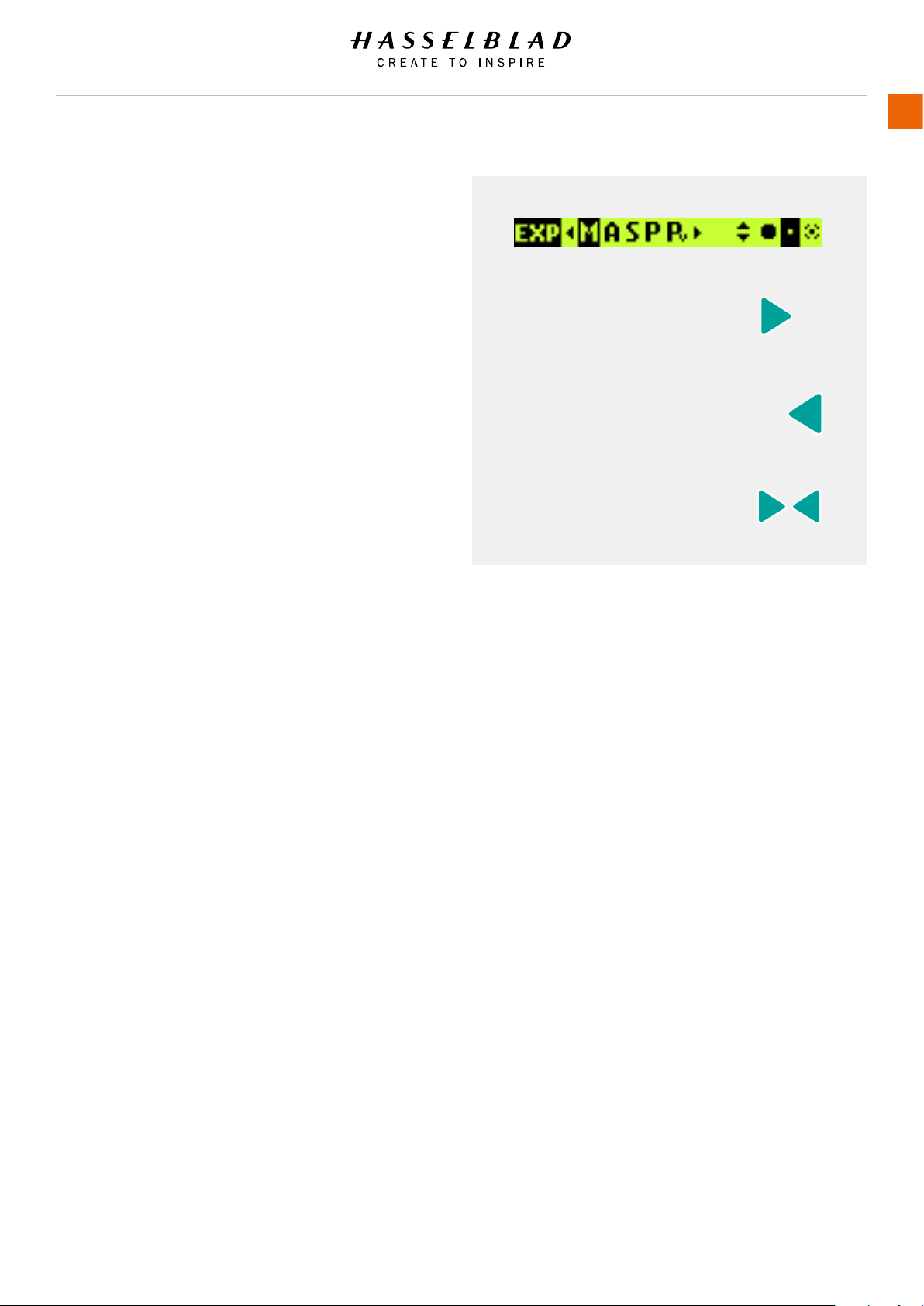
FOCUS ASSIST
The camera also features a LED focus assist. Two arrowheads
are displayed to the right of the viewnder display (except for
lenses with a maximum aperture of f/6.7 or smaller). The
arrowheads provides conrmation of a precision focus setting
and are a useful aid when making a setting with eyesight only.
Manual focus setting
When the left arrowhead appears alone it means the focus
setting is too far beyond the chosen distance (the area framed
within the central zone in the viewnder) and when the right
arrowhead appears alone it means the focus setting is too
close. Focus is correct when both arrowheads appear together.
If the focus cannot be established, then both arrowheads ash.
Automatic focus setting
Focus is correct when both arrowheads are visible together.
Focus is incorrect if only one arrowhead is visible. If the focus
cannot be established, then both arrowheads ash.
Note!
The autofocus range on the HC 4/120 Macro lens can be
limited by a specic setting on the camera allowing for near
range, far range or full range. This information is displayed on
the grip display together with that particular lens, in the Sensor
Unit Display and in the Viewnder Display. Further information
can be found in the “H-system Lenses & H-system Lens
Accessories” booklet that accompanies each lens. The booklet
can also be downloaded from the Hasselblad website. Also, see
note here regarding HCD lenses!
Note!
HCD lenses were formulated for use with the smaller size
sensors in the H-series, resulting in a reduced coverage for the
larger sensors used in some models. So, if you use HCD
lenses, be aware of the restrictions (vignetting and diminished
quality at the edges). As notication of this situation, an auto
crop function is employed and an HCD crop icon appears on
the right hand side of the viewnder display when an HCD lens
is tted. When in Phocus, however, the auto crop function can be
turned off in Preferences if you wish.
Note!
Lens corrections can be applied when captures are imported
into Phocus. Guided by the information in the meta data
included with each individual capture, the DAC (digital lens
correction) tool uses lens-model specic calculations to adjust
for chromatic aberration, distortion and vignetting. Not only
model specications but also capture parameters are taken
into consideration for analysis. This extremely capable
renement of captures should not be overlooked when
processing les! See Phocus user manual for details.
Info!
For users who prefer manual focus control but would like the
benets of autofocus, one method is to set the AE-L button (or
any customizable button) to AF (Single) drive. The main subject
can then be centred and the AE-L pressed, to ensure correct
focus. The camera reverts immediately to manual focus control
when the button is released. Therefore, you can recompose
the picture without having to maintain pressure on the release
button in order to retain the newly automatically made focus
setting (AF-T can also be used).
Info!
The True Focus function can also be combined with other
autofocus modes for specic situations.
Info!
To expand your range of lenses, consider using a CF adapter
to allow you to use most of the lenses from the Hasselblad
V-system.
Note!
The autofocus function is not possible with certain combinations
of lenses and accessories. However, a warning is displayed
which disappears after conrmation.
H6D www.hasselblad.com
USER GUIDE
To Use
106
Lens focus setting too far beyond
the distance of the subject framed
by the central section in the
viewnder.
Focus setting too close for the
distance of the subject framed by
the central section in the viewnder.
Focus setting correct.
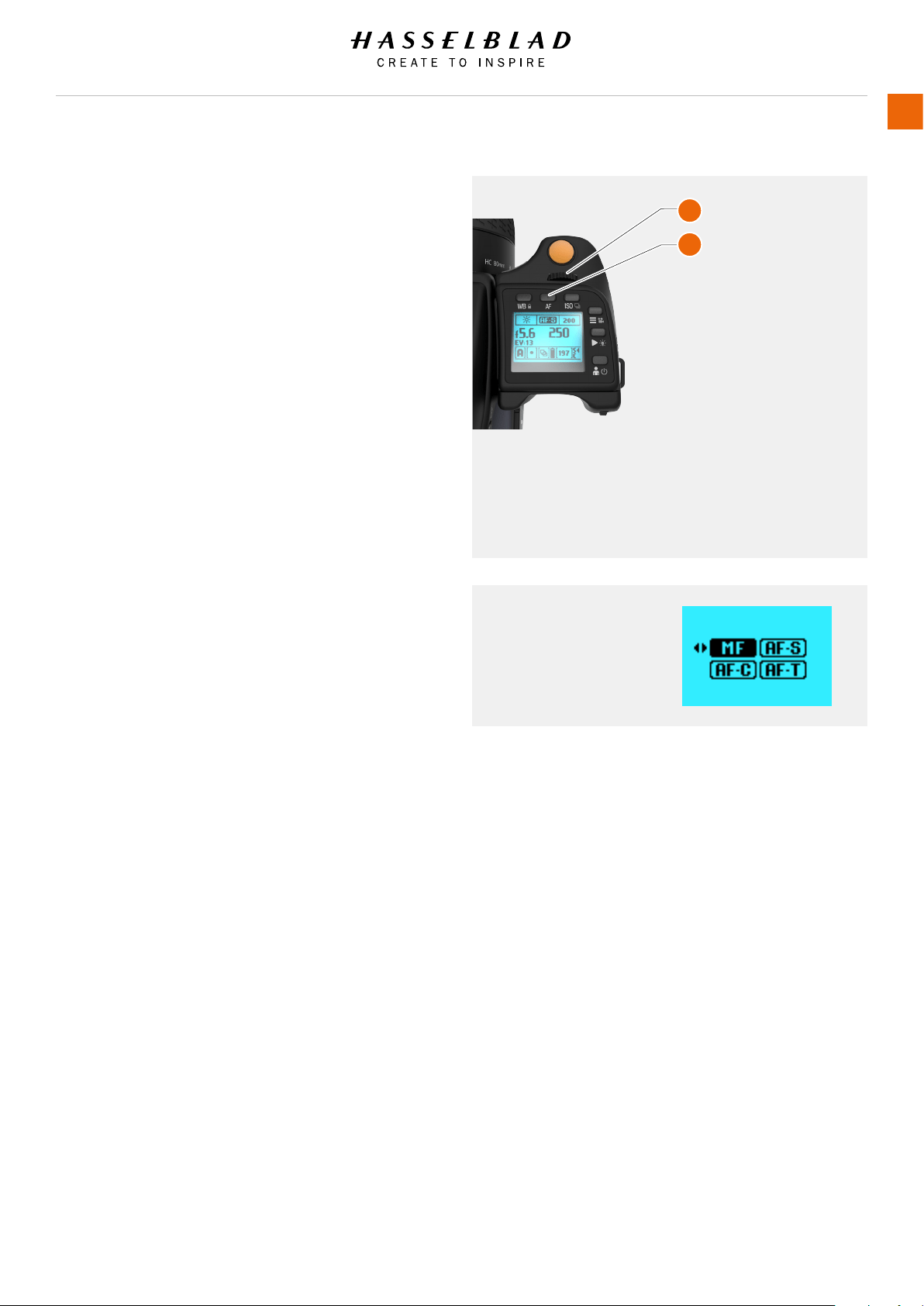
MANUAL FOCUS
There is both a Manual focus mode setting and a manual
override capability.
In Manual focus mode, focusing is carried out by rotating the
focus ring on the lens. The focus setting remains until changed
as with a conventional non-autofocus lens. This means that
pressing the shutter release button will not activate a focus
setting change as it does in autofocus. To change back to
autofocus, press the AF button (B) and select AF-S, AF-C or AF-T.
MANUAL OVERRIDE IN AUTOFOCUS MODE
Manual override is always possible in automatic focus mode
without any need to make a new setting. Just rotate the focusing
ring in the conventional manner. As the lens barrel does not
rotate in autofocus mode, you can hold the focusing ring for
instant manual adjustments. However, to retain the new manual
focus adjustments, you must maintain the pressure on the
shutter release button. You can instantly return to the automatic
focusing mode by releasing the pressure on the shutter release
button rst and then pressing the release button halfway again.
The instant manual override function produces a convenient way
of working. You can take advantage of autofocus while retaining
an instantly adjustable manual focus check if preferred for pin-
point accuracy without making any changes in the settings.
With manual override in autofocus mode you can manually alter
a focus setting that has been made, by rotating the lens barrel
and without having to change modes. As long as the shutter
release button is kept at the half-press position, the new focus
setting is maintained.
To reactivate the autofocus function, release the shutter release
button and press again.
AUTO / MANUAL FOCUS SETTING
1 Press AF Button (B).
2 Turn the Front Scroll Wheel (A) to select Manual, Single Shot,
Continuous, True Focus..
3 Press AF Button (B) to Save.
Note!
In manual focus, the innity and closest distance marks on
the lens scale can appear to be positioned beyond the central
index. This is only an apparent effect and does not change the
focusing range of the lens.
H6D www.hasselblad.com
USER GUIDE
To Use
107
A Front Scroll Wheel
B AF Button
Manual Focus Mode
A
B
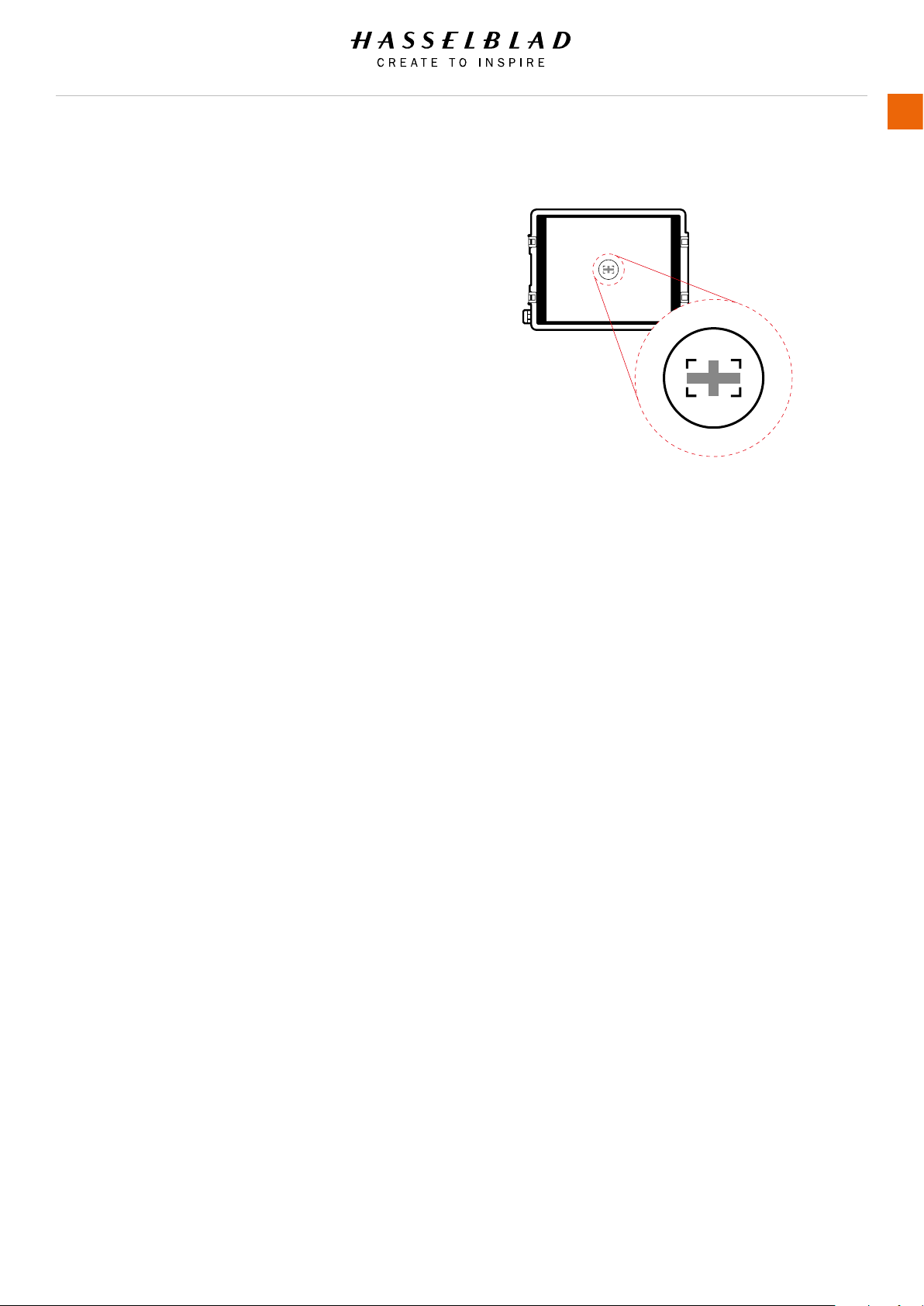
AUTOFOCUS
Autofocus modes Single Shot or Continuous are activated by
pressing the shutter release to the half-press position.
The operative range is from EV 1 to EV 19 at ISO 100.
The point of focus is determined according to the vertical and
horizontal areas (see illustration) within the central rectangular
zone on the focusing screen.
Alternatively, an attached ash unit that has a similar facility (a
Metz 54/70, for example) can also be used. This feature can be
altered in settings.
True Focus is also classied as an autofocus function and
is normally activated by its own button on the grip. See later
section.
AF Assist light
When light levels are too low or the contrast of the subject is
too low, AF assist light is automatically activated if selected. The
operative distance is approximately up to six metres from the
camera.
AUTOFOCUS CHECK IN MANUAL MODE
See the following section for a description of how to use the
advantages of a quick autofocus check while remaining in
Manual mode.
H6D www.hasselblad.com
USER GUIDE
To Use
108
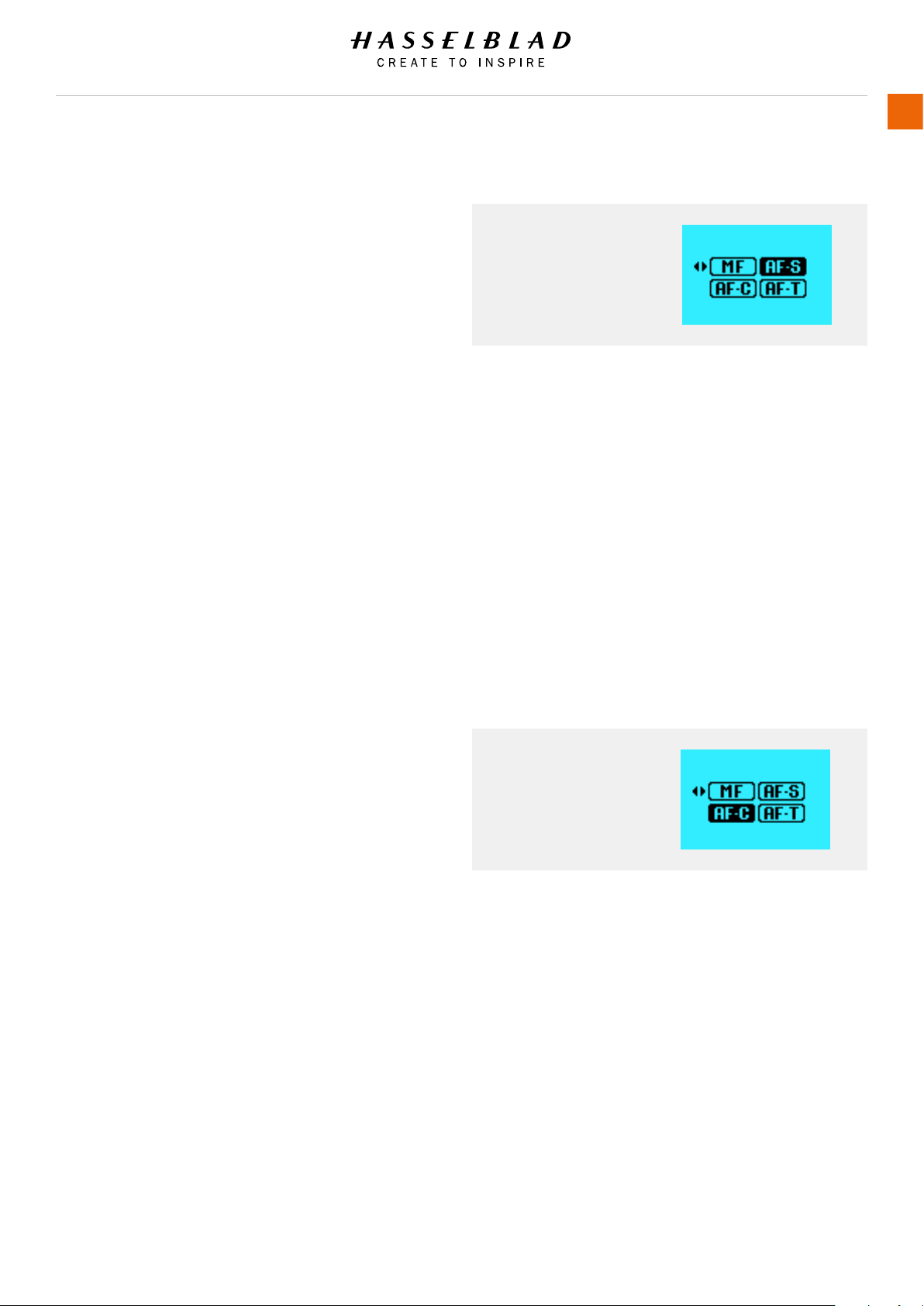
SINGLE SHOT FOCUS
At Single Shot setting (AF S), the shutter release will be blocked
until the camera nds the optimum focus setting. This ensures
that no captures are made that are not nely focused. However,
this delay is normally only a fraction of a second in good lighting
conditions with a clear focusing pattern.
Note though that in this mode the lens will focus at one
distance and will remain focused at that distance while pressure
remains on the shutter release button. In this way, you can
focus on a nearby object, temporarily positioned within the
focusing zone on the viewing screen and then without releasing
pressure on the shutter release button, recompose knowing
that the focus remains on the object chosen even though it is
now outside the focusing zone. Releasing the pressure on the
shutter release button and pressing again half way would now
change the focus setting to the distance of the object within the
focusing zone.
See Manual override in autofocus mode for a useful way of
working with manual and autofocus settings in a combined
manner.
CONTINUOUS FOCUS
At Continuous setting (AF C), the shutter can be released rapidly
before the lens is focused in order to capture a split-second
shot (in Single Shot, a capture cannot be made until the camera
has had time to focus). However, the camera will continue to
focus if a moving subject is within the focusing zone or if you
recompose, even though the shutter release button is half
pressed.
One method to use this feature when photographing in fast
changing situations is to keep the shutter release button
pressed down. The lens focus continuously, and by momentarily
releasing the pressure on the shutter release and then
immediately pressing again, you minimize the amount of time
needed for the lens to check focus ensuring a split second shot
with optimum focus.
H6D www.hasselblad.com
USER GUIDE
To Use
109
AF-C Continuous Mode
AF-S Single Shot Mode
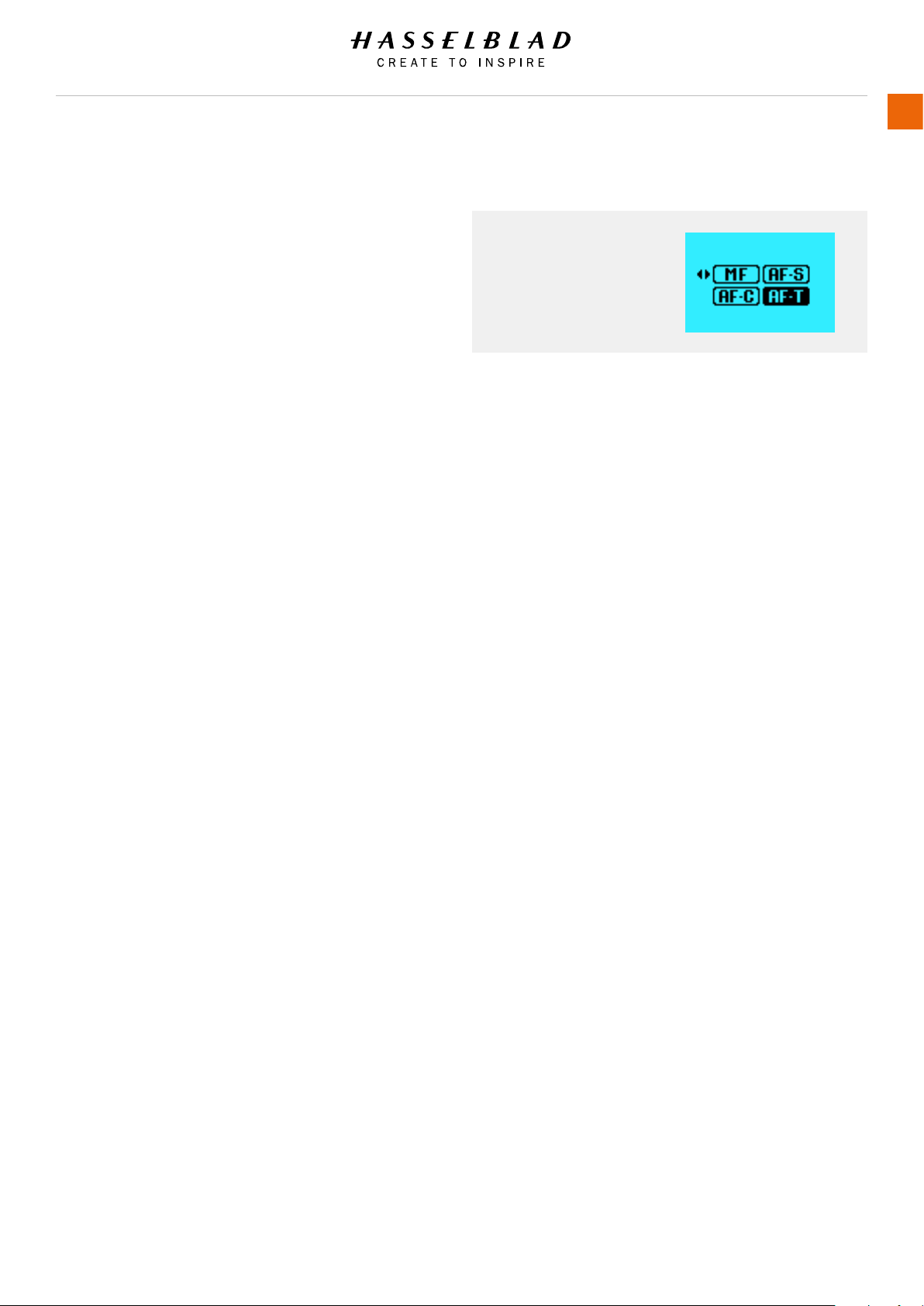
5.6 CAMERA TRUE FOCUS
The True Focus setting (AF-T) is generally used in specic
circumstances to automatically correct for camera angle/focus
setting discrepancies, but it can also be combined with other
autofocus settings.
To exploit True Focus correctly, a few important points should be
studied in order to obtain a full understanding of how and when
to use it. Basically, there are four variables to pay attention to:
(a) proximity of camera to subject,
(b) focal length of lens,
(c) aperture setting and
(d) movement of camera and/or subject after setting.
The closer you remain to the ideal situation with regard to these
variables, the more noticeable the effect of True Focus will be.
● The closer you are to the subject, the worse the original
problem becomes. Consequently, the need for True Focus
solution becomes greater and its application thereby
becomes more noticeable.
● Short focal length (wide-angle) lenses naturally decrease
camera to subject distances and therefore, following
the point in (a), produce a greater need for True Focus
adjustments.
● Smaller aperture increase the depth of eld and
therefore would lessen the need for a True Focus
solution. However, smaller apertures produce a different
visual effect, so True Focus therefore allows the
exploitation of the shallow depth of eld (produced by
larger apertures) without the fear of unwanted focus
restrictions.
● The calculations involved in True Focus use, amongst
other things, camera to subject distances to calculate
the required amount of adjustment. It therefore follows
that if the camera or he subject move after the initial
setting has been made, the calculations will not
be applicable anymore. So, to ensure the optimum
correction, both the photographer and the subject should
restrict movement as much as possible. Please note that
with some lenses (particularly longer length lenses) just
a few centimetres movement can essentially ruin the
result.
True Focus can be used with longer lenses, smaller apertures
but the further you come from situations similar to the ‘ideal’
as described above, the less the effect will be until it has no
visible effect at all. Please remember that although True Focus
can noticeably improve a demanding shoot it will only work
effectively in the specic circumstances it was designed for.
H6D www.hasselblad.com
USER GUIDE
To Use
110
AF-T True Focus Mode
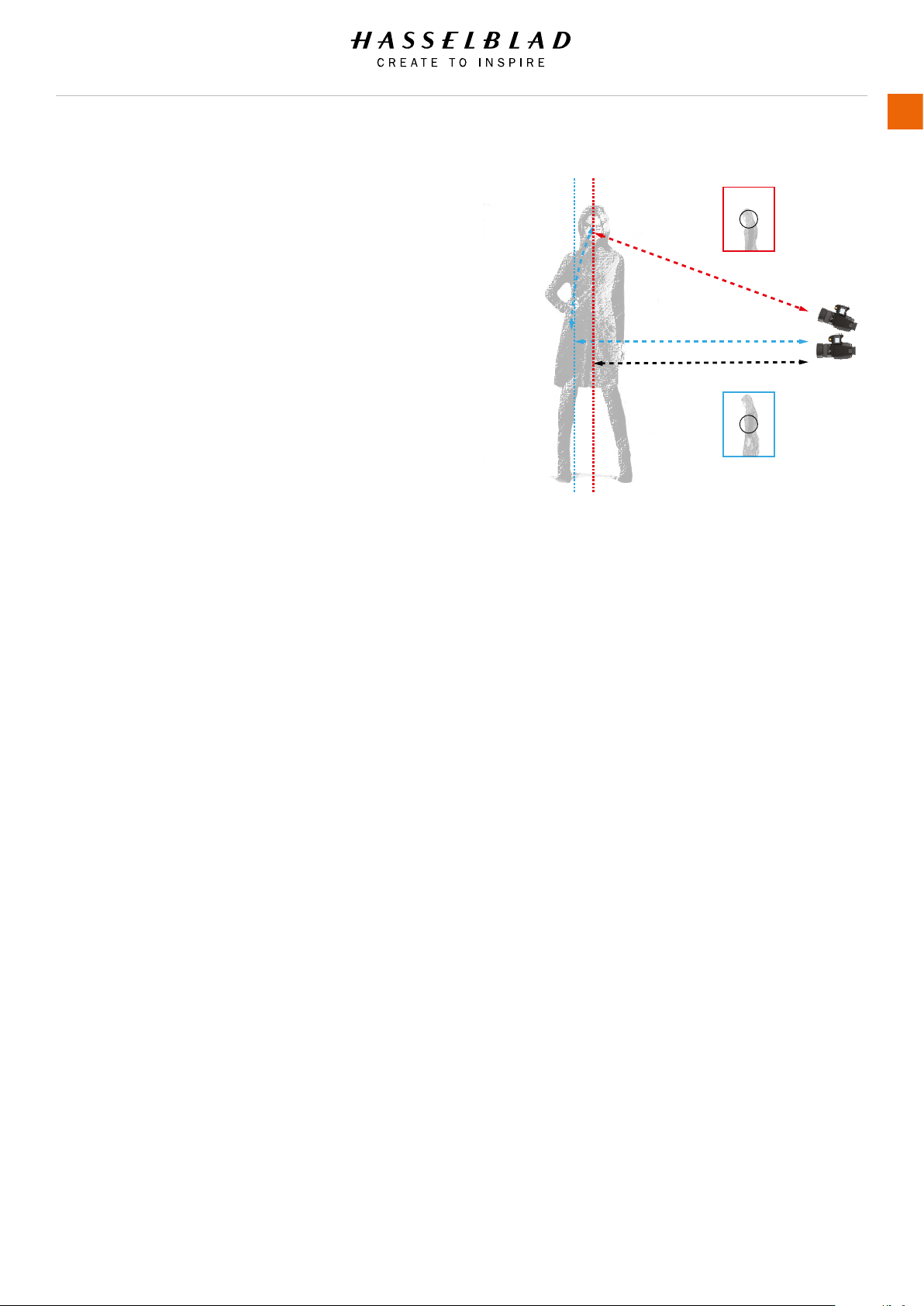
TRUE FOCUS AND ABSOLUTE POSITION LOCK
The obvious situation that would most benet from using True
Focus would be a fashion shoot with a fairly wide angle lens at
a large aperture setting and where the central area of the image
is clothing while retaining focus on the model’s face. Ideally a
fairly controlled and static ow should be planned. A change
of pose by the model should take place only after captures.
The photographer must also resist crouching down, or leaning
forwards or backwards too much before capture.
With the lens at its widest aperture setting, a normal autofocus
setting is made on the model’s face (A), and the camera focus
locked. The composition is then changed to include more of the
clothing (B), but the locked focus setting now extends beyond
the model’s face at (B) according to the laws of geometry. This
will naturally result in an image where much of the subject
closest to the camera and the model’s face will be unsharp.
Solutions involving manual focus / focus lock / resetting of
multi-point sensors are distracting to work ow and prone to
error. Making a True Focus setting at (A) will ensure that focus is
automatically adjusted in accordance with the change of camera
angle.
True Focus uses yaw rate technology and by way of the Absolute
Position Lock (APL) processor, logs camera movement as the
basis for an extremely rapid compensatory focus reset without
any shutter lag. The H6D’s rmware then further perfects the
focus using the precise data retrieval system found on all HC/
HCD lenses.
A
A normal autofocus setting is made on the model’s face and
locked.
The focus setting is approximately 2.5m.
B
When the camera is rotated back down, B, the locked focusing
distance of 2.5m, according to the laws of geometry, extends
beyond a perpendicular line drawn down from the face, creating
unsharpness.
If a True Focus setting instead of a normal autofocus setting is
now made at A and the composition is changed back to B again,
the camera will automatically calculate and adjust the focus of
2.5m to approximately 2.4m, which is the actual perpendicular
distance. The model’s face remains sharp.
H6D www.hasselblad.com
USER GUIDE
To Use
111
A
2.5m
2.4m
A
2.5m
A
B
B
B
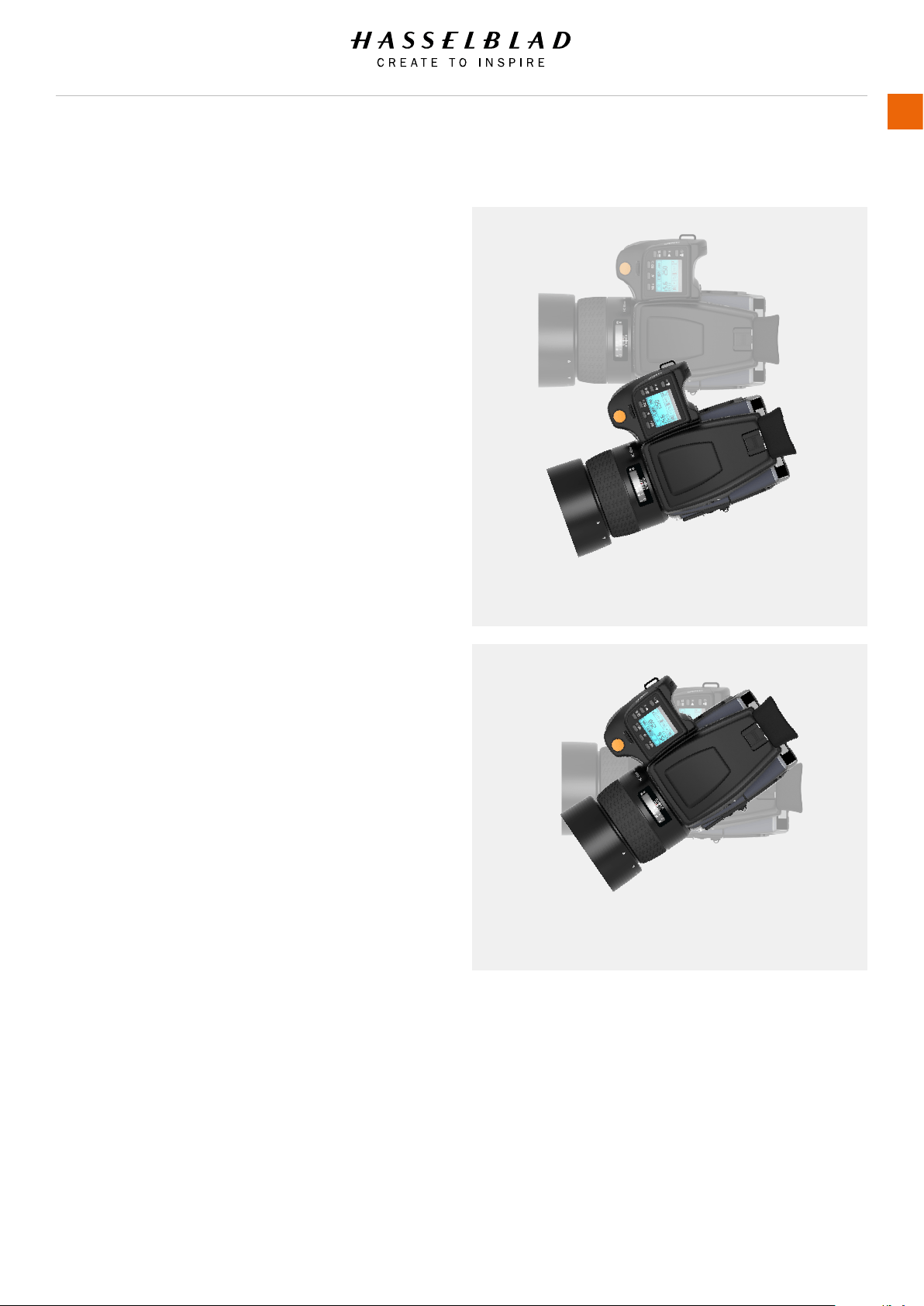
TRUE FOCUS AND CAMERA HANDLING
To obtain the maximum benet from True Focus work within the
requirements of the system. This might need a little practice but
it will improve the accuracy of the measurements and thereby
provide better results.
1 Remain as still as possible when making the rst True Focus
measurement and wait for the audio signal or ready light to
show green again before continuing. This will not only speed
up the process but also increase accuracy.
2 When recomposing the shot stay in the same position as
closely as possible. That is, try to avoid moving your head
or body forwards or backwards as this will move the camera
away from the measured position.
In the upper example to the right, the photographer has swung
the camera from the rst measurement to recompose the shot
as normal. But as you can see that the camera has now moved
away from the original position.
The lower example illustrates essentially the same situation
except this time the camera is rotated around its central axis,
rather than swung. Practice shows that this method retains the
original position more accurately and therefore results in better
focusing accuracy.
FOCUS CHECKING
An effective way of checking the focus of individual captures is
to assign for example Mirror Up or Stop Down button to Focus
Conrm.
In browse mode or after a capture you can either double tap
on the Sensor Unit Display to zoom in to 100% or spread two
ngers apart to zoom in. To zoom out you can double tap again
or pinch two ngers together.
H6D www.hasselblad.com
USER GUIDE
To Use
112
Incorrect rotation of camera away from original position.
Correct rotation of camera around it´s own center.
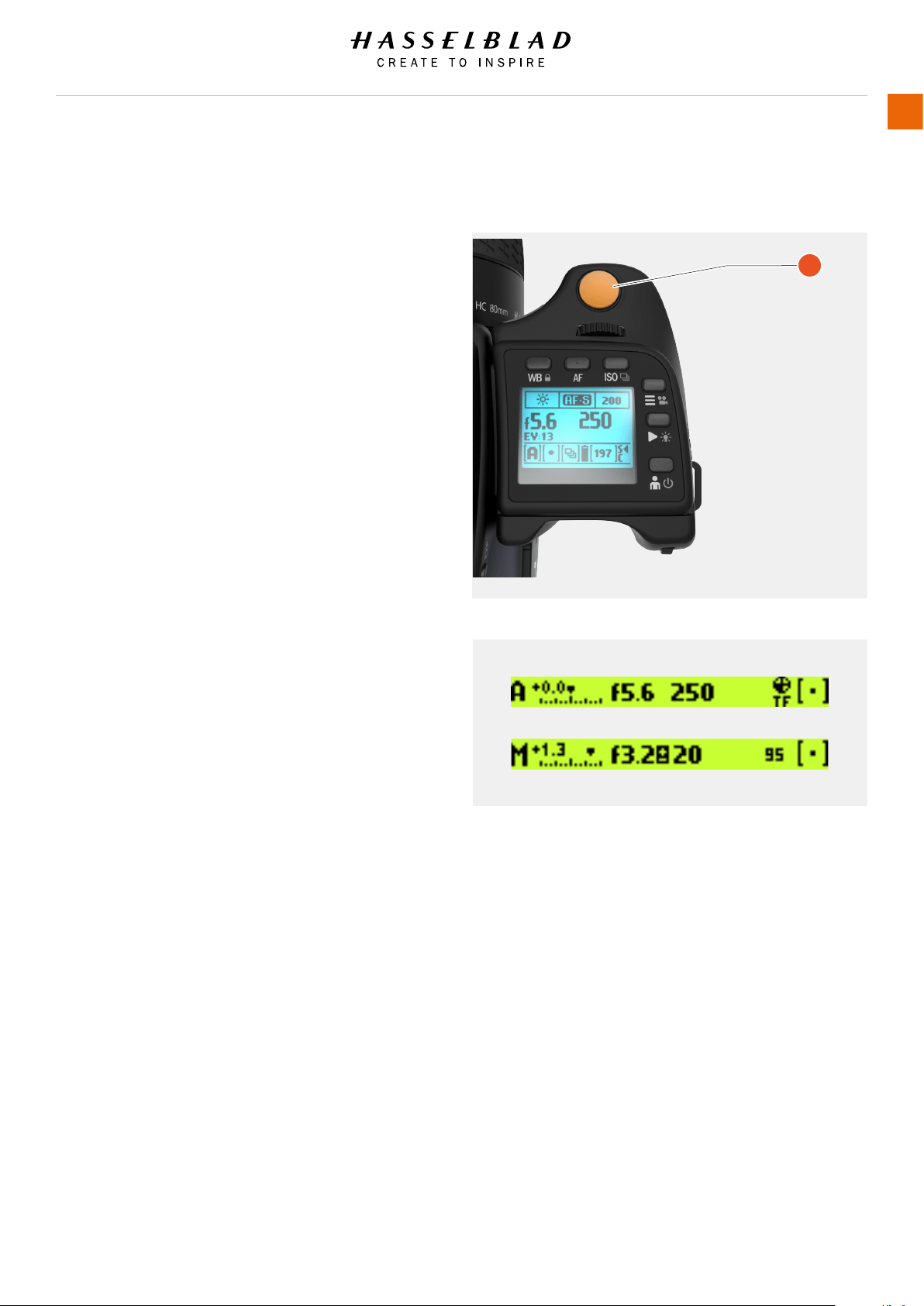
5.7 CAMERA TRUE FOCUS METHODS
ACTIVATED BY SHUTTER RELEASE - TRUE FOCUS RETAINED
MAIN MENU > GENERAL SETTINGS > CAMERA > TRUE FOCUS
In this mode the Autofocus function is effectively converted
into the True Focus function. Focus is set by half pressing the
shutter release button (A).
1 On the Sensor Unit Display, select Camera Settings.
2 Select Focus.
3 Select True Focus in AF-S On.
4 Aim camera to the important area of the subject and half
press the shutter release button (A).
5 Wait for the True Focus icon to appear in the viewnder and
the audio conrmation signal.
6 Maintain the half-press (A) and recompose the picture. Press
fully to make the capture. The True Focus icon disappears
from the viewnder. True Focus function is retained.
H6D www.hasselblad.com
USER GUIDE
To Use
113
A
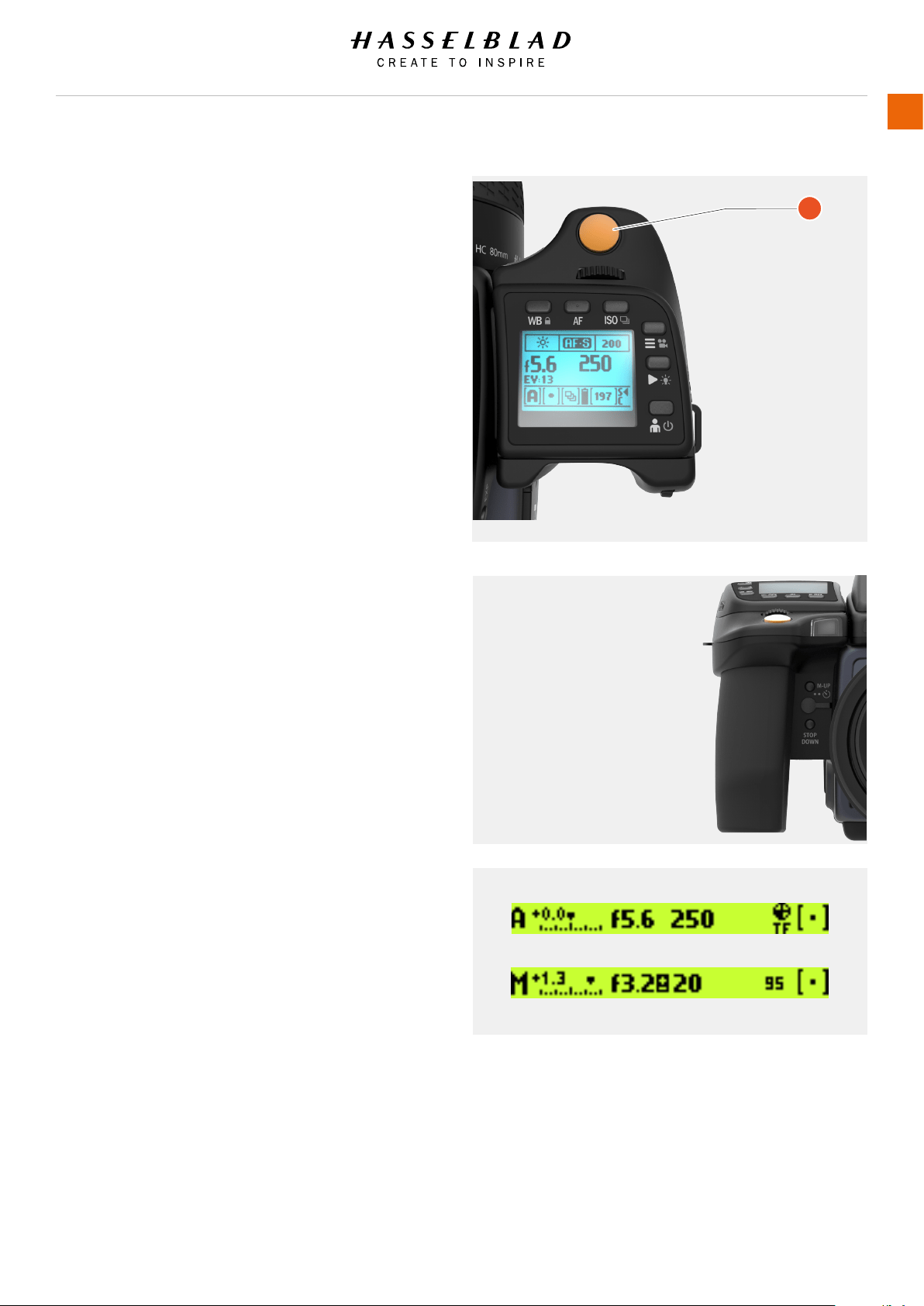
TEMPORARILY ACTIVATED - AUTOFOCUS RETAINED
MAIN MENU > GENERAL SETTINGS
In this mode the True Focus function is activated by pressing an
assigned button. This produces a ‘one-shot’ setting where the
camera reverts to its original Autofocus setting after capture.
Useful if you want to quickly switch back and forth between True
Focus and normal Autofocus.
1 Program the buttons in the Main Menu on the Sensor Unit
Display.
2 Aim camera at important area in subject and press the
selected button (the grip display now indicates AF-T mode).
3 Wait for the True Focus icon to appear in the viewnder.
4 Recompose the picture and press Shutter Release button (A)
(camera does not refocus because it is temporarily in AF-T
mode). The True Focus icon disappears from the viewnder.
Camera reverts to AF-S.
5 Note that camera reverts to AF-S if the focusing ring on the
lens is moved.
H6D www.hasselblad.com
USER GUIDE
To Use
114
A
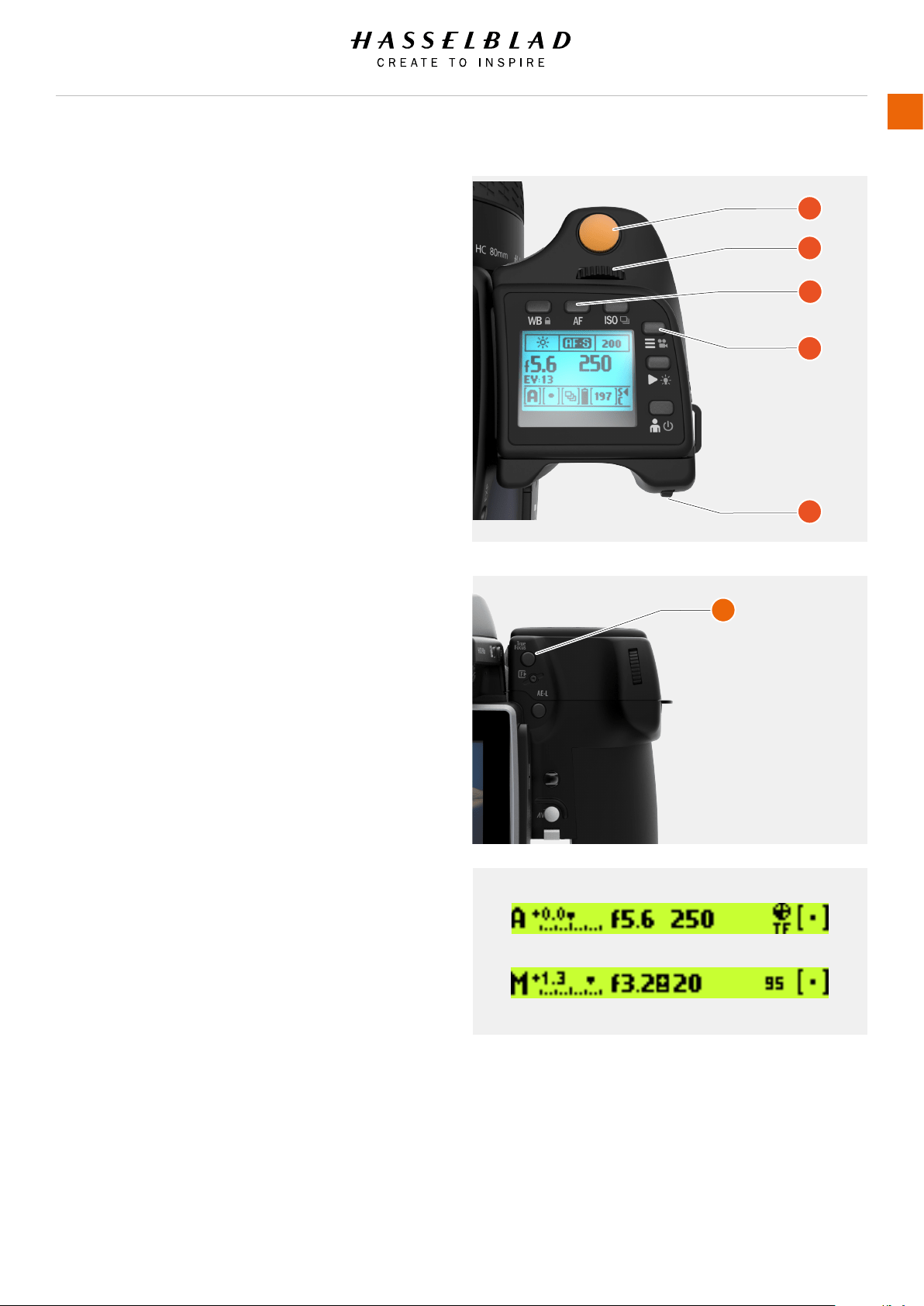
ACTIVATED BY TRUE FOCUS - AUTOFOCUS DEACTIVATED
In this mode the True Focus function is activated by pressing the
True Focus button. Normal autofocus is de-activated, therefore
pressing the shutter release button will not reset the focus. This
method is useful when many shots are required with the same
focus setting.
1 Press AF button (C). Select True Focus with the Front scroll
wheel (B). Save.
2 Aim camera to the important area of the subject and press
True Focus button (F).
3 Wait for the True Focus icon to appear in the viewnder.
Recompose the picture and press shutter release button (A).
Note!
The True Focus adjustment is applied to all following captures
until True Focus button is pressed again (when a new
adjustment is made).
H6D www.hasselblad.com
USER GUIDE
To Use
115
A
B
C
D
E
F
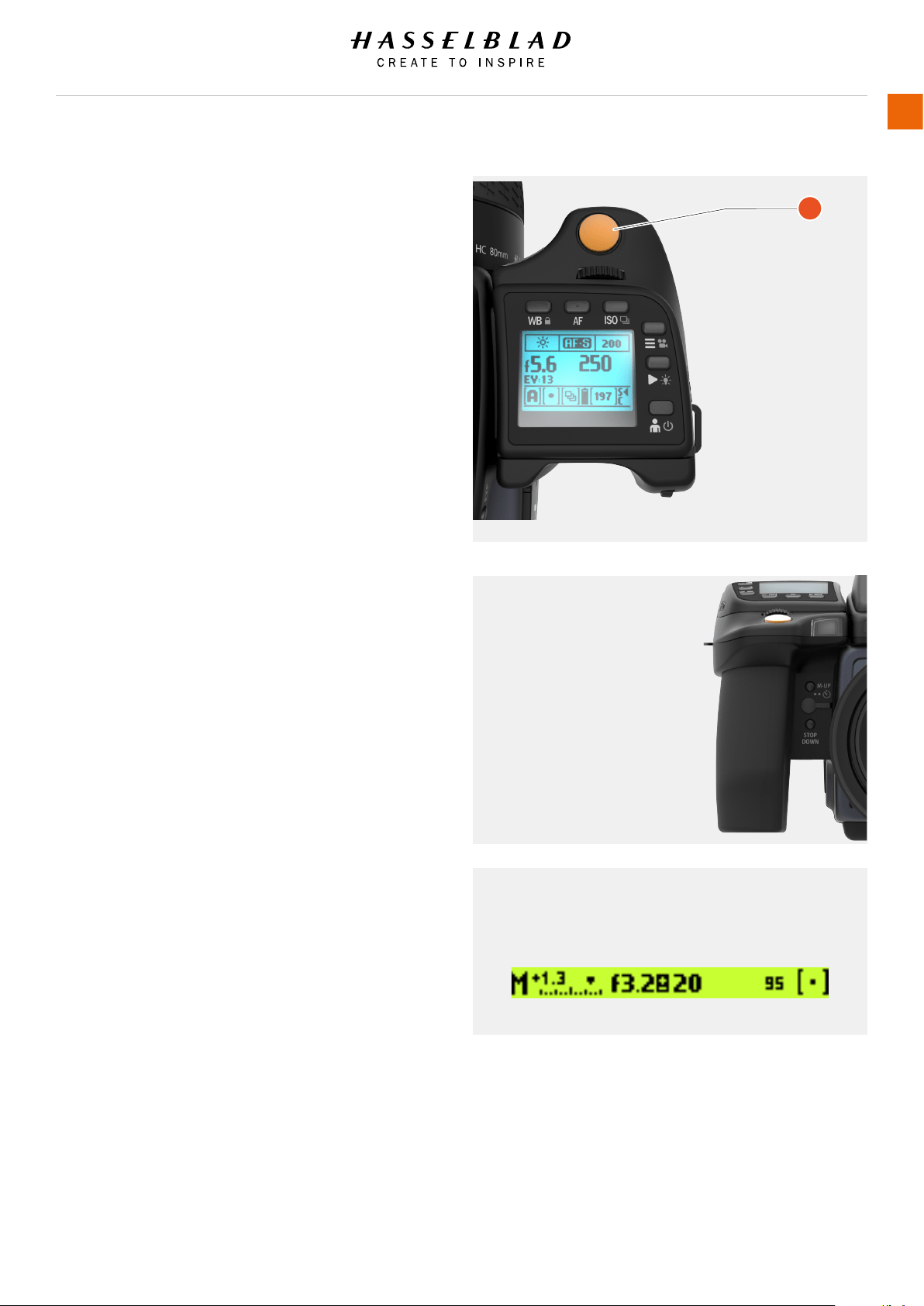
ACTIVATED BY AN ASSIGNED BUTTON - MANUAL FOCUS
RETAINED
In this mode the True Focus function is activated by pressing an
assigned button. This produces a ‘one-shot’ setting where the
camera reverts to its original Manual focus setting after capture.
Pressing the shutter release button (A) will not reset the focus.
This method is useful when many shots are required with the
same focus setting.
1 Press MENU, select General Settings, select the desired
button to reassign with the Front scroll wheel (M.UP button
in this example). Select True Focus with the Rear scroll
wheel. Save.
2 Aim camera at important area in subject and press the
selected button.
3 Ensure that the True Focus icon appears in the viewnder.
Recompose the picture and press shutter release button.
The True Focus icon disappears from the viewnder. Camera
reverts to Manual focus setting.
Note!
The True Focus adjustment is applied to all following captures
until the True Focus button is pressed again (when a new
adjustment is made).
H6D www.hasselblad.com
USER GUIDE
To Use
116
Viewnder Display View
True Focus TF symbol visible
A
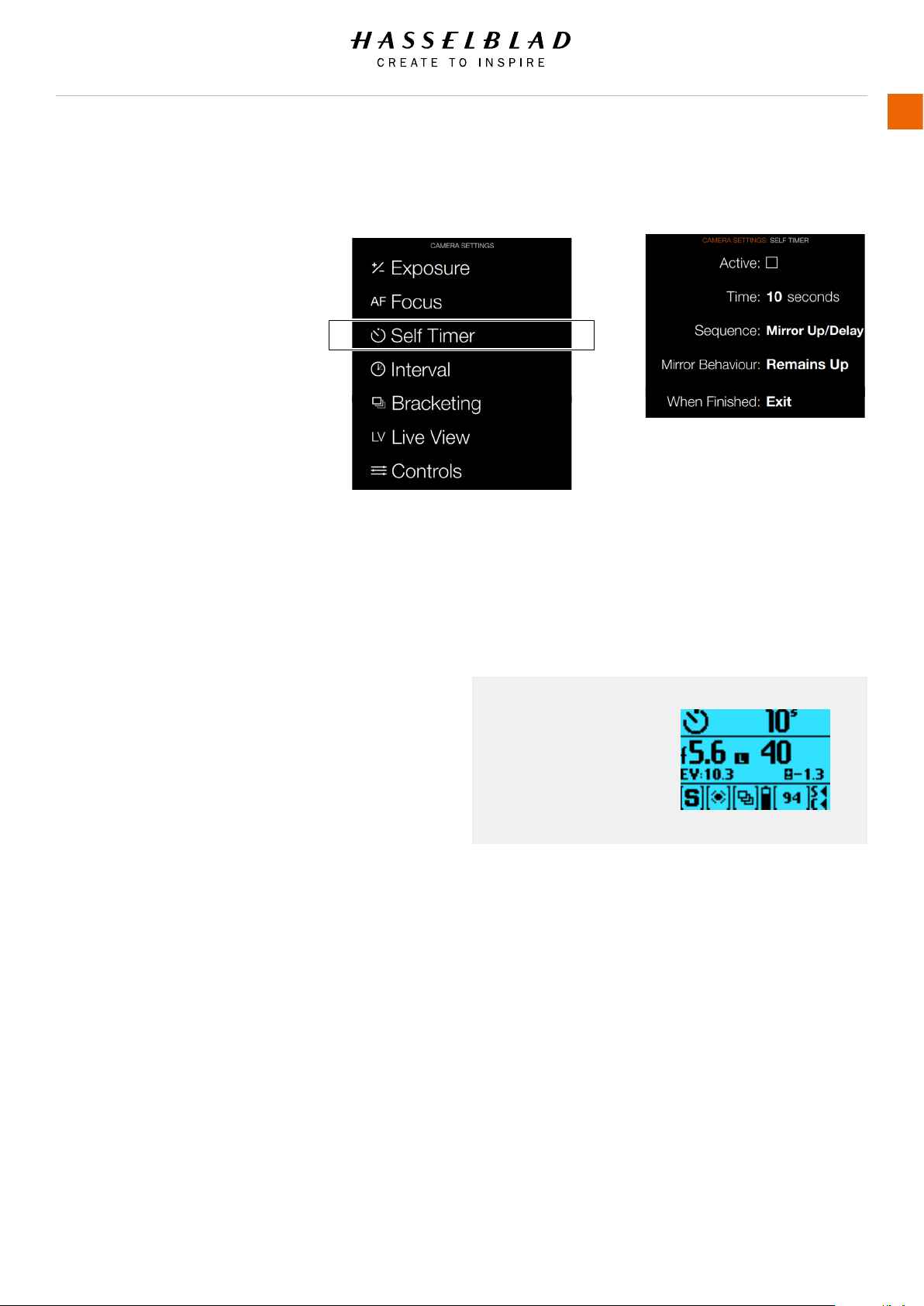
H6D www.hasselblad.com
USER GUIDE
To Use
117
5.8 CAMERA SELF TIMER
MAIN MENU > CAMERA SETTINGS > SELF
TIMER
Press the Camera icon on the Sensor unit
display. The Camera Settings Menu will
appear.
Press the Self Timer Settings Menu.
Swipe right or press Menu / EXIT button to
get back to Main Menu.
Self Timer Settings Menu
Active
On / Off
Time
Select time in seconds. Select between
2 - 60 seconds.
Sequence
Delay / Mirror Up.
Mirror Up / Delay.
Mirror behaviour
Mirror moves up.
Mirror remains up.
When Finished
Exit or Stay.
Grip Display View
Self Timer Settings
Camera Menu Self Timer Settings Menu
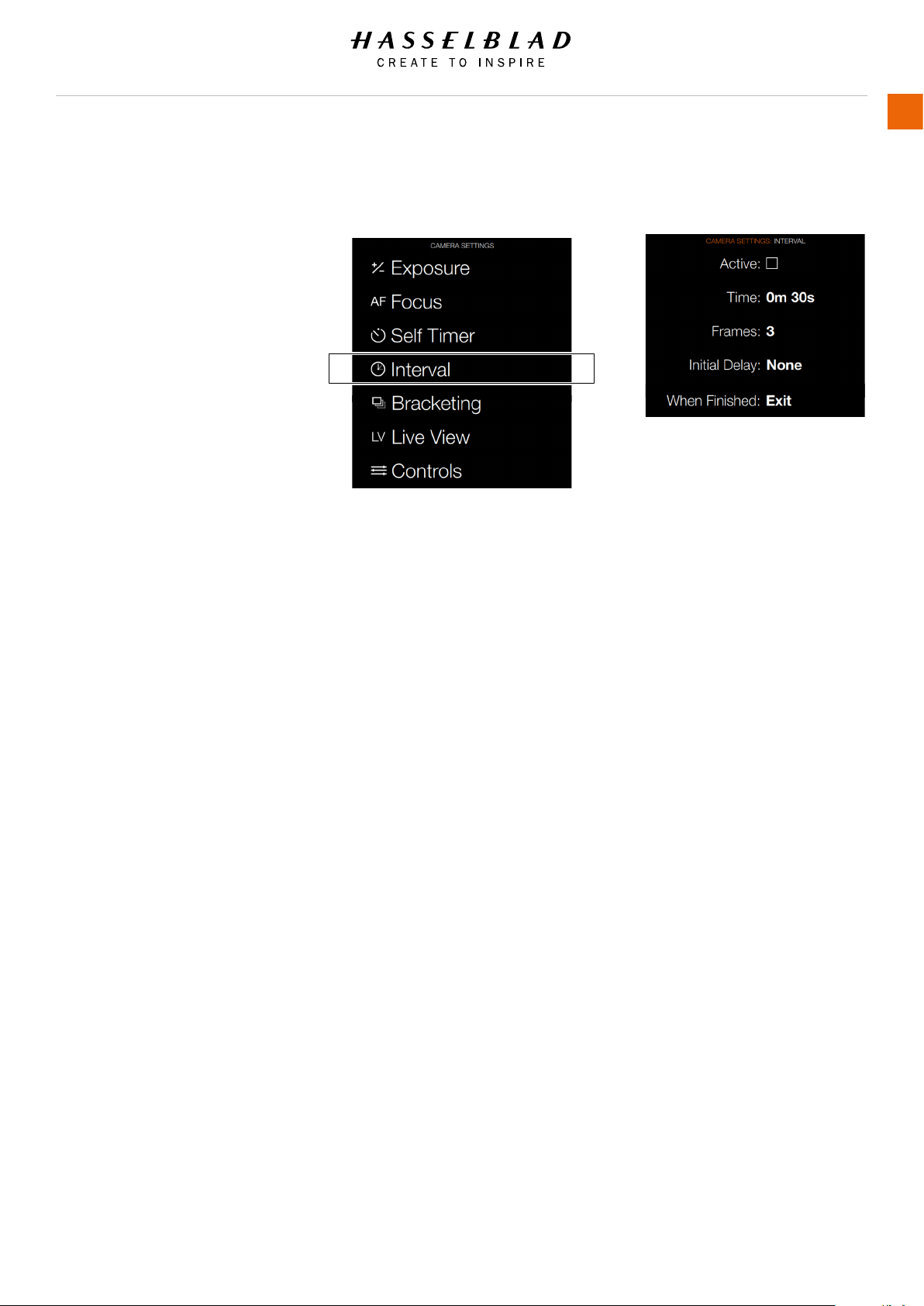
H6D www.hasselblad.com
USER GUIDE
To Use
118
5.9 CAMERA INTERVAL SETTINGS
MAIN MENU > CAMERA SETTINGS >
INTERVAL
Press the Camera icon on the Sensor unit
display. The Camera Settings Menu will
appear.
Select the Interval Settings Menu.
Swipe right or press Menu / EXIT button to
get back to Main Menu.
Interval Settings Menu
Active
On / Off.
Time
Select time between Exposures in
minutes and seconds.
Frames
Select number of Frames from 2 - 99 or
no limit.
Initial Delay
Select initial Delay. None or Interval
time 60 s, 10 s, 2 s.
When Finished
Settings for Action When Finished.
Exit or Stay.
Camera Menu Interval Settings Menu
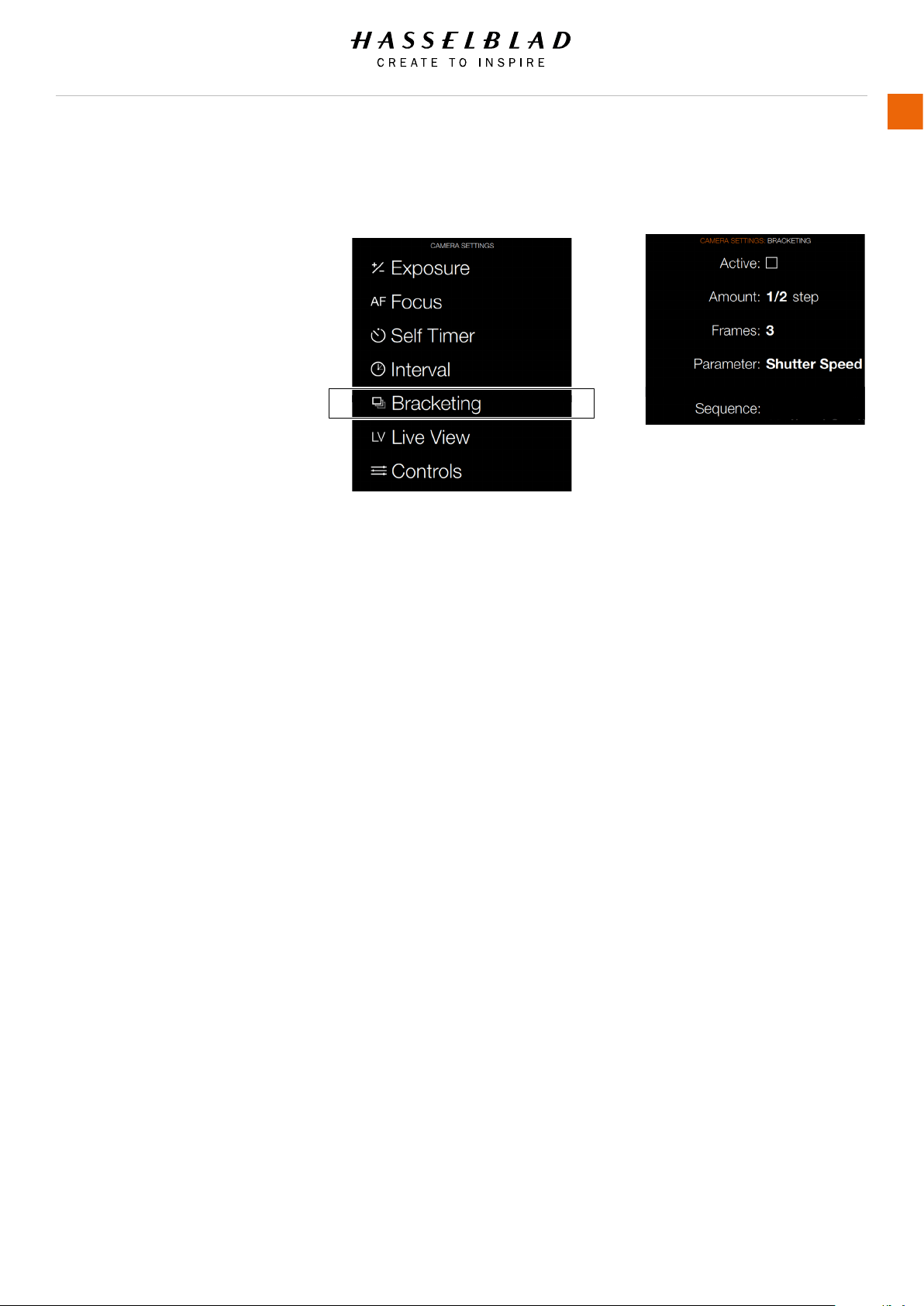
H6D www.hasselblad.com
USER GUIDE
To Use
119
5.10 CAMERA BRACKETING SETTINGS
MAIN MENU > CAMERA SETTINGS >
BRACKETING
Press the Camera icon on the Sensor
unit display. The Camera Settings Menu
will appear.
Press the Bracketing Settings Menu.
Swipe right or press Menu / EXIT button
to get back to Main Menu.
Bracketing Settings Menu
Active
On / Off.
Amount
Select Amount of Bracketing.
Frames
Select number of Frames.
Parameter
Aperture or Shutter speed.
Selects either the shutter speed or
the aperture as the parameter which
changes in a bracketing sequence
when in Manual exposure mode.
Shutter speed selects changes in
shutter speed.
Aperture selects changes in aperture
settings.
Sequence
Select the sequential order of the
over- or underexposures.
A: 0 + -
B: 0 - +
C: + 0 -
D: - 0 +
BRACKETING FUNCTION
The bracketing function provides an automatic series of
captures, one at the standard exposure setting (Manual or Auto)
and the others with pre-determined deviations in EV from the
standard exposure. This is particularly useful for images
containing a very wide tonal range, for example. First you make
an assessment concerning the number of extra frames required,
the order in which they should be taken, and by how much the
EV deviation there should be and the setting made accordingly.
The rst metered exposure (Manual or Auto) is the EV that
determines the calculations for the bracketing sequence.
Note the difference in operation between Single and Continuous
drive settings:
- At the Single setting you must press the shutter release button
separately for every separate capture until the sequence is
nished.
- At the Continuous setting you can either maintain the pressure
on the button to take all frames without stopping or you can
release the pressure on the button and press again to continue
to the end of the sequence without losing any frames within the
set sequence.
Camera Menu Bracketing Settings Menu
0,+,--
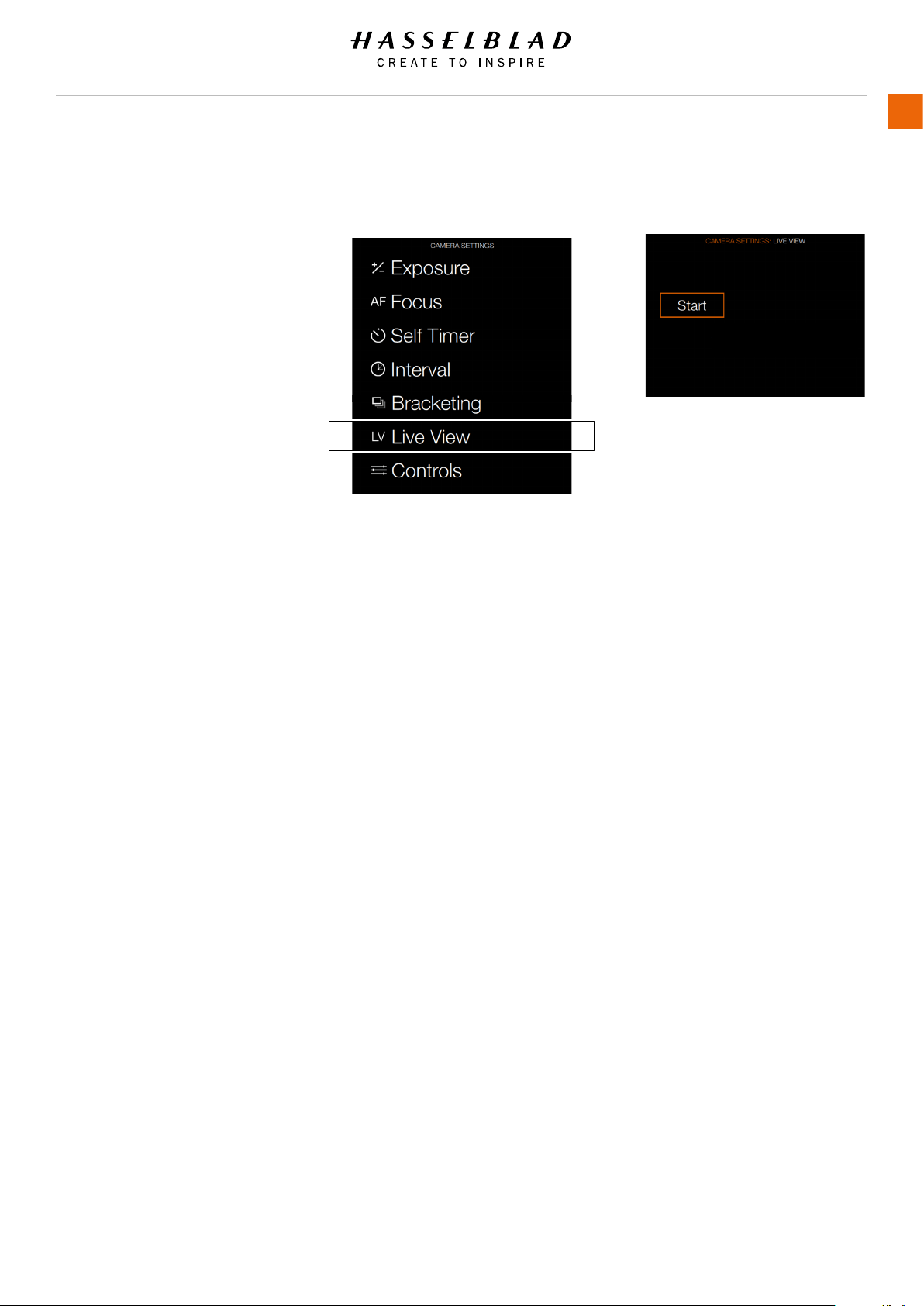
H6D www.hasselblad.com
USER GUIDE
To Use
120
5.11 CAMERA LIVE VIEW SETTINGS
MAIN MENU > CAMERA SETTINGS > LIVE
VIEW
Press the Camera icon on the Sensor
unit display. The Camera Settings Menu
will appear.
Press the Live View Settings Menu.
Swipe right or press Menu / EXIT button
to get back to Main Menu.
Self Live View Settings Menu
Start
Start Live View Mode.
This Chapter Continuous on the next
page.
Camera Menu Live View Settings Menu
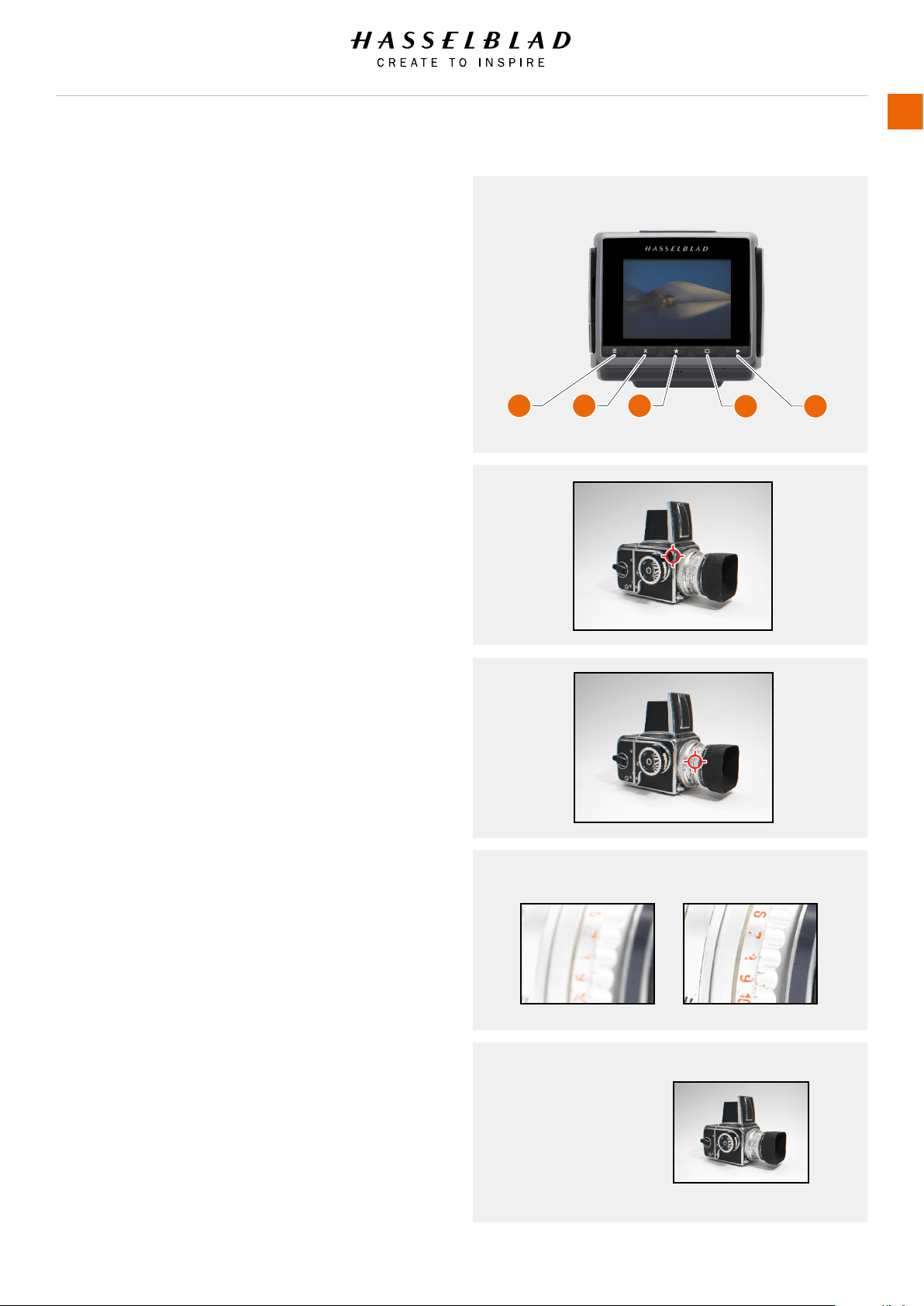
LIVE VIEW
This feature is useful for accurate focusing, composition and
depth of eld preview.
1 Select Camera Settings > Live View.
2 Press Start to activate Live View.
3 Press button D to toggle overlay forward.
4 Press button B returns on step.
5 Button A, C, and E to Exit Live View.
Live View Settings
Overlay
Select Overlay Displayed during Live View. Scroll between
options with button (B) and (D).
-Exposure Information
-Grid
-None
ZOOMING IN LIVE VIEW
1 Double click on Sensor Unit Display to Zoom in to Actual
Pixel Size (100%) to that specic area.
2 Double click again to Zoom out to Display the entire Capture.
3 You can move the image to view different areas by swiping.
FOCUS IN LIVE VIEW
1 Double click on Sensor Unit Display to Zoom in to selected
Focus Area.
2 Adjust Focal Point manually on the Lens.
3 Double click again to Zoom out to Display the entire Capture.
Note!
Live View demands higher power consumption than normal
operation. Working with Live View will shorten the usage time of
the Camera when on battery only power supply.
H6D www.hasselblad.com
USER GUIDE
To Use
121
Before Focusing After Focusing
A B C
D E

H6D www.hasselblad.com
USER GUIDE
To Use
122
LIVE VIEW WITH HDMI EXTERNAL SCREEN
Connect an external Video Screen via HDMI.
Note!
Live View demands higher power consumption than normal
operation. Working with Live View will shorten the usage time of
the Camera when on battery only power supply.
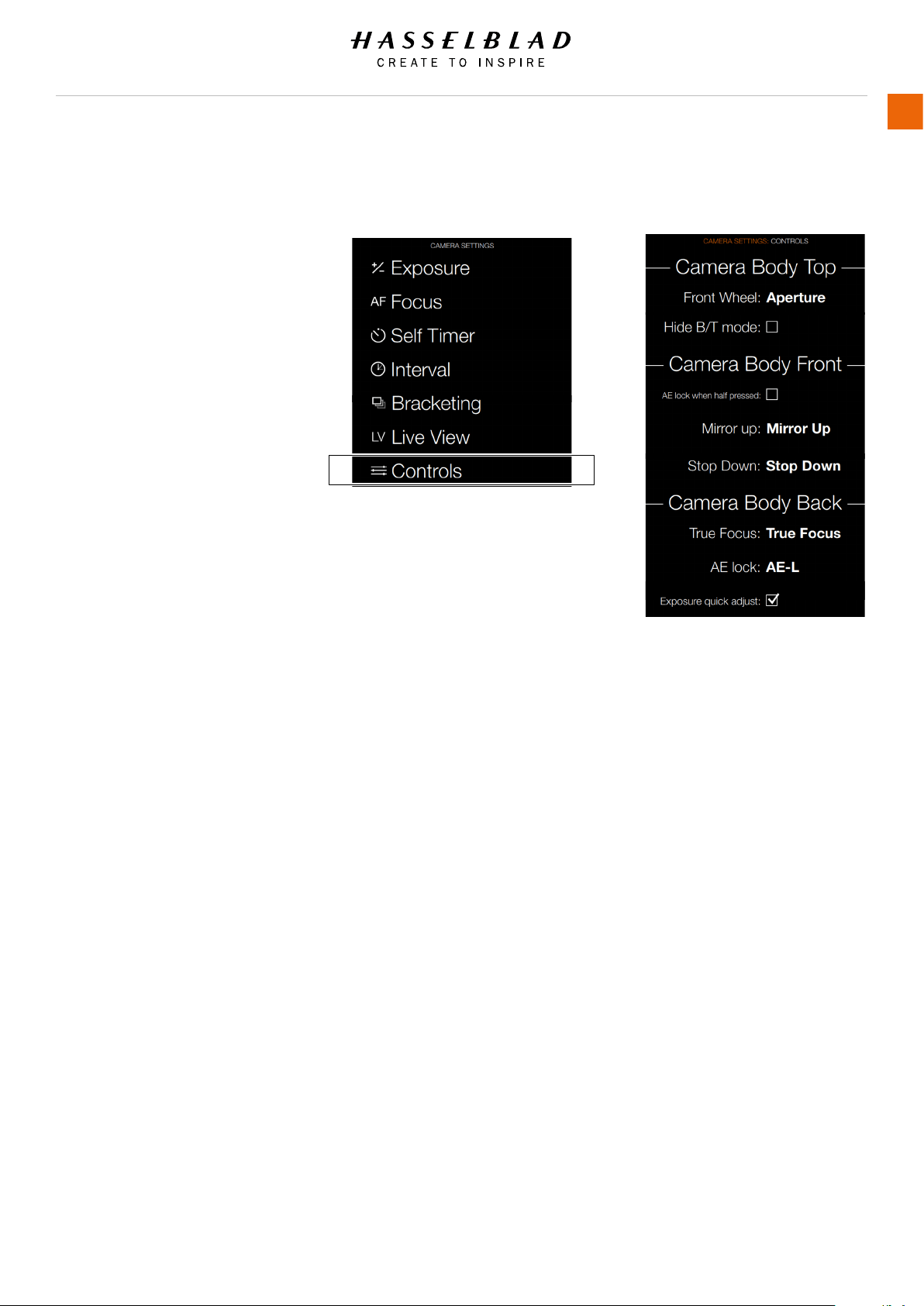
H6D www.hasselblad.com
USER GUIDE
To Use
123
5.12 CAMERA CONTROLS SETTINGS
MAIN MENU > CAMERA SETTINGS >
CONTROLS
Press the Camera icon on the Sensor unit
display. The Camera Settings Menu will
appear.
Press the Controls Settings Menu.
Swipe right or press Menu / EXIT button to
get back to Main Menu.
Camera Controls Settings Menu
Camera Body Top
Front Wheel
-Aperture
Shutter Speed
Normal Aperture
Normal
Light Meter
Allows choice of aperture indication
display (in Manual mode only).
Normal selects conventional display
(f5.6, f8, etc).
Light meter selects ‘light meter’ type
display (f5.6, f8, etc).
Hide B/T mode
Select On / Off.
Camera Body Front
AE lock when half pressed
Select On / Off.
Mirror Up
Settings for Mirror Up button.
Stop Down
Settings for Stop Down button.
Camera Body Back
True Focus
Settings for True Focus.
AE Lock
Settings for AE Lock.
Exposure quick
Select On / Off.
Camera Menu Controls Settings Menu
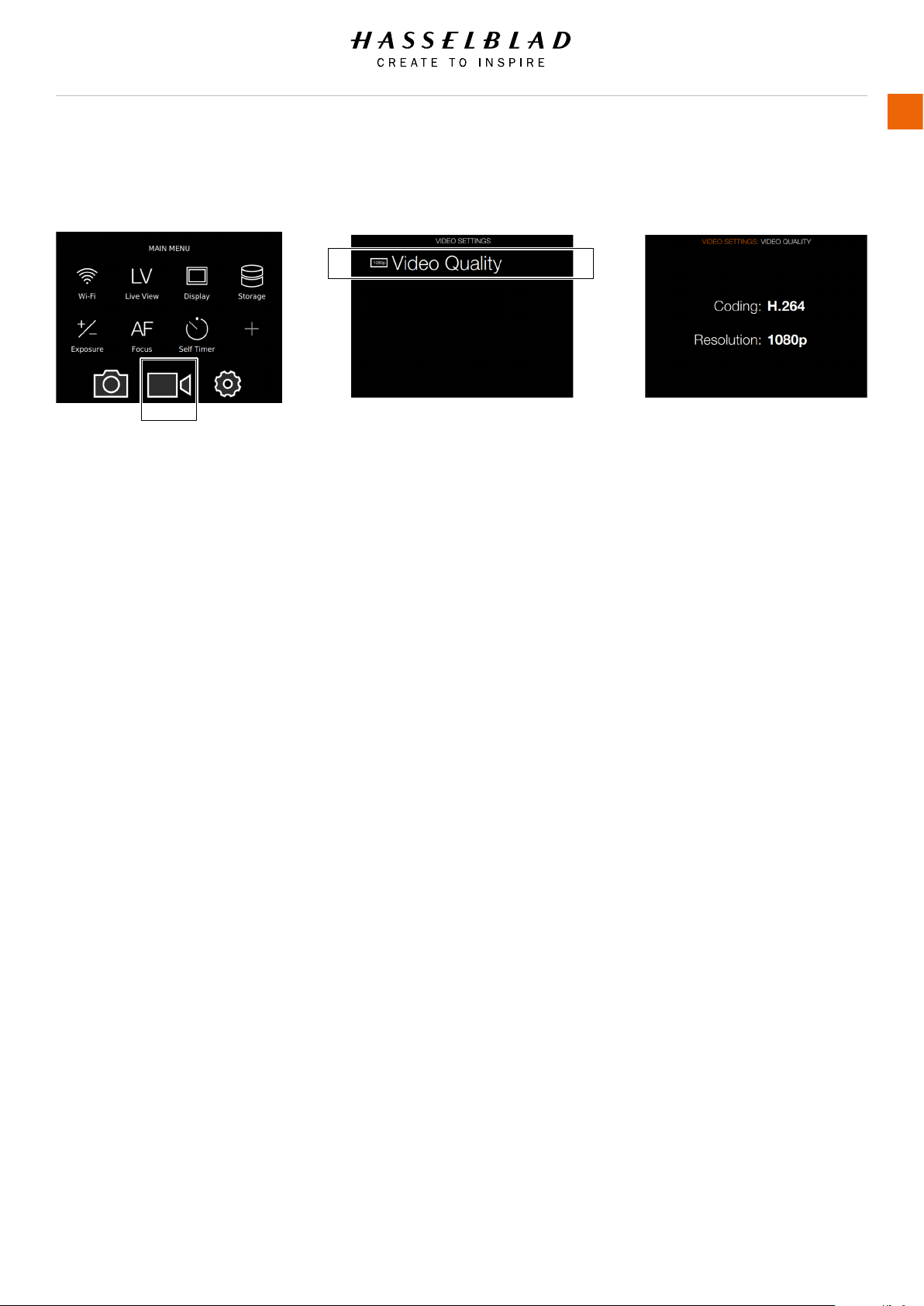
H6D www.hasselblad.com
USER GUIDE
To Use
124
5.13 VIDEO SETTINGS MENU
MAIN MENU > VIDEO SETTINGS
Press the Video icon on the Sensor unit
display. The Video Settings Menu will
appear.
Select the Video Settings Menu.
Swipe right or press Menu / EXIT button
to get back to Main Menu.
VIDEO SETTINGS
In this release it is not possible to
change the Coding or Resolution
Settings. In a future rmware release
there will be more options.
Coding
Video Quality Coding Settings.
Resolution
Video Quality Resolution Settings.
Main Menu Video Settings Menu
Video Quality Settings
Video icon
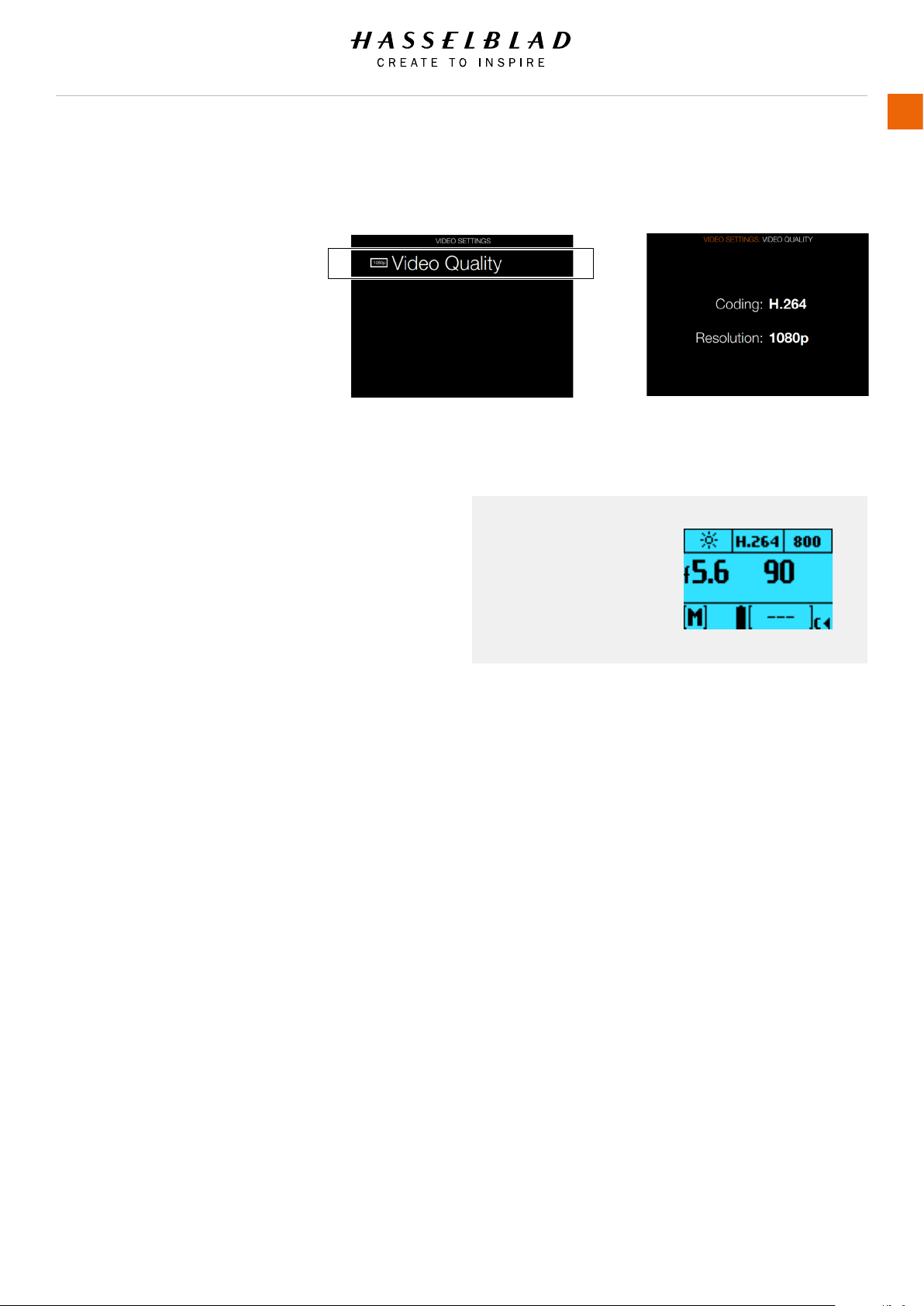
H6D www.hasselblad.com
USER GUIDE
To Use
125
5.14 VIDEO QUALITY SETTINGS
MAIN MENU > VIDEO SETTINGS >
VIDEO QUALITY
Press the Video icon on the Sensor unit
display. The Video Settings Menu will
appear.
Press the Video Quality icon.
Swipe right or press Menu / EXIT button
to get back to Main Menu.
VIDEO QUALITY SETTINGS
In this release it is not possible to
change the Coding or Resolution
Settings. In a future rmware release
there will be more options.
Coding
Video Quality Coding Settings
- H.264
Resolution
Video Quality Resolution Settings.
Video Quality Settings
Video Coding
H.264 Video Coding.
Video Settings Menu
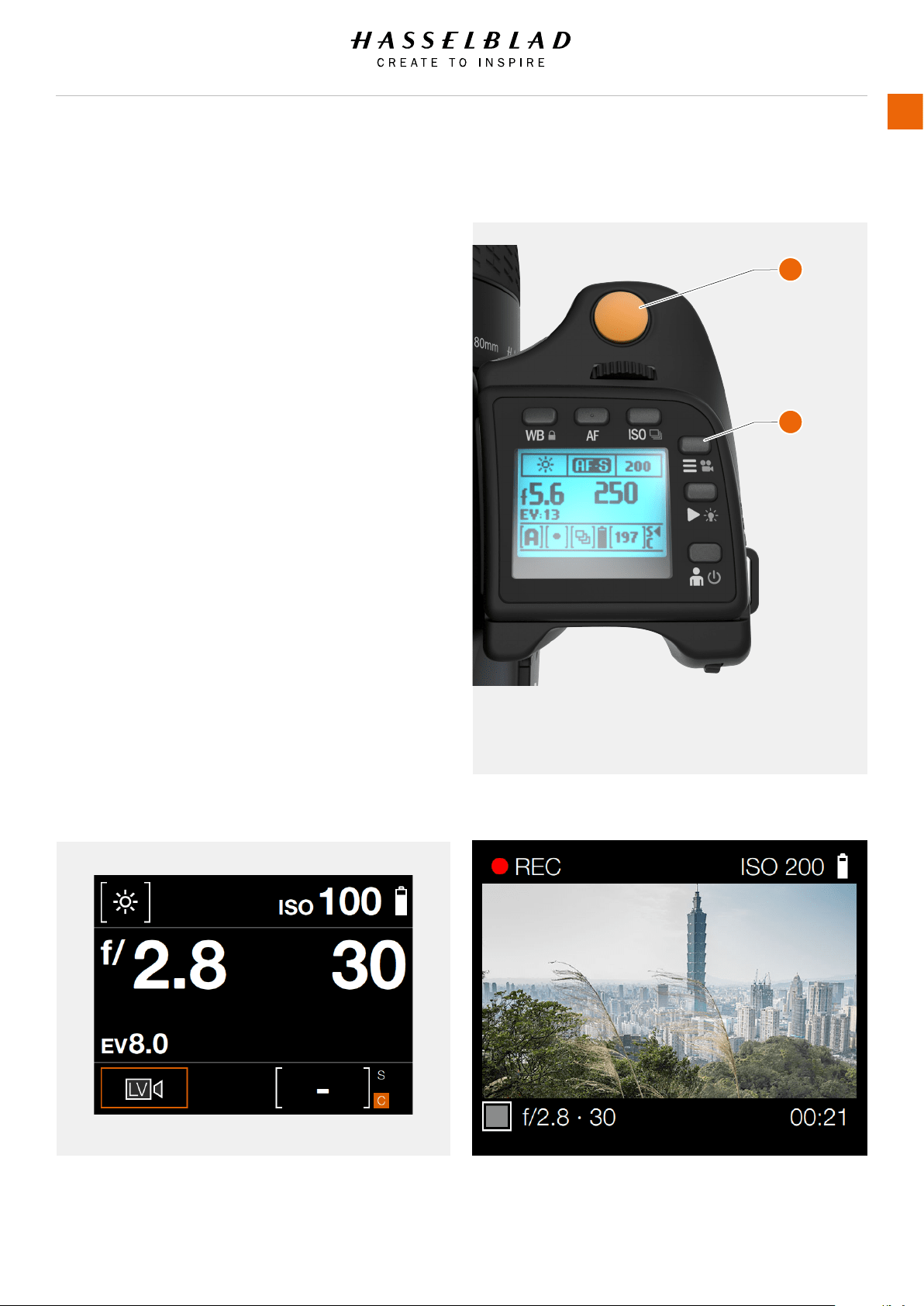
H6D www.hasselblad.com
USER GUIDE
To Use
126
5.15 VIDEO RECORDING
To Record Video
1 Enter Video mode by a long press
on the Video icon (1) on the Grip
Display.
2 The Video Control Screen is
displayed.
3 Start the Live Video Stream by
pressing the Live Video icon.
4 The Video Stream is displayed on
the Sensor Unit Display.
5 Start Recording by pressing the
Exposure Trigger Button (2) or by
pressing the red recording icon on
the sensor unit display.
6 Stop the Recording by pressing
the Exposure Trigger Button (2) or
by pressing the stop icon on the
sensor unit display.
Video Display when capturing videoVideo Control Screen
1 Video Mode Button
2 Exposure Trigger Button
1
2
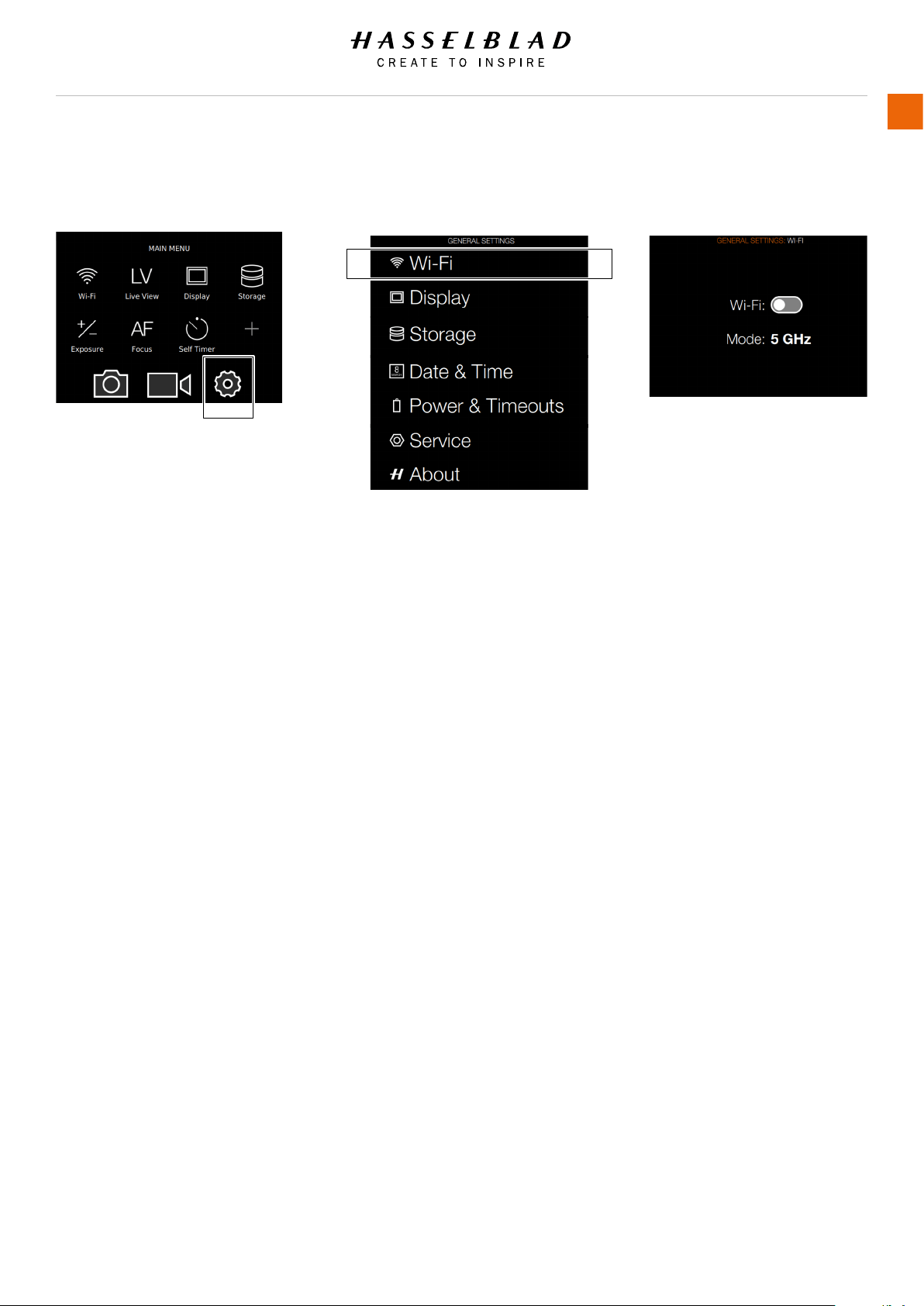
H6D www.hasselblad.com
USER GUIDE
To Use
127
5.16 GENERAL SETTINGS MENU
MAIN MENU > GENERAL SETTINGS
Press the Settings icon on the Sensor
unit display. The General Settings Menu
will appear.
Swipe right or press Menu / EXIT button
to get back to Main Menu.
Wi-Fi Settings Menu Options
There are 2 options:
- 2.4 GHz.
- 5 GHz.
Continues on the next Page.
Main Menu General Settings Menu Wi-Fi Settings Menu
General
Settings icon
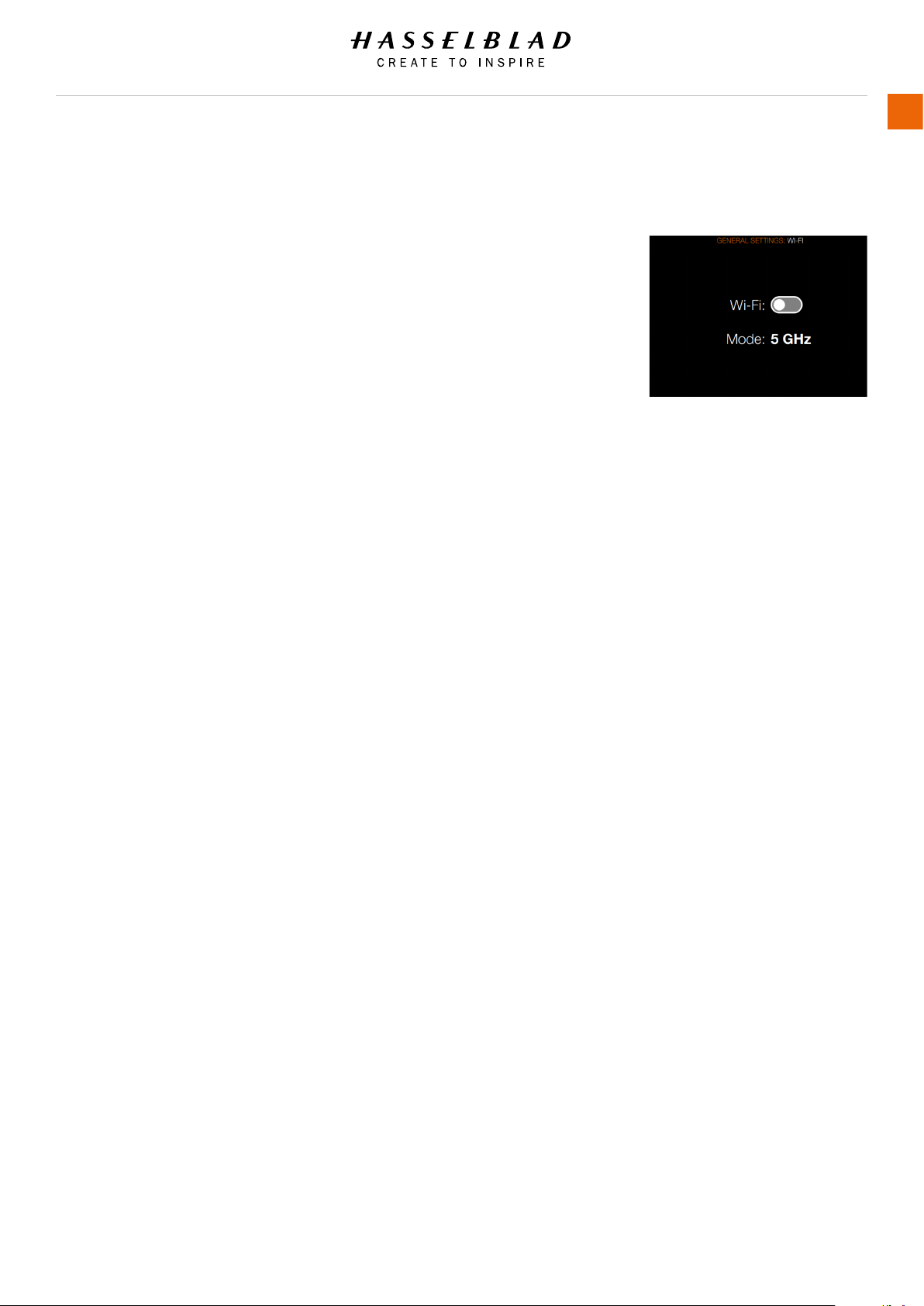
GENERAL SETTINGS WI-FI
The Wi-Fi mode allows the Hasselblad Phocus Mobile application
on an Apple iPhone, iPad or iPod to function in the same way as
when a camera is tethered to a computer.
MAIN MENU > GENERAL SETTINGS > WI-FI
1 Press MENU.
2 Select General Settings in the main menu on the Sensor
Unit Display.
3 Select Wi-Fi.
4 Settings:
Wi-Fi: On or Off
Modes: 2.4 GHz or 5 GHz.
Note!
Some regions do not allow 5 GHz Wi-Fi.
Share Photos on Mobile Phocus App
When working with the Phocus Mobile App on your iPhone/iPad/
iPod you can select the Share button in Phocus Mobile and
share the photo in a text message, e-mail or on Facebook. You
can also select Save as Image.
Note!
No images are stored on the iPhone/iPad/iPod. If you want
to send a Photo via e-mail, use the Share function in Phocus
Mobile or take Screen shot function on the iPhone/iPad.
WI-FI MODES
The Wi-Fi function has one mode of operation – Direct Access.
● Direct Access is when the camera creates a new Wi-Fi
network and an iPhone/iPad(iPod is connected to it. The
name of the network contains the camera serial number:
For example: “H6D-50c SQ34000123”
H6D www.hasselblad.com
USER GUIDE
To Use
128
Wi-Fi Settings Menu
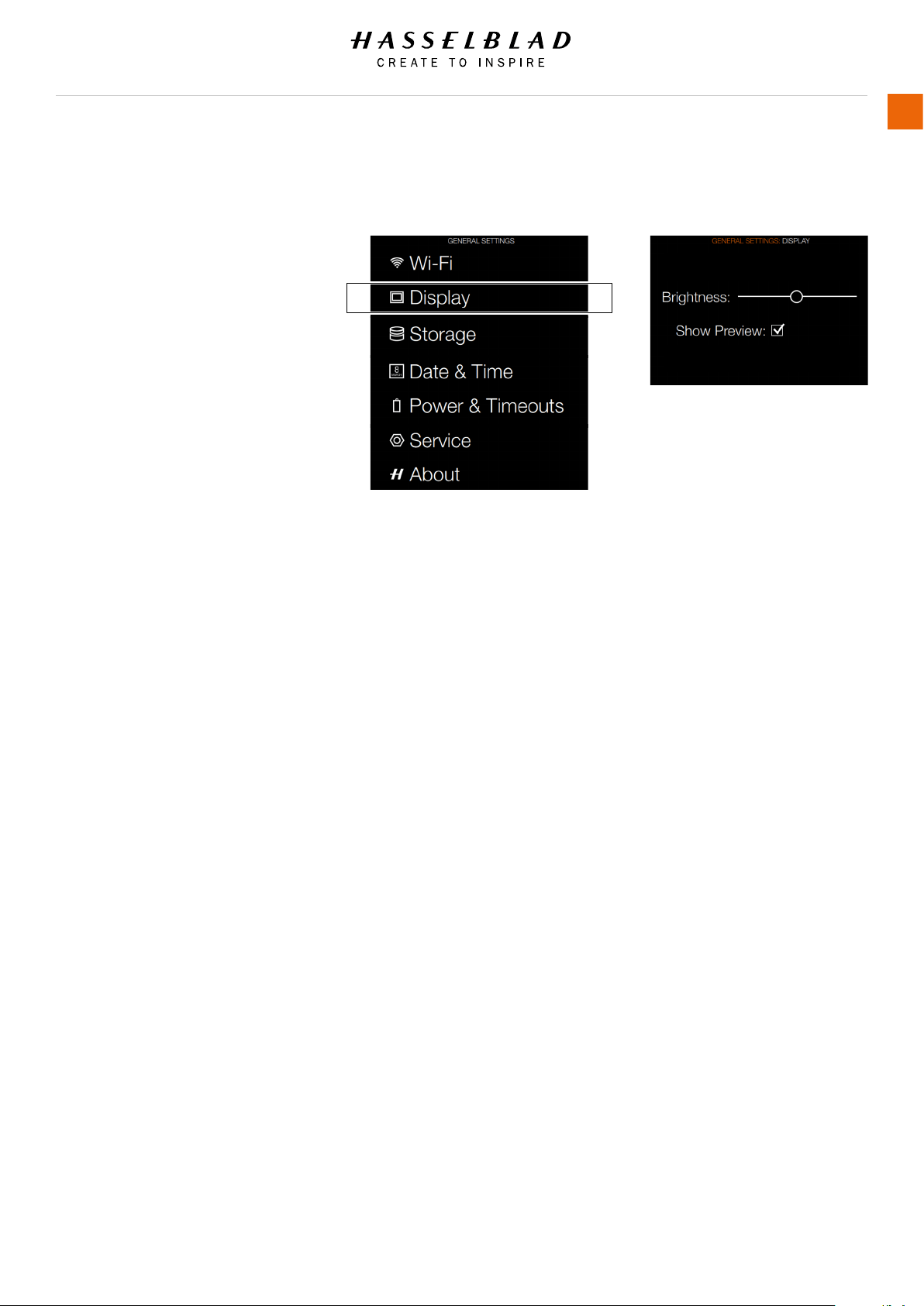
H6D www.hasselblad.com
USER GUIDE
To Use
129
5.17 GENERAL SETTINGS DISPLAY
MAIN MENU > GENERAL SETTINGS >
DISPLAY
1 Press the Settings icon on the Sensor
unit display.
2 The General Settings Menu will
appear.
3 Select Display.
Swipe right or press Menu / EXIT button
to get back to Main Menu.
Display Menu Settings
Brightness
Slide Left or Right to change
Brightness.
Show Preview
Select On / Off. On displays a preview
of the capture after every exposure.
General Settings Menu
Display Menu
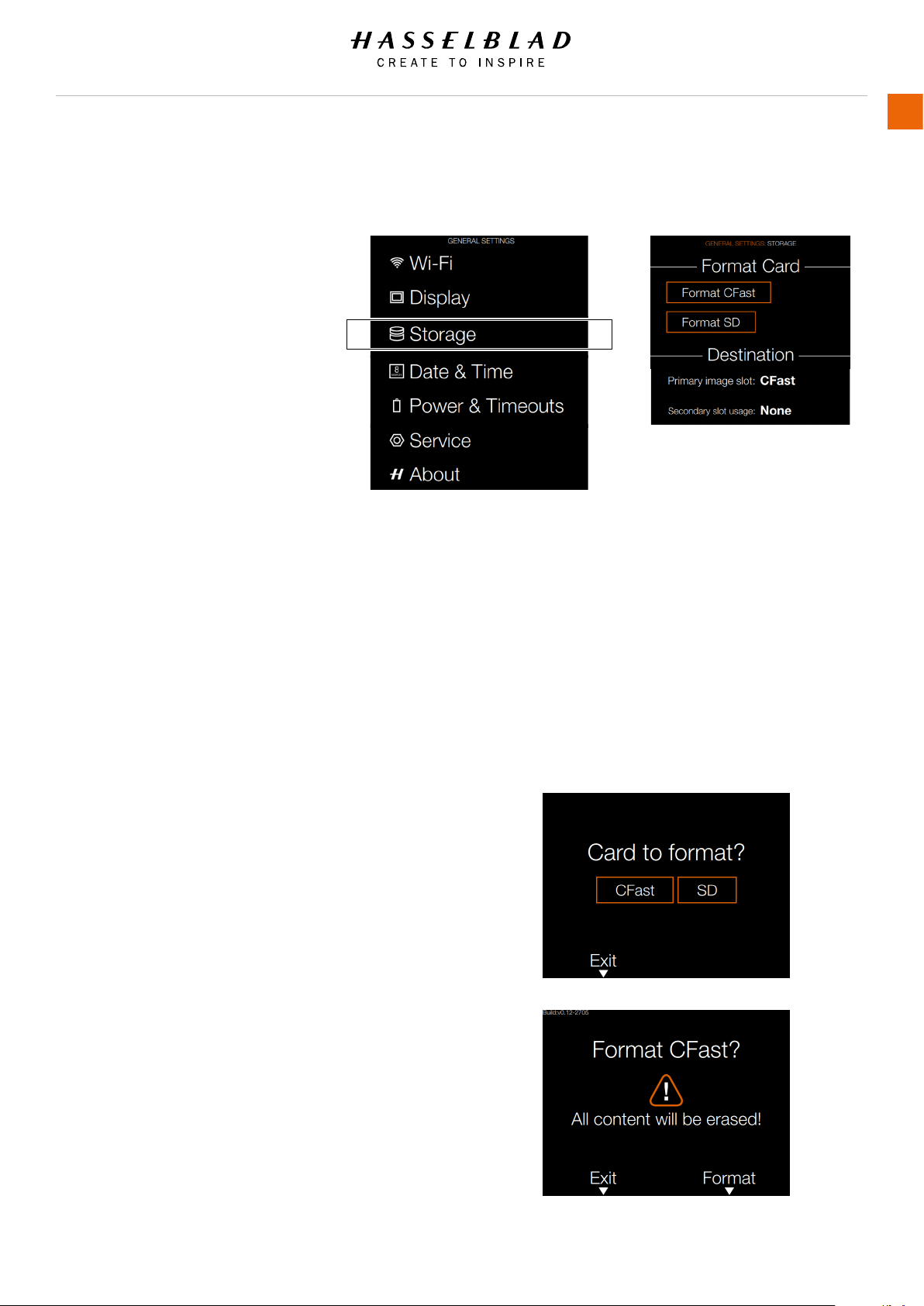
H6D www.hasselblad.com
USER GUIDE
To Use
130
5.18 GENERAL SETTINGS STORAGE
MAIN MENU > GENERAL SETTINGS >
STORAGE
1 Press the Settings icon on the
Sensor unit display.
2 The General Settings Menu will
appear.
3 Press the General Settings Storage
icon.
Swipe right or press Menu / EXIT
button to get back to Main Menu.
Storage Menu Settings
Format Card
- Format CFast.
- Format SD.
Image Destination
- Primary slot: CFast or SD.
- Secondary slot usage.
Format Card
Select Card to Format. CFast or SD
Card.
Select Exit to Exit without formatting.
Format CFast Card Dialogue
Select Format to Format CFast Card.
All content will be erased.
Select Exit to Exit without formatting.
Storage Menu
General Settings Menu
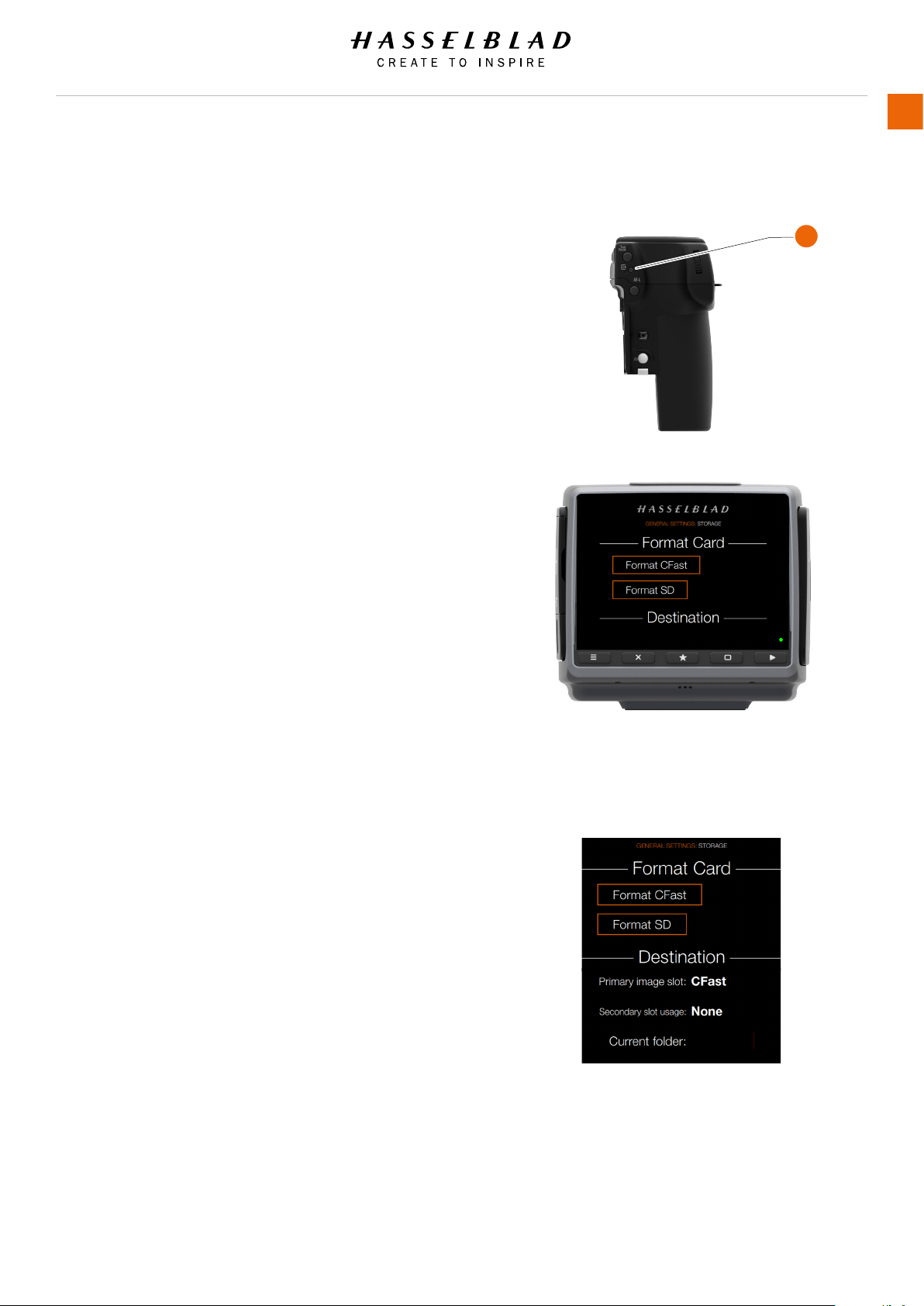
FORMAT CFAST AND SD CARDS
MAIN MENU > GENERAL SETTINGS > STORAGE > FORMAT CFast
The camera is only able to read and write to storage media
that have been formatted correctly. New cards sometimes
have no formatting, or you might want to convert a card that
is currently using a format that the camera cannot read. In
either case, you must reformat both CFast cards and SD cards
in the sensor unit for H6D use.
There are two ways to format cards. The quickest way is to
use the Format card button on the grip but if you prefer, you
can also use the menu on the sensor unit.
FORMAT BUTTON
Press the Format button (A) on the camera grip. It is purposely
recessed to avoid unintentional use, so use a ballpoint pen
or similar. A prompt is displayed on the sensor unit for
conrmation. It is also possible to press the format button with
a hard press with a ngertip.
FORMAT MEMORY CARDS VIA SENSOR UNIT
MAIN MENU > GENERAL SETTINGS > STORAGE > FORMAT SD
1 Press MENU.
2 Navigate to Storage (use the Rear scroll wheel or navigate
via the touch screen).
3 Navigate to Format Card (use the Rear scroll wheel or
navigate via the touch screen).
4 Click on the button Format CFast or Format SD.
5 Conrm by pressing Format.
Swipe right or press Menu / EXIT button to get back to Main
Menu.
Note!
All CFast and SD memory cards should be formatted in the
sensor unit before using them the rst time.
Note!
Only UDMA/type 4/60MBs (or 400x) cards or better are
recommended for H6D use.
H6D www.hasselblad.com
USER GUIDE
To Use
131
A
Storage Menu
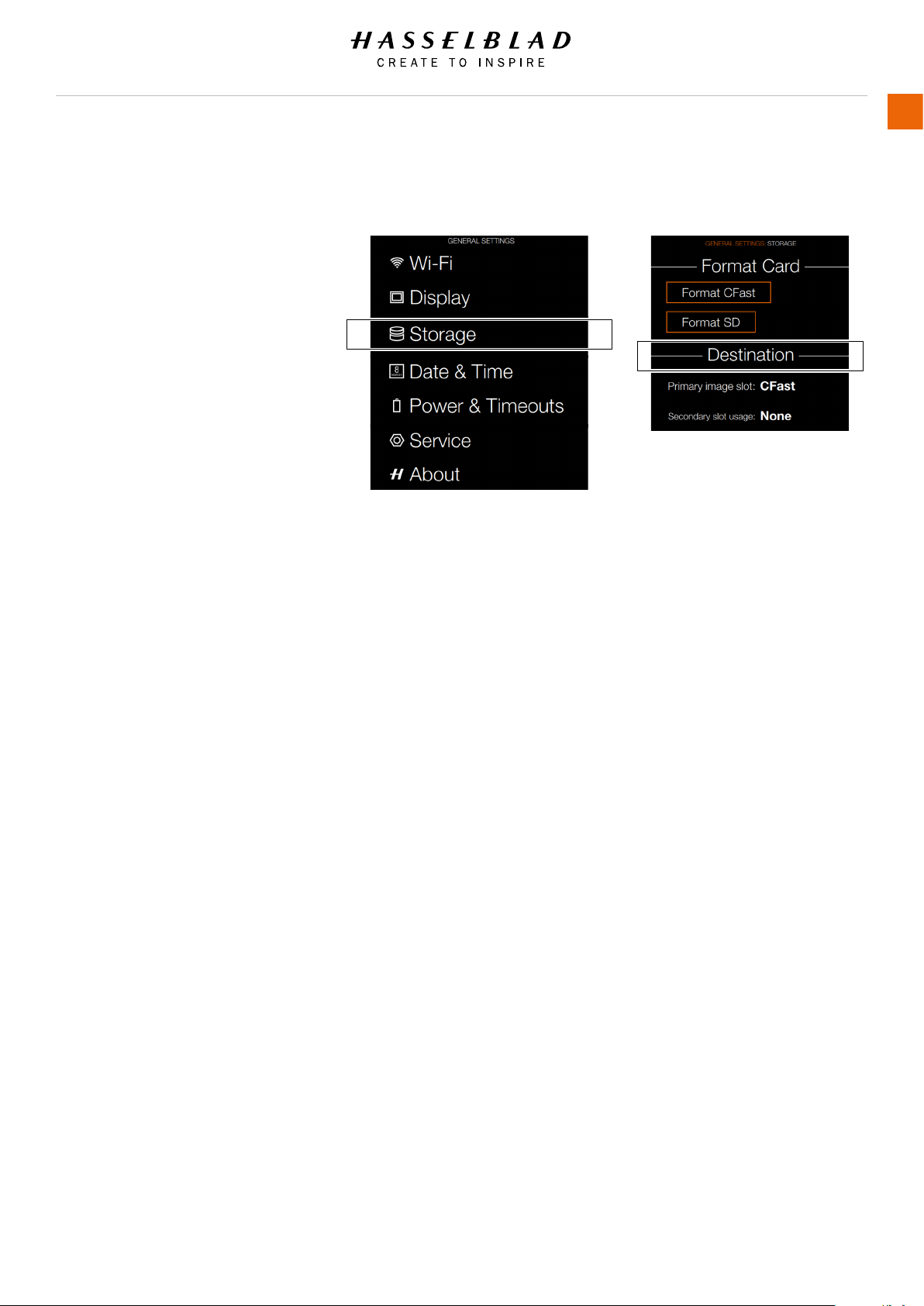
H6D www.hasselblad.com
USER GUIDE
To Use
132
IMAGE AND VIDEO DESTINATION
MAIN MENU > GENERAL SETTINGS >
STORAGE > IMAGE DESTINATION
Destination Settings.
1 Press the Settings icon on the Sensor
unit display.
2 The General Settings Menu will appear.
3 Press the General Settings Storage
icon.
4 Select Image Destination.
Swipe right or press Menu / EXIT button to
get back to Main Menu.
Image Destination
- Primary slot: CFast or SD.
- Secondary slot usage:
- None.
- Overow.
If Overow is selected the camera will
automatically switch to the secondary card
when the primary card is full.
General Settings Menu
Storage Menu
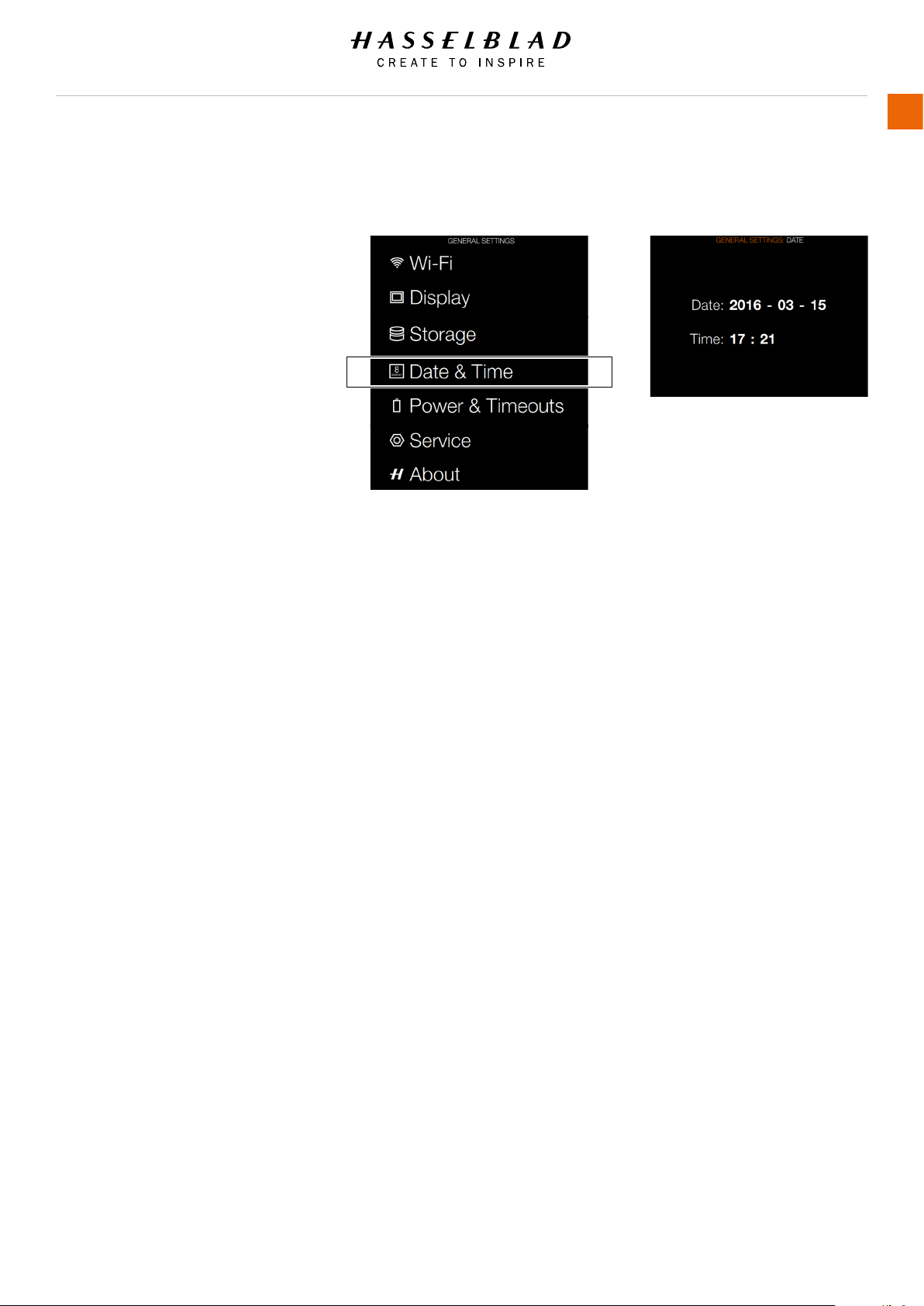
H6D www.hasselblad.com
USER GUIDE
To Use
133
5.19 GENERAL SETTINGS DATE AND TIME
MAIN MENU > GENERAL SETTINGS >
DATE AND TIME
1 Press the General Settings icon on
the Sensor unit display.
2 The General Settings Menu will
appear.
3 Press the Date and Time icon.
Swipe right or press Menu / EXIT
button to get back to Main Menu.
Date and Time Menu Settings
Date
Set Date by changing year, month
and day using the pop up menus.
Time
Set Time by changing hour and
minute using the pop up menus.
Date and Time Menu
General Settings Menu
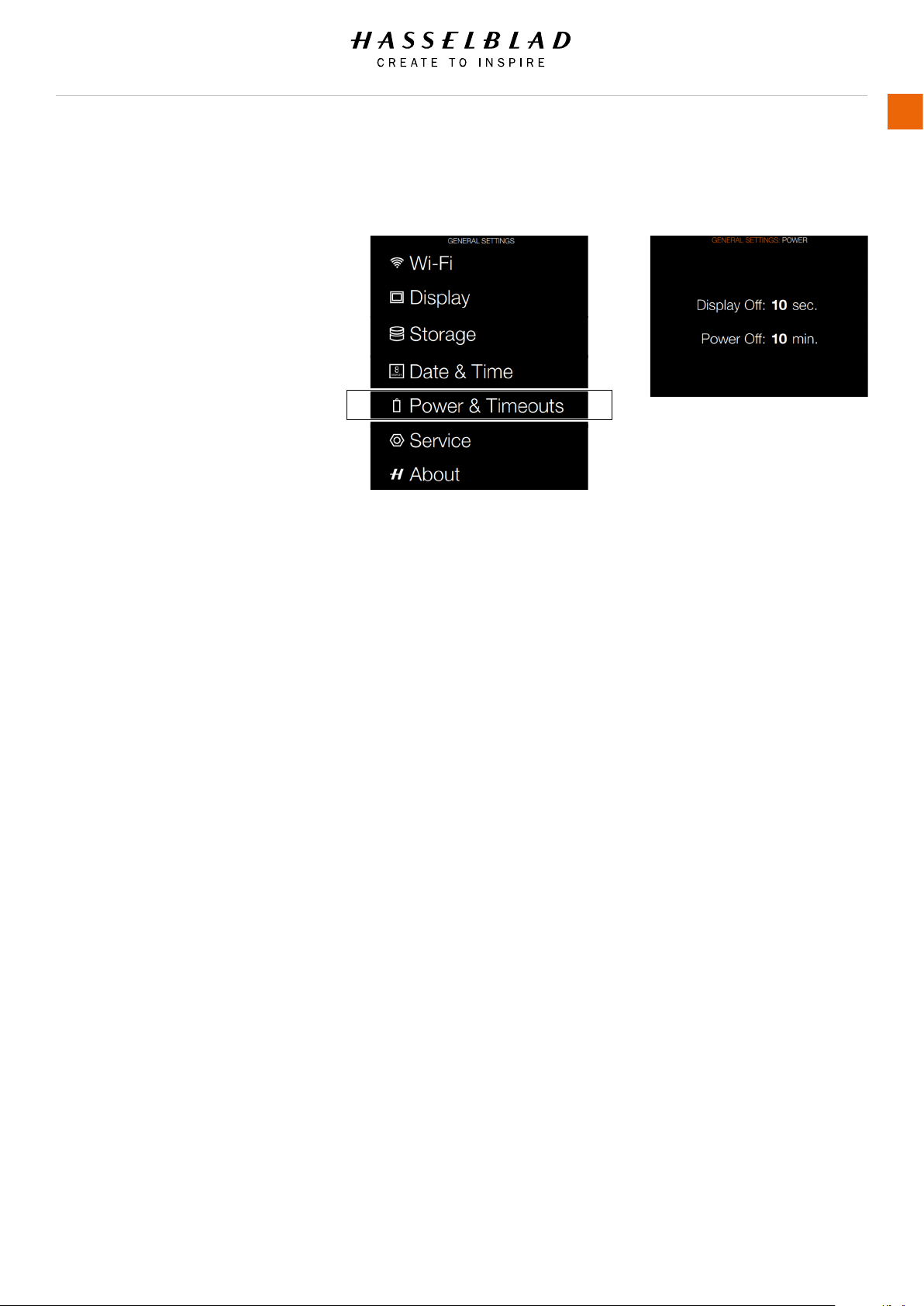
H6D www.hasselblad.com
USER GUIDE
To Use
134
5.20 GENERAL SETTINGS POWER AND TIMEOUTS
MAIN MENU > GENERAL SETTINGS >
POWER AND TIMEOUTS
The H6D Camera can be set to
automatically turn off the Sensor Unit
Display after a set amount of seconds
to save battery for example.
It can also be set to Power Off after
10, 30 or 60 minutes.
1 Press the General Settings icon on
the Sensor unit display.
2 The General Settings Menu will
appear.
3 Press the General Settings Power
and Timeouts icon.
4 Adjust the time values by pressing
the value and adjust the value in
the pop up menus.
Swipe right or press Menu / EXIT
button to get back to Main Menu.
Power and Timeouts Menu
Display Off
Select Display Off Settings.
Power Off
Select Display Power Off Settings.
Power and Timeouts Menu
General Settings Menu
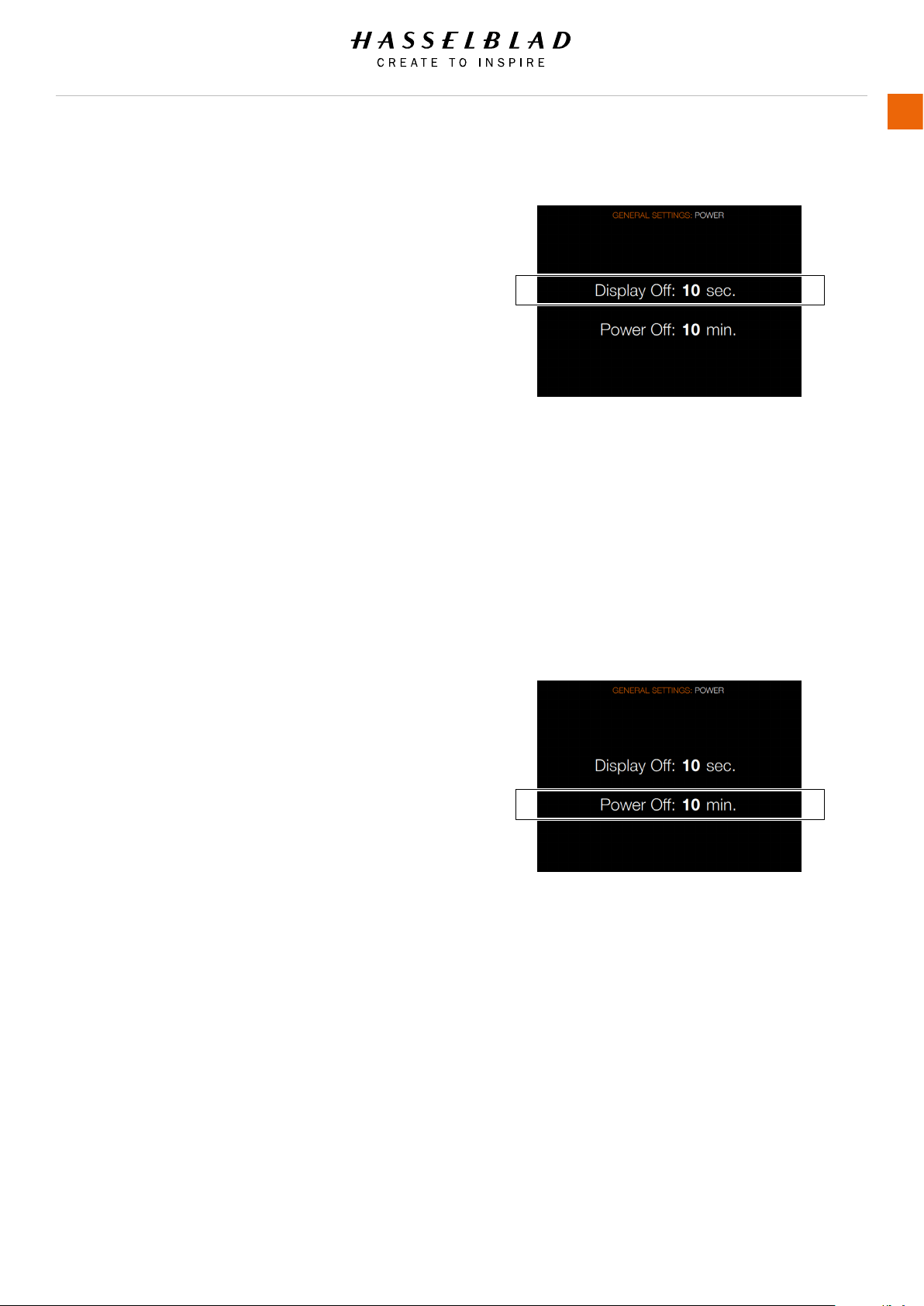
SET DISPLAY OFF MODE
MAIN MENU > GENERAL SETTINGS > DISPLAY >POWER MODES
AND TIMEOUTS
1 Press the General Settings icon on the Sensor unit display.
2 The General Settings Menu will appear.
3 Press the General Settings Power and Timeouts icon.
4 Select Display Off.
In this mode the camera turns off the grip and sensor unit
displays but remains ready to be immediately reactivated to the
ON mode.
The time intervals are:
● 10 seconds.
● 20 seconds.
● 30 seconds.
● 60 seconds.
● Never.
H6D www.hasselblad.com
USER GUIDE
To Use
135
POWER OFF
MAIN MENU > GENERAL SETTINGS > DISPLAY >POWER MODES
AND TIMEOUTS > POWER OFF
Sets the amount of elapsed time before the camera enters
complete power off mode. See ‘Power Modes’ section in this
manual for further details.
Power Off options
● Power Off after 5 minutes.
● Power Off after 10 minutes.
● Power Off after 30 minutes.
● Power Off: Never
RE-ACTIVATE CAMERA FROM DISPLAY OFF/POWER MODE
Do any of the following actions:
● Press the Shutter release button half way.
● Press the Stop down button.
● Click the ON.OFF button.
● Press the Mirror up button.
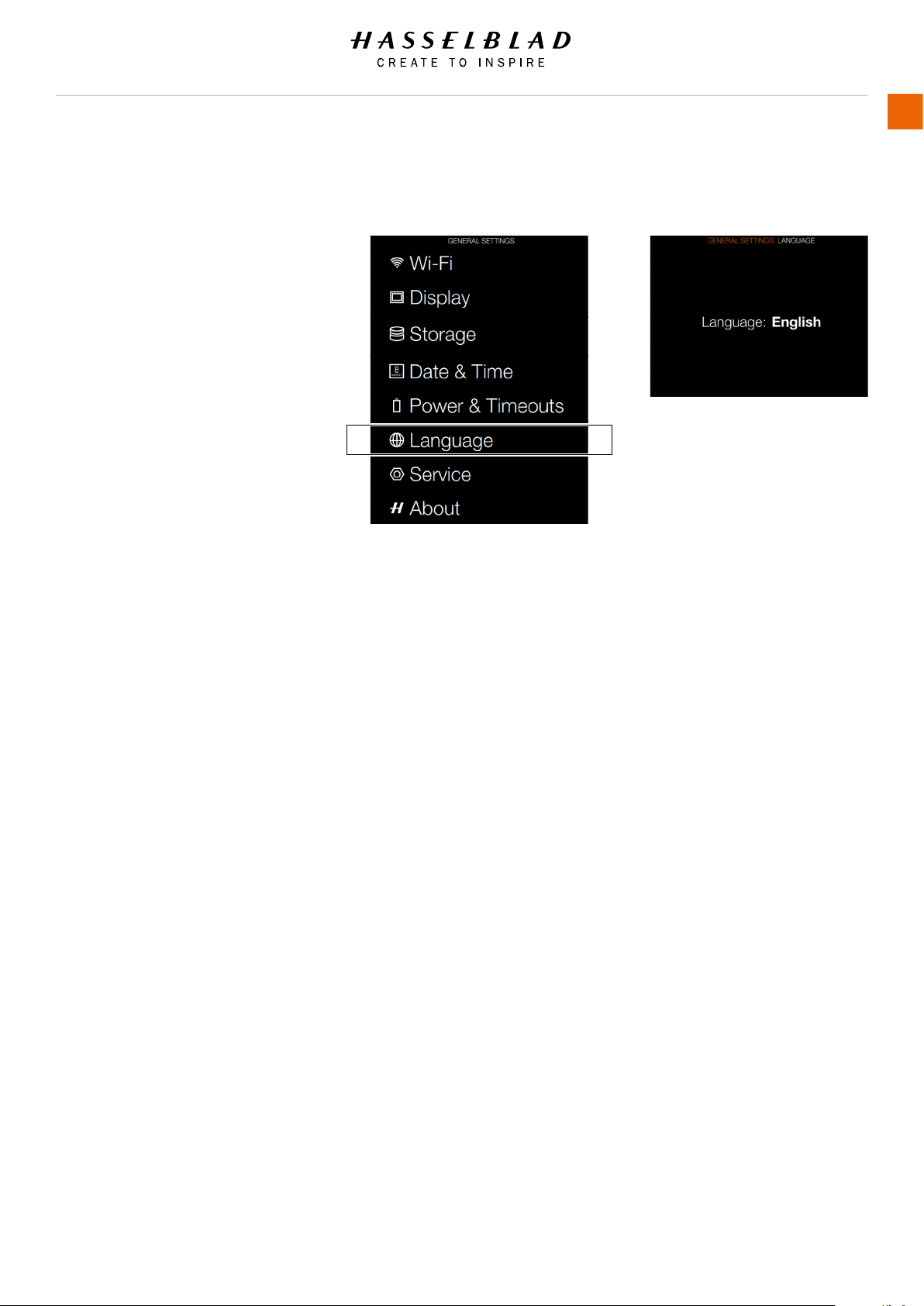
H6D www.hasselblad.com
USER GUIDE
To Use
136
5.21 GENERAL SETTINGS LANGUAGE
MAIN MENU > GENERAL SETTINGS >
LANGUAGE
1 Press the General Settings icon on
the Sensor unit display.
2 The General Settings Menu will
appear.
3 Press the General Settings
Language icon.
Swipe right or press Menu / EXIT
button to get back to Main Menu.
Language Menu Settings
More language options will be added
in a future Firmware release.
Available Language:
● English
1 Press MENU button on the Sensor
Unit Display.
2 Navigate to General Settings.
3 Navigate to Language.
4 Select Language.
5 Close the pop up Menu by a click
outside the pop up.
Note!
If the sensor unit has been set to
a language you don’t understand (a
rented camera, for example), see
Chapter Troubleshooting for solution.
Language Menu
General Settings Menu
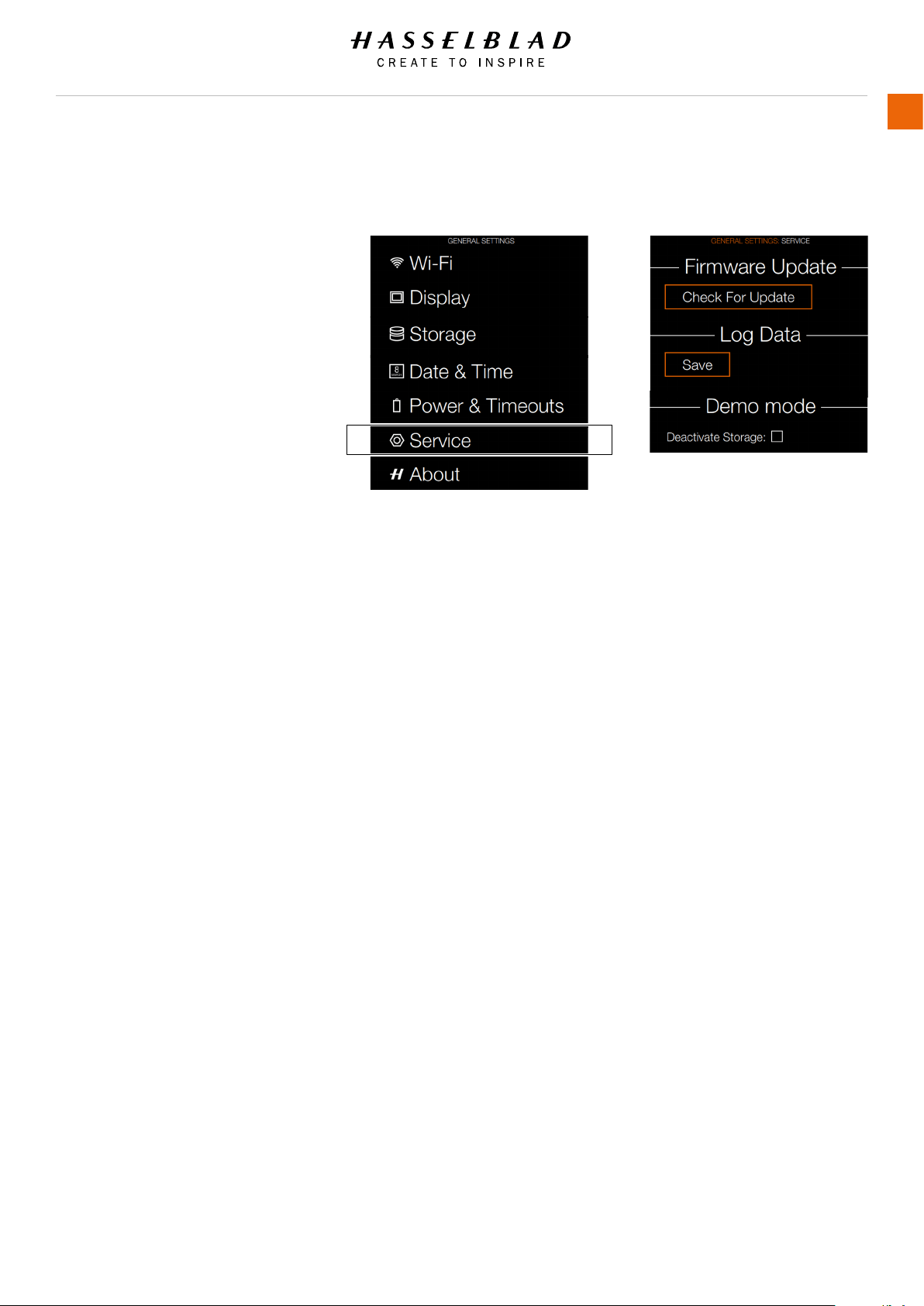
H6D www.hasselblad.com
USER GUIDE
To Use
137
5.22 GENERAL SETTINGS SERVICE
MAIN MENU > GENERAL SETTINGS >
SERVICE
1 Press the General Settings icon on
the Sensor unit display.
2 The General Settings Menu will
appear.
3 Press the General Settings Service
icon.
Swipe right or press Menu / EXIT
button to get back to Main Menu.
Service Menu Settings
Check For Update
Log Data
Press Save to Log Data for Service.
Demo Mode
Deactivate Storage: Select the
check box and a dialogue screen
is displayed. Select Deactivate to
deactivate storage.
Note!
The Demo Mode is only intended for
Retail Demo Purpose.
Note!
The Storage Deactivation is only active
until the camera is restarted.
How to save Log Data:
1 Press MENU.
2 Navigate to General Settings.
3 Navigate to Service.
4 Navigate to Log Data.
5 Press the Save button.
6 Save Log Data saves a log le on
the CFast card or SD card.
7 Save the chosen selection by
pressing EXIT (MENU button).
Service Menu
General Settings Menu
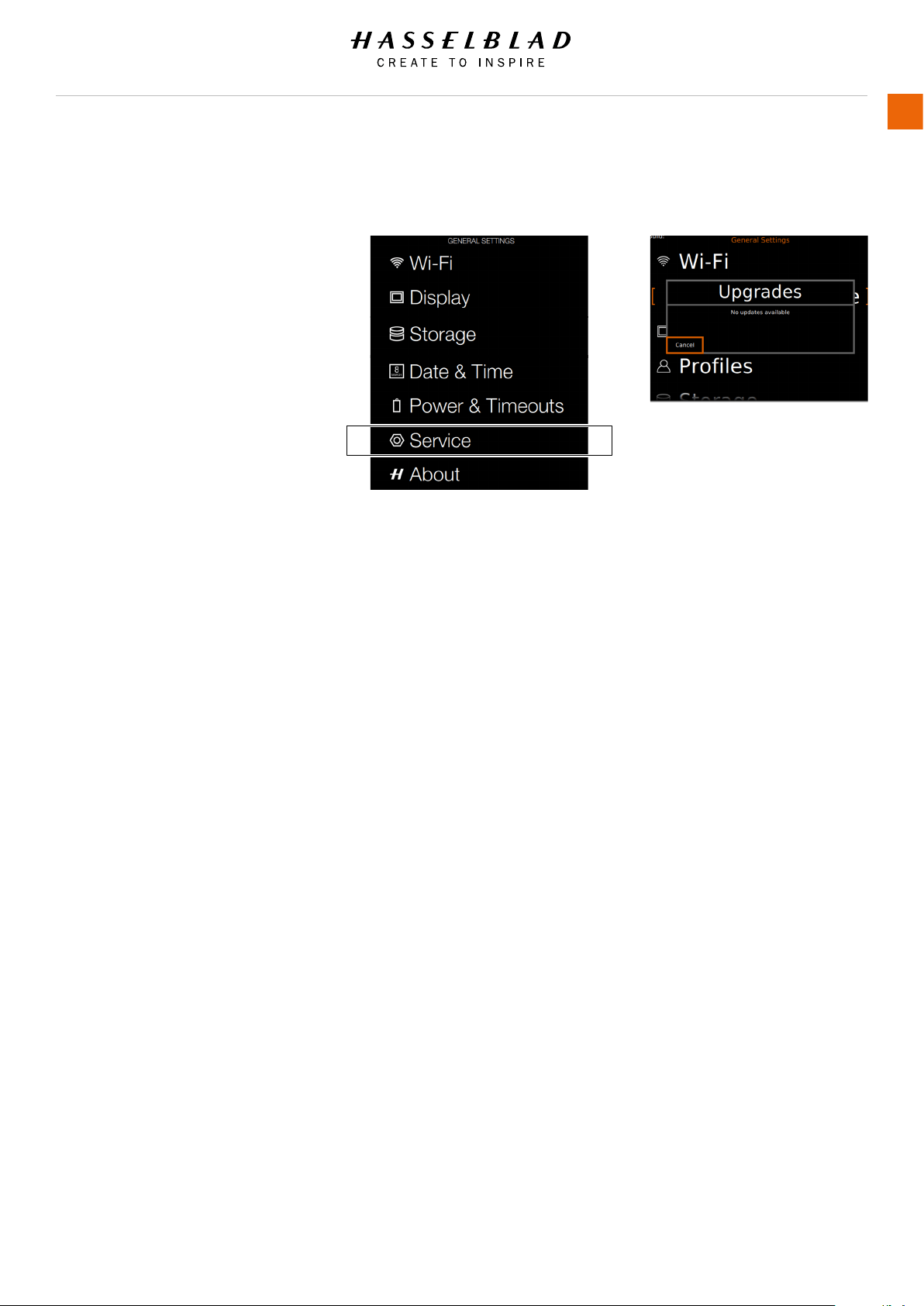
H6D www.hasselblad.com
USER GUIDE
To Use
138
5.23 GENERAL SETTINGS CHECK FOR UPDATE
MAIN MENU > GENERAL SETTINGS >
CHECK FOR UPDATE
1 Press the Settings icon on the
Sensor unit display.
2 The General Settings Menu will
appear.
3 Press the General Settings Check
for Update button.
Swipe right or press Menu / EXIT
button to get back to Main Menu.
Check for Update Menu Settings
When connected to internet you
can check for Firmware Upgrades.
Check for Update Menu
General Settings Menu
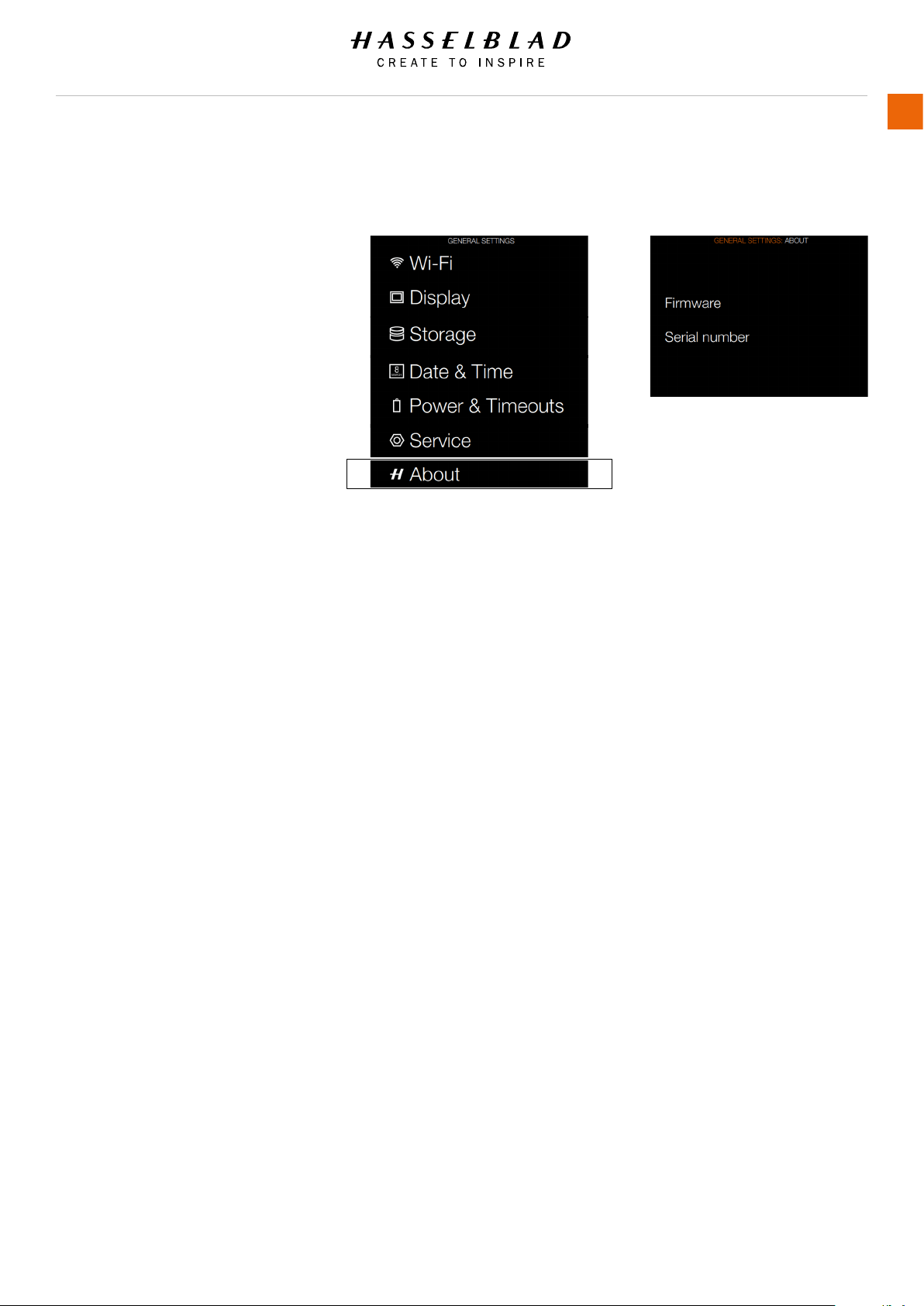
H6D www.hasselblad.com
USER GUIDE
To Use
139
5.24 GENERAL SETTINGS ABOUT
MAIN MENU > GENERAL SETTINGS >
ABOUT
1 Press the General Settings icon on
the Sensor unit display.
2 The General Settings Menu will
appear.
3 Press the General Settings About
icon.
Swipe right or press Menu / EXIT
button to get back to Main Menu.
Firmware
The About box will tell you which
rmware version is present so you can
see if you have the latest rmware (can
be downloaded from the Hasselblad
website). The serial number is also
displayed in case Hasselblad Support
need to know it for problem solving.
About Menu
General Settings Menu
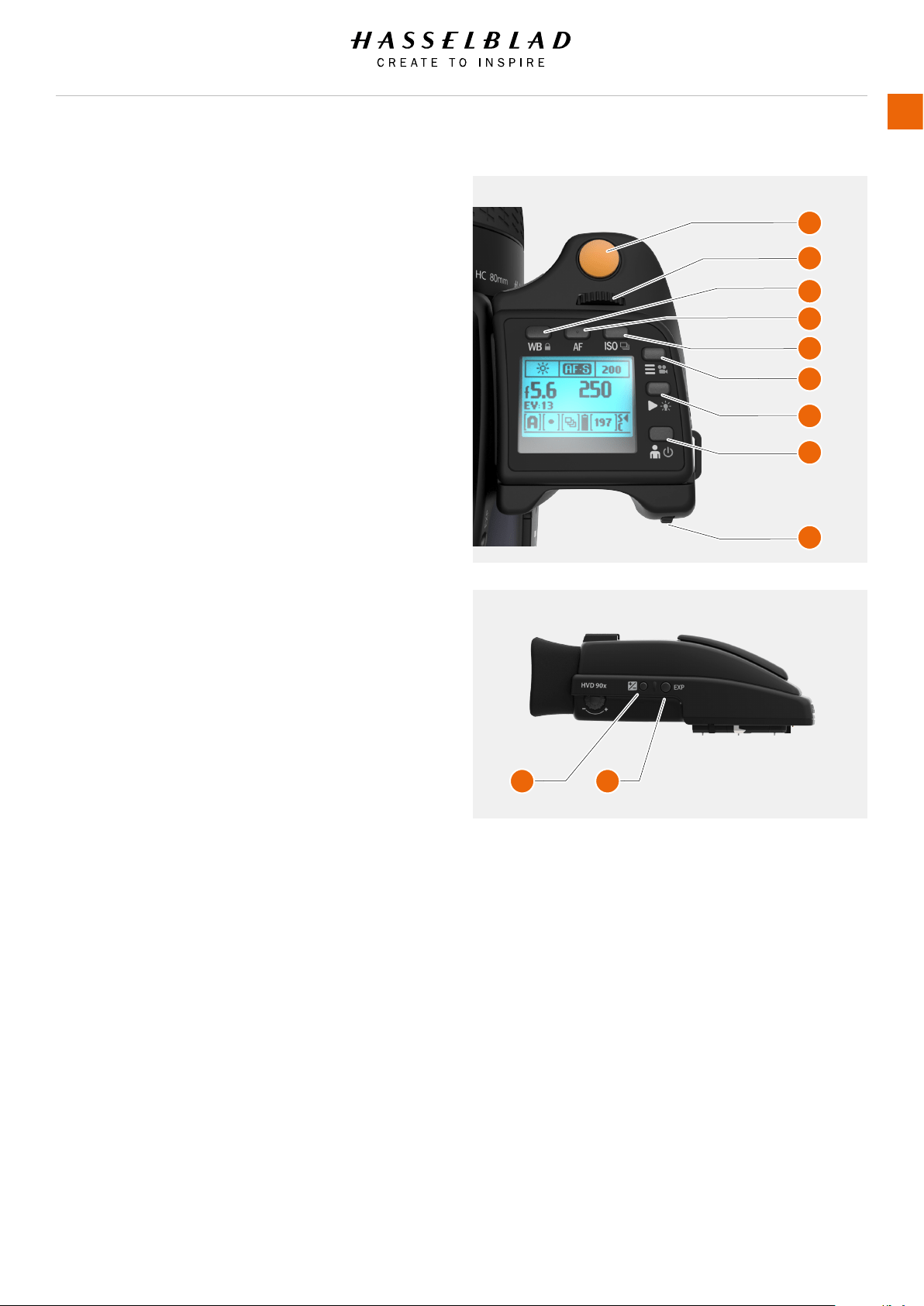
5.25 GRIP DISPLAY NAVIGATION
BUTTONS AND CONTROLS ON GRIP DISPLAY
Press the buttons that surrounds the display and turn the scroll
wheels to navigate the menu and access the settings on the
grip. Note that some of the buttons have several functions
which is indicated by the designation that appears closest to
that particular button when navigating. For example, the Menu
button (F) also acts as a Video button. The Play button (G) also
acts as Illumination On for the Grip Display. The ON / OFF button
(H) also acts as the Proles button.
List of the various terms describing the various actions that
appear on the grip display:
Quick save - half press shutter release button.
Escape - press ESC button (H). Terminates an action and returns
to the main screen. Does not save any settings.
A Shutter release button
B Front scroll wheel
C WB button
D AF button
E ISO
F MENU / Video button
G PLAY / Illumination
H ON / OFF (Proles) button
I Rear scroll wheel
J Exposure and ash compensation button
K Exposure mode / Metering mode
H6D www.hasselblad.com
USER GUIDE
To Use
140
A
B
C
D
E
F
G
H
I
J K
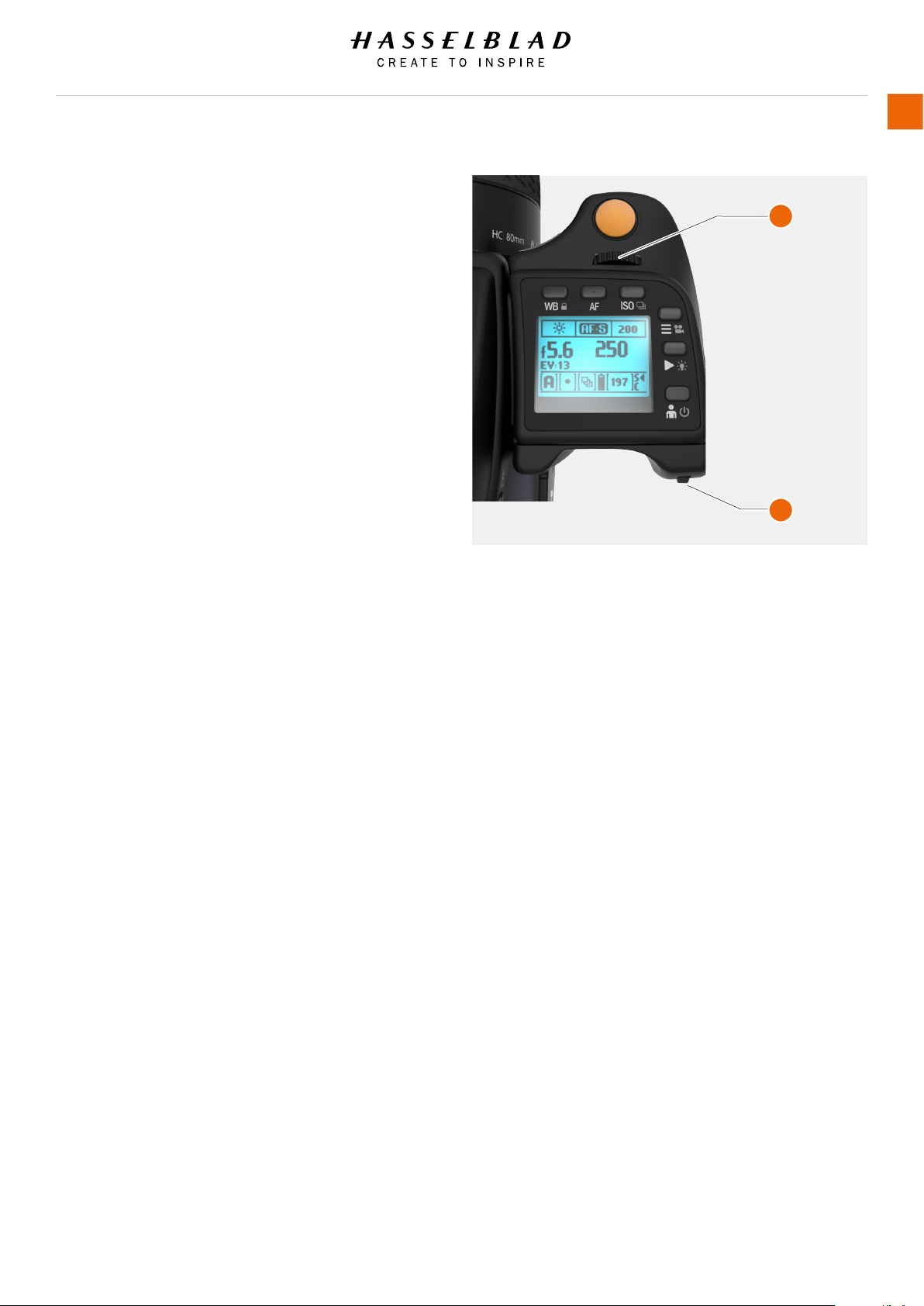
H6D www.hasselblad.com
USER GUIDE
To Use
141
TO ADJUST SHUTTER AND APERTURE ON GRIP
Note!
In manual mode both the shutter and aperture are electronically
controlled and are adjusted by the scroll wheels on the grip.
Note!
There are no separate manual setting rings on the lenses or
camera body. The settings are displayed both on the grip display
and in the viewnder display.
How to adjust shutter and aperture
1 Turn the front scroll wheel (A) to adjust the shutter and
aperture.
2 Turn the rear scroll wheel (B) to adjust the shutter and
aperture.
In Manual mode (M):
Front wheel = Aperture.
Rear wheel = Shutter speed.
In Aperture priority (A) mode:
Front wheel = Aperture.
Rear wheel = Quick exposure adjustment of Shutter speed.
In Shutter priority (S) mode:
Front wheel = Shutter Speed.
Rear wheel = Quick exposure adjustment of Aperture.
In P or Pv mode:
Front wheel = Aperture/shutter speed combination.
Rear wheel = Quick exposure adjustment.
See under Light Metering and Exposure Control/Exposure
Method for a complete description.
A
B
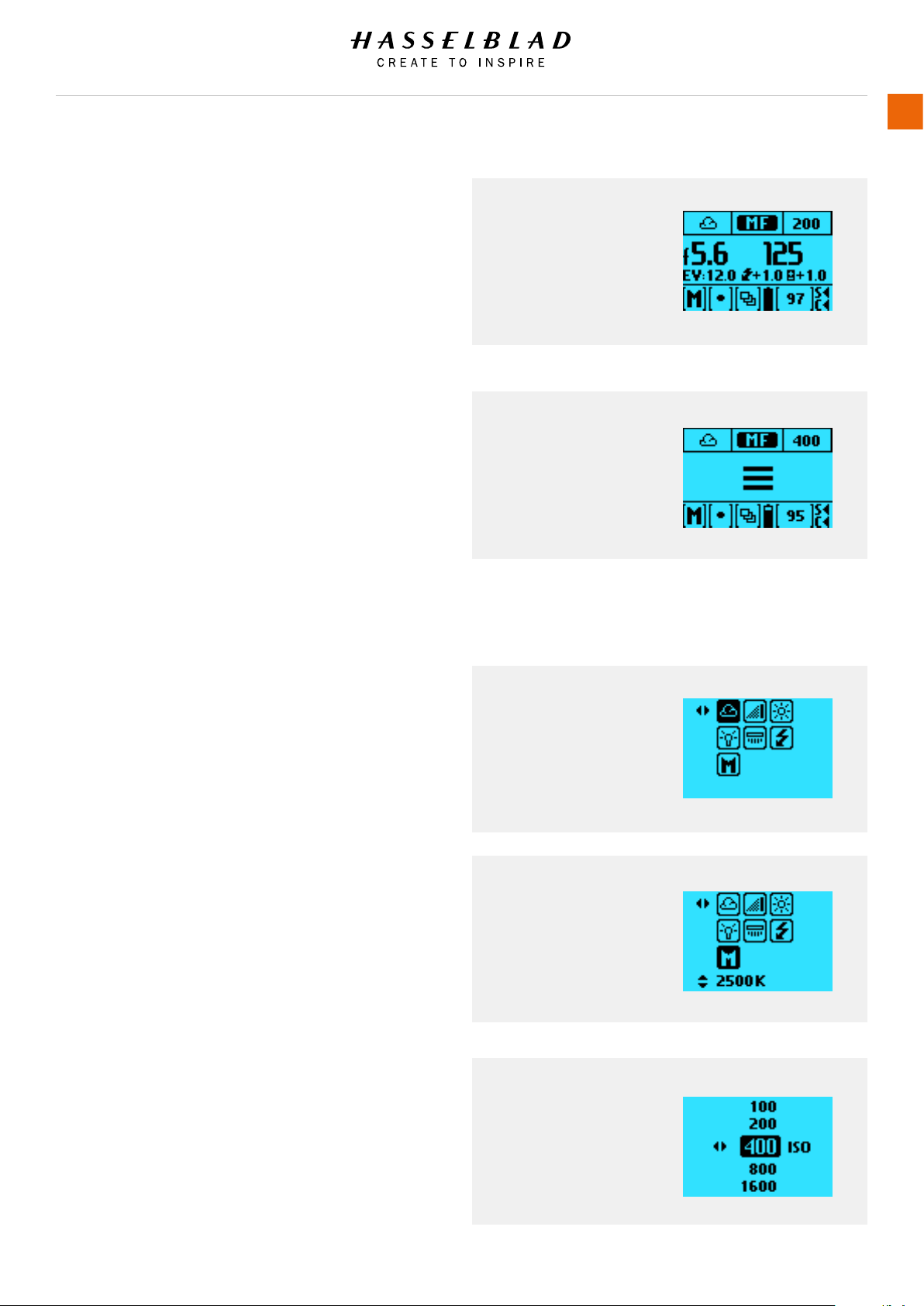
H6D www.hasselblad.com
USER GUIDE
To Use
142
GRIP DISPLAY NAVIGATION
Main Screen
This is the Main Screen of the Camera Grip Display. These
are the most important camera settings. The top row displays
WB, AF and ISO. The middle displays Aperture, Shutter Speed,
EV (Exposure Value) and Exposure Compensation values are
displayed. At the bottom of the screen Exposure Mode, Light
Meter Method, Drive Mode, Battery Level, Exposure Counter and
Status of the memory cards are displayed.
Menu
Normally the front and rear wheels are used to control aperture
and shutter-speed values. If you would like to use the wheels
to navigate the menus of the Sensor Unit, rst press the MENU
button. Then the Menu symbol is shown in the center of the
display.
As long as the Menu Mode is active it is possible to use the
wheels to navigate the menu system of the Sensor Unit. If you
want to leave the Menu Mode (and use the wheels for aperture
and shutter-speed) press the Menu button again or half-press
the exposure trigger button.
White Balance (WB)
Press the WB button above the Grip Display to show the WB
Menu. Select WB mode by scrolling left or right with the front
wheel. Get back to the Main Screen by half-press or by clicking
the WB button again.
White Balance Manual (WB)
To set the Colour Temperature manually, scroll the Front Scroll
Wheel until “M” is displayed. Then the colour temperature value
is displayed at the bottom of the screen.
ISO
Press the ISO button to show the ISO menu. Use the Front Scroll
Wheel to scroll up and down between available ISO numbers.
Half-press or click the ISO button once again to leave the menu.
Main Screen
Grip Display Main
Screen.
WB
Grip Display White
Balance (WB) Screen.
Menu
Grip Display Menu
symbol on Screen.
WB Manual
Grip Display Manual
White Balance (WB)
Screen.
ISO
Grip Display Manual
ISO Screen. ISO 400
displayed.
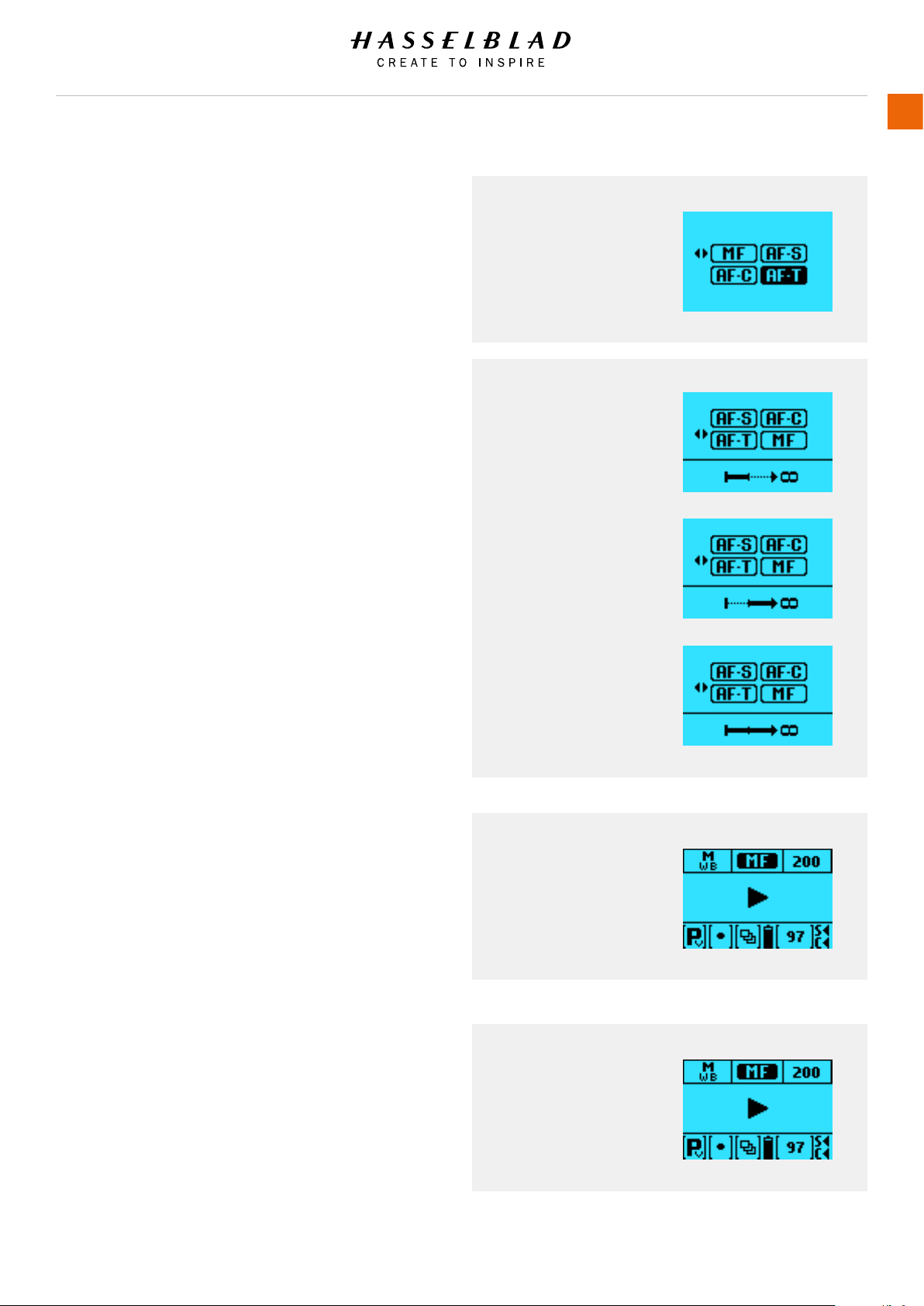
H6D www.hasselblad.com
USER GUIDE
To Use
143
Auto Focus (AF)
Press the AF button above the Grip Display to show the AF
menu. Select AF mode by scrolling the Front Scroll Wheel left or
right until the desired mode is selected.
Auto Focus (AF) with Macro Lens 120mm
When the 120mm Macro Lens is used the AF menu displays an
additional setting – Focus Range. To limit the large focus range
of the Macro Lens can improve the AF performance signicantly.
It is possible to select one of the three modes below for Focus
Range.
The rst limits the AF to scan the close-up range only (less than
1 meter).
The second scans far away distances only (between 1 meter and
innity).
The third option is to scan the Full Range.
Browse
To easily reach Image Browse mode, click the Browse (Play)
button to right of the Grip Display. The Browse Mode is activated
and it is possible to browse images using the wheels. To Exit
Browse Mode half-press or press the Browse button again.
Video Display
In Video Mode the Grip Displays some essential settings for
example White Balance (WB M selected), Focus (MF Manual
Focus Selected), ISO (200), Play icon, Pv and Spot Metering.
Auto Focus (AF)
Grip Display Auto Focus
(AF) Screen.
Browse
Grip Display Browse
Screen.
Video Display
Display when in Video
Mode.
Close-up Scan
Far Away Scan
Full Range Scan
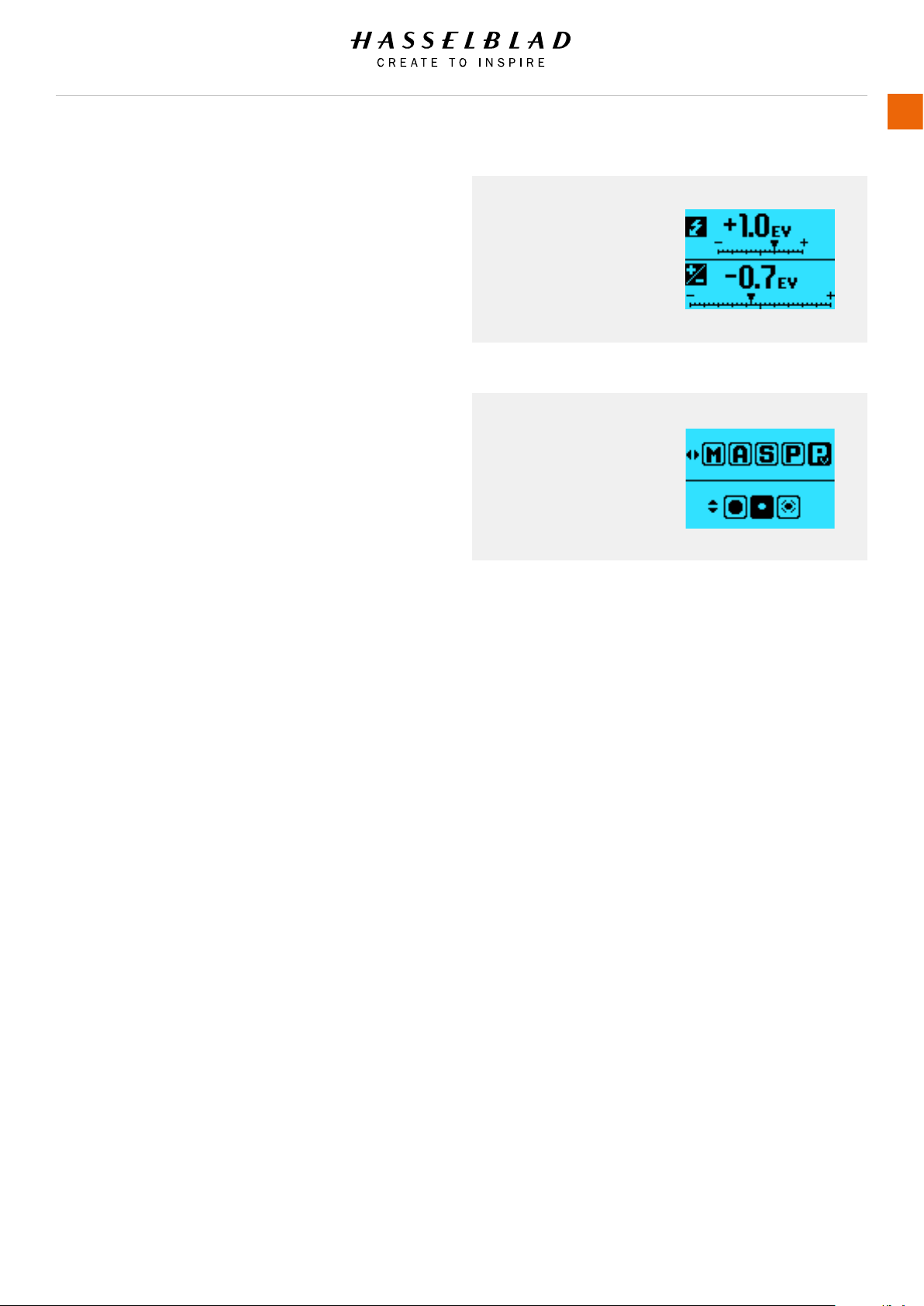
H6D www.hasselblad.com
USER GUIDE
To Use
144
+/- Button
Grip Display +/- Button
on Viewnder Screen.
EXP Button
Grip Display EXP Button
on Viewnder Screen.
+/- Button on Viewnder
Press the +/- button on the Viewnder to reach the Exposure
Adjust menu. Use the Front Scroll Wheel to set the exposure
compensation for ash and the rear wheel to set the exposure
compensation. The exposure compensation can be set between
-5.0 and 5.0 stops and the ash compensation between -3.0
and 3.0 stops. Leave the menu by half press or by pressing the
+/- button again.
EXP Button on Viewnder
Press the EXP button on the Viewnder to the menu for
Exposure Mode and Light Meter Mode. Set the Exposure Mode
using the front wheel and the Light Meter Mode using the rear
wheel Leave the menu by half press or pressing the EXP button
again.
Exposure Modes
M = Manual
A = Aperture priority
S = Shutter priority
P = Program
Pv = Program (variable)
Light Meter Modes
Center Weighted
Spot
Center Spot
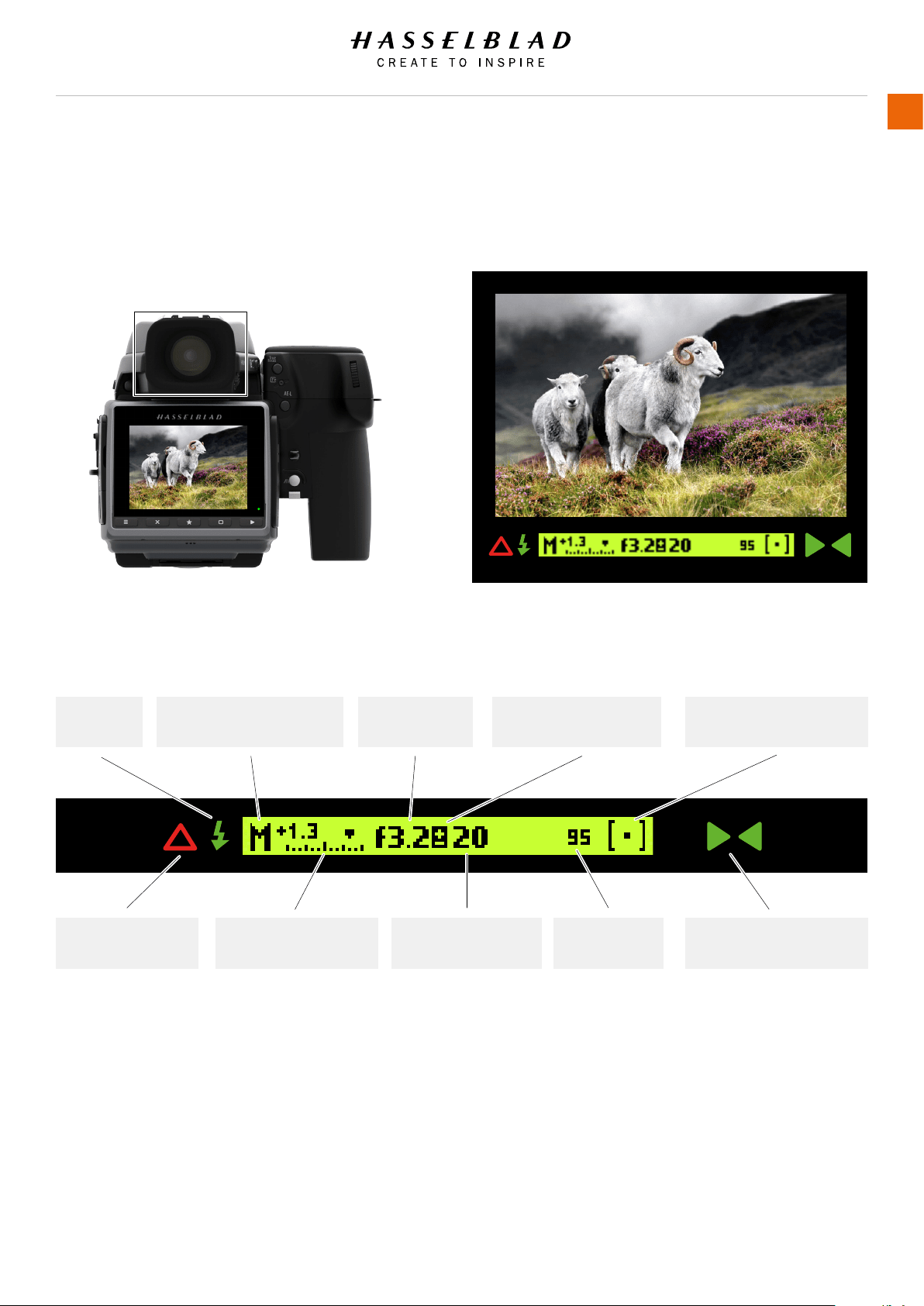
H6D www.hasselblad.com
USER GUIDE
To Use
145
Exposure method indication
(Manual mode)
Aperture setting
(f/3.2)
Exposure compensation
setting reminder symbol
Metering method setting
(Spot weighted)
Focus Assist LED
Warning triangle LED Shutter speed setting
(1/20 seconds)
Exposure compensation
setting (+1.3 EV)
95 frames
remaining
Flash LED
TYPICAL VIEWFINDER DISPLAY
Viewnder Display Visual User Interface
5.26 VIEWFINDER DISPLAY NAVIGATION
Note!
The LED’s will only be visible when activated by the camera or a setting.
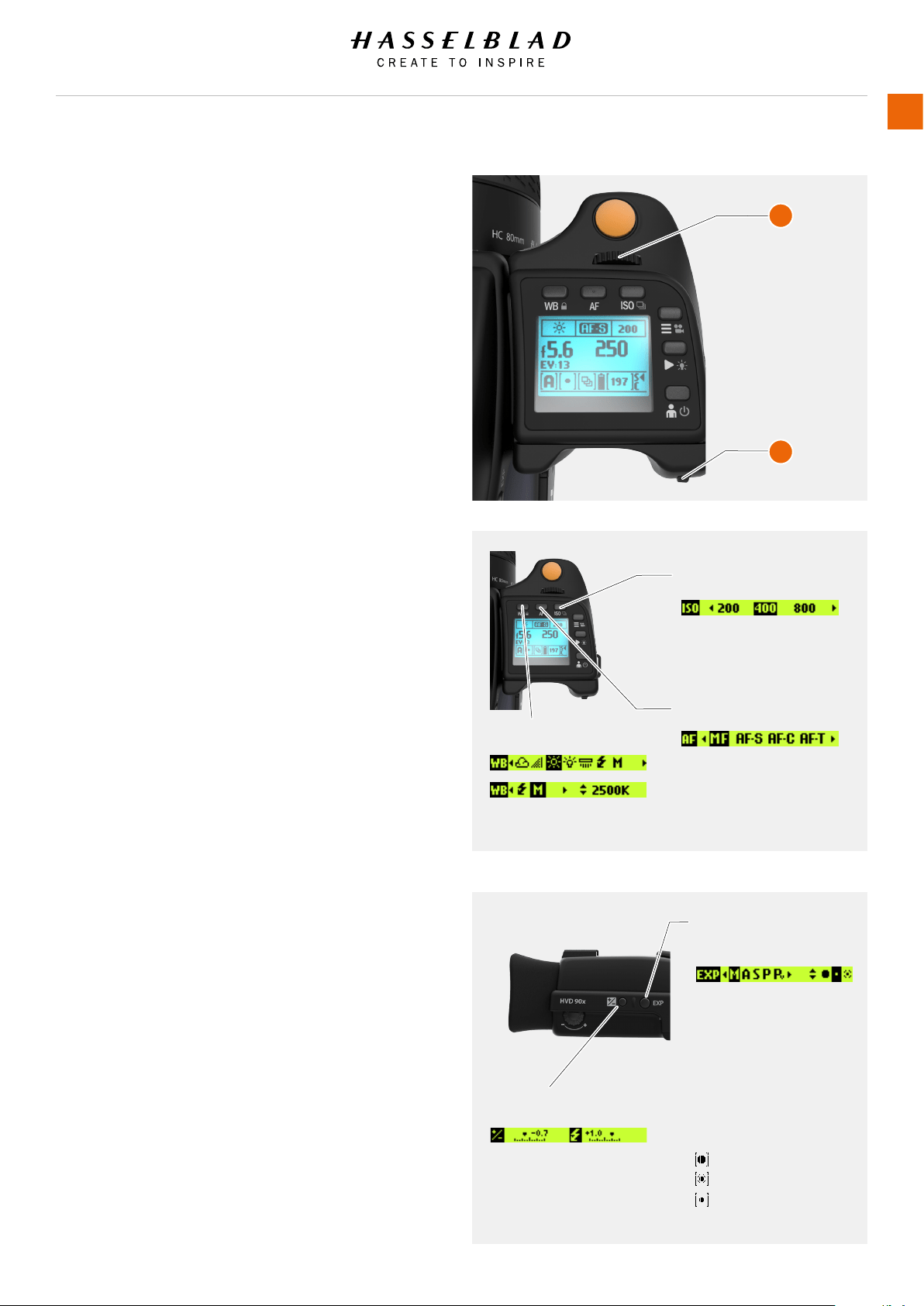
H6D www.hasselblad.com
USER GUIDE
To Use
146
Exposure and metering
mode examples
WB mode
AF mode (AF-S)
Exposure compensation mode
M = Manual
A = Aperture priority
S = Shutter priority
P = Program
Pv = Program (variable)
Center Weighted
Center Spot
Spot
ISO (ISO 400)
VIEWFINDER DISPLAY NAVIGATION OVERVIEW
How to Navigate the Viewnder Display
Select WB, AF, or ISO near the Grip Display or Exposure
Compensation mode and Exposure and Metering Modes on the
right side of the Viewnder.
1 Turn the front scroll wheel (A) to adjust settings.
2 Turn the rear scroll wheel (B) to adjust settings.
On the right side of the Viewnder you can select:
+ / - button Exposure Compensation
EXP button Exposure and Metering Modes
ISO, WB and AF modes
ISO Change ISO mode by scrolling the Front Scroll
Wheel (A) left or right.
WB Mode Change WB mode by scrolling the Front Scroll
Wheel (A) left or right.
AF Mode Change AF mode by scrolling the Front Scroll
Wheel (A) left or right.
Exposure and metering mode examples
M = Manual
A = Aperture priority
S = Shutter priority
P = Program
Pv = Program (variable)
Center Weighted
Center Spot
Spot
Change Exposure by scrolling the Front Wheel (A) up and down.
Change Metering mode by scrolling the Rear Scroll Wheel (B) up
or down.
A
B
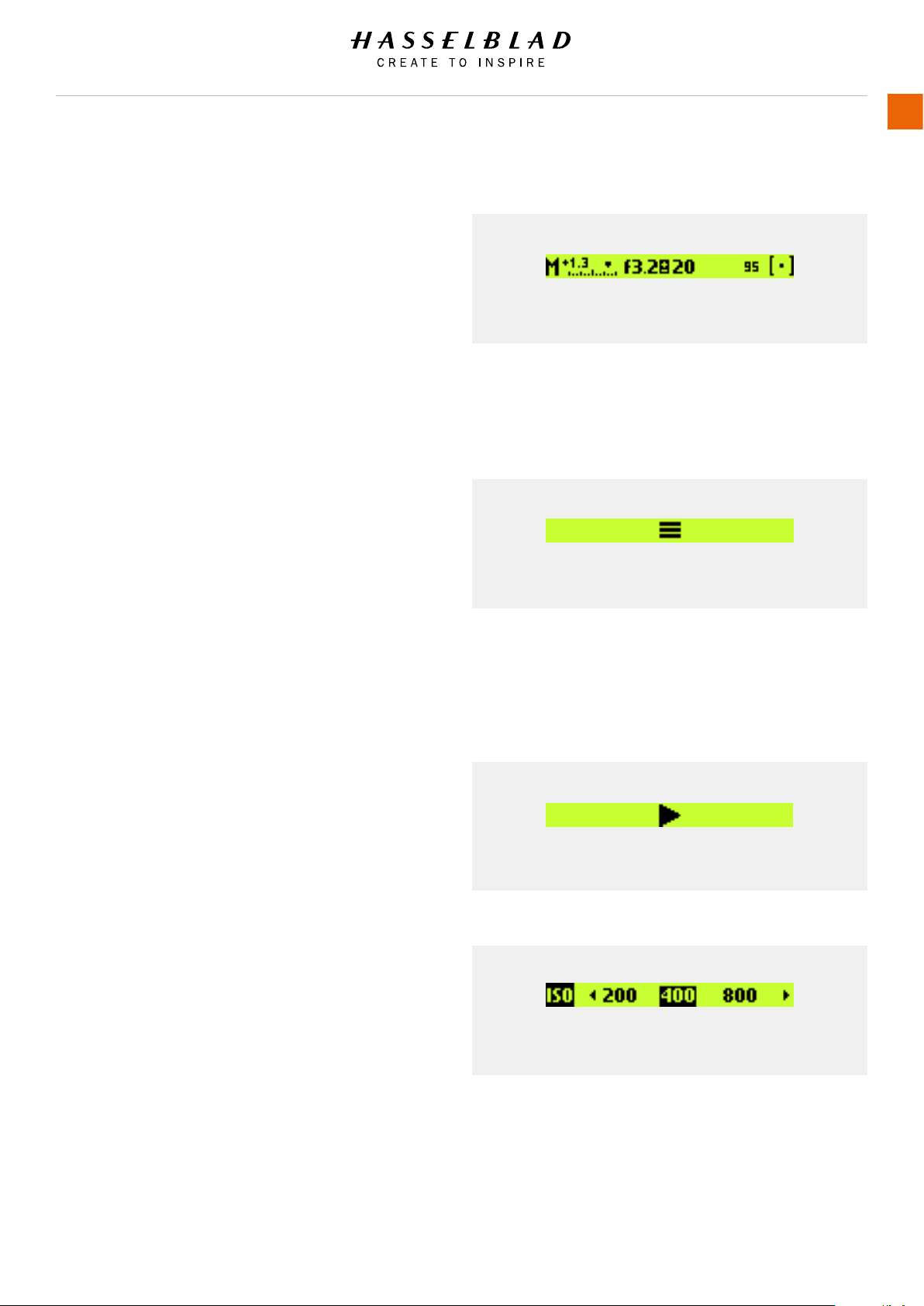
H6D www.hasselblad.com
USER GUIDE
To Use
147
Main Menu
This is the Main Menu Screen of the Viewnder Display. It shows
the most important exposure information.
To the left the exposure mode is displayed, Manual Mode
in this case. The scale with an arrow shows the exposure
compensation setting. In the center of the display the aperture
and shutter speed are displayed. If an exposure compensation
is set, a sign with a plus and minus is displayed between the
aperture and shutter speed value. Second from the right the
exposure counter is shown. To the far right the light meter mode
is displayed, Spot meter mode in this case.
Main Menu
Normally the Front and Rear Scroll Wheels are used to control
aperture and shutter speed values. If you would like to use the
wheels to navigate the menus of the Sensor Unit, rst press the
MENU button. Then the menu symbol is shown in the center of
the display to remind you that the camera is now in menu mode.
As long as the menu mode is active it is possible to use the
wheels to navigate the menu system of the sensor unit. If you
would like to leave the menu mode, and use the wheels for
aperture and shutter speed, press the menu button again or
half-press the exposure trigger button.
Browse
To reach Image Browse Mode, press the Browse (play) button
on the right side of the Grip Display. Then the Browse Mode is
activated and it is possible to Browse Images on the Sensor
Unit using the wheels. To exit Browse Mode half-press or press
the Browse button again.
ISO Settings
Press the ISO button to display the ISO Settings Menu.
Use the Front Scroll Wheel to scroll left and right between
available ISO numbers. Half-press or press the ISO button once
again to leave the menu.
Main Menu, Manual mode selected.
Main Menu Icon.
ISO settings, ISO 400 selected.
Browse Mode icon.
VIEWFINDER DISPLAY EXAMPLES
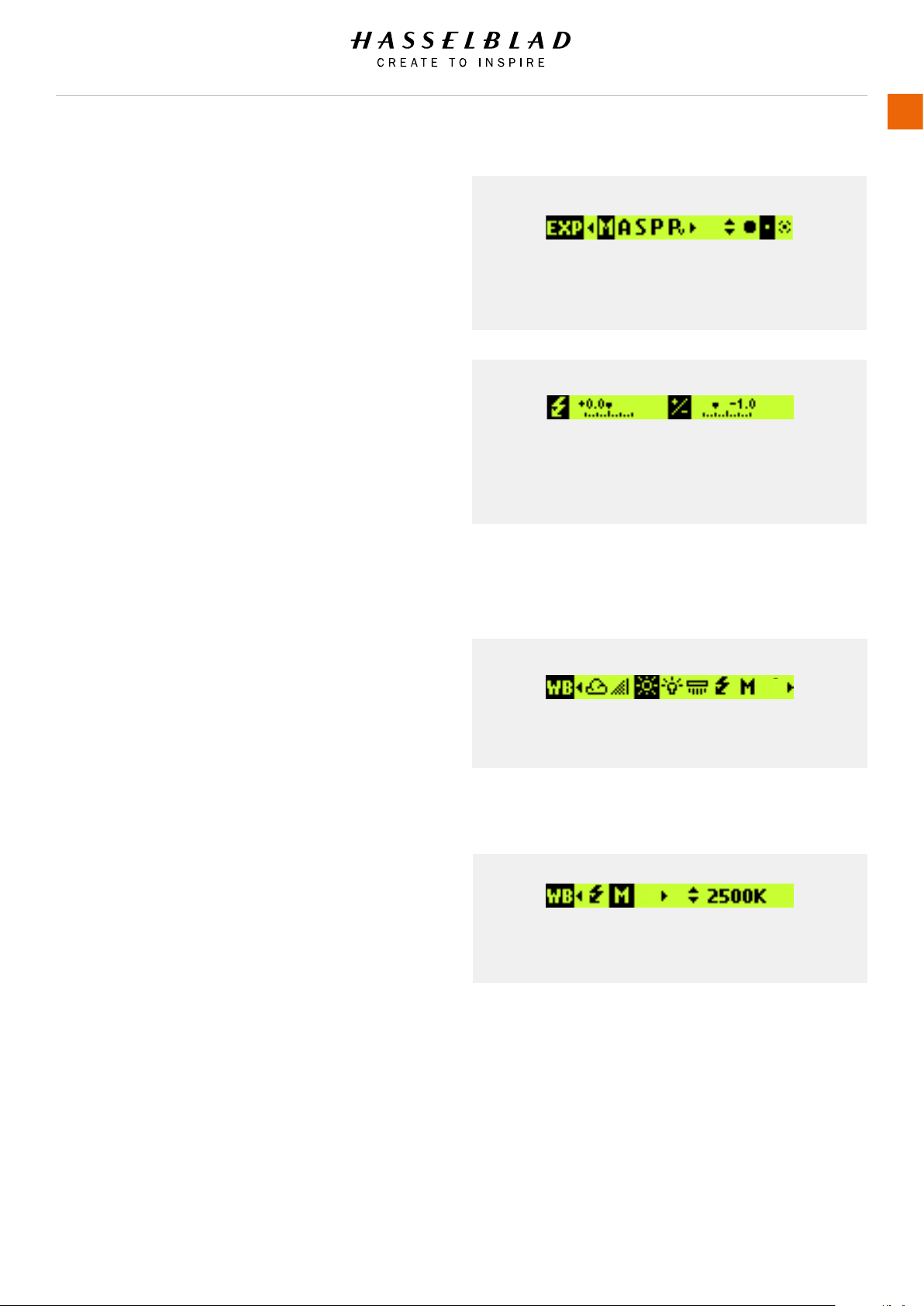
H6D www.hasselblad.com
USER GUIDE
To Use
148
Exposure settings
Press the EXP button on the Viewnder to display the Exposure
Mode and Light Meter Mode menu.
Set the Exposure Mode using the Front Scroll Wheel and the
Light Meter Mode using the Rear Scroll Wheel. Leave the Menu
by half-pressing or by pressing the EXP button again.
Exposure Settings, adjust screen
Displays the Camera Exposure Settings to the left and the Flash
Exposure Settings to the right.
Press the +/- button on the Viewnder to reach the Exposure
Adjust menu. Use the Front Scroll Wheel to set the Exposure
Compensation for Flash and the Rear Scroll Wheel to set the
Exposure Compensation. The Exposure Compensation can be
set between -5.0 and 5.0 stops and the ash compensation
between -3.0 and 3.0 stops. Leave the menu by half-press or by
pressing the +/- button again.
White balance WB settings
Press the WB button above the Grip Display to show the WB
Settings Display. Select WB mode by scrolling left or right with
the Front Scroll Wheel. Return to the main screen by a half-press
or press the WB button again.
White balance WB mode, Manual
To set the Colour Temperature manually, scroll the Front Scroll
Wheel until “M” is displayed. Then the Colour Temperature
value is displayed in the right upper part of the screen. Change
the value by scrolling the Rear Scroll Wheel up or down. It is
possible to set values between 2000 K and 10000 K, in steps
of hundred K. Leave the WB menu by half-press or by pressing
the WB button again.
Front Scroll Wheel Rear Scroll Wheel
Exposure settings, Manual mode selected.
Rear Scroll Wheel Front Scroll Wheel
Exposure Settings, adjust screen.
White balance WB, Daylight selected.
White balance WB mode, Manual selected.
Temperature in K can be adjusted.
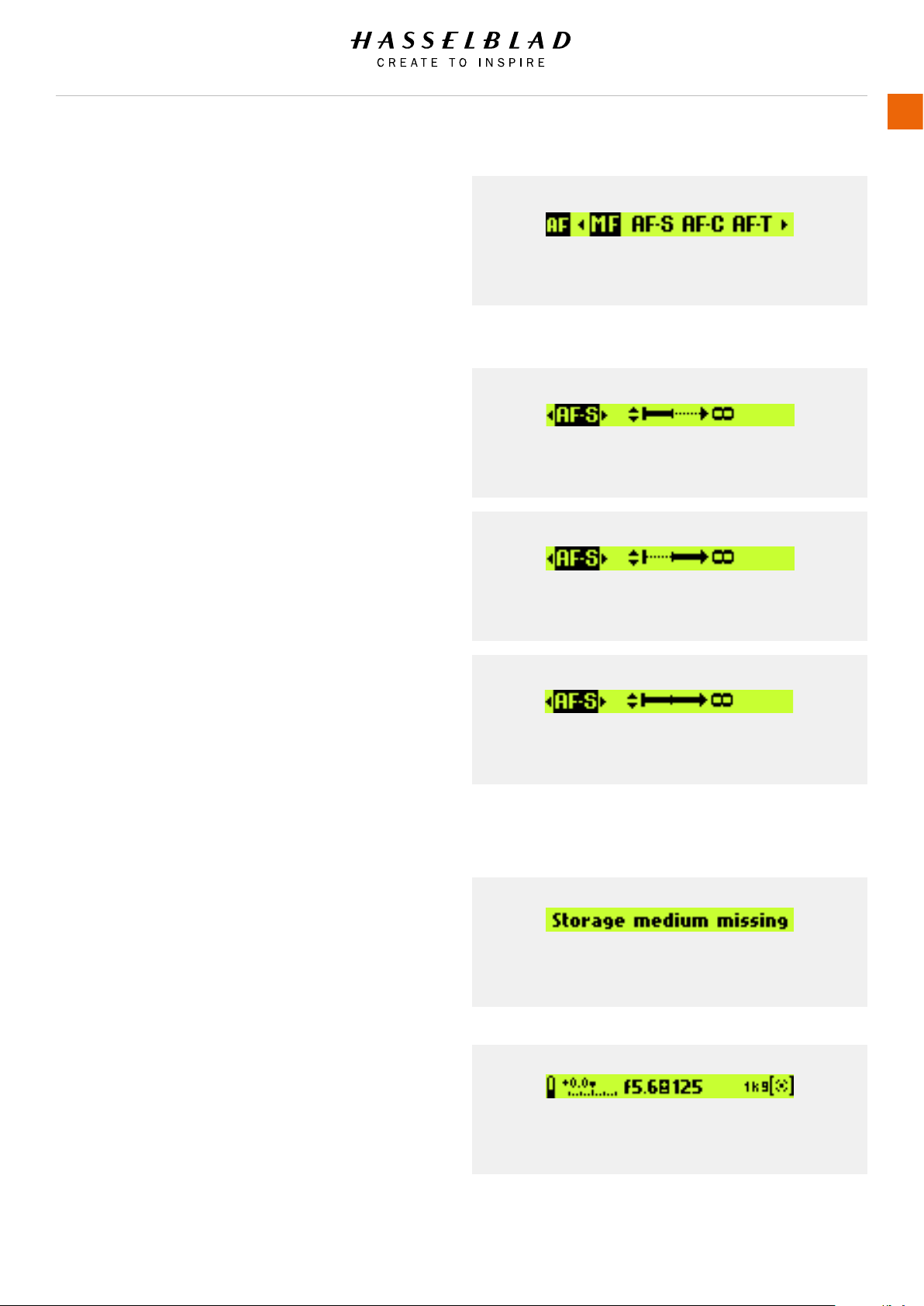
H6D www.hasselblad.com
USER GUIDE
To Use
149
Autofocus Settings
Press the AF button above the Grip Display to show the AF
menu. Select AF mode by scrolling the Front Scroll Wheel left or
right until the desired mode is selected.
AF with Macro 120mm
When the 120mm Macro Lens is used the AF menu displays an
additional setting – Focus Range. It is possible to select one of
the three modes below for Focus Range.
The rst limits the AF to scan only the close-up range (less than
1 meter).
The second option scans only far away distances (between 1
meter and innity).
The third option is to scan the full range. The Macro Lens has a
large focus range and to limit the scan range can improve the AF
performance signicantly.
Information Screen
This is the Information Screen with Storage medium missing
displayed.
Frame Count
This is the Frame Count with more than 1000 frames left
displayed. 1k9 = 1900 images left.
Information Screen, Storage medium missing.
Frame Count, more than 1000. 1k9 = 1900.
Autofocus Settings, AF-S selected.
Macro Autofocus settings, Close-up Scan.
Macro Autofocus settings, Far Away Scan.
Macro Autofocus settings, Full Range Scan.
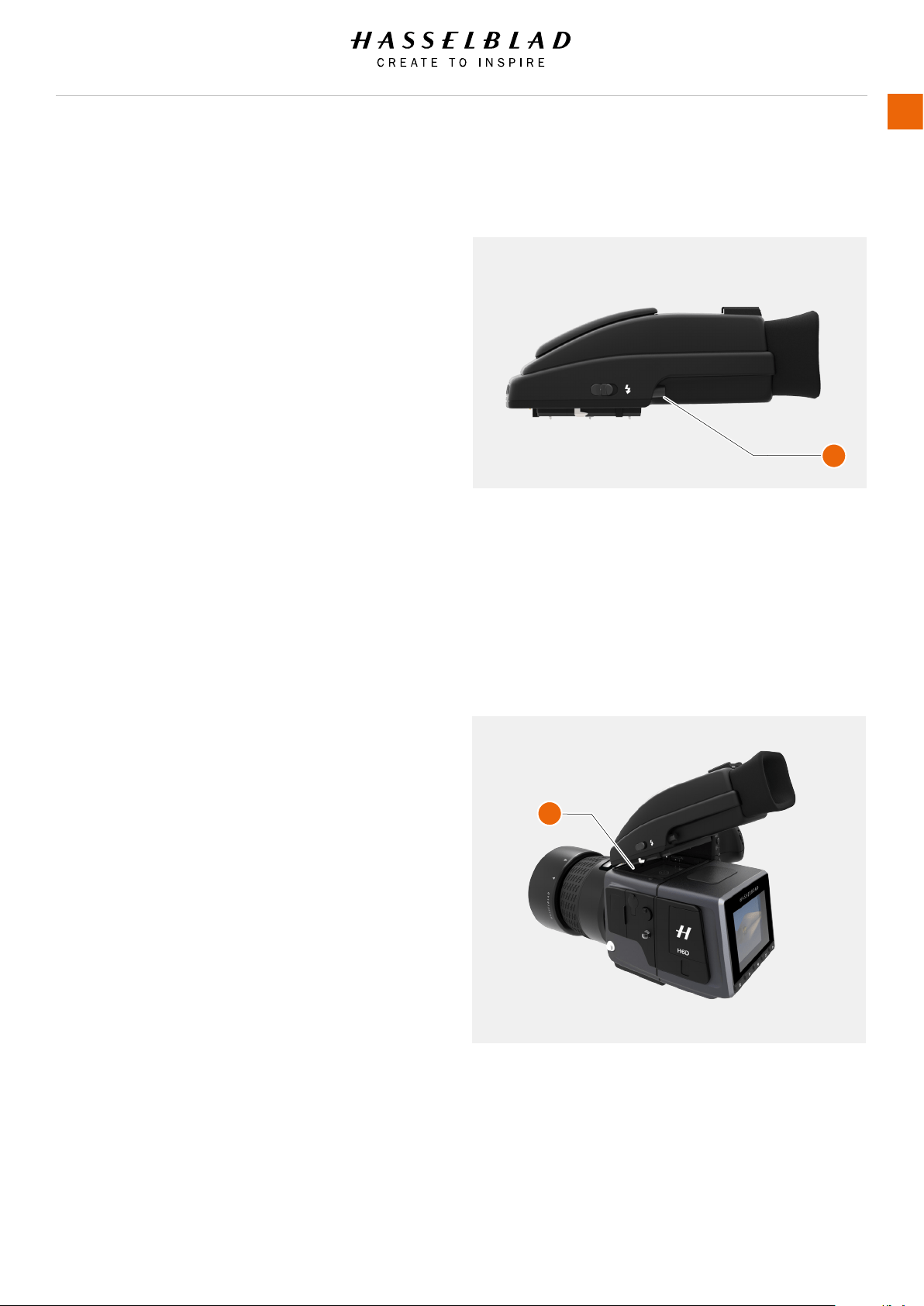
5.27 REMOVE / ATTACH VIEWFINDER
REMOVE THE VIEWFINDER
Caution!
Be careful when you attach/detach the components to/from
the camera. This will help prevent damage to the data bus
connections.
Caution!
Use the grip or strap when you lift and handle to camera. This
will help prevent damage to the camera.
1 Hold the Viewnder in your right hand.
2 Press and hold down the Viewnder release button (A).
3 Lift the rear of the Viewnder up and away from the camera
body.
ATTACH THE VIEWFINDER
Caution!
Be careful when you attach/detach the components to/from
the camera. This will help prevent damage to the data bus
connections.
Caution!
Use the grip or strap when you lift and handle to camera. This
will help prevent damage to the camera.
1 Hold the Viewnder at a slight angle and rest it on the top of
the camera.
2 Slide the Viewnder forward until the front locating pin is
in position in the recess in the front edge of the viewnder
screen aperture (B) on camera body.
3 Press the rear part of the Viewnder rmly downwards until it
clicks into place.
4 Make sure that both sides of the Viewnder are seated
correctly and that it has been rmly attached and locked into
position.
H6D www.hasselblad.com
USER GUIDE
To Use
150
A
B
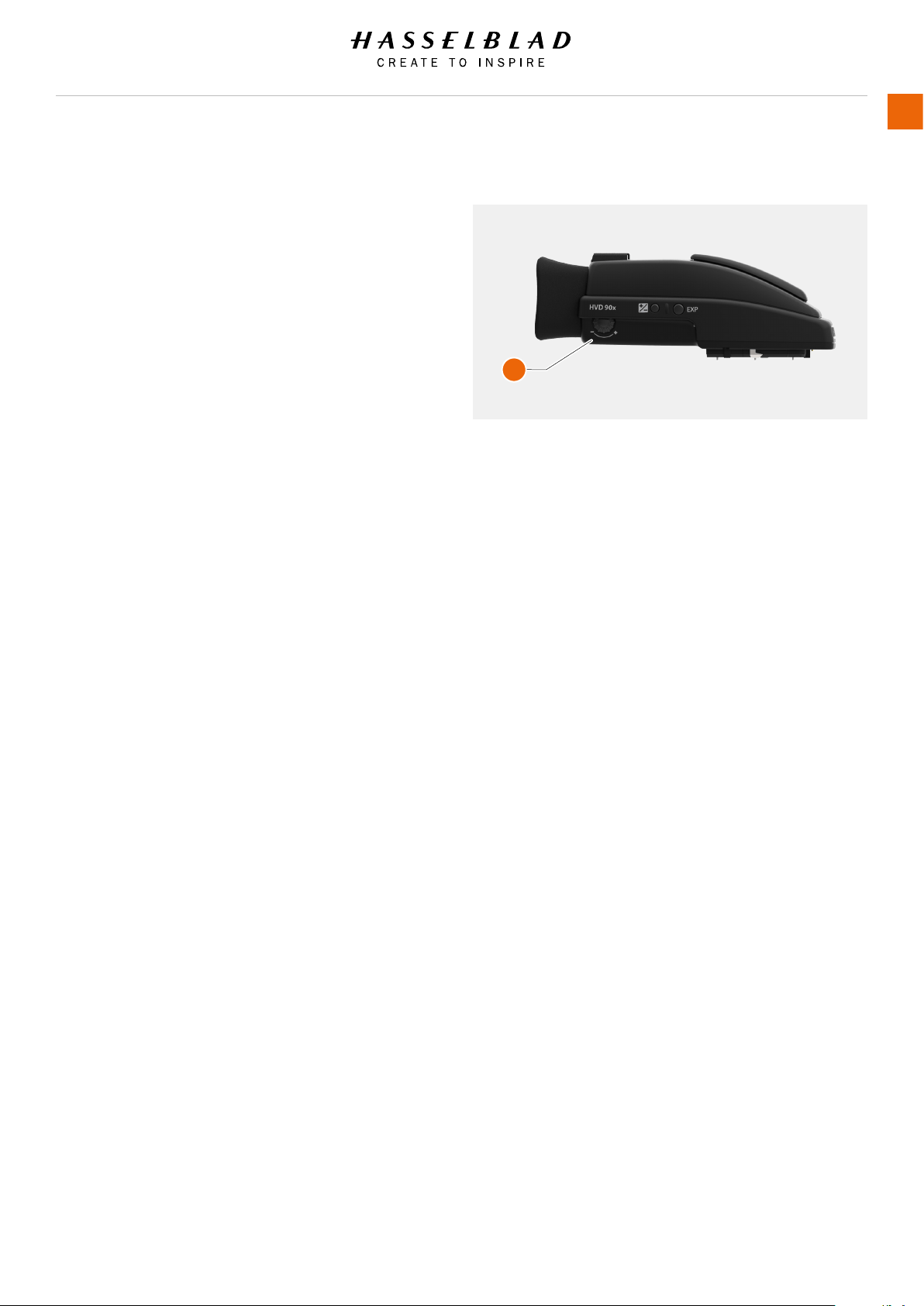
H6D www.hasselblad.com
USER GUIDE
To Use
151
ADJUST THE EYEPIECE
No corrective lenses are needed to adjust the eyepiece to suit
most requirements. The dioptre range is from -5 to +3.5D.
Eyeglass wearers can rapidly and accurately change the settings
according to whether they wish to wear eyeglasses for viewing
or not.
1 Hold the camera in your left hand.
2 Point the camera at the sky or a similar smoothly toned
area.
3 Turn the adjustment wheel (A) until the markings on the
Viewnder screen reach the optimum sharpness for your
eyesight.
A
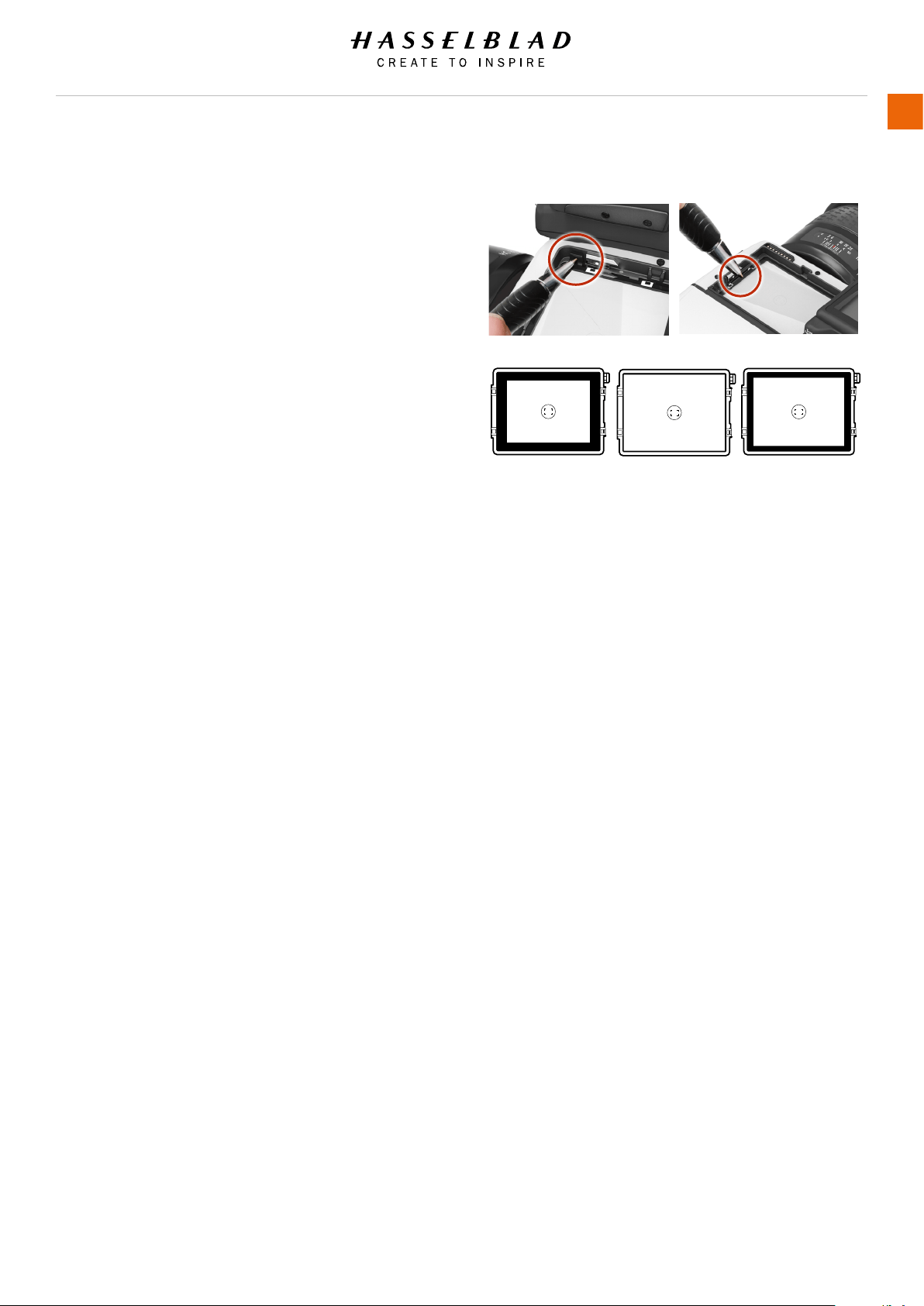
H6D www.hasselblad.com
USER GUIDE
To Use
152
CHANGE FOCUSING SCREEN
The H6D is tted with a Spherical Acute-Matte D Focusing
Screen for extreme brightness, clarity and even illumination.
An optional accessory screen with a grid pattern is also
available.
To change the Focusing Screen, remove the viewnder to access
the Focusing Screen.
To remove the screen, place the tip of a ballpoint pen or similar
in the Focusing Screen removal lug and pull upwards. To replace
the Screen, position the right side of the Screen in place so that
it sits correctly in the recess. Place the tip of a ballpoint pen
or similar in the Focusing Screen replacement indentation and
press downwards until the Screen snaps into position. Try to
avoid touching either surface of the Screen with bare ngers.
Note!
Do not attempt to clean the Focusing Screen by immersing it in
water, or use any kind of cleaning uid. If the Screen becomes
damp, do not use hot air to dry it. Use a soft cloth on the upper
surface only. Seek advice from an Authorized Hasselblad Service
Center if the Screen becomes particularly soiled. Remember
that particles or greasy marks on the Screen might impair the
viewnder image but have no effect on the recorded image.
Focusing Screens showing the difference in masking and
composition frame marking. Type varies according to sensor
size. See under Accessories for other types (with grid pattern,
for example).
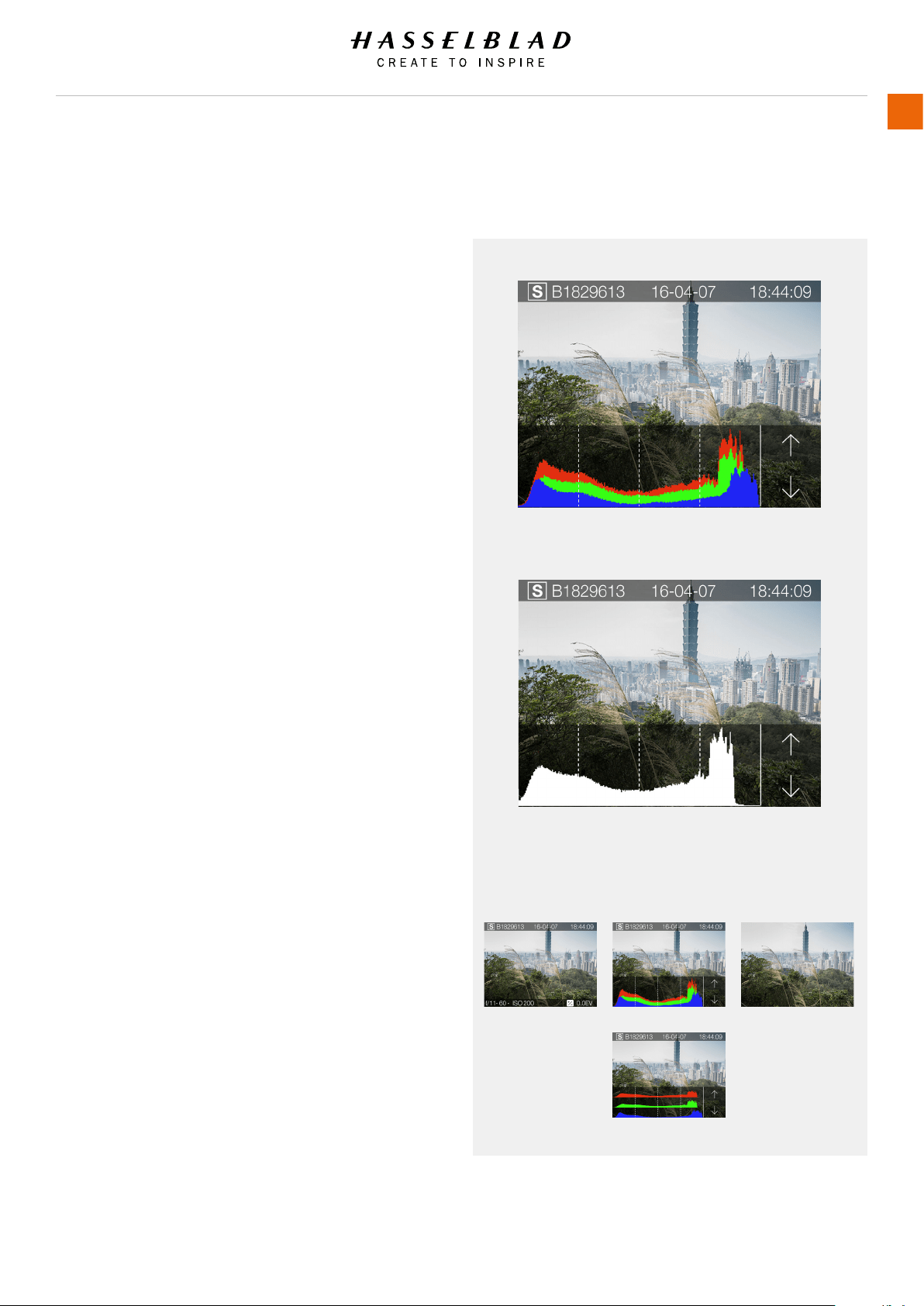
5.28 PREVIEW, HISTOGRAM AND BROWSING
PREVIEW MODES
Use the Rear Scroll Wheel to scroll through the available preview
modes when in Browse Mode or single click on the Meta Data
information to change Preview Mode.
● Standard Preview: Displays a Preview Image with the
most important settings. Note that the information
covers some of the image. Go to Full Screen mode to
see the complete Capture area.
● Histogram: Displays a Preview Image with a Histogram.
● Full Screen Preview: Displays the preview only with no
frame or settings information.
Two additional screens are also available, accessible from the
Histogram screen:
● Combined Histogram: Displays a Preview Image with a
combined histogram of the three components red, green
and blue.
● Capture Details Mode: Displays a Preview Image with
camera settings details in a layer in front of the Preview
Image.
Histogram and Combined Histogram can be accessed by
navigating to Histogram mode.
1 Press one time on the desired Mode.
2 Scroll Up or Down with the Rear Wheel when in Browse Mode
to change Mode.
3 When in Browse Mode, Tap once in the lower part of the
Sensor Unit Display. Step through the different Modes.
Change Preview and Histogram Mode by a single press on
desired Mode or use the Rear Scroll Wheel.
H6D www.hasselblad.com
USER GUIDE
To Use
153
Histogram
Luminance Histogram
HistogramStandard Preview
The Standard
Preview displays
information
described on the
next page.
The Full Screen
Preview displays
the Full Capture
View without other
information.
Full Screen Preview
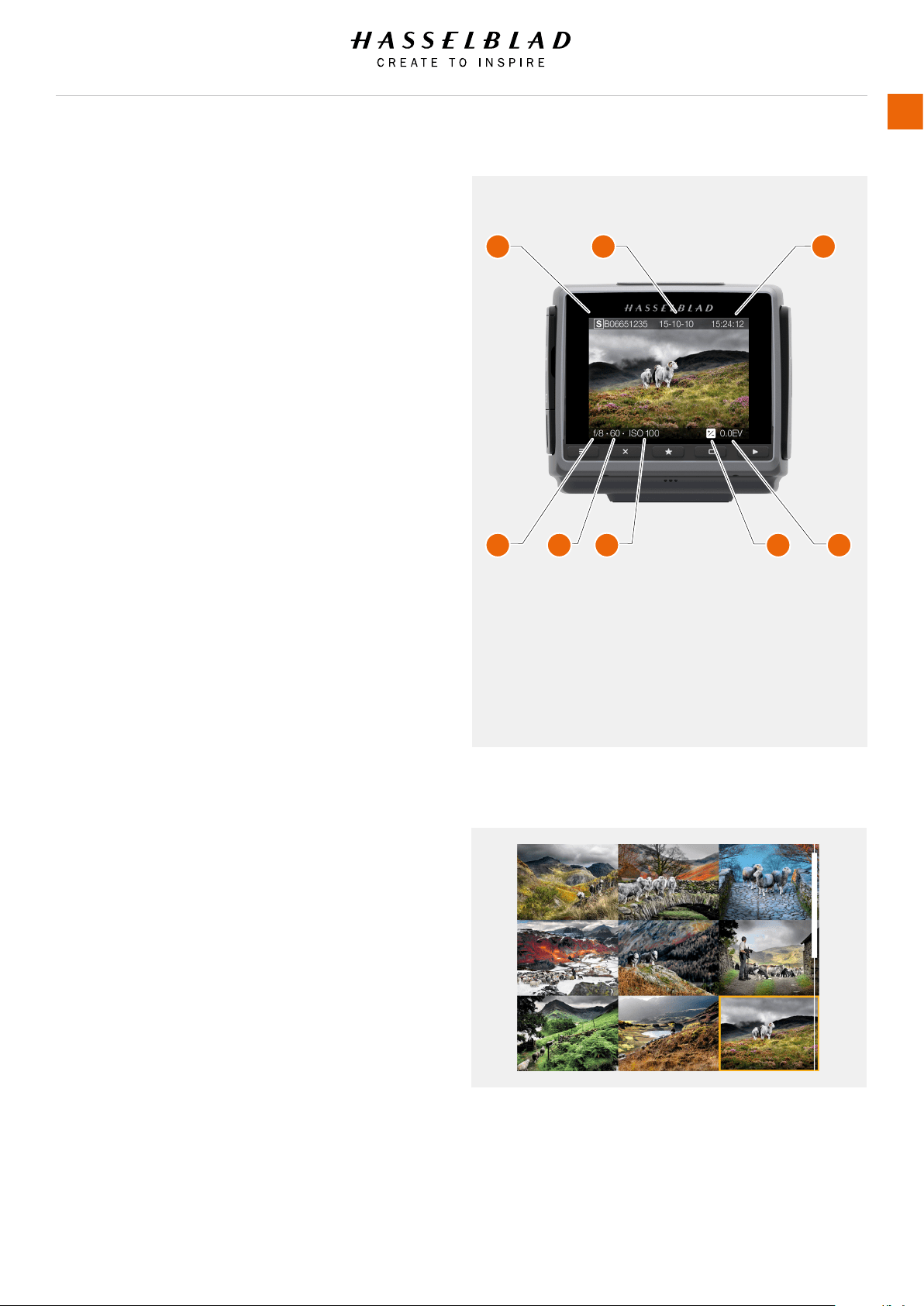
STANDARD PREVIEW
The Standard Preview is displayed when you rst turn on the
camera and is probably the view you will use most often.
It displays a preview of your most recent capture and basic
information about the settings.
9 VIEW MODE
To display 9 View Mode, press the AE-L button when in
Browse Mode. In this Mode you can see an overview of up to 9
captures. If you have more than 9 captures, swipe down at the
right side of the Display to scroll through all captures.
Select one capture for further information.
H6D www.hasselblad.com
USER GUIDE
To Use
154
1 Card (S for SD)
2 Capture Date
3 Capture Time
4 Aperture (f/8)
5 Shutter Speed (60)
6 ISO Setting (100)
7 +/- Exposure Adjust
Indicator
8 Exposure Adjust
(0.0 EV)
1 2 3
4 5 6 7 8
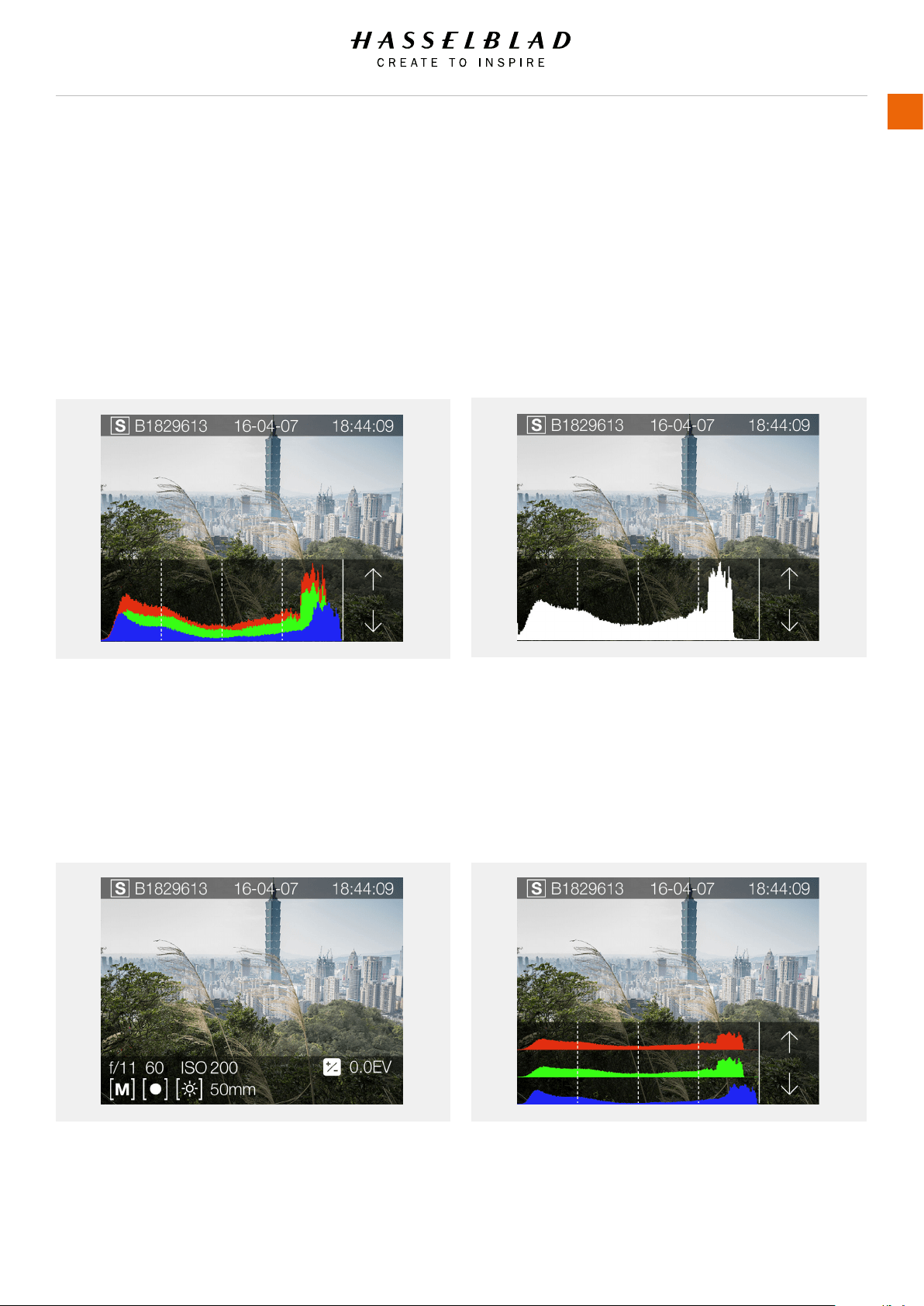
HISTOGRAM TYPES
There are different types of Histogram representations available.
Histogram Mode, Capture Details Mode, Combined Histogram
Mode and Separate Histogram RGB Mode.
HISTOGRAM MODE
Histogram mode displays RGB Histogram with separate RGB
channels visible. The RGB details are stored with the capture
le, and can be referred to in Phocus and other applications.
CAPTURE DETAILS MODE
This mode displays SD Card (S), Date (16-04-07), Time
(18:44:09), selected Aperture (f/11), Shutter Speed (60), ISO
(200), EV Settings (+/- 0.0), Mode (M), Focus Method (Spot),
White Balance (Daylight) and Lens info (50mm).
LUMINANCE HISTOGRAM MODE
In Luminance Histogram mode, the RBG channels displays the
the luminosity Histogram. The RGB info is represented by a
White Combined RGB Graph.
SEPARATE HISTOGRAM RBG MODE
In Separate Histogram RGB Mode, the individual RBG channels
are displayed. The Red R channel rst, the Green G channel in
the middle and the Blue B channel below the Red and Green
channels.
H6D www.hasselblad.com
USER GUIDE
To Use
155
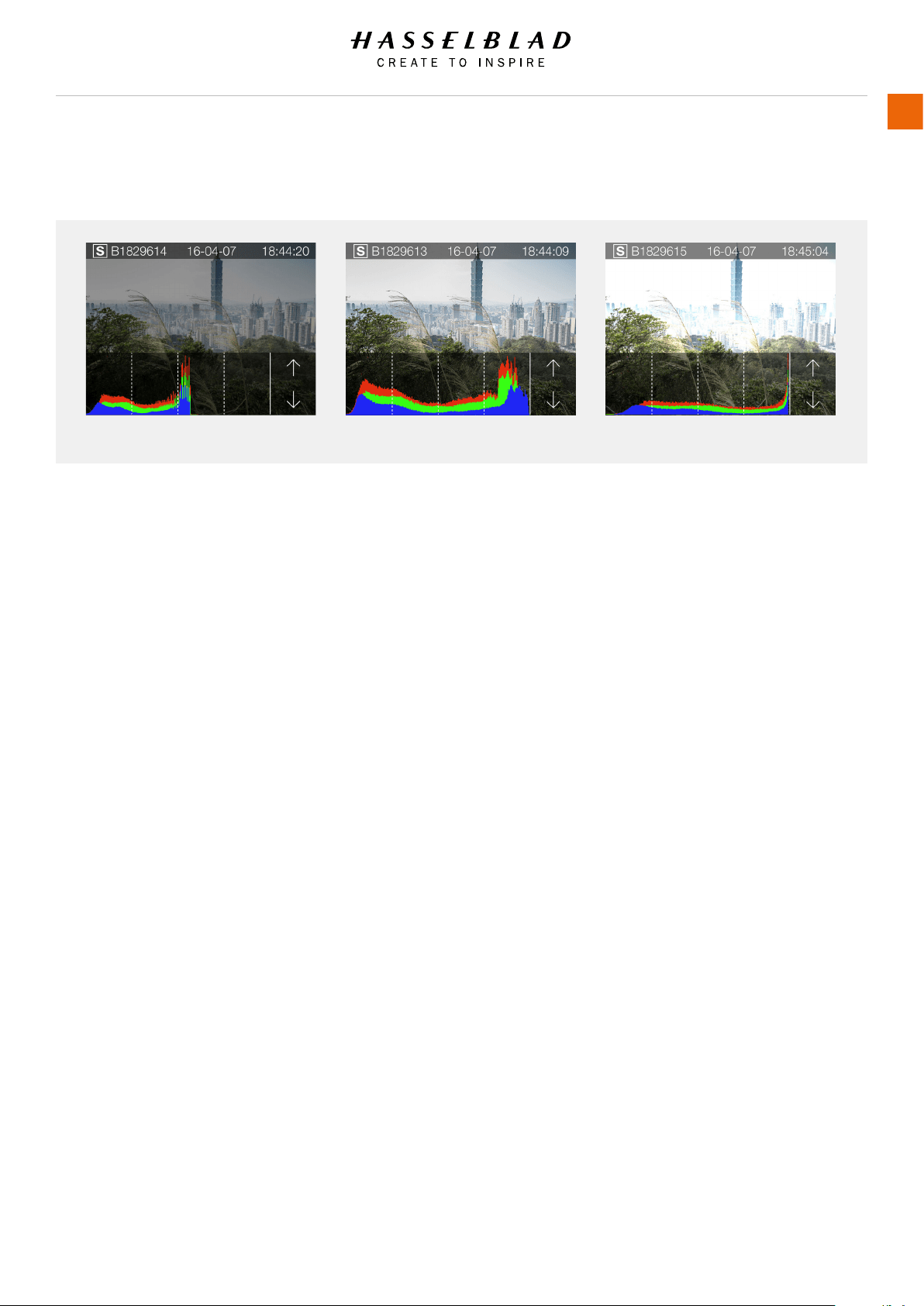
HISTOGRAM MODE - EXPOSURE
Histogram Exposure
The Histogram provides a graph that indicates the total number
of pixels at each brightness level, with brightness in range from
black on the left to white on the right. It is a valuable tool for
evaluating captures.
A well exposed shot usually has a full range of levels, while
underexposed and overexposed Captures tend to show levels
concentrated at the left or right part of the scale.
The histogram is only an indicator that should be interpreted.
There are several situations in which a ‘bad’ histogram will
match an exposure that could be perfect for the intended effect.
Study the Histogram examples and the explanations below.
Underexposure
Histogram display concentrated on the left with few pixels
elsewhere indicates a likely underexposure. Many details will be
lost in the shadows.
Even exposure
Histogram display spread across the full range indicates a likely
good exposure. There may still be a few pixels at the extremes,
indicating a few spectral highlights and saturated shadows, but
this is often normal in a good exposure.
Overexposure
Histogram display concentrated on the right with few pixels
elsewhere indicates a likely overexposure. Many details will be
lost in the highlights.
H6D www.hasselblad.com
USER GUIDE
To Use
156
Underexposure Even exposure Overexposure
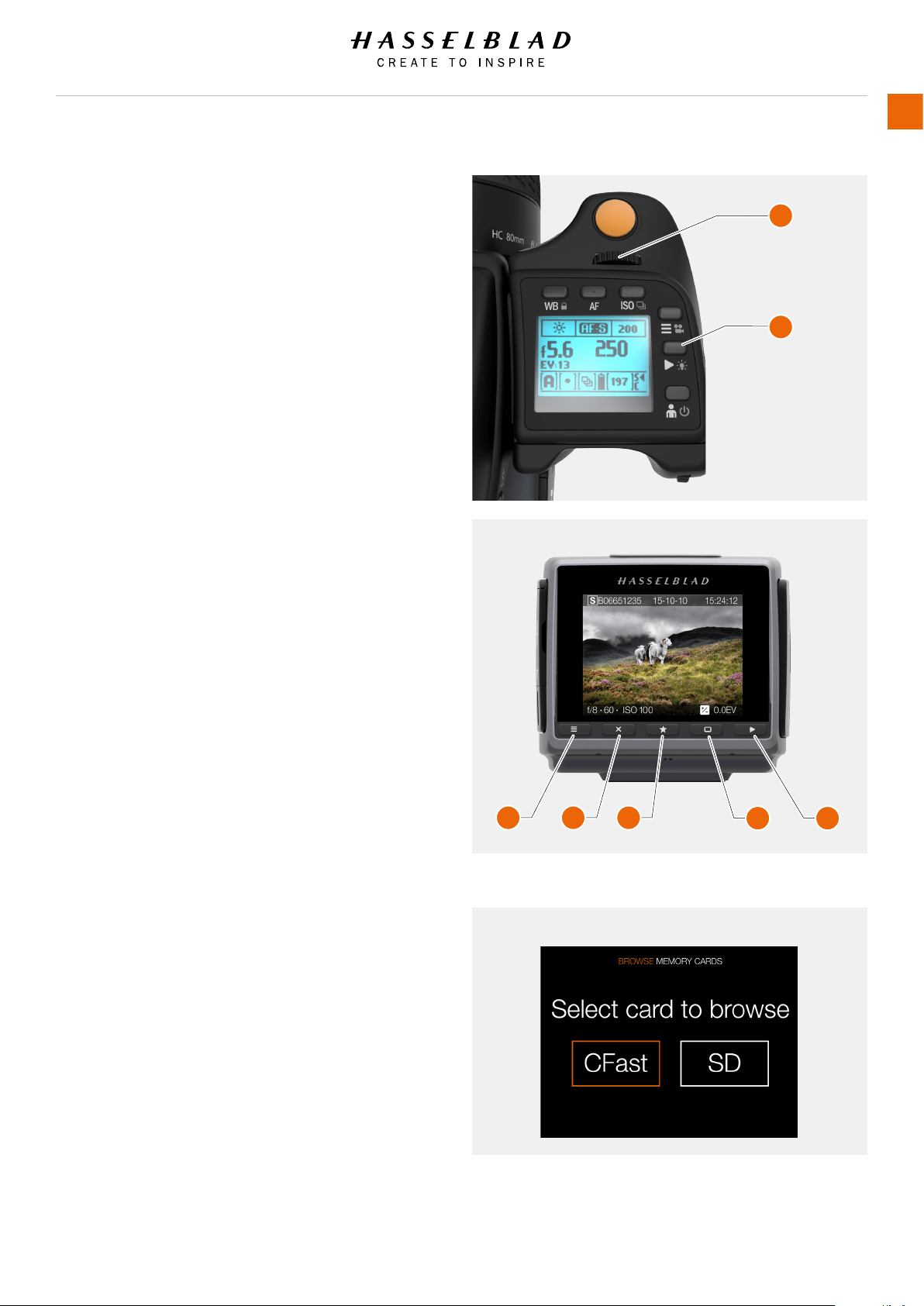
BROWSING
Press Play button (B) on the Grip Display or on the Sensor Unit
(G) to enter Browse mode.
In Browse mode use the Front Scroll Wheel on the Grip (A) to
Browse captures in a folder.
In Browse mode on the Sensor Unit Menu, swipe right or left to
Browse captures.
Delete Capture with the Soft Button (D).
Zoom out to Folder View to select another folder to Browse.
Browse button (B) and (G)
Starts display and shows the last image. The user can review
images, browse and zoom. Preview images and zoom in to view
close-ups of previews for focus checking. Zoom out to view
several at once and nally to view and select folders and media.
This is also a selection button for value setting on the Sensor
Unit Menu.
Image rating button (E)
Rate image 1-5 stars or green/yellow/red. Also works as soft
button.
Press Menu button (C) to return to Main Menu.
Select Card to Browse
You can select CFast Card or SD Card to Browse Captures.
H6D www.hasselblad.com
USER GUIDE
To Use
157
Select Card to Browse
A
B
C D E
F G
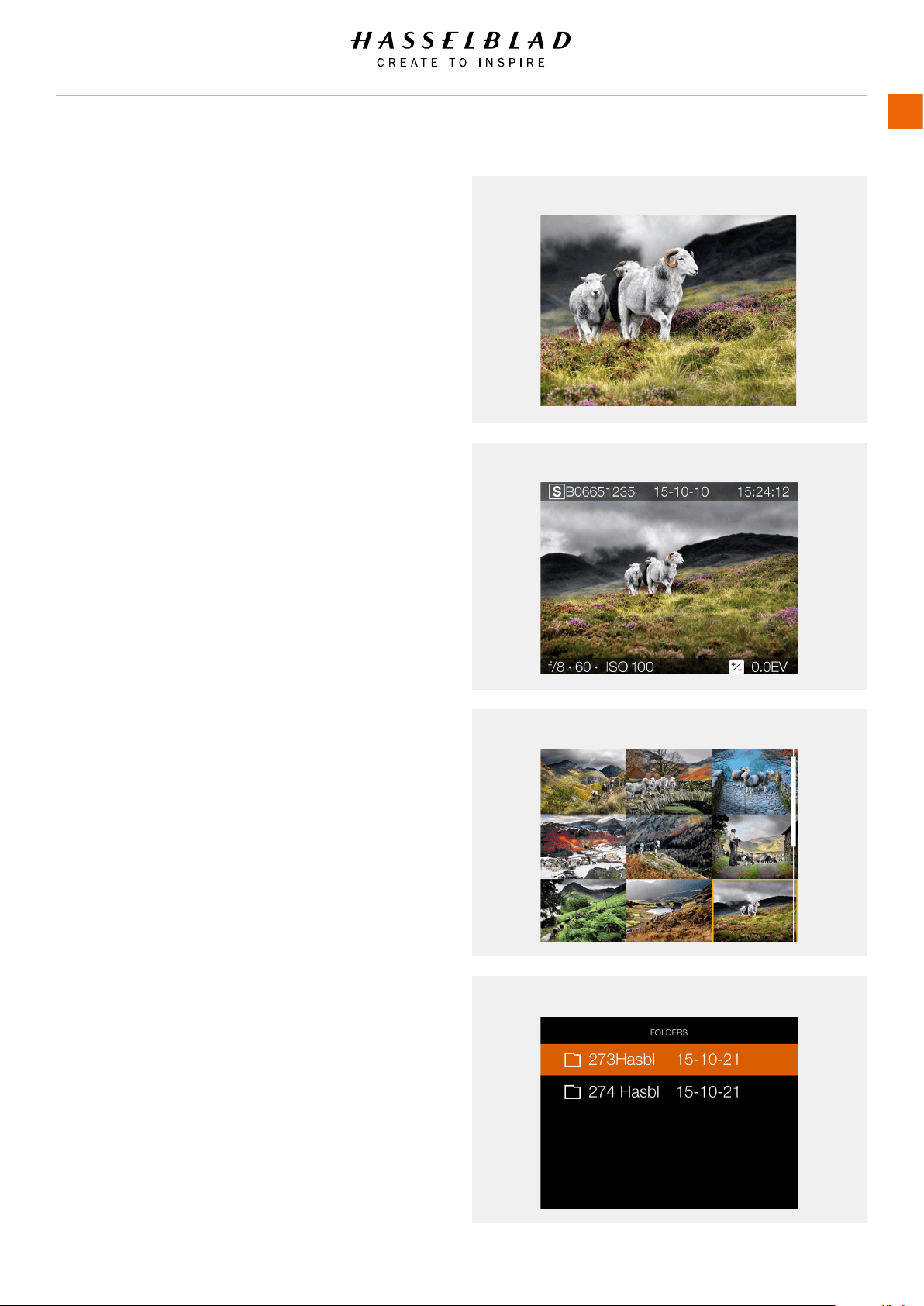
ZOOM IN AND OUT
The Touch Screen on the H6D Sensor Unit is similar to a Phone
or Tablet with touch sensitivity. The following gestures can be
used to navigate and control the H6D Camera:
Function Action
Zoom in Spread (move two ngers apart).
Zoom out Pinch (move two ngers together).
Select Tap / Press with one nger.
Move back Swipe right.
Display Control Screen Swipe down from the top of the
screen.
Hide Control Screen Swipe up.
Action Function
Double Tap Zoom in to 100%. Double Tap again
to Zoom out to full View.
Swipe Right Move back / Move image right.
Swipe Left Move image left. Only in Browse
mode.
Swipe Down Display Control Screen.
Swipe Up Hide Control Screen.
Tap / Press Select action / button / setting.
9 View Mode
9 View Mode displays an overview of up to 9 captures. Scroll
down to display all Captures in the Folder.
Folder View
Folder View displays the list of folders saved. The highlighted
folder is the current folder and contains the images you are
browsing. Navigate to another folder and then zoom in to reveal
its contents if desired.
H6D www.hasselblad.com
USER GUIDE
To Use
158
Zoomed View
Standard Preview
9 View Mode
Folder View
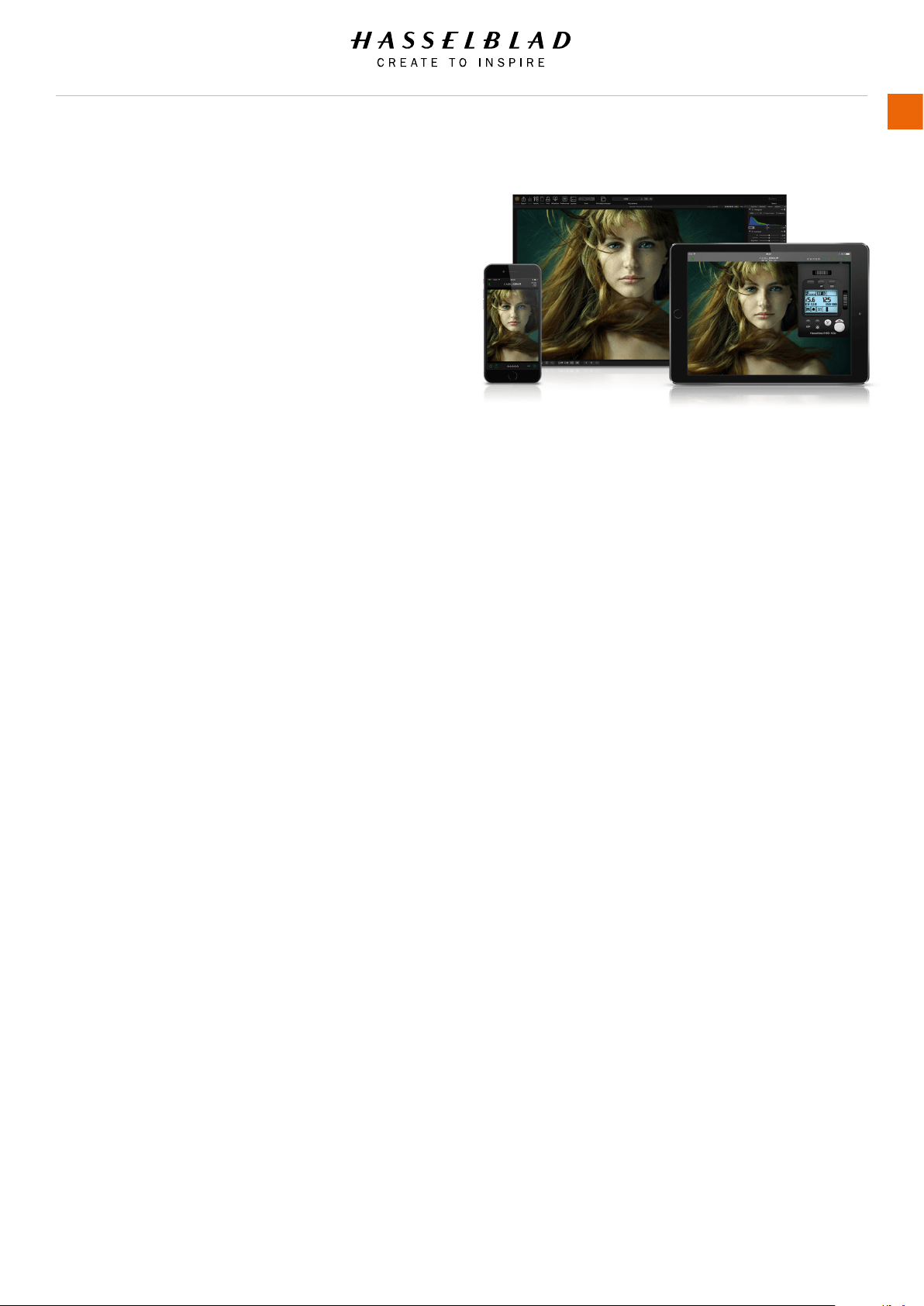
H6D www.hasselblad.com
USER GUIDE
To Use
159
5.29 PHOCUS
Phocus is the Capture Processing and File Management
application aimed primarily at Hasselblad 3F le handling.
Phocus Mobile offers remote viewing and control when shooting
tethered. Phocus mobile is free to download at the APPLE App
Store for both iPhone and iPad.
FEATURES IN PHOCUS
Professional Image Quality
● Hasselblad Natural Colour Solution (HNCS).
● Lens corrections for H and V system lenses (DAC).
Specialized Tools
● Advanced Tethered Camera Controls.
● Phocus Mobile*.
● Scene calibration & reproduction tools.
● Leading edge Moiré removal.
● Highlight recovery, shadow ll, clarity and dust spot
removal tools.
● Camera Conguration and Capture Sequencer.
● Easy-to-use interface.
● Extensive customization options for individual work ow
scenarios.
● Import/Export of Image Adjustments, Keywords, Work
ow settings.
● High quality printing.
● Slide show.
● RAW le support from more than 150 DSLR cameras.
Any File from Anywhere
Phocus allows you to import image les and work in the same
intuitive processing environment, no matter where your les are
coming from. You can browse, handle, adjust, and process all
kinds of RAW and non-RAW formats.
Phocus supports RAW les from more than 150 cameras,
including Canon, Nikon, Leica, Sony, Fuji, Olympus **. The most
common le formats can be processed for example TIFF, JPEG,
DNG, and PNG.
Ultimate Image Quality
Phocus combines Hasselblad Natural Colour Solution (HNCS)
with Digital Auto Correction (DAC) to provide high digital
image quality in the images you create. With Phocus, the
moiré effect that can occur on even extremely high resolution
images is effectively removed automatically and directly on
the raw data, leaving the image quality intact and saves time
in post production work. Tethered shooting is efcient with
Phocus Remote camera controls providing a number of remote
functions. For example remote focusing, live view, aperture and
exposure time controls.
PHOCUS MOBILE
Phocus Mobile is available for iPhone®, iPad® and iPod Touch®.
It enables you to connect wireless to a computer running
Phocus and to remotely browse your high-resolution RAW, JPEG
and TIFF images. This provides a solution for working with
clients in the studio, enabling each person to view images on
an individual iOS device, rather than all gathering around a
single computer. Phocus Mobile also allows users to remotely
operate and trigger a tethered camera, giving control of many
parameters, all neatly presented in a virtual camera display.
This feature is very convenient for remote control of the camera
when it’s located in a difcult to access position.
* Phocus Mobile is available for free download in the Apple App
Store.
** Full list available at http://www.apple.com/aperture/specs/
raw.html
Note!
Phocus is a license free software with unlimited installations
and there is no registration needed.
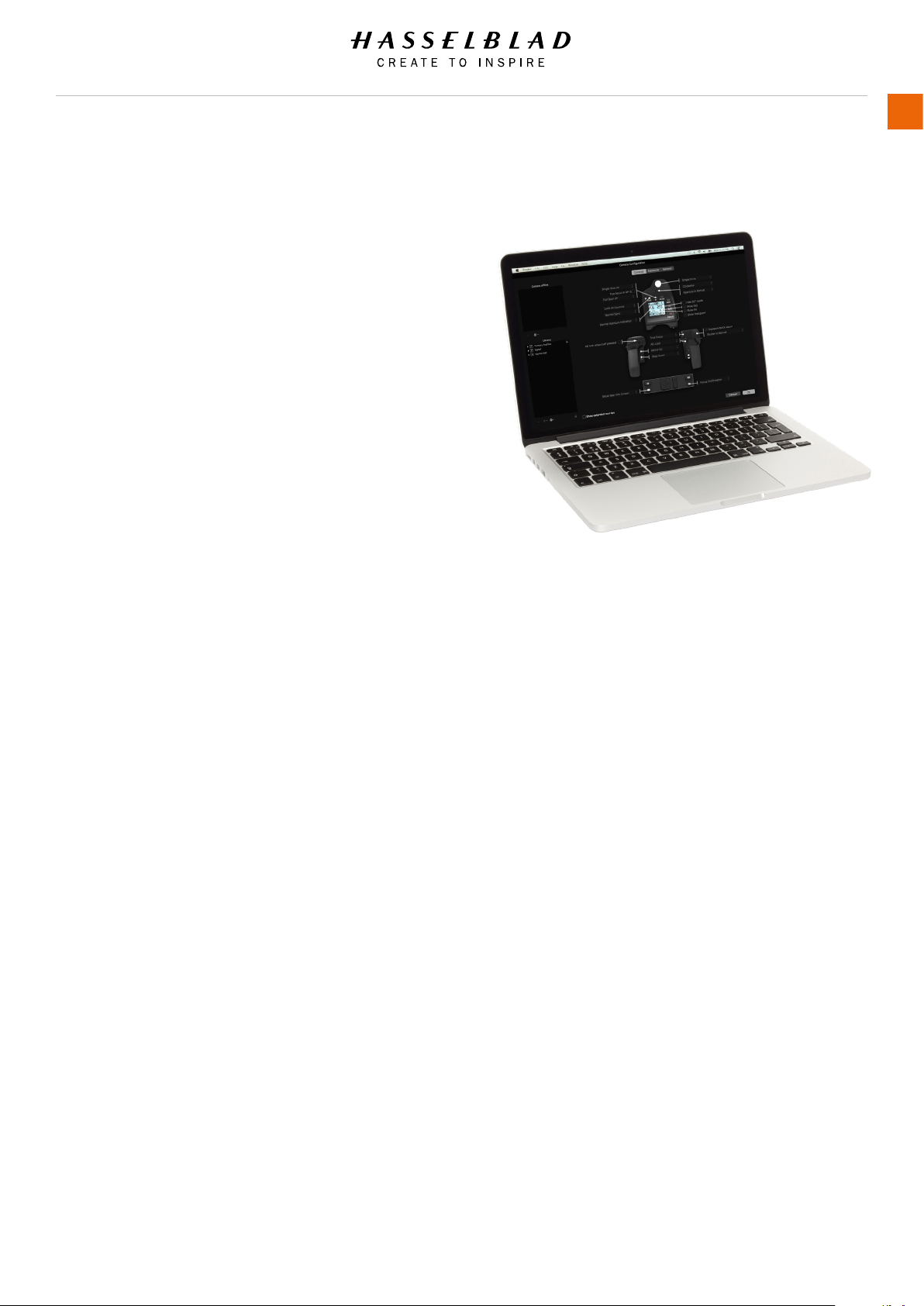
H6D www.hasselblad.com
USER GUIDE
To Use
160
PHOCUS AND HASSELBLAD CAPTURE FILES
The H6D can capture les and store them as Hasselblad RAW
format les or Hasselblad RAW + JPEG formats simultaneously.
(not applicable to 60 Mpix / 50MS/200MS models).
Hasselblad RAW les are initially stored in the 3FR format which
is a proprietary Hasselblad format for the temporary storage
of captures. A 3FR le contains the complete digitized raw
image exactly as it was captured by the camera. 3FR information
requires further computing power (typically by way of Phocus) to
obtain complete development. If developed in Phocus,
3FR les become Hasselblad 3F les – denoted by each le now
bearing the sufx “.fff”. If developed by other RAW processors,
the 3FR les are not converted to 3F but can be exported
directly to TIFF, PSD etc. according to requirements.
However, when working tethered – which necessitates using
Phocus – 3FR les are automatically processed and stored in
the background on a computer appearing as 3F les on the hard
disk ready for selective adjustment and export. 3FR les
stored on a CFast card can be processed to completion using:
● Hasselblad Phocus
● Adobe Camera Raw
● Adobe Lightroom
● Apple Aperture
Capture les can be stored as 3FR les (from a CFast or SD
card) for later processing in Phocus or other software, or they
can be stored as 3F les (as a result of tethered shooting or
3FR les processed and converted in Phocus). In all cases if you
keep the original 3FR/3F les, you will also retain the possibility
of reprocessing them in the future in later versions of Phocus
or other software to take advantage of eventual improvements
and developments.
Mixed formats
Phocus can also process most other capture formats, generic
and proprietary. This means you can include other formats in
your normal Phocus work ow if you choose. Or if you prefer, you
can include Hasselblad les in Adobe / Apple work ows
as stated above.
Note!
Using Phocus is the most comprehensive method. The Phocus
and Adobe methods can produce almost identical
results (in most cases, but not all) regarding RAW conversion so
it is a matter of personal choice regarding which method
would best suit your preferred ways of working. Alternatively you
can use Apple Aperture though you should take note that
the benets of DAC and HNCS etc., will be lost in this case.
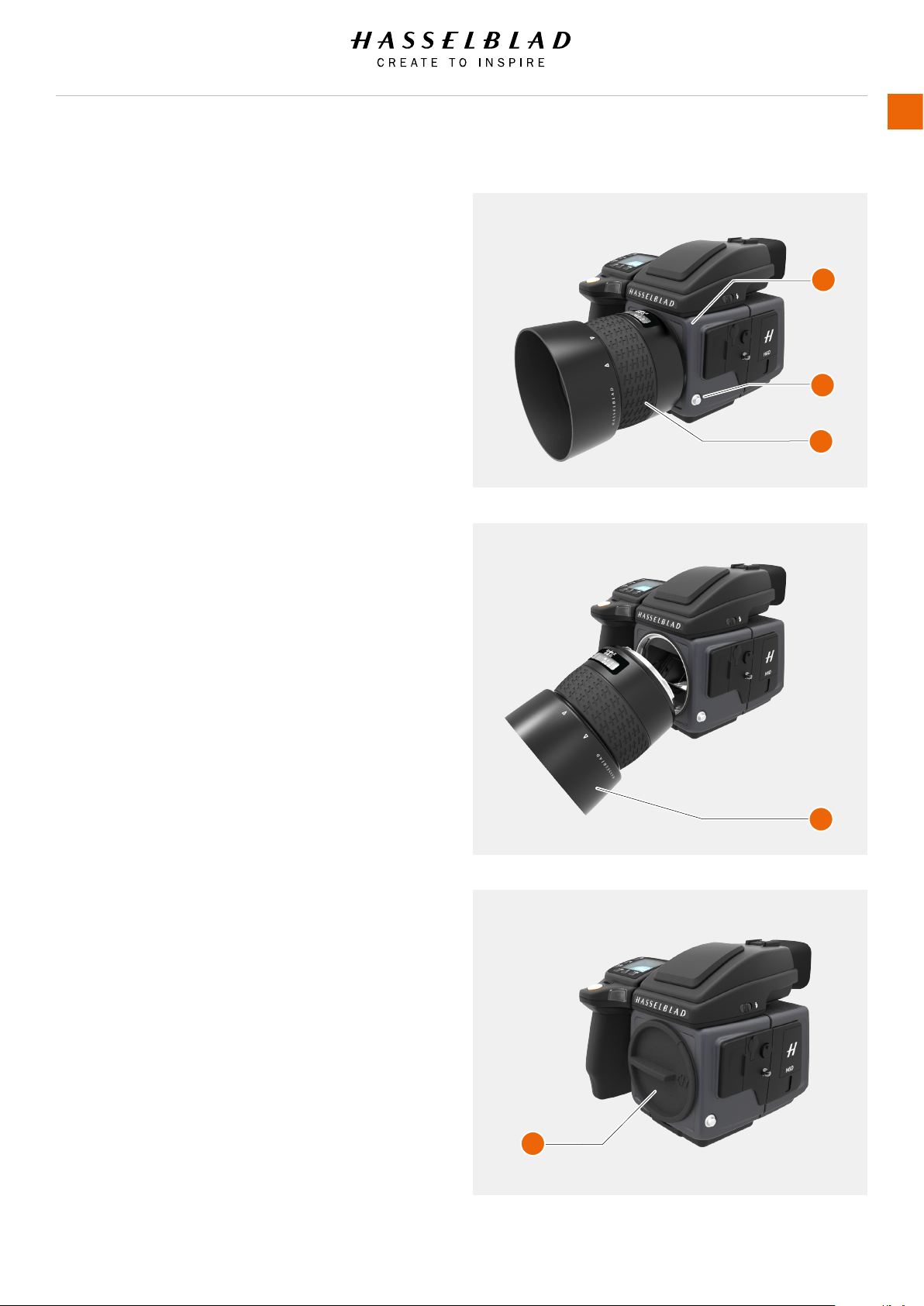
5.30 LENSES AND FOCUS MODES
REMOVE THE LENS
Caution!
Be careful when you attach/detach the components to/from
the camera. This will help prevent damage to the data bus
connections.
Caution!
Do not insert ngers into the camera body. This can cause
damage to the equipment.
1 Hold the lens with one hand and hold the camera body (A)
still.
2 Push the lens removal button (B).
3 Rotate the lens counter clockwise.
4 Push the lens (C) away from the camera body.
5 Attach the protection cover lid (D) on the camera body
directly.
6 Attach a lens protection lid on the detached lens to prevent
damage.
7 Store the lens with both lens protection lids on and the lens
hood (E) inverted over the lens instead of in front of the
lens.
A
B
C
D
E
H6D www.hasselblad.com
USER GUIDE
To Use
161
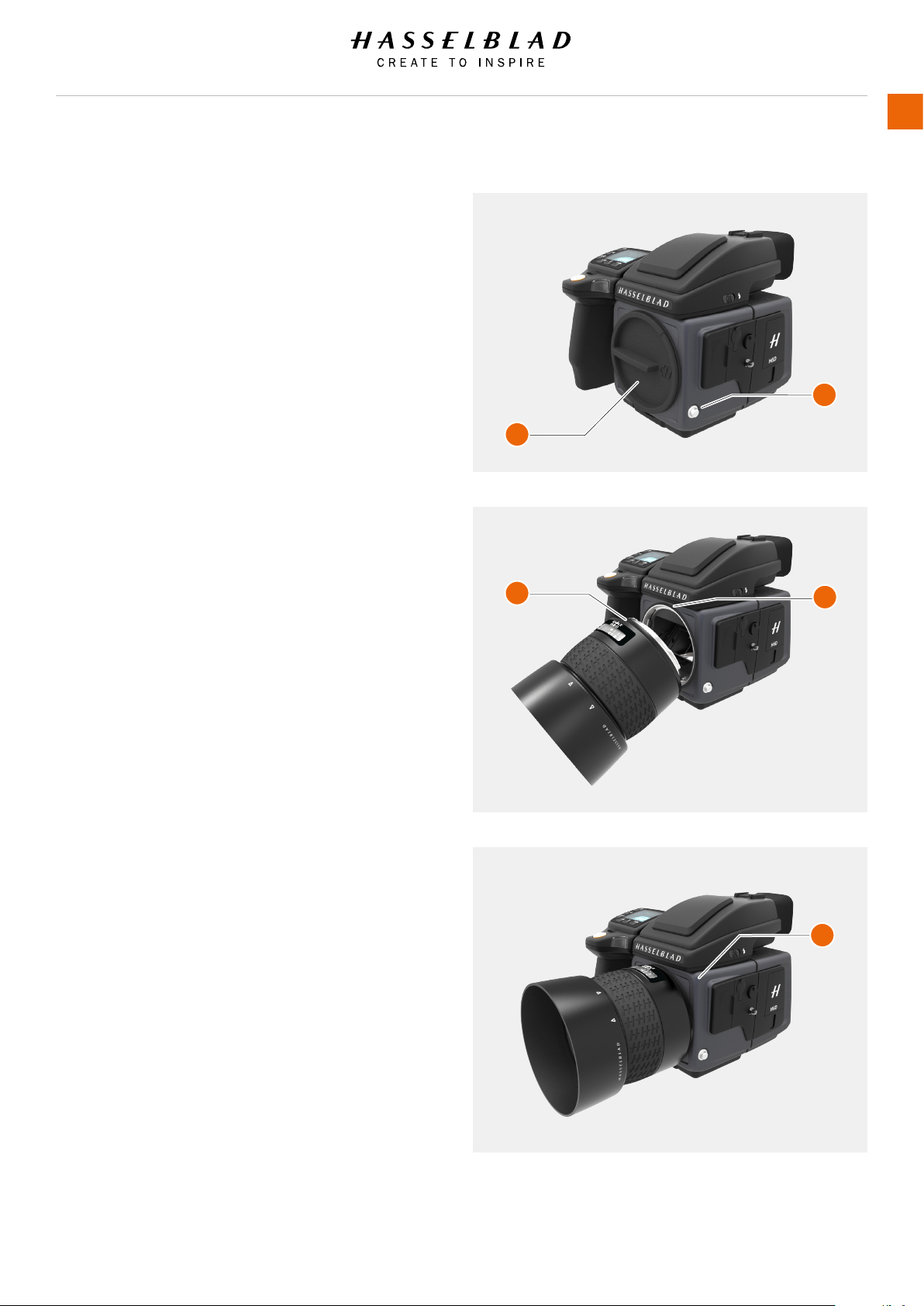
H6D www.hasselblad.com
USER GUIDE
To Use
162
ATTACH THE LENS
Caution!
Be careful when you attach/detach the components to/from
the camera. This will help prevent damage to the data bus
connections.
Caution!
Do not insert ngers into the camera body. This can cause
damage to the equipment.
1 Push the lens removal button (A) and remove protection
cover lid (B) from the camera body.
2 Rotate the lens so that the red mark on the lens (C) lines up
with the red mark (D) on the camera body.
3 Mount the lens into the camera body (E) and then turn the
lens clockwise to lock its position.
4 Make sure the lens is locked to the camera body before
using or moving the camera.
A
B
C
D
E
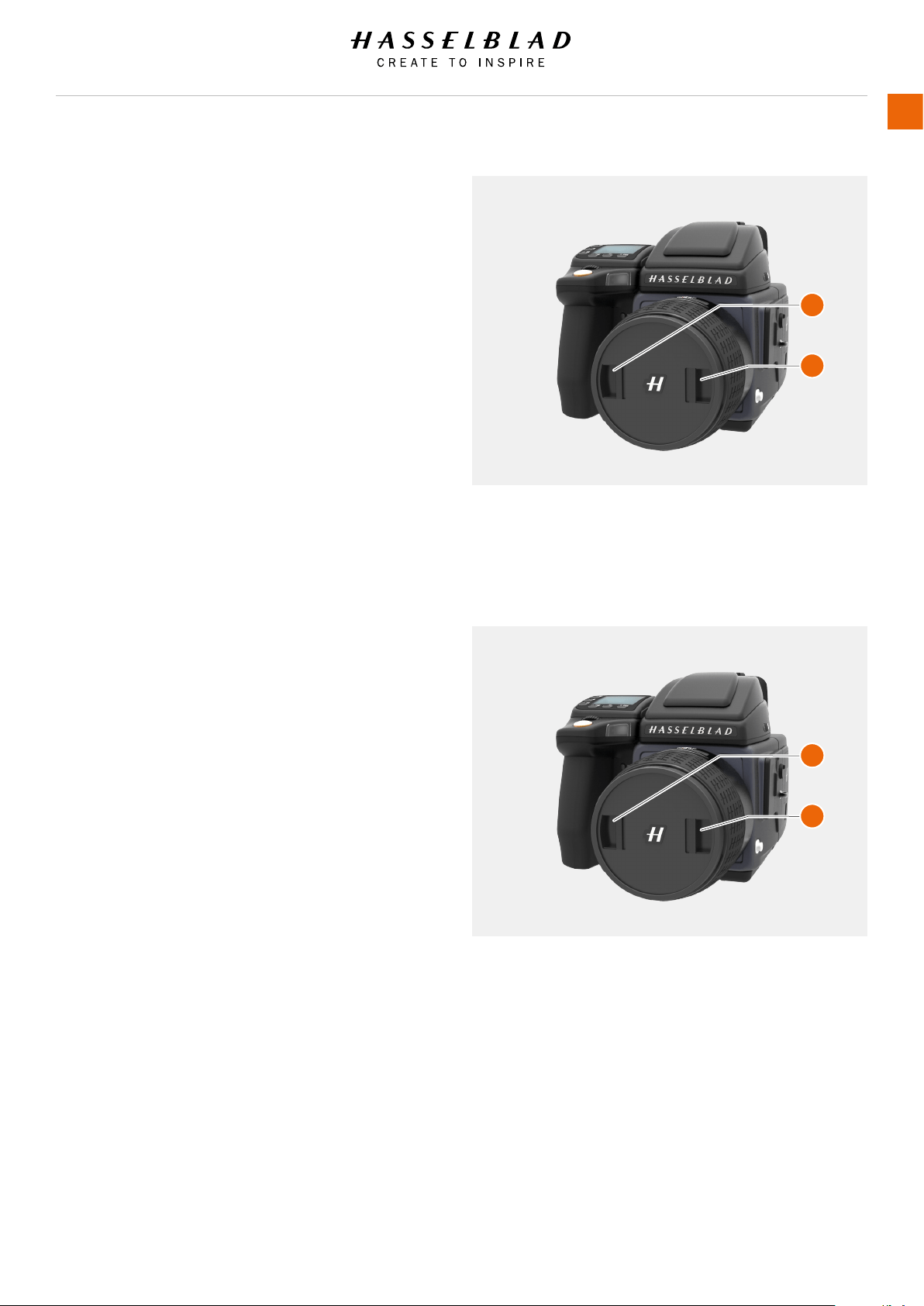
H6D www.hasselblad.com
USER GUIDE
To Use
163
REMOVE THE LENS CAP
1 Insert thumb and index nger into the recesses (A).
2 Pinch the recesses (A) together.
3 Remove the front lens cap.
ATTACH THE LENS CAP
1 Insert thumb and index nger into the recesses (A).
2 Attach the front lens cap on the lens until it snaps into
place.
A
A
A
A
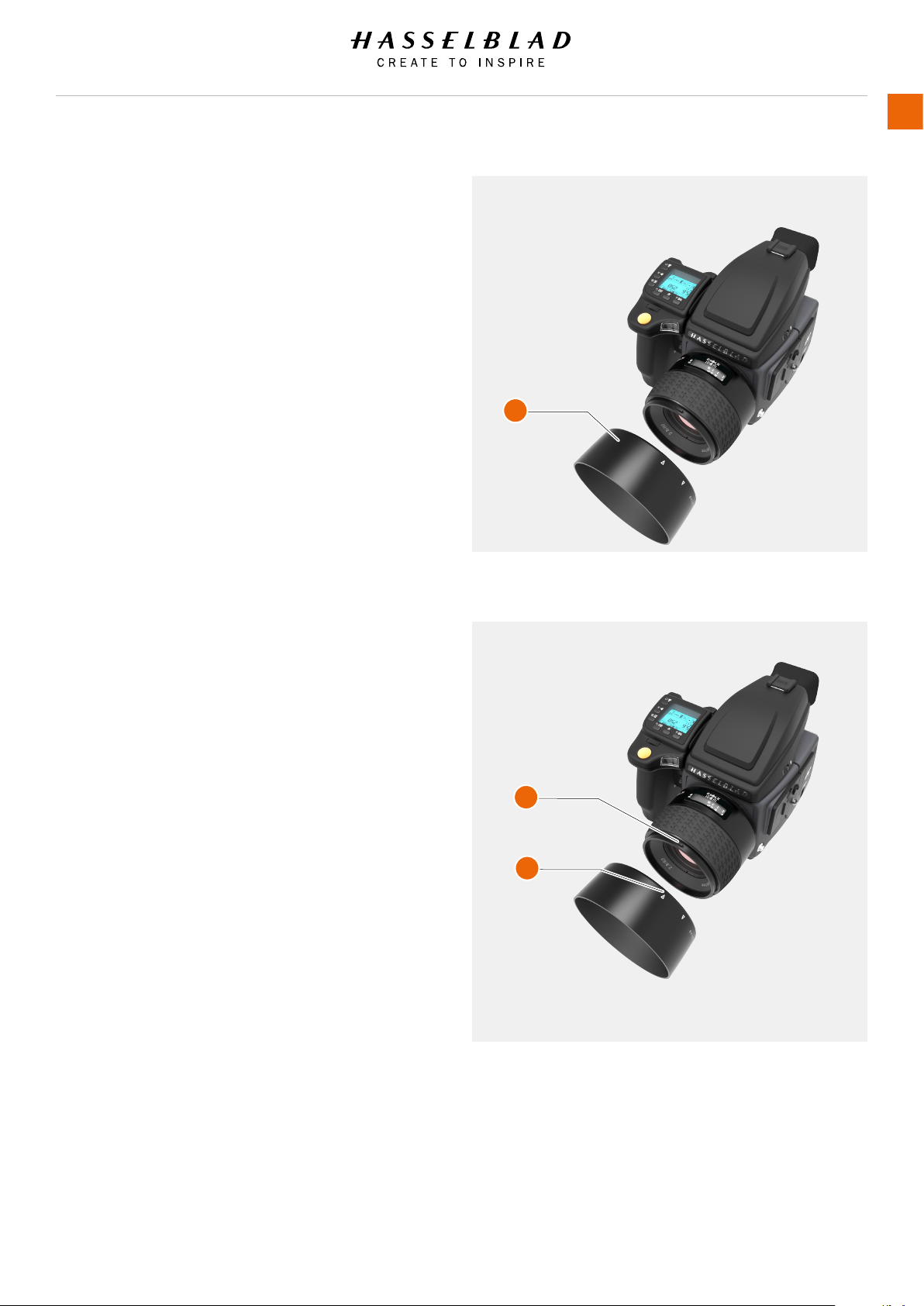
H6D www.hasselblad.com
USER GUIDE
To Use
164
REMOVE THE LENS SHADE
All lenses are supplied with lens shades that additionally
provides extra protection for transport and storage when
mounted in reverse.
1 Turn the lens shade (A) counter-clockwise.
2 Remove the lens shade (A).
ATTACH THE LENS SHADE
All lenses are supplied with lens shades that additionally
provides extra protection for transport and storage when
mounted in reverse.
1 Place the lens shade on the lens.
2 Make sure that the index on the lens shade (A) aligns with
the index on the front of the lens (B).
3 Turn the lens cap clockwise until it snaps into place.
A
B
A
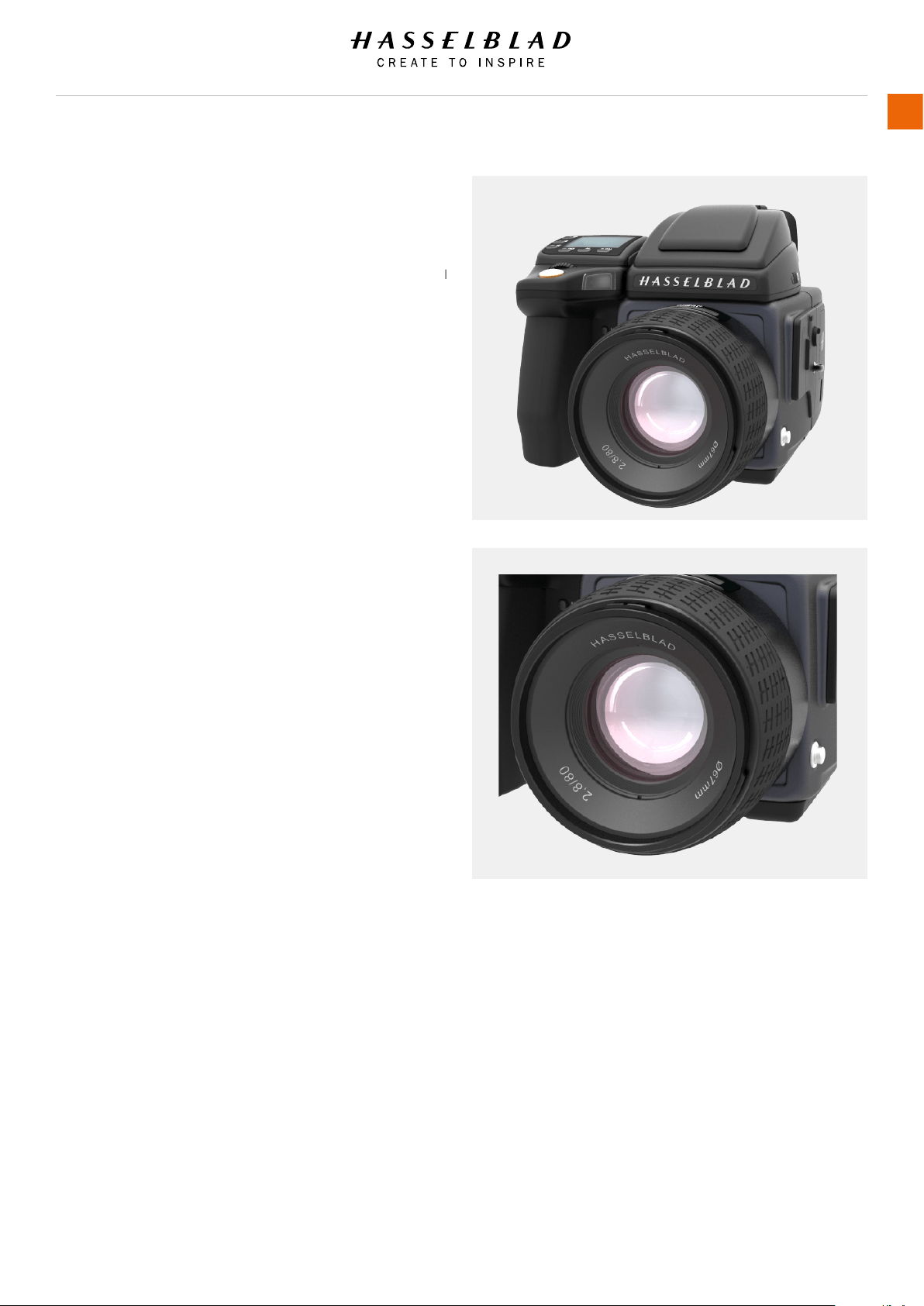
H6D www.hasselblad.com
USER GUIDE
To Use
165
FILTERS
The lters have a threaded tting (67/77/95 mm, according
to lens) and are rotated clockwise into place. As there is no
rotation of the front section of the lens when the focus is
changed, the lter do not rotate either. This is particularly useful
when using polarizing or graduated lters where the orientation
is critical.
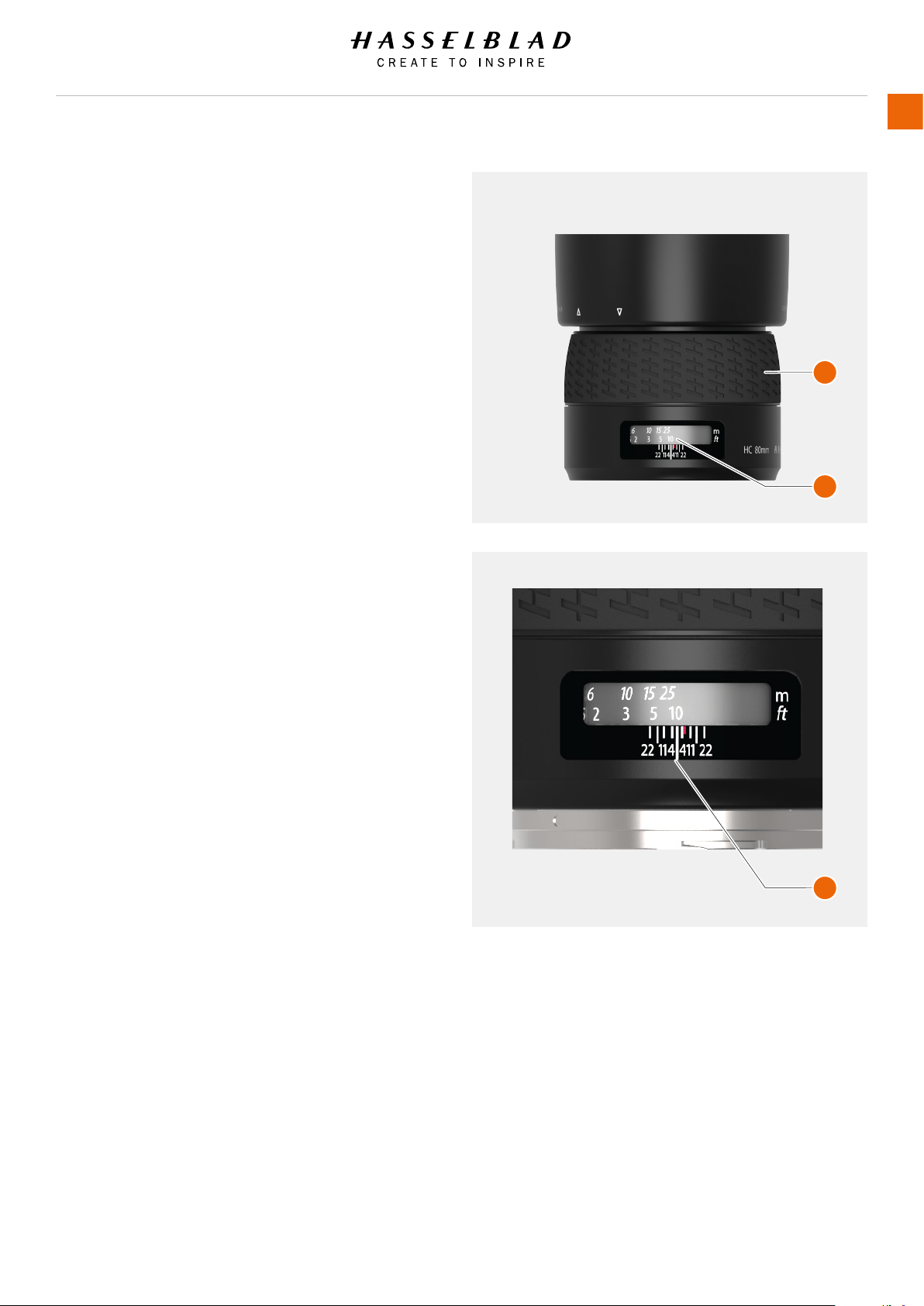
H6D www.hasselblad.com
USER GUIDE
To Use
166
TO SET FOCUS DISTANCE
1 Estimate the distance to the target.
2 Inspect the focus distance scale (A) and turn the manual
focus ring (B) to adjust the focus distance.
Note!
There are two distance scales (in feet and metres) visible
through the window on the upper part of the lens barrel.
A
A
B
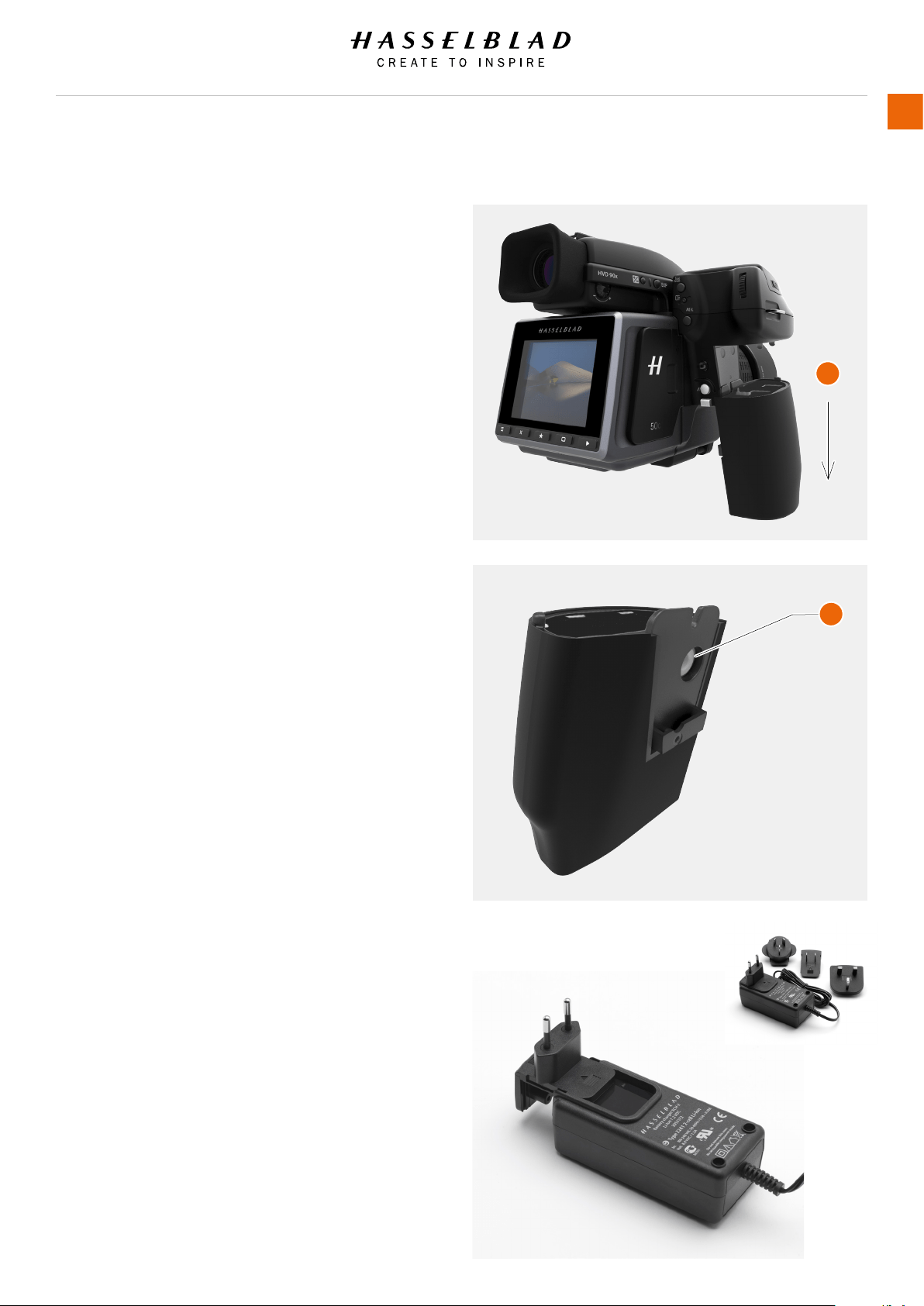
H6D www.hasselblad.com
USER GUIDE
To Use
167
5.31 BATTERY
CHARGE THE BATTERY
Note!
The battery will become fully charged after approximately 6
hours before rst use.
1 Remove the battery from the camera (A).
2 Insert the jack plug from the battery charger into the socket
on the battery grip (B).
3 Insert the battery charger into a standard (100–240V~/50–
60 Hz) domestic socket.
During the charging procedure, the lamp on the charger
shows the following:
● Standby (no battery connected)
● Charging
● Ready
A
B
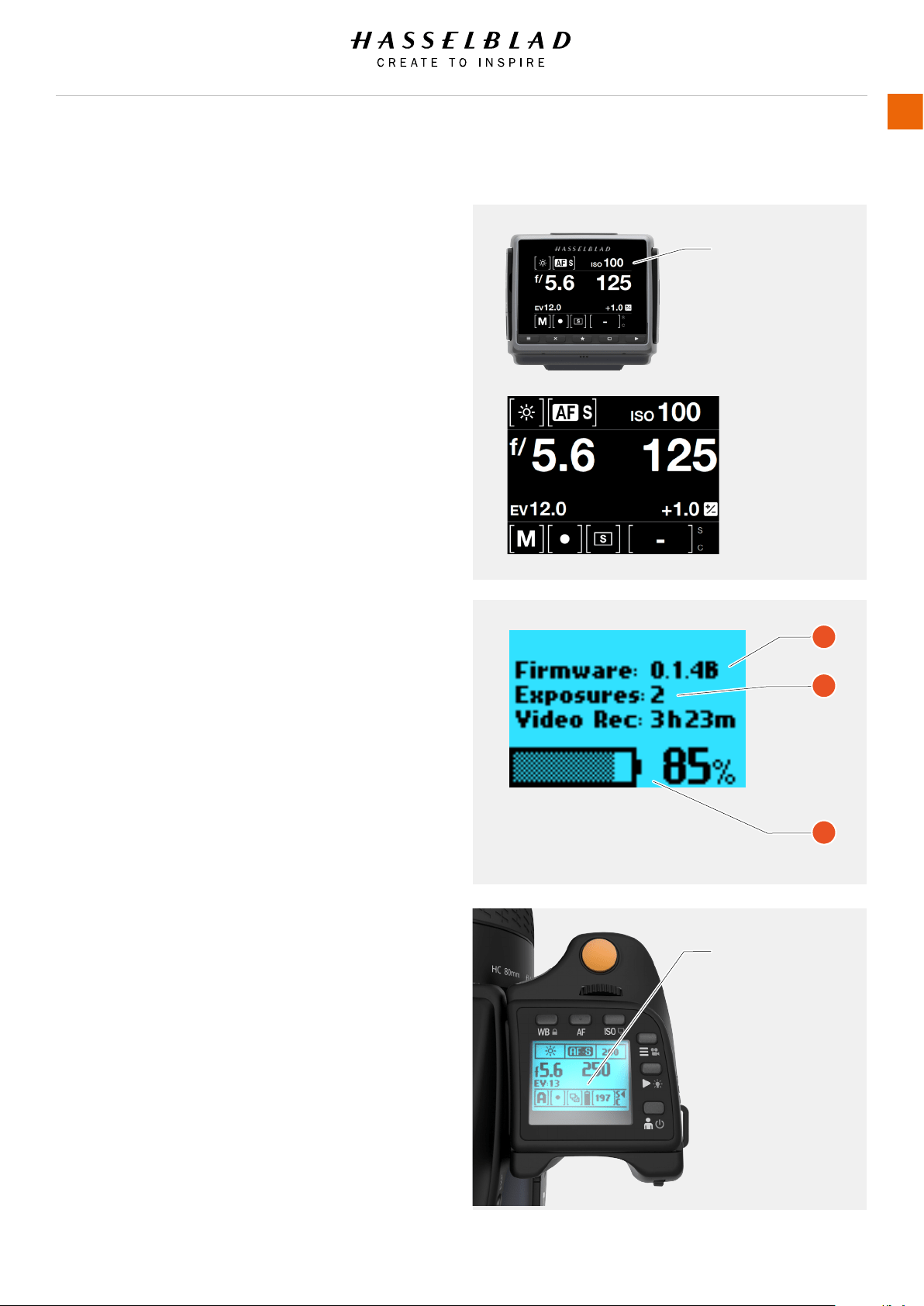
H6D www.hasselblad.com
USER GUIDE
To Use
168
CHECK THE BATTERY STATUS
1 On the Sensor Unit Menu Control Screen select the Battery
symbol in the upper right corner.
The Grip Screen displays:
● The rmware version (A).
● The number of captures taken since the last battery
recharge/change (B).
● A rechargeable-battery status icon (C) that provides
a quick visual check as well as a gure estimate in
percent.
Note!
Remember that these are only estimates and that there are a
number of factors affecting remaining battery charge,
ambient temperature for example, as well as general practice.
Note!
You can save battery consumption by changing the Display Off/
Sleep/Power Off settings as well as the brightness settings of
the display.
A
B
C
Battery Level
Low battery warning
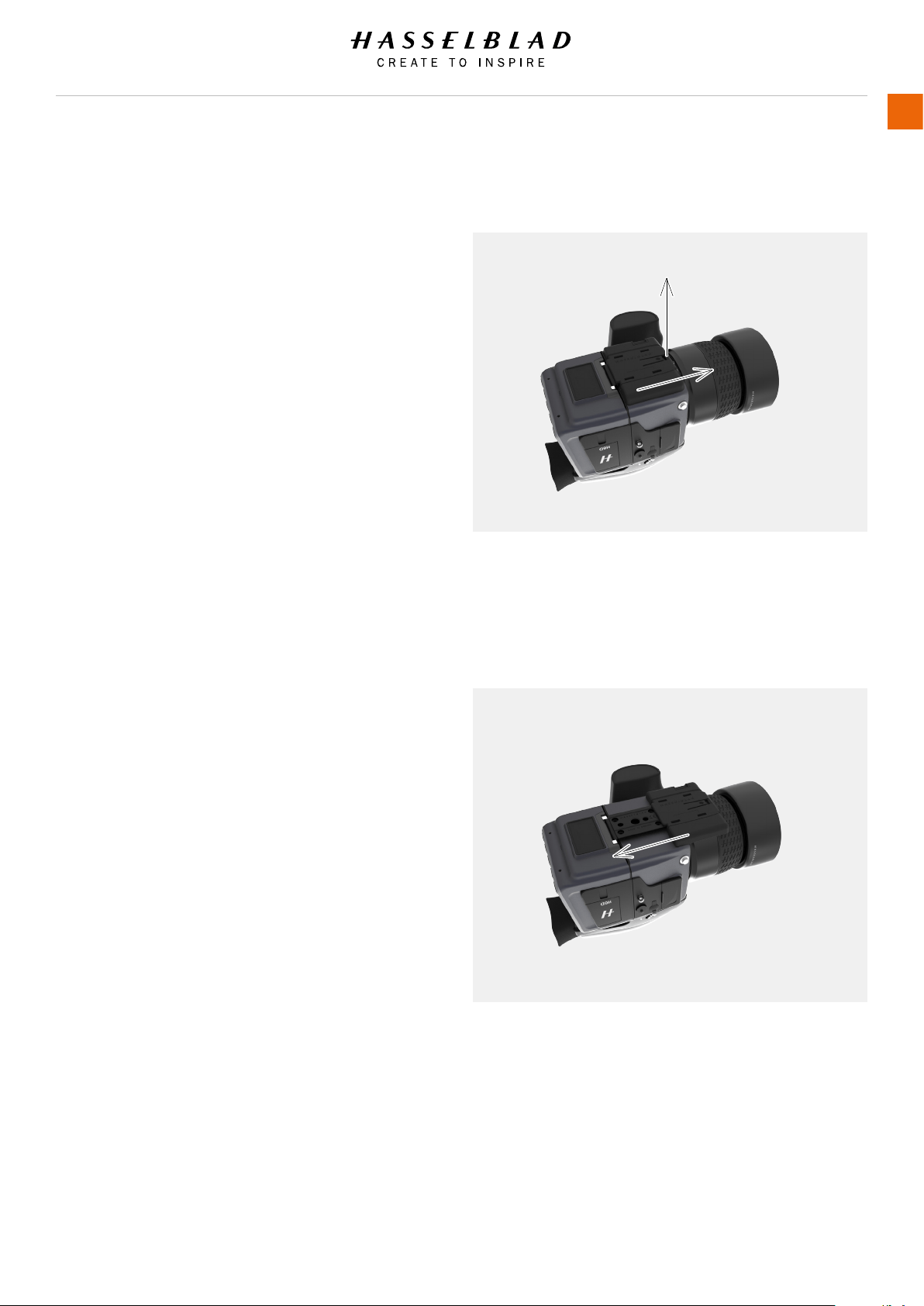
5.32 PROTECTIVE BASEPLATE
REMOVE THE PROTECTIVE BASEPLATE
1 Lift the securing catch while pushing the plate towards the
lens.
ATTACH THE PROTECTIVE BASEPLATE
1 Slip it over the camera foot until it stops and the securing
catch snaps into place.
H6D www.hasselblad.com
USER GUIDE
To Use
169

5.33 STORE THE CAMERA
Caution!
Before you connect the sensor unit to the H6D camera after
storage, always replace the protective CMOS/lter cover. This
will prevent damage to the equipment.
Caution!
If you leave the camera unused for a long period, remove the
batteries. This will prevent damage to the equipment.
Caution!
Keep camera and equipment away from moisture. If your camera
becomes wet, disconnect from electric power and let camera
dry before further use. This will help prevent damage to the
equipment.
Caution!
Store the equipment in a dry environment. This will help prevent
damage to the equipment.
H6D www.hasselblad.com
USER GUIDE
To Use
170

6 ACCESSORIES
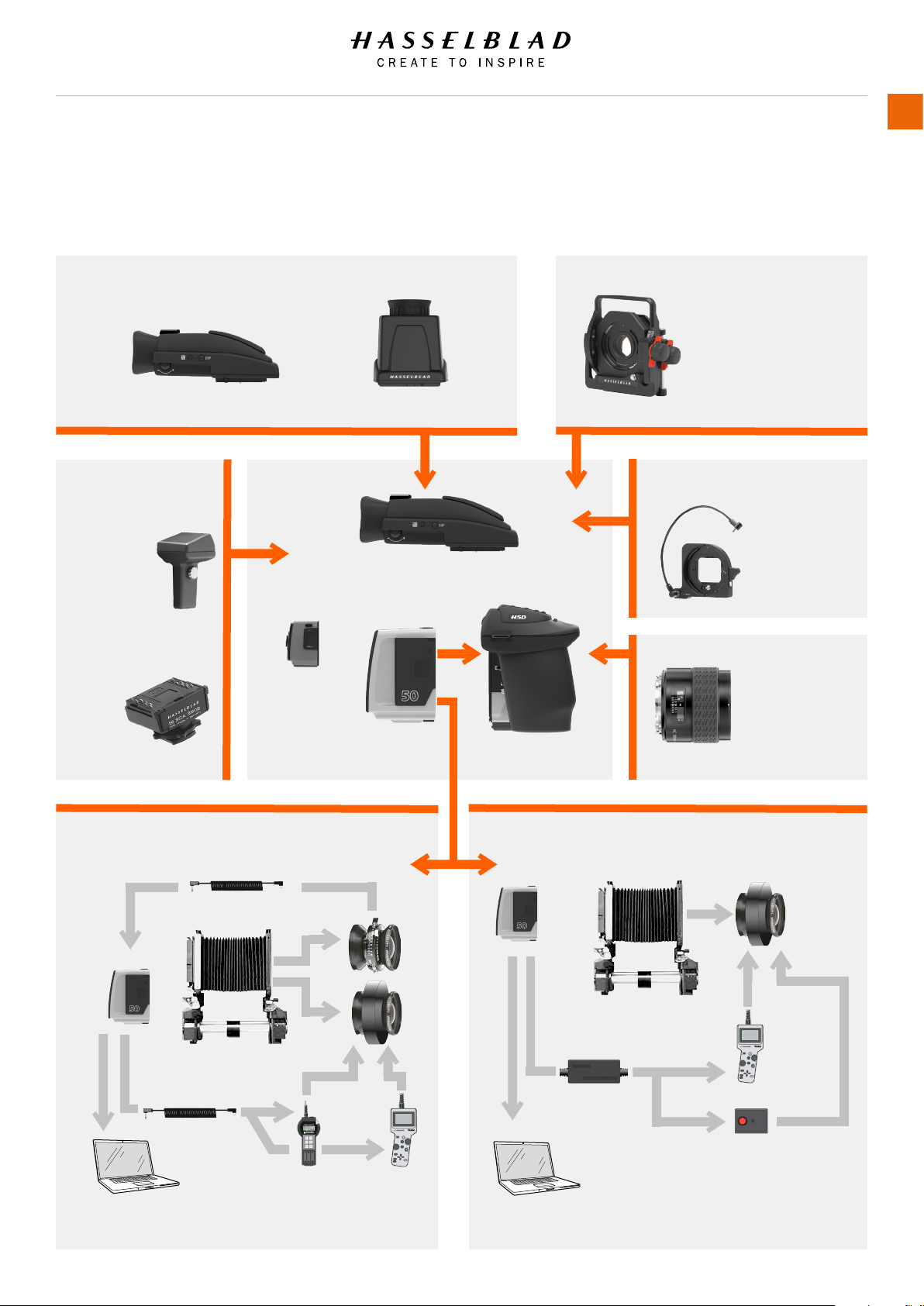
6.1 ACCESSORIES CONNECTIVITY DIAGRAM
Roll lm and
Instant mag.
HV 90x / HVD 90x-II viewnders
Optional viewnders
Optional viewnders
View cameras - Flash sync shutters View cameras - Electronic shutters
Expose cable
Rollei
Lens
control S
Schneider electronic
shutter control
Flash sync input cable
Host Computer with USB 3 with
Phocus
Host Computer with USB 3 with
Phocus
Schneider
Shutter Control
ES
Rollei Lens
Control S
Any view camera with
Hasselblad H adapter
Optional V system Lenses
CF lens adapter
All HC/HCD
lenses, including
extension tubes
and converters
Viewnder (included). Type depends on modelGIL GPS
receiver
SCA3902 TTL Flash
Adapter
Tilt / shift
HTS 1.5.
For use with HCD28,
HC35, HC50, HC80
and HC100 (including
extension tubes).
HVM waist-level viewnder
H6D www.hasselblad.com
USER GUIDE
Accessories
172
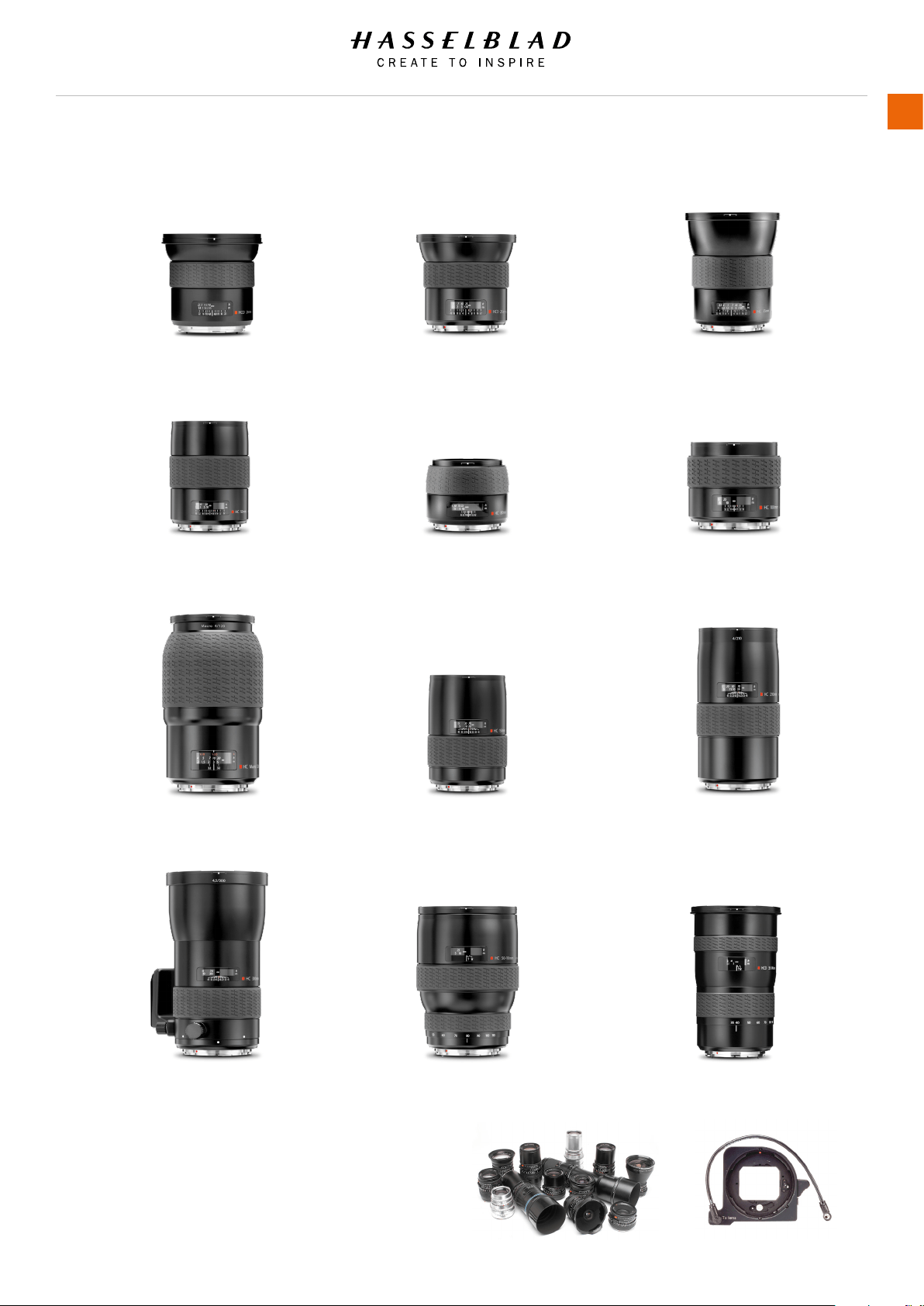
6.2 HC LENS RANGE
HCD 4.8/24mm
HC 3.5/50-IImm
HC Macro 4/120-IImm
HC 4.5/300mm
HCD 4/28mm
HC 2.8/80mm
HC 3.2/150mm
HC 3.5–4.5/50–110mm
HC 3.5/35mm
HC 2.2/100mm
HC 4/210mm
HCD 4.0–5.6/35–90mm
V system C type lenses with optional CF lens adapter
H6D www.hasselblad.com
USER GUIDE
Accessories
173
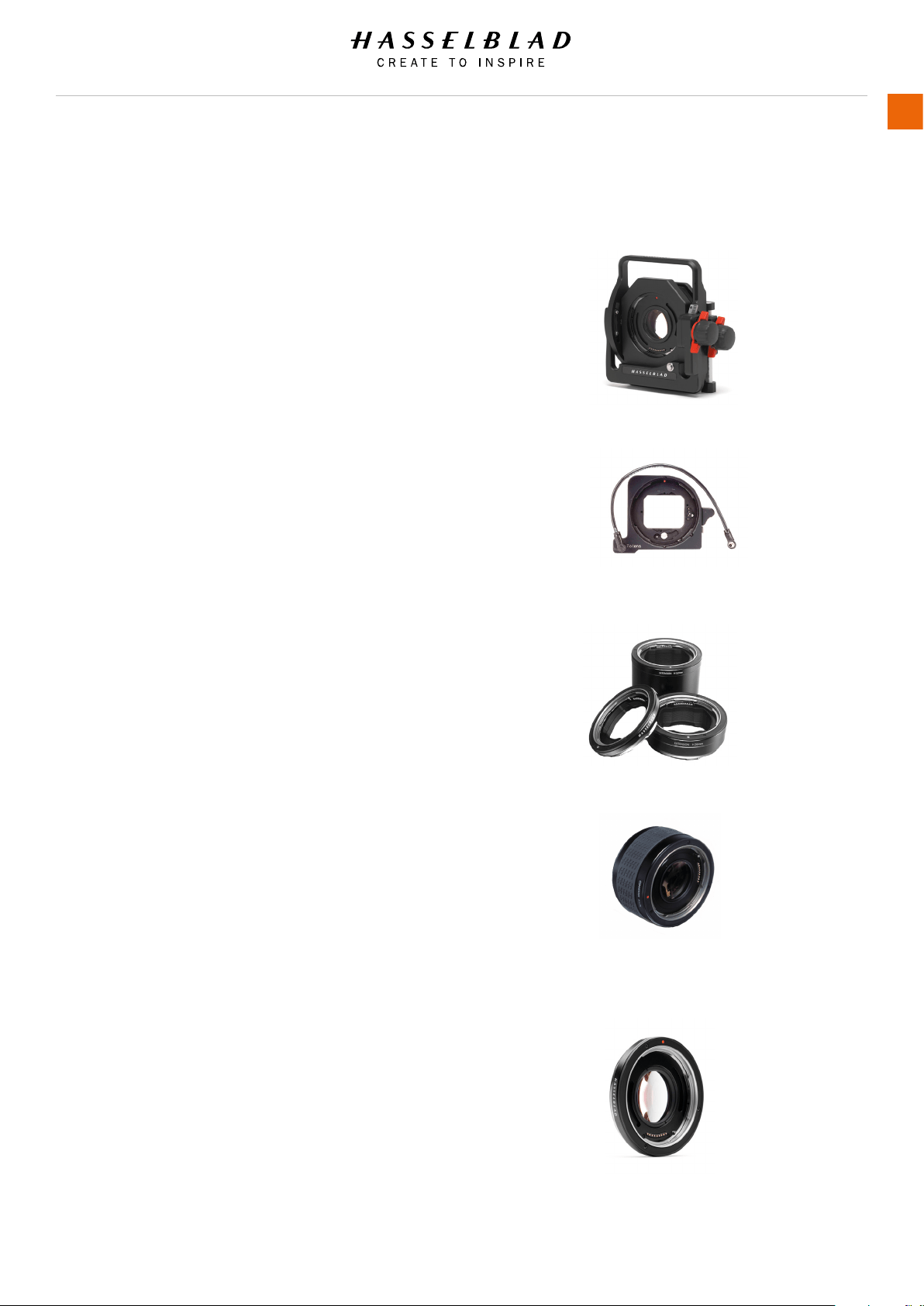
6.3 OPTIONAL HC LENS ACCESSORIES
HTS 1.5
(3043400)
The HTS 1.5 is a tilt and shift adapter designed for the
HCD28mm, HC35mm, HC50mm, HC80mm and the HC100mm
lenses. It not only solves technical challenges but also provides
exciting opportunities for creative solutions.
CF ADAPTER
(3043500)
The CF adapter allows almost all lenses from the V-system to
be used on H system camera bodies. This adapter expands
the potential lens range for H cameras by more than a dozen
different focal lengths.
H 13, 26 AND 52 EXTENSION TUBES
(3053513, 3053526 and 3053542)
The Extension tubes attach between the lens and the body to
reduce the close focusing distance for close up photography.
They are available in three sizes: 13 mm, 26 mm and 52 mm.
As the H6D has a TTL light metering system, exposure
compensation is automatic.
CONVERTER H 1.7X
(3023717)
The Converter attaches between the lens and the body to
increase the focal length by a factor of 1.7. This provides a
convenient way to expand your range of lenses. The Converter
H 1.7 X features the same outstanding optical and mechanical
quality as all the lenses in the Hasselblad H system. The optical
design consists of 6 elements in 4 groups.
MACRO CONVERTER H
(5023720)
The Macro Converter is designed to improve the close range
performance of wide angle H system lenses. Although primarily
aimed for use in conjunction with the HC 50-II lens for optimum
performance, it can also be used with any of the of the other H
system wide angle lenses.
H6D www.hasselblad.com
USER GUIDE
Accessories
174
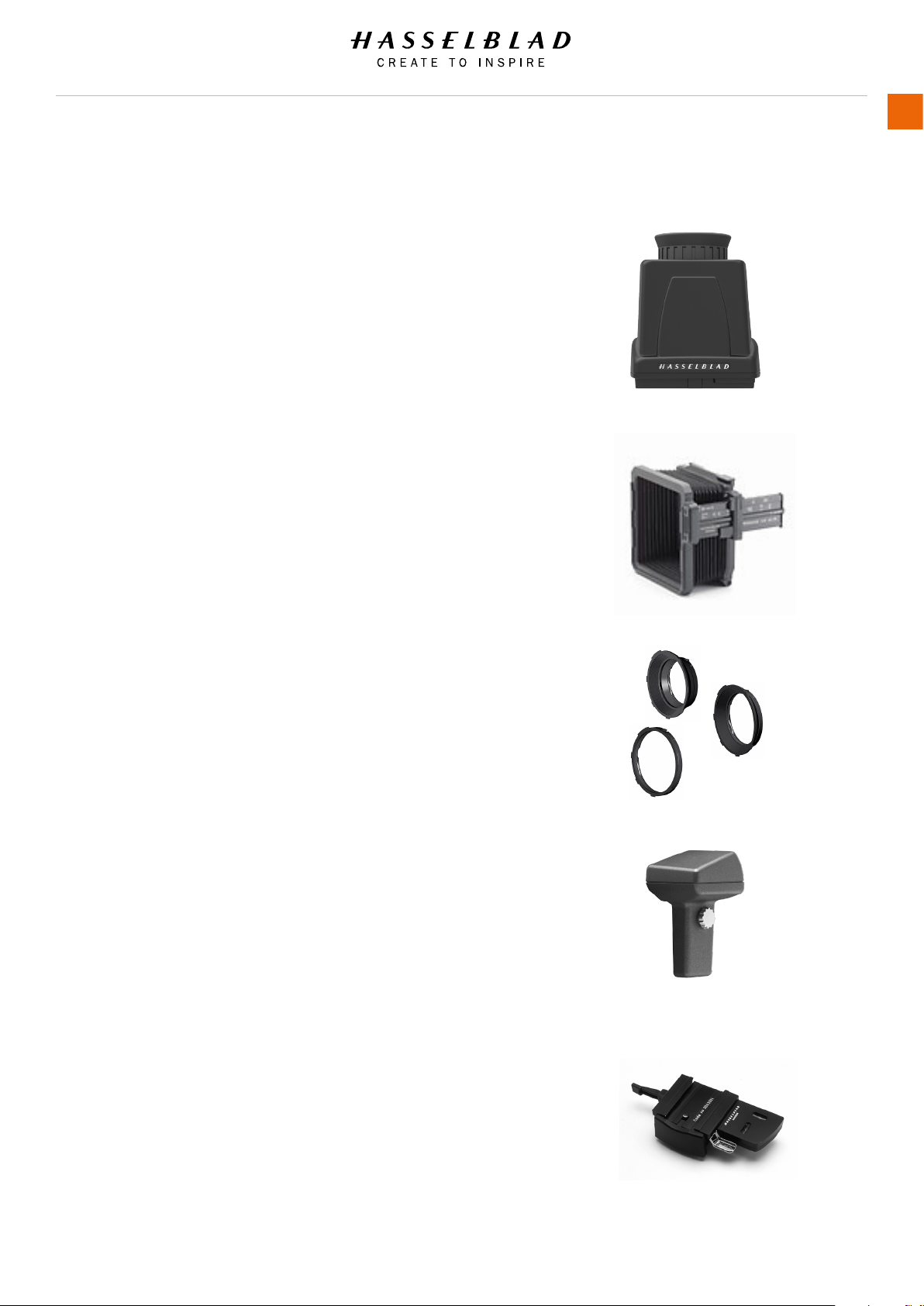
6.4 OPTIONAL ACCESSORIES
HVM WAIST LEVEL VIEWFINDER
(3053328)
The HVM waist level viewnder allows a comfortable lower
viewing angle either for effect or where eye contact with the
subject is desirable in portrait photography, for example.
Autofocus function of all lenses fully retained. Intended for
horizontal format shooting and not suitable for vertical format
use.
PRO SHADE V/H 60 – 95
(3040740)
An adjustable bellows lens shade that provides highly efcient
protection against stray light. Its compact, at folding design
saves space in the equipment case. With adapters it ts all HC
lenses and virtually all V system lenses. Also features a lter
holder for glass, gelatin, or plastic lters.
PRO SHADE ADAPTERS
(3043415, 3043417, 3043419)
67mm, 77mm and 95mm adapters with bayonet mount for
HC lenses. Features lock to provide positive and secure
attachment.
GIL (GLOBAL IMAGE LOCATOR)
(3053300)
The Hasselblad GIL (3053300 ) provides automatic creation and
storage of GPS information for all H-system digital cameras. The
data is tagged to each individual image le and can
be read directly by Phocus. The back requires no extra
external battery or power source and works seamlessly in the
background for ease of use.
TRIPOD QUICK COUPLING H
(3043326)
Mounted on a tripod, this accessory facilitates rapid attachment
and removal of the camera. The camera is rmly held in an
exact and repeatable position. Two integrated spirit
levels make horizontal positioning of the camera easy. The
Tripod quick coupling H ts 1/4” and 3/8” tripod threads and
has a safety catch.
H6D www.hasselblad.com
USER GUIDE
Accessories
175
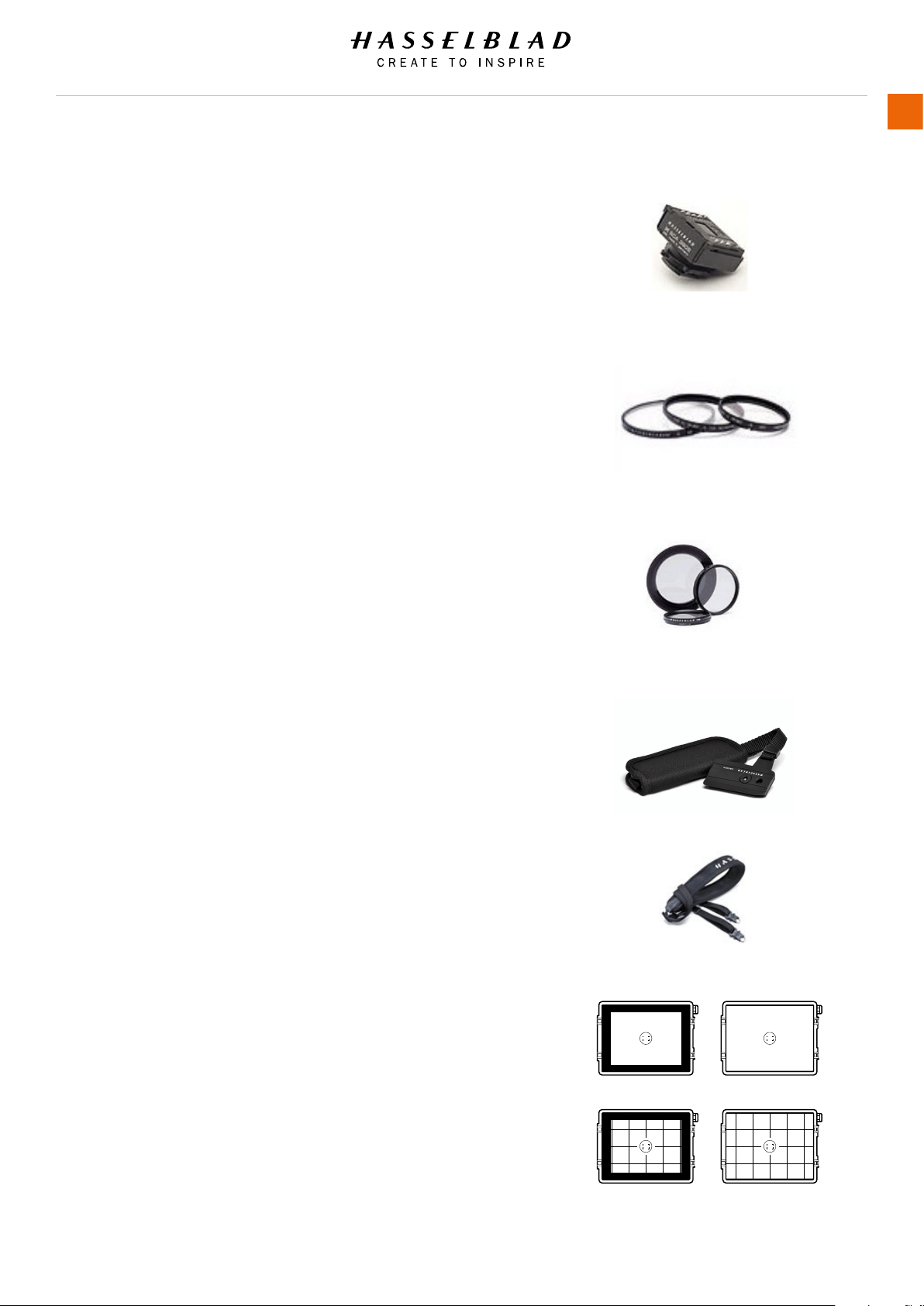
FLASH ADAPTER SCA 3902
(3053393)
For connecting ashes compatible with the SCA 3002 system to
the Hasselblad H6D.
UV-SKY FILTERS
Absorbs UV radiation and reduces blue haze without affecting
colours. Also protects the front lens surface. Particularly
recommended when the camera is used in harsh conditions.
Available in three sizes to suit various lenses.
67mm: 3053470, 77mm: 3053474 and 95mm: 3053478
POLA FILTERS
Reduces non-specular reections and glare. Increases colour
saturation in general. Can intensify a blue sky. Available in three
sizes.
67mm: 3053482, 77mm: 3053486 and 95mm: 3053490
SUPPORT STRAP WITH QUICK PLATE H
(3045154)
Improves comfort and security with hand held photography.
Complete with quick plate H.
CAMERA STRAP H
(3053616)
Extra wide camera strap with anti slip backing. Supplied with the
camera.
FOCUSING SCREENS
All focusing screens are of the Spherical Acute-Matte D type
with or without grid and central markings for spot (Ø 7.5
and AF metering area. Grid patterns provide aid in technical,
architectural, documentation and other similar elds.
H6D-50c (3043336), H6D-50c Grid (3043338)
H6D-100c (3043332), H6D-100c Grid (3043334)
H6D www.hasselblad.com
USER GUIDE
Accessories
176
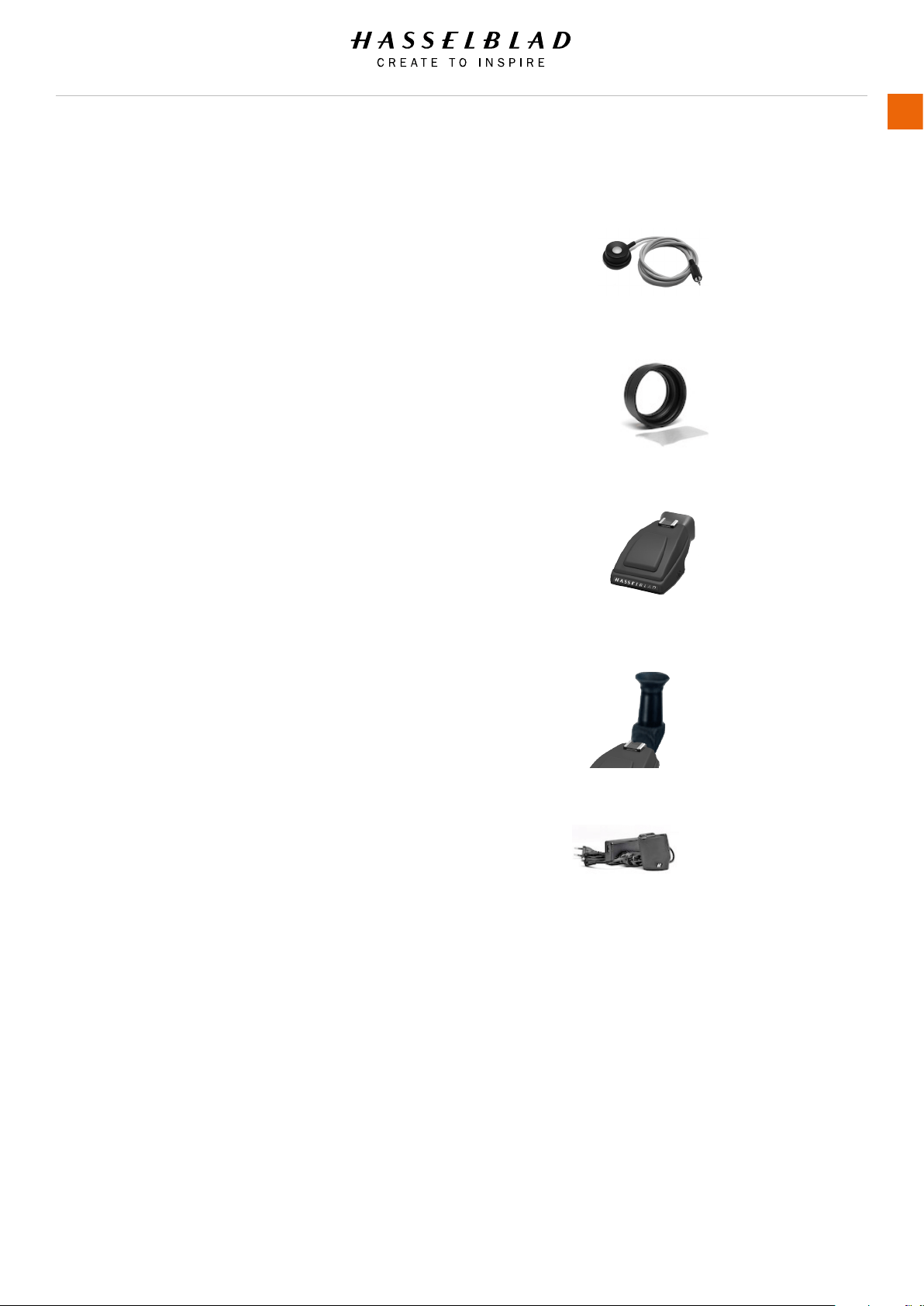
RELEASE CORD H
(3043370)
Remote release cord with a cable length of 0.5 m.
HVM CORRECTION LENS HOLDER
(3053348)
Lens holder for custom made eyesight correction (lenses
available from opticians). To be used for optimal viewing
comfort and accuracy.
HVD 90X / HV 90X & 90X-II VIEWFINDERS
(3053330, 3053326, 3053334)
90 degrees reex viewnder, providing 100% eld of view even
when wearing eyeglasses. Includes built-in ll ash and multi-
mode light metering system.
ANGLE FINDER H
(S100A12359A00)
Angle nder for the HV 90x and the HVD 90x viewnders.
Enables vertical viewing angle regardless of camera position.
Requires a minor modication to the viewnder eyepiece.
DC POWER GRIP
(3043350)
Removable H-camera grip with AC power adapter for supplying
camera power from domestic mains supplies.
H6D www.hasselblad.com
USER GUIDE
Accessories
177
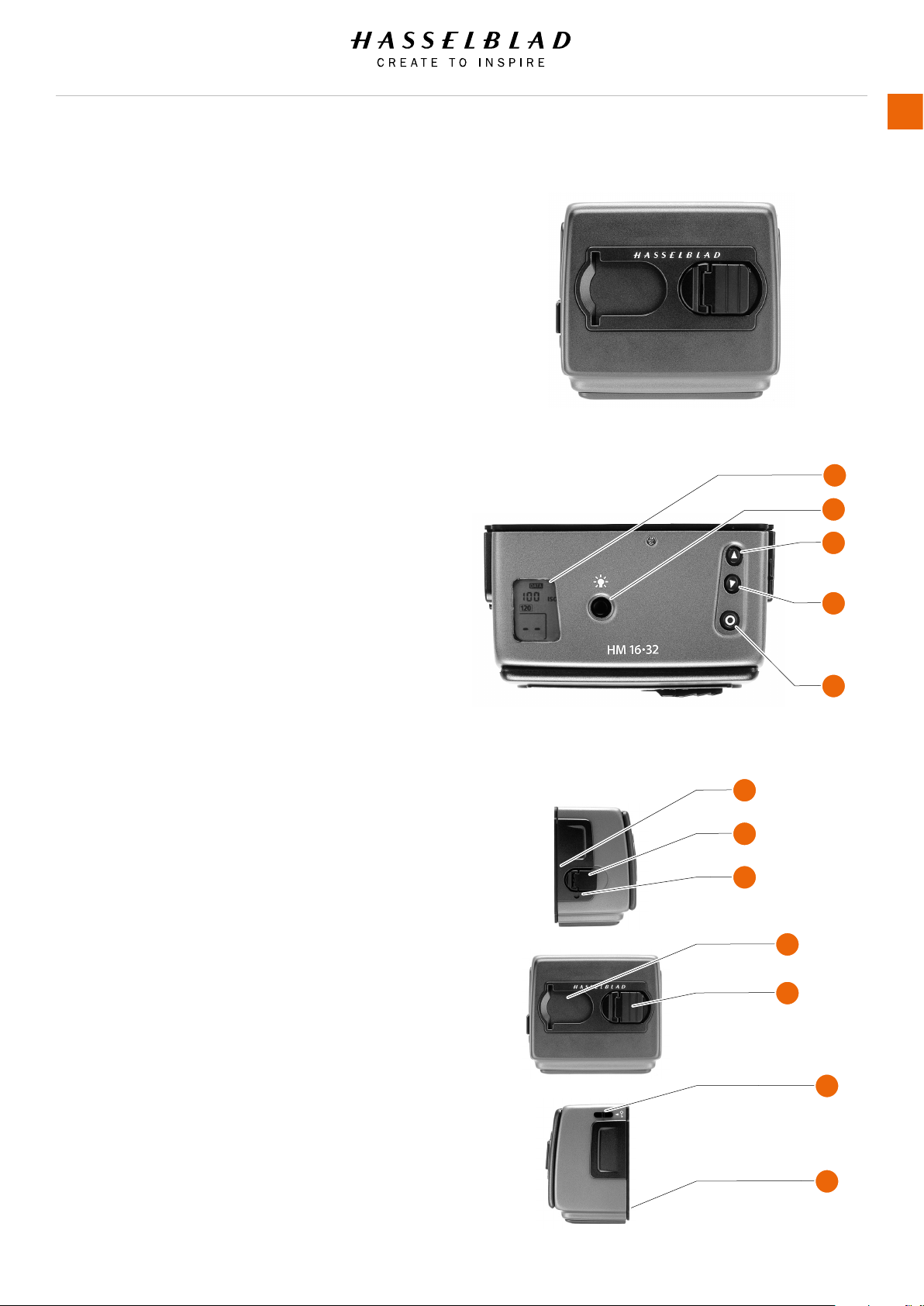
6.5 HM 16-32 FILM MAGAZINE
The Hasselblad HM 16-32 lm magazine is a sophisticated
semi-independent unit within the H system. It has its own
power supply for individual information storage, LCD panel,
illumination, etc. It features: automatic 120/220 compatibility,
automatic wind on/wind off, automatic lm advance, LCD
information panel, integral dark slide, customizable data
imprinting, illuminated LCD, bar code recognition, count-up or
countdown lm frame reminder choice and multi shot option.
Parts and components
1 LCD panel
2 LCD illumination button
3 Change up button
4 Change down button
5 Function selector
6 Film plane index
7 Dark slide key
8 Dark slide indicator
9 Film tab holder
10 Film holder key
11 Magazine settings lock
12 Data bus interface
Note!
Information is transmitted and received between the
Magazine and the camera body, so ensure the data bus
connection is kept clean and not damaged in any way. It is
advisable to t the magazine protective cover when storing a
lm magazine to protect both the data bus connection and the
dark slide.
1
2
3
4
5
6
7
8
9
10
11
12
H6D www.hasselblad.com
USER GUIDE
Accessories
178
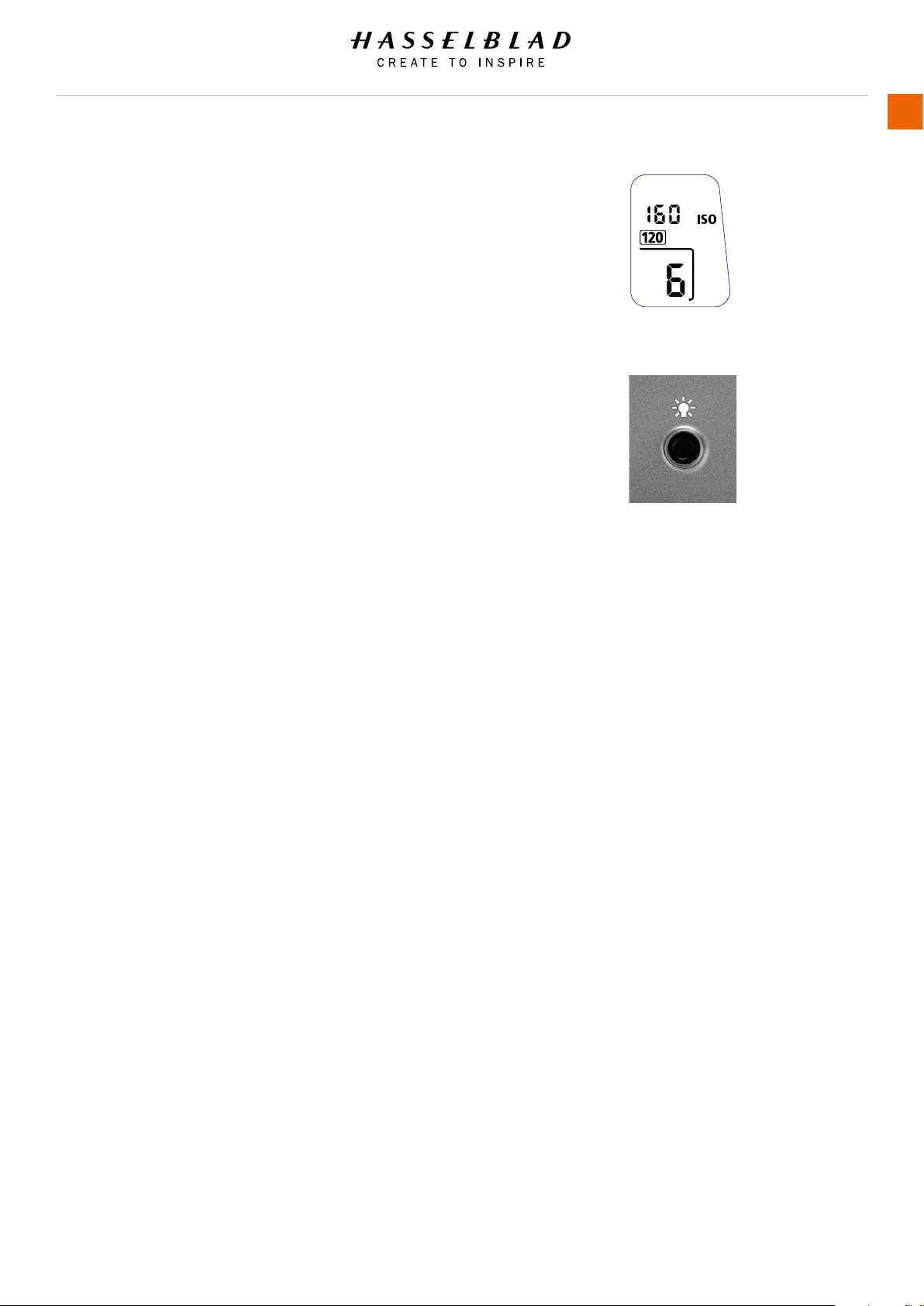
LCD Panel
The various functions are accessed by repeatedly pressing
the function selector button (loop menu) and changes made
by the ‘change-up’ and ‘change-down’ buttons. Any settings
are automatically saved. At very low temperatures the LCD will
require a few seconds to display new settings.
LCD illumination button
The LCD can be illuminated by pressing the display illumination
button, which is accessible when the magazine is not attached
to the camera. The LCD will remain illuminated all the time you
keep the button depressed, up to a maximum of 10 seconds.
After 10 seconds has expired, you must release the pressure
on the button and press again to obtain a further 10 second
period of illumination. Remember that using the illumination
function very often will noticeably shorten the life of the battery
in the magazine. When the magazine is attached to the camera,
the button on the magazine is inaccessible but you can still
illuminate the LCD by pressing the illumination button on the
grip instead.
H6D www.hasselblad.com
USER GUIDE
Accessories
179
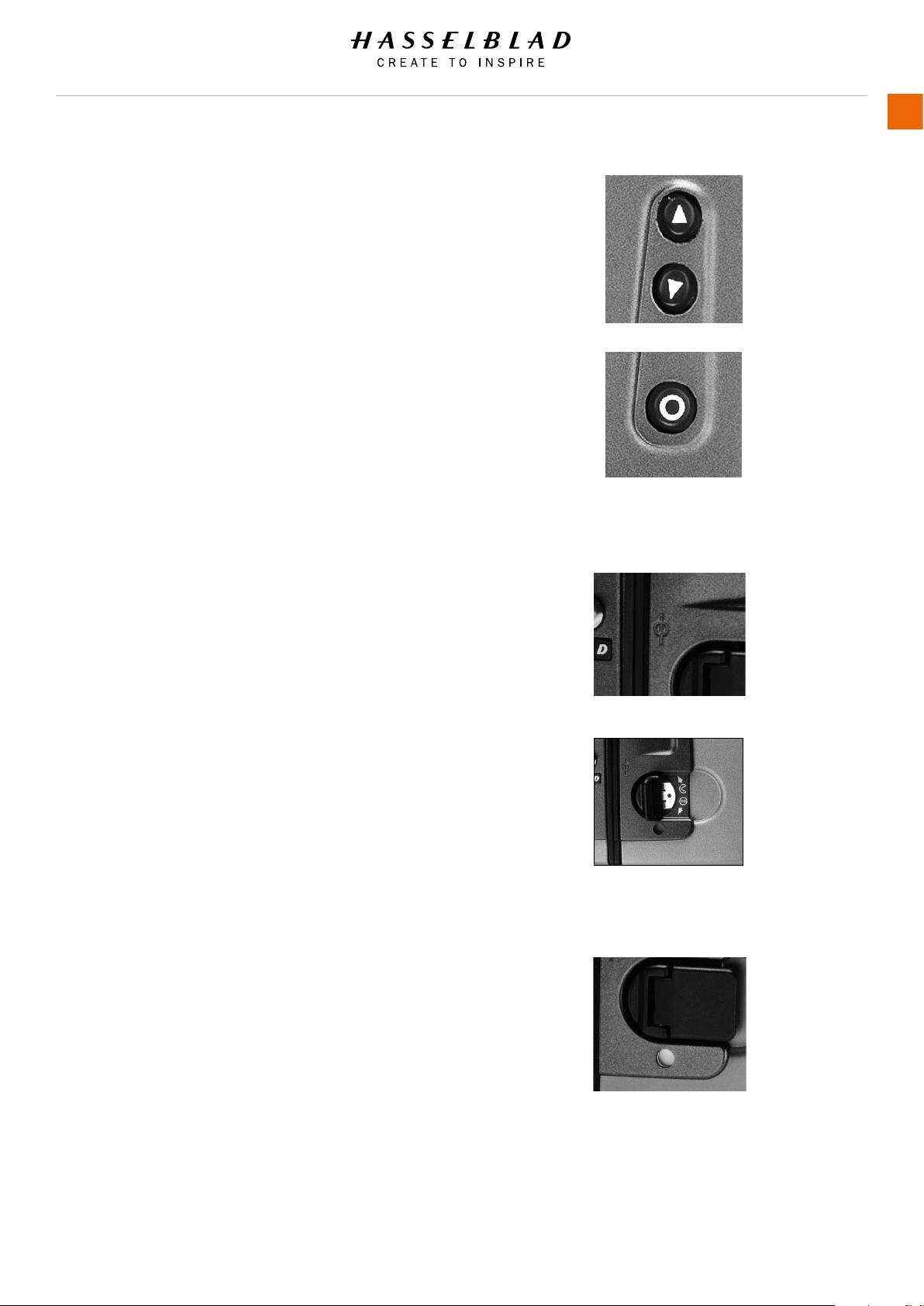
Change Up / Change Down Button
Can alter the settings ‘upwards’. For example, to increase the
lm speed setting. Toggle action.
Can alter the settings ‘downwards’. For example, to decrease
the lm speed setting. Toggle action.
Function Selector
Selects the four functions that can be changed on the
magazine. The functions are on a menu loop so that repeated
pressing of the selector button will successively
access all functions in turn. After a time-out of ve seconds of
non-activity, the display returns to the main screen.
Note!
Changes can only be made when the settings lock switch is in
the unlocked position.
Film Plane Index
Provides a measuring point for the actual position of the
lm plane in the magazine. Used for calculations in critical
applications.
Dark slide Key
Withdraws and replaces the dark slide. Fold out the key and turn
it counter-clockwise 360° (towards the open symbol) to withdraw
it and clockwise 360° (towards the closed symbol) to replace it.
Note!
The dark slide can only be withdrawn when the magazine is
attached to the camera.
Dark slide Indicator
Indicates whether the dark slide is in place or withdrawn:
RED = stop ! = exposure CANNOT be made
(magazine can be removed from camera)
WHITE = ok ! = exposure CAN be made
(magazine cannot be removed from camera)
If you attempt to make an exposure when the dark slide is
closed, however, you will receive a warning message in the
viewnder and grip LCD’s – ‘The dark slide is closed’.
H6D www.hasselblad.com
USER GUIDE
Accessories
180
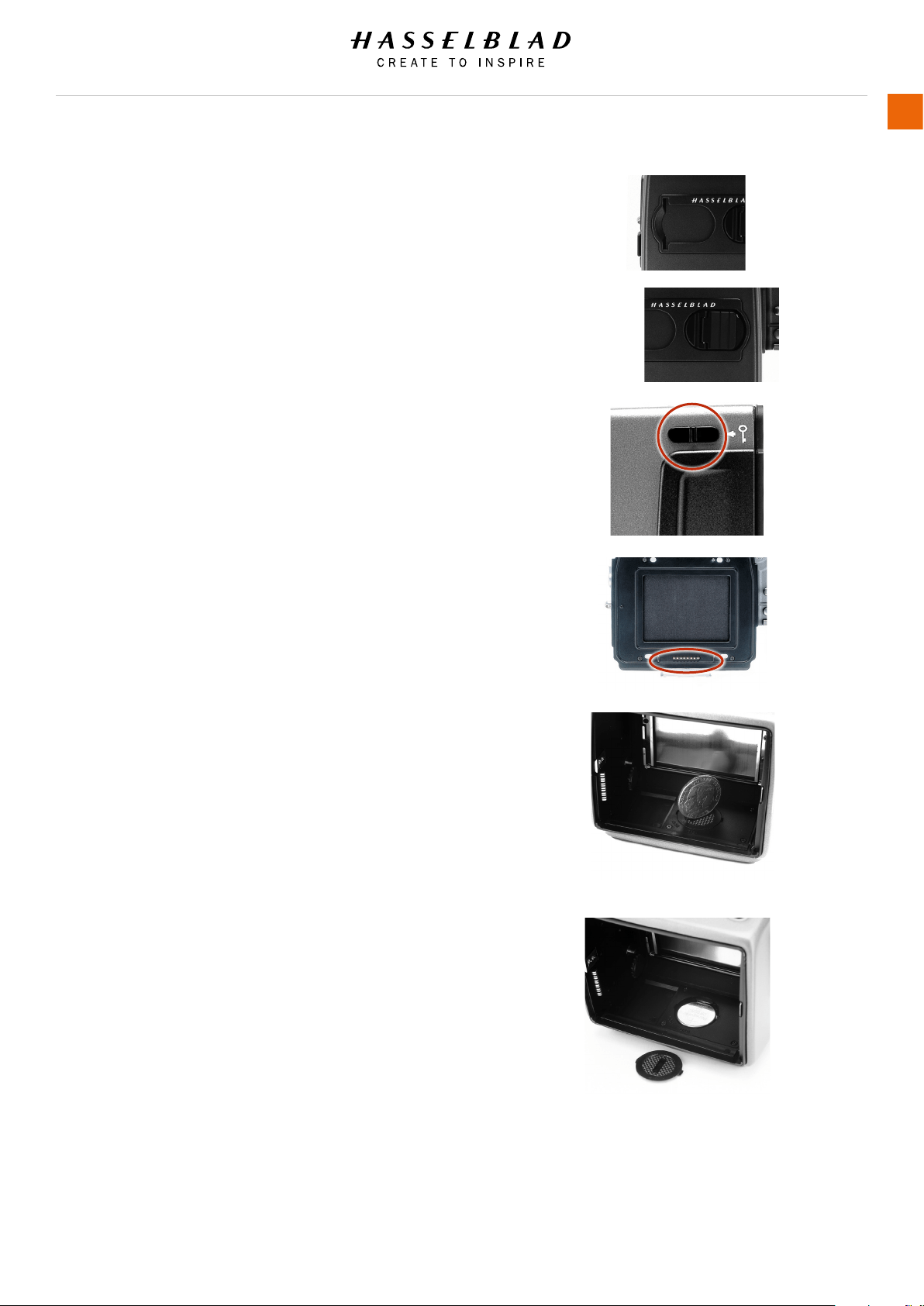
Film Tab Holder
Holds an ID tab from the lm roll pack as a reminder of the type
of lm loaded. Remember to change it if you change lm type!
Film Holder Key
Secures the lm holder in the magazine. Fold out the key and
turn counter-clockwise 90° to remove the lm holder and turn
clockwise 90° to lock the lm holder in place.
Magazine Settings Lock
All settings can be locked to avoid inadvertent changes. To
change the settings, slide the settings lock (see illustration) to
the right until it stops. After the changes have been made, slide
the settings lock to the left (see symbol on magazine) again to
secure the new settings.
Data bus Interface
Data interface between magazine and camera. Ensure the
contacts are kept clean and protected from damage. Keep
the protective cover on when the magazine is being stored or
transported.
Battery
The magazine uses a battery to retain information and settings
when unattached from the camera. When attached to the
camera body, the magazine takes its power requirements
from the camera batteries. The magazine battery will normally
be effective for 1-2 years depending on use (off camera
illumination, for example). When the battery is in a very low
condition, (approx. 1 month of use left), a low battery symbol
appears on the magazine LCD as a warning. The magazine will
continue to function with no battery power left as long as it
remains attached to the camera body. However, when detached,
the settings will not be stored.
Battery Replacement
Release the lm holder by folding out the lm holder key and
rotating it 90° in a counter-clockwise direction. Withdraw the
lm holder completely. On the bottom plate on the inside of the
lm magazine housing you will nd a slotted circular battery
cover. Insert a small coin or similar into the slot and rotate the
cover about 20° in a counter-clockwise direction. The cover
will be freed and the battery can be removed. Replace with
a fresh CR2032 / 3V lithium (or equivalent) battery. Observe
the polarity and ensure the positive (+) face is uppermost and
replace the cover (ensure the retaining lugs are inserted in the
battery compartment slots), locking it into place by rotating
it in a clockwise direction until it stops. If you inadvertently
insert the battery incorrectly, the lm magazine will not be
damaged though it will not function. Try to avoid touching the
surface of the battery with your bare ngers as sweat residue
can decrease the electrical conductivity of the battery casing
and might cause corrosion. After battery replacement, the
magazine’s parameters return to the default settings (Bar code,
120, Data-on, Count up).
H6D www.hasselblad.com
USER GUIDE
Accessories
181
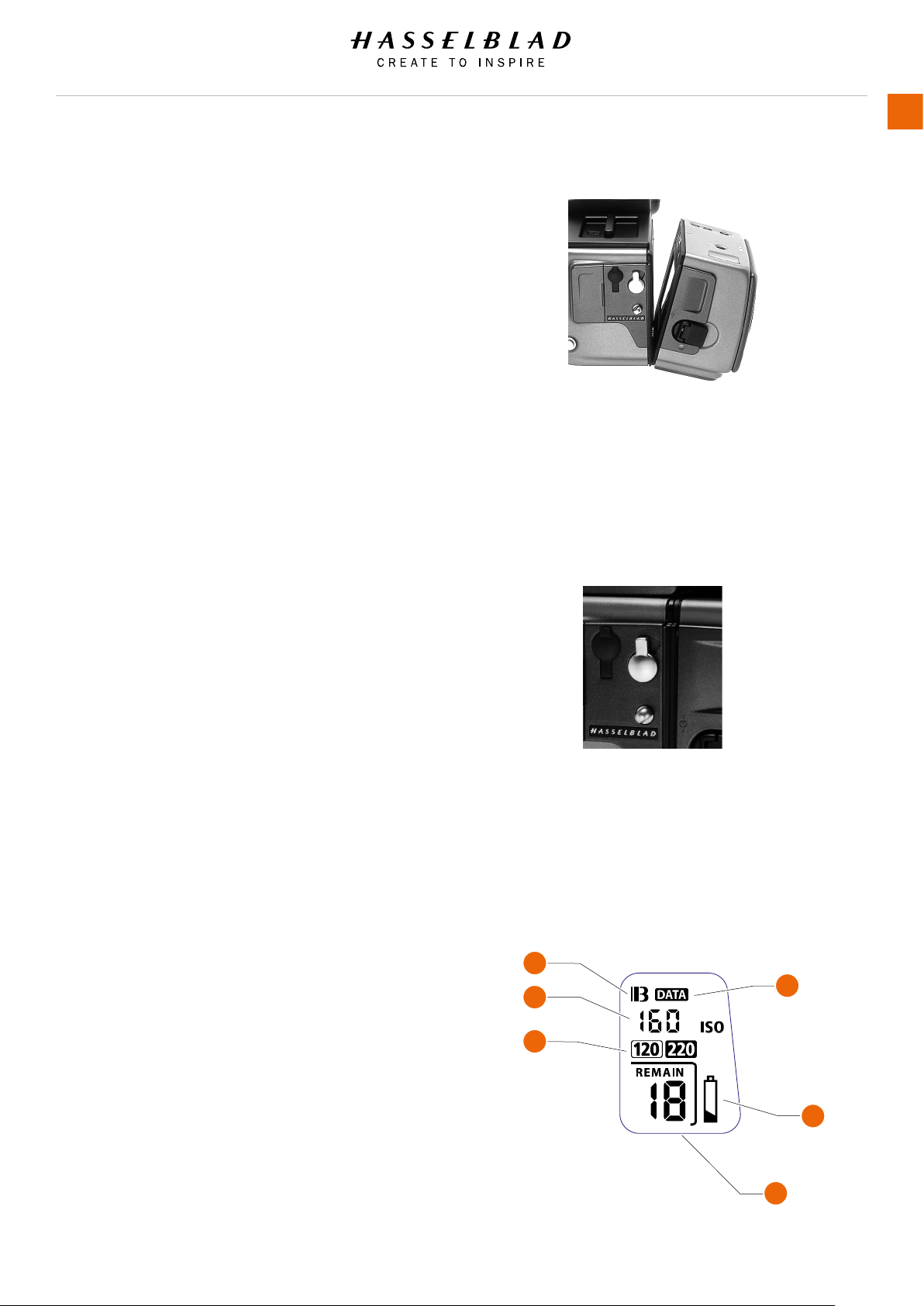
Attach and Remove the Magazine
You cannot remove a magazine from the camera body if the
magazine dark slide is not in place, (when the magazine dark
slide indicator on the magazine shows white). Neither can you
withdraw the magazine dark slide when the magazine is not
attached to the camera. Both these restrictions therefore
prevent accidental lm loss caused by fogging.
Attachment
Position the magazine retention groove onto the magazine
support on the camera body ensuring that they are correctly
positioned. Swing the magazine towards the camera body and
rmly press into place with a click. If there is resistance, the
magazine retaining catch on the camera has probably been
inadvertently released. In that case, push the release button
again to reset the catch. You can attach and remove the
magazine with or without the lm holder in place. If you just
want to change to a new lm, you can remove and reload the
lm holder without having to remove the whole magazine.
Removal
Ensure that the dark slide indicator on the magazine shows red
(signifying that the dark slide is closed). Firstly push the lever
of the magazine release button to the right (g. 4/1) and while
maintaining that position press the centre of the button rmly
inwards towards the camera body (g. 4/2) to nally release the
magazine.
● Ensure you press on the centre of the button, not on the
lever.
● You cannot remove a magazine if the dark slide is not
closed.
● If the lm holder is inadvertently removed mid-lm,
then exposed frames will naturally be lost due to light
fogging. However, if the lm holder is reinserted, the
lm will automatically be advanced by three frames to
position fresh unexposed lm. The lm counter will also
correspondingly add on three frames to the original
number recorded before the lm holder was removed.
Press the function selector ( button ) repeatedly to successively
access:
A Film speed (ISO / Bar Code)
B Film length (120/220/ Number of frames)
C Data (on/off)
D Frame counter (count down / count up)
E Low-battery warning symbol
A
A
B
C
D
E
H6D www.hasselblad.com
USER GUIDE
Accessories
182
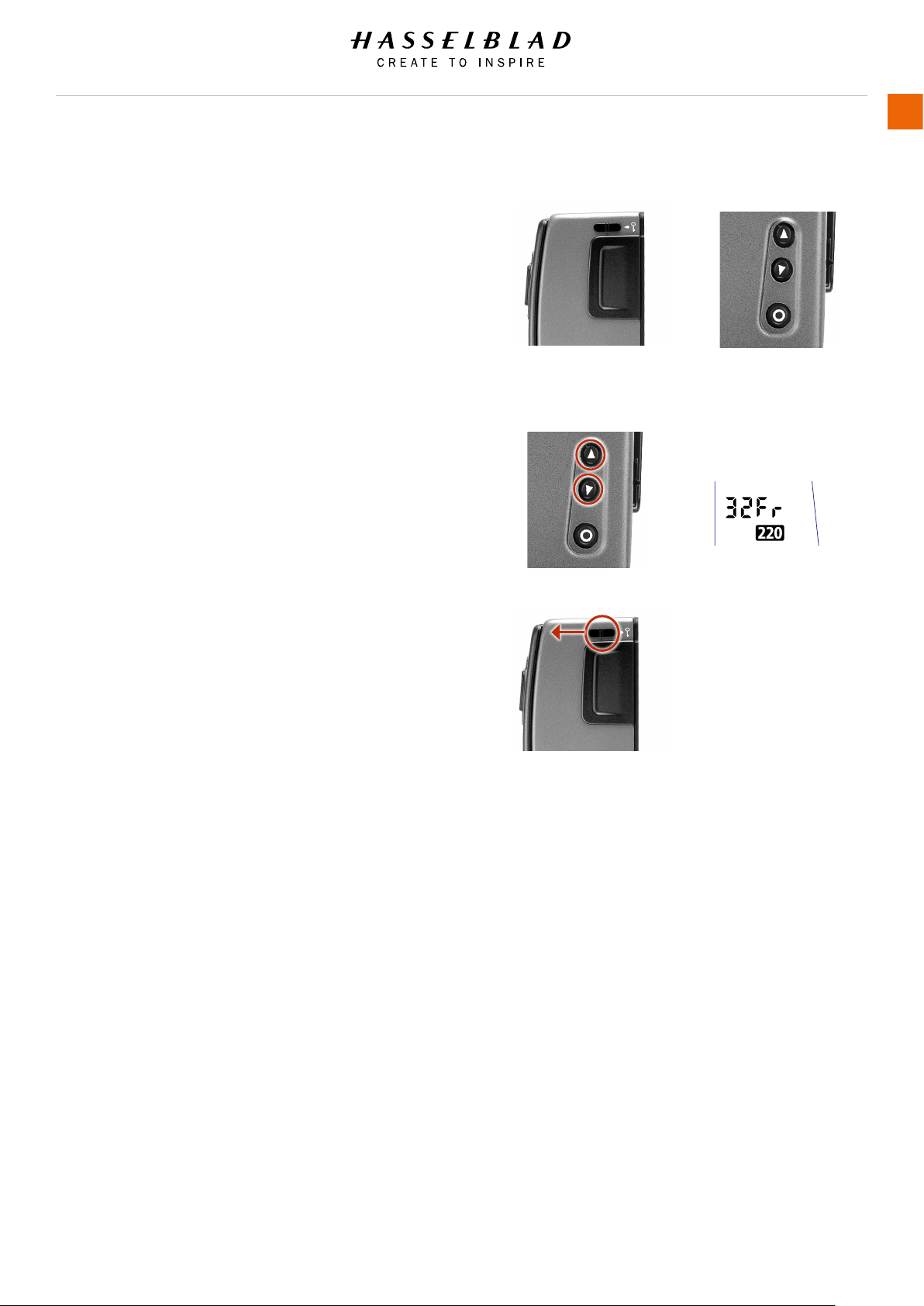
EXAMPLE
Film Speed Setting / Bar code
The lm speed (ISO / ASA) can be set automatically or manually.
Automatic setting uses a Bar code (only some lms have
this feature, notably Fujilm). This is the default setting.
Film settings (ISO / lm length) are automatic only if the
magazine is set at Bar code automatic. That is, a bar coded
lm cannot override a manual lm speed setting but a manual
setting can override the lm speed of a bar coded lm.
Films without a bar code must have their speed set manually.
A manual setting must also be made if you want to override the
speed setting of a bar coded lm.
To access Manual setting:
1 Ensure the magazine settings lock is in the unlocked
position.
2 Press the button until a gure (or bar code symbol) appears
together with ISO.
3 Press either the or the button to reach the required setting.
4 The new setting will be saved automatically after a time out
of ve seconds.
5 Return the LCD settings lock to the locked position.
Note!
If you use both standard and bar coded lms (or overridden
bar coded lms), check that you have changed the
settings accordingly.
Film Length / Number of Frames
Both 120 and 220 lms can be used. 120 lm will produce 8
(for use with ‘half length’ 120 lms only) or 16 frames and 220
lm will produce 32 frames. If the lm has a bar code, then lm
length setting (and lm speed setting) is automatic. The LCD will
automatically show the bar code symbol and the appropriate lm
length. (Note that lm speed can be overridden with bar coded
lms, but not lm length).
If, however, the lm has no bar code then proceed as follows:
To access lm type setting:
1 Ensure the magazine settings lock is in the unlocked
position.
2 Press the button until the 120 or 220 symbol appears.
3 Press either the or the button to change the desired setting.
4 The new setting will be saved automatically after timeout.
5 Return the magazine settings lock to the locked position.
Film Speed
Film Length
Data
Frame Counter
H6D www.hasselblad.com
USER GUIDE
Accessories
183

220 lm length setting.
Data imprinting setting.
‘Frames remaining’
counter setting.
Data Imprint Setting
Data imprinting can be activated or deactivated through the
magazine menu.
Access data setting:
1 Ensure the magazine settings lock is in the unlocked
position.
2 Press the button until the Data symbol appears.
3 Press either the or the button to reach On or Off.
4 The new setting will be saved automatically after a time out
of ve seconds.
5 Return the magazine settings lock to the locked position.
Note!
Operation and changes made to the data imprinting
function are accessed through the camera menu. Please see
separate section for full details.
Frame Counter Setting
The frame counter can be set to show either how many
unexposed frames remain on a lm or how many frames have
already been exposed. The LCD shows your choice of setting by
adding the word Remain as a reminder of the number of frames
remaining or ‘countdown’. Absence of this word implies the
opposite, namely, ‘count-up’, so it denotes the number of the
next frame to be used (for example, the gure 4 means three
frames have already been exposed). This information is also
automatically displayed on the grip LCD and viewnder LCD
though only as a gure above a symbol.
Access frame counter setting:
1 Ensure the magazine settings lock is in the unlocked
position.
2 Press the button until Remain appears.
3 Press either the button or the button to reach the desired
setting (toggle function).
‘on’ will show the number of frames remaining on the roll.
‘off’ will show the number of the next frame in the series.
4 The new setting will be saved automatically after a time out
of ve seconds.
5 Return the magazine settings lock to the locked position.
Low Battery Symbol
The low-battery symbol only appears on the magazine LCD when
the battery needs changing.
Example
● 120 lm length set manually
● the lm speed (ISO160) has been set manually
● 5 frames already been exposed (with regular 120 lm,
11 frames remain)
● the battery is functional
Manual lm speed setting.
H6D www.hasselblad.com
USER GUIDE
Accessories
184
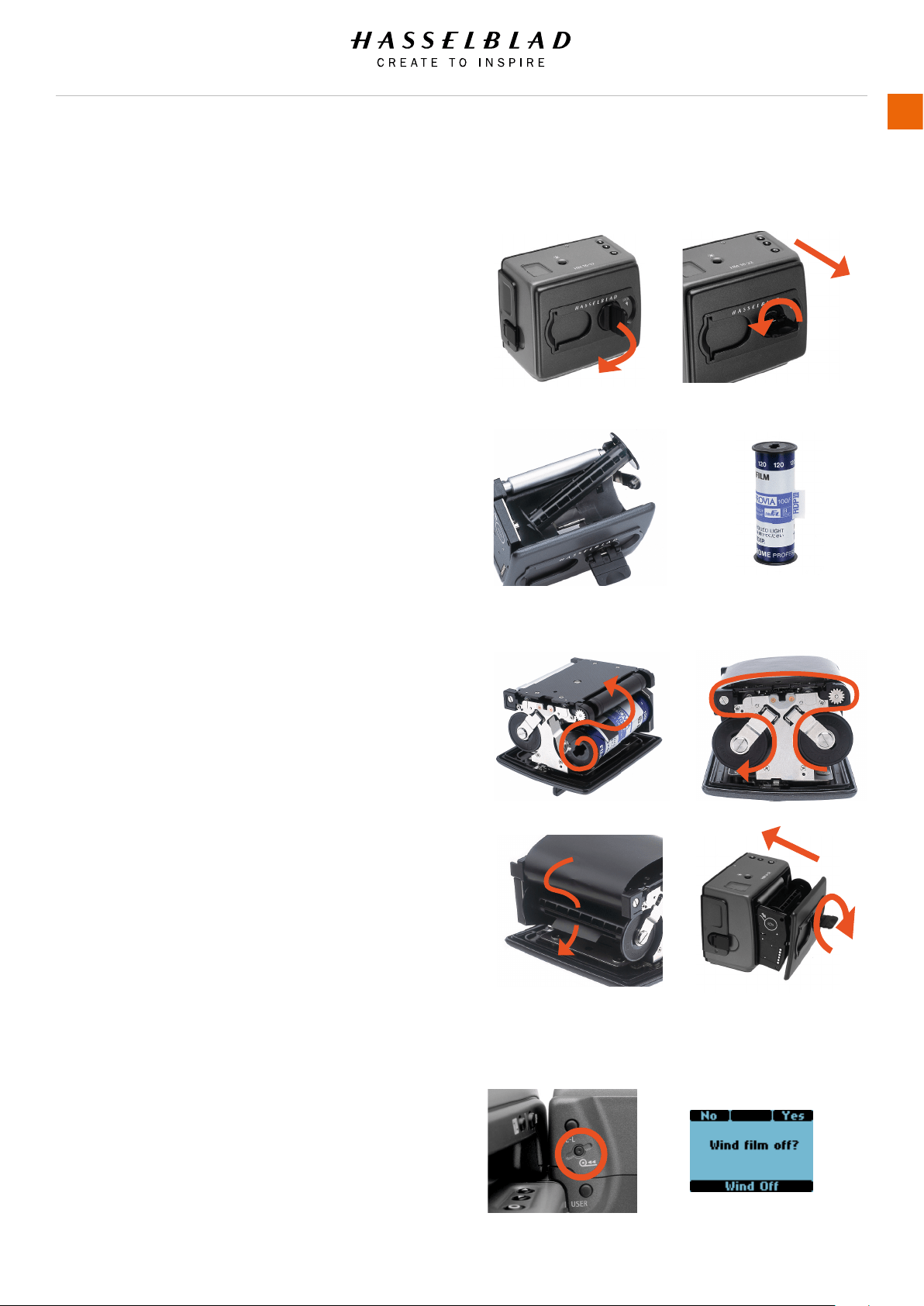
1
2
1
2
Film Loading
The lm magazine can be loaded either on or off the camera.
Regularly check the interior of the magazine and remove dust,
particles or any scraps of paper from previous rolls of lm. Load
and unload lm magazines away from direct light sources.
1) Fold out the lm holder key and turn it counter-clockwise
90° A. Withdraw the lm holder completely B.
2) Place an empty take-up spool in the upper spool holder by
placing one end over the xed stud in the holder and the other
end underneath the sprung spool retaining arm. Rotate the
spool a little if necessary until it clicks into position.
3) Completely remove the retaining paper band from a new roll
of lm and place it in the lower spool holder. See diagram for
correct orientation. Ensure you do not place the lm spool the
wrong way around!
4) Pull 8–10 cm (3–4 in.) of paper backing from the lm roll and
insert the tongue of the backing paper into the slot in the take-
up spool. Turn the spool one complete turn to ensure the tongue
is rmly held in place by the overlying paper backing.
5) Re-insert the lm holder into the main body of the lm
magazine ensuring the correct orientation. Press rmly inwards
towards the magazine and pay particular attention to see that
both sides are level with the magazine body A before turning the
lm holder key clockwise 90° to lock the lm holder in place and
fold the key back into its stored position B. You might nd that
increased pressure on the left hand side of the lm holder will
more easily ensure a positive and correct positioning in the
magazine. If the camera is active or in standby mode the lm
will be wound automatically by the camera to position the rst
frame (this function can be changed in ‘Custom options’ so that
the lm is advanced only when the shutter release button is
pressed the rst time).
Beeper
The beeper sounds immediately after last-but-one frame has
been exposed. This function can be turned off in Options.
Film Wind On and Off
Wind on: See ‘Film wind-on’ under Custom Options for a
setting choice. Wind off: When the last frame has been
exposed, the lm will automatically be wound off. However, to
wind off a lm sooner, press the lm wind off button. Use a
ballpoint pen or similar to activate it. You must also conrm the
message on the grip LCD before the lm winds off.
Unloading a lm
Remove the lm holder in the same manner as when loading
a lm. Grip the exposed roll of lm rmly and remove. Ensure
the paper backing is wound tightly and that it is sealed with the
band properly (the band may need to be moistened to activate
the adhesive depending on type). Store exposed lms away from
strong light sources and contact with sharp objects. Move the
remaining empty spool to the take-up spool compartment.
H6D www.hasselblad.com
USER GUIDE
Accessories
185

7 TROUBLESHOOTING
H6D www.hasselblad.com
USER GUIDE
Troubleshooting
187
Problem Possible cause Suggested correction
Error massage - See chapter 7.1 Error Messages.
Camera is deactivated The camera can be affected by a
discharge of electricity. This can happen
when the area around the control buttons
on the grip accidentally touches a
conductive cord or material connected to
earth.
This can deactivate the camera and does
not cause any damage.
Press the red ON - OFF button on the grip
to activate the camera.
Wrong language If the sensor unit has been set to a
language you don’t understand (on a
rented camera, for example), you can
navigate to your preferred language by
following the actions and appearance in
the illustrations here.
See chapter 7.2 To Change Language On
Sensor Unit From Unknown Language.
Dark or coloured spots or lines in your
images
Dirt or particles on the surface of the
camera lens
See chapter 7.3 To Clean The Lens Glass.
Dirt or particles on the surface of the
sensor unit’s infrared (IR) lter
See 7.4 To Clean the sensor unit lter.
Temperature warning icon appears Rapidly taken captures make heavy
demands on the processor in the sensor
unit which in turn produces heat. This
can in combination with high ambient
temperature result in noise in the image
les.
At ca. 60°C a warning dialogue appears
notifying that the sensor unit is
temporarily shutting down to allow the
sensor unit to cool.
Let the sensor unit cool down for at least
20 minutes.
Time and date settings on the sensor unit
does not work
Time and date settings on the sensor
unit (which are included with les and
folder labels) are updated automatically
through a USB3/Phocus connection.
These settings are retained for about
two consecutive weeks by a small
rechargeable cell that is automatically
recharged by the main battery or USB3
with regular use.
Leave the sensor unit ON for 12 hours.

H6D www.hasselblad.com
USER GUIDE
Troubleshooting
188
7.1 ERROR MESSAGES
If any error message is shown, do as follows:
Caution!
Be careful when you attach/detach the components to/from
the camera. This will help prevent damage to the data bus
connections.
1 Detach the components from the camera.
2 Attach the components to the camera again.
If the error message still shows, do as follows:
3 Detach the battery grip.
4 Wait 10 seconds.
5 Attach the battery grip again.
The camera’s processor have now been reset.
If the error message still shows, do as follows:
6 Write down the error message.
7 Contact your local Hasselblad Authorized Service Center.
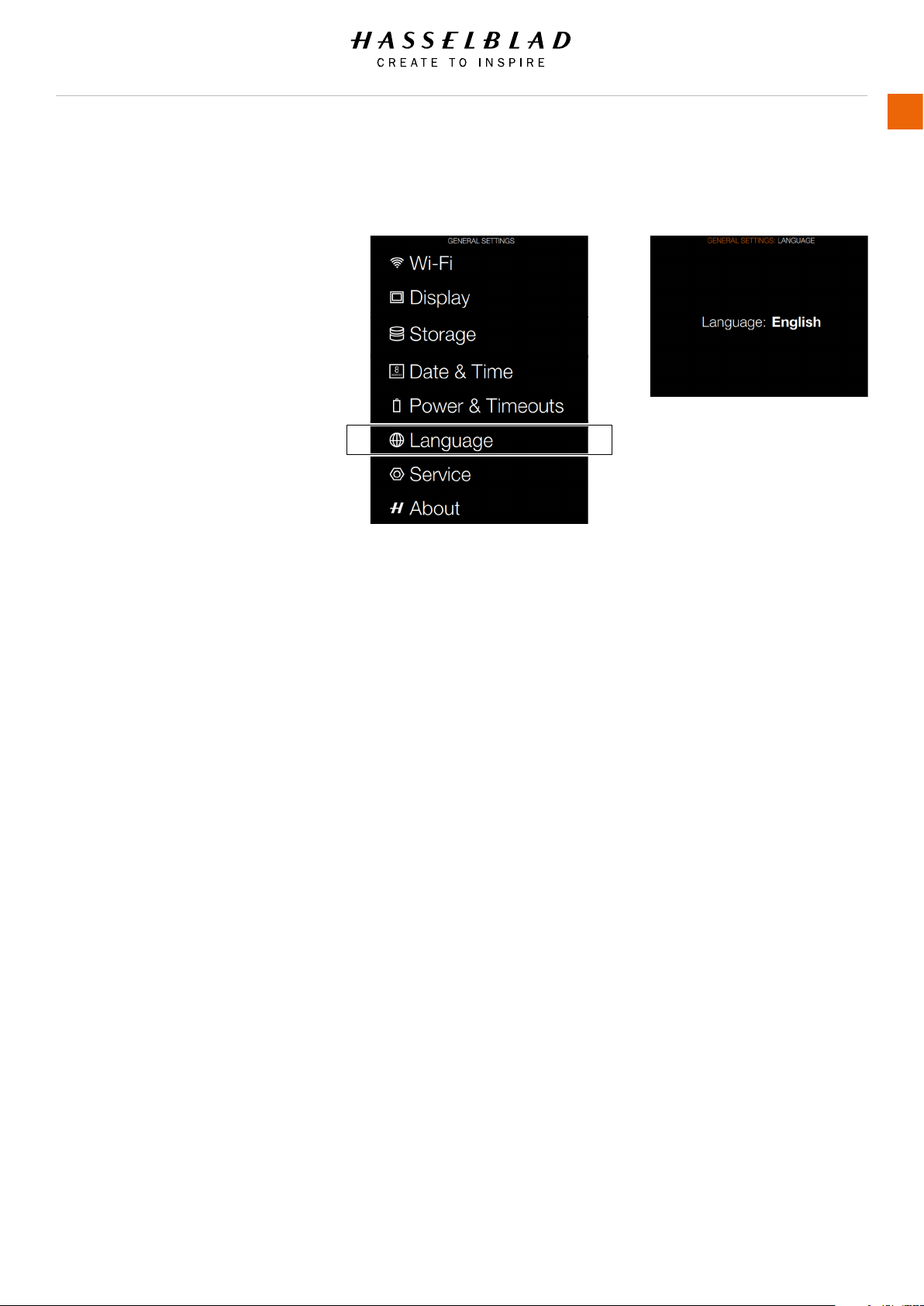
H6D www.hasselblad.com
USER GUIDE
Troubleshooting
189
7.2 CHANGE LANGUAGE ON SENSOR UNIT FROM
UNKNOWN LANGUAGE
MAIN MENU > GENERAL SETTINGS >
LANGUAGE
1 Press the General Settings icon on
the Sensor unit display.
2 The General Settings Menu will
appear.
3 Navigate to the menu item with a
Globe icon (number 6 on the list
from the top, Language).
4 Scroll down to select your
Language.
Swipe right or press Menu / EXIT
button to get back to Main Menu.
Language Menu
General Settings Menu

H6D www.hasselblad.com
USER GUIDE
Troubleshooting
190
7.3 CLEAN THE LENS GLASS
REMOVE DUST
Caution!
Do not touch the glass surface with your ngers. This can cause
damage to the equipment.
If there is dust on the lens glass, do as follows:
1 Remove the dust with a blower brush or very soft lens brush.
REMOVE SMEAR
Caution!
Do not touch the glass surface with your ngers. This can cause
damage to the equipment.
If there is smear on the lens glass, do as follows:
1 If you are not sure how to remove the smear, contact your
local Hasselblad Authorized Service Center.
2 Clean the lens glass with a high quality lens cleaning
solution on a tissue.
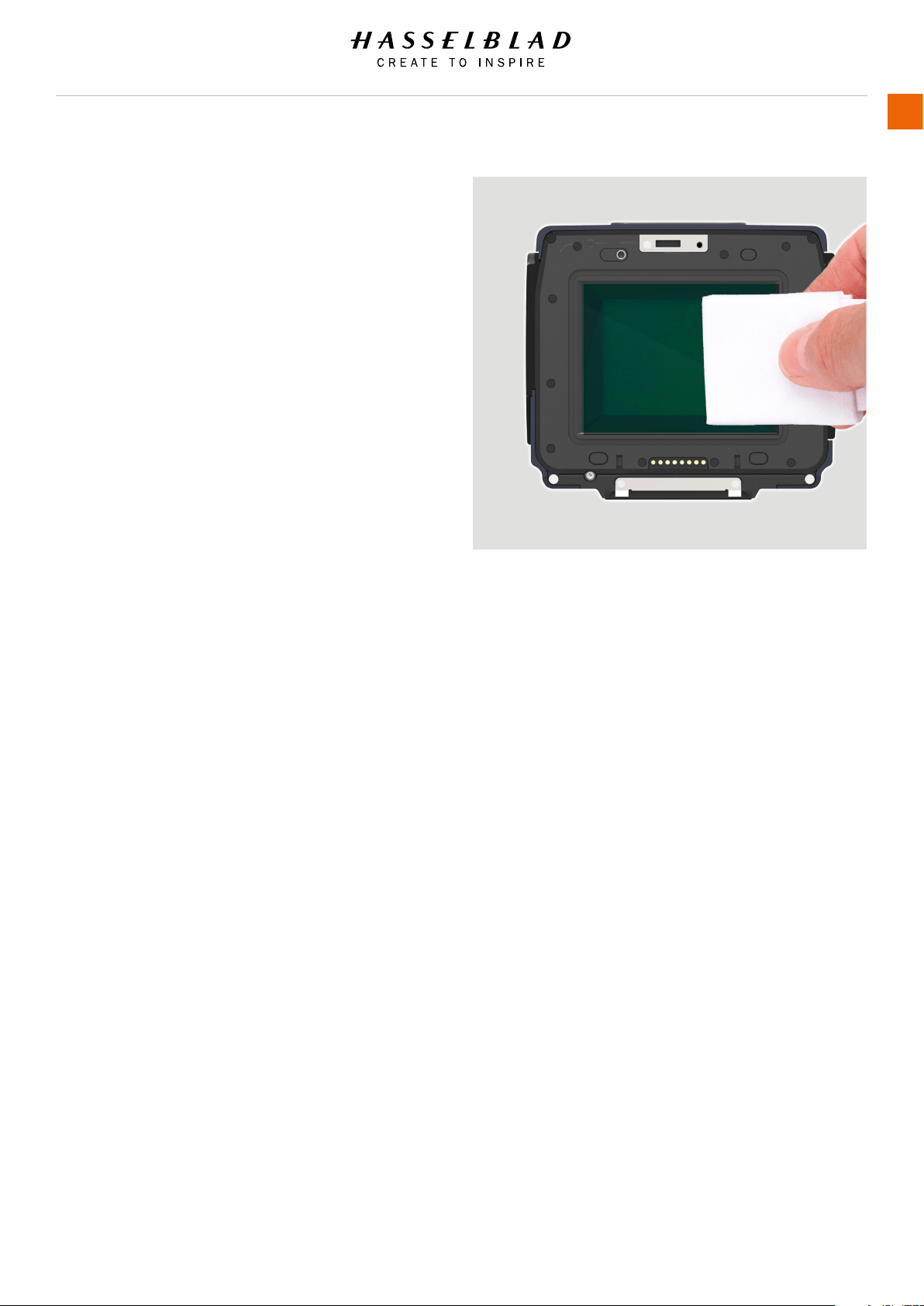
H6D www.hasselblad.com
USER GUIDE
Troubleshooting
191
7.4 CLEAN THE SENSOR UNIT FILTER
Caution!
Be careful when you attach/detach the components to/from
the camera. This will help prevent damage to the data bus
connections.
Caution!
When you remove the sensor unit, keep foreign objects away
from the camera opening. The camera opening is very sensitive.
This will help prevent damage to the equipment.
1 Remove USB 3 cable if connected.
2 Rotate the sensor unit release button to the right.
3 Maintain the position and press the centre of the button
rmly inwards towards the camera body (X) to nally release
the magazine.
4 Carefully clean the outside surface of IR lter by using clean
compressed air.
Caution!
If you use canned compressed air to clean the glass of IR lter,
read the instructions very carefully before use. This will help
prevent damage to the lter.
If compressed air did not remove all the problems on the lter,
use an E-wipe. Do as follows:
5 Tear at the notch to break seal.
6 Remove an E-wipe from the package and fold the tissue to
match the width of the IR lter.
7 Apply rm pressure using two or three ngers at the edge of
the wipe to ensure an even, rm contact with lter surface.
8 Wipe the surface in one unbroken motion.
Note!
Do not use same side of the E-wipe twice as you will be likely to
reapply particles removed in the rst pass.
9 Attach the sensor unit again to the camera immediately after
cleaning.
10 Capture a number of images.
11 Inspect the images.
If you still see spots on your images, you may have dust either
on the inside of the IR lter or on the CMOS itself. Do as
follows:
Caution!
Do not try to remove the glass IR lter from the front of the
sensor (due to dust or similar). This can cause damage to the
equipment. Always contact your local Hasselblad Authorized
Service Center.
Contact your local Hasselblad Authorized Service Center.

H6D www.hasselblad.com
USER GUIDE
Troubleshooting
192
User Guide for Hasselblad H6D
The information in this User Guide is furnished for informational
use only, is subject to change without notice, and should not be
construed as a commitment by Victor Hasselblad AB.
The H6D Product Images in this User Guide were not taken with
a Hasselblad H6D. They are produced in 3D as visualization.
They are used for illustrative purposes only and are not intended
to represent the image quality produced by a Hasselblad H6D.
The text in this manual cannot be reprinted or reused without
the express permission of Victor Hasselblad AB.
The images in this manual cannot be reprinted or reused
without the express permission of the photographers who took
them.
All text in this User Guide: © Victor Hasselblad AB.
All images in this User Guide not credited to a specic
photographer: © Victor Hasselblad AB.
Victor Hasselblad AB assumes no responsibility or liability for
any errors or inaccuracies that may appear in this manual.
Victor Hasselblad AB assumes no responsibility or liability
for loss or damage incurred during or as a result of using
Hasselblad software or products.
Hasselblad, Imacon, Ixpress, Phocus, Phocus Mobile and
FlexColor are trademarks of Victor Hasselblad AB.
Adobe and Adobe Photoshop are trademarks of Adobe Systems,
Inc. Macintosh, Mac OS, iPhone®, iPad® and iPod Touch®.
InfoLithium is a registered trademark of Sony Corporation.
Canon, Nikon, Leica, Sony, Fuji and Olympus are trademarks of
their respective corporations. Qp Card is a trademark of Qp Card
AB. E-Wipe is a trademark of Photosol Inc.
Copyright © 2016
Victor Hasselblad AB
All rights reserved.