Register your product at www.samsung.com/g|obaL/register

important
Regarding
Viewing
Warranty information
Television Format
Standard screen fbrmat televisions (4:3 the aspect ratio of the screen width to height) are
pmnarily designed to vh'w stan&_rd format full-motion video. TM' images displa}>d on
them should pmnarily be in tM' standard 4:3 ratio format _md constantly moving.
Displaying st;_tionary graphics and hnages on screen, st:tch as tM' dark top stnd bottom
h'tu'fl_ox bars (wide screen pictures)_ should be limited to no more than 15% of the total
television viewing per week.
Wi&, scn'en format u,h,visions (16:9 the _spect ratio of the screvn width to height) arc
pmnaril) designed to vh'w wi&" scn'cn iornmt lull-motion vi&,o. TM' images displayed
on th_'m should pmnarily be in tM' wi&, screen 16:9 ratio fbrmaU or _'xpan&'d to fill the
screen if ) otitr model ofi_'rs this ieatt.tr{% and constantl) moving. Displa) ing stationacy
gr_phics and images on screen st:tch as the' dark si&'-b_rs on non-expanded standard
format television video and programming, should be limited to no mort" than 15% of tM'
tot_fl u'h'vision vh, wmg per w_'ek.
Additionall}_ viewing other stationary images and text such as stock market reports,
vi&,o game' displa} s station logos wd_ siu's or computtcr graphics and patterns should
be limited as described abow" ior all televisions. Displaying a_!y stationa O, images that
exceed the above guidelines can cause u_eveu aging qf picturc tubes (CRTs) that leave
subtle, but permanent burned-in ghost images in the television pier,we, To avoid this,
vasty the programming and images, and prhnari(y disp_ay.Jh_ scr('en moving images,
not stationary patterns or darh bars. On teh'vision modds that offer picture sizing
[e4tt.tres t_tse these comrols to view the dificrem k_rrnat as a full scree__ picture.
Be careful in the selection and chtration of television formats ttsed for viewing. Uneven
CRT a_ing as a rest:@ of fommt selection and use, as well as other brUShed-in images [s
not covered by your Samsung [mfftvd warrant)_
English - 2
A Guide to Digital TV
What is Digita| TeJevision?
Digital television (DTV) is a new way of transmitting high quality video and audio to
)7ol:LrTV set. Using DTV, broadcasters can transmit high definition TV (HDTV) images
Dolby digital sl:trroumd al:tdio and new services st:tch as nn:dticasting (transmitting more
than ore' program on the sam_' TV channel) and datacasting (providing electronic
program guides and interactiw' teh'vision). Svw'ral of these scrvict's can be combin{'d into
a singh' digital broadcast.
Digital Television Services
Digital Picture Quality
DTV programs arc transmitted m two difierent f_wnmts. The tirst is Standard Definition
Tch'vision (SDTV) and the' second is High Definition Teh'vision (HDTV).
8DTV program kwmats include 480-1im' interlaced (480i) and 480-line progressive
(480p) vi(h'o, q80i programs arc essentially a digital version of oL:trcl:trrent analog TV
programs, while the 480p ku_mat oih'rs inlprow, d image &'tail ow'r 4801. Som_' 480p
programs are broadc;tst in w[dvscrven and ar_' comparabh' to progrvssiw'-scan DVD
movies m image qltalit),.
HDTV program iormats include 1080-line interlaced (10801) and 720-line progressive
(720p). Both HDTV formats are always broadcast in w[descreen, and offbr mctch higher
picutre qttality than SDT\_
DoJby Surround Sound
With DTV you can listen to a variety of Dolby digital al:tdio formats irom Dolby
Sutrrocmd 2.0 to Dolby Digital 5.1 st:trrocmd t:tsing yot:tr home audio s) stein. Man)
HDTV programs arc nov,-broadcast with DD 5.1 soundtracks.
Interactive Communications and Oatacasting
DTV will allow you to interact with your television; choosing programs h*om a detailed
program gt:tide or&'ring produtcts on-lint' while watching T\I and acc_'ssing ancillar)
data abot:tt a program.
English -3
How to View DigitaJ TeJevision
There are three w%Ts to watch DT\_ The first is to use an integrated digital TV one w_th
a butih-in digital teh'vision tum_'r. TM' second is to conn_'ct _m _'xt_'rnal DTV st, t-top
recciwr to a DTV-read} teh,vision or monitor. This type of TV or monitor will have
wideband component video and stereo audio inpt:tts. You can ;_lso watch DTV signals
with personal cotllputter (PC) turner cards and cotllputter monitors.
Integrated TVs versus DTV-readg TVs and monitors
The advantage of an integrated DTV set is that it can tume both analog and digital TV
chanttets at the same time. All you'll treed to do is add art exterttal atttetma attd you are
remedyto watch DTV
However, integrated DTV sets are not as common as DTV-ready TVs and monitors.
If you[ already own a DTV-ready TV with compon{'nt vid{,o inpt:ttS; yOtitcan {'tt]o)_ DTV
broadcasts by simply adding a low-cost DTV set-top receiver atld antetma.
This television receiver supports the copy protection system regulated by DTLA (Digital
Transmission Licensing Administrator,). tt should be noted that copy protected content may
not be viewable depending on your particular connections.
English -4
Q&A
1. is the antenna | use for existing TV reception good enough for DTV?
Ove>the-air (OTA) digital TV broadcasting uses the sanle channels as analog TV and
works _s'ell with nlan)_ t'xisting TV antennas. Ho_'t'vt'r, DT\' ])roadc'ast chann4
assign[nt, nts are diffl'n'nt than analog chann4s. You should find octt wh'ther )our
local DTV })road_'asts art, on VHF (chann4s 2-1"_) or UHF (chann4s 14-(>9) to set" if
)ou nt't'd a dfff_'n'nt antenna.
If your DTV chann4s art, on UHF and )ou ah'ady set good UHF rtwption, your
present antenna nlay _,,'ork tint'. The sanlt' holds trtitt' for VHF I)TV recq_tion. Nott'
that in sonar' Lnarkt, ts bth VHF and UHF chann4s art' used br DTV l_roadcasts.
_\_u can find out the latest DTV channel assignnlt'nts for your area by bro',_'sin;4 selected
Intt'rn_'t web site's such as _'w, Uitant_:corll, and _'_qc'c.gov.
2. How diffisu|t is it to reseive DTV signa|s indoors?
This depends on whether your local DTV stations are running full power or not and
how clost' your location is to tD transnlission t¢,ver. DTV n'eeivt'rs do not n'quin' as
Lllt:tc'h%hal as analog TV rt'c't'tvt'rs to produc't' high-qualit) iLlmgt's and sound.
Once the DTV signal level exceeds a certain threshold at the n, ceiver, the digital video
and auutio data is decoded at the sanle quality it was originally encoded br broadcast.
This is a hg advantage br DTV over analog TV - there is no noise, ghosting static or
scratchy audio.
3. How san | sonnest an antenna in my townhouse, so-operative
apartment, condominium, or apartment?
The Federal Conlnlunications Conlnlission's OTAED Ectle (part of the
Tt'lt'_'onlLnunh'ations Act of 1996) allo_;vs residents of _'ondonliniunls townhoust,, or
Lllt'nlbers of ndghborhood associations to put up outside antt_nnas for rec'eption of
broadcast TV signals as long as thost, antennas art' not [o_'att'd in common an'as and
art, no [non' than 12' fn hdght.
Eesidents of rental units (apartn_ents etc) are not covered }>ythe OTAED rules and
will havt, to ust, indoor antennas to ret'efvt' DTV t)road('asts. It is possfl>le that th'
hndlord of an apartn_ent co[nplt'x can providt, ]_road_*ast DTV signals via a n_astt, r TV
antt'nna s)'stt'm to t'ach apartn_t'nt.
4. Can ! connect my DTV set-top reseiver to my sane TV service?
CaI_le TV systen_s _tse a dificrt, nt n_ethod br transn_itting digital TV progran_s that is
c'urrently inc'on_patil_lt' with broadcast I)TV set-top re<'eivt'rs. So vot:t__:ill still nt'ed to
ttst, art outtdoor or indoor antenna to n'cdvt' OTA })ro;_dcast [)TV progratl_s.
The good news is that you won't have to pay a n_onthly or per-progran_ charge to
watch OTA DTV and HDTV progran_s. They'n" Dee unlike sttbseription satellite TV or
pn'n_iun_ cable TI All you need is an antenna and a DTV set-top n'ceiver to enjoy
clear, sharp _v[descreen i_nages and high-quality audio.
English - 5
l CONTENTS
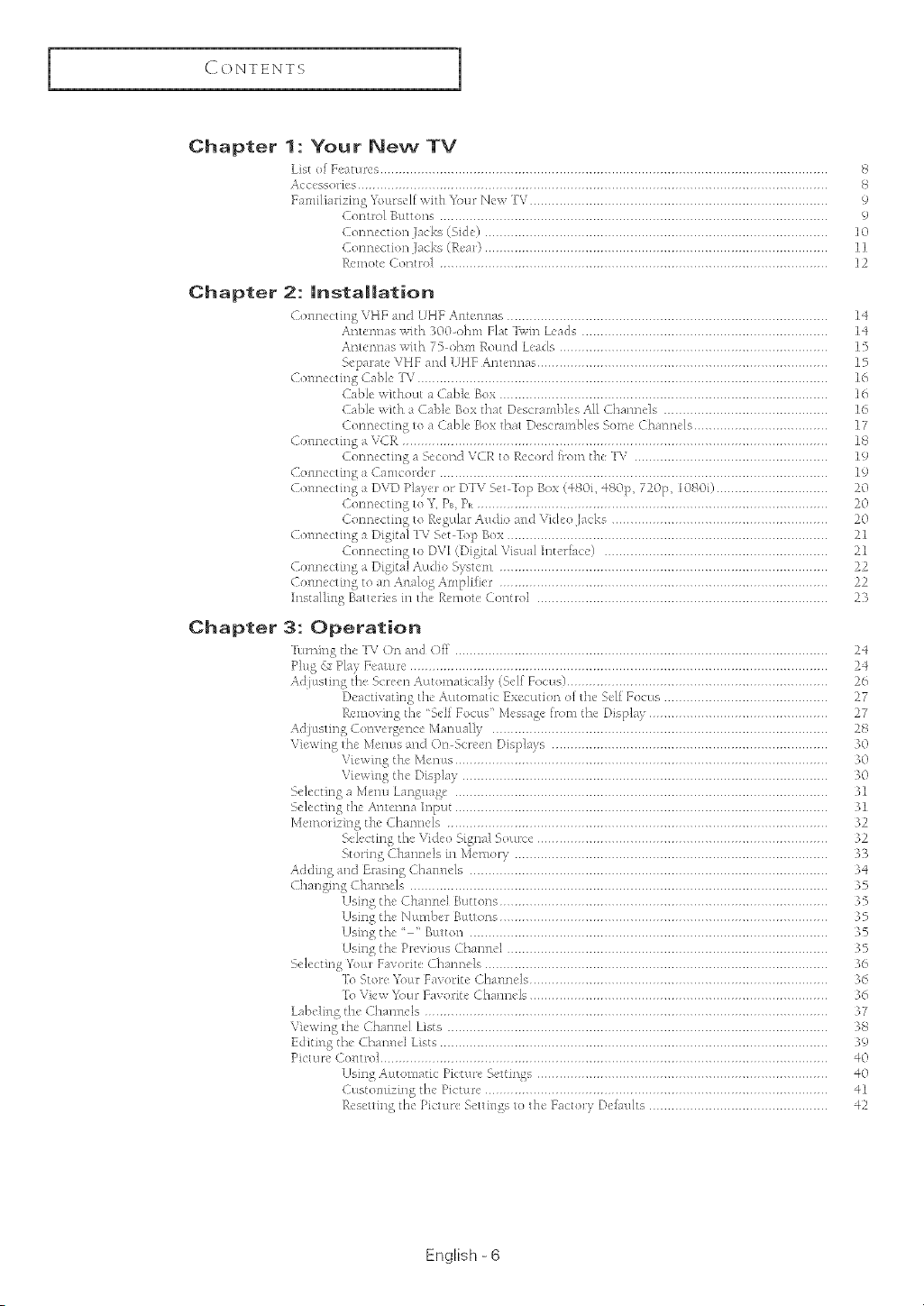
Chapter 1: Your New TV
h_t _,)F,utuk's ........................................................................................................................ 8
ACLkSSO/_S ..............................................................................................................................
f.m]]l hm 7rag k)un_clt '.vlth h%u/ New TV................................................................................ 9
Cont3ol Buttons ........................................................................................................ 9
Connc_uun I.Ld<s(b@u_ ............................................................................................ 10
Com-k._th,n Jac ks (Rem} ............................................................................................ 11
R£mote Comml ........................................................................................................ 12
Chapter 2: UnstaHation
Col m<_.tmg VHY _md UHF Antcnnus ...................................................................................... 14
An/¢mq,_s vd/h 300-ohm Flat lv.m L_-'a& .................................................................. lq
fl]/t'lqD,_S \lJt}l 75 OJN/I Rottnd |,u_s ........................................................................ 15
Sepal ntc VHF and UHF Antennas .............................................................................. 15
Colmu.tmg C:Jhle TV .............................................................................................................. 16
Cabk: wd>ul a (R_bk Bux ........................................................................................ 1(,
Cable _xId_ a Cab\ Bvx thut D_s_rambles All (haJ u k]s ............................................ 16
C<,m-k_ng to a dane Box th,l Dcscrumll> _,,,>e Ch._nncl_, .................................... 17
(-om_tmg a VCR .................................................................................................................. 18
Conneutmg a %cund V( R 1o Rccon horn lhu I-V .................................................... 19
(R_nllc_t>g a Cameo*tier ........................................................................................................ 19
(-olmu.tmg a DVD Pkq er o/ DI V k,.'t ]op Bo× (4/_Oh 4SOp, 720/h 108(h/ .............................. 20
Connc._tmg t,_ h. f%,P_ .............................................................................................. 20
Conncctmg to R',.,guhr Audw ;n_dVideo J,L&s .......................................................... 20
(-olmu. tmg a Dlglt_d ]V R'tdop Box ...................................................................................... 21
Connectmg to DVI (Diglt;d _r]S[J_Int,.'N,cc_ ............................................................ 21
Cxwl m_.uug a Dkhut:dA u&o b) >tern ........................................................................................ 22
Couu_'t uug to ;m Analog Aml£ihcr ........................................................................................ 22
Instalhng BattcN,.s m th,. Rwuotc Contl_l .............................................................................. 23
Chapter 3: Operation
hunh-3g th, l-\r On _r3d Off .................................................................................................... 24
f_Jug& Play g, utu> ................................................................................................................ 24
Ad tt>tmg the %r_en ALL[O]Ilglt_L{I]]_ (%vq_ [_O(%1S] ...................................................................... 26
Dt';_qN\ dt3F3g []k m[ttolN4U_ EX_'_ t@lolx of th< Sd[ FOCLtS ............................................ 27
R£mowng fl3e >ell F_cus' Mcssugc *n}m th_ D_spl._%................................................ 27
A<]Jubtmg Con\ vu_<clkeManual]y .......................................................................................... 28
Vlex_wg fl3¢Mmms;md On _<rccu Dl_ph0s .......................................................................... 30
\r[I_x,{ll_the Mcntt> .................................................................................................... 30
Vwwing the D_splay .................................................................................................. 30
%']ect3ng a Menu language .................................................................................................... 31
%.kctlng t]l,.'Antcm> h/put .................................................................................................... 31
Memo_ _mg t]_£Ch,@n,.'£ ...................................................................................................... 32
b, kdm 4 t/I,' V_&o S_4u_0btqLIC@.............................................................................. 32
5t,,rmg CJw3H>]s m Memo U .................................................................................... 33
Addmg aud Em>lng Chauuel> ................................................................................................ 34
CI>_wu Ch_uw3¢ls ................................................................................................................ 35
Uslilg the Ch_HHI<'] ButtOllS ........................................................................................ 35
l/Slllg the Number Bu/mns ........................................................................................ 35
Usmg the "' _utton ................................................................................................ 35
tku%, th, pR.vious (h,mnel ...................................................................................... 35
%.k.ct>g %uu F4_q_r3tt( hunncl_ ............................................................................................ 36
lb %t©lcxiottr Favorite £h;n ross ................................................................................ 36
%>Vlev. Your gux,nute CJlulmds ................................................................................ 36
labdulg th_ Chin 11 IC]_ ............................................................................................................ 37
Vu._xH-3gthe £h.umel List_ ...................................................................................................... 38
E&tmg d-3eChal mS Llqs ........................................................................................................ 39
[h<_tl_v( ,mt3ol ........................................................................................................................ 40
1/sm_ AutOl_l:*tk PkR/rv' St'tfings .............................................................................. 40
( HStO//llZmg t]k' Picture ............................................................................................ 41
[%.q_ttmg the fhctu_\' b,.'ttmgs to t]k ]-at to%, D,.q;4Nts ................................................ 42
English -6
I CONTENTS 1
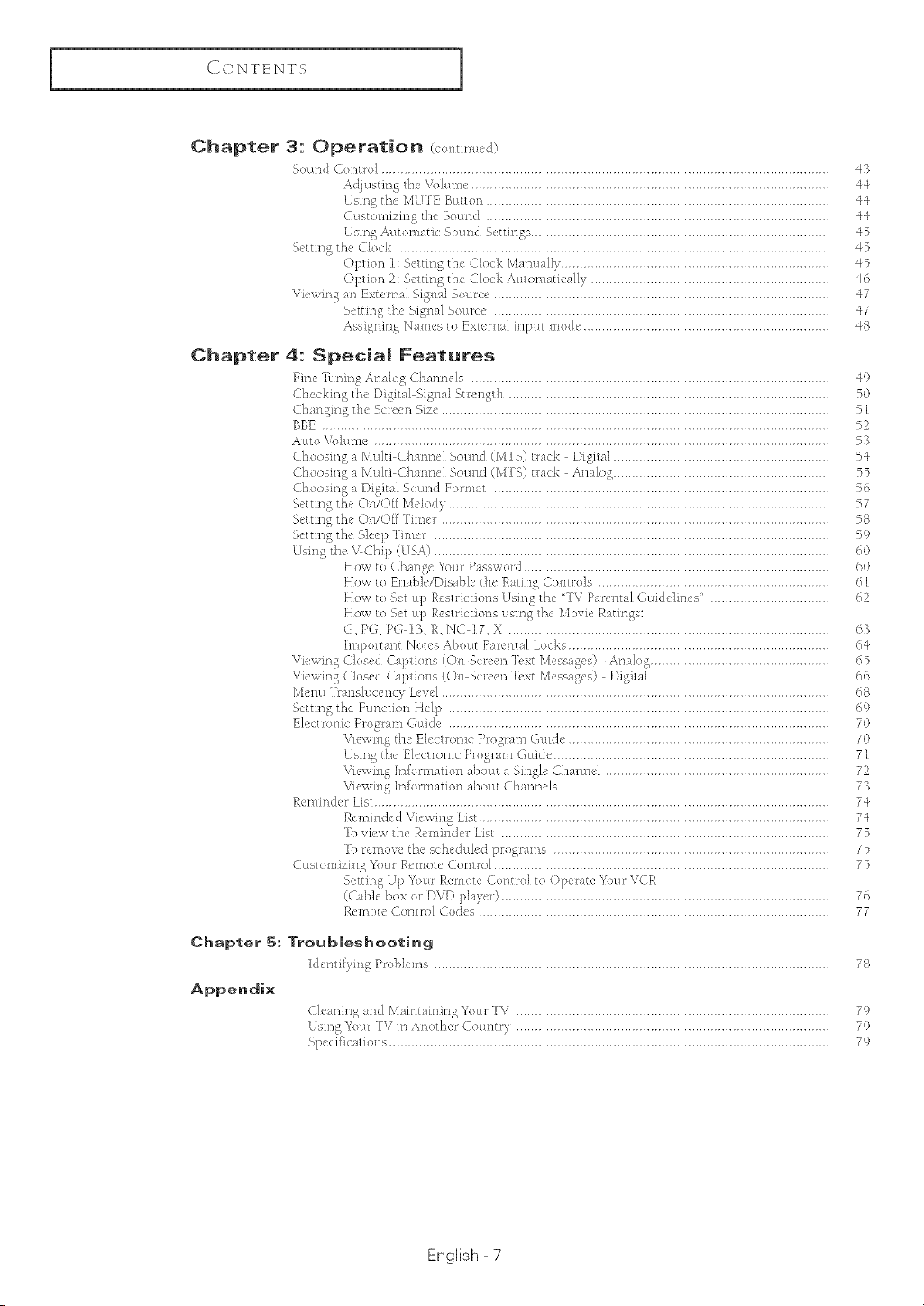
Chapter 3: Operation /_o,t>u,.d)
Sound Con/m] ........................................................................................................................ 43
Adjusting/he \\qunR: ................................................................................................ q4
Using the MUTE Buu_;n ............................................................................................ 44
(-41_tom17mg die Som/d ............................................................................................ q4
%cttH]g dw LIod£ .................................................................................................................... 45
OptJOl] _: bt'{tlt']_ t13_ Clock Ikbulu;_l[} ....................................................................... 45
Optmn 2: bdtmg the Clock kuumu*cl,zcll} ................................................................ 46
\'R',_,_ an F×t,_,umlbl£uul S_,urcu ......................................................................................... q7
nttung the bJAu:*lSouRe .......................................................................................... 47
Assigning Names to Exterl];*{input re.de .................................................................. 48
Chapter 4: Special Features
Fine-hulmgAtudog L[mlu R'ls ................................................................................................ 49
Checking IM DigstaI-Sigu;d Sm'ngth ...................................................................................... 50
Ch,_nAmg tl_c Screen SJT_, ..................................................................................................... 51
BBE ........................................................................................................................................ 52
Auto \'olUt_le .......................................................................................................................... 53
Cho_sw_g a MuhD( h_nncl '_ouu_ t[qTM tl;<k Dig]m] .......................................................... 5:}
Ch,,oswig a Multi CI]unne] %OUlld(k]TS_ tla_.k ,-Xl>l.& ......................................................... 55
dhoosmg a Digital Sound Fort>at .......................................................................................... 56
bctu31g ttse <)_JC)ffMdo_ y ...................................................................................................... 57
bcUu lg the <)u/Off Tu net ........................................................................................................ 58
bCltlllg tilt' b]ccp ] II/IUF ......................................................................................................... 5 t)
1Mng the \'Chip (HSA/ .......................................................................................................... /_O
Hm_ to ( hm'3gc Your P;Is%wo/_ .................................................................................. 60
Ho,,,, to Fsmbk/DlsuNe dn' f.):*ungC,,*ttl,_£ .............................................................. 61
Ho>, to Set up Rvsll R_ion_,Using the '-IV Pa_\,uml Gui&b-_e</' ................................ /_2
Ho,A t,, Set tq) R,_'stllctson., ususg t/R Movie R;Jt]ngs:
G, PG, PG 13, R, NC 17, X ...................................................................................... 63
1321pu*ta31tNotes Ab,ntt Parental |od<s ...................................................................... 64
Vkv:>_ LJ_,q_'d <_q)tsohs ((.)11 bc 1,on lcM Mcsqag0>} - ,&t341o& ............................................... 65
Vkv.lHg C]o%'< C_t])tlollS ((.)11 bt I\'t'/7 "]cXt Mcs<ag,:s) - [hgmJ ................................................ 66
]X.R'llt[ "D;tD%JL1U-'/3<V |U\¢[ ........................................................................................................ G8
%ttmg th_ FulRuon Hel l) ...................................................................................................... 6U
Pledrol]]c Pl2_glam t,ttide ...................................................................................................... 70
VR'WHIAtlR"EIc_tlonl_ Dogmm q,uide ...................................................................... 70
Usm_ tile FJcutl_>lllc DoglaI_I L_tHde .......................................................................... 71
VlC_,v]nta 1/11o. iH_t Iu31 £11), ,it1 a bll3Ule C] ]_n ]1 ]d ............................................................ 72
\'k,2x _ lr]f,}m];_t]on abuttt Chunnd _,........................................................................ 73
Rkm]nd_ / Lsst.......................................................................................................................... 74
]-.Mnmdcd VR'wmg b< .............................................................................................. 74
[o vR'v. die Reminder Dst ........................................................................................ 75
]b remove tM sdR, du>d programs .......................................................................... 75
( tLStO1/II7JlI_OU1 r_01/io{u (_(q-]/l{}[ .......................................................................................... 75
b_tt>g Up x]\ntl Pu.'DiOt{? Co/itl2_1 to Opt I\qt,.' D/fir VCR
(( ab]e box or DVD j)]avc/} ........................................................................................ 76
]-@luoR'O>mu>l ( o&s .............................................................................................. 77
Chapter 5: Troubleshooting
Idcrml} w_ l%1_L,m< .......................................................................................................... 78
Appe_di×
CJ_>_nmg_m_ M_lllSbtlrHhg Toil1r\ ................................................................................... 79
us]tsg _]our ] \" m Arl,_tJlc/(-OUl]tW .................................................................................... 79
SIx t ff|olh(n]s ...................................................................................................................... 79
English -7
YOURNEW TV
List of Features
_\mr TV was designed with the lau!st u'ch_1olo_): This TV is a high-pcrfbmm_icc umt that
mch:Ldes the following special k'_u:u_es:
• Easy-to<Lse remote co_lU_ol
_asy-[o-ttse otl-screen £nentt sys[e£n
" Alttomatic timer to turn the TV on and ofi
, A(!ilLstable picture and sound s_'uings that can bc stored in the' TV% memory
• A special tiluw to redtLct' or t'liminate rect'ption proBhns
• Yim' ttLning control for the sharpest picttLre possi_>le
" A b@h-in mudti-chanmq sotmd d_'coderforstereoand bfhngua_ hsu'nfng
o Built-in dual charm4 sp_'akcrs
o A sp_'cial sh'q) timer
• (/ompom'nt Video I_pt:tt jacks to obtain a sharper image kom cxu'ma[ sources
• AdjL:tsting the' Screen AutomatR'alIy (S4f Yoc_:Ls)
° Digital Input (Digital VisL:LalIntcrfhcc) jack
" Digital Audio Outpt:tt ((K)AXIAL!OPTICAL) jacks
• AV m'twork s} su'm (An} re't) that _'nabh's you to _'asiIy control Samsumg audio-video (AV)
&,vk'_'s kom this TV
Accessories
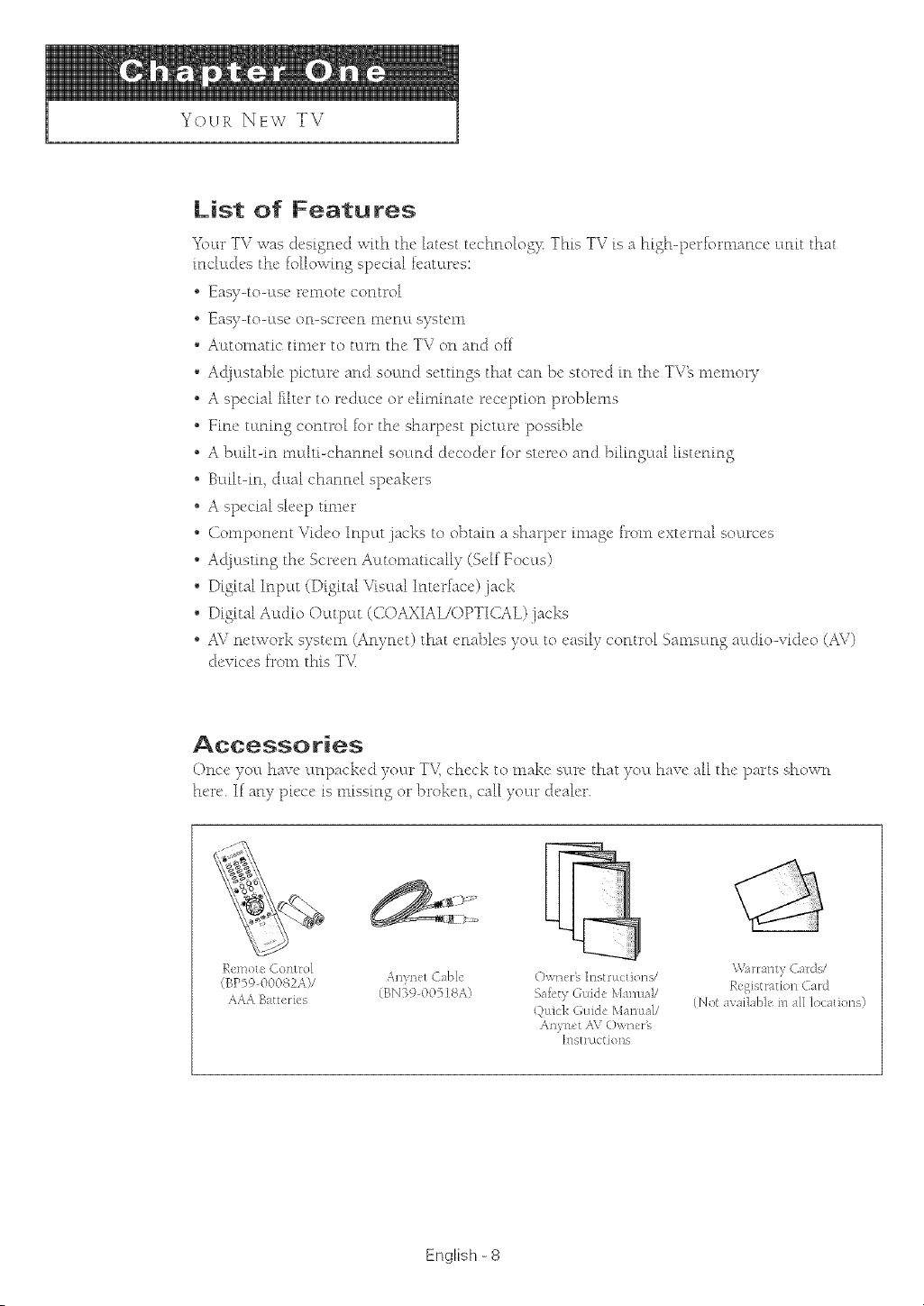
Once yOL:Lhave l:mpacked yol:Lr TV, check to make sL:m"flint you have all the parts show_l
here. If any ph'ce is missing or l)ro]<e_t, call your d_'a[er.
Remote Control
(BPSP-00082A)/ Anynet CaBle Owner% h-_str_v.:tJons/
AAA B_¢terics (BN%9-00518A) Safl't) t,ukle Mutual/
(.)_dd_ Guide M _nua//
Anynct AV (),.,me_%
hlst] Lie:fiords
\V;m:ant Cards/
Rt gJstmtion C_H]
(Not ave1] _b]t, in _NI]oc_dons)
English -8
I
Yo-L R NEW TV
1
FamHiarizincj Yoursemf with Your New TV
O--
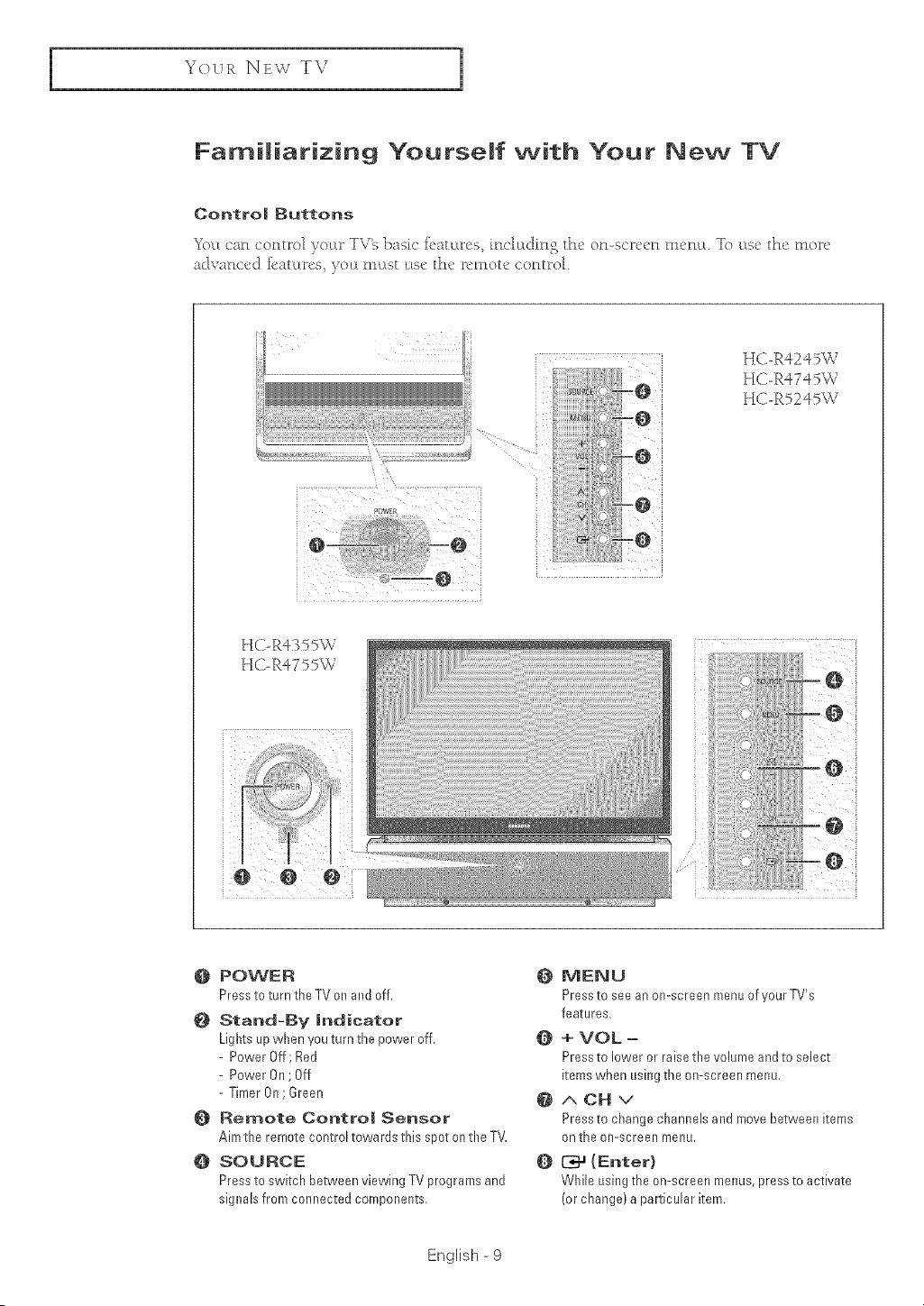
HC-R4245W
HC-R4745W
HC-R5245W
: T .......
POWER
Press to turn the TV on and off.
Stand-By Indicator
Lights up when you turn the power off.
- Power Off; Red
- Power On ; Off
- Timer On; Green
@ Remote Control Sensor
Aim the remote control towards this spot on the TV.
SOURCE
Press to switch between viewing TV programs and
signals from connected components.
O MENU
Press to see an on-screen reenu of your TV's
features.
Q + VOL =
Press to lower or raise the volume and to select
items when using the on-screen menu,
{_ ACHv
Press to change channels and move between items
on the on-screen menu.
_a {Enter}
While using the on-screen menus, press to activate
(or change) a particular item.
English - 9
Yo-L R NEW TV
Connection Jacks {Side}
7 3
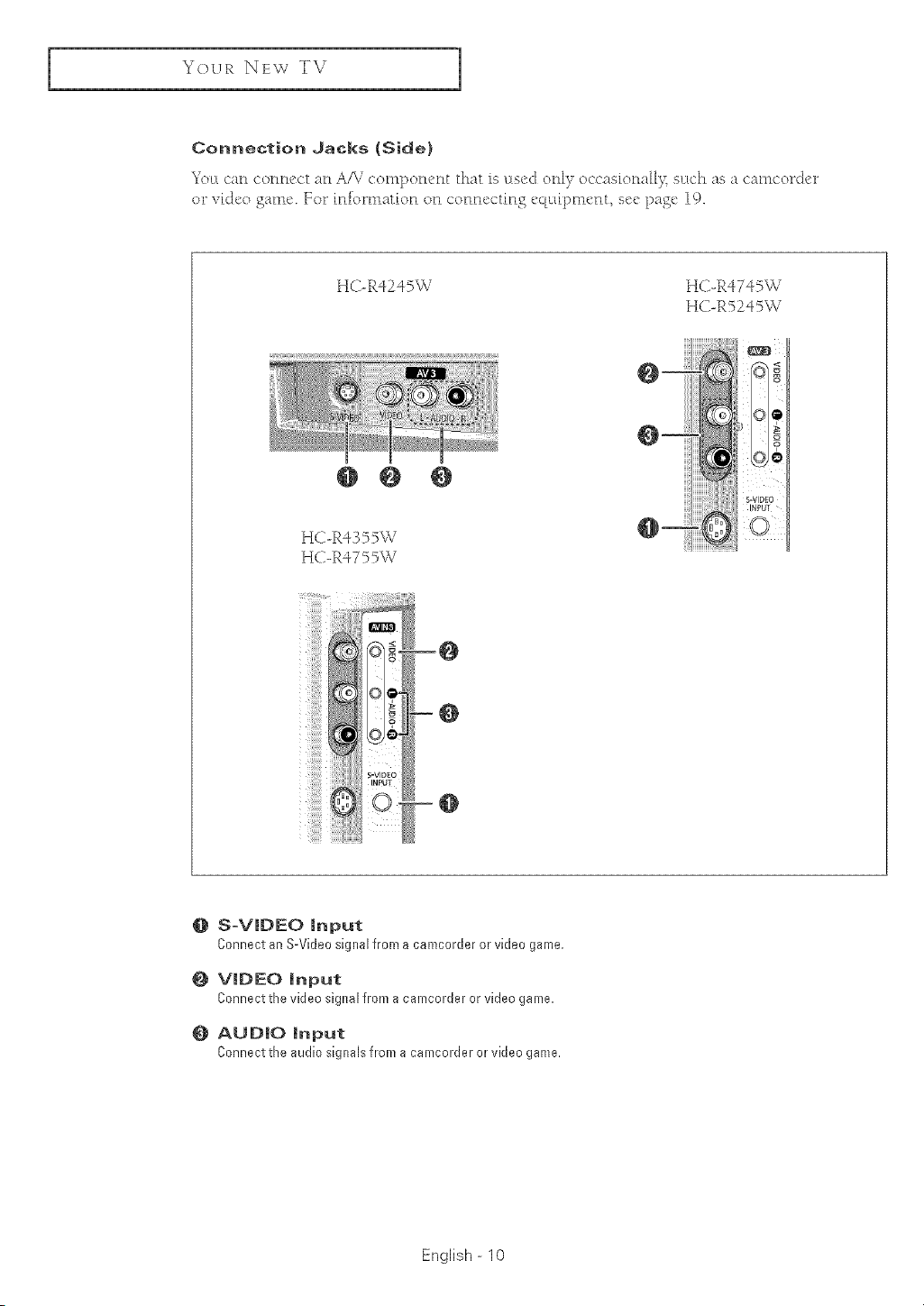
_< u ('a_l <'o_l_l_'<'t a_l A/V ¢Onl[)O_l_'_l_ that is lLS{'<]O_ll_ o¢¢as[o_laH}, sLLch as a canl¢ord_v
or vkJeo ganle. ]Forinfornmtion on connecting eq[dpnlent; see page i().
HC-R4245W HC-RiTiSW
HC-Ft5245W
{}
0 S-VIDEO input
Connect an S-Video signal from a camcorder or video game.
{_ VIDEO input
Connectthe videosignalfroma camcorderorvideogame.
{} AUDIO input
Connect the audio signals from a camcorder or video game.
English - 10
I
Yo-u R NEW TV
1
Connection JaBks {Rear}
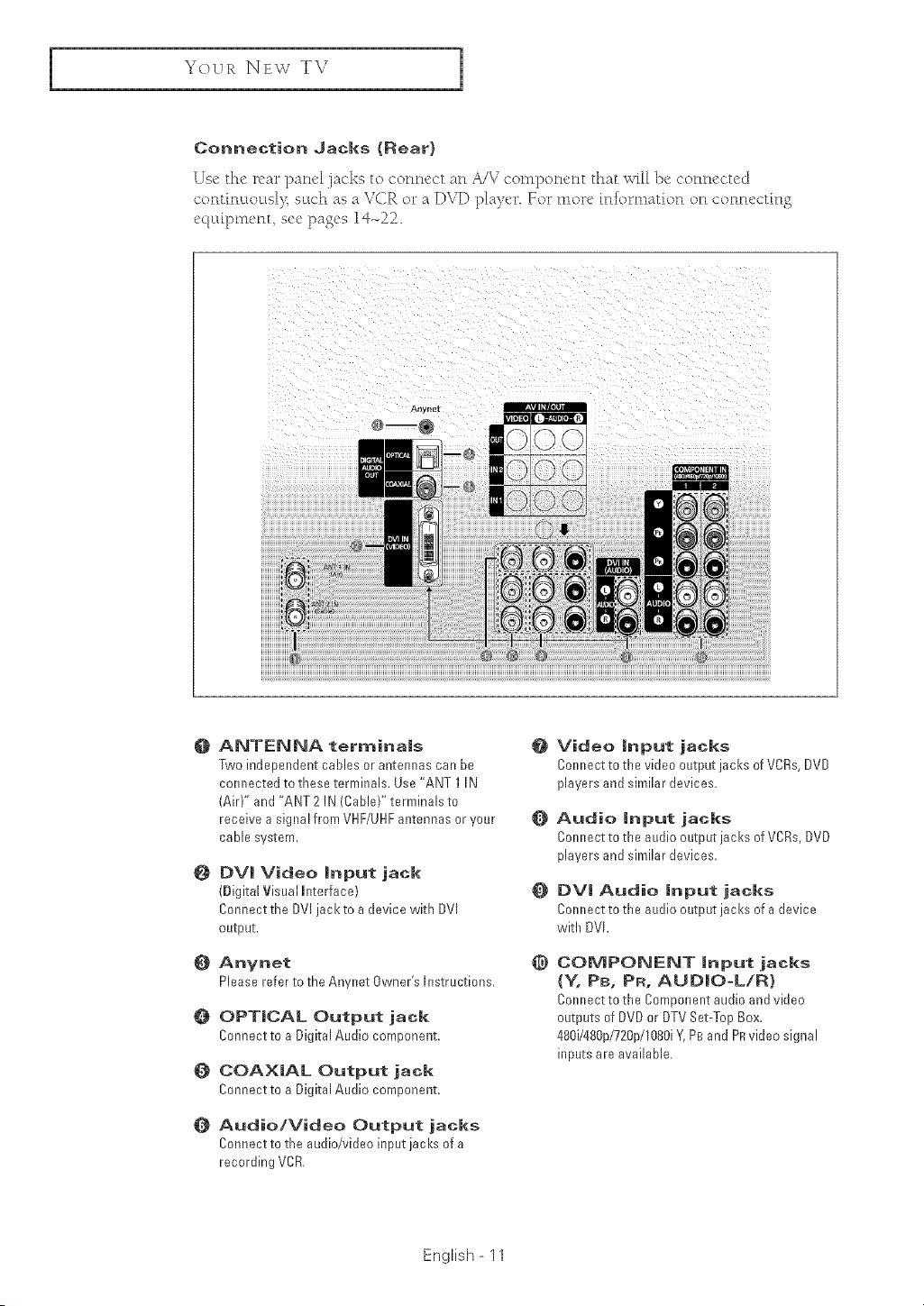
Use _he re£_r pa£1¢l jacks to con£l@d a£l HV co£11po£lc_t tha_ will ]x CO£1£1@d<J
c01_l_il_lutovtsl}TsLtch as a V(}R or a DVD player. Yor tllore i££ortllatio£ on co££ecti££
eqtt[ptllent see pages 1¢_22.
_}3iiiiiiiiiiiiiiiiiiiiiiiiiiiiiiiiiiiiiiiiiiiiiiiiiiiiiiiiiiiiiiiiiiiiiiiiiiiiiiiiiiiiiiiiiiiiii
@
O
@
O
0
@
ANTENNA terminals
Two independent cables or antennas can be
connected to these terminals. Use "ANT 1 IN
(Air)" and "ANT 2 IN (Cable)" terminals to
receive a signal from VHF/UHFantennas or your
cable system.
DVi Video input jaek
(Digital Visual hterface}
Connect the DVl jackto a device with DVl
output.
Anynet
Please refer to the Anynet Owner's Instructions,
OPTICAL Output jack
Connect to a Digital Audio component.
COAXIAL Output jad{
Connect to a Digital Audio component.
Audio/Video Output jacks
Connect to the audio/video input jacks of a
recording VCR.
Q
@
Video input jad{s
Connect to the video output iacks of VCRs, DVD
players and similar devices.
Audio input jacks
Connect to the audio output jacks of VCRs, DVD
players and similar devices.
DVl Audio input jacks
Connect to the audio output jacks of a device
with DVl.
COMPONENT input jacks
{Y, PB, PR, AUDIO-L/R}
Connect to the Component audio and video
outputs of DVDor DTV Set-Top Box,
480i/480p/720p/1080iY, PBand PRvideo signal
inputs are available,
English- 11
YovR NEW TV
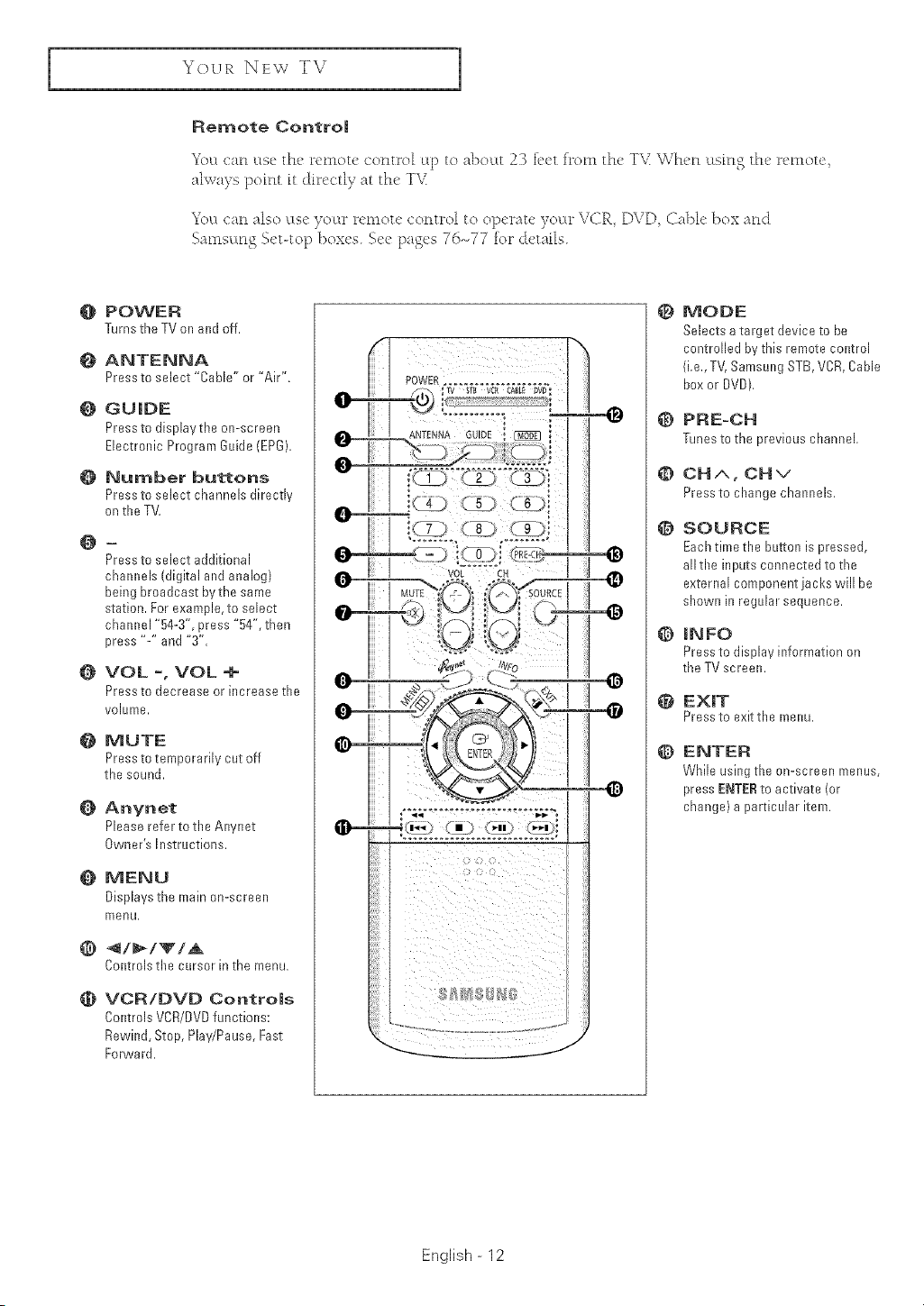
Remote Contro|
7b •
_< l:t ca_l ltse the remote co_ltro[ lip to al)outt 23 k'et h*otll the TY _vVhe_l ctsi_lg the retllote,
ahva}s poLFlttt dtrectly at the T\_
Yolt ca_l also Ltse yoL*r remote co_ltrol to operate yoL:w%iCR DVD, Cal)[e box and
SatllsLtr_g Set-top l)oxcs. Scc pages 76_77 for details.
@
o
@
@
@
@
@
@
@
@
@
POWER
Turns theTVon and off.
ANTENNA
Press to select "Cable" or "Air".
GUIDE
Press to displaythe on-screen
Electronic Program Guide (EPG).
Number buttons
Press to select channels directly
on the TV,
J
Press to select additional
channels (digital and analog)
being broadcast bythe same
station. For example, to select
channel "54-3", press "54", then
press "-" and "3".
VOL °, VOL +
Press to decrease or increase the
volume.
MUTE
Press to temporarily cut off
the sound.
Anynet
Please refer to the Anynet
Owner's Instructions.
MENU
Displays the mahl on-screen
menu.
Controbthe cursorinthe menu.
VCR/DVD Contro|s
Controls VCR/DVDfunctions:
Rewind, Stop, Play/Pause, Fast
Forward.
ANTENNA GUIDE !
@
@
@
@
@
@
@
MODE
Selects a target device to be
controlled bv this remote control
(i,e,, TV, Samsung STB, VCR,CaNe
boxor DVD).
PRE-CH
Tunes to the previous channel.
CHA, CHv
Press to change channels,
SOURCE
Eachtime the button is pressed,
all the inputs connected to the
external component jacks will be
shown in regular sequence.
INFO
Press to display information on
the TV screen.
EX|T
Pressto exitthe menu.
ENTER
While using the on-screen menus,
press Et'_TERto activate (or
change) a particular item.
English - 12
Yo-L R NEw TV
1
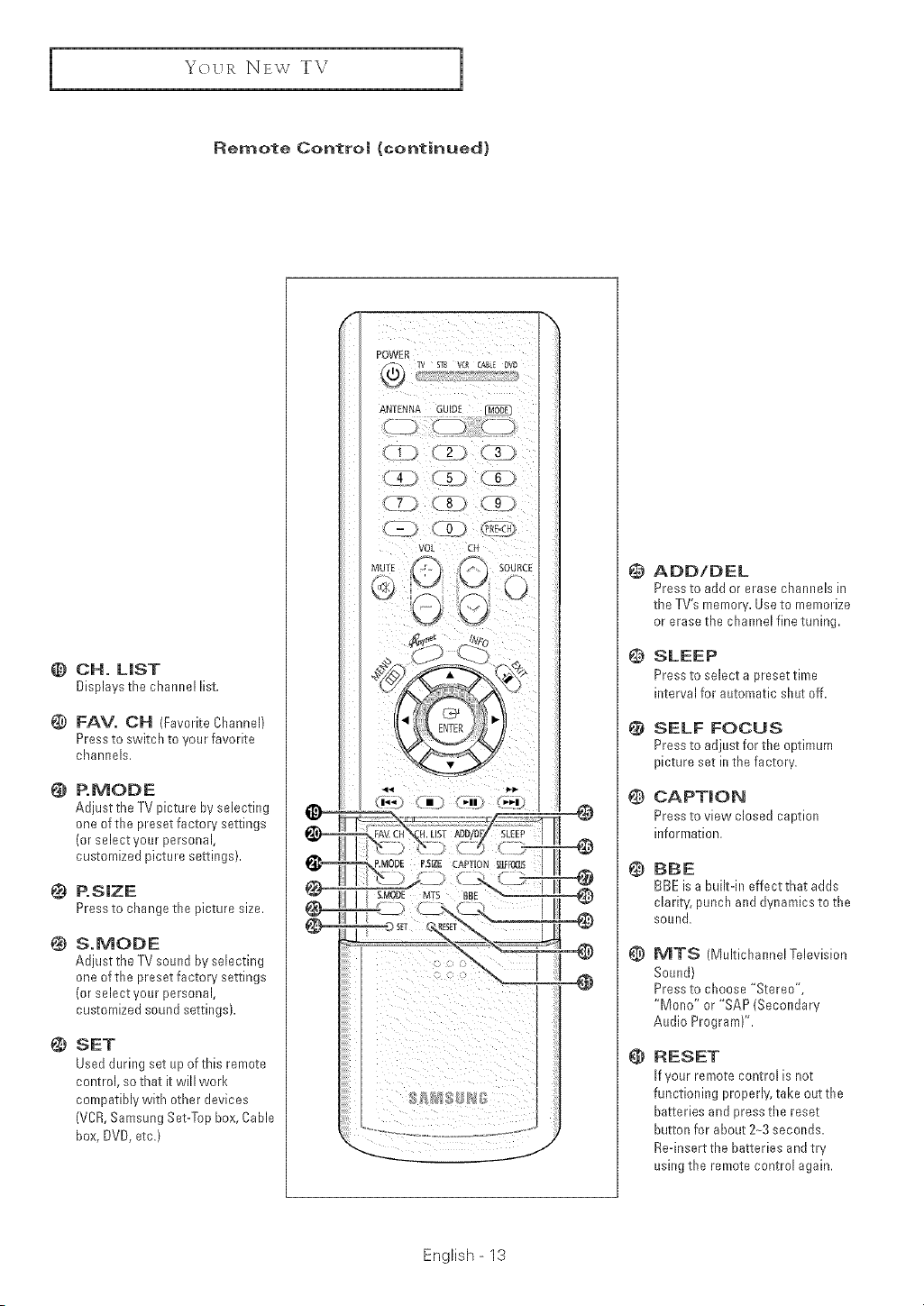
Rernete Control (Bontinued)
@ CH. LiST
Displaysthe channellist.
FAVo OH (Favorite Channel)
Press to switch to your favorite
channels.
@ P.MODE
Adjust the TV picture b/selecting
one of the preset factory settings
(or select your persanal,
customized picture settings).
P.SJZE
Pressto changethepicture size.
¢ &MODE
Adjust the TV sound by selecting
one of the preset factor_/settin?
(or select,four personal,
customized sound settings).
@ SET
Used during set up of this remote
control, so that it will work
compatibly with other devices
(VCR,Samsung Set-Top box, Cable
box, DVD, etc.}
@
POWER
TV SI*B ve_ (ABLE DVD
ANTENNA GUIDE
VoL
@
@
@
ADDiDEL
Press to add or erase channeJsin
the TV's memorv. Useto memorize
or erase the channel fine tuning.
SLEEP
Press to select a preset time
interval for automatic shut off.
SELF FOCUS
Press to adjust for the optimum
picture set in the factory,
@ CAPTION
Press to view closed caption
information,
@
BBE
BBE is a built-in effect that adds
claritv, punch and dvnamics to the
sound,
@ IV1TS (Multichannel Television
Sound)
Press to choose "Stereo",
"Mono" or "SAP (Secondary
Audio Program}",
@
RESET
If,/our remote control is not
functioning properly, take out the
batteries and press the reset
button for about 2-3 seconds,
Re-insert the batteries and trv
using the remote control again,
English- 13
IN_;TALLATION
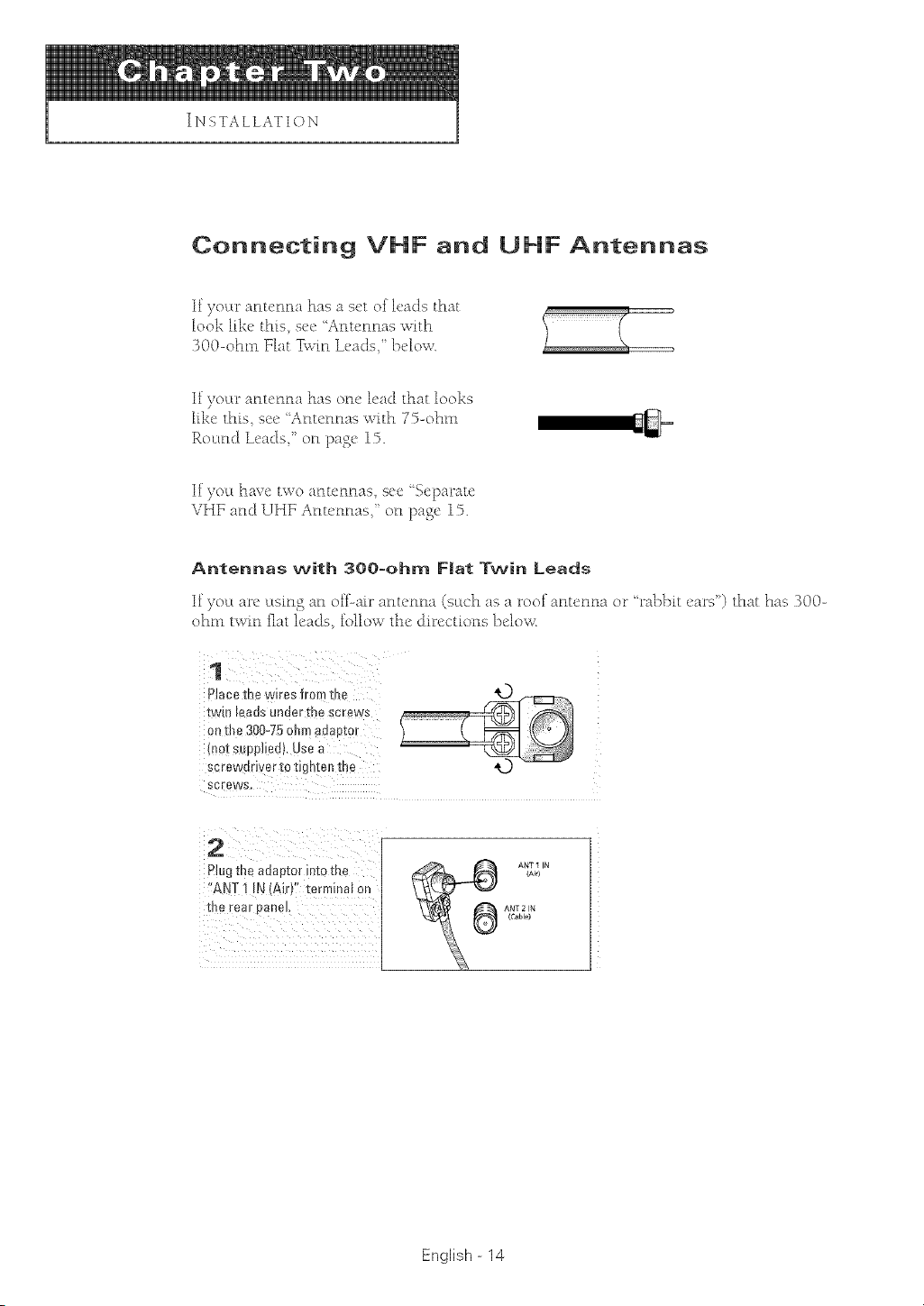
Connecting VNF and L]NF Antennas
If yol:u" antenna has a set of leads that
look like this see 'Antennas with
300-ohm Flat Twin Leads, _below.
If )7ol:Lr antenna has one lead that looks
f[l<e this sec "Antennas with 75-ohm
Eoutld Leads' or1 paso 15.
If you have two antennas, see 'Separate
VHF am] UHF Anu'tmasi or1 page 15.
Antennas with 300-ohm Flat Twin Leads
If yol:Larc l:Lsing an offLair antenna (such as a roof antenna or ' rabbit _'ars ) that has 300-
ohm twin flat leads_ follow the dil_cctions below
1
Placethewires fromthe
twinlendsunderme screws
onthe300-75omnauaezo_
inot supplied).Usea
screwJriver_ol:Jg_[enme
screws.
Plugtheadaptorintothe
!!AN] ! iN (Air):' terminnlon
the _enrp_el
English - 14
I
INSTALLATION
1
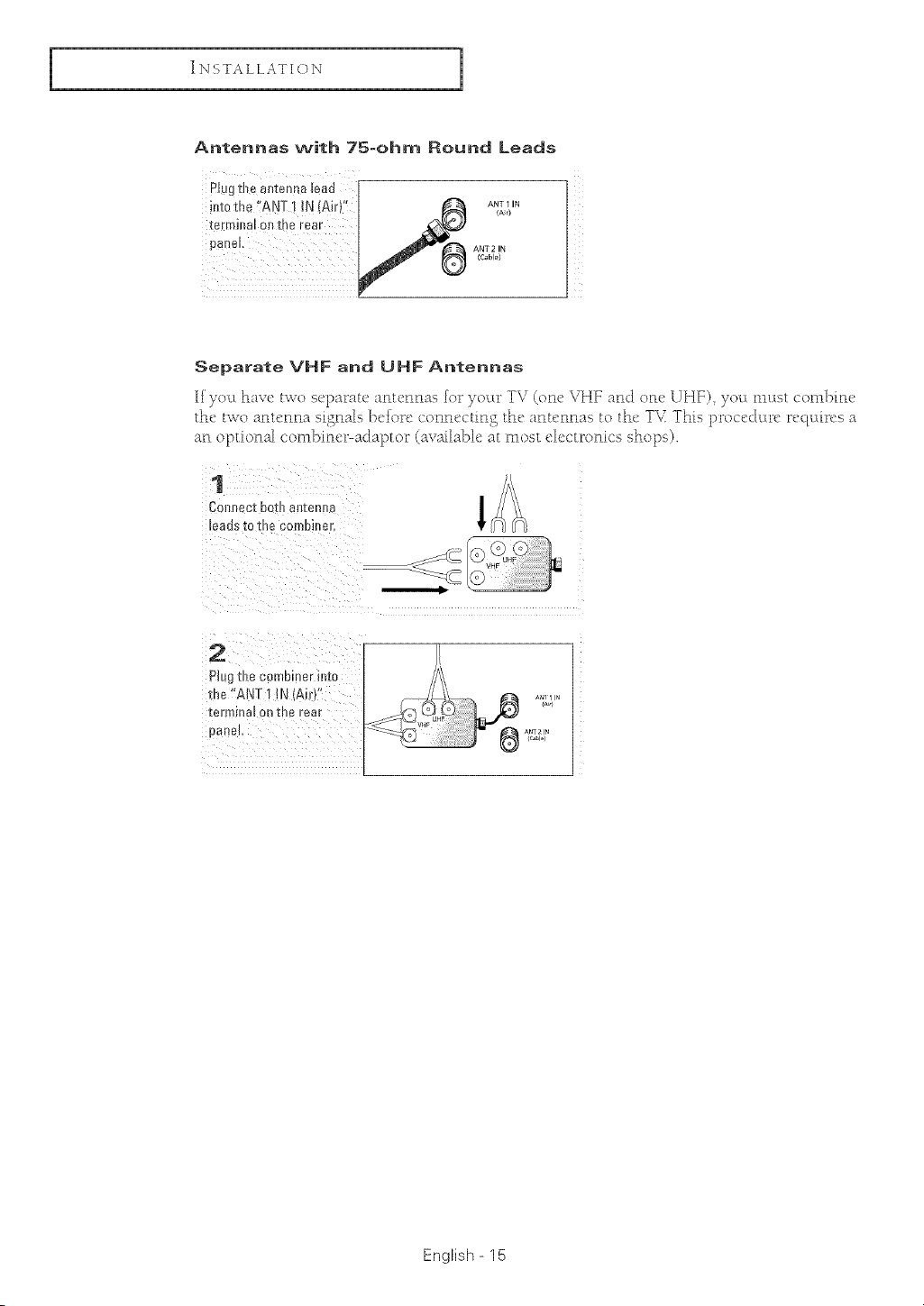
Antennas with 75-ohm Round Leads
Pk]gthe antennalead r
intotLm:rANT! !N(A r),: / _ A_T_'N
pane!: | _"'_ ANT2 IN
Separate VHF and UHF Antennas
If yOLLhave two separate antennas foi _)_oc(l_TV (one VHF and orle UHF) yOLLmust combine
the, two anu:nna signals Before conncctin_ the anu'nnas to the: T\I This procedure r_,qt:([rcs a
an olstional cornl)incl_-ac]apto_ _(availablt_ at most electt_onics shops).
1
Comlectbothantenna
e_os _O "IriS. CC r|)D!||9-r,
VHF
_cd
2
Plug [lie corrle[ner iri[o
the"ANT I IN (Air}"
[er BIrial OR IRe rear
[)ariel,
English- 15
INSTALLATION
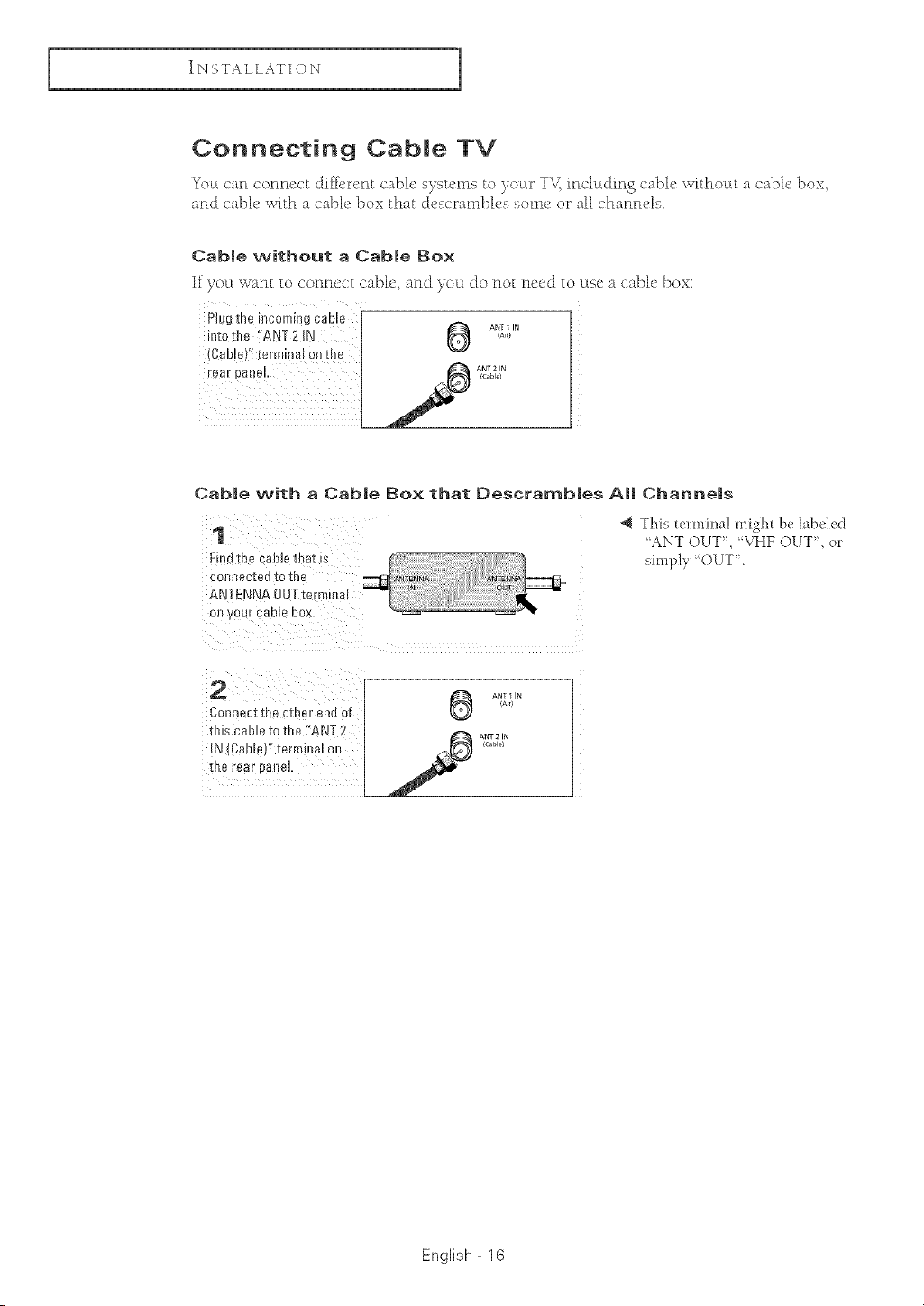
Connecting Cable TV
7
_c ct can connect d[fhvnt cabh' s}swms R_}ocu _T\_ inchtdklg c'a])lc \vRhoLtt a cable ])ox
and cabh' w_th a cabh' box thatch'scrambh's some or al[ chanmqs.
Cable without a Cable Box
If you want to connect cable, and you do not need to use a cabD box:
PlUgthe incomingcable
intothe !'ANT2IN _ A_A_,,
_.._...,_..{Cab!e)':te(minal0nihe c&k'%# ......
Cable with a Cable Box that Descrambles All Channels
1
Fino ].De cable I!@Z _£ -1-_ ........... .......... _'_
_ JN OUT
ANTENNA0UTtern _al
31 ,-ur caele pox
*_ This _ermina! inig]l_ be _abe!ed
'ANT OUT', VHF OUT', ot
simpl} ()(JT".
2 ANT 1 IN
Corme ;t the other eR(J of
m_scameto the "ANT2 _ ANT2N
[a ICaeleJ EermlRa_ OI _ {c_)
IRe [e_{ )aneL
English - 16
I
INSTALLATION
1
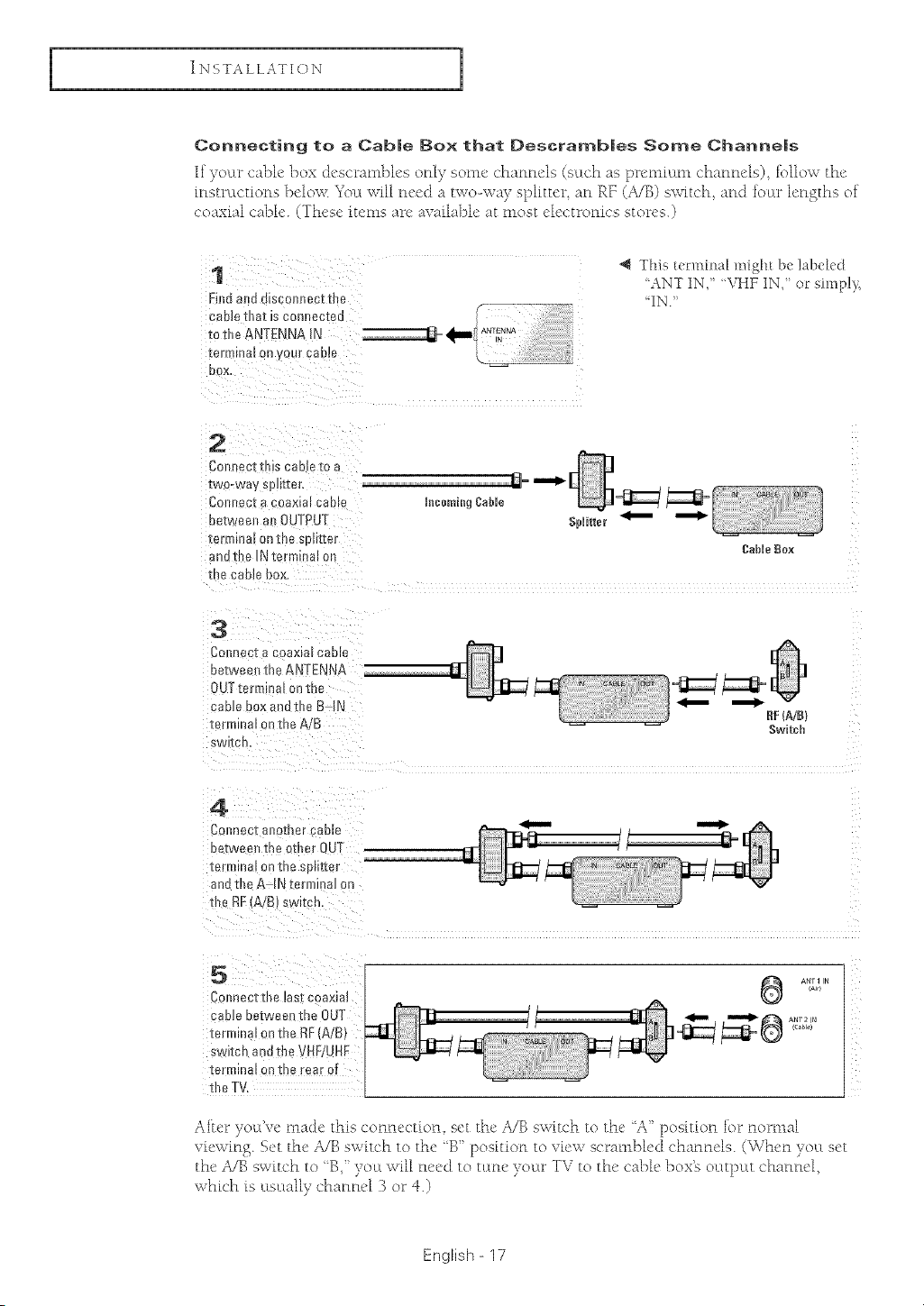
Connecting to a CabJe Box that DescrambJes Some ChanneJs
If yoLu_cabh"box descrambh's only som_'channels (sLwhas prenmLmchannels), fbHow the'
instrt:tctions belov\'. YOLt will n_'eda two-way splitter an RE (z_B,] switch and burr lengths of
coaxml cable. (These itetns nrc avaihb_e nt most e_ectrortics stores.)
1
Find and discBnne ;_ the
CaBle I_lB]: IS CBnReB[eB
tB tile ANTENNA IN
ter --qal on , OUr BBDIB
BOX
This terlnilm[ might bc ]abdcd
LqNT IN, "VHF IN, or simph,,
IN.
2
CBI BOI[IHS cable [B a
iwo-wa'y SpIK[BL
CBrmecto COBXmlBame
Bei:weenai OUTPUT
IBrmlna_ Oil IRe S :}l[]TEef
auu the IN terminal on
me came uox.
3
CBnnec-[a cBaxm_cable
Be-[weenthe ANTENNA
OUTtermmm on me
caBJe BBX anB tile B-I[.
-[enTana 3nthe A/B
SWI[Cr
hICOB_i.gCable _
SpUitter _
CaMe Box
£[ (A/B}
Switch
4
CBllnect anomer cable
uetweer the ether OUT
-[e_mlna_ OR tile SB _e_"
anameA [Ntermlna_Bn
me RFiA/B swltcn
x
5
Connec[ule ms[ coax{at
came between the OUT
[ermma Bnthe RF(A/B}
_witch and tile VHF/UH:
te__Bn_ on the rear Bt
tile TV,
AN_1IN
(AJ,)
After yot:t've made this connection set the A/B switch to the _A" position for normal
viewing. S_'t the A/B sw_tch to the 'B' position to vh'w scrmnbh'd channels. (When }ot;t set
the A/B switch to "B,' you will need to tumv )our TV to the' cabh' box'e octtput channel
whk'h fs utsutally charms 3 or 4.)
English- 17
INSTALLATION
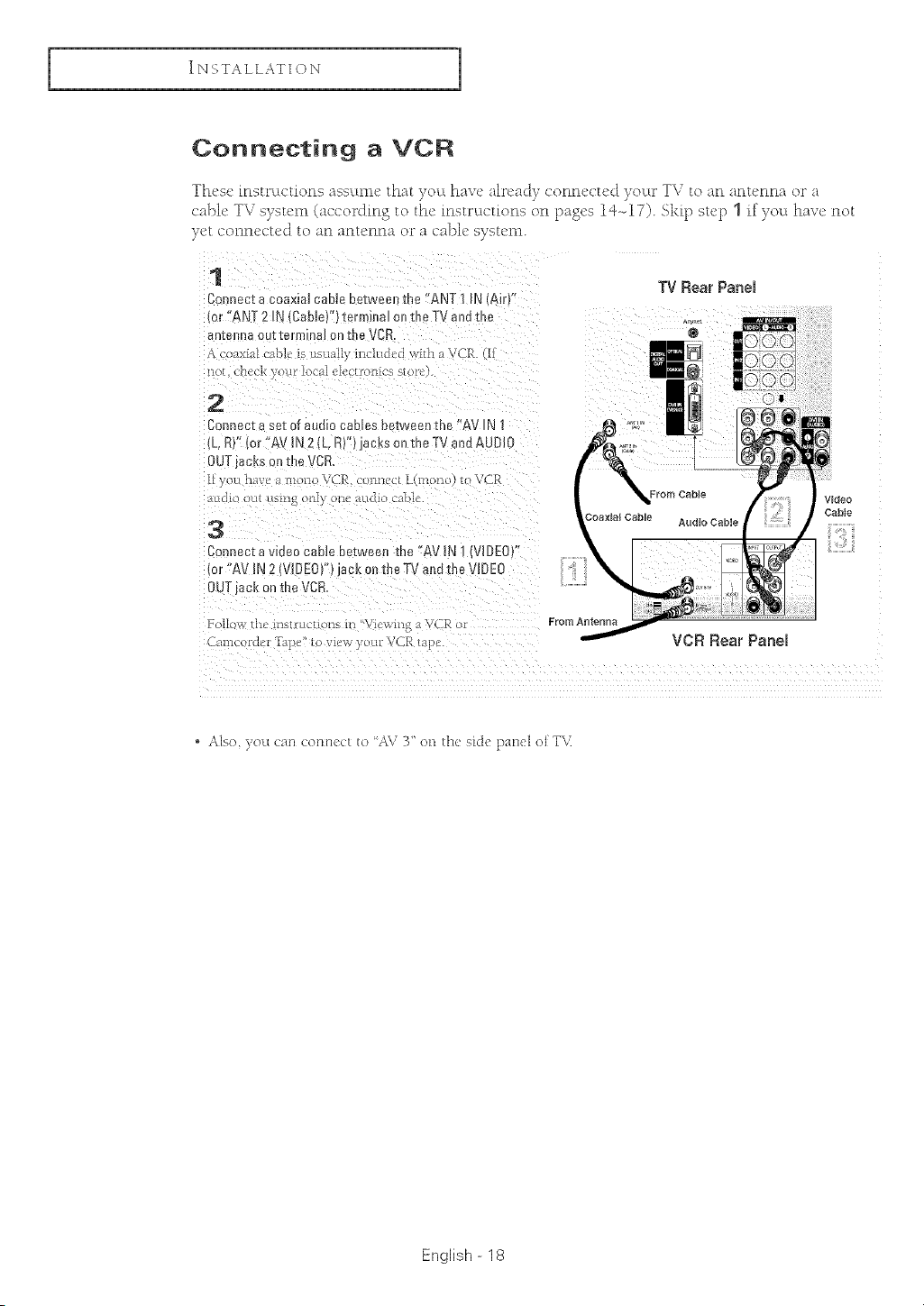
Connecting a VCR
These mstruLctions assume that )oc:Lhave alread) connected 7ocu _TV to an antenna or a
cabD TV STSU:nl (according to the instr_tctions on pasts lq-_17). Skip step 1 if 7o_l haw! not
)et connected to an antenn_ o__a cable sTstern.
1
Con _ecza coaxta_cable De[wee_ me 'ANT 1 IN fair/°
1or"ANT 2 IN (CableY'l terminal on Ul _TV ana u_e
an[ellna out terminal on tbe VCR.
,_c axi_[ _nbk is usH'_ll)'h_ htc[cci '_ iLh a VCR. ([1
[10[ gflgOl )'OHK iOOg[l I _l U/IOlliCS _[OlIf
2
Connect a sat of audio cables between the "AV IN 1
lk RY"{or "AV IN 2 (L, R)') jacks on the TV and AUDIO
0UTjacKS onu-e DR,
[[ y )L[ 11_iVl' 8[ 111 10 VC,I_. _l)llltc(L(lllollH) t_ (',R
io OHl dSill_ Bill) IlC HC]iO u_[[3[/.
3
Connect a v dec cable between the "AV IN I (VIDEO"
lot "AV iN 2 VIDEO)")jack on the Tv at a die VIDEO
OUTjack on me VCR
TV Rear Panel
®
DO00
")t
Video
Cable
Eo[lc v [n_ il'ls[ru_ c[olls i i 'Vi{whlg _ _J(]E ol From Antenna
VCR Rear Panel
. Also, you can conlt<(:t Io AV 3" on the si¢te paH<:lol TV
English-18
I
_NSTALLATIQN
1
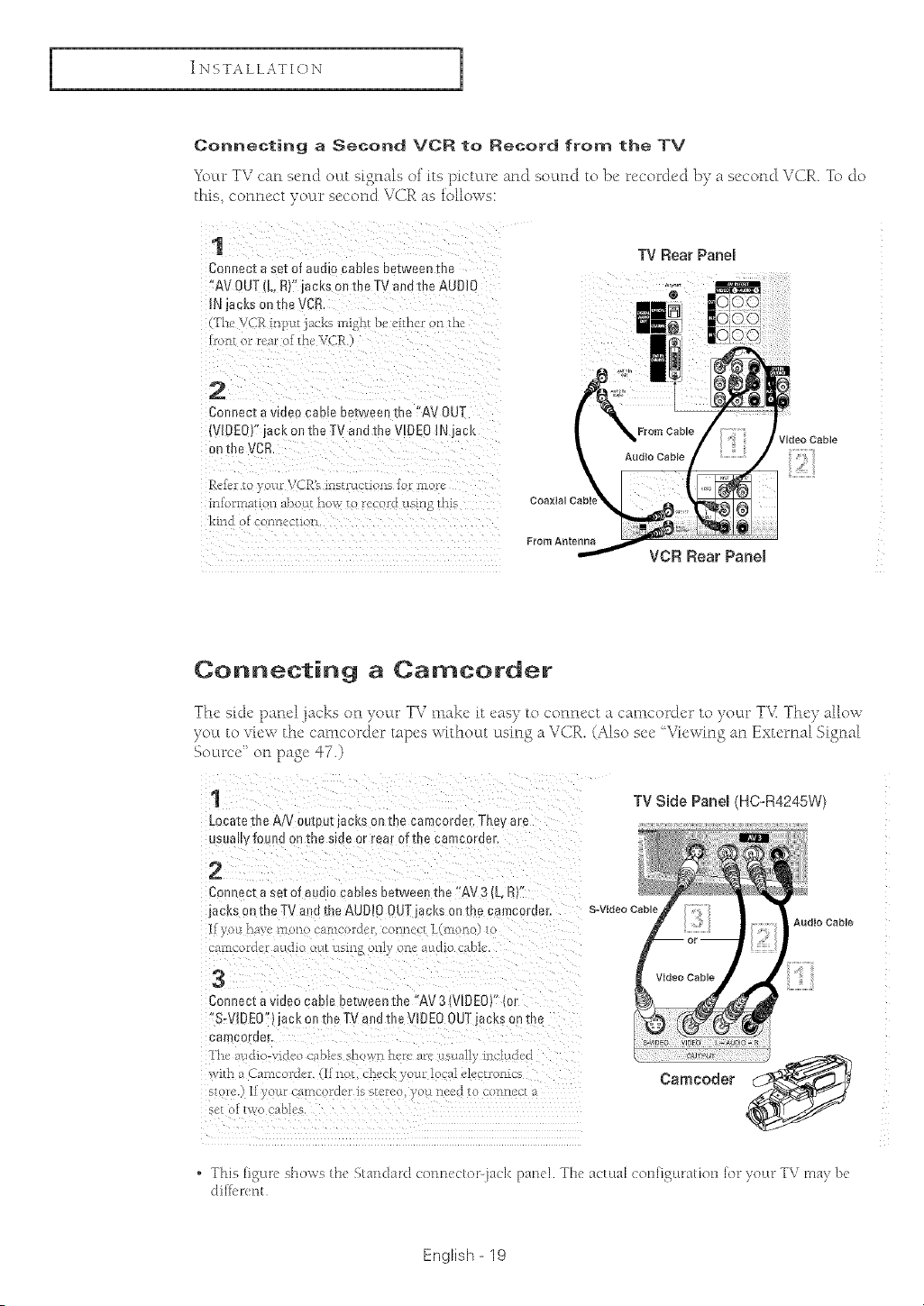
Connecting a Second VC£ to Record from the TV
7 h •
_( cu_TV carl 5ctld out si_tml5 ol its ])icturc and sordid to bc recorded }>}za secotld Vd}R. ]\> do
this, connect youu _ second \,'Ca as blloss s:
TV Rear Panel
Comtect a set of audio cables between the
!_AVOUT{L, R)'<jacks 0rl the TV and d_e AUDIQ
INiecks Onthe VCR. ®
{The VCR h_p_aiacks migl_tbe cahee on 4_e
Connect a video cable between the !'AV OUT
(VIDE0)? iack orl the TV and the VIDE0 JN jack
Reib_ to }our VCRE instructions for _nore
aliOF_l_t011_t)<C hOW tO rec) ¢ l_Si_l_t ] S
From Antenna
VCR Rear PaneJ
Connecting a Camcorder
The sh:le ]_anel jacks on your TV nmke it eas} to connect a camcorder to your TY They allow
}otL to view the camcordcr tapes without using a VCR. (Also scc ' Viewing an External Signal
Soulrce' on page q7.)
1
Locate die A/v ouIpuHacKs on me camcorder. The are
usua , mona onme sine or rear atthe camcoraer,
2
Connect a set of dUUrOcanes between the "AV 3 L RY'
jacl<son IRaTV and the AUDIOOUT BcJ¢son me camcoruer.
[_ yo0 II_VI'[ii013( -_[IICO[{LOrCO[IIIC_• Htl[OI]<
U_t[IICO[([I'[ a[[di_l out LtShlf Jill\" OI]C OK did Ctt[gJC
3
Connect a video came oetween the "AV 3 (VIDEO}" lot
"So_ 3EO' _ckontheTVa JtheVIDEOOUTjac_¢sonme
camcorae_
T[IC lie [[[o-%,[dco c;i[)_cs _ io_i] ill,it fi[c lieu [[] J[iCll{Llc
v,;lrh _ £iamuotdcr. (1[ zzot c b'cl y m locrd clcctmrzics
S_OfI',) li }'0[ [ C2iiii£ rqcr IS %ICf£( [ic('(lI0 c{]fl[icc[ D
seeol 1_c ebbs
TV Side Panel HC-R4245W)
S_Vldeo Cable
Audio Cable
, This ligure shows the grand: rd comx;ctorjack panel The actual co_liigul:atio_l lot your TV m%, be
dillc_ent
English- 19
INSTALLATION
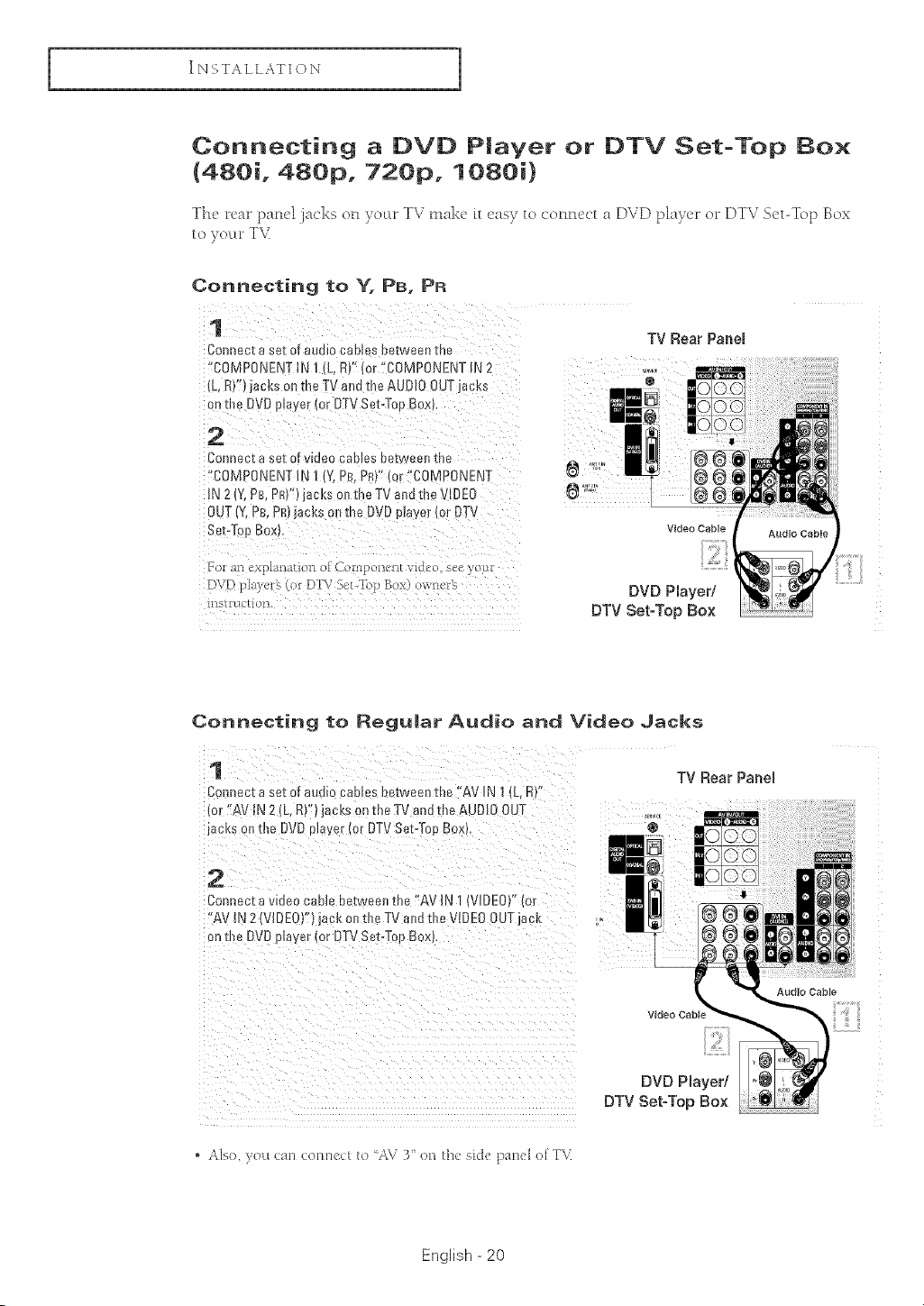
Connecting a DVD PJayer or DTV Set-Top Bo×
(480i, 480p0 720p, 1080i)
The rear pane[ lacks on yoLw TV make tt easy to connect a DVD player or DTV Set-Top Box
to _our T_,:
Connecting to Y. PB. PR
Connect a set of audio cables between the
"COMPONENT IN I (L, R)" (or "COMPONENT LN2
!L, F;)")jacks on the TV and the AUDIO 0UT jacks
ontbe DVOplayer (or DTVSet-Top Box!:
2
Connect a SetOfvideo Cables between the
!'COMPONENT iN i(Y, PB,PR)':icr _'C0MPONENT
IN 2 (Y,PB, PR)')jack s on the TV and the _tOE0
For _n e;,<p[ana[_onot COmpoz_ez_L video, seeycm_
DVD p[_},_-i_ (o_ D-L'Vs_,t:'lbl_Box) o,,_ne_
lllS[£_.[CL1On.
TV Rear Panel
@
Video Cable
DVD Player/
DTV Set-Top Box
Connecting to Regumar Audio and Video Jacks
1 TV Rear Panel
Connect a sezof audio cables rJetweenzne "AV IN I IL. R "
lot /W iN 2 (L, R)")iacJ{s on the TV and th_ AUDIO OUT
backson the DVD prayer (or DTVSet-Too Boxt '@_
2
Con _eci a wueo cape De[weenthe "A\ JNI VIDEO}" (or
"AV JN2 IVIDEOY'tjac_ on the TV and tbe VIDEOOUTjack
on tbe DVDplayer (or DTV Se:-TopBox
Audio Cable
Video Cabl_
DVD Player/
DTV Set-Top Box
. Also, )'ou can contt<ct Io AV 3" on the sicte paH<:lol TV
English - 20
I
INSTALLATION
1
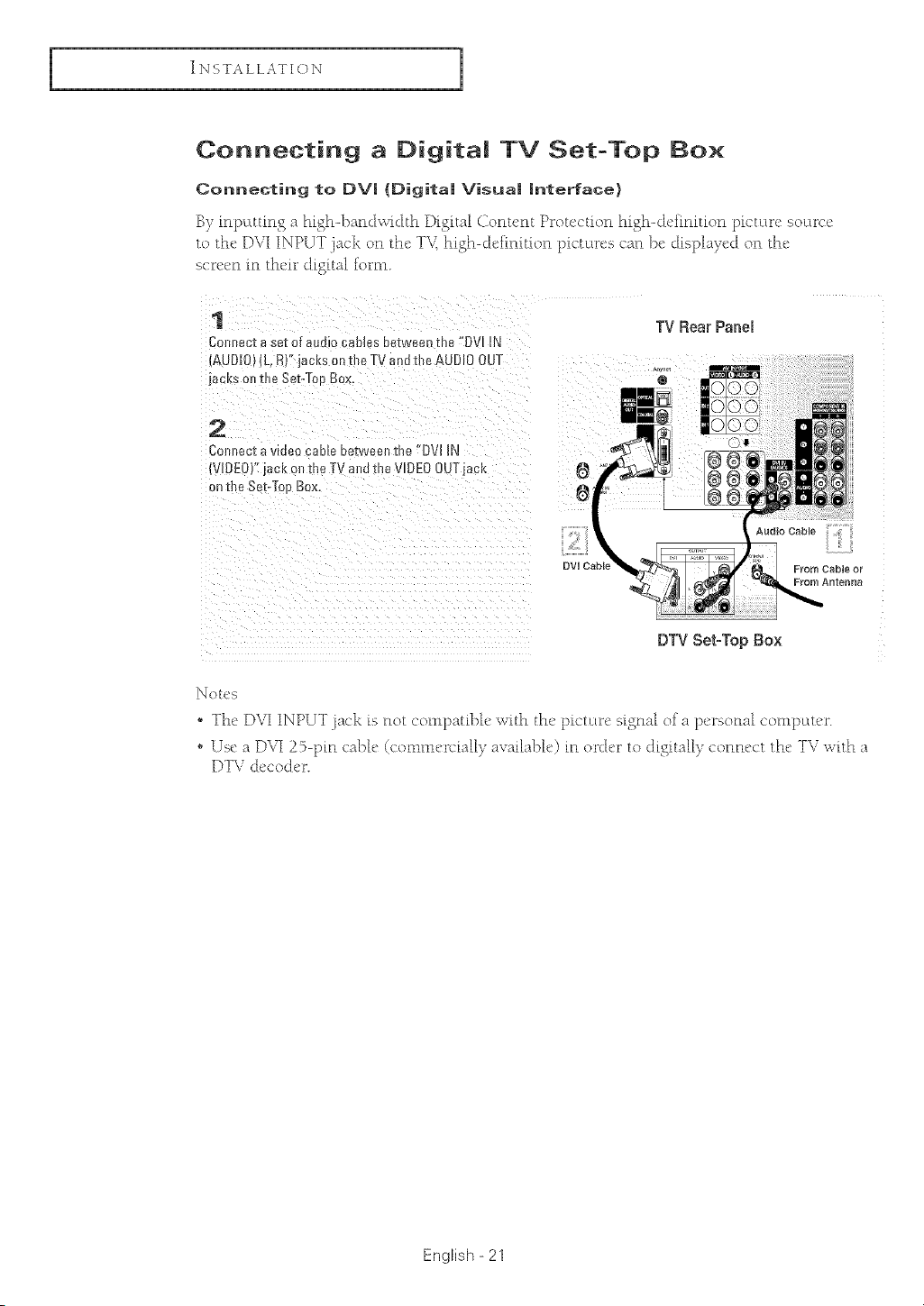
Connecting a Digita| TV Set-Top Box
Connecting to DV| (DJgJta| VJsua| |nterface}
By itt[)_tttittg a high-1)attdwidth Digital (/otttcttt Protcctiott high-dciittitiott [)ictttrc SO_tFCe
to the DVI INPUT .j_ckot_the T_< high-¢[t_iltlitiotlpictt_rescarl])ec[is[)laye¢[oiltht_
scre_tn in their digital form,
1
Comsecza set oTaudio ( aoms eeTweenthe "OVl IN
AUDIO; (L, R)" iacks on the TV and the AUDIO OUT
jacks on the Set-TomBox.
TV Rear Panel
®
2
Cemleet a wGeo cable eetweeJl me "DVI IN
VIDEO)" jack oil the TV and the VIDEO OUTlack
on the Set-Toe Box.
From Cable or
From Ar_terlr_
DTV Set-T0p B0x
]k_ot('s
o The' DVI INPUT .j;_ck is tlot comp;ltibh' with the' [)icuwc signal of a p_u_sotlal compcLUu _.
• Use a DVI 25-pro cable (comm_u_c[aHy available) m order to digitally corlrlcct the TV with a
DTV &'coJ_'r.
English - 21
INSTALLATION
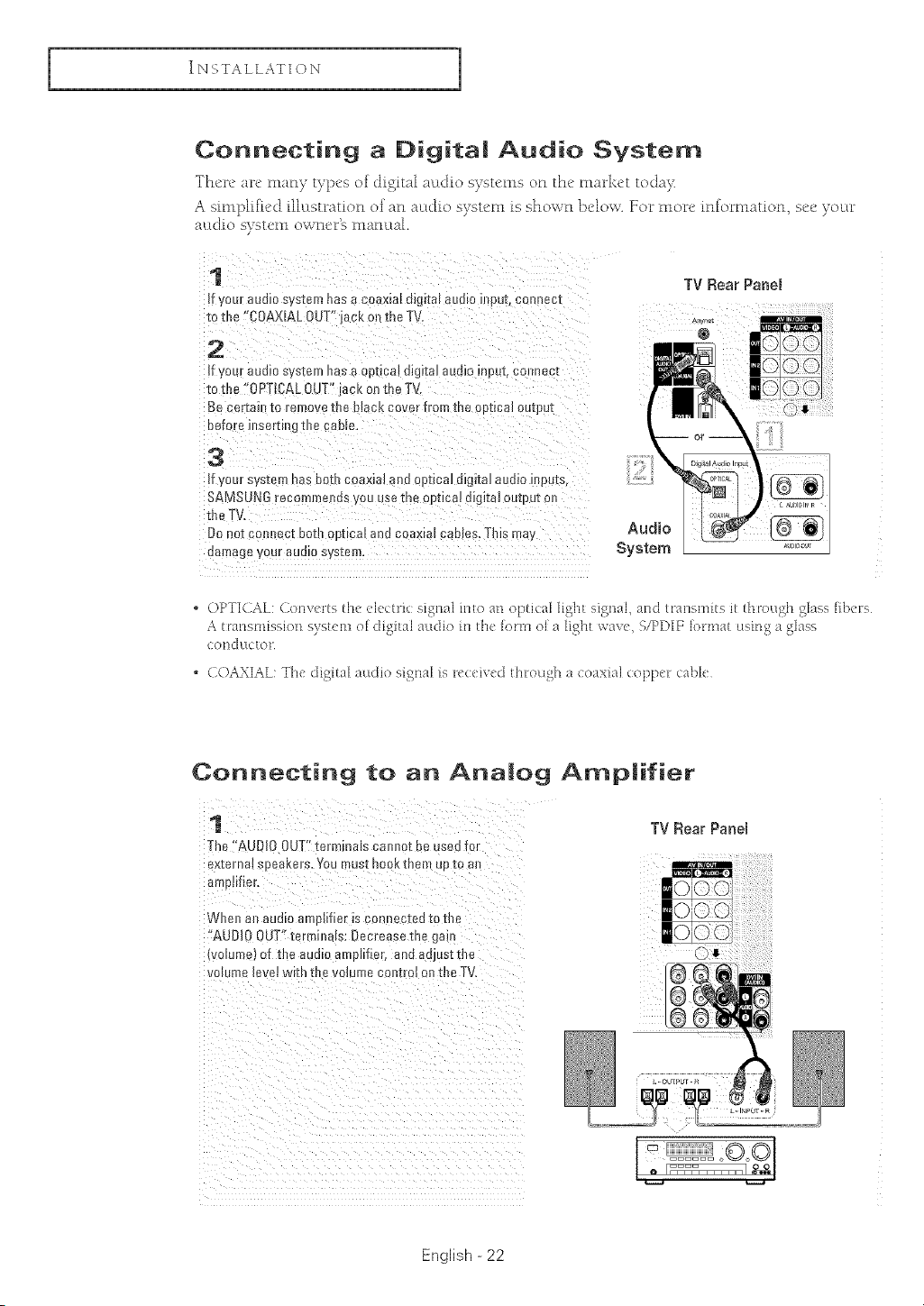
Connecting a Digita| Audio System
Then" arc many bq_'s of digiud a_Ldio systems on tM' market toda)_
A sin@lifted flh:tstration of an at<tie system is shown below. For mo_'e mfommtion; see you_"
audio system owner% manual
t TV Rear Panel
if your audio system has a coaxial digits! audio input, connect ............
t0 tim :(COAXIAL0UT'I jack on the TV ,_....
.
if your audio system has a optica] digital audio input, connect
to the ' 0P_tCAL 0UT" jack on the TV.
!f your system has both coaxial an d @fical digital audio inputs,
Do not comsect bedsoptical and coaxial cables, Tl_ismay Audio
damage your audio system System
• OPTI(AL: (on_,erts the electric signal into an optical light sigl]al, and traHsmite it through gk_ss libers
A transmission s_stem ol digital audio in Ih_ lorm ol a light we',e, S/PDIF Brmat using a glass
(ottc[u([or
• (]()AXIAL: The digital audio signal is rec<ived through a coaxial copper cable
Coririecting to an Analog Amplifier
1
The "AUDIO OUT"tem_ _alscaueo_ L s uses tor
ex[erna_speakers. You mus[ nOOKmere uo [o aJ
amom er
Whe_ an audio aIToNfieris conne xea _o-me
"AUDIO OUT" terminals: OeorEaseme gai
lvolumel of the audio smulifier, ana aajustthe
vomnle mvei wl[n me volume cuu[roJ on the TV,
TV Rear Panel
English - 22
I INSTALLATIQN 1
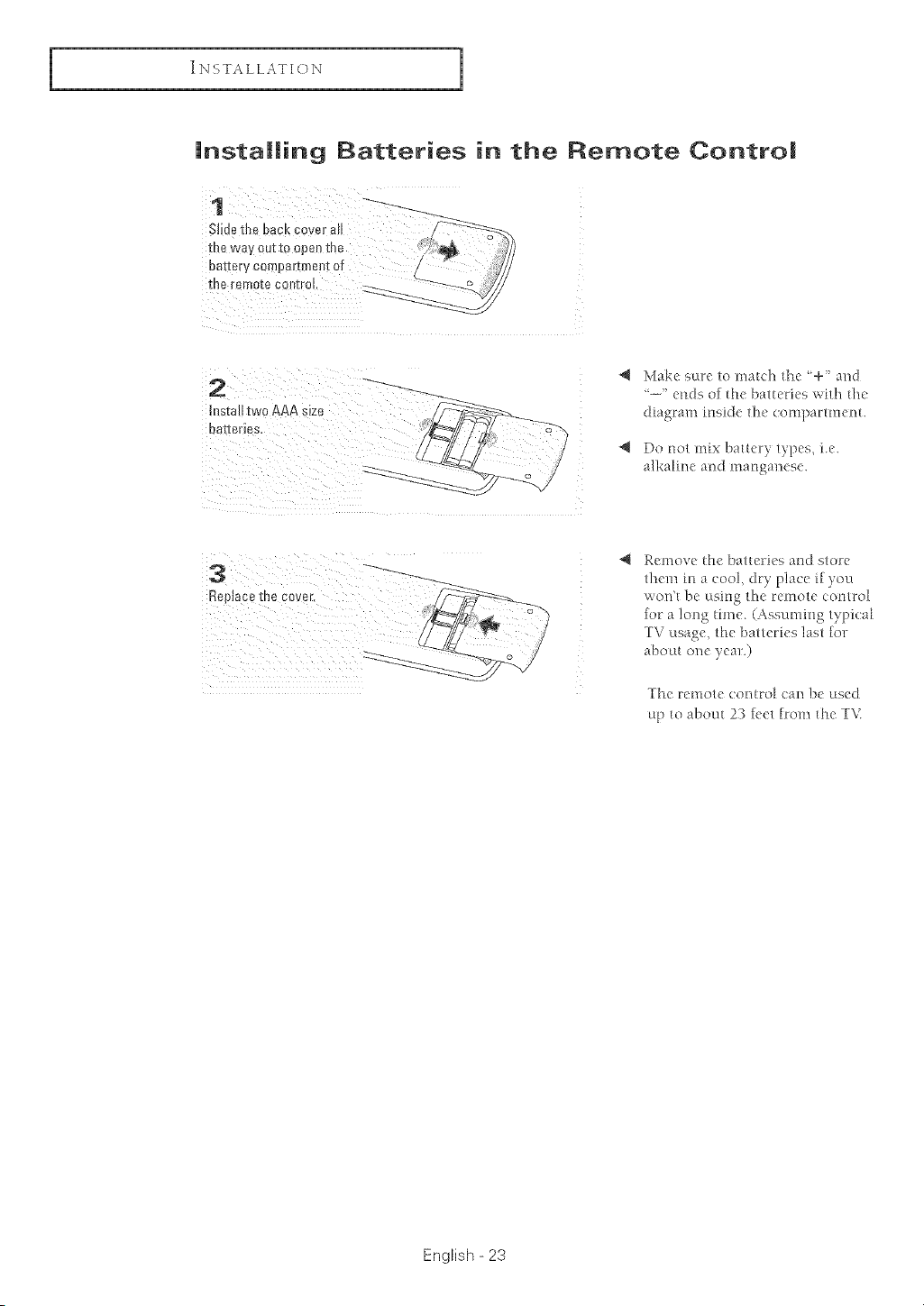
installing Batteries in the Remote Contro|
instaJltwo AAA size
@ Make sure to match the +' and
'--' ends of the batteries wilh tJ_e
Chagram inside 111("compaHmellt.
*_ Do _o1 mix bailer) lylX,S, i.e.
alkahlle aim manganese.
: 15i
Remove the batteries and store
them in a cool, dry place if you
won't be using the remote control
for a long time. (Assuming typical
TV usage, the batteries last fo_
about one year.)
The remole contro_ ca_l be used
up [o about 23 fee/from fl_e T'_:
English - 23
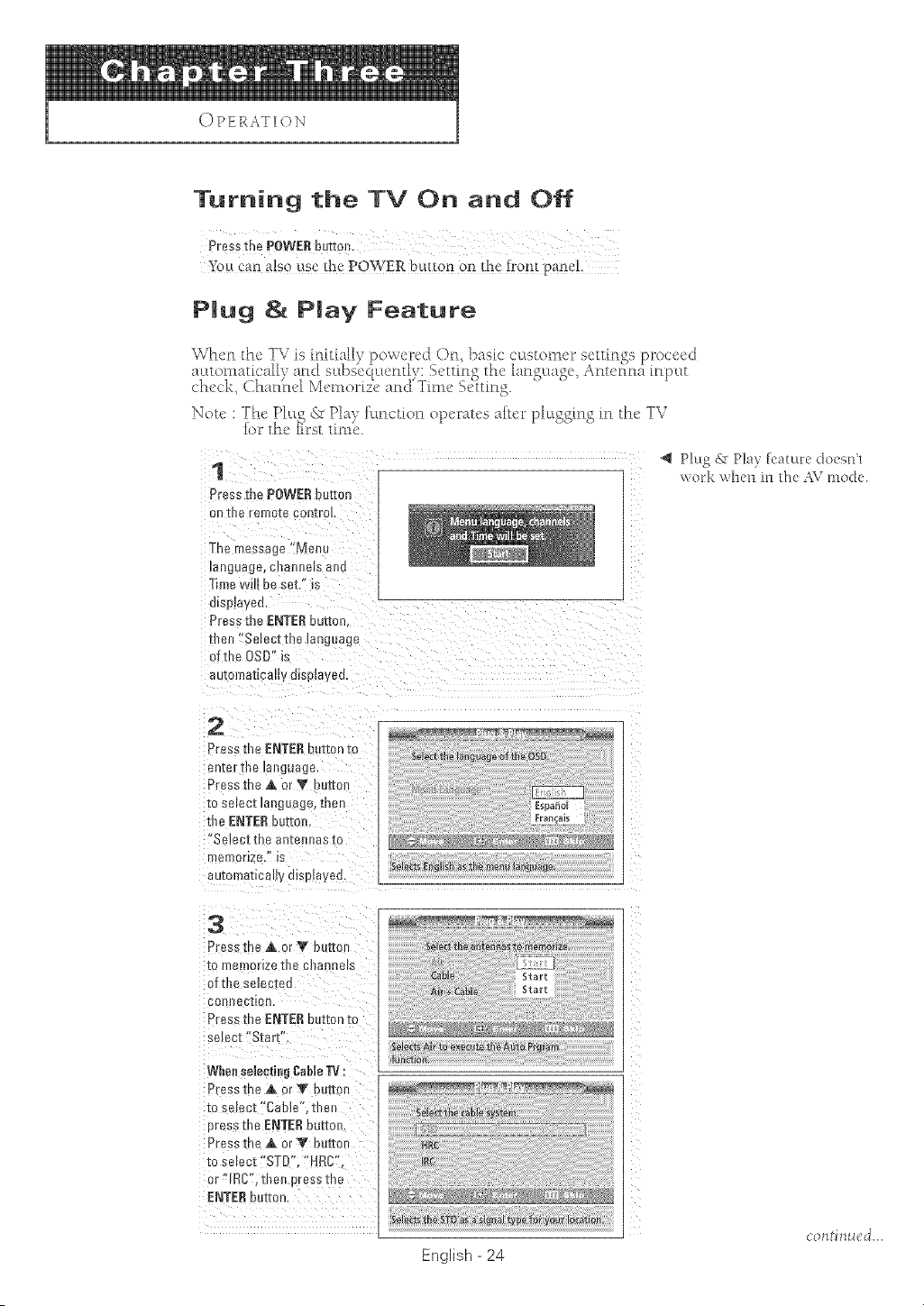
OPERATION
Turning the TV On and Off
Press the POWERbutton.
!_,u cf,n a!so use the POWER butt0n on the feo_[ Pane{,
PJug 8{ PJav Feature
Note : The PhLg _%Pla} ff[nctDn operates _lfter plul££ing in the TV
_or _he _irst tinle
1
Press me POWERbutton
on [ne remo[e comroi
The message "Menu
_[igua_e seal _e_sa]le
Thne whl De set' is
elspiayec
Press the ENTER button.
then "Selectthe la _guage
of the OSD" is
automa_cm_y dlsp_ayee,
Plug AT Pie} feature doesnt
work when in _l_eAV mode.
2
Press the ENTERbut[on to
enter []_e _a_ guage
Press the A or V )u[_ol
[o se[ec[ _anguage,[Ben
[he ENTERbuz_oe,
'*Setec_ Ine 8rl[eRRas [O
e/ereor_2 3, IS
autoraa_ca y displayed.
Se_e_$ {_Bgl st] as tne menu la }uage
English - 24
c()nti nu_:J...
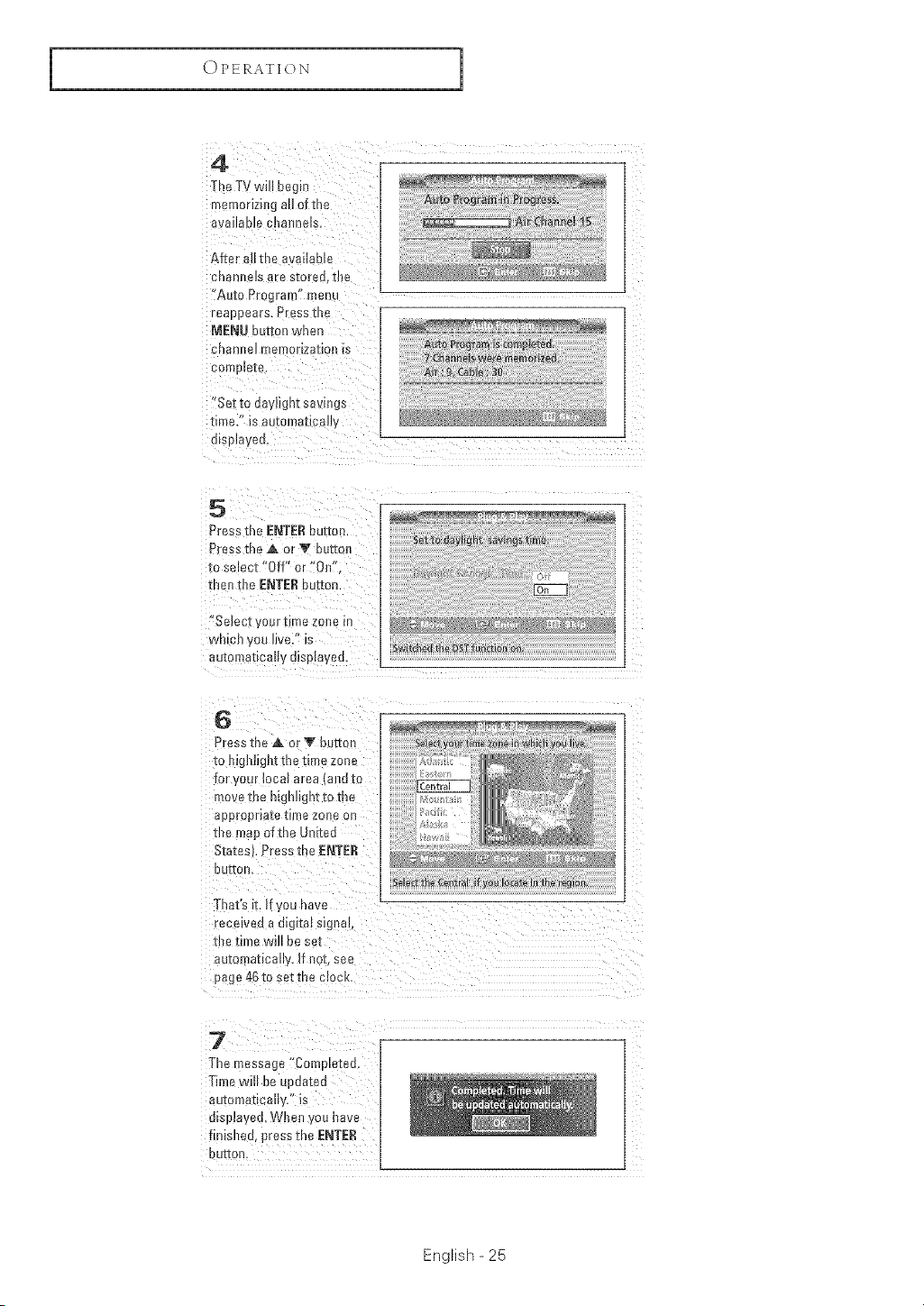
OPERATION
J
4
The TV will be_jin
memorlzmga of the
O'_ all_b18 ellao/!F_ls
After an the available
channels are stoa'eo, [us
"Auto Program" men[
eaaoears. Press me
MENU Button wnen
cnannea memorization _s
comolel:e,
"Sel to dayhgnt savings
time/' is au[ofna[Jcauv
olsp_aya_3
5
Press me ENTER button
P__ssme A or V button
to se eat "Off" or "Off'
roanme ENT[R button.
Select your time zone m
¢vn_en,oo live/' is
auzoma_ca_waLeplayed.
Swit_Betl "_r_ D&T _n_!#r on,
6
Press t _e,& orY button
to highlight the time zone
for your local area (and to
move [ne 131gl)ugrl[]:o[ne
appropriate t_mezone on
the map of the United
Statesk Press me ENTE_
DU[IOB,
That's r[. uyou nave
recelvea a d@tal signet
t_e t_me w_ be ee_
automatically. If no_ see
o_ge 4_to saline alack
7
The masse _e"Completeo,
Time wallbe updateo
au[omaIIcao'_, _s
d_sg_ayed, When you nave
rlmsl_eu,_r_ss the ENTEr;
!3U['[O_
English - 25
OPERATION
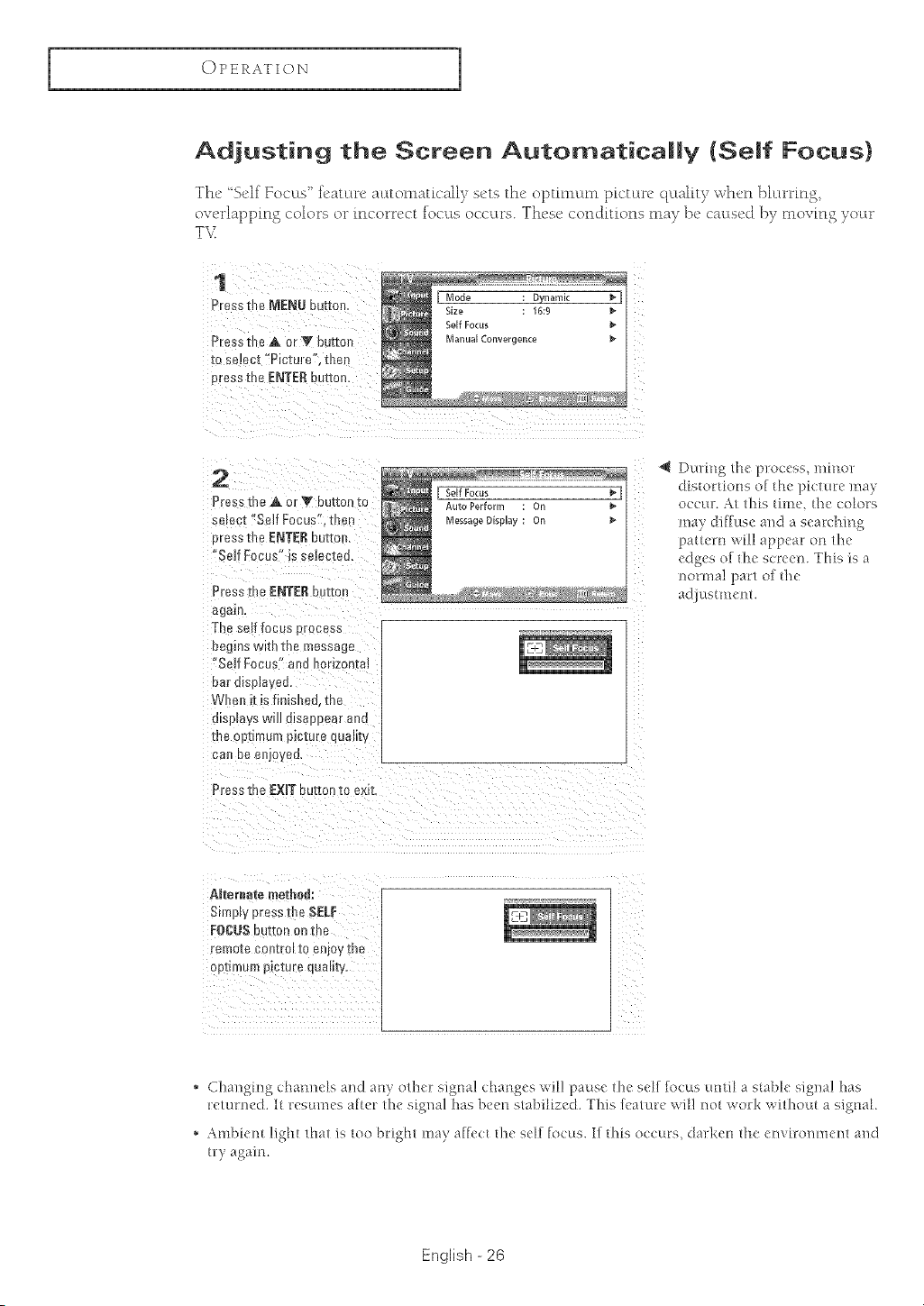
Adjusting the Screen Automatically (Self Focus}
The 'Self Focus '_ feature atttomaticall) sets the optmntnl pictttre qtLality wh{,n bhuTmg,
ovcrhppin S colors or incorrect focus occttrs. These conditions may }x' caused })y tnovtn_ yottr
T\(
1
Press the MENU button
Prs _sthe A or V uu[ml
[o select "Picture , then
press the ENTERbutton
2
PHss@e A or Y button K
se act"Self Focus men
Etess the ENTER our_m
'*Serf Focus" is selected.
Press the ENTEI{ button
again,
The self focus mucess
oegms wm-ime message
"Se f Focus" a_)a _)ur_zon[at
oar uisplaye(,
_t/heJ t[ _STInlsiled, i[ue
displays WmJisaeoear and
the op[i hum p_cmre luau_y
can Deenjoyed,
Press me EXIT button m ex_[
During the process, minor
distortions eL @e picture may
o((ur. At this qmc. @c colors
may diffuse' and a e_'arching
pattern will appear on the
eclgcs of @c screen. This is a
normal part of @e
adiustmgnt.
AJteraate method:
Smlply press _ e SELF
FOCUS uu[[on on me
remo[e COBl[ruI [o eo_oy l:ne
opmk,.n picm _ qumlty,
* Changi!_g chanl_els and an) o@er sigmd changes will pause ll_e self focus until a stable signal has
rdumed. I_ resumes after tl_e sigl_al has been slabiHzed. This feature wfl! no_ work wifl_out a signal
* Ambiem lighl 1[_a/is loo brigh/ may affect llle self focus. If tiffs occurs, darken fl_e eln'h:ol_mem and
w) again.
English - 26
I
OPERATION
1
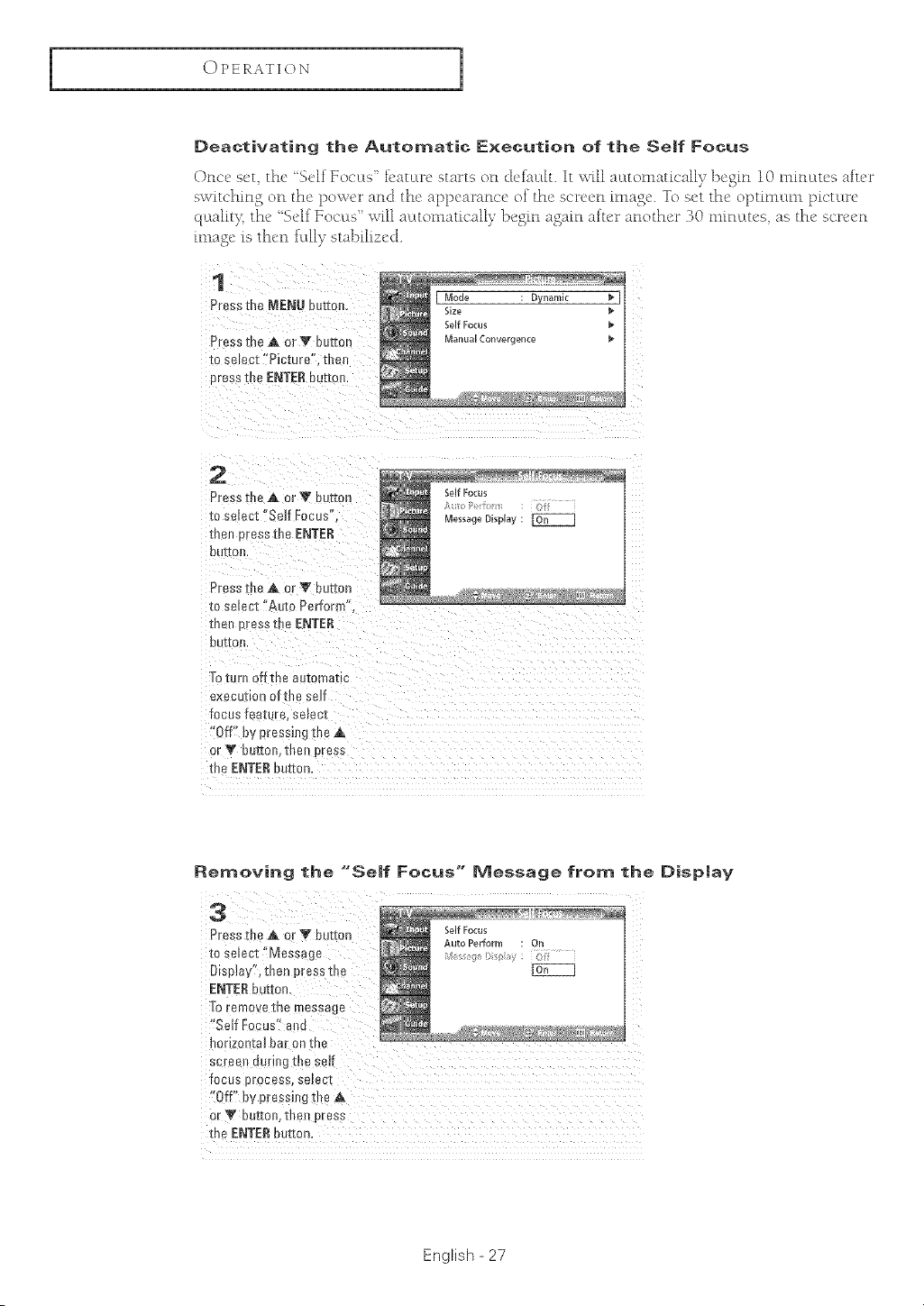
Deactivating the Automatic Execution of the Self Focus
Once set the 'Self Focus' i_ature starts on detauh. It 'ndll automaticall)_ begin 10 minutes after
switching on the power and the appearance of the screen image. To set the optinlunl picture
qcLalit)t the' "Self YOCL:LS"will automatically begin again after another 30 mfncLu's as the sere'on
image is then fldlT stabilized.
1
Press the MENU button,
Press me A or V buttut
zo se ect "Picture". the
3ress tbe ENTEII eu[toJ
Mode Oynam,c _ I
Size
Self Focus
Manual Convergence
2
Press rise A or V button
_o select "Self Focus"
men oress file ENTER
DL [to]
Press the A or _F bu[[0n
_o select "Auto Perform"
m£ eresstne ENTER
0UF[Ot
Tott r_ 3fl me automatic
execuuo oftbe self
focus feature, select
'Off" by pressing [n_ A
)r V buttoJ the 3ross
the ENTERbutton
Removing the "Se|f Focus" Message from the Disp|ay
Press the _ or T button
to select '_Message
Display?, then P[eSsthe
ENTERbutton,
To tem0ve the message
'fSeif Feeus'_and
':Off:' by pressh_gt!_e_
Or_' button, the_ p[ess
theENTER button.
English - 27
OPERATION
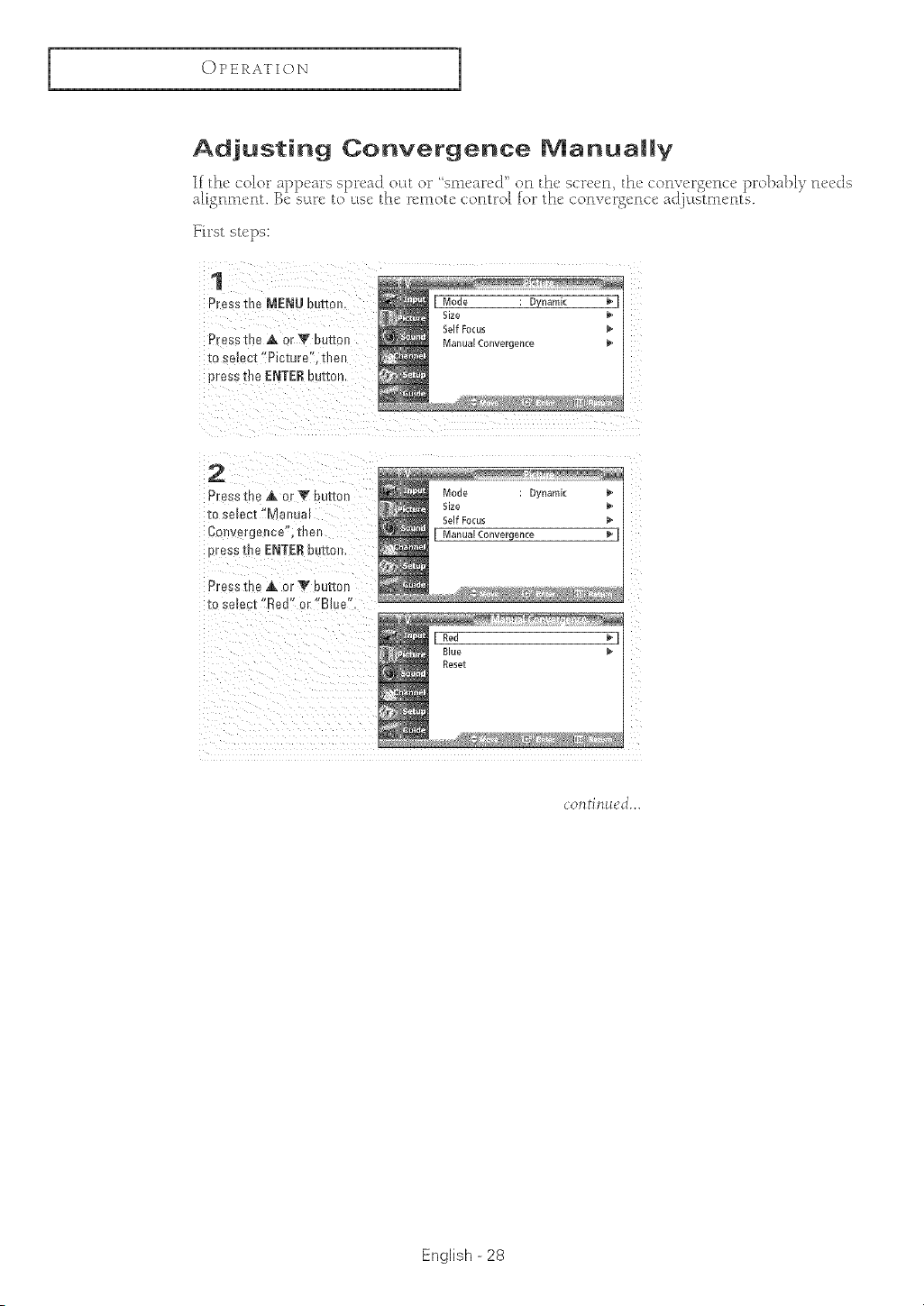
Adjusting Convergence Manua||y
If the color ap[x'_lrs spread ol[t or "sm_'_lred o_l the scrcc_l, the com-_'rgc_lc_' prolxlbly Fl_'cJs
ahgnm_'nt. Be suu_eto use the remotc c:ont_ol for the convergence a_]. Ltstmctlts.
Fil"st steps:
1
°"ess the MEN[J ou-/_or
Press the ,A or T buttoJ
to select"Picture' u_er
,Jressthe ENTERbutton
2
Press the ,& or V button Mode : Dynamk
iBze
1oselect "Malsua[ seltFocus
Gee ergeece', t]_e[ [ Manual Converqence
oress the ENTERbuttor
Press LheA or V button
[o sele( t "Red" or "B]L e
/
t Mll ti/1 _l _ d'...
English - 28
I
OPERATION
1
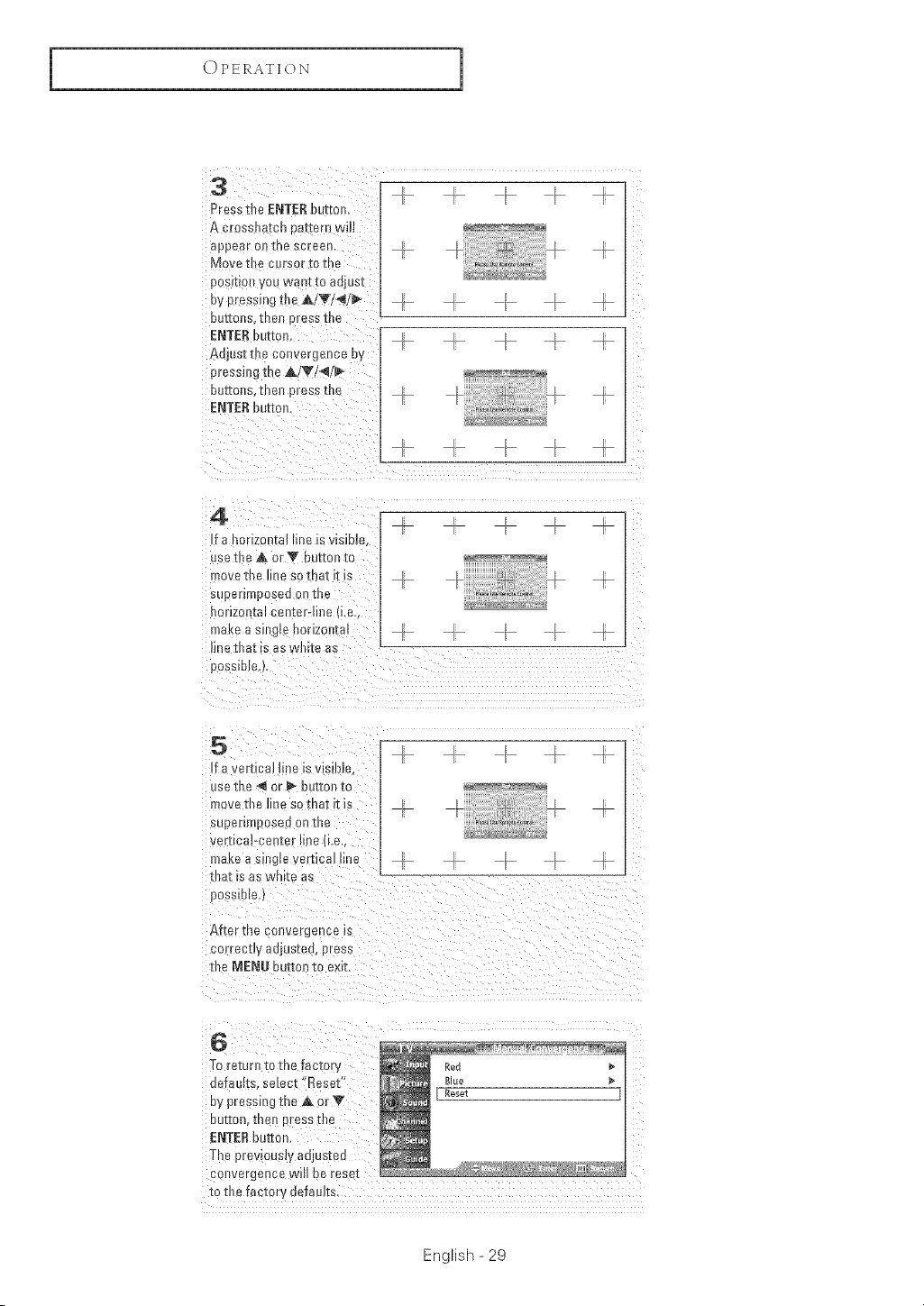
3
Press the ENTER b leon,
A cross a[cn ea[[ern _Ji]l
_ppea o! me screen
Move tile cursor to [ne
pos_[tO_l yOU wane [o aojes[
oy pressing the A/V/</_
OU[[Ot_S -[Re cress tne
ENTER butte1
Ad esttue convergence By
pressing the A/V/</_"
OU_-EORS [neJ cress the
ENTERbuttot
4
If e. ]r12)n[a_ m_eis ws]o]o.
use the A or _' [ UTtO[It0
move tue Hne so Inar _I Is
_[ eer_moosedon the
hor[zot]teI cen[er-Hue u.e..
I])el(e e s]J gi_ [lorJzo]][h
lJnethat s eswm[e as
po5 31Die
5
f e ver[ical une is vlstl)Je
use the < or _ button to
move the line SO tReE t[ _S
suDerlRIDoseQ OR the
2eriIcai-cenier line _I.e._
make a smg_e ertical line
tn_t is as wm[e as
possible
After t te co[ivergenc_ is
correc[ly ae_us[eo, press
the MEN_J 3u[[on to exr[
G
Tc re[urn to me Tac[ory
ueraults select "Reset"
Bypressing the _&or V
our[on, me! Dress rue
ENTER button.
The prewously aa_us[ee
co!lvergc tce will be reset
to the facto_ defaults,
English - 29
OPERATION
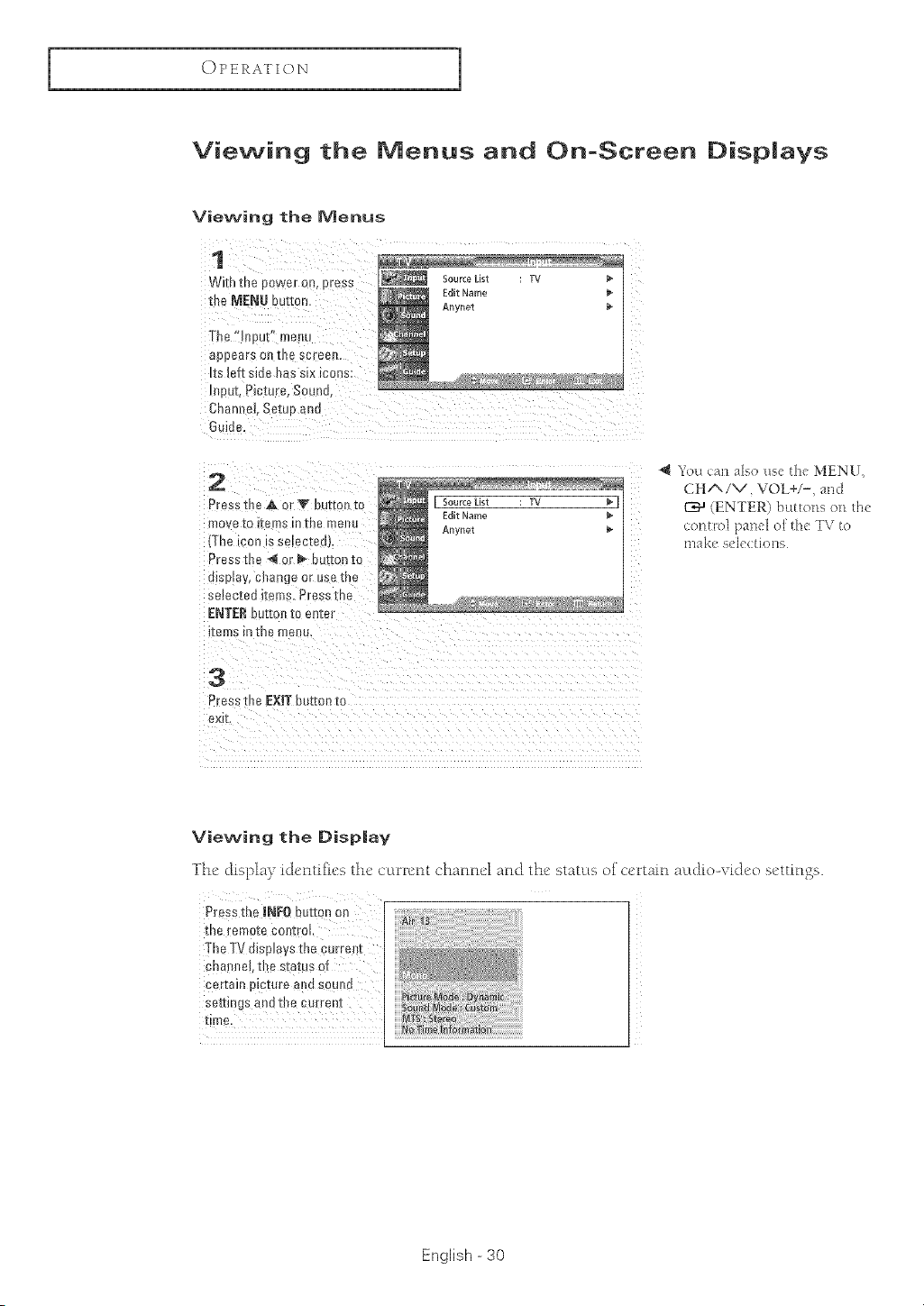
Viewing the Menus and On-Screen Displays
Viewing the Menus
1
With tbe Bower o t. Bress
ule MENU button
The 'lE_but" menu
appears o]_ tJ_e scree_l.
_ESraft side has s_x mobs:
mE ut, Picture. Sounu
Chain el. Setu_ ano
GIide,
Edit Name
Anynet
2
Press the A or I¥ bUEmn[o
mO fe TO _1:eT}S In 1:Be menu
The icon is sebctea
Press tb _ 4 or _ butEonto
disEmy,change or use me
se_ecEeoiEens, Press I _e
ENTERbutton to en[el
IEefflS dllne file
3
Press the EXITbU[Eonto
exit.
4 You can also use the MENU,
CHA/V VOL+/-, and
_'J (ENTER) buttons orl the
comt>l panel o[ the TV to
make sdections
Viewing the Disp|ay
The display identifies the cutrn:nt channel and the status of certain actdio-vkJeo settings.
Press the INFO button on [
the remote Coj_troL [
The TV displays the current
chanBe],tbe status of
certain PiCture a!_ds(
settings andtbe current
time ...............................................................................
English -30
I
OPERATION
1
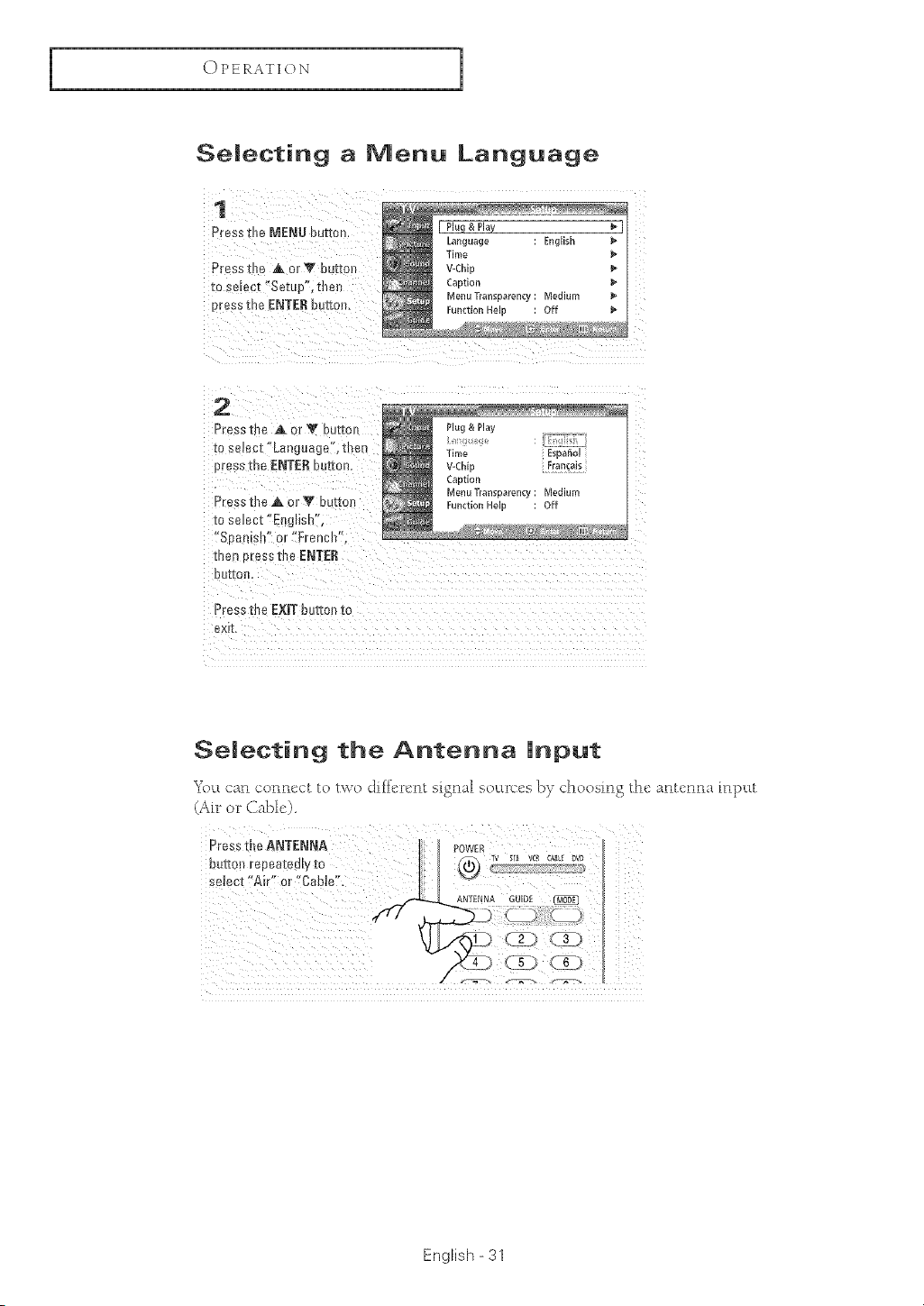
Selecting a Menu Language
1
Press fl_e MENU butrc F_
Presst_e _& _rY butto_
[o select "Setup", thel_
Dressthe ENTE£ eurtor
2
Press the A or T butto_
[o select "Language", then
press the ENTERbutton.
D.ess the A or Y butter
to select "E_L(lish".
'Sea _lsn 01""French"
_[neNoress Lhe ENTER
UUZIC
Press the EXIT butto_lto
exit.
select "A[r" or "CaHe!'.
ANTENNA GUID[
English = 31
OPERATION
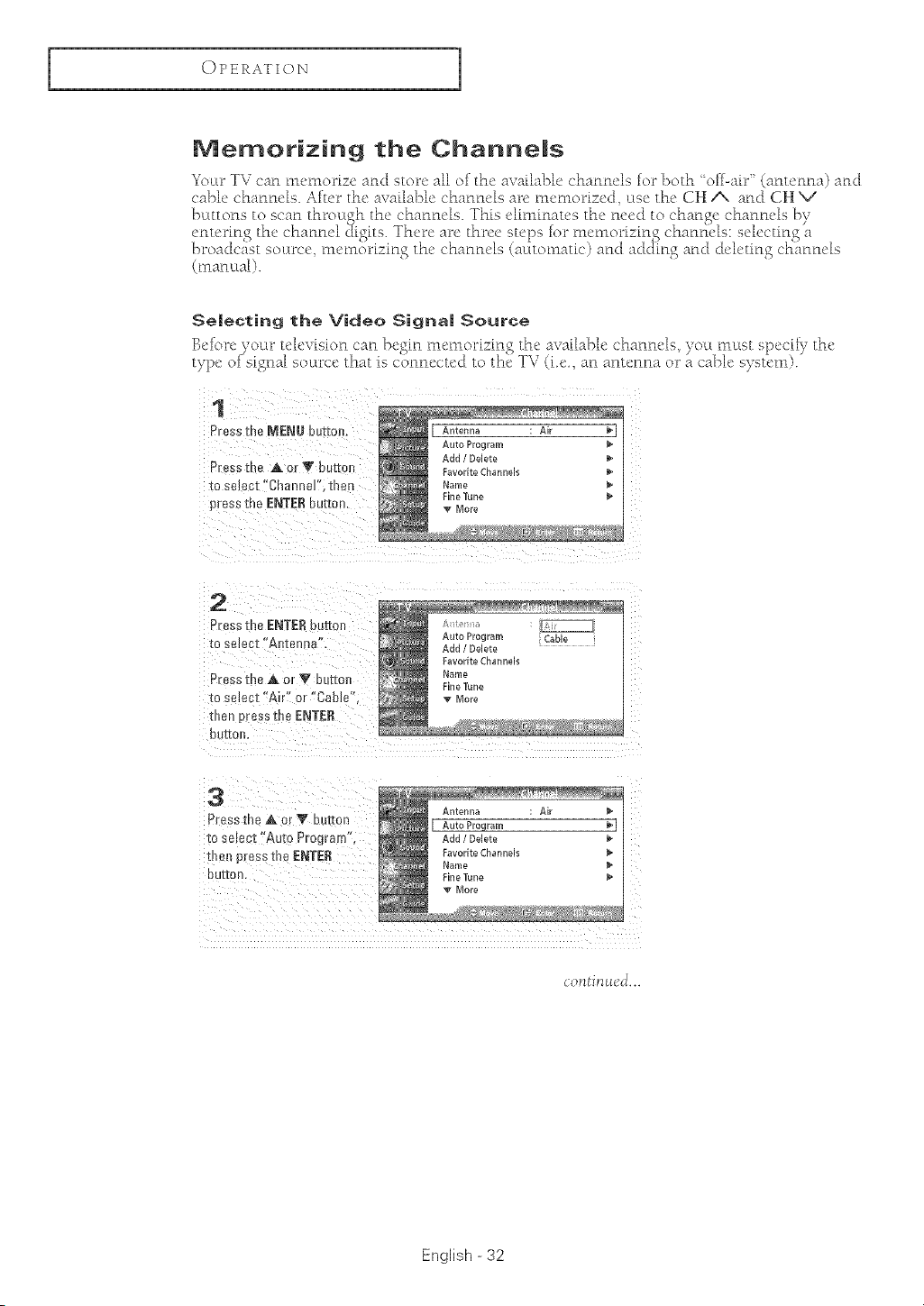
Memorizing the ChanneJs
Yoctr TV carl m<unorize arid store all of the available charmcls for both "off-air' (amctma) aad
cable' channels. Afu'r the available chantlels are memorized ase the CH i and CH V
(maaaal).
SeJecting the Video Signa| Source
Bcfbre roar u@visio_l ca_l })egm memorizing the' available cha_m_'ls, )OLLmust sp_'ciiy the'
type, _i_sionalo- soutrcc" that is c_nncctcd to th_c T\7 (i.c, an antenna or a cable system).
1
Press the MENUbutton.
Press the ,A or T buttoJq
to select *'Channel", then
press me ENTERbutton.
2
Pressthe ENTER3urrc
to select"Antenna .
P _ssthe A or T kU_[OF
_oselect"Air" OF"Cable"
me_ presstheENTER
DU[[O]I,
3
Pressthe,A or V bt rmn
[oso[act"Auto Program",
menpresstheENTER
DUI[OD
Antenna _ p
Auto Program
Add / Delete
Favorite Channels
Narne _*
Fine Tune
v More
English -32
I
OPERATION
1
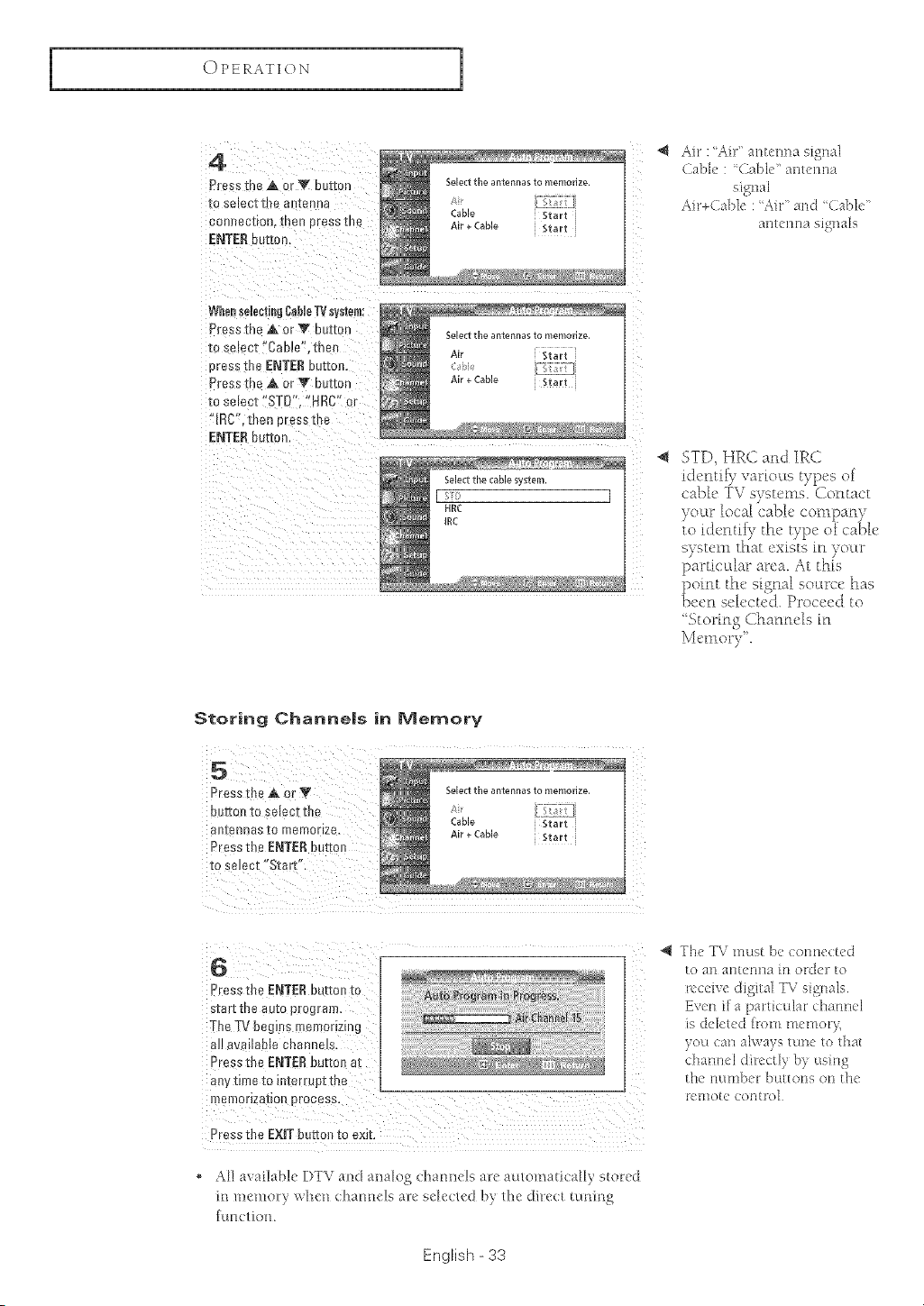
4
Pres _ me A or V button
to selecttha a _[eonn
OOnRaCIIOFL 1 leo ores _ I]]e
ENTERbutton,
WhensdentingCable_ system:
Press the ,AorV button
zoselect "CabJe'. men
oress the ENTERoutran,
Pressme _&orV button
nosmecz '*STD" "HRC" or
"[RC'.men oressu _
ENTER button
@ Air :Air" ar_tenna signal
CaN< : Cable" arlterma
signal
Air+Cabk' :'Air' and (.abld'
STD, HRC and IRC
identih variouts types of
cabl(' "J4Vsystems. Contact
yo_lr local cable company
to identii) the t) pe of cable
system that exists in yottr
partic_dar area. At thfs
point the sfgnal socu*c'(' has
been sel_'cted. Proceed to
'Storing (Channels m
]_'[e[llor) ' .
Storing Channe|s in Memory
Press the _ Or
button to select the
antennas to memorize.
Press the ENTERbutton
to seJect"Start".
Press the ENTERbutton to
start the auto program,
The TV begins memorizing
a]! availaNe ChanneJs,
Press the ENTERbuttorl at
aw time to intet[#pt the
Th( TV must be connected
to an atttenlna it1olxJer to
k'cei\'e digital TV sig_laIs
Even i[ a pantie ular channel
is deleted h'om memor>
you can always tune to that
channel directly by using
the number buttons on the
remote COr]t1o]
• AH available DYV and analog channels are aulolnaticaHy stored
in m('mor}, when channels an' seh'c/cd b} fl_c dincct tuning
func/ion.
English - 33
OPERATION
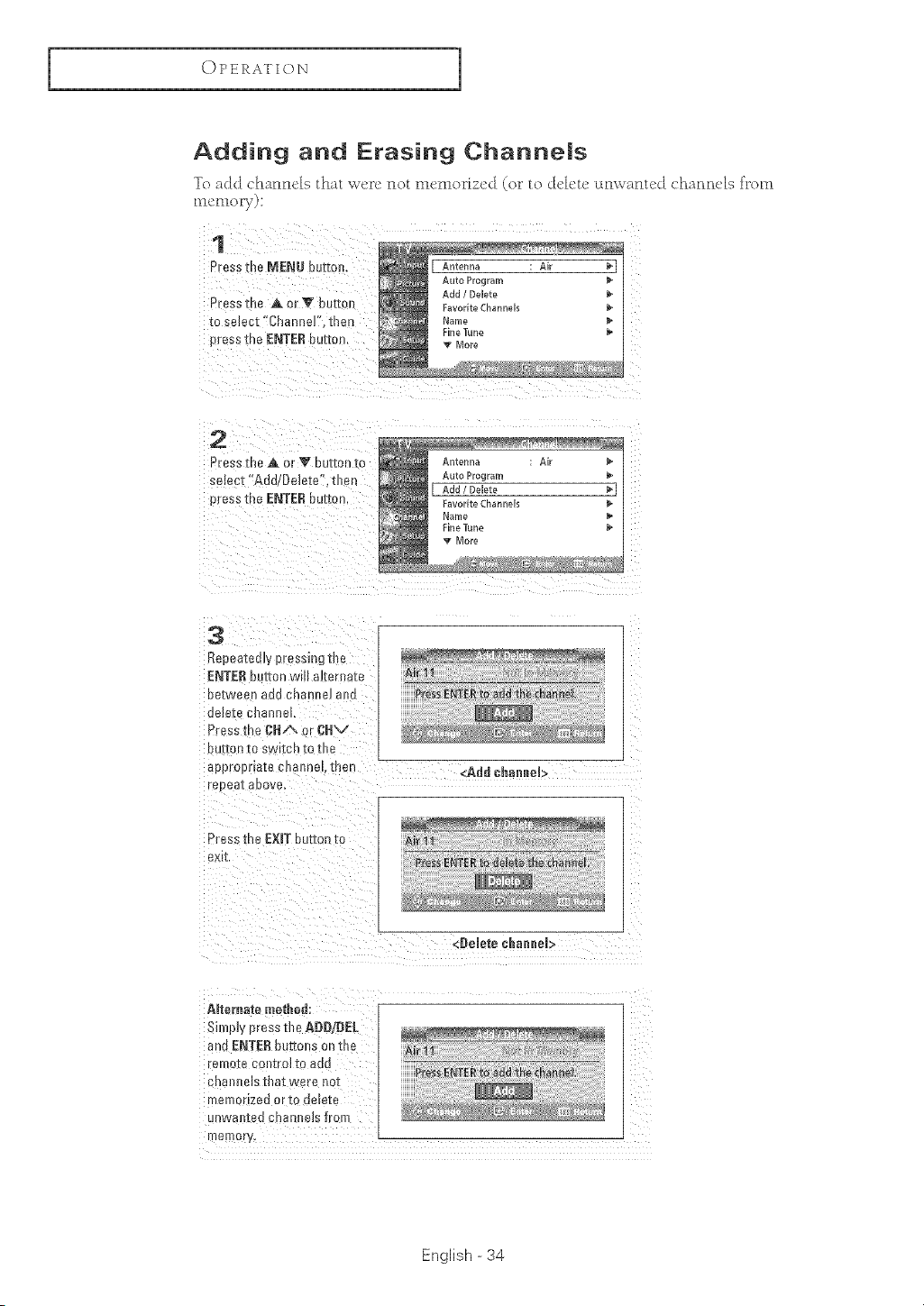
Adding and Erasing Channels
To ac:l(:t channels that _:_,'_!rcnot mcrno_izcc] (or to delete Lln_,_anted chann_4s f_rom
1
Press [he MENU button.
U_sst_]e AorV button
[o smect "Channeg, men
press [ne ENTERbutte _.
2
Press rhea or V button to
select"Add/Oelete '_then
p essthe ENTERbutton.
3
Repeatedly pressing the
ENTER eufton wIH a{ternate
oe[ween ad_J crlenRe] and
[le_eI8 C_lanneL
Press tne RHA or CHV
DU[IOB _O SWl[Cr! [O []le
approprlaze enanne then
repeal _oove,
_A_Jd channeJ>
Press the EXIT button to
ex [
<Demetechaaaem>
ABternate method:
Simply press the ADD/DEL
ant ENTERbuttons onthe
remote contro_[o aad
cRallll _lSthat w_-reno[
merf 3r_zea orTo ee_e-[e
..... aRiee channels 1torn
memo[
English - 34
I
OPERATION
1
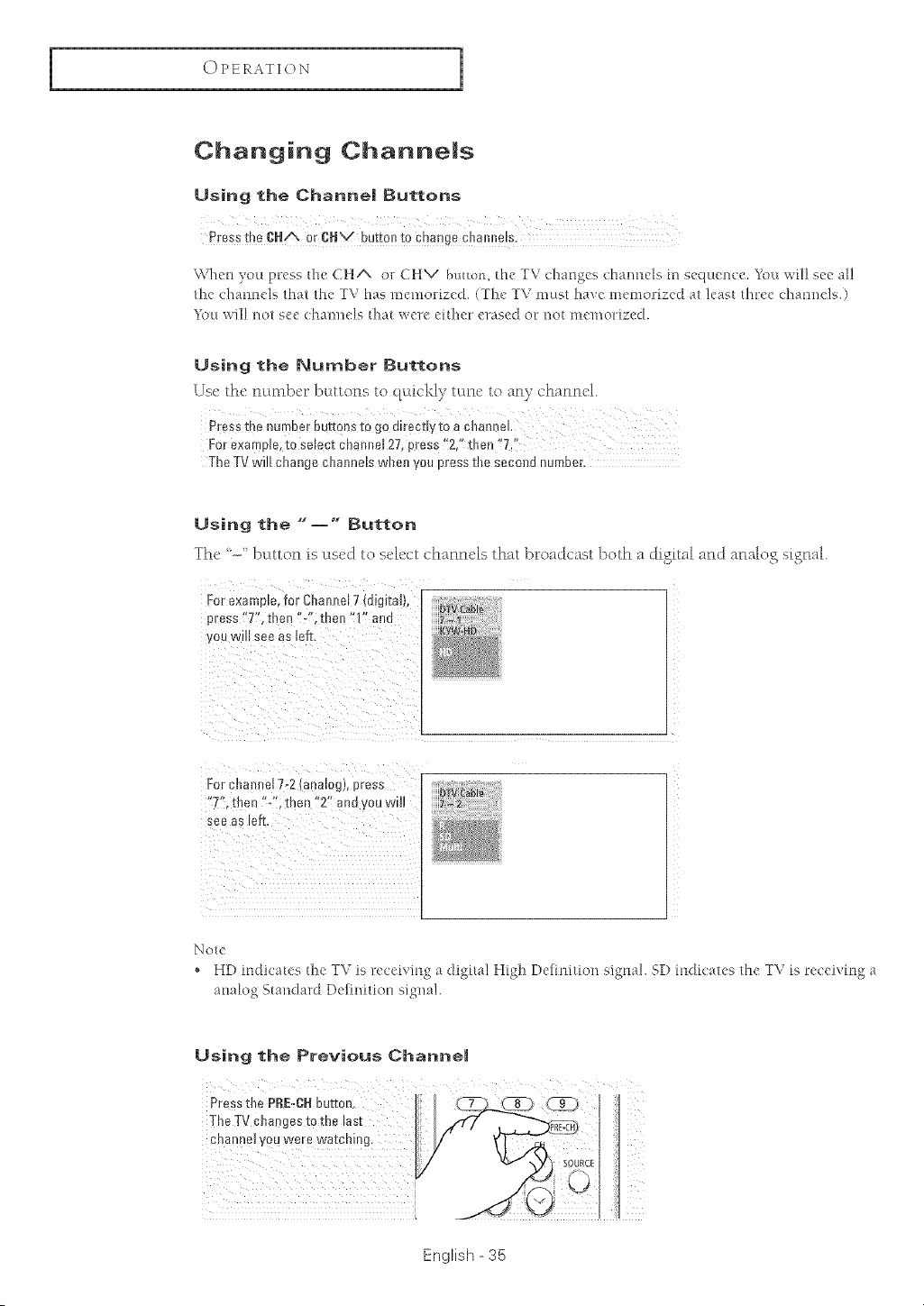
Changing Channems
Using the Channe| Buttons
Presstb e EllA or CHV buttorlto change cha_l_lels.
\;_ he_ )o_l pt:eas [he CHA ot: CHV buito_, _he Tg cha_ges chall_ds hi sequence. -Yot_will see aH
_he (ha_a_els 1hal the TV has ii_e_orized. (The YV inust ha_'e inemolized a/ kast _ht:ee d_atatlds.
Y,al wil_ no1 see chanllds _hat wele either: elasd or: no_ _elnot:izecl.
Using the Number Buttons
Use the: nuLntber buttons to c[ulickly t_Lne to any channel
Press the number butt0ns _o go diractlyto a channel.
For example, to Select Chamle! 27, pleas '!2if t!_an 2"i
The TV will change channels wl_en you press the second number.
Using the " i "[ Button
The -" lxLtton is uLsectto select channels that broic_st l_oth a digii and analog signal.
For examale,for Charusel7 alg_[aJ_
0ress "7", then "-", tne_ "I" an_"
yet will see as left,
For chain417-2 analog_,Dress
T', tr ?n "-", then "2" and you wH_
sea as leT[.
No[e
HD i_cii(:ates _he T-V is rec:ei_ it_g _ C[ig[t_l HigJ_ E)e[it_itio!_ sigt_a!. SD it_di(:a/es _he TV is _e(eivi_g a
at_alog Stal_€lald Defil_iIiot_ sigl_a!.
Using the Previous Channel
Press the P}{E,CHbutton.
TheTVcl_a_ges t0 the last
English - 35
OPERATION
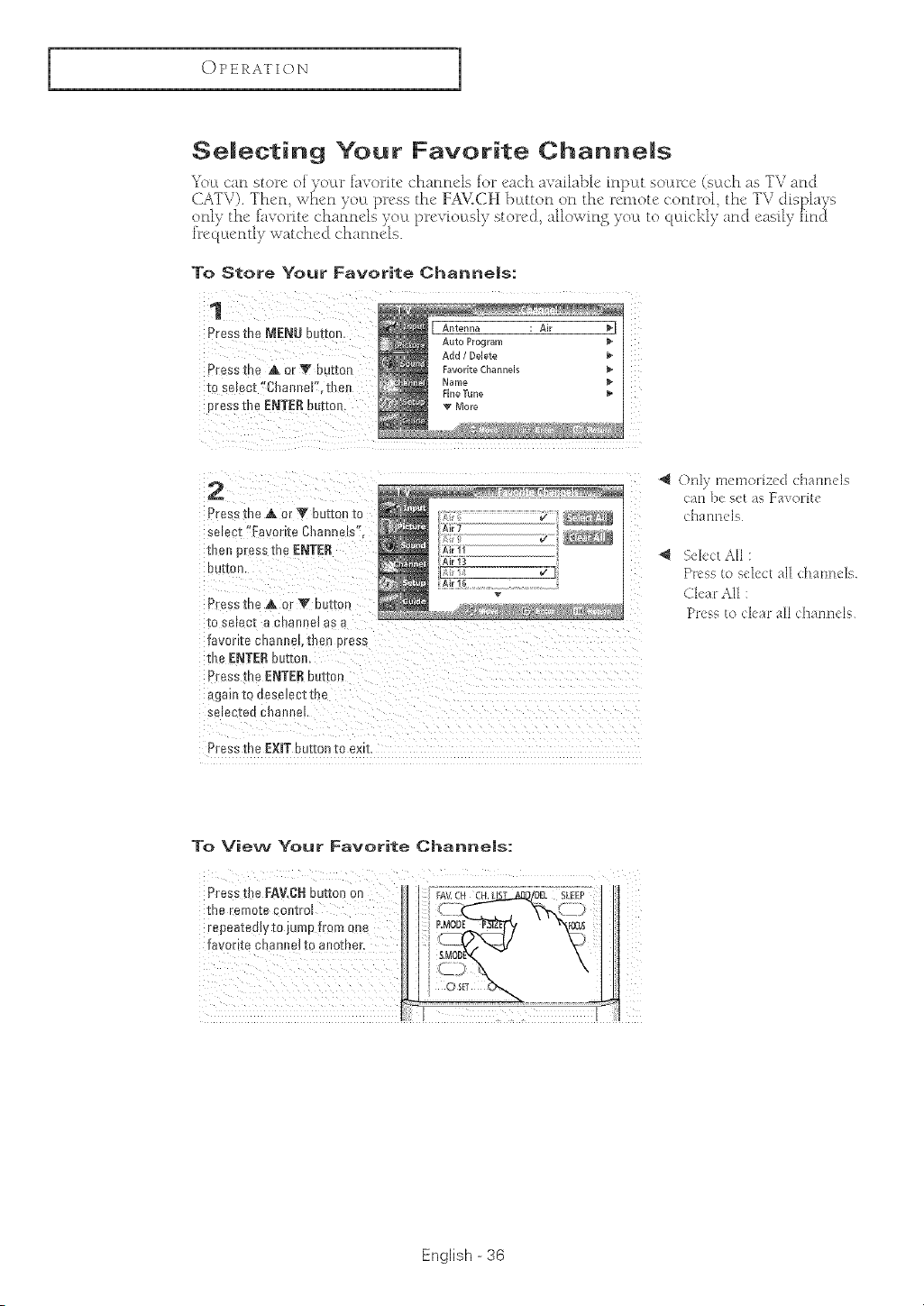
Se|ectintj Your Favorite Channels
To Store Your Favorite Channels:
1
Press the NENU 0_r_on
Pressme A or T button
[o select "ChanneF. me
c"essthe ENTERbutt0r
2
Press the A or _' button to
selecz "Favorite Channels".
[neJ pressthe ENTER
DUEOl3
Press the A or V buttor
[0 selec_ a criatHle_ as
lavon[e cna_ neL[nen press
me ENTER button,
Press the ENTER button
again (o c_eseJec[ me
selecl:eci 3HatHle
Press the EXITbutton to exit.
41 (:)HI)n_en_odzecl ch;mnels
(x_t]})e set as Favolite
c]] a t] rl (_{ s
41 Select All :
Press to select all dl:mnele
Ck'ar All :
Press to cleal all ch_mtMs
To View Your Favorite Cbanne|s:
English - 36
I
OPERATION
1
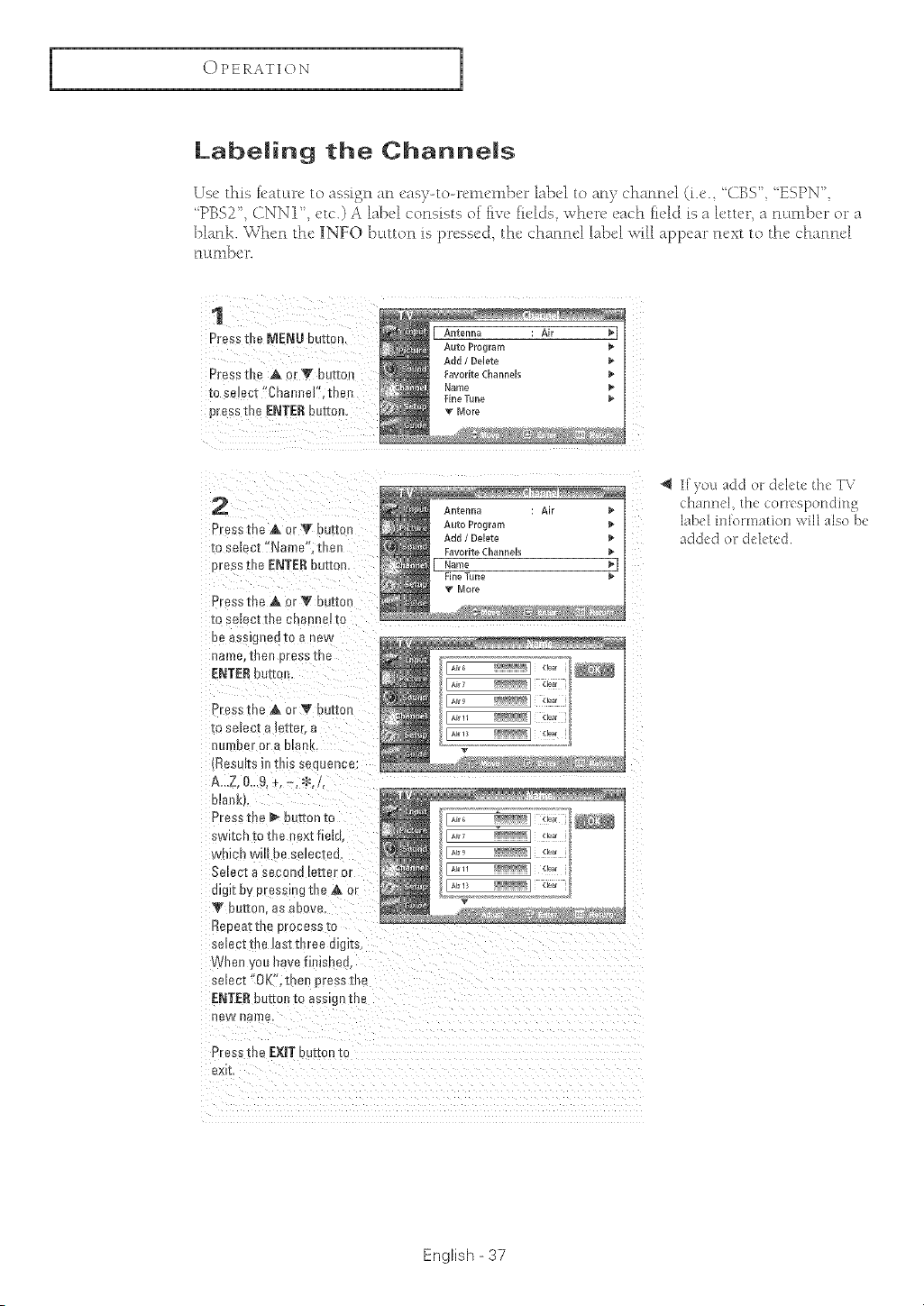
Labeming the Channems
Use this ie';lu:we to ;_ssisn ;_n easv-to-remem})er l;_bel to ;_nv ch;lnnel (i.e. 'CBS '_ 'ESPN '_
"PBS2', CNNI', e,tc.) A l;,t)e'l consists of five' fields whe're" e'ac'h fie'ld is a letter, a nuLmber or ;_
])lank. When the _NFO ])l;_tton is pressed, the channel label will appe'_r ne'xt to the' c'h_nne'[
nl;[nlbeiL
1
Press the MENU button
Pressu)e A orV button
[o select "Chaneel'.me_
press [ne ENTERburton,
2
Press me A or 'V button
[o select "Name". thor
Drossfl)e ENTERbutton
Press the A. or V button
[o select[he cnannetto
De assig_ edto a new
uame reel ,Jresszne
ENTER ourEon.
Press the Aor V button
-[oselect a tet[er, a
UU/u)er or [_ O _nK,
Results in tbis sequence:
A._Z.0...9, _,-,_./.
otamo.
Press t _e _ button to
switch to tbe next field
whic'_ wl oe selecieo.
Select a sect _u letter or
uJgJ[ oy p e.semg the .A or
V oulqEon._s above.
Repeat the process _o
se_ec-[t]e _as-tl:nreea_gJts,
When , )o bare firl}s _ea
select "OK'.theJ ,.ross Erie
ENTER butto! _o assmgl[ne
ne_ HaU!B,
E.... J ....
_ar
E.... J ....
Pressme EXiTou_onto
ek [,
I[)'ou add or deI_te the TV
Hlarmc,1, the _or_esponding
label inlormatioH will also be
added or deleted
English - 37
OPERATION
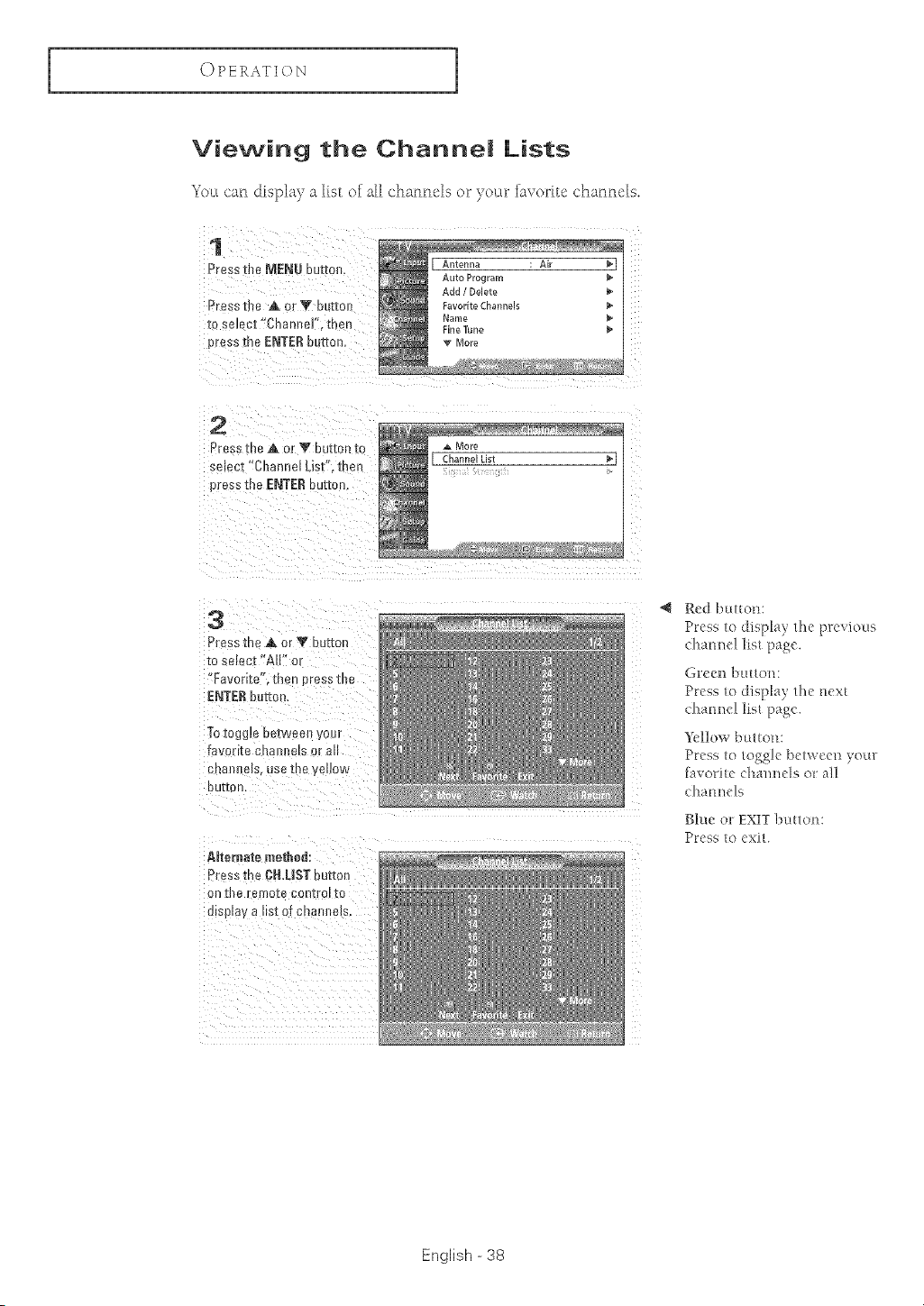
Viewing the ChanneJ Lists
You can display a list of all channels or yo_ar iavorite channels.
2
°_ess the A or V button to
semcz"Channel List". then
press the ENTERbutten.
3
Press the ,& or V button
[o select "A[F" or
"Favorite". m .'n press me
ENTERour_on,
Totoggm oe[ween your
ravor_][e eRa]_Rels 3r a
C[l_tl]le _ USe IRe yellow
DUI[O/I
AJteruate method:
Press the CH,LIST button
on II_e remote con[roll[5
u_sp_ay a HSI Of caa_Jlels,
Red button:
Press to display the previous
channel list Rag( ".
Gr_:_en button:
Press to display the next
c:hanne! lb_t page.
_%][][owb_ttton:
Press to toggle between )'o_u:
[avorile dmnnels or at!
channels
Blue or EXIT button:
Press to exit.
English -38
I
OPERATION
1
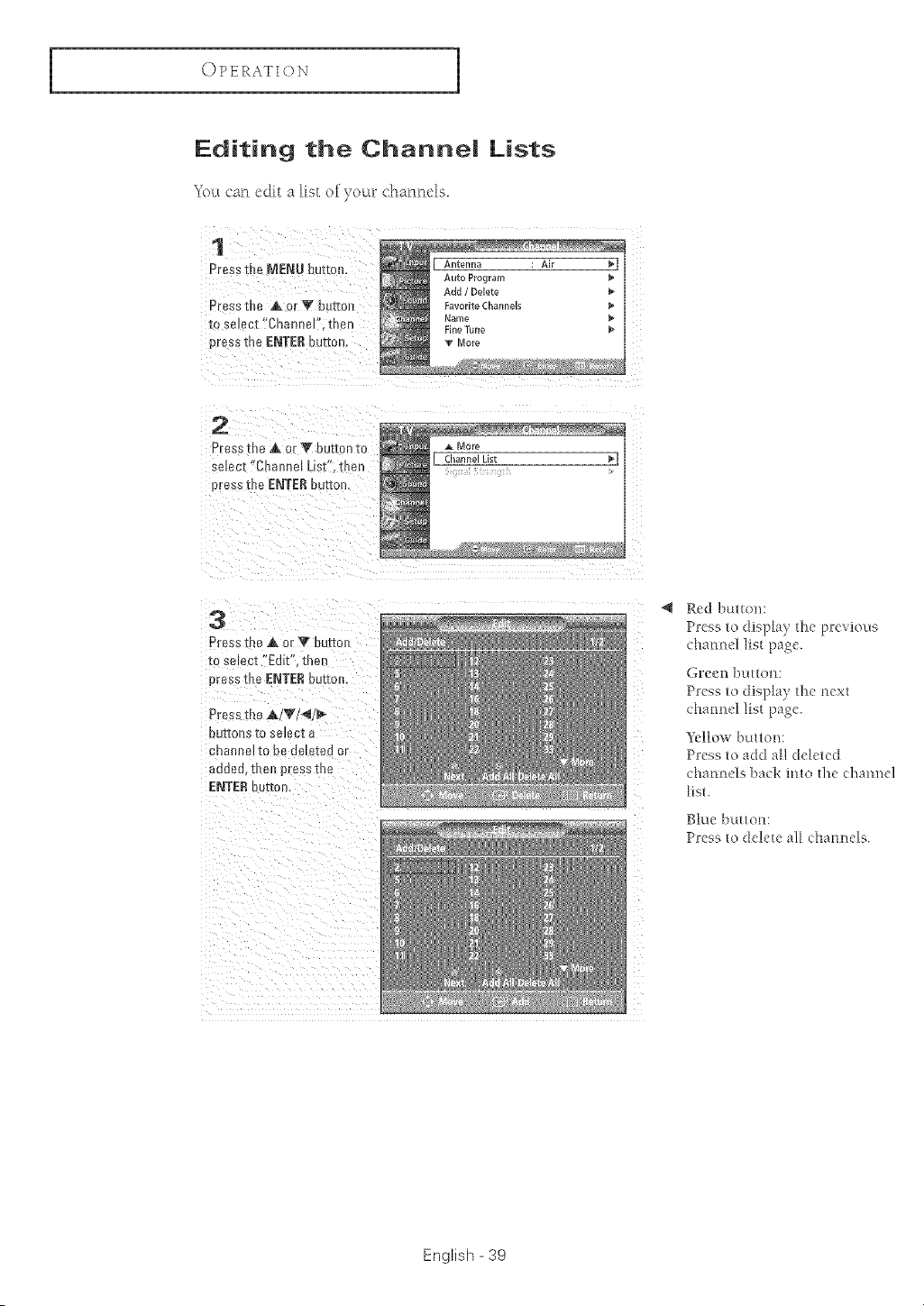
Editing the ChanneJ Lists
Yoct can edit a list of youtr chatmcls.
1
Pre.ssthe MENU eu[mrl,
D, ._SSthe A or T button
to se ect "ChanneJ'.then
pr_ss _n_ tiNTER button
2
Press _le ,A or V button to
se_ect"Chaene ust men
Dressthe ENTERbutton.
3
Press me A or V bu-tzo_
m sere st "Edit". the
oress the ENTtiReuEon.
Press the Jk/V/4/_
DUg[ORS IO select e
cna_l_le_ 1o De deleted or
added,then pressme
tiNTtiR b, [[on.
iii
Red button:
Press to display the previous
chanrlel list page.
Green button:
Press to display the next
channel lie{ page.
_:llow button:
Press to add all deleted
chanrle]s back into the charade]
list.
Blue buttot_:
Press 1odelete al_ cham_ds.
English - 39
OPERATION
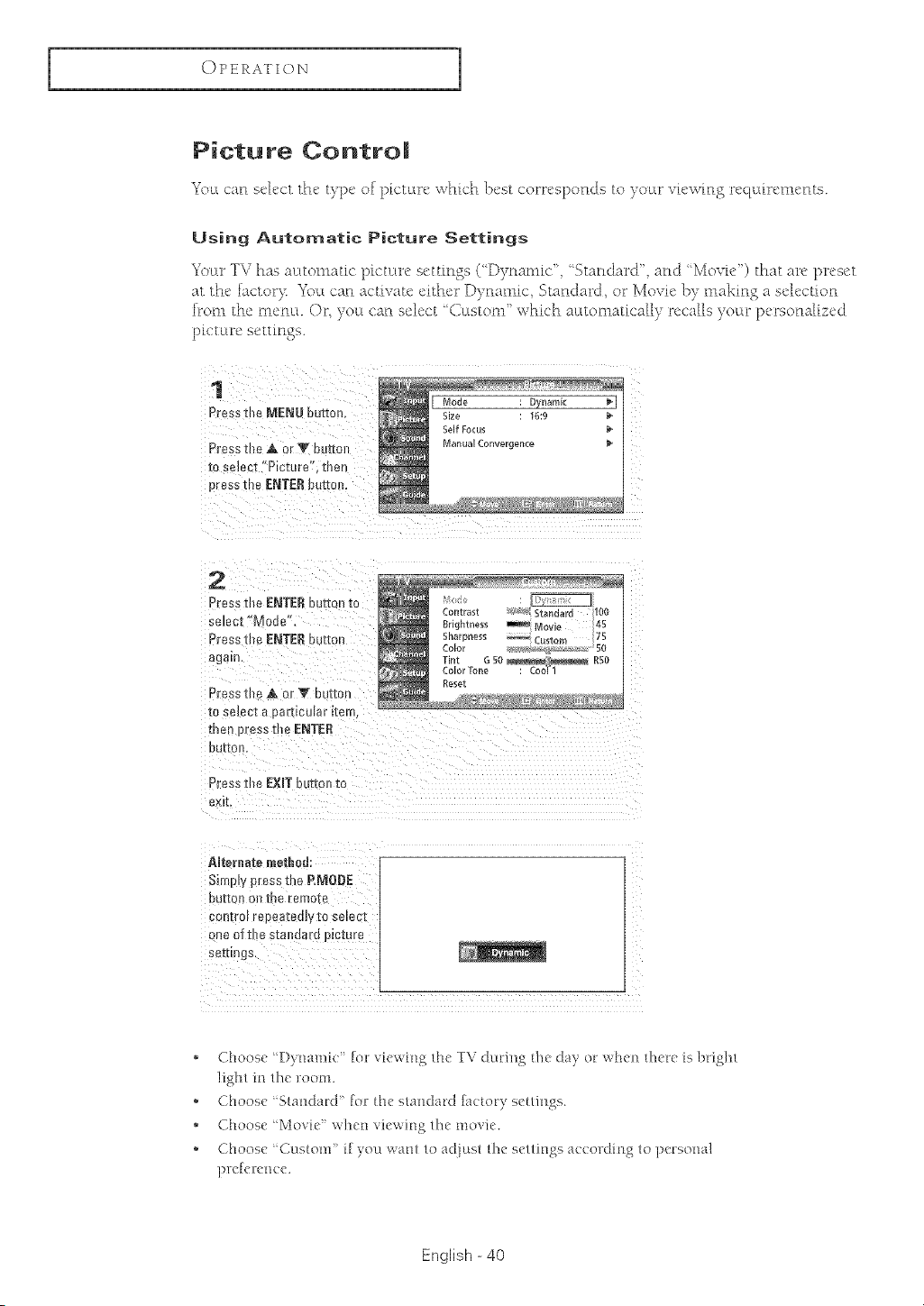
Picture Controm
7 3
_< uLc'arl select the t/pc of p[c'tuu_e whk'h best c'orrcsporlds to )oLu _vh'wm_ rcc tdrcmcrlts.
Using Automatic Picture Settings
Youtr TV has m:ttomatic picture settings ('Dynamic' Standard' and 'Movie') that arc preset
at the iactor}:. Yoct can activate either D) namic Standard, or Movie b) making a selection
h_om the mcm:L OL/ou can select _Cu_stom" which au_tornatic'ally recalls },'ouLr personalized
pfctum_ s_tttink_s.
1
Pres_me MENU DUE[OR
PresstheA or T Du_ol
m select"Picture" men
press the ENTER buttoe.
2
Press the ENTERbutto _Re
se_ec[ "MoDe"
Press the ENTERbutton
agmr
Press the A orT button
_osmec[ a ear-Dcu_arl[err
me _ Dress the ENTER
DU[[OrL
Dressthe EXIT be[_onRe
exit.
AJteraate method:
Simply press the P.MODE
DU[[O_on me remo_e
control repeatedlyto select
one m me s[ane _[e 9_cmre
ser[Inys
* Choose %)ynamic" [or viewing the TV during d_e da) or when d_ere is bright
light in the room.
* Choose Standard" fo/_he standard factory settings.
* Choose Movie" when _iewing the mosie.
* Choose Custom" if you want to adjust the settings according to personal
])re[erence.
English - 40
I
OPERATION
1
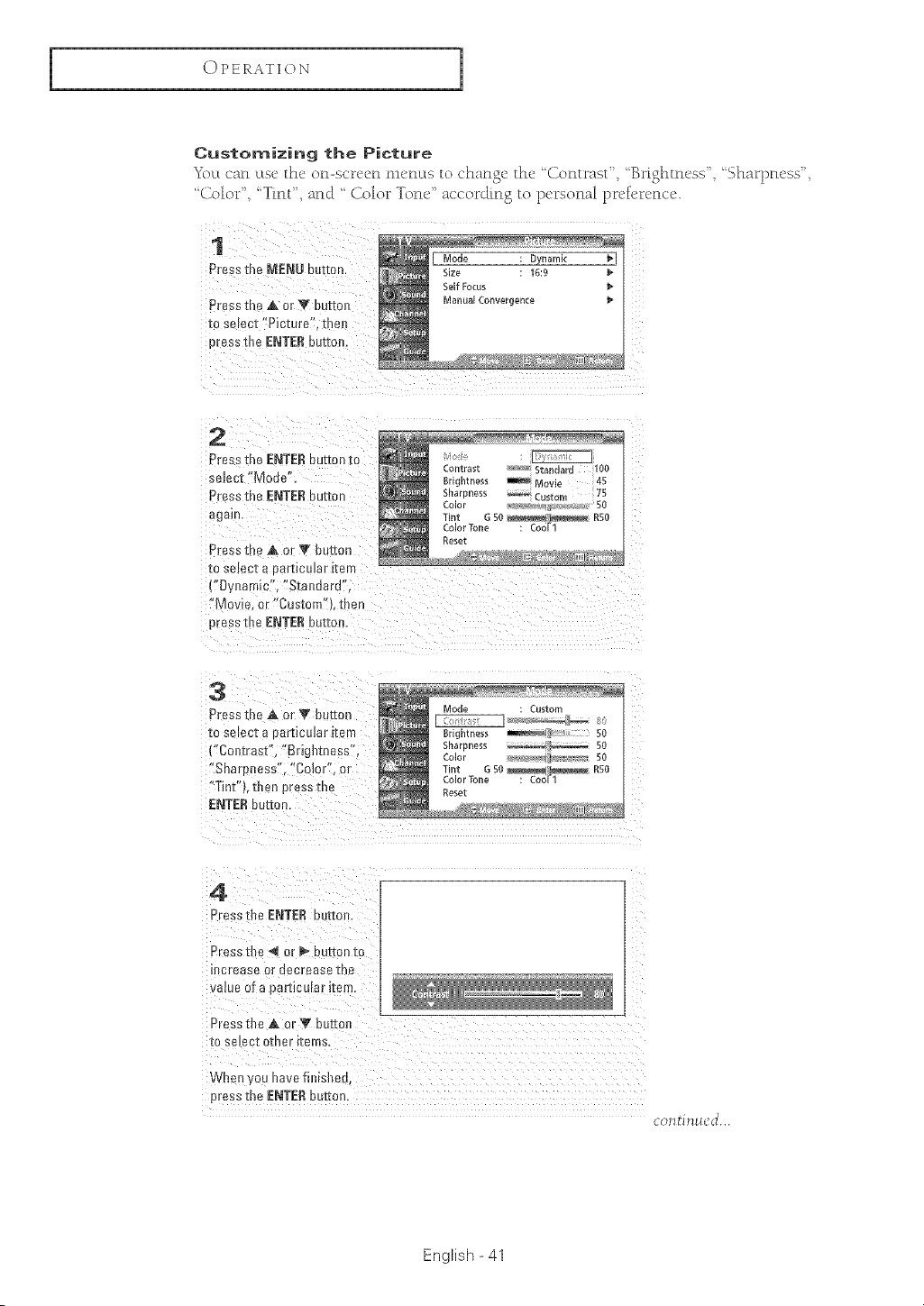
Customizing the Picture
_\_L can else' the' on-scl"ccn mcn_Ls to change the' 'Contrast' 'Brighm_'ss' 'Sharpn_'ss'
"(_olo_ _'', "Tint", and " Colo_ _Tone" according to l)_!_*sonal l)rcfm_!ncc.
1
Press the MENU button
Press me ,A or V buttoJ
Toselect '*Picture . met
)tessthe ENTERbutton.
2
Press the ENTERbutton tc
se_ec_ Moue"
Press the ENTERbutton
again
Press me A or '_ button
I0 se_ecI a oartico]ar [tePf
'*Dynamic". "Standard"
"Movie. or*'Custon .men
oress tbe ENTER out[on.
3
Press the A or T button
Toselect a oarticular [te
("Contrast" "Brightness"
Shareness' "Co!or", or
Tint"k 1:henpressme
ENTERbutton,
Mode Custom
Brlghm_ss _ 50
_harl3n_ss 50
Colo 50
Tint e 50 _ RS(
Color Tone Coo_
Reset
4
Press tbe ENTER button,
Press the _ or _ button tc
increase or oecrease [ne
vatue of a o_ltJcolar ftem.
Press tbe A or _" butter
[O SB_P.CI otner Items,
When you have fimsbea
#tess the ENTERbutton.
eMIl ti ntl( J...
English - 41
OPERATION
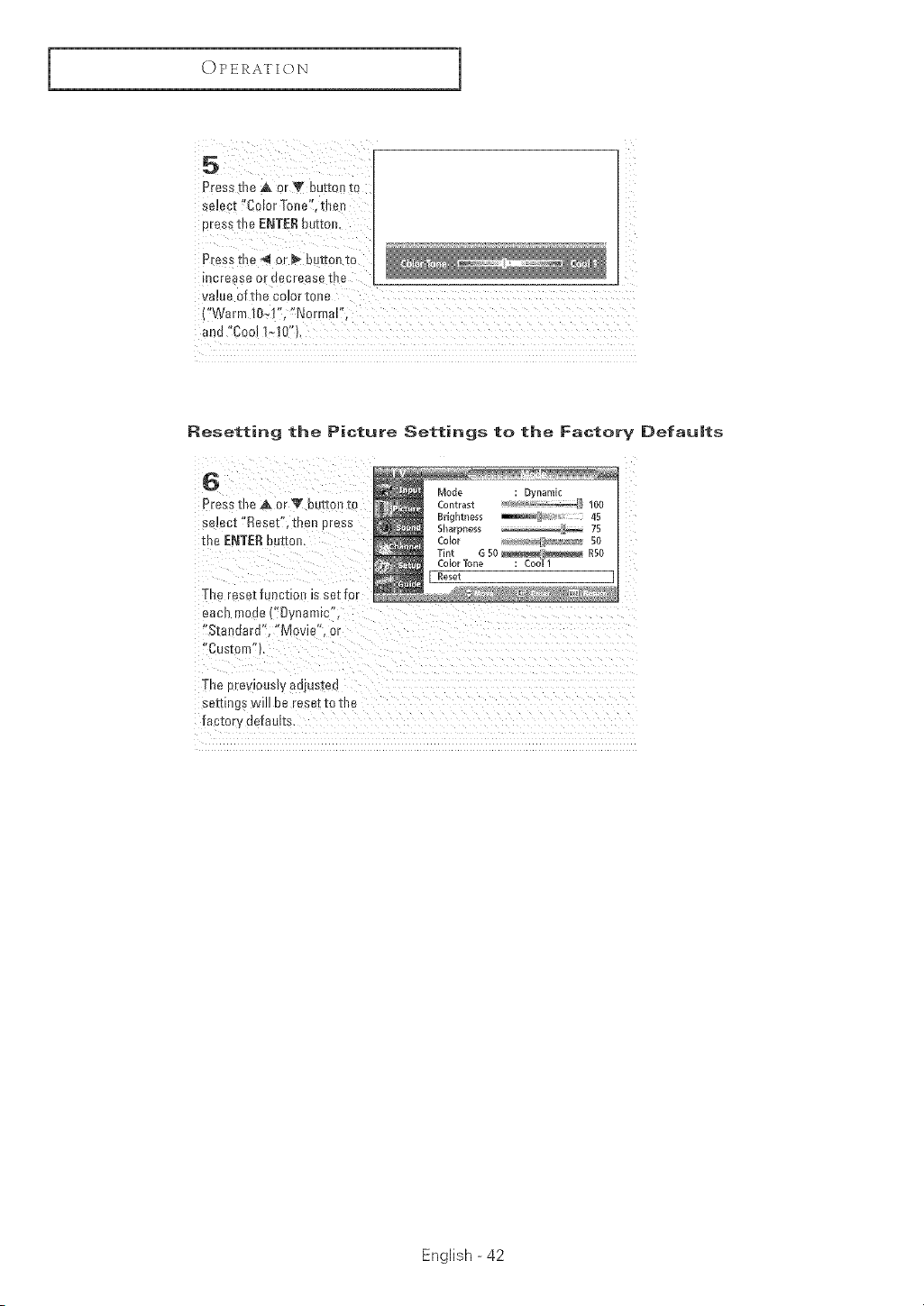
1
s_)ect _CoIer'_one!:,then
press the ENTERbuttQm
P[ess the _ or _ button to
increase or decrease the
va!ue ofthe color tone
Resetting the Picture Settings to the Factory Defaults
B
Press the A or _ button to
seJect "Reset". thou Dress
:he ENTE£ouc[on.
The reseuu lct!ot_ is se[ Iol
each mea_. "Dynamic
Sta_dard", "Movie", or
'*C stom"L
The erewous]y adjusted
set_Rgs WIll be rese_te the
Tac[ol y uefau_ts
English - 42
I
OPERATION
1
Sound Controm
Adjusting the Vo|ume
Press the rOE ÷ or VO[: buttons to increase or decrease the volume.
Using the MUTE Button
At _tn}: tim_!, yot_ (:an t_!mporarily cult off the souLnd uLsin£ the MUTE })uLtton.
1
Press the MUTE button and
the sound cuts off.
!Mute!i is displaye&
To turn mute off, press the
MUTE/)etton agairb or press
either g_e VOL= or VOL+
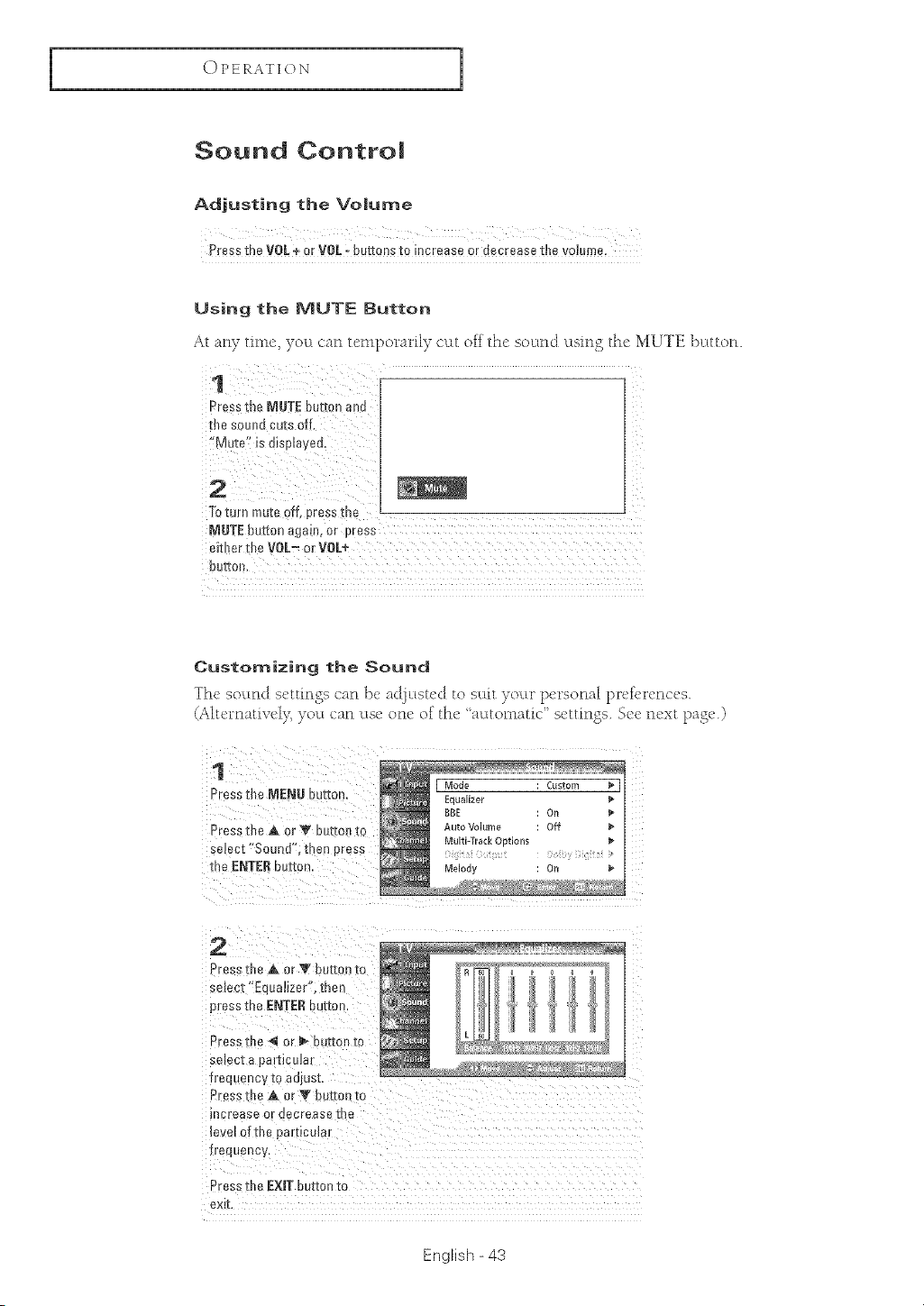
Customizing the Sound
The soLLndsettings can ]')e au[jLLsteut to sudt )oLw personal pref_'rences.
(Aitcmativci);)'ou c_n t_se one of the ' aultomatic" s_:ttinss. Scc next page.)
1
Press the MENU buttoL
Press the A or V button _o
select "Soun J". t[ en aress
me ENTERout[or
2
Pressthe A or V button _o
;e_ect"Edualizer'. then
press the INTEr Button
Press tbe "_ or _ buttoe tc
select a pamceJar
fie( uency to aq
u esstba A or V burton-to
I igrease Or eecrease [Re
level ot tbe parucmar
frequency!
Press fl e EXiT button to
English = 43
OPERATION
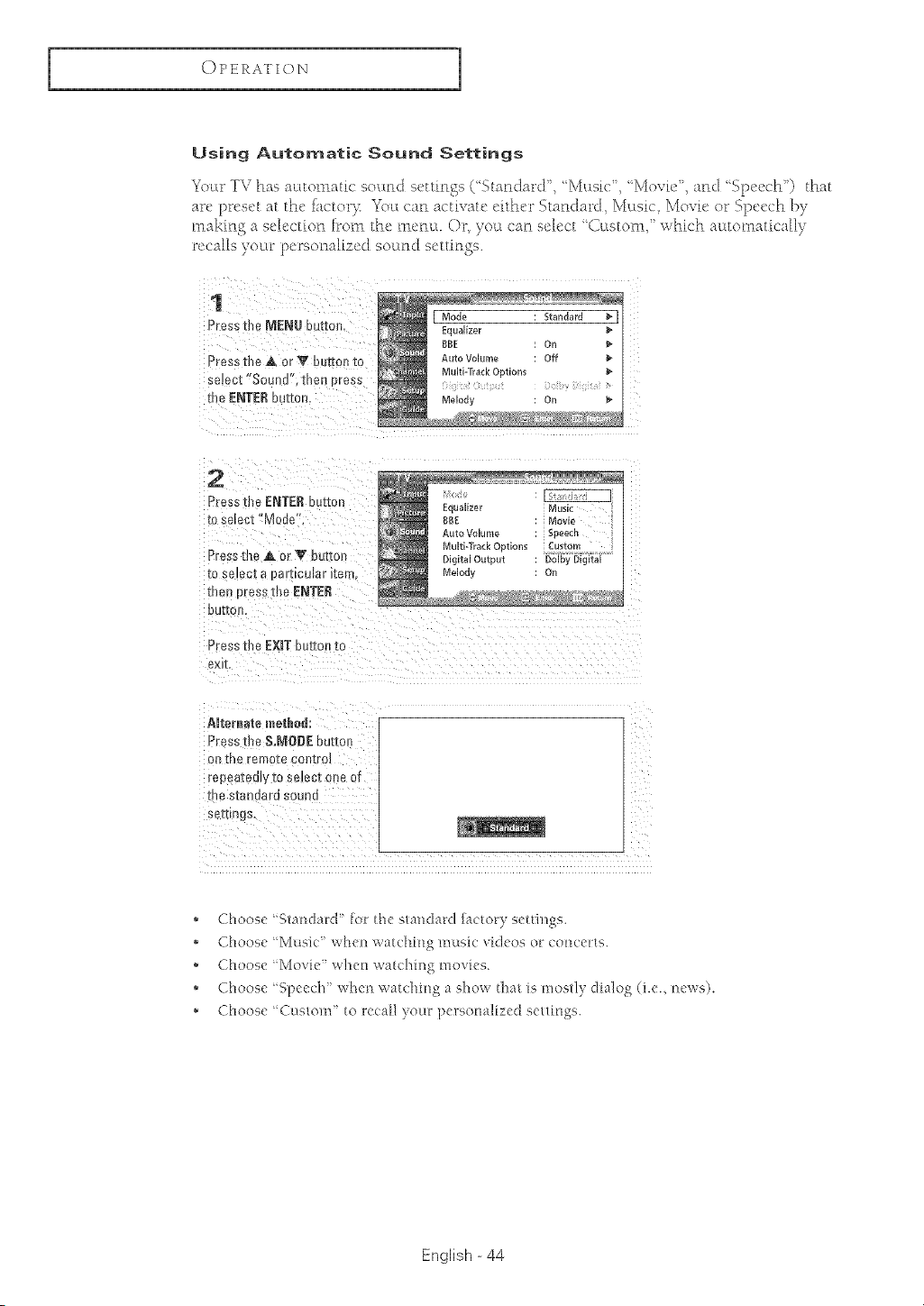
Using Automatic Sound Settings
Yocw TV has ;mtomatic socmd settings ('Standard', ' Masic', ' Movfe', and 'Speech') that
ar_' preset at the iactol3_ Yoct can activate either Standard Music Movie or Speech by
making a selection from the mona. Or }'out can select '(}ttstom," which automatically
recalls yotlr personalized sotlnd settings.
1
°_ess the MENUbutton.
Press the A or T butto_ [o
select"Sound' men dress
me ENTERbutton
[ Mod_ Standard
Eauallzer
BBE el
Auto Volume de
Multi-Track O_non_ b
Melody On
2
Press the ENTER button
[0 select "Mode .
Press the A or _ butter
re se_ec_ a Ear-ocu_ar _[em
me _dress the ENTER
OuI[or
Press the EXIT button to
exM
Alternate meth0d:
Press :he S.NOBE butte
oN [Be reMo[e CO]l]:roi
repe.a[eely 1oselect one or
rne eta derd sound
sef[inys,
* Choose _ Standard' [or the standard [actory s_'tthlgs.
'_ Choose ?vlusR: when watching musR: videos or concerts.
,_ Choose 'Movie" when watching movies.
,_ Choose Speech" when watching a show that is nlostly dialog (i.e., news).
,_ Choose Custom" _o recall your pe/eonalized settings.
English - 44
I
OPERATION
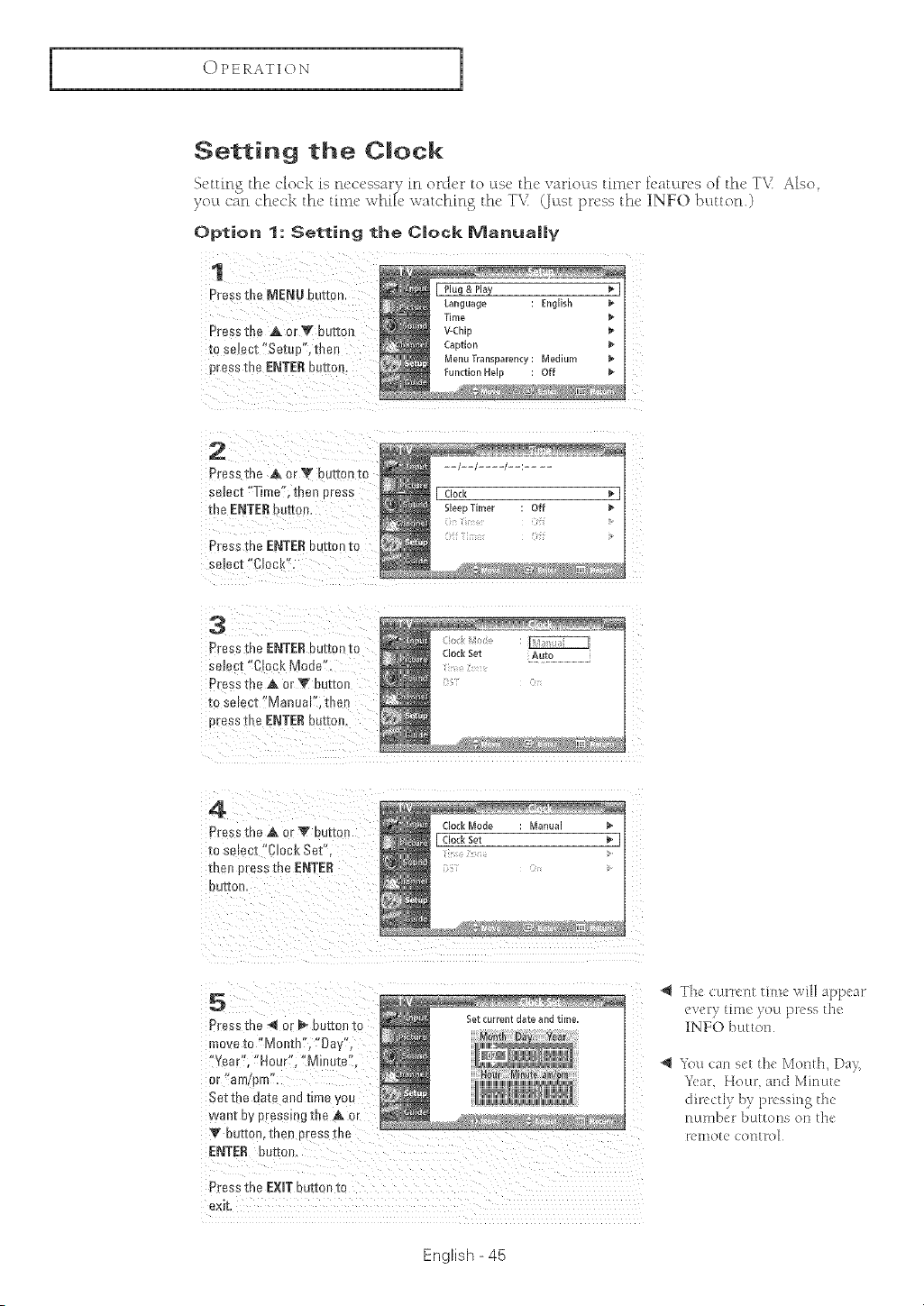
1
Press the A or V button
_o select "Set[ [ . tee_
press the ENTERbutton.
2
Press me A or '_ Du-(mnIt
select "Time". men Dress
the ENTER omzon,
Press me [NTE£ nu[[on _c
select Coek".
3
Press the ENTERbutton Ec
semct "Clock Mode",
Press me AorV button
_ose oct "Manue '2 then
Dressthe ENTERou[mn.
Clock Set Auto
4
Pres_the _&or _" button
_osere x "Clock Set'
men press the ENTER
OUI'[On
5
Pressme _ c _" buttoeto
mo_eto"MontP "Day'
'Year". "Hour". "Minute".
or arrflp [1"*,
Set the oa[e a_ t_meyou
walli E _, E essmg the A or
Y DUttOR. IReR oress[Re
ENTER Durme,
Press the EXIT button to
exit
The curr[ Ht thne will appear
ev[_l:ytime )ou pl:essthe
1NFO buttoH
You can set the Month, Da_,
Year, Hour, a['td Mh3ttte
13L{HIB(H" bilE[eEls OH []1(
[el310t (_ COH[ FOI
English - 45
OPERATION
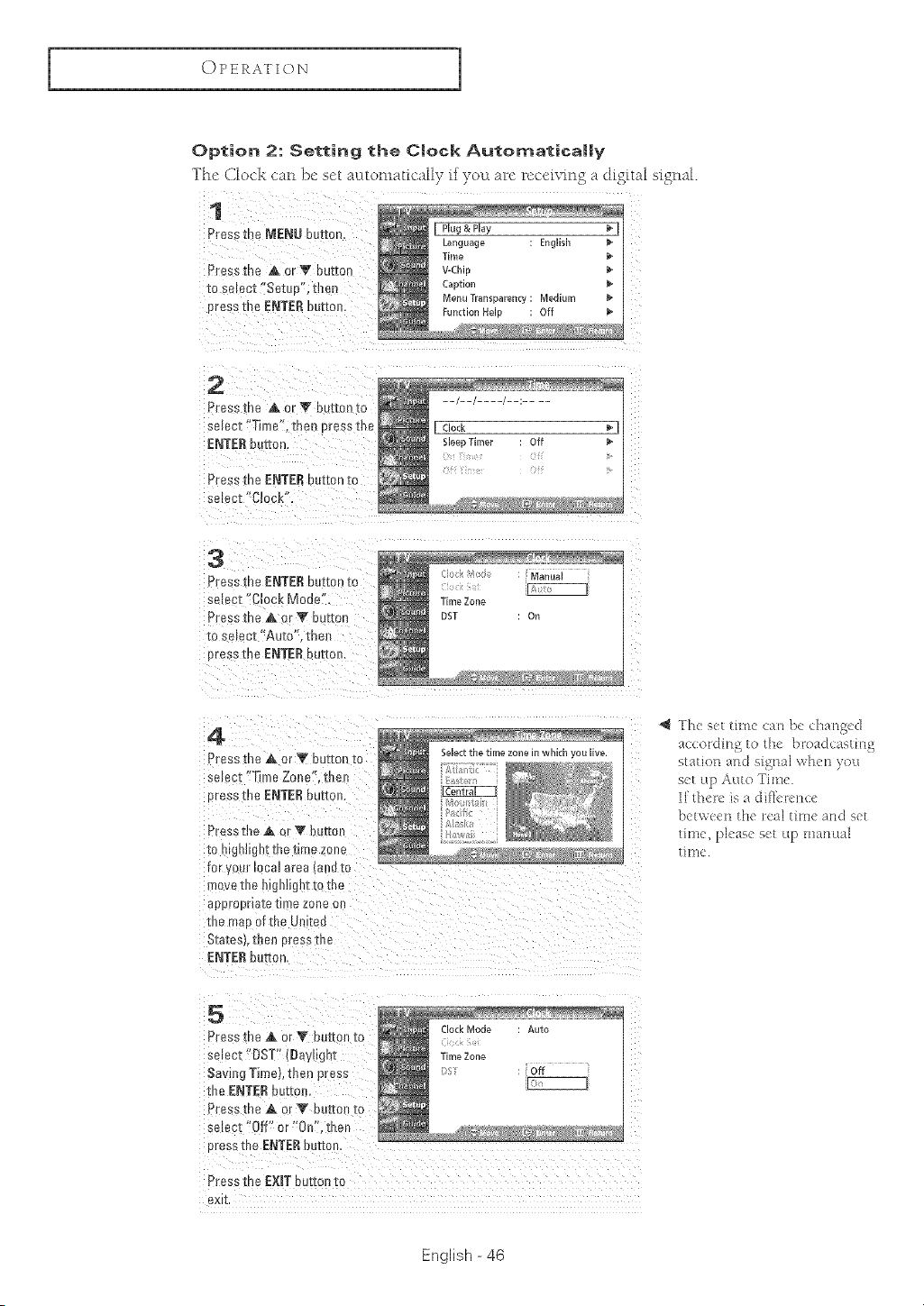
Option 2: Setting the Clock Autornatica||y
The Clock can })e set _mtomatic_ll)" if you arc rcccivin 8 a digital signal.
1
Press me MENU button. [ Plug&Play p
Language [nglBh P
Time p
Press me A or _' button v-chb
[o eelect "Setue". then Cabtlor
Menu Transparent) Mediurr
E"essthe ENTEReurtor Function Hei# Off b
2
Press me ,A or _Y button to
select "Time '. then cress me
ENTERbutton.
Press tbe ENTER 0ut[0n _o
select "Clock'
3
Press _heENTERbutton to
se_ecl"Clock Mode"
Presstna A orV button
reselect "Auto", the
oress the ENTERou-ttor
Manual
Time Zone
DST On
4
Press the A 3r V button to
serecl "Time Zone". the
oress tim ENTERbutter
Presstbe A or _I'button
[o r jn!lgov[eetm_e zone
for sour incal area anaio
moveme mgruign[ro me
appropHai:e_lmeznne on
roe mad of the LnEec
Statest, men %ass the
ENTER sure
The set time can bc changed
,qccording to the broadcasting
station and signal when you
s_t up Auto Time
I[th(k is a di[kknc(
bntwc,er_ the no'a] thlle aFld set
time, pJeas_ set Hp manual
timn
5
Press me _, or V button to
select'DST II)a, _gn[
Savl :t Tmtel.then press
the ENTER button.
Pressthe A]r Y buttm [o
se_ecl 'Off" or"On teen
uress the ENTERbuttnr
Clock Mode Auto
Time Zone
Off
,<o: ' 7D, Y¢" OH ¢4Y"!
Press the EXIT our[on [o
exlI
English - 46
I
OPERATION
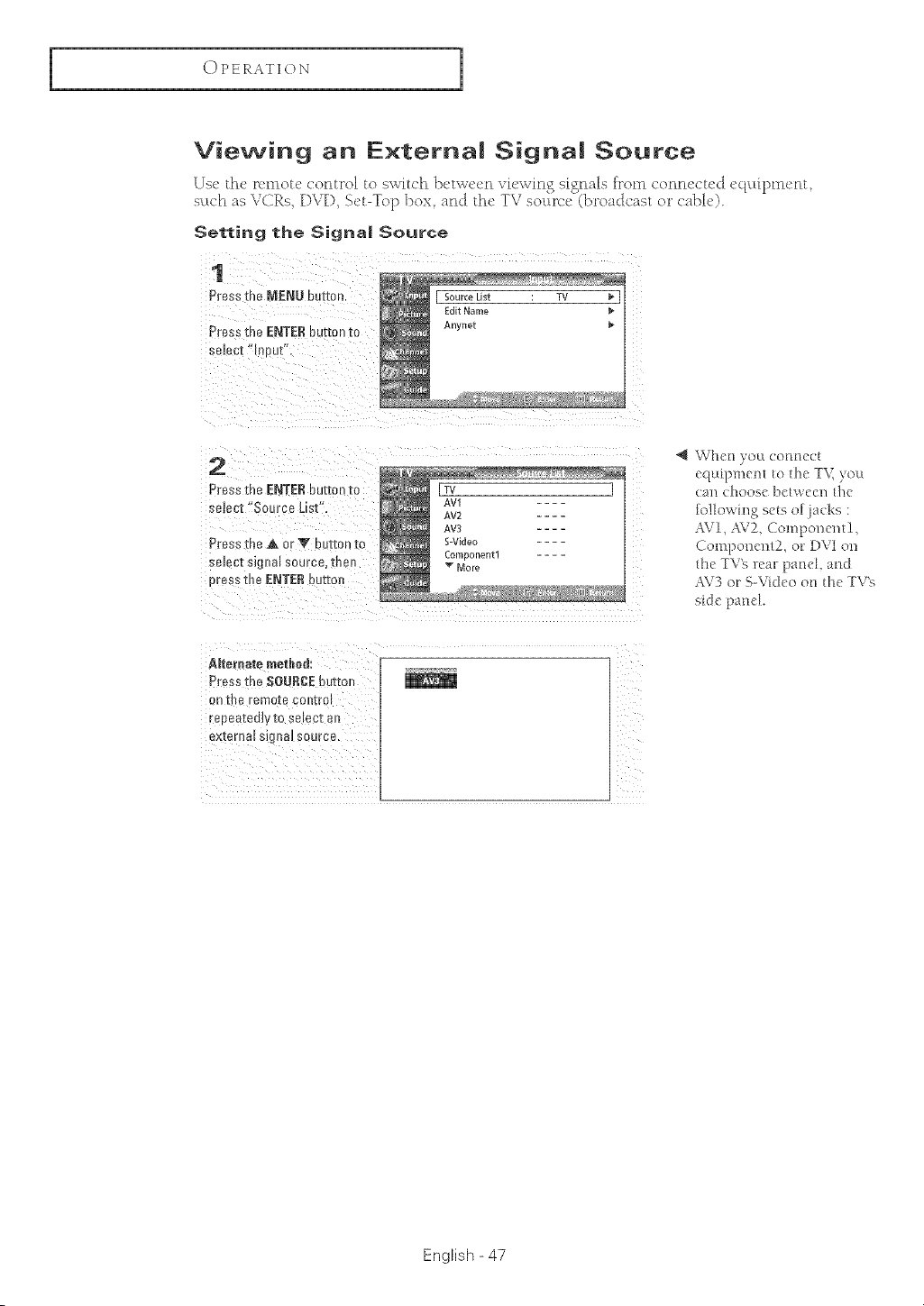
1
Press the ENTER button tc
semct "luout',
2
Press the [NTE£ button tc
semct "Source List',
Press the A c r W button to
semct signal source, the!
ores ;the ENTERbutton
When you eom_e(:t
equipmem to the T\[ you
(an choose between d_e
following sets of}aeks :
AVI, AV2, Compo_ent!,
Component2, or DVI on
_he TV'e real panel, and
AV3 or S-Video on _he TV'e
side pand.
Alternate methe&
Press me $OU£CE button
on [he remo[e con[re
reo e _tlee_y to selec[ an
external slg_lm source,
Eng%h - 47
OPERATION
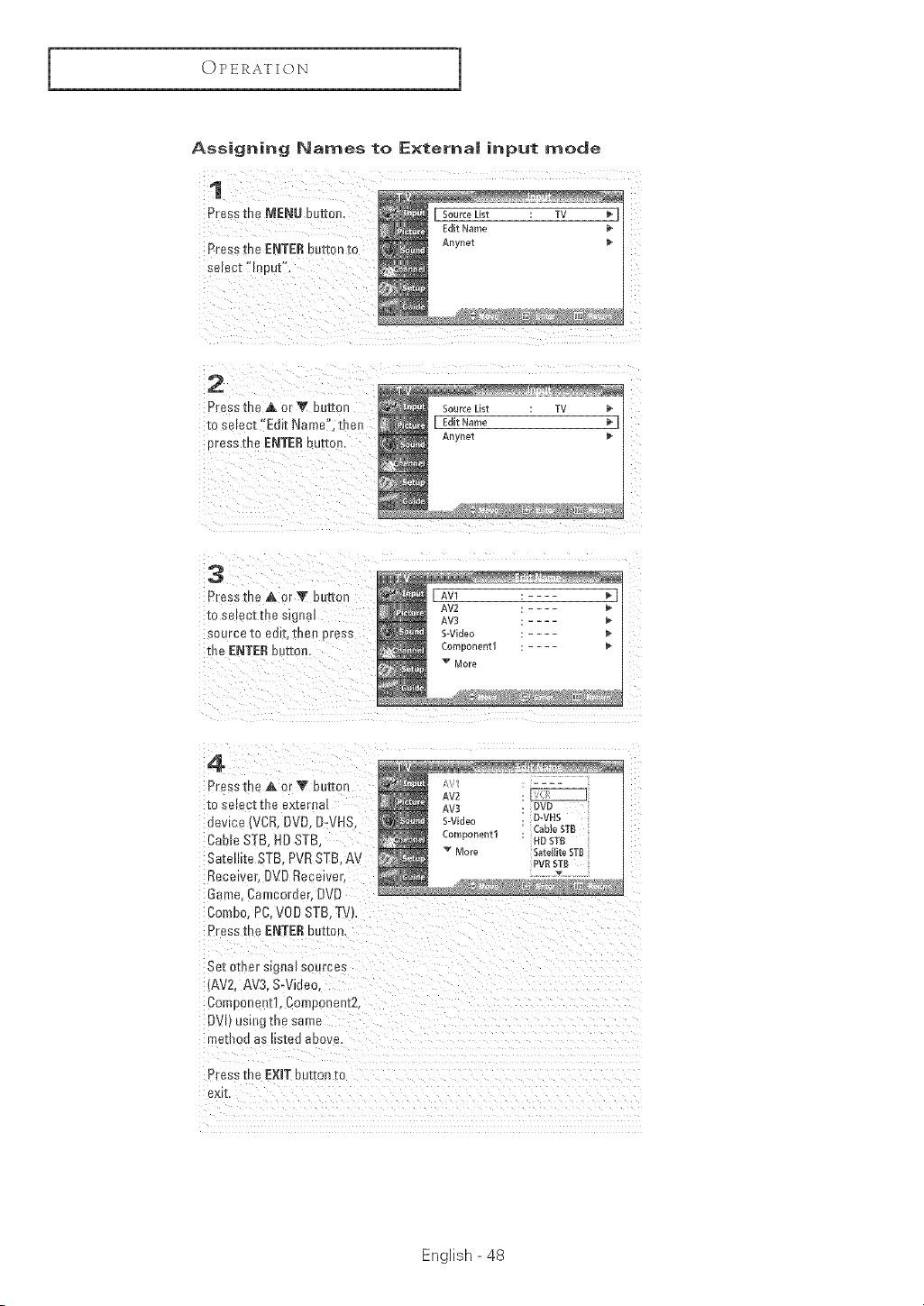
Assigning Names to External input mode
1
Press the MENU button.
Press me ENTER button to
selecz meet"
[ Sour(e List TV
Edlt Name p
Anynet
2
Press the & or V button
[o select *'Edit Name". ther
c"essthe ENTERbutt0r
3
Press the _ or _" butzon
source IO eal[. [ee 3ress
LheENTERbezzorL
4
Press me Aor_" butte 1
[O sel _C][[Re ex[BH]a
uevmce(VCR.DVO,D-VHS
Cable STB HDSTB
Satellite STE, PVRSTB. AV
Rece vet. DVD Receiver.
Game. Camcorder DVD
Combo. PC.VOD STB,%'
Press me ENTER BUttOn
Set other mgnal sources
AV2. AV3. S-Video.
Con ponentl, Component2,
DVI us gmesame
meTrou as isted aJove.
Press the EXIT Burton_o
eX_L
English - 48
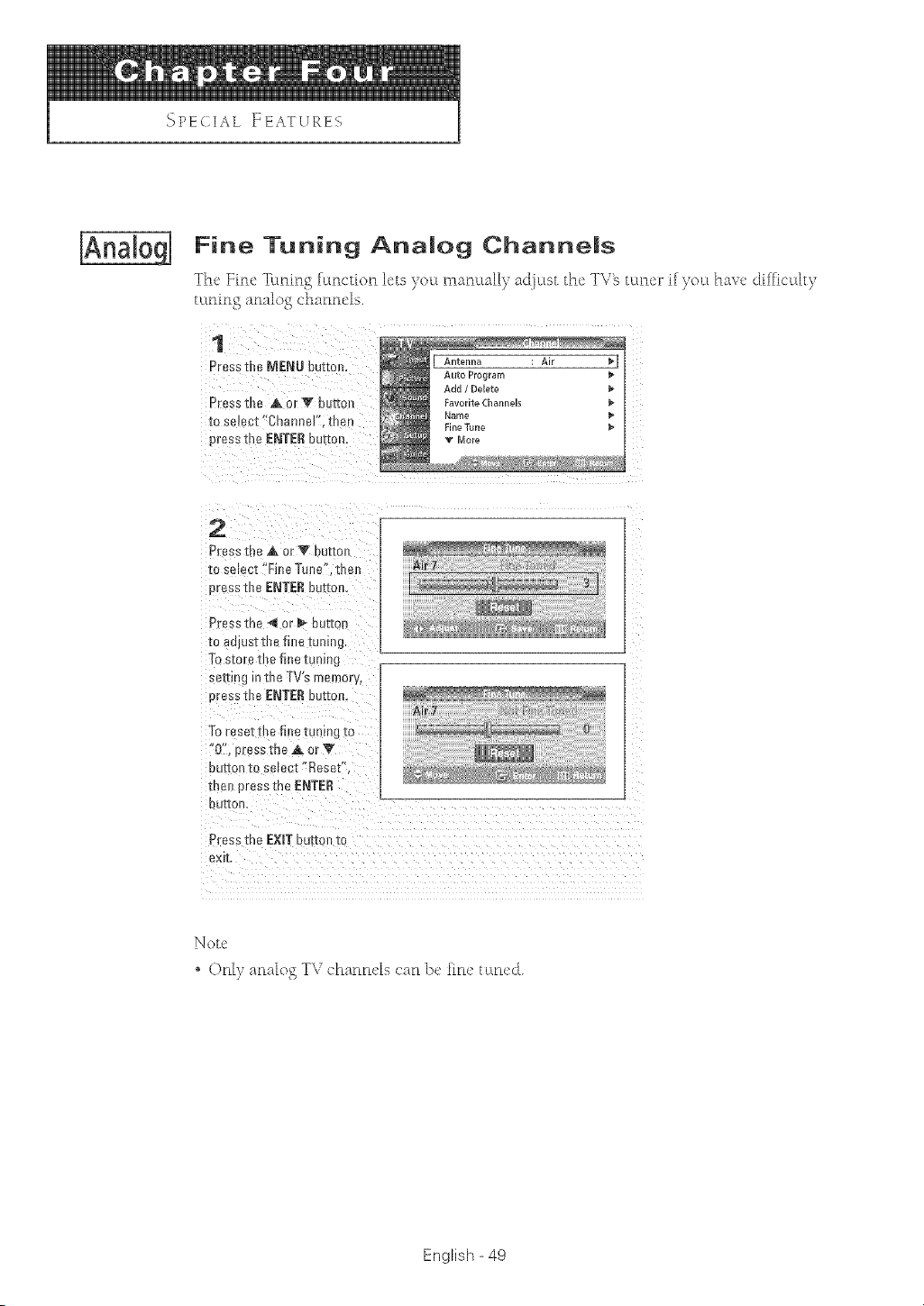
2
Press me A or _' _u[Ec
[o select"FineTen_ the
Dressme ENTERbUtmEL
Press the _i or P- euEEon
zo adjustthe fine tuning.
To store the fit/e tuning
eerd _g ntheTV's memory,
Dress the ENTER button,
Toreset Ere fine tuning -[o
'0", press the A or V
Belle _ IO select "Reset",
men pres_ the ENTER
DUE[On,
Press the EXiT butted to
exil
IN'ore
o O_dy aFlatog TV cha_lFletscaFl1)ehFle totaled.
English - 49
I'_PECIA L FEATURES
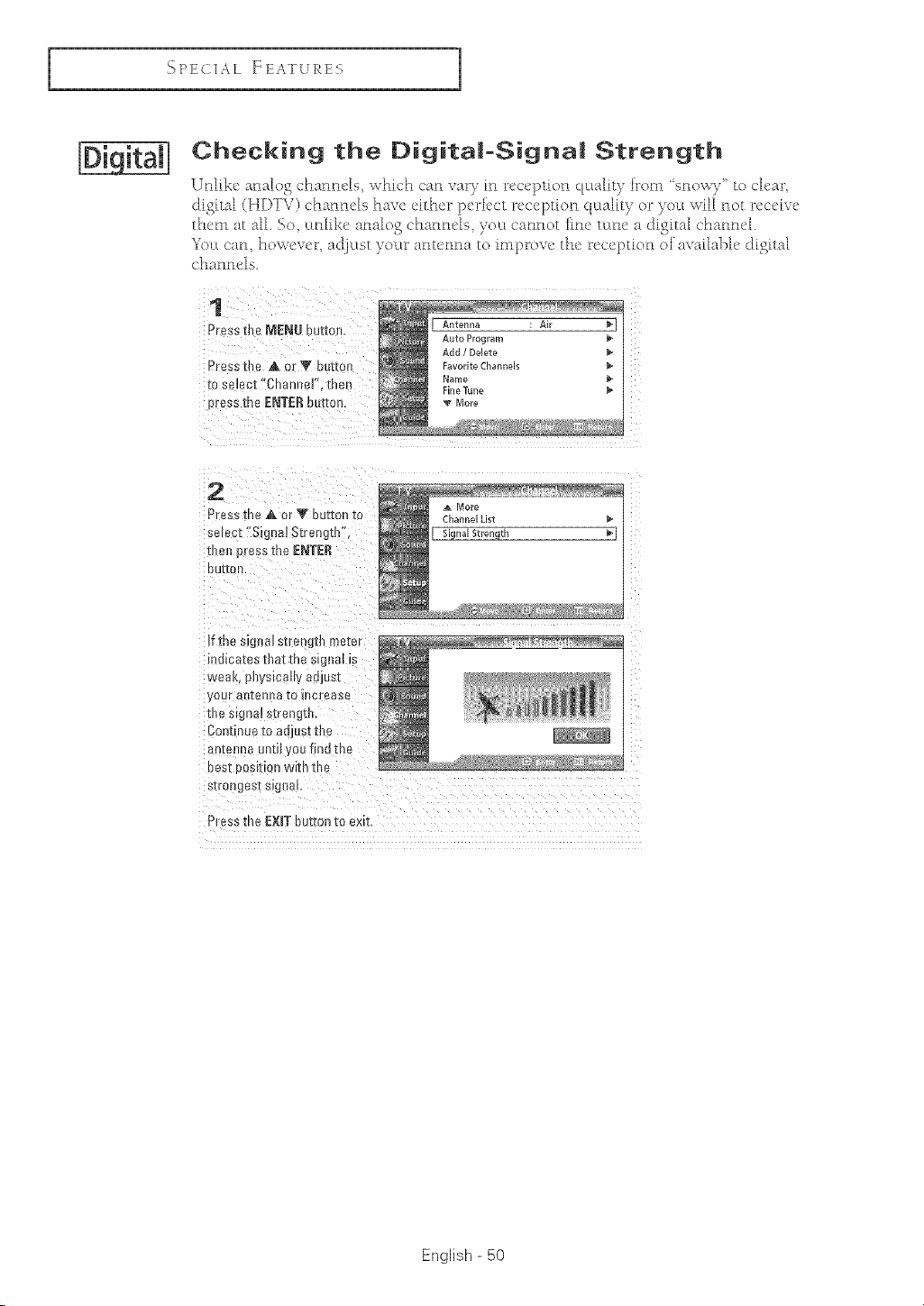
Checking the Digita|-Signa| Strength
Unlike analog channels, which c_m vary in reception qu_flity h_om 'snowy to clear,
digital (HDTV) chanm'ls haw _'ither p_'rfbct reception quali b" or you wili not n,c_'iw
th_'m at all. So unlike analog chanm'ls you cannot tim' tt:tne a digital chanm'l.
Yotit cart_ however, a_tiust Tour antenna to improve th_ rcc _i)tion of av_ilal)h, d_gita[
L'hanncls
1
Pressthe MENUbutton.
Presstbe A or V buttm
to s_ ect '*Channs]',_:nen
_ress the ENTE£ burton
2
Pressthe,& or _' button[o
seset "SignalStrength",
[neJpresstheENTER
DU[£On
if the signa] strengm meier
IHf] ca-tee-[l_a[ Ine Slg]lal Is
tnj_ttl_ 1311ys_caliy aojusI
v0hr ao[enJ a IO fllcrP-ase
mes_gna_s[rengm,
Contnueto adjustthe
ante,na unti y'oufindthe
Des[ oosIT[on WlIn 1:r B
s[ro/gestslg a
P[ess the EXIT button to exit.
A More
Channel List m
Signal Strength _ [
English - 50
I
_'_PECIAL FEATURES
1
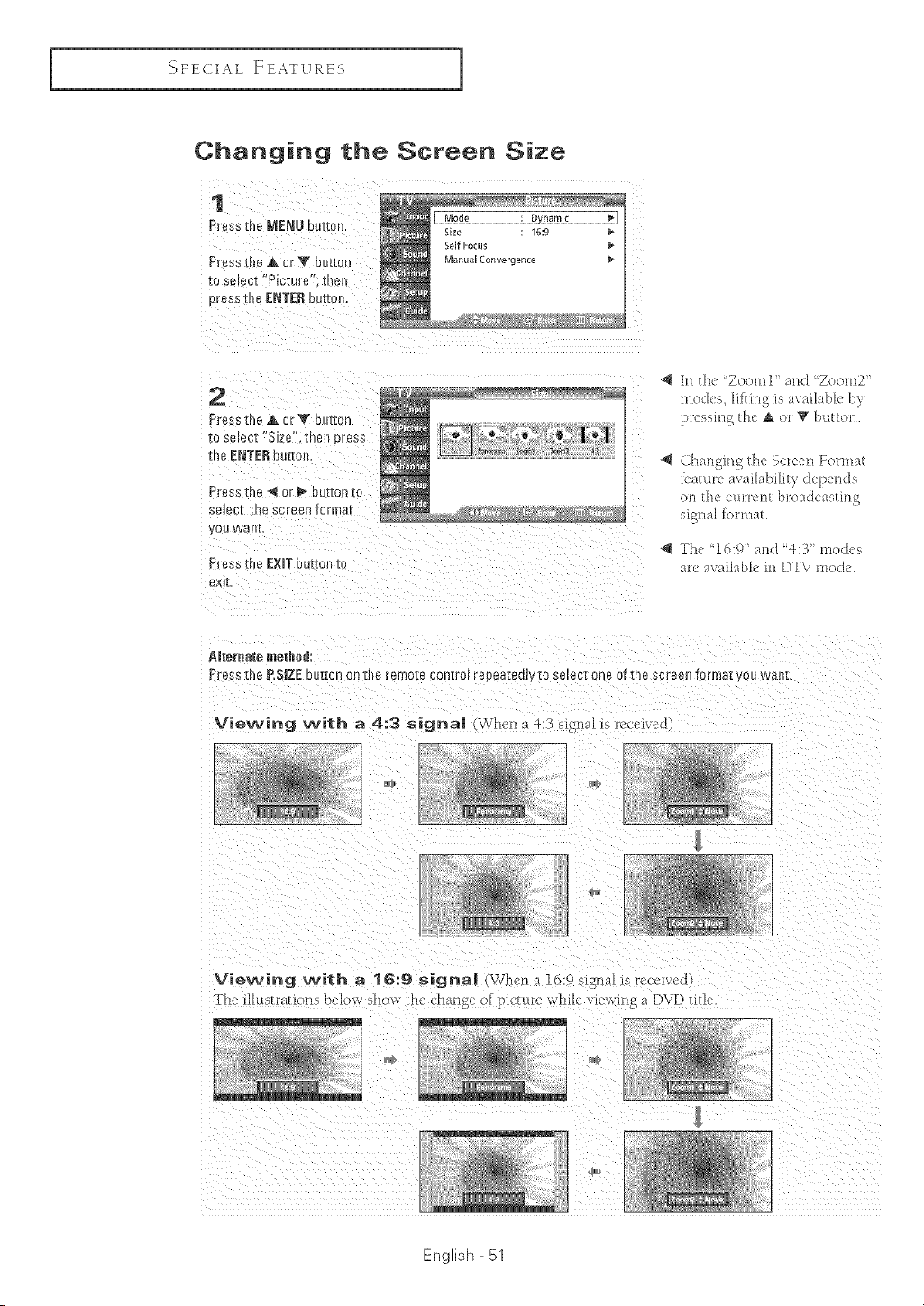
Changing the Screen Size
1
Press the MENU button
Press me ,A or V butter
to seJect "Picture". met
nress[he ENTE£ sutton.
2
Press me ,A or V button
to select "Size', thetl press
the ENTERbutte
Press [he _ or _ bu Ton O
select the screen format
you wa 1,
Press the [XIT but[m[ to
exit,
In n Zooml'aHd Zoom2
nO(R'S ll[/a'l_ l_ ava[la_]( -
) e%_ If! K) ,tLot T [)HttOH
.[la[l_ln_ the Scree[l FOI'Ill
_t{_m "aHabHib _'pemlq
011 HIe ClllTel][ broad( ,qsta']
_1_ []al 1o1 []]a/
The "16:9' and -[: n_oues
l-c available lit D]_ _ lt[odc.
AJtetnate me[bed:
Press me P.SiZEbutton on tits remo[e con[rm repea[emy_o se[ncr one of the scree[i format ,on watt[
Viewing with a 4:3 signal (Whc'n a 4:3 si9na[is received
Viewing with a 1G:g signa| (Witch _ 16:9 sK_nal is received
"1he illustrations below s _ow lhc change _1 picture while viewing a DVD title
English - 51
_'_PECIAL FEATURES
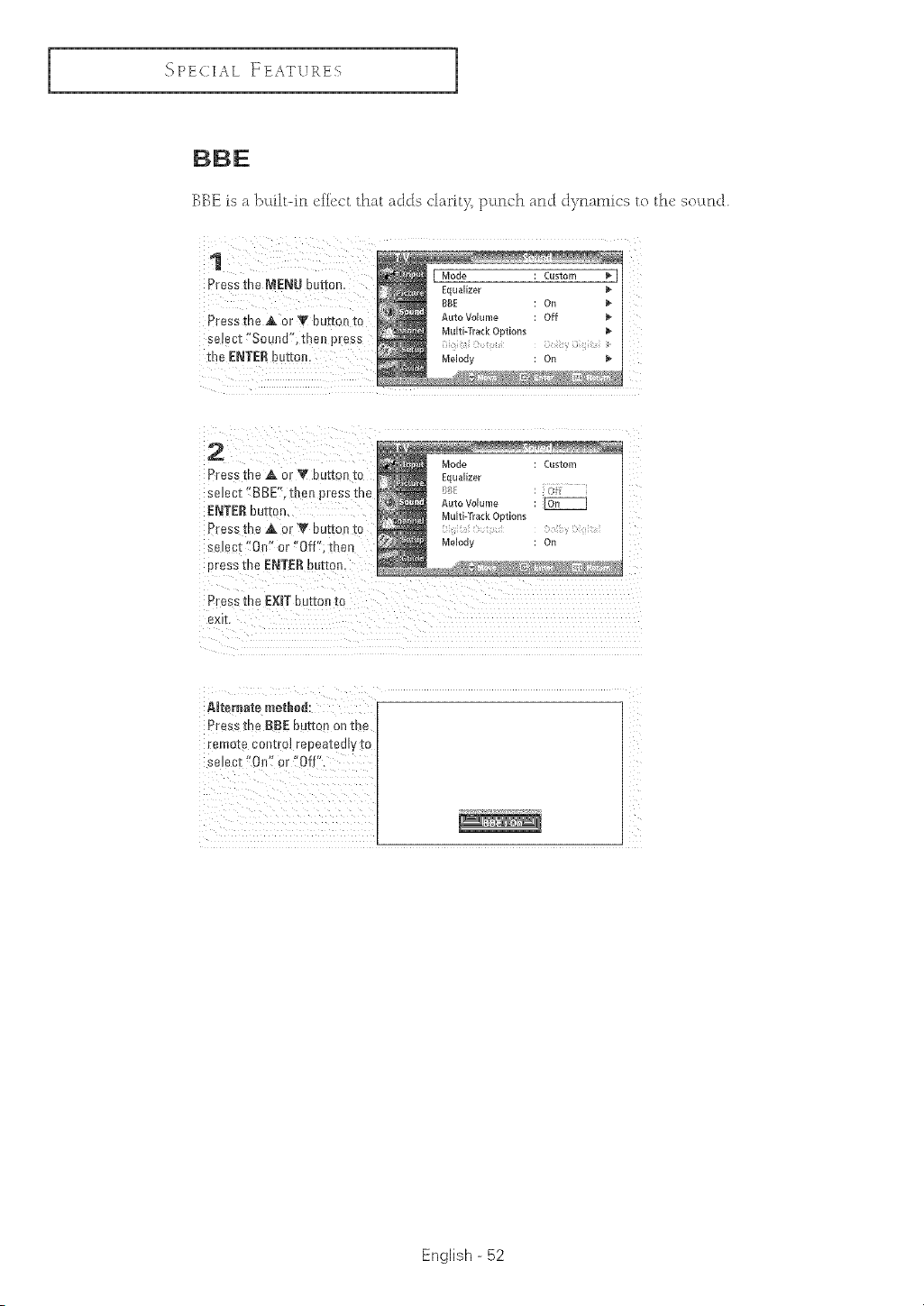
BBK is a buflFin effect that adds clarit}% punch and d}_nanfics to
1
Press the MENU button. [ Mod_ : Custom
Equalizer
BBE : On
Press the A or T buttot_to Auto Volume : Off
eeject !,SouEid,f;then pies s Multi-Track Options
the ENTER button. Melody : On
Press the _ ot Y button to
select t BBE", tbeEI#tess the
ENTER button,
Press the A. or V button to
select "On" or "Off"i tben
press the ENTER button
the sotmd.
AJtemate method:
Press the 8BE button Ontbe
[emote control repeatedly to
select '!OEIt_Ori_Off",
English - 52
I
{'_PECIAL ]z EATVtLES
1
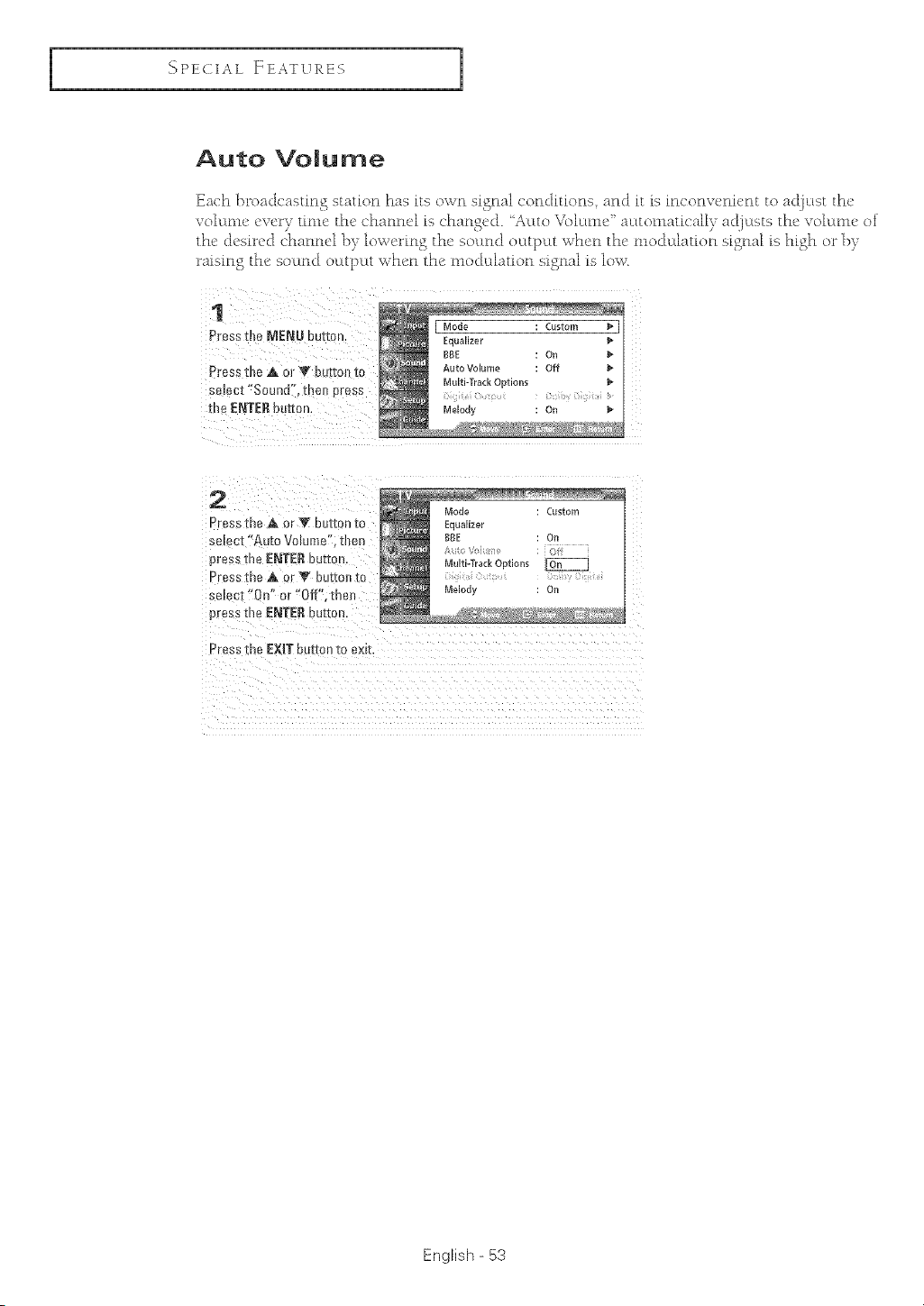
Auto Volume
Each Broadcasting station has its own signal conditions and it is inconveni_,nt to ac[]L:tstthe
voh:LEn_'cw!_y time the chann4 is changed. "At:LtoVoktEne '_aL:ttoEnaticall) a_[jldsts the vol_tEn_' of
the &'sired channel ])) low_u_ing the SOldnd outp_tt when the' mod_dation signal is high or }_)
raising the sotlnd o_ttp_tt when the moduthuion signal is low
[ Mode Custom
Equalizer
BBE On
£ress the _ or T button to AutoVolume Off
so!oct "Sound:', then press Multi-TrackOptions
Melody On
2
Pressme ,& or T button to
select"Auto VoDme" men
,)tess the ENTERbutto
Dressthe & or I_' button to
se_ect "On" or "Off".[ne
press the ENTERbutton
Press the EXITbutEon_oex_l
Mode Custom
EGuaHz@I
BSE Or
Multi-Track Options
Melody Or
English - 53
I'_PECIA L F EAT L.TXES
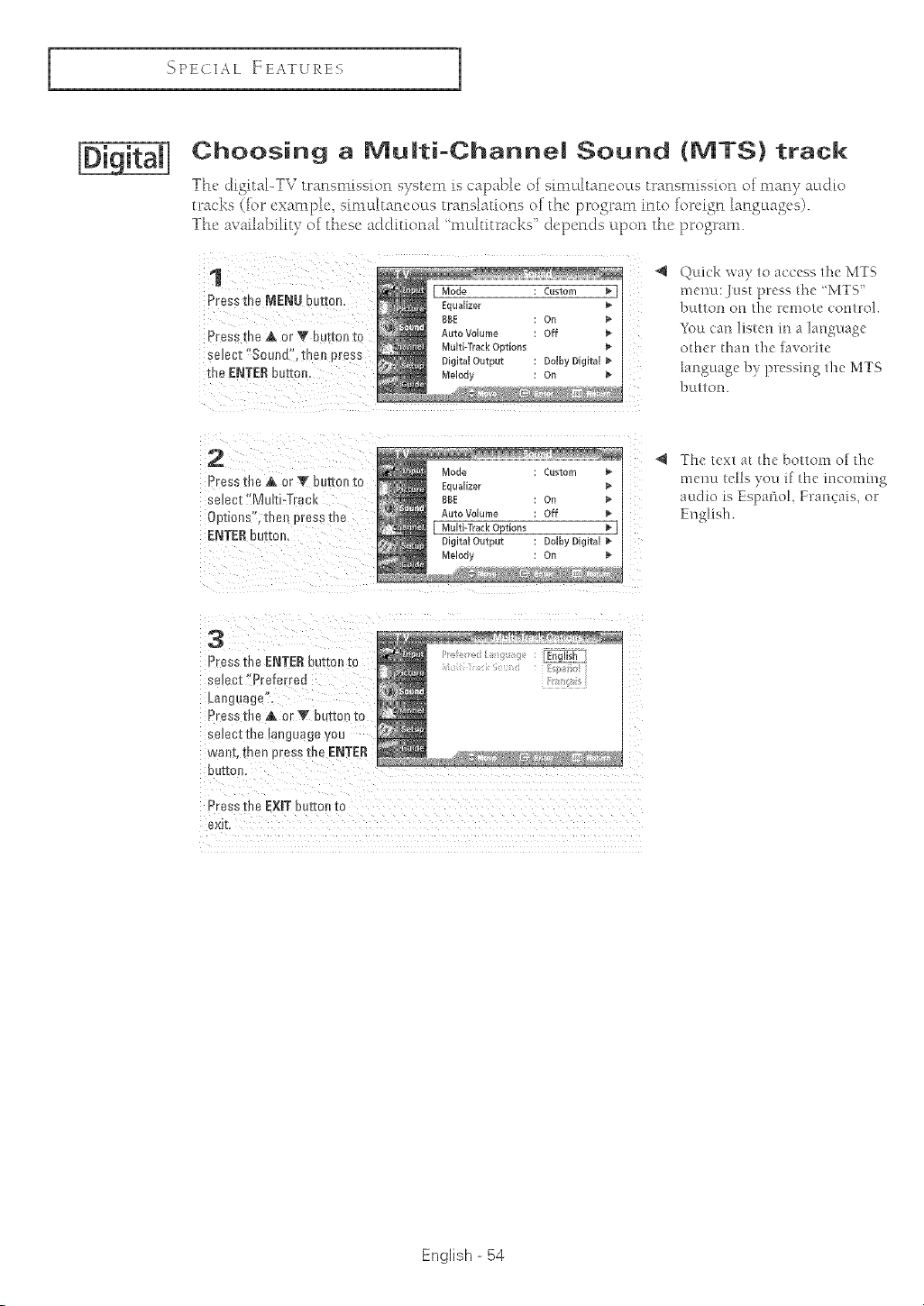
Choosing a Mumti-Channe! Sound (MTS) track
The digital-TVtransnlissionsystem iscapableofsinlldtaneottstransnlissionofnlany actdto
tracks(IorcxanH>lesinlcdtancottstr_nshtionsofthe'[>rogr_nlintofor_'ignhngcmgcs).
The aw_ilability of these additional 'multitracks' ch:pends upon the progran_.
1
Pressthe MENUbu[[on,
Press_:heA or Y bu[[on ro
select"Sound zneo press
[he ENTERbutton,
4
Quick wa) to access the MTR
me]lu: Just press the 'MTR'
!_ulto_ o_ the remote co_tro].
You nan liste*_ i*_a la*_guage
othet tha*_ the favorite
language b) pressittg the MTS
buttolL
2
Pressthe_ orT _Jo_on[o
select"MultioTracK
Options%the1 3ress[ne
ENTERbut[on,
Mode Custo_Iq
E( aaHze
BBE On
Auto Volume Off
[ Multi-Track Options _ [
Digital Output Dolby Digital
Melody On
@ The text at the botto_n of the
me/_u tells yot* i[ the incoming
audio is Espat_oL Fra*_cais, or
English.
3
Pressthe ENTERburtonto
s_lect"Preferrea
Language
Pressth6A orV buttonto
seJectIne _anguageyou
wahl _nenDress_neENTER
DUIIOr
Press the EXiTbutton to
exi[.
English - 54
I
_'_PECIAL ]ZEATVRES
1
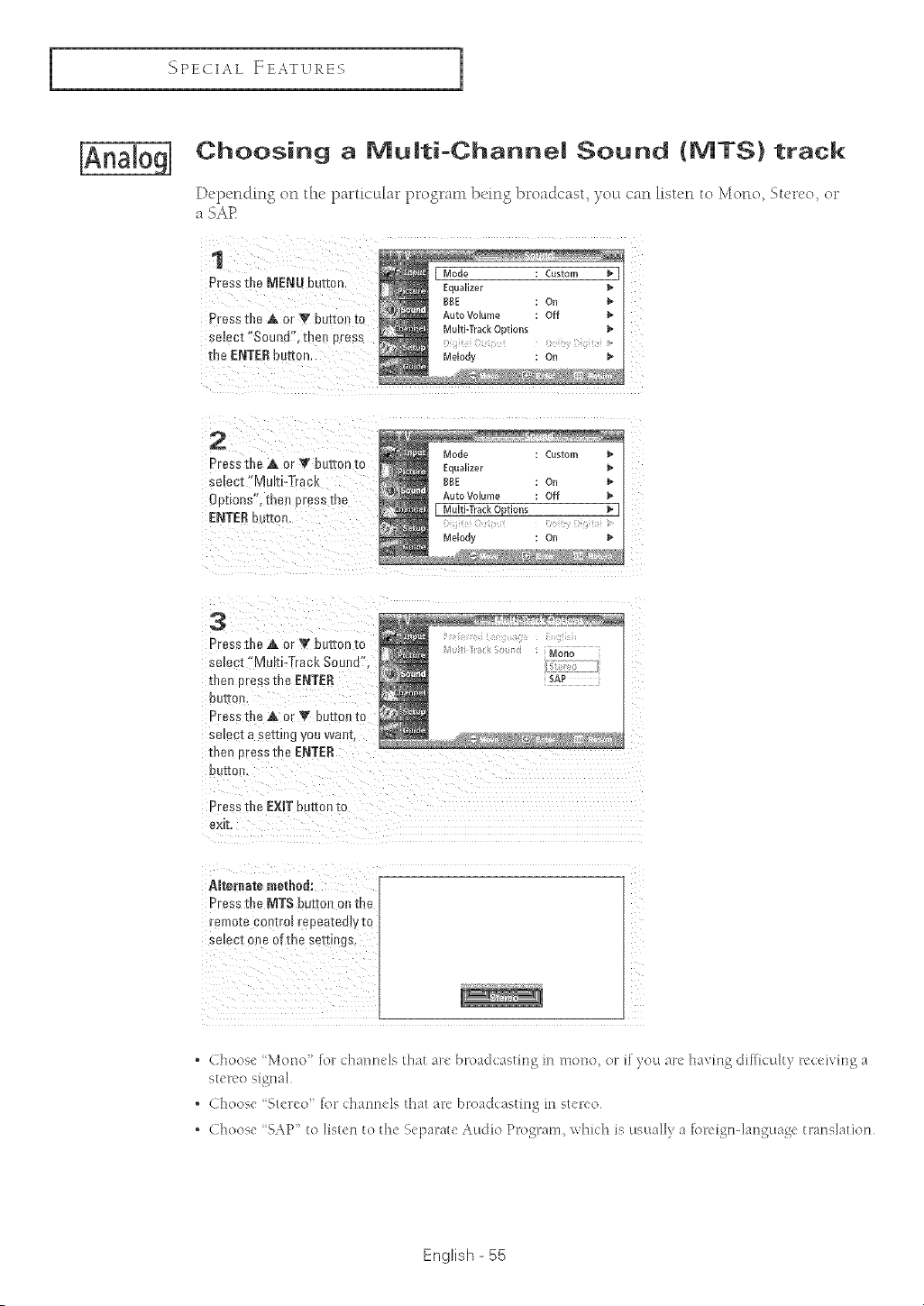
Choosing a Mu|ti-Channe| Sound (MTS) track
Dcpe_ldmg orl that p_ticula_ _p_ogmm bd_lg b_o_dc_sh you c_m liste_l to MoFlo, Su'rvo, or
a SA12
1
Pressthe MENUbutton
Press the A or _" butte [e
select "Sound".me ores=
me ENTER bu[ton.
EaUallzer
BSE On
Auto Volume Oft
Multi-Track Oonon_
Melody On
2
Pressthe A or IV batto_ [o
seine["Multi-TracK
Opt[ons".thet press me
ENTERb l-to,,,
3
Pr_ssthe a&or T bzr[onm
select MukPTrackSound"
then oressthe ENTER
D_ rio!
Pressthe_. or Y buttorlto
select a setting youwant
u_enoressmeENTER
OU_O!.,
°ressthe EXITbuttontc
exrL
Alternate methed:
DressII]e MTS butmrl on me
remote con_ro_repea_ealyf[
select on_-of the setungs
i
i
i:
. Choose Mono' for ehanrlels that are broadcasting m mono, or ilyou air<>having dil]_culty recdvmg a
rtereo rigiml
. Choose Stereo' for channels that are broackastmg in stereo
. Choose SAP' to listen to tit<>Separate Audio Program, which is usually a foreign4anguage translatiorl
English - 55
I'_PECIA L FEATURES
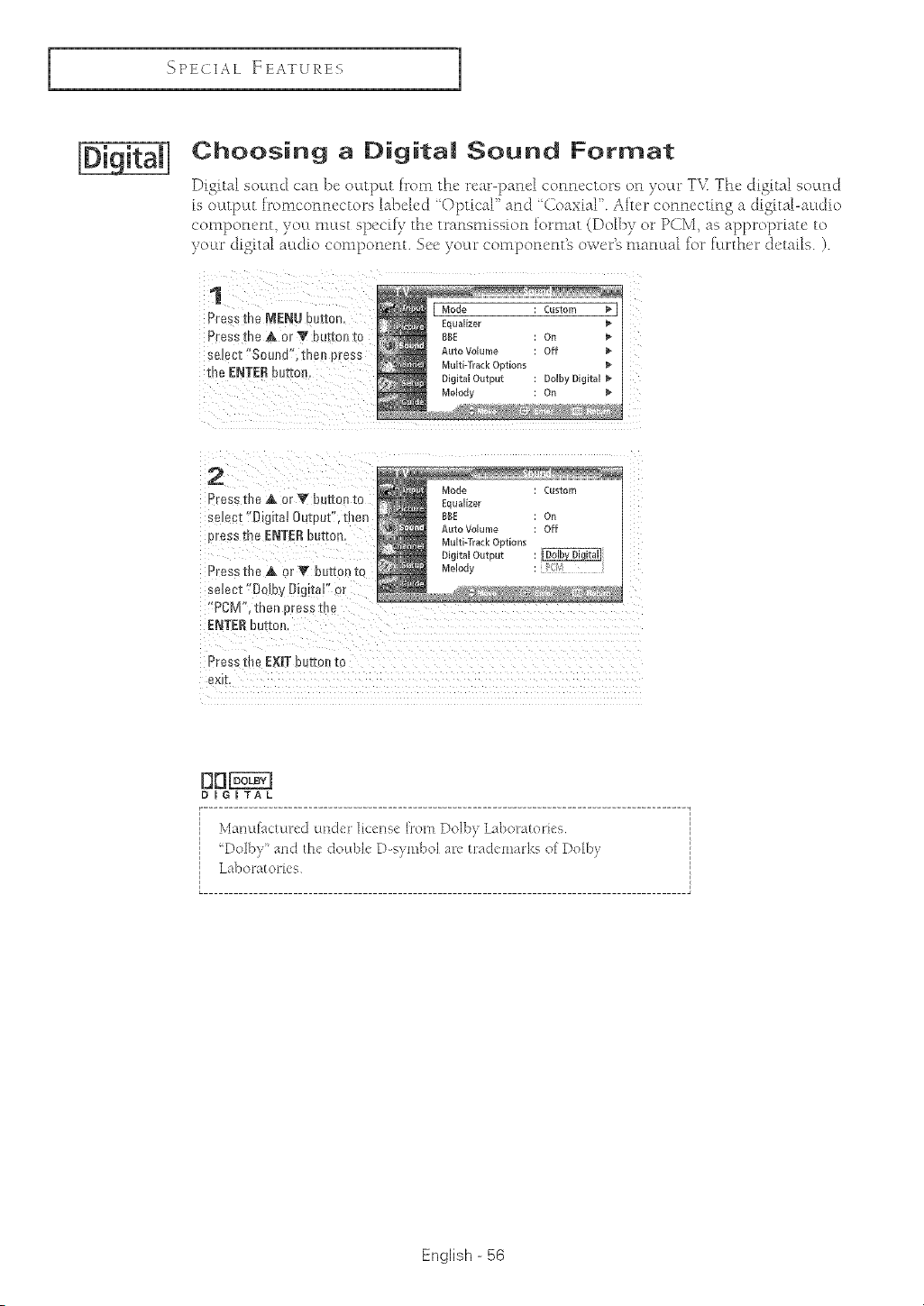
Choosing a Digita| Sound Format
Digital SoLdnd can be oL:Ltp_LtDora the rear-pand connectors on yoLdr Tk: The d_gital sound
_sOl:Ltpl:Lth_omconnectors labelec] ' Optical and ' Co_xial . Aker connecting a tJigital-au(]io
componem you nn:Lst specity the transn£ssion fommt (Dolby or PCM, as appropriate to
yo_u _ cligital a_ciio component. See youu _component% ower% manustl for f:urther details. ).
1
Pressthe MENU button
Pressthe ,& orV buttonto
select "Soulld'. llle_ press
[neENTEEour[orl,
2
Press the Jk or V button [o
se_ec_"[}[g[ta!Output",then
presstheENTE£button,
Press u_e A or V button to
select "[ o_oy Digital" o_
"PCM men oressme
ENTE£ buiio_
Mode Custom
E_I aHze
BI_E On
Auto Volume Off
Multi-Track @mons
Digital Output
Melody
Press the EXiT button to
exi1L
1313
RGRTAL
bi[ir'_u[;ictunect UHCIeFlicene_ l:rom Dolt)), hff)omtoriee
Dolb_ ' ;ind the double D-e_mbol ;ire tp_ck marice o[ Dolby
Laboratories
English - 56

I
_')PECIAL ]ZEATVRES
1
Setting the On/Off Me|ody
A melody sound can })eset to come on v,hen the TV is powered On or Off.
Press t])e MENU button. _]
Pressthe _ or _ buttonto
select "Sound';tbeu press
j
2
Press the A or Y bu[mn [o
select "Me[o@", then 9res s
the ENTERbutto
Press the _&or V button to
se_ecL"On" or "Off'E ther
press the ENTERbutton.
Mode Custom
Eauallzer
BBE Or
Auto Volume Oft
Multi-Track O_uons
Melodl
Press tbe EXiT button tc
exit
English - 57
I'}PECIA L FEATURES
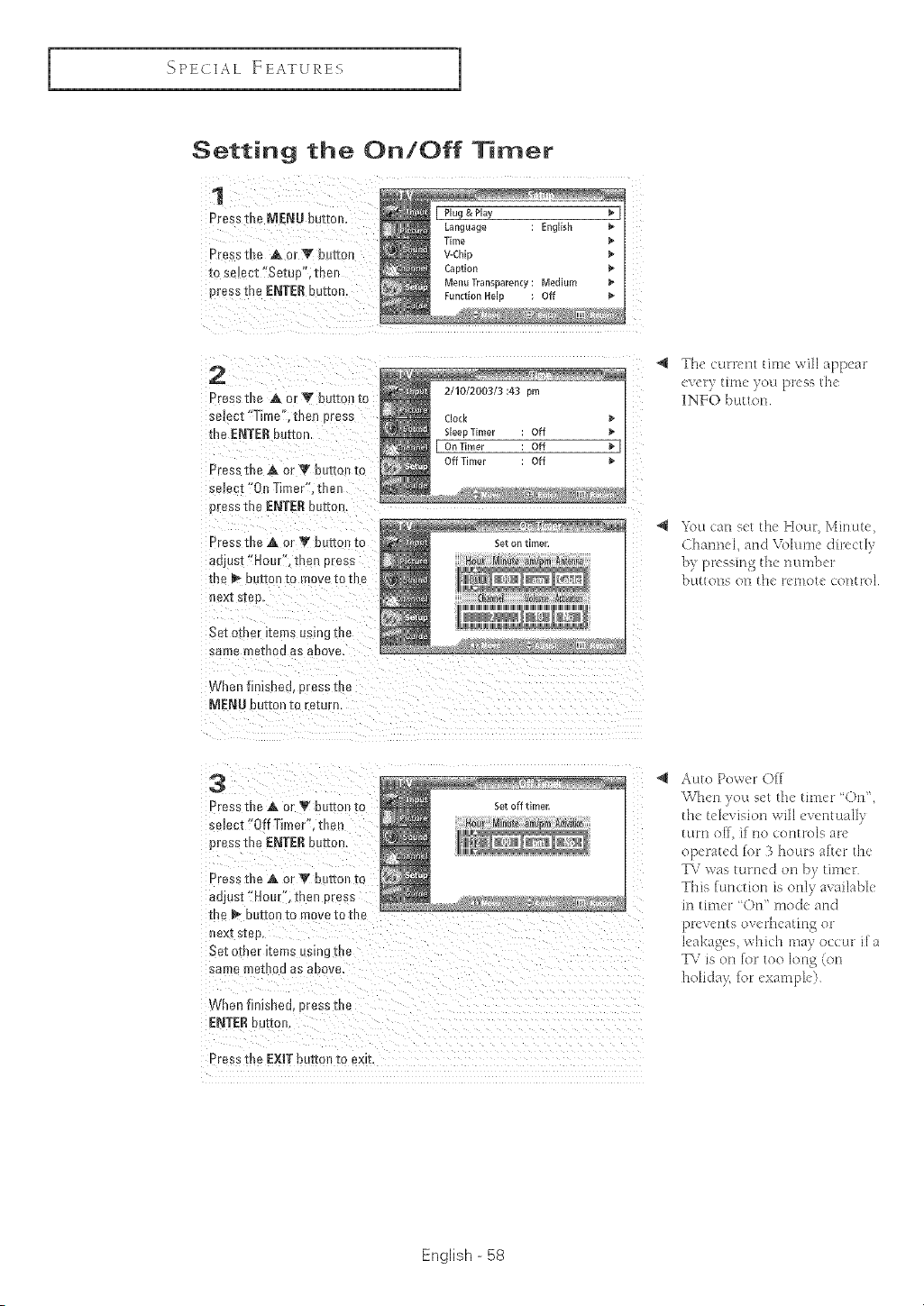
Setting the On/Off Timer
1
Press the MENU buttoB,
PreE_the _k or _" butto_
_o se!ect "Setup", theJ
press me ENTERbutton
Plug & Play
Language English
Time
V-Chip
Car}tiE
Menu T_an_parency M_dium _"
Function Helo Otf
2
Press the A or _ button to
seJect"Time'. men press
the ENTERbutton.
Press the A or Y button to
sere{ t "On Timer". 1her
press the ENTERbutton.
2/10/2003/3:43 rml
CIo(t
Siege Timer Off i_
On Timm Off _*
Off Time Off
Press the A or Y bulto [o
adjost"Hour"_ men oress
mE I_- uu[mn to move [o me
Bex]_step
Set omer i[ems using ]:B_
same metRoo as above,
When finisned Bress mE
MENU Button xo r_'mrn
4 The oUrllent thn_ will appear
e_el:)' tim_ you press Ihd
][NFO buttoH
_{ Yott carl S(t tile HOLm, Mh'lLtte,
(hamml, and \_4umE" diJectly
b[[t[OHS On th( 17(;1"Hot(: COBt[O]
3
Pres; the A or V button to
select "0ff T_mer' men
press me ENTER button.
Press the A or Y bur[oB m
go,JOSE"Hour'. then m ass
the _ eerie/to rnove[ome
BexI seep
Set Other I[eiT _ Osiris -[h_
sam_ metRoo as eBove,
When finished. E"essth_
ENTERbuttoB.
Press the EXiT button to exit,
@ Auto Power O[[
When j_ouset th< timer 'On",
turtt off, i[ no cotttrols at<
operated lot 3 hours ariel: the
TV was turtt<d on by thner
This function is ottly available
in tit'LlerOn" mode and
prevents ovetlleatittg or
leakages, which may occur i[ a
TV is or'_for too long (on
holida> lot example)
English - 58
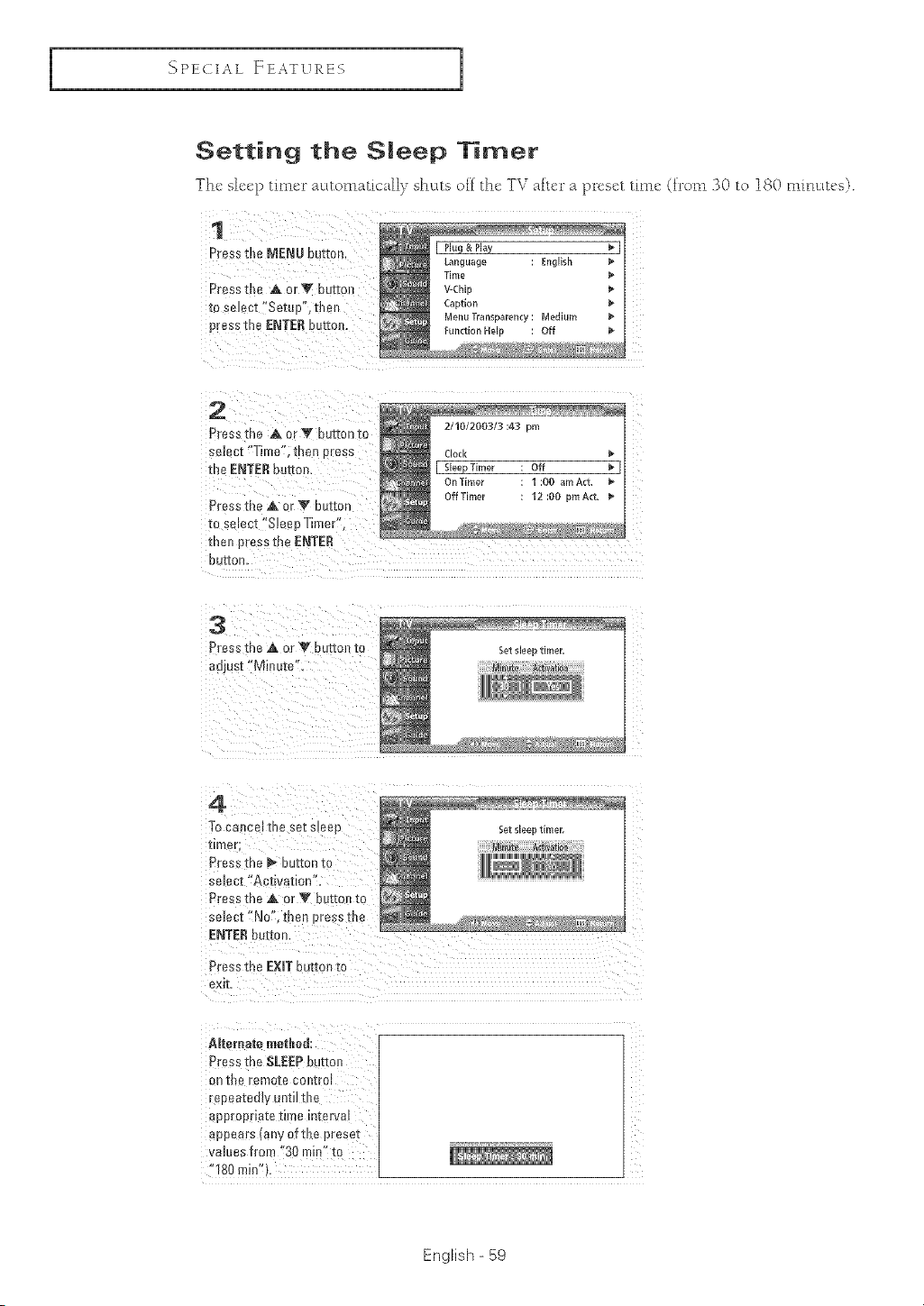
I
SPECIAL FEATVRES
1
Setting the Sleep Timer
The sh:cp timer acLtomatically sht_ts ofi the TV aftc_ _a preset time (fl_om 30 to iS0 minutes).
Press the MENU button. I Plug&Play _ [
Lalguage : English
Time
Press the A or _ buttol V-Chip
to select ilSetup', tben Caption
Menu Transparency: Medium
press the ENTERbutter Function Help : Off
Press the A or _' button to
Select f'Time'!; then press
the ENTER button.
Press the ,A or _ button
to select ,Sleep Timerf';
3
Press the A or V bu[_or__o
auj Jst Minute",
Set sleel umer.
_JWW_]
4
Tocancel Yn£eel s_eep
lime[
Press me _ BUrr[n [o
select "Ae[_va[ion"
Pres _the A or W I uI_on[o
select'No" _en oress me
ENTER button
Press me EXIT button [o
e×ff,
Alternate methet:
Press the SLEEP buttor
on the remo[e con[ro
repea_eaty until the
anoroerla[e lime imerval
appears {any of the preset
values from =30 min" to
• 180 rain' t
English - 59
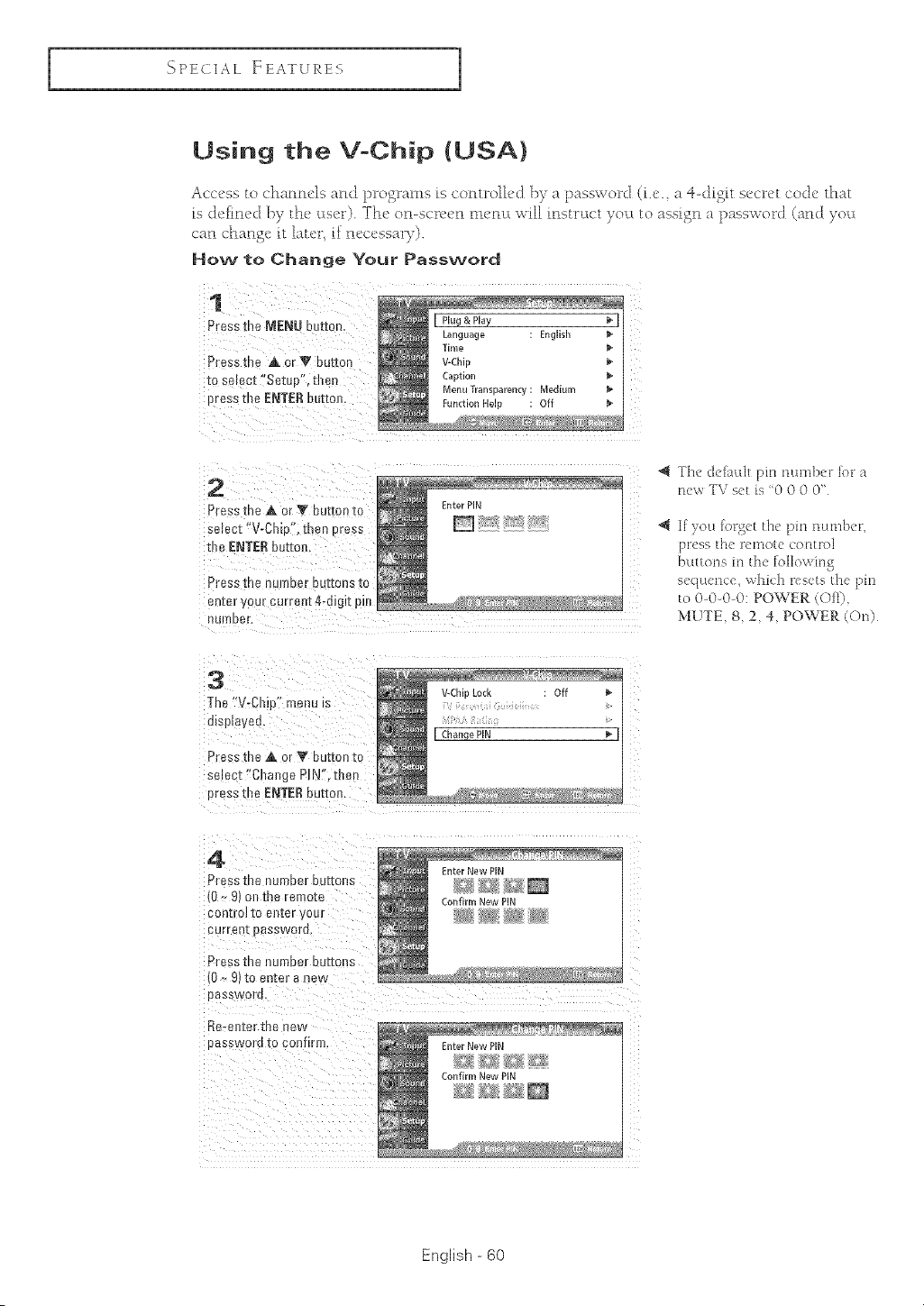
SPECIAL FEATURES
Using the V-Chip (USA)
Access to channels and programs is controlled by a password (i.e. a q-digit secret code that
_s defined b7 the' user). The' on-scn'en mt, m:t will instruct you to assign a password (and yocL
can change it lau'r, if nt'ct'ssalT).
How to Change Your Passwo[rd
1
Pressthe MENU button [ Plug&PlaY _[
Language EngiBi_
Time
Pressme A orV buttort /-Chin
EOsel_-c [ "Setoo". then CaDtlor
Menu Transparent I Mediurr _,
Dress the ENTE£ butte Functmn Helu Off
2
Press the A er V button to
select "V-Ch o'.then cress
the ENTE[_outran.
Press IRe number DUI[ORS [0
enter ,four current 4°digit pin
nurno_.r.
Enter PIN
The deli ult pin ntu_lber lbr a
newTVs(tis 0000"S
Z
If )ou [orget the pm number,
[')]X_SS t}l(_ rt'[Ilotc (0[][1"0]
buttons m th_ fi_llowing
s<quence, which resets tho pm
to 0-0-0-0: POWER (OE0,
MUTE, 8, 2, 4, POWER (On)
3
The"V-ChL '-'_nu is
urspmyee.
Press me A or T button to
select "Change PIN'.then
oress tim ENTERbutter
#Ch JLOCK Otf
[ Change PIN _ [
4
Press the number ou[terts
10 _ 9 ootne remote
cenIrm re eoter your
curre ][ oosswom,
Press me nurrmer OUtlens
10,- 9)te enter a new
oesgwertL
Re-enter the new
DOgS/vorrJ [e ce_)rlr[i/,
EnterNew P_N
Confirm New PIN
English - 60
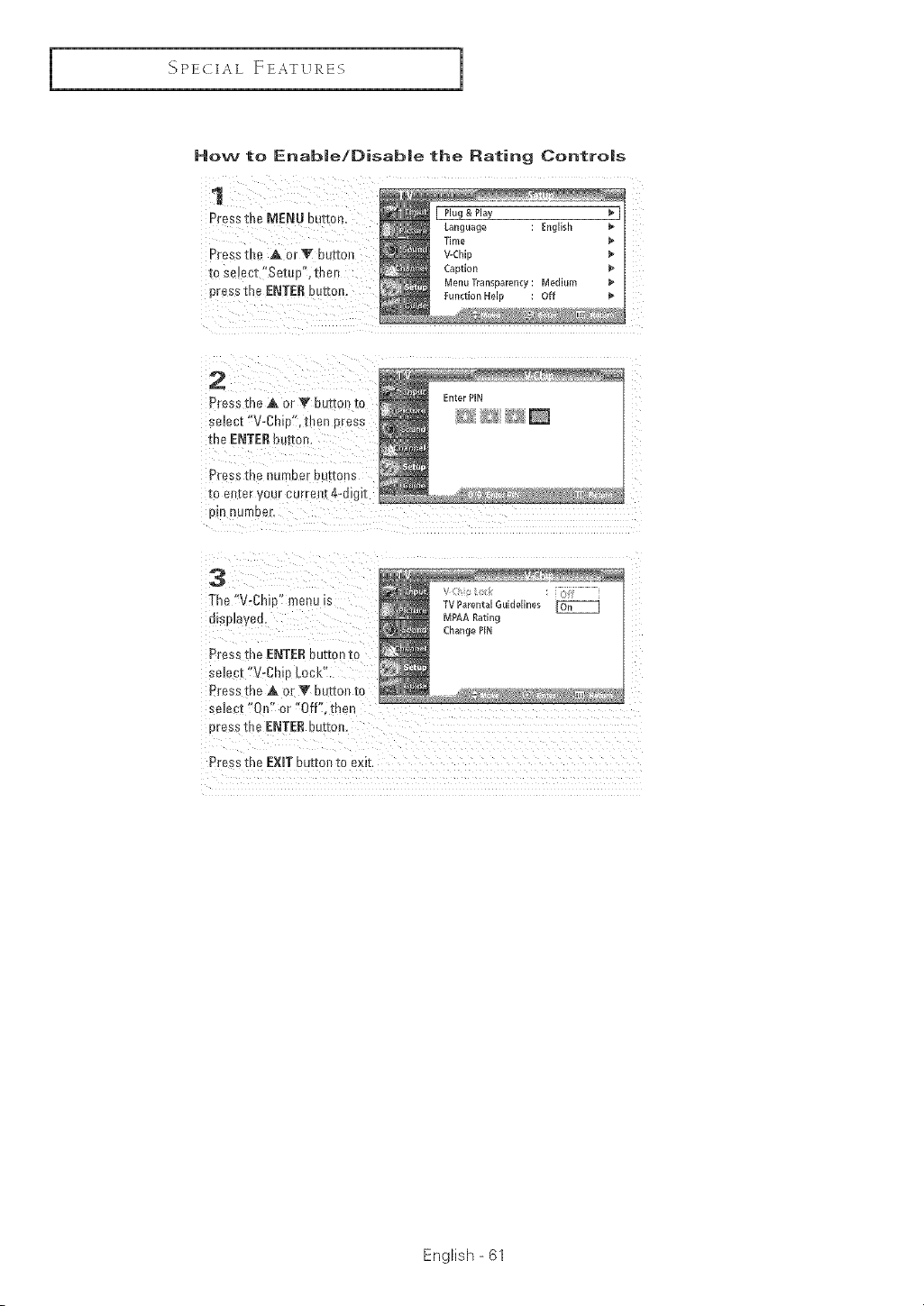
I
_ PECIAL ]:EATVRES
1
How to [nab|e/Disab|e the Rating Contro|s
1
Press tbe MENU ou[tor.
Press the ,& or Y buttc
to select "Setup", the_
press the ENTER buttorl.
Plug & Play _ I
Language Enghst
Time
V-ChlE
CaBtlon
Menu Transparency: Medium _'
Function Hel_ Off e_
2
Press [he A or Y bEz{on[o
select "V-Ch[B". tben cress
me ENTER b r[on.
Press !rue number DUI[OnS
IO eJ [er _/ourcurrem_-c_Jgt;
D !_ HUmber,
3
The "V-ghi _ menu is
u_spJayeu,
Press the ENTERbutton [c
select "V-Ch[o Lock"
Press [he A or '_ button tc
selec E"On" or "Off . men
oress tbe ENTERbutton,
TV Parental Guidelines
_IPAA Rating
Change PIN
Press me EXIT but[oJ_to exit
English - 61
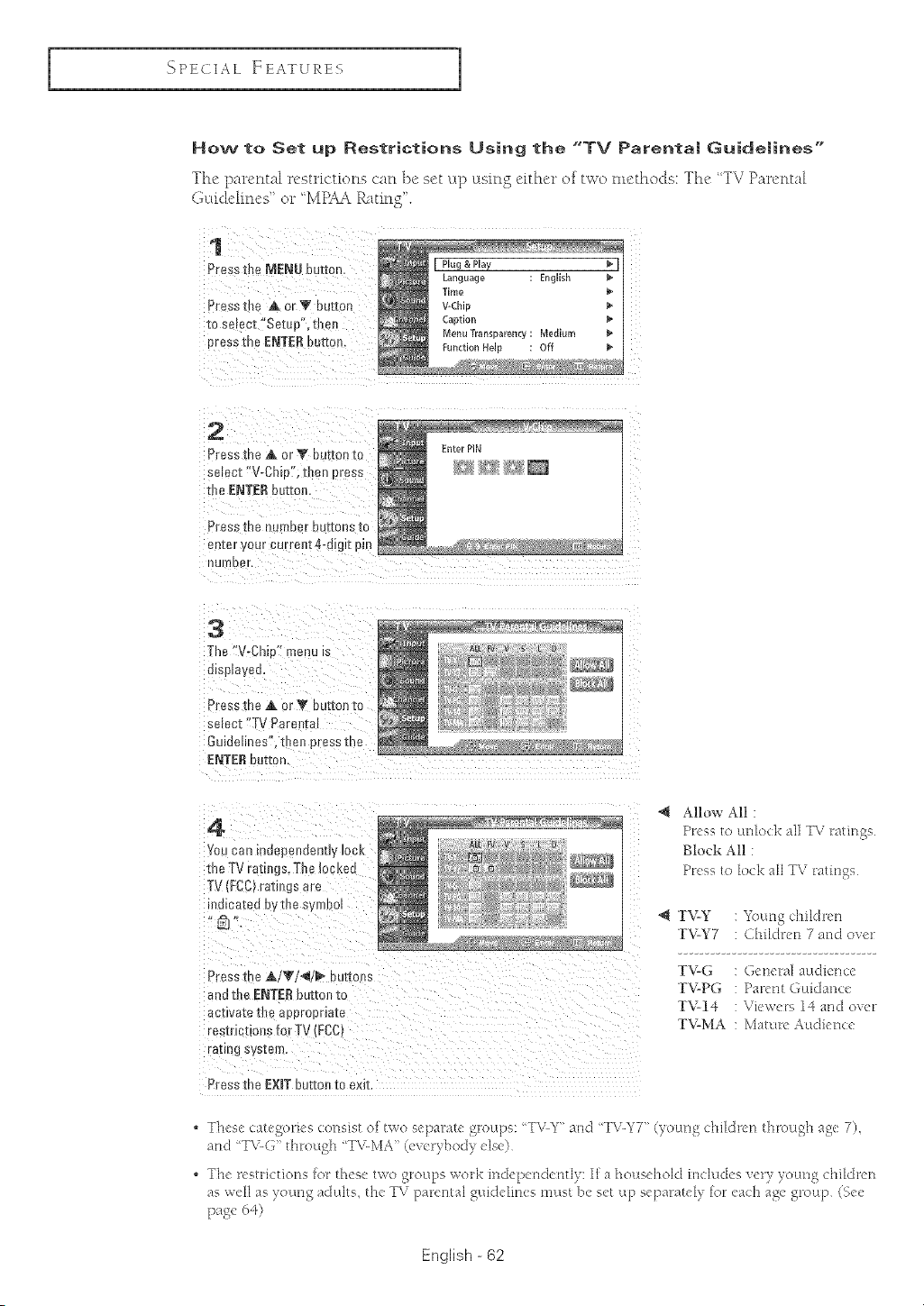
SPECIAL FEATURES
How to Set up Restrictions Using the "TV Parenta| GuideJines"
The pan'ntal _'strk'tio_ls can ]'>eset up usi_igeithel" of two methods: The "TV Pan'r_ta[
GL;ddehnes' o__'MPAA Eating L
1
Press the MENU eUEmn J Pluga Play _ I
La.guage English P
Tmle p
Press tl_e A or V buEEon l-Chin
m s_ _.et"Setup',then
:aDtlor
Menu Transparenq Mediurr
nress the ENTERbuttoP FunctionHelu Off b
2
Press [he Ak OF'_' bu[ron [o
select "V-Ch D'. then E"ess
[he ENTERbutton.
Press IRe number Duffons IO
enEeryour cu "re t4-dJgit pin
UUI tDer,
3
]"he "V-Chk " menu UE
u_sp{aye 2,
Press the _, or_' button to
select "TV Parenta
Guidelines'. [uen press me
ENTERbutton.
ALL B/ V _ L D
4
YOU can mdepmz(JeBey leer
[he TV rat gs.The locke(
TV {FCC}ratiE.gSare
indicated bvthe symbol
Allow All :
Pr(ss to UEflockall TV ratings
Block All :
Pressto lock all TV ratittgs
@ TV-Y : Young dnildren
TV-Y7 Children 7 wzd over
Press the A/T/_/_ bur[o_s
and the ENTER button to
activate th _ approprmEe
resmctioes fo" _rV(FCCt
razing sys[em.
Press the EXiT button to exit.
TV-G General audience
TV-PG Patent Guidance
TV-14 : Viewers 14 and over
TV-MA : Mature Audien(e
These categories consist o[two separate gl"oul'_s:Tz:Ly" attd T\LY7 '' (yotmg children through ag< 7),
and T\_G '' tlmough T\_MA '' (<',( ybo( y e se)
Th< r<etrictions [or these two groups work itt& petldetttl_: I[ a household im::ludes v(r_ young children
as well as young adults, the TV parem d ,:gLddelinestzlust be set Lip separately for ea<:h _>,ac_egroup (Se(
page 64)
English - 62
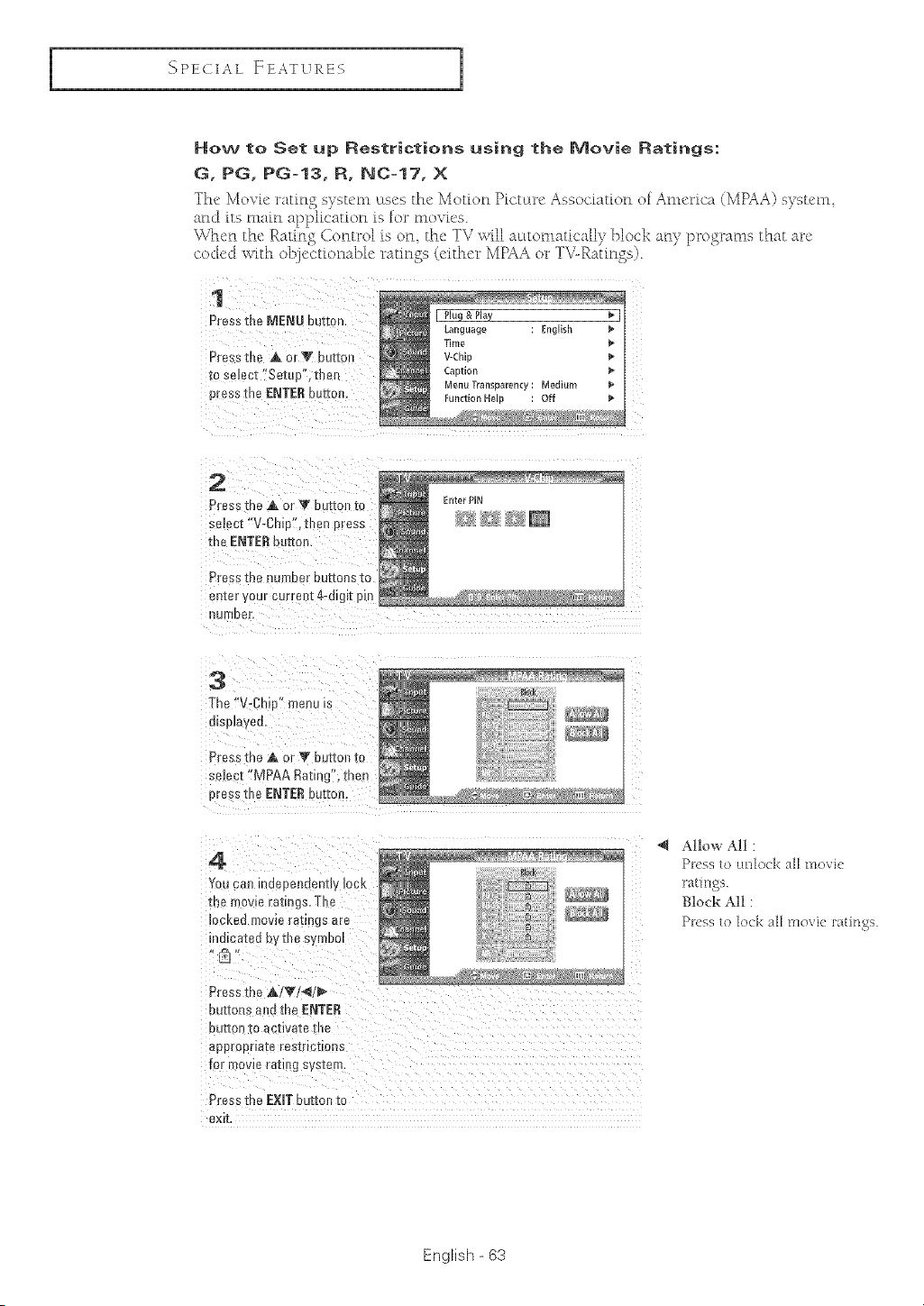
I
SPECIAL FEATVRES
1
How to Set up Restrictions using the Movie Ratings:
G, PG, PG-13, R, NC-17, X
The Movfe ratin S s) stem Ltses the Motion PictL:w[' Association of America (MPAA) system
and its main application is for movies.
_,n:l['n the Eatin S Control is on_ the TV will aLttomaticall) block ar'_y programs that arc
coded with objectionable ratings (either MPAA or T\"-Ratings)
1
Press the MENN button
Pressthe A orT buttc
_[oselect "Setu[ . men
press the ENTERbutto_
2
Press the A or _" bu[mn [o
sdect "V-Chip". theu Dress
me ENTERt_utton,
Pressme number DUg[ORS [0
en[er our current 4-dig_zpm
)UD[OBr.
Enter PiN
3
The "V-Chip" menu is
ump_ayea,
Press the A or T button to
semct "MPAA Rating", then
Dressme ENTERbutton.
4
You ca!_indepeodenuy_oc
me mowe raungs, ThE
ocked rnovie ro[tngs are
uu_ca1:etJ oytbe _ _moo
Press [ne A/T/_I/_
au[[on._and me ENTER
ouIton [o ec[lve[e [lie
aDDrODrleie res[rlo[[oR
for D/ov_e re[]l]_ S_s[erF
Press the E×mTbutton tc
exi[
Allow All :
Pkss to unlock all movie
ratings
Block All :
Pt('ss to lock all movie ratings
English - 63
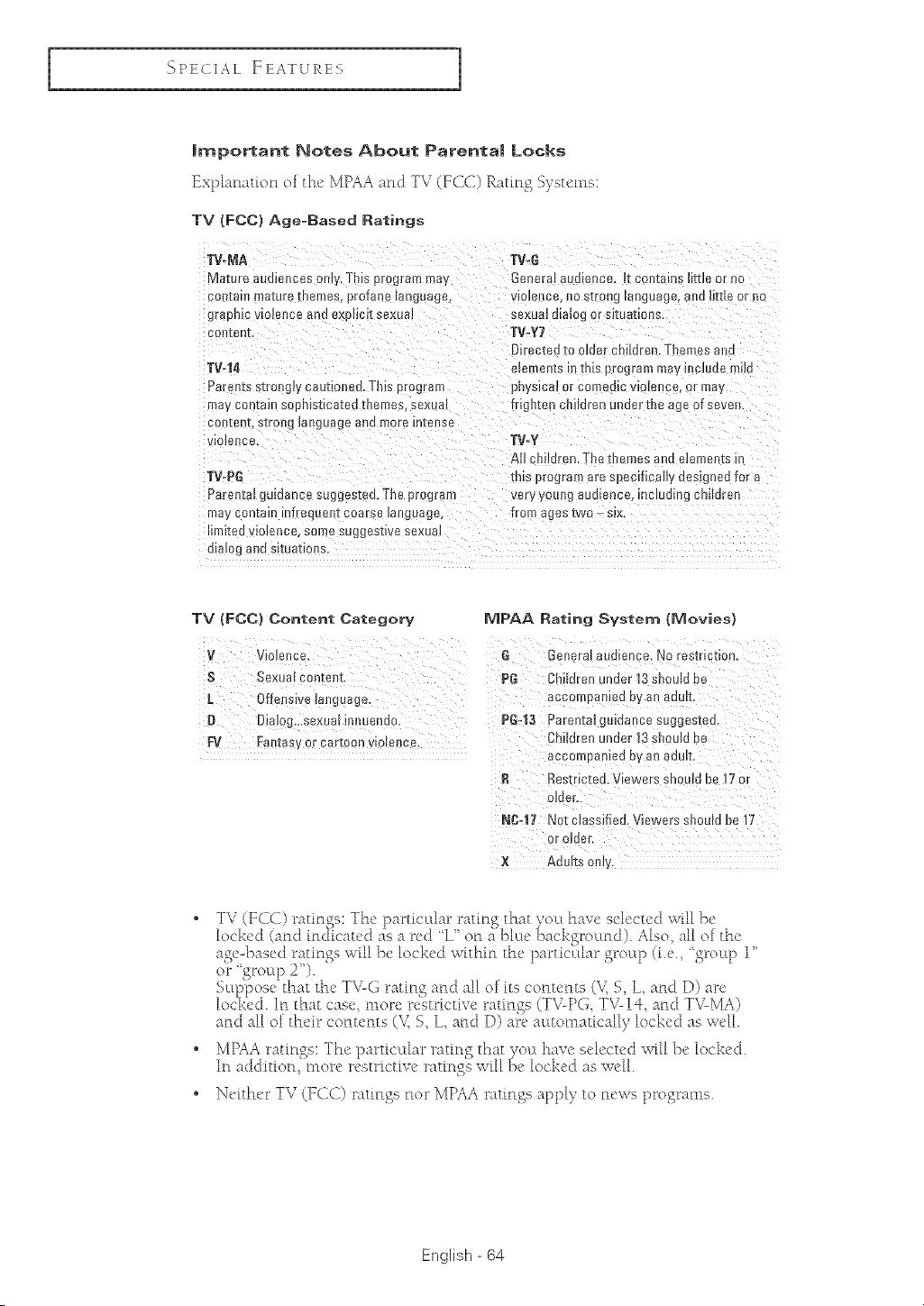
{']PECIA L FEATURES
|rnportant Notes About Parenta| Locks
Explanation of the' MPAA and TV (FCC) [_atin S Systems:
TV {ECC) Age-Based Ratings
TV-[_IA
Mature audiences omy, This program may
contau mature inemes, profane language
grapnlc vlotence a -_aeXEl_et[sexua_
coniem
TV-i4
Paren[s s_rong_ycautioned. This program
may col:am eoEi_s[_ca[eamemes sexua
con]:en s[_31_g_anguageatl(] more n[anse
VIoleHce,
TV-PG
Parental guidance suggested. The program
mav contain infrequent coarse _arlguage,
TIKed violence, so_ e sugyes[_va sexua,
dialog ano sKua[!ons,
TV=G
Genera_ audie ice. t[ r;ontalns Imle or no
vio_enca / no strong _ngoage, aria IKoe or no
sexua_ olalo[_ or £Koa]E_ons
TV=Y7
raeieoto o_der Children Themes a_
elements It [n[s prograe may fl c_aae mtta
pn| sma_ or corrledm vJotenca, or may
trlgn[e_ coJHren undor the age of seven,
TV=_
All cmldren, The tnemes ana a_efnel is in
m_; program are ;pec rEal_y aesigned for a
very youRg aua_euce, iEtclua_n_ cm_oren
fro agestwo_s_x
TV (FCC) Content Category MPAA Rating System {Movies}
V Violence. G General audience. No restriction.
S Sexual content
l) Diabg...sexual inrluende. PG_13 Parental guidance suggested,
FV Fantasy o[ ca[t0on violence. Chi!dren under 13 sh°uN be
accompanied byan adult.
Restricted. Viewers shoutd ba 17 or
NC=!7 Not cBssifiad. Viewers shouN be 17
or older.
× Adults e!fly,
or' _rol:[p 2'%
k,IPAA ratin£s: The DarticLl[ar ratine that roy( have selected w[[[ 1}e locked.
Ir_ addition) more r_'strictiv_, ratings _il[ _x' locked as we[[.
• Nc[th_'r TV (F(}< 1) ratings nor MPAA ratings apply to news programs.
English - 64
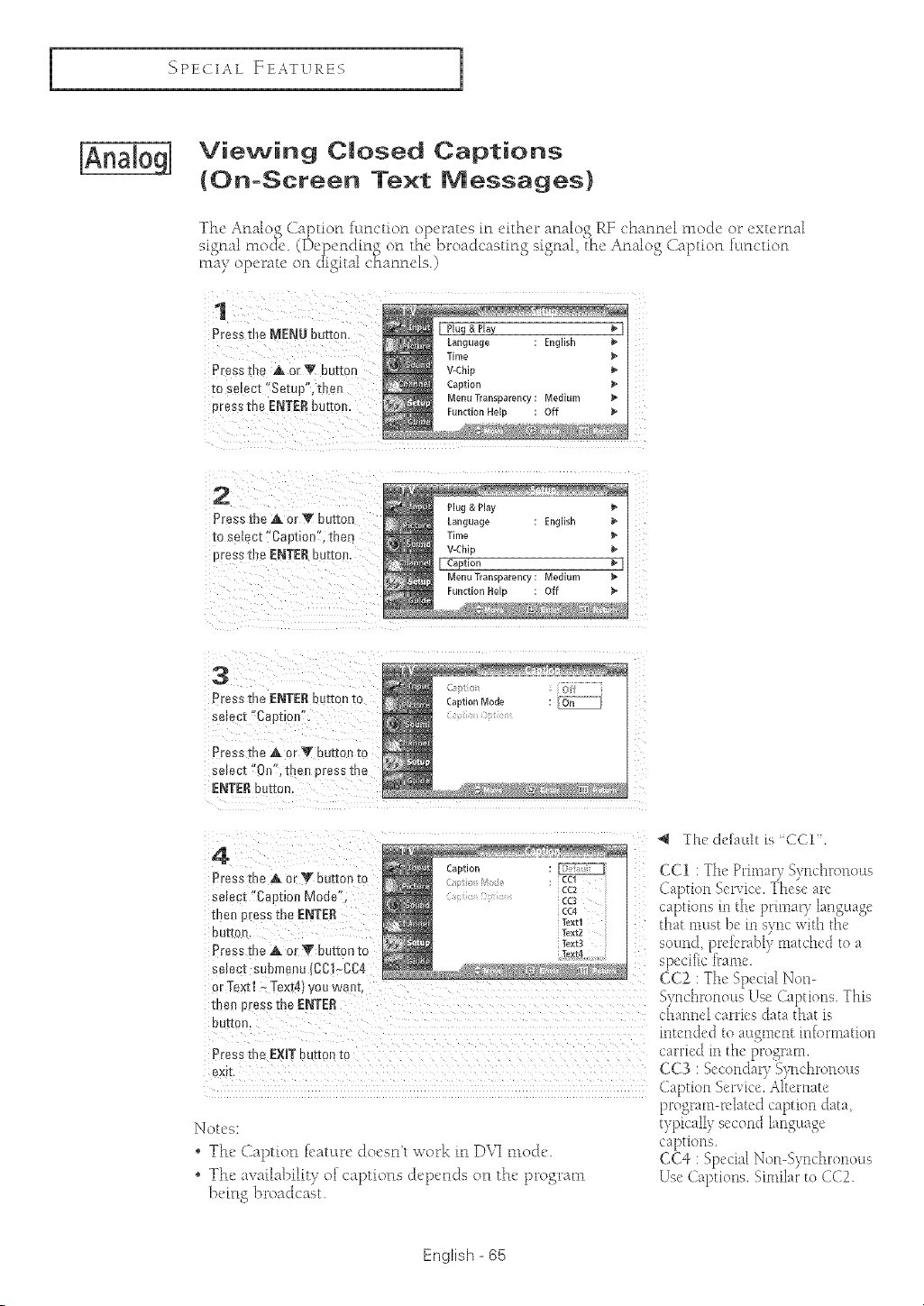
I
SPECIAL FEATURES
1
Viewing C|osed Captions
{On-Screen Text Messages}
TM' Analog Caption rE:ruction operates in either analog RE channel mode or external
signal mo<]c. (Depending on the broadcasting signal, {he Analog Caption fcLnction
may operate on c[igital c}{anncls.)
1
Press [ue MEN# but[o,
Presstbe A orV but[on
to sE ect "Setup", then
E tess the ENTER ourmr
[ Plug & Play _ [
Lauguage Enghsh
Time
V-ChlB
CaBtlor
M_nlJ Transparency M_diur_
:unction HelB Of 1
2
Press the A or T button
to _e SUE"Capt[on",then
)ress tbe ENTERbutto_
Plug & Play
Language English
Tim_
V-Chip
[ Caption
Menu Transparency Med[urr
Function Held Ott
3
Press the ENTERbut[e _[o
serec_"Caption
Press the A or T button to
select"0[ Tue_ 0ressme
ENTER button
CaBtion Mode On
The default is CCI'.
4
Press the ,& or '_ but[on [o CCI : The [)rinmr): Synchronous
select "Caption Mode" (a[)t[ot_ %PVk'c. These aPC
me press the ENTER capr[otis in the primaB," [a[1p_t[a_e
that must be in gync with the
DUF[Ort
sound, ptdctabiv nlatchud to a
Press the ,_ or _' button _c s[)ec[f[c frame '
se ecE suomenu ICCI~CC4 (:(:2 : The gp<'clal NoN
or [extl * Text4 you wa_ [, 5vnchr_)Houg Use Capuong. This
me press the ENTER channel ca[Pies data that is
DUI[0rl, int('ndud to alt_tllcnt [n[ortnatlon
Press the EXiT button to ca[Hod hi the progPam.
ex_ CC3 : %coHdaPy 5)-t;chPOt[OUS
Caprion%PriCe.Alternate
I_otcs:
o The Caption Datuwe doesn"t work in DVI mode.
• The availability of captions dcp_,nds on the' program
})dng broadcast.
ty[
captiot_s.
CC4 : SpecialNon-Synchronous
Use Captions. %nilaPto CC2
English - 65
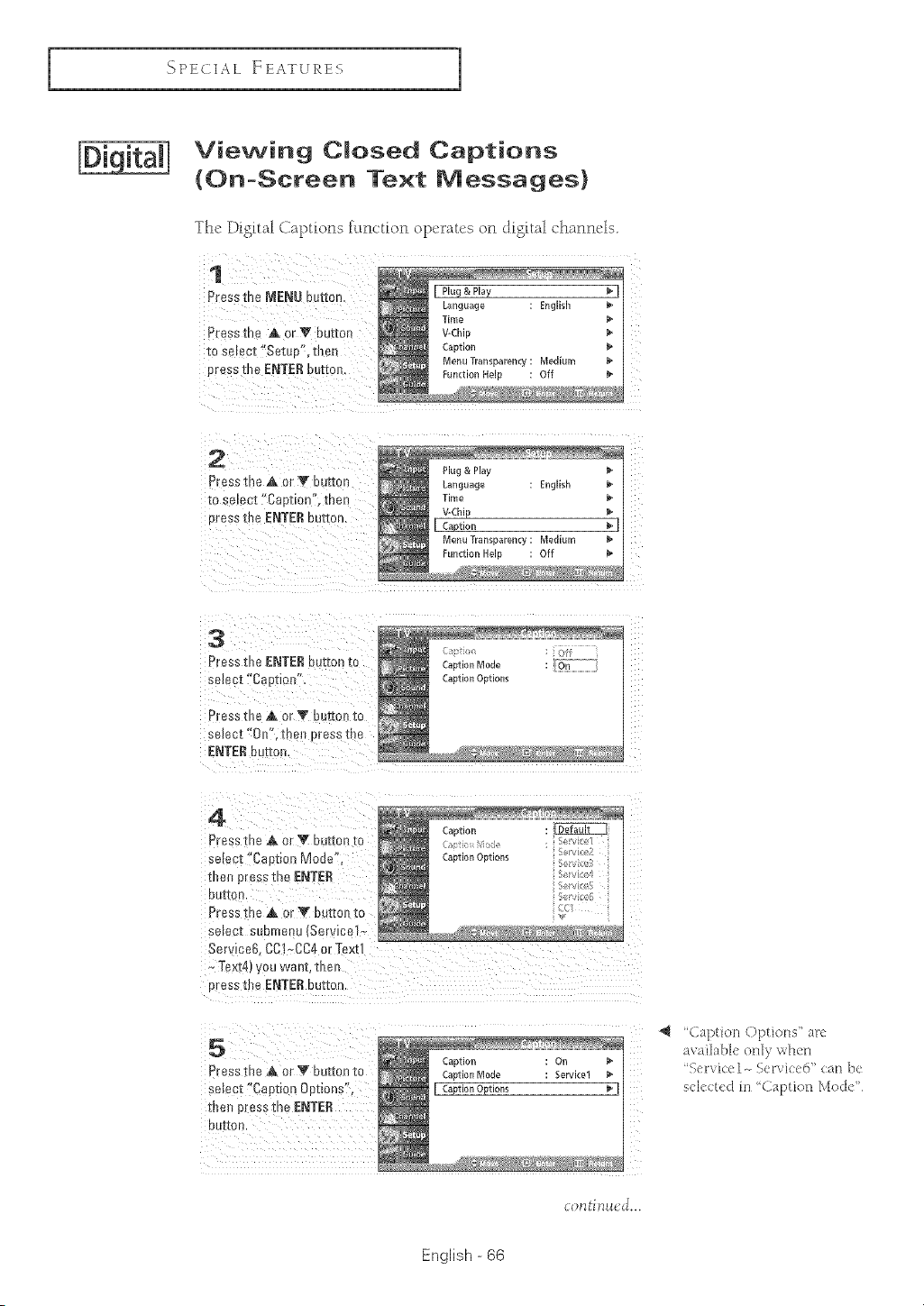
I_PECIAL FEATURES
Viewing C|osed Captions
(On-Screen Text Messages}
The Digital CaptDns _[nction operates on digital channds.
1
Pressthe MENU Du[[on. [ Plug&PlaY _1
Language ERglBh P
Time P
Press the A or V button /-chin
[o seEect"Setue'. then CaDtlor
Menu TransBarenQ Mediurr _*
press the ENTERbuttor FunctionHeir Off P
2
Pressthe A or _F bu[ton
to ;elect "Caotion", then
uress the ENTERuu[ton,
3
Press the ENTERou-[mn[o
semct "Caetion",
Press the A or V _Jtiron [o
s_.lect"On'. me_ Dressme
ENTERbutton
:antlon Mode on
(aBtlon OBuom
4
Press [he _&or V button to
select Caption Mode
me_ lressme ENTER
DU[[O )
Press me A or _' b__on [c
selec[ soemenu Service1
Serviee$ CCI,_CC4or "[extl
-Text4; you wan[ [he_
Bress the ENTERbuttor
5
CaDtl0 :_r p
Press the A or _ button tc _aBtion Mode ;ervKe!
select "Ca)tion 0etions" I CaptionOptions _ [
the_ pressthe ENTER
DO[Ion
'Caption Options' arc
available oHly when
Setvic:el._ Service6" call be
sel(cted in *Caption Mock'
English - 66
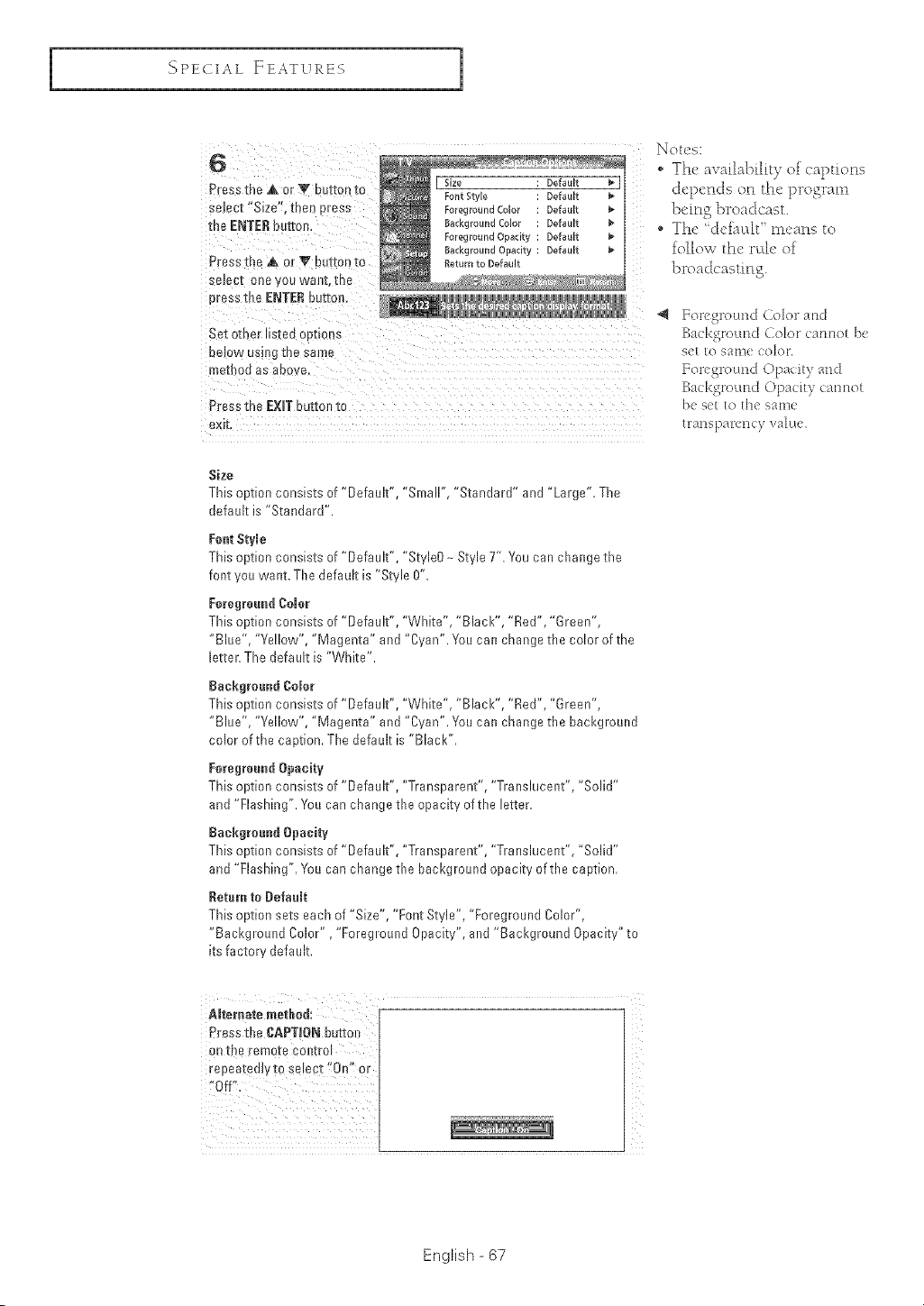
I
_'_PECIAL ]ZEATVREB
1
G
Press the ,A or '_" button to
select "Size". me[ Dress
the ENTER button,
Preso[he A or T but[onto
seJe[ _ one you wan[.-me
Dresstile ENTEReuzme,
Set other listed oot ons
eel Jw usulg me same
meteo8 as adore,
Size Default
Font Styio Default
Foreground Color Default
Backg_ouna Colo_ Default
Foreground Opacity Default
Background opacity Default
Return to Default
Press the EXIT button to
exk
Size
This option consists of "Default", "Small", "Standard" and "Large". The
default is "Standard".
[:eat Style
This option consists of "Default", "StyleO-- Style T'. You can change the
font you want. The default is "Style 0",
Foreground CeJer
This option consists of "Default", "White", °Black", "Red", "Green",
"Blue", "Yellow", "Magenta" and "Cyan". You can change the color of the
letter, The default is "White",
Rackgmund Color
This option consists of "Default", "White", "Black", "Red", "Green",
"Blue", "Yellow", "Magenta" and "Cyan". You can change the background
color of the caption. The default is "Black".
Eeregreertd Opacity
This option consists of "Default", "Transparent", "Translucent", "Solid"
and "Flashing". You can change the opacity of the letter.
Rackgreaad Opacity
This option consists of "Default", "Transparent", "Translucent", "Solid"
and "Flashing", You can change the background opacity of the caption,
Retara to Defaelt
This option sets each of "Size", "Font Style", "Foreground Color",
"Background Color", "Foreground Opacity", and "Background Opacity" to
its factory default,
AReraate method:
Pressthe CAPTION butted
on the remote Col_tro[
repeatedly to se!ept !tOn'! Or
!'Off!!
The av;_ilability of captions
depends on the program
being broadcast.
" The 'dei_t:dt meat'_s to
follow the r_d_' of
broadcasting.
< EoregroLmd (olor ariel
Backgl'ound Color (:amlot be
see to S,q[ll( Color.
Background Opacity c:amlot
be s(t to the same
t lal[lS pal-ell c)' vakte
English - 67
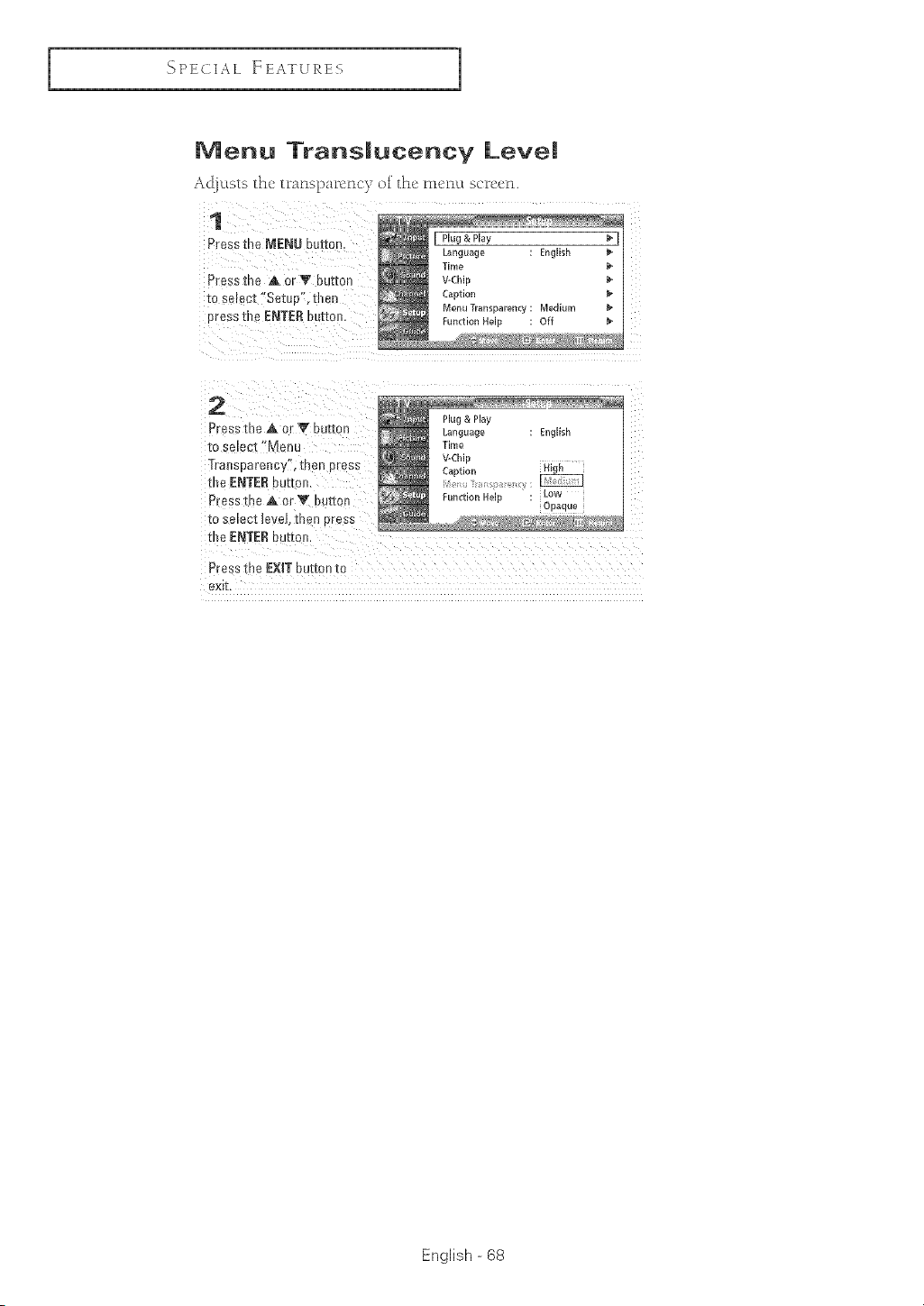
I_PECIAL FEATUKES
Menu Trans|ucency Leve|
Ac[ju;cs_he tmnspa_unuy ol the: m_!nu s_'_!_:n.
1
Press the MENU button.
PrE_stne A )rV buttDn
[Dselect "SetuP". thel
Dressthe ENTERbuttDr
[ Plug & Play w
Language Enghsh w
Time p
]-Chip _+
Ca#tlor
Menu Transparenq Mediu_
Function Held Off w
2
Press the ,& DrY but[on
[D ;elect "Menu
Transparency", then press
the ENTER button.
Press the _&or V bt +zc
[D selec[ _eueL the i Dress
the ENTER button
Plug & Play
Language English
Time
V-ChII3
CaDtlor _lgr
FunctionHeld Low
ODaaue
Press the EXIT button tD
exff,
English - 68
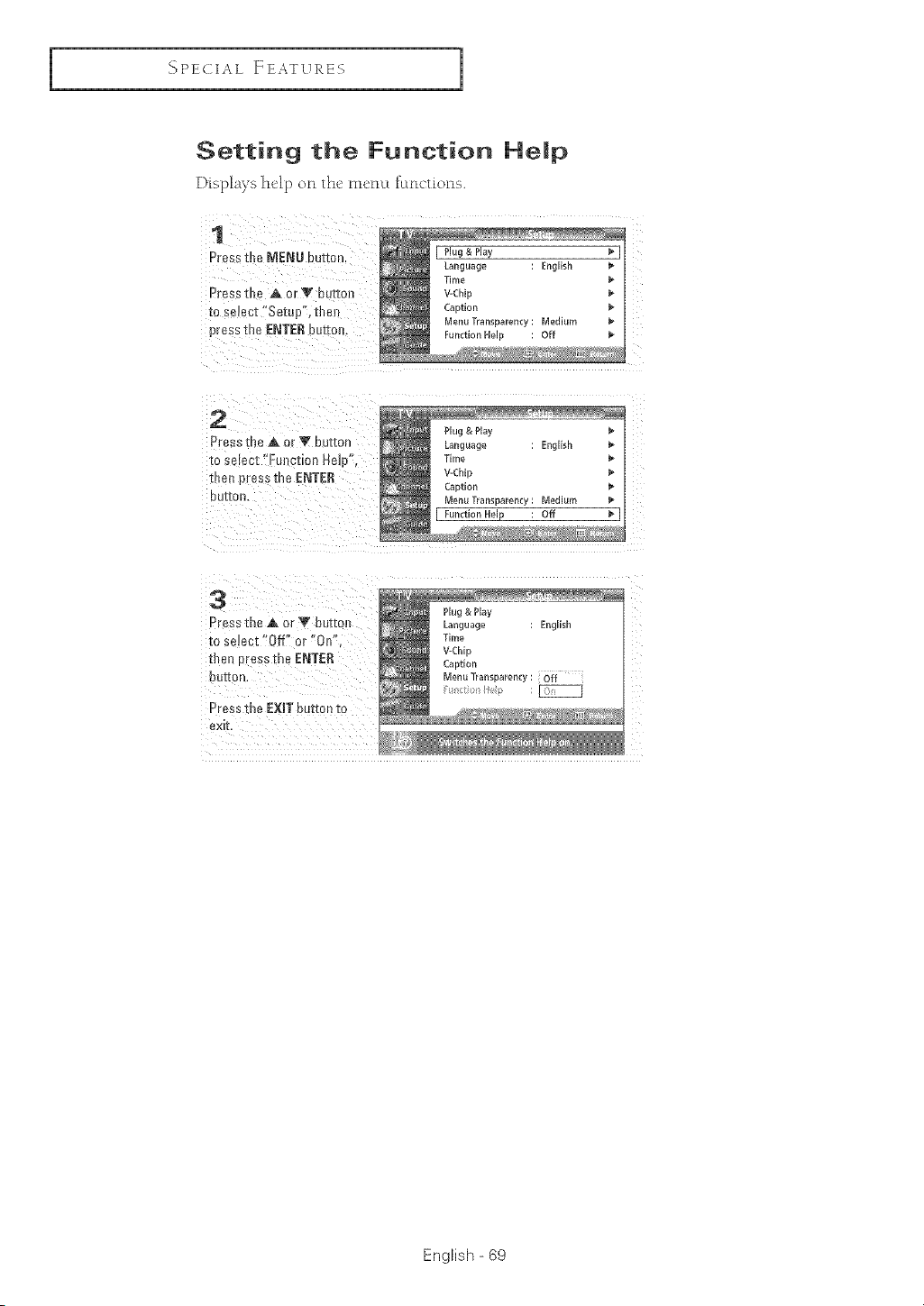
I
_ PECIAL FEATVRES
1
Setting the Function He|p
Displays h_lp on th_ menu functions.
1
Press tbe MENU eurton
Pressure A orV buttc
[o select "Set[ p", tbe_
pressthe ENTER )uEen.
2
Presst_eAor_'button
to se ect "Function Hale"
_ne_-press the ENTER
Ou_0n,
I Function Help : Off _ I
3
Pressthe A or V beEEC.
_0 S.'_ect"Off" or "0_
then DressErieENTER
OUEOH,
Press the EXiTbutton to
£X_I
Plug & Play
Language : English
Time
V-Chip
Caption
Menu Transparency: Off ......
j_
English - 69
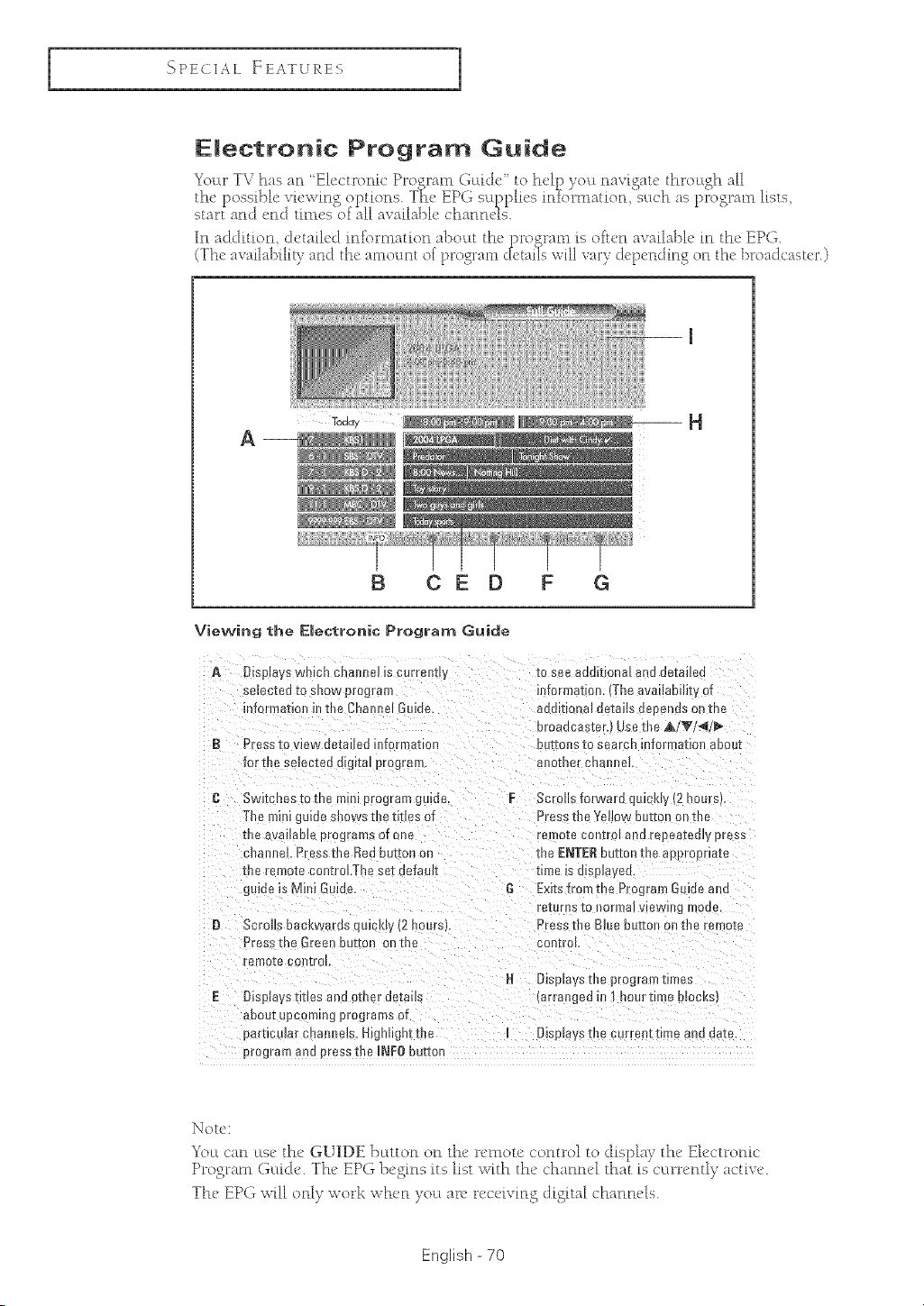
SPECIAL FEATURES
Emectronic Program Guide
Your TV has an "Electronic Pro<ram Gukh' to held you navi£au, throu£h all
the )ossible viev_ in£ o )[ions T_e EPG su ) )lies in_o_[naUon _such as )_ogram lists
-- _ _ .... 1 ........ I _
start and end timeselaH available chant_i_s.
A __
Taay ___ H
_/,:_ :.By .....
g CE D F G
Viewing the EJectronic Program Guide
A Oisp_ays wmon cr Bmle_ ]s carte ffl
5emee[eato sllow progra[e
)to_rnatlonmine ChamsalGuN_
B P ass IO view de[alice infer -" arian
lor the seJecIea dlglIal program.
to see aeomoaal ano eetaHe[i
reformation. (The availabilit,, of
aegmona_ eetaus lee ends or me
oroaacaster.} Usa the ,_./V/_/_
_otto_[s to search Informaoon auoot
ano[ner onam[e_
G Switches tome mm program game.
The mini gu_uesnows the titles of
me a ailaNe E ograms of one
;haoneL Press the Bed be1conon
-meremote controLThe set Be[aunt
juide _sMini Gutue,
B Sere[ _aaet_waras cumkly {2 hours}
Pressthe Green button on-m_
"aMoIe CO_ [FOL
E Displaystitles and other oetaus
about uoccmmg programs of
earticgar chamm]s, H_gnl_gnttile
program an J b ross the INFObutton
F Serous rorwaro qmckb,/2 nou_;_
Press the Yellow button on me
remote control anu repea[eoly _"ass
[he ENTERbutton the approprm[e
Dme _S@spla/Be,
G Exits rrom _[e Progra[n Goae aria
r_*tor]ls to ]10[ma_ V eWH g m0{][
Press the Blue out, on on zne remote
control
H Displays the program t_mes
tarranged in 1 hou_eme mocks
Displays Hie curre_[[ time and dale.
Note:
_t u can ltsc the GUIDE button on the rctuotc control to display the' E_ectronk"
Program Gltidv. The EPG begins its hst with the chatm_'[ that is currently active.
The EPG writ otdy work whet_ you are rece[v[t_g d[gita[ charmers.
English -70
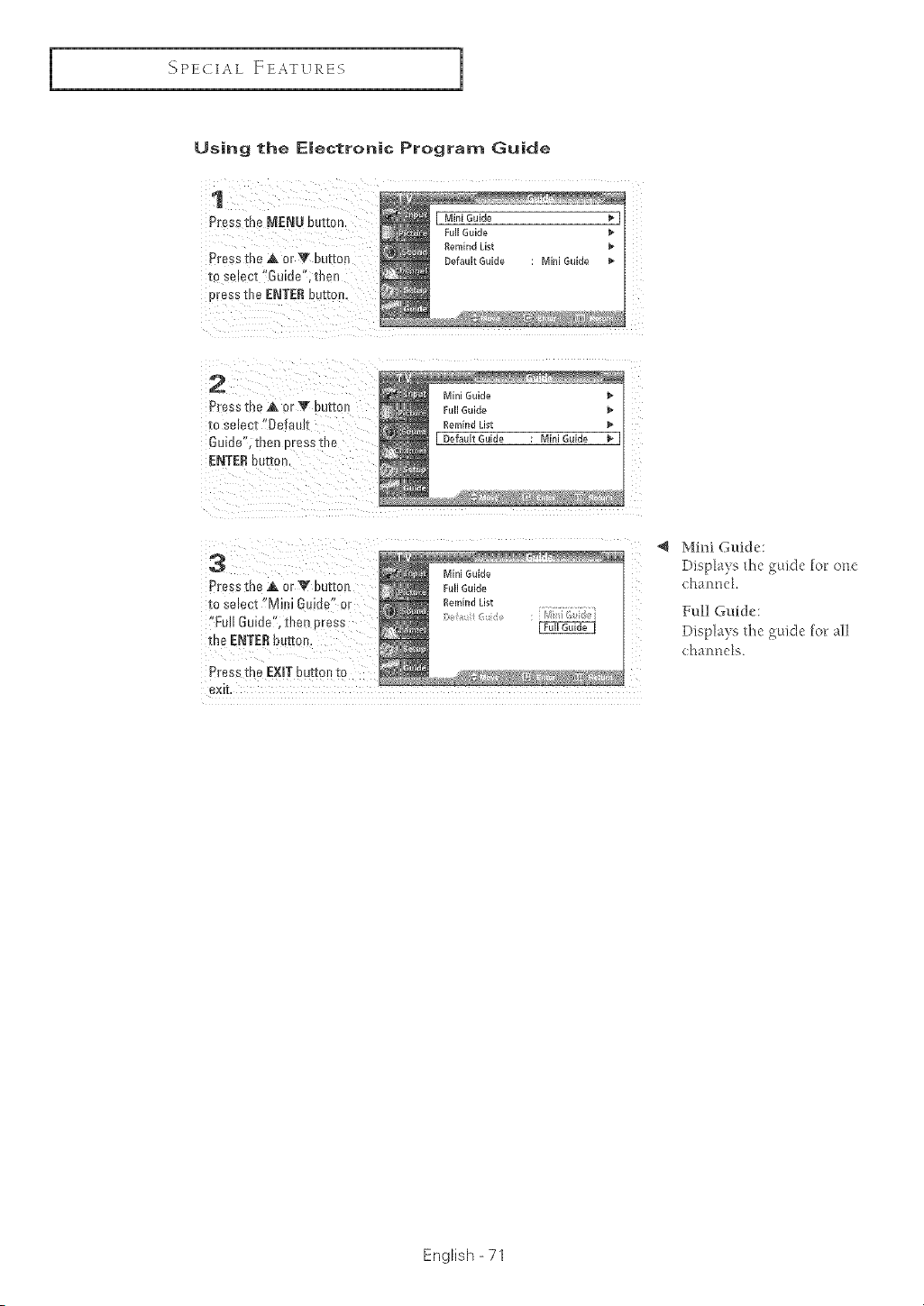
I
_ PECIAL FEATVRES
1
Using the Emectronic Program Guide
1
Press [r _ MENU DUE[On
P[es _me A or V buttc
-toselect "Guide", then
oress the ENTERbutton,
I Mini Guide _ [
Full Guide
Remind List
Default Guide : Mini Guide
2
Press the A or V butte
to select "Oefam_
Guide menoressthe
ENTERbutton
Mini Guide
Full Guide _ [
Remind List
F Default Guide : Mini Guide
i
i
3
Press me A or _ butte
to select "Mh_JGuide ur
% Guide men eress
the ENTERbutton,
Press me EXIT button to
exk
Mini Guide
Full Guide
Remind List
_ c
4 Nlini Guide:
Disp_a)s file guide lot: one
Lrhant_ek
Full Guide:
Disp_a)e flle guide for: all
(:halltle_s.
English - 71
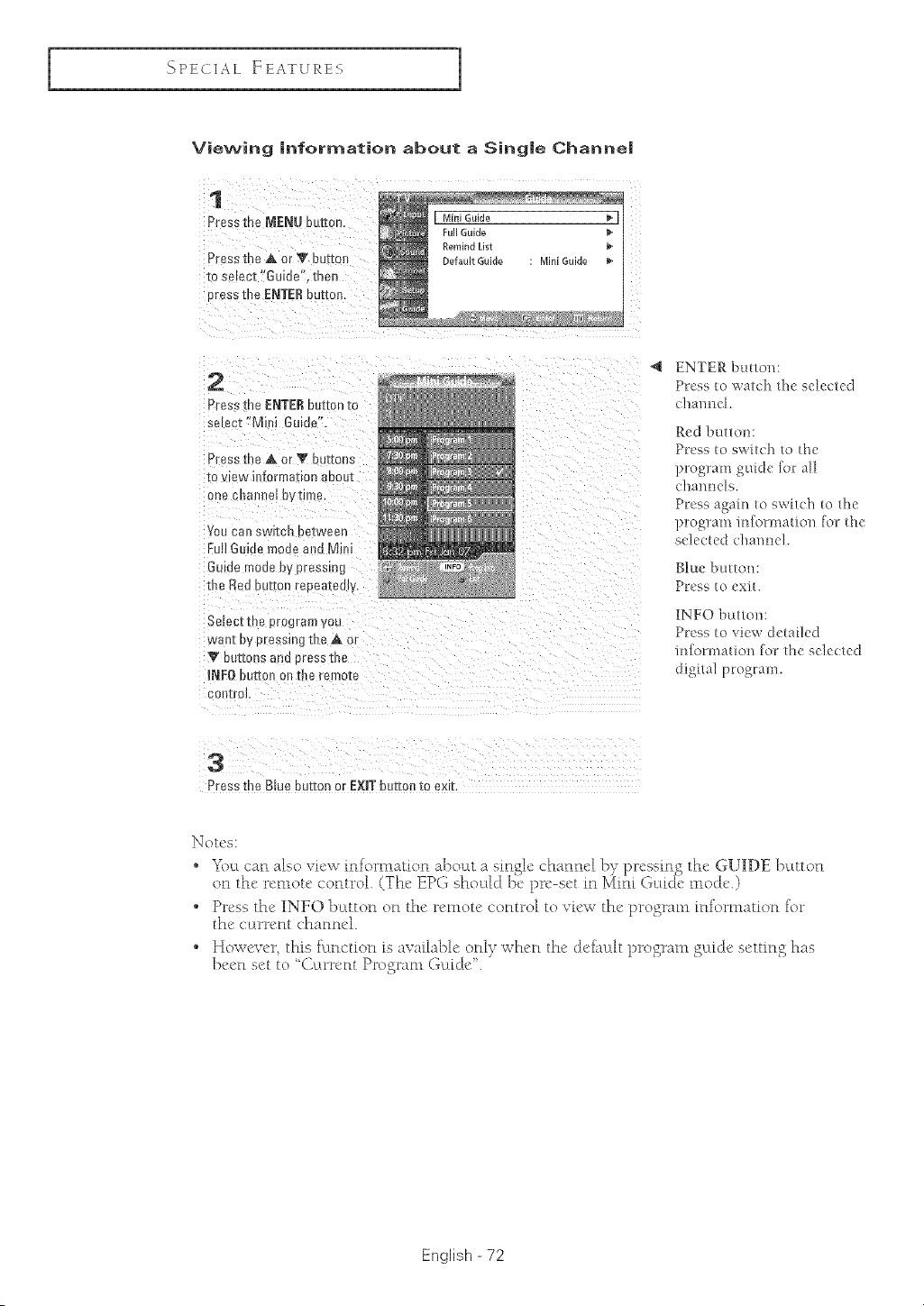
SPECIAL FEATURES
Viewing information about a Singme Channe!
1
Press the MENU button.
Press the _k or V butte{
[o select"Guide' men
Dressthe ENTERbutter
2
Press the £NTE£ button to
se_ecz"M) i Guide",
Press the _k or Y buttons
to \ _w information about
une cnanne_ rJytime
Voo ca]_ SWI_CR o£1_wa£n
FullGuiae moa_ and Mini
Guide muua _y pressing
the Red button reeeatad]v.
Selec[[ne grogram you
wan[ D Dressing the A or
V buttons aria oress the
INFO button on me remo[e
COl'lIrC.
ENTER button:
Press to watch the sdected
chaired.
Red button:
Press to switch to the
program guide [or all
channds.
Press again to switch to the
program information fo_ the
adected channd.
1NFO button:
Press to view detailed
information [or the selected
d_gital program.
3
Press the Blue button or EXITbutton to exit.
]_otes:
o "_%cLcan also view infornmtion aboat a sinde channel by Dressino the GUIDE button
orl the remote control. (The EPG sho_dd be pre-set in Mini Guide mode.)
Press the INFO bcttton oa the remote coatro[ to view the program iaformatioa for
the curreat channel.
* Hox:_ ever, this fuaction is available only whea the def)mlt program guide settiag has
beea set to ' Carreat Program Gaide'. "
English -72
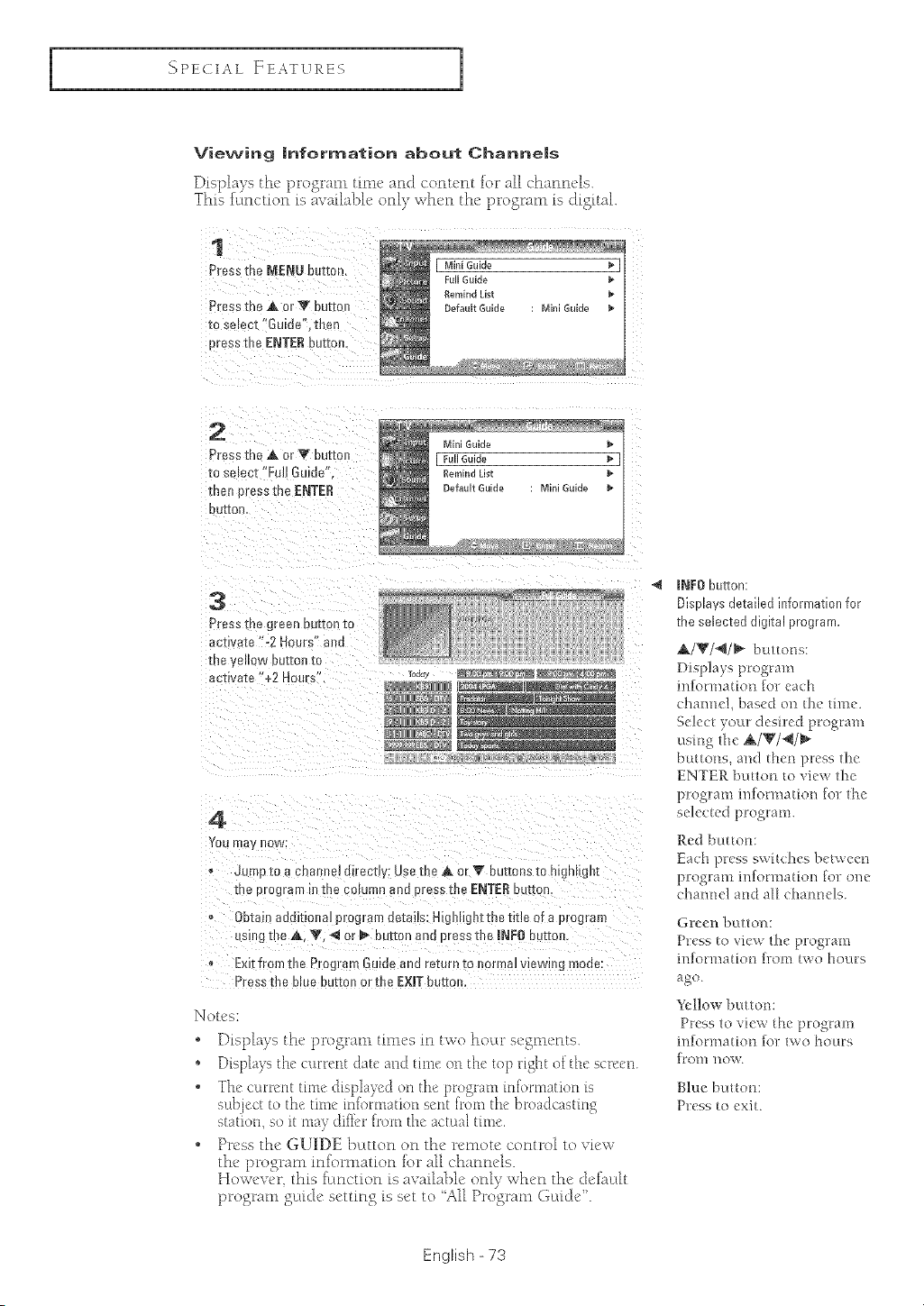
_-}PECIAL FEATURES
1
Viewing information about Channe|s
Displays the program time and conu-nt fo__air channels.
This fftnction is available orlJy s;_hen the p_ogram is digital
1
Press me MENLt button.
Pre_sme Aor V butto
m select Guide".tber
Etess the ENTERbuttor
_4ini Guide
Press the ,A or V butto_ I ;ullGuide
TOse,ect "Furl Guide" RemindList
mar pres _the ENTER 9etault Guld_ Mini Guide
DUff[
3
Press the 9reen })ethanm
activate"-2 hours aria
the yeaow button re
activate %2 Hou ._
4
YOU me Row:
_L alp (0 a cna_ ee mrec[_y: use rue A or Y butters to h gnagn][
me program m'_l_eco_ulnn_ ;1_Dressthe ENTERbuttor_
Obtain ado ._ona_program oeraas: Hignugntthe title of a program
esingthe ,&,V 4 or _ button anO )resstire INFO butto_r.
Exitfrom the Program Gu de and rezurn [o normal viewir g moae:
Press rne c.ae uutton or rne EXiTbuuoru
IX]ores:
" Dis[)[ays the pro_:mm tithes iD two hole _segments.
o Oispl%'s the c,,uxent date aud thne on the top right of the scrrcn
o The curreHt time displayed on the program ln[ormation is
sMbFct to the time [n[ormatiot_ sent [r_)m the st)at castln_2_
station, so it m%" diik'r [Fom the actual dmc.
• Press the GUIDE bt:ttton on the tern.ate control to vfew
the program information for all channels.
Howcven this fldnction is available only when the def_l:dt
p_o_:am _(tdc aettftt S Ls set to "A}[ Pr((_ram (i_d&".
_NFObutton:
Displays detailed information for
the selected digital program.
_/_'/_I_ buttons:
Displays program
information for each
channe!, based on the timc.
Select your desired program
usit_g the _/_'/_/_
buttot_s_ and t[n'_ press the
ENTER button tO view the
program information for the
se]ected program.
Red button:
Each press switches betv,'een
program information for one
channel at_d air channels.
Green button:
Press to view the program
]ufor]/_atiol} [17o]1:/ two hours
Ycllov_ button:
Press to view the pro_j,ram
inforlnation rot two hours
[t 01)1 ]lOW.
English - 73
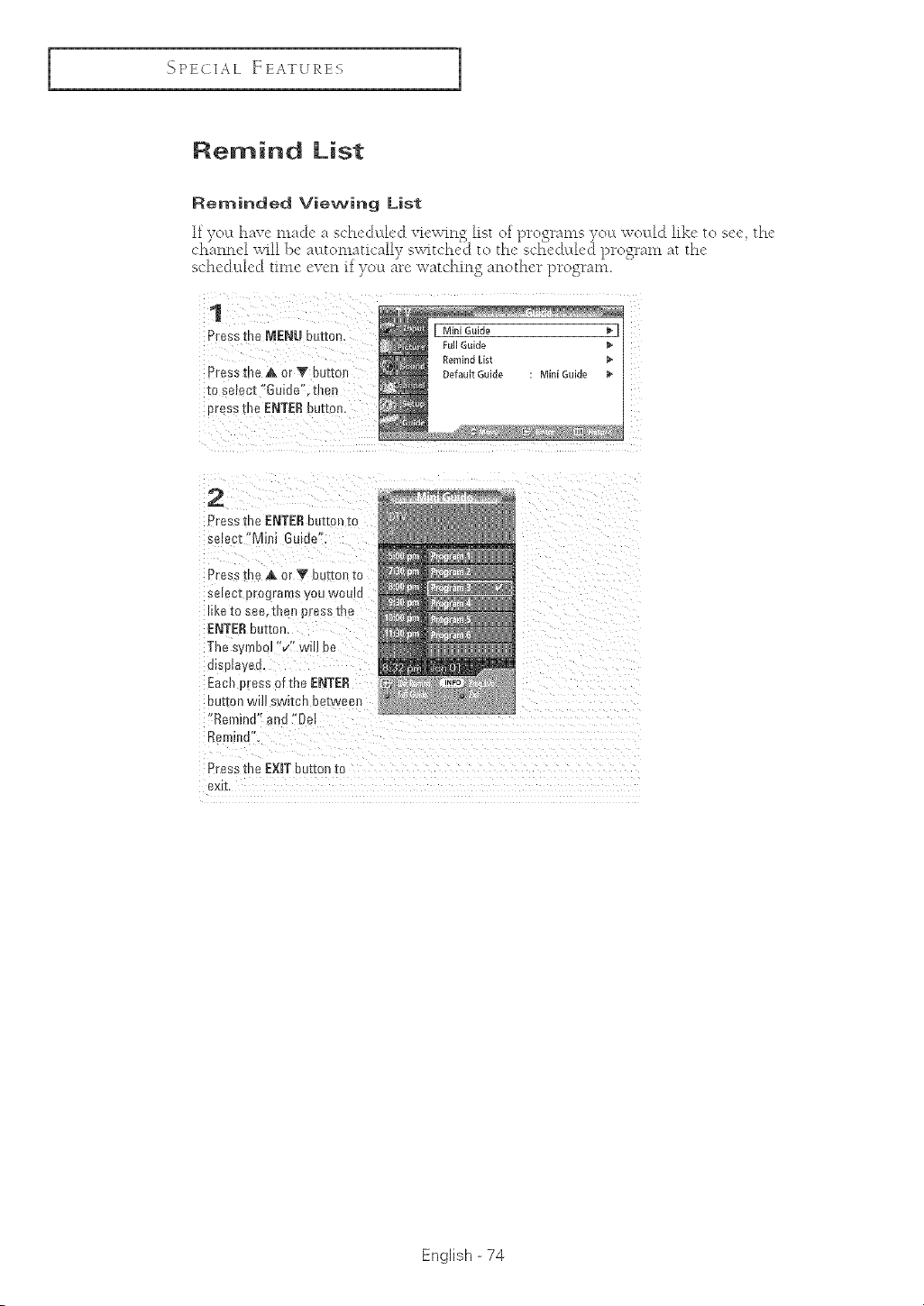
{_PECIAL FEATUXES
Remind List
2
Ftess the ENTER button [o
se ecE Mini Guide'
Pres_ :Re A or T button [o
se ec[ programs you woula
m<e[o see. Tn_O press me
ENTER but[on.
The s mbol "/' wil! be
ms£myea
Eael press of the ENTER
Ou][roe WH! SWITECI1De[wee_
"Remind" ond "De
Rmllll]_r "
Press the EXIT button to
exlI
English - 74
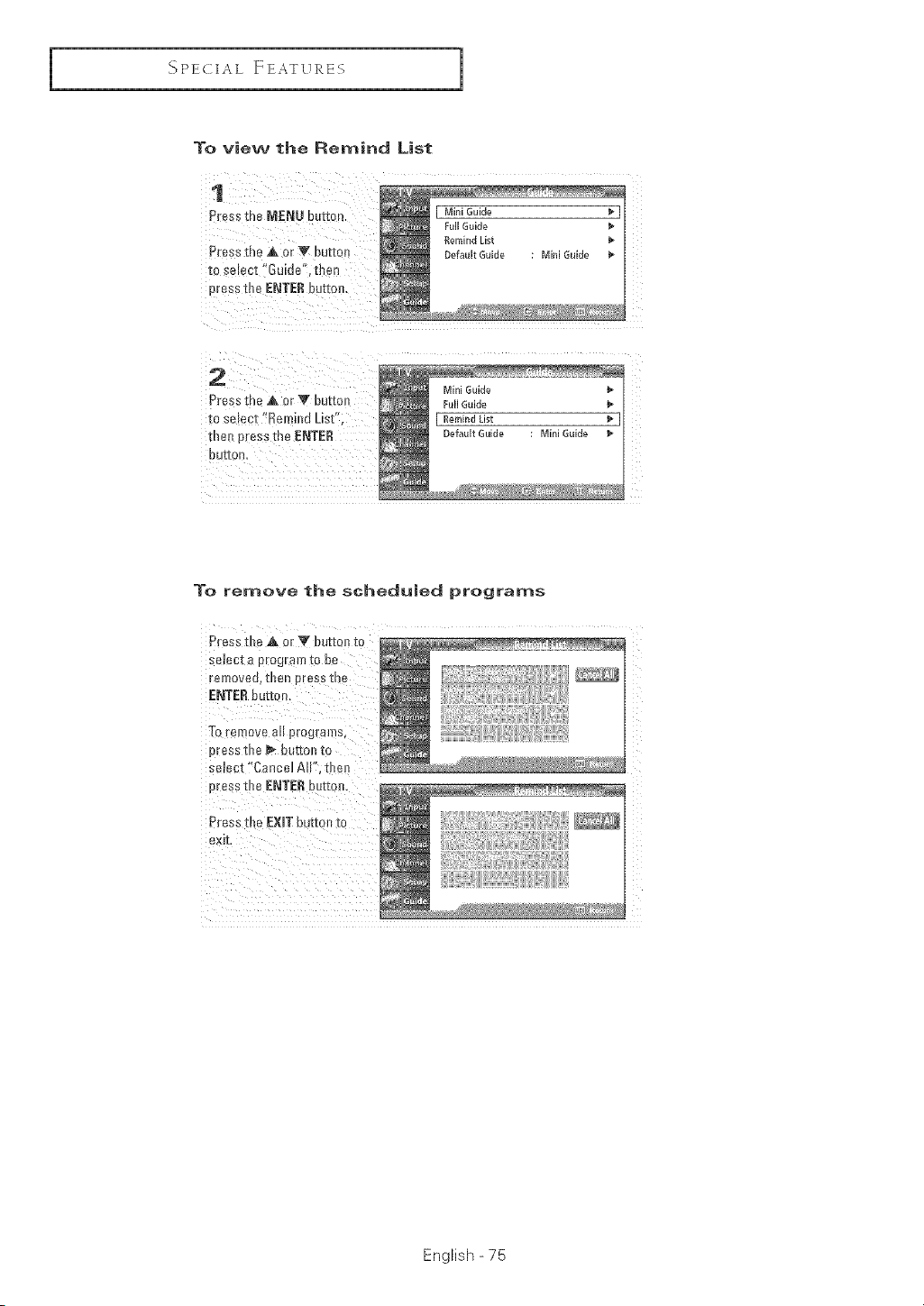
I
_'_PECIAL ]:EATURES
1
To view the Remind List
1
PFeSS[he MENU bu[[on
PFeSSthe A or _'/)utton
to selecz"Gu[de' men
Dressme ENTEt{ butto
I Mini Guide _ [
Full Guide
Remind List
Default Guide : Mini Guide
.... _22_ _'__*_g:,
2
PFeSSme A or V butte
to select "Remind List'
[ne_ press the ENTEI{
UU[IOD,
Mini Guide
Full Guide
I Remind List I
Default Guide : Mini Guide
i
i
i
To remove the scheduled programs
PFeSSfl_eA 0r V butten to
se!ect a p[ograrn t0 be
removed,then p[ess the
To remove all pmgtams:
p[essthe I_ button to
select :'Cancel All', the_l
English - 75
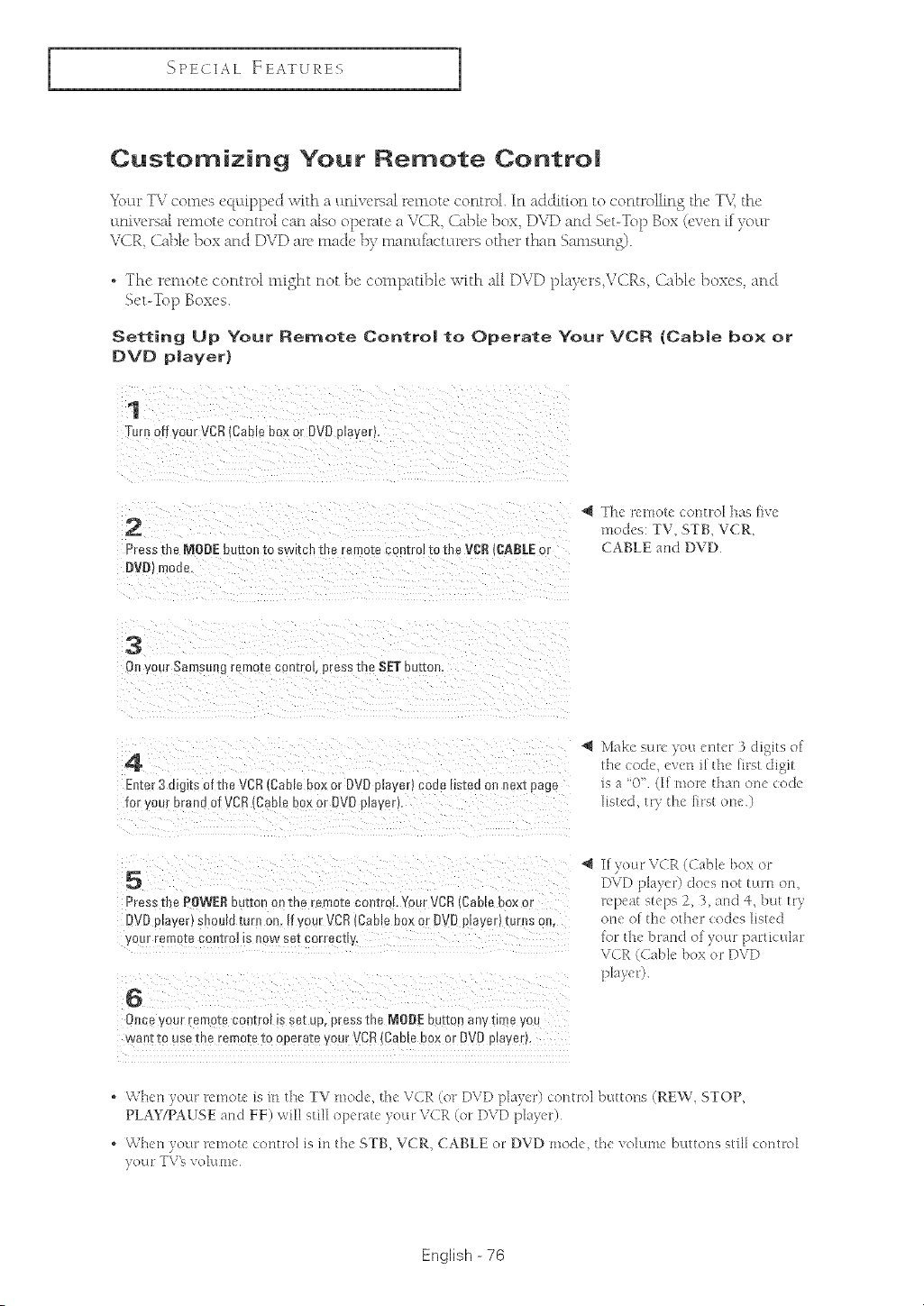
{'_PECIA L FEATURES
Customizing Your Remote Contro|
• • 3 '
_o[:[r T_ ccmes vqaipped ;v_th a amveit_al remote control. In addition to coatrolling the T\< the
ltnivcrsal remote control can also operate a V(fP.., (i_]Je ])ox, D\T) and Set-Top Box (ev{'r3_if )oLtr
VCR <2abb box and DVD arc math' by mamd_cuu>rs oth< _thaa Sams_mg).
. The remote control might not be compatibk with all DVD players VCRs Cable boxes aad
Set-Top Bum's.
Setting Up Your Remote Control to Operate Your VC£ {Cable box or
DVD player}
1
Tun off your VCR(CaNe box or DVRprayer,,
2
Press the MODE button to swrme me remote control to the VCR GABLEor
DVB} mode
"_ The renlote _ontrol has [h'c
} •
nl_ des T_v, STB, VCR,
CABLE a_ld DVD
3
O_ your Samsul g remo_e con[rob press me SET butmm
4
Enter 3 dt[ its of the VCR Cable box or DVOplayerl coue as_eeon next page
for our brand of VCR(Came box or DVDNayer_,
Make sur( you (nter 3 digits ol
the code, even i[ the hrst digit
is a "0" (If more than one code
list<t, try the first on(')
5
Press the POWERbutton on me remozecoe[roL Your VCR (Cable box m
DVD pmyerf snoum [urn on u your VCR Cable box or DVD playerl [urns o...
ye r remoza coutro__snow set correcuy,
I[ your VCR (Cable box or
DVD player) does not turn on,
r_peat steps 2, 3, and 4, but t 0
one of th{ othe_ codes hsted
lol the brand o[)oul particulal
V(R (Cable box or DVD
6
Oe_e your remo-tecon[rol m se[ up, press the NODE uu[[on any ume yot
want to usethe remote to operate your VCR{Ca[ _ !)ox or DVO prayer
. When your remot( is m the TV rood(, the V(R (or DVD player) control buUo_le (REW, STOP,
PLAY_AUSE and FF) will still >pc-a < )ou -V(R (o DVD p _e
, Whm] your r( mote control is its th( STB, VCR, CABLE or DVD rood(, the \oluur_e buttons still control
)'outr TV's _,o1uom
English -76
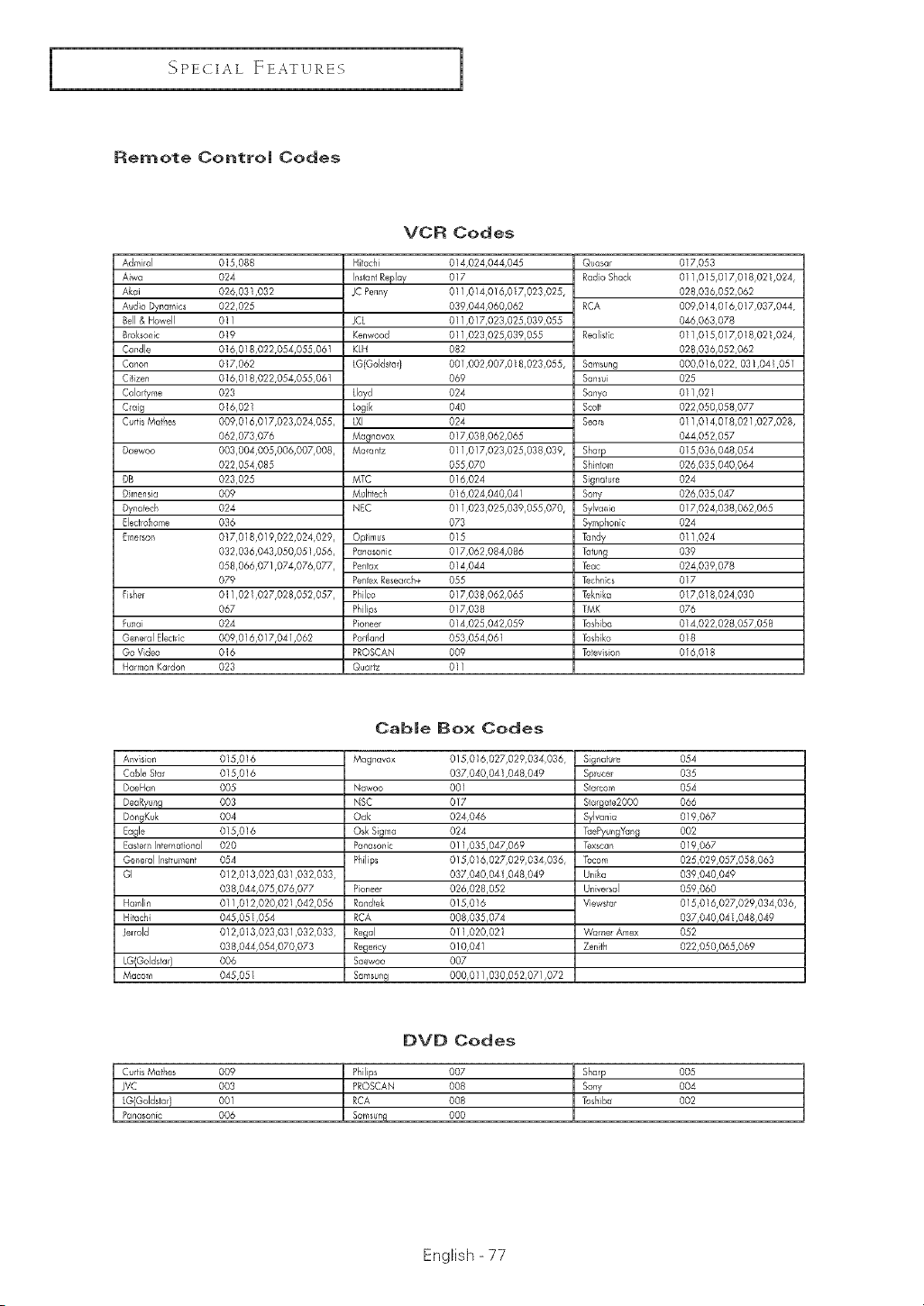
I
SPECIAL FEATURES
1
Remote Contro| Codes
VCR Codes
Admiral 015,088
Aiwa 024
Akai 026,031,032
Audio Dynamics 022,025
Bell & Howell 01/
8roksanic 019
Ca_dle 016,018,022,054,055,061
Canon 017,062
Citizen 016,018,022,054,055,061
Colortyme 023
Craig 016,021
Curtis Matl_es 009,016,017,023,024,055,
062,073,076
Daewoo 003,004,005,006,007,008,
022,054,085
DB 023,025
D rnensia 009
Dynafech 024
Rlectrohome 036
Dnerson 017,018,019,022,024,029,
032,036,043,050,051,056,
058,066,071,074,076,077,
079
Fisher 011,021,027,028,052,057,
067
Funai 024
General Electrc 009,016,017,041,062
Go Vdeo 016
Harmon Kardan 023
Hitachi 014,024,044,045
InstantReplay 017
JC Penny 01 1,014,016,017,023,025,
039,044,060,062
JCL 011,017,023,025,039,055
Kenwood 0/1,023,025,039,055
KLH 082
LG(GoldsfarI 001,002,007,018,023,055,
069
Lloyd 024
Logik 040
LXI 024
Magnavax 017,038,062,065
Maranlz 011,017,023,025,038,039,
055,070
MTC 016,024
Multitech 016,024,040,04/
NEC OI 1,023,025,039,055,070,
073
Optimus 015
Panasonic Ol 7,062,084,086
Pentax O] 4,044
PentexResearch+ 055
Philco 0/7,038,062,065
Philips 017,038
Pioneer 014,025,042,059
Parfland 053,054,061
PROSCAN 009
Quartz O1/
Quasar
Radio Shack
RCA
Realistc
Samsung
Sansui
Sanyo
Scott
Sears
Sharp
Shkltam
5ignalure
Sony
Sylvania
Symphonic
Tandy
Tatung
Teac
Techncs
Td_nika
TMK
Toshiba
Toshiko
Toieqsion
017,053
011,015,017,018,021,024,
028,036,052,062
009,014,016,017,037,044,
046,063,078
0/1,015,017,0/8,02/,024,
028,036,052,062
000,016,022,031,041,051
025
011,02I
022,050,058,077
011,014,018,021,027,028,
044,052,057
015,036,048,054
026,035,040,064
024
026,035,047
017,024,038,062,065
024
011,024
039
024,03%078
017
0/7,018,024,030
076
014,022,028,057,058
018
016,018
Anvision 0/5,016
Cable Slat 015,016
DaeHan 005
DeaRyun_ 003
DongKuk 004
Eagle 015,016
EasternInternational 020
Gene_nlInstrument 054
GI O12,013,023,031,032,033,
038,044,075,076,077
Hamlin Ol 1,012,020,021,042,056
Hitachi 045,051,054
Jelrold 012,013,023,031,032,033,
038,044,054,070,073
006
045,05_
CabJe Box Codes
Magnavox
Nawoo
NSC
Oak
Osk Sigma
Panasonic
Philips
Pioneer
Randtek
RCA
Regal
Regency
Saewoo
Samsung
LGIGoldstar)
Macom
DVD Codes
015,016,027,029,034,036,
037,040,041,048,049
001
017
024,046
024
011,035,047,069
015,016,027,029,034,036,
037,040,041,048,049
026,028,052
015,016
008,035,074
011,020,021
010,041
007
000,011,030,052,071,072
Signa ure
Sprucer
Slargate2000
Sylvania
TaePyun,gYang
lexscan
Tocom
Unika
Universal
Viewstar
Warne_Amex
Zenith
054
035
054
066
019,067
002
019,067
025,029,057,058,063
039,040,049
059,060
015,016,027,029,034,036,
037,040,041,048,049
052
022,050,065,069
CuiRsMathes 009 Philips 007
JVC 003 PROSCAN 008
LG(GoldstarI 001 RCA 008
Panasonic 006 Samsun_ 000
Sharp
Sony
Toshiba
005
004
002
English - 77
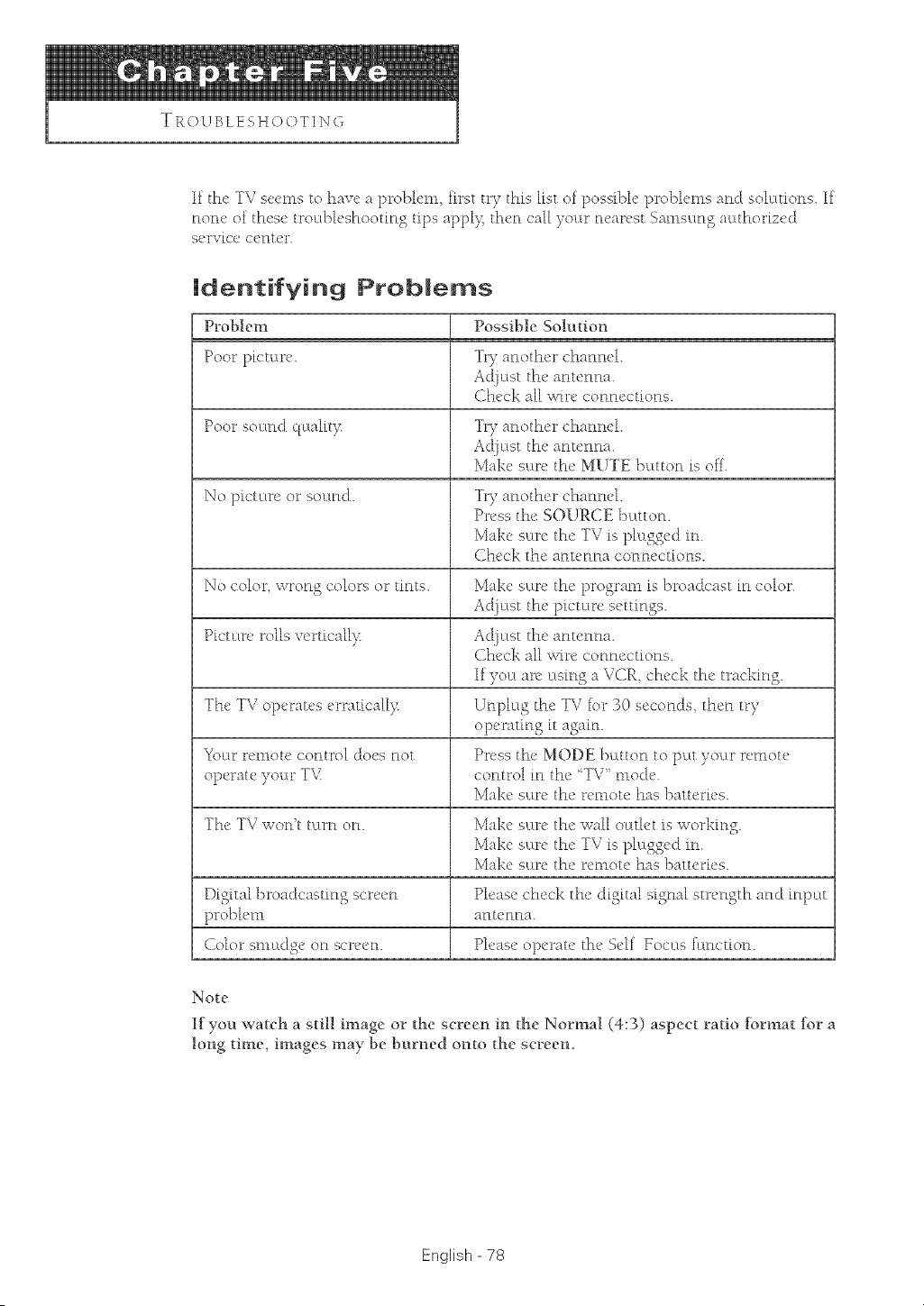
TRC)UBLESHOC)TING
If the TV seems to have a problem_ first try this fist of possibh' problems and solutions. If
none of these troL:tbh'shootin S tips apply, then caI[ )ot:w m'arvst SamsL:mS authorized
scrvh'v ct'nter.
identifying Probmems
Problem Possible Solution
Poor picture. Try another channel.
A<[]ust the antenna.
Ch_'ck all win' conm'ctions.
Poor sound quafit K Try another channel.
Adjl:tst the antenna.
Make sl:m" the' MUTE bcttton is oft.
No pitt un' or sound. Try anoth< _channel
Press the' SOURCE button.
Make sure the TV is plugged in.
Check the' antenna connections.
No color wrong colors or tints. Make st:tre the program is broadcast fn color.
Adjust the ph'turv settings.
Ph't urv roils vt'rticaIIy A_[]t:tst tht' anu'nna.
(ih_'ck all wire connections.
If yOL:Larc usfn Z a VCE_ ch_'ck the' trackin S.
The' TV opvrau, s <_ratical[)_ Unph:Lg the TV Dr 30 seconds th_'n try
opt'ratin S it again.
Yore_ remote control does not Press the MODE button to put yot:w remote
operate )our T\I control in the '%V' mode.
Makv sure the' n'mote has batteries.
Tht, TV won't tt:trn on. Make sL:m"the wall ot:ttlet is workin S.
Make sure the TV fs plugged in.
Make st:m" the remote has batteries.
Digital broadcastin S screen [)lease ch_'ck the' (figita[ signal strength and input
probh'm antenna.
Color smudge on screen. Pl_'ase operau' the' St'If Focus fi:tnction.
Note
If you watch a still image or the screen in the Normal (4:3) aspect ratio fbrmat for a
long time, images may be burned onto the screem
English -78
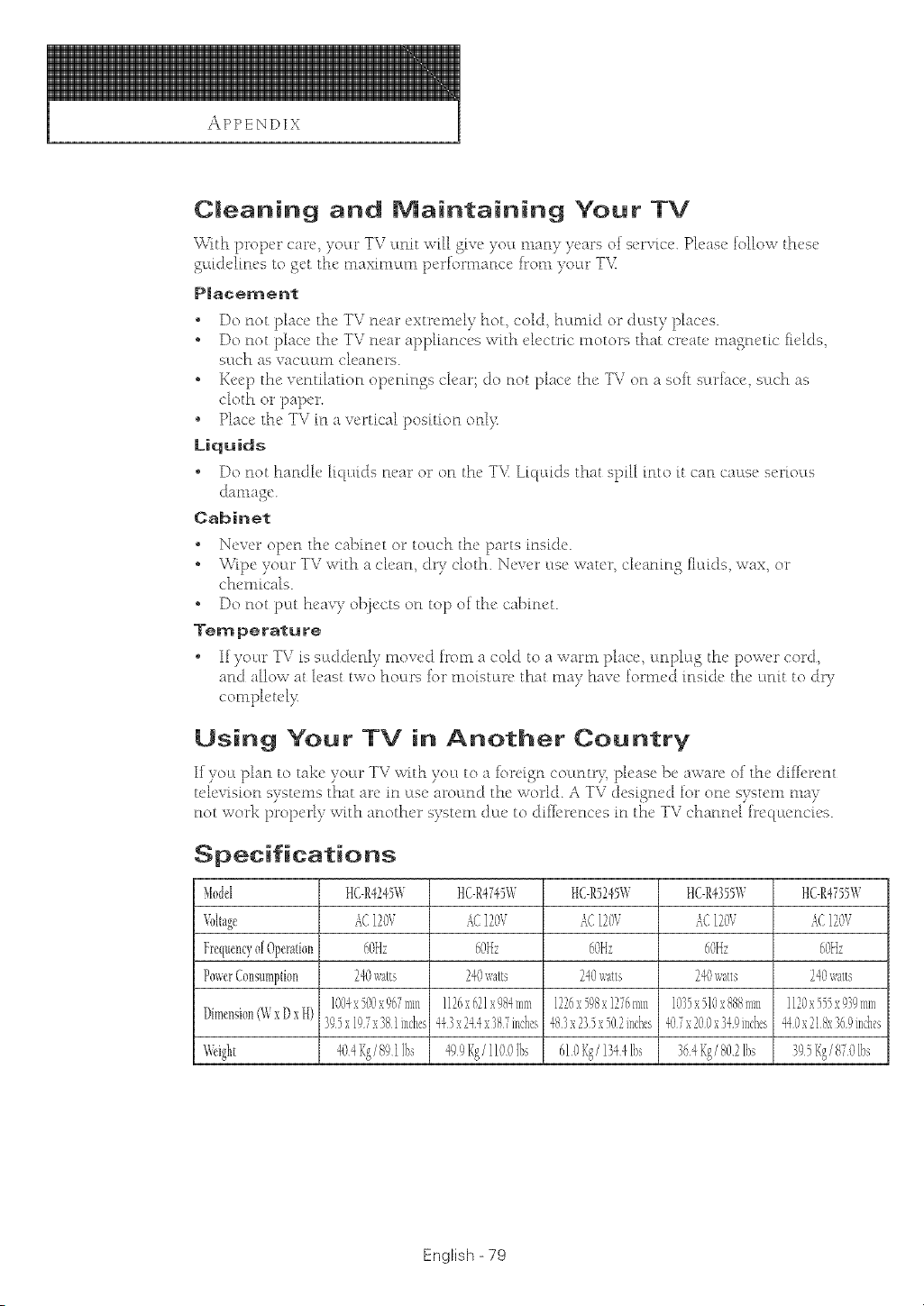
APPENDIX
Cmeanintj and Maintaining Your TV
k,%rfthproper care, ",,our, T\7 lmit will o_ive _.ou,nmn) years of service. Please follow these
gukMLnes to get the maxmmm performance irom yoctr T\_
P|acement
o Do not place the TV near extremely hot, cold, hanfid or dast v places.
o Do not place the TV near applfancvs with dcctrk" motors that create tnagnctk" fields
sctc'h as vacuum cleaners.
o Keep the ventilation openings dear; do not plac'c the TV on a soft sctrklcv sctch as
cloth or paper.
* Place the TV in a vcrtR'a[ posftion onl)<
Liquids
" Do not handle liquids near or on the TV. Liquids that spill into it can cause serious
damage.
Cabinet
o Never open the cabinet or touch the parts inside.
o Wipe your TV with a dean, dr/cloth. Ncw'r t:tsc wauu; cleaning flaids wax, or
ch_'rnicals.
o Do not pat hca_T objects on top of the cabinet.
"re m £e ratu re
o If voL:u"TV is sad&'nl v mowd from a cold to a warm place, lmplag the' pow<" cord,
and allow at least two hours for moistarv that ma/have fommd insi&' the unit to dly
comph'u'l K
Using Your TV in Another Country
If )ola plan to take yocw TV with you to a brdgn countr}_ please bc aware of the diffbrcnt
tclevisioc_ s) su'ms that arc in use around the worM. A TV designed for one system nm)
not work properly with another system d m' to d fficrcnccs [n the TV channd frcqucnch,s.
Specifications
Model HC-R4245W HC-R4745W HC-R5245W HC-R4355W HC-R4755W
%Itage _£120V _¢ 120V _£120V _£ 120V _£120V
FrequencyofOperation (:OI-h 60Hz (:OI-h 60Hz 6OHz
PowerConsumption 24(;watts 240watts 240watts 240watts 240watts
1004x500x%7mml126x62h984mm1226x598x1276mm1035x510x888mml120x555x939mm
DimensionW N)xH) 395xlgYx381inches"t43x244:':387inchca483x235xS02inches"t07x100x349inches440H218x369in&es
'_,dgl_t 610Kg/1344[bs 395Kg/870[bs
English - 79

1-800-SAMSUNG (1-800-726-7864)
Samsung Electronics America
Service Division
400 Valley Road, Suite 20I
Mount Arlington, NJ 07856
www.samsun_ _com
Samsung Electronics Canada Inc.
Samsung Customer Care
55 Standish Court
Mississauga, Ontario
L5R 4B2
www.samsung.ca
BP68-OO334B-01