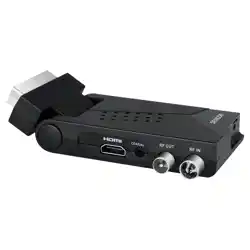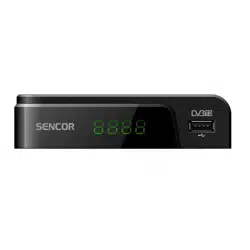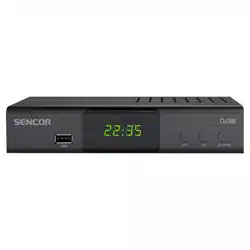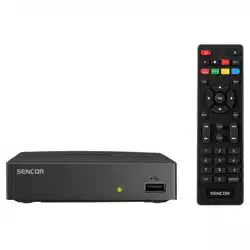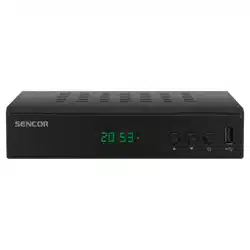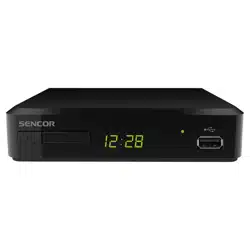

SET TOP BOX
SDB 521T
USER'S MANUAL
EN


EN 3
EN
Revision 12/2020Copyright © 2020, Fast ČR, a. s.
Table of Contents
Table of Contents
SAFETY INFORMATION ........................................................................................................................ 5
INTRODUCTION
Front panel ........................................................................................................................................9
Rear panel ......................................................................................................................................... 9
Side view ........................................................................................................................................... 9
Remote control ...............................................................................................................................10
SYSTEM CONNECTION
General information ........................................................................................................................ 11
Connecting to a television .............................................................................................................11
GETTING STARTED
Welcome ..........................................................................................................................................12
Installation ........................................................................................................................................12
OPERATION
Changing channels ........................................................................................................................14
Opening the Electronic programming guide (EPG) ...............................................................14
EDITING CHANNELS
Edit Channel menu ........................................................................................................................15
TV Channel List ..............................................................................................................................15
Radio Channel List ......................................................................................................................... 16
Delete All ..........................................................................................................................................16
SYSTEM SETTINGS
System Setup menu .....................................................................................................................16
Language.......................................................................................................................................... 17
TV System ....................................................................................................................................... 18
Local Time Setting .........................................................................................................................18
Timer Setting ..................................................................................................................................19
Parental Lock ...................................................................................................................................19
OSD Setting ....................................................................................................................................20
Favourite ..........................................................................................................................................20
Audio Description Setting ............................................................................................................21
Other ................................................................................................................................................. 21

4 EN
EN
Revision 12/2020Copyright © 2020, Fast ČR, a. s.
Table of Contents
TOOLS
Tools main menu ..........................................................................................................................22
Information ......................................................................................................................................22
Factory Settings .............................................................................................................................22
Software Upgrade .........................................................................................................................23
Remove USB device safely ........................................................................................................23
MULTIMEDIA PLAYER
Multimedia player main menu .................................................................................................. 24
Media Playback ............................................................................................................................. 24
HDD Information ...........................................................................................................................26
DVR Setting .................................................................................................................................... 27
TIME SHIFT / RECORDING
Timeshift ..........................................................................................................................................28
Record ..............................................................................................................................................29
TROUBLESHOOTING...........................................................................................................................30
TECHNICAL SPECIFICATIONS............................................................................................................31
EN 5
EN
Revision 12/2020Copyright © 2020, Fast ČR, a. s.
Safety Information
Safety Information
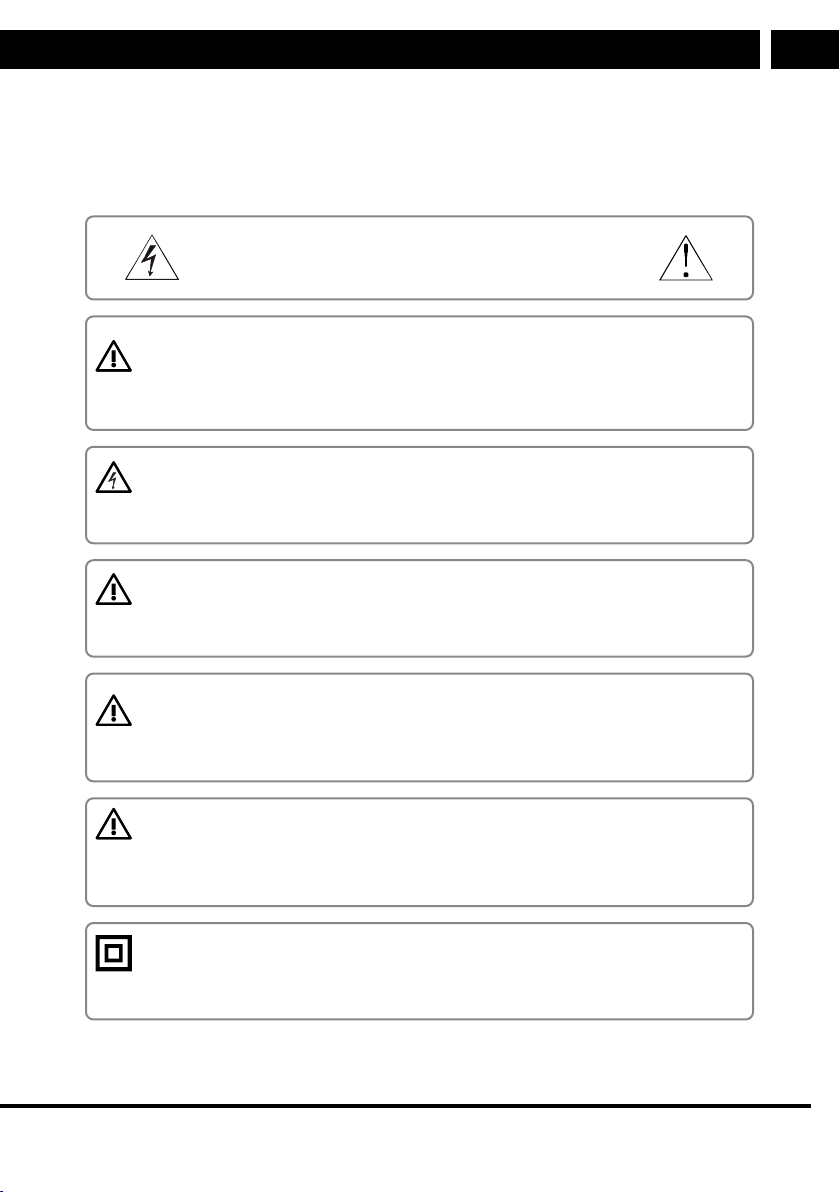
TO MINIMIZE FIRE HAZARD OR INJURY BY ELECTRICAL SHOCK, DO NOT EXPOSE
THIS DEVICE TO RAIN OR HUMIDITY.
NOTE
RISK OF ELECTRIC SHOCK
DO NOT OPEN
CAUTION
To minimize fire hazard or electric shock, do not remove the cover (or the rear
panel) of the device. Have all repairs performed by qualified service technicians.
The lightning symbol located in an equilateral triangle informs the user about
the existence of an uninsulated "dangerous voltage" inside the device, which can
have such an intensity as to cause injury by electrical shock.
The exclamation mark symbol located inside an equilateral triangle informs the
user about important instructions for operation and maintenance in the attached
device documentation.
WARNING
TO MINIMIZE FIRE HAZARD OR ELECTRIC SHOCK, DO NOT EXPOSE THIS
DEVICE TO RAIN OR HUMIDITY.
CAUTION
TO PREVENT FIRE HAZARD OR ELECTRIC SHOCK, ALIGN THE PLUG WIDE
BLADE WITH THE SOCKET WIDE SLOT AND PUSH THE PLUG AS FAR AS IT
GOES.
This symbol indicates that the device has double insulation between the
dangerous mains voltage and the user serviceable parts. In the case of servicing,
use only identical spare parts.
Do not expose the appliance to the effects of dripping or spraying water and do not place
objects filled with a liquid such as vases on the appliance.

6 EN
EN
Revision 12/2020Copyright © 2020, Fast ČR, a. s.
Safety Information
IMPORTANT SAFETY INSTRUCTIONS
During the manufacture of this set-top-box, great attention has been paid not only
to meeting quality requirements, but also to providing safety which is a key factor in
designing all of our products. Providing security, however, requires your actions as well.
This document contains important information that will help you learn how to correctly
use this set-top box and its accessories to your satisfaction. Please read them carefully
before installation and using this set-top-box.
Installation
1. Read and observe the instructions - Please read all safety and operating instructions
before using this set-top-box. Adhere to all instructions.
2. Retain the instructions - Keep the safety and operating instructions for future use.
3. Heed the warnings - Observe all warnings on the set-top-box and in the operating
instructions.
4. Power supply - This set-top-box is powered from a DC power supply plug. To prevent
a risk of electric shock, please make sure to connect the power supply to your power
outlet correctly.
5. Sources of energy - To power this set-top-box, you may only use sources whose
specifications meet the nameplate ratings on the set-top-box rear panel. If in doubt
about the type of energy source at home or in your office, please contact your set-
top-box dealer or an electrician. For set-to-boxes designed for battery operation or
powering from other energy sources, please refer to the operating instructions.
6. Overloading - Do not overload the power outlets and extension cords to avoid risk
of fire or electric shock. Overloaded power outlets and extension cords, frayed power
cords, damaged or cracked conductor insulations and damaged plugs are dangerous
and may lead to electric shock or fire. Inspect the cord on regular basis and if it
appears that insulation damage or property deterioration may have occurred, ask a
qualified service technician for a replacement.
7. Power cord protection - Route the power cords so they are not likely to be stepped
on or damaged by placing objects on or against them, while paying extra attention to
the points of their exit from the set-top-box.
8. Ventilation - Openings and holes in the unit’s cabinet are designed for ventilation
to ensure reliable operation of the set-top-box and its protection from overheating.
There holes should not he covered or blocked. These holes should be never blocked
by placing the set-top-box on bed, sofa, mat or an air heating appliance. Do not
place this set-top-box in an enclosed space such as a fridge or a self unless proper
ventilation is provided or it this is inconsistent with the set-to-box manufacturer
requirements.

EN 7
EN
Revision 12/2020Copyright © 2020, Fast ČR, a. s.
Safety Information
9. Accessories - To avoid any danger, do not use any accessories other than those
recommended by this set-top-box manufacturer.
10. Do not expose the appliance to the effects of dripping or spraying water and do not
place objects filled with a liquid such as vases on the appliance.
Attention: Ensure safety when using electric energy. Any equipment or accessories
powered from the grid and connected to this unit must be marked with a certification
label on the equipment itself and must not be modified to avoid locking the safety
features. This will minimize potential risk of electric shock or fire. In case of any
doubt, please contact a qualified service technician.
11. Accessories - Do not put this set-top-box on an unstable cart, stand, tripod, console
or table. Otherwise, your set-top-box might fall on the floor, resulting in a serious
injury to children, adults or a serious damage to itself. Use this set-top-box only with
a cart, base, stand, console or table recommended by the manufacturer or supplied
with the set-top-box. Any mounting of the unit must be carried out according to
the manufacturer's instructions and the mounting accessories recommended by the
manufacturer should be used.
11a. Take care while moving the cart with the set-top-box. Sudden stops, applying
excessive force and uneven surfaces may lead to the set-top-box damage.
12. Outdoor aerial grounding - If an outdoor aerial or cable system is connected to
this set-top-box, it’s necessary that this aerial or cable system should be earthed
to provide a certain protection against voltage surges and static charge formation.
Section 810 of the National Electrical Code, ANSI/NFPA No. 70-1984 (Section No. 54
of the Canadian Electrical Code, Part 1) provides instructions on proper grounding of
the pole and the supporting framework, grounding the connecting lead to the aerial’s
discharge unit, connecting to the grounding electrodes and grounding electrode
requirements.
13. Power lines - The outdoor antenna system should not be located in the vicinity
of overhead power lines, other electric lighting or power lines or in such locations
where fall of the antenna system on such power lines or circuits could occur. When
installing an outdoor antenna system, take extreme care not to touch and/or come
close to such electric conductors or circuits as this might have lethal consequences.
As installation of an outdoor aerial could be dangerous, have this task made by
professional aerial installers.
Using
14.
Cleaning - Prior to cleaning, please disconnect this set-to-box from your power outlet.
Do not use liquid cleaning agents or cleaning agents in sprays. Use a dampened cloth
for cleaning.
15. Objects which could get in touch with dangerous voltage points or “short-circuit” the
parts may cause fire or electric shock. Avoid spilling any liquid on the set-top-box.
16. Lightning thunderstorms - For increased protection of this set-top-box during a
lightning thunderstorm or for longer periods when the device will not be used,
disconnect the power cord from the power socket and disconnect the antenna or cable
system. This will protect your set-top-box from lightning and surge damage in the grid.

8 EN
EN
Revision 12/2020Copyright © 2020, Fast ČR, a. s.
Safety Information
Repairs
17. Repairs - No not attempt to repair this set-top-box by yourself as opening the cabinet
and removing the covers may expose you to a dangerous voltage or other risk. Have
all repairs performed by qualified service technicians.
18. Damage requiring a repair - In the following situations, disconnect your set-top-box
from the power outlet and have it repaired by qualified service technicians:
A. The power supply or power connecting lead has been damaged.
B. Liquid or foreign objects have fallen into the set-top-box.
C. The set-top-box has been exposed to rain or water.
D. The picture does not appear correctly even if the operating instructions are
observed.
Only use the controls described in these user’s manual. Incorrect settings of other
controls may lead to damage, while restoring normal operating condition of the
set-top-box involves a great deal of work of a qualified service technician.
E. The set-top-box has fallen on the ground or its cabinet has been damaged.
F. The set-top-box shows a apparent change in its operating behaviour which clearly
indicates a need to make a repair.
19. Spare parts - If any spare parts are required, ask your service technician to verify if
the used spare parts have the same safety specifications as the original ones. Using
the spare parts as specified by the set-top-box manufacturer will protect your from
the risk of fire, electric shock or other danger.
20. Safety check - After finishing any service job or repair of your set-top-box, ask your
service technician to perform manufacturer recommended safety checks to verify the
set-top-box safety operating condition.
21. Wall or ceiling mount - This unit can be mounted on the wall or under the ceiling
only in a manner recommended by the manufacturer.
22. Heat - This device must be located away from any sources of heat such as radiators,
air heaters, stoves or similar appliances (including amplifiers) that produce heat.
EN 9
EN
Revision 12/2020Copyright © 2020, Fast ČR, a. s.
Introduction
Introduction
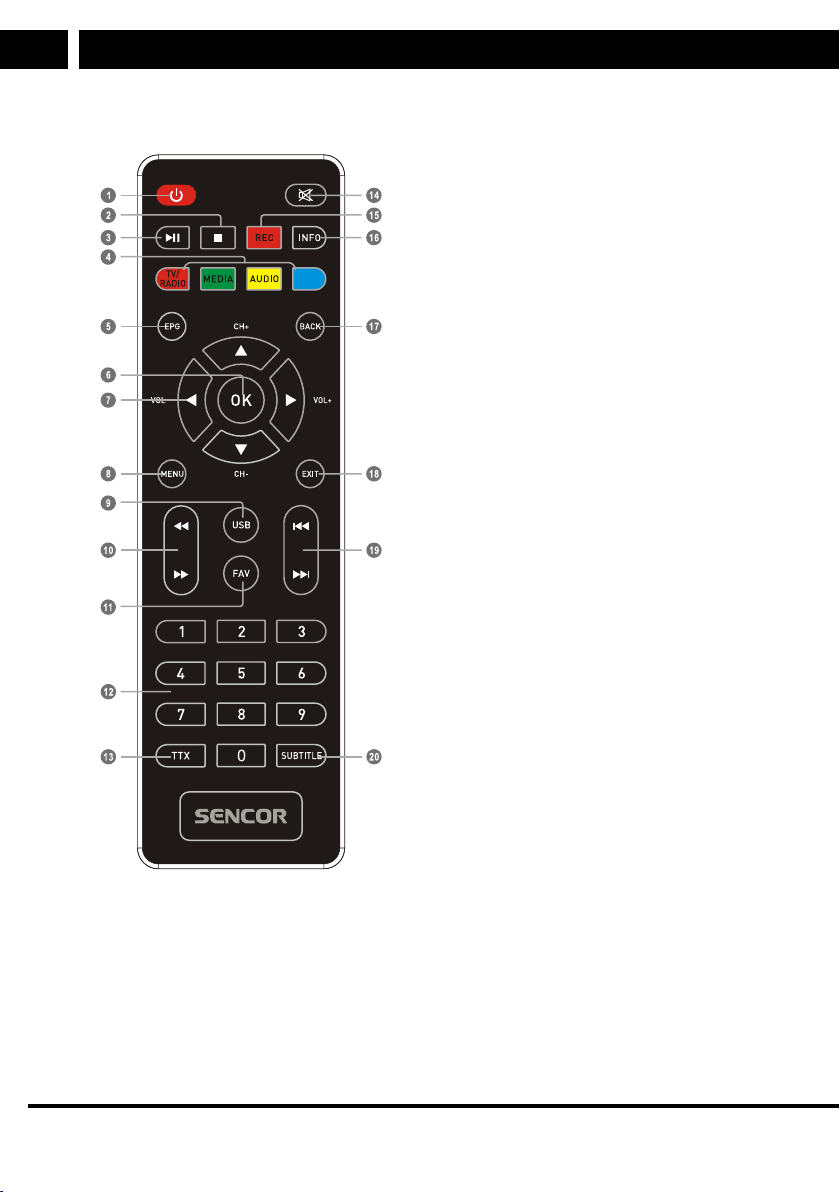
Information about this STB
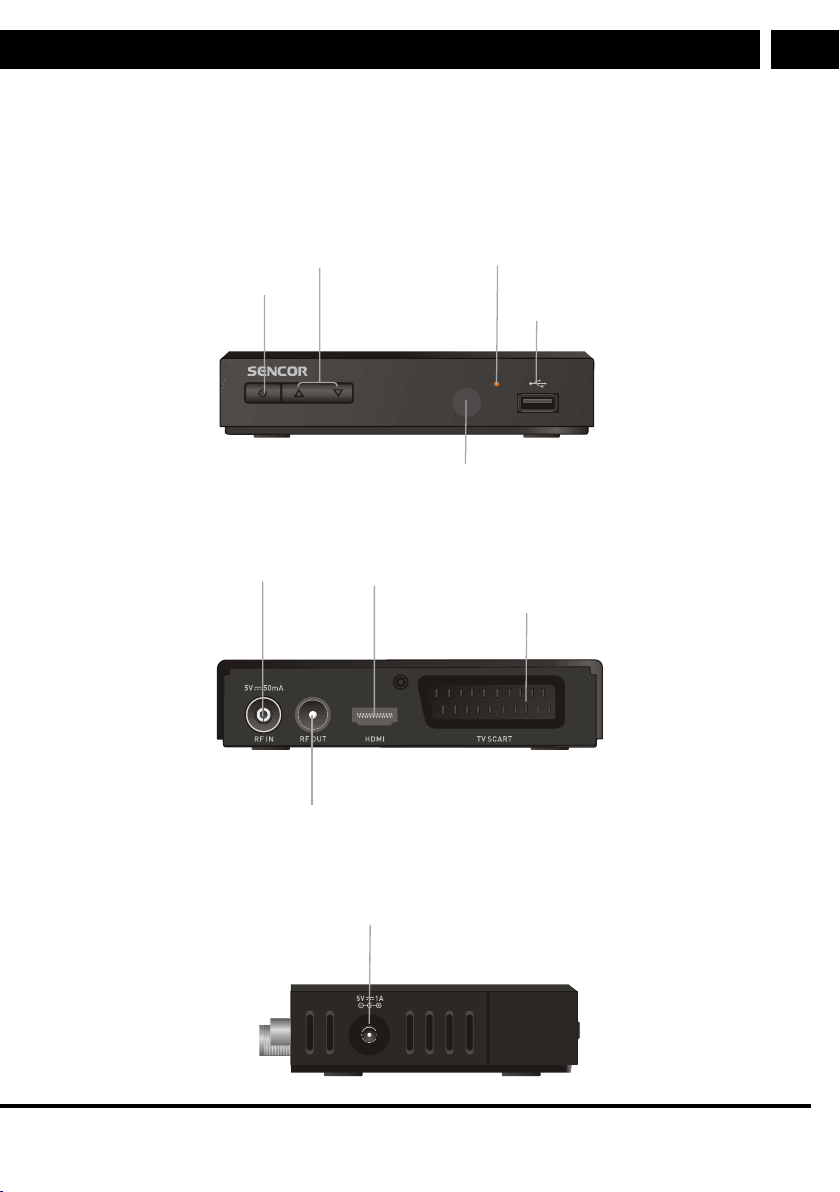
Front panel
Standby - on/off
Channel up/down
Control sensor
Power On indicator
USB port
(only for USB flash memories)
Rear panel
Antenna
HDMI output
TV SCART
to connect to a TV set
VF bypass loop
for external device
Side view
5V/1A DC power supply
10 EN
EN
Revision 12/2020Copyright © 2020, Fast ČR, a. s.
Introduction
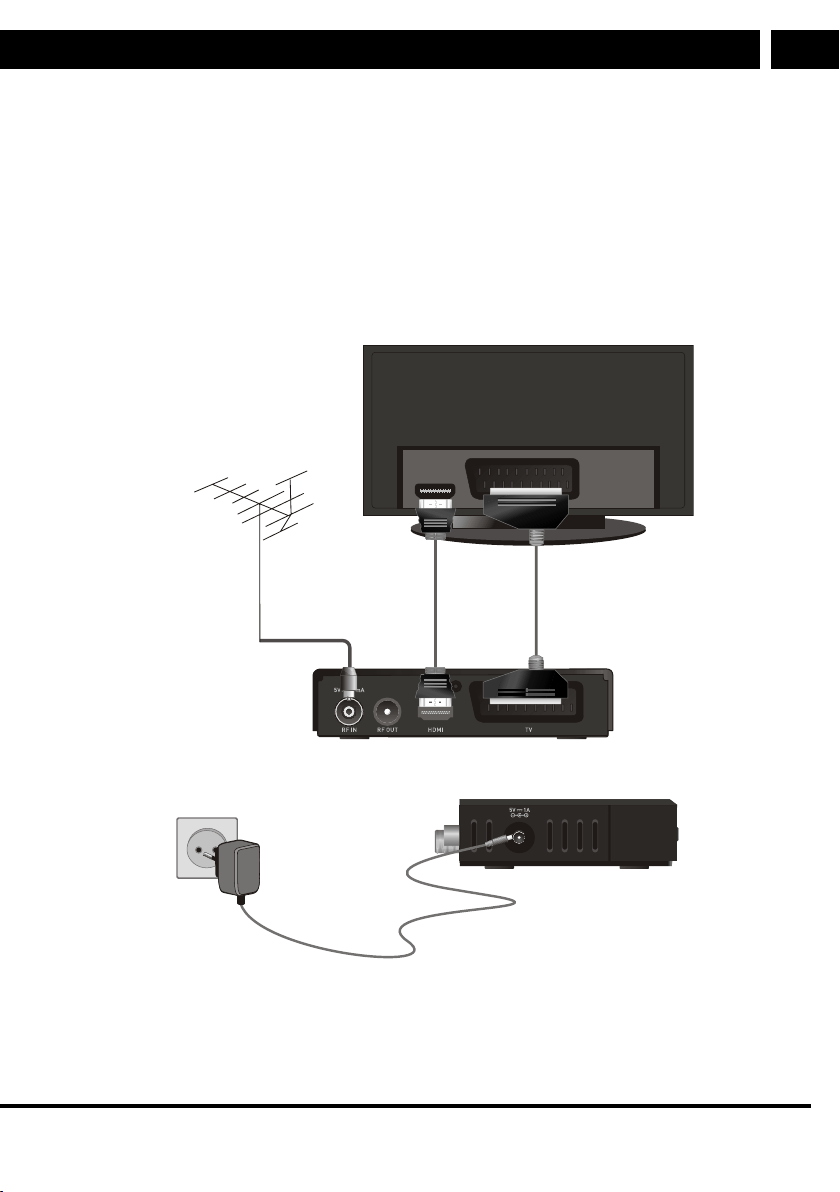
Remote control
1. STANDBY (Standby mode)
(Turning the STB on or switching to
standby)
2. STOP (Stop)
(Stop the playback or program
recording)
3. PLAY (Playback)
PAUSE (Pause / Enable the time-
shift feature)
4. RED/GREEN/YELLOW/BLUE button
(For interactive features / Buttons of
the nested menu features)
TV/RADIO (TV/radio)
(Switching between the television
and radio modes)
MEDIA (Media)
(Open the Record menu)
AUDIO (Audio)
(Select the sound mode and track)
5. EPG (Electronic programming guide)
(Opening the electronic programming
guide menu)
6. OK button
(Confirm a menu selection)
7. Cursor / CH+,- (Previous/Next
channel) / VOL+,- (Increase/decrease
volume)
(Cursor: Navigation buttons to browse
menu items)
(CH +/-: Previous/Next channel)
VOL+/-: volume increase / decrease)
8. Menu (Menu)
(Open and close the menu screen)
9. USB
(Verify the Video menu)
10. Search backward /forward (Searching
backward /forward)
11. FAV (Favourite)
(Open the list of favourites)
12. Numeric keys
(To enter numeric values and select a
channel by direct number entering)
13. TTX (Teletext - verify interactive
services)
14. MUTE (Mute/unmute sound)
15. RECORD (Record)
(Recording a TV program)
16. INFO (information)
(Press to view information on the
current channel)
17. BACK (Back)
(Switch to previous channel)
18. EXIT (Exit the menu)
19. Previous/Next (Previous/Next)
20. SUBTITLE (Subtitles on/off)
EN 11
EN
Revision 12/2020Copyright © 2020, Fast ČR, a. s.
System connection
System connection
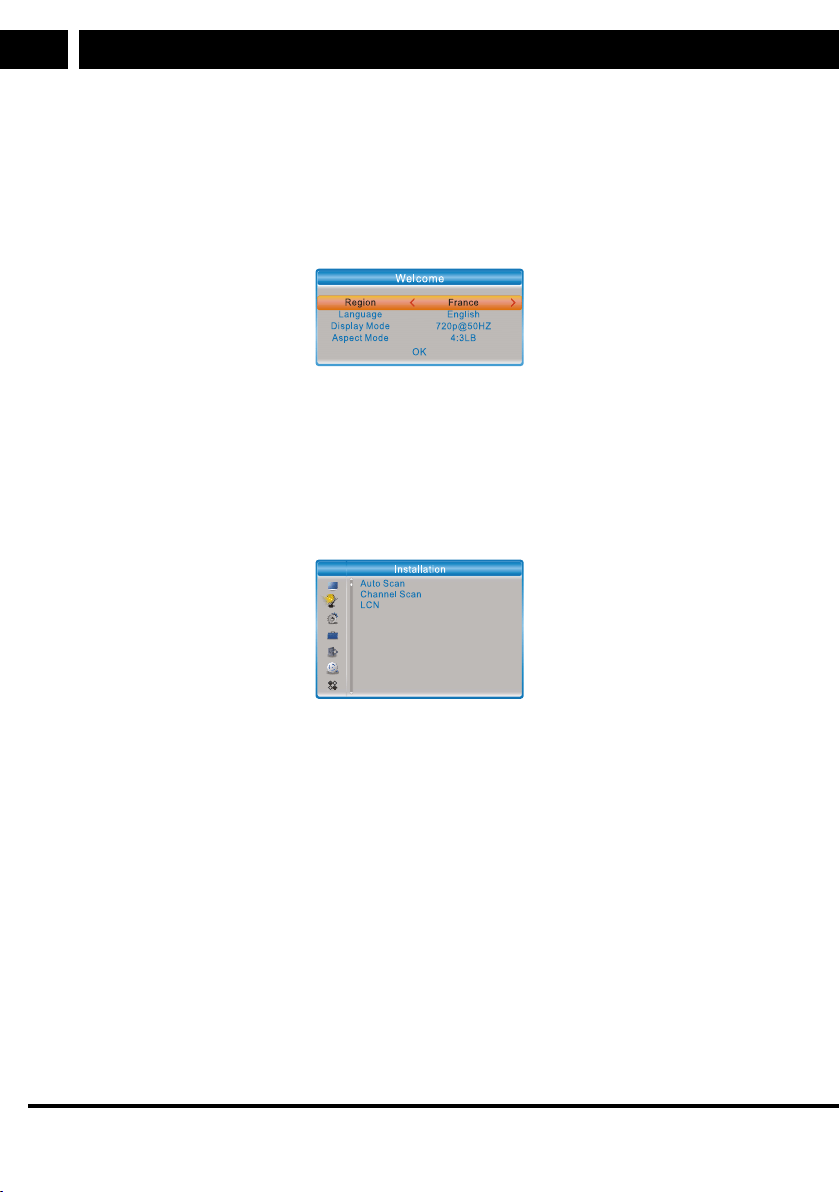
General information
There many various types of TV sets and other devices that can be connected to this
STB. This manual describes the most common methods of connecting your equipment.
Connecting to a TV set
Antenna
HDMI cable
SCART cable
HDMI TV
VF cable
Battery power supply
Note: Please connect the HDMI cable to the receiver ONLY when turned off (red Standby
indicator lights)
12 EN
EN
Revision 12/2020Copyright © 2020, Fast ČR, a. s.
Getting Started
Getting Started
Welcome
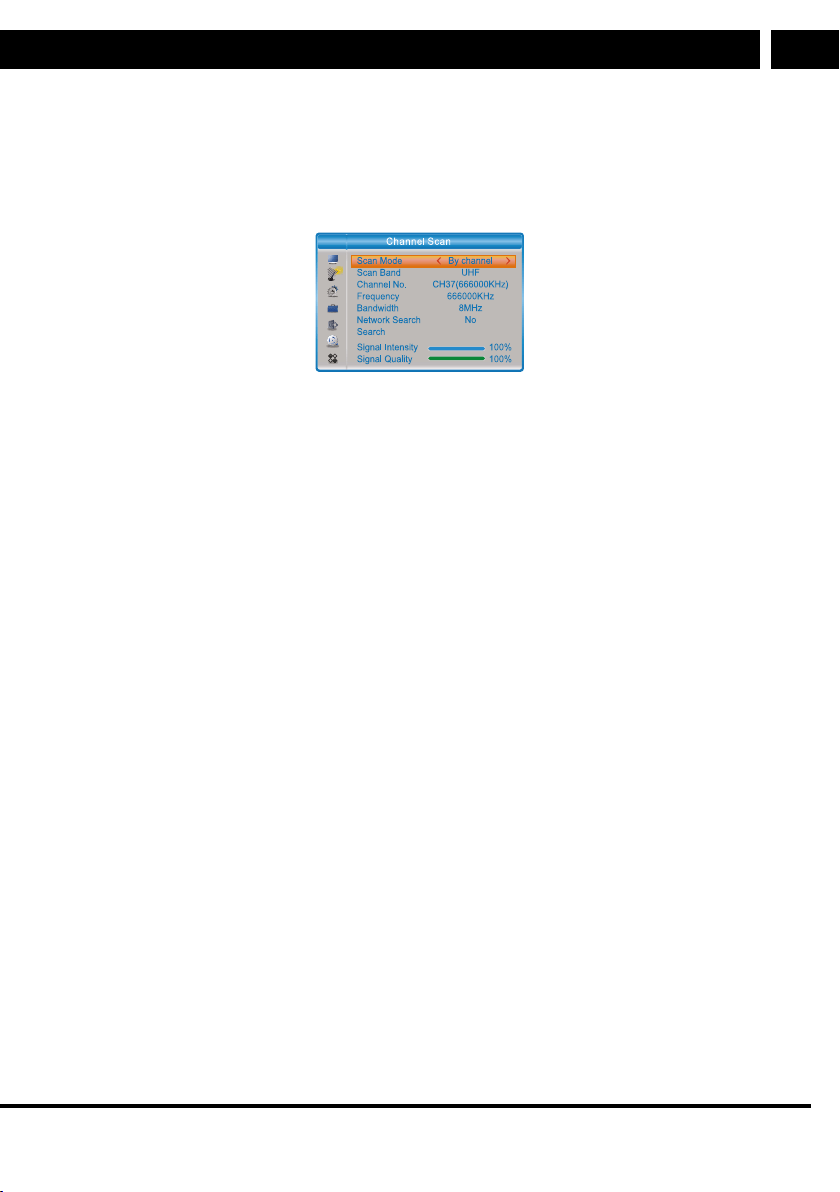
When using this STB for the first time, “Welcome" menu will appear.
Press the cursor keys to set Region, Language, Display Mode and Aspect Mode.
Highlight “OK” and press “OK” to start searching the channels.
Installation
The Installation menu allows you to set channel searching and LCN Installation option.
1. Press the “MENU” button to show the main menu.
2. Press the “UP” or “DOWN” button to highlight “Installation” and press “RIGHT” to
open the “Installation” menu.
3. Press the “UP” or DOWN” cursor button to highlight the desired item, then press
“OK” to open the nested menu.
4. Press the “EXIT” button to exit.
Auto Scan (Automatic search)
The “Auto Search” menu allows you to set automatic channel searching.
1. Select “Auto Scan” and press "OK” to open the “Auto Scan” menu.
2. Press the cursor buttons to set “FTA Only” (non-encoded only) and “T2 Signal Only“.
3. Highlight the “Search“ item and press ”OK” to start the automatic scan.
EN 13
EN
Revision 12/2020Copyright © 2020, Fast ČR, a. s.
Getting Started
Channel Scan
The “Channel scan” menu allows you to set manual channel searching.
1. Select “Channel Scan” and press "OK” to open the Channel Scan menu.
2. Press the cursor buttons to set Scan Mode, Scan Band, Channel No. Frequency,
Bandwidth, then highlight “Search” and press “OK” to start the channel searching.
LCN (Logical channel numbering)
If the LCN (Logical channel numbering) feature is enabled, you cannot change the original
TV channel numbers created by searching.
To enable/disable the LCN feature, set the “LCN” to on/off.
14 EN
EN
Revision 12/2020Copyright © 2020, Fast ČR, a. s.
Operation
Operation
Changing channels
There are three channel selection methods available - step-by-step browsing the channel
list, selecting by number and selecting from the screen channel list.
1. Step-by-step browsing the channel list:
To move in the channel list, press the arrow up or down button on the remote control.
2. Selecting by a number:
Enter the channel number directly using the numeric buttons, then press OK to select
the desired channel.
3. Selecting from the screen channel list:
You can also select the desired channel number directly in the screen channel list. To
display this list, press OK. For more details, please refer to “Editing channels” section
in this manual.
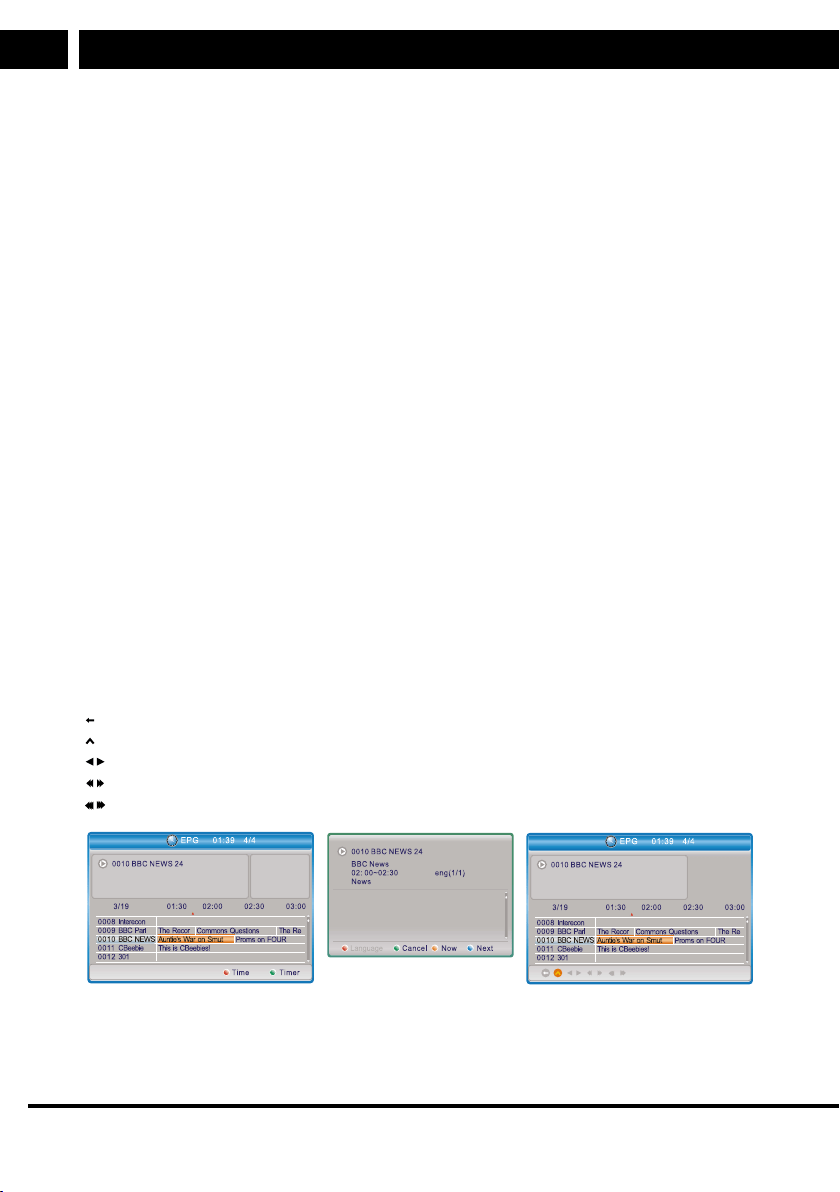
Opening the Electronic programming guide (EPG)
To open the EPG for all channels:
1. Press “EPG” to open the EPG (Electronic programming guide) menu.
2. Press the cursor buttons to switch between the channel list and current/next events.
3. Press the GREEN button to set the event timer.
4. Press the RED button to display the “Time Bar” menu.
5. Press “OK” to display selected event information.
6. Press the “EXIT” button to return to the previous menu.
In the “Time bar” menu:
To exit the time bar.
Back to the current time.
Skip forward or backward in time in 30-minute steps.
Skip forward or backward in time 2-hour steps.
Skip forward or backward in time 24-hour steps.
EN 15
EN
Revision 12/2020Copyright © 2020, Fast ČR, a. s.
Editing channels
Editing channels
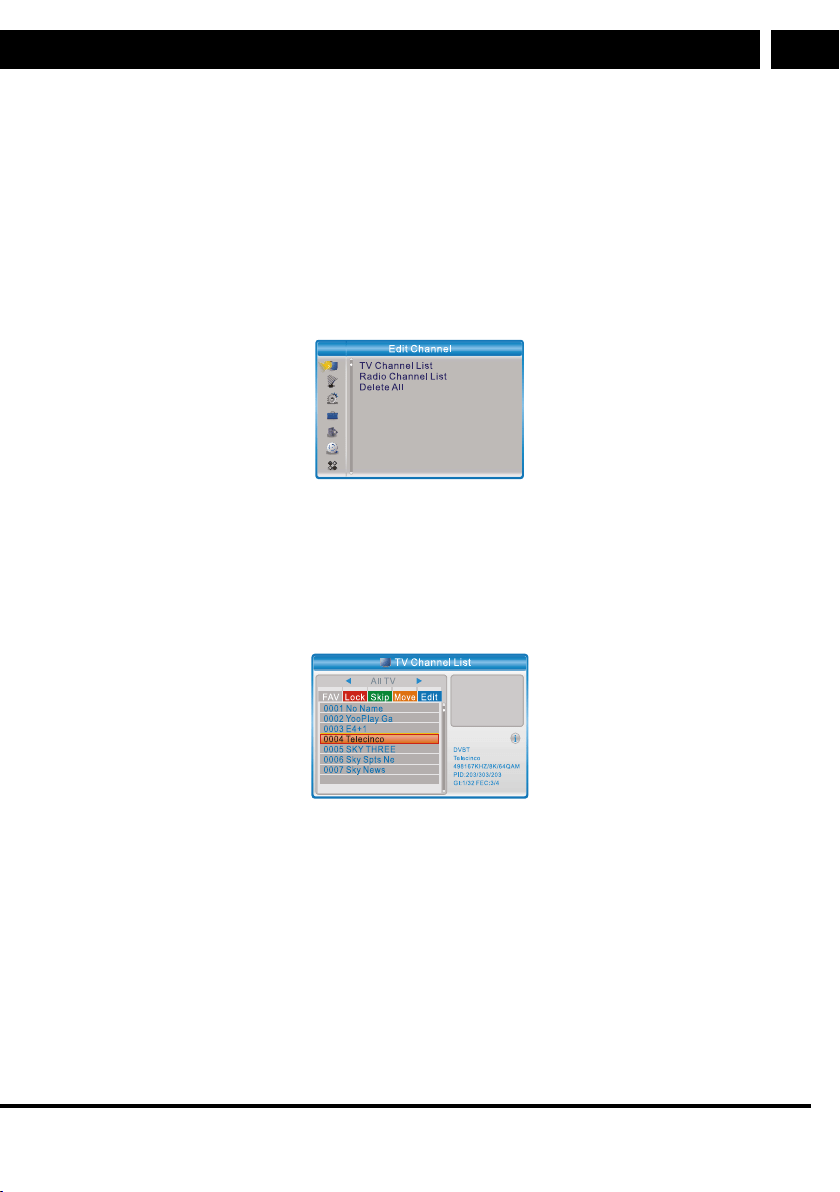
Edit Channel menu
1. Press the “MENU” button to show the main menu.
2. Press the “UP” or “DOWN” button to highlight “Edit Channel” and press “RIGHT” to
open the “Edit Channel” menu.
3. Press the “UP” or DOWN” cursor button to highlight the desired item, then press
“OK” to open the nested menu.
4. Press the “EXIT” button to exit.
TV Channel List
1. In the Edit Channel menu, select ”TV Channel List” and press “OK” to open the TV
Channel List menu.
2. Press the “UP and “DOWN” button to highlight the channel and then press OK to
preview the desired TV channel.
Use this menu to set the favourites and to lock, skip, sort, delete or rename channels.
• Press the “FAV” button and then press “OK” to edit the FAV (Favorite) feature.
• Press the “RED” button to enable the “Lock” function. You will be prompted to enter
a password (default password is ”0000”); then press “OK” to lock the selected
channels.
• Press the "GREEN" button to enable the “Skip” feature, then press “OK” to skip the
selected channel.
• Press the “YELLOW” button to enable the “Move” feature, highlight the desired
channel and press OK to confirm. Press “UP” or “DOWN” button to select a new
position, then press “OK”. This will move the channel to a new position.
16 EN
EN
Revision 12/2020Copyright © 2020, Fast ČR, a. s.
Editing channels
• Press the “BLUE” button to open the nested Edit channel menu.
• Press “OK” again to cancel the relevant function.
• Press the “colour” button again to exit the relevant function.
3. Press “Exit” to save and return to the ”Edit Channel” menu.
Radio Channel List
1. In the Edit Channel menu, select ”Radio Channel List” and press “OK” to open the
Radio Channel List menu.
2. Press the “UP and “DOWN” button to highlight the channel and then press OK to
listen to the desired radio channel.
Note:
Controlling in the “Radio Channel List” mode is basically the same as in the “TV
Channel List” mode except for one thing: As no image information is available In
the “Radio Channel List” mode, logo is always displayed on the right of the preview
window.
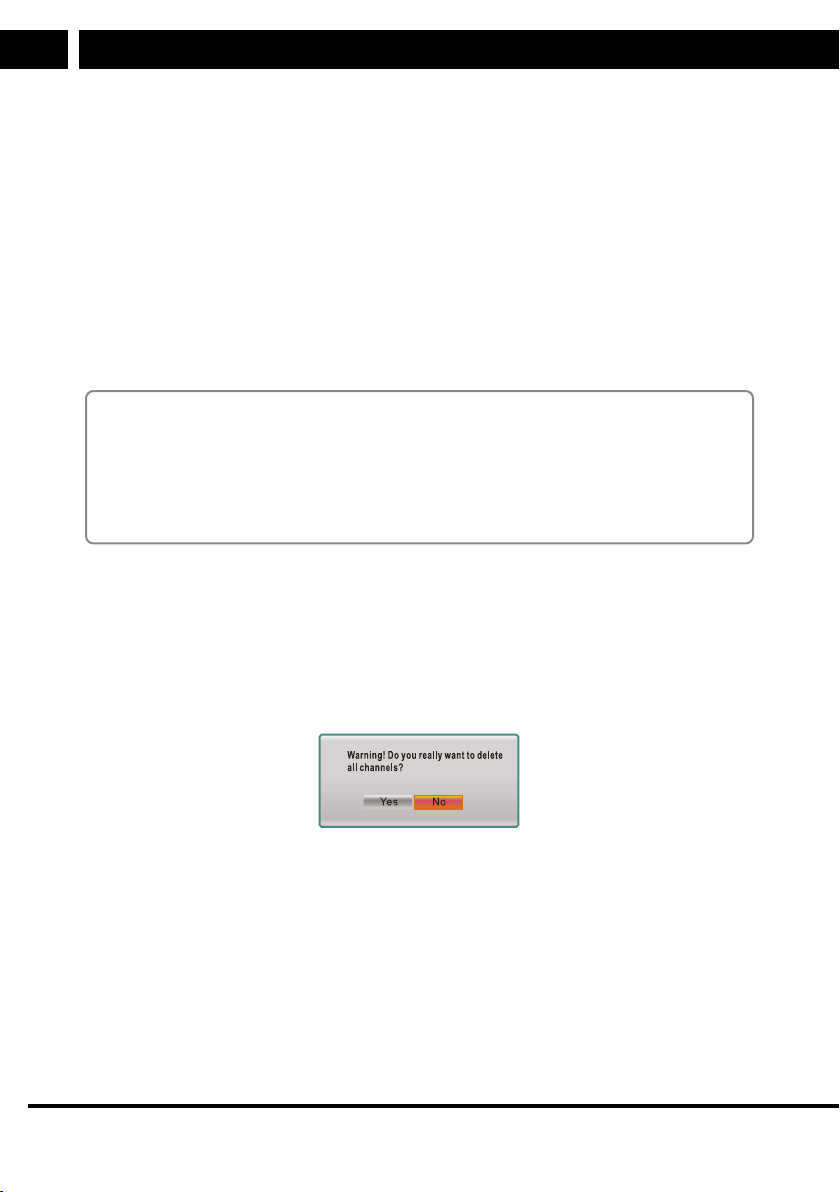
Delete All
1. In the Edit Channel menu, select “Delete All” and press”OK”.
You will be prompted to enter password (default password is "0000").
2. A warning message window will appear.
Select “Yes”and press “OK” to delete all channels.
To cancel the deletion, select No and press OK.
System Settings
System Setup menu
The System Setup alows you to set Language, TV System, Local Time Setting, Timer
Setting, Parental Lock, OSD Setting, Favorite, Audio Description Setting and Other.
1. Press the “MENU” button to show the main menu.
2. Press the “UP” or “DOWN” button to highlight “System Setup” and press “RIGHT” to
open the System Setup” menu.
EN 17
EN
Revision 12/2020Copyright © 2020, Fast ČR, a. s.
System Settings
3. Press the “UP” or DOWN” cursor button to highlight the desired item, then press
“OK” to open the nested menu.
4. Press the “EXIT” button to exit.
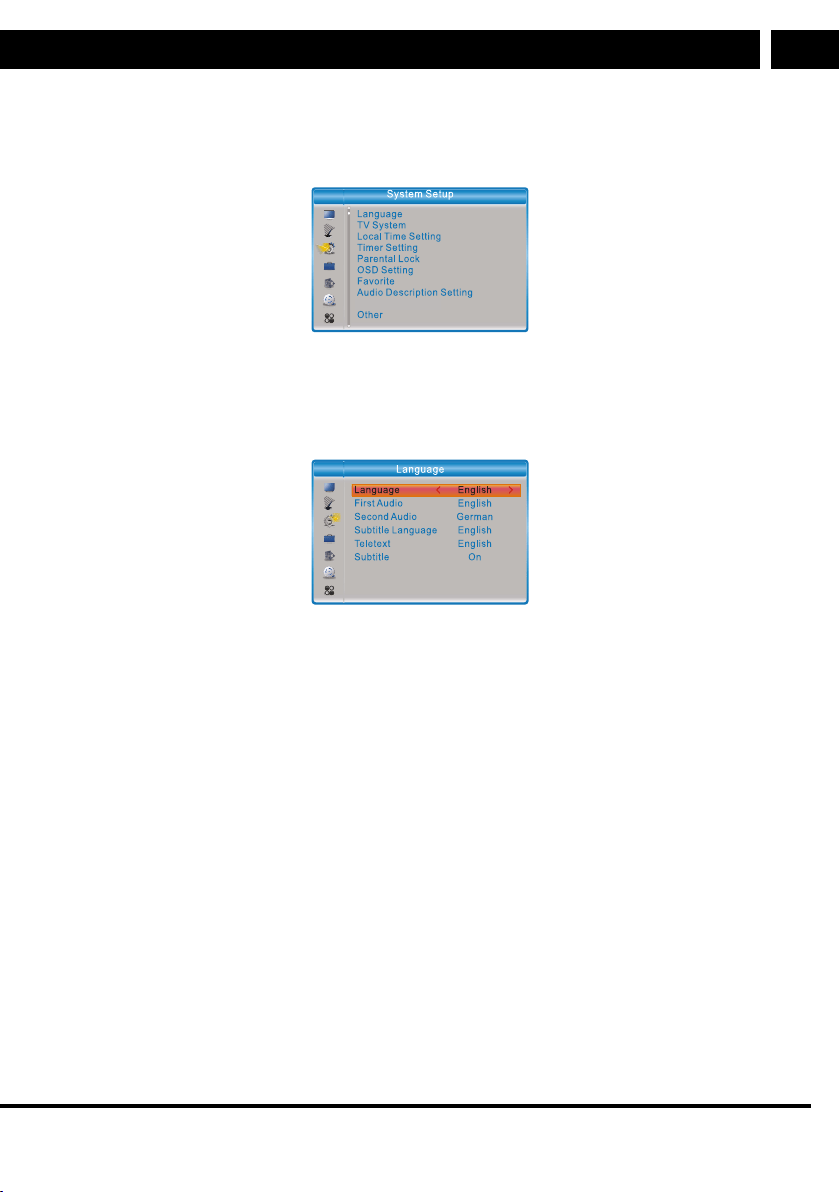
Language
This menu allows you to set the language of system, audio, subtitles and teletext and
enable the subtitle function.
Subtitles: Off/Normal/Hard of Hearing

18 EN
EN
Revision 12/2020Copyright © 2020, Fast ČR, a. s.
System Settings
TV System
This menu allows you to set Video Resolution, Aspect Mode and Digital Audio Out.
Video Resolution: Setting various video signal resolutions
Aspect Mode: 16:9 Full / 4:3PS / 4:3LB / 16:9PS
Digital Audio Out: LPCM Out (LPCM output) / BS Out (BS output)
Local Time Setting
This menu allows you to make region and time settings.
Region: This menu is used to change the region settings.
GMT Usage: This menu is used the set the GMT Usage.
The following options are available: By Region / User Define / Off
GMT Offset: This menu is only active if “User Define” value has been set in the GMT
Usage menu.
The GMT Offset range is “-11:30 ~ +12:00” in 30-minute increments.
Summer Time The following options are available:On/Off
Date: “Date“ and “Time” menus are only active if the GMT Usage is set to “Off”.
Time: Press the numeric buttons to set time.

EN 19
EN
Revision 12/2020Copyright © 2020, Fast ČR, a. s.
System Settings
Timer Setting
This menu enables you to set the program timers. You can set up to 8 timers.
Timer Mode: Off / Once / Daily / Weekly / Monthly
Timer Service: Channel / Record
Wakeup Channel: Allows you to set the channel to be tuned during the wakeup.
Wakeup Date: Press the numeric buttons to set the wakeup date.
On Time: Press the numeric buttons to set the wakeup time.
Duration: Press the numeric buttons to set the wakeup duration.
Parental Lock
This menu allows you to protect the menu a channels or to change your password.
1. In the “System Setup” menu, select “Parental Lock” and press "OK” - you will be
asked to enter a password (default password is “0000”).
2. When the correct password has been set using the numeric buttons, the child lock
menu appears.
Menu Lock: To lock the Edit channel / Installation menu. To open these menus, you must
enter a password.
The menu lock can be turned on/off.
Rating Lock: Off / AGE4 / AGE5 / AGE6 / AGE7 / AGE8 / AGE9 / AGE10 / AGE11 /
AGE12 / AGE13 / AGE14 / AGE15 / AGE16 / AGE17 / AGE18
New Password: To change the password.
Confirm password: To confirm new password.
20 EN
EN
Revision 12/2020Copyright © 2020, Fast ČR, a. s.
System Settings
OSD Setting
This menu allows you to set the display duration and transparency of your OSD menu.
OSD Timeout: 1-10 seconds.
OSD Transparency: To set the OSD menu transparency to Off / 10% / 20% / 30% / 40%.
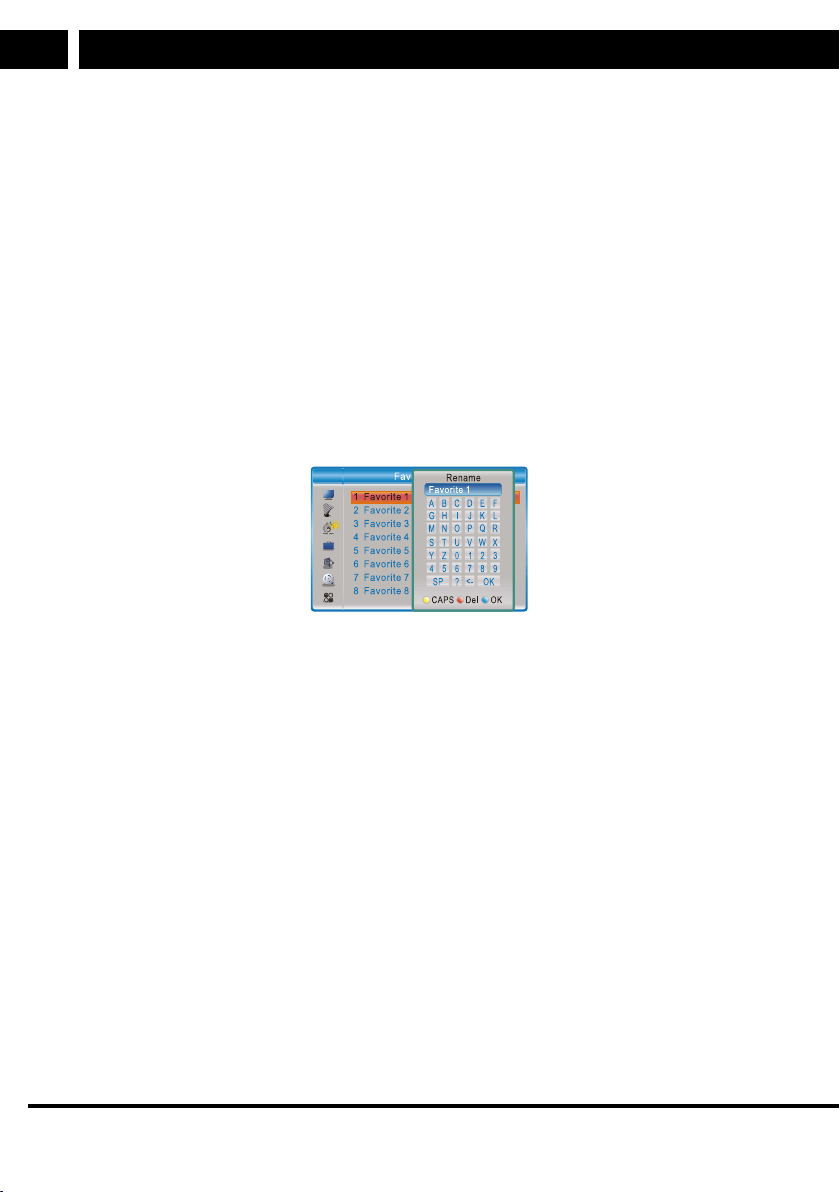
Favorite
This menu allows you to rename the favorite group.
1. In the System setup menu, select “Favorite” and press OK to open the Favorite
menu.
2. Select the desired group and press “OK” to open the virtual keyboard. Press the
cursor buttons to enter letters and numbers, then press OK to confirm. When the
entering is finished, press the BLUE button to confirm. The Favorite group name has
been changed successfully.
3. Press the “EXIT” button to exit the group rename menu.

EN 21
EN
Revision 12/2020Copyright © 2020, Fast ČR, a. s.
System Settings
Audio Description Setting
This menu allows you to set Use AD as default and AD Volume Offset: This is only
applicable to programs for which the sound description is broadcast by a TV station
Use AD as default: On/Off
AD Volume Offset: -3 ~ 3
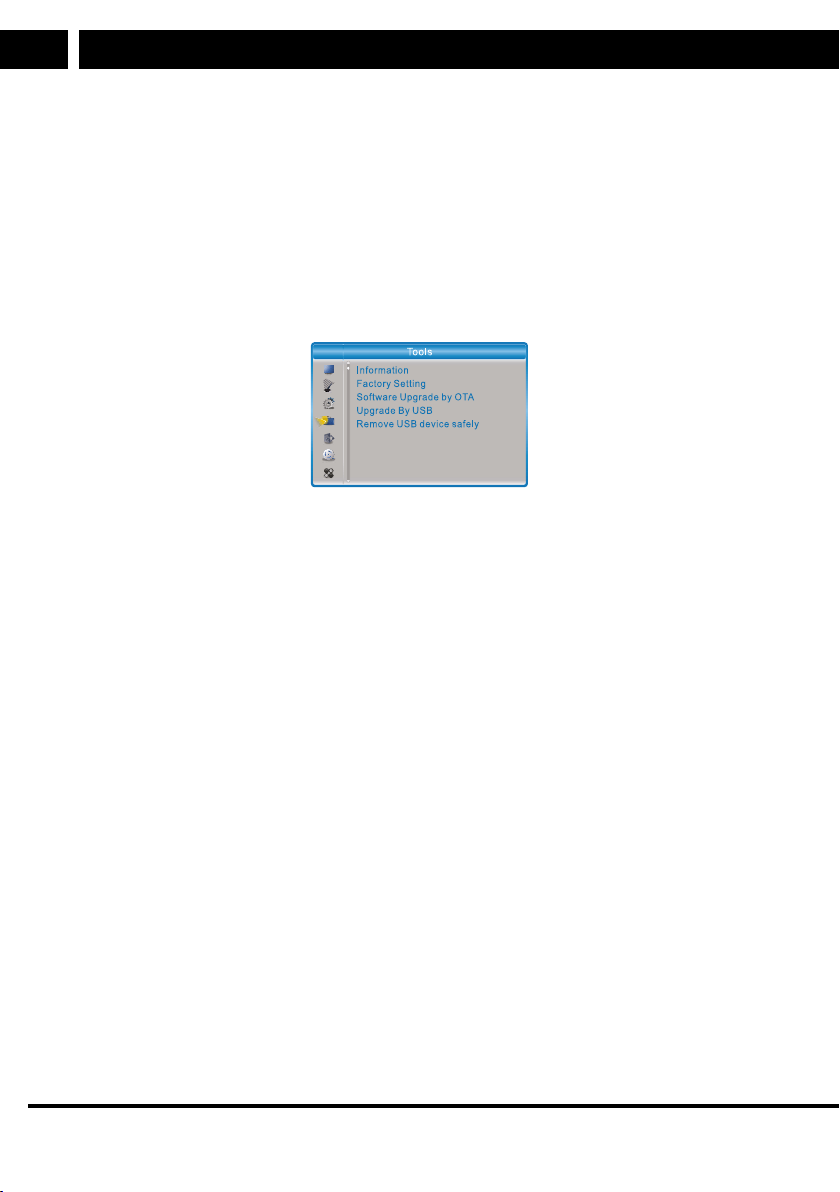
Other
This menu allows you to set Antenna Power, Channel Play Type, Auto Standby
Antenna Power (Power supply to the antenna): On/Off
When the ”Antenna Power” is set to “On”, STB will provide 5V power supply to the
antenna.
When set to “Off”, this power supply will not he available.
Channel Play Type: All / Free / Scrambled
Auto Standby (Automatically switch to stand-by mode): 30Min /
1 Hour / 2 Hour / 3 Hour / Off
If no command is entered on the STB front panel or the remote control for 30 minutes - 3
hours and no timer event occurs, the STB will automatically switch to standby.
When Off is selected, the STB will not automatically switch to standby.
22 EN
EN
Revision 12/2020Copyright © 2020, Fast ČR, a. s.
Tools
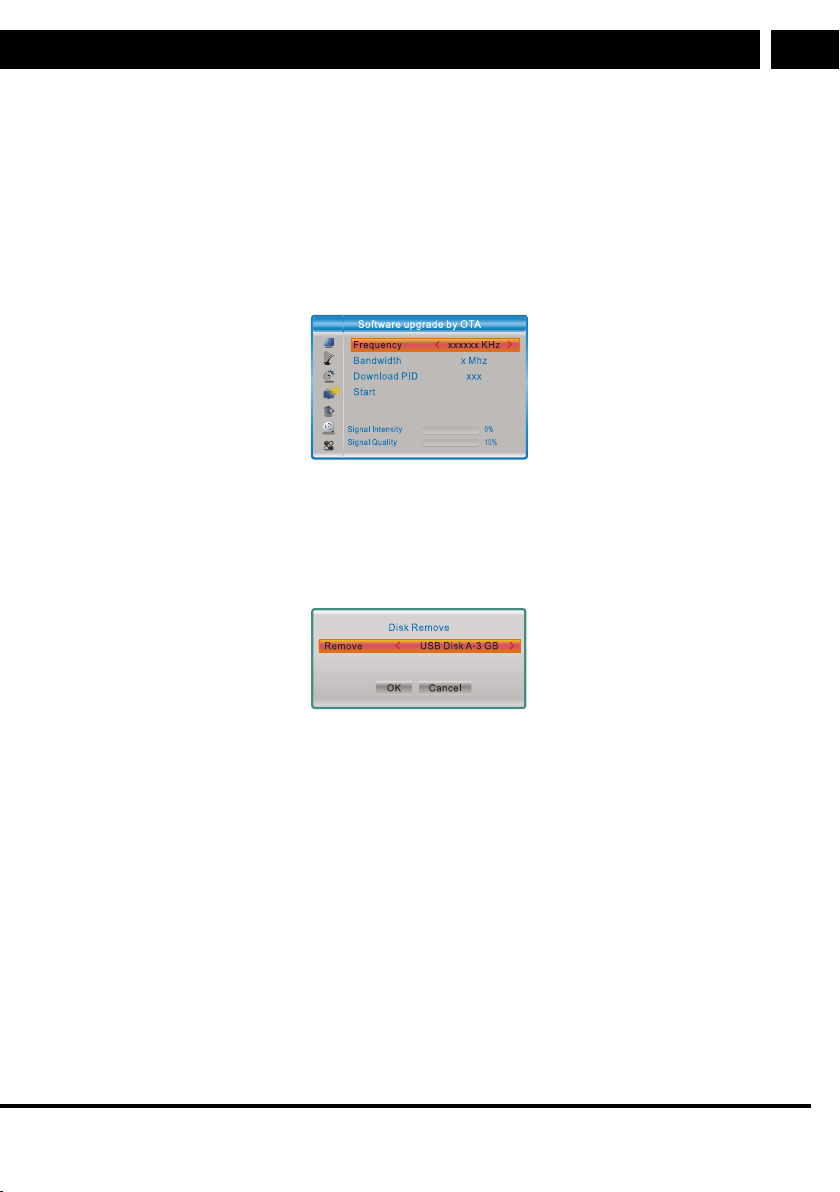
Tools main menu
1. Press the “MENU” button to show the main menu.
2. Press the “UP” or “DOWN” button to highlight “Tools” and press “RIGHT” to open the
“Tools” menu.
3. Press the “UP” or DOWN” cursor button to highlight the desired item, then press
“OK” to open the nested menu.
4. Press the “EXIT” button to exit.
Information
This menu allows you to display some parameters of this STB.
1. In the “Tools” menu, select “Information” and press “OK” to open the information
window.
2. Press the “EXIT” button to exit.
Factory Setting
This menu allows you to restore the factory settings of this STB, deleting all existing
channels.
1. In the “Tools” menu, select the “Factory Setting” and press OK.
You will be prompted to enter password (default password is "0000").
2. A confirmation window will pop up.
To restore the factory settings and delete all channels, press “Yes”.
To cancel the factory settings restoration, select “No”.
3. Press the “EXIT” button to exit.
Tools
EN 23
EN
Revision 12/2020Copyright © 2020, Fast ČR, a. s.
Tools
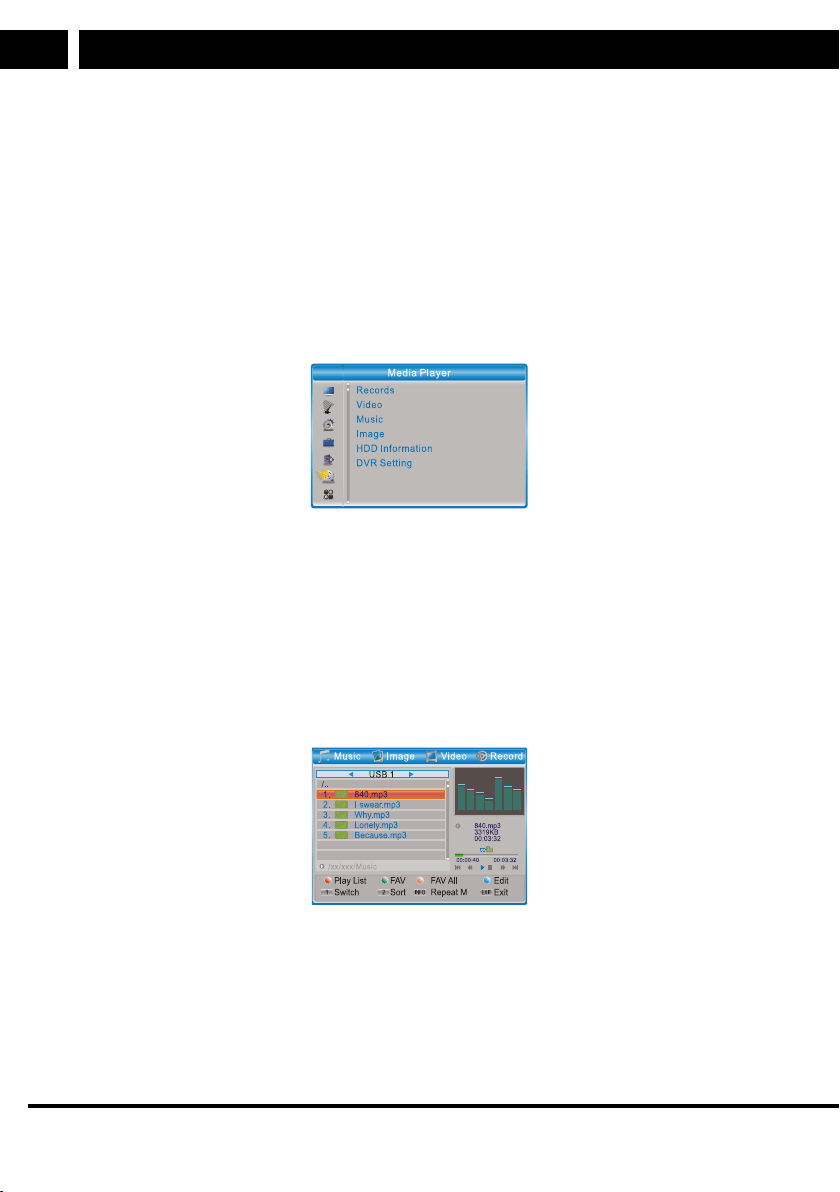
Software Upgrade
This unit offers features for the user to update the software version - either wirelessly
(OTA) or using a USB flash drive.
1. Open the “Tools“ menu, select “S/W Upgrade by OTA” or "Upgrade by USB” and
press “OK” - Software Upgrade menu appears.
2. Press the cursor buttons to select a desired option and then highlight “Start” and
press OK to start the upgrade.
3. Press the “EXIT” button to exit.
Remove USB device safely
In the “Tools” menu, select "Remove USB device safely”.
Press OK to confirm. A window will pop up.
Press “OK” again.
HDMI CEC
HDMI CEC is a system of mutual control of different devices interconnected with a HDMI
cable. If you have another HDMI CEC equipped device, please try which functions will
work with each other (power on/off, volume, channel selection etc.) using another device’s
remote control. An errorless cooperation of different devices cannot be guaranteed.
24 EN
EN
Revision 12/2020Copyright © 2020, Fast ČR, a. s.
Multimedia player
Multimedia player
Multimedia player main menu
Make sure that external data storage device is connected to the USB port.
1. Press the “MENU” button to show the main menu.
2. Press the “UP” or “DOWN” button to highlight “Media Player” and press the “RIGHT”
button to open the multimedia player menu.
3. Press the “UP” or DOWN” cursor button to highlight the desired item, then press
“OK” to open the nested menu.
4. Press the “EXIT” button to exit.
Media Playback
This feature allows you to play bacl files from the USB port.
1. In the “Media player” menu, press “1” to select “Record”, “Video”, “Music“ or “Image”
option.
2. Press “OK” to open Media Playback menu.
3. Press "UP“ and “DOWN“ cursor buttons to select a desired multimedia file and press
“OK to start playback.
4. Press the “EXIT” button to exit.
Record:
RED button: Press the RED button to open the rename window.
GREEN button: Move the highlight over a program to be locked. Press the GREEN button
- you will be asked to enter a password. The default password is "0000". Once the correct
password is set, the program is locked. To unlock the program, press the GREEN button
again.
“YELLOW” button: Press the “YELLOW” button to delete a recorded file.

EN 25
EN
Revision 12/2020Copyright © 2020, Fast ČR, a. s.
Multimedia player
“1” button: Press to switch among Music /Image /Video /Record tabs.
EXIT (End) button: Return to the parent directory.
Video:
BLUE button: Press the “BLUE” button to open the nested Edit channel menu.
“1” button: Press to switch among Music /Image /Video /Record tabs.
“2” button: Press the button “2” to open the sorting. You can sort by Name / Time / Size.
EXIT (End) button: Return to the parent directory.
An external subtitle file’s name must match the video file name. National alphabets use
Unicode coding. Press the BLUE button for further selections.
To enable the video embedded subtitles, press SUBTITLE button.
Music:
“RED” button: Press the “RED” button to display and edit the playlist.
GREEN button: Move the highlight over the file to be added in the playlist, then press
the GREEN button to add. Favorite icon will appear on the file. Press again to cancel the
favorite and delete the file from the playlist.
YELLOW button: Press YELLOW button to add all files in the current directory in the
playlist. Press this button again to delete all files in the current directory from the playlist.
BLUE button: Press the “BLUE” button to open the nested Edit channel menu.
“1” button: Press to switch among Music /Image /Video /Record tabs.
“2” button: Press the button “2” to open the sorting window.
You can sort by Name / Time / Size / Favorite.
“INFO” (Information) button: Press the “INFO” button to select a playback mode.
You can select from Repeat Folder / Random Folder / Repeat One.
EXIT (End) button: Return to the upper directory.
Image:
“RED” button: Press the “RED” button to display and edit the playlist.
GREEN button: Move the highlight over the file to be added in the playlist, then press the
GREEN button to add. Favorite icon will appear on the file.
YELLOW button: Press YELLOW button to add all files in the current directory in the
playlist. Press this button again to delete all files in the current directory from the playlist.
BLUE button: Press the “BLUE” button to open the nested Edit channel menu.
“1” button: Press to switch among Music /Image /Video /Record tabs.
“2” button: Press the button “2” to open the sorting window.
You can sort by Name / Time / Size / Favorite.
“INFO” (Information) button: Press “INFO” to open the image settings.
“3” button: Press “3“ to display images in the multiple display mode
EXIT (End) button: Return to the parent directory.
26 EN
EN
Revision 12/2020Copyright © 2020, Fast ČR, a. s.
Multimedia player
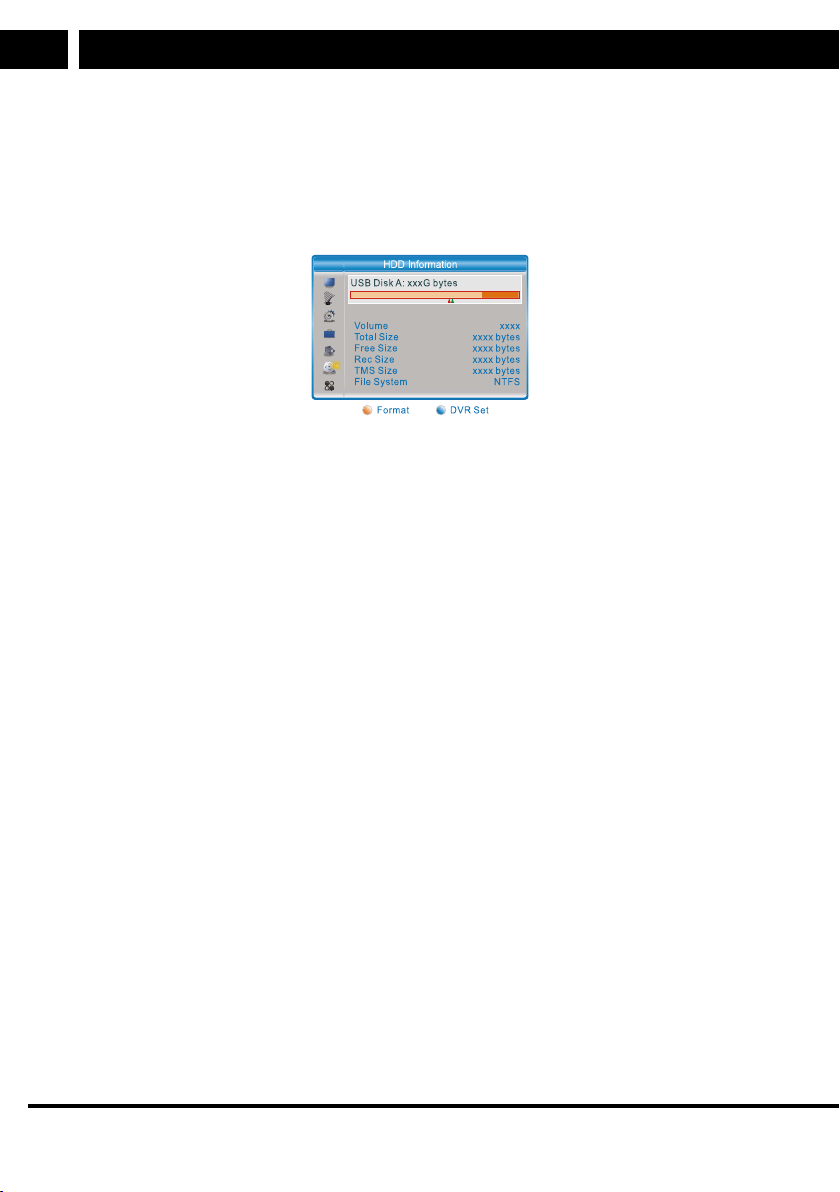
HDD Information
This menu allows you to display some parameters of the exchangeable disc.
1. In the Media Player menu, select “HDD Information“ and press “OK” to open the
USB disc information window.
2. Press the “EXIT” button to exit.
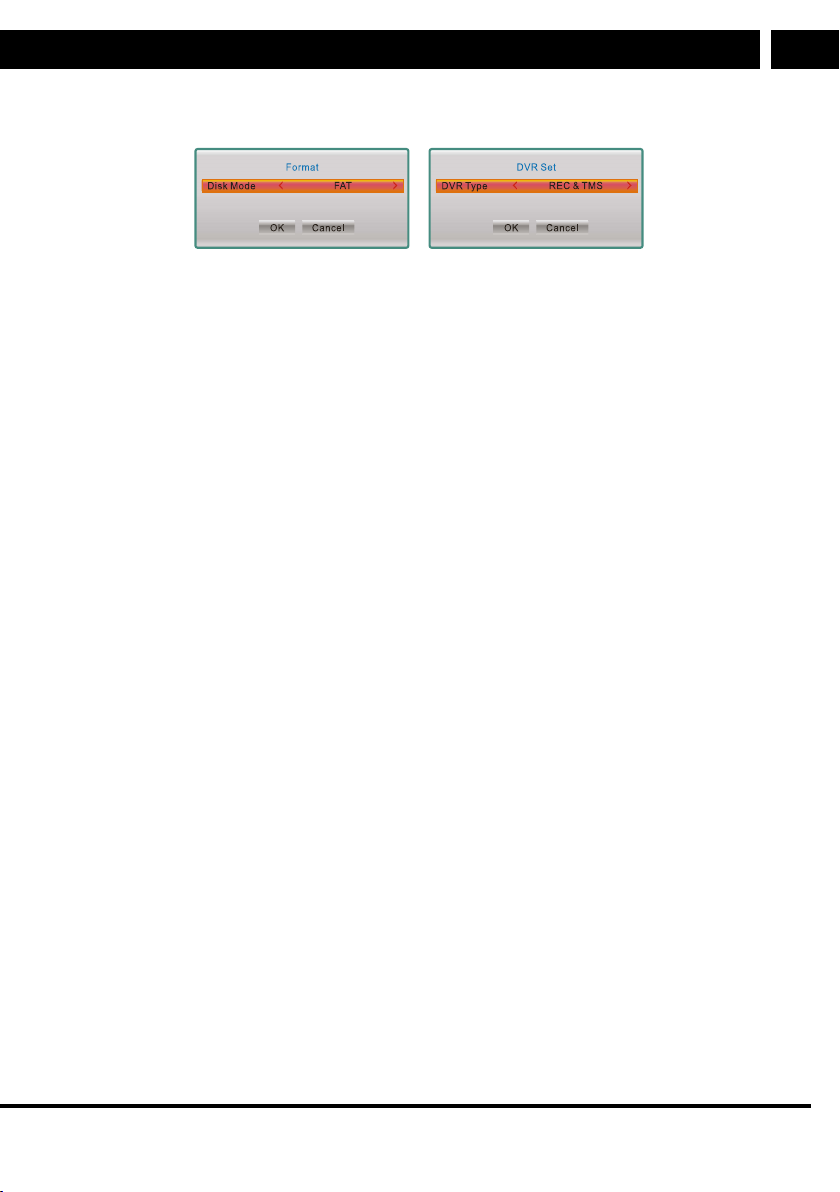
Press the YELLOW button to open the Format menu.
• Format FAT/NTFS
Press “LEFT“ or “RIGHT” cursor buttons to change the Disk Mode settings.
Press OK to format. Press “Cancel” to cancel the settings.
ATTENTION: The formatting will DEFINITELY erase the entire disc contents! Be
cautious.
• DVR Set REC&TMS/Record/Timeshift
Press the BLUE button to open the DVR Set menu (DVR settings).
Press “LEFT“ or “RIGHT” cursor buttons to change the DVR type settings.
Press “OK” to confirm. Press “Cancel” to cancel the settings.
EN 27
EN
Revision 12/2020Copyright © 2020, Fast ČR, a. s.
Multimedia player
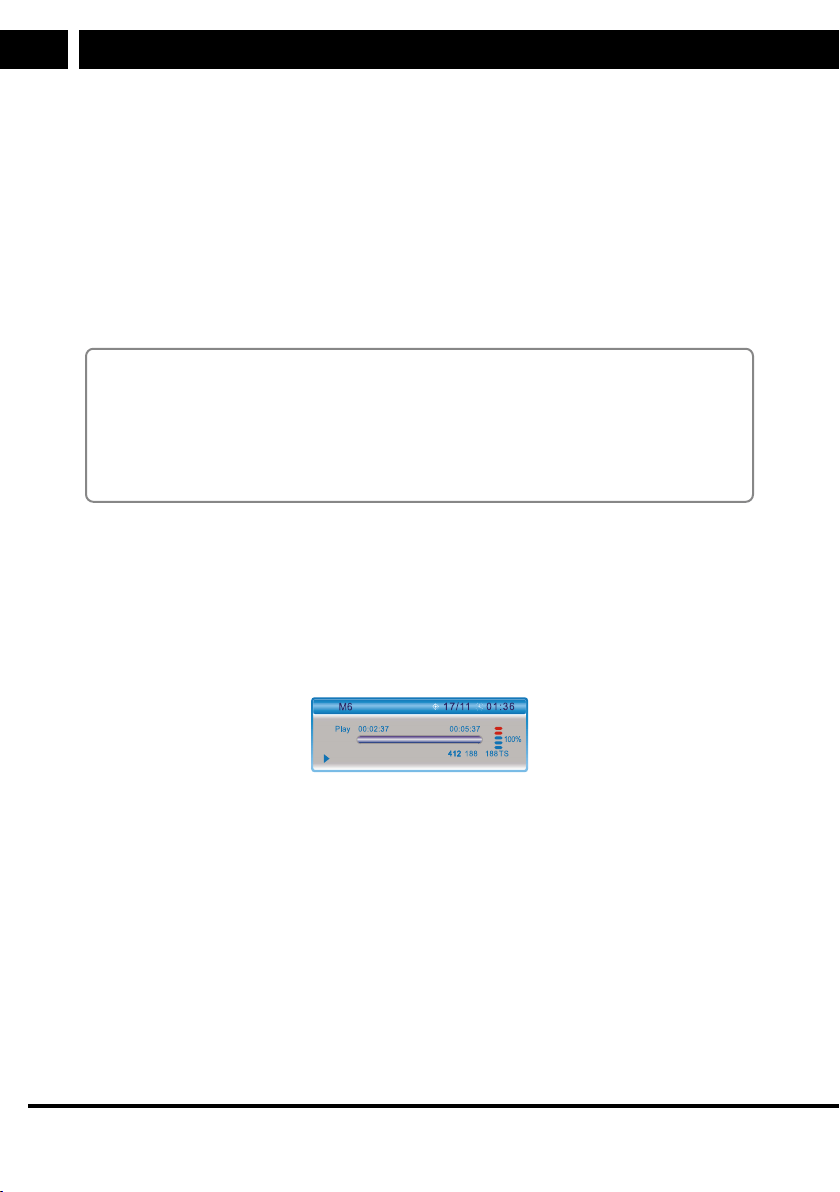
DVR Settings
This menu allows you to set the DVR Setting parameters.
In the ”Media Player” menu, select “DVR Setting” and press “OK” to open the “DVR
Settings” menu. Press the “UP” or “DOWN” cursor button to select the desired item, then
press the “LEFT” or “RIGHT” cursor button to change the setting. Press the “EXIT” button
to exit.
Timeshift: Pause/Off/Auto
Jump: 30sec/1min/5min/10min/30min
Timeshift to Record
(Recording time shift): On/Off
After Recording: Watch TV/Go to Standby-mode
28 EN
EN
Revision 12/2020Copyright © 2020, Fast ČR, a. s.
Time shift / recording
Time shift / recording
Connecting a Mass Storage Device to the USB port will enable the Time Shift/Record
feature for a broadcast program.
• Pause the program being broadcast and resume the watching later on (Time Shift
feature).
• Record the broadcast program.
• If the Mass Storage Device is out of free space, the broadcast recording operation will
stop.
Note:
For recording or the time-shift feature, please use a USB 2.0 disc.
For the time-shift and recording feature, please use a USB flash disc with a higher
capacity (> 2 GB).
Caution: to power the HDD, please use a separate power supply. The USB port can
power only USB flash memory devices.
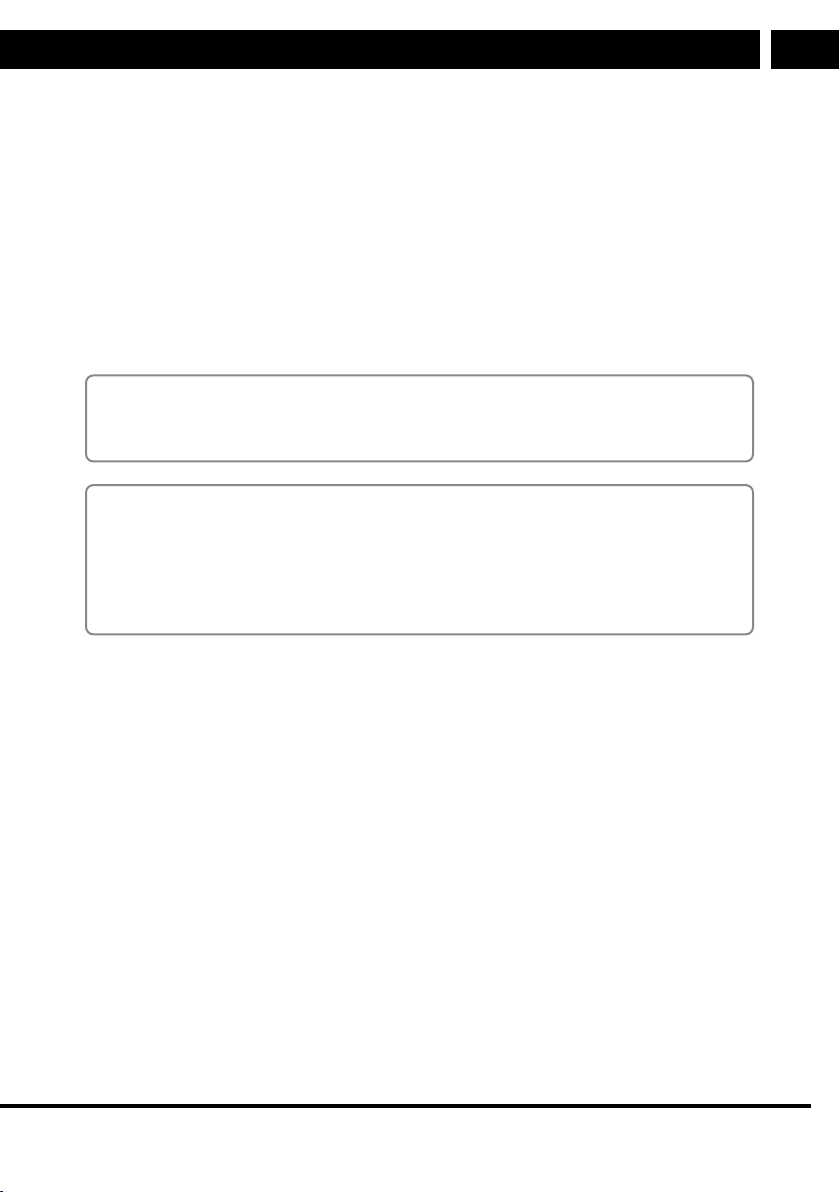
Timeshift
Starting
• You can launch the Time Shift function in the view mode by pressing the “PAUSE”
button (when the DVR Setting is set to Pause - recommended).
• Press the “RIGHT” or “LEFT” button to move the cursor to the time you want to
display. Press OK to confirm.
Playback
During the playback, you can perform the following actions:
• Press “PAUSE” to stop the playback temporarily
• Press “FORWARD” to fast forward the playback
• Press “BACKWARD” to backward the playback
To stop the time-shift
To stop the TimeShift feature, press “STOP”.
Note: The time shift is not available during playback.
EN 29
EN
Revision 12/2020Copyright © 2020, Fast ČR, a. s.
Time shift / recording
Record
Instantaneous record
• To start recording the main channel immediately, press "RECORD” in the view mode.
• Press “RECORD” once again to set the time duration.
To stop the recording, press “STOP” - a confirmation window will appear.
• To stop the recording, select “Yes”. To resume recording, select "No”.
Timer recording
• You can open the timer setting menu and set the timer recording using EPG or the
System Setup option.
Note:
While the recording feature is enabled, you can watch another program from the same
multiplex only.
Note:
For the recording and time-shift feature, please use a USB 2.0 flash disc from a reliable
manufacturer, such as SAMSUNG, HITACHI a SONY. Some USB devices may not be
supported because of low quality. For USB 3.0 devices, please always use a USB 2.0
connection cable.
30 EN
EN
Revision 12/2020Copyright © 2020, Fast ČR, a. s.
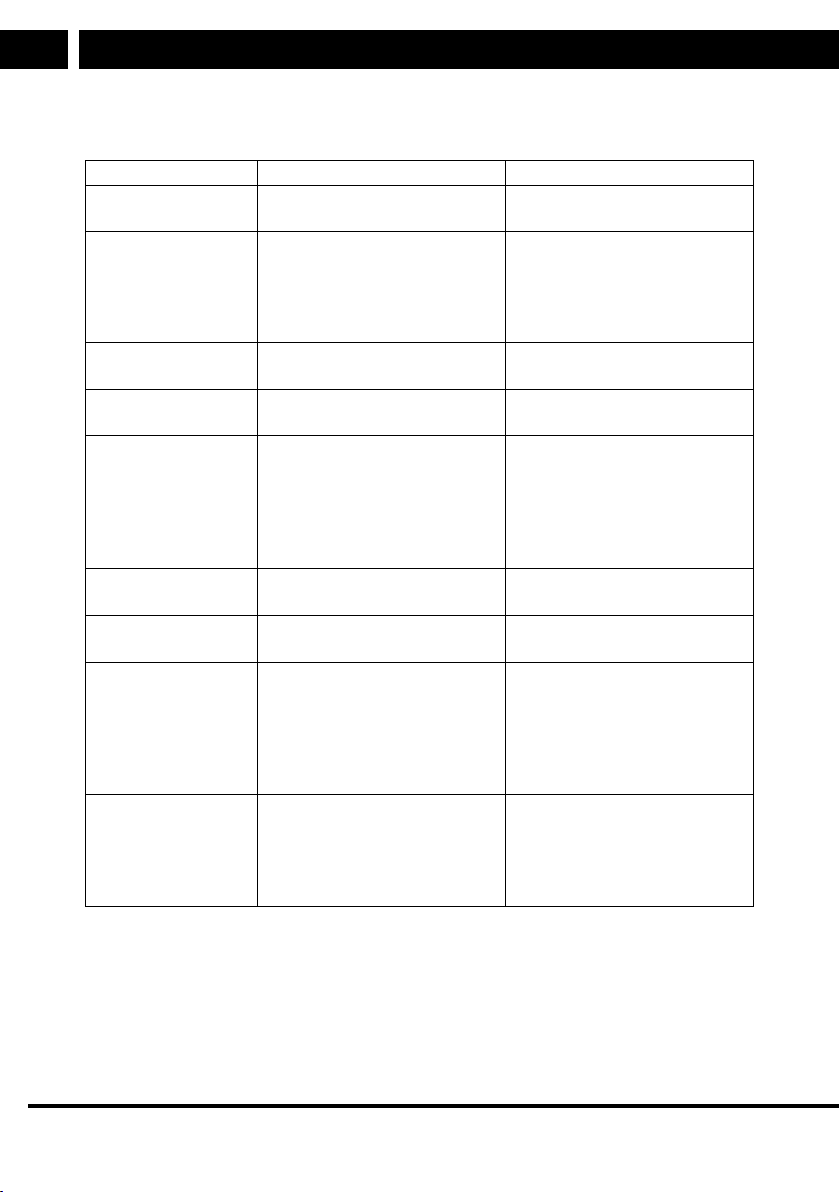
Troubleshooting
Troubleshooting
Problem Possible cause What to do
Standby mode
indicator is not lit
Power cord disconnected
Blown power supply fuse.
Check the power cord
Check the fuse
No signal has been
captured
Disconnected antenna
Damaged / incorrectly adjusted
antenna
You are outside the digital
signal coverage area
Check the antenna cord
Check the antenna
Please consult your dealer
No picture and sound No Scart/AV input has been
selected on your TV
Switch to another channel
Encoded channel
message
The channel is encoded Select an alternate channel
No response to the
remote control
The receiver is turned off
The remote control is not
pointing in the right direction
The front panel is covered
The batteries in the remote
control are flat
Connect and turn it on
Point the remote control at the
front panel
Check for obstacles
Replace the batteries in the
remote control
Forgotten code to
lock the channels
To unlock the channels, please
install the channels again
Forgotten code to
lock the menu
Please contact the customer
support
The remote control
fails to control your
STB
(1) The batteries in the remote
control need to be replaced
(2) There is an obstacle
blocking the signal path
between the remote control
and the set-top-box.
(1) Replace the batteries
(2) Please check if there is
any barrier to the signal
transmission between the
remote control and the
receiver
When the STB is
brought in another
room, the digital
broadcast cannot be
received
The antenna new connection
point may be part of a
distribution system that may
reduce the digital signal level
received by the set-top-box.
Check the direct connection
from the antenna
EN 31
EN
Revision 12/2020Copyright © 2020, Fast ČR, a. s.
Technical specifications
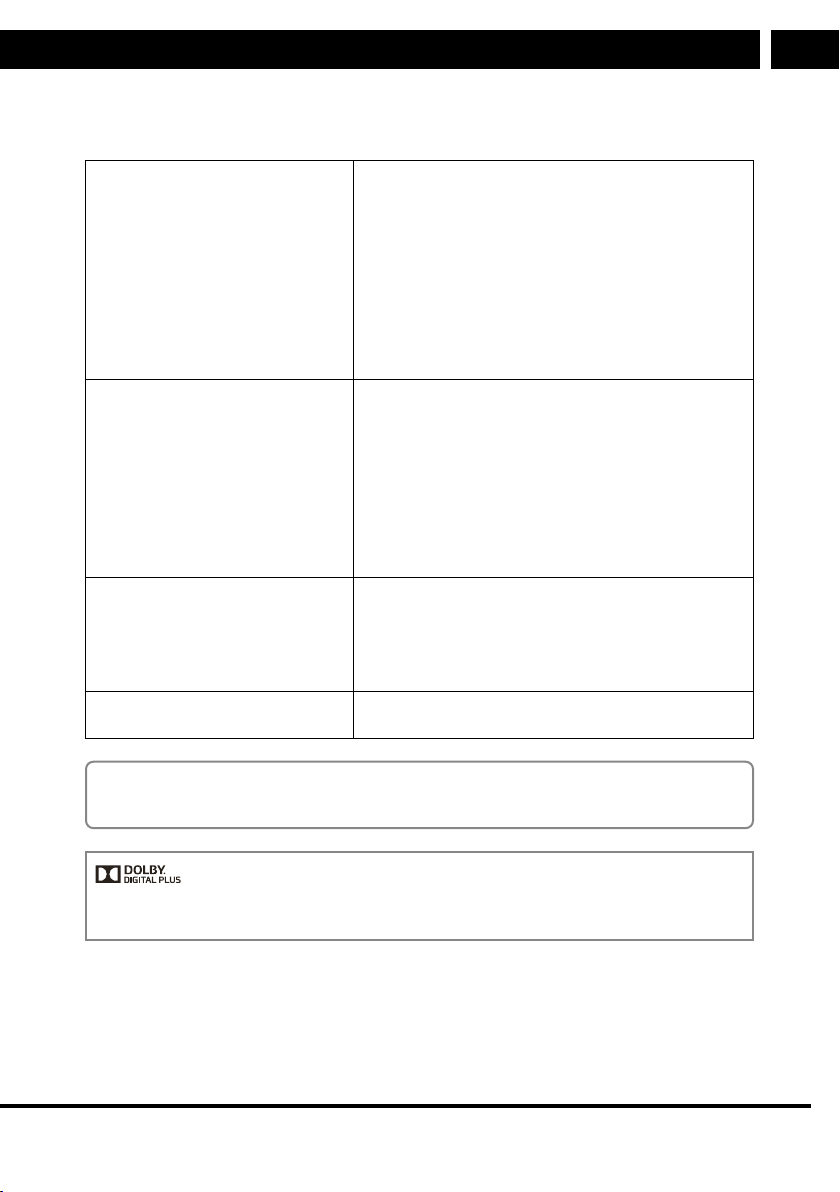
Technical specifications
TUNER AND CHANNEL • HF INPUT CONNECTOR × 1
(IEC TYPE, IEC169-2, FEMALE TYPE)
• HF OUTPUT CONNECTOR × 1
(IEC TYPE, IEC169-2, MALE
(BYPASS LOOP))
• FREQUENCY BAND:
174MHz ~ 230MHz (VHF)
470MHz ~ 862MHz (UHF)
• SIGNAL LEVEL:
-15 ~ -70dBm
DECODER
• Video decoder
• Audio decoder
• INPUT SPEED
• VIDEO FORMATS
• VIDEO OUTPUT
• MODULATION
• MPEG-2 MP@HL, AVC/H.264 HP @L4.1
MPEG-4 ASP, HEVC/H.265 HP @L4.1 SUPPORT
• MPEG-1 Layer 1,2/PCM/HE-AAC V1.0
ICE958 SPDIF/Dolby D+ and Dolby D
• MAX. 48 Mbit/s
• 4:3/16:9 SWITCHABLE
• HDMI, CVBS
• QPSK, 16QAM, 64QAM, 256QAM
CONNECTION
• TUNER
• HDMI
• DATA PORT
• SCART
• ANTENNA INPUT × 1, HF OUTPUT × 1
• HDMI OUTPUT × 1
• USB x 2
• IN TV x 1
POWER SOURCE
• INPUT VOLTAGE • 5 V DC, 1 A
Note:
The design and technical specifications are subject to change without prior notice.
Manufactured under the license of Dolby Laboratories. Dolby and the double D symbol
are the trademarks of Dolby Laboratories.
32 EN
EN
Revision 12/2020Copyright © 2020, Fast ČR, a. s.
INSTRUCTIONS AND INFORMATION ON DISPOSING OF USED PACKAGING MATERIALS
Dispose of used packaging material at a site designated for waste in your municipality.
DISPOSING OF USED ELECTRICAL AND ELECTRONIC EQUIPMENT
This symbol on products or original documents means that used electric or
electronic products must not be added to ordinary municipal waste. For proper
disposal and recycling, take these products to designated collection points.
Or in some European Union states or other European countries the products
can be returned to the local retailer when buying an equivalent new product.
Disposing of this product correctly helps save valuable natural resources and
prevents damage to the environment by improper waste disposal. Ask your local
authorities or collection facility for more details. In accordance with national
regulations penalties may be imposed for the incorrect disposal of this type of
waste.
For business entities in European Union states
If you want to dispose of electric or electronic devices, ask your retailer or
supplier for the necessary information.
Disposal in other countries outside the European Union
This symbol is valid in the European Union. If you wish to dispose of this
product, request the necessary information about the correct disposal method
from the local council or from your retailer.
FAST ČR, a.s. hereby declares that the radio device type SDB 521T conforms to
the 2014/53/EU directive.
For full version of the EU declaration of conformity, please refer to
www.sencor.eu website.
The text, design and technical specifications may be changed without prior notice and we
reserve the right to make these changes.


34 EN
EN
Revision 12/2020Copyright © 2020, Fast ČR, a. s.
???
EN
Warranty conditions
Warranty card is not apart of the device packaging.
This product is warranted for the period of 24 months from the date of purchase to the end-user. Warranty is limited
to the following conditions. Warranty is referred only to the customer goods using for common domestic use. The
claim for service can be applied either at dealer’sshop where the product was bought, or at below mentioned
authorized service shops. The end-user is obligated to set up aclaim immediately when the defects appeared but
only till the end of warranty period. The end user is obligated to cooperate to certify the claiming defects. Only
completed and clean (according to hygienic standards) product will be accepted. In case of eligible warranty claim
the warranty period will be prolonged by the period from the date of claim application till the date of taking over
the product by end-user, or the date the end-user is obligated to take it over. To obtain the service under this
warranty, end-user is obligated to certify his claim with duly completed following documents: receipt, certificate of
warranty, certificate of installation.
This warranty is void especially if apply as follows:
Defects which were put on sale.
Wear-out or damage caused by common use.
The product was damaged by unprofessional or wrong installation, used in contrary to the applicable instruction
manual, used in contrary to legal enactment and common process of use or used for another purpose which
has been designed for.
The product was damaged by uncared-for or insufficient maintenance.
The product was damaged by dirt, accident of force majeure (natural disaster, fire, and flood).
Defects on functionality caused by low duality of signal, electromagnetic field interference etc.
The product was mechanically damaged (e.g. broken button, fall).
Damage caused by use of unsuitable media, fillings, expendable supplies (batteries) or by unsuitable working
conditions (e.g. high temperatures, high humidity, quakes).
Repair, modification or other failure action to the product by unauthorized person.
End-user did not prove enough his right to claim (time and place of purchase).
Data on presented documents differs from data on products.
Cases when the claiming product cannot be indentified according to the presented documents (e.g. the serial
number or the warranty seal has been damaged).
Authorized service centers
Visit www.sencor. for detailed information about authorized service centers. com
EN