
E
Advanced User Guide

2
Introduction
Before Starting to Shoot, Be Sure to Read the Following
To avoid botched pictures and accidents, rst read the “Safety Precautions”
(=
22) and “Handling Precautions” (=
25). Also, read this manual
carefully to ensure that you use the camera correctly.
Refer to This Manual while Using the Camera to Further
Familiarize Yourself with the Camera
While reading this manual, take a few test shots and see how they come
out. You can then better understand the camera. Be sure to store this
manual safely, too, so that you can refer to it again when necessary.
Testing the Camera Before Use and Liability
After shooting, play images back and check whether they have been
properly recorded. If the camera or memory card is faulty and the images
cannot be recorded or downloaded to a computer, Canon cannot be held
liable for any loss or inconvenience caused.
Copyrights
Copyright laws in your country may prohibit the use of your recorded
images or copyrighted music and images with music on the memory card
for anything other than private enjoyment. Also be aware that certain public
performances, exhibitions, etc. may prohibit photography even for private
enjoyment.
3
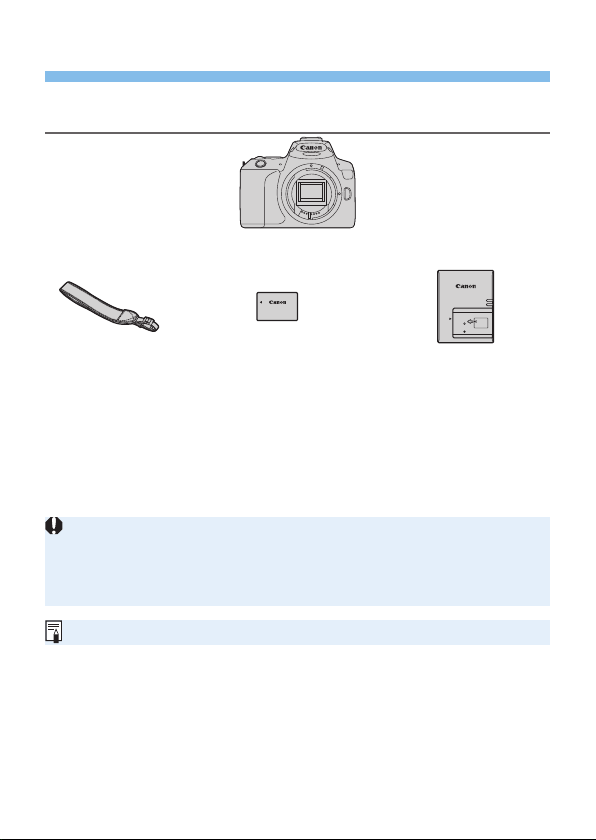
Item Check List
Before starting, check that all the following items are included with your
camera. If anything is missing, contact your dealer.
Camera
(with eyecup and body cap)
Strap
Battery Pack
LP-E17
(with protective cover)
Battery Charger
LC-E17
The camera does not come with the Software CD-ROM, an
interface cable or HDMI cable.
If you purchased a Lens Kit, check that the lenses are included.
Be careful not to lose any of the above items.
When you need Lens Instruction Manuals, download them from the Canon
Web site.
The Lens Instruction Manuals (PDF les) are for lenses sold individually. Note
that when purchasing the Lens Kit, some of the accessories included with the
lens may not match those listed in the Lens Instruction Manual.
Software can be downloaded from the Canon Web site (=
482).
4
Quick Start Guide
1
(
2
)
(
1
)
(
1
)
(
2
)
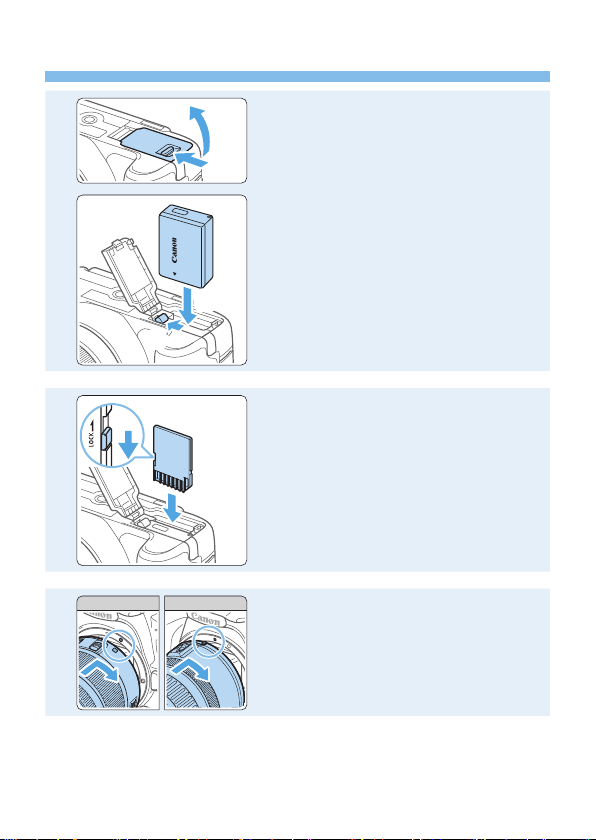
Insert the battery (=
37).
Upon purchase, charge the battery to
start using (=
35).
2
(
2
)
(
1
)
Insert the card (=
37).
With the card’s label facing toward the
back of the camera, insert it into the
card slot.
3
White index Red index
Attach the lens (=
47).
Align the lens’s white or red mount
index with the camera’s mount index of
the same color to attach the lens.
5
4
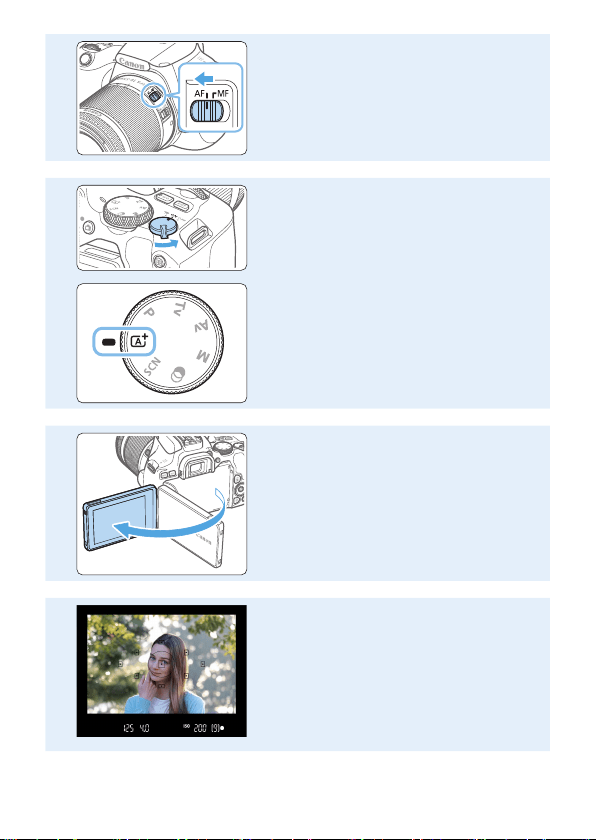
Set the lens’s focus mode switch to
<f> (=
47).
5
Set the power switch to <1>, then
set the Mode Dial to <A> (Scene
Intelligent Auto) (=
70).
All the necessary camera settings will
be set automatically.
6
Flip out the LCD monitor (=
40).
When the LCD monitor displays the
date/time/zone setting screen, see
page 43.
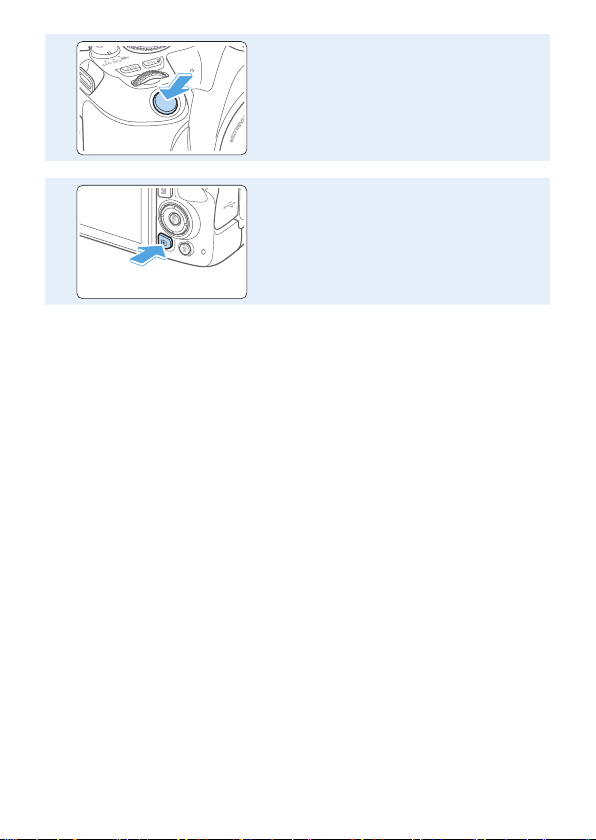
7
Focus on the subject (=
50).
Look through the viewnder and aim
the viewnder center over the subject.
Press the shutter button halfway, and
the camera will focus on the subject.
If necessary, lift the ash with your
ngers.
6
8
Take the picture (=
50).
Press the shutter button completely to
take the picture.
9
Review the picture.
The image just captured will be
displayed for approx. 2 sec. on the
LCD monitor.
To display the image again, press the
<x> button (=
101).
To shoot while looking at the LCD monitor, see “Shooting with the LCD
Monitor (Live View Shooting)” (=
180).
To view the images captured so far, see “Image Playback” (=
101).
To delete images, see “Erasing Images” (=
310).
7
Compatible Cards
The following cards can be used with the camera regardless of capacity.
If the card is new or was previously formatted (initialized) by another
camera or computer, format the card with this camera (=
66).
SD/SDHC*/SDXC* memory cards
* UHS-I cards supported.
Cards that Can Record Movies
When recording movies, use a high-capacity card with ample performance
(fast enough writing and reading speeds) for the movie recording size.
In this manual, “card” refers to SD memory cards, SDHC memory cards,
and SDXC memory cards.
* The camera does not come with a card for recording photos/
movies. Please purchase it separately.

8
Chapters
Introduction 2
Getting Started and Basic Camera Operations 34
Basic Shooting and Image Playback 69
Setting the AF and Drive Modes 103
Image Settings 114
Advanced Operations for Photographic Effects 146
Flash Photography 168
Shooting with the LCD Monitor (Live View Shooting) 180
Shooting Movies 217
Handy Features 259
Image Playback 280
Post-Processing Images 328
Wireless Features 344
Customizing the Camera 445
Reference 459
Software Start Guide / Downloading Images to
a Computer 481

9
Contents by Purpose
Shooting
Shoot automatically
=
69 - =
100 (Basic Zone
modes)
Shoot continuously
=
112 (i Continuous
shooting)
Take a picture of yourself in a
group
=
206 (j Self-timer)
Freeze the action
Blur the action
=
149 (s Shutter-priority
AE)
Shoot with effects of your choice
=
76 (Creative Assist)
Blur the background
Keep the background in sharp
focus
=
152 (f Aperture-priority
AE)
Adjust the image brightness
(exposure)
=
160 (Exposure
compensation)
Shoot in low light
=
78, =
169 (D Flash
photography)
=
118 (ISO speed setting)
Shoot without ash
=
175 (b Flash Off)
Shoot reworks at night
=
157 (Bulb exposure)
Shoot while viewing the LCD
monitor
=
180 (A Live View
shooting)
Shoot with creative effects
=
93, =
188 (Creative
lters)
Take a Self Portrait
=
210 ( Self Portrait)
Shoot movies
=
217 (k Movie shooting)

10
Image Quality
Shoot with image effects
matching the subject
=
121 (Picture Style)
Make a large-size print of
the picture
=
115 (73, 83, 1, D)
Take a lot of pictures
=
115 (7a, 8a, b)
AF (Focusing)
Change the point of focus
=
108 (S AF point selection)
Shoot a moving subject
=
83, =
84, =
106 (AI Servo
AF)
Playback
View the images on the
camera
=
101 (x Playback)
Search for pictures quickly
=
281 (H Index display)
=
285 (I Image browsing)
Rate images
=
288 (Ratings)
Prevent important images
from accidental erasure
=
307 (K Image protect)
Delete unnecessary
images
=
310 (L Delete)
Auto play back photos and
movies
=
303 (Slide show)
View the photos and
movies on a TV set
=
305 (TV set)
Adjust the LCD monitor
brightness
=
262 (LCD monitor brightness)
Apply special effect to
images
=
329 (Creative lters)


12
Index to Features
Power
Battery
• Charging (=
35)
• Installing/Removing (=
37)
• Battery level (=
42)
• Checking battery information
(=
460)
Household power outlet (=
461)
Auto power off (=
41)
Cards
Installing/Removing (=
37)
Formatting (=
66)
Releasing shutter without card
(=
260)
Lens
Attaching/Detaching (=
47)
Zoom (=
48)
Basic Settings
Dioptric adjustment (=
49)
Language (=
46)
Date/Time/Zone (=
43)
Beeper (=
260)
LCD Monitor
Using the LCD monitor (=
40)
LCD off/on button (=
272)
Brightness adjustment (=
262)
Touch screen (=
63)
Display level settings (=
51)
Feature guide (=
55)
Recording Images
Creating/Selecting a folder
(=
263)
File numbering (=
265)
AF
AF operation (=
104)
AF point selection (=
108)
Manual focusing (=
111)
Eye detection AF (=
204)
Continuous AF (=
205)
MF peaking settings (=
213)
Drive
Drive mode (=
112)
Continuous shooting (=
112)

13
Image Quality
Image-recording quality (=
115)
Picture Style (=
121)
White balance (=
129)
Auto Lighting Optimizer (=
136)
Noise reduction for long exposures
(=
139)
Noise reduction for high ISO
speeds (=
138)
Lens aberration correction
(=
141)
Highlight tone priority (=
137)
Color space (=
145)
Shooting
Shooting mode (=
30)
ISO speed (=
118)
Bulb (=
157)
Metering mode (=
158)
Mirror lockup (=
165)
Remote control (=
463)
Exposure Adjustment
Exposure compensation (=
160)
Exposure compensation with
M+ISO Auto (=
156)
AEB (=
162)
AE lock (=
164)
Flash
Built-in ash (=
169)
External ash (=
174)
Flash function settings (=
175)
Live View Shooting
Live View shooting (=
180)
Aspect ratio (=
192)
AF operation (=
195)
AF method (=
197)
Creative lters (=
188)
Self-timer (=
206)
Touch Shutter (=
208)
Self portrait (=
210)
Movie Shooting
Movie shooting (=
217)
AF method (=
197)
Movie recording size (=
228)
Movie Servo AF (=
253)
Sound recording (=
251)
Manual exposure (=
221)
Digital zoom (=
231)
HDR movie shooting (=
234)
Creative lters for movies (=
235)
Video snapshot (=
245)
Time-lapse movie (=
238)
Remote control shooting (=
463)

14
Playback
Image review time (=
261)
Single-image display (=
101)
Shooting information (=
323)
Index display (=
281)
Image browsing (Jump display)
(=
282)
Magnied view (=
284)
Image rotation (=
287)
Rating (=
288)
Movie playback (=
296)
Slide show (=
303)
Viewing images on a TV set
(=
305)
Protect (=
307)
Erasing (=
310)
Touch playback (=
285)
Print Order (DPOF) (=
316)
Photobook Set-up (=
320)
Image Editing
Creative lters (=
329)
Resizing (=
338)
Cropping (=
340)
Customization
Custom Functions (C.Fn) (=
446)
My Menu (=
455)
Software
Software Start Guide (=
482)
Software Instruction Manual
(=
483)
Wireless Features
Communicate with smartphone
(=
349)
Auto send images to smartphones
(=
362)
Remote control (EOS Utility)
(=
374)
Auto send images to computers
(=
378)
Print from Wi-Fi printer (=
381)
Send images to a Web service
(=
391)
Clear wireless settings (=
425)
15
Conventions in This Manual
Icons in this Manual
<6> : Indicates the Main Dial.
<W><X><Y><Z> : Indicate up, down, left, and right on the <V> cross
keys respectively.
<0> : Indicates the Setting button.
* In addition to the above, the icons and symbols used on the camera’s buttons and
displayed on the LCD monitor are also used in this manual when discussing relevant
operations and functionality.
N
: This icon at the upper right of the page titles indicates that the
function is available only in the Creative Zone modes (=
31).
(=***) : Reference page numbers for more information.
: Warning to prevent shooting problems.
: Supplemental information.
: Tips or advice for better shooting.
: Troubleshooting advice.
Basic Assumptions for Operational Instructions and
Notes on Sample Photos
All operations described in this manual assume that the power switch is
set to <1> (=
41).
It is assumed that all the menu settings and Custom Functions are set
to their defaults.
The illustrations in this manual describe the camera attached with the
EF-S18-55mm f/4-5.6 IS STM lens as an example.
The sample photos displayed on the camera and used in this manual
are only for illustrative purposes to show the effects more clearly.

16
Introduction 2
Item Check List .................................................................................... 3
Quick Start Guide ................................................................................4
Compatible Cards ................................................................................ 7
Chapters ..............................................................................................8
Contents by Purpose ...........................................................................9
Index to Features ............................................................................... 12
Conventions in This Manual ..............................................................15
Contents ............................................................................................16
Safety Precautions.............................................................................22
Handling Precautions.........................................................................25
Part Names ........................................................................................ 28
Getting Started and Basic Camera Operations 34
Charging the Battery .......................................................................... 35
Installing and Removing the Battery and Card ..................................37
Using the LCD Monitor ......................................................................40
Turning on the Power ........................................................................41
Setting the Date, Time, and Time Zone .............................................43
Selecting the Interface Language ...................................................... 46
Attaching and Detaching a Lens ........................................................47
Basic Shooting Operations ................................................................49
Setting the Screen Display Level .......................................................51
Quick Control for Shooting Functions ................................................ 57
Menu Operations and Configurations ................................................ 59
Operating the Camera with Touch Screen ......................................... 63
Formatting Memory Cards ................................................................. 66
Switching the LCD Monitor Display ...................................................68
Contents

17
Basic Shooting and Image Playback 69
Fully Automatic Shooting (Scene Intelligent Auto) ............................. 70
Full Auto Techniques (Scene Intelligent Auto) ...................................74
Special Scene Mode ..........................................................................78
Shooting Portraits ..............................................................................79
Shooting Portraits with Smooth Skin Tone .........................................80
Shooting Group Photos .....................................................................81
Shooting Landscapes ........................................................................82
Shooting Moving Subjects .................................................................83
Photographing Children ..................................................................... 84
Shooting Close-ups ...........................................................................85
Shooting Food ...................................................................................86
Shooting Candlelight Portraits ...........................................................87
Shooting Night Portraits (With a Tripod) ............................................88
Shooting Night Scenes (Handheld) ...................................................89
Shooting Backlit Scenes .................................................................... 90
Shooting with Creative Filter Effects .................................................. 93
Quick Control ..................................................................................... 99
Adjusting the Brightness .................................................................. 100
Image Playback ...............................................................................101
Setting the AF and Drive Modes 103
Changing the Autofocus Operation ..................................................104
Selecting the AF Point .....................................................................108
Subjects Difficult to Focus on .......................................................... 110
Selecting the Drive Mode................................................................. 112
Image Settings 114
Setting Image Quality ...................................................................... 115
Setting the ISO Speed for Still Photos ............................................. 118
Selecting a Picture Style ..................................................................121
Customizing a Picture Style .............................................................124
Registering a Picture Style ..............................................................127

18
Matching the Light Source ............................................................... 129
Adjusting the Color Tone for the Light Source .................................133
Auto Correction of Brightness and Contrast ....................................136
Highlight Tone Priority ...................................................................... 137
Setting Noise Reduction ..................................................................138
Correction of Lens Aberrations due to Optical Characteristics ........141
Setting the Color Reproduction Range ............................................ 145
Advanced Operations for Photographic Effects 146
Program AE (P Mode) ......................................................................147
Conveying the Subject’s Movement (Tv Mode) ...............................149
Changing the Depth of Field (Av Mode) ..........................................152
Manual Exposure (M Mode) ............................................................155
Changing the Metering Mode ..........................................................158
Setting the Desired Exposure Compensation ..................................160
Auto Exposure Bracketing ...............................................................162
Locking the Exposure ......................................................................164
Mirror Lockup to Reduce Camera Vibration Blur .............................165
AF-Assist Beam Settings ................................................................. 167
Flash Photography 168
Using the Built-in Flash .................................................................... 169
Using an External Speedlite ............................................................174
Setting the Flash Function ............................................................... 175
Shooting with the LCD Monitor (Live View Shooting) 180
Shooting with the LCD Monitor ........................................................ 181
Shooting Function Settings ..............................................................187
Shooting with Creative Filter Effects ................................................ 188
Menu Function Settings ................................................................... 192
Changing the Autofocus Operation ..................................................195
Focusing with AF .............................................................................197
Focusing on People’s Eyes .............................................................204
Setting Continuous AF ..................................................................... 205

19
Using the Self-timer .........................................................................206
Shooting with the Touch Shutter ......................................................208
Taking a Self Portrait (Selfie) ...........................................................210
MF: Focusing Manually....................................................................212
Shooting Movies 217
Shooting Movies ..............................................................................218
Shooting Function Settings ..............................................................227
Setting the Movie Recording Size....................................................228
Using Movie Digital Zoom ................................................................ 231
Movie Digital IS ................................................................................ 232
Recording HDR Movies ...................................................................234
Shooting Movies with Creative Filter Effects ...................................235
Shooting Time-lapse Movies............................................................238
Recording Video Snapshots ............................................................245
Menu Function Settings ................................................................... 250
Handy Features 259
Handy Features ...............................................................................260
Automatic Sensor Cleaning .............................................................273
Appending Dust Delete Data ...........................................................274
Manual Sensor Cleaning .................................................................276
HDMI Output Resolution .................................................................. 278
RAW Playback on an HDR TV.........................................................279
Image Playback 280
Searching for Images Quickly ..........................................................281
Magnifying Images...........................................................................284
Playing Back with the Touch Screen ................................................285
Rotating the Image ..........................................................................287
Setting Ratings ................................................................................288
Filtering Images for Playback ..........................................................291
Quick Control for Playback ..............................................................293
Enjoying Movies...............................................................................295

20
Playing Back Movies........................................................................296
Editing a Movie’s First and Last Scenes .......................................... 299
Grabbing a Frame from 4K Movies or 4K Time-Lapse Movies ........301
Slide Show (Auto Playback) ............................................................303
Playback on a TV .............................................................................305
Protecting Images ............................................................................ 307
Erasing Images ................................................................................ 310
Preparing to Print ............................................................................. 313
Printing.............................................................................................315
Digital Print Order Format (DPOF) ..................................................316
Specifying Images for a Photobook ................................................. 320
Shooting Information Display ...........................................................323
Post-Processing Images 328
Applying Creative Filter Effects ........................................................329
Applying Your Favorite Effects (Creative Assist) ..............................332
Red-eye Correction..........................................................................334
Editing Video Snapshot Albums .......................................................335
Resizing JPEG Images .................................................................... 338
Cropping JPEG Images ................................................................... 340
Specifying Initial Image Display When Playback Begins ................. 343
Wireless Features 344
What You Can Do via Wireless Communication Functions .............345
Tab Menus: Wireless Tab .................................................................346
Selection of Wi-Fi/Bluetooth Connection .........................................347
Connecting to a Smartphone ........................................................... 349
Connecting to a Computer via Wi-Fi ................................................374
Connecting to a Printer via Wi-Fi ..................................................... 381
Sending Images to a Web Service ..................................................391
Wi-Fi Connection via Access Points ................................................405
Connecting to a Wireless Remote Control.......................................410
Reconnecting via Wi-Fi .................................................................... 413

21
Registering Multiple Connection Settings ........................................ 415
Wi-Fi Settings ..................................................................................416
Bluetooth Settings............................................................................417
Changing the Nickname ..................................................................418
Geotagging Images with GPS Information from Other Devices ......419
Changing or Deleting Connection Settings ......................................423
Clearing Wireless Communication Settings to Default ....................425
View Info Screen ..............................................................................426
Virtual Keyboard Operation .............................................................427
Responding to Error Messages .......................................................428
Wireless Communication Function Notes ........................................439
Security ............................................................................................ 441
Checking Network Settings..............................................................442
Wireless Communication Status ......................................................443
Customizing the Camera 445
Setting Custom Functions................................................................446
Custom Function Setting Items........................................................448
Registering My Menu ....................................................................... 455
Reference 459
Checking the Battery Information ....................................................460
Using a Household Power Outlet.....................................................461
Remote Control Shooting ................................................................463
Removing the Eyecup......................................................................464
Troubleshooting Guide ....................................................................465
Error Codes .....................................................................................477
Software Start Guide / Downloading Images to a Computer
481
Software Overview...........................................................................482
Downloading and Viewing the Software Instruction Manuals
(PDF Files) .......................................................................................483
Downloading Images to a Computer ...............................................484
Index ................................................................................................ 486

22
Safety Precautions
The following precautions are provided to prevent harm or injury to
yourself and others. Make sure to thoroughly understand and follow these
precautions before using the product.
Warnings
:
Follow the warnings below. Otherwise, death or serious injuries
may result.
To prevent re, excessive heat, chemical leakage, explosions, and electrical shock,
follow the safeguards below:
- Do not use any batteries, power sources, or accessories not specied in the Instruction
Manual. Do not use any home-made or modied batteries, or the product if it is damaged.
- Do not short-circuit, disassemble, or modify the battery. Do not apply heat or
solder to the battery. Do not expose the battery to re or water. Do not subject the
battery to strong physical shock.
- Do not insert the battery’s plus and minus ends incorrectly.
- Do not recharge the battery in temperatures outside the allowable charging
(working) temperature range. Also, do not exceed the recharge time indicated in
the Instruction Manual.
- Do not insert any foreign metallic objects into the electrical contacts of the
camera, accessories, connecting cables, etc.
When disposing of a battery, insulate the electrical contacts with tape. Contact with
other metallic objects or batteries may cause a re or an explosion.
If excessive heat, smoke, or fumes are emitted when recharging the battery,
immediately unplug the battery charger from the power outlet to stop recharging.
Otherwise, it may cause a re, heat damage, or electrical shock.
If the battery leaks, changes color, deforms, or emits smoke or fumes, remove
it immediately. Be careful not to get burned in the process. It may cause a re,
electrical shock or burns if you keep using it.
Prevent any battery leakage from contacting your eyes, skin, and clothing. It can
cause blindness or skin problems. If the battery leakage comes in contact with your
eyes, skin, or clothing, ush the affected area with lots of clean water without rubbing
it. See a physician immediately.
Do not leave any cords near a heat source. It can deform the cord or melt the
insulation and cause a re or electrical shock.
Do not hold the camera in the same position for long periods of time. Even if the
camera does not feel too hot, prolonged contact with the same body part may
cause skin redness or blistering due to low-temperature contact burns. Using a
tripod is recommended when using the camera in very hot places or for people with
circulation problems or poor skin sensation.
Do not re the ash at anyone driving a car or other vehicle. It may cause an accident.
When the camera or accessories are not in use, make sure to remove the battery,
and disconnect the power plug and connecting cables from the equipment before
storing. This is to prevent electrical shock, excessive heat, re, and corrosion.

23
Do not use the equipment where there is ammable gas. This is to prevent an
explosion or a re.
If you drop the equipment and the casing breaks open to expose the internal parts,
do not touch the exposed internal parts. There is a possibility of an electrical shock.
Do not disassemble or modify the equipment. High-voltage internal parts can cause
electrical shock.
Do not look at the sun or an extremely bright light source through the camera or lens.
Doing so may damage your vision.
Keep equipment out of the reach of children and infants, including when in use. Straps
or cords may accidentally cause choking, electrical shock, or injury. Choking or injury
may also occur if a child or infant accidentally swallows a camera part or accessory. If
a child or infant swallows a part or accessory, consult a physician immediately.
Do not use or store the equipment in dusty or humid places. Likewise, keep the battery
away from metallic items and store it with its protective cover attached to prevent short-
circuit. This is to prevent re, excessive heat, electrical shock, and burns.
Before using the camera inside an airplane or hospital, check if it is allowed.
Electromagnetic waves emitted by the camera may interfere with the plane’s
instruments or the hospital’s medical equipment.
To prevent a re and electrical shock, follow the safeguards below:
- Always insert the power plug all the way in.
- Do not handle a power plug with wet hands.
- When unplugging a power plug, grasp and pull the plug instead of the cord.
- Do not scratch, cut, or excessively bend the cord or put a heavy object on the
cord. Also do not twist or tie the cords.
- Do not connect too many power plugs to the same power outlet.
- Do not use a cord whose wire is broken or insulation is damaged.
Unplug the power plug periodically and clean off the dust around the power outlet
with a dry cloth. If the surrounding is dusty, humid, or oily, the dust on the power
outlet may become moist and short-circuit the outlet, causing a re.
Do not connect the battery directly to an electrical outlet or a car’s cigarette lighter outlet.
The battery may leak, generate excessive heat or explode, causing re, burns, or injuries.
A thorough explanation of how to use the product by an adult is required when the
product is used by children. Supervise children while they are using the product.
Incorrect usage may result in electrical shock or injury.
Do not leave a lens or lens-attached camera in the sun without the lens cap attached.
Otherwise, the lens may concentrate the sun’s rays and cause a re.
Do not cover or wrap the product with a cloth when using it. Doing so may trap heat
within and cause the casing to deform or catch re.
Be careful not to get the camera wet. If you drop the product in the water or if water
or metal get inside the product, promptly remove the battery. This is to prevent re,
electrical shock, and burns.
Do not use paint thinner, benzene, or other organic solvents to clean the product.
Doing so may cause re or a health hazard.

24
Cautions:
Follow the cautions below. Otherwise, physical injury or
property damage may result.
Do not use or store the product in a high-temperature location such as inside a car
under the hot sun. The product may become hot and cause burns. Doing so may
also cause battery leakage or explosion, which will degrade the performance or
shorten the life of the product.
Do not carry the camera around when it is attached to a tripod. Doing so may cause
an injury or an accident. Also make sure the tripod is sturdy enough to support the
camera and lens.
Do not leave the product in a low-temperature environment for an extended period of
time. The product will become cold and may cause injury when touched.
Do not re the ash near the eyes. It may hurt the eyes.

25
Handling Precautions
Camera Care
This camera is a precision instrument. Do not drop it or subject it to
physical shock.
The camera is not waterproof and cannot be used underwater. If you
accidentally drop the camera into water, promptly consult the nearest
Canon Service Center. Wipe off any water droplets with a dry and clean
cloth. If the camera has been exposed to salty air, wipe it with a clean,
well-wrung wet cloth.
Never leave the camera near anything having a strong magnetic eld
such as a magnet or electric motor. Also, avoid using or leaving the
camera near anything emitting strong radio waves, such as a large
antenna. Strong magnetic elds can cause camera misoperation or
destroy image data.
Do not leave the camera in excessive heat, such as in a car in direct
sunlight. High temperatures can cause the camera to malfunction.
The camera contains precision electronic circuitry. Never attempt to
disassemble the camera yourself.
Do not block the mirror operation with your nger, etc. Doing so may
cause a malfunction.
Use only a commercially-available blower to blow away dust when it
adheres to the lens, viewnder, reex mirror, focusing screen, etc. Do
not use cleaners that contain organic solvents to clean the camera
body or lens. For stubborn dirt, take the camera to the nearest Canon
Service Center.
Do not touch the camera’s electrical contacts with your ngers. This is
to prevent the contacts from corroding. Corroded contacts can cause
camera malfunction.
If the camera is suddenly brought in from the cold into a warm room,
condensation may form on the camera and internal parts. To prevent
condensation, rst put the camera in a sealed plastic bag and let it
adjust to the warmer temperature before taking it out of the bag.
If condensation forms on the camera, do not use the camera. This is
to avoid damaging the camera. If there is condensation, remove the
lens, card and battery from the camera, and wait until condensation has
evaporated before using the camera.

26
If the camera will not be used for an extended period, remove the
battery and store the camera in a cool, dry, well-ventilated location.
Even while the camera is in storage, press the shutter button a few
times once in a while to check that the camera is still working.
Avoid storing the camera where there are chemicals that result in rust
and corrosion such as in a chemical lab.
If the camera has not been used for an extended period, test all its
functions before using it. If you have not used the camera for some time
or if there is an important shoot such as a foreign trip coming up, have
the camera checked by your nearest Canon Service Center or check
the camera yourself and make sure it is working properly.
If you repeat continuous shooting or perform Live View shooting or
movie shooting for a prolonged period, the camera may become hot.
This is not a malfunction.
If there is a bright light source inside or outside the image area,
ghosting may occur.
LCD Monitor
Although the LCD monitor is manufactured with very high precision
technology with over 99.99% effective pixels, 0.01% or fewer of the
pixels may be dead, and there may also be spots of black, red, or other
colors. Dead pixels are not a malfunction. They do not affect the images
recorded.
If the LCD monitor is left on for a prolonged period, screen burn-in may
occur where you see remnants of what was displayed. However, this is
only temporary and will disappear when the camera is left unused for a
few days.
The LCD monitor display may seem slightly slow in low temperatures,
or look black in high temperatures. It will return to normal at room
temperature.
Cards
To protect the card and its recorded data, note the following:
Do not drop, bend, or wet the card. Do not subject it to excessive force,
physical shock, or vibration.
Do not touch the card’s electronic contacts with your ngers or anything
metallic.
Do not afx any stickers, etc. on the card.
27
Do not store or use the card near anything that has a strong magnetic
eld, such as a TV set, speakers, or magnets. Also avoid places prone
to having static electricity.
Do not leave the card in direct sunlight or near a heat source.
Store the card in a case.
Do not store the card in hot, dusty, or humid locations.
Smudges Adhering to the Front of the Sensor
Besides dust entering the camera from outside, in rare cases, lubricant
from the camera’s internal parts may adhere to the front of the sensor. If
smudges are visible on the images, having the sensor cleaned by a Canon
Service Center is recommended.
Lens
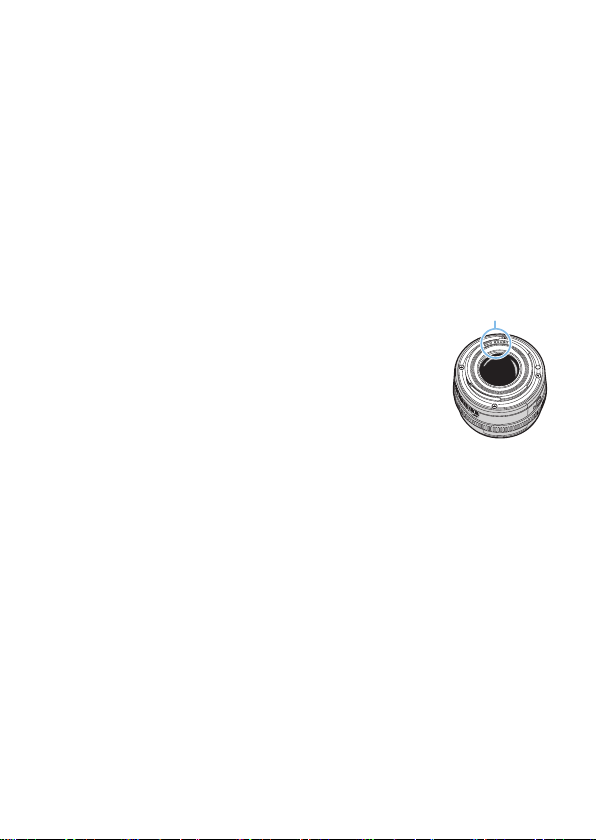
After detaching the lens from the camera, put down the
lens with the rear end up and attach the rear lens cap to
avoid scratching the lens surface and electrical contacts
(1).
(1)
28
Part Names
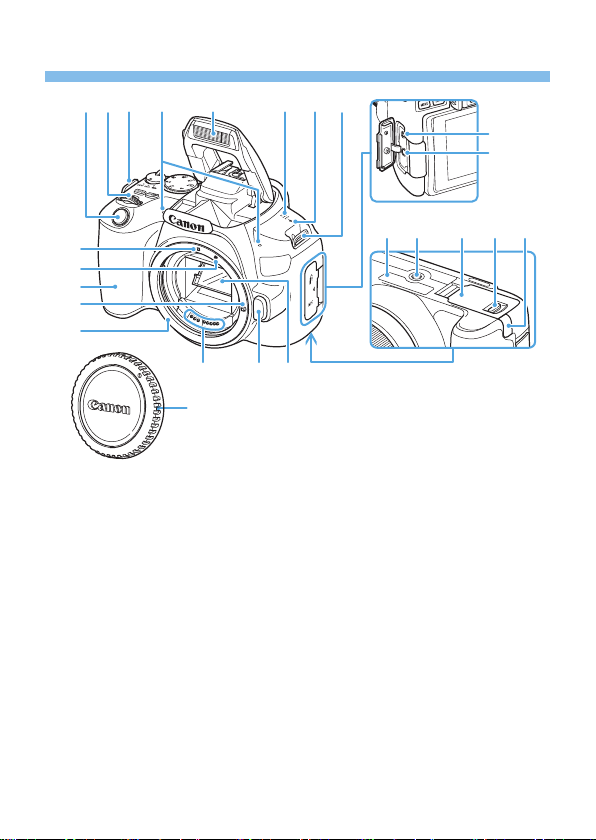
(
14
)(
15
) (
13
)
(
5
)
(
3
)
(
4
)
(
2
)
(
1
)
(
8
)(
7
)(
6
) (
10
)(
9
)
(
19
)(
18
) (
20
) (
21
) (
22
)
(
16
)
(
17
)
(
23
)
(
8
)(
12
)(
11
)
(1) Lens mount
(2) Lens lock pin
(3) Grip
(4) EF-S lens mount index
(5) EF lens mount index
(6) Shutter button
(7) Main Dial
(8) Strap mount
(9) Built-in microphones
(10) Built-in flash/AF-assist beam emitter
(11) Speaker
(12) <V> Focal plane mark
(13) Mirror
(14) Lens release button
(15) Contacts
(16) Remote control terminal
(17) External microphone IN terminal
(18) Serial number
(19) Tripod socket
(20) Card slot/Battery compartment cover
(21) Card slot/Battery compartment cover
lock
(22) DC cord hole
(23) Body cap
29
(
23
) (
22
)
(
16
)
(
15
)
(
10
)(
7
)(
6
) (
8
) (
11
)(
9
)
(
1
)
(
3
)
(
2
)
(
5
)(
4
) (
12
)(
13
)(
14
)
(
17
)
(
20
)
(
21
)
(
18
)
(
19
)
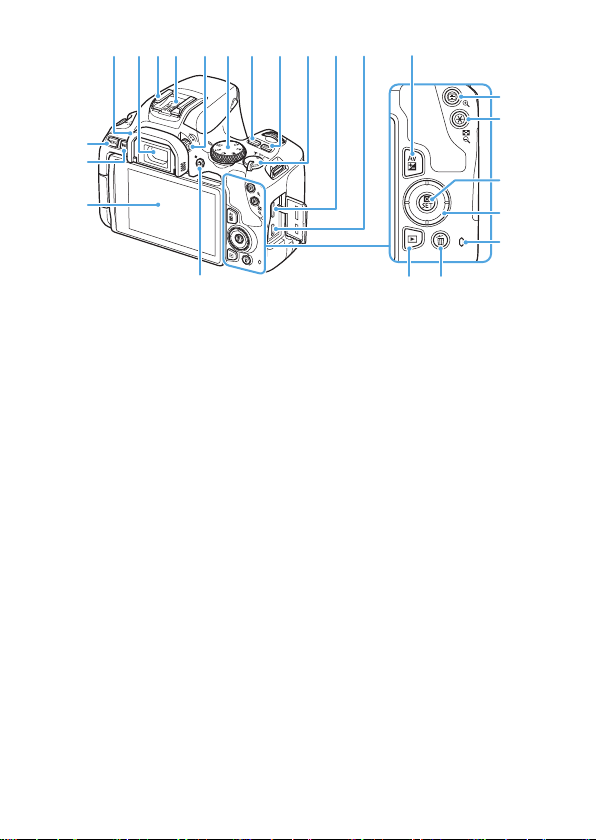
(1) LCD monitor/Touch screen
Opens to the left about 180° and
rotates up and down.
(2) <B> (Info) button
(3) <M> (Menu) button
Used to display menu screens.
(4) Eyecup
(5) Viewfinder eyepiece
(6) Hot shoe
(7) Flash sync contacts
(8) Dioptric adjustment knob
(9) Mode Dial
(10) <g> (ISO speed setting) button
(11) <U> (Display) button
(12) Power switch
(13) HDMI mini OUT terminal
(14) Digital terminal
(15) <A> (Live View shooting/Movie
shooting) button
Switches from viewfinder display
to Live View display. Recording is
possible when the power switch is
set to <k>.
(16) <g> (Aperture/Exposure
compensation) button
(17) <S> (AF point selection)/
<u> (Magnify) button
(18) <A> (AE lock/FE lock)/
<I> (Index/Reduce) button
(19) <Q> (Quick Control)/<0>
(Setting) button
Displays the Quick Control screen.
Also used to confirm selected
settings.
(20) <W><X><Y><Z>: <V> Cross
keys
(21) Access lamp
(22) <L> (Single-image erase) button
(23) <x> (Playback) button
30
Mode Dial
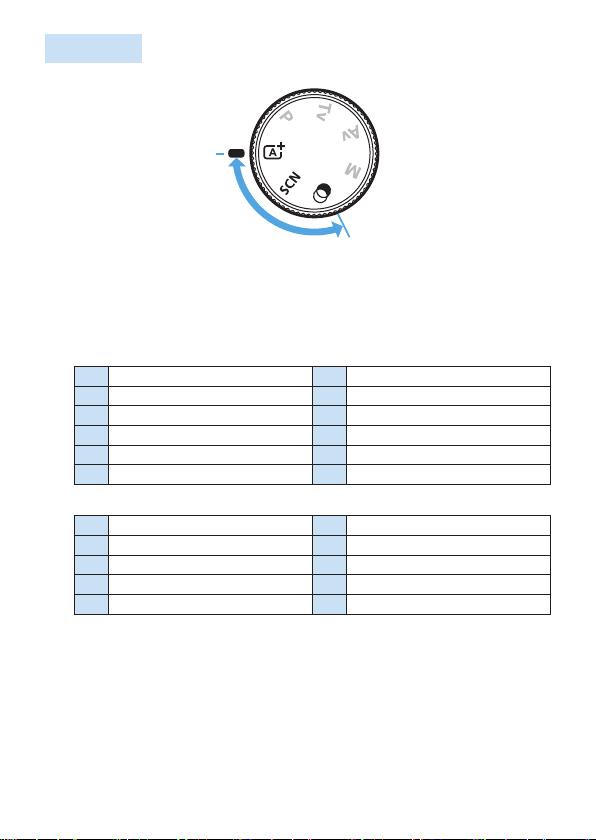
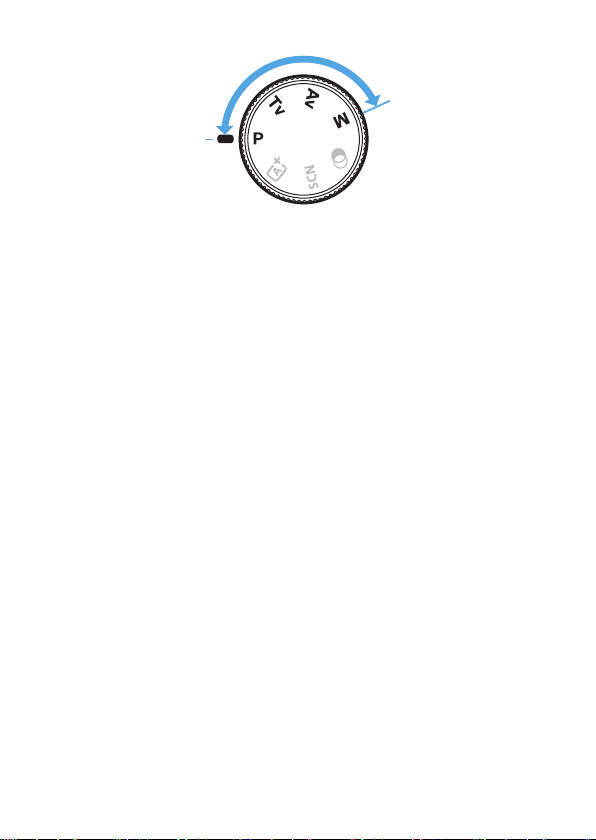
The Mode Dial includes the Basic Zone modes and Creative Zone modes.
(1)
(1) Basic Zone
All you do is press the shutter button. The camera sets everything to suit
the subject or scene for shooting.
A : Scene Intelligent Auto (=
70)
8 : Special scene (=
78)
2
Portrait (=
79)
4
Close-up (=
85)
E
Smooth skin (=
80)
P
Food (=
86)
q
Group Photo (=
81)
x
Candlelight (=
87)
3
Landscape (=
82)
6
Night Portrait (=
88)
5
Sports (=
83)
F
Handheld Night Scene (=
89)
C
Kids (=
84)
G
HDR Backlight Control (=
90)
v : Creative lters (=
93)
G
Grainy B/W (=
95)
c
Miniature effect (=
96)
W
Soft focus (=
95)
A
HDR art standard (=
96)
X
Fish-eye effect (=
95)
B
HDR art vivid (=
96)
Z
Water painting effect (=
95)
C
HDR art bold (=
96)
H
Toy camera effect (=
95)
D
HDR art embossed (=
96)
32
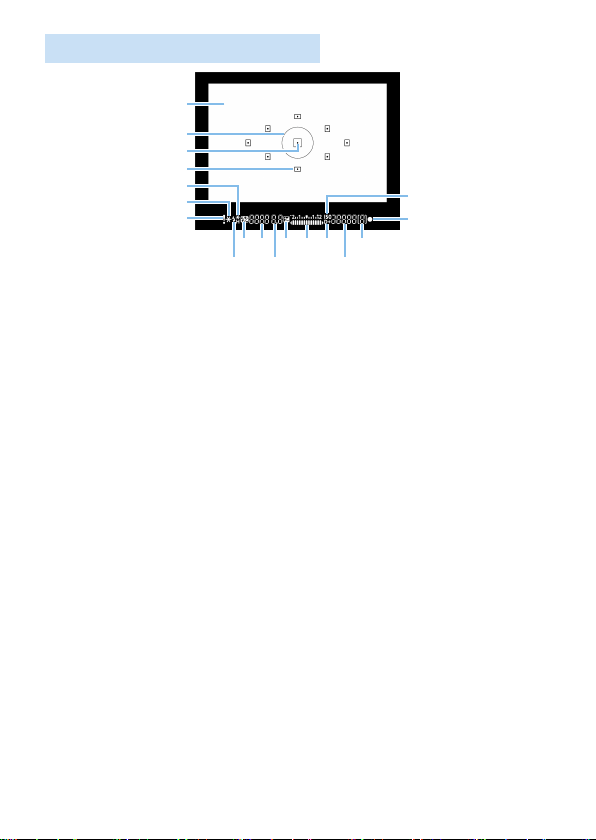
Viewfinder Information Display
(
1
)
(
7
)
(
8
)
(
9
)
(
2
)
(
4
)
(
5
)
(
6
)
(
3
)
(
11
) (
14
)(
12
)
(
10
) (
13
)
(
15
)(
16
)
(
17
)
(
18
)
(1) Focusing screen
(2) Spot metering circle
(3) AF point activation indicator
(4) AF point
(5) High-speed sync
FE lock / FEB in-progress
(6) AE lock / AEB in-progress
(7) Warning icon
(8) ISO speed indicator
(9) Focus indicator
(10) Flash-ready
Improper FE lock warning
(11) Flash exposure compensation
(12) Shutter speed
Bulb exposure (buLb)
FE lock (FEL)
Busy (buSy)
Built-in flash recharging
(buSy)
No card warning (Card)
Card error (Card)
Card full warning (FuLL)
Error code (Err)
(13) Aperture
(14) Exposure compensation
(15) Exposure level indicator
Exposure compensation amount
AEB range
(16) Highlight tone priority
(17) ISO speed
(18) Maximum burst
The display will show only the settings currently applied.
34
Getting Started and Basic
Camera Operations
This chapter describes preparatory steps before you start
shooting and the basic camera operations.
(
1
)
(
2
)
(
3
)
(
4
)
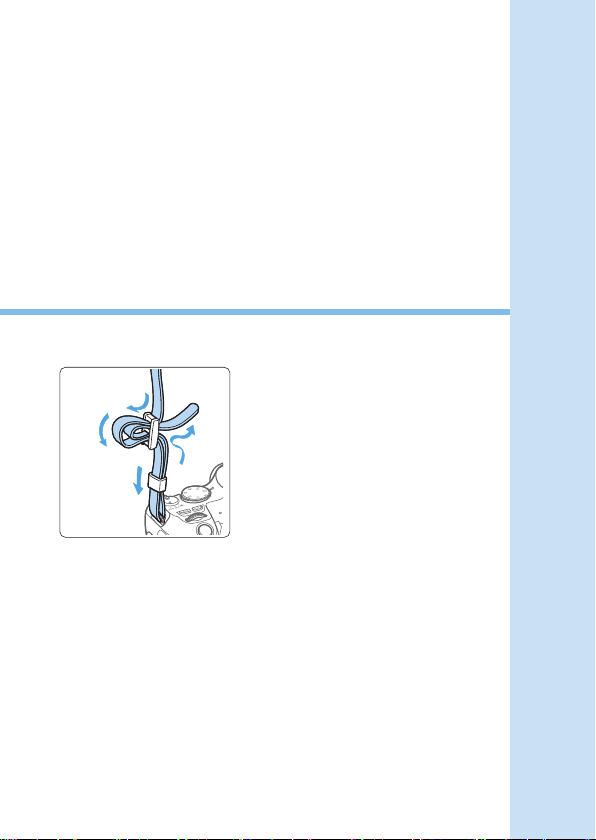
Attaching the Provided Strap
Pass the end of the strap through
the camera’s strap mount eyelet
from the bottom. Then pass it
through the strap’s buckle as shown
in the illustration. Pull the strap to
take up any slack and make sure
the strap will not loosen from the
buckle.
35
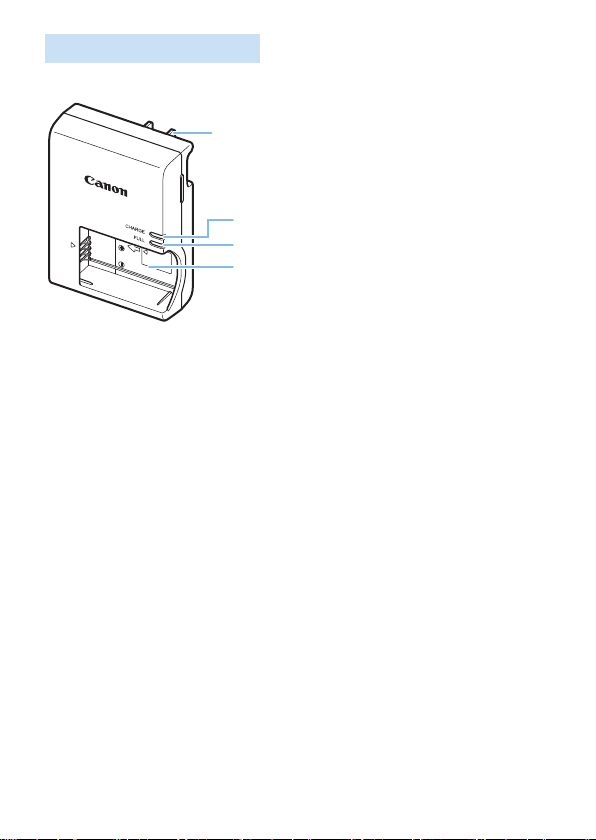
Charging the Battery
1
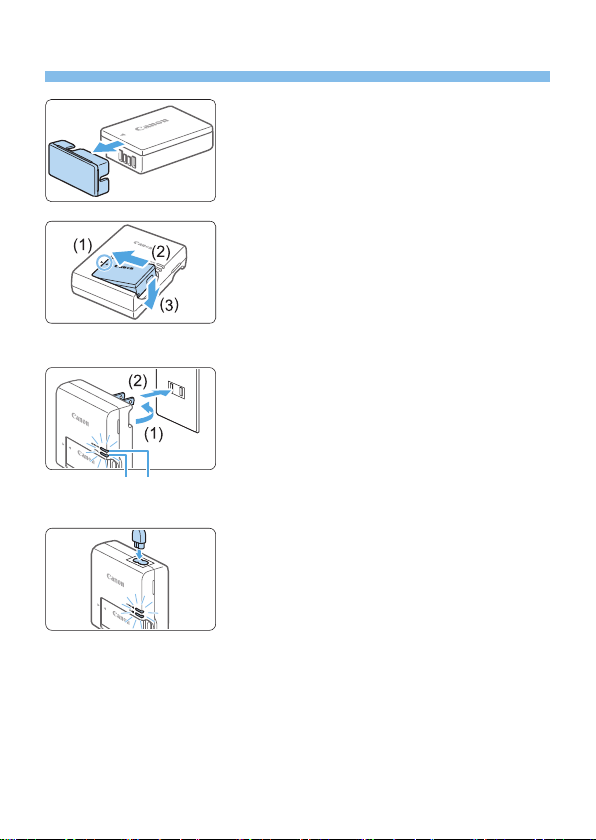
Remove the protective cover.
Detach the protective cover provided
with the battery.
2
Attach the battery.
As shown in the illustration, attach the
battery securely to the charger.
To detach the battery, follow the above
procedure in reverse.
3
Recharge the battery.
For LC-E17
As shown by the arrow, ip out the
battery charger’s prongs (1) and insert
the prongs into a power outlet (2).
For LC-E17E
Connect the power cord to the charger
and insert the plug into a power outlet.
B Recharging starts automatically and the
charge lamp (3) lights up in orange.
B When the battery is fully recharged, the
full-charge lamp (4) will light up in green.
It takes approx. 2 hours to fully recharge a completely exhausted
battery at room temperature (23°C / 73°F). The time required to
recharge the battery will vary greatly depending on the ambient
temperature and the battery’s remaining capacity.
For safety reasons, recharging in low temperatures (5°C - 10°C / 41°F -
50°F) will take longer (up to approx. 4 hr.).
LC-E17
LC-E17E
(
4
) (
3
)

36
Tips for Using the Battery and Charger
Upon purchase, the battery is not fully charged.
Charge the battery before use.
Recharge the battery on the day before or on the day it is to be
used.
Even during storage, a charged battery will gradually drain and lose its
capacity.
After recharging the battery, detach it and disconnect the charger
from the power outlet.
When not using the camera, remove the battery.
If the battery is left in the camera for a prolonged period, a small
amount of power current will keep being released, resulting in excess
discharge and shorter battery life. Store the battery with the protective
cover (provided) attached. Storing the battery when it is fully charged
may lower the battery performance.
The battery charger can also be used in foreign countries.
The battery charger is compatible with a 100 V AC to 240 V AC 50/60
Hz power source. If necessary, attach a commercially-available plug
adapter for the respective country or region. Do not attach any portable
voltage transformer to the battery charger. Doing so may damage the
battery charger.
If the battery becomes exhausted quickly even after having been
fully charged, the battery has reached the end of its service life.
Check the battery’s recharge performance (=
460) and purchase a
new battery.
After disconnecting the charger’s power plug, do not touch the prongs for
approx. 5 sec.
Do not charge any battery other than a Battery Pack LP-E17.
Battery Pack LP-E17 is dedicated to Canon products only. Using it with an
incompatible battery charger or product may result in malfunction or accidents
for which Canon cannot be held liable.
37
Installing and Removing the Battery
and Card
Load a fully charged Battery Pack LP-E17 into the camera. The camera can
use an SD, SDHC, or SDXC memory card (sold separately). UHS-I Speed
Class SDHC and SDXC memory cards can also be used. The captured
images are recorded onto the card.
Make sure the card’s write-protect switch is set upward to enable writing/
erasing.
Installing the Battery and Card
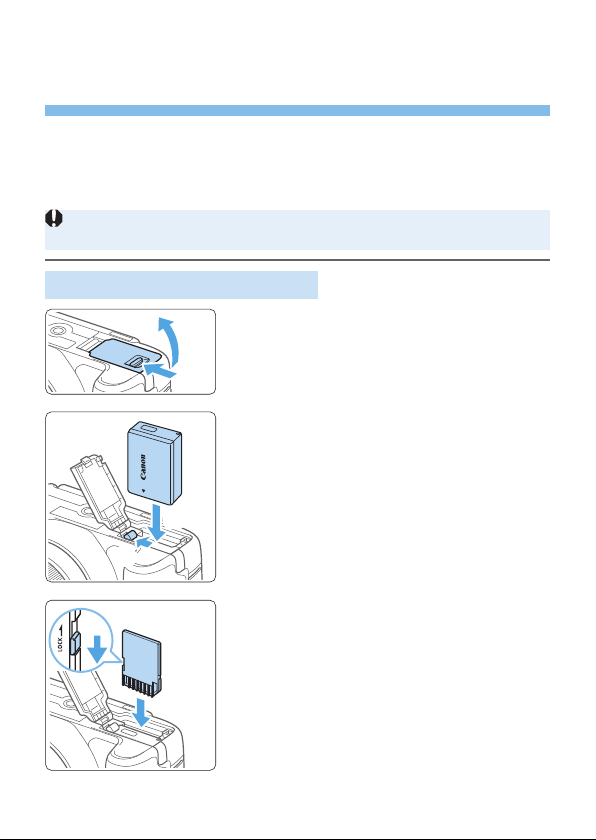
1
Open the cover.
Slide the lever as shown by the arrows
and open the cover.
2
Insert the battery.
Insert the end with the battery contacts.
Insert the battery until it locks in place.
3
Insert the card.
As shown by the illustration, face the
card’s label side toward the back of
the camera and insert it until it clicks
in place.
(
2
)
(
1
)
(
1
)
(
2
)
(
2
)
(
1
)
38
4
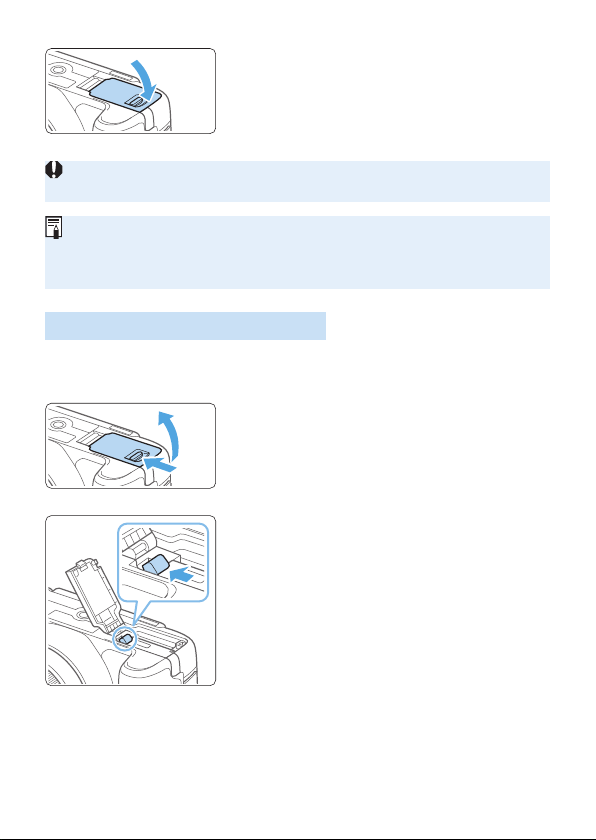
Close the cover.
Press the cover until it snaps shut.
When you set the power switch to
<1>, the number of possible shots will
be displayed on the LCD monitor.
After opening the card slot/battery compartment cover, be careful not to swing
it back any further. Otherwise, the hinge may break.
The number of possible shots varies depending on the remaining capacity of
the card, image-recording quality, ISO speed, etc.
Setting [z: Release shutter without card] to [Disable] will prevent you
from forgetting to insert a card before shooting (=
260).
Removing the Battery and Card
1
Set the power switch to <2>
(=
41).
2
Open the cover.
Make sure the access lamp is off,
then open the cover.
If [Saving...] is displayed, close the
cover.
3
Remove the battery.
Press the battery lock lever as shown by
the arrow and remove the battery.
To prevent short-circuiting, be sure to
attach the provided protective cover
(=
35) to the battery.
(
2
)
(
1
)
39
4
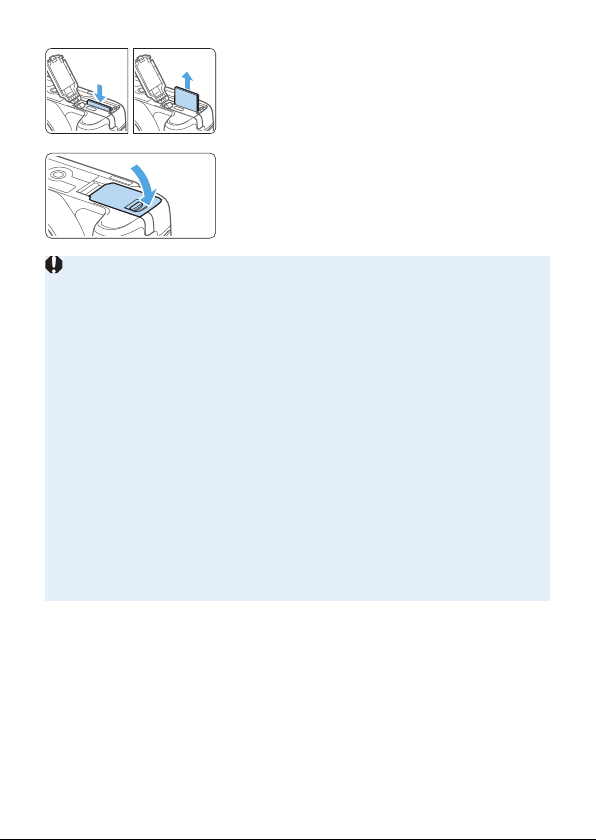
Remove the card.
Gently push in the card, then let go to
eject it.
Pull the card straight out.
5
Close the cover.
Press the cover until it snaps shut.
When the access lamp is lit or blinking, it indicates that images are
being written to, read from, or erased from the card, or data is being
transferred. Do not open the card slot/battery compartment cover.
Also, never do any of the following while the access lamp is lit or
blinking. Otherwise, it can damage the image data, card, or camera.
- Removing the card.
- Removing the battery.
- Shaking or banging the camera around.
- Unplugging and connecting a power cord (when household power outlet
accessories (sold separately, =
461) are used).
If the card already contains recorded images, the image le number may not
start from 0001 (=
265).
If a card-related error message is displayed on the LCD monitor, remove and
reinsert the card. If the error persists, use a different card.
If you can transfer images on the card to a computer, transfer all the images
and then format the card with the camera (=
66). The card may then
return to normal.
Do not touch the card’s contacts with your ngers or metal objects. Do not
expose the contacts to dust or water. If smudges adhere to the contacts,
contact failure may result.
Multimedia cards (MMC) cannot be used. (Card error will be displayed.)
40
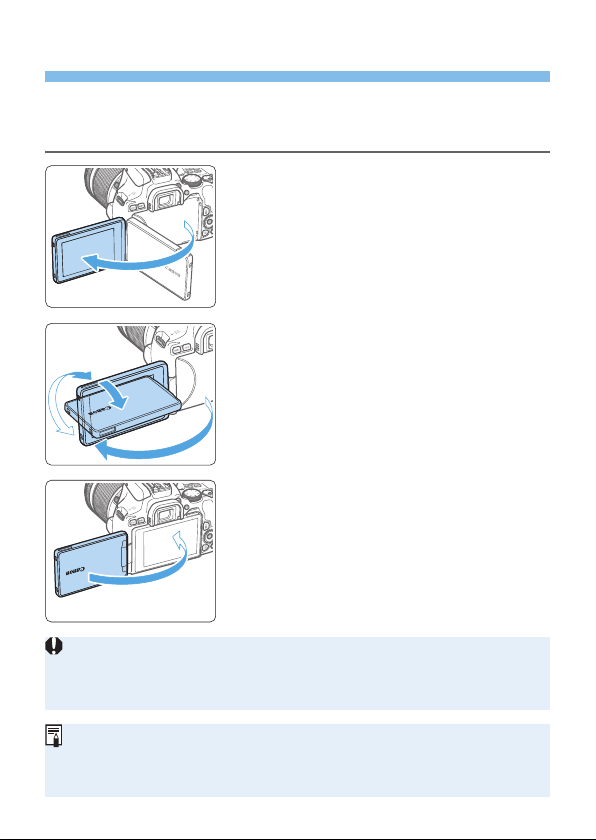
Using the LCD Monitor
After you ip out the LCD monitor, you can set menu functions, use Live
View shooting, shoot movies, or play back photos and movies. You can
change the direction and angle of the LCD monitor.
1
Flip out the LCD monitor.
2
Rotate the LCD monitor.
When the LCD monitor is swung out,
you can rotate it up, down, or over 180°
to face the subject.
The indicated angle is only approximate.
3
Face it toward you.
Normally, use the camera with the LCD
monitor facing you.
Be careful not to forcefully rotate the LCD monitor, putting much power on the
rotating axis (hinge).
When a cable is connected to a camera terminal, the rotation angle range of
the ipped out LCD monitor will be limited.
When not using the camera, close the LCD monitor with the screen facing
inward. You can protect the screen.
During Live View shooting or movie shooting, facing the LCD monitor toward
the subject will display a mirror image on the screen (right/left reversed).
175°
180°
90°
41
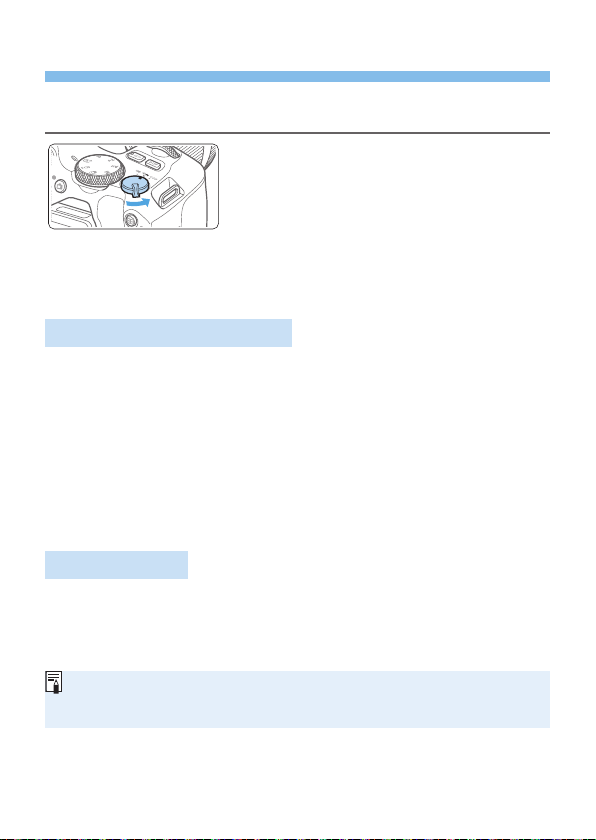
Turning on the Power
If you turn on the power switch and the date/time/zone setting screen
appears, see page 43 to set the date/time/zone.
<k> : The camera turns on. You can shoot
movies (=
218).
<1> : The camera turns on. You can shoot
still photos.
<2> : The camera is turned off and does
not function. Set the power switch
to this position when not using the
camera.
Automatic Sensor Cleaning
Whenever you set the power switch to <1> or <2>, sensor
cleaning will be performed automatically. (A small sound may be heard.)
During the sensor cleaning, the LCD monitor will display <f>.
Even during the sensor cleaning, if you press the shutter button halfway
(=
50), cleaning operation will be stopped, and you can take a
picture immediately.
If you repeatedly turn the power switch <1> and <2> at a short
interval, the <f> icon may not be displayed. This is normal and not a
malfunction.
Auto Power Off
To save battery power, if the camera is not operated for a prolonged period,
the power will turn off automatically after the time set under [5: Auto
power off] (=
261). To turn on the camera again, just press the shutter
button halfway (=
50).
If you set the power switch to <2> while an image is being recorded to
the card, [Saving...] will be displayed and the power will turn off after the
recording nishes.
42
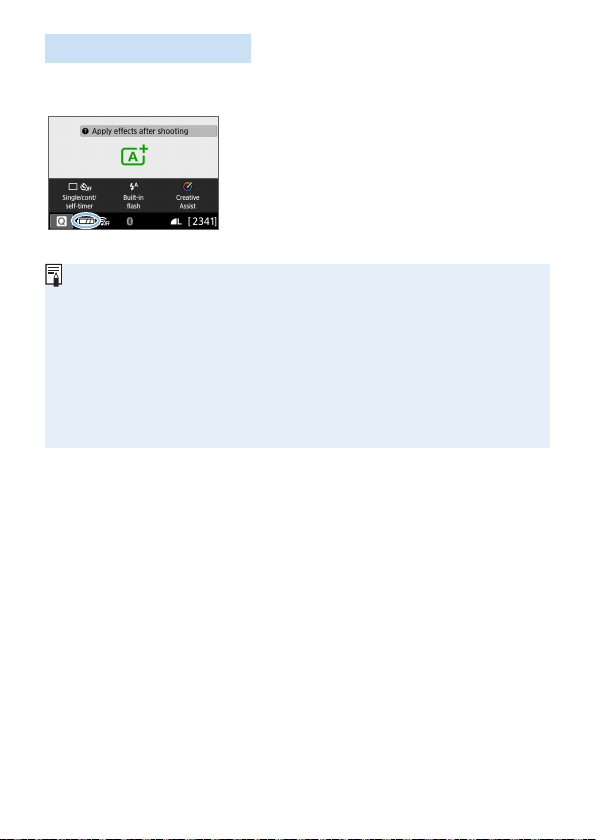
Battery Level Indicator
When the power is turned on, the battery level will be indicated in one of the
four levels.
z: Battery level is sufcient.
x: Battery level is low, but the camera
can still be used.
c: Battery will be exhausted soon.
(Blinks)
n: Recharge the battery.
Doing any of the following will exhaust the battery faster:
- Pressing the shutter button halfway for a prolonged period.
- Activating the AF frequently without taking a picture.
- Using the lens’s Image Stabilizer.
- Using the LCD monitor frequently.
- Using the Wi-Fi function or Bluetooth function.
The number of possible shots may decrease depending on the actual
shooting conditions.
The lens operation is powered by the camera’s battery. Certain lenses may
exhaust the battery faster than others.
See [5: Battery info.] to check the battery condition (=
460).
43
Setting the Date, Time, and Time
Zone
When you turn on the power for the rst time or if the date/time/zone have
been reset, the date/time/zone setting screen will appear. Follow the steps
below to set the time zone rst. Set the camera to the time zone in which
you currently live so that, when you travel, you can simply change the
setting to the correct time zone for your destination, and the camera will
automatically adjust the date/time.
Note that the date/time appended to recorded images will be based on
this date/time setting. Be sure to set the correct date/time.
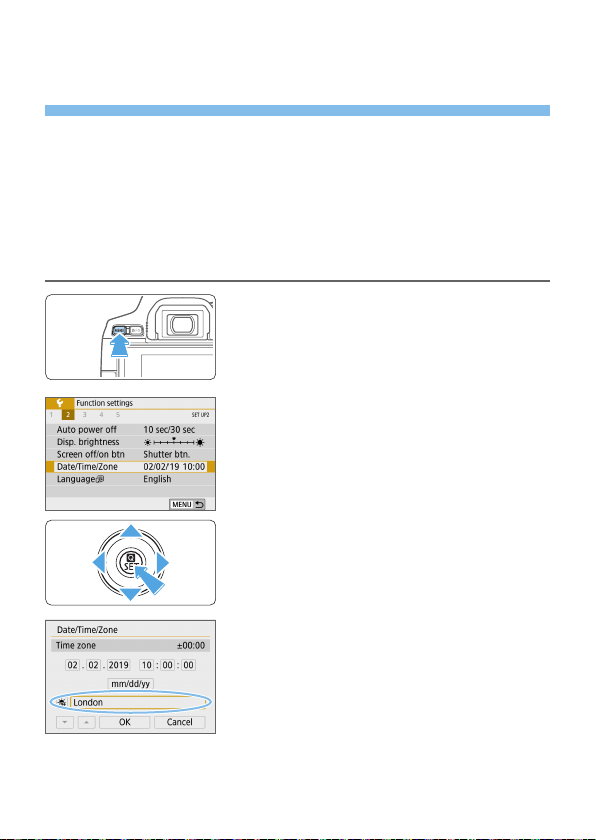
1
Display the main tabs.
Press the <M> button to display the
main tabs.
2
Under the [5] tab, select [Date/
Time/Zone].
Press the <Y> <Z> keys to select the
[5] main tab, then press <0>.
Press the <Y> <Z> keys to select a
secondary tab.
Press the <W> <X> keys to select
[Date/Time/Zone], then press <0>.
3
Set the time zone.
[London] is set by default.
Press the <Y> <Z> keys to select
[Time zone], then press <0>.
44
For the menu function setting procedures, see =
59 - =
62.
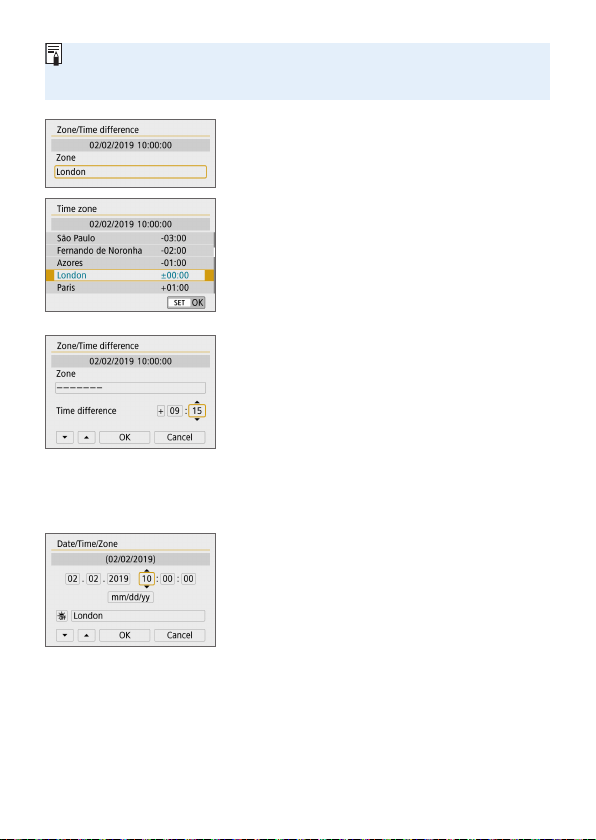
In step 3, the time displayed in [Time zone] is the time difference compared
to Coordinated Universal Time (UTC).
Press <0> again.
Press the <W> <X> keys to select the
time zone, then press <0>.
If your desired time zone is not listed,
press the <M> button, then proceed
to the next step to set it (with the
time difference from the Coordinated
Universal Time, UTC).
To set the time difference from UTC,
press the <Y> <Z> keys to select
a parameter (+/-/hour/minute) for
[Time difference].
Press <0> so <r> is displayed.
Press the <W> <X> keys to set it, then
press <0>. (Returns to <s>.)
After entering the time zone or time
difference, use the <Y> <Z> keys to
select [OK], then press <0>.
4
Set the date and time.
Press the <Y> <Z> keys to select the
number.
Press <0> so <r> is displayed.
Press the <W> <X> keys to set it, then
press <0>. (Returns to <s>.)

45
5
Set the daylight saving time.
Set it as necessary.
Press the <Y> <Z> keys to select
[Y].
Press <0> so <r> is displayed.
Press the <W> <X> keys to select [Z],
then press <0>.
When the daylight saving time is set to
[Z], the time set in step 4 will advance
by 1 hour. If [Y] is set, the daylight
saving time will be canceled and the
time will go back by 1 hour.
6
Exit the setting.
Press the <Y> <Z> keys to select
[OK], then press <0>.
B The date/time/zone and daylight saving
time will be set and the menu will
reappear.
The date/time/zone settings may be reset in the following cases. If this
happens, set the date/time/zone again.
- When the camera is stored without the battery.
- When the camera’s battery becomes exhausted.
- When the camera is exposed to below freezing temperatures for a
prolonged period.
The set time and date will start from when you select [OK] in step 6.
Even if [5: Auto power off] is set to [4 min.] or less, the auto power off
time will be approx. 6 min. when the [5: Date/Time/Zone] setting screen is
displayed.
After changing the time zone or time difference setting, check that the correct
date and time are set.
46
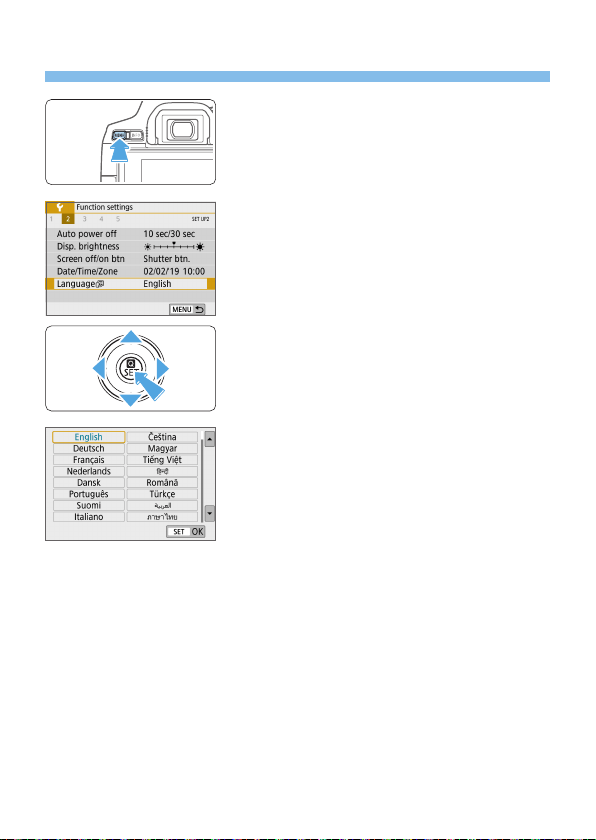
Selecting the Interface Language
1
Display the main tabs.
Press the <M> button to display the
main tabs.
2
Under the [5] tab, select
[LanguageK].
Press the <Y> <Z> keys to select the
[5] main tab, then press <0>.
Press the <Y> <Z> keys to select a
secondary tab.
Press the <W> <X> keys to select
[LanguageK], then press <0>.
3
Set the desired language.
Press the <V> cross keys to select the
language, then press <0>.
B The interface language will change.
47
Attaching and Detaching a Lens
The camera is compatible with all Canon EF and EF-S lenses. Note that
you cannot use RF or EF-M lenses.
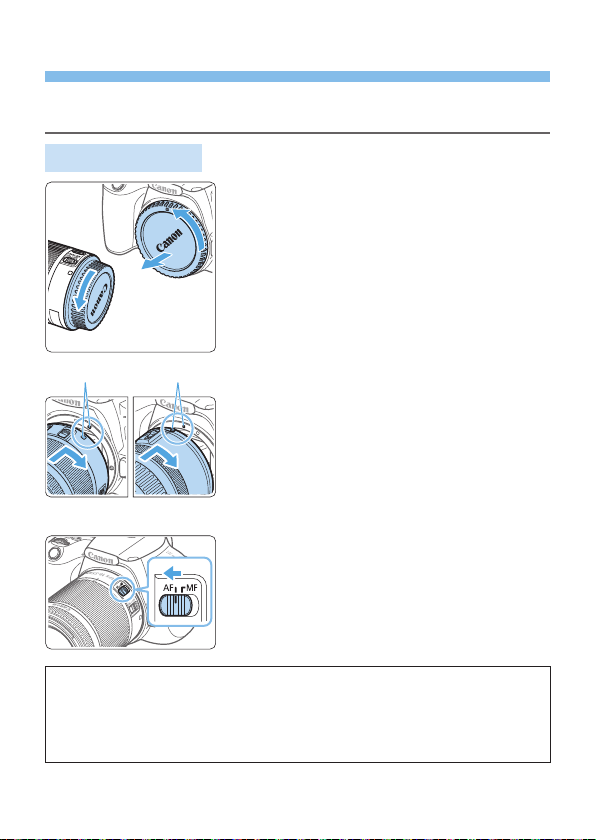
Attaching a Lens
1
Remove the caps.
Remove the rear lens cap and the body
cap by turning them as shown by the
arrows.
2
Attach the lens.
Align the lens’s red or white index with
the camera’s index matching the same
color. Turn the lens as shown by the
arrow until it clicks in place.
(1) White index
(2) Red index
3
Set the lens focus mode switch to
<AF>.
<AF> stands for autofocus.
<MF> stands for manual focus.
4
Remove the front lens cap.
Tips for Avoiding Smudges and Dust
When changing lenses, do it quickly in a place with minimal dust.
When storing the camera without a lens attached, be sure to attach the body cap
to the camera.
Remove dust on the body cap before attaching it.
(
1
)
(
2
)
48
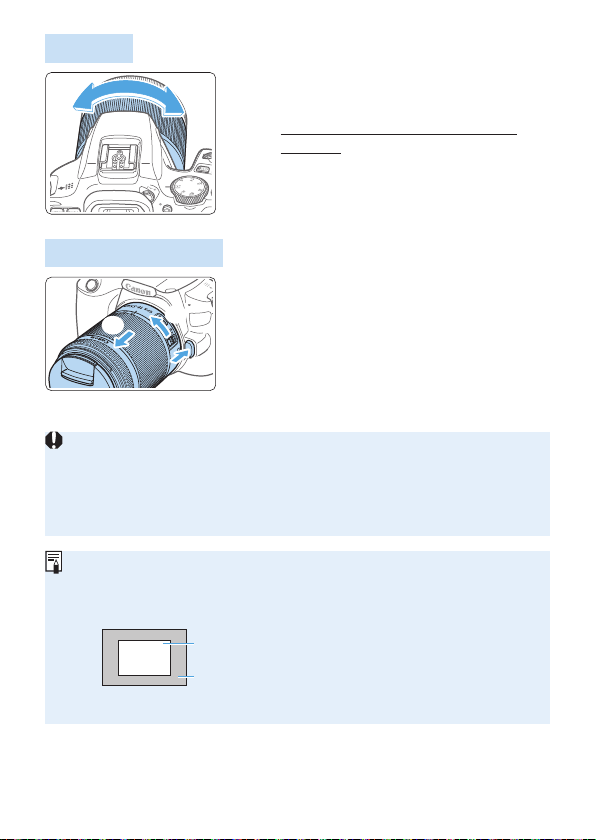
Zooming
Turn the zoom ring on the lens with
your fingers.
Perform the zoom operation before
focusing. Turning the zoom ring after
achieving focus may throw off the focus.
Detaching the Lens
While pressing the lens release
button, turn the lens as shown by
the arrow.
Turn the lens until it stops, then detach
it.
Attach the rear lens cap to the detached
lens.
Do not look at the sun directly through any lens. Doing so may cause loss of
vision.
When attaching or detaching a lens, set the camera’s power switch to
<2>.
If the front part (focusing ring) of the lens rotates during autofocusing, do not
touch the rotating part.
Angle of View
- Since the image area is smaller than the 35mm lm format, the effective
angle of view of an attached lens will be equivalent to that of a lens with
approx. 1.6x of the focal length indicated.
Image area (Approx.) (22.3 x 14.9 mm / 0.88 x 0.59 in.)
35mm film format (36 x 24 mm / 1.42 x 0.94 in.)
For instructions on how to use the lens, refer to the Lens Instruction Manual.
(
3
)
(
1
)
(
2
)
49
Basic Shooting Operations
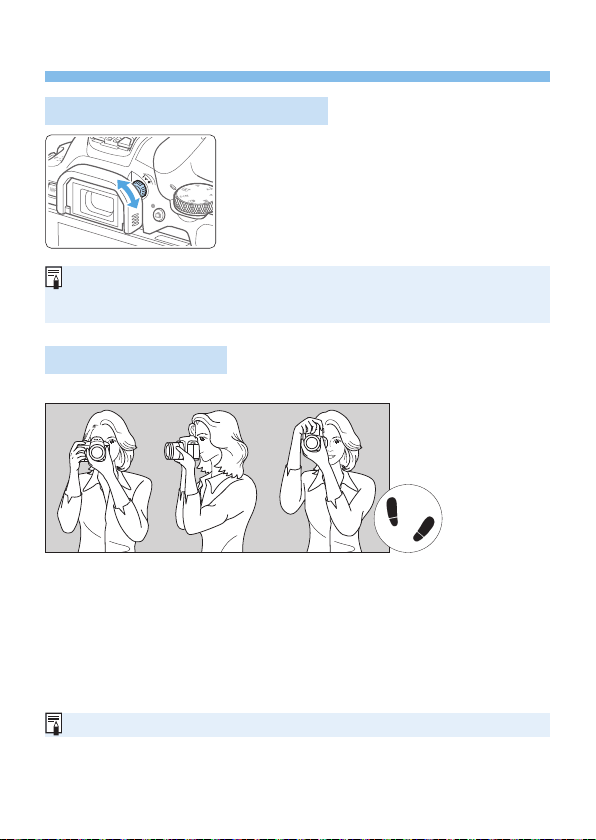
Adjusting the Viewfinder Clarity
Turn the dioptric adjustment knob.
Turn the knob left or right so that the AF
points in the viewnder look sharp.
If the knob is difcult to turn, remove the
eyecup (=
464).
If the camera’s dioptric adjustment still cannot provide a sharp viewnder
image, using E-series Dioptric Adjustment Lenses (sold separately) is
recommended.
Holding the Camera
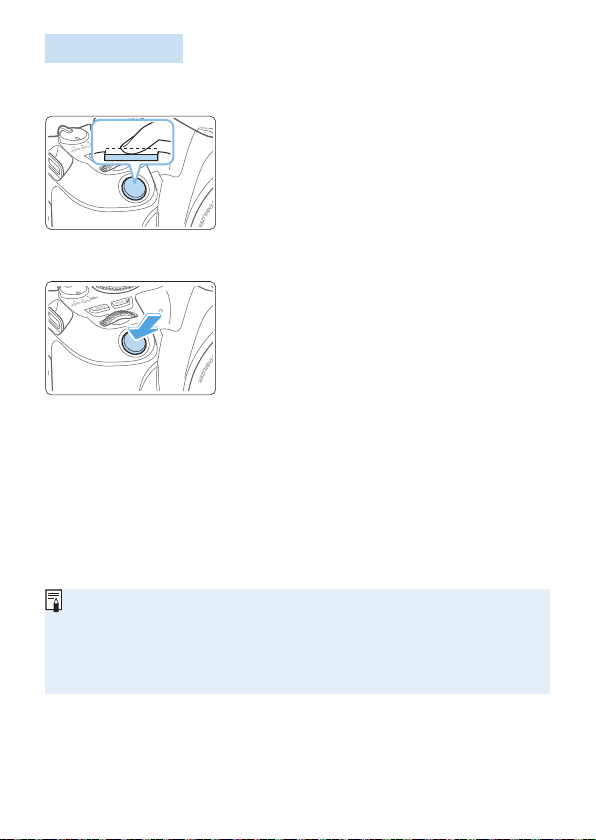
To obtain sharp images, hold the camera still to minimize camera shake.
Horizontal shooting Vertical shooting
(1) Wrap your right hand around the camera grip rmly.
(2) Hold the lens bottom with your left hand.
(3) Rest your right index nger lightly on the shutter button.
(4) Press your arms and elbows lightly against the front of your body.
(5) To maintain a stable stance, place one foot slightly ahead of the other.
(6) Press the camera against your face and look through the viewnder.
To shoot while looking at the LCD monitor, see page 180.
50
Shutter Button
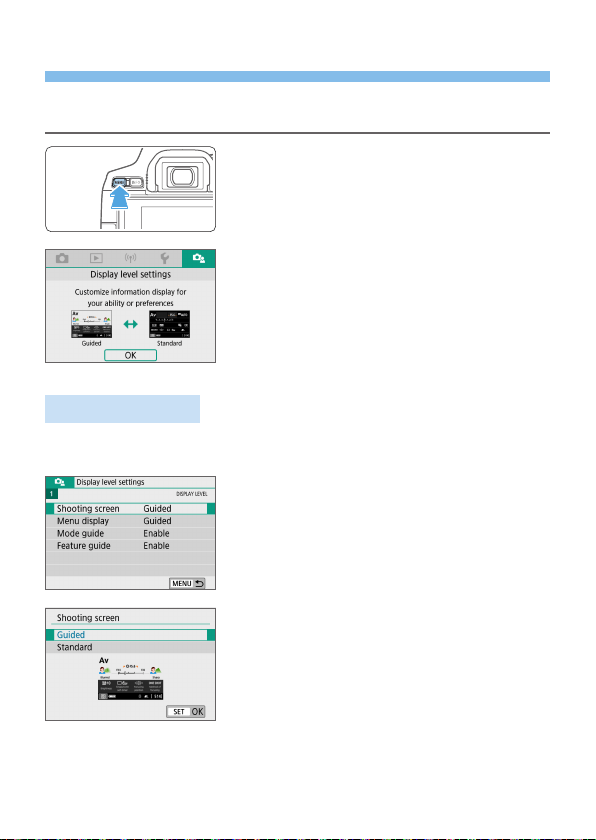
The shutter button has two steps. You can press the shutter button halfway.
Then you can further press the shutter button completely.
Pressing Halfway
This activates autofocusing and the
automatic exposure system that sets the
shutter speed and aperture.
The exposure setting (shutter speed and
aperture) is displayed in the viewnder.
While you press the shutter button halfway,
the LCD monitor will turn off (=
272).
Pressing Completely
This releases the shutter and takes the
picture.
Preventing Camera Shake
Hand-held camera movement during the moment of exposure is called
camera shake. It can cause blurred pictures. To prevent camera shake,
note the following:
Hold and steady the camera as shown on “Holding the Camera”
(=
49).
Press the shutter button halfway to autofocus, then slowly press the
shutter button completely.
If you press the shutter button completely without pressing it halfway rst,
or if you press the shutter button halfway and then press it completely
immediately, the camera will take a moment before it takes the picture.
Even during menu display, image playback, or image recording, you can
immediately go back to shooting-ready state by pressing the shutter button
halfway.
51
Setting the Screen Display Level
You can set how information is displayed on the screen according to your
preference. Change the settings as necessary.
1
Display the main tabs.
Press the <M> button to display the
main tabs.
2
Select the [s] tab.
Press the <Y> <Z> keys of the cross
keys to select the [s] tab, then press
<0>.
Shooting Screen
You can select [Standard] or [Guided] (friendly display) for the Quick
Control screen in viewnder shooting. By default, it is set to [Guided].
1
Select [Shooting screen].
2
Select the display method.
52
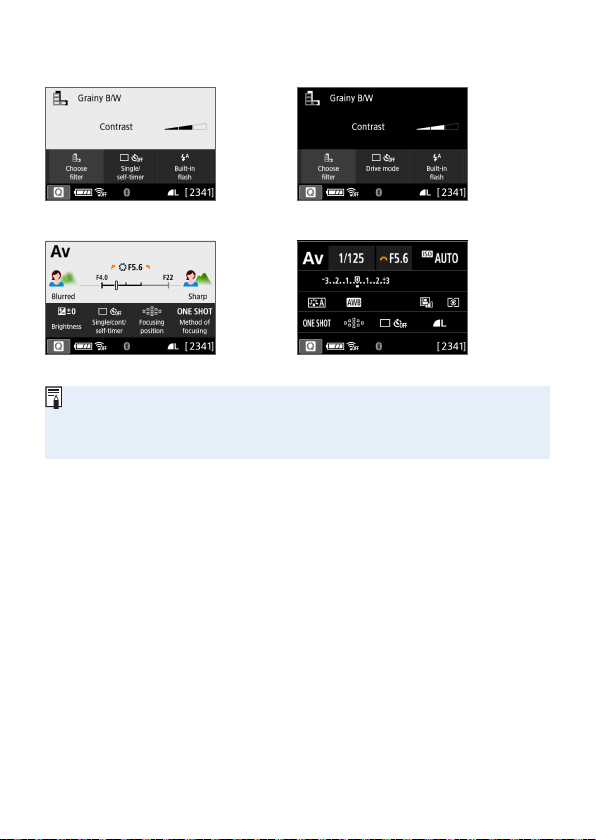
Sample Screens
<v>: Guided <v>: Standard
<f>: Guided <f>: Standard
In Creative Zone modes, when [Guided] is set, only the functions particular
to the set shooting mode are displayed on the Quick Control screen. Note
that items that cannot be set from the Quick Control screen when [Guided] is
selected can be set via the menu screen (=
60).
53
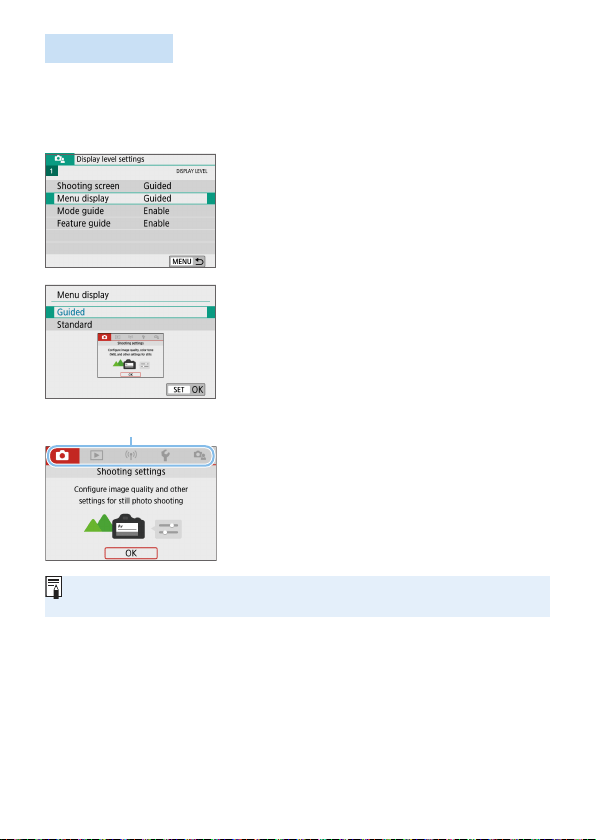
Menu Display
You can select the display type from [Standard] or [Guided]. If you set
[Guided], main tab descriptions are provided when you press the <M>
button. If you set [Standard], you proceed directly to the menu screen
when you press the <M> button. By default, it is set to [Guided].
1
Select [Menu display].
2
Select the display type.
(1) Main tabs
When [Guided] is set, the [9 (My Menu)] tab does not appear. To set My
Menu (=
455), change the menu display level to [Standard].
(
1
)
54
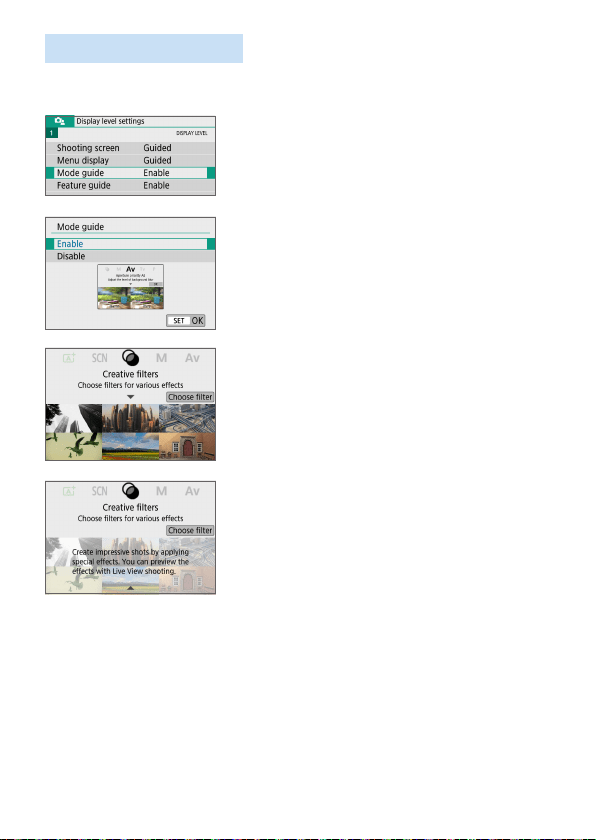
Shooting Mode Guide
A brief description of the shooting mode can be displayed when you switch
shooting modes. By default, it is set to [Enable].
1
Select [Mode guide].
2
Select [Enable].
3
Turn the Mode Dial.
B A description of the selected shooting
mode will appear.
4
Press the <X> key.
B The rest of the description will appear.
To clear the mode guide, press <0>.
In the <8> and <v> shooting
modes, the shooting mode selection
screen will appear.
55
Feature Guide
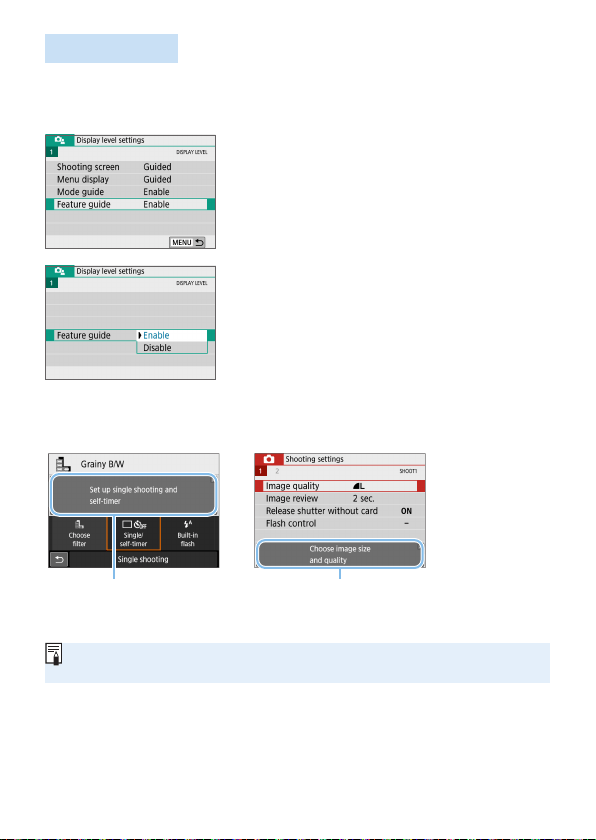
When using Quick Control or setting menu items, you can display a brief
description of functions and options (feature guide). By default, it is set to
[Enable].
1
Select [Feature guide].
2
Select [Enable].
Sample Screens
Quick Control screen Menu screen
(
1
) (
1
)
(1) Feature guide
The description will disappear when you tap on it or proceed with the
operation.
56
Shooting Tips
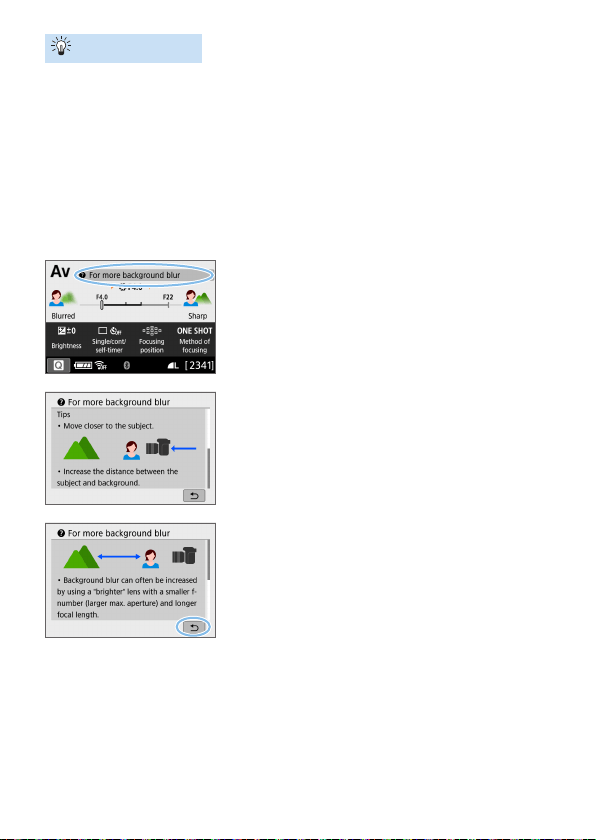
Shooting tips appear when [Shooting screen] is set to [Guided] (=
51)
and the camera settings result in any of the following conditions. In Basic
Zone modes, shooting tips appear regardless of the [Shooting screen]
setting.
You want to blur the background further (by setting the lowest aperture
value in the <f> mode).
The image is likely to be overexposed.
The image is likely to be underexposed.
Camera shake is likely to occur (only in Basic Zone modes).
1
Tap on the area within the frame.
B The shooting tips will appear.
You can also display the shooting tips
by pressing the <L> button.
2
Check the shooting tips.
You can scroll up and down by tapping
on the screen.
You can also scroll by pressing the <W>
<X> keys.
3
Tap on [2].
B Shooting tips will disappear, and the
screen in step 1 will reappear.
You can also hide the shooting tips by
pressing <0>.
57
Quick Control for Shooting
Functions
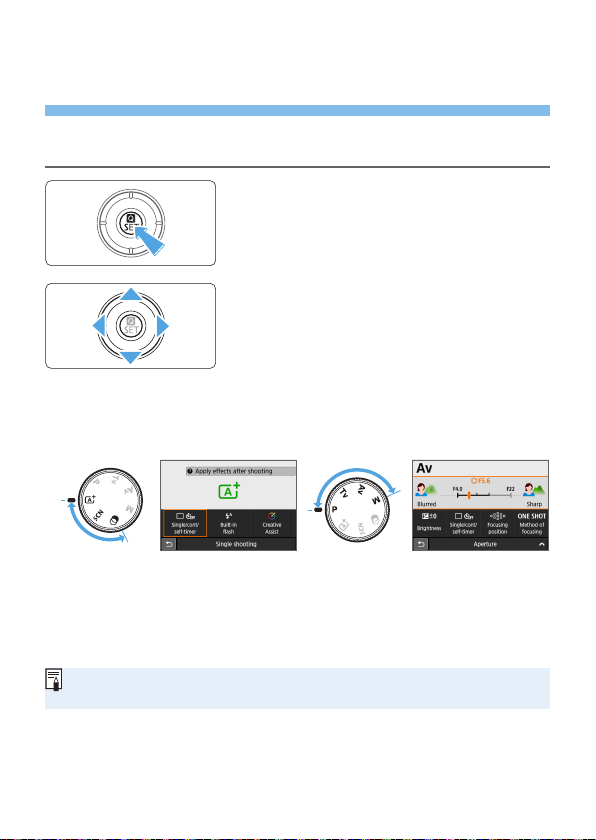
You can directly select and set the shooting functions displayed on the LCD
monitor with intuitive operations. This is called Quick Control.
1
Press the <Q> button.
B The Quick Control screen will appear.
2
Set the desired functions.
Press the <V> cross keys to select a
function.
B The settings of the selected function and
Feature guide (=
55) will appear.
Turn the <6> dial to change the
setting.
Basic Zone modes Creative Zone modes
3
Take the picture.
Press the shutter button completely to
take the picture.
B The captured image will be displayed.
In steps 1 and 2, you can also tap on the LCD monitor to perform the
operation (=
63).
58
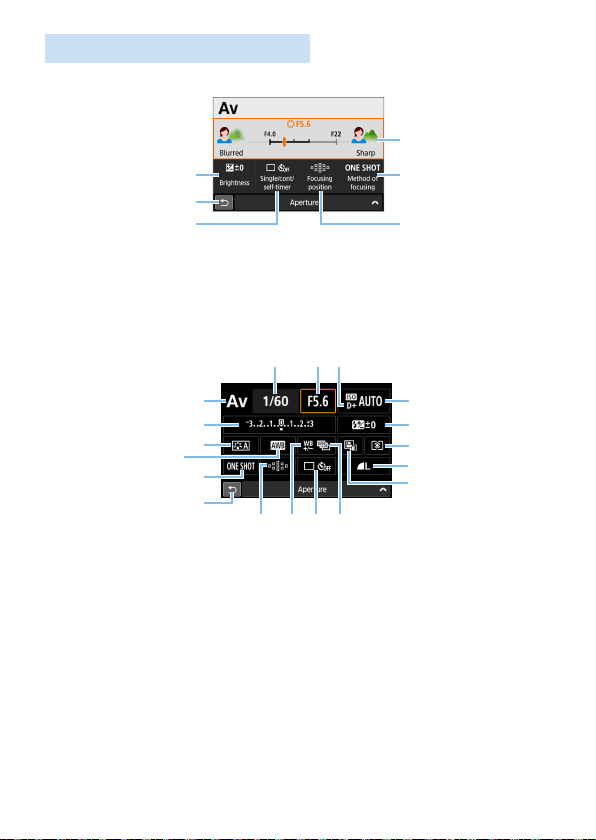
Sample Quick Control Screen
When [s: Shooting screen: Guided] is Set
(
1
)
(
4
)
(
5
)
(
6
)
(
2
)
(
3
)
(1) Exposure compensation
(2) Return
(3) Drive mode
(4) Aperture
(5) AF operation
(6) AF point selection
When [s: Shooting screen: Standard] is Set
(
1
)
(
2
)
(
3
)
(
5
)
(
7
) (
8
)(
9
)
(
6
)
(
4
)
(
10
)
(
11
)
(
12
)
(
13
)
(
14
)
(
15
) (
16
) (
18
)(
17
)
(1) Shooting mode*
(2) Exposure compensation/AEB
setting
(3) Picture Style
(4) White balance
(5) AF operation
(6) Return
(7) Shutter speed
(8) Aperture
(9) Highlight tone priority*
(10) ISO speed
(11) Flash exposure compensation
(12) Metering mode
(13) Image-recording quality
(14) Auto Lighting Optimizer
(15) AF point selection
(16) White balance correction
(17) Drive mode
(18) White balance bracketing
* These functions cannot be set with Quick Control.
59
Menu Operations and
Configurations
You can congure various settings with the menus such as the image-
recording quality, date/time, etc.
(
2
)
(
1
)
(
4
)
(
3
)
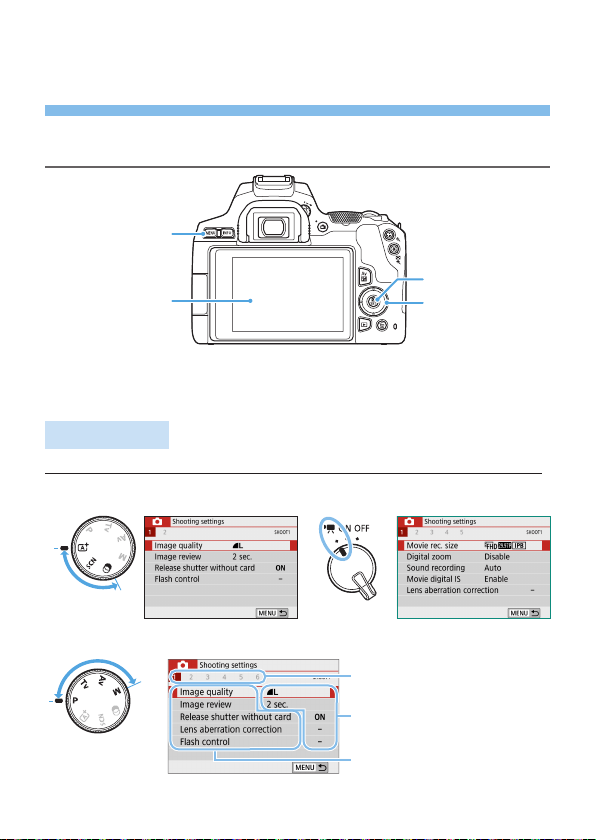
(1) <M> button
(2) LCD monitor
(3) <0> button
(4) <V> cross keys
Menu Screen
The menu tabs and items displayed vary depending on the shooting mode.
Basic Zone modes Movie shooting
Creative Zone modes
(
3
)
(
2
)
(
1
)
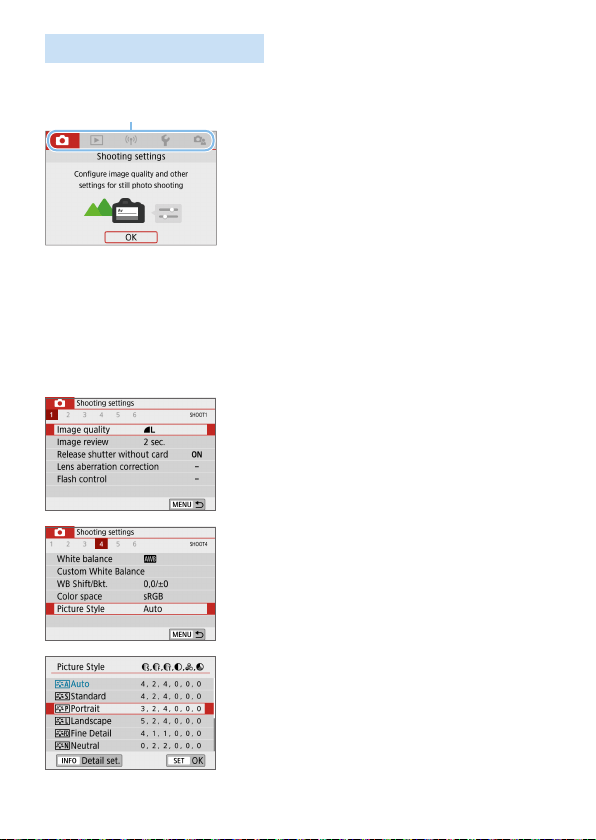
(1) Secondary tabs
(2) Menu items
(3) Menu settings
60
Menu Setting Procedure
When [s: Menu display: Guided] is Set
1
Display the main tabs.
When you press the <M> button,
the main tabs (1) and a description of
the selected tab will appear.
2
Select a main tab.
Each time you press the <Y> <Z>
keys of the cross keys, the main tab
(group of functions) will switch.
3
Display the menu screen.
Press <0> to display the menu
screen.
To return to the main tab screen, press
the <M> button.
4
Select a secondary tab.
Press the <Y> <Z> keys of the cross
keys to select a secondary tab.
5
Select the desired item.
Press the <W> <X> keys of the cross
keys to select the item, then press
<0>.
6
Select the setting.
Press the <W> <X> or <Y> <Z> keys
of the cross keys to select the desired
setting. (Some settings are selected
with the <W> <X> keys, and others are
selected with the <Y> <Z> keys.)
The current setting is indicated in blue.
(
1
)
61
7
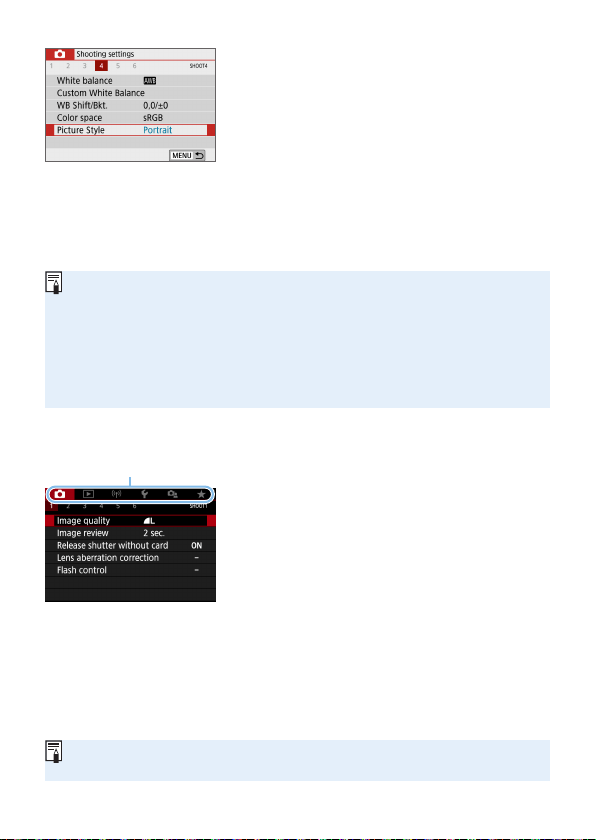
Set the setting.
Press <0> to set it.
B If you change the setting from the
default, it will be indicated in blue
(available only for the menu items under
the [z] tab).
8
Exit the setting.
Press the <M> button twice to exit
the menu and return to shooting-ready
state.
In step 2, you can also use the <6> dial and <B> button, instead of the
cross keys.
You can also go to the menu screen by tapping on [OK] in step 3.
In steps 2 to 8, you can also tap on the LCD monitor to perform the operation
(=
63).
The description of menu functions hereafter assumes that the menu screen
is displayed.
To cancel the operation, press the <M> button.
When [s: Menu display: Standard] is Set
1
Display the menu screen.
Press the <M> button to display the
menu screen.
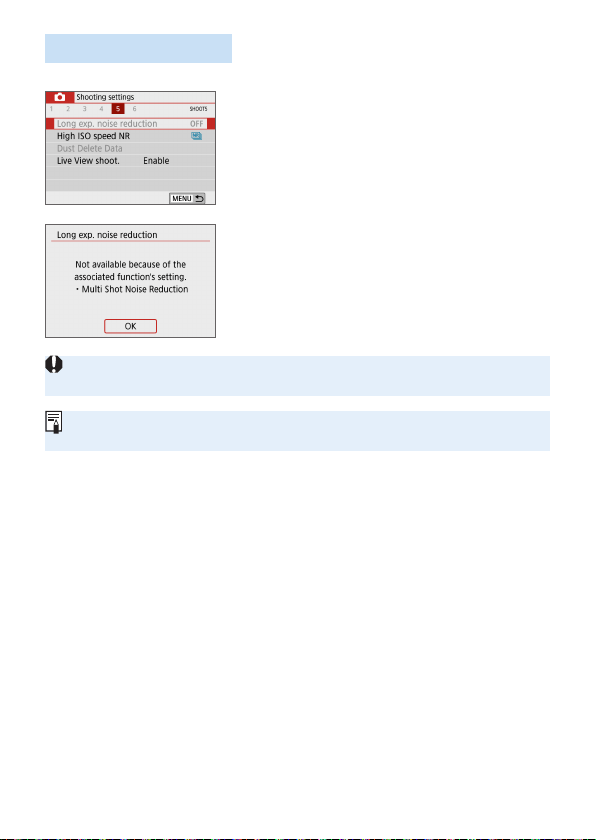
2
Select a tab.
Press the <Y> <Z> keys to select the
main tab (1) and secondary tab.
The subsequent operations are the
same as those for [s: Menu display:
Guided]. See the steps on “Menu
Setting Procedure” (=
60), starting
with step 5.
To exit the setting, press the <M>
button once.
In step 2, you can also use the <6> dial and <B> button, instead of the
cross keys. Note that the <B> button cannot be used on secondary tabs.
(
1
)
62
Dimmed Menu Items
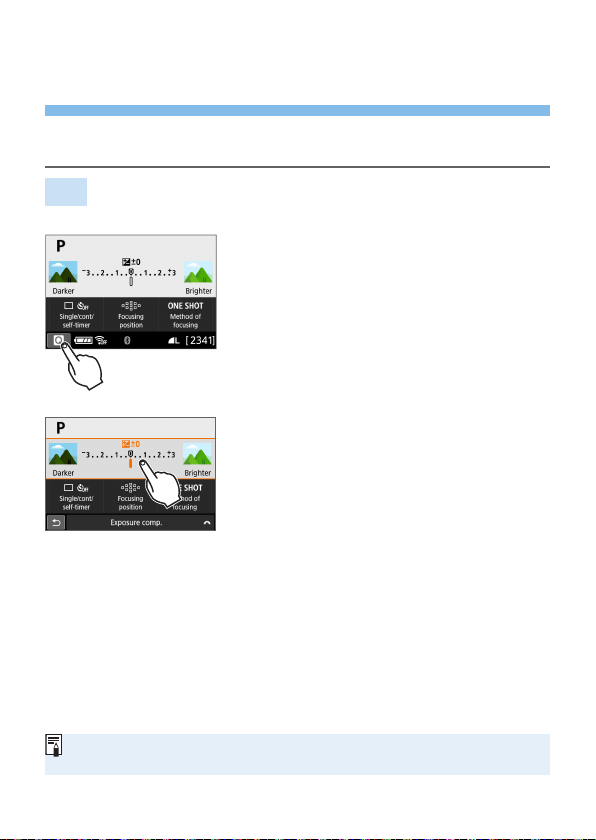
Example: When [Multi Shot Noise Reduction] is set
Dimmed menu items cannot be set. The
menu item is dimmed if another function
setting is overriding it.
You can see the overriding function by
selecting the dimmed menu item and
pressing <0>.
If you cancel the overriding function’s
setting, the dimmed menu item will become
settable.
You may not be able to see the overriding function for certain dimmed menu
items.
With [Clear all camera settings] under [5: Clear settings], you can reset
the menu functions to the default settings (=
271).
63
Operating the Camera with Touch
Screen
You can operate the camera by tapping on the LCD monitor (touch-sensitive
panel) with your ngers.
Tap
Sample Screen (Quick Control)
Use your nger to tap on (touch briey
and then remove your nger from) the
LCD monitor.
By tapping, you can select menus, icons,
etc. displayed on the LCD monitor.
For example, when you tap on [A],
the Quick Control screen appears. By
tapping on [2], you can return to the
preceding screen.
Operations possible by tapping on the screen
Setting menu functions after pressing the <M> button
Quick Control
Setting functions after pressing the <g> or <S> button
Touch AF and Touch Shutter in Live View shooting
Selecting AF points
Setting functions in Live View shooting and movie shooting
Playback operations
If [5: Beep] is set to [Touch n], the beep will not sound for touch operations
(=
260).
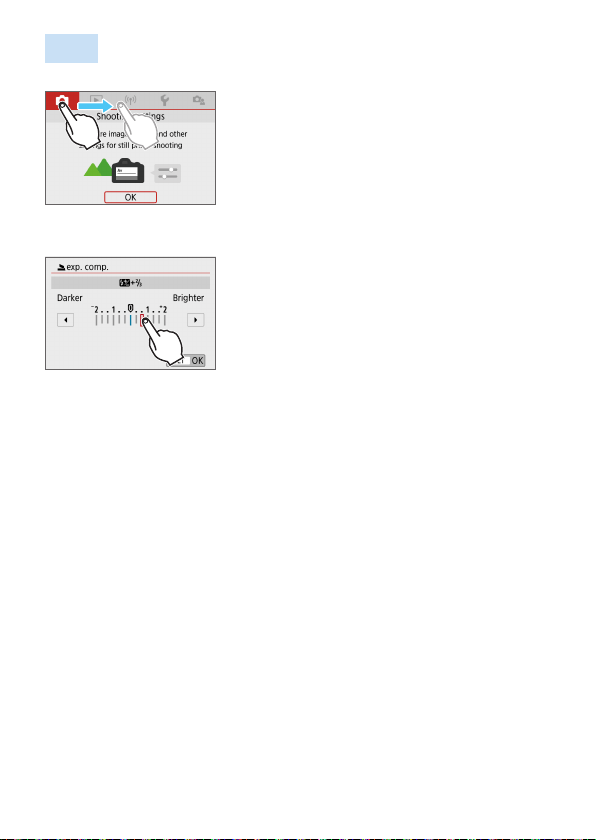
64
Drag
Sample Screen (Menu screen)
Slide your nger while touching the LCD
monitor.
Sample Screen (Scale display)
Operations possible by dragging your nger on the screen
Selecting a menu tab or item after pressing the <M> button
Setting with scale display
Quick Control
Selecting AF points
Setting functions in Live View shooting and movie shooting
Playback operations
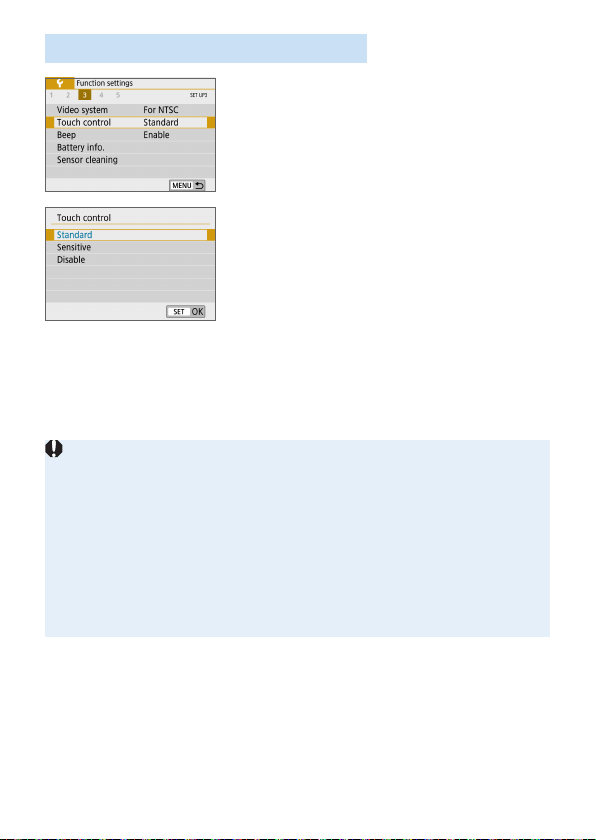
65
Setting the Touch Control Response
1
Select [Touch control].
Under the [5] tab, select [Touch
control], then press <0>.
2
Set the touch control response
setting.
Select the desired setting, then press
<0>.
[Standard] is the normal setting.
[Sensitive] provides a more reactive
touch screen response than [Standard].
Try using both settings and select the
one you prefer.
To disable touch operations, select
[Disable].
Cautions for Touch Control Operations
Since the LCD monitor is not pressure sensitive, do not use any sharp
objects, such as your ngernail or a ballpoint pen, for touch operations.
Do not use wet ngers for touch operations.
If the LCD monitor has any moisture or if your ngers are wet, the touch
screen may not respond or malfunction may occur. In such a case, turn off the
power and wipe off the moisture with a cloth.
Attaching any commercially-available protective sheet or sticker on the LCD
monitor may degrade the touch operation response.
If you quickly perform touch operation when [Sensitive] is set, the touch
operation response may be poor.
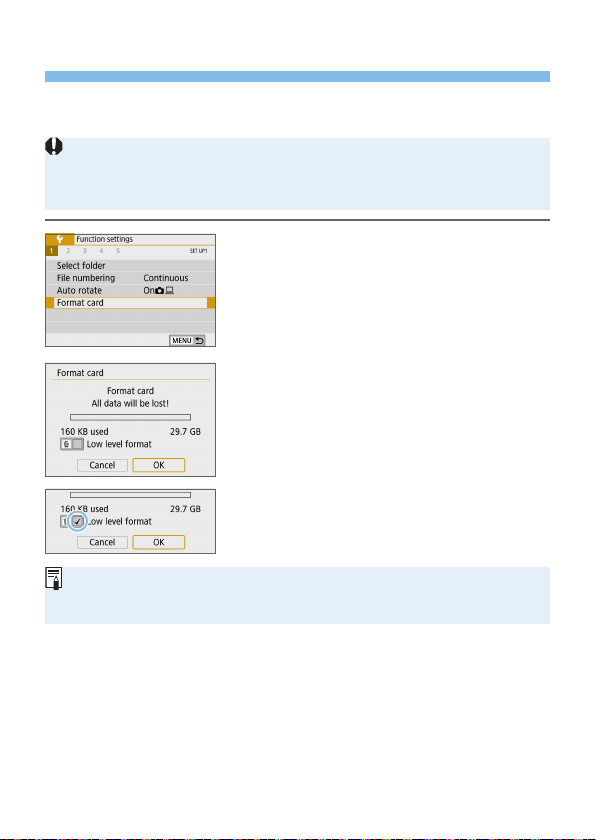
66
Formatting Memory Cards
If the card is new or was previously formatted by another camera or
computer, format the card with this camera.
When the card is formatted, all images and data on the card will be
erased. Even protected images will be erased, so make sure there is
nothing you need to keep. If necessary, transfer the images and data to
a computer, etc. before formatting the card.
1
Select [Format card].
Under the [5] tab, select [Format
card], then press <0>.
2
Format the card.
Select [OK], then press <0>.
B The card will be formatted.
B When the formatting is complete, the
menu will reappear.
For low-level formatting, press the <L>
button to add a checkmark <X> to [Low
level format], then select [OK].
The card capacity displayed on the card format screen may be smaller than
the capacity indicated on the card.
This device incorporates exFAT technology licensed from Microsoft.
67
Perform [Format card] in the following cases:
The card is new.
The card was formatted by a different camera or a computer.
The card is full of images or data.
A card-related error is displayed (=
477).
Low-level Formatting
Perform low-level formatting if the card’s writing or reading speed seems slow or
if you want to totally erase the data on the card.
Since low-level formatting will format all recordable sectors on the card, the
formatting will take slightly longer than normal formatting.
You can stop the low-level formatting by selecting [Cancel]. Even in this case,
normal formatting will already be complete and you can use the card as usual.
Card’s le formats
SD/SDHC cards will be formatted in FAT32. SDXC cards will be formatted
in exFAT.
When shooting a movie with a card formatted in exFAT, the movie will be
recorded in a single le (instead of being split into multiple les) even if it
exceeds 4 GB. (The movie le will exceed 4 GB.)
If you format an SDXC card with this camera and then insert it into another
camera, an error may be displayed and the card may become unusable.
Certain computer operating systems or card readers may not recognize a
card formatted in exFAT.
When the card is formatted or data is erased, only the le management
information is changed. The actual data is not completely erased. Be aware
of this when selling or discarding the card. When discarding the card, perform
low-level formatting or destroy the card physically to prevent personal data
from being leaked.
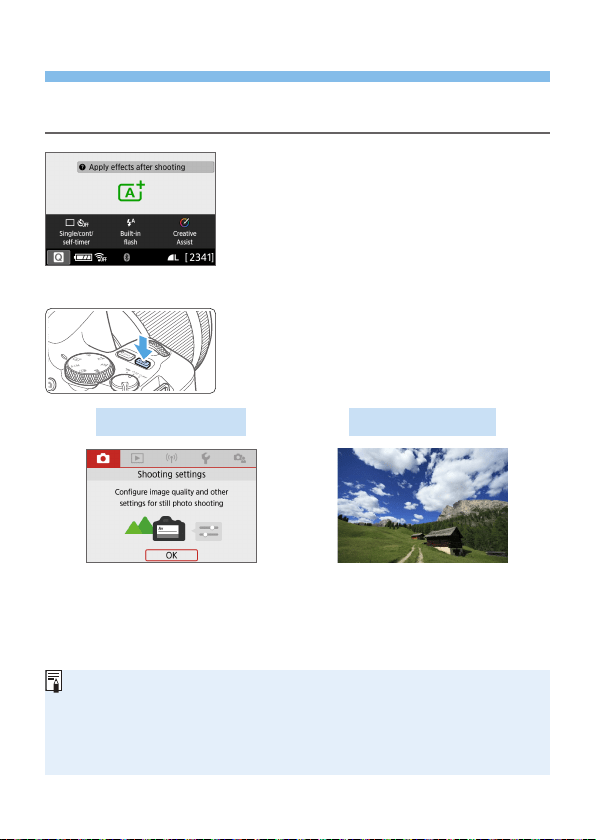
68
Switching the LCD Monitor Display
The LCD monitor can display the Quick Control screen, menu screen,
captured images, etc.
When you turn on the power, the Quick
Control screen will appear. You can
then check the current shooting function
settings.
When you press the shutter button
halfway, the display will turn off. And
when you let go of the shutter button,
the display will turn on.
You can also turn off the display by
pressing the <U> button. Press the
button again to turn on the display.
Menu Functions Captured Image
Appears when you press the
<M> button. Press the button
again to return to the previous
screen.
Appears when you press the
<x> button. Press the button
again to return to the previous
screen.
You can set [5: Screen off/on btn] so that the LCD monitor does not turn off
or on (=
272).
Even when the menu screen or captured image is displayed, pressing the
shutter button will enable you to shoot immediately.
You can also turn off the display by pressing the <B> button. Press the
button again to turn on the display.
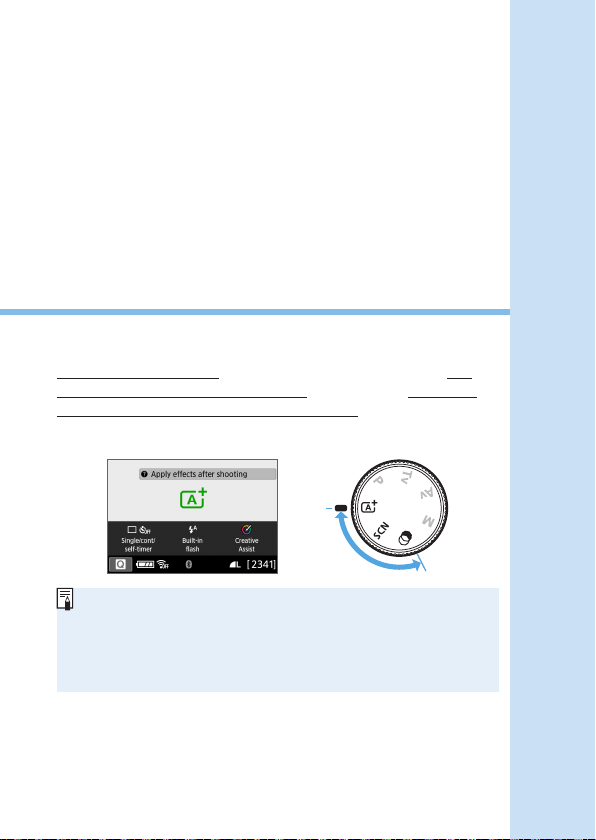
69
Basic Shooting and
Image Playback
This chapter describes how to use the Basic Zone modes on
the Mode Dial for best results and how to play back images.
With Basic Zone modes, all you do is point and shoot, and the
camera sets everything automatically. Also, because advanced
shooting function settings cannot be changed, you can enjoy
shooting photographs without worrying about botched pictures due
to misoperation.
Before Shooting in the <8> or <v> Mode
When the LCD monitor is turned off, press the <Q> button
(=
78, =
93) to check which shooting mode is set, then start
shooting.
* <8>: Special scene
* <v>: Creative lters
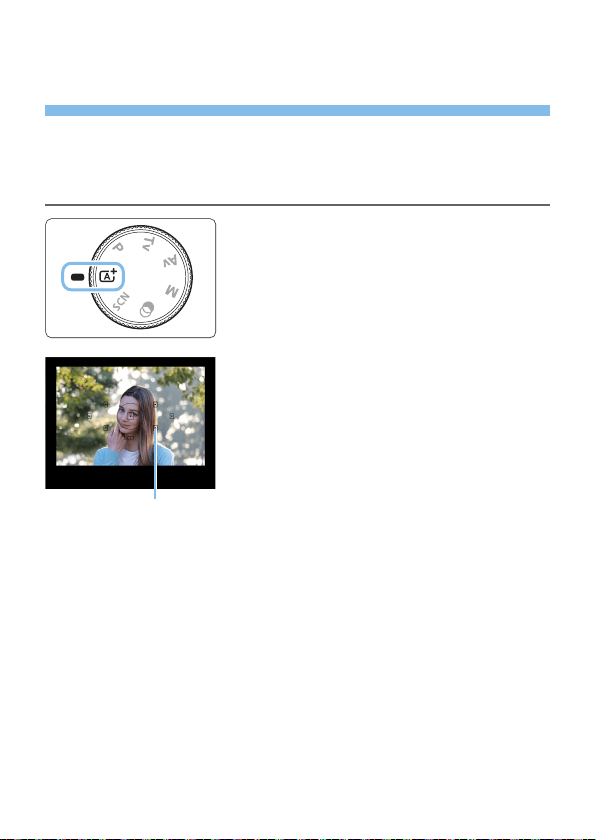
70
Fully Automatic Shooting (Scene
Intelligent Auto)
<A> is a fully automatic mode. The camera analyzes the scene
and sets the optimum settings automatically. It can also adjust focus
automatically on either the still or moving subject by detecting the motion of
the subject (=
74).
1
Set the Mode Dial to <A>.
2
Aim the AF point over the subject.
All the AF points (1) will be used to
focus, and the camera will normally
focus on the closest object.
Aiming the center of the AF point over
the subject will make focusing easier.
(
1
)

71
3
Focus on the subject.
Press the shutter button halfway. The
lens elements will shift to focus.
B When achieving focus, the dot inside the
AF point achieving focus ashes briey
in red. At the same time, the beeper will
sound and the focus indicator <o> (1)
in the viewnder will light up.
If necessary, lift the ash with your
ngers.
4
Take the picture.
Press the shutter button completely to
take the picture.
B The captured image will be displayed for
approx. 2 sec. on the LCD monitor.
When you nish shooting, push down
the built-in ash with your ngers.
Before raising the ash, remove any accessories attached to the hot shoe.
If a description of the shooting mode appears in step 1, press <0> to hide
it (=
54).
The <A> mode makes the colors look more impressive in nature, outdoor,
and sunset scenes. If you do not obtain the desired color tones, change the
mode to a Creative Zone mode and select a Picture Style other than <D>,
then shoot again (=
121).
(
1
)

72
FAQ
The focus indicator <o> blinks and focus is not achieved.
- Aim the AF point over an area with good contrast, then press the
shutter button halfway (=
50).
- If you are too close to the subject, move away and shoot again.
- Select the AF point nearest to where you want to focus (=
108).
The default setting is Automatic selection AF.
Multiple AF points light up simultaneously.
Focus has been achieved at all those points that ash in red. You can
take the picture as long as an AF point covering the target subject is
lighting up.
The beeper continues to beep softly. (The focus indicator <o>
does not light up.)
It indicates that the camera is focusing continuously on a moving
subject. (The focus indicator <o> does not light up.) You can take
sharp pictures of a moving subject.
Note that focus lock (=
74) is not possible in this case.
Pressing the shutter button halfway does not focus on the subject.
If the focus mode switch of the lens is set to <MF> (manual focus), set
it to <AF> (autofocus).
The ash red even if it was daylight.
For a backlit subject, the ash may re to help lighten the subject’s dark
areas. To prevent the built-in ash from ring, push it down with your
ngers.
The built-in ash red and the picture came out extremely bright.
Move further away from the subject and shoot. When shooting with
ash, if the subject is too close to the camera, the picture may come out
extremely bright (overexposure).
In low light, the built-in ash red a series of ashes.
Pressing the shutter button halfway may trigger the built-in ash to re
a series of ashes to assist autofocusing. This is called the AF-assist
beam. Its effective range is approx. 4 meters/13.1 feet. Note that the
built-in ash will make a sound when ring continuously. This is normal
and not a malfunction.

73
When ash was used, the bottom part of the picture came out
unnaturally dark.
The shadow of the lens barrel was captured in the picture because
the subject was too close to the camera. Move further away from the
subject and shoot. If a hood is attached to the lens, remove it before
taking the ash picture.
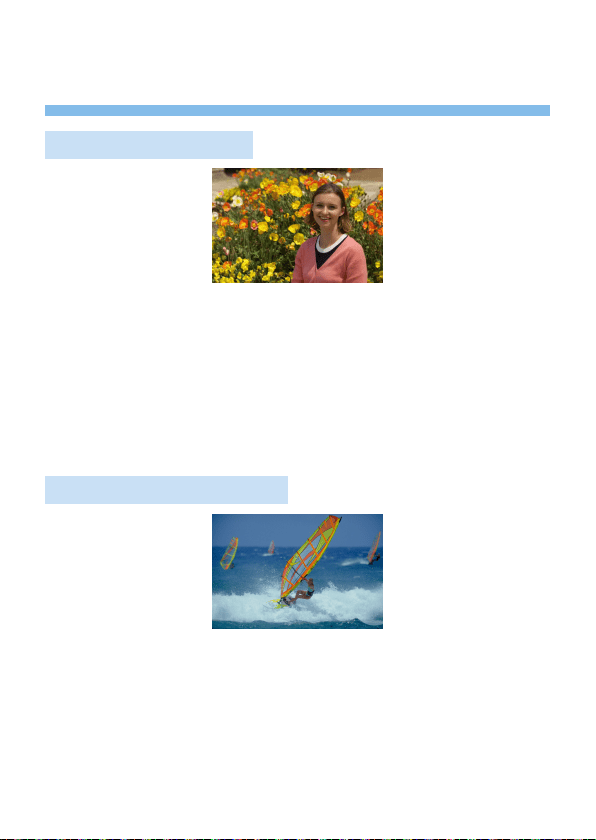
74
Full Auto Techniques (Scene
Intelligent Auto)
Recomposing the Shot
Depending on the scene, positioning the subject toward the left or right
to include a balanced background will result in a picture with better
perspective.
In the <A> mode, pressing the shutter button halfway to focus on a
still subject will lock the focus on that subject. Recompose the shot while
keeping the shutter button pressed halfway, and then press the shutter
button completely to take the picture. This is called “focus lock”. Focus lock
is also possible in other Basic Zone modes (except <8: 5C>).
Shooting a Moving Subject
In the <A> mode, if the subject moves (distance to camera changes)
during or after focusing, AI Servo AF will take effect to focus on the subject
continuously. (The beeper will continue beeping softly.) As long as you keep
the AF point positioned over the subject while pressing the shutter button
halfway, focusing will be continuous. At the decisive moment, press the
shutter button completely to take the picture.
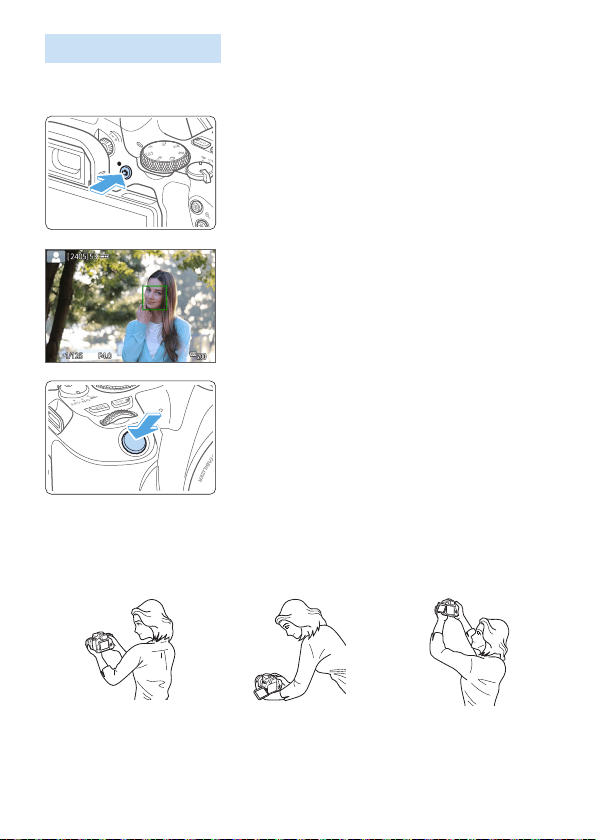
75
Live View Shooting
You can shoot while viewing the image on the LCD monitor. This is called
“Live View shooting”. For details, see page 180.
1
Display the Live View image on the
LCD monitor.
Press the <A> button.
B The Live View image will appear on the
LCD monitor.
2
Focus on the subject.
Press the shutter button halfway to
focus.
B When focus is achieved, the AF point
will turn green and the beeper will
sound.
3
Take the picture.
Press the shutter button completely.
B The picture is taken and the captured
image is displayed on the LCD monitor.
B When the playback display ends, the
camera will return to Live View shooting
automatically.
Press the <A> button to exit the Live
View shooting.
You can also rotate the LCD monitor for different angles (=
40).
Normal angle Low angle High angle
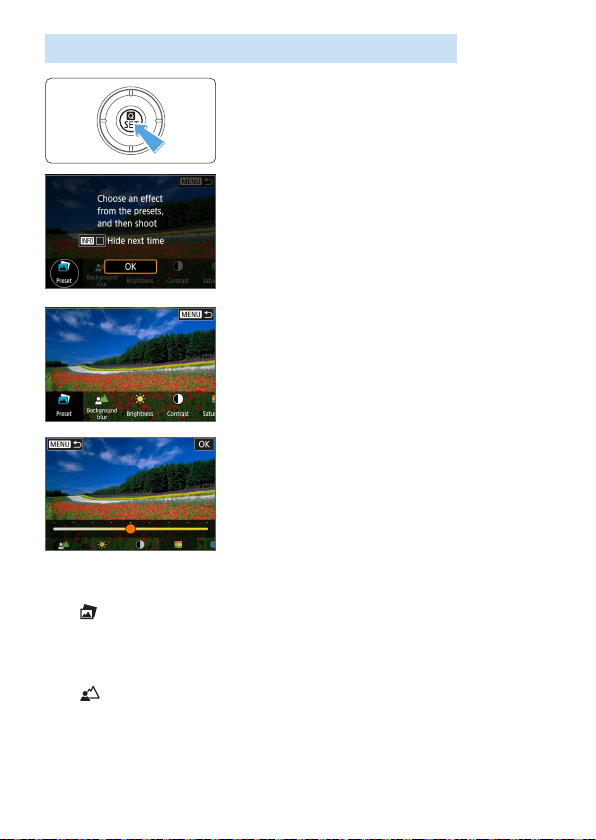
76
Shooting with Effects Applied (Creative Assist)
1
Press the <Q> button.
In viewnder shooting, use the <Y>
<Z> keys to select [Creative Assist],
then press <0>.
In Live View shooting, read the message
and select [OK].
2
Select an effect.
Use the <Y> <Z> keys to select an
effect, then press <0>.
3
Select the effect level and other
details.
Use the <Y> <Z> keys to set it, then
press <0>.
To reset the setting, press the <A>
button, then select [OK].
Creative Assist Effects
[ ] Preset
Select one of the preset effects.
Note that [Saturation], [Color tone 1], and [Color tone 2] are not
available with [B&W].
[
] Background blur
Adjust background blur. Choose higher values to make backgrounds
sharper. To blur the background, choose lower values. [AUTO] adjusts
background blurring to match the brightness. Depending on lens
brightness (f/number), some positions may not be available.

77
[ ] Brightness
Adjust image brightness.
[
] Contrast
Adjust contrast.
[
] Saturation
Adjust the vividness of colors.
[
] Color tone 1
Adjust amber/blue color tone.
[
] Color tone 2
Adjust green/magenta color tone.
[
] Monochrome
Set the toning effect for monochrome shooting. Set to [Off] to shoot
in color. [Saturation], [Color tone 1], and [Color tone 2] are not
available with options other than [Off].
[Background blur] is not available when the ash is used.
These settings are reset when you switch shooting modes or set the power
switch to <2>. To save the settings, set [z: Retain Creative Assist data]
to [Enable].
<i> appears in the lower left of the viewnder if you change the settings with
[z: Retain Creative Assist data] set to [Enable].
Saving Effects
To save the current setting to the camera, press the <B> button on the
Creative Assist setting screen, then select [OK]. Up to three presets can
be saved as [USER*]. After three have been saved, an existing [USER*]
preset must be overwritten to save a new one.
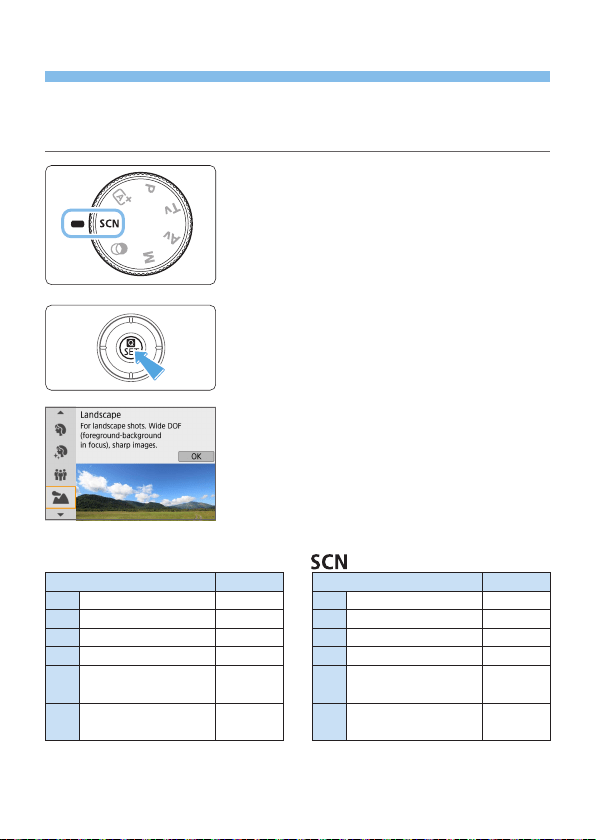
78
Special Scene Mode
The camera will automatically choose the appropriate settings when you
select a shooting mode for your subject or scene.
* <8> stands for Special Scene.
1
Set the Mode Dial to <8>.
2
Press the <Q> button.
3
Select a shooting mode.
Press the <W> <X> keys to select
the desired shooting mode, then press
<0>.
You can also select by turning the
<6> dial.
Available Shooting Modes in the Mode
Shooting Mode Page Shooting Mode Page
2
Portrait
=
79
4
Close-up
=
85
E
Smooth skin
=
80
P
Food
=
86
q
Group Photo
=
81
x
Candlelight
=
87
3
Landscape
=
82
6
Night Portrait
=
88
5
Sports
=
83
F
Handheld Night
Scene
=
89
C
Kids
=
84
G
HDR Backlight
Control
=
90
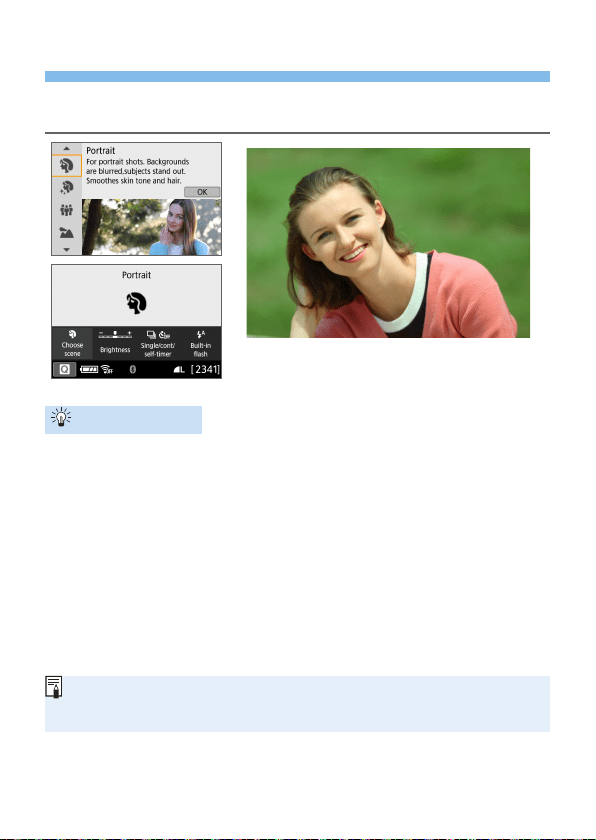
79
Shooting Portraits
The <2> (Portrait) mode blurs the background to make the human subject
stand out. It also makes skin tones and hair look softer.
Shooting Tips
Select the location where the distance between the subject and
the background is the farthest.
The further the distance between the subject and background, the more
blurred the background will look. The subject will also stand out better
against an uncluttered dark background.
Use a telephoto lens.
If you have a zoom lens, use the telephoto end to ll the frame with the
subject from the waist up. Move in closer as necessary.
Focus on the face.
Check that the AF point covering the face lights up. For close-ups of the
face, focus on the eyes.
The default setting is <i> (Continuous shooting). If you keep holding down
the shutter button, you can shoot continuously to capture changes in the
subject’s facial expression and pose.
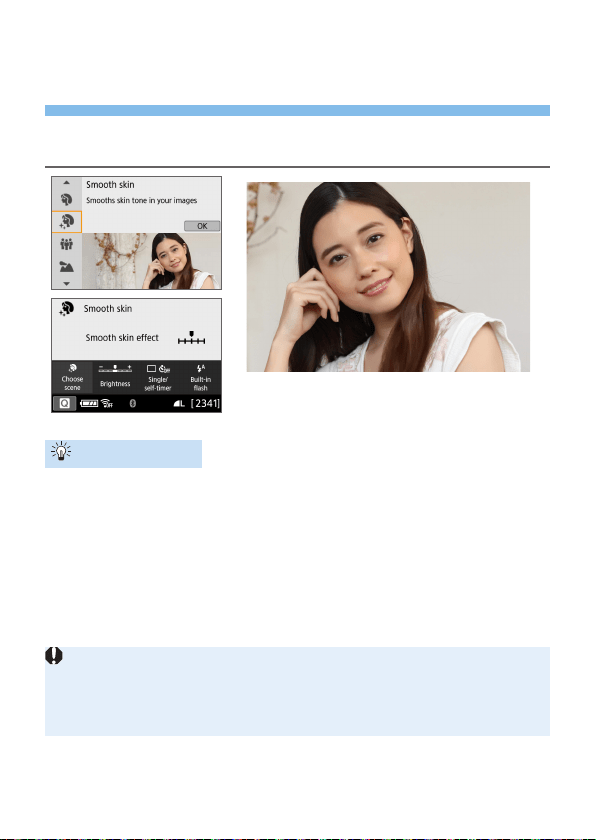
80
Shooting Portraits with Smooth
Skin Tone
Use the <E> (Smooth skin) mode to make skin look more attractive in
portraits. Images are processed to make skin look smoother.
Shooting Tips
Adjust the face size.
Frames are displayed around any main subjects detected for skin
smoothing.
For more effective skin smoothing, you can adjust the size so that the
frame is displayed on the subject’s face.
Focus on the face.
Check that the AF point covering the face lights up. For close-ups of the
face, focus on the eyes.
Areas other than people’s skin may be modied, depending on the shooting
conditions.
In viewnder shooting against bright backgrounds, or in similar conditions,
skin may not be smoothed as expected, and faces may look too dark. In this
case, adjust [Brightness] or switch to Live View shooting.
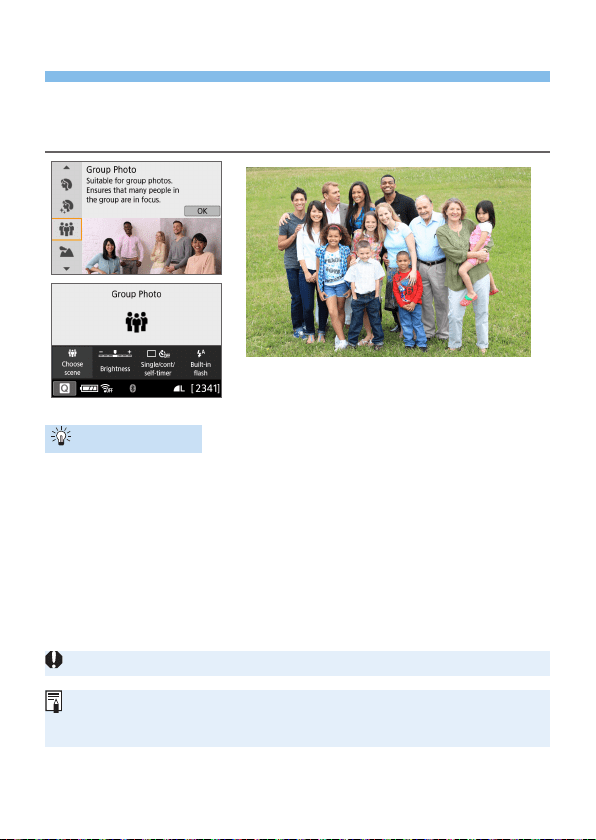
81
Shooting Group Photos
Use the <q> (Group Photo) mode to shoot group photos. You can take a
picture in which both the people in the front and people in the back are all
in focus.
Shooting Tips
Use a wide-angle lens.
When using a zoom lens, use the wide-angle end to make it easy to get
all the people in the group in focus at once, from the front row to the
back. Also, if you place a little distance between the camera and the
subjects (so that the subjects’ entire bodies are in the shot), the focus
range increases in depth.
Take multiple shots of the group.
It is recommended to shoot multiple photos in case some people close
their eyes.
See the cautions on page 91.
When shooting indoors or in low-light, hold the camera steady or use a tripod
to prevent camera shake.
You can adjust the image brightness with [Brightness].
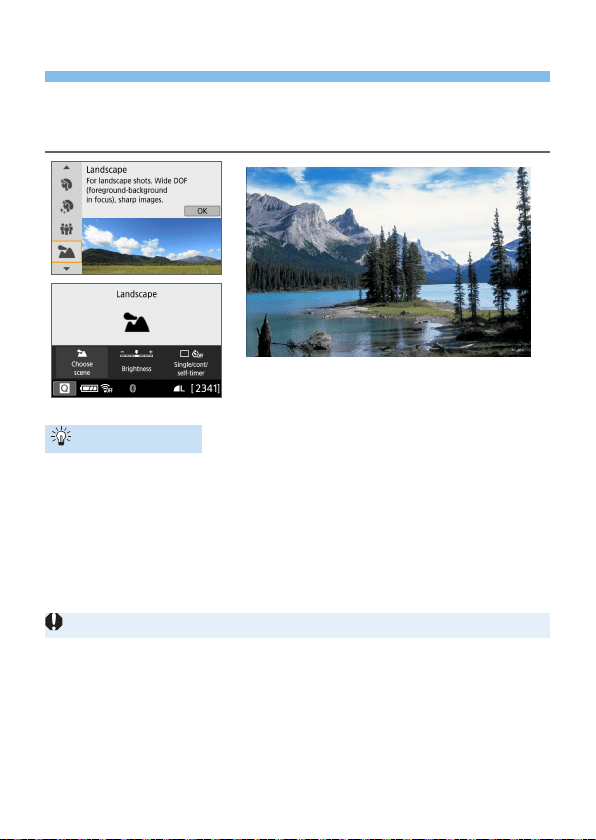
82
Shooting Landscapes
Use the <3> (Landscape) mode for wide scenery or to have everything in
focus from near to far. For vivid blues and greens, and very sharp and crisp
images.
Shooting Tips
With a zoom lens, use the wide-angle end.
When using a zoom lens, set the lens to the wide-angle end to make
the objects near and far in focus. It also adds breadth to landscapes.
Shooting night scenes.
The <3> mode is also good for night scenes because it disables
the built-in ash. When shooting night scenes, use a tripod to prevent
camera shake.
The built-in ash will not re even in backlit or low-light conditions.
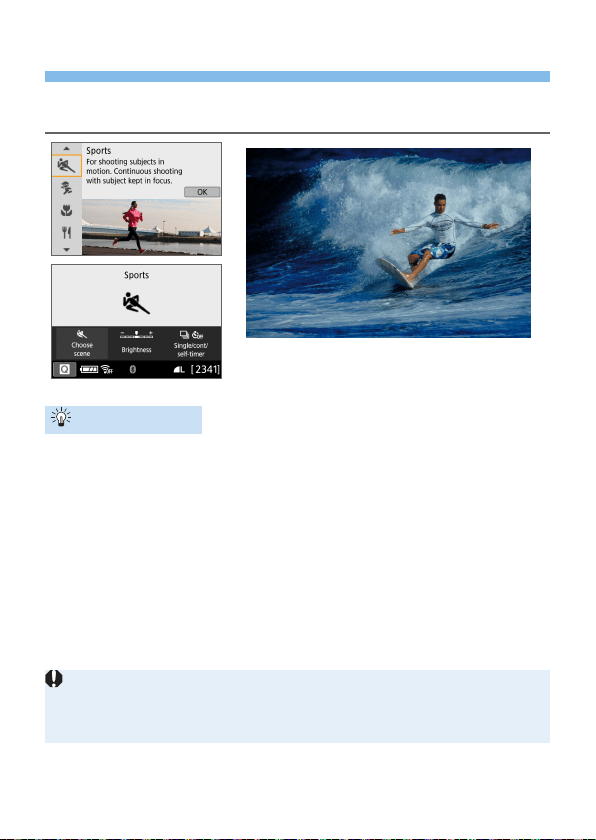
83
Shooting Moving Subjects
Use the <5> (Sports) mode to shoot a moving subject, such as a running
person or a moving vehicle.
Shooting Tips
Use a telephoto lens.
Use of a telephoto lens is recommended for shooting from a distance.
Use the center AF point to focus.
Aim the center AF point over the subject, then press the shutter button
halfway to autofocus. During autofocusing, the beeper will continue
beeping softly. If focus cannot be achieved, the focus indicator <o>
will blink.
The default setting is <i> (Continuous shooting). At the decisive
moment, press the shutter button completely to take the picture. If you
keep holding down the shutter button, you can shoot continuously while
maintaining autofocus to capture changes in the subject’s movement.
The built-in ash will not re even in backlit or low-light conditions.
Under low light where camera shake tends to occur, the viewnder’s shutter
speed display on the bottom left will blink. Hold the camera steady and shoot.
If you are using an external Speedlite, the Speedlite will re.
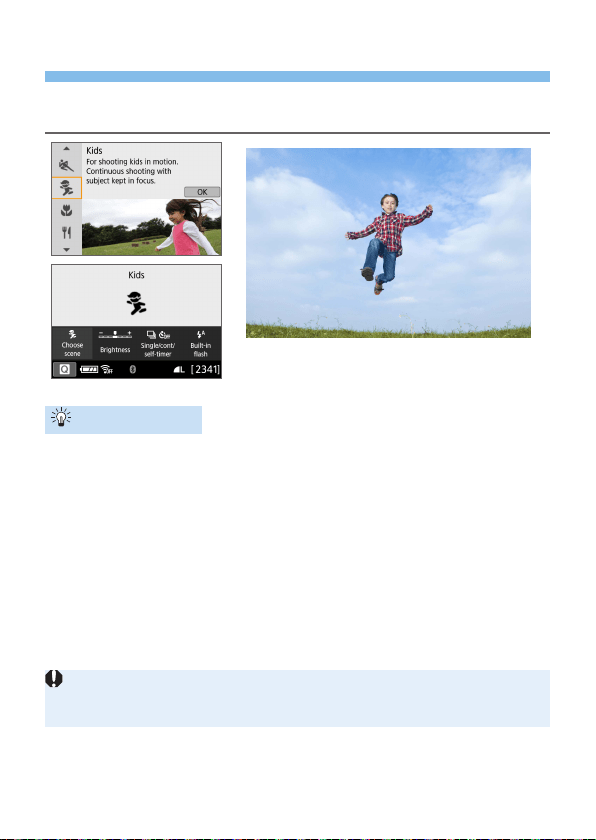
84
Photographing Children
When you want to continuously focus on and photograph children running
around, use <C> (Kids). Skin tones will look healthy.
Shooting Tips
Use the center AF point to focus.
Aim the center AF point over the subject, then press the shutter button
halfway to autofocus. During autofocusing, the beeper will continue
beeping softly. If focus cannot be achieved, the focus indicator <o>
will blink.
Shoot continuously.
The default setting is <i> (Continuous shooting). At the decisive
moment, press the shutter button completely to take the picture. If you
keep holding down the shutter button, you can shoot continuously while
maintaining autofocusing to capture changes in the subject’s facial
expression and movement.
While the ash is recharging, “buSy” is displayed in the viewnder, and a
picture cannot be taken. Take the picture after this display turns off.
See the cautions on page 91.
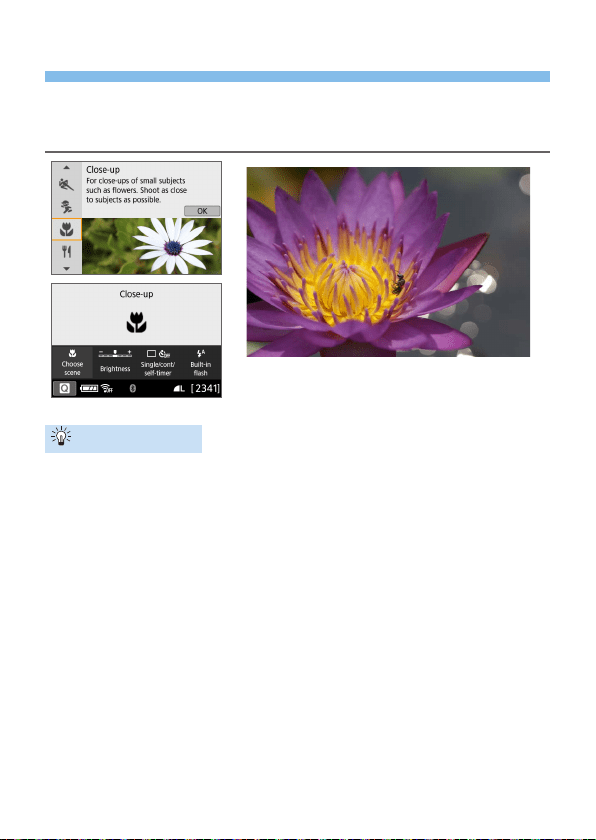
85
Shooting Close-ups
When you want to shoot owers or small things up close, use the <4>
(Close-up) mode. To make small things appear much larger, use a macro
lens (sold separately).
Shooting Tips
Use a simple background.
A simple background makes small objects such as owers stand out
better.
Move in as close as possible to the subject.
Check the lens for its minimum focusing distance. Some lenses have
indications such as <0.25m/0.8ft> on them. The lens minimum focusing
distance is measured from the <V> (focal plane) mark on the top of
the camera to the subject. If you are too close to the subject and focus
cannot be achieved, the focus indicator <o> will blink.
If the built-in ash is red and the bottom part of the picture comes out
unnaturally dark, move away a little from the subject and try again.
With a zoom lens, use the telephoto end.
When using a zoom lens, using the telephoto end will make the subject
look larger.
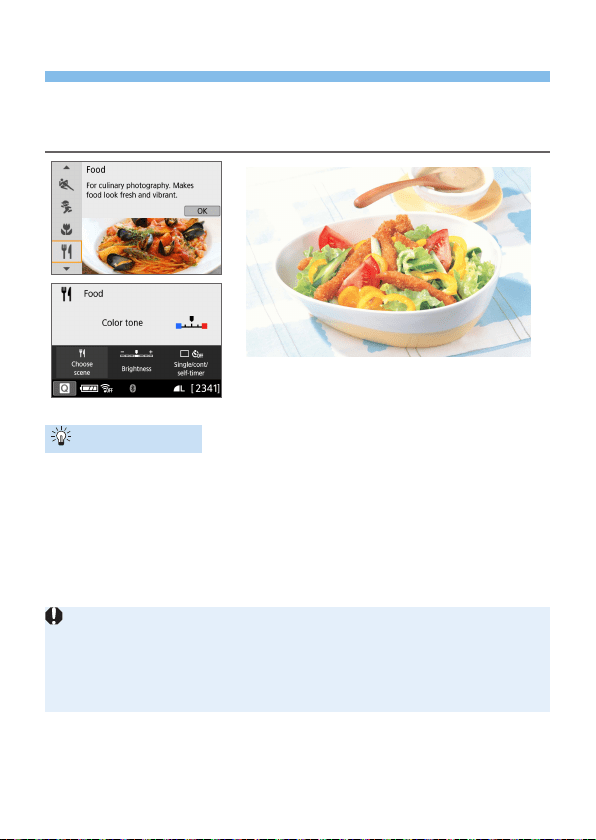
86
Shooting Food
When shooting food, use <P> (Food). The photo will look bright and
appetizing. Also, depending on the light source, the reddish tinge will be
suppressed in the pictures taken under tungsten lights, etc.
Shooting Tips
Change the color tone.
You can change [Color tone]. To increase the food’s reddish tinge, set
it toward [Warm]. Set it toward [Cool] if it looks too red.
Avoid using ash.
If you use ash, the light may reect off the dish or food and results in
unnatural shadows. Shooting without ash is recommended, but be
careful about camera shake under low light.
Since this mode lets you shoot the food in appetizing color tones, human
subjects may be photographed with an unsuitable skin tone.
The warm color cast of subjects may fade.
When multiple light sources are included on the screen, the warm color cast
of the picture may not be reduced.
If you use ash, the [Color tone] setting will switch to the standard.
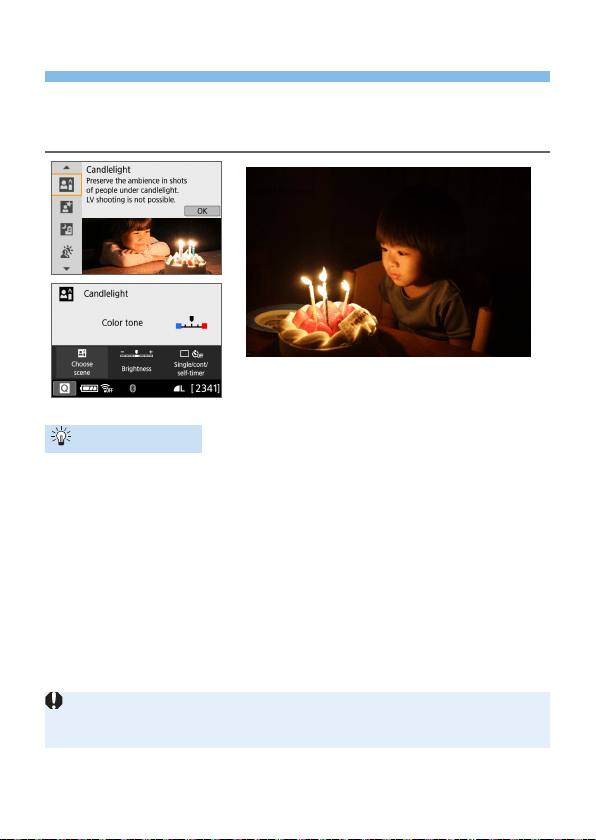
87
Shooting Candlelight Portraits
When you want to photograph a human subject lit in candlelight, use <x>
(Candlelight). The atmosphere of candlelight is reected in the color tones
of the picture.
Shooting Tips
Use the center AF point to focus.
Aim the center AF point in the viewnder over the subject, then shoot.
Prevent camera shake if the numeric display (shutter speed) in the
viewnder blinks.
Under low light, the viewnder’s shutter speed display will blink. Hold
the camera steady or use a tripod. When using a zoom lens, you can
reduce the blur caused by camera shake by setting the lens to the
wide-angle end.
Change the color tone.
You can change [Color tone]. To increase the candlelight’s reddish
tinge, set it toward [Warm]. Set it toward [Cool] if it looks too red.
Live View shooting is not possible.
Although ash photography is not possible, raising the ash beforehand is
recommended, to enable ring of the AF-assist beam (=
167).
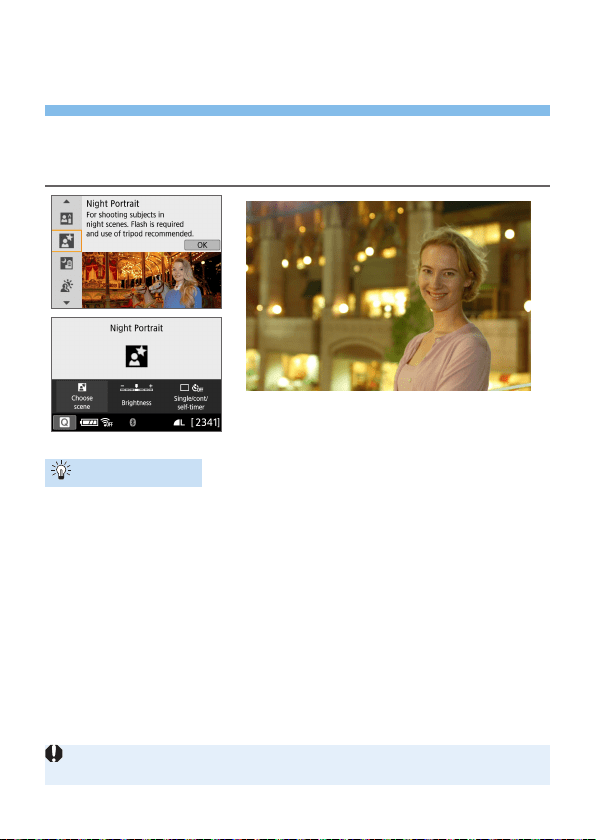
88
Shooting Night Portraits (With a
Tripod)
When you want to photograph people at night and obtain a natural-looking
night scene in the background, use the <6> (Night Portrait) mode. Using a
tripod is recommended.
Shooting Tips
Use a wide-angle lens and a tripod.
When using a zoom lens, use the wide-angle end to obtain a wide
night view. Also, since camera shake is prone to occur with handheld
shooting, use a tripod.
Check the subject’s brightness.
Under low light, using ash produces better shots of people.
Note that it is recommended to play back the captured image on
location to check the image brightness. If the subject looks dark, move
nearer and shoot again.
Also shoot in other shooting modes.
Since camera shake is prone to occur with night shots, shooting also
with <A> and <F> is recommended.
Tell the subject to keep still even after the ash res.
See the cautions on page 91.
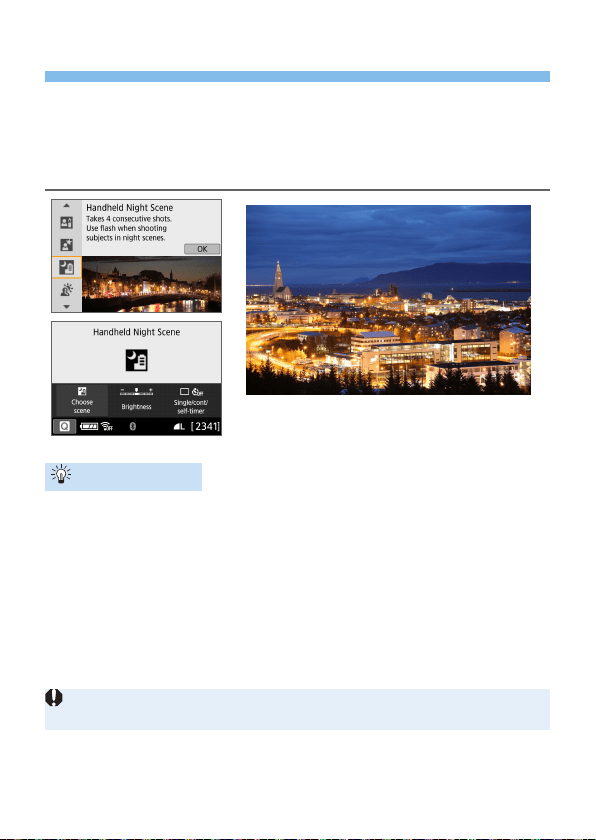
89
Shooting Night Scenes (Handheld)
Using a tripod when shooting a night scene gives the best results. However,
the <F> (Handheld Night Scene) mode enables you to shoot night scenes
even while handholding the camera. In this shooting mode, four shots are
taken consecutively for each picture, and the resulting one image with
reduced camera shake is recorded.
Shooting Tips
Hold the camera rmly.
During shooting, hold the camera rmly and steadily. In this mode, four
shots are aligned and merged into a single image. However, if there is
signicant misalignment in any of the four shots due to camera shake,
they may not align properly in the nal image.
For shots including people, re the ash.
For shots that include people, lift the built-in ash with your ngers. To
take a nice portrait, the rst shot will use ash. Tell the subject not to
move until all four consecutive shots are taken.
Compared to other shooting modes, the shooting range will be smaller.
See the cautions on =
91 - =
92.
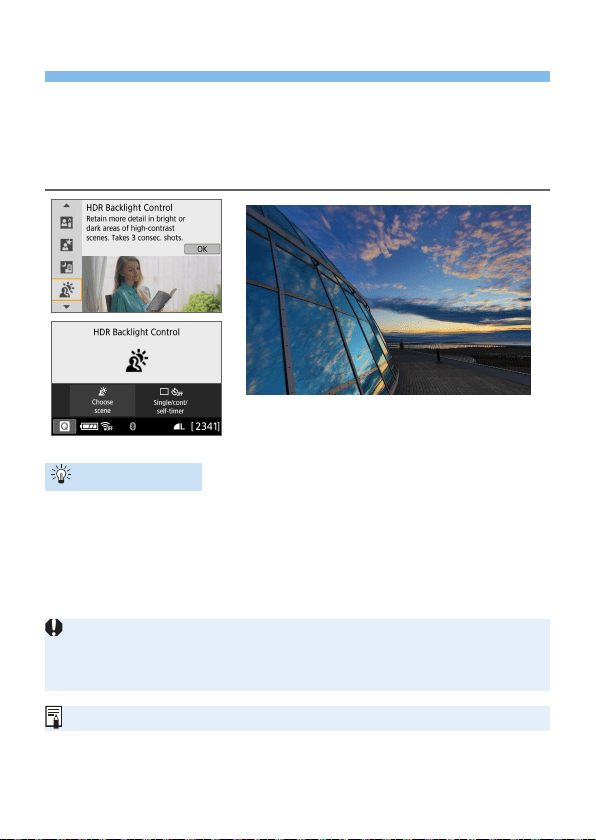
90
Shooting Backlit Scenes
When shooting a scene having both the bright and dark areas, use the
<G> (HDR Backlight Control) mode. When you take one picture in this
mode, three consecutive shots are taken at different exposures. This results
in one image, with a wide tonal range, that has minimized the clipped
shadows caused by backlighting.
Shooting Tips
Hold the camera rmly.
During shooting, hold the camera rmly and steadily. In this mode, three
shots are aligned and merged into a single image. However, if there is
signicant misalignment in any of the three shots due to camera shake,
they may not align properly in the nal image.
Compared to other shooting modes, the shooting range will be smaller.
Although ash photography is not possible, raising the ash beforehand is
recommended, to enable ring of the AF-assist beam (=
167).
See the cautions on =
91 - =
92.
HDR stands for High Dynamic Range.

91
Cautions for <q> Group Photo
Since distortion correction is applied, the camera records an image area
narrower than the one seen through the viewnder. (The image periphery is
slightly trimmed and the resolution looks slightly lowered.) Also, during Live
View shooting, the angle of view changes slightly.
Cautions for <C> Kids
During Live View shooting, if ash is red in continuous shooting, the
continuous shooting speed will decrease. Even if the ash is not red
for subsequent shots, shooting will still be performed with the decreased
continuous shooting speed.
Cautions for <6> Night Portrait and <F> Handheld Night Scene
During Live View shooting, achieving focus may be difcult with point sources
of light, such as may be found in a night scene. In such a case, set the lens’s
focus mode switch to <MF> and focus manually.
The Live View image displayed will not look exactly the same as the actual
captured image.
Cautions for <6> Night Portrait
During Live View shooting, achieving focus may be difcult when the face of
the subject looks dark. In such a case, set the lens’s focus mode switch to
<MF> and focus manually.
Cautions for <F> Handheld Night Scene and <G> HDR Backlight
Control
RAW image quality cannot be set.
If you shoot a moving subject, the subject’s movement may leave
afterimages, or the surrounding area of the subject may become dark.
The image alignment may not function properly with repetitive patterns
(lattice, stripes, etc.), at or single-tone images, or images signicantly
misaligned due to camera shake.
It takes some time to record images to the card since they are merged
after shooting. During the image processing, “buSy” will be displayed in
the viewnder, and you cannot take another picture until the processing is
complete.

92
Cautions for <F> Handheld Night Scene
In ash photography, if the subject is too close to the camera, the picture may
come out extremely bright (overexposure).
In ash photography, if you shoot a night scene with limited lights, the shots
may not align correctly. This may result in a blurry picture.
In ash photography, if the human subject is close to the background that is
also illuminated by the ash, the shots may not align correctly. This may result
in a blurry picture. Unnatural shadows and unsuitable colors may also appear.
Flash coverage angle with an external Speedlite:
- When using a Speedlite with automatic ash coverage setting, the zoom
position will be xed to the wide (wide-angle) end regardless of the lens’s
zoom position.
- When using a Speedlite requiring manual ash coverage setting, set the
ash head to the normal position.
Cautions for <G> HDR Backlight Control
The image may not be rendered with a smooth gradation and may look
irregular or have signicant noise.
HDR Backlight Control may not be effective for excessively backlit scenes or
extremely high-contrast scenes.
When shooting subjects that are sufciently bright as they are, for example for
normally lit scenes, the image may look unnatural due to the HDR effect.
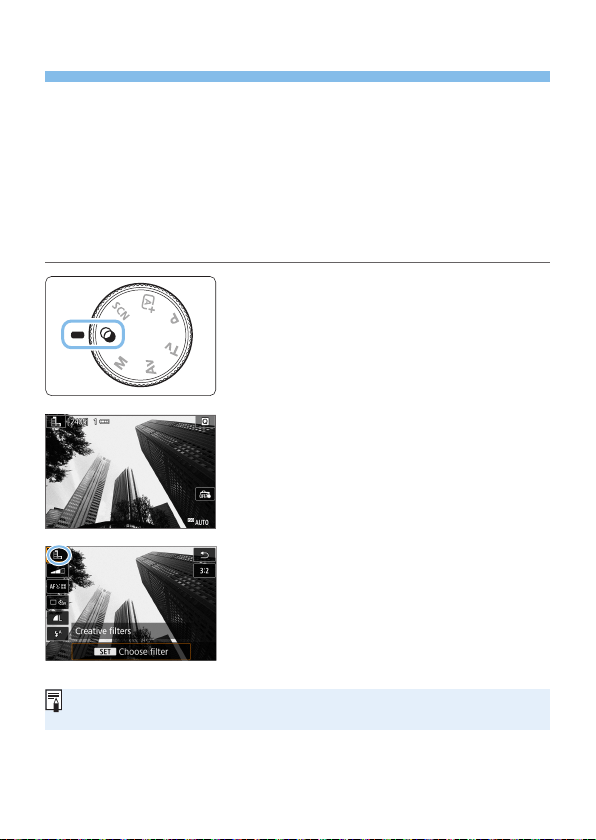
93
Shooting with Creative Filter Effects
In the <v> (Creative lters) mode, you can apply one of ten lter effects
(Grainy B/W*, Soft focus*, Fish-eye effect*, Water painting effect*, Toy
camera effect*, Miniature effect*, HDR art standard, HDR art vivid, HDR
art bold, and HDR art embossed) for shooting. When the camera is set for
Live View shooting, you can see the effect on the screen before you start
shooting. The camera saves only the image with the Creative lter effects
applied.
* For the effects marked with an asterisk, you can also take a picture without a
Creative lter, then apply the effect afterward and save it as a new image (=
329).
1
Set the Mode Dial to <v>.
2
Display the Live View image.
Press the <A> button to display the
Live View image.
3
Select [Creative filters] with Quick
Control.
Press the <Q> button.
Press the <W> <X> keys to select [G]
on the upper left of the screen, then
press <0>.
If you do not want the Live View image to be displayed when setting
functions, press the <Q> button after step 1 and select [Choose lter].
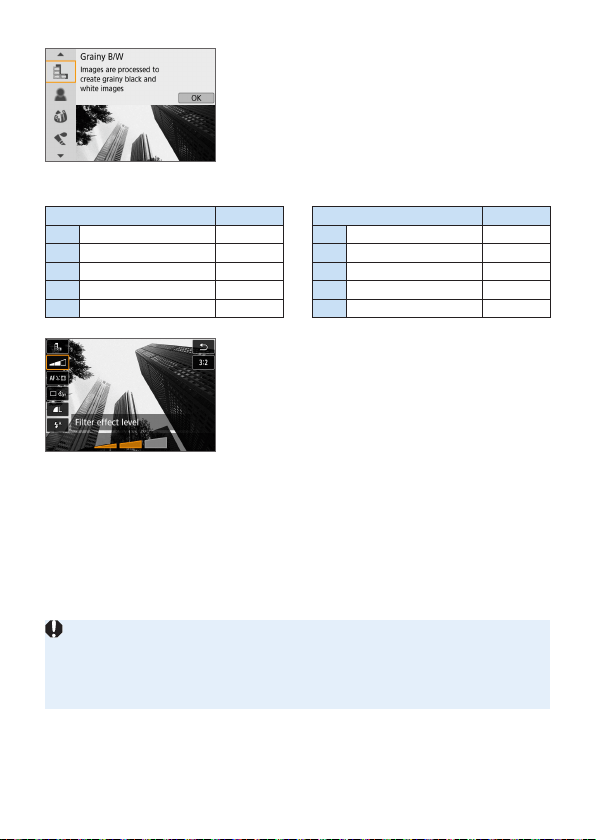
94
4
Select a shooting mode.
Press the <W> <X> keys to select a
shooting mode, then press <0>.
B The image will be displayed with the
effects of the lter applied.
Available Shooting Modes in the v Mode
Shooting Mode Page Shooting Mode Page
G
Grainy B/W
=
95
c
Miniature effect
=
96
W
Soft focus
=
95
A
HDR art standard
=
96
X
Fish-eye effect
=
95
B
HDR art vivid
=
96
Z
Water painting effect
=
95
C
HDR art bold
=
96
H
Toy camera effect
=
95
D
HDR art embossed
=
96
5
Adjust the effect.
Press the <Q> button and select the
icon below [Creative lters] (except for
c, A, B, C, and D).
Press the <Y> <Z> keys to adjust the
effect, then press <0>.
6
Take the picture.
Press the shutter button completely to
take the picture.
To return to viewnder shooting, press
the <A> button to exit Live View
shooting. Then press the shutter button
completely to take the picture.
RAW image quality cannot be set.
When <G>, <W>, <X>, <Z>, <H>, or <c> is set, continuous shooting
cannot be set.
Dust Delete Data (=
274) will not be appended to images shot with Fish-
eye effect applied.

95
During Live View Shooting
With Grainy B/W, the grainy effect displayed on the LCD monitor will look
different from the grainy effect recorded in the picture.
With the Soft focus and Miniature effects, the blurred effect displayed on the
LCD monitor may look different from the blurred effect recorded in the picture.
The histogram is not displayed.
Magnied view is not possible.
In Creative Zone modes, you can set some Creative lters with Quick Control
(=
93).
Creative Filter Characteristics
G Grainy B/W
Creates a grainy black-and-white photo. You can change the black-and-
white effect by adjusting the contrast.
W Soft focus
Gives the image a soft look. You can change the degree of softness by
adjusting the blur.
X Fish-eye effect
Gives the effect of a sh-eye lens. The image will have a barrel-type
distortion.
Depending on the level of this lter effect, the area trimmed along the
periphery of the image changes. Also, since this lter expands the
center part of the image, the resolution at the center may decrease
depending on the number of recorded pixels. Check the image on the
screen when setting this lter. The AF point will be xed to the one at
the center.
Z Water painting effect
Makes the photo look like a watercolor painting with soft colors. You
can control the color density by adjusting the lter effect. Note that night
scenes or dark scenes may not be rendered with a smooth gradation
and may look irregular or have signicant noise.
H Toy camera effect
Darkens the photo’s corners and applies a unique color tone that
makes it look as if it was shot by a toy camera. You can change the
color cast by adjusting the color tone.

96
c Miniature effect
Creates a diorama effect.
If you want the image center to look sharp, take the picture without
changing any setting.
To move the area that looks sharp (miniature effect frame) in Live View
shooting, see “Adjusting Miniature Effect” (=
98). 1-point AF is used
as the AF method. Positioning the miniature effect frame over the AF
point before shooting is recommended.
During viewnder shooting, aim the center AF point over the subject
and shoot.
A HDR art standard
Clipped highlights and shadows will be reduced. The low contrast and
at gradation create a painting-like effect. The subject outlines will have
bright (or dark) edges.
B HDR art vivid
The colors are more saturated than with [HDR art standard], and the
low contrast and at gradation create a graphic art effect.
C HDR art bold
The colors are the most saturated, making the subject pop out, and the
picture looks like an oil painting.
D HDR art embossed
The color saturation, brightness, contrast and gradation are decreased
to make the picture look at. The picture looks faded and old. The
subject outlines will have bolder bright (or dark) edges.

97
Cautions for <A> HDR Art Standard, <B> HDR Art Vivid, <C>
HDR Art Bold, and <D> HDR Art Embossed
Compared to other shooting modes, the image area will be smaller.
The Live View image displayed with the lter applied will not look exactly the
same as the actual captured image.
If you shoot a moving subject, the subject’s movement may leave
afterimages, or the surrounding area of the subject may become dark.
The image alignment may not function properly with repetitive patterns
(lattice, stripes, etc.), at or single-tone images, or images signicantly
misaligned due to camera shake.
If you are handholding the camera, try to prevent camera shake when
shooting.
The color gradation of the sky or white walls may not be reproduced correctly.
Irregular exposure, irregular colors, or noise may appear.
Shooting under uorescent or LED lighting may result in unnatural color
reproduction of the illuminated areas.
It takes some time to record images to the card since they are merged
after shooting. During the image processing, “buSy” will be displayed in
the viewnder, and you cannot take another picture until the processing is
complete.
Although ash photography is not possible, in low light, raising the ash
beforehand is recommended, to enable ring of the AF-assist beam
(=
167).
For <A> <B> <C> <D>, clipped highlights and shadows will be
reduced for a high dynamic range of tones even with high-contrast scenes.
Three images of different exposures are captured continuously for each
shot and merged into a single image.
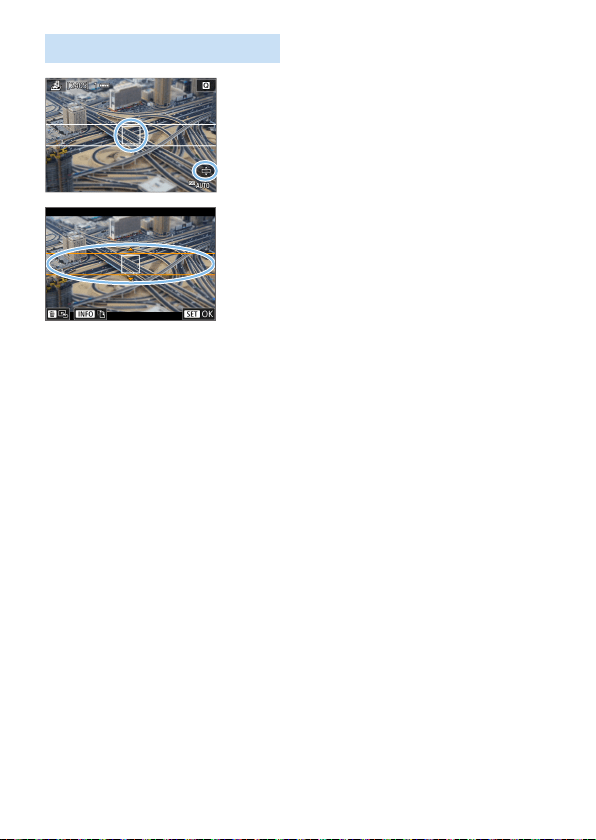
98
Adjusting Miniature Effect
1
Move the AF point.
Move the AF point to where you want to
focus on.
2
Move the miniature effect frame.
Move the miniature effect frame if the
AF point is outside of it, so that the AF
point is aligned with it.
Press the <u> button (or tap on the
[r] icon at the bottom right of the
screen). The miniature effect frame will
turn orange and can be moved.
Press the <B> button (or tap on
the [T] icon at the bottom left of the
screen) to switch between the vertical
and horizontal orientations of the
miniature effect frame.
Press <0> to set the position of the
miniature effect frame.
Press <W> <X> or <Y> <Z> to move
the AF point or miniature effect frame.
Press the <L> button to return the AF
point or miniature effect frame to the
screen center.
3
Take the picture.
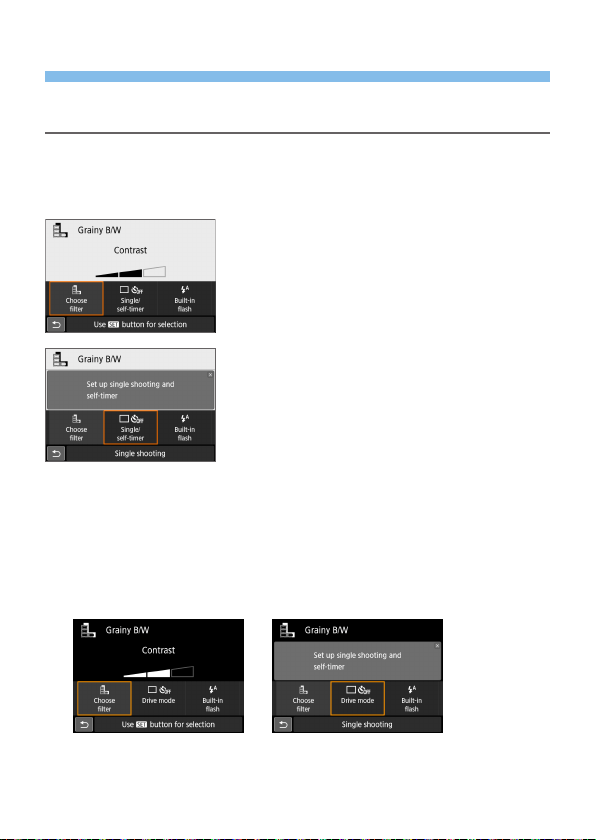
99
Quick Control
You can directly select and set settings accessed by pressing the <Q>
button in Basic Zone modes.
1
Set the Mode Dial to a Basic Zone
mode.
2
Press the <Q> button.
B The Quick Control screen will appear.
3
Set the desired functions.
Press the <V> cross keys to select a
function.
B The settings of the selected function and
Feature guide (=
55) will appear.
Turn the <6> dial to change the
setting.
You can also select from a list by
selecting a function and pressing
<0>.
When [s: Shooting screen: Standard] is set, a screen such as the
following will appear.
Example: <G>
Example: <G>
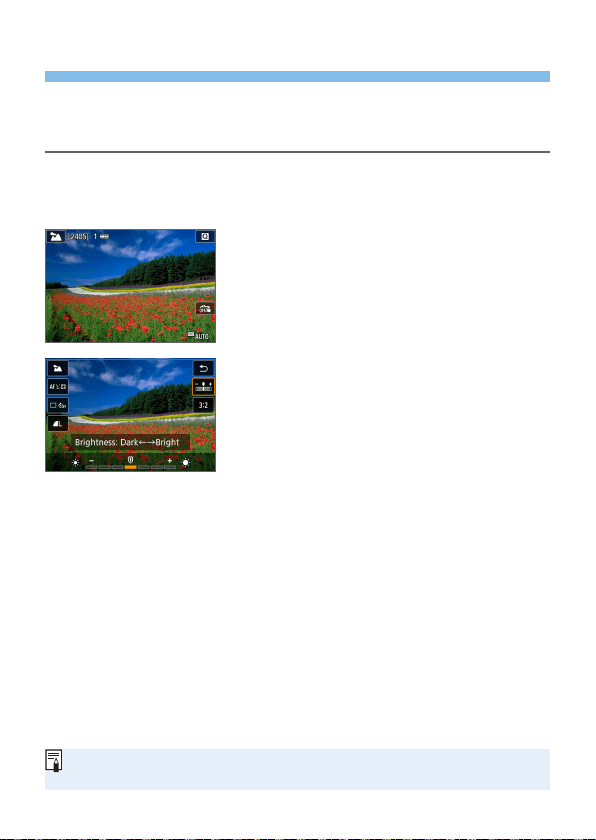
100
Adjusting the Brightness
This section describes how to adjust brightness for shooting in <8>
modes other than <8:G>. You can adjust both the brightness and
darkness across 3-step ranges with 0 being the standard.
1
Set the Mode Dial to <8:
2Eq35C4Px6F>.
Set to any mode other than <G>.
2
Display the Live View image.
Press the <A> button to display the
Live View image (except <x>).
3
With Quick Control, select the
desired brightness.
Press the <Q> button.
Press the <W> <X> keys to select
[wBrightness], then press the
<Y> <Z> keys to select the desired
brightness.
B The image with the selected brightness
adjustment applied will appear.
4
Take the picture.
Press the shutter button completely to
take the picture.
To return to viewnder shooting, press
the <A> button to exit Live View
shooting. Then press the shutter button
completely to take the picture.
If you change the shooting mode or set
the power switch to <2>, the setting
will revert to [0] (standard).
If you do not want the Live View image to be displayed when setting
functions, start the procedure from step 3.
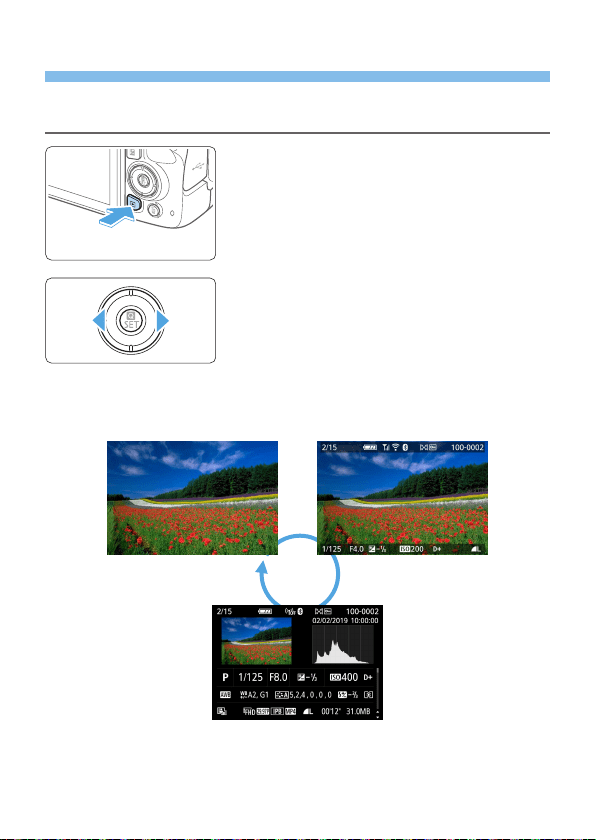
101
Image Playback
The easiest way to play back images is described below. For more details
on the playback procedure, see page 280.
1
Play back the image.
Press the <x> button.
B The last image captured or played back
will appear.
2
Select an image.
To play back images starting with the
last image captured, press the <Y>
key. To play back images starting with
the rst captured image, press the <Z>
key.
Each time you press the <B>
button, the display will change.
No information Basic information
display
Shooting information display
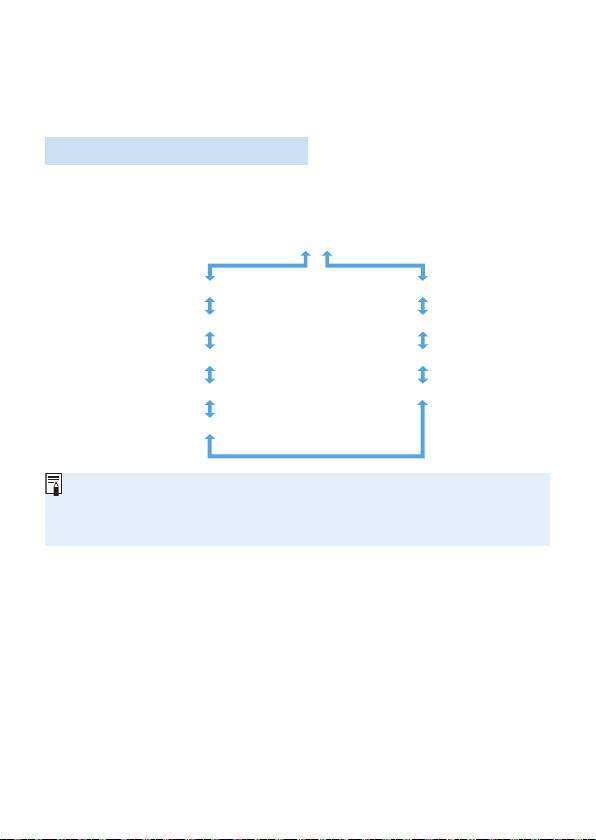
102
3
Exit the image playback.
Press the <x> button to exit the image
playback and return to shooting-ready
state.
Shooting Information Display
With the shooting information screen displayed (=
101), you can press
the <W> <X> keys to change the shooting information displayed at the
screen bottom as follows. For details, see =
324 - =
325.
Detailed information
GPS information
Record of sent images
Lens aberration correction information 2
Lens aberration correction information 1
Color space / Noise reduction information
Lens / Histogram information
White balance information
Picture Style information 1
Picture Style information 2
The information displayed varies depending on the shooting mode and
settings.
If you use GPS Receiver GP-E2 or a smartphone to record GPS information
for the image, the “GPS information” screen will also appear.
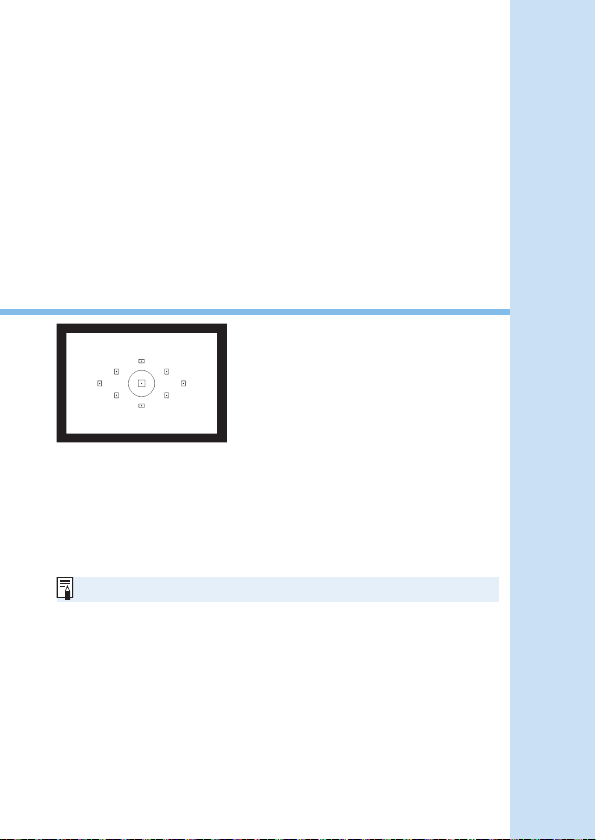
103
Setting the AF and
Drive Modes
The AF points in the viewnder
are arranged to make AF shooting
suitable for a wide variety of
subjects and scenes.
You can also select the AF operation and drive mode that
best match the shooting conditions and subject.
The
N
icon at the upper right of the page title indicates
that the function is available only in Creative Zone modes
(=
31).
In Basic Zone modes, the AF operation is set automatically.
<AF> stands for autofocus. <MF> stands for manual focus.
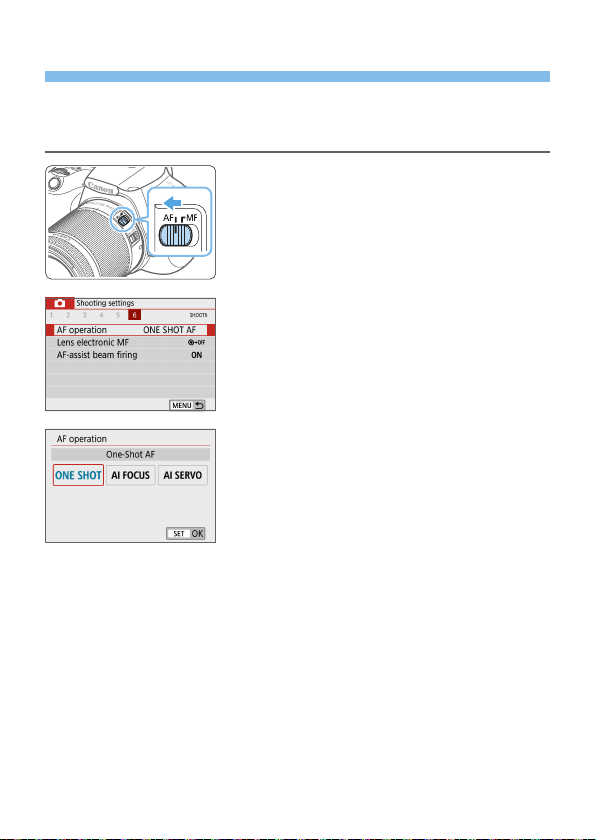
104
Changing the Autofocus Operation
You can select the AF (autofocus) operation characteristics to suit the
shooting conditions or subject. In Basic Zone modes, the optimum AF
operation is set automatically for the respective shooting mode.
1
Set the lens focus mode switch to
<AF>.
2
Turn the Mode Dial to a Creative
Zone mode.
3
Select [AF operation].
Under the [z] tab, select [AF
operation], then press <0>.
B [AF operation] will appear.
4
Select the AF operation.
Press the <Y> <Z> keys to select
the desired AF operation, then press
<0>.
5
Focus on the subject.
Aim the AF point over the subject
and press the shutter button halfway.
The camera will then autofocus in the
selected AF operation.
N
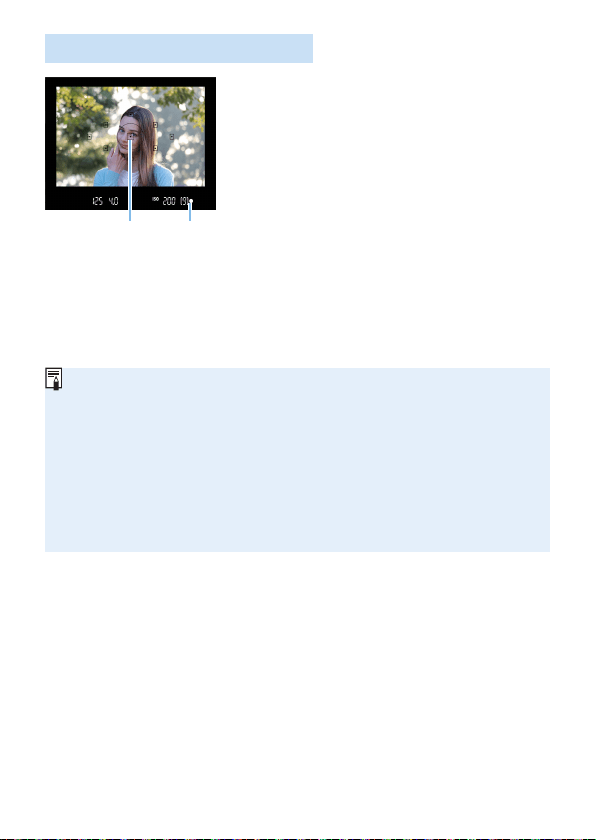
105
One-Shot AF for Still Subjects
Suited for still subjects. When you
press the shutter button halfway,
the camera will focus only once.
The dot inside the AF point (1) achieving
focus lights up briey in red, and
the focus indicator <o> (2) in the
viewnder will also light up.
With evaluative metering, the exposure
setting will be set at the same time focus
is achieved.
While you keep holding down the
shutter button halfway, the focus will be
locked. You can then recompose the
shot if desired.
If focus cannot be achieved, the focus indicator <o> in the viewnder will
blink. If this occurs, the picture cannot be taken even if the shutter button is
pressed completely. Recompose the shot or see “Subjects Difcult to Focus
on” (=
110) and try to focus again.
If [5: Beep] is set to [Disable], the beeper will not sound when focus is
achieved.
After achieving focus with One-Shot AF, you can lock the focus on a subject
and recompose the shot. This is called “focus lock”. This is useful when you
want to focus on a peripheral subject.
When a lens equipped with an electronic manual focusing function is used,
see page 107.
(
2
)(
1
)
106
AI Servo AF for Moving Subjects
This AF operation is suited for moving subjects when the focusing
distance keeps changing. While you hold down the shutter button
halfway, the camera will keep focusing on the subject continuously.
The exposure is set at the moment the picture is taken.
When the AF point selection (=
108) is automatic, the camera rst
uses the center AF point to focus. During autofocusing, if the subject
moves away from the center AF point, focus tracking continues as long
as the subject is covered by another AF point.
With AI Servo AF, the beeper will not sound even when focus is achieved.
Also, the focus indicator <o> in the viewnder will not light up.
AI Focus AF for Switching the AF Operation
Automatically
AI Focus AF switches the AF operation from [One-Shot AF] to [AI
Servo AF] automatically if a still subject starts moving.
After the subject is in focus in One-Shot AF, if the subject starts
moving, the camera will detect the movement, change the AF operation
automatically to AI Servo AF, and start tracking the moving subject.
When focus is achieved with AI Focus AF with the Servo operation active, the
beeper will continue beeping softly. However, the focus indicator <o> in the
viewnder will not light up. Note that focus lock is not possible in this case.
AF-Assist Beam with the Built-in Flash
Under low-light conditions, when you press the shutter button halfway, the
built-in ash may re a brief burst of ashes. This illuminates the subject to
help autofocusing.
AF-assist beam will not be emitted from the built-in ash in <8: 35C>
modes.
The AF-assist beam will not be emitted with AI Servo AF operation.
The built-in ash makes a sound when ring continuously. This is normal and
not a malfunction.
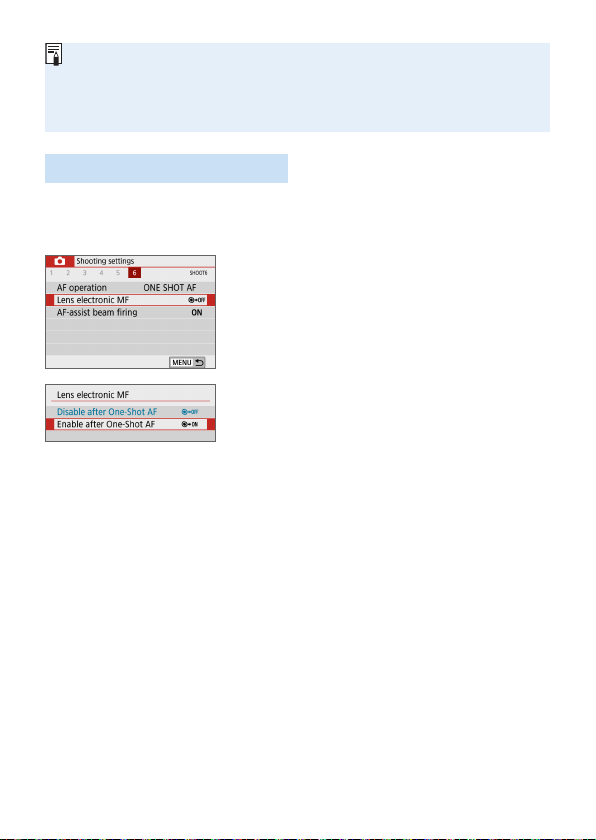
107
The effective range of the AF-assist beam emitted by the built-in ash is
approx. 4 meters/13.1 feet.
The AF-assist beam is red as needed when the built-in ash has been
raised. To prevent it from ring, set [z: AF-assist beam ring] to [Disable]
(=
167).
Setting Lens Electronic MF
With USM and STM lenses equipped with electronic manual focusing
function, you can set whether to use electronic manual focusing in
One-Shot AF mode. The default setting is [Disable after One-Shot AF].
1
Select [Lens electronic MF].
Under the [z] tab, select [Lens
electronic MF], then press <0>.
2
Set the desired setting.
Select the setting, then press <0>.
Disable after One-Shot AF
Manual focus adjustment after the AF operation is disabled.
Enable after One-Shot AF
You can manually adjust the focus after the AF operation if you keep
holding down the shutter button halfway.
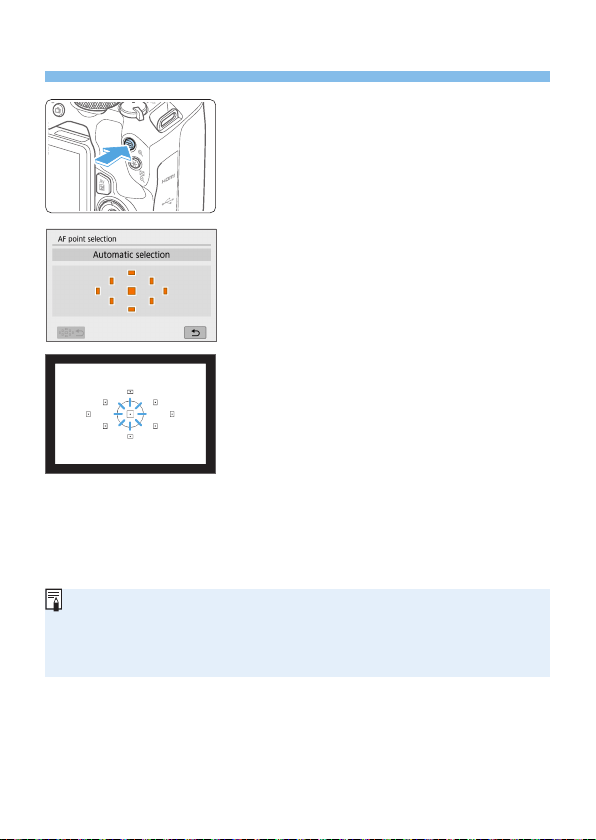
108
Selecting the AF Point
1
Press the <S> button.
B The selected AF point will be displayed
on the LCD monitor and in the
viewnder.
2
Select the AF point.
Use the <V> cross keys to select the
AF point.
To select the AF point while looking in
the viewnder, turn the <6> dial to
switch the point lit in red.
When all the AF points light up,
automatic AF point selection will be
set. The AF point will be selected
automatically to focus on the subject.
Pressing <0> toggles the AF point
selection between the center AF point
and automatic AF point selection.
3
Focus on the subject.
Aim the selected AF point over the
subject and press the shutter button
halfway to focus.
You can also tap on the LCD monitor screen to select the AF point. During
manual AF point selection, tapping on the [C] icon at the bottom left of
the screen will switch the mode to automatic AF point selection.
If you set [5: Switch S/A button] to [Enable], you can switch the
functions of the <S> button and <A> button.
109
Shooting Tips
When shooting a portrait up close, use [One-Shot AF] and focus
on the eyes.
Focus on the subject’s eyes before composing your shot.
If it is difcult to focus, select the center AF point.
The center AF point has the highest focusing performance among the
nine AF points.
For easier tracking of moving subjects, use [Automatic selection]
in conjunction with [AI Servo AF] of AF operation (=
106).
The center AF point will rst be used to focus on the subject. During
autofocusing, if the subject moves away from the center AF point, focus
tracking continues as long as the subject is covered by another AF
point.
If you use an extender (sold separately) in combination and the open aperture
f/number becomes higher than f/5.6, AF shooting will not be possible (except
in Live View shooting). For details, refer to the extender’s instruction manual.
110
Subjects Difficult to Focus on
Autofocus may fail to achieve focus (focus indicator <o> in the viewnder
blinks) with special subjects such as the following:
Subjects with very low contrast (Example: Blue skies, solid-color at
surfaces, etc.)
Subjects in very low light
Strongly backlit or reective subjects (Example: Car with a highly
reective body, etc.)
Near and distant subjects positioned close to an AF point (Example:
Animals in cages, etc.)
Light source such as dots of light positioned close to an AF point
(Example: Night scenes, etc.)
Subjects with repetitive patterns (Example: Skyscraper windows,
computer keyboards, etc.)
Subjects with ner patterns than an AF point (Example: Faces or
owers as small as or smaller than an AF point, etc.)
In such cases, focus in either of the following two ways.
(1) With One-Shot AF, focus on an object at the same distance as the
subject and lock the focus, then recompose the shot (=
74).
(2) Set the lens’s focus mode switch to <MF> and focus manually.
Depending on the subject, focus may be achieved by slightly recomposing the
shot and performing AF operation again.
For conditions that make focusing difcult with AF during Live View shooting
or movie shooting, see page 202.
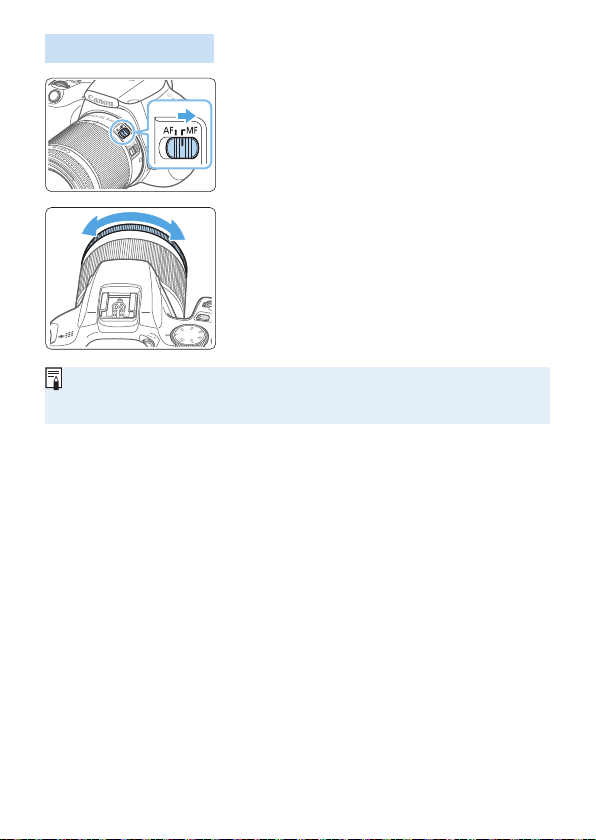
111
MF: Manual Focus
1
Set the lens’s focus mode switch
to <MF>.
2
Focus on the subject.
Focus by turning the lens focusing
ring until the subject looks sharp in the
viewnder.
If you press the shutter button halfway and focus manually, the AF point
achieving focus will light up briey in red, and the focus indicator <o> will
light up in the viewnder.
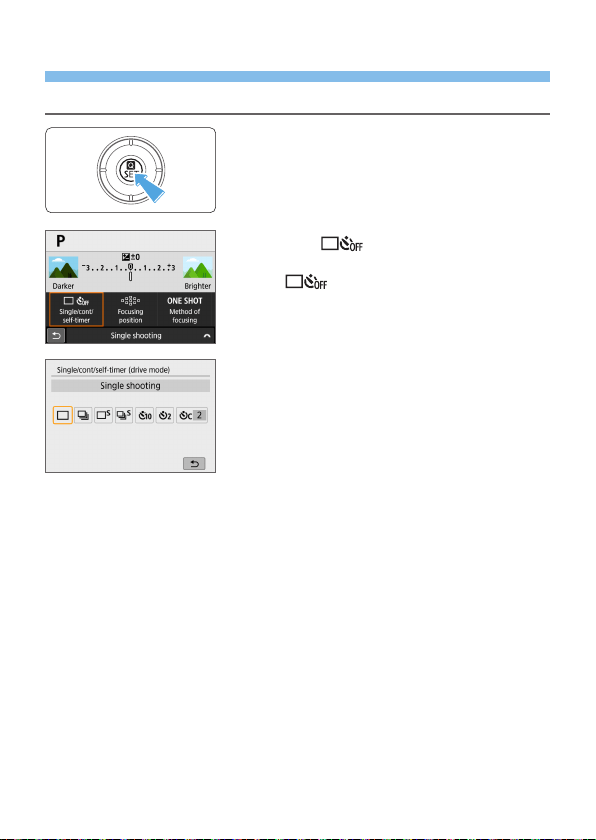
112
Selecting the Drive Mode
Single and continuous drive modes are provided.
1
Press the <Q> button.
B The Quick Control screen will appear.
2
Select [ ].
Press the <V> cross keys to select
[
], then press <0>.
3
Select the drive mode.
Press the <Y> <Z> keys to select the
desired drive mode, then press <0>.
u : Single shooting
When you press the shutter button completely, only one shot will
be taken.
i : Continuous shooting
When you press the shutter button completely, the camera will
shoot continuously while you keep holding it down.
B : Silent single shootingN
When you press the shutter button completely, only one shot will
be taken quietly.
M : Silent continuous shootingN
When you press the shutter button completely, the camera will
shoot continuously quietly while you keep holding it down.
m/Q : Self-timer: 10 sec/Remote control
(when Wireless Remote Control BR-E1 (sold separately) is used)

113
l : Self-timer: 2 sec
q : Self-timer: Continuous
For self-timer shooting, see page 206. For remote control shooting
with the BR-E1, see page 463.
The continuous shooting speed may become slower depending on the shutter
speed, aperture, subject conditions, brightness, lens, ash use, temperature,
power source, remaining battery level, etc.
With Live View shooting, the <B> and <M> cannot be set.
The continuous shooting speed may become slower if the remaining battery
level is low or if you shoot under low-light conditions.
In AI Servo AF operation, the continuous shooting speed may become slightly
slower depending on the subject conditions and the lens used.
When internal memory becomes full during continuous shooting, the
continuous shooting speed may drop off because shooting will be temporarily
disabled.
When the camera is paired with BR-E1, <m> will change to <Q>
(=
463).

114
Image Settings
This chapter describes image-related function settings:
Image-recording quality, ISO speed, Picture Style, white
balance, Auto Lighting Optimizer, noise reduction, lens
aberration correction, and other functions.
The
N
icon at the upper right of the page title indicates
that the function is available only in Creative Zone modes
(=
31).
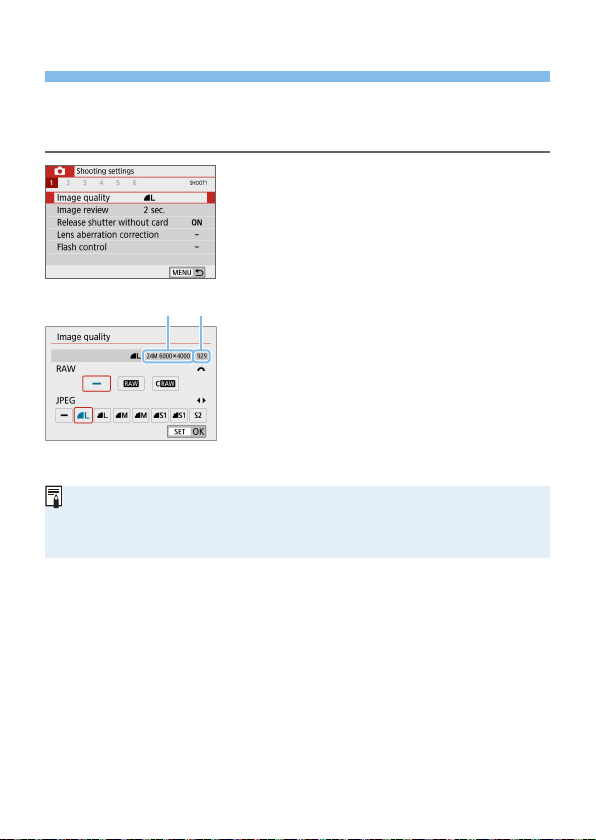
115
Setting Image Quality
You can select the pixel count and the image quality. JPEG image quality
options include 73, 83, 74, 84, 7a, 8a, and b. RAW image
quality options include 1 and D.
1
Select the image-recording quality.
Under the [z] tab, select [Image
quality], then press <0>.
B [Image quality] will appear.
2
Set the image-recording quality.
To select the RAW quality, turn the
<6> dial, and to select the JPEG
quality, press the <Y> <Z> keys.
Select the image-recording quality,
referring to the respective quality’s pixel
count (1) and number of possible shots
(2) displayed on the screen, then press
<0>.
Even if you use a UHS-I class card, the maximum burst indicator will not
change.
Meaning of image quality icons: 1 RAW, D Compact RAW, JPEG,
7 Fine, 8 Normal, 3 Large, 4 Medium, 6 Small.
(
1
) (
2
)
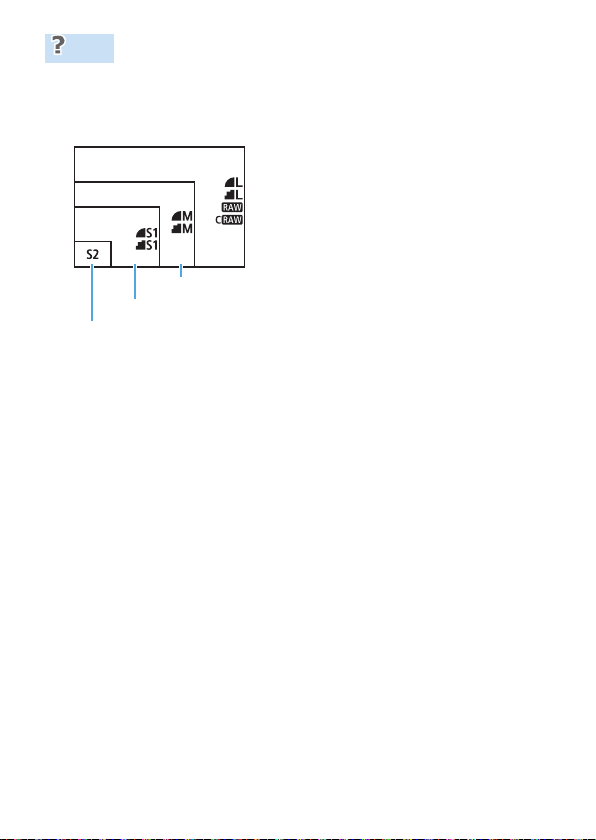
116
FAQ
I want to select the image-recording quality matching the paper
size for printing.
Paper size
Refer to the diagram on the left
when choosing the image-recording
quality. If you want to crop the image,
selecting a higher quality (more pixels)
such as 73, 83, 1, or D is
recommended.
b is suitable for playing back the
image with a digital photo frame.
What’s the difference between 7 and 8?
These settings indicate the different levels of image quality caused by
different compression rates. The 7 setting produces a higher image
quality with the same number of pixels. Although 8 produces a slightly
lower image quality, this allows more images to be saved on the card.
b will be in 7 (Fine) quality.
I was able to take more shots than the number of possible shots
indicated.
Depending on the shooting conditions, you may be able to take more
shots than is indicated. On the contrary, it may also be fewer than
indicated. The number of possible shots displayed is only approximate.
Does the camera display the maximum burst?
The maximum burst is displayed on the viewnder’s right side. Since
it is only a single-digit indicator 0 - 9, any number higher than 8 will be
displayed only as “9”. Note that this number will also be displayed even
when no card is installed in the camera. Be careful not to shoot without
a card in the camera.
When should I use 1 or D?
1 and D images must be processed on a computer. For details,
see “RAW Images and JPEG Images” (=
117).
12.7x8.9 cm/5.0x3.5 in.
A4 (29.7x21 cm/11.7x8.3 in.)
A3 (42x29.7 cm/16.5x11.7 in.)
A2 (59.4x42 cm/23.4x16.5 in.)
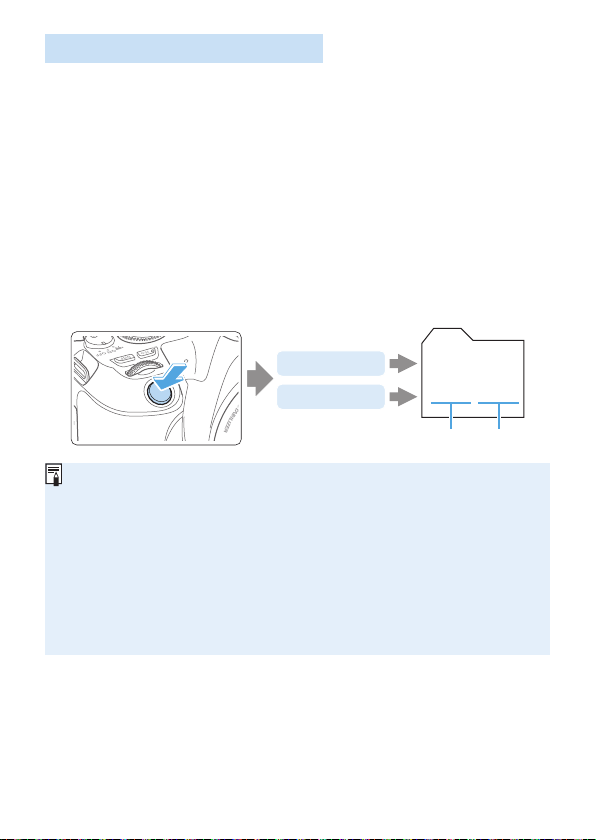
117
RAW Images and JPEG Images
RAW images are raw data from the image sensor that are recorded to
the card digitally as 1 or D (smaller than 1) les, depending on
your selection.
You can use Digital Photo Professional (EOS software) to process RAW
images. You can make various adjustments to images depending upon
how they will be used and can generate JPEG or other types of images
reecting the effects of those adjustments.
If [–] is set for both the RAW image and JPEG image, 73 will be set.
If you select both RAW and JPEG, each time you shoot, the image
will be recorded simultaneously to the card in both RAW and JPEG
at the image-recording qualities that were set. The two images will be
recorded with the same le numbers (1). The le extension (2) is .JPG
for JPEG and .CR3 for RAW.
0001 . CR3
0001 . JPG
(1) (2)
RAW images
JPEG images
RAW Image Processing Software
To display RAW images on a computer, using Digital Photo Professional
(hereafter DPP, EOS software) is recommended (=
482).
Previous versions of DPP Ver.4.x cannot process RAW images taken with this
camera. If a previous version of DPP Ver.4.x is installed on your computer,
obtain and install the latest version of DPP from the Canon Web site to
update it. (The previous version will be overwritten.) Note that DPP Ver.3.x or
earlier cannot process RAW images taken with this camera.
Commercially-available software may not be able to display RAW images
taken with this camera. For compatibility information, contact the software
manufacturer.
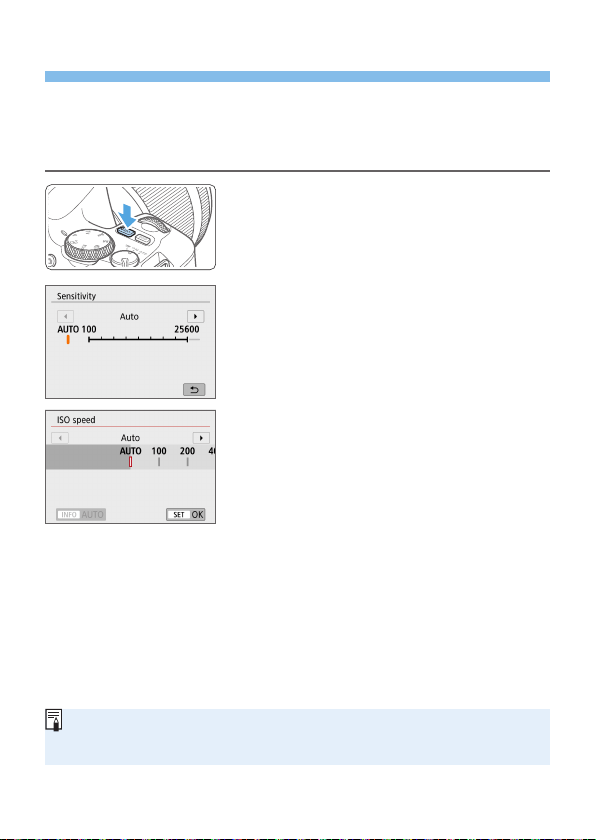
118
Setting the ISO Speed for Still Photos
Set the ISO speed (image sensor’s sensitivity to light) to suit the ambient
light level. In Basic Zone modes, the ISO speed is set automatically.
Regarding the ISO speed during movie shooting, see =
219, =
219,
and =
222.
1
Press the <g> button.
2
Set the ISO speed.
While looking in the viewnder or at
the LCD monitor, press the <Y> <Z>
keys or turn the <6> dial to select the
desired ISO speed, then press <0>.
ISO speed can be set within ISO 100 -
ISO 25600.
With [AUTO] selected, the ISO speed
will be set automatically (=
119).
When setting from [ISO speed] in
[z: ISO speed settings] (shown at
left), you can press the <B> button
to specify [AUTO].
ISO Speed Guide
Low ISO speeds reduce image noise but may increase the risk of
camera/subject shake or reduce the area in focus (shallower depth of
eld), in some shooting conditions.
High ISO speeds enable low-light shooting, a larger area in focus
(deeper depth of eld), and longer ash range but may increase image
noise.
Can also be set from [ISO speed] in [z: ISO speed settings].
Under [5: Custom Functions(C.Fn)], if [ISO expansion] is set to [1:On],
“H” (equivalent to ISO 51200) can also be selected (=
448).
N
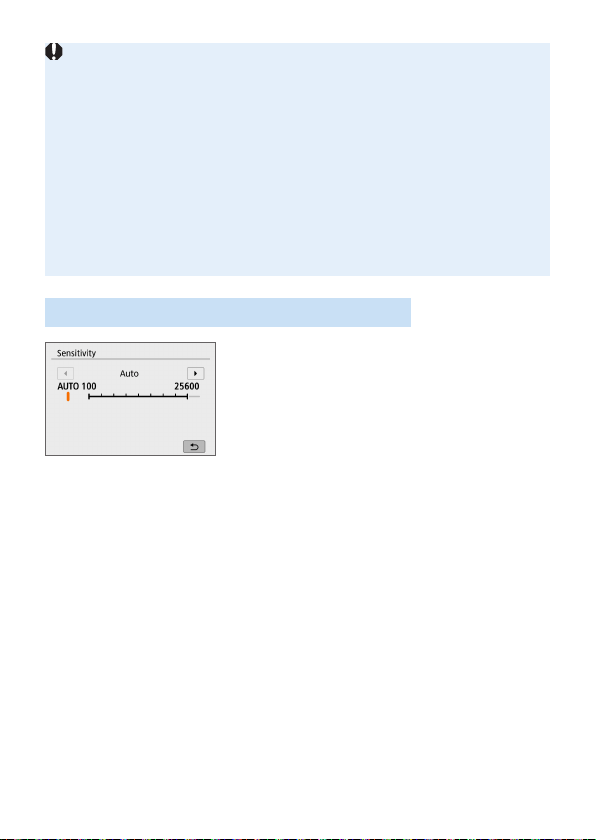
119
If [z: Highlight tone priority] is set to [Enable] or [Enhanced], ISO 100
and “H” (equivalent to ISO 51200) cannot be selected (=
137).
Shooting in high temperatures may result in images that look grainier. Long
exposures can also cause irregular colors in the image.
When you shoot at high ISO speeds, noise (such as dots of light and
banding) may become noticeable.
If you use a high ISO speed and ash to shoot a close subject, overexposure
may result.
When shooting in conditions that produce an extreme amount of noise, such
as a combination of high ISO speed, high temperature, and long exposure,
images may not be recorded properly.
As “H” (equivalent to ISO 51200) is an expanded ISO speed setting, noise
(dots of light, banding, etc.) and irregular colors will be more noticeable, and
the resolution will be lower compared to the standard setting.
Automatic ISO speed setting: ISO [AUTO]
If the ISO speed is set to [AUTO],
the actual ISO speed setting will be
displayed in the viewnder or on the
LCD monitor when you press the shutter
button halfway.
When [AUTO] is set, the ISO speed
is indicated in whole-stop increments.
However, the ISO speed is actually set
in ner increments. Therefore, in the
image’s shooting information (=
323),
you may nd an ISO speed such as ISO
125 or ISO 640 displayed as the ISO
speed.
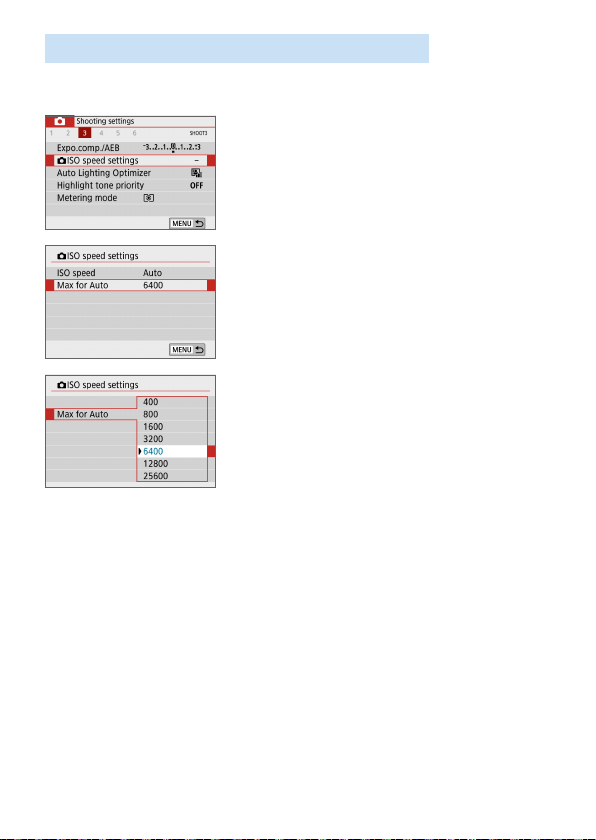
120
Setting the Maximum ISO Speed for [AUTO]
For ISO Auto, you can set the maximum ISO speed limit within ISO 400 -
ISO 25600.
1
Select [zISO speed settings].
Under the [z] tab, select [zISO
speed settings], then press <0>.
2
Select [Max for Auto].
Select [Max for Auto], then press
<0>.
3
Select the ISO speed.
Select the ISO speed, then press
<0>.
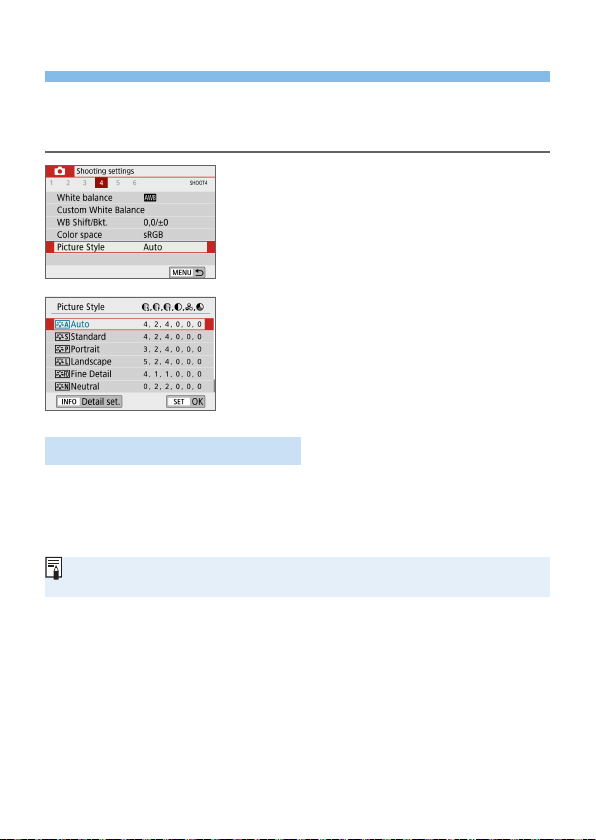
121
\
Selecting a Picture Style
Just by selecting a preset Picture Style, you can obtain image
characteristics effectively matching your photographic expression or the
subject.
1
Select [Picture Style].
Under the [z] tab, select [Picture
Style], then press <0>.
B The Picture Style selection screen will
appear.
2
Select a Picture Style.
Select a Picture Style, then press
<0>.
B The Picture Style will be set.
Picture Style Characteristics
D Auto
The color tone will be adjusted automatically to suit the scene. The
colors will look vivid for blue skies, greenery and sunsets, particularly in
nature, outdoor and sunset scenes.
If the desired color tone is not obtained with [Auto], use another Picture
Style.
P Standard
The image looks vivid, sharp, and crisp. This is a general-purpose
Picture Style suitable for most scenes.
Q Portrait
For nice skin tones. The image looks softer. Suited for close-up
portraits.
By changing the [Color tone] (=
125), you can adjust the skin tone.
N
122
R Landscape
For vivid blues and greens, and very sharp and crisp images. Effective
for impressive landscapes.
u Fine Detail
Suited for detailed outline and ne texture description of the subject.
The colors will be slightly vivid.
S Neutral
Geared for users who prefer to process images with their computer. For
natural colors and subdued images with modest brightness and color
saturation.
U Faithful
Geared for users who prefer to process images with their computer.
The color of a subject that is captured in ambient light at a color
temperature of 5200K will be adjusted to match the subject’s
colorimetrical color. For subdued images with modest brightness and
color saturation.
V Monochrome
Creates black-and-white images.
Black-and-white images shot in JPEG cannot be turned into color. Be careful
not to leave the [Monochrome] setting on when you want to shoot photos in
color again.
You can set the camera to display <i> in the viewnder for when
[Monochrome] is set (=
450).
W User Dened 1-3
You can register a basic style such as [Portrait], [Landscape], a
Picture Style le, etc. and adjust it as desired (=
127). With any of the
User Dened Picture Style that has not yet been set, pictures will be
taken with the same characteristics settings as with the default settings
of [Auto].
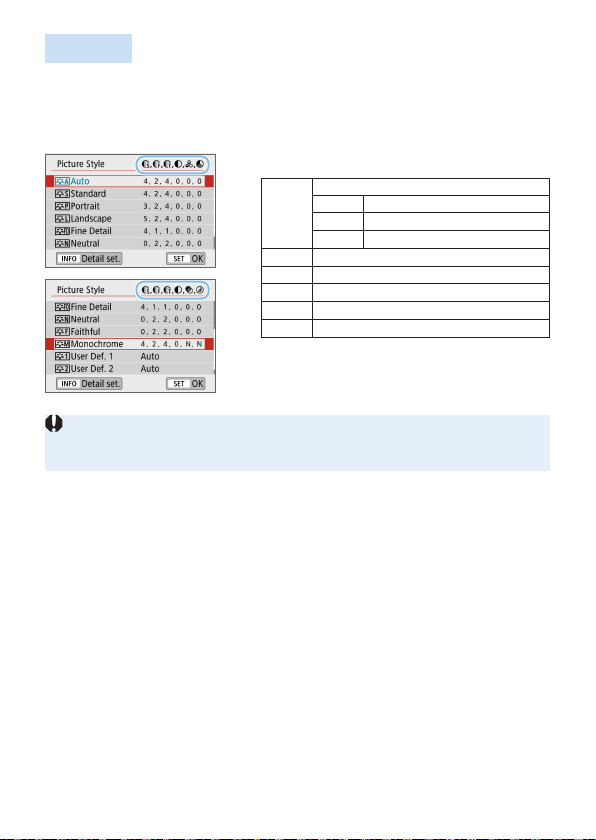
123
Symbols
The Picture Style selection screen has icons for [Strength], [Fineness], or
[Threshold] for [Sharpness] as well as [Contrast] and other parameters.
The numerals indicate the values for these parameters set for the
respective Picture Style.
Symbols
g
Sharpness
J
Strength
K
Fineness
L
Threshold
h
Contrast
i
Saturation
j
Color tone
k
Filter effect (Monochrome)
l
Toning effect (Monochrome)
During movie shooting, “ * ” will be displayed for both [Fineness] and
[Threshold] for [Sharpness]. [Fineness] and [Threshold] will not be
applied to movies.
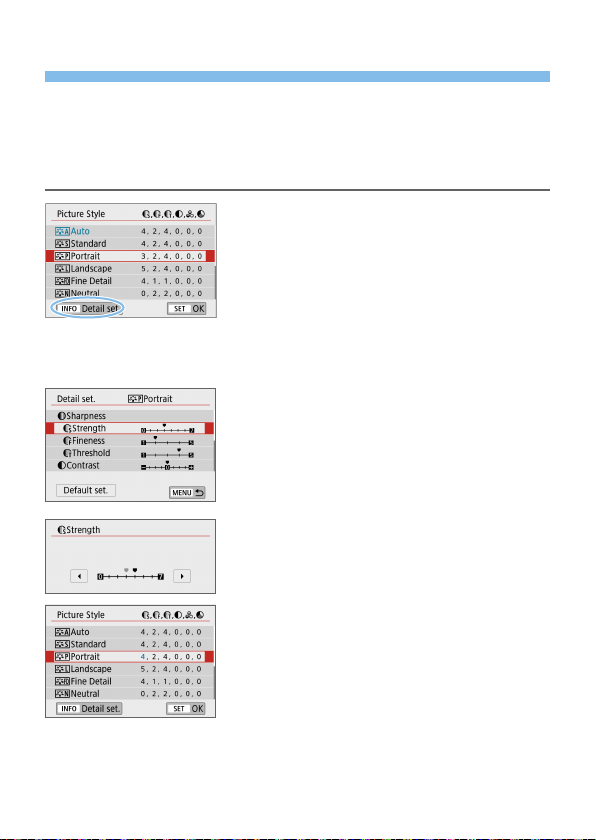
124
Customizing a Picture Style
You can customize the Picture Styles. You can change or adjust the
parameter settings of Picture Styles such as [Strength], [Fineness], or
[Threshold] for [Sharpness] as well as [Contrast] and other parameters
from the default settings. To see the resulting effects, take test shots. To
customize [Monochrome], see page 126.
1
Select [Picture Style].
Under the [z] tab, select [Picture
Style], then press <0>.
B The Picture Style selection screen will
appear.
2
Select a Picture Style.
Select a Picture Style, then press the
<B> button.
3
Select a parameter.
Select the parameter (such as
[Strength] of [Sharpness]) to be set,
then press <0>.
See page 125 for settings and effects.
4
Set the parameter.
Press the <Y> <Z> keys to adjust
the effect of the parameter, then press
<0>.
Press the <M> button to save the
adjusted parameter settings. The Picture
Style selection screen will reappear.
B The value of parameter settings different
from the default will be displayed in
blue.
N
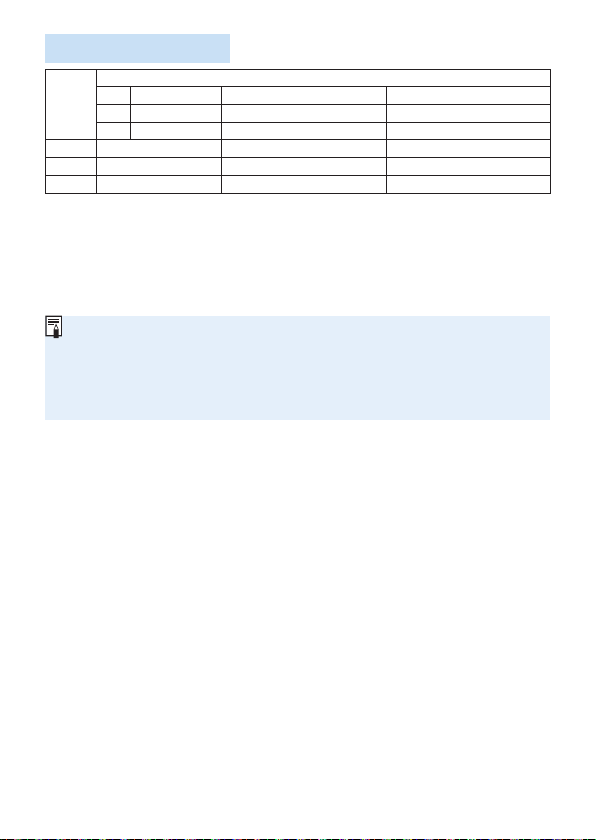
125
Settings and Effects
g
Sharpness
J
Strength 0: Weak outline emphasis 7: Strong outline emphasis
K
Fineness*
1
1: Fine 5: Grainy
L
Threshold*
2
1: Low 5: High
h
Contrast -4: Low contrast +4: High contrast
i
Saturation -4: Low saturation +4: High saturation
j
Color tone -4: Reddish skin tone +4: Yellowish skin tone
*1: Indicates the neness of the outlines to be emphasized. The smaller the
number, the ner the outlines that can be emphasized.
*2: Sets how much the outline is emphasized based on the difference in contrast
between the subject and the surrounding area. The smaller the number, the
more the outline will be emphasized when the contrast difference is low.
However, noise tends to be more noticeable when the number is smaller.
For movie shooting, [Fineness] and [Threshold] for [Sharpness] cannot be
set (not displayed).
By selecting [Default set.] in step 3, you can revert the parameter settings of
the respective Picture Style to their defaults.
To shoot with the Picture Style you adjusted, rst select the adjusted Picture
Style, then shoot.
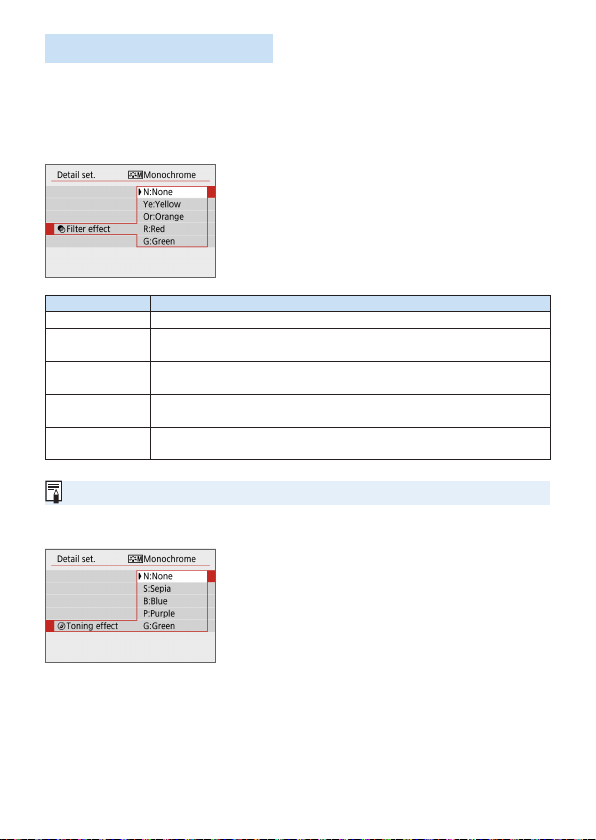
126
Monochrome Adjustment
Besides the effects described on “Settings and Effects” (=
125) such as
[Contrast], or [Strength], [Fineness] and [Threshold] for [Sharpness],
you can also set [Filter effect] and [Toning effect].
kFilter effect
With a lter effect applied to a monochrome
image, you can make white clouds or green
trees stand out more than the original.
Filter Sample Effects
N : None Normal black-and-white image with no lter effects.
Ye : Yellow
The blue sky will look more natural, and the white clouds will look
crisper.
Or : Orange
The blue sky will look slightly darker. The sunset will look more
brilliant.
R : Red
The blue sky will look quite dark. Fall leaves will look crisper and
brighter.
G : Green
Skin tones and lips will appear muted. Green tree leaves will look
crisper and brighter.
Increasing the [Contrast] will make the lter effect more pronounced.
lToning effect
By applying a toning effect, you can create
a monochrome image in the selected color.
Effective when you want to create more
impressive images.
The following can be selected: [N:None],
[S:Sepia], [B:Blue], [P:Purple] or
[G:Green].
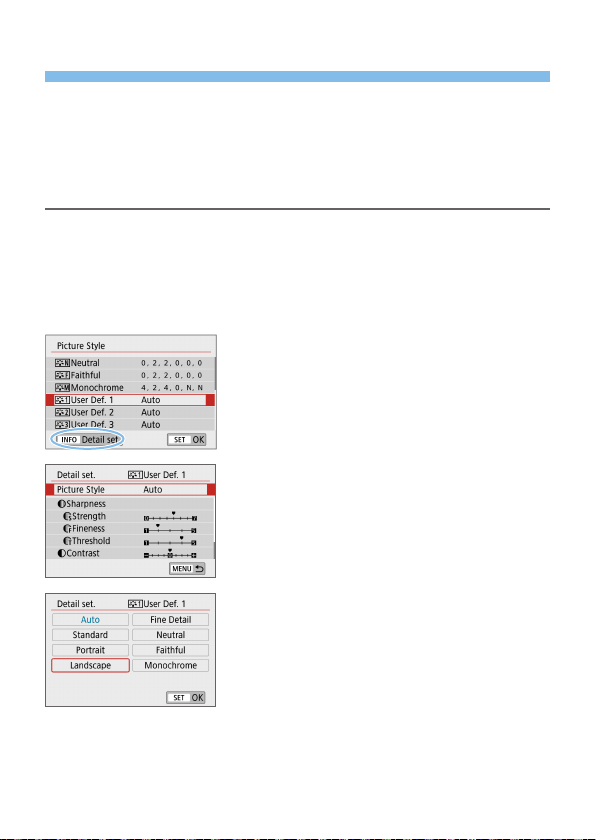
127
Registering a Picture Style
You can select a base Picture Style such as [Portrait] or [Landscape],
adjust its parameters as desired and register it under [User Def. 1], [User
Def. 2], or [User Def. 3]. Useful when you want to preset multiple Picture
Styles with different settings.
Picture Styles that you have registered on the camera using EOS Utility
(EOS software) can also be modied here.
1
Select [Picture Style].
Under the [z] tab, select [Picture
Style], then press <0>.
B The Picture Style selection screen will
appear.
2
Select [User Def.].
Select [User Def. *], then press the
<B> button.
3
Press <0>.
With [Picture Style] selected, press
<0>.
4
Select the base Picture Style.
Select the base Picture Style, then
press <0>.
To adjust the parameters of a Picture
Style registered to the camera with EOS
Utility (EOS software), select the Picture
Style here.
N
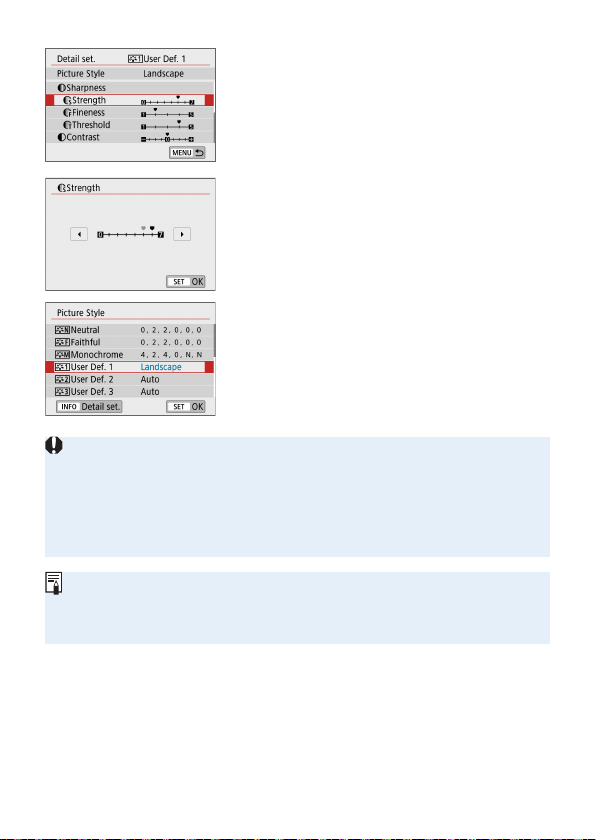
128
5
Select a parameter.
Select the parameter (such as
[Strength] of [Sharpness]) to be set,
then press <0>.
6
Set the parameter.
Press the <Y> <Z> keys to adjust
the effect of the parameter, then press
<0>.
For details, see “Customizing a Picture
Style” (=
124).
Press the <M> button to register
the adjusted parameter settings. The
Picture Style selection screen will then
reappear.
B The base Picture Style will be indicated
on the right of [User Def. *].
If a Picture Style is already registered under [User Def. *], changing the
base Picture Style in step 4 will clear the parameter settings of the previously
registered User Dened Picture Style.
If you perform [Clear all camera settings] under [5: Clear settings]
(=
271), all the [User Def. *] styles and settings will revert to their defaults.
Any Picture Style registered via EOS Utility (EOS software) will have only its
modied parameters reverted to the default setting.
To shoot with a registered Picture Style, follow step 2 on page 121 to select
[User Def. *], then shoot.
Regarding the procedure to register a Picture Style le to the camera, refer to
the EOS Utility Instruction Manual.
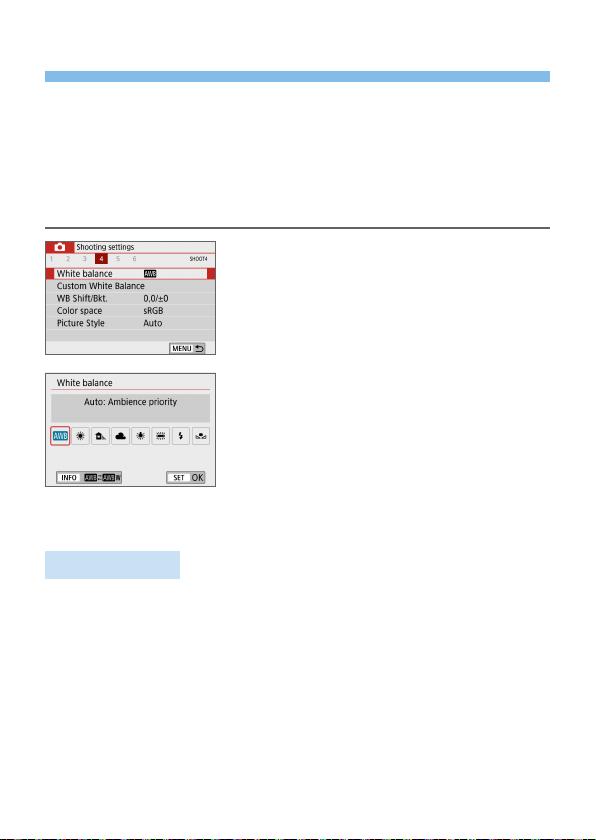
129
Matching the Light Source
White balance (WB) is for making the white areas look white. Normally, the
Auto [Q] (Ambience priority) or [Qw] (White priority) setting will obtain
the correct white balance. If natural-looking colors cannot be obtained with
Auto, you can select the white balance to match the light source or set it
manually by shooting a white object.
In Basic Zone modes, [Q] (Ambience priority) is set automatically. (In the
<P> mode, [Qw] (White priority) is set.)
1
Select [White balance].
Under the [z] tab, select [White
balance], then press <0>.
B [White balance] will appear.
2
Select a white balance setting.
Select the desired setting, then press
<0>.
The “Approx. ****K” (K: Kelvin)
displayed for the white balance settings
<W>, <E>, <R>, <Y> or <U>
is the respective color temperature to
be set.
White Balance
To the human eye, a white object looks white regardless of the type of
lighting. With a digital camera, the white for color correction basis is decided
depending on the color temperature of the illumination, and then the color
is adjusted with software to make the white areas look white. With this
function, you can take the pictures with natural color tones.
N
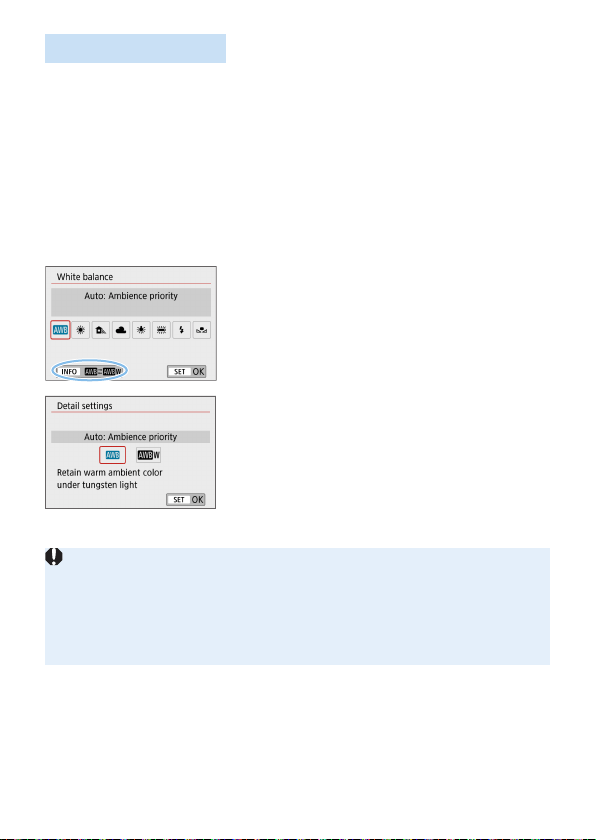
130
Auto White Balance
With [Q] (Ambience priority), you can increase the intensity of the image’s
warm color cast when shooting a tungsten-light scene. If you select [Qw]
(White priority), you can reduce the intensity of the image’s warm color cast.
If you want to match the Auto white balance of previous EOS DIGITAL
camera models, select [Q] (Ambience priority).
1
Select [White balance].
Under the [z] tab, select [White
balance], then press <0>.
B [White balance] will appear.
2
Select [Q].
With [Q] selected, press the <B>
button.
3
Select the desired item.
Select [Auto: Ambience priority] or
[Auto: White priority], then press
<0>.
Q : Auto: Ambience priority
Qw : Auto: White priority
Cautions for Setting [Qw] (White priority)
The warm color cast of subjects may fade.
When multiple light sources are included on the screen, the warm color cast
of the picture may not be reduced.
When using ash, the color tone will be the same as with [Q] (Ambience
priority).
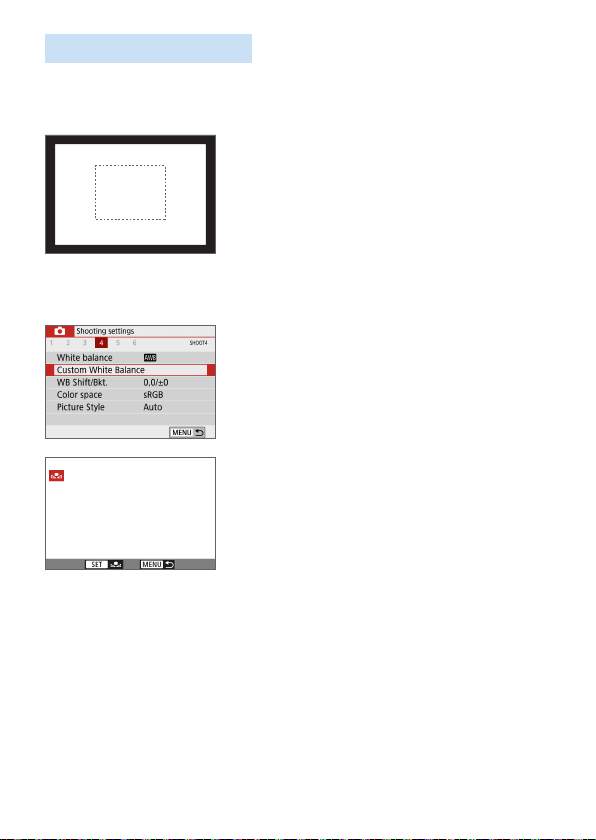
131
Custom White Balance
With custom white balance, you can set the white balance for the specic
light source of the shooting location. Make sure to perform this procedure
under the light source at the actual location of the shoot.
1
Shoot a white object.
Look through the viewnder and aim
the entire dotted line box (shown in the
illustration) over a plain, white object.
Focus manually and shoot with the
standard exposure set for the white
object.
You can use any of the white balance
settings.
2
Select [Custom White Balance].
Under the [z] tab, select [Custom
White Balance], then press <0>.
B The custom white balance selection
screen will appear.
3
Import the white balance data.
Select the image captured in step 1,
then press <0>.
B On the dialog screen that appears,
select [OK], and the data will be
imported.
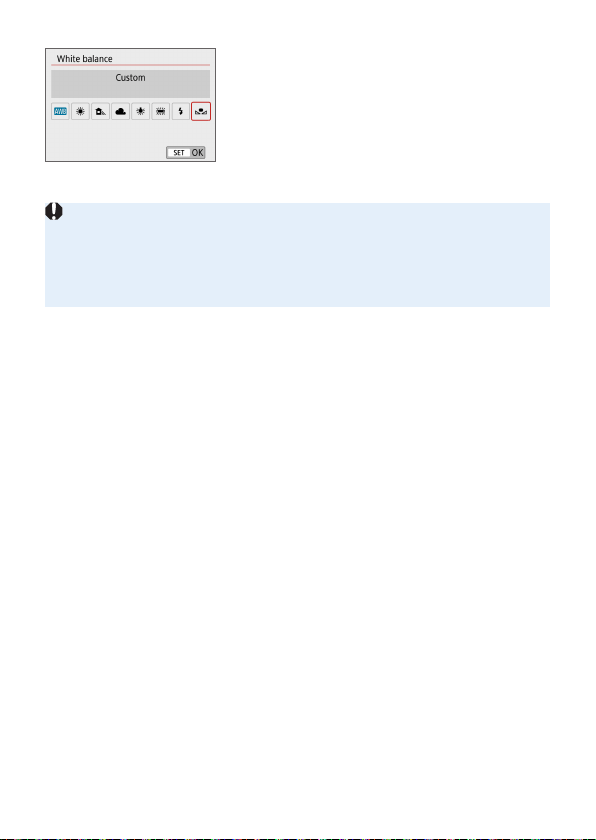
132
4
Select [O (Custom)].
Under the [z] tab, select [White
balance], then press <0>.
Select [O (Custom)], then press
<0>.
If the exposure obtained in step 1 differs greatly from the standard exposure,
a correct white balance may not be obtained.
In step 3, the following images cannot be selected: Images captured with the
Picture Style set to [Monochrome] (=
121), images shot with a Creative
lter, images processed with a Creative lter after shooting, cropped images,
and images shot with another camera.
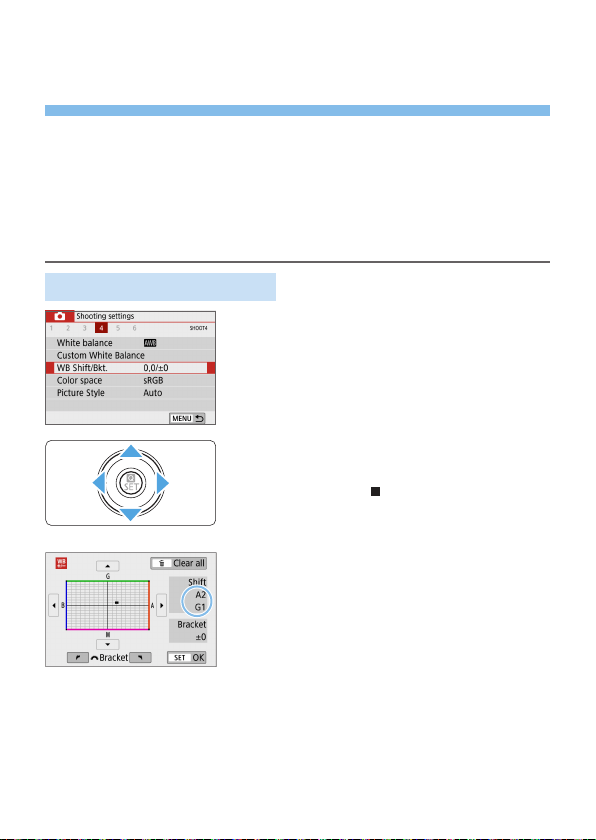
133
Adjusting the Color Tone for the
Light Source
You can correct the white balance that is set. This adjustment will have the
same effect as using a commercially-available color temperature conversion
lter or color compensating lter. Each color can be corrected to one of nine
levels.
This function is for advanced users, particularly for those users
who understand the use of color temperature conversion and color
compensating lters and their effects.
White Balance Correction
1
Select [WB Shift/Bkt.].
Under the [z] tab, select [WB Shift/
Bkt.], then press <0>.
B The WB correction/WB bracketing
screen will appear.
2
Set the white balance correction.
Press the <W> <X> or <Y> <Z> keys
to move the “
” mark to the appropriate
position.
B is for blue, A for amber, M for
magenta, and G for green. The image’s
color balance will be adjusted toward
the color in the direction of the move.
On the right of the screen, “Shift”
indicates the direction and correction
amount, respectively.
Pressing the <L> button will cancel all
the [WB Shift/Bkt.] settings.
Press <0> to exit the setting and
return to the menu.
N
Sample setting: A2, G1
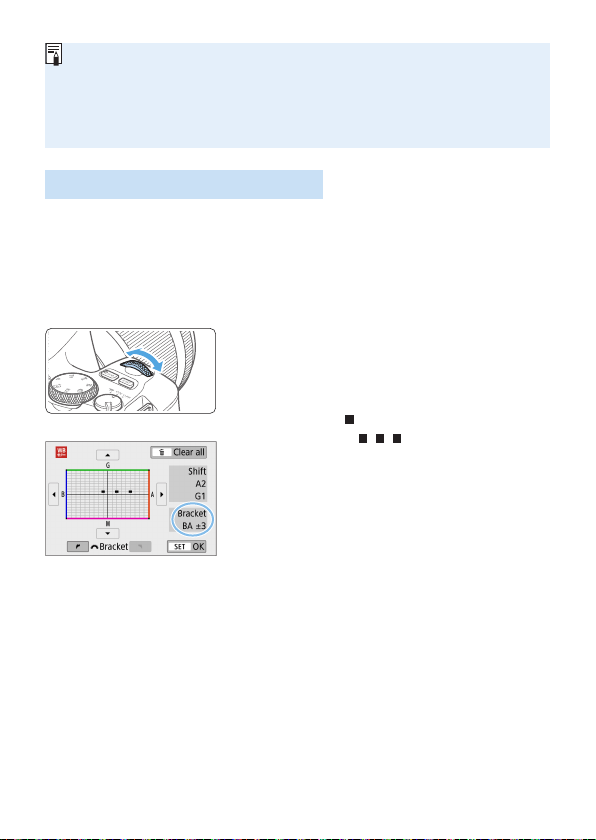
134
You can set the camera to display <i> in the viewnder and on the LCD
monitor for when white balance correction is set (=
450).
One level of the blue/amber correction is equivalent to approx. 5 mireds
of a color temperature conversion lter. (Mired: Unit of measure for
color temperature used to indicate values such as the density of a color
temperature conversion lter.)
White Balance Auto Bracketing
With just one shot, three images with different color tones can be recorded
simultaneously. Based on the color temperature of the current white
balance setting, the image will be bracketed with a blue/amber bias and
magenta/green bias. This function is called white balance bracketing (WB
Bkt.). White balance bracketing is possible up to ±3 levels in single-level
increments.
Set the white balance bracketing
amount.
In step 2 for “White Balance Correction”
(=
133), when you turn the <6>
dial, the “
” mark on the screen will
change to “
” (3 points).
Turning the dial clockwise sets
the B/A bracketing, and turning
it counterclockwise sets the M/G
bracketing.
B On the right, “Bracket” indicates the
bracketing direction and correction
amount.
Pressing the <L> button will cancel all
the [WB Shift/Bkt.] settings.
Press <0> to exit the setting and
return to the menu.
Bracketing Sequence
The images will be bracketed in the following sequence: 1. Standard white
balance, 2. Blue (B) bias, and 3. Amber (A) bias, or 1. Standard white
balance, 2. Magenta (M) bias, and 3. Green (G) bias.
B/A bias ±3 levels

135
During white balance bracketing, the maximum burst will be lower and the
number of possible shots will also decrease to approx. one-third the normal
number.
Since three images are recorded for one shot, it takes longer to record the
image to the card.
You can also set white balance correction and AEB together with white
balance bracketing. If you set AEB in combination with white balance
bracketing, a total of nine images will be recorded for a single shot.
During Live View shooting, the white balance icon will blink.
“Bracket” stands for bracketing.
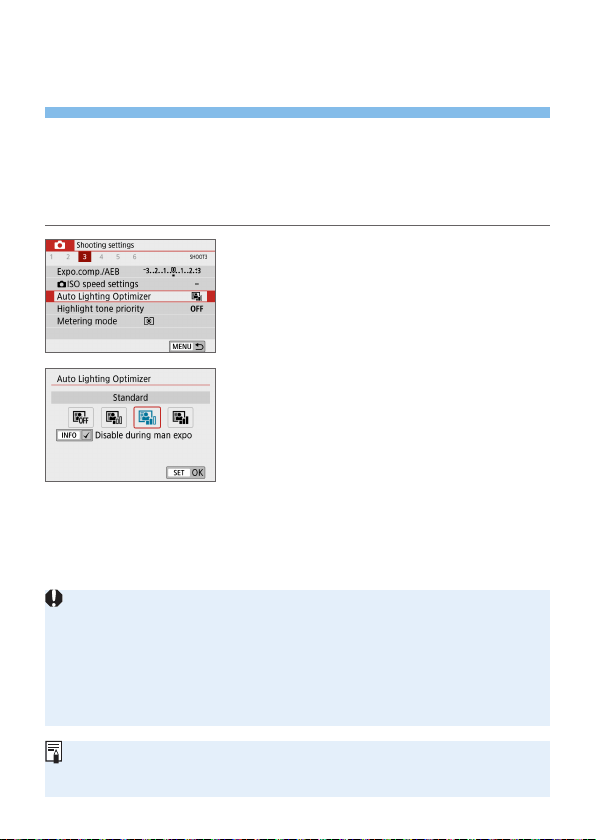
136
Auto Correction of Brightness and
Contrast
If the image comes out dark or the contrast is low, the brightness and
contrast can be corrected automatically. This function is called Auto Lighting
Optimizer. The default setting is [Standard]. With JPEG images, the
correction is applied when the image is captured.
In Basic Zone modes, [Standard] is set automatically.
1
Select [Auto Lighting Optimizer].
Under the [z] tab, select [Auto
Lighting Optimizer], then press
<0>.
2
Select the setting.
Select the desired setting, then press
<0>.
3
Take the picture.
The image will be recorded with the
brightness and contrast corrected as
necessary.
If [z: Highlight tone priority] is set to [Enable] or [Enhanced], [Auto
Lighting Optimizer] will be set automatically to [Disable].
If a setting other than [Disable] is set and you use exposure compensation
or ash exposure compensation to darken the exposure, the image may still
come out bright. If you want a darker exposure, set this function to [Disable].
Depending on the shooting conditions, noise may increase.
With [High], maximum burst may be lower, and image recording to the card
may take longer.
In step 2, if you press the <B> button and remove the checkmark [X] for
[Disable during man expo] setting, the Auto Lighting Optimizer can also be
set in the <a> mode.
N
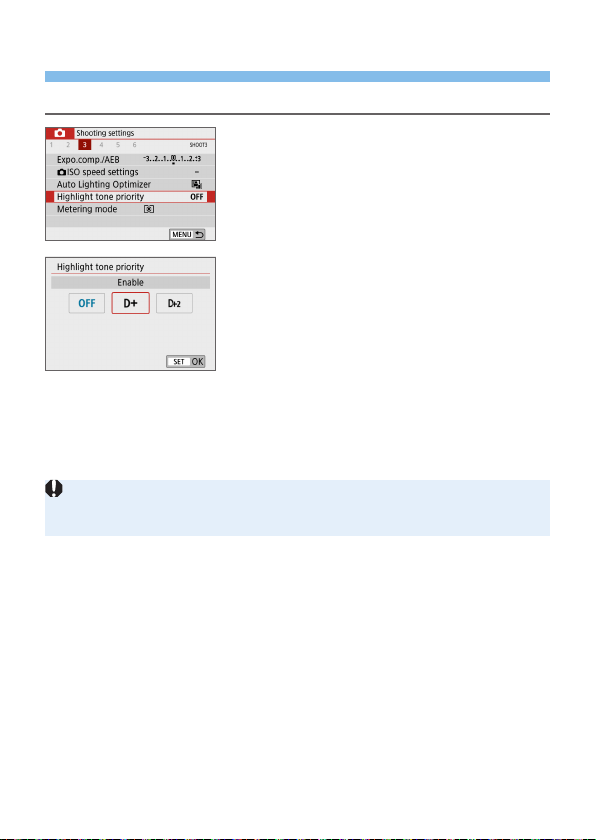
137
Highlight Tone Priority
You can reduce overexposed, clipped highlights.
1
Select [Highlight tone priority].
Under the [z] tab, select [Highlight
tone priority], then press <0>.
2
Set an option.
[Enable]: Improves gradation in
highlights. The gradation between the
grays and highlights becomes smoother.
[Enhanced]: Reduces overexposed
highlights even more than [Enable],
under some shooting conditions.
3
Take the picture.
B The image will be recorded with
highlight tone priority applied.
Noise may increase slightly.
[Enhanced] is not available when recording movies.
With [Enhanced], results in some scenes may not look as expected.
N
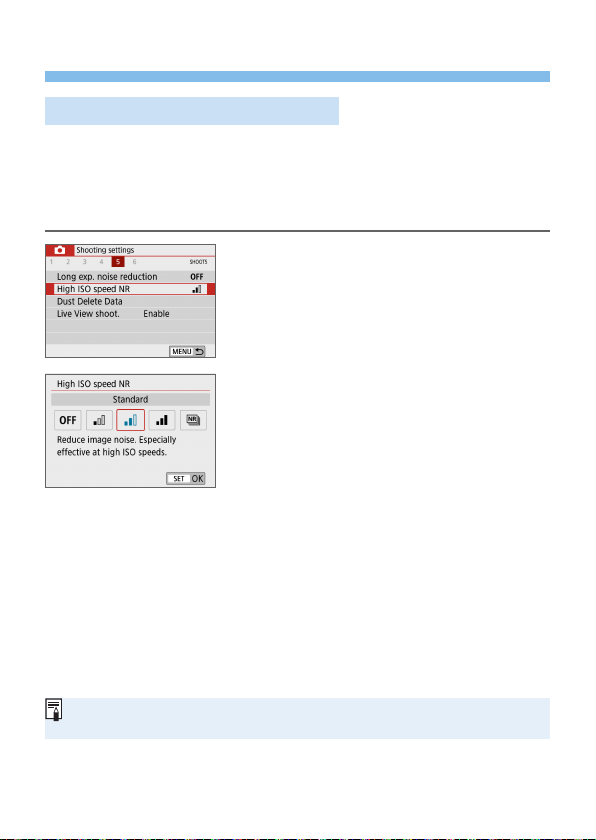
138
Setting Noise Reduction
High ISO Speed Noise Reduction
This function reduces the noise generated in the image. Although noise
reduction is applied at all ISO speeds, it is particularly effective at high ISO
speeds. When shooting at low ISO speeds, the noise in the darker parts of
the image (shadow areas) can further be reduced. Change the setting to
match the noise level.
1
Select [High ISO speed NR].
Under the [z] tab, select [High ISO
speed NR], then press <0>.
2
Set the level.
Select the desired noise reduction level,
then press <0>.
[M: Multi Shot Noise Reduction]
Applies the noise reduction with higher image quality than [High]. For a
single photo, four shots are taken continuously and aligned and merged
automatically into a single JPEG image.
If the image quality is set to RAW or RAW+JPEG, you cannot set [Multi
Shot Noise Reduction].
3
Take the picture.
The image will be recorded with noise
reduction applied.
You can set the camera to display <i> in the viewnder for when Multi Shot
Noise Reduction is set (=
450).
N
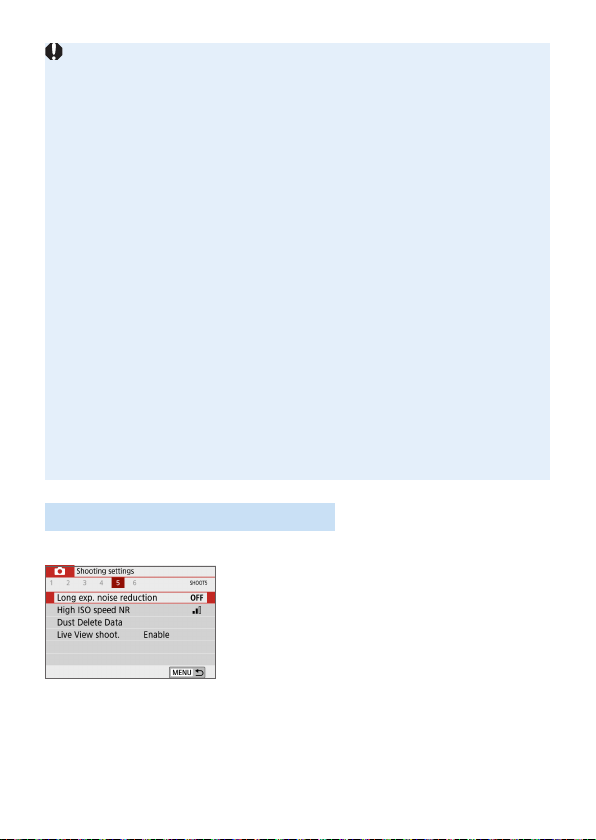
139
When [Multi Shot Noise Reduction] is Set
If there is signicant misalignment in the image due to camera shake, the
noise reduction effect may become smaller.
If you are handholding the camera, keep it steady to prevent camera shake.
Using a tripod is recommended.
If you shoot a moving subject, the moving subject may leave afterimages.
The image alignment may not function properly with repetitive patterns
(lattice, stripes, etc.) or at, single-tone images.
If the subject’s brightness changes as the four consecutive shots are taken,
irregular exposure in the image may result.
After shooting, it may take some time to record an image to the card after
performing noise reduction and merging the images. During the image
processing, “buSy” will be displayed in the viewnder, and you cannot take
another picture until the processing is complete.
You cannot use AEB and white balance bracketing.
If [z: Long exp. noise reduction], AEB, or white balance bracketing is set,
[Multi Shot Noise Reduction] cannot be set.
Although ash photography is not possible, in low light, raising the ash
beforehand is recommended, to enable ring of the AF-assist beam.
However, the AF-assist beam will be emitted according to the setting of [z:
AF-assist beam ring].
You cannot set [Multi Shot Noise Reduction] for bulb exposures.
If you turn off the power, change the shooting mode to a Basic Zone mode,
shoot a bulb exposure, or shoot a movie, the setting will automatically be
changed to [Standard].
[z: Dust Delete Data] cannot be set.
Long Exposure Noise Reduction
Noise reduction is possible with images exposed for 1 sec. or longer.
1
Select [Long exp. noise reduction].
Under the [z] tab, select [Long exp.
noise reduction], then press <0>.
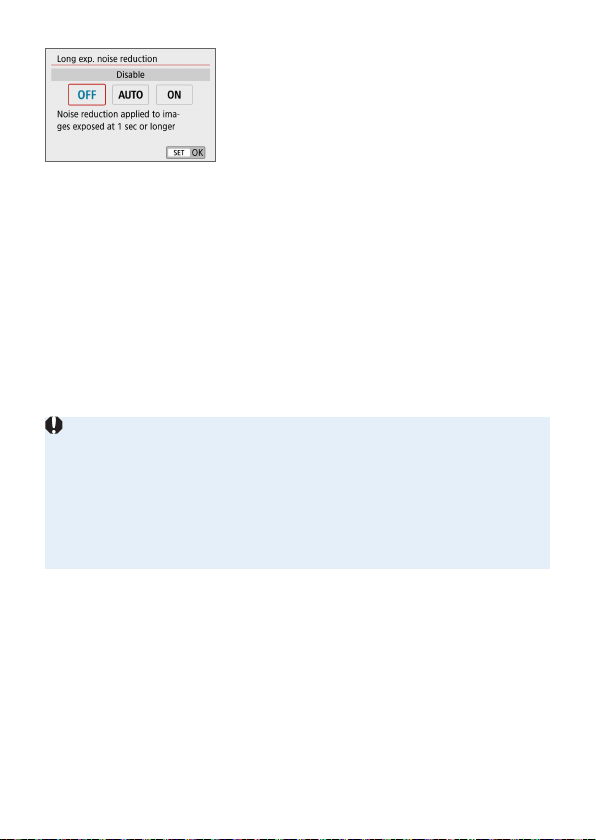
140
2
Set the desired setting.
Select the desired setting, then press
<0>.
[Auto]
For exposures of 1 sec. or longer, noise reduction is performed
automatically if noise typical of long exposures is detected. This [Auto]
setting is effective enough in most cases.
[Enable]
Noise reduction is performed for all exposures of 1 sec. or longer. The
[Enable] setting may reduce noise that cannot be detected with the
[Auto] setting.
3
Take the picture.
The image will be recorded with noise
reduction applied.
With [Auto] or [Enable] set, the noise reduction process after the picture is
taken may take the same amount of time as that for the exposure. You cannot
take another picture until the noise reduction process is complete.
Images taken at ISO 1600 or higher may look grainier with the [Enable]
setting than with the [Disable] or [Auto] setting.
With [Auto] or [Enable] set, if a long exposure is used with the Live View
image displayed, “BUSY” will be displayed during the noise reduction
process. The Live View display will not appear until the noise reduction is
complete. (You cannot take another picture.)

141
Correction of Lens Aberrations due
to Optical Characteristics
Vignetting, image distortion, and other issues may be caused by lens optical
characteristics. The camera can compensate for these phenomena by using
[Lens aberration correction].
1
Select [Lens aberration correction].
Under the [z] tab, select [Lens
aberration correction], then press
<0>.
2
Select an item.
Press the <W> <X> keys to select the
item, then press <0>.
3
Select [Enable].
Conrm that the name of the attached
lens and (except for diffraction
correction) [Correction data available]
are displayed.
If [Correction data not available]
or [
] is displayed, see “Digital Lens
Optimizer” (=
143).
4
Take the picture.
The image captured will have lens
aberration corrected.
N

142
Peripheral Illumination Correction
Vignetting (dark image corners) can be corrected.
Depending on shooting conditions, noise may appear on the image periphery.
The higher the ISO speed, the lower the correction amount will be.
The correction amount applied will be lower than the maximum correction
amount that applied with Digital Photo Professional (EOS software).
Peripheral illumination is corrected automatically in Basic Zone modes when
correction data is registered on the camera.
Distortion Correction
Distortion (image warping) can be corrected.
To correct distortion, the camera captures a narrower image area than the
area seen when shooting, which crops the image a little and slightly lowers
the apparent resolution.
Setting distortion correction may change the angle of view slightly.
When you magnify images, distortion correction is not applied to the images
displayed.
Images with distortion correction applied will not have the Dust Delete Data
(=
274) appended.
AF point display during playback in viewnder shooting may be slightly
misaligned, due to distortion.
Distortion is corrected automatically when <8> mode is set to <q> and
correction data is registered on the camera.
143
Digital Lens Optimizer
Various aberrations from lens optical characteristics can be corrected, along
with diffraction and low-pass lter-induced loss of clarity.
If [Correction data not available] or [
] is displayed by [Digital Lens
Optimizer], you can use EOS Utility to add the lens correction data to the
camera. For details, refer to the EOS Utility Instruction Manual.
Depending on shooting conditions, noise may be intensied together with the
effects of correction. Image edges may also be emphasized. Adjust Picture
Style sharpness or set [Digital Lens Optimizer] to [Disable] as needed
before shooting.
The higher the ISO speed, the lower the correction amount will be.
For movie recording, [Digital Lens Optimizer] will not appear. (Correction is
not possible.)
Enabling [Digital Lens Optimizer] corrects both chromatic aberration and
diffraction, although these options are not displayed.
Digital Lens Optimizer is applied automatically in Basic Zone modes when
correction data is registered on the camera.
Chromatic Aberration Correction
Chromatic aberration (color fringing around subjects) can be corrected.
[Chromatic aberr corr] is not displayed when [Digital Lens Optimizer] is
enabled.
144
Diffraction Correction
Diffraction (loss of sharpness caused by the aperture) can be corrected.
Depending on shooting conditions, noise may be intensied together with the
effects of correction.
The higher the ISO speed, the lower the correction amount will be.
For movie shooting, [Diffraction correction] will not appear. (Correction is
not possible.)
With “Diffraction correction”, degraded resolution due to the low-pass lter,
etc. is corrected in addition to diffraction. Therefore, correction is effective
even at an aperture close to the open aperture.
[Diffraction correction] is not displayed when [Digital Lens Optimizer] is
enabled.
General Cautions for Lens Aberration Correction
Peripheral illumination correction, chromatic aberration correction, distortion
correction, and diffraction correction cannot be applied to JPEG images
already taken.
When using a non-Canon lens, setting the corrections to [Disable] is
recommended even if [Correction data available] is displayed.
Magnifying the periphery of the image may display parts of the image that will
not be recorded.
The correction amount will be less (except for diffraction correction) if the lens
used does not have distance information.
General Notes for Lens Aberration Correction
The effect of the lens aberration correction varies depending on the lens used
and shooting conditions. Also, the effect may be difcult to discern depending
on the lens used, shooting conditions, etc.
If the correction is difcult to discern, magnifying and checking the image after
shooting is recommended.
Corrections can be applied even when an extender or life-size converter is
attached.
If the correction data for the attached lens is not registered to the camera, the
result will be the same as when the correction is set to [Disable] (except for
diffraction correction).
If necessary, refer to the EOS Utility Instruction Manual as well.
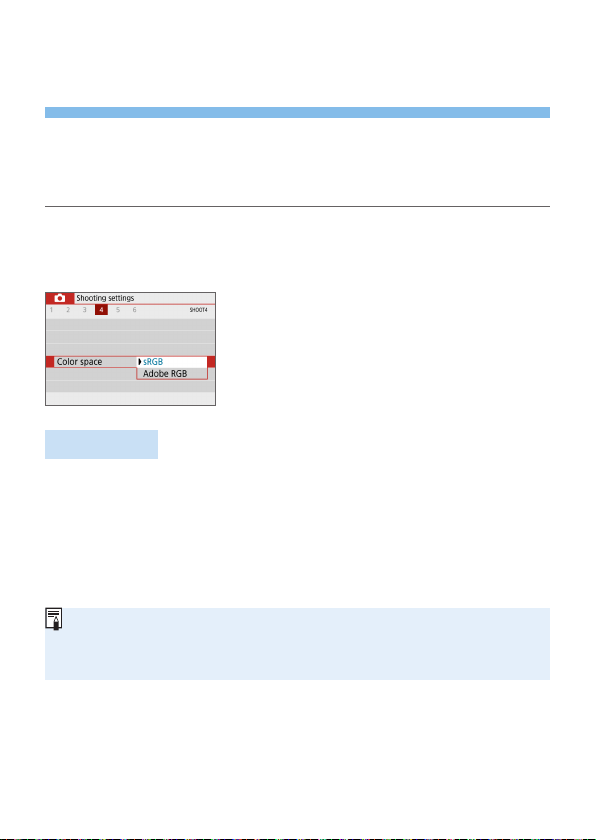
145
Setting the Color Reproduction
Range
The range of reproducible colors is called “color space”. With this camera,
you can set the color space for captured images to sRGB or Adobe RGB.
For normal shooting, sRGB is recommended.
In Basic Zone modes, [sRGB] is set automatically.
1
Select [Color space].
Under the [z] tab, select [Color
space], then press <0>.
2
Set the desired color space.
Select [sRGB] or [Adobe RGB], then
press <0>.
Adobe RGB
This color space is mainly used for commercial printing and other industrial
uses. This setting is not recommended if you are not familiar with image
processing, Adobe RGB, and Design rule for Camera File System 2.0
(Exif 2.21 or higher). The image will look very subdued in an sRGB
computer environment and with printers not compliant to Design rule for
Camera File System 2.0 (Exif 2.21 or higher). Post-processing of the image
with computer software will therefore be required.
If the still photo is shot in the Adobe RGB color space, the rst character in
the le name will be an underscore “_”.
The ICC prole is not appended. For explanations about the ICC prole, refer
to the Digital Photo Professional Instruction Manual.
N
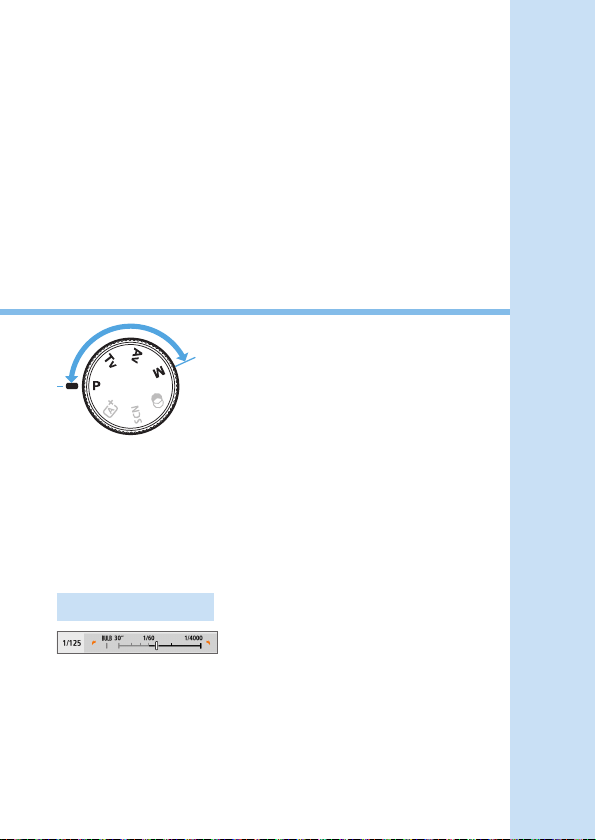
146
Advanced Operations for
Photographic Effects
In Creative Zone modes, you can
change various settings of the
camera as you desire to obtain a
wide variety of shooting results, by
selecting the shutter speed and/or
aperture, adjusting the exposure as
you prefer, etc.
After you press the shutter button halfway and let it go, the
exposure settings will remain displayed in the viewnder for
approx. 4 sec. by the metering timer function.
The
N
icon at the upper right of the page title indicates that
the function is available only in Creative Zone modes.
Main Dial Pointer
The pointer icon <z> displayed
together with the shutter speed or
aperture setting indicates that you
can turn the <6> dial to adjust the
respective setting.
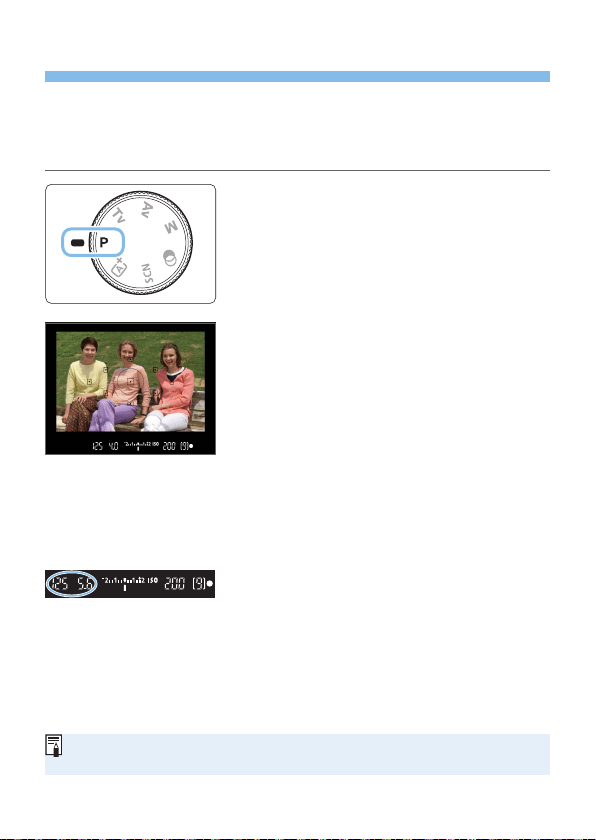
147
Program AE (P Mode)
The camera automatically sets the shutter speed and aperture to suit the
subject’s brightness. This is called Program AE.
* <d> stands for Program.
* AE stands for Auto Exposure.
1
Set the Mode Dial to <d>.
2
Focus on the subject.
Look through the viewnder and aim the
AF point over the subject. Then press
the shutter button halfway.
B When focus is achieved, the dot inside
the AF point achieving focus lights up
briey in red, and the focus indicator
<o> on the viewnder’s bottom right
will light up (in One-Shot AF mode).
B The shutter speed and aperture will be
set automatically and displayed in the
viewnder.
3
Check the display.
The standard exposure will be obtained
as long as the shutter speed and
aperture displays do not blink.
4
Take the picture.
Compose the shot and press the shutter
button completely.
If a description of the shooting mode appears in step 1, press <0> to hide
it (=
54).
148
Shooting Tips
Change the ISO speed. Use the built-in ash.
To match the subject and ambient lighting level, you can change the
ISO speed (=
118) or use the built-in ash (=
169).
Change the program using Program shift.
After pressing the shutter button halfway, turn the <6> dial to change
the shutter speed and aperture setting combination (program). Program
shift is canceled automatically after the picture is taken. Program shift is
not possible with ash.
If the “30"” shutter speed and the lowest f/number blink, it
indicates underexposure. Increase the ISO speed or use
ash.
If the “4000” shutter speed and the highest f/number blink, it
indicates overexposure. Decrease the ISO speed.
Differences Between <d> and <A> (Scene Intelligent Auto)
In the <A> mode, many functions, such as the AF operation and metering
mode, are set automatically to prevent spoiled shots. The functions you can
set are limited. On the other hand, with <d> mode, only the shutter speed
and aperture are set automatically. You can freely set the AF operation,
metering mode, and other functions.
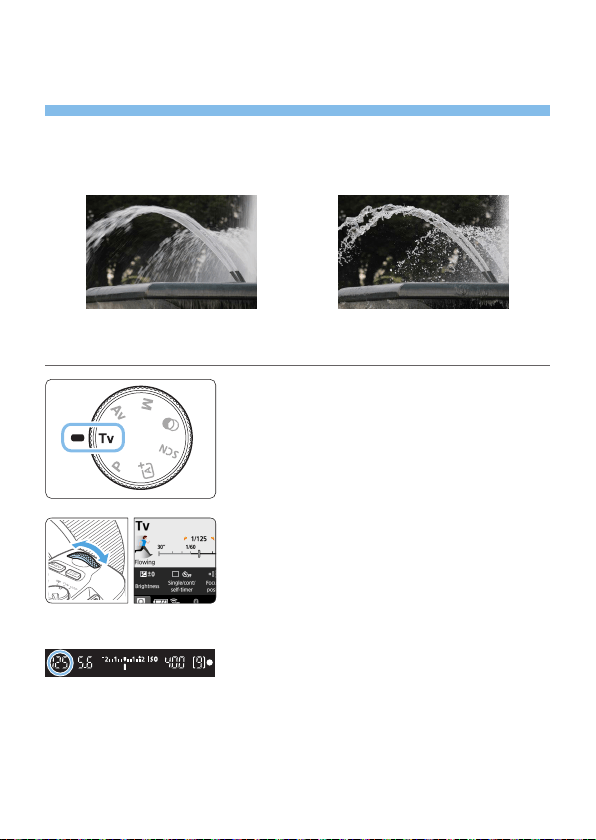
149
Conveying the Subject’s Movement
(Tv Mode)
You can either freeze the action or create motion blur with the <s>
(Shutter-priority AE) mode on the Mode Dial.
* <s> stands for Time value.
Blurred motion
(Slow shutter speed: 1/30 sec.)
Frozen motion
(Fast shutter speed: 1/2000 sec.)
1
Set the Mode Dial to <s>.
2
Set the desired shutter speed.
See “Shooting Tips” (=
150) for advice
on setting the shutter speed.
Turning the <6> dial clockwise sets
a faster shutter speed, and turning it
counterclockwise sets a slower one.
3
Take the picture.
When you focus and press the shutter
button completely, the picture will be
taken at the set shutter speed.
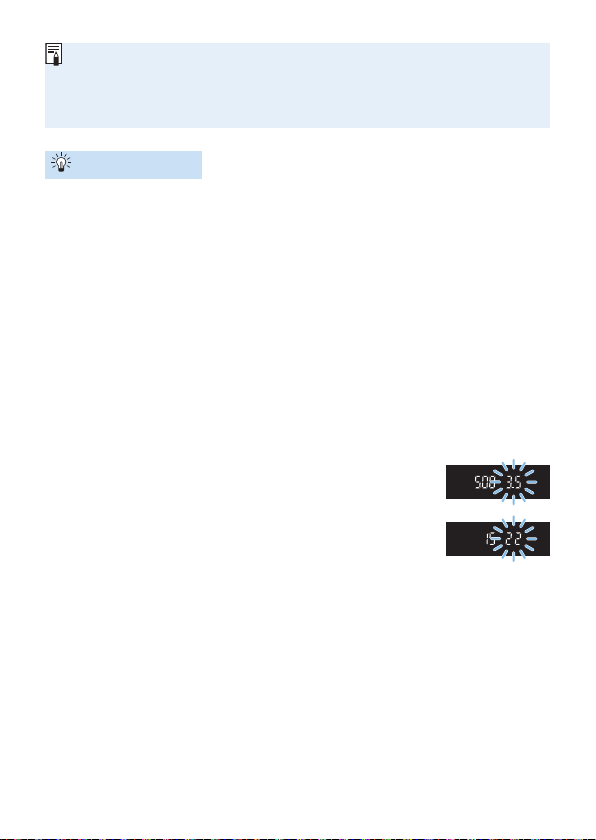
150
Shutter Speed Display
The LCD monitor displays the shutter speed as a fraction. However, the
viewnder displays only the denominator. “0"5” indicates 0.5 sec. and “15"”
is 15 sec.
Shooting Tips
To freeze the motion of a fast-moving subject
Use a fast shutter speed such as 1/4000 sec. to 1/500 sec. according to
the speed of the moving subject.
To blur a running child or animal and convey an impression of
motion
Use a medium shutter speed such as 1/250 sec. to 1/30 sec. Follow
the moving subject through the viewnder and press the shutter button
to take the picture. If you use a telephoto lens, hold it steady to prevent
camera shake.
To blur a owing river or fountain
Use a slow shutter speed of 1/30 sec. or slower. Use a tripod to prevent
hand-held camera shake.
Set the shutter speed so that the aperture display does not blink.
If you press the shutter button halfway and change
the shutter speed with the aperture displayed, the
aperture value will also change to maintain the same
exposure (amount of light reaching the image sensor).
In this operation, if the aperture value exceeds the
adjustable range, it will blink to indicate that the
standard exposure cannot be obtained.
If the exposure will be too dark, the maximum aperture (lowest f/
number) will blink. If this happens, turn the <6> dial counterclockwise
to set a slower shutter speed or increase the ISO speed.
If the exposure will be too bright, the minimum aperture (highest f/
number) will blink. If this happens, turn the <6> dial clockwise to set
a faster shutter speed or decrease the ISO speed.

151
Using the Built-in Flash
To obtain a correct ash exposure on the main subject, the ash output will
be set automatically (autoash) to match the automatically-set aperture.
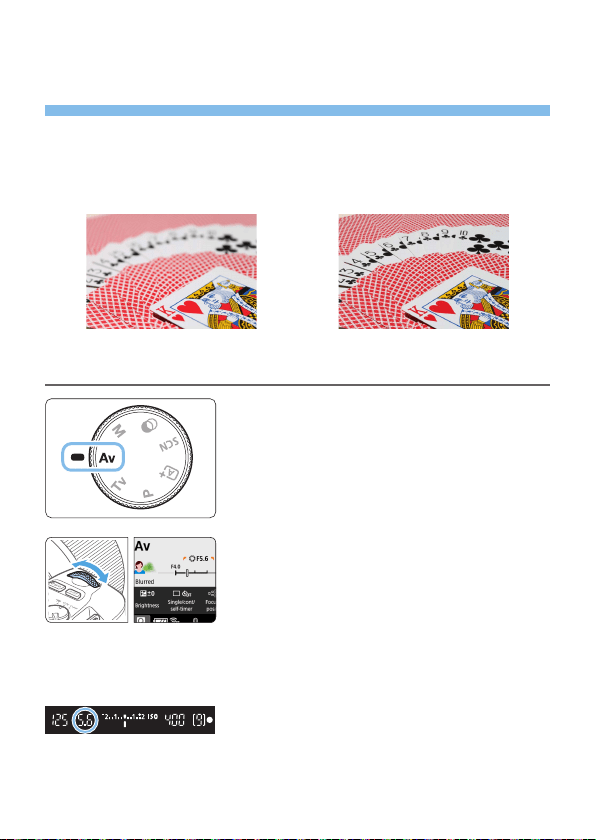
152
Changing the Depth of Field
(Av Mode)
To blur the background or to make everything near and far look sharp, set
the Mode Dial to <f> (Aperture-priority AE) to adjust the depth of eld
(range of acceptable focus).
* <f> stands for Aperture value (the size of the lens diaphragm opening).
Blurred background
(With a low aperture f/number: f/5.6)
Sharp foreground and background
(With a high aperture f/number: f/32)
1
Set the Mode Dial to <f>.
2
Set the desired aperture.
The higher the f/number, the wider the depth
of eld where sharper focus is obtained in
both the foreground and background.
Turning the <
6
> dial clockwise sets a
higher f/number (smaller aperture opening),
and turning it counterclockwise sets a lower
f/number (larger aperture opening).
3
Take the picture.
When you focus and press the shutter
button completely, the picture will be
taken with the set aperture.
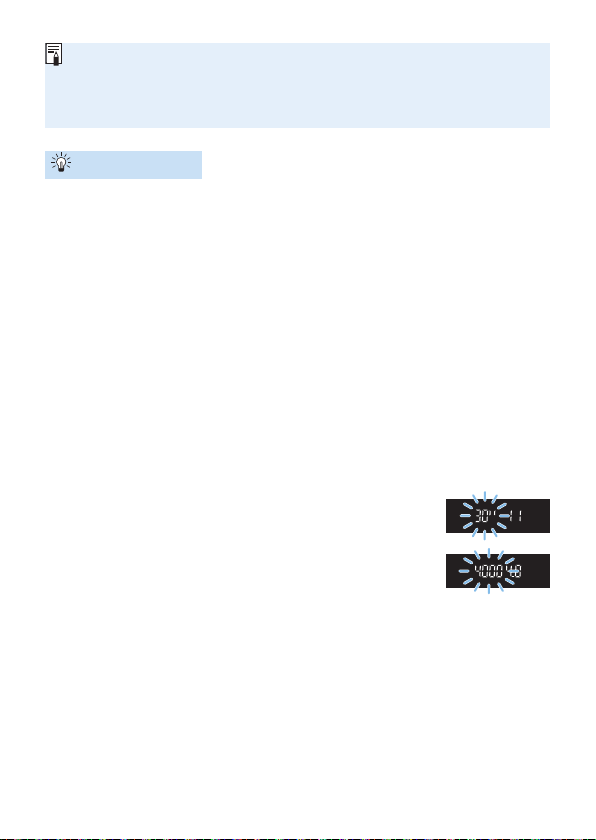
153
Aperture Value Display
The higher the f/number, the smaller the aperture opening will be. The f/
number displayed will differ depending on the lens. If no lens is attached to
the camera, “00” will be displayed for the aperture.
Shooting Tips
When using an aperture with a high f/number or shooting in low
light scenes, note that camera shake can occur.
A higher aperture f/number will make the shutter speed slower. Under
low light, the shutter speed can be as long as 30 sec. In such cases,
increase the ISO speed and hold the camera steady or use a tripod.
The depth of eld will vary depending not only on the aperture, but
also on the lens and on the subject distance.
Since wide-angle lenses have a wide depth of eld (range of
acceptable focus in front of and behind the point of focus), you need
not set a high aperture f/number to obtain a sharp picture from the
foreground to the background. On the other hand, a telephoto lens has
a narrow depth of eld.
And the closer the subject, the narrower the depth of eld. A farther
subject will have a wider depth of eld.
Set the aperture so that the shutter speed display does not blink.
If you press the shutter button halfway and change the
aperture with the shutter speed displayed, the shutter
speed will also change to maintain the same exposure
(amount of light reaching the image sensor). In this
operation, if the shutter speed exceeds the adjustable
range, it will blink to indicate that the standard
exposure cannot be obtained.
If the picture will be too dark, the “30"” (30 sec.) shutter speed display
will blink. If this happens, turn the <6> dial counterclockwise to set a
lower f/number or increase the ISO speed.
If the picture will be too bright, the “4000” (1/4000 sec.) shutter speed
display will blink. If this happens, turn the <6> dial clockwise to set a
higher f/number or decrease the ISO speed.

154
Using the Built-in Flash
To obtain a correct ash exposure, the ash output will be automatically
controlled (autoash) to match the set aperture. The shutter speed will be
set automatically to match the brightness of the scene (=
176).
In low light, the main subject is exposed with the autoash, and the
background is exposed with a slow shutter speed set automatically. The
picture comes out with the standard exposure for both the subject and
background with a touch of the atmosphere (automatic slow-speed ash
sync). If you are handholding the camera, keep it steady to prevent camera
shake. Using a tripod is recommended to prevent camera shake.
Depth-of-Field Preview
The aperture opening (diaphragm) changes only at the moment when the
picture is taken. Otherwise, the aperture remains fully open. Therefore,
when you look at the scene through the viewnder or on the LCD monitor,
the depth of eld will look narrow.
You can check the depth of eld by pressing the <0> or <U> button
when they are congured as described below. The range in focus can be
clearly seen on Live View images as you adjust the aperture value while
holding down the <0> or <U> button.
- In [5: Custom Functions(C.Fn)], set [Assign SET button] to [7:Depth-
of-eld preview].
- In [5: Custom Functions(C.Fn)], set [DISP button function] to
[1:Depth-of-eld preview].
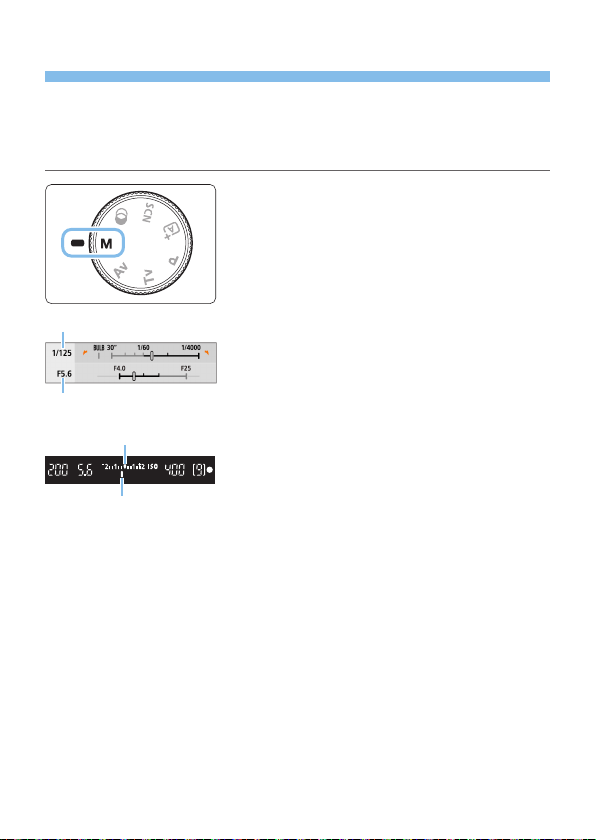
155
Manual Exposure (M Mode)
You can set both the shutter speed and aperture manually as desired. While
referring to the exposure level indicator in the viewnder, you can set the
exposure as desired. This method is called manual exposure.
* <a> stands for Manual.
1
Set the Mode Dial to <a>.
2
Set the ISO speed (=
118).
3
Set the shutter speed and aperture.
To set the shutter speed, turn the <6>
dial.
To set the aperture, turn the <6> dial
while holding down the <g> button.
4
Focus on the subject.
Press the shutter button halfway.
B The exposure setting will be displayed in
the viewnder.
Check the exposure level mark <h> to
see how far the current exposure level is
from the standard exposure level.
(1) Standard exposure index
(2) Exposure level mark
<6>
<g> + <6>
(1)
(2)

156
5
Set the exposure and take the
picture.
Check the exposure level indicator
and set the desired shutter speed and
aperture.
If the exposure level exceeds ±2 stops
from the standard exposure, the end of
the exposure level indicator will display
<
I
> or <
J
> in the viewnder. (On the
LCD monitor, if the exposure level
exceeds ±3 stops, <
I
> or <
J
> will be
displayed.)
The set exposure setting will not be maintained for movie shooting.
Exposure Compensation with ISO Auto
If the ISO speed is set to [AUTO] for manual exposure shooting, you can
set exposure compensation (=
160) as follows:
[z: Expo.comp./AEB]
[5:Expo comp (hold btn, turn S)] with [Assign SET button] under
[5: Custom Functions(C.Fn)] (=
452)
Quick Control (=
57)
If ISO Auto is set, the ISO speed setting will change to obtain the standard
exposure with the set shutter speed and aperture. Therefore, you may
not obtain the desired exposure effect. In such a case, set the exposure
compensation.
If ash is used when ISO Auto is set, exposure compensation will not be
applied even if an exposure compensation amount is set.
Under [z: Auto Lighting Optimizer], if the checkmark [X] for [Disable
during man expo] is removed, Auto Lighting Optimizer can be set even in
the <a> mode (=
136).
When ISO Auto is set, you can press the <A> button to lock the ISO speed.
If you press the <A> button and recompose the shot, you can see the
exposure level difference on the exposure level indicator compared to when
the <A> button was pressed.
If exposure compensation (=
160) was applied in <d>, <s>, or <f>
mode, the exposure compensation amount already set will still be maintained
when the shooting mode is switched to <a> with ISO Auto set.
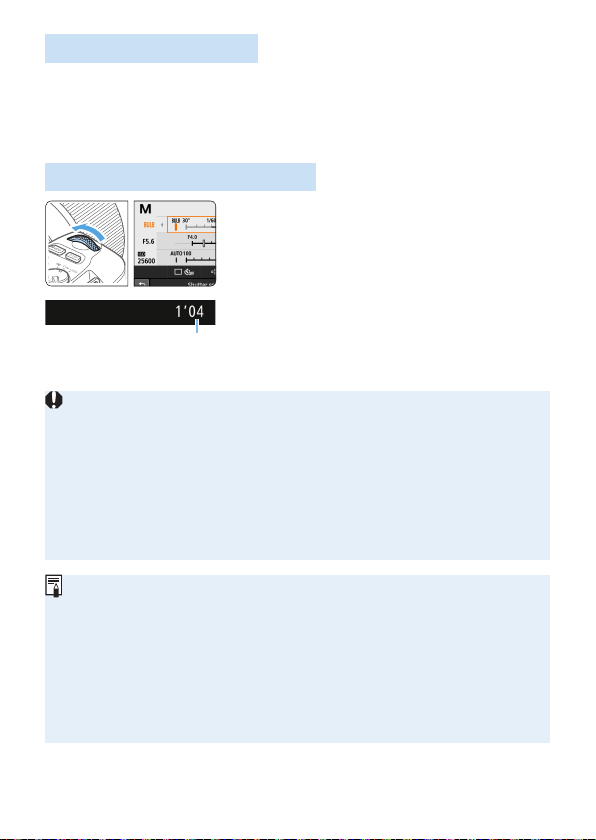
157
Using the Built-in Flash
To obtain a correct ash exposure on the main subject, the ash output will
be set automatically (autoash) to match the manually-set aperture. Note
that the range of settable shutter speed will be limited within 1/200 sec. to
30 sec. or to bulb.
BULB: Long (Bulb) Exposures
A bulb exposure keeps the shutter
open for as long as you hold down the
shutter button. It can be used to shoot
reworks and other subjects requiring long
exposures.
In step 3 on page 155, turn the <6>
dial to the left to set <BULB>. The elapsed
exposure time (1) will be displayed on the
LCD monitor.
(1)
Do not point the camera toward an intense light source, such as the sun or an
intense articial light source. Doing so may damage the image sensor or the
camera’s internal components.
Since long bulb exposures produce more noise than usual, the image may
look slightly grainy.
If ISO Auto is set, the ISO speed will be ISO 400.
When shooting bulb exposures, if you use both the self-timer and mirror
lockup, keep pressing the shutter button completely (for self-timer delay time
+ bulb exposure time). If you let go of the shutter button during the self-timer
countdown, there will be a shutter-release sound, but no picture will be taken.
You can reduce the noise due to long exposures by setting [z: Long exp.
noise reduction] to [Auto] or [Enable] (=
139).
For bulb exposures, using a tripod and a remote switch (sold separately,
=
463) is recommended.
You can also use Wireless Remote Control BR-E1 (sold separately, =
463)
for bulb exposures. When you press the BR-E1’s release button (transmit
button), the bulb exposure will start immediately or 2 sec. later. Press the
button again to stop the bulb exposure.
You can turn off the elapsed exposure time display by pressing the <B>
button.
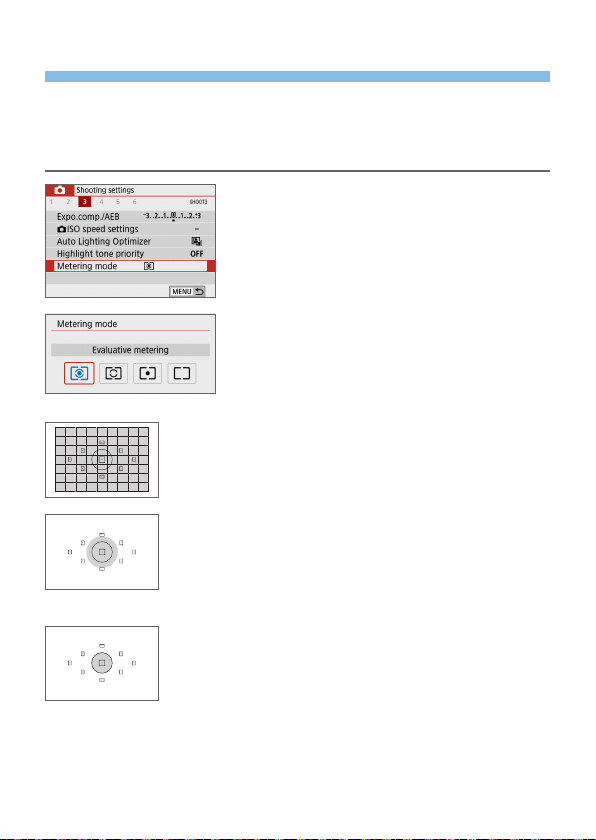
158
Changing the Metering Mode
Four methods (metering modes) to measure the subject’s brightness are
provided. Normally, evaluative metering is recommended. In Basic Zone
modes, evaluative metering is set automatically. (In the <8: x> and
<v: X> modes, center-weighted average metering is set.)
1
Select [Metering mode].
Under the [z] tab, select [Metering
mode], then press <0>.
2
Set the metering mode.
Select the desired metering mode, then
press <0>.
q Evaluative metering
General-purpose metering mode suited even for
backlit subjects. The camera adjusts the exposure
automatically to suit the scene.
w Partial metering
Effective where there are much brighter lights around
the subject due to backlight, etc. The gray area in the
left gure is approximately where the brightness is
metered to obtain the standard exposure.
r Spot metering
Effective when metering a specic part of the subject or
scene. The gray area in the left gure is approximately
where the brightness is metered to obtain the standard
exposure. This metering mode is for advanced users.
N
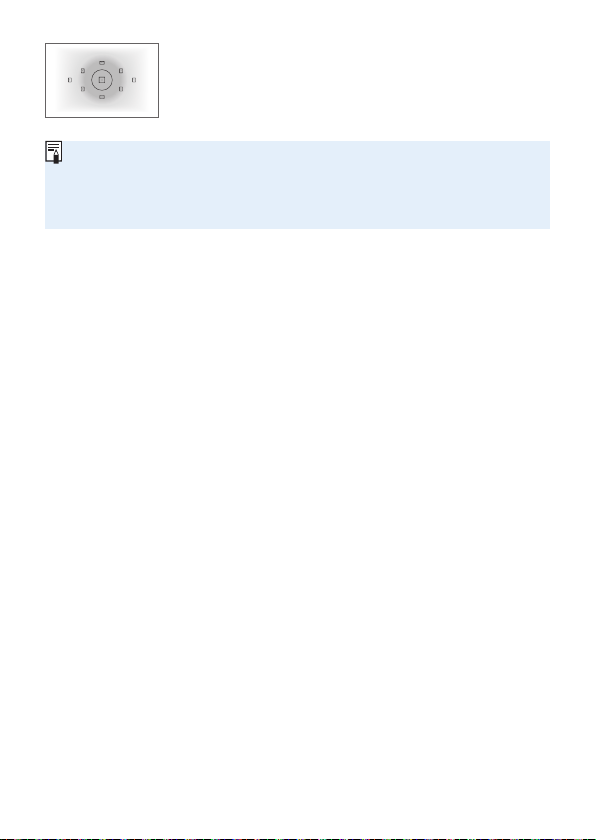
159
e Center-weighted average metering
The metering is averaged for the entire scene with the
screen center weighted more heavily. This metering
mode is for advanced experts.
With q (Evaluative metering), the exposure setting will be locked when you
press the shutter button halfway and focus is achieved. In the w (Partial
metering), r (Spot metering), and e (Center-weighted average metering)
modes, the exposure is set at the moment the picture is taken. (Pressing the
shutter button halfway does not lock the exposure.)
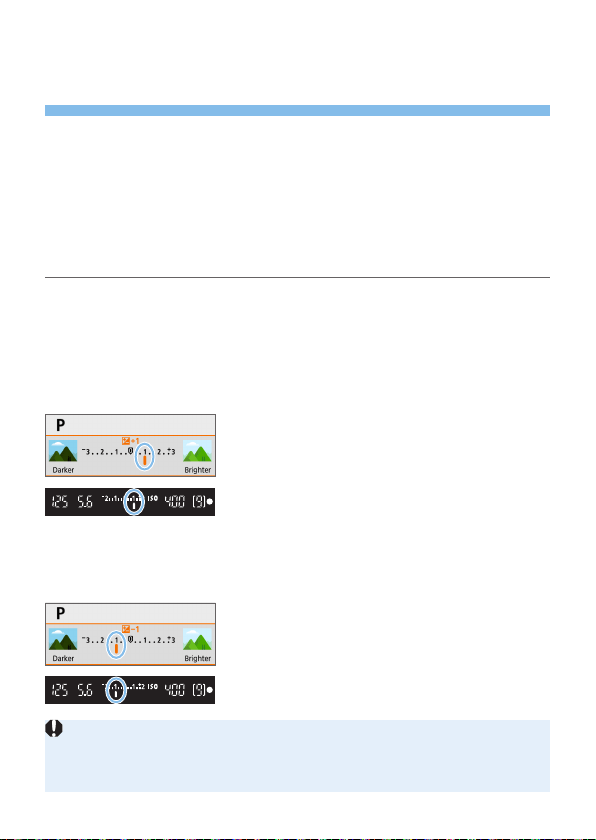
160
Setting the Desired Exposure
Compensation
Set exposure compensation if the results of shooting without using the ash
are not as bright as expected. This feature can be used in Creative Zone
modes (except <a>). You can set the exposure compensation up to ±5
stops* in 1/3-stop increments.
If the <a> mode and ISO Auto are both set, see page 156 to set the
exposure compensation.
* In Live View shooting/movie shooting, or when [s: Shooting screen] is set to
[Guided], exposure compensation can be set up to ±3 stops.
1
Check the exposure level indicator.
Press the shutter button halfway and
check the exposure level indicator in the
viewnder or on the LCD monitor.
2
Set the compensation amount.
If the exposure is too dark, turn the
<6> dial clockwise while holding
down the <g> button (for increased
exposure).
If the exposure is too bright, turn the
<6> dial counterclockwise while
holding down the <g> button (for
decreased exposure).
3
Take the picture.
To cancel the exposure compensation,
set the compensation amount back to
<E>.
If [z: Auto Lighting Optimizer] (=
136) is set to any setting other than
[Disable], the image may still look bright even if a decreased exposure
compensation for a darker image is set.
The set exposure compensation level will not be applied to movie shooting.
N
Increased exposure for
a brighter image
Decreased exposure for
a darker image

161
When you set the power switch to <2>, the exposure compensation setting
will be canceled.
The exposure compensation amount displayed in the viewnder goes up to
only ±2 stops. If the exposure compensation amount exceeds ±2 stops, the
end of the exposure level indicator will display <
I
> or <
J
>.
If you want to set exposure compensation exceeding ±2 stops, setting it with
[z: Expo.comp./AEB] (=
162) is recommended.
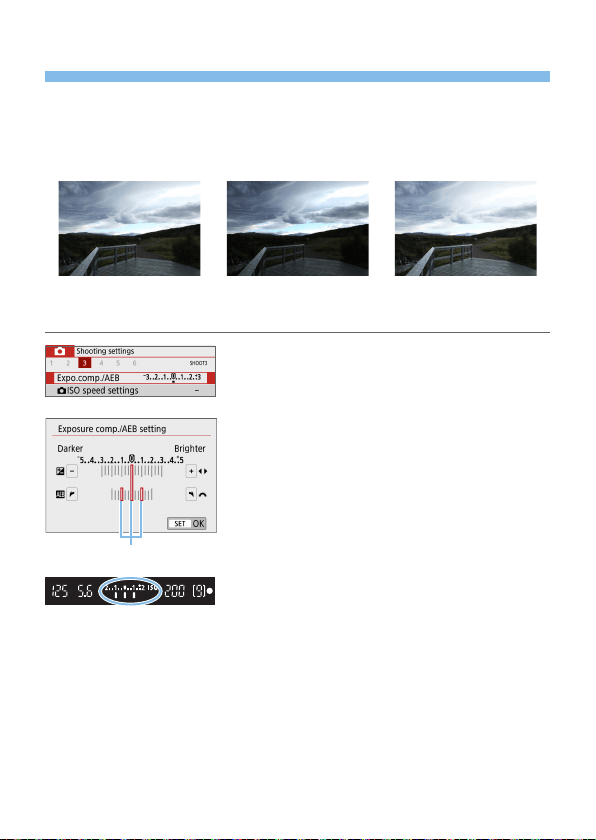
162
Auto Exposure Bracketing
This feature takes exposure compensation a step further by varying the
exposure automatically in the range of ±2 stops in 1/3-stop increments with
three shots as shown below. You can then choose the best exposure.
This is called AEB (Auto Exposure Bracketing).
Standard exposure Darker exposure
(Decreased exposure)
Brighter exposure
(Increased exposure)
1
Select [Expo.comp./AEB].
Under the [z] tab, select [Expo.
comp./AEB], then press <0>.
2
Set the AEB range.
Turn the <
6
> dial to set the AEB range (1).
Press the <Y> <Z> keys to set the
exposure compensation amount.
If AEB is combined with exposure
compensation, AEB will be applied
centering on level of exposure
compensation.
Press <0> to set it.
B When you press the shutter button
halfway, the AEB range will be displayed
in the viewnder.
3
Take the picture.
Focus and press the shutter button
completely, and the shots will be taken
in the sequence of standard exposure,
decreased exposure, and increased
exposure.
N
(
1
)

163
Canceling AEB
Follow steps 1 and 2 to turn off the AEB range display (set to 0).
The AEB setting will also be canceled automatically if the power switch
is set to <2>, ash recharging is complete, etc.
Shooting Tips
Using AEB with continuous shooting
If you set the drive mode to <i> or <M> (=
112) and press the
shutter button completely, the three bracketed shots will be taken
consecutively in the sequence of standard exposure, decreased
exposure, and increased exposure, and then the camera will
automatically stop shooting.
Using AEB with single shooting (u/B)
Press the shutter button three times to take the three bracketed
shots. The shots will be taken in the sequence of standard exposure,
decreased exposure, and increased exposure.
Using AEB with the self-timer or a remote controller (sold
separately)
With the self-timer (<m> <l>), Wireless Remote Control BR-E1
<Q> or Remote Switch RS-60E3, you can take three consecutive
shots after a 10-sec. or 2-sec. delay. With <q> (=
206) set, the
number of consecutive shots will be three times the number set.
During AEB, <A> and AEB range in the viewnder will blink.
AEB cannot be used with ash, when [Multi Shot Noise Reduction] is set,
for shooting with a Creative lter, or with bulb exposures.
If [z: Auto Lighting Optimizer] (=
136) is set to any setting other than
[Disable], the effect of AEB may be reduced.
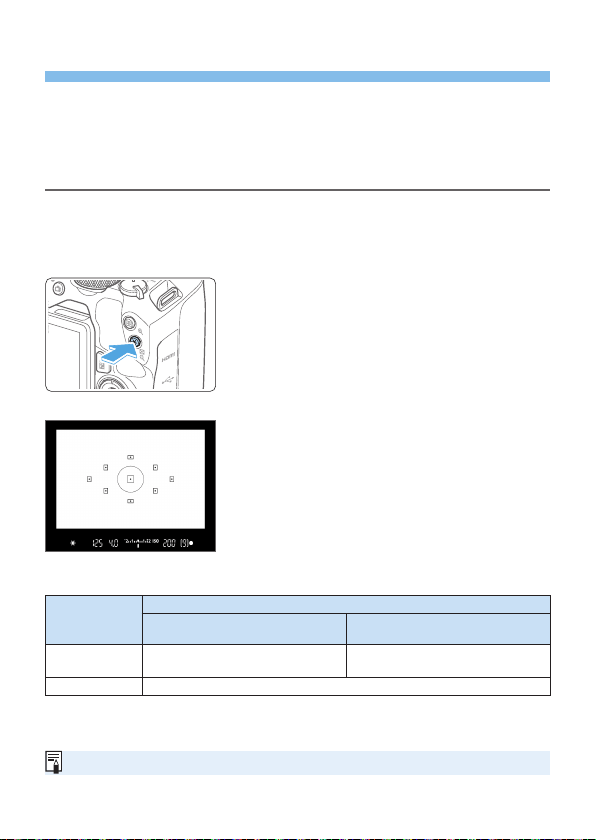
164
Locking the Exposure
You can lock the exposure when you want to set the focus and exposure
separately or when you are to take multiple shots at the same exposure
setting. Press the <A> button to lock the exposure, then recompose and
take the picture. This is called AE lock. It is effective for shooting backlit
subjects, etc.
1
Focus on the subject.
Press the shutter button halfway.
B The exposure setting will be displayed.
2
Pressing the <A> button.
B The <A> icon lights up in the
viewnder to indicate that the exposure
setting is locked (AE lock).
Each time you press the <A> button,
the current exposure setting is locked.
3
Recompose and take the picture.
When you are to take more pictures
while maintaining the AE lock, keep
holding down the <A> button and
press the shutter button to take another
picture.
AE Lock Effects
Metering
Mode
(=
158)
AF Point Selection Method (=
108)
Automatic Selection Manual Selection
q*
AE lock is applied at the AF point
that achieved focus.
AE lock is applied at the selected
AF point.
wre
AE lock is applied at the center AF point.
* When the lens’s focus mode switch is set to <MF>, AE lock is implemented with the
exposure weighting centered on the center AF point.
AE lock is not possible with bulb exposures.
N
165
Mirror Lockup to Reduce Camera
Vibration Blur
You can use the mirror lockup function to prevent the disturbing mechanical
vibrations (mirror shock) when shooting with super telephoto lenses or
shooting close-ups (macro photography).
Mirror lockup is enabled by setting [Mirror lockup] to [1:Enable] in
[5: Custom Functions(C.Fn)] (=
449).
1
Focus on the subject, then press the shutter button
completely.
B The mirror will swing up.
2
Press the shutter button completely again.
B The picture is taken and the mirror goes back down.
After taking the picture, set [Mirror lockup] to [0:Disable].
Shooting Tips
Using the self-timer <m>, <l> with mirror lockup
When you press the shutter button completely, the mirror locks up. The
picture will be then taken 10 sec. or 2 sec. later.
Remote control shooting
Since you do not touch the camera when the picture is taken, remote
control shooting together with mirror lockup can further reduce the
camera vibration blur (=
463).
With Wireless Remote Control BR-E1 (sold separately) set to the 2-sec.
delay, press the release button to lock up the mirror, and the picture will
be taken 2 sec. after the mirror lockup.
With Remote Switch RS-60E3 (sold separately), press the release
button completely to lock up the mirror, and press it completely again to
take the picture.
N

166
Do not point the camera toward an intense light source, such as the sun or an
intense articial light source. Doing so may damage the image sensor or the
camera’s internal components.
In very bright light, such as at the beach or a ski slope on a sunny day, take
the picture promptly after mirror lockup is stabilized.
When shooting with mirror lockup, if you use both the self-timer and bulb
exposures, keep pressing the shutter button completely (for self-timer delay
time + bulb exposure time). If you let go of the shutter button during the self-
timer countdown, there will be a shutter-release sound, but no picture will be
taken.
During mirror lockup, shooting function settings, menu operations, etc. are
disabled.
Even if you set the drive mode to <i>, <M>, or <q>, the camera will still
shoot in single shooting mode.
When [z: High ISO speed NR] is set to [Multi Shot Noise Reduction],
four consecutive shots will be taken for a single picture regardless of the
[Mirror lockup] setting.
If approx. 30 sec. elapse after the mirror has locked up, it will go back down
automatically. Pressing the shutter button completely locks up the mirror
again.
When shooting with mirror lockup, using a tripod and Wireless Remote
Control BR-E1 (sold separately, =
463) or Remote Switch RS-60E3 (sold
separately, =
463) is recommended.
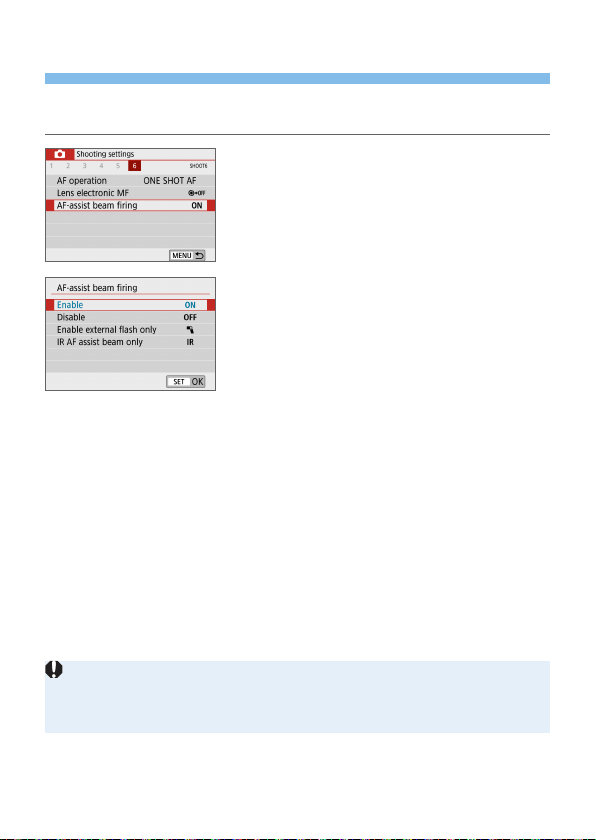
167
AF-Assist Beam Settings
Specify ring of the AF-assist beam from the camera’s built-in ash or an
EOS Speedlite.
1
Select [AF-assist beam firing].
Under the [z] tab, select [AF-assist
beam ring], then press <0>.
2
Select an item.
Press the <W> <X> keys to select the
item, then press <0>.
[ON] Enable
The AF-assist beam will be emitted when necessary.
Raise the ash to emit the AF-assist beam from the built-in ash.
[OFF] Disable
The AF-assist beam will not be emitted. Set if you prefer not to emit the
AF-assist beam.
[1] Enable external ash only
If an external Speedlite is attached, it will emit the AF-assist beam when
necessary.
[IR] IR AF assist beam only
Enables infrared AF-assist beam emitting by external Speedlites
equipped with this feature, when these ash units are attached.
Raising the ash in advance and setting [AF-assist beam ring] to [Enable]
is recommended in <A>, <8>, or <v> mode.
No AF-assist beam is emitted by external Speedlites with their [AF-assist
beam ring] Custom Function set to [Disable].
168
Flash Photography
This chapter describes how to shoot with built-in ash and
external Speedlites (EL/EX-series, sold separately), and how
to set ash settings on the camera’s menu screen.
AEB cannot be used in ash photography.
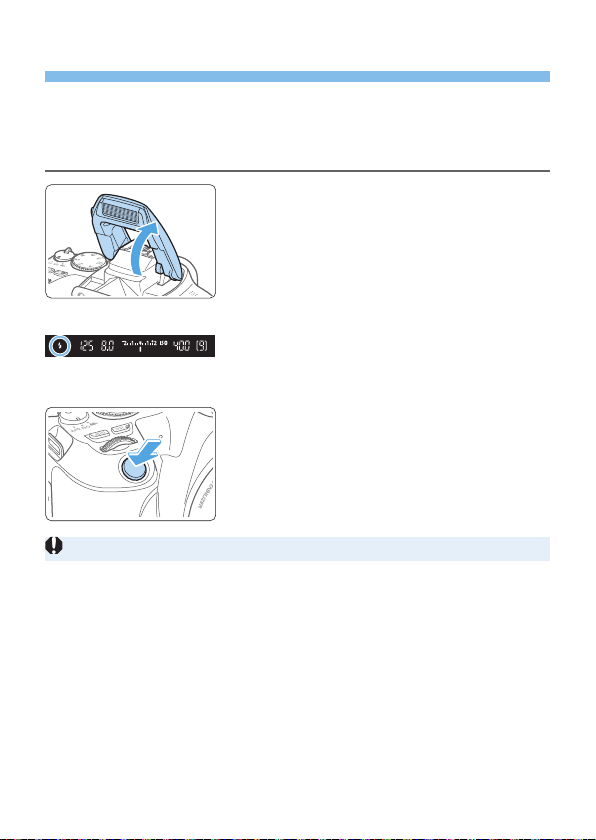
169
Using the Built-in Flash
In indoor, low light, or backlit conditions in daylight, just raise the built-
in ash and press the shutter button to easily take beautiful pictures.
In the <d> mode, the shutter speed (1/60 sec. - 1/200 sec.) will be set
automatically to prevent camera shake.
1
Raise the flash with your fingers.
In Creative Zone modes, shooting with
ash is possible whenever the ash is
raised.
While the ash is recharging, “buSy” is
displayed in the viewnder, and [BUSY]
is displayed on the LCD monitor.
2
Press the shutter button halfway.
In the bottom left of the viewnder,
check that the <D> icon is displayed.
3
Take the picture.
When focus is achieved and you press
the shutter button completely, the ash
will re at all times.
Before raising the ash, remove any accessories attached to the hot shoe.

170
Shooting Tips
In bright light, decrease the ISO speed.
If the exposure setting in the viewnder blinks, decrease the ISO
speed.
Detach the lens hood. Do not get too close to the subject.
If the lens has a hood attached or you are too close to the subject, the
bottom of the picture may look dark due to the obstructed ash light.
For important shots, play back the image and check to make sure the
picture does not look unnaturally dark at the bottom part.
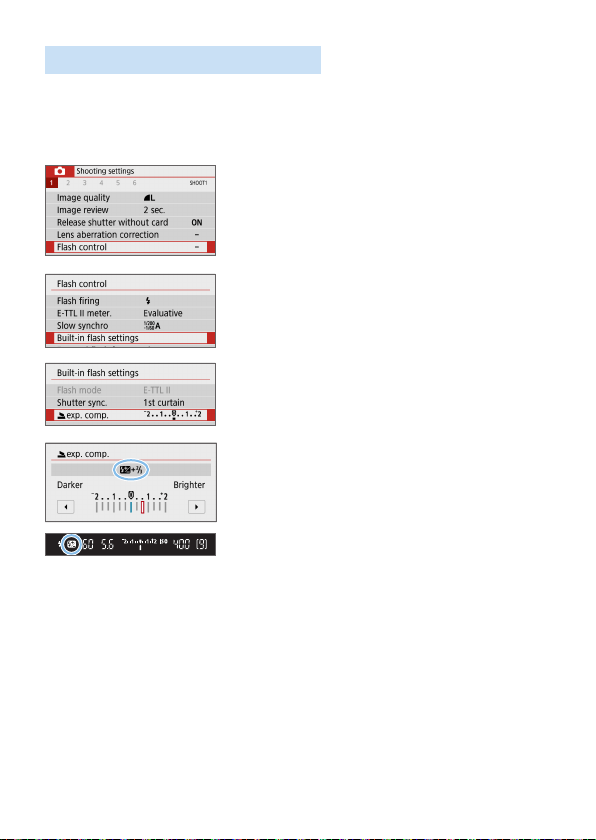
171
Flash Exposure Compensation
Set the ash exposure compensation if the brightness of the subject does
not come out as desired (so you want to adjust the ash output) in ash
photography. You can set the ash exposure compensation up to ±2 stops
in 1/3-stop increments.
1
Select [Flash control].
Under the [z] tab, select [Flash
control], then press <0>.
2
Select [Built-in flash settings].
3
Select [2exp. comp.].
4
Set the compensation amount.
If the exposure is too dark, press the
<Z> key (for increased exposure).
If the exposure is too bright, press the
<Y> key (for decreased exposure).
B When you press the shutter button
halfway, the <y> icon will appear in
the viewnder.
After taking the picture, cancel the
ash exposure compensation by
setting it back to 0.
N

172
If [z: Auto Lighting Optimizer] (=
136) is set to any setting other than
[Disable], the image may still look bright even if a decreased ash exposure
compensation is set.
If ash exposure compensation is set with an external Speedlite (sold
separately, =
174), you cannot set the ash exposure compensation with
the camera (Quick Control or External ash function settings). If it is set with
both the camera and external Speedlite, the Speedlite’s setting overrides the
camera’s.
The compensation amount will be retained even after you set the power
switch to <2>.
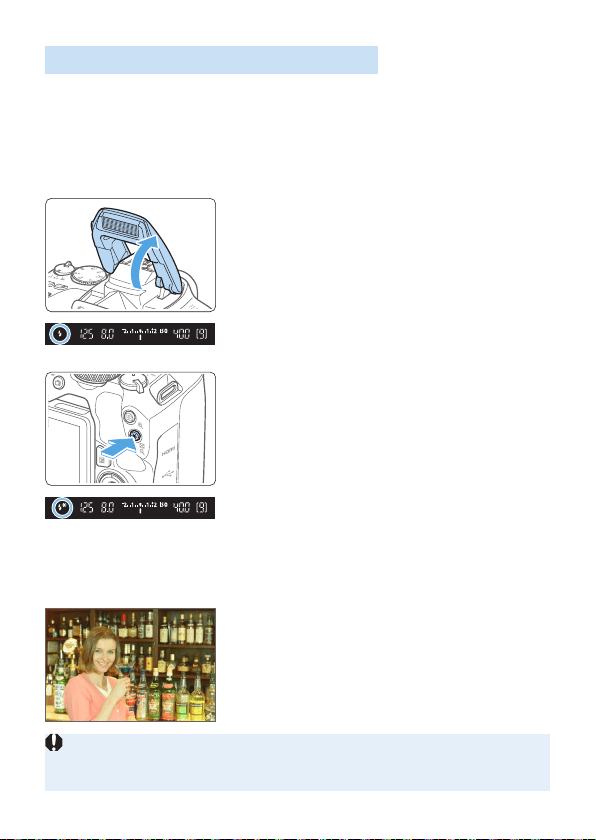
173
Locking the Flash Exposure (FE lock)
If the subject is at the edge of the screen, and you use ash, the subject
may turn out to be too bright or dark depending on the background, etc.
Use FE lock in such a case.
After setting the ash output for the appropriate
subject brightness, you can recompose (put the subject toward the side) and
shoot. This feature can also be used with a Canon EL/EX-series Speedlite.
* FE stands for Flash Exposure.
1
Raise the flash with your fingers.
Press the shutter button halfway and
look in the viewnder to check that the
<D> icon is lit.
2
Focus on the subject.
3
Press the <A> button.
Aim the viewnder center over the
subject where you want to lock the ash
exposure, then press the <A> button.
B The ash will re a preash and the
required ash output is calculated and
retained in memory.
B In the viewnder, “FEL” is displayed for
a moment and <d> will light up.
Each time you press the <
A
> button,
a preash is red and the required ash
output is calculated and retained in memory.
4
Take the picture.
Compose the shot and press the shutter
button completely.
B The ash is red, and the picture is
taken.
If the subject is too far away and the captured image comes out dark, the
<D> icon will blink. Move closer to the subject and repeat steps 2 to 4.
FE lock is not possible during Live View shooting.
N
174
Using an External Speedlite
EOS-dedicated, EL/EX-series Speedlites
Using an EL/EX-series Speedlite (sold separately) makes ash photography
easy.
For operation procedures, refer to the EL/EX-series Speedlite’s
Instruction Manual.
Functions are limited when using EX series Speedlites that are not
compatible with ash function settings.
Non-EL/EX series Canon Speedlites will not re.
If the camera is used with a ash unit or ash accessory dedicated to another
camera brand, the camera not only may not operate properly, but malfunction
may result.
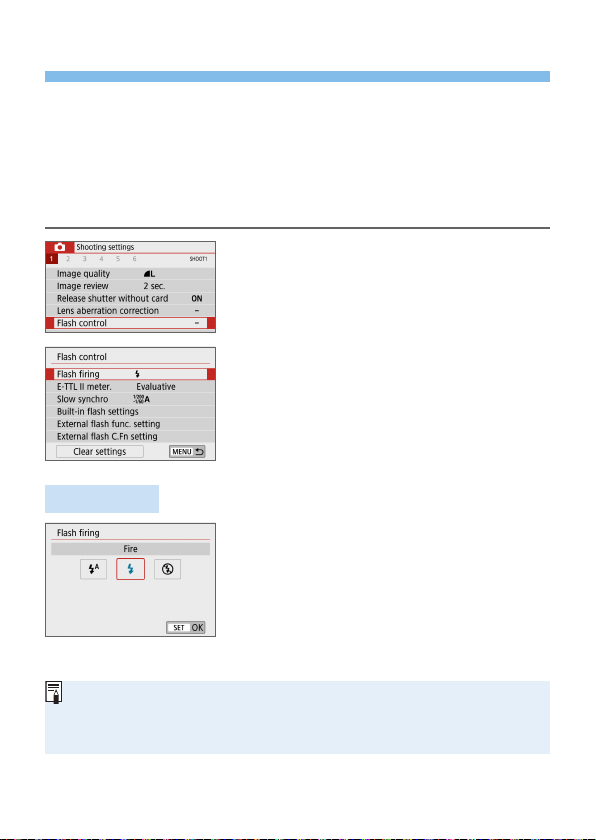
175
Setting the Flash Function
With the built-in ash or an EL/EX-series, external Speedlite compatible
with the ash function settings, you can use the camera’s menu screen to
set ash functions and the external Speedlite’s Custom Functions.
If you use an external Speedlite, attach the Speedlite to the camera
and turn on the Speedlite before setting the ash functions.
For details on the external Speedlite’s ash functions, refer to the
Speedlite’s instruction manual.
1
Select [Flash control].
Under the [z] tab, select [Flash
control], then press <0>.
2
Select an item.
Select the menu option to be set, then
press <0>.
Flash Firing
Set to [a] (in Basic Zone modes or d
mode) to have the ash re automatically,
based on shooting conditions.
Set to [D] to have the ash always re
when you shoot.
Select [b] (in Creative Zone modes) to
keep the ash off, or if you will use the
AF-assist beam.
Even if [Flash ring] is set to [b], if focus is difcult to achieve in low
light, the ash may still re a series of ashes (“AF-Assist Beam Settings”
(=
167)). To prevent the built-in ash from ring, push it down with your
ngers.
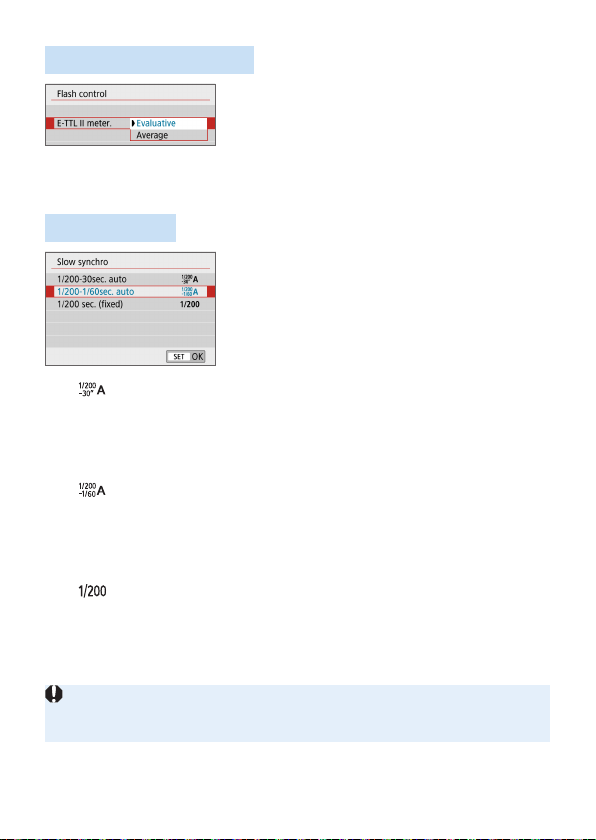
176
E-TTL II Flash Metering
For normal ash exposures, set it to
[Evaluative]. If [Average] is set, the ash
exposure will be averaged for the entire
metered scene. Depending on the scene,
ash exposure compensation may be
necessary. This setting is for advanced
users.
Slow Synchro
You can set the ash-sync speed for ash
photography in <f> or <d> mode.
[
] 1/200-30sec. auto
The ash sync speed is set automatically within a range of 1/200 sec.
to 30 sec. to suit the scene’s brightness. Slow-sync shooting is used
under some shooting conditions, in low-light locations, and shutter
speed is automatically lowered.
[
] 1/200-1/60sec. auto
Prevents a slow shutter speed from being set in low-light conditions.
It is effective for preventing subject blur and camera shake. However,
while the subject will be properly exposed with the ash, the
background may come out dark.
[
] 1/200 sec. (xed)
The ash sync speed is xed at 1/200 sec. This more effectively
prevents subject blur and camera shake than with [1/200-1/60sec.
auto]. However, in low light, the subject’s background will come out
darker than with [1/200-1/60sec. auto].
To use slow-sync shooting, set to [1/200-30sec. auto].
High-speed sync is not available in <f> or <d> mode when set to [1/200
sec. (xed)].
N
N
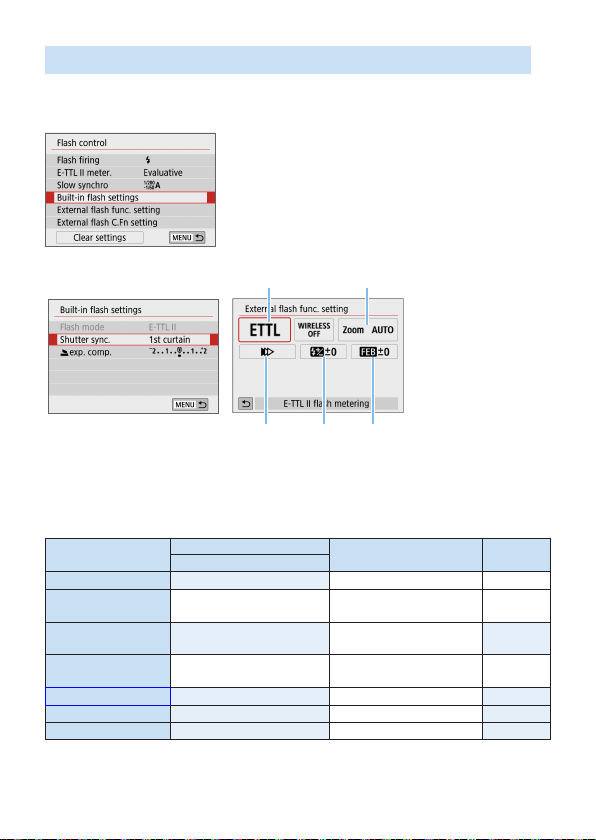
177
[Built-in flash settings] and [External flash func. setting]
You can set the functions in the table below. The functions displayed under
[External ash func. setting] vary depending on the Speedlite model.
Select [Built-in ash settings] or
[External ash func. setting].
B The ash function setting screen will
be displayed. With [Built-in ash
settings], only the highlighted functions
can be selected and set.
(
1
)
(
3
) (
4
) (
5
)
(
2
)
(1) Flash mode
(2) Flash zoom
(Flash coverage)
(3) Shutter
synchronization
(4) Flash exposure
compensation
(5) Flash exposure
bracketing
[Built-in ash settings] [External ash func. setting]
Main Functions for [Built-in flash settings] and [External flash
func. setting]
Function
[Built-in ash settings]
[External ash func.
setting]
Page
Normal Firing
Flash mode
k
=
178
Shutter
synchronization
k k
=
178
Flash exposure
bracketing*
k
Flash exposure
compensation
k k
=
171
Firing ratio control
k
Sender ash ring
k
Flash zoom*
k
* For [Flash exposure bracketing] and [Flash zoom], refer to the instruction
manual of a Speedlite compatible with the functions.
N
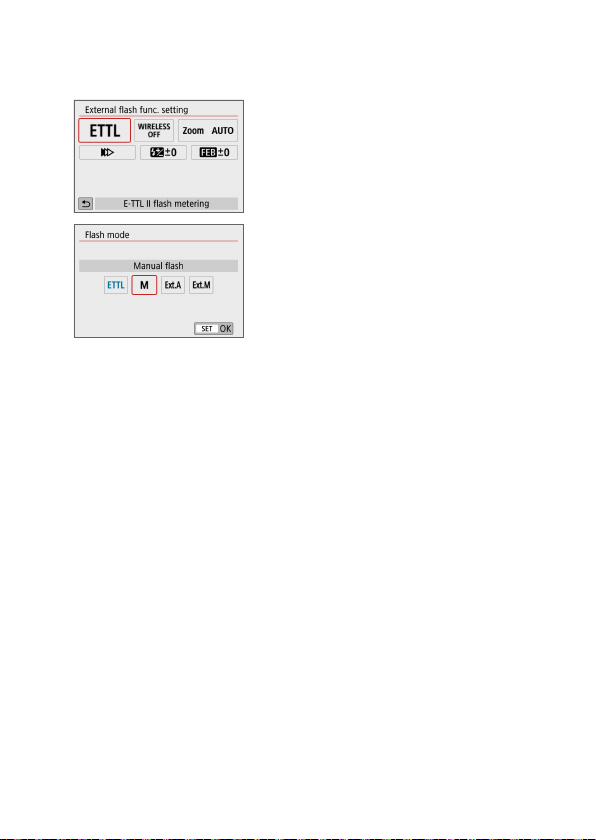
178
Flash mode
When using an external Speedlite, you can select the ash mode to suit
your desired photographic effects.
[E-TTL II ash metering] is the
standard mode of EL/EX-series
Speedlites for automatic ash
photography.
[Manual ash] is the mode for
advanced users who want to set
the [Flash output] (1/1 to 1/128)
themselves.
Regarding other ash modes, refer to
the instruction manual of a Speedlite
compatible with the respective ash
mode.
Shutter synchronization
Normally, set this to [First-curtain synchronization] so that the ash
res immediately after the exposure starts.
If [Second-curtain synchronization] is set, the ash will be red right
before the shutter closes. When this is combined with a slow shutter
speed, you can create a trail of light such as from car headlights at
night with a more natural feel. When second-curtain synchronization is
set together with [E-TTL II ash metering], the ash will be red twice
in a row: once when you press the shutter button completely and once
right before the end of the exposure. Also, if the shutter speed is 1/100
sec. or faster, rst-curtain synchronization will be applied automatically.
If an external Speedlite is attached, you can also select [High-speed
synchronization] (e). For details, refer to the Speedlite’s instruction
manual.
Flash exposure compensation
For details, see “Flash Exposure Compensation” (=
171).
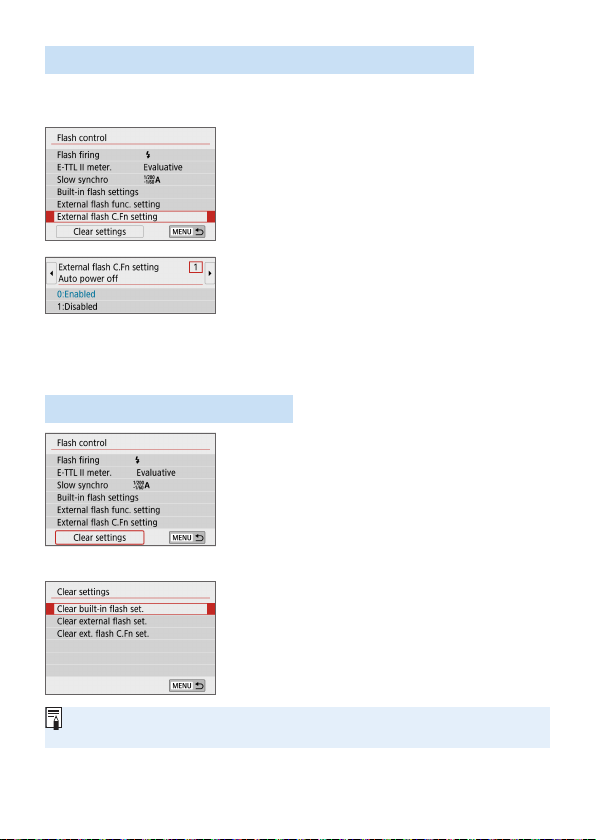
179
Setting the External Speedlite Custom Functions
The Custom Functions displayed under [External ash C.Fn setting] vary
depending on the Speedlite model.
1
Display the Custom Function.
With the camera ready to shoot with
an external Speedlite, select [External
ash C.Fn setting], then press <0>.
2
Set the Custom Function.
Press the <Y> <Z> keys to select
the function number, then set the
function. The procedure is the same as
setting the camera’s Custom Functions
(=
446).
Clear All Settings to Default
1
Select [Clear settings].
Under the [z: Flash control] tab,
select [Clear settings], then press
<0>.
2
Select the settings to be cleared.
Select [Clear built-in ash set.], [Clear
external ash set.], or [Clear ext. ash
C.Fn set.], then press <0>.
When you select [OK], the respective
ash settings will be cleared.
The Speedlite’s Personal Function (P.Fn) cannot be set or canceled on the
camera’s [Flash control] screen. Set it directly on the Speedlite.
N
N
180
Shooting with the LCD
Monitor (Live View Shooting)
You can shoot while viewing the image on the camera’s LCD
monitor. This is called “Live View shooting”.
If you handhold the camera and shoot while viewing the LCD
monitor, camera shake may cause blurred images. Using a
tripod is recommended in such cases.
Remote Live View Shooting
With EOS Utility (EOS software, =
482) installed on your
computer, you can connect the camera to the computer and shoot
remotely while viewing the computer screen. For details, refer to
the EOS Utility Instruction Manual.
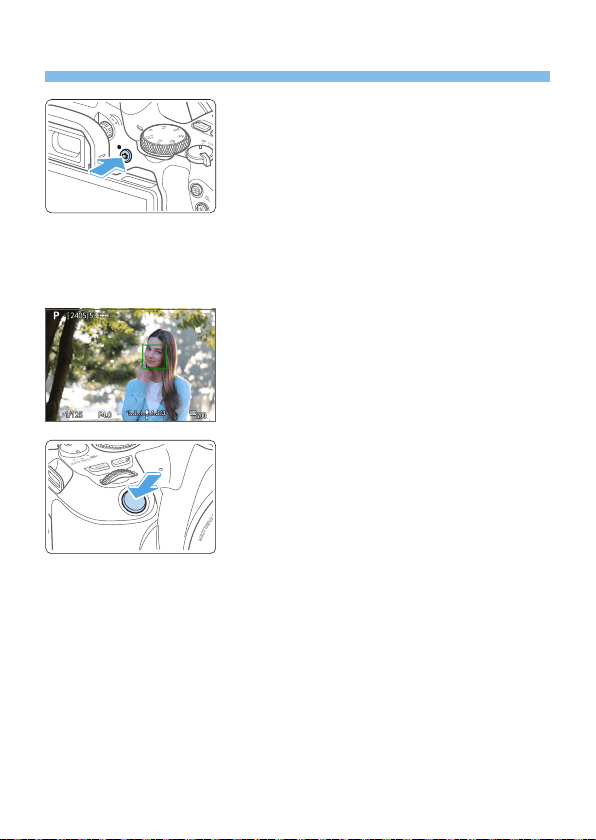
181
Shooting with the LCD Monitor
1
Display the Live View image.
Press the <A> button.
B The Live View image will appear on the
LCD monitor. In the <A> mode, the
scene icon for the scene detected by the
camera is displayed on the upper left of
the screen (=
186).
The Live View image will be displayed
in the brightness level closely matching
that of the actual image to be captured.
2
Focus on the subject.
When you press the shutter button
halfway, the camera will focus with the
current AF method (=
197).
You can also tap on the screen to select
the face or subject (=
208).
3
Take the picture.
Press the shutter button completely.
B The picture is taken and the captured
image is displayed on the LCD monitor.
B When the playback display ends, the
camera will return to Live View shooting
automatically.
Press the <A> button to exit the Live
View shooting.
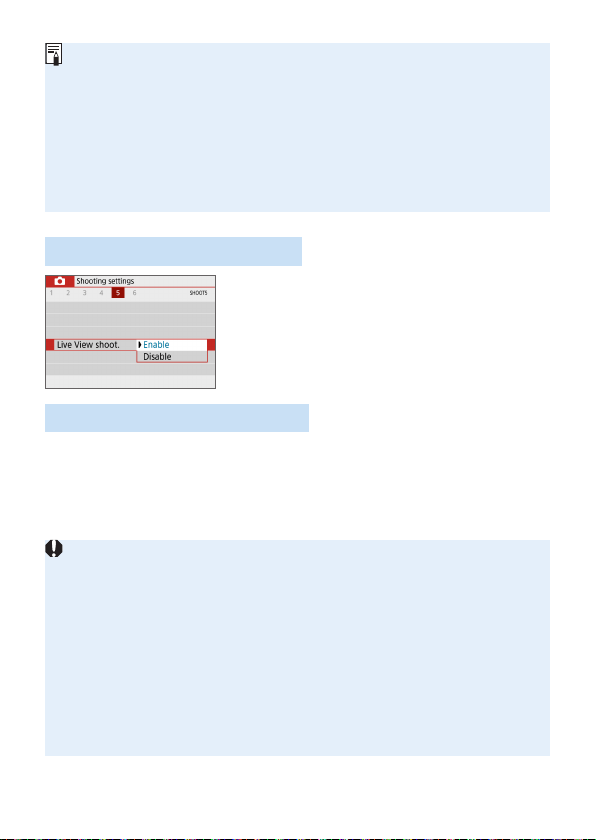
182
The image’s eld of view is approx. 100% (with image-recording quality set to
JPEG 73 and aspect ratio set to 3:2).
You can check the depth of eld in Creative Zone modes by pressing the
<0> or <U> button when they are congured as described below.
- In [5: Custom Functions(C.Fn)], set [Assign SET button] to [7:Depth-of-
eld preview].
- In [5: Custom Functions(C.Fn)], set [DISP button function] to [1:Depth-
of-eld preview].
You can also use a Wireless Remote Control BR-E1 (sold separately) or
Remote Switch RS-60E3 (sold separately) for Live View shooting (=
463).
Enabling Live View Shooting
Set [z: Live View shoot.] to [Enable].
Continuous Shooting Display
During Live View shooting, if you perform <i> Continuous shooting with
One-Shot AF, keep holding down the shutter button completely to display
(play back) the captured images continuously. When the continuous
shooting ends (shutter button is returned to halfway position), the Live View
image will be displayed.
Depending on the shooting conditions such as when shooting with ash or
shooting long exposures, the captured images may not be displayed (played
back) continuously.
In the <8: x> mode, Live View shooting is not possible.
In the <8: q> mode, the angle of view changes slightly in Live View
shooting because distortion correction is applied.
In the <8: FG> and <v: ABCD> modes, the image area will
be smaller.
For ash photography, the continuous shooting speed will become slower.
Do not point the camera toward an intense light source, such as the sun or an
intense articial light source. Doing so may damage the image sensor or the
camera’s internal components.
General Live View Shooting Cautions are on =
215 - =
216.

183
When ash is used, there will be two shutter sounds, but only one shot will
be taken. Also, the time it takes to take the picture after you press the shutter
button completely will be longer than with viewnder shooting.
If the camera is not operated for a prolonged period, the power will turn off
automatically after the time set in [5: Auto power off] (=
261). If [5: Auto
power off] is set to [Disable], Live View shooting will end automatically after
30 min. (Camera power remains on.)
With the HDMI cable, you can display the Live View image on a TV set
(=
305). Note that no sound will be output. If the picture does not appear on
the TV screen, check if the [5: Video system] is correctly set to [For NTSC]
or [For PAL] (depending on the video system of your TV set).
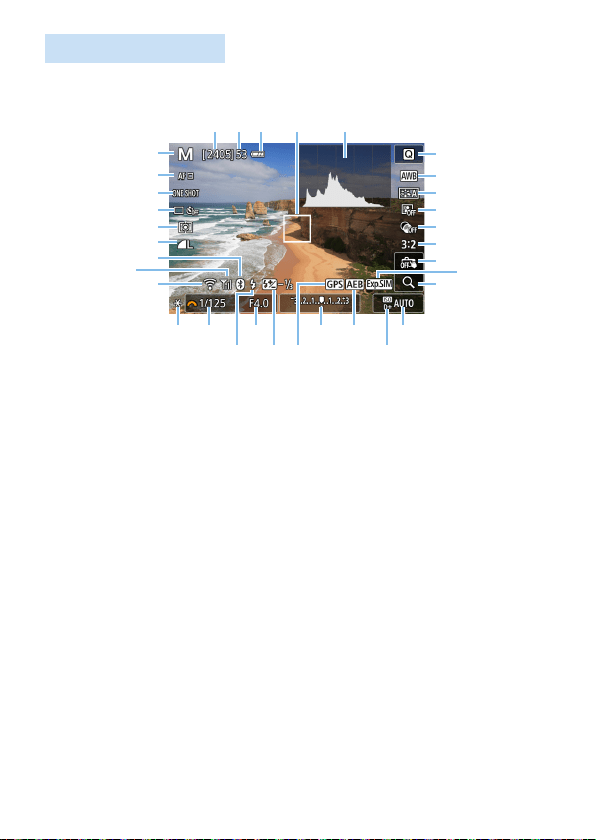
184
Information Display
Each time you press the <B> button, the information display will
change.
(
1
)
(
2
)
(
3
)
(
4
)
(
5
)
(
6
)
(
8
)
(
9
)
(
7
)
(
10
)(
11
)(
12
) (
13
) (
14
)
(
15
)
(
16
)
(
17
)
(
18
)
(
19
)
(
21
)
(
20
)
(
23
)
(
22
)
(
24
) (
27
)(
25
)
(
28
)(
26
)
(
31
)(
30
)
(
29
)
(
33
)
(
32
)
(1) Shooting mode
(2) AF method
(3) AF operation
(4) Drive mode
(5) Metering mode
(6) Image-recording quality
(7) Bluetooth function
(8) Wi-Fi signal strength
(9) Wi-Fi function
(10) Possible shots
(11) Maximum burst
(12) Battery level
(13) AF point (1-point AF)
(14) Histogram display
(15) Quick Control
(16) White balance/White balance
correction
(17) Picture Style
(18) Auto Lighting Optimizer
(19) Creative filters
(20) Still image aspect ratio
(21) Touch Shutter
(22) Exposure simulation
(23) Magnified view
(24) AE lock
(25) Shutter speed
(26) Flash-ready/Flash off
(27) Aperture
(28) Flash exposure compensation
(29) GPS connection indicator
(30) Exposure level indicator/AEB range
(31) AEB/FEB/Multi Shot Noise
Reduction
(32) Highlight tone priority
(33) ISO speed
185
You can display the histogram by pressing the <B> button. However, the
histogram is not displayed while pressing the shutter button completely.
When <g> is displayed in white, it indicates that the Live View image is
displayed at the brightness level closely matching that of the actual image to
be captured.
If <g> is blinking, it indicates that the Live View image is displayed at
a brightness that differs from the actual shooting result because of low- or
bright-light conditions. However, the actual image recorded will reect the
exposure setting. Note that the noise may be more noticeable than the actual
image recorded.
Exposure simulation is not performed in <8: FG> modes, when Multi
Shot Noise Reduction is set, when ash is used, or when bulb exposure is
used. The <g> icon and histogram will be displayed in gray. The image is
displayed on the LCD monitor with standard brightness. Also, the histogram
may not be properly displayed in low- or bright-light conditions.
The <g> icon will also be displayed in gray in the <v: ABCD>
modes. The histogram will not be displayed.
Warnings:
Do not hold the camera in the same position for long periods of time.
Even if the camera does not feel too hot, prolonged contact with the same body part
may cause skin redness or blistering due to low-temperature contact burns. Using a
tripod is recommended when using the camera in very hot places or for people with
circulation problems or poor skin sensation.
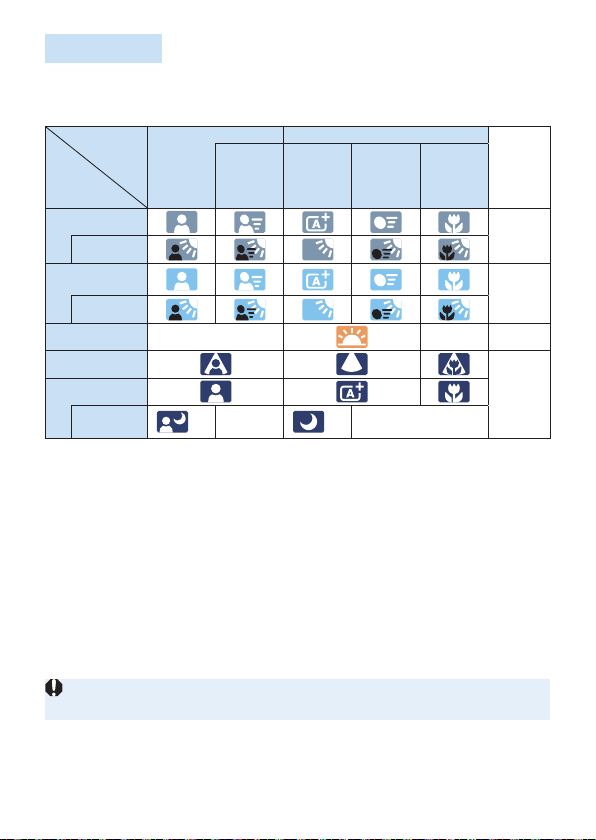
186
Scene Icons
In the <A> shooting mode, the camera detects the scene type and sets
everything automatically to suit the scene. The detected scene type is
indicated on the upper left of the screen.
Subject
Background
Portrait Non-Portrait
Background
Color
Movement
Nature
and
Outdoor
Scene
Movement
Close*
1
Bright
Gray
Backlit
Blue Sky
Included
Light blue
Backlit
Sunset
*
2
*
2
Orange
Spotlight
Dark blue
Dark
With
Tripod
*
3
*
4
*
2
*
3
*
4
*
2
*1: Displayed when the attached lens has distance information. With an extension
tube or close-up lens, the icon displayed may not match the actual scene.
*2: The icon of the scene selected from the detectable scenes will be displayed.
*3: Displayed when all the following conditions apply:
The shooting scene is dark, it is a night scene, and the camera is mounted on a
tripod.
*4: Displayed with any of the lenses below:
• EF-S18-55mm f/3.5-5.6 IS II • EF-S55-250mm f/4-5.6 IS II
• EF300mm f/2.8L IS II USM • EF400mm f/2.8L IS II USM
• EF500mm f/4L IS II USM • EF600mm f/4L IS II USM
• Image Stabilizer lenses released in and after 2012.
*3+*4: If the conditions in both *3 and *4 are met, the shutter speed will slow down.
For certain scenes or shooting conditions, the icon displayed may not match
the actual scene.
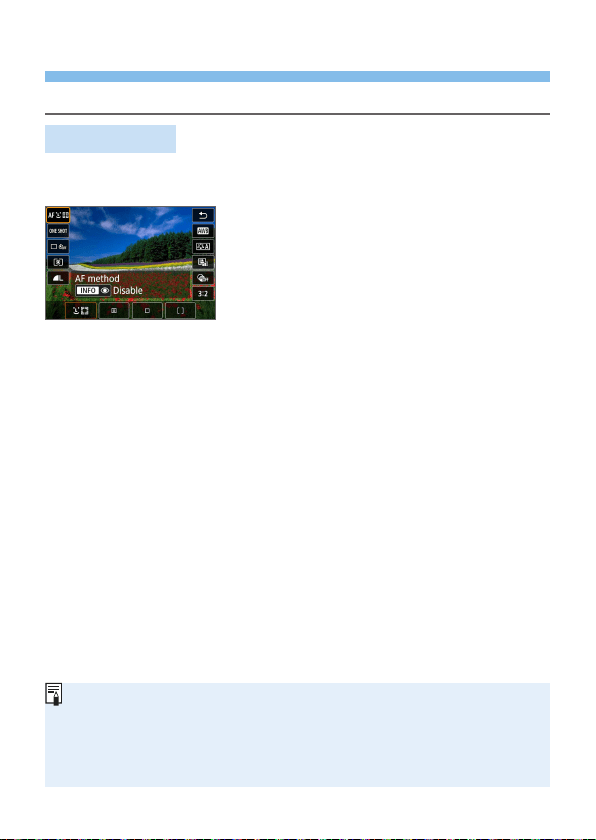
187
Shooting Function Settings
Function settings particular to Live View shooting are described here.
Quick Control
Press the <Q> button when an image is displayed to access the Quick
Control screen, where you can adjust settings.
1
Press the <Q> button.
B The settable functions will be displayed.
2
Select a function and set it.
Press the <W> <X> keys to select a function.
B The settings of the selected function and Feature guide (=
55)
will appear on the screen.
Press the <Y> <Z> keys to set the function.
In the <8> and <v> modes, select the shooting mode box on
the upper left of the screen, then press <0> to select the shooting
mode.
To set Auto white balance, select [Q], then press the <S/u>
button.
To set the drive mode’s <q> setting, WB correction/WB bracketing,
Picture Style parameters, or Creative lter effects, press the <B>
button.
3
Exit the setting.
Press <0> to nalize the setting and return to Live View shooting.
You can also select [2] to return to Live View shooting.
In Creative Zone modes, you can set the ISO speed by pressing the <g>
button.
When you set w (Partial metering) or r (Spot metering), a metering circle
will be displayed at the center of the screen.
With Live View shooting, you cannot set <B> and <M> in drive mode or
self-timer.
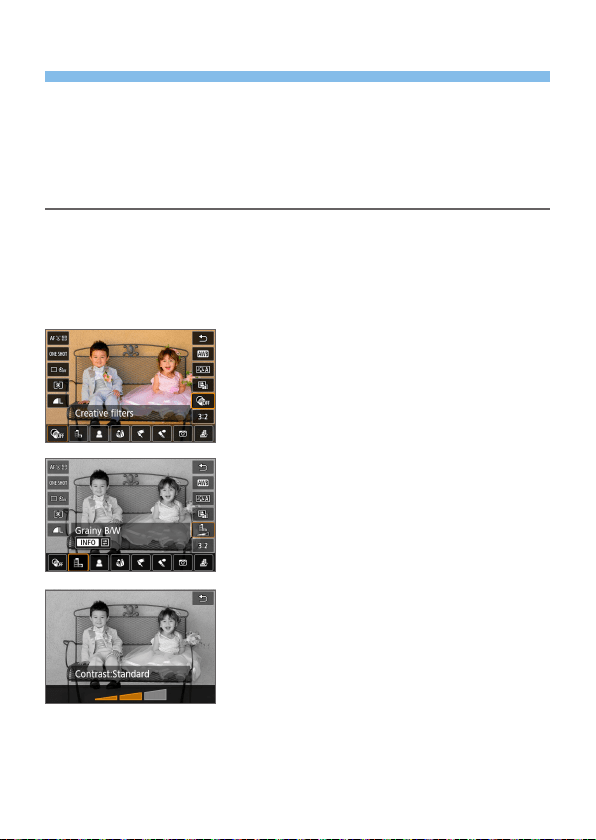
188
Shooting with Creative Filter Effects
While viewing the Live View image, you can apply one of seven lter effects
(Grainy B/W, Soft focus, Fish-eye effect, Art bold effect, Water painting
effect, Toy camera effect, and Miniature effect) for shooting.
The camera saves only the image with the Creative lter applied. You can
also take a picture without a Creative lter, then apply an effect afterward
and save it as a new image (=
329).
1
Turn the Mode Dial to a Creative
Zone mode.
2
Press the <Q> button.
B The Quick Control screen will appear.
3
Select [x].
Press the <W> <X> keys to select [x]
(Creative lter) on the right side of the
screen.
4
Select a filter effect.
Press the <Y> <Z> keys to select a
lter effect (=
190).
B The image will be displayed with the
effects of the lter applied.
5
Adjust the filter effect.
Press the <B> button (except for
c).
Press the <Y> <Z> keys to adjust the
effect, then press <0>.
6
Take the picture.
B The image is shot with the lter effect
applied.
N

189
When you set a Creative lter, single shooting will take effect even if the drive
mode is set to <i>.
Shooting with Creative lters will prevent you from specifying RAW, AEB,
white balance bracketing, or Multi Shot Noise Reduction.
The histogram is not displayed when you shoot with Creative lters.

190
Creative Filter Characteristics
G Grainy B/W
Creates a grainy black-and-white photo. You can change the black-and-
white effect by adjusting the contrast.
W Soft focus
Gives the image a soft look. You can change the degree of softness by
adjusting the blur.
X Fish-eye effect
Gives the effect of a sh-eye lens. The image will have a barrel-type
distortion.
Depending on the level of this lter effect, the area trimmed along the
periphery of the image changes. Also, since this lter expands the
center part of the image, the resolution at the center may decrease
depending on the number of recorded pixels. Check the image on the
screen when setting this lter. The AF point will be xed to the one at
the center.
Y Art bold effect
Makes the photo look like an oil painting and the subject look more
three-dimensional. You can adjust the contrast and saturation. Note
that subjects such as the sky or white walls may not be rendered with a
smooth gradation and may look irregular or have signicant noise.
Z Water painting effect
Makes the photo look like a watercolor painting with soft colors. You
can control the color density by adjusting the lter effect. Note that night
scenes or dark scenes may not be rendered with a smooth gradation
and may look irregular or have signicant noise.
H Toy camera effect
Darkens the photo’s corners and applies a unique color tone that
makes it look as if it was shot by a toy camera. You can change the
color cast by adjusting the color tone.

191
c Miniature effect
Creates a diorama effect.
If you want the image center to look sharp, take the picture without
changing any setting.
To move the area where you want to look sharp (miniature effect
frame), see “Adjusting Miniature Effect” (=
98). 1-point AF is used as
the AF method. Positioning the miniature effect frame over the AF point
before shooting is recommended.
With Grainy B/W, the grainy effect displayed on the LCD monitor will look
different from the grainy effect recorded in the picture.
With the Soft focus and Miniature effect, the blurred effect displayed on the
LCD monitor may look different from the blurred effect recorded in the picture.
You can check blurring before you shoot by pressing the <0> or <U>
button when they are congured as described below.
- In [5: Custom Functions(C.Fn)], set [Assign SET button] to [7:Depth-
of-eld preview].
- In [5: Custom Functions(C.Fn)], set [DISP button function] to [1:Depth-
of-eld preview].
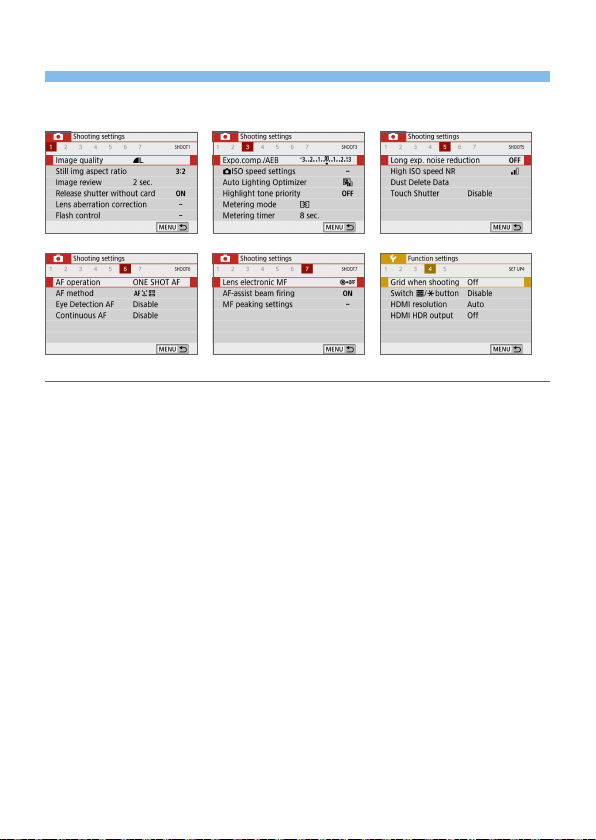
192
Menu Function Settings
Setting items for Live View shooting are shown on the [z] and [5] tabs in
Live View shooting.
Still img aspect ratioN
You can change the image’s aspect ratio. [3:2] is set by default. The
area surrounding the Live View image is masked in black when the
following aspect ratios are set: [4:3] [16:9] [1:1].
JPEG images will be saved with the set aspect ratio. RAW images will
always be saved with the [3:2] aspect ratio. The selected aspect ratio
information is added to the RAW image le. When you process the
RAW image with Digital Photo Professional (EOS software), this allows
you to generate an image with the same aspect ratio that was set for
shooting. In the case of the [4:3], [16:9], and [1:1] aspect ratios, the
lines to indicate the aspect ratio will appear during image playback, but
they are not actually drawn on the image.
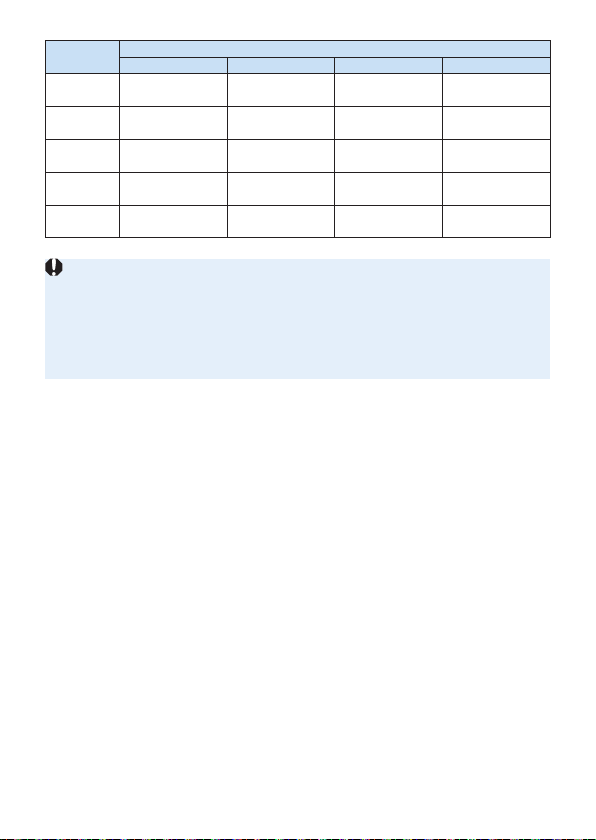
193
Image
Quality
Aspect Ratio and Pixel Count (Approx.)
3:2 4:3 16:9 1:1
73/83
6000
×
4000
(24 megapixels)
5328×4000*
(21.3 megapixels)
6000×3368*
(20.2 megapixels)
4000×4000
(16 megapixels)
74/84
3984×2656
(10.6 megapixels)
3552×2664
(9.5 megapixels)
3984×2240*
(8.9 megapixels)
2656×2656
(7.1 megapixels)
7a/8a
2976×1984
(5.9 megapixels)
2656×1992
(5.3 megapixels)
2976×1680*
(5 megapixels)
1984×1984
(3.9 megapixels)
b
2400×1600
(3.8 megapixels)
2112×1600*
(3.4 megapixels)
2400×1344*
(3.2 megapixels)
1600×1600
(2.6 megapixels)
1/D
6000
×
4000
(24 megapixels)
6000
×
4000
(24 megapixels)
6000
×
4000
(24 megapixels)
6000
×
4000
(24 megapixels)
[4:3], [16:9], and [1:1] are available in Live View shooting.
Pixel counts are rounded to the nearest ten thousand or thousand.
JPEG images are created at your specied aspect ratio.
RAW images are captured at 3:2 and tagged to indicate your specied aspect
ratio.
The image-recording quality and aspect ratio with an asterisk do not exactly
match the indicated ratio.
Metering timerN
You can change how long the exposure setting is displayed (AE lock
time). In Basic Zone modes, metering timer is xed at 8 sec.
Touch Shutter (=
208)
Just by tapping on the LCD monitor screen, you can focus and take the
picture automatically.
AF method (=
197)
You can select [u+Tracking], [Spot AF], [1-point AF], or [Zone AF].
Note that in <A> mode, the AF method is set to [u+Tracking] and
cannot be changed.
Eye detection AF (=
204)
With the AF method set to [u+Tracking], you can shoot with the
subject’s eyes in focus.
Continuous AF (=
205)
Helps avoid missing sudden photo opportunities, because the camera
constantly focuses on subjects until you press the shutter button
halfway.
MF peaking settingsN (=
213)
Edges of subjects in focus can be displayed in color to make focusing
easier.

194
Grid when shooting
With [3x3 l] or [6x4 m], you can display grid lines to help you level
the camera vertically or horizontally. Also, with [3x3+diag n], the
grid is displayed together with diagonal lines to help you compose with
better balance by aligning the intersections over the subject.
Selecting [z: Dust Delete Data] or either [Clean manually] or [Clean
nowf] under [5: Sensor cleaning] will stop the Live View shooting. To
start Live View shooting again, press the <A> button.
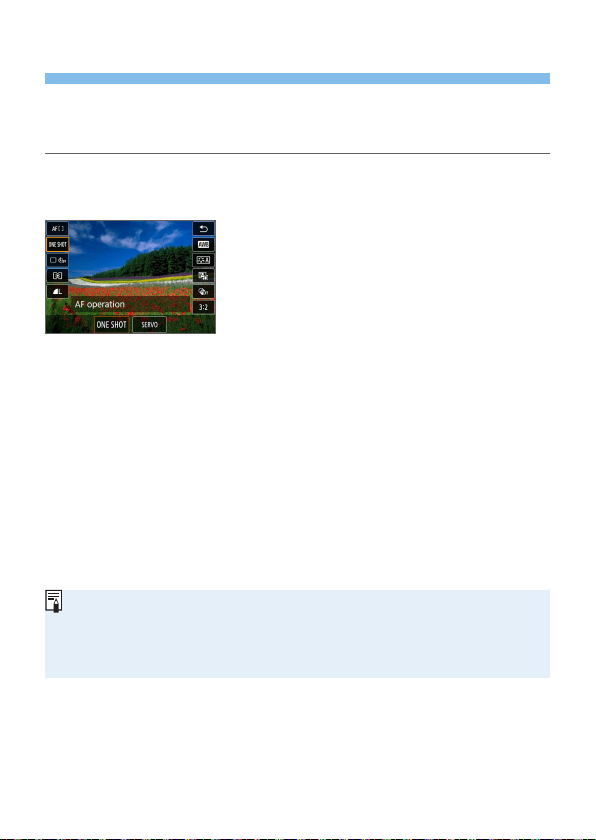
195
Changing the Autofocus Operation
You can select the AF (autofocus) operation characteristics to suit the
shooting conditions or subject. In Basic Zone modes, the optimum AF
operation is set automatically for the respective shooting mode.
1
Press the <Q> button.
B The Quick Control screen will appear.
2
Select [X].
Press the <W> <X> keys to select
[X] (AF operation) on the left
side of the screen.
3
Select the AF operation.
Press the <Y> <Z> keys to select
the desired AF operation, then press
<0>.
X: One-Shot AF
K: Servo AF
4
Focus on the subject.
Aim the AF point over the subject
and press the shutter button halfway.
The camera will then autofocus in the
selected AF operation.
Settable only for Live View shooting (not settable for movie shooting).
If focus cannot be achieved, the AF point will turn orange. If this occurs, the
picture cannot be taken even if the shutter button is pressed completely.
Recompose the shot and try to focus again. Or, see “Shooting Conditions that
Make Focusing Difcult” (=
202).
N
196
One-Shot AF for Still Subjects
Suited for still subjects. When you press the shutter button halfway,
the camera will focus only once.
When focus is achieved, the AF point will turn green and the beeper will
sound.
The focus remains locked while you hold down the shutter button
halfway, allowing you to recompose the image before taking the picture.
For ash photography, the continuous shooting speed will become
slower.
If [5: Beep] is set to [Disable], the beeper will not sound when focus is
achieved.
Servo AF for Moving Subjects
This AF operation is suited for moving subjects. While you hold down
the shutter button halfway, the camera will keep focusing on the
subject continuously.
Subject tracking is given priority when the drive mode is set to <i> for
continuous shooting.
For ash photography, the continuous shooting speed will become
slower.
When focus is achieved, the AF point will turn blue.
The exposure is set at the moment the picture is taken.
When [AF method] is set to [u+Tracking], focusing will be continuous
as long as the Area AF frame can track the subject.
Depending on the lens used, the distance to the subject and the subject’s
speed, the camera may not be able to achieve correct focus.
Zooming during continuous shooting may throw off the focus. Zoom rst, then
recompose and shoot.
With Servo AF, the beeper will not sound even when focus is achieved.
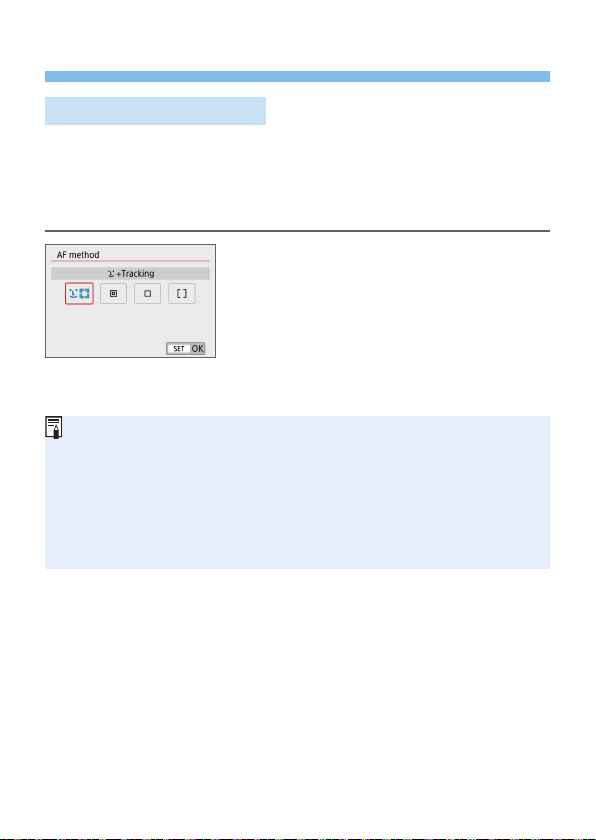
197
Focusing with AF
Selecting the AF Method
You can select an AF method to suit the shooting conditions and your
subject. As the AF method, you can select [u (face)+Tracking] (=
198),
[Spot AF], [1-point AF], or [Zone AF] (=
200).
If you want to achieve precise focus, set the lens’s focus mode switch to
<MF>, magnify the image, and focus manually (=
212).
Select the AF method.
Under the [z] tab, select [AF method].
Select the desired AF method, then
press <0>.
While the Live View image is displayed,
you can also press the <Q> button
to select the AF method on the Quick
Control screen (=
187).
The descriptions on =
198–=
200 assume that [AF operation] is set to
[One-shot AF] (=
196). With [Servo AF] (=
196) set, the AF point will
turn blue when focus is achieved.
In the <8: C5> modes, Servo AF is set automatically, and when focus is
achieved, the AF point will turn blue and the beeper will sound.
Only [u+Tracking] and [1-point AF] are available when 4K movie recording
is set.
Regarding the Touch Shutter (AF and shutter release by touch operation), see
page 208.
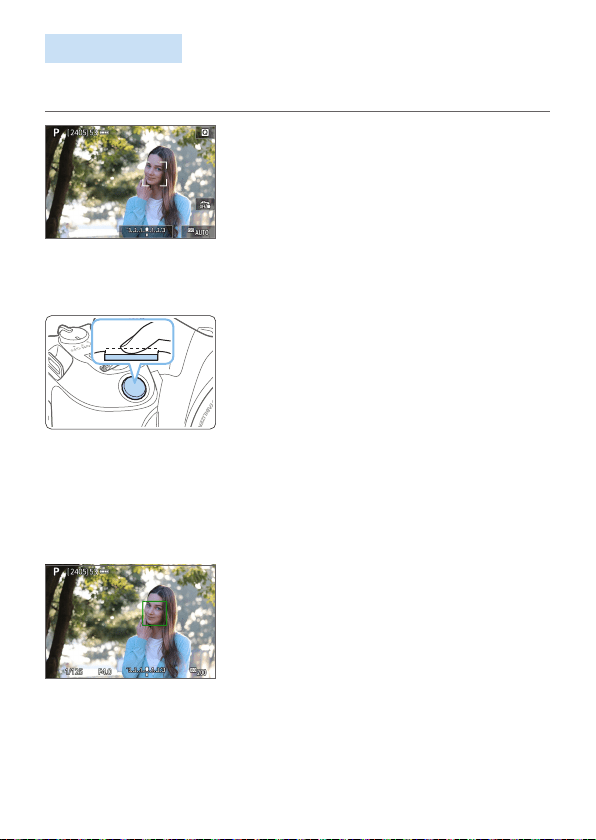
198
Face+Tracking
The camera detects and focuses on human faces. If a face moves, the AF
point <p> also moves to track the face.
1
Check the AF point.
When a face is detected, <p> will
appear over the face to be focused on.
If multiple faces are detected, <q>
will be displayed. Use <Y> <Z> to
move <q> over the face you want to
focus on.
You can also tap on the LCD monitor
screen to select the face or subject.
2
Focus on the subject.
Press the shutter button halfway to
focus.
B If no faces can be detected or if you do
not tap anything on the screen, focus
will be achieved within the Area AF
frame.
B When focus is achieved, the AF point
will turn green and the beeper will
sound.
B If focus is not achieved, the AF point will
turn orange.
3
Take the picture.
Check the focus and exposure, then
press the shutter button completely to
take the picture (=
181).

199
Focusing on a subject other than a human face
Once the AF point <z> achieves focus, the AF point <z> will also
move to track the subject if you change the composition or if the subject
moves.
If the subject’s face is signicantly out of focus, face detection will not
be possible. Adjust the focus manually (=
212) so that the face can be
detected, then perform AF.
An object other than a human face may be detected as a face.
Face detection will not work if the face is very small or large in the picture, too
bright or too dark, or partially hidden.
The <p> may cover only a part of the face, not the whole face.
The size of the AF point changes depending on the subject.
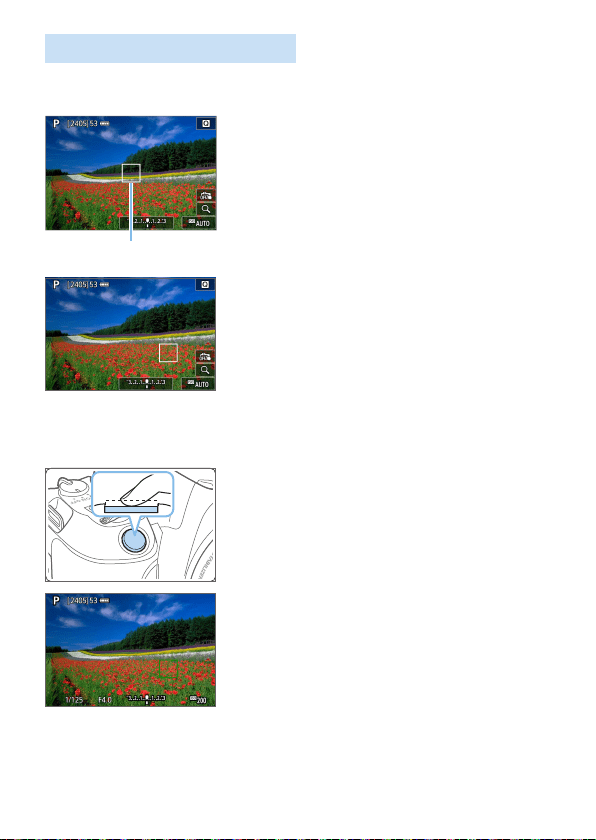
200
Spot AF/1-Point AF/Zone AF
You can manually set the AF point or Zone AF frame. Here, 1-point AF
screens are used as an example.
1
Check the AF point.
The AF point (1) will appear.
With Zone AF, the Zone AF frame is
displayed.
2
Move the AF point.
You can also move the AF point by
touching the screen or pressing the
<V> cross keys.
To center the AF point or Zone AF
frame, press the <L> button.
To magnify display, press the <u>
button. Each press of the <u> button
changes the magnication ratio.
3
Focus on the subject.
Aim the AF point over the subject and
press the shutter button halfway.
B When focus is achieved, the AF point
will turn green and the beeper will
sound.
B If focus is not achieved, the AF point will
turn orange.
(
1
)

201
4
Take the picture.
Press the shutter button completely to
take the picture (=
181).
Focusing may be difcult when using a peripheral AF point. In this case,
select an AF point in the center.
Notes for AF
AF Operation
Even when focus is achieved, pressing the shutter button halfway will
focus again.
The image brightness may change during and after the AF operation.
Depending on the subject and shooting conditions, it may take longer to
focus, or the continuous shooting speed may decrease.
If the light source changes while the Live View image is displayed, the
screen may icker and focusing may be difcult. If this happens, exit
Live View shooting and perform AF under the actual light source under
which you are shooting.
If you cannot achieve focus with AF, set the lens’s focus mode switch to <MF>
and focus manually (=
212).
If you shoot the subject at the periphery and it is slightly out of focus,
recompose to move the subject (and AF point) toward the screen center,
focus again, then take the picture.
The AF-assist beam will not be emitted. However, if an EX-series Speedlite
equipped with an LED light is used, the LED light will turn on for AF-assist as
necessary.
With certain lenses, it may take more time to achieve focus with autofocus, or
accurate focusing may not be achieved.

202
Shooting Conditions that Make Focusing Difcult
Subject with low-contrast such as the blue sky, solid-color at surfaces
or when highlight or shadow details are clipped.
Subjects in low light.
Stripes and other patterns where there is contrast only in the horizontal
direction.
Subjects with repetitive patterns (Example: Skyscraper windows,
computer keyboards, etc.).
Fine lines and subject outlines.
Under a light source whose brightness, color, or pattern keeps
changing.
Night scenes or points of light.
The image ickers under uorescent or LED lighting.
Extremely small subjects.
Subjects at the edge of the screen.
Strongly backlit or reective subjects (Example: Car with a highly
reective body, etc.).
Near and distant subjects covered by an AF point (Example: Animal in
a cage, etc.).
Subjects that keep moving within the AF point and will not stay still due
to camera shake or subject blur.
Performing AF when the subject is very far out of focus.
Soft focus effect is applied with a soft focus lens.
A special effect lter is used.
Noise (dots of light, banding, etc.) appears on the screen during AF.
AF Range
The available autofocus range varies depending on the lens and aspect
ratio used and whether you are recording 4K movies or using features such
as Movie digital IS.
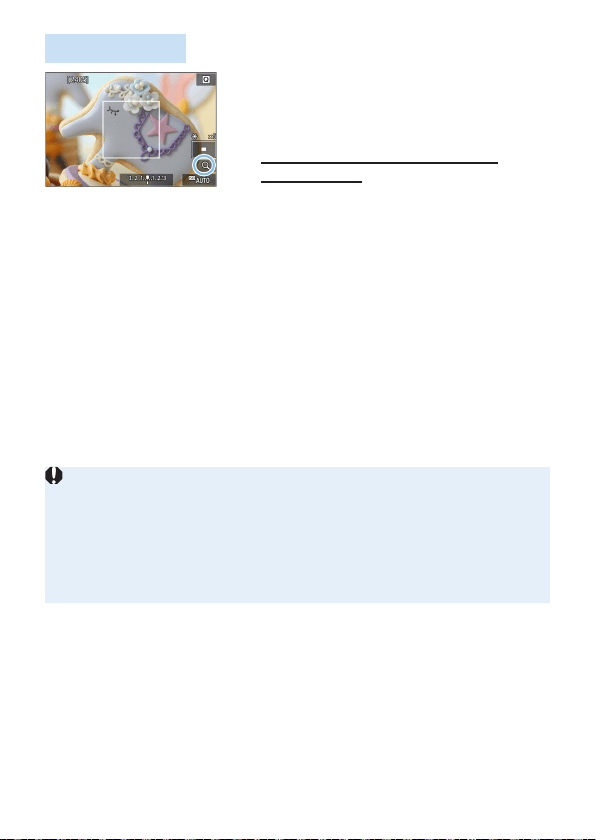
203
Magnified View
To check the focus when the AF method is
other than [u+Tracking], magnify display
by approx. 5× or 10× by pressing the <u>
button or tapping [Y] in the lower right.
Magnied view is not available with
[u+Tracking].
To move the AF point, press the <V> cross keys or tap on the spot
you want to magnify.
Either press the <u> button or tap on [Y] to magnify the area
covered by the magnifying frame. Each time you press the <u> button
or tap on [Y], the magnication ratio changes.
Magnication is centered on the AF point for [Spot AF], and [1-point
AF] and is centered on the Zone AF frame for [Zone AF].
Autofocusing is performed with magnied display if you press the
shutter button halfway when set to [1-point AF], or [Spot AF]. When
set to other AF methods, autofocusing is performed after restoring
normal display.
With Servo AF, if you press the shutter button halfway in the magnied
view, the camera will return to the normal view for focusing.
If focusing is difcult in the magnied view, return to the normal view and
perform AF.
If you perform AF in the normal view and then use the magnied view,
accurate focus may not be achieved.
AF speed differs between normal view and magnied view.
When in magnied view, Movie Servo AF (=
253) will not function.
With the magnied view, achieving focus becomes more difcult due to
camera shake. Using a tripod is recommended.
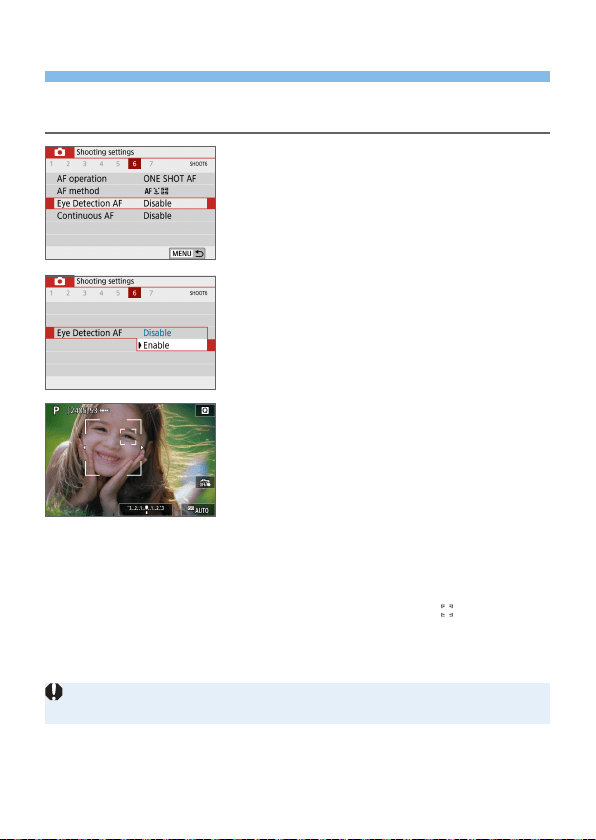
204
Focusing on People’s Eyes
With the AF method set to [u+Tracking], you can shoot with the subject’s
eyes in focus.
1
Select [Eye Detection AF].
Under the [z] tab, select [Eye
Detection AF], then press <0>.
2
Select [Enable].
3
Aim the camera at the subject.
B An AF point is displayed around their
eye.
You can tap the screen to select an eye
for focus.
The entire face is selected when you tap
other facial features, such as their nose
or mouth. Eyes to focus on are selected
automatically.
You can select an eye or face with the
<Y> <Z> keys when <
> or <p>
appears.
4
Take the picture.
Subject eyes may not be detected correctly, depending on the subject and
shooting conditions.
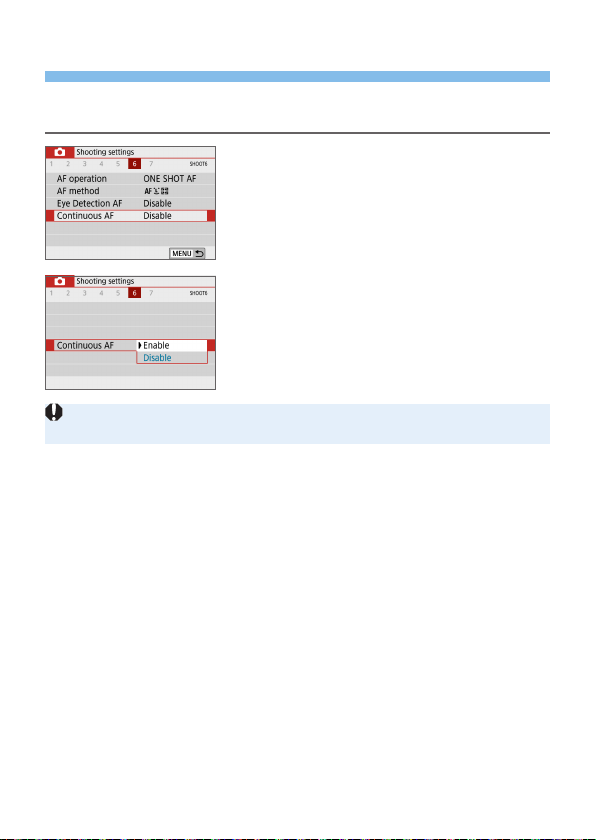
205
Setting Continuous AF
This function keeps subjects generally in focus. The camera is ready to
focus immediately when you press the shutter button halfway.
1
Select [Continuous AF].
Under the [z] tab, select [Continuous
AF], then press <0>.
2
Select [Enable].
Enabling this function reduces the number of shots available, because the
lens is driven continuously and battery power is consumed.
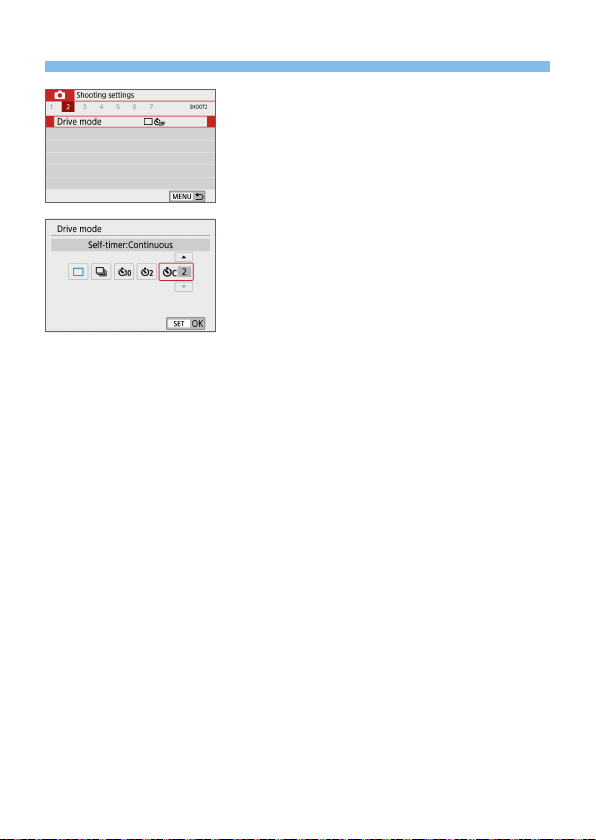
206
Using the Self-timer
1
Select [Drive mode].
Under the [z] tab, select [Drive
mode], then press <0>.
2
Select the self-timer.
Press the <Y> <Z> keys to select the
self-timer, then press <0>.
m/Q: 10 sec./remote control
self-timer
The picture is taken 10 seconds
after you press the shutter button.
Remote control shooting with the
Wireless Remote Control BR-E1
(sold separately) is also possible
(=
463).
l: 2-sec. self-timer
The picture is taken 2 seconds
after you press the shutter button.
q: 10-sec. self-timer plus
continuous shots
10 seconds after you press the
shutter button, the set number of
multiple shots are taken.
Press the <W> <X> keys to set
the number of multiple shots (2 to
10) to be taken with the self-timer.

207
3
Take the picture.
Focus on the subject, then press the
shutter button completely.
B To check operation, listen for beeps
or watch the countdown display (in
seconds) on the LCD monitor.
B 2 sec. before the picture is taken, the
beeper will sound faster.
With <q>, the interval between the multiple shots may be prolonged
depending on the shooting functions settings such as the image-recording
quality or ash.
If stray light enters the viewnder when the picture is taken, it may throw off
the exposure. Live View shooting is recommended.
After taking self-timer shots, playing back the image (=
101) to check focus
and exposure is recommended.
When using the self-timer to shoot yourself, use focus lock (=
74) on an
object at the same distance as where you will stand.
To cancel the self-timer after it starts, either tap on the LCD monitor or press
<0>.
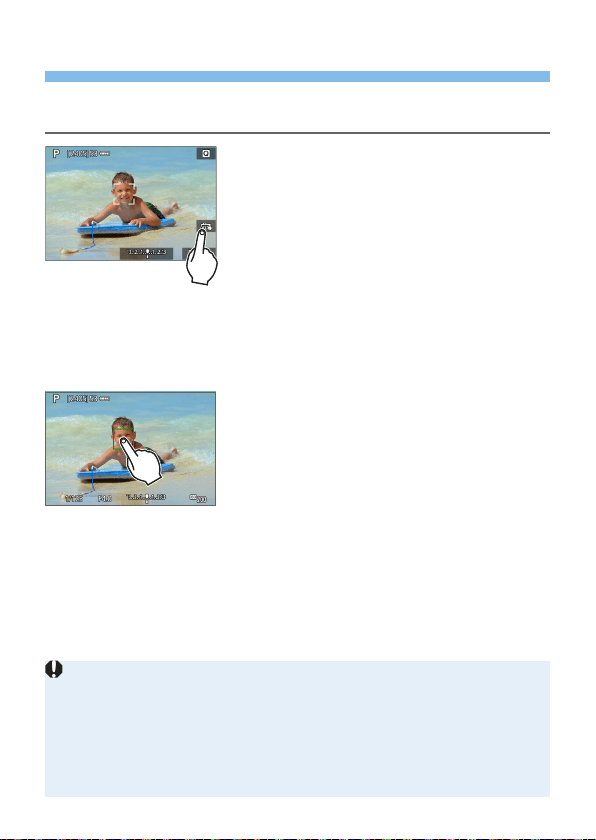
208
Shooting with the Touch Shutter
Just by tapping on the LCD monitor screen, you can focus and take the
picture automatically.
1
Enable the Touch Shutter.
Tap [y].
Each time you tap on the icon, it will
toggle between [y] and [x].
[x] (Touch Shutter: Enable)
The camera will focus on the spot you
tap on, then the picture will be taken.
[y] (Touch Shutter: Disable)
You can tap on a spot to perform
focusing on the spot (Touch AF). Press
the shutter button completely to take the
picture.
2
Tap on the screen to shoot.
Tap on the face or subject on the
screen.
B On the point you tap, the camera will
focus (Touch AF) with the AF method
that was set (=
197).
B When focus is achieved, the AF point
turns green and the picture is taken
automatically.
If focus is not achieved, the AF point
turns orange and the picture cannot be
taken. Tap on the face or subject on the
screen again.
Even if you set the drive mode to <i>, the camera will still shoot in the
single shooting mode.
Even if [AF operation] is set to [Servo AF], tapping on the screen will focus
on the image with [One-Shot AF].
Tapping on the screen in magnied view will not focus or take the picture.
If the Fish-eye effect Creative lter is set, the camera will focus using the AF
point at the center of the screen regardless of the point you tap on.
If the Miniature effect Creative lter is set, the Touch Shutter does not work.

209
You can also set the Touch Shutter with [z: Touch Shutter].
To shoot with bulb exposure, tap on the screen twice. The rst tap on the
screen will start the bulb exposure. Tapping it again will stop the exposure. Be
careful not to shake the camera when tapping on the screen.
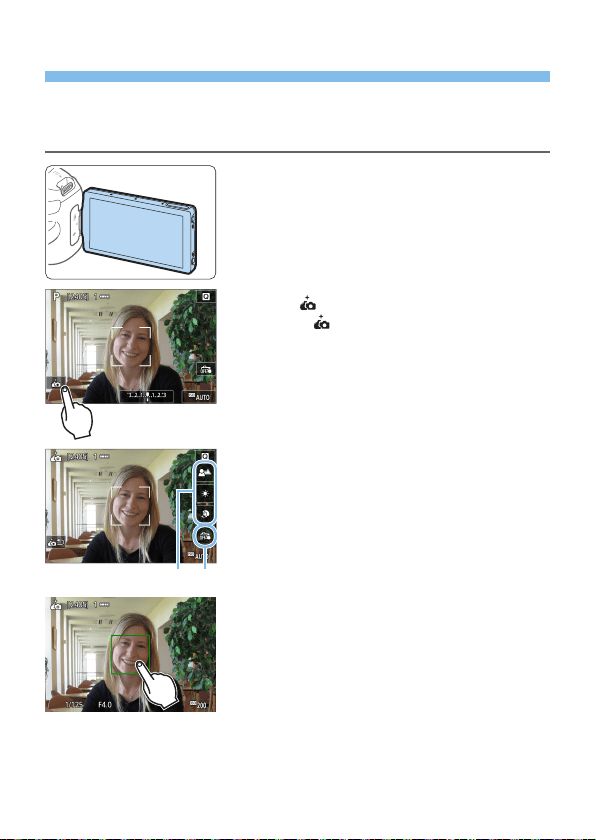
210
Taking a Self Portrait (Selfie)
The Self Portrait mode processes the image to suit human subjects. Before
shooting, you can also specify background blurring, brightness, and skin
smoothing.
1
Face the LCD monitor toward the
front of the camera.
As shown in the illustration, ip out the
LCD monitor and face it toward the front
of the camera (=
40).
2
Tap [ ] on the screen.
Tap [ ] on the screen to activate Self
Portrait mode.
3
Set the Self Portrait settings.
Tap a function (1) to select it, then set
the effect.
4
Take the picture.
When using the Touch Shutter:
Tap [y] (2) and set to [x] (Touch
Shutter: Enable) (=
208).
Tap on the spot where you want to
focus, then take the picture.
When using the shutter button:
Press the shutter button halfway to
focus, then press it completely to take
the picture.
(1) (2)

211
After the camera achieves focus, do not change the distance between you
and the camera until the picture is taken.
Be careful not to drop the camera.
Flash photography is not possible. Try to prevent camera shake when
shooting in low-light conditions.
The Self Portrait mode will be canceled when you set the camera switch to
<2> or do any of the following:
- Tapping [g] on the screen.
- Rotating the LCD monitor back to its original position.
- Pressing the <A> button.
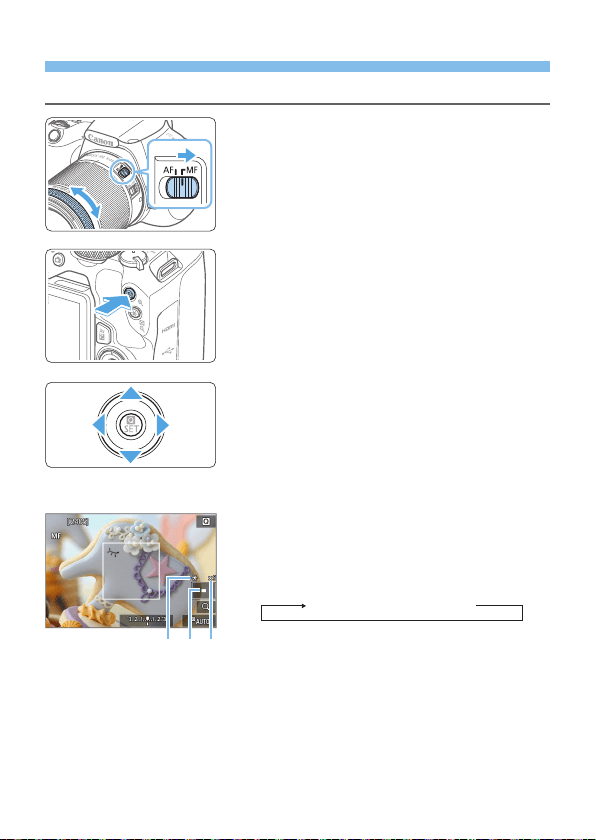
212
MF: Focusing Manually
You can magnify the image and focus precisely with MF (manual focus).
1
Set the lens’s focus mode switch
to <MF>.
Turn the lens focusing ring to focus
roughly.
2
Display the magnifying frame.
Press the <u> button.
B The magnifying frame will appear.
You can also tap [1] on the screen to
magnify the image.
3
Move the magnifying frame.
Press the <V> cross keys to move the
magnifying frame to where you want to
focus.
Pressing the <L> button will return the
magnifying frame to the screen center.
4
Magnify the image.
Each time you press the <u> button,
the magnication of the image will
change in the following sequence:
Normal display → 5x → 10x
(1) AE lock
(2) Magnied area position
(3) Magnication
(
2
)(
3
)(
1
)
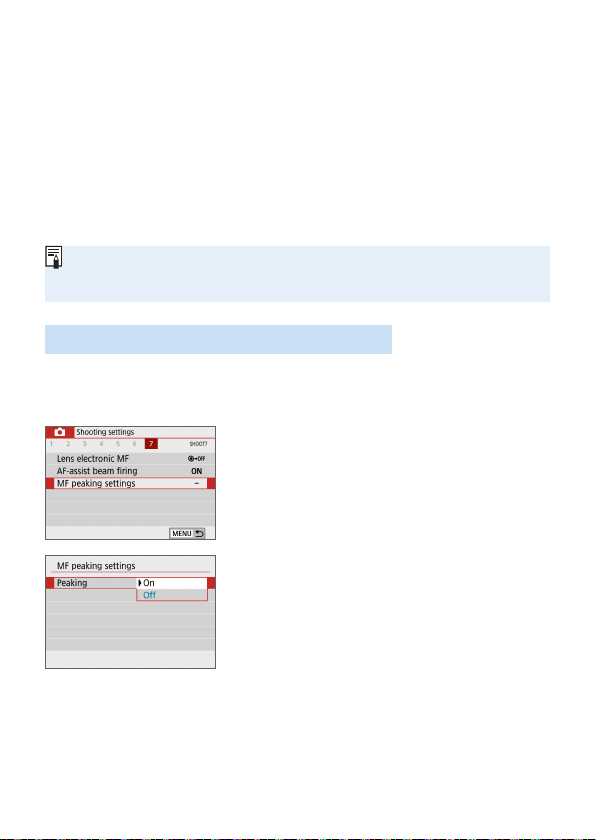
213
5
Focus manually.
While looking at the magnied image,
turn the lens focusing ring to focus.
After achieving focus, press the <u>
button to return to the normal view.
6
Take the picture.
Check the focus and exposure, then
press the shutter button to take the
picture (=
181).
In magnied view, the exposure is locked. (Shutter speed and aperture will be
displayed in red.)
Even with manual focusing, you can use the Touch Shutter to take a picture.
Setting MF Peaking (Outline Emphasis)
Edges of subjects in focus can be displayed in color to make focusing
easier. You can set the outline color and adjust the sensitivity (level) of edge
detection (except in <A> mode).
1
Select [MF peaking settings].
Under the [z] tab, select [MF peaking
settings], then press <0>.
2
Select [Peaking].
Select [Peaking], then press <0>.
Select [On], then press <0>.
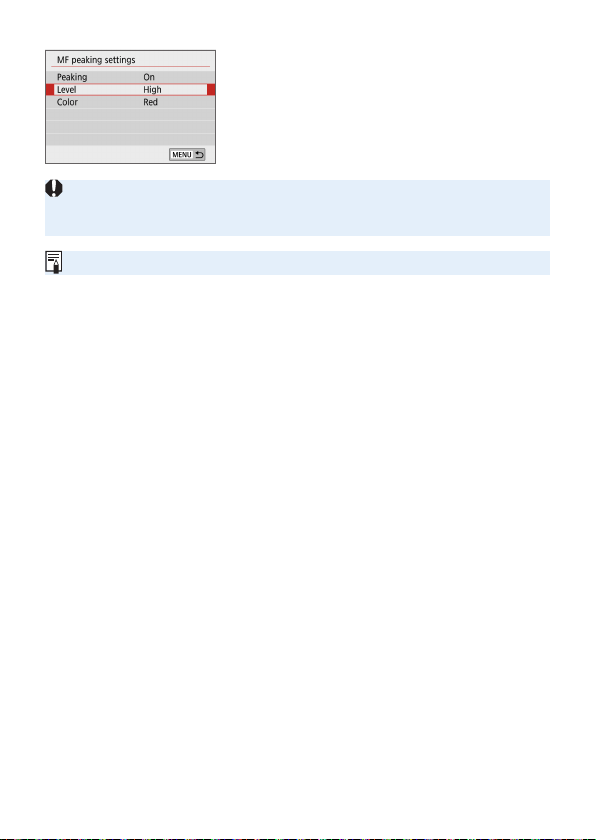
214
3
Set the level and color.
Set it as necessary.
Peaking display is not shown during magnied display.
MF peaking may be hard to discern at high ISO speeds, especially when ISO
expansion is set. If necessary, lower the ISO speed or set [Peaking] to [Off].
Peaking display shown on the LCD monitor is not recorded in images.

215
General Live View Shooting Cautions
Image Quality
When you shoot at high ISO speeds, noise (such as dots of light and
banding) may become noticeable.
Shooting in high temperatures may cause noise and irregular colors in the
image.
If Live View shooting is used continuously for a prolonged period, the
camera’s internal temperature may rise, and image quality may deteriorate.
Always exit Live View shooting when you are not shooting.
If you shoot a long exposure while the camera’s internal temperature is high,
image quality may deteriorate. Exit Live View shooting and wait a few minutes
before shooting again.
White <s> and Red <E> Internal Temperature Warning Icons
If the camera’s internal temperature increases due to prolonged Live View
shooting or under a high ambient temperature, a white <s> or red <E> icon
will appear.
The white <s> icon indicates that the image quality of still photos will
deteriorate. It is recommended that you temporarily exit Live View shooting
and allow the camera to cool down before shooting again.
The red <E> icon indicates that the Live View shooting will soon stop
automatically. If this happens, you will not be able to shoot again until the
camera’s internal temperature decreases. Temporarily exit the Live View
shooting or turn off the power and let the camera rest for a while.
Using Live View shooting at a high temperature for a prolonged period will
cause the <s> or <E> icon to appear earlier. When you are not shooting,
always turn off the camera.
If the camera’s internal temperature is high, the quality of images shot with a
high ISO speed or long exposure may deteriorate even before the white <s>
icon is displayed.
Shooting Results
If you take the picture in magnied view, the exposure may not come out as
desired. Return to the normal view before taking the picture. In magnied
view, the shutter speed and aperture will be displayed in red. Even if you take
the picture in magnied view, the image will be captured with the image area
of the normal view.
If you use a TS-E lens (except the TS-E17mm f/4L or TS-E24mm f/3.5L II)
for shifting or tilting the lens or if you use an extension tube, the standard
exposure may not be obtained, or an irregular exposure may result.

216
General Live View Shooting Cautions
Live View Image
Under low- or bright-light conditions, the Live View image may not reect the
brightness of the captured image.
Even if a low ISO speed is set, noise may be noticeable in the displayed Live
View image under low light. However, when you shoot, the image recorded
will have less noise. (The image quality of the Live View image is different
from that of the recorded image.)
If the light source (illumination) within the image changes, the screen may
icker. If this happens, exit Live View shooting and resume Live View shooting
under the actual light source.
If you point the camera in a different direction, it may throw off the Live
View image’s correct brightness momentarily. Wait until the brightness level
stabilizes before shooting.
If there is a very bright light source in the image, the bright area may appear
black on the LCD monitor. However, the actual captured image will correctly
show the bright area.
In low light, if you set the [5: Disp. brightness] to a bright setting, noise or
irregular colors may appear in the Live View image. However, the noise or
irregular colors will not be recorded in the captured image.
When you magnify the image, the image sharpness may look more
pronounced than in the actual image.
If the shutter speed is 1 sec. or slower, “BUSY” is displayed on the LCD
monitor, and the Live View display will not appear until the exposure is
complete.
Custom Functions
During Live View shooting, certain Custom Function settings will not take
effect.
Lens and Flash
If the attached lens has an Image Stabilizer and you set the Image Stabilizer
(IS) switch to <1>, the Image Stabilizer will operate at all times even if
you do not press the shutter button halfway. The Image Stabilizer consumes
battery power and may decrease the number of possible shots depending on
the shooting conditions. When the Image Stabilizer is not necessary, such as
when using a tripod, it is recommended that you set the IS switch to <2>.
The focus preset function is possible for Live View shooting only when using
a (super) telephoto lens equipped with the focus preset mode released in and
after the second half of 2011.
FE lock will not work if the built-in ash is used. FE lock and modeling ash
will not work if an external Speedlite is used.
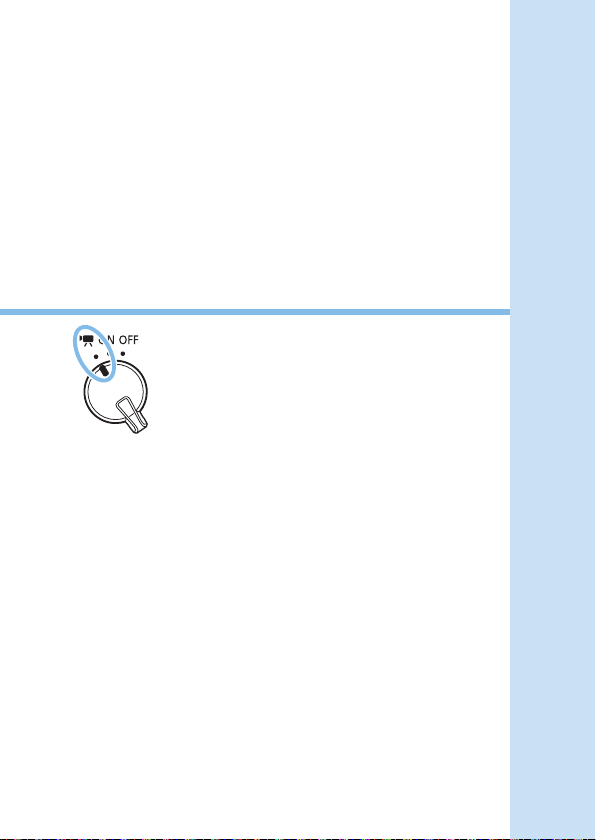
217
Shooting Movies
Movie shooting is enabled by setting the
power switch to <k>.
For cards that can record movies, see page
7.
If you handhold the camera and shoot movies, camera shake
can cause blurred movies. In such a case, using a tripod is
recommended.
To shoot while handholding the camera, see page
75.
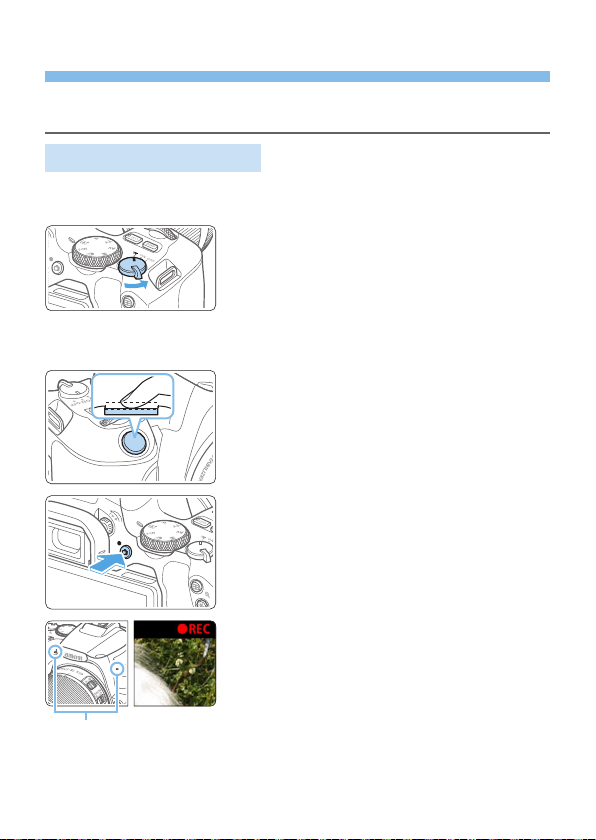
218
Shooting Movies
Connecting the camera to a TV set is recommended to play back the shot
movies (=
305).
Autoexposure Shooting
When the shooting mode is set to any mode other than <a>, autoexposure
control will take effect to suit the scene’s current brightness.
1
Set the power switch to <k>.
B The reex mirror will make a sound,
then the image will appear on the LCD
monitor.
2
Set the Mode Dial to a mode other
than <8>, <v>, or <a>.
3
Focus on the subject.
Before shooting a movie, focus with
AF or manual focus (=
197–=
203,
=
212).
By default, [Movie Servo AF: Enable]
is set so that the camera always keeps
focusing. To stop Movie Servo AF, see
=
253.
4
Shoot the movie.
Press the <A> button to start shooting
a movie. To stop movie shooting, press
the <A> button again.
B While the movie is being shot, the
“oREC” mark will be displayed on the
upper right of the screen.
B Sound will be recorded by the built-in
microphones (1).
(
1
)

219
General Movie Shooting Cautions are on =
257–=
258.
If necessary, also read “General Live View Shooting Cautions” on
=
215–=
216.
In the <f> and <s> shooting modes, the settings will be the same as
when shooting in the <d> mode.
Settable menu functions differ between Basic Zone modes and Creative Zone
modes.
Shutter speed, aperture and ISO speed are set automatically.
In Creative Zone modes, you can press the <A> button (=
164) to lock the
exposure (AE lock). The exposure setting will be displayed for the number of
seconds set with [z: Metering timer]. After applying AE lock during movie
shooting, you can cancel it by pressing the <S> button. (AE lock setting is
retained until you press the <S> button.)
In Creative Zone modes, you can turn the <6> dial while holding down the
<g> button to set the exposure compensation.
If you shoot a movie with autoexposure, the shutter speed, aperture and ISO
speed will not be recorded in the movie’s Exif information.
With autoexposure movie shooting (except in time-lapse movie shooting),
the camera will automatically turn on the Speedlite’s LED light under low-
light conditions. For details, refer to the Instruction Manual of the EX-series
Speedlite equipped with an LED light.
ISO Speed in Basic Zone Modes
The ISO speed will be set automatically within ISO 100–ISO 12800.
Note that when the camera is set for 4K movies, ISO speed is ISO
100–ISO 6400.
ISO Speed in the <d>, <s>, and <f> Modes
The ISO speed will be set automatically within ISO 100–ISO 12800.
The maximum limit varies depending on the [Max for Auto] setting in
[z:kISO Auto] setting (=
254). Note that when the camera is set
for 4K movies, ISO speed is ISO 100–ISO 6400.
Under [5: Custom Functions(C.Fn)], if [ISO expansion] is set to
[1:On], [H(25600)] can also be selected for [Max for Auto]. Note that
when the camera is set for 4K movies, ISO speed is ISO 100–ISO
6400.
When [z: Highlight tone priority] is set to [Enable], the ISO speed
range is ISO 200–ISO 12800. Note that when the camera is set for 4K
movies, ISO speed is ISO 100–ISO 6400.
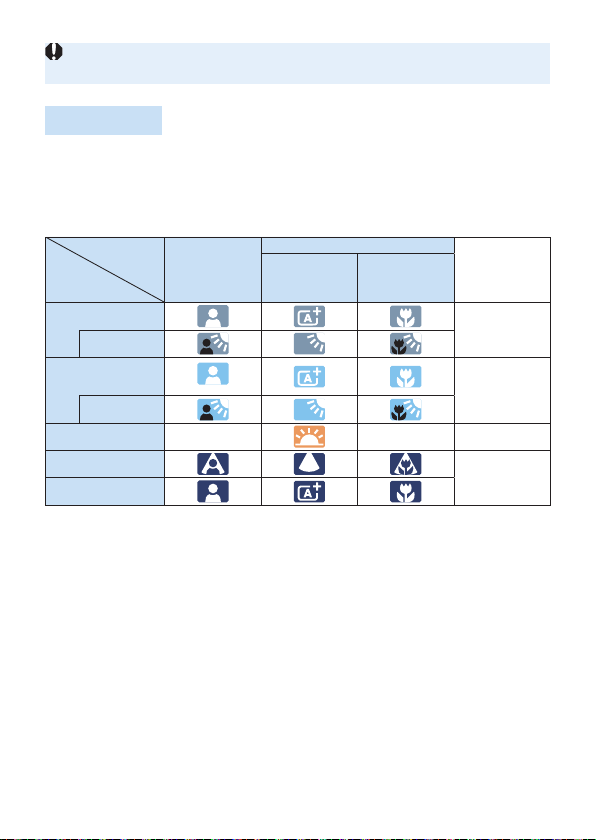
220
When switching from still photo shooting to movie shooting, check the ISO
speed settings again before shooting movies.
Scene Icons
During movie shooting in <A>, an icon representing the scene detected
by the camera will be displayed, and the shooting will be performed to suit
the scene. For certain scenes or shooting conditions, the icon displayed
may not match the actual scene.
Subject
Background
Portrait
Non-Portrait
Background
Color
Nature and
Outdoor
Scene
Close*
1
Bright
Gray
Backlit
Blue Sky
Included
Light blue
Backlit
Sunset *
2
*
2
Orange
Spotlight
Dark blue
Dark
*1 : Displayed when the attached lens has distance information. With an extension
tube or close-up lens, the icon displayed may not match the actual scene.
*2 : The icon of the scene selected from the detectable scenes will be displayed.
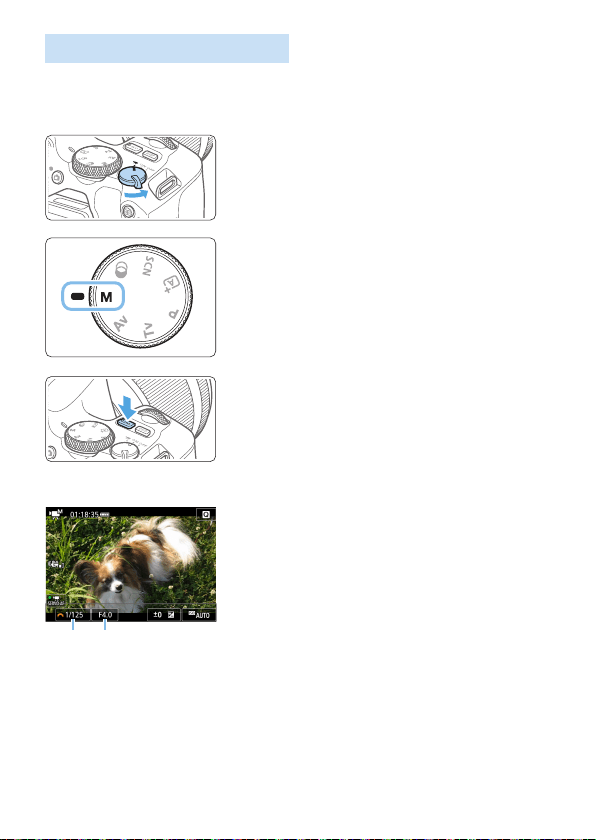
221
Manual Exposure Shooting
In the <a> mode, you can manually set the shutter speed, aperture, and
ISO speed for movie shooting. Using manual exposure to shoot movies is
for advanced users.
1
Set the power switch to <k>.
B The reex mirror will make a sound,
then the image will appear on the LCD
monitor.
2
Set the Mode Dial to <a>.
3
Set the ISO speed.
Press the <g> button and press the
<Y> <Z> keys or turn the <6> dial
to select the ISO speed.
For details on the ISO speed, see
page 222.
4
Set the shutter speed and aperture.
To set the shutter speed (1), turn the
<6> dial.
To set the aperture (2), turn the <6>
dial while holding down the <g>
button.
5
Focus and shoot the movie.
The procedure is the same as steps 3
and 4 for “Shooting Movies” (=
218).
(1) (2)

222
ISO Speed During Manual Exposure Shooting
With [AUTO], the ISO speed will be set automatically within ISO 100–
ISO 12800. The maximum limit varies depending on the [Max for Auto]
setting in [z:kISO Auto] setting (=
254). Note that when the
camera is set for 4K movies, ISO speed is ISO 100–ISO 6400.
You can set the ISO speed manually within ISO 100–ISO 12800 in
whole-stop increments. Under [5: Custom Functions(C.Fn)], if you
set [ISO expansion] to [1:On], the maximum limit of the manual
ISO speed setting range will be expanded so you can also select H
(equivalent to ISO 25600). Note that when the camera is set for 4K
movies, ISO speed is ISO 100–ISO 6400.
If [z: Highlight tone priority] is set to [Enable], the ISO speed
will be ISO 200–ISO 12800. Note that when the camera is set for 4K
movies, ISO speed is ISO 100–ISO 6400.
Since shooting a movie at ISO 25600 equivalent may result in much noise, it
is designated as an expanded ISO speed (displayed as “H”).
When switching from still photo shooting to movie shooting, check the camera
settings again before shooting movies.
Changing the shutter speed or aperture during movie shooting is not
recommended since the changes in the exposure will be recorded.
When shooting a movie of a moving subject, a shutter speed of approx.
1/30 sec. to 1/125 sec. is recommended. The faster the shutter speed, the
less smooth the subject’s movement will look.
If you change the shutter speed while shooting under uorescent or LED
lighting, image icker may be recorded.
If you set [5:Expo comp (hold btn, turn S)] with [Assign SET button]
under [5: Custom Functions(C.Fn)] (=
452), you can use exposure
compensation with ISO Auto set.
When ISO Auto is set, you can press the <A> button to lock the ISO speed.
If you press the <A> button and recompose the shot, you can see the
exposure level difference on the exposure level indicator (=
223) compared
to when the <A> button was pressed.
By pressing the <B> button, you can display the histogram.
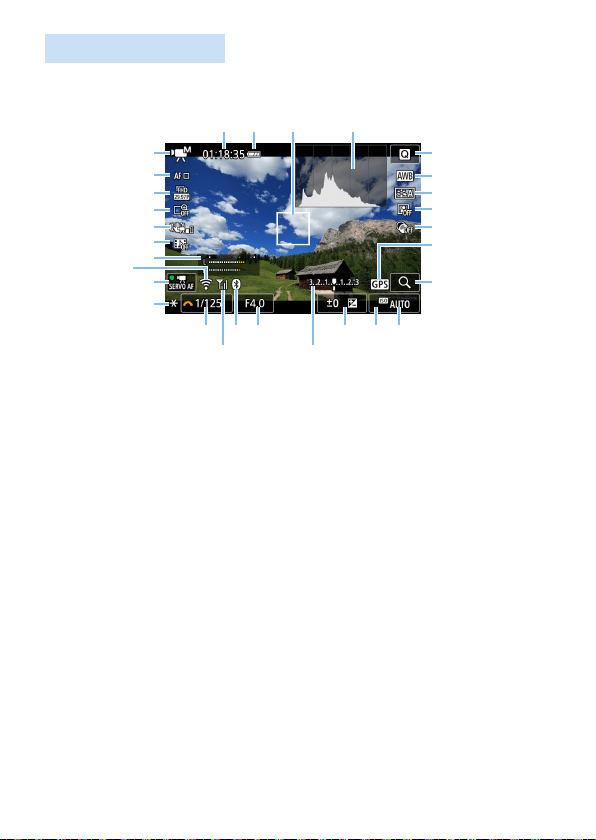
223
Information Display
Each time you press the <B> button, the information display will
change.
(
1
)
(
2
)
(
3
)
(
4
)
(
5
)
(
6
)
(
9
)
(
8
)
(
7
)
(
10
)
(
11
) (
12
) (
14
)(
13
)
(
15
)
(
16
)
(
17
)
(
18
)
(
19
)
(
20
)
(
21
)
(
22
) (
24
)
(
23
)
(
25
)
(
26
)
(
27
) (
29
)(
28
)
(1) Movie shooting mode/Scene icon
y : Autoexposure (Basic Zone
modes)
k : Autoexposure (Creative Zone
modes)
M : Manual exposure
u : HDR movie
l : Creative filters
N : Time-lapse movie
(2) AF method
• S: u+Tracking
• Q: Spot AF
• T: 1-point AF
• R: Zone AF
(3) Movie recording size
(4) Digital zoom
(5) Movie digital IS
(6) Video snapshot
(7) Recording level (manual)
(8) Wi-Fi function
(9) Movie Servo AF
(10) AE lock
(11) Movie shooting remaining time*/
Elapsed time
* Applies to a single movie clip.
(12) Battery level
(13) AF point
(14) Histogram (for manual exposure)
(15) Quick Control
(16) White balance
(17) Picture Style
(18) Auto Lighting Optimizer
(19) Creative filters
(20) GPS connection indicator
(21) Magnify/Digital zoom
(22) Shutter speed
(23) Wi-Fi signal strength
(24) Bluetooth function
(25) Aperture
(26) Exposure level indicator (for manual
exposure)

224
(27) Exposure compensation
(28) Highlight tone priority
(29) ISO speed
The grid lines, or histogram cannot be displayed during movie shooting. (The
display will disappear when you start shooting a movie.)
When movie shooting starts, the movie shooting remaining time will change
to the elapsed time.
225
Still Photo Shooting
Still photos cannot be taken during movie shooting.
To take still photos, stop the movie shooting and take still photos using
viewnder shooting or Live View shooting.
Cautions for Movie Shooting
Do not point the camera toward an intense light source, such as the sun or an
intense articial light source. Doing so may damage the image sensor or the
camera’s internal components.
When you press the shutter button halfway to autofocus during movie
shooting, the following phenomena may occur.
- Focus may become far off momentarily.
- The brightness of the recorded movie may change.
- The recorded movie may be momentarily still.
- The movie may record the lens mechanical sound.
If <Q> or <Qw> is set and the ISO speed or aperture changes during
movie shooting, the white balance may also change.
If you shoot a movie under uorescent or LED lighting, the movie image may
icker.
Shooting a few test movies is recommended if you intend to perform zooming
during movie shooting. Zooming during movie shooting may result in
recording of changes in exposure or mechanical sound of the lens, or images
may be out of focus.
During movie shooting, you cannot magnify the image even if you press the
<u> button.
Be careful not to cover the built-in microphones (=
218) with your ngers,
etc.
If you connect or disconnect the HDMI cable during movie shooting, the
movie shooting will end.
General Movie Shooting Cautions are on =
257–=
258.
If necessary, also read “General Live View Shooting Cautions” on
=
215–=
216.
Warnings:
Do not hold the camera in the same position for long periods of time.
Even if the camera does not feel too hot, prolonged contact with the same body part
may cause skin redness or blistering due to low-temperature contact burns. Using a
tripod is recommended when using the camera in very hot places or for people with
circulation problems or poor skin sensation.

226
Notes for Movie Shooting
Each time you shoot a movie, a new movie le is created on the card.
The movie’s eld of view coverage for recording 4K, Full HD, and HD movies
is approx. 100%.
Stereo sound is recorded by the camera’s built-in microphones.
If you connect the Directional Stereo Microphone DM-E1 (sold separately)
to the camera’s external microphone IN terminal (=
28), the external
microphone is given the priority.
Most external microphones equipped with a 3.5 mm diameter mini plug can
be used.
The focus preset function is possible for movie shooting when using a (super)
telephoto lens equipped with the focus preset mode, released in and after the
second half of 2011.
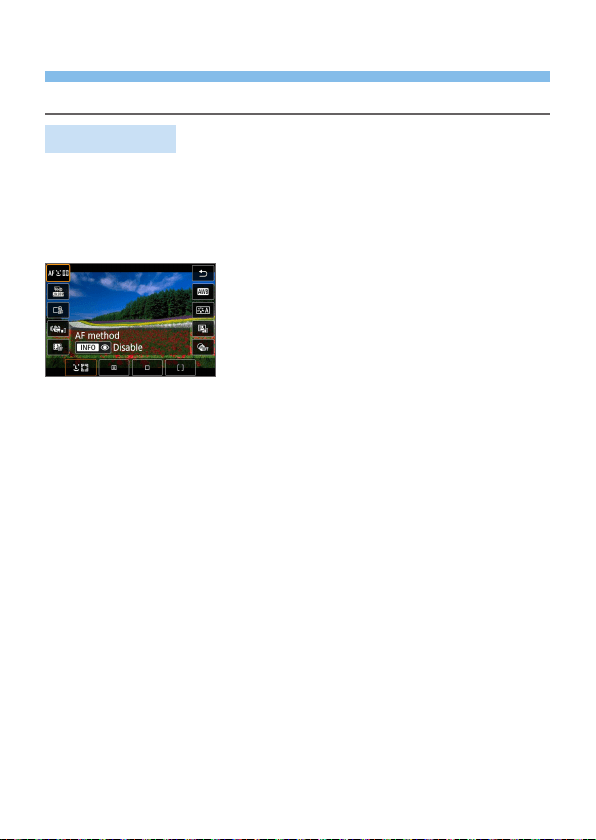
227
Shooting Function Settings
Function settings particular to movie shooting are described here.
Quick Control
If you press the <Q> button when the image is displayed on the LCD
monitor, you can set AF method, Movie rec. size, Digital zoom, Movie digital
IS, Video snapshot, White balance, Picture Style, Auto Lighting Optimizer,
and Creative lters.
Note that in Basic Zone modes, available items vary by shooting mode.
1
Press the <Q> button.
B The settable functions will be displayed.
2
Select a function and set it.
Press the <W> <X> keys to select a
function.
B The settings of the selected function and
Feature guide (=
55) will appear on
the screen.
Press the <Y> <Z> keys to set the
function.
To set Auto white balance, select [Q],
then press the <S/u> button.
To set the WB correction, Picture Style
parameters, or Creative lters, press the
<B> button.
Pressing <0> will return the camera
to movie shooting.
You can also select [2] to return to
movie shooting.
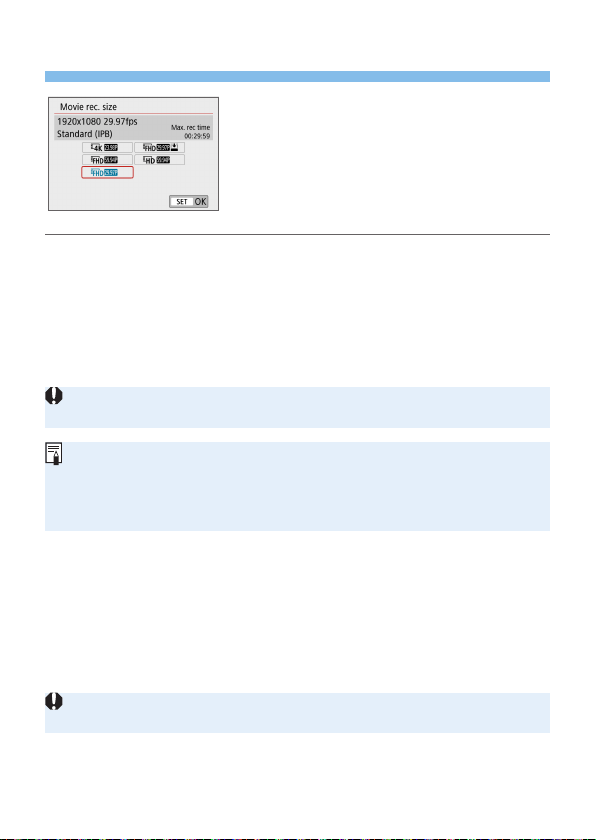
228
Setting the Movie Recording Size
With [z: Movie rec. size], you can set the
movie recording size (image size, frame
rate, and compression method) and other
functions.
Movies will be recorded in the MP4 format.
Image size
L 3840x2160
The movie is recorded in 4K quality. The aspect ratio is 16:9.
L 1920x1080
Full High-Denition (Full HD) recording quality. The aspect ratio is 16:9.
w 1280x720
High-Denition (HD) recording quality. The aspect ratio is 16:9.
Normal playback of 4K and L8/7 movies may not be possible on
other devices, because playback is processing-intensive.
The frame rate displayed on the movie recording size screen switches
depending on whether [5: Video system] is set to [For NTSC] or [For PAL].
If you change the [5: Video system] setting, set the movie recording size
again.
Movies cannot be recorded in VGA quality.
4K movie shooting
- Recording 4K movies requires a high-performance card.
- Recording 4K movies greatly increases the processing load, which
may cause the camera’s internal temperature to increase faster or
become higher than for regular movies.
- From a 4K movie, you can select any frame to save as an approx.
8.3-megapixel (3840×2160) JPEG still image to the card (=
301).
Contrast detection is used to focus when recording 4K movies. Focusing may
take longer and be more difcult than when recording HD or Full HD movies.

229
Frame rate (fps: frame per second)
6 29.97fps/8 59.94fps
For areas where the TV system is NTSC (North America, Japan, South
Korea, Mexico, etc.).
5 25.00fps/7 50.00fps
For areas where the TV system is PAL (Europe, Russia, China,
Australia, etc.).
4 23.98fps
Mainly for motion pictures.
Compression method
X IPB (Standard)
Compresses multiple frames at a time efciently for recording.
X v IPB (Light)
Since the movie is recorded at a low bit rate for playback on various
devices, the le size will be smaller than with IPB (Standard).
Therefore, you can shoot longer than with IPB (Standard).
Movie recording format
C MP4
All movies you shoot with the camera are recorded as movie les in
MP4 format (le extension “.MP4”).
Movie Files Exceeding 4 GB
Even if you shoot a movie exceeding 4 GB, you can keep shooting without
interruption.
Using SD/SDHC cards formatted with the camera
If you use the camera to format an SD/SDHC card, the camera will
format it in FAT32.
With a FAT32-formatted card, if you shoot a movie and the le size
exceeds 4 GB, a new movie le will be created automatically.
When you play back the movie, you will have to play each movie
le individually. Movie les cannot be played back automatically in
consecutive order. After the movie playback ends, select the next movie
and play it back.
Using SDXC cards formatted with the camera
If you use the camera to format an SDXC card, the camera will format
it in exFAT.
When using an exFAT-formatted card, even if the le size exceeds
4 GB during movie shooting, the movie will be saved as a single le
(rather than being split into multiple les).

230
Movie Shooting Time Limit
The maximum recording time per movie is 29 min. 59 sec. Once 29 min.
59 sec. is reached, recording automatically stops. You can start shooting a
movie again by pressing the <A> button. (The movie will be recorded as a
new movie le.)
When downloading movie les exceeding 4 GB to a computer, use either the
EOS Utility (=
482) or a card reader (=
485). Movie les exceeding 4 GB
will not be downloaded if you perform image download with the function of the
computer’s operating system.
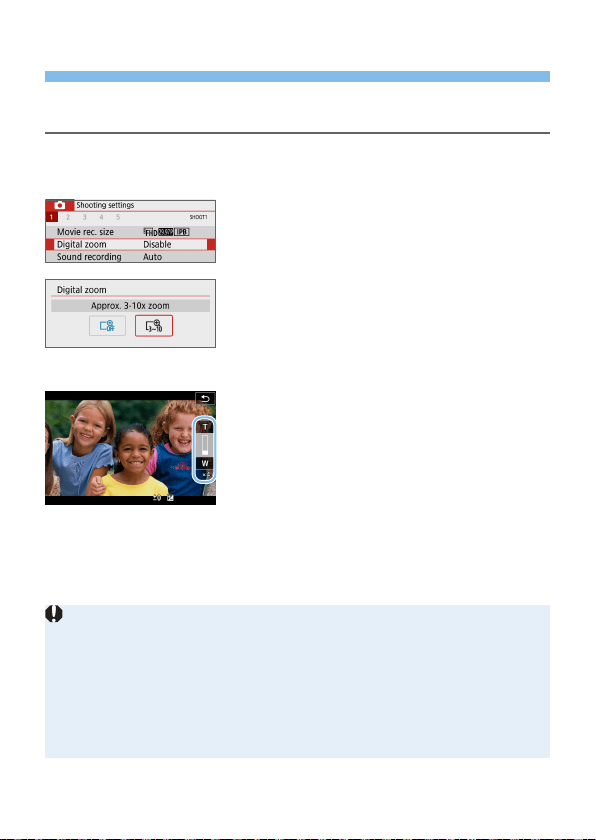
231
Using Movie Digital Zoom
When the recording size is L6X (NTSC) or L5X (PAL), you
can shoot with an approx. 3x to 10x digital zoom.
1
Set the Mode Dial to a mode other
than <8> or <v>.
2
Select [Digital zoom].
Under the [z] tab, select [Digital
zoom], then press <0>.
3
Select [Approx. 3-10x zoom].
Select [Approx. 3-10x zoom], then
press <0>.
Press the <M> button to exit the
menu and return to movie shooting.
4
Use digital zoom.
Press the <W> <X> keys.
B The digital zoom bar will appear.
Press the <W> key to zoom in or press
the <X> key to zoom out.
When you press the shutter button
halfway, the camera will focus with
[1-point AF] (xed at center).
To cancel digital zoom, set [Disable] in
step 2.
Using a tripod to prevent camera shake is recommended.
Time-lapse movie, Creative lter, and Movie digital IS cannot be set.
The maximum ISO speed will be ISO 6400.
Magnied view is not possible.
Since Movie digital zoom processes the image digitally, the image will look
grainier at higher magnications. Noise, dots of light, etc. may also become
noticeable.
The scene icon will not be displayed.
For details, see “Shooting Conditions that Make Focusing Difcult” (=
202).
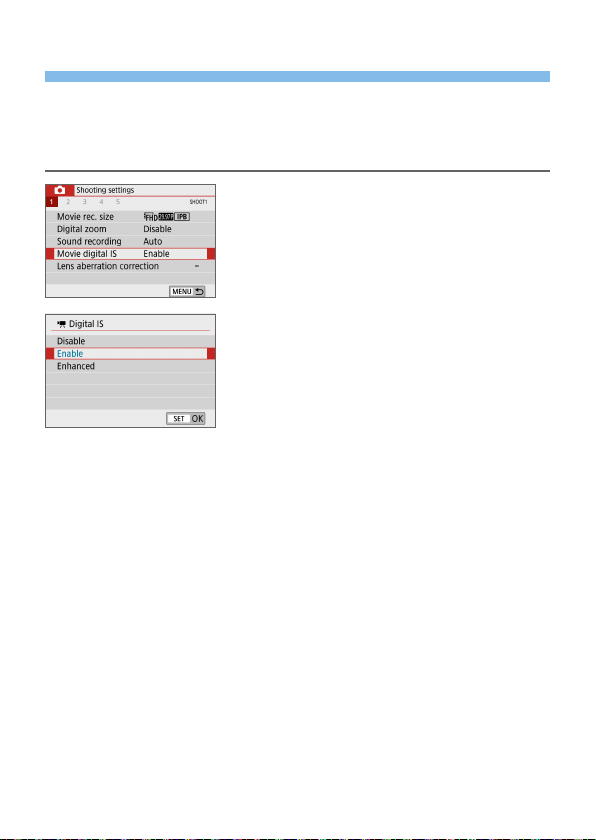
232
Movie Digital IS
The camera’s Movie digital IS feature reduces camera shake as movies are
recorded. With Movie digital IS, images can be stabilized even when using
a lens without Image Stabilizer. When using a lens equipped with Image
Stabilizer, set the lens’s Image Stabilizer switch to <1>.
1
Select [Movie digital IS].
Under the [z] tab, select [Movie
digital IS], then press <0>.
2
Select an item.
Press the <W> <X> keys of the cross
keys to select the item, then press
<0>.
Disable (v)
Image stabilization with Movie digital IS is disabled.
Enable (w)
Camera shake will be corrected. The image will be slightly magnied.
Enhanced (y)
Compared to when [Enable] is set, stronger camera shake can be
corrected. The image will be more magnied.

233
Movie digital IS will not function when the lens’s optical Image Stabilizer
switch is set to <2>.
With a lens whose focal length is longer than 800 mm, Movie digital IS will not
function.
Movie digital IS cannot be set in <8> or <v> mode or when Movie digital
zoom, time-lapse movie, or Creative lter is set.
The wider the angle of view, the more effective the image stabilization will be.
The narrower the angle of view, the less effective the image stabilization will
be.
When using a TS-E lens, sh-eye lens, or non-Canon lens, setting Movie
digital IS to [Disable] is recommended.
Effects of Movie digital IS are not applied to images during magnied display.
Since Movie digital IS magnies the image, the image looks more grainy.
Noise, dots of light, etc. may also become noticeable.
Depending on the subject and shooting conditions, the subject may blur
noticeably (the subject momentarily looks out of focus) due to the effects of
the Movie digital IS.
AF point size also changes when you specify Movie digital IS.
When using a tripod, setting Movie digital IS to [Disable] is recommended.
This feature is not compatible with certain lenses. For details, refer to the
Canon website.
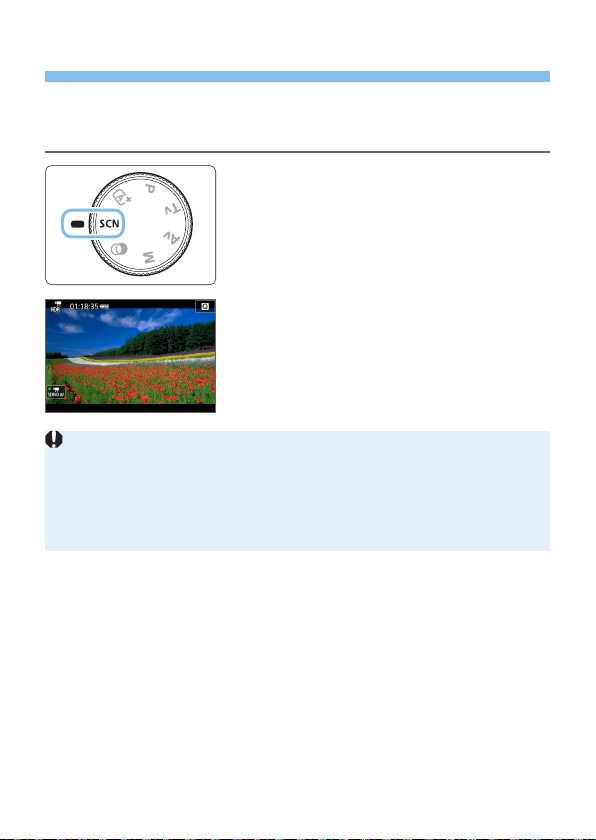
234
Recording HDR Movies
You can reduce the clipped highlights of bright areas, which may make
details hard to see, as you shoot movies even in high-contrast scenes.
The recording size is L6X (NTSC) or L5X (PAL).
1
Set the Mode Dial to <8>.
2
Shoot an HDR movie.
Since multiple frames are merged to create an HDR movie, certain parts
of the movie image may look distorted. During handheld shooting, camera
shake may make the distortion look more noticeable. Using a tripod is
recommended. Note that even if a tripod is used for shooting, afterimages
or noise may become more noticeable when the HDR movie is played back
frame-by-frame or in slow-motion compared to normal playback.
Movie digital zoom, time-lapse movie, and Movie digital IS cannot be set.
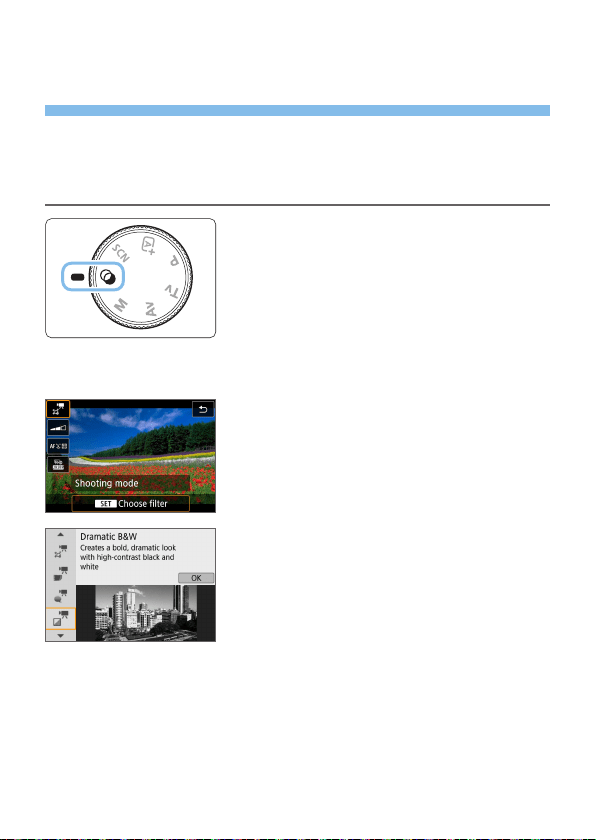
235
Shooting Movies with Creative Filter
Effects
In the <v> (Creative lters) mode, you can shoot movies with one of ve
lter effects (Dream, Old Movies, Memory, Dramatic B&W, and Miniature
effect movie).
The recording size can be set to L6 (NTSC) or L5 (PAL).
1
Set the Mode Dial to <v>.
2
Press the <Q> button.
B The Quick Control screen will appear.
3
Select [l].
Press the <W> <X> keys to select [l]
(Shooting mode) on the upper left of the
screen, then press <0>.
4
Select a filter effect.
Press the <W> <X> keys to select
a lter effect (=
236), then press
<0>.
B The image will be displayed with the
effects of the lter applied.
For Miniature effect movie, move the
AF point to the position to focus on.
Move the scene frame if the AF point
is outside of it, so that the AF point is
aligned with it.
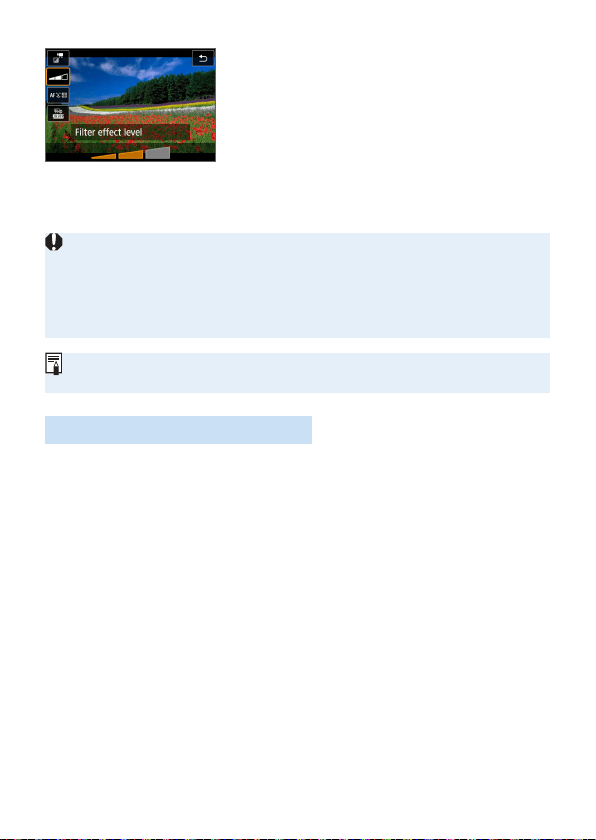
236
5
Adjust the filter effect level.
Press the <Q> button and select the
icon below [Shooting mode].
Press the <Y> <Z> keys to adjust the
effect, then press <0>.
When the Miniature effect movie is set,
select the playback speed.
6
Shoot the movie.
Magnied view is not possible.
The histogram is not displayed.
Movie digital zoom, video snapshot, time-lapse movie, and Movie digital IS
cannot be set.
The color gradation of the sky or white walls may not be reproduced correctly.
Irregular exposure, irregular colors, or noise may appear.
In Creative Zone modes, you can set Creative lters with Quick Control
(=
227).
Creative Filter Characteristics
l Dream
Creates a soft, dreamy, otherworldly atmosphere. Gives the movie a
soft look overall, blurring the periphery of the screen. You can adjust the
blurry areas along the screen edges.
m Old Movies
Creates an atmosphere like an old lm by adding wavering, scratches,
and ickering effects to the image. The top and bottom of the screen
are masked in black. You can modify the wavering and scratch effects
by adjusting the lter effect.
k Memory
Creates the atmosphere of a distant memory. Gives the movie a soft
look overall, reducing brightness of the periphery of the screen. You
can modify the overall saturation and the dark areas along the screen
edges by adjusting the lter effect.
n Dramatic B&W
Creates an atmosphere of dramatic realism with high-contrast black
and white. You can adjust the graininess and black-and-white effect.
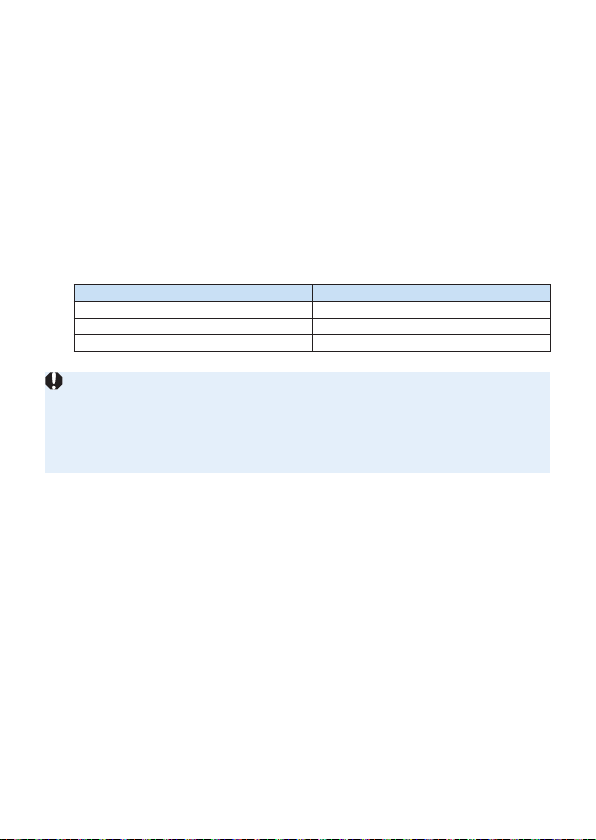
237
o Miniature effect movie
You can shoot movies having a Miniature (diorama) effect. Select the
playback speed and shoot.
If you want the image center to look sharp, record the movie without
changing any setting.
To move the area where you want to look sharp (miniature effect
frame), see “Adjusting Miniature Effect” (=
98). 1-point AF is used as
the AF method. Positioning the miniature effect frame over the AF point
before shooting is recommended. During shooting, neither the AF point
nor the miniature effect frame will be displayed.
In step 5, set the playback speed to [5x], [10x], or [20x] and shoot.
Playback Speed and Length (for 1-minute movie)
Speed Playback Length
5x Approx. 12 sec.
10x Approx. 6 sec.
20x Approx. 3 sec.
<o> (Miniature Effect Movies)
Sound will not be recorded.
Movie Servo AF will not function.
Miniature effect movies whose playback time is shorter than 1 sec. cannot be
edited (=
299).
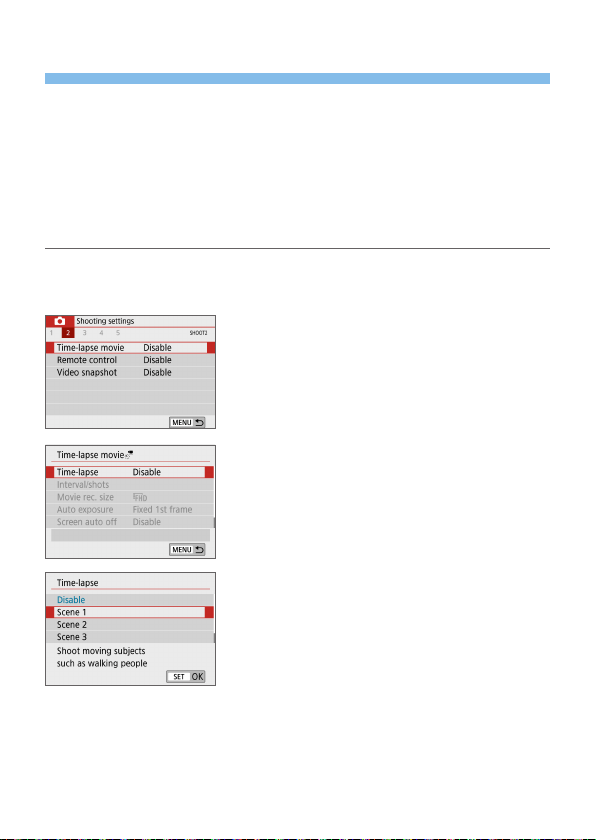
238
Shooting Time-lapse Movies
Still photos shot at a set interval can be stitched together automatically to
create a 4K or Full HD time-lapse movie. A time-lapse movie shows how
a subject changes in a much shorter period of time than the actual time
it took. It is effective for a xed-point observation of changing scenery,
growing plants, etc.
Time-lapse movies will be recorded in MP4 format at the following
quality: L6W (NTSC)/L5W (PAL) for 4K shooting, and
L6W (NTSC)/L5W (PAL) for Full HD shooting.
1
Set the Mode Dial to a mode other
than <8> or <v>.
2
Select [Time-lapse movie].
Under the [z] tab, select [Time-lapse
movie], then press <0>.
3
Select [Time-lapse].
4
Select a scene.
Select a scene to suit the shooting
situation.
For greater freedom when setting the
shooting interval and number of shots
manually, select [Custom].
5
Select [Interval/shots].
Select [Interval/shots], then press
<0>.
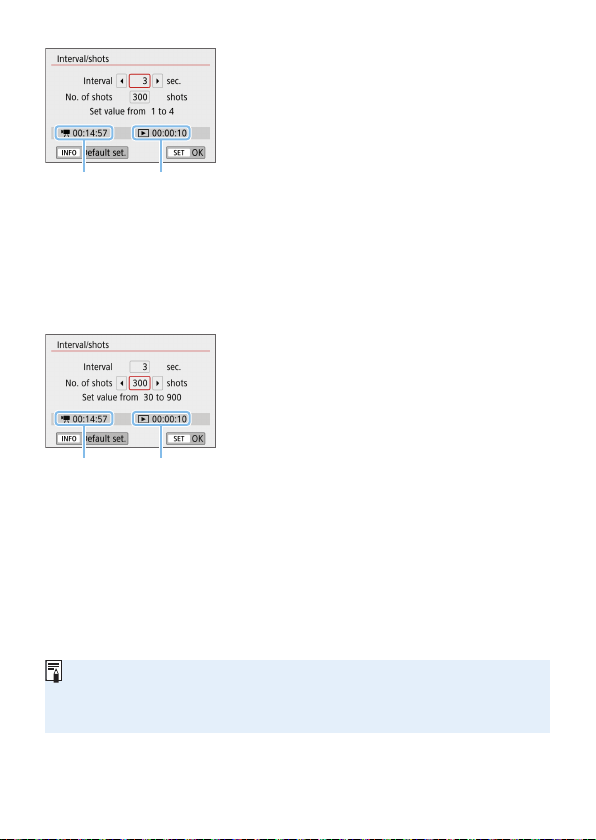
239
6
Set the shooting interval.
Select [Interval] (sec.). Use the <Y>
<Z> keys to set a value, then press
<0>.
Refer to [k: Time required] (1) and
[3: Playback time] (2) to set the
number.
When [Custom] is set
Select [Interval] (min.:sec.).
Press <0> so <r> is displayed.
Set the number, then press <0>.
(Returns to <s>.)
Select [OK] to register the setting.
7
Set the number of shots.
Select [No. of shots]. Use the <Y>
<Z> keys to set a value, then press
<0>.
Refer to [k: Time required] (1) and
[3: Playback time] (2) to set the
number.
When [Custom] is set
Select the digit.
Press <0> so <r> is displayed.
Set the desired number, then press
<0>. (Returns to <s>.)
Check that [3: Playback time] is not
displayed in red.
Select [OK] to register the setting.
With [Scene**], available intervals and numbers of shots are restricted, to suit
the type of scene.
If the number of shots is set to 3600, the time-lapse movie will be approx.
2 min. in NTSC and approx. 2 min. 24 sec. in PAL.
(1) (2)
(1) (2)
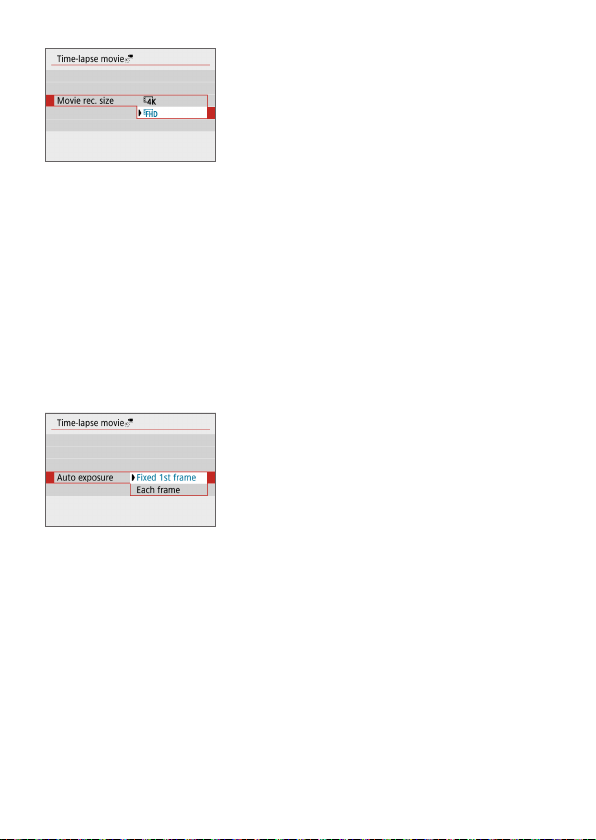
240
8
Select the desired movie recording
size.
L (3840×2160)
The movie is recorded in 4K quality. The aspect ratio is 16:9.
The frame rate is 29.97 fps (6) for NTSC and 25.00 fps (5) for
PAL, and movies are recorded in MP4 (C) format with ALL-I (W)
compression.
L (1920×1080)
The movie will be recorded in Full High-Denition (Full HD) quality. The
aspect ratio is 16:9.
The frame rate is 29.97 fps (6) for NTSC and 25.00 fps (5) for
PAL, and movies are recorded in MP4 (C) format with ALL-I (W)
compression.
9
Configure [Auto exposure].
Fixed 1st frame
When taking the rst shot, metering is performed to set the exposure
automatically to match the brightness. The exposure setting for the
rst shot will be applied to subsequent shots. Other shooting-related
settings for the rst shot will also be applied for subsequent shots.
Each frame
Metering is also performed for each subsequent shot to set the
exposure automatically to match the brightness. Note that if functions
such as Picture Style and white balance are set to [Auto], they will be
set automatically for each subsequent shot.
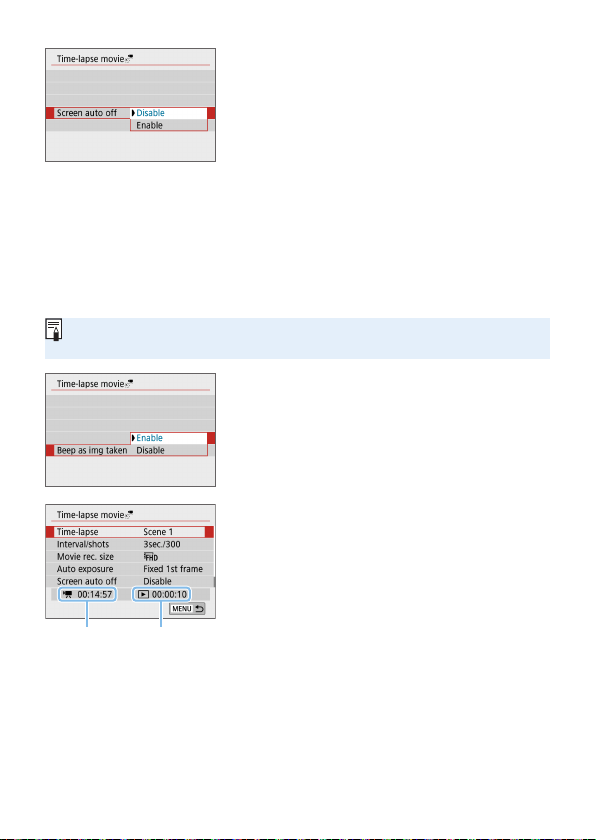
241
10
Configure [Screen auto off].
Disable
Even during time-lapse movie recording, the image will be displayed.
Note that the screen will turn off when approx. 30 min. elapse after the
shooting started.
Enable
Note that the screen will turn off when approx. 10 sec. elapse after the
shooting started.
During time-lapse movie recording, you can press the <B> button to turn
on/off the screen.
11
Set the beeper.
Select [Beep as img taken].
If [Disable] is set, the beeper will not
sound for shooting.
12
Check the settings.
(1) Time required
Indicates the time required to shoot the set number of shots with the
set interval. If it exceeds 24 hours, “*** days” will be displayed.
(2) Playback time
Indicates the movie recording time (time required to play back the
movie) when creating the time-lapse movie in 4K movie or Full HD
movie from the still photos taken with the set intervals.
(1) (2)
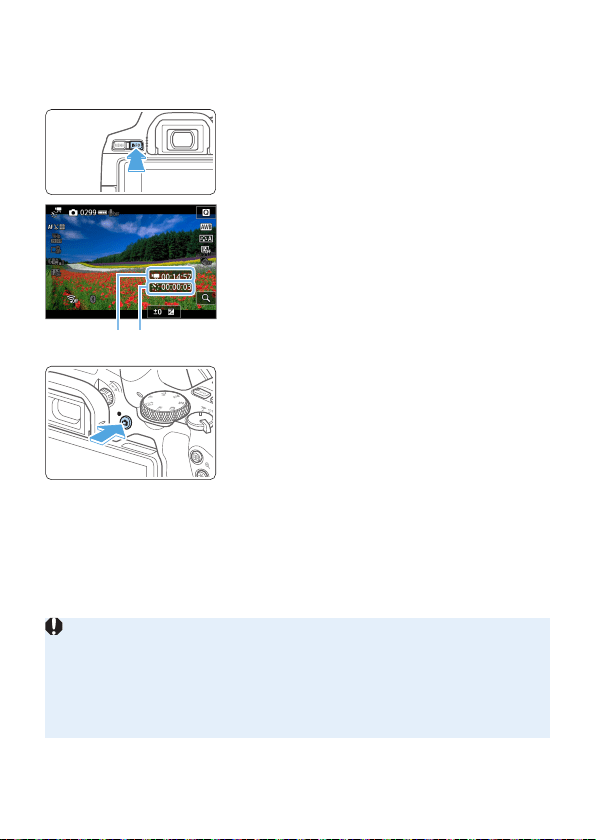
242
13
Exit the menu.
Press the <M> button to turn off the
menu screen.
14
Double-check the time required and
interval.
Press the <B> button and check
again the “Time required (1)” and
“Interval (2)” displayed on the screen.
15
Shoot the time-lapse movie.
Press the <A> button to start time-
lapse movie shooting.
AF will not work during time-lapse movie
shooting.
While the time-lapse movie is recorded,
“oREC” is displayed.
B When the set number of shots are
taken, the time-lapse movie recording
ends.
To cancel recording time-lapse
movies, set [Time-lapse] to [Disable].
If the card does not have enough free space to record the set number of
shots, [Playback time] will be displayed in red. Although the camera can
continue shooting, the shooting will stop when the card becomes full.
If the movie le size exceeds 4 GB with the [No. of shots] settings and the
card is not formatted in exFAT (=
67), [Play back time] will be displayed
in red. If you keep shooting in this condition and the movie le size reaches
4 GB, the time-lapse movie recording will stop.
(
2
)(
1
)

243
Do not point the camera toward an intense light source, such as the sun or an
intense articial light source. Doing so may damage the image sensor or the
camera’s internal components.
Time-lapse movies cannot be recorded when the camera is connected to a
computer with the interface cable, or when an HDMI cable is connected.
Movie Servo AF will not function.
Do not zoom the lens during time-lapse movie shooting. Zooming the lens
may cause the image to be out of focus, the exposure to change, or the lens
aberration correction not to function properly.
During time-lapse movie shooting, auto power off will not take effect. Also,
you cannot adjust the shooting function and menu function settings, play back
images, etc.
Sound is not recorded for time-lapse movies.
With [Interval] set to less than 3 sec. and [Auto exposure] set to [Each
frame], if the brightness differs greatly from the preceding shot, the camera
may not shoot at the set interval.
Movie digital IS is not available.
If the time it takes to record to the card exceeds the interval between shots
due to the shooting functions set or card performance, some of the shots may
not be taken with the set intervals.
If you connect the camera to a computer with an interface cable and use EOS
Utility (EOS software), set [z: Time-lapse movie] to [Disable]. If an option
other than [Disable] is selected, the camera cannot communicate with the
computer.
During time-lapse movie shooting, the lens’s Image Stabilizer will not operate.
Time-lapse movie shooting ends if the power switch is set to <2>, for
example, and the setting is changed to [Disable].
Even if a ash is used, it will not re.
The following operations cancel standby for time-lapse movie recording and
switch the setting to [Disable].
- Selecting either [Clean nowf] under [5: Sensor cleaning] or selecting
[Clear all camera settings] under [5: Clear settings].
- Turning the Mode Dial.
If you start time-lapse movie shooting while the white <s> temperature
warning (=
215) is displayed, the image quality of the time-lapse movie may
decline. It is recommended that you start time-lapse movie shooting after the
white <s> disappears (camera’s internal temperature decreases).

244
Using a tripod is recommended.
The movie’s eld of view coverage for both the 4K and Full HD time-lapse
movie recording is approx. 100%.
To cancel the time-lapse movie shooting, press the <A> button. The time-
lapse movie shot so far will be recorded on the card.
You can play back the shot time-lapse movie with this camera the same way
that you play back normal movies.
If the time required for shooting is more than 24 hours but not more than 48,
“2 days” will be indicated. If three or more days are required, the number of
days will be indicated in 24-hour increments.
Even if the time-lapse movie’s playback time is less than 1 sec., a movie le
will still be created. For [Playback time], “00ꞌ00ꞌꞌ” will be displayed.
If the shooting time is long, using the household power outlet accessories
(sold separately, =
461) is recommended.
You can use Wireless Remote Control BR-E1 (sold separately) to start and
stop the time-lapse movie shooting.
With Wireless Remote Control BR-E1
First pair the Wireless Remote Control BR-E1 with the camera (=
410).
Set [z: Remote control] to [Enable].
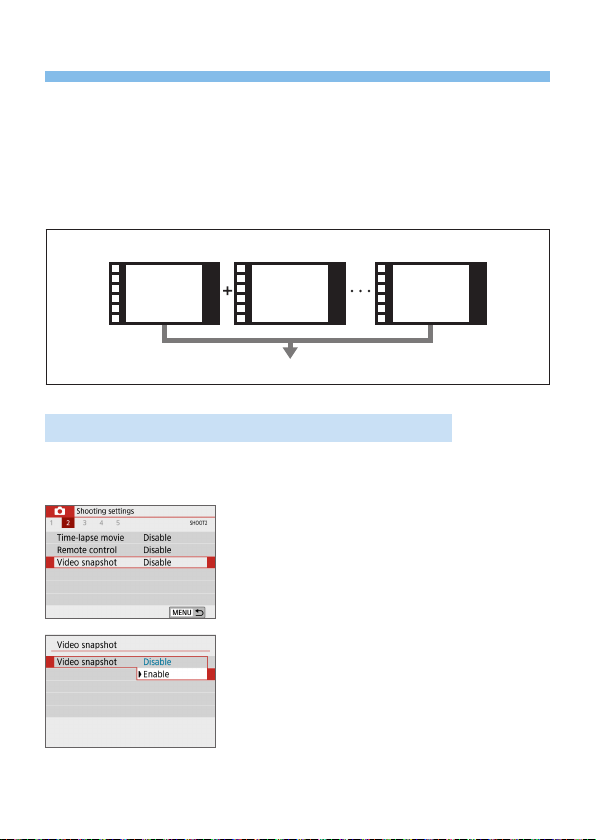
245
Recording Video Snapshots
Record a series of short video snapshots, each a few seconds long, and
the camera will combine them to create a video snapshot album that shows
these highlights of your trip or event.
Video snapshots are available when the movie recording size is set to
L6X (NTSC) / L5X (PAL).
A video snapshot album can also be played back together with background
music (=
337).
Creating a Video Snapshot Album
Video
snapshot 1
Video
snapshot 2
Video
snapshot **
Video snapshot album
Setting the Video Snapshot Shooting Duration
1
Set the Mode Dial to a mode other
than <v>.
2
Select [Video snapshot].
Under the [z] tab, select [Video
snapshot], then press <0>.
3
Select [Enable].
Select [Video snapshot], then select
[Enable].
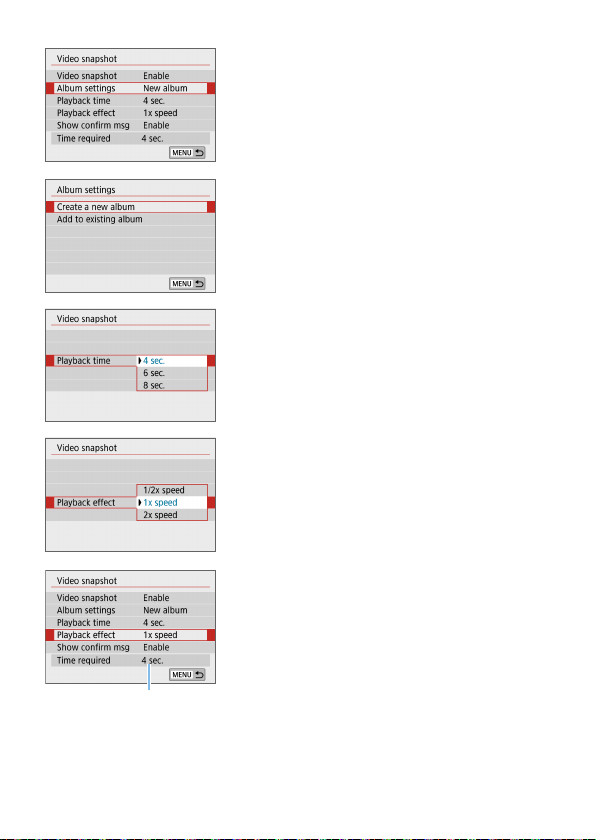
246
4
Select [Album settings].
5
Select [Create a new album].
Read the message and select [OK].
6
Specify the playback time.
Specify playback time per video
snapshot.
7
Specify the playback effect.
This setting determines how fast albums
are played back.
Note that with <8>, [Playback
effect] is not available.
8
Check the required recording time.
The time required to record each video
snapshot is indicated (1), based on the
playback time and effect.
(1)
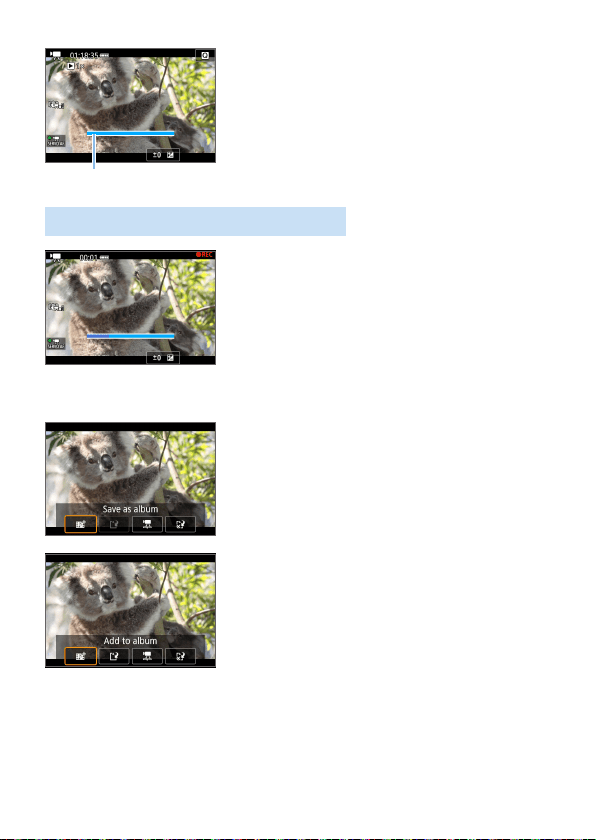
247
9
Exit the menu.
Press the <M> button to exit the
menu.
B A blue bar is displayed to indicate the
shooting time (1).
Creating a Video Snapshot Album
10
Shoot the first video snapshot.
Press the <A> button, then shoot.
B The blue bar indicating the shooting
time will gradually decrease. After the
set shooting duration elapses, the
shooting stops automatically.
B The conrmation screen will appear
(=
248).
11
Save as a video snapshot album.
Select [J Save as album], then press
<0>.
The movie clip will be saved as the
video snapshot album’s rst video
snapshot.
12
Continue to shoot more video
snapshots.
Repeat step 10 to shoot the next video
snapshot.
Select [J Add to album], then press
<0>.
To create another video snapshot
album, select [W Save as a new
album].
Repeat step 12 as necessary.
(1)
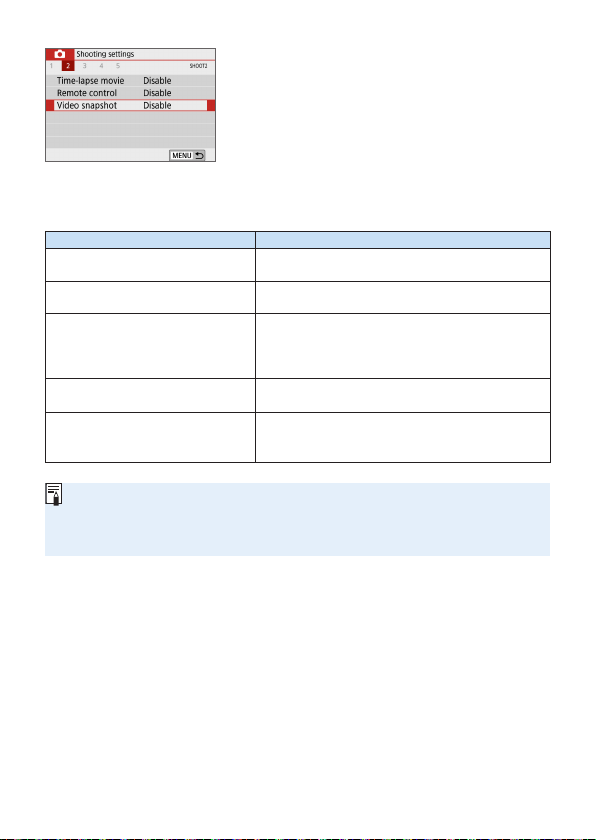
248
13
Exit the video snapshot shooting.
Set [Video snapshot] to [Disable]. To
return to normal movie shooting, be
sure to set [Disable].
Press the <M> button to exit the
menu, and return to the normal movie
shooting.
Options in Steps 11 and 12
Function Description
J Save as album (Step 11)
The movie clip will be saved as the video
snapshot album’s rst video snapshot.
J Add to album (Step 12)
The video snapshot just recorded will be added to
the album recorded immediately before.
W Save as a new album (Step 12)
A new video snapshot album is created and the
movie clip is saved as the rst video snapshot.
The new album will be a different le from the
previously recorded album.
1 Playback video snapshot
(Steps 11 and 12)
The video snapshot just recorded will be played
back.
r Do not save to album (Step 11)
r Delete without saving to album
(Step 12)
The video snapshot just recorded will be erased
instead of being saved to the album. Select [OK]
on the conrmation dialog.
If you prefer to record the next video snapshot immediately, set [Show
conrm msg] under [z: Video snapshot] to [Disable]. This setting
enables you to record the next video snapshot immediately, without a
conrmation message.
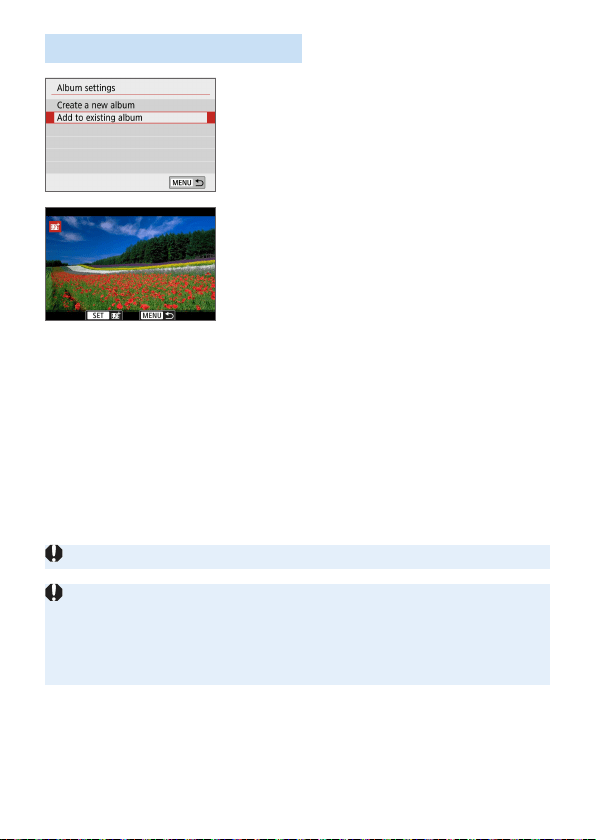
249
Adding to an Existing Album
1
Select [Add to existing album].
Follow step 5 on =
246 to select [Add
to existing album].
2
Select an existing album.
Press the <Y> <Z> keys to select an
existing album, then press <0>.
Select [OK].
B Certain video snapshot settings will
change to match the existing album’s
settings.
3
Exit the menu.
Press the <M> button to exit the
menu.
B The video snapshot shooting screen will
appear.
4
Shoot the video snapshot.
See “Creating a Video Snapshot Album”
(=
247) to shoot the video snapshot.
You cannot select an album shot with another camera.
Cautions for Shooting Video Snapshots
No sound is recorded when you set [Playback effect] to [1/2x speed] or [2x
speed].
Recording time per video snapshot is only approximate. Depending on the
frame rate, the shooting duration displayed during playback may not be exact.
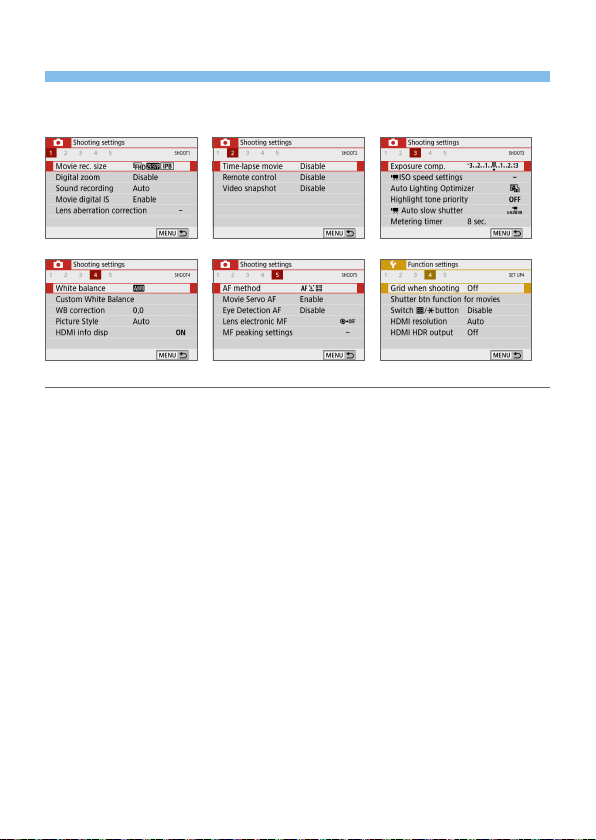
250
Menu Function Settings
Setting items for recording movies are shown on the [z] and [5] tabs
when the power switch is set to <k>.
Movie recording size (=
228)
You can set the movie recording size (image size, frame rate, and
compression method).
Digital zoom (=
231)
You can use digital zoom for telephoto shooting.
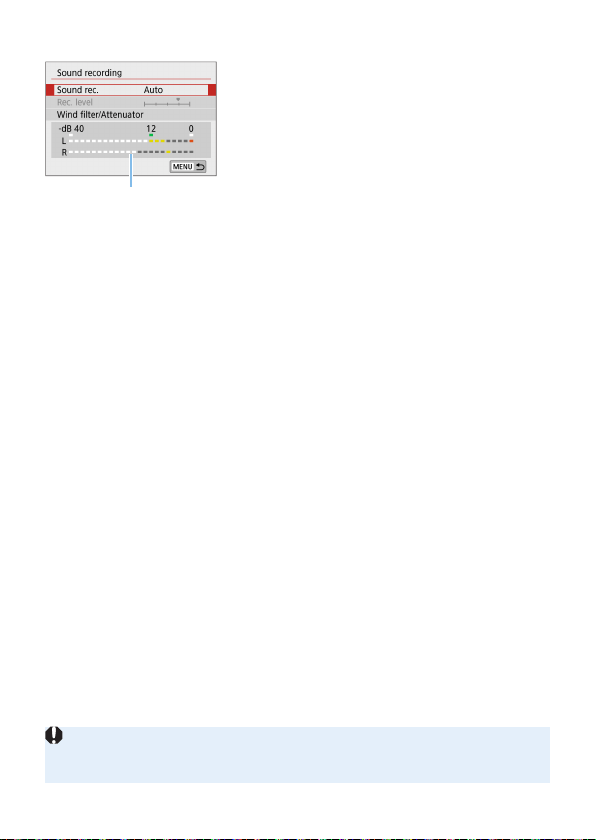
251
Sound recordingN
Normally, the built-in microphones
will record the sound in stereo. If the
Directional Stereo Microphone DM-E1 (sold
separately) is connected to the camera’s
external microphone IN terminal (=
28),
the external microphone will be given the
priority.
(1) Level meter
[Sound rec./Rec. level] options
[Auto] : The sound-recording level is adjusted automatically.
Auto level control will operate automatically in response
to the sound level.
[Manual] : For advanced users. You can adjust the sound-
recording level to one of 64 levels.
Select [Rec. level] and press the <Y> <Z> keys while
looking at the level meter to adjust the sound-recording
level. Look at the peak hold indicator (approx. 3 sec.),
and adjust so that the level meter sometimes lights up
on the right of the “12” (-12 dB) mark for the loudest
sounds. If it exceeds “0”, the sound will be distorted.
[Disable] : Sound will not be recorded.
[Wind lter]
When set to [Auto], it reduces wind noise when there is wind outdoors.
This feature works only when you use the built-in microphones for
movie shooting. When the wind lter function takes effect, part of the
low bass sounds will also be reduced.
[Attenuator]
Automatically suppresses sound distortion caused by loud noises.
Even if [Sound rec.] is set to [Auto] or [Manual] for shooting, sound
distortion may still result if there is a very loud sound. In such a case,
setting it to [Enable] is recommended.
If you use the Wi-Fi (wireless communication) function with an external
microphone, the sound noise may be recorded. During sound recording,
using the wireless communication function is not recommended.
(
1
)

252
In Basic Zone modes, the settings available for [z: Sound recording]
will be [On]/[Off]. If [On] is set, the sound-recording level will be adjusted
automatically (same as with [Auto]), and the wind lter function will take
effect.
The sound volume balance between L (left) and R (right) cannot be adjusted.
For both L and R, audio is recorded at a 48 kHz/16-bit sampling rate.
Movie digital IS (=
232)
Enables you to reduce camera shake as movies are recorded.
Lens aberration correctionN (=
141)
You can set peripheral illumination correction and chromatic aberration
correction.
Time-lapse movie (=
238)
You can shoot time-lapse movies.
Remote control
When [Enable] is set, you can start or stop movie shooting using
Wireless Remote Control BR-E1 (sold separately, =
463).
If you are using the BR-E1, set the release mode/movie shooting switch
to the <k> position, then press the release button.
Video snapshot (=
245)
You can shoot video snapshots.
k ISO speed settingsN (=
255)
Set the ISO speed and ISO speed range for movies.
k Auto slow shutterN (=
255)
When recording movies under somewhat low light, you can choose
whether to give priority to brightness or smoothness.
Metering timerN
You can change how long the exposure setting is displayed (AE lock
time).
HDMI info dispN (=
256)
You can hide information overlay during HDMI output.
AF method
The AF methods are the same as described on “Focusing with AF”
(=
197). You can select [u+Tracking], [Spot AF], [1-point AF], or
[Zone AF].

253
Movie Servo AF
With this function enabled, the camera focuses on the subject
continuously during movie shooting. The default setting is [Enable].
When [Enable] is set:
- The camera focuses on the subject continuously even when you are
not pressing the shutter button halfway.
- If you want to keep the focus at a specic point or if you do not want
the lens mechanical sound to be recorded, you can temporarily stop
Movie Servo AF as follows.
• Tap [Z] on the screen’s bottom left.
• Under [5: Custom Functions(C.Fn)], if [Shutter/AE lock
button] is set to [2:AF/AF lock, no AE lock], you can pause the
Movie Servo AF while holding down the <A> button. When you
let go of the <A> button, Movie Servo AF will resume.
- When Movie Servo AF is paused, if you return to movie shooting
after operations such as pressing the <M> or <x> button or
changing the AF method, Movie Servo AF will resume.
When [Disable] is set:
- Press the shutter button halfway to focus.
Cautions When [Movie Servo AF] is Set to [Enable]
Shooting Conditions that Make Focusing Difcult
- A fast-moving subject approaching or moving away from the camera.
- A subject moving at a close distance to the camera.
- For details, see “Shooting Conditions that Make Focusing Difcult”
(=
202).
Since the lens is driven continuously and battery power is consumed, the
possible movie shooting time will be shortened.
With certain lenses, the mechanical sound for focusing may be recorded. In
such a case, using Directional Stereo Microphone DM-E1 (sold separately)
may reduce such sounds in the movie. Also, using certain USM lenses (for
example, the EF-S18-135mm f/3.5-5.6 IS USM) or certain STM lenses (for
example, the EF-S18-55mm f/4-5.6 IS STM) will reduce the lens mechanical
sound that is recorded.
Movie Servo AF will pause during zooming or magnied view.
During movie shooting, if a subject approaches or moves away or if the
camera is moved vertically or horizontally (panning), the recorded movie
image may momentarily expand or contract (change in image magnication).
If you want to set the lens’s focus mode switch to <MF> during Movie Servo
AF, rst set the camera’s power switch to <1>.

254
Lens electronic MFN (=
107)
Can be specied when using lenses that support electronic manual
focusing.
Grid when shooting
With [3x3 l] or [6x4 m], you can display grid lines to help you
level the camera vertically or horizontally before shooting. Also, with
[3x3+diag n], the grid is displayed together with diagonal lines to
help you compose with better balance by aligning the intersections over
the subject.
Note that the grid is not displayed on the LCD monitor during movie
shooting.
Shutter button function for movies
You can set the functions performed by pressing the shutter button
halfway or completely during movie shooting.
[Half-press]
- Can be set to [Meter.+kServo AF], [Meter.+One-Shot AF], or
[Metering only]. ([Meter.+One-Shot AF] is not available for 4K
movies.)
[Fully-press]
- Can be set to [No function] or [Start/stop mov rec].
With fully pressing the button set to [Start/stop mov rec], you can
start/stop movie recording not only by pressing the <A> or shutter
button completely but also by using Remote Switch RS-60E3 (sold
separately, =
463).
During movie shooting, the [5: Shutter btn function for movies] setting
overrides any function assigned to the shutter button with [Shutter/AE lock
button] under [5: Custom Functions(C.Fn)].
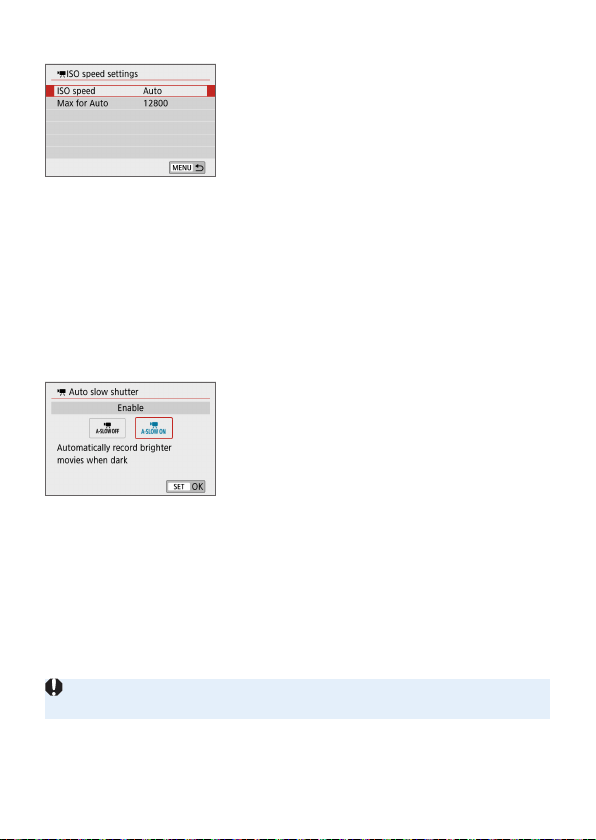
255
ISO Speed During Movie ShootingN
You can set the ISO speed separately for
still photo shooting and movie shooting.
Set in [kISO speed settings] under the
[z] tab.
[ISO speed]
In manual exposure, you can set the ISO speed (=
222).
[Max for Auto]
You can set the maximum limit of the automatic ISO speed for ISO Auto
to ISO 6400 or ISO 12800.
Under [5: Custom Functions(C.Fn)], if [ISO expansion] is set to
[1:On], you can select [H(25600)].
Auto Slow ShutterN
You can choose whether to shoot movies
that are brighter and less affected by
image noise than when set to [Disable]
by automatically slowing the shutter speed
under low light.
Applies when the frame rate of the movie
recording size is 8 or 7.
[Disable]
Enables you to record movies with smoother, more natural movement,
less affected by subject shake than when set to [Enable]. Note that
under low light, movies may be darker than when set to [Enable].
[Enable]
Enables you to shoot brighter movies, less affected by image noise,
than when set to [Disable] by automatically reducing the shutter speed
to 1/30 sec. (NTSC) or 1/25 sec. (PAL) under low light.
Setting to [Disable] is recommended when recording moving subjects under
low light, or when afterimages such as trails may occur.
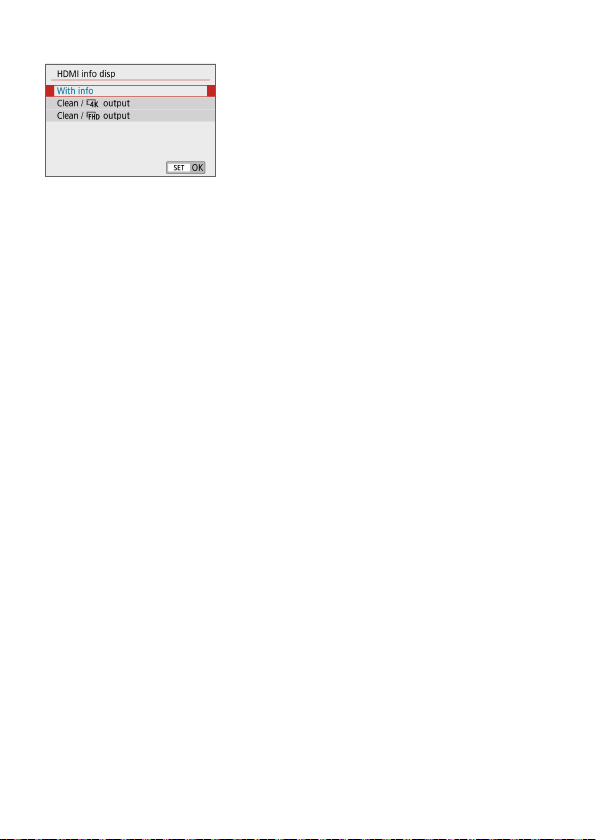
256
Information Display for HDMI OutputN
You can congure information display for
image output via an HDMI cable.
[With info]
The image, shooting information, AF points, and other information is
shown on the other device via HDMI. Note that the camera screen goes
off.
Recorded movies are saved to the card.
[Clean / L output]
HDMI output consists solely of 4K movies. Shooting information and AF
points are also displayed on the camera, but no image is recorded to
the card. Note that Wi-Fi communication is not available.
[Clean / L output]
HDMI output consists solely of Full HD movies. Shooting information
and AF points are also displayed on the camera, but no image is
recorded to the card. Note that Wi-Fi communication is not available.

257
General Movie Shooting Cautions
Red <E> Internal Temperature Warning Icon
If a red <E> icon appears during movie recording, the card may be hot, so
stop recording the movie and let the camera cool down before removing the
card. (Do not remove the card immediately.)
If the camera’s internal temperature increases due to prolonged movie
shooting or under a high ambient temperature, a red <E> icon will appear.
The red <E> icon indicates that movie shooting will soon be terminated
automatically. If this happens, you will not be able to shoot again until the
camera’s internal temperature decreases. Turn off the power and let the
camera rest for a while.
Shooting a movie at a high temperature for a prolonged period will cause the
<E> icon to appear earlier. When you are not shooting, always turn off the
camera.
Recording and Image Quality
If the attached lens has an Image Stabilizer and you set the Image Stabilizer
(IS) switch to <1>, the Image Stabilizer will operate at all times even if
you do not press the shutter button halfway. The Image Stabilizer consumes
battery power and may shorten the total movie shooting time depending on
the shooting conditions. When the Image Stabilizer is not necessary, such as
when using a tripod, it is recommended that you set the IS switch to <2>.
The camera’s built-in microphones will also record the operation sound and
mechanical sound of the camera during shooting. Using the Directional
Stereo Microphone DM-E1 (sold separately) may reduce these sounds in the
movie.
Do not connect anything other than an external microphone to the camera’s
external microphone IN terminal.
If the brightness changes during autoexposure movie shooting, the movie
image may freeze temporarily. In such a case, shoot movies with manual
exposure.
If there is a very bright light source in the image, the bright area may appear
black on the LCD monitor. The movie will be recorded almost exactly as it
appears on the LCD monitor.
In low light, noise or irregular colors may appear in the image. The movie will
be recorded almost exactly as it appears on the LCD monitor.
If you play back a movie with other devices, image or sound quality may
decline or playback may not be possible (even if the devices support MP4
format).

258
General Movie Shooting Cautions
Recording and Image Quality
If you use a card with a slow writing speed, a ve-level indicator
(1) may appear on the right of the screen during movie shooting.
It indicates how much data has not yet been written to the card
(remaining capacity of the internal buffer memory). The slower
the card, the faster the indicator will climb upward. If the indicator
becomes full, movie shooting will stop automatically.
If the card has a fast writing speed, the indicator will either not
appear or the level (if displayed) will hardly go upward. First, shoot
a few test movies to see if the card can write fast enough.
Playback and TV Connection
If you connect the camera to a TV set (=
305) and shoot a movie, the TV
set will not output any sound during the shooting. However, the sound will be
properly recorded.
Restrictions on MP4-format Movies
Note that generally, the following restrictions apply to MP4-format movies.
- Sound will not be recorded for approx. the last two frames.
- When you play back movies on Windows, movie images and sound may
become slightly out of synchronization.
(1)

259
Handy Features
Disabling the Beeper (=
260)
Card Reminder (=
260)
Setting the Image Review Time (=
261)
Setting the Auto Power Off Time (=
261)
Adjusting the LCD Monitor Brightness (=
262)
Creating and Selecting a Folder (=
263)
File Numbering Methods (=
265)
Setting the Copyright Information (=
268)
Setting the Auto Rotation of Vertical Images (=
270)
Reverting the Camera to the Default Settings (=
271)
Turning the LCD Monitor Off/On (=
272)
Automatic Sensor Cleaning (=
273)
Appending Dust Delete Data (=
274)
Manual Sensor Cleaning (=
276)
HDMI Output Resolution (=
278)
RAW Playback on an HDR TV (=
279)
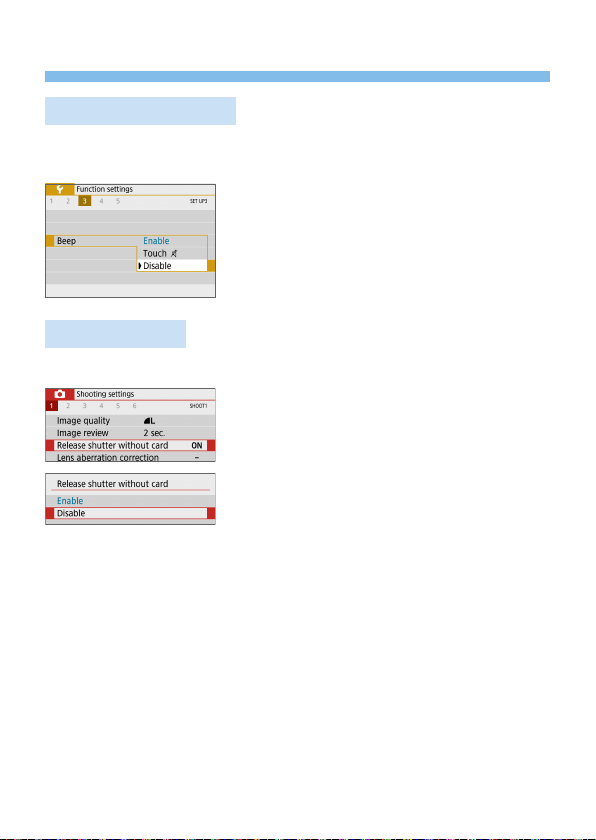
260
Handy Features
Disabling the Beeper
You can prevent the beeper from sounding when focus is achieved, during
self-timer shooting, and during touch operations.
Under the [5] tab, select [Beep], then
press <0>. Select [Disable], then press
<0>.
To silence the beeper only for touch
operations, select [Touch n].
Card Reminder
This setting prevents shooting if there is no card in the camera.
Under the [z] tab, select [Release
shutter without card], then press <0>.
Select [Disable], then press <0>.
If there is no card inserted in the camera
and you press the shutter button, “Card”
will be displayed in the viewnder, and you
cannot release the shutter.
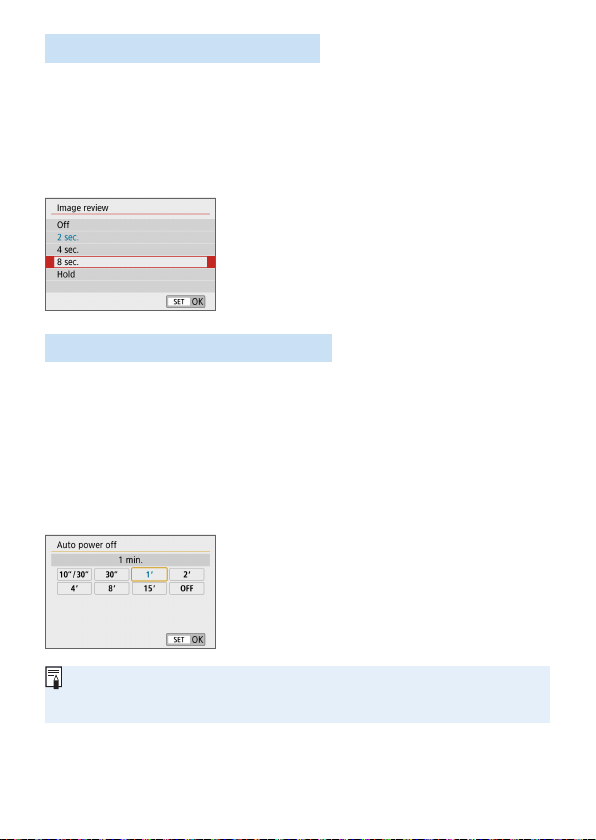
261
Setting the Image Review Time
You can change how long the image is displayed on the LCD monitor
immediately after shooting. If [Off] is set, the image will not be displayed
immediately after shooting. If [Hold] is set, the image review will be
displayed up until the [Auto power off] time has elapsed.
Note that during image review, if you operate any camera controls such as
pressing the shutter button halfway, the image review will end.
Under the [z] tab, select [Image review],
then press <0>. Select the desired
setting, then press <0>.
Setting the Auto Power Off Time
To save battery power, the camera turns off automatically after a set time of
idle operation elapses. When the camera is turned off due to auto power off,
you can turn it on again by pressing the shutter button, etc.
If [Disable] is set, either turn off the camera or press the <U>
button to turn off the LCD monitor to save battery power.
Even if [Disable] is set, the LCD monitor will turn off after the camera
is left idle for approx. 30 min. To turn on the LCD monitor again, press
the <U> button.
Under the [5] tab, select [Auto power
off], then press <0>. Select the desired
setting, then press <0>.
If [10 sec/30 sec] is set, the camera will turn off after it is left idle for approx.
10 sec. When setting functions or during Live View shooting, movie recording,
image playback, etc., the auto power off time will be approx. 30 sec.
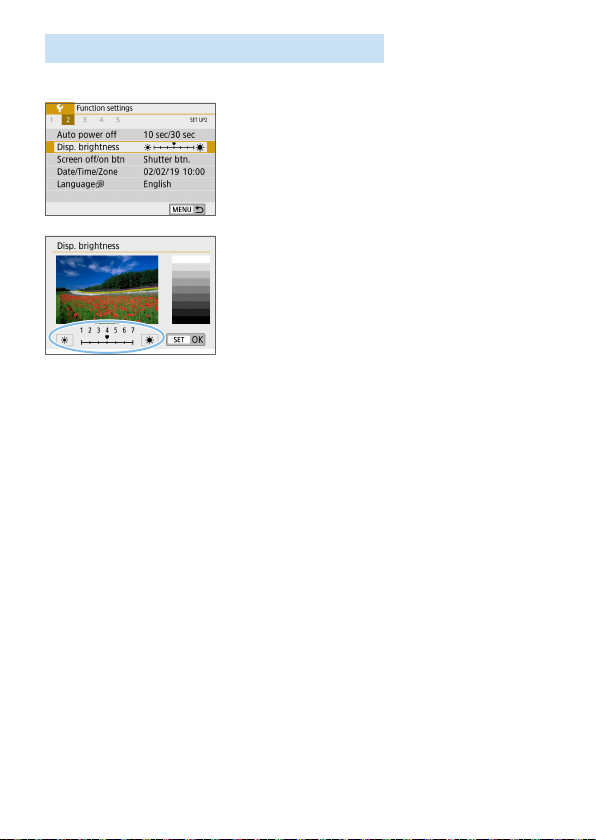
262
Adjusting the LCD Monitor Brightness
You can adjust the brightness of the LCD monitor to make it easier to view.
Under the [5] tab, select [Disp.
brightness], then press <0>. Press the
<Y> <Z> keys to adjust the brightness on
the adjustment screen, then press <0>.
When checking the exposure of an image,
set the LCD monitor brightness to 4 and
prevent the ambient light from affecting the
image.
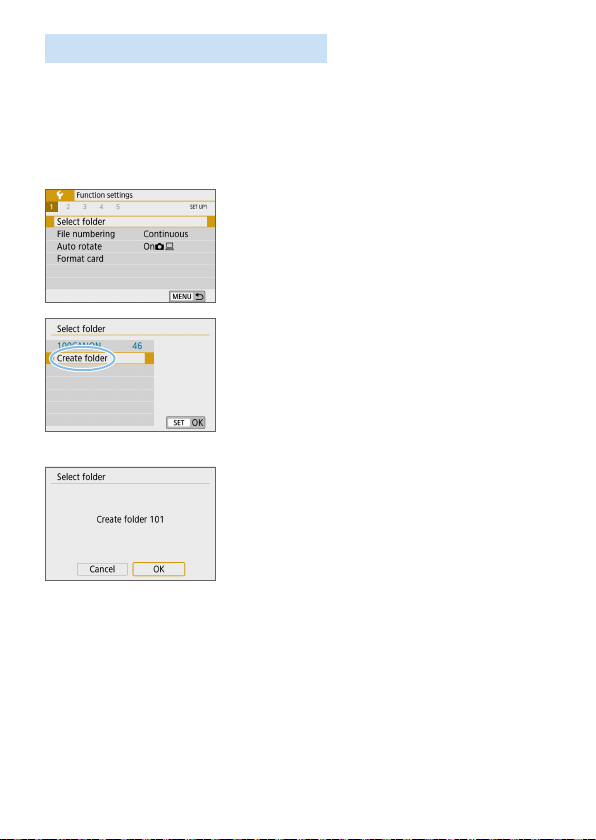
263
Creating and Selecting a Folder
You can freely create and select the folder where the captured images are
to be saved.
This operation is optional since a folder will be created automatically for
saving captured images.
Creating a Folder
1
Select [Select folder].
Under the [5] tab, select [Select
folder], then press <0>.
2
Select [Create folder].
Select [Create folder], then press
<0>.
3
Create a new folder.
Select [OK], then press <0>.
B A new folder with the folder number
increased by one is created.
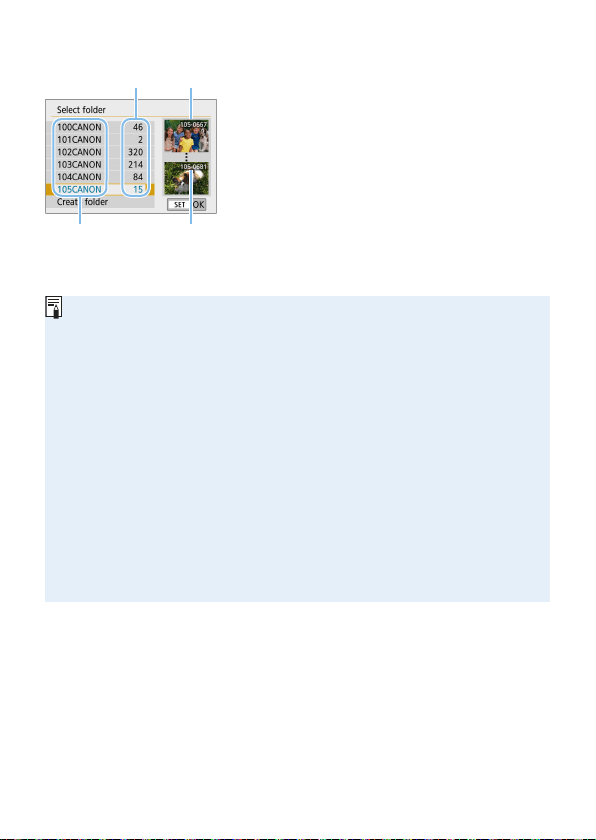
264
Selecting a Folder
With the folder selection screen
displayed, select a folder and press
<0>.
B The folder where the captured images
will be saved is selected.
Subsequently captured images will be
recorded into the selected folder.
(1) Number of images in folder
(2) Lowest le number
(3) Folder name
(4) Highest le number
Folders
As with “100CANON” for example, the folder name starts with three digits (the
folder number) followed by ve alphanumeric characters. A folder can contain
up to 9999 images (le number 0001 - 9999). When a folder becomes full, a
new folder with the folder number increased by one is created automatically.
Also, if manual reset (=
267) is executed, a new folder will be created
automatically. Folders numbered from 100 to 999 can be created.
Creating Folders with a Computer
With the card open on the screen, create a new folder named “DCIM”. Open
the DCIM folder and create as many folders as necessary to save and
organize your images. The folder name must follow the format “100ABC_D”.
The rst three digits are always the folder number from 100 to 999. The last
ve characters can be any combination of upper- and lower-case letters from
A to Z, numerals, and the underscore “_”. The space cannot be used. Also
note that two folder names cannot share the same three-digit folder number
(for example, “100ABC_D” and “100W_XYZ”), even if the last ve characters
in each name are different.
(
3
)
(
1
)
(
4
)
(
2
)
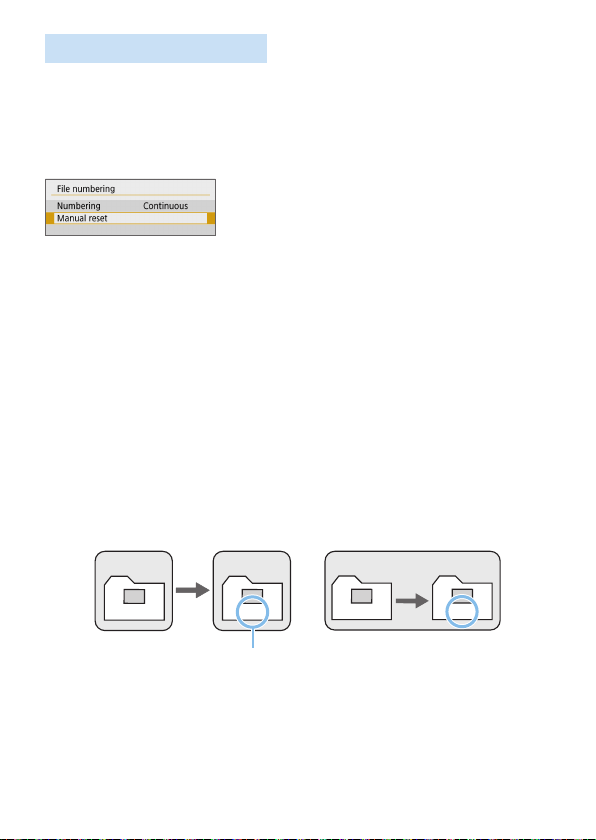
265
File Numbering Methods
The image les will be numbered from 0001 to 9999 in the order the images
are taken, then saved in a folder. You can change how the le number is
assigned.
The le number will appear on your computer in this format:
IMG_0001.JPG.
In [File numbering] under the [5] tab,
select [Numbering], then press <0>.
The available settings are described below.
Select the option, then press <0>.
[Continuous]: When you wish to continue the le numbering
sequence even after the card is replaced or a new folder is
created.
Even after you replace the card or create a new folder, the le
numbering continues in sequence up to 9999. This is useful when you
want to save images numbered anywhere between 0001 to 9999 on
multiple cards or in multiple folders into one folder on a computer.
If the replacement card or existing folder already contains images
recorded previously, the le numbering of the new images may continue
from the le numbering of the existing images on the card or in the
folder. If you want to use continuous le numbering, it is recommended
that you use a newly-formatted card each time.
0051 0052
(1)
File numbering after
replacing the card
100
0051
101
0052
File numbering after
creating a folder
Card-2Card-1 Card-1
(1) Next sequential le number
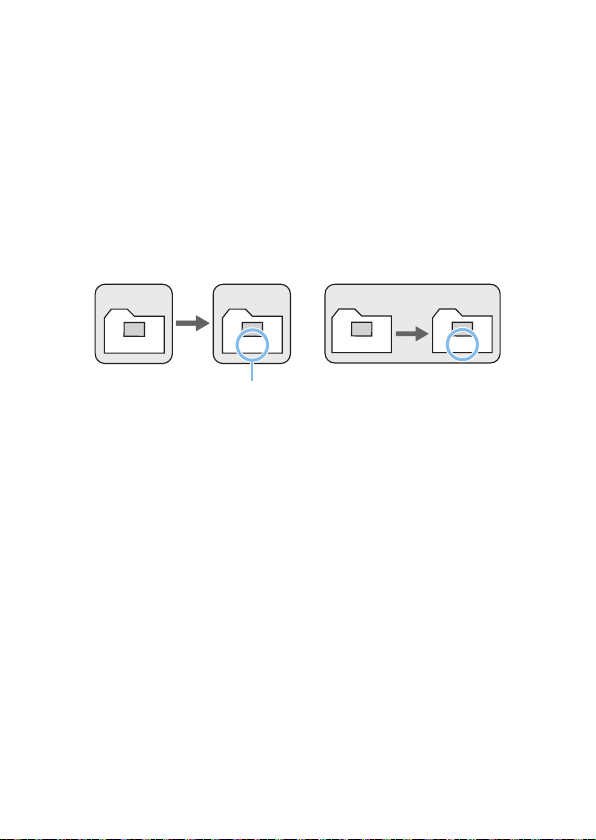
266
[Auto reset]: When you wish to restart the le numbering from
0001 each time the card is replaced or a new folder is created.
When you replace the card or create a folder, the le numbering
restarts from 0001 for the new images saved. This is useful if you want
to organize images by cards or folders.
If the replacement card or existing folder already contains images
recorded previously, the le numbering of the new images may continue
from the le numbering of the existing images on the card or in the
folder. If you want to save images with the le numbering starting from
0001, use a newly formatted card each time.
0051 0001
(1)
File numbering after
replacing the card
100
0051
101
0001
File numbering after
creating a folder
Card-2Card-1 Card-1
(1) File numbering is reset
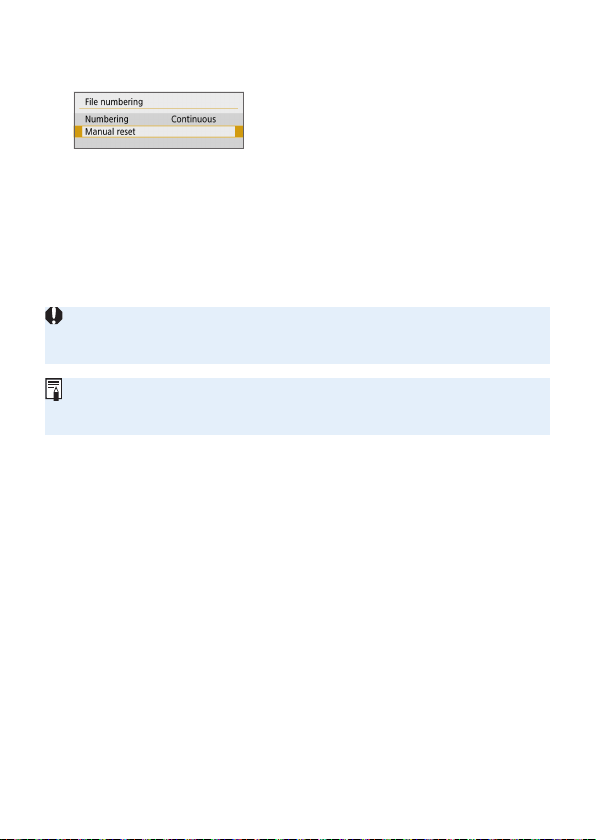
267
[Manual reset]: When you wish to reset the le numbering to 0001
or to start from le number 0001 in a new folder.
In [File numbering] under the [5] tab,
select [Manual reset], then select [OK] on
the conrmation dialog.
When you reset the le numbering manually, a new folder is created
automatically and the le numbering of images saved to that folder
starts from 0001.
This is useful, for example, if you want to use different folders for the
images taken yesterday and the ones taken today. After the manual
reset, the le numbering returns to continuous or auto reset. (There will
be no manual reset conrmation dialog.)
If the le number in folder 999 reaches 9999, shooting will not be possible
even if the card still has storage capacity. The LCD monitor will display a
message telling you to replace the card. Replace it with a new card.
For both JPEG and RAW images, the le name will start with “IMG_”. Movie
le names will start with “MVI_”. The extension will be “.JPG” for JPEG
images, “.CR3” for RAW images, and “.MP4” for movies.
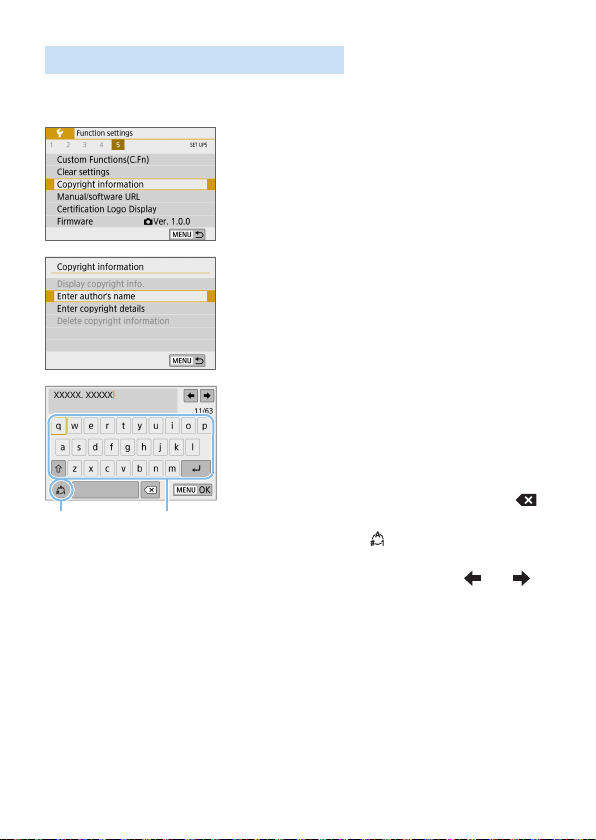
268
Setting the Copyright Information
When you set the copyright information, it will be appended to the image as
Exif information.
1
Select [Copyright information].
Under the [5] tab, select [Copyright
information], then press <0>.
2
Select the item to be set.
Select [Enter author’s name] or [Enter
copyright details], then press <0>.
3
Enter text.
Press the <V> cross keys to move
the
□ and select the desired character.
Then press <0> to enter it.
You can enter up to 63 characters.
To delete single characters, select [
]
or press the <L> button.
By selecting [
], you can change the
input mode.
To move the cursor, select [
] or [ ]
in the upper right or turn the <6> dial.
To cancel the text entry, press the
<M> button, then select [Cancel].
(1) Input mode
(2) Character palette
N
(
2
)(
1
)
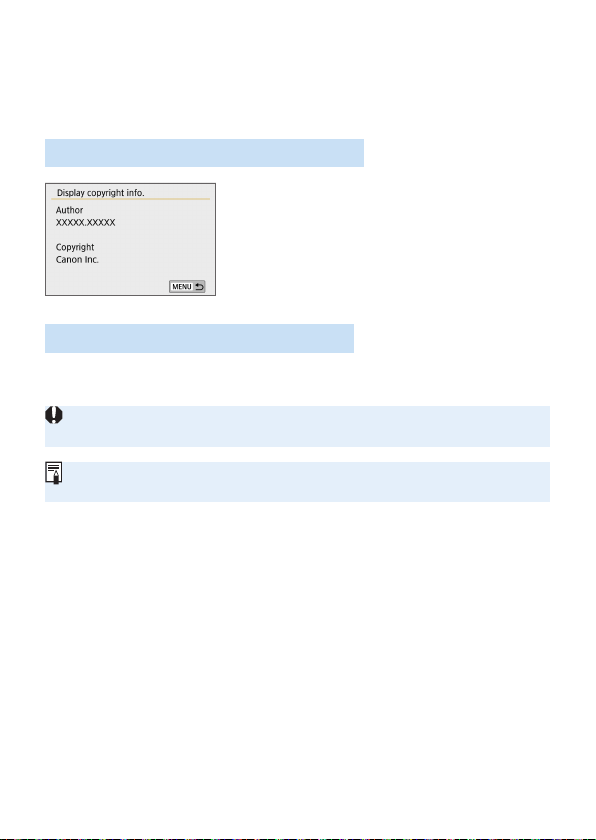
269
4
Exit the setting.
After entering the text, press the
<M> button, then select [OK].
B The set information is saved.
Checking the Copyright Information
When you select [Display copyright info.]
in step 2, you can check the [Author] and
[Copyright] information that you entered.
Deleting the Copyright Information
When you select [Delete copyright information] in step 2, you can delete
the [Author] and [Copyright] information.
If the entry for “Author” or “Copyright” is long, it may not be displayed entirely
when you select [Display copyright info.].
You can also set or check the copyright information with EOS Utility (EOS
software, =
482).
N
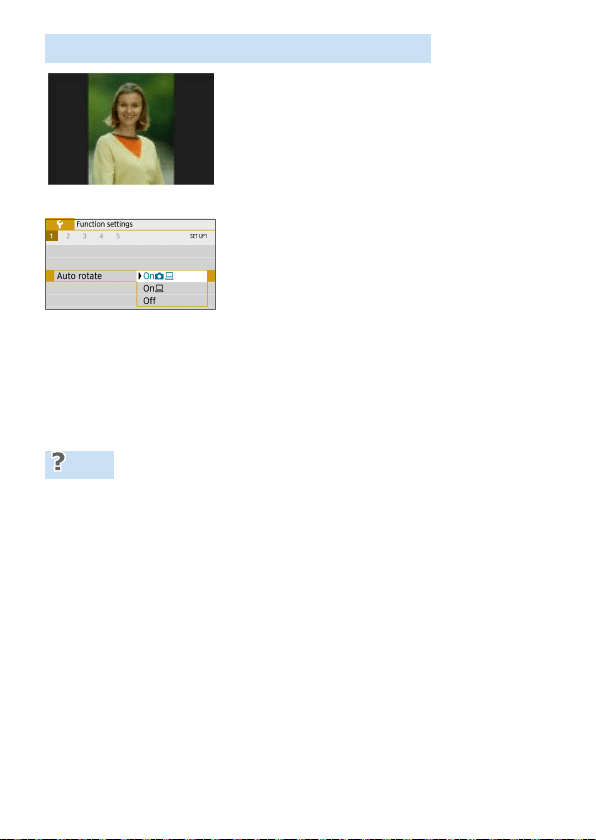
270
Setting the Auto Rotation of Vertical Images
Images shot in vertical orientation are rotated
automatically to the proper orientation for
viewing, so they will not be displayed in
horizontal orientation when played back on the
camera’s LCD monitor or viewed on a computer
screen. You can change the setting of this
feature.
Under the [5] tab, select [Auto rotate],
then press <0>. The available settings
are described below. Select the option,
then press <0>.
[OnzD] :
The vertical image is automatically rotated during playback on
both the camera’s LCD monitor and on the computer screen.
[OnD] : The vertical image is automatically rotated only on the
computer screen.
[Off] :The vertical image is not automatically rotated.
FAQ
The vertical image is not rotated during the image review just after
shooting.
Press the <x> button and the image playback will display the rotated
image.
[OnzD] is set, but the image does not rotate during playback.
Auto rotate will not work with vertical images captured while [Auto
rotate] was set to [Off]. If the vertical image is taken while the camera
is pointed up or down, the image may not be rotated automatically for
playback. In such a case, see Rotating the Image (=
287).
On the camera’s LCD monitor, I want to rotate an image captured
when [OnD] had been set.
Set [OnzD], then play back the image. It will be rotated.
The vertical image does not rotate on the computer screen.
The software used is not compatible with image rotation. Use EOS
software instead.
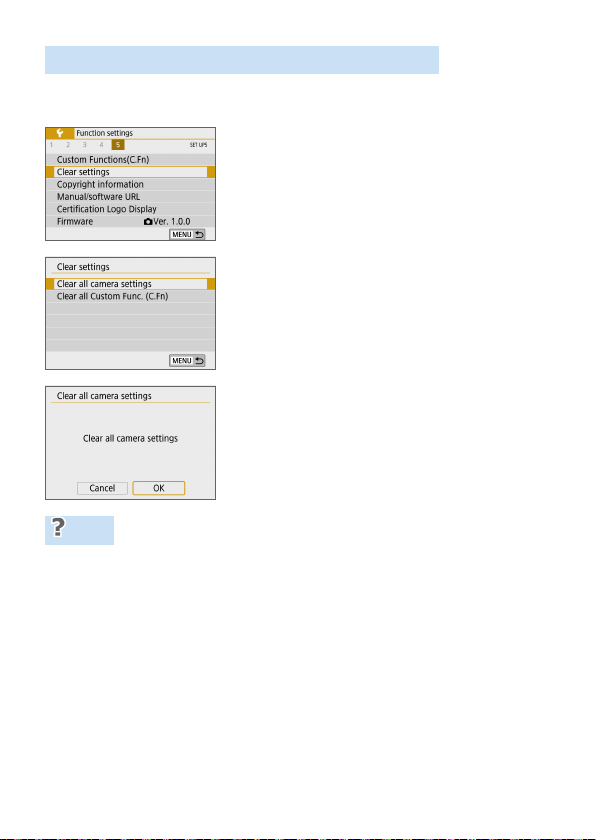
271
Reverting the Camera to the Default Settings
The camera’s shooting function settings and menu settings can be reverted
to their defaults. This option is available in Creative Zone modes.
1
Select [Clear settings].
Under the [5] tab, select [Clear
settings], then press <0>.
2
Select [Clear all camera settings].
Select [Clear all camera settings],
then press <0>.
3
Select [OK].
Select [OK], then press <0>.
FAQ
Clearing all camera settings
After the procedure above, select [Clear all Custom Func. (C.Fn)] in
[5: Clear settings] to clear all the Custom Function settings (=
446).
N
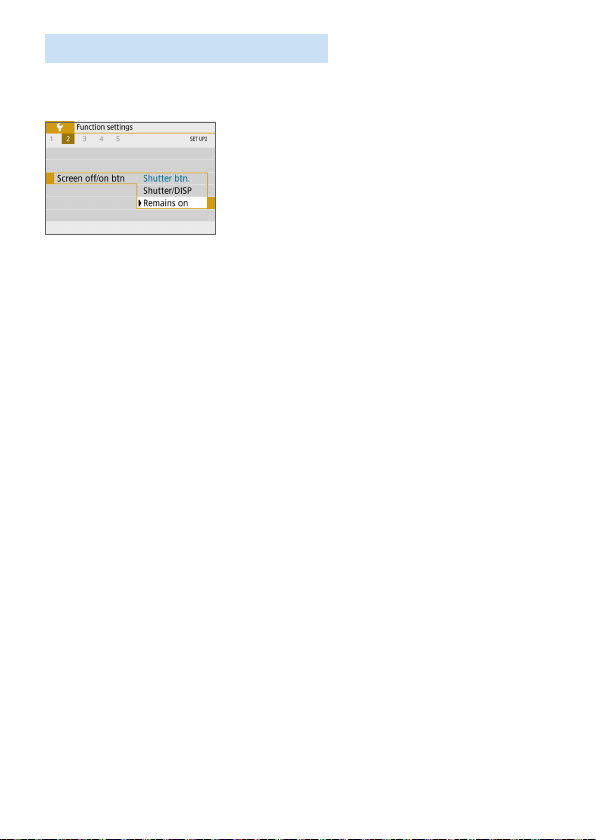
272
Turning the LCD Monitor Off/On
You can set the camera so that the LCD monitor does not turn off and on as
you press the shutter button halfway (or press the <A> button).
Under the [5] tab, select [Screen off/on
btn], then press <0>. The available
settings are described below. Select the
option, then press <0>.
[Shutter btn.] : When you press the shutter button halfway, the
display will turn off. When you let go of the shutter
button, the display will turn on.
[Shutter/DISP] : When you press the shutter button halfway, the
display will turn off. The display will remain off even
after you let go of the shutter button. To turn on the
display, press the <U> button.
[Remains on] : Display remains on even when you press the shutter
button halfway. To turn off the display, press the
<U> button.
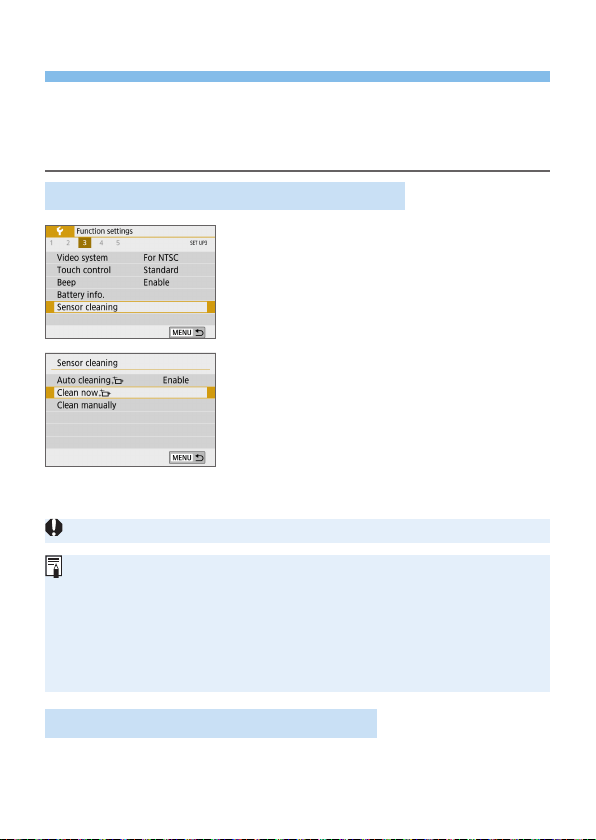
273
Automatic Sensor Cleaning
Whenever you set the power switch to <1> or <2>, the Self Cleaning
Sensor Unit is activated to automatically shake off the dust on the front of
the sensor. Normally, you need not pay attention to this operation. However,
you can manually perform sensor cleaning or can disable this unit as follows.
Activating the Sensor Cleaning Manually
1
Select [Sensor cleaning].
Under the [5] tab, select [Sensor
cleaning], then press <0>.
2
Select [Clean nowf].
Select [Clean now
f
], then press <
0
>.
Select [OK], then press <0>.
B The screen will indicate that the sensor
is being cleaned. (A small sound may
be heard.) Although there will be a
mechanical sound of the shutter during
the cleaning, no picture is taken.
When Multi Shot Noise Reduction is set, [Clean nowf] cannot be selected.
For best results, perform the sensor cleaning with the camera placed upright
and stable on a table or other at surface.
Even if you repeat the sensor cleaning, the result will not improve much.
Immediately after the sensor cleaning is nished, the [Clean nowf] option
remains disabled temporarily.
Dots of light may appear on the shooting screen if the sensor is affected
by cosmic rays or similar factors. By selecting [Clean nowf], their
appearance may be suppressed (=
475).
Disabling Automatic Sensor Cleaning
In step 2, select [Auto cleaningf] and set it to [Disable].
B The sensor will no longer be cleaned when you set the power switch
to <1> or <2>.
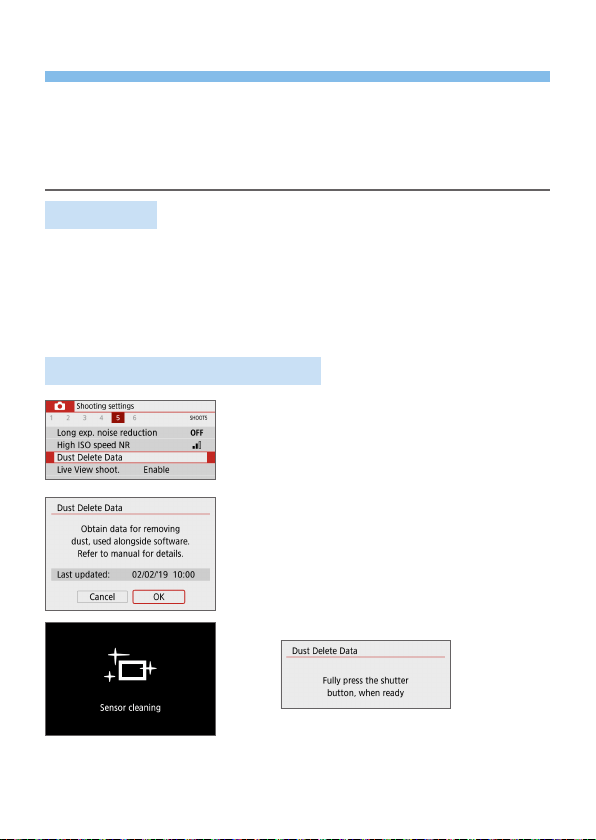
274
Appending Dust Delete Data
Normally, the Self Cleaning Sensor Unit will eliminate most of the dust that
may be visible on captured images. However, for the case where visible
dust still remains, you can append the Dust Delete Data to the image for
erasing the dust spots later. The Dust Delete Data is used by Digital Photo
Professional (EOS software, =
482) to erase the dust spots automatically.
Preparation
Prepare a solid white object such as a sheet of paper.
Set the lens focal length to 50 mm or longer.
Set the lens’s focus mode switch to <MF> and set the focus to innity
(∞). If the lens has no distance scale, rotate the camera to face toward
you and turn the focusing ring clockwise all the way.
Obtaining the Dust Delete Data
1
Select [Dust Delete Data].
Under the [z] tab, select [Dust Delete
Data], then press <0>.
2
Select [OK].
When you select [OK] and press
<0>, the automatic sensor cleaning
will be performed, then a message
will appear. Although there will be a
mechanical sound of the shutter during
the cleaning, no picture is taken.
N
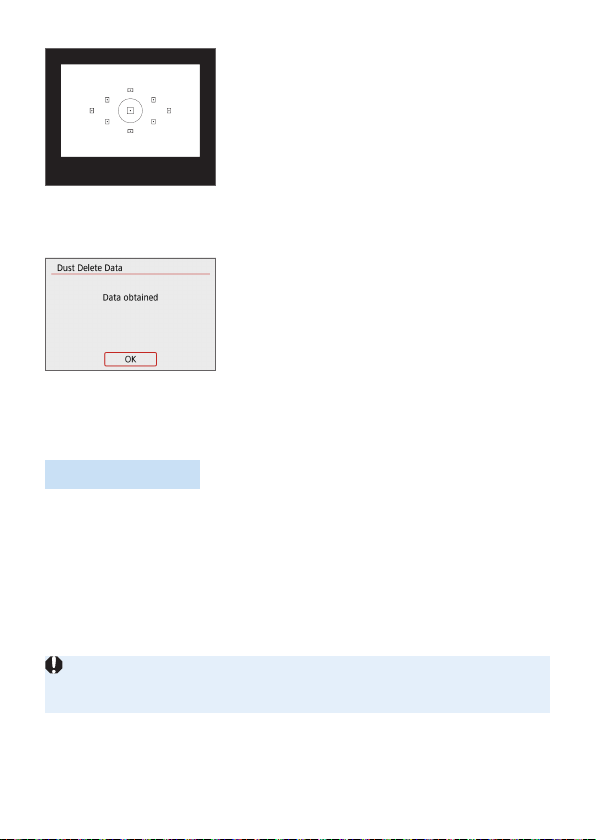
275
3
Shoot a solid-white object.
At a distance of 20 cm–30 cm
(0.7 ft.–1.0 ft.), ll the viewnder with a
patternless, solid-white object and take
a picture.
B The picture will be taken in aperture-
priority AE mode at an aperture of f/22.
Since the image will not be saved, the
data can still be obtained even if there is
no card in the camera.
B When the picture is taken, the camera
will start collecting the Dust Delete Data.
When the Dust Delete Data is obtained,
a message will appear.
Select [OK] and the menu will reappear.
If the data is not obtained successfully,
an error message will appear. After
reviewing the information in Preparation
(=
274), select [OK], then shoot
again.
Dust Delete Data
After the Dust Delete Data is obtained, it is appended to all the JPEG
and RAW images captured thereafter. Before an important shoot, it is
recommended that you update the Dust Delete Data by obtaining it again.
For details about using Digital Photo Professional (EOS software) to erase
dust spots automatically, refer to the Digital Photo Professional Instruction
Manual.
The Dust Delete Data appended to the image is so small that it hardly
affects the image le size.
Be sure to use a solid-white object such as a new sheet of white paper. If the
object has any pattern or design, it may be recognized as dust data and affect
the accuracy of the dust deletion with EOS software.
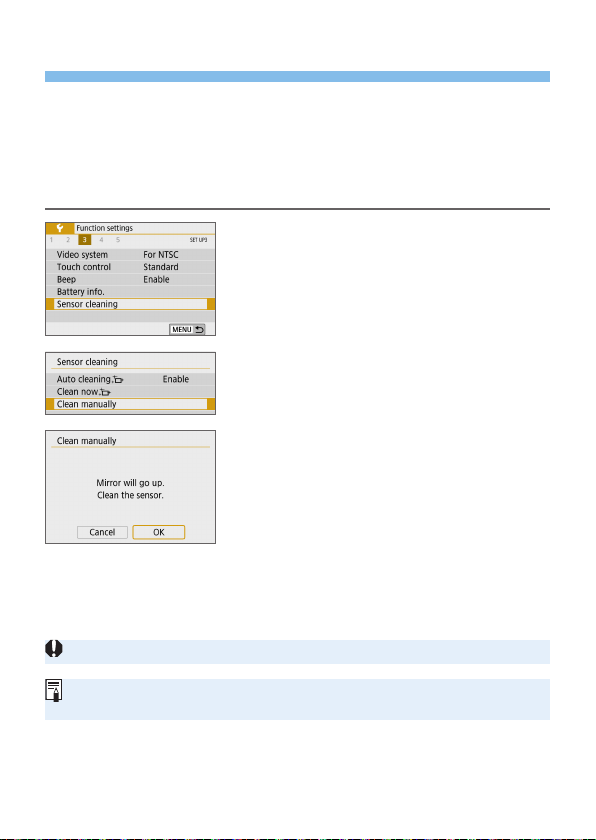
276
Manual Sensor Cleaning
Dust that could not be removed by the automatic sensor cleaning can
be removed manually with a commercially-available blower, etc. Before
cleaning the sensor, detach the lens from the camera.
The image sensor is extremely delicate. If the sensor needs to
be cleaned directly, having it done by a Canon Service Center is
recommended.
1
Select [Sensor cleaning].
Under the [5] tab, select [Sensor
cleaning], then press <0>.
2
Select [Clean manually].
Select [Clean manually], then press
<0>.
3
Select [OK].
Select [OK], then press <0>.
B In a moment, the reex mirror will lock
up and the shutter will open.
4
Clean the sensor.
5
End the cleaning.
Set the power switch to <2>.
If you use a battery, make sure it is fully charged.
Using the household power outlet accessories (sold separately, =
461) is
recommended.
N

277
When Multi Shot Noise Reduction is set, [Clean manually] cannot be
selected.
While cleaning the sensor, never do any of the following. If the power is
cut off, the shutter will close and the shutter curtains and image sensor
may get damaged.
- Setting the power switch to <2>.
- Removing or inserting the battery.
The surface of the image sensor is extremely delicate. Clean the sensor with
care.
Use a plain blower without any brush attached. A brush can scratch the
sensor.
Do not insert the blower tip inside the camera beyond the lens mount. If the
power is turned off, the shutter will close and the shutter curtains or reex
mirror may get damaged.
Never use pressurized air or gas to clean the sensor. Pressurized air may
damage the sensor, and sprayed gas may freeze on the sensor and scratch
it.
If the battery level becomes low while cleaning the sensor, the beeper will
sound as a warning. Stop cleaning the sensor.
If a smudge that cannot be removed with a blower remains, having the sensor
cleaned by a Canon Service Center is recommended.
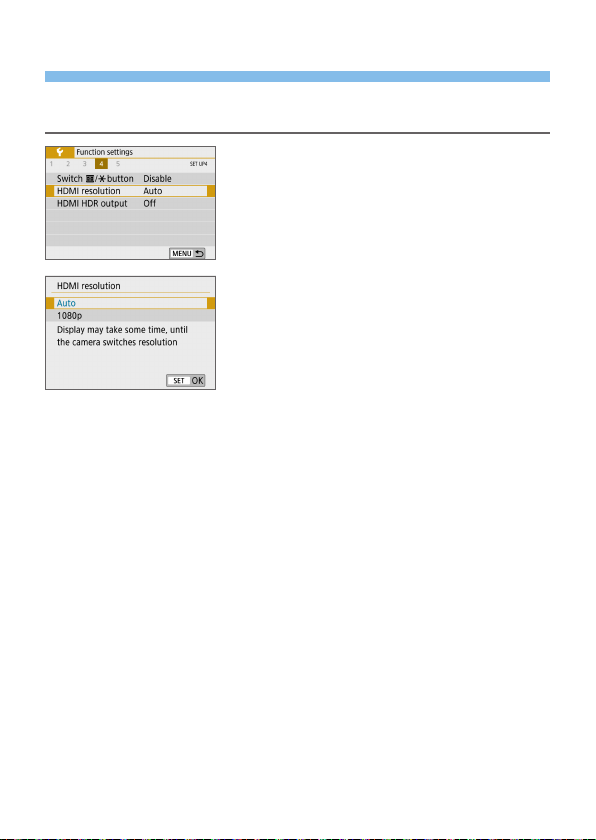
278
HDMI Output Resolution
Set the image output resolution used when the camera is connected to a
television or external recording device with an HDMI cable.
1
Select [HDMI resolution].
Under the [5] tab, select [HDMI
resolution], then press <0>.
2
Select an item.
Press the <W> <X> keys to select the
item, then press <0>.
Auto
The images will automatically be displayed at the optimum resolution
matching the connected TV set.
1080p
Output at 1080p resolution. Select if you prefer to avoid display or delay
issues when the camera switches resolution.
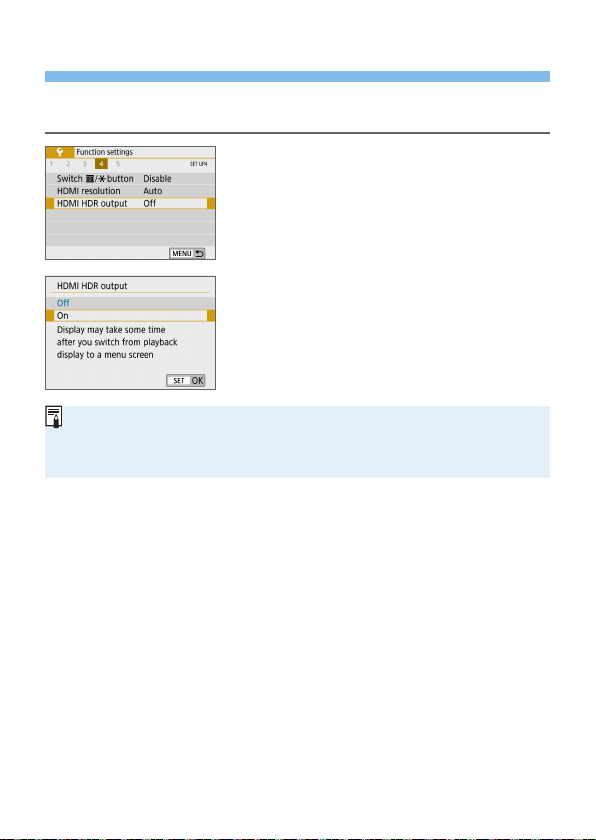
279
RAW Playback on an HDR TV
You can view RAW images in HDR by connecting the camera to an HDR
TV.
1
Select [HDMI HDR output].
Under the [5] tab, select [HDMI HDR
output], then press <0>.
2
Select [On].
Press the <W> <X> keys to select [On].
Make sure the HDR TV is set up for HDR input. For details on how to switch
inputs on the TV, refer to the TV manual.
Depending on the TV used, images may not look as expected.
Some image effects and information may not be displayed on an HDR TV.
280
Image Playback
This chapter describes advanced usage of the playback
methods described in “Basic Shooting and Image Playback”
(=
69), how to play back and erase the captured images
(still photos/movies), how to view them on a TV screen, and
other playback-related functions.
Images shot and saved with another device
The camera may not be able to properly display images captured with a
different camera, edited with a computer, or that have had their le names
changed.
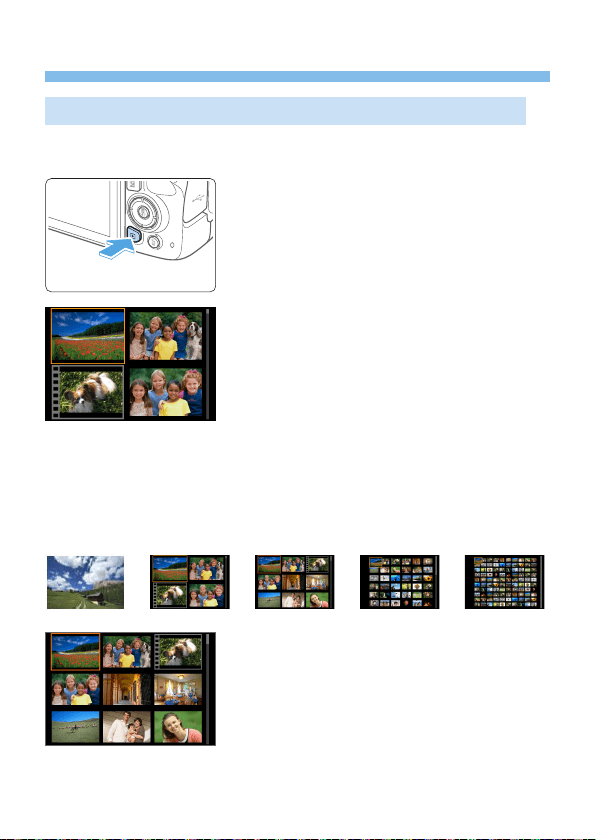
281
Searching for Images Quickly
Display Multiple Images on One Screen (Index Display)
Search for images quickly with the index display showing 4, 9, 36, or 100
images on one screen.
1
Play back the image.
When you press the <x> button, the
last image captured will be displayed.
2
Switch to the index display.
Press the <I> button.
B The 4-image index display will appear.
The selected image is highlighted with
an orange frame.
Pressing the <I> button will switch
the display as follows: 9 images →
36 images → 100 images.
Pressing the <u> button will switch
the display as follows: 100 images →
36 images → 9 images → 4 images →
1 image.
B B B B
3
Select an image.
Press the <V> cross keys to move the
orange frame to select the image.
Turning the <6> dial will display
image(s) on the next or previous screen.
Press <0> in the index display to
display the selected image in the single-
image display.
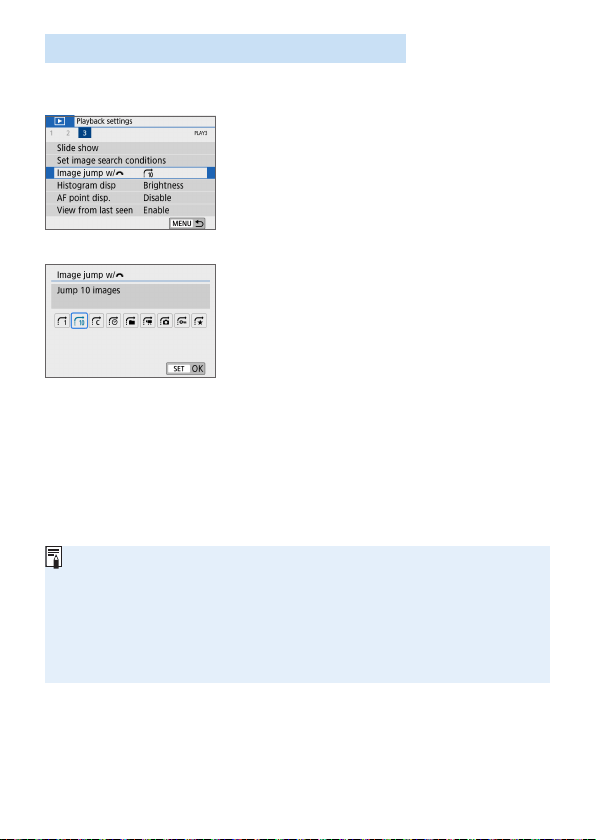
282
Jumping through Images (Jump Display)
In the single-image display, you can turn the <6> dial to jump through the
images forward or backward according to the jump method set.
1
Select [Image jump w/6].
Under the [x] tab, select
[Image jump w/6], then press
<0>.
2
Select the jump method.
Press the <V> cross keys to select the
jump method, then press <0>.
d: Display images one by one
e: Jump 10 images
r: Jump images by the specied
number
g: Display by date
h: Display by folder
i: Display movies only
j: Display stills only
s: Display protected images only
k: Display by image rating (=
288)
Turn the <6> dial to select.
With [Jump images by the specied number], you can turn the <6> dial
to select the number of images you want to jump (1 to 100).
To search images by shooting date, select [Date].
To search images by folder, select [Folder].
If the card contains both movies and still photos, select [Movies] or [Stills] to
display one or the other.
If no images match the selected [Rating], you cannot browse through the
images with the <6> dial.

283
3
Browse by jumping.
Press the <x> button to play back
images.
In the single-image display, turn the
<6> dial.
B You can browse by the set method.
(1) Jump method
(2) Playback position
(
2
)(
1
)
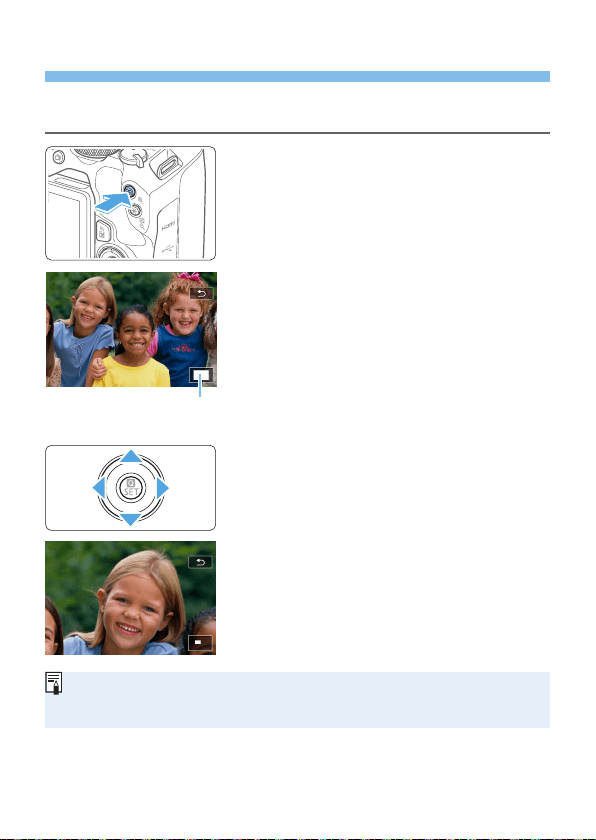
284
Magnifying Images
You can magnify a captured image by approx. 1.5x to 10x on the LCD
monitor.
1
Magnify the image.
Press the <u> button during image
playback.
B The image will be magnied. The
magnied area position (1) will be
displayed on the lower right of the
screen.
If you hold down the <u> button, the
image will be magnied until it reaches
the maximum magnication.
Press the <I> button to reduce
the magnication. If you hold down the
button, the magnication will be reduced
to the single-image display.
2
Scroll around the image.
Press the <V> cross keys to scroll
the magnied image in the direction
pressed.
To exit magnied view, press the <x>
button and the single-image display will
reappear.
Turn the <6> dial to view another image while maintaining the magnied
view.
A movie cannot be magnied.
(
1
)
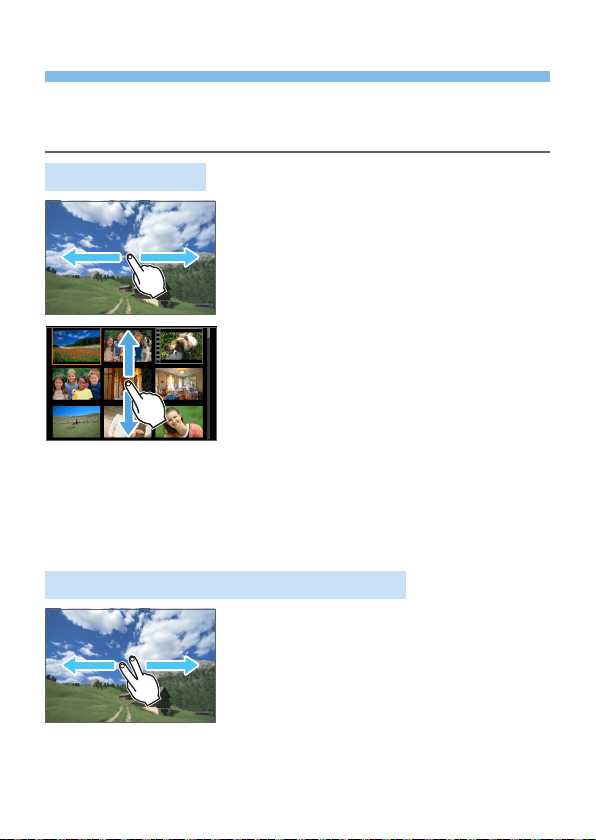
285
Playing Back with the Touch Screen
The LCD monitor is a touch-sensitive panel that you can touch with your
ngers for various playback operations. First, press the <x> button to
play back images.
Browsing Images
Swipe with one finger.
With single-image display, touch the
LCD monitor with one nger. You can
browse to the next or previous image by
swiping your nger to the left or right.
Swipe to the left to see the next (newer)
image, or swipe to the right to see the
previous (older) image.
With index display, also touch the
LCD monitor with one nger. You can
browse to the next or previous screen
by swiping your nger up or down.
Swipe up to see the next (newer)
images or swipe down to see the
previous (older) images.
When you select an image, the orange
frame will appear. Tap on the image
again to display it as a single image.
Jumping through Images (Jump Display)
Swipe with two fingers.
Touch the LCD monitor with two ngers.
When you swipe two ngers to the left or
right, you can jump through images with
the method set in [Image jump w/6]
under the [x] tab.
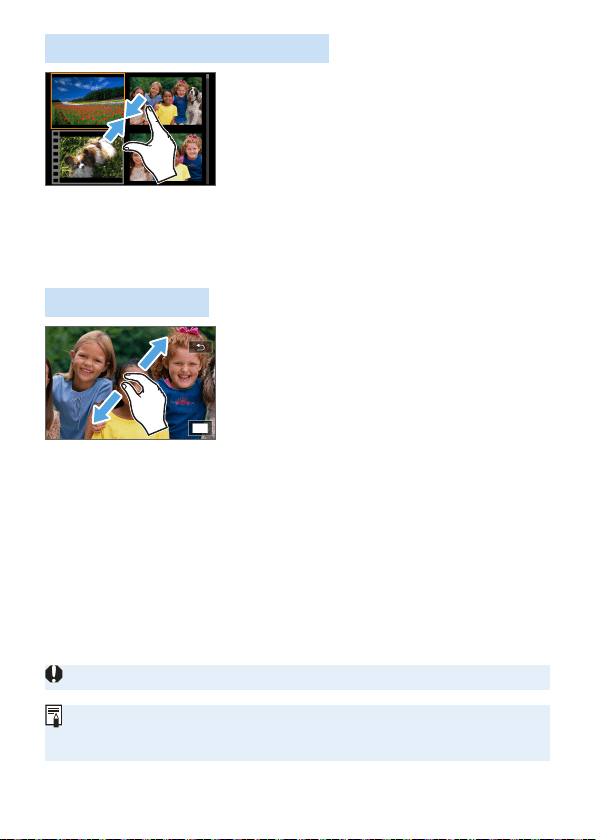
286
Reducing Image (Index Display)
Pinch two fingers.
Touch the screen with two ngers spread
apart, and pinch your ngers together on
the screen.
Each time you pinch your ngers, the
single-image display will change to the
index display.
When you select an image, the orange
frame will appear. Tap on the image
again to display it as a single image.
Magnifying Image
Spread two fingers apart.
Touch the screen with two ngers together,
then spread your ngers apart on the
screen.
As you spread your ngers, the image
will be magnied.
The image can be magnied up to
approx. 10x.
Double-tap.
When you double-tap on the image
with your nger, the recorded image’s
pixels will be displayed at approx. 100%
centered around the point that you
tapped on.
To return to the single-image display,
double-tap on the image again.
In the index display, you cannot magnify the image by double-tapping.
You can scroll around the image by dragging your ngers.
To reduce the image, pinch your ngers together on the screen.
By tapping on [2], you can return to the single-image display.

287
Rotating the Image
You can use this feature to rotate the displayed image to the desired
orientation.
1
Select [Rotate image].
Under the [x] tab, select [Rotate
image], then press <0>.
2
Select an image.
Press the <Y> <Z> keys to select the
image to be rotated.
You can also select an image in the
index display (=
281).
3
Rotate the image.
Each time you press <0>, the image
will rotate clockwise as follows: 90° →
270° → 0°.
To rotate another image, repeat steps
2 and 3.
To exit and return to the menu, press the
<M> button.
If you set [5: Auto rotate] to [OnzD] (=
270) before taking vertical
shots, you need not rotate the image as described above.
If the rotated image is not displayed in the rotated orientation during image
playback, set [5: Auto rotate] to [OnzD].
A movie cannot be rotated.
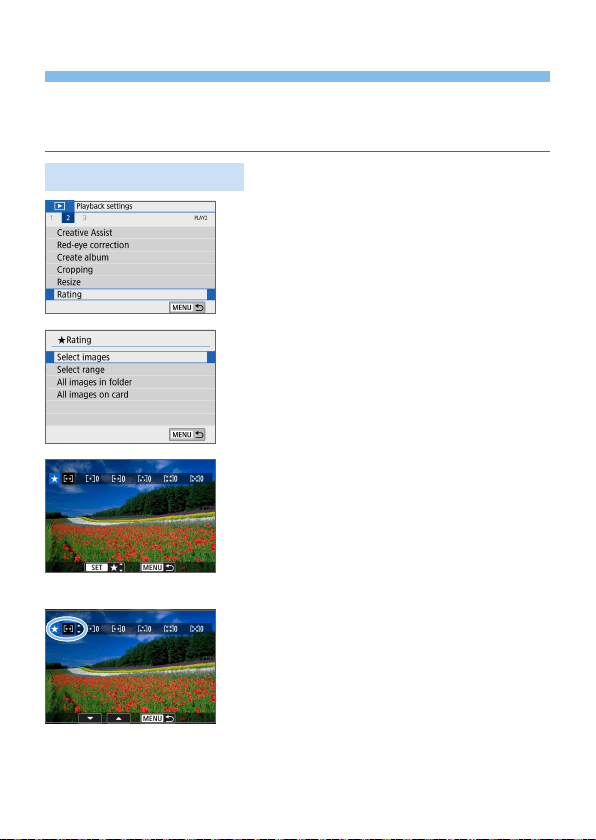
288
Setting Ratings
You can rate images (still photos and movies) with one of the ve rating
marks: l/m/n/o/p. This function is called rating.
* Rating images can help you organize them.
Rating a Single Image
1
Select [Rating].
Under the [x] tab, select [Rating],
then press <0>.
2
Select [Select images].
B An image is displayed.
3
Select the image to be rated.
Press the <Y> <Z> keys to select an
image to be rated, then press <0>.
By pressing the <I> button, you
can select images from a three-image
display. To return to the single-image
display, press the <u> button.
4
Rate the image.
Press the <W> <X> keys to select a
rating.
B When you append a rating mark for the
image, the number beside the set rating
will increase by one.
To rate another image, repeat steps 3
and 4.
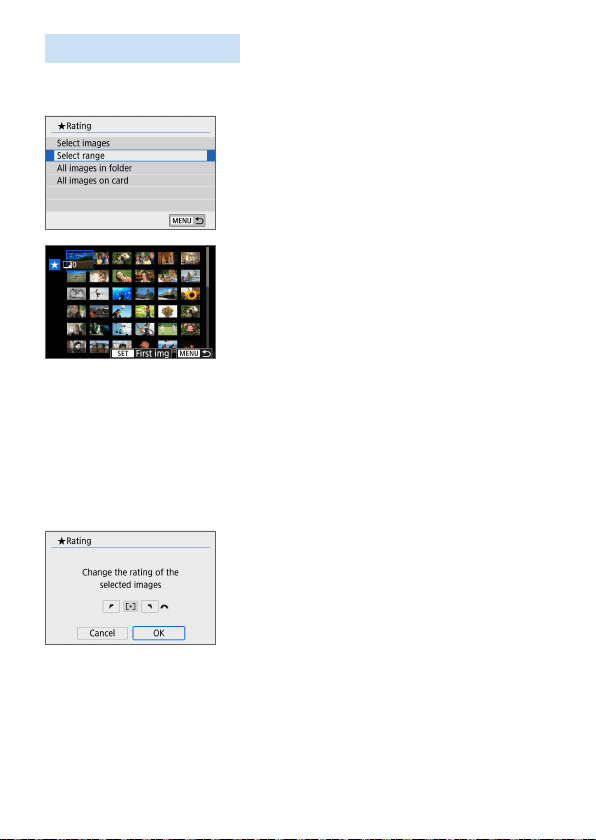
289
Specifying the Range
You can specify the range of images to rate all the images in the range at
once.
1
Select [Select range].
Select [Select range] in [x: Rating],
then press <0>.
2
Specify the range of images.
Select the rst image (start point), then
press <0>.
Select the last image (end point), then
press <0>.
B The [X] icon will appear on the selected
images.
To cancel the selection, repeat this step.
Pressing the <M> button before you
select an end point will clear the [X]
icons.
3
Confirm the range.
Press the <M> button.
4
Rate the image.
Turn the <6> dial to select a rating
mark, then select [OK].
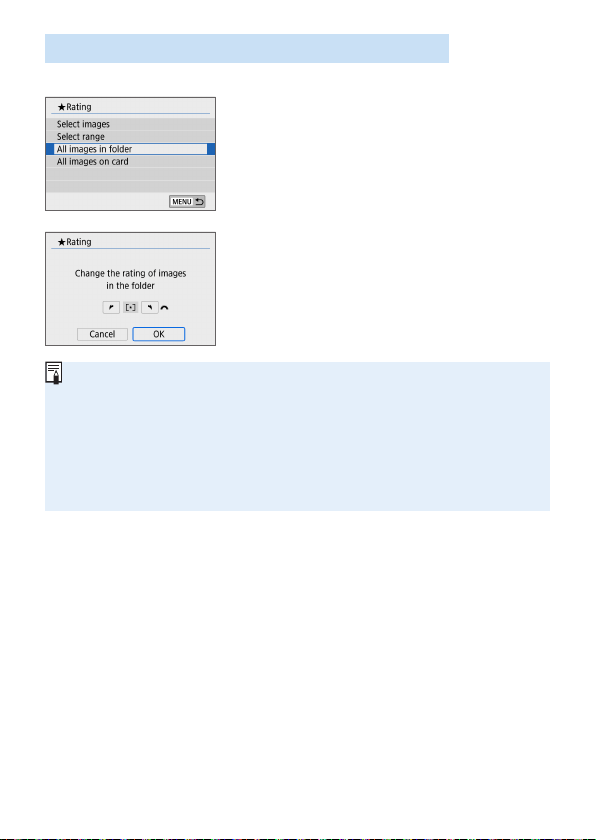
290
Specifying All Images in a Folder or on a Card
You can rate all the images in a folder or on a card at once.
When you select [All images in folder]
or [All images on card] in [
x
: Rating],
all the images in the folder or on the card
will be specied.
Turn the <6> dial to select a rating
mark, then select [OK].
To cancel the rating, select the [OFF]
rating mark.
A total of up to 999 images of a given rating can be displayed. If there are
1000 or more images with a given rating, [###] will be displayed.
Taking Advantage of Ratings
With [x: Image jump w/6], you can display only the images having a
specic rating.
Depending on the computer’s operating system, you can see each le’s
rating as part of the le information display or in the provided, standard image
viewer (JPEG images only).
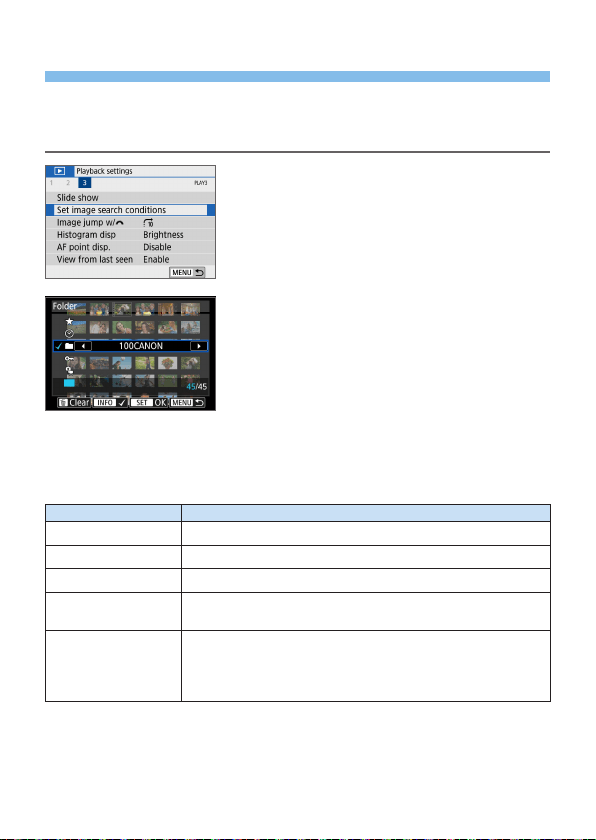
291
Filtering Images for Playback
You can search for images by specifying the conditions and display the
ltered images. You can also play back in a slide show, protect, or erase all
the found images at once.
1
Select [Set image search
conditions].
Under the [x] tab, select [Set image
search conditions], then press <0>.
2
Set the search conditions.
Press the <W> <X> keys to select the
condition.
Press the <Y> <Z> keys to set the
setting.
To cancel the condition, press the
<B> button.
You can even set all the conditions.
To cancel all the conditions, press the
<L> button.
Item Setting
9Rating
Images with the selected rating mark will be displayed.
dDate
Images taken on the selected shooting date will be displayed.
nFolder
Images in the selected folder will be displayed.
JProtect
“Protected” or “Unprotected” images on the card will be
displayed.
fType of le
Image les of the selected type will be displayed.
The settable le types are [z Stills], [z (RAW)],
[z (RAW, RAW+JPEG)], [z (RAW+JPEG)], [z
(RAW+JPEG, JPEG)], [z (JPEG)], and [k Movies].
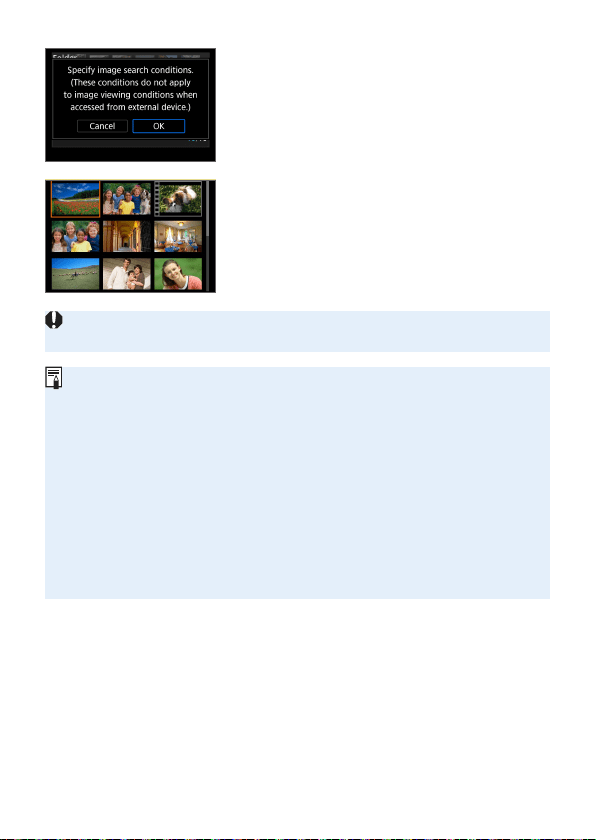
292
3
Implement the search conditions.
Press <0>.
B Read the message that appears and
select [OK].
4
Display the found images.
Press the <x> button to play back
images.
B Images that match the set conditions will
appear in a yellow frame.
If there are no images matching the search conditions, pressing <0> on
the screen in step 2 will not enable [OK]. (Cannot proceed to step 3.)
Even if [5: Auto power off] is set to [4 min.] or less, the auto power off time
will be approx. 6 min. when the search conditions screen is displayed.
With the found images displayed, you can also perform operations (protect,
erase, print order, photobook set-up, rating, and slide show) for all the found
images at once.
The display of found images will be automatically canceled with the following
operations:
- Shooting is performed.
- Auto power off takes effect.
- Setting the power switch to <2>.
- Formatting the SD card.
- Adding an image (such as when a captured image is saved as a new image
after applying a lter effect, resizing, or cropping).
- When there are no longer any images matching the search conditions.
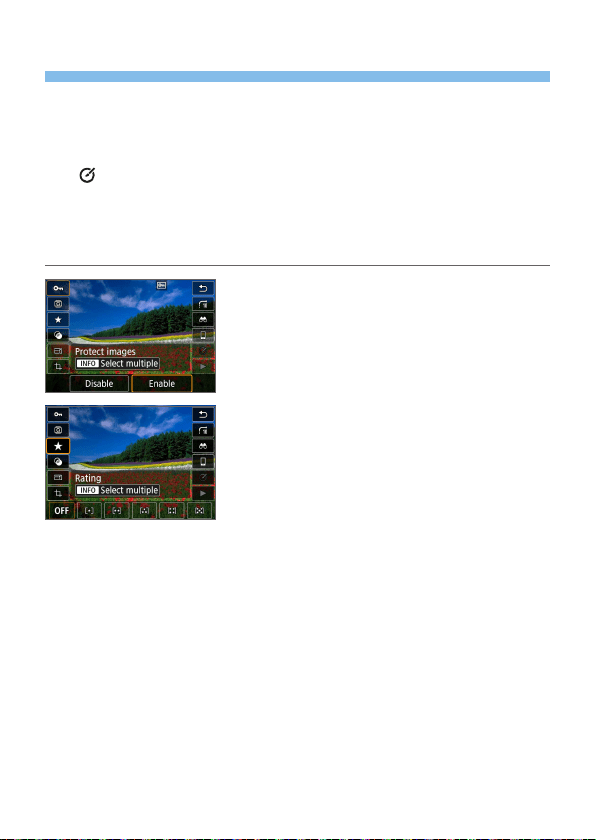
293
Quick Control for Playback
During playback, you can press the <Q> button to set the following:
[J: Protect images], [b: Rotate image], [9: Rating], [U: Creative
lters], [S: Resize (JPEG images only)], [N: Cropping], [e: Image
jump w/6], [t: Image search], [q: Send images to smartphone*],
and [
: Creative Assist (RAW images only)].
For movies, only the following can be set: [J: Protect images],
[9: Rating], [e: Image jump w/6], [t: Image search], [q: Send
images to smartphone*], or [7: Play movie].
* Not selectable if [Disable] is set for [Wi-Fi] under [k: Wi-Fi settings].
1
Press the <Q> button.
During image playback, press the <Q>
button.
B The Quick Control options will appear.
2
Select an item and set it.
Press the <W> <X> keys to select a
function.
B The name and setting of the selected
function are displayed at the bottom of
the screen.
Press the <Y> <Z> keys to set the
function.
For Protect images (=
307) and
Rating (=
288), press <B> to
select multiple images.
For Creative lters (=
329), Resize
(=
338), Cropping (=
340), Image
search (=
291), Send images to
smartphone (=
363), and Creative
Assist (=
332), press <0> and set
the function.
Image jump w/6 (=
282): To specify
the number of images for Jump display
or Rating (=
288), press <B>.

294
To cancel, press the <M> button.
3
Exit the setting.
Press <0> to exit Quick Control.
To rotate an image (=
287), set [5: Auto rotate] to [OnzD]. If [5: Auto
rotate] is set to [OnD] or [Off], the [b Rotate image] setting will be
recorded to the image, but the camera will not rotate the image for display.
For images taken with another camera, the options you can select may be
restricted.
295
Enjoying Movies
The three main ways to play back and enjoy movies are as follows:
Playback on a TV Set (=
305)
By connecting the camera to a TV set with an HDMI cable, you can play
back the captured movies and still photos on the TV set.
Since hard disk recorders do not have an HDMI IN terminal, the camera
cannot be connected to a hard disk recorder with an HDMI cable.
Even if the camera is connected to a hard disk recorder with a USB cable,
movies and still photos cannot be played back or saved.
Movies cannot be played back on devices that do not support MP4-format
movie les.
Playback on the Camera’s LCD Monitor
(=
296–=
303)
You can play back movies on the camera’s LCD monitor. You can also edit
out the movie’s rst and last scenes and can play back the still photos or
movies on the card in an automatic slide show.
A movie edited with a computer cannot be rewritten to the card and played
back with the camera.
Playback and Editing with a Computer
The movie les recorded on the card can be transferred to a computer
and played back or edited with pre-installed or general-purpose software
compatible with the movie’s recording format.
To play back or edit a movie with commercially-available software, use
software compatible with MP4-format movies. For details on commercially-
available software, contact the software manufacturer.
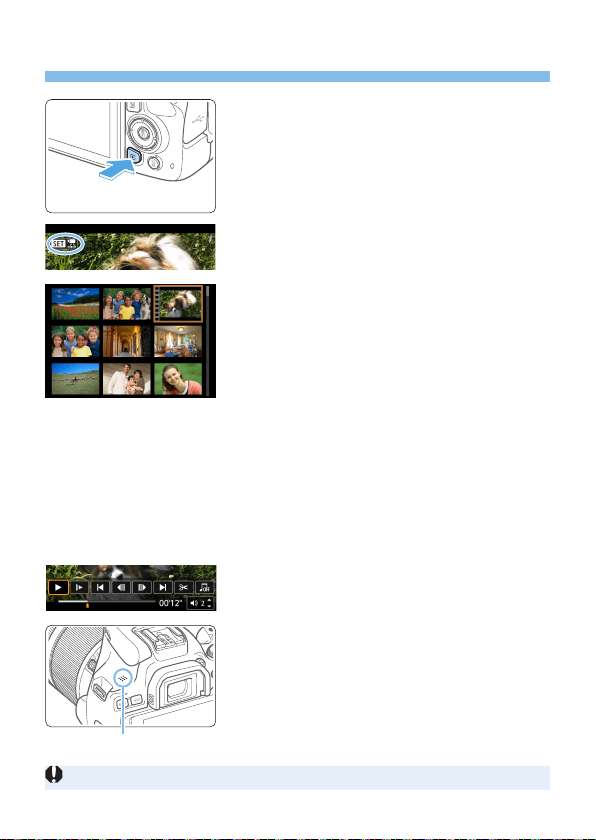
296
Playing Back Movies
1
Play back the image.
Press the <x> button to display an
image.
2
Select a movie.
Press the <Y> <Z> keys to select the
movie to be played back.
In the single-image display, the
<s1> icon displayed on the upper
left indicates a movie.
In the index display, perforations at
the left edge of a thumbnail indicate a
movie. As movies cannot be played
back from the index display, press
<0> to switch to the single-image
display.
3
In the single-image display, press
<0>.
4
Play back the movie.
Select [7] (Play movie), then press
<0>.
B The movie will start playing back.
You can pause playback and display
the movie playback panel by pressing
<0>.
Volume during playback can be adjusted
by pressing the <W> <X> keys.
For more details on the playback
operations, see page 297.
(1) Speaker
The camera may not be able to play back movies shot with another camera.
(1)
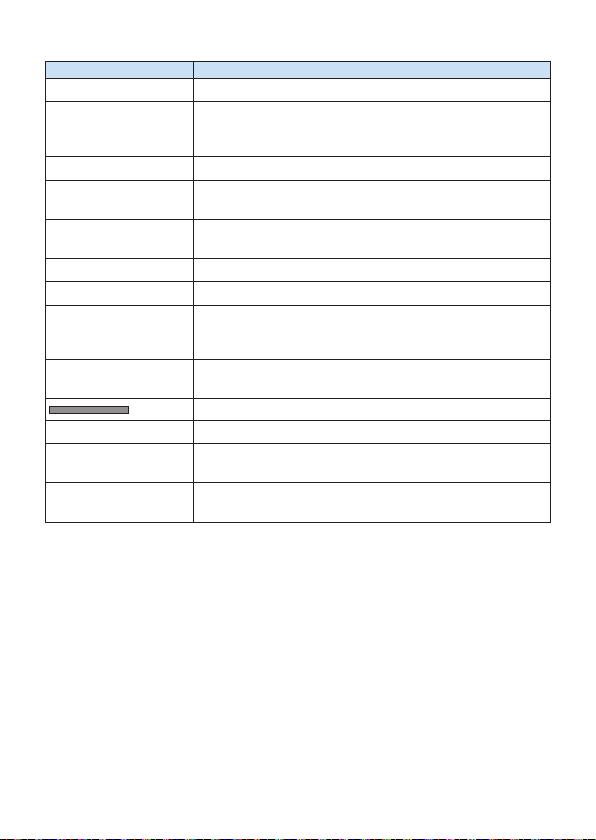
297
Movie Playback Panel
Item Playback Operations
7 Play
Pressing <0> toggles between playback and stop.
8 Slow motion
Adjusts the slow motion speed by pressing the <Y> <Z>
keys. The slow motion speed is indicated on the upper right
of the screen.
N Skip backward
Skips backward approx. 4 sec. each time you press <0>.
3 Previous frame
Displays the previous frame each time you press <0>.
Holding <0> down will rewind the movie.
6 Next frame
Plays the movie frame-by-frame each time you press
<0>. Holding <0> down will fast forward the movie.
O Skip forward
Skips forward approx. 4 sec. each time you press <0>.
X Edit
Displays the editing screen (=
299).
M Frame Grab
Available when you play 4K or 4K time-lapse movies.
Enables you to extract the current frame and save it as a
JPEG still image (=
301).
v Background music
Plays back a movie with the selected background music
(=
337).
Playback position
mm’ ss” Playback time (minutes:seconds)
P Volume
Use the <W> <X> keys to adjust the speaker volume
(=
296).
32
Press the <M> button to return to the single-image
display.
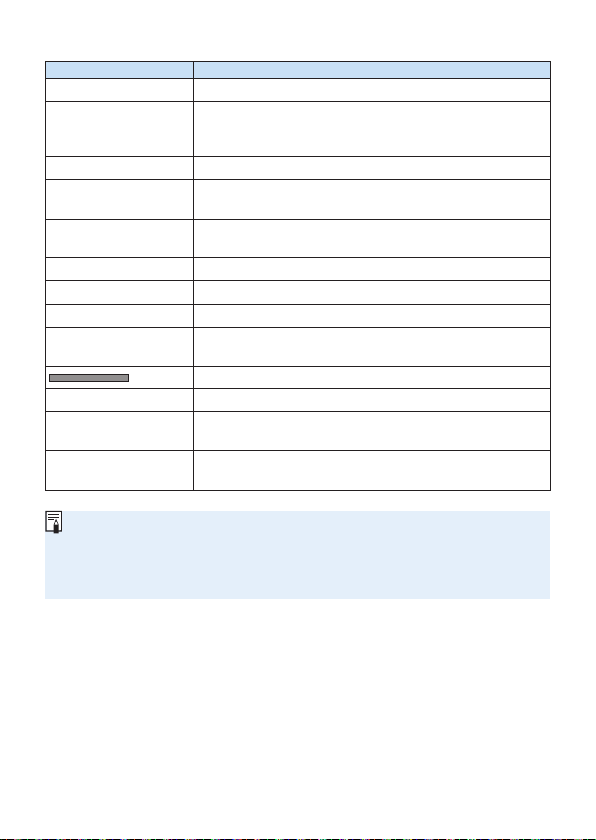
298
Movie Playback Panel (Video Snapshot Albums)
Item Playback Operations
7 Play
Pressing <0> toggles between playback and stop.
8 Slow motion
Adjust the slow motion speed by pressing the <Y> <Z>
keys. The slow motion speed is indicated on the upper right
of the screen.
N Previous clip
Displays the rst frame of the previous video snapshot.
3 Previous frame
Displays the previous frame each time you press <0>.
Holding <0> down will rewind the movie.
6 Next frame
Plays the movie frame-by-frame each time you press
<0>. Holding <0> down will fast forward the movie.
O Next clip
Displays the rst frame of the next video snapshot.
L Erase clip
Erases the current video snapshot.
X Edit
Displays the editing screen (=
299).
v Background music
Plays back a movie with the selected background music
(=
337).
Playback position
mm’ ss” Playback time (minutes:seconds)
P Volume
Use the <W> <X> keys to adjust the speaker volume
(=
296).
32
Press the <M> button to return to the single-image
display.
Use television controls to adjust the volume when the camera is connected
to a television for movie playback (=
305). (Volume cannot be adjusted by
pressing the <W> <X> keys.)
Movie playback may stop if the card’s read speed is too slow or movie les
have corrupted frames.
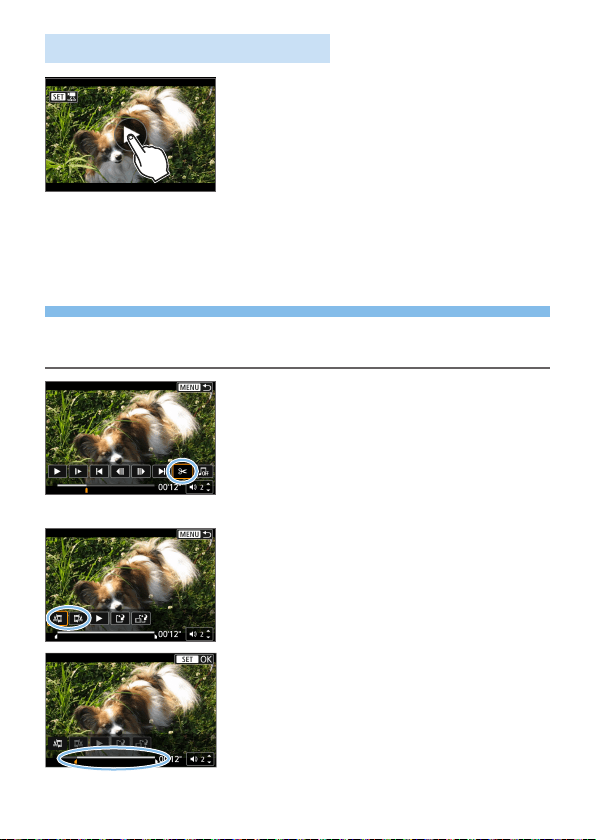
299
Playback with the Touch Screen
Tap [
7
] at the center of the screen.
B The movie will start playing back.
To display the Quick Control screen, tap
<s1> in the upper left.
To pause the movie while it is playing
back, tap on the screen. The movie
playback panel will also appear.
Editing a Movie’s First and Last
Scenes
You can edit out the rst and last scenes of a movie in approx. 1-sec.
increments.
1
Pause movie playback.
B The movie playback panel will appear.
2
On the movie playback screen,
select [X].
B The movie editing panel will be
displayed at the bottom of the screen.
3
Specify the part to be edited out.
Select either [U] (Cut beginning) or
[V] (Cut end), then press <0>.
Press the <Y> <Z> keys to see the
previous or next frames. Keep holding
down the key to fast forward or fast
rewind the frames.
After deciding which part to edit out,
press <0>. The portion highlighted in
white on the top is what will remain.
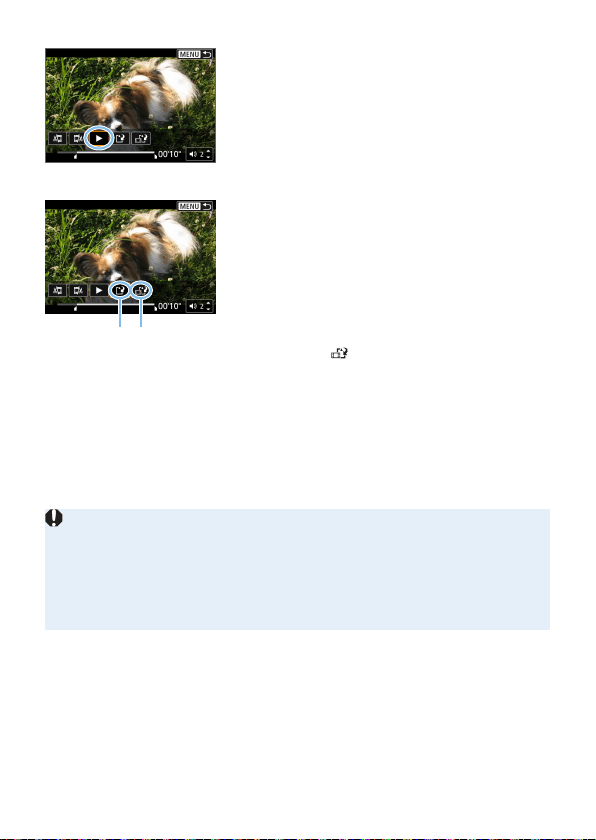
300
4
Check the edited movie.
Select [
7
] to play the edited movie.
To change the edited part, go back to
step 2.
To cancel the editing, press the
<M> button, then select [OK] on the
conrmation dialog.
5
Save the edited movie.
Select [W] (1), then press <0>.
B The save screen will appear.
To save it as a new movie, select
[New le]. To save it and overwrite the
original movie le, select [Overwrite],
then press <0>.
Select [
] (2) to save a compressed
version of the le. 4K movies are
converted to Full HD movies before
compression.
On the conrmation dialog, select [OK],
then press <0> to save the edited
movie and return to the movie playback
screen.
Because editing is performed in approx. 1-sec. increments (at the position
indicated by [Z] at the bottom of the screen), the actual position where
movies are trimmed may differ from your specied position.
If the card does not have enough free space, [New le] will not be available.
When the battery level is low, movie editing is not possible. Use a fully-
charged battery.
Movies shot with another camera cannot be edited with this camera.
(
1
)(
2
)
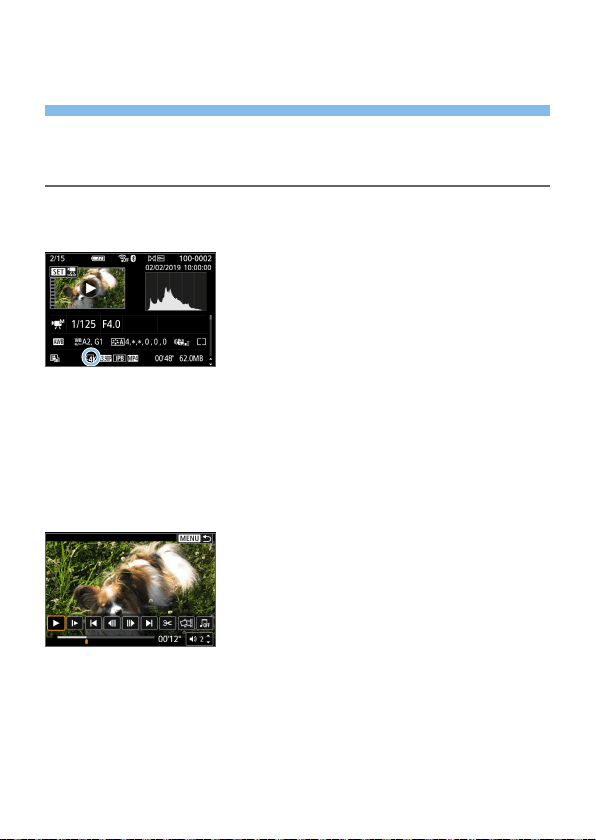
301
Grabbing a Frame from 4K Movies
or 4K Time-Lapse Movies
From 4K movies or 4K time-lapse movies, you can select individual frames
to save as approx. 8.3-megapixel (3840×2160) JPEG still images. This
function is called “Frame Grab (4K frame capture)”.
1
Play back the image.
Press the <3> button.
2
Select a 4K movie or 4K time-lapse
movie.
Select with the <Y> <Z> keys.
On the shooting information screen
(=
326), 4K movies and 4K time-lapse
movies are indicated by an [L] icon.
In index display, press <0> to switch
to single-image display.
3
In the single-image display, press
<0>.
4
Pause movie playback.
The movie playback panel will appear.
5
Select a frame to grab.
Use the movie playback panel to select
the frame to grab as a still photo.
For movie playback panel instructions,
see =
297.
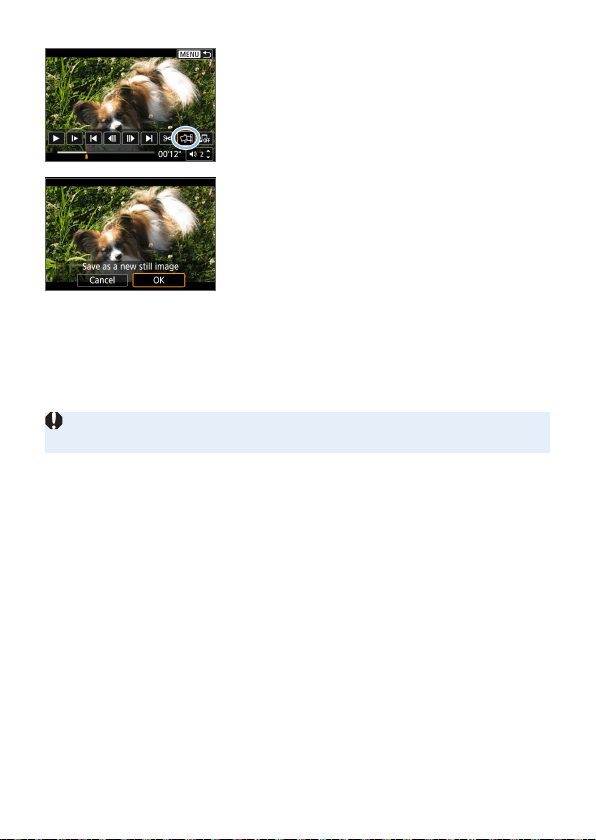
302
6
Select [M].
Select with the <Y> <Z> keys.
7
Save the image.
Select [OK] to save the current frame as
a JPEG still image.
8
Select the image to display.
Check the destination folder and image
le number.
Select [View original movie] or [View
extracted still image].
Frame grabbing is not possible with Full HD movies, Full HD time-lapse
movies, or with 4K movies or 4K time-lapse movies from a different camera.
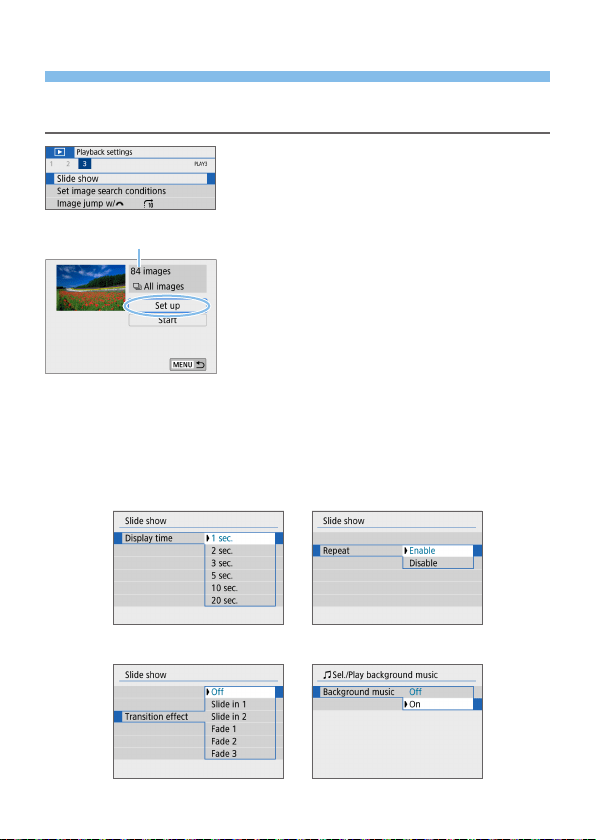
303
Slide Show (Auto Playback)
You can automatically play back all the images on the card one after
another.
1
Select [Slide show].
Under the [x] tab, select [Slide
show], then press <0>.
2
Configure [Set up] as desired.
Press the <W> <X> keys to select [Set
up], then press <0>.
Set the [Display time], [Repeat]
(repeated playback), [Transition effect]
(effect when changing images), and
[Background music] for the still photos.
See page 337 for the background
music selection procedure.
After completing the settings, press the
<M> button.
(1) Number of images to be played back
[Display time] [Repeat]
[Transition effect] [Background music]
(
1
)
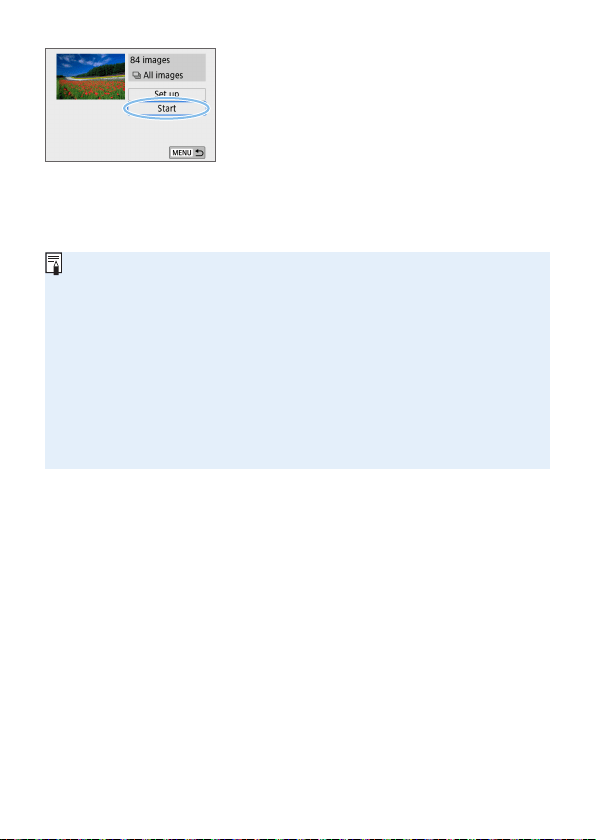
304
3
Start the slide show.
Press the <W> <X> keys to select
[Start], then press <0>.
B After [Loading image...] is displayed,
the slide show will start.
4
Exit the slide show.
To exit the slide show and return to
the setting screen, press the <M>
button.
To pause the slide show, press <0>. During pause, [G] will be displayed
on the upper left of the image. Press <0> again to resume the slide show.
You can also pause the slide show by tapping on the screen.
During auto playback, you can press the <B> button to switch the still
photo display format (=
101).
Volume during movie playback can be adjusted with the <W> <X> keys.
During auto playback or pause, you can press the <Y> <Z> keys to view
another image.
During auto playback, auto power off will not take effect.
The display time may differ depending on the image.
To view the slide show on a TV set, see page 305.
While viewing images in ltered playback with [x: Set image search
conditions], you can play them back in a slide show.
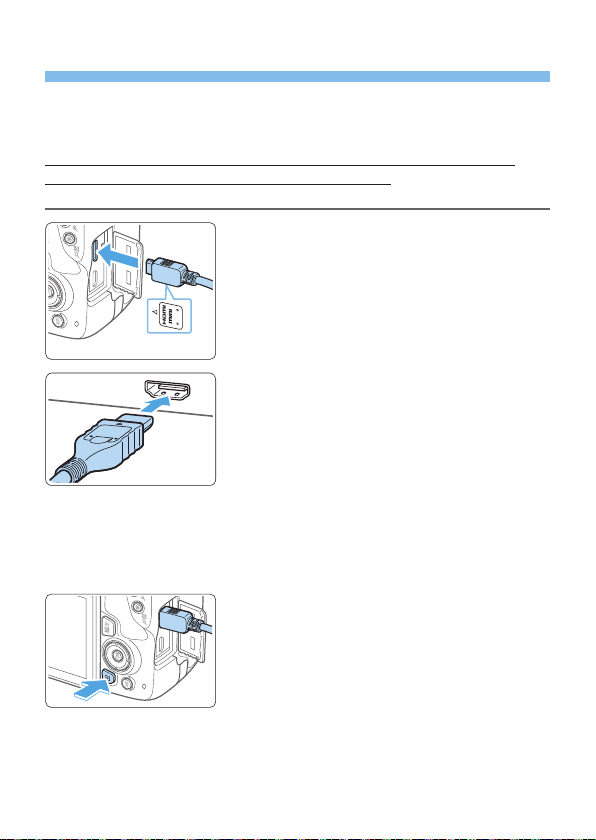
305
Playback on a TV
By connecting the camera to a TV set with an HDMI cable, you can play
back the captured still photos and movies on the TV set. For the HDMI
cable, HDMI Cable HTC-100 (sold separately) is recommended.
If the image does not appear on the TV screen, check if the [5: Video
system] is correctly set to [For NTSC] or [For PAL] (depending on the
video system of your television).
1
Connect the HDMI cable to the
camera.
With the plug’s <▲HDMI MINI> logo
facing the front of the camera, insert it
into the <D> terminal.
2
Connect the HDMI cable to the TV
set.
Connect the HDMI cable to the TV set’s
HDMI IN port.
3
Turn on the TV set and switch the
TV set’s video input to select the
connected port.
4
Set the camera’s power switch to
<1>.
5
Press the <x> button.
B The image will appear on the TV screen.
(Nothing will be displayed on the
camera’s LCD monitor.)
The images will automatically be
displayed at the optimum resolution
matching the connected TV set.
By pressing the <B> button, you can
change the display format.
To play back movies, see page 296.

306
Adjust movie sound volume with the TV set. The sound volume cannot be
adjusted with the camera.
Before connecting or disconnecting the cable between the camera and TV
set, turn off the camera and TV set.
Depending on the TV set, part of the image displayed may be cut off.
Do not connect any other device’s output to the camera’s <D>
terminal. Doing so may cause a malfunction.
Certain TV sets may not display the images due to incompatibility.
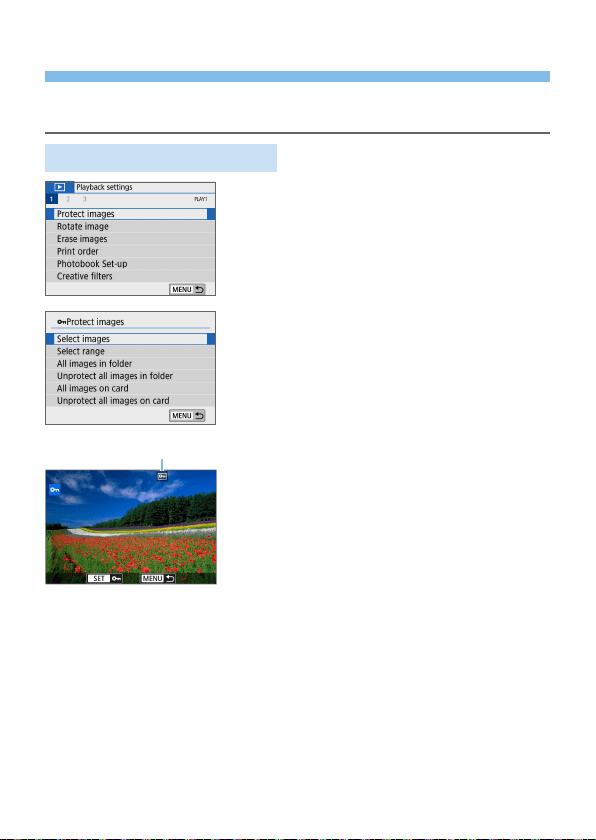
307
Protecting Images
You can protect important images from being accidentally erased by the
camera’s erase function.
Protecting a Single Image
1
Select [Protect images].
Under the [3] tab, select [Protect
images], then press <0>.
2
Select [Select images].
B An image is displayed.
3
Select the image to be protected.
Press the <Y> <Z> keys to select the
image to be protected.
4
Protect the image.
Press <0> to protect the image. The
<K> icon (1) will appear.
To cancel the image protection, press
<0> again. The <K> icon will
disappear.
To protect another image, repeat steps 3
and 4.
(
1
)
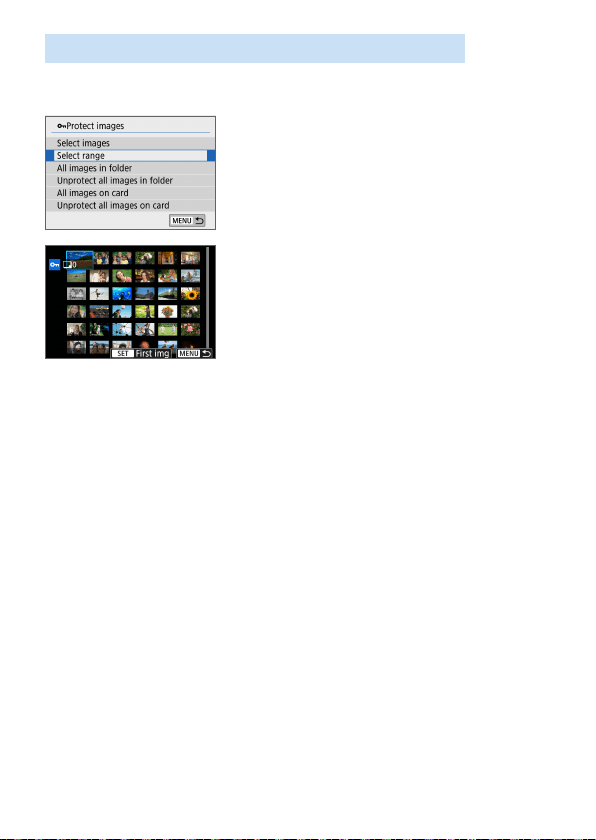
308
Specifying the Range of Images to be Protected
You can specify the range of images to protect all the images in the range
at once.
1
Select [Select range].
Select [Select range] in [x: Protect
images], then press <0>.
2
Specify the range of images.
Select the rst image (start point), then
press <0>.
Select the last image (end point), then
press <0>.
B The images will be protected and the
<K> icon will appear.
To cancel the selection, repeat this step.
To return to the previous screen, press
the <M> button.
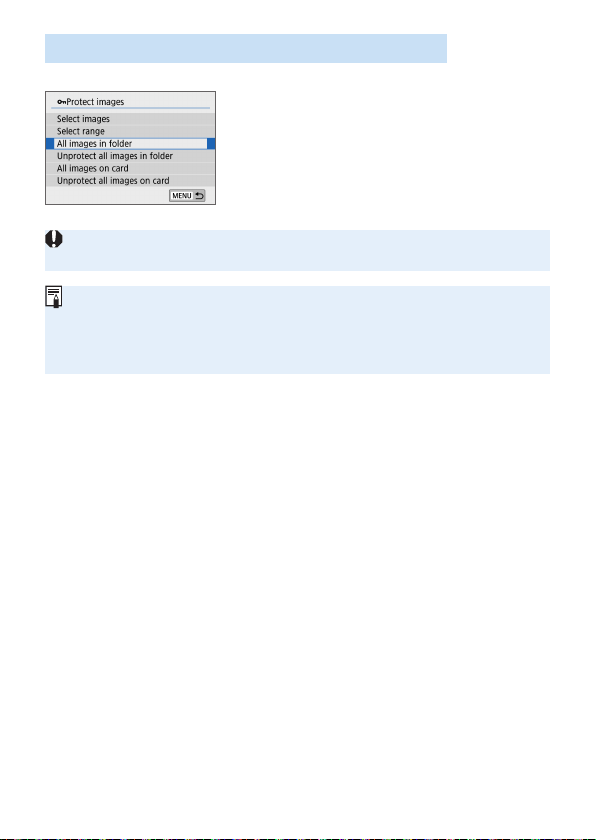
309
Protecting All Images in a Folder or on a Card
You can protect all the images in a folder or on a card at once.
When you select [All images in folder]
or [All images on card] in [3: Protect
images], all the images in the folder or on
the card will be protected.
To cancel the selection, select [Unprotect
all images in folder] or [Unprotect all
images on card].
If you format the card (=
66), the protected images will also be
erased.
Movies can also be protected.
Once an image is protected, it cannot be erased by the camera’s erase
function. To erase a protected image, you must rst cancel the protection.
If you erase all the images (=
312), only the protected images will remain.
This is convenient when you want to erase all unnecessary images at once.
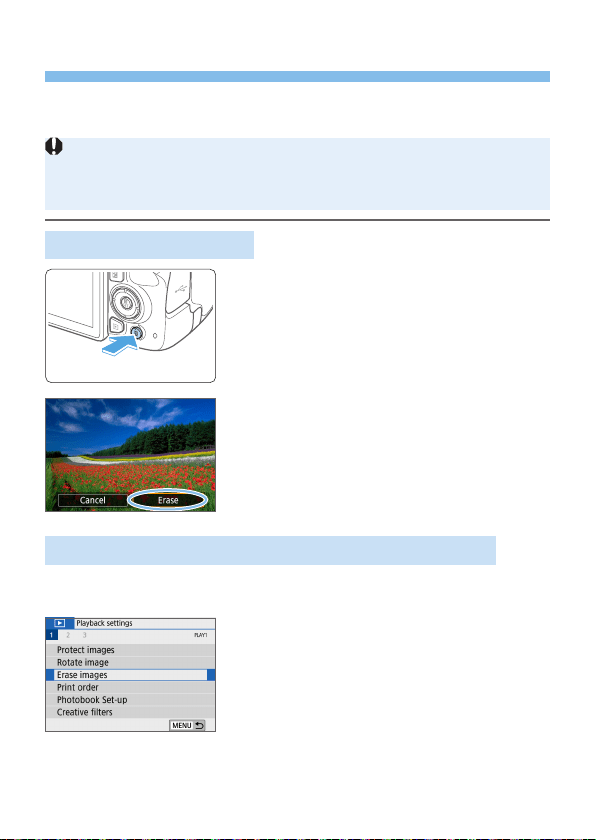
310
Erasing Images
You can either select and erase unnecessary images one by one or erase
them in one batch. Protected images (=
307) will not be erased.
Once an image is erased, it cannot be recovered. Make sure you no
longer need the image before erasing it. To prevent important images
from being erased accidentally, protect them. Erasing an image shot in
RAW+JPEG will erase both the RAW and JPEG images.
Erasing a Single Image
1
Play back the image to be erased.
2
Press the <L> button.
B The Erase menu will appear.
3
Erase the image.
Select [Erase], then press <0>. The
image displayed will be erased.
Checkmarking <X> Images to be Erased in a Batch
By adding checkmarks to the images to be erased, you can erase all those
images at once.
1
Select [Erase images].
Under the [3] tab, select [Erase
images], then press <0>.
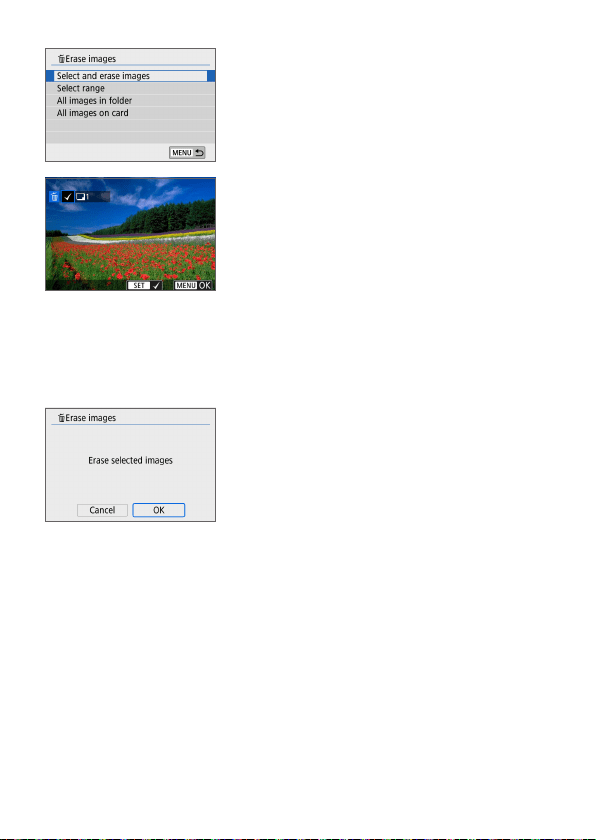
311
2
Select [Select and erase images].
B An image is displayed.
3
Select the images to be erased.
Press the <Y> <Z> keys to select the
image to be erased, then press <0>.
B A checkmark <X> will be displayed on
the upper left of the screen.
By pressing the <I> button, you
can select images from a three-image
display. To return to the single-image
display, press the <u> button.
To select another image to be erased,
repeat step 3.
4
Erase the images.
Press the <M> button.
Select [OK], then press <0>.
B The selected images will be erased.
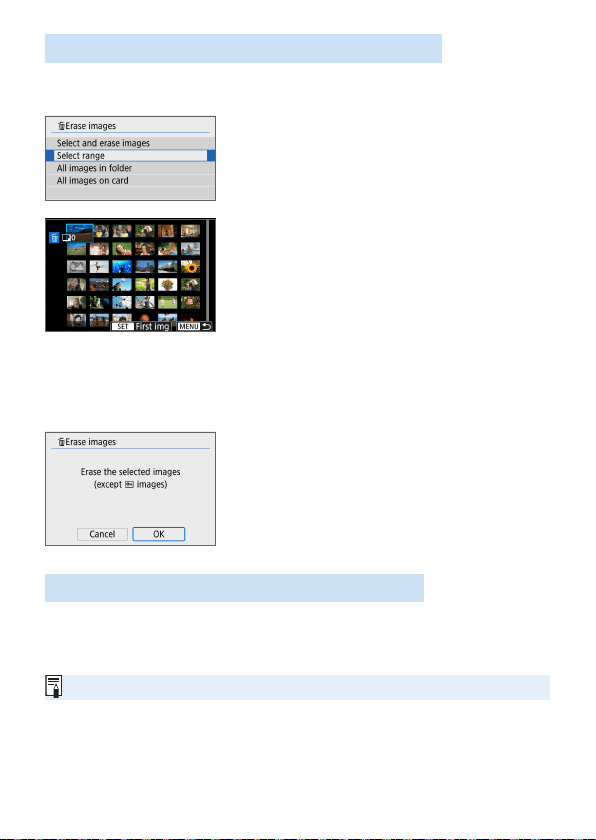
312
Specifying the Range of Images to be Erased
You can specify the range of images to erase all the images in the range at
once.
1
Select [Select range].
Select [Select range] in [3: Erase
images], then press <0>.
2
Specify the range of images.
Select the rst image (start point), then
press <0>.
Select the last image (end point), then
press <0>.
B The [X] icon will appear on the selected
images.
To cancel the selection, repeat this step.
To return to the previous screen, press
the <M> button.
3
Erase the images.
Press the <M> button.
Select [OK] on the conrmation dialog,
then press <0>.
B The selected images will be erased.
Erasing All Images in a Folder or on a Card
You can erase all the images in a folder or on a card at once. When
[3: Erase images] is set to [All images in folder] or [All images on
card], all the images in the folder or on the card will be erased.
To erase all images including protected images, format the card (=
66).
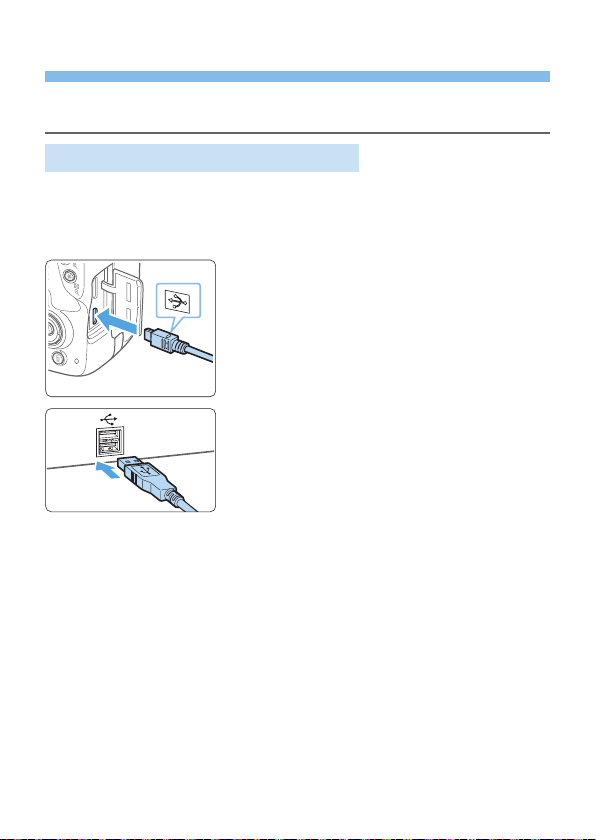
313
Preparing to Print
The direct printing procedure can be performed entirely with the
camera while looking at the setting screens on camera’s LCD monitor.
Connecting the Camera to a Printer
1
Set up the printer.
For details, refer to the printer’s
instruction manual.
2
Connect the camera to the printer.
Connect them with an interface cable
(sold separately).
Connect the cable to the camera’s
digital terminal with the cable plug’s
<D> icon facing the front of the
camera.
To connect to the printer, refer to the
printer’s instruction manual.
3
Turn on the printer.
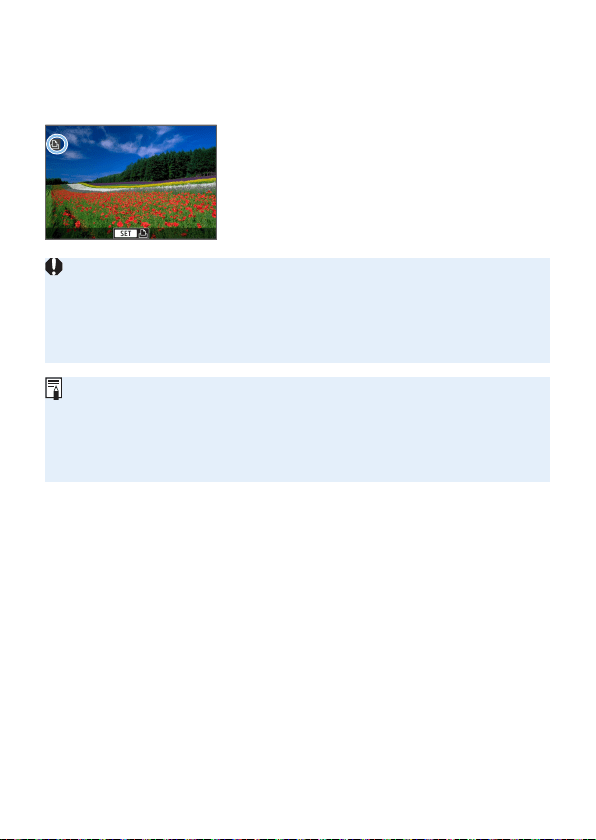
314
4
Set the camera’s power switch to
<1>.
B Some printers may make a beeping
sound.
B The image will appear with an icon on
the upper left of the screen to indicate
that the camera is connected to a
printer.
Before using the printer, make sure it has a PictBridge connection port.
Movies cannot be printed.
The camera cannot be used with printers compatible only with CP Direct or
Bubble Jet Direct.
If there is a long beeping sound in step 4, it indicates a problem with the
printer. Resolve the problem displayed in the error message (=
390).
You can also print RAW images taken with this camera.
When you use a battery to power the camera, make sure it is fully charged.
Before disconnecting the cable, rst turn off the camera and printer. Hold the
plug (not the cord) to pull out the cable.
For direct printing, using DC Coupler DR-E18 (sold separately) and AC
Adapter AC-E6N (sold separately) to power the camera is recommended.
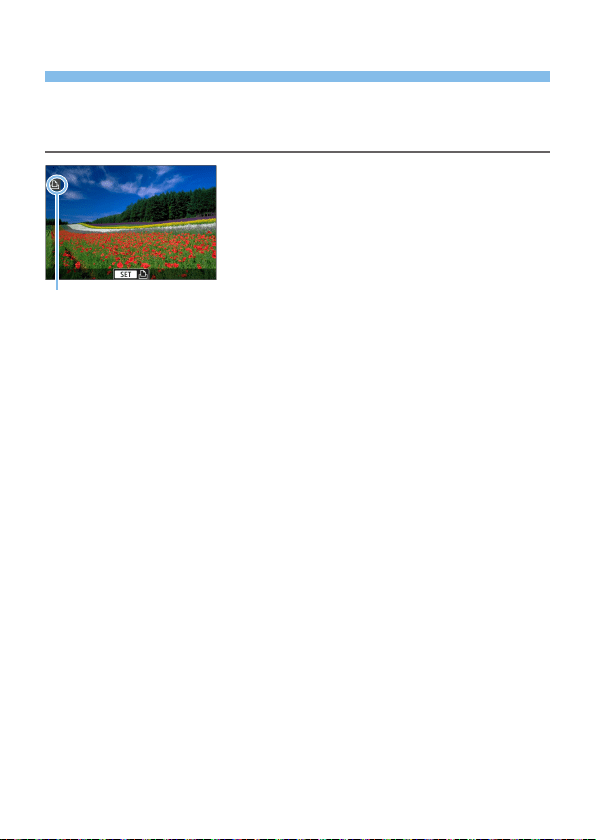
315
Printing
The screen display and setting options vary depending on the printer.
Also, certain settings may not be available. For details, refer to the printer’s
instruction manual.
1
Select the image to be printed.
Check that the icon is displayed on the
upper left of the LCD monitor.
Press the <Y> <Z> keys to select the
image to be printed.
(1) Printer-connected icon
2
Press <0>.
B The print setting screen will appear.
For setting details, see “Print Settings”
(=
386).
(
1
)
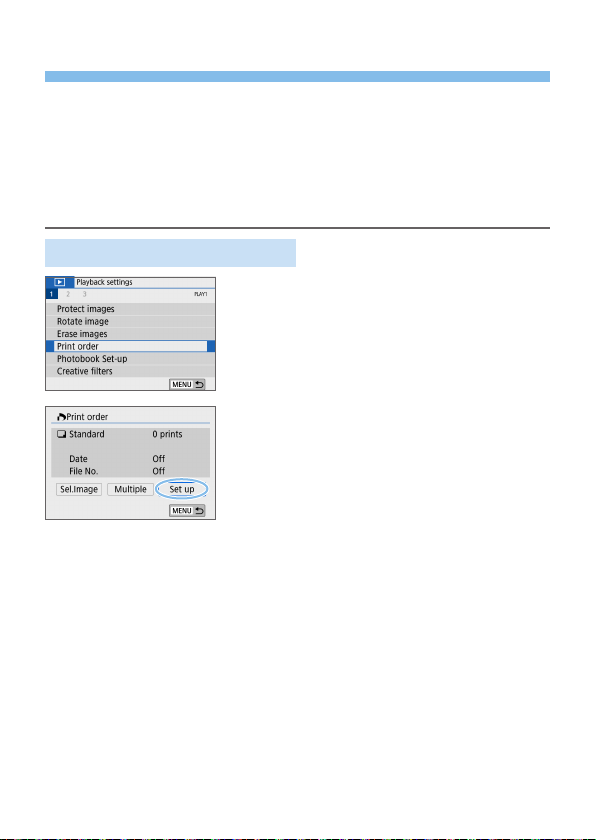
316
Digital Print Order Format (DPOF)
DPOF (Digital Print Order Format) enables you to print images recorded on
the card according to your printing instructions such as the image selection,
quantity to print, etc. You can print multiple images in one batch or create a
print order for a photonisher.
You can set the print settings such as print type, date imprinting, le number
imprinting, etc. The print settings will be applied to all the images specied
for printing. (They cannot be set individually for each image.)
Setting the Printing Options
1
Select [Print order].
Under the [3] tab, select [Print
order], then press <0>.
2
Select [Set up].
3
Set the options as desired.
Set the [Print type], [Date], and [File
No.].
Select the desired item, then press
<0>. Select the desired setting, then
press <0>.
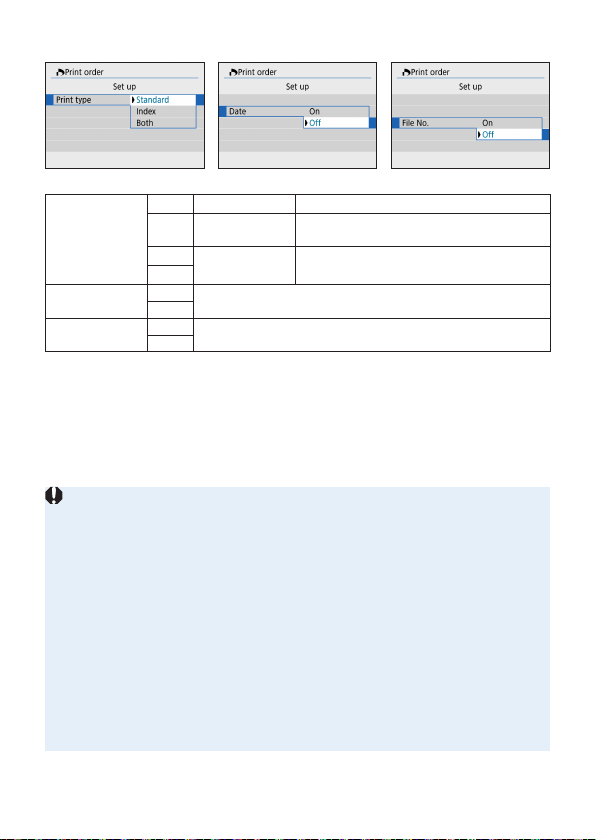
317
[Print type] [Date] [File No.]
Print type
K
Standard Prints one image on one sheet.
L
Index
Multiple thumbnail images are printed on
one sheet.
K
Both Prints both the standard and index prints.
L
Date
On
[On] imprints the recorded date of the captured image.
Off
File number
On
[On] imprints the le number.
Off
4
Exit the setting.
Press the <M> button.
B The print order screen will reappear.
Next, select [Sel.Image] or [Multiple] to
order the images to be printed.
RAW images or movies cannot be specied for printing.
Even if [Date] and [File No.] are set to [On], the date or le number may not
be imprinted depending on the print type setting and printer model.
With [Index] prints, the [Date] and [File No.] cannot both be set to [On] at
the same time.
When printing with DPOF, use the card for which print order specications are
set. You cannot print in the specied print order if you extract just the images
from the card for printing.
Certain DPOF-compliant printers and photonishers may not be able to print
the images as you specied. Refer to the printer’s instruction manual before
printing, or check with your photonisher about compatibility when ordering
prints.
While installing images into this camera, do not specify a new print order for
images that had a print order set by a different camera. All the print orders
may be overwritten inadvertently. Also, the print order may not be possible,
depending on the image type.
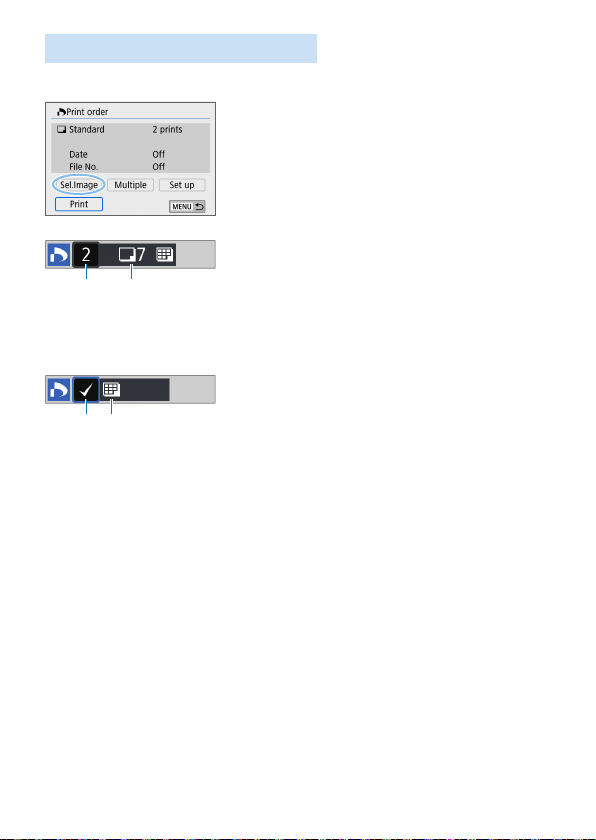
318
Specifying Images for Printing
Selecting Images
Select and specify the images one by one.
By pressing the <I> button, you can
select images from a three-image display.
To return to the single-image display, press
the <u> button.
Press the <M> button to save the print
order to the card.
[Standard] [Both]
Press the <W> <X> keys to set the
number of copies to be printed for the
displayed image.
(1) Quantity
(2) Total images selected
[Index]
Press <0> to add a checkmark to the
box [X]. The image will be included in
the index print.
(3) Checkmark
(4) Index icon
(1) (2)
(3) (4)
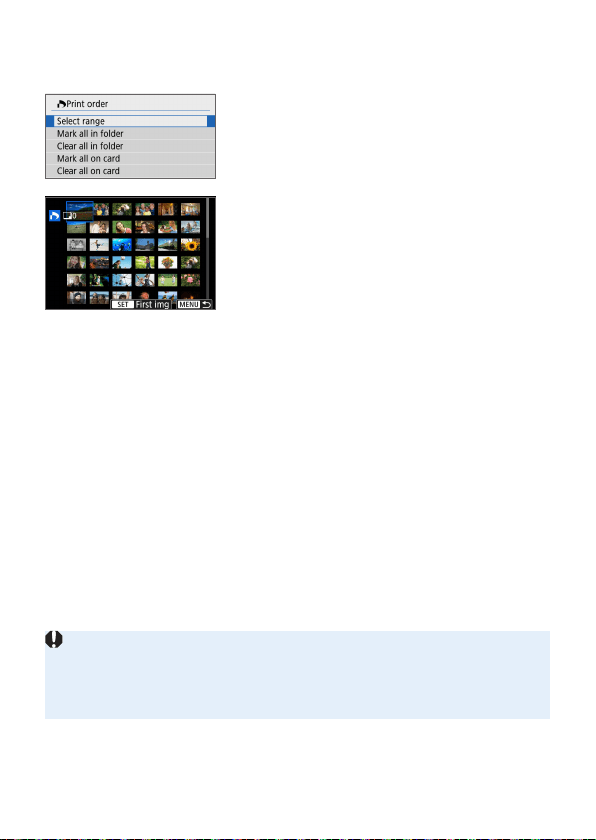
319
Selecting Multiple Images
Select Range
1
Select [Select range].
Select [Select range] in [Multiple], then
press <0>.
2
Specify the range of images.
Select the rst image (start point), then
press <0>.
Select the last image (end point), then
press <0>.
B The [X] icon will appear on the selected
images.
One copy of all the specied images will
be set for printing.
To cancel the selection, repeat this step.
To return to the previous screen, press
the <M> button.
All Images in a Folder
Select [Mark all in folder] and select the folder. A print order for one
copy of all the images in the folder will be specied. If you select [Clear
all in folder] and select the folder, the print order for all the images in
the folder will be canceled.
All Images on a Card
If you select [Mark all on card], one copy of all the images on the card
will be specied for printing. If you select [Clear all on card], the print
order will be cleared for all the images on the card.
Note that RAW images or movies will not be specied for printing even if you
specify all images at once with [Multiple].
When using a PictBridge-compatible printer, do not specify more than 400
images for one print order. If you specify more than this, the images may not
all be printed.
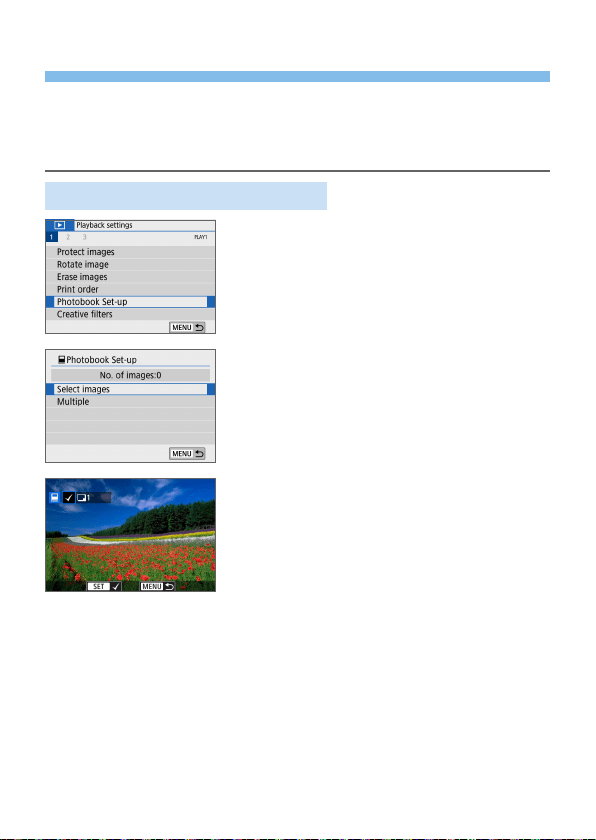
320
Specifying Images for a Photobook
You can specify up to 998 images to be printed in a photobook. When
you use EOS Utility (EOS software) to transfer images to a computer, the
specied images for the photobook will be copied to a dedicated folder. This
function is useful for ordering photobooks online.
Specifying One Image at a Time
1
Select [Photobook Set-up].
Under the [x] tab, select [Photobook
Set-up], then press <0>.
2
Select [Select images].
B An image is displayed.
3
Select the image to be specified.
Press the <Y> <Z> keys to select
the image to be specied, then press
<0>.
Repeat this step to select another
image. The number of images that have
been specied will be displayed on the
upper left of the screen.
To display the three-image display,
press the <I> button. To return to
the single-image display, press the <u>
button.
To cancel the image specication, press
<0> again.
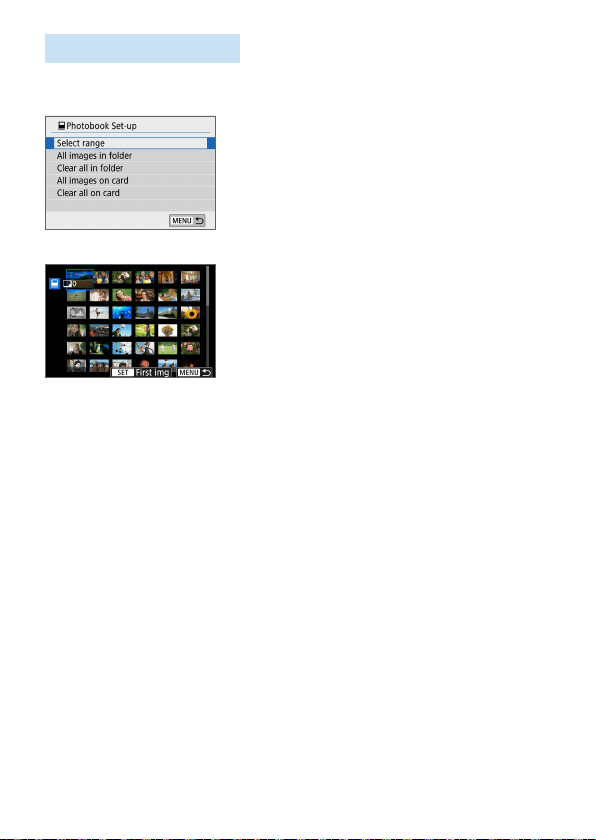
321
Specifying the Range
You can specify the range of images to select all the images in the range at
once for the photobook.
1
Select [Select range].
In [Multiple] under [x: Photobook
Set-up], select [Select range], then
press <0>.
2
Specify the range of images.
Select the rst image (start point), then
press <0>.
Select the last image (end point), then
press <0>.
B The [X] icon will appear on the selected
images.
To cancel the selection, repeat this step.
To return to the previous screen, press
the <M> button.
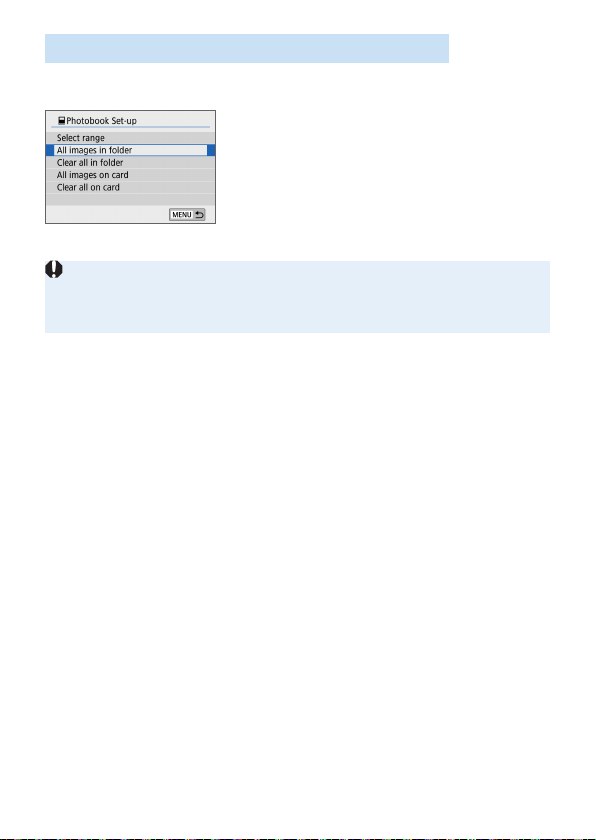
322
Specifying All Images in a Folder or on a Card
You can also specify all the images in a folder or on a card at once for the
photobook.
When [Multiple] under [x: Photobook
Set-up] is set to [All images in folder] or
[All images on card], all the images in the
folder or on the card will be specied for
the photobook.
To clear your selections, select [Clear all in
folder] or [Clear all on card].
RAW images or movies cannot be specied.
Do not specify images already specied for a photobook in another camera
for another photobook with this camera. All the photobook settings may be
overwritten inadvertently.
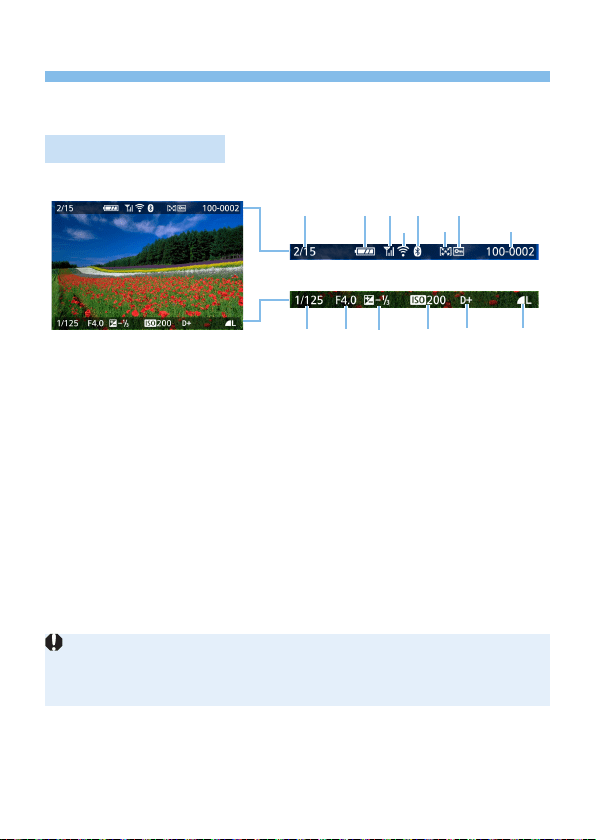
323
Shooting Information Display
The information displayed varies depending on the shooting mode and
settings.
Still Photo Example
Basic information display
(
1
)
(
9
) (
10
)
(
11
)
(
12
) (
14
)(
13
)
(
2
) (
3
) (
7
)
(
4
)
(
5
)
(
6
) (
8
)
(1) Playback No./Total images recorded
(2) Battery level
(3) Wi-Fi signal strength
(4) Wi-Fi function
(5) Bluetooth function
(6) Rating
(7) Image protection
(8) Folder number - File number
(9) Shutter speed
(10) Aperture
(11) Exposure compensation level
(12) ISO speed
(13) Highlight tone priority
(14) Image-recording quality
AF Point Display
When [3: AF point disp.] is set to [Enable], the AF point that
achieved focus will be displayed in red. If automatic AF point selection
is set, multiple AF points may be displayed at the same time.
If the image was taken by another camera, certain shooting information may
not be displayed.
It may not be possible to play back images taken with this camera on other
cameras.
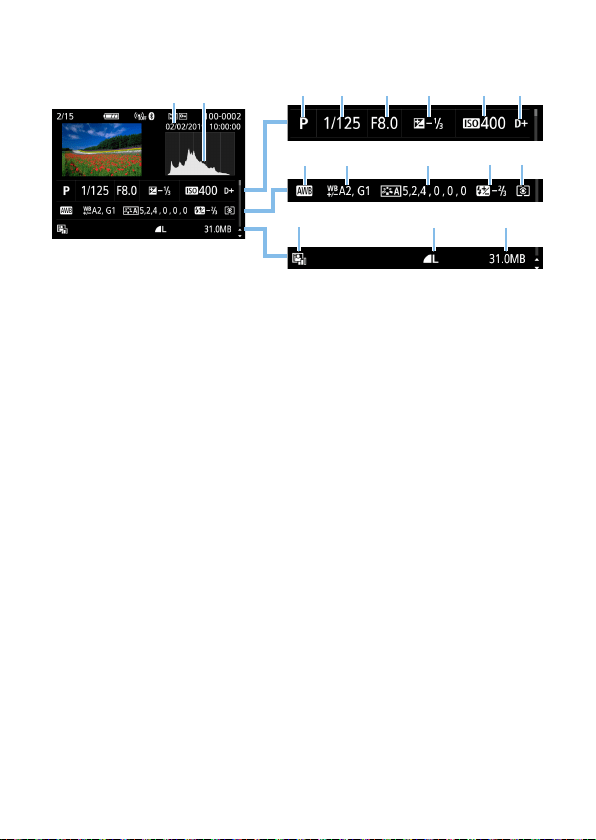
324
Shooting information display
- Detailed information
(
1
) (
2
)
(
3
) (
4
) (
5
) (
6
) (
7
) (
8
)
(
9
) (
10
) (
11
) (
12
) (
13
)
(
14
) (
15
) (
16
)
(1) Shooting date/time
(2) Histogram (Brightness/RGB)
(3) Shooting mode
(4) Shutter speed
(5) Aperture
(6) Exposure compensation level
(7) ISO speed
(8) Highlight tone priority
(9) White balance
(10) White balance correction
(11) Picture Style setting details
(12) Flash exposure compensation
amount/Multi Shot Noise Reduction
(13) Metering mode
(14) Auto Lighting Optimizer
(15) Image-recording quality
(16) File size
* When you shoot in the RAW+JPEG image-recording quality, the RAW le size will
be displayed.
* During ash photography without ash exposure compensation, <0> will be
displayed.
* <M> will be displayed for images shot with Multi Shot Noise Reduction.
* <u> will be displayed for images shot with a Creative lter, or images edited (by
resizing them or applying a Creative lter or Creative Assist) and then saved.
* <u> and <N> will be displayed for images cropped and then saved.
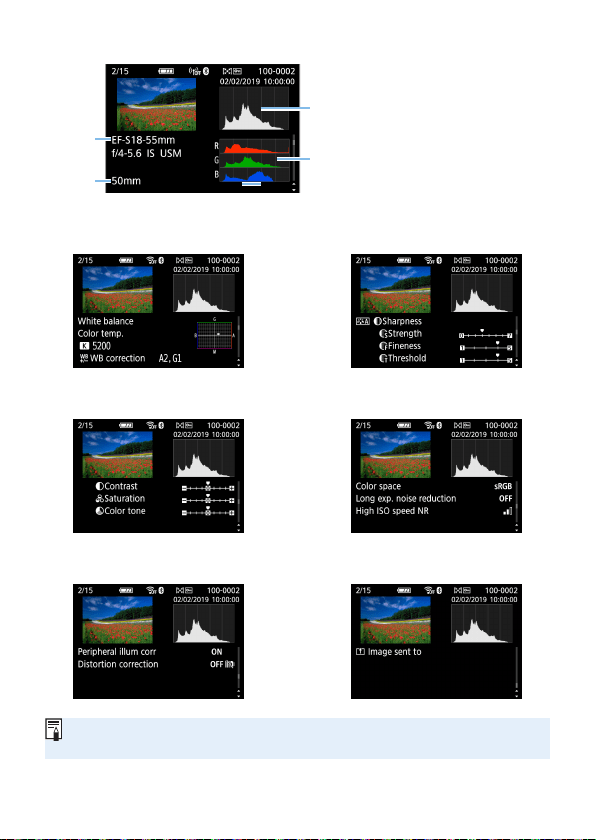
325
- Lens/Histogram information
(
1
)
(
2
)
(
3
)
(
4
)
(1) Lens name
(2) Focal length
(3) Histogram display
(Brightness)
(4) Histogram display (RGB)
- White balance information - Picture Style information 1
- Picture Style information 2
- Color space/Noise
reduction information
- Lens aberration correction
information
- Record of sent images
If you used GPS Receiver GP-E2 or smartphone to record GPS information
for the image, the “GPS information” screen will also appear.
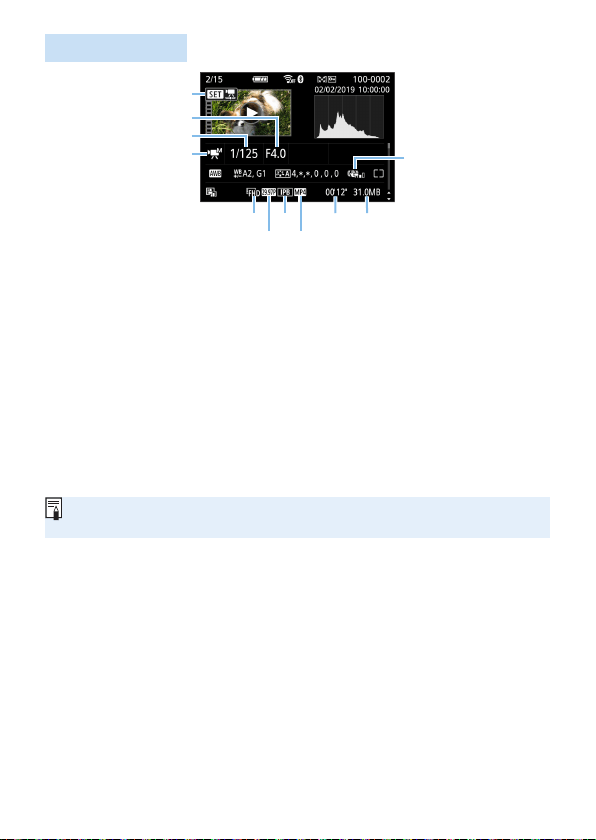
326
Movie Example
(
6
) (
8
) (
10
) (
11
)
(
7
) (
9
)
(
1
)
(
2
)
(
3
)
(
4
)
(
5
)
(1) Playback
(2) Aperture
(3) Shutter speed
(4) Movie shooting mode / Time-lapse
movie
(5) Movie digital IS
(6) Movie recording size
(7) Frame rate
(8) Compression method
(9) Movie recording format
(10) Shooting time, Playback time
(11) Movie file size
* If manual exposure is used, the shutter speed, aperture, and ISO speed (when set
manually) will be displayed.
* The <t> icon will be displayed for video snapshots.
During movie playback, “*, *” will be displayed for [Fineness] and
[Threshold] of [Picture Style]’s [Sharpness].
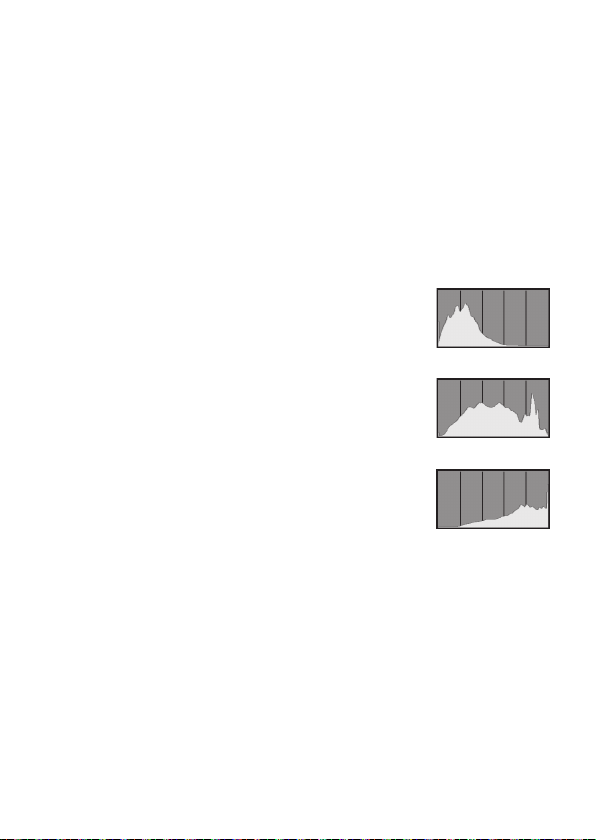
327
Highlight Alert
When the shooting information is displayed, overexposed and clipped
highlights will blink. To obtain a better result for the blinking areas where
you want the gradation to be faithfully reproduced, set the exposure
compensation to a negative amount and shoot again.
Histogram
The brightness histogram shows the exposure level distribution
and overall brightness. The RGB histogram is for checking the
color saturation and gradation. The display can be switched with
[x: Histogram disp].
[Brightness] Display
This histogram is a graph showing the
distribution of the image’s brightness level. The
horizontal axis indicates the brightness level
(darker on the left and brighter on the right),
while the vertical axis indicates how many pixels
exist for each brightness level. The more pixels
there are toward the left, the darker the image.
The more pixels there are toward the right, the
brighter the image. If there are too many pixels
on the left, the shadow detail will be lost. If there
are too many pixels on the right, the highlight
detail will be lost. The gradation in-between will
be reproduced. By checking the image and its
brightness histogram, you can see the exposure
level inclination and the overall gradation.
Dark image
Normal brightness
Bright image
Sample Histograms
[RGB] Display
This histogram is a graph showing the distribution of each primary color’s
brightness level in the image (RGB or red, green, and blue). The horizontal
axis indicates the color’s brightness level (darker on the left and brighter
on the right), while the vertical axis indicates how many pixels exist for
each color brightness level. The more pixels there are toward the left, the
darker and less prominent the color. The more pixels there are toward the
right, the brighter and denser the color. If there are too many pixels on the
left, the respective color information will be lacking. If there are too many
pixels on the right, the color will be too saturated with no gradation. By
checking the image’s RGB histogram, you can see the color’s saturation
and gradation condition, as well as white balance inclination.
328
Post-Processing Images
After taking a picture, you can apply a lter effect, resize
the JPEG image (reduce the pixel count), or crop the JPEG
image.
The camera may not be able to process images taken with another
camera.
Post-processing of images as described in this chapter cannot be
performed when the camera is connected to a computer with an
interface cable.
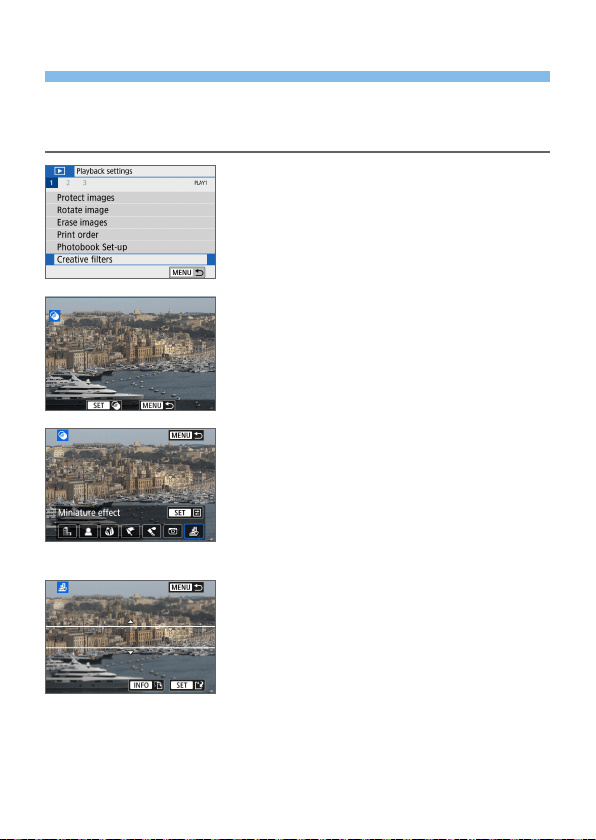
329
Applying Creative Filter Effects
You can apply the following Creative lters to an image and save it as a
new image: Grainy B/W, Soft focus, Fish-eye effect, Art bold effect, Water
painting effect, Toy camera effect, and Miniature effect.
1
Select [Creative filters].
Under the [x] tab, select [Creative
lters], then press <0>.
B An image will be displayed.
2
Select an image.
Select the image you want to apply a
lter to.
By pressing the <I> button, you can
switch to the index display and select
an image.
3
Select a filter effect.
When you press <0>, the types
of Creative lters will be displayed
(=
330).
Select a lter, then press <0>.
B The image will be displayed with the
effects of the lter applied.
4
Adjust the filter effect.
Adjust the lter effect, then press
<0>.
For the Miniature effect, press the <W>
<X> keys to move the white frame to
where you want the image to look sharp,
then press <0>.
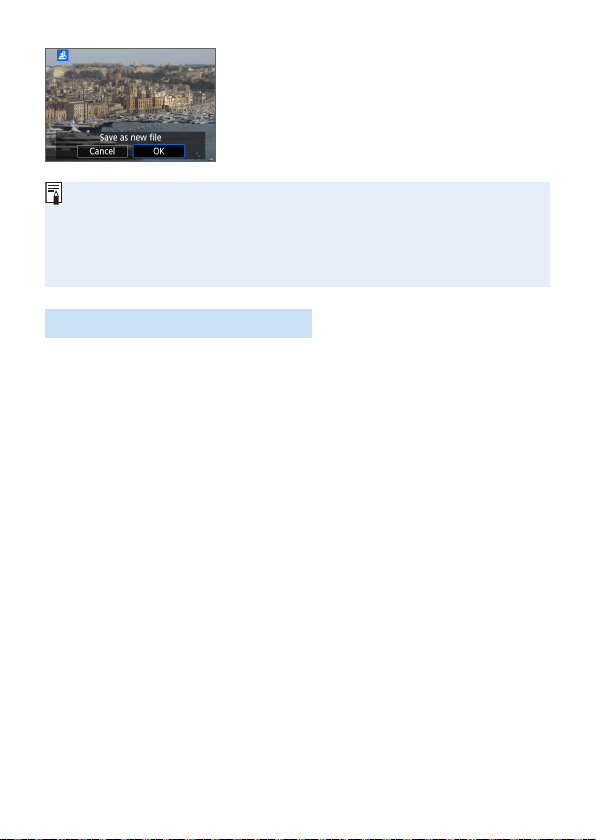
330
5
Save the image.
Select [OK] to save the image.
Check the destination folder and image
le number, then select [OK].
To apply a lter to another image, repeat
steps 2 to 5.
When shooting RAW+JPEG image, the Creative lter will be applied to the
RAW image and the image will be saved as a JPEG image.
If an aspect ratio was set for a RAW image and the lter effect is applied to it,
the image will be saved in the aspect ratio that is set.
Dust Delete Data (=
274) will not be appended to images with Fish-eye
effect applied.
Creative Filter Characteristics
G Grainy B/W
Creates a grainy black-and-white photo. You can change the black-and-
white effect by adjusting the contrast.
W Soft focus
Gives the image a soft look. You can change the degree of softness by
adjusting the blur.
X Fish-eye effect
Gives the effect of a sh-eye lens. The image will have a barrel-type
distortion.
Depending on the level of this lter effect, the area trimmed along the
periphery of the image changes. Also, since this lter effect will magnify
the image center, the apparent resolution at the center may degrade
depending on the number of recorded pixels. Set the lter effect in step
4 while checking the resulting image.
Y Art bold effect
Makes the photo look like an oil painting and the subject look more
three-dimensional. You can adjust the contrast and saturation. Note
that subjects such as the sky or white walls may not be rendered with a
smooth gradation and may look irregular or have signicant noise.

331
Z Water painting effect
Makes the photo look like a watercolor painting with soft colors. You
can control the color density by adjusting the lter effect. Note that night
scenes or dark scenes may not be rendered with a smooth gradation
and may look irregular or have signicant noise.
H Toy camera effect
Darkens the photo’s corners and applies a unique color tone that
makes it look as if it was shot by a toy camera. You can change the
color cast by adjusting the color tone.
c Miniature effect
Creates a diorama effect. You can change where the image looks
sharp. In step 4, if you press the <B> button (or tap on [T] on
the screen), you can switch between the white frame’s vertical and
horizontal orientations.
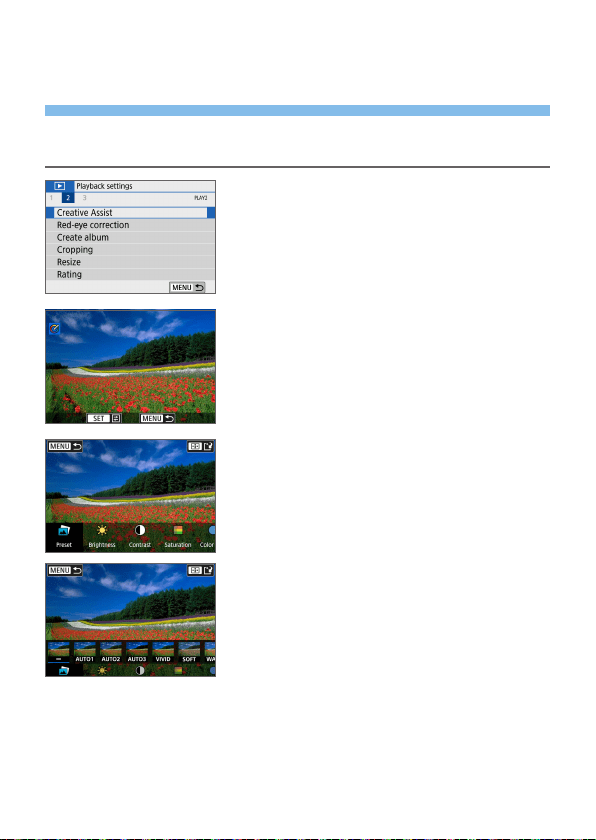
332
Applying Your Favorite Effects
(Creative Assist)
You can process RAW images by applying your preferred effects and saving
as JPEGs.
1
Select [Creative Assist].
Under the [3] tab, select [Creative
Assist], then press <0>.
2
Select an image.
Use the <Y> <Z> keys to select
images to process, then press <0>.
3
Select an effect level.
Use the <Y> <Z> keys to select the
effect.
By selecting [Preset] and pressing
<0>, you can choose [VIVID],
[SOFT], or other preset effects.
[AUTO1], [AUTO2], and [AUTO3] are
effects recommended by the camera
based on image conditions.
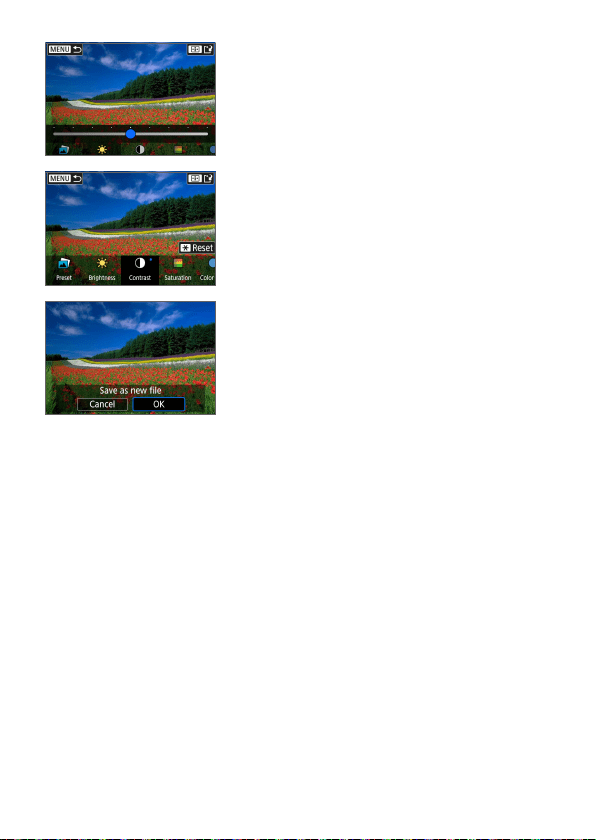
333
You can select effects such as
[Brightness] or [Contrast] by pressing
<0> and then using the <Y> <Z>
keys.
Press <0> when adjustment is
nished.
To reset the effect, press the <A>
button.
To conrm the effect, press the <S>
button.
4
Select [OK] to save the image.
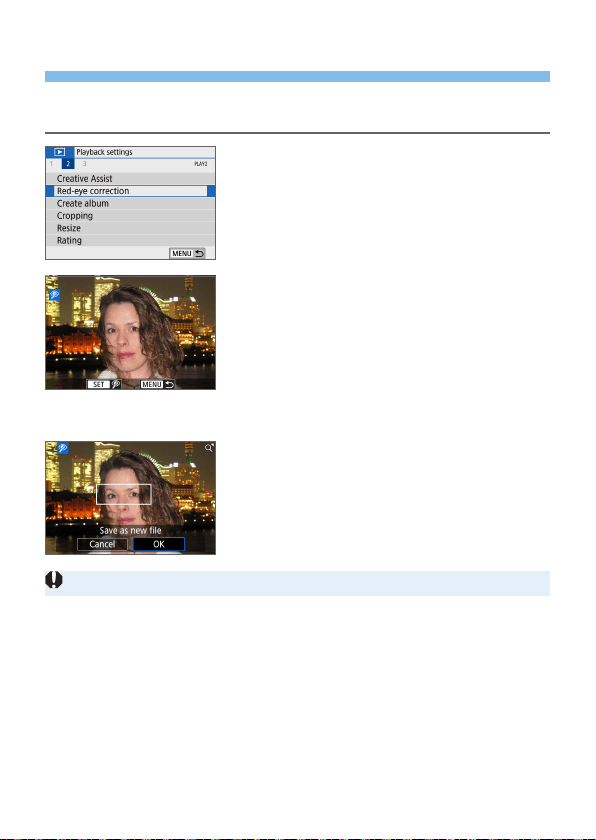
334
Red-eye Correction
Automatically corrects images affected by red-eye. You can save the
corrected image as a separate le.
1
Choose [Red-eye correction].
Under the [3] tab, select [Red-eye
correction], then press <0>.
2
Select an image.
Press the <Y> <Z> keys to select the
image.
3
Correct the image.
Either touch [J] or press <0>.
B Frames are displayed around corrected
image areas.
4
Select [OK].
The image is now saved as a new le.
Some images may not be corrected accurately.
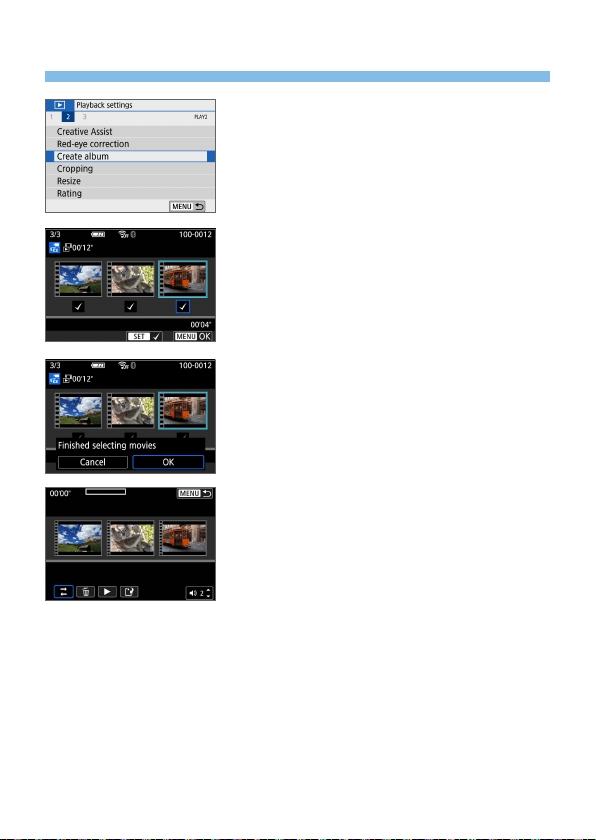
335
Editing Video Snapshot Albums
1
Select [Create album].
Under the [3] tab, select [Create
album], then press <0>.
2
Select an album to edit.
Press <0> to add a checkmark [X].
After selection, press the <M>
button.
3
Select [OK].
4
Select an editing option.
Press the <Y> <Z> keys to select an
editing option, then press <0>.
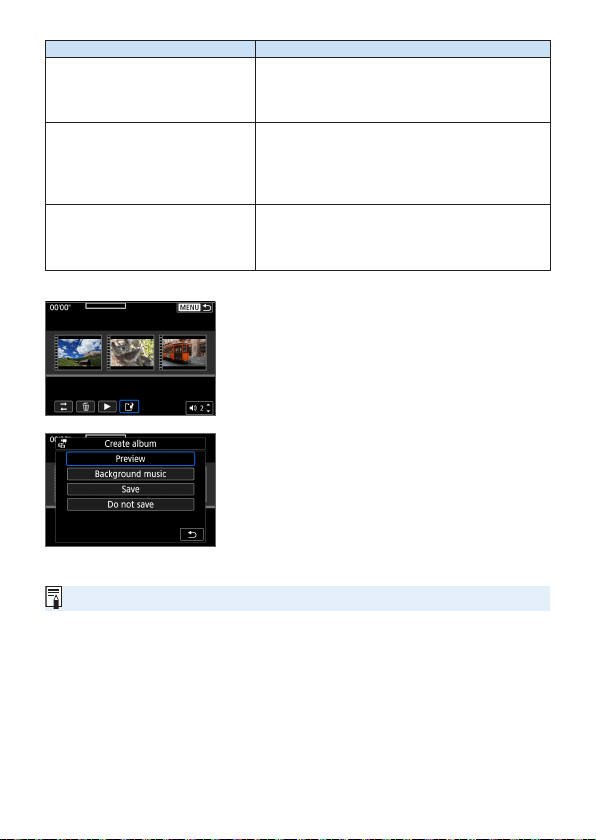
336
Option Description
T Rearrange video snapshots
Press the <Y> <Z> keys to select the video
snapshot you want to move, then press <0>.
Press the <Y> <Z> keys to move the snapshot,
then press <0>.
L Remove video snapshot
Press the <Y> <Z> keys to select the video
snapshot you want to delete, then press <0>.
The [L] icon will be displayed on the selected
video snapshot. Pressing <0> again will cancel
the selection and [L] will disappear.
7 Play video snapshot
Press the <Y> <Z> keys to select the video
snapshot you want to play back, then press
<0>. Use the <W> <X> keys to adjust the
volume.
5
Finish editing.
Press the <M> button when you are
nished editing.
Select [W] (Finish editing), then press
<0>.
6
Save the image.
To play an album with background
music, use [Background music] to
select the music (=
337).
To check your editing, select [Preview].
Selecting [Save] saves the edited album
as a new album.
Video snapshot albums can only be edited once.
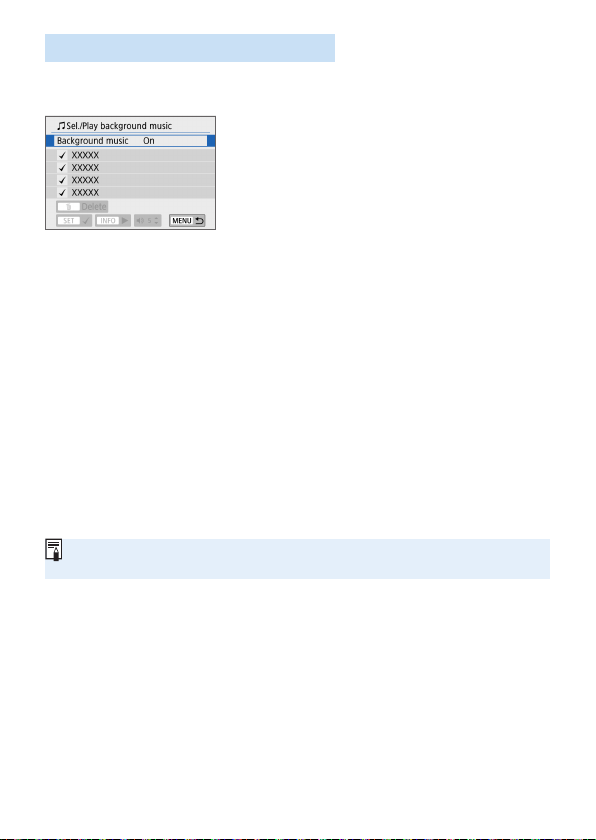
337
Selecting the Background Music
Albums and slideshows can be played with background music once you
copy the music to the card, using EOS Utility (EOS software).
1
Select [Background music].
Set [Background music] to [On].
2
Select the background music.
Use the <W> <X> keys to select the
music, then press <0>. For [Slide
show], you can select multiple tracks.
3
Play the background music.
To listen to a sample of the background
music, press the <B> button.
Use the <W> <X> keys to adjust
the volume. To stop listening to the
background music, press the <B>
button again.
To delete the music, use the <W> <X>
keys to select it, then press the <L>
button.
For the procedure to copy background music to a card, refer to the EOS
Utility Instruction Manual.
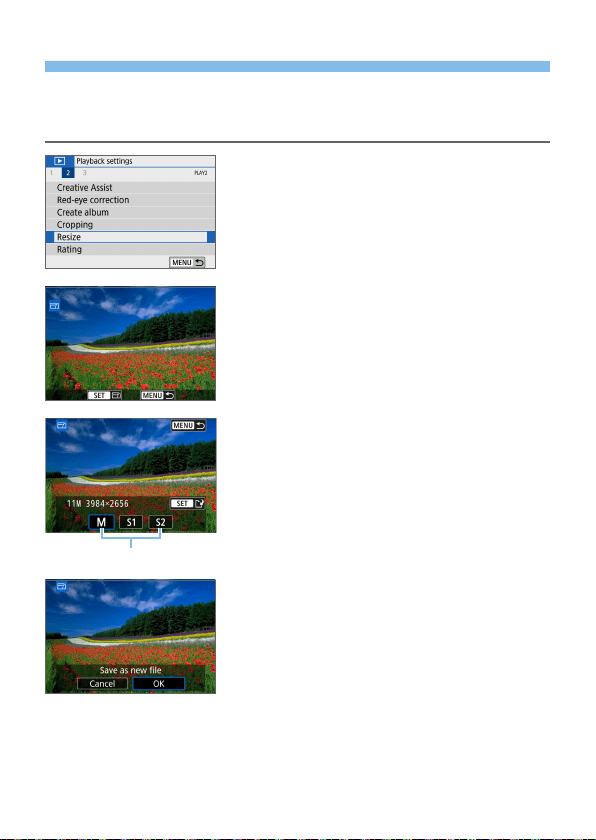
338
Resizing JPEG Images
You can resize a JPEG image to make the pixel count lower and save it as
a new image. Resizing an image is possible only with JPEG 3, 4, and a
images. JPEGband RAW images cannot be resized.
1
Select [Resize].
Under the [3] tab, select [Resize],
then press <0>.
B An image will be displayed.
2
Select an image.
Select the image you want to resize.
By pressing the <I> button, you can
switch to the index display and select
an image.
3
Select the desired image size.
Press <0> to display the image
sizes.
Select the desired image size (1), then
press <0>.
4
Save the image.
Select [OK] to save the resized image.
Check the destination folder and image
le number, then select [OK].
To resize another image, repeat steps
2 to 4.
(
1
)
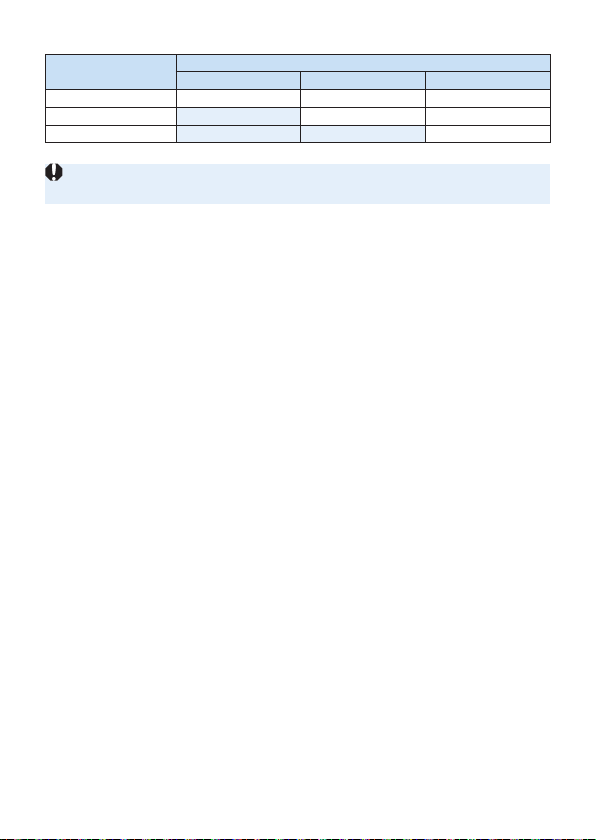
339
Resize Options by Original Image Quality
Original Image
Quality
Available Resize Settings
4
a b
3
k k k
4
k k
a
k
Images may be slightly cropped, depending on the combination of resizing
and aspect ratio.
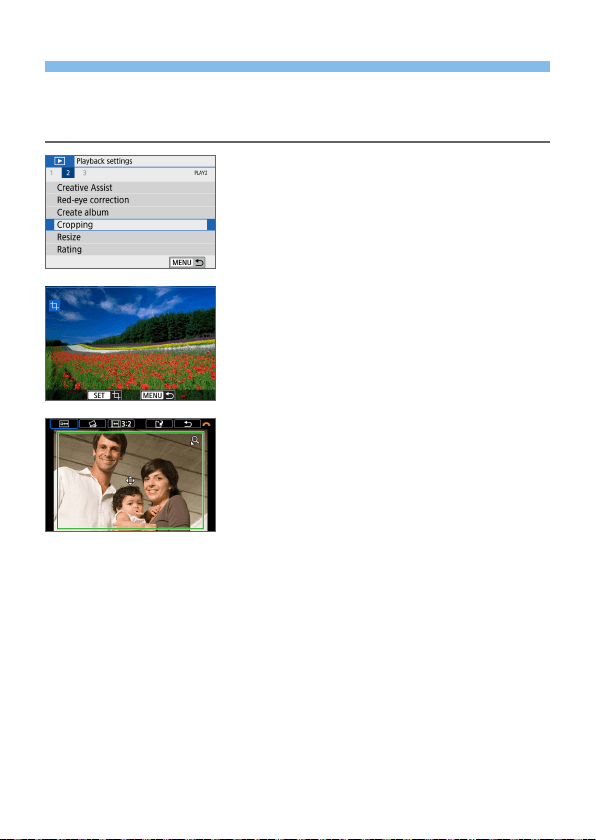
340
Cropping JPEG Images
You can crop a captured JPEG image and save it as another image.
Cropping an image is possible only with JPEG images. Images shot in
RAW cannot be cropped.
1
Select [Cropping].
Under the [x] tab, select [Cropping],
then press <0>.
B An image will be displayed.
2
Select an image.
Select the image you want to crop.
By pressing the <I> button, you can
switch to the index display and select
an image.
3
Set the cropping frame size, aspect
ratio, position, and tilt correction.
Press <0> to display the cropping
frame.
B The image area within the cropping
frame will be cropped.
Changing the Cropping Frame Size
Press the <u> or <I> button.
B The cropping frame size will change. The smaller the cropping frame,
the more magnied the cropped image will look.

341
Changing the Cropping Frame Aspect Ratio
Turn the <6> dial to select [
].
B Each press of <0> changes the cropping frame aspect ratio.
B This also enables you to crop the image shot in horizontal orientation to
look as if it was shot in vertical orientation.
Moving the Cropping Frame
Press the <W> <X> or <Y> <Z> keys.
B The cropping frame will move up, down, left, or right.
You can also touch the cropping frame and drag it to the desired
position.
Correcting the Tilt
Turn the <6> dial to select [O].
B Check the tilt with the displayed grid, then turn the <6> dial to correct
the tilt.
You can correct the tilt up to ±10° in 0.1° increments.
B If you tap on [
] or [ ] on the upper left of the screen, the tilt will be
corrected in 0.5° increments.
Press <0>.
4
Display the cropped image in the
full view.
Turn the <6> dial to select [ ].
B You can see the cropped image.
To return to the original display, press
the <0> button again.
5
Save the image.
Turn the <6> dial to select [W].
Press <0>, then select [OK] to save
the cropped image.
Check the destination folder and image
le number, then select [OK].
To crop another image, repeat steps 2
to 5.

342
The position and size of the cropping frame may change depending on the
angle set for tilt correction.
Once a cropped image is saved, it cannot be cropped again. In addition, you
cannot resize it or apply a Creative lter.
AF point display information (=
323) and Dust Delete Data (=
274) will
not be appended to the cropped images.
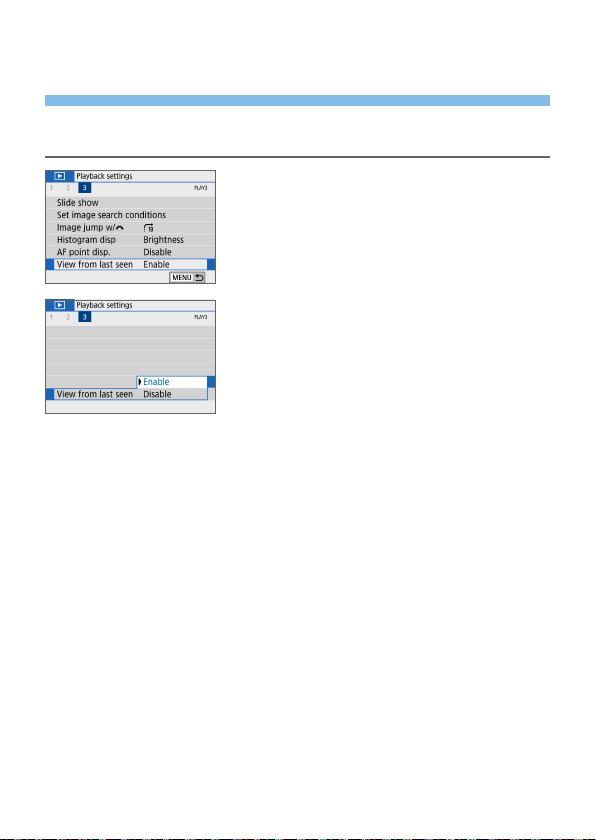
343
Specifying Initial Image Display
When Playback Begins
You can specify which image is displayed rst when you start image
playback.
1
Select [View from last seen].
Under the [3] tab, select [View from
last seen], then press <0>.
2
Select an item.
Press the <W> <X> keys to select an
option.
[Enable]: Playback resumes from the last image displayed (except when
you have just nished shooting).
[Disable]: Playback resumes from your most recent shot whenever the
camera is restarted.

344
Wireless Features
This chapter describes how to connect the camera to a
smartphone wirelessly via Bluetooth
®
or Wi-Fi
®
and send images
to devices or Web services, as well as how to control the camera
from a computer or wireless remote control.
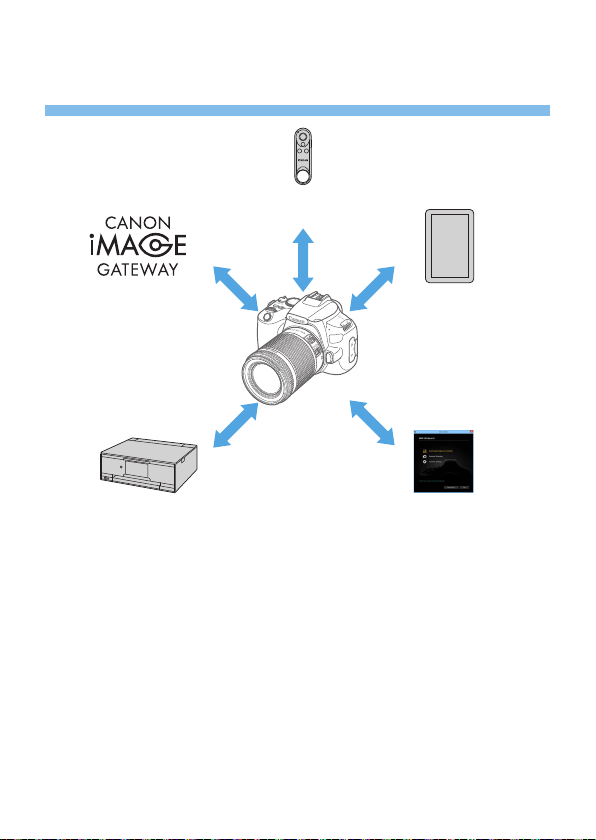
345
What You Can Do via Wireless
Communication Functions
(CANON iMAGE
GATEWAY)
(4) Upload to Web
services
(3) Print images using
a Wi-Fi printer
(1) Communicate
with a smartphone
(5) Connect to a wireless
remote control
(2) Use with EOS software
or other dedicated software
Important
Note that Canon cannot be held liable for any loss or damage from
erroneous wireless communication settings when using the camera. In
addition, Canon cannot be held liable for any other loss or damage caused
by use of the camera.
When using wireless communication functions, establish appropriate
security at your own risk and discretion. Canon cannot be held liable for any
loss or damage caused by unauthorized access or other security breaches.
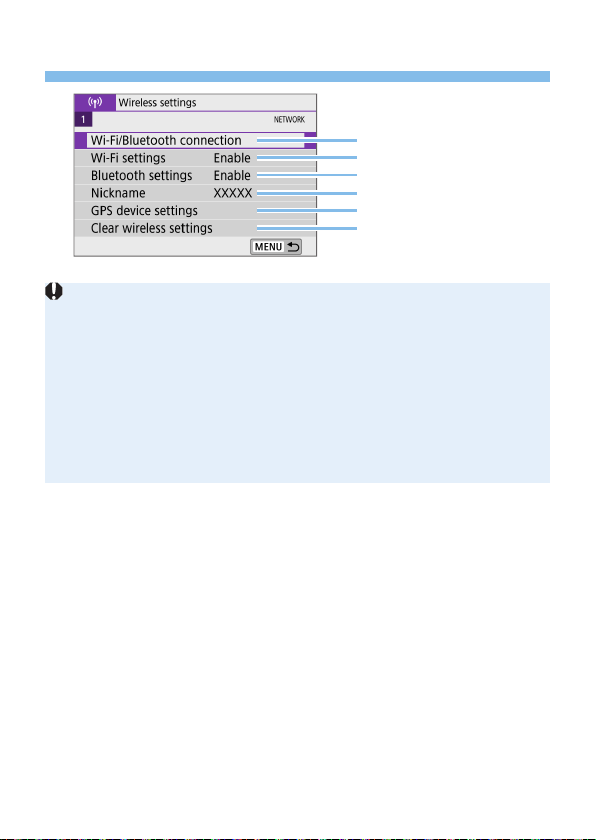
346
Tab Menus: Wireless Tab
=
347
=
416
=
417
=
418
=
419
=
425
Wireless communication is not available while the camera is connected via an
interface cable to a computer or other device.
Other devices, such as computers, cannot be used with the camera by
connecting them with an interface cable while the camera is connected to
devices via Wi-Fi.
The camera cannot be connected via Wi-Fi if there is no card in the camera
(except for [D]). Also, for [l] and Web services, the camera cannot be
connected via Wi-Fi if there are no images saved on the card.
The Wi-Fi connection will be terminated if you set the camera’s power to
<2>, or open the card slot/battery compartment cover.
With a Wi-Fi connection established, the camera’s auto power off does not
function.
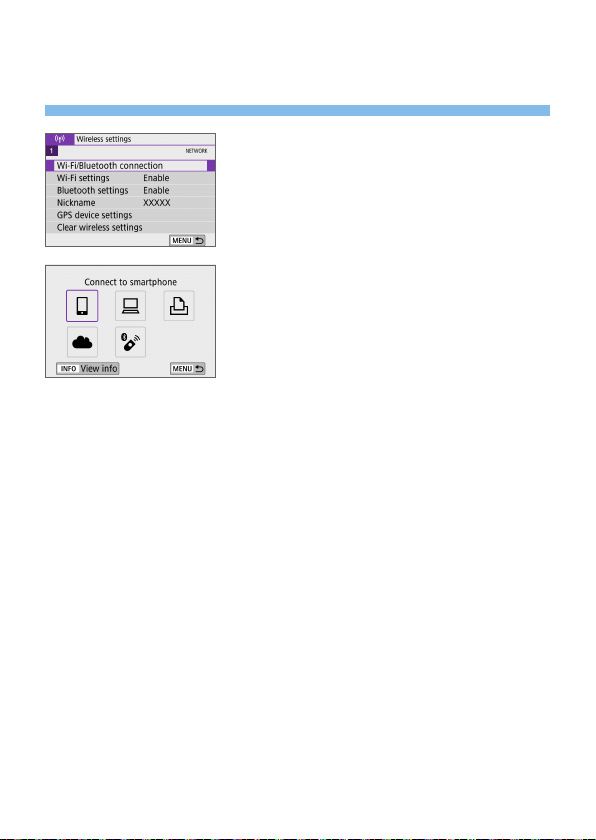
347
Selection of Wi-Fi/Bluetooth
Connection
1
Select [Wi-Fi/Bluetooth
connection].
Under the [k] tab, select [Wi-Fi/
Bluetooth connection], then press
<0>.
2
Select an item for the camera to
connect to.
(1) q Communicate with a smartphone (=
349)
Control the camera remotely and browse images on the camera over
a Wi-Fi connection by using the dedicated Camera Connect app on
smartphones or tablets (collectively referred to as “smartphones” in this
manual).
(2) D Use with EOS software or other dedicated software
(=
374)
Connect the camera to a computer via Wi-Fi and operate the camera
remotely using EOS Utility (EOS software). With the dedicated
application Image Transfer Utility 2, images on the camera can also be
sent to a computer automatically.
(3) l Print images using a Wi-Fi printer (=
381)
Connect the camera to a printer supporting PictBridge (Wireless LAN)
via Wi-Fi to print images.

348
(4) R Send images to a Web service (=
391)
Share images with friends or family on social media or the CANON
iMAGE GATEWAY online photo service for Canon customers after you
complete member registration (free of charge).
(5) F Connect to a wireless remote control
This camera can also be connected to Wireless Remote Control BR-E1
(sold separately) via Bluetooth for remote control shooting (=
410).
349
Connecting to a Smartphone
You can do the following after pairing the camera with a smartphone
compatible with Bluetooth low energy technology (hereafter, “Bluetooth”).
Establish a Wi-Fi connection using only the smartphone (=
351).
Establish a Wi-Fi connection with the camera even when it is off
(=
356).
Geotag images with GPS information acquired by the smartphone
(=
420).
Control the camera remotely from a smartphone (=
355).
You can also do the following after connecting the camera to a smartphone
via Wi-Fi.
Browse and save images on the camera from a smartphone (=
355).
Control the camera remotely from a smartphone (=
355).
Send images to a smartphone from the camera (=
363).
Turning on Bluetooth and Wi-Fi on a Smartphone
Turn on Bluetooth and Wi-Fi from the smartphone settings screen. Note that
pairing with the camera is not possible from the smartphone’s Bluetooth
settings screen.
To establish a Wi-Fi connection via an access point, see “Wi-Fi Connection
via Access Points” (=
405).

350
Installing Camera Connect on a Smartphone
The dedicated app Camera Connect (free of charge) must be installed on
the smartphone on which Android or iOS is installed.
Use the latest version of the smartphone OS.
Camera Connect can be installed from Google Play or App Store.
Google Play or App Store can also be accessed using the QR codes
that appear when the camera is paired or connected via Wi-Fi to a
smartphone.
For the operating system versions supported by Camera Connect, refer to the
download site of Camera Connect.
Sample screens and other details in this guide may not match the actual user
interface elements after camera rmware updates or updates to Camera
Connect, Android, or iOS.
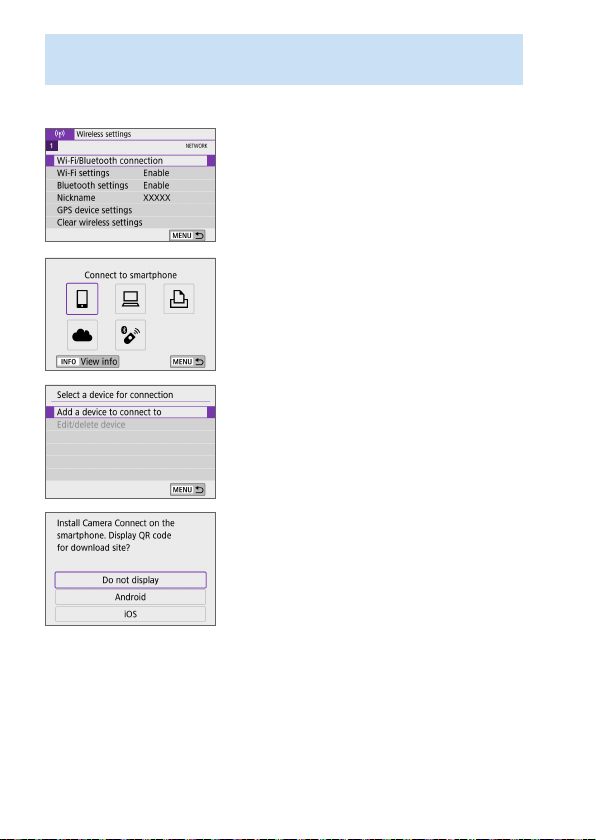
351
Connecting to a Bluetooth-compatible Smartphone via
Wi-Fi
Steps on the Camera (1)
1
Select [Wi-Fi/Bluetooth
connection].
Under the [k] tab, select [Wi-Fi/
Bluetooth connection], then press
<0>.
2
Select [qConnect to smartphone].
3
Select [Add a device to connect to].
4
Select an item.
If Camera Connect is already installed,
select [Do not display].
If Camera Connect is not installed,
select [Android] or [iOS], scan the
displayed QR code with the smartphone
to access Google Play or App Store and
install Camera Connect.
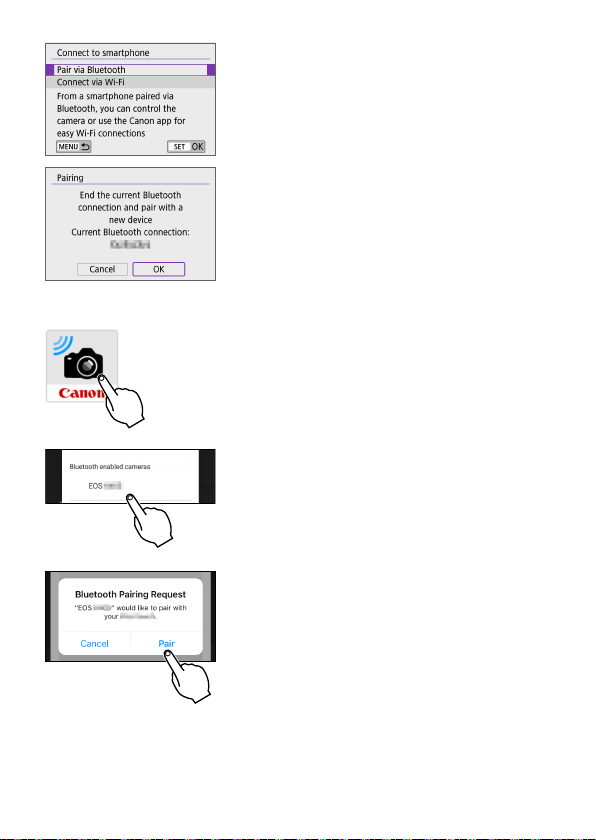
352
5
Select [Pair via Bluetooth].
Press <0> to start pairing.
To pair with a different smartphone after
pairing with one initially, select [OK] on
the screen at left, then press <0>.
Steps on the Smartphone (1)
6
Start Camera Connect.
7
Touch the camera for pairing.
B If you are using an Android smartphone,
go to step 9.
8
Tap on [Pair] (iOS only).
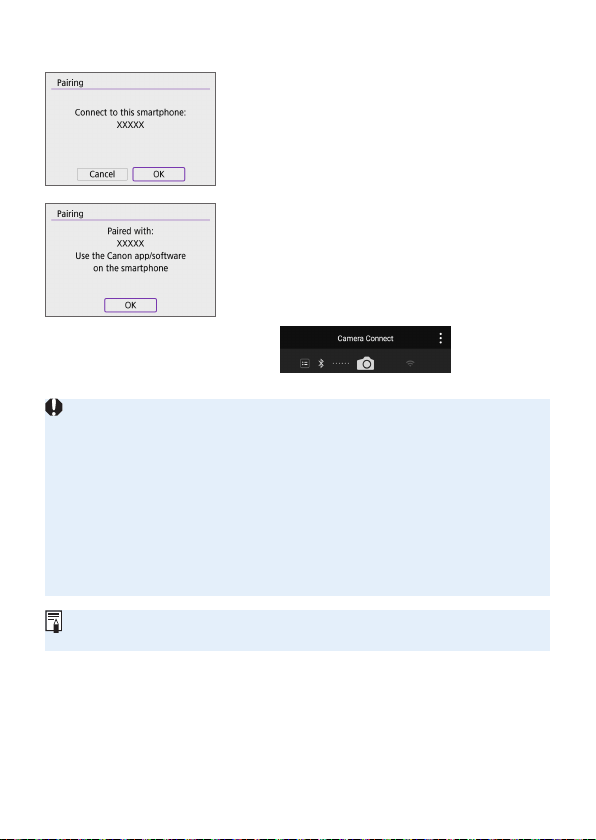
353
Steps on the Camera (2)
9
Select [OK], then press <0>.
10
Press <0>.
Pairing is now complete, and the
camera is connected to the smartphone
via Bluetooth.
A Bluetooth icon appears on the main
Camera Connect screen.
The camera cannot be connected to two or more devices at the same time via
Bluetooth. To switch to a different smartphone for the Bluetooth connection,
see =
423.
Bluetooth connection consumes battery power even after the camera’s auto
power off is activated. Therefore, the battery level may be low when you use
the camera.
Troubleshooting Pairing
Keeping pairing records for previously paired cameras on your smartphone
will prevent it from pairing with this camera. Before you try pairing again,
remove pairing records for previously paired cameras from your smartphone’s
Bluetooth settings screen.
With a Bluetooth connection established, you can operate the camera to send
images to the smartphone (=
363).
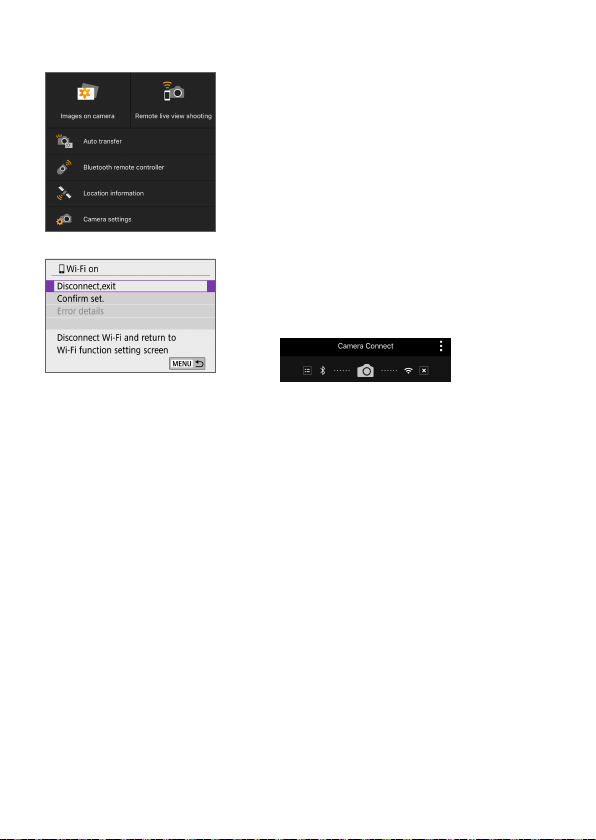
354
Steps on the Smartphone (2)
11
Select and tap on a Camera
Connect function.
In iOS, tap [Join] when a message is
displayed to conrm camera connection.
For the Camera Connect functions, see
=
355.
When a Wi-Fi connection is established,
the screen for the selected function will
appear.
[qWi-Fi on] is displayed on the
camera’s LCD monitor.
The Bluetooth and Wi-Fi icons are lit on
the main Camera Connect screen.
The Wi-Fi connection to a Bluetooth-compatible smartphone is now
complete.
For how to terminate the Wi-Fi connection, see “Terminating Wi-Fi
Connections” (=
370).
Terminating the Wi-Fi connection will switch the camera to the
Bluetooth connection.
To reconnect via Wi-Fi, start Camera Connect and tap the function you
will use.
[qWi-Fi on] Screen
Disconnect,exit
Terminates the Wi-Fi connection.
Conrm set.
You can check the settings.
Error details
When a Wi-Fi connection error occurs, you can check the details of the
error.

355
Camera Connect Functions
Images on camera
Images can be browsed, deleted, or rated.
Images can be saved on a smartphone.
Remote live view shooting
Enables remote shooting as you view a live image on the smartphone.
Auto transfer
Enables camera and app setting adjustment to send shots to a
smartphone automatically as they are captured (=
362).
Bluetooth remote controller
Enables remote control of the camera from a smartphone paired via
Bluetooth. (Not available when connected via Wi-Fi.)
Before using a Bluetooth remote control, consider setting a longer auto
power off time.
Location information
Not supported on this camera.
Camera settings
Camera settings can be changed.
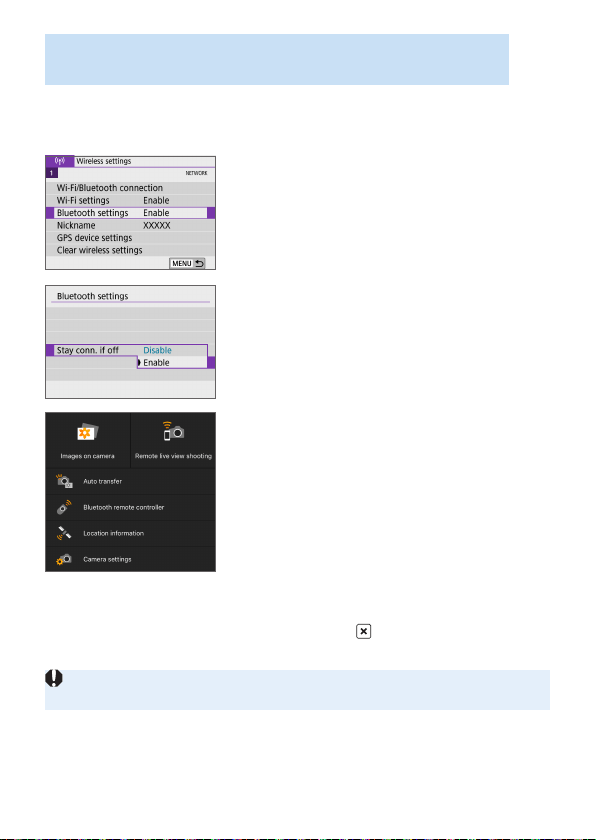
356
Establishing a Wi-Fi Connection When the Camera Is
Off
Even with the camera power switch set to <2>, as long as the camera
is paired with a smartphone via Bluetooth, you can use the smartphone to
connect via Wi-Fi.
1
Select [Bluetooth settings].
Under the [k] tab, select [Bluetooth
settings], then press <0>.
2
Set [Stay conn. if off] to [Enable].
With the camera power switch set to
<2>, tap [Images on camera] in the
Camera Connect menu to start the Wi-Fi
connection.
In iOS, tap [Join] when a message is
displayed to conrm camera connection.
Images on the camera are listed when
the Wi-Fi connection is established.
You can use Camera Connect to save images to the smartphone or
delete images on the camera.
To terminate the Wi-Fi connection, tap on [
] on the main Camera
Connect screen (=
370).
This function can no longer be used if the wireless settings are reset or the
smartphone connection information is erased.
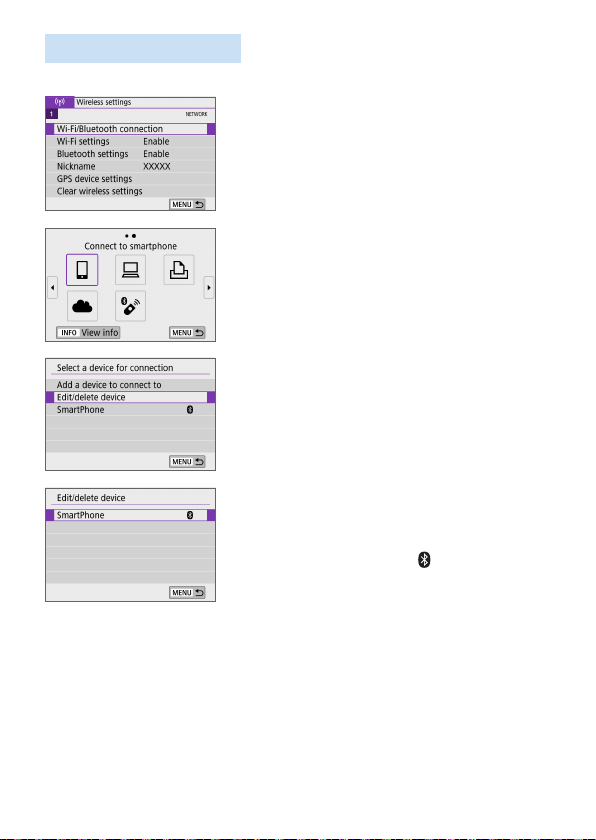
357
Canceling the Pairing
Cancel pairing with a smartphone as follows.
1
Select [Wi-Fi/Bluetooth
connection].
Under the [k] tab, select [Wi-Fi/
Bluetooth connection], then press
<0>.
2
Select [qConnect to smartphone].
If the history (=
413) is displayed,
switch the screen with the <Y> <Z>
keys.
3
Select [Edit/delete device].
4
Select the smartphone to cancel
paring with.
Smartphones currently paired with the
camera are labeled [
].
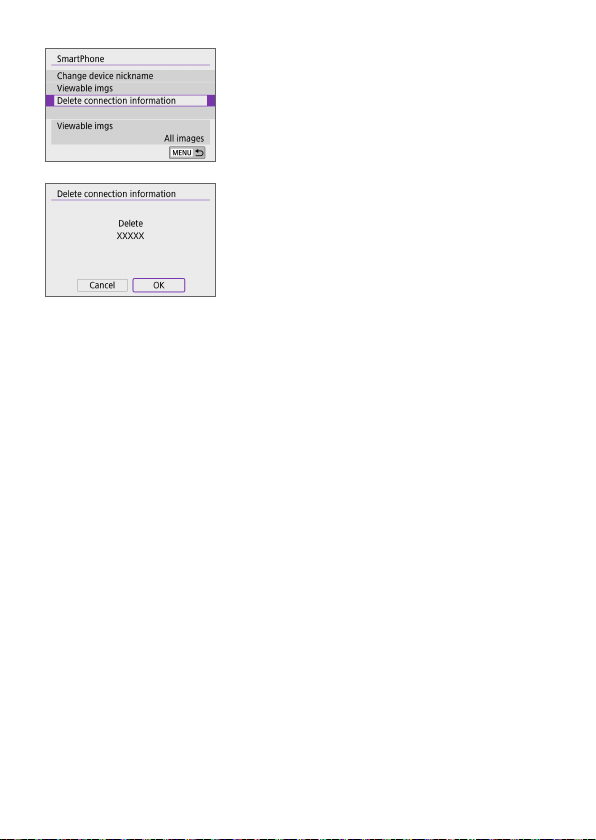
358
5
Select [Delete connection
information].
6
Select [OK], then press <0>.
7
Clear the camera information on
the smartphone.
In the smartphone’s Bluetooth setting
menu, clear the camera information
registered on the smartphone.
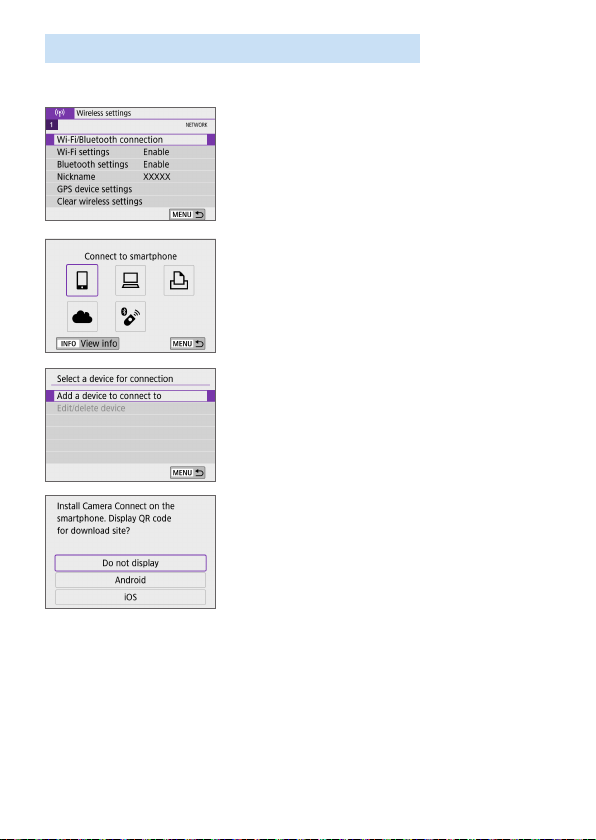
359
Wi-Fi Connection Without Using Bluetooth
Steps on the Camera (1)
1
Select [Wi-Fi/Bluetooth
connection].
Under the [k] tab, select [Wi-Fi/
Bluetooth connection], then press
<0>.
2
Select [qConnect to smartphone].
If the history (=
413) is displayed,
switch the screen with the <Y> <Z>
keys.
3
Select [Add a device to connect to].
4
Select an item.
If Camera Connect is already installed,
select [Do not display].
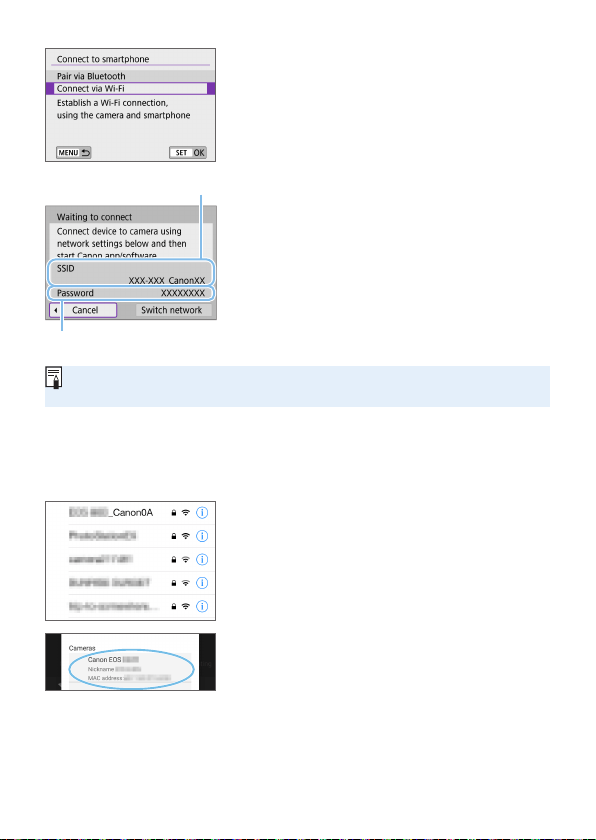
360
5
Select [Connect via Wi-Fi].
6
Check the SSID (network name)
and password.
Check the SSID (1) and password (2)
displayed on the camera’s LCD monitor.
In [k: Wi-Fi settings], if you set
[Password] to [None], the password
will not be displayed or required
(=
416).
By selecting [Switch network] in step 6, you can establish a Wi-Fi
connection via an access point (=
405).
Steps on the Smartphone
7
Operate the smartphone to
establish a Wi-Fi connection.
Activate the smartphone’s Wi-Fi
function, then tap the SSID (network
name) checked in step 6.
For the password, enter the password
checked in step 6.
8
Start Camera Connect and tap the
camera to connect to via Wi-Fi.
(
1
)
(
2
)
Smartphone’s screen
(sample)
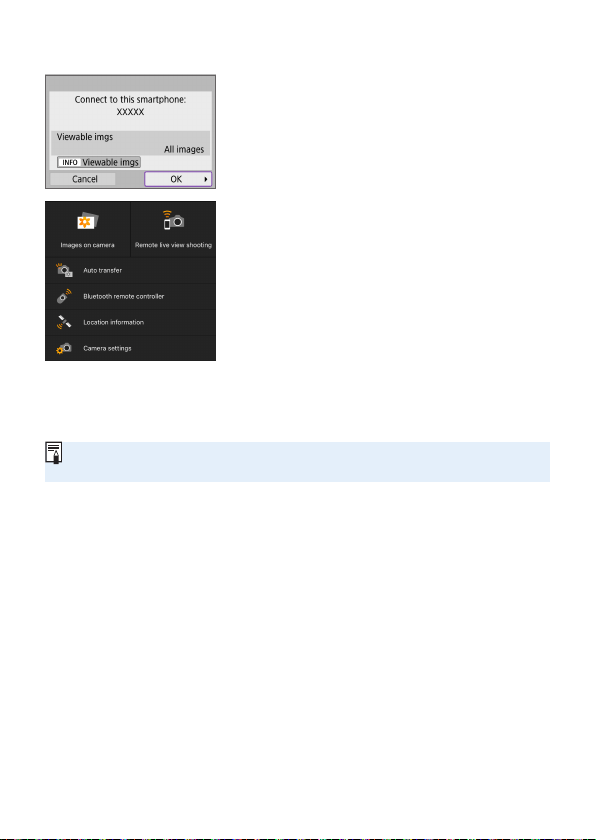
361
Steps on the Camera (2)
9
Select [OK].
To specify viewable images, press the
<B> button. See step 5 on =
371
to set them.
The main window of Camera Connect
will be displayed on the smartphone.
The Wi-Fi connection to a
smartphone is now complete.
Operate the camera using Camera
Connect (=
355).
For how to terminate the Wi-Fi connection, see “Terminating Wi-Fi
Connections” (=
370).
To reconnect via Wi-Fi, see “Reconnecting via Wi-Fi” (=
413).
When connected via Wi-Fi, you can send images to a smartphone from the
Quick Control screen during playback (=
363).
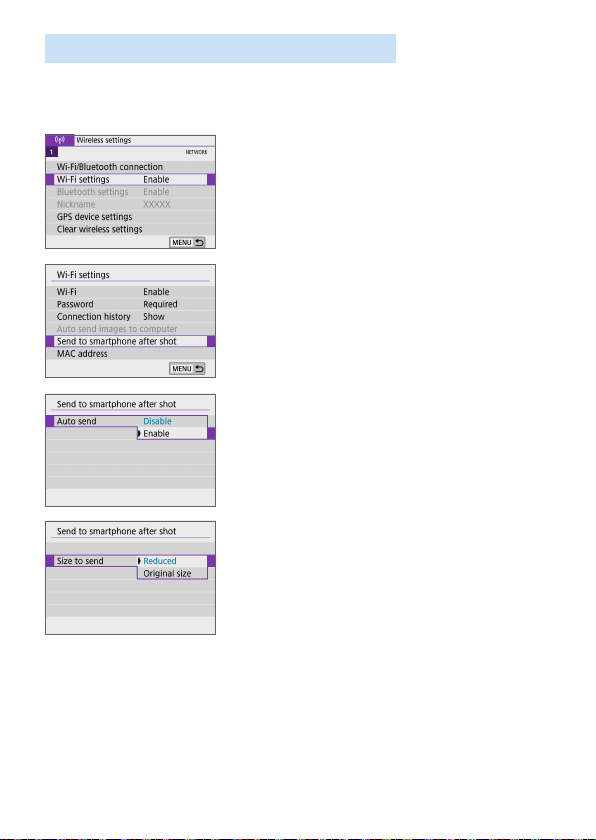
362
Automatic Image Transfer as You Shoot
Your shots can be automatically sent to a smartphone. Before following
these steps, make sure the camera and smartphone are connected via
Wi-Fi.
1
Select [Wi-Fi settings].
Under the [k] tab, select [Wi-Fi
settings], then press <0>.
2
Select [Send to smartphone after
shot].
3
In [Auto send], select [Enable].
4
Set [Size to send].
5
Take the picture.
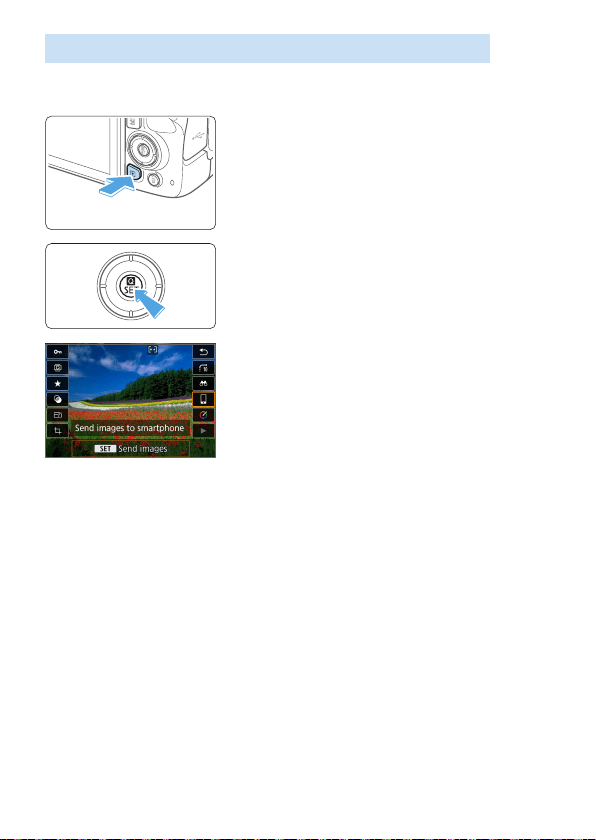
363
Sending Images to a Smartphone from the Camera
You can use the camera to send images to a smartphone paired via
Bluetooth (Android devices only) or connected via Wi-Fi.
1
Play back the image.
2
Press the <Q> button.
3
Select [q].
If you perform this step while connected
via Bluetooth, a message is displayed,
and the connection switches to a Wi-Fi
connection.
4
Select sending options and send
the images.
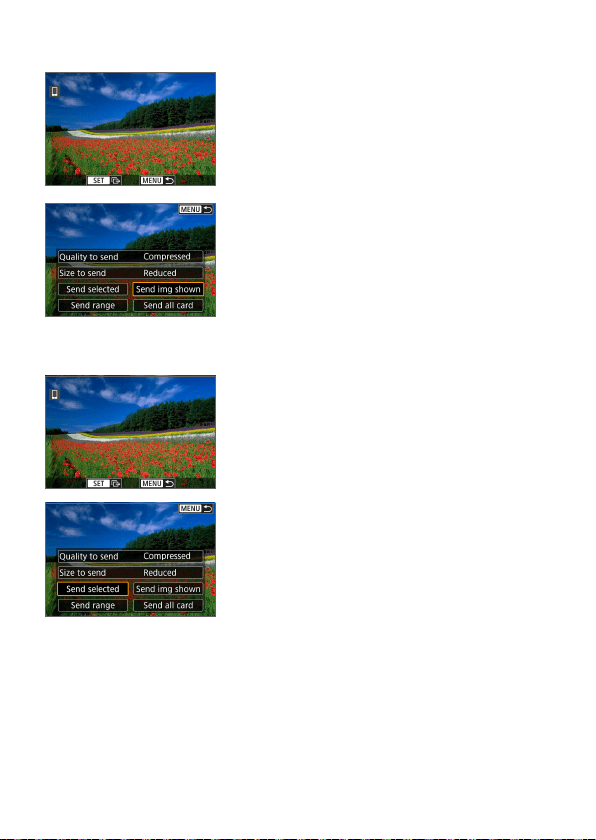
364
(1) Sending Images Individually
1
Select an image to send.
Use the <Y> <Z> keys to select an
image to send, then press <0>.
By pressing the <I> button, you can
switch to the index display and select
an image.
2
Select [Send img shown].
In [Size to send], you can select the
image sending size.
When sending movies, you can select
the image quality of movies to send in
[Quality to send].
(2) Sending Multiple Selected Images
1
Press <0>.
2
Select [Send selected].
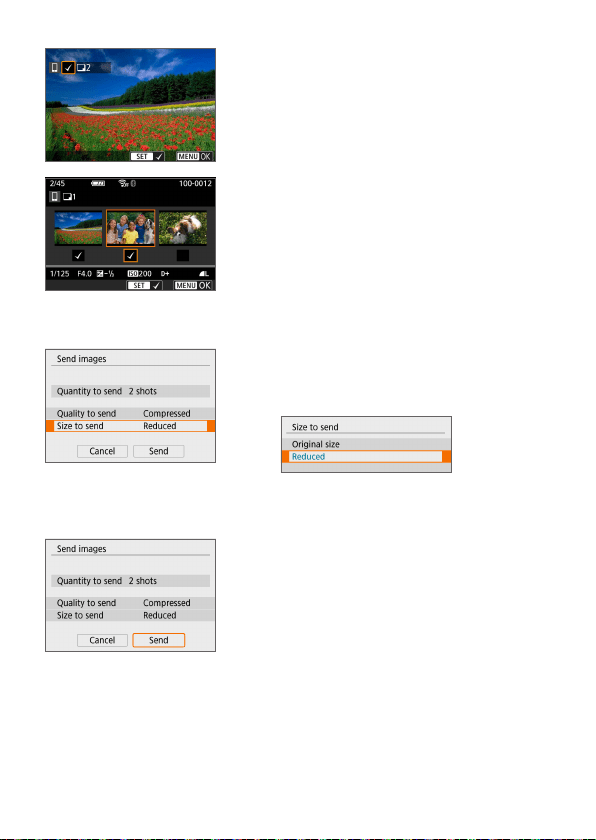
365
3
Select images to send.
Use the <Y> <Z> keys to select
images to send, then press <0>.
You can press the <I> button to
select the images from 3-image display.
To return to the single-image display,
press <u>.
After selecting the images to send,
press the <M> button.
4
Exit image selection.
Select [OK].
5
Select [Size to send].
On the displayed screen, select an
image size.
When sending movies, select the image
quality in [Quality to send].
6
Select [Send].
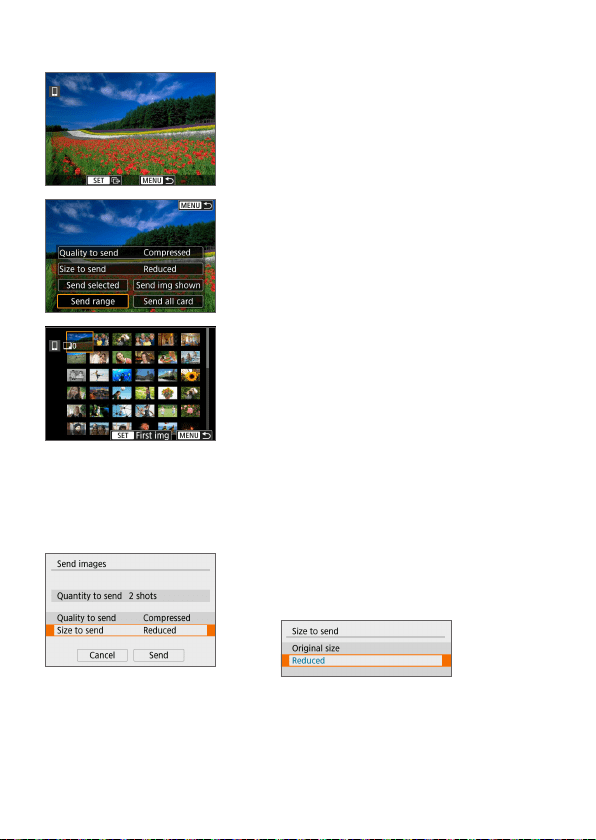
366
(3) Sending a Specied Range of Images
1
Press <0>.
2
Select [Send range].
3
Specify the range of images.
Select the rst image (start point).
Select the last image (end point).
To cancel the selection, repeat this step.
You can press the <I> button to
change the number of images shown in
the index display.
4
Confirm the range.
Press the <M> button, then press
[OK].
5
Select [Size to send].
On the displayed screen, select an
image size.
When sending movies, select the image
quality in [Quality to send].
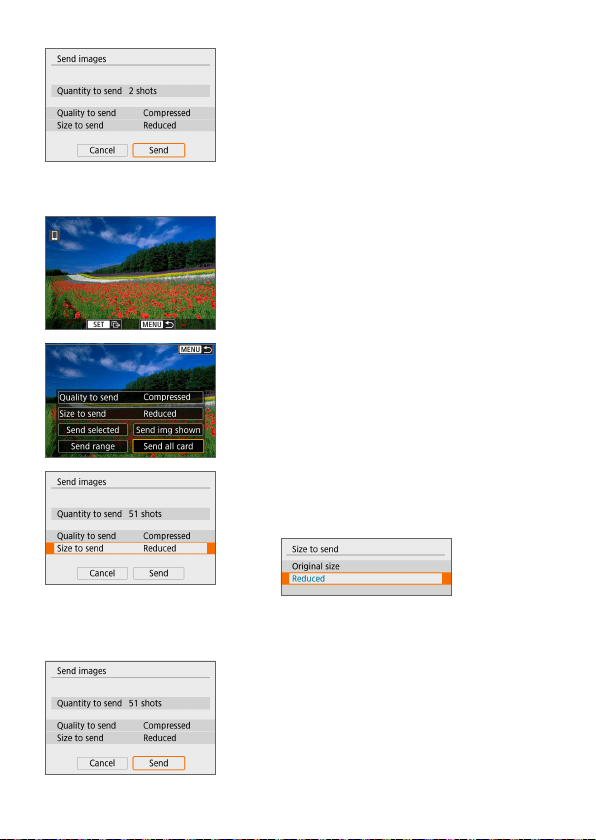
367
6
Select [Send].
(4) Sending All Images on the Card
1
Press <0>.
2
Select [Send all card].
3
Select [Size to send].
On the displayed screen, select an
image size.
When sending movies, select the image
quality in [Quality to send].
4
Select [Send].
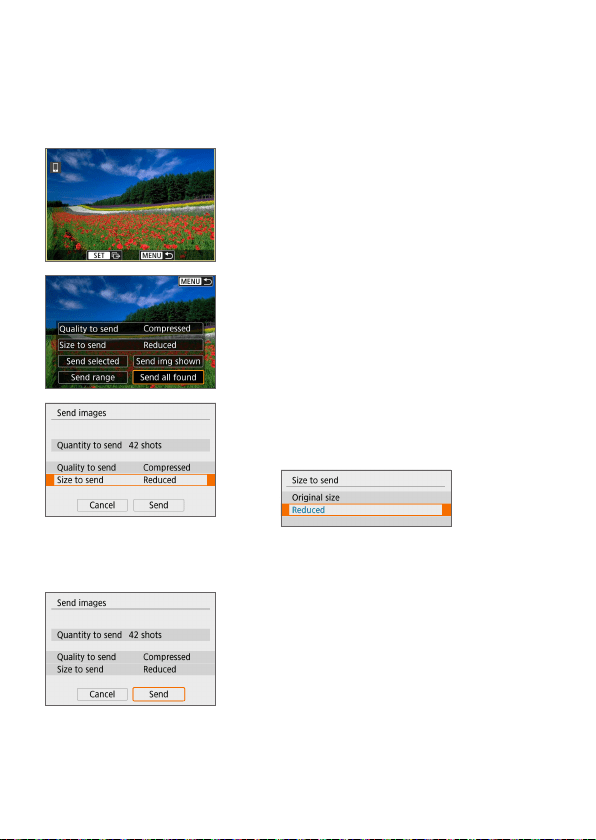
368
(5) Sending Images that Match the Search Conditions
Send all the images that match the search conditions set in [Set image
search conditions] at once.
For [Set image search conditions], refer to “Filtering Images for Playback”
(=
291).
1
Press <0>.
2
Select [Send all found].
3
Select [Size to send].
On the displayed screen, select an
image size.
When sending movies, select the image
quality in [Quality to send].
4
Select [Send].
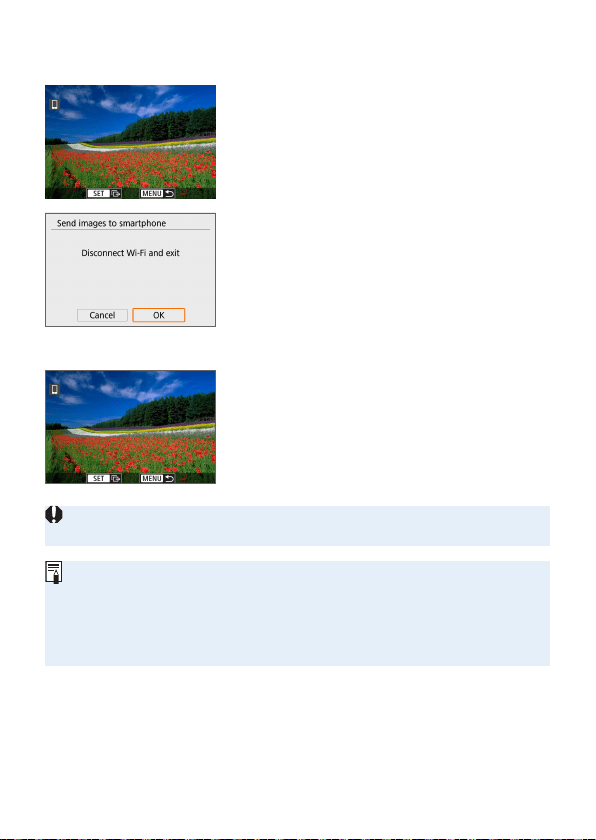
369
Ending Image Transfer
Sending Images from the Camera When Paired via Bluetooth (Android)
Press the <M> button on the image
transfer screen.
Select [OK] on the screen on the left
to end image transfer and the Wi-Fi
connection.
Sending Images from the Camera over a Wi-Fi Connection
Press the <M> button on the image
transfer screen.
To terminate the Wi-Fi connection,
see “Terminating Wi-Fi Connections”
(=
370).
During the image transfer operation, a picture cannot be taken even if the
camera’s shutter button is pressed.
With a Wi-Fi connection established, disabling the smartphone’s power
saving function is recommended.
Selecting the reduced size for still photos applies to all still photos sent at that
time. Note that b size still photos are not reduced.
Selecting compression for movies applies to all movies sent at that time.
When you use a battery to power the camera, make sure it is fully charged.
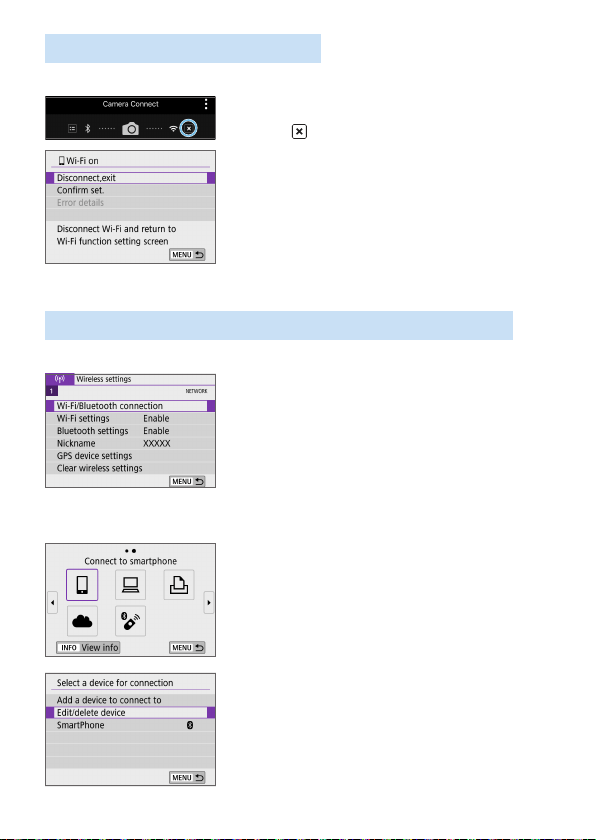
370
Terminating Wi-Fi Connections
Perform either of the following operations.
On the Camera Connect screen, tap
on [
].
On the [qWi-Fi on] screen, select
[Disconnect,exit].
If [qWi-Fi on] is not displayed, select
[Wi-Fi/Bluetooth connection] under
the [k] tab.
Select [Disconnect,exit], then select
[OK] on the conrmation dialog.
Settings to Make Images Viewable from Smartphones
Images can be specied after the Wi-Fi connection is terminated.
1
Select [Wi-Fi/Bluetooth
connection].
Under the [k] tab, select [Wi-Fi/
Bluetooth connection], then press
<0>.
2
Select [qConnect to smartphone].
If the history (=
413) is displayed,
switch the screen with the <Y> <Z>
keys.
3
Select [Edit/delete device].
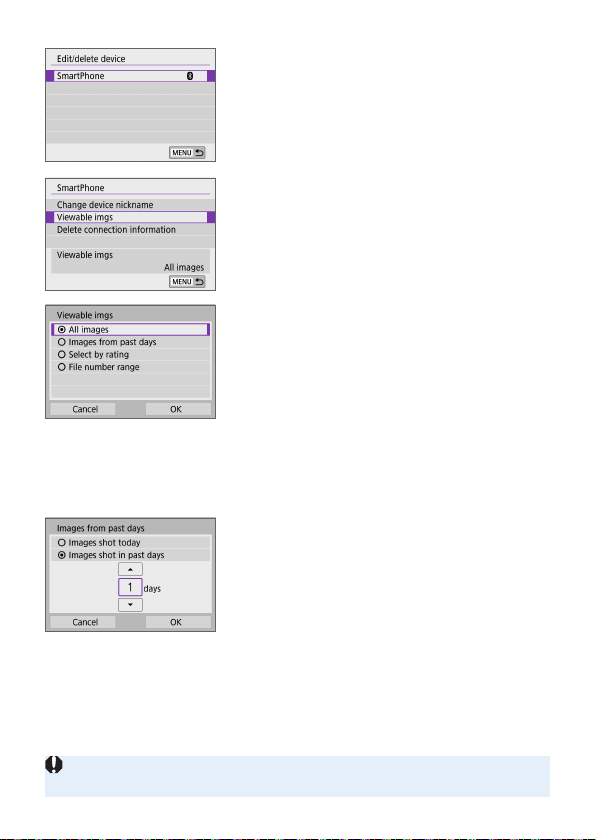
371
4
Select a smartphone.
Select the name of the smartphone on
which you want to make the images
viewable.
5
Select [Viewable imgs].
6
Select an item.
Select [OK] to access the setting
screen.
[All images]
All images stored on the card become viewable.
[Images from past days]
Specify viewable images on the shooting-
date basis. Images shot up to nine days
ago can be specied.
When [Images shot in past days]
is selected, images shot up to the
specied number of days before the
current date become viewable. Use the
<W> <X> keys to specify the number of
days, then press <0> to conrm the
selection.
Once you select [OK], the viewable
images are set.
If [Viewable imgs] is set to any setting other than [All images], remote
shooting is not possible.
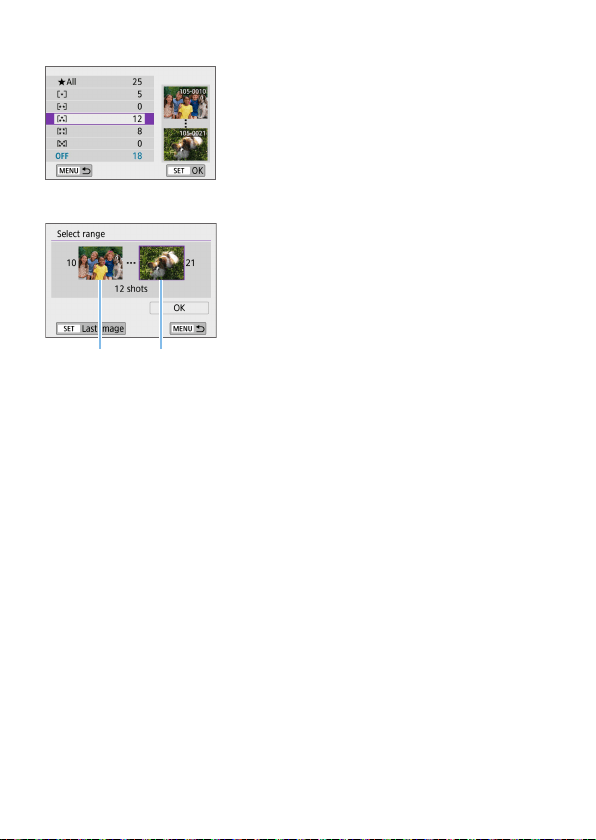
372
[Select by rating]
Specify viewable images depending on
whether a rating is appended (or not
appended) or by the type of rating.
Once you select the type of rating, the
viewable images are set.
[File number range] (Select range)
Select the rst and last images from
images arranged by the le number to
specify the viewable images.
1. Press <0> to display the image
selection screen.
Press the <Y> <Z> keys to select the
image.
By pressing the <I> button, you can
switch to the index display and select
an image.
2. Select an image as the starting point (1).
3. Use <Z> to select an image as the
ending point (2).
4. Select [OK].
(
1
) (
2
)
373
If the Wi-Fi connection is terminated while recording a movie with remote
shooting, the following will occur.
- If the power switch is set to <k>, movie shooting will continue.
- If the power switch is set to <1>, movie shooting will stop.
When the power switch is set to <1> and the camera is set to the movie
shooting mode using Camera Connect, you cannot operate the camera to
shoot.
With a Wi-Fi connection to a smartphone established, certain functions are
unavailable.
In remote shooting, the AF speed may become slower.
Depending on the communication status, image display or shutter release
timing may be delayed.
When saving images to a smartphone, you cannot take a picture even if you
press the camera’s shutter button. Also, the camera’s LCD monitor may turn
off.
With a Wi-Fi connection established, disabling the smartphone’s power
saving function is recommended.
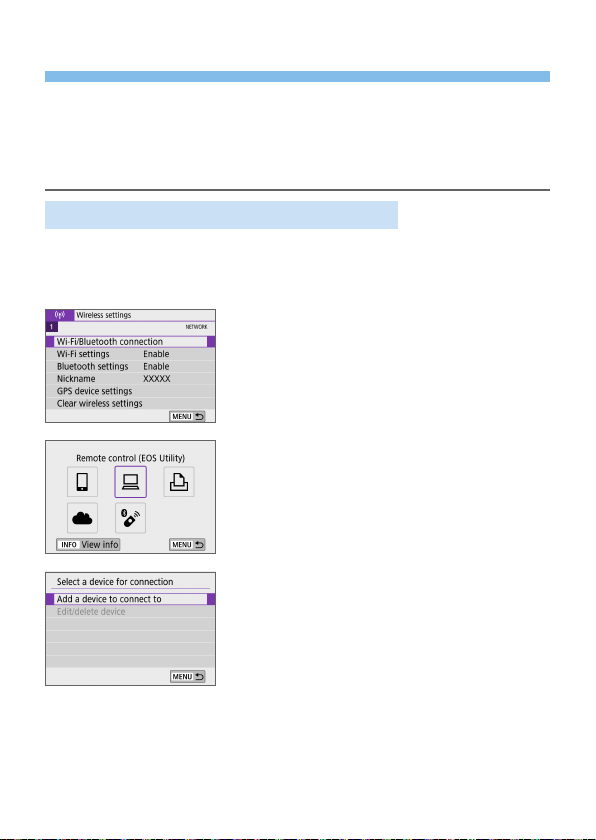
374
Connecting to a Computer via Wi-Fi
This section describes how to connect the camera to a computer via Wi-Fi
and perform camera operations using EOS software or other dedicated
software. Install the latest version of software on the computer before
setting up a Wi-Fi connection.
For computer operating instructions, refer to the computer user manual.
Operating the Camera Using EOS Utility
Using EOS Utility (EOS software), you can import images from the camera,
control the camera, and perform other operations.
Steps on the Camera (1)
1
Select [Wi-Fi/Bluetooth
connection].
Under the [k] tab, select [Wi-Fi/
Bluetooth connection], then press
<0>.
2
Select [DRemote control (EOS
Utility)].
If the history (=
413) is displayed,
switch the screen with the <Y> <Z>
keys.
3
Select [Add a device to connect to].
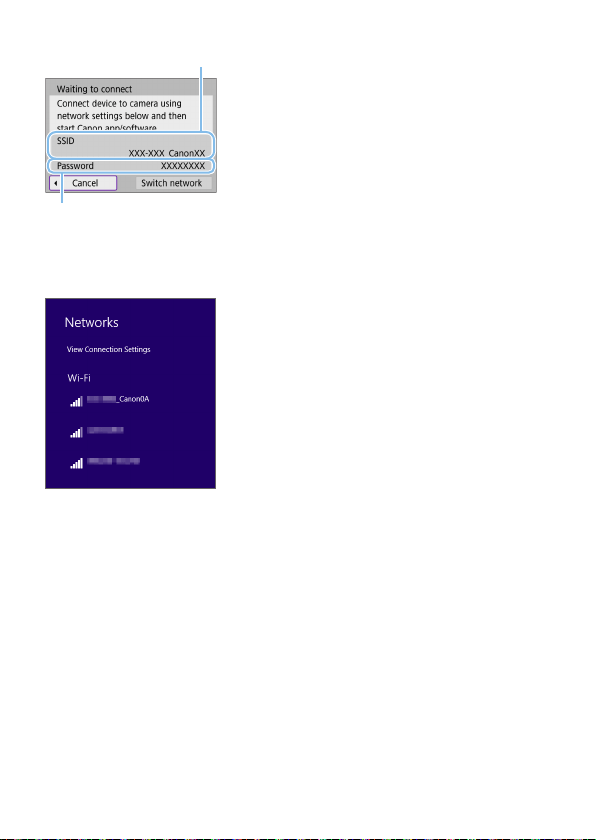
375
4
Check the SSID (network name)
and password.
Check the SSID (1) and password (2)
displayed on the camera’s LCD monitor.
In [k: Wi-Fi settings], if you set
[Password] to [None], the password
will not be displayed or required. For
details, see =
416.
Steps on the Computer (1)
Computer’s screen (sample)
5
Select the SSID, then enter the
password.
On the computer’s network setting
screen, select the SSID checked in
step 4.
For the password, enter the password
checked in step 4.
(
1
)
(
2
)
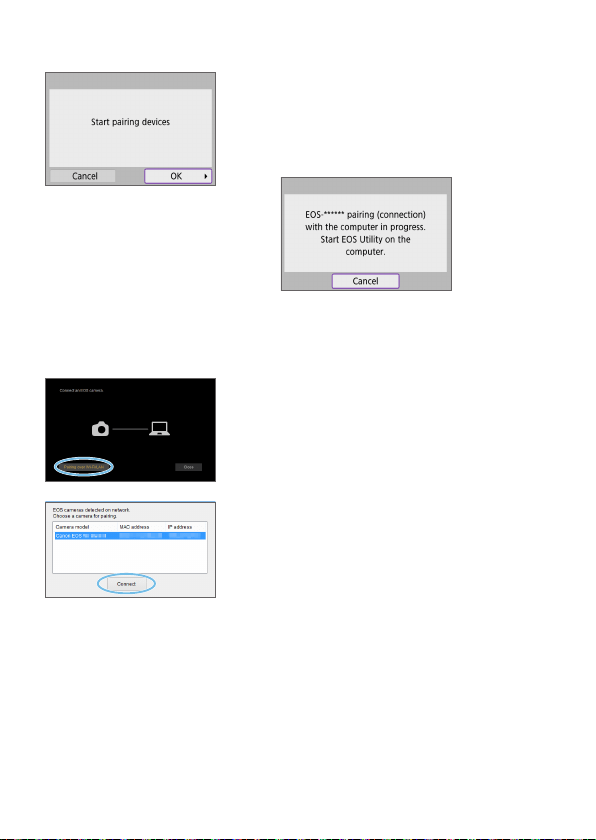
376
Steps on the Camera (2)
6
Select [OK].
B The following message is displayed.
“******” represents the last six digits of
the MAC address of the camera to be
connected.
Steps on the Computer (2)
7
Start EOS Utility.
8
In EOS Utility, click [Pairing over
Wi-Fi/LAN].
If a rewall-related message is
displayed, select [Yes].
9
Click [Connect].
Select the camera to connect to, then
click [Connect].
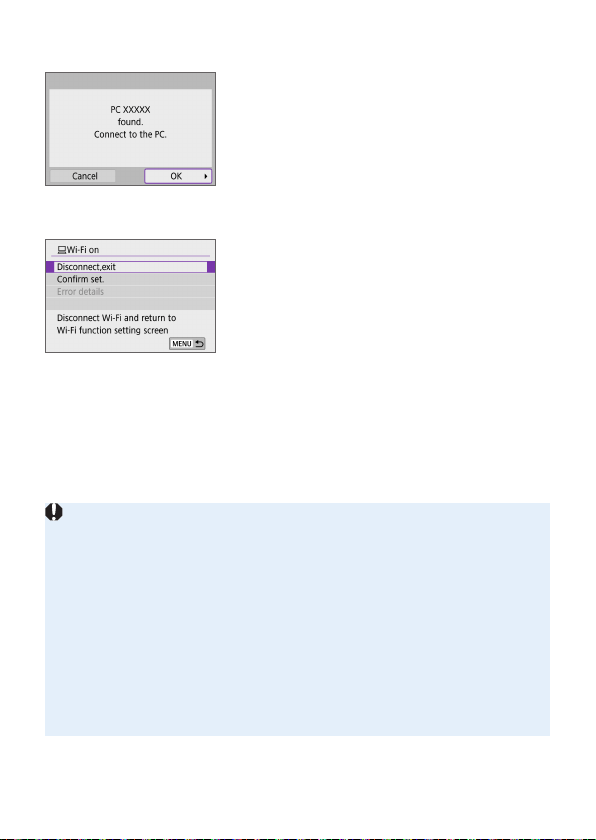
377
Steps on the Camera (3)
10
Establish a Wi-Fi connection.
Select [OK].
[DWi-Fi on] Screen
Disconnect,exit
Terminates the Wi-Fi connection.
Confirm set.
You can check the settings.
Error details
When a Wi-Fi connection error occurs,
you can check the details of the error.
The Wi-Fi connection to a computer is now complete.
Operate the camera using EOS Utility on the computer.
To reconnect via Wi-Fi, see “Reconnecting via Wi-Fi” (=
413).
If the Wi-Fi connection is terminated while recording a movie with remote
shooting, the following will occur.
- If the power switch is set to <k>, movie shooting will continue.
- If the power switch is set to <1>, movie shooting will stop.
Operations using the camera are not possible after you use EOS Utility to
switch from still photo shooting mode to movie recording mode.
With a Wi-Fi connection to EOS Utility established, certain functions are
unavailable.
In remote shooting, the AF speed may become slower.
Depending on the communication status, image display or shutter release
timing may be delayed.
In Remote Live View shooting, the rate of image transmission is slower
compared to a connection via an interface cable. Therefore, moving subjects
cannot be displayed smoothly.
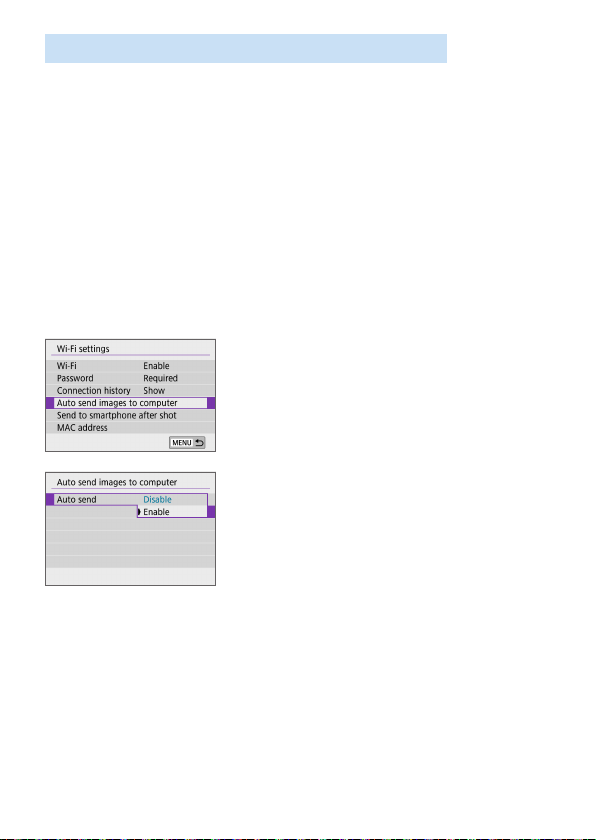
378
Sending Images on the Camera Automatically
With the dedicated software Image Transfer Utility 2, you can send images
on the camera to a computer automatically.
Steps on the Computer (1)
1
Connect the computer and access
point and start Image Transfer
Utility 2.
The screen to set up pairing is shown
when you follow the instructions
displayed the rst time Image Transfer
Utility 2 starts up.
Steps on the Camera (1)
2
Select [Auto send images to
computer].
Under the [k] tab, select [Wi-Fi
settings], then press <0>.
Select [Auto send images to
computer].
3
In [Auto send], select [Enable].
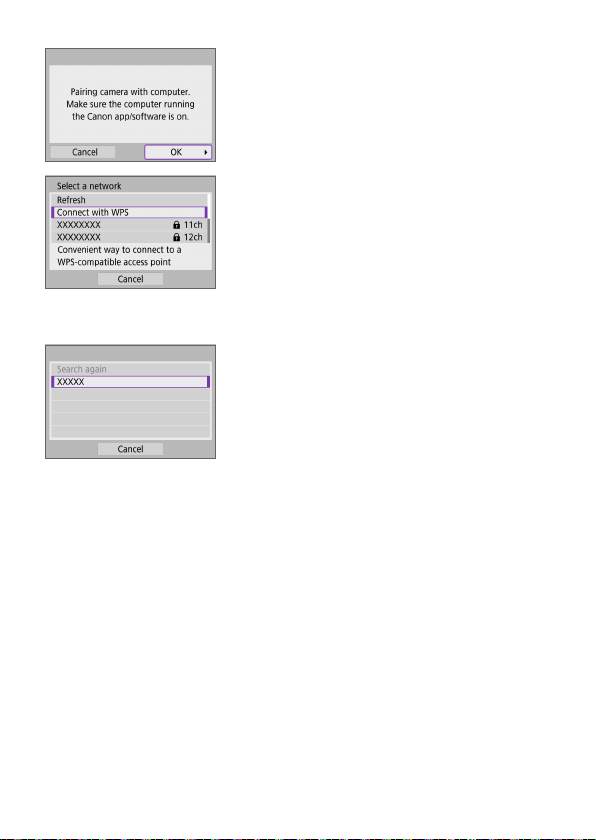
379
4
Select [OK].
5
Connect to an access point via
Wi-Fi.
Establish a Wi-Fi connection between
the camera and the access point
connected to the computer. For
connection instructions, see
“Wi-Fi Connection via Access Points”
(=
405).
6
Select the computer to pair the
camera with.
Steps on the Computer (2)
7
Pair the camera and computer.
Select the camera, then click [Pairing].
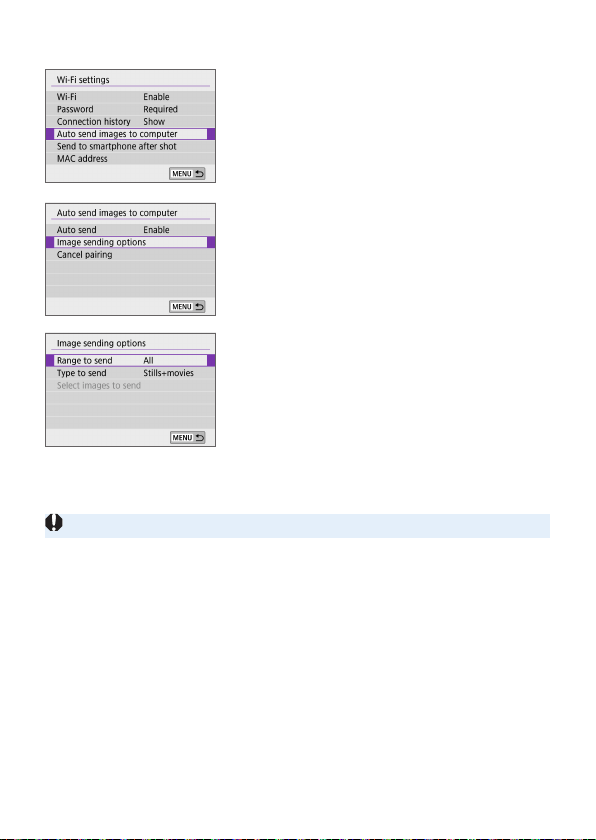
380
Steps on the Camera (2)
8
Select [Auto send images to
computer].
Under the [k] tab, select [Wi-Fi
settings], then press <0>.
Select [Auto send images to
computer].
9
Select [Image sending options].
10
Select what to send.
If you select [Selected imgs] in [Range
to send], specify the images to send on
the [Select images to send] screen.
After the settings are complete, turn the
camera off.
Images on the camera are automatically sent to the active computer when
you turn the camera on within range of the access point.
If images are not sent automatically, try restarting the camera.
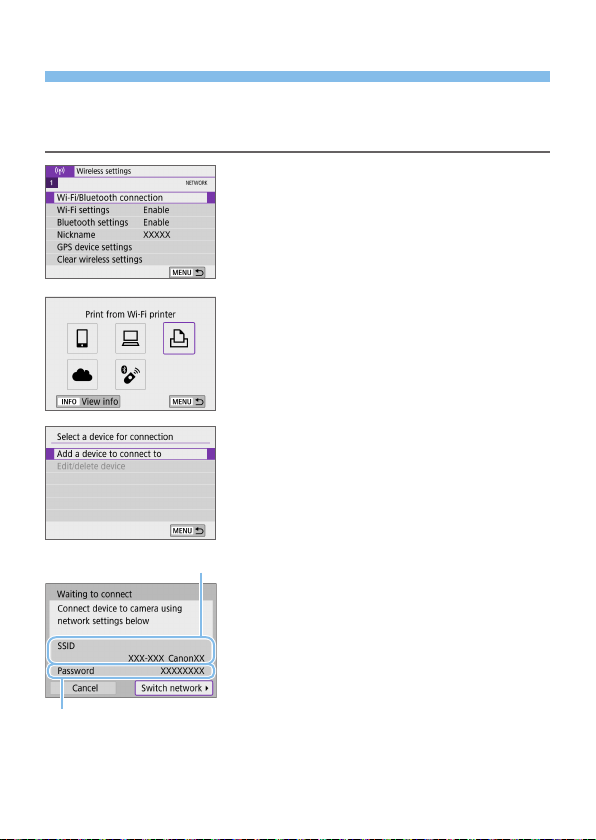
381
Connecting to a Printer via Wi-Fi
This section describes how to print images by directly connecting the
camera to a printer supporting PictBridge (Wireless LAN) via Wi-Fi. For
printer operating instructions, refer to the printer user manual.
1
Select [Wi-Fi/Bluetooth
connection].
Under the [k] tab, select [Wi-Fi/
Bluetooth connection], then press
<0>.
2
Select [lPrint from Wi-Fi printer].
If the history (=
413) is displayed,
switch the screen with the <Y> <Z>
keys.
3
Select [Add a device to connect to].
4
Check the SSID (network name)
and password.
Check the SSID (1) and password (2)
displayed on the camera’s LCD monitor.
In [k: Wi-Fi settings], if you set
[Password] to [None], the password
will not be displayed or required
(=
416).
(
1
)
(
2
)
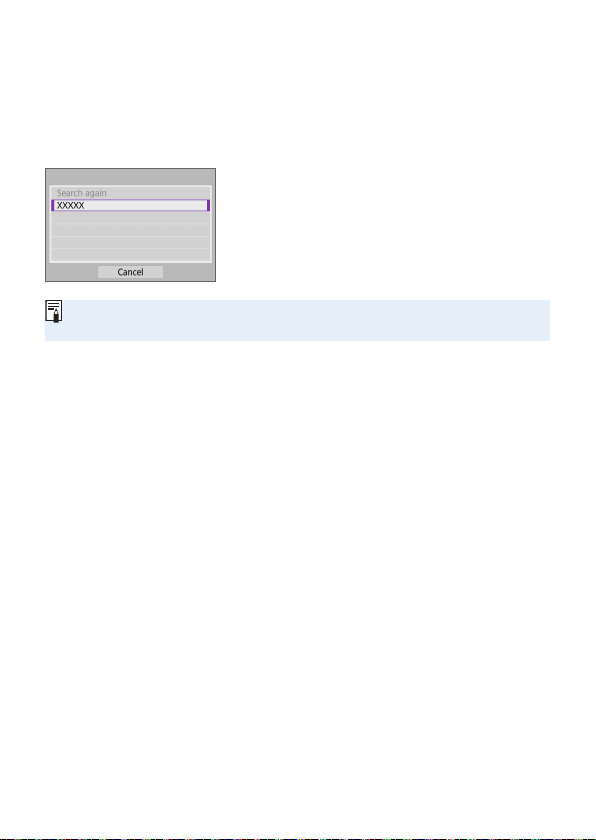
382
5
Set up the printer.
On the Wi-Fi settings menu of the
printer to be used, select the SSID you
have checked.
For the password, enter the password
checked in step 4.
6
Select the printer.
In the list of detected printers, select the
printer to connect to via Wi-Fi.
If your preferred printer is not listed,
selecting [Search again] may enable
the camera to nd and display it.
To establish a Wi-Fi connection via an access point, see “Wi-Fi Connection
via Access Points” (=
405).
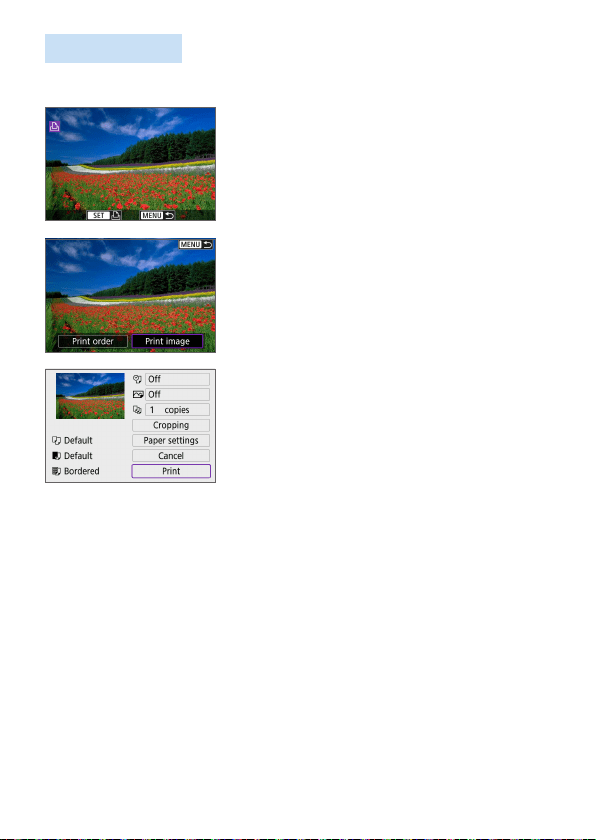
383
Image Printing
Printing Images Individually
1
Select the image to be printed.
Use the <Y> <Z> keys to select an
image to print, then press <0>.
By pressing the <I> button, you can
switch to the index display and select
an image.
2
Select [Print image].
3
Print the image.
For the print setting procedures, see
=
386.
Select [Print], then [OK] to start
printing.
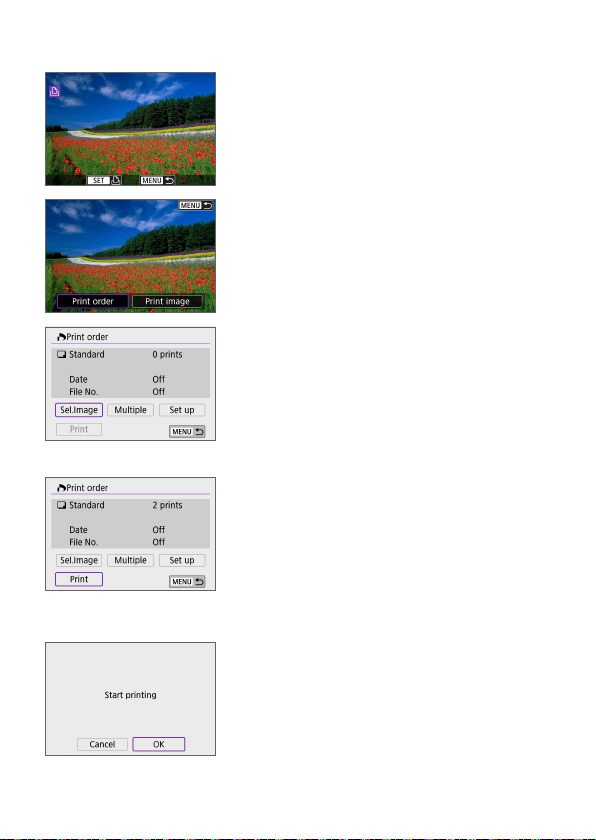
384
Printing According to Specied Image Options
1
Press <0>.
2
Select [Print order].
3
Set the print options.
For the print setting procedures, refer
to “Digital Print Order Format (DPOF)”
(=
316).
If the print order is complete before
establishing a Wi-Fi connection, go to
step 4.
4
Select [Print].
[Print] can be selected only when an
image is selected and the printer is
ready to print.
5
Set the [Paper settings] (=
386).
6
Print the image.
When [OK] is selected, printing starts.

385
Shooting is not possible while connected to a printer via Wi-Fi.
Movies cannot be printed.
Before printing, be sure to set the paper size.
Certain printers may not be able to imprint the le number.
If [Bordered] is set, certain printers may imprint the date on the border.
Depending on the printer, the date may appear faint if it is imprinted on a
bright background or on the border.
RAW images cannot be printed by selecting [Print order]. When printing,
select [Print image] and print.
When you use a battery to power the camera, make sure it is fully charged.
Depending on the image’s le size and image quality, it may take some time
to start printing after you select [Print].
To stop printing, press <0> while [Stop] is displayed, then select [OK].
When printing with [Print order], if you stopped printing and want to resume
printing of the remaining images, select [Resume]. Note that printing will not
resume if any of the following occurs.
- You change the print order or delete any of the print ordered images before
resuming printing.
- When index is set, you change the paper setting before resuming printing.
If a problem occurs during printing, see =
390.
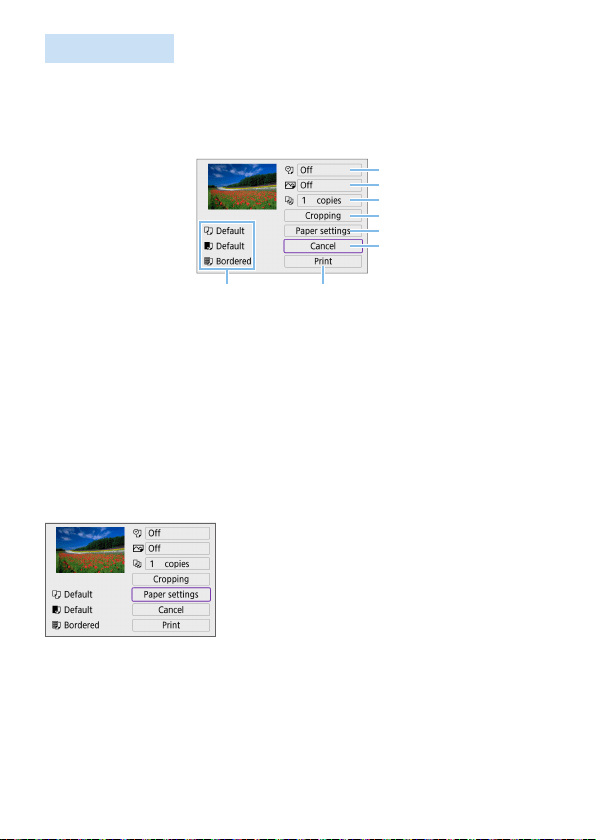
386
Print Settings
The screen display and setting options vary depending on the printer.
Also, certain settings may not be available. For details, refer to the printer’s
instruction manual.
Print setting screen
(
8
)
(
1
)
(
1
)
(
2
)
(
3
)
(
4
)
(
5
)
(
6
)
(
7
)
(1) Sets date or le number printing (=
388).
(2) Sets the printing effects (=
388).
(3) Sets the number of copies to print (=
388).
(4) Sets the print area (=
389).
(5) Sets the paper size, type, and layout (=
387).
(6) Returns to the image selection screen.
(7) Starts the printing.
(8) The paper size, type, and layout you have set are displayed.
* Depending on the printer, certain settings may not be selectable.
Paper Settings
Select [Paper settings].
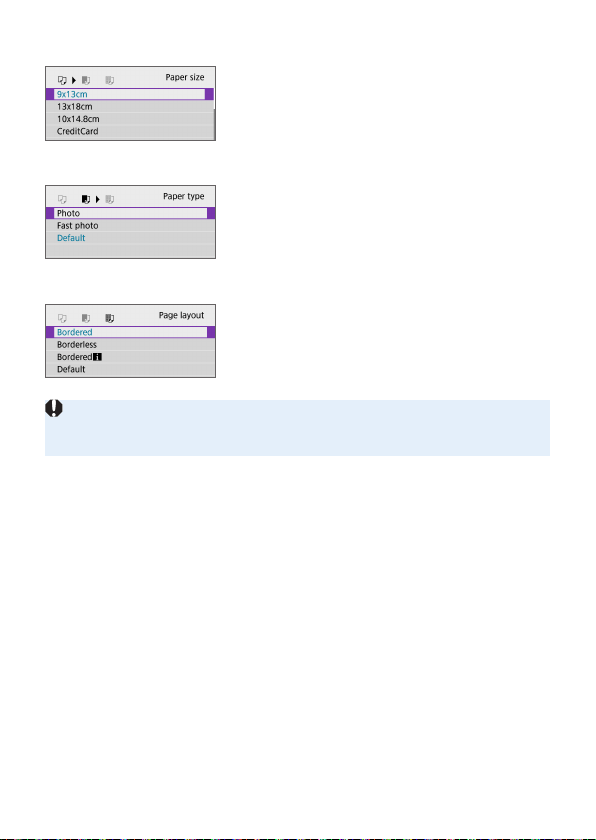
387
[Q] Setting the Paper Size
Select the size of the paper in the
printer.
[Y] Setting the Paper Type
Select the type of the paper in the
printer.
[U] Setting the Page Layout
Select the page layout.
If the image’s aspect ratio is different from the printing paper’s aspect ratio,
the image may be cropped signicantly when you print it as a borderless print.
Images may also be printed at lower resolution.
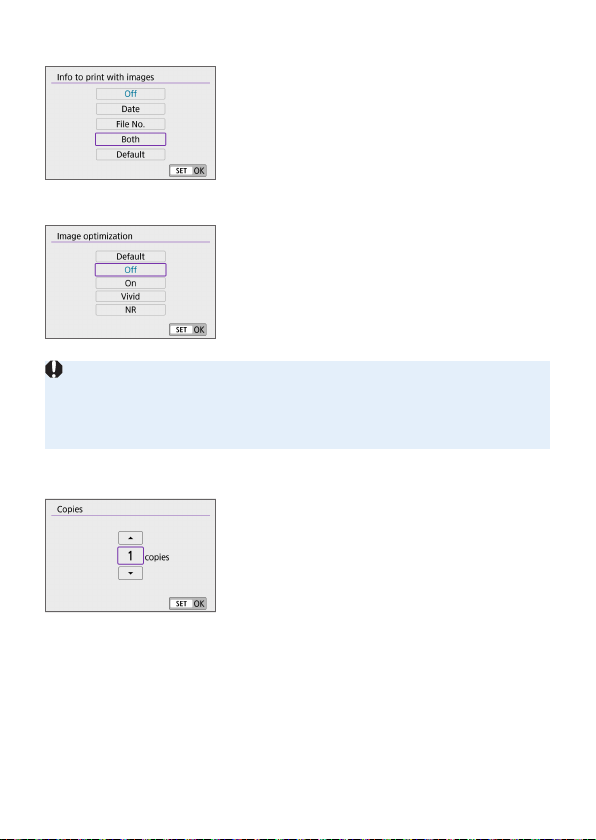
388
Setting the Date/File Number Imprinting
Select [I].
Select what to print.
Setting the Printing Effects (Image Optimization)
Select [E].
Select printing effects.
If you imprint shooting information on an image shot at an expanded ISO
speed (H), the correct ISO speed may not be imprinted.
The [Default] setting for printing effects and other options are the printer’s
own default settings as set by the printer’s manufacturer. Refer to the printer’s
instruction manual to nd out what the [Default] settings are.
Setting the Number of Copies
Select [R].
Select the number of copies to print.
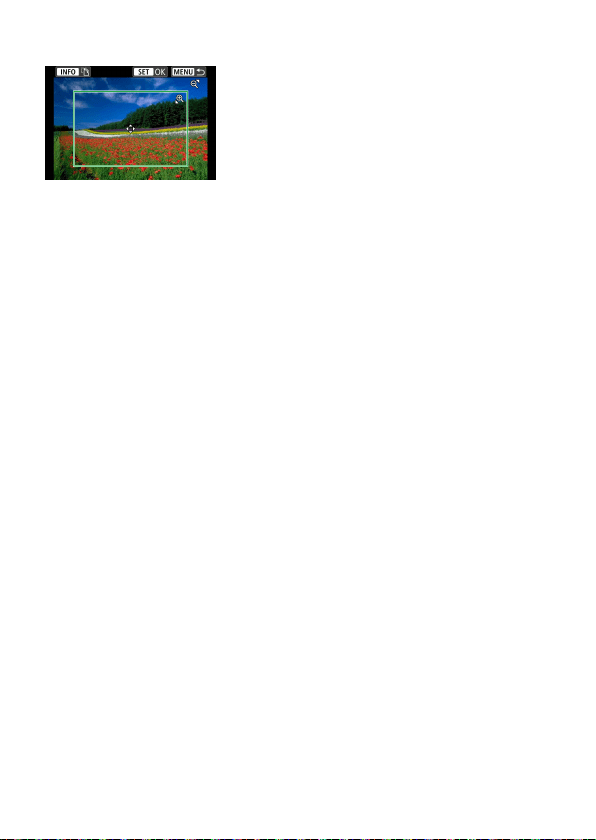
389
Cropping the Image
Set cropping immediately before
printing. Changing other print settings
after you crop images may require you to
crop the images again.
1
On the print setting screen, select [Cropping].
2
Set the cropping frame size, position, and aspect ratio.
The image area within the cropping frame will be printed. The shape
of the frame (aspect ratio) can be changed with [Paper settings].
Changing the Cropping Frame Size
Use the <u> <y> buttons to resize the cropping frame.
Moving the Cropping Frame
Press the <V> cross keys to move the frame vertically or horizontally.
Switching the Orientation of the Cropping Frame
Pressing the <B> button will toggle the cropping frame between the
vertical and horizontal orientations.
3
Press <0> to exit the cropping.
You can check the cropped image area on the upper left of the print
setting screen.

390
Depending on the printer, the cropped image area may not be printed as you
specied.
The smaller the cropping frame, the lower the resolution at which images are
printed.
Handling Printer Errors
If printing does not resume after you resolve a printer error (no ink, no paper,
etc.) and select [Continue], operate the buttons on the printer. For details on
resuming printing, refer to the printer’s instruction manual.
Error Messages
If a problem occurs during printing, an error message will appear on the
camera’s LCD monitor. After xing the problem, resume printing. For details
on how to x a printing problem, refer to the printer’s instruction manual.
Paper Error
Conrm that paper is loaded correctly.
Ink Error
Check the printer’s ink level and the waste ink tank.
Hardware Error
Check for any printer problems other than paper and ink problems.
File Error
The selected image cannot be printed. Images taken with a different camera
or images edited with a computer may not be printable.

391
Sending Images to a Web Service
This section describes how to use Web services to send images.
Registering Web Services
Use a smartphone or computer to add your Web services to the camera.
A smartphone or computer with a browser and Internet connection is
required to complete camera settings for CANON iMAGE GATEWAY
and other Web services.
Visit the CANON iMAGE GATEWAY website for details on versions of
browsers (such as Microsoft Internet Explorer) and settings required for
CANON iMAGE GATEWAY access.
For information on countries and regions where CANON iMAGE
GATEWAY is available, visit the Canon website (http://www.canon.com/
cig/).
For CANON iMAGE GATEWAY instructions and setting details, refer to
the help information for CANON iMAGE GATEWAY.
If you also intend to use Web services other than CANON iMAGE
GATEWAY, you must have an account with the services you intend to
use. For further details, check the websites for each Web service you
will register.
Fees to connect to your provider and communication fees to access
your provider’s access point are charged separately.
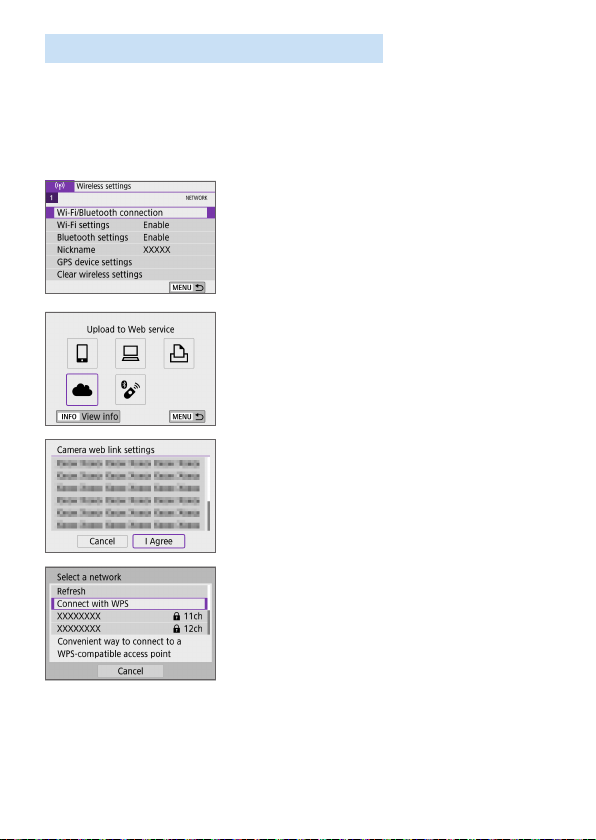
392
Registering CANON iMAGE GATEWAY
Link the camera and CANON iMAGE GATEWAY by adding CANON iMAGE
GATEWAY as a destination Web service on the camera.
You will need to enter an email address used on your computer or
smartphone.
Steps on the Camera (1)
1
Select [Wi-Fi/Bluetooth
connection].
Under the [k] tab, select [Wi-Fi/
Bluetooth connection], then press
<0>.
2
Select [RUpload to Web service].
3
Select [I Agree].
4
Establish a Wi-fi connection.
Connect to an access point via Wi-Fi.
Go to step 7 on =
406.
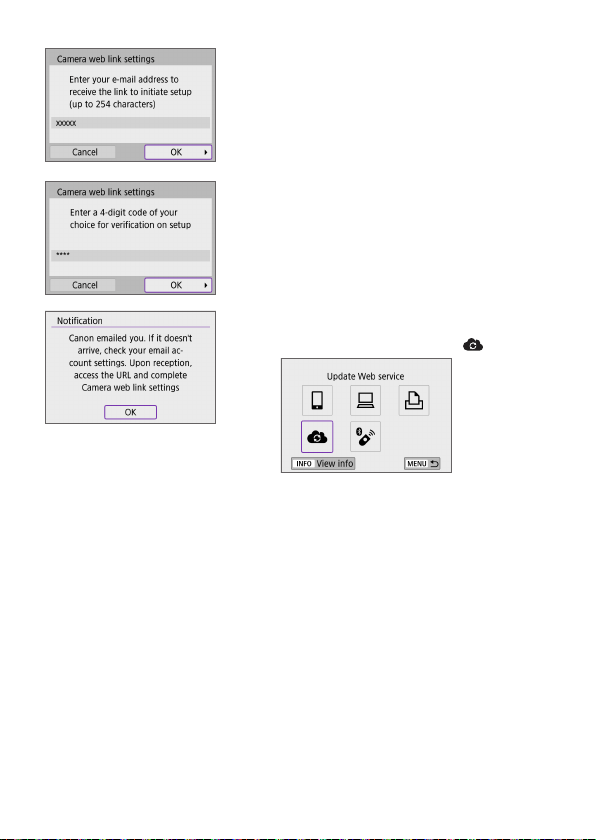
393
5
Enter your email address.
Enter your email address, then select
[OK].
6
Enter a four-digit number.
Enter a four-digit number of your choice,
then select [OK].
7
Select [OK].
B The [R] icon changes to [ ].
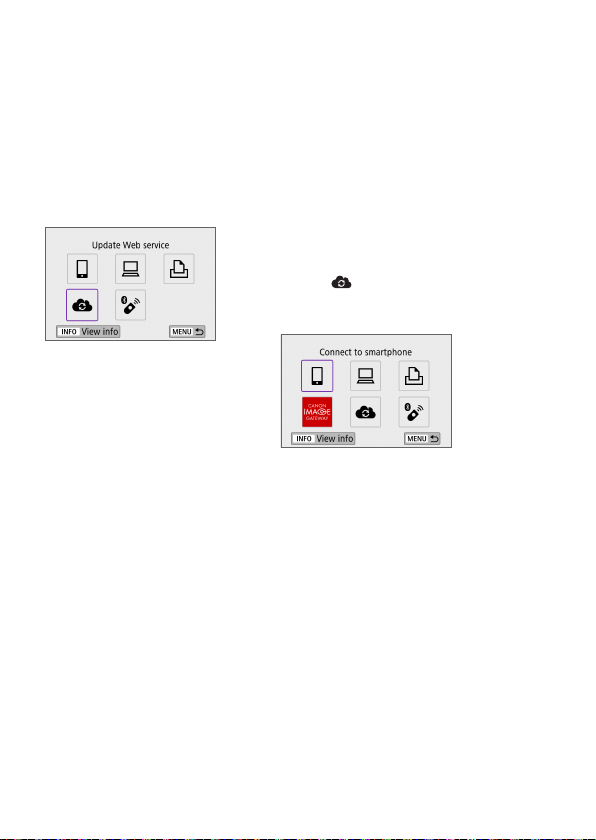
394
Steps on the Computer or Smartphone
8
Set up camera web link.
Access the page in the notication
message.
Follow the instructions to complete the
settings on the camera web link settings
page.
Steps on the Camera (2)
9
Add CANON iMAGE GATEWAY as a
destination.
Select [ ].
CANON iMAGE GATEWAY is now
added.
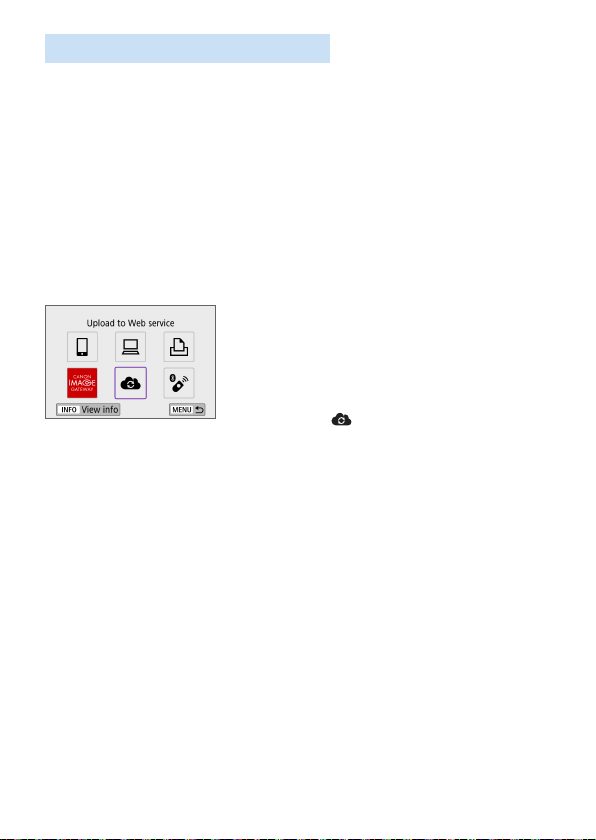
395
Registering Other Web Services
Steps on the Computer or Smartphone
1
Configure the Web service you
want to use.
Visit the CANON iMAGE GATEWAY
website and access the camera web link
settings page.
Follow the on-screen instructions to
complete settings for Web services you
want to use.
Steps on the Camera
2
Add the Web service you
configured as a destination.
Under the [k] tab, select [Wi-Fi/
Bluetooth connection], then press
<0>.
Select [
].
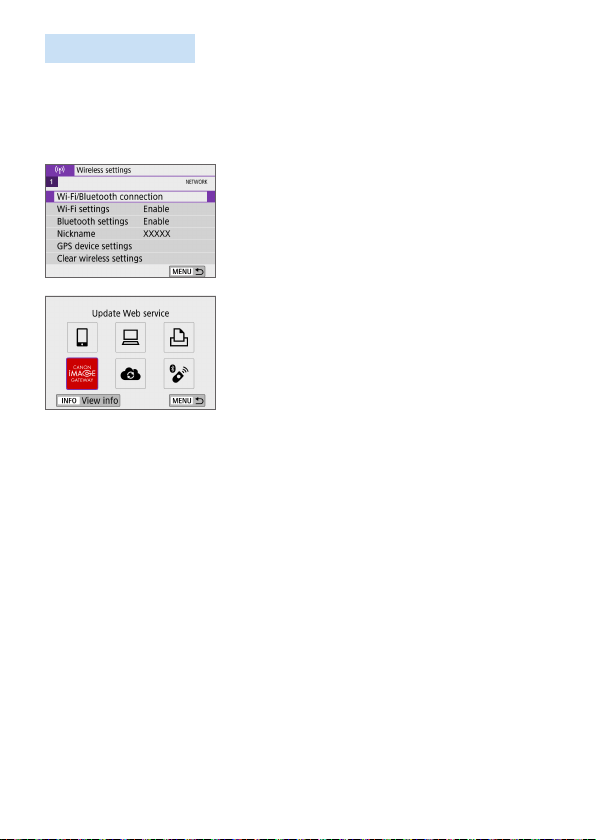
396
Sending Images
You can share images with your family and friends by sending images from
the camera to a Web service registered on the camera or by sending Web
links of the online albums.
Connecting to Web Services via Wi-Fi
1
Select [Wi-Fi/Bluetooth
connection].
Under the [k] tab, select [Wi-Fi/
Bluetooth connection], then press
<0>.
2
Select a Web service.
If the history (=
413) is displayed,
switch the screen with the <Y> <Z>
keys.
A screen to select a destination may be
displayed, depending on the type and
settings of the Web service (=
408).
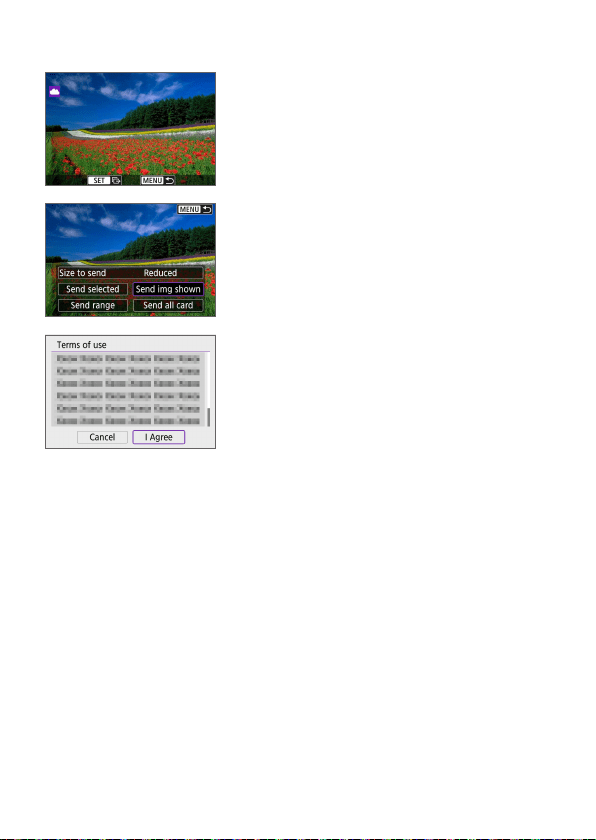
397
Sending Images Individually
1
Select an image to send.
Use the <Y> <Z> keys to select an
image to send, then press <0>.
By pressing the <I> button, you can
switch to the index display and select
an image.
2
Select [Send img shown].
In [Size to send], you can select the
image sending size.
On the screen after images are sent,
select [OK] to end the Wi-Fi connection.
When the [Terms of use] screen
is displayed, thoroughly read the
message, then select [I Agree].
To scroll the screen, use the <W> <X>
keys.
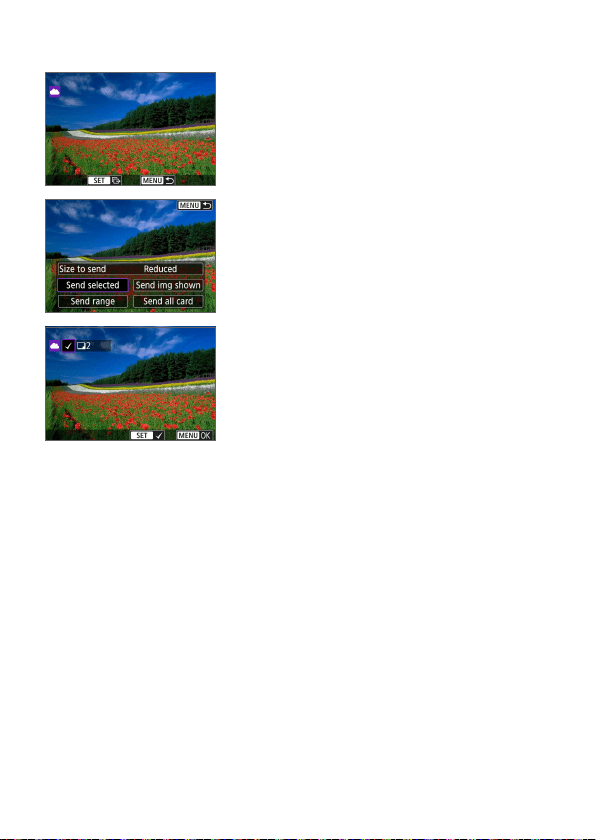
398
Sending Multiple Selected Images
1
Press <0>.
2
Select [Send selected].
3
Select images to send.
Use the <Y> <Z> keys to select an
image to send, then press <0>.
By pressing the <I> button, you
can select images from a three-image
display. To return to the single-image
display, press the <u> button.
After selecting the images to send,
press the <M> button.
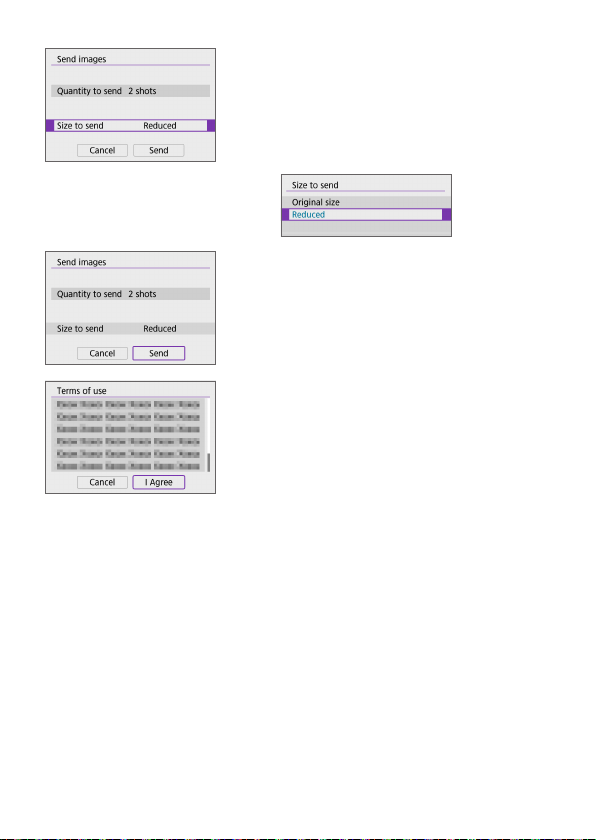
399
4
Select [Size to send].
When YouTube is selected as the
destination, [Size to send] is not
displayed.
On the displayed screen, select an
image size.
5
Select [Send].
On the screen after images are sent,
select [OK] to end the Wi-Fi connection.
When the [Terms of use] screen
is displayed, thoroughly read the
message, then select [I Agree].
To scroll the screen, use the <W> <X>
keys.
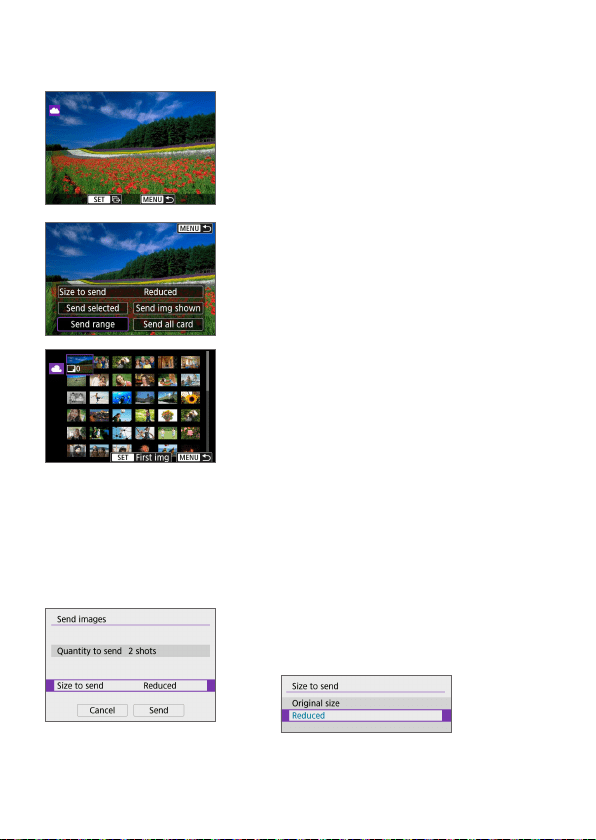
400
Sending a Specied Range of Images
Specify the range of images to send all the images in the range at once.
1
Press <0>.
2
Select [Send range].
3
Specify the range of images.
Select the rst image (start point).
Select the last image (end point).
B Images will be selected and [X] will
appear.
To cancel the selection, repeat this step.
You can press the <I> button to
change the number of images shown in
the index display.
4
Confirm the range.
Press the <M> button.
5
Select [Size to send].
On the displayed screen, select an
image size.
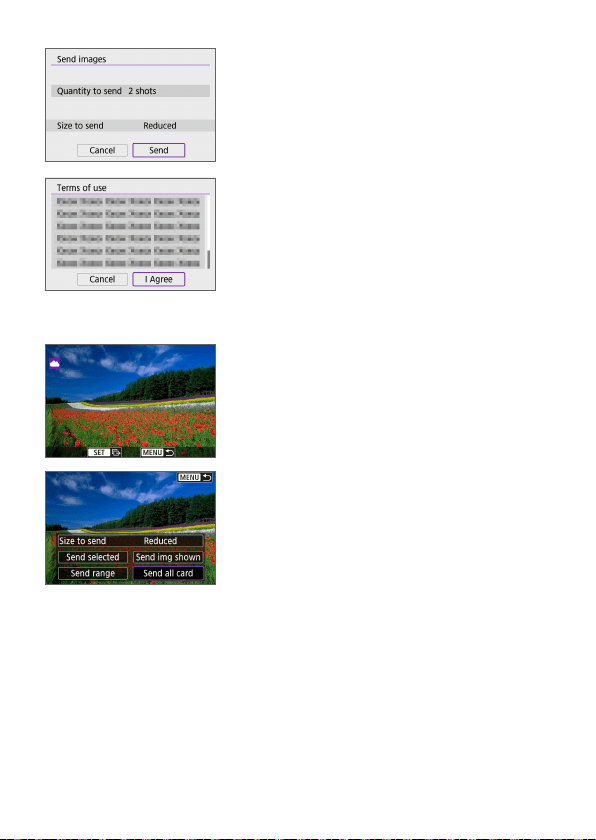
401
6
Select [Send].
On the screen after images are sent,
select [OK] to end the Wi-Fi connection.
When the [Terms of use] screen
is displayed, thoroughly read the
message, then select [I Agree].
To scroll the screen, use the <W> <X>
keys.
Sending All Images on the Card
1
Press <0>.
2
Select [Send all card].
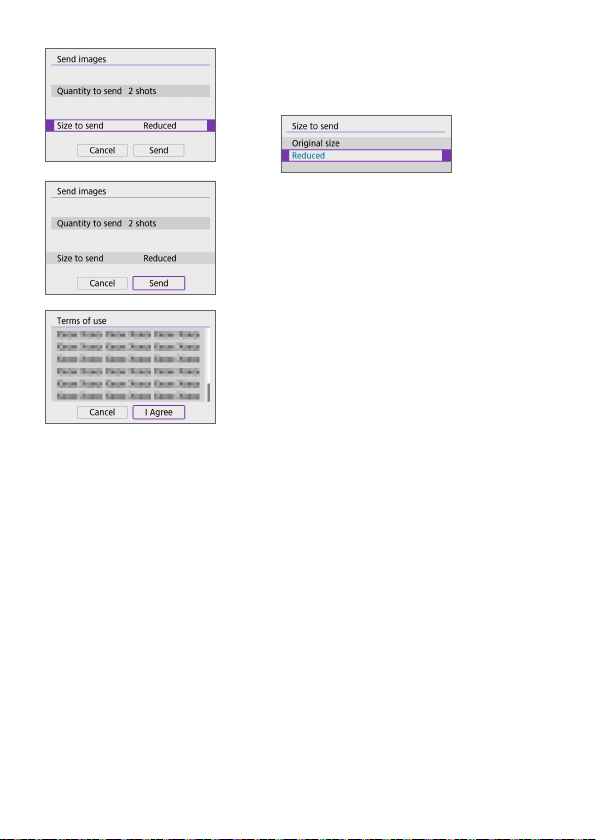
402
3
Select [Size to send].
On the displayed screen, select an
image size.
4
Select [Send].
On the screen after images are sent,
select [OK] to end the Wi-Fi connection.
When the [Terms of use] screen
is displayed, thoroughly read the
message, then select [I Agree].
To scroll the screen, use the <W> <X>
keys.
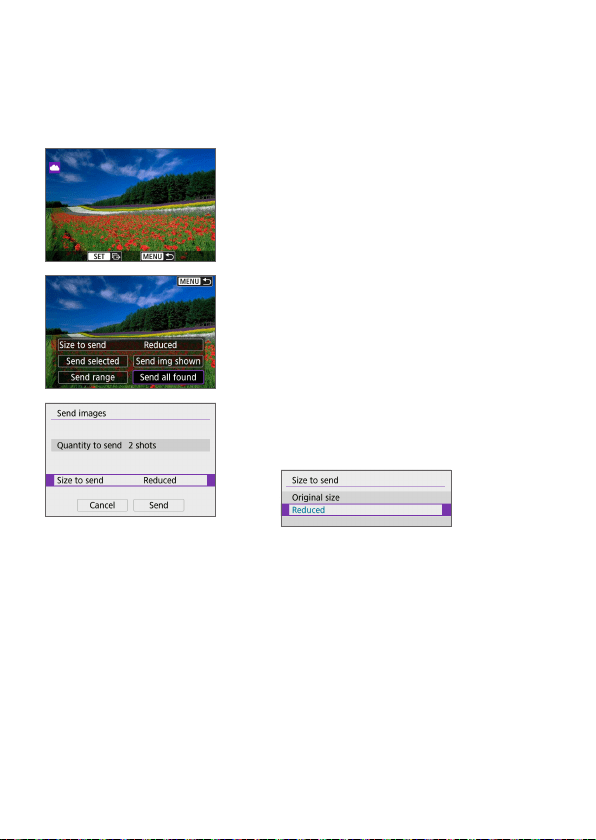
403
Sending Images that Match the Search Conditions
Send all the images that match the search conditions set in [Set image
search conditions] at once.
For [Set image search conditions], refer to “Filtering Images for Playback”
(=
291).
1
Press <0>.
2
Select [Send all found].
3
Select [Size to send].
On the displayed screen, select an
image size.
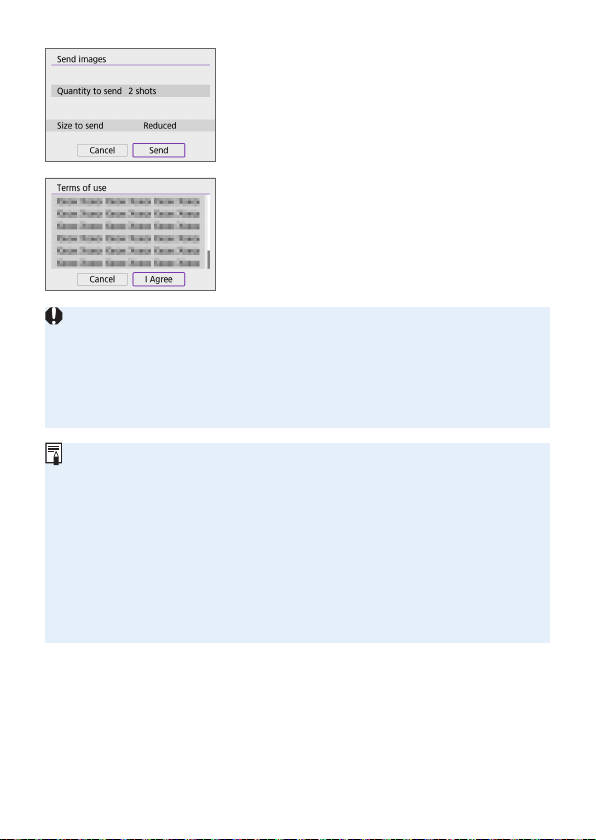
404
4
Select [Send].
On the screen after images are sent,
select [OK] to end the Wi-Fi connection.
When the [Terms of use] screen
is displayed, thoroughly read the
message, then select [I Agree].
To scroll the screen, use the <W> <X>
keys.
With a Wi-Fi connection to a Web service established, a picture cannot be
taken even if the camera’s shutter button is pressed.
When sending an image to a Web service other than CANON iMAGE
GATEWAY, a send error message may not be displayed even if the image has
not been sent to the Web service successfully. Since such send errors can be
checked on the CANON iMAGE GATEWAY site, check the error content, then
try sending the image again.
Depending on the Web service, the type or number of images that can be
sent and the length of movies will be limited.
Certain images may not be able to be sent with [Send range], [Send all
card], or [Send all found].
When you reduce the image size, all images to be sent at the same time are
resized. Note that movies or b size still photos are not reduced.
[Reduced] is enabled only for still photos shot with cameras of the same
model as this camera. Still photos shot with other models are sent without
resizing.
When accessing CANON iMAGE GATEWAY, you can check the send history
for the Web services that the images were sent to.
When you use a battery to power the camera, make sure it is fully charged.
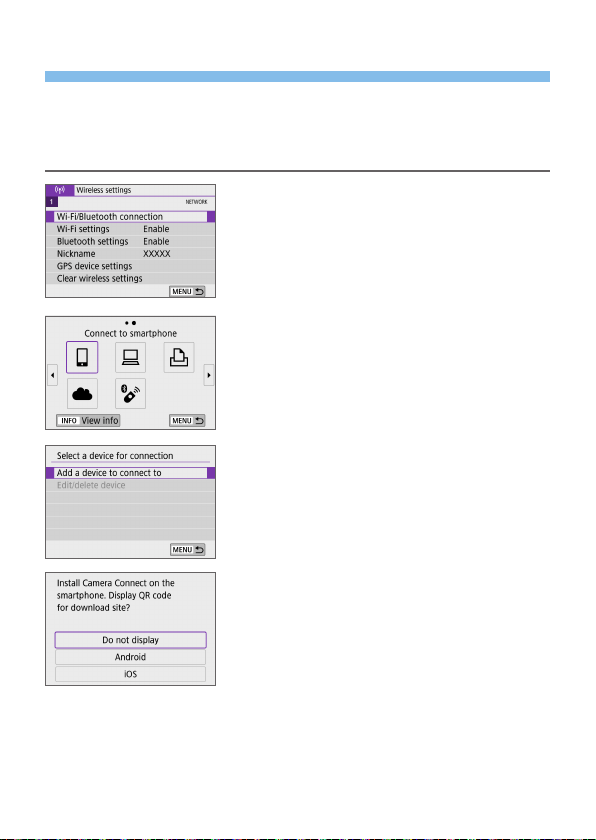
405
Wi-Fi Connection via Access Points
This section describes how to join a Wi-Fi network via an access point
compatible with WPS (PCB mode).
First, check the position of the WPS button and how long to press it.
It may take approx. one minute to establish a Wi-Fi connection.
1
Select [Wi-Fi/Bluetooth
connection].
Under the [k] tab, select [Wi-Fi/
Bluetooth connection], then press
<0>.
2
Select an item.
If the history (=
413) is displayed,
switch the screen with the <Y> <Z>
keys.
3
Select [Add a device to connect to].
When [q] (Connect to smartphone)
is selected, the screen on the left is
displayed. If Camera Connect is already
installed, select [Do not display].
On the [Connect to smartphone]
screen displayed next, select [Connect
via Wi-Fi], then press <0>.
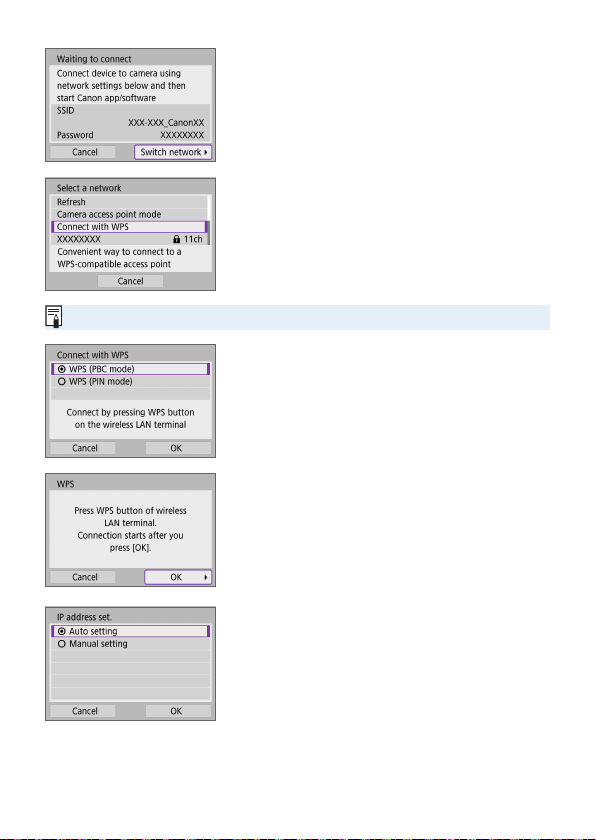
406
4
Select [Switch network].
Displayed when [q], [D], or [l] is
selected.
5
Select [Connect with WPS].
For [Camera access point mode] displayed in step 5, see =
408.
6
Select [WPS (PBC mode)].
Select [OK].
7
Connect to the access point via
Wi-Fi.
Press the access point’s WPS button.
Select [OK].
8
Select [Auto setting].
Select [OK] to access the setting screen
for the Wi-Fi function.
If an error occurs with [Auto setting],
see =
428.
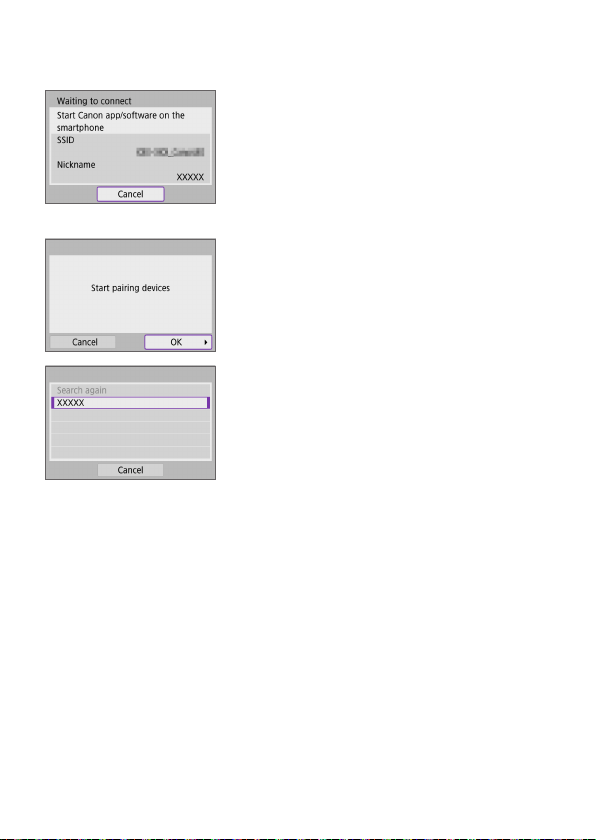
407
9
Specify the settings for the Wi-Fi
function.
[qConnect to smartphone]
On the smartphone’s Wi-Fi setting
screen, tap the SSID (network name)
shown on the camera, then enter the
password of the access point for the
connection.
Go to step 8 on =
360.
[DRemote control (EOS Utility)]
Go to step 7 or 8 on =
376.
[lPrint from Wi-Fi printer]
Go to step 6 on =
382.
Registering CANON iMAGE
GATEWAY
Go to step 5 on =
393.
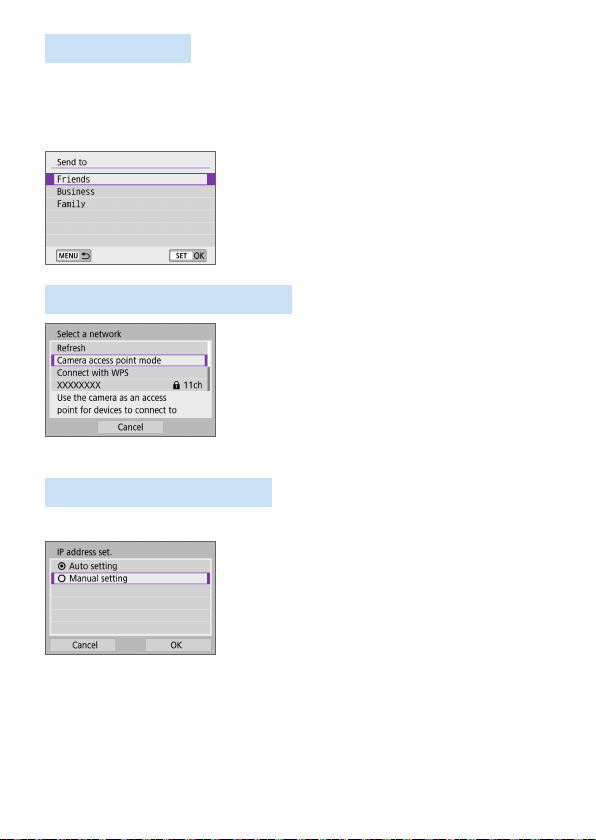
408
Send To Screen
A screen to select a destination may be displayed depending on the Web
service.
To register destinations or to specify the settings, you must use a computer.
For more information, refer to the EOS Utility Instruction Manual.
The [Send to] screen may be displayed.
Select the destination from the list of
registered destinations.
The procedures for setting up a
connection and sending images are the
same as those for other Web services.
Camera Access Point Mode
Camera access point mode is a connection
mode for connecting the camera directly to
each device via Wi-Fi.
Displayed when [q], [D], or [l]
is selected in [k: Wi-Fi/Bluetooth
connection].
Manual IP Address Setup
The items displayed vary depending on the Wi-Fi function.
1
Select [Manual setting].
Select [OK].
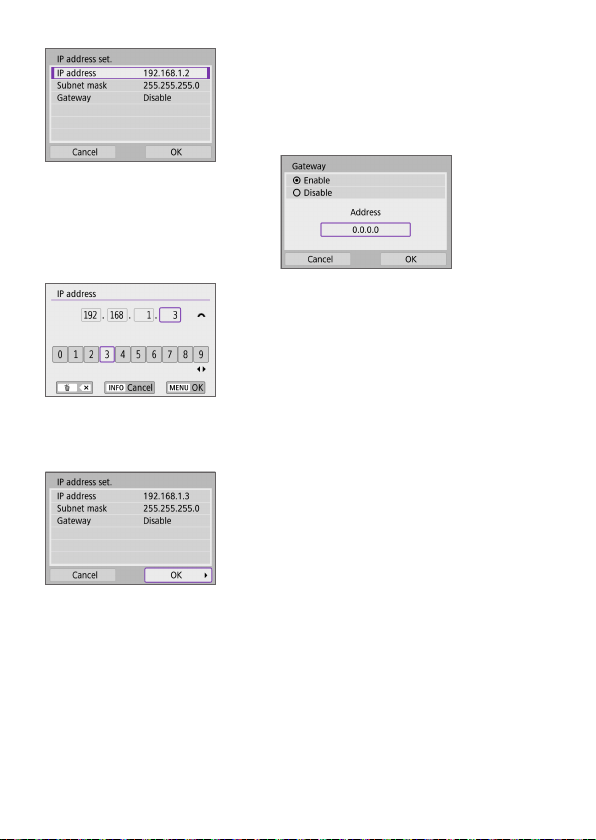
409
2
Select an item.
Select an item to access the screen for
numerical input.
To use a gateway, select [Enable], then
select [Address].
3
Enter the desired values.
Turn the <6> dial to move the input
position in the upper area and use the
<Y> <Z> keys to select the number.
Press <0> to enter the selected
number.
To set the entered values and return
to the screen for step 2, press the
<M> button.
4
Select [OK].
When you have completed setting the
necessary items, select [OK].
If you are not sure what to enter, see
“Checking Network Settings” (=
442),
or ask the network administrator or
another person knowledgeable about
the network.
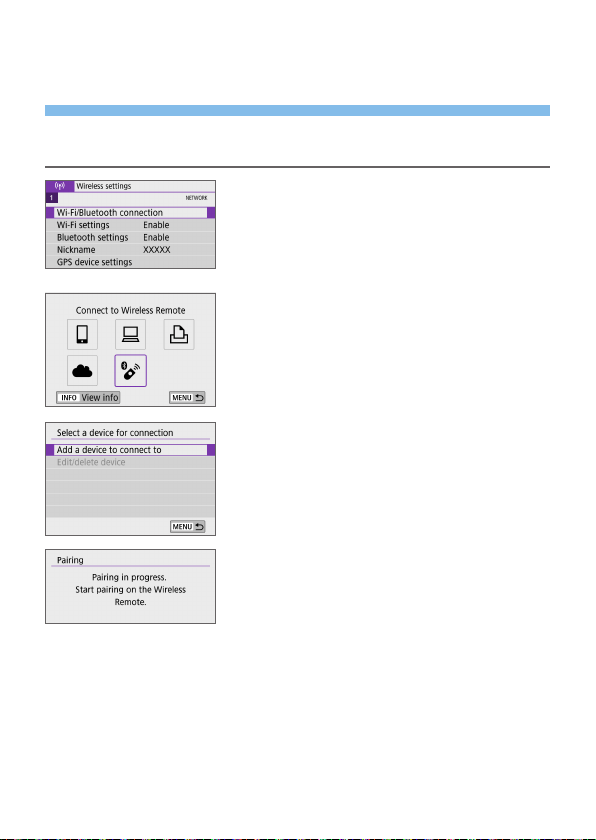
410
Connecting to a Wireless Remote
Control
This camera can also be connected to Wireless Remote Control BR-E1
(sold separately) via Bluetooth for remote control shooting (=
463).
1
Select [Wi-Fi/Bluetooth
connection].
Under the [k] tab, select [Wi-Fi/
Bluetooth connection], then press
<0>.
2
Select [F Connect to Wireless
Remote].
3
Select [Add a device to connect to].
4
Pair the devices.
When the [Pairing] screen appears,
press and hold the <W> and <T>
buttons on the BR-E1 simultaneously for
at least 3 sec.
After a message conrms that the
camera is paired with the BR-E1, press
<0>.
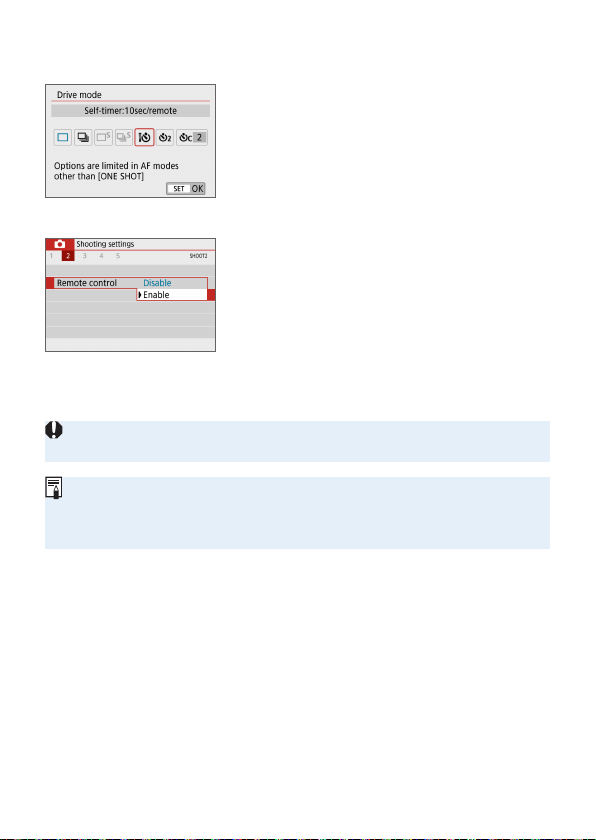
411
5
Enable remote control shooting.
Set [Drive mode] under the [z] tab to
[Q] (=
112).
In [Remote control] under the [z] tab,
select [Enable].
For instructions after the pairing
is complete, refer to the BR-E1’s
Instruction Manual.
Bluetooth connections consume battery power even after the camera’s auto
power off is activated.
When you do not use Bluetooth function, setting it to [Disable] in step 1 is
recommended.
Auto power off will take effect in approx. 2 min. when the camera is set for
remote shooting.
Still Photo Shooting
Movie Shooting
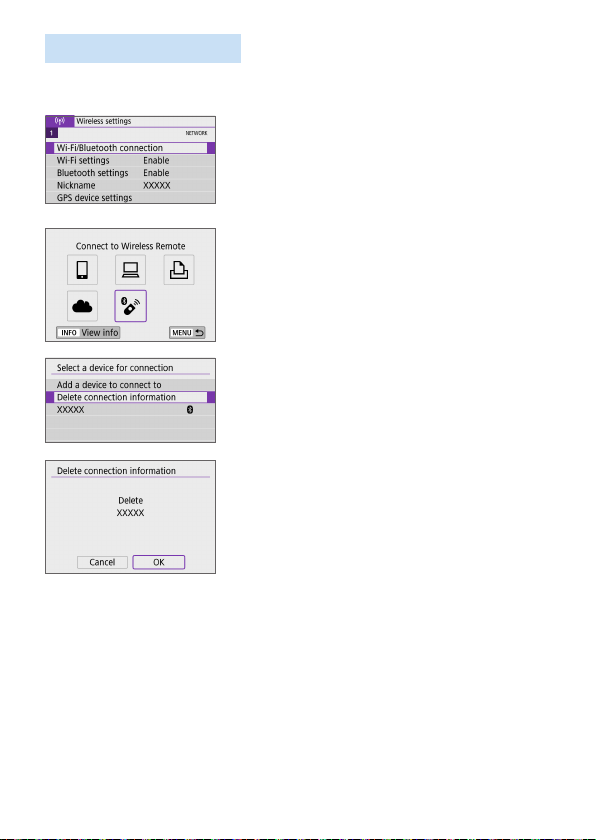
412
Cancelling the Paring
To pair with another BR-E1, clear the connection information of the remote
controller currently connected.
1
Select [Wi-Fi/Bluetooth
connection].
Under the [k] tab, select [Wi-Fi/
Bluetooth connection], then press
<0>.
2
Select [F Connect to Wireless
Remote].
3
Select [Delete connection
information].
4
Select [OK].
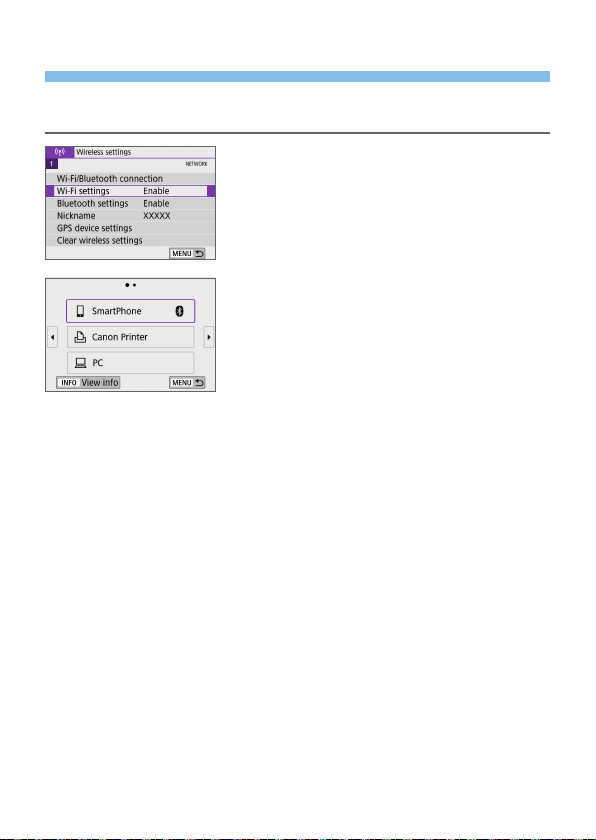
413
Reconnecting via Wi-Fi
Follow these steps to reconnect to devices or Web services with registered
connection settings.
1
Select [Wi-Fi/Bluetooth
connection].
Under the [k] tab, select [Wi-Fi/
Bluetooth connection], then press
<0>.
2
Select an item.
Select the item to connect to via Wi-Fi
from the displayed history. If the item is
not displayed, use the <Y> <Z> keys
to switch screens.
If [Connection history] is set to
[Hide], the history will not be displayed
(=
416).
3
Operate the connected device.
[q] Smartphone
Start Camera Connect.
If the smartphone’s connection destination has been changed,
restore the setting to connect via Wi-Fi to the camera or the same
access point as the camera.
When directly connecting the camera to a smartphone via Wi-Fi,
“_Canon0A” is displayed at the end of the SSID.
[D] Computer
On the computer, start the EOS software.
If the computer’s connection destination has been changed, restore
the setting to connect via Wi-Fi to the camera or the same access
point as the camera.
When directly connecting the camera to a computer via Wi-Fi,
“_Canon0A” is displayed at the end of the SSID.

414
[l] Printer
If the printer’s connection destination has been changed, restore the
setting to connect via Wi-Fi to the camera or the same access point
as the camera.
When directly connecting the camera to a printer via Wi-Fi,
“_Canon0A” is displayed at the end of the SSID.
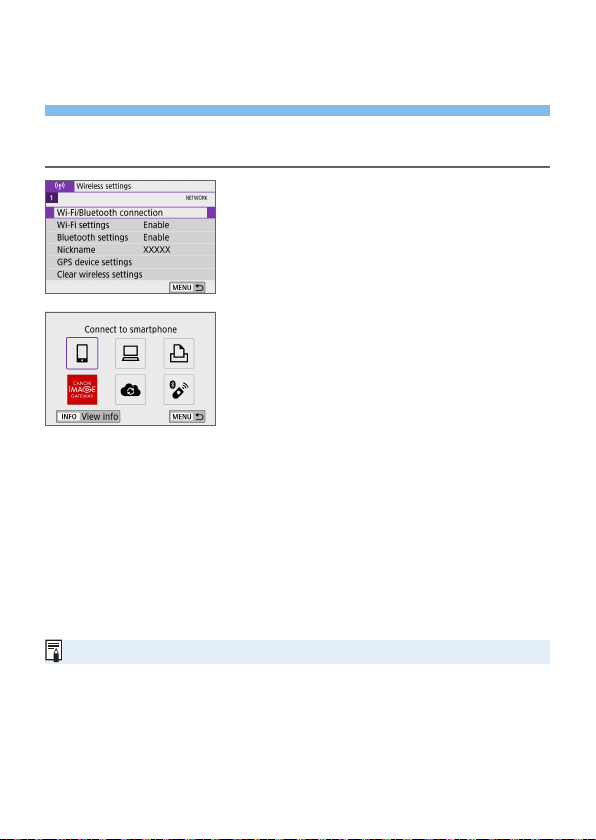
415
Registering Multiple Connection
Settings
You can register up to 10 connection settings for the wireless
communication functions.
1
Select [Wi-Fi/Bluetooth
connection].
Under the [k] tab, select [Wi-Fi/
Bluetooth connection], then press
<0>.
2
Select an item.
If the history (=
413) is displayed,
switch the screen with the <Y> <Z>
keys.
For details on [qConnect to
smartphone], see “Connecting to a
Smartphone” (=
349).
For details on [DRemote control
(EOS Utility)], see “Connecting to a
Computer via Wi-Fi” (=
374).
For details on [lPrint from Wi-Fi
printer], see “Connecting to a Printer
via Wi-Fi” (=
381).
When sending images to a Web service,
see “Sending Images to a Web Service”
(=
391).
To delete connection settings, see =
423.
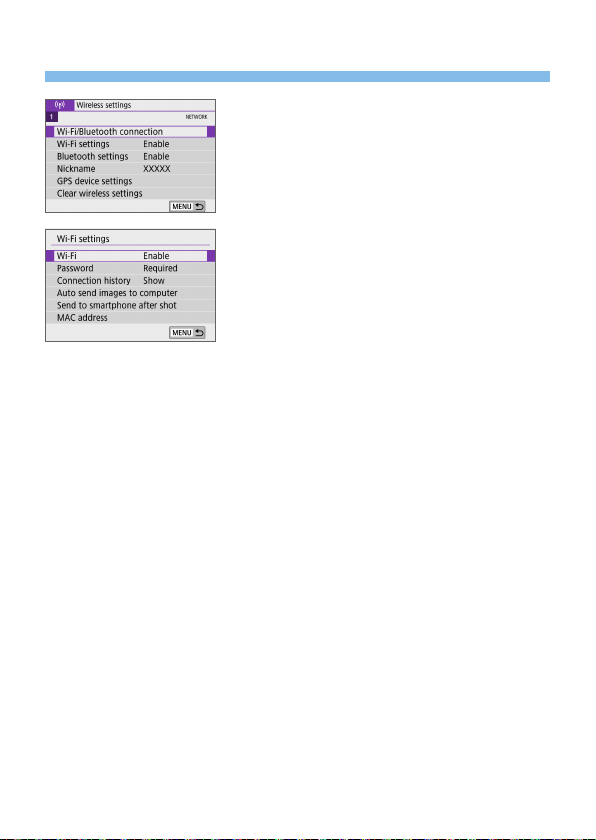
416
Wi-Fi Settings
1
Select [Wi-Fi settings].
Under the [k] tab, select [Wi-Fi
settings], then press <0>.
2
Select an item.
Wi-Fi
When the use of electronic devices and wireless devices is prohibited,
such as on board airplanes or in hospitals, set it to [Disable].
Password
Set to [None] to allow a Wi-Fi connection to be established without a
password (except when connecting to an access point via Wi-Fi).
Connection history
You can set whether to [Show] or [Hide] the history of the Wi-Fi
connected devices.
Auto send images to computer
With the dedicated software Image Transfer Utility 2, you can send
images on the camera to a computer automatically (=
378).
Send to smartphone after shot
Your shots can be sent to a smartphone automatically (=
362).
MAC address
You can check the MAC address of the camera.
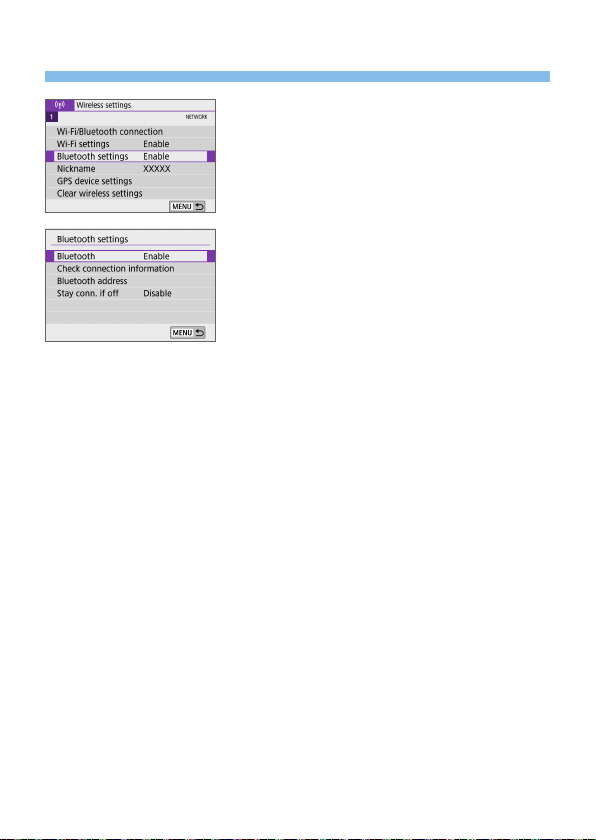
417
Bluetooth Settings
1
Choose [Bluetooth settings].
Under the [k] tab, select [Bluetooth
settings], then press <0>.
2
Select an item.
Bluetooth
If you will not use the Bluetooth function, select [Disable].
Check connection information
You can check the name and communication status of the paired
device.
Bluetooth address
You can check the camera’s Bluetooth address.
Stay conn. if off
Displayed after the camera is paired with a smartphone via Bluetooth.
Selecting [Enable] lets you view images on the camera and control it in
other ways by connecting via Wi-Fi even if the camera is off (=
356).
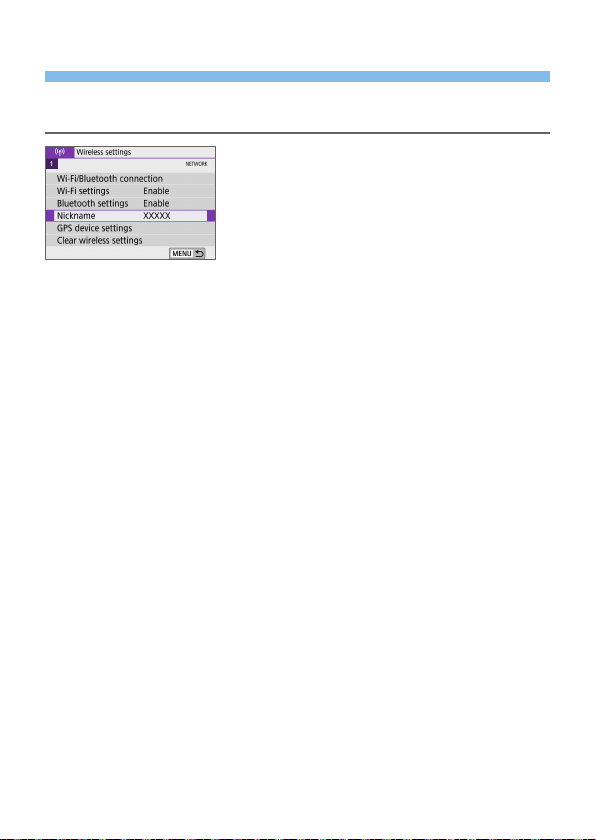
418
Changing the Nickname
You can change the camera nickname (displayed on smartphones and
other cameras) as needed.
1
Choose [Nickname].
Under the [k] tab, select [Nickname],
then press <0>.
2
Enter text using the virtual
keyboard (=
427).
When you nish entering characters,
press the <M> button, then select
[OK].
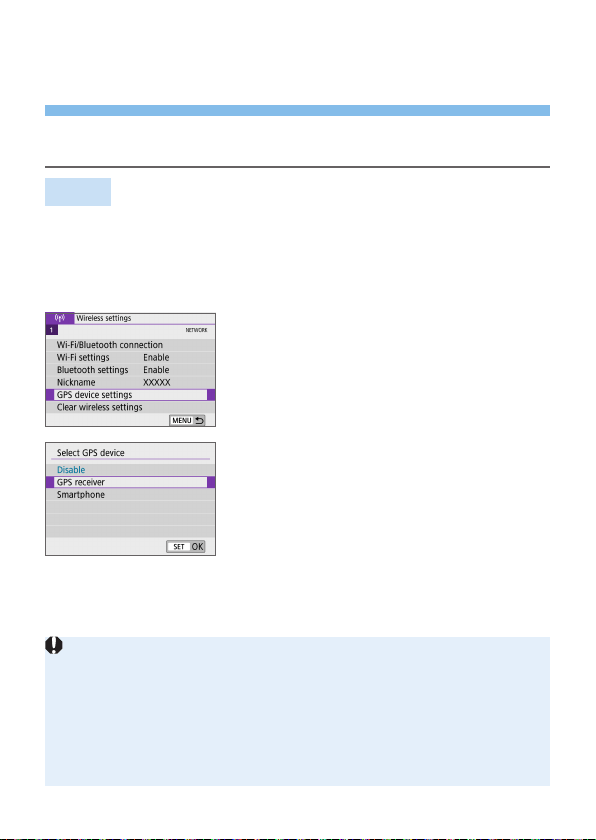
419
Geotagging Images with GPS
Information from Other Devices
You can geotag images with GPS Receiver GP-E2 (sold separately) or a
Bluetooth enabled smartphone.
GP-E2
1
Attach the GP-E2 to the camera.
Attach GP-E2 to the camera’s hot shoe
and turn it on. For details, refer to the
GP-E2 Instruction Manual.
2
Select [GPS device settings].
Under the [k] tab, select [GPS device
settings], then press <0>.
3
In [Select GPS device], select [GPS
receiver].
4
Take the picture.
For the details of [Set up], refer to the
GP-E2 Instruction Manual.
Cautions for Using GP-E2
At rst, check the countries and regions where the use of GPS is allowed, and
follow their legal restrictions.
Update the GP-E2 rmware to Version 2.0.0 or later. Firmware updating
requires an interface cable. For how to update the GP-E2 rmware, refer to
the Canon Web site.
The cable cannot be used to connect the camera to the GP-E2.
The camera does not record the shooting direction.
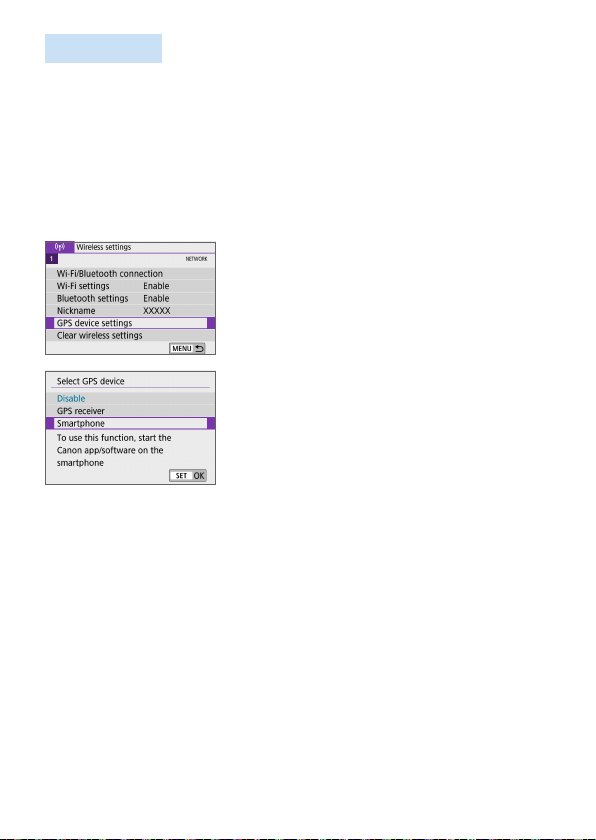
420
Smartphone
Complete these settings after installing the dedicated Camera Connect app
(=
350) on the smartphone.
1
Turn on the smartphone’s location
information function.
2
Connect to Bluetooth.
Connect the camera to a smartphone
via Bluetooth (=
351).
3
Select [GPS device settings].
Under the [k] tab, select [GPS device
settings], then press <0>.
4
Select [Smartphone] in [Select GPS
device].
After these settings are complete, start
Camera Connect.
5
Take the picture.
The location information acquired by
the smartphone will be appended to the
image.
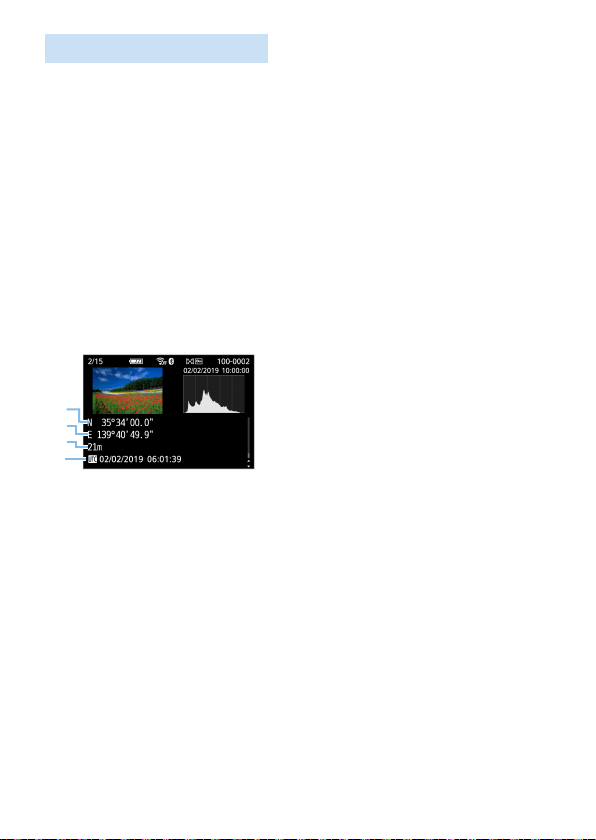
421
GPS Connection Display
You can check the status of smartphone location information acquisition in
the GPS connection icon on the screens for still photo or movie shooting
(=
184 and =
223, respectively).
Gray: Location services are off.
Blinking: Location information cannot be acquired.
On: Location information acquired.
Regarding the GPS connection indicator status for when the GP-E2 is used,
refer to the GP-E2 Instruction Manual.
Geotagging the Image when Taking Pictures
Images you shoot while the GPS icon is on are geotagged.
Location Information Appended to the Image
On the shooting information screen (=
101), you can check the location
information appended to the captured image.
(
1
)
(
2
)
(
3
)
(
4
)
(1) Latitude
(2) Longitude
(3) Elevation
(4) UTC (Coordinated Universal Time)
422
The smartphone can acquire location information only when the camera is
connected to a smartphone via Bluetooth.
Direction information is not acquired.
The acquired location information may not be accurate depending on the
travel conditions and the smartphone’s status.
It may take some time to acquire location information from the smartphone
after you turn the camera on.
Location information is no longer acquired after any of the following
operations.
- Pairing with a wireless remote control via Bluetooth.
- Turning off the camera.
- Terminating Camera Connect.
- Turning off the smartphone’s location information function.
Location information is no longer acquired in any of the following situations.
- The camera power turns off.
- Bluetooth connection is terminated.
- The smartphone’s remaining battery level is low.
Coordinated Universal Time, abbreviated as UTC, is essentially the same as
Greenwich Mean Time.
When shooting a movie, the GPS information at the starting time of the movie
shooting is appended.
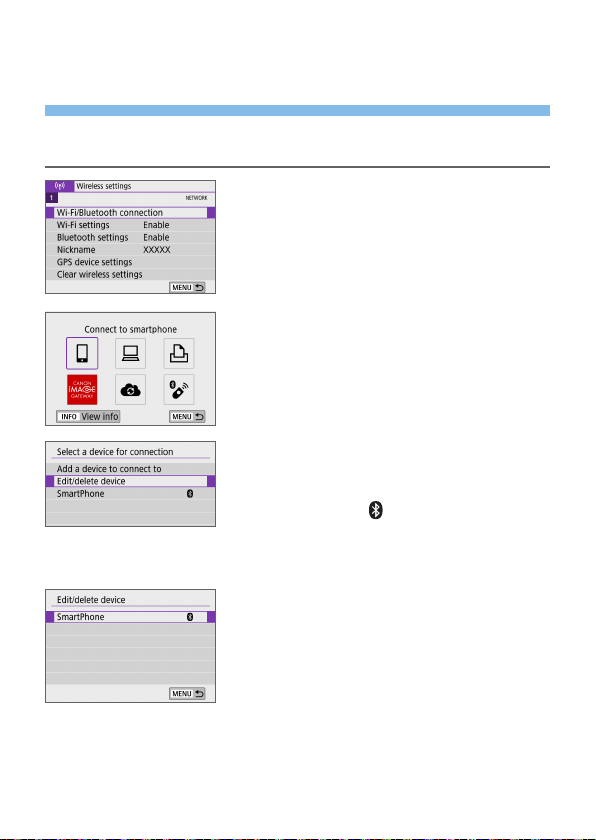
423
Changing or Deleting Connection
Settings
To change or delete the connection settings, terminate the Wi-Fi connection
rst.
1
Select [Wi-Fi/Bluetooth
connection].
Under the [k] tab, select [Wi-Fi/
Bluetooth connection], then press
<0>.
2
Select an item.
If the history (=
413) is displayed,
switch the screen with the <Y> <Z>
keys.
3
Select [Edit/delete device].
You can change the Bluetooth
connection by selecting a smartphone
labeled with [
] in gray. After the
[Connect to smartphone] screen is
displayed, select [Pair via Bluetooth],
then press <0> on the next screen.
4
Select the device for which to
change or delete the connection
settings.
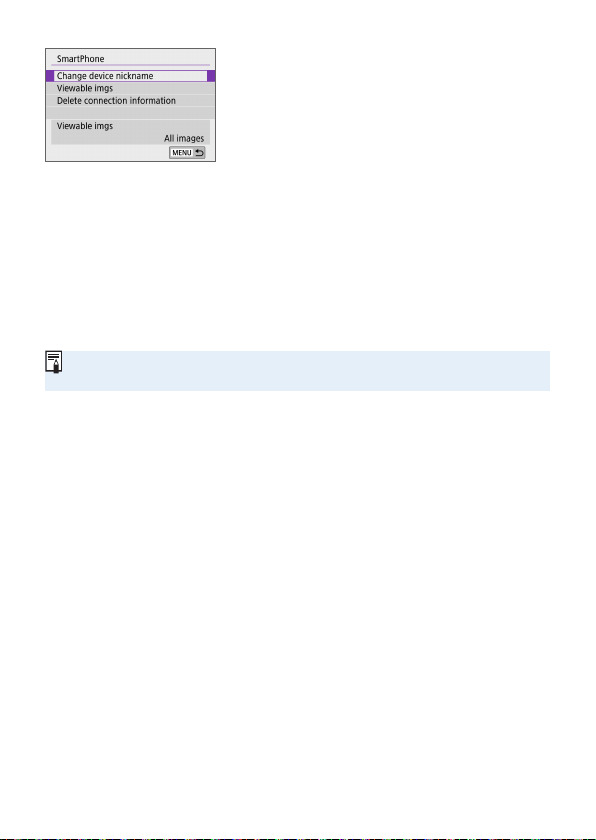
424
5
Select an item.
Change or delete the connection
settings on the displayed screen.
Change device nickname
You can change the nickname using the virtual keyboard (=
427).
Viewable imgs (=
370)
Displayed when [qConnect to smartphone] is selected. Settings will
appear at the bottom of the screen.
Delete connection information
When deleting connection information for a paired smartphone, also
delete the camera information registered on the smartphone (=
357).
For Web services, visit the CANON iMAGE GATEWAY website to delete the
connection settings.
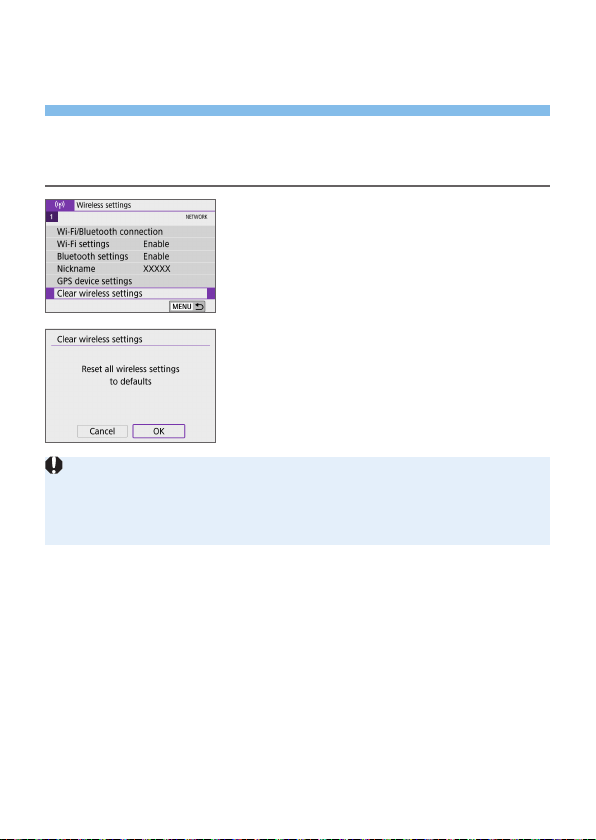
425
Clearing Wireless Communication
Settings to Default
All wireless communication settings can be deleted. By deleting the wireless
communication settings, you can prevent their information from being
exposed when you lend or give your camera to other people.
1
Select [Clear wireless settings].
Under the [k] tab, select [Clear
wireless settings], then press <0>.
2
Select [OK].
Performing [5: Clear all camera settings] does not delete the wireless
communication setting information.
If you have paired the camera with a smartphone, on the smartphone’s
Bluetooth settings screen, delete the connection information of the camera for
which you restored default wireless communication settings.

426
View Info Screen
You can check error details and the camera’s MAC address.
1
Select [Wi-Fi/Bluetooth
connection].
Under the [k] tab, select [Wi-Fi/
Bluetooth connection], then press
<0>.
2
Press the <B> button.
B The [View info] screen will appear.
When an error has occurred, press <0> to display the error content.
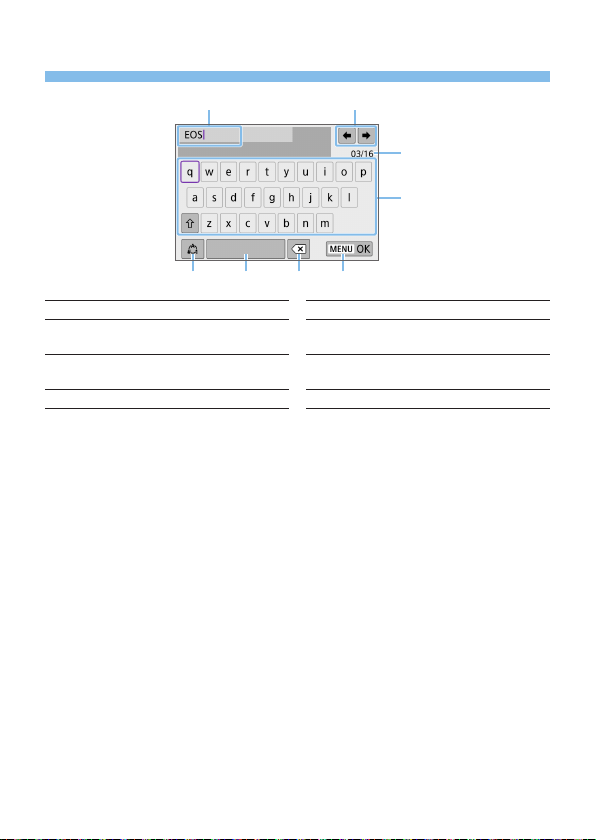
427
Virtual Keyboard Operation
(1) (2)
(3)
(4)
(5) (7) (8)(6)
(1) Input area, for entering text (5) Switch input modes
(2) Cursor keys, for moving in the input
area
(6) Space
(3) Current no. of characters/no.
available
(7) Delete a character in the input area
(4) Keyboard (8) Finish the text entry
Press the <V> cross keys to move within 2 and 4–7.
Press <0> to conrm input or when switching input modes.
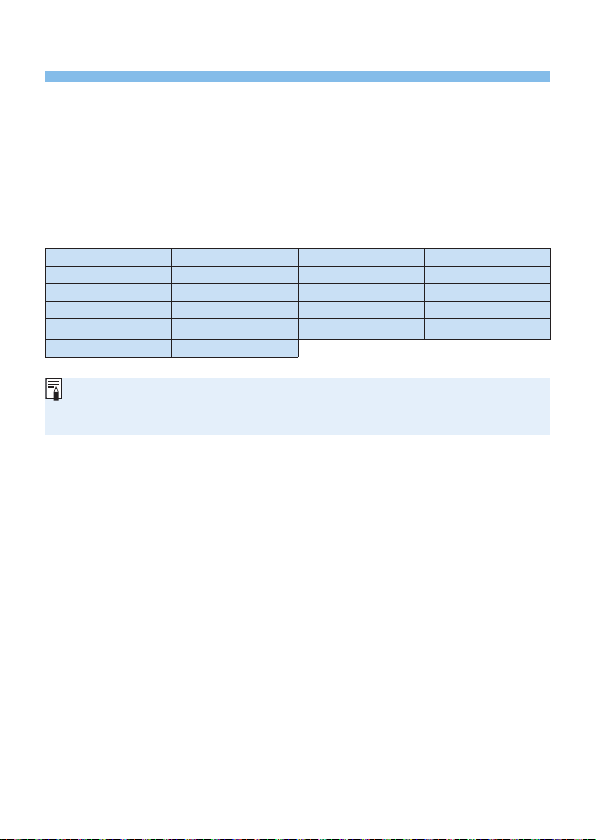
428
Responding to Error Messages
When an error occurs, display the details of the error by following one of the
procedures below. Then, eliminate the cause of the error by referring to the
examples shown in this chapter.
On the [View info] screen, press <0> (=
426).
Select [Error details] on the [Wi-Fi on] screen.
Click the error code number’s page in the following chart to jump to the
corresponding page.
11 (=
429) 12 (=
429) 21 (=
430) 22 (=
431)
23 (=
432) 61 (=
433) 63 (=
434) 64 (=
434)
65 (=
435) 66 (=
435) 67 (=
435) 68 (=
436)
69 (=
436) 91 (=
436) 121 (=
436) 125 (=
437)
126 (=
437) 127 (=
437) 141 (=
437) 142 (=
437)
151 (=
438) 152 (=
438)
When an error occurs, [Err**] is displayed on the upper right of the [k: Wi-
Fi/Bluetooth connection] screen. It disappears when the camera’s power is
set to <2>.

429
11: Connection target not found
In the case of [q], is Camera Connect running?
B Establish a connection using Camera Connect (=
360).
In the case of [D], is the EOS software running?
B Start the EOS software and reestablish the connection (=
376).
In the case of [l], is the power of the printer on?
B Turn on the printer.
Are the camera and the access point set to use the same password for
authentication?
B This error occurs if the passwords do not match when the
authentication method for encryption is set to [Open system].
The setting is case-sensitive, so check upper- and lower-case
characters. Make sure that the correct password for authentication is
set on the camera (=
427).
12: Connection target not found
Is the power of the target device and access point on?
B Turn on the target device and access point, then wait a while. If a
connection still cannot be established, perform the procedures to
establish the connection again.

430
21: No address assigned by DHCP server
What to check on the camera
On the camera, IP address is set to [Auto setting]. Is this the correct
setting?
B If no DHCP server is used, specify the settings after setting the IP
address to [Manual setting] on the camera (=
408).
What to check on the DHCP server
Is the power of the DHCP server on?
B Turn on the DHCP server.
Are there enough addresses for assignment by the DHCP server?
B Increase the number of addresses assigned by the DHCP server.
B Remove devices assigned addresses by the DHCP server from the
network to reduce the number of addresses in use.
Is the DHCP server working correctly?
B Check the DHCP server settings to make sure it is working correctly
as a DHCP server.
B If applicable, ask your network administrator to ensure the DHCP
server is available.

431
22: No response from DNS server
What to check on the camera
On the camera, does the DNS server’s IP address setting match the
server’s actual address?
B Set the IP address to [Manual setting]. Then, on the camera, set
the IP address that matches the address of the DNS server used
(=
408, =
442).
What to check on the DNS server
Is the power of the DNS server on?
B Turn on the DNS server.
Are the DNS server settings for IP addresses and the corresponding
names correct?
B On the DNS server, make sure IP addresses and the corresponding
names are entered correctly.
Is the DNS server working correctly?
B Check the DNS server settings to make sure it is working correctly
as a DNS server.
B If applicable, ask your network administrator to ensure the DNS
server is available.
What to check on the network as a whole
Does the network that you are trying to connect to via Wi-Fi include a
router or similar device that serves as a gateway?
B If applicable, ask your network administrator for the network gateway
address and enter it on the camera (=
408, =
442).
B Make sure that the gateway address setting is correctly entered on
all network devices including the camera.

432
23: Device with same IP address exists on selected network
What to check on the camera
Do the camera and another device connected via Wi-Fi to the same
network have the same IP address?
B Change the camera’s IP address to avoid using the same address
as another device on the network. Otherwise, change the IP address
of the device that has a duplicate address.
B If the camera’s IP address is set to [Manual setting] in network
environments using a DHCP server, change the setting to [Auto
setting] (=
406).
Responding to Error Messages 21–23
Also check the following points when responding to errors numbered 21–23.
Are the camera and the access point set to use the same password for
authentication?
- This error occurs if the passwords do not match when the authentication
method for encryption is set to [Open system]. The setting is case-
sensitive, so check upper- and lower-case characters. Make sure that the
correct password for authentication is set on the camera (=
427).

433
61: Selected SSID wireless LAN network not found
Are any obstacles blocking the line of sight between the camera and
the antenna of the access point?
B Move the antenna of the access point to a position clearly visible
from the point of view of the camera (=
439).
What to check on the camera
Does the SSID set on the camera match that of the access point?
B Check the SSID at the access point, then set the same SSID on the
camera.
What to check at the access point
Is the access point turned on?
B Turn on the power of the access point.
If ltering by MAC address is active, is the MAC address of the camera
in use registered at the access point?
B Register the MAC address of the camera used to the access point.
The MAC address can be checked on the [View info] screen
(=
426).

434
63: Wireless LAN authentication failed
Are the camera and the access point set to use the same authentication
method?
B The camera supports the following authentication methods: [Open
system], [Shared key], and [WPA/WPA2-PSK].
Are the camera and the access point set to use the same password for
authentication?
B The setting is case-sensitive, so check upper- and lower-case
characters. Make sure that the correct password for authentication is
set on the camera.
If ltering by MAC address is active, is the MAC address of the camera
in use registered at the access point?
B Register the MAC address of the camera used to the access point.
The MAC address can be checked on the [View info] screen
(=
426).
64: Cannot connect to wireless LAN terminal
Are the camera and the access point set to use the same encryption
method?
B The camera supports the following encryption methods: WEP, TKIP,
and AES.
If ltering by MAC address is active, is the MAC address of the camera
in use registered at the access point?
B Register the MAC address of the camera used to the access point.
The MAC address can be checked on the [View info] screen
(=
426).

435
65: Wireless LAN connection lost
Are any obstacles blocking the line of sight between the camera and
the antenna of the access point?
B Move the antenna of the access point to a position clearly visible
from the point of view of the camera (=
439).
The Wi-Fi connection was lost for some reason, and the connection
cannot be restored.
B The following are possible reasons: excessive access to the access
point from another device, a microwave oven or similar appliance in
use nearby (interfering with IEEE 802.11b/g/n (2.4 GHz band)), or
inuence of rain or high humidity (=
439).
66: Incorrect wireless LAN password
Are the camera and the access point set to use the same password for
authentication?
B The setting is case-sensitive, so check upper- and lower-case
characters. Make sure that the correct password for authentication is
set on the camera.
67: Incorrect wireless LAN encryption method
Are the camera and the access point set to use the same encryption
method?
B The camera supports the following encryption methods: WEP, TKIP,
and AES.
If ltering by MAC address is active, is the MAC address of the camera
in use registered at the access point?
B Register the MAC address of the camera used to the access point.
The MAC address can be checked on the [View info] screen
(=
426).

436
68: Cannot connect to wireless LAN terminal. Retry from the
beginning.
Did you hold down the access point’s WPS (Wi-Fi Protected Setup)
button for the specied period of time?
B Hold down the WPS button for the period of time specied in the
access point’s instruction manual.
Are you trying to establish a connection near the access point?
B Try establishing the connection when both devices are within reach
of each other.
69: Multiple wireless LAN terminals have been found. Cannot
connect. Retry from the beginning.
Connection is in progress by other access points in Pushbutton
Connection mode (PBC mode) of WPS (Wi-Fi Protected Setup).
B Wait a while before trying to establish the connection.
91: Other error
A problem other than error code number 11 to 69 occurred.
B Turn the camera’s power switch off and on.
121: Not enough free space on server
The target Web server does not have enough free space.
B Delete unnecessary images on the Web server, check the free
space on the Web server, then try sending the data again.

437
125: Check the network settings
Is the network connected?
B Check the connection status of the network.
126: Could not connect to server
CANON iMAGE GATEWAY is under maintenance or load is
concentrated temporarily.
B Try connecting to the Web service again later.
127: An error has occurred
A problem other than error code number 121 to 126 occurred while the
camera is connected to the Web service.
B Try again to establish the Wi-Fi connection to the Web service.
141: Printer is busy. Reconnect to try again.
Is the printer performing a printing process?
B Try again to establish the Wi-Fi connection to the printer after the
printing process is nished.
Is another camera connected to the printer via Wi-Fi?
B Try again to establish the Wi-Fi connection to the printer after the
Wi-Fi connection to the other camera has been terminated.
142: Could not acquire printer information. Reconnect to try
again.
Is the power of the printer on?
B Try again to establish the Wi-Fi connection after turning on the
printer.

438
151: Transmission canceled
Automatic image transfer to the computer was somehow interrupted.
B To resume automatic image transfer, set the camera’s power switch
to <2>, and then set it to <1>.
152: Card’s write protect switch is set to lock
Is the card’s write protect switch set to the locked position?
B Slide the card’s write protect switch to the writing position.

439
Wireless Communication Function
Notes
If the transmission rate drops, the connection is lost, or other problems
occur when using the wireless communication functions, try the following
corrective actions.
Distance Between the Camera and the Smartphone
If the camera is too far from the smartphone, a Wi-Fi connection may not be
established even when Bluetooth connection is possible. In this case, bring the
camera and the smartphone closer together, then establish a Wi-Fi connection.
Installation Location of Access Point Antenna
When using indoors, install the device in the room where you are using
the camera.
Install the device where people or objects do not come between the
device and the camera.
Nearby Electronic Devices
If the Wi-Fi transmission rate drops because of the inuence of the following
electronic devices, stop using them or move further away from the devices
to transmit communication.
The camera communicates over Wi-Fi via IEEE 802.11b/g/n using radio
waves in the 2.4 GHz band. For this reason, the Wi-Fi transmission
rate will drop if there are Bluetooth devices, microwave ovens, cordless
telephones, microphones, smartphones, other cameras, or similar
devices operating on the same frequency band nearby.

440
Cautions for Using Multiple Cameras
When connecting multiple cameras to one access point via Wi-Fi, make
sure the cameras’ IP addresses are different.
When multiple cameras are connected to one access point via Wi-Fi,
the transmission rate drops.
When there are multiple IEEE 802.11b/g/n (2.4 GHz band) access
points, leave a gap of ve channels between each Wi-Fi channel to
reduce radio wave interference. For example, use channels 1, 6, and
11, channels 2 and 7, or channels 3 and 8.
Using the Wireless Remote Control BR-E1
BR-E1 cannot be used while the camera and smartphone are paired
via Bluetooth. Change the camera connection to the wireless remote
in [FConnect to Wireless Remote] under [k: Wi-Fi/Bluetooth
connection].

441
Security
If security settings have not been properly set, the following problems may
occur.
Transmission monitoring
Third parties with malicious intent may monitor the Wi-Fi transmissions
and attempt to acquire the data you are sending.
Unauthorized network access
Third parties with malicious intent may gain unauthorized access to
the network you are using to steal, modify, or destroy information.
Additionally, you could fall victim to other types of unauthorized access
such as impersonation (where someone assumes an identity to gain
access to unauthorized information) or springboard attacks (where
someone gains unauthorized access to your network as a springboard
to cover their tracks when inltrating other systems).
It is recommended to make use of the systems and functions to thoroughly
secure your network, preventing these types of problems from occurring.

442
Checking Network Settings
Windows
Open the Windows [Command Prompt], then type ipcong/all and
press the <Enter> key.
In addition to the IP address assigned to the computer, the subnet
mask, gateway, and DNS server information are also displayed.
Mac OS
In Mac OS X, open the [Terminal] application, enter ifcong -a, and
press the <Return> key. The IP address assigned to the computer is
indicated in the [en0] item next to [inet], in the format “***.***.***.***”.
* For information about the [Terminal] application, refer to the Mac OS X help.
To avoid using the same IP address for the computer and other devices on
the network, change the rightmost number when setting up the IP address
assigned to the camera in the processes described on =
408.
Example: 192.168.1.10
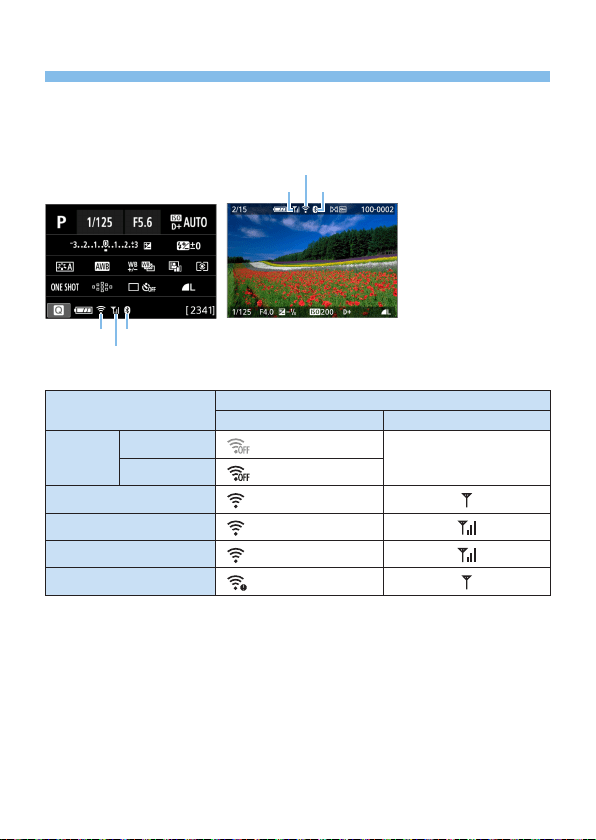
443
Wireless Communication Status
Wireless communication status can be checked on the LCD monitor.
Quick Control screen Information display
screen during playback
(
2
) (
3
)
(
1
)
(
3
)
(
2
)
(
1
)
(1) Wireless signal
strength
(2) Wi-Fi function
(3) Bluetooth
function
Communication status
LCD monitor
Wi-Fi function Wireless signal strength
Not
connected
Wi-Fi: Disable
Off
Wi-Fi: Enable
Connecting
(Blinking)
Connected
Sending data
(fg)
Connection error
(Blinking)
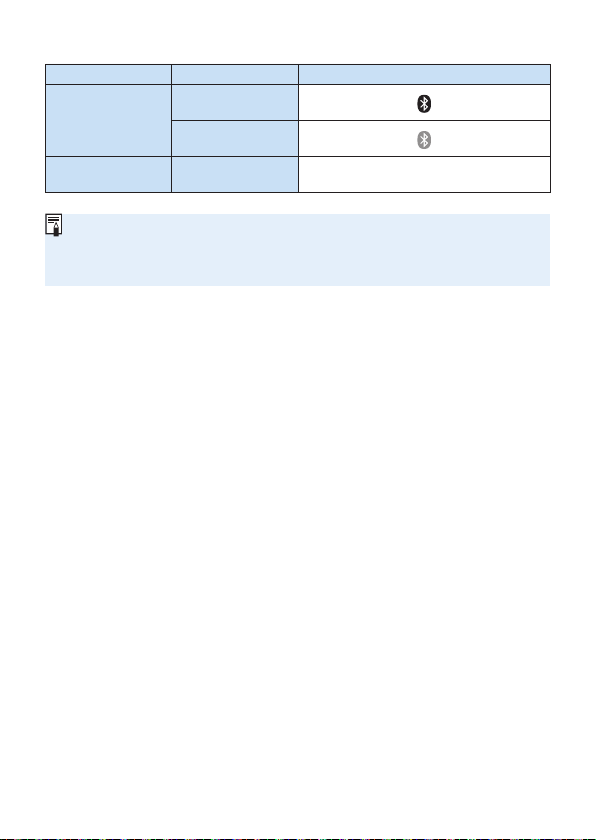
444
Bluetooth Function Indicator
Bluetooth function Connection status LCD monitor
Other than
[Disable]
Bluetooth
connected
Bluetooth not
connected
[Disable]
Bluetooth not
connected
Not displayed
“Bluetooth connected” status is indicated when connected to smartphones via
Wi-Fi and during automatic image transfer to computers.
“Bluetooth not connected” status is indicated when connected to computers,
printers, or Web services via Wi-Fi.
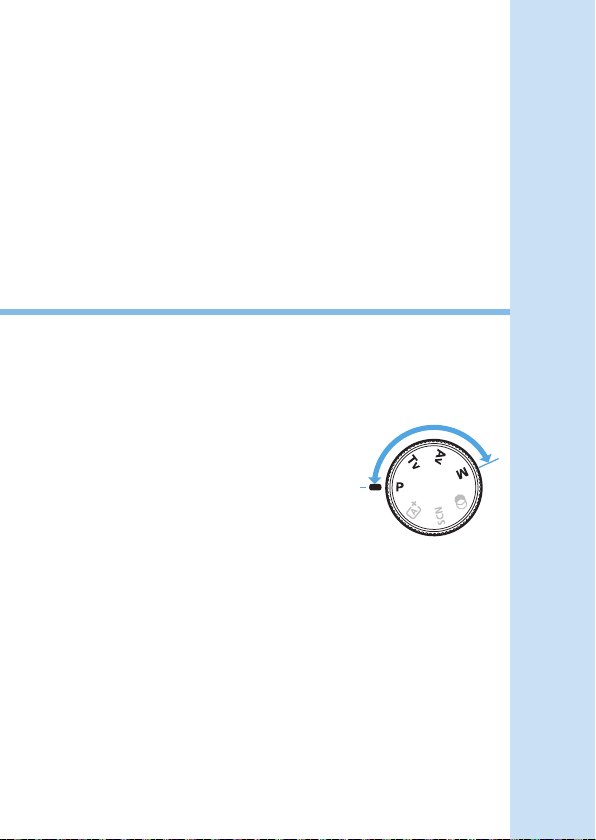
445
Customizing the Camera
You can make ne adjustments to various camera functions
to suit your picture-taking preferences with Custom
Functions. Custom Functions can be set and work only in
Creative Zone modes.
Creative Zone modes
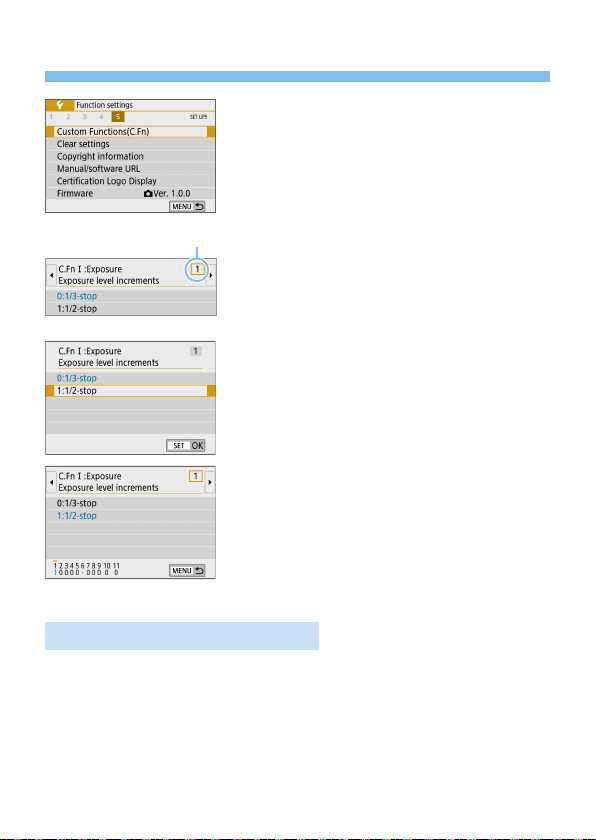
446
Setting Custom Functions
1
Select [Custom Functions(C.Fn)].
Under the [5] tab, select [Custom
Functions(C.Fn)], then press <0>.
2
Select the Custom Function
number (1).
Press the <Y> <Z> keys to select the
Custom Function number, then press
<0>.
3
Change the setting as desired.
Press the <W> <X> keys to select the
desired setting (number), then press
<0>.
Repeat steps 2 to 3 if you want to set
other Custom Functions.
At the bottom of the screen, the current
Custom Function settings are indicated
below the respective function numbers.
4
Exit the setting.
Press the <M> button.
B The screen in step 1 will reappear.
Clearing All Custom Functions
Under [5: Clear settings], select [Clear all Custom Func. (C.Fn)] to clear
all the Custom Function settings (=
271).
N
(
1
)
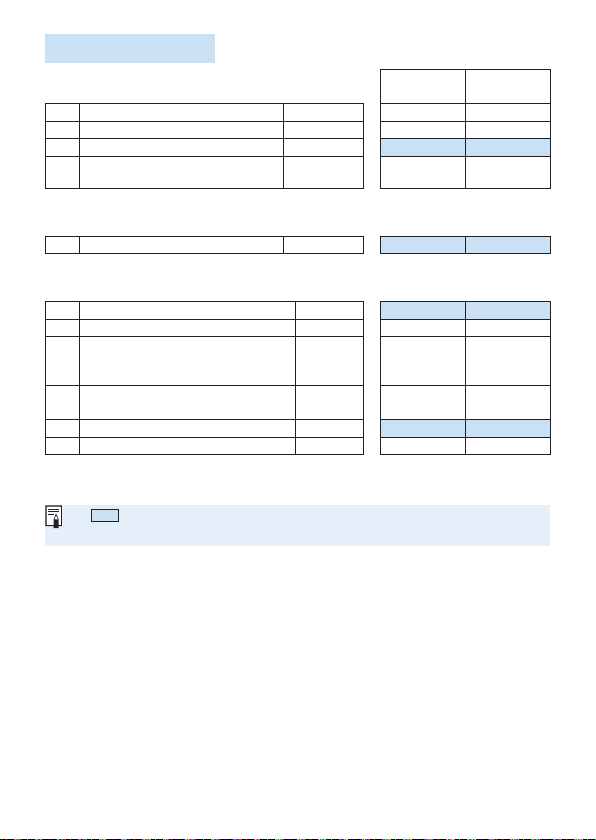
447
Custom Functions
C.Fn I: Exposure
A LV
Shooting
k Movie
Shooting
1 Exposure level increments
=
448
k k
2 ISO expansion
=
448
k k
3 Safety shift
=
448
4
Exposure compensation auto
cancel
=
449
k k
C.Fn II: Drive
5 Mirror lockup
=
449
C.Fn III: Operation/Others
6
Warnings z in viewnder
=
450
7
Shutter/AE lock button
=
451
k k
8 Assign SET button
=
452
k
(Except 3)
k
(4 and 5
only*)
9 DISP button function
=
453
k
(Except 4)
k
(Except 1)
10
Screen display when power 1
=
453
11 Retract lens on power off
=
454
k k
* Setting 4 does not function during movie shooting.
Shaded Custom Functions do not function during Live View (LV)
shooting or movie shooting. (Settings are disabled.)
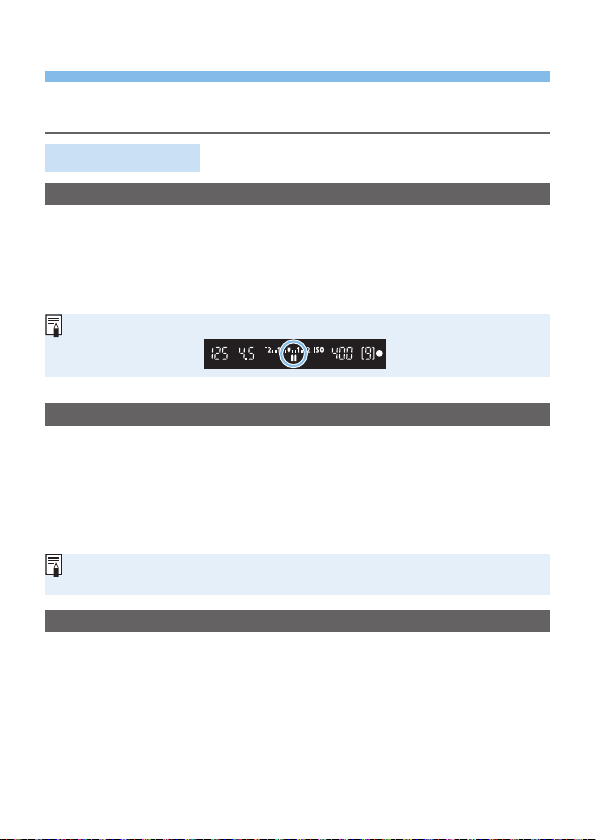
448
Custom Function Setting Items
Custom Functions are organized into three groups based on the function
type: C.Fn I: Exposure, C.Fn II: Drive, C.Fn III: Operation/Others.
C.Fn I: Exposure
C.Fn-1 Exposure level increments
0: 1/3-stop
1: 1/2-stop
Sets 1/2-stop increments for the shutter speed, aperture, exposure
compensation, AEB, ash exposure compensation, etc. Useful when
1/3-stop increments are too ne.
When set to 1, exposure level display is as follows in the viewnder.
C.Fn-2 ISO expansion
0: Off
1: On
When you set the ISO speed, you can set “H” (equivalent to ISO 51200)
for still photos and “H” (equivalent to ISO 25600) for movies. Note that
if [z: Highlight tone priority] is set to [Enable] or [Enhanced], “H”
cannot be selected.
For 4K movies, the ISO speed range is ISO 100–6400, even when [ISO
expansion] is set to [1: On].
C.Fn-3 Safety shift
0: Disable
1: Enable
For automatic adjustment of the shutter speed and aperture value
to bring the exposure level closer to standard exposure if standard
exposure would not be available otherwise under your specied shutter
speed or aperture value in <s> or <f> mode.
N

449
C.Fn-4 Exposure compensation auto cancel
0: Enable
When you set the power switch to <2>, the exposure compensation
setting will be canceled.
1: Disable
The exposure compensation setting will remain in effect even if you set
the power switch to <2>.
C.Fn II: Drive
C.Fn-5 Mirror lockup
0: Disable
1: Enable
You can prevent the camera vibration blur due to the mechanical
vibrations (mirror shock) inside the camera during shooting with super
telephoto lenses or shooting close-ups (macro photography). See
page 165 for the mirror lockup procedure.
450
C.Fn III: Operation/Others
C.Fn-6 Warnings <!> in viewfinder
When any of the following functions are set, the <i> icon can be displayed
on the viewnder’s bottom left (=
32). The <i> icon will also appear on
the Quick Control screen (=
57).
Select the function for which you want the warning icon to appear, press
<0> to add a checkmark [X], then select [OK].
When monochrome V set:
If the Picture Style is set to [Monochrome] (=
121), the warning icon
will appear.
When WB is corrected:
If white balance correction is set (=
133), the warning icon will
appear.
When M is set:
If [z: High ISO speed NR] is set to [Multi Shot Noise Reduction]
(=
138), the warning icon will appear.
When spot meter. is set:
If [z: Metering mode] is set to [Spot metering] (=
158), the
warning icon will appear.
When [s: Shooting screen] is set to [Guided], this Custom Function does
not function. (Settings do not take effect.)
451
C.Fn-7 Shutter/AE lock button
0: AF/AE lock
1: AE lock/AF
This is convenient when you want to focus and meter separately. Press
the <A> button to autofocus, and press the shutter button halfway to
apply AE lock.
2: AF/AF lock, no AE lock
During AI Servo AF (or Servo AF for Live View shooting), you can press
the <A> button to pause the AF operation momentarily. This prevents
the AF from being thrown off by any obstacle passing between the
camera and subject. The exposure is set at the moment the picture is
taken.
3: AE/AF, no AE lock
This is useful for subjects that keep moving and stopping repeatedly.
During AI Servo AF (or Servo AF for Live View shooting), you can
press the <A> button to start or stop the AI Servo AF operation. The
exposure is set at the moment the picture is taken. Thus, you can set
your camera to always maintain the optimum focusing and exposure
and wait for the decisive moment.
During movie shooting
With setting 1 or 3, press the <A> button for One-Shot AF.

452
C.Fn-8 Assign SET button
You can assign a frequently-used function to <0>. When the camera
is ready to shoot, pressing the <0> button will display the respective
function setting screen.
0: Quick Control screen
The Quick Control screen (=
57) will appear.
1: Image quality
The image quality setting screen will appear.
2: Flash exposure comp.
The ash exposure compensation setting screen will appear.
3: Screen On/Off
You can turn on or off the LCD monitor.
4: Menu display
The menu screen will appear.
5: Expo comp (hold btn, turn S)
You can set the exposure compensation by turning the <6> dial
while holding down <0>. Useful when you want to set exposure
compensation in <a> manual exposure with ISO Auto set.
6: Flash function settings
The built-in ash or external ash function setting screen will appear.
7: Depth-of-eld preview
The lens will stop down to the set aperture, and you can see the range
of acceptable focus (depth of eld) in the viewnder or in the Live View
image.

453
C.Fn-9 DISP button function
You can assign a frequently used function to the <U> button. When
the camera is ready to shoot, pressing the <U> button will display the
respective function setting screen.
0: Screen On/Off
You can turn on or off the LCD monitor.
1: Depth-of-eld preview
The lens will stop down to the set aperture, and you can see the range
of acceptable focus (depth of eld) in the viewnder or in the Live View
image.
2: Wi-Fi/Bluetooth connection
The setting screen for Wi-Fi/Bluetooth connections will appear. The
[Wi-Fi on] screen is displayed when connected via Wi-Fi.
3: Max. screen brightness (temp)
Temporarily increases screen brightness.
4: Pause Movie Servo AF
You can pause Movie Servo AF.
C.Fn-10 Screen display when power ON
0: Display on
When you turn on the power, the Quick Control screen will appear
(=
57).
1: Previous display status
When you turn on the power, the camera will start with the LCD
monitor display in the state it was in when the power was last turned
off. Therefore, if you turn off the camera when the LCD monitor is off,
nothing will be displayed when you turn on the camera again. This
helps to save battery power. The menu operations and image playback
will be available as usual.
454
C.Fn-11 Retract lens on power off
This is the setting for the lens retraction mechanism when a gear-driven
STM lens (such as EF40mm f/2.8 STM) is attached to the camera. You can
set it to retract the extended lens automatically when the camera’s power
switch is set to <2>.
0: Enable
1: Disable
With auto power off, the lens will not retract regardless of the setting.
Before detaching the lens, make sure that it is retracted.
With setting 0, this function takes effect regardless of the lens’s focus mode
switch setting (AF or MF).
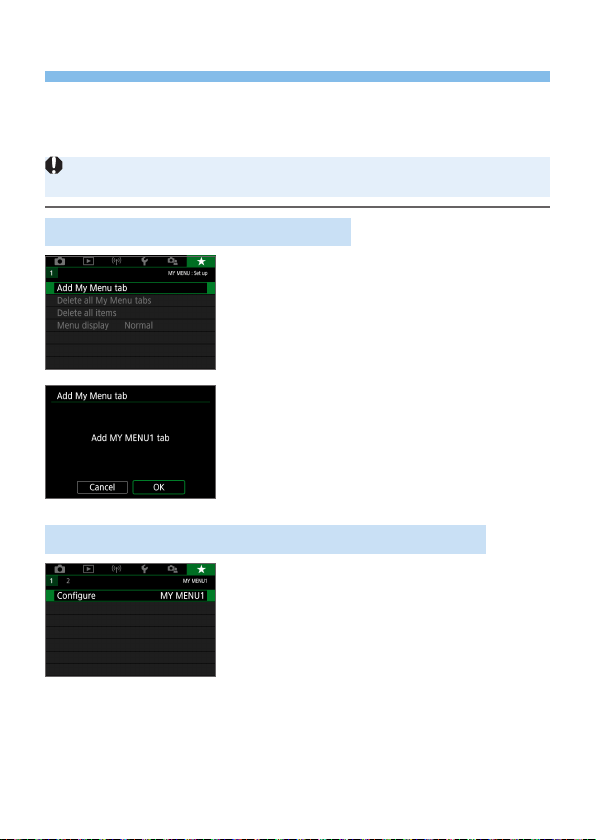
455
Registering My Menu
Under My Menu tab, you can register menu items and Custom Functions
whose settings you change frequently. You can also name the registered
menu tabs, and press the <M> button to display the My Menu tab rst.
When [s: Menu display] is set to [Guided], the [9] tab will not be
displayed. Change the [Menu display] to [Standard] (=
53).
Creating and Adding My Menu Tab
1
Select [Add My Menu tab].
Under the [9] tab, select [Add My
Menu tab], then press <0>.
2
Select [OK].
B The [MY MENU1] tab is created.
You can create up to ve My Menu tabs
by repeating steps 1 and 2.
Registering Menu Items under the My Menu Tab(s)
1
Select [Configure: MY MENU*].
Press the <Y> <Z> keys to select
[Congure: MY MENU*] (tab for
registering menu items), then press
<0>.
N

456
2
Select [Select items to register].
3
Register the desired items.
Select the desired item, then press
<0>.
Select [OK] on the conrmation dialog.
You can register up to six items.
To return to the screen in step 2, press
the <M> button.
My Menu Tab Settings
You can sort and delete items under the
menu tab, and rename or delete the menu
tab.
Sort registered items
You can change the order of the registered items in My Menu. Select
[Sort registered items] and select the item whose order you want to
change. Then press <0>. With [z] displayed, press the <W> <X>
keys to change the order, then press <0>.
Delete selected items / Delete all items on tab
You can delete any of the registered items. [Delete selected items]
deletes one item at a time, and [Delete all items on tab] deletes all the
registered items under the tab.
Delete tab
You can delete the My Menu tab currently displayed. Select [Delete
tab] to delete the [MY MENU*] tab.
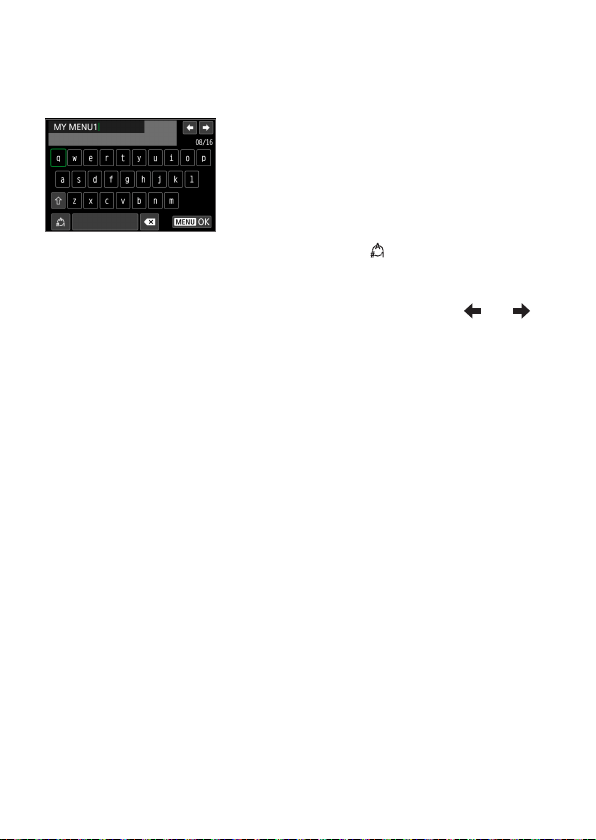
457
Rename tab
You can rename the My Menu tab from [MY MENU*].
1
Select [Rename tab].
2
Enter text.
Press the <L> button to delete any
unnecessary characters.
Press the <V> cross keys to move
the
□ and select the desired character.
Then press <0> to enter it.
By selecting [
], you can change the
input mode.
You can enter up to 16 characters.
To move the cursor, select [
] or [ ]
in the upper right or turn the <6> dial.
To cancel the text entry, press the
<M> button, then select [Cancel].
3
Exit the setting.
After entering the text, press the
<M> button, then select [OK].
B The set information is saved.
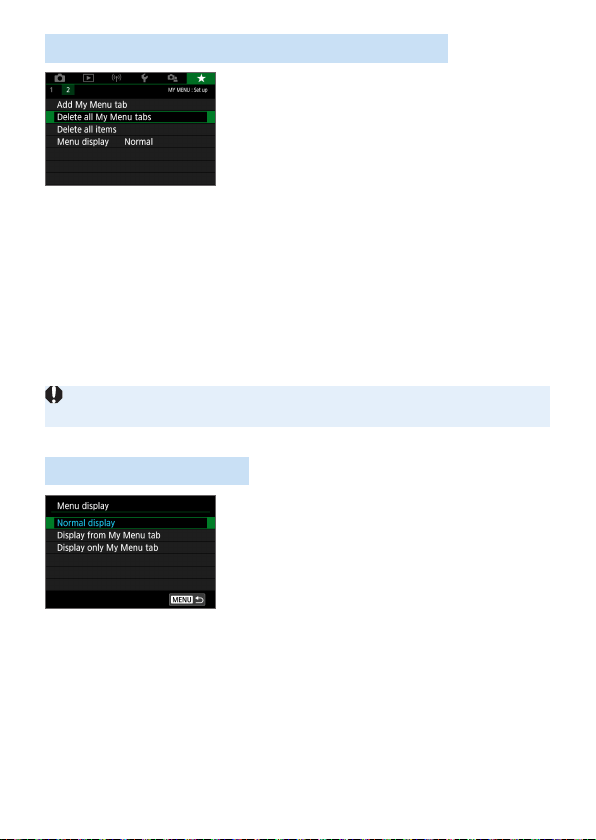
458
Deleting All My Menu Tabs / Deleting All Items
You can delete all the created My Menu
tabs or My Menu items registered under
them.
Delete all My Menu tabs
You can delete all My Menu tabs you created. When you select [Delete
all My Menu tabs], all the tabs from [MY MENU1] to [MY MENU5] will
be deleted and the [9] tab will revert to its default.
Delete all items
You can delete all the items registered under the [MY MENU1] to
[MY MENU5] tabs. The tab(s) will remain. When [Delete all items]
is selected, all the items registered under all the created tabs will be
deleted.
If you perform [Delete tab] or [Delete all My Menu tabs], tab names
renamed with [Rename tab] will also be deleted.
Menu Display Settings
You can select [Menu display] to set
the menu screen that is to appear rst
when you press the <M> button.
Normal display
Displays the last displayed menu screen.
Display from My Menu tab
Displays with the [9] tab selected.
Display only My Menu tab
Only the [9] tab is displayed. (The [z], [3], [k], [5] and [s]
tabs will not be displayed.)
459
Reference
This chapter provides reference information for camera
features, system accessories, etc.
Certication Logo
Select [5: Certication Logo Display] and press <0> to
display some of the logos of the camera’s certications. Other
certication logos can be found in this Instruction Manual, on the
camera body, and on the camera’s package.

460
Checking the Battery Information
You can check the conditions of the battery you are using on the LCD
monitor.
Select [Battery info.].
Under the [5] tab, select [Battery
info.], then press <0>.
(1) Battery position
(2) Battery model or household power
source being used.
(3) The battery level (=
42) is
displayed.
(4) Battery’s recharge performance level is
displayed in three levels.
: Battery’s recharge performance
is ne.
: Battery’s recharge performance
is slightly degraded.
: Purchasing a new battery is
recommended.
Using a genuine Canon Battery Pack LP-E17 is recommended. If you use
batteries that are not genuine Canon products, the camera’s full performance
may not be attained or malfunction may result.
If a battery communication error message is displayed, follow the instructions
in the message.
(
1
) (
3
) (
4
)(
2
)
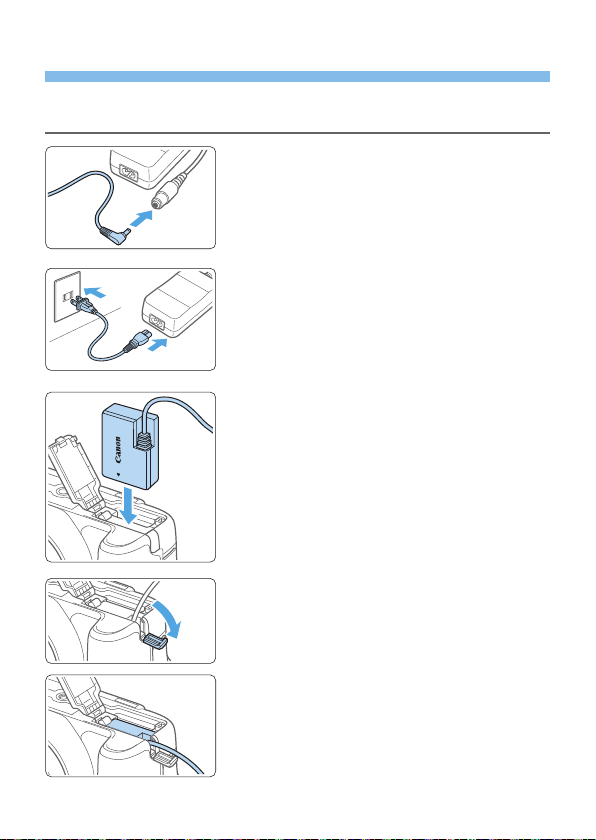
461
Using a Household Power Outlet
You can power the camera with a household power outlet by using the DC
Coupler DR-E18 and AC Adapter AC-E6N (each sold separately).
1
Connect the DC coupler’s plug.
Connect the DC coupler’s plug to the
AC Adapter’s socket.
2
Connect the power cord.
Connect the power cord as shown in the
illustration.
After using the camera, unplug the
power plug from the power outlet.
3
Insert the DC coupler.
Open the cover and insert the DC
coupler securely until it locks.
4
Push in the DC cord.
Open the DC cord hole cover and install
the cord as shown in the illustration.
Close the cover.
(
2
)
(
1
)

462
Do not connect or disconnect the power cord when the camera’s power
switch is set to <1>.
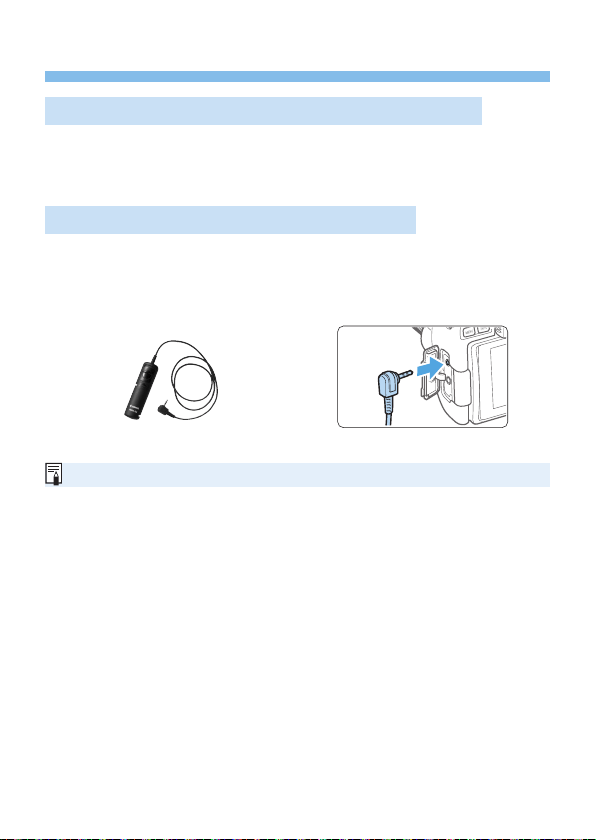
463
Remote Control Shooting
Wireless Remote Control BR-E1 (Sold Separately)
You can shoot remotely up to approx. 5 m/16.4 ft from the camera.
After pairing the camera and BR-E1, set the drive mode to [Q](=
112).
For operating instructions, refer to the BR-E1 Instruction Manual.
Remote Switch RS-60E3 (Sold Separately)
The camera is compatible with the Remote Switch RS-60E3 that comes
with an approx. 60 cm/2.0 ft cord. When connected to the camera’s remote
control terminal, it can be pressed halfway and completely, just like the
shutter button.
Remote control shooting is also possible during movie shooting (=
252).
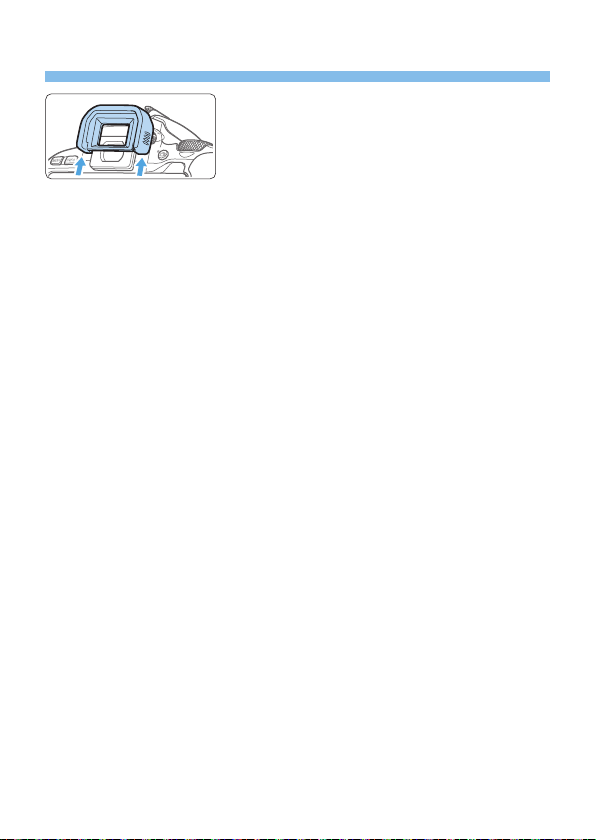
464
Removing the Eyecup
Push the bottom of the eyecup to detach
it.

465
Troubleshooting Guide
If a problem occurs with the camera, rst consult this Troubleshooting
Guide. If this Troubleshooting Guide does not resolve the problem, contact
your dealer or nearest Canon Service Center.
Power-Related Problems
The battery does not recharge.
Do not use any battery other than genuine Canon Battery Pack LP-E17.
The battery charger’s lamp blinks.
If (1) the battery charger or battery has a problem or (2) communication
with the battery failed (with a non-Canon battery pack), the protection
circuit will stop charging, and the charge lamp will blink in orange.
In the case of (1), unplug the charger’s power plug from the power
outlet. Detach and reattach the battery to the charger. Wait two or
three minutes, then reconnect the power plug to the power outlet. If the
problem persists, contact your dealer or nearest Canon Service Center.
The camera is not activated even when the power switch is set to
<1>.
Make sure the battery is installed properly in the camera (=
37).
Make sure the card slot/battery compartment cover is closed (=
37).
Recharge the battery (=
35).
Press the <U> button (=
68).
The access lamp still blinks even when the power switch is
<2>.
If the power is turned off while an image is being recorded to the
card, the access lamp will remain on or continue to blink for a few
seconds. When the image recording is complete, the power will turn off
automatically.

466
[Battery communication error. Does this battery/do these
batteries display the Canon logo?] is displayed.
Do not use any battery other than genuine Canon Battery Pack LP-E17.
Remove and install the battery again (=
37).
If the electrical contacts are dirty, use a soft cloth to clean them.
The battery becomes exhausted quickly.
Use a fully-charged battery (=
35).
The battery performance may have degraded. See [5: Battery info.]
to check the battery’s recharge performance level (=
460). If the
battery performance is poor, replace the battery with a new one.
The number of possible shots will decrease with any of the following
operations:
- Pressing the shutter button halfway for a prolonged period.
- Activating the AF frequently without taking a picture.
- Using the lens’s Image Stabilizer.
- Using the LCD monitor frequently.
- Continuing Live View shooting or movie shooting for a prolonged
period.
- Using the Bluetooth function.
- Using the Wi-Fi function.
The camera turns off by itself.
Auto power off is in effect. If you do not want auto power off to take
effect, set [5: Auto power off] to [Disable] (=
261).
Even if [5: Auto power off] is set to [Disable], the LCD monitor
will still turn off after the camera is left idle for approx. 30 min. (The
camera’s power does not turn off.) Press the <U> button to turn on
the LCD monitor.

467
Shooting-Related Problems
The lens cannot be attached.
The camera cannot be used with RF or EF-M lenses (=
47).
No images can be shot or recorded.
Make sure the card is properly inserted (=
37).
Slide the card’s write-protect switch to the Write/Erase setting
(=
37).
If the card is full, replace the card or delete unnecessary images to
make space (=
37, =
310).
You cannot take a picture when focus indicator <o> in the viewnder
blinks during focusing with One-Shot AF. Press the shutter button
halfway again to refocus automatically, or focus manually (=
50,
=
111).
The card cannot be used.
If a card error message is displayed, see =
38 or =
477.
An error message is displayed when the card is inserted in
another camera.
Since SDXC cards are formatted in exFAT, if you format a card with
this camera and then insert it into another camera, an error may be
displayed and it may not be possible to use the card.
The image is out of focus or blurred.
Set the lens’s focus mode switch to <AF> (=
47).
Press the shutter button gently to prevent camera shake
(=
49–=
50).
With a lens equipped with the Image Stabilizer, set the IS switch to
<1>.
In low light, the shutter speed may become slow. Use a faster
shutter speed (=
149), set a higher ISO speed (=
118), use ash
(=
169), or use a tripod.

468
I cannot lock the focus and recompose the shot.
Set the AF operation to One-Shot AF. Focus lock is not possible in the
AI Servo AF mode or when servo takes effect in AI Focus AF mode
(=
195).
Horizontal stripes appear, or the exposure or color tone look
strange.
Horizontal stripes (noise) or irregular exposures can be caused
by uorescent lighting, LED lighting, or other light sources during
viewnder or Live View shooting. Also, the exposure or color tone may
not come out right. A slow shutter speed may reduce the problem.
The standard exposure cannot be obtained or the exposure is
irregular.
During viewnder shooting or Live View shooting, if you use a TS-E
lens (except the TS-E17mm f/4L or TS-E24mm f/3.5L II) and shift or tilt
the lens or use an extension tube, the standard exposure may not be
obtained or the exposure may be irregular.
The continuous shooting speed is slow.
The maximum continuous shooting speed may become slower
depending on the shutter speed, aperture, subject conditions,
brightness, lens, ash use, temperature, battery type, remaining battery
level, shooting function settings, etc. For details, see page 112.
The maximum burst during continuous shooting is lower.
Shooting a subject with ne detail, such as a eld of grass, increases
the le size per image, which may lower the actual maximum burst.
ISO 100 cannot be set.
ISO 100 is not available when [z: Highlight tone priority] is set
to [Enable] or [Enhanced]. If [Disable] is set, ISO 100 can be set
(=
137). This also applies to movie shooting (=
222).

469
Expanded ISO speeds cannot be selected.
When [z: Highlight tone priority] is set to [Enable] or [Enhanced],
the ISO speed range is ISO 200–25600 (up to ISO 12800 for movies
or 6400 for 4K movies), even if [ISO expansion] is set to [1:On].
If [Disable] is set for [z: Highlight tone priority], [H] can be set
(=
137). This also applies to movie shooting (=
222).
The Auto Lighting Optimizer cannot be set.
Auto Lighting Optimizer is not available when [z: Highlight tone
priority] is set to [Enable] or [Enhanced]. If [Disable] is set, the Auto
Lighting Optimizer can be set (=
137).
Even if I set a decreased exposure compensation, the image
comes out bright.
Set [z: Auto Lighting Optimizer] to [Disable]. When [Standard]
[Low] [High] is set, even if you set a decreased exposure
compensation or ash exposure compensation, the image may come
out bright (=
136).
The built-in flash does not fire.
If you use the built-in ash too often in too short a period of time, the
ash may stop ring for a while to protect the light-emitting unit.
Flash exposure compensation cannot be set for the external
Speedlite.
If ash exposure compensation is set with the external Speedlite,
compensation amount cannot be set with the camera. When the
external Speedlite’s ash exposure compensation is canceled (set to
0), ash exposure compensation can be set with the camera.
The camera makes a noise when it is shaken.
A small noise may be heard when the camera’s internal mechanism
moves slightly.

470
The shutter makes two release sounds during Live View
shooting.
If you use ash, the shutter will make two release sounds each time
you shoot (=
182).
During Live View shooting, a white s or red E icon is displayed.
It indicates that the camera’s internal temperature is high. If the white
<s> icon is displayed, the still photo’s image quality may deteriorate. If
the red <E> icon is displayed, it indicates that the Live View shooting
will soon stop automatically (=
215).
During movie shooting, the red E icon is displayed.
It indicates that the camera’s internal temperature is high. If the red
<E> icon is displayed, it indicates that the movie shooting will soon
stop automatically (=
257).
Movie shooting stops by itself.
If the card’s writing speed is slow, movie shooting may stop
automatically. For cards that can record movies, see page 7. To nd
out the card’s writing speed, refer to the card manufacturer’s Web site,
etc.
If you shoot a movie for 29 min. 59 sec., the movie shooting will stop
automatically.
The ISO speed cannot be set for movie shooting.
In shooting modes other than <a>, the ISO speed is set automatically.
In the <a> mode, you can manually set the ISO speed (=
222).
The exposure changes during movie shooting.
If you change the shutter speed or aperture during movie shooting, the
changes in the exposure may be recorded.
Zooming the lens during movie shooting may cause changes in the
exposure regardless of whether the lens’s maximum aperture changes
or not. The changes in the exposure may be recorded as a result.
471
The subject looks distorted during movie shooting.
If you move the camera to the left or right or shoot a moving subject,
the image may look distorted.
The image flickers or horizontal stripes appear during movie
shooting.
Flickering, horizontal stripes (noise), or irregular exposures can be
caused by uorescent lighting, LED lighting, or other light sources
during movie shooting. Also, changes in the exposure (brightness) or
color tone may be recorded. Note that in the <a> mode, a slow shutter
speed may reduce the problem.
Problems with Wireless Features
Cannot pair with a smartphone.
Use a smartphone compliant with Bluetooth Specication Version 4.1
or later.
Turn on Bluetooth from the smartphone settings screen.
Pairing with the camera is not possible from the smartphone’s Bluetooth
settings screen. Install the dedicated app Camera Connect (free of
charge) on the smartphone (=
350).
A previously paired smartphone cannot be paired with the camera
again if the camera’s registration is retained on the smartphone. In
this case, remove the camera’s registration retained in the Bluetooth
settings on the smartphone and try pairing again (=
357).
Wi-Fi function cannot be set.
If the camera is connected to a computer or another device with an
interface cable, Wi-Fi functions cannot be set. Disconnect the interface
cable before setting any functions (=
346).
A device connected with an interface cable cannot be used.
Other devices, such as computers, cannot be used with the camera by
connecting them with an interface cable while the camera is connected
to devices via Wi-Fi. Terminate the Wi-Fi connection before connecting
the interface cable.

472
Operations such as shooting and playback are not possible.
With a Wi-Fi connection established, operations such as shooting and
playback may not be possible. Terminate the Wi-Fi connection, then
perform the operation.
Cannot reconnect to a smartphone.
Even with a combination of the same camera and smartphone, if you
have changed the settings or selected a different setting, reconnection
may not be established even after selecting the same SSID. In this
case, delete the camera connection settings from the Wi-Fi settings on
the smartphone and set up a connection again.
A connection may not be established if Camera Connect is running
when you recongure connection settings. In this case, quit Camera
Connect for a moment and then restart it.
Operation Problems
A camera button or dial does not work as expected.
Under [5: Custom Functions(C.Fn)], check the [Assign SET button]
setting (=
452).
For movie shooting, check the [5: Shutter btn function for movies]
setting (=
254).
During touch screen operations, the beeper suddenly sounds
softer.
Check if your nger is blocking the speaker (=
28).
Touch operation is not possible.
Check if [5: Touch control] is set to [Standard] or [Sensitive]
(=
65).

473
Display Problems
The menu screen shows fewer tabs and options.
Certain tabs or menu options are not displayed in Basic Zone modes.
Set the shooting mode to a Creative Zone mode (=
59).
Under the [9] tab, [Menu display] is set to [Display only My Menu
tab] (=
458).
The file name’s first character is an underscore (“_”).
Set the color space to sRGB. If Adobe RGB is set, the rst character
will be an underscore (=
145).
The file name starts with “MVI_”.
It is a movie le (=
267).
The file numbering does not start from 0001.
If the card already contains recorded images, the image le number
may not start from 0001 (=
266).
The shooting date and time displayed are incorrect.
Make sure the correct date and time are set (=
43).
Check the time zone and daylight saving time (=
43).
The date and time are not in the image.
The shooting date and time do not appear in the image. The date and
time are recorded in the image data as shooting information. When
printing, you can imprint the date and time in the picture, using the date
and time recorded in the shooting information (=
316).
[###] is displayed.
If the number of images recorded on the card exceeds the number the
camera can display, [###] will be displayed (=
290).

474
The LCD monitor does not display a clear image.
If the LCD monitor is dirty, use a soft cloth to clean it.
In low or high temperatures, the LCD monitor display may seem slow or
may look black. It will return to normal at room temperature.
Playback Problems
Part of the image blinks in black.
It is the highlight alert (=
327). Overexposed areas with clipped
highlights will blink.
The image cannot be erased.
If the image is protected, it cannot be erased (=
307).
The movie cannot be played back.
Movies edited with a computer cannot be played back with the camera.
Operation sound and mechanical sound can be heard during
movie playback.
If you operate the camera’s dials or lens during movie shooting, the
operation sound will also be recorded. Using the Directional Stereo
Microphone DM-E1 (sold separately) is recommended (=
251).
The movie appears to freeze momentarily.
If there is a drastic change in the exposure level during autoexposure
movie shooting, the recording will stop momentarily until the brightness
stabilizes. In such a case, shoot in the <a> mode (=
221).
No picture appears on the TV set.
Make sure the [5: Video system] is correctly set to [For NTSC] or
[For PAL] (depending on the video system of your TV set).
Make sure the HDMI cable’s plug is inserted all the way in (=
305).

475
There are multiple movie files for a single movie shoot.
If the movie le size reaches 4 GB, another movie le will be created
automatically (=
229). However, if you use an SDXC card formatted
with the camera, you can record a movie in a single le even if it
exceeds 4 GB.
My card reader does not recognize the card.
Depending on the card reader used and the computer’s operating
system, SDXC cards may not be correctly recognized. In this case,
connect your camera to the computer with the interface cable, then
import the images to the computer using EOS Utility (EOS software).
The image cannot be resized.
With this camera, you cannot resize JPEG b or RAW images
(=
338).
The image cannot be cropped.
With this camera, you cannot crop RAW images (=
340).
A red box is displayed on the image.
[3: AF point disp.] is set to [Enable] (=
323).
A red box is not displayed on the image.
Even if [3: AF point disp.] is set to [Enable] (=
323), the red box is
not displayed for the following images:
- Images shot with Multi Shot Noise Reduction (=
138)
- Images shot with <8: FG> or <v: ABCD>
- Cropped images (=
340)
- Images with Fish-eye effect applied after shooting (=
329)
Dots of light appear on the image.
White, red, or blue dots of light may appear in captured images if the
sensor is affected by cosmic rays or similar factors. Their appearance
may be reduced by performing [Clean nowf] under [5: Sensor
cleaning] (=
273).
476
Sensor Cleaning Problems
The shutter makes a sound during sensor cleaning.
When you select [Clean nowf], the shutter will make a mechanical
sound, but no picture is taken (=
273).
Automatic sensor cleaning does not work.
If you repeatedly turn the power switch <1> and <2> within a short
time period, the <f> icon may not be displayed (=
41).
Computer Connection Problems
Communication between the connected camera and computer
does not work.
When using EOS Utility (EOS software), set [z: Time-lapse movie] to
[Disable] (=
238).
I cannot transfer images to a computer.
Install EOS software on the computer (=
482).
When a Wi-Fi connection is established, the camera cannot be
connected to a computer with an interface cable.
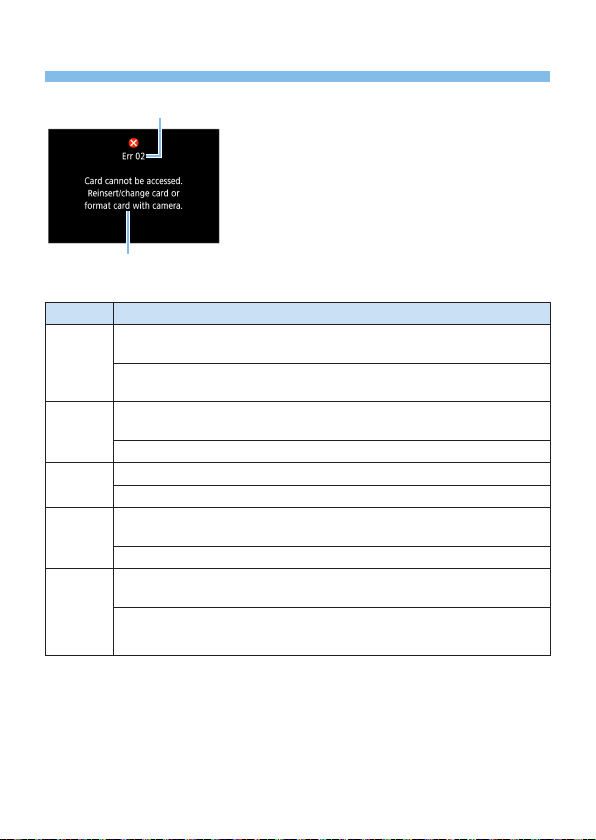
477
Error Codes
(
1
)
(
2
)
If there is a problem with the camera, an
error message will appear. Follow the on-
screen instructions.
(1) Error number
(2) Cause and countermeasures
Number Error Message and Solution
01
Communications between the camera and lens is faulty. Clean the
lens contacts.
Clean the electrical contacts on the camera and lens, use a Canon lens,
or remove and install the battery again.
02
Card cannot be accessed. Reinsert/change card or format card with
the camera.
Remove and insert the card again, replace the card, or format the card.
04
Cannot save images because card is full. Replace card.
Replace the card, erase unnecessary images, or format the card.
06
Sensor cleaning could not be performed. Turn the camera off and
on again.
Operate the power switch.
07, 10
20, 30
40, 50
60, 70
80
An error prevented shooting. Turn the camera off and on again or
re-install the battery.
Use the power switch, reinsert the battery pack, or use a Canon lens.
* If the error message still appears after following the above instructions, write
down the error code number and contact your nearest Canon Service Center.

478
Trademarks
Adobe is a trademark of Adobe Systems Incorporated.
Microsoft and Windows are trademarks or registered trademarks of
Microsoft Corporation in the United States and/or other countries.
Macintosh and Mac OS are trademarks of Apple Inc., registered in the
U.S. and other countries.
SDXC logo is a trademark of SD-3C, LLC.
HDMI, HDMI logo, and High-Denition Multimedia Interface are
trademarks or registered trademarks of HDMI Licensing LLC.
WPS used on camera settings screens and in this manual stands for
Wi-Fi Protected Setup.
The Bluetooth
®
word mark and logos are registered trademarks owned
by Bluetooth SIG, Inc. and any use of such marks by Canon Inc. is
under license. Other trademarks and trade names are those of their
respective owners.
All other trademarks are the property of their respective owners.

479
About MPEG-4 Licensing
“This product is licensed under AT&T patents for the MPEG-4 standard and may be
used for encoding MPEG-4 compliant video and/or decoding MPEG-4 compliant
video that was encoded only (1) for a personal and non-commercial purpose or (2)
by a video provider licensed under the AT&T patents to provide MPEG-4 compliant
video. No license is granted or implied for any other use for MPEG-4 standard.”
* Notice displayed in English as required.
Third party software
This product includes third party software.
●AES-128 Library
Copyright (c) 1998-2008, Brian Gladman, Worcester, UK. All rights
reserved.
LICENSE TERMS
The redistribution and use of this software (with or without changes) is allowed
without the payment of fees or royalties provided that:
1. source code distributions include the above copyright notice, this list of
conditions and the following disclaimer;
2. binary distributions include the above copyright notice, this list of conditions and
the following disclaimer in their documentation;
3. the name of the copyright holder is not used to endorse products built using this
software without specic written permission.
DISCLAIMER
This software is provided 'as is' with no explicit or implied warranties in respect of its
properties, including, but not limited to, correctness and/or tness for purpose.

480
Use of Genuine Canon Accessories Is Recommended
This product is designed to achieve optimum performance when used with
genuine Canon accessories. Therefore, using this product with genuine
accessories is highly recommended.
Canon shall not be liable for any damage to this product and/or accidents
such as malfunction, re, etc. caused by the failure of non-genuine Canon
accessories (e.g., a leakage and/or explosion of a battery). Please note that
repairs arising out of the malfunction of non-genuine accessories will not be
covered by the warranty for repairs, although you may request such repairs
on a chargeable basis.
Battery Pack LP-E17 is dedicated to Canon products only. Using it with an
incompatible battery charger or product may result in malfunction or accidents
for which Canon cannot be held liable.

481
Software Start Guide /
Downloading Images to
a Computer

482
Software Overview
Downloading and Installing the Software
When using EOS software or other dedicated software, use the latest
version available. To download it, you will need to enter the serial number
on the bottom of the camera.
Do not connect the camera to a computer before you install the software. The
software will not be installed correctly.
You cannot install the EOS software to a computer without an Internet
connection.
Previous versions cannot display images from this camera correctly. Also,
processing RAW images from this camera is not possible.
Always update any previous version of the software that is installed (by
overwriting it with the latest version).
1
Download the software.
Connect to the Internet from a computer and access the following
Canon Web site.
www.canon.com/icpd
Select your country or region of residence and download the software.
Decompress it on the computer.
For Windows: Click the displayed installer le to start the installer.
For Macintosh: A dmg le will be created and displayed. Follow the
steps below to start the installer.
(1) Double-click the dmg le.
B A drive icon and installer le will appear on the desktop.
If the installer le does not appear, double-click the drive icon to
display it.
(2) Double-click the installer le.
B The installer starts.
2
Follow the on-screen instructions to install.

483
Downloading and Viewing the
Software Instruction Manuals (PDF
Files)
Internet connection is required to download the Software Instruction
Manuals (PDF les). Download is not possible in environments with no
Internet connection.
1
Download the Software Instruction Manuals (PDF files).
Connect to the Internet and access the following Canon Web site.
www.canon.com/icpd
2
View the Software Instruction Manuals (PDF files).
Double-click a downloaded Instruction Manual (PDF le) to open it.
To view the Instruction Manuals (PDF les), Adobe Acrobat Reader
DC or other Adobe PDF viewer (most recent version recommended)
is required.
Adobe Acrobat Reader DC can be downloaded for free from the
Internet.
To learn how to use PDF viewing software, refer to the software’s
Help section.
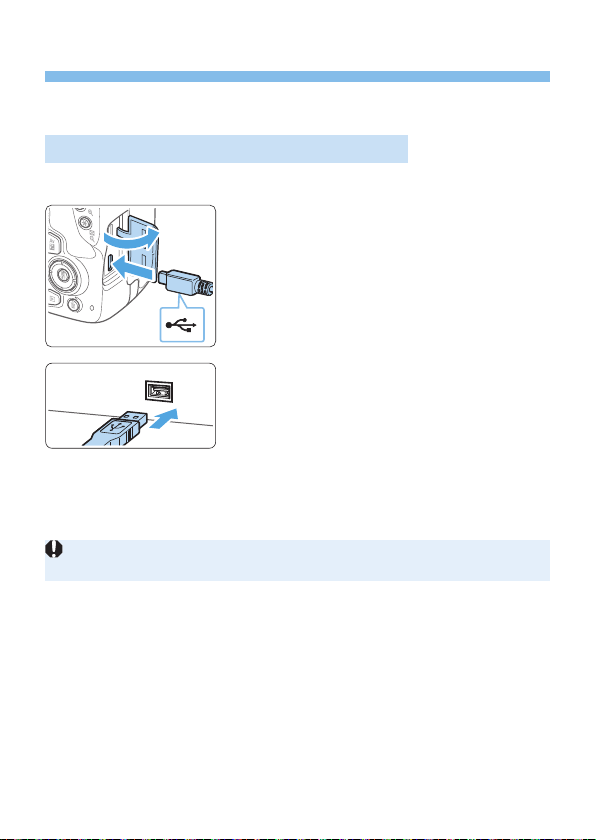
484
Downloading Images to a Computer
You can use EOS software to download images from the camera to a
computer. There are two ways to do this.
Saving Images to a Connected Computer
1
Install the software (=
482).
2
Use an interface cable (sold
separately) to connect the camera
to the computer.
Connect the cable to the camera’s
digital terminal with the cable plug’s
<D> icon facing the front of the
camera.
Connect the cord’s plug to the
computer’s USB terminal.
3
Use EOS Utility to transfer the
images.
Refer to the EOS Utility Instruction
Manual.
When a Wi-Fi connection is established, the camera cannot be connected to
a computer with an interface cable.
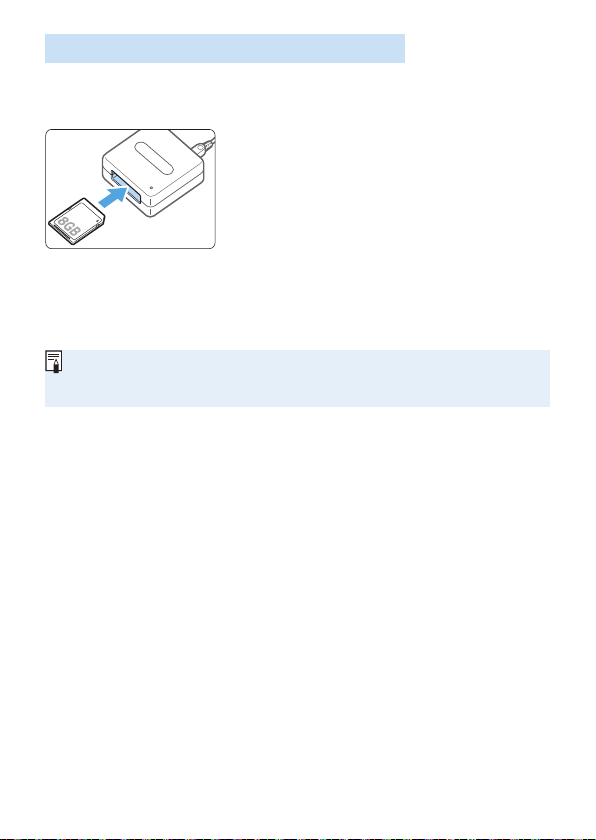
485
Downloading Images with a Card Reader
You can use a card reader to download images to a computer.
1
Install the software (=
482).
2
Insert the card into the card reader.
3
Use Digital Photo Professional to
download the images.
Refer to the Digital Photo Professional
Instruction Manual.
When downloading images from the camera to a computer with a card
reader without using EOS software, copy the DCIM folder on the card to the
computer.
486
Index
Numbers
1-point AF : 108, 197, 200
[4K] 3840×2160 (Movie) : 228
4K frame capture : 301
9-point AF auto selection : 108
10- or 2-sec. self-timer : 206
1280×720 (Movie) : 228
1920×1080 (Movie) : 228
A
AC adapter : 461
Access lamp : 38
Accessories : 3
Adobe RGB : 145
AEB : 162, 448
AE lock : 164
AF
AF-assist beam : 106, 167
AF method : 197, 252
AF operation : 104, 195
Beep (Beeper) : 260
Continuous AF : 205
Difcult subjects for AF : 110, 202
Eye detection AF : 204
Manual focusing : 111
Out of focus : 49, 110, 202
Recomposing : 74
AF point : 108
AI FOCUS (AI Focus AF) : 106
AI SERVO (AI Servo AF) : 74, 106
Album (video snapshot) : 335
Angle of view : 48
Aperture-priority AE : 152
Art bold effect : 190, 330
<A+> (Scene Intelligent Auto) : 70
Attenuator : 251
Autofocus → AF
Auto Lighting Optimizer : 136
Automatic selection of AF point : 108
Auto playback : 303
Auto power off : 41, 261
Auto reset : 266
Auto rotate : 270
Av (Aperture-priority AE) : 152
B
Background music : 337
Basic Zone modes : 30
Battery : 35, 37, 42
Beep (Beeper) : 260
Black-and-white images : 77
Bluetooth function : 349, 410
Address : 417
Connecting : 351
Bracketing : 134
Built-in ash : 169
BULB (bulb exposure) : 157
Bulb exposure : 157
C
Cables : 305, 484
Camera
Camera vibration blur : 165
Clearing the camera settings to
default : 271
Holding the camera : 49
Camera shake : 49
Candlelight : 87
Cards : 7, 26, 37, 66
Formatting : 66
Low-level formatting : 67
Troubleshooting : 38, 67
Write protection : 37

487
Center-weighted average metering : 159
Charger : 33, 35
Charging : 35
Chromatic aberration correction : 143
Cleaning (image sensor) : 273, 276
Clearing the camera settings to
default : 271
Clipped highlights : 327
Close-up : 85
Color space : 145
Color temperature : 129
Color tone : 86, 87, 125
Continuous : 265
Continuous shooting : 112
Contrast : 125
Copyright information : 268
Creative Assist : 76, 332
Creative lters : 93, 188, 235, 329
Creative lters for movies : 235
Dramatic B&W : 236
Dream : 236
Memory : 236
Miniature effect movie : 237
Old Movies : 236
Creative Zone modes : 31
Cropping : 340
Custom Functions : 446
Custom white balance : 131
D
Date/time : 43
Daylight saving time : 43
DC coupler : 461
Default settings : 271
Depth-of-eld preview : 154
Diffraction correction : 144
Digital Lens Optimizer : 143
Digital terminal : 28
Dioptric adjustment : 49
DISP button : 28, 68, 261, 272
Display level : 51
Distortion correction : 142
DPOF : 316
Dragging : 64
Drive mode : 58, 112
Dust delete data : 274
E
Erasing (images) : 310
Error messages : 477
Evaluative metering : 158
exFAT : 67, 229
Exposure compensation : 160
Exposure level increments : 448
Exposure level indicator : 32
Extension : 267
External ash units → Flash
Eyecup : 28, 464
Eye detection AF : 204
F
Face+Tracking : 197, 198
Feature guide : 55
FEB : 177
FE lock : 173
File name : 265
File size : 324
Filter effect : 123, 126
Fine (Image quality) : 115
First-curtain synchronization : 178
Fish-eye effect : 95, 190, 330
Flash
Built-in ash : 169
Custom Functions : 179
External ash units : 174
FE lock : 173
Flash control (function settings) : 175
Flash exposure compensation : 171
Flash mode : 177, 178
Flash off : 175

488
Manual ash : 178
Shutter synchronization (1st/2nd
curtain) : 178
Slow synchro : 176
Flash exposure compensation : 171
Flash mode : 177, 178
Flash sync contacts : 28
Focus indicator : 70
Focusing → AF
Focus lock : 74
Focus mode switch : 47, 111, 212
Folder creation/selection : 263
Food : 86
Formatting : 66
Formatting (card initialization) : 66
Frame Grab : 301
Frame rate : 229
Full High-Denition (Full HD) : 228
Full High-Denition (Full HD)
(movie) : 228
Fully-press : 50
G
GPS : 419
Grainy B/W : 95, 190, 330
Grid lines : 194, 254
Group Photo : 81
H
Half-press : 50
Handheld Night Scene : 89
HDMI : 278, 295
HDMI HDR : 279
HD (movie) : 228
HDR art bold : 96
HDR art embossed : 96
HDR art standard : 96
HDR art vivid : 96
HDR Backlight Control : 90
HDR movie : 234
High ISO speed noise reduction : 138
Highlight alert : 327
Highlight tone priority : 137
Histogram (Brightness/RGB) : 327
Hot shoe : 28, 174
Household power : 461
I
ICC prole : 145
Image dust prevention : 273
Image quality : 115
Image review time : 261
Images
AF point display : 323
Auto playback : 303
Auto rotation : 270
Erasing : 310
File numbering : 265
Highlight alert : 327
Histogram : 327
Index display : 281
Jump display (image browsing) : 282
Magnifying images : 284
Manual rotation : 287
Playback : 101, 280
Protecting : 307
Rating : 288
Review time : 261
Search conditions : 291
Shooting information : 323
Slide show : 303
TV display : 295, 305
Index display : 281
INFO button : 101, 184, 223
IPB (Light) : 229
IPB (Standard) : 229
ISO speed : 118, 219, 222
Automatic setting (ISO Auto) : 119
ISO expansion : 448

489
Maximum limit setting for ISO
Auto : 120
J
JPEG : 115
Jump display : 282
K
Kids : 84
L
Landscape : 82, 122
Language : 46
Large (image quality) : 115, 338
LCD monitor : 26, 40
Angle adjustment : 40, 75
Brightness adjustment : 262
Image playback : 101, 280
Menu display : 59
Lens : 27, 47
Chromatic aberration correction : 143
Diffraction correction : 144
Digital Lens Optimizer : 143
Distortion correction : 142
Lock release : 48
Peripheral illumination correction : 142
Live View shooting : 75, 180
1-point AF : 200
AF operation : 195
Aspect ratio : 192
Creative lters : 188
Eye detection AF : 204
Face+Tracking : 198
Grid lines : 194
Information display : 184
Manual focusing : 212
Metering timer : 193
Quick Control : 187
Self portrait : 210
Spot AF : 200
Zone AF : 200
Location information : 419
Long (bulb) exposures : 157
Long exposure noise reduction : 139
M
Macro photography : 85
Magnifying images : 212, 284
Main dial : 28
Main Dial : 146
Malfunction : 465
Manual exposure : 155, 221
Manual focus : 111, 212
Manual focusing : 111, 212
Manual reset : 267
Manual selection (AF point) : 108
Maximum burst : 116
Medium (image quality) : 115, 338
Memory cards → Cards
Menu : 59
Display level : 51
My Menu : 455
Setting procedure : 60
Menu display : 53
Metering mode : 158
Metering timer : 193, 252
MF (Manual focusing) : 111
MF peaking : 213
Microphone : 218
Miniature effect : 96, 191, 331
Miniature effect movie : 237
Mirror lockup : 165, 449
M (Manual exposure) : 155
Mode dial : 30
Monochrome : 122, 126
Movie digital IS : 232
Movies : 217
AE lock : 164
AF method : 227, 252
Attenuator : 251

490
Autoexposure : 218
Compression method : 229
Creative lters : 235
Editing : 299
Editing out rst and last scenes : 299
Enjoying movies : 295
External microphone : 251
Frame Grab : 301
Frame rate : 229
Grid lines : 254
HDMI output : 278
HDR movie recording : 234
Information display : 223
Manual exposure : 221
Metering timer : 252
Microphone : 218, 251
Movie digital IS : 232
Movie digital zoom : 231
Movie recording size : 228
Movie Servo AF : 253
Playback : 295, 296
Quick Control : 227
Sound recording : 251
Time-lapse movie : 238
Video snapshot : 245
Video snapshot album : 245
Viewing on a TV set : 295, 305
Wind lter : 251
MP4 : 228
Multi shot noise reduction : 138
My Menu : 455
N
Night Portrait : 88
Night scenes : 88, 89
Noise reduction
High ISO speed : 138
Long exposure : 139
Normal (Image quality) : 115
NTSC : 229, 305
Number of pixels : 115
O
One-Shot AF : 105, 196
P
PAL : 229
Partial metering : 158
Part names : 28
Peripheral illumination correction : 142
Photobook set-up : 320
Picture Style : 121, 124, 127
Playback : 101, 280
Portrait : 79, 121
Power
Auto power down : 261
Battery information : 460
Battery level : 42, 460
Charging : 35
Household power : 461
Recharge performance : 460
P (Program AE) : 147
Print order (DPOF) : 316
Program AE : 147
Program shift : 148
Protecting images : 307
Q
Quick Control : 57, 99, 187, 227, 293
R
Rating : 288
RAW : 58, 115, 117
RAW+JPEG : 115, 117
Reduced display : 281
Release shutter without card : 260
Remote control shooting : 463
Remote switch : 463
Resizing : 338
Rotating (images) : 270, 287

491
S
Saturation : 125
Scene icons : 186, 220
Scene Intelligent Auto : 70
SD, SDHC, SDXC cards → Cards
Second-curtain synchronization : 178
Self portrait : 210
Self-timer : 206
Sensitivity → ISO speed
Sensor cleaning : 273, 276
Sepia (Monochrome) : 126
Servo AF
AI SERVO (AI Servo AF) : 74, 106
Movie Servo AF : 253
SERVO (Servo AF) : 196
Sharpness : 125
Shooting information : 323
Shooting mode : 30
<A+> (Scene Intelligent Auto) : 70
Av (Aperture-priority AE) : 152
Creative lters : 93
Fish-eye effect : 95
Grainy B/W : 95
HDR art bold : 96
HDR art embossed : 96
HDR art standard : 96
HDR art vivid : 96
Miniature effect : 96
Soft focus : 95
Toy camera effect : 95
Water painting effect : 95
M (Manual exposure) : 155
P (Program AE) : 147
Special scene mode (SCN) : 78
Candlelight : 87
Close-up : 85
Food : 86
Group Photo : 81
Handheld night scene : 89
HDR Backlight Control : 90
Kids : 84
Landscape : 82
Night Portrait : 88
Portrait : 79
Smooth skin : 80
Sports : 83
Tv (Shutter-priority AE) : 149
Shooting mode guide : 54
Shooting screen : 51
Shooting tips : 56
Shutter button : 50
Shutter-priority AE : 149
Shutter synchronization : 178
Single-image display : 101
Single shooting : 112
Slide show : 303
Small (image quality) : 115, 338
Soft focus : 95, 190, 330
Software : 482
Sound-recording level : 251
Speaker : 296
Special scene mode (SCN) : 78
Sports : 83
Spot AF : 197, 200
Spot metering : 158
sRGB : 145
Still img aspect ratio : 192
Strap : 34
T
Temperature warning : 215, 257
Time-lapse movie : 238
Time zone : 43
Tone priority : 137
Toning effect (Monochrome) : 126
Touch beeping : 260
Touch operation : 63
Touch screen : 63, 285
Touch Shutter : 208
Toy camera effect : 95, 190, 331

492
Tripod socket : 28
Tv (Shutter-priority AE) : 149
U
USB (digital) terminal : 484
UTC (Coordinated Universal Time) : 422
V
Vari-angle LCD monitor : 40, 75
Video snapshot : 245
Video snapshot album : 245
Video system : 228, 305
Viewnder : 32
Dioptric adjustment : 49
Viewing on a TV set : 295, 305
Volume (movie playback) : 297, 298
W
Warning icon : 450
Water painting effect : 95, 190, 331
White balance : 129
Ambience priority (AWB) : 130
Bracketing : 134, 162
Correction : 133
Custom : 131
White priority (AWB) : 130
White balance (WB) : 129
Wi-Fi features : 344
Android : 350
Camera access point mode : 408
Camera Connect : 350, 355
CANON iMAGE GATEWAY : 391
Clearing settings : 425
Connection history : 413
Edit device information : 370, 423
EOS Utility : 374
Erase connection information : 424
Image Transfer Utility 2 : 378
iOS : 350
IP address : 408
MAC address : 426
Network name : 360, 375, 381
Network settings : 442
Nickname : 424
Notes : 439
PictBridge : 381
Printer : 381
Printing : 383
Print order : 386
Reconnecting : 413
Remote operation : 355
Resize image : 362, 366, 399
Sending all images on
the card : 367, 401
Sending images that match search
conditions : 368, 403
Send selected : 364, 398
SSID : 360, 375, 381
Switch network : 406
Viewable images : 370
View info screen : 426
Viewing images : 355
Virtual keyboard : 427
Wi-Fi settings : 416
WPS (Wi-Fi Protected Setup) : 405
Wind lter : 251
Wireless communication : 344
Z
Zone AF : 197, 200

CT2-D002-A © CANON INC. 2019