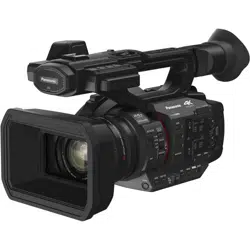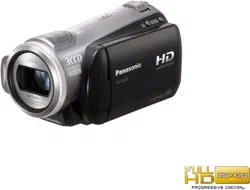
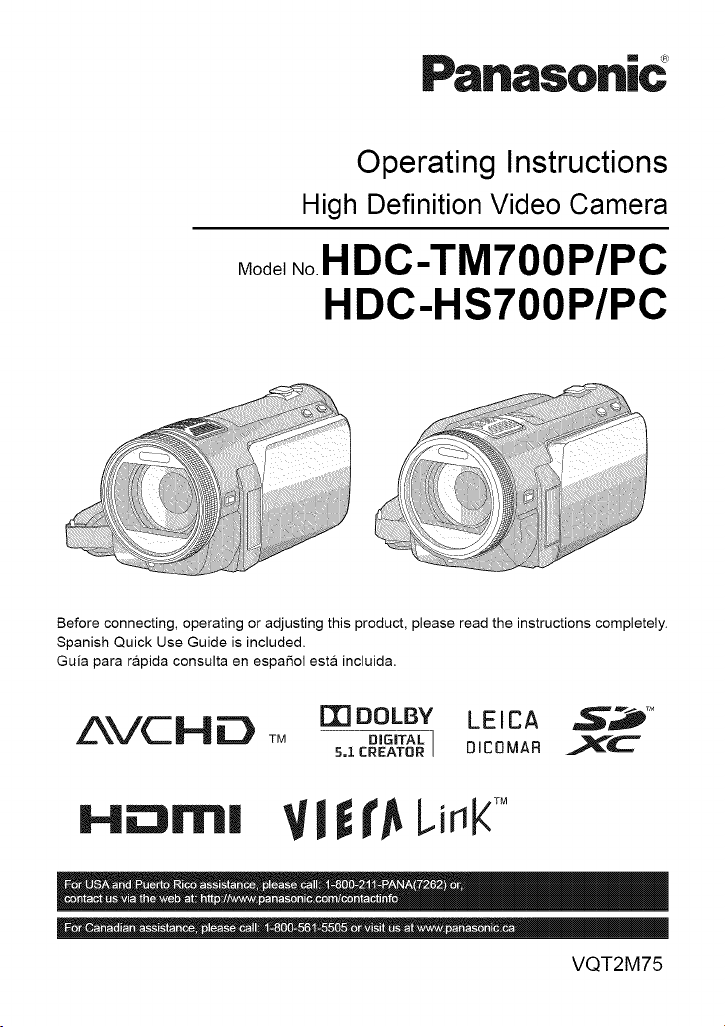
Pa.aso.ic _
Operating Instructions
High Definition Video Camera
Model .o.HDC-TM 700 P/PC
HDC-HS700P/PC
Before connecting, operating or adjusting this product, please read the instructions completely.
Spanish Quick Use Guide is included.
Guia para r&pida consulta en espaSol esta incluida.
AVCH_ TM
m DOLBY LEICA _M
DIGITAL I DICOMAR _l_'_C
5=1 CREATOR
H_rnl Vl t_Li_K_
VQT2M75
Things You Should
Know
Thank you for choosing Panasonic!
You have purchased one of the most
sophisticated and reliable products on
the market today. Used properly, we're
sure it will bring you and your family
years of enjoyment. Please take time to
fill in the information on the right.
The serial number is on the tag located
on the back of your camera. Be sure to
retain this manual as your convenient
camera information source.
f
Date of Purchase
Dealer Purchased From
Dealer Address
Dealer Phone No.
Model No.
Serial No.
Safety Precautions
WARNING:
TO REDUCE THE RISK OF FIRE, ELECTRIC SHOCK OR PRODUCT DAMAGE,
• DO NOT EXPOSE THIS APPARATUS TO RAIN, MOISTURE, DRIPPING OR
SPLASHING AND THAT NO OBJECTS FILLED WITH LIQUIDS, SUCH AS
VASES, SHALL BE PLACED ON THE APPARATUS.
• USE ONLY THE RECOMMENDED ACCESSORIES.
• DO NOT REMOVE THE COVER (OR BACK); THERE ARE NO USER SERVICEABLE
PARTS INSIDE. REFER SERVICING TO QUALIFIED SERVICE PERSONNEL.
CAUTION!
DO NOT INSTALL OR PLACE THIS UNIT IN A BOOKCASE, BUILT-IN CABINET OR IN
ANOTHER CONFINED SPACE. ENSURE THE UNIT IS WELL VENTILATED. TO
PREVENT RISK OF ELECTRIC SHOCK OR FIRE HAZARD DUE TO OVERHEATING,
ENSURE THAT CURTAINS AND ANY OTHER MATERIALS DO NOT OBSTRUCT THE
VENTILATION VENTS.
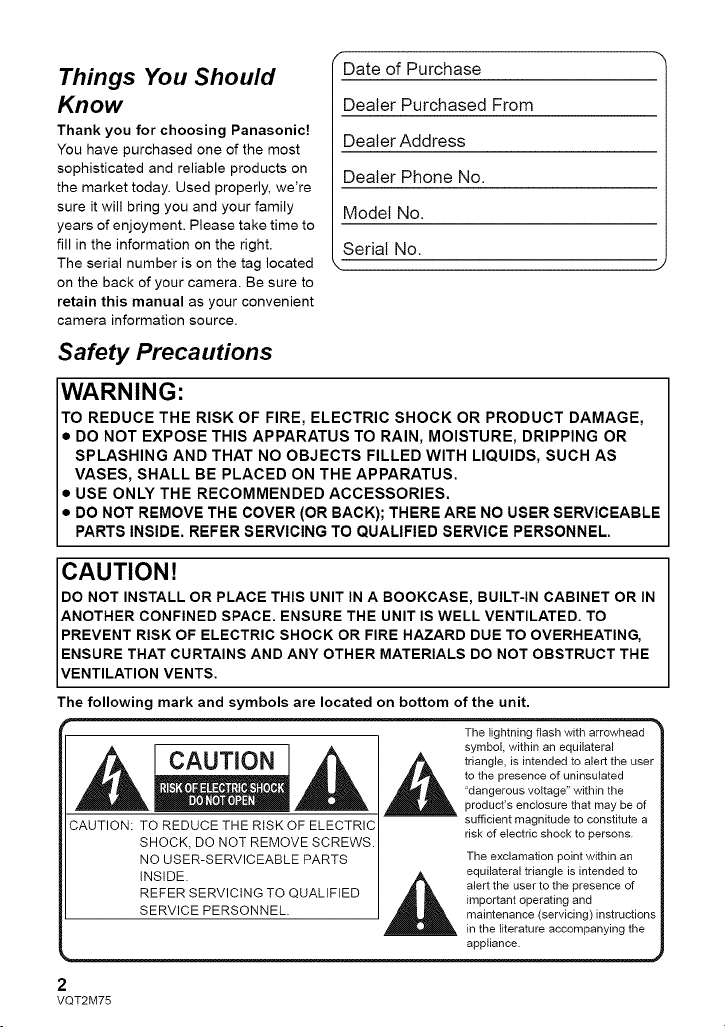
The following mark and symbols are located on bottom of the unit.
CAUTION
CAUTION: TO REDUCE THE RiSK OF ELECTRIC
SHOCK, DO NOT REMOVE SCREWS.
NO USER-SERVICEABLE PARTS
INSIDE. J ,_
REFER SERVICING TO QUALIFIED
SERVICE PERSONNEL.
The lightning flash with arrowhead
symbol, within an equilateral
triangle, is intended to alert the user
to the presence of uninsulated
"dangerous voltage" within the
product's enclosure that may be of
-- sufficient magnitude to constitute a
risk of electric shock to persons.
The exclamation point within an
equilateral triangle is intended to
alert the user to the presence of
important operating and
maintenance (servicing) instructions
in the literature accompanying the
appliance.
2
VQT2M75
THEFOLLOWINGAPPLIESONLYINTHEU.S.A.
FCCNote:
ThisequipmenthasbeentestedandfoundtocomplywiththelimitsforaClassBdigital
device,pursuanttoPart15oftheFCCRules.Theselimitsaredesignedtoprovide
reasonableprotectionagainstharmfulinterferenceinaresidentialinstallation.This
equipment generates, uses, and can radiate radio frequency energy and, if not installed and
used in accordance with the instructions, may cause harmful interference to radio
communications. However, there is no guarantee that interference will not occur in a
)articular installation. If this equipment does cause harmful interference to radio or
television reception, which can be determined by turning the equipment off and on, the user
is encouraged to try to correct the interference by one or more of the following measures:
• Reorient or relocate the receiving antenna.
• Increase the separation between the equipment and receiver.
• Connect the equipment into an outlet on a circuit different from that to which the receiver
is connected.
• Consult the dealer or an experienced radio/TV technician for help.
FCC Caution: To assure continued compliance, follow the attached installation
instructions and use only shielded interface cables with ferrite
core when connecting to computer or peripheral devices.
Any changes or modifications not expressly approved by the party responsible for
compliance could void the user's authority to operate this equipment.
Declaration of Conformity
Trade Name: Panasonic
Model No.: HDC-TM70OP/HDC-HS70OP
Responsible party: Panasonic Corporation of North America
One Panasonic Way, Secaucus, NJ 07094
Support Contact: Panasonic Consumer Electronics Company
1-800-211-PANA (7262)
This device complies with Part 15 of the FCC Rules. Operation is subject to the following
two conditions: (1) This device may not cause harmful interference, and (2) this device must
accept any interference received, including interference that may cause undesired
operation.
_ Panason|c
HDC-TM?OOP
]
_ Panasonic
HDC-HS?OOP
i
THE FOLLOWING APPLIES ONLY IN CANADA.
This Class B digital apparatus complies with Canadian ICES-003. I
3
VQT2M75
Batteries
1 Battery pack (Lithium ion battery pack)
• Use the specified unit to recharge the battery pack.
• Do not use the battery pack with equipment other than the specified unit.
• Do not get dirt, sand, liquids, or other foreign matter on the terminals.
• Do not touch the plug terminals (÷ and ) with metal objects.
• Do not disassemble, remodel, heat or throw into fire.
2 Button-type battery (Lithium battery)
• Insert with poles aligned.
• Do not touch the terminals (+ and ) with metal objects.
• Do not recharge, disassemble, remodel, heat or throw into fire.
• Keep out of reach of children
If any electrolyte should come into contact with your hands or clothes, wash it off thoroughly
with water.
If any electrolyte should come into contact with your eyes, never rub the eyes. Rinse eyes
thoroughly with water, and then consult a doctor.
Warning
Risk of fire, explosion and burns. Do not disassemble.
Do not heat the batteries above the following temperatures or incinerate.
Button-type battery 60 °C (140 °F)
Battery pack 60 °C (140 °F)
AC adaptor
This AC adaptor operates on AC between 110 V and 240 V.
But
• In the U.S.A. and Canada, the AC adaptor must be connected to a 120 V AC power
supply only.
• When connecting to an AC supply outside of the U.S.A. or Canada, use a plug adaptor to
suit the AC outlet configuration.
• When connecting to a supply of greater than AC 125 V, ensure the cord you use is suited
to the voltage of the AC supply and the rated current of the AC adaptor.
• Contact an electrical parts distributor for assistance in selecting a suitable AC plug
adaptor or AC cord set.
The unit should be installed near an accessible AC power outlet, with the power cord
connected directly to it.
To completely disconnect power from the unit, unplug the power cord from the AC power
outlet.
• Concerning the AC adaptor
IProduct identification Marking is located on the bottom of unit. I
4
VQT2M75

_==U.S.A./CANADA CONSUMERS: ATTENTION:
A lithium ion/polymer battery that is recyclable powers the product /
_, _.,}_ you have purchased. Please call 1-800-8-BATTERY for information |
on how to recycle this battery.
<For USA-California only>
This product contains a CR Coin Cell Lithium Battery which contains Perchlorate Material -
special handling may apply.
See www.dtsc.ca.qov/hazardouswaste/perch orate.
5
VQT2M75
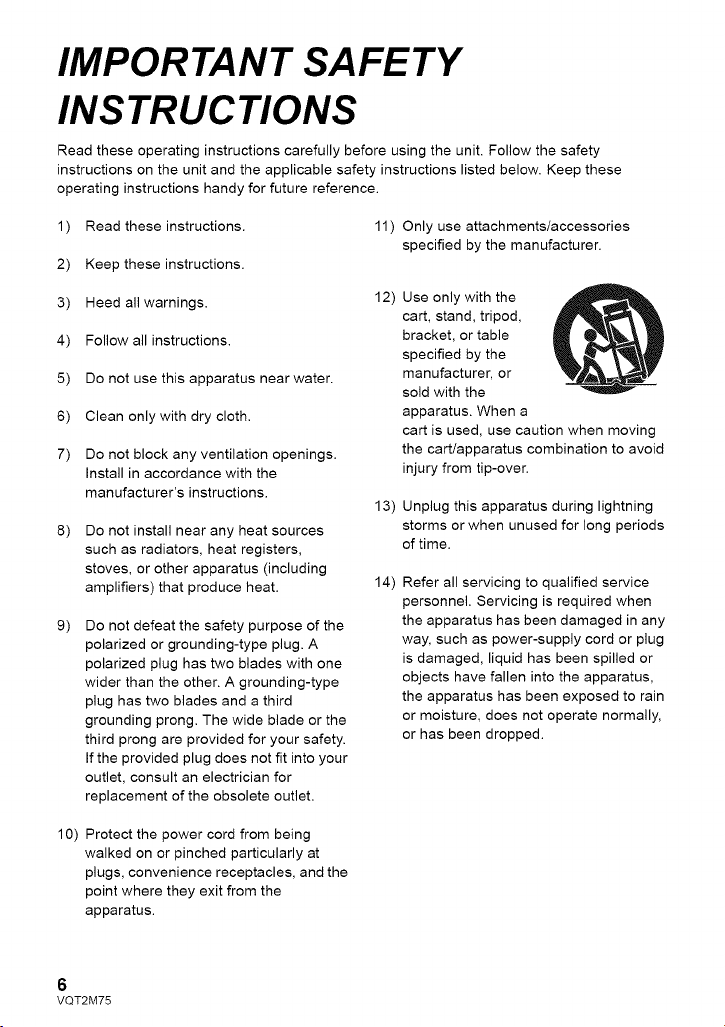
IMPORTANT SAFETY
INSTRUCTIONS
Read these operating instructions carefully before using the unit. Follow the safety
instructions on the unit and the applicable safety instructions listed below. Keep these
operating instructions handy for future reference.
1)
2)
3)
4)
5)
6)
7)
8)
9)
Read these instructions. 11 )
Keep these instructions.
Heed all warnings.
Follow all instructions.
Do not use this apparatus near water.
Clean only with dry cloth.
Do not block any ventilation openings.
Install in accordance with the
manufacturer's instructions.
Do not install near any heat sources
such as radiators, heat registers,
stoves, or other apparatus (including
amplifiers) that produce heat.
Do not defeat the safety purpose of the
polarized or grounding-type plug. A
polarized plug has two blades with one
wider than the other. A grounding-type
plug has two blades and a third
grounding prong. The wide blade or the
third prong are provided for your safety.
If the provided plug does not fit into your
outlet, consult an electrician for
replacement of the obsolete outlet.
12)
13)
14)
Only use attachments/accessories
specified by the manufacturer.
Use only with the
cart, stand, tripod,
bracket, or table
specified by the
manufacturer, or
sold with the
apparatus. When a
cart is used, use caution when moving
the cart/apparatus combination to avoid
injury from tip-over.
Unplug this apparatus during lightning
storms or when unused for long periods
of time.
Refer all servicing to qualified service
personnel. Servicing is required when
the apparatus has been damaged in any
way, such as power-supply cord or plug
is damaged, liquid has been spilled or
objects have fallen into the apparatus,
the apparatus has been exposed to rain
or moisture, does not operate normally,
or has been dropped.
10) Protect the power cord from being
walked on or pinched particularly at
plugs, convenience receptacles, and the
point where they exit from the
apparatus.
6
VQT2M75
Precautions
USE & LOCATION
• TO AVOID SHOCK HAZARD ... Your
camera and power supply should not be
exposed to rain or moisture. Do not
connect the power supply or operate your
camera if it gets wet. Your camera has
been designed for outdoor use, however it
is not designed to sustain direct exposure
to water, rain, sleet, snow, sand, dust, or a
direct splashing from a pool or even a cup
of coffee. This action could permanently
damage the internal parts of your camera.
Do not attempt to disassemble this unit.
There are no user serviceable parts
inside. Unplug your camera from the
power supply before cleaning.
• AS WITH ANY SMALL OBJECT, SD
CARDS CAN BE SWALLOWED BY
YOUNG CHILDREN. DO NOT ALLOW
CHILDREN TO HANDLE THE SD CARD.
• DO NOT AIM YOUR CAMERA AT THE
SUN OR OTHER BRIGHT OBJECTS
• DO NOT LEAVE THE CAMERA WITH
THE EVF AIMED DIRECTLY AT THE
SUN AS THIS MAY CAUSE DAMAGE TO
THE INTERNAL PARTS OF THE EVF
• DO NOT EXPOSE YOUR CAMERA TO
EXTENDED HIGH TEMPERATURE ...
Such as, in direct sunlight, inside a closed
car, next to a heater, etc... This action
could permanently damage the internal
parts of your camera.
• AVOID SUDDEN CHANGES IN
TEMPERATURE ... If the unit is suddenly
moved from a cold place to a warm place,
moisture may form on the SD card and
inside the unit.
• DO NOT LEAVE YOUR CAMERA OR
THE POWER SUPPLY TURNED ON
WHEN NOT IN USE.
• STORAGE OF YOUR CAMERA ... Store
and handle your camera in a manner that
will not subject it to unnecessary
movement (avoid shaking and striking).
Your camera contains a sensitive pick-up
device which could be damaged by
improper handling or storage.
CARE
• TO CLEAN YOUR CAMERA ... Do not
use strong or abrasive detergents when
cleaning your camera body.
• TO PROTECT THE LENS ... Do not touch
the surface of the lens with your hand.
Use a commercial camera lens solution
and lens paper when cleaning the lens.
Improper cleaning can scratch the lens
coating.
• TO PROTECT THE FINISH OF YOUR
CAMERA ... Before handling your
camera, make sure your hands and face
are free from any chemical products, such
as suntan lotion, as it may damage the
finish.
-If you see this symbol-
Information on Disposal in other
Countries outside the European
Union
"_ This symbol is only
valid in the European
Union.
If you wish to discard
this product, please
contact your local
authorities or dealer
and ask for the correct
method of disposal.
7
VQT2M75
• Indemnity about recorded
content
Panasonic does not accept any
responsibility for damages directly or
indirectly due to any type of problems that
result in loss of recording or edited content,
and does not guarantee any content if
recording or editing does not work properly.
Likewise, the above also applies in a case
where any type of repair is made to the unit
(including any other non-built-in memory/
HDD related component).
• Handling of built-in memory
[HDC-TM700]
This unit is equipped with the built-in 32 GB
memory. When using this component, pay
attention to the following points.
Back up data periodically.
The built-in memory is temporary storage. In
order to avoid erasing data due to static
electricity, electromagnetic waves,
breakage, and failures, back up the data to a
PC or DVD disc. (-) 109, 117)
• Access lamp [ACCESS] (-,) 16)illuminates
while the SD card or built-in memory is
being accessed (initialization, recording,
playback, deleting etc.). Do not perform the
following operations when the lamp
illuminates. It may damage the built-in
memory or cause a malfunction in the unit.
Turn the unit off (remove the battery)
Insert and remove the USB cable
Expose the unit to vibrations or shock
• About disposing of or giving away this unit.
(-,) 142)
• Handling of HDD [HDC-HS700]
This unit is equipped with the built-in 240 GB
HDD. While the HDD is capable of storing a
large amount of data, there are a few things
to look out for. When using this component,
pay attention to the following points.
Do not expose the HDD to vibrations and
shocks.
Due to the environment and handling
conditions, the HDD may be subject to
partial damages or may not be able to read,
record, and play back data. Do not expose
the unit to vibrations or shock, and do not
turn off the power during recording or
playback.
If the unit is used in a place with loud
sounds, such as a club or similar venue,
the recording may stop due to sound
vibrations. Recording data on an SD card
is recommended in these places.
Back up data periodically.
The HDD is temporary storage. In order to
avoid erasing data due to static electricity,
electromagnetic waves, breakage, and
failures, back up the data to a PC or DVD
disc. (-) 109, 117)
If the HDD experiences any abnormality,
back up data immediately.
Failure in the HDD may produce continuous
noise or choppy sound during recording or
playing back. Continuous use will cause
further deterioration, and may eventually
disable the HDD. If these phenomena are
observed, copy the data on the HDD to a
PC, a DVD disc etc. immediately and
contact consumer support. (-) 161, 162)
Once the HDD is out of order, data cannot
be restored.
Operation may stop in hot or cold
environments.
The unit is disabled in order to protect the
HDD.
Do not use the unit in low atmospheric
pressures.
The HDD may fail if it is used at altitudes of
3000 m (9800 feet) or higher above sea
level.
Transportation
When the unit is transported, turn off the
power and be careful not to shake, drop, or
cause impact to the unit.
Falling detection
[ [_ ] is indicated on the screen when it
detects a falling state (a weightless state). If
the falling state is detected repeatedly, the
8
VQT2M75
unitmaystoptherecordingorplayback
operationinordertoprotecttheHDD.
• HDDaccesslamp[ACCESSHDD](-)21)
illuminateswhiletheHDDisbeing
accessed(initialization,recording,
playback,deletingetc.).Donotperform
thefollowingoperationswhenthelamp
illuminates.ItmaydamagetheHDDor
causeamalfunctionintheunit.
Turntheunitoff(removethebattery)
InsertandremovetheUSBcable
Exposetheunittovibrationsorshock
• Aboutdisposingoforgivingawaythisunit.
(-)142)
• Cards that you can use with
this unit
SD Memory Card, SDHC Memory Card
and SDXC Memory Card
• 4 GB or more Memory Cards that do not
have the SDHC logo or 48 GB or more
Memory Cards that do not have the SDXC
logo are not based on SD Memory Card
Specifications.
• Refer to page 27 for more details on SD
cards.
• For the purposes of these
operating instructions
• SD Memory Card, SDHC Memory Card
and SDXC Memory Card are referred to
as the "SD card".
• Functions that can be used for motion
picture recordinglmotion picture playback
indicated by _ in these
are
operating instructions.
• Functions that can be used for still picture
recording/still picture playback are
indicated by _ in these operating
instructions.
• Pages for reference are indicated by an
arrow, for example: -) 00
These operating instructions are designed
for use with models IHDC=TM700) and
_[_. Pictures may be slightly
different from the original.
• The illustrations used in these operating
instructions show model [HDC-TM700},
however, parts of the explanation refer
to different models.
• Depending on the model, some
functions are not available.
• Features may vary, so please read
carefully.
• Not all models may be available
depending on the region of purchase.
9
VQT2M75
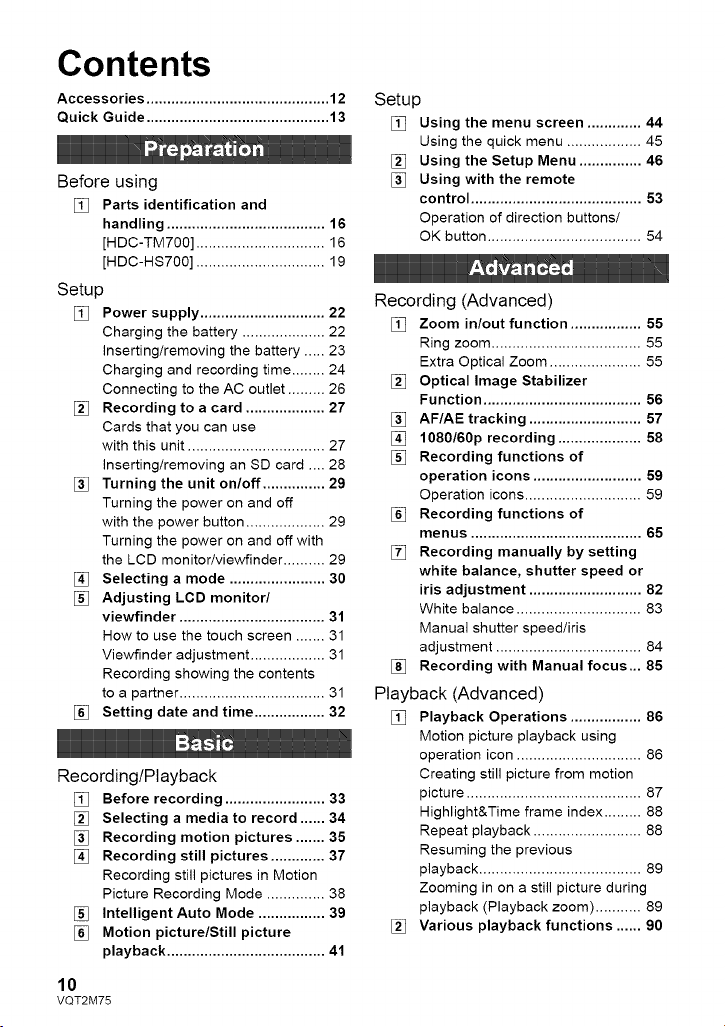
Contents
Accessories ............................................ 12
Quick Guide ............................................ 13
Before using
[_ Parts identification and
handling ...................................... 16
[HDC-TM700] ............................... 16
[HDC-HS700] ............................... 19
Setup
[_ Power supply .............................. 22
Charging the battery .................... 22
Inserting/removing the battery ..... 23
Charging and recording time ........ 24
Connecting to the AC outlet ......... 26
Recording to a card ................... 27
Cards that you can use
with this unit ................................. 27
Inserting/removing an SD card .... 28
Turning the unit on/off ............... 29
Turning the power on and off
with the power button ................... 29
Turning the power on and off with
the LCD monitor/viewfinder .......... 29
[_ Selecting a mode ....................... 30
Adjusting LOB monitor/
viewfinder ................................... 31
How to use the touch screen ....... 31
Viewfinder adjustment .................. 31
Recording showing the contents
to a partner ................................... 31
[_ Setting date and time ................. 32
Recording/Playback
Before recording ........................ 33
,_ Selecting a media to record ...... 34
Recording motion pictures ....... 35
[_ Recording still pictures ............. 37
Recording still pictures in Motion
Picture Recording Mode .............. 38
[] Intelligent Auto Mode ................ 39
[_ Motion picture/Still picture
playback ...................................... 41
10
VQT2M75
Setup
[] Using the menu screen ............. 44
Using the quick menu .................. 45
[_ Using the Setup Menu ............... 46
[] Using with the remote
control ......................................... 53
Operation of direction buttons/
QK button ..................................... 54
Recording (Advanced)
[] Zoom in/out function ................. 55
Ring zoom .................................... 55
Extra Optical Zoom ...................... 55
[_ Optical Image Stabilizer
Function ...................................... 56
[] AF/AE tracking ........................... 57
1080/60p recording .................... 58
[] Recording functions of
operation icons .......................... 59
Operation icons ............................ 59
[] Recording functions of
menus ......................................... 65
[] Recording manually by setting
white balance, shutter speed or
iris adjustment ........................... 82
White balance .............................. 83
Manual shutter speed/iris
adjustment ................................... 84
[] Recording with Manual focus... 85
Playback (Advanced)
[] Playback Operations ................. 86
Motion picture playback using
operation icon .............................. 86
Creating still picture from motion
picture .......................................... 87
Highlight&Time frame index ......... 88
Repeat playback .......................... 88
Resuming the previous
playback ....................................... 89
Zooming in on a still picture during
playback (Playback zoom) ........... 89
[_ Various playback functions ...... 90
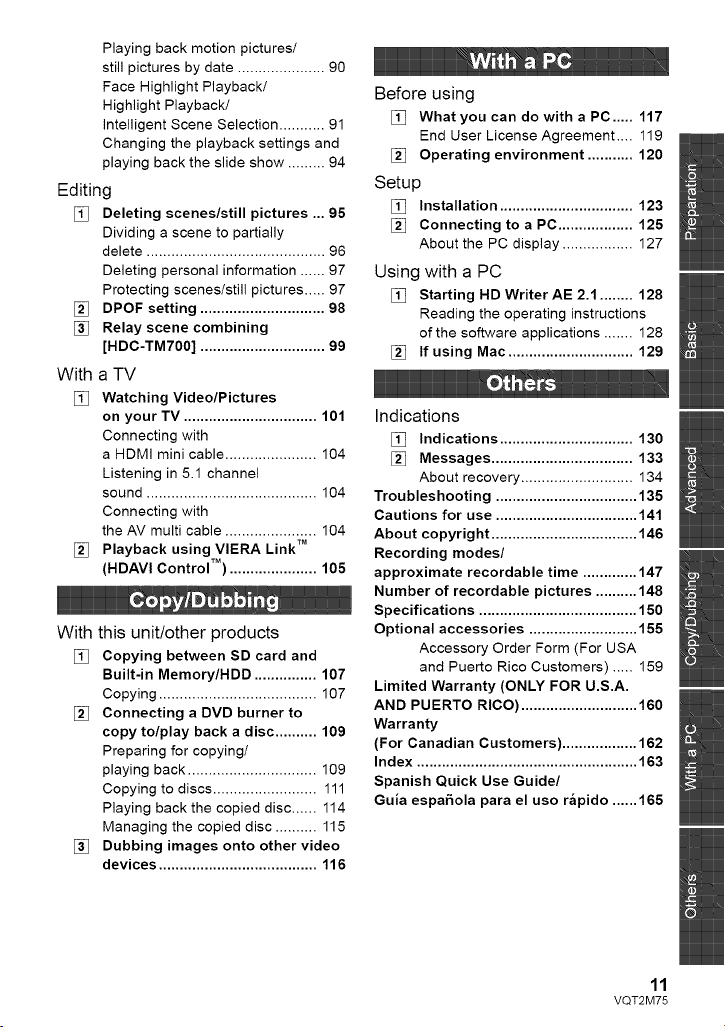
Playing back motion pictures/
still pictures by date ..................... 90
Face Highlight Playback/
Highlight Playback/
intelligent Scene Selection ........... 91
Changing the playback settings and
playing back the slide show ......... 94
Editing
Deleting scenes/still pictures ... 95
Dividing a scene to partially
delete ........................................... 96
Deleting personal information ...... 97
Protecting scenes/still pictures ..... 97
[] DPOF setting .............................. 98
[] Relay scene combining
[HDC-TM700] .............................. 99
With a TV
[_ Watching Video/Pictures
on your TV ................................ 101
Connecting with
a HDMI mini cable ...................... 104
Listening in 5.1 channel
sound ......................................... 104
Connecting with
the AV multi cable ...................... 104
[] Playback using VIERA Link TM
(HDAVI Control TM) ..................... 105
With this unit/other products
[_ Copying between SD card and
Built-in Memory/HDD ............... 107
Copying ...................................... 107
[] Connecting a DVD burner to
copy to/play back a disc .......... 109
Preparing for copying/
playing back ............................... 109
Copying to discs ......................... 111
Playing back the copied disc ...... 114
Managing the copied disc .......... 115
[] Dubbing images onto other video
devices ...................................... 116
Before using
[] What you can do with a PC ..... 117
End User License Agreement .... 119
[] Operating environment ........... 120
Setup
[] Installation ................................ 123
[] Connecting to a PC .................. 125
About the PC display ................. 127
Using with a PC
[] Starting HD WriterAE 2.1 ........ 128
Reading the operating instructions
of the software applications ....... 128
[] If using Mac .............................. 129
Indications
[] Indications ................................ 130
[] Messages .................................. 133
About recovery ........................... 134
Troubleshooting .................................. 135
Cautions for use .................................. 141
About copyright ................................... 146
Recording modes/
approximate recordable time ............. 147
Number of recordable pictures .......... 148
Specifications ...................................... 150
Optional accessories .......................... 155
Accessory Order Form (For USA
and Puerto Rico Customers) ..... 159
Limited Warranty (ONLY FOR U.S.A.
AND PUERTO RICO) ............................ 160
Warranty
(For Canadian Customers) .................. 162
Index ..................................................... 163
Spanish Quick Use Guide/
Guia espa_ola para el uso r_pido ...... 165
11
VQT2M75
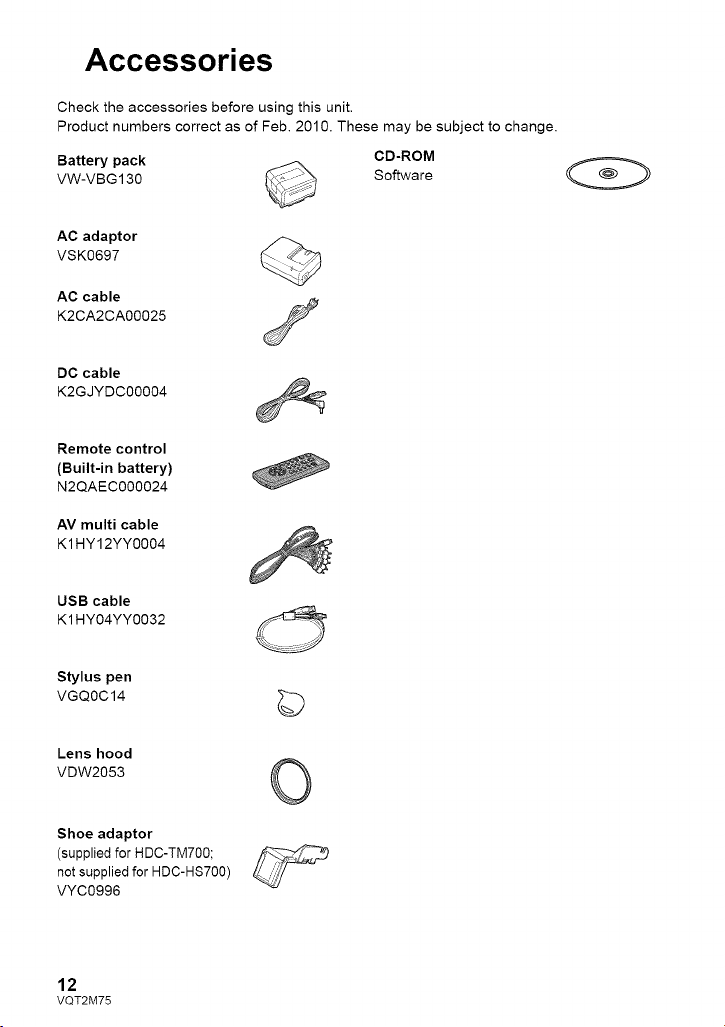
Accessories
Check the accessories before using this unit.
Product numbers correct as of Feb. 2010. These may be subject to change.
Battery pack _ CD-ROM
VW-VBG130 _\_, ° _"__ Software
AC adaptor
VSK0697
AC cable
K2CA2CA00025
DC cable
K2GJYDC00004
Remote control
(Built-in battery)
N2QAEC000024
AV multi cable
K1 HY12YY0004
USB cable
K1 HY04YY0032
Stylus pen
VGQOC14
Lens hood
VDW2053
Shoe adaptor
(supplied for HDC-TM700;
not supplied for HDC-HS700)
VYC0996
©
©
12
VQT2M75
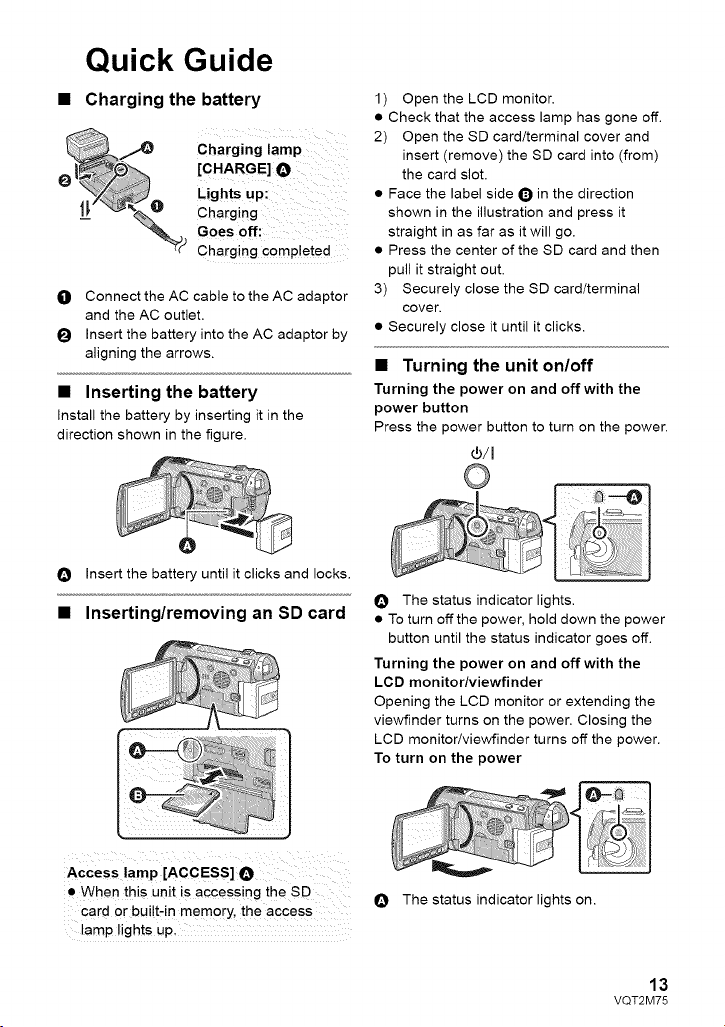
Quick Guide
• Charging the battery
Charging lamp
[CHARGE] O
Chaiging
Lights up:
Goes off:
"_ Charging completed
O Connect the AC cable to the AC adaptor
and the AC outlet.
I_ Insert the battery into the AC adaptor by
aligning the arrows.
• Inserting the battery
Install the battery by inserting it in the
direction shown in the figure.
O Insert the battery until it clicks and locks.
• Inserting/removing an SD card
Access lamp [ACCESS] O
• When this unit is accessing the SD
card or bui!t, in memory , the access
lamp lights up.
1) Open the LCD monitor.
• Check that the access lamp has gone off.
2) Open the SD card/terminal cover and
insert (remove) the SD card into (from)
the card slot.
• Face the label side Q in the direction
shown in the illustration and press it
straight in as far as it will go.
• Press the center of the SD card and then
pull it straight out.
3) Securely close the SD card/terminal
cover.
• Securely close it until it clicks.
• Turning the unit on/off
Turning the power on and off with the
power button
Press the power button to turn on the power.
®/I
O The status indicator lights.
• To turn offthe power, hold down the power
button until the status indicator goes off.
Turning the power on and off with the
LCD monitor/viewfinder
Opening the LCD monitor or extending the
viewfinder turns on the power. Closing the
LCD monitor/viewfinder turns off the power.
To turn on the power
O The status indicator lights on.
13
VQT2M75
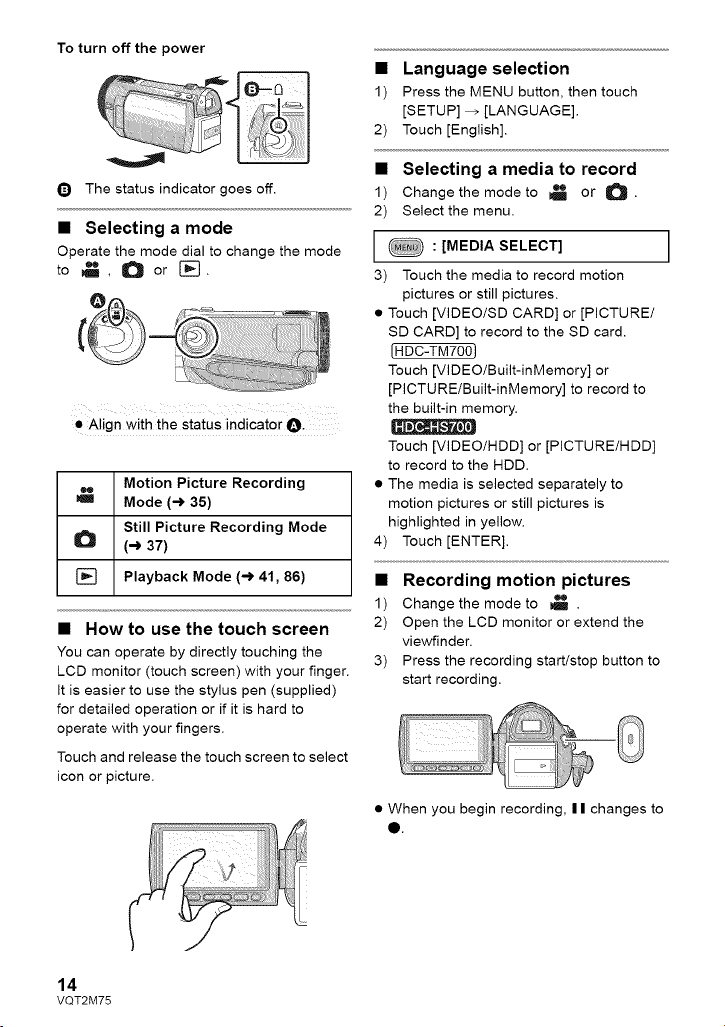
To turn off the power
Q The status indicator goes off.
• Selecting a mode
Operate the mode dial to change the mode
to _ , O or [-_.
• Align with the status indicator O-
Motion Picture Recording
Mode (-) 35)
Still Picture Recording Mode
(-) 37)
[] Playback Mode (-_ 41, 86)
• How to use the touch screen
You can operate by directly touching the
LCD monitor (touch screen) with your finger.
It is easier to use the stylus pen (supplied)
for detailed operation or if it is hard to
operate with your fingers.
Touch and release the touch screen to select
icon or picture.
• Language selection
1) Press the MENU button, then touch
[SETUP] _ [LANGUAGE].
2) Touch [English].
• Selecting a media to record
1) Change the mode to _ or _.
2) Select the menu.
[ : [MEDIA SELECT] )
3) Touch the media to record motion
pictures or still pictures.
• Touch [VIDEO/SD CARD] or [PICTURE/
SD CARD] to record to the SD card.
[HDC-TM700)
Touch [VIDEO/Built-inMemory] or
[PICTURE/Built-inMemory] to record to
the built-in memory.
Touch [VIDEO/HDD] or [PICTURE/HDD]
to record to the HDD.
• The media is selected separately to
motion pictures or still pictures is
highlighted in yellow.
4) Touch [ENTER].
• Recording motion pictures
1) Change the mode to _ .
2) Open the LCD monitor or extend the
viewfinder.
3) Press the recording starttstop button to
start recording.
• When you begin recording, | | changes to
O.
14
VQT2M75
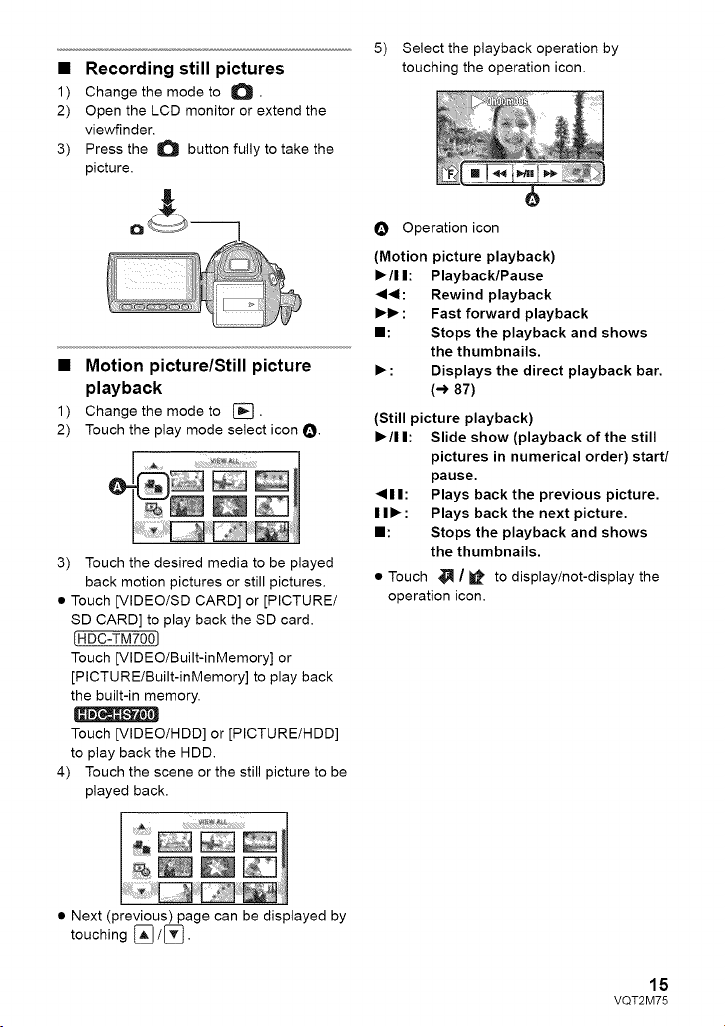
• Recording still pictures
1) Change the mode to O •
2) Open the LCD monitor or extend the
viewfinder.
3) Press the O button fully to take the
picture.
5) Select the playback operation by
touching the operation icon,
• Motion picture/Still picture
playback
1) Change the mode to [].
2) Touch the play mode select icon O.
3) Touch the desired media to be played
back motion pictures or still pictures,
• Touch [VIDEO/SD CARD] or [PICTURE/
SD CARD] to play back the SD card.
(HDC-TM7001
Touch [VIDEO/Built-inMemory] or
[PICTURE/Built-inMemory] to play back
the built-in memory.
Touch [VIDEO/HDD] or [PICTURE/HDD]
to play back the HDD.
4) Touch the scene or the still picture to be
played back,
O Operation icon
(Motion picture playback)
• /11: Playback/Pause
4<1: Rewind playback
• • : Fast forward playback
I1: Stops the playback and shows
the thumbnails.
• : Displays the direct playback bar.
(-> 87)
(Still picture playback)
• /I I: Slide show (playback of the still
pictures in numerical order) start/
pause,
411: Plays back the previous picture.
I I • : Plays back the next picture,
I1: Stops the playback and shows
the thumbnails.
• Touch _ / i_ to display/not-display the
operation icon.
• Next (previous) page can be displayed by
touching _/[_.
15
VQT2M75
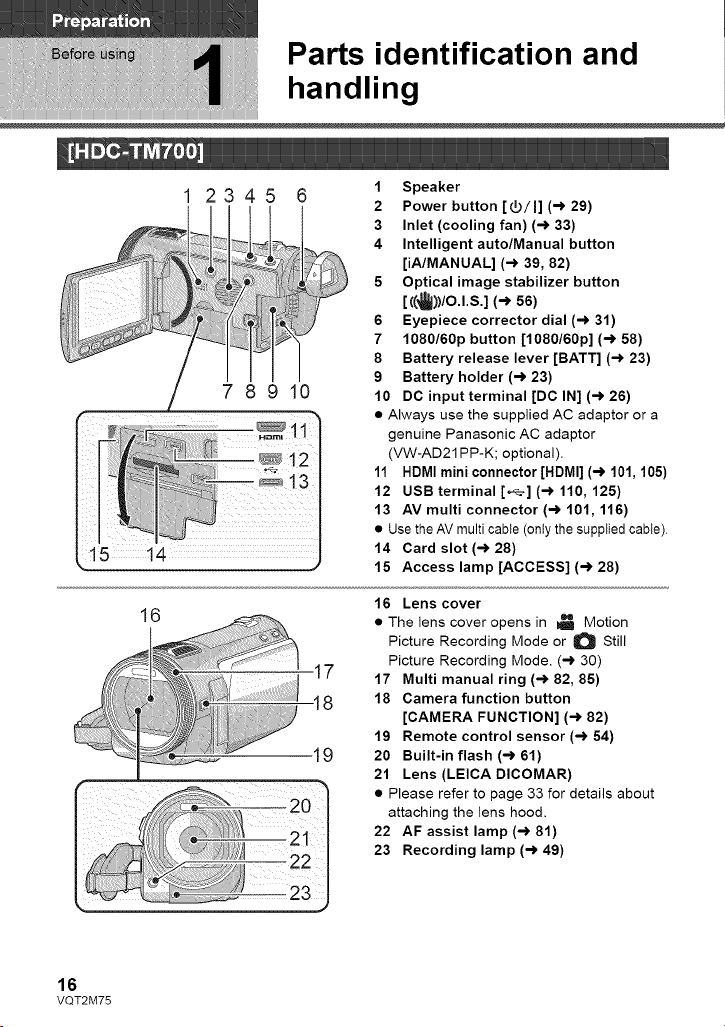
Parts identification and
handling
1 2345
1 Speaker
2 Power button [Y/I] (-_ 29)
3 Inlet (cooling fan) (-> 33)
4 Intelligent auto/Manual button
[iA/MANUAL] (-_ 39, 82)
5 Optical image stabilizer button
[ ((_))/O.l.S.] (-> 56)
6 Eyepiece corrector dial (-_ 31)
7 1080/60p button [1080/60p] (-> 58)
8 Battery release lever [BATT] (-_ 23)
9 Battery holder (-_ 23)
10 DC input terminal [DC IN] (-_ 26)
• Always use the supplied AC adaptor or a
genuine Panasonic AC adaptor
(VW-AD21 PP-K; optional).
11 HDMI mini connector [HDMI] (-_ 101,105)
12 USB terminal [_] (-_ 110, 125)
13 AV multi connector (-> 101,116)
• Use the AV multi cable (only the supplied cable).
14 Card slot (-> 28)
15 Access lamp [ACCESS] (-> 28)
789 0
_tl
_12
16
17
-18
16 Lens cover
• The lens cover opens in _ Motion
Picture Recording Mode or O Still
Picture Recording Mode. (-) 30)
17 Multi manual ring (-_ 82, 85)
18 Camera function button
[CAMERA FUNCTION] (-_ 82)
19 Remote control sensor (-> 54)
20 Built-in flash (-> 61)
21 Lens (LEICA DICOMAR)
• Please refer to page 33 for details about
attaching the lens hood.
22 AF assist lamp (-_ 81)
23 Recording lamp (-_ 49)
16
VQT2M75
24 25
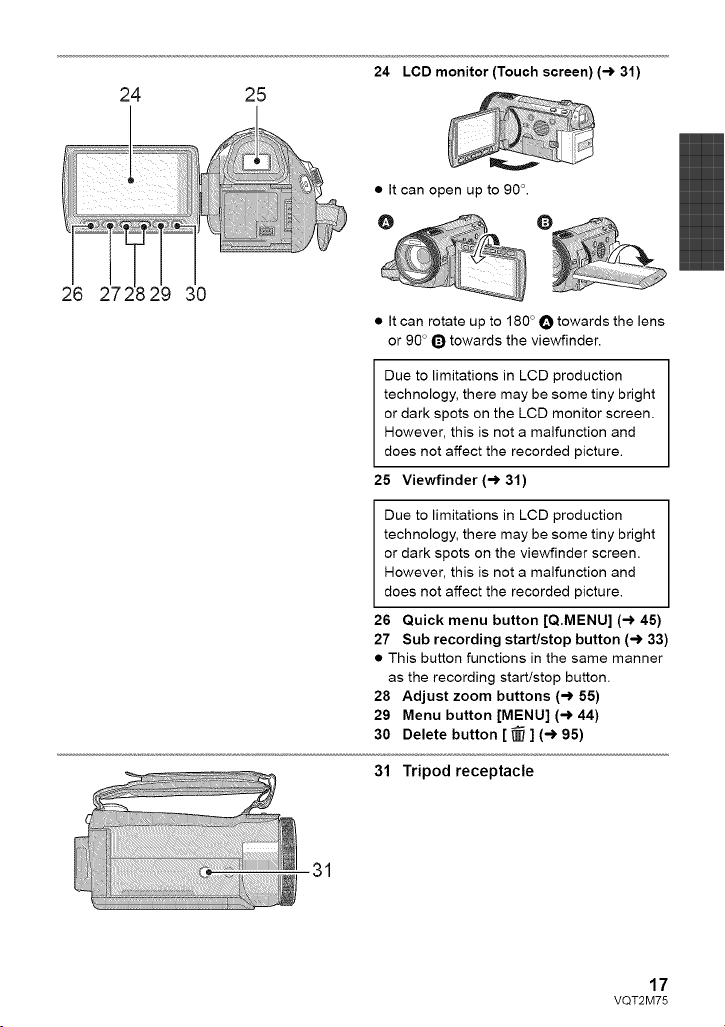
24 LCD monitor (Touch screen) (-_ 31)
26 29 30
• It can open up to 9OL
@ O
• It can rotate up to 180 ° O towards the lens
or 90 ° O towards the viewfinder.
Due to limitations in LCD production
technology, there may be some tiny bright
or dark spots on the LCD monitor screen.
However, this is not a malfunction and
does not affect the recorded picture.
25 Viewfinder (-_ 31)
Due to limitations in LCD production
technology, there may be some tiny bright
or dark spots on the viewfinder screen.
However, this is not a malfunction and
does not affect the recorded picture.
26 Quick menu button [Q.MENU] (-_ 45)
27 Sub recording start/stop button (-_ 33)
• This button functions in the same manner
as the recording start/stop button.
28 Adjust zoom buttons (-> 55)
29 Menu button [MENU] (-_ 44)
30 Delete button [ _ ] (-_ 95)
31 Tripod receptacle
31
17
VQT2M75
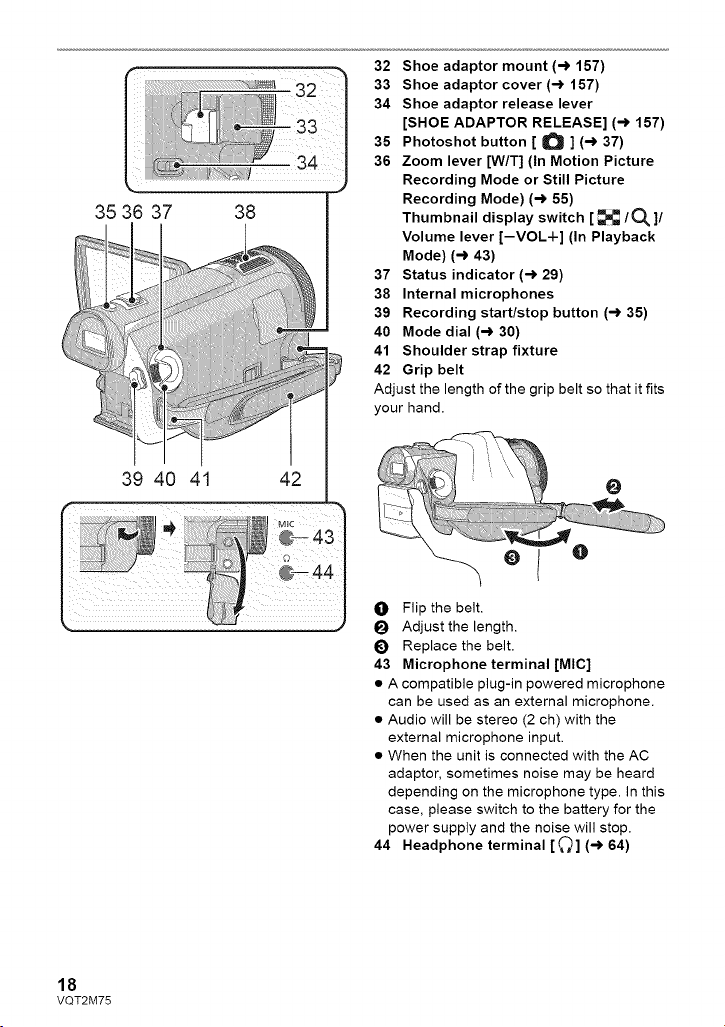
35 36 37 38
32 Shoe adaptor mount (-) 157)
33 Shoe adaptor cover (-) 157)
34 Shoe adaptor release lever
[SHOE ADAPTOR RELEASE] (,-) 157)
35 Photoshot button [ O ] (-) 37)
36 Zoom lever [W/T] (In Motion Picture
Recording Mode or Still Picture
Recording Mode) (-) 55)
Thumbnail display switch [ _/O_ ]/
Volume lever [-VOL+] (In Playback
Mode) (-> 43)
37 Status indicator (-> 29)
38 Internal microphones
39 Recording start/stop button (-_ 35)
40 Mode dial (-> 30)
41 Shoulder strap fixture
42 Grip belt
Adjust the length of the grip belt so that it fits
your hand.
39 40 41 42
O Flip the belt.
I_ Adjust the length.
I_ Replace the belt.
43 Microphone terminal [MIC]
• A compatible plug-in powered microphone
can be used as an external microphone.
• Audio will be stereo (2 ch) with the
external microphone input.
• When the unit is connected with the AC
adaptor, sometimes noise may be heard
depending on the microphone type. In this
case, please switch to the battery for the
power supply and the noise will stop.
44 Headphone terminal [__] (-_ 64)
18
VQT2M75
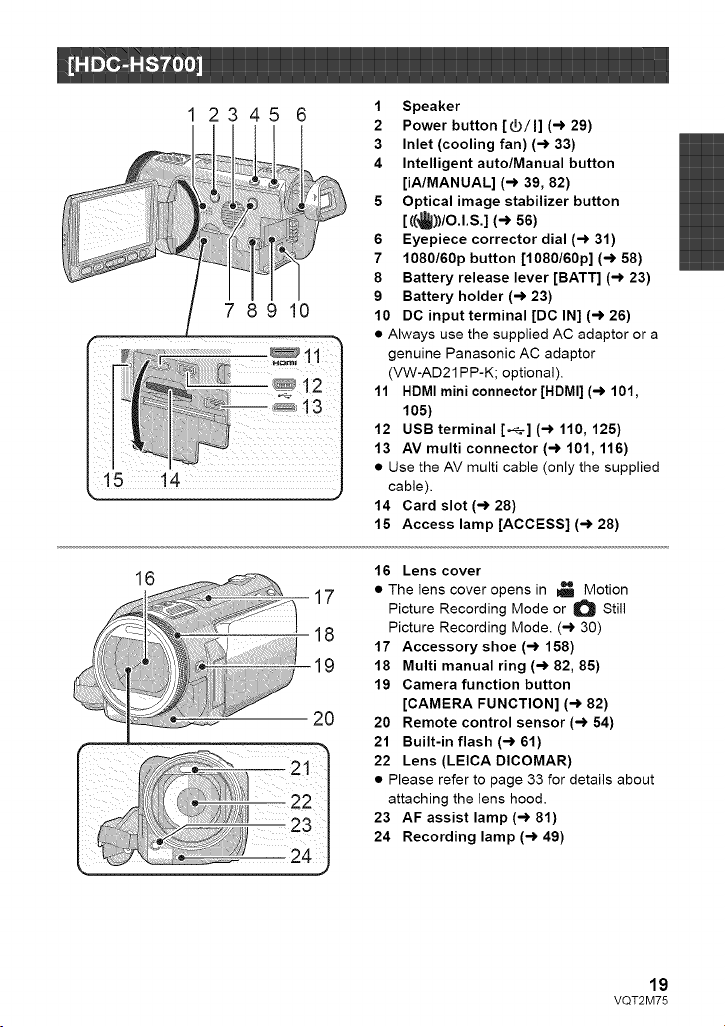
1 2345 6
78910
15 14
1 Speaker
2 Power button [_/]] (-) 29)
3 Inlet (cooling fan) (-_ 33)
4 Intelligent auto/Manual button
[iA/MANUAL] (-) 39, 82)
5 Optical image stabilizer button
[ ¢_))/O.I.S.] (-* 56)
6 Eyepiece corrector dial (-) 31)
7 1080/60p button [1080/60p] (-_ 58)
8 Battery release lever [BATT] (-) 23)
9 Battery holder (-) 23)
10 DC input terminal [DC IN] (-) 26)
• Always use the supplied AC adaptor or a
genuine Panasonic AC adaptor
(VW-AD21PP-K; optional).
11 HDMI mini connector [HDMI] (-) 101,
105)
12 USB terminal [,_] (-) 110, 125)
13 AV multi connector (-) 101,116)
• Use the AV multi cable (only the supplied
cable).
14 Card slot (-_ 28)
15 Access lamp [ACCESS] (-_ 28)
16
17
18
19
2O
16 Lens cover
• The lens cover opens in _ Motion
Picture Recording Mode or O Still
Picture Recording Mode. (-) 30)
17 Accessory shoe (-_ 158)
18 Multi manual ring (-_ 82, 85)
19 Camera function button
[CAMERA FUNCTION] (-) 82)
20 Remote control sensor (-_ 54)
21 Built-in flash (-_ 61)
22 Lens (LEICA DICOMAR)
• Please refer to page 33 for details about
attaching the lens hood.
23 AF assist lamp (-_ 81)
24 Recording lamp (-) 49)
19
VQT2M75
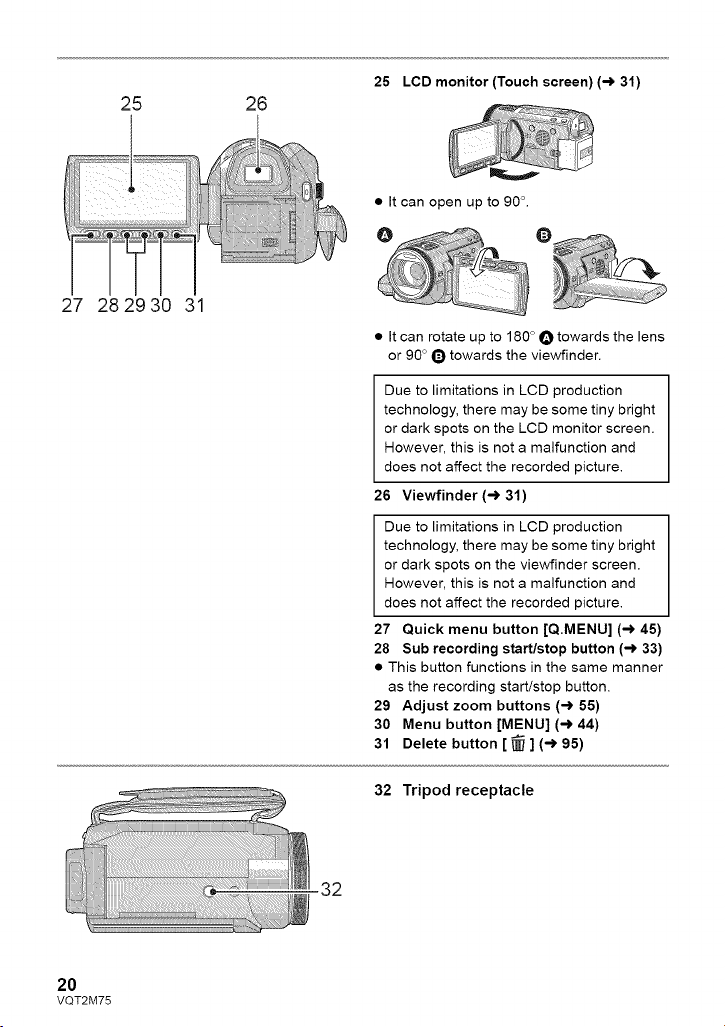
25 26
25 LCD monitor (Touch screen) (-_ 31)
27 28 29 30 31
• It can open up to 9OL
Q
• It can rotate up to 180 ° O towards the lens
or 90 ° Q towards the viewfinder.
Due to limitations in LCD production
technology, there may be some tiny bright
or dark spots on the LCD monitor screen.
However, this is not a malfunction and
does not affect the recorded picture.
26 Viewfinder (-_ 31)
Due to limitations in LCD production
technology, there may be some tiny bright
or dark spots on the viewfinder screen.
However, this is not a malfunction and
does not affect the recorded picture.
27 Quick menu button [Q.MENU] (-) 45)
28 Sub recording start/stop button (-) 33)
• This button functions in the same manner
as the recording start/stop button.
29 Adjust zoom buttons (-_ 55)
30 Menu button [MENU] (-) 44)
31 Delete button [ _ ] (-_ 95)
32 Tripod receptacle
32
2O
VQT2M75
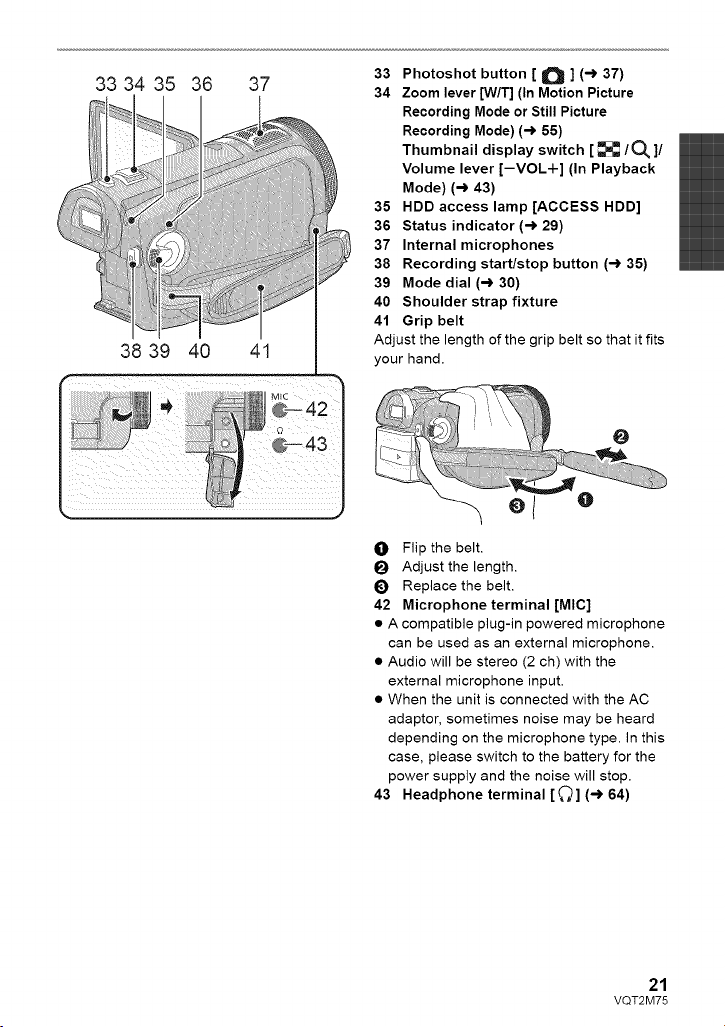
33 34 35
38 39
36
4O
37
41
33 Photoshot button [ O ] (-) 37)
34 Zoom lever [W/T] (In Motion Picture
Recording Mode or Still Picture
Recording Mode) (-) 55)
Thumbnail display switch [ _ / O_ ]/
Volume lever [-VOL-t-] (In Playback
Mode) (-) 43)
35 HDD access lamp [ACCESS HDD]
36 Status indicator (-) 29)
37 Internal microphones
38 Recording start/stop button (-) 35)
39 Mode dial (-) 30)
40 Shoulder strap fixture
41 Grip belt
Adjust the length of the grip belt so that it fits
your hand.
O Flip the belt.
I_ Adjust the length.
I_) Replace the belt.
42 Microphone terminal [MIC]
• A compatible plug-in powered microphone
can be used as an external microphone.
• Audio will be stereo (2 ch) with the
external microphone input.
• When the unit is connected with the AC
adaptor, sometimes noise may be heard
depending on the microphone type. In this
case, please switch to the battery for the
power supply and the noise will stop.
43 Headphone terminal [_] (-_ 64)
21
VQT2M75
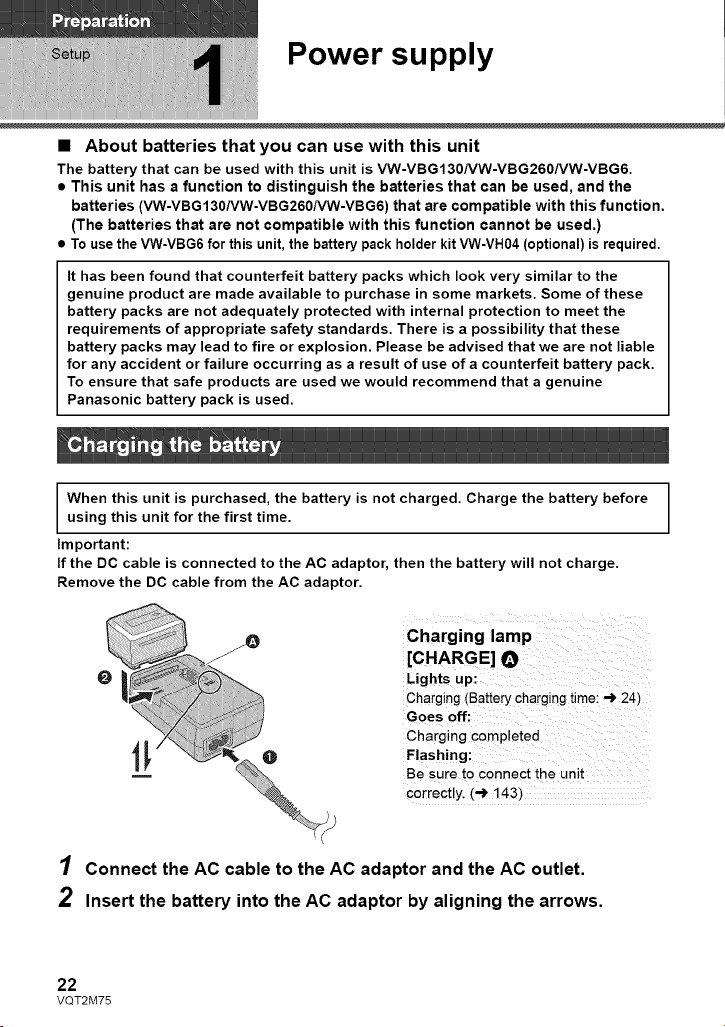
Power supply
• About batteries that you can use with this unit
The battery that can be used with this unit is VW-VBG130/VW-VBG260/VW-VBG6.
• This unit has a function to distinguish the batteries that can be used, and the
batteries (VW-VBG130NW-VBG260NW-VBG6) that are compatible with this function.
(The batteries that are not compatible with this function cannot be used.)
To use the VW-VBG6 for this unit, the battery pack holder kit VW-VH04 (optional) is required.
It has been found that counterfeit battery packs which look very similar to the
genuine product are made available to purchase in some markets. Some of these
battery packs are not adequately protected with internal protection to meet the
requirements of appropriate safety standards. There is a possibility that these
battery packs may lead to fire or explosion. Please be advised that we are not liable
for any accident or failure occurring as a result of use of a counterfeit battery pack.
To ensure that safe products are used we would recommend that a genuine
Panasonic battery pack is used.
When this unit is purchased, the battery is not charged. Charge the battery before
using this unit for the first time.
Important:
If the DC cable is connected to the AC adaptor, then the battery will not charge.
Remove the DC cable from the AC adaptor.
Charging lamp
[CHARG E] O
Lights up:
Charging (Battery charging time: -_ 24_
Goes off:
Charging completed
Flashing:
Be sure to connect the unit
correctly. (_ 143)
1 Connect the AC cable to the AC adaptor and the AC outlet.
2 Insert the battery into the AC adaptor by aligning the arrows.
22
VQT2M75
• We recommend using Panasonic batteries (-) 12, 24, 25, 155).
• If you use other batteries, we cannot guarantee the quality of this product.
• Do not heat or expose to flame.
• Do not leave the battery(ies) in an automobile exposed to direct sunlight for a long period
of time with doors and windows closed.
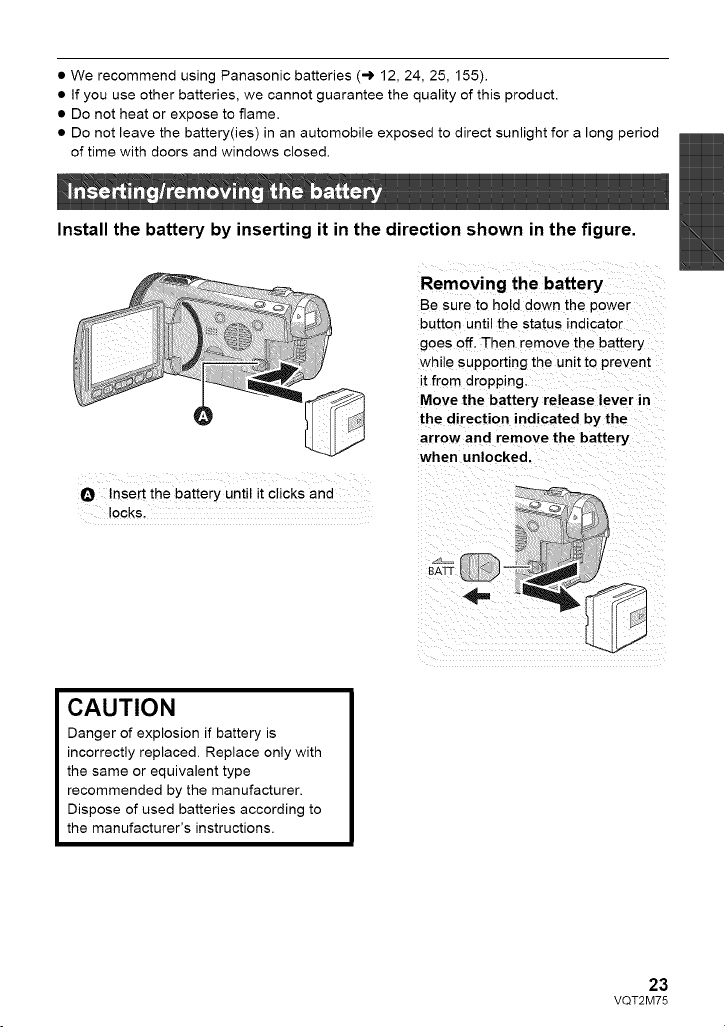
Install the battery by inserting it in the direction shown in the figure.
O Insert the battery until it clicks and
locks.
Removing the battery
Be sure to hold down the power
button until the status indicator
goes off. Then remove the battery
while supporting the unit to prevent
it from dropping.
Move the battery release lever in
the direction indicated by the
arrow and remove the battery
when unlocked.
CAUTION
Danger of explosion if battery is
incorrectly replaced. Replace only with
the same or equivalent type
recommended by the manufacturer.
Dispose of used batteries according to
the manufacturer's instructions.
23
VQT2M75

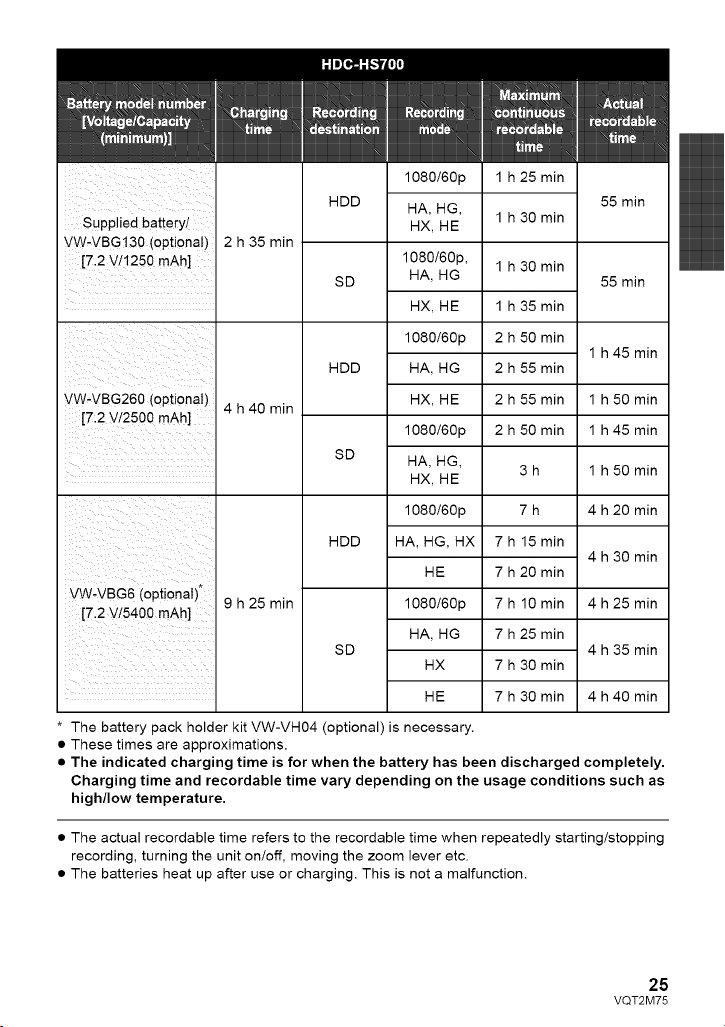
• Charging/Recording time
• Temperature: 25 °C (77 '_F)/humidity: 60%
Supplied battery!
VW.VBG! 30 (optional)
[7.2 Vt1250 mAh]
VW.VBG260 (optional)
[7:2 V/2500 mAh]
VW.VBG6 (optional)*
[7:2 V/5400 mAh]
2 h 35 min
4 h 40 min
9 h 25 min
1080/60p
HA, HG,
HX, HE
1080/60p
HA, HG,
HX, HE
1080/60p
HA, HG, HX
HE
1 h 35 min
1 h 40 min
3h
3h 10min
7 h 30 min
7 h 50 min
7 h 55 min
55 min
lh
1 h 50 min
1 h 55 min
4 h 40 min
4 h 50 min
4 h 55 min
24
VQT2M75
suppliedbatteiyl
VW.VBG'i30(optional)
[7.2V/!250mAh]
ii i ii :iiii !i ii
VW.VBG260 (optional)
[7.2 V/2500 mAh]
VW-VBG6 (optional),
[7,2 v/5400 mAh]
2 h 35 min
4 h 40 min
9 h 25 min
HDD
SD
HDD
SD
HDD
SD
1080/60p
HA, HG,
HX, HE
1080/6Op,
HA, HG
HX, HE
1080/60p
HA, HG
HX, HE
1080/60p
HA, HG,
HX, HE
1080/60p
HA, HG, HX
HE
1080/60p
HA, HG
HX
HE
1 h 25 min
1 h 30 min
1 h 30 min
1 h 35 min
2 h 50 min
2 h 55 min
2 h 55 min
2 h 50 min
3h
7h
7 h 15 min
7 h 20 min
7 h 10 min
7 h 25 min
7 h 30 min
7 h 30 min
55 min
55 min
1 h 45 min
1 h 50 min
1 h 45 min
1 h 50 min
4 h 20 min
4 h 30 min
4 h 25 min
4 h 35 min
4 h 40 min
* The battery pack holder kit VW-VH04 (optional) is necessary.
• These times are approximations.
• The indicated charging time is for when the battery has been discharged completely.
Charging time and recordable time vary depending on the usage conditions such as
high/low temperature.
• The actual recordable time refers to the recordable time when repeatedly starting/stopping
recording, turning the unit on/off, moving the zoom lever etc.
• The batteries heat up after use or charging. This is not a malfunction.
25
VQT2M75
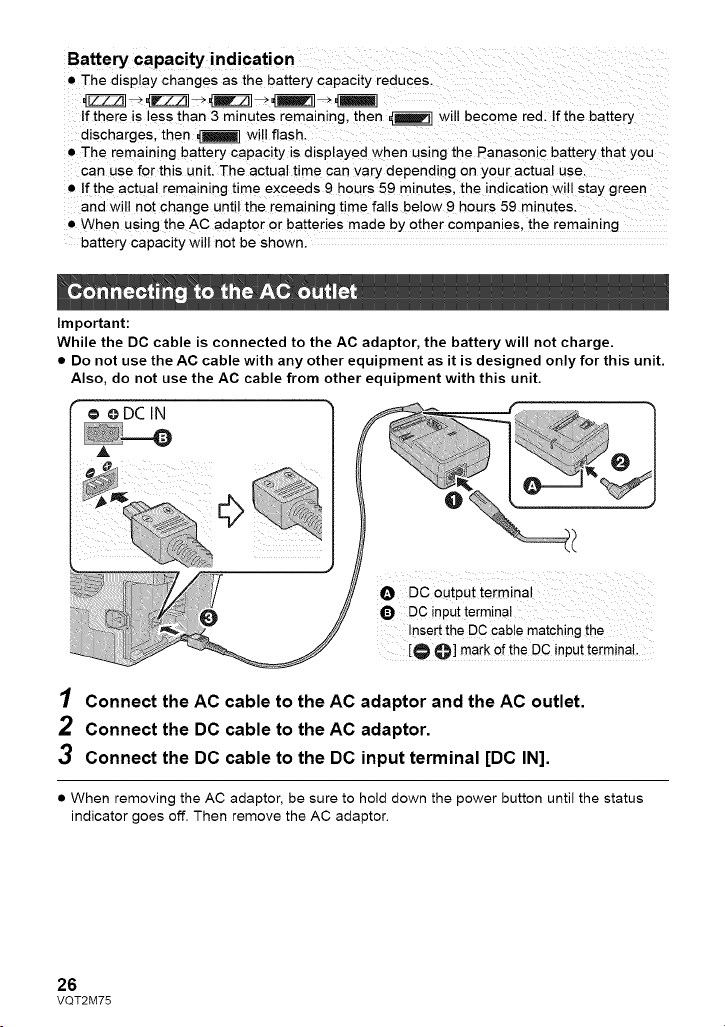
Battery capacity indication
• The display changes as the battery capacity reduces.
If there is less than 3 minutes remaining, then _q will become red. If the battery
discharges, then _1 will flash.
• The remaining battery capacity is displayed when using the Panasonic battery that you
can use for this unit. The actual time can vary depending on your actual use.
• If the actual remaining time exceeds 9 hours 59 minutes, the indication will stay green
and will not change until the remaining time falls below 9 hours 59 minutes.
• When using the AC adaptor or batteries made by other companies, the remaining
battery capacity will not be shown.
Important:
While the DC cable is connected to the AC adaptor, the battery will not charge.
• Do not use the AC cable with any other equipment as it is designed only for this unit.
Also, do not use the AC cable from other equipment with this unit.
© oDCIN
O DC0utputterminal
O DC input terminal
Inse[t the DC cab!e matching the
[O O] mark of the DC input terminal.
1 Connect the AC cable to the AC adaptor and the AC outlet.
2 Connect the DC cable to the AC adaptor.
3 Connect the DC cable to the DC input terminal [DC IN].
• When removing the AC adaptor, be sure to hold down the power button until the status
indicator goes off. Then remove the AC adaptor.
26
VQT2M75
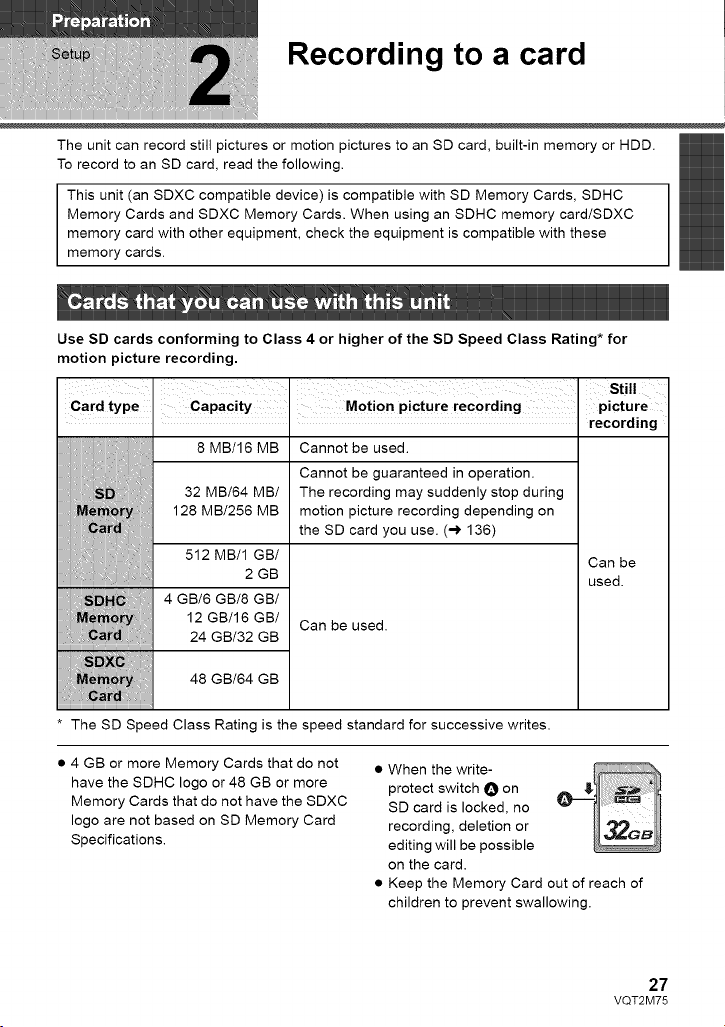
Recording to a card
The unit can record still pictures or motion pictures to an SD card, built-in memory or HDD.
To record to an SD card, read the following.
This unit (an SDXC compatible device) is compatible with SD Memory Cards, SDHC
Memory Cards and SDXC Memory Cards. When using an SDHC memory card/SDXC
memory card with other equipment, check the equipment is compatible with these
memory cards.
Use SD cards conforming to Class 4 or higher of the SD Speed Class Rating* for
motion picture recording.
I I Still
Card type Capacity Motion picture recording picture
_ recording
8 MB/16 MB Cannot be used.
Cannot be guaranteed in operation.
32 MB/64 MB/ The recording may suddenly stop during
128 MB/256 MB motion picture recording depending on
the SD card you use. (-,) 136)
512 MB/1 GB/ Can be
2 GB used.
4GB/6GB/8GB/
12 GB/16 GB/ Can be used.
24GB/32GB
_ 48 GB/64 GB
* The SD Speed Class Rating is the speed standard for successive writes.
• 4 GB or more Memory Cards that do not
have the SDHC logo or 48 GB or more
Memory Cards that do not have the SDXC
logo are not based on SD Memory Card
Specifications.
• When the write-
protect switch O on
SD card is locked, no
recording, deletion or
editing will be possible
on the card.
• Keep the Memory Card out of reach of
children to prevent swallowing.
27
VQT2M75
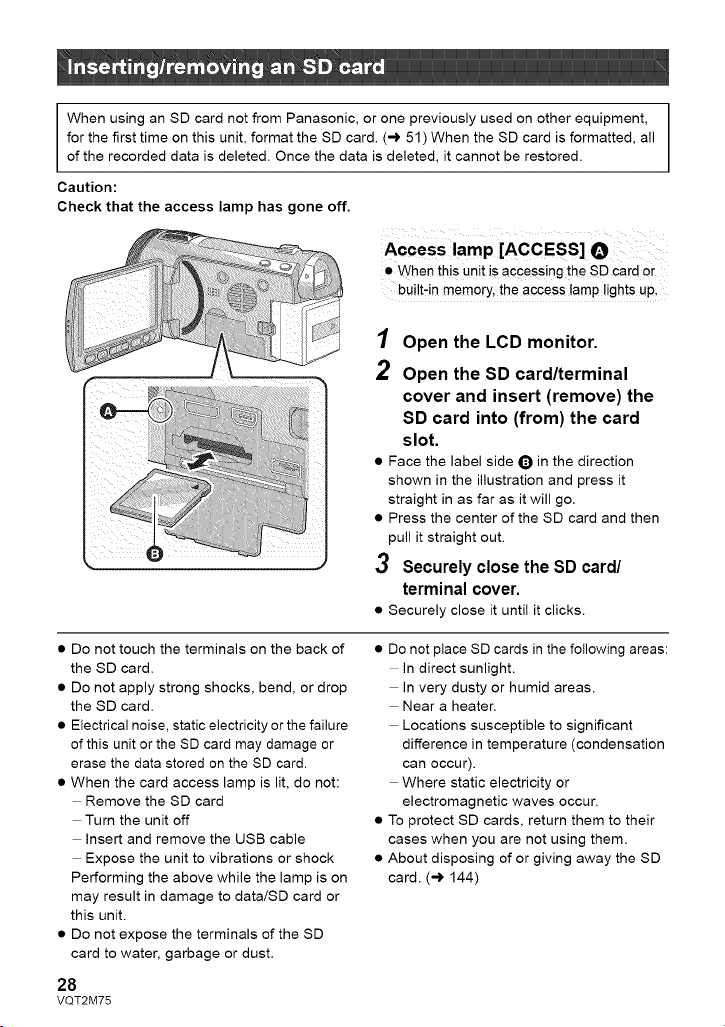
WhenusinganSDcardnotfromPanasonic,oronepreviouslyusedonotherequipment,
forthefirsttimeonthisunit,formattheSDcard.(-)51)WhentheSDcardisformatted,all
oftherecordeddataisdeleted.Oncethedataisdeleted,itcannotberestored.
Caution:
Check that the access lamp has gone off.
Access lamp [ACCESS]
• When this unit is accessing the SD card or
bui!t,in memory, the access tamp lights up,
1 Open the LCD monitor.
2 Open the SD card/terminal
cover and insert (remove) the
SD card into (from) the card
slot.
• Face the label side Q in the direction
shown in the illustration and press it
straight in as far as it will go.
• Press the center of the SD card and then
pull it straight out.
3 Securely close the SD card/
terminal cover.
• Securely close it until it clicks.
• Do not touch the terminals on the back of
the SD card.
• Do not apply strong shocks, bend, or drop
the SD card.
• Electrical noise, static electricity or the failure
of this unit or the SD card may damage or
erase the data stored on the SD card.
• When the card access lamp is lit, do not:
Remove the SD card
Turn the unit off
Insert and remove the USB cable
Expose the unit to vibrations or shock
Performing the above while the lamp is on
may result in damage to data/SD card or
this unit.
• Do not expose the terminals of the SD
card to water, garbage or dust.
28
VQT2M75
• Do not place SD cards in the following areas:
In direct sunlight.
In very dusty or humid areas.
Near a heater.
Locations susceptible to significant
difference in temperature (condensation
can occur).
Where static electricity or
electromagnetic waves occur.
• To protect SD cards, return them to their
cases when you are not using them.
• About disposing of or giving away the SD
card. (,_ 144)
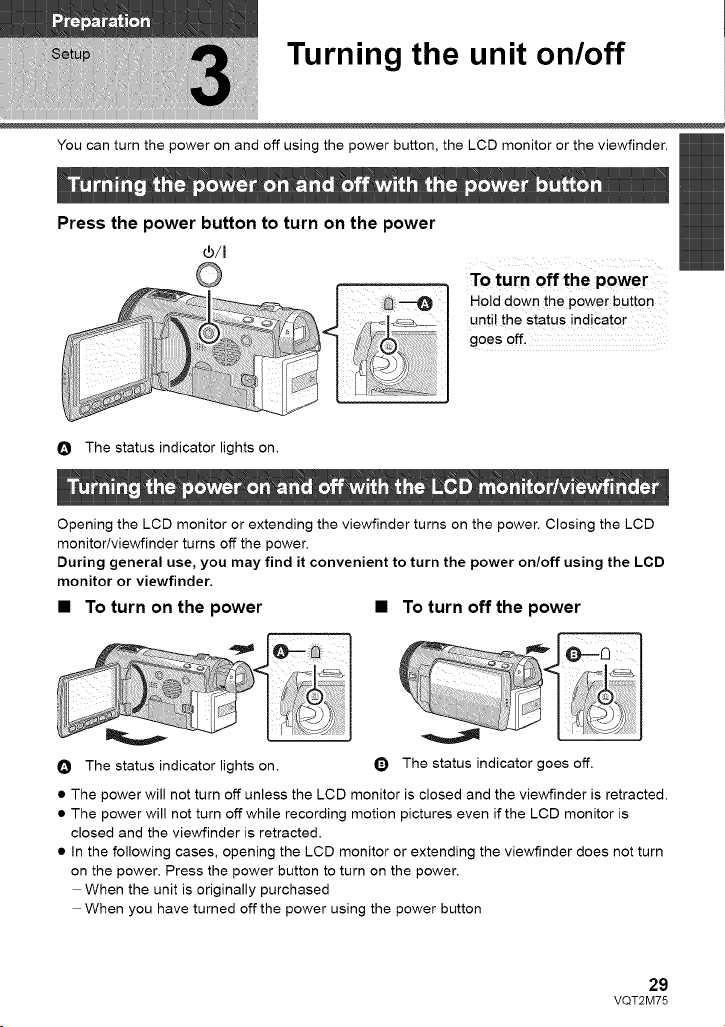
Turning the unit on/off
You can turn the power on and off using the power button, the LCD monitor or the viewfinder.
Press the power button to turn on the power
I I
J!
To turn off the power
Hold down the power button
until the status indicator
goes off.
O The status indicator lights on.
Opening the LCD monitor or extending the viewfinder turns on the power. Closing the LCD
monitoriviewfinder turns off the power.
During general use, you may find it convenient to turn the power on/off using the LCD
monitor or viewfinder.
• To turn on the power • To turn off the power
O The status indicator lights on.
Q The status indicator goes off.
• The power will not turn off unless the LCD monitor is closed and the viewfinder is retracted.
• The power will not turn off while recording motion pictures even if the LCD monitor is
closed and the viewfinder is retracted.
• In the following cases, opening the LCD monitor or extending the viewfinder does not turn
on the power. Press the power button to turn on the power.
When the unit is originally purchased
When you have turned off the power using the power button
29
VQT2M75
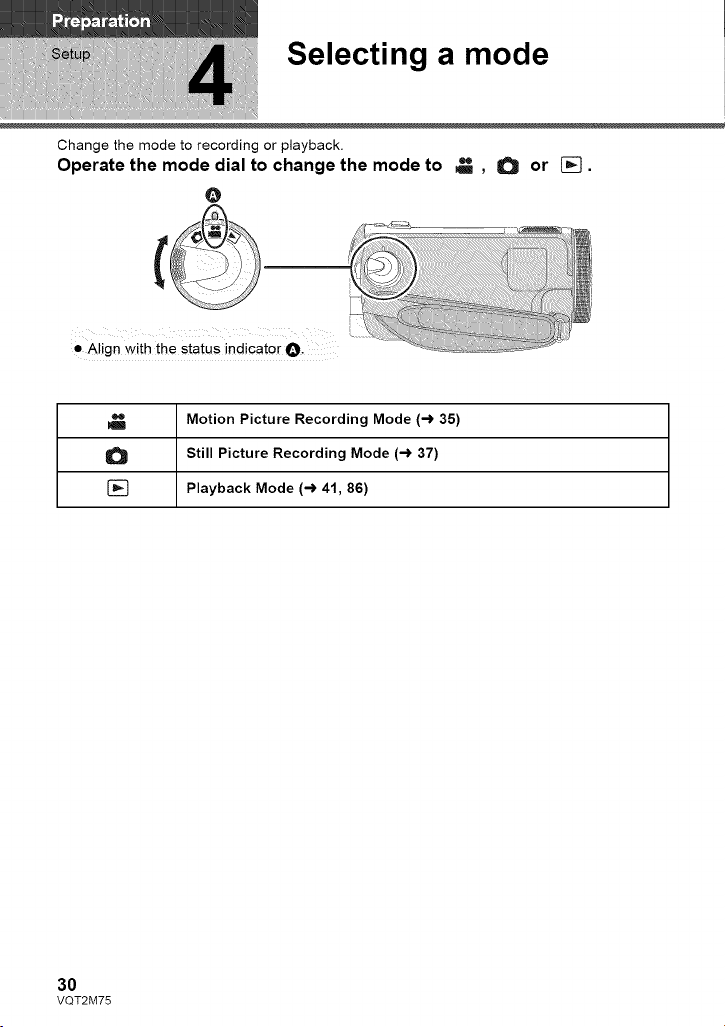
Selecting a mode
Change the mode to recording or playback.
Operate the mode dial to change the mode to _ , O or _.
O
• Align with the status indicator O.
Motion Picture Recording Mode (-> 35)
Still Picture Recording Mode (-> 37)
[_ Playback Mode (-> 41, 86)
30
VQT2M75
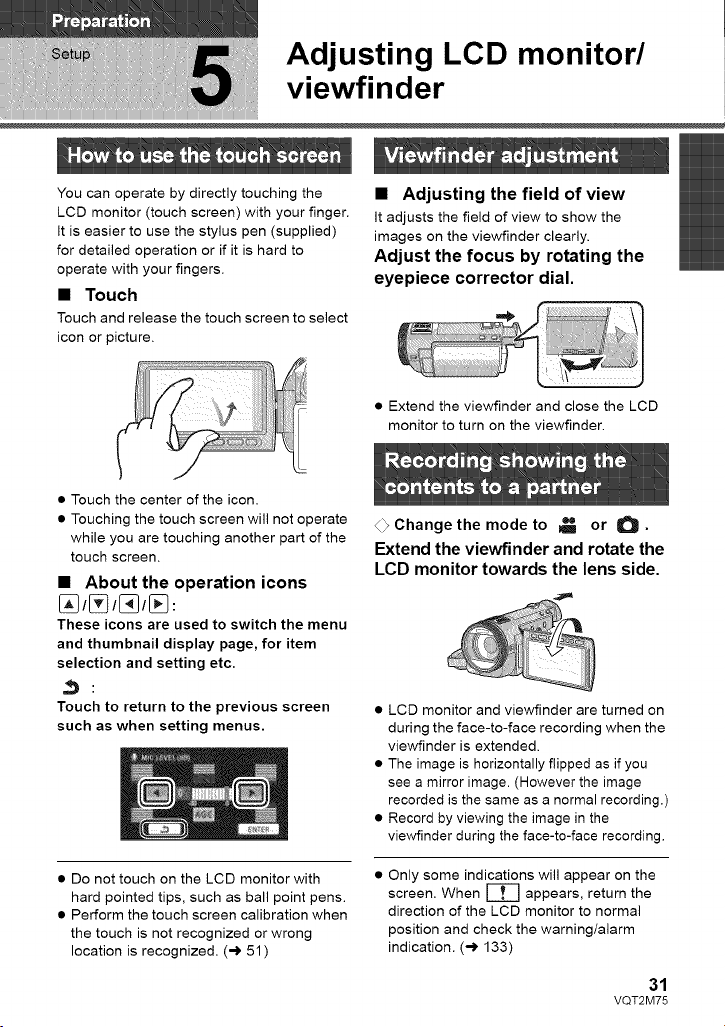
Adjusting LCD monitor/
viewfinder
You can operate by directly touching the
LCD monitor (touch screen) with your finger.
It is easier to use the stylus pen (supplied)
for detailed operation or if it is hard to
operate with your fingers.
• Touch
Touch and release the touch screen to select
icon or picture.
• Adjusting the field of view
It adjusts the field of view to show the
images on the viewfinder clearly.
Adjust the focus by rotating the
eyepiece corrector dial.
• Extend the viewfinder and close the LCD
monitor to turn on the viewfinder.
• Touch the center of the icon.
• Touching the touch screen will not operate
while you are touching another part of the
touch screen.
• About the operation icons
These icons are used to switch the menu
and thumbnail display page, for item
selection and setting etc.
Touch to return to the previous screen
such as when setting menus.
• Do not touch on the LCD monitor with
hard pointed tips, such as ball point pens.
• Perform the touch screen calibration when
the touch is not recognized or wrong
location is recognized. (-) 51 )
<_Change the mode to _ or O.
Extend the viewfinder and rotate the
LCD monitor towards the lens side.
• LCD monitor and viewfinder are turned on
during the face-to-face recording when the
viewfinder is extended.
• The image is horizontally flipped as if you
see a mirror image. (However the image
recorded is the same as a normal recording.)
• Record by viewing the image in the
viewfinder during the face-to-face recording.
Only some indications will appear on the
screen. When _ appears, return the
direction of the LCD monitor to normal
position and check the warning/alarm
indication. (-> 133)
31
VQT2M75
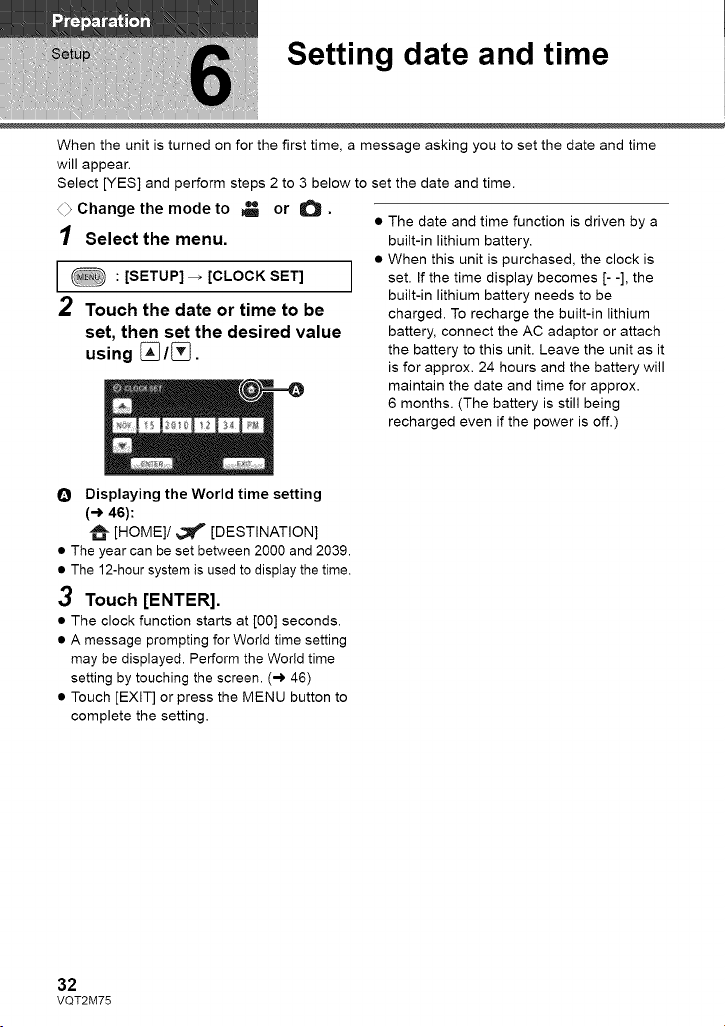
Setting date and time
When the unit is turned on for the first time, a message asking you to set the date and time
will appear.
Select [YES] and perform steps 2 to 3 below to set the date and time.
4_ Change the mode to _ or O.
• The date and time function is driven by a
]
1 Select the menu.
: [SETUP] _ [CLOCK SET]
2 Touch the date or time to be
set, then set the desired value
using [_/[_.
built-in lithium battery.
• When this unit is purchased, the clock is
set. If the time display becomes [- -], the
built-in lithium battery needs to be
charged. To recharge the built-in lithium
battery, connect the AC adaptor or attach
the battery to this unit. Leave the unit as it
is for approx. 24 hours and the battery will
maintain the date and time for approx.
6 months. (The battery is still being
recharged even if the power is off.)
O Displaying the World time setting
(-) 46):
[HOME]/_#' [DESTINATION]
• The year can be set between 2000 and 2039.
• The 12-hour system is used to display the time.
3 Touch [ENTER].
• The clock function starts at [00] seconds.
• A message prompting for World time setting
may be displayed. Perform the World time
setting by touching the screen. (-) 46)
• Touch [EXIT] or press the MENU button to
complete the setting.
32
VQT2M75
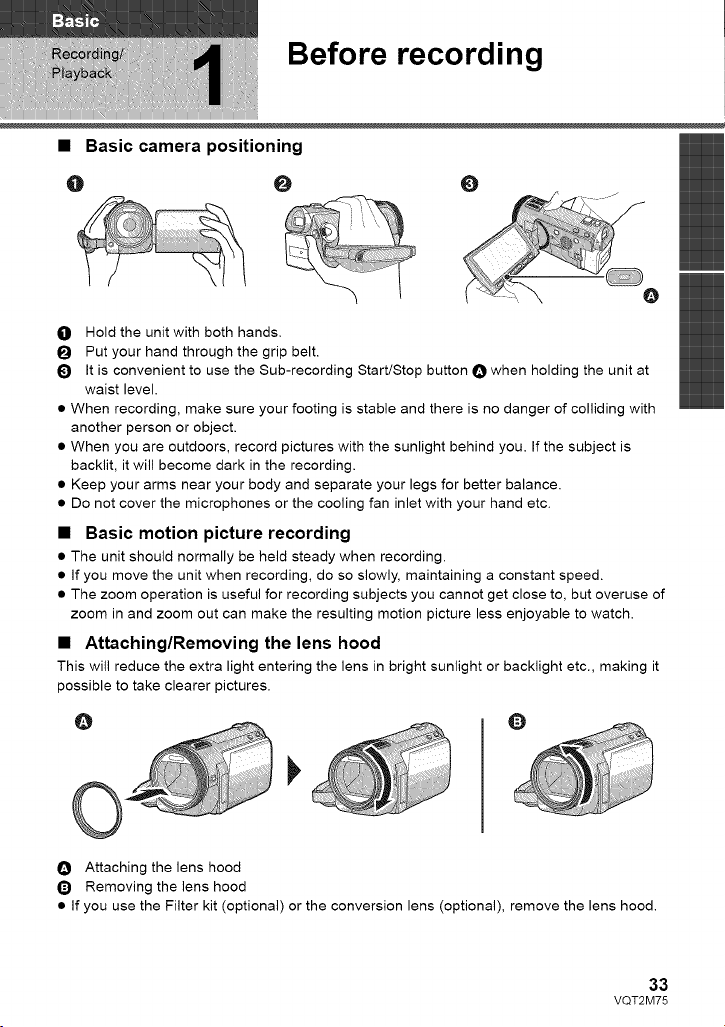
Before recording
• Basic camera positioning
O O
0 Hold the unit with both hands.
I_ Put your hand through the grip belt.
I_ It is convenient to use the Sub-recording Start/Stop button O when holding the unit at
waist level.
• When recording, make sure your footing is stable and there is no danger of colliding with
another person or object.
• When you are outdoors, record pictures with the sunlight behind you. If the subject is
backlit, it will become dark in the recording.
• Keep your arms near your body and separate your legs for better balance.
• Do not cover the microphones or the cooling fan inlet with your hand etc.
• Basic motion picture recording
• The unit should normally be held steady when recording.
• If you move the unit when recording, do so slowly, maintaining a constant speed.
• The zoom operation is useful for recording subjects you cannot get close to, but overuse of
zoom in and zoom out can make the resulting motion picture less enjoyable to watch.
• Attaching/Removing the lens hood
This will reduce the extra light entering the lens in bright sunlight or backlight etc., making it
possible to take clearer pictures.
@ Q
O Attaching the lens hood
Q Removing the lens hood
• If you use the Filter kit (optional) or the conversion lens (optional), remove the lens hood.
33
VQT2M75
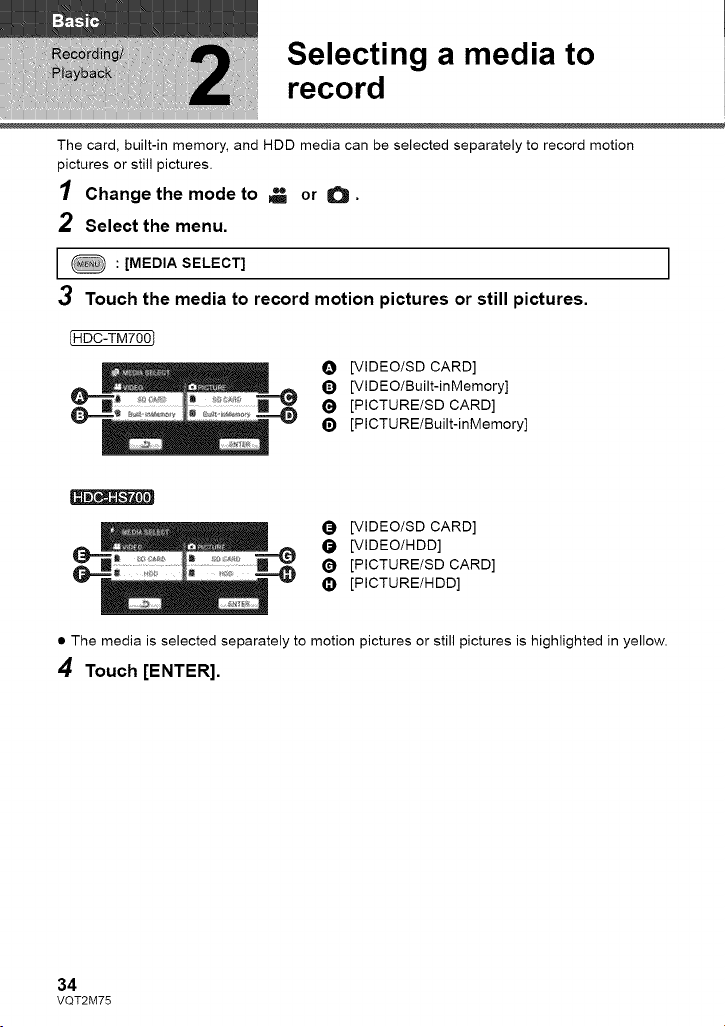
Selecting a media to
record
The card, built-in memory, and HDD media can be selected separately to record motion
pictures or still pictures.
1 Change the mode to _ or O •
2 Select the menu.
: [MEDIA SELECT] ]
3 Touch the media to record motion pictures or still pictures.
IHDC-TM700T
O [VlDEO/SD CARD]
Q [VIDEO/Built-in Memory]
(_ [PICTURE/SD CARD]
_) [PICTU RE/Built-inMemory]
[VlDEO/SD CARD]
_) [VlDEO/HDD]
(_ [PICTURE/SD CARD]
• [PICTURE/HDD]
• The media is selected separately to motion pictures or still pictures is highlighted in yellow.
4 Touch [ENTER].
34
VQT2M75
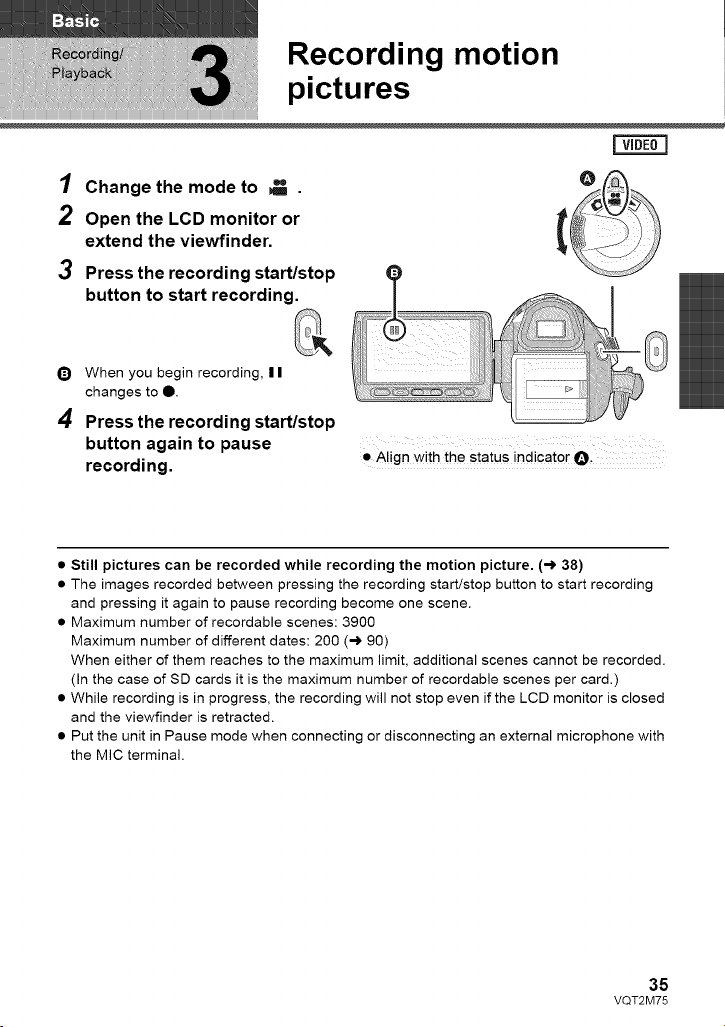
Recording motion
pictures
1 Change the mode to _ .
2 Open the LCD monitor or
extend the viewfinder.
3
Press the recording start/stop
button to start recording.
Q When you begin recording, | |
changes to O.
4
Press the recording start/stop
button again to pause
recording.
• Align with the status indicator O-
• Still pictures can be recorded while recording the motion picture. (-_ 38)
• The images recorded between pressing the recording start/stop button to start recording
and pressing it again to pause recording become one scene.
• Maximum number of recordable scenes: 3900
Maximum number of different dates: 200 (,-) 90)
When either of them reaches to the maximum limit, additional scenes cannot be recorded.
(In the case of SD cards it is the maximum number of recordable scenes per card.)
• While recording is in progress, the recording will not stop even if the LCD monitor is closed
and the viewfinder is retracted.
• Put the unit in Pause mode when connecting or disconnecting an external microphone with
the MIC terminal.
35
VQT2M75
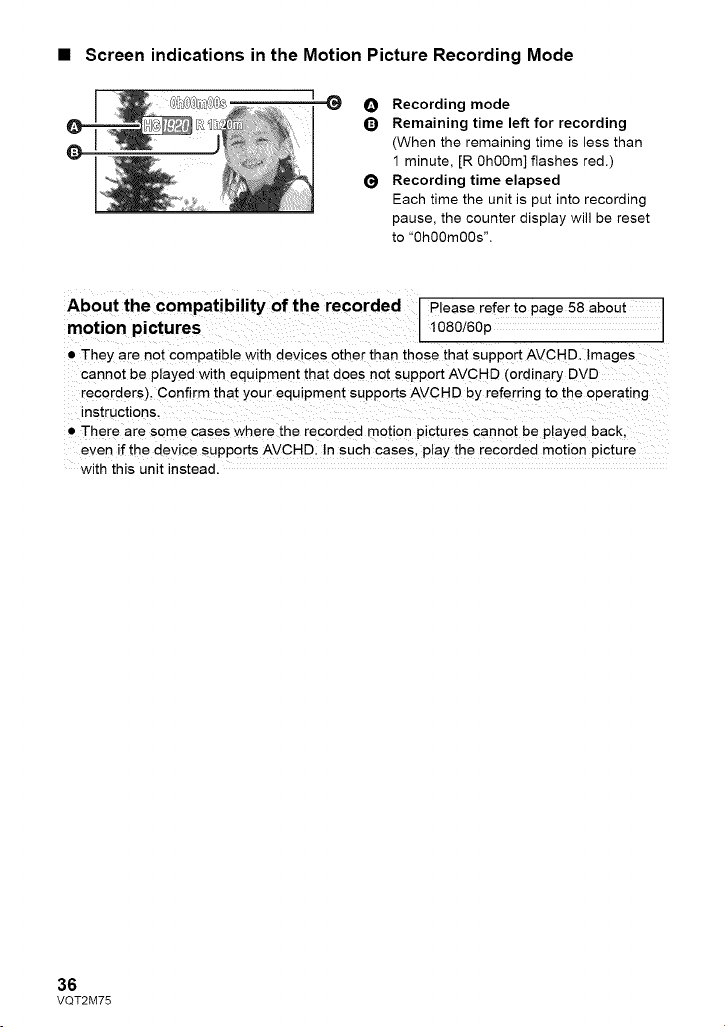
• Screen indications in the Motion Picture Recording Mode
@
Recording mode
Remaining time left for recording
(When the remaining time is less than
1 minute, [R 0h00m] flashes red.)
Recording time elapsed
Each time the unit is put into recording
pause, the counter display will be reset
to "0h00m00s".
About the compatibility of the recorded Please refer to page 58 about
motion pictures 1080/60p
• They are not compatible with devices other than those that support AVCHD. Images
cannot be played with equipment that does not support AVCHD (ordinary DVD
recorders). Confirm that your equipment supports AVCHD by referring to the operating
instructions.
• There are some cases where the recorded motion pictures cannot be played back.
even if tne device supports AVCHD. In such cases, play the recorded motion picture
with this unit instead.
36
VQT2M75
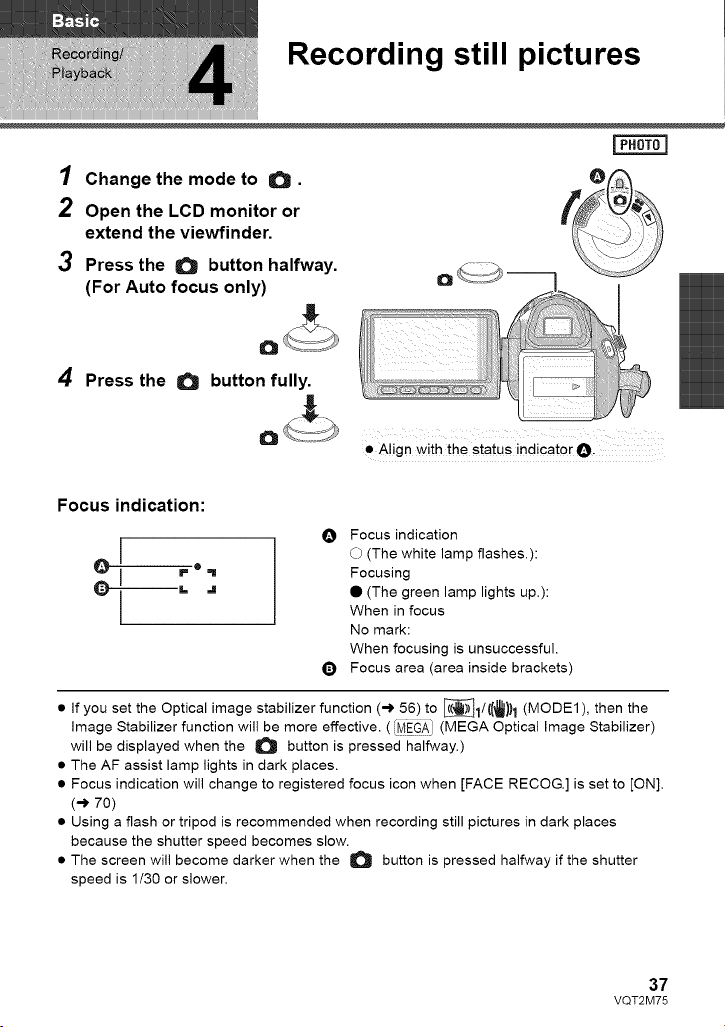
Recording still pictures
1 Change the mode to O. f_/(_
2 Open the LCD monitor or
extend the viewfinder.
3 Press the O button halfway.
(For Auto focus only) O _-_ |
°&.
4 Press the O button fully_
O
• Align with the status indicator O.
Focus indication:
d
O Focus indication
O (The white lamp flashes.):
Focusing
• (The green lamp lights up.):
When in focus
No mark:
When focusing is unsuccessful.
Q Focus area (area inside brackets)
• if you set the Optical image stabilizer function (-_ 56)to _1/((,_)11 (MODE1), then the
image Stabilizer function will be more effective. ( [MEGAI (MEGA Optical Image Stabilizer)
will be displayed when the O button is pressed halfway.)
• The AF assist lamp lights in dark places.
• Focus indication will change to registered focus icon when [FACE RECOG.] is set to [ON].
(-_ 70)
• Using a flash or tripod is recommended when recording still pictures in dark places
because the shutter speed becomes slow.
• The screen will become darker when the O button is pressed halfway if the shutter
speed is 1/30 or slower.
37
VQT2M75
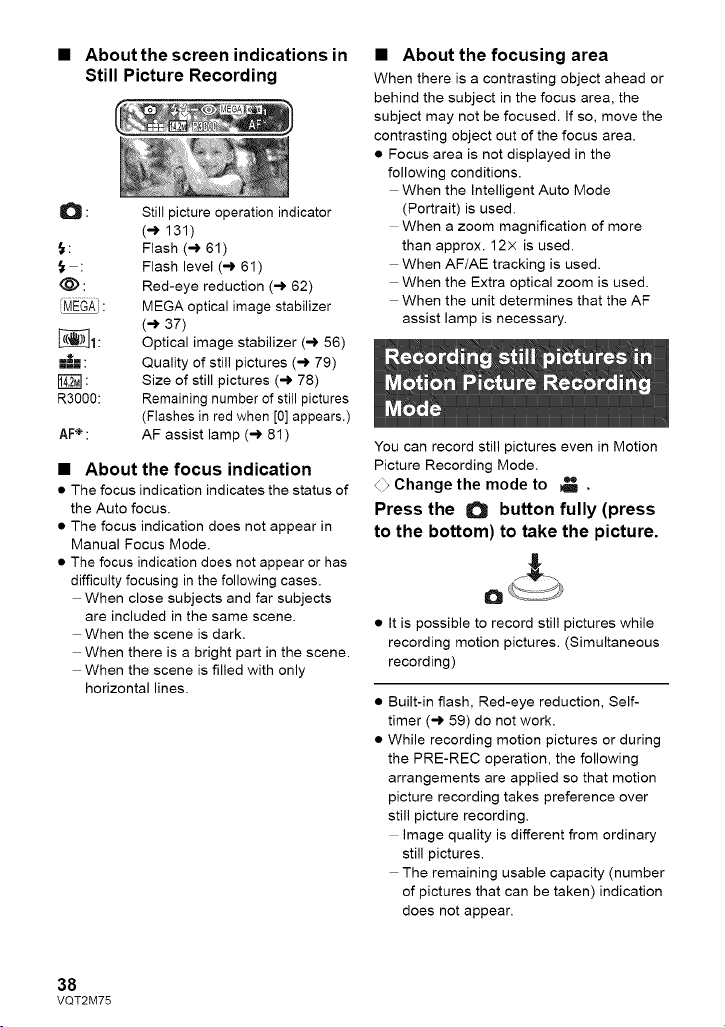
• About the screen indications in
Still Picture Recording
O : Still picture operation indicator
(-,) 131)
{: Flash (-,) 61)
: Flash level (-) 61)
(_) : Red-eye reduction (-) 62)
[MEGA : MEGA optical image stabilizer
(-,) 37)
_1: Optical image stabilizer (-) 56)
--_-=: Quality of still pictures (-,) 79)
: Size of still pictures (-) 78)
R3000: Remaining number of still pictures
(Flashes in red when [0] appears.)
AF÷: AF assist lamp (_ 81)
• About the focus indication
• The focus indication indicates the status of
the Auto focus.
• The focus indication does not appear in
Manual Focus Mode.
• The focus indication does not appear or has
difficulty focusing in the following cases.
When close subjects and far subjects
are included in the same scene.
When the scene is dark.
When there is a bright part in the scene.
When the scene is filled with only
horizontal lines.
• About the focusing area
When there is a contrasting object ahead or
behind the subject in the focus area, the
subject may not be focused. If so, move the
contrasting object out of the focus area.
• Focus area is not displayed in the
following conditions.
When the Intelligent Auto Mode
(Portrait) is used.
When a zoom magnification of more
than approx. 12x is used.
When AF/AE tracking is used.
When the Extra optical zoom is used.
When the unit determines that the AF
assist lamp is necessary.
You can record still pictures even in Motion
Picture Recording Mode.
4_ Change the mode to _ .
Press the O button fully (press
to the bottom) to take the picture.
o
• It is possible to record still pictures while
recording motion pictures. (Simultaneous
recording)
Built-in flash, Red-eye reduction, Self-
timer (-) 59) do not work.
While recording motion pictures or during
the PRE-REC operation, the following
arrangements are applied so that motion
picture recording takes preference over
still picture recording.
image quality is different from ordinary
still pictures.
The remaining usable capacity (number
of pictures that can be taken) indication
does not appear.
38
VQT2M75
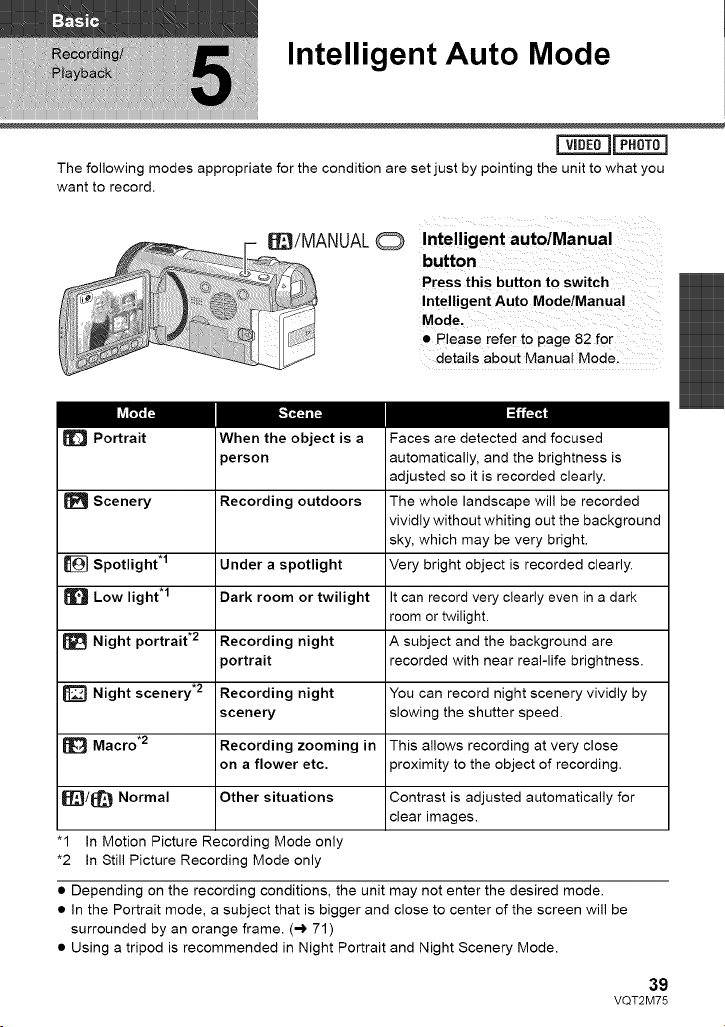
Intelligent Auto Mode
mm
vIDL_JLp_
The following modes appropriate for the condition are set just by pointing the unit to what you
want to record.
_[_/MANUAL
Intelligent auto/Manual
button
Press this button to switch
Intelligent Auto Mode/Manual
Mode.
• Please refer to page 82 for
details about Manual Mode.
Portrait When the object is a
_erson
Scenery Recording outdoors
Spotlight .1 Under a spotlight
Low light .1 Dark room or twilight It can record very clearly even in a dark
room or twilight.
Night portrait .2 Recording night A subject and the background are
_ortrait recorded with near real-life brightness.
Night scenery .2 Recording night You can record night scenery vividly by
scenery slowing the shutter speed.
Macro .2 Recording zooming in This allows recording at very close
on a flower etc. proximity to the object of recording.
_/_ Normal Other situations Contrast is adjusted automatically for
clear images.
"1 In Motion Picture Recording Mode only
*2 In Still Picture Recording Mode only
Faces are detected and focused
automatically, and the brightness is
adjusted so it is recorded clearly.
The whole landscape will be recorded
vividly without whiting out the background
sky, which may be very bright.
Very bright object is recorded clearly.
• Depending on the recording conditions, the unit may not enter the desired mode.
• In the Portrait mode, a subject that is bigger and close to center of the screen will be
surrounded by an orange frame. (-) 71)
• Using a tripod is recommended in Night Portrait and Night Scenery Mode.
39
VQT2M75
• Optical Image Stabilizer function (-) 56) is set to Active Mode/ON in all modes.
• Faces cannot be detected depending on the recording conditions, such as when faces are
of certain sizes or at certain tilts or when digital zoom is used.
• The microphone setup is set to surround in the Intelligent Auto Mode. (-,) 73)
• Intelligent Auto Mode
When switching to Intelligent Auto Mode, the
Auto White Balance and Auto Focus operate
and automatically adjust the color balance
and focusing.
Depending on the brightness of the subject
etc., the aperture and shutter speed are
automatically adjusted for an optimum
brightness.
• Color balance and focus may not be
adjusted automatically depending on light
sources or scenes. If so, manually adjust
these settings. (-,) 83, 85)
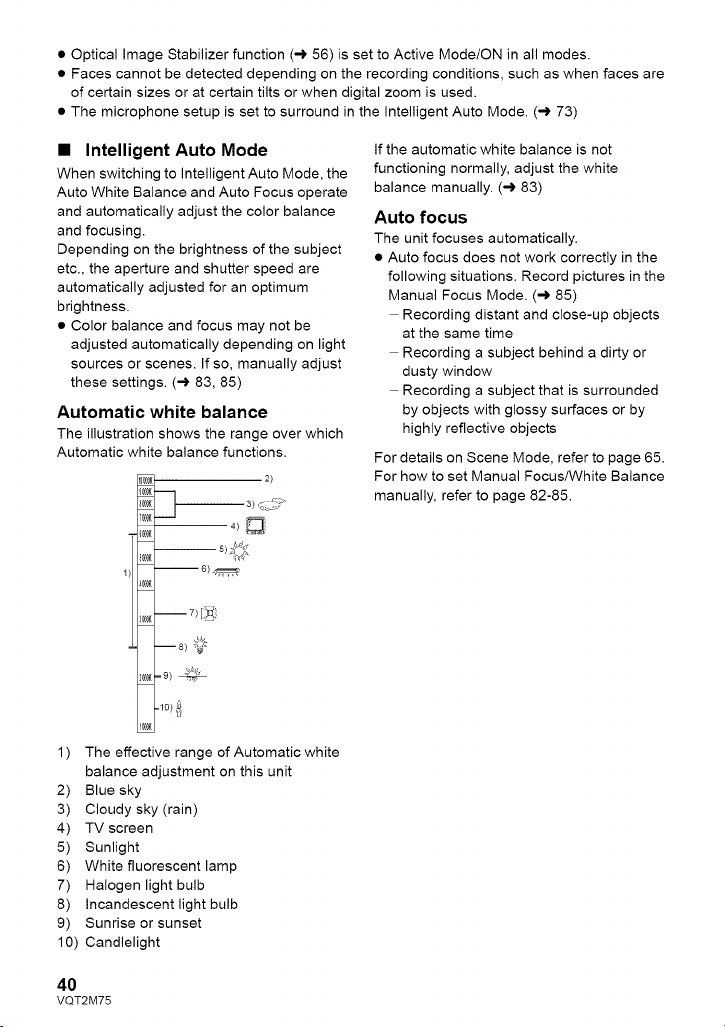
Automatic white balance
The illustration shows the range over which
Automatic white balance functions.
IOC,_K 2)
9#K _
7,_K
4#K
2C¢9K=9)
1) The effective range of Automatic white
balance adjustment on this unit
2) Blue sky
3) Cloudy sky (rain)
4) TV screen
5) Sunlight
6) White fluorescent lamp
7) Halogen light bulb
8) Incandescent light bulb
9) Sunrise or sunset
1O) Candlelight
If the automatic white balance is not
functioning normally, adjust the white
balance manually. (-,) 83)
Auto focus
The unit focuses automatically.
• Auto focus does not work correctly in the
following situations. Record pictures in the
Manual Focus Mode. (-) 85)
Recording distant and close-up objects
at the same time
Recording a subject behind a dirty or
dusty window
Recording a subject that is surrounded
by objects with glossy surfaces or by
highly reflective objects
For details on Scene Mode, refer to page 65.
For how to set Manual Focus/White Balance
manually, refer to page 82-85.
40
VQT2M75
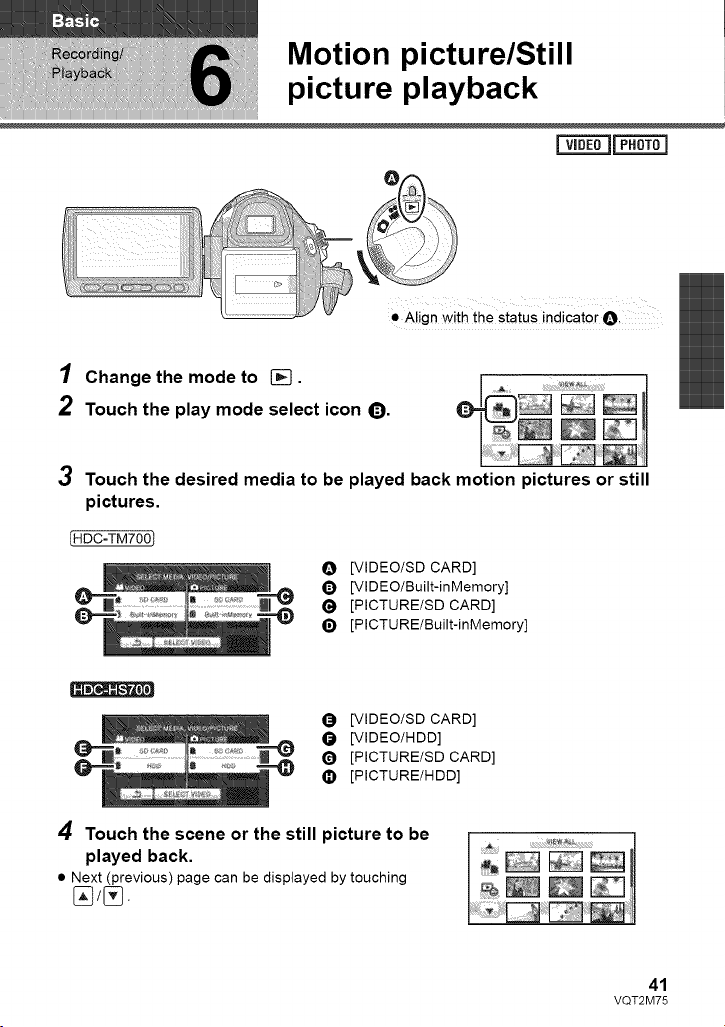
Motion picture/Still
picture playback
• Align with the status indicator O
1 Change the mode to [].
2 Touch the play mode select icon O.
3 Touch the desired media to be played back motion pictures or still
pictures.
IHDC-TM7001
O [VlDEO/SD CARD]
[VIDEO/Built-inMernoryJ
1_ [PICTURE/SD CARD]
[PICTU RE/Built-inMemory]
[VlDEO/SD CARD]
t_l [VIDEO/HDD]
_) [PICTURE/SD CARD]
• [PICTURE/HDD]
4 Touch the scene or the still picture to be
played back.
• Next (previous) page can be displayed by touching
41
VQT2M75
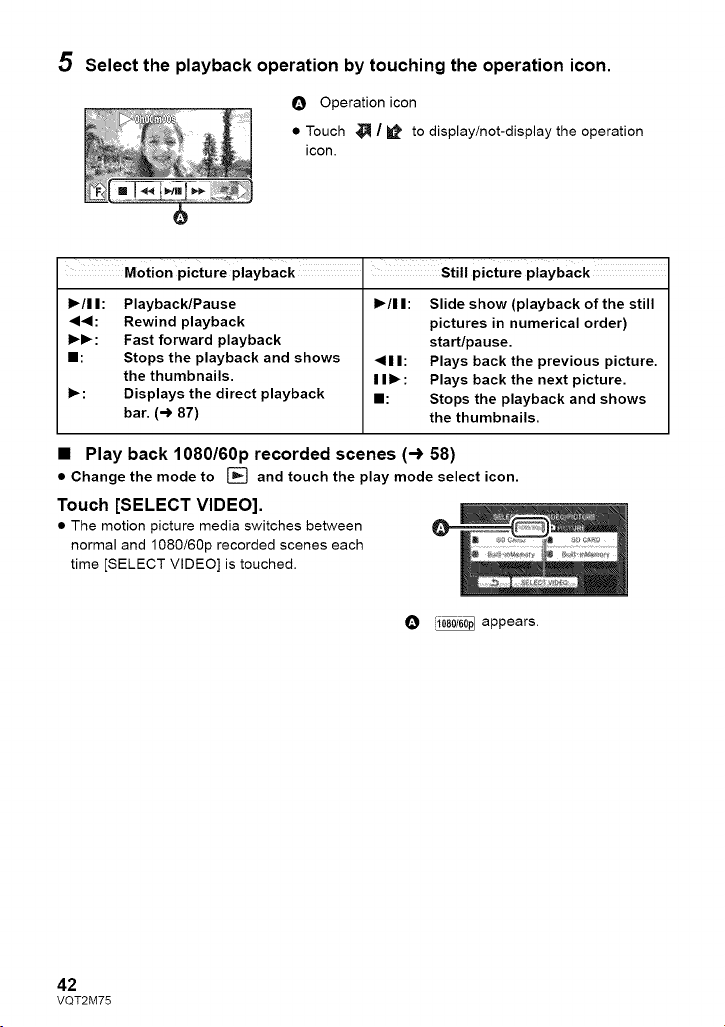
5
Select the playback operation by touching the operation icon.
O Operation icon
• Touch _ / _ to display/not-display the operation
icon.
Motion picture playback i Still picture playback
l_/l I:
1_/I I: Playback/Pause
"<4: Rewind playback
1_1_: Fast forward playback
I1: Stops the playback and shows
the thumbnails.
1_: Displays the direct playback
bar. (-> 87)
_111:
II1_:
I:
Slide show (playback of the still
pictures in numerical order)
start/pause.
Plays back the previous picture.
Plays back the next picture.
Stops the playback and shows
the thumbnails.
• Play back 1080/60p recorded scenes (-3, 58)
• Change the mode to [] and touch the play mode select icon.
Touch [SELECT VIDEO].
• The motion picture media switches between
normal and 1080/60p recorded scenes each
time [SELECT VIDEO] is touched.
O _ appears.
42
VQT2M75

• Change the thumbnail display
While the thumbnail is displayed, the
thumbnail display changes in the following
order if the zoom lever or adjust zoom
buttons are operated to Q, side or
side.
20 scenes _ 9 scenes _ 1 scene
Highlight&Time frame index* (-) 88)
--VOL+
• Speaker/Headphone volume
adjustment
Operate the volume lever or the adjust zoom
buttons to adjust the speaker/headphone
volume during motion picture playback.
-VOL+
<Iiliiiiiii
w T
w T
* Highlight&Time frame index can only set
in Motion Picture Playback Mode.
• 9 scenes display returns if the power is
turned off or the mode is changed.
• When the thumbnail display is changed to
1 scene during motion picture playback,
the recording date and time can be
checked. Similarly, when the thumbnail
display is changed to 1 still picture during
still picture playback, the recording date
and file number can be checked.
Towards "+":
Increases the volume
Towards "--""
Decreases the volume
• Sound will be heard only during normal
playback.
• If pause play is continued for 5 minutes,
the screen returns to the thumbnails.
• The elapsed time for playback indication
will be reset to "0h00mO0s" for each scene.
Motion picture compatibility Pleasel080/6op.referto page 58 about
• This unit is based on the AVCHD format.
• The video signal that can be played back on this unit is 1920x 1080/60i.
1920 x 1080/24p or 1440 x 1080/60i.
• This unit may degrade or not play back motion pictures recorded or created on other
products, and other products may degrade or not play back motion pictures recorded
on this unit. even if the products support AVCHD.
Still picture compatibility
• This unit is compliant with the unified standard DCF _Design rule for Camera File
system) established by JEITA (Japan Electronics and Information Technology
Industries Association).
• The file format of still pictures supported by this unit is JPEG. (Not all JPEG formattec
files will be played back.)
• This unit may degrade or not play back still pictures recorded or created on other
products and other products may degrade or not play back still pictures recorded on
this unit,
43
VQT2M75
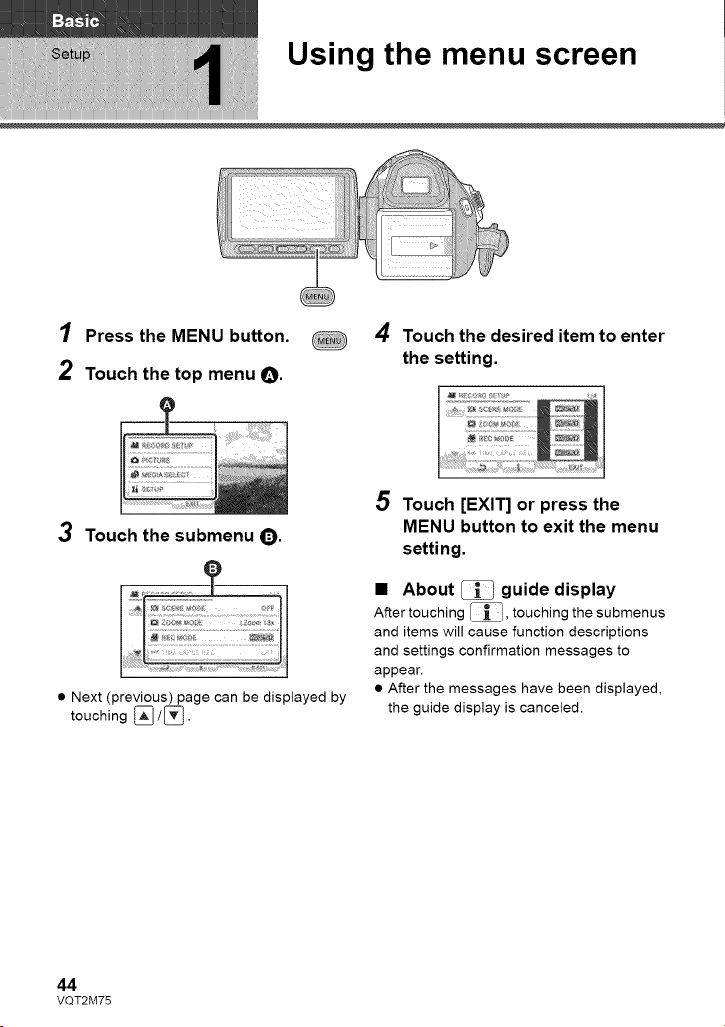
Using the menu screen
1 Press the MENU button.
2 Touch the top menu O.
4 Touch the desired item to enter
the setting.
3 Touch the submenu O.
• Next (previous) page can be displayed by
touching [_/[_ .
5 Touch [EXIT] or press the
MENU button to exit the menu
setting.
• About _ guide display
After touching _, touching the submenus
and items will cause function descriptions
and settings confirmation messages to
appear.
• After the messages have been displayed,
the guide display is canceled.
44
VQT2M75
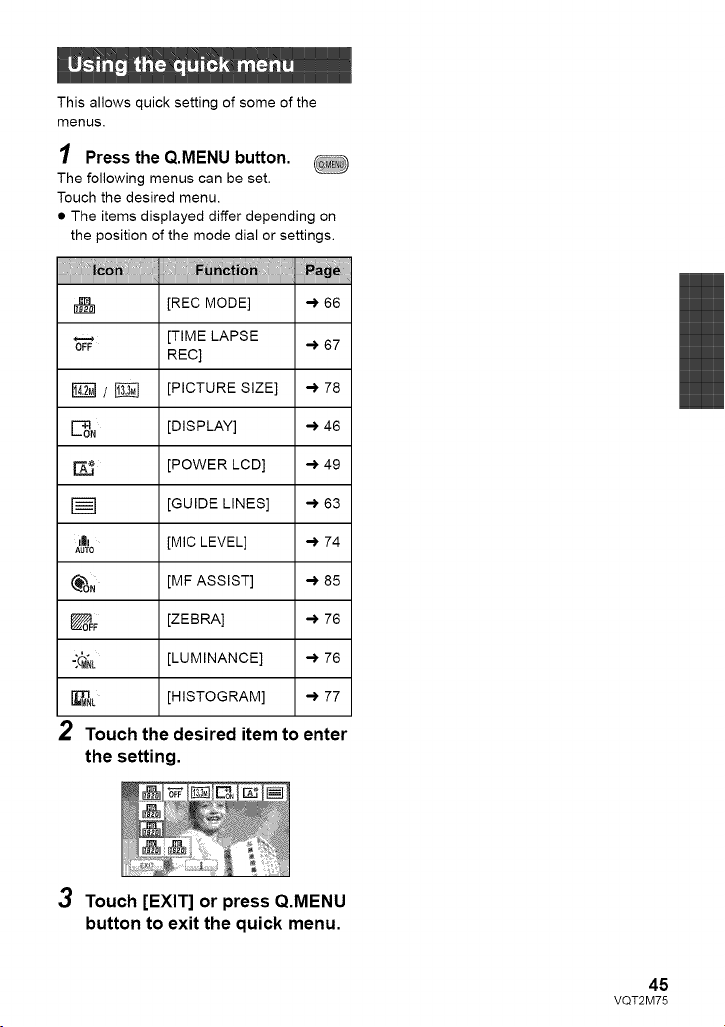
This allows quick setting of some of the
menus.
1 Press the Q.MENU button.
The following menus can be set.
Touch the desired menu.
• The items displayed differ depending on
the position of the mode dial or settings.
I_ [REC MODE] -). 66
[TIME LAPSE
OFF -') 67
REC]
/ _ [PICTURE SIZE] -)' 78
E_oN [DISPLAY] -) 46
A_ [POWER LCD] -)' 49
[GUIDE LINES] -)' 63
_|_ [MIC LEVEL] -)' 74
AUTO
_ON [MF ASSIST] -) 85
_0FF [ZEBRA] -)' 76
"_NL [LUMINANCE] -)' 76
_L [HISTOGRAM] -) 77
2 Touch the desired item to enter
the setting.
3
Touch [EXIT] or press Q.MENU
button to exit the quick menu.
45
VQT2M75
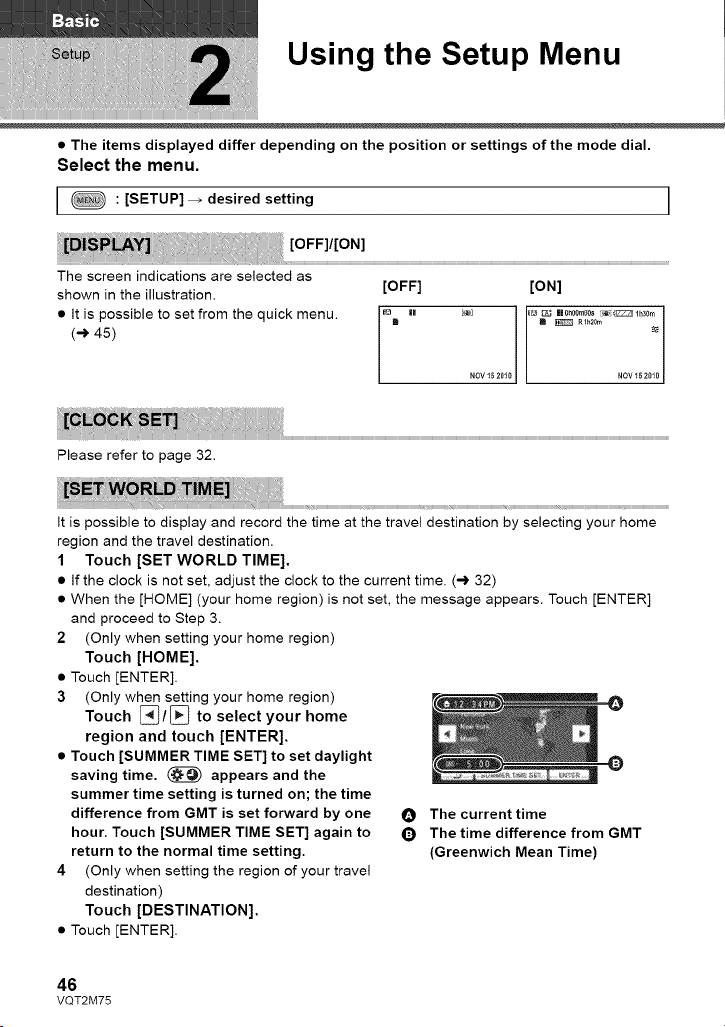
Using the Setup Menu
• The items displayed differ depending on the position or settings of the mode dial.
Select the menu,
I : [SETUP] _ desired setting I
The screen indications are selected as
shown in the illustration.
• It is possible to set from the quick menu.
(-_ 45)
[OFF] [ON]
Please refer to page 32.
It is possible to display and record the time at the travel destination by selecting your home
region and the travel destination.
1 Touch [SET WORLD TIME].
• If the clock is not set, adjust the clock to the current time. (-,) 32)
• When the [HOME] (your home region) is not set, the message appears. Touch [ENTER]
and proceed to Step 3.
2 (Only when setting your home region)
Touch [HOME].
• Touch [ENTER].
3 (Only when setting your home region) O
Touch [_/[_ to select your home
region and touch [ENTER].
• Touch [SUMMER TIME SET] to set daylight _)
saving time, _ appears and the
summer time setting is turned on; the time
difference from GMT is set forward by one O The current time
hour, Touch [SUMMER TIME SET] again to (_) The time difference from GMT
return to the normal time setting. (Greenwich Mean Time)
4 (Only when setting the region of your travel
destination)
Touch [DESTINATION].
• Touch [ENTER].
46
VQT2M75
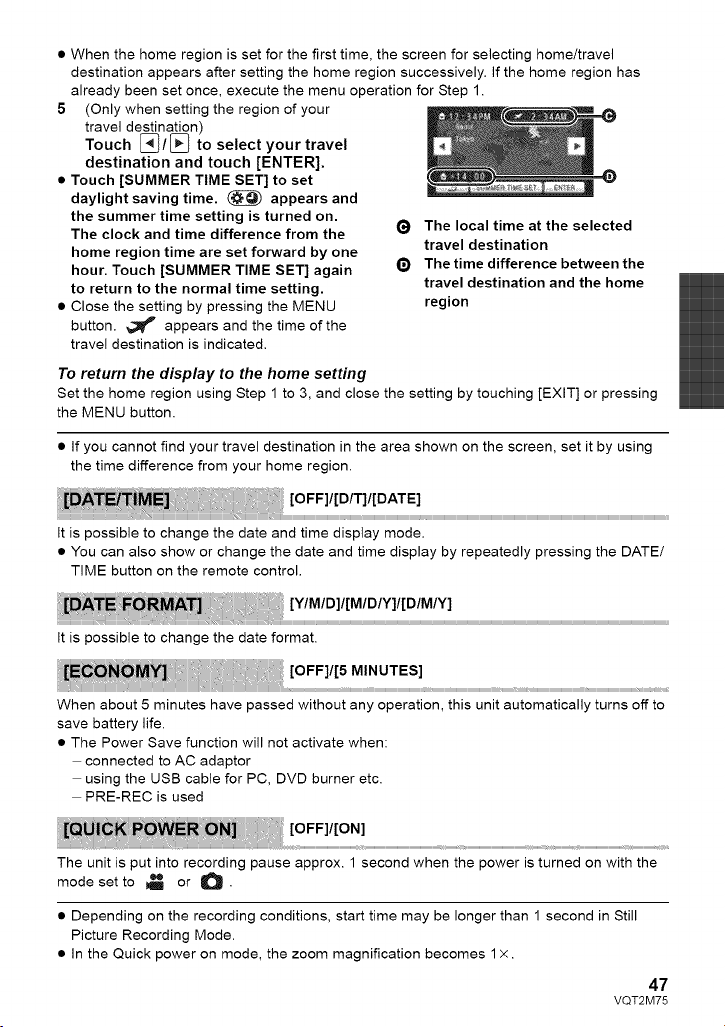
• When the home region is set for the first time, the screen for selecting home/travel
destination appears after setting the home region successively. If the home region has
already been set once, execute the menu operation for Step 1.
5 (Only when setting the region of your
travel destination)
Touch [_}/[_ to select your travel
destination and touch [ENTER].
• Touch [SUMMER TIME SET] to set
daylight saving time. _ appears and
the summer time setting is turned on.
The clock and time difference from the (_
home region time are set forward by one
hour. Touch [SUMMER TIME SET] again _)
to return to the normal time setting.
• Close the setting by pressing the MENU
button. _" appears and the time of the
travel destination is indicated.
The local time at the selected
travel destination
The time difference between the
travel destination and the home
region
To return the display to the home setting
Set the home region using Step 1 to 3, and close the setting by touching [EXIT] or pressing
the MENU button.
• If you cannot find your travel destination in the area shown on the screen, set it by using
the time difference from your home region.
It is possible to change the date and time display mode.
• You can also show or change the date and time display by repeatedly pressing the DATE/
TIME button on the remote control.
It is possible to change the date format.
When about 5 minutes have passed without any operation, this unit automatically turns off to
save battery life.
• The Power Save function will not activate when:
connected to AC adaptor
using the USB cable for PC, DVD burner etc.
PRE-REC is used
The unit is put into recording pause approx. 1 second when the power is turned on with the
mode set to _ or O.
• Depending on the recording conditions, start time may be longer than 1 second in Still
Picture Recording Mode.
• In the Quick power on mode, the zoom magnification becomes 1×.
47
VQT2M75
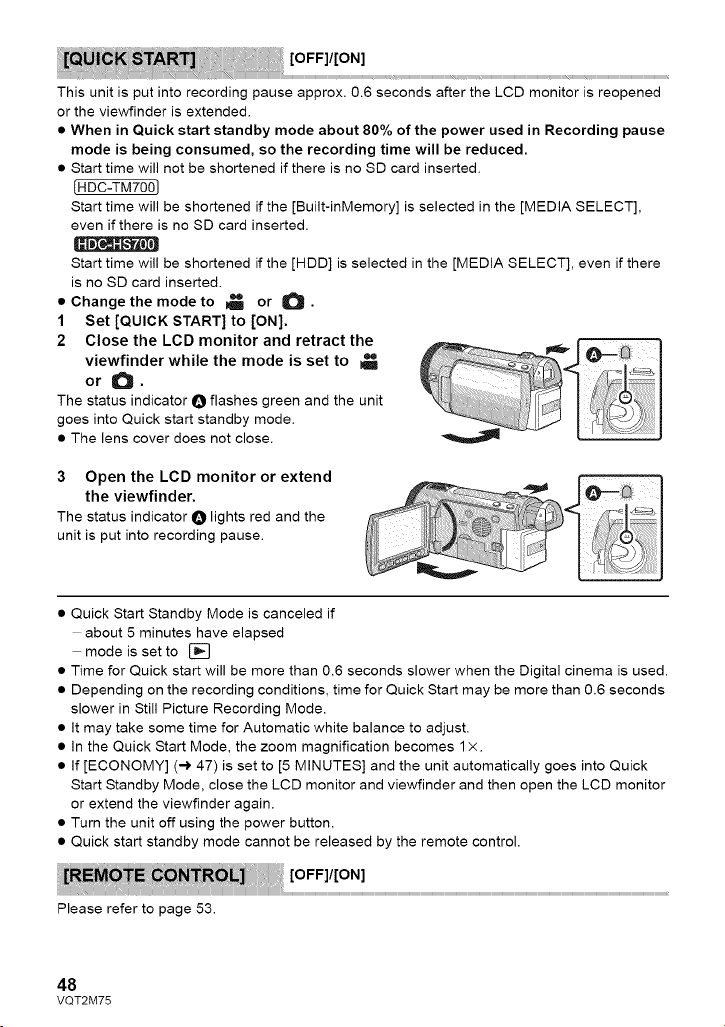
Thisunitisputintorecordingpauseapprox.0.6secondsaftertheLCDmonitorisreopened
ortheviewfinderisextended.
• When in Quick start standby mode about 80% of the power used in Recording pause
mode is being consumed, so the recording time will be reduced.
• Start time will not be shortened if there is no SD card inserted.
(HDC-TM7001
Start time will be shortened if the [Built-inMemory] is selected in the [MEDIA SELECT],
even if there is no SD card inserted.
Start time will be shortened if the [HDD] is selected in the [MEDIA SELECT], even if there
is no SD card inserted.
• Change the mode to I_ or O.
1 Set [QUICK START] to [ON].
2 Close the LCD monitor and retract the
viewfinder while the mode is set to
or O,
The status indicator O flashes green and the unit
goes into Quick start standby mode.
• The lens cover does not close.
3 Open the LCD monitor or extend
the viewfinder.
The status indicator O lights red and the
unit is put into recording pause.
• Quick Start Standby Mode is canceled if
about 5 minutes have elapsed
mode is set to []
• Time for Quick start will be more than 0.6 seconds slower when the Digital cinema is used.
• Depending on the recording conditions, time for Quick Start may be more than 0.6 seconds
slower in Still Picture Recording Mode.
• It may take some time for Automatic white balance to adjust.
• In the Quick Start Mode, the zoom magnification becomes 1 x.
• If [ECONOMY] (-) 47) is set to [5 MINUTES] and the unit automatically goes into Quick
Start Standby Mode, close the LCD monitor and viewfinder and then open the LCD monitor
or extend the viewfinder again.
• Turn the unit off using the power button.
• Quick start standby mode cannot be released by the remote control.
Please refer to page 53.
48
VQT2M75
Therecordinglamplightsupduringrecordingandflasheswhentheunitreceivesasignal
fromtheremotecontrolorwhentheSelf-timeriscountingdown.Whenthisissetto[OFF],it
doesnotlightduringrecording.
Touchscreenoperation,startingandstoppingofrecordingandpoweron/offcanbe
confirmedwiththissound.
[:_)(Volumelow)/u_])))(Volumehigh)
2 Beeps for 4 times
When an error occurs. Check the sentence displayed on the screen. (-) 133)
This makes it easier to view the LCD monitor in bright places including outdoors.
• These settings will not affect the images actually recorded.
• It is possible to set from the quick menu. (-) 45)
F_ (Makes even brighter)/F_ (Makes brighter)/_ (Normal)/F_ (Makes less bright)/
A_ *(Automatic adjustment)
* It is not displayed in the Manual Mode or in the Playback Mode.
• When the AC adaptor is in use, the LCD monitor is set to F_ automatically.
• The recordable time will become shorter when you use this unit with the LCD monitor lit up.
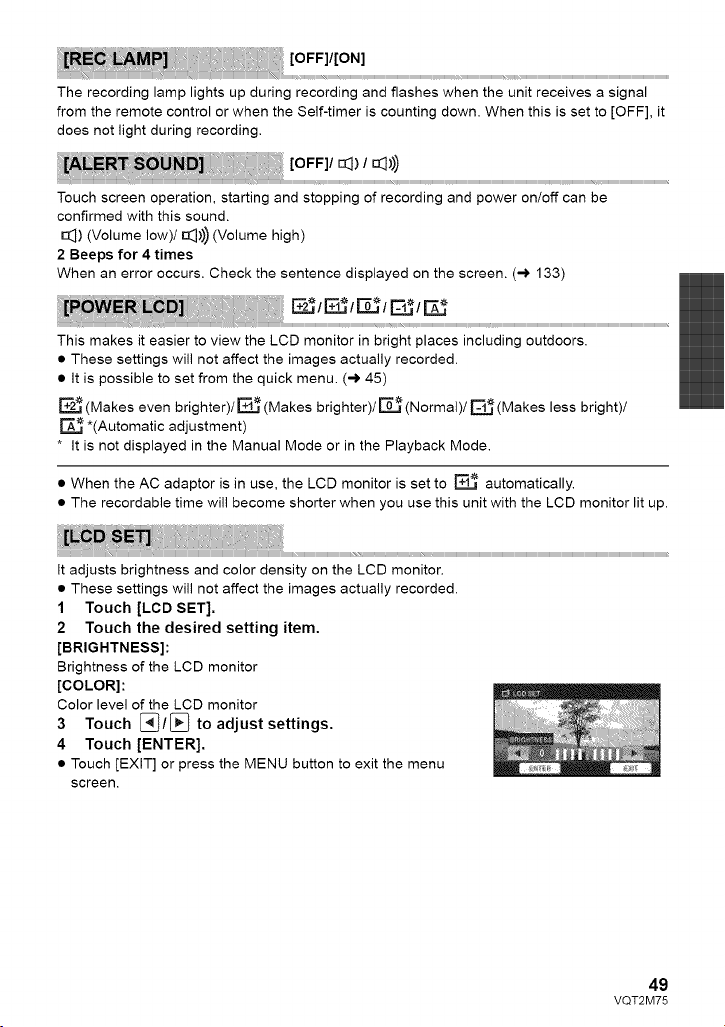
It adjusts brightness and color density on the LCD monitor.
• These settings will not affect the images actually recorded.
1 Touch [LCB SET].
2 Touch the desired setting item.
[BRIGHTNESS]:
Brightness of the LCD monitor
[COLOR]:
Color level of the LCD monitor
3 Touch [_/_ to adjust settings.
4 Touch [ENTER].
• Touch [EXIT] or press the MENU button to exit the menu
screen.
49
VQT2M75
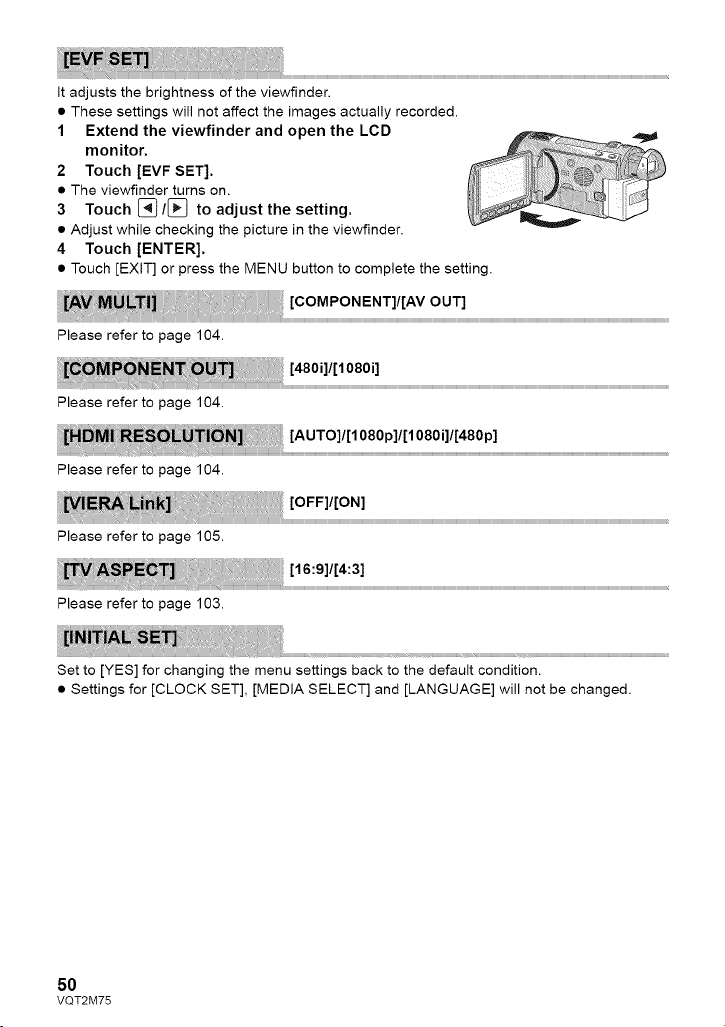
Itadjuststhebrightnessoftheviewfinder.
• These settings will not affect the images actually recorded.
1 Extend the viewfinder and open the LCD
monitor.
2 Touch [EVF SET].
• The viewfinder turns on.
3 Touch [_/[_ to adjust the setting.
• Adjust while checking the picture in the viewfinder.
4 Touch [ENTER].
• Touch [EXIT] or press the MENU button to complete the setting.
Please refer to page 104.
Please refer to page 104.
Please refer to page 104.
Please refer to page 105.
Please refer to page 103.
Set to [YES] for changing the menu settings back to the default condition.
• Settings for [CLOCK SET], [MEDIA SELECT] and [LANGUAGE] will not be changed.
5O
VQT2M75
Pleasebeawarethatifamediumisformatted,thenallthedatarecordedonthemediumwillbe
erasedandcannotberestored.BackupimportantdataonaPC,DVDdiscetc.(_109,117)
1 Touch [FORMAT MEDIA].
2 [HDC-TM700]
Touch [SD CARD] or Touch [SD CARD] or [HDD].
[Built-inMemory].
• When formatting is complete, touch [EXIT] to exit the message screen.
• Perform a physical formatting of the SD card when the SD card is to be disposed/
transferred. (-_ 144)
• Perform a physical formatting of the built-in memory/HDD when this unit is to be disposed/
transferred. (-_ 142)
• Do not turn this unit off or remove the SD card, while formatting. Do not expose the unit to
vibrations or shock.
Use this unit to format media.
Formatting built-in memory or HDD is only available with this unit.
Do not format an SD card using any other equipment such as a PC. The card may
not be used on this unit.
The amount of space left on the SD card, the built-in memory and HDD can be checked.
(Only when the mode is at the [] position)
• Touching [CHANGE MEDIA] switches the unit between the display for the SD card and the
display for the built-in memory/HDD.
• Touch [EXIT] or press the MENU button to close the indication.
• The SD card, built-in memory or built-in HDD requires some space to store information and
manage system files, so the actual usable space is slightly less than the indicated value.
The usable built-in memory/HDD space is generally calculated as 1 GB=1,000,000,000
bytes. The capacities of this unit, PCs and software are expressed as
1 GB=1,024x 1,024x 1,024=1,073,741,824 bytes. Therefore, the indicated value of the
capacity appears to be smaller.
Perform the touch screen calibration if a different object to the one touched is selected.
1 Touch [CALIBRATION].
• Touch [ENTER].
2 Touch the [+] that appears on the screen with the supplied stylus pen.
• Touch [+] in sequence (up left _ down left _ down right _ up right _ center).
3 Touch [ENTER].
• Calibration cannot be performed when the LCD monitor is turned 180 °.
51
VQT2M75
Thisitemisusedtostarttheunitdemonstration.
(Onlywhenthemodeisatthe_ orO position)
If[DEMOMODE]isswitchedto[ON]whenthereisnoSDcardinsertedandwhilethisunitis
connectedtotheACadaptor,thedemonstrationautomaticallystarts.
Ifanyoperationtakesplace,thedemonstrationiscanceled.Howeverifnooperationstake
placeforapprox.10minutes,thedemonstrationautomaticallystartsagain.Tostopthe
demonstration,set[DEMOMODE]to[OFF]orinsertanSDcard.
ThisitemisusedtostarttheOpticalImageStabilizerdemo.
(Onlywhenthemodeisatthe_ orO position)
Touch[O.I.S.DEMO],thedemonstrationautomaticallystarts.
Whenyoutouch[EXIT],thedemonstrationwillbecanceled.
Youcanselectthelanguageonthescreendisplayandthemenuscreen.
52
VQT2M75
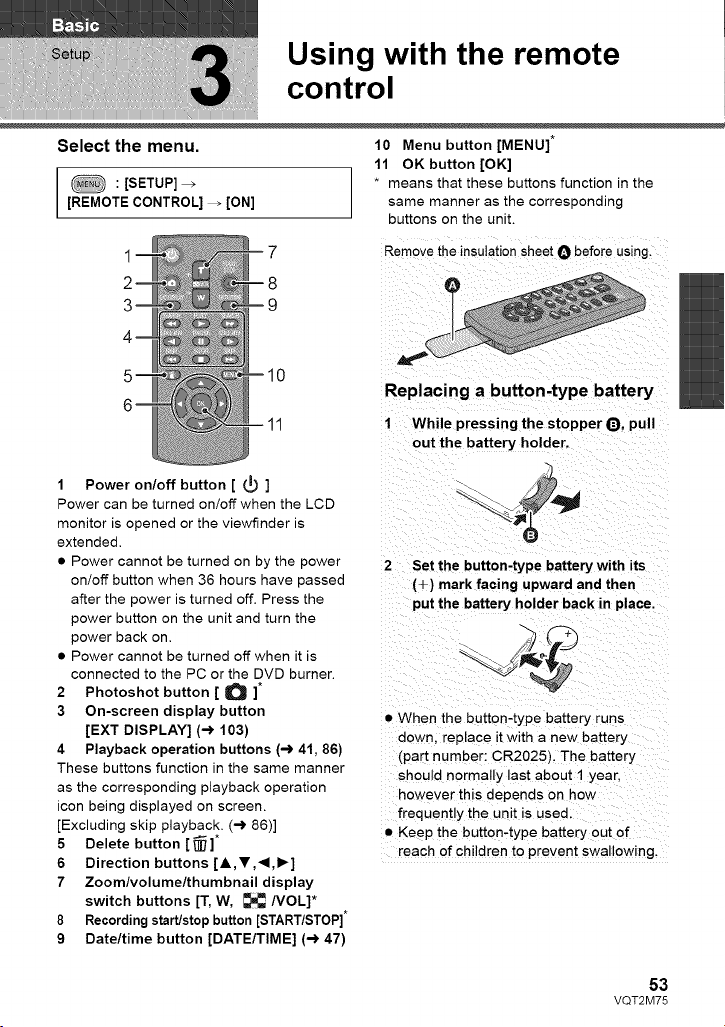
Using with the remote
control
Select the menu. 10 Menu button [MENU]
11 OK button [OK]
: [SETUP]_ * means that these buttons function in the
[REMOTE CONTROL] _ [ON] same manner as the corresponding
buttons on the unit.
1 7
8
9
1 Power on/off button [ (_) ]
Remove the insulation sheet O before using.
Replacing a button-type battery
1 While pressing the stopper Q, pull
out the battery holder.
Power can be turned on/off when the LCD
monitor is opened or the viewfinder is
extended.
• Power cannot be turned on by the power
on/off button when 36 hours have passed
after the power is turned off. Press the
power button on the unit and turn the
power back on.
• Power cannot be turned off when it is
connected to the PC or the DVD burner.
2 Photoshot button [ O ]*
3 On-screen display button
[EXT DISPLAY] (-_ 103)
4 Playback operation buttons (-_ 41, 86)
These buttons function in the same manner
as the corresponding playback operation
icon being displayed on screen.
[Excluding skip playback. (-_ 86)]
5 Delete button [ _ ]*
6 Direction buttons [,I,,V,4,1_]
7 Zoom/volume/thumbnail display
switch buttons [T, W, _ NOL]*
8 Recording start/stop button [START/STOP]*
9 Date/time button [DATE/TIME] (-_ 47)
Set the button-type battery with its
(+) mark facing upward and then
put the battery holder back in place,
• When the button-type battery runs
down. replace it with a new battery
(part number: CR2025). The battery
should normally last about 1 year.
however this depends on how
frequently the unit is used.
• Keep the button-type battery out of
reach of children to prevent swallowing.
53
VQT2M75
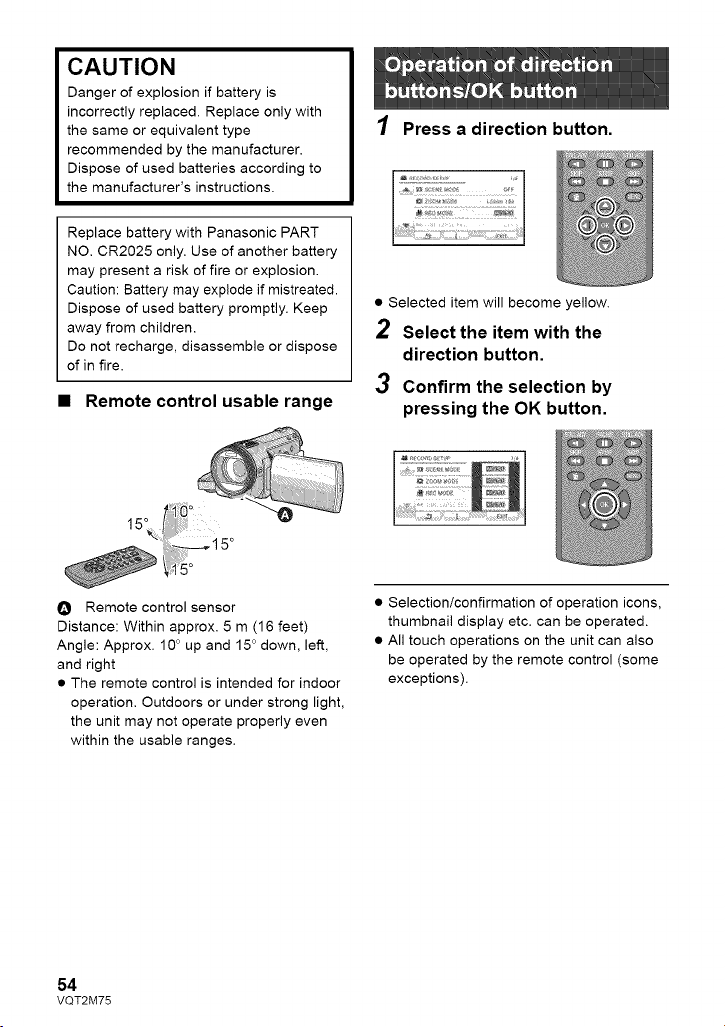
CAUTION
Danger of explosion if battery is
incorrectly replaced. Replace only with
the same or equivalent type
recommended by the manufacturer.
Dispose of used batteries according to
the manufacturer's instructions.
Replace battery with Panasonic PART
NO. CR2025 only. Use of another battery
may present a risk of fire or explosion.
Caution: Battery may explode if mistreated.
Dispose of used battery promptly. Keep
away from children.
Do not recharge, disassemble or dispose
of in fire.
• Remote control usable range
eo
15_
15°
O Remote control sensor
Distance: Within approx. 5 m (16 feet)
Angle: Approx. 10 ° up and 15 ° down, left,
and right
• The remote control is intended for indoor
operation. Outdoors or under strong light,
the unit may not operate properly even
within the usable ranges.
1 Press a direction button.
• Selected item will become yellow.
Select the item with the
direction button.
3 Confirm the selection by
pressing the OK button.
• Selection/confirmation of operation icons,
thumbnail display etc. can be operated.
• All touch operations on the unit can also
be operated by the remote control (some
exceptions).
54
VQT2M75
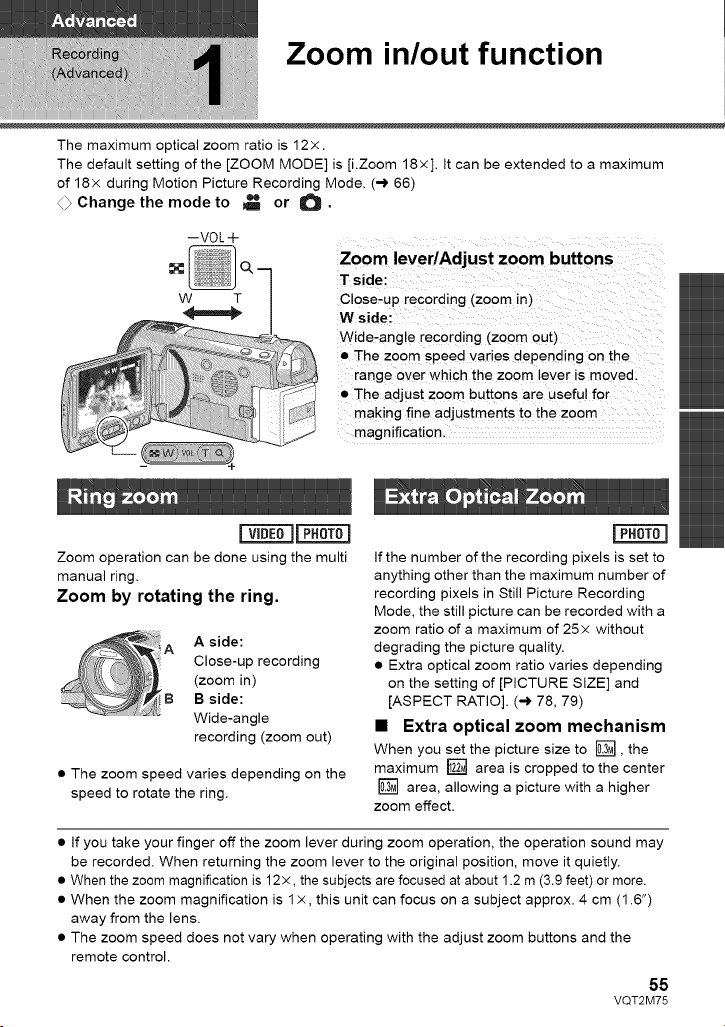
Zoom in/out function
The maximum optical zoom ratio is 12x.
The default setting of the [ZOOM MODE] is [i.Zoom 18x]. It can be extended to a maximum
of 18x during Motion Picture Recording Mode. (-) 66)
4_ Change the mode to _ or O.
--VOL J_
Zoom lever/Adjust zoom buttons
T side:
Close-up recording (zoom in)
W side:
Wide-angle recording (zoom out)
• The zoom speed varies depending on the
range over which the zoom lever is moved.
• The adjust zoom buttons are useful for
making fine adjustments to the zoom
magnification.
Zoom operation can be done using the multi
manual ring.
Zoom by rotating the ring.
A side:
A
Close-up recording
(zoom in)
B B side:
Wide-angle
recording (zoom out)
• The zoom speed varies depending on the
speed to rotate the ring.
If the number of the recording pixels is set to
anything other than the maximum number of
recording pixels in Still Picture Recording
Mode, the still picture can be recorded with a
zoom ratio of a maximum of 25x without
degrading the picture quality,
• Extra optical zoom ratio varies depending
on the setting of [PICTURE SIZE] and
[ASPECT RATIO]. (-,) 78, 79)
• Extra optical zoom mechanism
When you set the picture size to [], the
maximum [] area is cropped to the center
[] area, allowing a picture with a higher
zoom effect.
• If you take your finger off the zoom lever during zoom operation, the operation sound may
be recorded. When returning the zoom lever to the original position, move it quietly.
• When the zoom magnification is 12x, the subjects are focused at about 1.2 m (3.9 feet) or more.
• When the zoom magnification is 1 x, this unit can focus on a subject approx. 4 cm (1.6")
away from the lens.
• The zoom speed does not vary when operating with the adjust zoom buttons and the
remote control.
55
VQT2M75
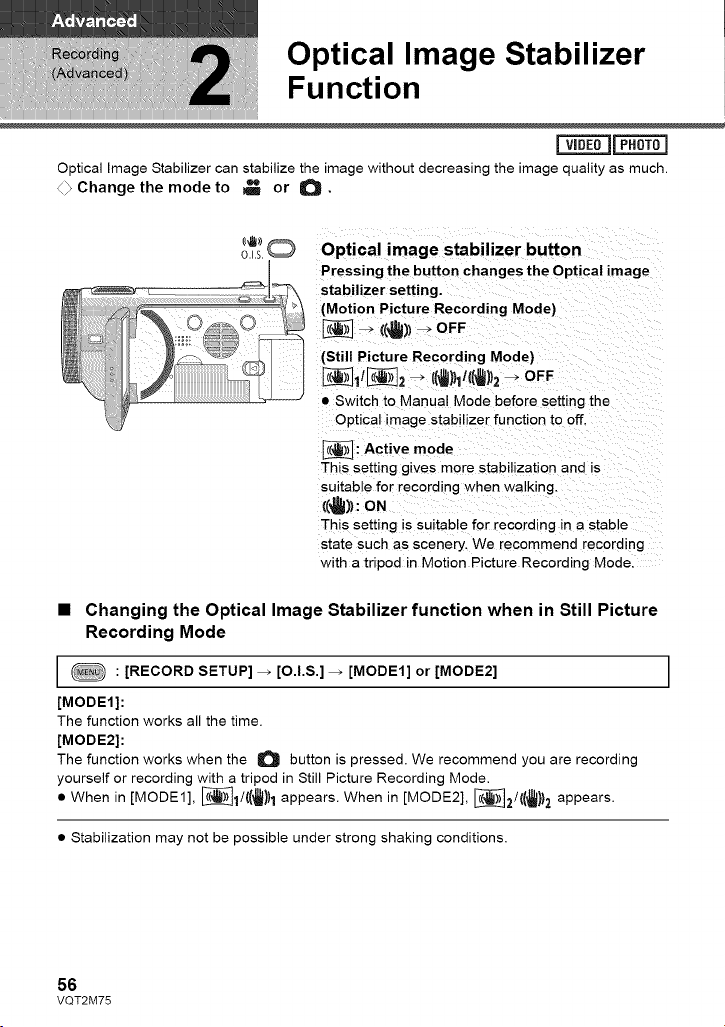
Optical Image Stabilizer
Function
Optical Image Stabilizer can stabilize the image without decreasing the image quality as much.
4_ Change the mode to _ or O.
O.I.S.
Optical image stabilizer button
Pressing the button changes the Optical image
stabilizer setting.
(Motion Picture Recording Mode)
_] _ ((_)) _ OFF
(Still Picture Recording Mode)
[_]1/[_2 _ ((_})1/(('_))2 _ OFF
• Switch to Manual Mode before setting tne
Optical image stabilizer function to off.
_: Active mode
This setting gives more stabilization and is
suitable for recording when walking
((_)) : ON
This setting is suitable for recording in a stable
state such as scenery. We recommend recording
with a tripod in Motion Picture Recording Mode.
• Changing the Optical Image Stabilizer function when in Still Picture
Recording Mode
: [RECORD SETUP] _ [O.I.S.] _ [MODE1] or [MODE2]
[MODE1]:
The function works all the time.
[MODE2]:
The function works when the O button is pressed. We recommend you are recording
yourself or recording with a tripod in Still Picture Recording Mode.
• When in [MODE1], _1/((,_))1 appears. When in [MODE2], [_]2/((_})2 appears.
• Stabilization may not be possible under strong shaking conditions.
I
56
VQT2M75
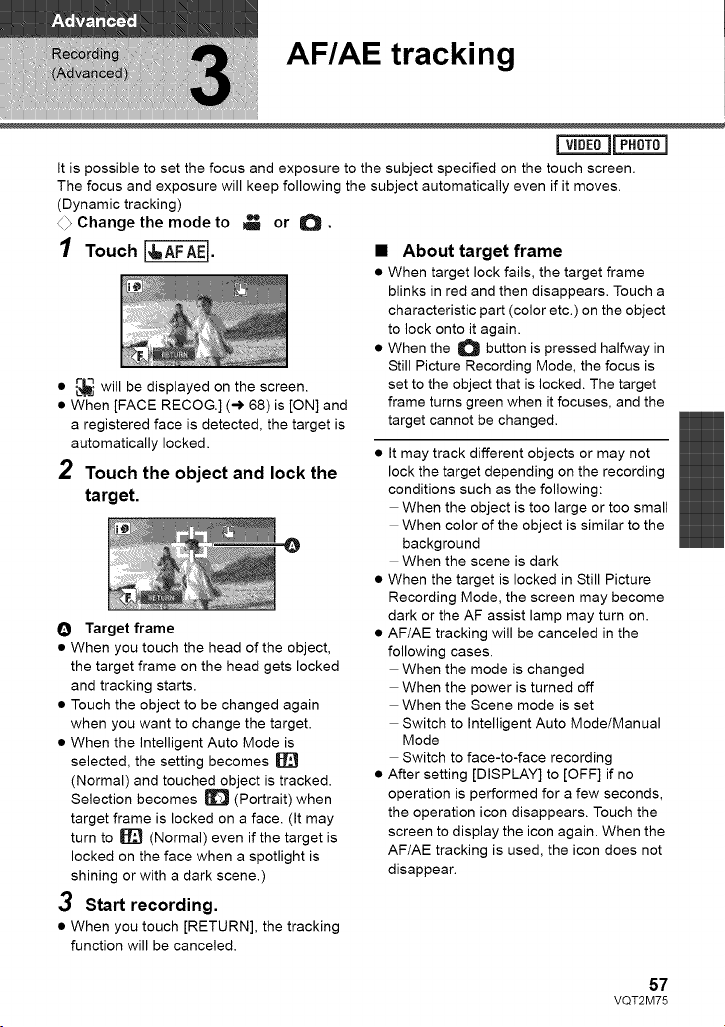
AF/AE tracking
mm
vIDL_J_
It is possible to set the focus and exposure to the subject specified on the touch screen.
The focus and exposure will keep following the subject automatically even if it moves.
(Dynamic tracking)
4_ Change the mode to _ or O.
1 Touch
• _ will be displayed on the screen.
• When [FACE RECOG.] (-,) 68) is [ON] and
a registered face is detected, the target is
automatically locked.
2 Touch the object and lock the
target.
O Target frame
• When you touch the head of the object,
the target frame on the head gets locked
and tracking starts.
• Touch the object to be changed again
when you want to change the target.
• When the intelligent Auto Mode is
selected, the setting becomes
(Normal) and touched object is tracked.
Selection becomes _ (Portrait) when
target frame is locked on a face. (It may
turn to _ (Normal) even if the target is
locked on the face when a spotlight is
shining or with a dark scene.)
3 Start recording.
• When you touch [RETURN], the tracking
function will be canceled.
• About target flame
• When target lock fails, the target frame
blinks in red and then disappears. Touch a
characteristic part (color etc.) on the object
to lock onto it again.
• When the O button is pressed halfway in
Still Picture Recording Mode, the focus is
set to the object that is locked. The target
frame turns green when it focuses, and the
target cannot be changed.
• It may track different objects or may not
lock the target depending on the recording
conditions such as the following:
When the object is too large or too small
When color of the object is similar to the
background
When the scene is dark
• When the target is locked in Still Picture
Recording Mode, the screen may become
dark or the AF assist lamp may turn on.
• AF/AE tracking will be canceled in the
following cases.
When the mode is changed
When the power is turned off
When the Scene mode is set
Switch to Intelligent Auto Mode/Manual
Mode
Switch to face-to-face recording
• After setting [DISPLAY] to [OFF] if no
operation is performed for a few seconds,
the operation icon disappears. Touch the
screen to display the icon again. When the
AF/AE tracking is used, the icon does not
disappear.
57
VQT2M75
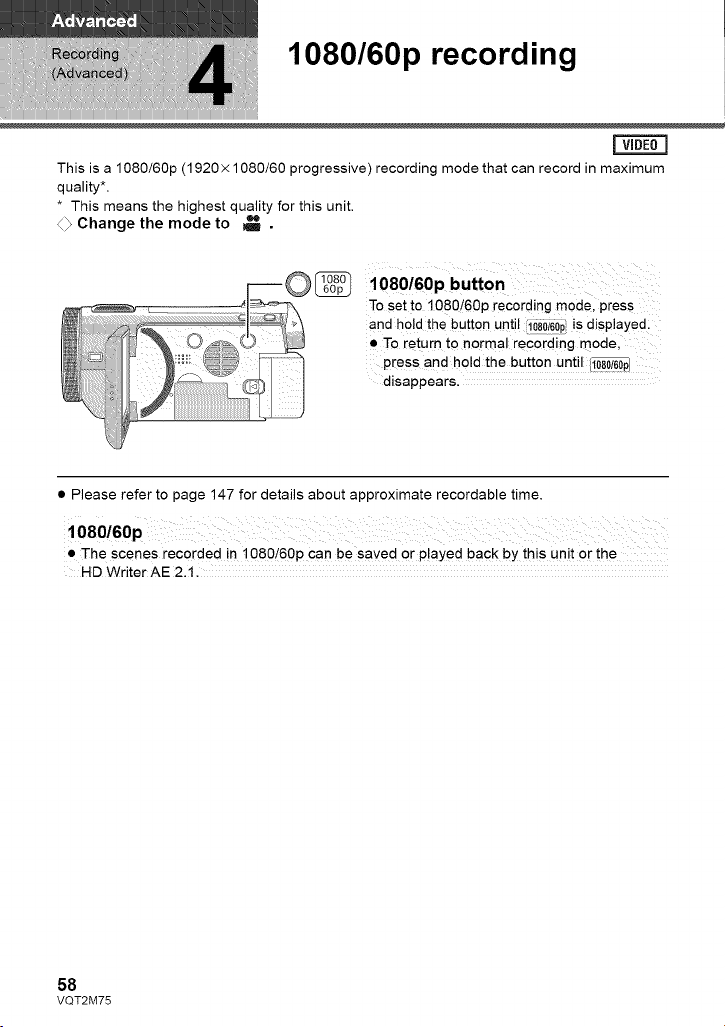
1080/60p recording
This is a 1080/60p (1920x 1080/60 progressive) recording mode that can record in maximum
quality*.
* This means the highest quality for this unit,
4> Change the mode to _ ,
1080/60p butto n
To set to 1080/60p recording mode, press
and ho!d the button unti! 11080/60piis displaYed I
! To return to normal recording mode,
press and ho!d the button unti! _
disappears.
• Please refer to page 147 for details about approximate recordable time.
• The scenes recorded in 1080/60p can be saved or played back by this unit or the
HD Writer AE 2.1.
58
VQT2M75
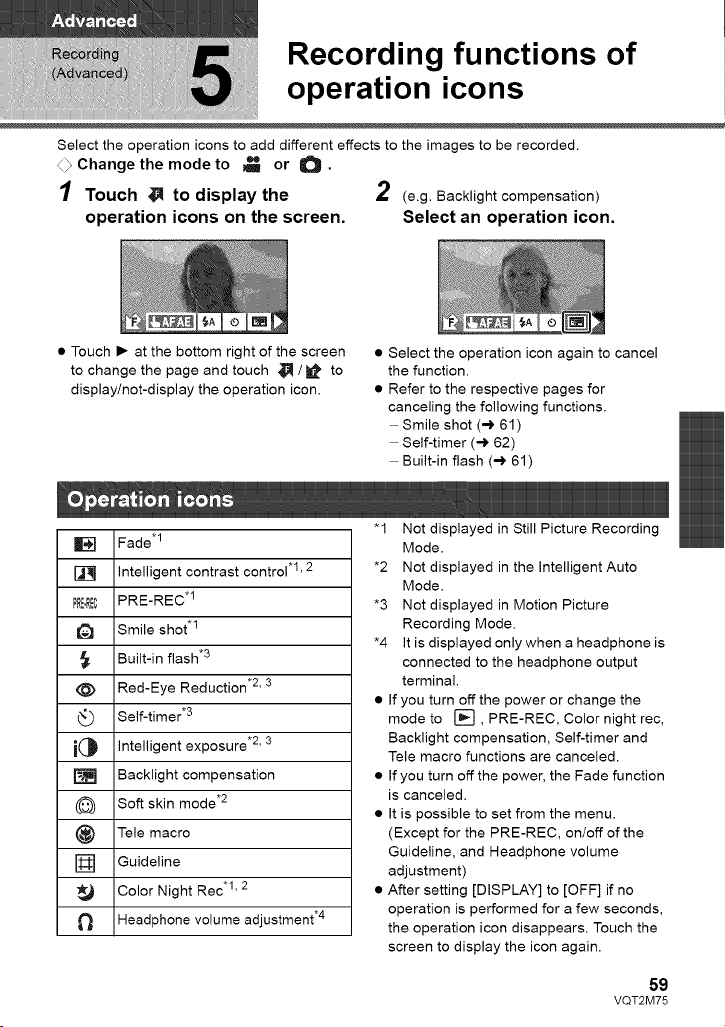
Recording functions of
operation icons
Select the operation icons to add different effects to the images to be recorded.
4_ Change the mode to _ or 0.
1 Touch _ to display the 2 (e.g. Backlightcompensation)
operation icons on the screen. Select an operation icon.
• Touch • at the bottom right of the screen
to change the page and touch 4]_ / _ to
display/not-display the operation icon.
• Select the operation icon again to cancel
the function.
• Refer to the respective pages for
canceling the following functions.
Smile shot (-) 61)
Self-timer (-) 62)
Built-in flash (-) 61)
Fade .1
intelligent contrast control .I, 2
PRE=RECPRE-REC*I
Smile shot .I
Built-in flash .3
@ Red-Eye Reduction .2' 3
_ Self-timer .3
i(_ intelligent exposure .2' 3
[_ Backlight compensation
(_ Soft skin mode .2
_) Tele macro
[] Guideline
_ Color Night Rec .1' 2
Headphone volume adjustment .4
"1 Not displayed in Still Picture Recording
Mode.
*2 Not displayed in the Intelligent Auto
Mode.
*3 Not displayed in Motion Picture
Recording Mode.
*4 It is displayed only when a headphone is
connected to the headphone output
terminal.
• If you turn off the power or change the
mode to [], PRE-REC, Color night rec,
Backlight compensation, Self-timer and
Tele macro functions are canceled.
• If you turn off the power, the Fade function
is canceled.
• It is possible to set from the menu.
(Except for the PRE-REC, on/off of the
Guideline, and Headphone volume
adjustment)
• After setting [DISPLAY] to [OFF] if no
operation is performed for a few seconds,
the operation icon disappears. Touch the
screen to display the icon again.
59
VQT2M75
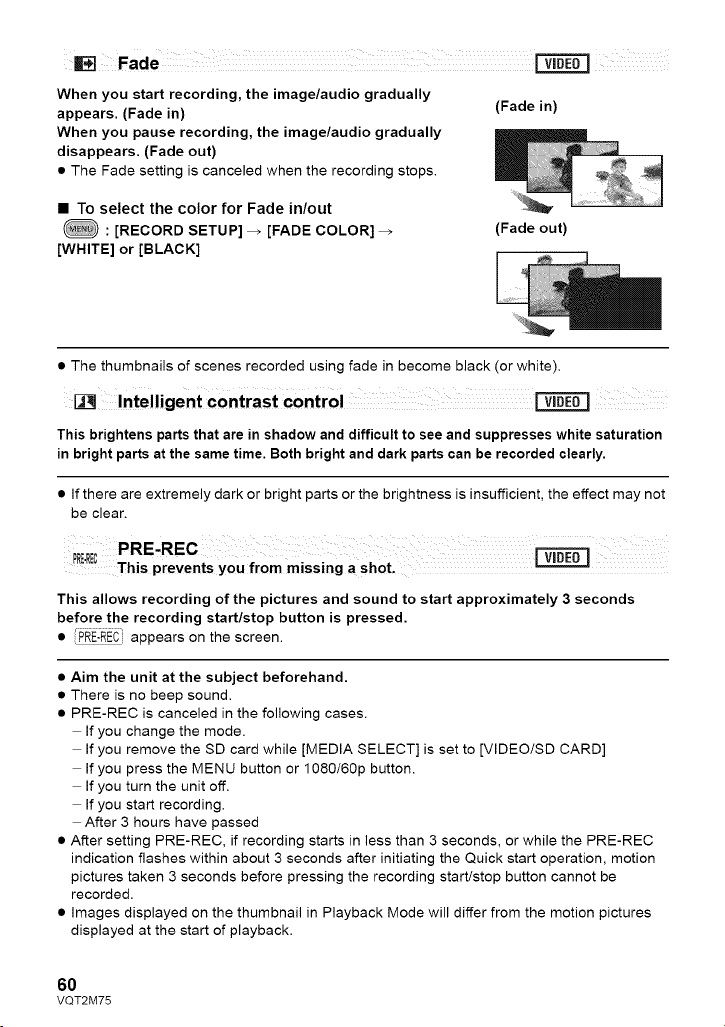
Fade
When you start recording, the image/audio gradually
appears. (Fade in)
When you pause recording, the image/audio gradually
disappears. (Fade out)
• The Fade setting is canceled when the recording stops.
(Fade in)
• To select the color for Fade in/out
: [RECORD SETUP] _ [FADE COLOR]
[WHITE] or [BLACK]
(Fade out)
• The thumbnails of scenes recorded using fade in become black (or white).
Intelligent contrast control
This brightens parts that are in shadow and difficult to see and suppresses white saturation
in bright parts at the same time. Both bright and dark parts can be recorded clearly,
• If there are extremely dark or bright parts or the brightness is insufficient, the effect may not
be clear.
This allows recording of the pictures and sound to start approximately 3 seconds
before the recording start/stop button is pressed,
• PRE'REC_Iappears on the screen.
• Aim the unit at the subject beforehand.
• There is no beep sound.
• PRE-REC is canceled in the following cases.
If you change the mode.
If you remove the SD card while [MEDIA SELECT] is set to [VIDEO/SD CARD]
If you press the MENU button or 1080/60p button.
If you turn the unit off.
If you start recording.
After 3 hours have passed
• After setting PRE-REC, if recording starts in less than 3 seconds, or while the PRE-REC
indication flashes within about 3 seconds after initiating the Quick start operation, motion
pictures taken 3 seconds before pressing the recording start/stop button cannot be
recorded.
• images displayed on the thumbnail in Playback Mode will differ from the motion pictures
displayed at the start of playback.
6O
VQT2M75
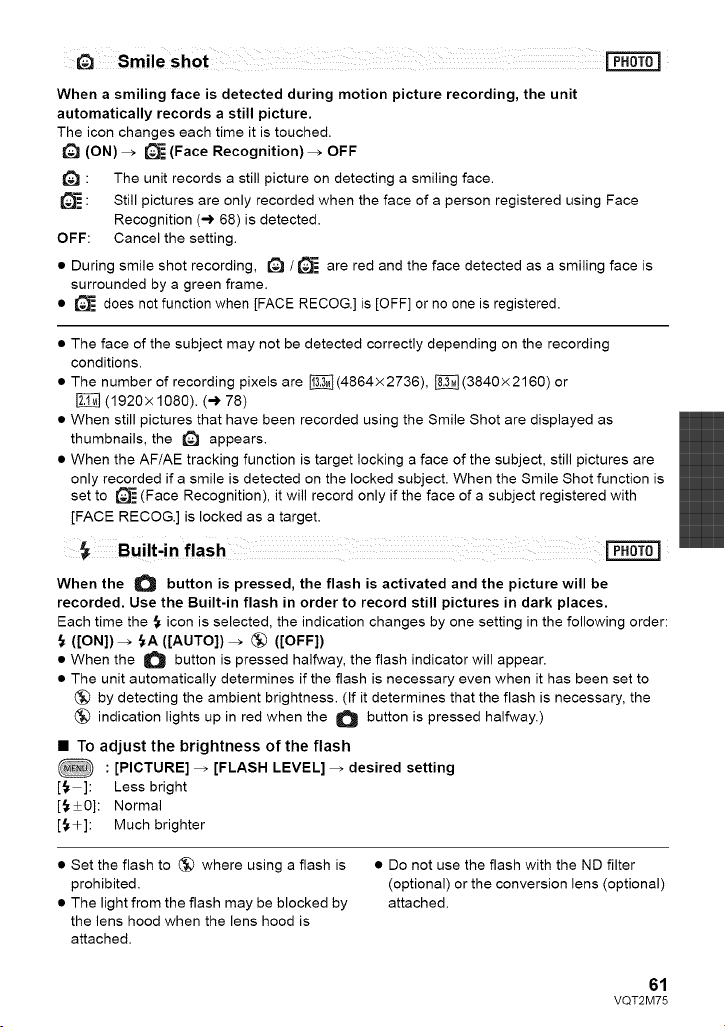
Whenasmiling face is detected during motion picture recording, the unit
automatically records a still picture.
The icon changes each time it is touched.
t_l (ON) _ _ (Face Recognition) --> OFF
: The unit records a still picture on detecting a smiling face.
_ : Still pictures are only recorded when the face of a person registered using Face
Recognition (-_ 68) is detected.
OFF: Cancel the setting.
• During smile shot recording, _ / _J=_ are red and the face detected as a smiling face is
surrounded by a green frame.
• _ does not function when [FACE RECOG.] is [OFF] or no one is registered.
• The face of the subject may not be detected correctly depending on the recording
conditions.
• The number of recording pixels are _(4864x2736), [_](3840x2160) or
(1920x 1080). (-) 78)
• When still pictures that have been recorded using the Smile Shot are displayed as
thumbnails, the _ appears.
• When the AF/AE tracking function is target locking a face of the subject, still pictures are
only recorded if a smile is detected on the locked subject. When the Smile Shot function is
set to _= (Face Recognition), it will record only if the face of a subject registered with
[FACE RECOG.] is locked as a target.
When the O button is pressed, the flash is activated and the picture will be
recorded. Use the Built-in flash in order to record still pictures in dark places.
Each time the _ icon is selected, the indication changes by one setting in the following order:
(ION])--> _A ([AUTO]) _ _ ([OFF])
• When the O button is pressed halfway, the flash indicator will appear.
• The unit automatically determines if the flash is necessary even when it has been set to
by detecting the ambient brightness. (If it determines that the flash is necessary, the
indication lights up in red when the _ button is pressed halfway.)
• To adjust the brightness of the flash
: [PICTURE] _ [FLASH LEVEL] _ desired setting
[_ ]: Less bright
[_ +0]: Normal
[{+]: Much brighter
• Set the flash to (_) where using a flash is
prohibited.
• The light from the flash may be blocked by
the lens hood when the lens hood is
attached.
• Do not use the flash with the ND filter
(optional) or the conversion lens (optional)
attached.
61
VQT2M75
• If the { indication etc. flashes when the
O button is pressed halfway, the flash
is not activated.
• The available range of the flash is approx. 1 m
to 2.5 m (3.3 feet to 8.2 feet) in dark places.
• Using the flash fixes a shutter speed to
1/500 or slower.
Reduces the phenomena where human eyes become red from flashes.
• The flash is activated 2 times.
• The red-eye phenomenon tends to appear in certain recording conditions and more with
some people than with others.
• When faces are detected in the Intelligent Auto Mode, the Red-Eye Reduction is set to on.
This is for recording still pictures using the timer.
Each time the _ icon is selected, the indication changes by one setting in the following
order:
_)10 (Records after 10 seconds) _ _)2 (Records after 2 seconds) _ setting canceled
• When the O button is pressed, a still picture is recorded after the _)10 or _)2 display
and the recording lamp flashes for the time which has been set. After recording, the Self-
timer is canceled.
• in Auto Focus Mode, if the _ button is pressed halfway once and then fully, the lens
focuses on the subject when the button is pressed halfway, if the _ button is pressed
fully all at once, the lens focuses on the subject just before recording.
To stop the timer midway through
Press the MENU button.
• Setting the Self-timer to _)2 is a good way to prevent image shake when the _ button is
pressed while using a tripod etc.
This brightens dark areas so the image can be recorded clearly.
• If there are extremely dark parts or the brightness is insufficient, the effect may not be
clear.
ff_ Backlight compensation
This makes the image brighter to prevent darkening of a backlit subject.
62
VQT2M75
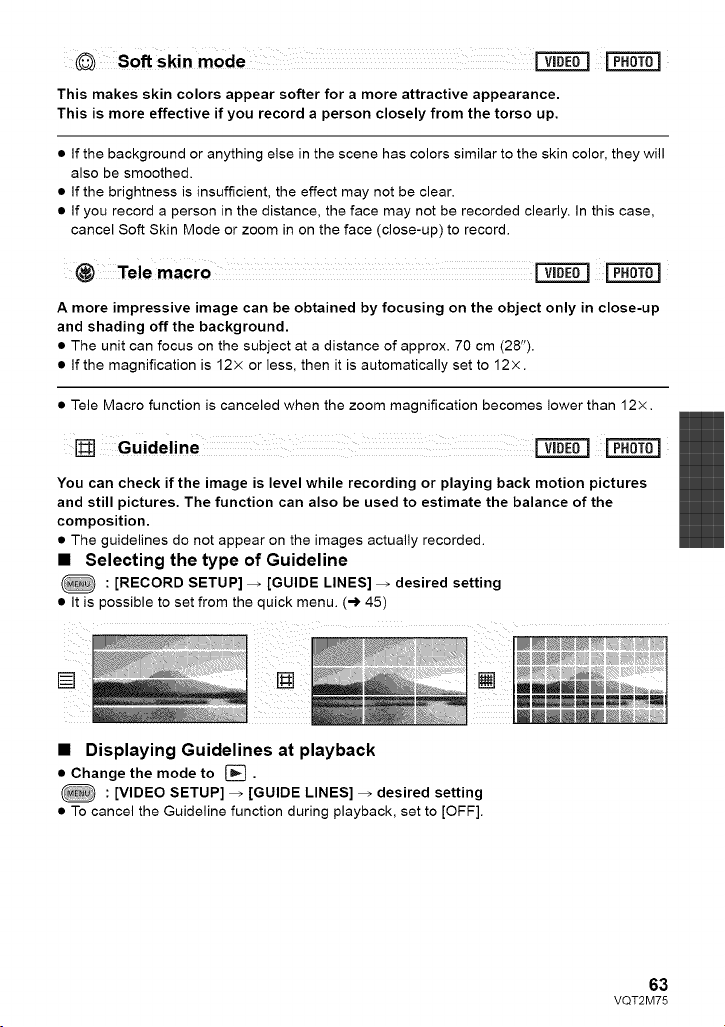
Soft Skin mode _
This makes skin colors appear softer for a more attractive appearance.
This is more effective if you record a person closely from the torso up.
• If the background or anything else in the scene has colors similar to the skin color, they will
also be smoothed.
• If the brightness is insufficient, the effect may not be clear.
• If you record a person in the distance, the face may not be recorded clearly. In this case,
cancel Soft Skin Mode or zoom in on the face (close-up) to record.
_) Tele macro .....
A more impressive image can be obtained by focusing on the object only in close-up
and shading off the background.
• The unit can focus on the subject at a distance of approx. 70 cm (28").
• if the magnification is 12× or less, then it is automatically set to 12 ×.
• Tele Macro function is canceled when the zoom magnification becomes lower than 12×.
Guideline ×
You can check if the image is level while recording or playing back motion pictures
and still pictures. The function can also be used to estimate the balance of the
composition.
• The guidelines do not appear on the images actually recorded.
• Selecting the type of Guideline
: [RECORD SETUP] _ [GUIDE LINES] _ desired setting
• It is possible to set from the quick menu. (-> 45)
• Displaying Guidelines at playback
• Change the mode to [_.
: [VIDEO SETUP] _ [GUIDE LINES] _ desired setting
• To cancel the Guideline function during playback, set to [OFF].
63
VQT2M75
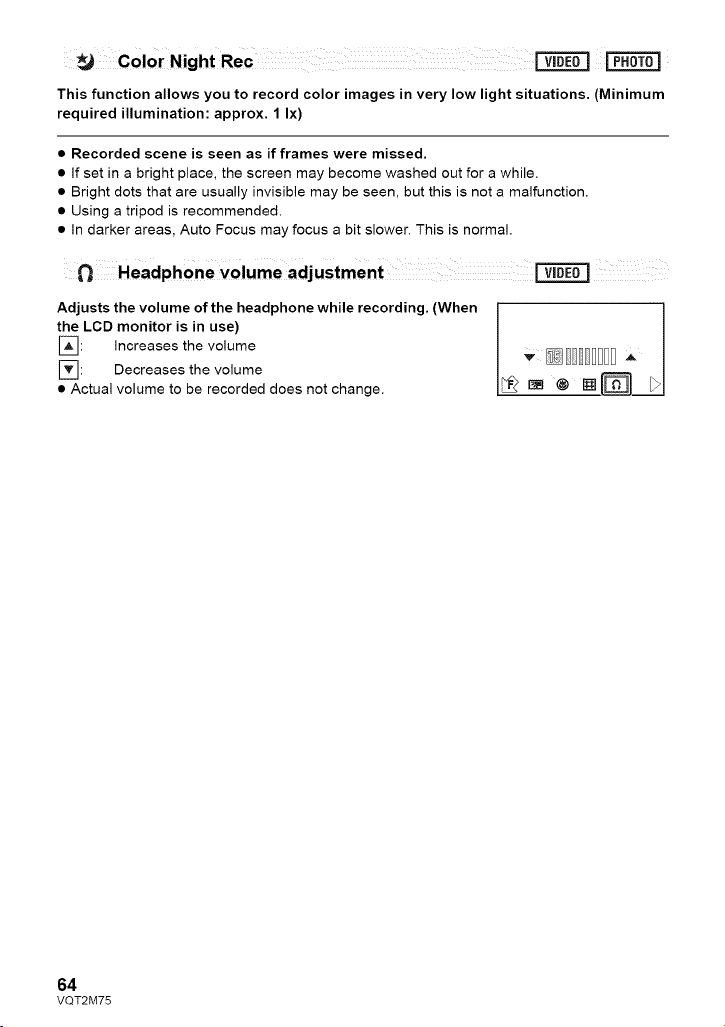
Color Night Rec
This function allows you to record color images in very low light situations. (Minimum
required illumination: approx. 1 Ix)
• Recorded scene is seen as if frames were missed.
• If set in a bright place, the screen may become washed out for a while.
• Bright dots that are usually invisible may be seen, but this is not a malfunction.
• Using a tripod is recommended.
• In darker areas, Auto Focus may focus a bit slower. This is normal.
Adjusts the volume of the headphone while recording. (When
the LCD monitor is in use)
[_]: Increases the volume
r_: Decreases the volume
• Actual volume to be recorded does not change.
64
VQT2M75
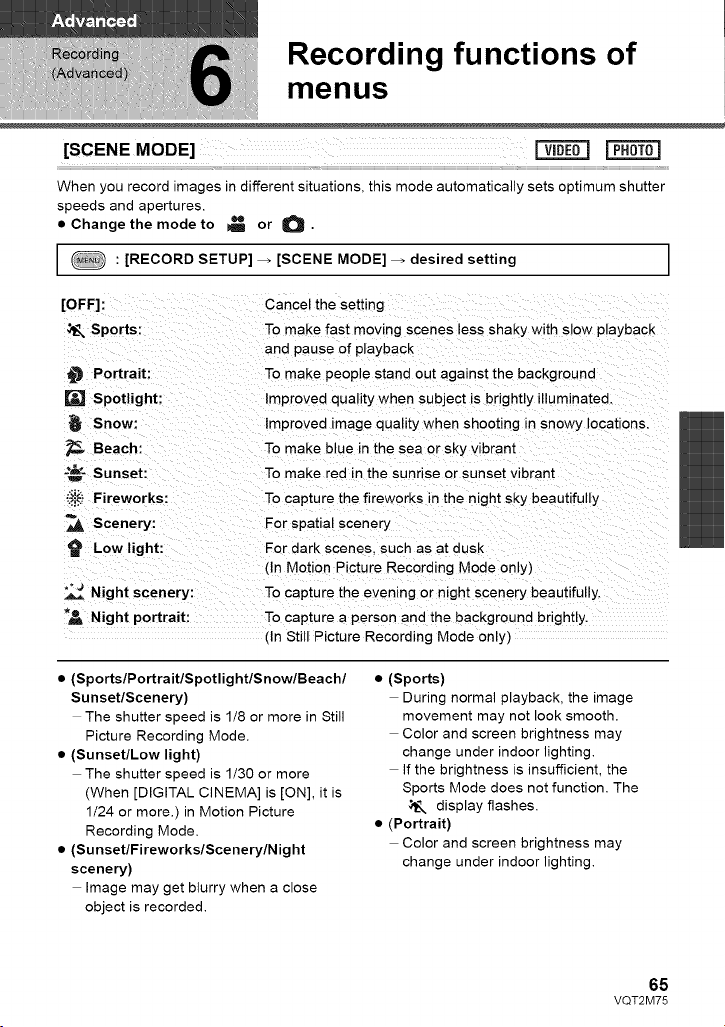
Recording functions of
menus
[SCENE MODE] _ [=_=_=_
When you record images in different situations, this mode automatically sets optimum shutter
speeds and apertures.
• Change the mode to _ or O.
: [RECORD SETUP] _ [SCENE MODE] _ desired setting I
I
[OFF]:
Sports:
Portrait:
[] Spotlight:
Snow:
_, Beach:
_- Sunset:
_,_ Fireworks:
Scenery:
Low light:
Cancel the setting
To make fast moving scenes less shaky with slow playback
ana pause of playback
To make people stand out against the background
Improved quality when subject s brightly illuminated.
Improved image quality when shooting in snowy locations.
To make blue in the sea or sky vibrant
To make red in the sunrise or sunset vibrant
To capture the fireworks in the night sky beautifully
For spatial scenery
For dark scenes, such as at dusk
(Ir Motion Picture Recording Mode only)
Night scenery: To capture the evening or night scenery beautifully.
"_ Night portrait: To capture a person and the background brightly.
(In Still Picture Recording Mode only)
• (SportslPortraitlSpotlightlSnowlBeachl
Sunset/Scenery)
The shutter speed is 1/8 or more in Still
Picture Recording Mode.
• (Sunset/Low light)
The shutter speed is 1/30 or more
(When [DIGITAL CINEMA] is [ON], it is
1/24 or more.) in Motion Picture
Recording Mode.
• (SunsetlFireworkslScenerylNight
scenery)
Image may get blurry when a close
object is recorded.
• (Sports)
During normal playback, the image
movement may not look smooth.
Color and screen brightness may
change under indoor lighting.
If the brightness is insufficient, the
Sports Mode does not function. The
display flashes.
• (Portrait)
Color and screen brightness may
change under indoor lighting.
65
VQT2M75
• (Fireworks)
Theshutterspeedis1/30.
Imagemaygetwashed out when
recorded in bright surroundings.
• (Night scenery/Night portrait)
The shutter speed is 1/2 or more in Still
Picture Recording Mode.
Using a tripod is recommended.
• (Night portrait)
The flash is set to [ON].
[ZOOM MODE] F_=E=0=]
Set the maximum zoom ratio for the Motion Picture Recording Mode.
• Change the mode to _ .
: [RECORD SETUP] _ [ZOOM MODE] _ desired setting I
[LZoom !8x] This zoom function allows youto maintain high-definition
picture quality (up to 18x)
[D.Zoom 700x]: Digital zoom (Up to 700x)
• The larger the digital zoom magnification, the more the image quality is degraded.
[REC MODE]
Switch the picture quality of the motion pictures to be recorded.
• Change the mode to _1_ •
: [RECORD SETUP] _ [REC MODE] _ desired setting
• It is possible to set from the quick menu. (-) 45)
O Favors image quality
Q Favors recording time
• Recordable time using the battery (-_ 24)
• This function's default setting is HG mode.
• Please refer to page 147 about approximate recordable time.
• When the unit is moved a lot or moved quickly, or when a fast-moving subject is recorded
(particularly when recording in HE mode), mosaic-type noise may appear at playback.
66
VQT2M75
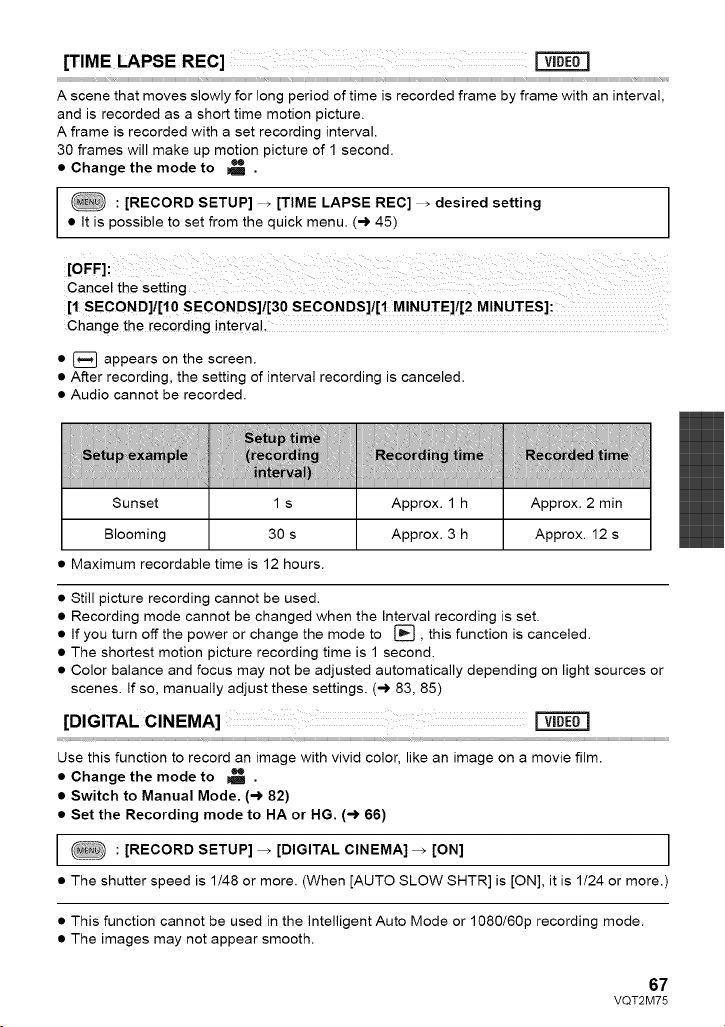
[TIME LAPSE REC]
A scene that moves slowly for long period of time is recorded frame by frame with an interval,
and is recorded as a short time motion picture.
A frame is recorded with a set recording interval.
30 frames will make up motion picture of 1 second.
• Change the mode to _ .
: [RECORD SETUP] _ [TIME LAPSE REC] _ desired setting
• It is possible to set from the quick menu. (-) 45)
[1 SECOND]Ill0 SECONDS]![30 SECONDS]I[1 MINUTE]I[2 MINUTES]:
Change the recording interval,
• [_ appears on the screen.
• After recording, the setting of interval recording is canceled.
• Audio cannot be recorded.
iiiiiiiiiiiiiiiiiiiiiiiiiiiiiiiiiiiiiiiiiiiiiiiiiiiiiiiiiiiiiiiiiiiiiiiiiiiiiiiiiiiiiiiiiiiiiiiiiiiiiiiiiiiiiiiiiiiiiiiiiiiiiiiiiiiiiiiiiiiiiiiiiiii;liiiiiH/iiii_iiIiiii_!_iii1ii_i_ii_Ii_Ii_i_i_i]iiiiii_!iiiii!!i_ii_ii!i_!i_!i_!i_!i_!i_!i_!i_!i_!i_!i_!i_!i_!i_!i_!i_!i_!ii!i_i!_iiiiiH!_iiiii!!i_ii_ii!i_!i_!i_!i_!i_!i_!i_!i_!i_!i_!i_!i_!i_!i_!i_!i_!i_!i_
Sunset 1 s Approx. 1 h Approx. 2 min
Blooming 30 s I Approx. 3 h I Approx. 12 s
Maximum recordable time is 12 hours.
• Still picture recording cannot be used.
• Recording mode cannot be changed when the Interval recording is set.
• If you turn off the power or change the mode to [], this function is canceled.
• The shortest motion picture recording time is 1 second.
• Color balance and focus may not be adjusted automatically depending on light sources or
scenes. If so, manually adjust these settings. (-,) 83, 85)
[DIGITAL CINEMA]
Use this function to record an image with vivid color, like an image on a movie film.
• Change the mode to _ .
• Switch to Manual Mode. (-> 82)
• Set the Recording mode to HA or HG. (-_ 66)
: [RECORD SETUP] _ [DIGITAL CINEMA] _ [ON] I
• The shutter speed is 1/48 or more. (When [AUTO SLOW SHTR] is [ON], it is 1/24 or more.)
• This function cannot be used in the intelligent Auto Mode or 1080/60p recording mode.
• The images may not appear smooth.
67
VQT2M75
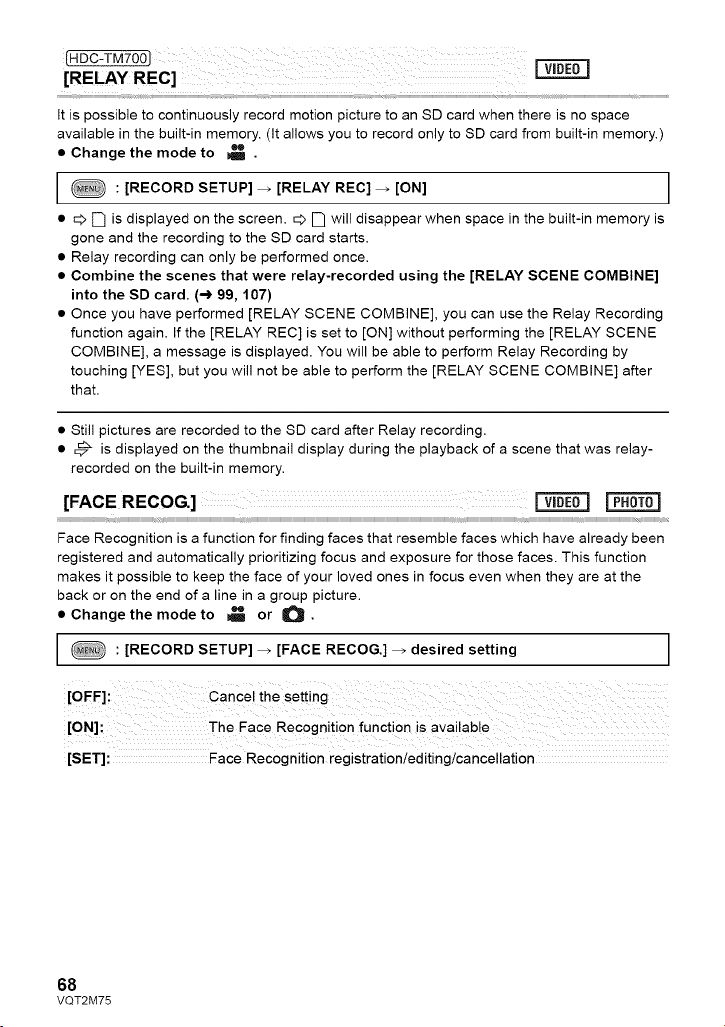
ItispossibletocontinuouslyrecordmotionpicturetoanSDcardwhenthereisnospace
availableinthebuilt-inmemory.(ItallowsyoutorecordonlytoSDcardfrombuilt-inmemory.)
• Change the mode to _ .
: [RECORD SETUP] _ [RELAY REC] _ [ON] I
• _> [-'1 is displayed on the screen. _ [-] will disappear when space in the built-in memory is
gone and the recording to the SD card starts.
• Relay recording can only be performed once.
• Combine the scenes that were relay-recorded using the [RELAY SCENE COMBINE]
into the SD card. (-_ 99,107)
• Once you have performed [RELAY SCENE COMBINE], you can use the Relay Recording
function again. If the [RELAY REC] is set to [ON] without performing the [RELAY SCENE
COMBINE], a message is displayed. You will be able to perform Relay Recording by
touching [YES], but you will not be able to perform the [RELAY SCENE COMBINE] after
that.
• Still pictures are recorded to the SD card after Relay recording.
• _ is displayed on the thumbnail display during the playback of a scene that was relay-
recorded on the built-in memory,
[FACE RECOG.] _
Face Recognition is a function for finding faces that resemble faces which have already been
registered and automatically prioritizing focus and exposure for those faces. This function
makes it possible to keep the face of your loved ones in focus even when they are at the
back or on the end of a line in a group picture.
• Change the mode to _ or O.
: [RECORD SETUP] _ [FACE RECOG.] _ desired setting I
I
[ON]: The Face Recognition function is availab!e
[SET]: Face Recognition registration/editing/cancellation
68
VQT2M75
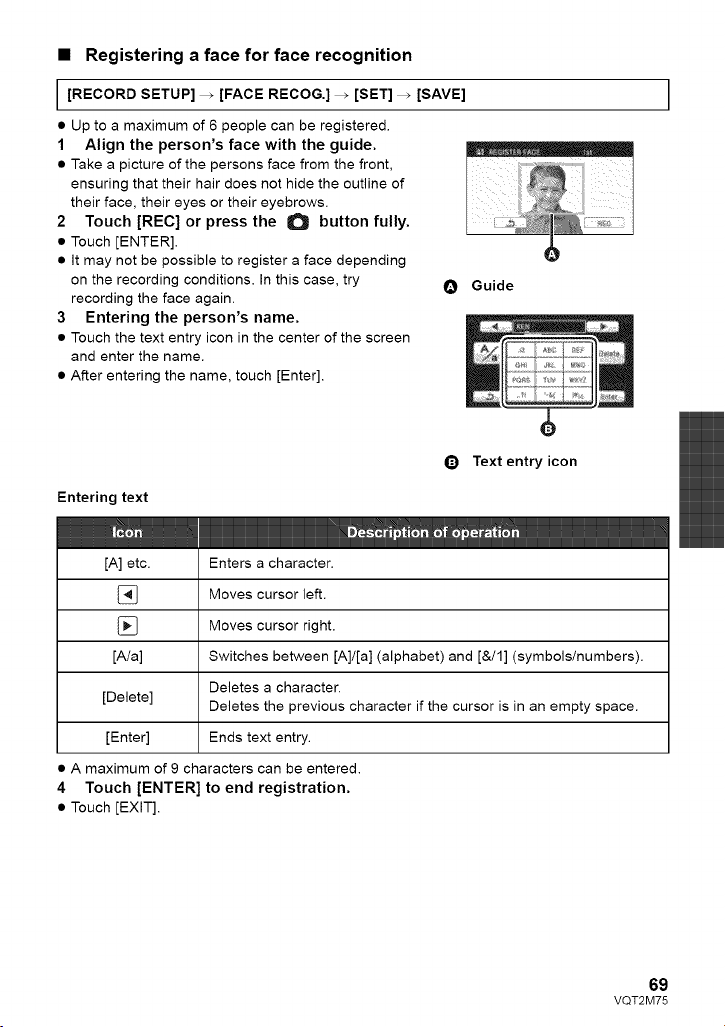
• Registering a face for face recognition
[RECORD SETUP] _ [FACE RECOG.] _ [SET] _ [SAVE]
• Up to a maximum of 6 people can be registered.
1 Align the person's face with the guide.
• Take a picture of the persons face from the front,
ensuring that their hair does not hide the outline of
their face, their eyes or their eyebrows.
2 Touch [REC] or press the O button fully.
• Touch [ENTER].
• It may not be possible to register a face depending
on the recording conditions. In this case, try O
recording the face again.
3 Entering the person's name.
• Touch the text entry icon in the center of the screen
and enter the name.
• After entering the name, touch [Enter].
Guide
$
I
Entering text
Q Text entry icon
[A] etc. Enters a character.
[_ Moves cursor left.
[_ Moves cursor right.
[A/a] Switches between [A]/[a] (alphabet) and [&/1] (symbols/numbers).
Deletes a character.
[Delete] Deletes the previous character if the cursor is in an empty space.
[Enter] Ends text entry.
A maximum of 9 characters can be entered.
4 Touch [ENTER] to end registration.
• Touch [EXIT].
69
VQT2M75
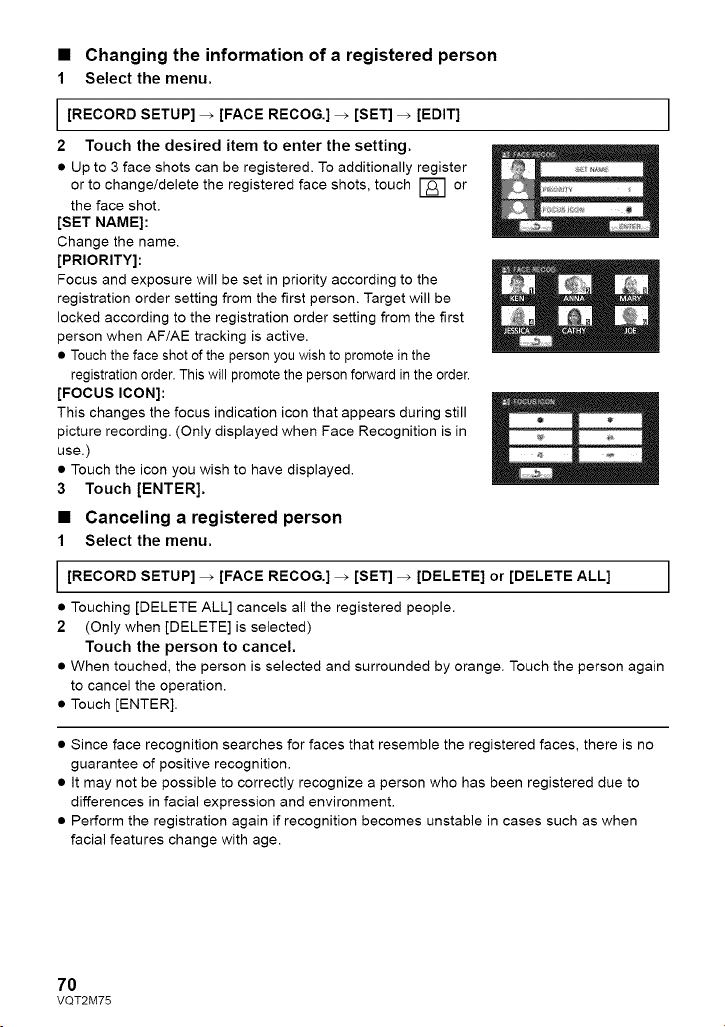
• Changing the information of a registered person
1 Select the menu.
[RECORD SETUP] _ [FACE RECOG.] _ [SET] _ [EDIT]
2 Touch the desired item to enter the setting.
• Up to 3 face shots can be registered. To additionally register
or to change/delete the registered face shots, touch [] or
the face shot.
[SET NAME]:
Change the name.
[PRIORITY]:
Focus and exposure will be set in priority according to the
registration order setting from the first person. Target will be
locked according to the registration order setting from the first
person when AF/AE tracking is active,
• Touch the face shot of the person you wish to promote in the
registration order. This wilI promote the person forward in the order.
[FOCUS ICON]:
This changes the focus indication icon that appears during still
picture recording. (Only displayed when Face Recognition is in
use.)
• Touch the icon you wish to have displayed.
3 Touch [ENTER].
• Canceling a registered person
1 Select the menu.
[RECORD SETUP] _ [FACE RECOG.] _ [SET] _ [DELETE] or [DELETE ALL]
• Touching [DELETE ALL] cancels all the registered people.
2 (Only when [DELETE] is selected)
Touch the person to cancel.
• When touched, the person is selected and surrounded by orange. Touch the person again
to cancel the operation.
• Touch [ENTER].
• Since face recognition searches for faces that resemble the registered faces, there is no
guarantee of positive recognition.
• It may not be possible to correctly recognize a person who has been registered due to
differences in facial expression and environment.
• Perform the registration again if recognition becomes unstable in cases such as when
facial features change with age.
I
I
70
VQT2M75
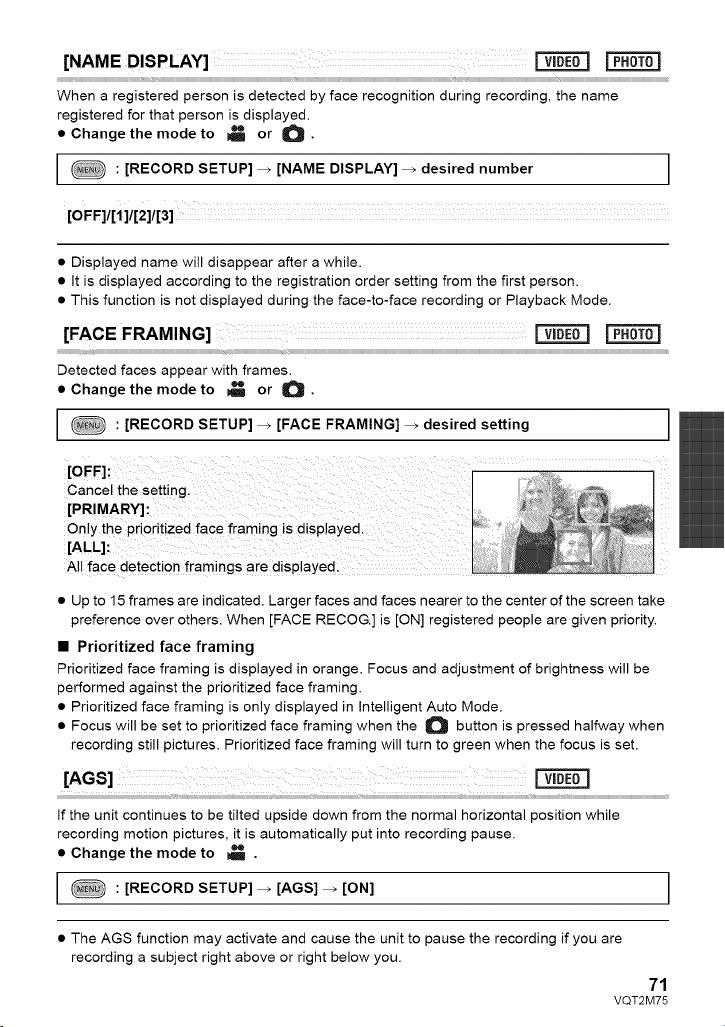
[NAME DISPLAY] _
When a registered person is detected by face recognition during recording, the name
registered for that person is displayed.
• Change the mode to _ or O.
: [RECORD SETUP] _ [NAME DISPLAY] _ desired number I
I
[0FF]111]112]113]
• Displayed name will disappear after a while.
• It is displayed according to the registration order setting from the first person.
• This function is not displayed during the face-to-face recording or Playback Mode.
[FACE FRAMING] _
Detected faces appear with frames.
• Change the mode to _ or O.
: [RECORD SETUP] _ [FACE FRAMING] _ desired setting I
I
[OFF]:
Cancel the setting.
[PRIMARY]:
Only the prioritized face framing is displayed.
[ALL]:
All face detection framings are displayed
• Up to 15 frames are indicated. Larger faces and faces nearer to the center of the screen take
preference over others. When [FACE RECOG.] is [ON] registered people are given priority.
• Prioritized face framing
Prioritized face framing is displayed in orange. Focus and adjustment of brightness will be
performed against the prioritized face framing.
• Prioritized face framing is only displayed in Intelligent Auto Mode.
• Focus will be set to prioritized face framing when the O button is pressed halfway when
recording still pictures. Prioritized face framing will turn to green when the focus is set.
lAGS]
If the unit continues to be tilted upside down from the normal horizontal position while
recording motion pictures, it is automatically put into recording pause.
• Change the mode to _ .
: [RECORD SETUP] _ [AGS] _ [ON] I
I
• The AGS function may activate and cause the unit to pause the recording if you are
recording a subject right above or right below you.
71
VQT2M75
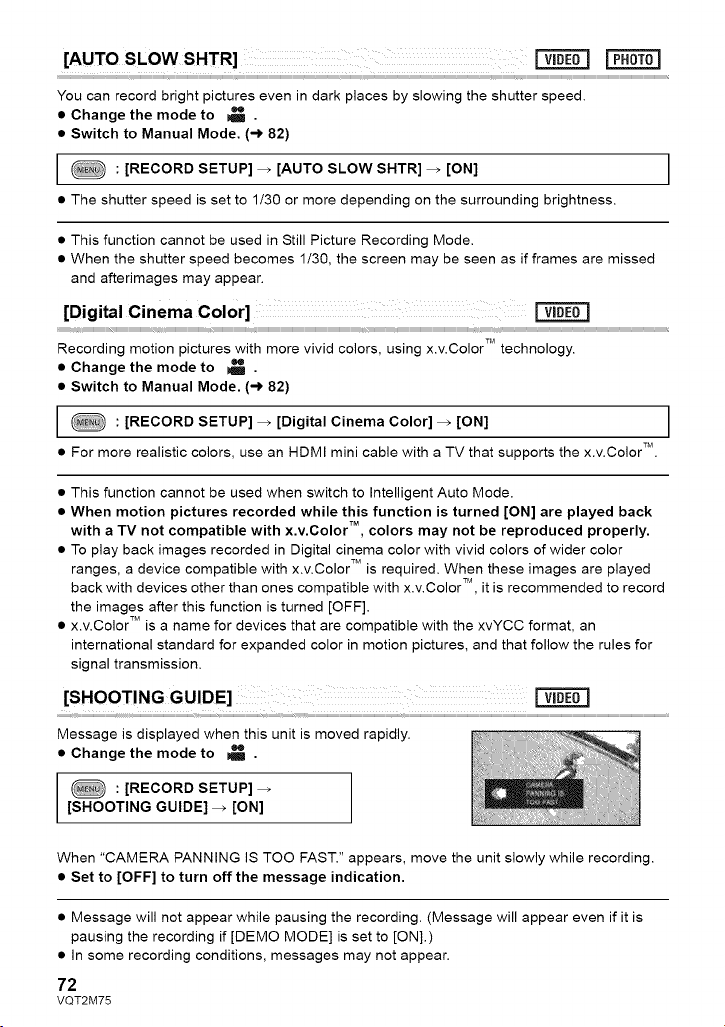
[AUTO SLOW SHTR] _ |
You can record bright pictures even in dark places by slowing the shutter speed.
• Change the mode to _ .
• Switch to Manual Mode. (-_ 82)
I
: [RECORD SETUP] _ [AUTO SLOW SHTR] _ [ON] I
• The shutter speed is set to 1/30 or more depending on the surrounding brightness,
• This function cannot be used in Still Picture Recording Mode.
• When the shutter speed becomes 1/30, the screen may be seen as if frames are missed
and afterimages may appear.
[Digital Cinerna Color]
Recording motion pictures with more vivid colors, using x.v.Color TM technology.
• Change the mode to _ .
• Switch to Manual Mode. (-_ 82)
: [RECORD SETUP] _ [Digital Cinema Color] _ [ON] I
m
• For more realistic colors, use an HDMI mini cable with a TV that supports the x.v.Color TM.
• This function cannot be used when switch to Intelligent Auto Mode.
• When motion pictures recorded while this function is turned [ON] are played back
with a TV not compatible with x.v.Color TM, colors may not be reproduced properly.
• To play back images recorded in Digital cinema color with vivid colors of wider color
ranges, a device compatible with x.v.Color TM is required. When these images are played
back with devices other than ones compatible with x.v.Color TM, it is recommended to record
the images after this function is turned [OFF].
• x.v.Color TM is a name for devices that are compatible with the xvYCC format, an
international standard for expanded color in motion pictures, and that follow the rules for
signal transmission.
[SHOOTING GUIDE]
Message is displayed when this unit is moved rapidly.
• Change the mode to _ .
: [RECORD SETUP]
[SHOOTING GUIDE] _ [ON]
When "CAMERA PANNING IS TOO FAST." appears, move the unit slowly while recording.
• Set to [OFF] to turn off the message indication.
• Message will not appear while pausing the recording. (Message will appear even if it is
pausing the recording if [DEMO MODE] is set to [ON].)
• In some recording conditions, messages may not appear.
72
VQT2M75
[WIND NOISE CANCELER]
This will reduce the wind noise coming into the built-in microphones while maintaining the
realism.
• Change the mode to _!_ •
• Switch to Manual Mode. (-) 82)
: [RECORD SETUP] _ [WIND NOISE CANCELER] _ [ON] I
I
• When switching to Intelligent Auto Mode, [WIND NOISE CANCELER] is set to [ON], and the
setting cannot be changed.
• You may not see the full effect depending on the recording conditions.
• If wind sound cannot be reduced with the Wind noise canceler function alone, set [BASS
SETTING] to [LOWCUT]. (-,) 75)
[MIC SETUP]
Recording setting of the built-in microphone can be adjusted.
• Change the mode to _ .
• Switch to Manual Mode. (-) 82)
: [RECORD SETUP] _ [MIC SETUP] _ desired setting I
I
[SURROUND]:
[ZOOM MIC]:
[FOCUS MIC]:
[STEREO MIC]:
Sound is recorded with 5.1 ch surround microphone.
3irectivity of the microphone is synchronized with the zoom
operation. Sounds near the front of the unit are recorded more
clearly if you zoom in (close-up) and surrounding sounds are
recorded more realistically if you zoom out (wide angle).
Directivity of the center is enhanced for recording audio
near the front of the unit more clearly.
Sound from two directions is recorded in 2 ch by forward-
facing stereo microphones.
• If you wish to record higher quality sound and maintain realism even when zooming in, for
instance, when recording a music recital, we recommend setting [MIC SETUP] to
[SURROUND].
73
VQT2M75
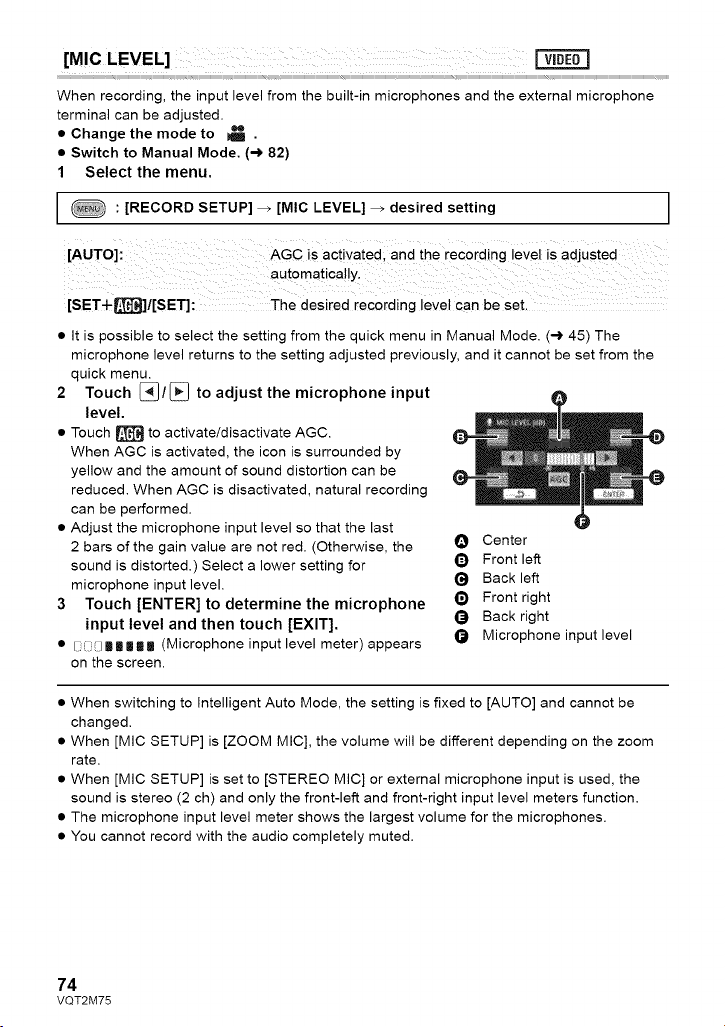
[MIC LEVEL]
When recording, the input level from the built-in microphones and the external microphone
terminal can be adjusted.
• Change the mode to _ .
• Switch to Manual Mode. (-> 82)
1 Select the menu.
: [RECORD SETUP] _ [MIC LEVEL] _ desired setting I
[AUTO]: AGC is activatedi and the recording level is adjusted
[SET-F_]/[SET]: The desired recording level can be set,
• It is possible to select the setting from the quick menu in Manual Mode. (-) 45) The
microphone level returns to the setting adjusted previously, and it cannot be set from the
quick menu.
2 Touch (_/(_ to adjust the microphone input
level.
• Touch _ to activate/disactivate AGC.
When AGC is activated, the icon is surrounded by
yellow and the amount of sound distortion can be
reduced. When AGC is disactivated, natural recording
can be performed.
• Adjust the microphone input level so that the last
2 bars of the gain value are not red. (Otherwise, the O Center
sound is distorted.) Select a lower setting for Q Front left
microphone input level. (_ Back left
3 Touch [ENTER] to determine the microphone _) Front right
input level and then touch [EXIT]. (_) Back right
• [ i ]m|i|l (Microphone input level meter) appears _) Microphone input level
on the screen.
• When switching to Intelligent Auto Mode, the setting is fixed to [AUTO] and cannot be
changed.
• When [MIC SETUP] is [ZOOM MIC], the volume will be different depending on the zoom
rate.
• When [MIC SETUP] is set to [STEREO MIC] or external microphone input is used, the
sound is stereo (2 ch) and only the front-left and front-right input level meters function.
• The microphone input level meter shows the largest volume for the microphones.
• You cannot record with the audio completely muted.
74
VQT2M75
[BASS SE_ING]
Change the lower setting of the built-in microphone according to your choice.
• Change the mode to _ .
• Switch to Manual Mode. (-) 82)
: [RECORD SETUP] _ [BASS SETTING] _ desired setting I
[0dB]![+3d B]![+6d B]/[LOWCUT]
• Normally set to [0dB].
• Select [+3dB] or [+6dB] to get strong power feeling at bass level.
[PICTURE ADJUST] _
Adjust the quality of the image while recording.
Adjust by outputting to a TV while adjusting the quality of the image.
• Change the mode to _ or O.
• Switch to Manual Mode. (-) 82)
1 Select the menu.
: [RECORD SETUP] _ [PICTURE ADJUST] I
2 Touch the desired setting items,
[WB ADJUST]: Picture color balance
3 Touch [_/[_} to adjust settings.
4 Touch [ENTER].
• Touch [EXIT] or press the MENU button to complete the settings.
• _._*-appears on the screen.
75
VQT2M75
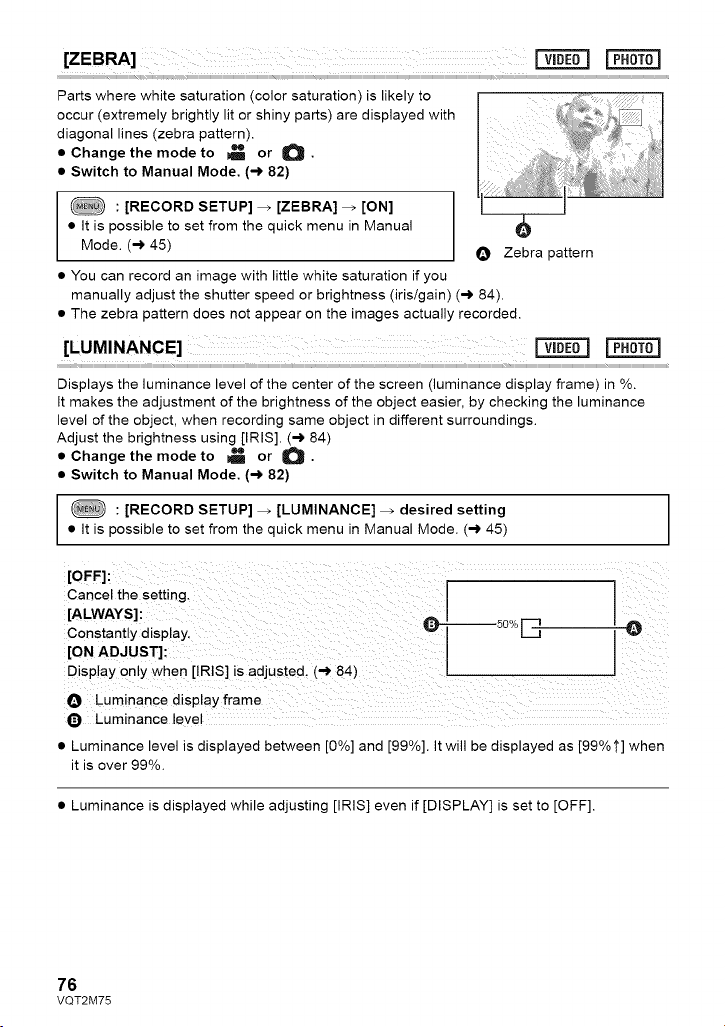
[ZEBRA] _ |
Parts where white saturation (color saturation) is likely to
occur (extremely brightly lit or shiny parts) are displayed with
diagonal lines (zebra pattern).
• Change the mode to _ or O.
• Switch to Manual Mode. (-) 82)
: [RECORD SETUP] _ [ZEBRA] _ [ON]
• It is possible to set from the quick menu in Manual
Mode. (-) 45) O Zebra pattern
• You can record an image with little white saturation if you
manually adjust the shutter speed or brightness (iris/gain) (-) 84).
• The zebra pattern does not appear on the images actually recorded.
[LUMINANCE] [==_=_=l
Displays the luminance level of the center of the screen (luminance display frame) in %.
It makes the adjustment of the brightness of the object easier, by checking the luminance
level of the object, when recording same object in different surroundings.
Adjust the brightness using [IRIS]. (-) 84)
• Change the mode to _ or O.
• Switch to Manual Mode. (-) 82)
: [RECORD SETUP] _ [LUMINANCE] _ desired setting
• It is possible to set from the quick menu in Manual Mode. (-) 45)
[OFF]: _ @
Cancel the setting. - J
[ALWAYS]: 50°/o
Constantly display,
[ON ADJUST]:
Display only when [IRIS] is adjusted. (--) 84)
O Luminance display frame
_) Luminance level
• Luminance level is displayed between [0%] and [99%]. It will be displayed as [99% t] when
it is over 99%.
• Luminance is displayed while adjusting [IRIS] even if [DISPLAY] is set to [OFF].
76
VQT2M75
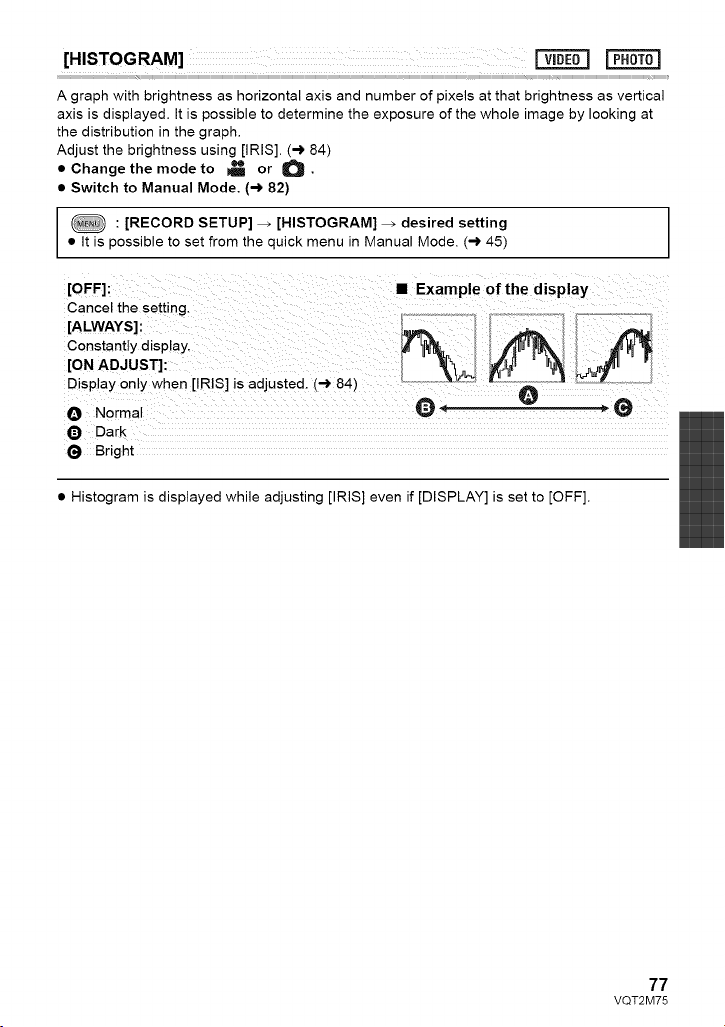
[HISTOGRAM] _
A graph with brightness as horizontal axis and number of pixels at that brightness as vertical
axis is displayed. It is possible to determine the exposure of the whole image by looking at
the distribution in the graph.
Adjust the brightness using [IRIS]. (,_ 84)
• Change the mode to _ or O.
• Switch to Manual Mode. (,_ 82)
: [RECORD SETUP] _ [HISTOGRAM] _ desired setting
• It is possible to set from the quick menu in Manual Mode. (,_ 45)
[OFF]: • Example of the display
Cancel the setting.
[ALWAYS]:
Constantly display.
[ON ADJUST]:
Display only when [IRIS] is adjusted. (-) 84)
e Norma @ ' O
O Dark
(_ Bright
• Histogram is displayed while adjusting [IRIS] even if [DISPLAY] is set to [OFF].
77
VQT2M75
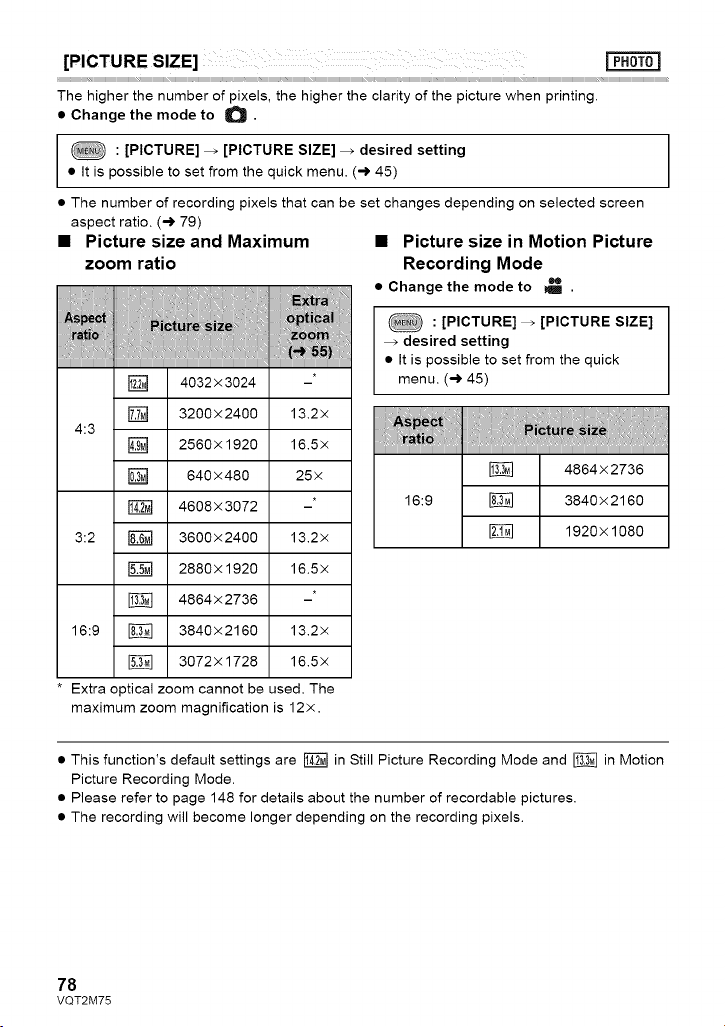
[PICTURE SIZE]
The higher the number of pixels, the higher the clarity of the picture when printing.
• Change the mode to O •
: [PICTURE] _ [PICTURE SIZE] _ desired setting
• It is possible to set from the quick menu. (-_ 45)
• The number of recording pixels that can be set changes depending on selected screen
aspect ratio. (-_ 79)
• Picture size and Maximum • Picture size in Motion Picture
zoom ratio Recording Mode
• Change the mode to vm •
[] 4032x3024 -*
[] 3200x2400 13.2x
4:3
[] 2560x 1920 16.5x
[] 640x480 25x
4608x3072 -*
3:2 _ 3600x2400 13.2x
2880x 1920 16.5x
4864x2736 -*
16:9 _ 3840x2160 13.2x
3072x 1728 16.5x
* Extra optical zoom cannot be used. The
maximum zoom magnification is 12×.
: [PICTURE] _ [PICTURE SIZE]
desired setting
• It is possible to set from the quick
menu. (-_ 45)
4864x2736
16:9 _ 3840 x 2160
1920x 1080
• This function's default settings are _ in Still Picture Recording Mode and _ in Motion
Picture Recording Mode.
• Please refer to page 148 for details about the number of recordable pictures.
• The recording will become longer depending on the recording pixels.
78
VQT2M75
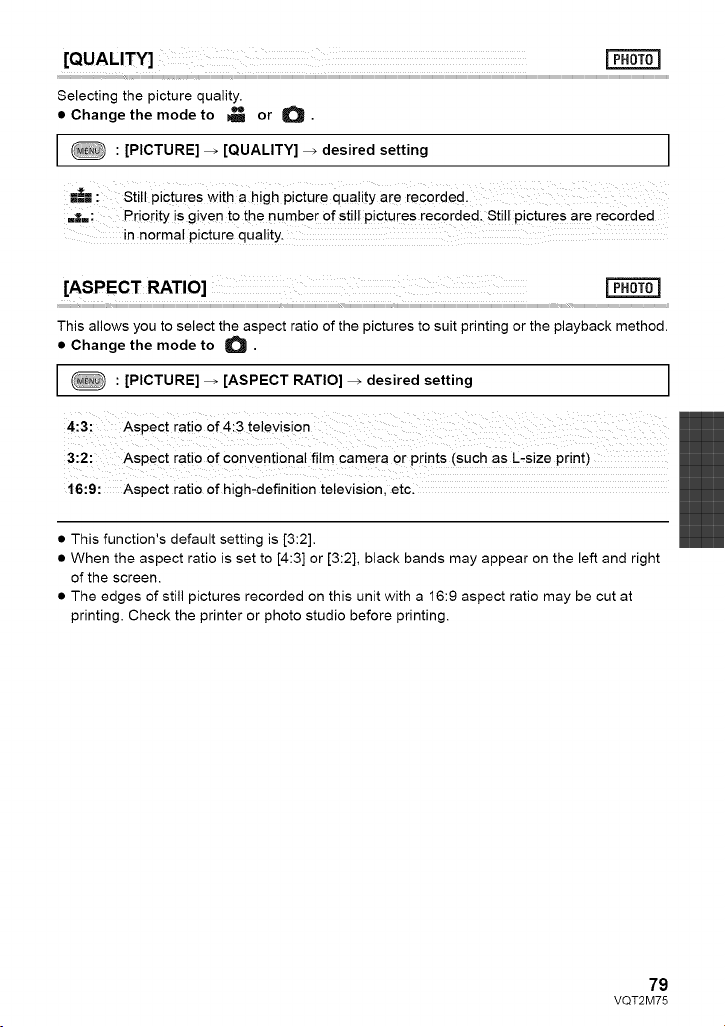
[QUALITY]
Selecting the picture quality.
• Change the mode to _ or _.
: [PICTURE] _ [QUALITY] _ desired setting J
l|--- : Still pictures with ahigh picture qua!ity are recorded.
===: Priority is given to the number of still pictures recorded: Still pictures are recorded
in normal picture quality.
[ASPECT RATIO]
This allows you to select the aspect ratio of the pictures to suit printing or the playback method.
• Change the mode to O •
: [PICTURE] _ [ASPECT RATIO] _ desired setting ]
3:2: Aspect ratio of conventional film camera or prints (such as L.size print)
16:9: Aspect ratio of high.definition television, etc.
• This function's default setting is [3:2].
• When the aspect ratio is set to [4:3] or [3:2], black bands may appear on the left and right
of the screen.
• The edges of still pictures recorded on this unit with a 16:9 aspect ratio may be cut at
printing. Check the printer or photo studio before printing.
79
VQT2M75
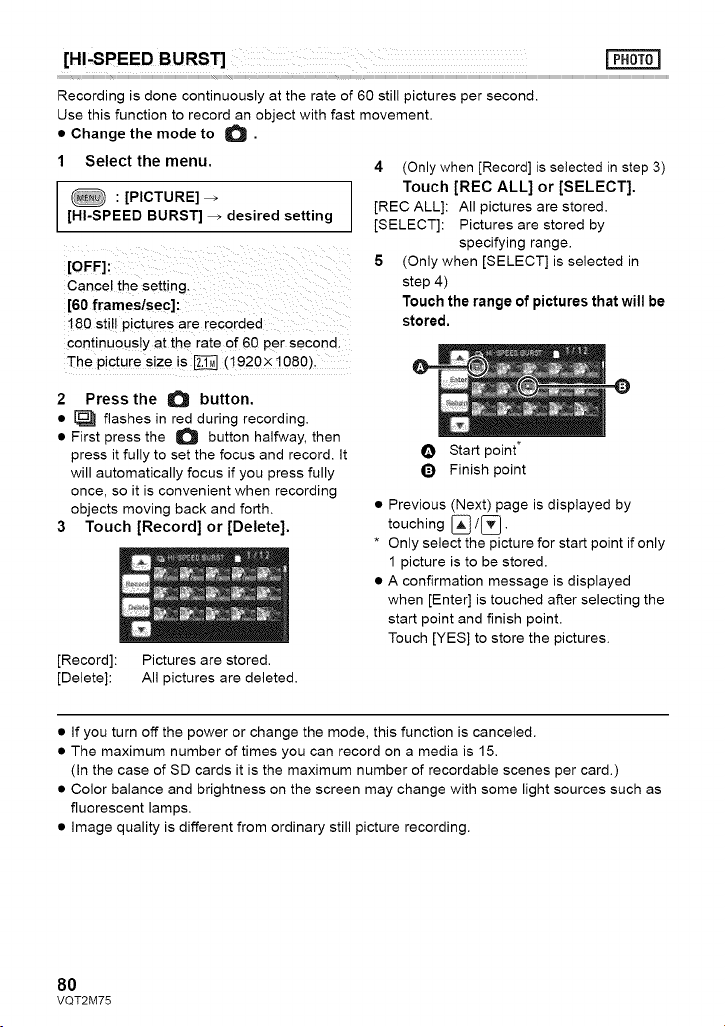
[HI-SPEED BURST]
Recording is done continuously at the rate of 60 still pictures per second.
Use this function to record an object with fast movement.
• Change the mode to O •
1 Select the menu.
: [PICTURE]
[HI-SPEED BURST] _ desired setting
Cancel the setting.
[60 frameslsec]:
180 stil! pictures are iecorded
continuously at the rate of 60 pe r second:
The picture size is _ (!920x1080).
4 (Only when [Record] is selected in step 3)
Touch [REC ALL] or [SELECT].
[REC ALL]: All pictures are stored.
[SELECT]: Pictures are stored by
specifying range,
5 (Only when [SELECT] is selected in
step 4)
Touch the range of pictures that will be
stored,
2 Press the O button.
• _ flashes in red during recording.
• First press the _ button halfway, then
press it fully to set the focus and record. It
will automatically focus if you press fully
once, so it is convenient when recording
objects moving back and forth.
3 Touch [Record] or [Delete].
[Record]: Pictures are stored.
[Delete]: All pictures are deleted.
O Start point*
Q Finish point
• Previous (Next) page is displayed by
touching [_/[_ .
* Only select the picture for start point if only
1 picture is to be stored.
• A confirmation message is displayed
when [Enter] is touched after selecting the
start point and finish point.
Touch [YES] to store the pictures.
• If you turn off the power or change the mode, this function is canceled.
• The maximum number of times you can record on a media is 15.
(In the case of SD cards it is the maximum number of recordable scenes per card.)
• Color balance and brightness on the screen may change with some light sources such as
fluorescent lamps.
• image quality is different from ordinary still picture recording.
8O
VQT2M75
Illuminatingthesubjectmakesiteasierforthecameratofocuswhenrecordinginlowlight
conditionsthatmakefocusingdifficult.
• Change the mode to O •
• Switch to Manual Mode. (-> 82)
: [PICTURE] _ [AF ASSIST LAMP] _ [AUTO] I
• The available distance of the AF assist lamp is approx. 1.5 m (5 feet).
• A conversion lens (optional) can block the AF assist lamp, and it will become harder to
adjust the focus.
• When switching to Intelligent Auto Mode, the setting is fixed to [AUTO] and cannot be changed.
[SHTR SOUND]
You can add a shutter sound when recording still pictures.
• Change the mode to O .
: [PICTURE] _ [SHTR SOUND] _ [OFF]/_--) / _))) I
I
• No shutter sound is emitted in Motion Picture Recording Mode.
81
VQT2M75
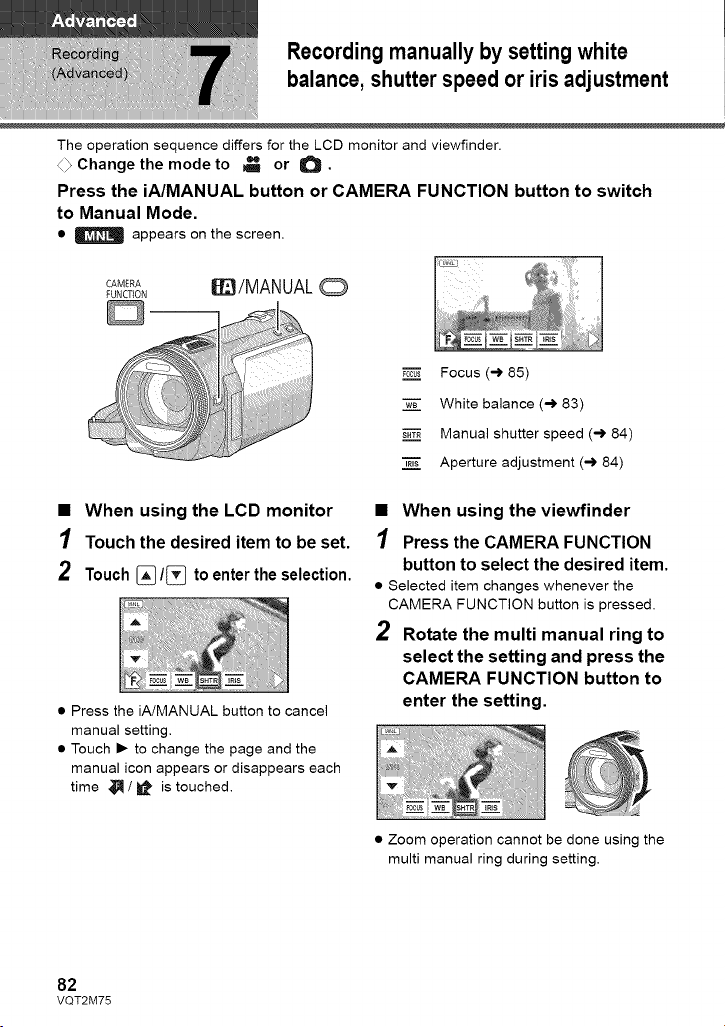
Recording manually by settingwhite
balance,shutter speed or iris adjustment
The operation sequence differs for the LCD monitor and viewfinder.
4_ Change the mode to _ or O.
Press the iNMANUAL button or CAMERA FUNCTION button to switch
to Manual Mode,
• | appears on the screen.
CAMERA It'/MANUAL
FUNCTtON
• When using the LCD monitor
1 Touch the desired item to be set.
2 Touch_/_ toenter the selection.
• Press the iA/MANUAL button to cancel
manual setting.
• Touch • to change the page and the
manual icon appears or disappears each
time _ / _ is touched.
_0cuz Focus (-_ 85)
w-_- White balance (-_ 83)
s,z Manual shutter speed (-.) 84)
%%" Aperture adjustment (-_ 84)
• When using the viewfinder
1 Press the CAMERA FUNCTION
button to select the desired item.
• Selected item changes whenever the
CAMERA FUNCTION button is pressed.
2 Rotate the multi manual ring to
select the setting and press the
CAMERA FUNCTION button to
enter the setting.
• Zoom operation cannot be done using the
multi manual ring during setting.
82
VQT2M75
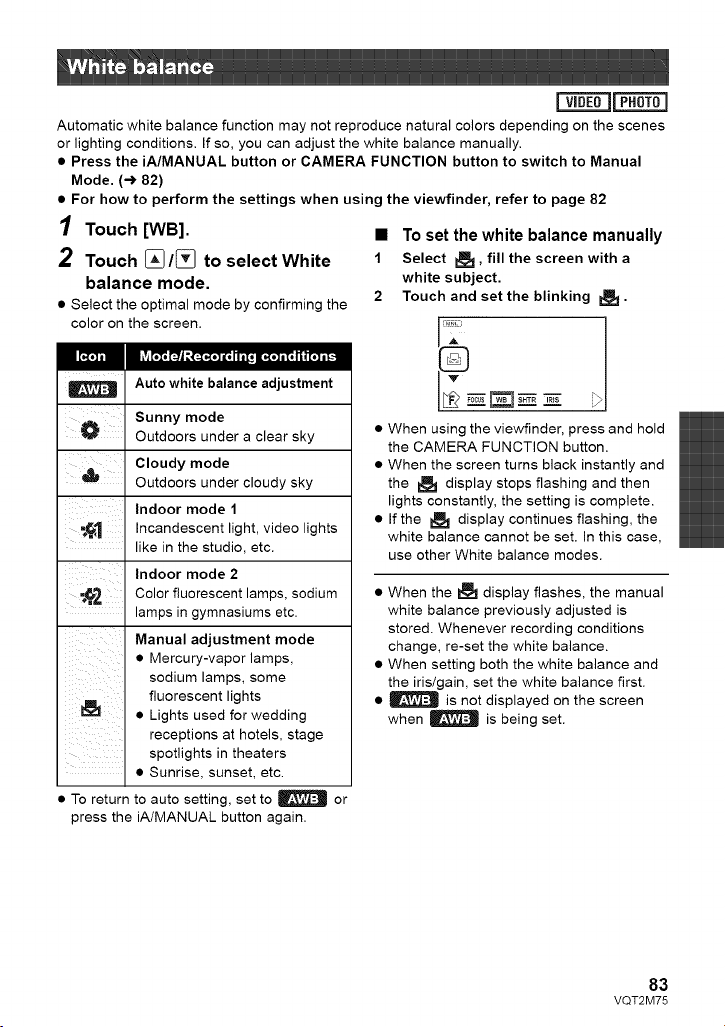
Automaticwhitebalancefunctionmaynotreproducenaturalcolorsdependingonthescenes
orlightingconditions.Ifso,youcanadjustthewhitebalancemanually.
• Press the iA/MANUAL button or CAMERA FUNCTION button to switch to Manual
Mode. (-) 82)
• For how to perform the settings when using the viewfinder, refer to page 82
1 Touch [WB]. •
2 Touch [_/[_ to select White 1
balance mode.
2
• Select the optimal mode by confirming the
color on the screen.
Auto white balance adjustment
Sunny mode
_ Outdoors under a clear sky
Cloudy mode
Outdoors under cloudy sky
' ' Indoor mode 1
, "_1 Incandescent light, video lights
• . like in the studio, etc.
Indoor mode 2
-_'_ Color fluorescent lamps, sodium
lamps in gymnasiums etc.
Manual adjustment mode
• Mercury-vapor lamps,
sodium lamps, some
fluorescent lights
• Lights used for wedding
receptions at hotels, stage
spotlights in theaters
• Sunrise, sunset, etc.
• To return to auto setting, set to | or
press the iA/MANUAL button again.
To set the white balance manually
Select R:_, fill the screen with a
white subject.
Touch and set the blinking I:_ •
_z_zz _
When using the viewfinder, press and hold
the CAMERA FUNCTION button.
When the screen turns black instantly and
the _ display stops flashing and then
lights constantly, the setting is complete.
If the I_ display continues flashing, the
white balance cannot be set. In this case,
use other White balance modes.
• When the _ display flashes, the manual
white balance previously adjusted is
stored. Whenever recording conditions
change, re-set the white balance.
• When setting both the white balance and
the iris/gain, set the white balance first.
• | is not displayed on the screen
when _ is being set.
83
VQT2M75
mm
vIDLAE_JIPHOTOI
Shutter Speed:
Adjust it when recording fast-moving subjects.
Iris:
Adjust it when the screen is too bright or too dark.
• Press the iA/MANUAL button or CAMERA FUNCTION button to switch to Manual
Mode. (-_ 82)
• For how to perform the settings when using the viewfinder, refer to page 82
/ Touch [SHTR] or [IRIS].
2 Touch _/[_ to adjust settings.
SHT.=_RShutter speed:
1/60 to 118000
• If [AUTO SLOW SHTR] is set to [ON], the
shutter speed will be set between 1/30
and 118000.
• If [DIGITAL CINEMA] is set to [ON], the
shutter speed will be set between 1/48
and 118000. (When [AUTO SLOW SHTR]
is set to [ON], the range is 1/24 to 118000.)
• The shutter speed closer to 1/8000 is faster.
• The shutter speed will be set between 1/2
and 1/2000 in Still Picture Recording Mode.
_R___sIris/Gain value:
CLOSE _ (F16 to F1.7) _ OPEN _ (0dB
to 18dB)
• Value closer to [CLOSE] darkens the image.
• Value closer to [18dB] brightens the image.
• When the iris value is adjusted to brighter
than [OPEN], it changes to the gain value.
• To return to auto setting, press the iA/
MANUAL button again.
• When setting both the shutter speed and
the iris/gain value, set the shutter speed
and then set the iris/gain value.
Manual shutter speed adjustment
• When the shutter speed is set lower than
1/15 in the Still Picture Recording Mode,
using a tripod is recommended. Also,
white balance cannot be set. The shutter
speed will be set to 1/30 when the power
is turned on again or when the Quick start
is performed.
• You may see a band of light around an object
that is shining very bright, or highly reflective.
• During normal playback, image movement
may not look smooth.
• If you record an extremely bright object or
record under indoor lighting, color and
screen brightness may change or a
horizontal line may appear on the screen.
In this case, record in the intelligent Auto
Mode or set the shutter speed to 1/60 in
areas where the power supply frequency
is 60 Hz, or 1/100 in areas of 50 Hz.
Manual iris/gain adjustment
• Luminance level and histogram are
displayed during the iris adjustment.
(-) 76, 77)
• If the gain value is increased, the noise on
the screen increases.
• Depending on the zoom magnification,
there are iris values that are not displayed.
84
VQT2M75

Panasonic Consumer Electronics Company,
Division of Panasonic Corporation of North America
One Panasonio Way, Seoauous, NJ 07094
Panasonic Canada Inc.
5770 Ambler Drive, Mississauga, Ontario, L4W 2T3
VQT2M75
F0210KK0 ( 6500 (_))
IIllIIIIIIlullJllUlIII1111 QPanason,cCorporat,on2010,Printe0,nJapan