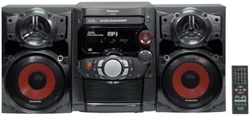
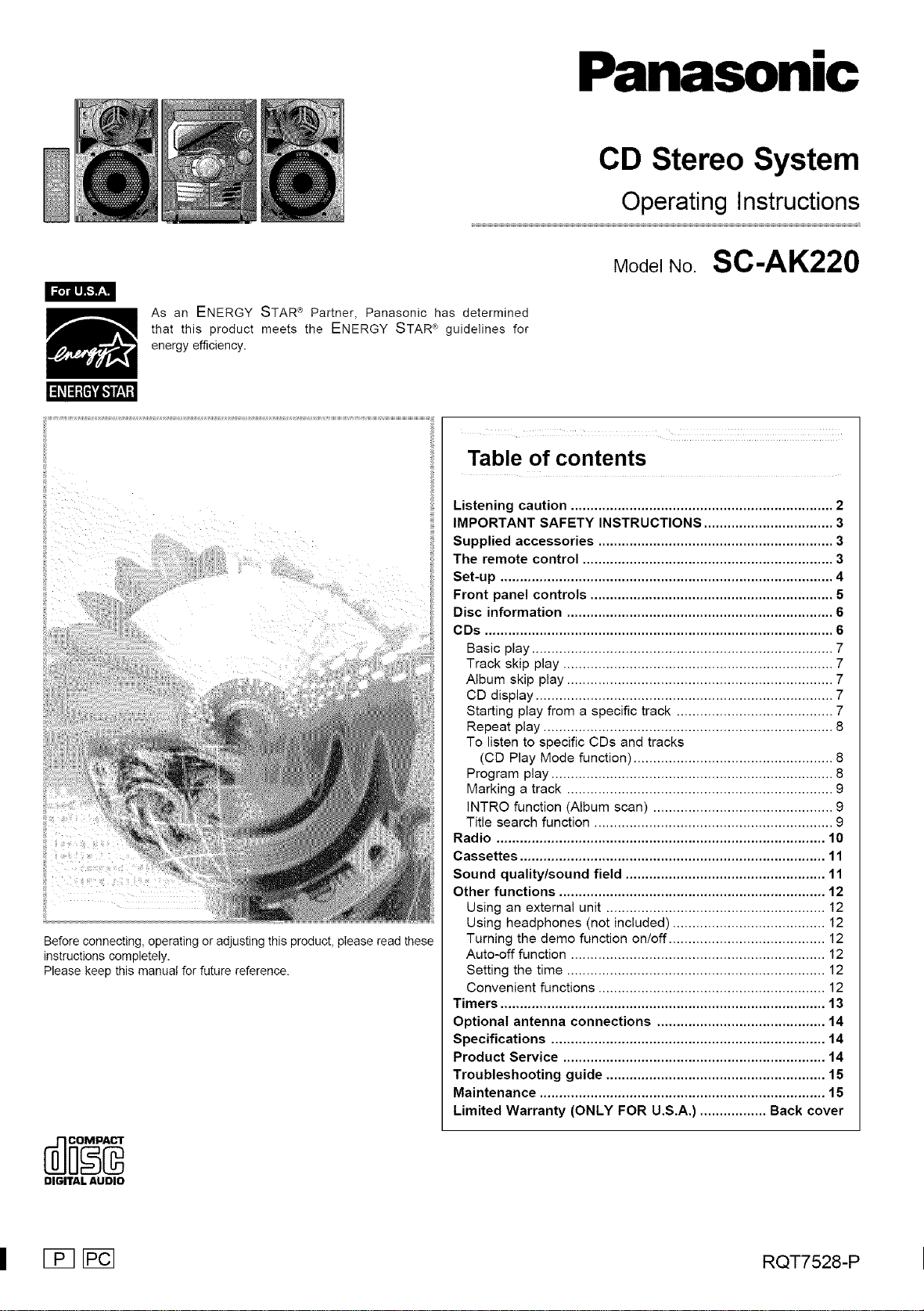
Panasonic
CD Stereo System
Operating Instructions
ModelNo SC-AK220
As an ENERGY STAR _ Partner, Panasonic has determined
that this product meets the ENERGY STAR e guidelines for
energy efficiency.
Before connecting, operating or adjusting this product, please read these
instructions completely.
Please keep this manual for future reference.
DIGITALAUDIO
Table of contents
Listening caution ................................................................... 2
IMPORTANT SAFETY INSTRUCTIONS ................................. 3
Supplied accessories ............................................................ 3
The remote control ................................................................ 3
Set-up ..................................................................................... 4
Front panel controls .............................................................. 5
Disc information .................................................................... 6
CDs ......................................................................................... 6
Basic play ............................................................................. 7
Track skip play ..................................................................... 7
Album skip play .................................................................... 7
CD display ............................................................................ 7
Starting play from a specific track ........................................ 7
Repeat play .......................................................................... 8
To listen to specific CDs and tracks
(CD Play Mode function) ................................................... 8
Program play ........................................................................ 8
Marking a track .................................................................... 9
INTRO function (Album scan) .............................................. 9
Title search function ............................................................. 9
Radio .................................................................................... 10
Cassettes .............................................................................. 11
Sound quality/sound field ................................................... 11
Other functions .................................................................... 12
Using an external unit ........................................................ 12
Using headphones (not included) ....................................... 12
Turning the demo function on/off ........................................ 12
Auto-off function ................................................................. 12
Setting the time .................................................................. 12
Convenient functions .......................................................... 12
Timers ................................................................................... 13
Optional antenna connections ........................................... 14
Specifications ...................................................................... 14
Product Service ................................................................... 14
Troubleshooting guide ........................................................ 15
Maintenance ......................................................................... 15
Limited Warranty (ONLY FOR U.S.A.) ................. Back cover
| _ _ RQT7528-P
[lilli]f_-lr,..1
RQT7528
Dear customer
Thank you for purchasing this product.
For optimum performance and safety, please read these instructions
carefully.
These operating instructions are applicable to the following system.
System SC-AK220
Main unit SA-AK220
Speakers SB-AK220
CAUTION!
THIS PRODUCT UTILIZES A LASER,
USE OF CONTROLS OR ADJUSTMENTS OR PERFORMANCE
OF PROCEDURES OTHER THAN THOSE SPECIFIED HEREIN
MAY RESULT IN HAZARDOUS RADIATION EXPOSURE,
DO NOT OPEN COVERS AND DO NOT REPAIR YOURSELF.
REFER SERVICING TO QUALIFIED PERSONNEL.
WARNING:
TO REDUCE THE RISK OF FIRE, ELECTRIC SHOCK
OR PRODUCT DAMAGE, DO NOT EXPOSE THIS
APPARATUS TO RAIN, MOISTURE, DRIPPING OR
SPLASHING AND THAT NO OBJECTS FILLED WITH
LIQUIDS, SUCH AS VASES, SHALL BE PLACED
ON THE APPARATUS.
CAUTION!
DO NOT INSTALL OR PLACE THIS UNIT IN A BOOKCASE,
BUILT-IN CABINET OR IN ANOTHER CONFINED SPACE.
ENSURE THE UNIT IS WELL VENTILATED. TO PREVENT
RISK OF ELECTRIC SHOCK OR FIRE HAZARD DUE TO
OVERHEATING, ENSURE THAT CURTAINS AND ANY OTHER
MATERIALS DO NOT OBSTRUCT THE VENTILATION VENTS.
CAUTION
CAUTION: TO REDUCE THE RISK OF ELECTRIC
SHOCK, DO NOT REMOVE SCREWS.
NO USER-SERVICEABLE PARTS
INSIDE.
REFER SERVICING TO QUALIFIED
SERVICE PERSONNEL.
The lightning flash with arrowhead symbol, within
an equilateral triangle, is intended to alert the user
to the presence of uninsulated "dangerous voltage"
within the product's enclosure that may be of suffi-
cient magnitude to constitute a risk of electric shock
persons.
The exclamation point within an equilateral triangle
is intended to alert the user to the presence of
important operating and maintenance (servicing)
instructions in the literature accompanying the ap-
pliance.
• cA[r_0N - INVlSI_LEL/,S_RR_,DIATIONWHE_OPEN
,:,dOl_ XiOSUR TO BA_ IC'_8_1 Cb£s
VARNING - OS{NLIG LAS RS R,_, _1 G/_! DENNA AF{_) pqA]
BETR_KT_ E_ST_A EN
ADVARSEL - iSYNi I / 8ER'_R&IIqG _1:) J_B!/INQ
[ N jG,_ t b$?: T/LS': FOR STR_i ING
ADVARSEL- usY_U_SEr_STR,_UNG.,_nDEKSL_NES
MAR0 ! AVA'TA SSA 0 ?iKYf,IATON?_ AI IINA
sSE S_TEJL_ LLE _ ,_K,_I£O S,_ [ ESE! t
VORSICHT - UNSICHBARE I!,S R$[ U,H U_G '//qN A_} CKUNG
G(FN f 41 Jr MSIRAF ,_*JSSE N
ATTENT ON - [_A_O_rh,z,/r _S_;_INVISIBL t CAS 3OJ', I J [
EX OSITION B_ GEREdSE AIJ FAISC A J
I
Inside of product
Selecting fine audio equipment such as the unit you've just pur-
chased is only the start of your musical enjoyment. Now it's time to
consider how you can maximize the fun and excitement your equip-
ment offers. This manufacturer and the Electronic Industries Associ-
ation% Consumer Electronics Group want you to get the most out of
your equipment by playing it at a safe level. One that lets the sound
come through loud and clear without annoying blaring or
distortion--and, most importantly, without affecting your sensitive
hearing.
We recommend that you avoid prolonged exposure to excessive
noise.
Sound can be deceiving. Over time your hearing "comfort level"
adapts to higher volumes d sound. So what sounds "normal" can
actually be loud and harmful to your hearing.
Guard against this by setting your equipment at a safe level BEFORE
your hearing adapts.
To establish a safe level:
• Start your volume control at a low setting.
• Slowly increase the sound until you can hear it comfortably and
clearly, and without distortion.
Once you have established a comfortable sound level:
• Set the dial and leave it there.
Taking a minute to do this now will help to prevent hearing damage
or Ioss in the future. After all, we want you listening for a lifetime.
THE FOLLOWING APPLIES ONLY IN THE U.S.A.:
CAUTION:
This equipment has been tested and found to comply with
the limits for a Class B digital device, pursuant to Part 15 of
the FCC Rules.
These limits are designed to provide reasonable protection
against harmful interference in a residential installation. This
equipment generates, uses and can radiate radio frequency
energy and, if not installed and used in accordance with the
instructions, may cause harmful interference to radio
communications. However, there is no guarantee that inter-
ference will not occur in a particular installation. If this equip-
ment does cause harmful interference to radio or television
reception, which can be determined by turning the equip-
ment off and on, the user is encouraged to try to correct the
interference by one or more of the following measures:
• Reorient or relocate the receiving antenna.
• Increase the separation between the equipment and re-
ceiver.
• Connect the equipment into an outlet on a circuit different
from that to which the receiver is connected.
• Consult the dealer or an experienced radio/TV technician
for help.
Any unauthorized changes or modifications to this equipment
would void the useCs authority to operate this device.
This device complies with Part 15 of the FCC Rules. Opera-
tion is subject to the following two conditions: (1) This device
may not cause harmful interference, and (2) this device must
accept any interference received, including interference that
may cause undesired operation.
The model number and serial number of this product can be
found on either the back or the bottom of the unit.
Please note them in the space provided below and keep for
future reference.
MODELNUMBER
SERIALNUMBER
User memo:
DATE OF PURCHASE,
DEALER NAME
DEALER ADDRESS
TELEPHONE NUMBER
IMPORTANT SAFETY INSTRUCTIONS
Read these operating instructions carefully before using the unit. Follow the safety instructions on the unit and the applicable safety instructions
listed below. Keep these operating instructions handy for future reference.
1)
2)
3)
4)
5)
6)
7)
Read these instructions. 10)
Keep these instructions.
Heed all warnings.
Follow all instructions.
Do not use this apparatus near water.
Clean only with dry cloth.
Do not block any ventilation openings. Install in accordance with
the manufactureCs instructions.
Do not install near any heat sources such as radiators, heat
registers, stoves, or other apparatus (including amplifiers) that
produce heat.
Do not defeat the safety purpose of the polarized or grounding-
type plug. A polarized plug has two blades with one wider than
the other. A grounding-type plug has two blades and a third
grounding prong. The wide blade or the third prong are provided
for your safety. If the provided plug does not fit into your outlet,
consult an electrician for replacement of the obsolete outlet.
11)
12)
13)
14)
Protect the power cord from being walked on or pinched
particularly at plugs, convenience receptacles, and the point
where they exit from the apparatus.
Only use attachments/accessories specified by the manufacturer.
Use only with the cart, stand, tripod, bracket, or
table specified by the manufacturer, or sold with
the apparatus. When a cart is used, use caution
when moving the cartJapparatus combination to
avoid injury from tip-over.
Unplug this apparatus during lightning storms or when unused
for long periods of time.
Refer all servicing to qualified service personnel. Servicing is
required when the apparatus has been damaged in any way,
such as power-supply cord or plug is damaged, liquid has been
spilled or objects have fallen into the apparatus, the apparatus
has been exposed to rain or moisture, does not operate normally,
or has been dropped.
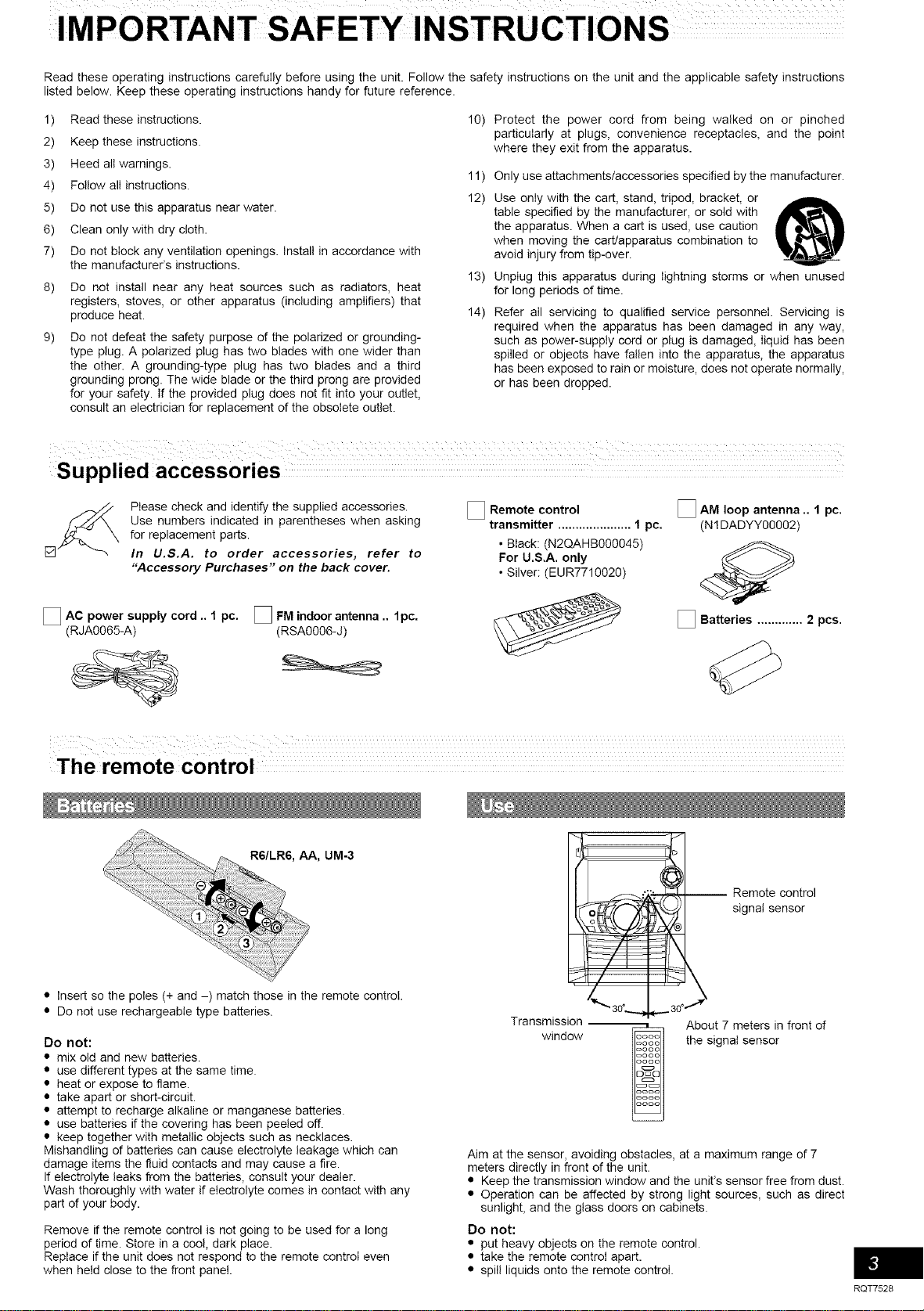
Please check and identify the supplied accessories.
Use numbers indicated in parentheses when asking
for replacement parts.
In U.S.A. to order accessories, refer to
"Accessory Purchases" on the back cover.
[] AC power supply cord .. 1 pc.
(RJA0065-A)
[] FM indoor antenna .. 1pc.
(RSA0006-J)
[] Remote control
transmitter ..................... 1 pc.
• Black: (N2QAHB000045)
For U.S.A. only
• Silver: (EUR7710020)
[] AM loop antenna .. 1 pc.
(N 1DADYY00002)
[] Batteries ............. 2 pcs.
The remote control
R6/LR6, hA, UM-3
• Insert so the poles (+ and -) match those in the remote control.
• Do not use rechargeabte type batteries.
Do not:
• mix old and new batteries.
• use different types at the same time.
• heat or expose to flame.
• take apart or short-circuit.
• attempt to recharge alkaline or manganese batteries.
• use batteries if the covering has been peeled off.
• keep together with metallic objects such as necklaces.
Mishandling of batteries can cause electrolyte leakage which can
damage items the fluid contacts and may cause a fire.
If electrolyte leaks from the batteries, consult your dealer.
Wash thoroughly with water if electrolyte comes in contact with any
part d your body.
Remove if the remote control is not going to be used for a long
period of time. Store in a cool, dark place.
Replace if the unit does not respond to the remote control even
when held close to the front panel.
Transmission
window
-- Remote control
signal sensor
About 7 meters in front of
the signal sensor
Aim at the sensor, avoiding obstacles, at a maximum range of 7
meters directly in front of the unit.
• Keep the transmission window and the unit's sensor free from dust.
• Operation can be affected by strong light sources, such as direct
sunlight, and the glass doors on cabinets.
Do not:
• put heavy objects on the remote control.
• take the remote control apart.
• spill liquids onto the remote control.
RQT7528
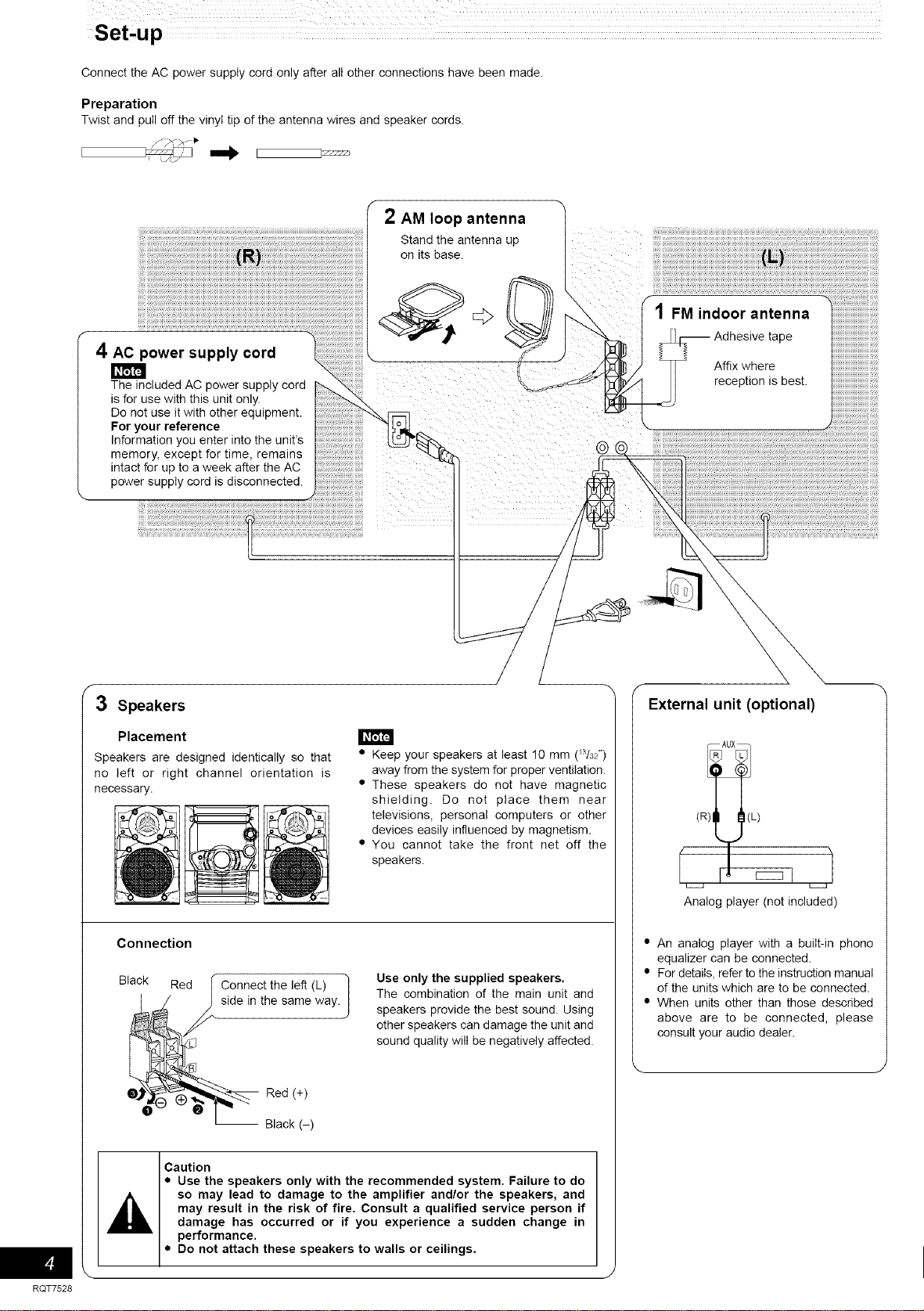
Connect the AC power supply cord only after all other connections have been made.
Preparation
Twist and pull off the vinyl tip of the antenna wires and speaker cords.
° i f
4 AC power supply cord 4.
The included AC power supply cora
is for use with this unit only.
Do not use it with other eauiemem.
For your reference
Information you enter nto the unit's
memory, except for time, remains
intact for up to a week after the AC
power supply cord is disconnected.
f
2 AM loop antenna
Stand the antenna up
on its base.
(L)
1 FM indoor antenna
tape
Affix where
reception is best.
3 Speakers
Placement
Speakers are designed identically so that
no left or right channel orientation is
necessary.
• Keep your speakers at least 10 mm (W32")
away from the system for proper ventilation.
• These speakers do not have magnetic
shielding. Do not place them near
televisions, personal computers or other
devices easily influenced by magnetism.
• You cannot take the front net off the
speakers.
Connection
Black Red [ Connect the left (L) _}
_de in the same way.
e0t+t
_ Black (-)
Use only the supplied speakers.
The combination of the main unit and
speakers provide the best sound. Using
other speakers can damage the unit and
sound quality will be negatively affected.
Caution
• Use the speakers only with the recommended system. Failure to do
so may lead to damage to the amplifier and/or the speakers, and
may result in the risk of fire. Consult a qualified service person if
damage has occurred or if you experience a sudden change in
performance.
• Do not attach these speakers to walls or ceilings.
External unit (optional)
Analog player (not included)
• An analog player with a built-in phono
equalizer can be connected.
• For details, refer to the instruction manual
d the units which are to be connected.
• When units other than those described
above are to be connected, please
consult your audio dealer.
RQT7528
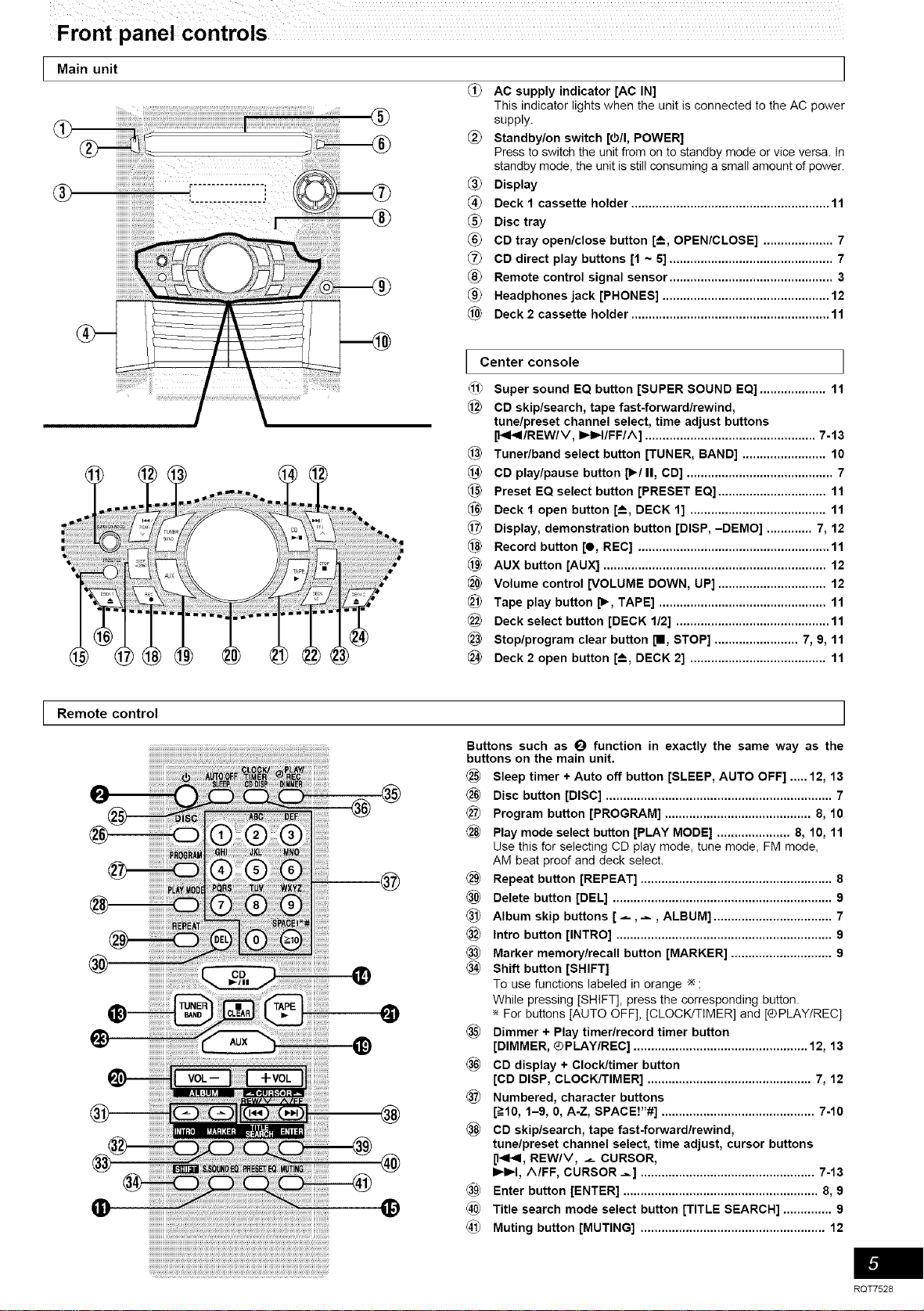
I Main unit I
AC supply indicator [AC IN]
This indicator lights when the unit is connected to the AC power
supply.
(_) Standby/on switch [(5/I, POWER]
Press to switch the unit from on to standby mode or vice versa. In
standby mode, the unit is still consuming a small amount of power.
Display
_4_ Deck 1 cassette holder ......................................................... 11
Disc tray
CD tray open/close button [-_, OPEN/CLOSE] .................... 7
CD direct play buttons [1 ~ 5] ............................................... 7
Remote control signal sensor ............................................... 3
Headphones jack [PHONES] ................................................ 12
Deck 2 cassette holder ......................................................... 11
Center console ]
_11_Super sound EQ button [SUPER SOUND EQ] ................... 11
CD skip/search, tape fast-forward/rewind,
tune/preset channel select, time adjust buttons
I_/REW/M, I_)_t/FF//k] ................................................. 7-13
Tuner/band select button [TUNER, BAND] ........................ 10
CD play/pause button [1_/II, CD] .......................................... 7
1_ Preset EQ select button [PRESET EQ] ............................... 11
Deck 1 open button [-_, DECK 1] ....................................... 11
Display, demonstration button [DISP,-DEMO] ............. 7, 12
1_ Record button [e, REC] ....................................................... 11
1_ AUX button [AUX] ................................................................ 12
Volume control [VOLUME DOWN, UP] ............................... 12
Tape play button [_, TAPE] ................................................ 11
Deck select button [DECK 1/2] ............................................ 11
Stop/program clear button [11,STOP] ........................ 7, 9, 11
Deck 2 open button [-_, DECK 2] ....................................... 11
I Remote control I
@
®
Buttons such as E) function in exactly the same way as the
buttons on the main unit.
Sleep timer + Auto off button [SLEEP, AUTO OFF] ..... 12, 13
iiiiiiiiiiiiii!
@
@
@
®
@
@
@
@
®
®
@
@
®
@
@
Disc button [DISC] ................................................................. 7
Program button [PROGRAM] .......................................... 8, 10
Play mode select button [PLAY MODE] ..................... 8, 10, 11
Use this for selecting CD play mode, tune mode, FM mode,
AM beat proof and deck select.
Repeat button [REPEAT] ....................................................... 8
Delete button [DEL] ............................................................... 9
Album skip buttons [ _ ,_, ALBUM] .................................. 7
Intro button [INTRO] .............................................................. 9
Marker memory/recall button [MARKER] ............................. 9
Shift button [SHIFT]
To use functions labeled in orange _ :
While pressing [SHIFT], press the corresponding button
For buttons [AUTO OFF], CLOCK/TIMER] and [®PLAY/REC]
Dimmer + Play timer/record timer button
[DIMMER, ®PLAY/REC] .................................................. 12, 13
CD display + Clock/timer button
[CD DISP, CLOCK/TIMER ............................................... 7, 12
Numbered, character buttons
[=>10,1-9, 0, A-Z, SPACE!"#] ............................................ 7-10
CD skip/search, tape fast-forward/rewind,
tune/preset channel select, time adjust, cursor buttons
[14141,REW/M, _ CURSOR,
I_1_t, /k/FF, CURSOR _] .................................................. 7-13
Enter button [ENTER] ........................................................ 8, 9
Title search mode select button [TITLE SEARCH] .............. 9
Muting button [MUTING] ..................................................... 12
RQT7528
Disc information Disc information
RQT7528
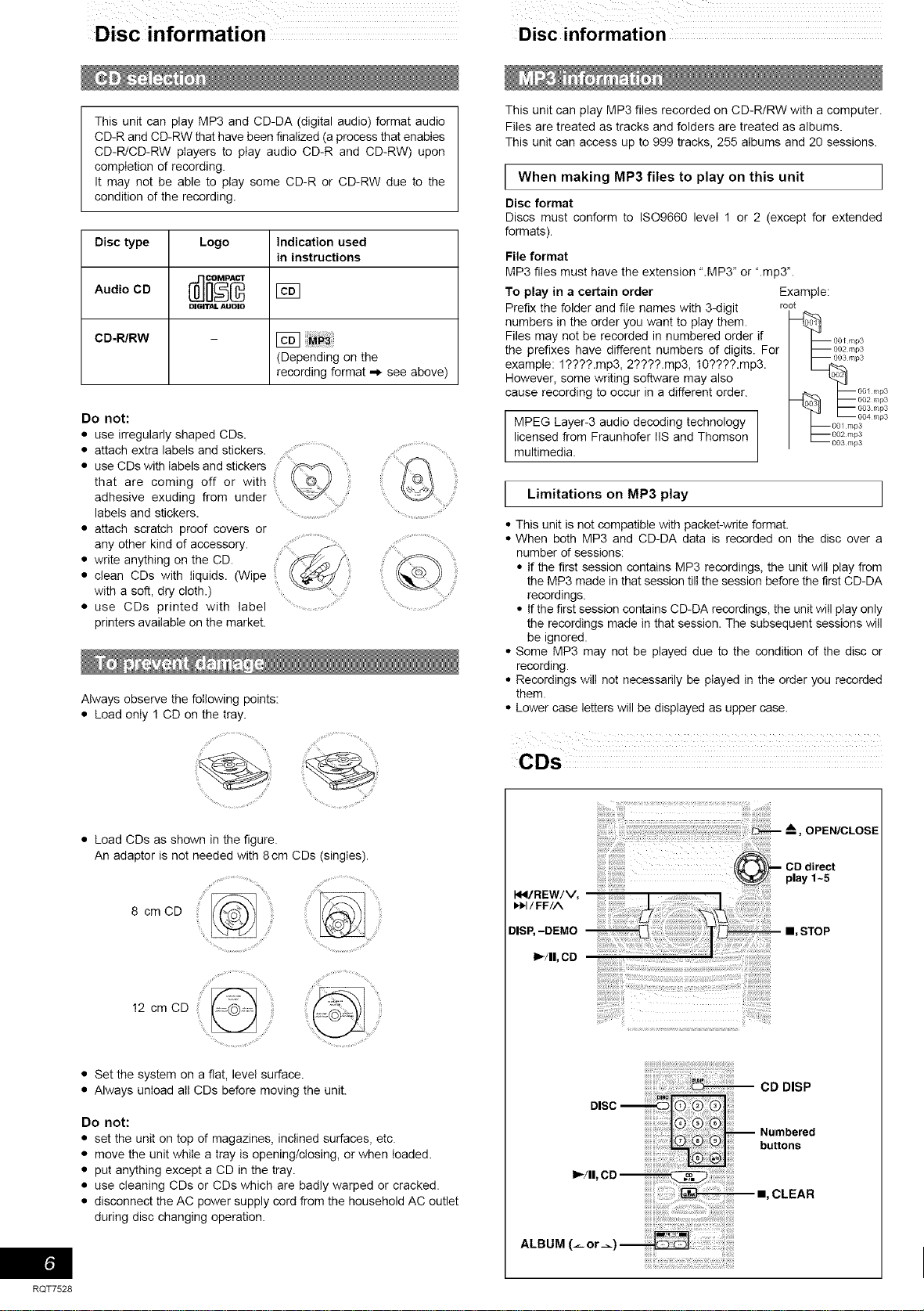
This unit can play MP3 and CD-DA (digital audio) format audio
CD-R and CD-RW that have been finalized (a process that enables
CD-R/CD-RW players to play audio CD-R and CD-RW) upon
completion of recording.
It may not be able to play some CD-R or CD-RW due to the
condition of the recording.
Disc type Logo Indication used
in instructions
Audio CD [_
DIGITAL AUDIO
CD-R/RW
(Depending on the
recording format ,-_ see above)
Do not:
• use irregularly shaped CDs.
• attach extra labels and stickers.
• use CDs with iabels and stickers _
that are coming off or with
adhesive exuding from under
labels and stickers. .... .....
• attach scratch proof covers or
any other kind of accessory. ........................
• write anything on the CD. ....
• clean CDs with liquids. (Wipe
with a soft, dry cloth.)
• use CDs printed with label
printers available on the market.
Always observe the following points:
• Load only 1 CD on the tray.
ii:¸¸¸_ _ii iii_;i!ii!i_i!i i //...........J_ _li
• Load CDs as shown in the figure.
An adaptor is not needed with 8cm CDs (singles).
• Set the system on a flat, level surface.
• Always unload all CDs before moving the unit.
Do not:
• set the unit on top of magazines, inclined surfaces, etc.
• move the unit while a tray is opening/closing, or when loaded.
• put anything except a CD in the tray.
• use cleaning CDs or CDs which are badly warped or cracked.
• disconnect the AC power supply cord from the household AC outlet
during disc changing operation.
This unit can play MP3 files recorded on CD-R/RW with a computer.
Files are treated as tracks and folders are treated as albums.
This unit can access up to 999 tracks, 255 albums and 20 sessions.
I When MP3 files to this unit I
I
making play
on
Disc format
Discs must conform to ISO9660 levei 1 or 2 (except for extended
formats).
File format
MP3 files must have the extension "MP3" or ".mp3".
To play in a certain order Example:
Prefix the folder and file names with 3-digit
numbers in the order you want to play them.
Files may not be recorded in numbered order if
the prefixes have different numbers of digits. For
example: l????.mp3, 2????.mp3, 10????.mp3.
However, some writing software may also
cause recording to occur in a different order.
MPEG Layer-3 audio decoding technology
licensed from Fraunhofer IIS and Thomson
multimedia.
root
½
-- 00[ rap3
-- 002 mp3
-- 003 rnp3
OOI rap3
002 rap3
003 rap3
_ 004 rap3
--00/ rap3
-- 002 rap3
-- 003 rap3
I Limitations on MP3 play
• This unit is not compatible with packet-write format.
• When both MP3 and CD-DA data is recorded on the disc over a
number of sessions:
• If the first session contains MP3 recordings, the unit will play from
the MP3 made inthat session till the session before the first CD-DA
recordings.
• If the first session contains CD-DA recordings, the unit will play only
the recordings made in that session. The subsequent sessions will
be ignored.
• Some MP3 may not be played due to the condition of the disc or
recording.
• Recordings will not necessarily be played in the order you recorded
them.
• Lower case letters will be displayed as upper case.
CDs
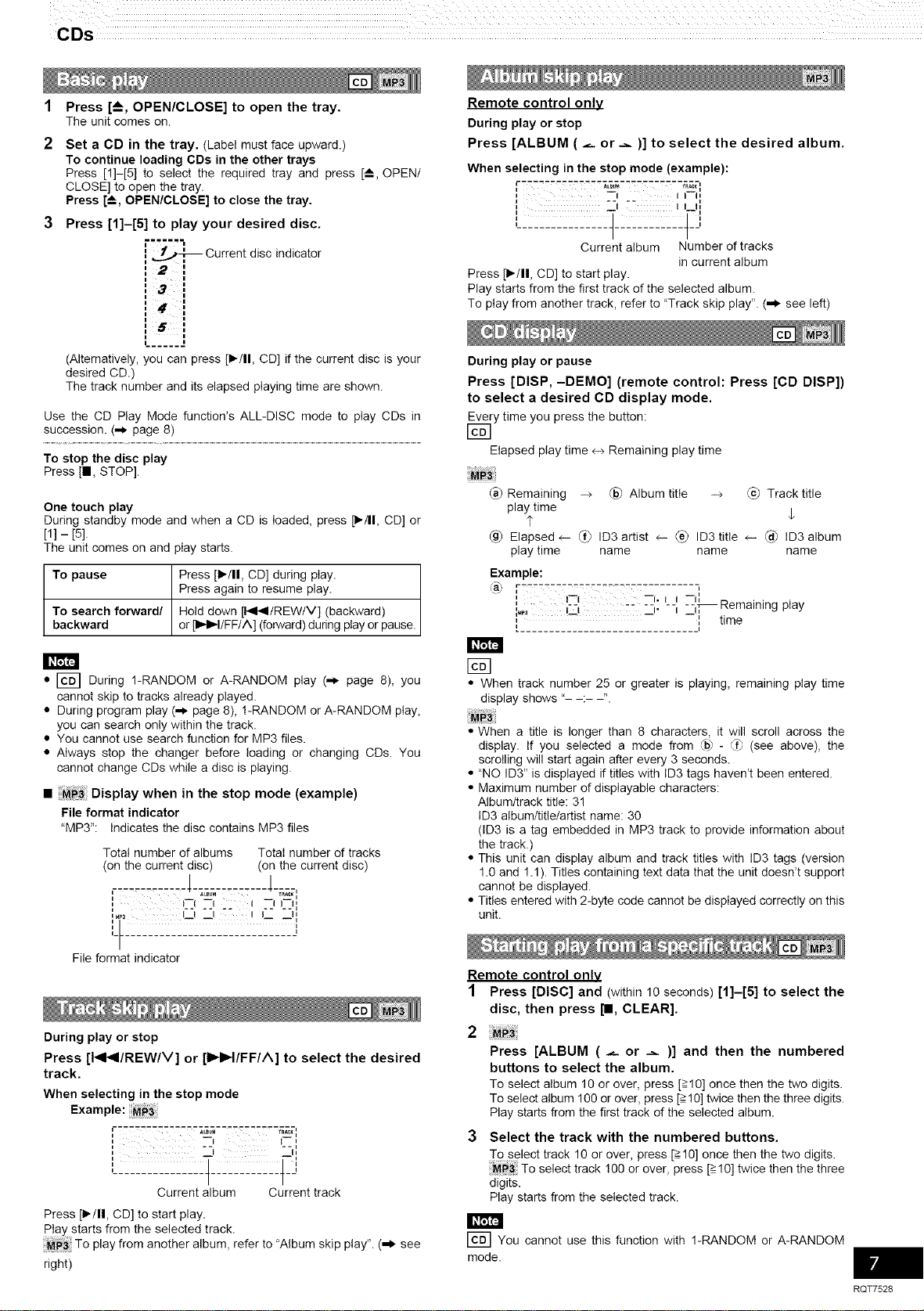
CDs
1
2
Press [--_, OPEN/CLOSE] to open the tray.
The unit comes on.
Set a CD in the tray. (Label must face upward.)
To continue loading CDs in the other trays
Press [!]-[5] to select the required tray and press [--_, OPEN/
CLOSE] to open the tray.
Press [-_, OPEN/CLOSE] to close the tray.
Press [1]-[5] to play your desired disc.
==,,
i _,'_ Current disc indicator
i m
i m
l m
i m
(Alternatively, you can press [1_/11,CD] if the current disc is your
desired CD.)
The track number and its elapsed playing time are shown.
Use the CD Play Mode function's ALL-DISC mode to play CDs in
succession. (-_ page 8)
To stop the disc play
Press [i, STOP].
One touch play
During standby mode and when a CD is loaded, press p/ll, CD] or
[1] - [5].
The unit comes on and play starts.
To pause Press [t-/11, CD] during play.
Press again to resume play.
To search fonNard/ Hold down []_I41tREW/V] (backward)
backward or [I),.I_tlFF/A] (forward) during play or pause.
• [c6] During 1-RANDOM or A-RANDOM play (-_ page 8), you
cannot skip to tracks already played.
• During program play (,,_ page 8), !-RANDOM or A-RANDOM play,
you can search only within the track.
• You cannot use search function for MP3 files.
• Always stop the changer before loading or changing CDs. You
cannot change CDs while a disc is playing.
• Display when in the stop mode (example)
File format indicator
"MP3": Indicates the disc contains MP3 files
Total number of albums TotaI number of tracks
(on the current disc) (on the current disc)
,-...._.......
1 )--I --I f --(L J1
n ........
,_3 ! I I I ) h
Lt ',
File format indicator
During play or stop
Press [141_I/REW/V] or [I),4_t/FF/A] to select the desired
track.
When selecting in the stop mode
Example:
t t=
Current album Current track
Press [1_/11,CD] to start play.
Play starts from the selected track.
To play from another album, refer to "Album skip play". (,_, see
right)
Remote control only
During play or stop
Press [ALBUM ( _- or -_ )] to select the desired album,
When selecting in the stop mode (example):
_L_ _, ,,
--I I1 (,
_1 "- I Lh,
Current album Number of tracks
in current album
Press [_/11, CD] to start play.
Play starts from the first track of the selected album.
To play from another track, refer to "Track skip play". (=* see left)
During play or pause
Press [DISP, -DEMO] (remote control: Press [CD DISP])
to select a desired CD display mode.
Every time you press the button:
Elapsed play time e+ Remaining play time
Remaining -_ @_ Album title -_ @ Track title
play time
@ Elapsed e- _ ID3 artist 4- (_) ID3 title 4- @ ID3 album
play time name name name
Example:
(a_, F......... _-
L--I _l. LJ --'
( • .
I=_ LJ J" i _T_ Rema n ng play
, I time
i .i
• When track number 25 or greater is playing, remaining play time
display shows "- -:-
• When a title is longer than 8 characters, it will scroll across the
display. If you selected a mode from @ - {f? (see above), the
scrolling will start again after every 3 seconds.
• "NO ID3" is displayed if titles with ID3 tags haven't been entered.
• Maximum number d dispIayable characters:
Album/track title: 3!
ID3 album/title/artist name: 30
(ID3 is a tag embedded in MP3 track to provide information about
the track.)
• This unit can display album and track titles with ID3 tags (version
1.0 and !.1). Titles containing text data that the unit doesn't support
cannot be displayed.
• Titles entered with 2-byte code cannot be displayed correctly on this
unit.
Remote control only
1 Press [DISC] and (within 10 seconds) [1]-[5] to select the
disc, then press I_l, CLEAR].
2
Press [ALBUM ( ._- or -_ )] and then the numbered
buttons to select the album.
To select album 10 or over, press [=>10]once then the two digits.
To select album 100 or over, press [=>10] twice then the three digits.
Play starts from the first track of the selected album.
Select the track with the numbered buttons.
To select track 10 or over, press [_10] once then the two digits.
To select track !00 or over, press [=>10]twice then the three
digits.
Play starts from the selected track.
[_ You cannot use this function with 1-RANDOM or A-RANDOM
mode.
RQT7528

CDs
RQT7528
DISC
PROGRAM
PLAY MODE
REPEAT
buttons
CURSOR(_or_),
144, REW/V,
HR, A/FF
Remote control only
Press [REPEAT] during play.
"O" is displayed.
To cancel repeat play
Press [REPEAT] to clear "O".
You can use repeat mode with program play (,_ see right) and CD
play mode (,_ see below) functions.
ALL-DISC: Plays all loaded discs in succession from the
selected disc to the final disc _.
(_ 1-SONG: Plays one selected track on the selected disc.
@ 1-ALBUM: Plays one selected album on the selected disc.
@ 1-RANDOM: [_] Plays one selected disc in random order.
(_) A-RANDOM: [_] Plays all ioaded discs in random order.
(_) 1-DISC: Plays one selected disc,
Remote control only
Preparation: Press [1_/11,CD] and then [11, CLEAR].
r -G]
1 Press [PLAY MODE] to select the desired mode.
Every time you press the button:
(_ ALL-DISC _@ 1-SONG _@ 1-RANDOM _ A-RANDOM
I
® 1-DISC I
Proceed to step 4 when you selected A-RANDOM in step 1.
2 Press [DISC] and (within !0 seconds) [1]-[5] to select
the disc.
The CD starts.
3 Only when you selected "l-SONG" in step 1
Press the numbered buttons to select the track in
the current disc.
To select track !0 or over, press [_10] and then the two digits.
Play starts from the selected track.
4 Only when you selected "A-RANDOM" in step 1
Press [Fill, CD] to start play.
1 Press [PLAY MODE] to select the desired mode.
Every time you press the button:
ALL-DISC _ @ 1-SONG _ @ 1-ALBUM
_--- (f_ 1-DISC
--2 Press [DISC] and (within 10 seconds) [1]-[5] to select
the disc.
The CD starts.
3 When you selected "l-ALBUM" or "l-SONG" in step 1_
Press [ALBUM (_._ or __ )] to select the album.
PIay starts from the first track of the selected album.
4, Only when you selected "l-SONG" in step 1
Press the numbered buttons to select the track in
the current album.
To select track 10 or over, press [>!0] and then the two digits.
To select track 100 or over, press [>10] twice then the three digits.
Play starts from the selected track.
To stop play
Press [•, CLEAR].
When playback ends
The current play mode will be retained in memory until it is changed
even if the unit is turned off.
÷ Final disc
For example, if play starts from disc 4, disc 3 will be the "final disc".
Order of progression: Disc 4-_5-* 1--2-_3
• When "NOT MP3/ERRORI" appears on the display
An unsupported MP3 format is being played. The unit will skip that
track and play the next one.
• You cannot use program mode together with CD Play Mode function.
• During 1-ALBUM mode, track skipping can only be done
within the current album.
You can program up to 24 tracks.
Remote control only
Preparation: Press [1_/11,CD] and then [n, CLEAR].
1 Press[PROGRAM].
"PGM" appears.
2 Press [DISC] and (within 10 seconds) [1]-[5] to select
the disc.
:3 Select the tracks with the numbered buttons.
To select track 10 or over, press [->10] then the two digits.
Repeat steps 2 and 3 to program other tracks.
4 Press [1_/11, CD] to start play.
Preparation:
1. Press [DISC] and (within !0 seconds) [1]-[5] to select the disc.
2. Press [•, CLEAR].
1 Press [PROGRAM].
"PGM" appears.
2_
3_
Press [ALBUM ( __ or __ )] to select the album.
To select an album directly, press the numbered buttons
after pressing [ALBUM ( _ or .=. )].
To select album 10 or over, press [->10]once then the two digits.
To select album 100 or over, press [>10] twice then the three
digits.
Press _, PEW/V] or [IIHIH, A/FF] to select the track.
To select a track directly, press the numbered buttons after
pressing [t,<t,<1,PEW/V] or I_1_1, A/FF].
To select track !0 or over, press [->I0] once then the two digits.
To select track 100 or over, press [gl0] twice then the three
digits.
4, Press [ENTER].
Repeat steps 2 _ 4 to program other tracks.
5 Press [1_/11, CD] to start play.
To exit program mode
Press [PROGRAM] in the stop mode. (You can replay your program
by pressing [PROGRAM] then [1_/11,CD].)
You can do the following while "P" is r--_7--:7 .... _-- '
t'- "T! _--i _1 ',
displayed L _! 1 L ,
i
• To check program contents
Press [I,9t<1, REW/V] or [1_1_, ^/FF].
Every time you press the button:
@ The track number and program order are displayed.
Track number Program order
Program order is displayed, then album number and track
number.

• To add to the program
[_ Do steps 2 and 3.
Do steps 2 - 4.
• To clear the last track
Press [DELl.
• To clear all tracks
Press [i, CLEAR].
While "CLEAR ALL" is blinking, press the buttonagain to clear all tracks.
• You cannot program CD-DA together with MP3 tracks.
• The program memory is cleared when you change a disc or
open the CD tray.
• You cannot program more than one CB for MRS.
You can mark one track each on the discs loaded so that you can
start play from them later.
Remote control only
I T° mark a track I
1 During play or stop
Select your desired track.
(For MP3, refer to "Track skip play" on page 7.
For CD-DA, press the numbered buttons.
To select track 10 or over, press [>10] then the two digits.)
Hold down [MARKER] until "STORING" blinks on the
display,
The selected track is stored in the marker of the current disc.
If a track is already stored in the marker, it will be replaced next time
you store a new track in the same marker.
I To recall marked track number in the current disc I
a
During play or stop
Press [MARKER] to recall a marker.
Play starts from the track recalled•
• "NO MARKER" indicates that the marker in the current disc is empty.
• The marker memory is cleared when you open the CD tray.
• For CD-DA, you cannot use this function during 1-RANDOM and
A-RANDOM play.
• You cannot use this function during program mode.
You can find an album by listening to the first track of atl albums in the
current disc for 10 seconds each.
Remote control only
Preparation: Press [)/11, CD] and then [i, CLEAR]•
1 Press [INTRO].
INTRO function starts•
(INTRO function is cancelled after playing the first track in the
last album on the current disc•)
2 While your desired album is playing, press [1_/11, CD].
Play continues from the first track of the album•
To stop during the process, press [INTRO] or [i, CLEAR].
You can search for your desired album/track with its keyword (part of
the title).
I Album / track title search I
Remote control only
Preparation: Press [1_/11,CD] and then [i, CLEAR]•
1 For album title search
Press [TITLE SEARCH] once.
For track title search
Press [TITLE SEARCH] twice.
2 Enter the characters of the keyword for the title.
(._ see right: "Entering characters")
3 Press [ENTER]
Title searchstarts.
The matched title is displayed,
: Blinks to indicate album title search mode.
.P : Blinks to indicate track title search mode.
To show the matched title again
Press [ENTER].
To show the next/previous search result
Press [1_1_, ^/FF] (next) or [1<41, REW/V] (previous).
Press [1_/11, CD] to start play from the album/track found.
For album search, play starts from the first track of the album.
(Search mode is cancelled•)
To cancel partway through
Press JR, CLEAR].
When there is no match for the searched keyword, the display shows
"NOT FOUND".
You cannot use title search function in program mode.
I Entering characters I
You can enter a keyword of up to 8 characters for album/track title
search. You can only enter upper case letters but the unit also searches
for lower case.
Remote control only
(_) Press the numbered button to select the required character.
Characters allocated to the numbered buttons:
Numbered Characters Numbered Characters
buttons buttons
1 1 6 MNO6
2 ABC2 7 PQRS7
3 DEF3 8 TUV8
4 GHI4 9 WXYZ9
5 JKL5 0 0
_->10 space F'#$ %&'() _+,- ./:;:?_ "
You can search for" <" or" >" by entering" (" or" ) ".
The characters change each time a numbered button is pressed.
For example, every time you press [2]:
A_B_C_2
t I
The special characters will be displayed as below:
Characters Main unit display Characters Main unit display
I w
II
# r±
$ ]i /
% Y_ " I
G_
( ( ? _TI
) ', _
-F -I-
Some characters may not be displayed correctly due to the recording
format/software used.
Press [CURSOR _ ] to enter the character.
Repeat steps _1}-_2_to complete the keyword.
• Editing keywords
To move the cursor
Press [CURSOR (_- or-,.. )].
Deleting a character
1. Move the cursor over the character to be deleted.
2. Press [DELl.
Editing a character
1. Move the cursor over the character to be edited.
2. Enter the correct character.
RQT7528
RQT7528
i7;; m. !"" ¸¸¸¸¸¸¸77 :,!- ! 7 ! iiiiii! ;;
ii_ii_iiii_iV'_!_i'i_ii_!i_!ii_ii!ii!i!!ili_i_i _ ,_:::_,_,_,_;_,;,
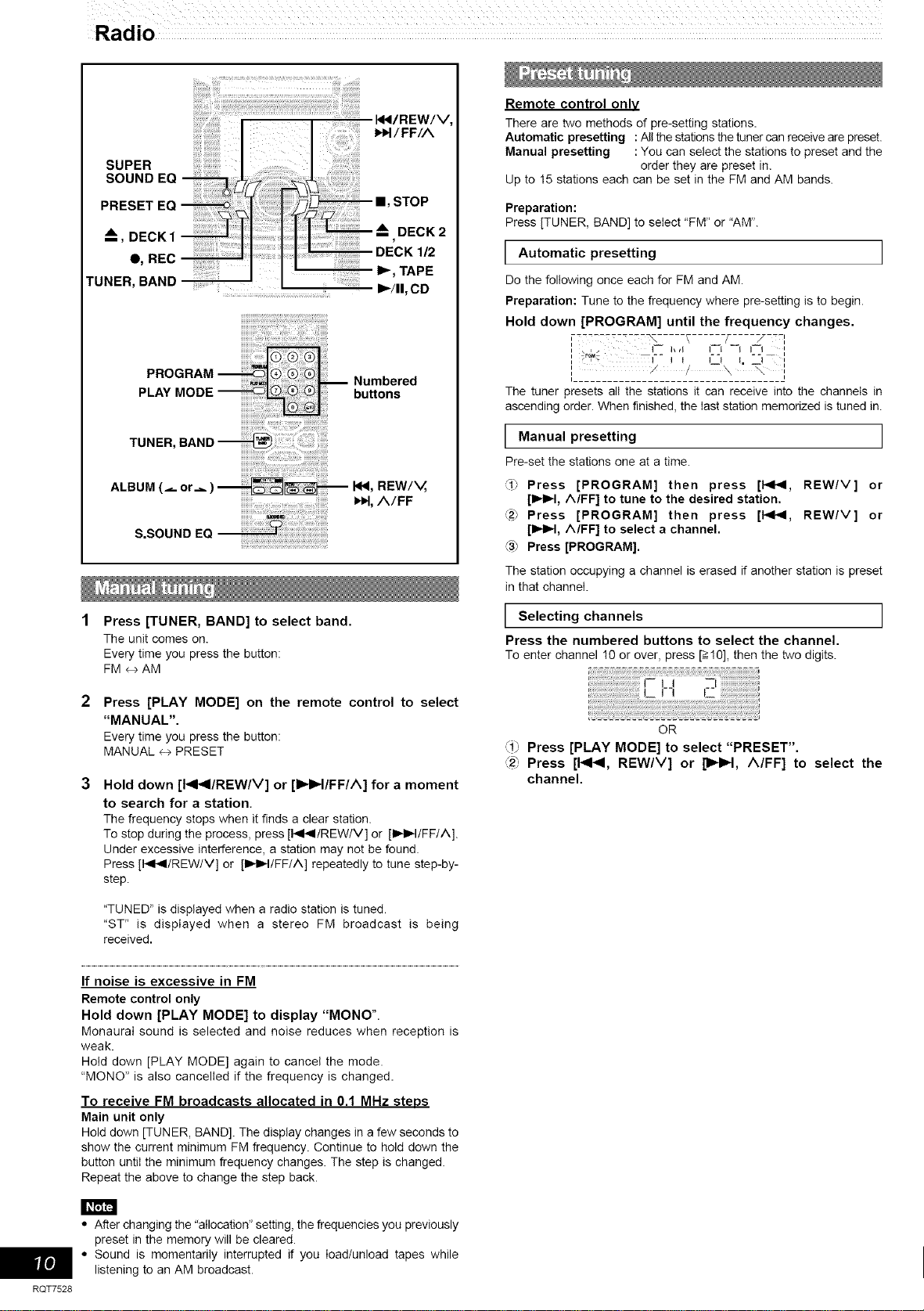
SUPER
SOUNOEO i
PRESET EQ I /_ ==,STOP
_A DE K 2
0<o cl,
O, REC l I I I_ TAPE
TUNER, BAND -- I_/II, CD
Numbered
bu_ons
ALBUM(_
S.SOUNDEQ
_i!i_77i711i;!_i_:!_i_:!_i_:!_i_:!_i_:!_i_:!_i_:!_i_:!_i_:!_i_:!_i_:!_i_:!_i_:!_i_:!_i_:!_i_:!_i_:_!;_!!_117_i_17
Press [TUNER, BAND] to select band.
The unit comes on.
Every time you press the button:
FM _ AM
Press [PLAY MODE] on the remote controlto sele_
"MANUAL".
Everytimeyoupressthebutton:
MANUAL_ PRESET
Hold down [141_I/REW/V] or [IIHI_I/FF/A] for a moment
to search for a station.
The frequency stops when it finds a clear station.
To stop during the process, press [I<41/REW/V] or [I_I_I/FF/A].
Under excessive interference, a station may not be found.
Press [I<41/REW/V] or [I_I_/FF/A] repeatedly to tune step-by-
step.
"TUNED" is displayed when a radio station is tuned.
"ST" is displayed when a stereo FM broadcast is being
received,
If noise is excessive in FM
Remote control only
Hold down [PLAY MODE] to display "MONO".
Monaural sound is selected and noise reduces when reception is
weak.
Hold down [PLAY MODE] again to cancel the mode.
"MONO" is also cancelled if the frequency is changed.
To receive FM broadcasts allocated in 0.1 MHz steos
Main unit only
Hold down [TUNER, BAND]. The display changes in a few seconds to
show the current minimum FM frequency. Continue to hold down the
button until the minimum frequency changes. The step is changed.
Repeat the above to change the step back.
• After changing the "allocation" setting, the frequencies you previously
preset in the memory will be cleared.
• Sound is momentarily interrupted if you load/unload tapes while
listening to an AM broadcast.
Remote control only
There are two methods of pre-setting stations.
Automatic presetting :All the stations the tuner can receive are preset.
Manual presetting : You can select the stations to preset and the
order they are preset in.
Up to 15 stations each can be set in the FM and AM bands.
Preparation:
Press [TUNER, BAND] to select "FM" or "AM".
I Automatic presetting I
Do the following once each for FM and AM.
Preparation: Tune to the frequency where pre-setting is to begin.
Hold down [PROGRAM] until the frequency changes.
--'----:-z?:-_, ..... _...... f .... 7-:-',
,,. I-- 1_4 I--1 --I I_1_ ,,
I t I I i, !
1 / "" \ i
The tuner presets all the stations it can receive into the channels in
ascending order. When finished, the last station memorized is tuned in.
I Manual presetting
Pre-setthe stationsone at a time.
g_ Press [PROGRAM] then press [t<t<1, REW/V] or
[1_1_t, A/FF] to tune to the desired station.
_2_ Press [PROGRAM] then press [t<t<1, REW/V] or
[IHI_t, A/FF] to select a channel.
_3) Press [PROGRAM].
The station occupying a channel is erased if another station is preset
in that channel.
I Selecting channels
Press the numbered buttons to select the channel.
To enter channel 10 or over, press [>10], then the two digits.
OR
,,<1_Press [PLAY MODE] to select "PRESET".
¢2_,Press [1<1<1, REW/V] or [1_1_1, A/FF] to select the
channel.
ii i i i i i i i i i i i i i i
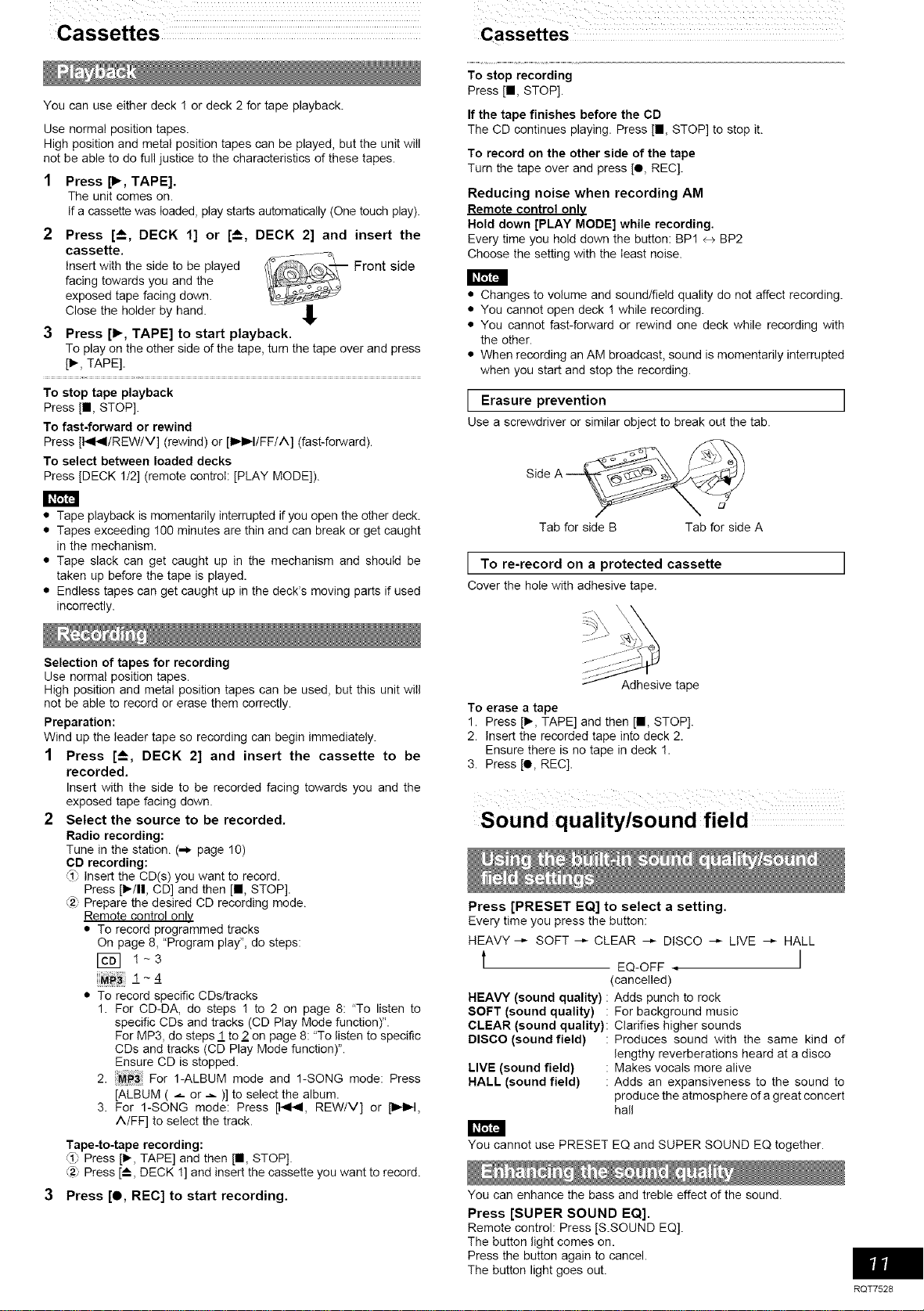
Cassettes
You can use either deck 1 or deck 2 for tape playback.
Use normal position tapes.
High position and metal position tapes can be played, but the unit will
not be able to do full justice to the characteristics of these tapes.
1 Press [1_, TAPE].
The unit comes on.
If a cassette was loaded, play starts automatically (One touch play).
2 Press [--_, DECK 1] or [--_, DECK 2] and insert the
cassette.
Insert with the side to be played Front side
facing towards you and the
exposed tape facing down.
Close the holder by hand.
3 Press [1_, TAPE] to start playback.
To play on the other side of the tape, turn the tape over and press
[1_,TAPE].
To stop tape playback
Press [n, STOP].
To fast-forward or rewind
Press [I_/REW/V] (rewind) or [I_I_IiFF/A] (fast-forward).
To select between loaded decks
Press [DECK 1/2] (remote control: [PLAY MODE]).
• Tape playback is momentarily interrupted if you open the other deck.
• Tapes exceeding !00 minutes are thin and can break or get caught
in the mechanism.
• Tape slack can get caught up in the mechanism and should be
taken up before the tape is played.
• Endless tapes can get caught up in the deck's moving parts if used
incorrectly.
Selection of tapes for recording
Use normal position tapes.
High position and metal position tapes can be used, but this unit will
not be able to record or erase them correctly.
Preparation:
Wind up the leader tape so recording can begin immediately.
1 Press [A DECK 2] and insert the cassette to be
recorded,
Insert with the side to be recorded facing towards you and the
exposed tape facing down.
2 Select the source to be recorded.
Radio recording:
Tune in the station. (-) page 10)
CD recording:
,<1"Insert the CD(s) you want to record.
Press [1_/11,CD] and then [m, STOP].
(_-(Prepare the desired CD recording mode.
Remote control only
• To record programmed tracks
On page 8, "Program play", do steps:
[_ 1-3
1 - 4
• To record specific CDs/tracks
1. For CD-DA, do steps 1 to 2 on page 8: "To listen to
specific CDs and tracks (CD Play Mode function)".
For MP3, do steps I to 2 on page 8: "To listen to specific
CDs and tracks (CD Play Mode function)".
Ensure CD is stopped.
2. For 1-ALBUM mode and 1-SONG mode: Press
[ALBUM ( _ or _ )] to select the album.
3. For 1-SONG mode: Press []4141, REW/V] or [_1_,
A/FF] to select the track.
Tape-to-tape recording:
<1
......Press [1_,TAPE] and then J, STOP].
(2_,Press [--_,DECK !] and insert the cassette you want to record.
3 Press [O, REC] to start recording.
To stop recording
Press [m, STOP].
If the tape finishes before the CD
The CD continues playing. Press [m, STOP] to stop it.
To record on the other side of the tape
Turn the tape over and press [e, REC].
Reducing noise when recording AM
Remote control onlv
Hold down [PLAY MODE] while recording.
Every time you hold down the button: BP1 _ BP2
Choose the setting with the least noise.
• Changes to volume and sound/field quality do not affect recording.
• You cannot open deck ! while recording.
• You cannot fast-forward or rewind one deck while recording with
the other.
• When recording an AM broadcast, sound is momentarily interrupted
when you start and stop the recording.
I Erasure prevention I
Use a screwdriver or similar object to break out the tab.
Tab for side B Tab for side A
I on a protected cassette
To re-record
Cover the hole with adhesive tape.
_ve tape
To erase a tape
1. Press [1_,TAPE] and then [m, STOP].
2. Insert the recorded tape into deck 2.
Ensure there is no tape in deck 1.
3. Press [O, REC].
Sound quality/sound field
Press [PRESET EQ] to select a setting.
Every time you press the button:
HEAVY --)- SOFT --)- CLEAR --,- DISCO --_ LIVE --,- HALL
t EQ-OFF. I
(cancelled)
HEAVY (sound quality) :
SOFT (sound quality) :
CLEAR (sound quality):
DISCO (sound field) :
LIVE (sound field) :
HALL (sound field) :
Adds punch to rock
For background music
Clarifies higher sounds
Produces sound with the same kind of
lengthy reverberations heard at a disco
Makes vocals more alive
Adds an expansiveness to the sound to
produce the atmosphere of a great concert
hall
You cannot use PRESET EQ and SUPER SOUND EQ together.
You can enhance the bass and treble effect of the sound.
Press [SUPER SOUND EQ].
Remote control: Press IS.SOUND EQ].
The button light comes on.
Press the button again to cancel.
The button light goes out.
RQT7528
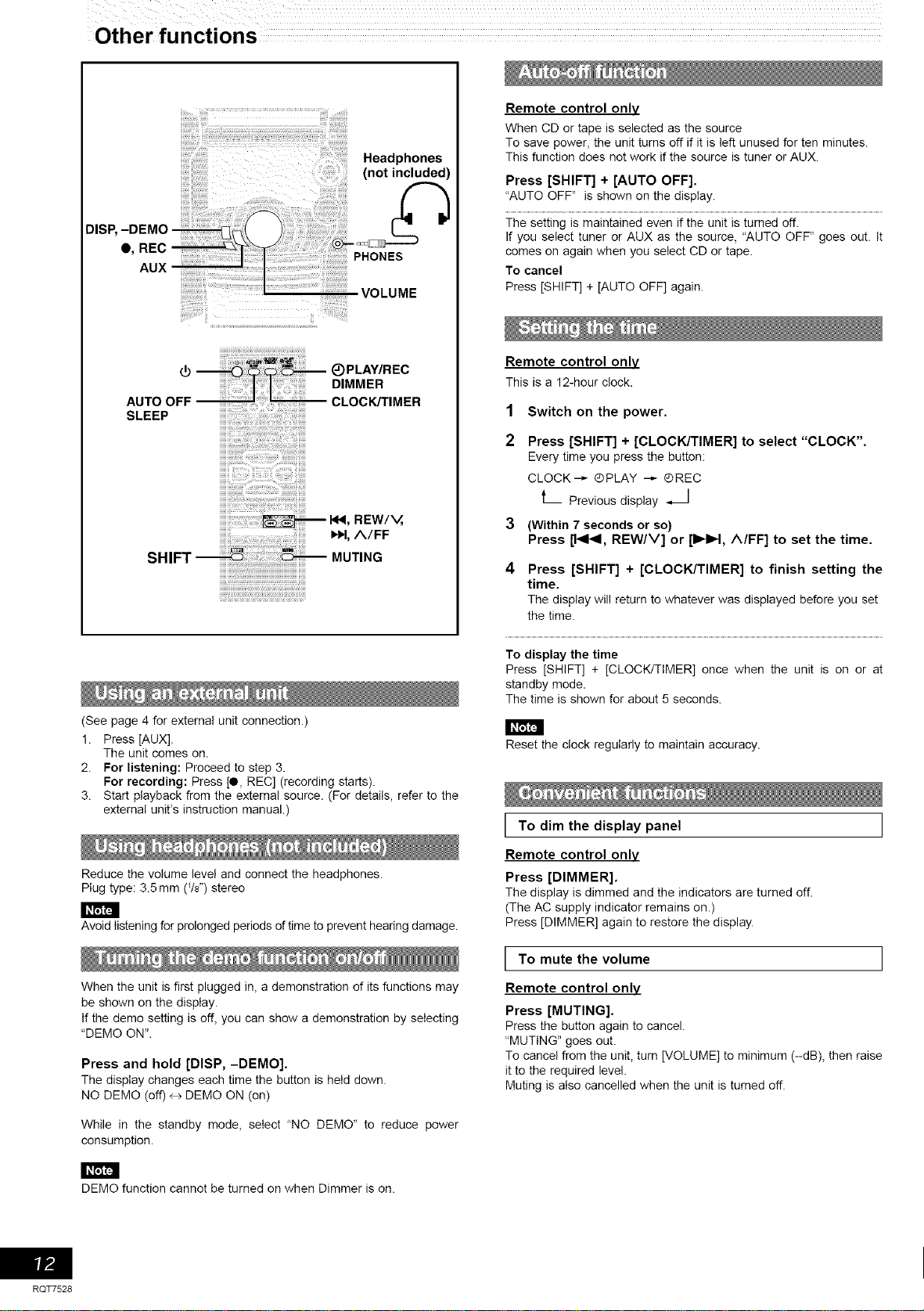
Headphones
(not included)
DISP,
O, REC
AUX
PHONES
iiiiii!!i!i!i!i!iii
VOLUME
(_ _)PLAY/REC
DIMMER
AUTO OFF CLOCKFFIMER
SLEEP
iiiiiiiiiiii _ ii_
I_!, REW/V,
I_1, A/FF
SHIFT MUTING
(See page 4 for external unit connection.)
1. Press [AUX].
The unit comes on.
2. For listening: Proceed to step 3.
For recording: Press [liP,REC] (recording starts).
3. Start playback from the external source. (For details, refer to the
external unit's instruction manual.)
Reduce the volume level and connect the headphones.
Plug type: 3.5 mm (Vs") stereo
Avoid listening for prolonged periods of time to prevent hearing damage.
When the unit is first plugged in, a demonstration of its functions may
be shown on the display.
If the demo setting is off, you can show a demonstration by selecting
"DEMO ON".
Press and hold [DISP, -DEMO].
The display changes each time the button is held down.
NO DEMO (off) _> DEMO ON (on)
While in the standby mode, select "NO DEMO" to reduce power
consumption.
Remote control only
When CD or tape is selected as the source
To save power, the unit turns off if it is left unused for ten minutes.
This function does not work if the source is tuner or AUX.
Press [SHIFT] + [AUTO OFF].
"AUTO OFF" is shown on the display.
The setting is maintained even if the unit is turned off.
If you select tuner or AUX as the source, "AUTO OFF" goes out. It
comes on again when you select CD or tape.
To cancel
Press [SHIFT] + [AUTO OFF] again.
Remote control only
This is a 12-hour clock.
1
2
3
4
Switch on the power.
Press [SHIFT] + [CLOCK/TIMER] to select "CLOCK".
Every time you press the button:
CLOCK--_ ®PLAY _ ®REC
L Previous display _1
(Within 7 seconds or so)
Press [Pi_, REW/V] or [INN, A/FF] to set the time.
Press [SHIFT] + [CLOCK/TIMER] to finish setting the
time.
The displaywill returnto whatever was displayedbefore you set
the time.
To display the time
Press [SHIFT] + [CLOCK/TIMER] once when the unit is on or at
standby mode.
The time is shown for about 5 seconds.
Reset the clock regularly to maintain accuracy.
I To dim the
display panel
Remote control only
Press [DIMMER].
The display is dimmed and the indicators are turned off.
(The AC supply indicator remains on.)
Press [DIMMER] again to restore the display.
I To mute the volume I
Remote control only
Press [MUTING].
Press the button again to cancel.
"MUTING" goes out.
To cancel from the unit, turn [VOLUME] to minimum (--dB), then raise
it to the required level.
Muting is also cancelled when the unit is turned off.
DEMO function cannot be turned on when Dimmer is on.
RQT7528
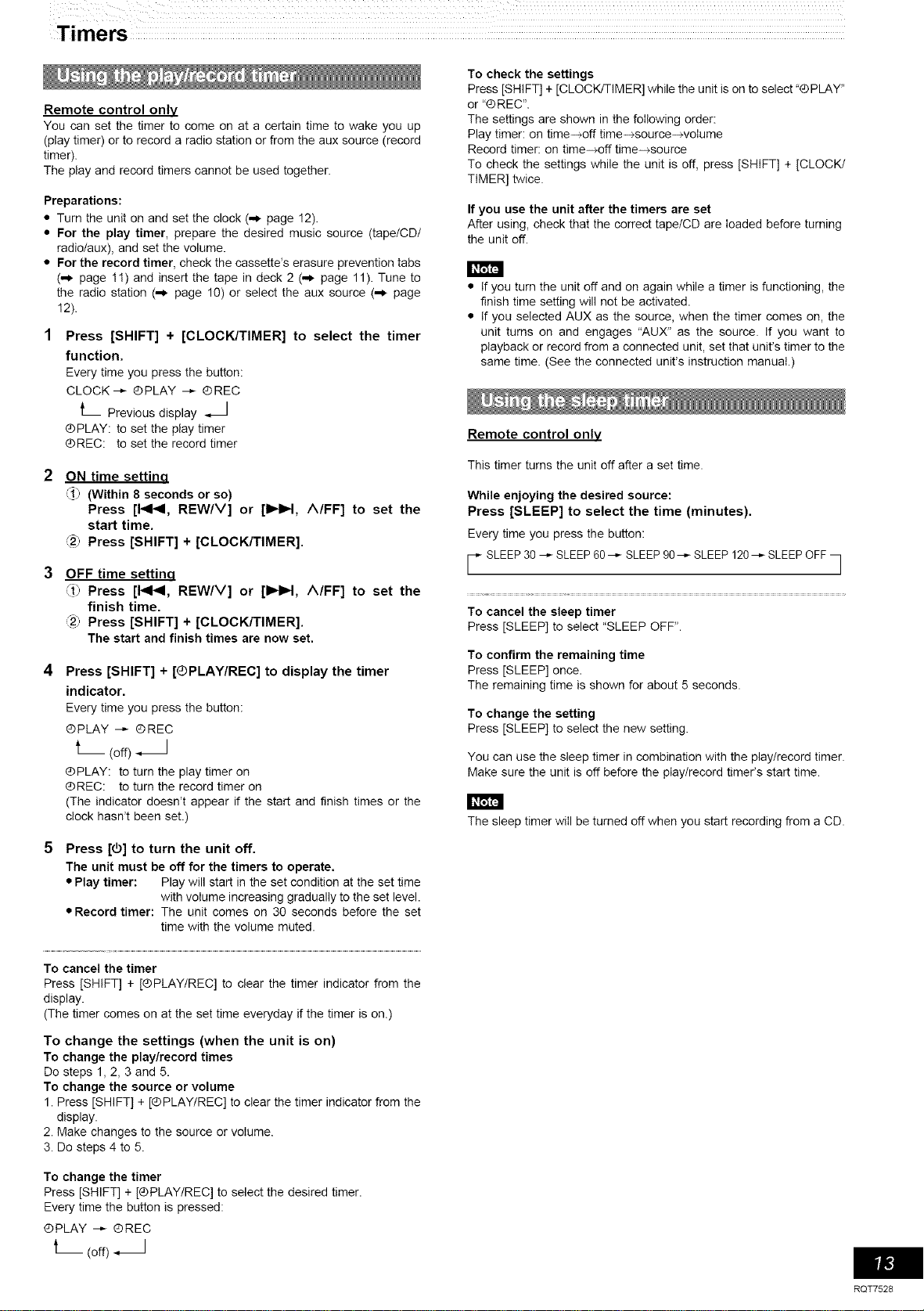
Remote control only
You can set the timer to come on at a certain time to wake you up
(play timer) or to record a radio station or from the aux source (record
timer).
The play and record timers cannot be used together.
Preparations:
• Turn the unit on and set the clock (.,_ page 12).
• For the play timer, prepare the desired music source (tape/CD/
radio/aux), and set the volume.
• For the record timer, check the cassette's erasure prevention tabs
(.,_ page 11) and insert the tape in deck 2 (.,_ page 11). Tune to
the radio station (,-_ page 10) or select the aux source (,-_ page
12).
1 Press [SHIFT] + [CLOCK/TIMER] to select the timer
function.
Every time you press the button:
CLOCK--_ @PLAY --_ ®REC
L Previous display _._
@PLAY: to set the play timer
®REC: to set the record timer
ON time settina
_11)(Within 8 seconds or so)
Press [1<1<1, REW/V] or [II_H, A/FF] to set the
start time.
:2; Press [SHIFT] + [CLOCK/TIMER].
OFF time settinq
:tl) Press [1<1<1, REW/V] or [II_H, A/FF] to set the
finish time.
:2_ Press [SHIFT] + [CLOCK/TIMER].
The start and finish times are now set.
Press [SHIFT] + [®PLAY/REC] to display the timer
indicator.
Every time you press the button:
@PLAY --_ ®REC
t_ (off)
®PLAY: to turn the play timer on
®REC: to turn the record timer on
(The indicator doesn't appear if the start and finish times or the
clock hasn't been set.)
Press [O] to turn the unit off.
The unit must be off for the timers to operate.
• Play timer: Play will start in the set condition at the set time
with volume increasing gradually to the set level.
• Record timer: The unit comes on 30 seconds before the set
time with the volume muted.
To cancel the timer
Press [SHIFT] + [®PLAY/REC] to clear the timer indicator from the
display.
(The timer comes on at the set time everyday if the timer is on.)
To change the settings (when the unit is on)
To change the play/record times
Do steps 1, 2, 3 and 5.
To change the source or volume
1. Press [SHIFT] + [®PLAY/REC] to clear the timer indicator from the
display.
2. Make changes to the source or volume.
3. Do steps 4 to 5.
To change the timer
Press [SHIFT] + [®PLAY/REC] to select the desired timer.
Every time the button is pressed:
¢PLAY _ ¢REC
(off)
To check the settings
Press [SHIFT] + [CLOCKFFIMER] while the unit is on to select "®PLAY"
or "®REC'.
The settings are shown in the following order:
Play timer: on time-+off time-+source-+voIume
Record timer: on time-+off time-+source
To check the settings while the unit is off, press [SHIFT] + [CLOCK/
TIMER] twice.
If you use the unit after the timers are set
After using, check that the correct tape/CD are loaded before turning
the unit off.
• If you turn the unit off and on again while a timer is functioning, the
finish time setting will not be activated.
• If you selected AUX as the source, when the timer comes on, the
unit turns on and engages "AUX" as the source. If you want to
playback or record from a connected unit, set that unit's timer to the
same time. (See the connected unit's instruction manual.)
Remote control onlv
This timer turns the unit off after a set time.
While enjoying the desired source:
Press [SLEEP] to select the time (minutes).
Every time you press the button:
S,EEP30--SLEEP60-- ,EEP90-- L E 120-- OFF
/ /
To cancel the sleep timer
Press [SLEEP] to select "SLEEP OFF".
To confirm the remaining time
Press [SLEEP] once.
The remaining time is shown for about 5 seconds.
To change the setting
Press [SLEEP] to select the new setting.
You can use the sleep timer in combination with the play/record timer.
Make sure the unit is off before the play/record timer's start time.
The sleep timer will be turned off when you start recording from a CD.
RQT7528
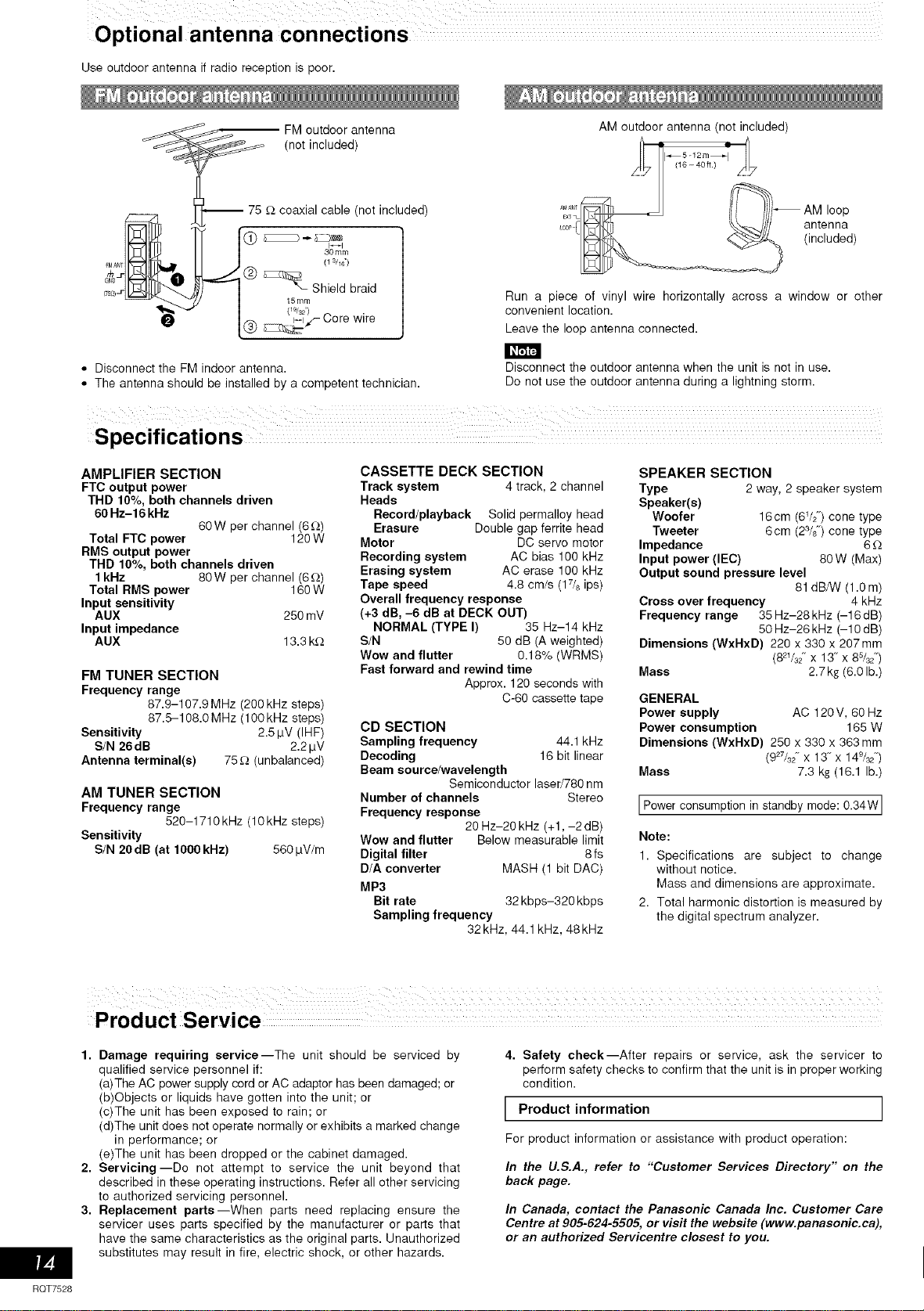
Use outdoor antenna if radio reception is poor.
[
FMANT__ _
_z
FM outdoor antenna
(not included)
-- 75 £_coaxial cable (not included)
30mm
(13/16')
@ _ Shield braid
15ram
d%2) _
(_) _,,,,-- L,ore wire
• Disconnect the FM indoor antenna.
• The antenna should be installed by a competent technician.
AM outdoor antenna (not included)
_5 -12rn_
(16-40 t.) _j_
loop
antenna
(included)
Run a piece of vinyl wire horizontally across a window or other
convenient location.
Leave the loop antenna connected.
Disconnect the outdoor antenna when the unit is not in use.
Do not use the outdoor antenna during a lightning storm.
AMPLIFIER SECTION
FTC output power
THD 10%, both channels driven
60 Hz-16 kHz
60W per channel (8£_)
Total FTC power 120W
RMS output power
THD 10%, both channels driven
1 kHz 80W per channel (6£_)
Total RMS power 180W
Input sensitivity
AUX 250 mV
Input impedance
AUX 13.3 k£_
FM TUNER SECTION
Frequency range
87.9-107.9 MHz (200 kHz steps)
87.5-108.0 MHz (100 kHz steps)
Sensitivity 2.5 laY (IHF)
S/N 26dB 2.2pV
Antenna terminal(s) 75_ (unbalanced)
AM TUNER SECTION
Frequency range
520-1710kHz (10kHz steps)
Sensitivity
S/N 20dB (at 1000kRz 5601aV/m
CASSETTE DECK SECTION
Track system 4 track, 2 channel
Heads
Record/playback Solid permalloy head
Erasure Double gap ferrite head
Motor DC servo motor
Recording system AC bias 100 kHz
Erasing system AC erase 100 kHz
Tape speed 4.8 cm/s (17/8 ips)
Overall frequency response
(+3 dB, -6 dB at DECK OUT)
NORMAL (TYPE I) 35 Hz-14 kHz
S/N 50 dB (A weighted)
Wow and flutter 0.18% (WRMS)
Fast forward and rewind time
Approx. 120 seconds with
C-60 cassette tape
CD SECTION
Sampling frequency 44.1 kHz
Decoding 18 bit linear
Beam source/wavelength
Semiconductor laser/780 nm
Number of channels Stereo
Frequency response
20 Hz-20 kHz (+1, -2 dB)
Wow and flutter Below measurable limit
Digital filter 8 fs
D/A converter MASH (1 bit DAC)
MP3
Bit rate 32 kbps-320 kbps
Sampling frequency
32 kHz, 44.1 kHz, 48kHz
SPEAKER SECTION
Type 2 way, 2 speaker system
Speaker(s)
Woofer 16 cm (6V2") cone type
Tweeter 6cm (23/8") cone type
Impedance 6 £_
Input power (IEC) 80 W (Max)
Output sound pressure level
81 dB/VV (1.0 m)
Cross over frequency 4 kHz
Frequency range 35 Hz-28 kHz (-16 dB)
50 Hz-26 kHz (-10 dB)
Dimensions (WxHxD) 220 x 330 x 207mm
(821132"X 13"X 8s/32")
Mass 2.7kg (8.0 lb.)
GENERAL
Power supply AC 120V, 60 Hz
Power consumption 165 W
Dimensions (WxHxD) 250 x 330 x 363 mm
(927/32" X 13-x 149/32")
Mass 7.3 kg (18.1 lb.)
I Power consumption in standby mode: 0.34W I
Note:
1. Specifications are subject to change
without notice.
Mass and dimensions are approximate.
2. Total harmonic distortion is measured by
the digital spectrum analyzer.
RQT7528
Product Service
1. Damage requiring service--The unit should be serviced by
qualified service personnel if:
(a)The AC power supply cord or AC adaptor has been damaged; or
(b)©bjects or liquids have gotten into the unit; or
(c)The unit has been exposed to rain; or
(d)The unit does not operate normally or exhibits a marked change
in performance; or
(e)The unit has been dropped or the cabinet damaged.
2. Servicing--Do not attempt to service the unit beyond that
described in these operating instructions. Refer all other servicing
to authorized servicing personnel.
3. Replacement parts--When parts need replacing ensure the
servicer uses parts specified by the manufacturer or parts that
have the same characteristics as the original parts. Unauthorized
substitutes may result in fire, electric shock, or other hazards.
4. Safety check--After repairs or service, ask the servicer to
perform safety checks to confirm that the unit is in proper working
condition.
I Product information I
For product information or assistance with product operation:
In the U.S.A., refer to "Customer Services Directory" on the
back page.
In Canada, contact the Panasonic Canada Inc. Customer Care
Centre at 905-624-5505, or visit the website (www.panasonic.ca),
or an authorized Servicentre closest to you.
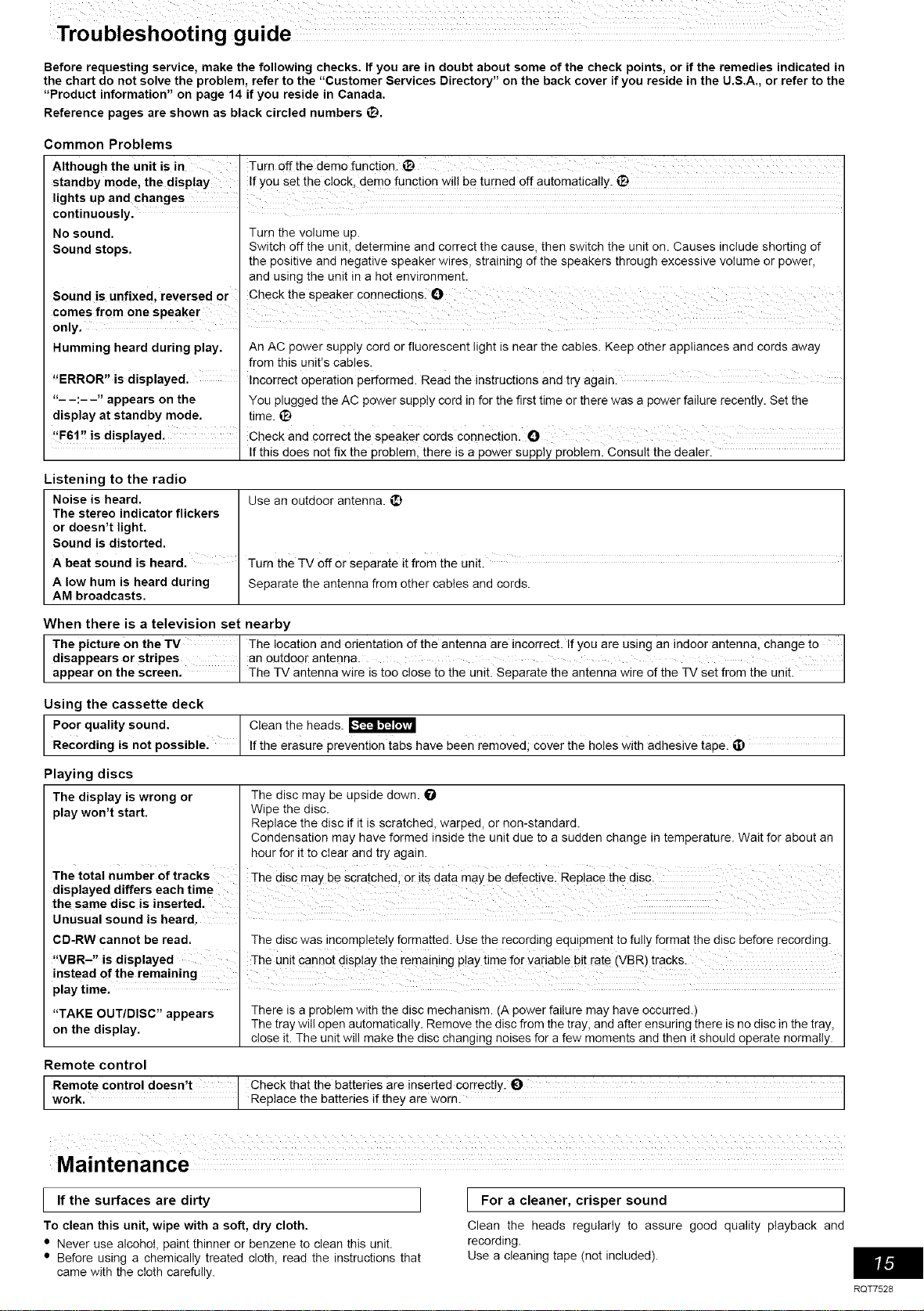
Before requesting service, make the following checks. If you are in doubt about some of the check points, or if the remedies indicated in
the chart do not solve the problem, refer to the "Customer Services Directory" on the back cover if you reside in the U.S.A., or refer to the
"Product information" on page 14 if you reside in Canada.
Reference pages are shown as black circled numbers _.
Common Problems
Although the unit is in
standby mode, the display
lights up and changes
continuously.
No sound.
Sound stops.
Sound is Unfixed, reversed or
comes from one speaker
only.
Humming heard during play.
"ERROR" is displayed.
"- -:--" appears on the
display at standby mode.
Turn off the dem0 function, i:_
If Y0U set the clock, demo function wi!! be turned off aut0matica!!y. _
Turn the volume up.
Switch off the unit, determine and correct the cause, then switch the unit on. Causes include shorting of
the positive and negative speaker wires, straining of the speakers through excessive volume or power,
and using the unit in a hot environment.
An AC power supply cord or fluorescent light is near the cables. Keep other appliances and cords away
from this unit's cables.
Incorrect 0peration performed. Read the instructions and try again:
You plugged the AC power supply cord in for the first time or there was a power failure recently. Set the
time. iD
'IF61'! is displayed. Check and €orrect the speaker cords connection, ()
If this does not fix the problem, there is a power supply problem. Consult the dealer.
Listening to the radio
Noise is heard.
The stereo indicator flickers
or doesn't light.
Sound is distorted.
A beat sound is heard.
A low hum is heard during
AM broadcasts.
Use an outdoor antenna.
Turn the TV off or separate it from the Unit.
Separate the antenna from other cables and cords.
When there is a television set nearby
The picture on the TV I The location and orientation of the antenna are incorrect. If you are using an indoor antenna, change to I
disappears or stripes an outdoor antenna.
appear on the screen. The TV antenna w re s too c ose to the un t. Separate the antenna w re of the TV set from the un t.
Using the cassette deck
Poor quality sound. Clean the heads. _ _)
Recording is not possiblel If the erasure prevention tabs have been removed; cover the holes With adhesive tape.
Playing discs
The display is wrong or
play won't start.
The total number of tracks
displayed differs each time
the same disc is inserted.
Unusual sound is heard.
CD-RW cannot be read.
"VBR., is displayed
instead of the remaining
The disc may be upside down. O
Wipe the disc.
Replace the disc if it is scratched, warped, or non-standard.
Condensation may have formed inside the unit due to a sudden change in temperature. Wait for about an
hour for it to clear and try again.
The disc may be Scratched; 0r its data may be defective: Rep!ace the disp.
The disc was incompletely formatted. Use the recording equipment to fully format the disc before recording.
The Unit Cannot display the remaining play time for _adable bit rate (VBR) tracks.
playtime.
"TAKE OUT/DISC" appears There is a problem with the disc mechanism. (A power failure may have occurred.)
on the display. The tray will open automatically. Remove the disc from the tray, and after ensuring there is no disc in the tray,
close it. The unit will make the disc changing noises for a few moments and then it should operate normally.
Remote control
Remote contro I doesn, t Check that the batteries are inserted co[rectly. O
work. Rep ace the batter es f they are worn.
Maintenance
I If the surfaces are dirty I
To clean this unit, wipe with a soft, dry cloth.
• Never use alcohol, paint thinner or benzene to clean this unit.
• Before using a chemically treated cloth, read the instructions that
came with the cloth carefully.
I For a cleaner, crisper sound I
Clean the heads regularly to assure good quality playback and
recording.
Use a cleaning tape (not included).
RQT7528
Panasonic Consumer Electronics Company, Panasonic Sales Company, Division of Matsushita Electric
Division of Mateuehita Electric Corporation of America of Puerto Rico, Inc.,
One Panaeonic Way Secaucus, New Jersey 07094 Ave 65 de Infanteria, Kin. 95
San GabrieI Industrial Park, Carolina, Puerto Rico 00985
Panasonic/Technics Audio Products
Limited Warranty
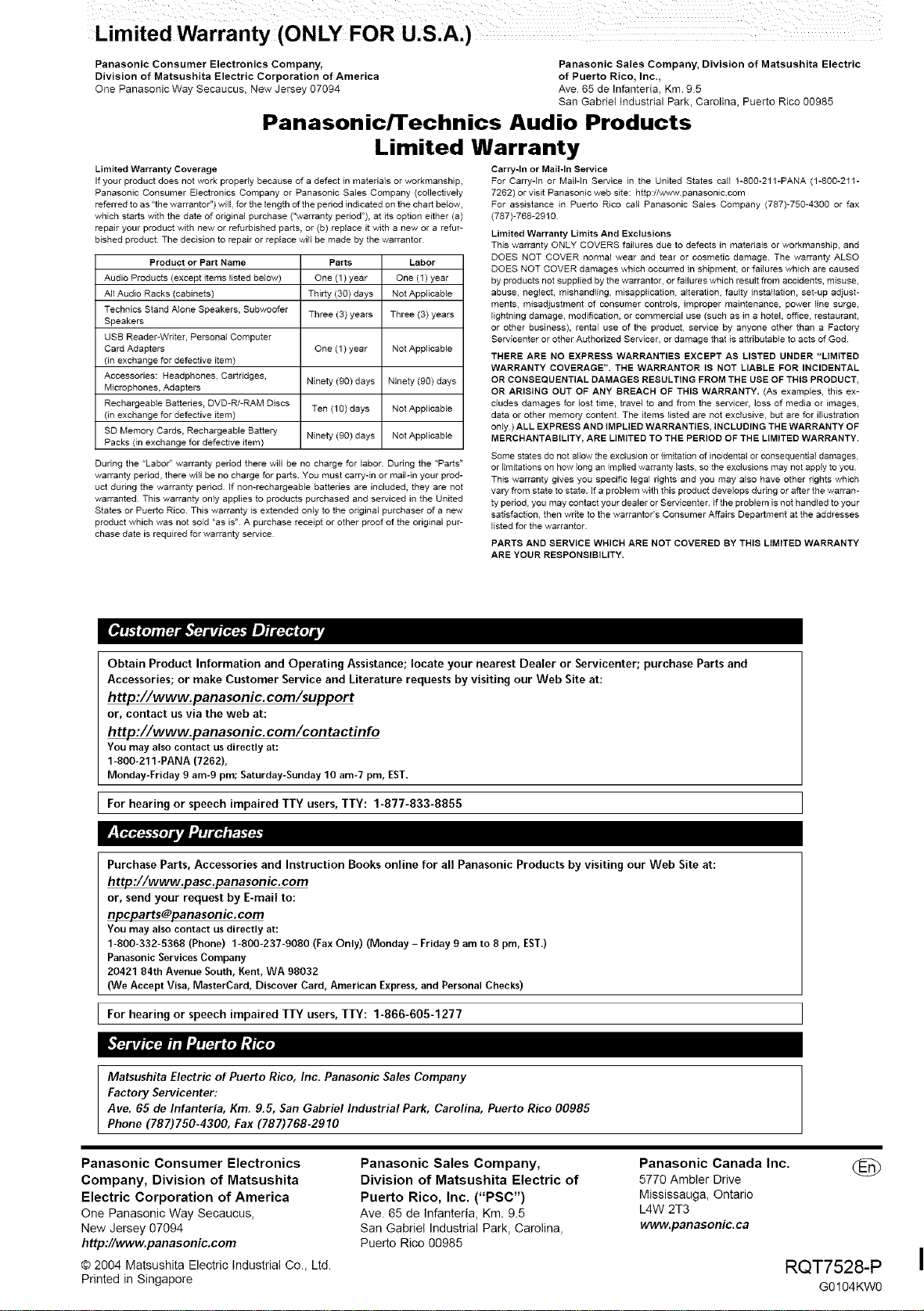
Limited Warranty Coverage
If your product does not work propedy because of a defect in materials or workmanship,
Panasonic Consumer Electronics Company or Panasonic Sales Company (collectively
referred to as "the warrantor") will for the length of the period indicated on the chart below,
which starts with the date of original purchase ("warranty period"), at its option either (a)
repair your product with new or refurbished parts, or (b) replace it with a new or a refur-
bished product The decision to repair or replace will be made by the warrantor
Product or Part Name
Audio Products (except items listed below)
All Audio Racks (cabinets)
Technics Stand Alone Speakers, Subwoofer
Speakers
USB Reader-Walter, Personal Computer
Card Adapters
(in exchange for defective item)
Accessories: Headphones. Cartridges,
Microphones, Adapters
Rechargeable Batteries. DVD-R/-RAM Discs
(in exchange for defective item)
SD Memory Cards, Rechargeable Battery
Packs (in exchange for defective item)
During the "Labor" warranty period there will be no charge for labor. During the "Parts"
warranty period, there will be no charge for parts. You must carry-in or mail-in your prod-
uct during the warranty period If non-rechargeable batteries are included, they are not
warranted This warranty only applies to products purchased and serviced in the United
States or Puerto Rico. This warranty is extended only to the original purchaser of a new
product which was not sold <'as is" A purchase receipt or other proof of the original pur-
chase date is required for warranty service
Parts Labor
One (1) year One (1) year
Thirty (30) days Not Applicable
Three (3) years Three (3) years
One (1) year Not Applicable
Ninety (90) days Ninety (90) days
Ten (10) days Not Applicable
Ninety (90) days Not Applicable
Carry-in or Mail-In Service
For Carry-in or Mail-In Service in the United States call 1-880-211-PANA (1-800-211-
7262) or visit Panasonic web site: http://_wwv.panasonic.com
For assistance in Puerto Rico call Panasonic Sales Company (787)-750-4300 or fax
(787)-768-2918.
Limited Warranty Limits And Exclusions
This warranty ONLY COVERS failures due to defects in materials or workmanship, and
DOES NOT COVER normal wear and tear or cosmetic damage. The warranty ALSO
DOES NOT COVER damages which occurred in shipment, or failures which are caused
by products not supplied by the warrantor, or failures which result from accidents, misuse,
abuse, neglect, mishandling, misapplication, alteration, faulty installation, set-up adjust-
ments, misadjustment of consumer controls, improper maintenance, power line surge,
lightning damage, modification, or commercial use (such as in a hotel, office, restaurant,
or other business), rental use of the product, service by anyone other than a Factory
Servicenter or other Authorized Servicer, or damage that is attributable to acts of God.
THERE ARE NO EXPRESS WARRANTIES EXCEPT AS LISTED UNDER "LIMITED
WARRANTY COVERAGE". THE WARRANTOR iS NOT LIABLE FOR INCIDENTAL
OR CONSEQUENTIAL DAMAGES RESULTING FROM THE USE OF THIS PRODUCT,
OR ARISING OUT OF ANY BREACH OF THIS WARRANTY. (As examples, this ex-
dudes damages for lost time, travel to and from the servicer, loss of media or images,
data or other memory content The items listed are not exclusive, but are for illustration
only) ALL EXPRESS AND IMPLIED WARRANTIES, INCLUDING THE WARRANTY OF
MERCHANTABILITY, ARE LIMITED TO THE PERIOD OF THE LIMITED WARRANTY.
Some states do not allow the exclusion or limitation of incidental or consequential damages,
or limitations on how long an implied warranty lasts, so the exclusions may not apply to you.
This warranty gives you specific legal rights and you may also have other rights which
vary from state to state. If a problem with this product develops during or after the warran-
ty period, you may contact your dealer or Servicenter. If the problem is not handled to your
satisfaction, then write to the warrantor's Consumer Affairs Department at the addresses
listed for the warrantor.
PARTS AND SERVICE WHICH ARE NOT COVERED BY THIS LIMITED WARRANTY
ARE YOUR RESPONSIBILITY.
Obtain Product Information and Operating Assistance; locate your nearest Dealer or 5ervicenter; purchase Parts and
Accessories; or make Customer Service and Literature requests by visiting our Web Site at:
http://www.panasonic.com/support
or, contact us via the web at:
http://www.panasonic.corn/contactinfo
You may also contact us directly at:
1-800-211-PANA (7262),
Monday-Friday 9 am-9 pro; Saturday-Sunday 10 am-7 pro, EST.
I hearing or speech impaired users,
For TTY TTY: 1-877-833-88_
Purchase Parts, Accessories and Instruction Books online for all Panasonic Products by visiting our Web Site at:
http://www.pasc.panasonic.com
or, send your request by E-mail to:
You may also contact us directly at:
1-800-332-5368 (Phone) 1-800-237-9080 (Fax Only) (Monday - Friday 9 am to 8 pm, EST.)
Panasonic Services Company
20421 841h Avenue South, Kent, WA 98032
(We Accept Visa, MasterCard, Discover Card, American Express, and Personal Checks)
I hearing or speech impaired users,
For TTY TTY: 1-866-605-1277
Matsushita Electric of Puerto Rico, Inc. Panasonic Sales Company
Factory Servicenter:
Ave. 65 de Infanteria, Kin. 9.5, San Gabriel Industrial Park, Carolina, Puerto Rico 00985
Phone (787) 750-4300, Fax (787) 768-2910
Panasonic Consumer Electronics
Company, Division of Matsushita
Electric Corporation of America
One Panasonic Way Secaucus,
New Jersey 07094
http://www.panasonic.com
© 2004 Matsushita Electric Industrial Co, Ltd
Printed in Singapore
Panasonic Sales Company,
Division of Matsushita Electric of
Puerto Rico, Inc. ("PSC")
Ave. 65 de Infanteria, Km. 9.5
San Gabriel Industrial Park, Carolina,
Puerto Rico 00985
Panasonic Canada Inc.
5770 Ambler Drive
Mississauga, Ontario
L4W 2T3
WWW.p3n3soITic. c8
RQT7528-P
GO104KW0