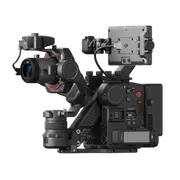
User Manual
2022.02
v1.2
2
©
2022 DJI All Rights Reserved.
Searching for Keywords
Search for keywords such as “battery” and “install” to find a topic. If you are using Adobe
Acrobat Reader to read this document, press Ctrl+F on Windows or Command+F on Mac to
begin a search.
Navigating to a Topic
View a complete list of topics in the table of contents. Click on a topic to navigate to that
section.
Printing this Document
This document supports high resolution printing.
2
©
2022 DJI All Rights Reserved.
Using this Manual
Legend
Warning Important Hints and Tips Reference
Before You Begin
The following documents have been produced to help you safely operate and make full use of your
DJI
TM
RONIN
TM
4D.
1. DJI Ronin 4D Quick Start Guide
2. DJI Ronin 4D User Manual
3. DJI Ronin 4D Safety Guidelines
Read the entire quick start guide and user manual and watch the tutorial videos on the product page of
the DJI o�cial website (http:www.dji.com/ronin-4d). Read the safety guidelines to understand your legal
rights and responsibilities.
Contact DJI or a DJI authorized dealer if you have any questions or issues during installation,
maintenance, or use of this product.
Watching the Tutorial Videos
Visit the link below to watch the tutorial videos, which demonstrate how to use DJI
Ronin 4D safely:
https://www.dji.com/ronin-4d/video
Downloading DJI Assistant 2 (Ronin Series)
Download DJI Assistant 2 via the link below to activate and update Ronin 4D:
https://www.dji.com/ronin-4d/downloads

3
©
2022 DJI All Rights Reserved.
Using this Manual 2
Legend
2
Before You Begin
2
Watching the Tutorial Videos
2
Downloading DJI Assistant 2 (Ronin Series)
2
Product Pro�le 5
Ronin 4D Diagram
6
Getting Started 7
Mounting the Lens (Using DL Lens as an example)
7
Mounting the LiDAR Range Finder
9
Balancing
10
Attaching the Hand Grips
11
Attaching the Intelligent Battery
12
Inserting the Storage Media
12
Activating DJI Ronin 4D
14
Auto Tune
15
Balancing the Z-Axis
16
DJI Zenmuse X9 Gimbal and Camera 18
Gimbal
19
Camera
21
Z-Axis 26
Main Body 27
Hand Grips 29
Top Handle 31
High-Bright Main Monitor
32
Button and Port Features
32
Camera View
34
Menu and Functions
40
Contents

4
©
2022 DJI All Rights Reserved.
Recording
40
Video
40
Display
43
User Settings
49
Storage
51
System
53
Lens
54
Stabilizer
58
Transmission
61
Intelligent Battery 63
Intelligent Features 66
ActiveTrack Pro
66
Focus Control
67
Firmware Update 68
Maintenance
69
Speci�cations 70
Appendix 74
Using DJI Force Pro and DJI Master Wheels with Ronin 4D
74
Dimensions
74

5
©
2022 DJI All Rights Reserved.
Product Pro�le
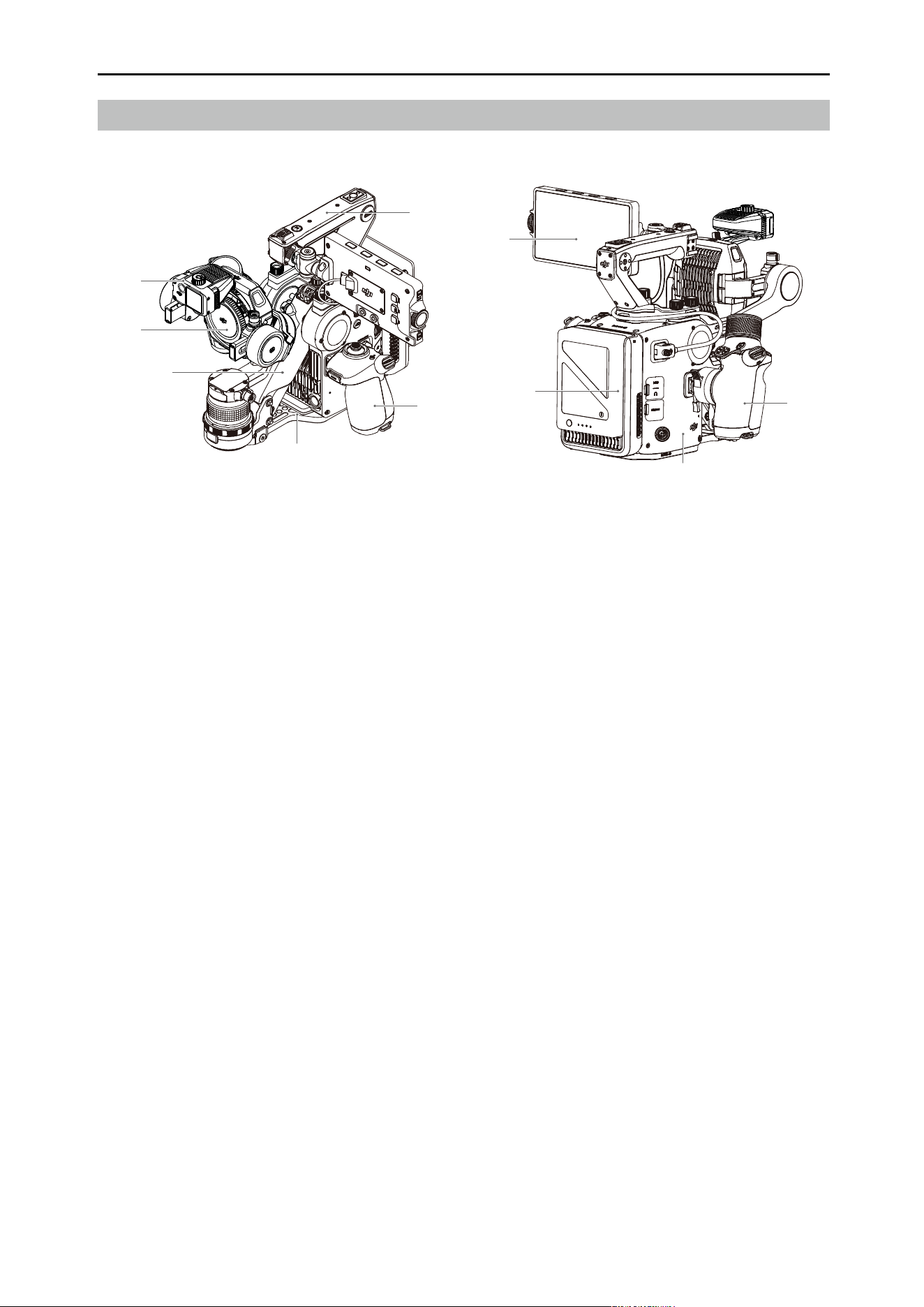
DJI Ronin 4D is a ground-based cinematography system, which combines a cinema camera, four-
axes gimbal, LiDAR focusing, and wireless transmission in one. The system consists of an Zenmuse X9
gimbal and camera, LiDAR range nder, Z-axis, main body, left and right hand grips, high-bright main
monitor, top handle, and battery system.
The X9 gimbal and camera is available in both X9-8K and X9-6K. Both provide three-axis stabilization and
support internal recording of Apple ProRes RAW*, Apple ProRes 422 HQ, and H.264 video. Although the
camera comes with a standard DL mount, it can also be interchanged with other lens mounts such as the
DJI M mount and the third-party E mount. The camera can control the aperture and focus of the DL lens**
as well as both manual and auto focus on a manual lens when used with the X9 Focus Motor and LiDAR
range nder.
The LiDAR range finder uses LiDAR waveform to quickly locate focus points and allows precise focus
adjustments, making auto and manual focusing easier and providing automated manual focus that is
convenient, exible, and accurate.
Additionally, the Z-axis effectively decreases vertical shake in the camera and offers a stabilization
performance on par with a dolly. The four axes work together with the downward ToF sensors, forward and
downward dual-visual sensor, and a built-in IMU and barometer to provide overall stabilization.
The main body and the left and right hand grips provide a wide range of function buttons, making it easier
than ever for one person to control shooting, focusing, and camera settings.
Features and settings are easy to access and a wide range of shooting requirements can be fullled thanks
to the high-bright main monitor. The monitor comes with a 5.5-inch, 1,000-nit touchscreen, boasts a user
friendly UI and a variety of buttons, and can be attached to multiple positons on Ronin 4D.
Using the TB50 Intelligent Battery, Ronin 4D is able to provide an operating time of up to 150 minutes***.
In addition, Ronin 4D supports an HDMI 1080p/60fps output, internal microphone and 3.5mm stereo
audio input, and is compatible with various accessories such as the DJI High-Bright Remote Monitor,
DJI Master Wheels, and DJI Force Pro.
* DJI Ronin 4D will no longer support Apple ProRes RAW internal recording from February 16, 2022.
** Visit the o�cial DJI website https://www.dji.com/ronin-4d/lens to check compatible lenses.
*** Measured in an environment of 26° C (77° F) with a fully charged TB50 battery, the gimbal balanced, the
equipment in a level and stationary state, the Z-axis disabled, and while continuously recording in ProRes
RAW. Operating time is reduced when Ronin 4D is in motion or the Z-axis is enabled.
DJI Ronin 4D User Manual
6
©
2022 DJI All Rights Reserved.
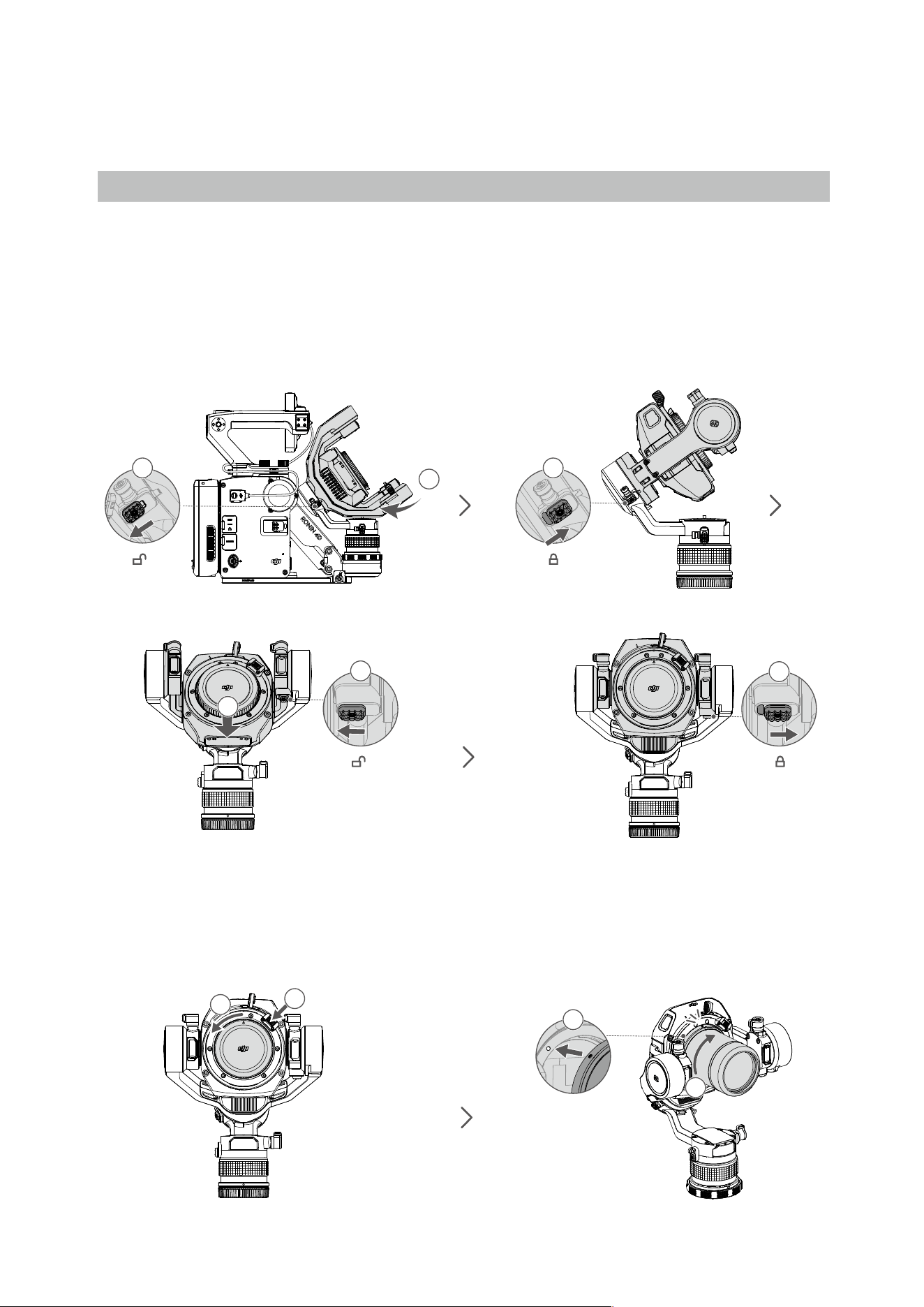
Ronin 4D Diagram
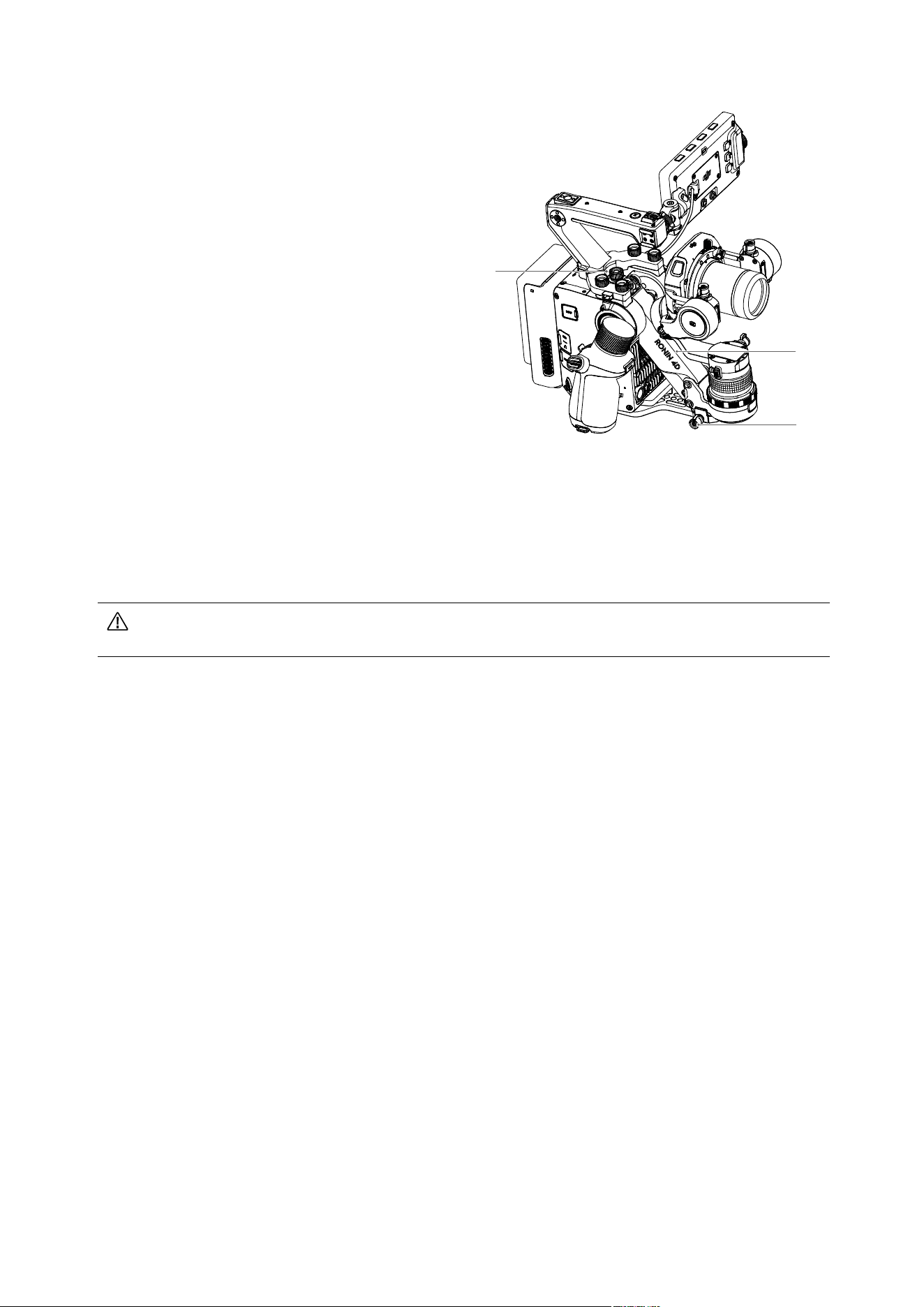
1. Gimbal and Camera
2. Z-Axis
3. Base Plate
4. Left Hand Grip
5. Top Handle
6. LiDAR Range Finder
7. High-Bright Main Monitor
8. TB50 Intelligent Battery and Battery
Compartment
9. Main Body
10. Right Hand Grip
1
6
2
3
9
4
10
5
7
8
7
©
2022 DJI All Rights Reserved.
Getting Started
Follow the steps below to prepare Ronin 4D for shooting.
Mounting the Lens (Using DL Lens as an example)
The X9 gimbal and camera supports various lenses. Visit the o�cial DJI website at http://www.dji.com/
ronin-4d/lens to check compatible lenses.
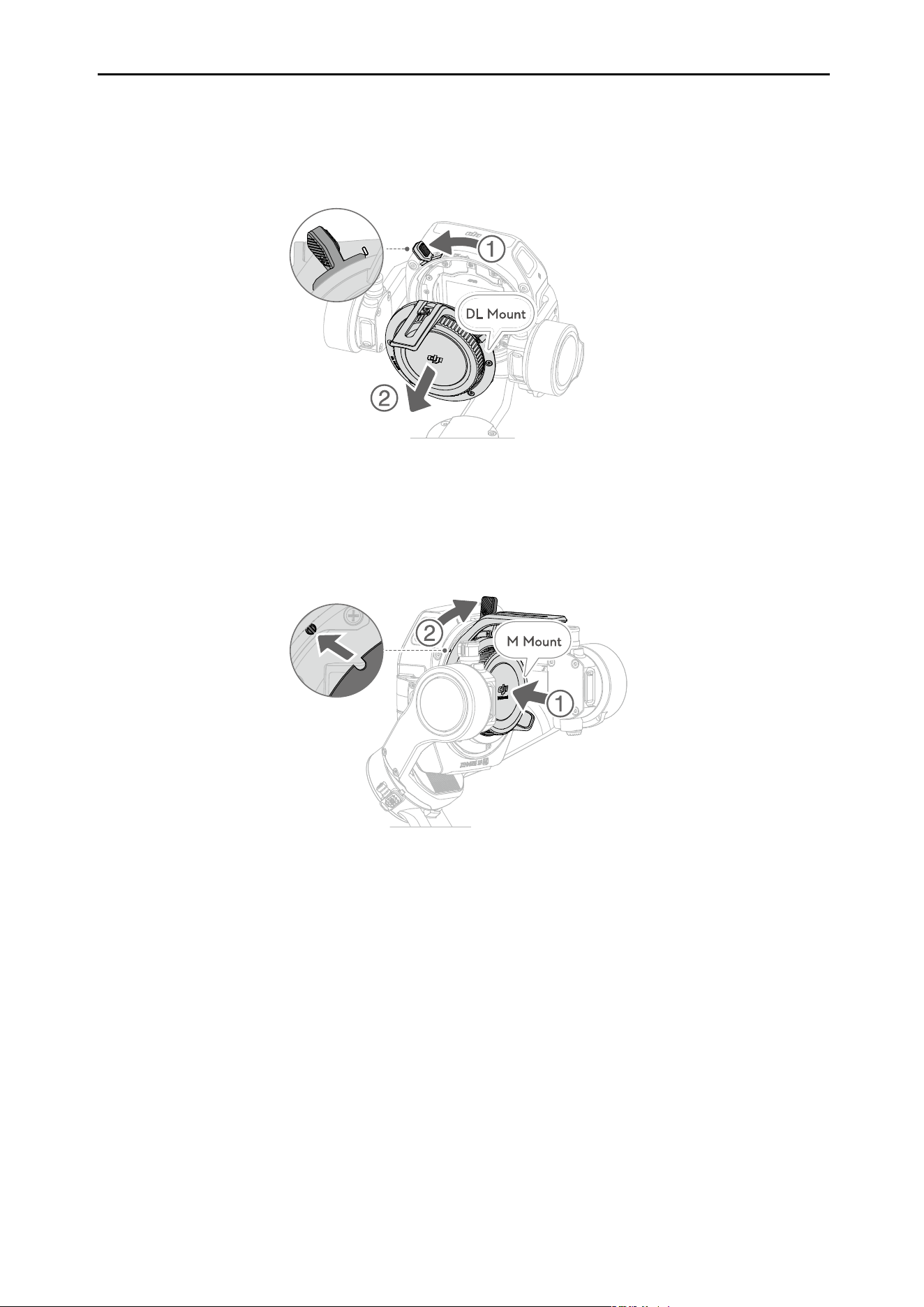
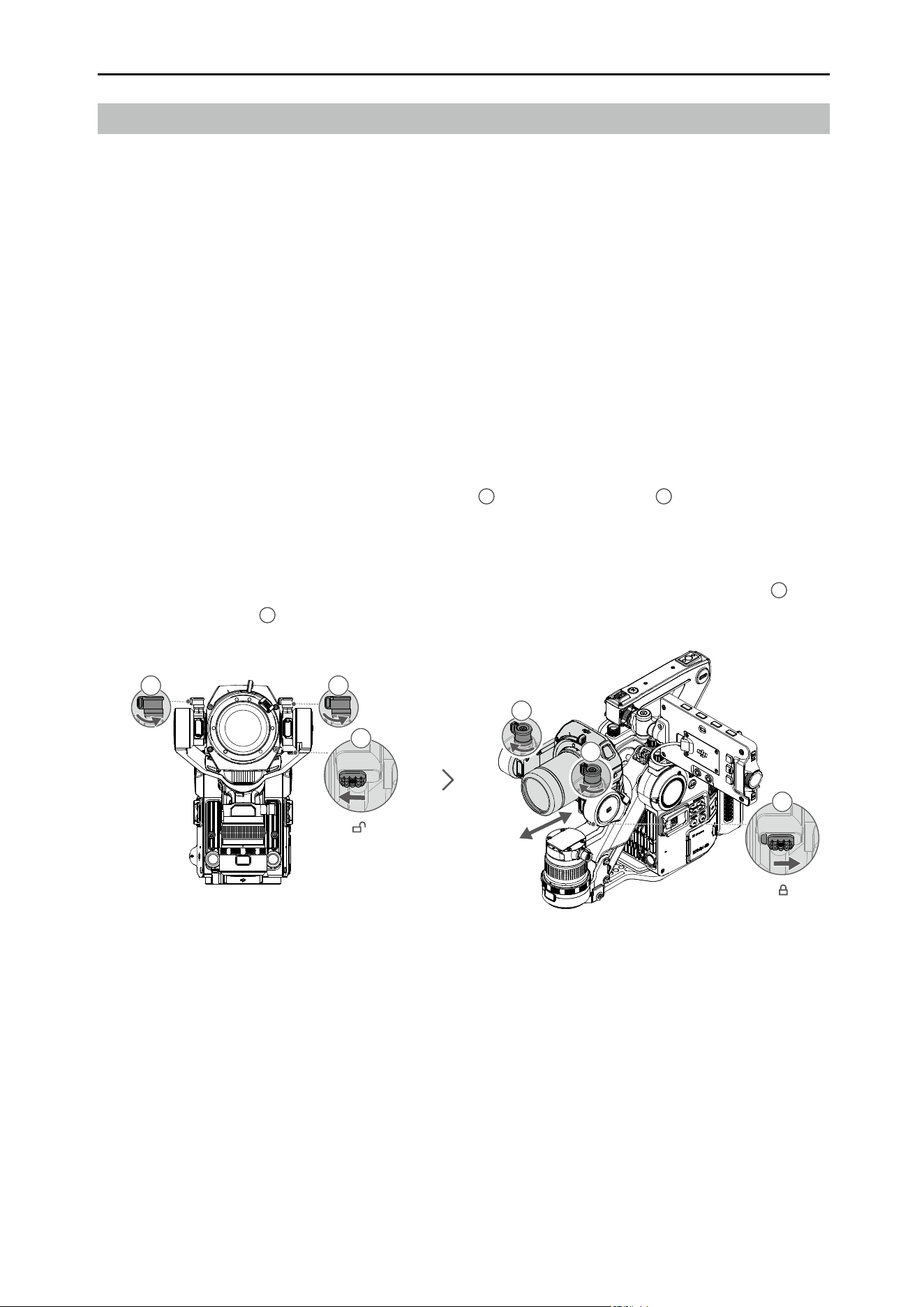
1. The gimbal is folded by default. Unfold the roll and tilt axes before mounting the lens. Toggle the roll
axis lock to the unlocked position, adjust the roll axis as shown, and lock the roll axis. Toggle the tilt
axis lock to the unlocked position, adjust the tilt axis as shown, and lock the tilt axis.
3
1
2
Roll Lock
4
6
5
Tilt Lock
1
2
1
2
2. Press and hold the release button and rotate
the DL mount body cap counter-clockwise to
remove.
3. Align the red marks on the lens and the DL
mount. Insert and rotate the lens clockwise
until there is a clicking sound.
Click
DJI Ronin 4D User Manual
8
©
2022 DJI All Rights Reserved.
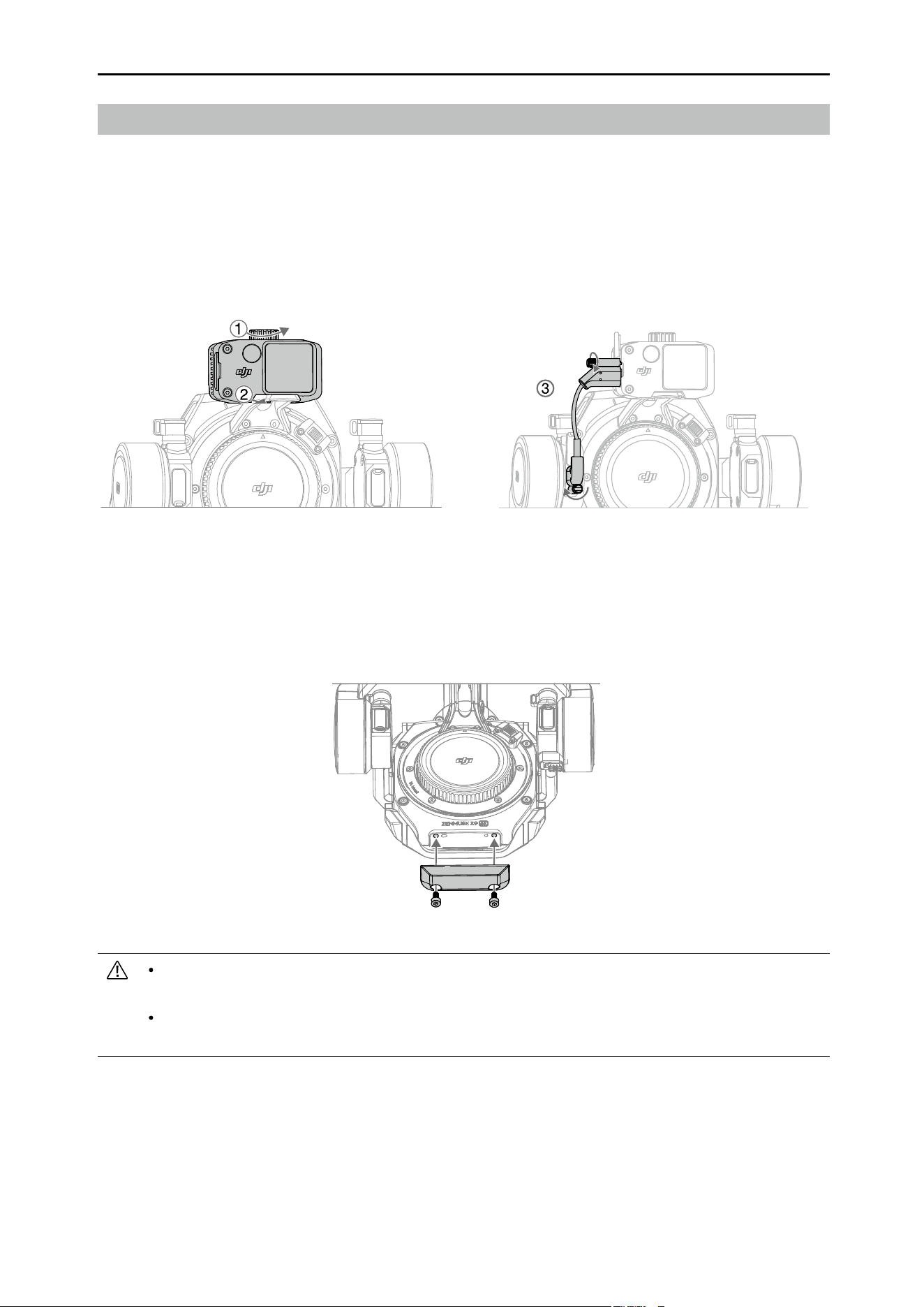
An M mount is required when attaching an M mount lens. Follow the steps below to attach an M mount.
Refer to the DJI Zenmuse X9 M Mount Unit User Guide for more information.
1. Press and hold the release button on the camera lever, rotate the lever counter-clockwise until it is
positioned left of the white mark, and remove the DL mount.
2. Align the positioning notch on the M mount lens adapter with the guiding pin on the camera and
insert the adapter. Rotate the camera lever clockwise until it is tight and secure. Attach the M mount
lens to the lens adapter.
DJI Ronin 4D User Manual
9
©
2022 DJI All Rights Reserved.
Mounting the LiDAR Range Finder
1. Loosen the locking knob and attach the LiDAR range nder to the holder.
2. Make sure to slide the LiDAR range finder to the end of the holder before tightening the locking
knob.
3. Use the LiDAR range nder/focus motor cable to connect the power and communication port of
the LiDAR range nder and the LiDAR port of the gimbal. Make sure to plug the end with the 90°
connector into the gimbal port and tighten both screws on the cable.
Use the LiDAR range nder with DJI Zenmuse X9 Focus Motor to control the focus of manual lens.
Refer to the DJI Zenmuse X9 Focus Motor Product Information for more information. It is recommended
to mount the counterweight (106g) for optimal balancing if the X9 Focus Motor is not being used. Use
the provided M3-6 screw to secure the counterweight on the gimbal as shown.
Do not bend the LiDAR range nder/focus motor cable excessively. Otherwise, the connection may
be aected.
Using the LiDAR range nder without either the X9 Focus Motor or the counterweight (106g) may
cause the gimbal to shake.
DJI Ronin 4D User Manual
10
©
2022 DJI All Rights Reserved.
Balancing
Proper balancing is essential for optimal performance when using Ronin 4D. Proper balance is critical
for shots with Ronin 4D where subjects move suddenly and at fast speeds and also oers longer battery
runtimes. Two of the axes must be properly balanced before powering on Ronin 4D and setting up the
parameters.
Before Balancing
1. The camera must be fully congured before installing and balancing the camera on the gimbal. This
includes all connected cables and accessories such as the X9 focus motor, LiDAR range nder, lens,
and counter weight. Remove any lens cap from the camera before balancing.
2. Make sure to select the focal length before balancing if using a varifocal lens. Make sure Ronin 4D is
powered o or in sleep mode before balancing.
Balancing Steps
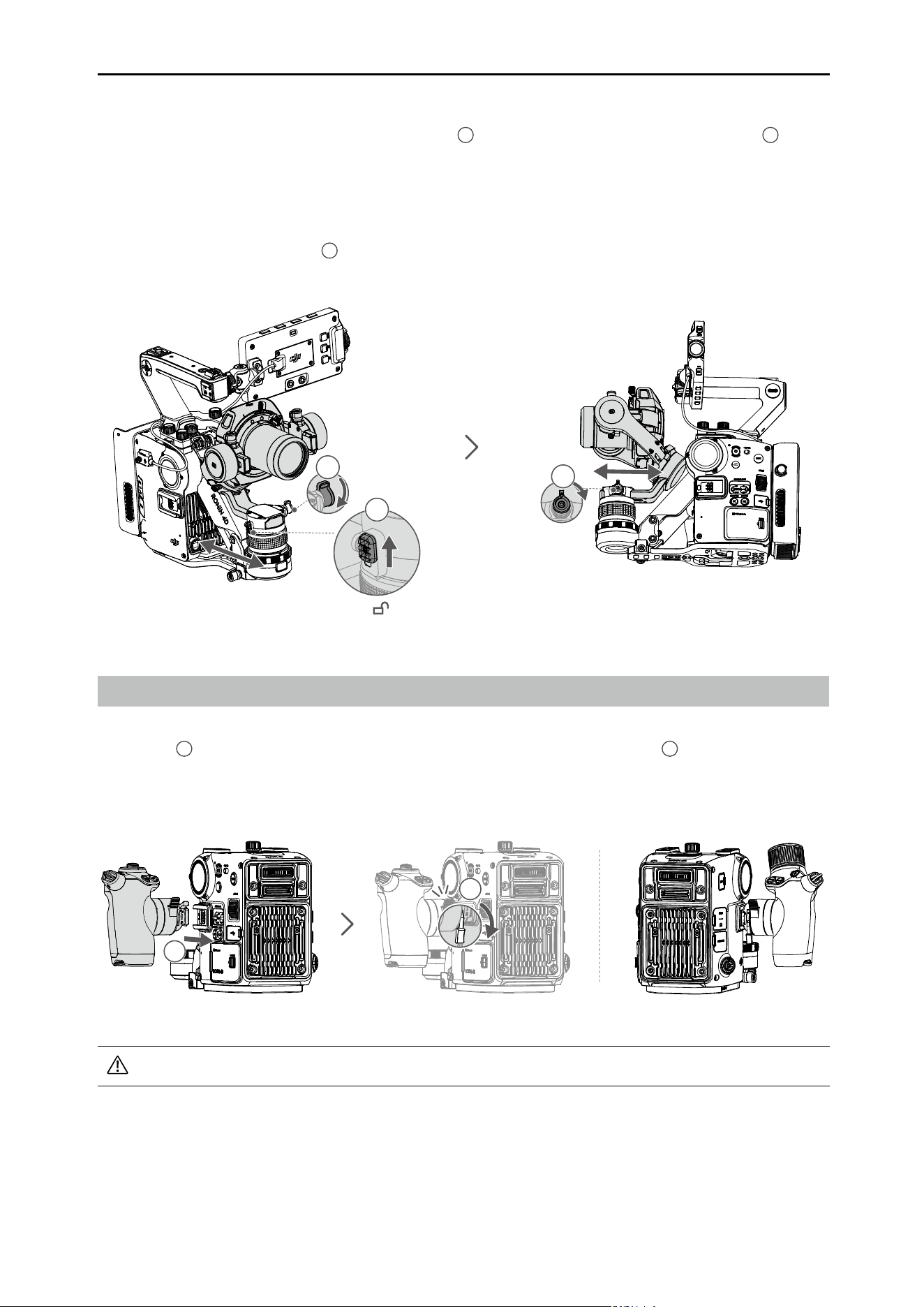
1. Balancing the Tilt Axis
a. Toggle the tilt axis lock to the unlocked position
1
and loosen the knobs
2
on both sides of the
tilt axis.
b. Check to make sure the camera is not front- or back-heavy. Move the camera backward if front-
heavy and forward if back-heavy.
c. The tilt axis is balanced when the camera is steady while tilted foward. Tighten the knobs
3
.
d. Lock the tilt axis
4
.
1
2 2
4
3
3
DJI Ronin 4D User Manual
11
©
2022 DJI All Rights Reserved.
1
3
2
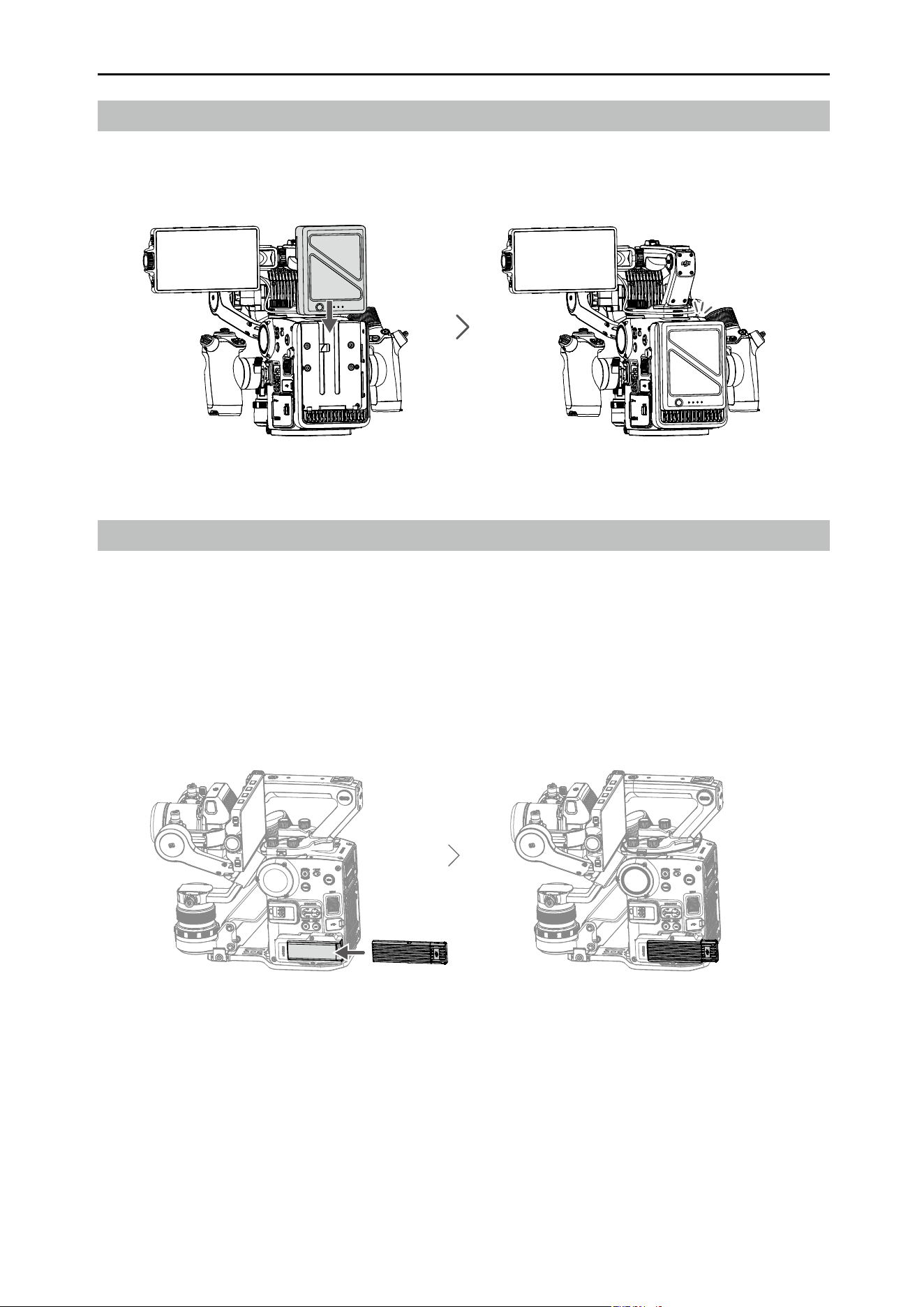
2. Balancing the Pan Axis
a. Toggle the pan lock to the unlocked position
1
and loosen the knobs on the pan motor
2
.
b. Tilt Ronin 4D towards you while holding the top handle. Check the movement of the pan axis. If
the camera lens rotates to the left, push the pan axis to the right. If the camera lens rotates to the
right, push the pan axis to the left.
c. The pan axis is balanced if the camera is steady when the pan axis is rotated by tilting the top
handle. Tighten the knob
3
.
Attaching the Hand Grips
Make sure the lever is in the unlocked position. Insert the left hand grip into the mounting port on the
main body
1
until there is a clicking sound and push the lever all the way down
2
.
Attach the right hand grip following the same instructions.
1
2
The left and right hand grips are not interchangeable.
DJI Ronin 4D User Manual
12
©
2022 DJI All Rights Reserved.
Inserting the Storage Media
Ronin 4D supports the DJI PROSSD 1TB when used with the DJI PROSSD Mount, CFexpress2.0
Type-B cards, and USB 3.1 Type-C SSDs*. The DJI PROSSD 1TB supports internal recording of the
highest format and the footage can be read in the computer directly through the provided USB-C to
USB-C cable. No card reader is required.
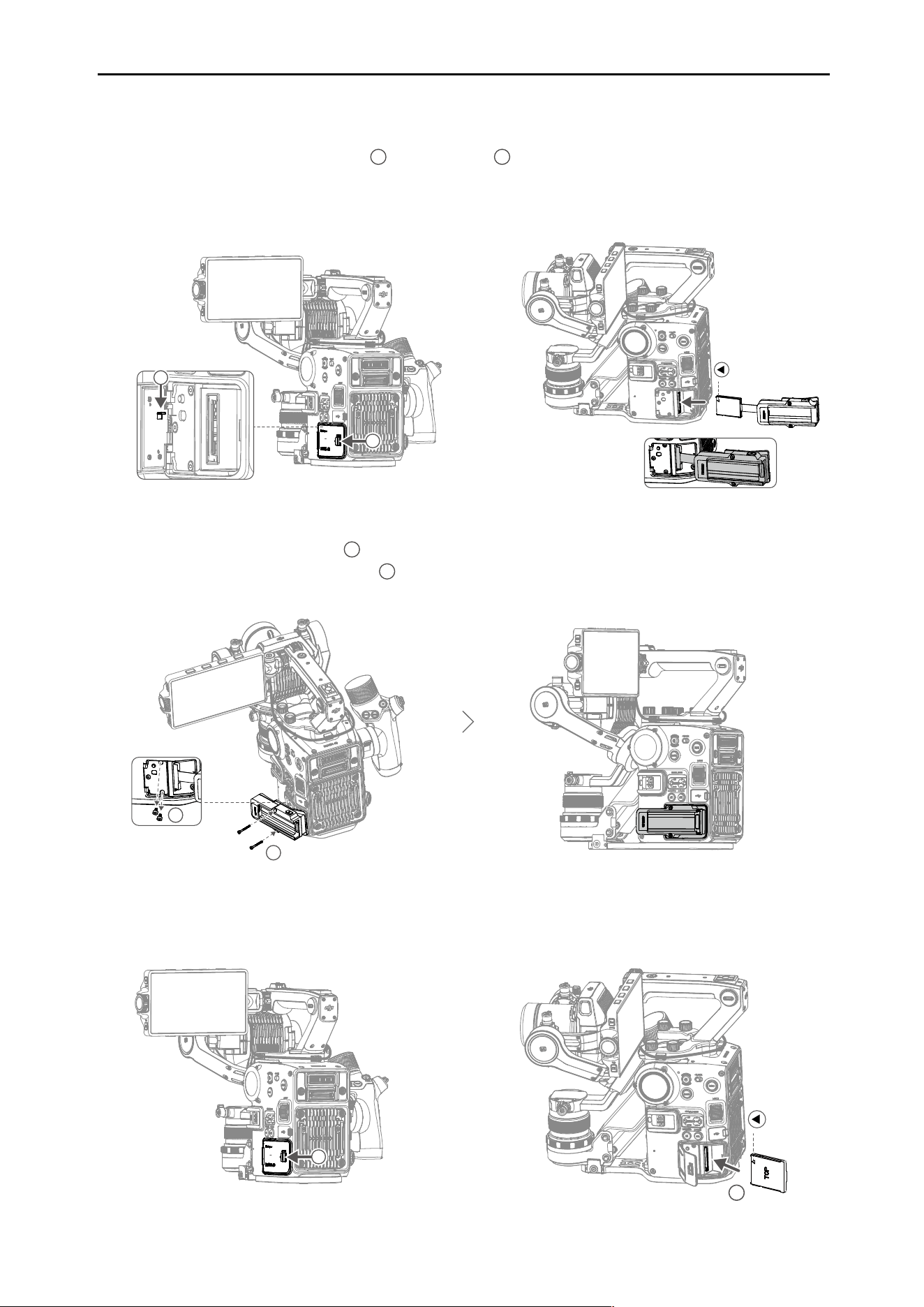
Click
Attaching the Intelligent Battery
Align the Intelligent Battery with the battery compartment and push the battery down until there is a
clicking sound.
* Visit https://www.dji.com/ronin-4d/faq to learn more about supported CFexpress 2.0 Type-B cards and USB
3.1 Type-C SSDs. Make sure to use the original cable of the USB-C SSD for optimal performance.
Attaching the DJI PROSSD Mount and the DJI PROSSD 1TB: The DJI PROSSD Mount is mounted
on Ronin 4D-8K by default. Attach the DJI PROSSD 1TB to the DJI PROSSD Mount.
DJI Ronin 4D User Manual
13
©
2022 DJI All Rights Reserved.
Ronin 4D-6K also supports the DJI PROSSD Mount and the DJI PROSSD 1TB but they are not
included in the package. Attach the DJI PROSSD Mount before attaching the DJI PROSSD 1TB.
1. Open the card compartment cover
1
, press the clip
2
inside, and remove the cover.
2. Locate the arrow on the CFexpress card plug and insert it into the card slot of Ronin 4D based on
the direction of the arrow.
1
2
1
2
Attaching CFexpress2.0 Type-B Card: Open the card compartment cover and insert the card.
2
1
3. Remove the two M2×5 screws
1
on Ronin 4D, align the PROSSD mount with the screw holes, and
attach using the two M2×22 screws
2
included with the PROSSD mount.
DJI Ronin 4D User Manual
14
©
2022 DJI All Rights Reserved.
Activating DJI Ronin 4D
Ronin 4D must be activated through DJI Assistant 2 (Ronin Series) before using for the rst time. Follow
the steps below to activate Ronin 4D:
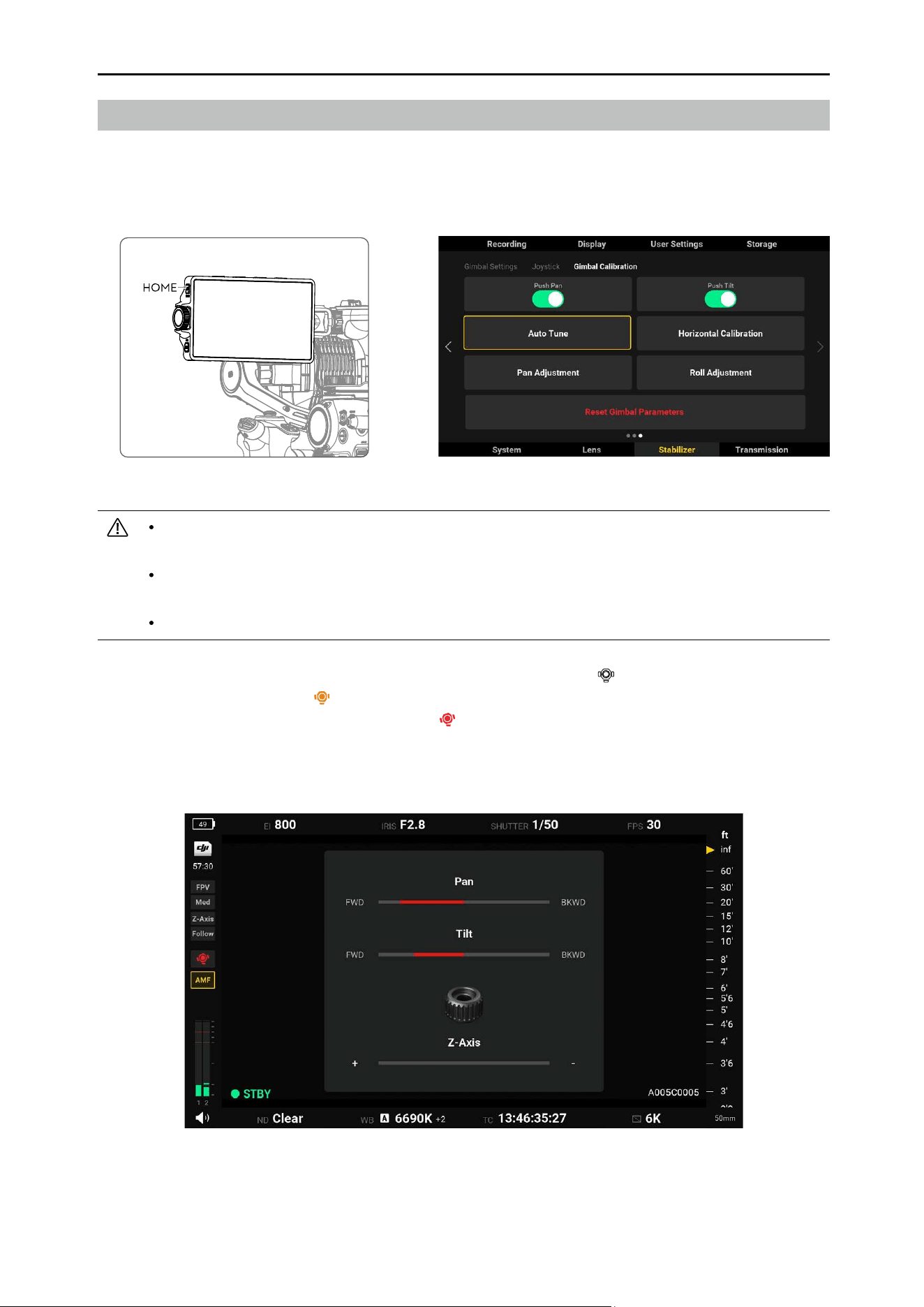
1. Before powering on Ronin 4D, make sure the LOCK switch is in the unlocked position and the three
axes of the gimbal are unlocked. Otherwise, Ronin 4D cannot work properly. Press and hold the
power button for 1 second to power on Ronin 4D.
2. Use the provided USB-A to USB-C cable to connect the USB-C port on the main body with a
computer. Launch DJI Assistant 2 (Ronin Series), select Ronin 4D, and follow the steps to activate.
3. Do not power o Ronin 4D or disconnect Ronin 4D and the computer before activation is completed.
USB-C Port
LOCK
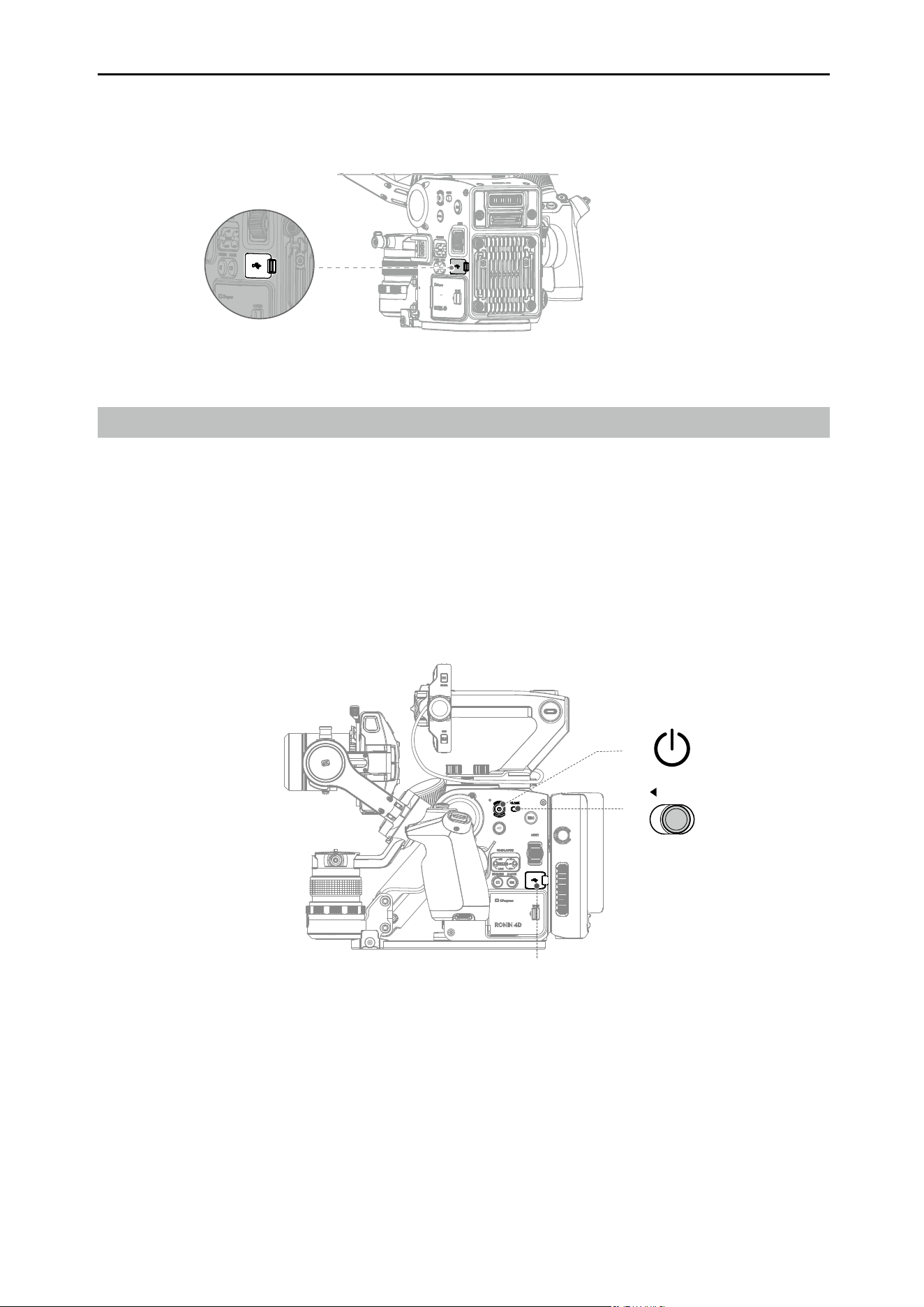
Attaching the USB 3.1 Type-C SSD: Open the USB-C port cover and attach the SSD to Ronin 4D.
Make sure the SSD is secure during usage.
DJI Ronin 4D User Manual
15
©
2022 DJI All Rights Reserved.
Auto Tune
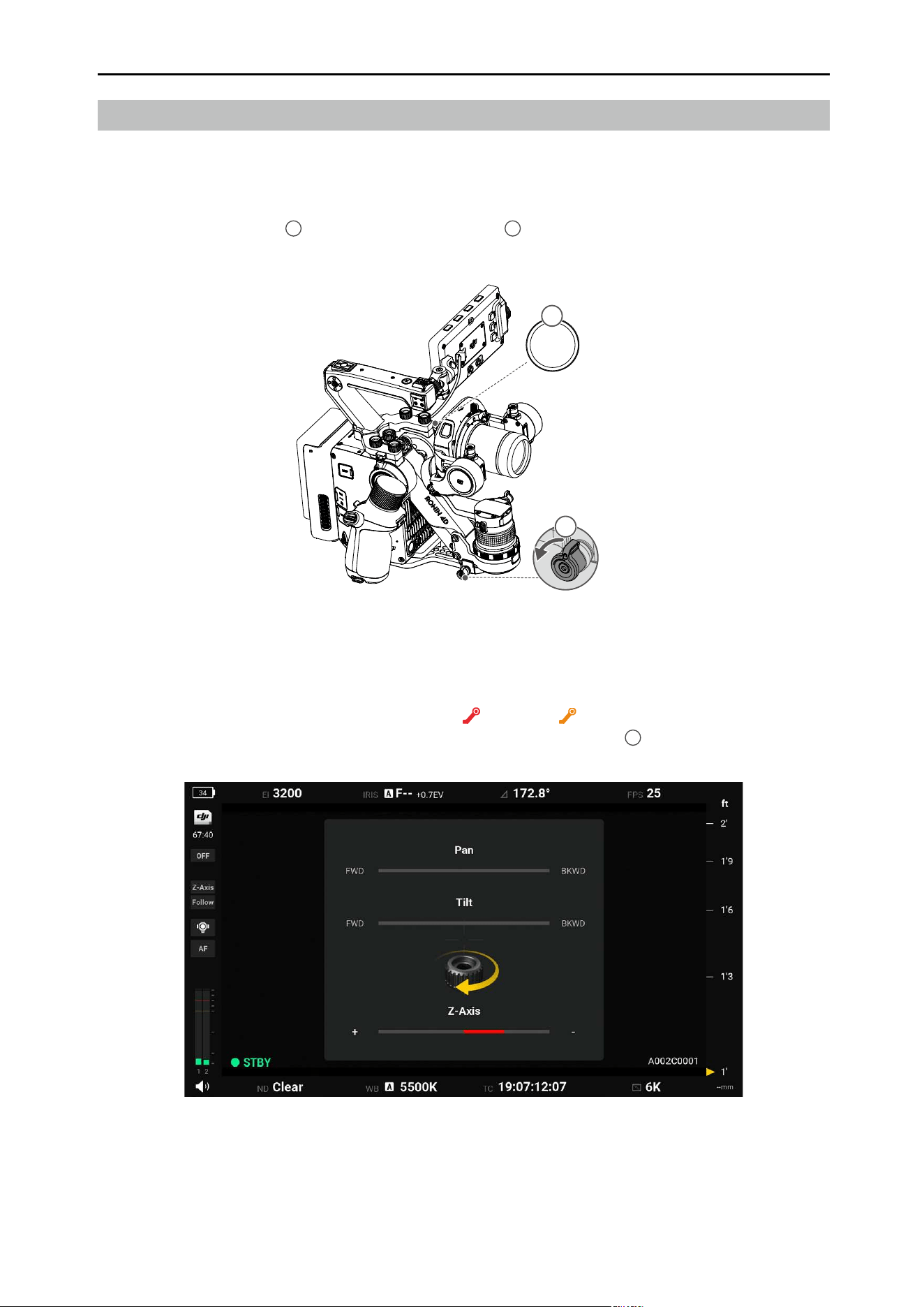
Make sure to autotune Ronin 4D before using to ensure optimal performance. Tap HOME on the high-
bright main monitor and select Stabilizer, Gimbal Calibration, and Auto Tune.
Make sure the three axes of the gimbal are unlocked and the GIMBAL MODE is toggled to FOLLOW
or LOCK before auto tune.
Make sure Ronin 4D is placed on a at and steady surface before autotuning. It is normal for the
gimbal to vibrate and emit sounds during autotune.
Ronin 4D must be autotuned each time the camera lens or the payload is changed.
The gimbal balance icon on the high-bright main monitor is white if the balance is suitable for
shooting. If the icon is orange , it is recommended to rebalance the gimbal for optimal performance.
The gimbal must be rebalanced if the icon is red . Tap the gimbal balance icon and balance the gimbal
according to the tips on the screen. The camera is front-heavy if the left side of the bar below the pan or
tilt axis is red and the axis needs to be adjusted backward. The camera is back-heavy if the right side of
the bar below the pan or tilt axis is red and the axis needs to be adjusted forward.
DJI Ronin 4D User Manual
16
©
2022 DJI All Rights Reserved.
Balancing the Z-Axis
Make sure the total payload of the Z-axis is less than 2 kg including the X9 Gimbal and Camera, X9
Focus Motor, counter weight, and LiDAR range nder.
Power on Ronin 4D and enable the Z-axis before balancing the Z-axis.
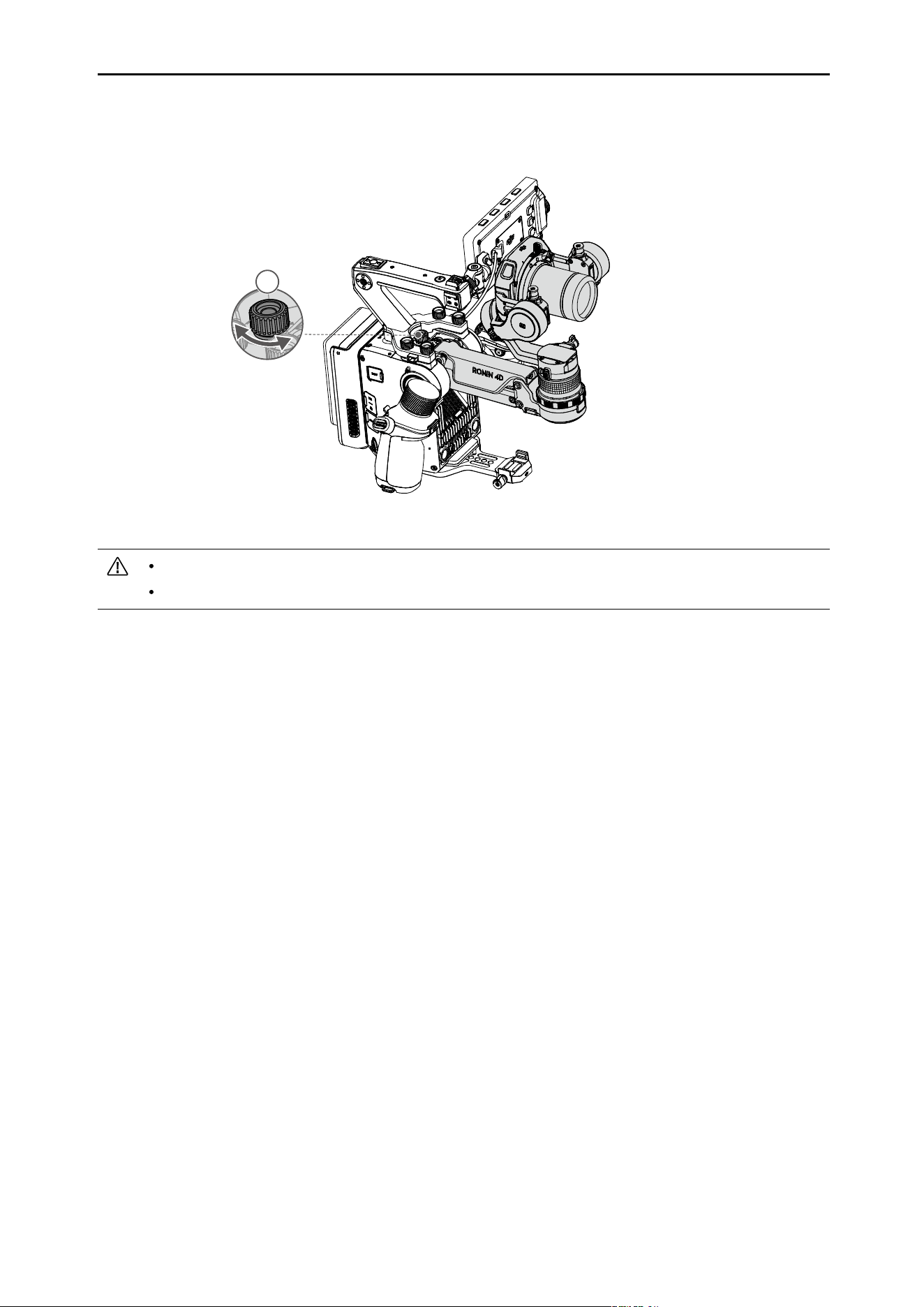
1. Loosen the Z-axis lock
1
and press the Z-axis switch
2
to enable the Z-axis.
2. To switch the Z-axis mode to Follow, press the HOME button on the high-bright main monitor to
enter the menu and select Stabilizer, Gimbal Settings, Z-Axis Mode, and Follow.
3. When the Z-axis needs to be balanced, the red or orange icon will appear on the screen. Tap
to display the on-screen balancing guide and turn the adjustment knob
3
accordingly.
1
4D
2
Z-Axis
DJI Ronin 4D User Manual
17
©
2022 DJI All Rights Reserved.
Keep Ronin 4D horizontal and steady during balancing.
The Z-axis cannot be balanced when Ronin 4D is upside down.
3
4. The Z-axis is balanced if there are no red bars or arrows displayed on the screen.
18
©
2022 DJI All Rights Reserved.
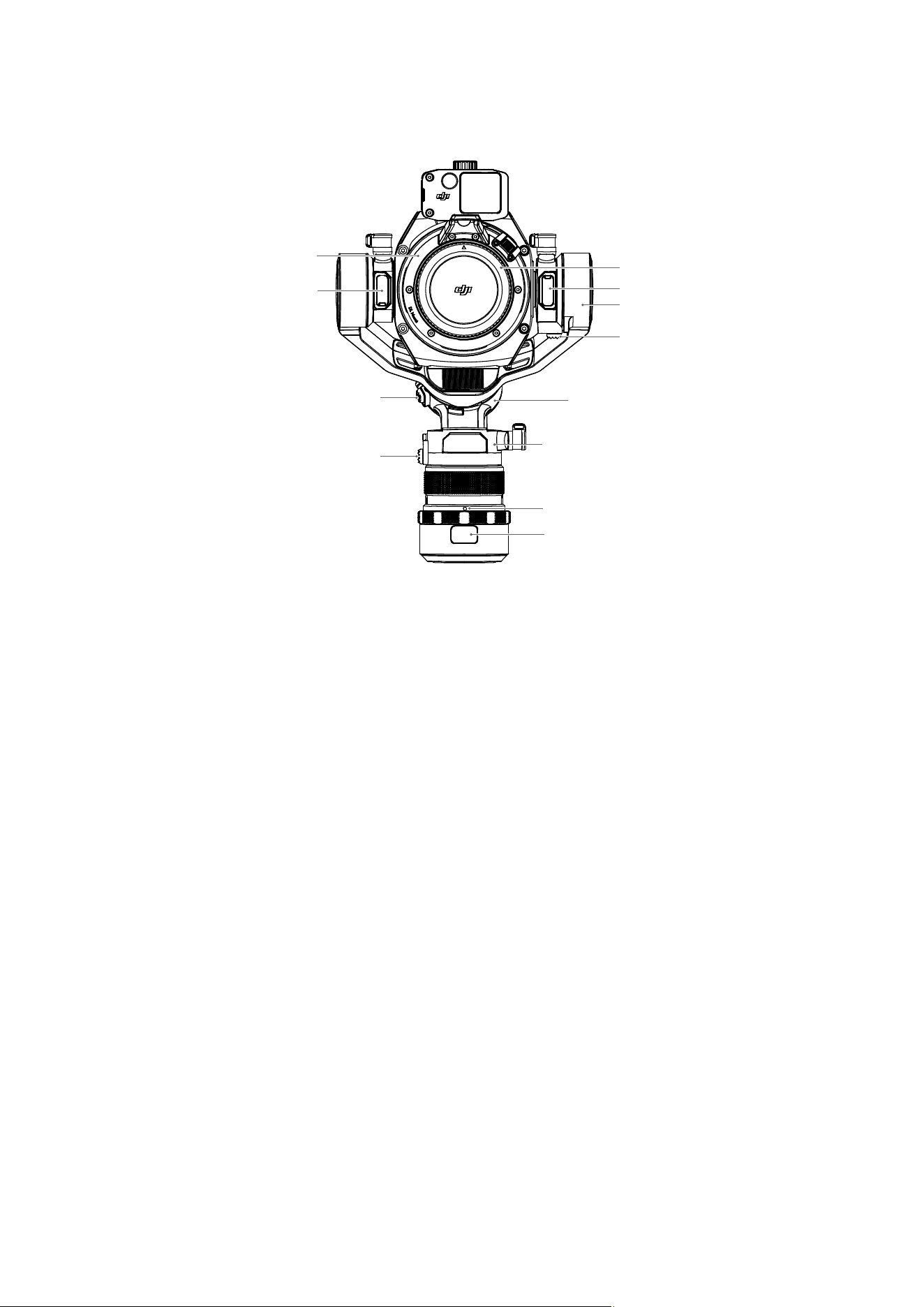
DJI Zenmuse X9 Gimbal and Camera
1. Camera
2. Lens Mount
Attach the lens after removing the lens cap.
3. X9 Focus Motor Port
For connecting the X9 Focus Motor and Ronin
4D using the DJI LiDAR range nder/X9 focus
motor cable.
4. Tilt Motor
For controlling the tilt axis.
5. Tilt Lock
For locking the tilt axis. The tilt axis can
be locked at two angles for balancing and
storage.
6. Roll Motor
For controlling the roll axis.
7. Pan Motor
For controlling the pan axis.
8. Gimbal Connector
9. Gimbal Release Button
Press the release button to remove the gimbal.
10. Pan Lock
For locking the pan axis.
11. Roll Lock
For locking the roll axis. The roll axis can
be locked at two angles for balancing and
storage.
12. LiDAR Range Finder Port
For connecting the LiDAR Range Finder and
the gimbal using the DJI LiDAR range nder/
X9 focus motor cable.
1
12
10
11
9
8
7
6
5
4
3
2
DJI Ronin 4D User Manual
19
©
2022 DJI All Rights Reserved.
Gimbal
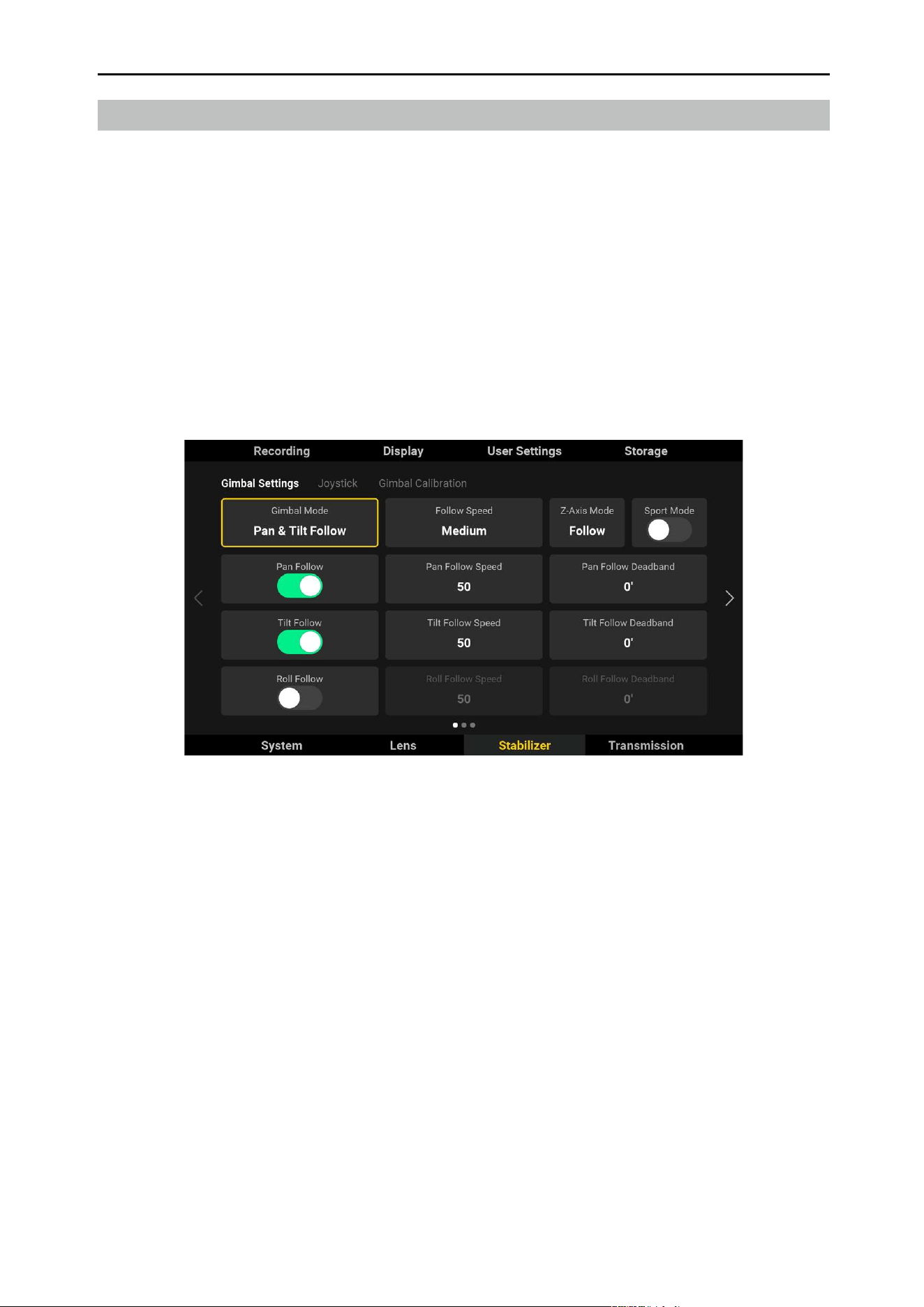
Gimbal Mode
The gimbal modes include Lock, Pan Follow, Pan and Tilt Follow, FPV, and Custom modes.
Lock Mode: The gimbal will not follow the movement of the main body.
Pan Follow: Only the pan axis follows the movement of the main body.
Pan and Tilt Follow: Both the pan and tilt axes follow the movement of the main body.
FPV: All three axes follow the movement of the main body.
Custom Mode: Any axis follow can be enabled or disabled.
Select the gimbal mode via the GIMBAL MODE toggle or go to high-bright main monitor menu and
select Stabilizer, Gimbal Settings, and Gimbal Mode. When not using ActiveTrack, press and hold the
trigger of the left hand grip to enter Lock mode.
In Follow mode, press and hold the M button of the left hand grip or the top handle to enter Sport
Mode. In Sport Mode, the follow speed of the gimbal increases greatly. It is suitable for shooting in
scenarios where subjects move suddenly and at fast speeds. Relese the M button to exit Sport Mode.
Sport mode can also be entered or exited by pressing the M button on the left hand grip or top handle
twice. After entering Sport mode by pressing the M button twice, press and hold the M button to switch
to follow mode and release to return to Sport mode.
DJI Ronin 4D User Manual
20
©
2022 DJI All Rights Reserved.
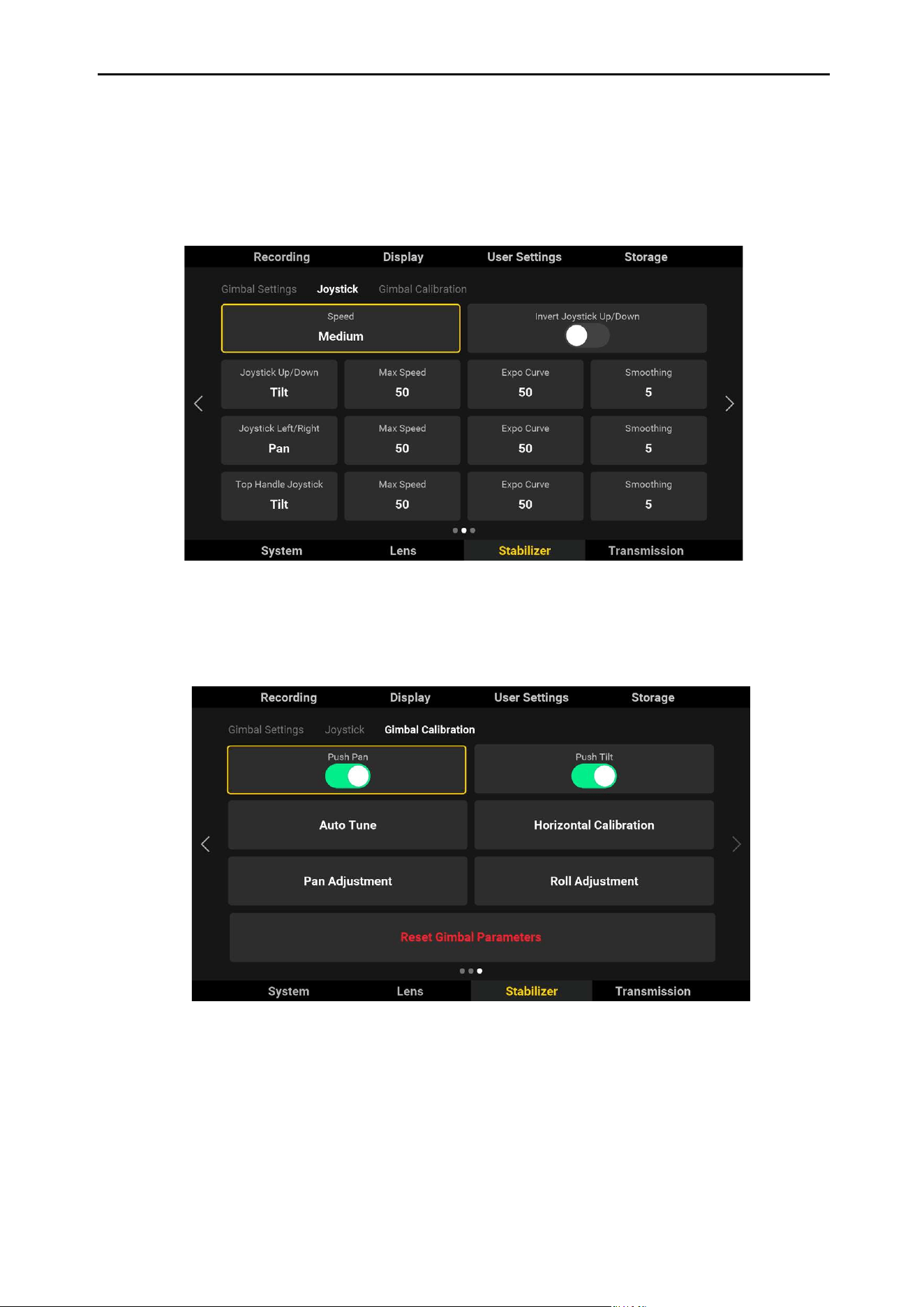
To control the pan and tilt axis manually, enter the high-bright main monitor menu, select Stabilizer, and
then Gimbal Calibration to enable Push Pan/Tilt.
Controlling the Gimbal
Push the left hand grip joystick or the top handle tilt slider up or down to control the tilt axis by default.
Push the left hand grip joystick up or down to control the pan axis by default.
The control settings can be changed in the high-bright main monitor menu by selecting Stabilizer and
then Joystick.
DJI Ronin 4D User Manual
21
©
2022 DJI All Rights Reserved.
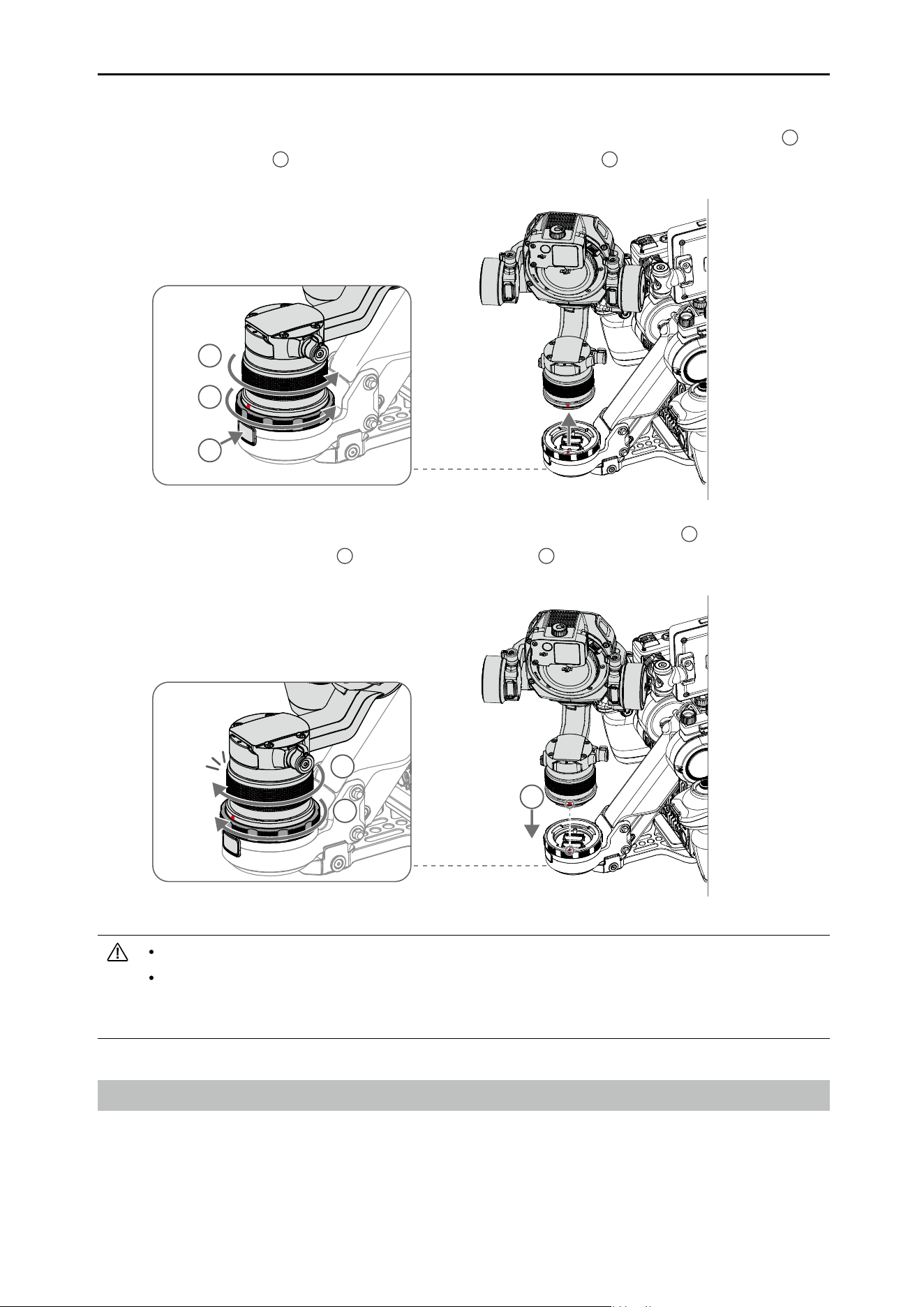
Attaching and Detaching the Gimbal
The gimbal is attached to the main body by default. To detach the gimbal, loosen the gimbal ring
1
and
press the release button
2
while rotating the gimbal counter-clockwise
3
.
Refer to the Stabilizer section for more information on the gimbal settings.
Do not detach the gimbal and camera unless necessary. The X9 gimbal and camera do not support
hot-swapping. Make sure to power o the Ronin 4D before attaching or detaching the gimbal and
camera. Make sure the gimbal and camera is mounted rmly.
Camera
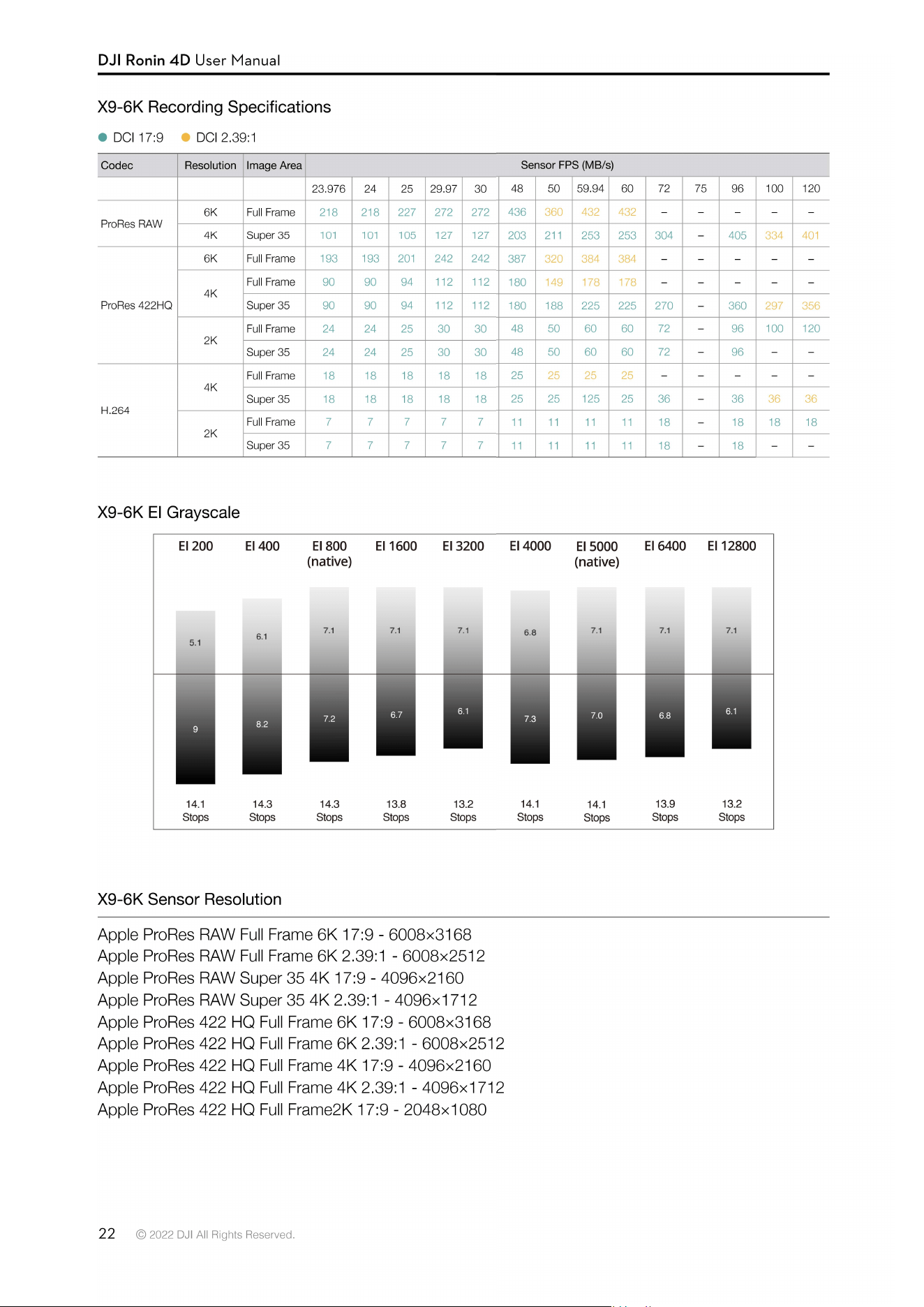
The X9 has 14+ stops of dynamic range while the X9-6K camera supports recording at up to 6K/60fps
video and dual native ISO of 800/4000 and the X9-8K camera supports up to 8K/75fps and 800/5000.
The high-quality built-in 9-stop ND lters (ND 2 to ND 512, or ND 0.3 to ND 2.7) can be quickly and
easily switched thanks to the internal motorized system.
3
1
2
To attach the gimbal, align the red marks of the gimbal and the gimbal connector
1
, insert the gimbal,
and rotate the gimbal clockwise
2
. Tighten the gimbal ring
3
after there is a clicking sound, which
indicates the gimbal is locked.
1
2
3
Click

DJI Ronin 4D User Manual
23
©
2022 DJI All Rights Reserved.
Apple ProRes 422 HQ Super 35 4K 17:9 - 4096×2160
Apple ProRes 422 HQ Super 35 4K 2.39:1 - 4096×1712
Apple ProRes 422 HQ Super 35 2K 17:9 - 2048×1080
H.264 Full Frame 4K 17:9 - 4096×2160
H.264 Full Frame 4K 2.39:1 - 4096×1712
H.264 Full Frame 2K 17:9 - 2048×1080
H.264 Super 35 4K 17:9 - 4096×2160
H.264 Super 35 4K 2.39:1 - 4096×1712
H.264 Super 35 2K 17:9 - 2048×1080
X9-6K Sensor Size
Apple ProRes RAW Full Frame 6K 17:9 - 35.68×18.82 mm
Apple ProRes RAW Full Frame 6K 2.39:1 - 35.68×14.92 mm
Apple ProRes RAW Super 35 4K 17:9 - 24.33×12.83 mm
Apple ProRes RAW Super 35 4K 2.39:1 - 24.33×10.17 mm
Apple ProRes 422 HQ Full Frame 6K 17:9 - 35.68×18.82 mm
Apple ProRes 422 HQ Full Frame 6K 2.39:1 - 35.68×14.92 mm
Apple ProRes 422 HQ Full Frame 4K 17:9 - 35.68×18.82 mm
Apple ProRes 422 HQ Full Frame 4K 2.39:1 - 35.68×14.92 mm
Apple ProRes 422 HQ Full Frame 2K 17:9 - 35.68×18.82 mm
Apple ProRes 422 HQ Super 35 4K 17:9 - 24.33×12.83 mm
Apple ProRes 422 HQ Super 35 4K 2.39: 1-24.33×10.17 mm
Apple ProRes 422 HQ Super 35 2K 2.39:1 - 24.33×12.83 mm
H.264 Full Frame 4K 17:9 - 35.68×18.82 mm
H.264 Full Frame 4K 2.39:1- 35.68×14.92 mm
H.264 Full Frame 2K 17:9 - 35.68×18.82 mm
H.264 Super 35 4K 17:9 - 24.33×12.83 mm
H.264 Super 35 4K 2.39:1 - 24.33×10.17 mm
H.264 Super 35 2K 17:9 - 24.33×12.83 mm
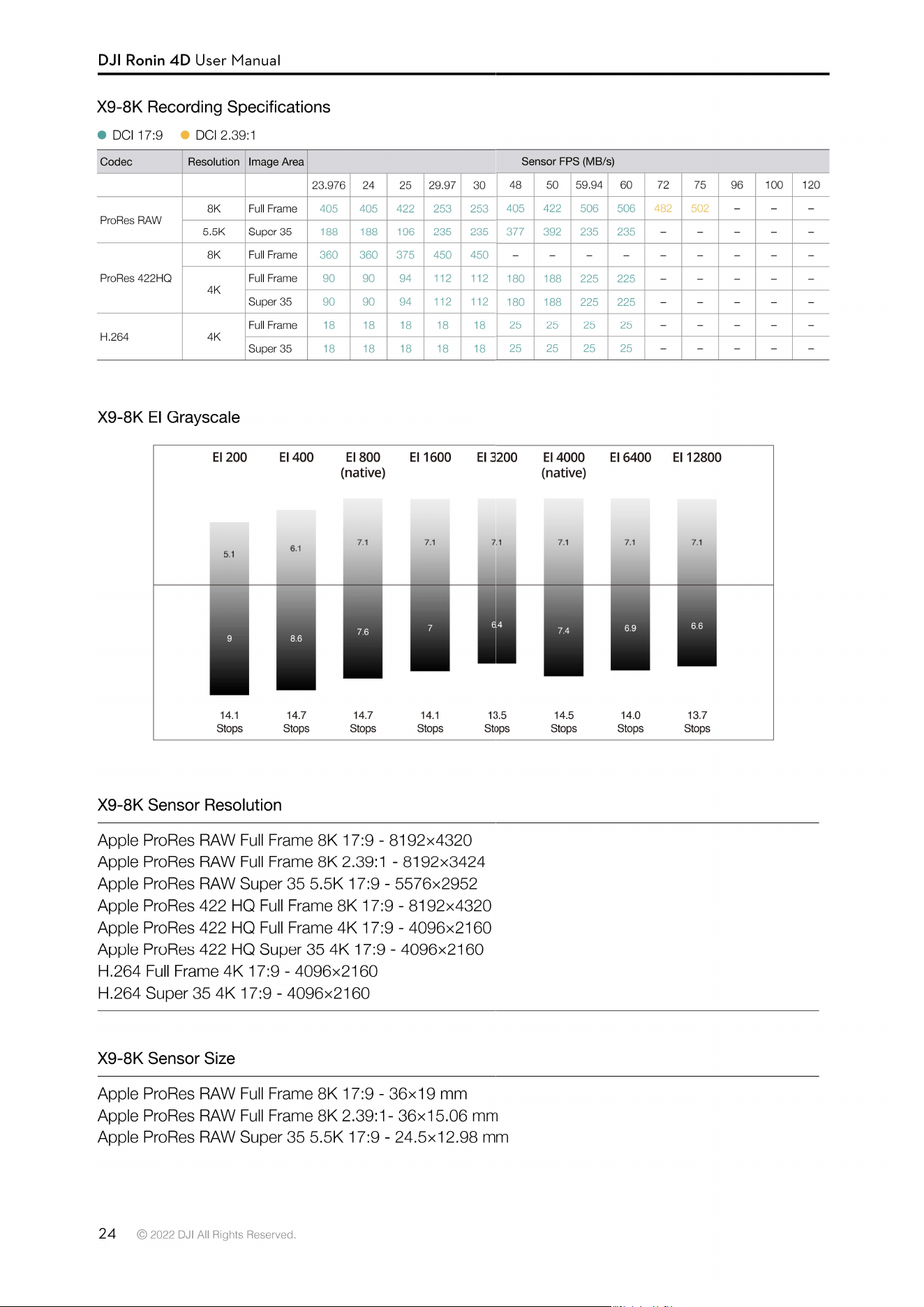

DJI Ronin 4D User Manual
25
©
2022 DJI All Rights Reserved.
Apple ProRes 422 HQ Full Frame 8K 17:9 - 36×19 mm
Apple ProRes 422 HQ Full Frame 4K 17:9 - 36×19 mm
Apple ProRes 422 HQ Super 35 4K 17:9 - 24.5×12.98 mm
H.264 Full Frame 4K 17:9 - 36×19 mm
H.264 Super 35 4K 17:9 - 24.5×12.98 mm
Refer to the Recording section for more information on camera settings.
26
©
2022 DJI All Rights Reserved.
Z-Axis
Usage
Make sure the payload of the Z-axis is within 2 kg, including the gimbal and camera, lens, counter
weight, LiDAR range nder, and X9 Focus Motor. The Z-Axis is disabled by default. Power on Ronin 4D
before enabling the Z-axis. Loosen the lock knob, press the Z-axis switch on the main body or press the
right hand grip trigger twice to enable the Z-axis.
Make sure the Z-axis is balanced before usage. Refer to the Balancing the Z-Axis section for more
information.
Operation Modes
The three operation modes of the Z-axis are Follow, Lock, and Car Mount mode. The operation mode
can be set by selecting Stabilizer, Gimbal Settings, and Z-Axis Mode.
Follow Mode: The Z-axis follows the vertical movements of the main body and the arm always returns
to the center position. It is recommended to use follow mode shooting scenes that involve running,
going up and down steps, and other scenarios that involve large uctuations in vertical movement.
Lock Mode: The Z-axis will not follow the main body movement within a ±6 cm range and remains at a
certain level. It is recommended to use Lock mode when the camera needs to remain at a certain level
during shooting.
Car Mount Mode: The Z-axis will follow the vertical movement of the main body while ltering high-
frequency shake caused by cars or moving devices to obtain optimal stabilization. It is recommended to
use Car Mount mode when attaching Ronin 4D to a device that will cause high frequency shake such
as a car or cableway camera system.
When the Z-axis is in Follow or Lock mode, press the C2 button on the main body to switch between
Follow and Lock mode. When the Z-axis is in Follow mode, press and hold the trigger of the right hand
grip to enter Lock mode and release the trigger to exit Lock mode.
When the Z-axis is in follow mode, press and hold the M button of the left hand grip or top handle to
enter Sport mode and release to exit. The Z-axis will remain in the center as much as possible. This
mode is suitable for shooting scenes that require sudden movements with the main body.
Sport mode can also be entered or exited by pressing the M button on the left hand grip or top handle
twice. After entering Sport mode by pressing the M button twice, press and hold the M button to switch
to follow mode and release to return to Sport mode.
1
2
3
1. Lock Knob
Loosen the lock knob before enabling the
Z-axis.
2. Z-Axis Arm
3. Balance Adjustment Knob
Balance the Z-axis by turning the adjustment
knob.
27
©
2022 DJI All Rights Reserved.
Main Body
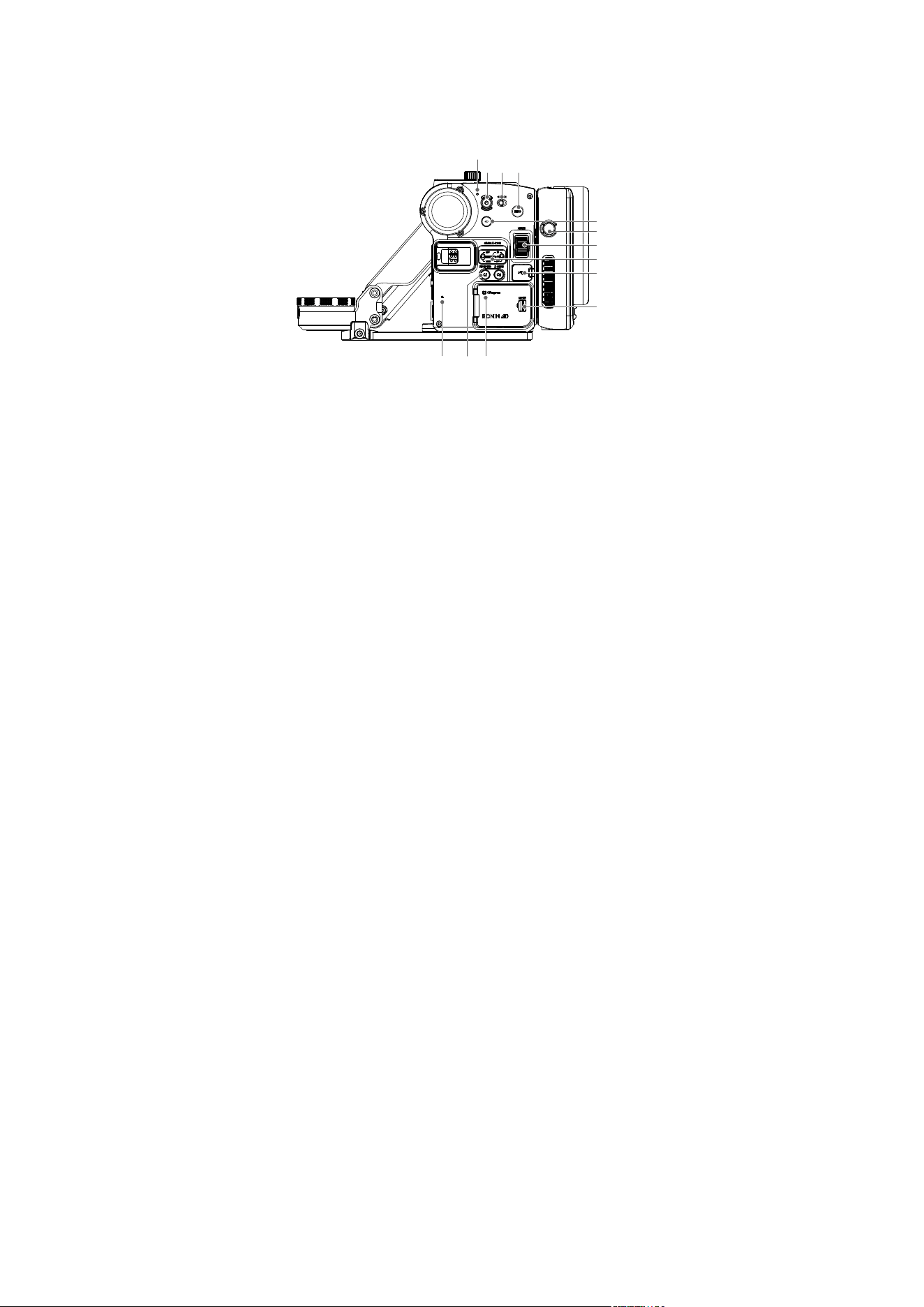
1. Power Indicator
Glows solid white when Ronin 4D is powered on and blinks for three seconds before powering o. If
the Lock button is in the locked position, Ronin 4D cannot be powered on when pressing the power
button and the power indicator will blink three times before turning o.
2. Power Button
Press and hold for 1 second to power on. Press and hold for 3 seconds to power o.
3. Lock Button
To prevent accidental operation during transportation or shooting, toggle the Lock button to the right
to disable Ronin 4D.
4. Record Button
Press once to start or stop recording. The button glows solid red during recording and is o when
not recording.
5. Z-Axis Switch
Press once to enable or disable the Z-axis.
6. Battery Release Button
Press once and remove the battery.
7. Multi-Function Dial
Turn to adjust focus by default.
8. Gimbal Mode
O: Sleep mode.
Follow: With PF, the pan axis will follow the movement of the main body. In PT, the pan and tilt axes
will follow the movements of the main body. In FPV, the three axes follow the movements of the main
body.
Lock: The gimbal will not follow the movement of the main body.
9. USB-C Port
Use to connect an external storage media or computer to activate Ronin 4D or update rmware.
The port includes a single screw hole and can be connected with a USB-C cable with a single screw
locking plug. It is recommended to connect an external storage media when using this type of cable.
10. Storage Media Compartment
Use to insert an CFexpress2.0 Type B card or DJI PROSSD Mount.
11. CFE Indicator
2
1
3 4
5
6
8
9
10
1113 12
7
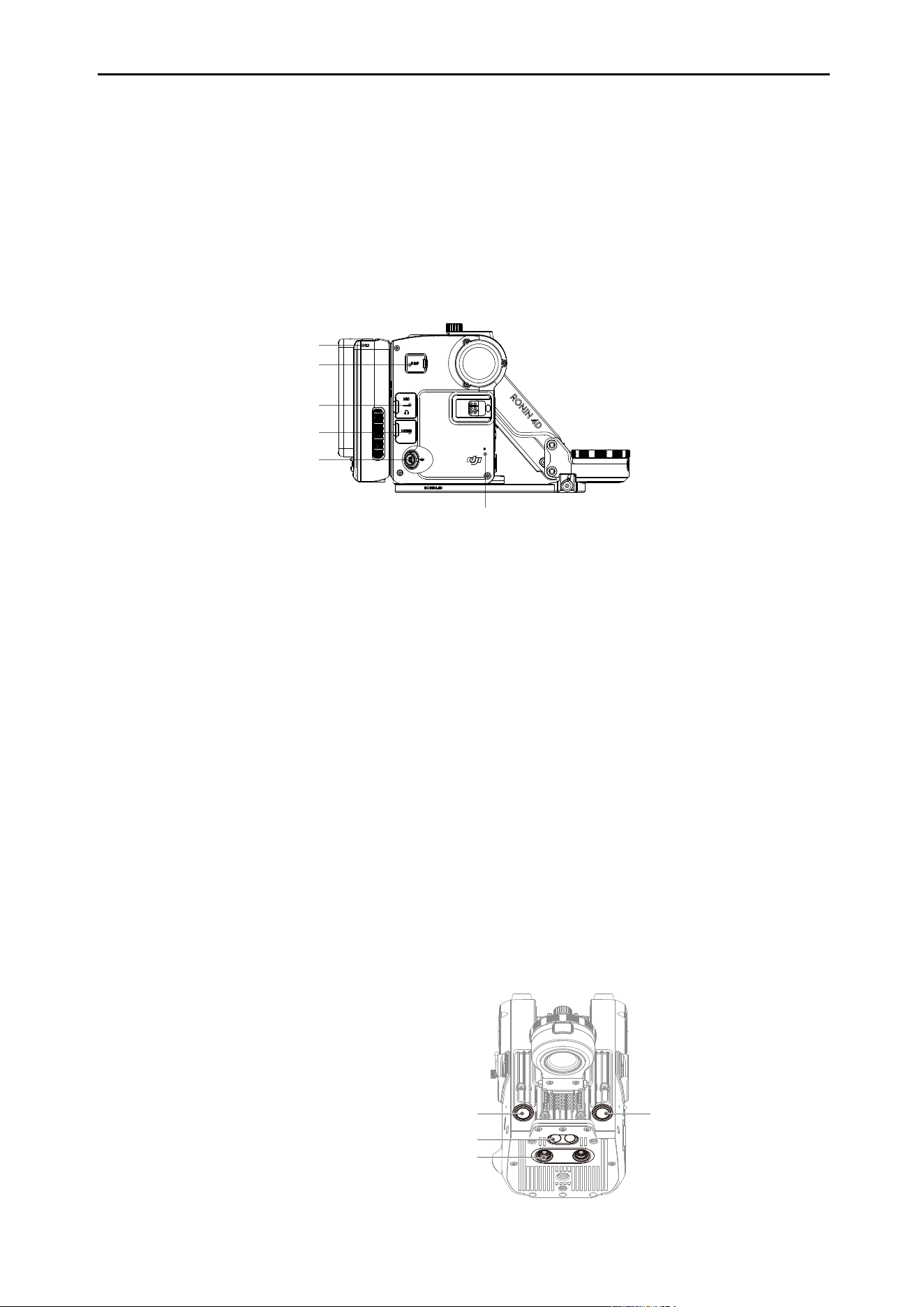
DJI Ronin 4D User Manual
28
©
2022 DJI All Rights Reserved.
Blinks fast when installing an CFexpress card, blinks slowly when recording, and remains o when
not recording.
12. C1 & C2 Buttons
Press the C1 button to recenter the gimbal. Press the C2 button to switch between Follow and
Lock mode of the Z-axis when the Z-Axis mode is set to Follow or Lock in the high-bright main
monitor menu.
13. Left Built-in Microphone
For recording audio.
14. Tally Light
Glows solid red when recording and o when not in record.
15. Display Port
Used to connect the high-bright main monitor.
16. Audio Port
Includes a 3.5mm microphone port for microphone and line level input. There is 3V voltage bias
when using a microphone and the line level input is lower than the microphone. Choose the
appropriate input according to the device. The max line input is 10 dBu. The microphone port
comes with a M6×P0.5 screw thread and supports a 3.5mm connector with screw lock.
The 3.5mm stereo headphone port can output audio when using playback or monitor audio during
recording.
17. HDMI Port
A HDMI Type-A port that can be used for 1080p/60fps HDMI output.
18. DC-IN Port
A 6-pin 1B DC-IN power supply input port and has an input voltage of 12-30 V.
19. Right Built-In Microphone
For recording audio.
19
15
14
16
17
18
20. Forward Dual-Vision Sensors
21. Downward ToF Sensors
22. Downward Dual-Vision Sensors
20 20
21
22
29
©
2022 DJI All Rights Reserved.
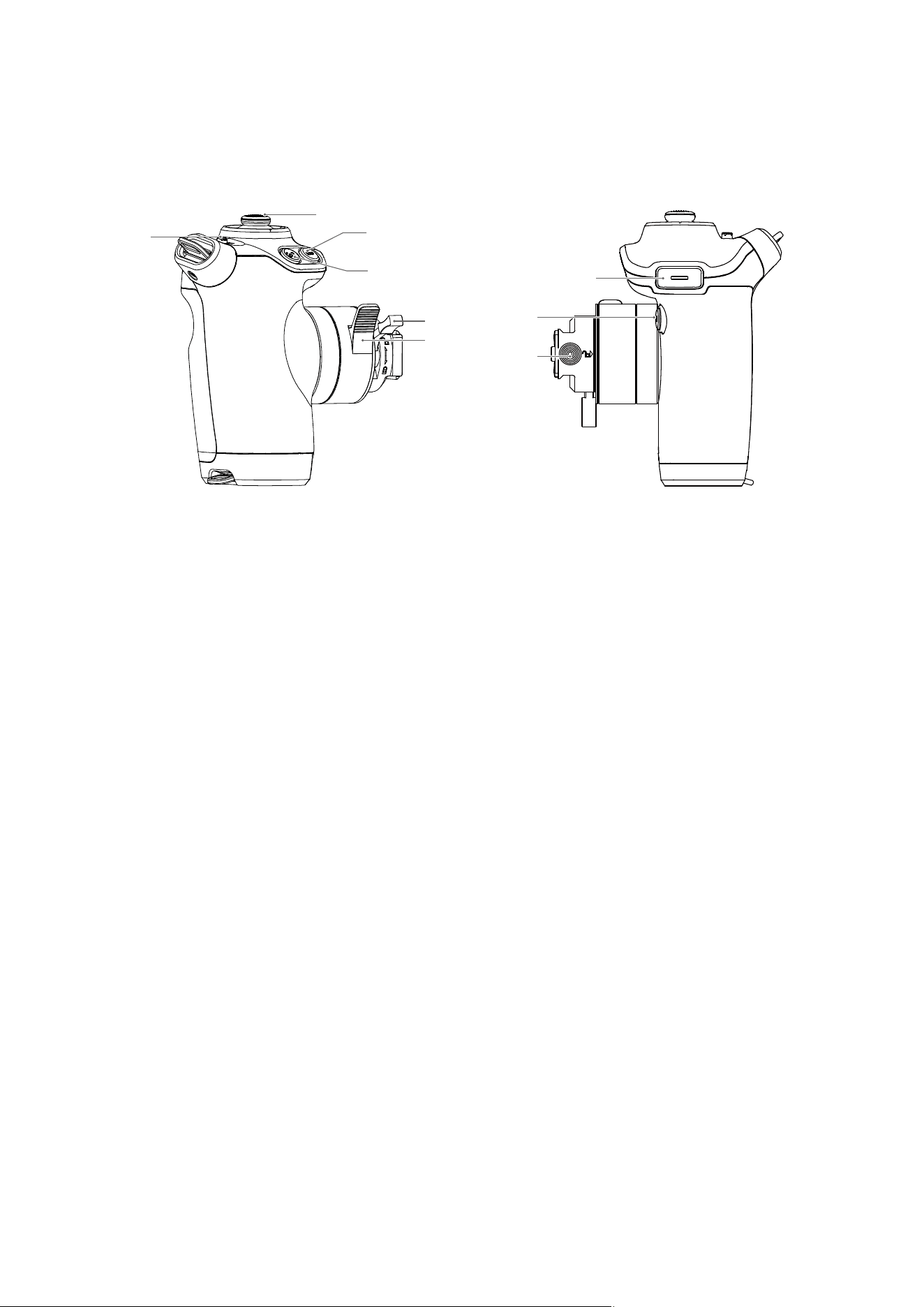
Hand Grips
1. Joystick
Move the joystick left and right to pan the gimbal and up and down to tilt the gimbal by default. To
access joystick settings, go to the high-bright main monitor and select Stabilizer and then Joystick.
2. Exposure Assist Button
Press to enable or disable the exposure display.
3. ActiveTrack Button
Press and hold for 1 second to enter or exit ActiveTrack. Press to conrm the subject after entering
ActiveTrack.
4. Hand Grip Lock Lever
Used to lock the hand grip in place.
5. Hand Grip Angle Adjustment Lever
Press and hold the lever to adjust the angle of the hand grip. The hand grip will lock in place once
the lever is released. Do not adjust the left and right hand grips simultaneously.
6. Joystick Lock
The gimbal will not respond to joystick operations when the joystick lock is in the locked position.
7. Trigger
Press twice to center the subject in the center of the camera view after enabling ActiveTrack. Press
twice to recenter the gimbal when not in ActiveTrack.
Press and hold to start ActiveTrack when in Smart mode with a selected subject. When not in Smart
mode, press and hold to switch between Follow and Lock mode.
8. M Button
Press and hold to enter Sport mode and release to exit Sport mode. Alternatively, press twice to
enter or exit Sport mode.
9. Safety Lock
Release the safety lock before detaching the hand grip.
Left Hand Grip
1
5
4
2
3
8
9
7
6
DJI Ronin 4D User Manual
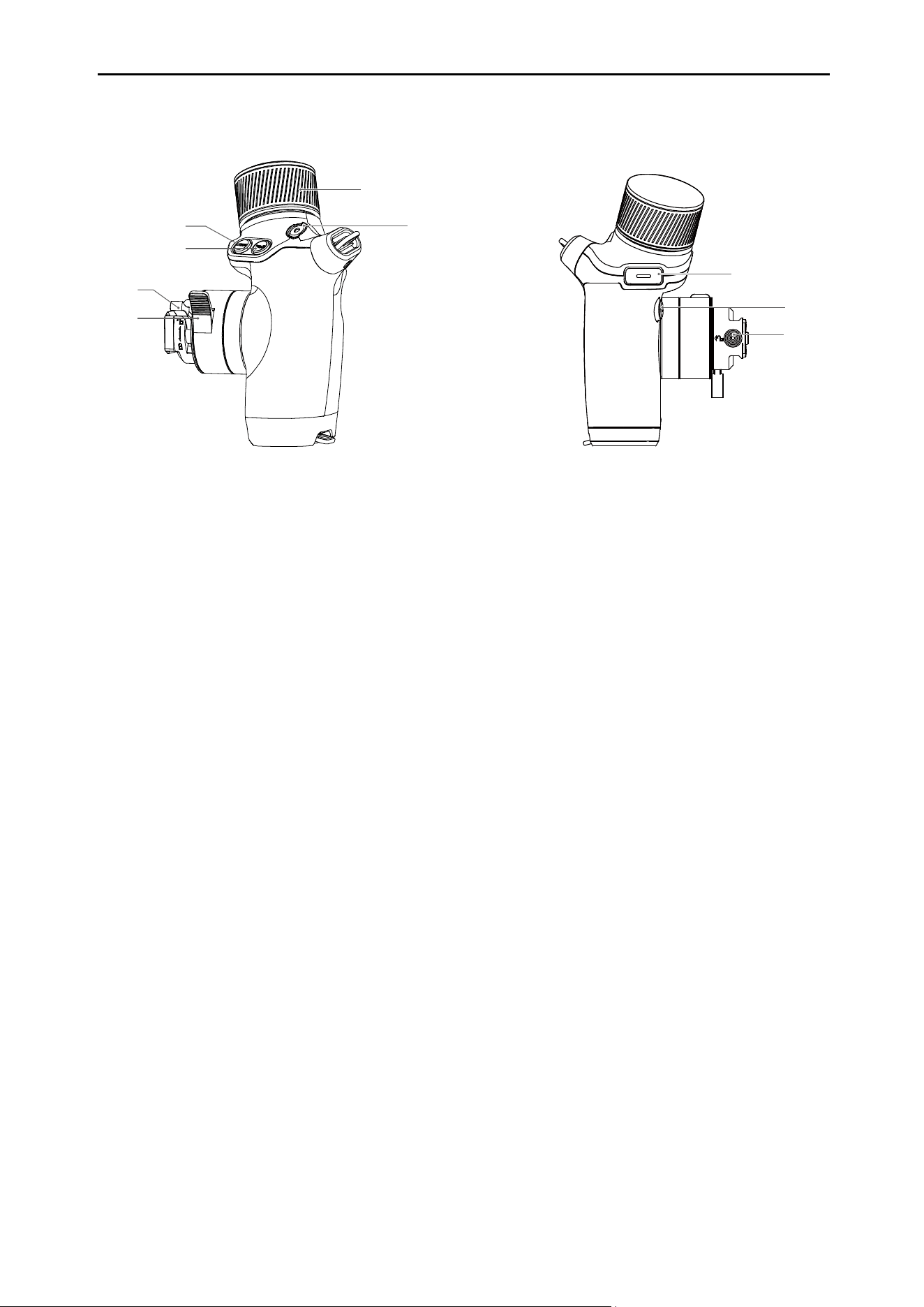
30
©
2022 DJI All Rights Reserved.
1. Dial
Turn to adjust focus, ND, EI, or aperture and to scroll through options on the high-bright main
monitor. Turn the dial to control focus by default and press the mode button to scroll through the
options. The dial uses continuous damping when controlling aperture and contact damping when
controlling EI or ND.
2. Record Button
Press once to start or stop recording. The button glows solid red during recording and is o when
not recording.
3. Hand Grip Angle Adjustment Lever
Press and hold the lever to adjust the angle of the hand grip. The hand grip will lock once the lever is
released. Do not adjust the left and right hand grips simultaneously.
4. Hand Grip Lock Lever
Used to lock the hand grip.
5. Focus Peak Button
Press once to enable or disable the focus assist display.
6. Mode Button
Press once to switch the function of the dial from controlling focus, ND, EI, or aperture. Press and
hold to switch to controlling focus.
7. Trigger
Press twice to enable or disable the Z-axis.
When Z-axis is enabled and in follow mode, press and hold to enter lock mode.
8. Focus Button
Press once to switch between manual focus and auto focus.
9. Safety Lock
Release the safety lock before detaching the hand grip.
Right Hand Grip
1
3
4
2
7
8
9
6
5
31
©
2022 DJI All Rights Reserved.
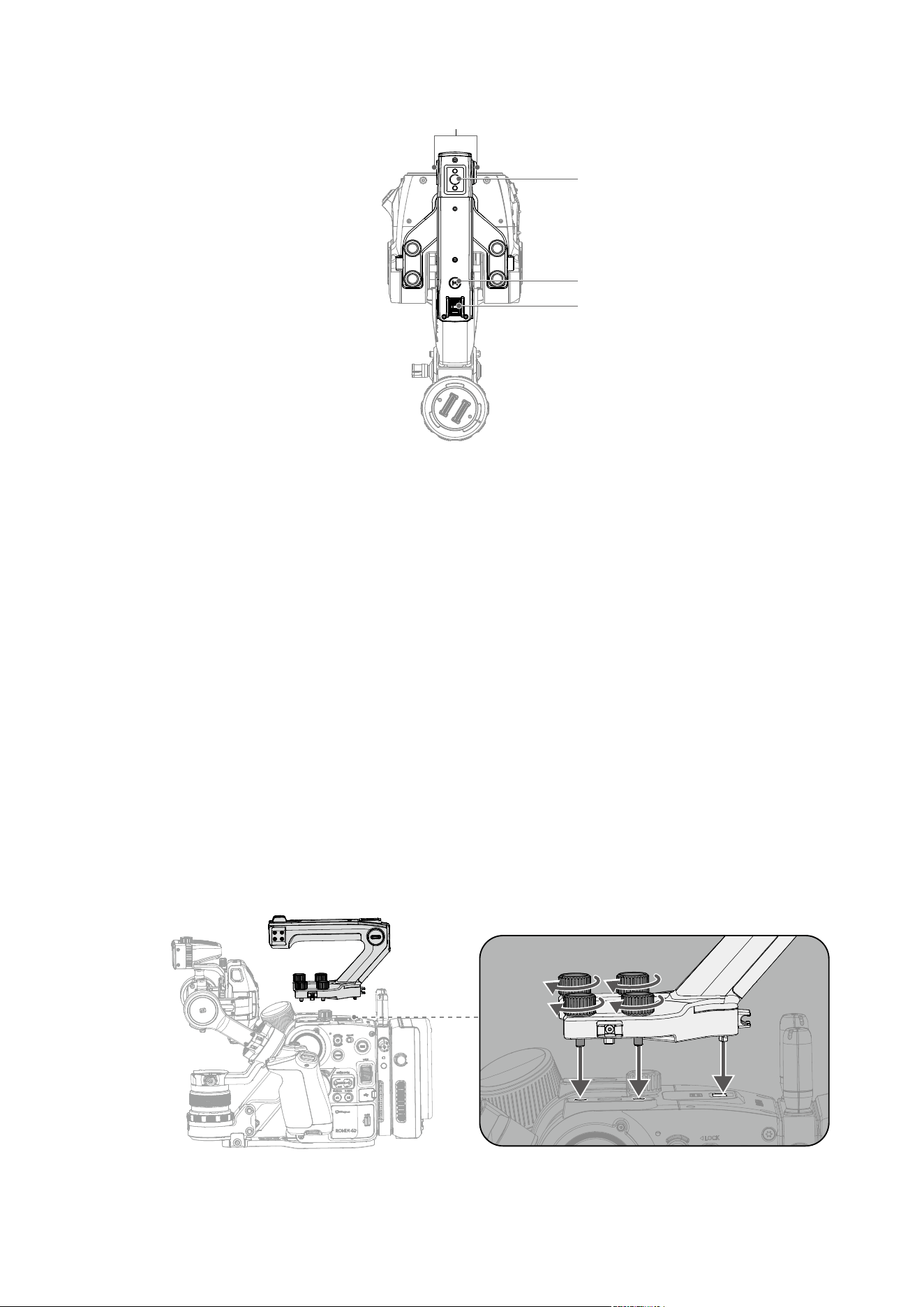
Top Handle
1. Top Screw Hole
3/8”-16 with a depth of 10 mm.
2. M Button
Press and hold to enter Sport mode. Release to exit from Sport mode. Alternatively, press twice to
enter or exit Sport mode.
3. Tilt Slider
Used to control the tilt of the gimbal by default. To change the settings, enter the high-bright main
monitor menu and select Stabilizer and then Joystick.
4. Side Screw Hole
1/4”-20 with a depth of 9 mm and a positioning hole. A screen protector is mounted on one of the
side screw holes to protect the high-bright main monitor.
Attaching and Detaching the Top Handle
Loosen the four screws to detach the top handle. Align with the positioning hole and the pins before
tightening the four screws when attaching the top handle.
3
1
2
4
32
©
2022 DJI All Rights Reserved.
High-Bright Main Monitor
Button and Port Features
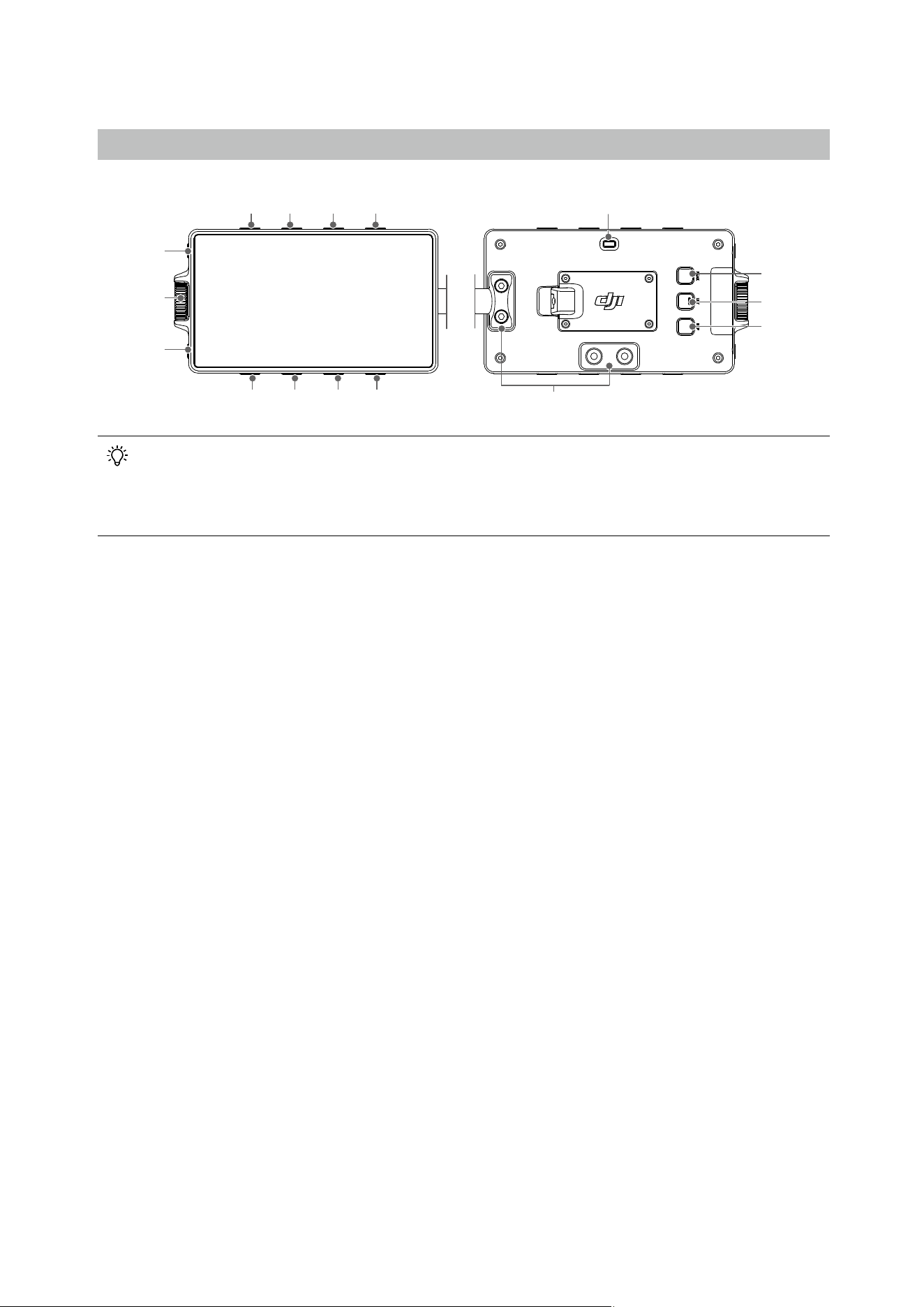
1. EI Adjustment/Recording Settings Button
Press once to adjust EI in the liveview and enter Recording when on the menu screen.
2. Aperture Adjustment/Display Settings Button
Press once to adjust Aperture in the liveview and enter Display when on the menu screen.
3. Shutter Adjustment/User Settings Menu Button
Press once to adjust Shutter and press and hold to display the shutter settings in the liveview and
enter User Settings when on the menu screen.
4. Frame Rate Adjustment/Storage Settings Button
Press once to adjust Frame Rate in the liveview and enter Storage when on the menu screen.
5. ND Filter Adjustment/System Settings Button
Press once to adjust ND Filter in the liveview and enter System when on the menu screen.
6. White Balance Adjustment/Lens Settings Button
Press once to adjust White Balance and press and hold to display White Balance settings in the
liveview and enter Lens when on the menu screen.
7. Time Code Settings/Stabilizer Settings Button
Press once to adjust Time Code and press and hold to display Time Code settings in the liveview
and enter Stabilizer when on the menu screen.
8. Resolutions Settings/Transmission Settings Button
Press once to adjust Resolution in the liveview and enter Transmission when on the menu screen.
9. Playback Button
Press once to access playback and play the last recorded video. Press and hold to enter or exit full
screen.
10. Dial
Rotate the dial to scroll through the options and press once to conrm.
Numbers 1 to 8 are buttons for adjusting parameters and the features are related to the onscreen
menu. If the screen rotation feature is enabled and the onscreen display is turned upside down,
the button features will change accordingly with the rotation of the onscreen display. The
descriptions below use the default display as an example.
13
12
14
15
16
1
5
2
6
3
7
4
8
11
10
9
DJI Ronin 4D User Manual
33
©
2022 DJI All Rights Reserved.
11. Home Button
Press once to enter or exit menu screen.
12. Tally Light
Glows solid red during recording and is o when not recording.
13. Focus Peak Button
Press once to enable or disable the focus assist display.
14. LUT Button
Press once to enable or disable the LUT display. The feature will take eect in the liveview or during
recording. When the monitor LUT is set to non D-Log, press the button once to switch between
D-Log and monitor LUT. When the monitor LUT is set to D-Log, press the button once to switch
between D-Log and Rec.709.
15. EXP Button
Press once to enable or disable the exposure display.
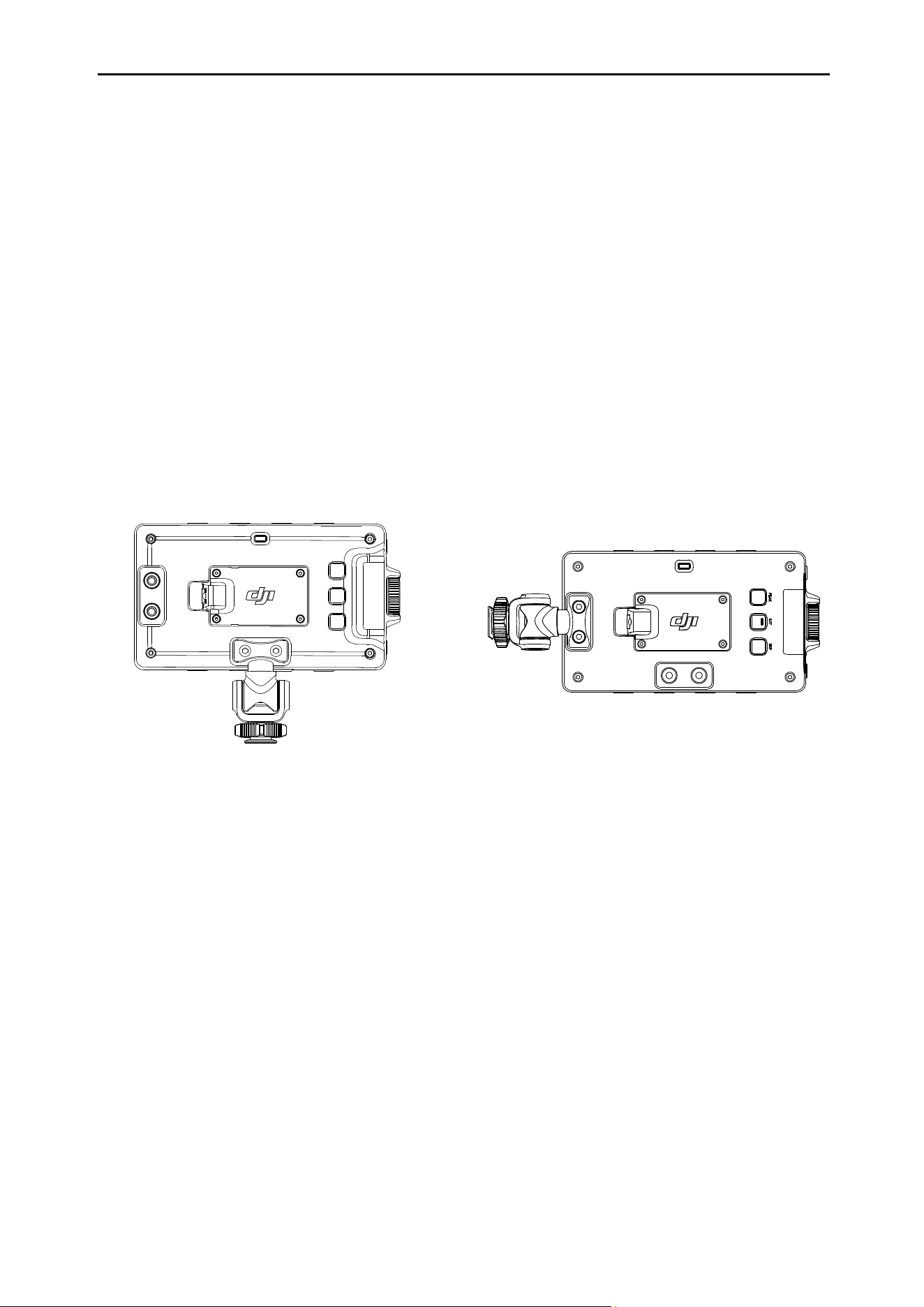
16. Mounting Hole
The high-bright main monitor can be mounted in dierent positions through the mounting hole as
shown.
DJI Ronin 4D User Manual
35
©
2022 DJI All Rights Reserved.
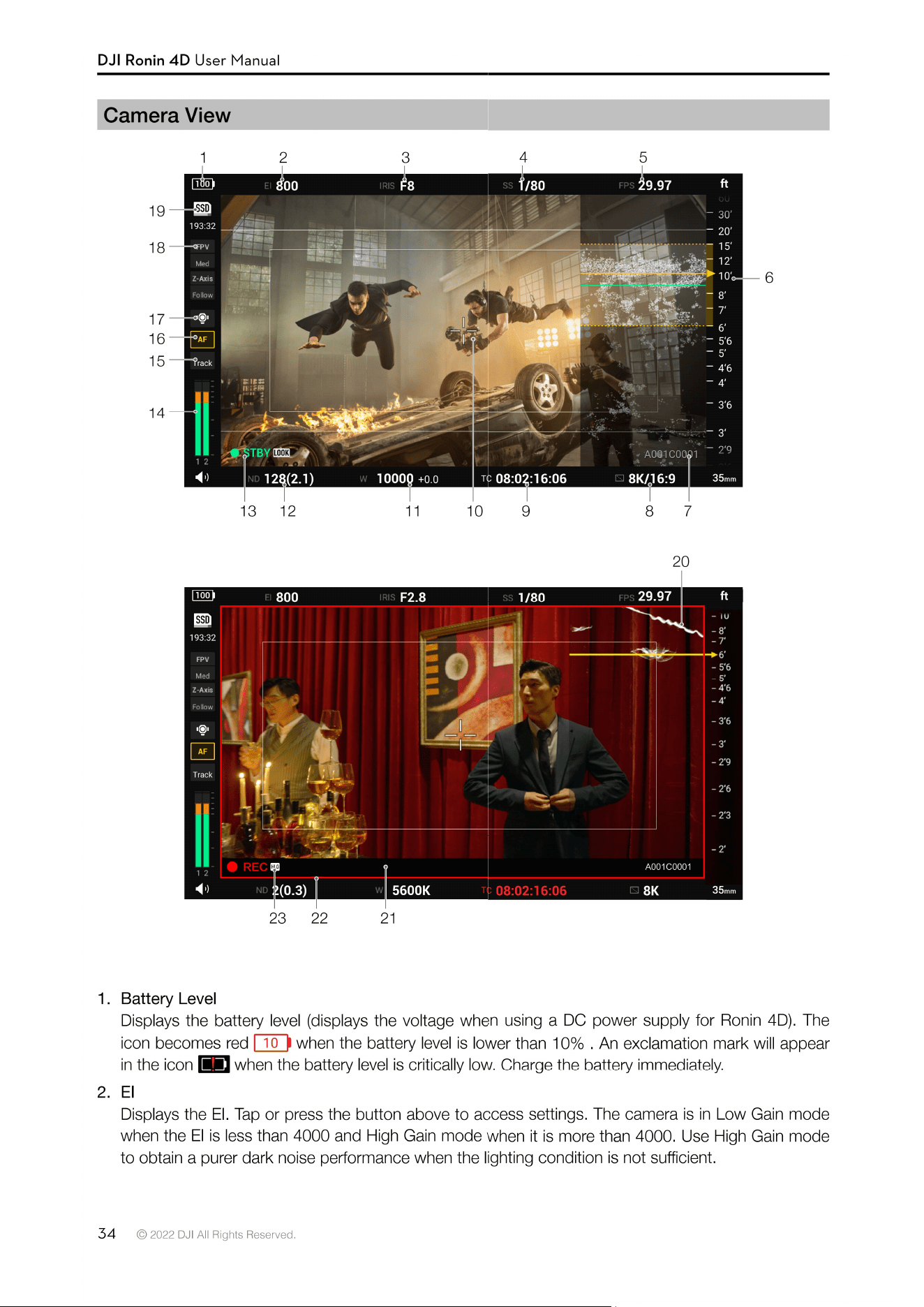
3. Iris
Displays the iris value. “F- -” will be displayed when the lens is not recognized. Tap the icon or
the button above to access settings. The EV can be adjusted manually after enabling Auto. The
setting range is -3 to +3. Metering will be based on the center area and the iris will be adjusted
automatically. The iris will be adjusted prior to shutter speed when both the aperture and shutter
speed or angle are set to auto.
4. Shutter Speed/Angle
Tap the icon or press the button above to adjust shutter speed or shutter angle. The EV can be
adjusted manually after enabling Auto. The setting range is -3 to +3. Press and hold the icon or
button for advanced settings. Tap Add to add custom shutter speed or angle to the list. The range
of the shutter speed is 1/30 s to 1/8000 s and the range of the shutter angle is 11.2° to 358°. Tap
Shutter Unit to select Angle or Speed. Tap Delete to delete the shutter speed or angle from the list.
The current shutter speed or angle cannot be deleted.
The EV value will be adjusted automatically when switching between the shutter speed and angle.
The iris will be adjusted prior to shutter speed when both the iris and shutter speed or angle are set
to auto.
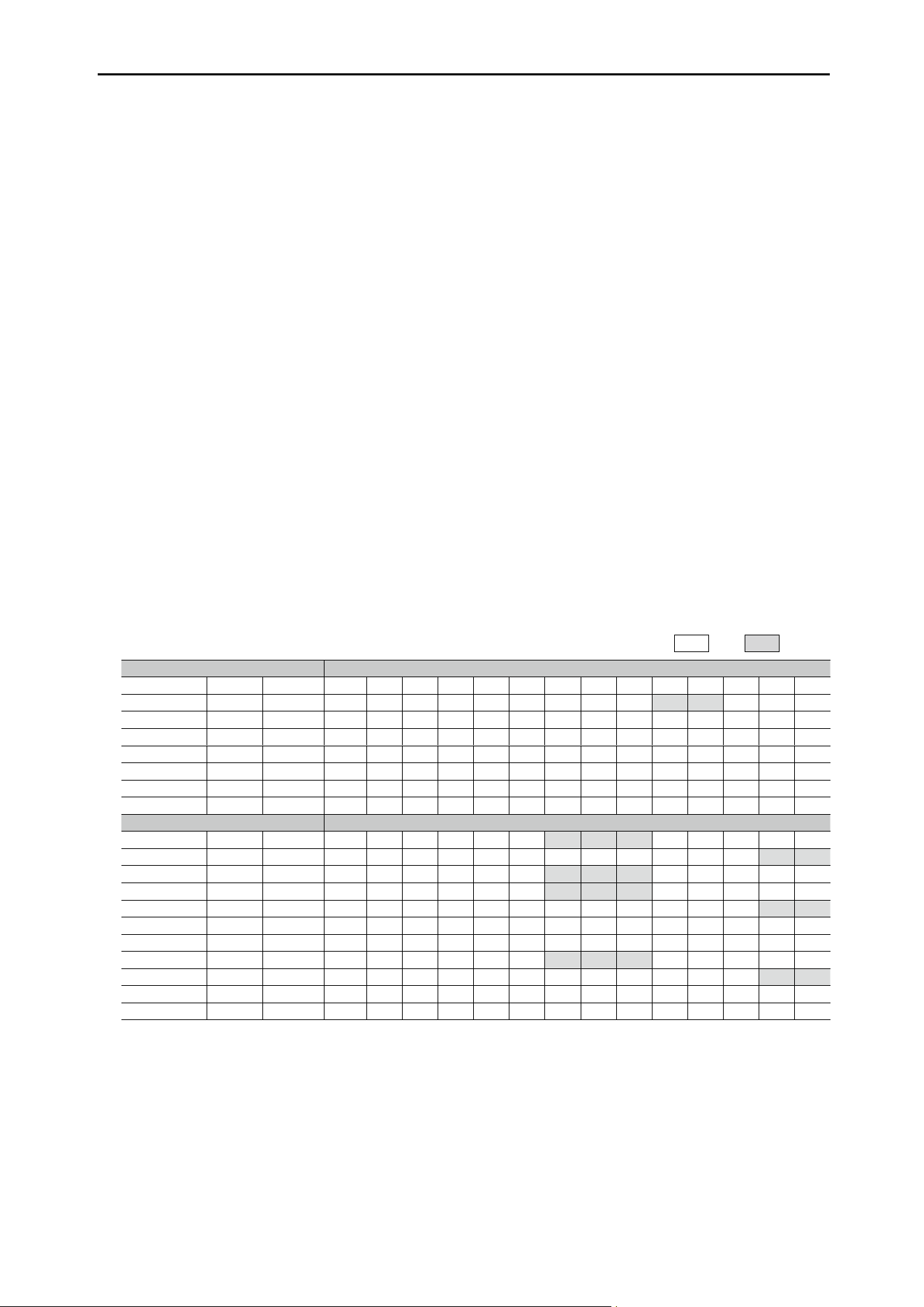
5. Frame Rate
Displays the frame rate. Tap the icon or press the button above to set the frame rate. Once Slow is
enabled, the project frame rate and sensor frame rate can be set separately. The camera will record
in slow motion and the audio cannot be recorded when the sensor frame rate is double or more of
the project frame rate.
Note that some frame rate changes will cause the image area and recording codec to change. The
max project frame rate is 60fps. Slow must be enabled to shoot at a frame rate higher than 60fps.
Refer to the Frame Rate Setting table below to learn more.
√
17:9
√
2.39:1
X9-8K Sensor FPS
Codec Resolution Image Area 23.976 24 25 29.97 30 48 50 59.94 60 72 75 96 100 120
ProRes RAW 8K FF √ √ √ √ √ √ √ √ √ √ √
5.5K S35 √ √ √ √ √ √ √ √ √
ProRes 422HQ 8K FF √ √ √ √ √
4K FF √ √ √ √ √ √ √ √ √
S35 √ √ √ √ √ √ √ √ √
H.264 4K FF √ √ √ √ √ √ √ √ √
S35 √ √ √ √ √ √ √ √ √
X9-6K Sensor FPS
ProRes RAW 6K FF √ √ √ √ √ √ √ √ √
4K S35 √ √ √ √ √ √ √ √ √ √ √ √ √
ProRes 422HQ 6K FF √ √ √ √ √ √ √ √ √
4K FF √ √ √ √ √ √ √ √ √
S35 √ √ √ √ √ √ √ √ √ √ √ √ √
2K FF √ √ √ √ √ √ √ √ √ √ √ √ √
S35 √ √ √ √ √ √ √ √ √ √ √
H.264 4K FF √ √ √ √ √ √ √ √ √
S35 √ √ √ √ √ √ √ √ √ √ √ √ √
2K FF √ √ √ √ √ √ √ √ √ √ √ √ √
S35 √ √ √ √ √ √ √ √ √ √ √
6. MF Readings
The MF readings will be displayed when using a DL lens or after other lens has been calibrated. The
MF readings will move up and down along with the focal position. The yellow triangle indicates the
current focal position. In MF (Manual Focus) or AMF (Automated Manual Focus) mode, turn the multi
dial on the main body or the dial of the right hand grip to control the focus manually. The minimum
focus distance of Ronin 4D is 1 foot (approx. 0.3 m). Select Lens, Focus, and Unit in the high-bright

DJI Ronin 4D User Manual
36
©
2022 DJI All Rights Reserved.
main monitor menu to set to an imperial or metric unit.
Depth of eld within the yellow dash line can be displayed on MF readings and LiDAR waveform
when the aperture has been read.
7. Current Reel Information
Display the reel information of the latest footage.
8. Resolution
Tap to select the resolution. Note that some resolution changes will cause the image area and
recording codec to change. Refer to the Frame Rate Setting table for more information.
9. Timecode/Clip Duration
Tap to switch between displaying the timecode and clip duration. The timecode display format is
“hour: minute: second: non-drop frame” or “hour: minute: second; drop frame”. The clip duration
display format is “hour: minute: second. centisecond”. The timecode and clip duration are displayed
in red while recording. Tap and hold the icon or press and hold the button below to enter advanced
settings.
Run Mode
The Run mode can be set to Free Run or REC Run. When set to Free Run, the time code will add
one frame for every frame the sensor generates regardless of whether the camera is recording
or not. When the project frame rate is different from the sensor frame rate, the camera will
automatically switch to REC Run as the time code frame rate cannot match the sensor frame rate.
When set to REC Run, the time code will only add one frame for every frame generated by the
sensor during recording and the time code will be continuous throughout all recorded footage.
Mode
Mode can be set to Regen, Preset, or Jam Synced. Regen can only be selected in REC Run mode.
The timecode will continue on from the time code of the last frame to ensure the timecode follows
the footage continuously. Preset can be selected in both run modes. In Preset mode, tap TC
settings or Reset TC to customize the initial value. Jam Synced can only be selected in Free Run
mode and requires an SN external timecode synchronizer and the DJI Ronin 4D Expansion Plate
(NDI/XLR/TC).
Count Mode
Count mode can be set to Drop Frame or Non-Drop Frame. In Drop Frame mode, the timecode
will skip the rst two frames of each minute except every 10th minute. The Drop Frame will be used
when the project frame rate is 29.97fps or a multiple of 29.97fps. In Non-Drop Frame mode, the
timecode will count every frame the sensor generates.
TC Settings and Reset TC
The timecode can be customized and is only available in Preset mode.
10. Center Marker
The Center Marker can be set to O, Small, or Large by entering the menu and selecting Display,
Monitor, and Center Marker.
11. White Balance
Tap or press the button to set the color temperature. The color temperature can help to analyze
white color and other colors. The default color temperature list includes 3200K, 4000K, 5600K,
and 6500K. Tap and hold to access advanced settings. Tap Add to set the color temperature and
color cast. The color temperature can be set from 2000K to 11000K. The higher the value, the
warmer the color, and vice versa. The color cast can be set from -99 to +99. The positive number is
magenta gain and the negative number is green gain. Tap Add to List to add the color temperature
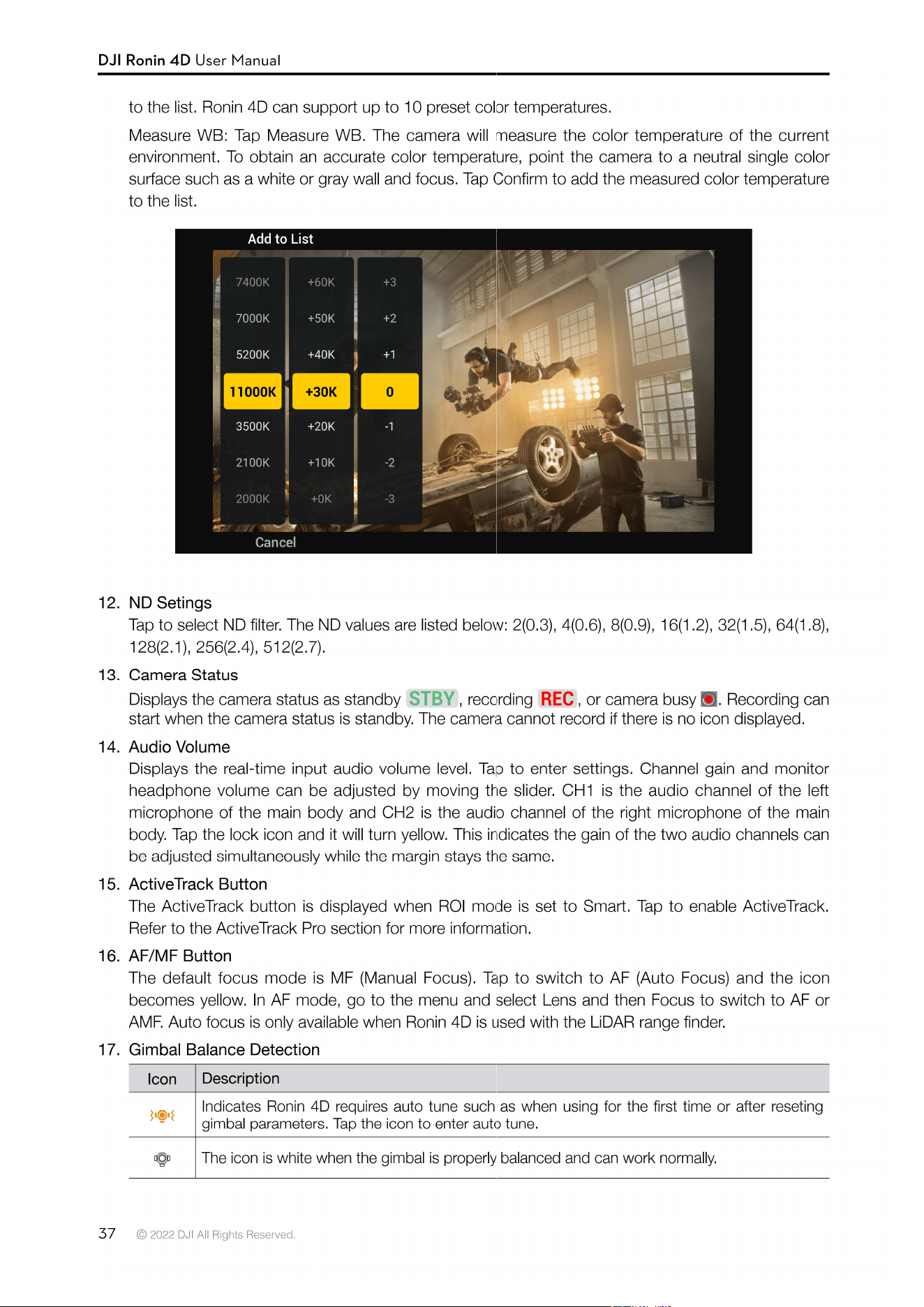
DJI Ronin 4D User Manual
38
©
2022 DJI All Rights Reserved.
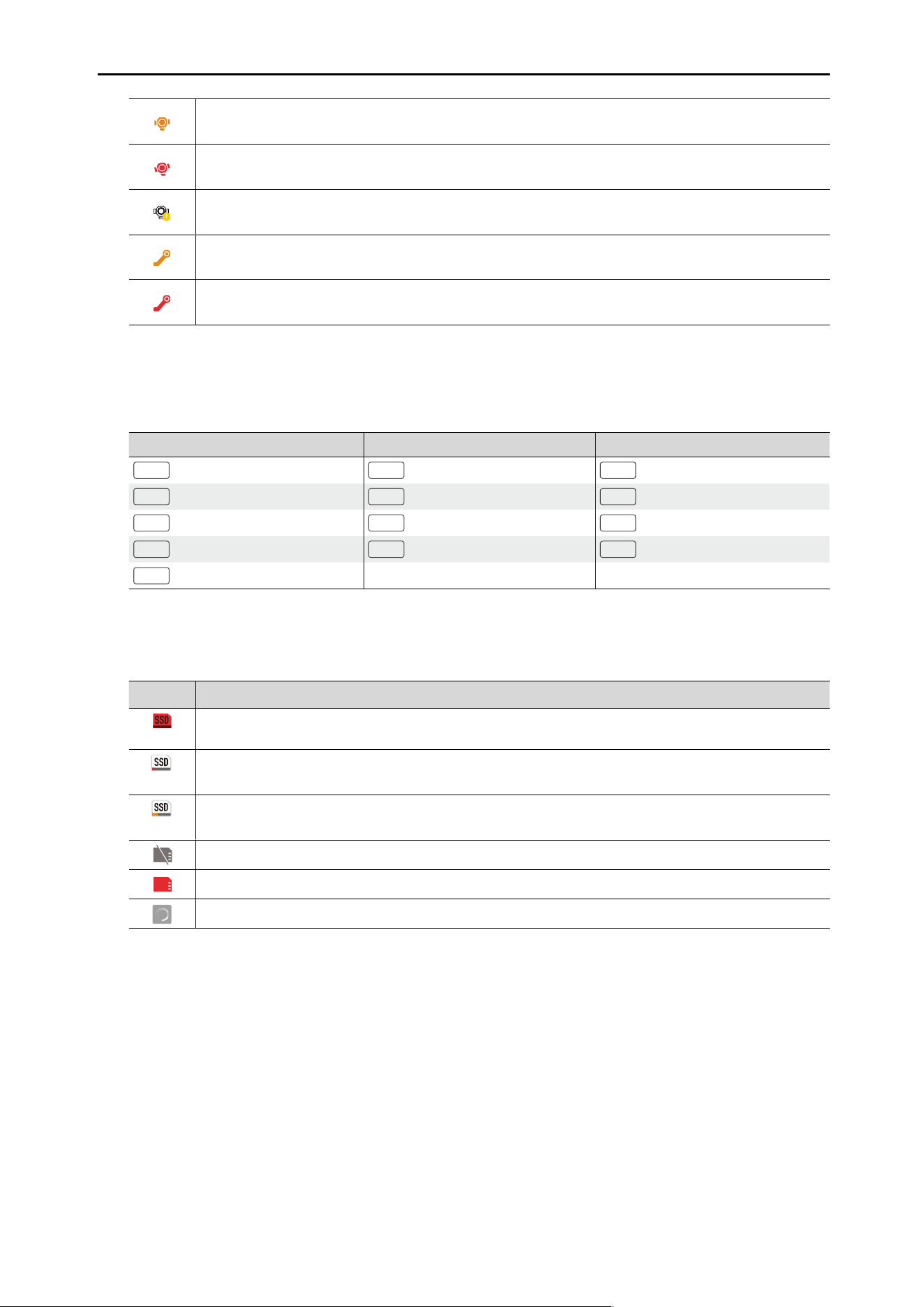
The icon is orange if the gimbal is not balanced properly. It is recommended to rebalance the
gimbal.
The icon is red when the gimbal is severely unbalanced and cannot work normally. The gimbal
must be rebalanced.
The icon appears with a yellow exclamation mark when the gimbal axes are locked. Tap the
icon and follow the instructions on screen to operate.
The icon appears orange when the Z-axis is slightly unbalanced. It is recommended to
rebalance the Z-axis in this scenario.
The icon appears red when the Z-axis is severely unbalanced and cannot work normally. The
Z-axis must be rebalanced in this scenario.
18. Gimbal Mode/Speed
Displays the gimbal mode, gimbal speed, and the Z-Axis mode. Refer to the table below for more
information.
Gmibal Mode Gimbal Speed Z-Axis Mode
Lock
Lock Mode
Fast
Fast
Follow
Follow Mode
PF
Pan Follow
Med
Medium
Lock
Lock Mode
PT
Pan and Tilt Follow
Slow
Slow
Car
Car Mount Mode
FPV
Pan, Tilt, and Roll Follow
Cust
Custom
Sport
Sport Mode
Sport
Sport Mode
19. Storage Media Remaining Time
Displays the remaining recording time of the selected storage media. To select storage media, go to
menu and select Recording, Video, and Storage.
Icon
Description
00:00
The storage icon and remaining recording time are in red when the storage is full.
13:32
The storage icon is white and the remaining recording time is red when the storage is
insu�cient.
53:32
The storage icon is white and the remaining time is yellow when the storage is almost
insu�cient.
No storage media
Abnormal status detected
Loading
20. LiDAR Waveform
Go to the menu and select Display, Focus Assistant, and LiDAR Waveform to enable LiDAR
Waveform. Alternatively, assign the PEAK Button Function to LiDAR Waveform. Refer to the Focus
Assistant section for more information.
The LiDAR range finder uses laser focusing and can cast up to 43,200 ranging points. All the
ranging points information will be displayed in LiDAR waveform from the top view.
The yellow line indicates the current focus point when the focus mode is set to AF or MF. The yellow
line indicates the current focus point and the green line indicates the auto focus when the focus
mode is set to AMF. The green zone of the LiDAR Waveform indicates the selected focus zone.

DJI Ronin 4D User Manual
39
©
2022 DJI All Rights Reserved.
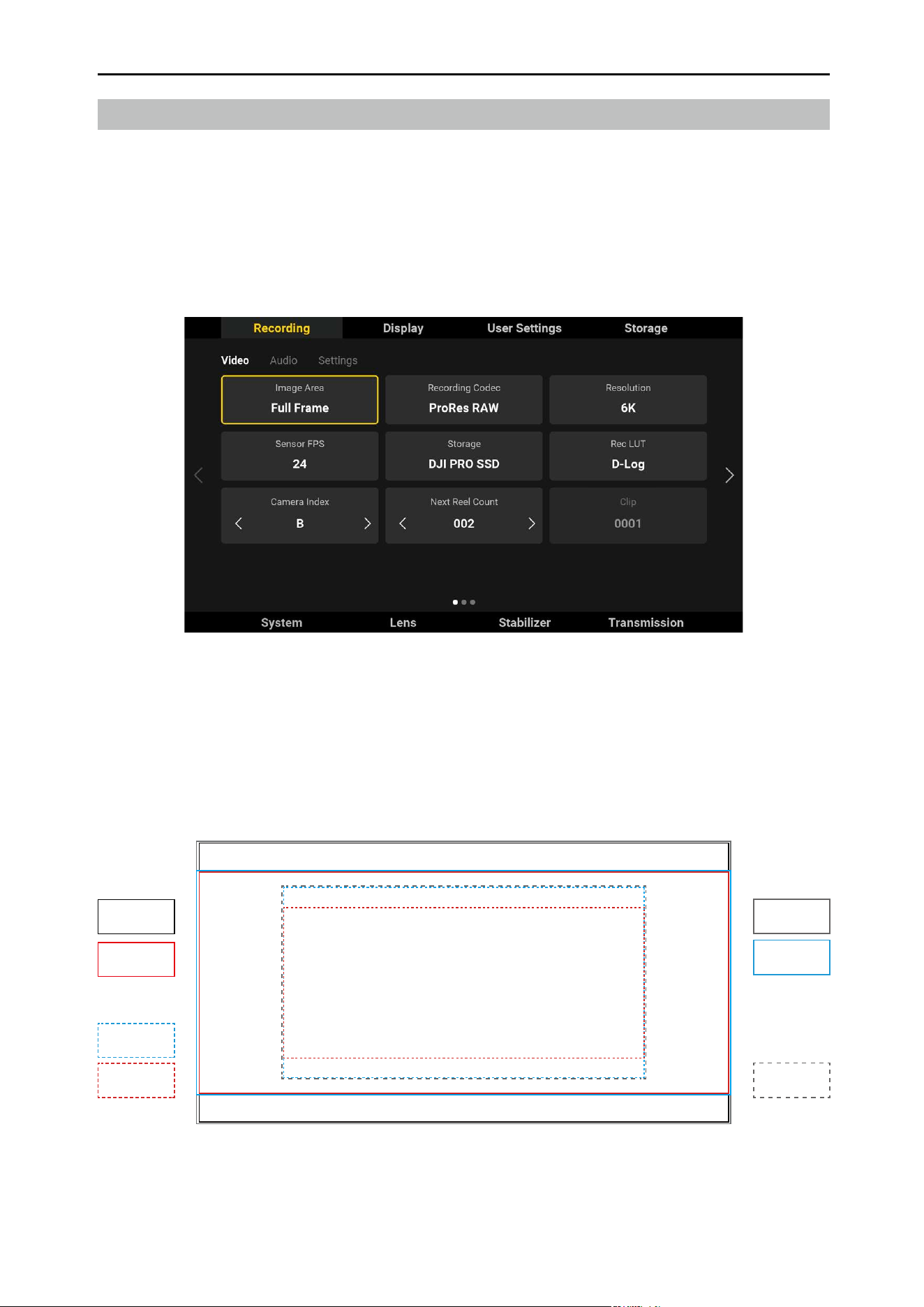
21. Frame Guide
The frame guide ratio can be set in the menu. Select Display, Monitor, and Frame Guide. The frame
guide can be customized and the frame guide transparency can be adjusted. The frame guide will
only be displayed in the liveview of the monitor and will not appear in the actual recording.
22. Recording Red Frame
The red frame will only appear during recording.
23. LUT Icon
The LUT icon will appear when the Rec LUT is set to non-D-Log. The LUT will aect the actual
recording.
DJI Ronin 4D User Manual
40
©
2022 DJI All Rights Reserved.
Menu and Functions
Press the HOME button to enter the menu.
Recording
The recording menu consists of the three sub menus of Video, Audio, and Settings.
Video
Image Area
The image area can be set to Full Frame or Super 35. The sensor size is shown below.
8K: Full Frame 36×19 mm; Super 35 24.5×13 mm
6K: Full Frame 35.7×18.8 mm; Super 35 24.3×12.8 mm
X9-6K
Super 35
Full Frame
17 : 9
6K/4K/2K
2.39 : 1
6K/4K
17 : 9
4K
2.39 : 1
4K
X9-8K
Super 35
Full Frame
17 : 9
8K/4K
2.39 : 1
8K
17 : 9
5.5K/4K

DJI Ronin 4D User Manual
41
©
2022 DJI All Rights Reserved.
Recording Codec/Resolution/Sensor FPS
Refer to the Frame Rate Setting table for more information.
Storage
Storage can be selected when the DJI PROSSD 1TB or CFexpress card and USB-C SSD is used.
Rec LUT
Tap to choose from Rec.709, D-Log, HLG, or LOOK. LOOK is the custom LUT from the user. Refer to
LOOK section for more information. The Rec LUT will apply to the recorded footage. The monitor LUT
and recording LUT can be set independently. The monitor LUT will not aect the recorded footage.
Select Display, Monitor, and then Monitor LUT to set the Monitor LUT.
Camera Index
Tap to set the camera index, which can be set from A to Z. The camera index will be included in the
footage name and the camera name when using Broadcast mode.
Next Reel Count
Tap to set the reel index of the next storage media. The setting range is 1 to 999 and the reel index will
be included in the name of the footage.
In the following scenarios, the camera will recognize the storage media as a new storage. The current
reel index will be used in the next reel count when the recording begins and continue from the previous
reel count.
1. The selected storage did not record anything in this camera using this camera index.
2. The selected storage is empty after formatting.
Clip
Displays the last recorded clip number with the camera using the current camera index. The clip number
range is 0000 to 9999 and cannot be set.
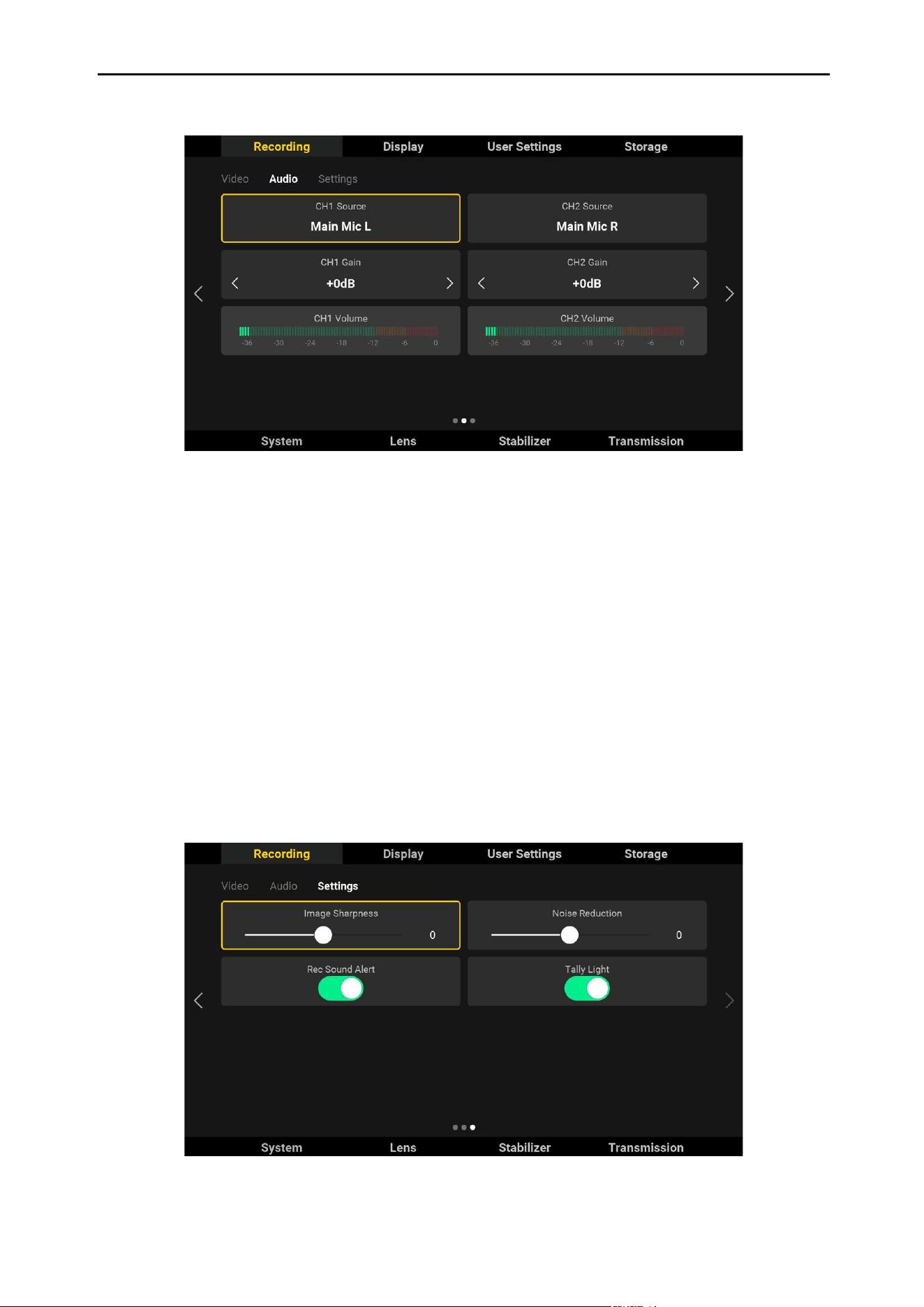
The folder name of the footage consists of the reel index, clip number, and the su�x of Ronin 4D serial
number. The lename of the footage consists of the camera index, reel index, clip number, date, and
the su�x of Ronin 4D serial number. The lename B021C0001_ BD13 is used as an example to explain
below.
If the recording exceeds 3 hours, the footage will be stored as a new le and the name of the le will be
the following clip number.
B021C0001...
B021C0002...
B021C0001_211212_ BD13.MOV
Ronin 4D SN
Camera Index
Reel Index
Clip Number
Year
Date
Month
DJI Ronin 4D User Manual
42
©
2022 DJI All Rights Reserved.
Audio
Tap Audio to set the CH1/CH2 Source, Gain, and check the real-time volume.
CH1/CH2 Source: Supports Main Mic L/R (main body left and right microphone), 3.5 Mic L/R (main
body 3.5mm microphone port input), and 3.5 Line L/R (main body 3.5 microphone port line level input).
Note that Main Mic L, 3.5 Mic L, and 3.5 Line L cannot be selected simultaneously and the Main Mic
R, 3.5 Mic R, and 3.5 Line R cannot be selected simultaneously, and only one of 3.5 Mic and 3.5 Line
can be selected simultaneously. Source inputs that cannot be selected will be displayed in grey. These
source inputs can still be selected, but if so then the originally selected source will be replaced.
CH1/CH2 Gain: The setting range is -50 dB to +24 dB and the default value is 0. The volume will
appear in the yellow or red zone when there is sound distortion and the gain needs to be reduced.
Real-Time Volume: Displays the volume of the audio source. The volume is green when the volume of
the sound source is safe, yellow when it is close to distortion, and red when it is distorted. The unit of
volume is dBFS.
Settings
DJI Ronin 4D User Manual
43
©
2022 DJI All Rights Reserved.
Image Sharpness and Noise Reduction can be set when recording at Full Frame/Super 35 Apple
ProRes 422 HQ and H. 264 and cannot be set when recording at Apple ProRes RAW.
Image Sharpness: The default setting is 0 and can be set from -2 to 2. Image Sharpness will aect the
denition of the footage.
Noise Reduction: The default setting is 0 and can be set from -2 to 2. Noise Reduction can reduce the
majority of noise in dark areas of the footage while retaining the texture and detail of the image.
It is recommended to set the Image Sharpness and Noise Reduction to 0 for optimal image quality. The
Image Sharpness and Noise Reduction are disabled when the value is set to -2.
Rec Sound Alert: After enabling Rec Sound Alert, the alert will sound when starting or stopping
recording and the sound will be included in the actual recording.
Tally Light: After enabling the tally light, the recording indicator glows solid red during recording.
Display
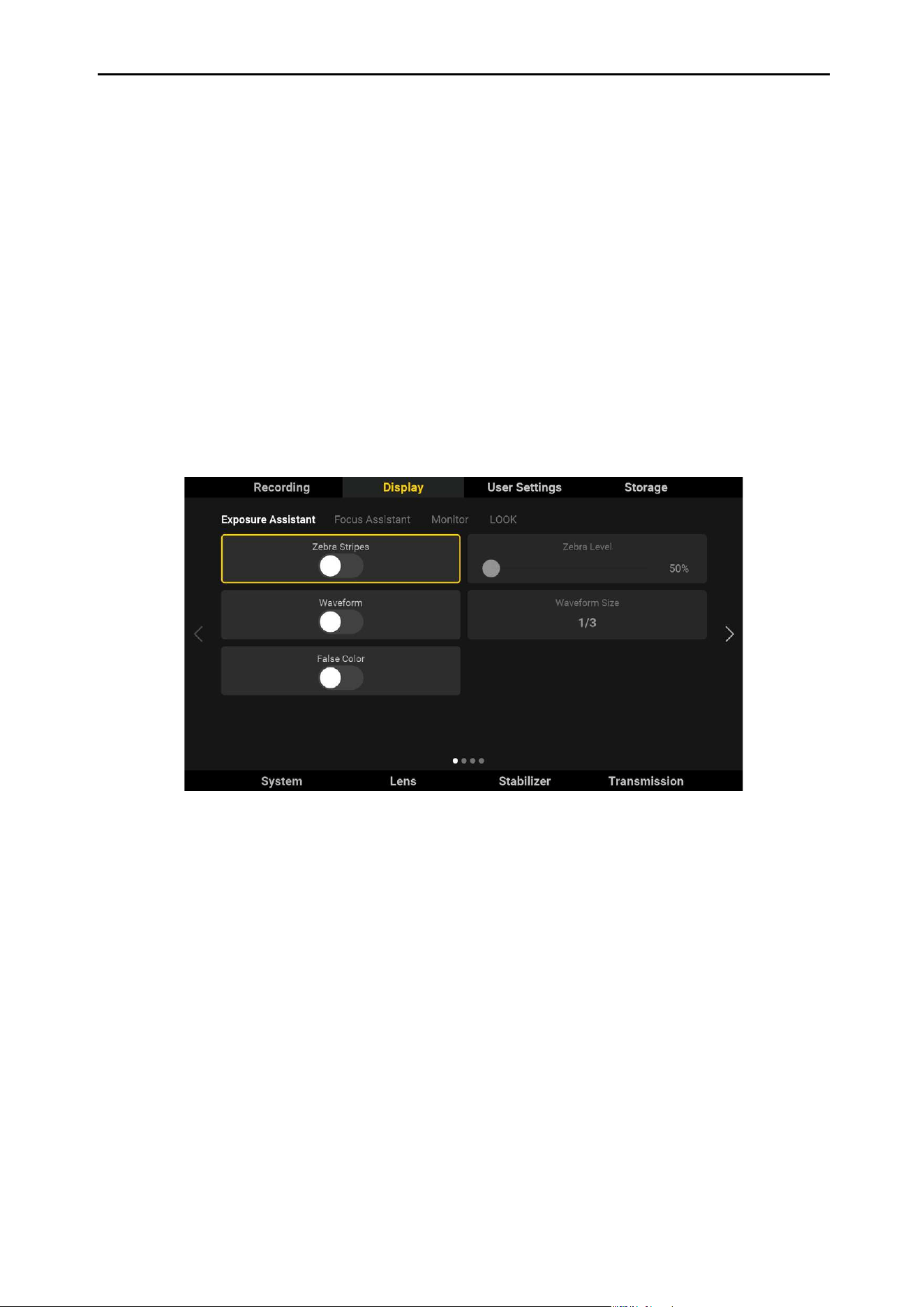
Tap to set exposure assistant, focus assistant, monitor, and LOOK settings.
Exposure Assistant
Tap to set the exposure assistant. Users can choose from Zebra Stripes, Waveform, and False Color
and cannot be selected simultaneously.
The exposure assistant will perform metering based on the LUT of the main monitor. The metring will be
based on D-Log when using D-Log.
DJI Ronin 4D User Manual
44
©
2022 DJI All Rights Reserved.
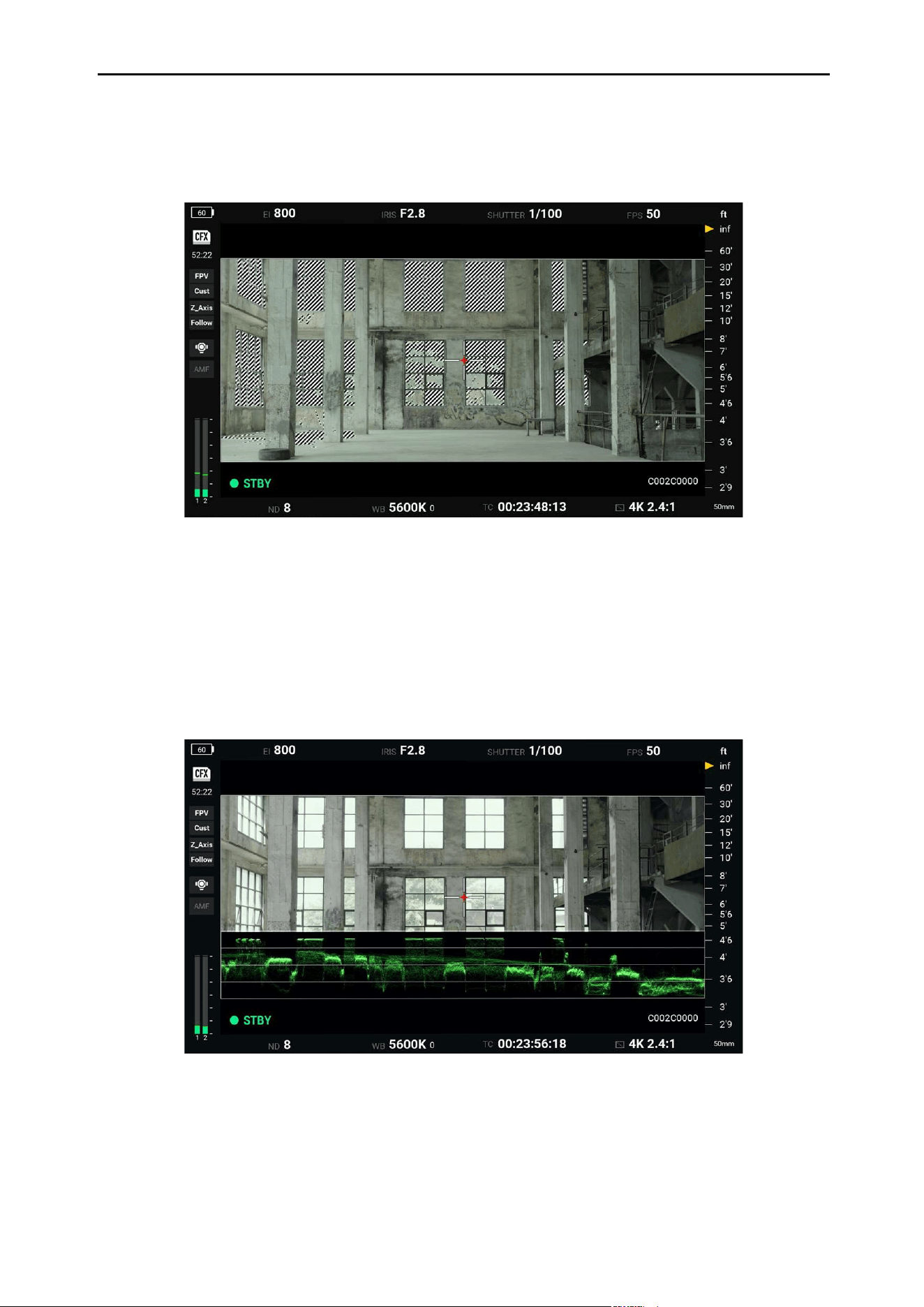
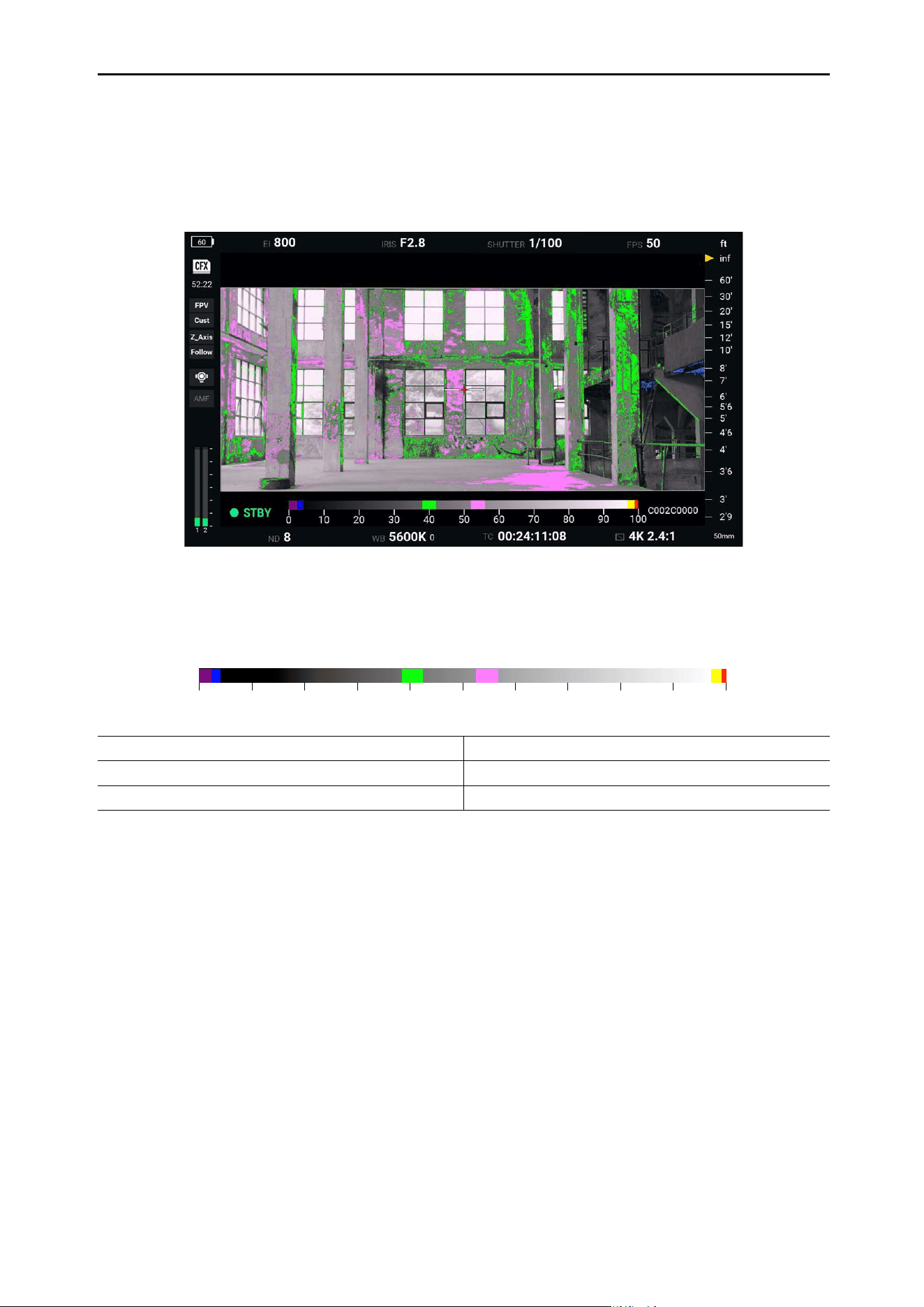
Waveform Eect Image
Zebra Stripes Eect Image
Zebra Stripes: The area will be displayed in zebra stripes if the exposure exceeds the set level. The
zebra level can be set from 50% to 100% with a default setting of 50%.
Waveform: Indicates the luminance relation of the image using waveform. The left to right of the
waveform indicates the image from left to right. The brightness will be show as waveform. The waveform
is divided into four grids. The top indicate overexposure and the bottom indicate pure darkness. The
waveform size can be set to 1/3 or 1/4 of the viewnder. The waveform is not transparent and cannot
be moved.
DJI Ronin 4D User Manual
45
©
2022 DJI All Rights Reserved.
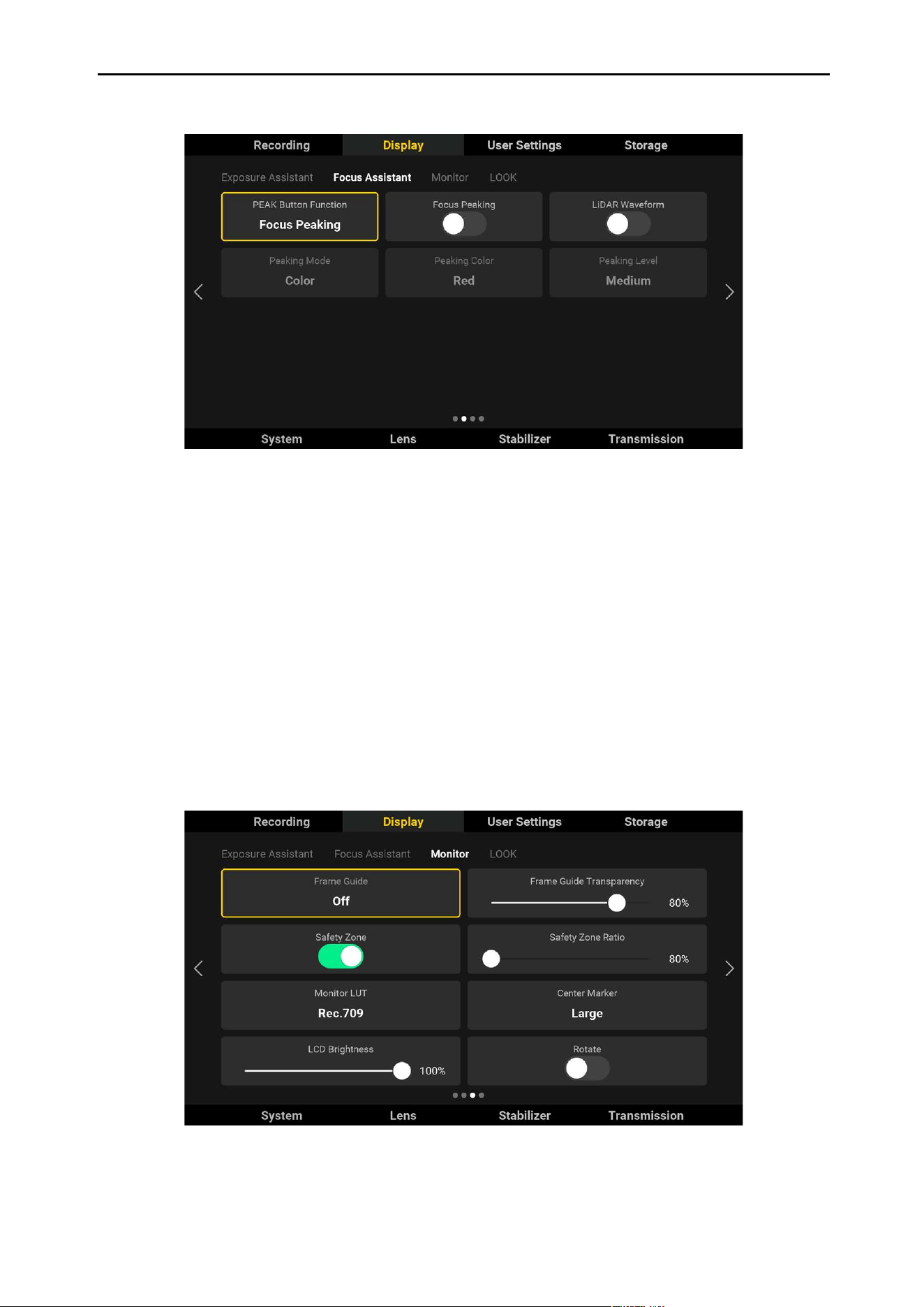
False Color: False color will overlap the image to indicate the exposure value. For example, magenta
indicates the best exposure for light skin color and green indicates the best exposure of dark skin color.
Check the pink or green to obtain consistent skin color when recording people. The color changes from
yellow to red to indicate the image is overexposed. Refer to the False Color Table for more information.
False Color Eect Image
False Color Table
0-3.5% Purple 52%-56% Magenta
3.5-5% Blue 97%-99% Yellow
38%-42% Green 99%-100% Red
Press the exposure assistant button of the left hand grip or the high-bright main monitor to enable or
disable the exposure assistant feature.
0 4020 60 8010 5030 70 90 100
DJI Ronin 4D User Manual
46
©
2022 DJI All Rights Reserved.
Focus Assistant
The function of the PEAK button is set to Focus Peaking by default and can be switched to LiDAR
Waveform and Focus Magnify (2x and 4x).
After enabling focus peaking, the focus area will be shown in sharp focus but will not aect the recording
footage. Peaking mode can be set to Color or Aperture, Peaking Color can be set to red, green, or blue,
and the peaking level can be set to high, medium, and low.
After enabling LiDAR Waveform, the measurement distance information within the focus area will be
show as the top view in the high-bright main monitor screen.
Press the PEAK button of the right hand grip or high-bright main monitor to enable or disable focus
assistant. When the function of the PEAK button is set to Focus Mag, it is used to magnify the focus
area. When it is set to LiDAR Waveform, the PEAK button is used to enable or disable LiDAR Waveform.
LiDAR Waveform cannot be used when recording in certain resolutions. Peaking Focus, Focus Mag,
and LiDAR Waveform can be enabled simultaneously.
Monitor
Tap to set the Frame Guide, Frame Guide Transparency, Safety Zone, Safety Ratio, Monitor LUT, Center
Marker, LCD Brightness, and Rotate in the Monitor.

DJI Ronin 4D User Manual
47
©
2022 DJI All Rights Reserved.
Frame Guide: The Frame Guide can be enabled or disabled in the liveview and the settings will not aect
the recorded footage. The Frame Guide is only used to monitor the liveview and adjust the frame. The
Frame Guide consists of dierent aspect ratios which can be adapted to lm and television standards.
The default frame guide includes: 16:9, 17:9, 2.35:1, 2.39:1. Tap Manage to edit the frame guide list.
Frame guides can be customized. Tap Add, input the frame guide, and tap Add to List.
Frame Guide Transparency: Slide the bar to adjust the transparency of the frame guide. The range is
from 0 to 100%, ranging from pure dark to transparent.
Safety Zone: The safety zone is enabled by default. The safety zone is helpful when adjusting the frame,
allowing users to reserve space for added information such as captions or icons.
Safety Zone Ratio: Indicates the ratio of the frame guide and can be set from 80% to 100% by adjusting
the slider. The default ratio is 80% and the step value is 1%. The safety zone is the same as the frame
guide when the safety zone ratio is set to 100%.
Monitor LUT: Tap to set the monitor LUT. Monitor LUT can only aect the main monitor and the HDMI
output of the main body. Set Recording LUT for LUT of recorded video. LUT color includes Rec.709,
HLG, D-Log, and LOOK. Refer to the LOOK section for more information.
Center Marker: Indicates the center position of the liveview. The Center Marker is set to o by default
and can be switched to Small or Large.
LCD Brightness: Tap to adjust the brightness of the main monitor.
Rotate: Tap Rotate turn the display upside down. Note that the button features will change according to
the rotation.
DJI Ronin 4D User Manual
48
©
2022 DJI All Rights Reserved.
LOOK
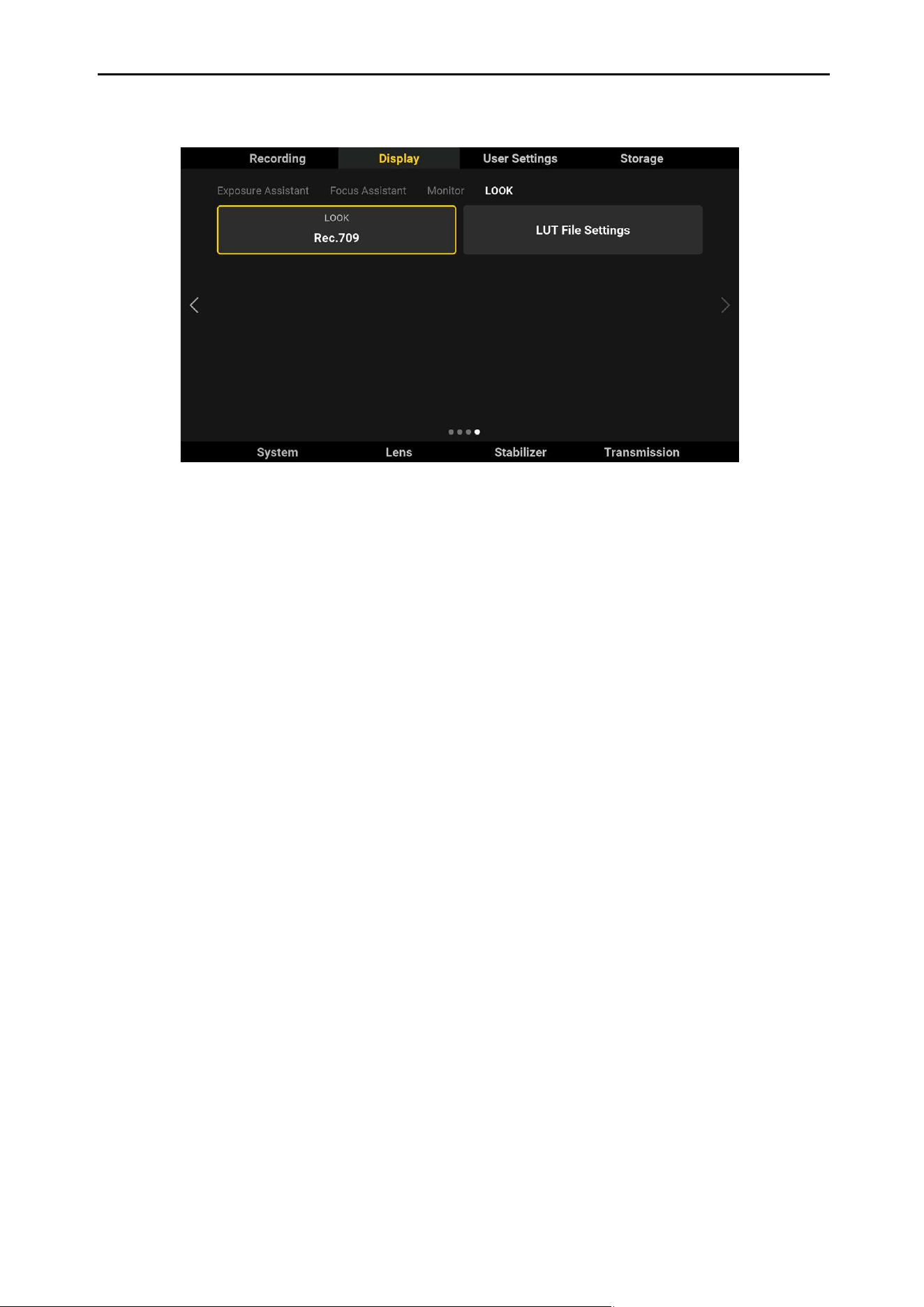
Supports custom LUT. Tap LOOK to select and manage a LUT. Ronin 4D has the following preset LUTs:
HLG: A large dynamic range and accurate bright and dark levels can be shown when displaying an HLG
video on an HDR device that is compatible with the HLG standard.
Rec.709: Color standard that is compatible with high denition TV and used for standard broadcast
monitors.
D-Log: Designed for cinematic imaging and providing 15 stops of dynamic range. Preserve the details
of dark and bright areas even in challenging environments. The X9-6K/8K supports up to 14 stops of
dynamic range. The most amount of color can be preserved when using D-Log and recording at ProRes
422 HQ.
LOOK: Supports custom LUT from user. The custom LUT will be applied when LOOK is selected.
Import Custom LUT
Copy the 33 point 3D LUT le name with .CUBE to the root directory of the storage and attach the
storage to the main body. Only use letters or numbers to name the LUT le and do not use special
characters or a space. Make sure the storage has been formatted before saving the custom LUT.
Enter LUT File Settings to view the LUT le for adding or deleting the LUT le. To delete a LUT le, select
the le, tap delete, and then cancel to check the updated list. To add a LUT le, select import and select
the LUT le.
Ronin 4D supports up to 16 LUT les for read and display. Tap Exit to exit LUT le settings. The LUT le
has been imported to LOOK list. View the LUT le by tapping Display, Monitor, and then Monitor LUT.
Press the LUT button on the main monitor to enable or disable LUT display.
Record LUT can be set by tapping Recording and Rec LUT.
DJI Ronin 4D User Manual
49
©
2022 DJI All Rights Reserved.
User Settings
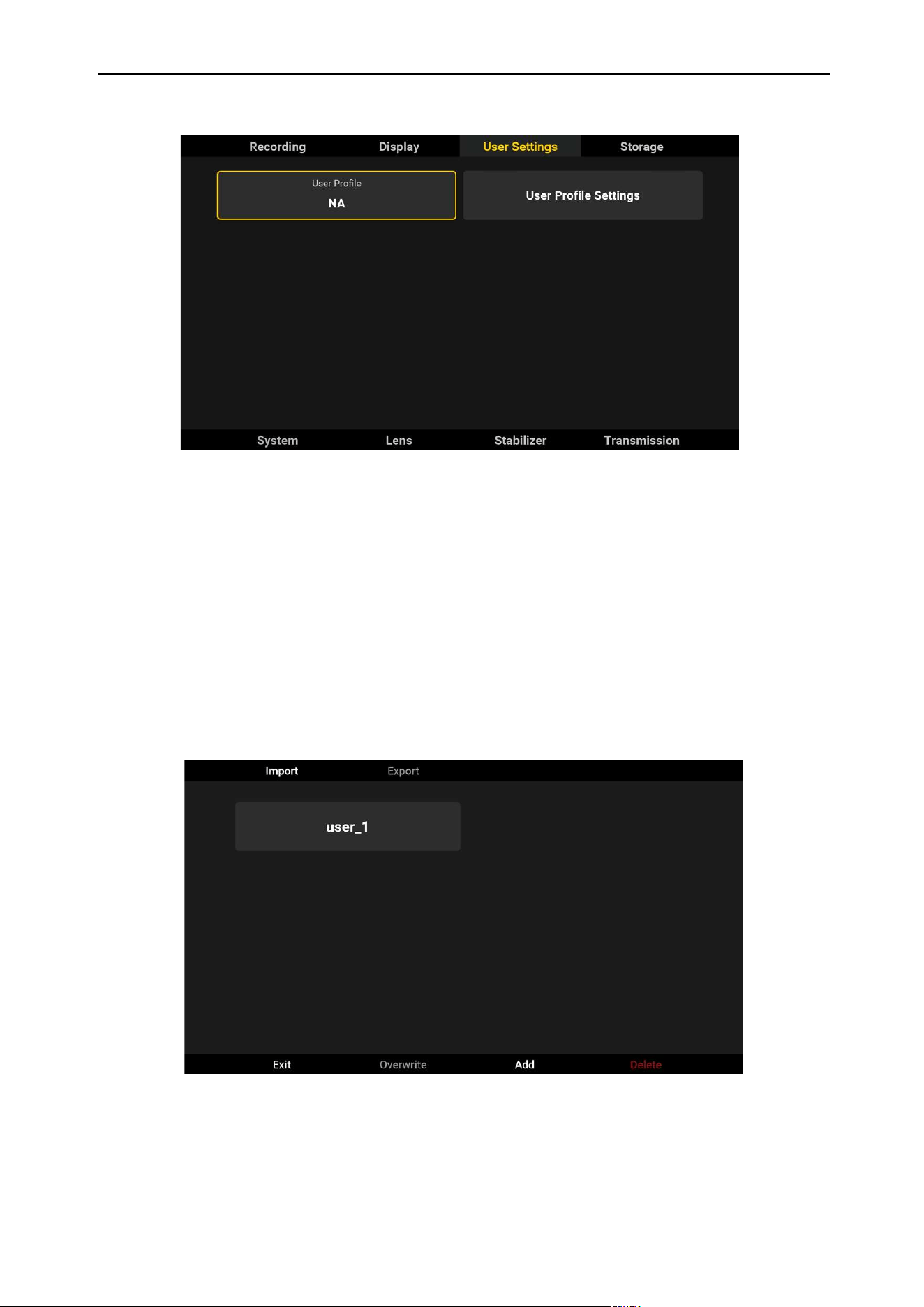
Tap to view and manage the user prole. Only use letters, numbers, or underline to name the prole. Do
not u s e s pecia l cha ra cters or a s pa ce.
Tap User Prole Settings to import, export, overwrite, add, or delete user prole.
The user prole contains the camera parameters, gimbal parameters, and lens calibration information.
After setting up the camera parameters and gimbal parameters, tap User Prole Settings to manage the
user prole.
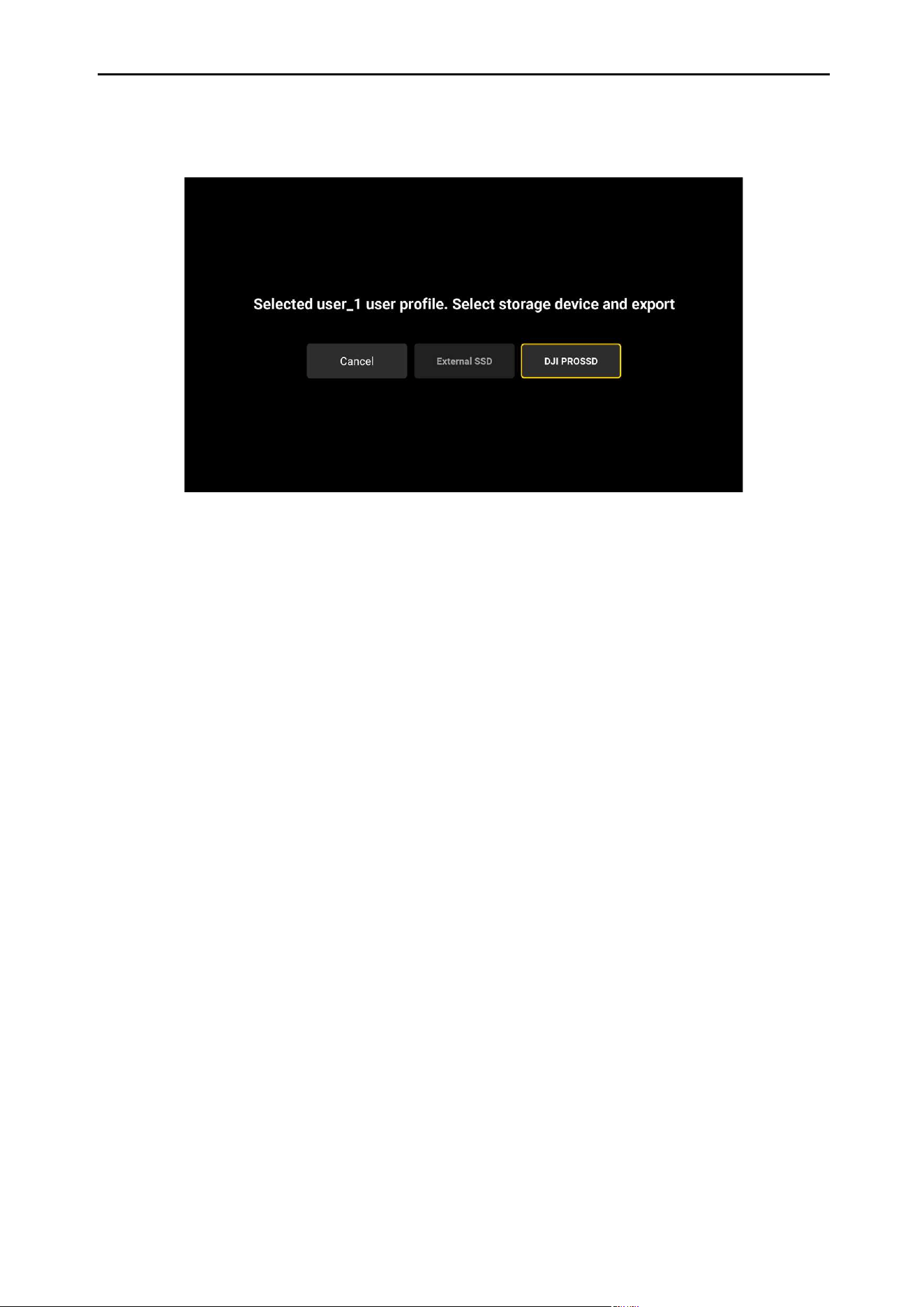
Import: Tap import and Ronin 4D will read the user prole in the storage. Select the prole and tap
im port to a dd to lis t.
DJI Ronin 4D User Manual
50
©
2022 DJI All Rights Reserved.
Exit: Tap to exit user prole settings.
Overwrite: Tap to overwrite the user prole using the current camera parameters, gimbal parameters,
and lens information.
Add: Tap and input the user profile name and tap Confirm to save the file to list. Only use letters,
numbers, or underline to name the prole. Do not use special characters or a space.
Delete: Tap to delete the user prole.
Export: Tap Export. Ronin 4D will export the camera parameters, gimbal parameters, and lens
calibration information to a user prole and store to the storage device.
DJI Ronin 4D User Manual
51
©
2022 DJI All Rights Reserved.
Storage
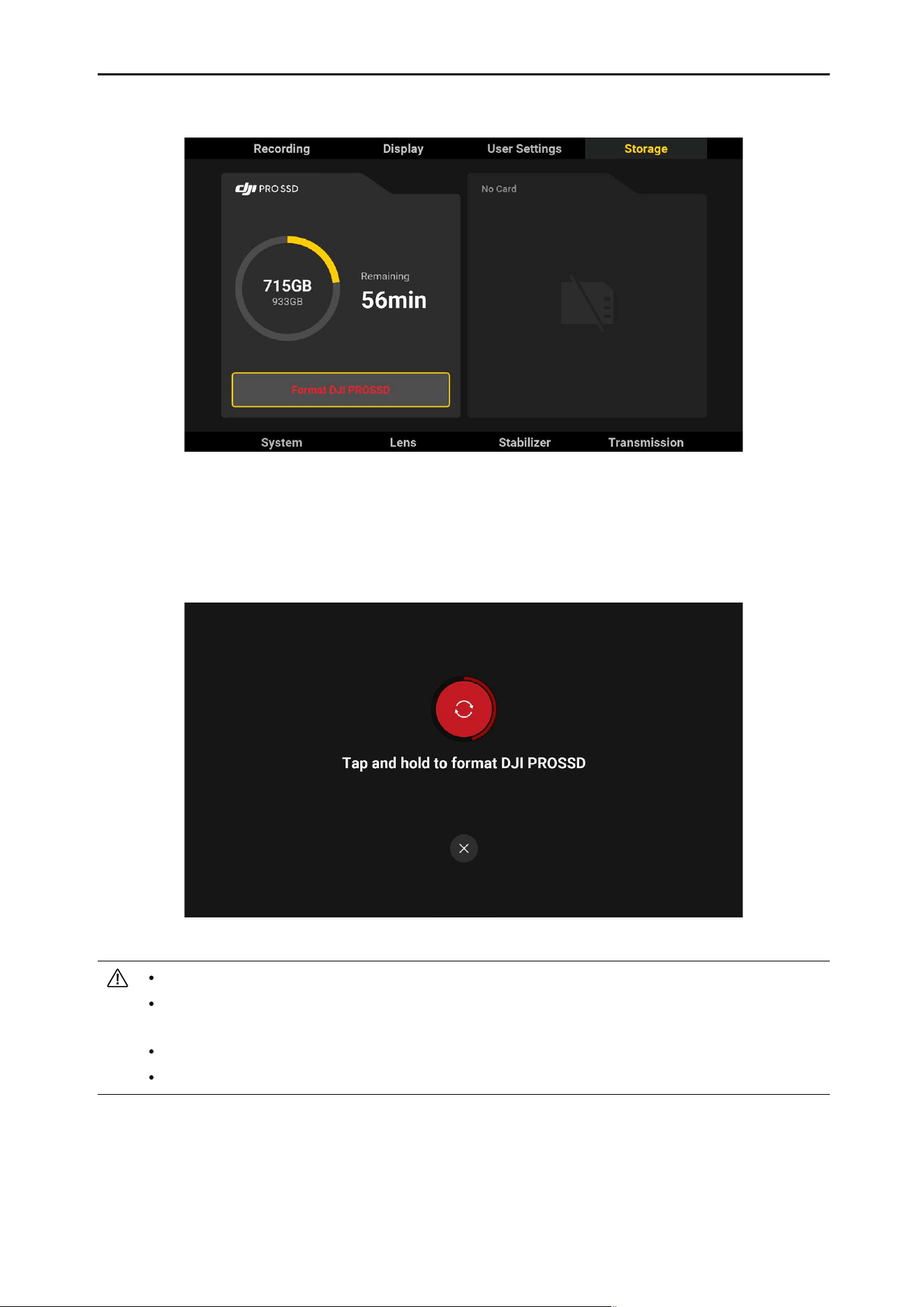
Displays the remaining capacity and recording time of the storage device. Format the storage by tapping
Format.
Press and hold the button to nish formatting after conrming in the prompts.
Make sure all footage is backed up before formatting.
DJI PROSSD 1TB can only be formatted when connected to Ronin 4D. Do not disconnect the DJI
PROSSD 1TB from Ronin 4D or power o Ronin 4D during formatting.
Without the DJI PROSSD Mount, the DJI PROSSD 1TB can only be used as a low speed storage card.
Do not disconnect the storage media during recording.

DJI Ronin 4D User Manual
52
©
2022 DJI All Rights Reserved.
Recording Format of the Storage Media
DJI PROSSD 1TB Recording Format No restriction on recording format
CFexpress 2.0 Type-B Recording
Format
ProRes 422 HQ:
6K: 23.976/24/25/29.97/30fps
C4K: 23.976/24/25/29.97/30/48/50/59.94/60/72/96/100/120fps
2K: 23.976/24/25/29.97/30/48/50/59.94/60/72/96/100/120fps
H.264:
C4K: 23.976/24/25/29.97/30/48/50/59.94/60/72/96/100/120fps
2K: 23.976/24/25/29.97/30/48/50/59.94/60/72/96/100/120fps
USB-C Recording Format
ProRes 422 HQ:
C4K: 23.976/24/25/29.97/30/48/50/59.94/60fps
2K: 23.976/24/25/29.97/30/48/50/59.94/60fps
H.264:
C4K: 23.976/24/25/29.97/30/48/50/59.94/60fps
2K: 23.976/24/25/29.97/30/48/50/59.94/60fps
DJI Ronin 4D User Manual
53
©
2022 DJI All Rights Reserved.
System
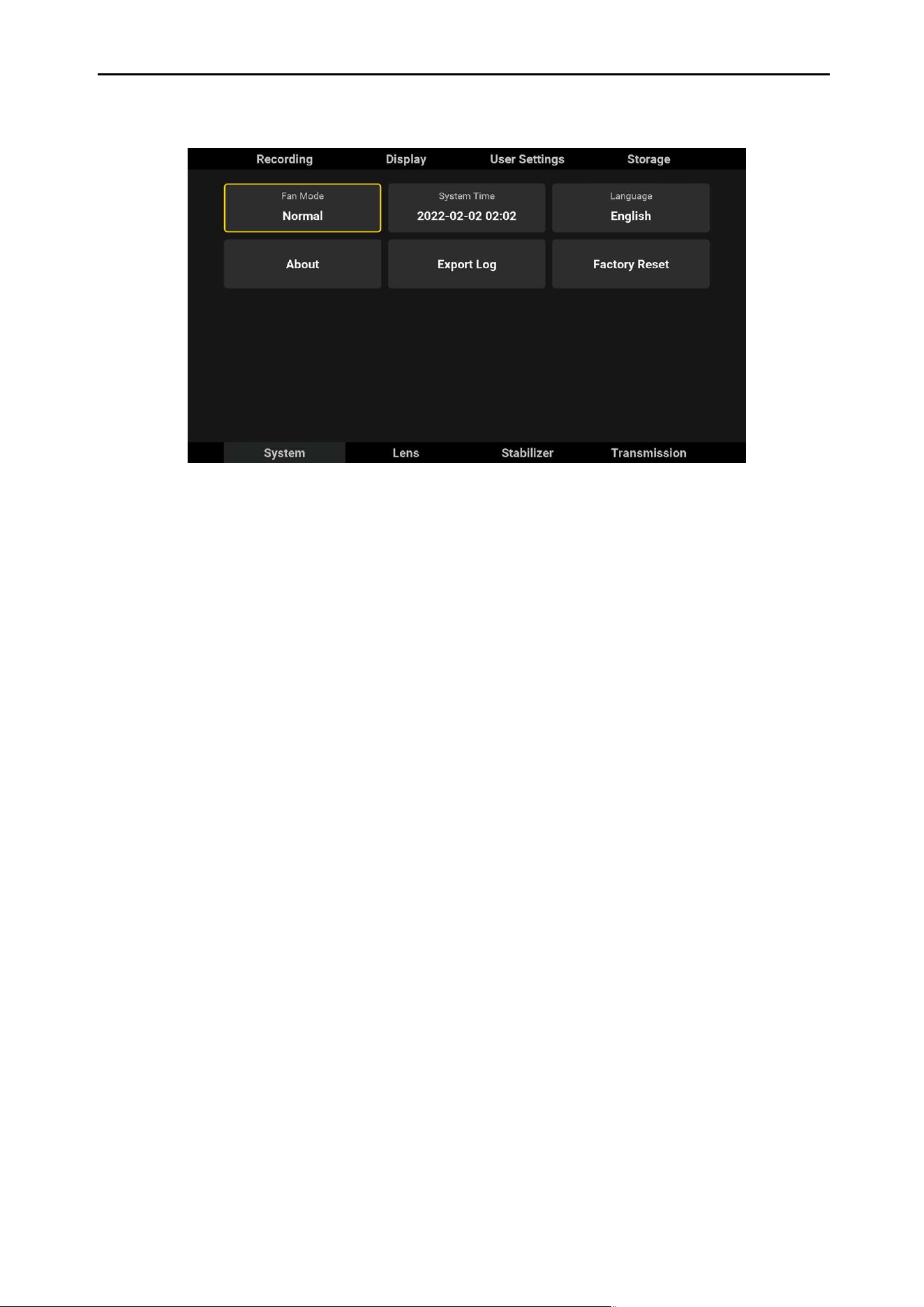
Tap System to reset to default settings, view the system version, and set the Fan Mode, System Time,
and Language.
Fan Mode
The three fan modes of Ronin 4D are Rec Low, Normal, and Low Noise.
Rec Low: Rec Low mode is available when the Z-axis is disabled. The fan of Ronin 4D will be turned o
during recording and Fan mode will switch to Normal when the temperature of Ronin 4D reaches the
threshold.
Normal: The fan will run at a constant speed in normal mode.
Low Noise: The fan will run at a low speed to reduce the fan noise to the maximum extent while
dissipating heat.
System Time
Tap to set the system date and time. The date will be added to the footage and aects the lename.
Language
The language of the main monitor can be set to English or Chinese.
About
Tap to view the rmware version, module rmware versions, and the serial number of Ronin 4D. Tap “…”
to access static-frame capture. Tap the icon to capture a static-frame, which is saved as a JPEG photo.
The captured static-frame cannot be viewed in Playback. It will be named as “DJI_RONIN_4D_static-
frame number” and saved in the le named “camera_dump”, which is stored in the root directory of the
storage media.
Export Log
Logs with operation information can be exported to the selected storage media.
Factory Reset
Tap Factory Reset to restore all settings to the default factory settings including custom settings. Tap
and hold the onscreen button to reset.
DJI Ronin 4D User Manual
54
©
2022 DJI All Rights Reserved.
Lens
Focus
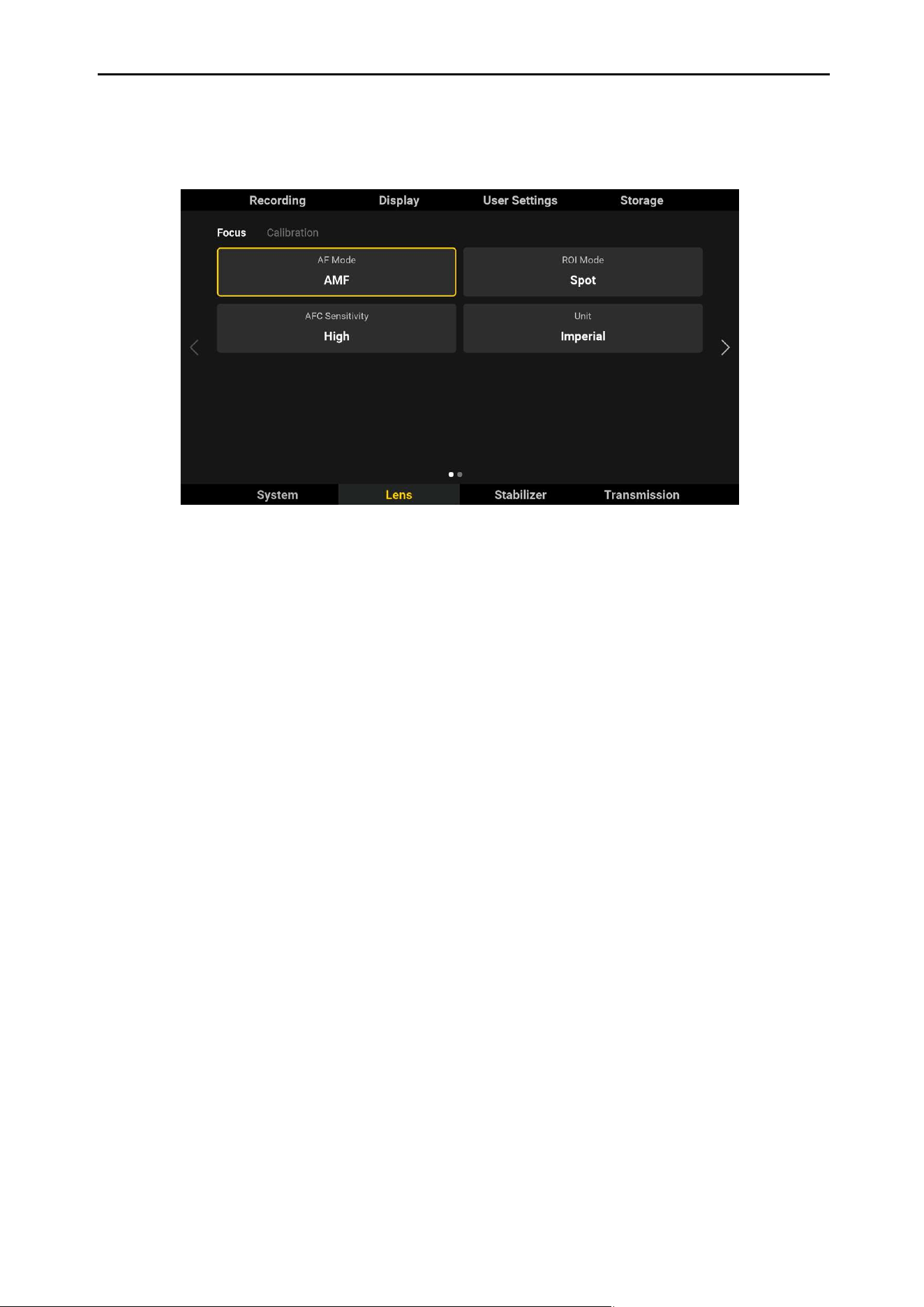
Tap Focus to set AF Mode, ROI Mode, AFC Sensitivity, and Unit.
AF Mode
The two autofocus modes are AF (Auto Focus) and AMF (Automated Manual Focus).
When set to AF mode, tap the AF button on the liveview of the main monitor or press the AF button on
the right hand grip to enable autofocus. The camera will auto focus according to the ROI mode. When
set to AMF mode, the camera will auto focus according to the ROI mode, the dial of right hand grip will
rotate automatically according to the focal position, and the focus can be controlled by turning the dial
at any time.
The DJI LiDAR Range Finder is required in order to use AF.
ROI Mode
Includes Spot, Wide, and Smart.
Spot Mode: The camera will focus at the center marker by default and users can tap any position on the
liveview to focus on. Spot mode area appears when AF begins. The focus area will be hidden by default.
Wide Mode: There will be a yellow box at the center of the liveview when set to Wide mode. The camera
will recognize the nearest and most recognizable subject and focus automatically within the yellow box.
The camera will prioritize recognizing faces.
Smart Mode: When set to Smart mode, the camera recognizes the focus area automatically. The
camera recognizes people as a priority and the camera will focus at the liveview center if there are no
people. The camera recognizes human faces and bodies and selects the person who is nearest to be
the center of the liveview with a yellow box displayed on the head of the selected person. Tap the yellow
box or press the ActiveTrack button to conrm and the yellow box will turn green, indicating ActiveTrack
and AF are available. In Smart mode, any subject can be selected by dragging a box around it. The
selection may fail if the box is too large or small.
AFC Sensitivity: AFC sensitivity can be set to high, medium, or low. Set the AFC sensitivity to high for
low latency. For smooth focus switch, set to medium or low.
Unit: The unit for the MF readings can be set to inch or mm.
DJI Ronin 4D User Manual
55
©
2022 DJI All Rights Reserved.
Calibration
When using a non-DJI lens, the lens needs to be calibrated in order to use autofocus.
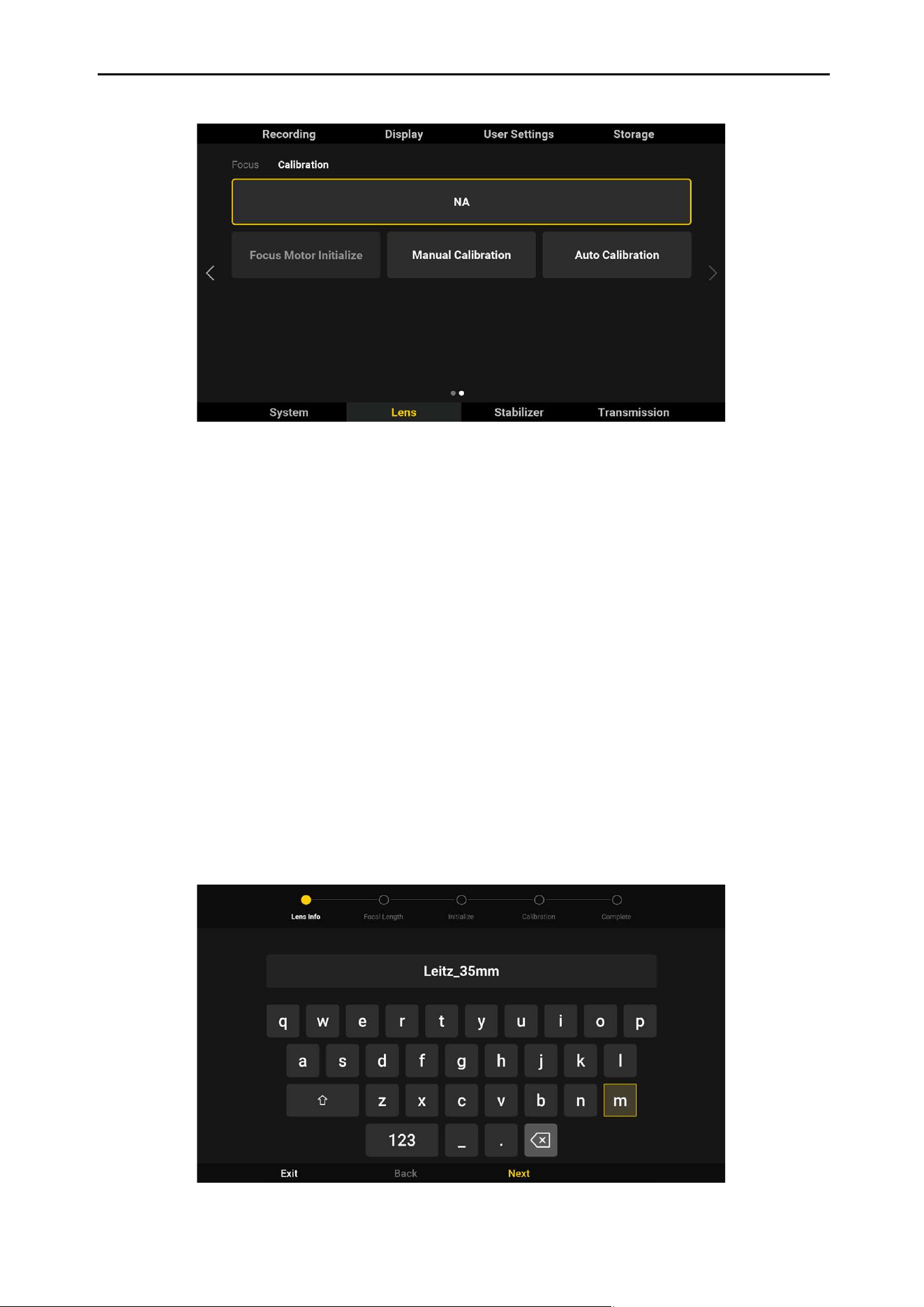
Lens Calibration Information: Displays the saved lens calibration information. Tap to select a lens and
the focus motor will start calibrating the lens. NA appears if there is no lens calibration information. Ronin
4D cannot autofocus and calibrate the lens within 1 foot of the subject currently due to the limitation of
the LiDAR range nder minimum focusing distance.
It is recommended to use the dial on the right hand grip or the dial on main body to focus manually at a
distance less than 1 foot. In this situation, switch the Lens Calibration Information to NA.
Focus Motor Initialize: Tap to initialize when using a manual lens and with the X9 Focus Motor
mounted. Initialization cannot be used if no X9 Focus Motor is detected. Make sure the gear of the X9
Focus Motor is properly aligned with the lens gear.
Manual Calibration
Manual focus and autofocus are supported when using a manual lens with the LiDAR range nder and X9
Focus Motor mounted. Refer to the Lens Compatibility List for supported lenses. Choose Manual Calibration
if using a manual lens. Users can also select Manual Calibration for an auto lens that cannot focus accurately
or is not included in the Lens Compatibility List. Follow the steps below to calibrate a lens.
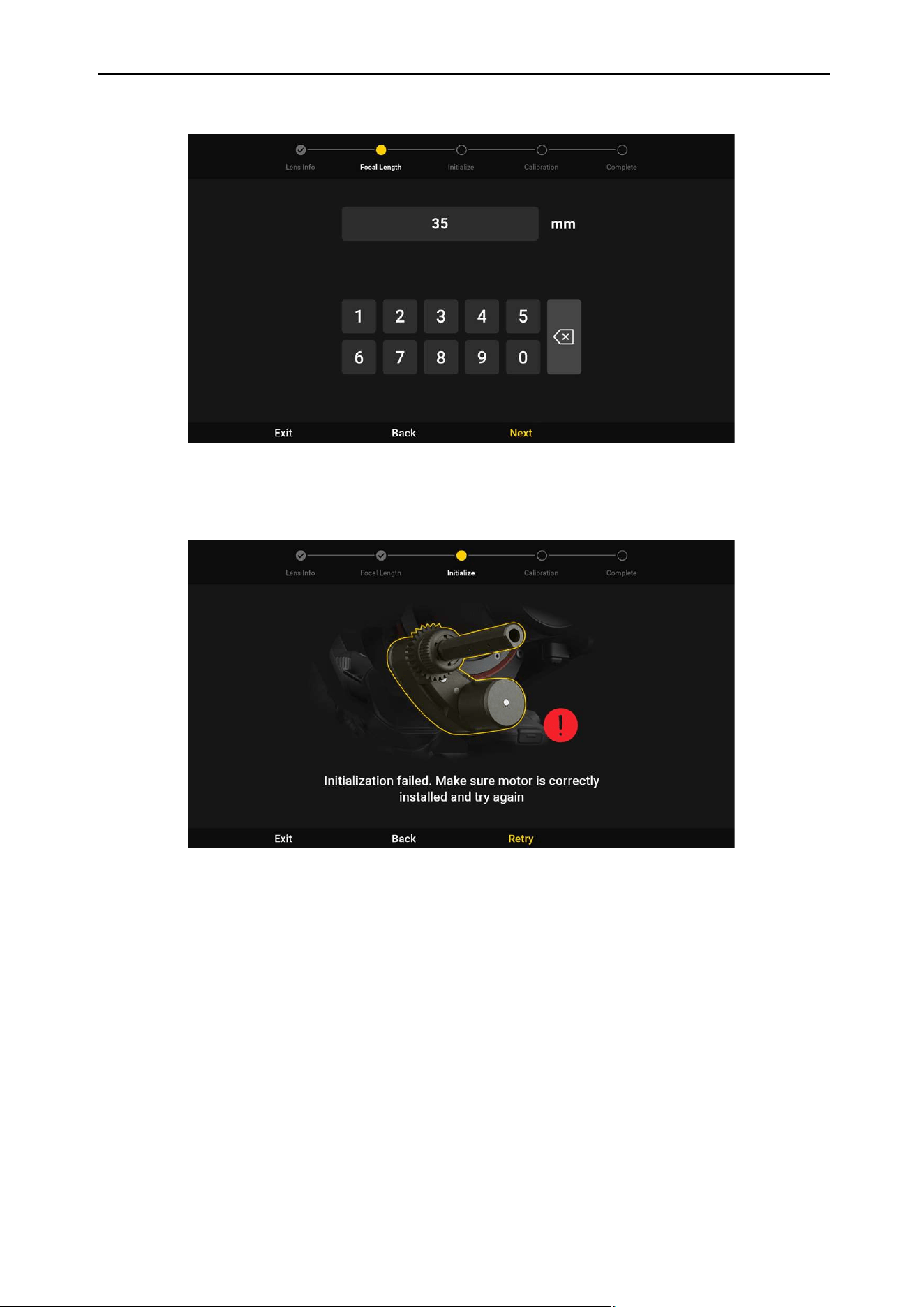
Calibration Steps:
1. Input the lens name.
DJI Ronin 4D User Manual
56
©
2022 DJI All Rights Reserved.
3. Motor initialization will start automatically when using a manual lens with the X9 Focus Motor
mounted.
2. Input the lens focal length.
4. Turn the dial of the right hand grip to adjust the focus to innity after motor initialization is completed.
Focus to innity and press the record button of the right hand grip or tap the record button on the
main monitor to complete calibration. There will be four calibration zones divided by white and gray
displayed on the right side of the MF Readings. It is recommended to calibrate one point for each
zone for optimal calibration. Turn the dial to focus on the next white zone and select a at surface
or subject that is nearby with a clear texture to calibrate. Press the PEAK button once or tap + on
the screen to magnify the liveview up to 4x. Press the PEAK button again or tap - on the screen
to zoom out. The zone will turn green once calibrated. Calibrate at least two points before using a
manual lens, including one point at innity and one point that is the minimum focus distance. It is
recommended to calibrate ve points for optimal focus performance. Tap Delete to delete the last
recorded calibration point. Re-calibration is also supported.
5. Tap Finish to complete calibration. Once calibrated, the focus can be controlled by turning the dial of
the right hand grip or the main body.
DJI Ronin 4D User Manual
57
©
2022 DJI All Rights Reserved.
Auto Calibration
Select Auto Calibration when using an auto focus lens. Enter the lens information and wait for auto
calibration to be completed.
Watch the Focus Control tutorial video at the o�cial DJI website for
calibration process:
https://www.dji.com/ronin-4d/video
Set the shutter to auto before lens calibration.
DO NOT disconnect the LiDAR range nder or the focus motor during calibration.
The calibration information is saved automatically. It is not necessary to calibrate the lens again after
restarting Ronin 4D if the position of the X9 Focus Motor, LiDAR range nder, and the lens remain the
same and Ronin 4D was powered o.
Do not direct the camera at a subject with a reective surface such as metal or glass. Otherwise, the
focus accuracy of the LiDAR range nder will be reduced.
DJI Ronin 4D User Manual
58
©
2022 DJI All Rights Reserved.
Stabilizer
Tap Stabilizer for Gimbal Settings, Joystick, and Gimbal Calibration.
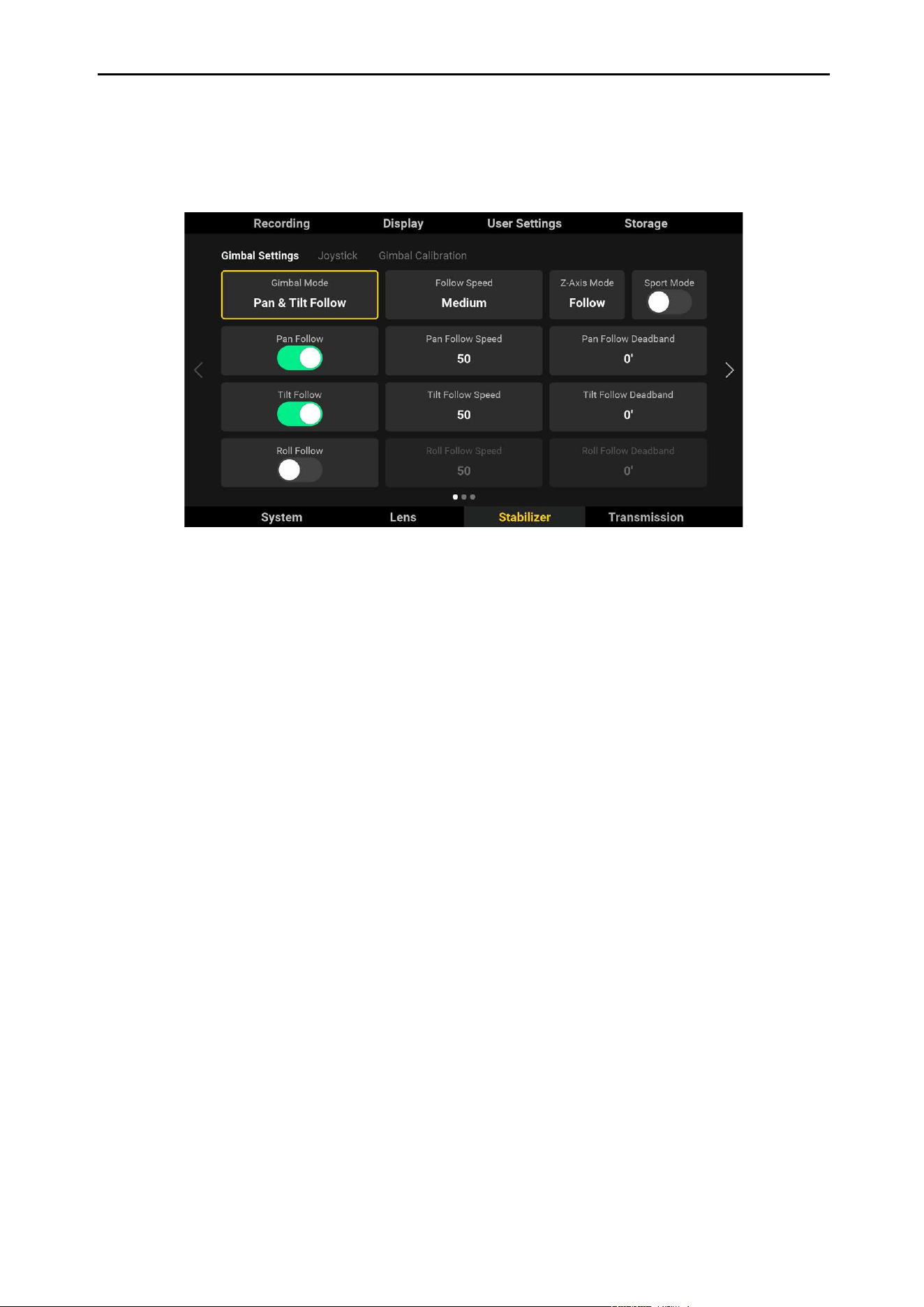
Gimbal Settings
Includes settings for Gimbal Mode, Follow Speed, Z-Axis Mode, and Follow, Follow Speed, and Follow
Deadband for the three axes.
Gimbal Mode: The gimbal modes include Lock, Pan Follow, Pan & Tilt Follow, FPV, and Custom. The
follow mode for the three axes can be set separately. Refer to the X9 Gimbal and Camera sections for
more information. The gimbal mode settings in the main monitor and the settings of gimbal mode toggle
of main body have priority. Ronin 4D will follow the settings that were last set. Ronin 4D will follow the
settings of the gimbal mode toggle after restarting.
Follow Speed: Indicates the follow speed of each axis. The Follow speed for the three axes can be set
simultaneously by selecting Custom, Slow (25), Medium (50), and Fast (100). The follow speed of each
axis can also be set independently.
Follow, Lock, and Car Mount mode can be selected for the Z-axis. Refer to the Z-Axis section for more
information.
Sport Mode: Tap to enable or disable Sport mode.
Deadband: The deadband determines how much movement the gimbal tolerates before translating the
pan, tilt, and roll movement of the camera. Set the deadband for three axes independently.
DJI Ronin 4D User Manual
59
©
2022 DJI All Rights Reserved.
Joystick
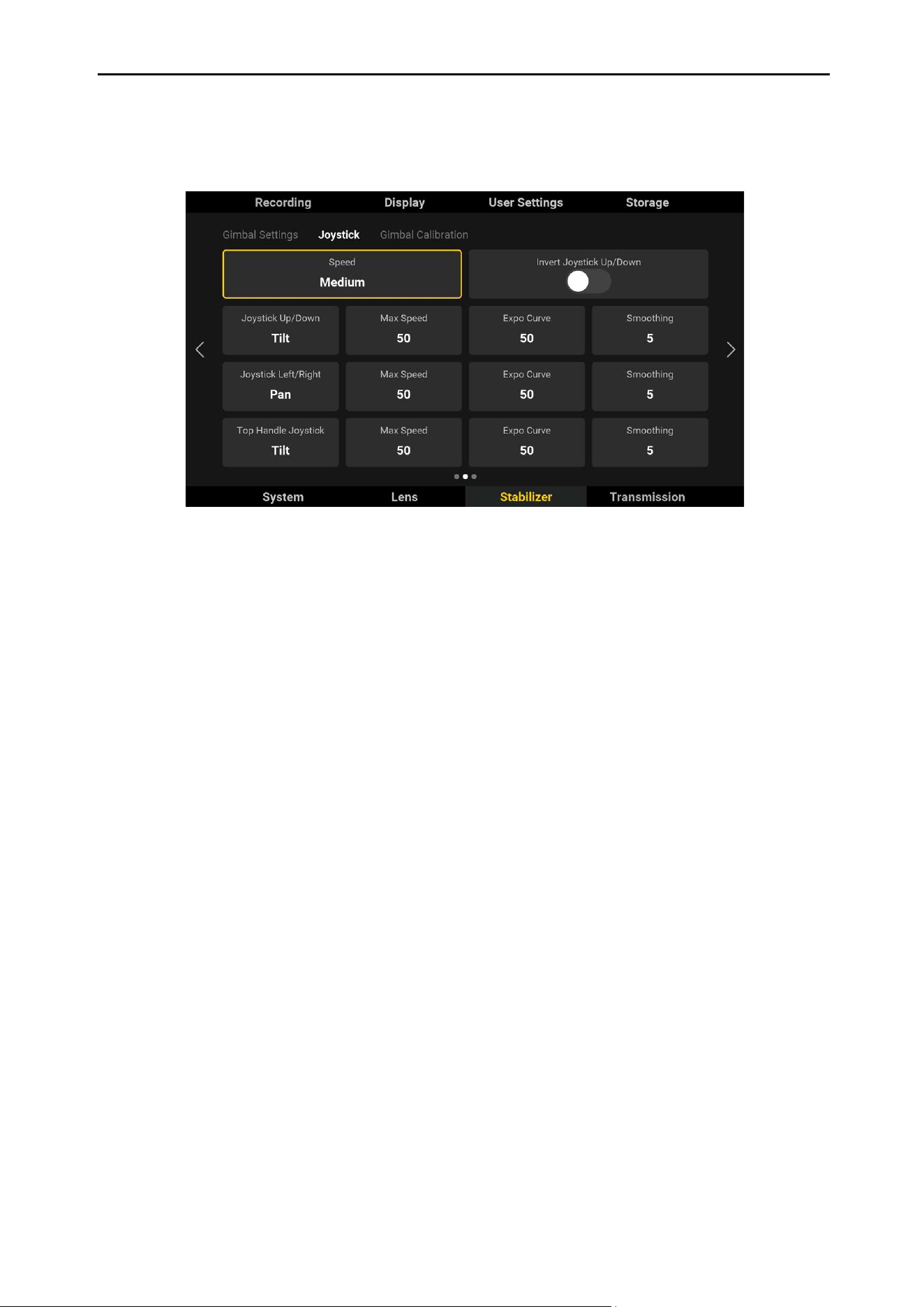
Tap to set the Speed, Control Mode, Max Speed, Expo Curve, and Smoothing for the left hand grip and
the top handle joystick.
Set the Speed to Fast (100), Medium (50), Slow (25) for the speed that the three axes will rotate to in
response to the max input of the joystick.
Invert Joystick Up/Down: After enabling this switch, the corresponding assigned axis rotational direction
will be inverted when pushing the joystick of the left hand grip or the top handle up or down.
Joystick Up/Down: Push the joystick of the left hand grip up or down to control the tilt by default. This
operation can also be assigned to pan or roll.
Joystick Left/Right: Push the joystick of the right hand grip left or right to control the pan by default. The
operation can also be assigned to tilt or roll.
Top Handle Joystick: Push the top handle joystick up and down to control tilt by default. This operation
can also be assigned to pan or roll.
Max Speed: Max Speed determines the remote-controlled rotational speed. The higher the value, the
faster the rotation.
Expo Curve: Expo Curve determines the rotational speed based on the dierent joystick input. When the
value is set to Slow, the rotational speed remains almost the same no matter how much the joystick is
pushed. When the value is set to Medium, the relationship of the rotational speed and the joystick input
is linear. When the value is set to High, the relationship of the rotational speed and the joystick input is
quadratic. The control experience will vary depending on the expo curve and applies to all the remote
devices of Ronin 4D.
Smoothing: When this value increases, the movement will be smoother and slower when the joystick
input is released. If smoothing is set to 0, the movement will be translated to an abrupt stop. This setting
applies to all the remote devices of Ronin 4D.
For a larger roll rotational angle, set the gimbal mode to Lock or PF, tilt the main body forward, and tilt
the pan axis 80° to the ground. In this scenario, push the joystick right or left continuously to rotate the
roll angle.
DJI Ronin 4D User Manual
60
©
2022 DJI All Rights Reserved.
Gimbal Calibration
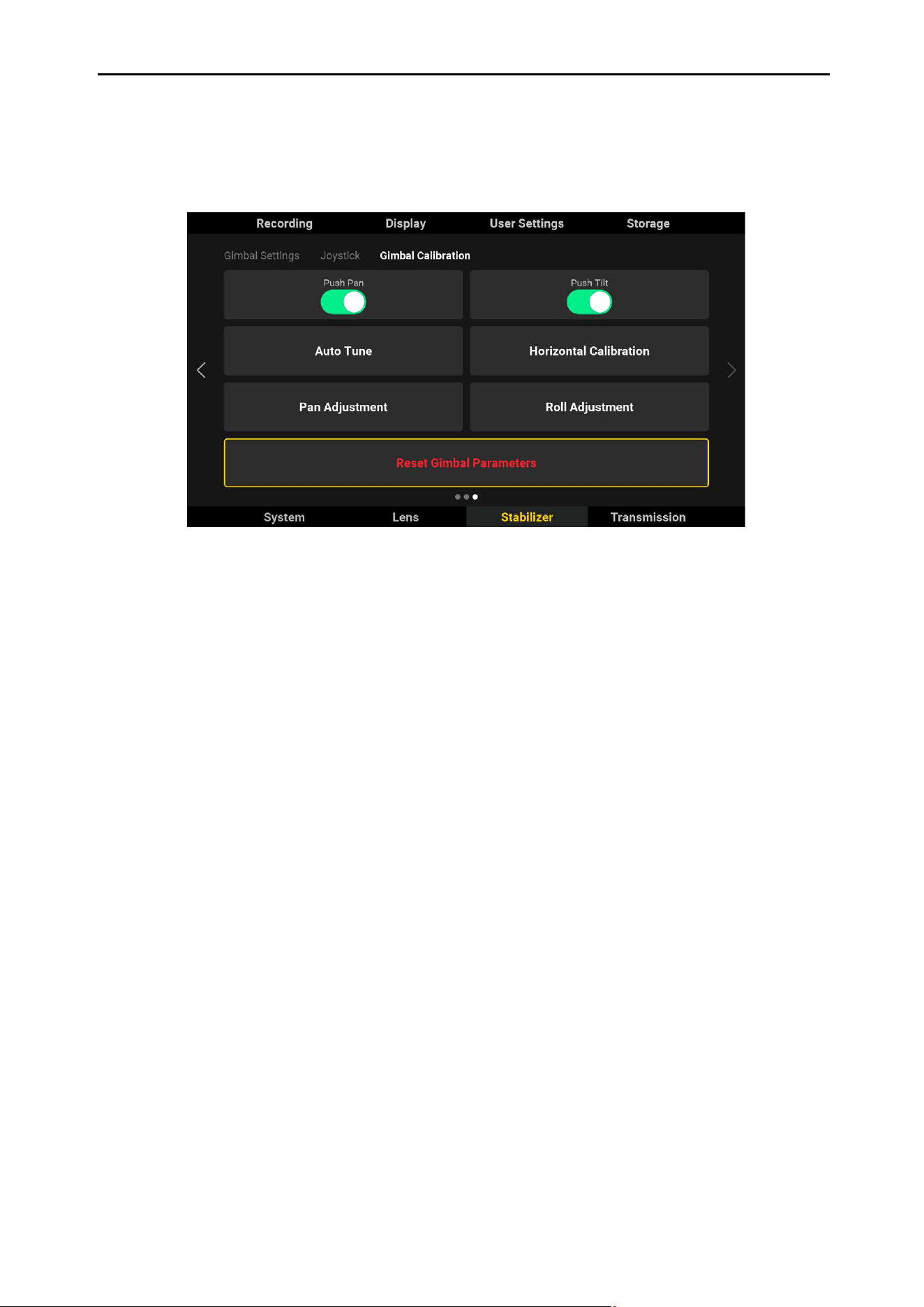
Includes settings for Push Pan/Tilt, Auto Tune, Horizontal Calibration, Pan/Tilt Adjustment, and Reset
Gimbal Parameters.
Push Pan/Tilt: The pan and tilt axes can be pushed directly by hand after Push Pan/Tilt is enabled.
Auto Tune: The stiness value is determined by the gimbal payload. Use Auto Tune to obtain the proper
stiness value automatically each time the payload is changed and balanced. The stiness values may
not be accurate without auto tune and lead to the gimbal to shake. Keep Ronin 4D stationary and
steady during auto tune.
Horizontal Calibration: It is recommended to perform horizontal calibration if the camera view is not
level when the gimbal is steady. Make sure the gimbal axes are unlocked, the gimbal mode is not o,
and the gimbal is upright and placed on a steady at surface. Do not move Ronin 4D during horizontal
calibration.
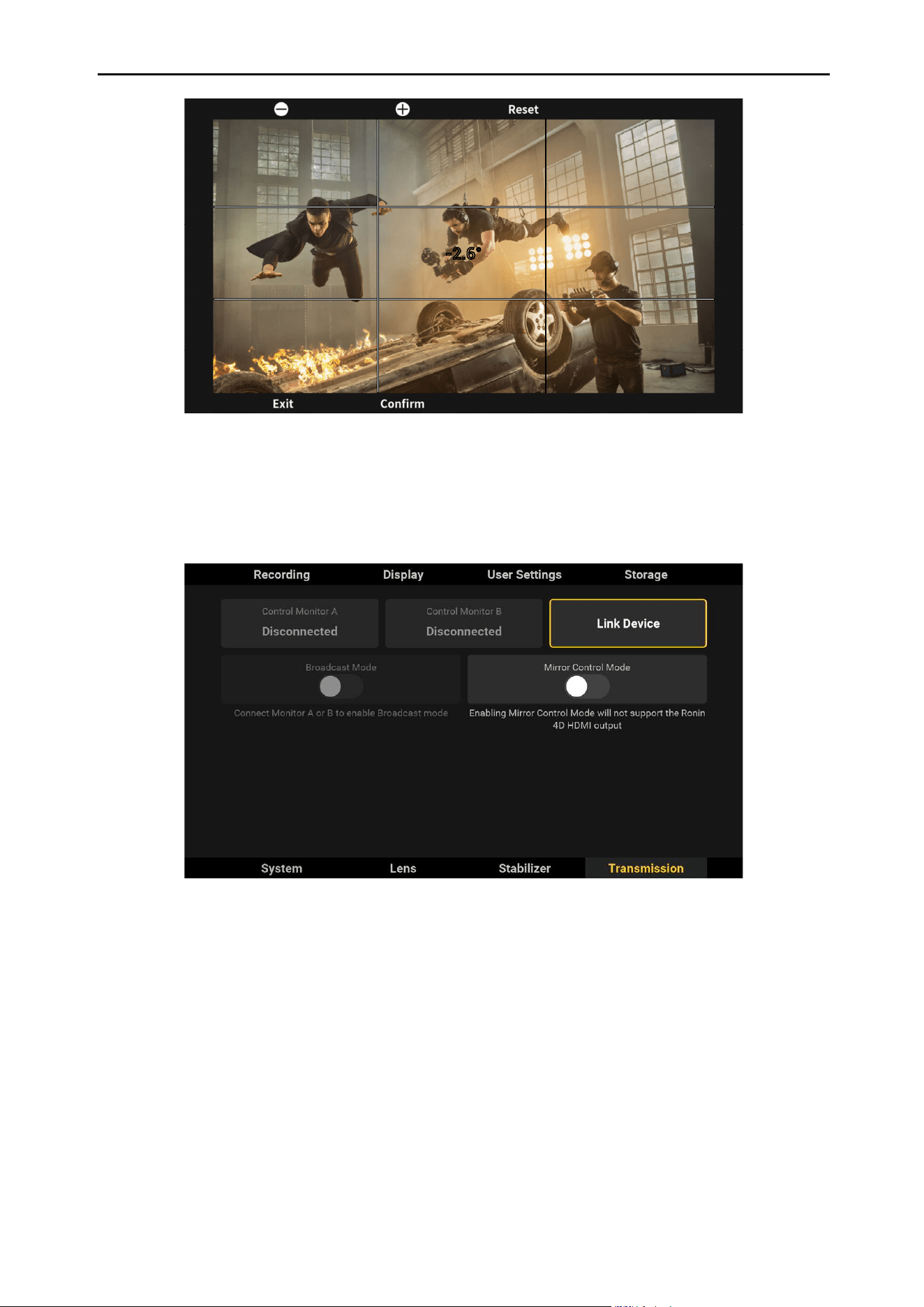
Pan/Tilt Adjustment: Adjust the pan or tilt oset by using pan/tilt adjustment. Tap to enter settings and
rotate the dial on the main monitor or tap + or - on the screen to adjust the oset. Tap Conrm to save
the oset value. Tap Reset to reset the pan and tilt position to default.
DJI Ronin 4D User Manual
61
©
2022 DJI All Rights Reserved.
Reset Gimbal Parameters: All gimbal parameters can be reset to default settings. Note that auto tune is
required after the gimbal parameters are reset. Otherwise, the gimbal may not work properly.
-2.6°
Transmission
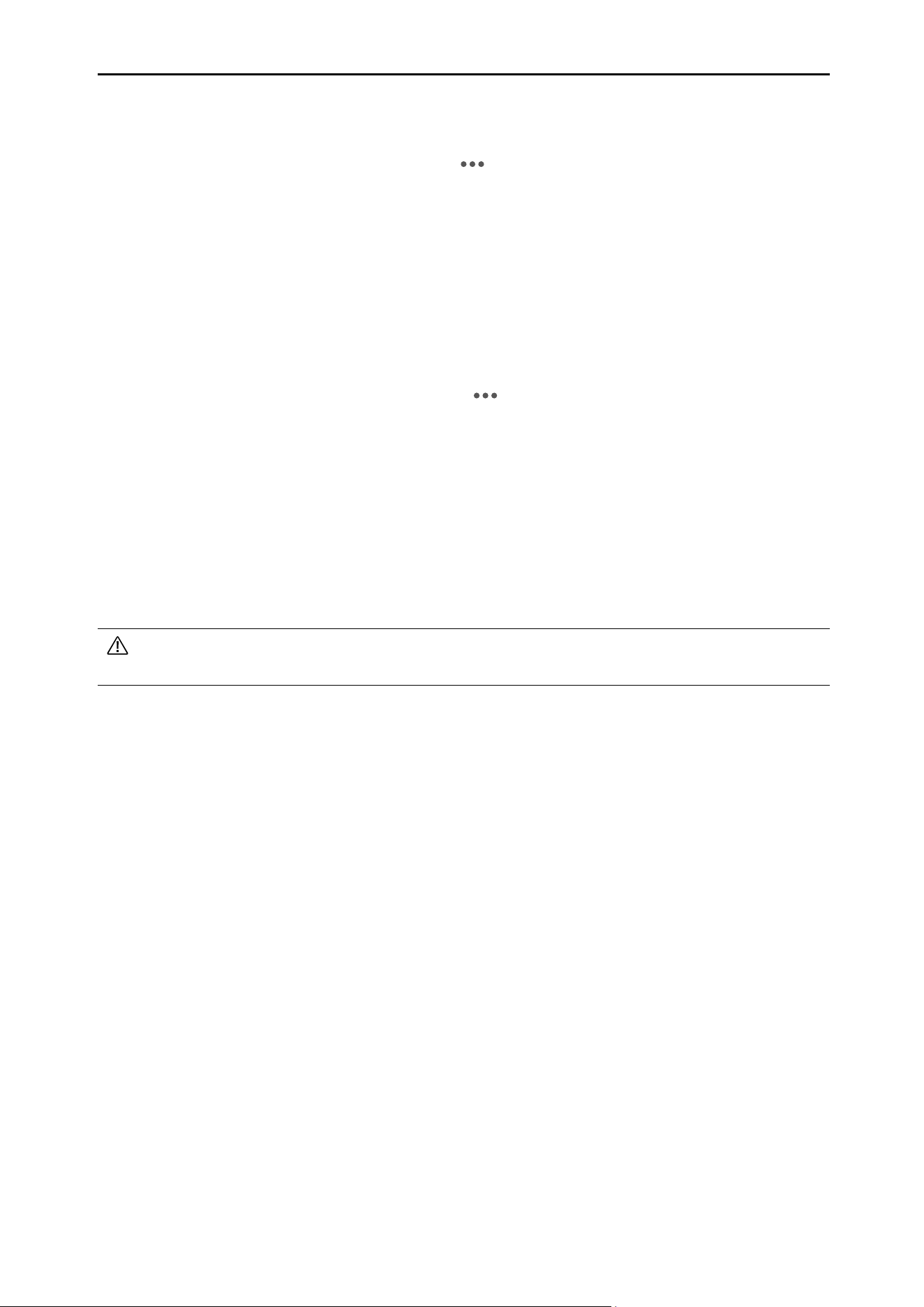
The two transmission modes of Ronin 4D are Control mode and Broadcast mode. In Control mode,
two remote monitors can be used to control the main monitor menu. There is no limit to the number of
remote monitors in Broadcast mode. Ronin 4D will enter Control mode by default if Broadcast mode
is disabled. Mirror Control mode can be enabled when the Ronin 4D is in Broadcast mode or Control
mode. In Mirror Control mode, the high-bright remote monitor can view the liveview of the high-bright
main monitor. In addition, the parameters of Ronin 4D can be adjusted when the high-bright remote
monitor is in Control mode.
In transmission settings, you can view the link status, link a remote monitor, and enable or disable
Broadcast mode or Mirror Control Mode.
Control Monitor A/B
Display the link status of the remote monitor. The status is displayed as Connected if a remote monitor
is linked with Ronin 4D.
DJI Ronin 4D User Manual
62
©
2022 DJI All Rights Reserved.
Link Device
Follow the steps below to link a remote monitor.
1. Power on the high-bright remote monitor. Tap to enter System Settings and then Connection
Settings. In Control mode, select Control Monitor A/B for the remote monitor and tap Link Control
Monitor A/B.
2. In Transmission on the high-bright main monitor, tap Link Device to enter linking status.
3. The remote monitor and main monitor will be displayed as Connected after the linking process is
completed.
Using Broadcast Mode
1. Enable Broadcast Mode in Transmission on the high-bright main monitor. At least one remote
monitor must be connected to Ronin 4D before enabling Broadcast mode.
2. Power on the high-bright remote monitor and tap to enter System Settings and then Connection
Settings. Tap Broadcast mode and the remote monitor will search for Ronin 4D automatically. The
camera name will display on the screen with the initials representing the camera index of Ronin 4D.
Tap to select a camera and the liveview will display on the remote monitor. Tap the camera index
shown on the right side of the remote monitor to switch between cameras.
Using Mirror Control Mode
Tap to enable Mirror Control mode and Ronin 4D will reboot automatically. The high-bright main monitor
to be displayed on the high-bright remote monitor and the Ronin 4D parameters can be adjusted when
the high-bright remote monitor is in Control mode. Tap again to disable Mirror Control mode and Ronin
4D will reboot again.
The transmission performance will be aected after enabling Broadcast mode. Broadcast Mode
will be disabled after restarting Ronin 4D.
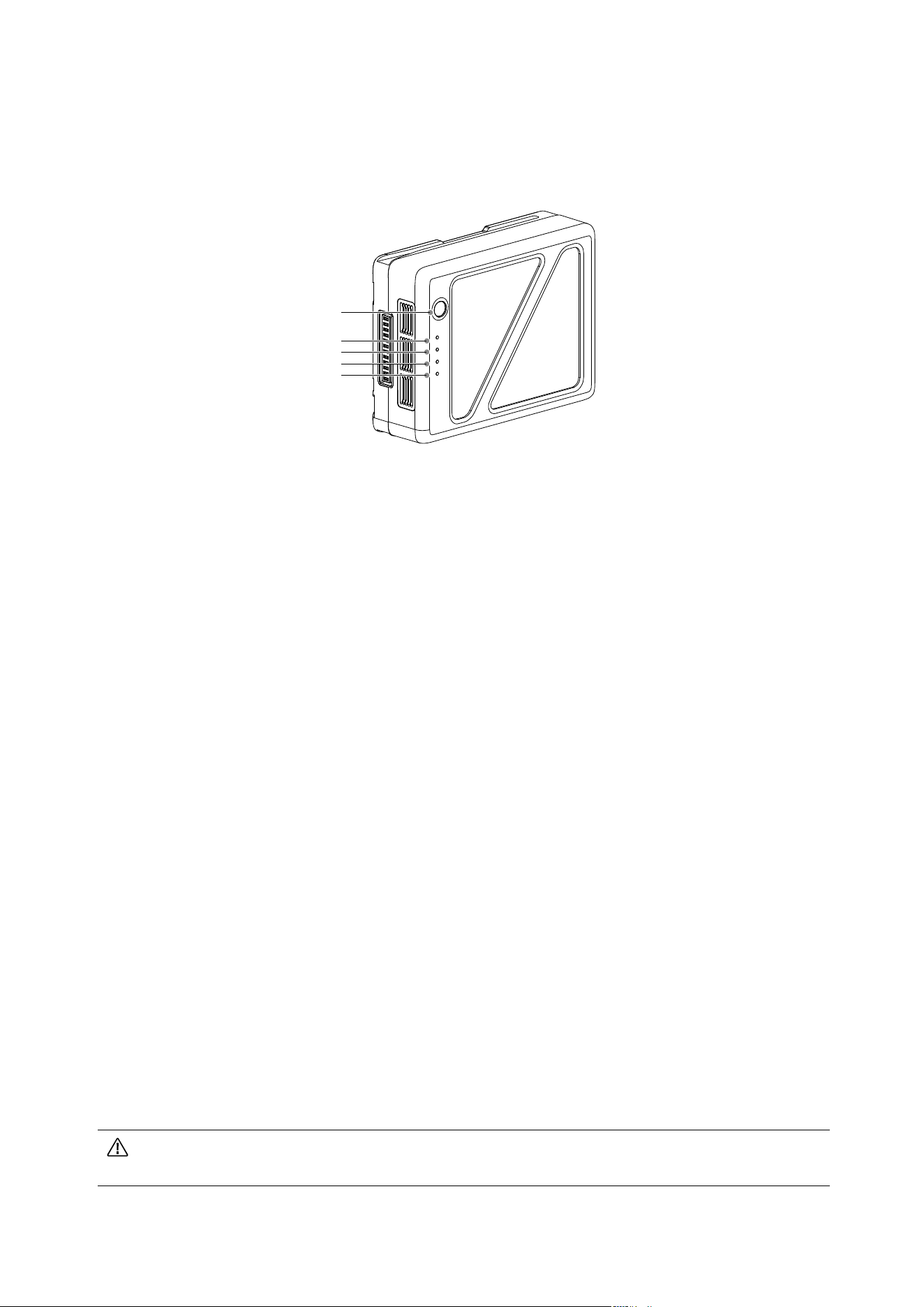
63
©
2022 DJI All Rights Reserved.
Intelligent Battery
The TB50 Intelligent Battery has a capacity of 4280 mAh, a voltage of 22.8 V, and a variety of power
management functions.
Intelligent Battery Functions
1. Battery Level Display: the battery level LEDs display the current battery level.
2. Auto-Discharging Function: to prevent swelling, the battery automatically discharges to below 70%
of total power when it is idle for more than 10 days. To exit the idle state, press the Battery Level
button to check the battery level. It takes approximately three days to discharge the battery to 65%.
It is normal to feel moderate heat emitting from the battery during the discharge process.
3. Balancing Function: automatically balances the voltage of each battery cell when charging.
4. Overcharge Protection: the battery stops charging automatically once fully charged.
5. Temperature Detection: to prevent damage, the battery only charges when the temperature is
between 5° and 45° C (41° and 113° F).
6. Overcurrent Protection: the battery stops charging when an amperage of more than 10 A is
detected.
7. Over-Discharge Protection: to prevent serious damage to the battery, the current output will be
cut off when the battery cell is discharged to 2.8 V and not in use. To extend operating times,
overcharging protection is disabled as batteries discharge during usage. In this instance, a battery
voltage below 2 V may cause a safety hazard such as a fire when charged. To prevent this, the
battery will not be able to charge if the voltage of a single battery cell is below 2 V. Avoid using any
batteries matching this description and make sure to avoid over-discharging to prevent permanent
battery damage.
8. Short Circuit Protection: the power supply is automatically cut if a short circuit is detected.
9. Battery Cell Damage Protection: a warning prompt will appear in DJI Assistant 2 when a damaged
battery cell is detected.
10. Sleep Mode: the battery enters sleep mode when not in use to save power.
11. Communication: the battery voltage, capacity, current, and other relevant information is provided to
Ronin 4D.
12. Heating: the batteries are self-heating, enabling them to work in cold weather conditions.
Read the user manual and all battery stickers before use. Users take full responsibility for all operations
and usage.
Battery Level Button
LED1
LED2
LED3
LED4
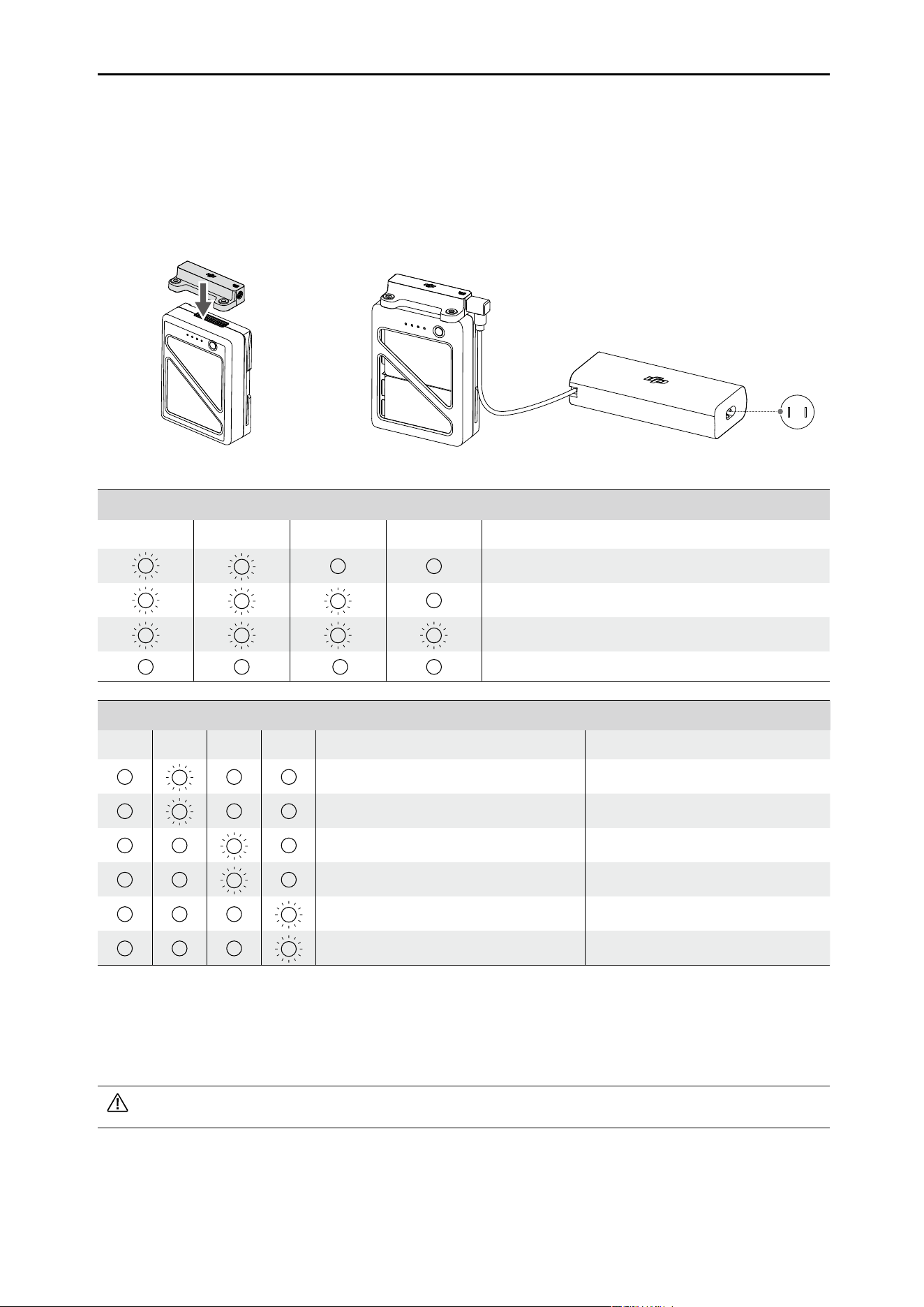
DJI Ronin 4D User Manual
64
©
2022 DJI All Rights Reserved.
After resolving one of the battery issues listed above, press the battery level button to cancel the LED
indicator protection indicator, and unplug and plug the charger again to resume charging. If the charging
temperature is abnormal, wait for the charging temperature to return to normal and the battery will
automatically resume charging without the need to unplug and plug the charger again.
DJI does not take any responsibility for damage caused by third-party chargers.
Charging the Batteries
Insert the charging adapter into the battery port and charge the battery with the provided charger. It
takes approximately 1.5 hours to fully charge the battery.
The battery level indicators display the battery level during charging and usage. Press the battery level
button to check battery level when not in use.
Power Outlet
100 - 240 V
Battery Level Indicators while Charging
LED1 LED2 LED3 LED4 Battery Level
0%-50%
50%-75%
75%-100%
Fully charged
Battery Level Indicators for Battery Protection
LED1 LED2 LED3 LED4 Blinking Pattern Battery Protection Description
LED2 blinks twice per second Overcurrent detected
LED2 blinks three times per second Short circuit detected
LED3 blinks twice per second Overcharge detected
LED3 blinks three times per second Charger overvoltage detected
LED4 blinks twice per second Charging temperature is too low
LED4 blinks three times per second Charging temperature is too high
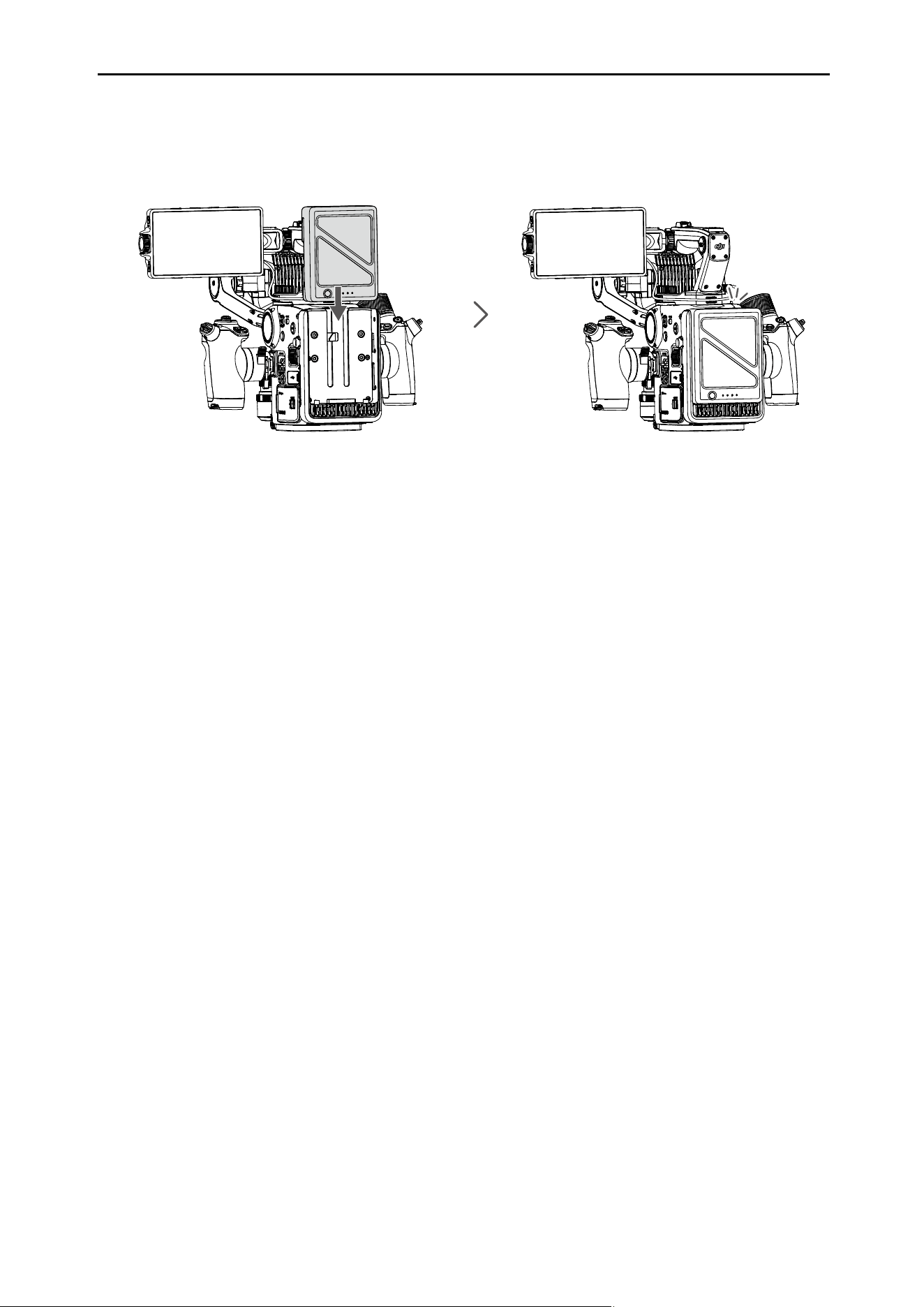
DJI Ronin 4D User Manual
65
©
2022 DJI All Rights Reserved.
Attaching Intelligent Battery
Align the Intelligent Battery with the battery compartment and push the battery down until there is a
clicking sound.
Checking the Battery Level
Press the battery level button once to check battery level. The battery level indicator glows
and Ronin 4D cannot be powered on during this time. Wait for the indicators to turn off before
powering on Ronin 4D.
Heating the Battery
Manual Heating: when the battery is powered off, press and hold the battery level button for 3
seconds to warm up the battery. The battery will warm up if the temperature is below 15° C (59° F).
As it warms, LED 1 and 2 and LED 3 and 4 will blink alternately. The battery will stop warming up
when it reaches 20° C (68° F). The temperature of the battery will remain between 15° to 20° C
(59° to 68° F). When the temperature is above 15° C (59° F), LED 1 and LED 4 blink alternately
for approximately 30 minutes before Ronin 4D powers off automatically.
Auto Heating: Insert the batteries into the battery mount and power on. When the temperature of
the battery is below 15° C (59° F), it will warm up automatically.
Low Temperature Notice
1. The performance of the Intelligent Battery is signicantly reduced in environments with a temperature
below 5° C (41° F). Make sure that the battery is fully charged and the cell voltage is 4.35 V before use.
2. In extremely cold weather, the battery temperature may not be high enough even after warming up.
In such scenarios, make sure the battery is insulated.
3. To ensure optimal performance, keep the temperature of the Intelligent Battery above 20° C (68° F)
when in use.
Warnings
1. Do not use the battery when the environment temperature is too high or too low.
2. The ideal storage temperature is 22° to 28° C (71.6° to 82.4° F).
3. DO NOT store the battery for an extended period after fully discharging. Otherwise, the battery may
over-discharge and cause irreparable damage.
4. The battery life may be reduced if the battery is not used for an extended period. Fully charge and
discharge the battery at least once every three months to ensure the performance of the battery.
Click

66
©
2022 DJI All Rights Reserved.
Intelligent Features
ActiveTrack Pro
With ActiveTrack Pro, Ronin 4D is able to track any kind of subject, and can recognize human faces and
limbs and track continuously. The frame can be adjusted anytime during tracking.
Using ActiveTrack Pro
Make sure gimbal mode is set to follow or lock. The lens must be calibrated in advance if using a third-
party lens.
1. Enable Smart Mode: Press the HOME button of the main monitor to enter menu, select Select Lens,
Focus, ROI Zone, and Smart. Alternatively, press and hold the ActiveTrack button on the left hand
grip to enable Smart mode. The Track button on the screen will display in white.
2. Ronin 4D recognizes the face and limbs of people in the center area of camera view. A yellow box
will appear on the recognized subject, which indicates Ronin 4D is ready to track the subject. Tap
the subject in the yellow box or press the ActiveTrack button on the left hand grip to conrm the
subject. The yellow box turns green, which indicates Ronin 4D will follow the subject. Users can also
drag a box on the subject. If the box is too small or the subject is obscure, adjust the frame and
select again. The camera can be adjusted for better composition after the subject is conrmed.
3. Tap the Track button to start tracking. The track icon will be yellow while tracking. Ronin 4D will track
the subject within the green box automatically. The subject positon in the liveview will remain within a
certain range and the position can be adjusted at any time during tracking via the joystick. When the
gimbal mode is set to follow, press the ActiveTrack button to cancel the selected subject, and Ronin
4D will recognize the next nearest subject in the center of the liveview. Press the ActiveTrack button
again to conrm the new subject. Press the trigger of the left hand grip twice or press the C1 button
once on the main body to recenter the gimbal.
Press and hold the trigger of the left hand grip to enable or disable ActiveTrack quickly. This is
convenient for tracking between several subjects.
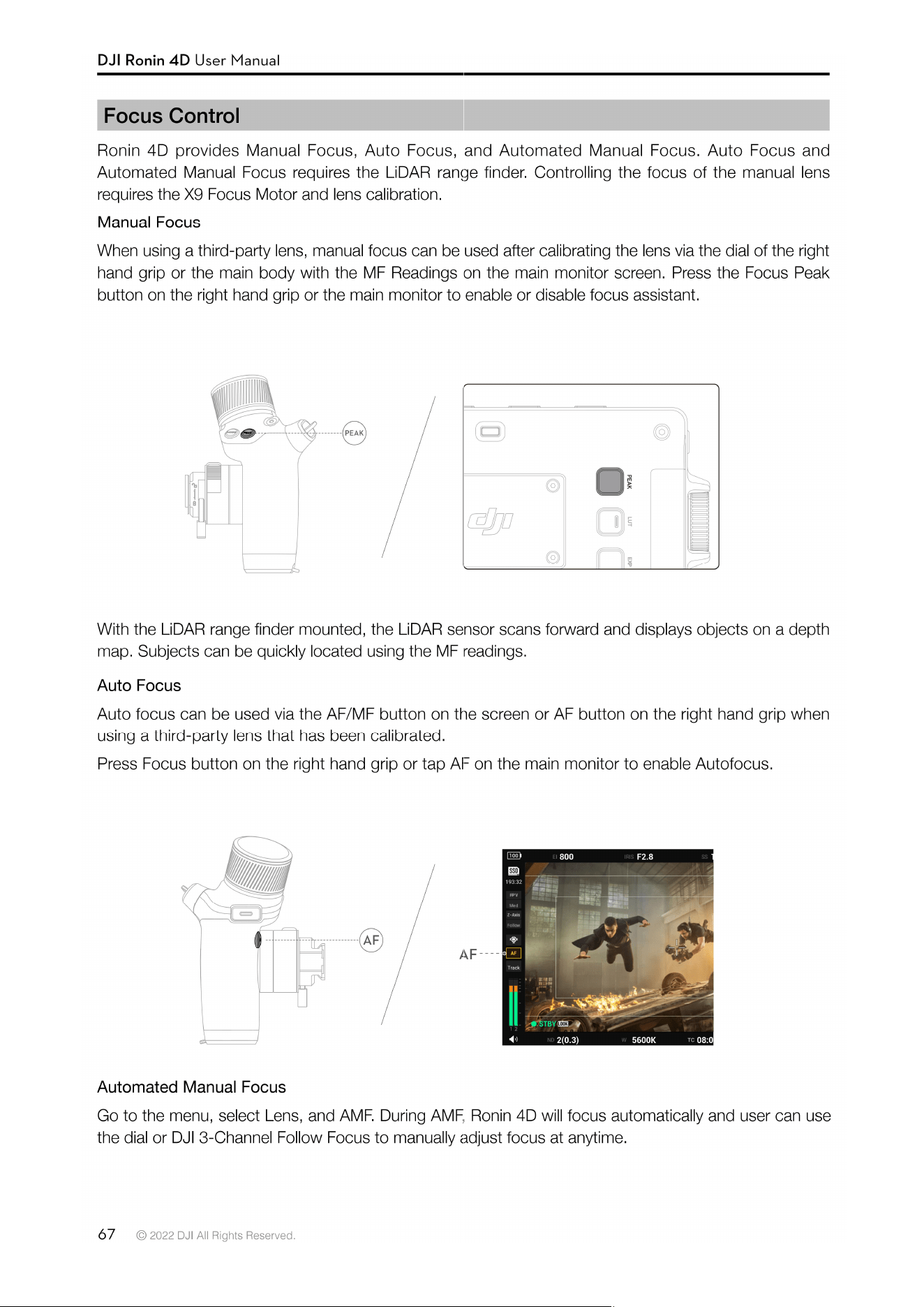

68
©
2022 DJI All Rights Reserved.
Firmware Update
Update Ronin 4D rmware via the DJI Assistant 2 (Ronin Series).
How to update �rmware:
1. Launch DJI Assistant 2 (Ronin Series) and log in with a DJI account.
2. Power on Ronin 4D and connect the USB-C port to the computer using a USB-C cable.
3. Click Ronin 4D and Update.
4. Select the rmware version.
5. DJI Assistant 2 (Ronin Series) will download and update the rmware automatically.
Do not disconnect from the internet while updating rmware. Otherwise, the update will fail.
Make sure the battery level of Ronin 4D is at least 40% before starting the update.
It is normal for Ronin 4D to restart while updating.
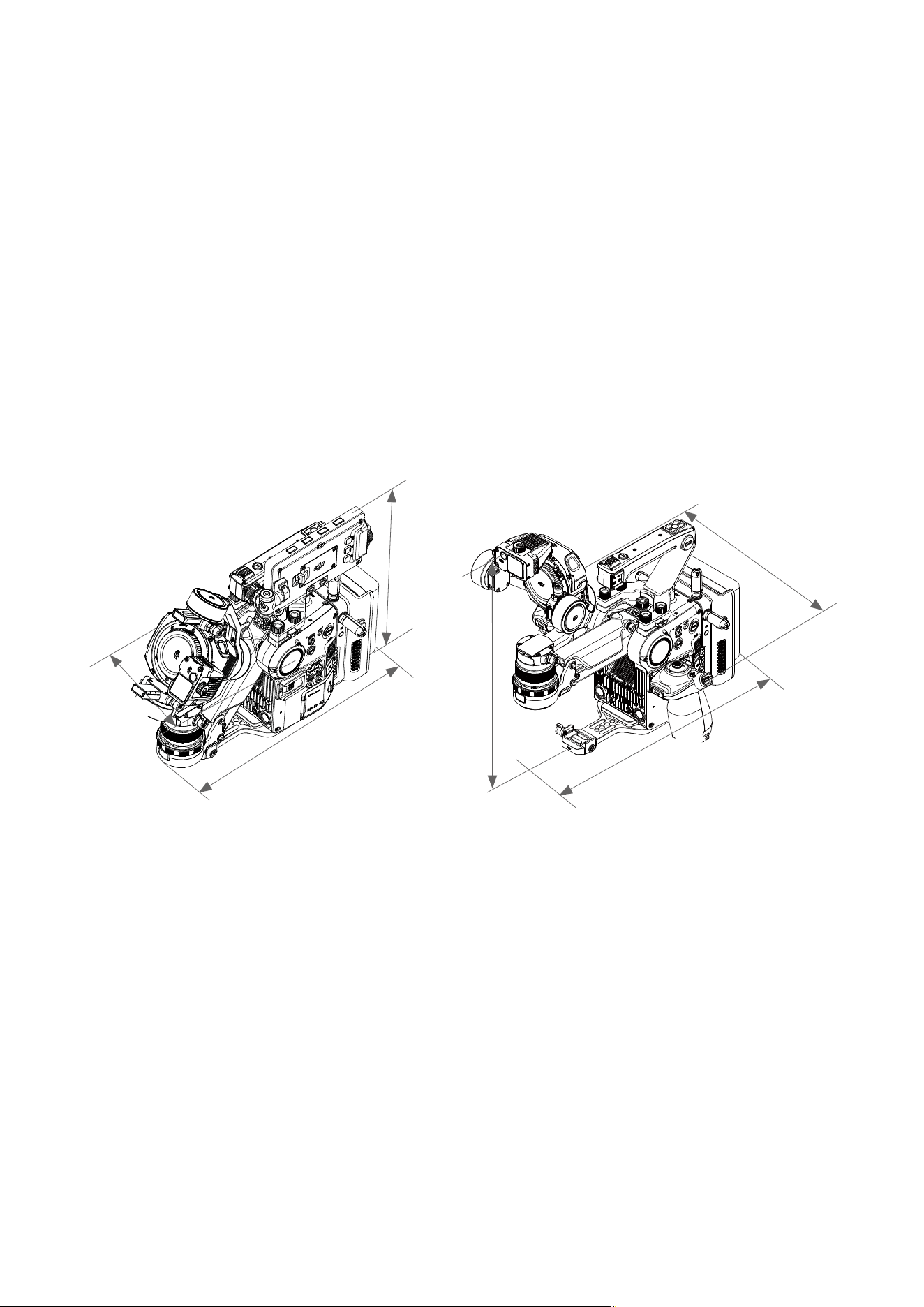
69
©
2022 DJI All Rights Reserved.
Maintenance
Do not disassemble Ronin 4D. Otherwise, the warranty will be voided.
Protect the Ronin 4D from dust and water. Make sure to operate in a dust-free environment if attaching
or detaching the X9 Gimbal and Camera, X9 Focus Motor, LiDAR range nder, lens mount, lens, battery,
storage media, or hand grips. The lens or ports may be harmed and usage may be aected if they
come into contact with sand or dust.
Note that the X9 Gimbal and Camera and LiDAR range nder do not support hot swapping. The X9
Focus Motor, DJI PROSSD 1TB, main monitor, hand grips, lens, lens mount, and top handle support
hot swapping.
Keep the sensor or lens clean, clean Ronin 4D with a soft dry cloth, and do not spray Ronin 4D with any
cleaning liquids.
When not in use, detach the lens or hand grips, and fold the Ronin 4D correctly before placing into the
storage case. Make sure Ronin 4D is not squeezed in any way during storage or transportation.
Unit: mm
35
4.
1
1
366.
7
6
2
7
6.1
2
160
.
16
360.08
290.75
Folded in Transportation Operating Status

70
©
2022 DJI All Rights Reserved.
Speci�cations
General
Main Body Dimensions
(length×width×height)
235×115×160 mm
Overall Dimensions
(length×width×height)
309×290×277 mm (Measured when 6K Combo is fully set up with the
main monitor attached and the Z-Axis o)
Gimbal Weight Approx. 1.04 kg
Main Body Weight Approx. 1.45 kg
Overall Weight
Approx. 4.67 kg (After installing all modules in the combo, excluding lens
and storage media)
Max Operating Time
Approx. 150 min (Measured with a fully charged TB50 Battery and
Ronin 4D in a still state with the gimbal balanced, the Z-Axis o, and
continuously recording in ProRes RAW. Gimbal movements or use of the
Z-axis will reduce operating time.)
Intelligent Features
ActiveTrack Pro, Autofocus (Supports human face/body recognition and
framing of any subject)
Storage Temperature -20° to 60° C (-4° to 140° F)
Operating Temperature -10° to 40° C (14° to 104° F)
Camera
Sensor Size 35mm full-frame CMOS image sensor
Base Lens Mount DX Mount, and support for other mount units
Supported Lens Mounts DL Mount (standard), M Mount, and E Mount
DL Lens
DJI DL 24mm F2.8 LS ASPH
DJI DL 35mm F2.8 LS ASPH
DJI DL 50mm F2.8 LS ASPH
Dynamic Range 14+ stops
White Balance Manual 2,000-11,000 Kelvin and tint adjustment, supports AWB
Gamma D-Log, Rec.709, HLG
EI Range
X9-8K: EI 200-12800, Dual Native ISO 800/4000
X9-6K: EI 200-12800, Dual Native ISO 800/5000
Shutter Speed Electronic Rolling Shutter 1/24s-1/8000s
ND
Built-in 9-stop ND lters:
Clear, 2 (0.3), 4 (0.6), 8 (0.9), 16 (1.2), 32 (1.5), 64 (1.8), 128 (2.1), 256
(2.4), 512 (2.7)
Focus Control
Autofocus, Manual Focus, Automated Manual Focus
(Autofocus on manual lenses requires DJI Zenmuse X9 Focus Motor)
X9-6K Max Bit Rate
6008×3168, 48fps
RAW 3.4Gbps
X9-8K Max Bit Rate
8192×4320, 60fps
RAW 3.95Gbps
Supported File System exFAT
Recording Format
Apple ProRes RAW HQ/Apple ProRes RAW
Apple ProRes 422 HQ/Apple ProRes 422 (Supported through a future
rmware update)
H.264 (4:2:0 10-bit)
Storage Media DJI PROSSD 1TB, CFexpress 2.0 Type B, USB-C SSD
DJI PROSSD 1TB Recording
Format
No restriction on recording format
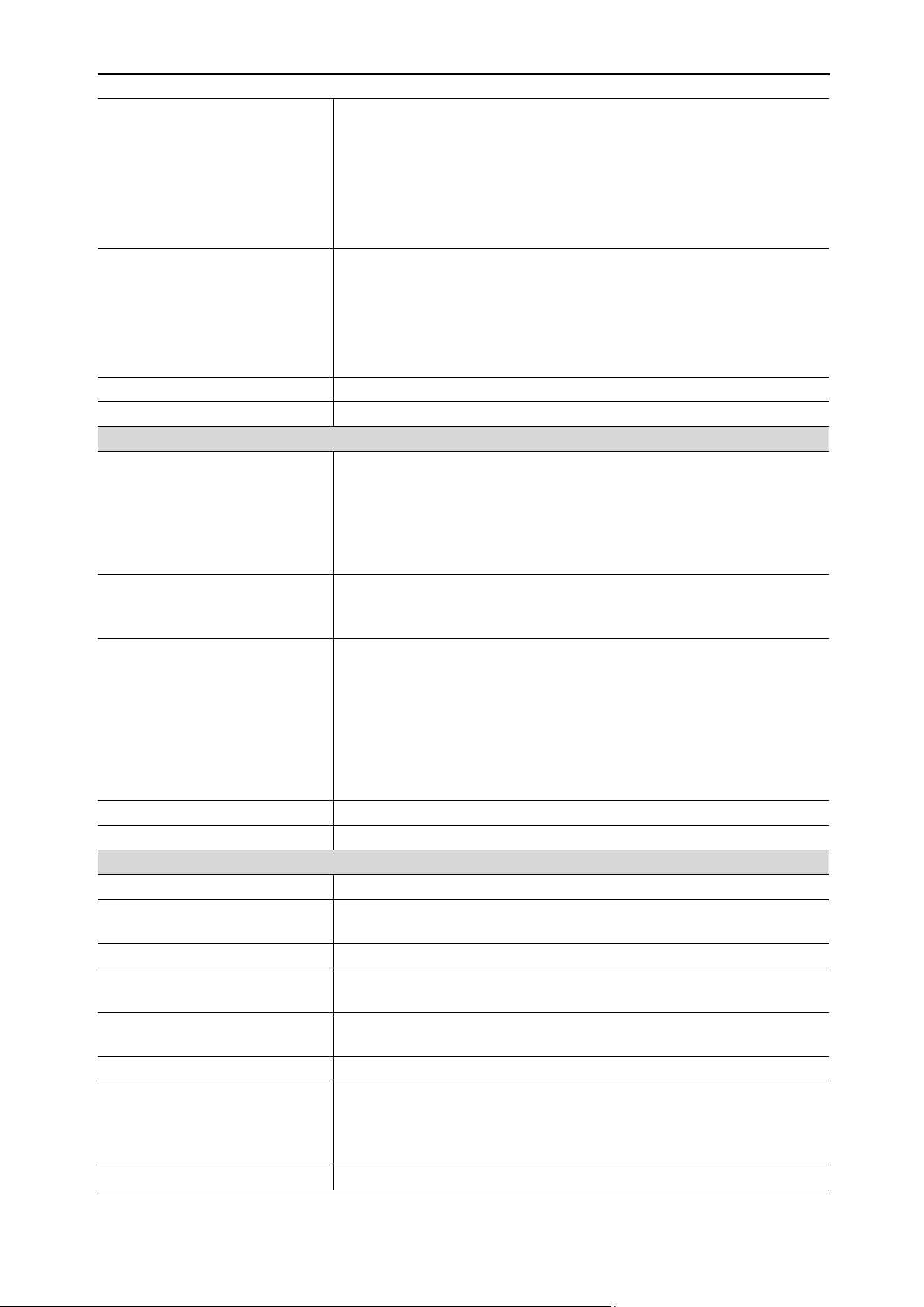
DJI Ronin 4D User Manual
71
©
2022 DJI All Rights Reserved.
CFexpress 2.0 Type B Recording
Format (Use recommended
CFexpress cards)
ProRes 422 HQ:
6K: 23.976/24/25/29.97/30fps
C4K: 23.976/24/25/29.97/30/48/50/59.94/60/72/96/100/120fps
2K: 23.976/24/25/29.97/30/48/50/59.94/60/72/96/100/120fps
H.264:
C4K: 23.976/24/25/29.97/30/48/50/59.94/60/72/96/100/120fps
2K: 23.976/24/25/29.97/30/48/50/59.94/60/72/96/100/120fps
USB-C SSD Recording Format
(Use recommended USB-C SSD)
ProRes 422 HQ:
C4K: 23.976/24/25/29.97/30/48/50/59.94/60fps
2K: 23.976/24/25/29.97/30/48/50/59.94/60fps
H.264:
C4K: 23.976/24/25/29.97/30/48/50/59.94/60fps
2K: 23.976/24/25/29.97/30/48/50/59.94/60fps
Built-in Mic Built-in 2-ch stereo
Audio Format LPCM 2-ch, 24-bit 48kHz
Gimbal
Mechanical Range
Pan: ±330°
Tilt: -75° to 175°
Roll: -90° to 230°
Z-Axis Range: approx 130mm (Stabilization range of the Z-axis is subject
to change based on Z-axis modes and usage scenarios and may be
smaller than the mechanical range)
Controllable Range
Pan: ±285°
Tilt: -55° to +155°
Roll: ±35°
Max Control Speed (°/s)
DJI Master Wheels or DJI Force Pro:
Tilt: 360°/s
Roll: 360°/s
Pan: 360°/s
Ronin 4D Hand Grip:
Tilt: 120°/s
Roll: 120°/s
Pan: 120°/s
Maximum Z-axis Payload 2000 g (including 1040 g gimbal)
Angular Vibration Range ±0.01°
LiDAR Range Finder
Weight 88 g
Dimensions
(length×width×height)
71×47×34 mm
Operating Temperature -10° to 40° C (14° to 104° F)
LiDAR Range Measurement
Precision
0.3-1 m (±1%)
1-10 m (±1.5%)
FOV*
30 cm to 3 m @>18% reectivity 60° (horizontal) × 45° (vertical)
30 cm to 10 m @>18% reectivity 60° (horizontal) × 7° (vertical)
Safety Rating Class 1 (IEC 60825-1:2014) (safe for human eyes)
Operating Environment
Use in environments with diuse reective surfaces (>10%, such as walls,
trees, people, etc.)
DO NOT use in environments with dense fog or aim it at or through glass
surfaces.
Laser Wavelength 940 nm
DJI Ronin 4D User Manual
72
©
2022 DJI All Rights Reserved.
Single Pulse Width Two kinds of pulses emit in circulation: 5 ns and 33.4 ns.
Max Laser Power 6 W
Main Monitor
Screen Size 5.5 in (diagonal)
Resolution 1920×1080
Refresh Rate 60 Hz
Max Brightness 1000 cd/m²
Screen Rotational LCD touchscreen
Battery
Battery Type TB50 Intelligent Battery
Capacity 4280 mAh
Energy 97.58 Wh
Voltage 22.8 V
Max Charging Voltage 26.1 V
Max Charging Power 180 W
Charging Temperature Range 5° to 40° C (41° to 104° F)
Charging Time Approx. 1.5 hours (with standard 86W power adapter)
DJI O3 Pro Video Transmission
Max Transmission Distance
(Unobstructed, free of
interference.)
20,000 ft (approx. 6 km, FCC-compliant)
Max Transmission Resolution and
Frame Rate
1920×1080 @60fps
Minimum End-to-End Latency
100 ms or 68 ms
(100 ms is measured at 4K/24fps, 68 ms is measured at 4K/60fps.)
Wireless Frequency
Non-DFS frequency band:
2.400-2.483 GHz
5.150-5.250 GHz
5.725-5.850 GHz
DFS Frequency Band:
5.250-5.350 GHz
5.470-5.600 GHz
5.650-5.725 GHz
(Some frequency bands may not be available depending on the legal
policies of the region the monitor was activated in)
Transmitter Power (EIRP)
2.400-2.4835 GHz: ≤33 dBm (FCC); ≤20 dBm (SRRC/CE/MIC)
5.150-5.250 GHz: <23 dBm (FCC/SRRC/MIC)
5.250-5.350 GHz: <30 dBm (FCC); <23 dBm (SRRC/MIC)
5.470-5.600 GHz, 5.650-5.725 GHz: <30 dBm (FCC); <23 dBm (CE/MIC)
5.725-5.850 GHz: <33 dBm (FCC/SRRC); <14 dBm (CE)
Max Bandwidth 40 MHz
Max Bitrate 50 Mbps
DJI Ronin 4D User Manual
73
©
2022 DJI All Rights Reserved.
Interface
Main Body
3.5mm TRS Stereo Input Jack × 1 (supports mic, plug-in power mic, and
line inputs)
3.5mm Stereo Output Jack × 1
USB 3.1 Type-C Data Port × 1
6-pin 1B DC-IN (DC 12-30 V) × 1
Battery Mount Power Port (female) × 1
4D Expansion Plate Data Port (female) × 1
High-Bright Main Monitor Port × 1
Hand Grips Port × 2
Top Handle Port × 1
HDMI Type-A Video Output Port × 1 (Currently supports HDMI 1.4 and
will support HDMI 2.0 in a future rmware update)
X9 Gimbal LiDAR Range Finder/Focus Motor Port × 2
TB50 Battery Mount
Battery Mount Power Port (male) × 1
TB50 Battery Port × 1
4D Video Transmitter
Dimensions 89×21×137 mm
4D Video Transmitter Port
4D Expansion Plate Data Port (male) × 1
SMA Antenna Connector × 4
USB 3.1 Type-C Data Port × 1
Battery Mount Power Port (female) × 1
Battery Mount Power Port (male) × 1
Remote Monitor
Dimensions 216×58×166 mm (Includes monitor cage)
Screen Size 7 inches (Diagonal)
Max Brightness 1500 cd/m²
Screen Resolution 1920×1200
Refresh Rate 60 Hz
Max Battery Life
Approx. 2 hours (Measured at 50% screen brightness with DJI WB37
battery)
Operating Temperature 0° to 40° C (32° to 104° F)
Storage Temperature -20° to 60° C (-4° to 140° F)
Power System DJI WB37 Battery/NP-F Series Battery (Requires NP-F battery adapter)
Remote Monitor Port
3.5mm Stereo Jack × 1
microSD Card Slot × 1 (This port is currently not available. Will support
internal recording in a future rmware update)
HDMI Type-A Video Input Port × 1 (This port is currently not available.
Will support HDMI 1.4 in a future rmware update)
Remote Monitor Expansion Plate High-Speed Port (female) × 1
Remote Monitor Accessory Expansion Port × 1
USB 3.1 Type-C Data Port × 1
Remote Monitor Expansion Port
Remote Monitor Expansion Plate High-Speed Port (male) × 1
HDMI 1.4 Type-A Video Output Port × 1
6-pin 1B DC-IN (DC 6.8-17.6 V) × 1
3G-SDI (Level A) BNC Video Output Port × 1
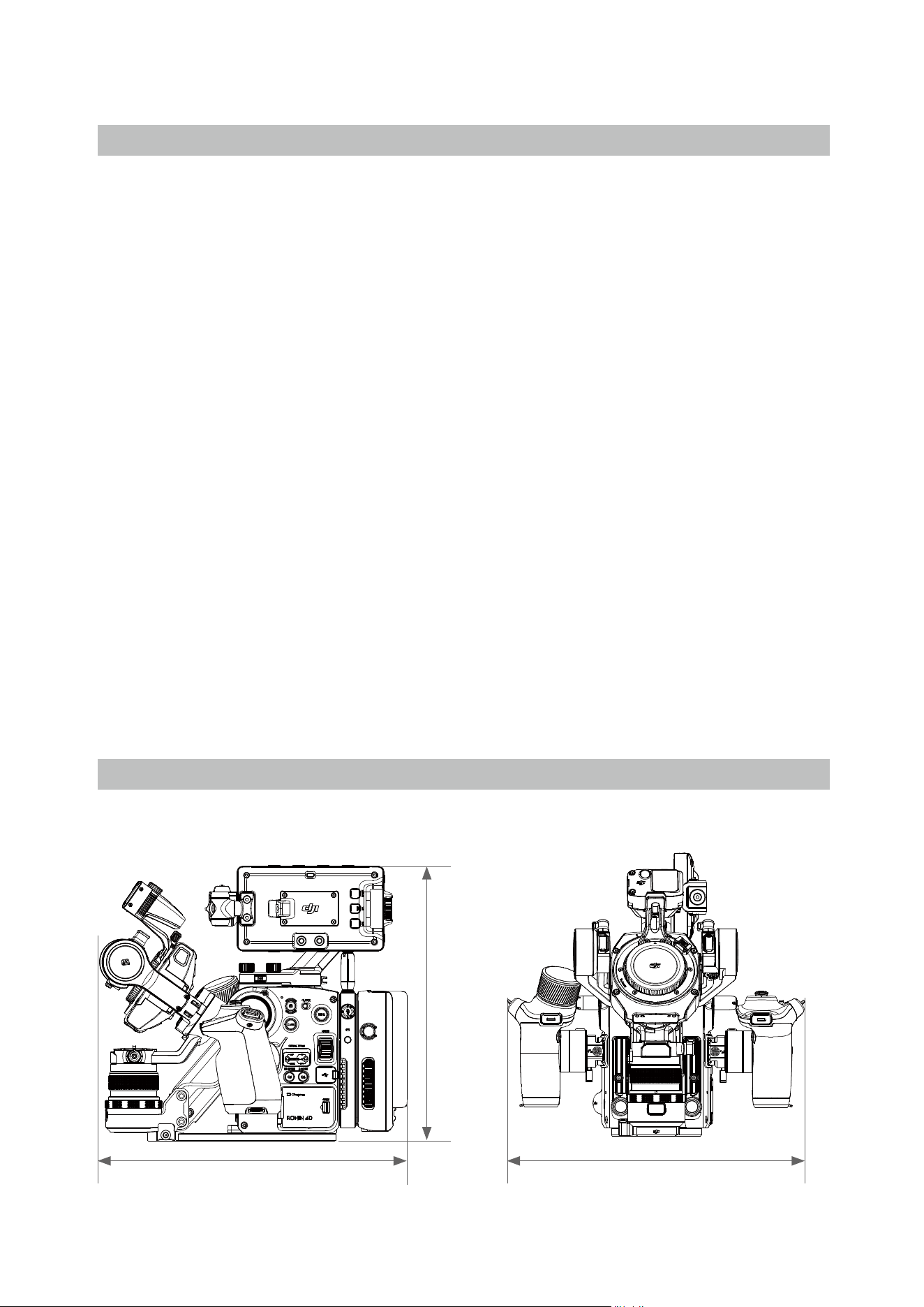
74
©
2022 DJI All Rights Reserved.
Appendix
Using DJI Force Pro and DJI Master Wheels with Ronin 4D
To control Ronin 4D via DJI Force Pro or DJI Master Wheels requires DJI Ronin 4D Video Transmitter,
DJI High-Bright Remote Monitor, DJI High-Bright Remote Monitor Controller Cable, and DJI Ronin 4D
Expansion Plate (SDI/XLR/TC). Make sure to update the rmware to the latest version for Ronin 4D, DJI
High-Bright Remote Monitor, DJI Force Pro, and DJI Master Wheels.
Follow the steps below to use DJI Force Pro and DJI Master Wheels with Ronin 4D.
1. Detach the cover on the back of the DJI High-Bright Remote Monitor and attach the DJI Remote
Monitor Expansion Plate (SDI/HDMI/DC-IN) to the back of the DJI High-Bright Remote Monitor and
tighten the four screws.
2. Connect the DC-OUT port of the DJI Master Wheels or DJI Force Pro and the DC-IN port of the DJI
Remote Monitor Expansion Plate mounted on the DJI High-Bright Remote Monitor using the DJI
High-Bright Remote Monitor Controller Cable.
3. In the high-bright main monitor menu, tap Transmission and Link Device or press the linking button
on the DJI Ronin 4D Video Transmitter for ve seconds to enter linking status. Tap … on the high-
bright remote monitor and select Control Settings and Link Monitor A/B to link Ronin 4D.
4. Power on the DJI Force Pro or DJI Master Wheels and switch the gimbal control to Ronin 4D.
Switching the Gimbal Control:
For DJI Master Wheels: Set the Switch function for a custom button of the DJI Master Wheels to
Ronin 4D and press the button to switch. The DJI Master Wheels supports movement control,
recenter control, recording control, max speed, smoothing, and direction settings for pan, tilt, and
roll axes of Ronin 4D (other features are not supported currently).
For DJI Force Pro: Go to Settings on DJI Force Pro and select Custom, Switch, and Ronin 4D. DJI
Force Pro supports movement control, recenter control, and max speed settings for pan, tilt, and roll
axes of Ronin 4D (other features are not supported currently).
Dimensions
Ronin 4D
277.00
309.00 290.00
Unit: mm
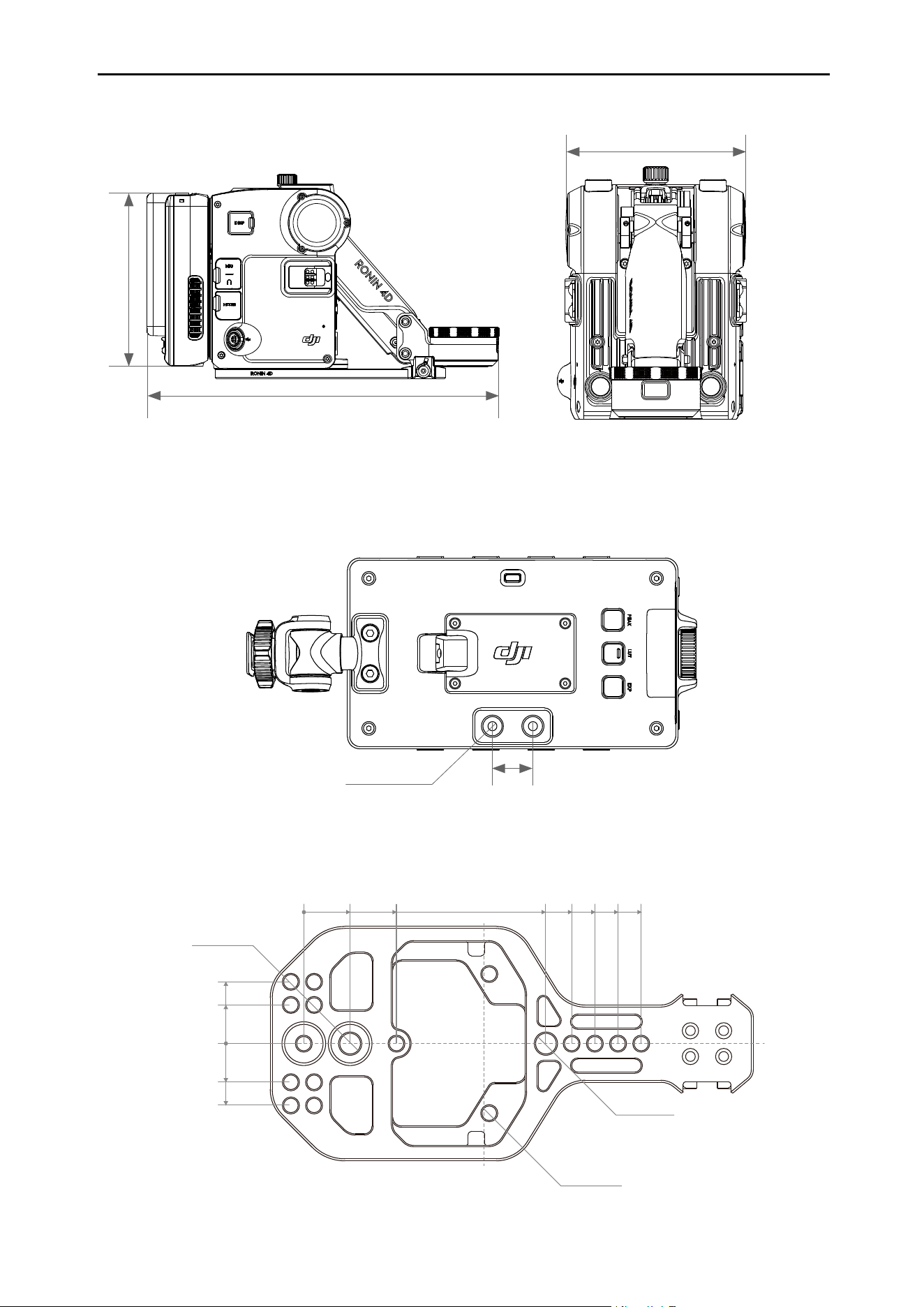
DJI Ronin 4D User Manual
75
©
2022 DJI All Rights Reserved.
18.00
2-M4 Depth7
High-Bright Main Monitor Mounting Hole
0
0 18 36
90 99 108 117 126
24
1/4" -20
3/8" -16
3/8" -16
24
15
15
Base Plate
Unit: mm
Unit: mm
Main Body
115.00
235.00
160.00
Unit: mm
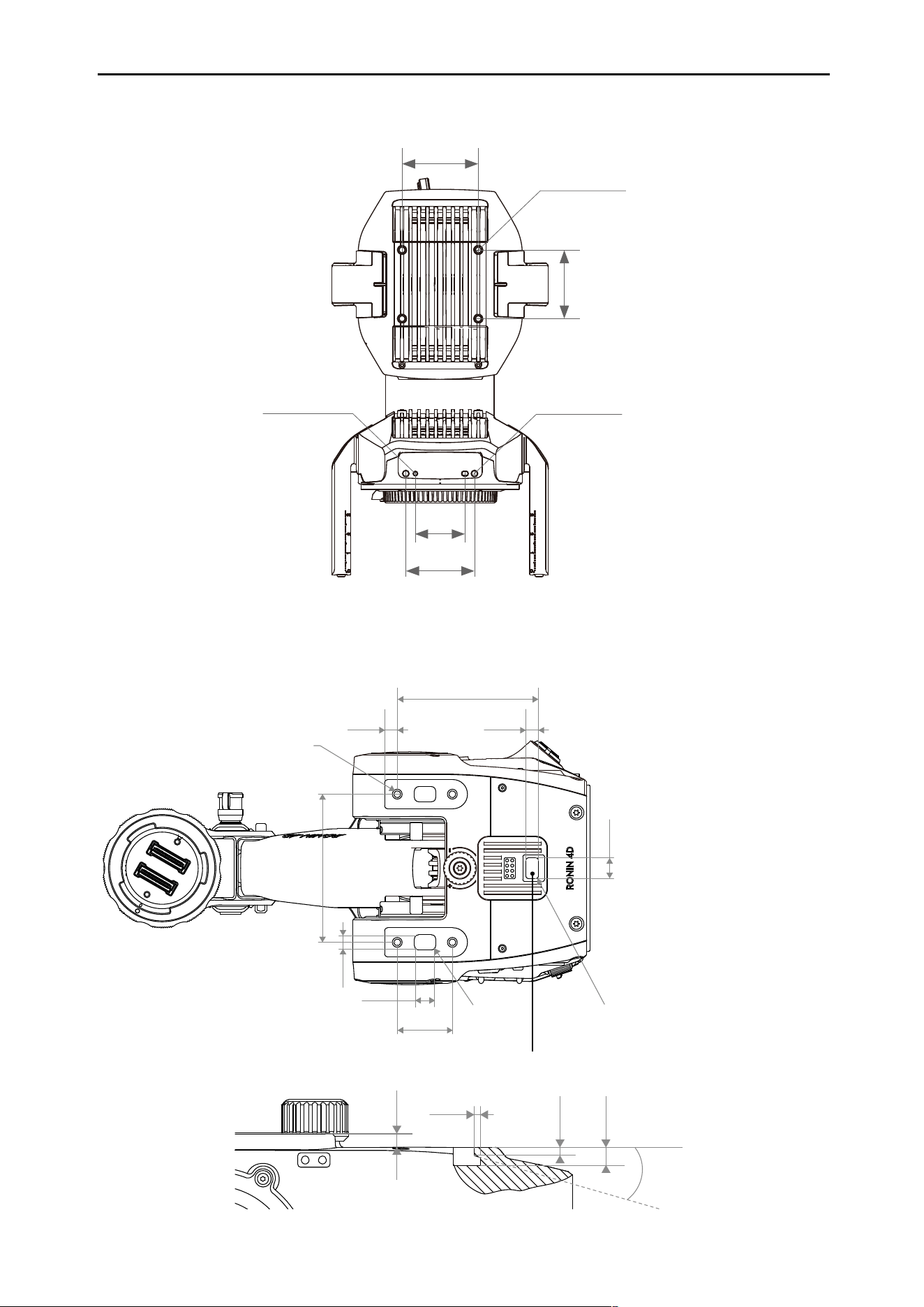
DJI Ronin 4D User Manual
76
©
2022 DJI All Rights Reserved.
Counter Weight and Focus Motor Mounting Hole
Top Handle Mounting Hole
Cutaway View
36.00
26.00
36.00
40.00
4-M3 Depth 5
2-M3 Depth 5Diameter 2 Depth 3
Unit: mm
Unit: mm
72.00
27.00
10.00
6.09
R
1.
00
68.56
9.42
6.42
5.98
R2
4-M4
Depth
7
3.40
20.00°
1.91
4.28
1.50
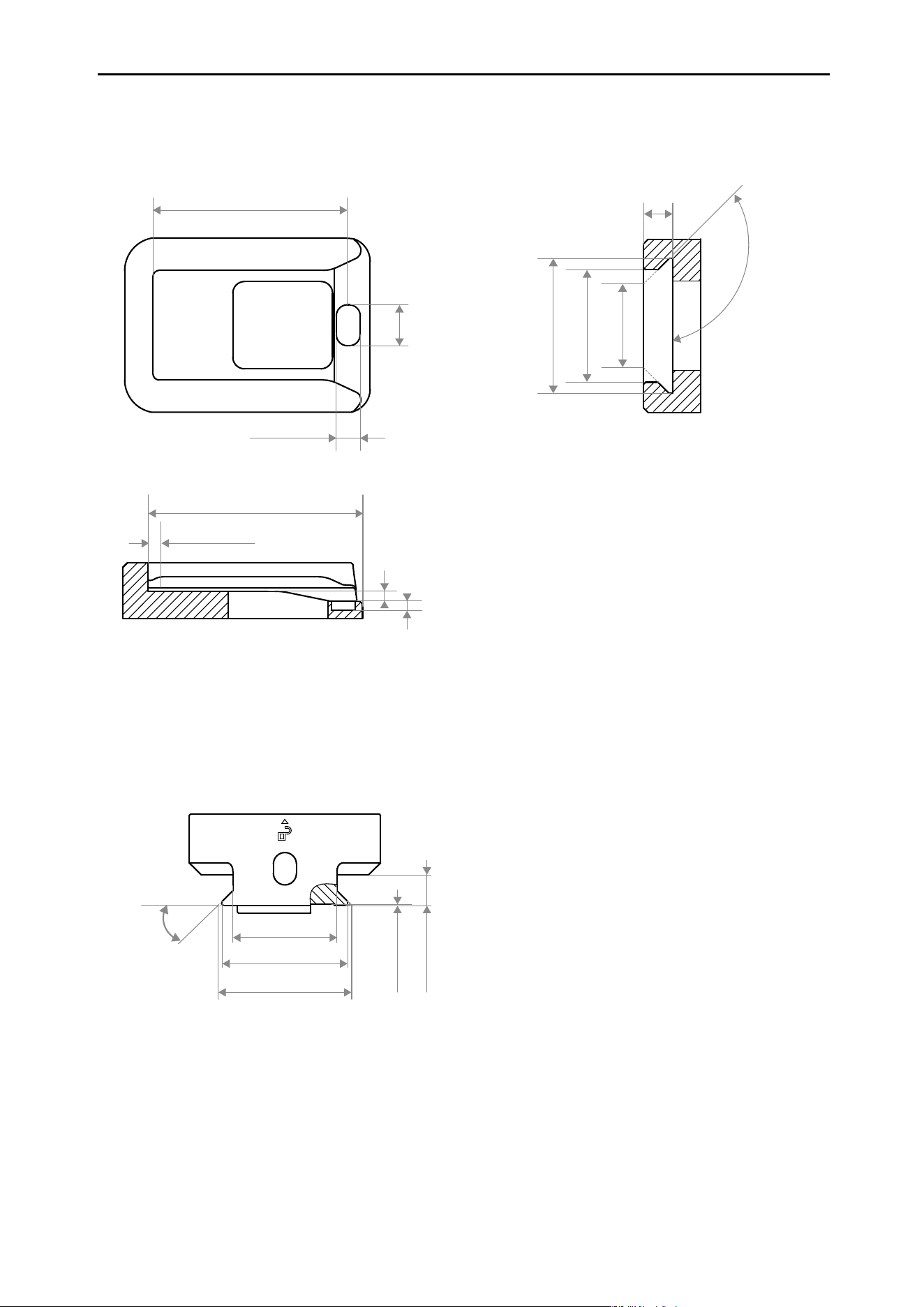
DJI Ronin 4D User Manual
77
©
2022 DJI All Rights Reserved.
6.60 ± 0.05
3.88 ± 0.05
31.54 ± 0.05
Unit: mm
Dovetail Slot of Main Body
Dovetail Slot of Hand Grip
1.54 ± 0.05
1.56 ± 0.05
2.45 ± 0.05
34.63 ± 0.05
135.00°
13.20
17.70 ± 0.05
21.20 ± 0.05
4.60 ± 0.05
45.00° ± 0.03°
17.10 ± 0.05
20.60 ± 0.05
0.20 ± 0.05
5.00 ± 0.05
22.00 ± 0.10

This content is subject to change.
Download the latest version from
https://www.dji.com/ronin-4d/downloads
If you have any questions about this document, please contact
DJI by sending a message to DocSupport@dji.com.
DJI is a trademark of DJI.
Copyright © 2022 DJI All Rights Reserved.
DJI Support
http://www.dji.com/support
