Contact SAMSUNG WORLDWIDE
If you have any questions or comments relating to Samsung products, please contact the SAMSUNG customer care center.
Comment contacter Samsung darts le monde
Si vous avez des suggestions ou des questions concernant les produits Samsung, veuillez contacter le Service Consommateurs
Samsung.
Comuniquese con SAMSUNG WORLDWIDE
Si desea formular alguna pregunta o comentario en relacion con los productos de Samsung, comuniquese con el centro de
atencion al cliente de SAMSUNG.
r=.
m
.-4
<
B
CANADA 1-800-SAMSUNG (726-7864) w_!w.samsung.com Samsung Electronics Canada Inc., Customer Service
55 Standish Court Mississauga, Ontario L5R 4B2
Canada
U.S.A 1-800-SAMSUNG (726-7864) w_!w.samsung.com Samsung Electronics America, Inc. 105 Challenger
Road Ridgefield Park, NJ 07660-0511
© 2010 Samsung Electronics Co., Ltd. All rights reserved.
BN68-02833A-01
Z
imagine the possibilities
Thank you for purchasing this Samsung product.
To receive more comblete service, please reg ster
your product at
www.samsung.com!register
Mode Serial No.
Figures and illustrations in this User Manual are provided for reference only and may differ from actual product appearance.
Product design and specifications may be changed without notice.
'_bs See the warranty card for more information on warranty terms.
Wide screen format LED Displays (16:9, the aspect ratio of the screen width to height) are primarily designed to view wide screen format full-motion video.
The images displayedon them should primarily be in the wide screen 16:9 ratio format, or expanded to fill the screen if your model offers this feature and
the images are constantly moving. Displaying stationary graphics and images on screen, such as the dark sidebars on no expanded standard format
television video and programming, should be limited to no more than 5% of the total television viewing per week.
Additionally, viewing other stationary images and text such as stock market reports, video game displays, station Iogos, web sites or computer graphics
and patterns, should be limited as described above for all televisions. Displaying stationary images that exceed the above guidelines can cause uneven
aging of LED Displays that leavesubtle, but permanent burned-in ghost images in the LED picture. To avoid this, vary the programming and images, and
primarily display full screen moving images, not stationary patterns or dark bars. On LED models that offer picture sizing features, use these controls to
view different formats as a full screen picture.
Be careful in the selection and duration of television formats used for viewing. Uneven LEDaging as a result of format selection and use, as well as burned
in images, are not covered by your Samsung limited warranty.
• SAMSUNG ELECTRONICSNORTH AMERICAN LIMITEDWARRANTY STATEMENT
Subject to the requirements, conditions, exclusions and limitations of the original Limited Warranty supplied with Samsung Electronics (SAMSUNG)
products, and the requirements, conditions, exclusions and limitations contained herein, SAMSUNG will additionally provide Warranty RepairService
in the United States on SAMSUNG products purchased in Canada, and in Canada on SAMSUNG products purchased in the United States, for the
warranty period originally specified, and to the Original Purchaser only.
The above described warranty repairs must be performed by a SAMSUNG Authorized Service Center.Along with this Statement, the Original Limited
Warranty Statement and a dated Bill of Sale as Proof of Purchase must be presented to the Service Center.Transportation to and from the Service
Center isthe responsibility of the purchaser.Conditions covered are limited only to manufacturing defects in material or workmanship, and only those
encountered in normal use of the product.
Excluded, but not limited to, are any originally specified provisions for, in-home or on-site services, minimum or maximum repair times, exchanges or
replacements, accessories, options, upgrades, or consumables.
For the location of a SAMSUNG Authorized Service Center, please call toll-ffee:
- in the United States : 1-800-SAMSUNG (1-800-726-7864)
- in Canada : 1-800-SAMSUNG
Avoid displaying still images (such asjpeg picture files)or still image elements (such as TV channel Iogos, panorama or 4:3 image format, stock or news
bars at screen bottom etc.) on the screen. Constant displaying of a still picture can cause ghosting of the LED screen, which will affect image quality. To
reduce risk of this effect, please follow the recommendations below:
• Avoid displaying the same TV channel for long periods.
• Always try to display a full screen image.
• Reducing brightness and contrast will help to avoid the appearance of affepimages.
• Use all TV features designed to reduce image retention and screen burn, refer to proper user manual section for details.
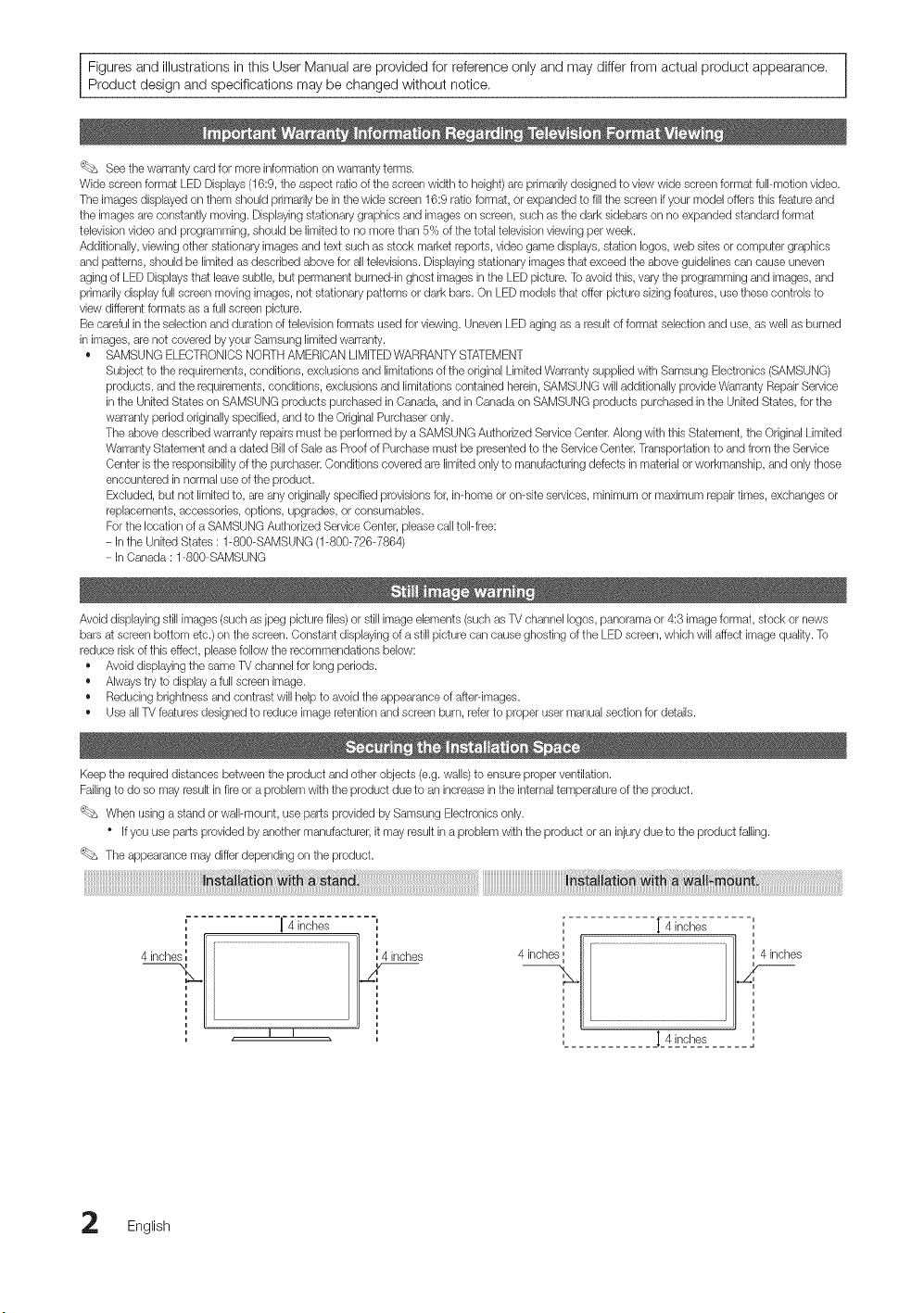
Keep the required distances between the product and other objects (e.g. walls)to ensure proper ventilation.
Failingto do so may result in fire or a problem with the product due to an increase in the internal temperature of the product.
'_bs When using a stand or wall-mount, use parts provided W Samsung Electronics only.
Ifyou use parts provided by another manutacturer, it may result in a problem with the product or an injurydue to the product falling.
The appearance may differ depending on the product.
', "!"4 incises
,,
t
4 inche inches
m m
[ 4 inches -',
4 inches
j_4__,_L___......
English
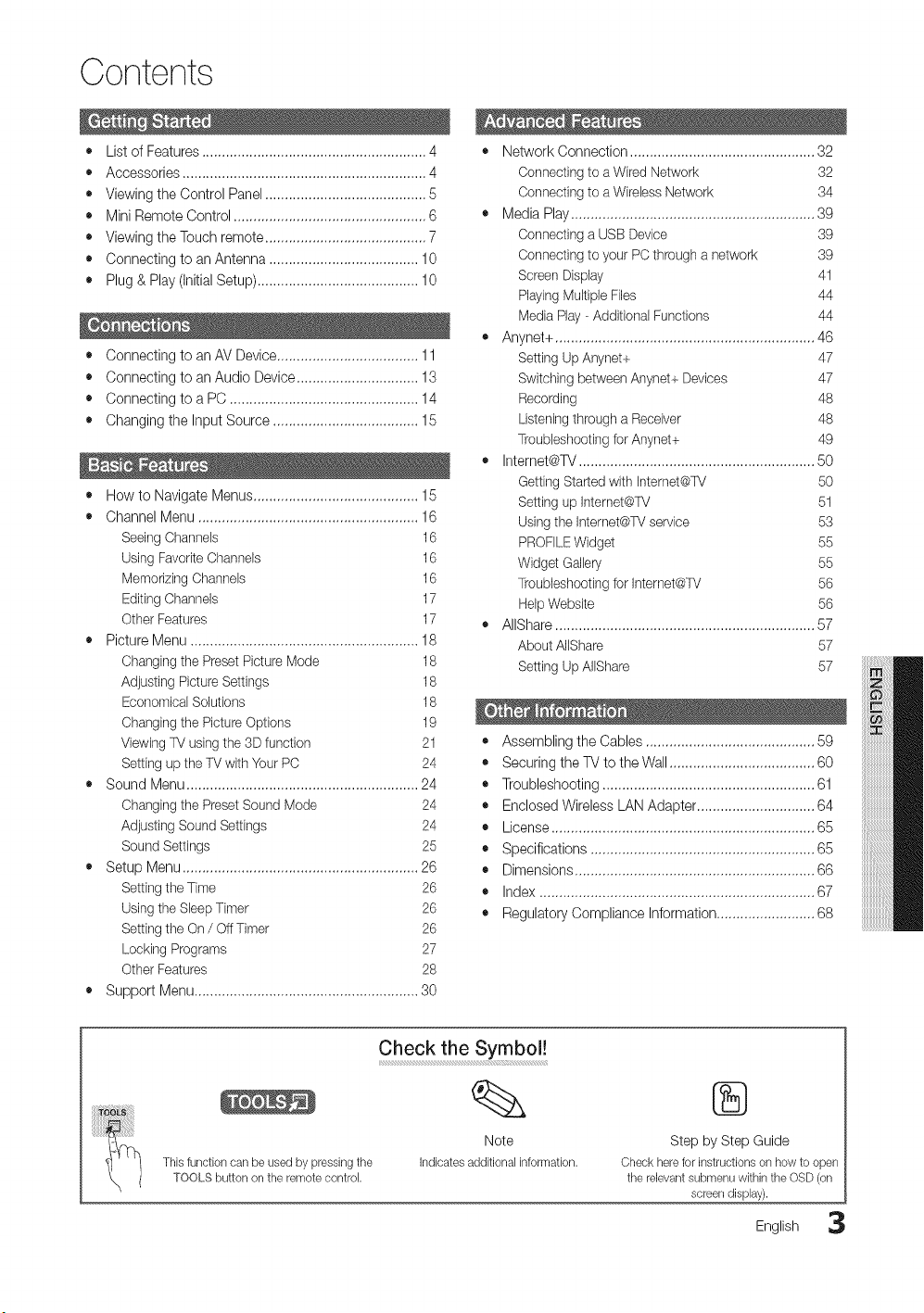
Contents
• List of Features ......................................................... 4
• Accessories .............................................................. 4
• Viewing the Control Panel ......................................... 5
• Mini Remote Control ................................................. 6
• Viewing the Touch remote ......................................... 7
• Connecting to an Antenna ...................................... 10
• Plug & Play (Initial Setup) ......................................... 10
• Connecting to an AV Device .................................... 11
• Connecting to an Audio Device ............................... 13
• Connecting to a PC ................................................ 14
• Changing the Input Source ..................................... 15
• How to Navigate Menus .......................................... 15
• Channel Menu ........................................................ 16
Seeing Channels 16
Using Favorite Channels 16
MemorizingChannels 16
Editing Channels 17
Other Features 17
• Picture Menu .......................................................... 18
Changing the Preset Picture Mode
Adjusting Picture Settings
EconomicalSolutions
Changing the Picture Options
Viewing TV using the 3D function
Setting up the TV with Your PC
18
18
18
19
21
24
• Sound Menu ........................................................... 24
Changing the Preset Sound Mode 24
Adjusting Sound Settings 24
Sound Settings 25
• Setup Menu ............................................................ 26
Setting the Time 26
Using the Sleep Timer 26
Setting the On / OffTimer 26
Locking Programs 27
Other Features 28
• Support Menu ......................................................... 30
• Network Connection ............................................... 32
Connecting to a Wired Network 32
Connecting to a Wireless Network 34
• Media Play.............................................................. 39
Connecting a USB Device 39
Connecting to your PC through a network 39
Screen Display 41
Playing Multiple Files 44
Media Play - Additional Functions 44
• Anynet+ .................................................................. 46
Setting Up Anynet+ 47
Switching between Anynet+ Devices 47
Recording 48
Listening through a Receiver 48
Troubbshooting for Anynet+ 49
• Internet@TV ............................................................ 50
Getting Started with Internet@TV 50
Setting up Internet@TV 51
Using the Internet@TVservice 53
PROFILEWidget 55
Widget Gallery 55
Troubbshooting for Intemet@TV 56
HelpWebsite 56
AIIShare .................................................................. 57
About AlIShare 57
Setting Up AlIShare 57
• Assembling the Cables ........................................... 59
• Securing the TV to the Wall ..................................... 60
• Troubleshooting ...................................................... 61
• Enclosed Wireless LAN Adapter .............................. 64
• License ................................................................... 65
• Specifications ......................................................... 65
• Dimensions ............................................................. 66
• Index ...................................................................... 67
• Regulatory Compliance Information ......................... 68
This function can be used by pressing the
TOOLS button on the remote control.
Check the Symbol!
Note
Indicatesadditionalinformation.
®
Step by Step Guide
Check here for instructions on how to open
the rebvant submenu within the OSD (on
screen display).
English 3
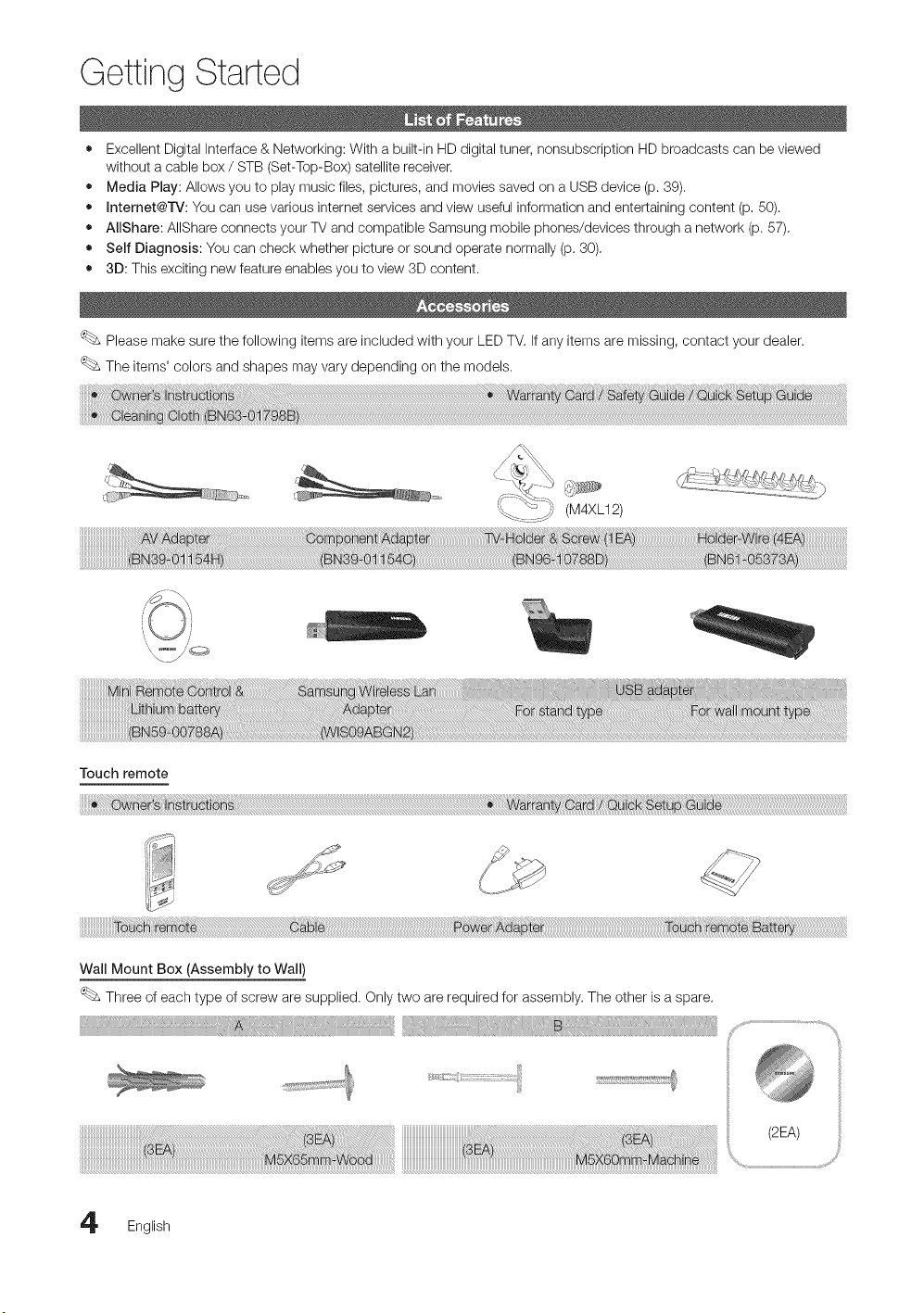
Getting Started
• Excellent Digital Interface & Networking: With a built-in HD digital tuner, nonsubscription HD broadcasts can be viewed
without a cable box / STB (Set-Top-Box) satellite receiver.
• Media Play: Allows you to play music files, pictures, and movies saved on a USB device (p. 89).
• Internet@l%_: You can use various internet services and view useful information and entertaining content (p, 50).
• AliShare: AIIShare connects your TV and compatible Samsung mobile phones/devices through a network (p. 57),
• Self Diagnosis: You can check whether picture or sound operate normally (p. 30),
• 3D: This exciting new feature enables you to view 3D content.
Please make sure the following items are included with your LED TV. if any items are missing, contact your dealer.
The items' colors and shapes may vary depending on the models.
Touch remote
W rd
iiiiiiiiiiiiiiiiiiiiiiiiiiiiiiiiiiiiiiiiiiiiiiii@_!@i_ii_!_i_ii_!!i!!i!!i!!i!!i!!i!!i!!i!!i!!i!!i!!i!!i!!i!!i!!i!!i!!i!!i!!i!!i!!i!!i!!i!!i!!i!!i!!i!!i!!i!!i!!i!!i!!i!!i!!i!!i!!i!!i!!i!!i!!i!!i!!i!!i!!i!!i!!i!!i!!i!!i!!i!!i!!i!!i!!i!!i!!i!!i!!i!!i!!i!!i!!i!!i!!i!!i!!i_!i!_!@_i_i_i_i__i_i_i_i_i_i_i_i_i_i_i_i_i_i_i_i_i_i_i_i_i_i_i_i_i_i_i_i_i_i_i_i_i_i_i_i_i_i_i_i_i_i_i_i_i_i_i_i_i_i_i_i_i_i_i_i_i_i_i_i_i_i_i_i_i_i_i_i_i_i_i_i_i_i_i_i_i_i_i_i_i_i_i_i_i_i_i_i_i_i_i_i_!_@!!i!i_!_i_!_z!_z!iz!iz!iz!iz!iz!iz!iz!iz!iz!iz!iz!iz!iz!iz!iz!iz!iz!iz!iz!iz!iz!iz!iz!iz!iz!iz!iz!iz!iz!iz!iz!iz!iz!iz!iz!iz!iz!iz!iz!iz!iz!iz!iz!iz!iz!iz!iz!iz!iz!iz!iz!iz!iz!iz!iz!iz!iz!iz!iz!iz!iz!iz!iz!iz!iz!iz!iz!iz!iz!iz!iz!iz!iz!iz!iz!iz!iz!iz!iz!iz!iz!iz!iz!iz!iz!iz!iz!iz!i_ii@_i_!i_!i_!i_,_i__i_@!!!@i!_i!_i!_i!_i!_i!_i!_i!_i!_i!_i!_i!_i!_i!_i!_i!_i!_i!_i!_i!_i!_i!_i!_i!_i!_i!_i!_i!_i!_i!_i!_i!_i!_i!_i!_!_!!i_I!
Wall Mount Box (Assembly to Wall)
Three of each type of screw are supplied. Only two are required for assembly. The other is a spare.
(2EA)
English
Forbestcableconnectiontothisproduct,besuretousecableswithamaximumthicknessasbelow:
_ i • Maximumthickness-0.55inches
(14mm)
input Cables (Sold Separately)
i ,,n m v
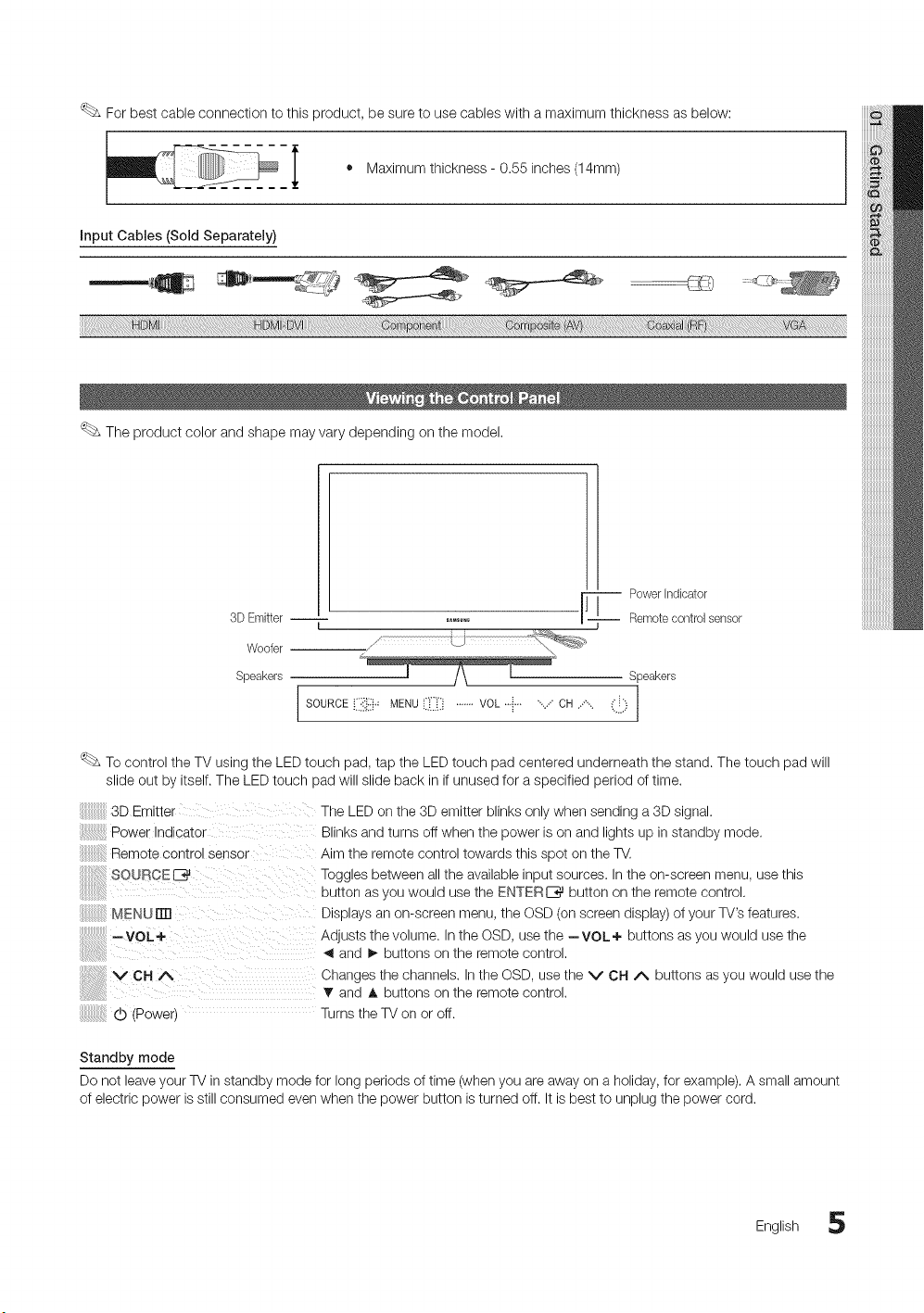
The product color and shape may vary depending on the model.
3D Emitter --
Woofer
Speakers
F
Power indicator
Remote control sensor
Speakers
I f
1 I
To control the TV using the LED touch pad, tap the LED touch pad centered underneath the stand. The touch pad will
slide out by itself. The LED touch pad will slide back in if unused for a specified period of time.
3D Emitter
Power Indicator
Remote control eenso-
SOURCEE_
MENU rrrl
--VOL+
VCHA
The LED on the 3D emitter blinks only when sending a 3D signal.
Blinks and turns off when the power is on and lights up in standby mode.
Aim the remote control towards this spot on the TV.
Toggles between all the available input sources. In the on-screen menu, use this
button as you would use the ENTERE_ button on the remote control.
Displays an on-screen menu, the OSD (on screen display) of your TV's features.
Adjusts the volume. In the OSD, use the --VOL+ buttons as you would use the
and !_ buttons on the remote control.
Changes the channels. In the OSD, use the V CH A buttons as you would use the
T and A buttons on the remote control.
(b (Power) Turns the TV on or off.
Standby mode
Do not leave your TV in standby mode for long periods of time (when you are away on a holiday, for example). A small amount
of electric power is still consumed even when the power button is turned off. It is best to unplug the power cord.
English 5

Getting Started
The Mini Remote Control is a simplified remote control that consists of the power, channel and volume buttons only,
Description
Next channel
Volumedecrease --
Previouschannel
Power OrVOff button
Volume increase
IrDA transmitter
'_bs Point tile IrDA transmitter at tile TV
to use tile mini remote.
This is a special remote control for the visually impaired and has Braille points on the Channel and Volume buttons.
CALIFORNIA USA ONLY
This Perchlorate warning applies only to primary OR (Manganese Dioxide) Lithium coin cells in the product sold
or distributed ONLY in California USA 'Perchloate Material - special handling may apply, See www.dtsc.ca.gov/
hazardouswaste/perchiorate:'
Inserting the battery
!
1. Turn the battery cover counterclockwise to unlock it and then
separate the battery cover.
2. Insert a 3V Lithium battery with the + side facing down into the
battery cover.
3. Place the battery cover into the remote control aligning it with the
grooves and then turn the battery cover clockwise to lock the
cover.
If the remote control doesn't work, check the following:
* Is the TV power on?
* Are the plus and minus ends of the batteries reversed?
* Are the batteries drained?
* Is there a power outage or is the power cord unplugged?
* Is there a special fluorescent light or neon sign nearby?
G English
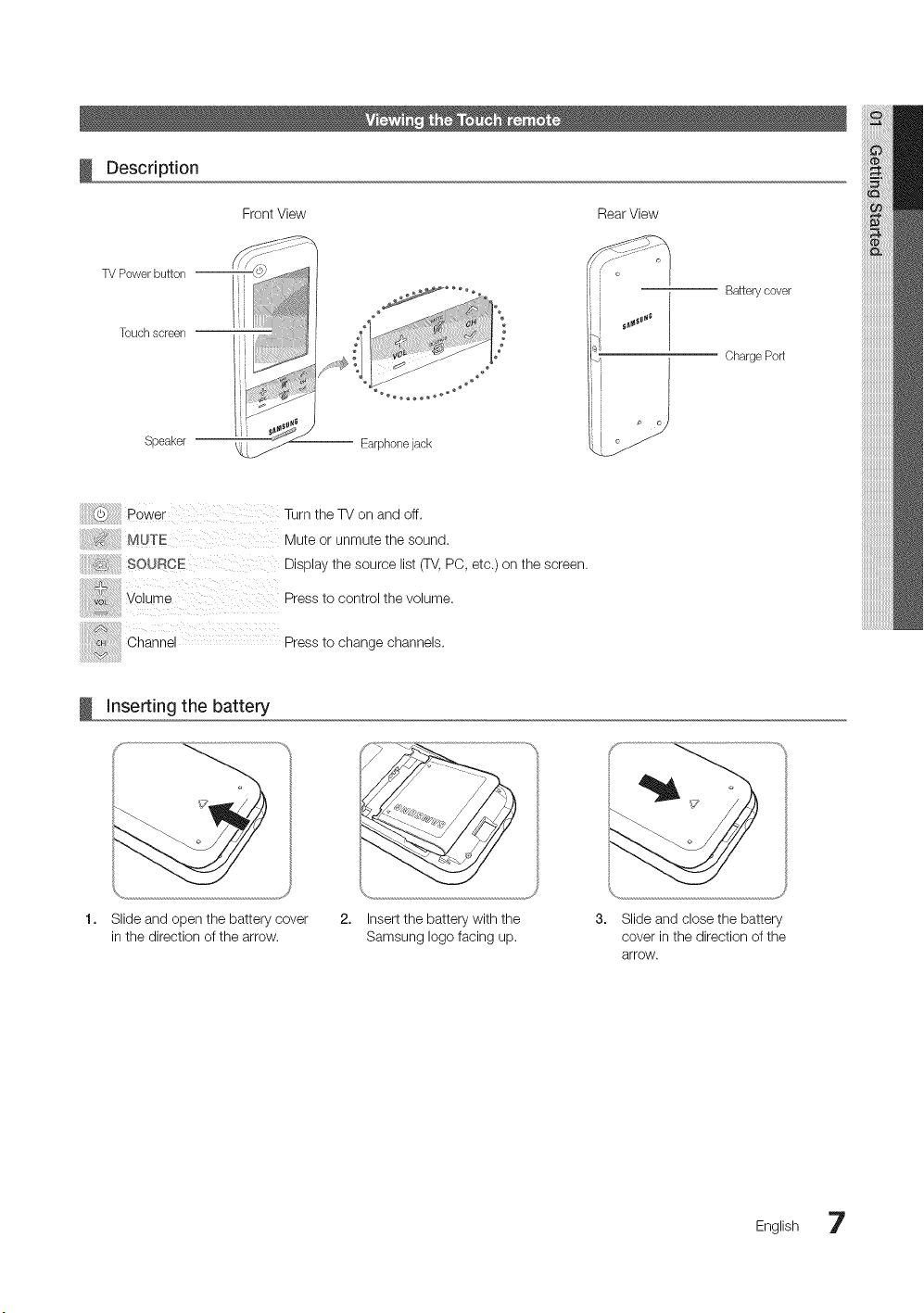
Description
Front View RearView
TV Power button --
Touch screen
Speaker
-- Earphone jack
Battery cover
Charge Port
Turn the TV on and off.
Mute or unmute the sound.
SOUBCE Display the source list (TV,PC, etc.) on the screen.
Press to control the volume.
Channe Press to change channels.
!
Inserting the battery
1. Slide and open the battery cover
in the direction of the arrow.
2. Insert the battery with the
Samsung logo facing up.
3. Slide and close the battery
cover in the direction of the
arrow.
English 7
Getting Started
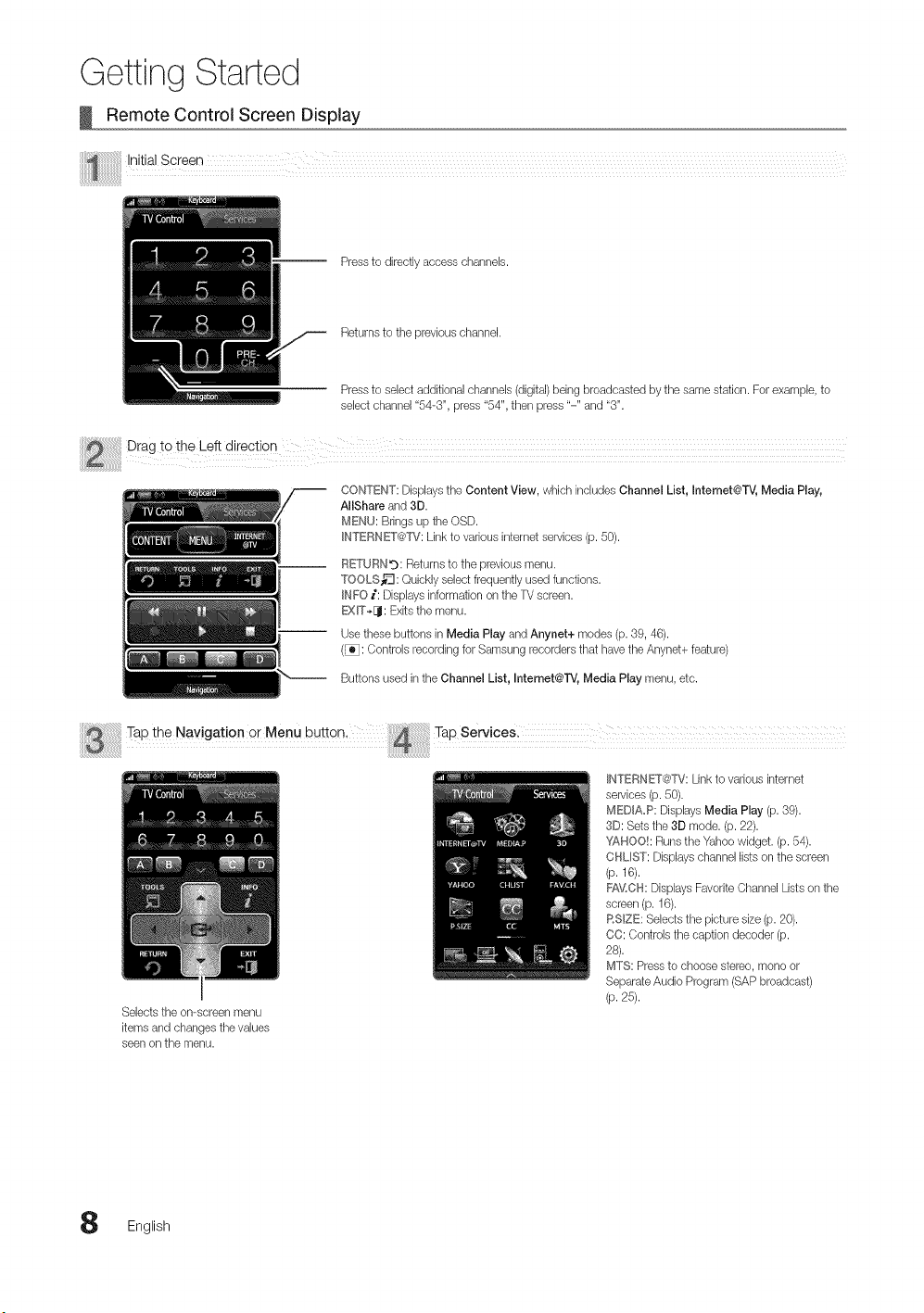
Remote Control Screen Display
Pressto directly access channels.
Returns to the previous channel.
Pressto select additional channeb (digital)being broadcasted by the same station. For example, to
select channel "54-3", press "54", then press "-" and "3".
CONTENT: Displaysthe Content View, which includes Channel List, Intemet@TV, Media Play,
AIIShare and 3D.
MENU: Brings up the OSD.
INTERNET@TV:Link to vanous internet services (p. 50).
RETURNg: Returns to the previous menu.
TOOLS_'3: Quickly select frequently used functions.
INFO i: Dbplays information on the TVscreen.
EXIT*[J: Exits the menu.
Use these buttons in Media Play and Anynet+ modes (p. 39, 46).
(_: Controls recording for Samsung recorders that have the Anynet+ feature)
Buttons used in the Channel List, Internet@l"V, Media Play menu, etc.
!heNo 0at,onorMe,u Tapsony,cos.
xi_,!,,_',i,i,i,i,i,i,i,i,i,i,i,i,i' !!!!!!!!!!!!i,4!_!_!_!_!_!_!_!_!_!_!_!_!ilii i i i i i i i i i i i i i
INTERNET@'FV:Link to various internet
services (p. 50).
MEDIA_P: Displays Media Play (p. 39).
3D: Sets the 3D mode. (p. 22).
YAHOO!: Runs the Yahoo widget. (p. 54).
CHLIST: Displayschannel lists on the screen
(p. 16).
FA_,LCH:Displays Favorite Channel Lists on the
screen (p. 16).
RSlZE: Selects the picture size (p. 20).
CO: Controb the caption decoder (p.
28).
MTS: Pressto choose stereo, mono or
SeparateAudio Program (SAP broadcast)
(p. 25).
Selects the on-screen menu
items and changes the values
seen on the menu.
English
Setting Up Your Remote
You can set up your 3" LCD Touch Remote to control your TV in three ways:
As a standard, IR (Infra Red) remote
As an IR remote, your LCD Touch Remote works the same way as a standard push button remote, except you touch icons
and symbols on the LCD screen to control your TV instead of pushing buttons. Using your Touch Remote as an IR remote
requires no more set up than a standard remote and gives you access to most of the remote's functions and features.
As an extended distance, Wi-Fi remote
As an extended distance, Wi-Fi remote, your Touch Remote offers all the functions and features of the IR mode and, because
it uses Wi-Fi radio waves instead of infra red waves to control your TV, it lets you control your TV from a much greater distance
and even from around corners. It also gives you access to the Twin Display function which lets you watch the program or
content that is on your TV screen on the LCD screen of the Touch remote. The long distance, Wi-Fi mode requires a few
additional setup steps; possibly including re-initialization. It also requires you to attach Samsung's Wireless LAN Adapter
(WIS09ABGN, WIS09ABGN2, or WIS10ABGN) to one of your TV's USB ports.
As a networked, Wi-Fi remote
As a networked, Wi-Fi remote, your Touch Remote gives you all the functions and features of the IR and the extended distance
modes and also gives you access to the Multimedia function which lets you listen to or view music, movie, and picture files
from your PC on your TV screen. You can also download upgrades to your Touch Remote's software directly from the Internet.
The networked, Wi-Fi mode requires the largest number of setup steps. In addition, to use the networked, Wi-Fi mode,
you need a working local area network and a wireless router. You also need to attach Samsung's Wireless LAN Adapter
(WIS09ABGN, WIS09ABGN2, or WIS10ABGN) to one of your TV's USB ports. To use the Multimedia function, you need to
install Samsung's PC Share Manager on your PC. You can download PC Share Manager from http://www.samsung.com.
Setting up the Network
You can set up a wireless network for the 3-inch remote control.
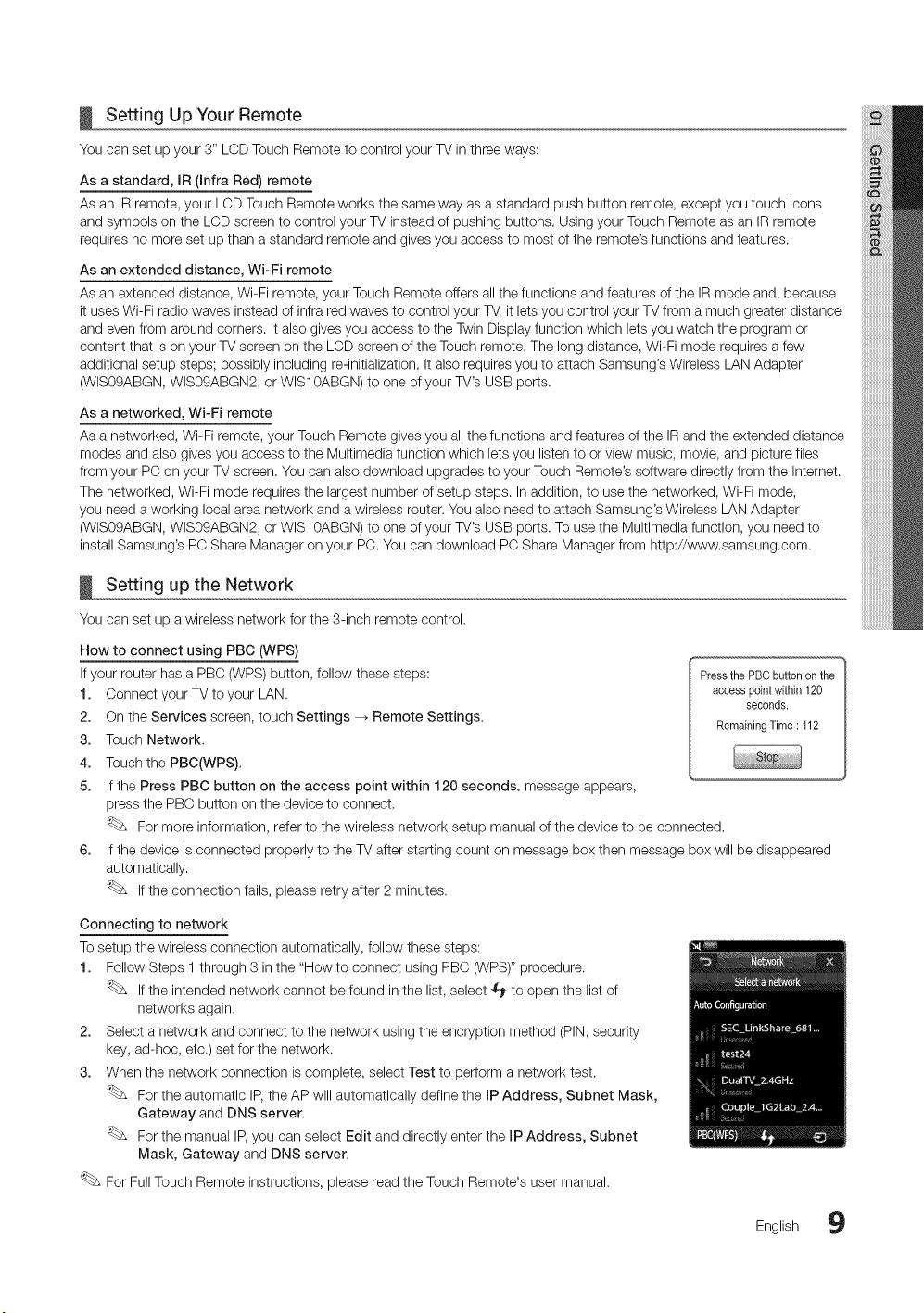
How to connect using PBC (WPS)
If your router has a PBC (WPS) button, follow these steps: PressthePBCbuttononthe
1. Connect your TV to your LAN. accesspointwithin120
seconds.
2. On the Services screen, touch Settings _ Remote Settings. RemainingTime: 112
3. Touch Network.
4. Touch the PBC(WPS).
5. If the Press PBC button on the access point within 120 seconds, message appears,
press the PBC button on the device to connect.
For more information, refer to the wireless network setup manual of the device to be connected.
6. If the device is connected properly to the TV after starting count on message box then message box will be disappeared
automatically.
If the connection fails, please retry after 2 minutes.
Connecting to network
To setup the wireless connection automatically, follow these steps:
1. Follow Steps 1 through 3 in the "How to connect using PBC (WPS)" procedure.
If the intended network cannot be found in the list, select $_ to open the list of
networks again.
2. Select a network and connect to the network using the encryption method (PIN, security
key, ad-hoc, etc.) set for the network.
3. When the network connection is complete, select Test to perform a network test.
For the automatic IP,the AP will automatically define the IP Address, Subnet Mask,
Gateway and DNS server.
For the manual IP, you can select Edit and directly enter the IP Address, Subnet
Mask, Gateway and DNS server.
For Full Touch Remote instructions, please read the Touch Remote's user manual.
English 9
Getting Started
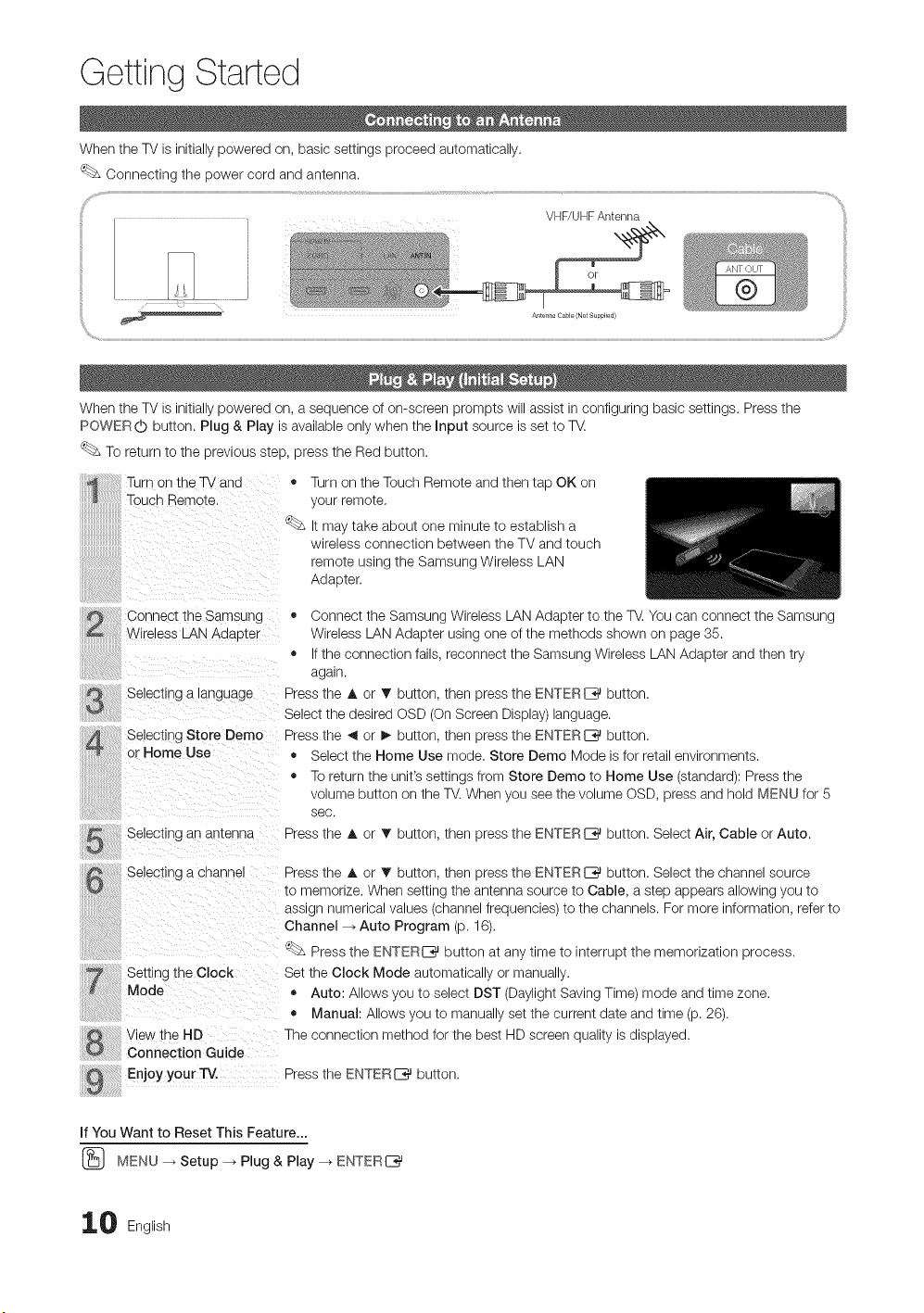
When the TV is initially powered on, basic settings proceed automatically.
Connecting the power cord and antenna.
VHF/UHF Antenna
Antellna Cable (Not Supplied)
When the TV is initially powered on, a sequence of on-screen prompts will assist in configuring basic settings. Press the
POWER (b button. Plug & Play is available only when the Input source is set to T_.
To return to the previous step, press the Red button.
Turn on the TV ana
Touch Remote
Connect the Samsung
Wireless LAN Adapter
Selecting a tanguage
Selecting Store Demo
or Home Use
Selecting an antenna
o
<s&
Turn on the Touch Remote and then tap OK on
}ur remote,
t mar taKe abOUt one T/inure to estaDiisn a
wlretess connection between the TV and touch
remote using the Samsung Wireless LAN
Adaoter.
• Connect the Samsuno Wireless LAN Adapter to the T_, You can connect the Samsung
Wireless LAN Adaoter using one of the methods shown on page 35.
• f the connection fails, reconnect tne Samsung Wireless LAN Adapter and then try
agar
Press the A or T outton, tnen press the ENTERE_ button.
Select the desired OSD On Screen Display) language.
Press the _1or _- outton, tnen press the ENTERE_ button,
• Select the Home Use mode, Store Demo Mode is for retail environments.
• To return the unit's settings from Store Demo to Home Use (standard): Press the
votume DUtton on the TV. When you see the volume OSD, press and hold MENU for 5
_ec.
Press the A or T outton, tnen press the ENTERI_ button. Select Air, Cable or Auto.
Selecting a channel
Setting the Clock
Mode
V ew the HD
Connection Guide
Press the A or T outton, tnen press the ENTERE_ button. Select the channel source
to memorize, When settlnc, me antenna source to Cable, a step appears allowing you to
asstgn numencat vatues/channel freauencies to the channels. For more information, refer to
Channel- Auto Program (p. 16),
Press tne rNTFR[_ DUttOnat any time to interrupt the memorization process.
Set the Clock Mode automatica y or manually.
Auto: Allows ,ou to select DST (Daylight Saving Time) mode and time zone.
• Manual: Allows outc manuat y set the current date and time (p. 26),
The connection method for the best HD screen quality is displayed.
Enjoy your TV. Press the FNTFR _ DUIIOn.
If YOUWant to Reset This Feature...
(_ MENU _ Setup --_ Plug & Play --_ ENTERI_
0 English
Connections
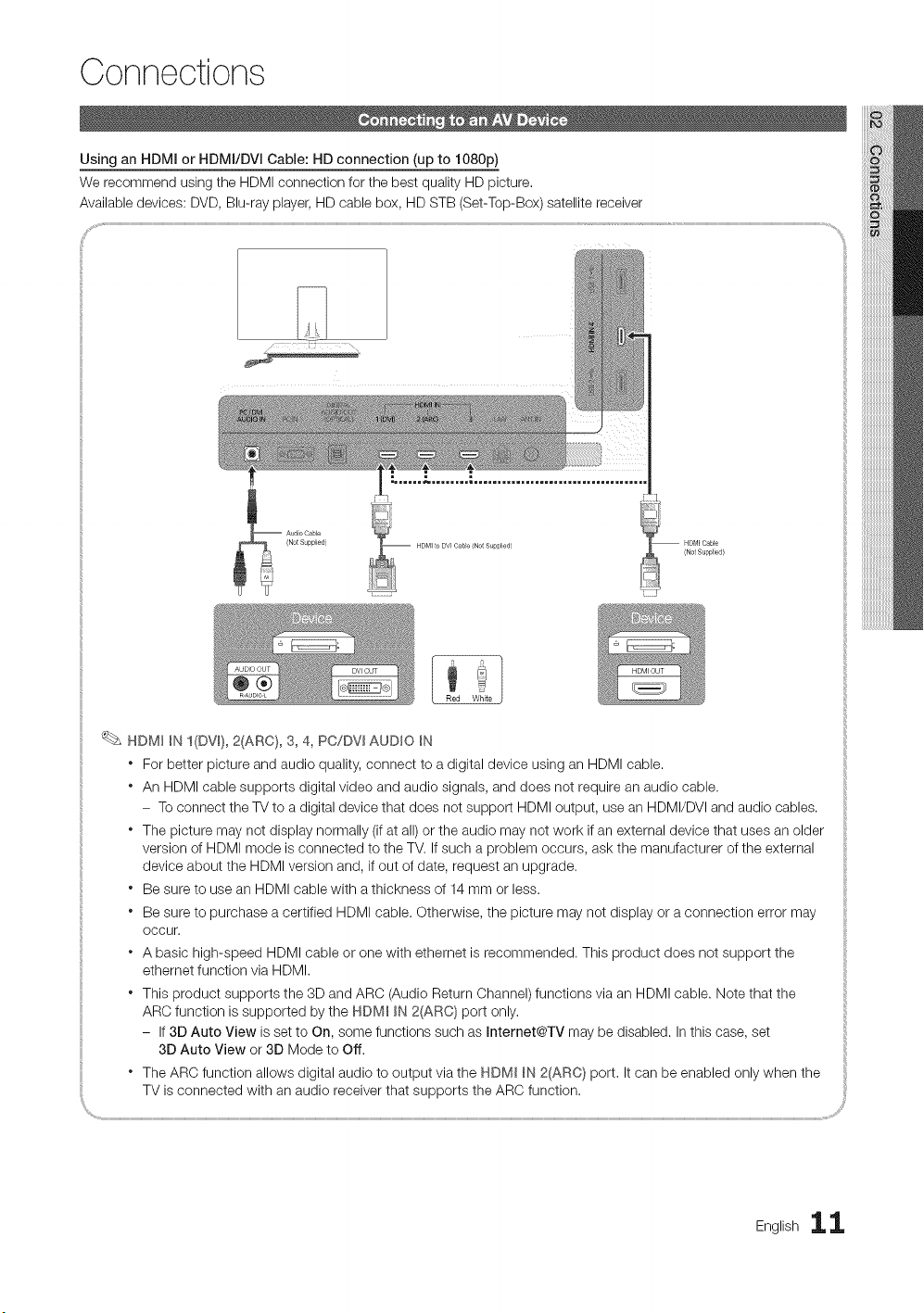
Using an HDMI or HDMI/DVI Cable: HD connection (up to 1080p)
We recommend using the HDMI connection for the best quality HD picture.
Available devices: DVD, Blu-ray player, HD cable box, HD STB (Set-Top-Box) satellite receiver
HDM] CaMe
(Not Supplied/
HDM_ _N I(DV 0, 2(ARC}, 3, 4, PC/DVI AUDIO _N
" For better picture and audio quality, connect to a digital device using an HDMI cable.
* An HDMI cable supports digital video and audio signals, and does not require an audio cable.
- To connect the TV to a digital device that does not support HDMI output, use an HDMI/DVI and audio cables.
* The picture may not display normally (if at all) or the audio may not work if an external device that uses an older
version of HDMI mode is connected to the TV. If such a problem occurs, ask the manufacturer of the external
device about the HDMI version and, if out of date, request an upgrade.
* Be sure to use an HDMI cable with a thickness of 14 mm or less.
* Be sure to purchase a certified HDMI cable. Otherwise, the picture may not display or a connection error may
occur.
* A basic high-speed HDMI cable or one with ethernet is recommended. This product does not support the
ethernet function via HDMI.
* This product supports the 3D and ARC (Audio Return Channel) functions via an HDMI cable. Note that the
ARC function is supported by the HDM_ _N 2(ARC) port only,
- If 3D Auto View is set to On, some functions such as mnternet@TV may be disabled. In this case, set
3D Auto View or 3D Mode to Off.
* The ARC function allows digital audio to output via the HDM_ _N2(ARC} port. It can be enabled only when the
TV is connected with an audio receiver that supports the ARC function.
English ii
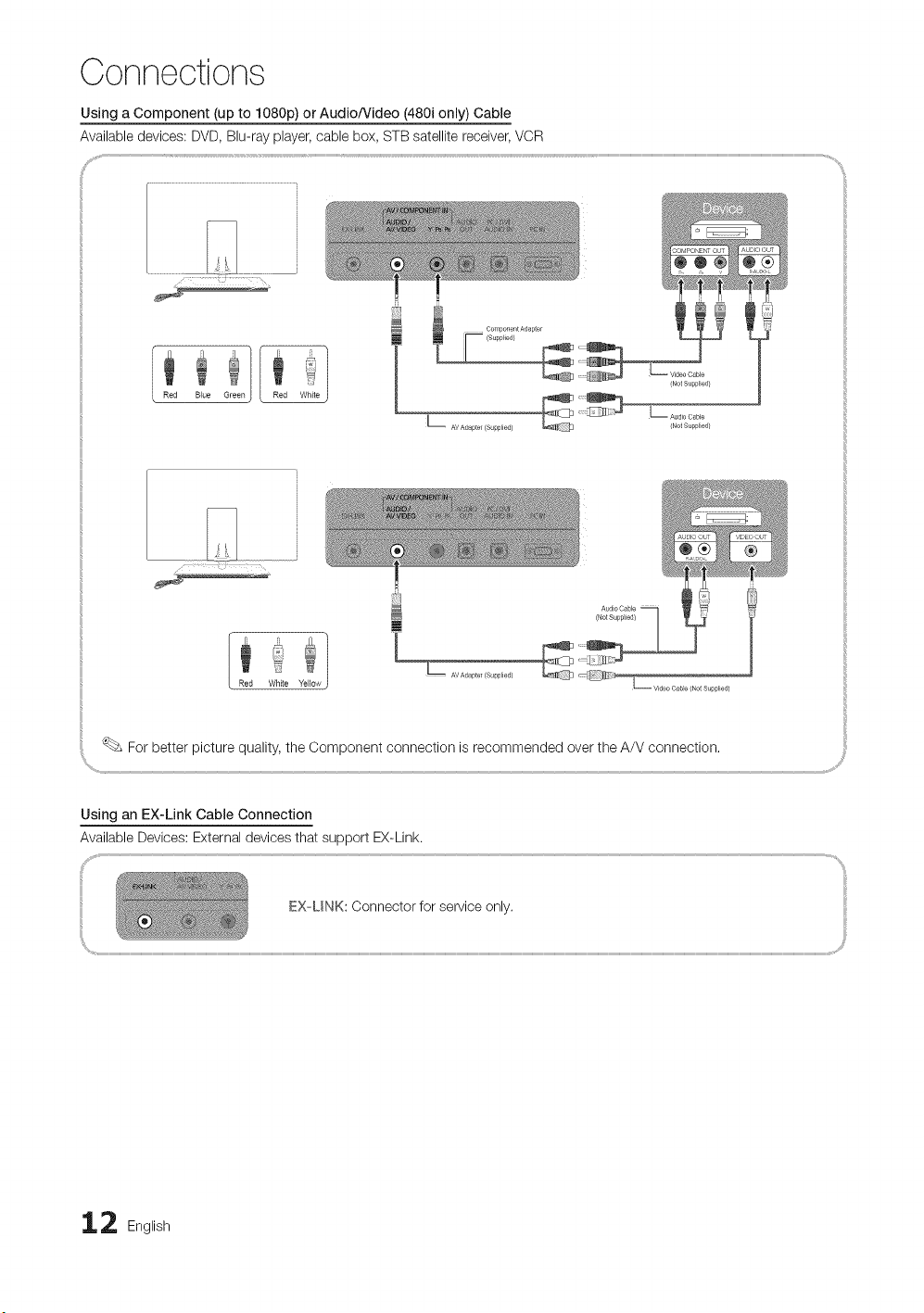
Connections
Using a Component (up to 1080p) or Audio/Video (480i only) Cable
Available devices: DVD, Blu-ray player, cable box, STB satellite receiver, VCR
Red Blue Green
Component Adapter
Video Cable
ed}
Red WhRe Yellow
For better picture quality, the Component connection is recommended over the A/V connection.
Using an EX-Link Cable Connection
Available Devices: External devices that support EX-Link.
EX UNK: Oonnector for service only. :{
2 English
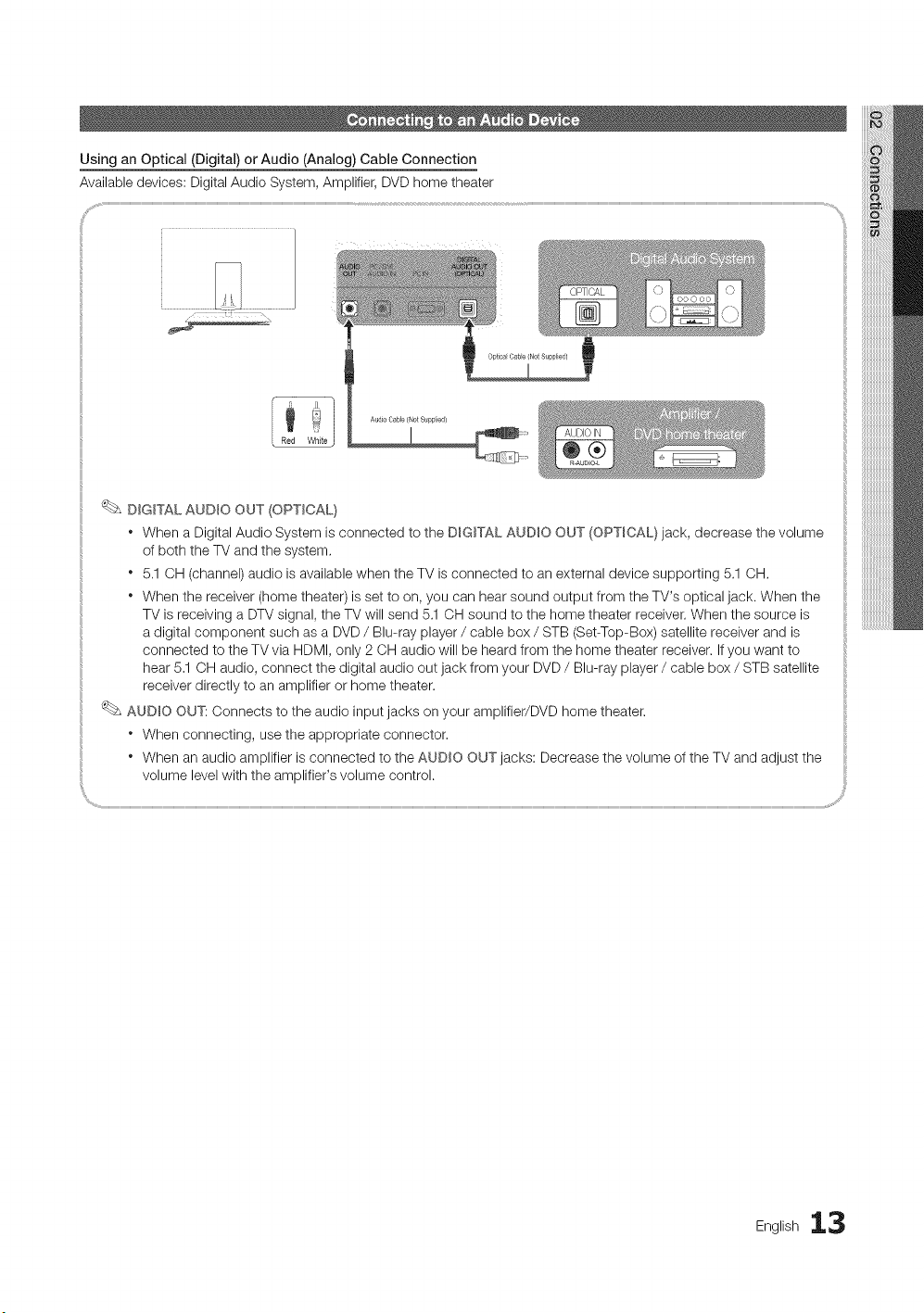
Using an Optical (Digital) or Audio (Analog) Cable Connection
Available devices: Digital Audio System, Amplifier, DVD home theater
C
DIGITAL AUDIO OUT (OPTICAL}
" When a Digital Audio System is connected to the DIGITAL AUDIO OUT (OPTICAL} jack, decrease the volume
of both the TV and the system,
" 5,1 OH (channel) audio is available when the TV is connected to an external device supporting 5.1 OH,
" When the receiver (home theater) is set to on, you can hear sound output from the TV's optical jack. When the
TV is receiving a DTV signal, the TV will send 5.1 OH sound to the home theater receiver, When the source is
a digital component such as a DVD / Blu-ray player / cable box / STB (Set-Top-Box) satellite receiver and is
connected to the TV via HDMI, only 2 CH audio will be heard from the home theater receiver. If you want to
hear 5,1 OH audio, connect the digital audio out jack from your DVD / Blu-ray player / cable box / STB satellite
receiver directly to an amplifier or home theater.
AUDmO OUT: Connects to the audio input jacks on your amplifier/DVD home theater.
" When connecting, use the appropriate connector,
" When an audio amplifier is connected to the AUDIO OUT jacks: Decrease the volume of the TV and adjust the
volume level with the amplifier's volume control.
Eng,ish13
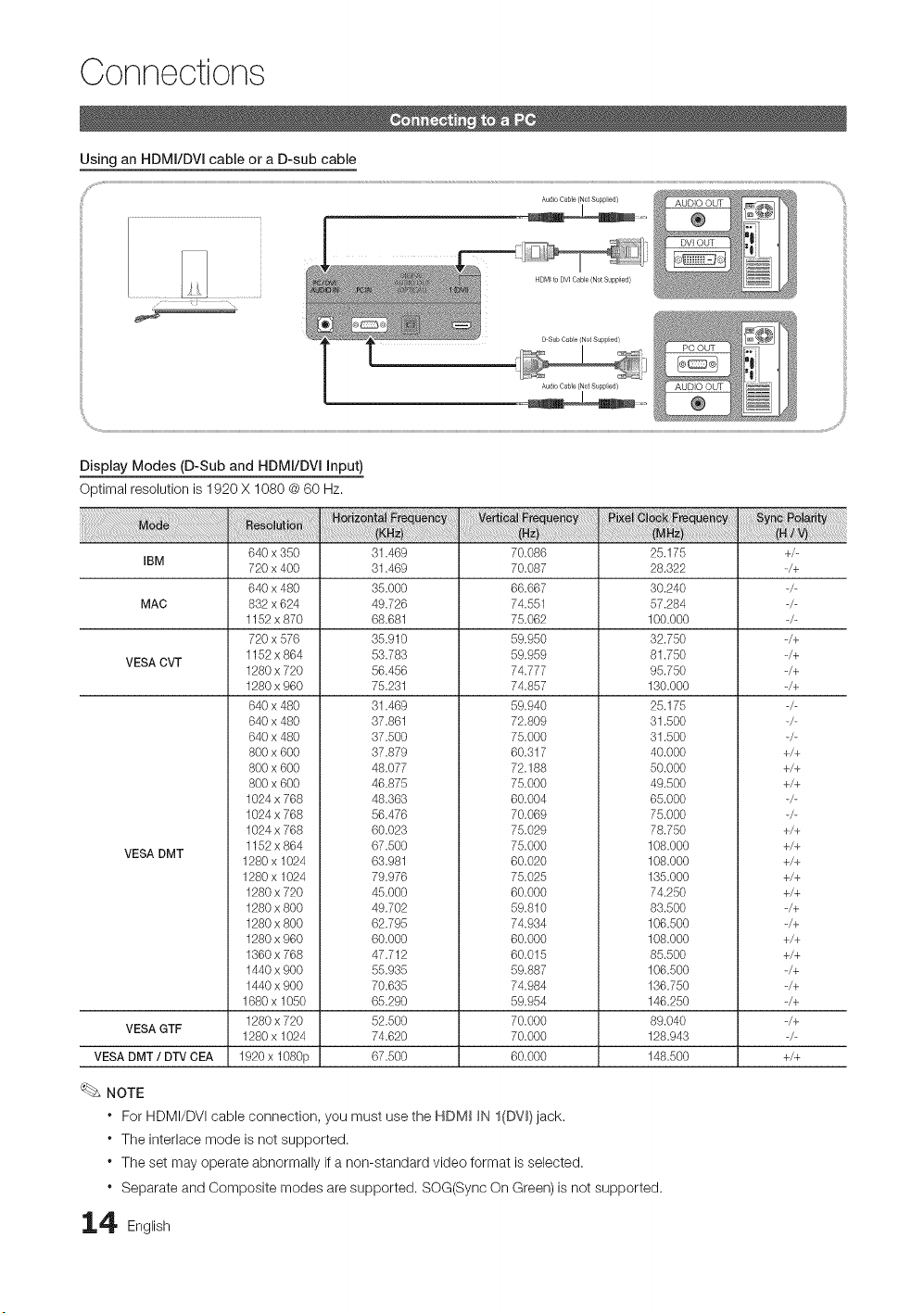
Connections
Using an HDMI/DVI cable or a D-sub cable
Display Modes (D-Sub and HDMI/DVI input)
Optimal resolution is 1920 X 1080 @ 60 Hz.
IBM
MAC
VESA CVT
VESA DMT
VESA GTF
VESA DMT / DTV CEA
640 x 350
720 x 400
640 x 480
832 x 624
1152 x 870
720 x 576
1152 x 864
1280 x 720
1280 x 960
640 x 480
640 x 480
640 x 480
800 x 600
800 x 600
800 x 600
1024 x 768
1024 x 768
1024 x 768
1152 x 864
1280 x 1024
1280 x 1024
1280 x 720
1280 x 800
1280 x 800
1280 x 960
1360 x 768
1440 x 900
1440 x 900
1680 x 1050
1280 x 720
1280 x 1024
1920 x 1080p
31.469
31.469
35.000
49.726
68.681
35.910
53.783
56.456
75.231
31.469
37.861
37.500
37.879
48.077
46.875
48.363
56.476
60.023
67.500
63.981
79.976
45.000
49.702
62.795
60.000
47.712
55.935
70.635
65.290
52.500
74.620
67.500
70.086
70.087
66.667
74.551
75.062
59.950
59.959
74.777
74.857
59.940
72.809
75.000
60.317
72.188
75.000
60.004
70.069
75.029
75.000
60.020
75.025
60.000
59.810
74.934
60.000
60.015
59.887
74.984
59.954
70.000
70.000
60.000
25.175
28.322
30.240
57.284
100.000
32.750
81.750
95.750
130.000
25.175
31.500
31.500
40.000
50.000
49.500
65.000
75.000
78.750
108.000
108.000
135.000
74.250
83.500
106.500
108.000
85.500
106.500
136.750
146.250
89.040
128.943
148.500
NOTE
* For HDMI/DVI cable connection, you must use the HDM_ _N I(DV_)jack.
* The interlace mode is not supported.
* The set may operate abnormally if a non-standard video format is selected.
* Separate and Composite modes are supported. SOG(Sync On Green) is not supported.
4 English
+/-
-/+
-/+
-/+
_/+
_/+
+/+
+/+
+/+
+/+
+/+
+/+
+/+
+/+
_/+
_/+
+/+
+/+
-/+
_/+
_/+
_/+
+/+
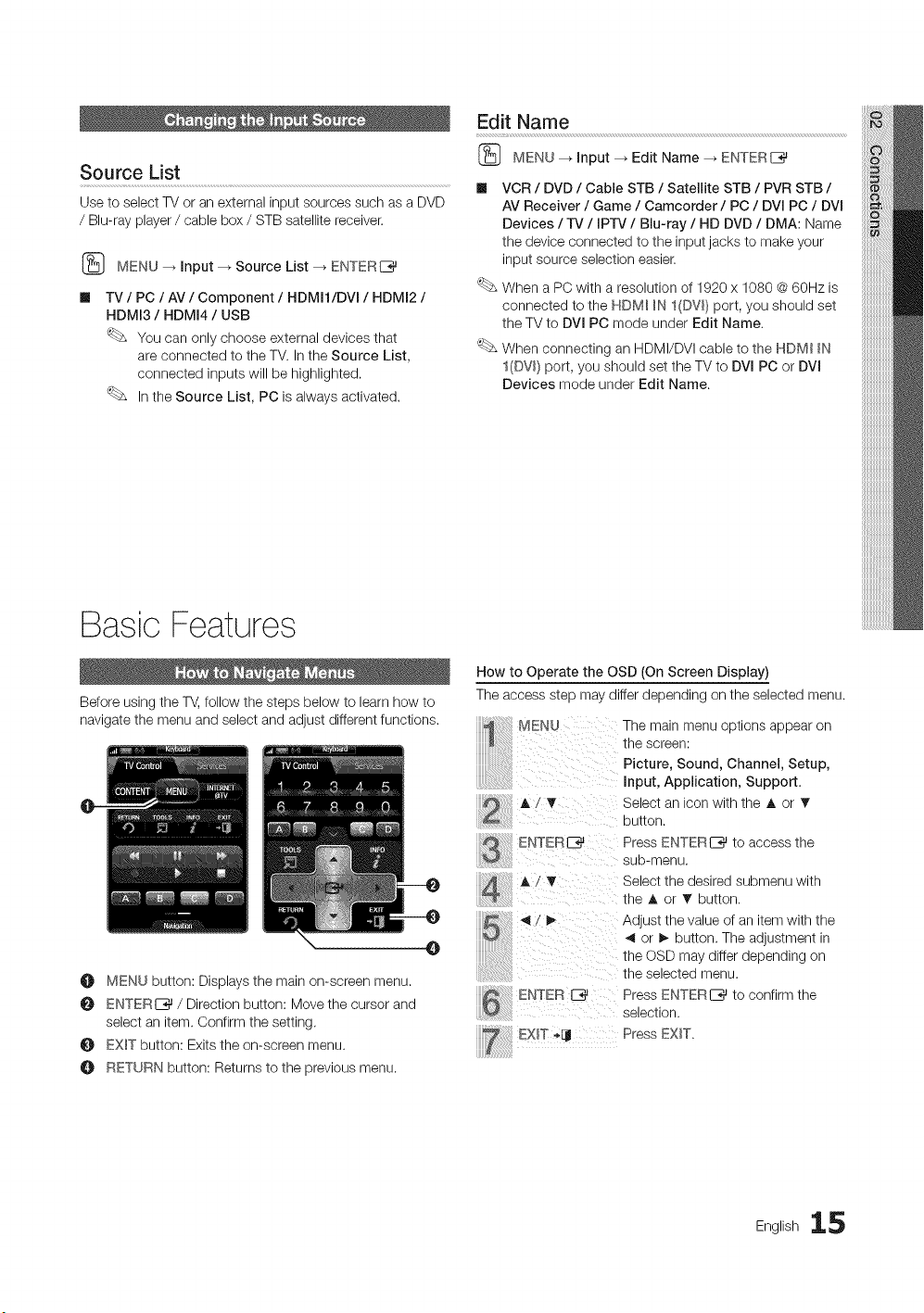
Source List
Use to select TV or an external input sources such as a DVD
/ Blu-ray player / cable box / STB satellite receiver.
[_ MENU _ input --_ Source List --_ ENTERI_
Im
TV / PC / AV / Component / HDMI1/DVI / HDMI2 /
HDMI3 / HDMI4 / USB
You can only choose external devices that
are connected to the TV. In the Source List,
connected inputs will be highlighted.
In the Source List, PC is always activated.
Edit Name
(_ MENU _ input _ Edit Name _ ENTERI_
VCR / DVD / Cable STB / Satellite STB / PVR STB /
AV Receiver / Game / Camcorder / PC / DVI PC / DVI
Devices / TV / IPrv / Blu-ray / HD DVD / DMA: Name
the device connected to the input jacks to make your
input source selection easier.
When a PC with a resolution of 1920 x 1080 @ 60Hz is
connected to the NDM_ _N I(DV_} port, you should set
the TV to DVI PC mode under Edit Name.
When connecting an HDMI/DVI cable to the NDM_ _N
I(DVl) port, you should set the TV to DVI PC or DVI
Devices mode under Edit Name.
Basic Features
Before using the T_, follow the steps below to learn how to
navigate the menu and select and adjust different functions.
O MENU button: Displays the main on-screen menu.
ENTERE_ / Direction button: Move the cursor and
select an item. Confirm the setting,
EXiT button: Exits the on-screen menu.
O RETURN button: Returns to the previous menu.
How to Operate the OSD (On Screen Display)
The access step may differ depending on the selected menu.
MENU The main menu options appear on
..... theinput,Picture,Sound, Channel, Setup,scrApplication,can: Support.
Select an icon with the A or _'
button.
Press ENTERI_ to access the
sub-menu.
Select the desired submenu with
the A or • button.
Adjust the value of an item with the
4 or _- button. The adjustment in
the OSD may differ depending on
the selected menu.
Press ENTERI_ to confirm the
selection.
Press EXIT.
English 15
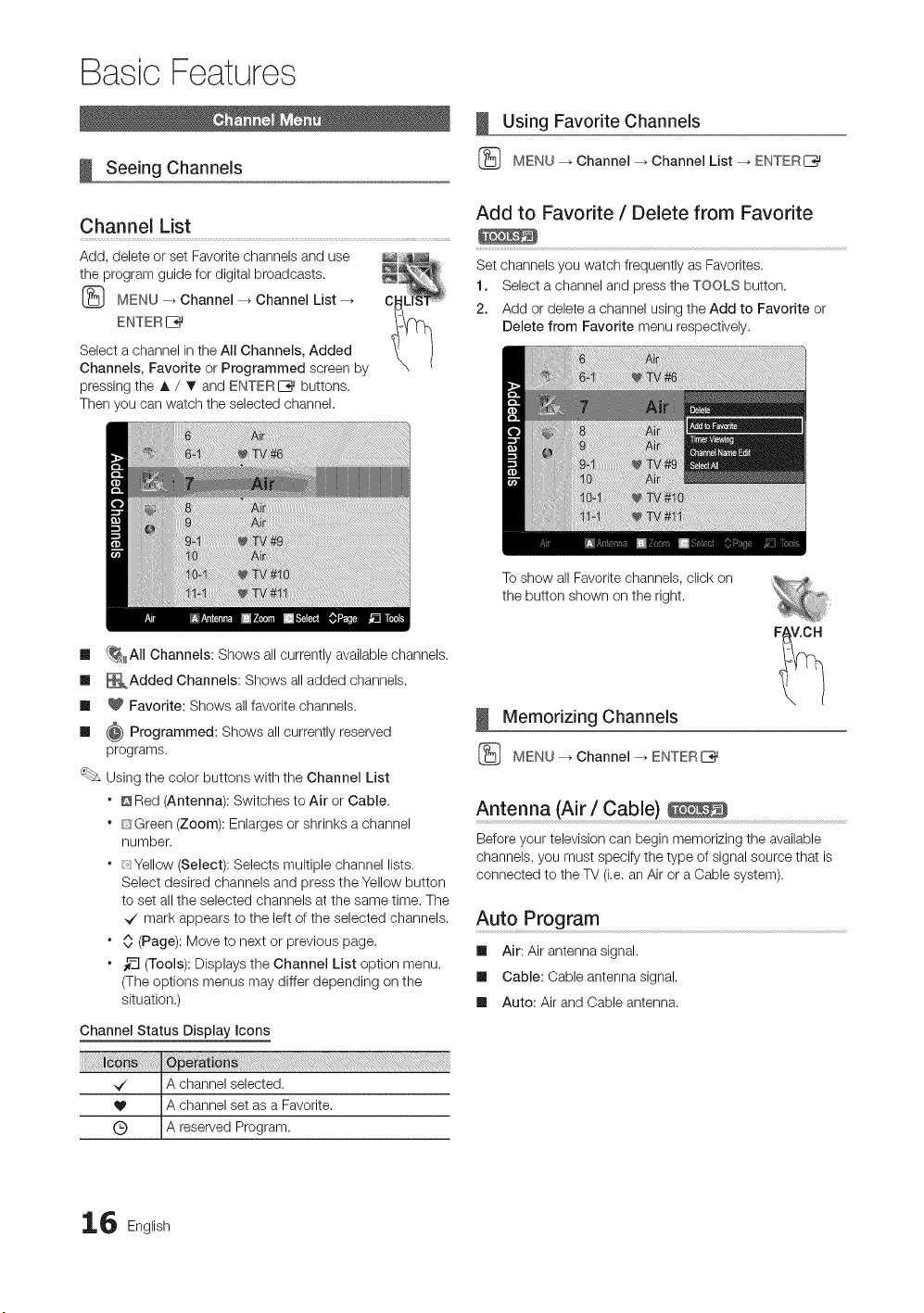
Basic Features
Seeing Channels
Channel List
Add, delete or set Favorite channels and use _;
the program guide for digital broadcasts.
(_ MENU _ Channel --_ Channel List --_ C
ENTER
Select a channel in the All Channels, Added
Channels, Favorite or Programmed screen by
pressing the A / _ and ENTERIZ_ buttons.
Then you can watch the selected channel.
Using Favorite Channels
(_ MENU --_ Channel _ Channel List --_ ENTERI_
Add to Favorite / Debte from Favorite
Set channels you watch frequently as Favorites,
1. Select a channel and press the TOOLS button.
2. Add or delete a channel using the Add to Favorite or
Delete from Favorite menu respectively.
m {_HAII Channels: Shows all currently available channels.
Ill _Added Channels: Shows all added channels.
Ill _ Favorite: Shows all favorite channels.
Ill _ Programmed: Shows all currently reserved
programs.
Using the color buttons with the Channel List
" @Red (Antenna): Switches to Air or Cable.
" [3Green (Zoom): Enlarges or shrinks a channel
number.
" _ Yellow (Select): Selects multiple channel lists,
Select desired channels and press the Yellow button
to set all the selected channels at the same time. The
_/ mark appears to the left of the selected channels.
" O (Page): Move to next or previous page.
. _-_ (Tools): Displays the Channel List option menu.
(The options menus may differ depending on the
situation.)
Channel Status Display Icons
_/ A channel selected.
V A channel set as a Favorite.
(_) A reserved Program.
To show all Favorite channels, click on
the button shown on the right.
Memorizing Channels
(_ MENU --_ Channel _ ENTERI_
Antenna (Air / Cable)
Before your television can begin memorizing the available
channels, you must specify the type of signal source that is
connected to the TV (i,e. an Air or a Cable system).
Auto Program
Ill Air: Air antenna signal.
Ill Cable: Cable antenna signal.
Ill Auto: Air and Cable antenna.
6 English
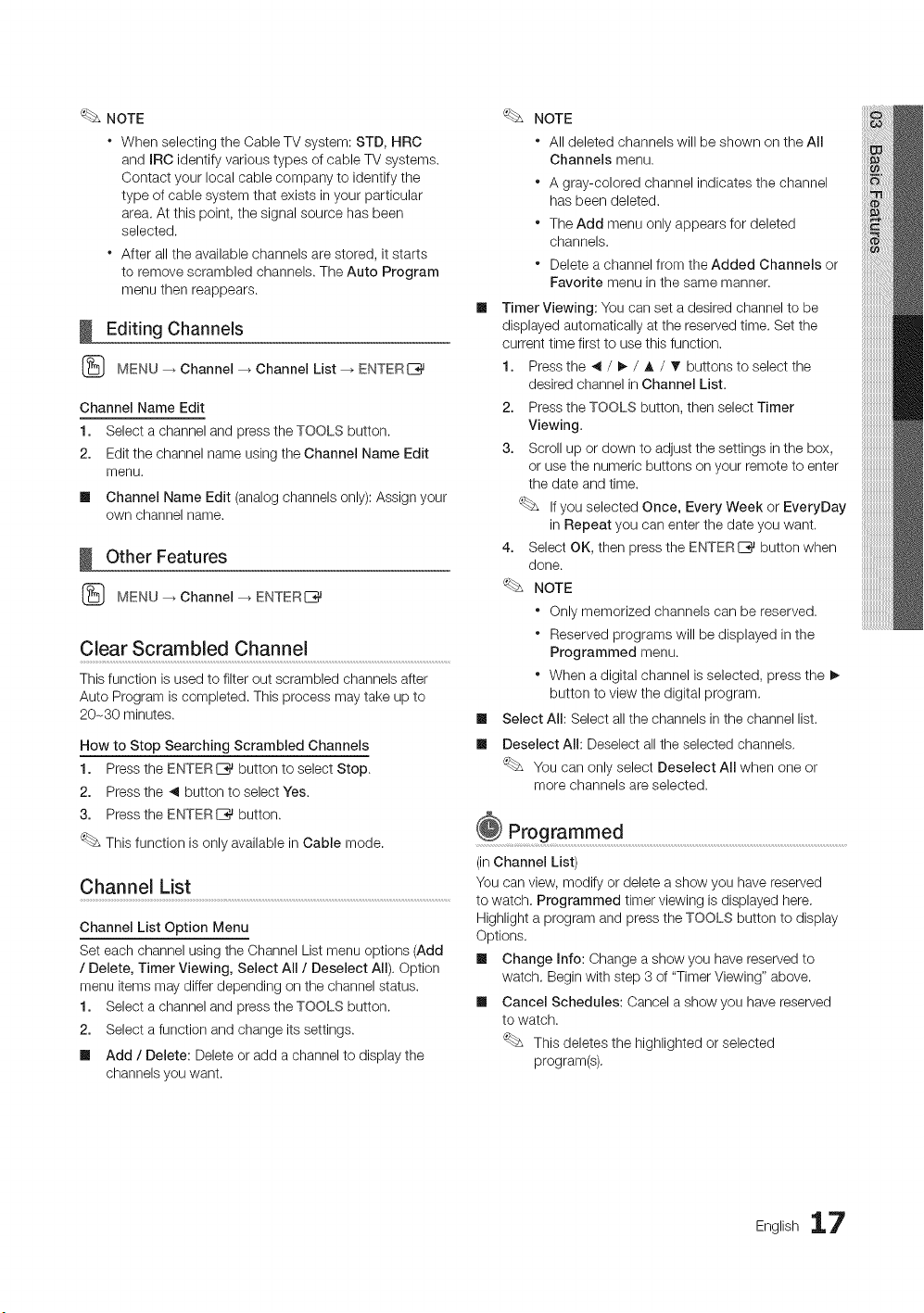
NOTE
* WhenselectingtheCableTVsystem:STD,HRC
andIRCidentifyvarioustypesofcableTVsystems.
Contactyourlocalcablecompanytoidentifythe
typeofcablesystemthatexistsinyourparticular
area.Atthispoint,thesignalsourcehasbeen
selected.
* Afteralltheavailablechannelsarestored,itstarts
toremovescrambledchannels.TheAutoProgram
menuthenreappears.
Editing Channels
(_ MENU _ Channel --_ Channel List --_ ENTERI_
Channel Name Edit
1. Select a channel and press the TOOLS button.
2. Edit the channel name using the Channel Name Edit
menu.
Ill Channel Name Edit (analog channels only): Assign your
own channel name.
Other Features
(_ MENU _ Channel --_ ENTERI_
Clear Scrambled Channel
This function is used to filter out scrambled channels after
Auto Program is completed. This process may take up to
20-30 minutes.
How to Stop Searching Scrambled Channels
1. Press the ENTERE_ button to select Stop.
2. Press the _ button to select Yes.
3. Press the ENTER_ button.
This function is only available in Cable mode.
Channel List
Channel List Option Menu
Set each channel using the Channel List menu options (Add
/ Delete, Timer Viewing, Select All / Deselect All). Option
menu items may differ depending on the channel status.
1. Select a channel and press the TOOLS button.
2. Select a function and change its settings.
ml Add / Delete: Delete or add a channel to display the
channels you want.
m
m
NOTE
* All deleted channels will be shown on the All
Channels menu.
* A gray-colored channel indicates the channel
has been deleted.
* The Add menu only appears for deleted
channels.
* Delete a channel from the Added Channels or
Favorite menu in the same manner.
Timer Viewing: You can set a desired channel to be
displayed automatically at the reserved time. Set the
current time first to use this function.
1. Press the _ / !_ / A / V" buttons to select the
desired channel in Channel List.
2. Press the TOOLS button, then select Timer
Viewing.
3. Scroll up or down to adjust the settings in the box,
or use the numeric buttons on your remote to enter
the date and time.
If you selected Once, Every Week or EveryDay
in Repeat you can enter the date you want.
4. Select OK, then press the ENTERI_ button when
done.
NOTE
* Only memorized channels can be reserved.
* Reserved programs will be displayed in the
Programmed menu.
* When a digital channel is selected, press the !_
button to view the digital program.
Select All: Select all the channels in the channel list.
Deselect All: Deselect all the selected channels.
You can only select Deselect All when one or
more channels are selected.
Programmed .....................................................................................................................................................................
(in Channel List)
You can view, modify or delete a show you have reserved
to watch, Programmed timer viewing is displayed here,
Highlight a program and press the TOOLS button to display
Options,
Ill Change Info: Change a show you have reserved to
watch, Begin with step 3 of "Timer Viewing" above.
ml Cancel Schedules: Cancel a show you have reserved
to watch.
This deletes the highlighted or selected
program(s),
English 17
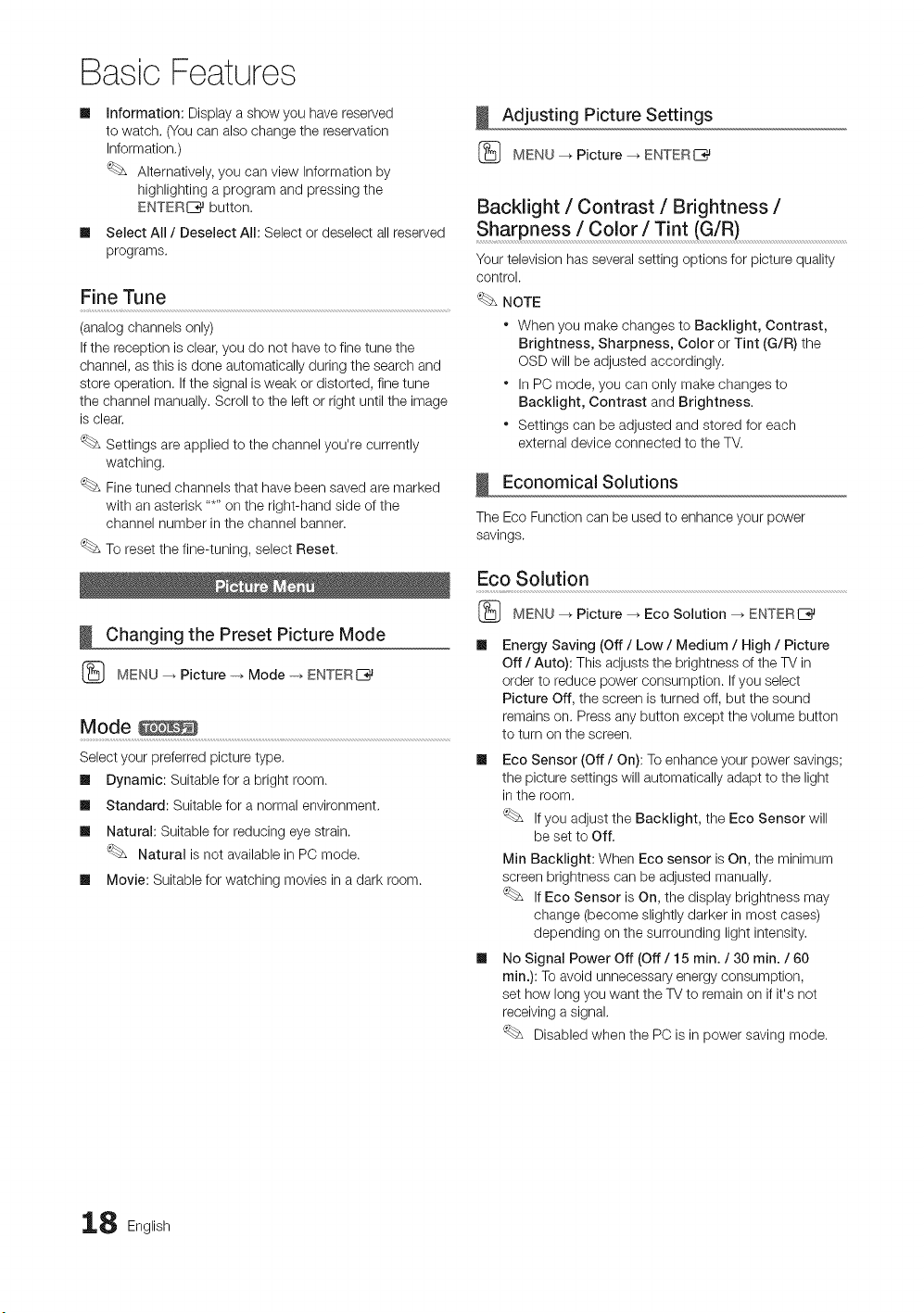
Basic Features
im
im
information: Display a show you have reserved
to watch. (You can also change the reservation
Information.)
Alternatively, you can view Information by
highlighting a program and pressing the
ENTERI_ button.
Select All / Deselect All: Select or deselect all reserved
programs.
Fine Tune
(analog channels only)
If the reception is clear, you do not have to fine tune the
channel, as this is done automatically during the search and
store operation, If the signal is weak or distorted, fine tune
the channel manually. Scroll to the left or right until the image
is clear,
Settings are applied to the channel you're currently
watching.
Fine tuned channels that have been saved are marked
with an asterisk .....on the right-hand side of the
channel number in the channel banner.
To reset the fine-tuning, select Reset,
Changing the Preset Picture Mode
{_ MENU _ Picture -_ Mode -_ ENTERE_
Mode
Select your preferred picture type.
Ill Dynamic: Suitable for a bright room.
Ill Standard: Suitable for a normal environment.
Ill Natural: Suitable for reducing eye strain.
Natural is not available in PC mode.
Ill Movie: Suitable for watching movies in a dark room.
Adjusting Picture Settings
{_ MENU _ Picture _ ENTERI_
Backlight / Contrast / Brightness /
Sharpness / Color / Tint (G/R)
Your television has several setting options for picture quality
control.
NOTE
When you make changes to Backlight, Contrast,
Brightness, Sharpness, Color or Tint (G/R) the
OSD will be adjusted accordingly.
* In PC mode, you can only make changes to
Backlight, Contrast and Brightness.
* Settings can be adjusted and stored for each
external device connected to the TV.
Economical Solutions
The Eco Function can be used to enhance your power
savings.
Eco Solution
(_ MENU _ Picture _ Eco Solution _ ENTERE_
Energy Saving (Off / Low / Medium / High / Picture
Off / Auto): This adjusts the brightness of the TV in
order to reduce power consumption. If you select
Picture Off, the screen is turned off, but the sound
remains on. Press any button except the volume button
to turn on the screen.
Ill Eco Sensor (Off / On): To enhance your power savings;
the picture settings will automatically adapt to the light
in the room.
If you adjust the Backlight, the Eco Sensor will
be set to Off.
Min Backlight: When Eco sensor is On, the minimum
screen brightness can be adjusted manually.
If Eco Sensor is On, the display brightness may
change (become slightly darker in most cases)
depending on the surrounding light intensity.
Ill No Signal Power Off (Off / 15 min. / 30 min. / 60
min.): To avoid unnecessary energy consumption,
set how long you want the TV to remain on if it's not
receiving a signal.
Disabled when the PC is in power saving mode.
8 English
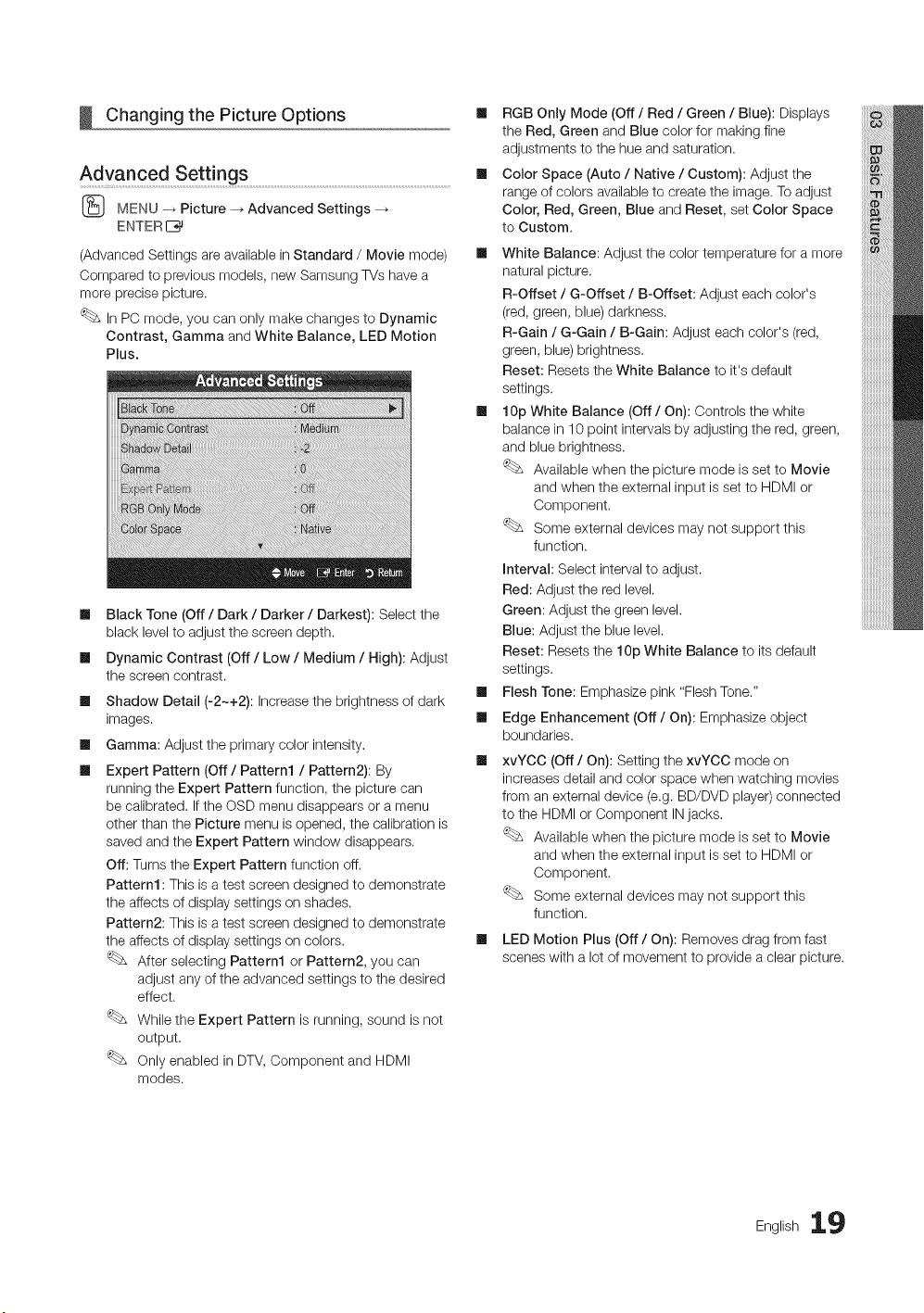
Changing the Picture Options
Advanced Sett!ngs .......................................................................................................................................................
(_ MENU _ Picture _ Advanced Settings
ENTER 1_
(Advanced Settings are available in Standard / Movie mode)
Compared to previous models, new Samsung TVs have a
more precise picture.
In PC mode, you can only make changes to Dynamic
Contrast, Gamma and White Balance, LED Motion
Plus.
m
m
m
m
m
Black Tone (Off / Dark / Darker / Darkest): Select the
black level to adjust the screen depth.
Dynamic Contrast (Off / Low / Medium / High): Adjust
the screen contrast.
Shadow Detail (-2~+2): Increase the brightness of dark
images.
Gamma: Adjust the primary color intensity.
Expert Pattern (Off / Pattern1 / Pattern2): By
running the Expert Pattern function, the picture can
be calibrated. If the OSD menu disappears or a menu
other than the Picture menu is opened, the calibration is
saved and the Expert Pattern window disappears.
Off: Turns the Expert Pattern function off.
Pattern1 : This is a test screen designed to demonstrate
the affects of display settings on shades.
Pattern2: This is a test screen designed to demonstrate
the affects of display settings on colors.
After selecting Pattern1 or Pattern2, you can
adjust any of the advanced settings to the desired
effect.
While the Expert Pattern is running, sound is not
output.
Only enabled in DTV, Component and HDMI
modes.
[] RGB Only Mode (Off / Red / Green / Blue): Displays
the Red, Green and Blue color for making fine
adjustments to the hue and saturation.
[] Color Space (Auto / Native / Custom): Adjust the
range of colors available to create the image. To adjust
Color, Red, Green, Blue and Reset, set Color Space
to Custom.
[] White Balance: Adjust the color temperature for a more
natural picture.
R-Offset / G-Offset / B-Offset: Adjust each color's
(red, green, blue) darkness.
R-Gain / G-Gain / B-Gain: Adjust each color's (red,
green, blue) brightness.
Reset: Resets the White Balance to it's default
settings.
[] 10p White Balance (Off / On): Controls the white
balance in 10 point intervals by adjusting the red, green,
and blue brightness.
Available when the picture mode is set to Movie
and when the external input is set to HDMI or
Component.
Some external devices may not support this
function.
Interval: Select interval to adjust.
Red: Adjust the red level.
Green: Adjust the green level.
Blue: Adjust the blue level.
Reset: Resets the 10p White Balance to its default
settings.
[] Flesh Tone: Emphasize pink "Flesh Tone."
[] Edge Enhancement (Off/On): Emphasize object
boundaries.
xvYCC (Off/On): Setting the xvYCC mode on
increases detail and color space when watching movies
from an external device (e.g. BD/DVD player) connected
to the HDMI or Component IN jacks.
Available when the picture mode is set to Movie
and when the external input is set to HDMI or
Component.
Some external devices may not support this
function.
LED Motion Plus (Off / On): Removes drag from fast
scenes with a lot of movement to provide a clear picture.
English lg
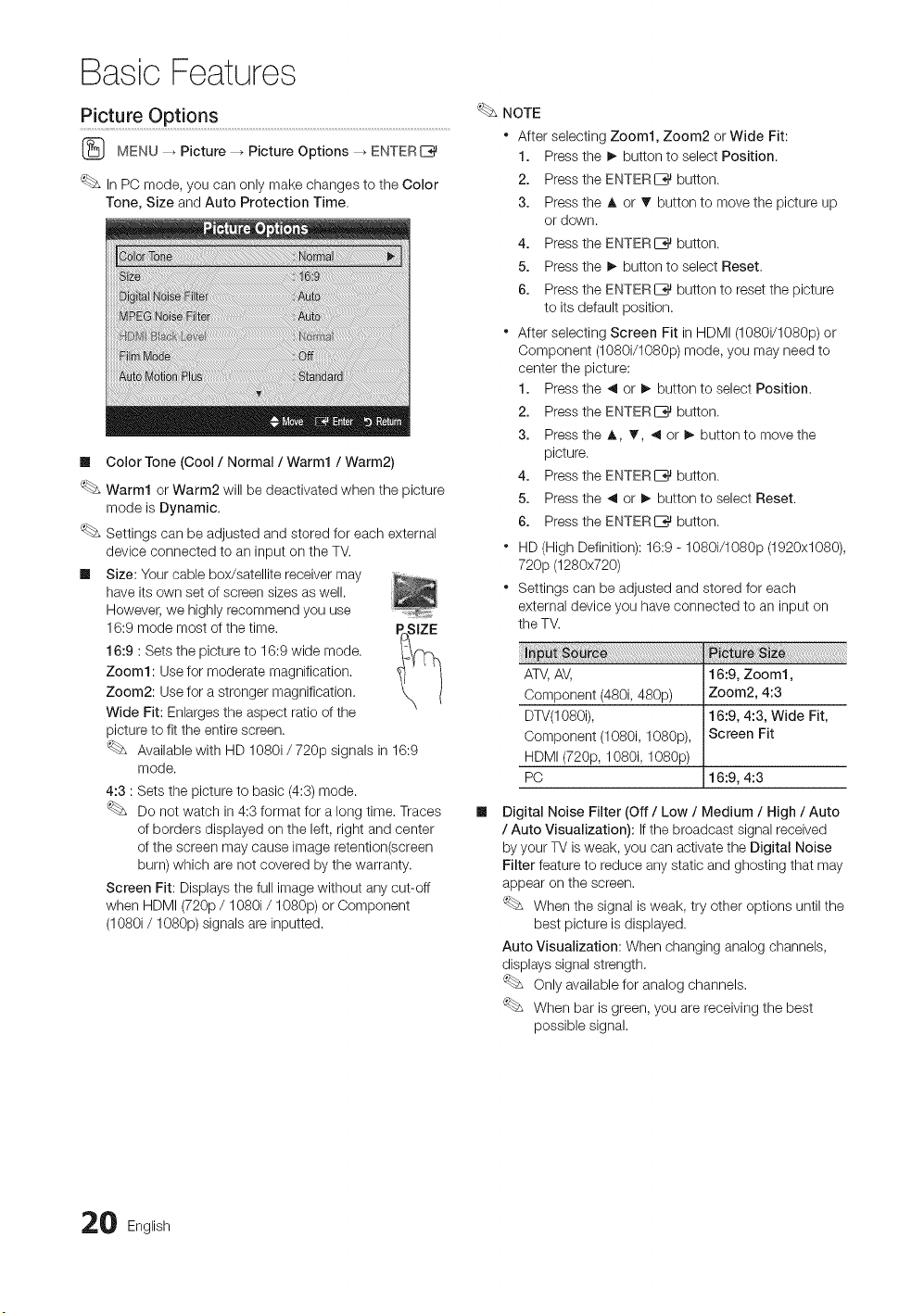
Basic Features
MENU _ Picture _ Picture Options _ ENTER[_
In PC mode, you can only make changes to the Color
Tone, Size and Auto Protection Time.
Ill Color Tone (Cool / Normal / Warm1 / Warm2)
Warm1 or Warm2 will be deactivated when the picture
mode is Dynamic.
Settings can be adjusted and stored for each external
device connected to an input on the TM
Ill Size: Your cable box/satellite receiver may
have its own set of screen sizes as well.
However, we highly recommend you use
16:9 mode most of the time. pc,SIZE
16:9 : Sets the picture to 16:9 wide mode.
Zoom1: Use for moderate magnification.
Zoom2: Use for a stronger magnification.
Wide Fit: Enlarges the aspect ratio of the
picture to fit the entire screen.
Available with HD 1080i / 720p signals in 16:9
mode.
4:3 : Sets the picture to basic (4:3) mode.
Do not watch in 4:3 format for a long time. Traces
of borders displayed on the left, right and center
of the screen may cause image retention(screen
burn) which are not covered by the warranty.
Screen Fit: Displays the full image without any cut-off
when HDMI (720p / 1080i / 1080p) or Component
(1080i / 1080p) signals are inputted.
NOTE
After selecting Zoom1, Zoom2 or Wide Fit:
1. Press the !_ button to select Position.
2. Press the ENTERC_ button.
3. Press the A or T button to move the picture up
or down.
4. Press the ENTERIZ_ button.
5. Press the !_ button to select Reset.
6. Press the ENTERIZ_ button to reset the picture
to its default position.
* After selecting Screen Fit in HDMI (1080i/1080p) or
Component (1080i/1080p) mode, you may need to
center the picture:
1. Press the _ or I_ button to select Position.
2. Press the ENTERI_ button.
3. Press the A, _, _ or I_ button to move the
picture.
4. Press the ENTERIZ_ button.
5. Press the _ or I_ button to select Reset.
6. Press the ENTERI_ button.
* HD (High Definition): 16:9 - 1080i/1080p (1920x1080),
720p (1280x720)
* Settings can be adjusted and stored for each
external device you have connected to an input on
the TV.
ATV, AV, 16:9, Zoom1,
Component (480i, 480p) Zoom2, 4:3
DTV(1080i), 16:9, 4:3, Wide Fit,
Component (1080i, 1080p), Screen Fit
HDMI (720p, 1080i, 1080p)
PC 16:9, 4:3
Digital Noise Filter (Off / Low / Medium / High / Auto
/ Auto Visualization): If the broadcast signal received
by your TV is weak, you can activate the Digital Noise
Filter feature to reduce any static and ghosting that may
appear on the screen.
When the signal is weak, try other options until the
best picture is displayed.
Auto Visualization: When changing analog channels,
displays signal strength.
Only available for analog channels.
When bar is green, you are receiving the best
possible signal.
0 English
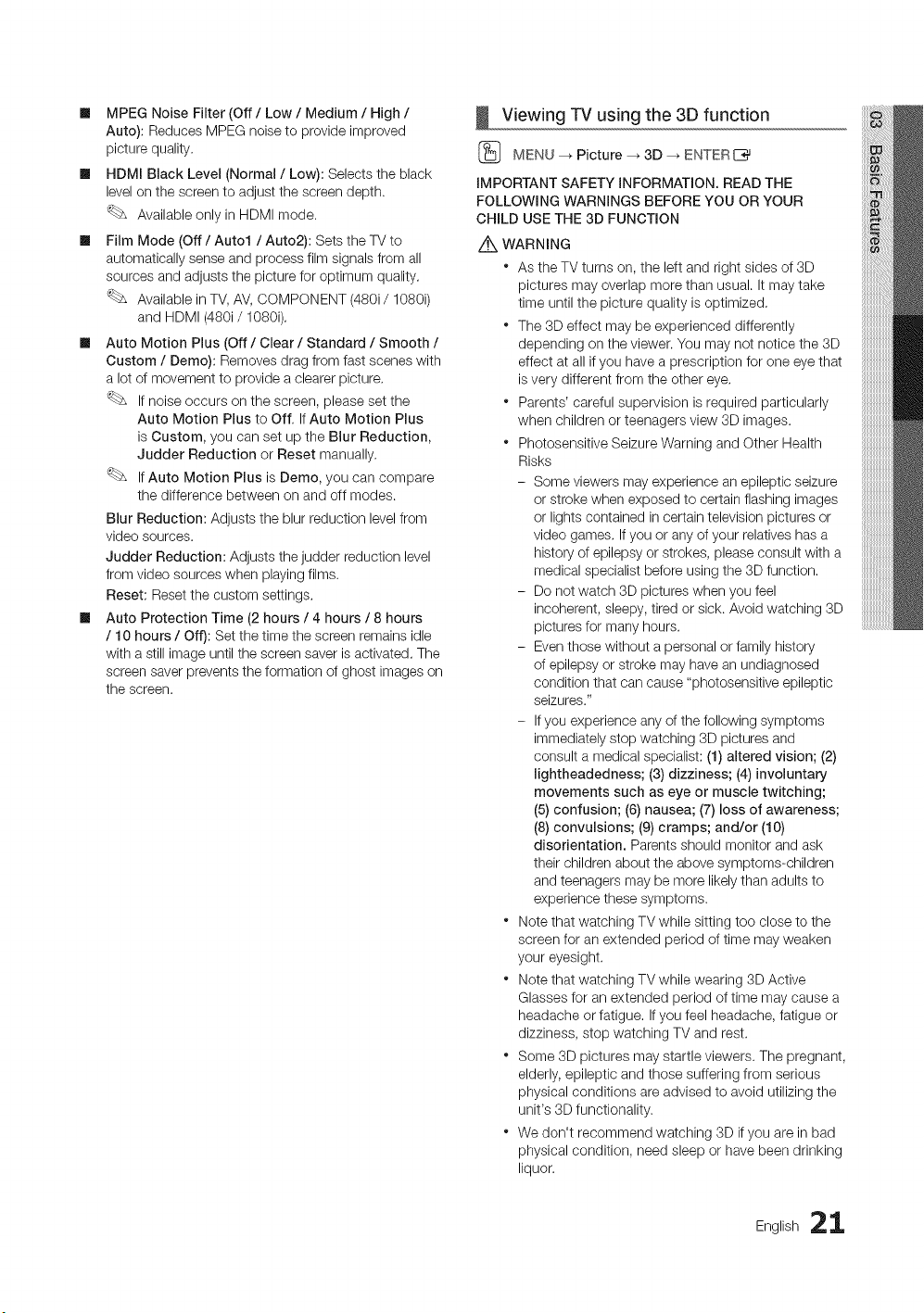
Ill MPEGNoiseFilter(Off/ Low / Medium / High /
Auto): Reduces MPEG noise to provide improved
picture quality.
Ill HDMI Black Level (Normal / Low): Selects the black
level on the screen to adjust the screen depth.
Available only in HDMI mode.
Ill Film Mode (Off / Auto1 / Auto2): Sets the TV to
automatically sense and process film signals from all
sources and adjusts the picture for optimum quality.
Available in TV, AV, COMPONENT (480i/1080i)
and HDMI (480i/1080i).
Ill Auto Motion Plus (Off / Clear / Standard / Smooth /
Custom / Demo): Removes drag from fast scenes with
a lot of movement to provide a clearer picture.
If noise occurs on the screen, please set the
Auto Motion Plus to Off. If Auto Motion Plus
is Custom, you can set up the Blur Reduction,
Judder Reduction or Reset manually.
If Auto Motion Plus is Demo, you can compare
the difference between on and off modes.
Blur Reduction: Adjusts the blur reduction level from
video sources.
Judder Reduction: Adjusts the judder reduction level
from video sources when playing films.
Reset: Reset the custom settings.
Ill Auto Protection Time (2 hours / 4 hours / 8 hours
/ 10 hours / Off): Set the time the screen remains idle
with a still image until the screen saver is activated. The
screen saver prevents the formation of ghost images on
the screen.
Viewing TV using the 3D function
(_ MENU --_ Picture _ 3D _ ENTERI_
IMPORTANT SAFETY INFORMATION. READ THE
FOLLOWING WARNINGS BEFORE YOU OR YOUR
CHILD USE THE 3D FUNCTION
Z_ WARNING
* As the TV turns on, the left and right sides of 3D
pictures may overlap more than usual. It may take
time until the picture quality is optimized,
* The 3D effect may be experienced differently
depending on the viewer. You may not notice the 3D
effect at all if you have a prescription for one eye that
is very different from the other eye,
* Parents' careful supervision is required particularly
when children or teenagers view 3D images.
* Photosensitive Seizure Warning and Other Health
Risks
- Some viewers may experience an epileptic seizure
or stroke when exposed to certain flashing images
or lights contained in certain television pictures or
video games, If you or any of your relatives has a
history of epilepsy or strokes, please consult with a
medical specialist before using the 3D function.
- Do not watch 3D pictures when you feel
incoherent, sleepy, tired or sick. Avoid watching 3D
pictures for many hours.
- Even those without a personal or family history
of epilepsy or stroke may have an undiagnosed
condition that can cause "photosensitive epileptic
seizures."
- If you experience any of the following symptoms
immediately stop watching 3D pictures and
consult a medical specialist: (1) altered vision; (2)
lightheadedness; (3) dizziness; (4) involuntary
movements such as eye or muscle twitching;
(5) confusion; (6) nausea; (7) loss of awareness;
(8) convulsions; (9) cramps; and/or (1O)
disorientation. Parents should monitor and ask
their children about the above symptoms-children
and teenagers may be more likely than adults to
experience these symptoms.
* Note that watching TV while sitting too close to the
screen for an extended period of time may weaken
your eyesight.
* Note that watching TV while wearing 3D Active
Glasses for an extended period of time may cause a
headache or fatigue. If you feel headache, fatigue or
dizziness, stop watching TV and rest.
* Some 3D pictures may startle viewers. The pregnant,
elderly, epileptic and those suffering from serious
physical conditions are advised to avoid utilizing the
unit's 3D functionality.
* We don't recommend watching 3D if you are in bad
physical condition, need sleep or have been drinking
liquor.
English 21
Basic Features
* Please take care to be aware of the room around
you. This product is designed to be immersive. DO
NOT use this product near open stairwells, cables,
balconies, or other objects that can be tripped over,
run into, knocked down, broken or fallen over. Being
startled or deluding yourself into thinking that the 3D
images are real may cause you to crush a nearby
object or get injured trying to move your body.
* Do not use the 3D Active Glasses for any other
purpose than for which it was designed. Wearing the
3D Active Glasses for any other purpose (as general
spectacles, sunglasses, protective goggles, etc.)
may physically harm you or weaken your eyesight.
* Immersive video can potentially have adverse effects
on the user including motion sickness, perceptual
after effects, disorientation, eye strain, and
decreased postural stability. Take frequent breaks
to lessen the potential of these effects. If your eyes
show signs of fatigue or dryness or if you have any of
the above symptoms, immediately discontinue use
of this device and do not resume using it for at least
thirty minutes after the symptoms have subsided.
* The ideal viewing distance should be three times
or more the height of the screen. We recommend
sitting with viewer's eyes on a level with the screen.
* Do not disassemble, or attempt to repair or modify
your 3D active glasses by yourself.
- Do not use them if broken or damaged.
* Be careful not to let the temple ends of the 3D active
glasses harm your eye.
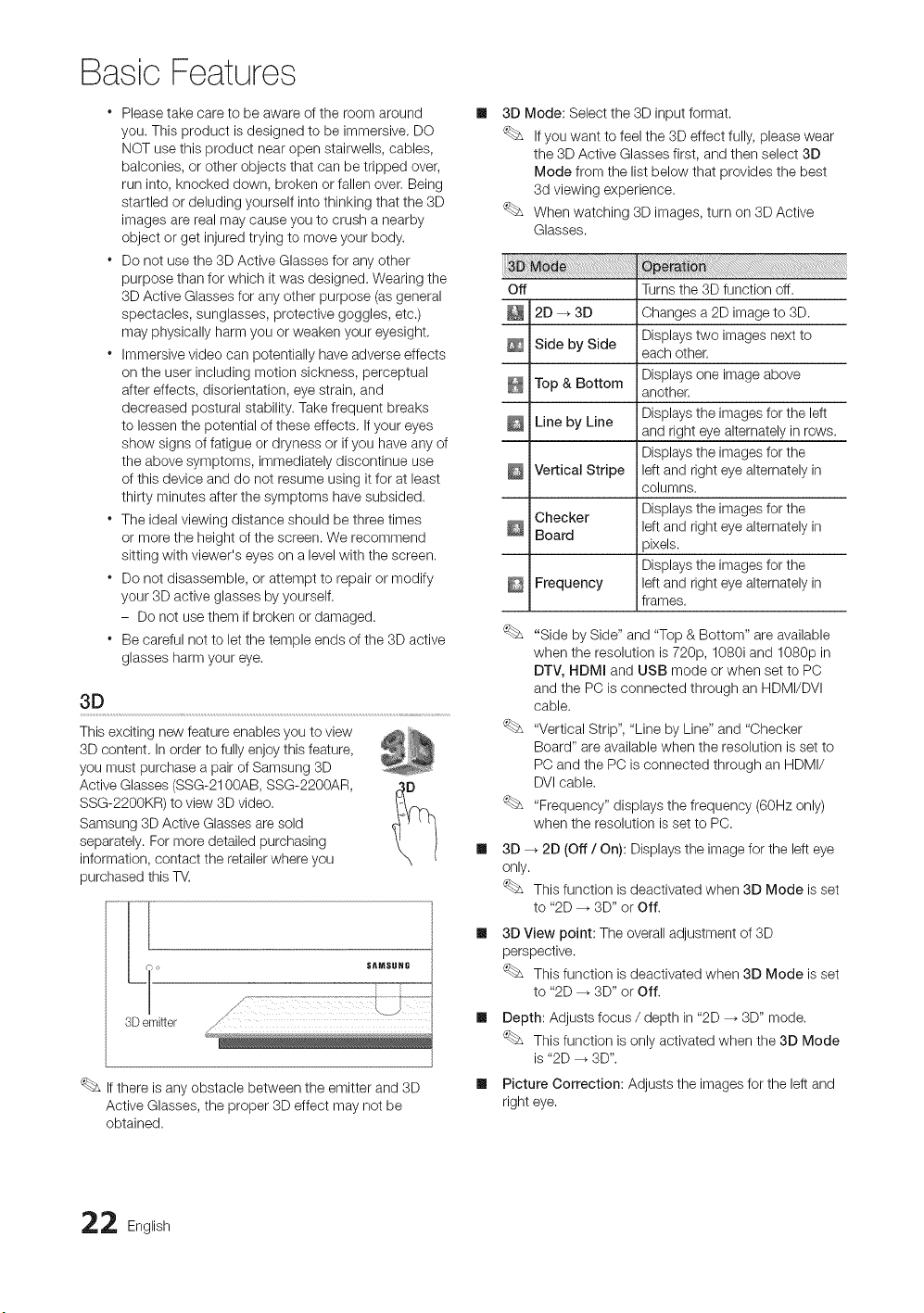
3D
This exciting new feature enables you to view
3D content. In order to fully enjoy this feature,
you must purchase a pair of Samsung 3D
Active Glasses (SSG-2100AB, SSG-2200AR,
SSG-2200KR) to view 3D video.
Samsung 3D Active Glasses are sold
separately. For more detailed purchasing
information, contact the retailer where you
purchased this TV.
3D emitter
S_MSUNG
If there is any obstacle between the emitter and 3D
Active Glasses, the proper 3D effect may not be
obtained.
3D Mode: Select the 3D input format.
If you want to feel the 3D effect fully, please wear
the 3D Active Glasses first, and then select 3D
Mode from the list below that provides the best
3d viewing experience.
When watching 3D images, turn on 3D Active
Glasses.
Off Turns the 3D function off.
2D _ 3D Changes a 2D image to 3D.
Displays two images next to
Side by Side each other.
Displays one image above
Top & Bottom another.
Displays the images for the left
Line by Line and right eye alternately in rows.
Displays the images for the
Vertical Stripe left and right eye alternately in
columns.
Checker Displays the images for the
left and right eye alternately in
Board
sixels.
Displays the images for the
Frequency left and right eye alternately in
frames.
"Side by Side" and "Top & Bottom" are available
when the resolution is 720p, 1080i and 1080p in
DTV, HDMI and USB mode or when set to PC
and the PC is connected through an HDMI/DVI
cable.
"Vertical Strip", "Line by Line" and "Checker
Board" are available when the resolution is set to
PC and the PC is connected through an HDMI/
DVI cable.
"Frequency" displays the frequency (60Hz only)
when the resolution is set to PC.
3D _ 2D (Off / On): Displays the image for the left eye
only.
This function is deactivated when 3D Mode is set
to "2D _ 3D" or Off.
3D View point: The overall adjustment of 3D
perspective.
This function is deactivated when 3D Mode is set
to "2D _ 3D" or Off.
Depth: Adjusts focus / depth in "2D _ 3D" mode.
This function is only activated when the 3D Mode
is "2D _ 3D",
Picture Correction: Adjusts the images for the left and
right eye.
2 English

m
3DAutoView(Off/ On): If 3D Auto View is set to On,
a "Side-By-Side" format HDMI signal with one of the
resolutions below is automatically switched to 3D. Here,
correct 3D information must be sent from the Standard
HDMI 3D Format.
If a 3D failure occurs due to a 3D information error,
set 3D Auto View to Off and manually select a
3D Mode using the 3D button or corresponding
menu.
Support resolution (16:9 only)
1280 x 720p 60 Hz
1920 x 1080i 60 Hz
1920 x 1080p 24 / 30 / 60 Hz
Ill 3D Optimize: The overall adjustment of 3D effect.
Resolution supported for HDMI PC mode
The resolution for HDMI PC mode is optimized to 1920 x
1080 input.
An input resolution other than 1920 x 1080 may not be
displayed properly in 3D display or full screen mode.
How to watch the 3D image
1. Press the CONTENT button, then the Content View
menu will appear.
2. Press the _ or I_ button, then select 3D.
Towatch in 3D, wear 3D Active Glasses and press the
power button on the glasses.
3. Select OK, then press the ENTERI_ button.
4. Using the _ or I_ buttons on your remote control, select
the 3D Mode of the image you want to view.
Some 3D modes may not be available depending
on the format of the image source.
Supported formats and operating specifications for
Standard HDMI 3D
The 3D formats indicated below are recommended by
the HDMI association and must be supported.
i_ ifo:at ::
1920xl080p@24Hzx 2 1920x2205p@24Hz
1280x720p@60Hzx 2 1280xl470p@60Hz
The mode is automatically switched to 3D in one of the
source signal formats above.
For the Standard HDMI 3D format with 24Hz, the TV is
optimized as follows:
- Resolution First Display Mode: If Auto Motion Plus
is set to Off, Clear or Standard, you can watch the
video at a high resolution optimized to the resolution
of the source video.
- Judder Reduction Display Mode: When Auto
Motion Plus is set to Smooth or Custom, you can
watch a smooth picture without judder.
Before using 3D function...
NOTE
* You may notice a small amount of screen flickering
when watching 3D images in poor light conditions
(from a strobe light, etc.), or under a fluorescent lamp
(50Hz - 60Hz) or 3 wavelength lamp. If so, dim the
light or turn the lamp off.
* 3D mode is automatically disabled in following cases:
when changing a channel or the input source, or
accessing Media Play or Internet@TV.
* Some Picture functions are disabled in 3D mode.
* The Touch Remote does not support 3D pictures.
* 3D Active Glasses from other manufacturers may not
be supported.
* When the TV is initially powered on, it may take some
time until the 3D display is optimized.
* The 3D Active Glasses may not work properly if there
is any other 3D product or electronic devices turned
on near the glasses or TV. If there is a problem, keep
other electronic devices as far away as possible from
the 3D Active Glasses.
* Photos of Media Play are shown in "2D _ 3D"
mode only.
* If you lie on your side while watching TV with 3D
active glasses, the picture may look dark or may not
be visible.
* Be sure to stay within the viewing angle and optimum
TV viewing distance when watching 3D pictures.
- Otherwise, you may not be able to enjoy proper 3D
effects.
English 23
Basic Features
Resets your current picture mode to its default setting&
Setting up the TV with Your PC
Set the input source to PC.
(_ MENU _ Picture --_ ENTER[_
Auto Adjustment ........................................................................................................................
Adjust frequency values/positions and fine tune the settings
automatically.
Not available when connecting with an HDMI/DVI cable.
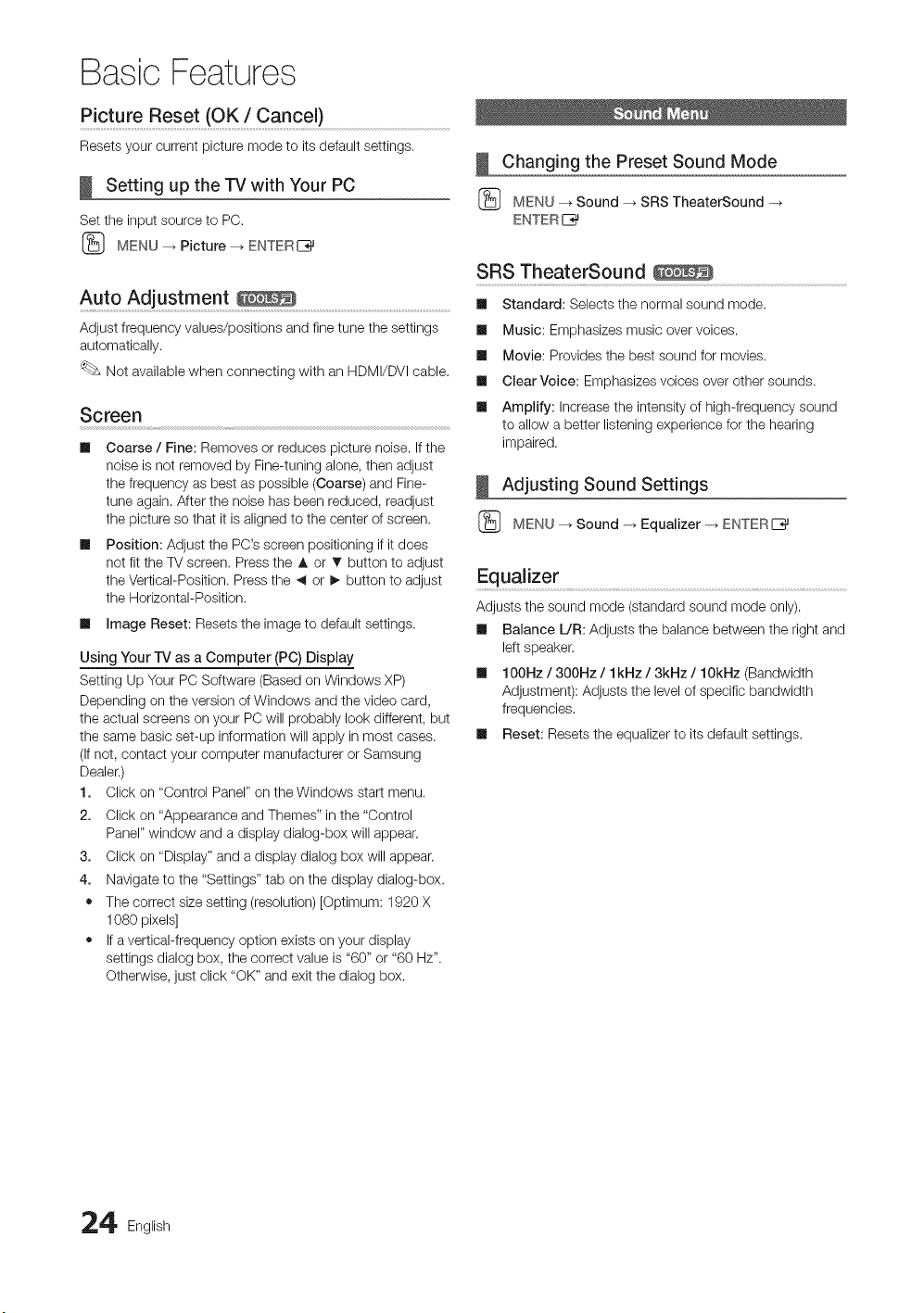
Screen
II
m
Coarse / Fine: Removes or reduces picture noise. If the
noise is not removed by Fine-tuning alone, then adjust
the frequency as best as possible (Coarse) and Fine-
tune again. After the noise has been reduced, readjust
the picture so that it is aligned to the center of screen.
Position: Adjust the PO's screen positioning if it does
not fit the TV screen. Press the A or • button to adjust
the Vertical-Position. Press the _ or I_ button to adjust
the Horizontal-Position.
Ill image Reset: Resets the image to default settings.
Using Your IV as a Computer (PC) Display
Setting Up Your PC Software (Based on Windows XP)
Depending on the version of Windows and the video card,
the actual screens on your PC will probably look different, but
the same basic set-up information will apply in most cases.
(If not, contact your computer manufacturer or Samsung
Dealer.)
1. Click on "Control Panel" on the Windows start menu.
2. Click on "Appearance and Themes" in the "Control
Panel" window and a display dialog-box will appear.
3. Click on "Display" and a display dialog box will appear.
4. Navigate to the "Settings" tab on the display dialog-box.
• The correct size setting (resolution) [Optimum: 1920 X
1080 pixels]
• If a vertical-frequency option exists on your display
settings dialog box, the correct value is "60" or "60 Hz".
Otherwise, just click "OK" and exit the dialog box.
Changing the Preset Sound Mode
(_ MENU --_ Sound _ SRS TheaterSound -+
ENTER I_
SRS TheaterSound
Ill Standard: Selects the normal sound mode.
Ill Music: Emphasizes music over voices.
Ill Movie: Provides the best sound for movies.
Ill Clear Voice: Emphasizes voices over other sounds.
Ill Amplify: Increase the intensity of high-frequency sound
to allow a better listening experience for the hearing
impaired.
Adjusting Sound Settings
(_ MENU --_ Sound -_ Equalizer -_ ENTERE_
Equalizer ........................................................................................................................................................................................................................
Adjusts the sound mode (standard sound mode only).
Ill Balance L/R: Adjusts the balance between the right and
left speaker.
Ill 100Hz / 300Hz / lkNz / 3kNz / 10kHz (Bandwidth
Adjustment): Adjusts the level of specific bandwidth
frequencies.
Ill Reset: Resets the equalizer to its default settings.
4 English
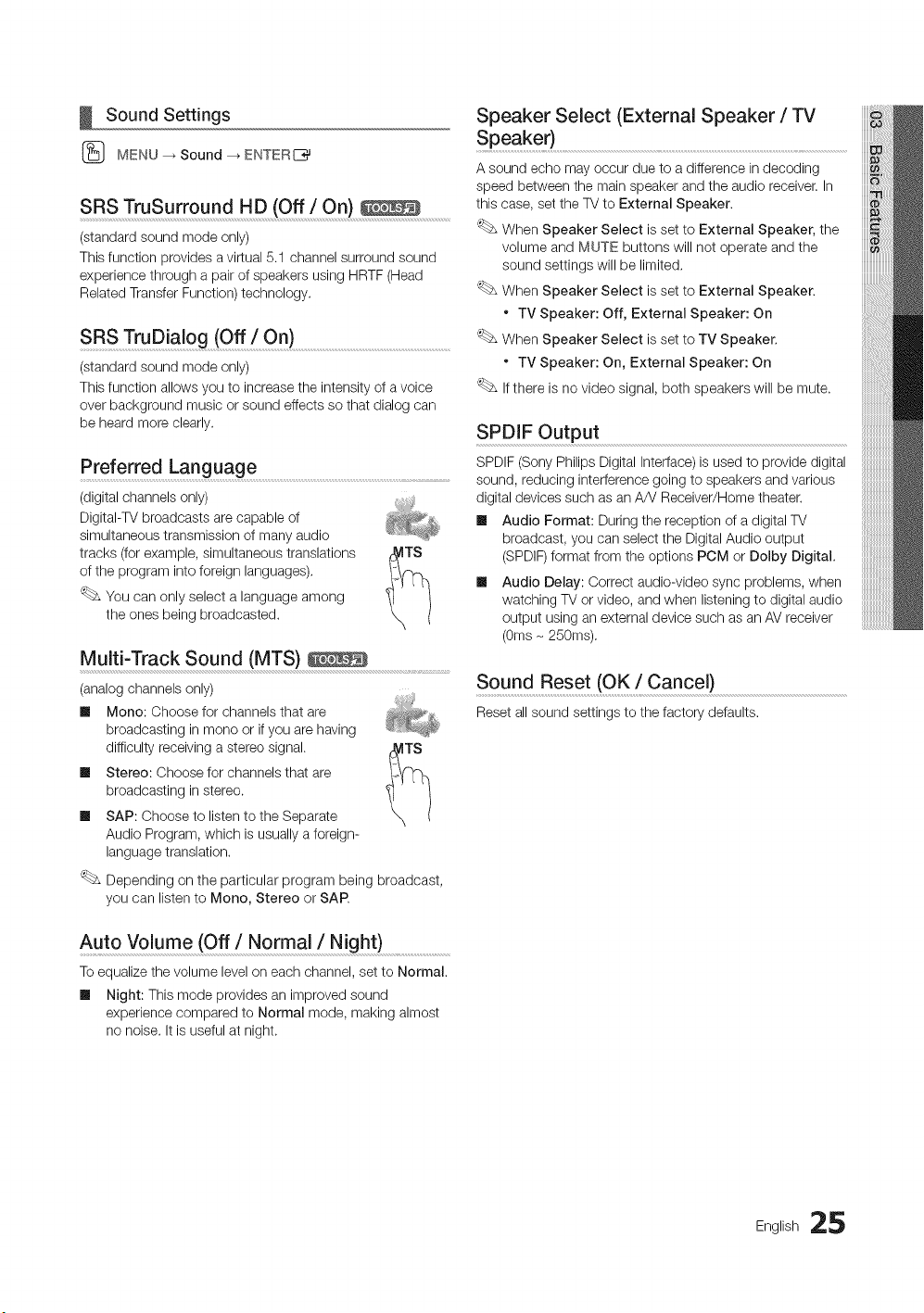
Sound Settings
(_ MENU _ Sound --_ ENTER[_
SRS TruSurround HD (Off / On)
(standard sound mode only)
This function provides a virtual 5.1 channel surround sound
experience through a pair of speakers using HRTF (Head
Related Transfer Function) technology.
SRS TruDialog (Off / On)....................................................................................................................
(standard sound mode only)
This function allows you to increase the intensity of a voice
over background music or sound effects so that dialog can
be heard more clearly.
Preferred Language .............................................................................................................
(digital channels only)
DigitaI-TV broadcasts are capable of
simultaneous transmission of many audio
tracks (for example, simultaneous translations
of the program into foreign languages),
You can only select a language among
the ones being broadcasted.
Multi-Track Sound (MTS)
(analog channels only)
Ill Mono: Choose for channels that are
broadcasting in mono or if you are having
difficulty receiving a stereo signal. ¢_ilTS
Ill Stereo: Choose for channels that are
broadcasting in stereo.
Ill SAP: Choose to listen to the Separate
Audio Program, which is usually a foreign-
language translation.
Depending on the particular program being broadcast,
you can listen to Mono, Stereo or SAP.
Auto Volume (Off / Normal / Night)
To equalize the volume level on each channel, set to Normal.
Ill Night: This mode provides an improved sound
experience compared to Normal mode, making almost
no noise. It is useful at night.
Speaker Select (External Speaker / TV
Speaker) ............................................................................................................................
A sound echo may occur due to a difference in decoding
speed between the main speaker and the audio receiver. In
this case, set the TV to External Speaker.
When Speaker Select is set to External Speaker, the
volume and MUTE buttons will not operate and the
sound settings will be limited,
When Speaker Select is set to External Speaker.
* TV Speaker: Off, External Speaker: On
When Speaker Select is set to TV Speaker,
* TV Speaker: On, External Speaker: On
If there is no video signal, both speakers will be mute.
SPDIF Output
SPDIF (Sony Philips Digital Interface)is used to provide digital
sound, reducing interference going to speakers and various
digital devices such as an A/V Receiver/Home theater.
Ill Audio Format: During the reception of a digital TV
broadcast, you can select the Digital Audio output
(SPDIF)format from the options PCM or Dolby Digital.
Ill Audio Delay: Correct audio-video sync problems, when
watching TV or video, and when listening to digital audio
output using an external device such as an AV receiver
(0ms- 250ms),
Sound Reset (OK/Cancel)
Reset all sound settings to the factory defaults.
English 25
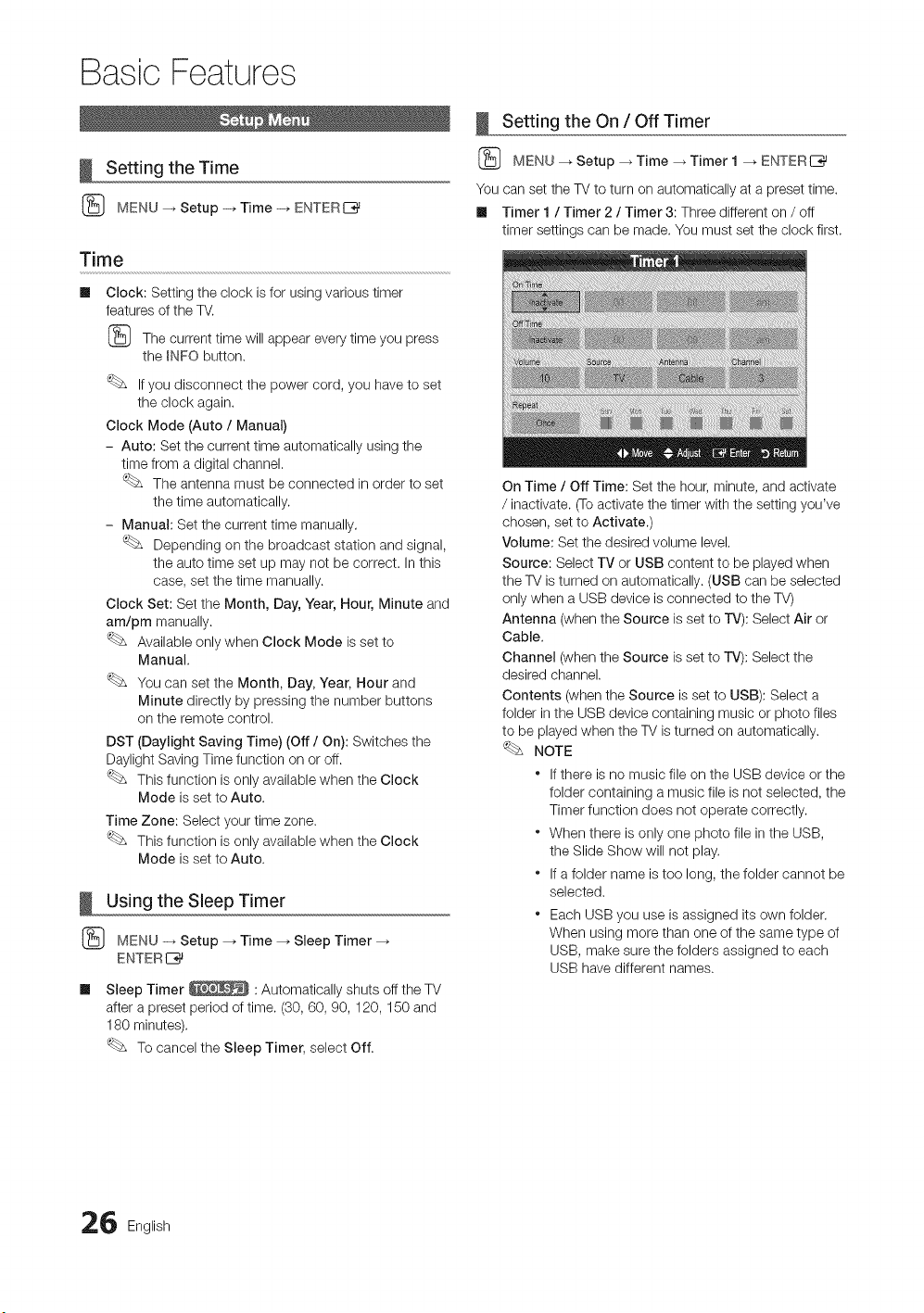
Basic Features
Setting the Time
{_ MENU -_ Setup -+ Time -+ ENTERE_
Time
m
Clock: Setting the clock is for using various timer
features of the TV.
{_ The current time will appear every time you press
the _NFObutton.
If you disconnect the power cord, you have to set
the clock again.
Clock Mode (Auto / Manual)
- Auto: Set the current time automatically using the
time from a digital channel.
The antenna must be connected in order to set
the time automatically.
- Manual: Set the current time manually.
Depending on the broadcast station and signal,
the auto time set up may not be correct. In this
case, set the time manually.
Clock Set: Set the Month, Day, Year, Hour, Minute and
am/pm manually.
Available only when Clock Mode is set to
Manual.
You can set the Month, Day, Year, Hour and
Minute directly by pressing the number buttons
on the remote control.
DST (Daylight Saving Time) (Off/On): Switches the
Daylight Saving Time function on or off.
This function is only available when the Clock
Mode is set to Auto.
Time Zone: Select your time zone.
This function is only available when the Clock
Mode is set to Auto.
Using the Sleep Timer
{_ MENU _ Setup _ Time _ Sleep Timer
ENTER IZ_
m Sleep Timer _ : Automatically shuts off the TV
after a preset period of time. (30, 60, 90, 120, 150 and
180 minutes).
To cancel the Sleep Timer, select Off.
Setting the On / Off Timer
{_ MENU _ Setup _ Time _ Timer 1 _ ENTERI_
You can set the TV to turn on automatically at a preset time.
Ill Timer 1 / Timer 2 / Timer 3: Three different on / off
timer settings can be made. You must set the clock first.
On Time / Off Time: Set the hour, minute, and activate
/ inactivate. (Toactivate the timer with the setting you've
chosen, set to Activate.)
Volume: Set the desired volume level.
Source: Select TV or USB content to be played when
the TV is turned on automatically. (USB can be selected
only when a USB device is connected to the TV)
Antenna (when the Source is set to rv): Select Air or
Cable.
Channel (when the Source is set to TV): Select the
desired channel.
Contents (when the Source is set to USB): Select a
folder in the USB device containing music or photo files
to be played when the TV is turned on automatically.
NOTE
" If there is no music file on the USB device or the
folder containing a music file is not selected, the
Timer function does not operate correctly.
" When there is only one photo file in the USB,
the Slide Show will not play.
" If a folder name is too long, the folder cannot be
selected.
" Each USB you use is assigned its own folder.
When using more than one of the same type of
USB, make sure the folders assigned to each
USB have different names.
6 English
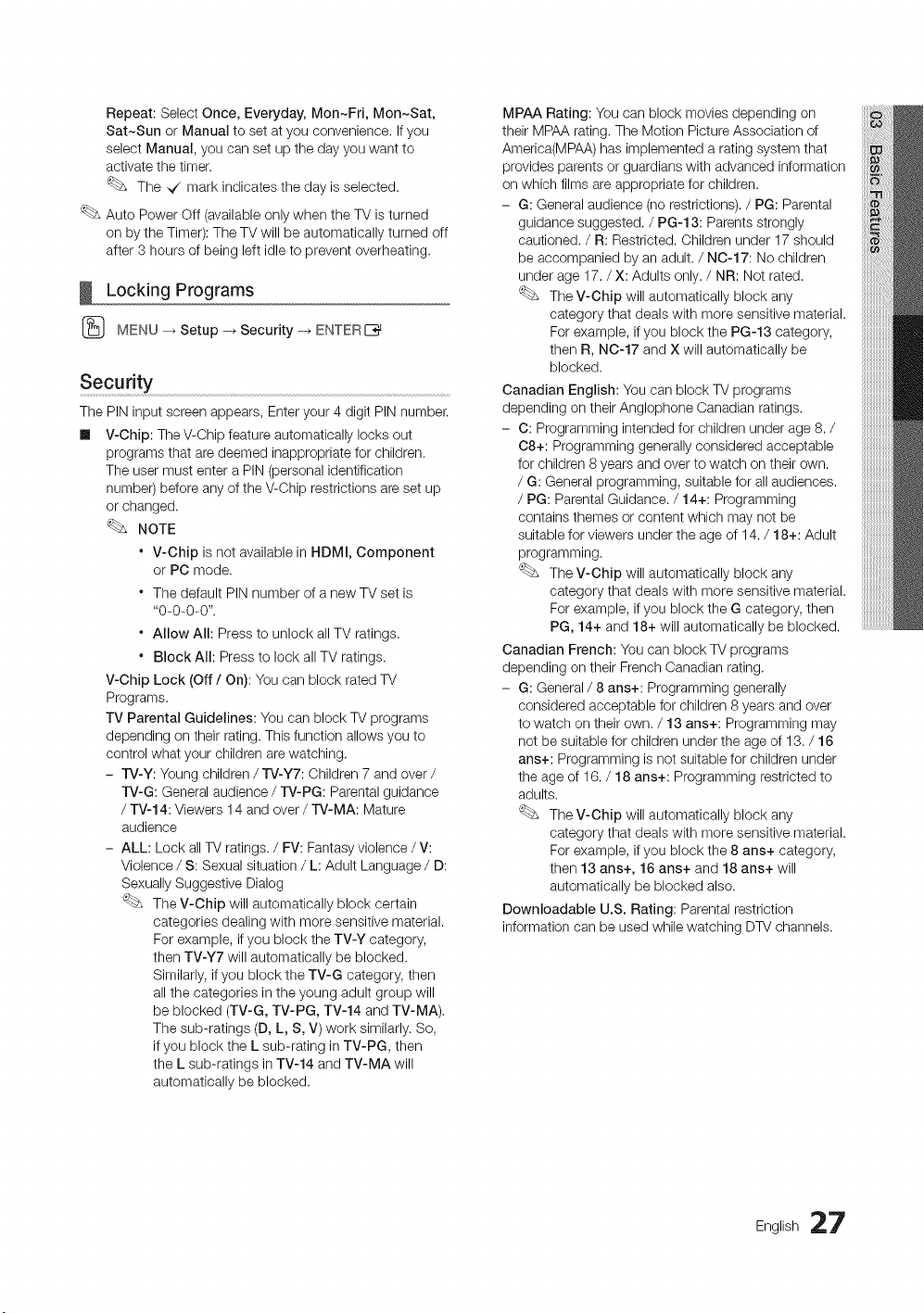
Repeat:SelectOnce,Everyday,Mon~Fri,Mon~Sat,
Sat~SunorManualtosetatyouconvenience,Ifyou
selectManual,youcansetupthedayyouwantto
activatethetimer.
The,J markindicatesthedayisselected.
AutoPowerOff(availableonlywhentheTVisturned
onbytheTimer):TheTVwillbeautomaticallyturnedoff
after3hoursofbeingleftidletopreventoverheating.
Locking Programs
(_ MENU _ Setup -_ Security -_ ENTERE_
Security
The PIN input screen appears, Enter your 4 digit PIN number.
Ill V-Chip: The V-Chip feature automatically locks out
programs that are deemed inappropriate for children.
The user must enter a PIN (personal identification
number) before any of the V-Chip restrictions are set up
or changed.
NOTE
* V-Chip is not available in HDMI, Component
or PC mode.
* The default PIN number of a new TV set is
"0-0-0-0".
* Allow All: Press to unlock all TV ratings.
* Block All: Press to lock all TV ratings.
V-Chip Lock (Off/On): You can block rated TV
Programs.
TV Parental Guidelines: You can block TV programs
depending on their rating. This function allows you to
control what your children are watching,
- IV-Y: Young children / TV-Y7: Children 7 and over /
rV-G: General audience / rV-PG: Parental guidance
/ TV-14: Viewers 14 and over / TV-MA: Mature
audience
- ALL: Lock all TV ratings. / FV: Fantasy violence / V:
Violence / S: Sexual situation / L: Adult Language / D:
Sexually Suggestive Dialog
The V-Chip will automatically block certain
categories dealing with more sensitive material.
For example, if you block the TV-¥ category,
then TV-Y7 will automatically be blocked.
Similarly, if you block the TV-G category, then
all the categories in the young adult group will
be blocked (TV-G, TV-PG, TV-14 and TV-MA),
The sub-ratings (D, L, S, V) work similarly. So,
if you block the L sub-rating in TV-PG, then
the L sub-ratings in TV-14 and TV-MA will
automatically be blocked.
MPAA Rating: You can block movies depending on
their MPAA rating, The Motion Picture Association of
America(MPAA) has implemented a rating system that
provides parents or guardians with advanced information
on which films are appropriate for children.
- G: General audience (no restrictions). / PG: Parental
guidance suggested. / PG-13: Parents strongly
cautioned, / R: Restricted. Children under 17 should
be accompanied by an adult. / NO-17: No children
under age 17./X: Adults only. / NR: Not rated.
The V-Chip will automatically block any
category that deals with more sensitive material.
For example, if you block the PG-13 category,
then R, N0-17 and X will automatically be
blocked.
Canadian English: You can block TV programs
depending on their Anglophone Canadian ratings,
- C: Programming intended for children under age 8. /
08+: Programming generally considered acceptable
for children 8 years and over to watch on their own.
/G: General programming, suitable for all audiences.
/ PG: Parental Guidance./14+: Programming
contains themes or content which may not be
suitable for viewers under the age of 14. / 18+: Adult
programming.
The V-Chip will automatically block any
category that deals with more sensitive material.
For example, if you block the G category, then
PG, 14+ and 18+ will automatically be blocked.
Canadian French: You can block TV programs
depending on their French Canadian rating,
- G: General/8 ans+: Programming generally
considered acceptable for children 8 years and over
to watch on their own. / 13 ans+: Programming may
not be suitable for children under the age of 13. / 16
ans+: Programming is not suitable for children under
the age of 16. / 18 arts+: Programming restricted to
adults.
The V-Chip will automatically block any
category that deals with more sensitive material.
For example, if you block the 8 arts+ category,
then 13 arts+, 16 ans+ and 18 arts+ will
automatically be blocked also.
Downloadable U.S. Rating: Parental restriction
information can be used while watching DTV channels.
English 27
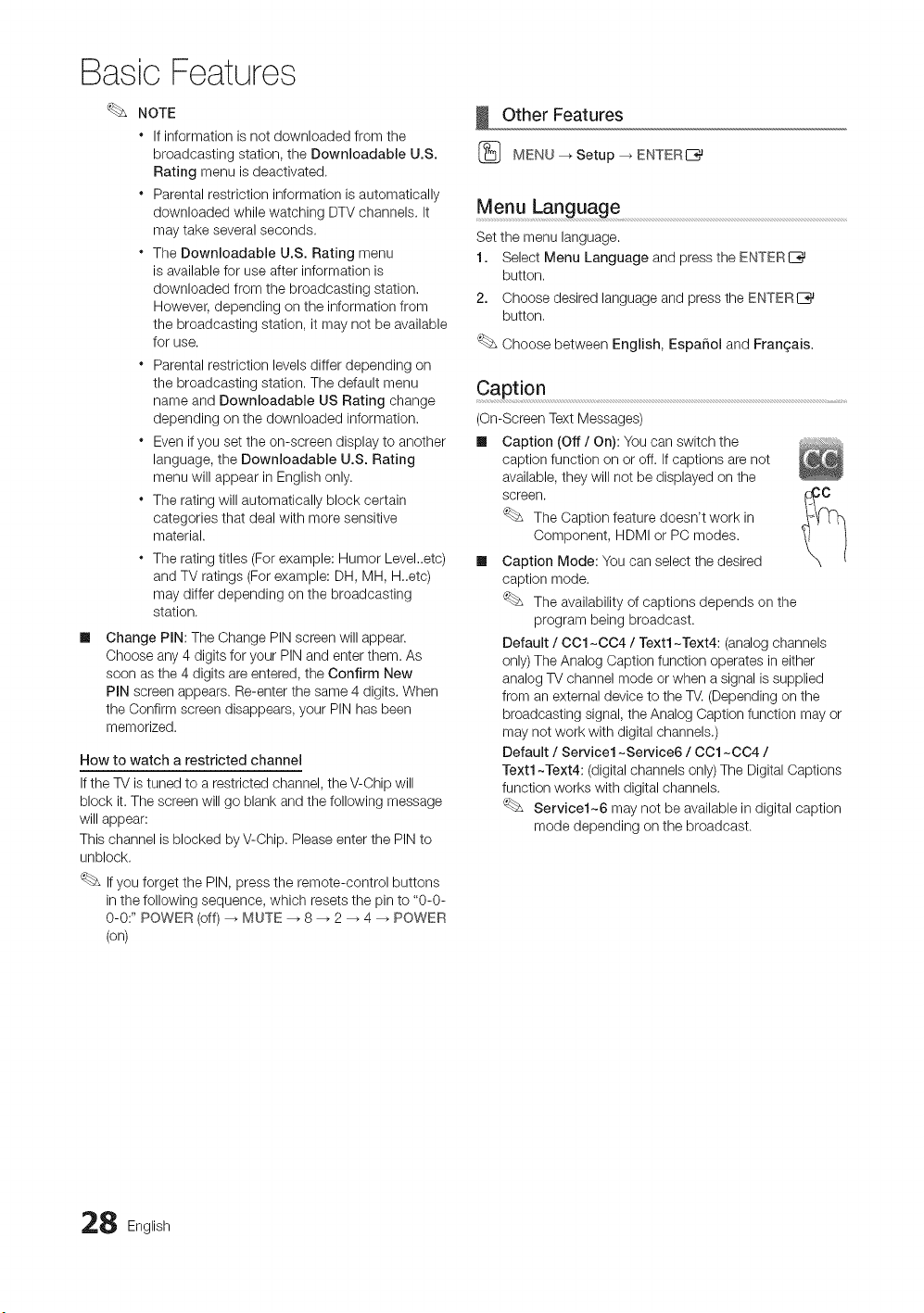
Basic Features
m
NOTE
* If information is not downloaded from the
broadcasting station, the Downloadable U.S.
Rating menu is deactivated.
* Parental restriction information is automatically
downloaded while watching DTV channels. It
may take several seconds.
* The Downloadable U.S. Rating menu
is available for use after information is
downloaded from the broadcasting station,
However, depending on the information from
the broadcasting station, it may not be available
for use.
* Parental restriction levels differ depending on
the broadcasting station, The default menu
name and Downloadable US Rating change
depending on the downloaded information.
* Even if you set the on-screen display to another
language, the Downloadable U.S. Rating
menu will appear in English only.
* The rating will automatically block certain
categories that deal with more sensitive
material.
* The rating titles (For example: Humor Level,.etc)
and TV ratings (For example: DH, MH, H,,etc)
may differ depending on the broadcasting
station.
Change PIN: The Change PIN screen will appear.
Choose any 4 digits for your PIN and enter them. As
soon as the 4 digits are entered, the Confirm New
PIN screen appears. Re-enter the same 4 digits, When
the Confirm screen disappears, your PIN has been
memorized.
How to watch a restricted channel
If the TV is tuned to a restricted channel, the V-Chip will
block it. The screen will go blank and the following message
will appear:
This channel is blocked by V-Chip. Please enter the PIN to
unblock.
If you forget the PIN, press the remote-control buttons
in the following sequence, which resets the pin to "0-0-
0-0:" POWER (off) _ MUTE --_ 8 --_ 2 _ 4 _ POWER
(on)
Other Features
(_ MENU --_ Setup _ ENTERC_
Menu Language
Set the menu language.
1. Select Menu Language and press the ENTERI_
button,
2. Choose desired language and press the ENTERI_
button,
Choose between English, EspaSol and Fran_;ais,
Caption
(On-Screen Text Messages)
Ill Caption (Off / On): You can switch the
caption function on or off. If captions are not
available, they will not be displayed on the
screen. __
The Caption feature doesn't work in
Component, HDMI or PC modes.
Ill Caption Mode: You can select the desired
caption mode.
The availability of captions depends on the
program being broadcast.
Default / OO1~004 / Text1 ~Text4: (analog channels
only) The Analog Caption function operates in either
analog TV channel mode or when a signal is supplied
from an external device to the TV. (Depending on the
broadcasting signal, the Analog Caption function may or
may not work with digital channels,)
Default / Service1 ~Service6 / OO1~004 /
Text1 ~Text4: (digital channels only)The Digital Captions
function works with digital channels.
Service1~6 may not be available in digital caption
mode depending on the broadcast.
8 English
m
DigitalCaptionOptions:(digitalchannelsonly)
Size:OptionsincludeDefault,Small,Standardand
Large.ThedefaultisStandard.
FontStyle:OptionsincludeDefaultandStyles0to7.
ThedefaultisStyle0.
ForegroundColor:OptionsincludeDefault,White,
Black,Red,Green,Blue,Yellow,MagentaandCyan.You
canchangethecoloroftheletter.ThedefaultisWhite.
BackgroundColor:OptionsincludeDefault,White,
Black,Red,Green,Blue,Yellow,MagentaandCyan.
Youcanchangethebackgroundcolorofthecaption.
ThedefaultisBlack.
ForegroundOpacity:Thisadjuststheopacityoftext.
OptionsincludeDefault,Transparent,Translucent,Solid
andFlashing.
BackgroundOpacity:Thisadjuststheopacityof
thecaptionbackground.OptionsincludeDefault,
Transparent,Translucent,SolidandFlashing.
ReturntoDefault:ThisoptionsetseachSize,Font
Style,ForegroundColor,BackgroundColor,Foreground
OpacityandBackgroundOpacitytoitsdefault.
NOTE
* DigitalCaptionOptionsareavailableonly
whenDefaultandService1~Service6canbe
selectedinCaptionMode.
* Theavailabilityofcaptionsdependsonthe
programbeingbroadcasted.
* TheDefaultsettingfollowsthestandardssetby
thebroadcaster.
* TheForegroundandBackgroundcannotbeset
tohavethesamecolor.
* YoucannotsetboththeForegroundOpacity
andtheBackgroundOpacitytoTransparent.
Network (Network Type / Network Setup
/ Network Test / SWL(Samsung Wireless
Link} / SWL connect}
For details on set up options, refer to the "Network
Connection" instructions (p. 32).
General
m Game Mode (Off / On): When connecting to a game
console such as PlayStation TM or Xbox TM, you can enjoy
a more realistic gaming experience by selecting the
game menu.
NOTE
* Precautions and limitations for game mode
- To disconnect the game console and connect
another external device, set Game Mode to Off in
the setup menu.
- If you display the TV menu in Game Mode, the
screen shakes slightly.
* Game Mode is not available when the input source
is set to TV or PC.
* After connecting the game console, set Game Mode
to On. Unfortunately, you may notice reduced picture
quality.
* If Game Mode is On:
- Picture mode is set to Standard and Sound mode
is set to Movie.
- Equalizer is not available.
m BD Wise (Off / On): Provides the optimal picture quality
for Samsung DVD, Blu-ray and Home Theater products
which support BD Wise, When BD Wise is turned On,
the picture mode is automatically changed to the optimal
resolution.
Available when connecting Samsung products
that support BD Wise through a HDMI cable.
m Menu Transparency (Bright / Dark): Set the
Transparency of the menu.
m Slide Key (On / Off): You can choose to use the LED
touch pad, which is centered underneath the stand, or
not.
m Melody (Off / Low / Medium / High): Set so that a
melody plays when the TV is turned on or off.
Melody is disabled when FastStart is On.
m FastStart (Off / On): When the TV is powered on, the
screen will come on quickly with this feature.
English 29
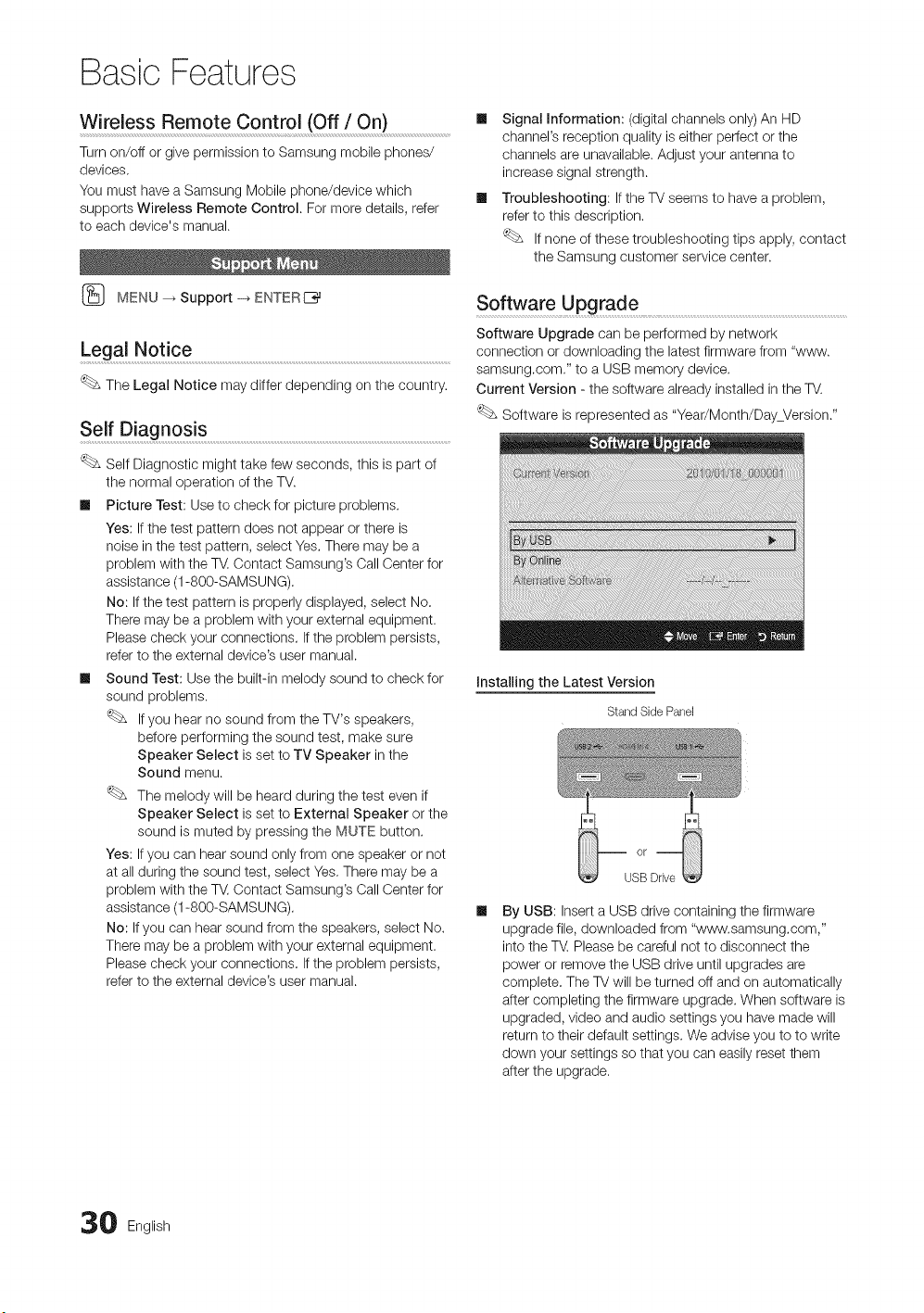
Basic Features
Wireless Remote Control (Off / On}
Turn on/off or give permission to Samsung mobile phones/
devices.
You must have a Samsung Mobile phone/device which
supports Wireless Remote Control. For more details, refer
to each device's manual.
MENU _ Support -_ ENTER E_
Legal Notice .................................................................................................................................................................................................
The Legal Notice may differ depending on the country.
Self Diagnos!s .....................................................................................................................................................................................
Self Diagnostic might take few seconds, this is part of
the normal operation of the TV.
II Picture Test: Use to check for picture problems.
Yes: If the test pattern does not appear or there is
noise in the test pattern, select Yes, There may be a
problem with the T_, Contact Samsung's Call Center for
assistance (1-800-SAMSUNG),
No: If the test pattern is properly displayed, select No,
There may be a problem with your external equipment.
Please check your connections, If the problem persists,
refer to the external device's user manual.
Ill Sound Test: Use the built-in melody sound to check for
sound problems,
If you hear no sound from the TV's speakers,
before performing the sound test, make sure
Speaker Select is set to TV Speaker in the
Sound menu.
The melody will be heard during the test even if
Speaker Select is set to External Speaker or the
sound is muted by pressing the MUTE button.
Yes: If you can hear sound only from one speaker or not
at all during the sound test, select Yes, There may be a
problem with the T_, Contact Samsung's Call Center for
assistance (1-800-SAMSUNG),
No: If you can hear sound from the speakers, select No.
There may be a problem with your external equipment.
Please check your connections, If the problem persists,
refer to the external device's user manual.
Ill Signal Information: (digital channels only) An HD
channel's reception quality is either perfect or the
channels are unavailable. Adjust your antenna to
increase signal strength.
Ill Troubleshooting: If the TV seems to have a problem,
refer to this description.
If none of these troubleshooting tips apply, contact
the Samsung customer service center.
Software Upgrade ........................................................................................................................................................
Software Upgrade can be performed by network
connection or downloading the latest firmware from "www.
samsung.com." to a USB memory device.
Current Version - the software already installed in the TV.
Software is represented as "Year/Month/DayVersion."
Installing the Latest Version
StandSide Panel
USB Drive
By USB: Insert a USB drive containing the firmware
upgrade file, downloaded from "www.samsung.com,"
into the TM Please be careful not to disconnect the
power or remove the USB drive until upgrades are
complete. The TV will be turned off and on automatically
after completing the firmware upgrade. When software is
upgraded, video and audio settings you have made will
return to their default settings. We advise you to to write
down your settings so that you can easily reset them
after the upgrade.
0 English
Ill ByOnline:UpgradethesoftwareusingtheInternet.
First,configureyournetwork.Fordetailed
proceduresonusingtheNetworkSetup,referto
the"NetworkConnection"instructions.
Iftheinternetconnectiondoesn'toperateproperly,
theconnectionmaybebroken.Pleaseretry
downloading.Iftheproblempersists,downloadby
USBandupgrade.
Ill AlternativeSoftware:Displaysthesoftwareversion
downloadedthroughByOnline,Duringthesoftware
upgrading,WhentheUpgradewilldiscontinuefromlast
step,thisfunctionbeactivated.
HD Connection Guide
Refer to this information when connecting external devices
to the TV.
Contact Samsung ...........................................
View this information when your TV does not work properly
or when you want to upgrade the software. You can find
information regarding our call centers and how to download
products and software.
English 31
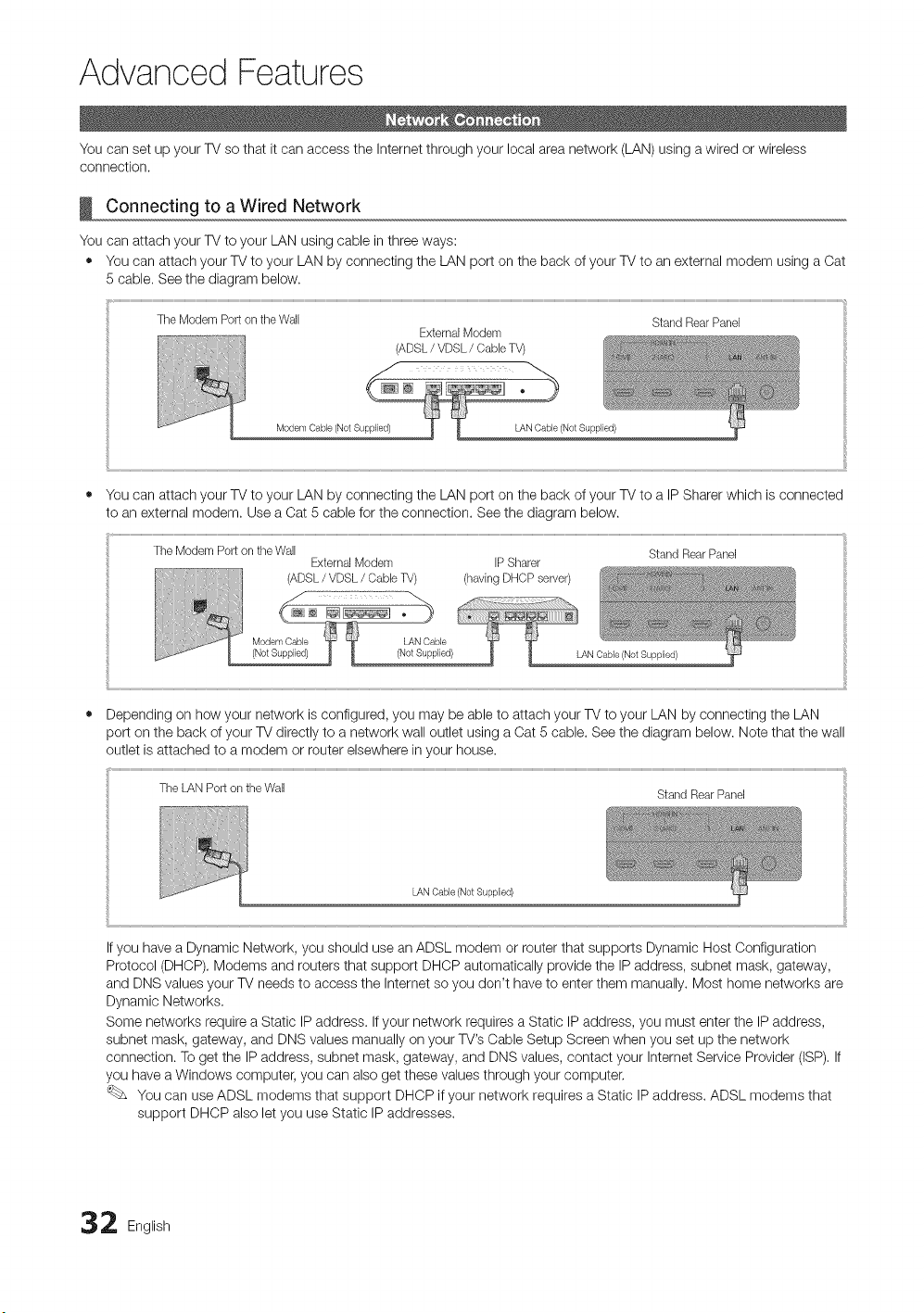
Advanced Features
You can set up your TV so that it can access the Internet through your local area network (LAN) using a wired or wireless
connection.
Connecting to a Wired Network
You can attach your TV to your LAN using cable in three ways:
• You can attach your TV to your LAN by connecting the LAN port on the back of your TV to an external modem using a Cat
5 cable. See the diagram below.
TheModemPortontheWall StandRearPanel
ExternalModem
(ADSL/ VDSL/ (}ableTV)
Modem Oable (Not Supplied) LAN Cable (Not Supplied)
You can attach your TV to your LAN by connecting the LAN port on the back of your TV to a IP Sharer which is connected
to an external modem. Use a Cat 5 cable for the connection. See the diagram below.
The ModemPortontheWall StandRearPanel
ExternalModem IPSharer
(ADSL/ VDSL/Oable TV) (havingDHCPserver)
LAN Oable (Not Supplied)
LAN Cable (Not Supplied)
If you have a Dynamic Network, you should use an ADSL modem or router that supports Dynamic Host Configuration
Protocol (DHCP). Modems and routers that support DHCP automatically provide the IP address, subnet mask, gateway,
and DNS values your TV needs to access the Internet so you don't have to enter them manually. Most home networks are
Dynamic Networks.
Some networks require a Static IP address. If your network requires a Static IP address, you must enter the IP address,
subnet mask, gateway, and DNS values manually on your TV's Cable Setup Screen when you set up the network
connection. To get the IP address, subnet mask, gateway, and DNS values, contact your Internet Service Provider (ISP). If
you have a Windows computer, you can also get these values through your computer.
You can use ADSL modems that support DHCP if your network requires a Static IP address. ADSL modems that
support DHCP also let you use Static IP addresses.
2 English
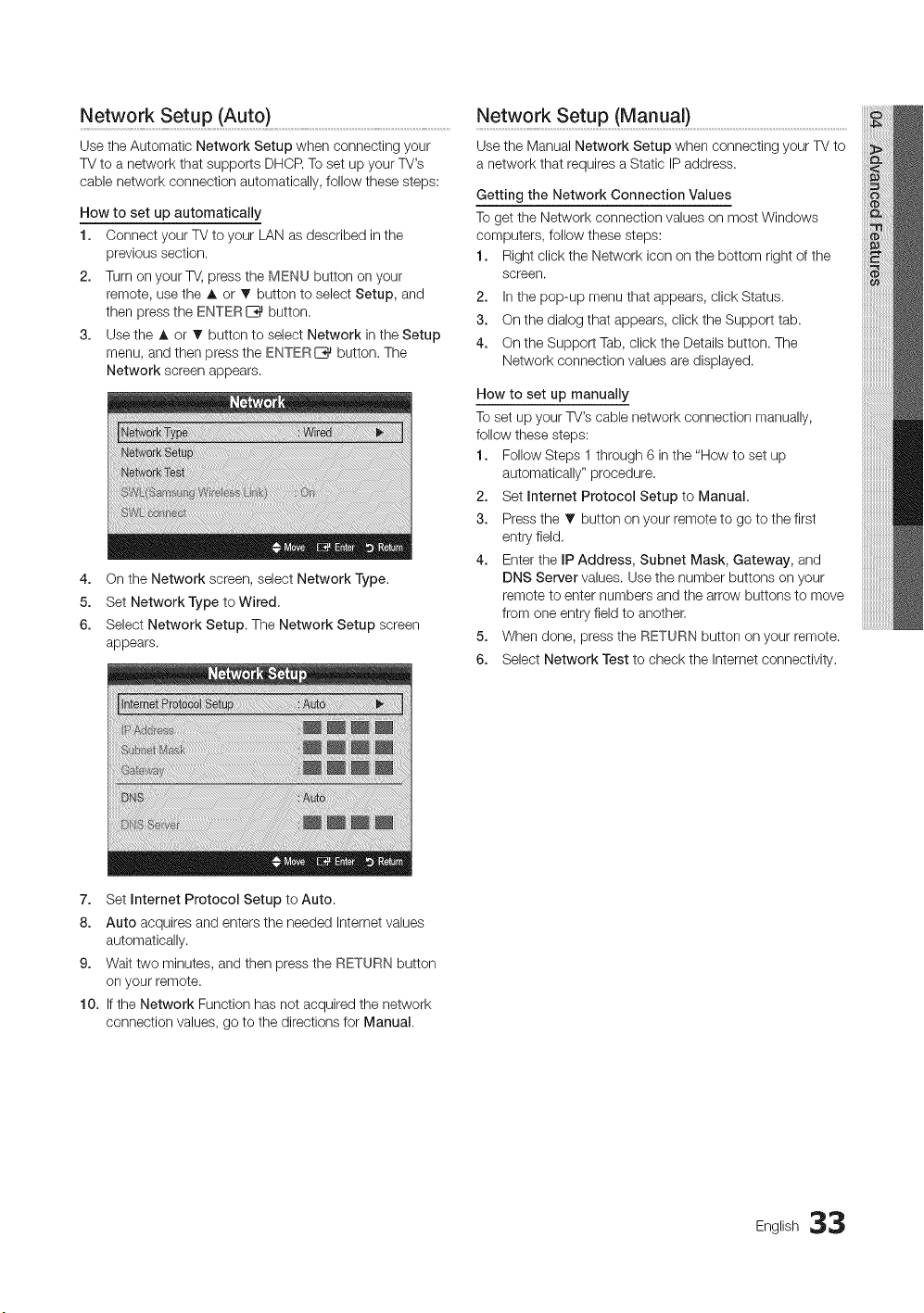
UsetheAutomaticNetworkSetupwhenconnectingyour
TVtoanetworkthatsupportsDHCRTosetupyourTV's
cablenetworkconnectionautomatically,followthesesteps:
Netw0rk Setup (Auto) ........................................................................................................................................Network Setup (Manua{) ......................................................................................................................
Use the Manual Network Setup when connecting your TV to
a network that requires a Static IP address.
How to set up automatically
1. Connect your TV to your LAN as described in the
previous section.
2. Turn on your TV, press the MENU button on your
remote, use the A or _' button to select Setup, and
then press the ENTERE_ button.
3. Use the A or V button to select Network in the Setup
menu, and then press the ENTERI_ button. The
Network screen appears.
4. On the Network screen, select Network Type.
5. Set Network Type to Wired,
6. Select Network Setup. The Network Setup screen
appears.
Getting the Network Connection Values
To get the Network connection values on most Windows
computers, follow these steps:
1. Right click the Network icon on the bottom right of the
screen.
2. In the pop-up menu that appears, click Status.
3. On the dialog that appears, click the Support tab.
4. On the Support Tab, click the Details button. The
Network connection values are displayed.
How to set up manually
Toset up your TV's cable network connection manually,
follow these steps:
1. Follow Steps 1 through 6 in the "How to set up
automatically" procedure.
2. Set Internet Protocol Setup to Manual.
3. Press the _' button on your remote to go to the first
entry field,
4. Enter the IP Address, Subnet Mask, Gateway, and
DNS Server values. Use the number buttons on your
remote to enter numbers and the arrow buttons to move
from one entry field to another,
5. When done, press the RETURN button on your remote.
6. Select Network Test to check the Internet connectivity.
7. Set Internet Protocol Setup to Auto.
8. Auto acquires and enters the needed Internet values
automatically.
9. Wait two minutes, and then press the RETURN button
on your remote.
10. If the Network Function has not acquired the network
connection values, go to the directions for Manual.
English 33
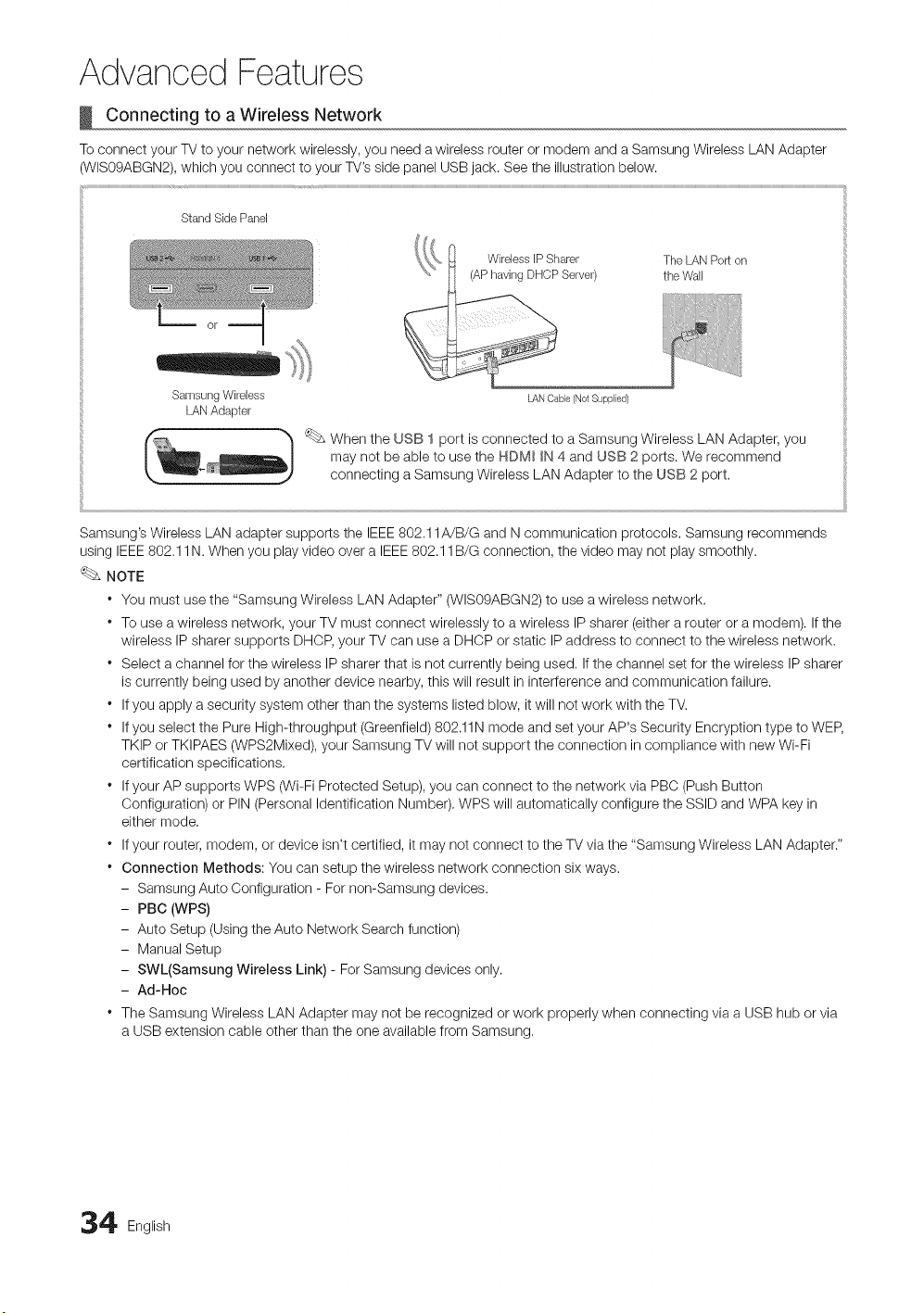
Advanced Features
Connecting to a Wireless Network
To connect your TV to your network wirelessly, you need a wireless router or modem and a Samsung Wireless LAN Adapter
(WIS09ABGN2), which you connect to your TV's side panel USB jack. See the illustration below.
1
StandSidePanel
The LAN Port on
the Wall
Samsung Wireless LAN Oable (Not Supplied)
LANAdapter
_ When the USB 1 port is connected to a Samsung Wireless LAN Adapter, you
may not be able to use the HDM_ _N 4 and USB 2 ports. We recommend
connecting a Samsung Wireless LAN Adapter to the USB 2 port.
Samsung's Wireless LAN adapter supports the IEEE 802.11A/B/G and N communication protocols. Samsung recommends
using IEEE 802.11N. When you play video over a IEEE 802.11B/G connection, the video may not play smoothly.
NOTE
" You must use the "Samsung Wireless LAN Adapter" (WIS09ABGN2) to use a wireless network.
* To use a wireless network, your TV must connect wirelessly to a wireless IP sharer (either a router or a modem). If the
wireless IP sharer supports DHCP, your TV can use a DHCP or static IP address to connect to the wireless network.
* Select a channel for the wireless IP sharer that is not currently being used, If the channel set for the wireless IP sharer
is currently being used by another device nearby, this will result in interference and communication failure.
* If you apply a security system other than the systems listed blow, it will not work with the TV.
* If you select the Pure High-throughput (Greenfield) 802.11N mode and set your AP's Security Encryption type to WEP,
TKIP or TKIPAES (WPS2Mixed), your Samsung TV will not support the connection in compliance with new Wi-Fi
certification specifications.
* If your AP supports WPS (Wi-Fi Protected Setup), you can connect to the network via PBC (Push Button
Configuration) or PIN (Personal Identification Number), WPS will automatically configure the SSID and WPA key in
either mode.
* If your router, modem, or device isn't certified, it may not connect to the TV via the "Samsung Wireless LAN Adapter."
* Connection Methods: You can setup the wireless network connection six ways.
- Samsung Auto Configuration - For non-Samsung devices.
- PBC (WPS)
- Auto Setup (Using the Auto Network Search function
- Manual Setup
- SWL(Samsung Wireless Link) - For Samsung devices only.
- Ad-Hoc
* The Samsung Wireless LAN Adapter may not be recognized or work properly when connecting via a USB hub or via
a USB extension cable other than the one available from Samsung,
4 English
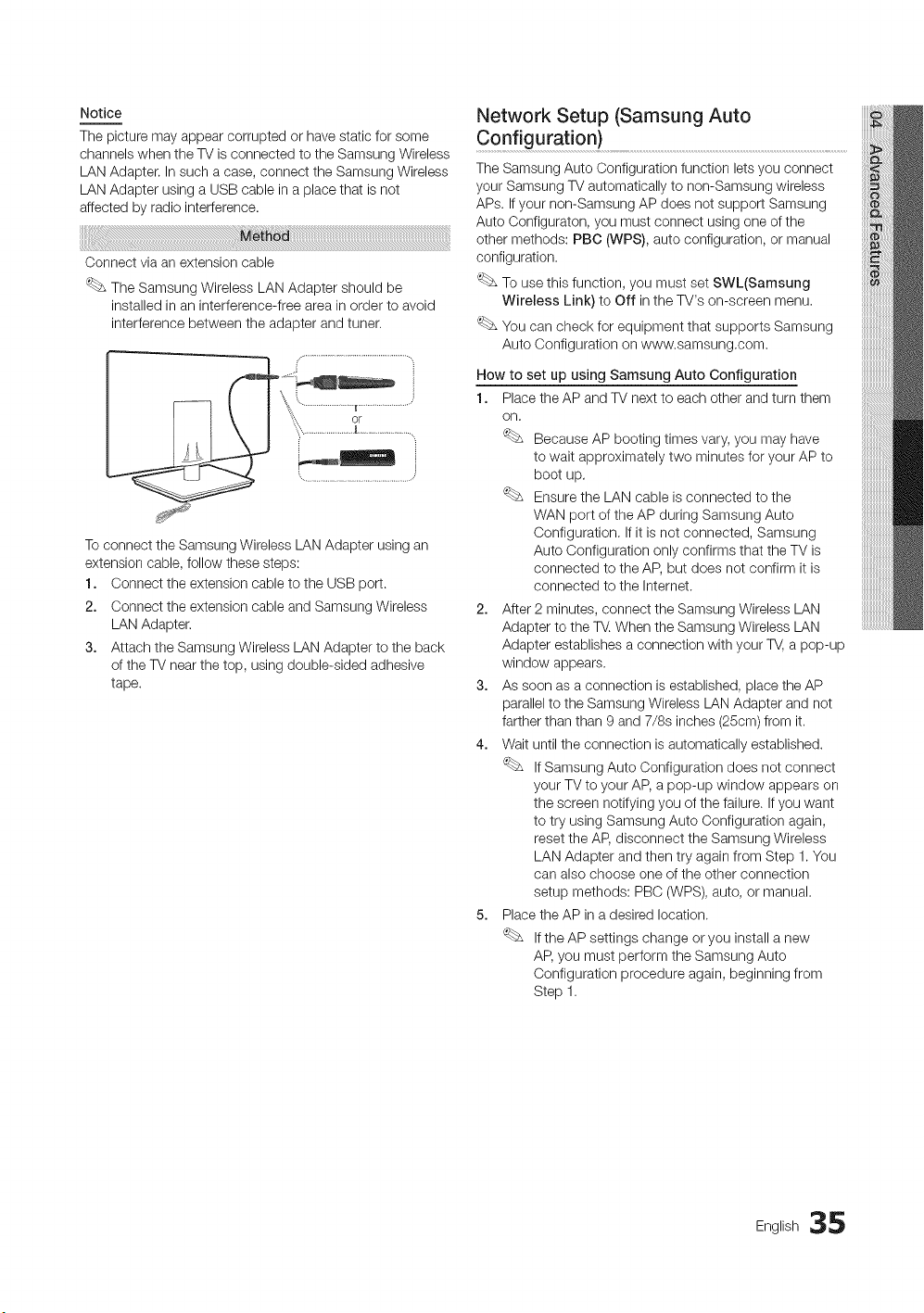
Notice
The picture may appear corrupted or have static for some
channels when the TV is connected to the Samsung Wireless
LAN Adapter. In such a case, connect the Samsung Wireless
LAN Adapter using a USB cable in a place that is not
affected by radio interference.
Connect via an extension cable
The Samsung Wireless LAN Adapter should be
installed in an interference-free area in order to avoid
interference between the adapter and tuner.
To connect the Samsung Wireless LAN Adapter using an
extension cable, follow these steps:
1. Connect the extension cable to the USB port.
2. Connect the extension cable and Samsung Wireless
LAN Adapter.
3. Attach the Samsung Wireless LAN Adapter to the back
of the TV near the top, using double-sided adhesive
tape.
Network Setup (Samsung Auto
Configuration)
The Samsung Auto Configuration function lets you connect
your Samsung TV automatically to non-Samsung wireless
APs. If your non-Samsung AP does not support Samsung
Auto Configuraton, you must connect using one of the
other methods: PBC (WPS), auto configuration, or manual
configuration.
To use this function, you must set SWL(Samsung
Wireless Link) to Off in the TV's on-screen menu,
You can check for equipment that supports Samsung
Auto Configuration on www.samsung,com.
How to set up using Samsung Auto Configuration
1. Place the AP and TV next to each other and turn them
on,
Because AP booting times vary, you may have
to wait approximately two minutes for your AP to
boot up.
Ensure the LAN cable is connected to the
WAN port of the AP during Samsung Auto
Configuration, If it is not connected, Samsung
Auto Configuration only confirms that the TV is
connected to the AP, but does not confirm it is
connected to the Internet.
2. After 2 minutes, connect the Samsung Wireless LAN
Adapter to the TV. When the Samsung Wireless LAN
Adapter establishes a connection with your TV, a pop-up
window appears.
3. As soon as a connection is established, place the AP
parallel to the Samsung Wireless LAN Adapter and not
farther than than 9 and 7/8s inches (25cm) from it.
4. Wait until the connection is automatically established.
If Samsung Auto Configuration does not connect
your TV to your AP, a pop-up window appears on
the screen notifying you of the failure. If you want
to try using Samsung Auto Configuration again,
reset the AID,disconnect the Samsung Wireless
LAN Adapter and then try again from Step 1. You
can also choose one of the other connection
setup methods: PBC (WPS), auto, or manual.
5. Place the AP in a desired location.
If the AP settings change or you install a new
AID,you must perform the Samsung Auto
Configuration procedure again, beginning from
Step 1.
English 35
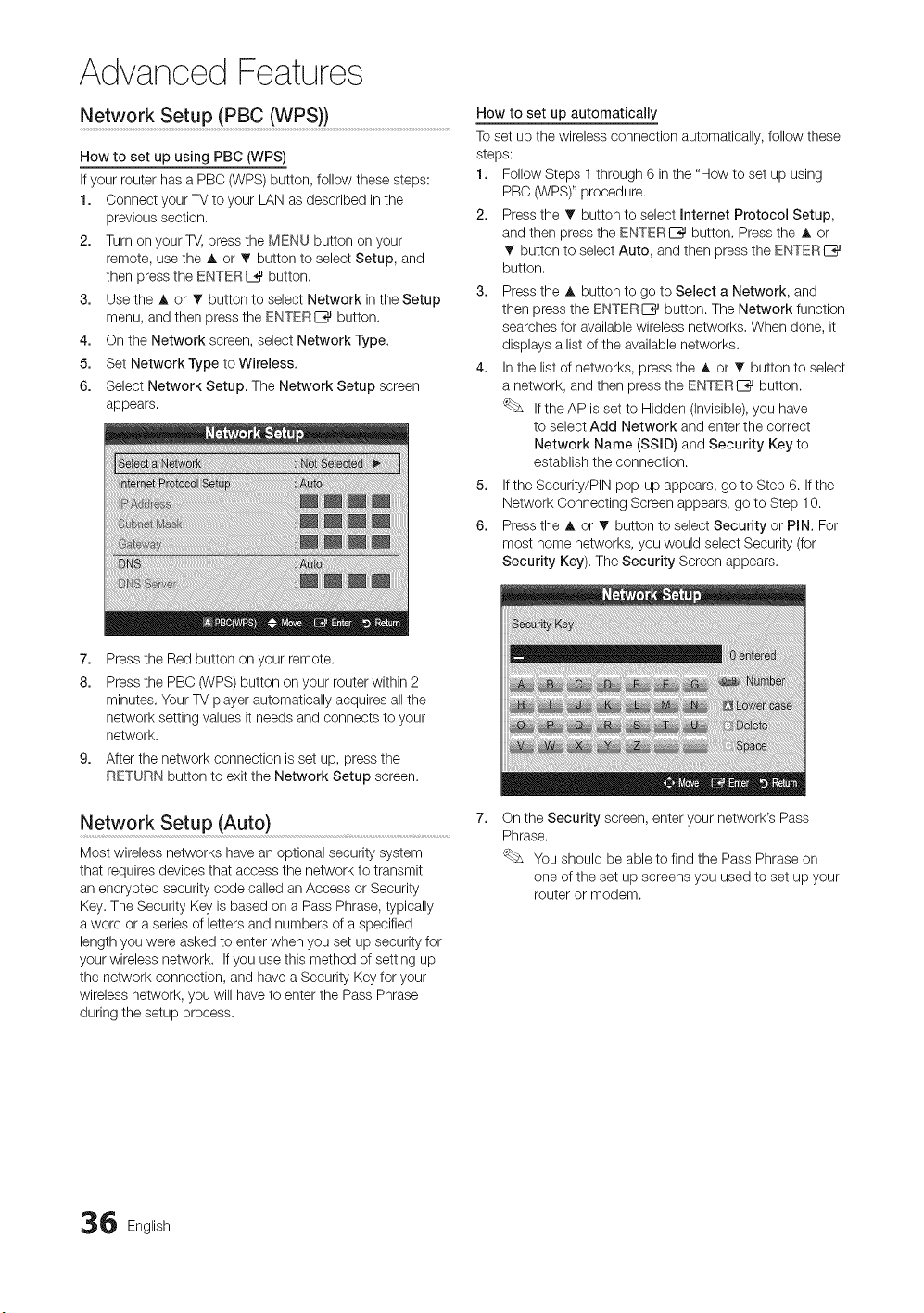
Advanced Features
Network Setup (PBC (WPS)) ..........................................................................................
How to set up using PBC (WPS)
If your router has a PBC (WPS) button, follow these steps:
1. Connect your TV to your LAN as described in the
previous section.
2. Turn on your TV, press the MENU button on your
remote, use the A or _' button to select Setup, and
then press the ENTERIZ_ button.
3. Use the A or T button to select Network in the Setup
menu, and then press the ENTERI_ button.
4. On the Network screen, select Network Type.
5. Set Network Type to Wireless.
6. Select Network Setup. The Network Setup screen
appears.
How to set up automatically
Toset up the wireless connection automatically, follow these
steps:
1. Follow Steps 1 through 6 in the "How to set up using
PBO (WPS)" procedure.
2. Press the T button to select Internet Protocol Setup,
and then press the ENTERIZ_ button. Press the A or
button to select Auto, and then press the ENTERI_
button.
3. Press the A button to go to Select a Network, and
then press the ENTERE_ button. The Network function
searches for available wireless networks. When done, it
displays a list of the available networks.
4. In the list of networks, press the A or 1!' button to select
a network, and then press the ENTERI_ button.
If the AP is set to Hidden (Invisible), you have
to select Add Network and enter the correct
Network Name (SSID) and Security Key to
establish the connection.
5. If the Security/PIN pop-up appears, go to Step 6. If the
Network Connecting Screen appears, go to Step 10.
6. Press the A or T button to select Security or PIN. For
most home networks, you would select Security (for
Security Key). The Security Screen appears.
7. Press the Red button on your remote.
8. Press the PBC (WPS) button on your router within 2
minutes. Your TV player automatically acquires all the
network setting values it needs and connects to your
network.
9. After the network connection is set up, press the
RETURN button to exit the Network Setup screen.
Network Setup (Auto) .............................................................................
Most wireless networks have an optional security system
that requires devices that access the network to transmit
an encrypted security code called an Access or Security
Key. The Security Key is based on a Pass Phrase, typically
a word or a series of letters and numbers of a specified
length you were asked to enter when you set up security for
your wireless network. If you use this method of setting up
the network connection, and have a Security Key for your
wireless network, you will have to enter the Pass Phrase
during the setup process.
On the Security screen, enter your network's Pass
Phrase.
You should be able to find the Pass Phrase on
one of the set up screens you used to set up your
router or modem.
6 English
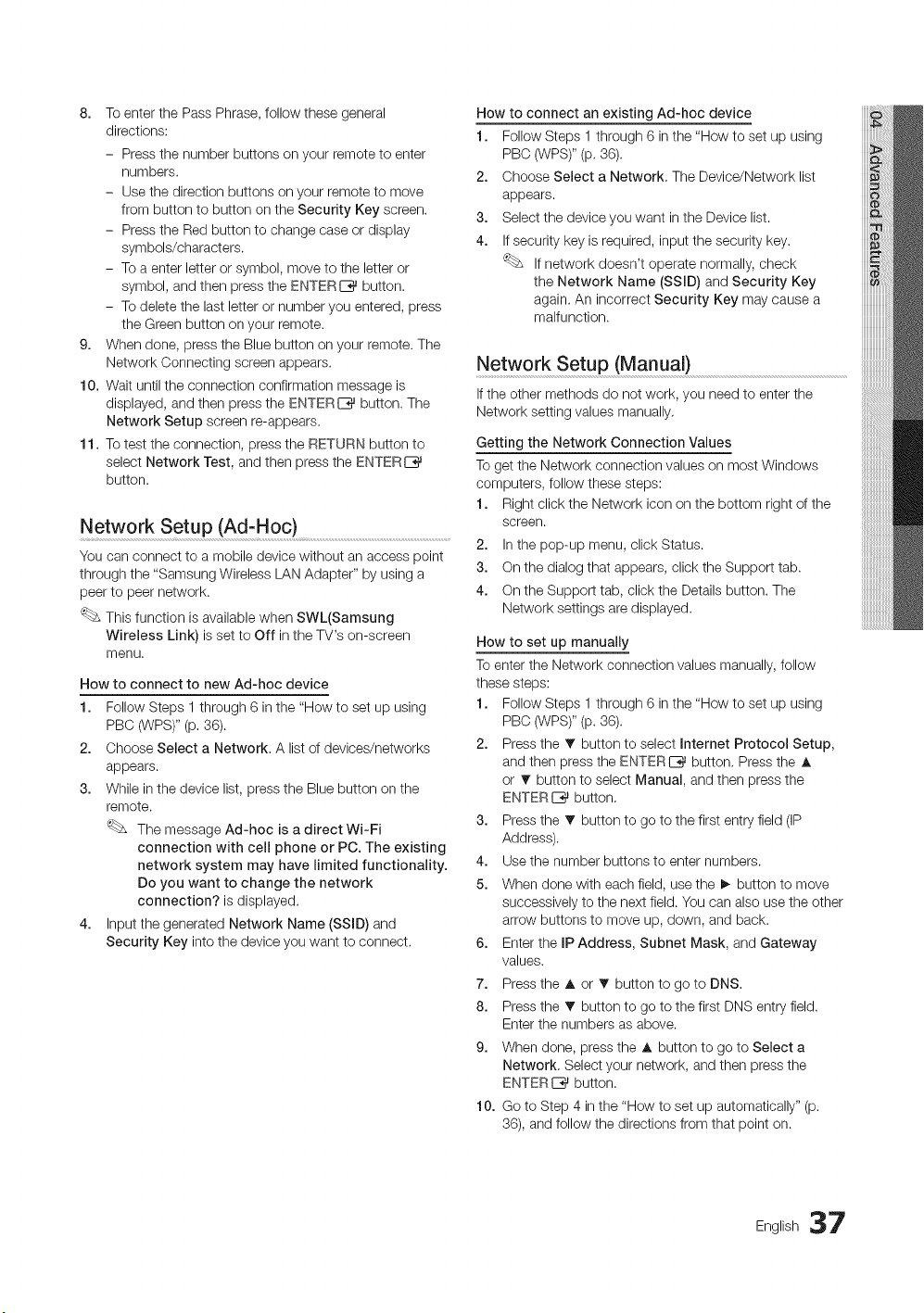
8. ToenterthePassPhrase,followthesegeneral
directions:
- Pressthenumberbuttonsonyourremotetoenter
numbers.
- Usethedirectionbuttonsonyourremotetomove
frombuttontobuttonontheSecurityKeyscreen.
- PresstheRedbuttontochangecaseordisplay
symbols/characters.
- Toaenterletterorsymbol,movetotheletteror
symbol,andthenpresstheENTERIZ_button.
- Todeletethelastletterornumberyouentered,press
theGreenbuttononyourremote.
9. Whendone,presstheBluebuttononyourremote.The
NetworkConnectingscreenappears.
10.Waituntiltheconnectionconfirmationmessageis
displayed,andthenpresstheENTERI_button.The
NetworkSetupscreenre-appears.
11.Totesttheconnection,presstheRETURNbuttonto
selectNetworkTest,andthenpresstheENTERE_
button.
Network Setup (Ad-Hoc) ..................................................................................................................
You can connect to a mobile device without an access point
through the "Samsung Wireless LAN Adapter" by using a
peer to peer network.
This function is available when SWL(Samsung
Wireless Link) is set to Off in the TV's on-screen
menu.
How to connect to new Ad-hoc device
1. Follow Steps 1 through 6 in the "How to set up using
PBC (WPS)" (p. 36).
2. Choose Select a Network, A list of devices/networks
appears.
3. While in the device list, press the Blue button on the
remote.
The message Ad-hoc is a direct WFFi
connection with cell phone or PC. The existing
network system may have limited functionality.
Do you want to change the network
connection? is displayed.
4. Input the generated Network Name (SSID) and
Security Key into the device you want to connect.
How to connect an existing Ad-hoc device
1. Follow Steps 1 through 6 in the "How to set up using
PBC (WPS)" (p, 36).
2. Choose Select a Network, The Device/Network list
appears.
3. Select the device you want in the Device list.
4. If security key is required, input the security key.
If network doesn't operate normally, check
the Network Name (SSID) and Security Key
again. An incorrect Security Key may cause a
malfunction.
Network Setup (Manua0
If the other methods do not work, you need to enter the
Network setting values manually,
Getting the Network Connection Values
To get the Network connection values on most Windows
computers, follow these steps:
1. Right click the Network icon on the bottom right of the
screen.
2. In the pop-up menu, click Status.
3. On the dialog that appears, click the Support tab.
4. On the Support tab, click the Details button. The
Network settings are displayed.
How to set up manually
To enter the Network connection values manually, follow
these steps:
1. Follow Steps 1 through 6 in the "How to set up using
PBC (WPS)" (p. 36).
2. Press the T button to select Internet Protocol Setup,
and then press the ENTERE_ button, Press the A
or T button to select Manual, and then press the
ENTER I_ button,
3. Press the _' button to go to the first entry field (IP
Address).
4. Use the number buttons to enter numbers.
5. When done with each field, use the I_ button to move
successively to the next field. You can also use the other
arrow buttons to move up, down, and back.
6. Enter the IP Address, Subnet Mask, and Gateway
values.
7. Press the A or • button to go to DNS.
8. Press the T button to go to the first DNS entry field.
Enter the numbers as above.
9. When done, press the A button to go to Select a
Network, Select your network, and then press the
ENTER E_ button.
10. Go to Step 4 in the "How to set up automatically" (p.
36), and follow the directions from that point on.
English 37
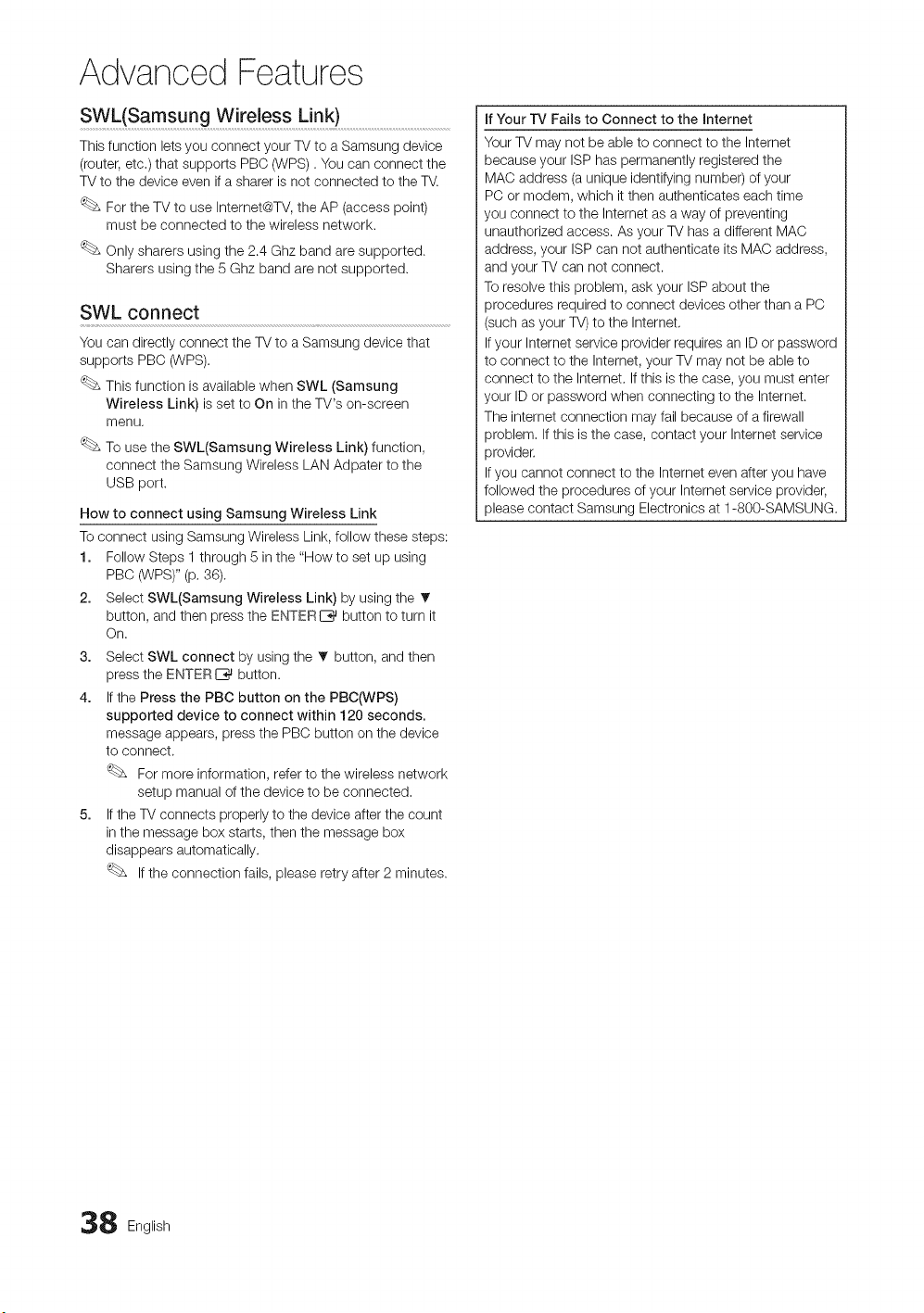
Advanced Features
SWL(samsung wireless Link) ...................................................................
This function lets you connect your TV to a Samsung device
(router, etc,) that supports PBC (WPS). You can connect the
TV to the device even if a sharer is not connected to the TV.
For the TV to use Internet@TV, the AP (access point)
must be connected to the wireless network.
Only sharers using the 2.4 Ghz band are supported.
Sharers using the 5 Ghz band are not supported.
SWL connect
You can directly connect the TV to a Samsung device that
supports PBO (WPS).
This function is available when SWL (Samsung
Wireless Link) is set to On in the TV's on-screen
menu,
To use the SWL(Samsung Wireless Link) function,
connect the Samsung Wireless LAN Adpater to the
USB port.
How to connect using Samsung Wireless Link
To connect using Samsung Wireless Link, follow these steps:
1. Follow Steps 1 through 5 in the "How to set up using
PBC (WPS)" (p. 36).
2. Select SWL(Samsung Wireless Link) by using the
button, and then press the ENTERI_ button to turn it
On.
3. Select SWL connect by using the _' button, and then
press the ENTERI_ button.
4. If the Press the PBC button on the PBC(WPS)
supported device to connect within 120 seconds.
message appears, press the PBC button on the device
to connect.
For more information, refer to the wireless network
setup manual of the device to be connected.
5. If the TV connects properly to the device after the count
in the message box starts, then the message box
disappears automatically.
If the connection fails, please retry after 2 minutes.
If Your iV Fails to Connect to the Internet
Your TV may not be able to connect to the Internet
because your ISP has permanently registered the
MAC address (a unique identifying number) of your
PC or modem, which it then authenticates each time
you connect to the Internet as a way of preventing
unauthorized access. As your TV has a different MAC
address, your ISP can not authenticate its MAC address,
and your TV can not connect.
To resolve this problem, ask your ISP about the
procedures required to connect devices other than a PC
(such as your TV)to the Internet.
If your Internet service provider requires an ID or password
to connect to the Internet, your TV may not be able to
connect to the Internet. If this is the case, you must enter
your ID or password when connecting to the Internet.
The internet connection may fail because of a firewall
problem. If this is the case, contact your Internet service
provider.
If you cannot connect to the Internet even after you have
followed the procedures of your Internet service provider,
please contact Samsung Electronics at 1-800-SAMSUNG.
8 English
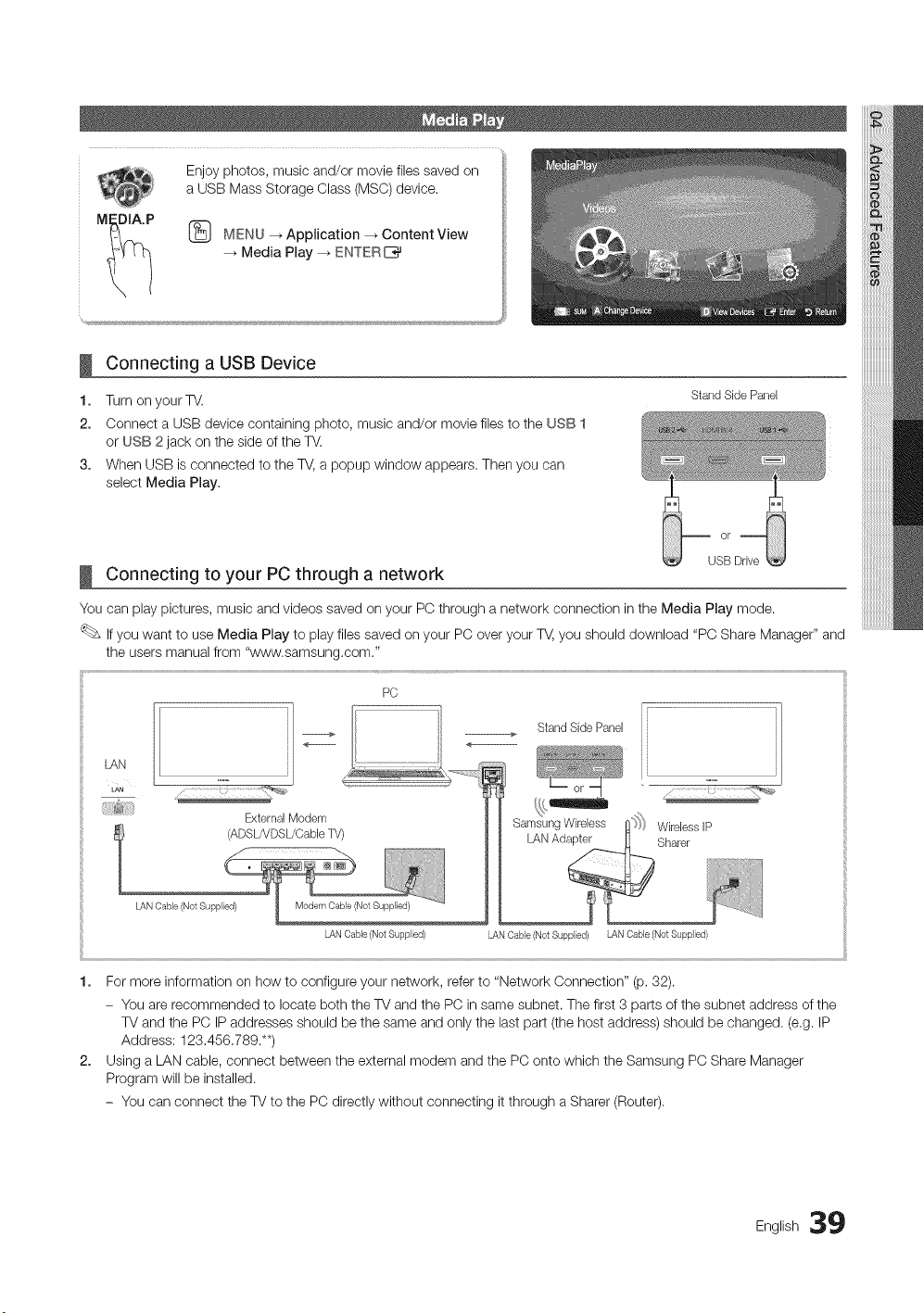
Enjoyphotos,musicand/ormoviefilessavedon
aUSBMassStorageClass(MSC)device.
M_DIt'P @ MENU -* Application _ Content View
Media Play _ ENTERE_
!
1.
2.
3,
!
Connecting a USB Device
Turn on your TV.
Connect a USB device containing photo, music and/or movie files to the USB 1
or USB 2 jack on the side of the TV.
When USB is connected to the TV, a popup window appears. Then you can
select Media Play.
Connecting to your PC through a network
Stand Side Panel
USB Drive
LAN
LAN
i:i_;:i!i!i_;_S_iiiii;i
,1-...................
PC
External Modem
Stand Side Panel
LAN Cable (Not Supplied) LAN Cable (Not Supplied) LAN Cable (Not Supplied)
1. For more information on how to configure your network, refer to "Network Connection" (p, 32).
- You are recommended to locate both the TV and the PC in same subnet. The first 3 parts of the subnet address of the
TV and the PC IP addresses should be the same and only the last part (the host address) should be changed. (e.g. IP
Address: 123,456,789.**)
2. Using a LAN cable, connect between the external modem and the PC onto which the Samsung PC Share Manager
Program will be installed.
- You can connect the TV to the PC directly without connecting it through a Sharer (Router),
English 39
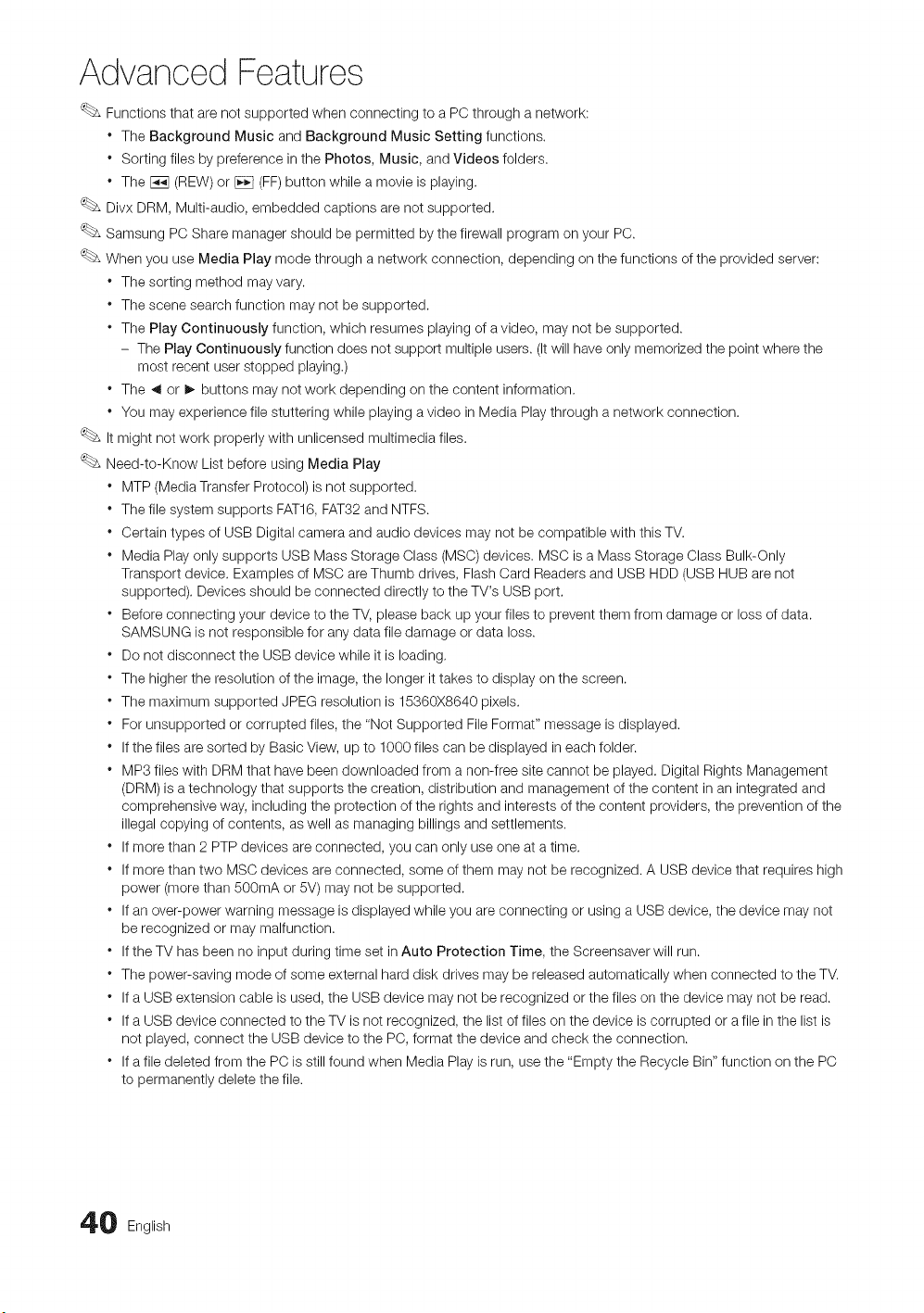
Advanced Features
Functions that are not supported when connecting to a PC through a network:
* The Background Music and Background Music Setting functions.
* Sorting files by preference in the Photos, Music, and Videos folders.
* The [w_ (REW) or _ (FF)button while a movie is playing.
Divx DRM, Multi-audio, embedded captions are not supported.
Samsung PC Share manager should be permitted by the firewall program on your PC.
When you use Media Play mode through a network connection, depending on the functions of the provided server:
* The sorting method may vary.
* The scene search function may not be supported.
* The Play Continuously function, which resumes playing of a video, may not be supported.
- The Play Continuously function does not support multiple users. (Itwill have only memorized the point where the
most recent user stopped playing.)
* The _ or I_ buttons may not work depending on the content information.
* You may experience file stuttering while playing a video in Media Play through a network connection.
It might not work properly with unlicensed multimedia files.
Need-to-Know List before using Media Play
* MTP (Media Transfer Protocol) is not supported.
* The file system supports FAT16, FAT32 and NTFS.
* Certain types of USB Digital camera and audio devices may not be compatible with this TV.
* Media Play only supports USB Mass Storage Class (MSC) devices. MSC is a Mass Storage Class Bulk-Only
Transport device. Examples of MSC are Thumb drives, Flash Card Readers and USB HDD (USB HUB are not
supported). Devices should be connected directly to the TV's USB port.
* Before connecting your device to the TV, please back up your files to prevent them from damage or loss of data.
SAMSUNG is not responsible for any data file damage or data loss.
* Do not disconnect the USB device while it is loading.
* The higher the resolution of the image, the longer it takes to display on the screen.
* The maximum supported JPEG resolution is 15360X8640 pixels.
* For unsupported or corrupted files, the "Not Supported File Format" message is displayed.
* If the files are sorted by Basic View, up to 1000 files can be displayed in each folder.
* MP3 files with DRM that have been downloaded from a non-free site cannot be played. Digital Rights Management
(DRM) is a technology that supports the creation, distribution and management of the content in an integrated and
comprehensive way, including the protection of the rights and interests of the content providers, the prevention of the
illegal copying of contents, as well as managing billings and settlements.
* If more than 2 PTP devices are connected, you can only use one at a time.
* If more than two MSC devices are connected, some of them may not be recognized. A USB device that requires high
power (more than 500mA or 5V) may not be supported.
* If an over-power warning message is displayed while you are connecting or using a USB device, the device may not
be recognized or may malfunction.
* If the TV has been no input during time set in Auto Protection Time, the Screensaver will run.
* The power-saving mode of some external hard disk drives may be released automatically when connected to the TV.
* If a USB extension cable is used, the USB device may not be recognized or the files on the device may not be read.
* If a USB device connected to the TV is not recognized, the list of files on the device is corrupted or a file in the list is
not played, connect the USB device to the PC, format the device and check the connection.
* If a file deleted from the PC is still found when Media Play is run, use the "Empty the Recycle Bin" function on the PC
to permanently delete the file.
0 English
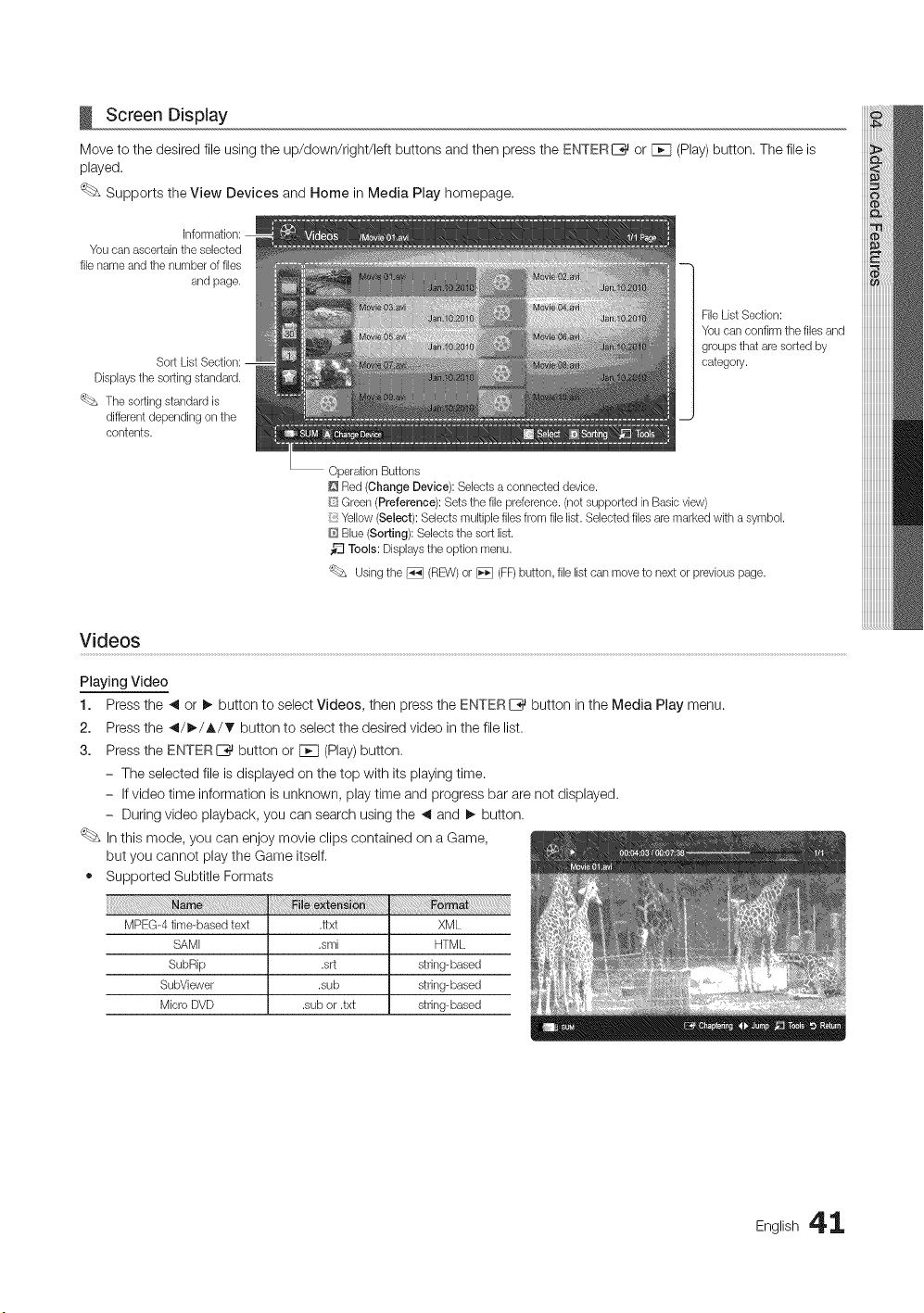
Screen Display
Move to the desired file using the up/down/right/left buttons and then press the ENTER[__ or Fcq (Play) button. The file is
played.
Supports the View Devices and Home in Media Play homepage.
You can ascertain the selected
file name and the number of files
and page.
Displaysthe sorting standard.
'_L_ The sorting standard is
different depending on the
contents.
Operation Buttons
Red (Change Device): Selects a connected device.
1
FileList Section:
You can confirm the files and
groups that are sorted by
category.
[i{SGreen (Preference): Sets the file preference.(not supported in Basic view)
:: Yellow (Select): Selects multiple files from file list. Selected files are marked with asymbol.
@ Blue (Sorting): Selects the sort list.
Tools: Displaysthe option menu.
Usingthe _ (REW)or _ (FF)button, file list can move to next or previous page.
Videos
Playing Video
1. Press the 41or I_ button to select Videos, then press the ENTER E_ button in the Media Play menu.
2. Press the 41/_,-/_,/_' button to select the desired video in the file list.
3. Press the ENTERI__ button or F_q (Play)button.
- The selected file is displayed on the top with its playing time.
- If video time information is unknown, play time and progress bar are not displayed.
- During video playback, you can search using the ,_ and !_ button.
In this mode, you can enjoy movie clips contained on a Game,
but you cannot play the Game itself.
• Supported Subtitle Formats
MPEG-4 time-based text .ttxt XML
SAMI .smi HTML
SubRip .srt string-based
SubViewer .sub string-based
Micro DVD .sub or .txt string-based
English 41
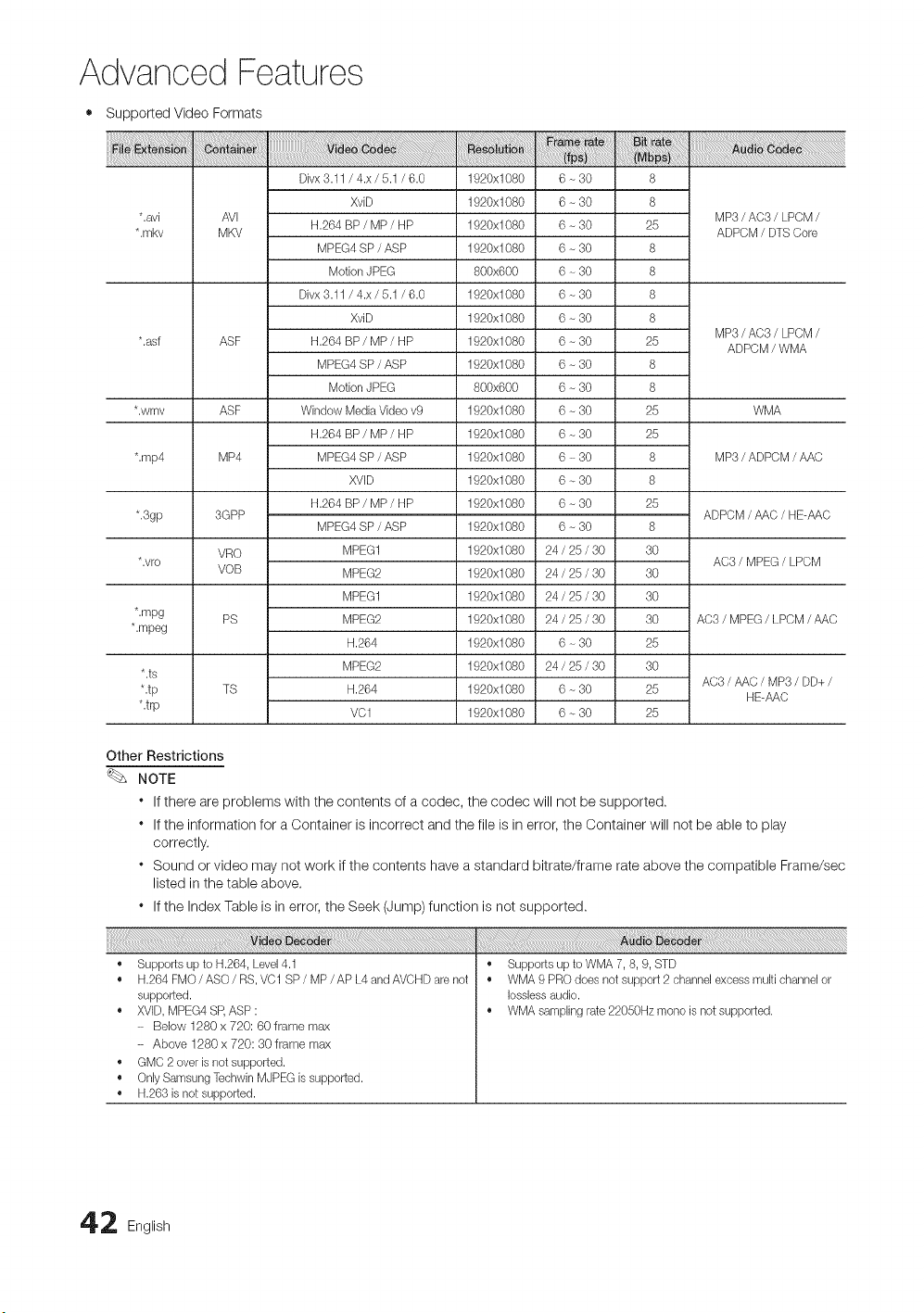
Advanced Features
• Supported Video Formats
Divx 3.11 / 4.x / 5.1 / 6.0 1920x1080 6-30 8
XvD 1920x1080 6 - 30 8
*.avi AVI MP3 / AC3 / LPCM /
H.264 BP / MP / HP 1920x1080 6 - 30 25
*.mkv MKV ADPCM / DTS Core
MPEG4 SP / ASP 1920x1080 6 - 30 8
Motion JPEG 800x600 6 - 30 8
Divx 3.11 / 4.x / 5.1 / 6.0 1920x1080 6-30 8
XviD 1920x1080 6 - 30 8
MP3 / AC3 / LPCM /
*.asf ASF H.264 BP / MP / HP 1920xl 080 6 - 30 25
ADPCM / WMA
MPEG4 SP / ASP 1920x1080 6 - 30 8
Motion JPEG 800x600 6 - 30 8
*.wmv ASF Window Media Video v9 1920x1080 6 - 30 25 WMA
H.264 BP / MP / HP 1920xl 080 6 - 30 25
*.rap4 MP4 MPEG4 SP / ASP 1920x1080 6 - 30 8 MP3 / ADPCM / AAC
XVID 1920x1080 6 ~ 30 8
H.264 BP / MP / HP 1920xl 080 6 - 30 25
*.3gp 3GPP ADPCM / AAC / HE-AAC
MPEG4 SP / ASP 1920x1080 6 - 30 8
VRO MPEG1 1920x1080 24 / 25 / 30 30
*.vro AC3 / MPEG / LPCM
VOB MPEG2 1920x1080 24 / 25 / 30 30
MPEG1 1920x1080 24 / 25 / 30 30
*.mpg PS MPEG2 1920x1080 24 / 25 / 30 30 AC3 / MPEG / LPCM / AAC
*.mpeg
H.264 1920x1080 6 - 30 25
MPEG2 1920x1080 24 / 25 / 30 30
*.ts
AC3 / AAC / MP3 / DD+ /
*.tp TS H.264 1920x1080 6 - 30 25
HE-AAC
*.trp VC1 1920x1080 6 ~ 30 25
Other Restrictions
NOTE
* If there are problems with the contents of a codec, the codec will not be supported.
* If the information for a Container is incorrect and the file is in error, the Container will not be able to play
correctly.
* Sound or video may not work if the contents have a standard bitrate/frame rate above the compatible Frame/sec
listed in the table above.
* If the Index Table is in error, the Seek (Jump) function is not supported.
• Supports up to H.264, Level 4.1
• H.264FMO/ASO/RS, VC1 SP/MP/APL4andAVCHDarenot
supported.
• XVID,MPEG4 SR ASP :
- Below 1280 x 720:60 frame max
- Above 1280 x 720:30 frame max
• GMC 2 over b not supported.
• Only Samsung Techwin MJPEG b supported.
• H.263is not supported.
• Supports up to WMA 7, 8, 9, STD
• WMA 9 PRO does not support 2 channel excess multi channel or
Iossbss audio.
• WMA sampling rate 22050Hz mono is not supported.
2 English
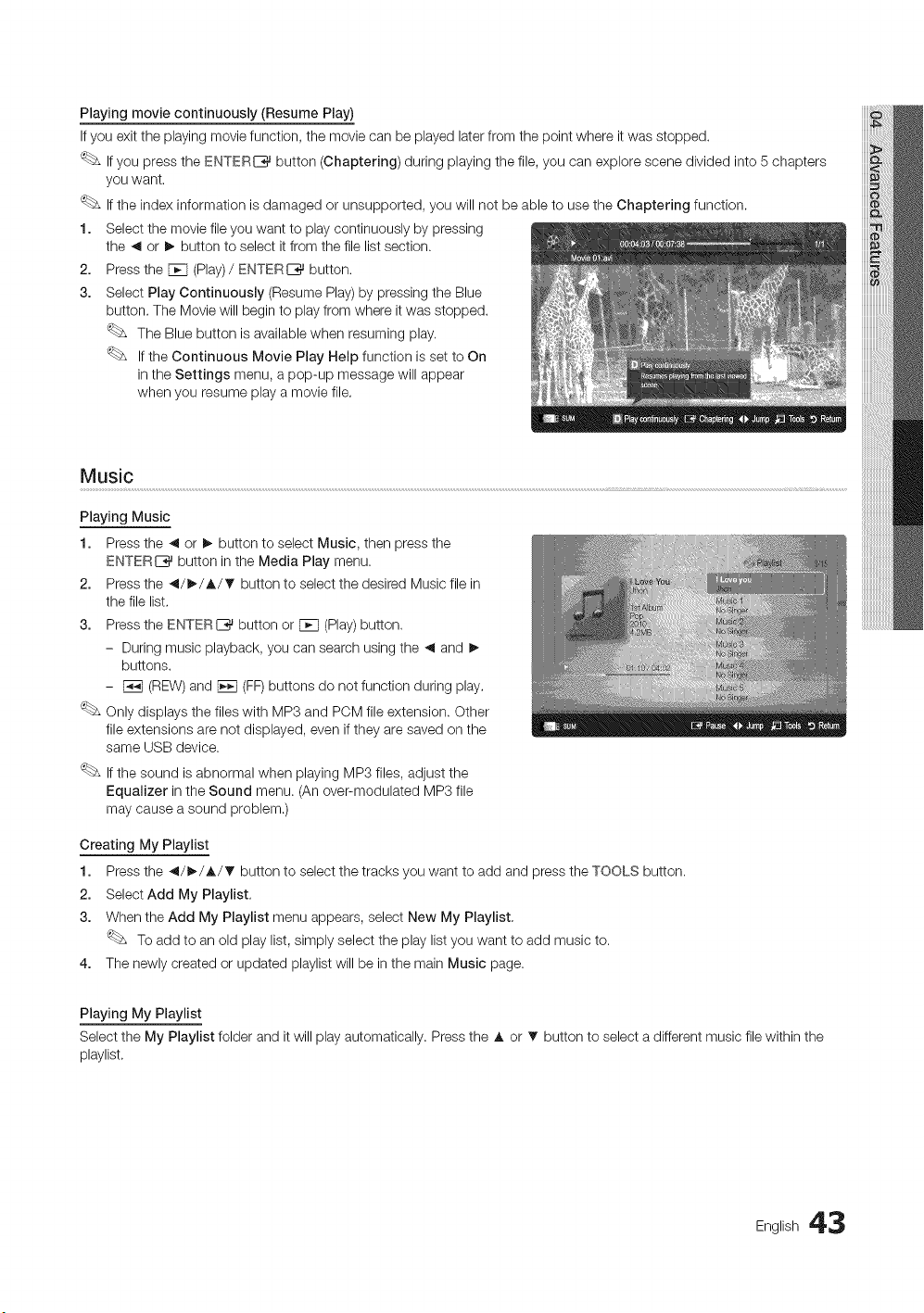
Playing movie continuously (Resume Play)
If you exit the playing movie function, the movie can be played later from the point where it was stopped.
If you press the ENTERI_%_button (Chaptering) during playing the file, you can explore scene divided into 5 chapters
you want.
If the index information is damaged or unsupported, you will not be able to use the Chaptering function.
1. Select the movie file you want to play continuously by pressing
the 41 or I_ button to select it from the file list section.
2. Press the FCH(Play)/ ENTERIZ_ button.
3. Select Play Continuously (Resume Play) by pressing the Blue
button. The Movie will begin to play from where it was stopped.
The Blue button is available when resuming play.
If the Continuous Movie Play Help function is set to On
in the Settings menu, a pop-up message will appear
when you resume play a movie file.
Music
Playing Music
1. Press the 41or I_ button to select Music, then press the
ENTER[__ button in the Media Play menu.
2. Press the 41/I_/A/T button to select the desired Music file in
the file list.
3. Press the ENTERI_ button or FCq(Play)button.
- During music playback, you can search using the ,4 and !_
buttons.
- F_q (REW) and [E_ (FF)buttons do not function during play.
Only displays the files with MP3 and PCM file extension. Other
file extensions are not displayed, even if they are saved on the
same USB device.
If the sound is abnormal when playing MP3 files, adjust the
Equalizer in the Sound menu. (An over-modulated MP3 file
may cause a sound problem.)
Creating My Playlist
1. Press the 41/_/A/T button to select the tracks you want to add and press the TOOLS button.
2. Select Add My Playlist,
3. When the Add My Playlist menu appears, select New My Playlist.
To add to an old play list, simply select the play list you want to add music to.
4. The newly created or updated playlist will be in the main Music page.
Playing My Playlist
Select the My Playlist folder and it will play automatically. Press the A or • button to select a different music file within the
playlist.
English 43
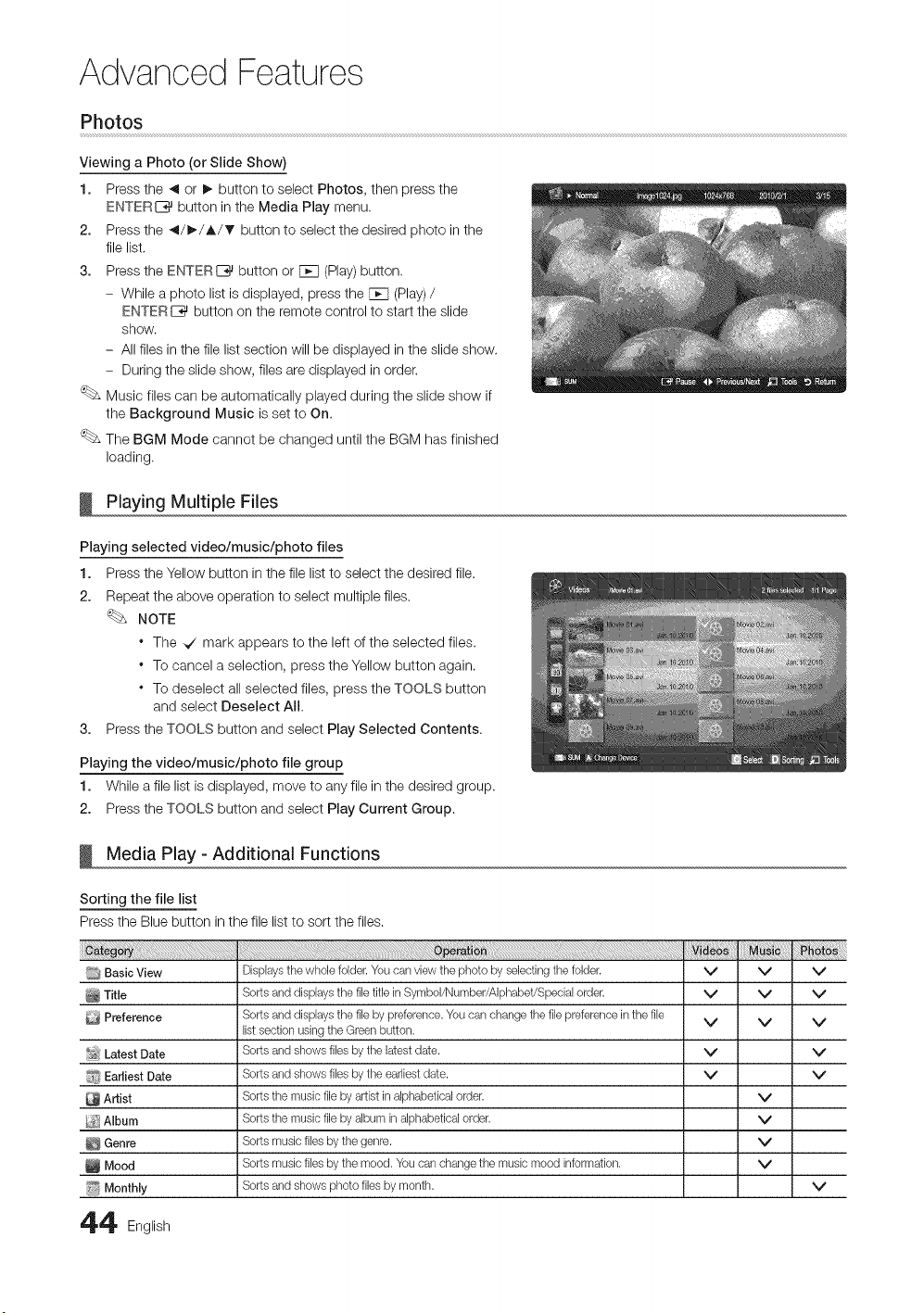
Advanced Features
Photos
Viewing a Photo (or Slide Show)
1. Press the _ or _ button to select Photos, then press the
ENTER{_ button in the Media Play menu,
2. Press the _/_/A/T button to select the desired photo in the
file list,
3. Press the ENTERIZ_ button or FFq (Play)button.
- While a photo list is displayed, press the F_q (Play) /
ENTER[_ button on the remote control to start the slide
show.
- All files in the file list section will be displayed in the slide show.
- During the slide show, files are displayed in order.
Music files can be automatically played during the slide show if
the Background Music is set to On,
The BGM Mode cannot be changed until the BGM has finished
loading.
Playing Multiple Files
Playing selected video/music/photo files
1. Press the Yellow button in the file list to select the desired file.
2. Repeat the above operation to select multiple files.
NOTE
* The _ mark appears to the left of the selected files.
* To cancel a selection, press the Yellow button again.
* To deselect all selected files, press the TOOLS button
and select Deselect All.
3. Press the TOOLS button and select Play Selected Contents.
Playing the video/music/photo file group
1. While a file list is displayed, move to any file in the desired group.
2. Press the TOOLS button and select Play Current Group.
Media Play - Additional Functions
Sorting the file list
Press the Blue button in the file list to sort the files.
[_ Basic View
Title
Preference
_o_Latest Date
f_ EarJbst Date
Artist
_ Album
Genre
Mood
i!_ MonthJy
44 English
Displaysthe whole folder. You can view the photo by selecting the folder.
Sorts and displays the file title in Symbol/Number/Alphabet/Special order.
Sorts and displays the file by preference.You can change the file preference in the file
listsection using the Green button.
Sorts and shows files by the latest date.
Sorts and shows files by the earliest date.
Sorts the music file by artist in alphabetical order.
Sorts the music file by album in alphabetical order.
Sorts music files by the genre.
Sorts music files by the mood. You can change the music mood information.
Sorts and shows photo files by month.
v v v
v v v
v v v
v v
v v
v
v
v
v
v
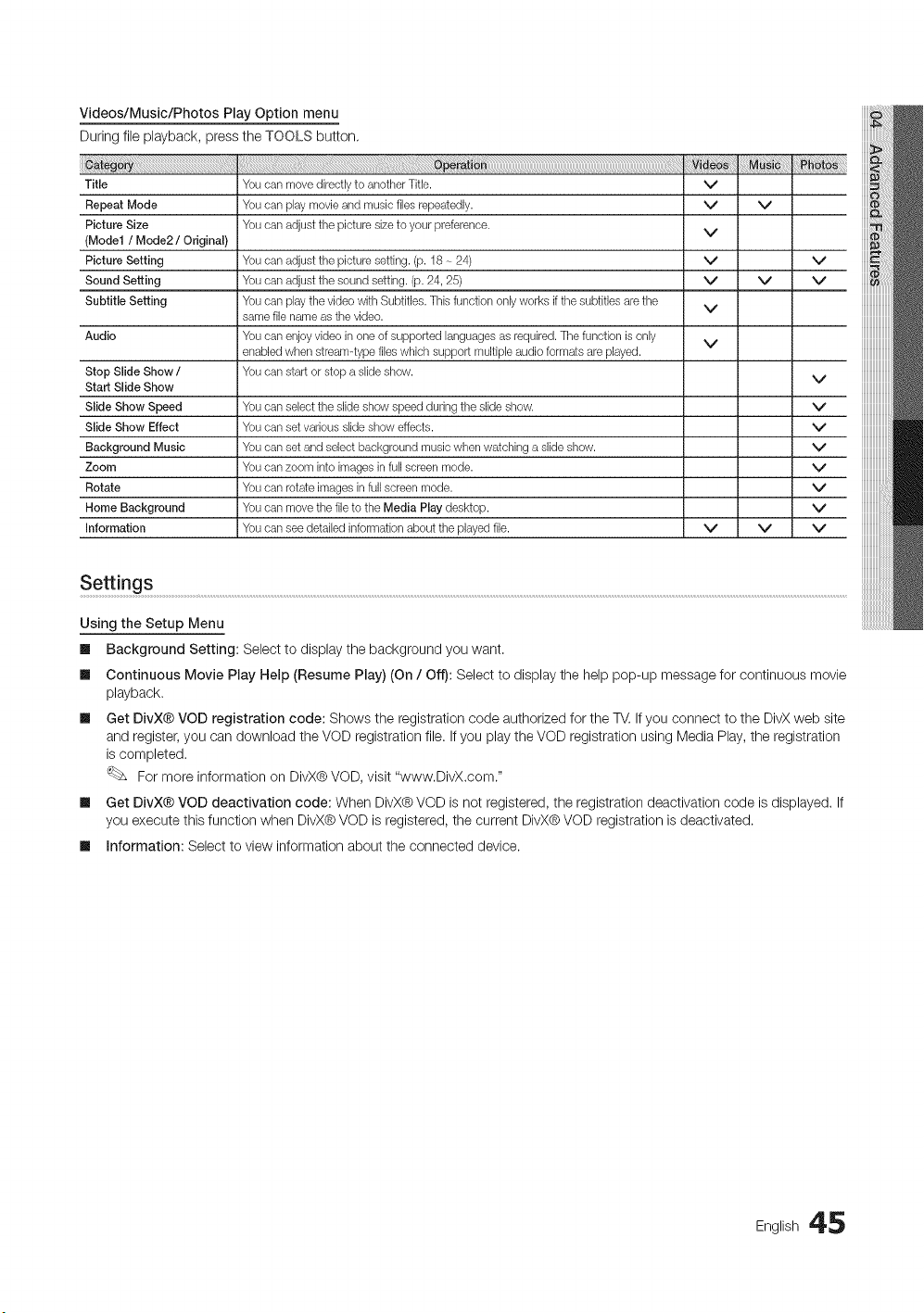
Videos/Music/Photos Play Option menu
During file playback, press the TOOLS button,
Title
Repeat Mode
Picture Size
(Model / Mode2 / Original)
Picture Setting
Sound Setting
Subtitle Setting
Audio
Stop Slide Show /
Start Slide Show
Slide Show Speed
Slide Show Effect
Background Music
Zoom
Rotate
Home Background
Information
Youcan move directly to another Title.
Youcan play movie and music files repeatedly.
Youcan adjust the picture size to your preference.
Youcan adjust the picture setting. (p. 18 ~ 24)
Youcan adjust the sound setting. (p. 24, 25)
Youcan play the video with Subtitles. Thisfunction only works if the subtitles are the
same file name as the video.
Youcan enjoy video in one of supported languages as required. The function is only
enabledwhen streamqype files which support multiple audio formats are played.
Youcan start or stop a slide show.
Youcan select the slide show speed during the slide show.
Youcan set various slide show effects.
Youcan set and select background music when watching a slide show.
Youcan zoom into images in full screen mode.
Youcan rotate images in full screen mode.
Youcan move the file to the Media Play desktop.
Youcan see detailed information about the played file.
v
v
v
v
v
v
v
v
v
v v
v
v
v
v
v
v
v
v
v
v
iiiiiiiiiiiiiiiiiiii
iiiiiiiiiiiiiiiiiiii
Settings ......................................................................................................................................................................................................................................................................................................................................................................................................................................................................................................
Using the Setup Menu
ml Background Setting: Select to display the background you want.
Ill Continuous Movie Play Help (Resume Play) (On / Off): Select to display the help pop-up message for continuous movie
playback.
ml Get DivX® VOD registration code: Shows the registration code authorized for the TV. If you connect to the DivX web site
and register, you can download the VOD registration file. If you play the VOD registration using Media Play, the registration
is completed.
For more information on DivX® VOD, visit "www.DivX.com."
ml Get DivX® VOD deactivation code: When DivX® VOD is not registered, the registration deactivation code is displayed. If
you execute this function when DivX® VOD is registered, the current DivX® VOD registration is deactivated.
ml information: Select to view information about the connected device.
English 45
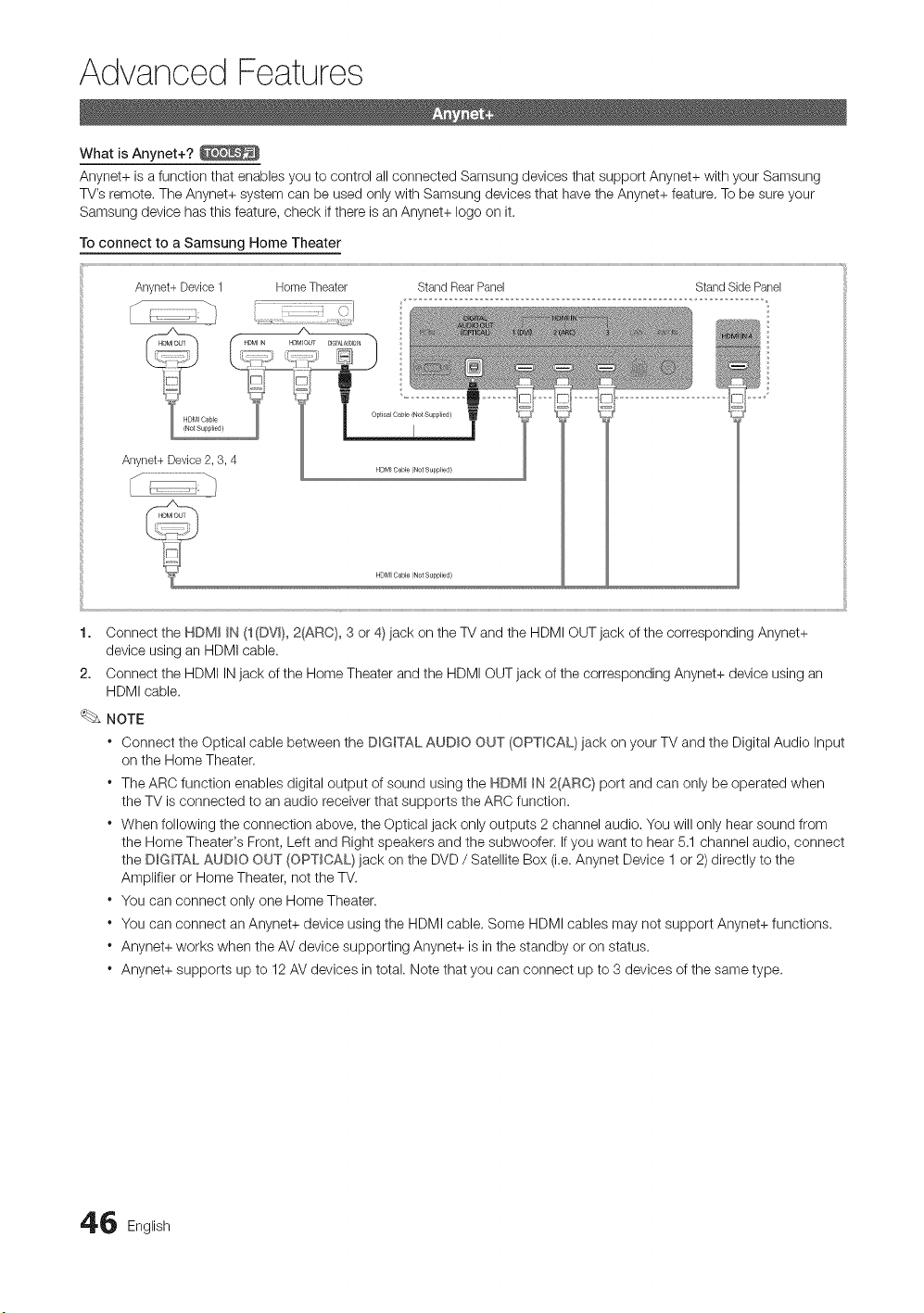
Advanced Features
What is Anynet+?
Anynet+ is a function that enables you to control all connected Samsung devices that support Anynet+ with your Samsung
TV's remote. The Anynet+ system can be used only with Samsung devices that have the Anynet+ feature. To be sure your
Samsung device has this feature, check if there is an Anynet+ logo on it.
To connect to a Samsung Home Theater
Anynet+Device1 HomeTheater StandRearPanel StandSidePanel
A
1. Connect the HDM_ _N(1(DVm},2_RO}, 3 or 4) jack on the TV and the HDMI OUT jack of the corresponding Anynet+
device using an HDMI cable.
2. Connect the HDMI IN jack of the Home Theater and the HDMI OUT jack of the corresponding Anynet+ device using an
HDMI cable.
NOTE
* Connect the Optical cable between the DIGITAL AUDIO OUT (OPTICAL} jack on your TV and the Digital Audio Input
on the Home Theater.
* The ARC function enables digital output of sound using the HDMI _N2(ARC} port and can only be operated when
the TV is connected to an audio receiver that supports the ARC function.
* When following the connection above, the Optical jack only outputs 2 channel audio. You will only hear sound from
the Home Theater's Front, Left and Right speakers and the subwoofer. If you want to hear 5.1 channel audio, connect
the D_G_TALAUDIO OUT (OPTICAL} jack on the DVD / Satellite Box (i.e. Anynet Device 1 or 2) directly to the
Amplifier or Home Theater, not the TV.
* You can connect only one Home Theater.
* You can connect an Anynet+ device using the HDMI cable. Some HDMI cables may not support Anynet+ functions.
* Anynet+ works when the AV device supporting Anynet+ is in the standby or on status.
* Anynet+ supports up to 12 AV devices in total. Note that you can connect up to 3 devices of the same type.
6 English
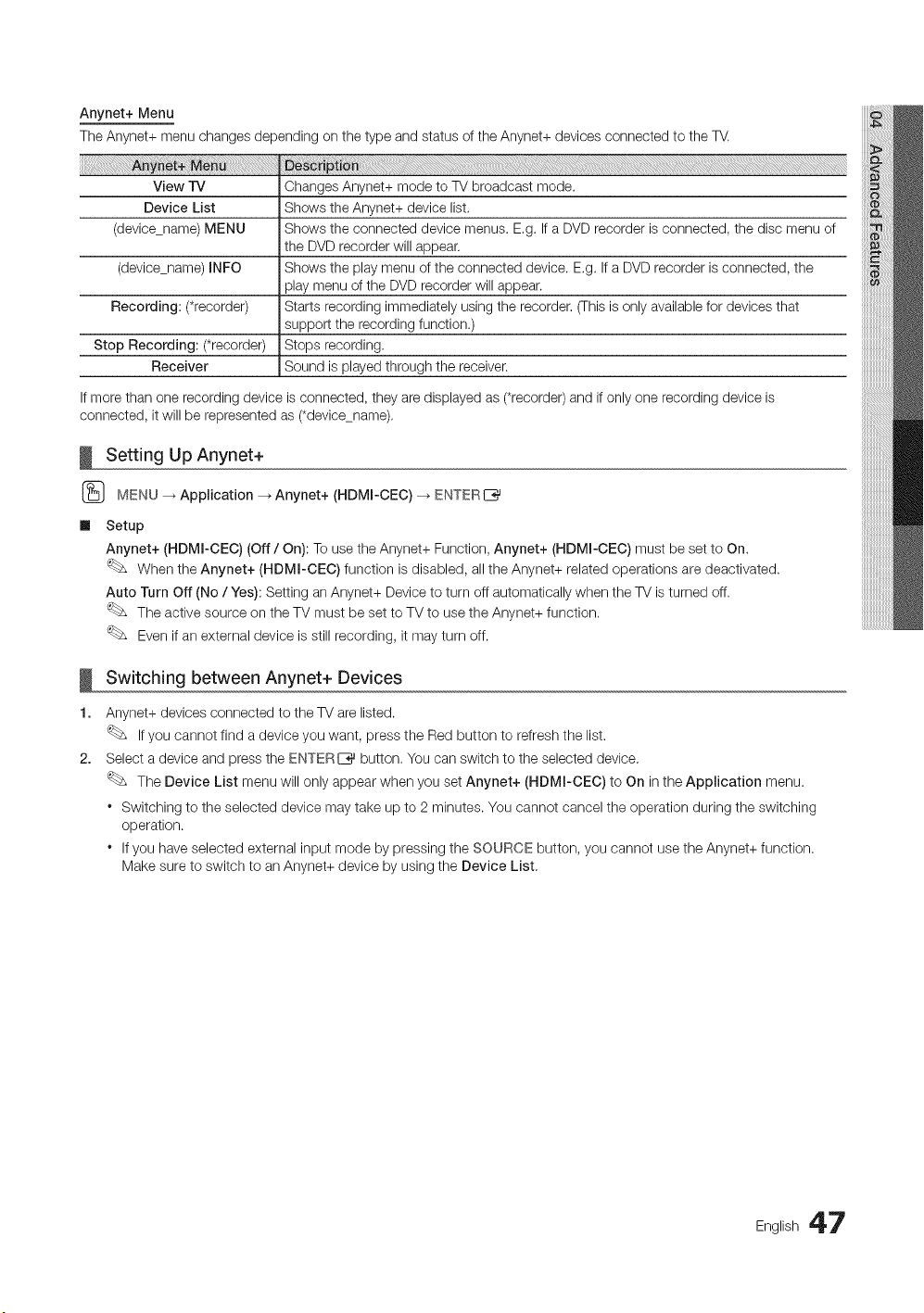
Anynet+ Menu
The Anynet+ menu changes depending on the type and status of the Anynet+ devices connected to the TV.
View TV Changes Anynet+ mode to TV broadcast mode.
Device List Shows the Anynet+ device list.
(devicename) MENU Shows the connected device menus. E,g. If a DVD recorder is connected, the disc menu of
the DVD recorder will appear,
(devicename) INFO Shows the play menu of the connected device. E,g. If a DVD recorder is connected, the
play menu of the DVD recorder will appear.
Recording: (*recorder) Starts recording immediately using the recorder, (This is only available for devices that
support the recording function.)
Stop Recording: (*recorder) Stops recording.
Receiver Sound is played through the receiver.
If more than one recording device is connected, they are displayed as (*recorder) and if only one recording device is
connected, it will be represented as (*devicename),
Setting Up Anynet+
(_ MENU _ Application --_Anynet+ (HDMm-CEC) _ ENTERI_
Ill Setup
Anynet+ (HDMm-CEC) (Off / On): To use the Anynet+ Function, Anynet+ (HDMm-CEC) must be set to On.
When the Anynet+ (HDMm-CEC) function is disabled, all the Anynet+ related operations are deactivated.
Auto Turn Off (No / Yes): Setting an Anynet+ Device to turn off automatically when the TV is turned off.
The active source on the TV must be set to TV to use the Anynet+ function.
Even if an external device is still recording, it may turn off.
!
1.
2,
Switching between Anynet+ Devices
Anynet+ devices connected to the TV are listed.
If you cannot find a device you want, press the Red button to refresh the list.
Select a device and press the ENTERI_ button, You can switch to the selected device,
The Device List menu will only appear when you set Anynet+ (HDMI-CEC) to On in the Application menu.
* Switching to the selected device may take up to 2 minutes. You cannot cancel the operation during the switching
operation.
* If you have selected external input mode by pressing the SOURCE button, you cannot use the Anynet+ function.
Make sure to switch to an Anynet+ device by using the Device List,
English 47
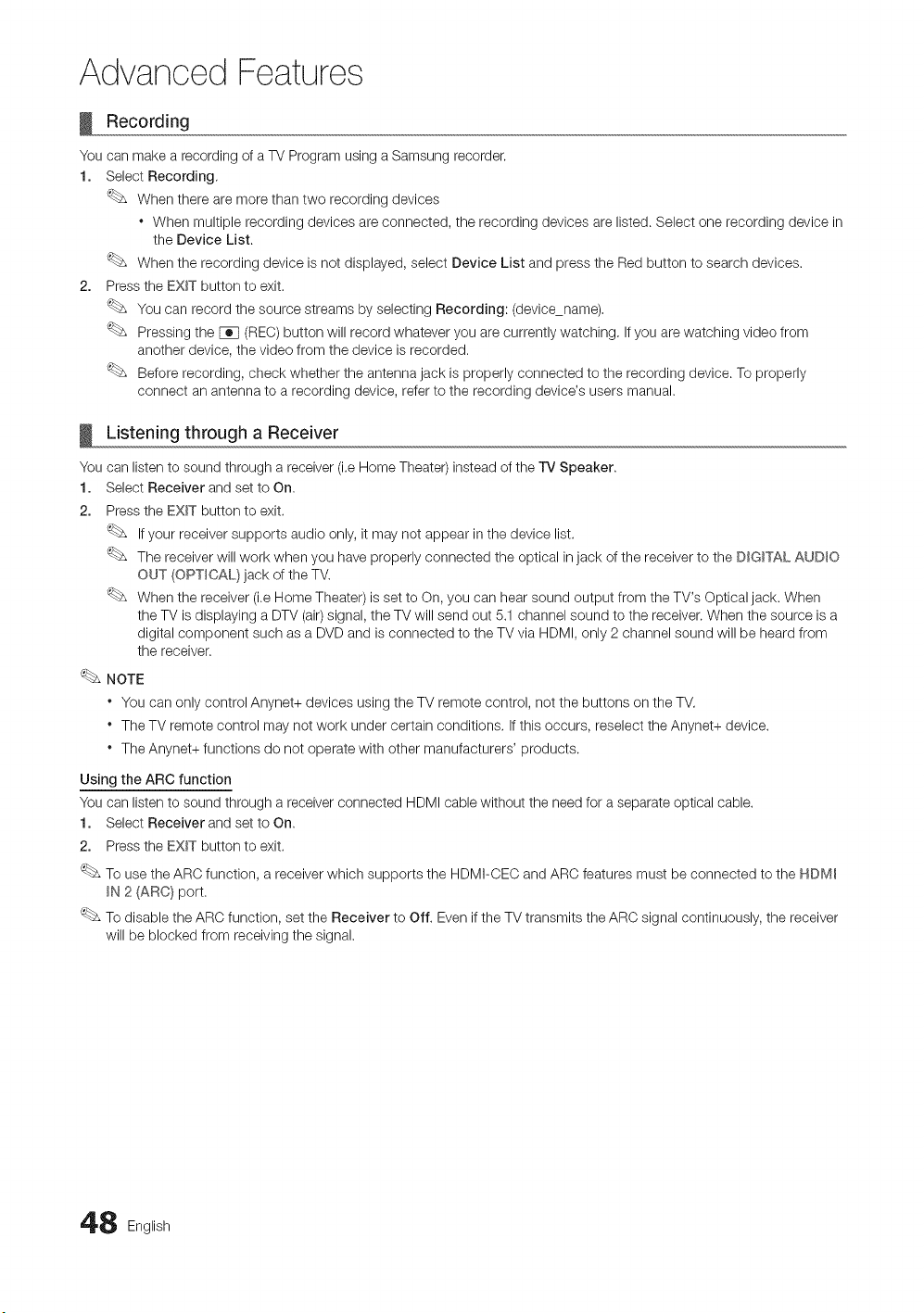
Advanced Features
Recording
You can make a recording of a TV Program using a Samsung recorder.
1. Select Recording.
When there are more than two recording devices
When multiple recording devices are connected, the recording devices are listed. Select one recording device in
the Device List.
When the recording device is not displayed, select Device List and press the Red button to search devices.
2. Press the EXIT button to exit.
You can record the source streams by selecting Recording: (devicename).
Pressing the [_q (REO) button will record whatever you are currently watching. If you are watching video from
another device, the video from the device is recorded.
Before recording, check whether the antenna jack is properly connected to the recording device. To properly
connect an antenna to a recording device, refer to the recording device's users manual.
Listening through a Receiver
You can listen to sound through a receiver (i.e Home Theater) instead of the TV Speaker.
1. Select Receiver and set to On,
2. Press the EXIT button to exit.
If your receiver supports audio only, it may not appear in the device list.
The receiver will work when you have properly connected the optical in jack of the receiver to the DIGITAL AUDIO
OUT (OPTICAL) jack of the TV.
When the receiver (i.e Home Theater) is set to On, you can hear sound output from the TV's Optical jack. When
the TV is displaying a DTV (air)signal, the TV will send out 5.1 channel sound to the receiver. When the source is a
digital component such as a DVD and is connected to the TV via HDMI, only 2 channel sound will be heard from
the receiver.
NOTE
* You can only control Anynet+ devices using the TV remote control, not the buttons on the TV.
* The TV remote control may not work under certain conditions. If this occurs, reselect the Anynet+ device.
* The Anynet+ functions do not operate with other manufacturers' products.
Using the ARC function
You can listen to sound through a receiver connected HDMI cable without the need for a separate optical cable.
1. Select Receiver and set to On,
2. Press the EXIT button to exit.
To use the ARC function, a receiver which supports the HDMI-CEC and ARC features must be connected to the HDM_
_N 2 (ARC} port.
To disable the ARC function, set the Receiver to Off. Even if the TV transmits the ARC signal continuously, the receiver
will be blocked from receiving the signal.
8 English
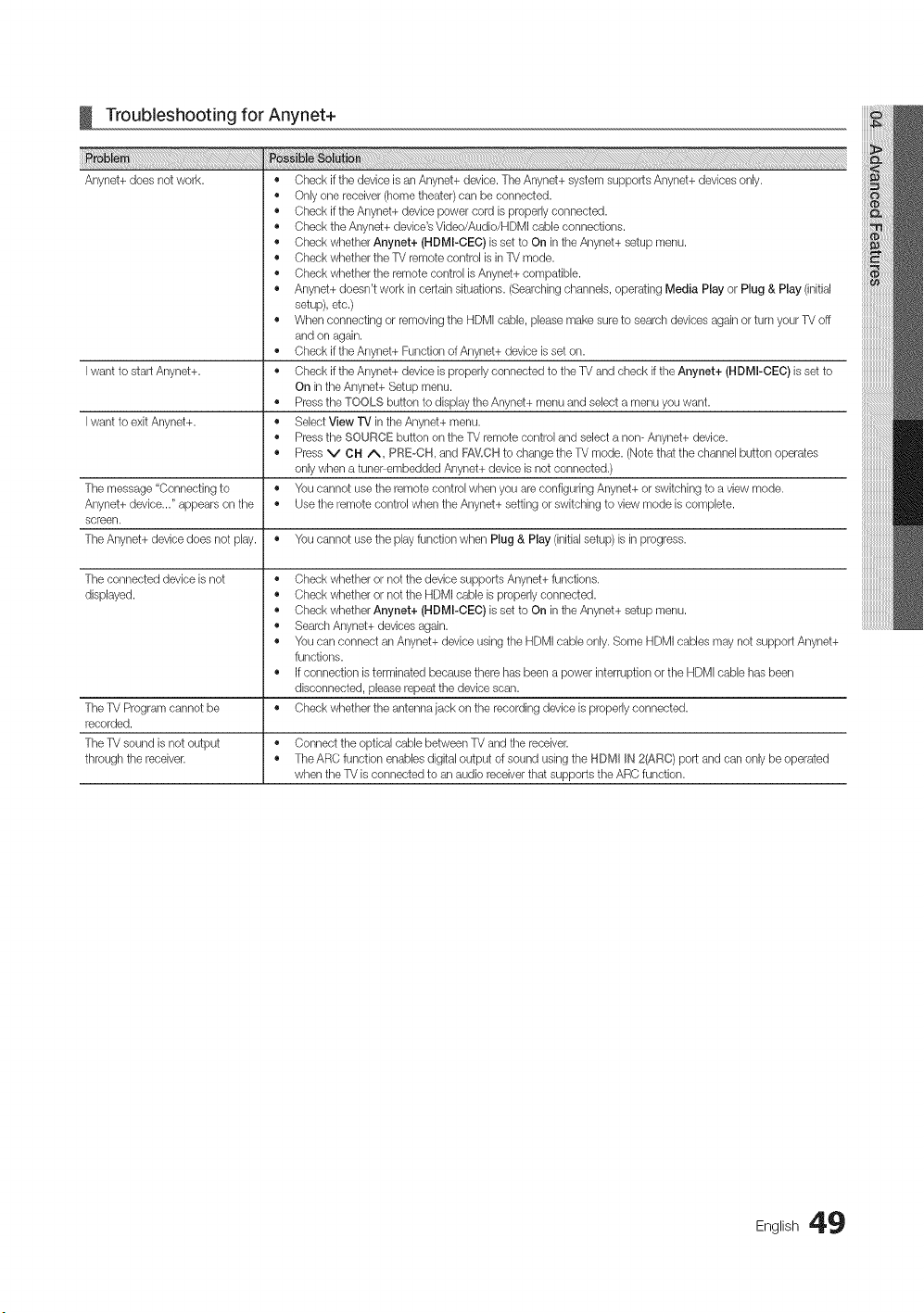
!
_i_!_!i!_i:_i_l_l_l_l_i!_i_i_i_i_i!_!i_!i_!i_!i_!i_!i_!i_!i_!i_!i!_ii_ii_ii_ii_ii_!_i!!iiiiiiiiiii_iiii_i_i_i!i!i!i!i_i_iiiiiiiiiii_ii_i_ii_i_i_i_i!i!i!i!i_i_iiiiiiiiiiiiiii_ii_ii_iiii_i!il!J_!_!!
Anynet+ does not work.
Troubleshooting for Anynet+
Iwant to start Anynet+.
Iwant to exit Anynet+.
The message "Connecting to
Anynet+ device..." appears on the
screen.
• Check if the device is an Anynet+ device. The Anynet+ system supports Anynet+ devices only.
• Only one receiver (home theater) can be connected.
• Check if the Anynet+ device power cord is properly connected.
• Check the Anynet+ device's Video/Audio/HDMI cable connections.
• Check whether Anynet+ (HDMI-CEC) is set to On in the Anynet+ setup menu.
• Check whether the TV remote control is in TV mode.
• Check whether the remote control is Anynet+ compatible.
• Anynet+ doesn't work in certain situations. (Searchingchannels, operating Media Play or Plug & Play (initial
setup), etc.)
• When connecting or removing the HDMI cable, please make sure to search devices again or turn your TV off
and on again.
• Check if the Anynet+ Function of Anynet+ device isset on.
Check if the Anynet+ device is properly connected to the TV and check if the Anynet+ (HDMI-CEC) is set to
On in the Anynet+ Setup menu.
Pressthe TOOLS button to display the Anynet+ menu and select a menu you want.
Select View rv in the Anynet+ menu.
Pressthe SOURCE button on the TV remote control and select a non- Anynet+ device.
Press v CH /\, pREoCH, and FA_,LCHto change the TV mode. (Note that the channel button operates
only when a tuner-embedded Anynet+ device isnot connected.)
You cannot use the remote control when you are configuring Anynet+ or switching to a view mode.
Use the remote control when the Anynet+ setting or switching to view mode is complete.
The Anynet+ device does not play. • You cannot use the play function wtsen Plug & Play (initialsetup) is in progress.
The connected device is not
displayed.
o
o
o
o
o
o
The TV Program cannot be
recorded.
The TV sound is not output • Connect the optical cable between TV and the receiver.
through the receiver. • The ARC function enables digital output of sound using the HDMI IN 2(ARC} port and can only be operated
when the TV is connected to an audio receiver that supports the ARC function.
Check whether or not the device supports Anynet+ functions.
Check whether or not the HDMI cable is properly connected.
Check whether Anynet+ (HDMI-CEC) is set to On in the Anynet+ setup menu.
Search Anynet+ devices again.
You can connect an Anynet+ device using the HDMI cable only. Some HDMI cables may not support Anynet+
functions.
If connection is terminated because there has been a power interruption or the HDMI cable has beers
disconnected, please repeat the device scan.
Check whether the antenna jack on the recording device is properly connected.
English 49
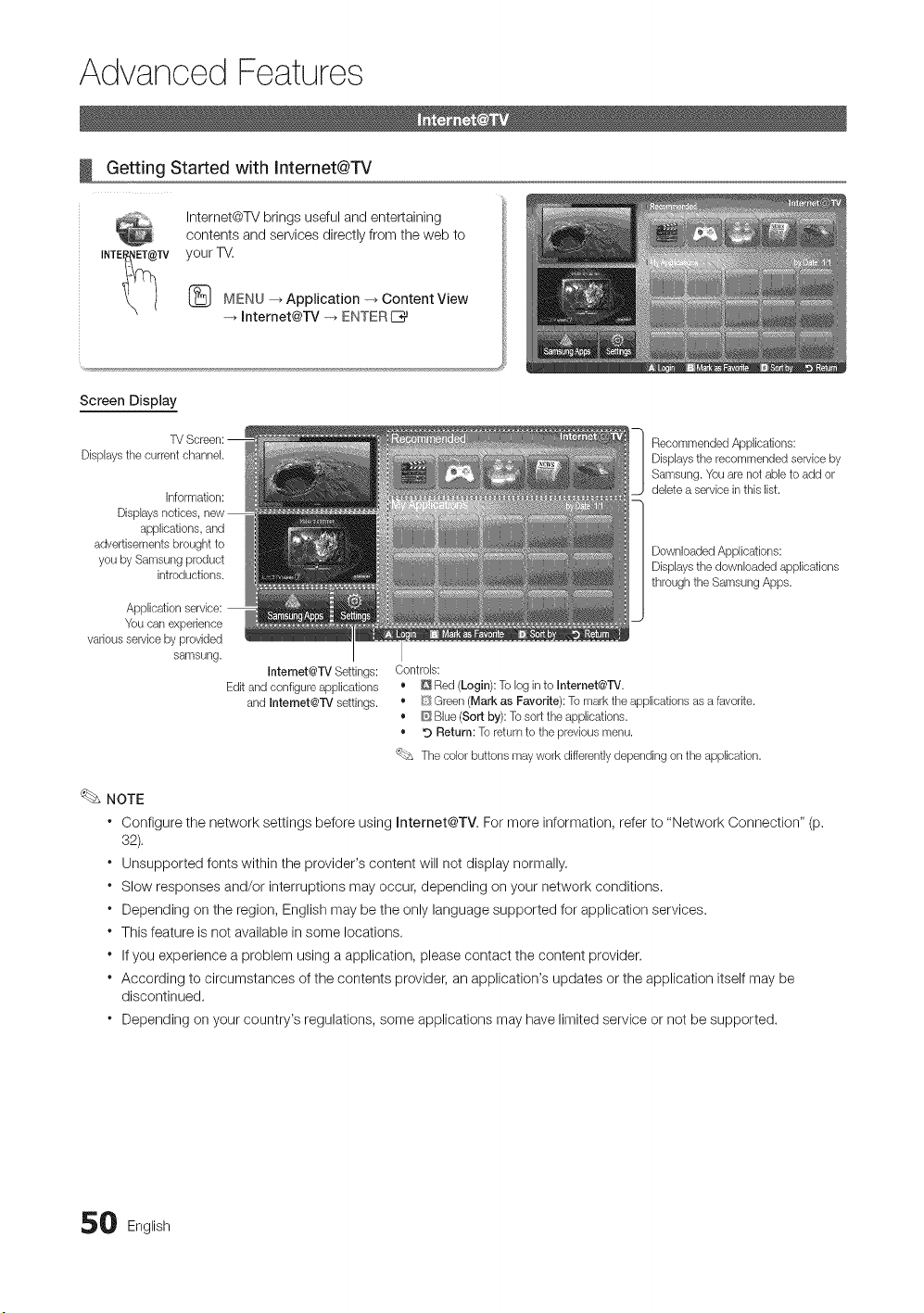
Advanced Features
Getting Started with Internet@TV
INTE_TV
Internet@W brings useful and entertaining
contents and services directly from the web to
your TV.
MENU _ Application -_ Content View
-+ Internet@TV -_ ENTERE_
Screen Display
Dbplays tlqe current channel.
Information:
Displays notices,
applications, and
advertisements brought to
you by Samsung product
introductions.
Application
You can experience
various service by provided
samsung.
Intemet@TV Settings:
Edit and configure applications
and Intemet@TV settings.
Recommended Applications:
Dbplays the recommended service by
Samsung. Youare not abb to add or
debte a service in this Ibt.
Downloaded Applbations:
Dbplays tlqedownloaded appibations
through the Samsung Apps.
Controls:
• D Red (Login): To log in to Internet@TV.
• [_SGreen (Mark as Favorite): To mark the applications as a favorite.
• _ Blue (Sort by): To sort the applications.
• _) Return: To return to the previous menu.
'_bs The color buttons may work differently depending on the application.
NOTE
* Configure the network settings before using Internet@TV. For more information, refer to "Network Connection" (p.
32).
* Unsupported fonts within the provider's content will not display normally.
* Slow responses and/or interruptions may occur, depending on your network conditions.
* Depending on the region, English may be the only language supported for application services.
* This feature is not available in some locations.
* If you experience a problem using a application, please contact the content provider.
* According to circumstances of the contents provider, an application's updates or the application itself may be
discontinued.
* Depending on your country's regulations, some applications may have limited service or not be supported.
0 English
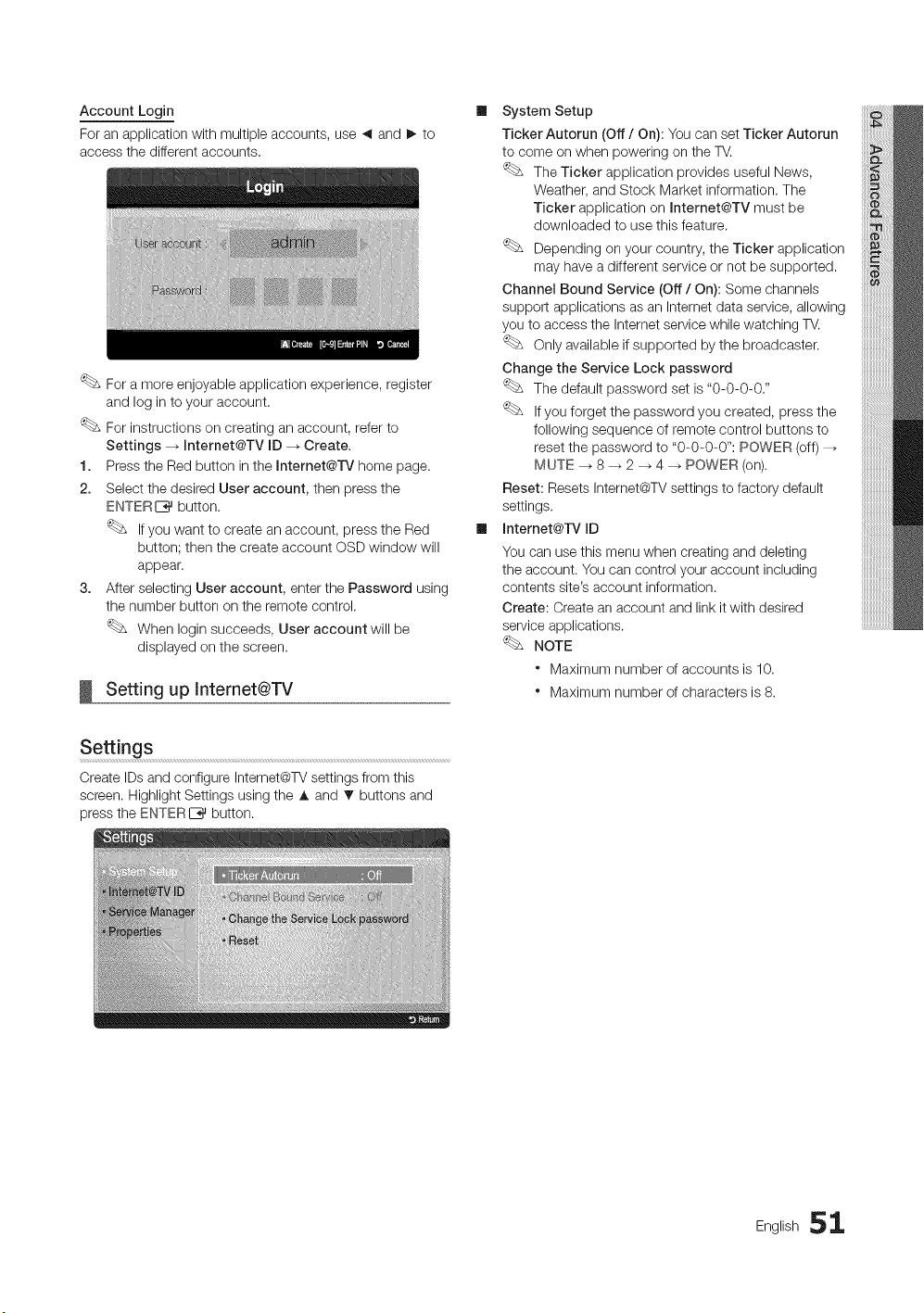
Account Login
For an application with multiple accounts, use ,_ and I_ to
access the different accounts.
For a more enjoyable application experience, register
and log in to your account.
For instructions on creating an account, refer to
Settings _ Internet@TV ID --_ Create.
1. Press the Red button in the Internet@rv home page.
2. Select the desired User account, then press the
ENTER I_%_button.
If you want to create an account, press the Red
button; then the create account OSD window will
appear.
3. After selecting User account, enter the Password using
the number button on the remote control.
When Iogin succeeds, User account will be
displayed on the screen.
Setting up Internet@TV
Ill System Setup
Ticker Autorun (Off / On): You can set Ticker Autorun
to come on when powering on the TV.
The Ticker application provides useful News,
Weather, and Stock Market information. The
Ticker application on Internet@TV must be
downloaded to use this feature.
Depending on your country, the Ticker application
may have a different service or not be supported.
Channel Bound Service (Off / On): Some channels
support applications as an Internet data service, allowing
you to access the Internet service while watching TV.
Only available if supported by the broadcaster.
Change the Service Lock password
The default password set is "0-0-0-0."
If you forget the password you created, press the
following sequence of remote control buttons to
reset the password to "0-0-0-0": POWER (off) --_
MUTE --_ 8 _ 2 _ 4 _ POWER (on).
Reset: Resets Internet@TV settings to factory default
settings.
Ill Internet@rv ID
You can use this menu when creating and deleting
the account. You can control your account including
contents site's account information.
Create: Create an account and link it with desired
service applications.
NOTE
" Maximum number of accounts is 10.
" Maximum number of characters is 8.
Settings
Create IDs and configure Internet@TV settings from this
screen. Highlight Settings using the A and _f buttons and
press the ENTERE__}_ button.
English 51
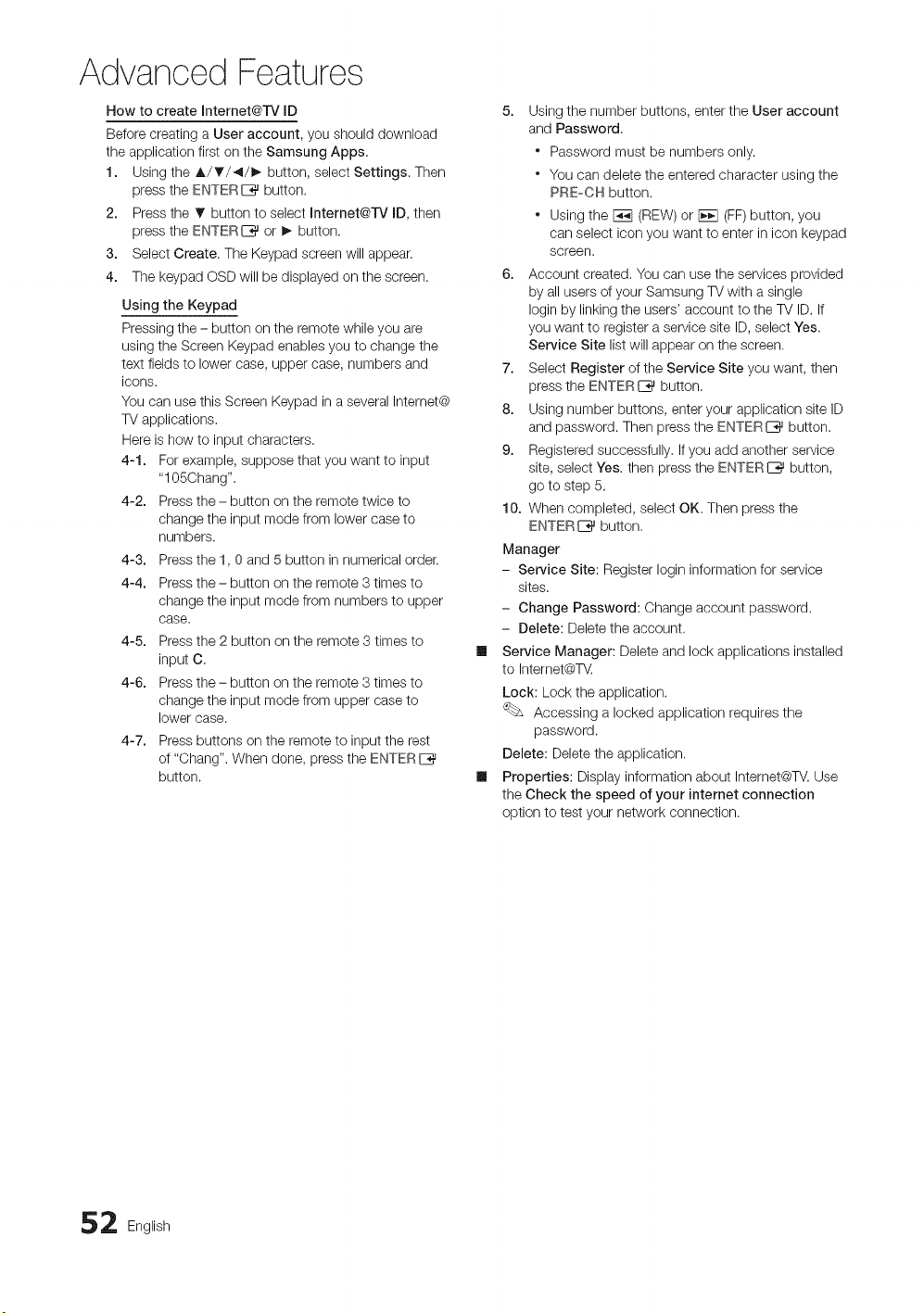
Advanced Features
How to create Internet@l-V ID
Before creating a User account, you should download
the application first on the Samsung Apps.
1. Using the A/T/4/_ button, select Settings. Then
press the ENTERIZ_ button.
2. Press the _' button to select Internet@rv ID, then
press the ENTERI_ or I_ button,
3. Select Create. The Keypad screen will appear.
4. The keypad OSD will be displayed on the screen.
Using the Keypad
Pressing the = button on the remote while you are
using the Screen Keypad enables you to change the
text fields to lower case, upper case, numbers and
icons.
You can use this Screen Keypad in a several Internet@
TV applications,
Here is how to input characters.
4-1. For example, suppose that you want to input
"105Chang".
4-2. Press the - button on the remote twice to
change the input mode from lower case to
numbers,
4-3. Press the 1,0 and 5 button in numerical order.
4-4. Press the - button on the remote 3 times to
change the input mode from numbers to upper
case.
4-5. Press the 2 button on the remote 3 times to
input C,
4-6. Press the - button on the remote 3 times to
change the input mode from upper case to
lower case.
4-7. Press buttons on the remote to input the rest
of "Chang". When done, press the ENTERI_
button.
5. Using the number buttons, enter the User account
and Password.
" Password must be numbers only.
" You can delete the entered character using the
PRE-CH button.
. Using the F_q (nEW) or F_q (FF) button, you
can select icon you want to enter in icon keypad
screen.
6. Account created, You can use the services provided
by all users of your Samsung TV with a single
Iogin by linking the users' account to the TV ID, If
you want to register a service site ID, select Yes.
Service Site list will appear on the screen.
7. Select Register of the Service Site you want, then
press the ENTERI_ button,
8. Using number buttons, enter your application site ID
and password. Then press the ENTERE_ button.
9. Registered successfully, If you add another service
site, select Yes. then press the ENTERI_ button,
go to step 5,
10. When completed, select OK. Then press the
ENTER E_ button.
Manager
- Service Site: Register Iogin information for service
sites,
- Change Password: Change account password.
- Delete: Delete the account.
Service Manager: Delete and lock applications installed
to Internet@T_.
Lock: Lock the application.
Accessing a locked application requires the
password.
Delete: Delete the application,
Properties: Display information about Internet@TV,Use
the Check the speed of your internet connection
option to test your network connection.
2 English
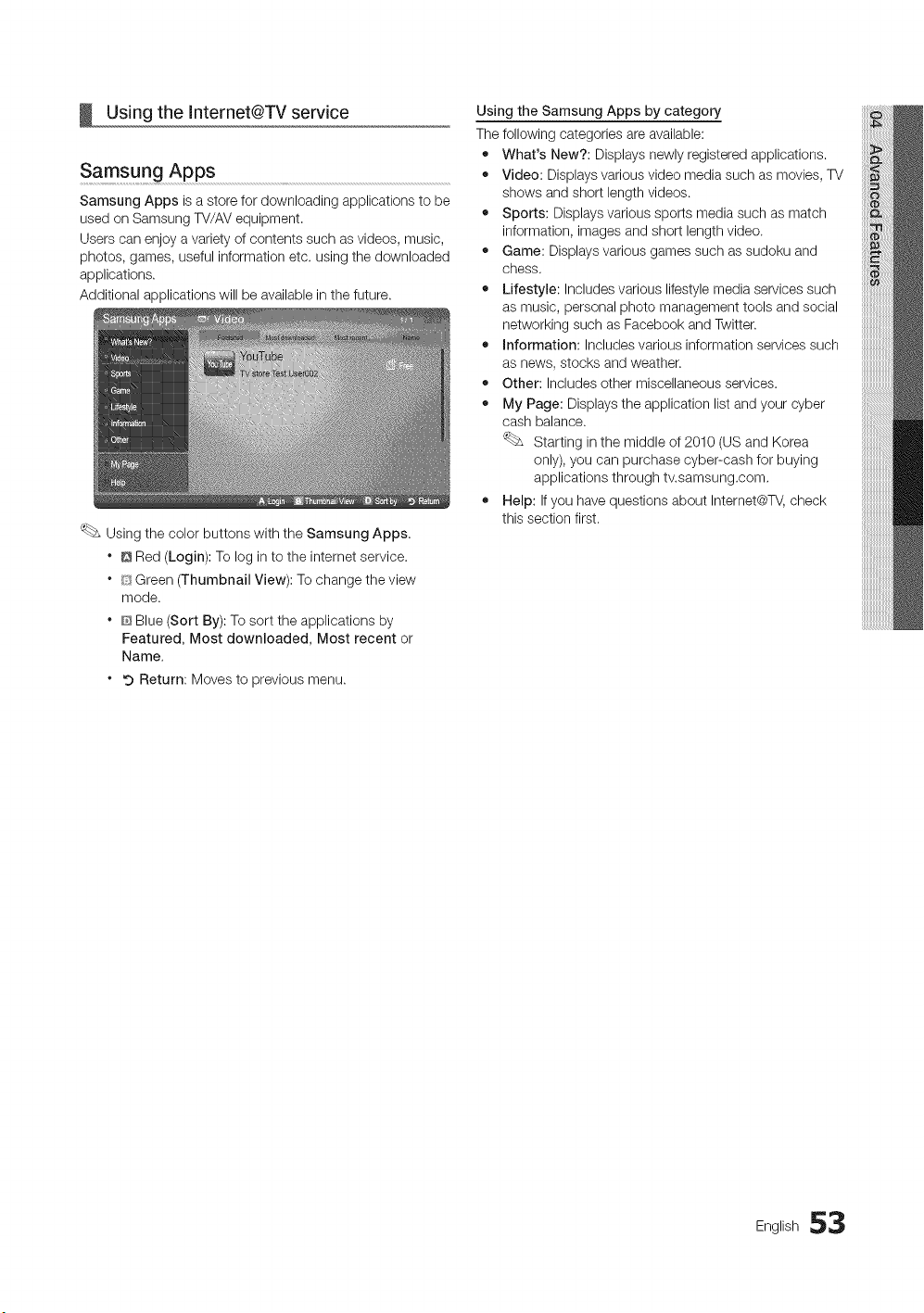
Using the Internet@TV service
Samsung Apps
Samsung Apps is a store for downloading applications to be
used on Samsung TV/AV equipment.
Users can enjoy a variety of contents such as videos, music,
photos, games, useful information etc. using the downloaded
applications.
Additional applications will be available in the future.
Using the color buttons with the Samsung Apps.
* Q Red (Login): To log in to the internet service.
* [_SGreen (Thumbnail View): To change the view
mode.
* @Blue (Sort By): To sort the applications by
Featured, Most downloaded, Most recent or
Name,
* 9 Return: Moves to previous menu.
Using the Samsung Apps by category
The following categories are available:
• What's New?: Displays newly registered applications.
• Video: Displays various video media such as movies, TV
shows and short length videos.
• Sports: Displays various sports media such as match
information, images and short length video.
• Game: Displays various games such as sudoku and
chess.
• Lifestyle: Includes various lifestyle media services such
as music, personal photo management tools and social
networking such as Facebook and Twitter.
• Information: Includes various information services such
as news, stocks and weather.
• Other: Includes other miscellaneous services.
• My Page: Displays the application list and your cyber
cash balance.
Starting in the middle of 2010 (US and Korea
only), you can purchase cyber-cash for buying
applications through tv.samsung.com.
• Help: If you have questions about Internet@TV,check
this section first.
English 53
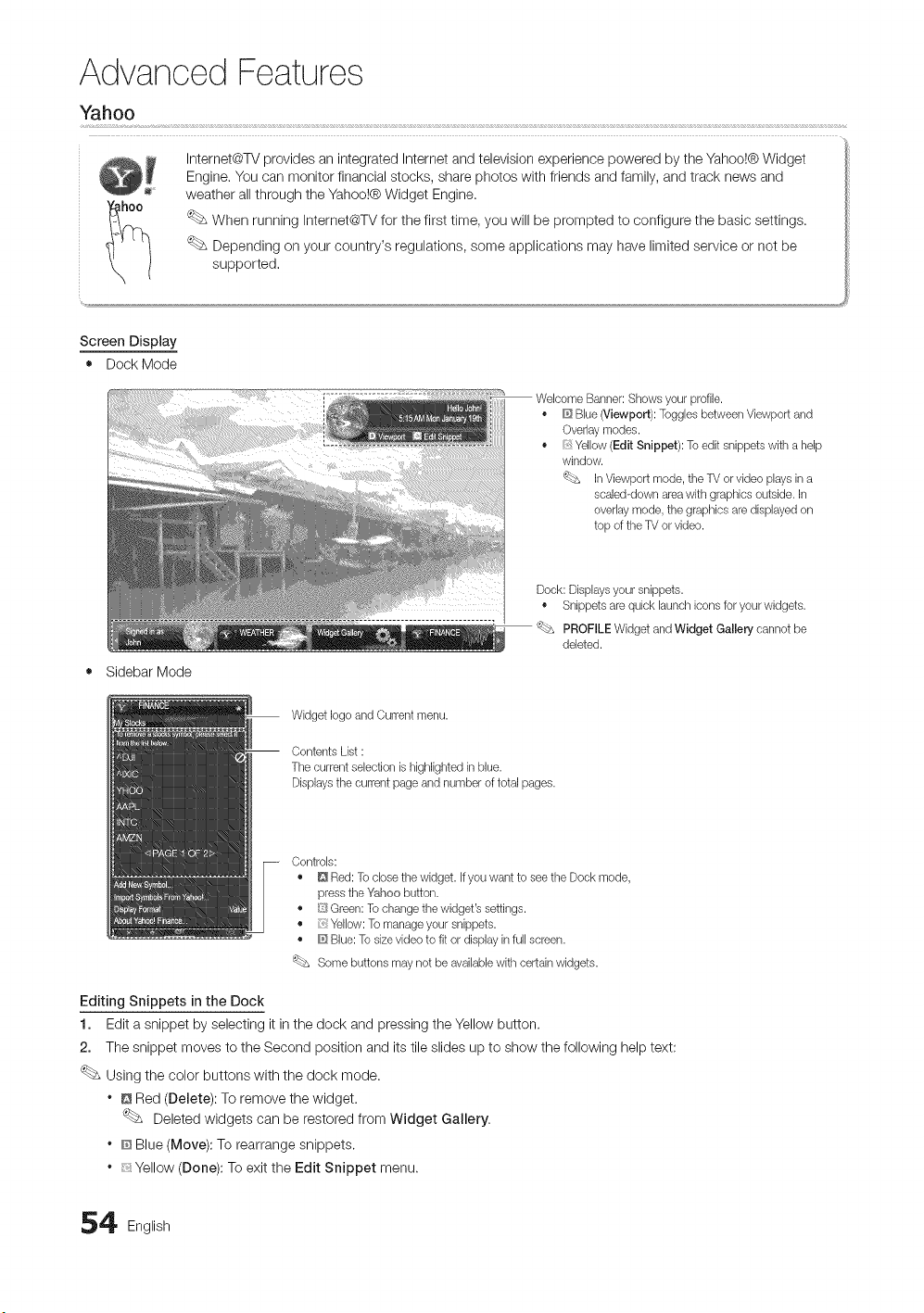
Advanced Features
Yahoo
Internet@W provides an integrated Internet and television experience powered by the Yahoo!@Widget
Engine. You can monitor financial stocks, share photos with friends and family, and track news and
weather all through the Yahoo!@ Widget Engine.
When running internet@TV for the first time, you wiii be prompted to configure the basic settings.
Depending on your country's regulations, some applications may have limited service or not be
supported.
Screen Display
• Dock Mode
o
o
Banner: Shows your profile.
Blue (Viewport): Toggles between Viewport and
Overlay modes.
Yellow (Edit Snippet): To edit snippets with a help
window.
'(_ In Viewport mode, the TV or video plays in a
sealed-down area with graphics outside. In
overlay mode, the graphics are displayed on
top of the TV or video.
Dock: Displaysyour snippets.
• Snippets are quick launch icons for your widgets.
'_bs PROFILE Widget and Widget Gallery cannot be
deleted.
Sidebar Mode
Widget logoand Current menu.
Contents List :
The current selection is highlighted in blue.
Displays the current page and number of total pages.
Controls:
• D Red: To close the widget. If you want to see the Dock mode,
press the ¥_ahoobutton.
• [i'_{Green: To change the widget's settings.
• Yellow:To manage your snippets.
• _ Blue: To sizevideo to fit or display in full screen.
'_bs Some buttons may not be availablewith certain widgets.
Editing Snippets in the Dock
1. Edit a snippet by selecting it in the dock and pressing the Yellow button.
2. The snippet moves to the Second position and its tile slides up to show the following help text:
Using the color buttons with the dock mode.
* @Red (Delete): To remove the widget.
Deleted widgets can be restored from Widget Gallery.
* @Blue (Move): To rearrange snippets.
* __Yellow (Done): To exit the Edit Snippet menu.
4 English
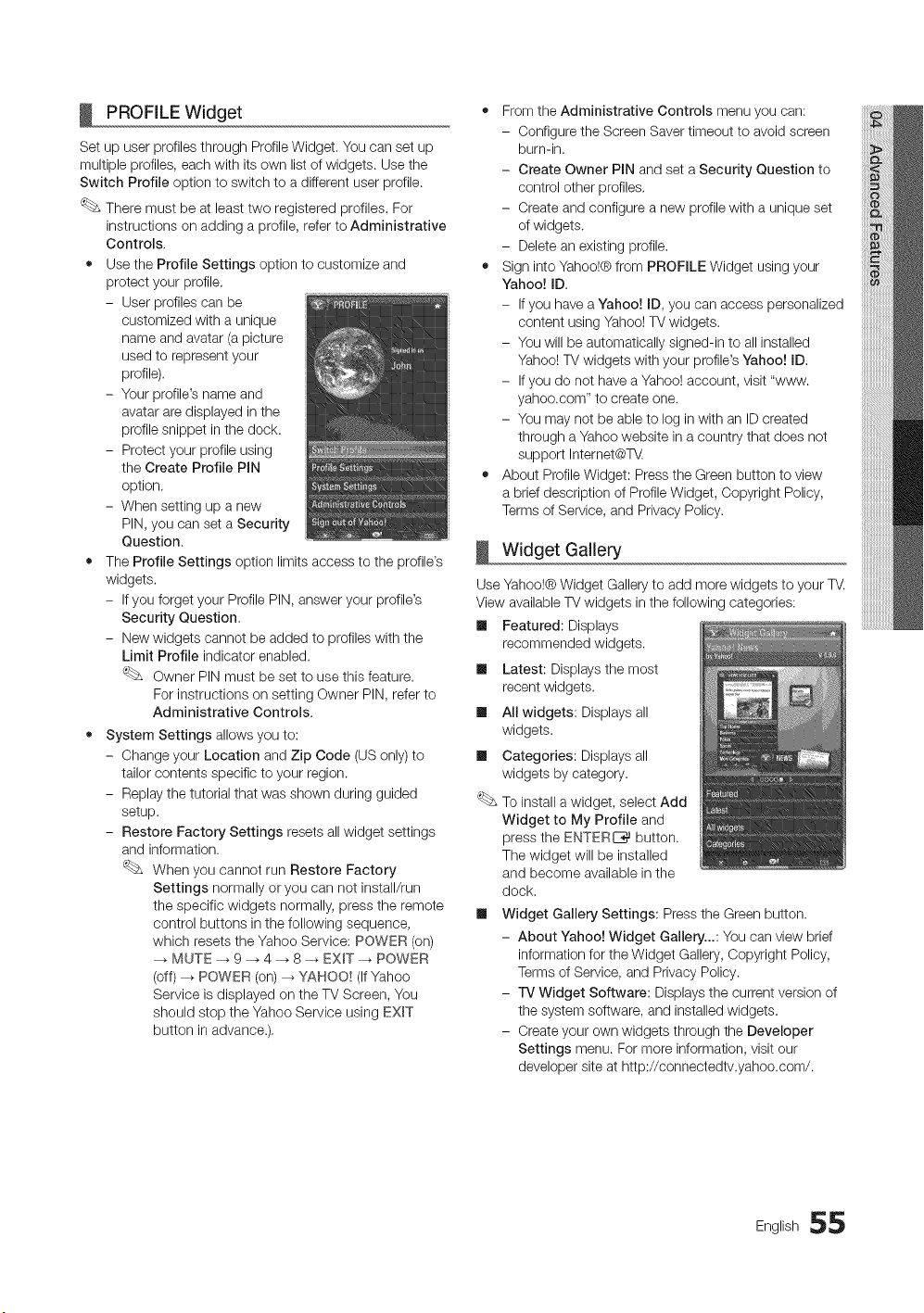
PROFILE Widget
Set up user profiles through Profile Widget. You can set up
multiple profiles, each with its own list of widgets. Use the
Switch Profile option to switch to a different user profile.
There must be at least two registered profiles. For
instructions on adding a profile, refer to Administrative
Controls,
• Use the Profile Settings option to customize and
protect your profile.
- User profiles can be
customized with a unique
name and avatar (a picture
used to represent your
profile).
- Your profile's name and
avatar are displayed in the
profile snippet in the dock.
- Protect your profile using
the Create Profile PIN
option.
- When setting up a new
PIN, you can set a Security
Question.
• The Profile Settings option limits access to the profile's
widgets.
- If you forget your Profile PIN, answer your profile's
Security Question,
- New widgets cannot be added to profiles with the
Limit Profile indicator enabled.
Owner PIN must be set to use this feature.
For instructions on setting Owner PIN, refer to
Administrative Controls.
• System Settings allows you to:
- Change your Location and Zip Code (US only) to
tailor contents specific to your region.
- Replay the tutorial that was shown during guided
setup.
- Restore Factory Settings resets all widget settings
and information.
When you cannot run Restore Factory
Settings normally or you can not install/run
the specific widgets normally, press the remote
control buttons in the following sequence,
which resets the Yahoo Service: POWER (on)
MUTE --_ 9 -. 4 --_ 8 _ EXIT --_ POWER
(off) --_ POWER (on)_ YAHOO! (If Yahoo
Service is displayed on the TV Screen, You
should stop the Yahoo Service using EXIT
button in advance.).
• From the Administrative Controls menu you can:
- Configure the Screen Saver timeout to avoid screen
burn-in.
- Create Owner PIN and set a Security Question to
control other profiles.
- Create and configure a new profile with a unique set
of widgets.
- Delete an existing profile.
• Sign into Yahoo!® from PROFILE Widget using your
Yahoo! ID,
- If you have a Yahoo! ID, you can access personalized
content using Yahoo! TV widgets.
- You will be automatically signed-in to all installed
Yahoo! TV widgets with your profile's Yahoo! ID.
- If you do not have a Yahoo! account, visit "www.
yahoo.corn" to create one.
- You may not be able to log in with an ID created
through a Yahoo website in a country that does not
support Internet@T_.
• About Profile Widget: Press the Green button to view
a brief description of Profile Widget, Copyright Policy,
Terms of Service, and Privacy Policy.
Widget Gallery
m
m
m
Use Yahoo!® Widget Gallery to add more widgets to your TV.
View available TV widgets in the following categories:
Ill Featured: Displays
recommended widgets.
Latest: Displays the most
recent widgets.
All widgets: Displays all
widgets.
Categories: Displays all
widgets by category.
To install a widget, select Add
Widget to My Profile and
press the ENTERC_ button.
The widget will be installed
and become available in the
dock.
Widget Gallery Settings: Press the Green button.
- About Yahoo! Widget Gallery...: You can view brief
information for the Widget Gallery, Copyright Policy,
Terms of Service, and Privacy Policy.
- iV Widget Software: Displays the current version of
the system software, and installed widgets.
- Create your own widgets through the Developer
Settings menu. For more information, visit our
developer site at http://connectedtv.yahoo.com/.
English 55
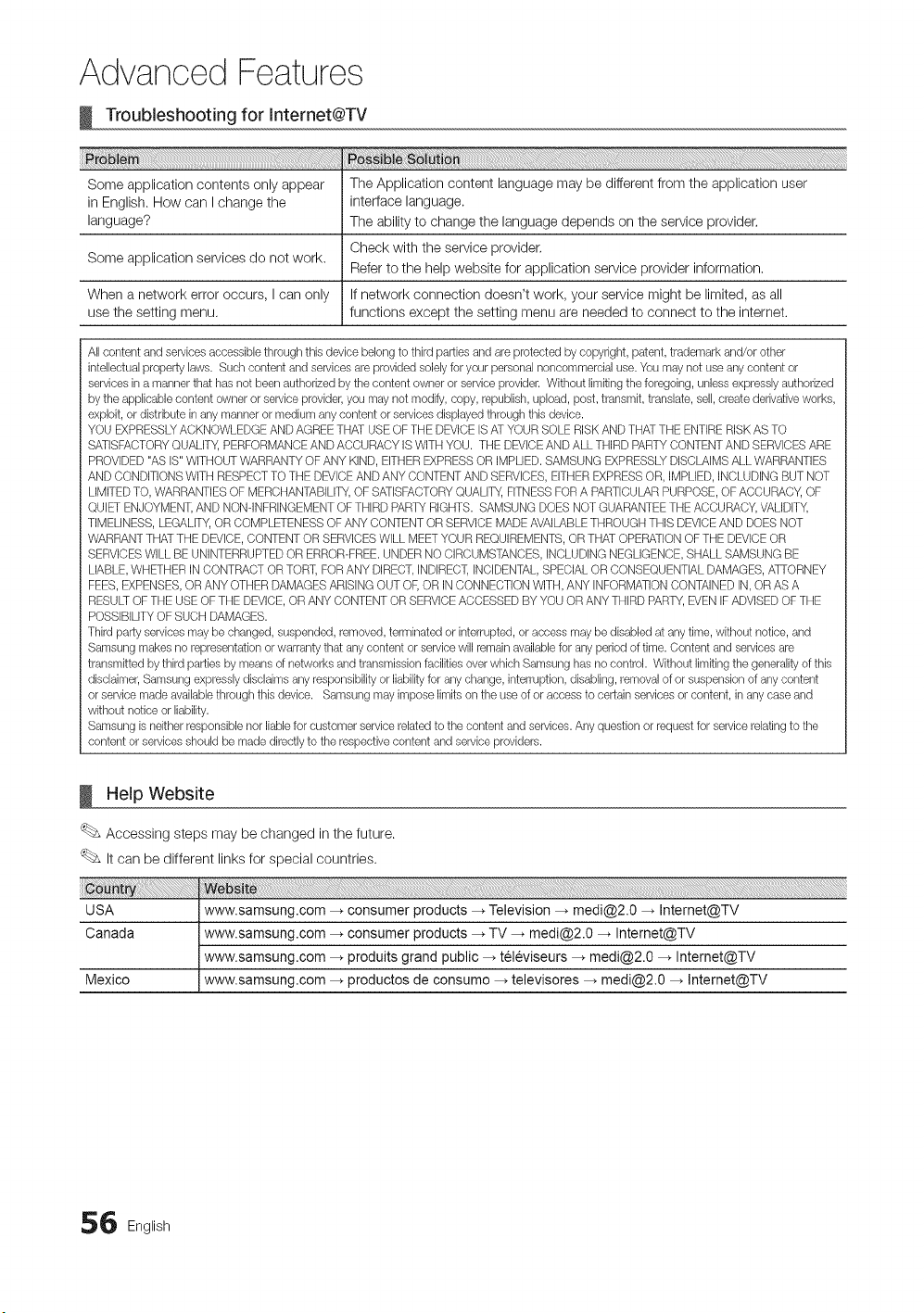
Advanced Features
Troubleshooting for Internet@TV
Some application contents only appear The Application content language may be different from the application user
in English. How can I change the interface language.
language? The ability to change the language depends on the service provider.
Check with the service provider,
Some application services do not work.
Refer to the help website for application service provider information.
When a network error occurs, I can only If network connection doesn't work, your service might be limited, as all
use the setting menu. functions except the setting menu are needed to connect to the internet.
All content and services accessible through this device belong to third parties and are protected by copyright, patent, trademark and/or other
intelbctual property laws. Such content and services are provided solely for your personal noncommercial use. You may not use any content or
services in a manner that has not been authorized by the content owner or service provider. Without limitingthe foregoing, unless expressly authorized
by the applicable content owner or service provider, you may not modify, copy, republish, upload, post, transmit, translate, sell, create derivative works,
exploit, or distribute in any manner or medium any content or services displayed through this device.
YOU EXPRESSLYACKNOWLEDGE AND AGREE THAT USE OF THE DEVICE ISAT YOUR SOLE RISKAND THATTHE ENTIRE RISKAS TO
SATISFACTORYQUALITY, PERFORMANCEAND ACCURACY IS WITHYOU. THE DEVICEAND ALL THIRD PARTYCONTENT AND SERVICESARE
PROVIDED"AS IS" WITHOUT WARRANTYOF ANY KIND, EITHEREXPRESS OR IMPLIED.SAMSUNG EXPRESSLYDISCLAIMS ALL WARRANTIES
AND CONDITIONS WITH RESPECT TO THE DEVICEAND ANY CONTENT AND SERVICES,EITHER EXPRESSOR, IMPLIED,INCLUDING BUT NOT
LIMITEDTO, WARRANTIES OF MERCHANTABILITY,OF SATISFACTORYQUALITY,FITNESS FORA PARTICULARPURPOSE, OF ACCURACY, OF
QUIET ENJOYMENT,AND NONqNFRINGEMENT OFTHIRD PARTY RIGHTS. SAMSUNG DOES NOT GUARANTEETHE ACCURACY, VALIDITY,
TIMELINESS,LEGALITY,OR COMPLETENESS OF ANY CONTENT OR SERVICE MADE AVAILABLETHROUGH THIS DEVICEAND DOES NOT
WARRANTTHAT THE DEVICE,CONTENT OR SERVICESWILL MEET YOUR REQUIREMENTS,OR THAT OPERATIONOF THE DEVICEOR
SERVICESWILL BE UNINTERRUPTEDOR ERROR-FREE. UNDER NO CIRCUMSTANCES, INCLUDING NEGLIGENCE,SHALL SAMSUNG BE
LIABLE,WHETHER IN CONTRACT OR TORT, FORANY DIRECT,INDIRECT,INCIDENTAL, SPECIALOR CONSEQUENTIAL DAMAGES,ATTORNEY
FEES,EXPENSES,OR ANY OTHER DAMAGES ARISING OUT OF, OR IN CONNECTIONWITH, ANY INFORMATIONCONTAINED IN, OR AS A
RESULTOF THE USE OFTHE DEVICE, OR ANY CONTENT OR SERVICEACCESSED BY YOU OR ANY THIRD PARTY,EVEN IFADVISEDOF THE
POSSIBILITYOF SUCH DAMAGES.
Third party services may be changed, suspended, removed, terminated or interrupted, or access may be disabled at any time, without notice, and
Samsung makes no representation or warranty that any content or service will remain availablefor any period of time. Content and services are
transmitted by third parties by means of networks and transmission facilities over which Samsung has no control. Without limiting the generality of this
disclaimer, Samsung expressly disclaims any responsibility or liabilityfor any change, interruption, disabling, removal of or suspension of any content
or service made availablethrough this device. Samsung may impose limits on the use of or access to certain services or content, in any case and
without notice or liability.
Samsung isneither responsible nor liable for customer service related to the content and services. Any question or request for service relating to the
content or services should be made directly to the respective content and service providers.
Help Website
Accessing steps may be changed in the future.
It can be different links for special countries.
6 English
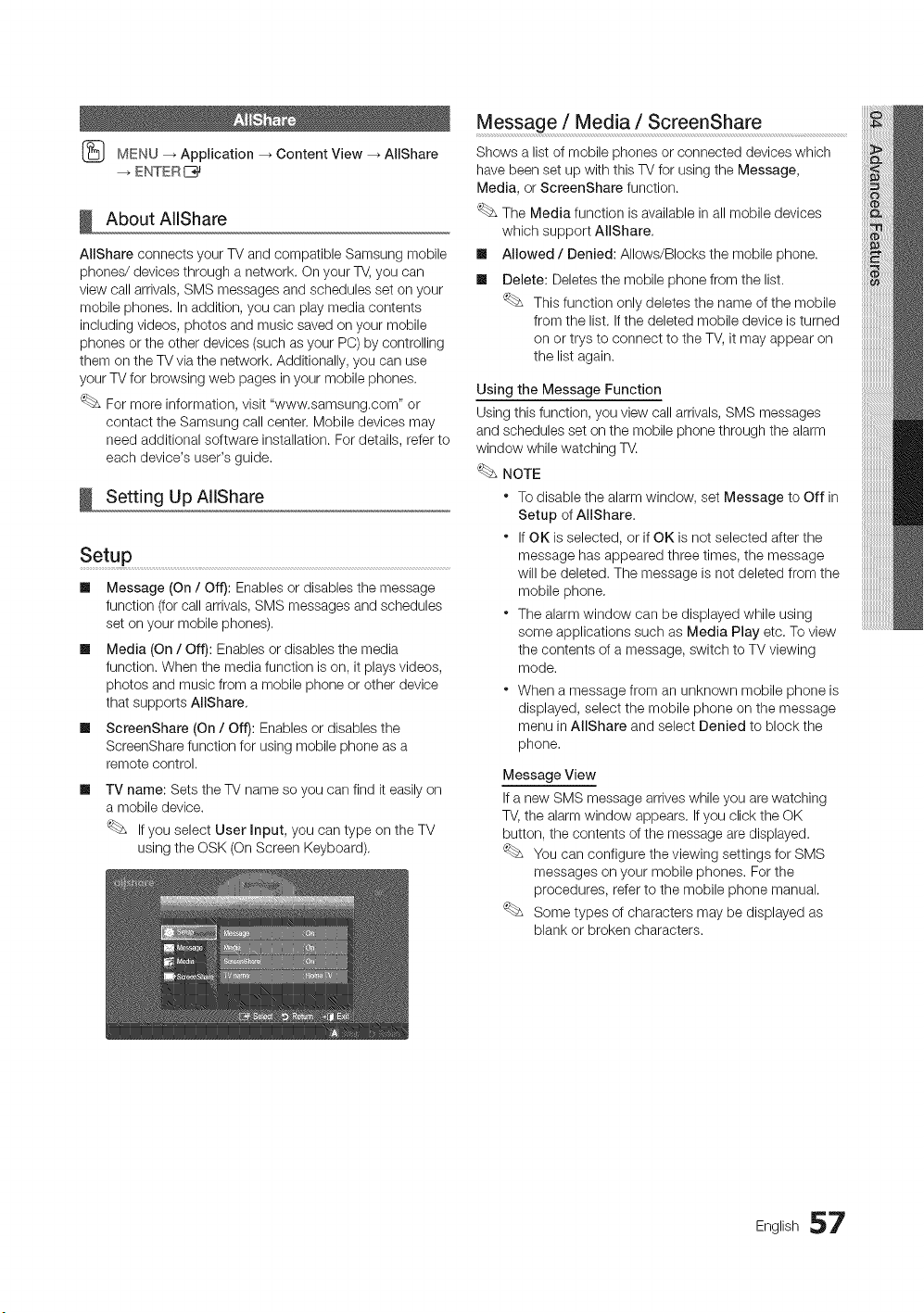
(_ MENU_ Application_ ContentView_ AliShare
--_ENTERI_
About AllShare
AIIShare connects your TV and compatible Samsung mobile
phones/devices through a network. Qn your TV, you can
view call arrivals, SMS messages and schedules set on your
mobile phones, in addition, you can play media contents
including videos, photos and music saved on your mobile
phones or the other devices (such as your PC) by controlling
them on the TV via the network. Additionally, you can use
your TV for browsing web pages in your mobile phones.
For more information, visit "www.samsung.com" or
contact the Samsung call center. Mobile devices may
need additional software installation. For details, refer to
each device's user's guide.
Setting Up AIIShare
Setup
m
m
m
Message (On / Off): Enables or disables the message
function (for call arrivals, SMS messages and schedules
set on your mobile phones),
Media (On / Off): Enables or disables the media
function. When the media function is on, it plays videos,
photos and music from a mobile phone or other device
that supports AllShare,
ScreenShare (On / Off): Enables or disables the
ScreenShare function for using mobile phone as a
remote control.
m
TV name: Sets the TV name so you can find it easil on
a mobile device.
If you select User input, you can type on the TV
using the OSK (On Screen Keyboard),
Message / Media / ScreenShare
Shows a list of mobile phones or connected devices which
have been set up with this TV for using the Message,
Media, or ScreenShare function.
The Media function is available in all mobile devices
which support AIIShare,
Ill Mowed / Denied: Allows/Blocks the mobile phone.
Ill Delete: Deletes the mobile phone from the list.
This function only deletes the name of the mobile
from the list. If the deleted mobile device is turned
on or trys to connect to the TV, it may appear on
the list again.
Using the Message Function
Using this function, you view call arrivals, SMS messages
and schedules set on the mobile phone through the alarm
window while watching TV.
NOTE
* To disable the alarm window, set Message to Off in
Setup of AllShare.
* If OK is selected, or if OK is not selected after the
message has appeared three times, the message
will be deleted. The message is not deleted from the
mobile phone,
* The alarm window can be displayed while using
some applications such as Media Play etc. To view
the contents of a message, switch to TV viewing
mode.
" When a message from an unknown mobile phone is
displayed, select the mobile phone on the message
menu in AIIShare and select Denied to block the
phone,
Message View
If a new SMS message arrives while you are watching
TV, the alarm window appears. If you click the OK
button, the contents of the message are displayed.
You can configure the viewing settings for SMS
messages on your mobile phones. For the
procedures, refer to the mobile phone manual.
Some types of characters may be displayed as
blank or broken characters.
English 57
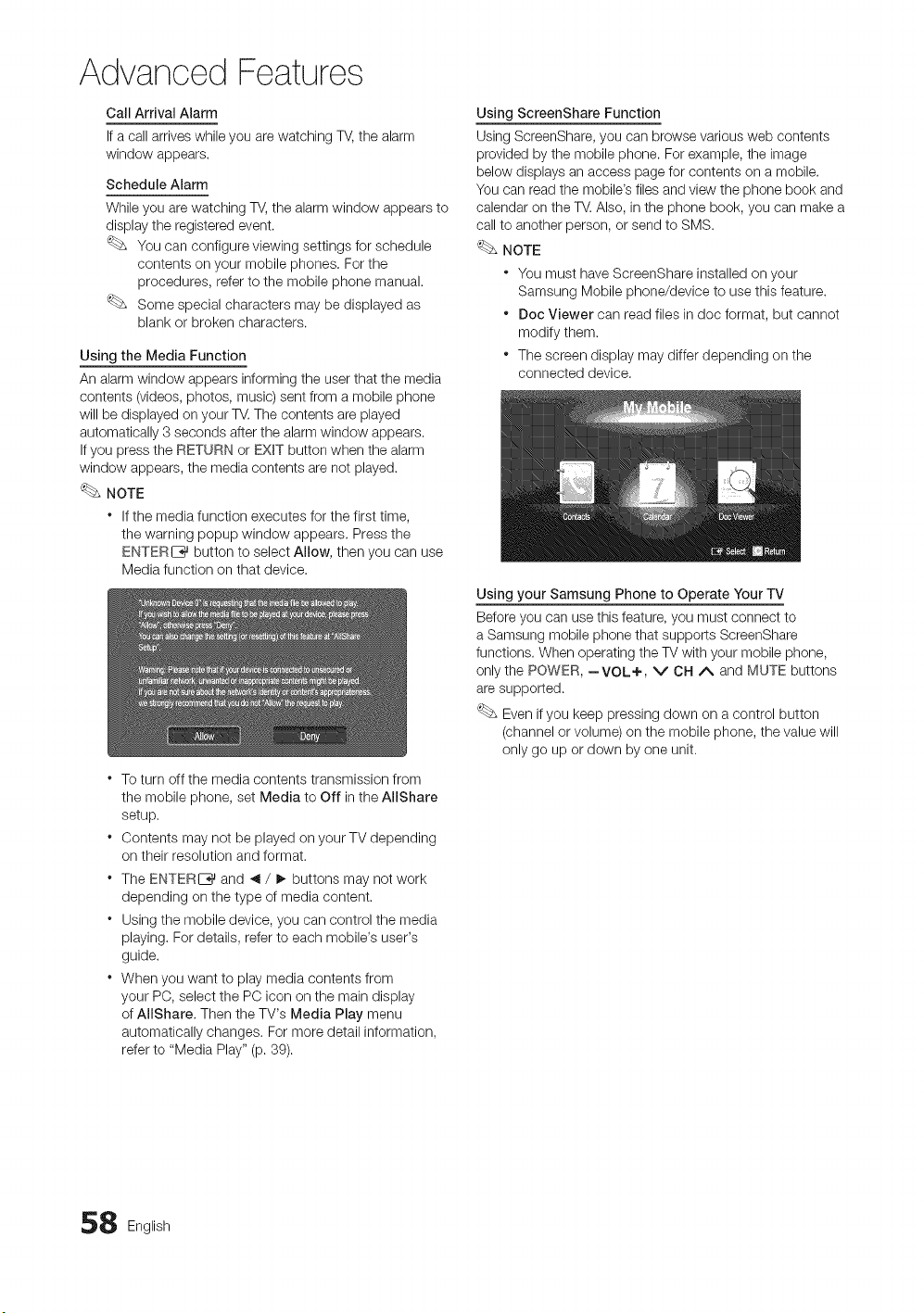
Advanced Features
Call Arrival Alarm
If a call arrives while you are watching TV, the alarm
window appears.
Schedule Alarm
While you are watching TV, the alarm window appears to
display the registered event.
You can configure viewing settings for schedule
contents on your mobile phones. For the
procedures, refer to the mobile phone manual.
Some special characters may be displayed as
blank or broken characters.
Using the Media Function
An alarm window appears informing the user that the media
contents (videos, photos, music) sent from a mobile phone
will be displayed on your TV. The contents are played
automatically 3 seconds after the alarm window appears.
If you press the RETURN or EXiT button when the alarm
window appears, the media contents are not played.
NOTE
* If the media function executes for the first time,
the warning popup window appears. Press the
ENTERI_ button to select Allow, then you can use
Media function on that device.
o
o
o
To turn off the media contents transmission from
the mobile phone, set Media to Off in the AIIShare
setup.
Contents may not be played on your TV depending
on their resolution and format.
The ENTERC_ and _1/ !_ buttons may not work
depending on the type of media content.
Using the mobile device, you can control the media
playing, For details, refer to each mobile's user's
guide.
When you want to play media contents from
your PO, select the PO icon on the main display
of AllShare, Then the TV's Media Play menu
automatically changes. For more detail information,
refer to "Media Play" (p. 89).
Using ScreenShare Function
Using ScreenShare, you can browse various web contents
provided by the mobile phone. For example, the image
below displays an access page for contents on a mobile.
You can read the mobile's files and view the phone book and
calendar on the TV. Also, in the phone book, you can make a
call to another person, or send to SMS.
NOTE
* You must have ScreenShare installed on your
Samsung Mobile phone/device to use this feature.
* Dec Viewer can read files in doc format, but cannot
modify them.
* The screen display may differ depending on the
connected device.
Using your Samsung Phone to Operate Your TV
Before you can use this feature, you must connect to
a Samsung mobile phone that supports ScreenShare
functions. When operating the TV with your mobile phone,
only the POWER, --VOL+, v CH A and MUTE buttons
are supported.
Even if you keep pressing down on a control button
(channel or volume) on the mobile phone, the value will
only go up or down by one unit.
8 English
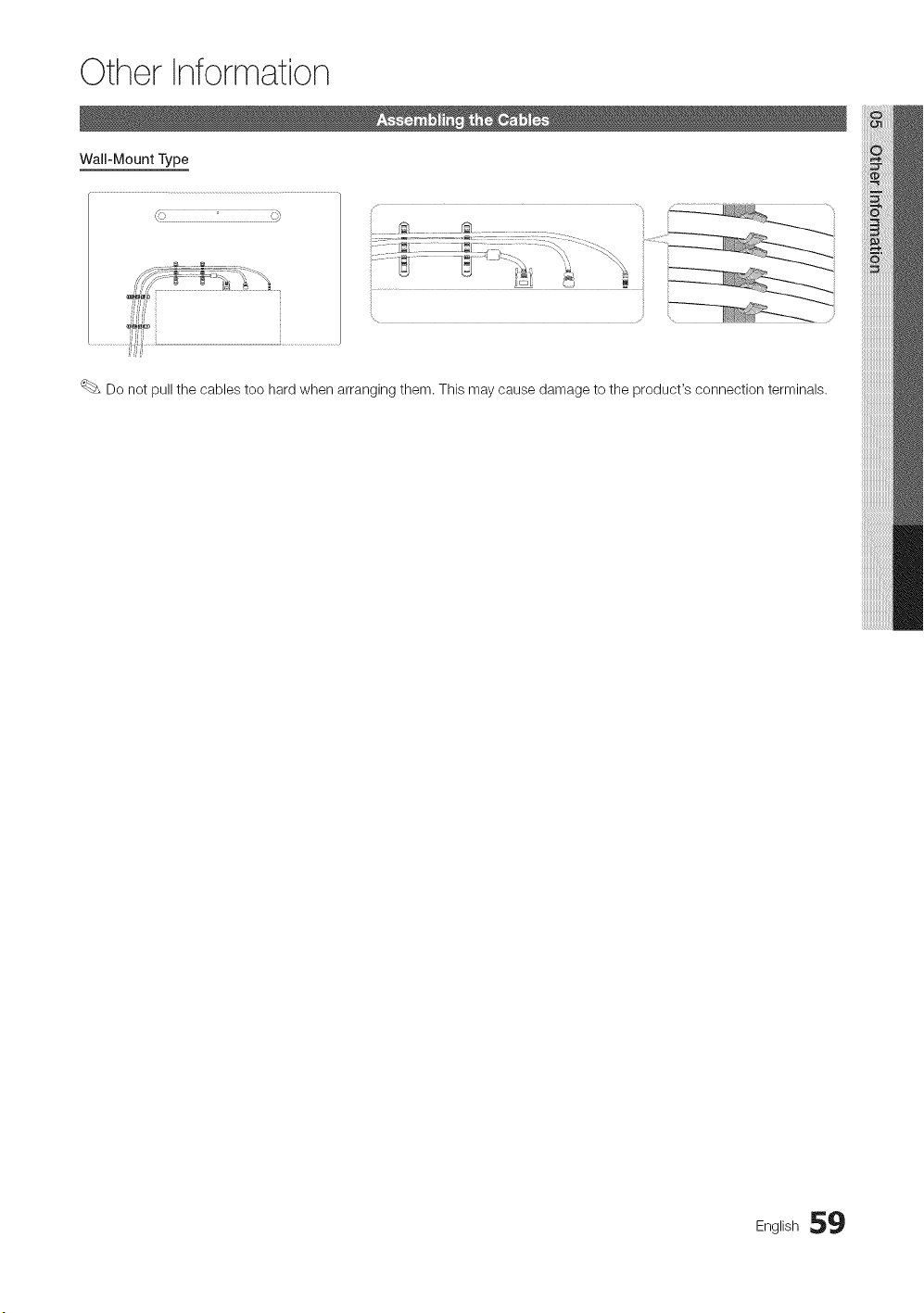
Other Information
Wall-Mount Type
(u! i} i ii
Do not pull the cables too hard when arranging them. This may cause damage to the product's connection terminals,
English 59
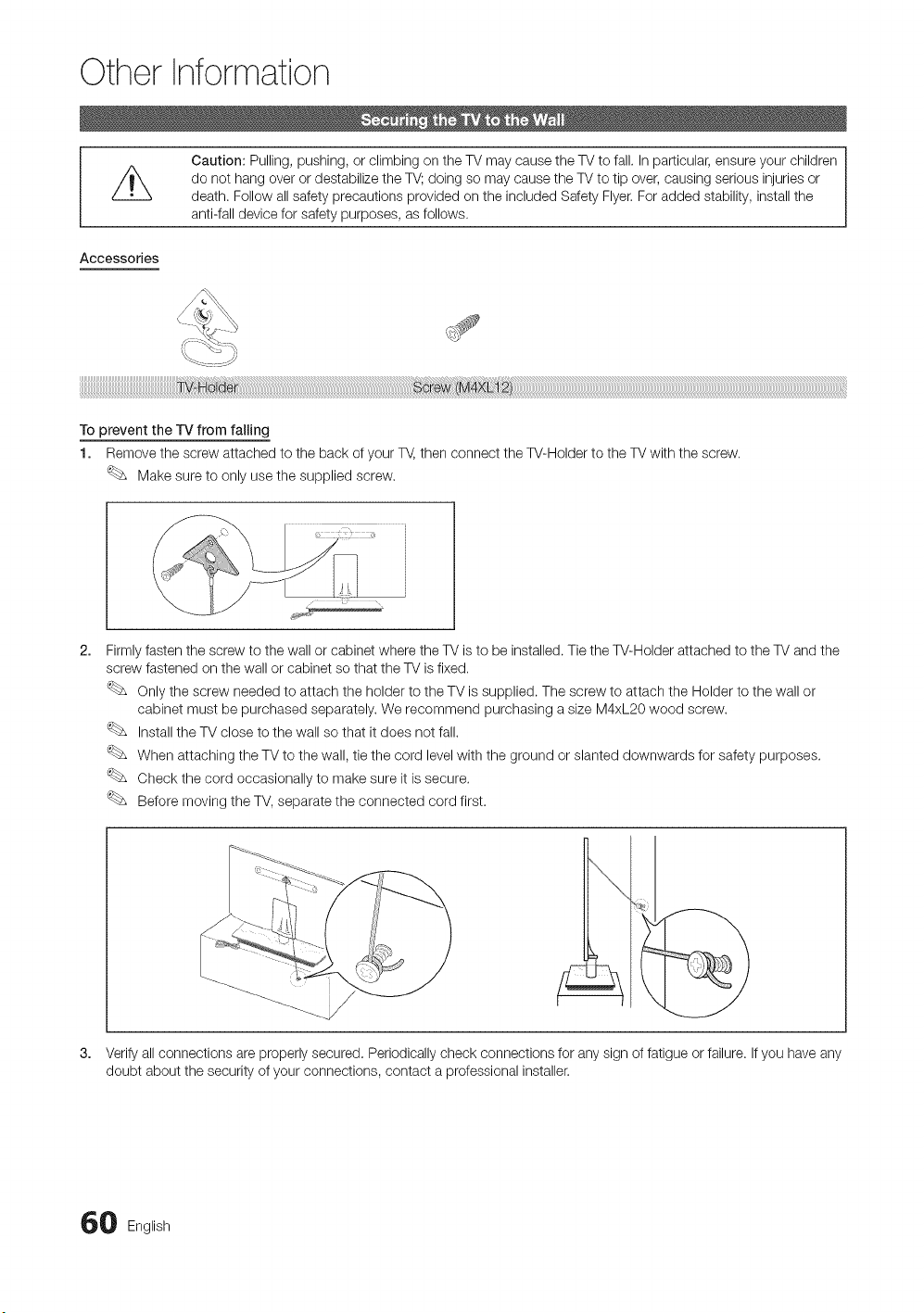
Other Information
Caution: Pulling, pushing, or climbing on the TV may cause the TV to fall. In particular, ensure your children
do not hang over or destabilize the TV; doing so may cause the TV to tip over, causing serious injuries or
death. Follow all safety precautions provided on the included Safety Flyer. For added stability, install the
anti-fall device for safety purposes, as follows.
Accessories
To prevent the TV from falling
1. Remove the screw attached to the back of your T_, then connect the W-Holder to the TV with the screw.
Make sure to only use the supplied screw.
2.
3.
Firmly fasten the screw to the wall or cabinet where the TV is to be installed. Tie the W-Holder attached to the TV and the
screw fastened on the wall or cabinet so that the TV is fixed.
Only the screw needed to attach the holder to the TV is supplied. The screw to attach the Holder to the wall or
cabinet must be purchased separately. We recommend purchasing a size M4xL20 wood screw.
Install the TV close to the wall so that it does not fall.
When attaching the TV to the wall, tie the cord level with the ground or slanted downwards for safety purposes.
Check the cord occasionally to make sure it is secure.
Before moving the TV, separate the connected cord first.
Verify all connections are properly secured. Periodically check connections for any sign of fatigue or failure. If you have any
doubt about the security of your connections, contact a professional installer.
0 English
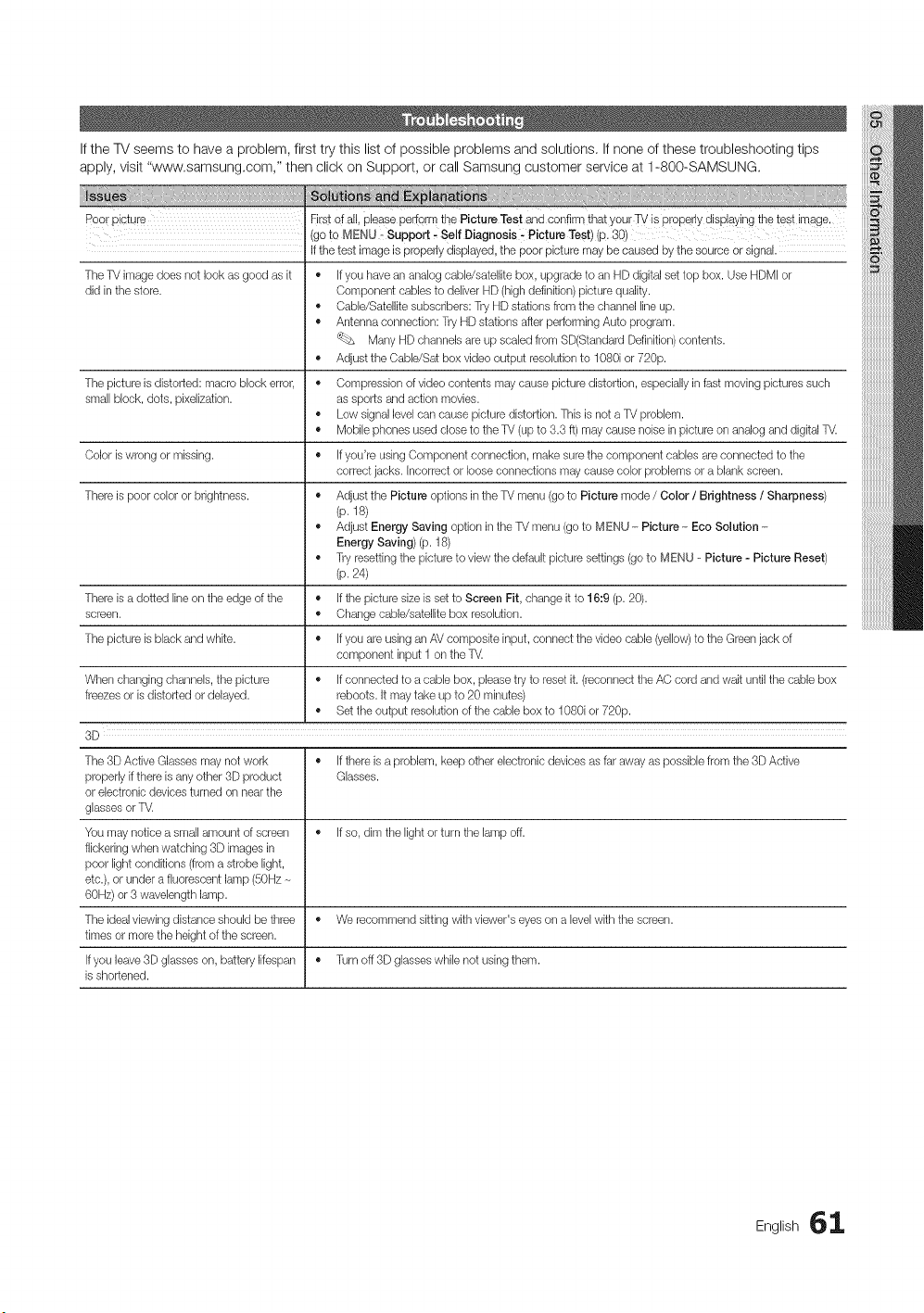
If the TV seems to have a problem, first try this list of possible problems and solutions, If none of these troubleshooting tips
apply, visit "www.samsung.com," then click on Support, or call Samsung customer service at 1-800-SAMSUNG.
Poo! picture Firstof all, Pleaseperform the Picture Test and confirm that your TV is properly displaying the test image.
(go te MENU _ Support, Self Diagnosis - Picture Test) (p. 30)
Ifthe test image is properly displayed, the poor picture may be caused by the source or signal.
The TV image does not look as good as it • Ifyou have an analog cable/satellite box, upgrade to an HD digital set top box. Use HDMI or
did in the store. Component cables to deliver HD (high definition) pbture qualky.
• Cable/Satellite subscribers: Try HD stations from the channel line up.
• Antenna connection: Try HD stations after performing Auto program.
Many HD channels are up scaledfrom SD(Standard Definition)contents.
• Adjust the Cable/Sat box video output resolution to 1080i or 720p.
The picture is distorted: macro block error, • Compression of video contents may cause picture distortion, espedally in fast moving pictures such
small block, dots, pixelization, as sports and action movies.
• Low signal level can cause picture distortion. This is not a TV problem.
• Mobile ptlones used close to the TV (up to 3.3 ft) may cause noise in picture on analog and digital T_
Color iswrong or missing. • Ifyou're using Component connection, make sure the component cables are connected to tile
correct jacks. Incorrect or looseconnections may cause color problems or a blank screen.
There is poor color or brightness. • Adjust the Picture options in the TV menu (go to Picture mode / Color / Brightness / Sharpness)
(p. 18)
• Adjust Energy Saving option in the TV menu (go to MENU - Picture- Eco Solution -
Energy Saving)(p. 18)
• Try resetting the picture to view tlqedefault picture settings (goto MENU - Picture - Picture Reset)
(p. 24)
There isa dotted line on the edge of the • If the picture size is set to Screen Fit, change it to 16:9 (p. 20).
screen. • Change cable/satellite box resolution.
The picture isblack and white. • If you are usingan AV composite input, connect the video cable (yellow)to the Greenjack of
component input 1 on the %(
Wtqenchanging channels, the picture • Ifconnected to a cable box, please try to reset it. (reconnect the AC cord and wait until the cable box
freezes or is distorted or delayed, reboots. It may take up to 20 minutes)
• Set the output resolution of the cable box to 1080i or 720p.
3D
The 3D Active Glasses may not work • If there is a problem, keep other electronic devices as far away as possible from the 3D Active
properly if there is any other 3D product Glasses.
or electronic devices turned on near the
glassesor T_
You may notice a small amount of screen • If so, dim the light or turn the lamp off.
flickering when watching 3D images in
poor light conditions (from a strobe light,
etc.),or under a fluorescent lamp (50Hz
60Hz) or 3 wavelength lamp.
The ideal viewing distance should be three • We recommend sitting with viewer's eyes on a levelwith the screen.
times or more the height of the screen.
Ifyou leave 3D glasseson, battery lifespan • Turn off 3D glasses while not using them.
isshortened.
ng,,sh6::[

Other Information
........................... xxxxxx_i_ _ _ xx _ : _ _ _ _x _ _ _ _ _ _ _ _ii iii _ _
Sound Problem Firstof all, please perform the Sound Test to confirm that your 1_/audio is properly operating.
(go to MENU - Support : Self Diagnosis : Sound Test) (p. 3(})
Ifthe audio is OK, the sound problem may caused by the source or signal.
There is no sound or the sound is too low • Pleasecheck the volume of the device (Cabb/Sat Box, DVD, Blu-ray etc) connected to your T_
at maximum volume.
The picture is good but there is no sound. • Set tile Speaker Select option to rv Speaker in the Sound menu (p. 25).
• If you are usingan external device, make sure tile audio cables are connected to tile correct audio
input jacks on tile T_
• If you are usingall external device, check tile device's audio output option (ex. you may need to
change your cable box's audio option to HDMIwhen you have a HDMI connected to your T_.
• If you are usinga DVI to HDMI cable, a separate audio cable is required.
• If your TV has a headptlone jack, make suretllere is nothing plugged into it.
• Reboot tile connected device by reconnecting tile device's power cable.
The speakers are making an inappropriate • Check cable connections. Make sure a video cable isnot connected to an audio input.
noise. • For antenna or Cable connections, check the signal strength. Low signal levelmay cause sound
distortion.
• Perform the Sound Test as explained above.
No Picture, No Video
The TV won't turn on. • Make sure the AC power cord is securely plugged in to the wall outlet and the T_
• Make sure the wall outlet is working.
• Try pressing the POWER button on the TV to make sure the problem is not the remote. If the TV turns
on, referto "Remote control does not work" below.
The TV turns off automatically. • Ensurethe Sleep Timer is set to Off in the Setup menu (p. 26).
• If your PC is connected to the T_, check your PC power settings.
• Make sure the AC power cord is pBgged in securely to the wall outlet and tile T_
• When watching TV from an antenna or cable connection, the TVwill turn off after 10 - 15 minutes if
there is no signal.
There isno picture/video. • Check cable connections (remove and reconnect all cables connected to the TV and external
devices).
• Set your external device's (Cabb/Sat Box, DVD, Blu-ray etc) video outputs to match the connections
to the TV input. For example, if an external device's output is HDMI, it stlould be connected to an
HDMIinput on the T_
• Make sure your connected devices are powered on.
• Be sure to select tile TV's correct source by pressing tile SOURCE button on tile remote control.
• Reboot the connected device by reconnecting tile device's power cable.
RF(Oabb/Antenna) Connection
The TV is not receiving all channeb. • Make sure the coaxial cable is connected securely.
• Please try Auto Program to add available channeb to the channel list. Go to MENU - Channel -
Auto Program then select Auto and make sure tile correct Cable TV signal type is set in the menu.
There are 3 options (STD, HRC and IRC) (p. 16)
• Verify the Antenna is positioned correctly.
No Caption on digital channeb. • Check Caption Setup menu. Try changing Caption Mode Service1 to OO1 (p. 28).
• Some channeb may not have caption data.
The picture isdistorted: macro block error, • Compression of video contents may cause picture distortion, especiallywith fast moving pictures
small block, dots, pixelization, such as sports and action movies.
• A low signal can cause picture distortion. This is not a TV problem.
PC Connection
A "Mode Not Supported" message • Set your PC's output resolution so it matches the resolutions supported by the TV (p. 14).
appears.
"PC" is always shown on the source list, • This is normal; "PC" is always shown on the source list, regardless of whether a PC is connected.
even if a PC is not connected.
The video is OK but there is no audio. • If you are using an HDMI connection, check the audio output setting on your PC.
2 English
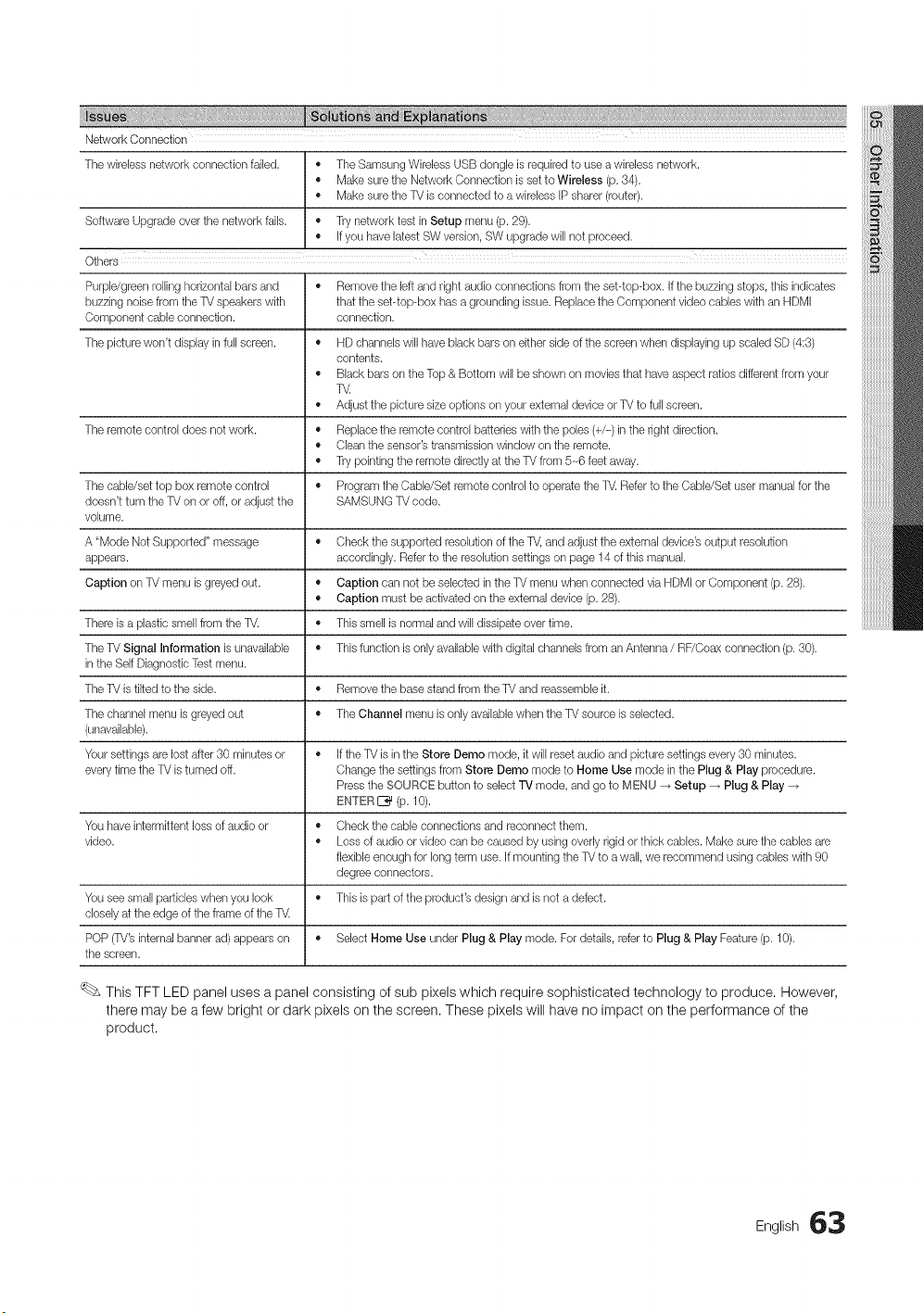
Network Connection
The wireless network connection failed. • The Samsung Wireless USB dongle is required to use a wireless network.
• Make sure tile Network Connection is set to Wireless (p. 34).
• Make sure tile TV is connected to a wireless IP sharer (router).
Software Upgrade over the network falls. • Try network test in Setup menu (p. 29).
• If you have latestSW version, SW upgrade will not proceed.
Others
Purple/green rolling horizontal bars and • Remove the leftand right audio connections from the set-top-box. If the buzzing stops, this indicates
buzzing noise from tile TV speakers with that the set-top-box has a grounding issue. Replace the Component video cables with an HDMI
Component cable connection, connection.
The picture won't display in full screen. • HD channels will have black bars on either side of the screen when displaying up scaled SD (4:3)
contents.
• Black bars on the Top & Bottom will be shown on movies that tlave aspect ratios differentfrom your
T_
• Adjust the picture size options on your external device or TV to full screen.
The remote control does not work. • Replace the remote control batteries with tile poles (+/-) in the right direction.
• Clean the sensor's transmission window on the remote.
• Try pointing tile remote directly at tile TV from 5-_6feet away.
The cable/set top box remote control • Program the Cable/Set remote control to operate the T_ Referto the Cable/Set user manual for the
doesn't turn the TV on or off, or adjust the SAMSUNG TV code.
volume.
A "Mode Not Supported" message • Check the supported resolution of the T_, and adjust the external device's output resolution
appears, accordingly. Referto the resolution settings on page 14 of this manual.
Caption on TV menu is greyed out, • Caption can not be selected inthe TV menu wtlen connected via HDMI or Component (p. 28).
• Caption must be activated on the external device (p. 28).
There isa plastic smell from the TV. • This smell is normal and will dissipate over time.
The Tk/Signal Information is unavailable • This function is only available with digital channels from anAntenna / RF/Coax connection (p. 30).
in the Self Diagnostic Test menu.
The TV is tilted to the side. • Remove the base stand from the TV and reassemble it.
The channel menu is greyed out • The Channel menu is only availablewhen the TV source is selected.
(unavailable).
Your settings are lost after 30 minutes or • Ifthe TV is in the Store Demo mode, it will reset audio and picture settings every 30 minutes.
everytime the TV isturned off. Change the settings from Store Dereo mode to Home Use mode in the Plug & Play procedure.
Pressthe SOURCE button to select TV mode, and go to MENU _ Setup _ Plug & Play
ENTER_ (p. 10).
You have intermittent loss of audio or • Check tile cable connections and reconnect them.
video. • Loss of audio or video can be caused by using overly rigid or thick cables. Make sure tile cables are
flexible enough for long term use. If mounting the TV to a wall, we recommend using cables with 90
degree connectors.
You see small particles when you look • This is part of the product's design and is not a defect.
closelyat the edge of the frame of the T_
POP (TV'sinternal banner ad) appears on • Select Home Use under Plug & Play mode. For details, refer to Plug & Play Feature(p. 10).
the screen.
This TFT LED panel uses a panel consisting of sub pixels which require sophisticated technology to produce. However,
there may be a few bright or dark pixels on the screen. These pixels will have no impact on the performance of the
product.
English 63
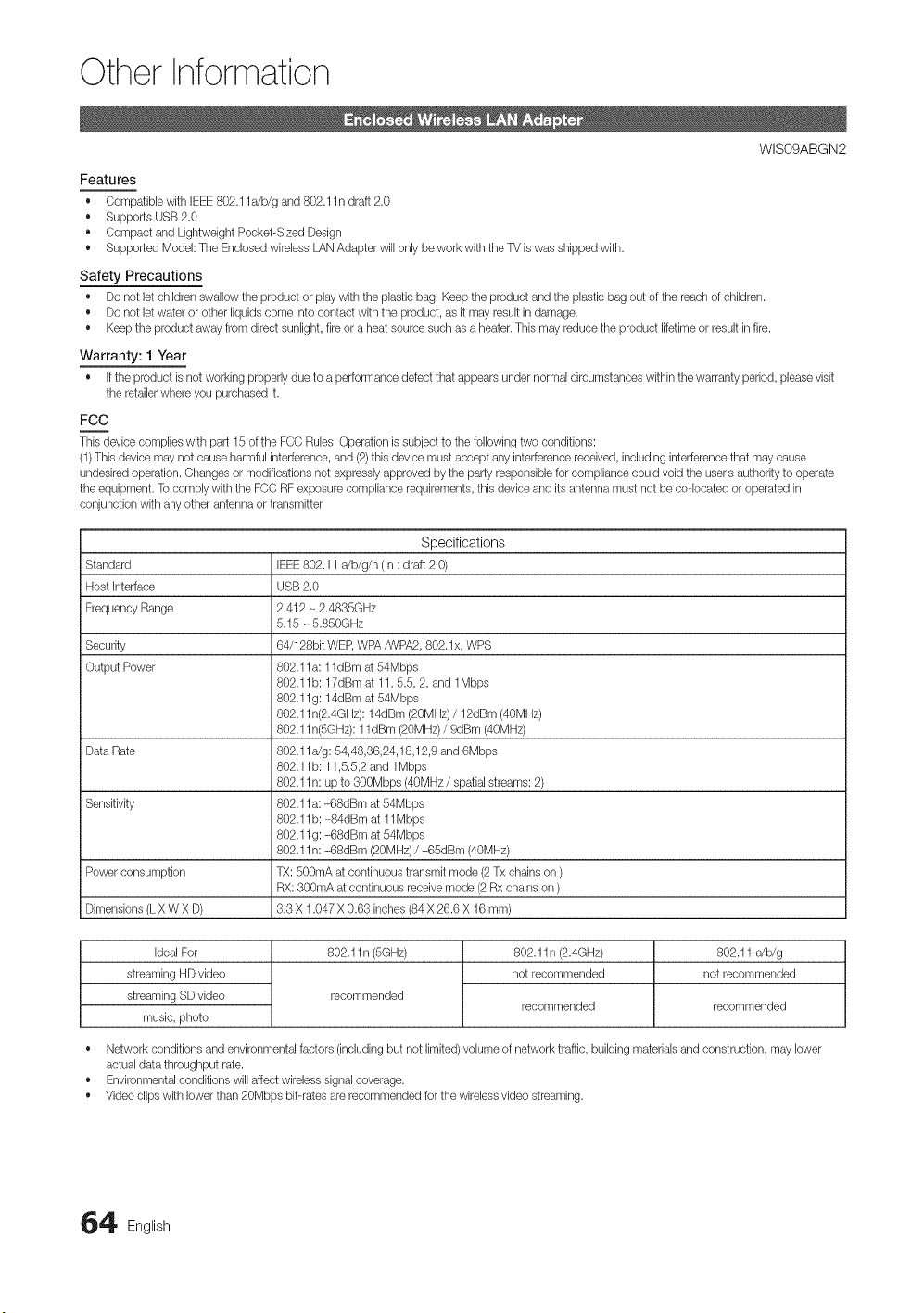
Other Information
WISO9ABGN2
Features
• Compatibb with IEEE802.11Jb/g and 802.11 n draft 2.0
Supports USB2.0
• Compact and Lightweight Pocket-Sized Design
• Supported Model: The Enclosed wireless LANAdapter will only be work with the TV is was shipped with.
Safety Precautions
• Do not let children swallow the product or play with the plastic bag. Keep the product and the plastic bag out of the reach of children.
• Do not letwater or other liquidscome into contact with the product, as it may result in damage.
• Keep the product away from direct sunlight, fire or a heat source such as a heater. This may reduce the product lifetimeor result in fire.
Warranty: 1 Year
• If the product is not working properly due to a performance defect that appears under normal circumstances within the warranty period, please visit
the retailerwhere you purchased it.
FCC
This device complies with part 15 of the FCC Rules. Operation is subiect to the following two conditions:
(1)This device may not cause harmful interference, and (2)this device must accept any interference received, including interference that may cause
undesired operation. Changes or modifications not expressly approved by the party responsible for compliance could void the user's authority to operate
the equipment. To comply with the FCC RF exposure compliance requirements, this device and its antenna must not be co-located or operated in
conjunction with any other antenna or transmitter
Standard
Host Interface
Frequency Range
Security
Output Power
Data Rate
Sensitivity
Power consumption
Dimensions (LX W X D)
Specifications
IEEE802.11 a/b/g/n ( n : draft 2.0)
USB 2.0
2.412 - 2.4835GHz
5.15 - 5.850GHz
64/128bit WEP,WPA/WPA2, 802. lx, WPS
802.1 la: 1 ldBm at 54Mbps
802.11b: 17dBm at 11,5.5, 2, and 1Mbps
802.1 lg: 14dBm at 54Mbps
802.11n(2.4GHz): 14dBm (20MHz) / 12dBm (40MHz)
802.11n(SGHz): 1l dBm (20MHz) / 9dBm (40MHz)
802.11rig: 54,48,36,24,18,12,9 and 6Mbps
802.11b: 11,5.5,2 and 1Mbps
802.11n: up to 300Mbps (40MHz / spatialstreams: 2)
802.1 la: -68dBm at 54Mbps
802.11b: -84dBm at 11Mbps
802.1 lg: -68dBm at 54Mbps
802.11n: -68dBm (20MHz)/ -65dBm (40MHz)
TX: 500mA at continuous transmit mode (2 Tx chains on )
RX: 300mA at continuous receive mode (2 Rx chains on )
3.3 X 1.047 X 0.63 inches (84 X 26.6 X 16 mm)
Ideal For
streaming HD video
streaming SD video
music, photo
802.11 n (5GHz)
recommended
802.11n (2.4GHz)
not recommended
recommended
802.11 a/b/g
not recommended
recommended
• Network conditions and environmental factors (including but not limited)volume of network traffic, buikJing materialsand construction, may lower
actual data throughput rate.
• Environmental conditions will affect wireless signal coverage.
• Video clips with lowerthan 20Mbps bit-rates are recommended for the wireless video streaming.
4 English
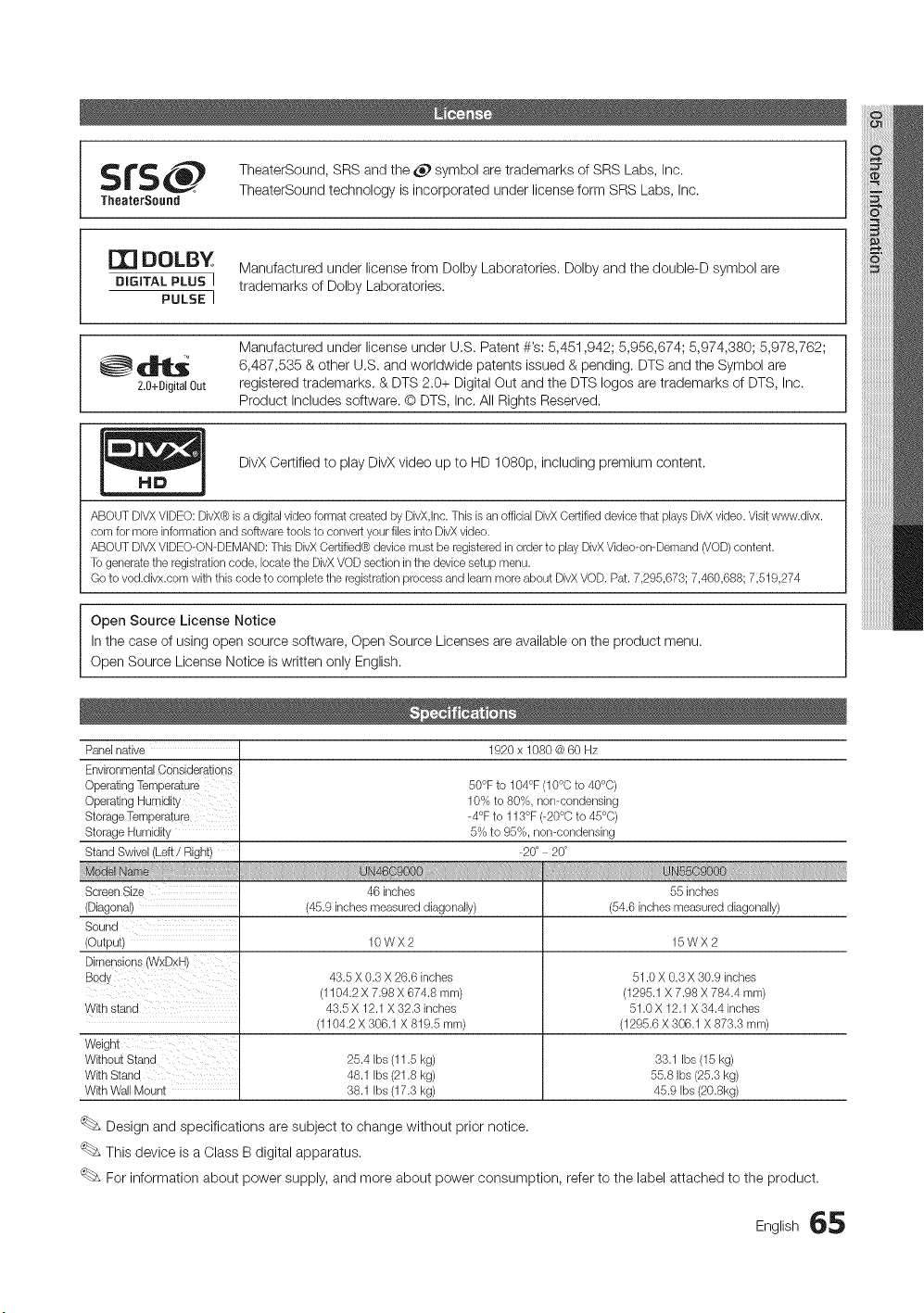
_._ ItS, TheaterSound, SRS and the _ symbol are trademarks of SRS Labs, Inc.
1II
TheaterSound technology is incorporated under license form SRS Labs, Inc.
TheaterSound
m
DOLBY
Manufactured under license from Dolby Laboratories. Dolby and the double-D symbol are
DIGITAL PLUS I trademarks of Dolby Laboratories.
PULSE I
Manufactured under license under U,S. Patent #'s: 5,451,942; 5,956,674; 5,974,380; 5,978,762;
• "_'_ql_ 6,487,535 & other U,S. and worldwide patents issued & pending. DTS and the
Symbol
are
2.0+DigitalOut registered trademarks, & DTS 2.0+ Digital Out and the DTS Iogos are trademarks of DTS, Inc.
Product Includes software. O DTS, Inc. All Rights Reserved,
DivX Certified to play DivX video up to HD 1080p, including premium content.
lid
ABOUT DIVXVDEO: DivX@is a digital video format created by DivX,Inc.This is an official DivXCertified device that plays DivXvideo. Visitwww.divx.
corn for more information and software tools to convert your files into DivXvideo.
ABOUT DIVXVDEO-ON-DEMAND: This DivXCertified@device must be registered in order to play DivXVideo-on-Demand (VOD)content.
To generate the registration code, locate the DivX VOD section in the devicesetup menu.
Go to vod.divx.com with this code to complete the registration process and barn more about DivXVOD. Pat. 7,295,673; 7,460,688; 7,519,274
Open Source License Notice
In the case of using open source software, Open Source Licenses are available on the product menu.
Open Source License Notice is written only English.
Panelnative 1920x 1080 @60 Hz
EnvironmentalGensiderations
OperatingTemperature
Operating Humidity
Storage Temperature
Storage Humidity
Stand Swivel (Left / Right)
50°F to 104°F (10°C to 40°C)
10% to 80%, non-condensing
-4°F to 113°F (-20°C to 45°C)
5% to 95%, non-condensing
_20° _ 20°
46 inches
(45.9 inches measured diagonally)
Screen Size
(Diagonal)
(Output) 10 W X 2 15 W X 2
43.5 X 0.3 X 26.6 inches 51.0 X 0.3 X 30.9 inches
(1104.2 X 7.98 X 674.8 mm) (1295.1 X 7.98 X 784.4 mm)
Withstand 43.5 X 12.1X 32.3 inches 51.0 X 12.1X 34.4 inches
(1104.2 X 306.1 X 819.5 mm) (1295.6 X 306.1 X 873.3 mm)
Weight
Without Stand 25.4 Ibs (11.5 kg) 33.1 Ibs (15 kg)
With Stand 48.1 Ibs (21.8 kg) 55.8 Ibs (25.3 kg)
With Wall Mount 38.1 Ibs (17.3 kg) 45.9 Ibs (20.8kg)
55 inches
(54.6 inches measured diagonally)
Design and specifications are subject to change without prior notice.
This device is a Class B digital apparatus.
For information about power supply, and more about power consumption, refer to the label attached to the product.
English 65
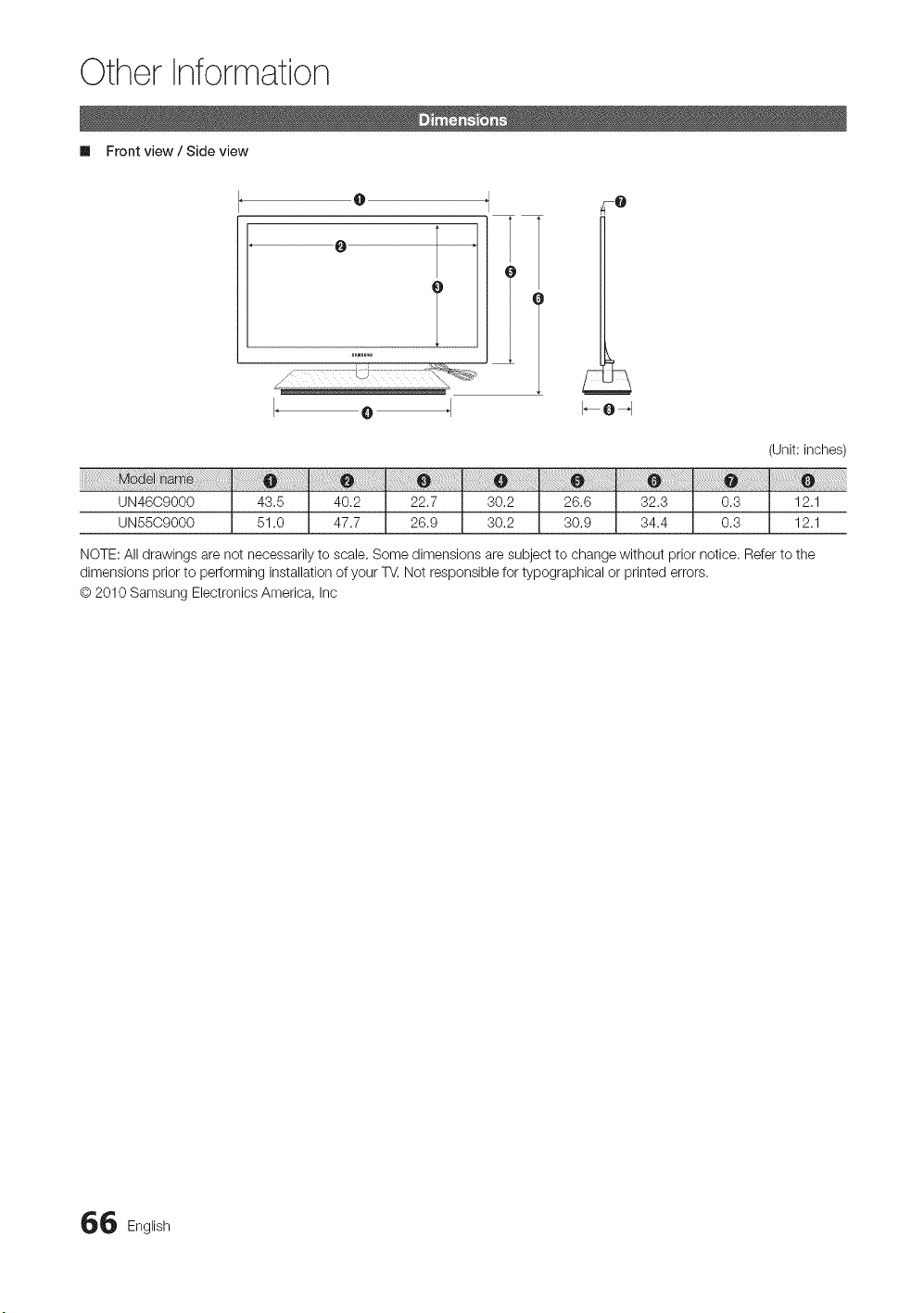
Other Information
Im Front view / Side view
@
O
T
T
O
4-0
(Unit: inches)
12.1
12.1
NOTE: All drawings are not necessarily to scale. Some dimensions are subject to change without prior notice. Refer to the
dimensions prior to performing installation of your T_. Not responsible for typographical or printed errors.
@ 2010 Samsung Electronics America, Inc
6 English
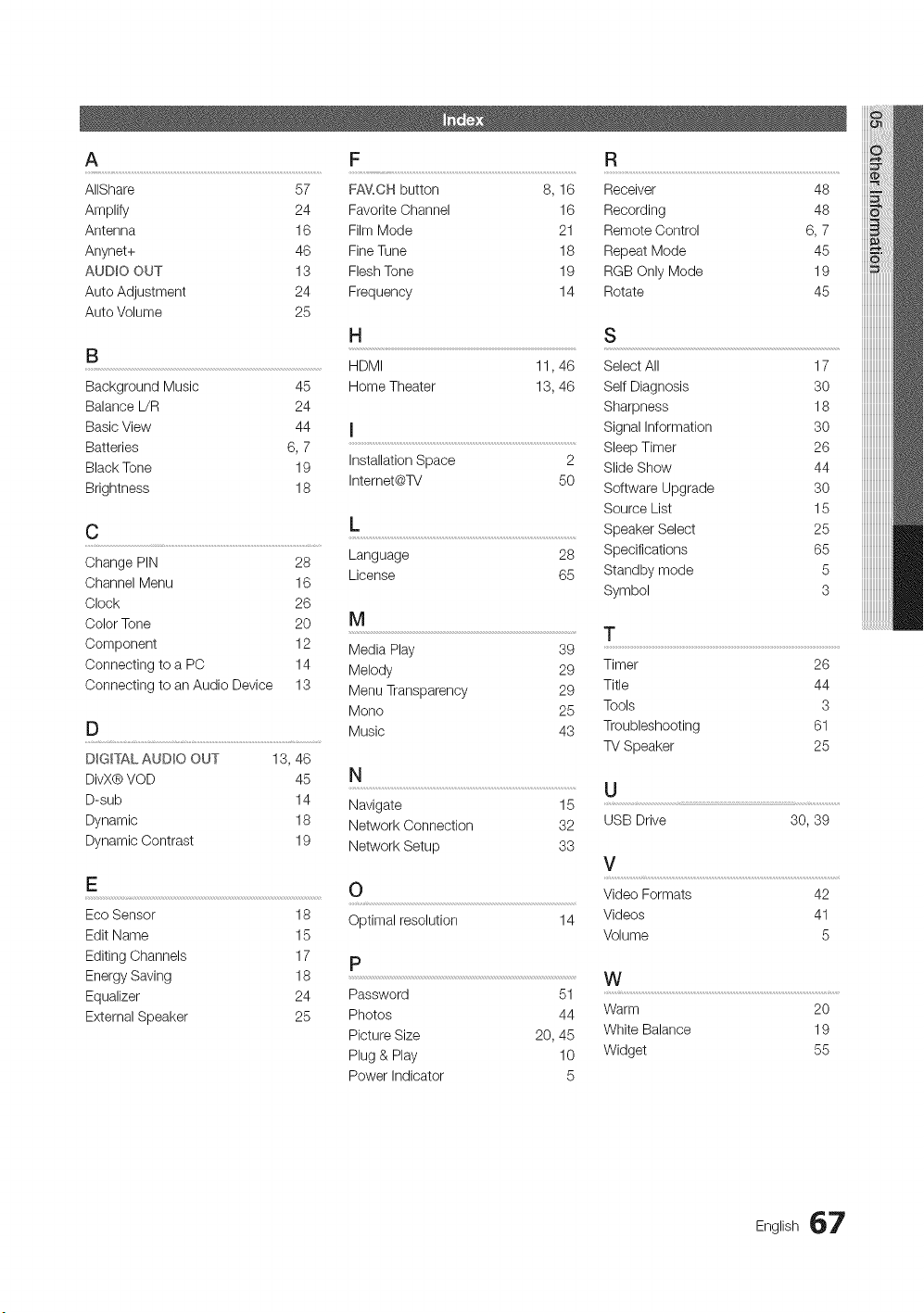
A F R
AIIShare 57 FAV,CH button 8, 16 Receiver 48
Amplify 24 Favorite Channel 16 Recording 48
Antenna 16 Film Mode 21 Remote Control 6, 7
Anynet+ 46 Fine Tune 18 Repeat Mode 45
AVD_O OVT 13 Flesh Tone 19 RGB Only Mode 19
Auto Adjustment 24 Frequency 14 Rotate 45
Auto Volume 25
B
Background Music 45
Balance L/R 24
Basic View 44
Batteries 6, 7
Black Tone 19
Brightness 18
C
Change PIN 28
Channel Menu 16
Clock 26
Color Tone 20
Component 12
Connecting to a PC 14
Connecting to an Audio Device 13
D
DIGITAL AVDIO OUT 13, 46
DivX@VOD 45
D-sub 14
Dynamic 18
Dynamic Contrast 19
E
H
HDMI 11,46
Home Theater 13, 46
I
Installation Space 2
Internet@TV 50
L
Language 28
License 65
S
Select All 17
Self Diagnosis 30
Sharpness 18
Signal Information 30
Sleep Timer 26
Slide Show 44
Software Upgrade 30
Source List 15
Speaker Select 25
Specifications 65
Standby mode 5
Symbol 3
N
Navigate 15
Network Connection 32
Network Setup 33
O
Optimal resolution
P
Eco Sensor 18
Edit Name 15
Editing Channels 17
Energy Saving 18
Equalizer 24
External Speaker 25
14
Password 51
Photos 44
Picture Size 20, 45
Plug & Play 10
Power Indicator 5
U
USB Drive
30,39
V
Video Formats 42
Videos 41
Volume 5
W
Warm 20
White Balance 19
Widget 55
iiiiiiiiiiiiiiiiiiii
iiiiiiiiiiiiiiiiiiii
English 67
Other Information
FCC Compliance Statement
This device complies with part 15 of the FCC Rules. Operation is subject to the following two conditions:
(1) This device may not cause harmful interference, and (2) this device must accept any interference received, including
interference that may cause undesired operation.
interference
This equipment has been tested and found to comply with the limits for a Class B digital device, pursuant to Part 15 of the
FCC Rules. These limits are designed to provide reasonable protection against harmful interference in a residential installation.
This equipment generates, uses and can radiate radio frequency energy and, if not installed and used in accordance with the
instructions, may cause harmful interference to radio communications. However, there is no guarantee that interference will
not occur in a particular installation. If this equipment does cause harmful interference to radio or television reception, which
can be determined by turning the equipment off and on, the user is encouraged to try to correct the interference by one of the
following measures:
• Reorient or relocate the receiving antenna.
• Increase the separation between the equipment and receiver.
• Connect the equipment into an outlet on a circuit different from that to which the receiver is connected.
• Consult the dealer or an experienced radio/TV technician for help.
Wireless Radio
For product available in the USA/Canada market, only channel 1-11 can be operated. Selection of other channels is not
possible. This device is going to be operated in 5.15-5.25GHz frequency range, it is restricted in indoor environment only,
important: Changes or modifications not expressly approved by the party responsible for compliance could void the user's
authority to operate the equipment.
FCC Radiation Exposure Statement: This equipment complies with FCC radiation exposure limits set forth for an
uncontrolled environment. This equipment should be installed and operated with minimum distance 20cm between the radiator
& your body.
industry Canada Statement
This Class B digital apparatus complies with Canadian ICES-003.
Cet appareil numerique de la classe Best conforme a la norme NMB-003 du Canada,
Operation is subject to the following two conditions:
(1) This device may not cause harmful interference, and (2) this device must accept any interference received, including
interference that may cause undesired operation.
This device and its atenna(s) must not be colocated or operation in conjunction with any other antenna or transmitter.
Wireless Radio
For product available in the USA/Canada market, only channel 1-11 can be operated. Selection of other channels is not
possible,
The device could automatically discontinue transmission in case of absence of information to transmit, or operational failure.
Note that this is not intended to prohibit transmission of control or signaling information or the use of repetitive codes where
required by the technology,
important: Changes or modifications not expressly approved by the party responsible for compliance could void the user's
authority to operate the equipment.
IC Radiation Exposure Statement: This equipment complies with IC RSS-102 radiation exposure limits set forth for an
uncontrolled environment. This equipment should be installed and operated with minimum distance 20cm between the radiator
& your body.
8 English
Contact SAMSUNG WORLDWIDE
If you have any questions or comments relating to Samsung products, please contact the SAMSUNG customer care center.
Comment contacter Samsung darts le monde
Si vous avez des suggestions ou des questions concernant les produits Samsung, veuillez contacter le Service Consommateurs
Samsung.
Comuniquese con SAMSUNG WORLDWIDE
Si desea formular alguna pregunta o comentario en relacion con los productos de Samsung, comuniquese con el centro de
atencion al cliente de SAMSUNG.
r=.
m
.-4
<
B
CANADA 1-800-SAMSUNG (726-7864) w_!w.samsung.com Samsung Electronics Canada Inc., Customer Service
55 Standish Court Mississauga, Ontario L5R 4B2
Canada
U.S.A 1-800-SAMSUNG (726-7864) w_!w.samsung.com Samsung Electronics America, Inc. 105 Challenger
Road Ridgefield Park, NJ 07660-0511
© 2010 Samsung Electronics Co., Ltd. All rights reserved.
BN68-02833A-01
Z
imagine the possibilities
Thank you for purchasing this Samsung product.
To receive more comblete service, please reg ster
your product at
www.samsung.com!register
Mode Serial No.
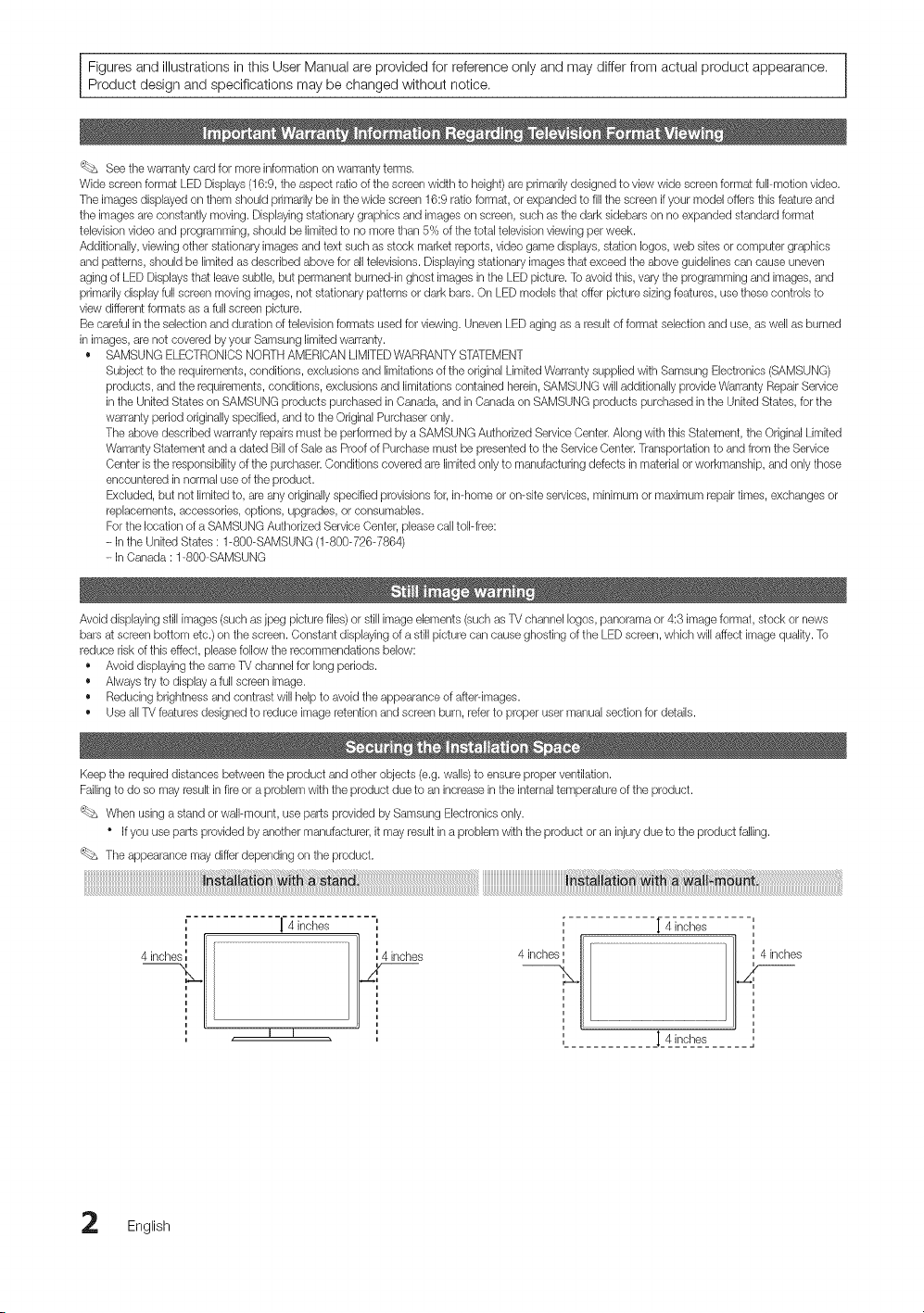
Figures and illustrations in this User Manual are provided for reference only and may differ from actual product appearance.
Product design and specifications may be changed without notice.
'_bs See the warranty card for more information on warranty terms.
Wide screen format LED Displays (16:9, the aspect ratio of the screen width to height) are primarily designed to view wide screen format full-motion video.
The images displayedon them should primarily be in the wide screen 16:9 ratio format, or expanded to fill the screen if your model offers this feature and
the images are constantly moving. Displaying stationary graphics and images on screen, such asthe dark sidebars on no expanded standard format
television video and programming, should be limited to no more than 5% of the total television viewing per week.
Additionally, viewing other stationary images and text such as stock market reports, video game displays, station Iogos, web sites or computer graphics
and patterns, should be limited as described above for all televisions. Displaying stationary images that exceed the above guidelines can cause uneven
aging of LED Displays that leave subtle, but permanent burned-in ghost images in the LED picture. To avoid this, vary the programming and images, and
primarily display full screen moving images, not stationary patterns or dark bars. On LED models that offer picture sizing features, use these controls to
view different formats as a full screen picture.
Be careful in the selection and duration of television formats used for viewing. Uneven LEDaging as a result of format selection and use, as well as burned
in images, are not covered by your Samsung limited warranty.
• SAMSUNG ELECTRONICSNORTH AMERICAN LIMITEDWARRANTY STATEMENT
Subject to the requirements, conditions, exclusions and limitations of the original Limited Warranty supplied with Samsung Electronics (SAMSUNG)
products, and the requirements, conditions, exclusions and limitations contained herein, SAMSUNG will additionally provide Warranty RepairService
in the United States on SAMSUNG products purchased in Canada, and in Canada on SAMSUNG products purchased in the United States, for the
warranty period originally specified, and to the Original Purchaser only.
The above described warranty repairs must be performed by a SAMSUNG Authorized Service Center.Along with this Statement, the Original Limited
Warranty Statement and a dated Bill of Sale as Proof of Purchase must be presented to the Service Center.Transportation to and from the Service
Center isthe responsibility of the purchaser.Conditions covered are limited only to manufacturing defects in material or workmanship, and only those
encountered in normal use of the product.
Excluded, but not limited to, are any originally specified provisions for, in-home or on-site services, minimum or maximum repair times, exchanges or
replacements, accessories, options, upgrades, or consumables.
For the location of a SAMSUNG Authorized Service Center, please call toll-ffee:
- in the United States : 1-800-SAMSUNG (1-800-726-7864)
- in Canada : 1-800-SAMSUNG
Avoid displaying still images (such asjpeg picture files)or still image elements (such as TV channel Iogos, panorama or 4:3 image format, stock or news
bars at screen bottom etc.) on the screen. Constant displaying of a still picture can cause ghosting of the LED screen, which will affect image quality. To
reduce risk of this effect, please follow the recommendations below:
• Avoid displaying the same TV channel for long periods.
• Always try to display a full screen image.
• Reducing brightness and contrast will help to avoid the appearance of affepimages.
• Use all TV features designed to reduce image retention and screen burn, refer to proper user manual section for details.
Keep the required distances between the product and other objects (e.g. walls)to ensure proper ventilation.
Failingto do so may result in fire or a problem with the product due to an increase in the internal temperature of the product.
'_bs When using a stand or wall-mount, use parts provided W Samsung Electronics only.
Ifyou use parts provided by another manutacturer, it may result in a problem with the product or an injurydue to the product falling.
The appearance may differ depending on the product.
', "!"4 incises
,,
t
4 inche inches
m m
[ 4 inches -',
4 inches
j_4__,_L___......
English

Contents
• List of Features ......................................................... 4
• Accessories .............................................................. 4
• Viewing the Control Panel ......................................... 5
• Mini Remote Control ................................................. 6
• Viewing the Touch remote ......................................... 7
• Connecting to an Antenna ...................................... 10
• Plug & Play (Initial Setup) ......................................... 10
• Connecting to an AV Device .................................... 11
• Connecting to an Audio Device ............................... 13
• Connecting to a PC ................................................ 14
• Changing the Input Source ..................................... 15
• How to Navigate Menus .......................................... 15
• Channel Menu ........................................................ 16
Seeing Channels 16
Using Favorite Channels 16
MemorizingChannels 16
Editing Channels 17
Other Features 17
• Picture Menu .......................................................... 18
Changing the Preset Picture Mode
Adjusting Picture Settings
EconomicalSolutions
Changing the Picture Options
Viewing TV using the 3D function
Setting up the TV with Your PC
18
18
18
19
21
24
• Sound Menu ........................................................... 24
Changing the Preset Sound Mode 24
Adjusting Sound Settings 24
Sound Settings 25
• Setup Menu ............................................................ 26
Setting the Time 26
Using the Sleep Timer 26
Setting the On / OffTimer 26
Locking Programs 27
Other Features 28
• Support Menu ......................................................... 30
• Network Connection ............................................... 32
Connecting to a Wired Network 32
Connecting to a Wireless Network 34
• Media Play.............................................................. 39
Connecting a USB Device 39
Connecting to your PC through a network 39
Screen Display 41
Playing Multiple Files 44
Media Play - Additional Functions 44
• Anynet+ .................................................................. 46
Setting Up Anynet+ 47
Switching between Anynet+ Devices 47
Recording 48
Listening through a Receiver 48
Troubbshooting for Anynet+ 49
• Internet@TV ............................................................ 50
Getting Started with Internet@TV 50
Setting up Internet@TV 51
Using the Internet@TVservice 53
PROFILEWidget 55
Widget Gallery 55
Troubbshooting for Intemet@TV 56
HelpWebsite 56
AIIShare .................................................................. 57
About AlIShare 57
Setting Up AlIShare 57
• Assembling the Cables ........................................... 59
• Securing the TV to the Wall ..................................... 60
• Troubleshooting ...................................................... 61
• Enclosed Wireless LAN Adapter .............................. 64
• License ................................................................... 65
• Specifications ......................................................... 65
• Dimensions ............................................................. 66
• Index ...................................................................... 67
• Regulatory Compliance Information ......................... 68
This function can be used by pressing the
TOOLS button on the remote control.
Check the Symbol!
Note
Indicatesadditionalinformation.
®
Step by Step Guide
Check here for instructions on how to open
the rebvant submenu within the OSD (on
screen display).
English 3
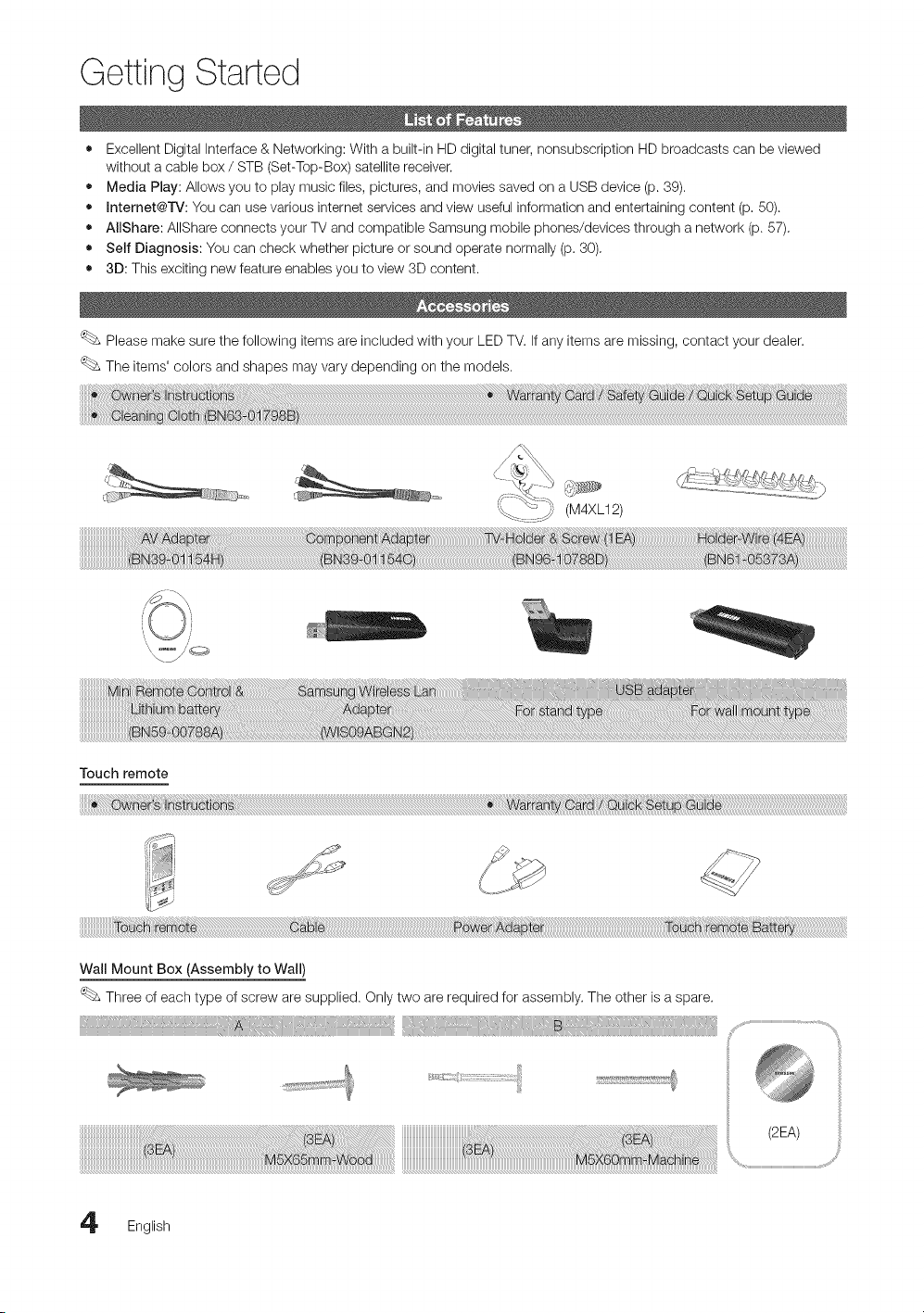
Getting Started
• Excellent Digital Interface & Networking: With a built-in HD digital tuner, nonsubscription HD broadcasts can be viewed
without a cable box / STB (Set-Top-Box) satellite receiver.
• Media Play: Allows you to play music files, pictures, and movies saved on a USB device (p. 89).
• Internet@l%_: You can use various internet services and view useful information and entertaining content (p, 50).
• AliShare: AIIShare connects your TV and compatible Samsung mobile phones/devices through a network (p. 57),
• Self Diagnosis: You can check whether picture or sound operate normally (p. 30),
• 3D: This exciting new feature enables you to view 3D content.
Please make sure the following items are included with your LED TV. if any items are missing, contact your dealer.
The items' colors and shapes may vary depending on the models.
Touch remote
W rd
iiiiiiiiiiiiiiiiiiiiiiiiiiiiiiiiiiiiiiiiiiiiiiii@_!@i_ii_!_i_ii_!!i!!i!!i!!i!!i!!i!!i!!i!!i!!i!!i!!i!!i!!i!!i!!i!!i!!i!!i!!i!!i!!i!!i!!i!!i!!i!!i!!i!!i!!i!!i!!i!!i!!i!!i!!i!!i!!i!!i!!i!!i!!i!!i!!i!!i!!i!!i!!i!!i!!i!!i!!i!!i!!i!!i!!i!!i!!i!!i!!i!!i!!i!!i!!i!!i!!i!!i!!i_!i!_!@_i_i_i_i__i_i_i_i_i_i_i_i_i_i_i_i_i_i_i_i_i_i_i_i_i_i_i_i_i_i_i_i_i_i_i_i_i_i_i_i_i_i_i_i_i_i_i_i_i_i_i_i_i_i_i_i_i_i_i_i_i_i_i_i_i_i_i_i_i_i_i_i_i_i_i_i_i_i_i_i_i_i_i_i_i_i_i_i_i_i_i_i_i_i_i_i_!_@!!i!i_!_i_!_z!_z!iz!iz!iz!iz!iz!iz!iz!iz!iz!iz!iz!iz!iz!iz!iz!iz!iz!iz!iz!iz!iz!iz!iz!iz!iz!iz!iz!iz!iz!iz!iz!iz!iz!iz!iz!iz!iz!iz!iz!iz!iz!iz!iz!iz!iz!iz!iz!iz!iz!iz!iz!iz!iz!iz!iz!iz!iz!iz!iz!iz!iz!iz!iz!iz!iz!iz!iz!iz!iz!iz!iz!iz!iz!iz!iz!iz!iz!iz!iz!iz!iz!iz!iz!iz!iz!iz!iz!iz!i_ii@_i_!i_!i_!i_,_i__i_@!!!@i!_i!_i!_i!_i!_i!_i!_i!_i!_i!_i!_i!_i!_i!_i!_i!_i!_i!_i!_i!_i!_i!_i!_i!_i!_i!_i!_i!_i!_i!_i!_i!_i!_i!_i!_!_!!i_I!
Wall Mount Box (Assembly to Wall)
Three of each type of screw are supplied. Only two are required for assembly. The other is a spare.
(2EA)
English
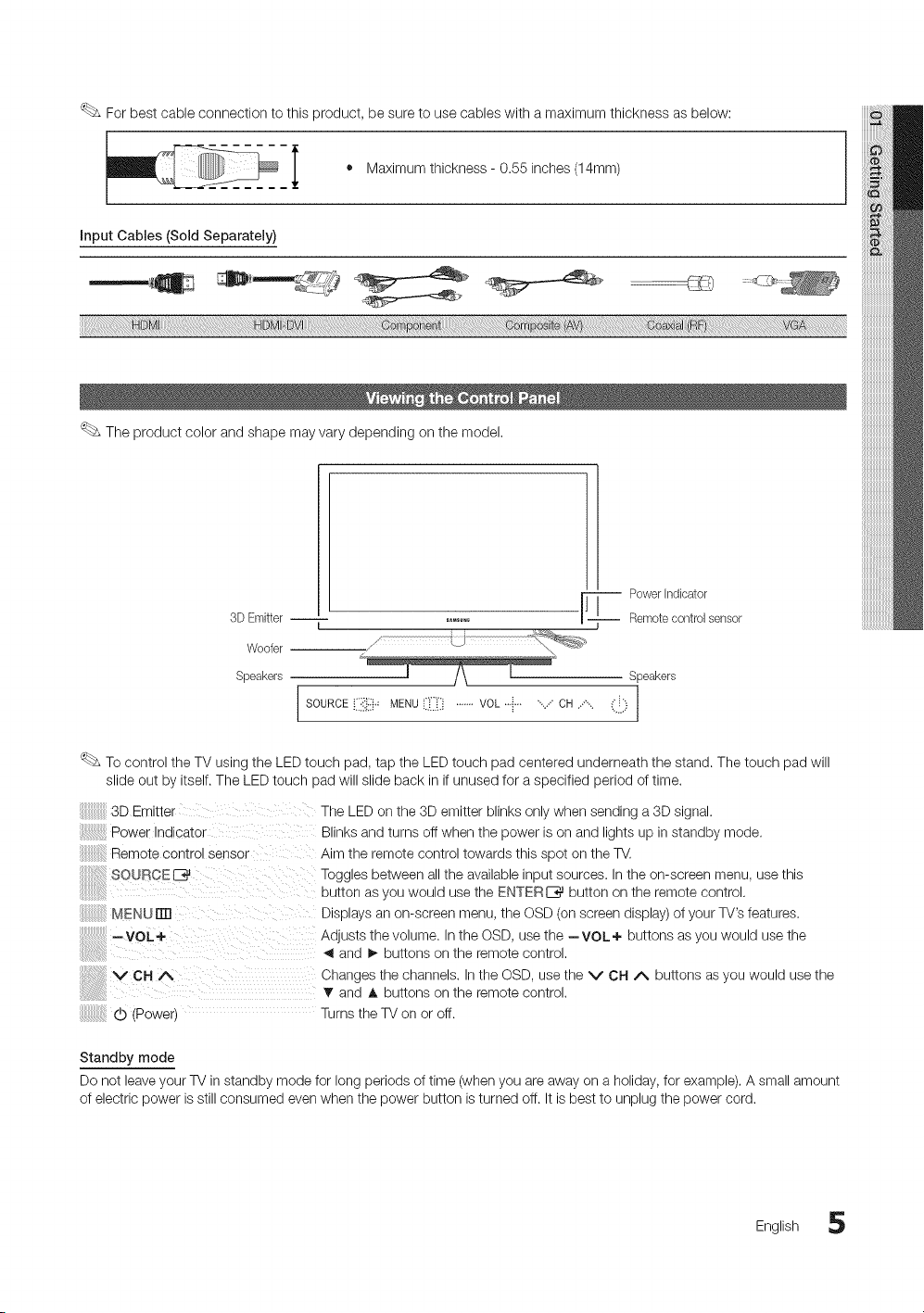
Forbestcableconnectiontothisproduct,besuretousecableswithamaximumthicknessasbelow:
_ i • Maximumthickness-0.55inches
(14mm)
input Cables (Sold Separately)
i ,,n m v
The product color and shape may vary depending on the model.
3D Emitter --
Woofer
Speakers
F
Power indicator
Remote control sensor
Speakers
I f
1 I
To control the TV using the LED touch pad, tap the LED touch pad centered underneath the stand. The touch pad will
slide out by itself. The LED touch pad will slide back in if unused for a specified period of time.
3D Emitter
Power Indicator
Remote control eenso-
SOURCEE_
MENU rrrl
--VOL+
VCHA
The LED on the 3D emitter blinks only when sending a 3D signal.
Blinks and turns off when the power is on and lights up in standby mode.
Aim the remote control towards this spot on the TV.
Toggles between all the available input sources. In the on-screen menu, use this
button as you would use the ENTERE_ button on the remote control.
Displays an on-screen menu, the OSD (on screen display) of your TV's features.
Adjusts the volume. In the OSD, use the --VOL+ buttons as you would use the
and !_ buttons on the remote control.
Changes the channels. In the OSD, use the V CH A buttons as you would use the
T and A buttons on the remote control.
(b (Power) Turns the TV on or off.
Standby mode
Do not leave your TV in standby mode for long periods of time (when you are away on a holiday, for example). A small amount
of electric power is still consumed even when the power button is turned off. It is best to unplug the power cord.
English 5
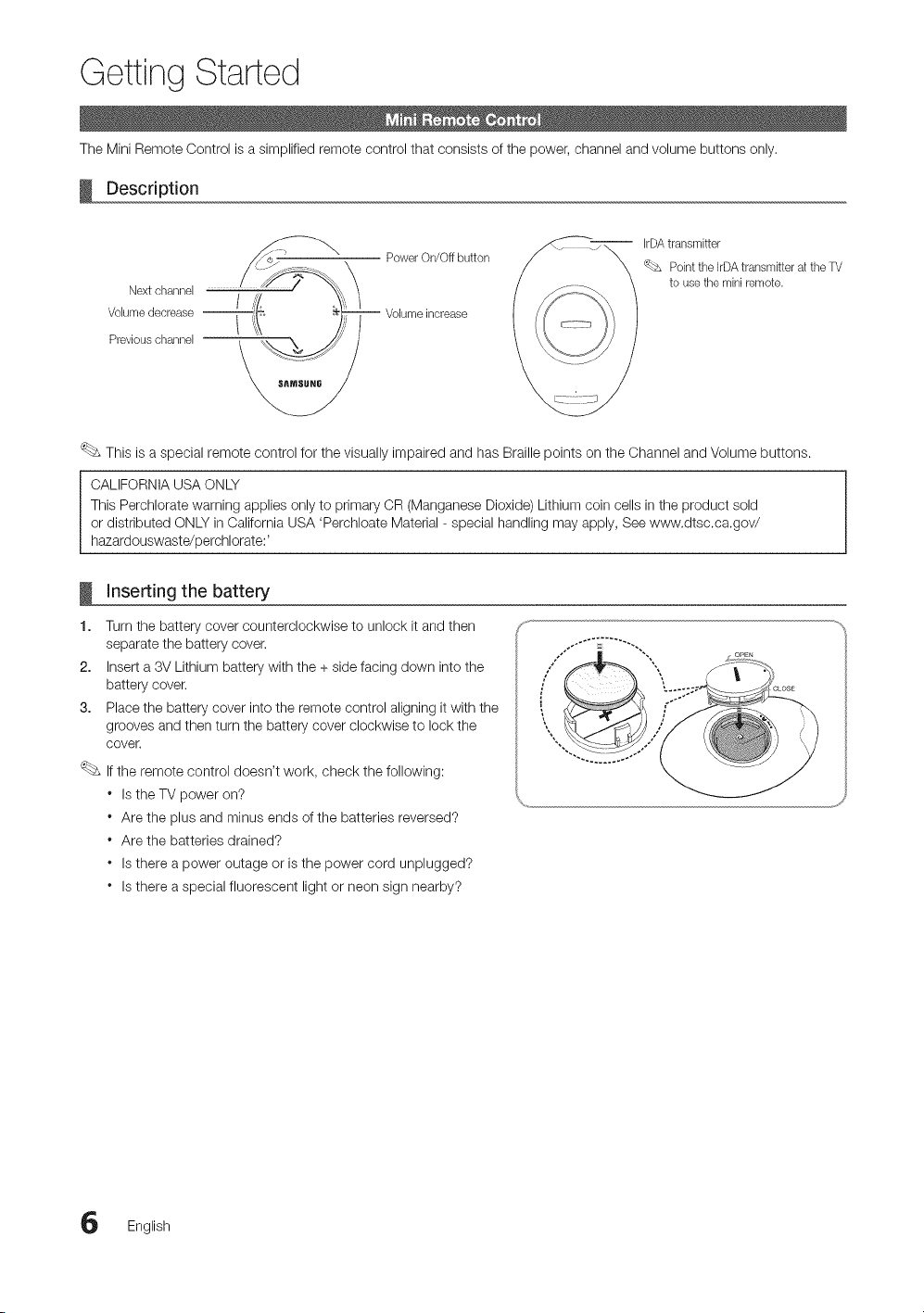
Getting Started
The Mini Remote Control is a simplified remote control that consists of the power, channel and volume buttons only,
Description
Next channel
Volumedecrease --
Previouschannel
Power OrVOff button
Volume increase
IrDA transmitter
'_bs Point tile IrDA transmitter at tile TV
to use tile mini remote.
This is a special remote control for the visually impaired and has Braille points on the Channel and Volume buttons.
CALIFORNIA USA ONLY
This Perchlorate warning applies only to primary OR (Manganese Dioxide) Lithium coin cells in the product sold
or distributed ONLY in California USA 'Perchloate Material - special handling may apply, See www.dtsc.ca.gov/
hazardouswaste/perchiorate:'
Inserting the battery
!
1. Turn the battery cover counterclockwise to unlock it and then
separate the battery cover.
2. Insert a 3V Lithium battery with the + side facing down into the
battery cover.
3. Place the battery cover into the remote control aligning it with the
grooves and then turn the battery cover clockwise to lock the
cover.
If the remote control doesn't work, check the following:
* Is the TV power on?
* Are the plus and minus ends of the batteries reversed?
* Are the batteries drained?
* Is there a power outage or is the power cord unplugged?
* Is there a special fluorescent light or neon sign nearby?
G English
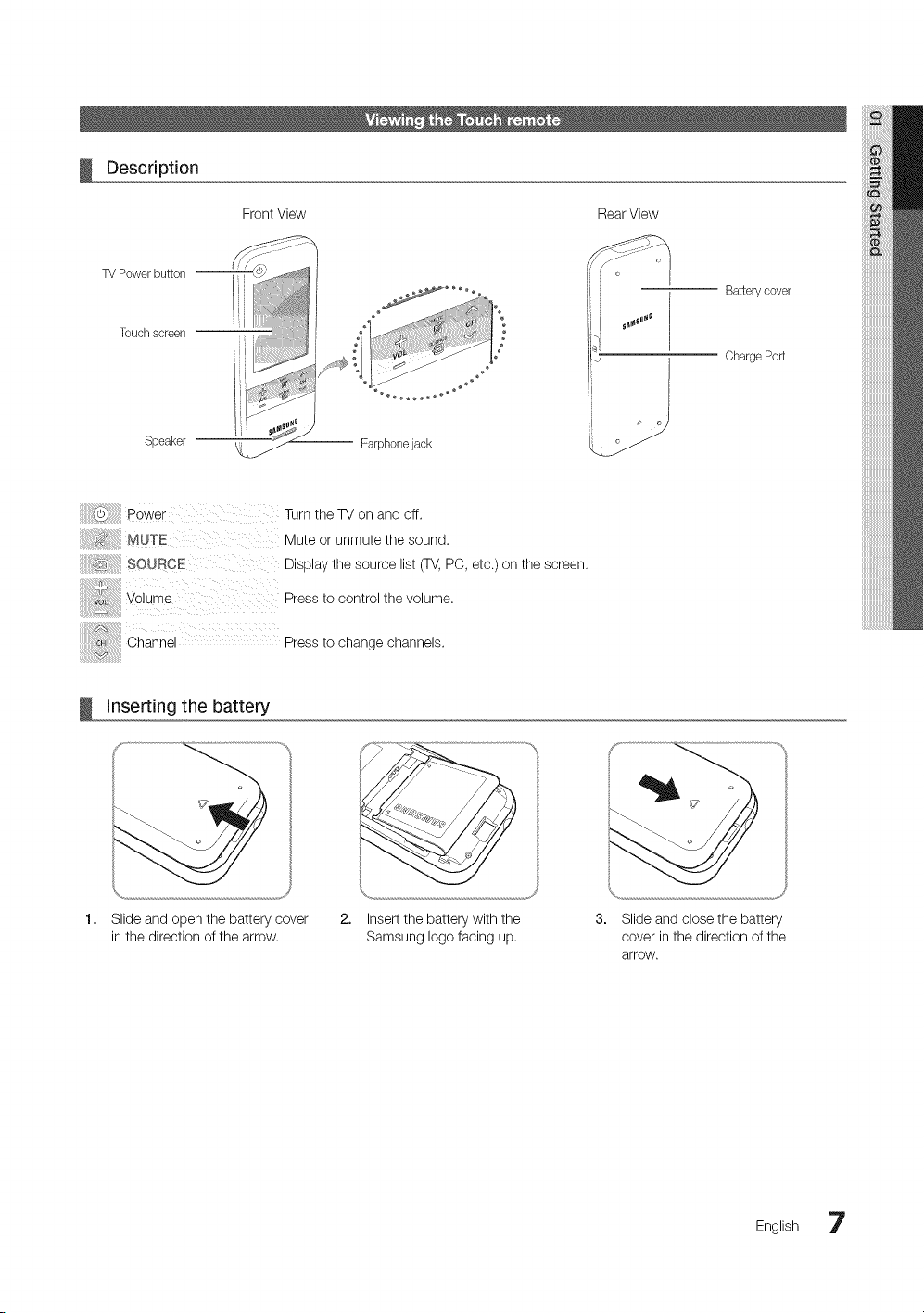
Description
Front View RearView
TV Power button --
Touch screen
Speaker
-- Earphone jack
Battery cover
Charge Port
Turn the TV on and off.
Mute or unmute the sound.
SOUBCE Display the source list (TV,PC, etc.) on the screen.
Press to control the volume.
Channe Press to change channels.
!
Inserting the battery
1. Slide and open the battery cover
in the direction of the arrow.
2. Insert the battery with the
Samsung logo facing up.
3. Slide and close the battery
cover in the direction of the
arrow.
English 7
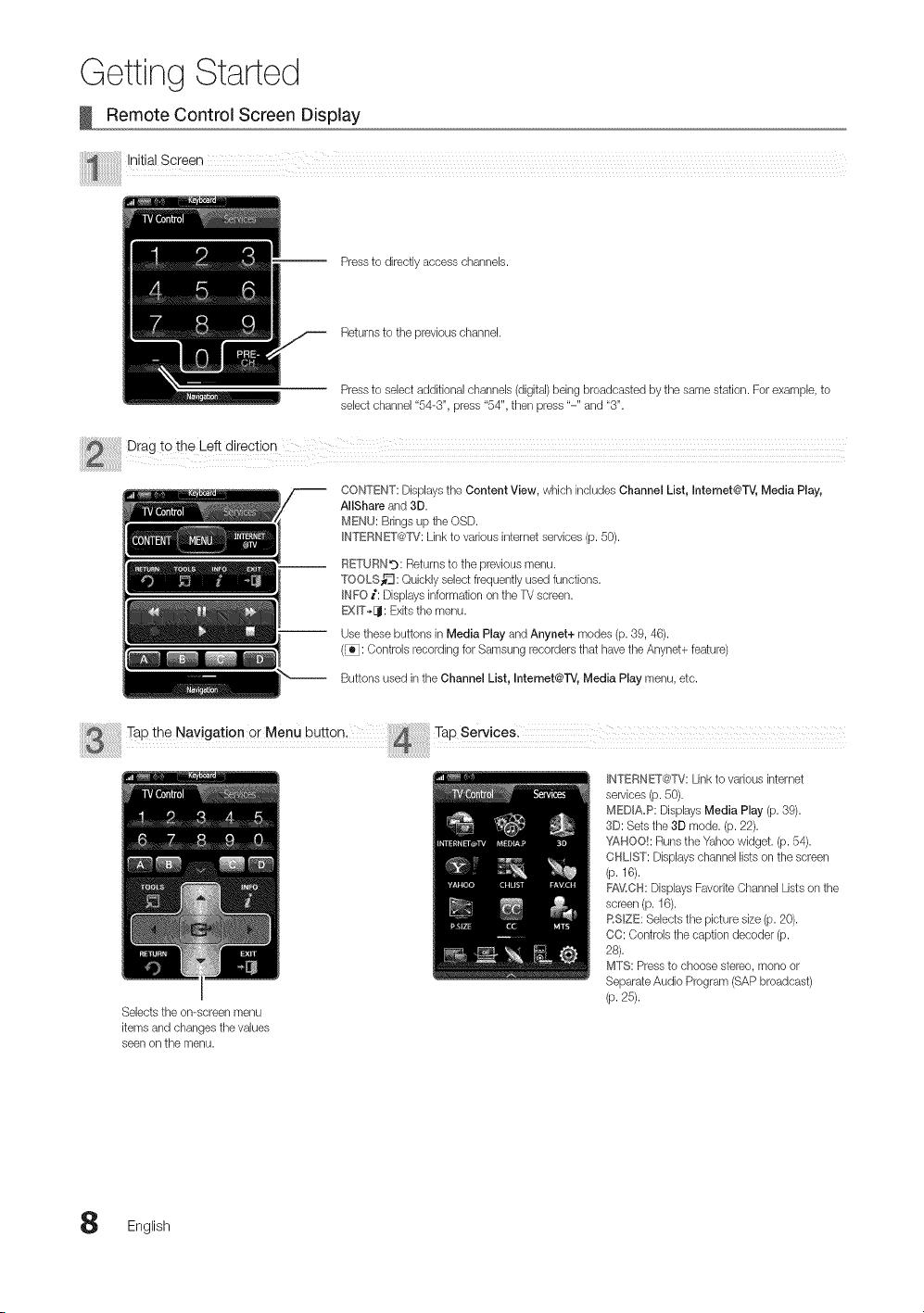
Getting Started
Remote Control Screen Display
Pressto directly access channels.
Returns to the previous channel.
Pressto select additional channeb (digital)being broadcasted by the same station. For example, to
select channel "54-3", press "54", then press "-" and "3".
CONTENT: Displaysthe Content View, which includes Channel List, Intemet@TV, Media Play,
AIIShare and 3D.
MENU: Brings up the OSD.
INTERNET@TV:Link to vanous internet services (p. 50).
RETURNg: Returns to the previous menu.
TOOLS_'3: Quickly select frequently used functions.
INFO i: Dbplays information on the TVscreen.
EXIT*[J: Exits the menu.
Use these buttons in Media Play and Anynet+ modes (p. 39, 46).
(_: Controls recording for Samsung recorders that have the Anynet+ feature)
Buttons used in the Channel List, Internet@l"V, Media Play menu, etc.
!heNo 0at,onorMe,u Tapsony,cos.
xi_,!,,_',i,i,i,i,i,i,i,i,i,i,i,i,i' !!!!!!!!!!!!i,4!_!_!_!_!_!_!_!_!_!_!_!_!ilii i i i i i i i i i i i i i
INTERNET@'FV:Link to various internet
services (p. 50).
MEDIA_P: Displays Media Play (p. 39).
3D: Sets the 3D mode. (p. 22).
YAHOO!: Runs the Yahoo widget. (p. 54).
CHLIST: Displayschannel lists on the screen
(p. 16).
FA_,LCH:Displays Favorite Channel Lists on the
screen (p. 16).
RSlZE: Selects the picture size (p. 20).
CO: Controb the caption decoder (p.
28).
MTS: Pressto choose stereo, mono or
SeparateAudio Program (SAP broadcast)
(p. 25).
Selects the on-screen menu
items and changes the values
seen on the menu.
English
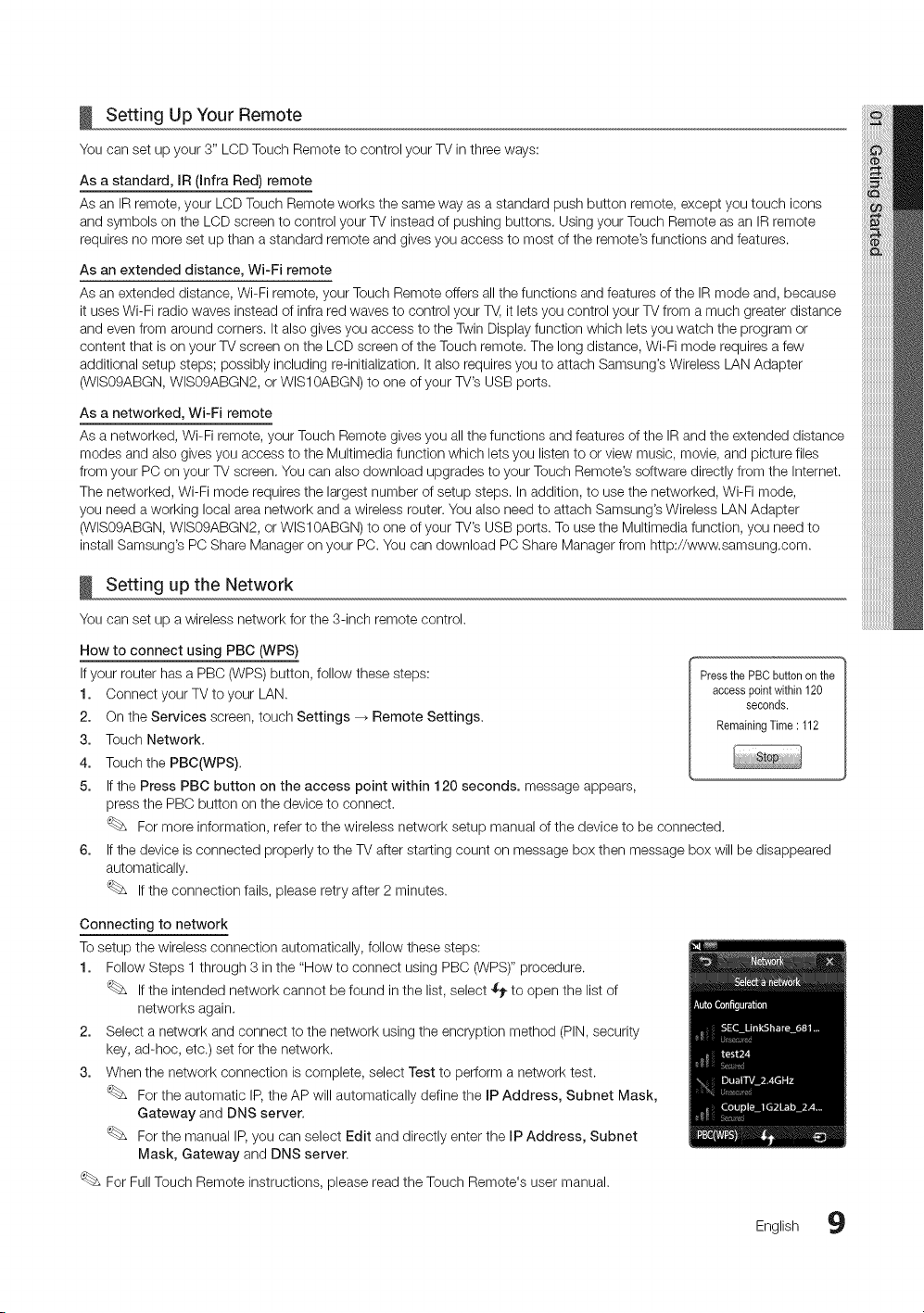
Setting Up Your Remote
You can set up your 3" LCD Touch Remote to control your TV in three ways:
As a standard, IR (Infra Red) remote
As an IR remote, your LCD Touch Remote works the same way as a standard push button remote, except you touch icons
and symbols on the LCD screen to control your TV instead of pushing buttons. Using your Touch Remote as an IR remote
requires no more set up than a standard remote and gives you access to most of the remote's functions and features.
As an extended distance, Wi-Fi remote
As an extended distance, Wi-Fi remote, your Touch Remote offers all the functions and features of the IR mode and, because
it uses Wi-Fi radio waves instead of infra red waves to control your TV, it lets you control your TV from a much greater distance
and even from around corners. It also gives you access to the Twin Display function which lets you watch the program or
content that is on your TV screen on the LCD screen of the Touch remote. The long distance, Wi-Fi mode requires a few
additional setup steps; possibly including re-initialization. It also requires you to attach Samsung's Wireless LAN Adapter
(WIS09ABGN, WIS09ABGN2, or WIS10ABGN) to one of your TV's USB ports.
As a networked, Wi-Fi remote
As a networked, Wi-Fi remote, your Touch Remote gives you all the functions and features of the IR and the extended distance
modes and also gives you access to the Multimedia function which lets you listen to or view music, movie, and picture files
from your PC on your TV screen. You can also download upgrades to your Touch Remote's software directly from the Internet.
The networked, Wi-Fi mode requires the largest number of setup steps. In addition, to use the networked, Wi-Fi mode,
you need a working local area network and a wireless router. You also need to attach Samsung's Wireless LAN Adapter
(WIS09ABGN, WIS09ABGN2, or WIS10ABGN) to one of your TV's USB ports. To use the Multimedia function, you need to
install Samsung's PC Share Manager on your PC. You can download PC Share Manager from http://www.samsung.com.
Setting up the Network
You can set up a wireless network for the 3-inch remote control.
How to connect using PBC (WPS)
If your router has a PBC (WPS) button, follow these steps: PressthePBCbuttononthe
1. Connect your TV to your LAN. accesspointwithin120
seconds.
2. On the Services screen, touch Settings _ Remote Settings. RemainingTime: 112
3. Touch Network.
4. Touch the PBC(WPS).
5. If the Press PBC button on the access point within 120 seconds, message appears,
press the PBC button on the device to connect.
For more information, refer to the wireless network setup manual of the device to be connected.
6. If the device is connected properly to the TV after starting count on message box then message box will be disappeared
automatically.
If the connection fails, please retry after 2 minutes.
Connecting to network
To setup the wireless connection automatically, follow these steps:
1. Follow Steps 1 through 3 in the "How to connect using PBC (WPS)" procedure.
If the intended network cannot be found in the list, select $_ to open the list of
networks again.
2. Select a network and connect to the network using the encryption method (PIN, security
key, ad-hoc, etc.) set for the network.
3. When the network connection is complete, select Test to perform a network test.
For the automatic IP,the AP will automatically define the IP Address, Subnet Mask,
Gateway and DNS server.
For the manual IP, you can select Edit and directly enter the IP Address, Subnet
Mask, Gateway and DNS server.
For Full Touch Remote instructions, please read the Touch Remote's user manual.
English 9
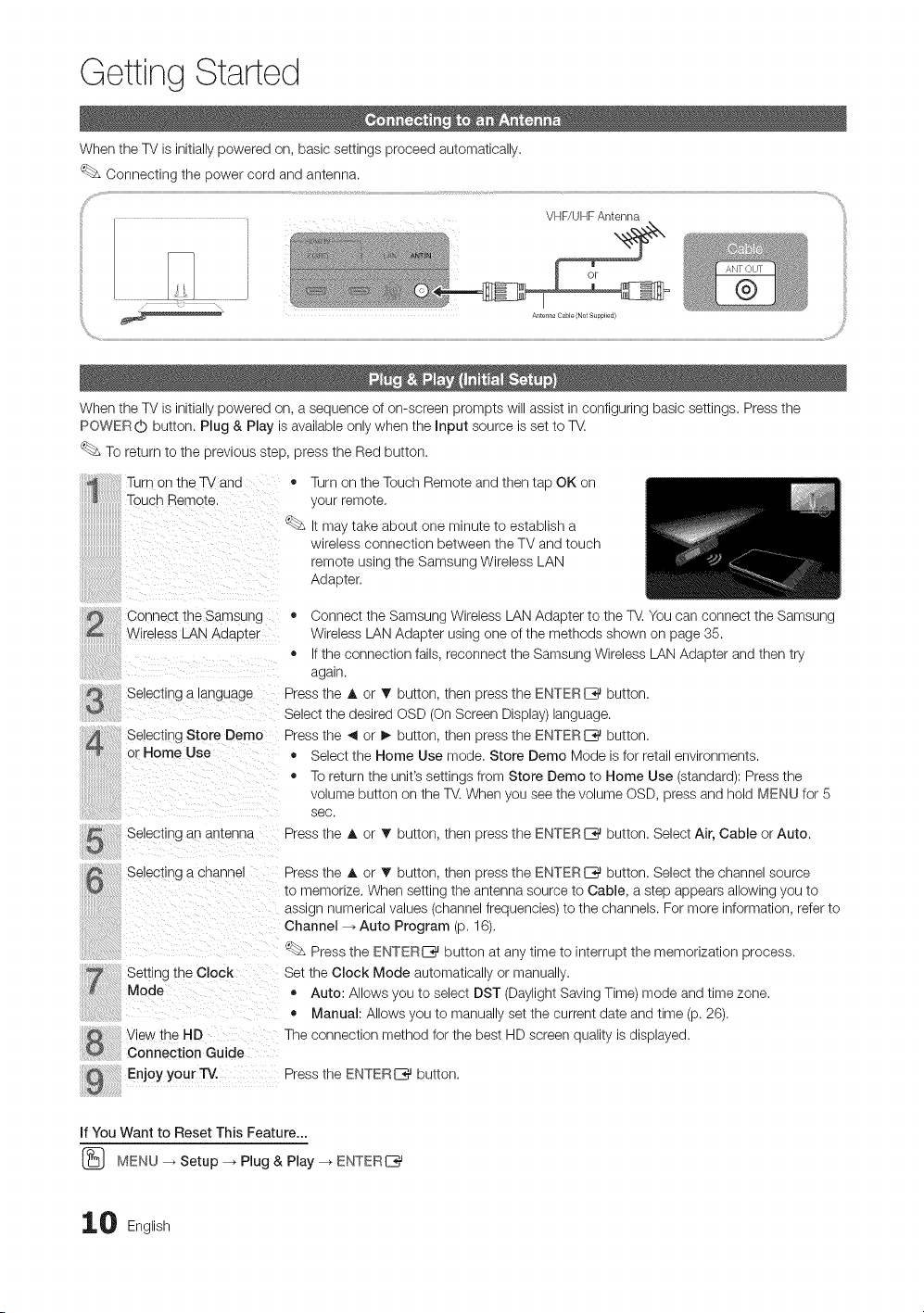
Getting Started
When the TV is initially powered on, basic settings proceed automatically.
Connecting the power cord and antenna.
VHF/UHF Antenna
Antellna Cable (Not Supplied)
When the TV is initially powered on, a sequence of on-screen prompts will assist in configuring basic settings. Press the
POWER (b button. Plug & Play is available only when the Input source is set to T_.
To return to the previous step, press the Red button.
Turn on the TV ana
Touch Remote
Connect the Samsung
Wireless LAN Adapter
Selecting a tanguage
Selecting Store Demo
or Home Use
Selecting an antenna
o
<s&
Turn on the Touch Remote and then tap OK on
}ur remote,
t mar taKe abOUt one T/inure to estaDiisn a
wlretess connection between the TV and touch
remote using the Samsung Wireless LAN
Adaoter.
• Connect the Samsuno Wireless LAN Adapter to the T_, You can connect the Samsung
Wireless LAN Adaoter using one of the methods shown on page 35.
• f the connection fails, reconnect tne Samsung Wireless LAN Adapter and then try
agar
Press the A or T outton, tnen press the ENTERE_ button.
Select the desired OSD On Screen Display) language.
Press the _1or _- outton, tnen press the ENTERE_ button,
• Select the Home Use mode, Store Demo Mode is for retail environments.
• To return the unit's settings from Store Demo to Home Use (standard): Press the
votume DUtton on the TV. When you see the volume OSD, press and hold MENU for 5
_ec.
Press the A or T outton, tnen press the ENTERI_ button. Select Air, Cable or Auto.
Selecting a channel
Setting the Clock
Mode
V ew the HD
Connection Guide
Press the A or T outton, tnen press the ENTERE_ button. Select the channel source
to memorize, When settlnc, me antenna source to Cable, a step appears allowing you to
asstgn numencat vatues/channel freauencies to the channels. For more information, refer to
Channel- Auto Program (p. 16),
Press tne rNTFR[_ DUttOnat any time to interrupt the memorization process.
Set the Clock Mode automatica y or manually.
Auto: Allows ,ou to select DST (Daylight Saving Time) mode and time zone.
• Manual: Allows outc manuat y set the current date and time (p. 26),
The connection method for the best HD screen quality is displayed.
Enjoy your TV. Press the FNTFR _ DUIIOn.
If YOUWant to Reset This Feature...
(_ MENU _ Setup --_ Plug & Play --_ ENTERI_
0 English

Connections
Using an HDMI or HDMI/DVI Cable: HD connection (up to 1080p)
We recommend using the HDMI connection for the best quality HD picture.
Available devices: DVD, Blu-ray player, HD cable box, HD STB (Set-Top-Box) satellite receiver
HDM] CaMe
(Not Supplied/
HDM_ _N I(DV 0, 2(ARC}, 3, 4, PC/DVI AUDIO _N
" For better picture and audio quality, connect to a digital device using an HDMI cable.
* An HDMI cable supports digital video and audio signals, and does not require an audio cable.
- To connect the TV to a digital device that does not support HDMI output, use an HDMI/DVI and audio cables.
* The picture may not display normally (if at all) or the audio may not work if an external device that uses an older
version of HDMI mode is connected to the TV. If such a problem occurs, ask the manufacturer of the external
device about the HDMI version and, if out of date, request an upgrade.
* Be sure to use an HDMI cable with a thickness of 14 mm or less.
* Be sure to purchase a certified HDMI cable. Otherwise, the picture may not display or a connection error may
occur.
* A basic high-speed HDMI cable or one with ethernet is recommended. This product does not support the
ethernet function via HDMI.
* This product supports the 3D and ARC (Audio Return Channel) functions via an HDMI cable. Note that the
ARC function is supported by the HDM_ _N 2(ARC) port only,
- If 3D Auto View is set to On, some functions such as mnternet@TV may be disabled. In this case, set
3D Auto View or 3D Mode to Off.
* The ARC function allows digital audio to output via the HDM_ _N2(ARC} port. It can be enabled only when the
TV is connected with an audio receiver that supports the ARC function.
English ii
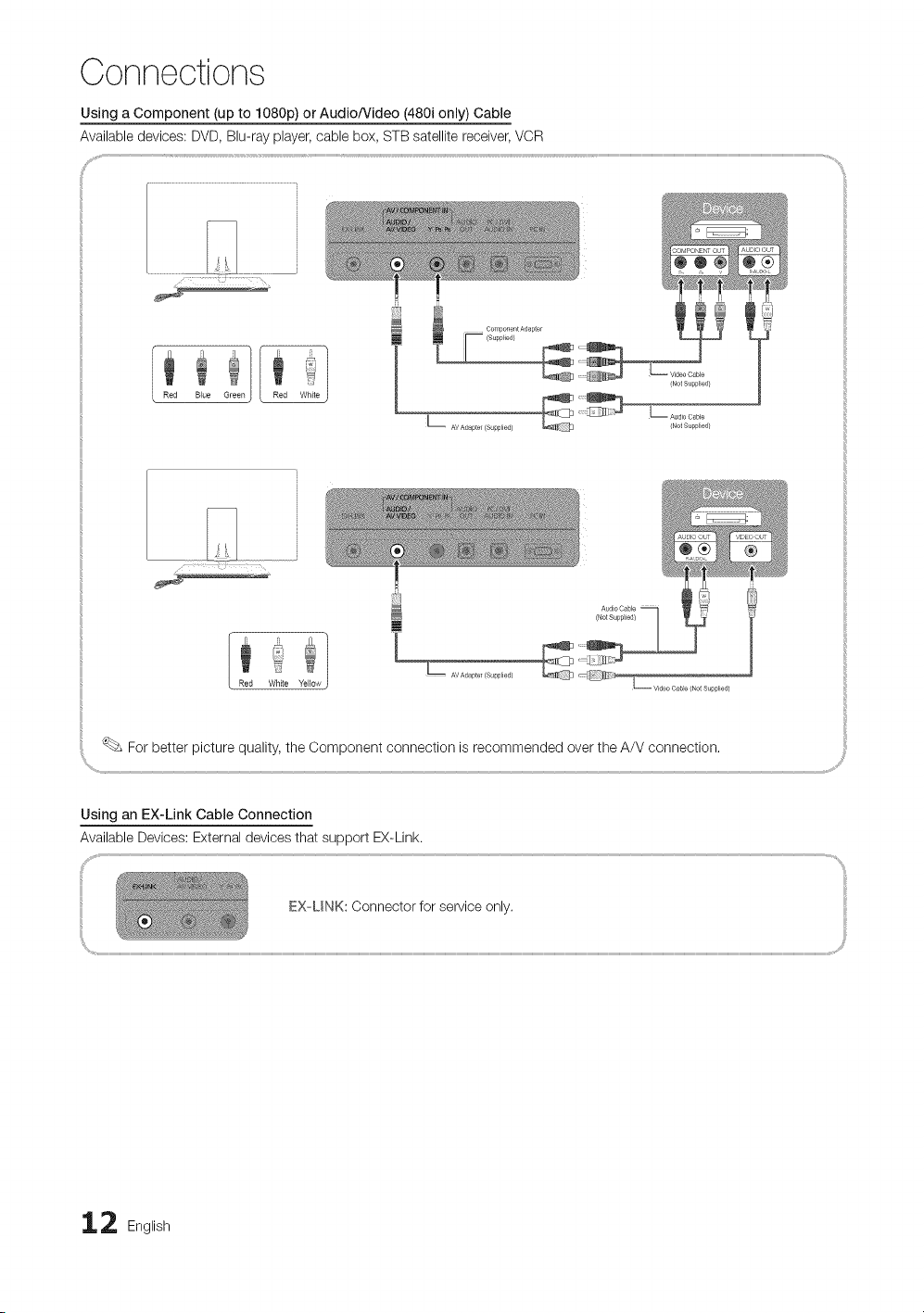
Connections
Using a Component (up to 1080p) or Audio/Video (480i only) Cable
Available devices: DVD, Blu-ray player, cable box, STB satellite receiver, VCR
Red Blue Green
Component Adapter
Video Cable
ed}
Red WhRe Yellow
For better picture quality, the Component connection is recommended over the A/V connection.
Using an EX-Link Cable Connection
Available Devices: External devices that support EX-Link.
EX UNK: Oonnector for service only. :{
2 English
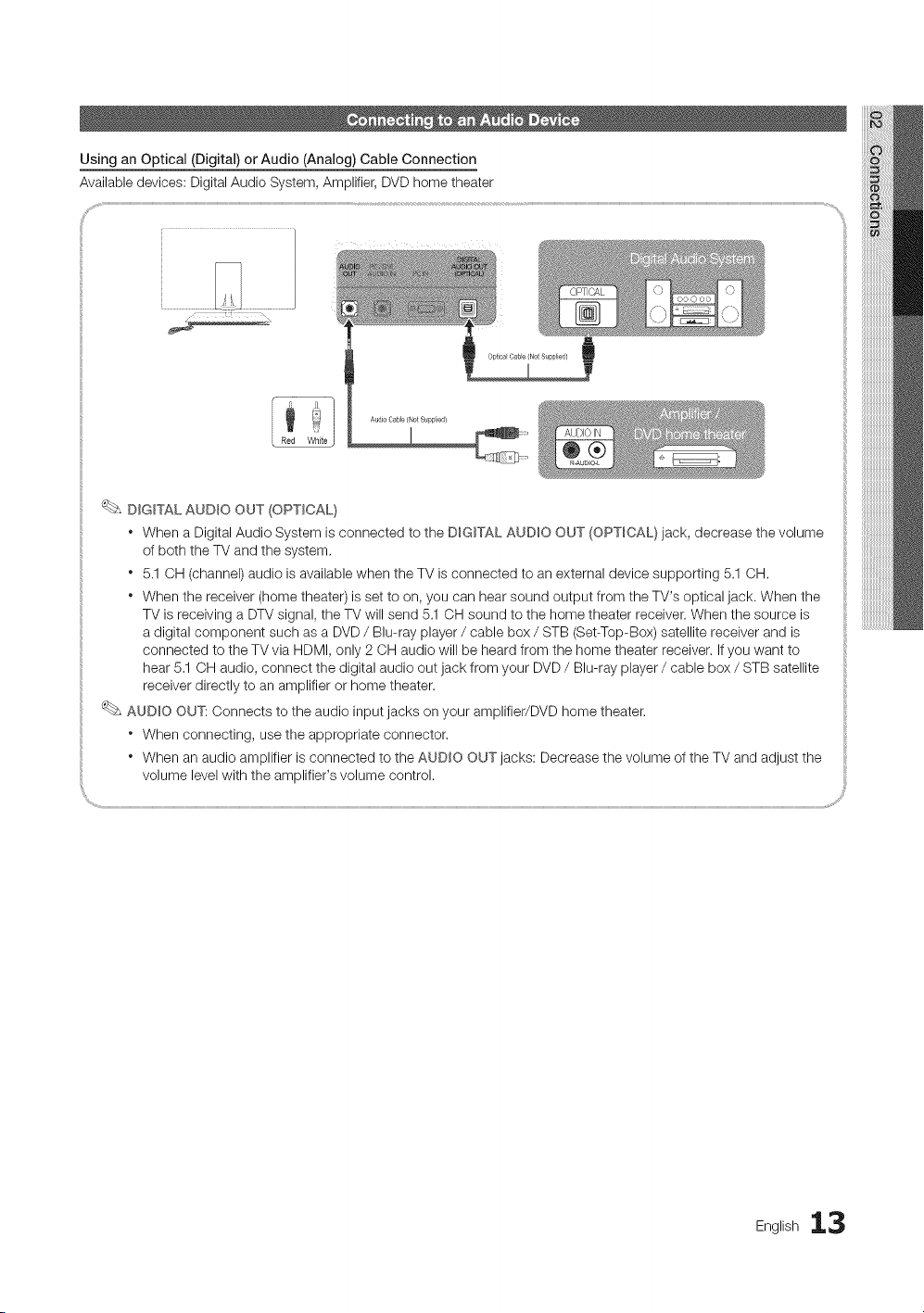
Using an Optical (Digital) or Audio (Analog) Cable Connection
Available devices: Digital Audio System, Amplifier, DVD home theater
C
DIGITAL AUDIO OUT (OPTICAL}
" When a Digital Audio System is connected to the DIGITAL AUDIO OUT (OPTICAL} jack, decrease the volume
of both the TV and the system,
" 5,1 OH (channel) audio is available when the TV is connected to an external device supporting 5.1 OH,
" When the receiver (home theater) is set to on, you can hear sound output from the TV's optical jack. When the
TV is receiving a DTV signal, the TV will send 5.1 OH sound to the home theater receiver, When the source is
a digital component such as a DVD / Blu-ray player / cable box / STB (Set-Top-Box) satellite receiver and is
connected to the TV via HDMI, only 2 CH audio will be heard from the home theater receiver. If you want to
hear 5,1 OH audio, connect the digital audio out jack from your DVD / Blu-ray player / cable box / STB satellite
receiver directly to an amplifier or home theater.
AUDmO OUT: Connects to the audio input jacks on your amplifier/DVD home theater.
" When connecting, use the appropriate connector,
" When an audio amplifier is connected to the AUDIO OUT jacks: Decrease the volume of the TV and adjust the
volume level with the amplifier's volume control.
Eng,ish13
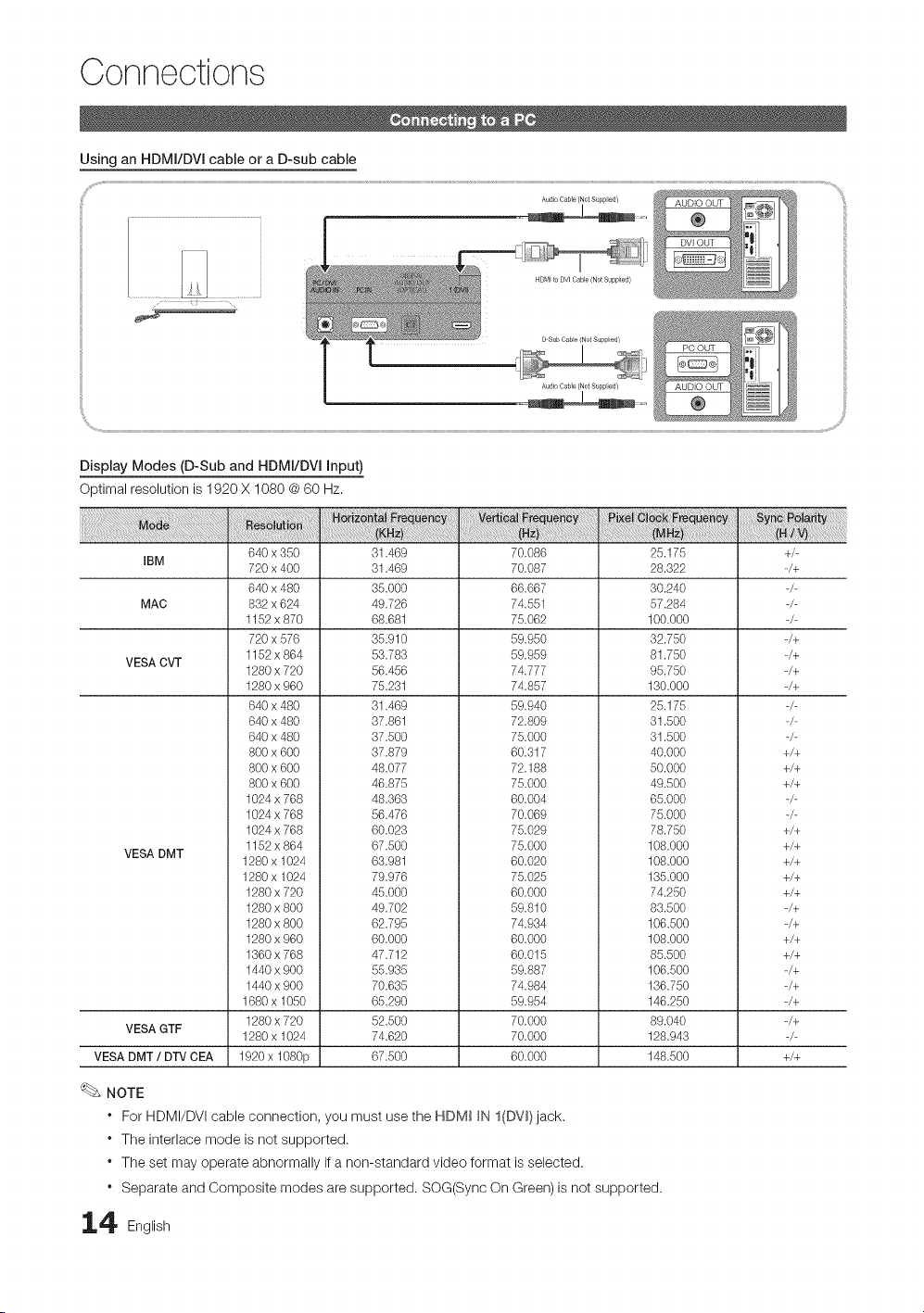
Connections
Using an HDMI/DVI cable or a D-sub cable
Display Modes (D-Sub and HDMI/DVI input)
Optimal resolution is 1920 X 1080 @ 60 Hz.
IBM
MAC
VESA CVT
VESA DMT
VESA GTF
VESA DMT / DTV CEA
640 x 350
720 x 400
640 x 480
832 x 624
1152 x 870
720 x 576
1152 x 864
1280 x 720
1280 x 960
640 x 480
640 x 480
640 x 480
800 x 600
800 x 600
800 x 600
1024 x 768
1024 x 768
1024 x 768
1152 x 864
1280 x 1024
1280 x 1024
1280 x 720
1280 x 800
1280 x 800
1280 x 960
1360 x 768
1440 x 900
1440 x 900
1680 x 1050
1280 x 720
1280 x 1024
1920 x 1080p
31.469
31.469
35.000
49.726
68.681
35.910
53.783
56.456
75.231
31.469
37.861
37.500
37.879
48.077
46.875
48.363
56.476
60.023
67.500
63.981
79.976
45.000
49.702
62.795
60.000
47.712
55.935
70.635
65.290
52.500
74.620
67.500
70.086
70.087
66.667
74.551
75.062
59.950
59.959
74.777
74.857
59.940
72.809
75.000
60.317
72.188
75.000
60.004
70.069
75.029
75.000
60.020
75.025
60.000
59.810
74.934
60.000
60.015
59.887
74.984
59.954
70.000
70.000
60.000
25.175
28.322
30.240
57.284
100.000
32.750
81.750
95.750
130.000
25.175
31.500
31.500
40.000
50.000
49.500
65.000
75.000
78.750
108.000
108.000
135.000
74.250
83.500
106.500
108.000
85.500
106.500
136.750
146.250
89.040
128.943
148.500
NOTE
* For HDMI/DVI cable connection, you must use the HDM_ _N I(DV_)jack.
* The interlace mode is not supported.
* The set may operate abnormally if a non-standard video format is selected.
* Separate and Composite modes are supported. SOG(Sync On Green) is not supported.
4 English
+/-
-/+
-/+
-/+
_/+
_/+
+/+
+/+
+/+
+/+
+/+
+/+
+/+
+/+
_/+
_/+
+/+
+/+
-/+
_/+
_/+
_/+
+/+

Source List
Use to select TV or an external input sources such as a DVD
/ Blu-ray player / cable box / STB satellite receiver.
[_ MENU _ input --_ Source List --_ ENTERI_
Im
TV / PC / AV / Component / HDMI1/DVI / HDMI2 /
HDMI3 / HDMI4 / USB
You can only choose external devices that
are connected to the TV. In the Source List,
connected inputs will be highlighted.
In the Source List, PC is always activated.
Edit Name
(_ MENU _ input _ Edit Name _ ENTERI_
VCR / DVD / Cable STB / Satellite STB / PVR STB /
AV Receiver / Game / Camcorder / PC / DVI PC / DVI
Devices / TV / IPrv / Blu-ray / HD DVD / DMA: Name
the device connected to the input jacks to make your
input source selection easier.
When a PC with a resolution of 1920 x 1080 @ 60Hz is
connected to the NDM_ _N I(DV_} port, you should set
the TV to DVI PC mode under Edit Name.
When connecting an HDMI/DVI cable to the NDM_ _N
I(DVl) port, you should set the TV to DVI PC or DVI
Devices mode under Edit Name.
Basic Features
Before using the T_, follow the steps below to learn how to
navigate the menu and select and adjust different functions.
O MENU button: Displays the main on-screen menu.
ENTERE_ / Direction button: Move the cursor and
select an item. Confirm the setting,
EXiT button: Exits the on-screen menu.
O RETURN button: Returns to the previous menu.
How to Operate the OSD (On Screen Display)
The access step may differ depending on the selected menu.
MENU The main menu options appear on
..... theinput,Picture,Sound, Channel, Setup,scrApplication,can: Support.
Select an icon with the A or _'
button.
Press ENTERI_ to access the
sub-menu.
Select the desired submenu with
the A or • button.
Adjust the value of an item with the
4 or _- button. The adjustment in
the OSD may differ depending on
the selected menu.
Press ENTERI_ to confirm the
selection.
Press EXIT.
English 15

Basic Features
Seeing Channels
Channel List
Add, delete or set Favorite channels and use _;
the program guide for digital broadcasts.
(_ MENU _ Channel --_ Channel List --_ C
ENTER
Select a channel in the All Channels, Added
Channels, Favorite or Programmed screen by
pressing the A / _ and ENTERIZ_ buttons.
Then you can watch the selected channel.
Using Favorite Channels
(_ MENU --_ Channel _ Channel List --_ ENTERI_
Add to Favorite / Debte from Favorite
Set channels you watch frequently as Favorites,
1. Select a channel and press the TOOLS button.
2. Add or delete a channel using the Add to Favorite or
Delete from Favorite menu respectively.
m {_HAII Channels: Shows all currently available channels.
Ill _Added Channels: Shows all added channels.
Ill _ Favorite: Shows all favorite channels.
Ill _ Programmed: Shows all currently reserved
programs.
Using the color buttons with the Channel List
" @Red (Antenna): Switches to Air or Cable.
" [3Green (Zoom): Enlarges or shrinks a channel
number.
" _ Yellow (Select): Selects multiple channel lists,
Select desired channels and press the Yellow button
to set all the selected channels at the same time. The
_/ mark appears to the left of the selected channels.
" O (Page): Move to next or previous page.
. _-_ (Tools): Displays the Channel List option menu.
(The options menus may differ depending on the
situation.)
Channel Status Display Icons
_/ A channel selected.
V A channel set as a Favorite.
(_) A reserved Program.
To show all Favorite channels, click on
the button shown on the right.
Memorizing Channels
(_ MENU --_ Channel _ ENTERI_
Antenna (Air / Cable)
Before your television can begin memorizing the available
channels, you must specify the type of signal source that is
connected to the TV (i,e. an Air or a Cable system).
Auto Program
Ill Air: Air antenna signal.
Ill Cable: Cable antenna signal.
Ill Auto: Air and Cable antenna.
6 English
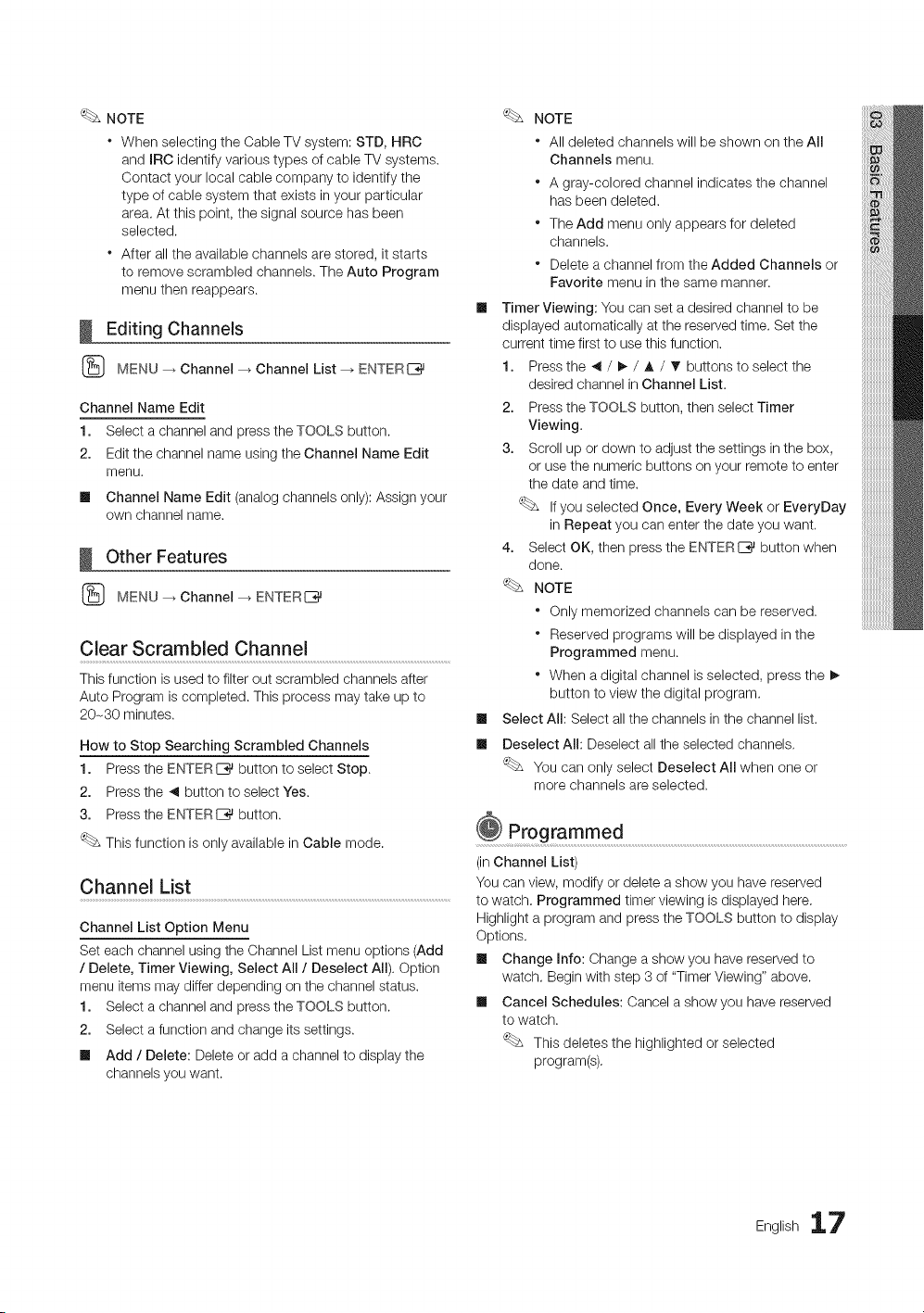
NOTE
* WhenselectingtheCableTVsystem:STD,HRC
andIRCidentifyvarioustypesofcableTVsystems.
Contactyourlocalcablecompanytoidentifythe
typeofcablesystemthatexistsinyourparticular
area.Atthispoint,thesignalsourcehasbeen
selected.
* Afteralltheavailablechannelsarestored,itstarts
toremovescrambledchannels.TheAutoProgram
menuthenreappears.
Editing Channels
(_ MENU _ Channel --_ Channel List --_ ENTERI_
Channel Name Edit
1. Select a channel and press the TOOLS button.
2. Edit the channel name using the Channel Name Edit
menu.
Ill Channel Name Edit (analog channels only): Assign your
own channel name.
Other Features
(_ MENU _ Channel --_ ENTERI_
Clear Scrambled Channel
This function is used to filter out scrambled channels after
Auto Program is completed. This process may take up to
20-30 minutes.
How to Stop Searching Scrambled Channels
1. Press the ENTERE_ button to select Stop.
2. Press the _ button to select Yes.
3. Press the ENTER_ button.
This function is only available in Cable mode.
Channel List
Channel List Option Menu
Set each channel using the Channel List menu options (Add
/ Delete, Timer Viewing, Select All / Deselect All). Option
menu items may differ depending on the channel status.
1. Select a channel and press the TOOLS button.
2. Select a function and change its settings.
ml Add / Delete: Delete or add a channel to display the
channels you want.
m
m
NOTE
* All deleted channels will be shown on the All
Channels menu.
* A gray-colored channel indicates the channel
has been deleted.
* The Add menu only appears for deleted
channels.
* Delete a channel from the Added Channels or
Favorite menu in the same manner.
Timer Viewing: You can set a desired channel to be
displayed automatically at the reserved time. Set the
current time first to use this function.
1. Press the _ / !_ / A / V" buttons to select the
desired channel in Channel List.
2. Press the TOOLS button, then select Timer
Viewing.
3. Scroll up or down to adjust the settings in the box,
or use the numeric buttons on your remote to enter
the date and time.
If you selected Once, Every Week or EveryDay
in Repeat you can enter the date you want.
4. Select OK, then press the ENTERI_ button when
done.
NOTE
* Only memorized channels can be reserved.
* Reserved programs will be displayed in the
Programmed menu.
* When a digital channel is selected, press the !_
button to view the digital program.
Select All: Select all the channels in the channel list.
Deselect All: Deselect all the selected channels.
You can only select Deselect All when one or
more channels are selected.
Programmed .....................................................................................................................................................................
(in Channel List)
You can view, modify or delete a show you have reserved
to watch, Programmed timer viewing is displayed here,
Highlight a program and press the TOOLS button to display
Options,
Ill Change Info: Change a show you have reserved to
watch, Begin with step 3 of "Timer Viewing" above.
ml Cancel Schedules: Cancel a show you have reserved
to watch.
This deletes the highlighted or selected
program(s),
English 17
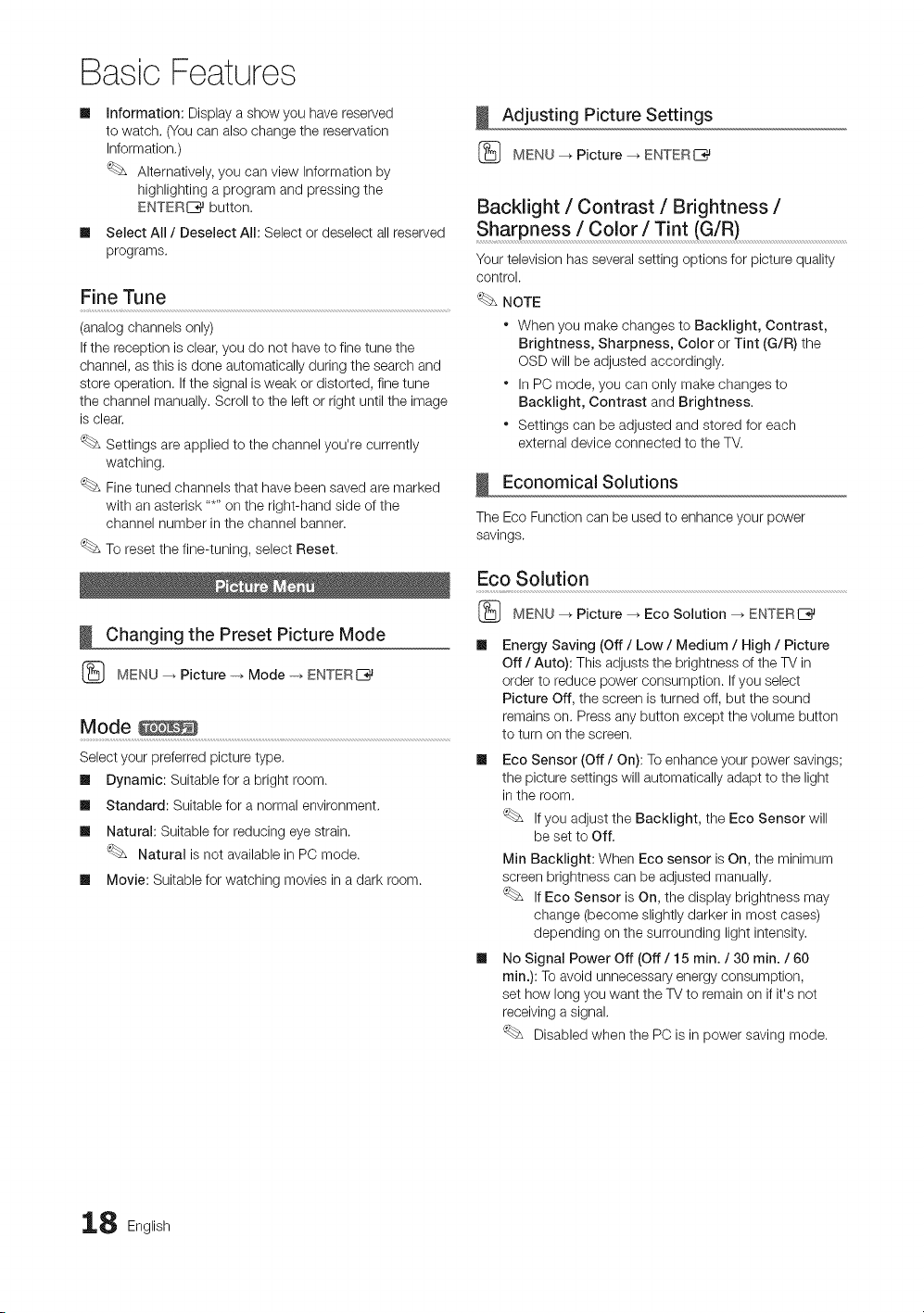
Basic Features
im
im
information: Display a show you have reserved
to watch. (You can also change the reservation
Information.)
Alternatively, you can view Information by
highlighting a program and pressing the
ENTERI_ button.
Select All / Deselect All: Select or deselect all reserved
programs.
Fine Tune
(analog channels only)
If the reception is clear, you do not have to fine tune the
channel, as this is done automatically during the search and
store operation, If the signal is weak or distorted, fine tune
the channel manually. Scroll to the left or right until the image
is clear,
Settings are applied to the channel you're currently
watching.
Fine tuned channels that have been saved are marked
with an asterisk .....on the right-hand side of the
channel number in the channel banner.
To reset the fine-tuning, select Reset,
Changing the Preset Picture Mode
{_ MENU _ Picture -_ Mode -_ ENTERE_
Mode
Select your preferred picture type.
Ill Dynamic: Suitable for a bright room.
Ill Standard: Suitable for a normal environment.
Ill Natural: Suitable for reducing eye strain.
Natural is not available in PC mode.
Ill Movie: Suitable for watching movies in a dark room.
Adjusting Picture Settings
{_ MENU _ Picture _ ENTERI_
Backlight / Contrast / Brightness /
Sharpness / Color / Tint (G/R)
Your television has several setting options for picture quality
control.
NOTE
When you make changes to Backlight, Contrast,
Brightness, Sharpness, Color or Tint (G/R) the
OSD will be adjusted accordingly.
* In PC mode, you can only make changes to
Backlight, Contrast and Brightness.
* Settings can be adjusted and stored for each
external device connected to the TV.
Economical Solutions
The Eco Function can be used to enhance your power
savings.
Eco Solution
(_ MENU _ Picture _ Eco Solution _ ENTERE_
Energy Saving (Off / Low / Medium / High / Picture
Off / Auto): This adjusts the brightness of the TV in
order to reduce power consumption. If you select
Picture Off, the screen is turned off, but the sound
remains on. Press any button except the volume button
to turn on the screen.
Ill Eco Sensor (Off / On): To enhance your power savings;
the picture settings will automatically adapt to the light
in the room.
If you adjust the Backlight, the Eco Sensor will
be set to Off.
Min Backlight: When Eco sensor is On, the minimum
screen brightness can be adjusted manually.
If Eco Sensor is On, the display brightness may
change (become slightly darker in most cases)
depending on the surrounding light intensity.
Ill No Signal Power Off (Off / 15 min. / 30 min. / 60
min.): To avoid unnecessary energy consumption,
set how long you want the TV to remain on if it's not
receiving a signal.
Disabled when the PC is in power saving mode.
8 English
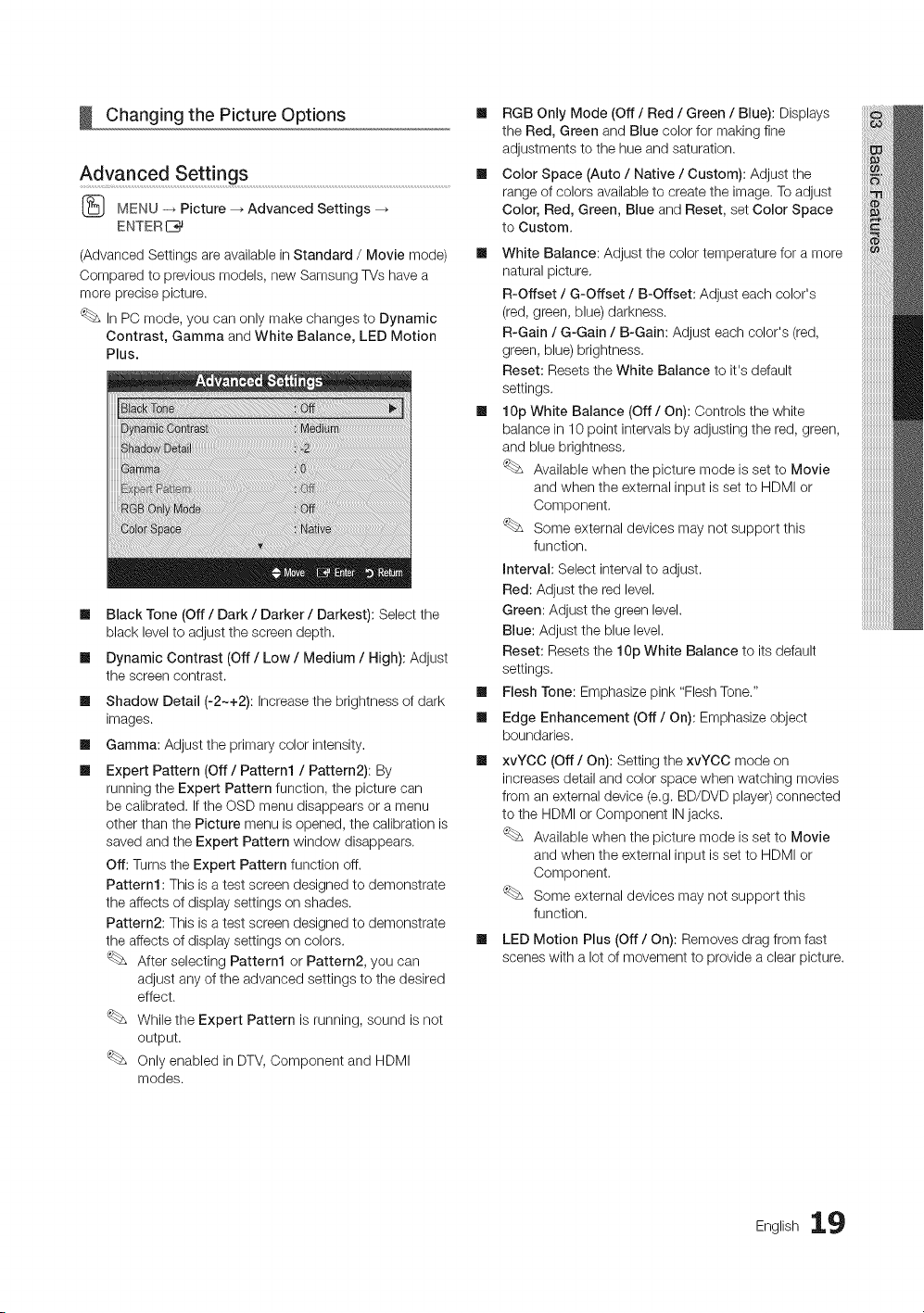
Changing the Picture Options
Advanced Sett!ngs .......................................................................................................................................................
(_ MENU _ Picture _ Advanced Settings
ENTER 1_
(Advanced Settings are available in Standard / Movie mode)
Compared to previous models, new Samsung TVs have a
more precise picture.
In PC mode, you can only make changes to Dynamic
Contrast, Gamma and White Balance, LED Motion
Plus.
m
m
m
m
m
Black Tone (Off / Dark / Darker / Darkest): Select the
black level to adjust the screen depth.
Dynamic Contrast (Off / Low / Medium / High): Adjust
the screen contrast.
Shadow Detail (-2~+2): Increase the brightness of dark
images.
Gamma: Adjust the primary color intensity.
Expert Pattern (Off / Pattern1 / Pattern2): By
running the Expert Pattern function, the picture can
be calibrated. If the OSD menu disappears or a menu
other than the Picture menu is opened, the calibration is
saved and the Expert Pattern window disappears.
Off: Turns the Expert Pattern function off.
Pattern1 : This is a test screen designed to demonstrate
the affects of display settings on shades.
Pattern2: This is a test screen designed to demonstrate
the affects of display settings on colors.
After selecting Pattern1 or Pattern2, you can
adjust any of the advanced settings to the desired
effect.
While the Expert Pattern is running, sound is not
output.
Only enabled in DTV, Component and HDMI
modes.
[] RGB Only Mode (Off / Red / Green / Blue): Displays
the Red, Green and Blue color for making fine
adjustments to the hue and saturation.
[] Color Space (Auto / Native / Custom): Adjust the
range of colors available to create the image. To adjust
Color, Red, Green, Blue and Reset, set Color Space
to Custom.
[] White Balance: Adjust the color temperature for a more
natural picture.
R-Offset / G-Offset / B-Offset: Adjust each color's
(red, green, blue) darkness.
R-Gain / G-Gain / B-Gain: Adjust each color's (red,
green, blue) brightness.
Reset: Resets the White Balance to it's default
settings.
[] 10p White Balance (Off / On): Controls the white
balance in 10 point intervals by adjusting the red, green,
and blue brightness.
Available when the picture mode is set to Movie
and when the external input is set to HDMI or
Component.
Some external devices may not support this
function.
Interval: Select interval to adjust.
Red: Adjust the red level.
Green: Adjust the green level.
Blue: Adjust the blue level.
Reset: Resets the 10p White Balance to its default
settings.
[] Flesh Tone: Emphasize pink "Flesh Tone."
[] Edge Enhancement (Off/On): Emphasize object
boundaries.
xvYCC (Off/On): Setting the xvYCC mode on
increases detail and color space when watching movies
from an external device (e.g. BD/DVD player) connected
to the HDMI or Component IN jacks.
Available when the picture mode is set to Movie
and when the external input is set to HDMI or
Component.
Some external devices may not support this
function.
LED Motion Plus (Off / On): Removes drag from fast
scenes with a lot of movement to provide a clear picture.
English lg
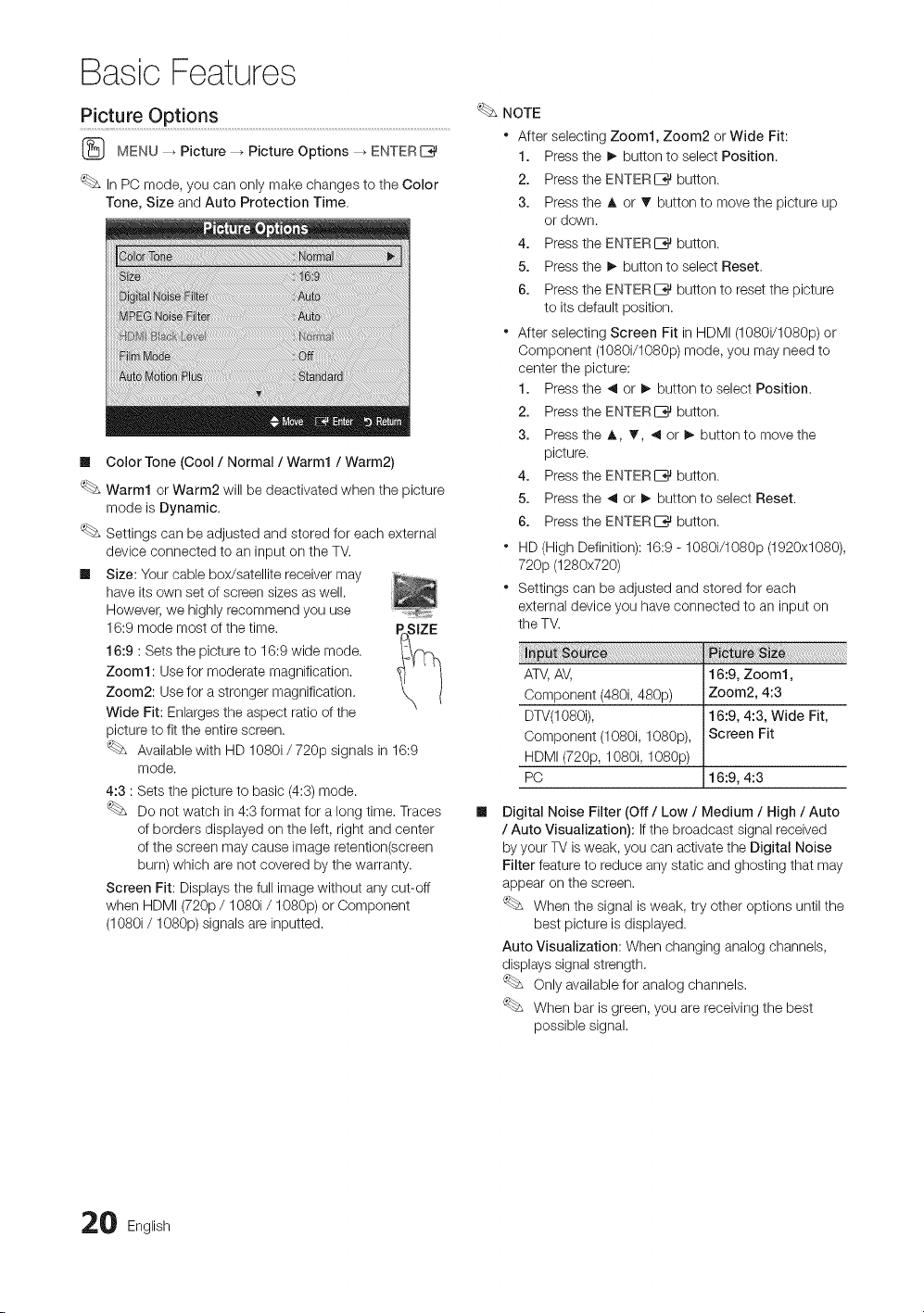
Basic Features
MENU _ Picture _ Picture Options _ ENTER[_
In PC mode, you can only make changes to the Color
Tone, Size and Auto Protection Time.
Ill Color Tone (Cool / Normal / Warm1 / Warm2)
Warm1 or Warm2 will be deactivated when the picture
mode is Dynamic.
Settings can be adjusted and stored for each external
device connected to an input on the TM
Ill Size: Your cable box/satellite receiver may
have its own set of screen sizes as well.
However, we highly recommend you use
16:9 mode most of the time. pc,SIZE
16:9 : Sets the picture to 16:9 wide mode.
Zoom1: Use for moderate magnification.
Zoom2: Use for a stronger magnification.
Wide Fit: Enlarges the aspect ratio of the
picture to fit the entire screen.
Available with HD 1080i / 720p signals in 16:9
mode.
4:3 : Sets the picture to basic (4:3) mode.
Do not watch in 4:3 format for a long time. Traces
of borders displayed on the left, right and center
of the screen may cause image retention(screen
burn) which are not covered by the warranty.
Screen Fit: Displays the full image without any cut-off
when HDMI (720p / 1080i / 1080p) or Component
(1080i / 1080p) signals are inputted.
NOTE
After selecting Zoom1, Zoom2 or Wide Fit:
1. Press the !_ button to select Position.
2. Press the ENTERC_ button.
3. Press the A or T button to move the picture up
or down.
4. Press the ENTERIZ_ button.
5. Press the !_ button to select Reset.
6. Press the ENTERIZ_ button to reset the picture
to its default position.
* After selecting Screen Fit in HDMI (1080i/1080p) or
Component (1080i/1080p) mode, you may need to
center the picture:
1. Press the _ or I_ button to select Position.
2. Press the ENTERI_ button.
3. Press the A, _, _ or I_ button to move the
picture.
4. Press the ENTERIZ_ button.
5. Press the _ or I_ button to select Reset.
6. Press the ENTERI_ button.
* HD (High Definition): 16:9 - 1080i/1080p (1920x1080),
720p (1280x720)
* Settings can be adjusted and stored for each
external device you have connected to an input on
the TV.
ATV, AV, 16:9, Zoom1,
Component (480i, 480p) Zoom2, 4:3
DTV(1080i), 16:9, 4:3, Wide Fit,
Component (1080i, 1080p), Screen Fit
HDMI (720p, 1080i, 1080p)
PC 16:9, 4:3
Digital Noise Filter (Off / Low / Medium / High / Auto
/ Auto Visualization): If the broadcast signal received
by your TV is weak, you can activate the Digital Noise
Filter feature to reduce any static and ghosting that may
appear on the screen.
When the signal is weak, try other options until the
best picture is displayed.
Auto Visualization: When changing analog channels,
displays signal strength.
Only available for analog channels.
When bar is green, you are receiving the best
possible signal.
0 English
Ill MPEGNoiseFilter(Off/ Low / Medium / High /
Auto): Reduces MPEG noise to provide improved
picture quality.
Ill HDMI Black Level (Normal / Low): Selects the black
level on the screen to adjust the screen depth.
Available only in HDMI mode.
Ill Film Mode (Off / Auto1 / Auto2): Sets the TV to
automatically sense and process film signals from all
sources and adjusts the picture for optimum quality.
Available in TV, AV, COMPONENT (480i/1080i)
and HDMI (480i/1080i).
Ill Auto Motion Plus (Off / Clear / Standard / Smooth /
Custom / Demo): Removes drag from fast scenes with
a lot of movement to provide a clearer picture.
If noise occurs on the screen, please set the
Auto Motion Plus to Off. If Auto Motion Plus
is Custom, you can set up the Blur Reduction,
Judder Reduction or Reset manually.
If Auto Motion Plus is Demo, you can compare
the difference between on and off modes.
Blur Reduction: Adjusts the blur reduction level from
video sources.
Judder Reduction: Adjusts the judder reduction level
from video sources when playing films.
Reset: Reset the custom settings.
Ill Auto Protection Time (2 hours / 4 hours / 8 hours
/ 10 hours / Off): Set the time the screen remains idle
with a still image until the screen saver is activated. The
screen saver prevents the formation of ghost images on
the screen.
Viewing TV using the 3D function
(_ MENU --_ Picture _ 3D _ ENTERI_
IMPORTANT SAFETY INFORMATION. READ THE
FOLLOWING WARNINGS BEFORE YOU OR YOUR
CHILD USE THE 3D FUNCTION
Z_ WARNING
* As the TV turns on, the left and right sides of 3D
pictures may overlap more than usual. It may take
time until the picture quality is optimized,
* The 3D effect may be experienced differently
depending on the viewer. You may not notice the 3D
effect at all if you have a prescription for one eye that
is very different from the other eye,
* Parents' careful supervision is required particularly
when children or teenagers view 3D images.
* Photosensitive Seizure Warning and Other Health
Risks
- Some viewers may experience an epileptic seizure
or stroke when exposed to certain flashing images
or lights contained in certain television pictures or
video games, If you or any of your relatives has a
history of epilepsy or strokes, please consult with a
medical specialist before using the 3D function.
- Do not watch 3D pictures when you feel
incoherent, sleepy, tired or sick. Avoid watching 3D
pictures for many hours.
- Even those without a personal or family history
of epilepsy or stroke may have an undiagnosed
condition that can cause "photosensitive epileptic
seizures."
- If you experience any of the following symptoms
immediately stop watching 3D pictures and
consult a medical specialist: (1) altered vision; (2)
lightheadedness; (3) dizziness; (4) involuntary
movements such as eye or muscle twitching;
(5) confusion; (6) nausea; (7) loss of awareness;
(8) convulsions; (9) cramps; and/or (1O)
disorientation. Parents should monitor and ask
their children about the above symptoms-children
and teenagers may be more likely than adults to
experience these symptoms.
* Note that watching TV while sitting too close to the
screen for an extended period of time may weaken
your eyesight.
* Note that watching TV while wearing 3D Active
Glasses for an extended period of time may cause a
headache or fatigue. If you feel headache, fatigue or
dizziness, stop watching TV and rest.
* Some 3D pictures may startle viewers. The pregnant,
elderly, epileptic and those suffering from serious
physical conditions are advised to avoid utilizing the
unit's 3D functionality.
* We don't recommend watching 3D if you are in bad
physical condition, need sleep or have been drinking
liquor.
English 21

Basic Features
* Please take care to be aware of the room around
you. This product is designed to be immersive. DO
NOT use this product near open stairwells, cables,
balconies, or other objects that can be tripped over,
run into, knocked down, broken or fallen over. Being
startled or deluding yourself into thinking that the 3D
images are real may cause you to crush a nearby
object or get injured trying to move your body.
* Do not use the 3D Active Glasses for any other
purpose than for which it was designed. Wearing the
3D Active Glasses for any other purpose (as general
spectacles, sunglasses, protective goggles, etc.)
may physically harm you or weaken your eyesight.
* Immersive video can potentially have adverse effects
on the user including motion sickness, perceptual
after effects, disorientation, eye strain, and
decreased postural stability. Take frequent breaks
to lessen the potential of these effects. If your eyes
show signs of fatigue or dryness or if you have any of
the above symptoms, immediately discontinue use
of this device and do not resume using it for at least
thirty minutes after the symptoms have subsided.
* The ideal viewing distance should be three times
or more the height of the screen. We recommend
sitting with viewer's eyes on a level with the screen.
* Do not disassemble, or attempt to repair or modify
your 3D active glasses by yourself.
- Do not use them if broken or damaged.
* Be careful not to let the temple ends of the 3D active
glasses harm your eye.
3D
This exciting new feature enables you to view
3D content. In order to fully enjoy this feature,
you must purchase a pair of Samsung 3D
Active Glasses (SSG-2100AB, SSG-2200AR,
SSG-2200KR) to view 3D video.
Samsung 3D Active Glasses are sold
separately. For more detailed purchasing
information, contact the retailer where you
purchased this TV.
3D emitter
S_MSUNG
If there is any obstacle between the emitter and 3D
Active Glasses, the proper 3D effect may not be
obtained.
3D Mode: Select the 3D input format.
If you want to feel the 3D effect fully, please wear
the 3D Active Glasses first, and then select 3D
Mode from the list below that provides the best
3d viewing experience.
When watching 3D images, turn on 3D Active
Glasses.
Off Turns the 3D function off.
2D _ 3D Changes a 2D image to 3D.
Displays two images next to
Side by Side each other.
Displays one image above
Top & Bottom another.
Displays the images for the left
Line by Line and right eye alternately in rows.
Displays the images for the
Vertical Stripe left and right eye alternately in
columns.
Checker Displays the images for the
left and right eye alternately in
Board
sixels.
Displays the images for the
Frequency left and right eye alternately in
frames.
"Side by Side" and "Top & Bottom" are available
when the resolution is 720p, 1080i and 1080p in
DTV, HDMI and USB mode or when set to PC
and the PC is connected through an HDMI/DVI
cable.
"Vertical Strip", "Line by Line" and "Checker
Board" are available when the resolution is set to
PC and the PC is connected through an HDMI/
DVI cable.
"Frequency" displays the frequency (60Hz only)
when the resolution is set to PC.
3D _ 2D (Off / On): Displays the image for the left eye
only.
This function is deactivated when 3D Mode is set
to "2D _ 3D" or Off.
3D View point: The overall adjustment of 3D
perspective.
This function is deactivated when 3D Mode is set
to "2D _ 3D" or Off.
Depth: Adjusts focus / depth in "2D _ 3D" mode.
This function is only activated when the 3D Mode
is "2D _ 3D",
Picture Correction: Adjusts the images for the left and
right eye.
2 English
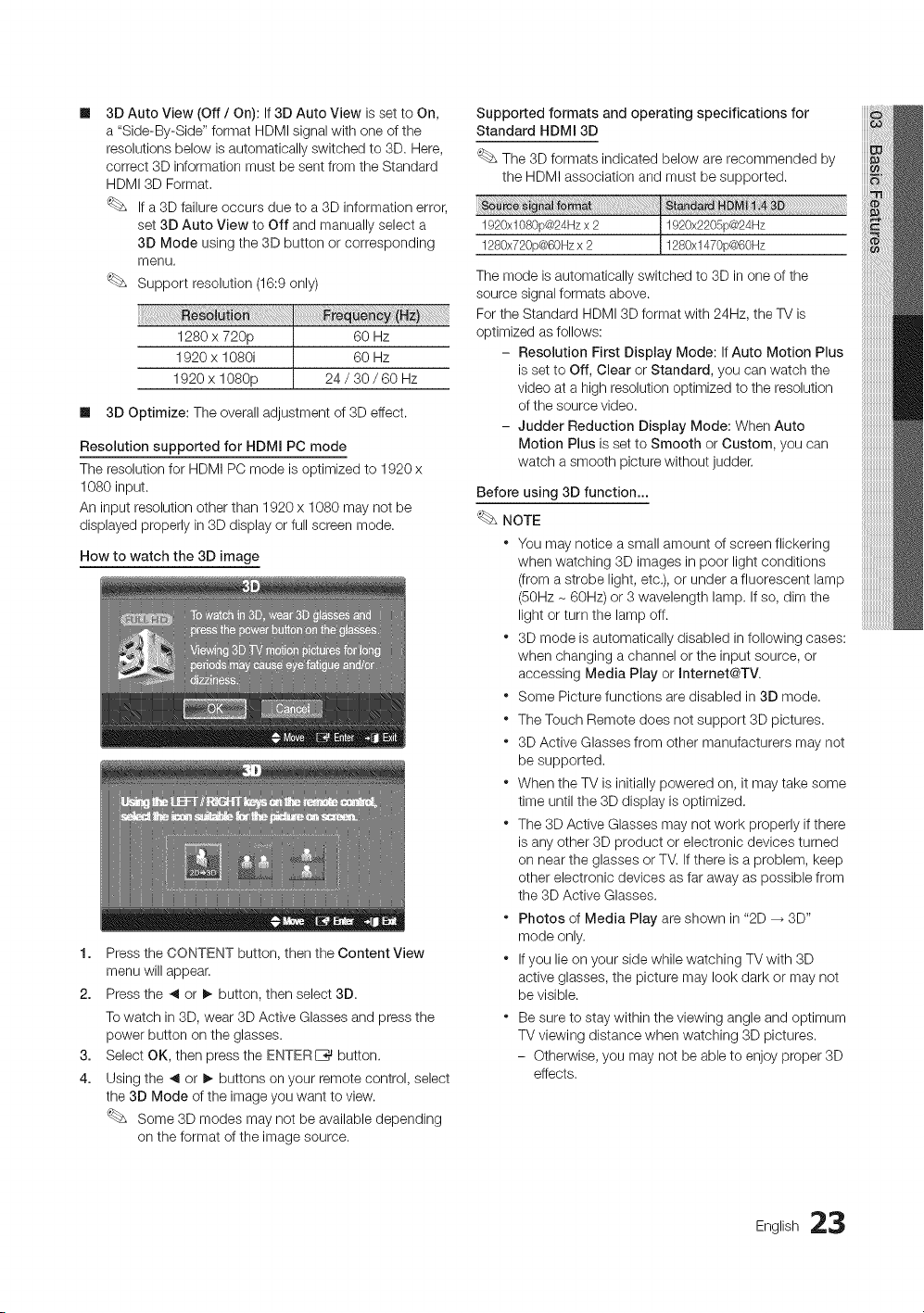
m
3DAutoView(Off/ On): If 3D Auto View is set to On,
a "Side-By-Side" format HDMI signal with one of the
resolutions below is automatically switched to 3D. Here,
correct 3D information must be sent from the Standard
HDMI 3D Format.
If a 3D failure occurs due to a 3D information error,
set 3D Auto View to Off and manually select a
3D Mode using the 3D button or corresponding
menu.
Support resolution (16:9 only)
1280 x 720p 60 Hz
1920 x 1080i 60 Hz
1920 x 1080p 24 / 30 / 60 Hz
Ill 3D Optimize: The overall adjustment of 3D effect.
Resolution supported for HDMI PC mode
The resolution for HDMI PC mode is optimized to 1920 x
1080 input.
An input resolution other than 1920 x 1080 may not be
displayed properly in 3D display or full screen mode.
How to watch the 3D image
1. Press the CONTENT button, then the Content View
menu will appear.
2. Press the _ or I_ button, then select 3D.
Towatch in 3D, wear 3D Active Glasses and press the
power button on the glasses.
3. Select OK, then press the ENTERI_ button.
4. Using the _ or I_ buttons on your remote control, select
the 3D Mode of the image you want to view.
Some 3D modes may not be available depending
on the format of the image source.
Supported formats and operating specifications for
Standard HDMI 3D
The 3D formats indicated below are recommended by
the HDMI association and must be supported.
i_ ifo:at ::
1920xl080p@24Hzx 2 1920x2205p@24Hz
1280x720p@60Hzx 2 1280xl470p@60Hz
The mode is automatically switched to 3D in one of the
source signal formats above.
For the Standard HDMI 3D format with 24Hz, the TV is
optimized as follows:
- Resolution First Display Mode: If Auto Motion Plus
is set to Off, Clear or Standard, you can watch the
video at a high resolution optimized to the resolution
of the source video.
- Judder Reduction Display Mode: When Auto
Motion Plus is set to Smooth or Custom, you can
watch a smooth picture without judder.
Before using 3D function...
NOTE
* You may notice a small amount of screen flickering
when watching 3D images in poor light conditions
(from a strobe light, etc.), or under a fluorescent lamp
(50Hz - 60Hz) or 3 wavelength lamp. If so, dim the
light or turn the lamp off.
* 3D mode is automatically disabled in following cases:
when changing a channel or the input source, or
accessing Media Play or Internet@TV.
* Some Picture functions are disabled in 3D mode.
* The Touch Remote does not support 3D pictures.
* 3D Active Glasses from other manufacturers may not
be supported.
* When the TV is initially powered on, it may take some
time until the 3D display is optimized.
* The 3D Active Glasses may not work properly if there
is any other 3D product or electronic devices turned
on near the glasses or TV. If there is a problem, keep
other electronic devices as far away as possible from
the 3D Active Glasses.
* Photos of Media Play are shown in "2D _ 3D"
mode only.
* If you lie on your side while watching TV with 3D
active glasses, the picture may look dark or may not
be visible.
* Be sure to stay within the viewing angle and optimum
TV viewing distance when watching 3D pictures.
- Otherwise, you may not be able to enjoy proper 3D
effects.
English 23
Basic Features
Resets your current picture mode to its default setting&
Setting up the TV with Your PC
Set the input source to PC.
(_ MENU _ Picture --_ ENTER[_
Auto Adjustment ........................................................................................................................
Adjust frequency values/positions and fine tune the settings
automatically.
Not available when connecting with an HDMI/DVI cable.
Screen
II
m
Coarse / Fine: Removes or reduces picture noise. If the
noise is not removed by Fine-tuning alone, then adjust
the frequency as best as possible (Coarse) and Fine-
tune again. After the noise has been reduced, readjust
the picture so that it is aligned to the center of screen.
Position: Adjust the PO's screen positioning if it does
not fit the TV screen. Press the A or • button to adjust
the Vertical-Position. Press the _ or I_ button to adjust
the Horizontal-Position.
Ill image Reset: Resets the image to default settings.
Using Your IV as a Computer (PC) Display
Setting Up Your PC Software (Based on Windows XP)
Depending on the version of Windows and the video card,
the actual screens on your PC will probably look different, but
the same basic set-up information will apply in most cases.
(If not, contact your computer manufacturer or Samsung
Dealer.)
1. Click on "Control Panel" on the Windows start menu.
2. Click on "Appearance and Themes" in the "Control
Panel" window and a display dialog-box will appear.
3. Click on "Display" and a display dialog box will appear.
4. Navigate to the "Settings" tab on the display dialog-box.
• The correct size setting (resolution) [Optimum: 1920 X
1080 pixels]
• If a vertical-frequency option exists on your display
settings dialog box, the correct value is "60" or "60 Hz".
Otherwise, just click "OK" and exit the dialog box.
Changing the Preset Sound Mode
(_ MENU --_ Sound _ SRS TheaterSound -+
ENTER I_
SRS TheaterSound
Ill Standard: Selects the normal sound mode.
Ill Music: Emphasizes music over voices.
Ill Movie: Provides the best sound for movies.
Ill Clear Voice: Emphasizes voices over other sounds.
Ill Amplify: Increase the intensity of high-frequency sound
to allow a better listening experience for the hearing
impaired.
Adjusting Sound Settings
(_ MENU --_ Sound -_ Equalizer -_ ENTERE_
Equalizer ........................................................................................................................................................................................................................
Adjusts the sound mode (standard sound mode only).
Ill Balance L/R: Adjusts the balance between the right and
left speaker.
Ill 100Hz / 300Hz / lkNz / 3kNz / 10kHz (Bandwidth
Adjustment): Adjusts the level of specific bandwidth
frequencies.
Ill Reset: Resets the equalizer to its default settings.
4 English
Sound Settings
(_ MENU _ Sound --_ ENTER[_
SRS TruSurround HD (Off / On)
(standard sound mode only)
This function provides a virtual 5.1 channel surround sound
experience through a pair of speakers using HRTF (Head
Related Transfer Function) technology.
SRS TruDialog (Off / On)....................................................................................................................
(standard sound mode only)
This function allows you to increase the intensity of a voice
over background music or sound effects so that dialog can
be heard more clearly.
Preferred Language .............................................................................................................
(digital channels only)
DigitaI-TV broadcasts are capable of
simultaneous transmission of many audio
tracks (for example, simultaneous translations
of the program into foreign languages),
You can only select a language among
the ones being broadcasted.
Multi-Track Sound (MTS)
(analog channels only)
Ill Mono: Choose for channels that are
broadcasting in mono or if you are having
difficulty receiving a stereo signal. ¢_ilTS
Ill Stereo: Choose for channels that are
broadcasting in stereo.
Ill SAP: Choose to listen to the Separate
Audio Program, which is usually a foreign-
language translation.
Depending on the particular program being broadcast,
you can listen to Mono, Stereo or SAP.
Auto Volume (Off / Normal / Night)
To equalize the volume level on each channel, set to Normal.
Ill Night: This mode provides an improved sound
experience compared to Normal mode, making almost
no noise. It is useful at night.
Speaker Select (External Speaker / TV
Speaker) ............................................................................................................................
A sound echo may occur due to a difference in decoding
speed between the main speaker and the audio receiver. In
this case, set the TV to External Speaker.
When Speaker Select is set to External Speaker, the
volume and MUTE buttons will not operate and the
sound settings will be limited,
When Speaker Select is set to External Speaker.
* TV Speaker: Off, External Speaker: On
When Speaker Select is set to TV Speaker,
* TV Speaker: On, External Speaker: On
If there is no video signal, both speakers will be mute.
SPDIF Output
SPDIF (Sony Philips Digital Interface)is used to provide digital
sound, reducing interference going to speakers and various
digital devices such as an A/V Receiver/Home theater.
Ill Audio Format: During the reception of a digital TV
broadcast, you can select the Digital Audio output
(SPDIF)format from the options PCM or Dolby Digital.
Ill Audio Delay: Correct audio-video sync problems, when
watching TV or video, and when listening to digital audio
output using an external device such as an AV receiver
(0ms- 250ms),
Sound Reset (OK/Cancel)
Reset all sound settings to the factory defaults.
English 25
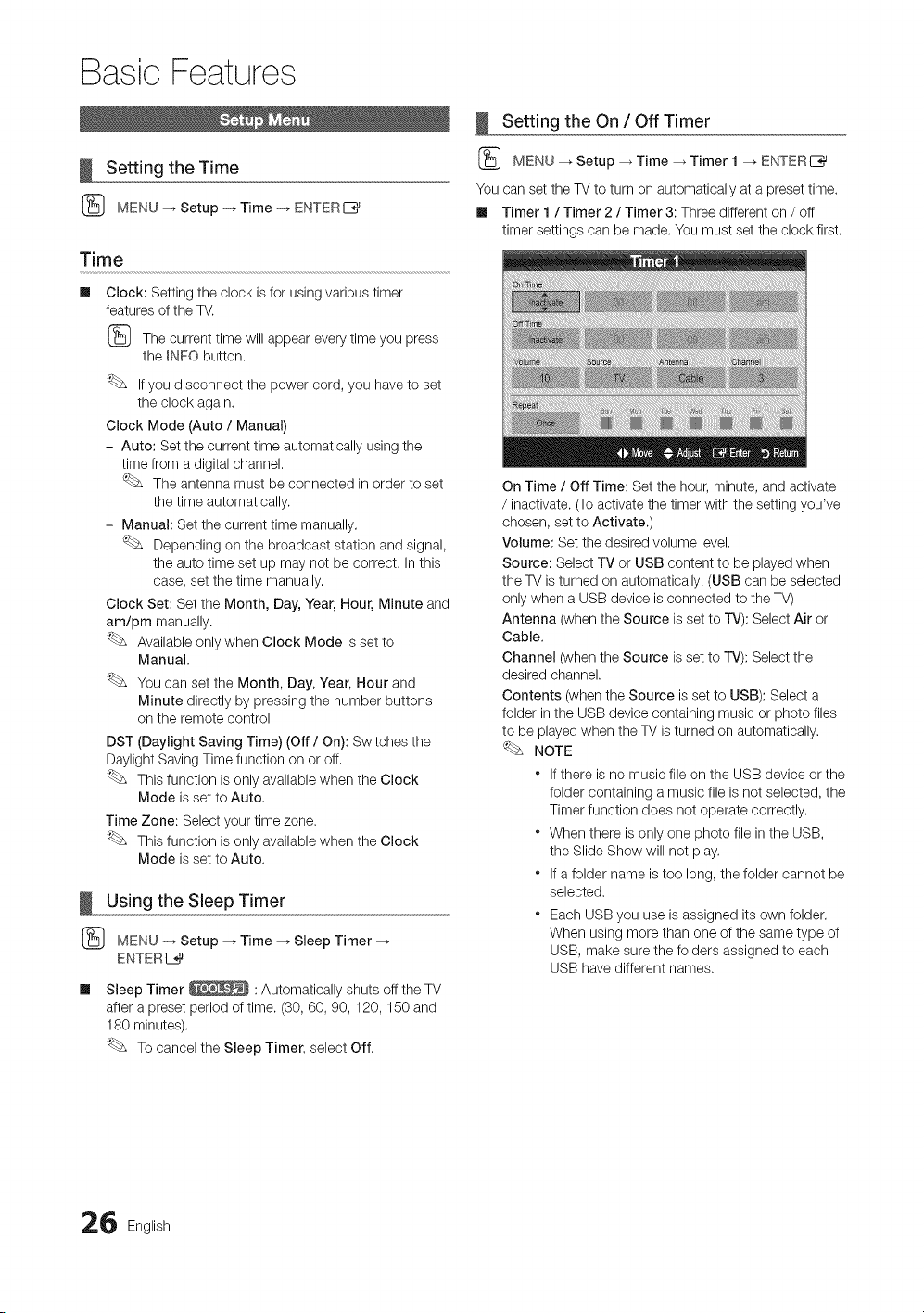
Basic Features
Setting the Time
{_ MENU -_ Setup -+ Time -+ ENTERE_
Time
m
Clock: Setting the clock is for using various timer
features of the TV.
{_ The current time will appear every time you press
the _NFObutton.
If you disconnect the power cord, you have to set
the clock again.
Clock Mode (Auto / Manual)
- Auto: Set the current time automatically using the
time from a digital channel.
The antenna must be connected in order to set
the time automatically.
- Manual: Set the current time manually.
Depending on the broadcast station and signal,
the auto time set up may not be correct. In this
case, set the time manually.
Clock Set: Set the Month, Day, Year, Hour, Minute and
am/pm manually.
Available only when Clock Mode is set to
Manual.
You can set the Month, Day, Year, Hour and
Minute directly by pressing the number buttons
on the remote control.
DST (Daylight Saving Time) (Off/On): Switches the
Daylight Saving Time function on or off.
This function is only available when the Clock
Mode is set to Auto.
Time Zone: Select your time zone.
This function is only available when the Clock
Mode is set to Auto.
Using the Sleep Timer
{_ MENU _ Setup _ Time _ Sleep Timer
ENTER IZ_
m Sleep Timer _ : Automatically shuts off the TV
after a preset period of time. (30, 60, 90, 120, 150 and
180 minutes).
To cancel the Sleep Timer, select Off.
Setting the On / Off Timer
{_ MENU _ Setup _ Time _ Timer 1 _ ENTERI_
You can set the TV to turn on automatically at a preset time.
Ill Timer 1 / Timer 2 / Timer 3: Three different on / off
timer settings can be made. You must set the clock first.
On Time / Off Time: Set the hour, minute, and activate
/ inactivate. (Toactivate the timer with the setting you've
chosen, set to Activate.)
Volume: Set the desired volume level.
Source: Select TV or USB content to be played when
the TV is turned on automatically. (USB can be selected
only when a USB device is connected to the TV)
Antenna (when the Source is set to rv): Select Air or
Cable.
Channel (when the Source is set to TV): Select the
desired channel.
Contents (when the Source is set to USB): Select a
folder in the USB device containing music or photo files
to be played when the TV is turned on automatically.
NOTE
" If there is no music file on the USB device or the
folder containing a music file is not selected, the
Timer function does not operate correctly.
" When there is only one photo file in the USB,
the Slide Show will not play.
" If a folder name is too long, the folder cannot be
selected.
" Each USB you use is assigned its own folder.
When using more than one of the same type of
USB, make sure the folders assigned to each
USB have different names.
6 English
Repeat:SelectOnce,Everyday,Mon~Fri,Mon~Sat,
Sat~SunorManualtosetatyouconvenience,Ifyou
selectManual,youcansetupthedayyouwantto
activatethetimer.
The,J markindicatesthedayisselected.
AutoPowerOff(availableonlywhentheTVisturned
onbytheTimer):TheTVwillbeautomaticallyturnedoff
after3hoursofbeingleftidletopreventoverheating.
Locking Programs
(_ MENU _ Setup -_ Security -_ ENTERE_
Security
The PIN input screen appears, Enter your 4 digit PIN number.
Ill V-Chip: The V-Chip feature automatically locks out
programs that are deemed inappropriate for children.
The user must enter a PIN (personal identification
number) before any of the V-Chip restrictions are set up
or changed.
NOTE
* V-Chip is not available in HDMI, Component
or PC mode.
* The default PIN number of a new TV set is
"0-0-0-0".
* Allow All: Press to unlock all TV ratings.
* Block All: Press to lock all TV ratings.
V-Chip Lock (Off/On): You can block rated TV
Programs.
TV Parental Guidelines: You can block TV programs
depending on their rating. This function allows you to
control what your children are watching,
- IV-Y: Young children / TV-Y7: Children 7 and over /
rV-G: General audience / rV-PG: Parental guidance
/ TV-14: Viewers 14 and over / TV-MA: Mature
audience
- ALL: Lock all TV ratings. / FV: Fantasy violence / V:
Violence / S: Sexual situation / L: Adult Language / D:
Sexually Suggestive Dialog
The V-Chip will automatically block certain
categories dealing with more sensitive material.
For example, if you block the TV-¥ category,
then TV-Y7 will automatically be blocked.
Similarly, if you block the TV-G category, then
all the categories in the young adult group will
be blocked (TV-G, TV-PG, TV-14 and TV-MA),
The sub-ratings (D, L, S, V) work similarly. So,
if you block the L sub-rating in TV-PG, then
the L sub-ratings in TV-14 and TV-MA will
automatically be blocked.
MPAA Rating: You can block movies depending on
their MPAA rating, The Motion Picture Association of
America(MPAA) has implemented a rating system that
provides parents or guardians with advanced information
on which films are appropriate for children.
- G: General audience (no restrictions). / PG: Parental
guidance suggested. / PG-13: Parents strongly
cautioned, / R: Restricted. Children under 17 should
be accompanied by an adult. / NO-17: No children
under age 17./X: Adults only. / NR: Not rated.
The V-Chip will automatically block any
category that deals with more sensitive material.
For example, if you block the PG-13 category,
then R, N0-17 and X will automatically be
blocked.
Canadian English: You can block TV programs
depending on their Anglophone Canadian ratings,
- C: Programming intended for children under age 8. /
08+: Programming generally considered acceptable
for children 8 years and over to watch on their own.
/G: General programming, suitable for all audiences.
/ PG: Parental Guidance./14+: Programming
contains themes or content which may not be
suitable for viewers under the age of 14. / 18+: Adult
programming.
The V-Chip will automatically block any
category that deals with more sensitive material.
For example, if you block the G category, then
PG, 14+ and 18+ will automatically be blocked.
Canadian French: You can block TV programs
depending on their French Canadian rating,
- G: General/8 ans+: Programming generally
considered acceptable for children 8 years and over
to watch on their own. / 13 ans+: Programming may
not be suitable for children under the age of 13. / 16
ans+: Programming is not suitable for children under
the age of 16. / 18 arts+: Programming restricted to
adults.
The V-Chip will automatically block any
category that deals with more sensitive material.
For example, if you block the 8 arts+ category,
then 13 arts+, 16 ans+ and 18 arts+ will
automatically be blocked also.
Downloadable U.S. Rating: Parental restriction
information can be used while watching DTV channels.
English 27
Basic Features
m
NOTE
* If information is not downloaded from the
broadcasting station, the Downloadable U.S.
Rating menu is deactivated.
* Parental restriction information is automatically
downloaded while watching DTV channels. It
may take several seconds.
* The Downloadable U.S. Rating menu
is available for use after information is
downloaded from the broadcasting station,
However, depending on the information from
the broadcasting station, it may not be available
for use.
* Parental restriction levels differ depending on
the broadcasting station, The default menu
name and Downloadable US Rating change
depending on the downloaded information.
* Even if you set the on-screen display to another
language, the Downloadable U.S. Rating
menu will appear in English only.
* The rating will automatically block certain
categories that deal with more sensitive
material.
* The rating titles (For example: Humor Level,.etc)
and TV ratings (For example: DH, MH, H,,etc)
may differ depending on the broadcasting
station.
Change PIN: The Change PIN screen will appear.
Choose any 4 digits for your PIN and enter them. As
soon as the 4 digits are entered, the Confirm New
PIN screen appears. Re-enter the same 4 digits, When
the Confirm screen disappears, your PIN has been
memorized.
How to watch a restricted channel
If the TV is tuned to a restricted channel, the V-Chip will
block it. The screen will go blank and the following message
will appear:
This channel is blocked by V-Chip. Please enter the PIN to
unblock.
If you forget the PIN, press the remote-control buttons
in the following sequence, which resets the pin to "0-0-
0-0:" POWER (off) _ MUTE --_ 8 --_ 2 _ 4 _ POWER
(on)
Other Features
(_ MENU --_ Setup _ ENTERC_
Menu Language
Set the menu language.
1. Select Menu Language and press the ENTERI_
button,
2. Choose desired language and press the ENTERI_
button,
Choose between English, EspaSol and Fran_;ais,
Caption
(On-Screen Text Messages)
Ill Caption (Off / On): You can switch the
caption function on or off. If captions are not
available, they will not be displayed on the
screen. __
The Caption feature doesn't work in
Component, HDMI or PC modes.
Ill Caption Mode: You can select the desired
caption mode.
The availability of captions depends on the
program being broadcast.
Default / OO1~004 / Text1 ~Text4: (analog channels
only) The Analog Caption function operates in either
analog TV channel mode or when a signal is supplied
from an external device to the TV. (Depending on the
broadcasting signal, the Analog Caption function may or
may not work with digital channels,)
Default / Service1 ~Service6 / OO1~004 /
Text1 ~Text4: (digital channels only)The Digital Captions
function works with digital channels.
Service1~6 may not be available in digital caption
mode depending on the broadcast.
8 English
m
DigitalCaptionOptions:(digitalchannelsonly)
Size:OptionsincludeDefault,Small,Standardand
Large.ThedefaultisStandard.
FontStyle:OptionsincludeDefaultandStyles0to7.
ThedefaultisStyle0.
ForegroundColor:OptionsincludeDefault,White,
Black,Red,Green,Blue,Yellow,MagentaandCyan.You
canchangethecoloroftheletter.ThedefaultisWhite.
BackgroundColor:OptionsincludeDefault,White,
Black,Red,Green,Blue,Yellow,MagentaandCyan.
Youcanchangethebackgroundcolorofthecaption.
ThedefaultisBlack.
ForegroundOpacity:Thisadjuststheopacityoftext.
OptionsincludeDefault,Transparent,Translucent,Solid
andFlashing.
BackgroundOpacity:Thisadjuststheopacityof
thecaptionbackground.OptionsincludeDefault,
Transparent,Translucent,SolidandFlashing.
ReturntoDefault:ThisoptionsetseachSize,Font
Style,ForegroundColor,BackgroundColor,Foreground
OpacityandBackgroundOpacitytoitsdefault.
NOTE
* DigitalCaptionOptionsareavailableonly
whenDefaultandService1~Service6canbe
selectedinCaptionMode.
* Theavailabilityofcaptionsdependsonthe
programbeingbroadcasted.
* TheDefaultsettingfollowsthestandardssetby
thebroadcaster.
* TheForegroundandBackgroundcannotbeset
tohavethesamecolor.
* YoucannotsetboththeForegroundOpacity
andtheBackgroundOpacitytoTransparent.
Network (Network Type / Network Setup
/ Network Test / SWL(Samsung Wireless
Link} / SWL connect}
For details on set up options, refer to the "Network
Connection" instructions (p. 32).
General
m Game Mode (Off / On): When connecting to a game
console such as PlayStation TM or Xbox TM, you can enjoy
a more realistic gaming experience by selecting the
game menu.
NOTE
* Precautions and limitations for game mode
- To disconnect the game console and connect
another external device, set Game Mode to Off in
the setup menu.
- If you display the TV menu in Game Mode, the
screen shakes slightly.
* Game Mode is not available when the input source
is set to TV or PC.
* After connecting the game console, set Game Mode
to On. Unfortunately, you may notice reduced picture
quality.
* If Game Mode is On:
- Picture mode is set to Standard and Sound mode
is set to Movie.
- Equalizer is not available.
m BD Wise (Off / On): Provides the optimal picture quality
for Samsung DVD, Blu-ray and Home Theater products
which support BD Wise, When BD Wise is turned On,
the picture mode is automatically changed to the optimal
resolution.
Available when connecting Samsung products
that support BD Wise through a HDMI cable.
m Menu Transparency (Bright / Dark): Set the
Transparency of the menu.
m Slide Key (On / Off): You can choose to use the LED
touch pad, which is centered underneath the stand, or
not.
m Melody (Off / Low / Medium / High): Set so that a
melody plays when the TV is turned on or off.
Melody is disabled when FastStart is On.
m FastStart (Off / On): When the TV is powered on, the
screen will come on quickly with this feature.
English 29
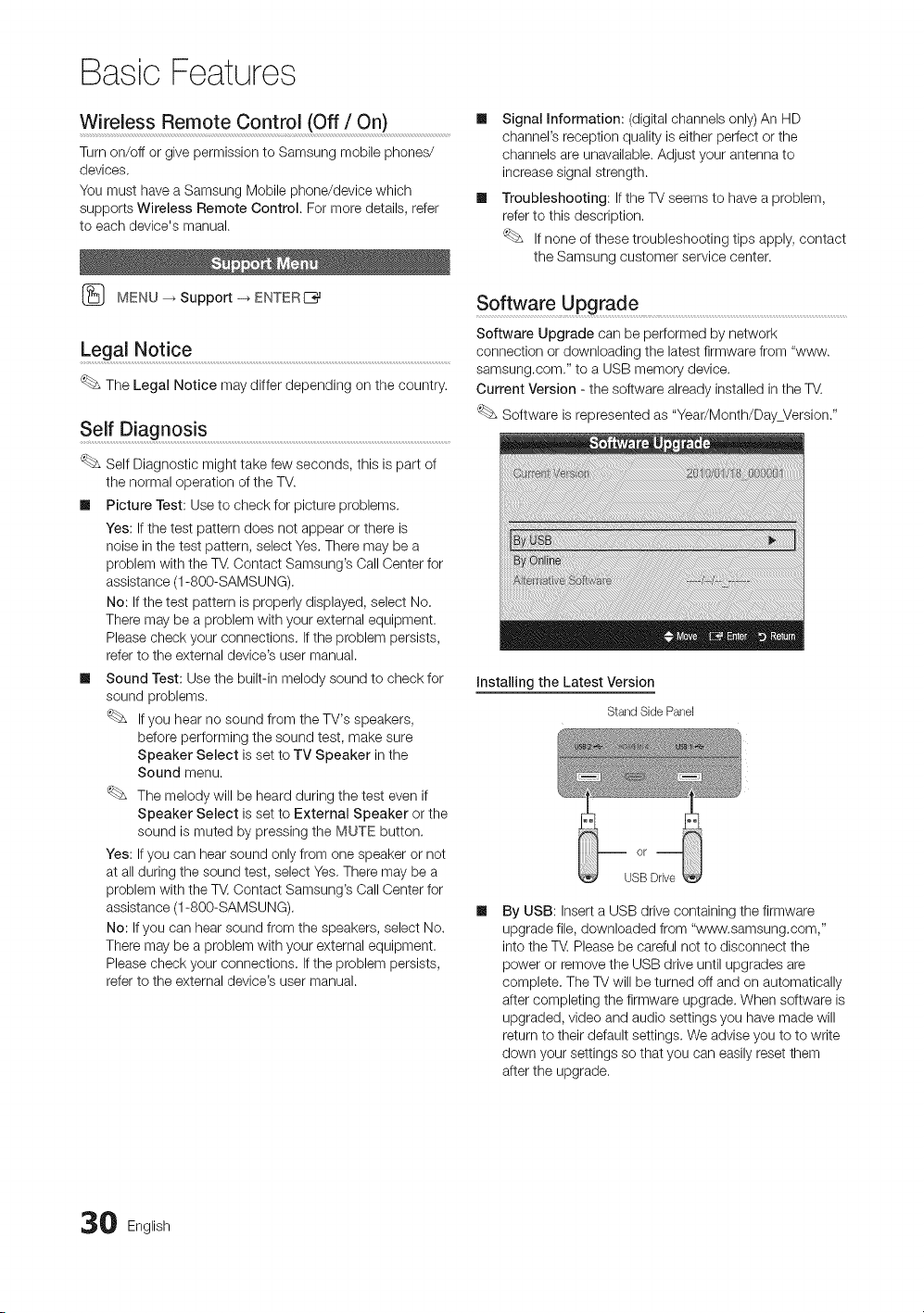
Basic Features
Wireless Remote Control (Off / On}
Turn on/off or give permission to Samsung mobile phones/
devices.
You must have a Samsung Mobile phone/device which
supports Wireless Remote Control. For more details, refer
to each device's manual.
MENU _ Support -_ ENTER E_
Legal Notice .................................................................................................................................................................................................
The Legal Notice may differ depending on the country.
Self Diagnos!s .....................................................................................................................................................................................
Self Diagnostic might take few seconds, this is part of
the normal operation of the TV.
II Picture Test: Use to check for picture problems.
Yes: If the test pattern does not appear or there is
noise in the test pattern, select Yes, There may be a
problem with the T_, Contact Samsung's Call Center for
assistance (1-800-SAMSUNG),
No: If the test pattern is properly displayed, select No,
There may be a problem with your external equipment.
Please check your connections, If the problem persists,
refer to the external device's user manual.
Ill Sound Test: Use the built-in melody sound to check for
sound problems,
If you hear no sound from the TV's speakers,
before performing the sound test, make sure
Speaker Select is set to TV Speaker in the
Sound menu.
The melody will be heard during the test even if
Speaker Select is set to External Speaker or the
sound is muted by pressing the MUTE button.
Yes: If you can hear sound only from one speaker or not
at all during the sound test, select Yes, There may be a
problem with the T_, Contact Samsung's Call Center for
assistance (1-800-SAMSUNG),
No: If you can hear sound from the speakers, select No.
There may be a problem with your external equipment.
Please check your connections, If the problem persists,
refer to the external device's user manual.
Ill Signal Information: (digital channels only) An HD
channel's reception quality is either perfect or the
channels are unavailable. Adjust your antenna to
increase signal strength.
Ill Troubleshooting: If the TV seems to have a problem,
refer to this description.
If none of these troubleshooting tips apply, contact
the Samsung customer service center.
Software Upgrade ........................................................................................................................................................
Software Upgrade can be performed by network
connection or downloading the latest firmware from "www.
samsung.com." to a USB memory device.
Current Version - the software already installed in the TV.
Software is represented as "Year/Month/DayVersion."
Installing the Latest Version
StandSide Panel
USB Drive
By USB: Insert a USB drive containing the firmware
upgrade file, downloaded from "www.samsung.com,"
into the TM Please be careful not to disconnect the
power or remove the USB drive until upgrades are
complete. The TV will be turned off and on automatically
after completing the firmware upgrade. When software is
upgraded, video and audio settings you have made will
return to their default settings. We advise you to to write
down your settings so that you can easily reset them
after the upgrade.
0 English
Ill ByOnline:UpgradethesoftwareusingtheInternet.
First,configureyournetwork.Fordetailed
proceduresonusingtheNetworkSetup,referto
the"NetworkConnection"instructions.
Iftheinternetconnectiondoesn'toperateproperly,
theconnectionmaybebroken.Pleaseretry
downloading.Iftheproblempersists,downloadby
USBandupgrade.
Ill AlternativeSoftware:Displaysthesoftwareversion
downloadedthroughByOnline,Duringthesoftware
upgrading,WhentheUpgradewilldiscontinuefromlast
step,thisfunctionbeactivated.
HD Connection Guide
Refer to this information when connecting external devices
to the TV.
Contact Samsung ...........................................
View this information when your TV does not work properly
or when you want to upgrade the software. You can find
information regarding our call centers and how to download
products and software.
English 31
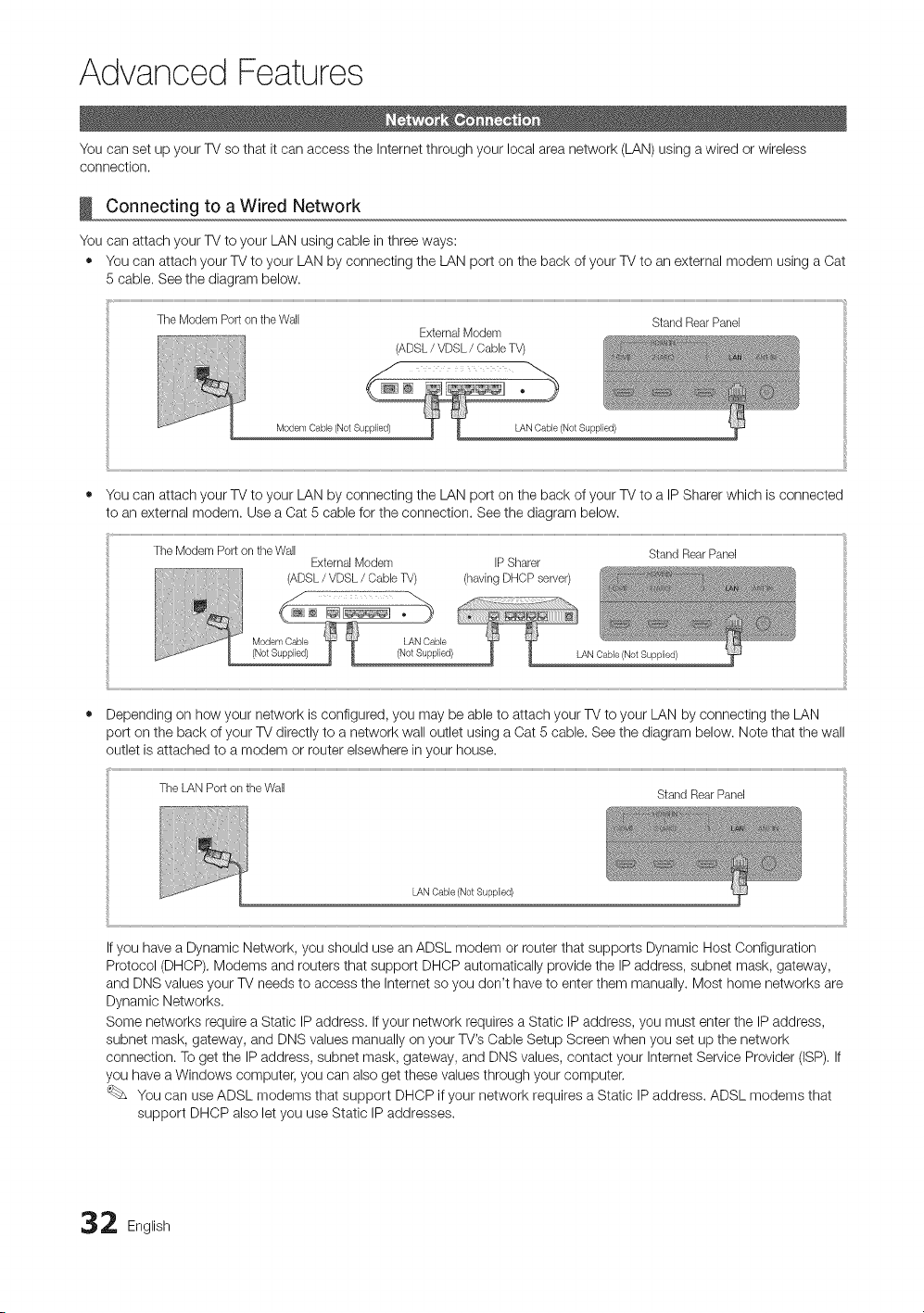
Advanced Features
You can set up your TV so that it can access the Internet through your local area network (LAN) using a wired or wireless
connection.
Connecting to a Wired Network
You can attach your TV to your LAN using cable in three ways:
• You can attach your TV to your LAN by connecting the LAN port on the back of your TV to an external modem using a Cat
5 cable. See the diagram below.
TheModemPortontheWall StandRearPanel
ExternalModem
(ADSL/ VDSL/ (}ableTV)
Modem Oable (Not Supplied) LAN Cable (Not Supplied)
You can attach your TV to your LAN by connecting the LAN port on the back of your TV to a IP Sharer which is connected
to an external modem. Use a Cat 5 cable for the connection. See the diagram below.
The ModemPortontheWall StandRearPanel
ExternalModem IPSharer
(ADSL/ VDSL/Oable TV) (havingDHCPserver)
LAN Oable (Not Supplied)
LAN Cable (Not Supplied)
If you have a Dynamic Network, you should use an ADSL modem or router that supports Dynamic Host Configuration
Protocol (DHCP). Modems and routers that support DHCP automatically provide the IP address, subnet mask, gateway,
and DNS values your TV needs to access the Internet so you don't have to enter them manually. Most home networks are
Dynamic Networks.
Some networks require a Static IP address. If your network requires a Static IP address, you must enter the IP address,
subnet mask, gateway, and DNS values manually on your TV's Cable Setup Screen when you set up the network
connection. To get the IP address, subnet mask, gateway, and DNS values, contact your Internet Service Provider (ISP). If
you have a Windows computer, you can also get these values through your computer.
You can use ADSL modems that support DHCP if your network requires a Static IP address. ADSL modems that
support DHCP also let you use Static IP addresses.
2 English
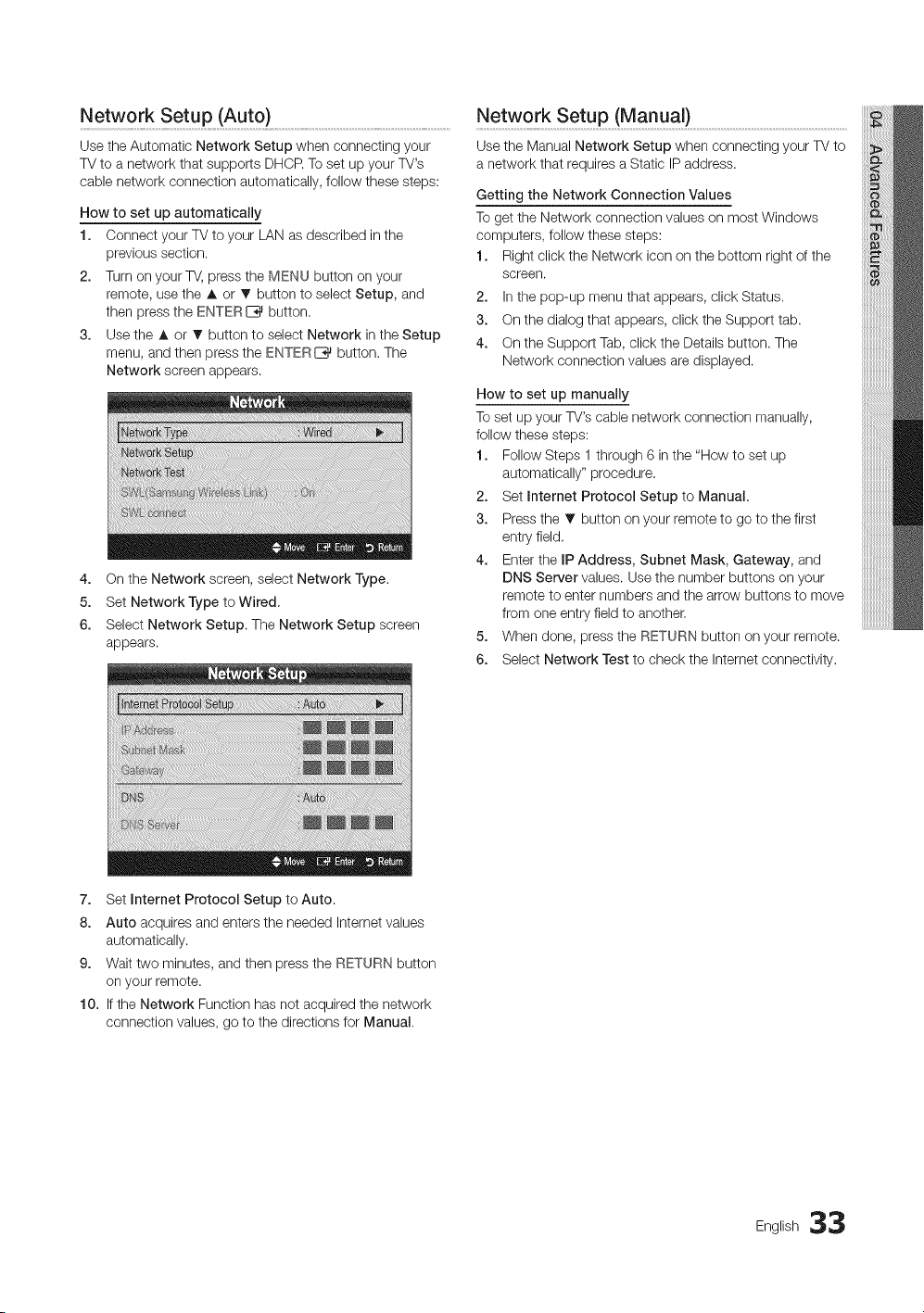
UsetheAutomaticNetworkSetupwhenconnectingyour
TVtoanetworkthatsupportsDHCRTosetupyourTV's
cablenetworkconnectionautomatically,followthesesteps:
Netw0rk Setup (Auto) ........................................................................................................................................Network Setup (Manua{) ......................................................................................................................
Use the Manual Network Setup when connecting your TV to
a network that requires a Static IP address.
How to set up automatically
1. Connect your TV to your LAN as described in the
previous section.
2. Turn on your TV, press the MENU button on your
remote, use the A or _' button to select Setup, and
then press the ENTERE_ button.
3. Use the A or V button to select Network in the Setup
menu, and then press the ENTERI_ button. The
Network screen appears.
4. On the Network screen, select Network Type.
5. Set Network Type to Wired,
6. Select Network Setup. The Network Setup screen
appears.
Getting the Network Connection Values
To get the Network connection values on most Windows
computers, follow these steps:
1. Right click the Network icon on the bottom right of the
screen.
2. In the pop-up menu that appears, click Status.
3. On the dialog that appears, click the Support tab.
4. On the Support Tab, click the Details button. The
Network connection values are displayed.
How to set up manually
Toset up your TV's cable network connection manually,
follow these steps:
1. Follow Steps 1 through 6 in the "How to set up
automatically" procedure.
2. Set Internet Protocol Setup to Manual.
3. Press the _' button on your remote to go to the first
entry field,
4. Enter the IP Address, Subnet Mask, Gateway, and
DNS Server values. Use the number buttons on your
remote to enter numbers and the arrow buttons to move
from one entry field to another,
5. When done, press the RETURN button on your remote.
6. Select Network Test to check the Internet connectivity.
7. Set Internet Protocol Setup to Auto.
8. Auto acquires and enters the needed Internet values
automatically.
9. Wait two minutes, and then press the RETURN button
on your remote.
10. If the Network Function has not acquired the network
connection values, go to the directions for Manual.
English 33
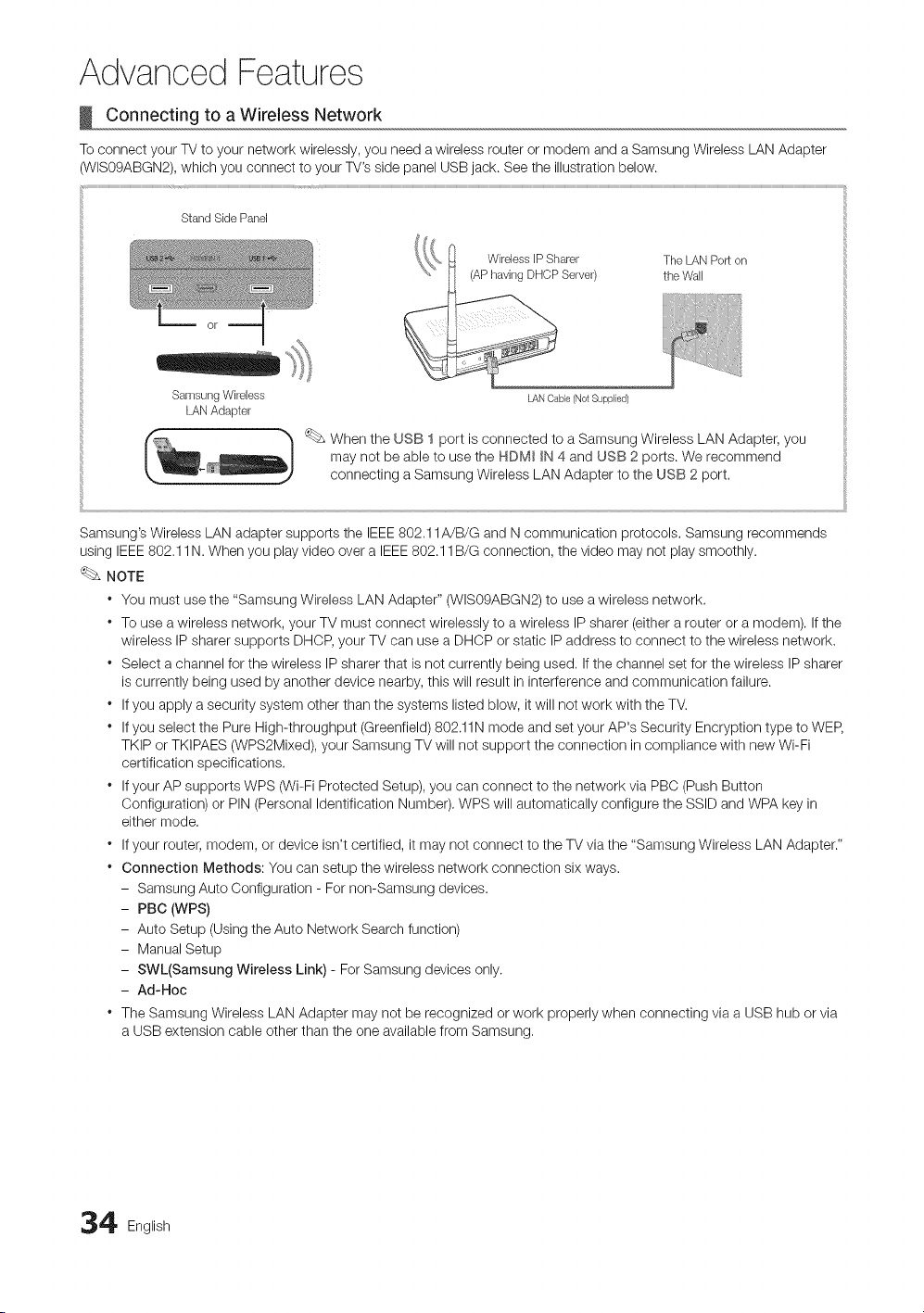
Advanced Features
Connecting to a Wireless Network
To connect your TV to your network wirelessly, you need a wireless router or modem and a Samsung Wireless LAN Adapter
(WIS09ABGN2), which you connect to your TV's side panel USB jack. See the illustration below.
1
StandSidePanel
The LAN Port on
the Wall
Samsung Wireless LAN Oable (Not Supplied)
LANAdapter
_ When the USB 1 port is connected to a Samsung Wireless LAN Adapter, you
may not be able to use the HDM_ _N 4 and USB 2 ports. We recommend
connecting a Samsung Wireless LAN Adapter to the USB 2 port.
Samsung's Wireless LAN adapter supports the IEEE 802.11A/B/G and N communication protocols. Samsung recommends
using IEEE 802.11N. When you play video over a IEEE 802.11B/G connection, the video may not play smoothly.
NOTE
" You must use the "Samsung Wireless LAN Adapter" (WIS09ABGN2) to use a wireless network.
* To use a wireless network, your TV must connect wirelessly to a wireless IP sharer (either a router or a modem). If the
wireless IP sharer supports DHCP, your TV can use a DHCP or static IP address to connect to the wireless network.
* Select a channel for the wireless IP sharer that is not currently being used, If the channel set for the wireless IP sharer
is currently being used by another device nearby, this will result in interference and communication failure.
* If you apply a security system other than the systems listed blow, it will not work with the TV.
* If you select the Pure High-throughput (Greenfield) 802.11N mode and set your AP's Security Encryption type to WEP,
TKIP or TKIPAES (WPS2Mixed), your Samsung TV will not support the connection in compliance with new Wi-Fi
certification specifications.
* If your AP supports WPS (Wi-Fi Protected Setup), you can connect to the network via PBC (Push Button
Configuration) or PIN (Personal Identification Number), WPS will automatically configure the SSID and WPA key in
either mode.
* If your router, modem, or device isn't certified, it may not connect to the TV via the "Samsung Wireless LAN Adapter."
* Connection Methods: You can setup the wireless network connection six ways.
- Samsung Auto Configuration - For non-Samsung devices.
- PBC (WPS)
- Auto Setup (Using the Auto Network Search function
- Manual Setup
- SWL(Samsung Wireless Link) - For Samsung devices only.
- Ad-Hoc
* The Samsung Wireless LAN Adapter may not be recognized or work properly when connecting via a USB hub or via
a USB extension cable other than the one available from Samsung,
4 English
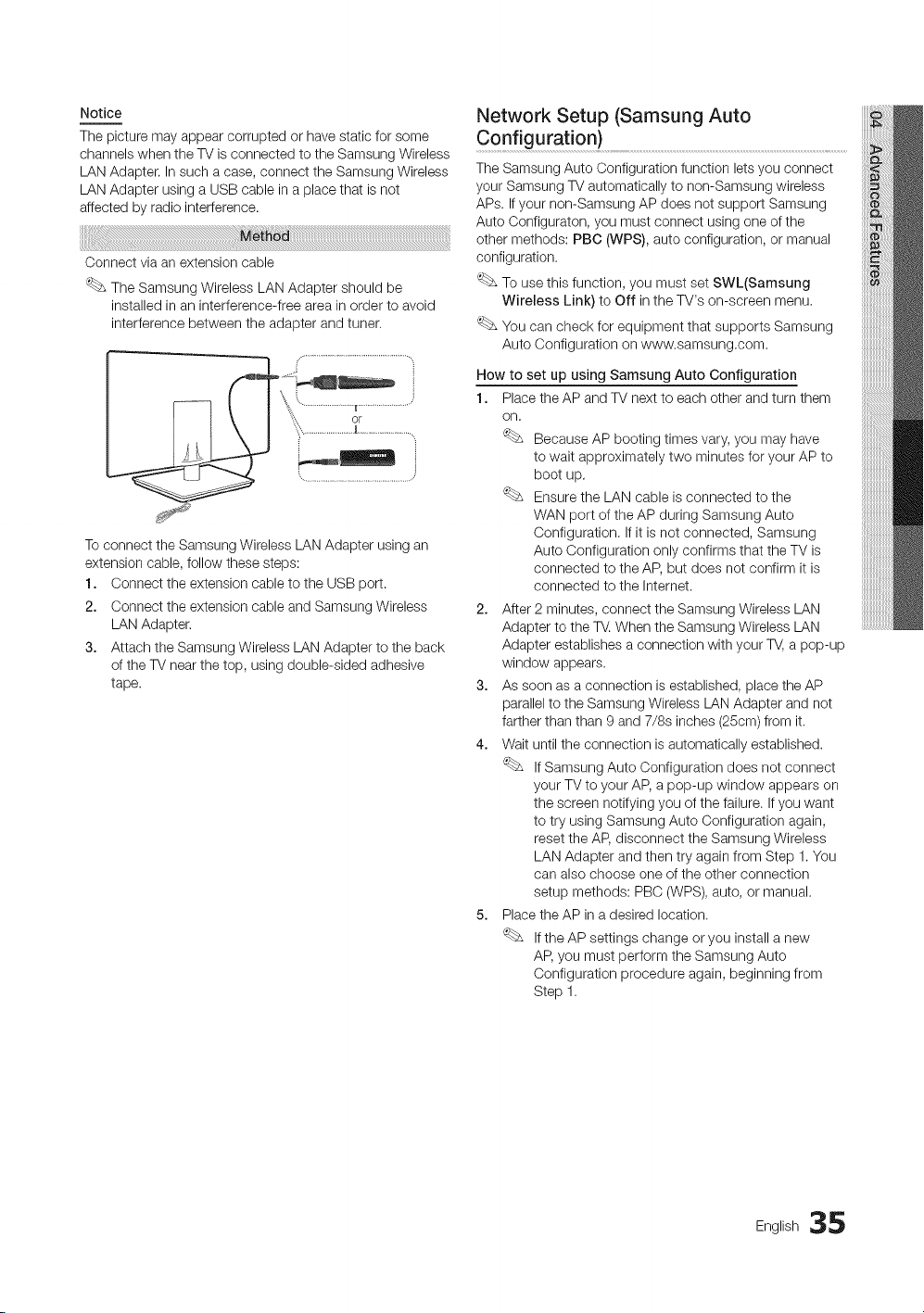
Notice
The picture may appear corrupted or have static for some
channels when the TV is connected to the Samsung Wireless
LAN Adapter. In such a case, connect the Samsung Wireless
LAN Adapter using a USB cable in a place that is not
affected by radio interference.
Connect via an extension cable
The Samsung Wireless LAN Adapter should be
installed in an interference-free area in order to avoid
interference between the adapter and tuner.
To connect the Samsung Wireless LAN Adapter using an
extension cable, follow these steps:
1. Connect the extension cable to the USB port.
2. Connect the extension cable and Samsung Wireless
LAN Adapter.
3. Attach the Samsung Wireless LAN Adapter to the back
of the TV near the top, using double-sided adhesive
tape.
Network Setup (Samsung Auto
Configuration)
The Samsung Auto Configuration function lets you connect
your Samsung TV automatically to non-Samsung wireless
APs. If your non-Samsung AP does not support Samsung
Auto Configuraton, you must connect using one of the
other methods: PBC (WPS), auto configuration, or manual
configuration.
To use this function, you must set SWL(Samsung
Wireless Link) to Off in the TV's on-screen menu,
You can check for equipment that supports Samsung
Auto Configuration on www.samsung,com.
How to set up using Samsung Auto Configuration
1. Place the AP and TV next to each other and turn them
on,
Because AP booting times vary, you may have
to wait approximately two minutes for your AP to
boot up.
Ensure the LAN cable is connected to the
WAN port of the AP during Samsung Auto
Configuration, If it is not connected, Samsung
Auto Configuration only confirms that the TV is
connected to the AP, but does not confirm it is
connected to the Internet.
2. After 2 minutes, connect the Samsung Wireless LAN
Adapter to the TV. When the Samsung Wireless LAN
Adapter establishes a connection with your TV, a pop-up
window appears.
3. As soon as a connection is established, place the AP
parallel to the Samsung Wireless LAN Adapter and not
farther than than 9 and 7/8s inches (25cm) from it.
4. Wait until the connection is automatically established.
If Samsung Auto Configuration does not connect
your TV to your AP, a pop-up window appears on
the screen notifying you of the failure. If you want
to try using Samsung Auto Configuration again,
reset the AID,disconnect the Samsung Wireless
LAN Adapter and then try again from Step 1. You
can also choose one of the other connection
setup methods: PBC (WPS), auto, or manual.
5. Place the AP in a desired location.
If the AP settings change or you install a new
AID,you must perform the Samsung Auto
Configuration procedure again, beginning from
Step 1.
English 35
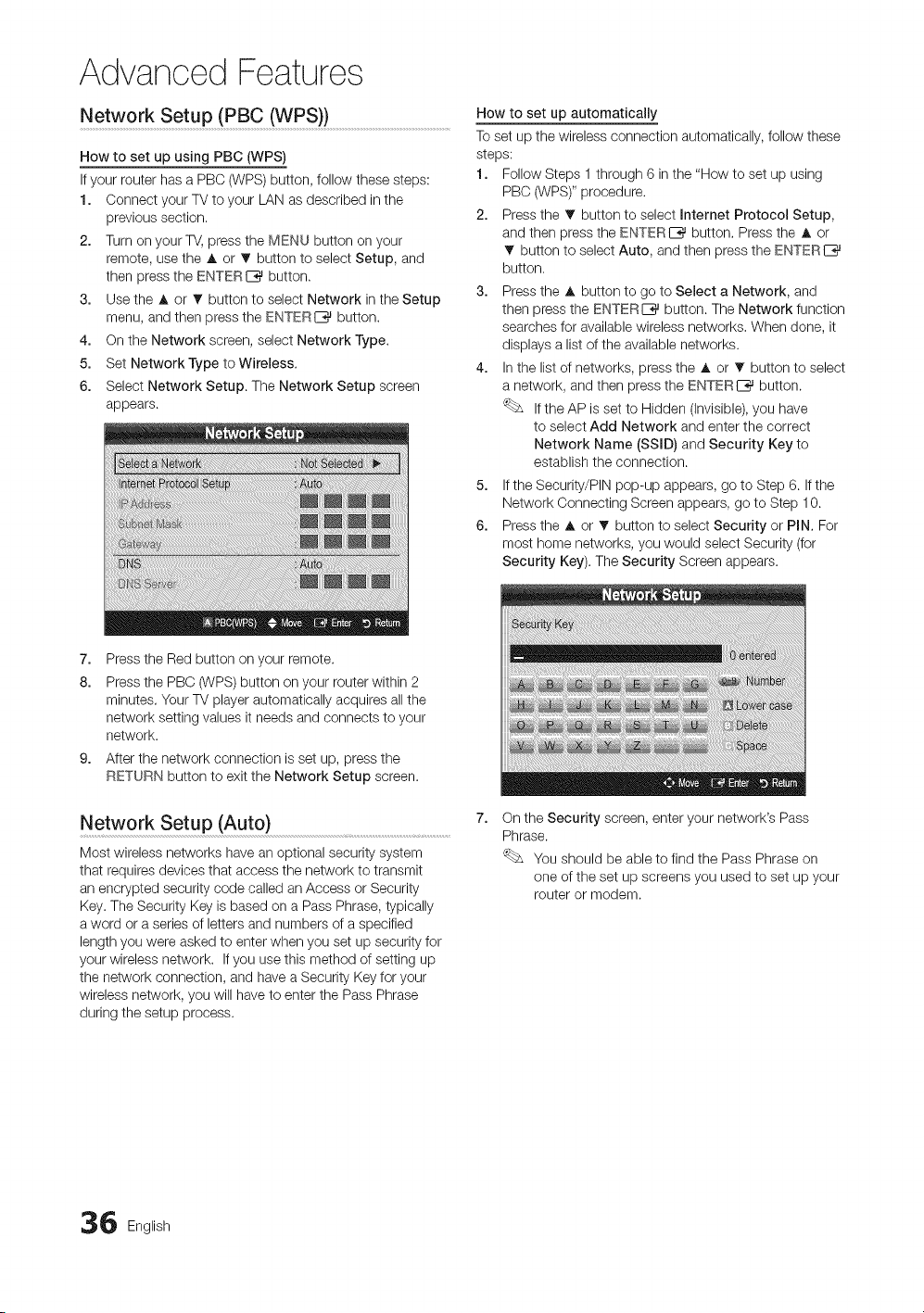
Advanced Features
Network Setup (PBC (WPS)) ..........................................................................................
How to set up using PBC (WPS)
If your router has a PBC (WPS) button, follow these steps:
1. Connect your TV to your LAN as described in the
previous section.
2. Turn on your TV, press the MENU button on your
remote, use the A or _' button to select Setup, and
then press the ENTERIZ_ button.
3. Use the A or T button to select Network in the Setup
menu, and then press the ENTERI_ button.
4. On the Network screen, select Network Type.
5. Set Network Type to Wireless.
6. Select Network Setup. The Network Setup screen
appears.
How to set up automatically
Toset up the wireless connection automatically, follow these
steps:
1. Follow Steps 1 through 6 in the "How to set up using
PBO (WPS)" procedure.
2. Press the T button to select Internet Protocol Setup,
and then press the ENTERIZ_ button. Press the A or
button to select Auto, and then press the ENTERI_
button.
3. Press the A button to go to Select a Network, and
then press the ENTERE_ button. The Network function
searches for available wireless networks. When done, it
displays a list of the available networks.
4. In the list of networks, press the A or 1!' button to select
a network, and then press the ENTERI_ button.
If the AP is set to Hidden (Invisible), you have
to select Add Network and enter the correct
Network Name (SSID) and Security Key to
establish the connection.
5. If the Security/PIN pop-up appears, go to Step 6. If the
Network Connecting Screen appears, go to Step 10.
6. Press the A or T button to select Security or PIN. For
most home networks, you would select Security (for
Security Key). The Security Screen appears.
7. Press the Red button on your remote.
8. Press the PBC (WPS) button on your router within 2
minutes. Your TV player automatically acquires all the
network setting values it needs and connects to your
network.
9. After the network connection is set up, press the
RETURN button to exit the Network Setup screen.
Network Setup (Auto) .............................................................................
Most wireless networks have an optional security system
that requires devices that access the network to transmit
an encrypted security code called an Access or Security
Key. The Security Key is based on a Pass Phrase, typically
a word or a series of letters and numbers of a specified
length you were asked to enter when you set up security for
your wireless network. If you use this method of setting up
the network connection, and have a Security Key for your
wireless network, you will have to enter the Pass Phrase
during the setup process.
On the Security screen, enter your network's Pass
Phrase.
You should be able to find the Pass Phrase on
one of the set up screens you used to set up your
router or modem.
6 English
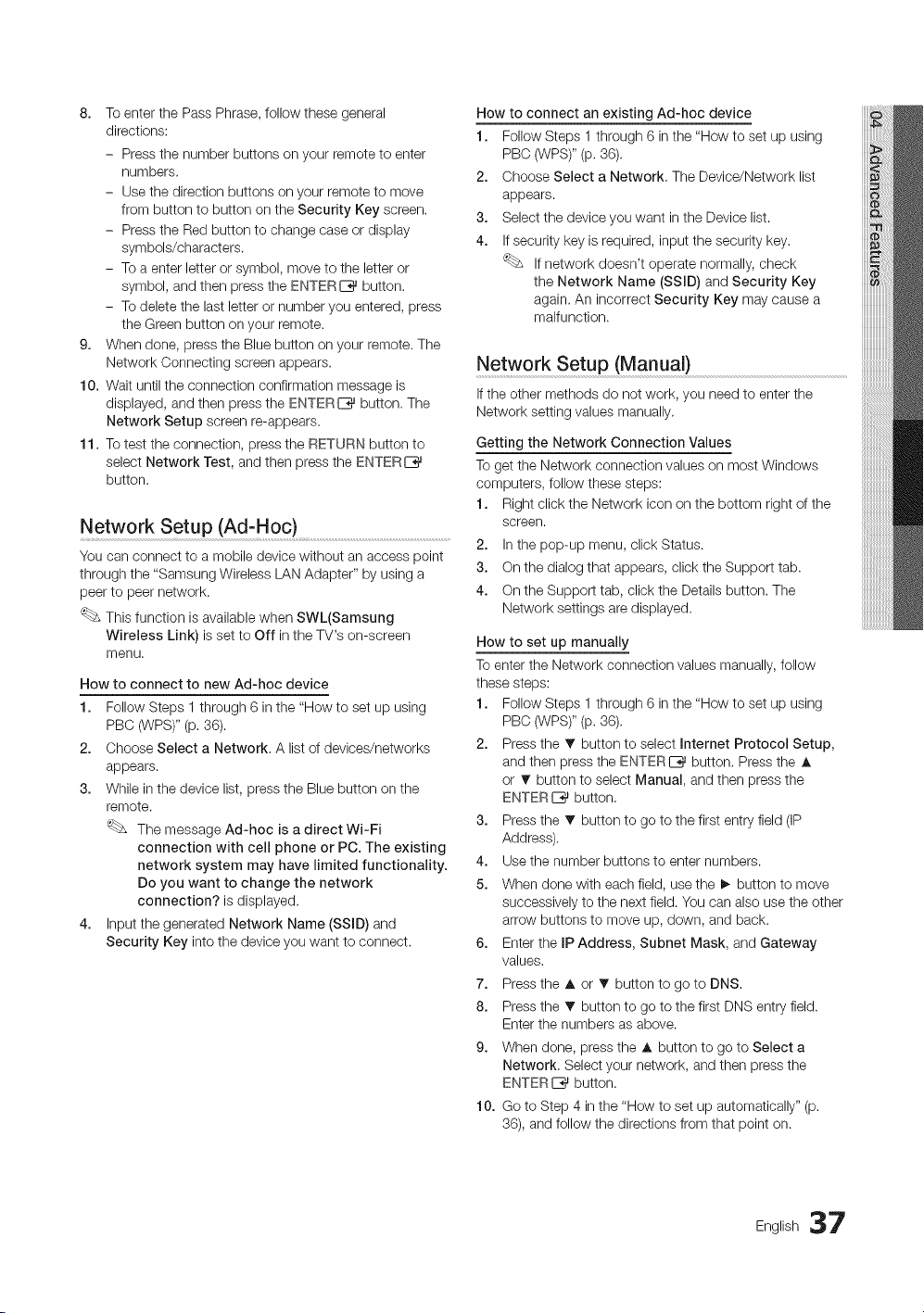
8. ToenterthePassPhrase,followthesegeneral
directions:
- Pressthenumberbuttonsonyourremotetoenter
numbers.
- Usethedirectionbuttonsonyourremotetomove
frombuttontobuttonontheSecurityKeyscreen.
- PresstheRedbuttontochangecaseordisplay
symbols/characters.
- Toaenterletterorsymbol,movetotheletteror
symbol,andthenpresstheENTERIZ_button.
- Todeletethelastletterornumberyouentered,press
theGreenbuttononyourremote.
9. Whendone,presstheBluebuttononyourremote.The
NetworkConnectingscreenappears.
10.Waituntiltheconnectionconfirmationmessageis
displayed,andthenpresstheENTERI_button.The
NetworkSetupscreenre-appears.
11.Totesttheconnection,presstheRETURNbuttonto
selectNetworkTest,andthenpresstheENTERE_
button.
Network Setup (Ad-Hoc) ..................................................................................................................
You can connect to a mobile device without an access point
through the "Samsung Wireless LAN Adapter" by using a
peer to peer network.
This function is available when SWL(Samsung
Wireless Link) is set to Off in the TV's on-screen
menu.
How to connect to new Ad-hoc device
1. Follow Steps 1 through 6 in the "How to set up using
PBC (WPS)" (p. 36).
2. Choose Select a Network, A list of devices/networks
appears.
3. While in the device list, press the Blue button on the
remote.
The message Ad-hoc is a direct WFFi
connection with cell phone or PC. The existing
network system may have limited functionality.
Do you want to change the network
connection? is displayed.
4. Input the generated Network Name (SSID) and
Security Key into the device you want to connect.
How to connect an existing Ad-hoc device
1. Follow Steps 1 through 6 in the "How to set up using
PBC (WPS)" (p, 36).
2. Choose Select a Network, The Device/Network list
appears.
3. Select the device you want in the Device list.
4. If security key is required, input the security key.
If network doesn't operate normally, check
the Network Name (SSID) and Security Key
again. An incorrect Security Key may cause a
malfunction.
Network Setup (Manua0
If the other methods do not work, you need to enter the
Network setting values manually,
Getting the Network Connection Values
To get the Network connection values on most Windows
computers, follow these steps:
1. Right click the Network icon on the bottom right of the
screen.
2. In the pop-up menu, click Status.
3. On the dialog that appears, click the Support tab.
4. On the Support tab, click the Details button. The
Network settings are displayed.
How to set up manually
To enter the Network connection values manually, follow
these steps:
1. Follow Steps 1 through 6 in the "How to set up using
PBC (WPS)" (p. 36).
2. Press the T button to select Internet Protocol Setup,
and then press the ENTERE_ button, Press the A
or T button to select Manual, and then press the
ENTER I_ button,
3. Press the _' button to go to the first entry field (IP
Address).
4. Use the number buttons to enter numbers.
5. When done with each field, use the I_ button to move
successively to the next field. You can also use the other
arrow buttons to move up, down, and back.
6. Enter the IP Address, Subnet Mask, and Gateway
values.
7. Press the A or • button to go to DNS.
8. Press the T button to go to the first DNS entry field.
Enter the numbers as above.
9. When done, press the A button to go to Select a
Network, Select your network, and then press the
ENTER E_ button.
10. Go to Step 4 in the "How to set up automatically" (p.
36), and follow the directions from that point on.
English 37
Advanced Features
SWL(samsung wireless Link) ...................................................................
This function lets you connect your TV to a Samsung device
(router, etc,) that supports PBC (WPS). You can connect the
TV to the device even if a sharer is not connected to the TV.
For the TV to use Internet@TV, the AP (access point)
must be connected to the wireless network.
Only sharers using the 2.4 Ghz band are supported.
Sharers using the 5 Ghz band are not supported.
SWL connect
You can directly connect the TV to a Samsung device that
supports PBO (WPS).
This function is available when SWL (Samsung
Wireless Link) is set to On in the TV's on-screen
menu,
To use the SWL(Samsung Wireless Link) function,
connect the Samsung Wireless LAN Adpater to the
USB port.
How to connect using Samsung Wireless Link
To connect using Samsung Wireless Link, follow these steps:
1. Follow Steps 1 through 5 in the "How to set up using
PBC (WPS)" (p. 36).
2. Select SWL(Samsung Wireless Link) by using the
button, and then press the ENTERI_ button to turn it
On.
3. Select SWL connect by using the _' button, and then
press the ENTERI_ button.
4. If the Press the PBC button on the PBC(WPS)
supported device to connect within 120 seconds.
message appears, press the PBC button on the device
to connect.
For more information, refer to the wireless network
setup manual of the device to be connected.
5. If the TV connects properly to the device after the count
in the message box starts, then the message box
disappears automatically.
If the connection fails, please retry after 2 minutes.
If Your iV Fails to Connect to the Internet
Your TV may not be able to connect to the Internet
because your ISP has permanently registered the
MAC address (a unique identifying number) of your
PC or modem, which it then authenticates each time
you connect to the Internet as a way of preventing
unauthorized access. As your TV has a different MAC
address, your ISP can not authenticate its MAC address,
and your TV can not connect.
To resolve this problem, ask your ISP about the
procedures required to connect devices other than a PC
(such as your TV)to the Internet.
If your Internet service provider requires an ID or password
to connect to the Internet, your TV may not be able to
connect to the Internet. If this is the case, you must enter
your ID or password when connecting to the Internet.
The internet connection may fail because of a firewall
problem. If this is the case, contact your Internet service
provider.
If you cannot connect to the Internet even after you have
followed the procedures of your Internet service provider,
please contact Samsung Electronics at 1-800-SAMSUNG.
8 English
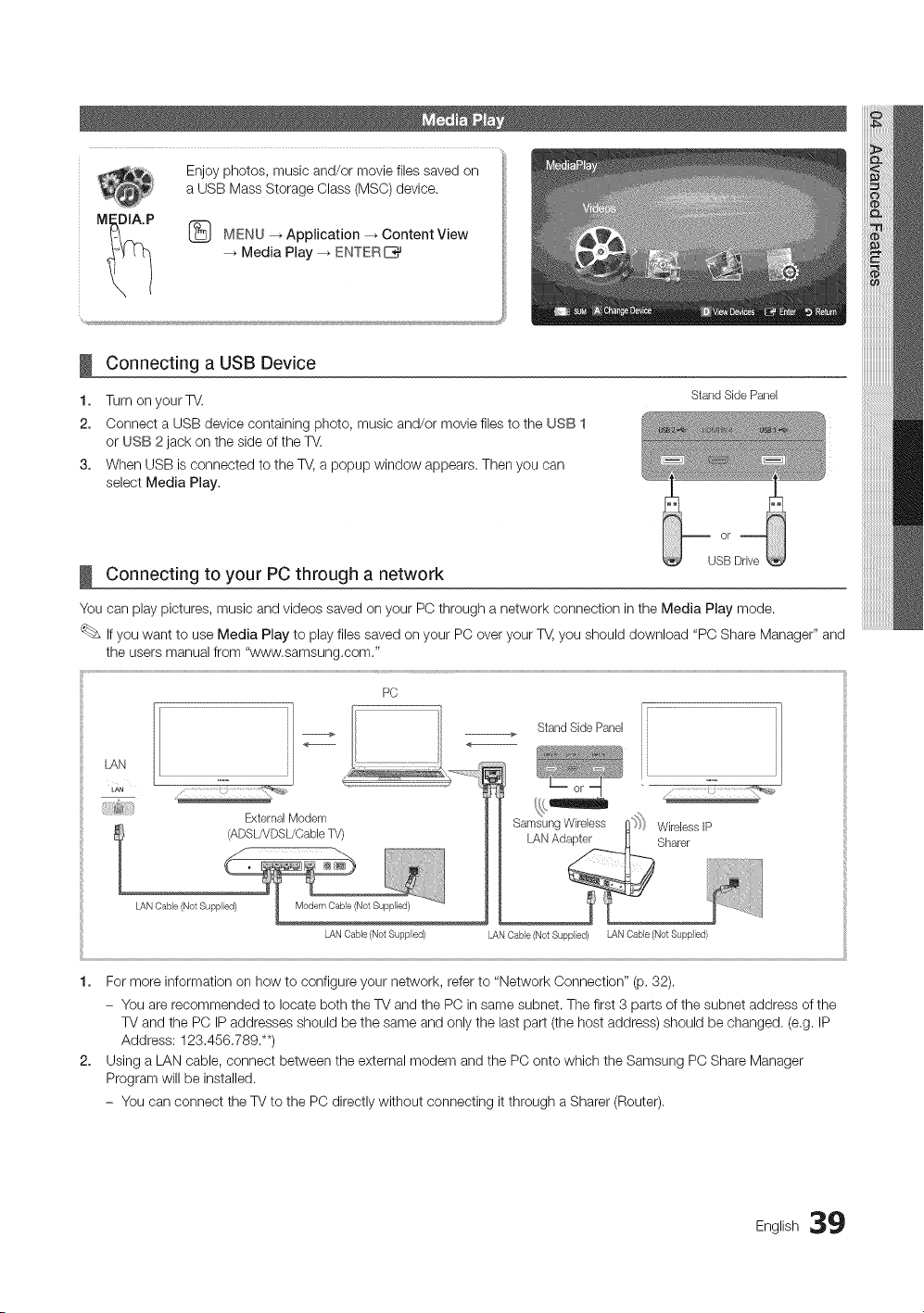
Enjoyphotos,musicand/ormoviefilessavedon
aUSBMassStorageClass(MSC)device.
M_DIt'P @ MENU -* Application _ Content View
Media Play _ ENTERE_
!
1.
2.
3,
!
Connecting a USB Device
Turn on your TV.
Connect a USB device containing photo, music and/or movie files to the USB 1
or USB 2 jack on the side of the TV.
When USB is connected to the TV, a popup window appears. Then you can
select Media Play.
Connecting to your PC through a network
Stand Side Panel
USB Drive
LAN
LAN
i:i_;:i!i!i_;_S_iiiii;i
,1-...................
PC
External Modem
Stand Side Panel
LAN Cable (Not Supplied) LAN Cable (Not Supplied) LAN Cable (Not Supplied)
1. For more information on how to configure your network, refer to "Network Connection" (p, 32).
- You are recommended to locate both the TV and the PC in same subnet. The first 3 parts of the subnet address of the
TV and the PC IP addresses should be the same and only the last part (the host address) should be changed. (e.g. IP
Address: 123,456,789.**)
2. Using a LAN cable, connect between the external modem and the PC onto which the Samsung PC Share Manager
Program will be installed.
- You can connect the TV to the PC directly without connecting it through a Sharer (Router),
English 39
Advanced Features
Functions that are not supported when connecting to a PC through a network:
* The Background Music and Background Music Setting functions.
* Sorting files by preference in the Photos, Music, and Videos folders.
* The [w_ (REW) or _ (FF)button while a movie is playing.
Divx DRM, Multi-audio, embedded captions are not supported.
Samsung PC Share manager should be permitted by the firewall program on your PC.
When you use Media Play mode through a network connection, depending on the functions of the provided server:
* The sorting method may vary.
* The scene search function may not be supported.
* The Play Continuously function, which resumes playing of a video, may not be supported.
- The Play Continuously function does not support multiple users. (Itwill have only memorized the point where the
most recent user stopped playing.)
* The _ or I_ buttons may not work depending on the content information.
* You may experience file stuttering while playing a video in Media Play through a network connection.
It might not work properly with unlicensed multimedia files.
Need-to-Know List before using Media Play
* MTP (Media Transfer Protocol) is not supported.
* The file system supports FAT16, FAT32 and NTFS.
* Certain types of USB Digital camera and audio devices may not be compatible with this TV.
* Media Play only supports USB Mass Storage Class (MSC) devices. MSC is a Mass Storage Class Bulk-Only
Transport device. Examples of MSC are Thumb drives, Flash Card Readers and USB HDD (USB HUB are not
supported). Devices should be connected directly to the TV's USB port.
* Before connecting your device to the TV, please back up your files to prevent them from damage or loss of data.
SAMSUNG is not responsible for any data file damage or data loss.
* Do not disconnect the USB device while it is loading.
* The higher the resolution of the image, the longer it takes to display on the screen.
* The maximum supported JPEG resolution is 15360X8640 pixels.
* For unsupported or corrupted files, the "Not Supported File Format" message is displayed.
* If the files are sorted by Basic View, up to 1000 files can be displayed in each folder.
* MP3 files with DRM that have been downloaded from a non-free site cannot be played. Digital Rights Management
(DRM) is a technology that supports the creation, distribution and management of the content in an integrated and
comprehensive way, including the protection of the rights and interests of the content providers, the prevention of the
illegal copying of contents, as well as managing billings and settlements.
* If more than 2 PTP devices are connected, you can only use one at a time.
* If more than two MSC devices are connected, some of them may not be recognized. A USB device that requires high
power (more than 500mA or 5V) may not be supported.
* If an over-power warning message is displayed while you are connecting or using a USB device, the device may not
be recognized or may malfunction.
* If the TV has been no input during time set in Auto Protection Time, the Screensaver will run.
* The power-saving mode of some external hard disk drives may be released automatically when connected to the TV.
* If a USB extension cable is used, the USB device may not be recognized or the files on the device may not be read.
* If a USB device connected to the TV is not recognized, the list of files on the device is corrupted or a file in the list is
not played, connect the USB device to the PC, format the device and check the connection.
* If a file deleted from the PC is still found when Media Play is run, use the "Empty the Recycle Bin" function on the PC
to permanently delete the file.
0 English
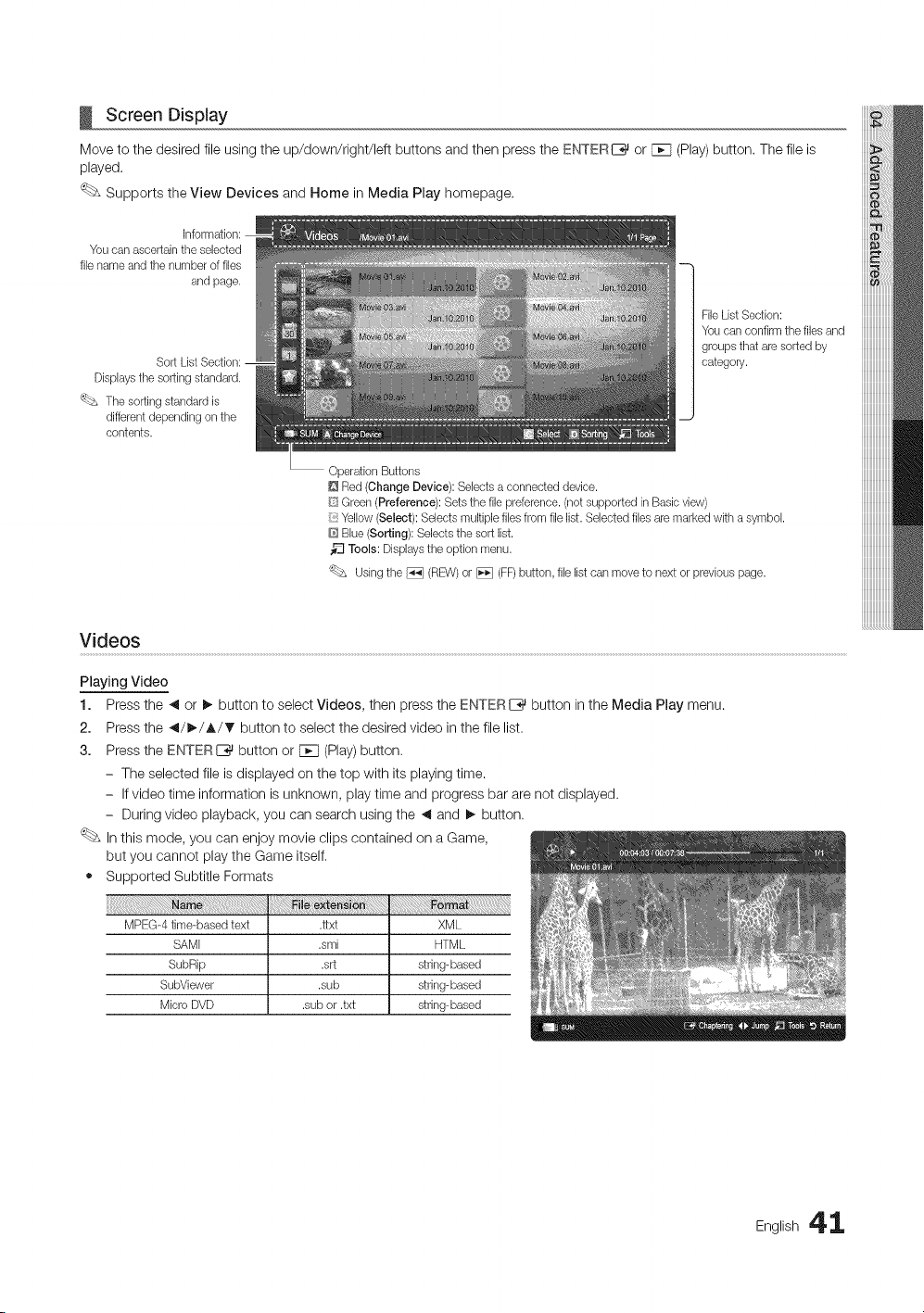
Screen Display
Move to the desired file using the up/down/right/left buttons and then press the ENTER[__ or Fcq (Play) button. The file is
played.
Supports the View Devices and Home in Media Play homepage.
You can ascertain the selected
file name and the number of files
and page.
Displaysthe sorting standard.
'_L_ The sorting standard is
different depending on the
contents.
Operation Buttons
Red (Change Device): Selects a connected device.
1
FileList Section:
You can confirm the files and
groups that are sorted by
category.
[i{SGreen (Preference): Sets the file preference.(not supported in Basic view)
:: Yellow (Select): Selects multiple files from file list. Selected files are marked with asymbol.
@ Blue (Sorting): Selects the sort list.
Tools: Displaysthe option menu.
Usingthe _ (REW)or _ (FF)button, file list can move to next or previous page.
Videos
Playing Video
1. Press the 41or I_ button to select Videos, then press the ENTER E_ button in the Media Play menu.
2. Press the 41/_,-/_,/_' button to select the desired video in the file list.
3. Press the ENTERI__ button or F_q (Play)button.
- The selected file is displayed on the top with its playing time.
- If video time information is unknown, play time and progress bar are not displayed.
- During video playback, you can search using the ,_ and !_ button.
In this mode, you can enjoy movie clips contained on a Game,
but you cannot play the Game itself.
• Supported Subtitle Formats
MPEG-4 time-based text .ttxt XML
SAMI .smi HTML
SubRip .srt string-based
SubViewer .sub string-based
Micro DVD .sub or .txt string-based
English 41
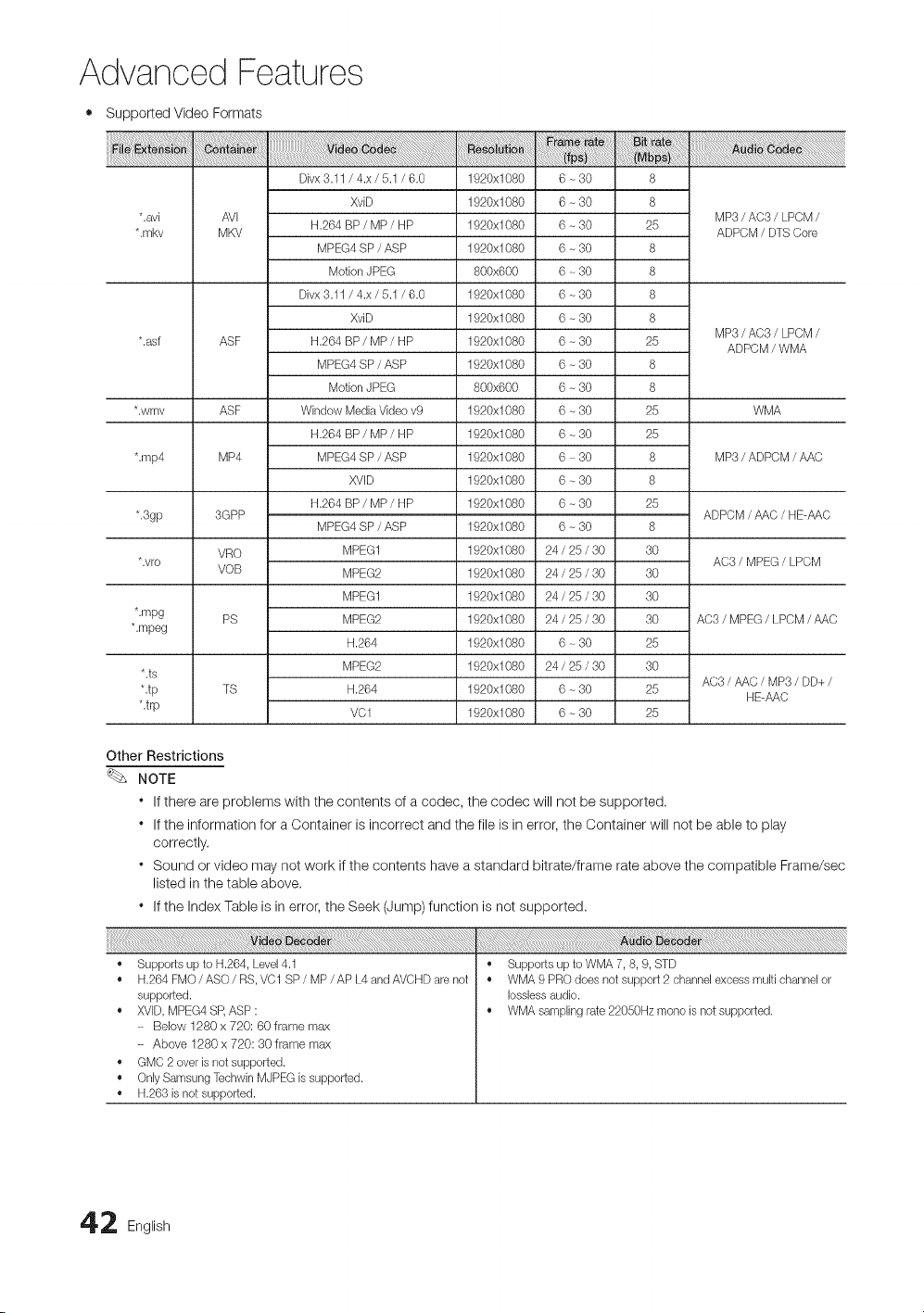
Advanced Features
• Supported Video Formats
Divx 3.11 / 4.x / 5.1 / 6.0 1920x1080 6-30 8
XvD 1920x1080 6 - 30 8
*.avi AVI MP3 / AC3 / LPCM /
H.264 BP / MP / HP 1920x1080 6 - 30 25
*.mkv MKV ADPCM / DTS Core
MPEG4 SP / ASP 1920x1080 6 - 30 8
Motion JPEG 800x600 6 - 30 8
Divx 3.11 / 4.x / 5.1 / 6.0 1920x1080 6-30 8
XviD 1920x1080 6 - 30 8
MP3 / AC3 / LPCM /
*.asf ASF H.264 BP / MP / HP 1920xl 080 6 - 30 25
ADPCM / WMA
MPEG4 SP / ASP 1920x1080 6 - 30 8
Motion JPEG 800x600 6 - 30 8
*.wmv ASF Window Media Video v9 1920x1080 6 - 30 25 WMA
H.264 BP / MP / HP 1920xl 080 6 - 30 25
*.rap4 MP4 MPEG4 SP / ASP 1920x1080 6 - 30 8 MP3 / ADPCM / AAC
XVID 1920x1080 6 ~ 30 8
H.264 BP / MP / HP 1920xl 080 6 - 30 25
*.3gp 3GPP ADPCM / AAC / HE-AAC
MPEG4 SP / ASP 1920x1080 6 - 30 8
VRO MPEG1 1920x1080 24 / 25 / 30 30
*.vro AC3 / MPEG / LPCM
VOB MPEG2 1920x1080 24 / 25 / 30 30
MPEG1 1920x1080 24 / 25 / 30 30
*.mpg PS MPEG2 1920x1080 24 / 25 / 30 30 AC3 / MPEG / LPCM / AAC
*.mpeg
H.264 1920x1080 6 - 30 25
MPEG2 1920x1080 24 / 25 / 30 30
*.ts
AC3 / AAC / MP3 / DD+ /
*.tp TS H.264 1920x1080 6 - 30 25
HE-AAC
*.trp VC1 1920x1080 6 ~ 30 25
Other Restrictions
NOTE
* If there are problems with the contents of a codec, the codec will not be supported.
* If the information for a Container is incorrect and the file is in error, the Container will not be able to play
correctly.
* Sound or video may not work if the contents have a standard bitrate/frame rate above the compatible Frame/sec
listed in the table above.
* If the Index Table is in error, the Seek (Jump) function is not supported.
• Supports up to H.264, Level 4.1
• H.264FMO/ASO/RS, VC1 SP/MP/APL4andAVCHDarenot
supported.
• XVID,MPEG4 SR ASP :
- Below 1280 x 720:60 frame max
- Above 1280 x 720:30 frame max
• GMC 2 over b not supported.
• Only Samsung Techwin MJPEG b supported.
• H.263is not supported.
• Supports up to WMA 7, 8, 9, STD
• WMA 9 PRO does not support 2 channel excess multi channel or
Iossbss audio.
• WMA sampling rate 22050Hz mono is not supported.
2 English
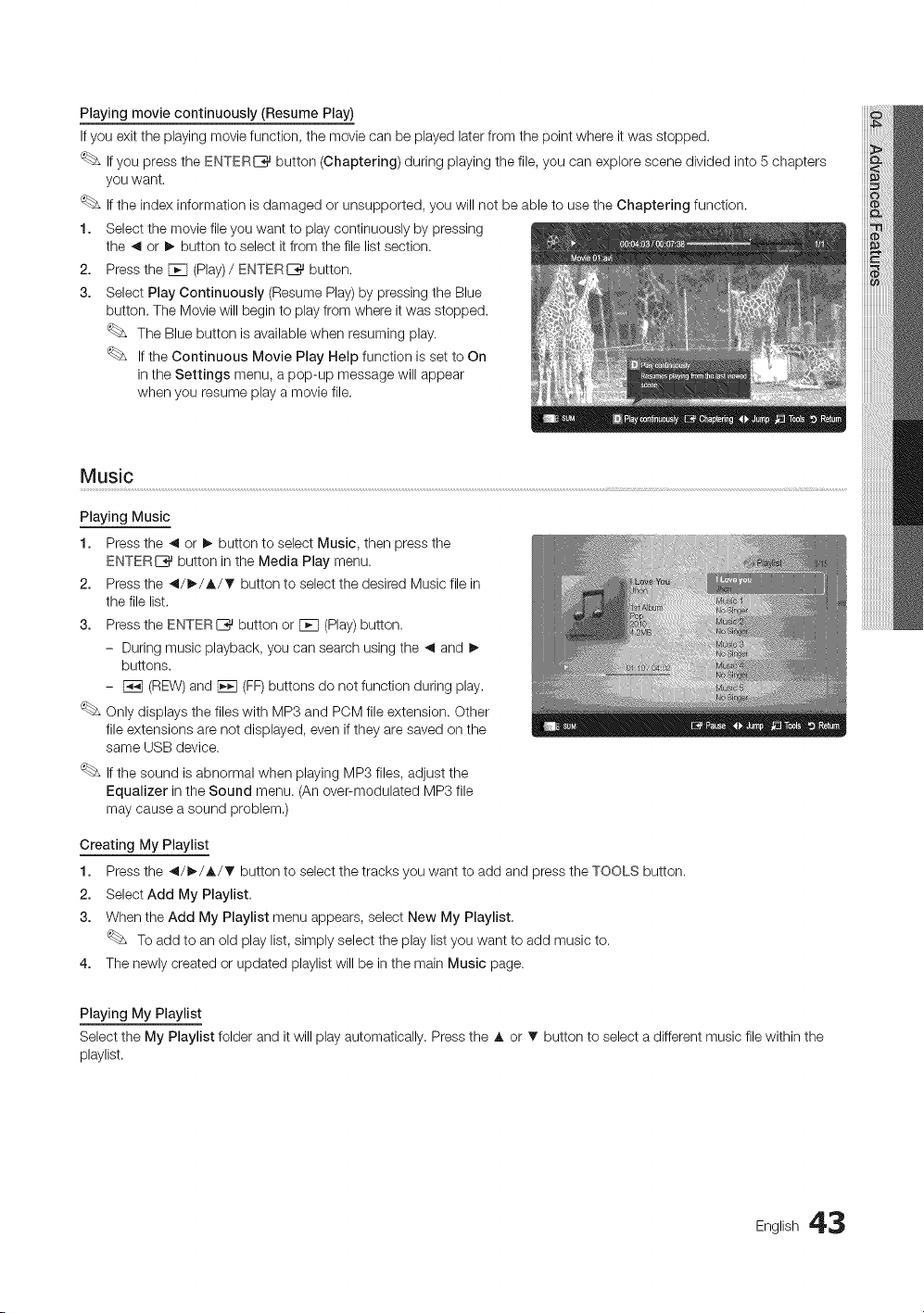
Playing movie continuously (Resume Play)
If you exit the playing movie function, the movie can be played later from the point where it was stopped.
If you press the ENTERI_%_button (Chaptering) during playing the file, you can explore scene divided into 5 chapters
you want.
If the index information is damaged or unsupported, you will not be able to use the Chaptering function.
1. Select the movie file you want to play continuously by pressing
the 41 or I_ button to select it from the file list section.
2. Press the FCH(Play)/ ENTERIZ_ button.
3. Select Play Continuously (Resume Play) by pressing the Blue
button. The Movie will begin to play from where it was stopped.
The Blue button is available when resuming play.
If the Continuous Movie Play Help function is set to On
in the Settings menu, a pop-up message will appear
when you resume play a movie file.
Music
Playing Music
1. Press the 41or I_ button to select Music, then press the
ENTER[__ button in the Media Play menu.
2. Press the 41/I_/A/T button to select the desired Music file in
the file list.
3. Press the ENTERI_ button or FCq(Play)button.
- During music playback, you can search using the ,4 and !_
buttons.
- F_q (REW) and [E_ (FF)buttons do not function during play.
Only displays the files with MP3 and PCM file extension. Other
file extensions are not displayed, even if they are saved on the
same USB device.
If the sound is abnormal when playing MP3 files, adjust the
Equalizer in the Sound menu. (An over-modulated MP3 file
may cause a sound problem.)
Creating My Playlist
1. Press the 41/_/A/T button to select the tracks you want to add and press the TOOLS button.
2. Select Add My Playlist,
3. When the Add My Playlist menu appears, select New My Playlist.
To add to an old play list, simply select the play list you want to add music to.
4. The newly created or updated playlist will be in the main Music page.
Playing My Playlist
Select the My Playlist folder and it will play automatically. Press the A or • button to select a different music file within the
playlist.
English 43
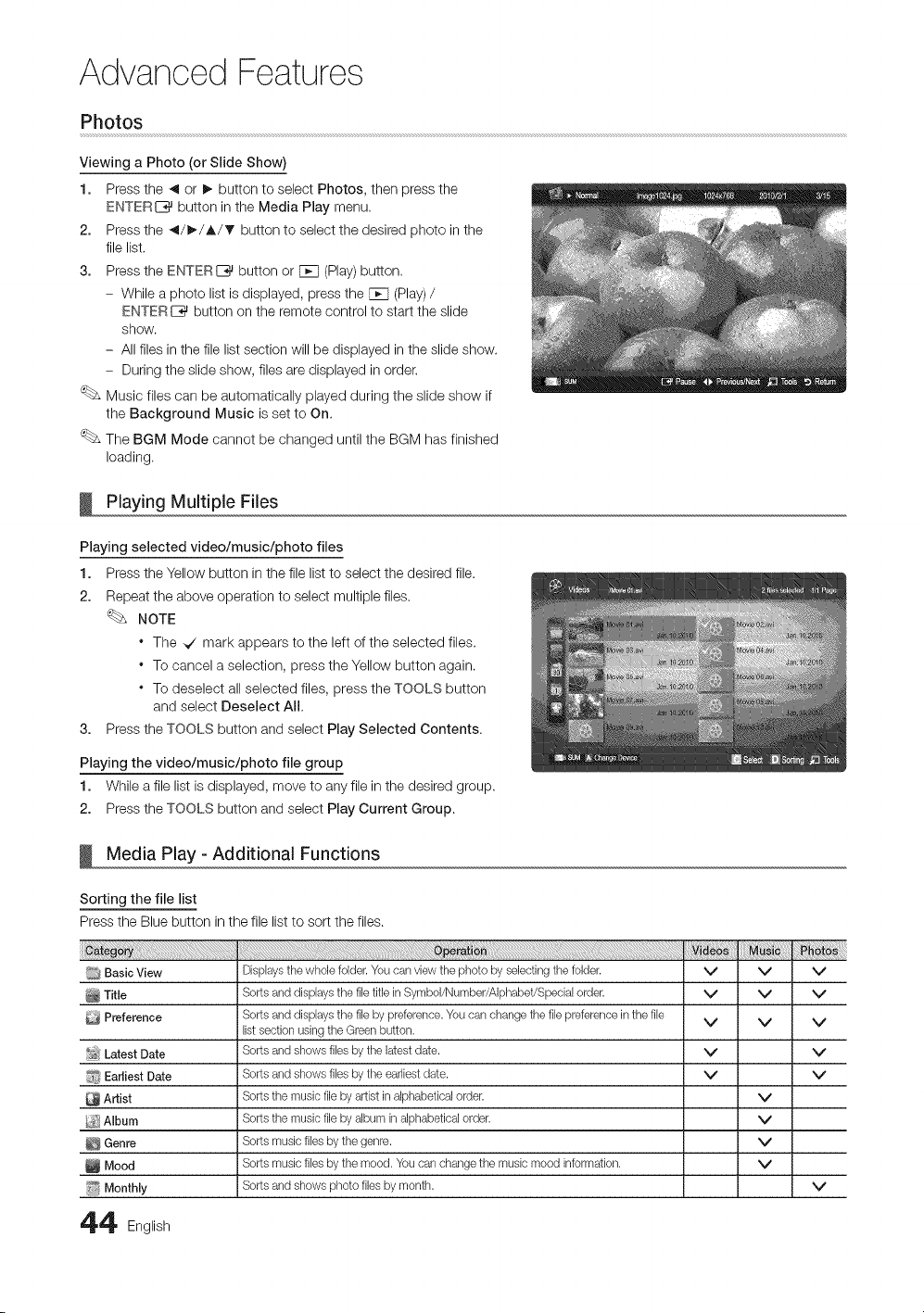
Advanced Features
Photos
Viewing a Photo (or Slide Show)
1. Press the _ or _ button to select Photos, then press the
ENTER{_ button in the Media Play menu,
2. Press the _/_/A/T button to select the desired photo in the
file list,
3. Press the ENTERIZ_ button or FFq (Play)button.
- While a photo list is displayed, press the F_q (Play) /
ENTER[_ button on the remote control to start the slide
show.
- All files in the file list section will be displayed in the slide show.
- During the slide show, files are displayed in order.
Music files can be automatically played during the slide show if
the Background Music is set to On,
The BGM Mode cannot be changed until the BGM has finished
loading.
Playing Multiple Files
Playing selected video/music/photo files
1. Press the Yellow button in the file list to select the desired file.
2. Repeat the above operation to select multiple files.
NOTE
* The _ mark appears to the left of the selected files.
* To cancel a selection, press the Yellow button again.
* To deselect all selected files, press the TOOLS button
and select Deselect All.
3. Press the TOOLS button and select Play Selected Contents.
Playing the video/music/photo file group
1. While a file list is displayed, move to any file in the desired group.
2. Press the TOOLS button and select Play Current Group.
Media Play - Additional Functions
Sorting the file list
Press the Blue button in the file list to sort the files.
[_ Basic View
Title
Preference
_o_Latest Date
f_ EarJbst Date
Artist
_ Album
Genre
Mood
i!_ MonthJy
44 English
Displaysthe whole folder. You can view the photo by selecting the folder.
Sorts and displays the file title in Symbol/Number/Alphabet/Special order.
Sorts and displays the file by preference.You can change the file preference in the file
listsection using the Green button.
Sorts and shows files by the latest date.
Sorts and shows files by the earliest date.
Sorts the music file by artist in alphabetical order.
Sorts the music file by album in alphabetical order.
Sorts music files by the genre.
Sorts music files by the mood. You can change the music mood information.
Sorts and shows photo files by month.
v v v
v v v
v v v
v v
v v
v
v
v
v
v
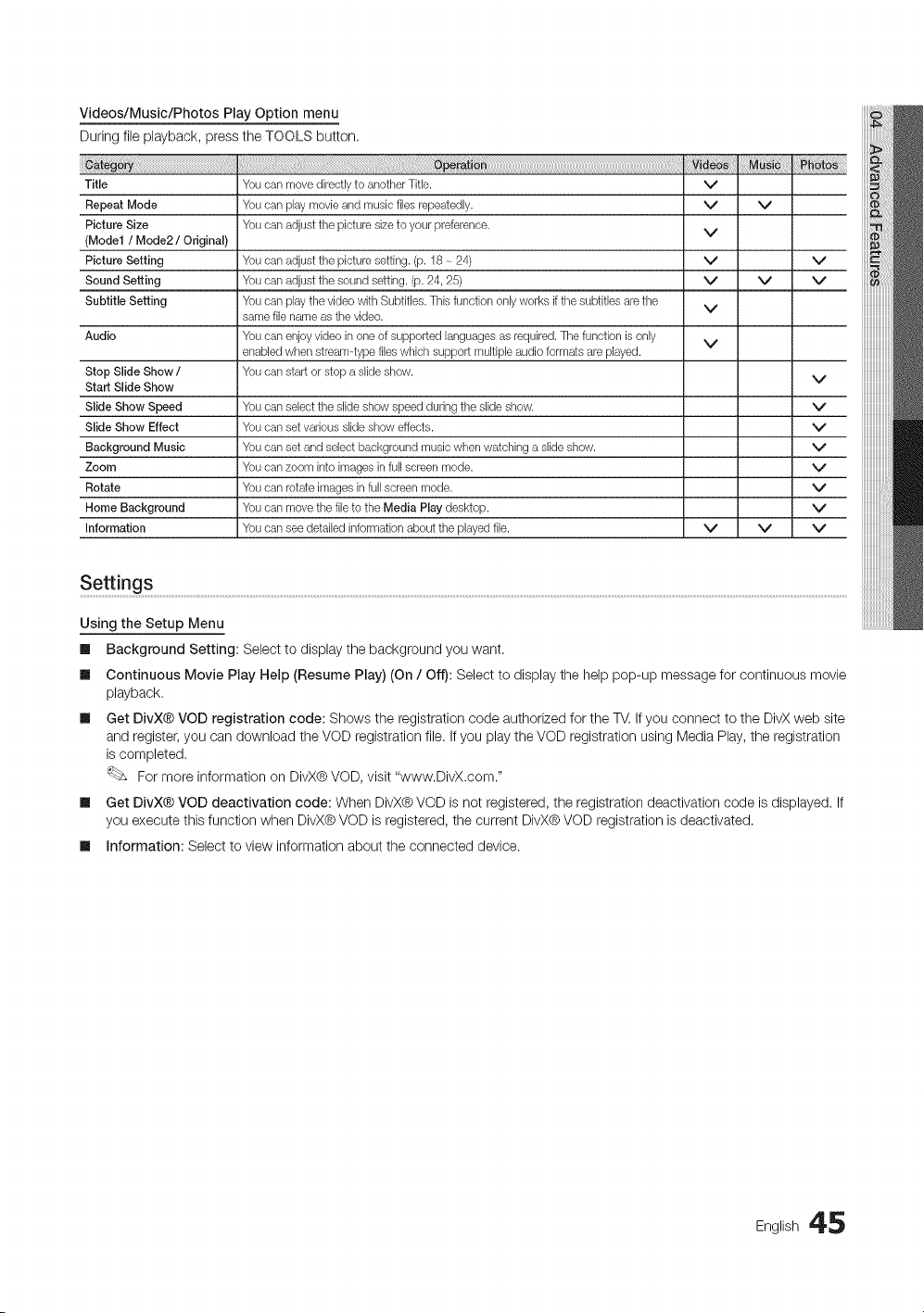
Videos/Music/Photos Play Option menu
During file playback, press the TOOLS button,
Title
Repeat Mode
Picture Size
(Model / Mode2 / Original)
Picture Setting
Sound Setting
Subtitle Setting
Audio
Stop Slide Show /
Start Slide Show
Slide Show Speed
Slide Show Effect
Background Music
Zoom
Rotate
Home Background
Information
Youcan move directly to another Title.
Youcan play movie and music files repeatedly.
Youcan adjust the picture size to your preference.
Youcan adjust the picture setting. (p. 18 ~ 24)
Youcan adjust the sound setting. (p. 24, 25)
Youcan play the video with Subtitles. Thisfunction only works if the subtitles are the
same file name as the video.
Youcan enjoy video in one of supported languages as required. The function is only
enabledwhen streamqype files which support multiple audio formats are played.
Youcan start or stop a slide show.
Youcan select the slide show speed during the slide show.
Youcan set various slide show effects.
Youcan set and select background music when watching a slide show.
Youcan zoom into images in full screen mode.
Youcan rotate images in full screen mode.
Youcan move the file to the Media Play desktop.
Youcan see detailed information about the played file.
v
v
v
v
v
v
v
v
v
v v
v
v
v
v
v
v
v
v
v
v
iiiiiiiiiiiiiiiiiiii
iiiiiiiiiiiiiiiiiiii
Settings ......................................................................................................................................................................................................................................................................................................................................................................................................................................................................................................
Using the Setup Menu
ml Background Setting: Select to display the background you want.
Ill Continuous Movie Play Help (Resume Play) (On / Off): Select to display the help pop-up message for continuous movie
playback.
ml Get DivX® VOD registration code: Shows the registration code authorized for the TV. If you connect to the DivX web site
and register, you can download the VOD registration file. If you play the VOD registration using Media Play, the registration
is completed.
For more information on DivX® VOD, visit "www.DivX.com."
ml Get DivX® VOD deactivation code: When DivX® VOD is not registered, the registration deactivation code is displayed. If
you execute this function when DivX® VOD is registered, the current DivX® VOD registration is deactivated.
ml information: Select to view information about the connected device.
English 45
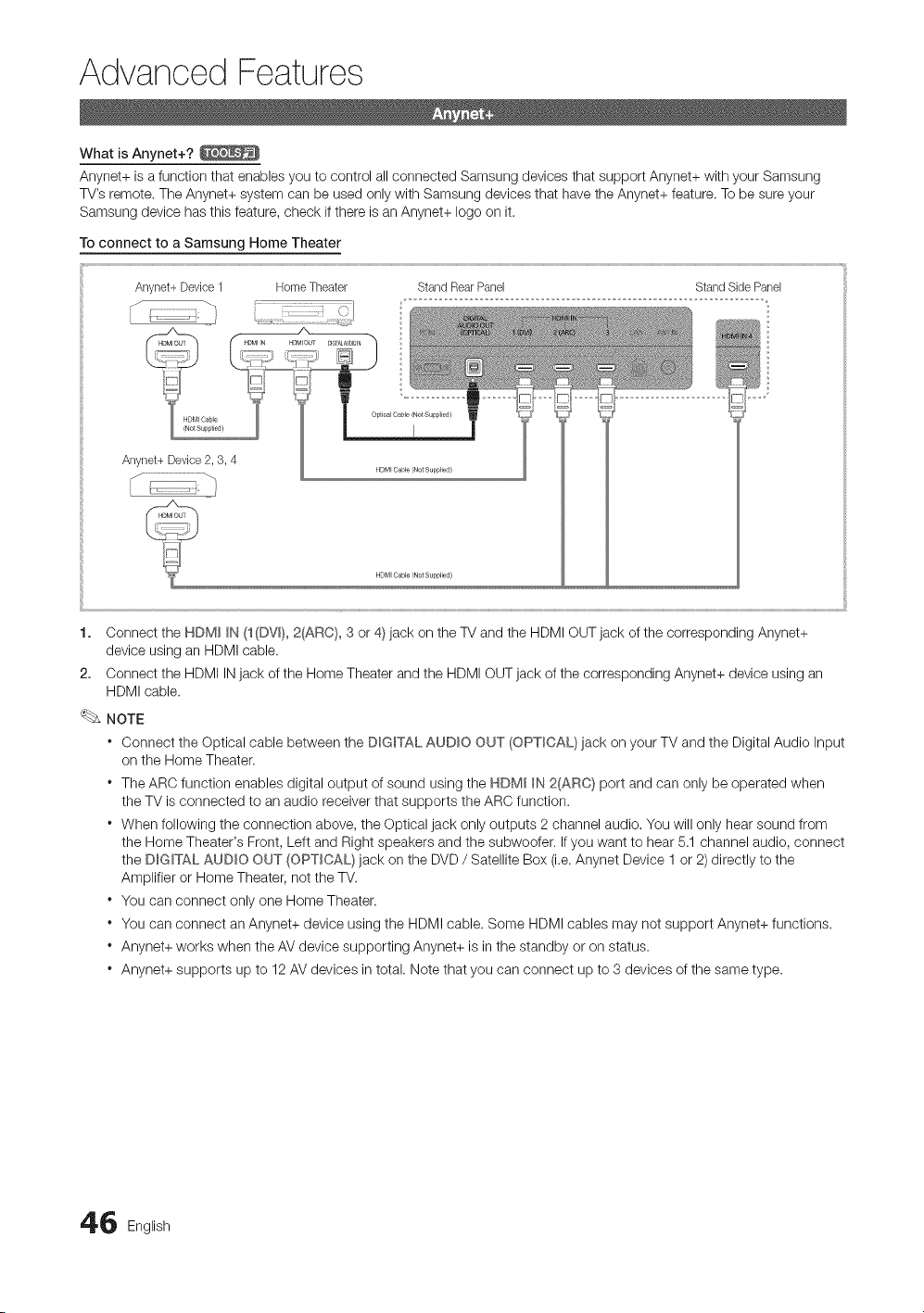
Advanced Features
What is Anynet+?
Anynet+ is a function that enables you to control all connected Samsung devices that support Anynet+ with your Samsung
TV's remote. The Anynet+ system can be used only with Samsung devices that have the Anynet+ feature. To be sure your
Samsung device has this feature, check if there is an Anynet+ logo on it.
To connect to a Samsung Home Theater
Anynet+Device1 HomeTheater StandRearPanel StandSidePanel
A
1. Connect the HDM_ _N(1(DVm},2_RO}, 3 or 4) jack on the TV and the HDMI OUT jack of the corresponding Anynet+
device using an HDMI cable.
2. Connect the HDMI IN jack of the Home Theater and the HDMI OUT jack of the corresponding Anynet+ device using an
HDMI cable.
NOTE
* Connect the Optical cable between the DIGITAL AUDIO OUT (OPTICAL} jack on your TV and the Digital Audio Input
on the Home Theater.
* The ARC function enables digital output of sound using the HDMI _N2(ARC} port and can only be operated when
the TV is connected to an audio receiver that supports the ARC function.
* When following the connection above, the Optical jack only outputs 2 channel audio. You will only hear sound from
the Home Theater's Front, Left and Right speakers and the subwoofer. If you want to hear 5.1 channel audio, connect
the D_G_TALAUDIO OUT (OPTICAL} jack on the DVD / Satellite Box (i.e. Anynet Device 1 or 2) directly to the
Amplifier or Home Theater, not the TV.
* You can connect only one Home Theater.
* You can connect an Anynet+ device using the HDMI cable. Some HDMI cables may not support Anynet+ functions.
* Anynet+ works when the AV device supporting Anynet+ is in the standby or on status.
* Anynet+ supports up to 12 AV devices in total. Note that you can connect up to 3 devices of the same type.
6 English
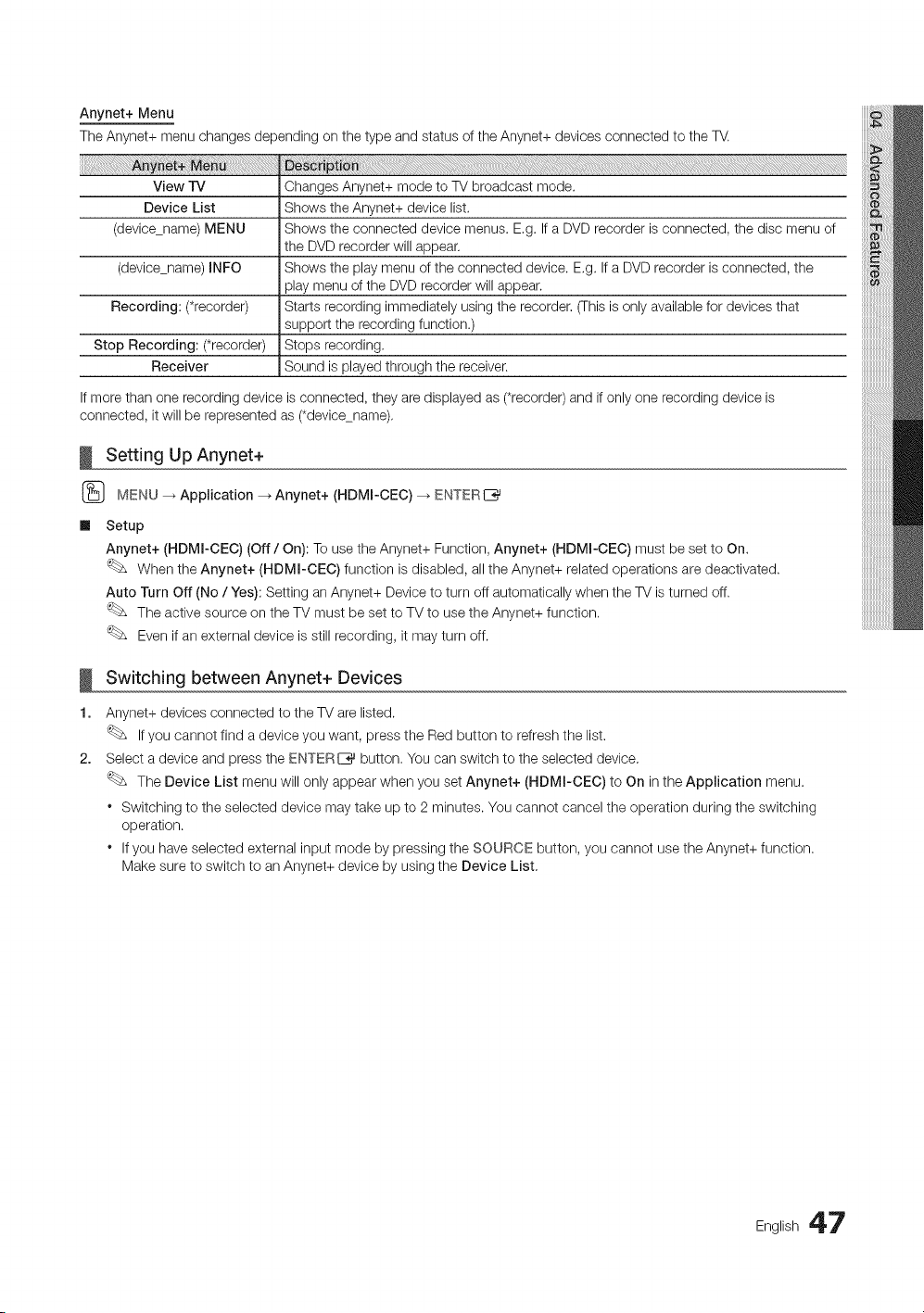
Anynet+ Menu
The Anynet+ menu changes depending on the type and status of the Anynet+ devices connected to the TV.
View TV Changes Anynet+ mode to TV broadcast mode.
Device List Shows the Anynet+ device list.
(devicename) MENU Shows the connected device menus. E,g. If a DVD recorder is connected, the disc menu of
the DVD recorder will appear,
(devicename) INFO Shows the play menu of the connected device. E,g. If a DVD recorder is connected, the
play menu of the DVD recorder will appear.
Recording: (*recorder) Starts recording immediately using the recorder, (This is only available for devices that
support the recording function.)
Stop Recording: (*recorder) Stops recording.
Receiver Sound is played through the receiver.
If more than one recording device is connected, they are displayed as (*recorder) and if only one recording device is
connected, it will be represented as (*devicename),
Setting Up Anynet+
(_ MENU _ Application --_Anynet+ (HDMm-CEC) _ ENTERI_
Ill Setup
Anynet+ (HDMm-CEC) (Off / On): To use the Anynet+ Function, Anynet+ (HDMm-CEC) must be set to On.
When the Anynet+ (HDMm-CEC) function is disabled, all the Anynet+ related operations are deactivated.
Auto Turn Off (No / Yes): Setting an Anynet+ Device to turn off automatically when the TV is turned off.
The active source on the TV must be set to TV to use the Anynet+ function.
Even if an external device is still recording, it may turn off.
!
1.
2,
Switching between Anynet+ Devices
Anynet+ devices connected to the TV are listed.
If you cannot find a device you want, press the Red button to refresh the list.
Select a device and press the ENTERI_ button, You can switch to the selected device,
The Device List menu will only appear when you set Anynet+ (HDMI-CEC) to On in the Application menu.
* Switching to the selected device may take up to 2 minutes. You cannot cancel the operation during the switching
operation.
* If you have selected external input mode by pressing the SOURCE button, you cannot use the Anynet+ function.
Make sure to switch to an Anynet+ device by using the Device List,
English 47
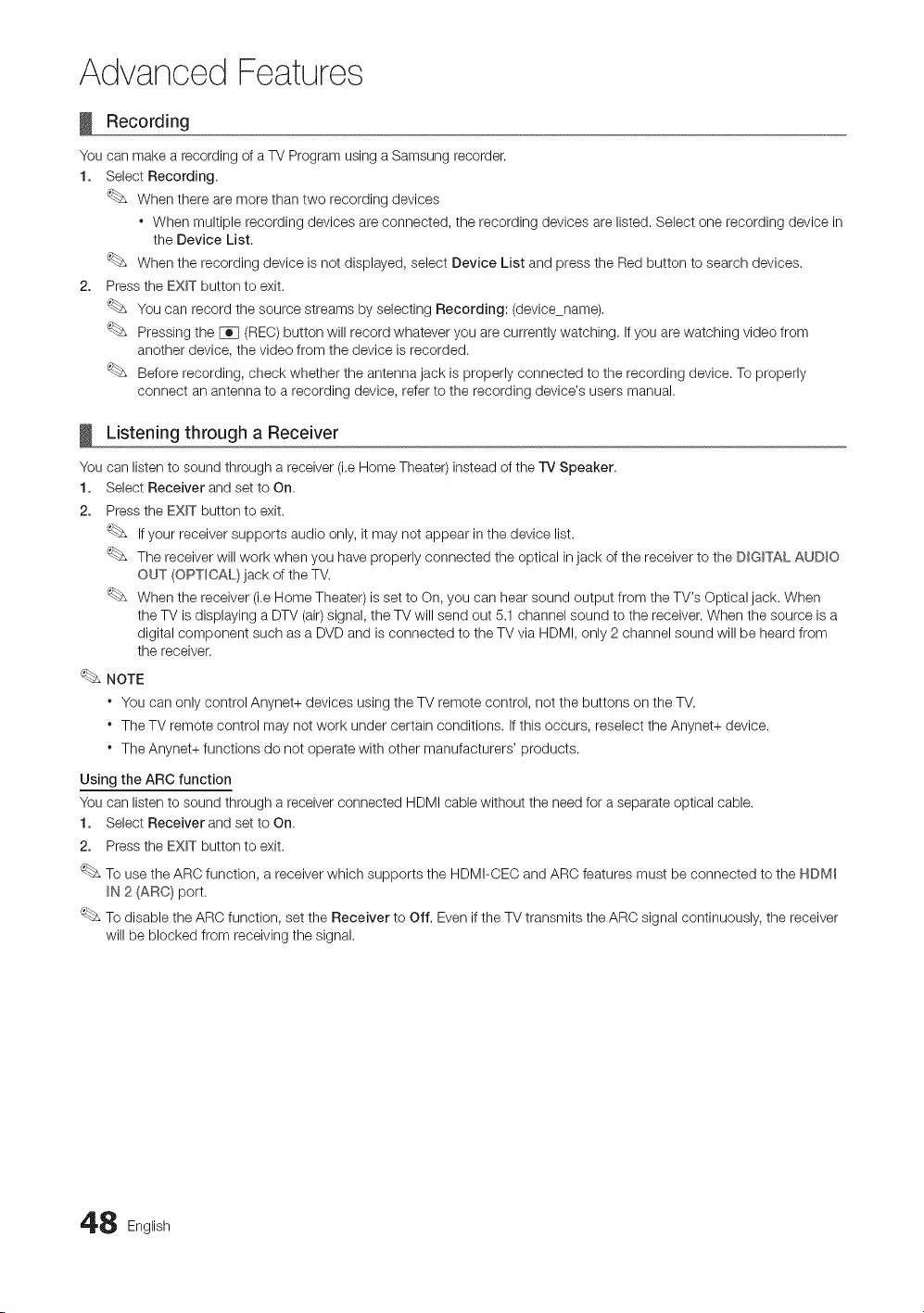
Advanced Features
Recording
You can make a recording of a TV Program using a Samsung recorder.
1. Select Recording.
When there are more than two recording devices
When multiple recording devices are connected, the recording devices are listed. Select one recording device in
the Device List.
When the recording device is not displayed, select Device List and press the Red button to search devices.
2. Press the EXIT button to exit.
You can record the source streams by selecting Recording: (devicename).
Pressing the [_q (REO) button will record whatever you are currently watching. If you are watching video from
another device, the video from the device is recorded.
Before recording, check whether the antenna jack is properly connected to the recording device. To properly
connect an antenna to a recording device, refer to the recording device's users manual.
Listening through a Receiver
You can listen to sound through a receiver (i.e Home Theater) instead of the TV Speaker.
1. Select Receiver and set to On,
2. Press the EXIT button to exit.
If your receiver supports audio only, it may not appear in the device list.
The receiver will work when you have properly connected the optical in jack of the receiver to the DIGITAL AUDIO
OUT (OPTICAL) jack of the TV.
When the receiver (i.e Home Theater) is set to On, you can hear sound output from the TV's Optical jack. When
the TV is displaying a DTV (air)signal, the TV will send out 5.1 channel sound to the receiver. When the source is a
digital component such as a DVD and is connected to the TV via HDMI, only 2 channel sound will be heard from
the receiver.
NOTE
* You can only control Anynet+ devices using the TV remote control, not the buttons on the TV.
* The TV remote control may not work under certain conditions. If this occurs, reselect the Anynet+ device.
* The Anynet+ functions do not operate with other manufacturers' products.
Using the ARC function
You can listen to sound through a receiver connected HDMI cable without the need for a separate optical cable.
1. Select Receiver and set to On,
2. Press the EXIT button to exit.
To use the ARC function, a receiver which supports the HDMI-CEC and ARC features must be connected to the HDM_
_N 2 (ARC} port.
To disable the ARC function, set the Receiver to Off. Even if the TV transmits the ARC signal continuously, the receiver
will be blocked from receiving the signal.
8 English
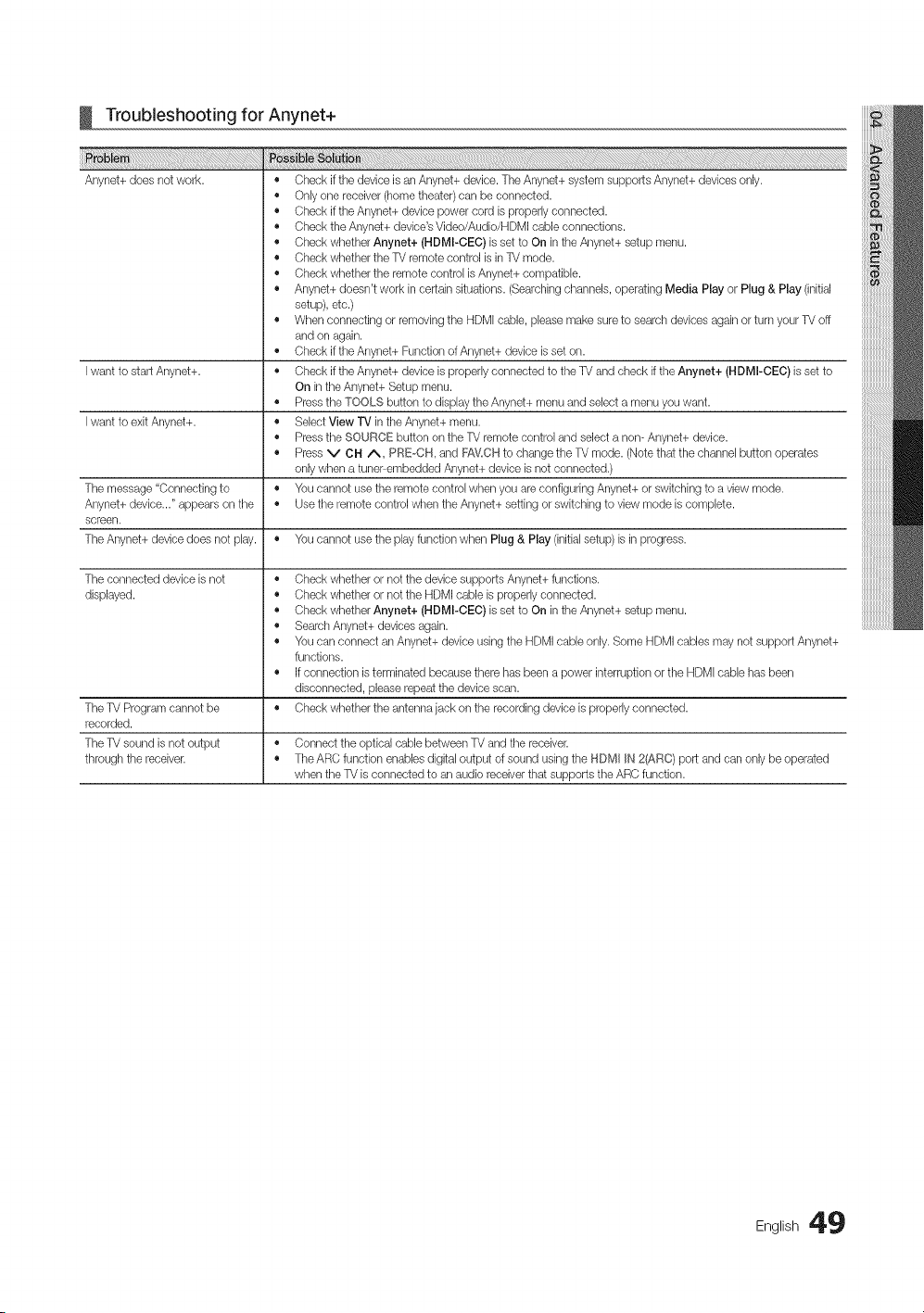
!
_i_!_!i!_i:_i_l_l_l_l_i!_i_i_i_i_i!_!i_!i_!i_!i_!i_!i_!i_!i_!i_!i!_ii_ii_ii_ii_ii_!_i!!iiiiiiiiiii_iiii_i_i_i!i!i!i!i_i_iiiiiiiiiii_ii_i_ii_i_i_i_i!i!i!i!i_i_iiiiiiiiiiiiiii_ii_ii_iiii_i!il!J_!_!!
Anynet+ does not work.
Troubleshooting for Anynet+
Iwant to start Anynet+.
Iwant to exit Anynet+.
The message "Connecting to
Anynet+ device..." appears on the
screen.
• Check if the device is an Anynet+ device. The Anynet+ system supports Anynet+ devices only.
• Only one receiver (home theater) can be connected.
• Check if the Anynet+ device power cord is properly connected.
• Check the Anynet+ device's Video/Audio/HDMI cable connections.
• Check whether Anynet+ (HDMI-CEC) is set to On in the Anynet+ setup menu.
• Check whether the TV remote control is in TV mode.
• Check whether the remote control is Anynet+ compatible.
• Anynet+ doesn't work in certain situations. (Searchingchannels, operating Media Play or Plug & Play (initial
setup), etc.)
• When connecting or removing the HDMI cable, please make sure to search devices again or turn your TV off
and on again.
• Check if the Anynet+ Function of Anynet+ device isset on.
Check if the Anynet+ device is properly connected to the TV and check if the Anynet+ (HDMI-CEC) is set to
On in the Anynet+ Setup menu.
Pressthe TOOLS button to display the Anynet+ menu and select a menu you want.
Select View rv in the Anynet+ menu.
Pressthe SOURCE button on the TV remote control and select a non- Anynet+ device.
Press v CH /\, pREoCH, and FA_,LCHto change the TV mode. (Note that the channel button operates
only when a tuner-embedded Anynet+ device isnot connected.)
You cannot use the remote control when you are configuring Anynet+ or switching to a view mode.
Use the remote control when the Anynet+ setting or switching to view mode is complete.
The Anynet+ device does not play. • You cannot use the play function wtsen Plug & Play (initialsetup) is in progress.
The connected device is not
displayed.
o
o
o
o
o
o
The TV Program cannot be
recorded.
The TV sound is not output • Connect the optical cable between TV and the receiver.
through the receiver. • The ARC function enables digital output of sound using the HDMI IN 2(ARC} port and can only be operated
when the TV is connected to an audio receiver that supports the ARC function.
Check whether or not the device supports Anynet+ functions.
Check whether or not the HDMI cable is properly connected.
Check whether Anynet+ (HDMI-CEC) is set to On in the Anynet+ setup menu.
Search Anynet+ devices again.
You can connect an Anynet+ device using the HDMI cable only. Some HDMI cables may not support Anynet+
functions.
If connection is terminated because there has been a power interruption or the HDMI cable has beers
disconnected, please repeat the device scan.
Check whether the antenna jack on the recording device is properly connected.
English 49
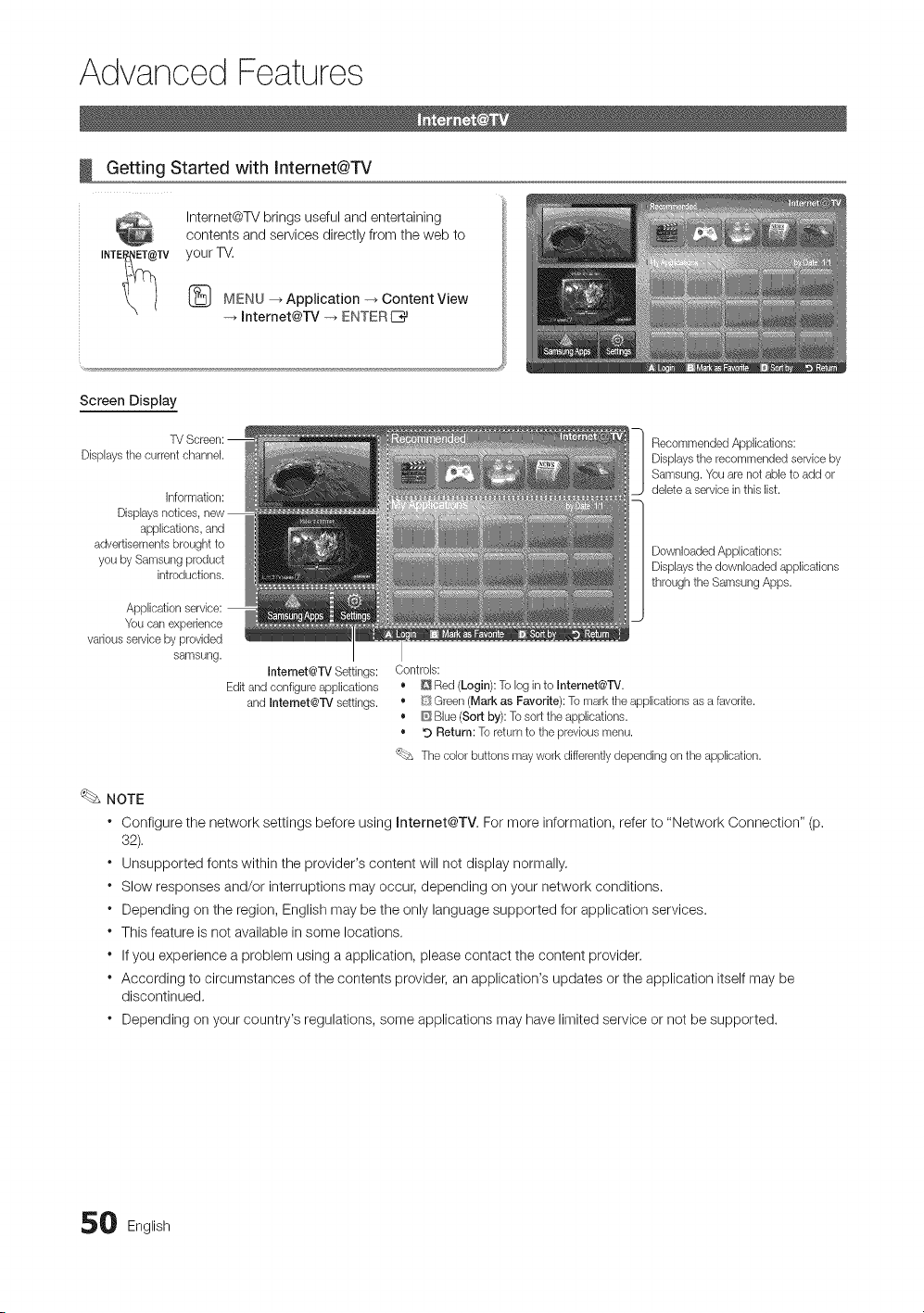
Advanced Features
Getting Started with Internet@TV
INTE_TV
Internet@W brings useful and entertaining
contents and services directly from the web to
your TV.
MENU _ Application -_ Content View
-+ Internet@TV -_ ENTERE_
Screen Display
Dbplays tlqe current channel.
Information:
Displays notices,
applications, and
advertisements brought to
you by Samsung product
introductions.
Application
You can experience
various service by provided
samsung.
Intemet@TV Settings:
Edit and configure applications
and Intemet@TV settings.
Recommended Applications:
Dbplays the recommended service by
Samsung. Youare not abb to add or
debte a service in this Ibt.
Downloaded Applbations:
Dbplays tlqedownloaded appibations
through the Samsung Apps.
Controls:
• D Red (Login): To log in to Internet@TV.
• [_SGreen (Mark as Favorite): To mark the applications as a favorite.
• _ Blue (Sort by): To sort the applications.
• _) Return: To return to the previous menu.
'_bs The color buttons may work differently depending on the application.
NOTE
* Configure the network settings before using Internet@TV. For more information, refer to "Network Connection" (p.
32).
* Unsupported fonts within the provider's content will not display normally.
* Slow responses and/or interruptions may occur, depending on your network conditions.
* Depending on the region, English may be the only language supported for application services.
* This feature is not available in some locations.
* If you experience a problem using a application, please contact the content provider.
* According to circumstances of the contents provider, an application's updates or the application itself may be
discontinued.
* Depending on your country's regulations, some applications may have limited service or not be supported.
0 English
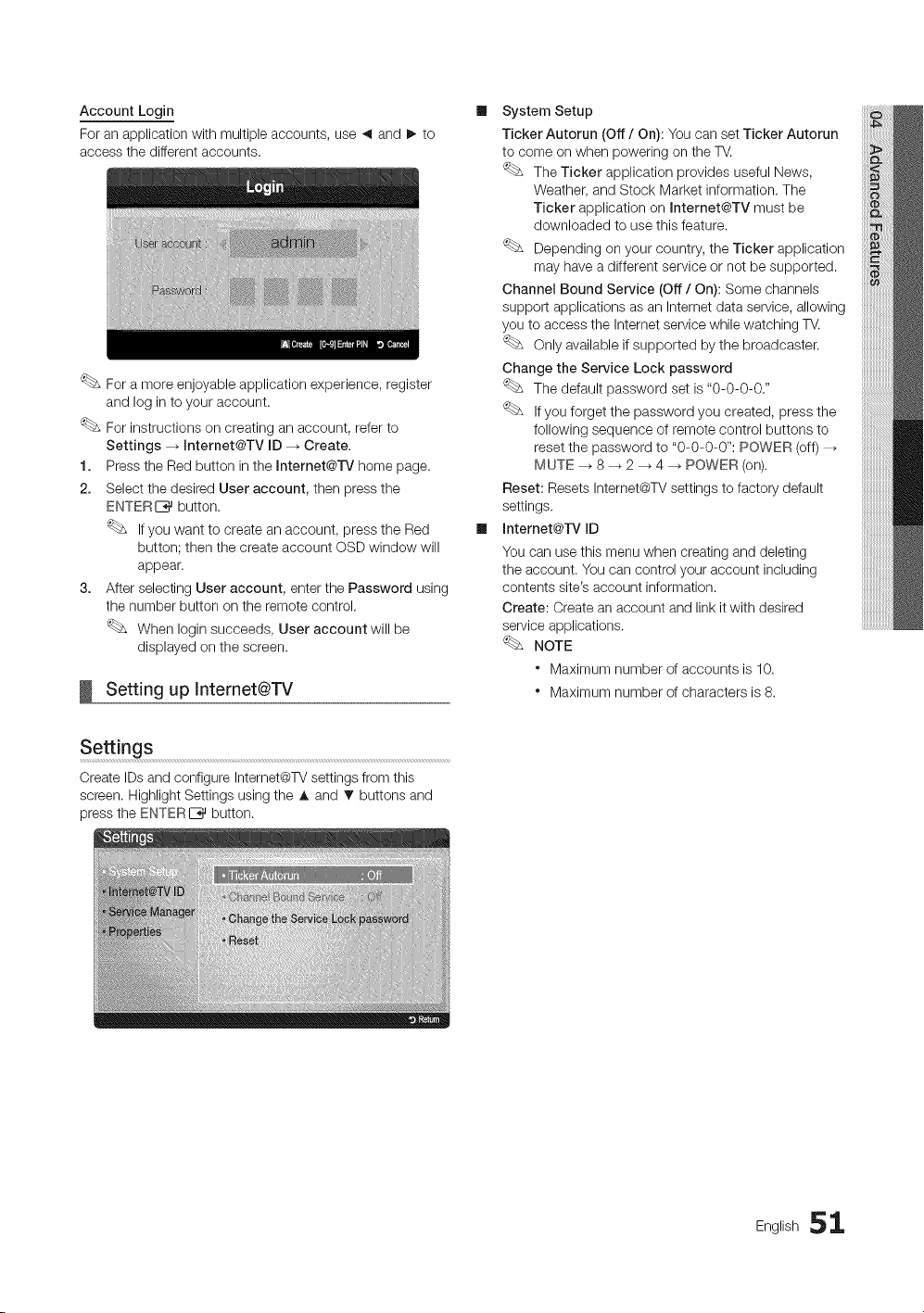
Account Login
For an application with multiple accounts, use ,_ and I_ to
access the different accounts.
For a more enjoyable application experience, register
and log in to your account.
For instructions on creating an account, refer to
Settings _ Internet@TV ID --_ Create.
1. Press the Red button in the Internet@rv home page.
2. Select the desired User account, then press the
ENTER I_%_button.
If you want to create an account, press the Red
button; then the create account OSD window will
appear.
3. After selecting User account, enter the Password using
the number button on the remote control.
When Iogin succeeds, User account will be
displayed on the screen.
Setting up Internet@TV
Ill System Setup
Ticker Autorun (Off / On): You can set Ticker Autorun
to come on when powering on the TV.
The Ticker application provides useful News,
Weather, and Stock Market information. The
Ticker application on Internet@TV must be
downloaded to use this feature.
Depending on your country, the Ticker application
may have a different service or not be supported.
Channel Bound Service (Off / On): Some channels
support applications as an Internet data service, allowing
you to access the Internet service while watching TV.
Only available if supported by the broadcaster.
Change the Service Lock password
The default password set is "0-0-0-0."
If you forget the password you created, press the
following sequence of remote control buttons to
reset the password to "0-0-0-0": POWER (off) --_
MUTE --_ 8 _ 2 _ 4 _ POWER (on).
Reset: Resets Internet@TV settings to factory default
settings.
Ill Internet@rv ID
You can use this menu when creating and deleting
the account. You can control your account including
contents site's account information.
Create: Create an account and link it with desired
service applications.
NOTE
" Maximum number of accounts is 10.
" Maximum number of characters is 8.
Settings
Create IDs and configure Internet@TV settings from this
screen. Highlight Settings using the A and _f buttons and
press the ENTERE__}_ button.
English 51
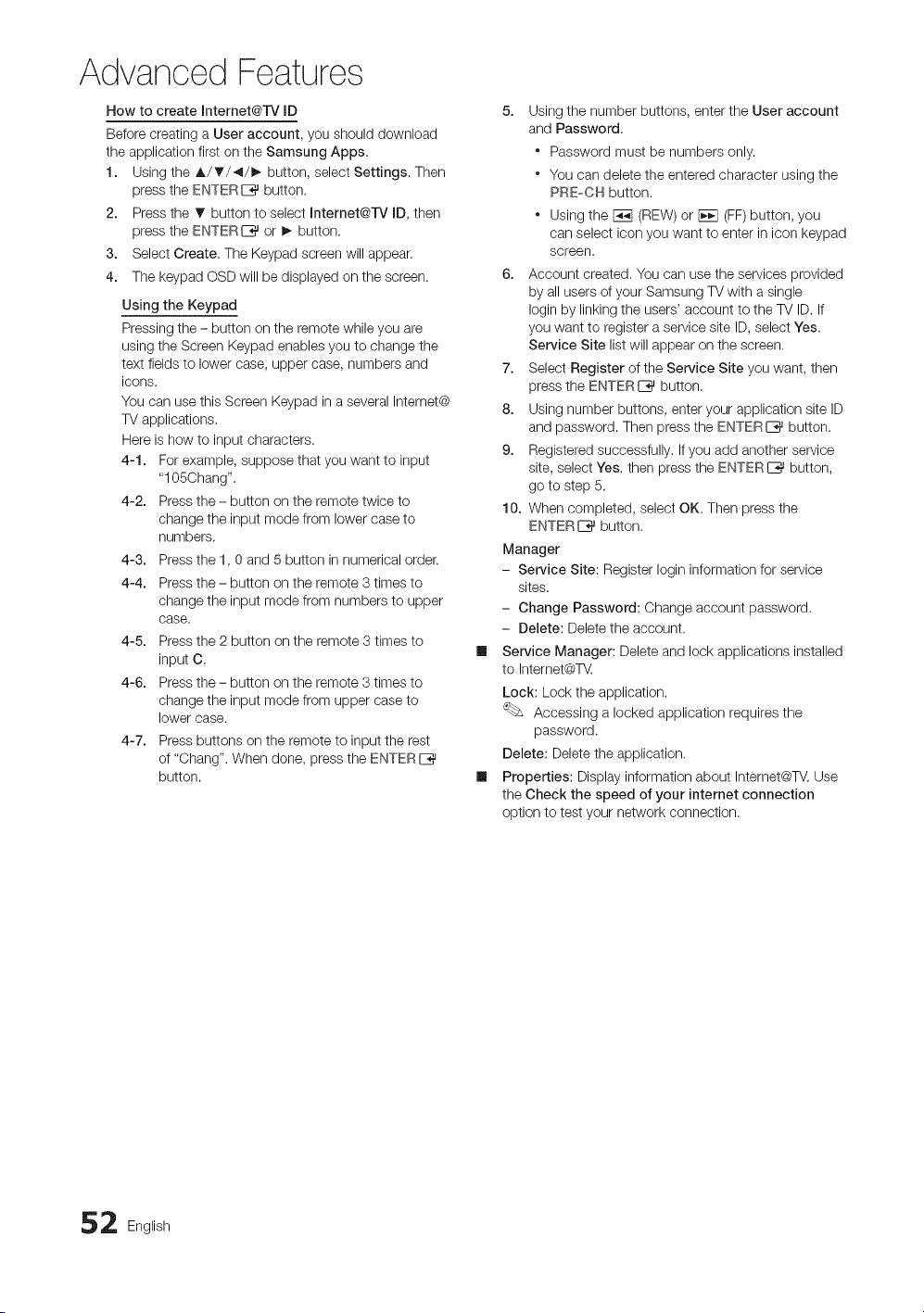
Advanced Features
How to create Internet@l-V ID
Before creating a User account, you should download
the application first on the Samsung Apps.
1. Using the A/T/4/_ button, select Settings. Then
press the ENTERIZ_ button.
2. Press the _' button to select Internet@rv ID, then
press the ENTERI_ or I_ button,
3. Select Create. The Keypad screen will appear.
4. The keypad OSD will be displayed on the screen.
Using the Keypad
Pressing the = button on the remote while you are
using the Screen Keypad enables you to change the
text fields to lower case, upper case, numbers and
icons.
You can use this Screen Keypad in a several Internet@
TV applications,
Here is how to input characters.
4-1. For example, suppose that you want to input
"105Chang".
4-2. Press the - button on the remote twice to
change the input mode from lower case to
numbers,
4-3. Press the 1,0 and 5 button in numerical order.
4-4. Press the - button on the remote 3 times to
change the input mode from numbers to upper
case.
4-5. Press the 2 button on the remote 3 times to
input C,
4-6. Press the - button on the remote 3 times to
change the input mode from upper case to
lower case.
4-7. Press buttons on the remote to input the rest
of "Chang". When done, press the ENTERI_
button.
5. Using the number buttons, enter the User account
and Password.
" Password must be numbers only.
" You can delete the entered character using the
PRE-CH button.
. Using the F_q (nEW) or F_q (FF) button, you
can select icon you want to enter in icon keypad
screen.
6. Account created, You can use the services provided
by all users of your Samsung TV with a single
Iogin by linking the users' account to the TV ID, If
you want to register a service site ID, select Yes.
Service Site list will appear on the screen.
7. Select Register of the Service Site you want, then
press the ENTERI_ button,
8. Using number buttons, enter your application site ID
and password. Then press the ENTERE_ button.
9. Registered successfully, If you add another service
site, select Yes. then press the ENTERI_ button,
go to step 5,
10. When completed, select OK. Then press the
ENTER E_ button.
Manager
- Service Site: Register Iogin information for service
sites,
- Change Password: Change account password.
- Delete: Delete the account.
Service Manager: Delete and lock applications installed
to Internet@T_.
Lock: Lock the application.
Accessing a locked application requires the
password.
Delete: Delete the application,
Properties: Display information about Internet@TV,Use
the Check the speed of your internet connection
option to test your network connection.
2 English
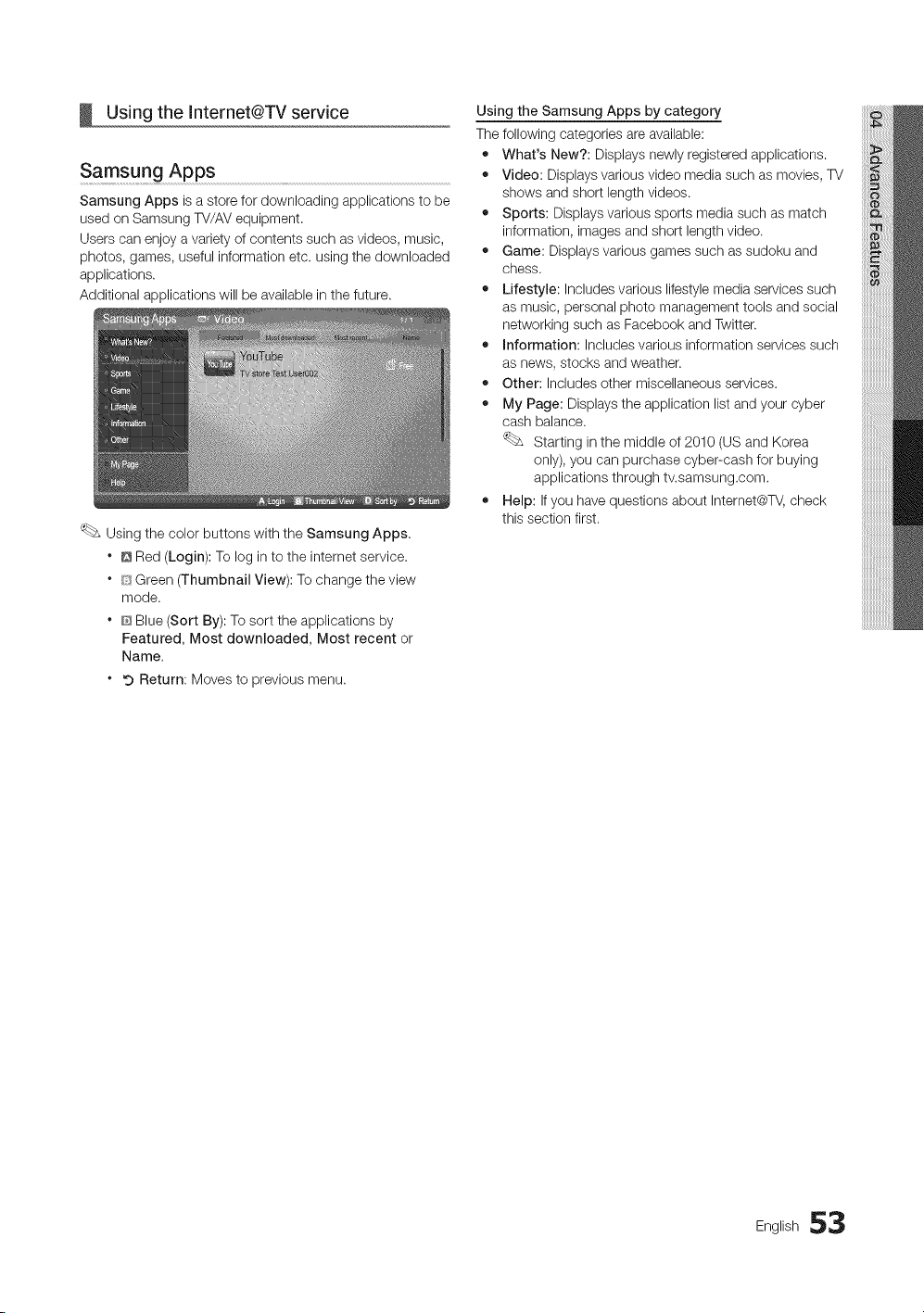
Using the Internet@TV service
Samsung Apps
Samsung Apps is a store for downloading applications to be
used on Samsung TV/AV equipment.
Users can enjoy a variety of contents such as videos, music,
photos, games, useful information etc. using the downloaded
applications.
Additional applications will be available in the future.
Using the color buttons with the Samsung Apps.
* Q Red (Login): To log in to the internet service.
* [_SGreen (Thumbnail View): To change the view
mode.
* @Blue (Sort By): To sort the applications by
Featured, Most downloaded, Most recent or
Name,
* 9 Return: Moves to previous menu.
Using the Samsung Apps by category
The following categories are available:
• What's New?: Displays newly registered applications.
• Video: Displays various video media such as movies, TV
shows and short length videos.
• Sports: Displays various sports media such as match
information, images and short length video.
• Game: Displays various games such as sudoku and
chess.
• Lifestyle: Includes various lifestyle media services such
as music, personal photo management tools and social
networking such as Facebook and Twitter.
• Information: Includes various information services such
as news, stocks and weather.
• Other: Includes other miscellaneous services.
• My Page: Displays the application list and your cyber
cash balance.
Starting in the middle of 2010 (US and Korea
only), you can purchase cyber-cash for buying
applications through tv.samsung.com.
• Help: If you have questions about Internet@TV,check
this section first.
English 53
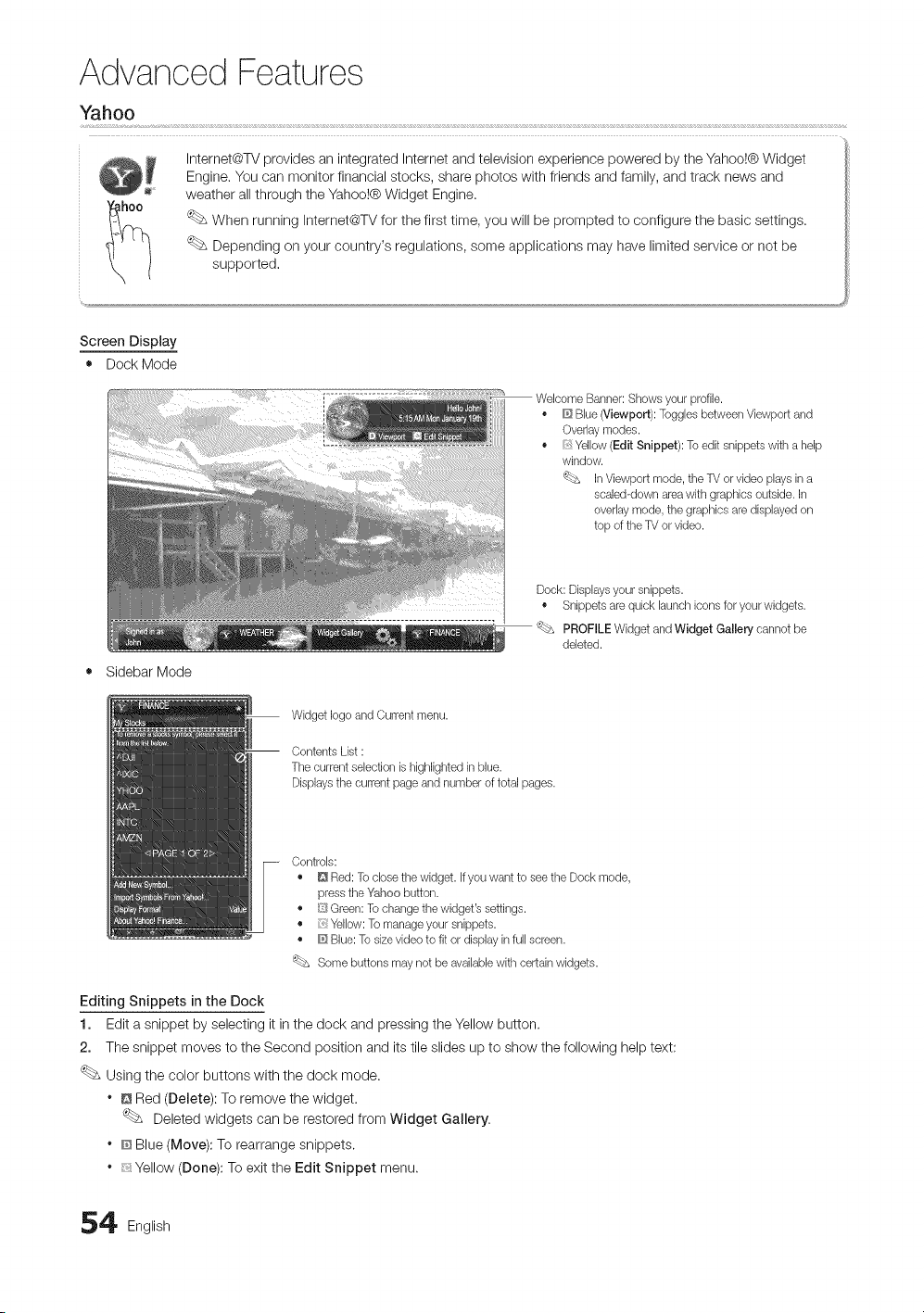
Advanced Features
Yahoo
Internet@W provides an integrated Internet and television experience powered by the Yahoo!@Widget
Engine. You can monitor financial stocks, share photos with friends and family, and track news and
weather all through the Yahoo!@ Widget Engine.
When running internet@TV for the first time, you wiii be prompted to configure the basic settings.
Depending on your country's regulations, some applications may have limited service or not be
supported.
Screen Display
• Dock Mode
o
o
Banner: Shows your profile.
Blue (Viewport): Toggles between Viewport and
Overlay modes.
Yellow (Edit Snippet): To edit snippets with a help
window.
'(_ In Viewport mode, the TV or video plays in a
sealed-down area with graphics outside. In
overlay mode, the graphics are displayed on
top of the TV or video.
Dock: Displaysyour snippets.
• Snippets are quick launch icons for your widgets.
'_bs PROFILE Widget and Widget Gallery cannot be
deleted.
Sidebar Mode
Widget logoand Current menu.
Contents List :
The current selection is highlighted in blue.
Displays the current page and number of total pages.
Controls:
• D Red: To close the widget. If you want to see the Dock mode,
press the ¥_ahoobutton.
• [i'_{Green: To change the widget's settings.
• Yellow: To manage your snippets.
• _ Blue: To sizevideo to fit or display in full screen.
'_bs Some buttons may not be availablewith certain widgets.
Editing Snippets in the Dock
1. Edit a snippet by selecting it in the dock and pressing the Yellow button.
2. The snippet moves to the Second position and its tile slides up to show the following help text:
Using the color buttons with the dock mode.
* @Red (Delete): To remove the widget.
Deleted widgets can be restored from Widget Gallery.
* @Blue (Move): To rearrange snippets.
* __Yellow (Done): To exit the Edit Snippet menu.
4 English
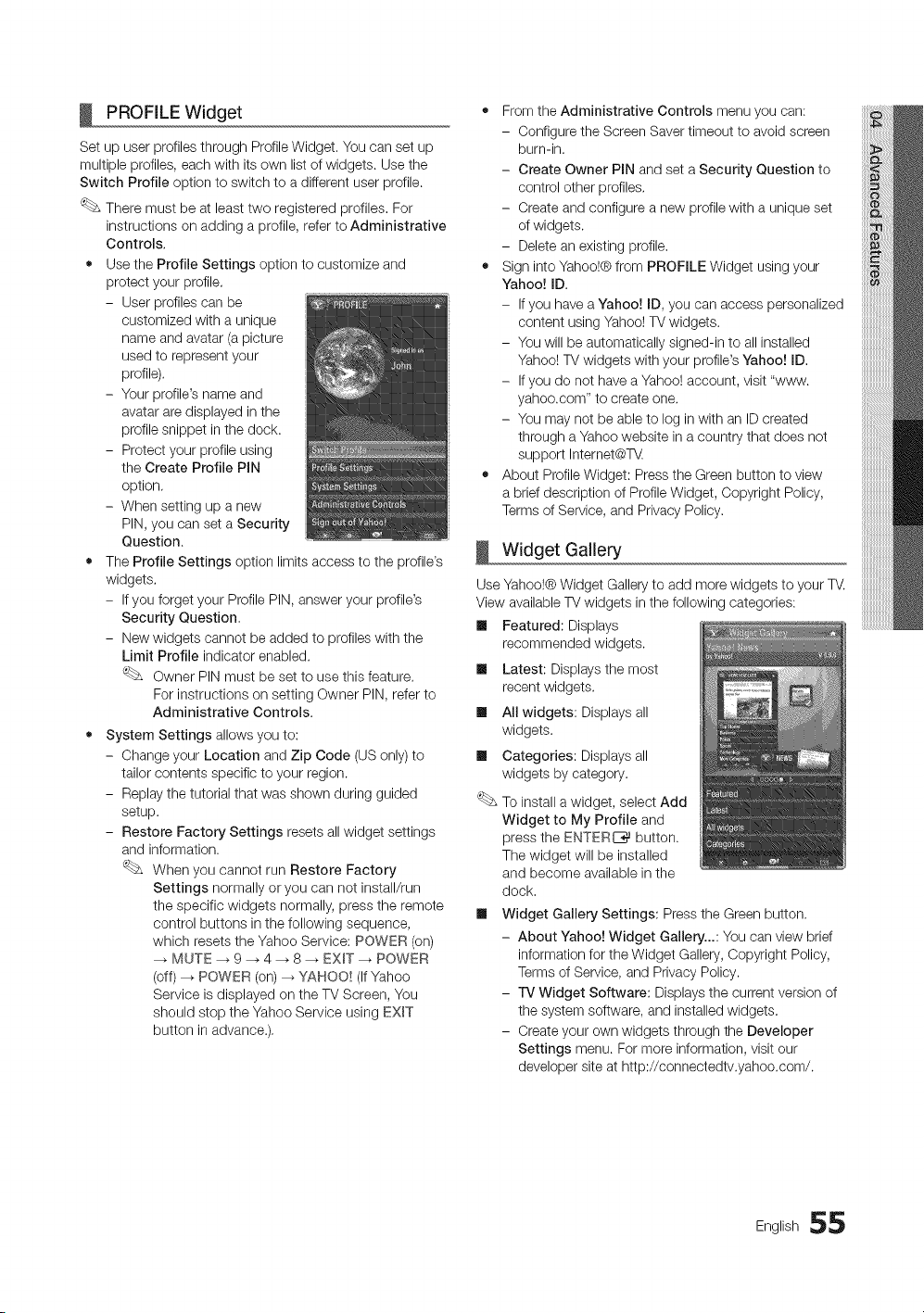
PROFILE Widget
Set up user profiles through Profile Widget. You can set up
multiple profiles, each with its own list of widgets. Use the
Switch Profile option to switch to a different user profile.
There must be at least two registered profiles. For
instructions on adding a profile, refer to Administrative
Controls,
• Use the Profile Settings option to customize and
protect your profile.
- User profiles can be
customized with a unique
name and avatar (a picture
used to represent your
profile).
- Your profile's name and
avatar are displayed in the
profile snippet in the dock.
- Protect your profile using
the Create Profile PIN
option.
- When setting up a new
PIN, you can set a Security
Question.
• The Profile Settings option limits access to the profile's
widgets.
- If you forget your Profile PIN, answer your profile's
Security Question,
- New widgets cannot be added to profiles with the
Limit Profile indicator enabled.
Owner PIN must be set to use this feature.
For instructions on setting Owner PIN, refer to
Administrative Controls.
• System Settings allows you to:
- Change your Location and Zip Code (US only) to
tailor contents specific to your region.
- Replay the tutorial that was shown during guided
setup.
- Restore Factory Settings resets all widget settings
and information.
When you cannot run Restore Factory
Settings normally or you can not install/run
the specific widgets normally, press the remote
control buttons in the following sequence,
which resets the Yahoo Service: POWER (on)
MUTE --_ 9 -. 4 --_ 8 _ EXIT --_ POWER
(off) --_ POWER (on)_ YAHOO! (If Yahoo
Service is displayed on the TV Screen, You
should stop the Yahoo Service using EXIT
button in advance.).
• From the Administrative Controls menu you can:
- Configure the Screen Saver timeout to avoid screen
burn-in.
- Create Owner PIN and set a Security Question to
control other profiles.
- Create and configure a new profile with a unique set
of widgets.
- Delete an existing profile.
• Sign into Yahoo!® from PROFILE Widget using your
Yahoo! ID,
- If you have a Yahoo! ID, you can access personalized
content using Yahoo! TV widgets.
- You will be automatically signed-in to all installed
Yahoo! TV widgets with your profile's Yahoo! ID.
- If you do not have a Yahoo! account, visit "www.
yahoo.corn" to create one.
- You may not be able to log in with an ID created
through a Yahoo website in a country that does not
support Internet@T_.
• About Profile Widget: Press the Green button to view
a brief description of Profile Widget, Copyright Policy,
Terms of Service, and Privacy Policy.
Widget Gallery
m
m
m
Use Yahoo!® Widget Gallery to add more widgets to your TV.
View available TV widgets in the following categories:
Ill Featured: Displays
recommended widgets.
Latest: Displays the most
recent widgets.
All widgets: Displays all
widgets.
Categories: Displays all
widgets by category.
To install a widget, select Add
Widget to My Profile and
press the ENTERC_ button.
The widget will be installed
and become available in the
dock.
Widget Gallery Settings: Press the Green button.
- About Yahoo! Widget Gallery...: You can view brief
information for the Widget Gallery, Copyright Policy,
Terms of Service, and Privacy Policy.
- iV Widget Software: Displays the current version of
the system software, and installed widgets.
- Create your own widgets through the Developer
Settings menu. For more information, visit our
developer site at http://connectedtv.yahoo.com/.
English 55
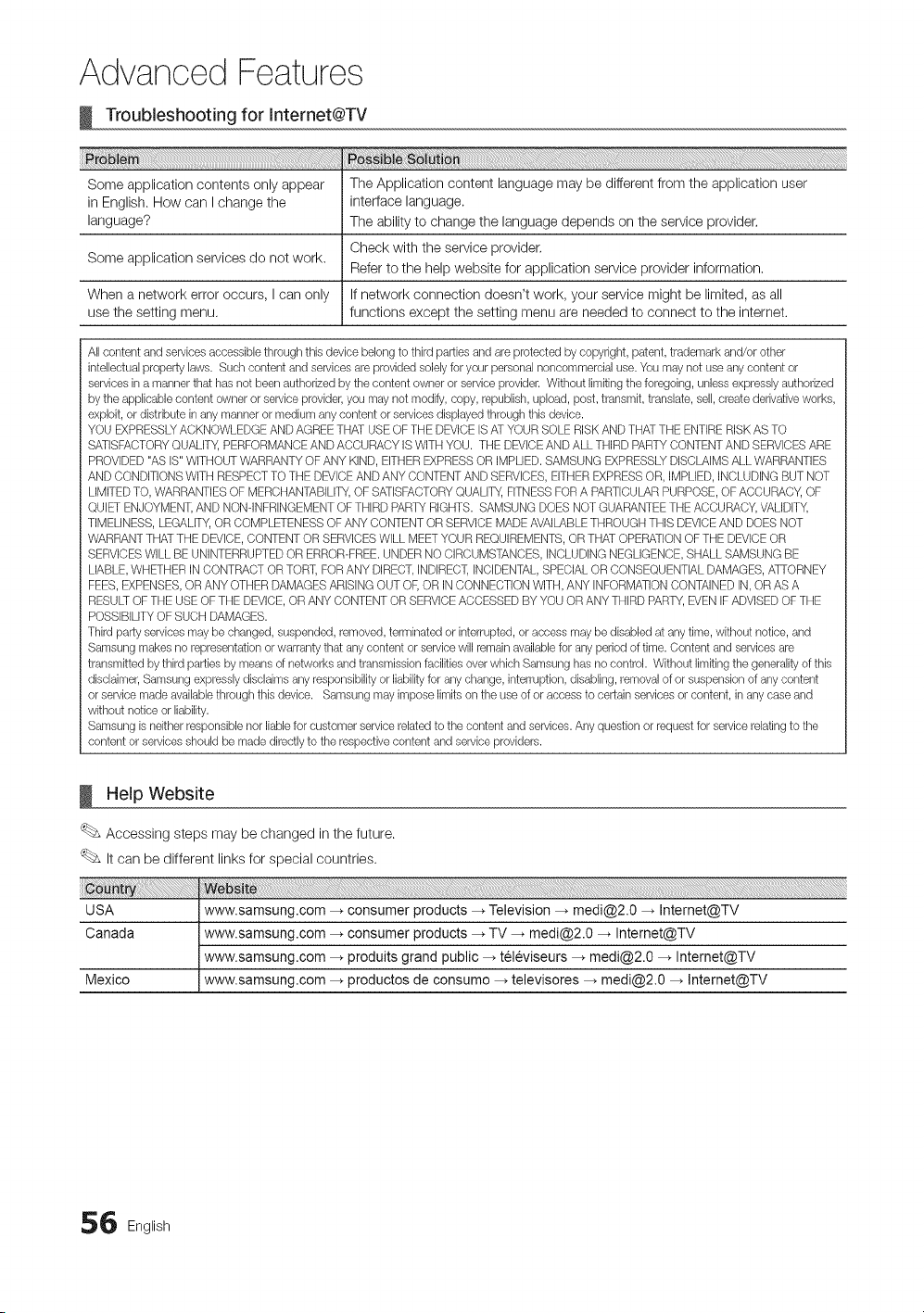
Advanced Features
Troubleshooting for Internet@TV
Some application contents only appear The Application content language may be different from the application user
in English. How can I change the interface language.
language? The ability to change the language depends on the service provider.
Check with the service provider,
Some application services do not work.
Refer to the help website for application service provider information.
When a network error occurs, I can only If network connection doesn't work, your service might be limited, as all
use the setting menu. functions except the setting menu are needed to connect to the internet.
All content and services accessible through this device belong to third parties and are protected by copyright, patent, trademark and/or other
intelbctual property laws. Such content and services are provided solely for your personal noncommercial use. You may not use any content or
services in a manner that has not been authorized by the content owner or service provider. Without limitingthe foregoing, unless expressly authorized
by the applicable content owner or service provider, you may not modify, copy, republish, upload, post, transmit, translate, sell, create derivative works,
exploit, or distribute in any manner or medium any content or services displayed through this device.
YOU EXPRESSLYACKNOWLEDGE AND AGREE THAT USE OF THE DEVICE ISAT YOUR SOLE RISKAND THATTHE ENTIRE RISKAS TO
SATISFACTORYQUALITY, PERFORMANCEAND ACCURACY IS WITHYOU. THE DEVICEAND ALL THIRD PARTYCONTENT AND SERVICESARE
PROVIDED"AS IS" WITHOUT WARRANTYOF ANY KIND, EITHEREXPRESS OR IMPLIED.SAMSUNG EXPRESSLYDISCLAIMS ALL WARRANTIES
AND CONDITIONS WITH RESPECT TO THE DEVICEAND ANY CONTENT AND SERVICES,EITHER EXPRESSOR, IMPLIED,INCLUDING BUT NOT
LIMITEDTO, WARRANTIES OF MERCHANTABILITY,OF SATISFACTORYQUALITY,FITNESS FORA PARTICULARPURPOSE, OF ACCURACY, OF
QUIET ENJOYMENT,AND NONqNFRINGEMENT OFTHIRD PARTY RIGHTS. SAMSUNG DOES NOT GUARANTEETHE ACCURACY, VALIDITY,
TIMELINESS,LEGALITY,OR COMPLETENESS OF ANY CONTENT OR SERVICE MADE AVAILABLETHROUGH THIS DEVICEAND DOES NOT
WARRANTTHAT THE DEVICE,CONTENT OR SERVICESWILL MEET YOUR REQUIREMENTS,OR THAT OPERATIONOF THE DEVICEOR
SERVICESWILL BE UNINTERRUPTEDOR ERROR-FREE. UNDER NO CIRCUMSTANCES, INCLUDING NEGLIGENCE,SHALL SAMSUNG BE
LIABLE,WHETHER IN CONTRACT OR TORT, FORANY DIRECT,INDIRECT,INCIDENTAL, SPECIALOR CONSEQUENTIAL DAMAGES,ATTORNEY
FEES,EXPENSES,OR ANY OTHER DAMAGES ARISING OUT OF, OR IN CONNECTIONWITH, ANY INFORMATIONCONTAINED IN, OR AS A
RESULTOF THE USE OFTHE DEVICE, OR ANY CONTENT OR SERVICEACCESSED BY YOU OR ANY THIRD PARTY,EVEN IFADVISEDOF THE
POSSIBILITYOF SUCH DAMAGES.
Third party services may be changed, suspended, removed, terminated or interrupted, or access may be disabled at any time, without notice, and
Samsung makes no representation or warranty that any content or service will remain availablefor any period of time. Content and services are
transmitted by third parties by means of networks and transmission facilities over which Samsung has no control. Without limiting the generality of this
disclaimer, Samsung expressly disclaims any responsibility or liabilityfor any change, interruption, disabling, removal of or suspension of any content
or service made availablethrough this device. Samsung may impose limits on the use of or access to certain services or content, in any case and
without notice or liability.
Samsung isneither responsible nor liable for customer service related to the content and services. Any question or request for service relating to the
content or services should be made directly to the respective content and service providers.
Help Website
Accessing steps may be changed in the future.
It can be different links for special countries.
6 English
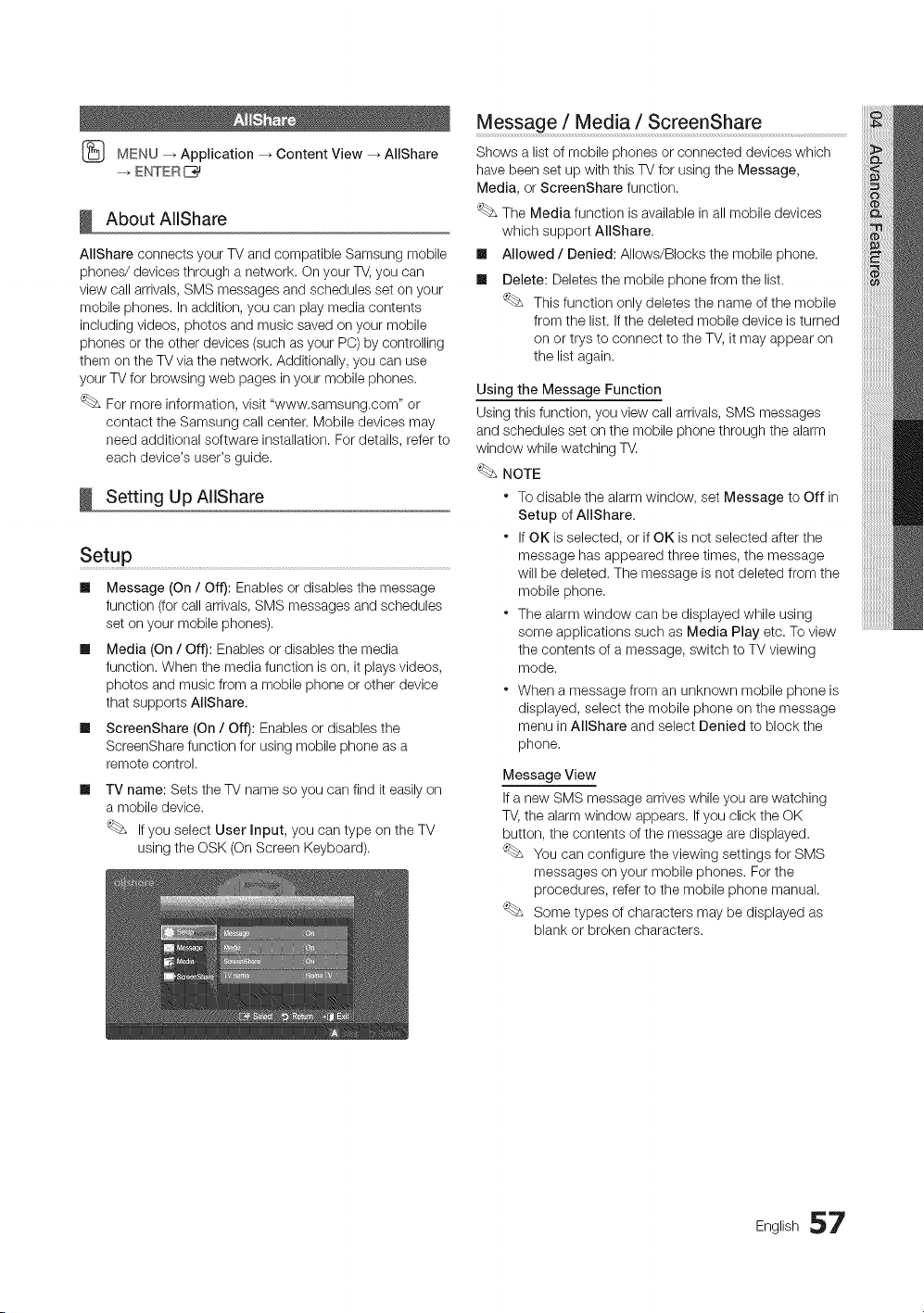
(_ MENU_ Application_ ContentView_ AliShare
--_ENTERI_
About AllShare
AIIShare connects your TV and compatible Samsung mobile
phones/devices through a network. Qn your TV, you can
view call arrivals, SMS messages and schedules set on your
mobile phones, in addition, you can play media contents
including videos, photos and music saved on your mobile
phones or the other devices (such as your PC) by controlling
them on the TV via the network. Additionally, you can use
your TV for browsing web pages in your mobile phones.
For more information, visit "www.samsung.com" or
contact the Samsung call center. Mobile devices may
need additional software installation. For details, refer to
each device's user's guide.
Setting Up AIIShare
Setup
m
m
m
Message (On / Off): Enables or disables the message
function (for call arrivals, SMS messages and schedules
set on your mobile phones),
Media (On / Off): Enables or disables the media
function. When the media function is on, it plays videos,
photos and music from a mobile phone or other device
that supports AllShare,
ScreenShare (On / Off): Enables or disables the
ScreenShare function for using mobile phone as a
remote control.
m
TV name: Sets the TV name so you can find it easil on
a mobile device.
If you select User input, you can type on the TV
using the OSK (On Screen Keyboard),
Message / Media / ScreenShare
Shows a list of mobile phones or connected devices which
have been set up with this TV for using the Message,
Media, or ScreenShare function.
The Media function is available in all mobile devices
which support AIIShare,
Ill Mowed / Denied: Allows/Blocks the mobile phone.
Ill Delete: Deletes the mobile phone from the list.
This function only deletes the name of the mobile
from the list. If the deleted mobile device is turned
on or trys to connect to the TV, it may appear on
the list again.
Using the Message Function
Using this function, you view call arrivals, SMS messages
and schedules set on the mobile phone through the alarm
window while watching TV.
NOTE
* To disable the alarm window, set Message to Off in
Setup of AllShare.
* If OK is selected, or if OK is not selected after the
message has appeared three times, the message
will be deleted. The message is not deleted from the
mobile phone,
* The alarm window can be displayed while using
some applications such as Media Play etc. To view
the contents of a message, switch to TV viewing
mode.
" When a message from an unknown mobile phone is
displayed, select the mobile phone on the message
menu in AIIShare and select Denied to block the
phone,
Message View
If a new SMS message arrives while you are watching
TV, the alarm window appears. If you click the OK
button, the contents of the message are displayed.
You can configure the viewing settings for SMS
messages on your mobile phones. For the
procedures, refer to the mobile phone manual.
Some types of characters may be displayed as
blank or broken characters.
English 57
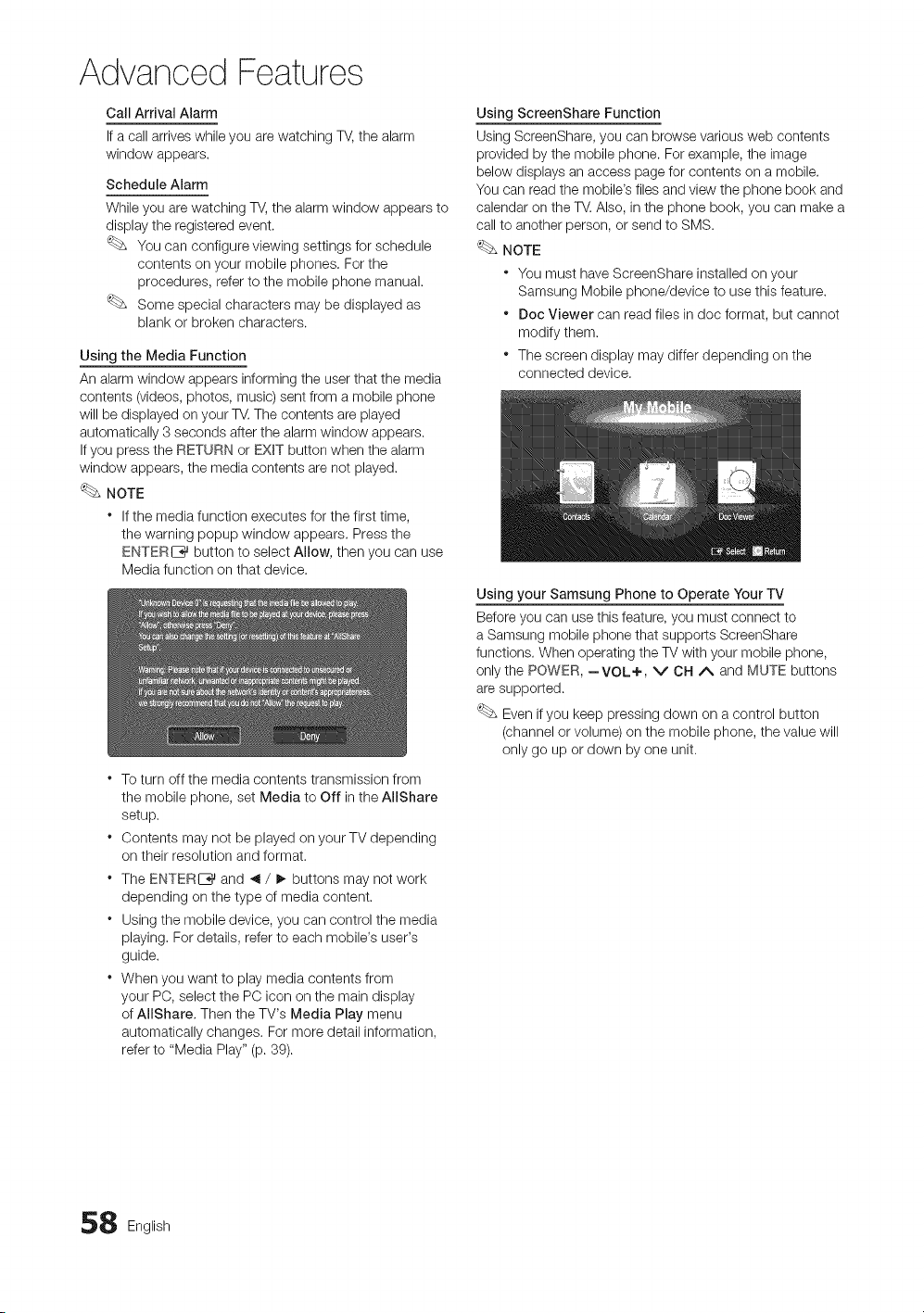
Advanced Features
Call Arrival Alarm
If a call arrives while you are watching TV, the alarm
window appears.
Schedule Alarm
While you are watching TV, the alarm window appears to
display the registered event.
You can configure viewing settings for schedule
contents on your mobile phones. For the
procedures, refer to the mobile phone manual.
Some special characters may be displayed as
blank or broken characters.
Using the Media Function
An alarm window appears informing the user that the media
contents (videos, photos, music) sent from a mobile phone
will be displayed on your TV. The contents are played
automatically 3 seconds after the alarm window appears.
If you press the RETURN or EXiT button when the alarm
window appears, the media contents are not played.
NOTE
* If the media function executes for the first time,
the warning popup window appears. Press the
ENTERI_ button to select Allow, then you can use
Media function on that device.
o
o
o
To turn off the media contents transmission from
the mobile phone, set Media to Off in the AIIShare
setup.
Contents may not be played on your TV depending
on their resolution and format.
The ENTERC_ and _1/ !_ buttons may not work
depending on the type of media content.
Using the mobile device, you can control the media
playing, For details, refer to each mobile's user's
guide.
When you want to play media contents from
your PO, select the PO icon on the main display
of AllShare, Then the TV's Media Play menu
automatically changes. For more detail information,
refer to "Media Play" (p. 89).
Using ScreenShare Function
Using ScreenShare, you can browse various web contents
provided by the mobile phone. For example, the image
below displays an access page for contents on a mobile.
You can read the mobile's files and view the phone book and
calendar on the TV. Also, in the phone book, you can make a
call to another person, or send to SMS.
NOTE
* You must have ScreenShare installed on your
Samsung Mobile phone/device to use this feature.
* Dec Viewer can read files in doc format, but cannot
modify them.
* The screen display may differ depending on the
connected device.
Using your Samsung Phone to Operate Your TV
Before you can use this feature, you must connect to
a Samsung mobile phone that supports ScreenShare
functions. When operating the TV with your mobile phone,
only the POWER, --VOL+, v CH A and MUTE buttons
are supported.
Even if you keep pressing down on a control button
(channel or volume) on the mobile phone, the value will
only go up or down by one unit.
8 English
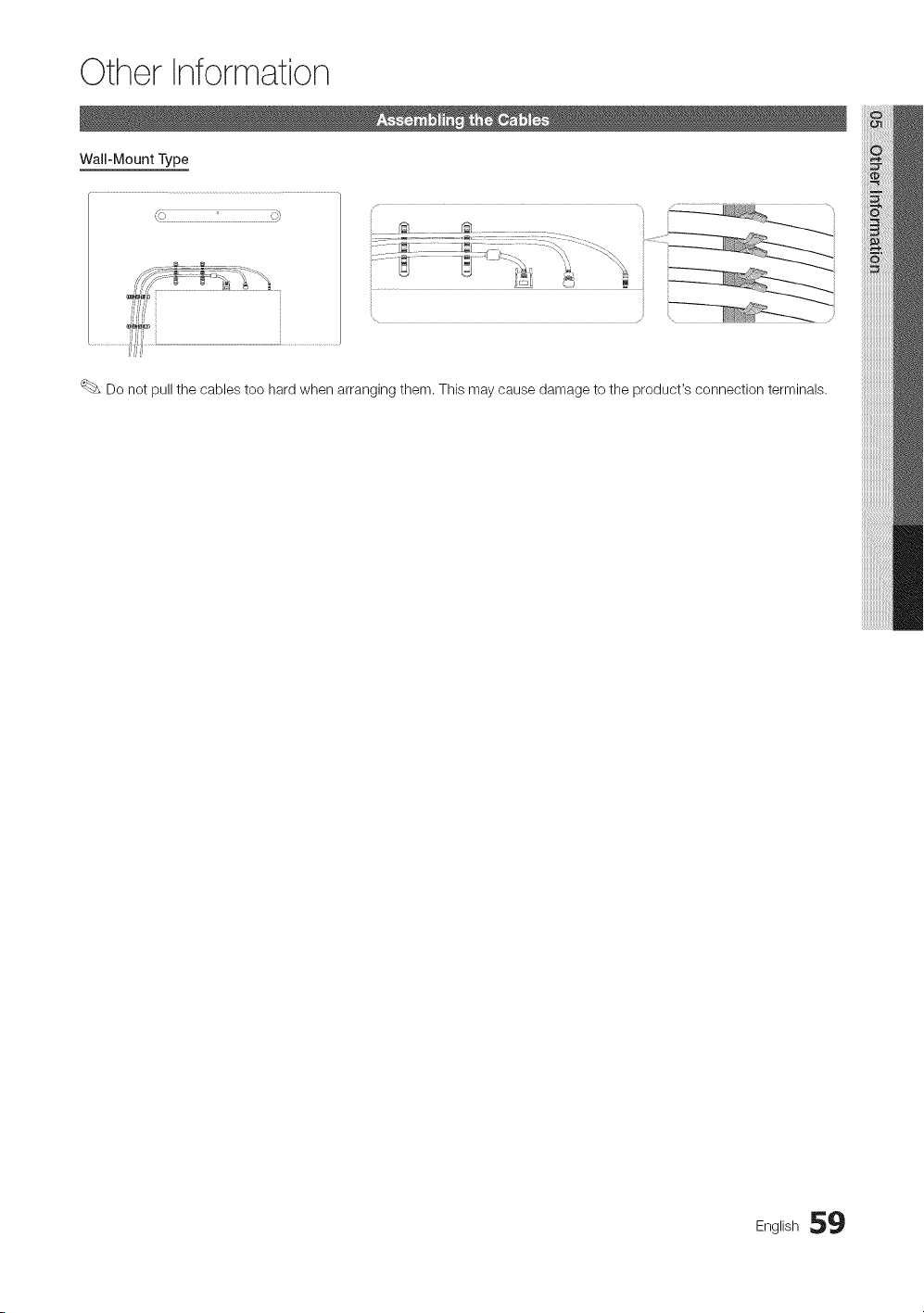
Other Information
Wall-Mount Type
(u! i} i ii
Do not pull the cables too hard when arranging them. This may cause damage to the product's connection terminals,
English 59
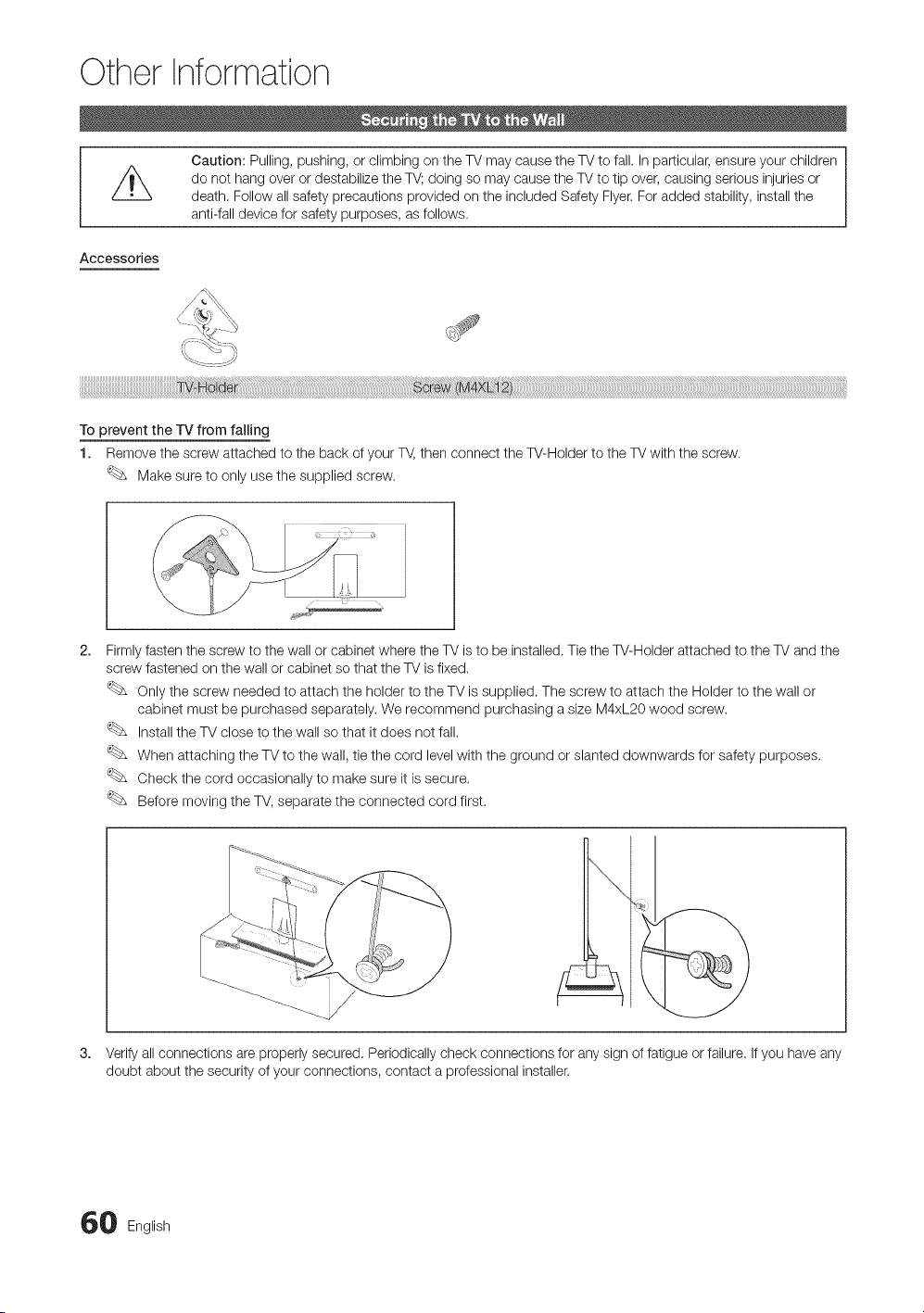
Other Information
Caution: Pulling, pushing, or climbing on the TV may cause the TV to fall. In particular, ensure your children
do not hang over or destabilize the TV; doing so may cause the TV to tip over, causing serious injuries or
death. Follow all safety precautions provided on the included Safety Flyer. For added stability, install the
anti-fall device for safety purposes, as follows.
Accessories
To prevent the TV from falling
1. Remove the screw attached to the back of your T_, then connect the W-Holder to the TV with the screw.
Make sure to only use the supplied screw.
2.
3.
Firmly fasten the screw to the wall or cabinet where the TV is to be installed. Tie the W-Holder attached to the TV and the
screw fastened on the wall or cabinet so that the TV is fixed.
Only the screw needed to attach the holder to the TV is supplied. The screw to attach the Holder to the wall or
cabinet must be purchased separately. We recommend purchasing a size M4xL20 wood screw.
Install the TV close to the wall so that it does not fall.
When attaching the TV to the wall, tie the cord level with the ground or slanted downwards for safety purposes.
Check the cord occasionally to make sure it is secure.
Before moving the TV, separate the connected cord first.
Verify all connections are properly secured. Periodically check connections for any sign of fatigue or failure. If you have any
doubt about the security of your connections, contact a professional installer.
0 English
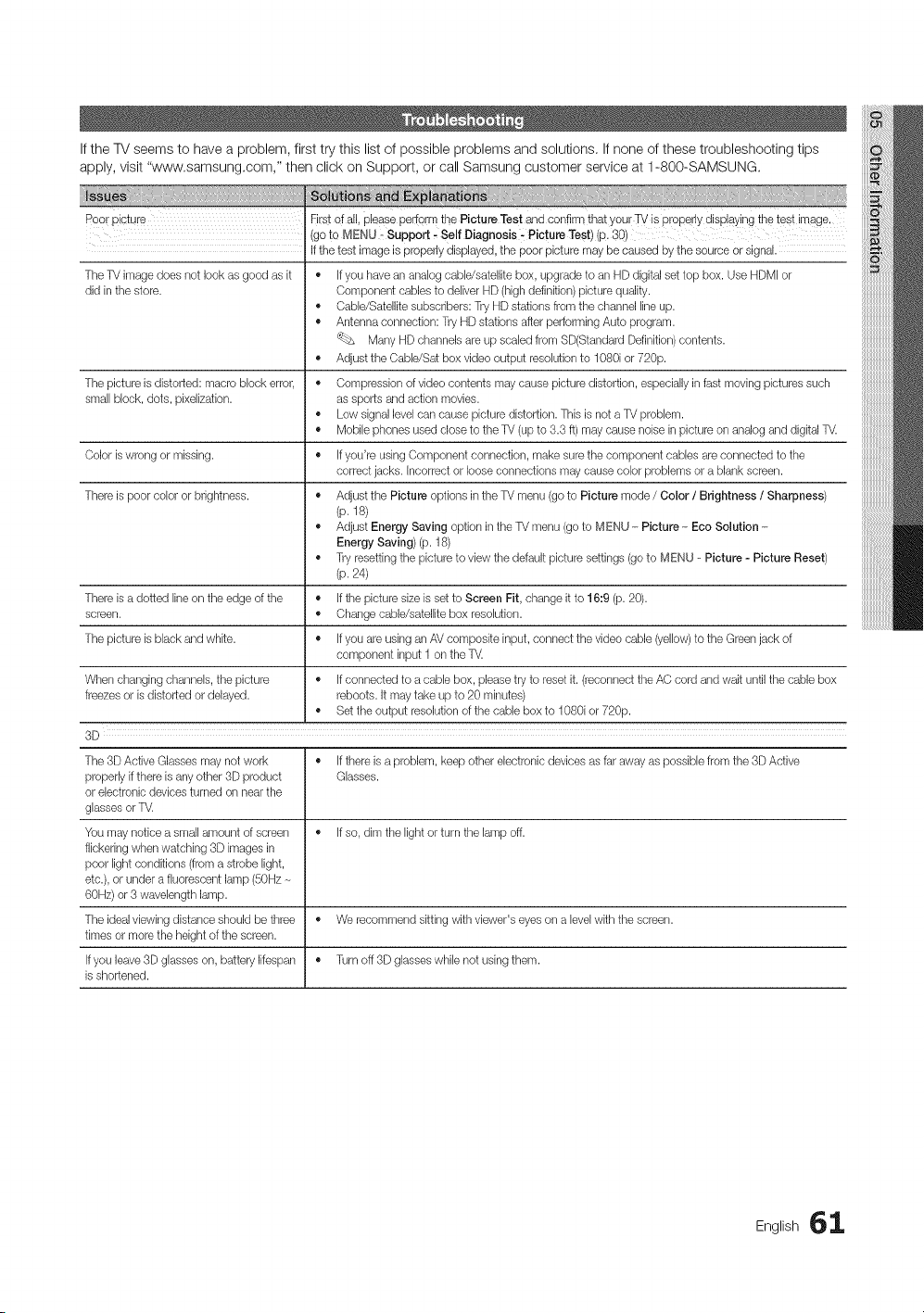
If the TV seems to have a problem, first try this list of possible problems and solutions, If none of these troubleshooting tips
apply, visit "www.samsung.com," then click on Support, or call Samsung customer service at 1-800-SAMSUNG.
Poo! picture Firstof all, Pleaseperform the Picture Test and confirm that your TV is properly displaying the test image.
(go te MENU _ Support, Self Diagnosis - Picture Test) (p. 30)
Ifthe test image is properly displayed, the poor picture may be caused by the source or signal.
The TV image does not look as good as it • Ifyou have an analog cable/satellite box, upgrade to an HD digital set top box. Use HDMI or
did in the store. Component cables to deliver HD (high definition) pbture qualky.
• Cable/Satellite subscribers: Try HD stations from the channel line up.
• Antenna connection: Try HD stations after performing Auto program.
Many HD channels are up scaledfrom SD(Standard Definition)contents.
• Adjust the Cable/Sat box video output resolution to 1080i or 720p.
The picture is distorted: macro block error, • Compression of video contents may cause picture distortion, espedally in fast moving pictures such
small block, dots, pixelization, as sports and action movies.
• Low signal level can cause picture distortion. This is not a TV problem.
• Mobile ptlones used close to the TV (up to 3.3 ft) may cause noise in picture on analog and digital T_
Color iswrong or missing. • Ifyou're using Component connection, make sure the component cables are connected to tile
correct jacks. Incorrect or looseconnections may cause color problems or a blank screen.
There is poor color or brightness. • Adjust the Picture options in the TV menu (go to Picture mode / Color / Brightness / Sharpness)
(p. 18)
• Adjust Energy Saving option in the TV menu (go to MENU - Picture- Eco Solution -
Energy Saving)(p. 18)
• Try resetting the picture to view tlqedefault picture settings (goto MENU - Picture - Picture Reset)
(p. 24)
There isa dotted line on the edge of the • If the picture size is set to Screen Fit, change it to 16:9 (p. 20).
screen. • Change cable/satellite box resolution.
The picture isblack and white. • If you are usingan AV composite input, connect the video cable (yellow)to the Greenjack of
component input 1 on the %(
Wtqenchanging channels, the picture • Ifconnected to a cable box, please try to reset it. (reconnect the AC cord and wait until the cable box
freezes or is distorted or delayed, reboots. It may take up to 20 minutes)
• Set the output resolution of the cable box to 1080i or 720p.
3D
The 3D Active Glasses may not work • If there is a problem, keep other electronic devices as far away as possible from the 3D Active
properly if there is any other 3D product Glasses.
or electronic devices turned on near the
glassesor T_
You may notice a small amount of screen • If so, dim the light or turn the lamp off.
flickering when watching 3D images in
poor light conditions (from a strobe light,
etc.),or under a fluorescent lamp (50Hz
60Hz) or 3 wavelength lamp.
The ideal viewing distance should be three • We recommend sitting with viewer's eyes on a levelwith the screen.
times or more the height of the screen.
Ifyou leave 3D glasseson, battery lifespan • Turn off 3D glasses while not using them.
isshortened.
ng,,sh6::[
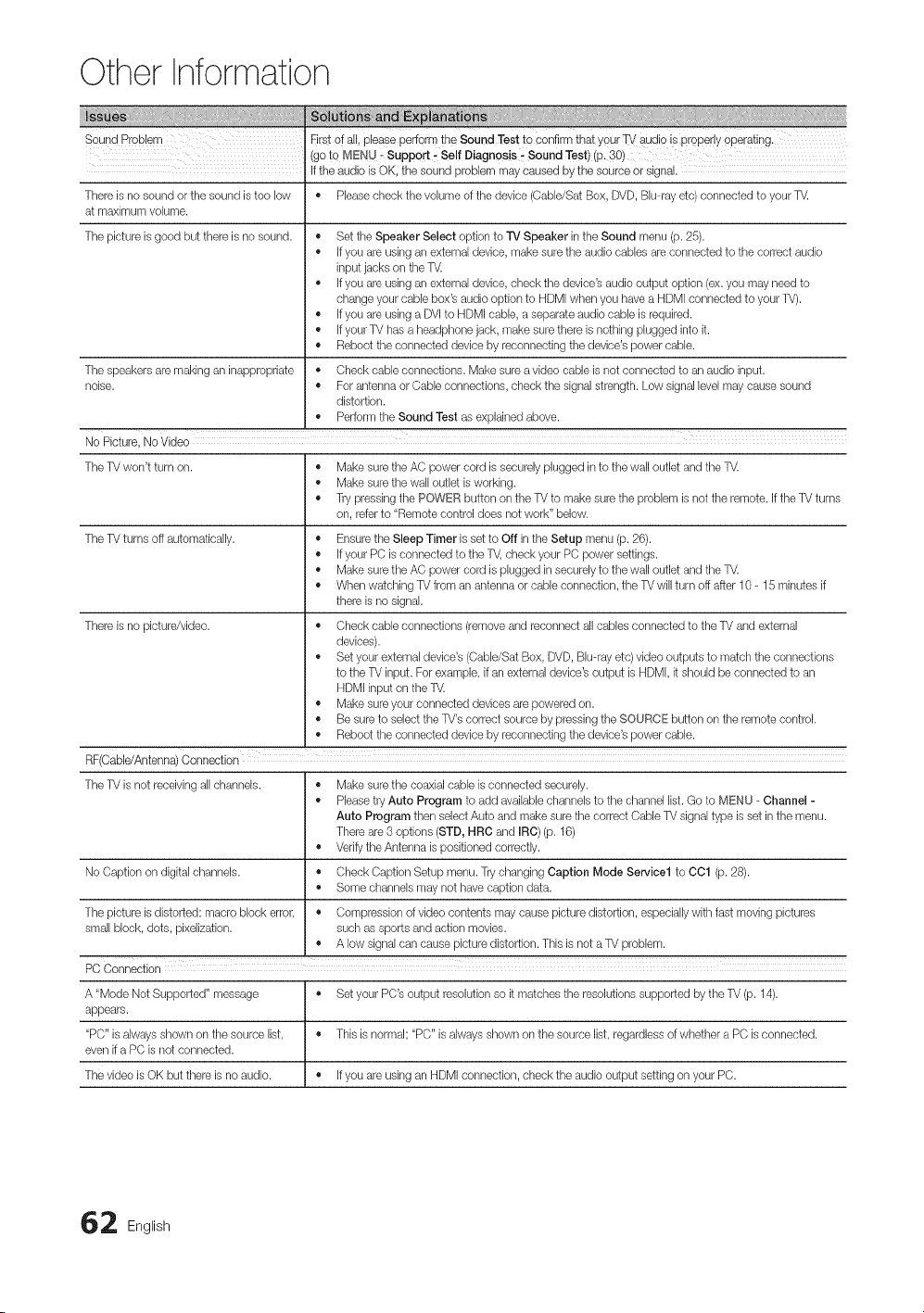
Other Information
........................... xxxxxx_i_ _ _ xx _ : _ _ _ _x _ _ _ _ _ _ _ _ii iii _ _
Sound Problem Firstof all, please perform the Sound Test to confirm that your 1_/audio is properly operating.
(go to MENU - Support : Self Diagnosis : Sound Test) (p. 3(})
Ifthe audio is OK, the sound problem may caused by the source or signal.
There is no sound or the sound is too low • Pleasecheck the volume of the device (Cabb/Sat Box, DVD, Blu-ray etc) connected to your T_
at maximum volume.
The picture is good but there is no sound. • Set tile Speaker Select option to rv Speaker in the Sound menu (p. 25).
• If you are usingan external device, make sure tile audio cables are connected to tile correct audio
input jacks on tile T_
• If you are usingall external device, check tile device's audio output option (ex. you may need to
change your cable box's audio option to HDMIwhen you have a HDMI connected to your T_.
• If you are usinga DVI to HDMI cable, a separate audio cable is required.
• If your TV has a headptlone jack, make suretllere is nothing plugged into it.
• Reboot tile connected device by reconnecting tile device's power cable.
The speakers are making an inappropriate • Check cable connections. Make sure a video cable isnot connected to an audio input.
noise. • For antenna or Cable connections, check the signal strength. Low signal levelmay cause sound
distortion.
• Perform the Sound Test as explained above.
No Picture, No Video
The TV won't turn on. • Make sure the AC power cord is securely plugged in to the wall outlet and the T_
• Make sure the wall outlet is working.
• Try pressing the POWER button on the TV to make sure the problem is not the remote. If the TV turns
on, referto "Remote control does not work" below.
The TV turns off automatically. • Ensurethe Sleep Timer is set to Off in the Setup menu (p. 26).
• If your PC is connected to the T_, check your PC power settings.
• Make sure the AC power cord is pBgged in securely to the wall outlet and tile T_
• When watching TV from an antenna or cable connection, the TVwill turn off after 10 - 15 minutes if
there is no signal.
There isno picture/video. • Check cable connections (remove and reconnect all cables connected to the TV and external
devices).
• Set your external device's (Cabb/Sat Box, DVD, Blu-ray etc) video outputs to match the connections
to the TV input. For example, if an external device's output is HDMI, it stlould be connected to an
HDMIinput on the T_
• Make sure your connected devices are powered on.
• Be sure to select tile TV's correct source by pressing tile SOURCE button on tile remote control.
• Reboot the connected device by reconnecting tile device's power cable.
RF(Oabb/Antenna) Connection
The TV is not receiving all channeb. • Make sure the coaxial cable is connected securely.
• Please try Auto Program to add available channeb to the channel list. Go to MENU - Channel -
Auto Program then select Auto and make sure tile correct Cable TV signal type is set in the menu.
There are 3 options (STD, HRC and IRC) (p. 16)
• Verify the Antenna is positioned correctly.
No Caption on digital channeb. • Check Caption Setup menu. Try changing Caption Mode Service1 to OO1 (p. 28).
• Some channeb may not have caption data.
The picture isdistorted: macro block error, • Compression of video contents may cause picture distortion, especiallywith fast moving pictures
small block, dots, pixelization, such as sports and action movies.
• A low signal can cause picture distortion. This is not a TV problem.
PC Connection
A "Mode Not Supported" message • Set your PC's output resolution so it matches the resolutions supported by the TV (p. 14).
appears.
"PC" is always shown on the source list, • This is normal; "PC" is always shown on the source list, regardless of whether a PC is connected.
even if a PC is not connected.
The video is OK but there is no audio. • If you are using an HDMI connection, check the audio output setting on your PC.
2 English
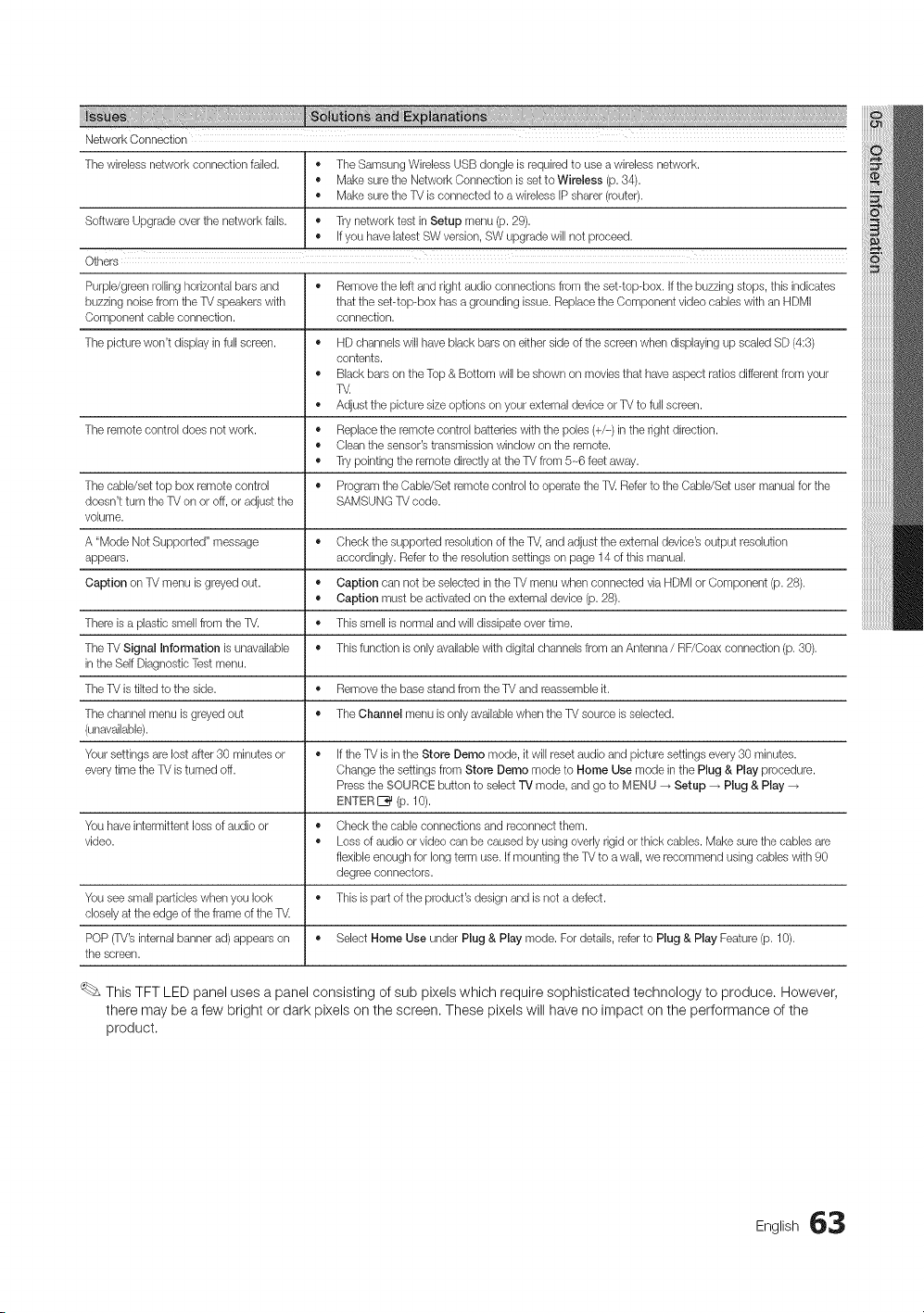
Network Connection
The wireless network connection failed. • The Samsung Wireless USB dongle is required to use a wireless network.
• Make sure tile Network Connection is set to Wireless (p. 34).
• Make sure tile TV is connected to a wireless IP sharer (router).
Software Upgrade over the network falls. • Try network test in Setup menu (p. 29).
• If you have latestSW version, SW upgrade will not proceed.
Others
Purple/green rolling horizontal bars and • Remove the leftand right audio connections from the set-top-box. If the buzzing stops, this indicates
buzzing noise from tile TV speakers with that the set-top-box has a grounding issue. Replace the Component video cables with an HDMI
Component cable connection, connection.
The picture won't display in full screen. • HD channels will have black bars on either side of the screen when displaying up scaled SD (4:3)
contents.
• Black bars on the Top & Bottom will be shown on movies that tlave aspect ratios differentfrom your
T_
• Adjust the picture size options on your external device or TV to full screen.
The remote control does not work. • Replace the remote control batteries with tile poles (+/-) in the right direction.
• Clean the sensor's transmission window on the remote.
• Try pointing tile remote directly at tile TV from 5-_6feet away.
The cable/set top box remote control • Program the Cable/Set remote control to operate the T_ Referto the Cable/Set user manual for the
doesn't turn the TV on or off, or adjust the SAMSUNG TV code.
volume.
A "Mode Not Supported" message • Check the supported resolution of the T_, and adjust the external device's output resolution
appears, accordingly. Referto the resolution settings on page 14 of this manual.
Caption on TV menu is greyed out, • Caption can not be selected inthe TV menu wtlen connected via HDMI or Component (p. 28).
• Caption must be activated on the external device (p. 28).
There isa plastic smell from the TV. • This smell is normal and will dissipate over time.
The Tk/Signal Information is unavailable • This function is only available with digital channels from anAntenna / RF/Coax connection (p. 30).
in the Self Diagnostic Test menu.
The TV is tilted to the side. • Remove the base stand from the TV and reassemble it.
The channel menu is greyed out • The Channel menu is only availablewhen the TV source is selected.
(unavailable).
Your settings are lost after 30 minutes or • Ifthe TV is in the Store Demo mode, it will reset audio and picture settings every 30 minutes.
everytime the TV isturned off. Change the settings from Store Dereo mode to Home Use mode in the Plug & Play procedure.
Pressthe SOURCE button to select TV mode, and go to MENU _ Setup _ Plug & Play
ENTER_ (p. 10).
You have intermittent loss of audio or • Check tile cable connections and reconnect them.
video. • Loss of audio or video can be caused by using overly rigid or thick cables. Make sure tile cables are
flexible enough for long term use. If mounting the TV to a wall, we recommend using cables with 90
degree connectors.
You see small particles when you look • This is part of the product's design and is not a defect.
closelyat the edge of the frame of the T_
POP (TV'sinternal banner ad) appears on • Select Home Use under Plug & Play mode. For details, refer to Plug & Play Feature(p. 10).
the screen.
This TFT LED panel uses a panel consisting of sub pixels which require sophisticated technology to produce. However,
there may be a few bright or dark pixels on the screen. These pixels will have no impact on the performance of the
product.
English 63
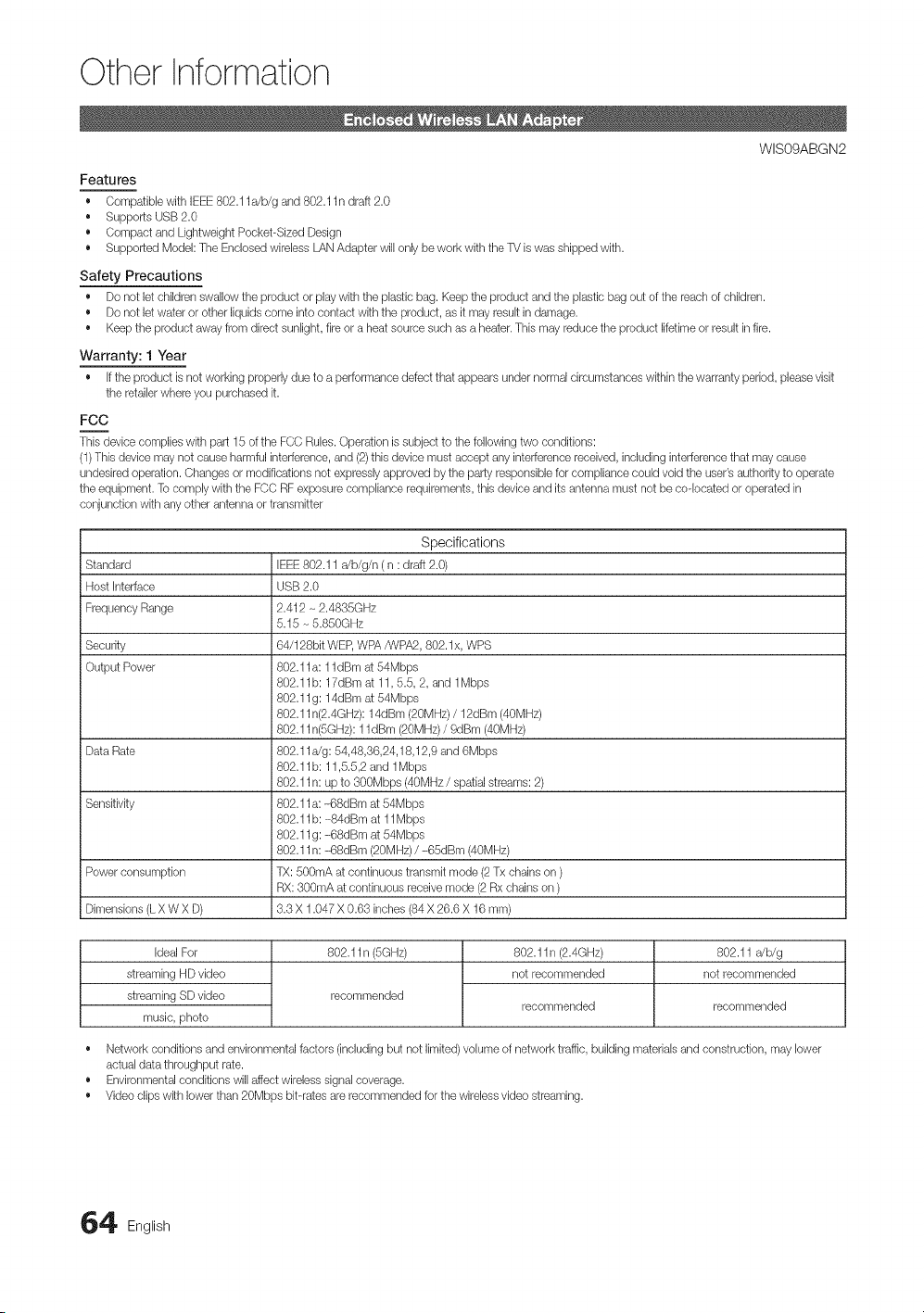
Other Information
WISO9ABGN2
Features
• Compatibb with IEEE802.11Jb/g and 802.11 n draft 2.0
Supports USB2.0
• Compact and Lightweight Pocket-Sized Design
• Supported Model: The Enclosed wireless LANAdapter will only be work with the TV is was shipped with.
Safety Precautions
• Do not let children swallow the product or play with the plastic bag. Keep the product and the plastic bag out of the reach of children.
• Do not letwater or other liquidscome into contact with the product, as it may result in damage.
• Keep the product away from direct sunlight, fire or a heat source such as a heater. This may reduce the product lifetimeor result in fire.
Warranty: 1 Year
• If the product is not working properly due to a performance defect that appears under normal circumstances within the warranty period, please visit
the retailerwhere you purchased it.
FCC
This device complies with part 15 of the FCC Rules. Operation is subiect to the following two conditions:
(1)This device may not cause harmful interference, and (2)this device must accept any interference received, including interference that may cause
undesired operation. Changes or modifications not expressly approved by the party responsible for compliance could void the user's authority to operate
the equipment. To comply with the FCC RF exposure compliance requirements, this device and its antenna must not be co-located or operated in
conjunction with any other antenna or transmitter
Standard
Host Interface
Frequency Range
Security
Output Power
Data Rate
Sensitivity
Power consumption
Dimensions (LX W X D)
Specifications
IEEE802.11 a/b/g/n ( n : draft 2.0)
USB 2.0
2.412 - 2.4835GHz
5.15 - 5.850GHz
64/128bit WEP,WPA/WPA2, 802. lx, WPS
802.1 la: 1 ldBm at 54Mbps
802.11b: 17dBm at 11,5.5, 2, and 1Mbps
802.1 lg: 14dBm at 54Mbps
802.11n(2.4GHz): 14dBm (20MHz) / 12dBm (40MHz)
802.11n(SGHz): 1l dBm (20MHz) / 9dBm (40MHz)
802.11rig: 54,48,36,24,18,12,9 and 6Mbps
802.11b: 11,5.5,2 and 1Mbps
802.11n: up to 300Mbps (40MHz / spatialstreams: 2)
802.1 la: -68dBm at 54Mbps
802.11b: -84dBm at 11Mbps
802.1 lg: -68dBm at 54Mbps
802.11n: -68dBm (20MHz)/ -65dBm (40MHz)
TX: 500mA at continuous transmit mode (2 Tx chains on )
RX: 300mA at continuous receive mode (2 Rx chains on )
3.3 X 1.047 X 0.63 inches (84 X 26.6 X 16 mm)
Ideal For
streaming HD video
streaming SD video
music, photo
802.11 n (5GHz)
recommended
802.11n (2.4GHz)
not recommended
recommended
802.11 a/b/g
not recommended
recommended
• Network conditions and environmental factors (including but not limited)volume of network traffic, buikJing materialsand construction, may lower
actual data throughput rate.
• Environmental conditions will affect wireless signal coverage.
• Video clips with lowerthan 20Mbps bit-rates are recommended for the wireless video streaming.
4 English
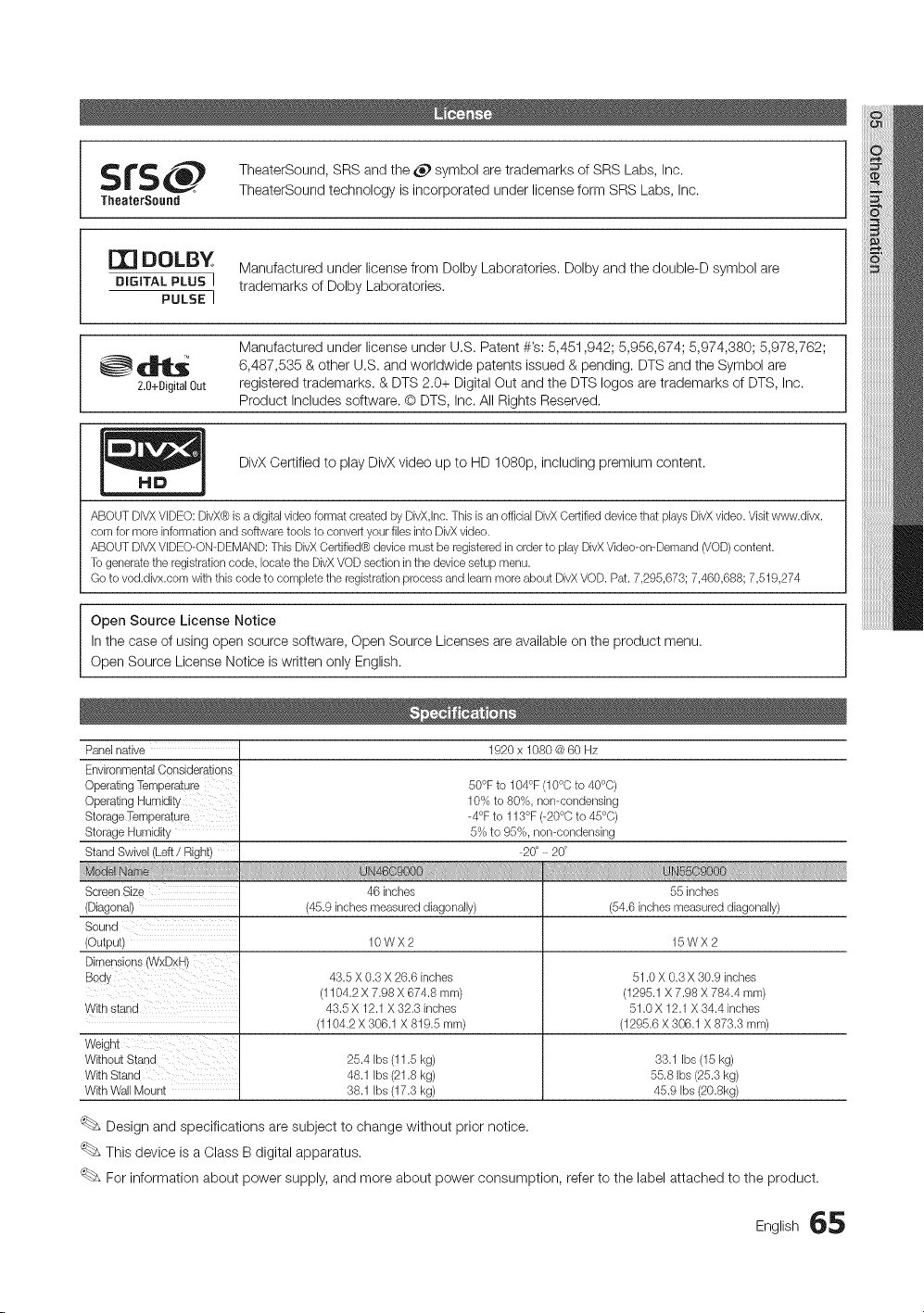
_._ ItS, TheaterSound, SRS and the _ symbol are trademarks of SRS Labs, Inc.
1II
TheaterSound technology is incorporated under license form SRS Labs, Inc.
TheaterSound
m
DOLBY
Manufactured under license from Dolby Laboratories. Dolby and the double-D symbol are
DIGITAL PLUS I trademarks of Dolby Laboratories.
PULSE I
Manufactured under license under U,S. Patent #'s: 5,451,942; 5,956,674; 5,974,380; 5,978,762;
• "_'_ql_ 6,487,535 & other U,S. and worldwide patents issued & pending. DTS and the
Symbol
are
2.0+DigitalOut registered trademarks, & DTS 2.0+ Digital Out and the DTS Iogos are trademarks of DTS, Inc.
Product Includes software. O DTS, Inc. All Rights Reserved,
DivX Certified to play DivX video up to HD 1080p, including premium content.
lid
ABOUT DIVXVDEO: DivX@is a digital video format created by DivX,Inc.This is an official DivXCertified device that plays DivXvideo. Visitwww.divx.
corn for more information and software tools to convert your files into DivXvideo.
ABOUT DIVXVDEO-ON-DEMAND: This DivXCertified@device must be registered in order to play DivXVideo-on-Demand (VOD)content.
To generate the registration code, locate the DivX VOD section in the devicesetup menu.
Go to vod.divx.com with this code to complete the registration process and barn more about DivXVOD. Pat. 7,295,673; 7,460,688; 7,519,274
Open Source License Notice
In the case of using open source software, Open Source Licenses are available on the product menu.
Open Source License Notice is written only English.
Panelnative 1920x 1080 @60 Hz
EnvironmentalGensiderations
OperatingTemperature
Operating Humidity
Storage Temperature
Storage Humidity
Stand Swivel (Left / Right)
50°F to 104°F (10°C to 40°C)
10% to 80%, non-condensing
-4°F to 113°F (-20°C to 45°C)
5% to 95%, non-condensing
_20° _ 20°
46 inches
(45.9 inches measured diagonally)
Screen Size
(Diagonal)
(Output) 10 W X 2 15 W X 2
43.5 X 0.3 X 26.6 inches 51.0 X 0.3 X 30.9 inches
(1104.2 X 7.98 X 674.8 mm) (1295.1 X 7.98 X 784.4 mm)
Withstand 43.5 X 12.1X 32.3 inches 51.0 X 12.1X 34.4 inches
(1104.2 X 306.1 X 819.5 mm) (1295.6 X 306.1 X 873.3 mm)
Weight
Without Stand 25.4 Ibs (11.5 kg) 33.1 Ibs (15 kg)
With Stand 48.1 Ibs (21.8 kg) 55.8 Ibs (25.3 kg)
With Wall Mount 38.1 Ibs (17.3 kg) 45.9 Ibs (20.8kg)
55 inches
(54.6 inches measured diagonally)
Design and specifications are subject to change without prior notice.
This device is a Class B digital apparatus.
For information about power supply, and more about power consumption, refer to the label attached to the product.
English 65
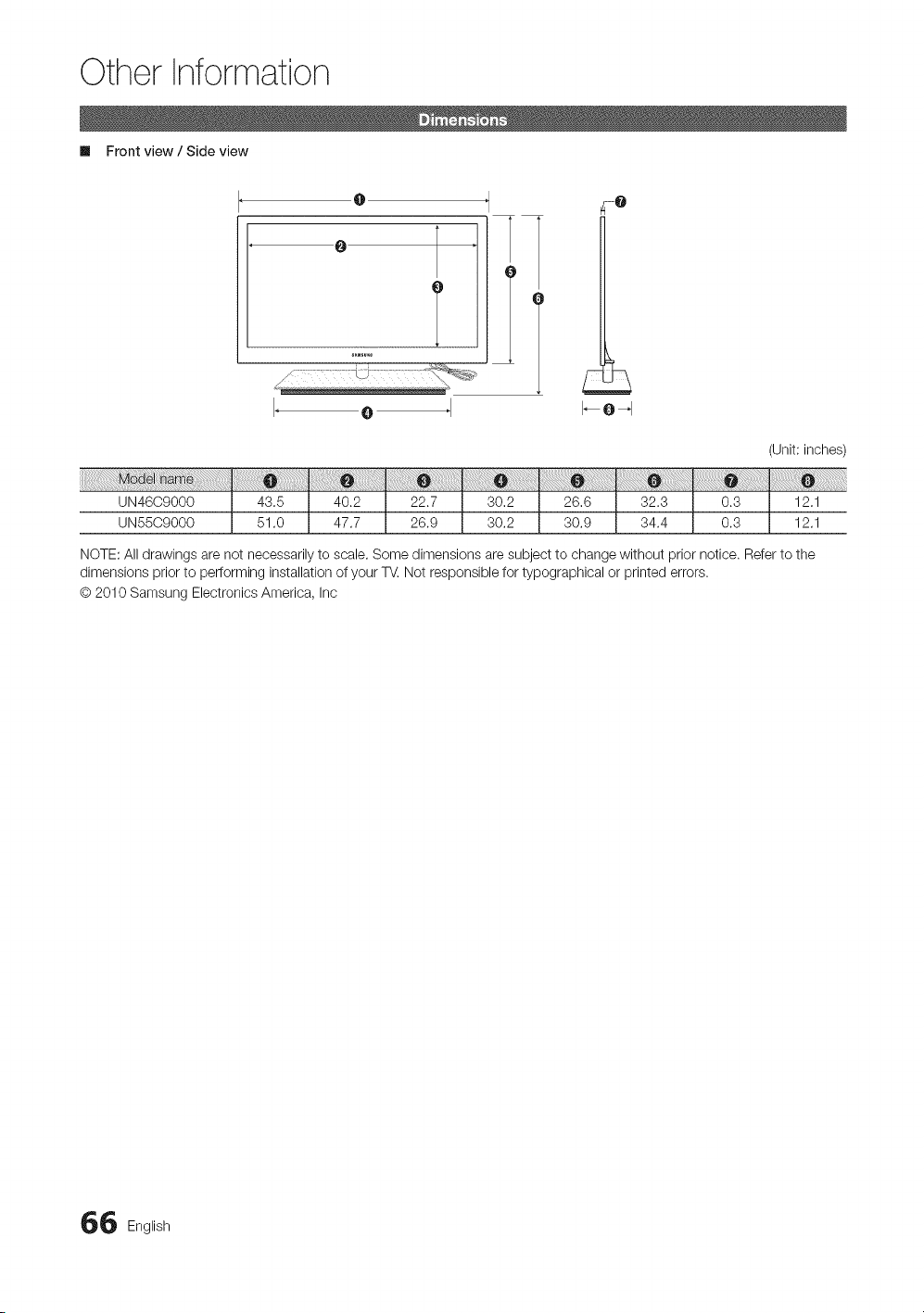
Other Information
Im Front view / Side view
@
O
T
T
O
4-0
(Unit: inches)
12.1
12.1
NOTE: All drawings are not necessarily to scale. Some dimensions are subject to change without prior notice. Refer to the
dimensions prior to performing installation of your T_. Not responsible for typographical or printed errors.
@ 2010 Samsung Electronics America, Inc
6 English
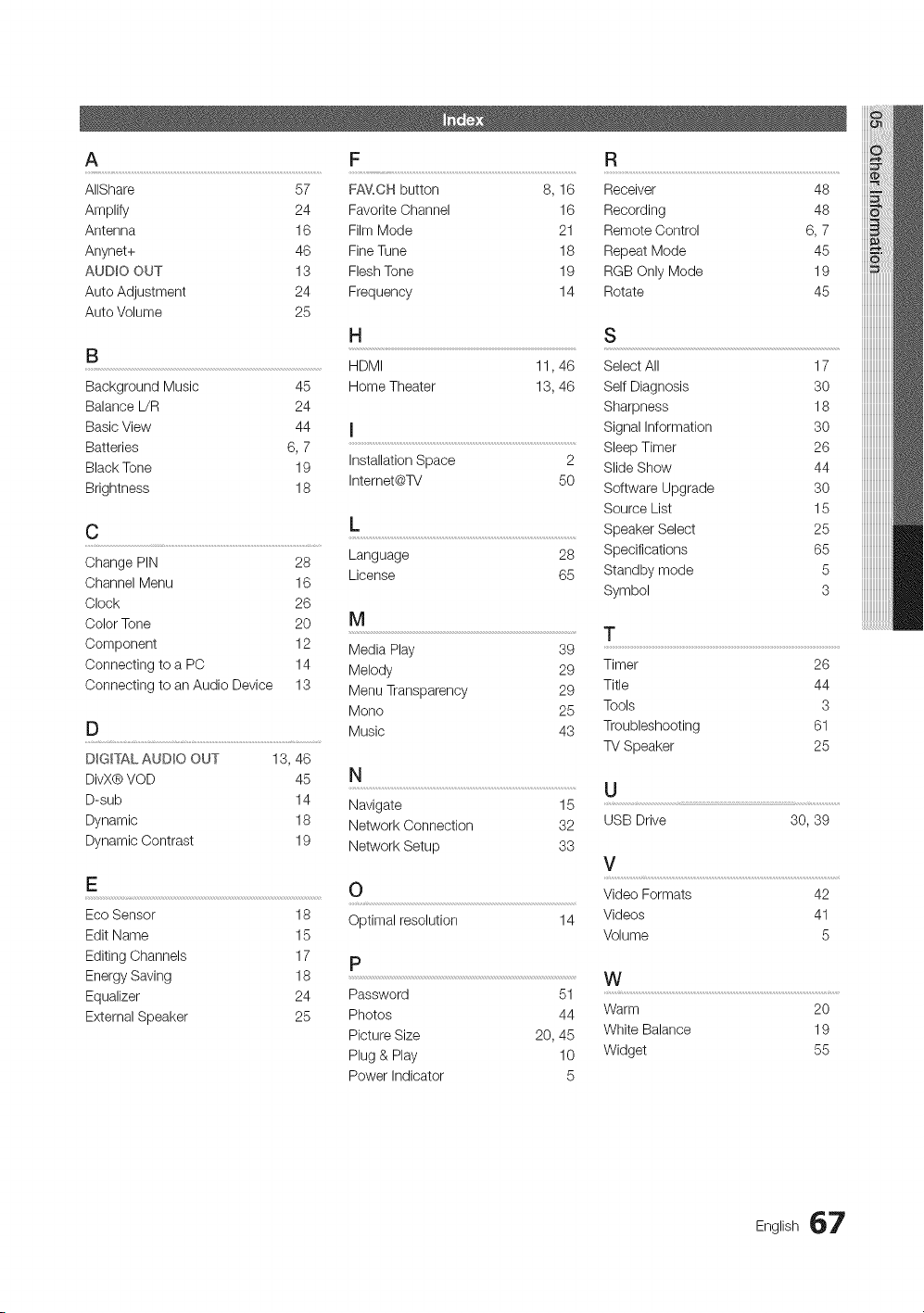
A F R
AIIShare 57 FAV,CH button 8, 16 Receiver 48
Amplify 24 Favorite Channel 16 Recording 48
Antenna 16 Film Mode 21 Remote Control 6, 7
Anynet+ 46 Fine Tune 18 Repeat Mode 45
AVD_O OVT 13 Flesh Tone 19 RGB Only Mode 19
Auto Adjustment 24 Frequency 14 Rotate 45
Auto Volume 25
B
Background Music 45
Balance L/R 24
Basic View 44
Batteries 6, 7
Black Tone 19
Brightness 18
C
Change PIN 28
Channel Menu 16
Clock 26
Color Tone 20
Component 12
Connecting to a PC 14
Connecting to an Audio Device 13
D
DIGITAL AVDIO OUT 13, 46
DivX@VOD 45
D-sub 14
Dynamic 18
Dynamic Contrast 19
E
H
HDMI 11,46
Home Theater 13, 46
I
Installation Space 2
Internet@TV 50
L
Language 28
License 65
S
Select All 17
Self Diagnosis 30
Sharpness 18
Signal Information 30
Sleep Timer 26
Slide Show 44
Software Upgrade 30
Source List 15
Speaker Select 25
Specifications 65
Standby mode 5
Symbol 3
N
Navigate 15
Network Connection 32
Network Setup 33
O
Optimal resolution
P
Eco Sensor 18
Edit Name 15
Editing Channels 17
Energy Saving 18
Equalizer 24
External Speaker 25
14
Password 51
Photos 44
Picture Size 20, 45
Plug & Play 10
Power Indicator 5
U
USB Drive
30,39
V
Video Formats 42
Videos 41
Volume 5
W
Warm 20
White Balance 19
Widget 55
iiiiiiiiiiiiiiiiiiii
iiiiiiiiiiiiiiiiiiii
English 67
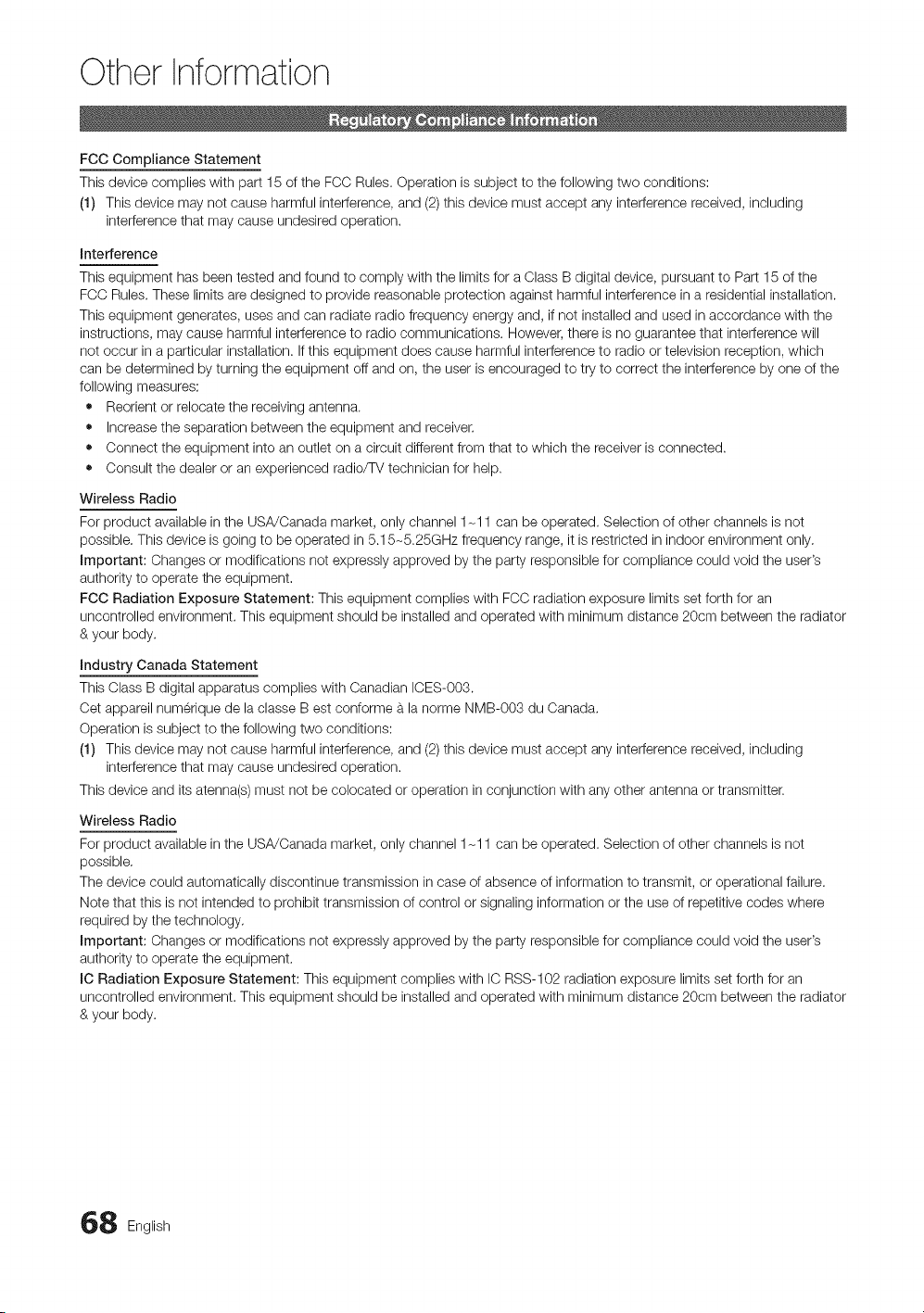
Other Information
FCC Compliance Statement
This device complies with part 15 of the FCC Rules. Operation is subject to the following two conditions:
(1) This device may not cause harmful interference, and (2) this device must accept any interference received, including
interference that may cause undesired operation.
interference
This equipment has been tested and found to comply with the limits for a Class B digital device, pursuant to Part 15 of the
FCC Rules. These limits are designed to provide reasonable protection against harmful interference in a residential installation.
This equipment generates, uses and can radiate radio frequency energy and, if not installed and used in accordance with the
instructions, may cause harmful interference to radio communications. However, there is no guarantee that interference will
not occur in a particular installation. If this equipment does cause harmful interference to radio or television reception, which
can be determined by turning the equipment off and on, the user is encouraged to try to correct the interference by one of the
following measures:
• Reorient or relocate the receiving antenna.
• Increase the separation between the equipment and receiver.
• Connect the equipment into an outlet on a circuit different from that to which the receiver is connected.
• Consult the dealer or an experienced radio/TV technician for help.
Wireless Radio
For product available in the USA/Canada market, only channel 1-11 can be operated. Selection of other channels is not
possible. This device is going to be operated in 5.15-5.25GHz frequency range, it is restricted in indoor environment only,
important: Changes or modifications not expressly approved by the party responsible for compliance could void the user's
authority to operate the equipment.
FCC Radiation Exposure Statement: This equipment complies with FCC radiation exposure limits set forth for an
uncontrolled environment. This equipment should be installed and operated with minimum distance 20cm between the radiator
& your body.
industry Canada Statement
This Class B digital apparatus complies with Canadian ICES-003.
Cet appareil numerique de la classe Best conforme a la norme NMB-003 du Canada,
Operation is subject to the following two conditions:
(1) This device may not cause harmful interference, and (2) this device must accept any interference received, including
interference that may cause undesired operation.
This device and its atenna(s) must not be colocated or operation in conjunction with any other antenna or transmitter.
Wireless Radio
For product available in the USA/Canada market, only channel 1-11 can be operated. Selection of other channels is not
possible,
The device could automatically discontinue transmission in case of absence of information to transmit, or operational failure.
Note that this is not intended to prohibit transmission of control or signaling information or the use of repetitive codes where
required by the technology,
important: Changes or modifications not expressly approved by the party responsible for compliance could void the user's
authority to operate the equipment.
IC Radiation Exposure Statement: This equipment complies with IC RSS-102 radiation exposure limits set forth for an
uncontrolled environment. This equipment should be installed and operated with minimum distance 20cm between the radiator
& your body.
8 English