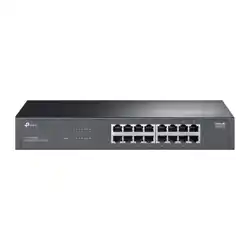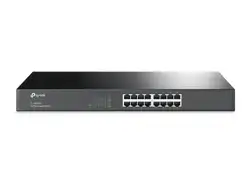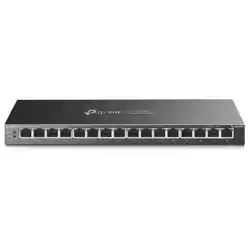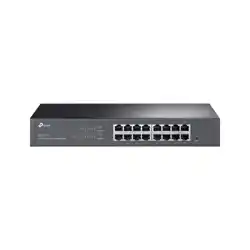

Installation Guide
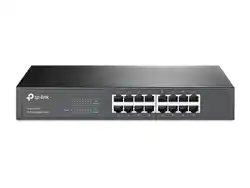
Gigabit Unmanaged Switch
TL-SG1048
TL-SG1024/TL-SG1024D
TL-SG1016/TL-SG1016D
TL-SG1008/TL-SG1008PE
Business Networking Solution

I
Specifications are subject to change without notice. is a registered trademark
of TP-LINK TECHNOLOGIES CO., LTD. Other brands and product names are trademarks of their
respective holders.
No part of the specifications may be reproduced in any form or by any means or used to make
any derivative such as translation, transformation, or adaptation without permission from TP-LINK
TECHNOLOGIES CO., LTD. Copyright © 2014 TP-LINK TECHNOLOGIES CO., LTD. All rights reserved.
http://www.tp-link.com
This equipment has been tested and found to comply with the limits for a Class A digital device,
pursuant to part 15 of the FCC Rules. These limits are designed to provide reasonable protection
against harmful interference when the equipment is operated in a commercial environment. This
equipment generates, uses, and can radiate radio frequency energy and, if not installed and used in
accordance with the instruction manual, may cause harmful interference to radio communications.
Operation of this equipment in a residential area is likely to cause harmful interference in which case
the user will be required to correct the interference at his own expense.
This device complies with part 15 of the FCC Rules. Operation is subject to the following two
conditions:
This device may not cause harmful interference.1)
This device must accept any interference received, including interference that may cause 2)
undesired operation.
Any changes or modifications not expressly approved by the party responsible for compliance could
void the user’s authority to operate the equipment.
This is a Class A product. In a domestic environment, this product may cause radio interference, in
which case the user may be required to take adequate measures.
Copyright & Trademarks

II
Related Document
This Installation Guide is also available in PDF on our website. To obtain the latest
documentation and product information, please visit the official website:
http://www.tp-link.com
This Installation Guide describes the hardware characteristics, installation methods
and the points that should be attended to during the installation. This Installation
Guide is structured as follows:
Chapter 1 Introduction. This chapter describes the external components of
the switch.
Chapter 2 Installation. This chapter illustrates how to install the switch.
Chapter 3 Lightning Protection. This chapter illustrates how to prevent
lightning damage.
Chapter 4 Connection. This chapter illustrates how to do the physical
connection of the switch.
Appendix A Troubleshooting.
Appendix B Specifications.
Appendix C Technical Support.
This Installation Guide is for:
Network Engineer Network Administrator
Due to the similarity in structure of the Gigabit Unmanaged Switch series, in
this Installation Guide we take TL-SG1024 as an example to illustrate Chapter 2
Installation, Chapter 3 Lightning Protection and Chapter 4 Connection.
This Guide uses the specific formats to highlight special messages. The following
table lists the notice icons that are used throughout this guide.
Remind to be careful. A caution indicates a potential which may result in
device damage.
Remind to take notice. The note contains the helpful information for a
better use of the product.

III
Contents
Chapter 1 Introduction
———————————
01
1.1 Product Overview ...................................................................01
1.2 Features ......................................................................................01
1.3 Appearance ...............................................................................02
Chapter 2 Installation
————————————
08
2.1 Package Contents ...................................................................08
2.2 Safety Precautions ..................................................................08
2.3 Installation Tools......................................................................10
2.4 Product Installation ................................................................11
Chapter 3 Lightning Protection
————————
13
3.1 Cabling Reasonably................................................................13
3.2 Connect to Ground.................................................................15
3.3 Equipotential Bonding ..........................................................16
3.4 Use Lightning Arrester ..........................................................17
Chapter 4 Connection
———————————
19
4.1 Ethernet Port ............................................................................19
4.2 Verify Installation ....................................................................19
4.3 Power On....................................................................................19
4.4 Initialization ..............................................................................20
Appendix A Troubleshooting
—————————
21
Appendix B Specifications
—
—————————
22
Appendix C Technical Support
—————————
23

01
Gigabit Unmanaged Switch
Introduction
The Gigabit Unmanaged
Switch provides you with a high-performance, low-cost, easy-
to-use, seamless and standard upgrade to boost your old network to 1000Mbps.
By increasing the speed of your network server and backbone connections, the
Gigabit Unmanaged Switch makes Gigabit a reality. Power users in the home, office,
workgroup, or creative production environment can now move large, bandwidth-
intensive files faster. Graphics, CGI, CAD, multimedia files and other large files moved
by some applications can be transferred across the network almost instantly.
The Gigabit Unmanaged Switch features a non-blocking switching architecture that
forwards and filters packets at full wire-speed for maximum throughput. The switch
supports MAC address auto-learning and auto-aging, IEEE802.3x flow control for full-
duplex mode and backpressure for half-duplex mode. It is compatible with all 10Mbps,
100Mbps and 1000Mbps Ethernet devices because it is standard-based. It protects
your existing network investments while providing you with a straightforward migration
path to faster Gigabit speed.
The Gigabit Unmanaged Switch is plug-and-play and no configuration is required.
Auto MDI/MDI-X cable detection on all ports eliminates the need for crossover cable
or Uplink port. Each port can be used as general port or Uplink port, and any port can
be simply plugged into a server, a hub, a router or a switch, using the straight cable
or crossover cable. Diagnostic LEDs which display link status and activity, allow you to
quickly detect and correct problems on the network.
TL-SG1008PE is a Power Sourcing Equipment (PSE*). The 8 Auto-Negotiation RJ45
ports support Power over Ethernet (PoE*) function, which can automatically detect and
supply power with those IEEE802.3af/IEEE802.3at-compliant powered devices (PDs*).
Note:
*PSE is a device (switch or hub for instance) that will provide power in a PoE setup.
*PoE is a technology that describes a system to transmit electrical power, along with
data, to remote devices over standard twisted-pair cable in an Ethernet network.
*PD is a device powered by a PSE and thus consumes energy. Examples include
powering IP telephones, wireless LAN access points, network cameras, network hubs,
embedded computers etc.
For TL-SG1048/TL-SG1024/TL-SG1024D/TL-SG1016/TL-SG1016D/TL-SG1008:
Complies with IEEE802.3, IEEE802.3u, IEEE802.3ab standards•
8/16/24/48 10/100/1000Mbps Auto-Sense RJ45 ports supporting Auto-MDI/MDIX•
All ports support Full/Half Duplex transfer mode for 10/100Mbps and Full Duplex •
transfer mode for 1000Mbps
02
Gigabit Unmanaged Switch
Supports IEEE802.3x flow control for full-duplex mode and backpressure for half-•
duplex transfer mode
Non-blocking switching architecture that forwards and filters packets at full wire-•
speed for maximum throughput
Supports MAC address auto-learning and auto-aging•
Desktop and rack-mountable steel case•
Internal power supply•
For TL-SG1008PE:
Complies with IEEE802.3, IEEE802.3u, IEEE802.3ab, IEEE802.3x, IEEE802.3af and •
IEEE802.3at standards
8 10/100/1000Mbps Auto-Negotiation RJ45 ports all supporting PoE function and •
Auto-MDI/MDIX
Supports PoE power up to 124W for all PoE ports•
Supports PoE IEEE802.3af/IEEE802.3at-compliant PDs•
Supports IEEE802.3x flow control for Full-duplex Mode and backpressure for Half-•
duplex Mode
8K entry MAC address table of the TL-SG1008PE with auto-learning and auto-aging•
Internal power supply•
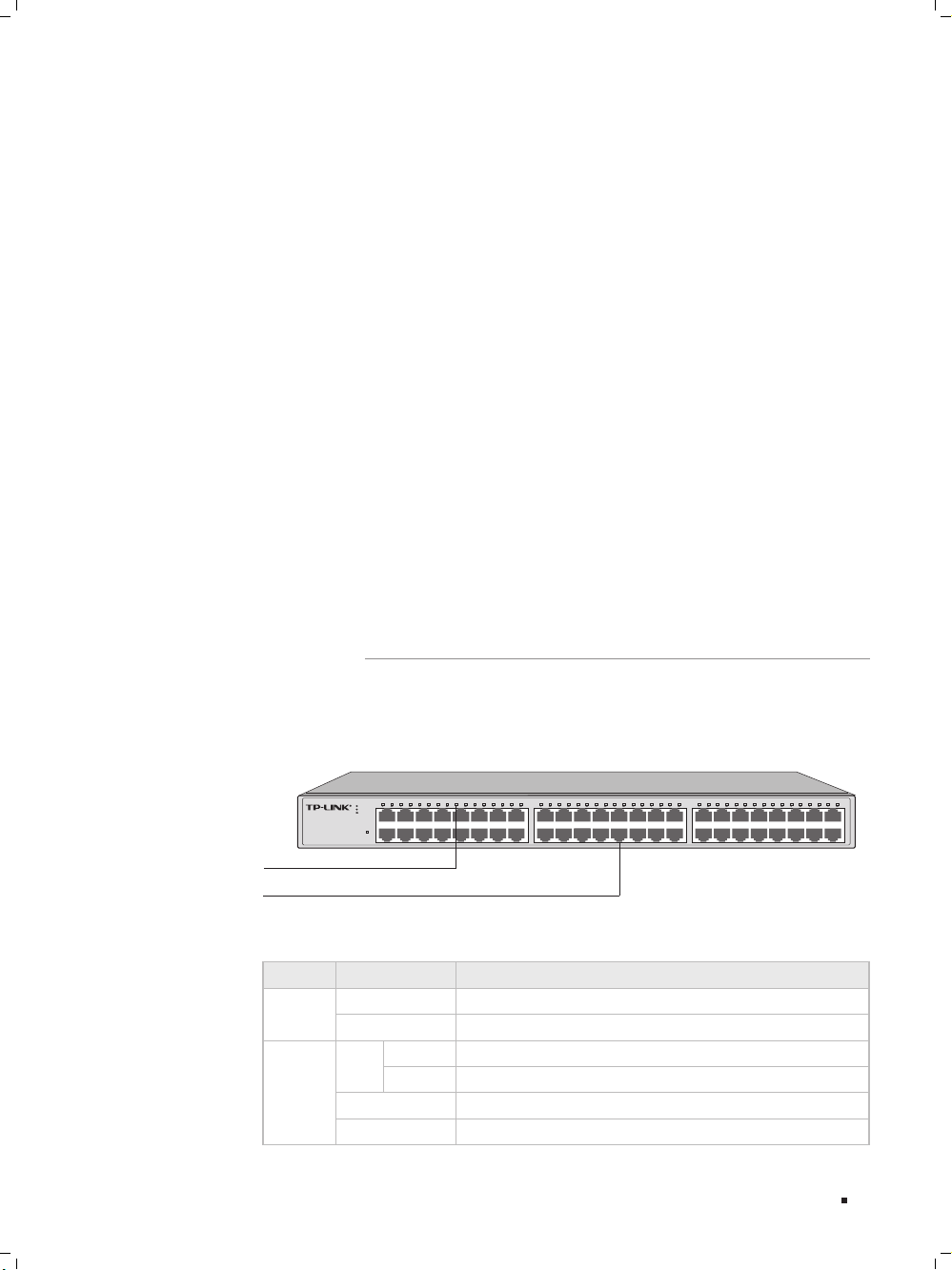
Front Panel
The front panel of TL-SG1048 is shown as the following figure.
Power
TL-SG1048
48-Port Gigabit Switch
4 6 8 10 12 14 163 5 7 9 11 13 151 2
1000Mbps
10/100Mbps
activity
29 30 31 3218 20 22 24 25 26 27 2817 19 21 23 33 34 35 36 37 38 39 40 41 42 43 44 45 46 47 48
LEDs
10/100/1000Mbps RJ45 Port
Front Panel of TL-SG1048Figure 1-1
LEDs
LED Status Indication
Power
On The switch is powered on.
Off The switch is powered off or power supply is abnormal.
Link/Act
On
Green
A 1000Mbps device is connected to the corresponding port.
Yellow
A 10/100Mbps device is connected to the corresponding port.
Flashing The corresponding port is transmitting or receiving data.
Off There is no device linked to the corresponding port.
Introduction
03
Gigabit Unmanaged Switch
Introduction
10/100/1000Mbps RJ45 Port
Designed to connect to the device with a bandwidth of 10Mbps, 100Mbps or
1000Mbps. Each has a corresponding Link/Act LED.
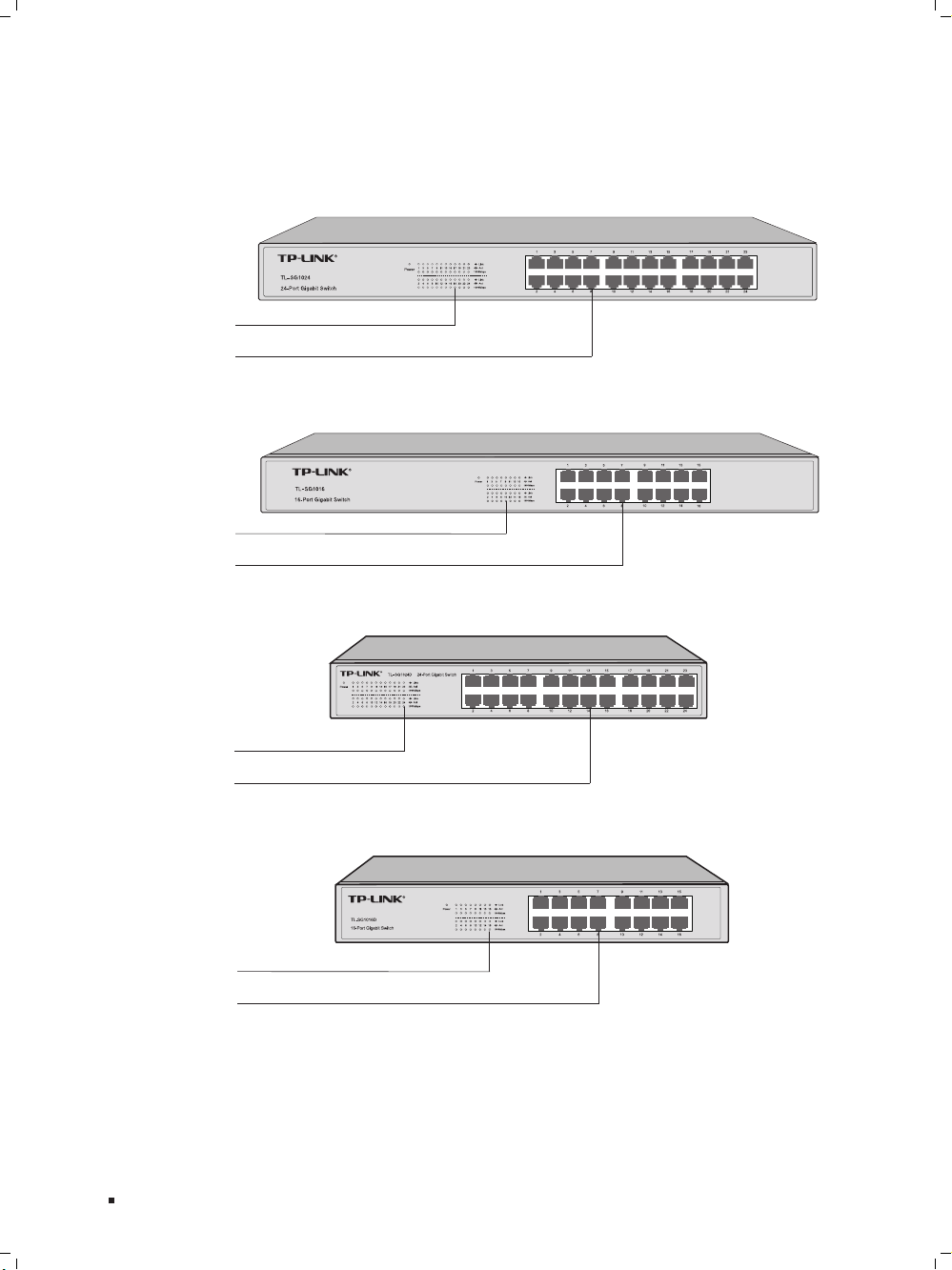
The front panel of TL-SG1024 is shown as the following figure.
LEDs
10/100/1000Mbps RJ45 Port
Front Panel of TL-SG1024Figure 1-2
The front panel of TL-SG1016 is shown as the following figure.
LEDs
10/100/1000Mbps RJ45 Port
Front Panel of TL-SG1016Figure 1-3
The front panel of TL-SG1024D is shown as the following figure.
LEDs
10/100/1000Mbps RJ45 Port
Front Panel of TL-SG1024DFigure 1-4
The front panel of TL-SG1016D is shown as the following figure.
LEDs
10/100/1000Mbps RJ45 Port
Front Panel of TL-SG1016DFigure 1-5
04
Gigabit Unmanaged Switch
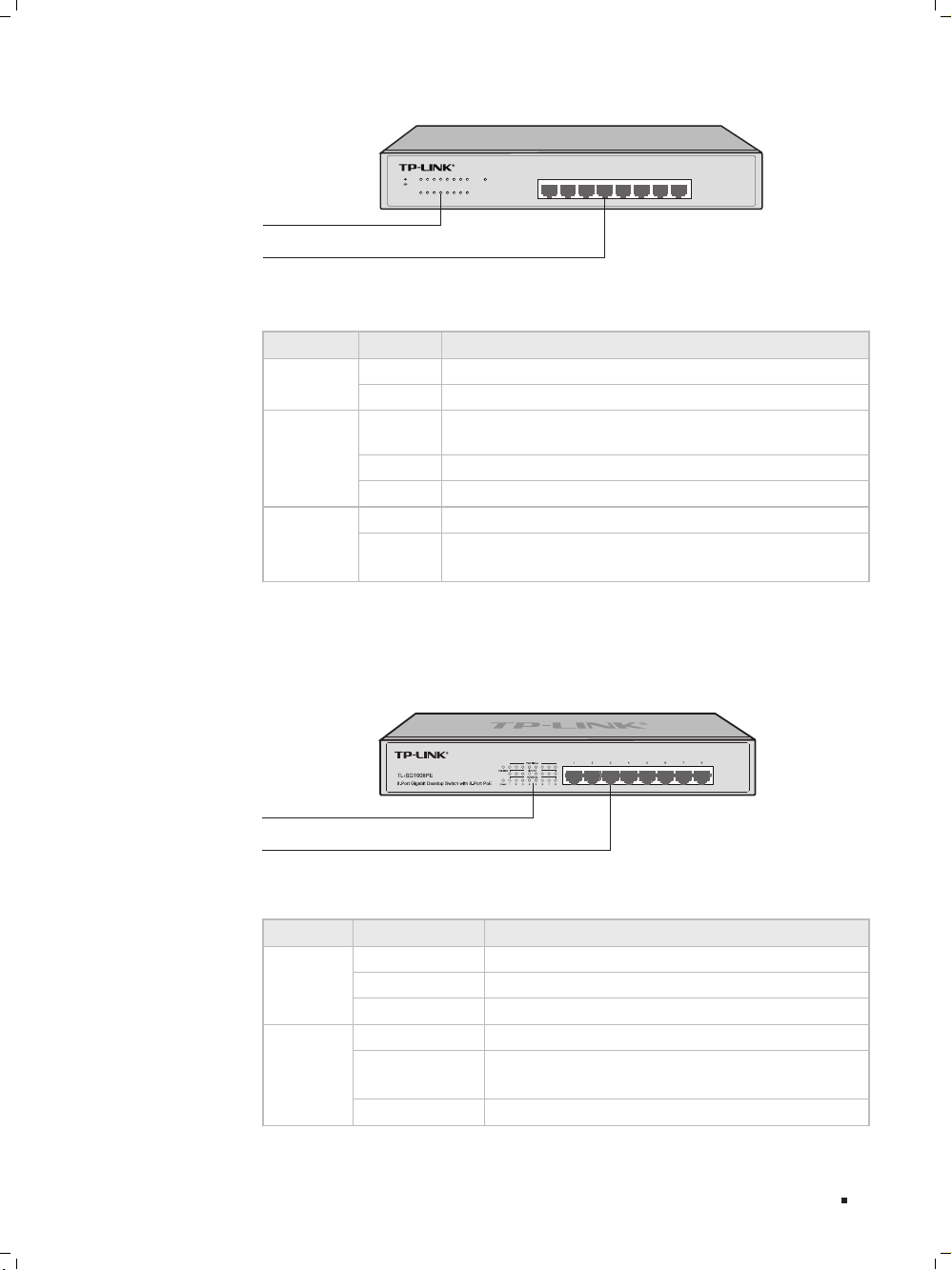
The front panel of TL-SG1008 is shown as the following figure.
Power
123456 7 8
123456 7 8
Link
Act
1000Mbps
TL-SG1008 8-Port Gigabit Switch
LEDs
10/100/1000Mbps RJ45 Port
Front Panel of TL-SG1008Figure 1-6
LEDs
LED Status Indication
Power
On The switch is powered on.
Off The switch is powered off or power supply is abnormal.
Link/Act
On
There is a device linked to the corresponding port but no
activity.
Flashing The corresponding port is transmitting or receiving data.
Off There is no device linked to the corresponding port.
1000Mbps
On A 1000Mbps device is connected to the corresponding port.
Off
A 10/100Mbps device or no
device
is connected to the
corresponding port.
10/100/1000Mbps RJ45 Port
Designed to connect to the device with a bandwidth of 10Mbps, 100Mbps or
1000Mbps. Each has a corresponding Link/Act LED and a 1000Mbps LED.
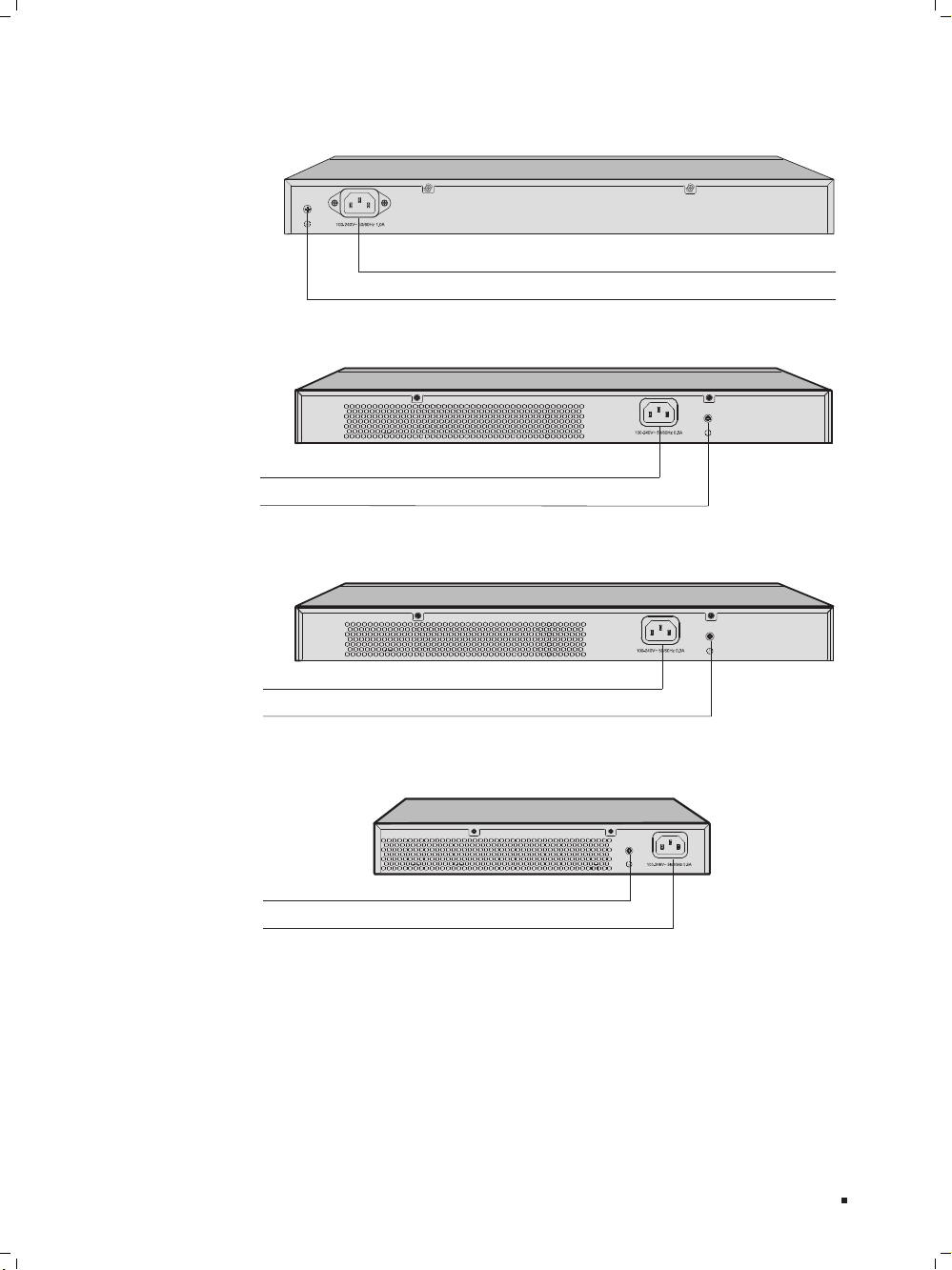
The front panel of TL-SG1008PE is shown as the following figure.
LEDs
10/100/1000Mbps RJ45 Port and PoE Port
Front Panel of TL-SG1008PEFigure 1-7
LEDs
LED Status Indication
Power
On (green) The switch is powered on.
Flashing (green) Power supply is abnormal.
Off The switch is powered off.
Link/Act
On (green) A valid link is established on the port.
Flashing (green)
The corresponding port is transmitting or receiving
data.
Off There is no device linked to the corresponding port.
Introduction

05
Gigabit Unmanaged Switch
Introduction
LED Status Indication
PoE MAX
On (red)
The power of all the connected PoE ports is between
118W and 124W. No power may be supplied if
additional PDs are connected.
Flashing (red) The power of all the connected PoE ports is >=124W.
Off
The power of all the connected PoE ports is <118W, or
there is no PD connected to the corresponding port.
1000Mbps
On (green)
The re is a 10 00Mbps device connected to the
corresponding
port.
Off
There is a 10/100Mbps device connected to the
corresponding port, or there is no device connected to
the corresponding port.
PoE Status
On (green)
There is a PoE PD connected to the port, which
supplies power successfully.
Flashing (green)
The PoE power circuit may be in short or the power
current may be overloaded.
Off
No PD is connected to the corresponding port, or no
power is supplied according
to the power limits of the
port.
10/100/1000Mbps RJ45 Port and PoE Port
TL-SG1008PE switch is equipped with 8 10/100/1000Mbps Auto-Negotiation RJ45
ports and all of them support PoE function.
The 8 10/100/1000Mbps RJ45 ports are designed to connect to the device with
a bandwidth of 10Mbps, 100Mbps or 1000Mbps. Once the network devices are
connected to these 8 ports through the network cable, the switch will make them
plug and play according to the Auto-MDI/MDIX detection. The working status can be
indicated by the
Link/Act
LEDs and
1000Mbps LEDs
on the front panel.
The 8 ports also support PoE function which integrates power and data onto
one Ethernet cable. Once the device you connect to the switch is identified, the
switch will supply power through the PoE port, and then you can use it as a
10/100/1000Mbps Auto-Negotiation RJ45 Ethernet port. The working status can be
indicated by the
PoE MAX
LED and
PoE Status LEDs
on the front panel.
Note:
If all PoE PDs power consumption is >=124W, a priority* will be arranged among the
PoE ports like port 1 > port 2 > port 3 > port 4 > port 5 > port 6 > port 7 > port 8,
then the system will cut off the power of the lowest-priority port.
*Priority is to protect the system when the system power is overloaded. For example,
Port 1, 2, 4 and 7 is using 30; the system power is 120W in total. If there is an
additional PD inserted to Port 3 with 25W, and then the system will cut off the power
of Port 7 because of the overloaded power, this means Port 1, 2 and 4 will use 30W,
and Port 3 will use 25W, no power will be supplied to Port 7.
Make sure the PDs you connected to the switch are compliant with IEEE802.3af/
IEEE802.3at standard.
06
Gigabit Unmanaged Switch
Rear Panel
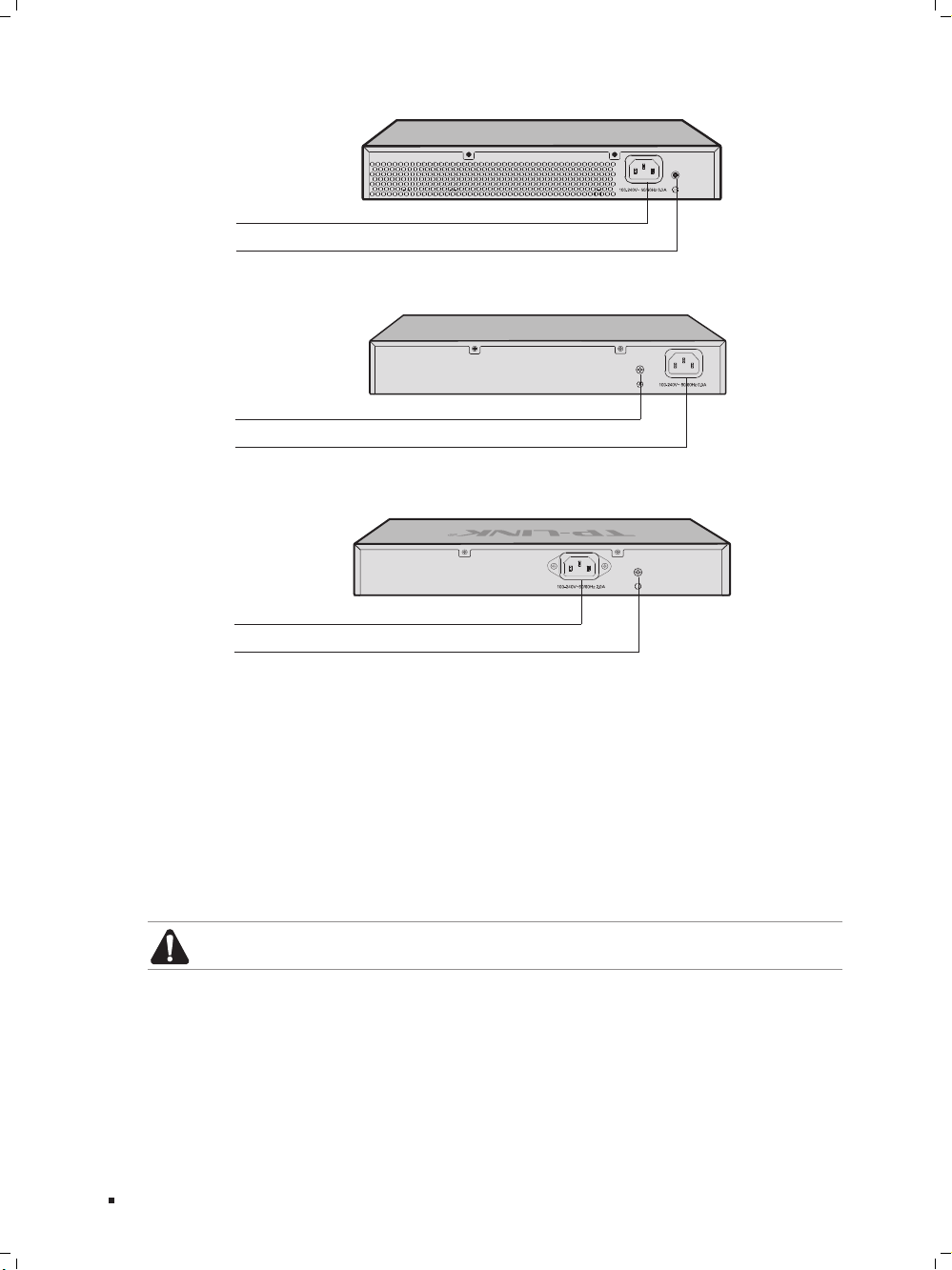
The rear panel of TL-SG1048 is shown as the following figure.
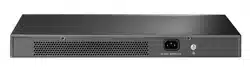
Grounding Terminal
Power Socket
Rear Panel of TL-SG1048Figure 1-8
The rear panel of TL-SG1024 is shown as the following figure.
Power Socket
Grounding Terminal
Rear Panel of TL-SG1024Figure 1-9
The rear panel of TL-SG1016 is shown as the following figure.
Power Socket
Grounding Terminal
Rear Panel of TL-SG1016Figure 1-10
The rear panel of TL-SG1024D is shown as the following figure.
Grounding Terminal
Power Socket
Rear Panel of TL-SG1024DFigure 1-11
Introduction
07
Gigabit Unmanaged Switch
Introduction
The rear panel of TL-SG1016D is shown as the following figure.
Power Socket
Grounding Terminal
Rear Panel of TL-SG1016DFigure 1-12
The rear panel of TL-SG1008 is shown as the following figure.
Grounding Terminal
Power Socket
Rear Panel of TL-SG1008Figure 1-13
The rear panel of TL-SG1008PE is shown as the following figure.
Grounding Terminal
Power Socket
Rear Panel of TL-SG1008PEFigure 1-14
Power Socket
Connect the female connector of the power cord here, and the male connector to
the AC (Alternating Current) power outlet. Please make sure the voltage of the
power supply meets the requirement of the input voltage.
Grounding Terminal
The switch already comes with lightning protection mechanism. You can also ground
the switch through the PE (Protecting Earth) cable of AC cord or with Ground Cable.
For detailed information, please refer to Chapter 3 Lightning Protection.
Caution: Please use the provided power cord.

08
Gigabit Unmanaged Switch
Make sure that the package contains the following items. If any of the listed items is
damaged or missing, please contact your distributor.
One Power Cord
One Switch
This Installation Guide
Two mounting brackets and the
fittings
To avoid any device damage and bodily injury caused by improper use, please observe
the following rules.
Safety Precautions
Keep the power off during the installation.
Wear an ESD-preventive wrist strap, and make sure that the wrist strap has a good
skin contact and is well grounded.
Use only the power cord provided with the switch.
Make sure that the supply voltage matches the specifications indicated on the rear
panel of the switch.
Ensure the vent hole is well ventilated and unblocked.
Do not open or remove the cover of the switch.
Before cleaning the device, cut off the power supply. Do not clean it by the waterish
cloth, and never use any other liquid cleaning method.
Installation
09
Gigabit Unmanaged Switch
Installation
Site Requirements
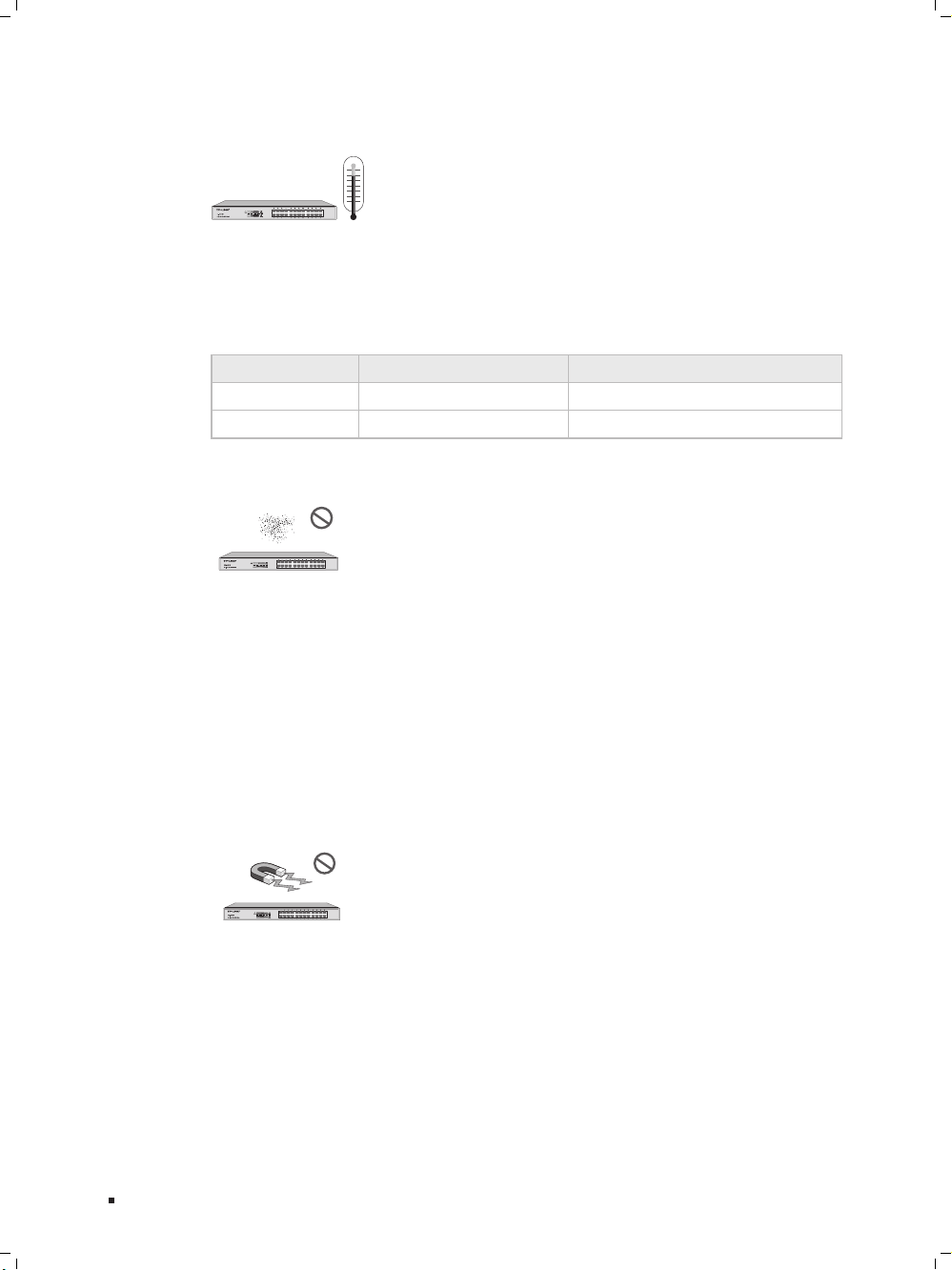
Temperature/Humidity
40℃
0℃
Please keep a proper temperature and humidity in the equipment room. Too high/low
humidity may lead to bad insulation, electricity leakage, mechanical property changes
and corrosions. Too high temperature may accelerate aging of the insulation materials
and can thus significantly shorten the service life of the device. For normal temperature
and humidity of the device, please check the following table.
Environment Temperature Humidity
Operating 0℃ ~ 40℃ 10% ~ 90%RH Non-condensing
Storage -40℃ ~ 70℃ 5% ~ 90%RH Non-condensing
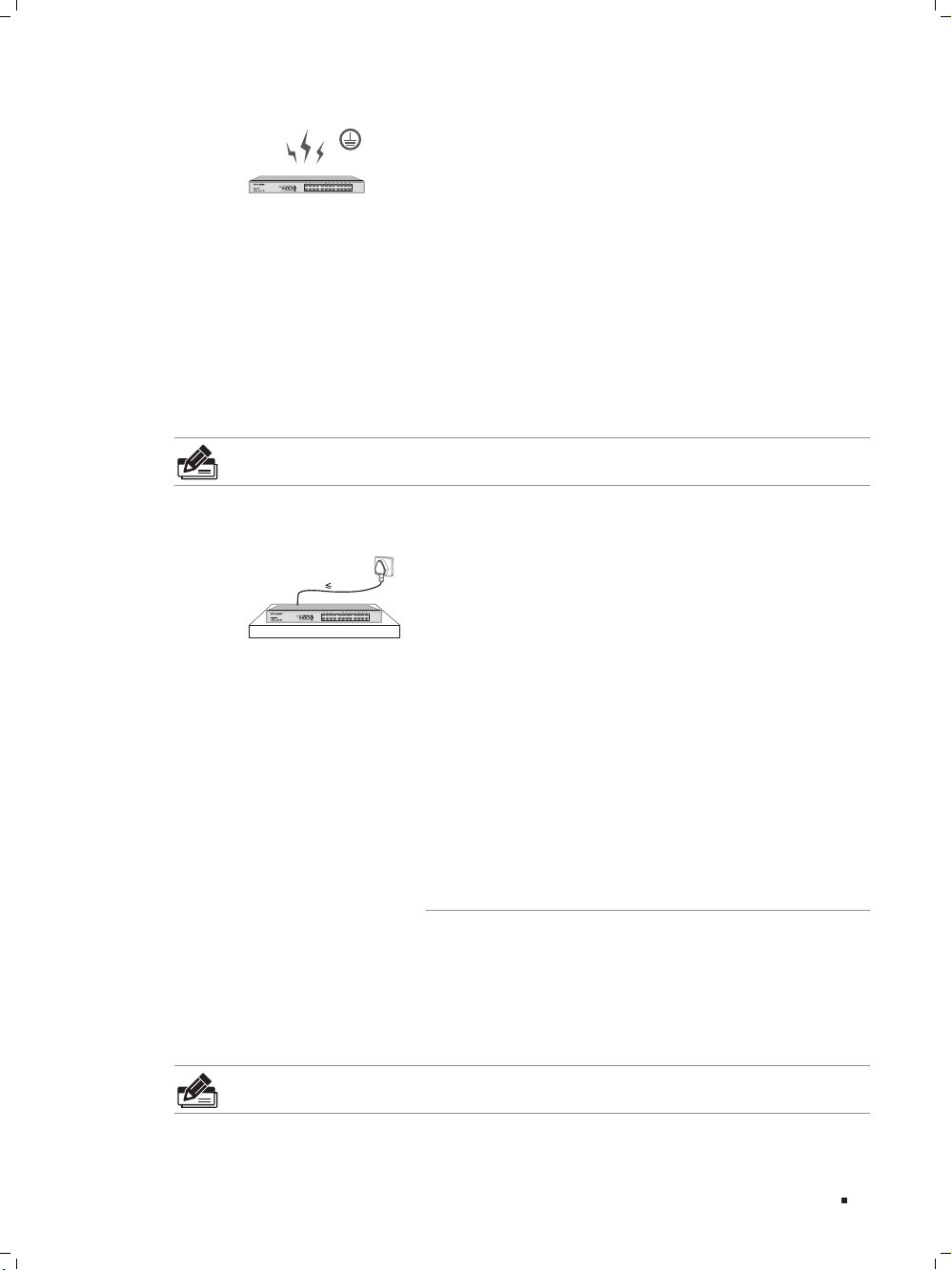
Clearness
The dust accumulated on the switch can be absorbed by static electricity and result
in poor contact of metal contact points. Some measures have been taken for the
device to prevent static electricity, but too strong static electricity can cause deadly
damage to the electronic elements on the internal circuit board. To avoid the effect of
static electricity on the operation of the Switch, please attach much importance to the
following items:
Dust the device regularly, and keep the indoor air clean.
Keep the device well grounded and ensure static electricity has been transferred.
Electromagnetic Interference
Electronic elements including capacitance and inductance on the device can be affected
by external interferences, such as conducted emission by capacitance coupling,
inductance coupling, and impedance coupling. To decrease the interferences, please
make sure to take the following measures:
Use the power supply that can effectively filter interference from the power grid.
Keep the device far from high-frequency, strong-current devices, such as radio
transmitting station.
Use electromagnetic shielding when necessary.
10
Gigabit Unmanaged Switch
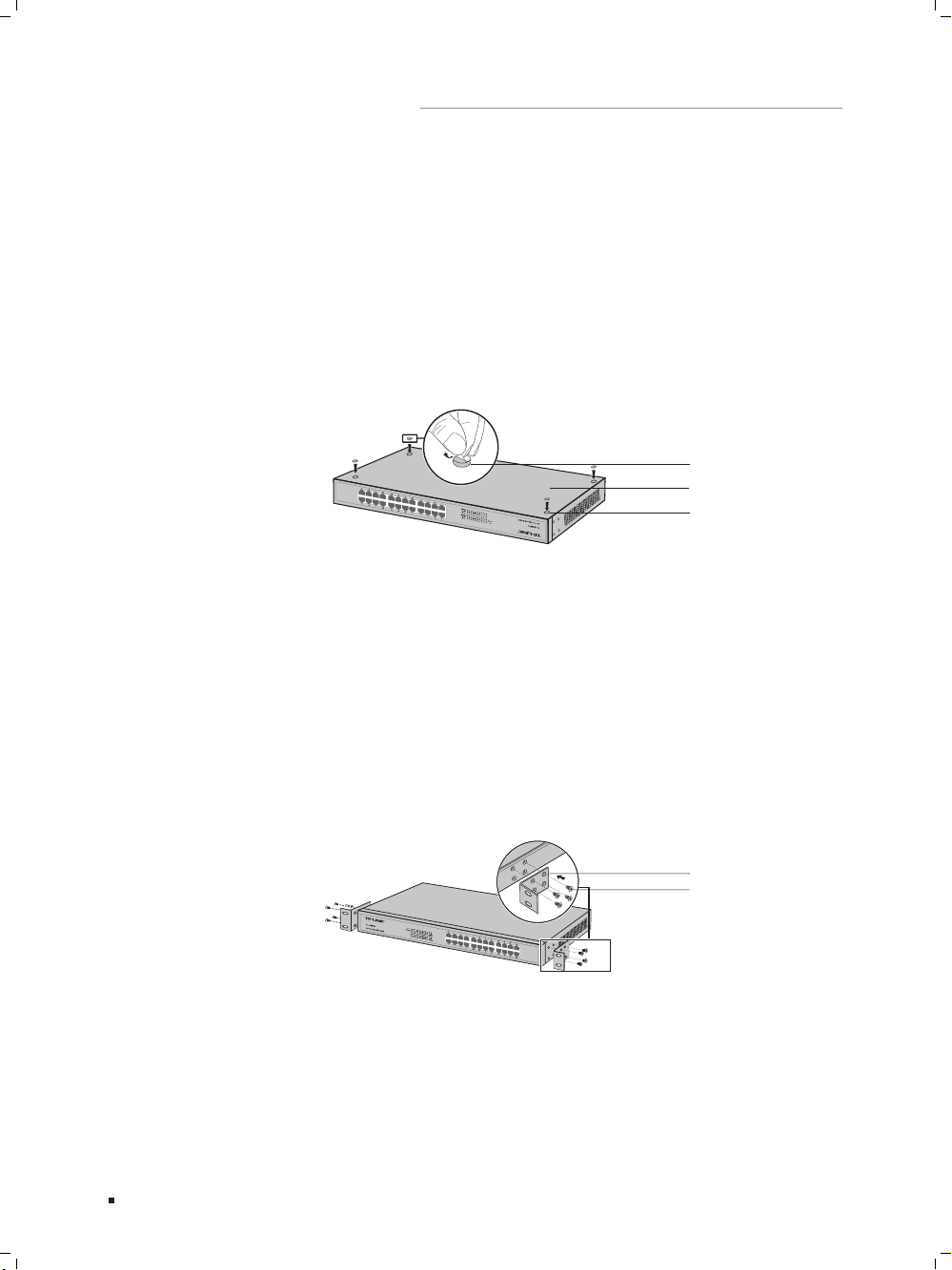
Lightening Protection
Extremely high voltage currents can be produced instantly when lightning occurs and the air
in the electric discharge path can be instantly heated up to
20,000℃
. As this instant current
is strong enough to damage electronic devices, more effective lightning protection measures
should be taken.
Ensure the rack and device are well earthed.
Make sure the power socket has a good contact with the ground.
Keep a reasonable cabling system and avoid induced lightning.
Use the signal SPD (Surge Protective Device) when wiring outdoor.
Note: For detailed lightning protection measures, please refer to Chapter 3
Lightning Protection.
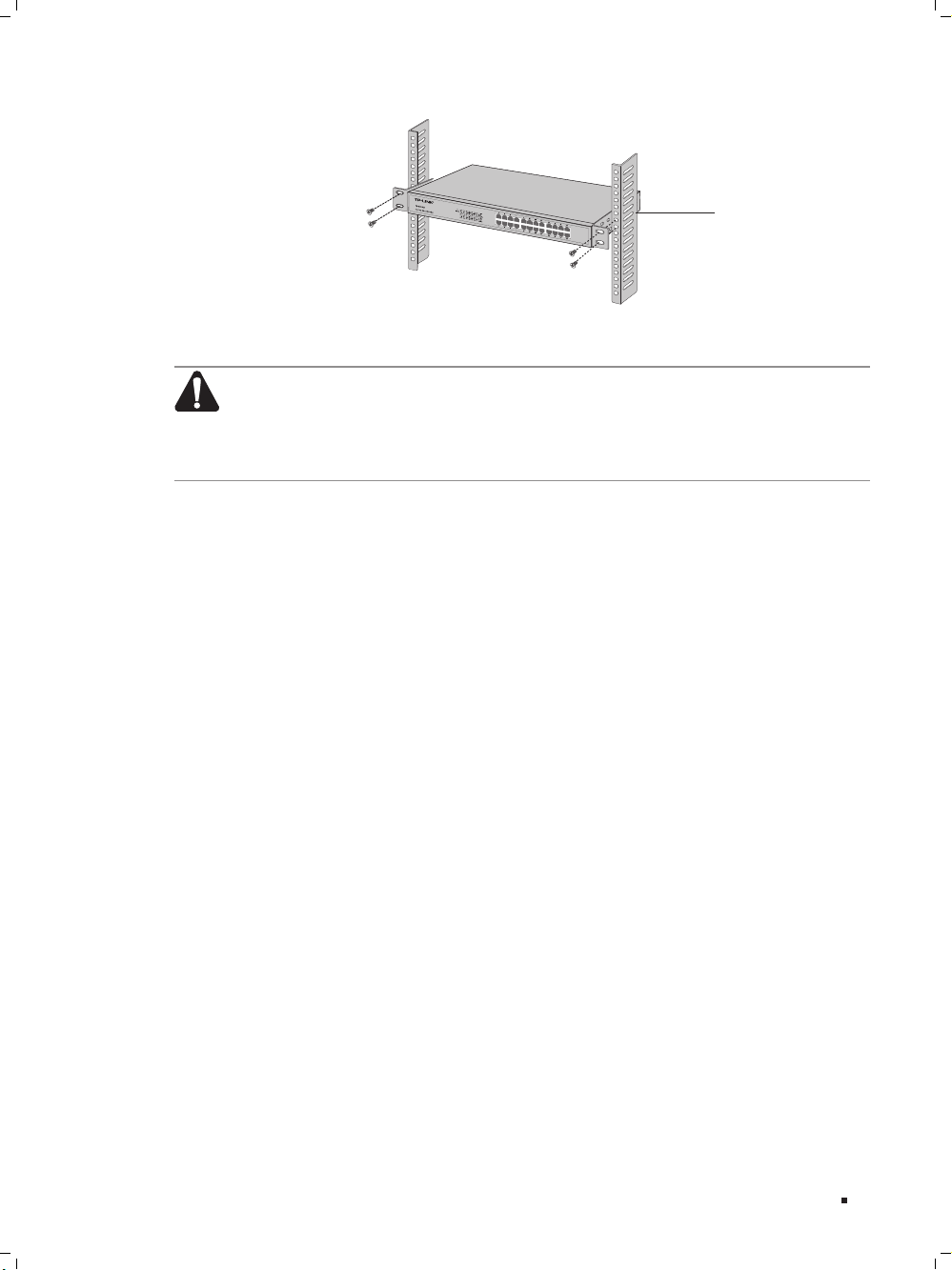
Installation Site
1.5m
When installing the device on a rack or a flat workbench, please note the following
items:
The rack or workbench is flat and stable, and sturdy enough to support the weight
of 5.5kg at least.
The rack or workbench has a good ventilation system. The equipment room is well
ventilated.
The rack is well grounded. Keep the power socket less than 1.5 meters away from
the device.
Phillips screwdriver
ESD-preventive wrist wrap
Cables
Note: These tools are not provided with our product. If needed, please self purchase
them.
Installation
11
Gigabit Unmanaged Switch
Installation
Desktop Installation
To install the device on the desktop, please follow the steps:
Set the device on a flat surface strong enough to support the entire weight of the 1.
device with all fittings.
Remove the adhesive backing papers from the rubber feet.2.
Turnover the device and attach the supplied rubber feet to the recessed areas on 3.
the bottom at each corner of the device.
Feet
Bottom of the Device
Notch
Desktop InstallationFigure 2-1
Rack Installation
To install the device in an EIA standard-sized, 19-inch rack, follow the instructions
described below:
Check the grounding and stability of the rack.1.
Secure the supplied rack-mounting brackets to each side of the device with supplied 2.
screws, as illustrated in the following figure.
Rack-mounting Bracket
Screw
Bracket InstallationFigure 2-2
After the brackets are attached to the device, use suitable screws (not provided) to 3.
secure the brackets to the rack, as illustrated in the following figure.
12
Gigabit Unmanaged Switch
Rack
Rack InstallationFigure 2-3
Caution:
Please set 5~10cm gaps around the device for air circulation.
Please avoid any heavy thing placed on the device.
Please mount devices in sequence from the bottom to top of the rack and ensure a
certain clearance between devices for the purpose of heat dissipation.
Installation
13
Gigabit Unmanaged Switch
Lightning Protection
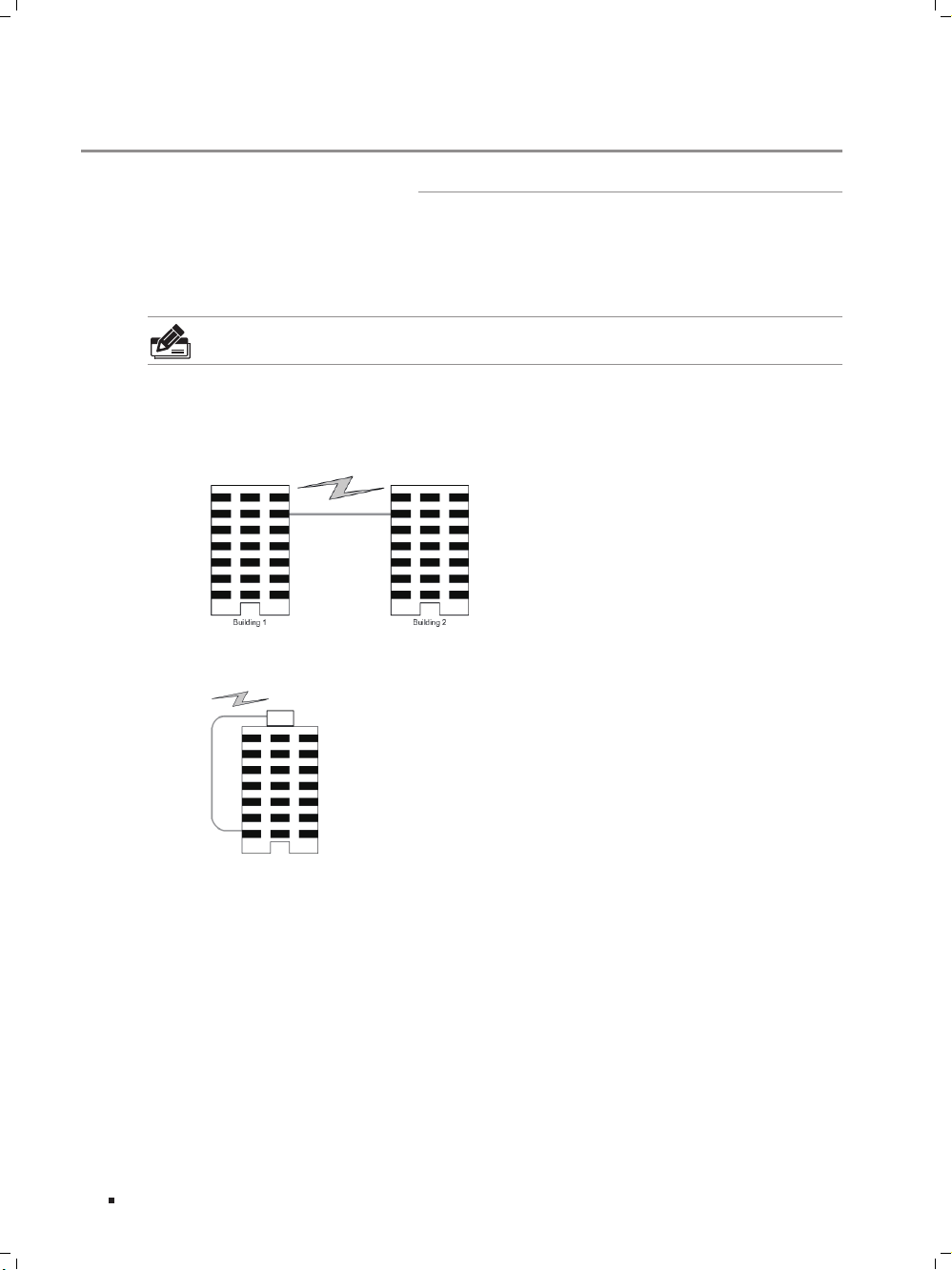
In the actual network environment, you may need cable outdoors and indoors, and
the requirements for cabling outdoors and indoors are different. A reasonable cabling
system can decrease the damage of induced lightning to devices.
Note: It's not recommended using Ethernet cables outdoors. When cabling outdoors,
please use a signal lightning arrester.
Requirements for Cabling Outdoors
Aerial cabling without safeguard is not allowed.
It’s not allowed cabling down the building to connect network devices in different
floors.
Outdoor cables should be buried and paved to the indoor through basement. A
piece of steel wire should be paved underground along the pipe and connected to
the lightning protection terminal of the building for shielding. Before connecting the
cable to the device, install a signal lightning arrester on the corresponding port.
When an aerial cable is set up, the cable should be through a metal pipe (15m long
at least) before coming into the building. The two ends of this metal pipe should
be grounded. Before connecting the cable to the device, install a signal lightning
arrester on the corresponding port.
It’s not necessary to pave STP cables through pipes. The shielded layer of STP cable
should be well grounded. Before connecting the cable to the device, install a signal
lightning arrester on the corresponding port.
14
Gigabit Unmanaged Switch
Requirements for Cabling Indoors
When cabling indoors, keep a certain distance away from the devices that may cause
high-frequency interferences, such as down-conductor cable, powerline, power
transformer and electromotor.
The main cable should be paved in the metal raceway of the access shaft. When
cabling, keep the loop area formed by the cable itself as small as possible.
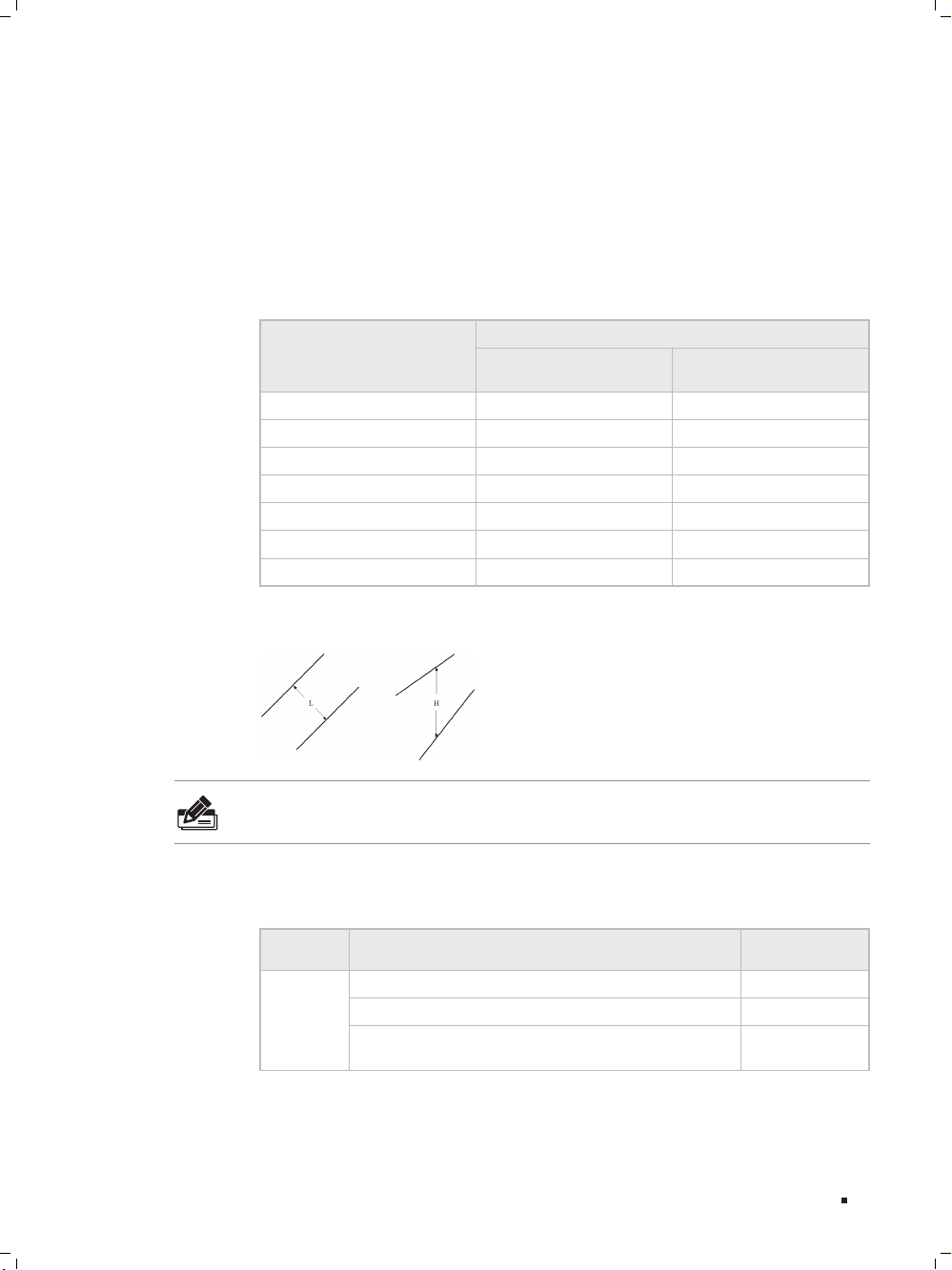
Requirements for the distance between Ethernet cable and other pipelines are
shown in the table.
Other Pipelines
Ethernet Cable
Min Parallel Net Length L
(mm)
Min Parallel-overlapping
Net Height H (mm)
Down-conductor 1000 300
PE 50 20
Service pipe 150 20
Compressed air pipe 150 20
Thermal pipe (not wrapped) 500 500
Thermal pipe (wrapped) 300 300
Gas pipe 300 20
The two diagrams below demonstrate parallel net length and parallel-overlapping net
height.
Note: The above minimum net length/height is required when metal raceway is not
used. If any requirements cannot be met, you can add a steel tube or metal raceway
for shielding.
Requirements for the distance between Ethernet cable and high-power electric
devices are in following tables.
Cable Pave Way
Min Parallel
Length (mm)
<2kVA
powerline
Parallel cabling 130
One is in the grounded metal raceway or metal pipe 70
The both are in the grounded metal raceway or metal
pipe
10
Lightning Protection
15
Gigabit Unmanaged Switch
Lightning Protection
Cable Pave Way
Min Parallel
Length (mm)
2~5kVA
powerline
Parallel cabling 300
One is in the grounded metal raceway or metal pipe 150
The both are in the grounded metal raceway or metal
pipe
80
>5kVA
powerline
Parallel cabling 600
One is in the grounded metal raceway or metal pipe 300
The both are in the grounded metal raceway or metal
pipe
150
Device Min Distance (m)
Switch case 1.00
Transformer room 2.00
Elevator tower 2.00
Air-conditioner room 2.00
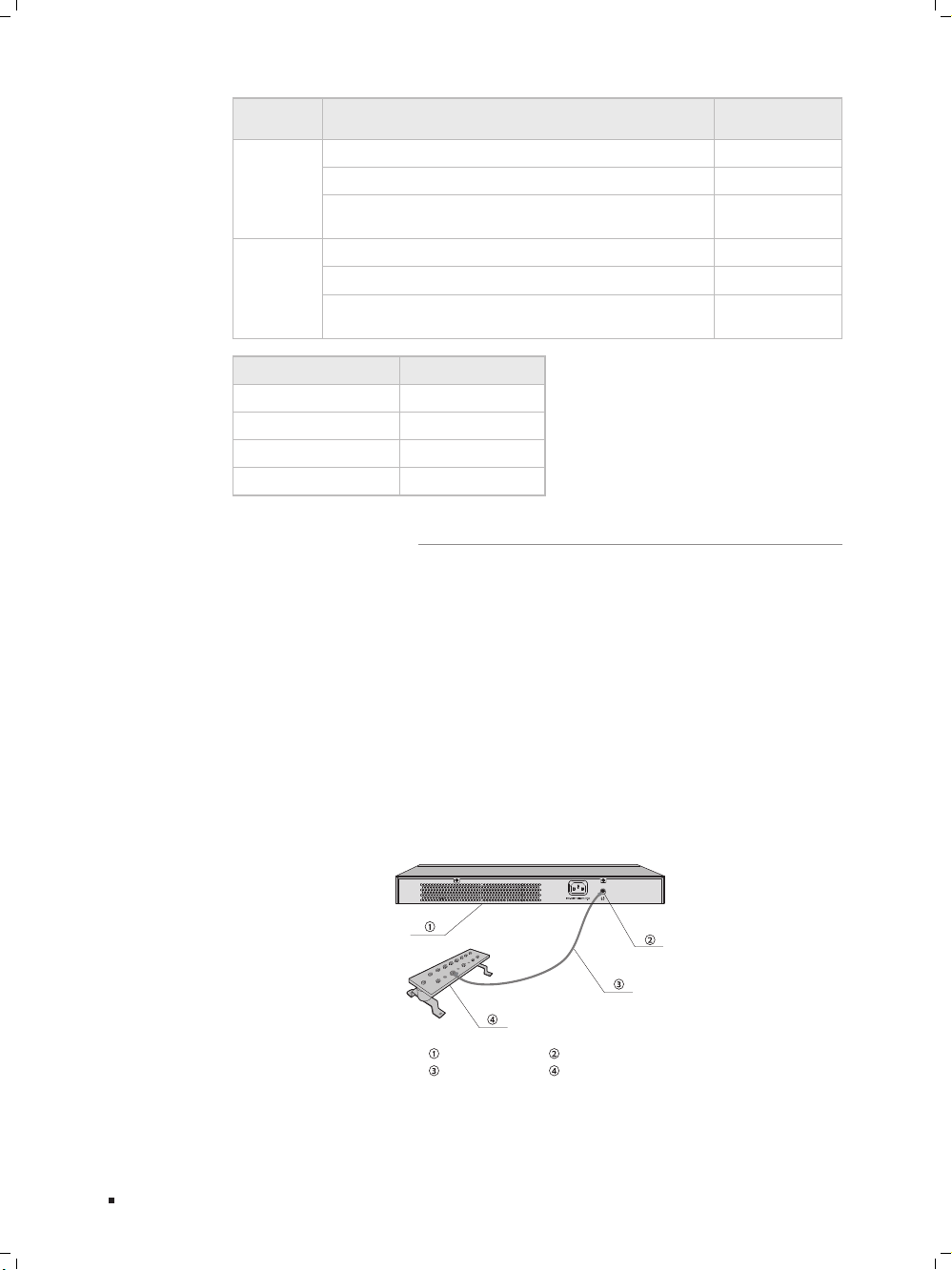
Connecting the device to ground is to quickly release the lightning over-voltage and
over-current of the device, which is also a necessary measure to protect the body from
electric shock.
In different environments, the device may be grounded differently. The following
will instruct you to connect the device to the ground in two ways, connecting to the
grounding bar or connecting to the ground via the power cord. Please connect the
device to ground in the optimum way according to your specific operation environment.
Connecting to the Grounding Bar
If the device is installed in the Equipment Room, where a grounding bar is available,
you are recommended to connect the device to the grounding bar as shown in the
following figure.
Switch (Rear Panel)
Ground Cable
Grounding Terminal
Grounding Bar
Connecting to the Grounding BarFigure 3-1
16
Gigabit Unmanaged Switch
Note: The grounding bar and the ground cable are not provided with our product. If
needed, please self purchase them.
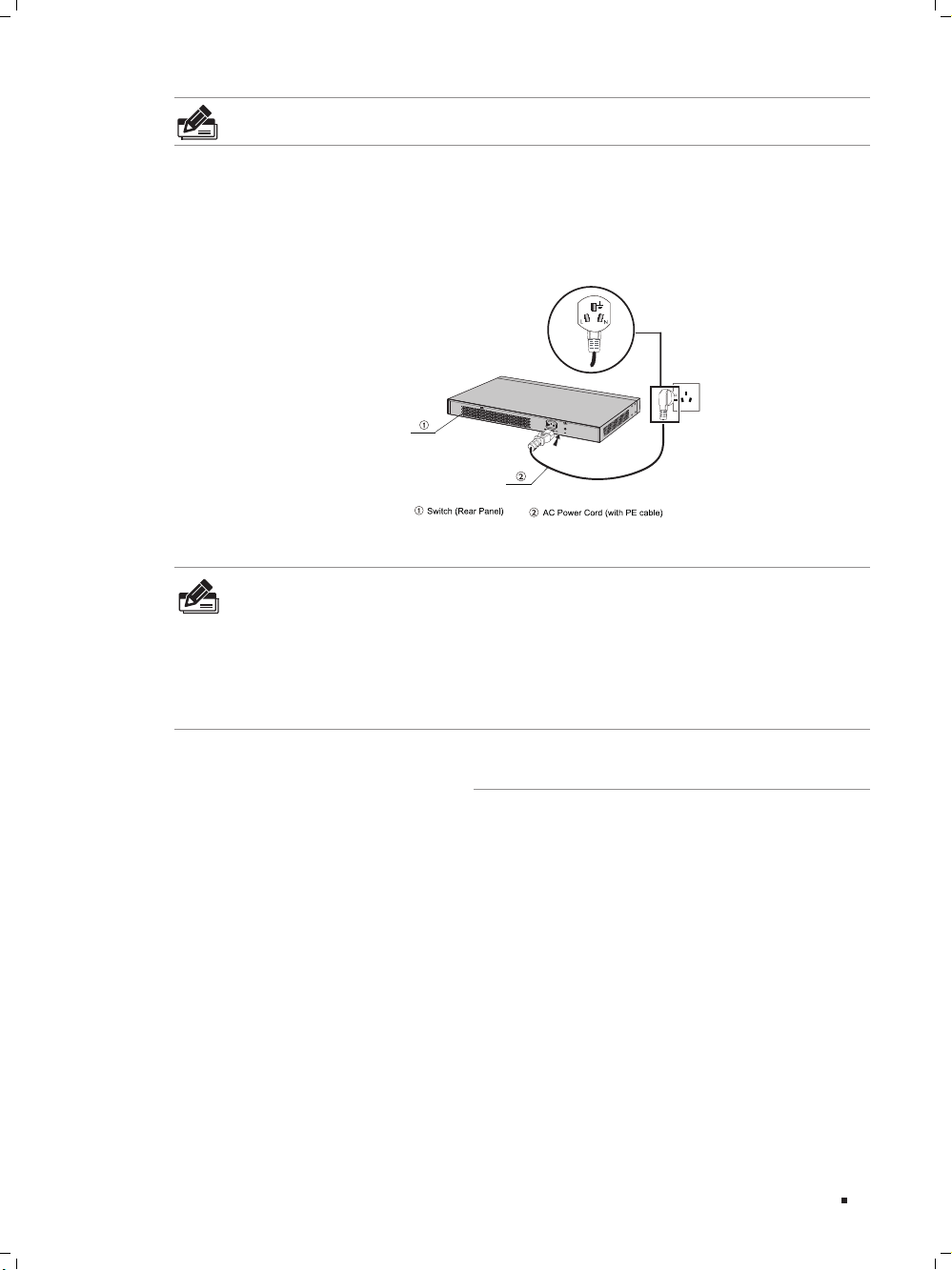
Connecting to the Ground via the Power Supply
If the device is installed in the normal environment, the device can be grounded via the
PE (Protecting Earth) cable of the AC power supply as shown in the following figure.
Connecting to the GroundFigure 3-2
Note:
The figure is to illustrate the application and principle. The power plug you get from
the package and the socket in your situation will comply with the regulation in your
country, so they may differ from the figure above.
If you intend to connect the device to the ground via the PE (Protecting Earth) cable
of AC power cord, please make sure the PE (Protecting Earth) cable in the electrical
outlet is well grounded in advance.
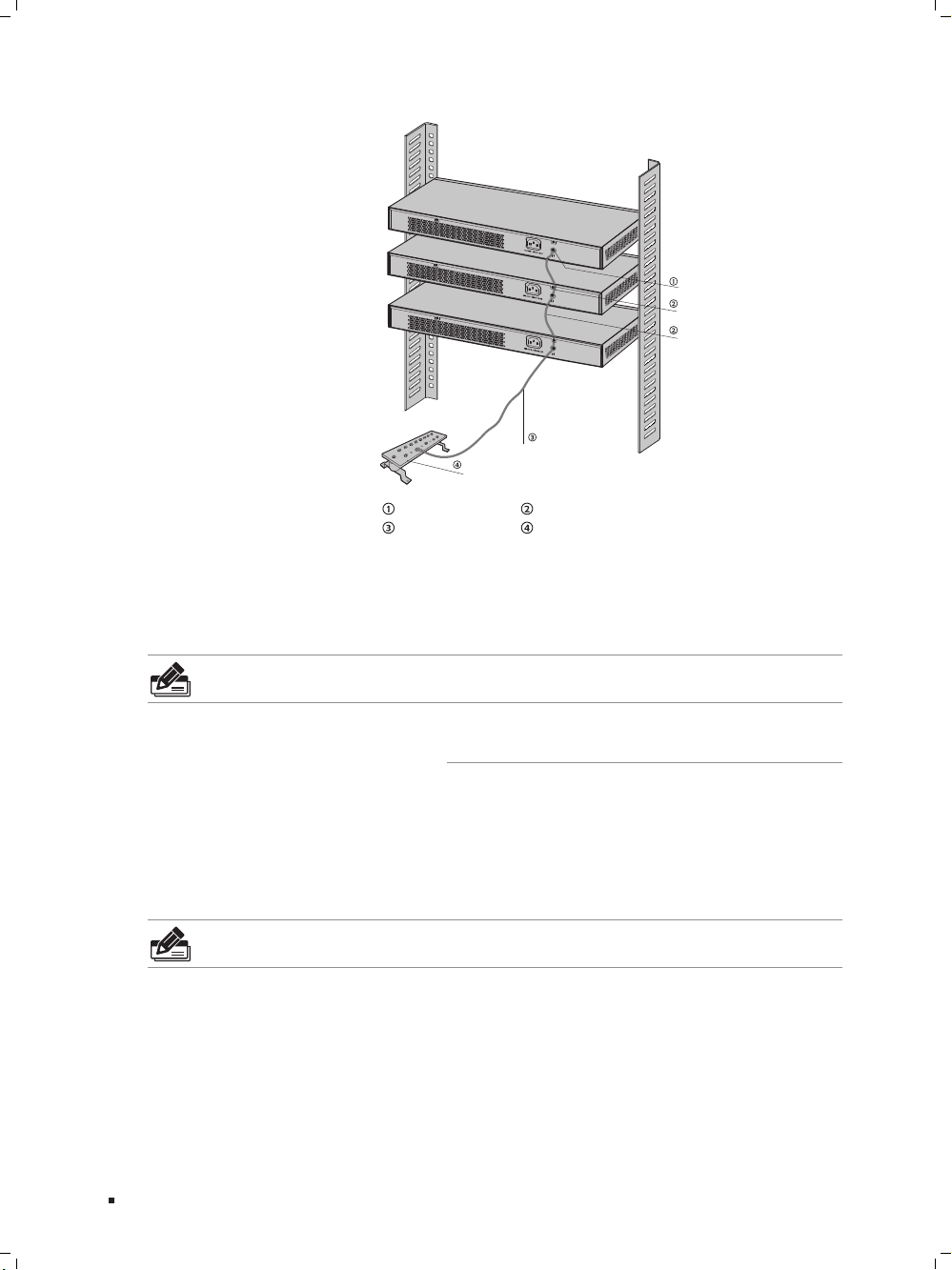
Equipotential Bonding is the practice of intentionally electrically connecting all earthed
systems to the same grounding grid or connecting the grounding grids of all the
earthed systems together through the ground or overground metal so as to create
an earthed equipotential zone. When lightning occurs, the high voltage produced by
lightning current in all systems will meanwhile exist in their ground cables, and thus
all ground cables have the same electrical potential and basically eliminate the electric
strikes between the systems.
The figure below illustrates how to practice equipotential bonding in a network.
Lightning Protection
17
Gigabit Unmanaged Switch
Lightning Protection
Grounding Terminal Equipotential Bonding Cable
Grounding Bar Ground Cable
Equipotential BondingFigure 3-3
When equipotential bonding, please note that the cable should be copper wrapped
Kelly with its area being 6mm
2
at least. The shorter cable the better, and use a
grounding bar to establish an equipotential bonding point.
Note: The equipotential bonding cable and ground cable are not provided with our
product. If needed, please self purchase it.
Power lightning arrester and signal lightning arrester are used for lighting protection.
Power lightning arrester is used for limiting the voltage surge due to a lightning. If an
outdoor AC power cord should be directly connected to the device, please use a power
lightning arrester.
Note: Power lightning arrester is not provided with our product. If needed, please self
purchase it.
Signal lightning arrester is used to protect RJ45 ports of the device from lightning.
When cabling outdoors, please install a signal lightning arrester before connecting the
cable to the device.
When purchasing or using a signal lightning arrester, please observe the following
rules:
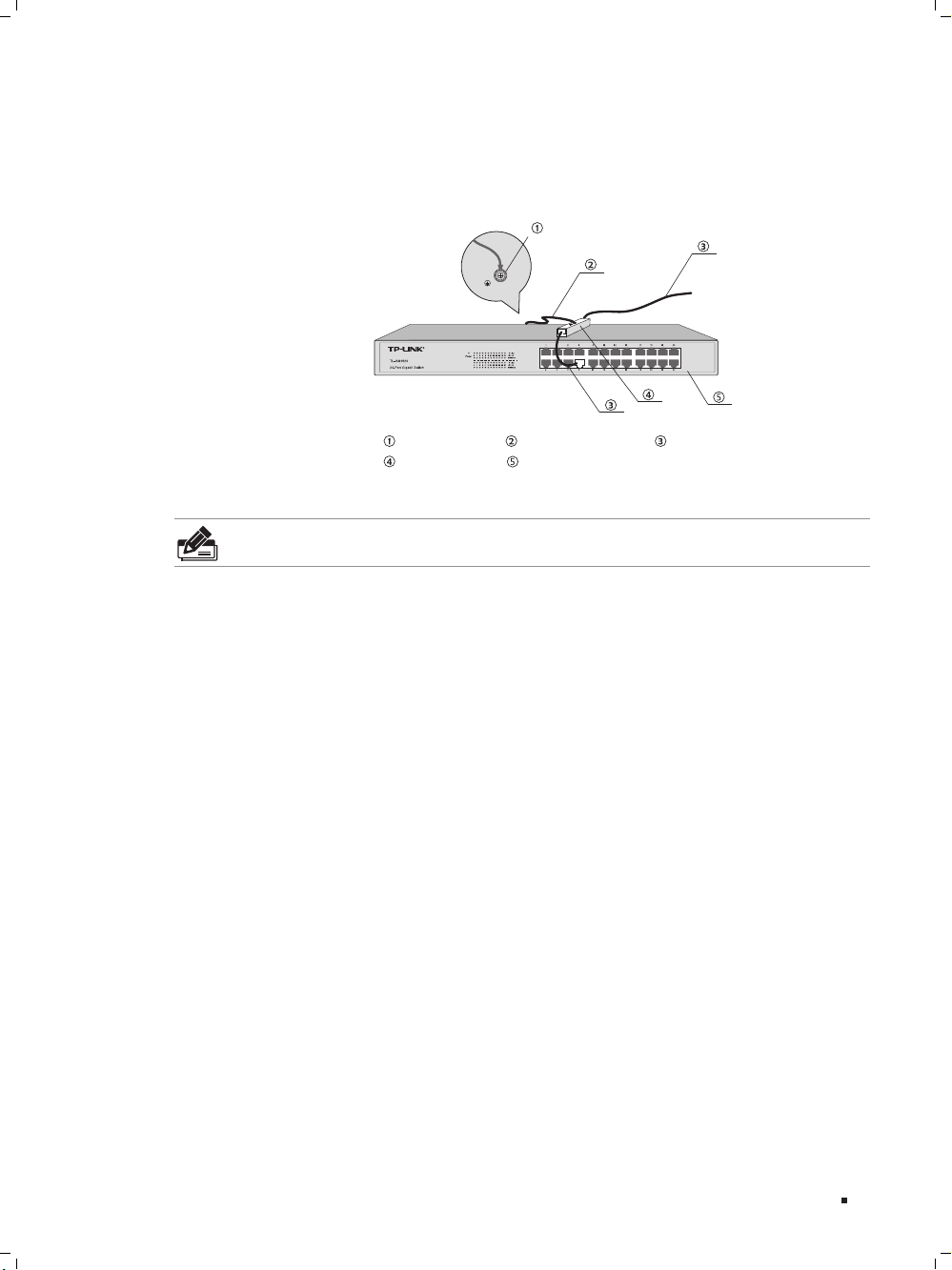
18
Gigabit Unmanaged Switch
The port rate of the signal lightning arrester should match the rate of the desired
port on the device. If it is not matched, this signal lighting arrester will not work.
Purchase a standard lightning arrester.
Install signal lightning arrester near the protected device and connect it to the
ground via a shorter ground cable.
Ethernet CableEquipotential Bonding CableGrounding Terminal
Signal Lightning Arrester Device
Equipotential BondingFigure 3-4
Note: Signal lightning arrester is not provided with our product. If needed, please self
purchase it.
Lightning Protection
19
Gigabit Unmanaged Switch
Connection
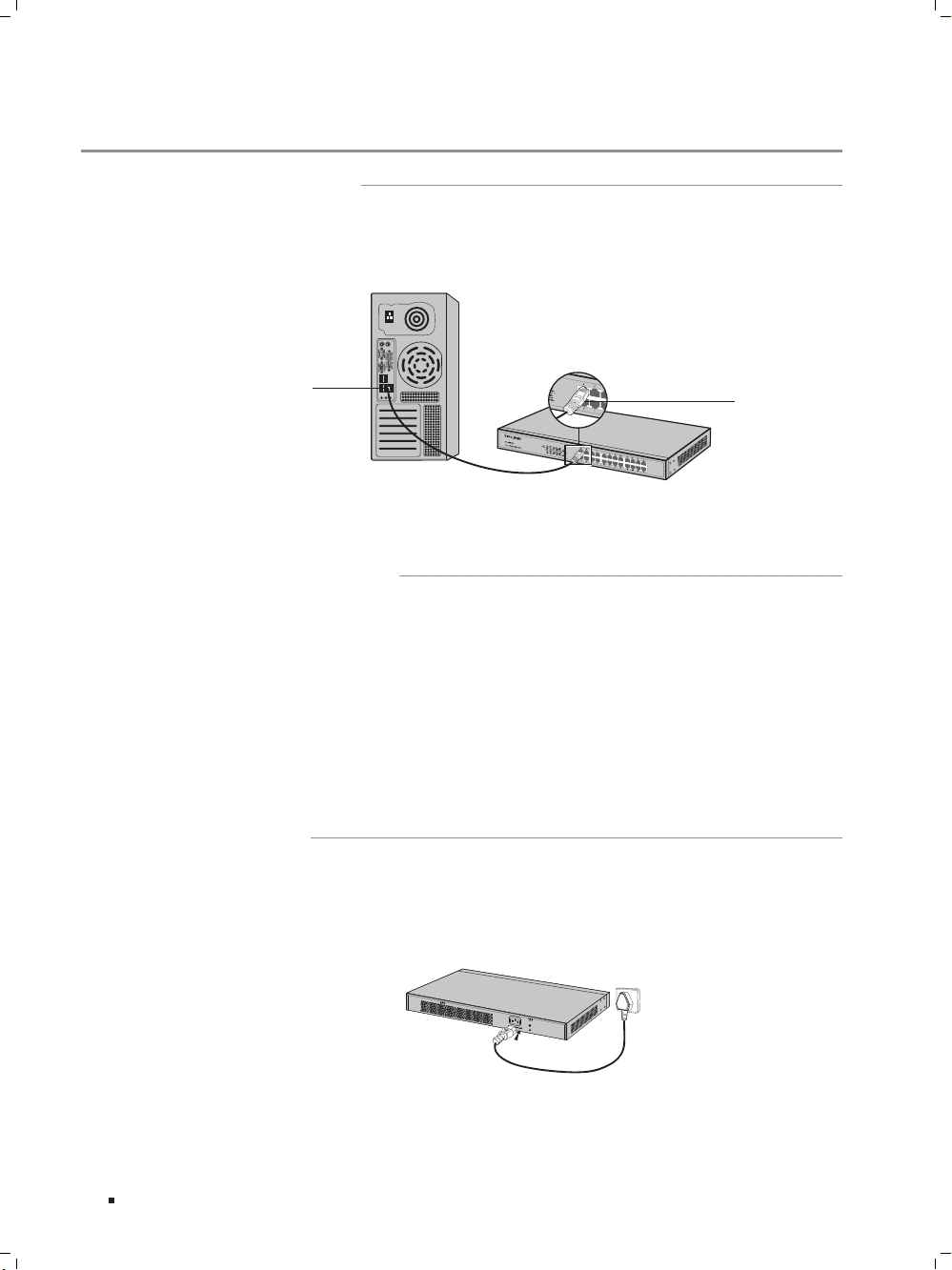
Connect a Ethernet port of the switch to the computer by RJ45 cable as the following
figure shown.
RJ45 Port
RJ45 Cable
Connecting the RJ45 PortFigure 4-1
After completing the installation, please verify the following items:
There are 5~10cm of clearance around the sides of the device for ventilation and
the air flow is adequate.
The voltage of the power supply meets the requirement of the input voltage of the device.
The power socket, device and rack are well grounded.
The device is correctly connected to other network devices.
Plug in the negative connector of the provided power cord into the power socket of the
device, and the positive connector into a power outlet as the following figure shown.
Connecting to Power SupplyFigure 4-2

20
Gigabit Unmanaged Switch
Note: The figure is to illustrate the application and principle. The power plug you get
from the package and the socket in your situation will comply with the regulation in
your country, so they may differ from the figure above.
For TL-SG1048/TL-SG1024/TL-SG1024D/TL-SG1016/TL-SG1016D/TL-SG1008:
After the device is powered on, it begins the Power-On Self-Test. A series of tests run
automatically to ensure the device functions properly. During this time, its LED indica-
tors will respond as follows:
All of the LED indicators will flash momentarily for one second, which represents a
resetting of the system.
The Power LED indicator will light up.
For TL-SG1008PE:
The LED indicators for TL-SG1008PE are classified into two parts:
the LEDs indicating switch status including Power LED, Link/Act LEDs and 1000Mbps
LEDs; the LEDs indicating PSE status, including PoE MAX LED and PoE Status LEDs.
After the device is powered on, it begins the Power-On Self-Test. A series of tests run
automatically to ensure the device functions properly. During this time, its LED indica-
tors will respond as follows:
All of the LEDs indicating swith status will flash momentarily for one second, which
represents a resetting of the switch system. The PoE MAX LED will keep on for
approximately ten seconds, representing a resetting of the PSE system. Take note
that the PoE Status LEDs won't light up during this period.
The Power LED indicator will light up.
Connection

21
Gigabit Unmanaged Switch
Troubleshooting
The Power LED should be lit up when the power system works normally. If the
Power LED worked abnormally, please check as follows:
Make sure that the power cable is connected properly, and the power 1.
contact is normal.
Make sure the voltage of the power supply meets the requirement of the 2.
input voltage of the switch.
Please check as follows:
Make sure that the cable connectors are firmly plugged into the switch and 1.
the device.
Make sure the connected device is turned on and working well.2.
The cable must be less than 100 meters long(328 feet).3.

22
Gigabit Unmanaged Switch
Specifications
Item Content
Standards
IEEE802.3, IEEE802.3u, IEEE802.3ab, IEEE802.3x
IEEE802.3af (for TL-SG1008PE), IEEE802.3at (for TL-SG1008PE)
Transmission Medium
10Base-T
UTP/STP of Cat. 3 or above(maximum 100m)
For TL-SG1008PE:
UTP category 3, 4, 5 cable (maximum 100m)
EIA/TIA-568 100Ω STP (maximum 100m)
100Base-TX
2-pair UTP/STP of Cat. 5 or above (maximum 100m)
For TL-SG1008PE:
UTP category 5, 5e cable (maximum 100m)
EIA/TIA-568 100Ω STP (maximum 100m)
1000Base-T
4-pair UTP/STP of Cat. 5 or above (maximum 100m)
For TL-SG1008PE:
UTP category 5, 5e cable (maximum 100m)
EIA/TIA-568 100Ω STP (maximum 100m)
Safety & Emissions FCC, CE
Protocol CSMA/CD
PoE Power on RJ45
For TL-SG1008PE:
Power+: pin 3 & pin 6
Power -: pin 1 & pin 2
Transfer Method Store-and-Forward
MAC Address Learning Automatically learning, automatically aging
Fra
me Forward Rate
10Base-T: 14881pps/Port
100Base-Tx: 148810pps/Port
1000Base-T: 1488095pps/Port
LEDs
Power, Link/Act (TL-SG1048)
Power, Link/Act, 1000Mbps
(TL-SG1024/TL-SG1024D/TL-SG1016/TL-SG1016D/TL-SG1008)
Power, PoE MAX, 1000Mbps, Link/Act, PoE Status (TL-SG1008PE)
Operating Temperature 0℃
~
40℃ (32 ~104℉)
Storage Temperature -40℃
~
70℃ (-40 ~158℉)
Operating Humidity 10%
~
90%RH Non-condensing
Storage Humidity 5%
~
90%RH N
on-condensing

23
Gigabit Unmanaged Switch
For more troubleshooting help, go to: http://www.tp-link.com/en/support/faq
To download the latest Firmware, Driver, Utility and User Guide, go to:
http://www.tp-link.com/en/support/download
For all other technical support, please contact us by using the following details:
Global Tel: +86 755 2650 4400
Fee: Depending on rate of different carriers, IDD.
E-mail: [email protected]
Service time: 24hrs, 7 days a week
Singapore Tel: +65 6284 0493
Fee: Depending on rate of different carriers.
E-mail: [email protected]
Service time: 24hrs, 7 days a week
UK Tel: +44 (0) 845 147 0017
Fee: Landline: 1p-10.5p/min, depending on the time of day.
Mobile: 15p-40p/min, depending o
n yo
ur mobile network.
E-mail: [email protected]
Service time: 24hrs, 7 days a week
USA/Canada Toll Free: +1 866 225 8139
E-mail: [email protected](USA)
[email protected](Canada)
Service time: 24hrs, 7 days a week
Australia & New Zealand Tel: NZ 0800 87 5465 (Toll Free)
AU 1300 87 5465 (Depending on 1300 policy)
E-mail: [email protected] (Australia)
support.nz@
tp-lin
k.com (New Zealand)
Service time: 24hrs, 7 days a week
Malaysia Toll Free: 1300 88 875 465
Email: [email protected]
Service time: 24hrs, 7 days a week
Turkey Tel: 0850 7244 488 (Turkish Service)
Fee: Depending on rate of different carriers.
E-mail: [email protected]
Service time: 09:00 to 21:00, 7 days a week
Italy Tel: +39 023 051 9020
Fee: Depending on rate of different carriers.
E-mail: suppo
rt.it
@tp-link.com
Service time: Monday to Friday 09:00 to 13:00, 14:00 to 18:00
Indonesia Tel: (+62) 021 6386 1936
Fee: Depending on rate of different carriers.
E-mail: [email protected]
Service time: Sunday to Friday 09:00 to 12:00, 13:00 to 18:00
*Except public holidays
Technical Support

24
Gigabit Unmanaged Switch
Poland Tel: +48 (0) 801 080 618
+48 223 606 363 (if calls from mobile phone)
Fee: Depending on rate of different carriers.
E-mail: [email protected]
Service time: Monday to Friday, 09:00 to 17:00. GMT+1 or GMT+2
(DST)
France Tel: 0820 800 860 (French service)
Fee: 0.118 EUR/min from France
Email: [email protected]
Service time: Monday to Friday, 09:00 to 18:00.
*Except French Bank holidays
S
wit
zerland
Tel: +41 (0) 848 800 998 (German Service)
Fee: 4-8 Rp/min, depending on rate of different time
E-mail: [email protected]
Service time: Monday to Friday, 09:00 to 12:30 and 13:30 to 18:00.
GMT+ 1 or GMT+ 2 (DST)
Russian Federation Tel: 8 (499) 754 5560 (Moscow NO.)
8 (800) 250 5560 (Toll-free within RF)
E-mail: [email protected]
Service time: From 09:00 to 21:00 (Moscow time)
*Exce
pt w
eekends and holidays in RF
Brazil Toll Free: 0800 608 9799 (Portuguese Service)
E-mail: [email protected]
Service time: Monday to Friday, 09:00 to 20:00;
Saturday, 09:00 to 15:00
Ukraine Tel: 0800 505 508
Fee: Free for Landline;
Mobile: Depending on rate of different carriers.
E-mail: [email protected]
Service time: Monday to Friday 10:00 to 22:00
Germany/Austria Tel:
+4
9 1805 875 465 (German Service)
+49 1805 TPLINK
+43 820 820 360
Fee: Landline from Germany: 0.14 EUR/min
Landline from Austria: 0.20EUR/min
E-mail: [email protected]
Service time: Monday to Friday, 09:00 to 12:30 and 13:30 to 18:00.
GMT+ 1 or GMT+ 2 (DST in Germany)
*Except bank holidays in Hesse
Technical Support