Panasonic °
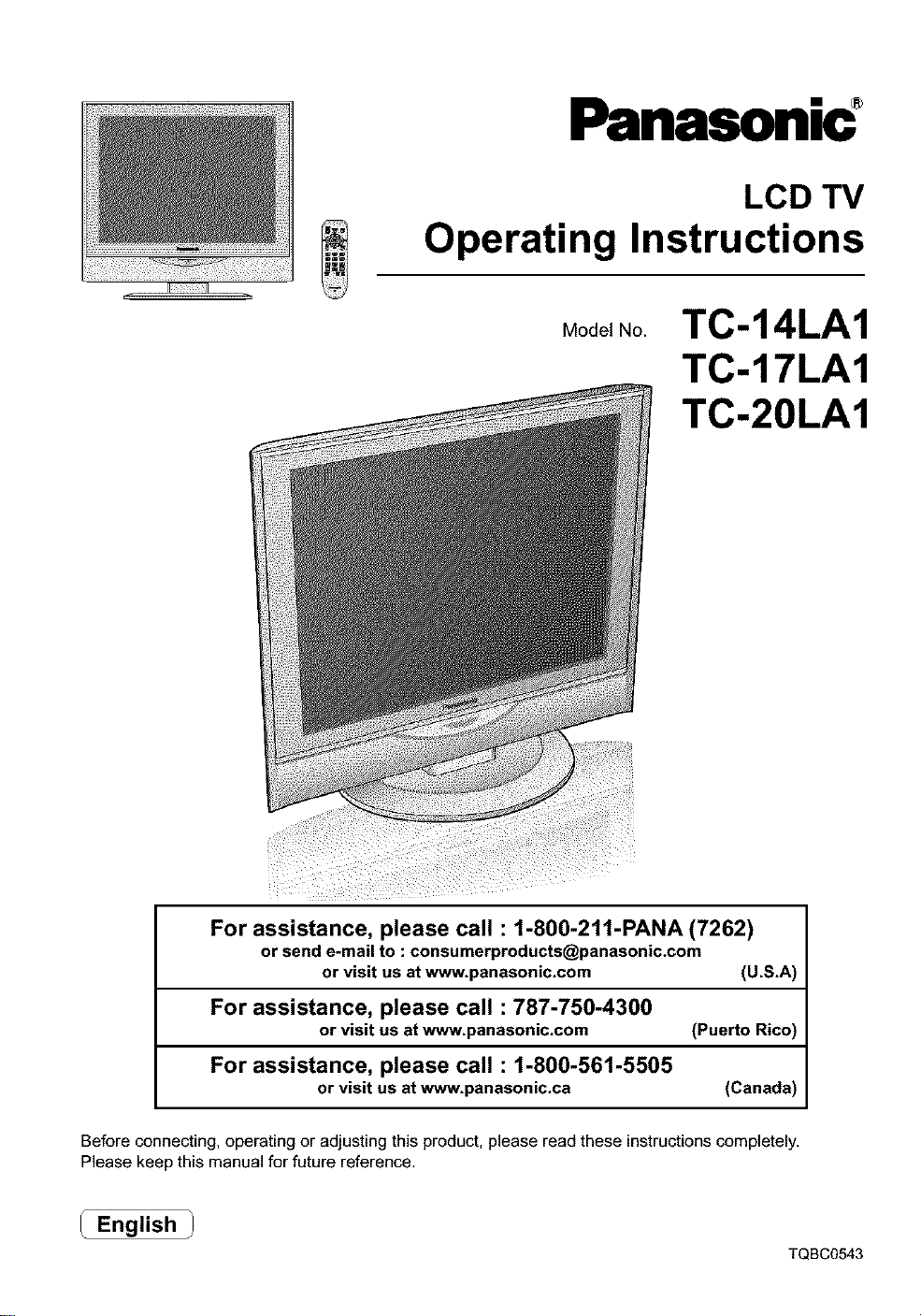
LCD TV
Operating Instructions
Model No.
TC-14LA1
TC-17LA1
TC-20LA1
For assistance, please call : 1-800-211-PANA (7262)
or visit us at www.panasonic.com (U.S.A)
For assistance, please call : 787-750-4300
or visit us st www.panasonic.com (Puerto Rico)
For assistance, please call : 1-800-561-5505
or visit us at www.panasonic.ca (Canada)
Before connecting, operating or adjusting this product, please read these instructions completely,
Please keep this manual for future reference,
l English
TQBC0543
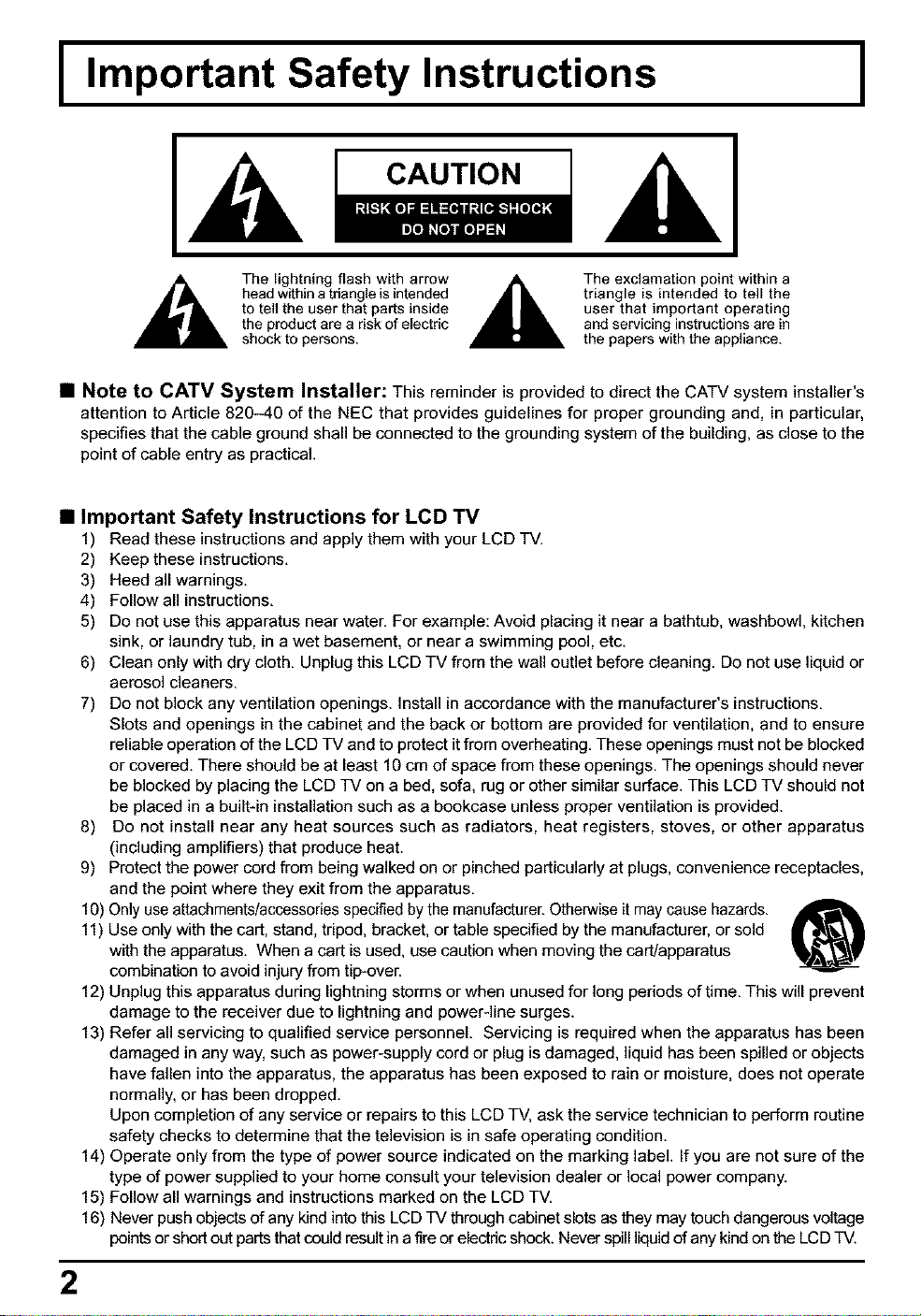
I Important Safety Instructions
CAUTION
The lightning flash with arrow
head within a triangle is intended
to tell the user that parts inside
the product are a dsk of electdc
shock to persons.
The exclamation point within a
triangle is intended to tell the
user that important operating
and servicing instructions are in
the papers with the appliance.
I
• Note to CATV System Installer: This reminder is provided to direct the CATV system installer's
attention to Article 820-40 of the NEC that provides guidelines for proper grounding and, in particular,
specifies that the cable ground shall be connected to the grounding system of the building, as close to the
point of cable entry as practical.
• Important Safety Instructions for LCD TV
1) Read these instructions and apply them with your LCD TV.
2) Keep these instructions.
3) Heed allwarnings.
4) Follow all instructions.
5) Do not use this apparatus near water. For example: Avoid placing it near a bathtub, washbowl, kitchen
sink, or laundry tub, in a wet basement, or near a swimming pool, etc.
6) Clean only with dry cloth. Unplug this LCD TV from the wall outlet before cleaning. Do not use liquid or
aerosol cleaners.
7) D_n_tb__ckany_entilati_n_penings__nstal_inacc_rdancewiththemanufacturer_sinstructi_ns`
Slots and openings in the cabinet and the back or bottom are provided for ventilation, and to ensure
reliable operation of the LCD TV and to protect it from overheating. These openings must not be blocked
or covered. There should be at least 10 cm of space from these openings. The openings should never
be blocked by placing the LCD TV on a bed, sofa, rug or other similar surface. This LCD TV should not
be placed in a built-in installation such as a bookcase unless proper ventilation is provided.
8) Do not install near any heat sources such as radiators, heat registers, stoves, or other apparatus
(including amplifiers) that produce heat.
9) Protect the power cord from being walked on or pinched particularly at plugs, convenience receptacles.
and the point where they exit from the apparatus.
10) Only use attachments/accessories specified by the manufacturer. Otherwise it may cause hazards.
11) Use only with the cart, stand, tripod, bracket, or table specified by the manufacturer, or sold
with the apparatus. When a cart is used, use caution when moving the cart/apparatus
combination to avoid injury from tip-over.
12) Unplug this apparatus during lightning storms or when unused for long periods of time. This will prevent
damage to the receiver due to lightning and power-line surges.
13) Refer all servicing to qualified service personnel. Servicing is required when the apparatus has been
damaged in any way, such as power-supply cord or plug is damaged, liquid has been spilled or objects
have fallen into the apparatus, the apparatus has been exposed to rain or moisture, does not operate
normally, or has been dropped.
Upon completion of any service or repairs to this LCD TV, ask the service technician to perform routine
safety checks to determine that the television is in safe operating condition.
14) Operate only from the type of power source indicated on the marking label. If you are not sure of the
type of power supplied to your home consult your television dealer or local power company.
15) Follow all warnings and instructions marked on the LCD TV.
16) Never push objects of any kind into this LCD TV through cabinet slots as they may touch dangerous voltage
pointsor short out parts that could result in afireor eloctric shock. Never spill liquid of any kind on the LCD TV.
2
Important Safety Instructions
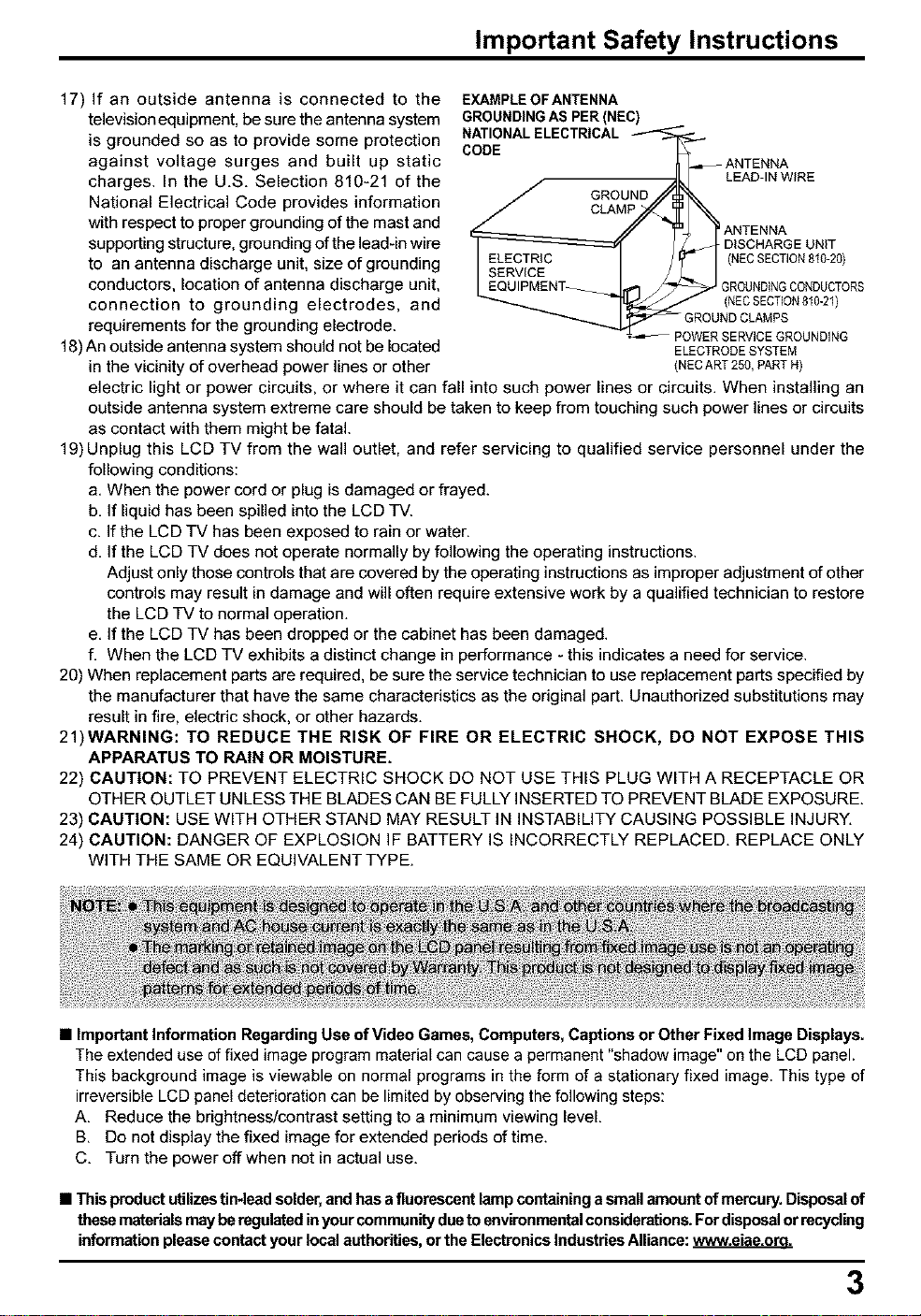
17) If an outside antenna is connected to the
television equipment, be sure the antenna system
is grounded so as to provide some protection
against voltage surges and built up static
charges. In the U.S. Selection 810-21 of the
National Electrical Code provides information
with respect to proper grounding of the mast and
supporting structure, grounding of the lead-in wire
to an antenna discharge unit, size of grounding
conductors, location of antenna discharge unit,
connection to grounding electrodes, and
requirements for the grounding electrode.
18)An outside antenna system should not be located
in the vicinity of overhead power lines or other
EXAMPLEOFANTENNA
GROUNDINGAS PER(NEC)
NATIONALELECTRICAL_ _..
CODE
4._ ANTENNA
LEAD-IN WIRE
R°uND'
CLAMP I
LRAOMUp_ _ ANTENNA
/.q°,.c..oe°.
(NEC SECTION 810-20)
GROUNDINGCONDUCTORS
L_E NT_ _ (NECSECTION810-21)
GROUND CLAMPS
_OWER SERVICE GROUNDING
ELECTRODE SYSTEM
(NEC ART 250, PART H)
electric light or power circuits, or where it can fall into such power lines or circuits. When installing an
outside antenna system extreme care should be taken to keep from touching such power lines or circuits
as contact with them might be fatal.
19) Unplug this LCD TV from the wall outlet, and refer servicing to qualified service personnel under the
following conditions:
a. When the power cord or plug is damaged or frayed.
b. If liquid has been spilled into the LCD TV.
c. If the LCD TV has been exposed to rain or water.
d. If the LCD TV does not operate normally by following the operating instructions.
Adjust only those controls that are covered by the operating instructions as improper adjustment of other
controls may result in damage and will often require extensive work by a qualified technician to restore
the LCD TV to normal operation.
e. If the LCD TV has been dropped or the cabinet has been damaged.
f. When the LCD TV exhibits a distinct change in performance - this indicates a need for service.
20) When replacement parts are required, be sure the service technician to use replacement parts specified by
the manufacturer that have the same characteristics as the original part. Unauthorized substitutions may
result in fire, electric shock, or other hazards.
21)WARNING: TO REDUCE THE RISK OF FIRE OR ELECTRIC SHOCK, DO NOT EXPOSE THIS
APPARATUS TO RAIN OR MOISTURE.
22) CAUTION: TO PREVENT ELECTRIC SHOCK DO NOT USE THIS PLUG WITH A RECEPTACLE OR
OTHER OUTLET UNLESS THE BLADES CAN BE FULLY INSERTED TO PREVENT BLADE EXPOSURE.
23) CAUTION: USE WITH OTHER STAND MAY RESULT IN INSTABILITY CAUSING POSSIBLE INJURY,
24) CAUTION: DANGER OF EXPLOSION IF BATTERY IS INCORRECTLY REPLACED, REPLACE ONLY
WITH THE SAME OR EQUIVALENT TYPE.
• Important Information Regarding Use of Video Games, Computers, Captions or Other Fixed Image Displays.
The extended use of fixed image program material can cause a permanent "shadow image" on the LCD panel.
This background image is viewable on normal programs in the form of a stationary fixed image. This type of
irreversible LCD panel deterioration can be limited by observing the following steps:
A, Reduce the brightness/contrast setting to a minimum viewing level,
B, Do not display the fixed image for extended periods of time.
C, Turn the power off when not in actual use,
• This productutilizestin.lead solder,and hasa fluorescent lamp containinga smallamountofmercury.Disposal of
thesematerials maybe regulatedin yourcommunityduetoenvironmentalconsiderations.Fordisposalorrecycling
informationplease contact your local authorities,or the ElectronicsIndustriesAlliance:
3
Dear Panasonic Customer
Welcome to the PanasonicJamily of customers.
We hope that you will have many years of enjoymentJ?om your new LCD TV.
To obtain maximum beneJitJ?om your set, please read these instructions beJore
making any adjustments, and retain them JbrJuture reJ_rence.
Retain your purchase receipt, and record the model number and serial number
of your set in the space provided on the rear cover of these instructions.
For assistance, please call : 1-800-211-PANA (7262)
or visit us at www.panasonic.com (U.S.A)
For assistance, please call : 787-750-4300
or visit us at www.panasonic.com (Puerto Rico)
For assistance, please call : 1-800-561-5505
or visit us at www.panasonic.ca (Canada)
I Federal Communication Commission Information I
This equipment has been tested and found to comply with the limits for a TV Broadcast Receiver, pursuant
to Part 15 of the FCC Rules. These limits are designed to provide reasonable protection against harmful
interference in a residential installation. This equipment generates, uses and can radiate radio frequency
energy and, if not installed and used in accordance with the instructions, may cause harmful interference to
radio communications. If this equipment does cause or receive interference, which can be determined by
turning equipment off and on, the user is encouraged to try to correct the interference by one of the following
measures:
Reorient or relocate the TV antenna.
Increase the separation between TV and other equipment.
Connect TV into separate outlet from other equipment.
Consult the dealer or an experienced radio/TV technician for help.
FCC Caution: Any changes or modifications not expressly approved by the party responsible for compliance
could void the user's authority to operate this equipment.
4
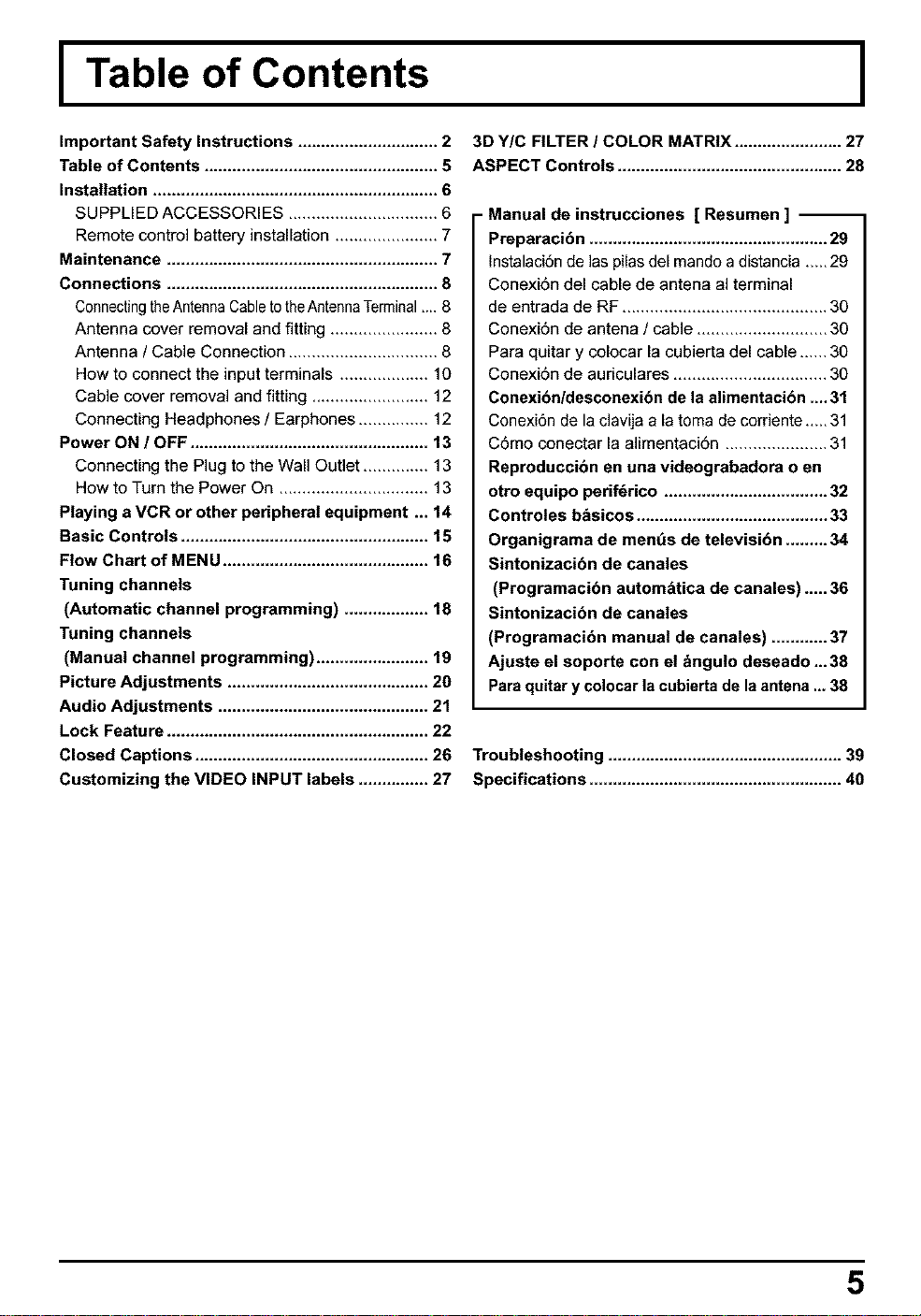
I Table of Contents
Important Safety Instructions .............................. 2
Table of Contents .................................................. 5
Installation ............................................................. 6
SUPPLIED ACCESSORIES ................................ 6
Remote control battery installation ...................... 7
Maintenance .......................................................... 7
Connections .......................................................... 8
ConnectingtheAntennaCabletotheAntennaTerminal,... 8
Antenna cover removal and fitting ....................... 8
Antenna / Cable Connection ................................ 8
How to connect the input terminals ................... 10
Cable cover removal and fitting ......................... 12
Connecting Headphones / Earphones ............... 12
Power ON / OFF ................................................... 13
Connecting the Plug to the Wall Outlet .............. 13
How to Turn the Power On ................................ 13
Playing a VCR or other peripheral equipment ... 14
Basic Controls ..................................................... 15
Flow Chart of MENU ............................................ 16
Tuning channels
(Automatic channel programming) .................. 18
Tuning channels
(Manual channel programming) ........................ 19
Picture Adjustments ........................................... 20
Audio Adjustments ............................................. 21
Lock Feature ........................................................ 22
Closed Captions .................................................. 26
Customizing the VIDEO INPUT labels ............... 27
I
3D Y/C FILTER / COLOR MATRIX ....................... 27
ASPECT Controls ................................................ 28
- Manual de instrucciones [ Resumen ] --
Preparacibn ................................................... 29
Instalaci6n de las pilas del mando a distancia ,.,_ 29
Conexi6n del cable de antena al terminal
de entrada de RF ............................................ 30
Conexi6n de antena / cable ............................ 30
Para quitar y colocar la cubierta del cable ...... 30
Conexi6n de auriculares ................................. 30
Cenexibnldesconexibn de la afimentaci6n __ 31
Conexi6n de la clavija a la toma de corriente,,,_ 31
C6mo conectar la alimentaci6n ...................... 31
Reproduccibn en una videegrabadora o en
otro equipo perif6rico ................................... 32
Controles b&sicos ......................................... 33
Organigrama de men_s de televisibn ......... 34
Sintonizacibn de canales
(Programaci6n autom&tica de canales) ..... 36
Sintonizacibn de canales
(Programacibn manual de canales) ............ 37
Ajuste el soporte con el &ngulo deseado -.38
Para quitar y colocar la cubierta de la antena _, 38
Troubleshooting .................................................. 39
Specifications ...................................................... 40
5
I Installation I
Receiver Location
Locatefor comfortableviewing.Avoid placingwheresunlightor otherbrightlight(includingreflections)will fall onthescreen,
Use ofsometypes offluorescent lightingcan reduceremotecontroltransmitterrange,
Adequate ventilationis essentialto preventinternalcomponentfailure,Keep awayfrom areasof excessiveheator moisture.
Optional External Equipment
The Video/Audio connection between components can be made with shielded video and audio cables. For
best performance, Antenna cables should utilize 75 ohm coaxial shielded wire. Cables are available from
your dealer or electronic supply store.
Before you purchase any cables, be sure you know what type of output and input connectors your various
components require. Also determine the length of cable you'll need.
For optimum quality picture
When the LCD is exposed to light from outdoors or lighting fixtures, high-contrast pictures may not be displayed
clearly. Turn off florescent lamps near the LCD and place in a location not exposed to outdoor light.
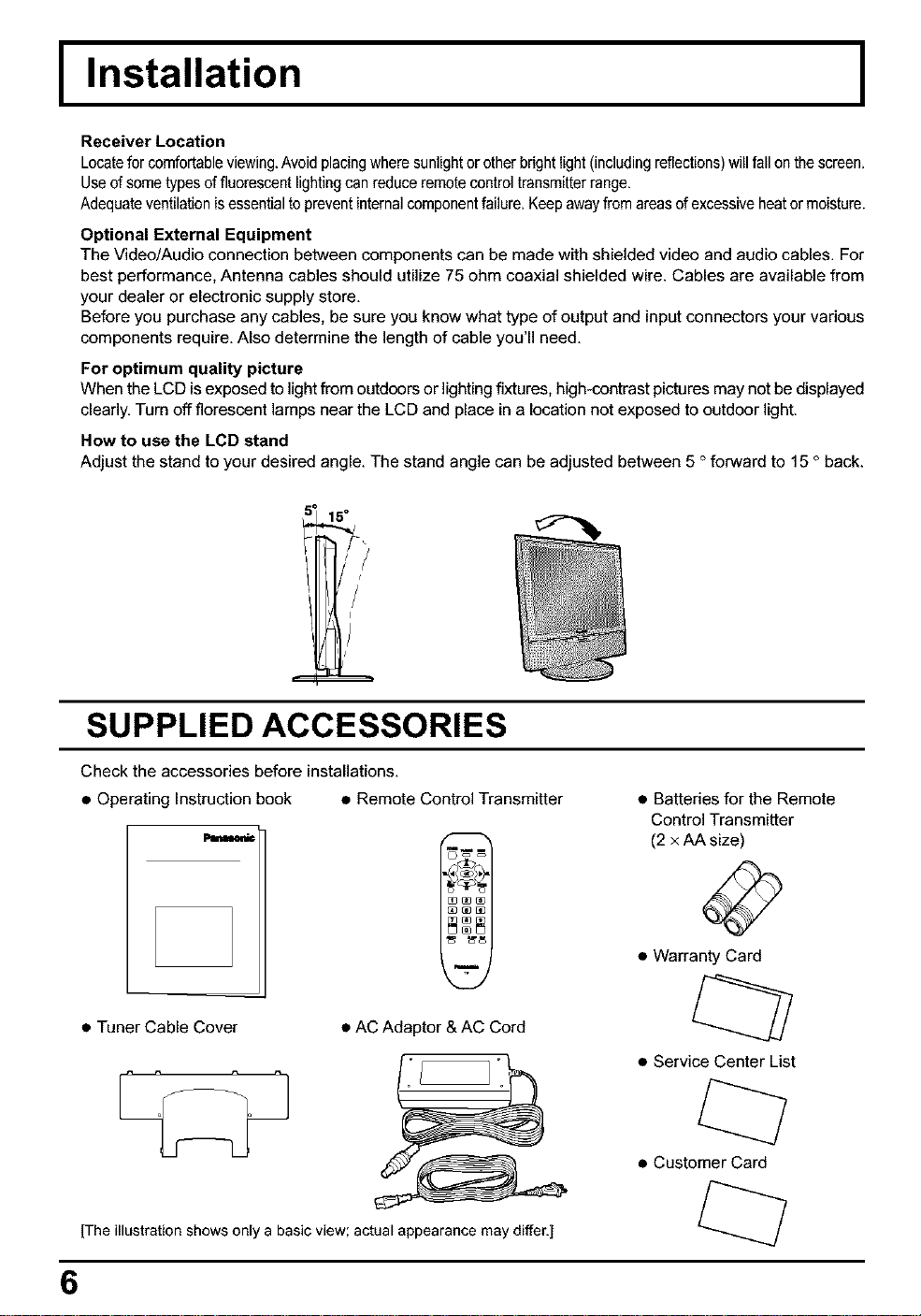
How to use the LCD stand
Adjust the stand to your desired angle. The stand angle can be adjusted between 5 ° forward to 15 ° back.
15°
SUPPLIED ACCESSORIES
Check the accessories before installations.
• Operating Instruction book • Remote Control Transmitter
• Tuner Cable Cover
• AC Adaptor & AC Cord
[The illustration shows only a basic view; actual appearance may differ.]
• Batteries for the Remote
Control Transmitter
(2 x AA size)
• Warranty Card
• Service Center Ust
• Customer Card
6
Installation
Remote control battery installation
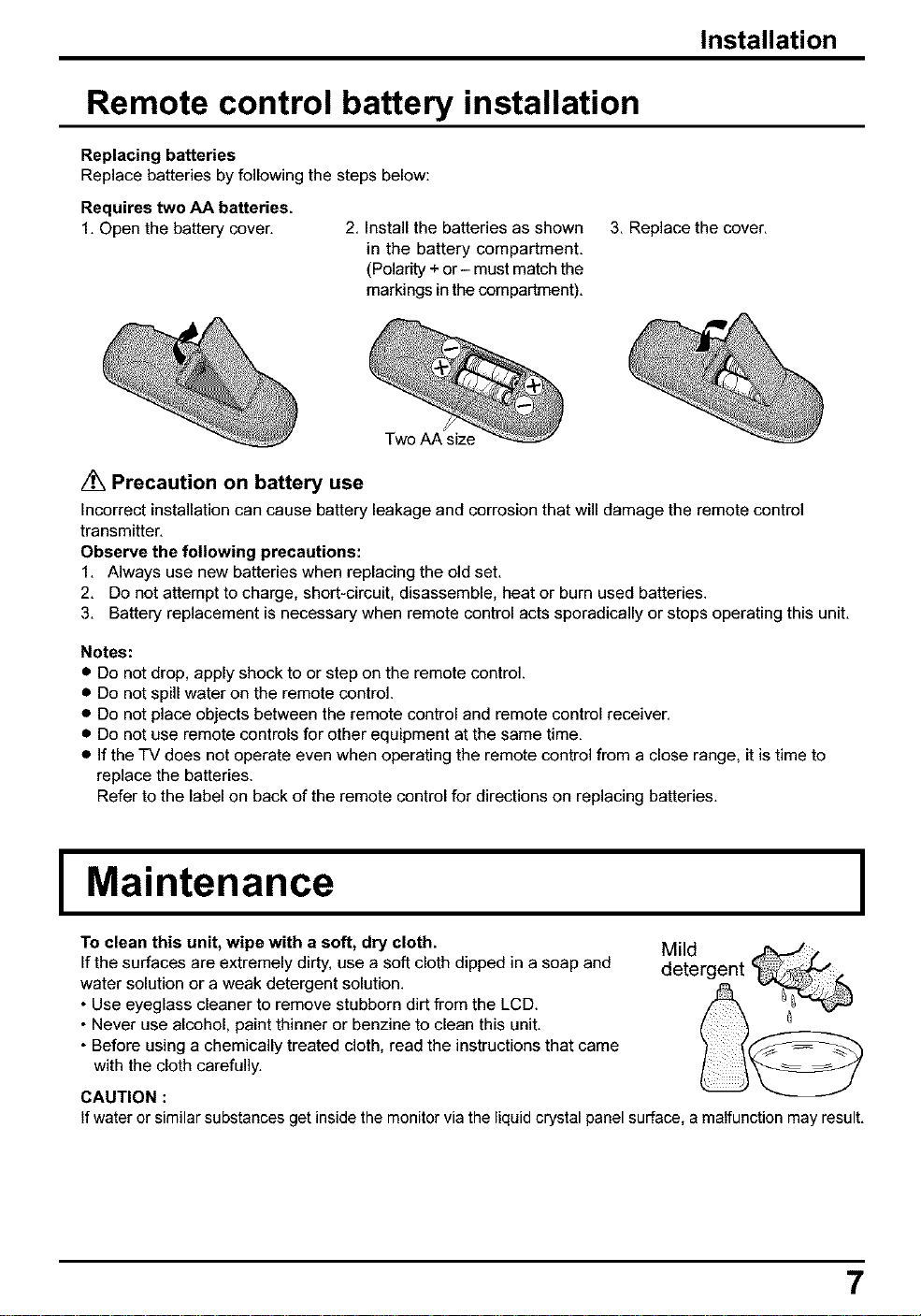
Replacing batteries
Replace batteries by following the steps below:
Requires two AA batteries.
1, Open the battery cover,
2. Install the batteries as shown
in the battery compartment.
(Polarity +or- must match the
markings in the compartment).
3. Replace the cover.
Two AA size
/_ Precaution on battery use
Incorrect installation can cause battery leakage and corrosion that will damage the remote control
transmitter,
Observe the following precautions:
1. Always use new batteries when replacing the old set.
2. Do not attempt to charge, short-circuit, disassemble, heat or burn used batteries.
3. Battery replacement is necessary when remote control acts sporadically or stops operating this unit.
Notes:
• Do not drop, apply shock to or step on the remote control,
• Do not spill water on the remote control,
• Do not place objects between the remote control and remote control receiver,
• Do not use remote controls for other equipment at the same time,
• if the TV does not operate even when operating the remote control from a close range, it is time to
replace the batteries,
Refer to the label on back of the remote control for directions on replacing batteries,
I
Maintenance
I
To clean this unit, wipe with a soft, dry cloth.
If the surfaces are extremely dirty, use a soft cloth dipped in a soap and
water solution or a weak detergent solution.
• Use eyeglass cleaner to remove stubborn dirt from the LCD.
• Never use alcohol, paint thinner or benzine to clean this unit.
• Before using a chemically treated cloth, read the instructions that came
with the cloth carefully.
Mild
detergent '
CAUTION :
If water or similar substances get inside the monitor via the liquid crystal panel surface, amalfunction may result.
I Connections I
Connectingthe Antenna Cable to the Antenna Terminal
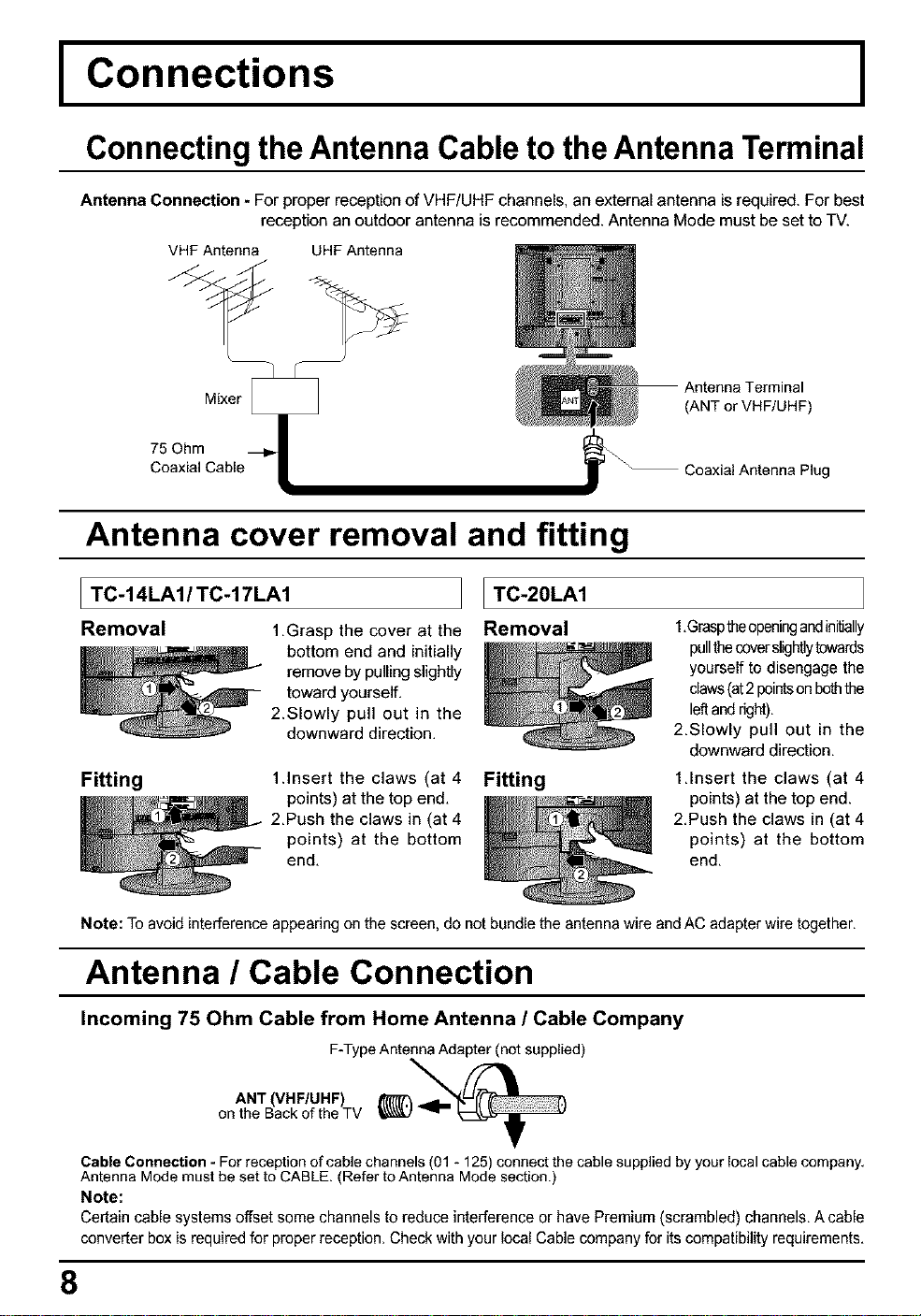
Antenna Connection _For proper reception of VHF/UHF channels, an external antenna is required. For best
reception an outdoor antenna is recommended. Antenna Mode must be set to TV.
VHF Antenna UHFAntenna
75 Ohm Mixer _
Coaxial Cable _[
Antenna Terminal
(ANT or VHF/UHF)
Coaxial Antenna Plug
Antenna cover removal and fitting
I TC-14LA1/TC-17LA1
Removal 1.Grasp the cover at the
bottom end and initially
remove by pulling slightly
toward yourself.
2.Slowly pull out in the
downward direction.
I TC-20LA1
Removal
1.insert the claws (at 4
points) at the top end.
2.Push the claws in (at 4
points) at the bottom
end.
Fitting Fitting
1.Graspmeopeningandinitially
pullthecoverslightlytowards
yourself to disengage the
claws(at2pointson bo_ the
leftand right).
2.Slowly pull out in the
downward direction.
1.Insert the claws (at 4
points) at the top end.
2.Push the claws in (at 4
points) at the bottom
end.
Note: To avoid interference appearing on the screen, do not bundle the antenna wire and AC adapter wire together.
Antenna / Cable Connection
Incoming 75 Ohm Cable from Home Antenna / Cable Company
F-Type Antenna Adapter (not supplied)
ANT (VHF/UHF)
on the Back of the TV
Cable Connection - For reception of cable channels (01 - 125) connect the cable supplied by your local cable company,
Antenna Mode must be set to CABLE. (Refer to Antenna Mode section.)
Note:
Certain cable systems offset some channels to reduce interference or have Premium (scrambled) channels. A cable
converter box is required for proper reception. Check with your local Cable company for its compatibility requirements,
8
Connections
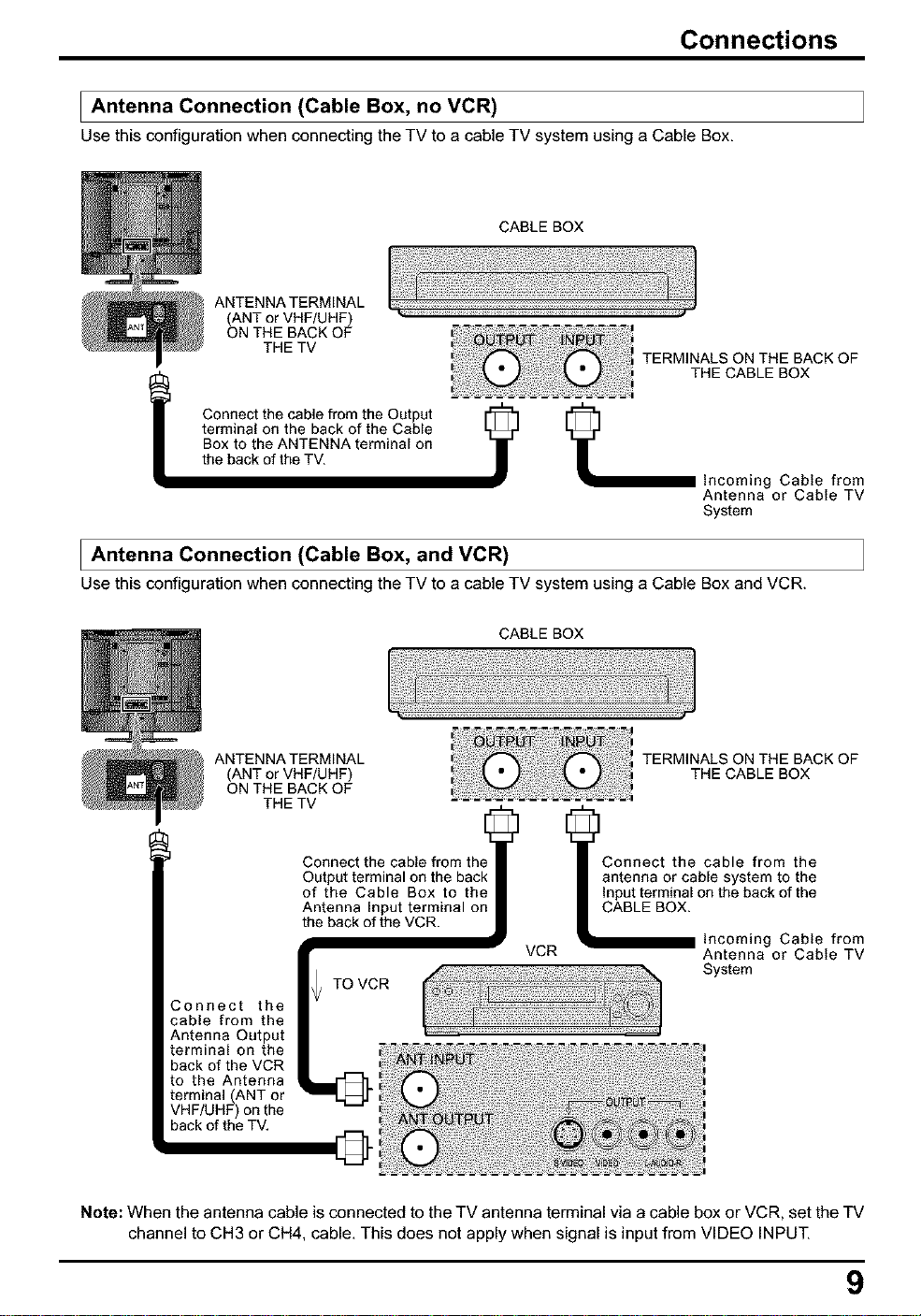
I Antenna Connection (Cable Box, no VCR)
Use this configuration when connectingthe TV to a cable TV system using a Cable Box,
CABLE BOX
J
ANTENNATERMINAL
(ANTorVHF/UHF)
ON THEBACKOF
THE TV
Connect the cable from the Output
terminal on the back of the Cable
Box to the ANTENNA terminal on
the back of the TV.
TERMINALS ON THE BACK OF
THE CABLEBOX
from
Antenna or Cable TV
System
I Antenna (Cable Box, VCR)
Connection and
Use this configuration when connecting the TV to acable TV system using a Cable Box and VCR,
CABLE BOX
ANTENNATERMINAL
(ANTorVHF/UHF)
ON THEBACKOF
THE TV
TERMINALS ON THE BACK OF
THE CABLEBOX
3onnect the
cable from the
Antenna Output
terminal on the
back of the VCR
to the Antenna
terminal (ANT or
VHF/UHF) on the
back of the TV,
Connect the cable from the
Output terminal on the back
of the Cable Box to the
Antenna Input terminal on
the back of the VCR.
TO VCR
VCR
Connect the cable from the
antenna or cable system to the
Input terminal on the back of the
CABLE BOX.
incoming Cable from
Antenna or Cable TV
System
Note: When the antenna cable is connected to the TV antenna terminal via a cable box or VCR, set the TV
channel to CH3 or CH4, cable, This does not apply when signal is input from VIDEO INPUT,
9
Connections
How to connect the input terminals
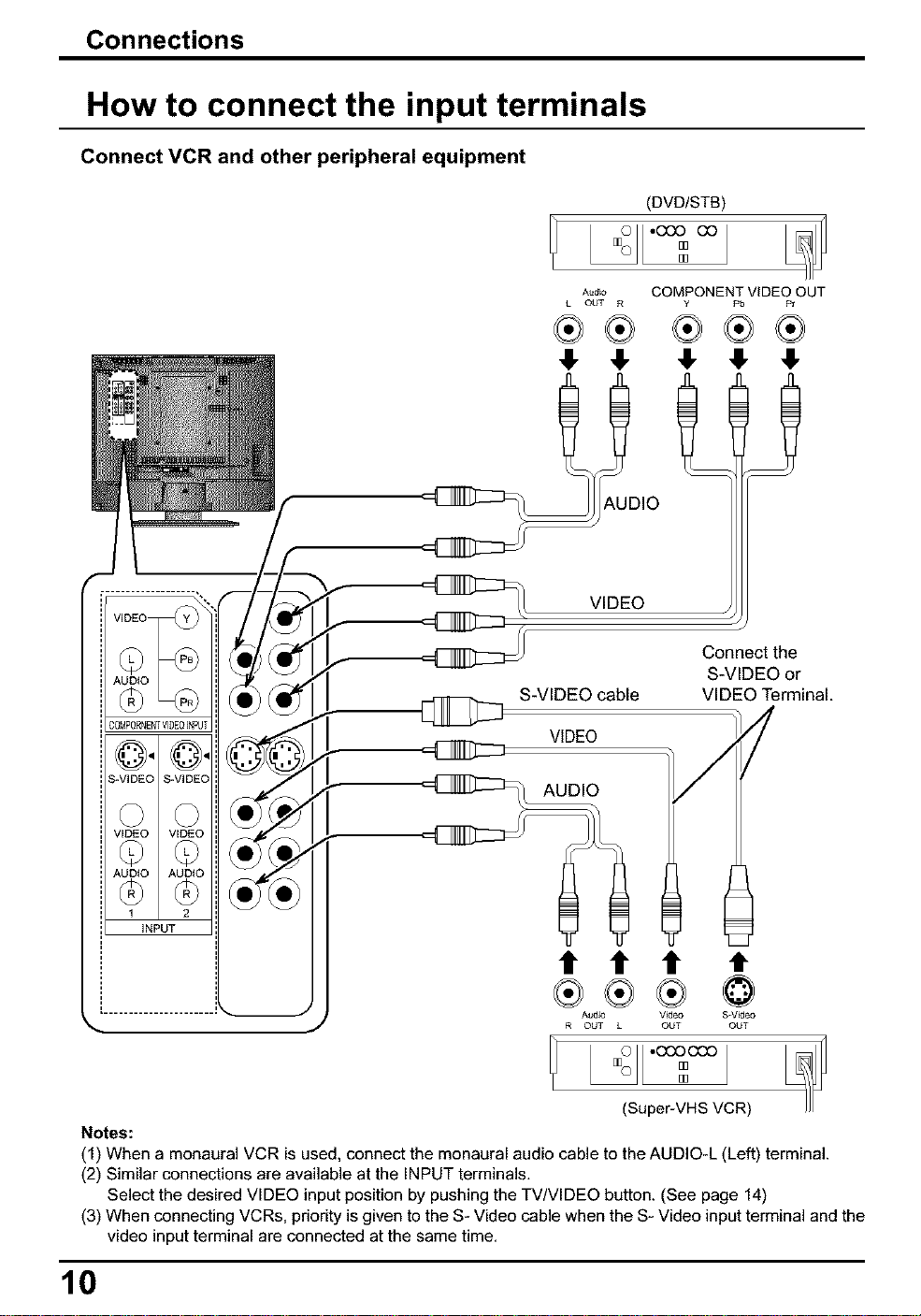
Connect VCR and other peripheral equipment
(DVD/STB)
co
Audio COMPONENT VIDEO OUT
L OUT R Y Pb Pr
4, 4, ,!, 41, 4!,
VIDEO
Connect the
S-VIDEO or
S-VIDEO cable VIDEO Terminal.
VIDEO t_
t t t t
©
AU610 V_eo ,_V_eo
R OUT L OUT OUT
(Super-VHS VCR)
Notes:
(1) When a monaural VCR is used, connect the monaural audio cable to the AUDIO-L (Left) terminal.
(2) Similar connections are available at the INPUT terminals.
Select the desired VIDEO input position by pushing the TV/VlDEO button. (See page 14)
(3) When connecting VCRs, priority is given to the S- Video cable when the S- Video input terminal and the
video input terminal are connected at the same time.
10
Connections
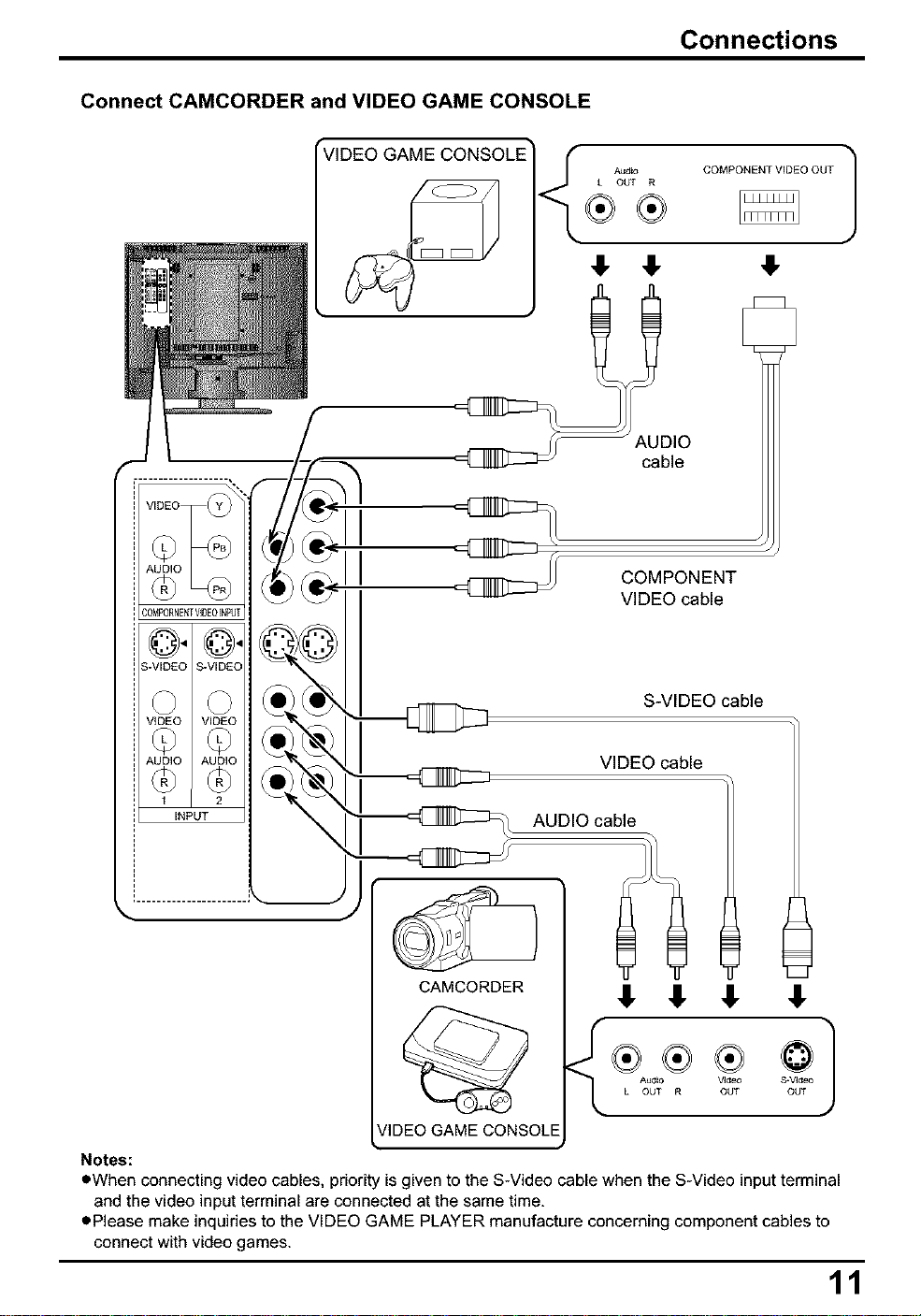
Connect CAMCORDER and VIDEO GAME CONSOLE
Audio COMPONENT VIDEO OUT
L OUT R
VIDEO VIDEO
AUDIO AUDIO
1 2
INPUT
II
II
,I, ,I, 4
cable
COMPONENT
VIDEO cable
S-VIDEO cable
VIDEO cable
CAMCORDER
/IDEO GAME CONSOLE
AUDIO cable
Notes:
eWhen connecting video cables, priority is given to the S-Video cable when the S-Video inputterminal
and the video input terminal are connected at the same time,
ePlease make inquiries to the VIDEO GAME PLAYER manufacture concerning component cables to
connect with video games.
11
Connections
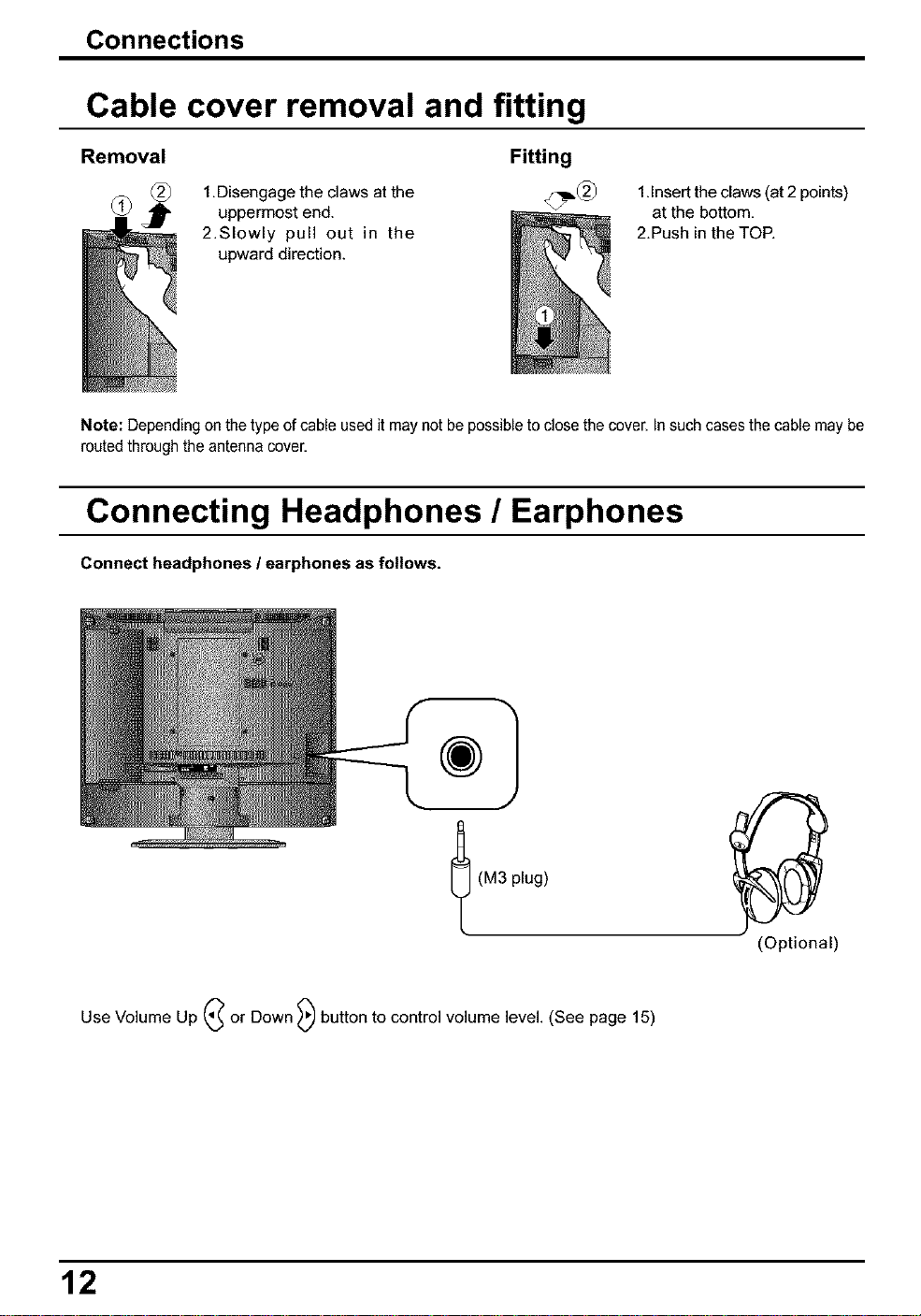
Cable cover removal and fitting
Removal Fitting
1,Disengage the claws at the
uppermost end.
2.Slowly pull out in the
upward direction.
1Jnsert the claws (at 2 points)
at the bottom,
2,Push in the TOP,
Note: Depending on thetype of cable used it may not be possibleto close the cover. In such cases the cable may be
routed through the antenna cover.
Connecting Headphones / Earphones
Connect headphones / earphones as follows.
(M3
plug)
(Optional)
Use Volume Up C or Down _) button to control volume level. (See page 15)
12
I Power ON / OFF
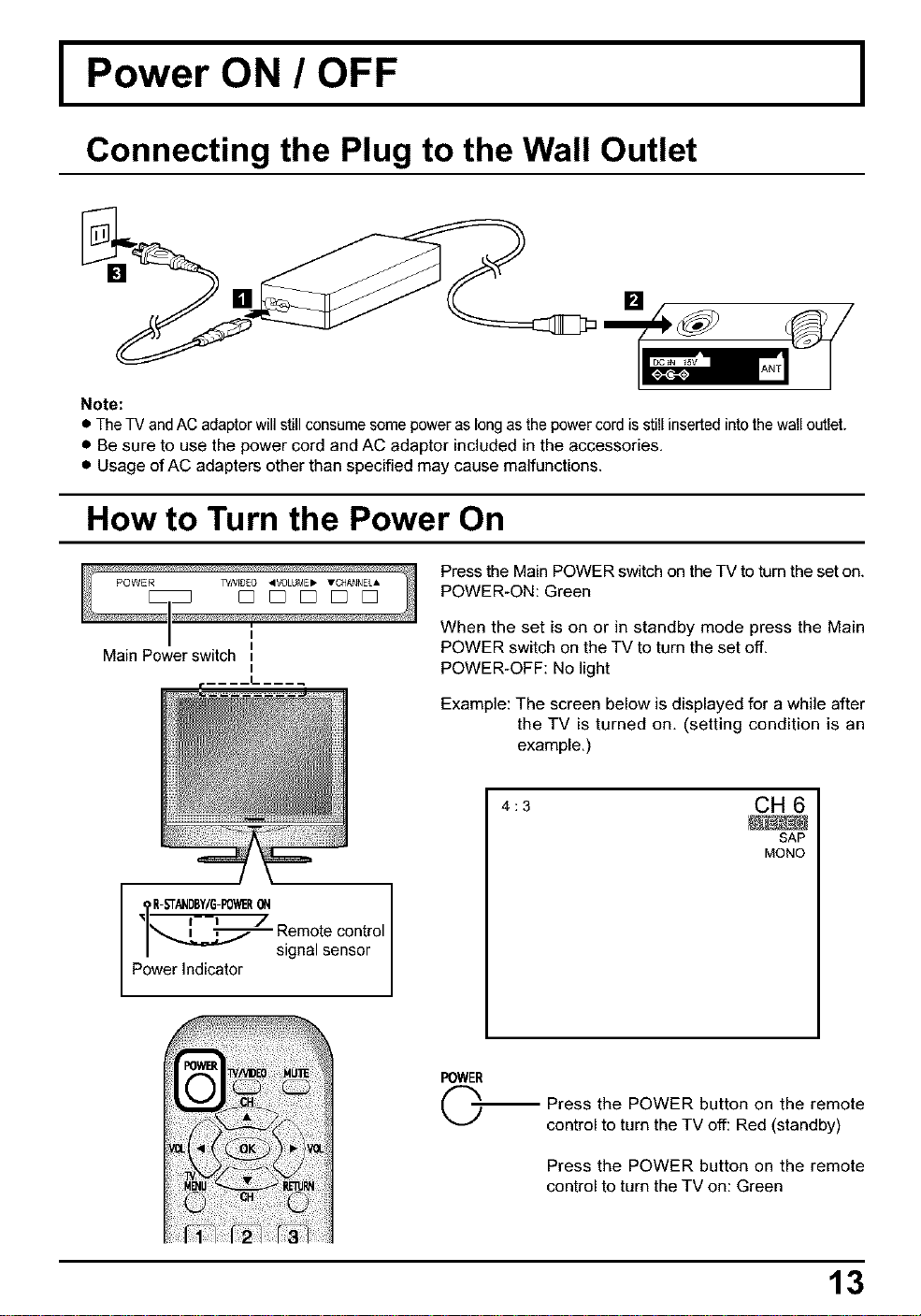
Connecting the Plug to the Wall Outlet
I
Note:
• TheTV and AC adaptorwill stillconsume somepower as long asthe power cord is stillinsertedintothe wall outlet.
• Be sure to use the power cord and AC adaptor included in the accessories,
• Usage of AC adapters other than specified may cause malfunctions.
How to Turn the Power On
I
I
Main Power switch =
I
R-STANDBY/G-POWeRON
_--_ / Remote control
li"_._-- signal sensor
Power Indicator
Press the Main POWER switch on the TV to turn the set on.
POWER-ON: Green
When the set is on or in standby mode press the Main
POWER switch on the TV to turn the set off.
POWER-OFF: No light
Example: The screen below is displayed for a while after
the TV is turned on, (setting condition is an
example.)
4:3 CH 6
SAP
MONO
POWER
©
Press the POWER button on the remote
control to turn the TV off: Red (standby)
Press the POWER button on the remote
control to turn the TV on: Green
13
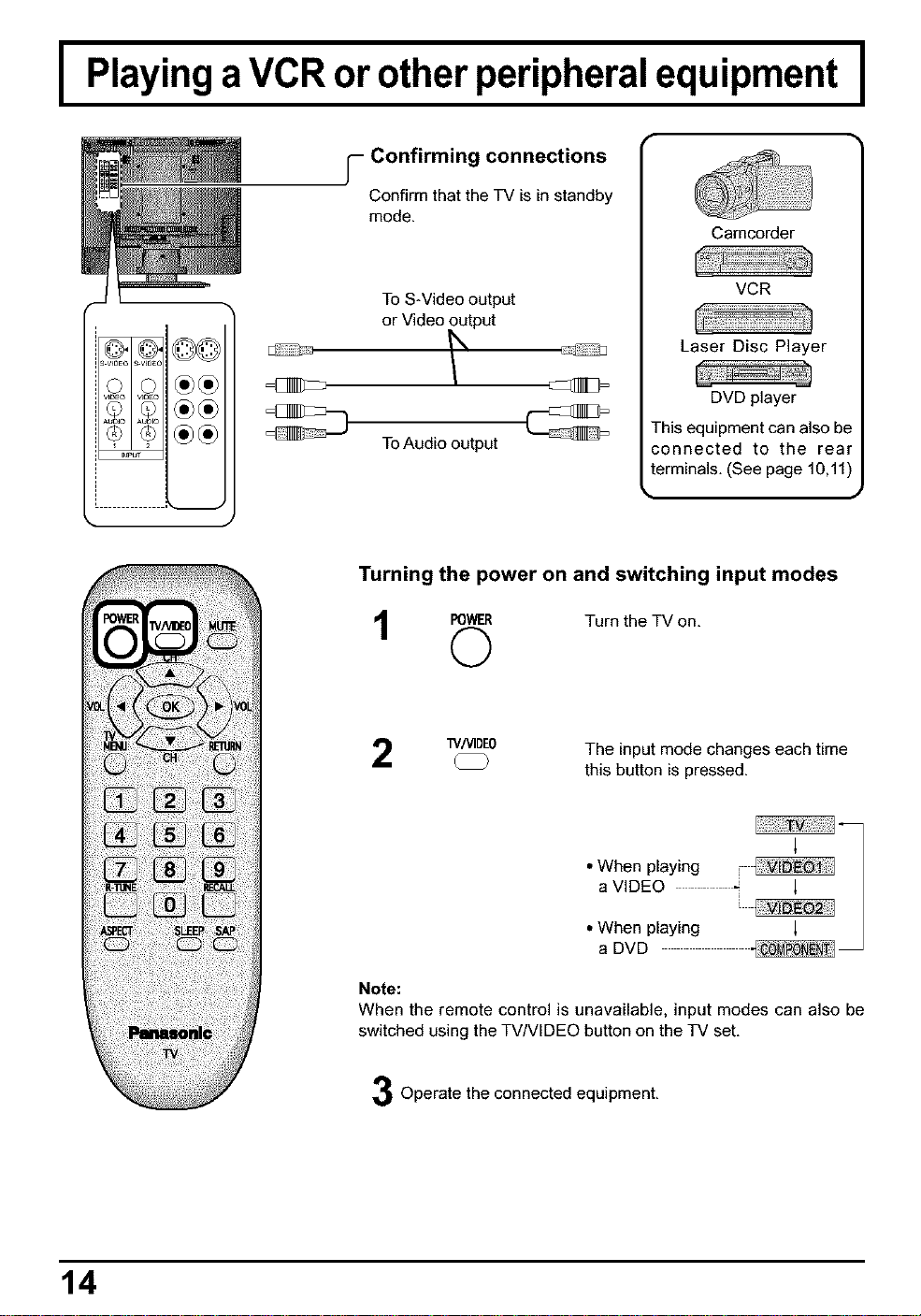
I Playinga VCR or other peripheral equipment I
y Confirming connections
Confirm that the TV is in standby
mode.
To S-Video output
or Video output
ToAudio output
Camcorder
VCR
Laser Disc Player
DVD player
-his equipment can also be
connected to the rear
terminals, (See page 10,11)
Turning the power on and switching input modes
1 Turnthe TVon,
"_/VIDEO
The input mode changes each time
this button is pressed,
When playing
IaVlDEO_ |
When playing _ |
a DVD
Note:
When the remote control is unavailable, input modes can also be
switched using the TV/VIDEO button on the TV set,
Operate the connected equipment,
14
I
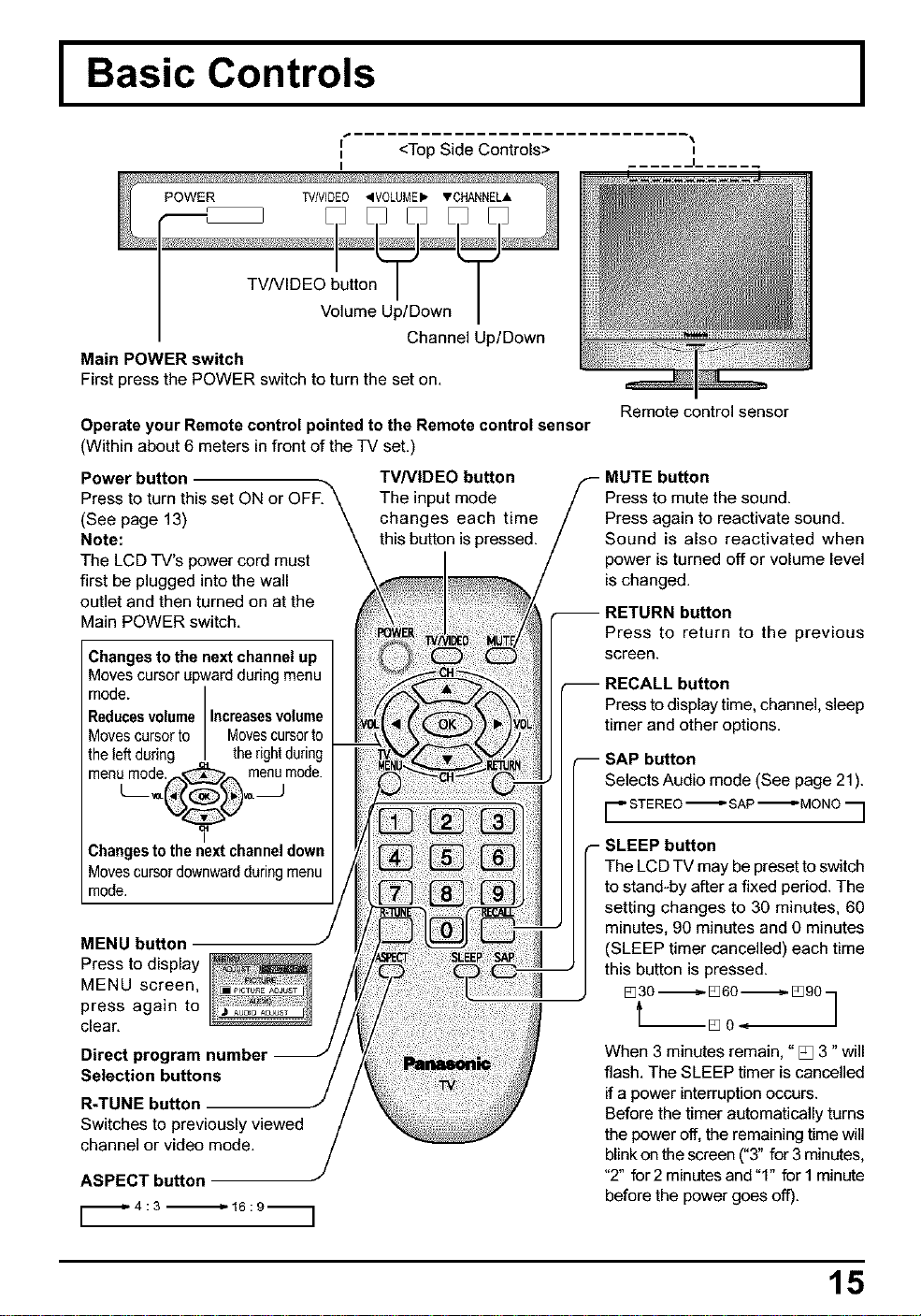
Basic Controls
<Top Side Controls>
Remote control sensor
I
TVNIDEO button
Volume Up/Down
Channel Up/Down
Main POWER switch
First press the POWER switch to turn the set on.
Operate your Remote control pointed to the Remote control sensor
(Within about 6 meters in front of the TV set,)
Power button
TVNIDEO button
(See page 13)
Note:
The LCD TV's power cord must
first be plugged into the wall
outlet and then turned on at the
Main POWER switch.
The input mode
changes each time
this button is pressed.
Changes to the next channel up
Moves cursor upward during menu
mode.
Reducesvolume Increasesvolume
Movescursorto Movescursorto
the leftduring thedgh during
menumode. _ menumode.
I
Changesto the next channeldown
Movescursordownwardduringmenu
mode.
MENU button
Press to display
MENU screen,
press again to
clear.
Direct program numbs
Selection buttons
R-TUNE button
Switches to previously viewed
channel or video mode.
ASPECT button
[_4:3-_16:9-_]
button
Press to mute the sound.
Press again to reactivate sound.
Sound is also reactivated when
power is turned off or volume level
is changed.
-- RETURN button
Press to return to the previous
screen.
-- RECALL button
Press to display time, channel, sleep
timer and other options.
Selects Audio mode (See page 21).
[_" STEREO "_ SAP "_D MONO "_]
_- SLEEP button
The LCD TV may be preset to switch
to stand-by after a fixed period. The
setting changes to 30 minutes, 60
minutes, 90 minutes and 0 minutes
(SLEEP timer cancelled) each time
this button is pressed.
[_30 ---------------_[_60 ---------------_[_90 ]
When 3 minutes remain, "[] 3 "will
flash. The SLEEP timer is cancelled
if a power interruption occurs.
Before the timer automatically turns
the power off, the remaining time will
blinkon the screen ("3" for 3minutes,
"2" for 2 minutes and "1" for 1 minute
before the power goes off).
15
I FIow Chart of MENU I
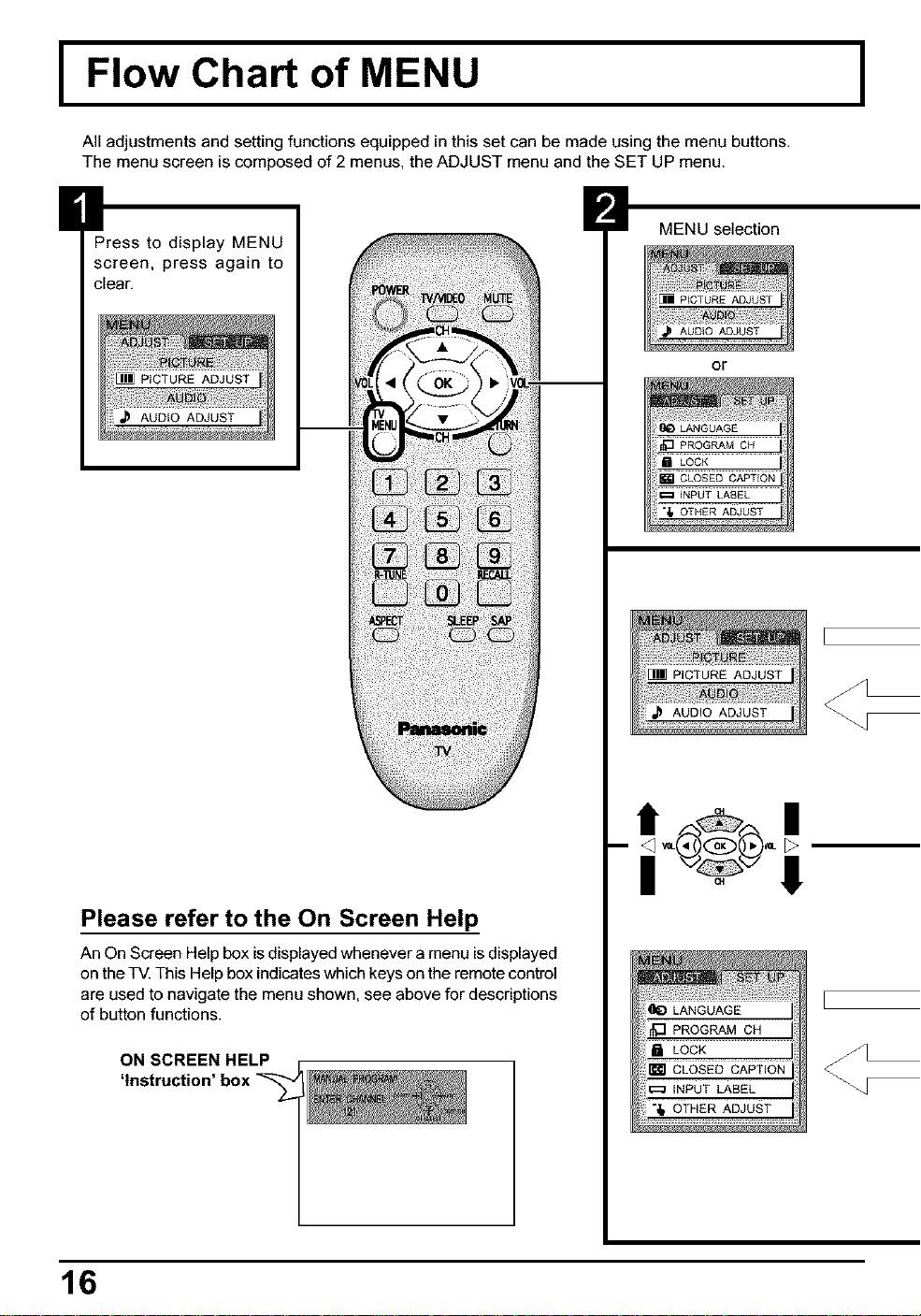
All adjustments and setting functions equipped in this set can be made using the menu buttons,
The menu screen is composed of 2 menus, the ADJUST menu and the SET UP menu.
Press to display MENU
screen, press again to
clear.
Please refer to the On Screen Help
An On Screen Help box is displayed whenever a menu is displayed
on the TV. This Help box indicates which keys on the remote control
are used to navigate the menu shown, see above for descriptions
of button functions.
ON SCREEN HELP
'instruction'
MENU selection
or
| !!
16
Flow Chart of MENU
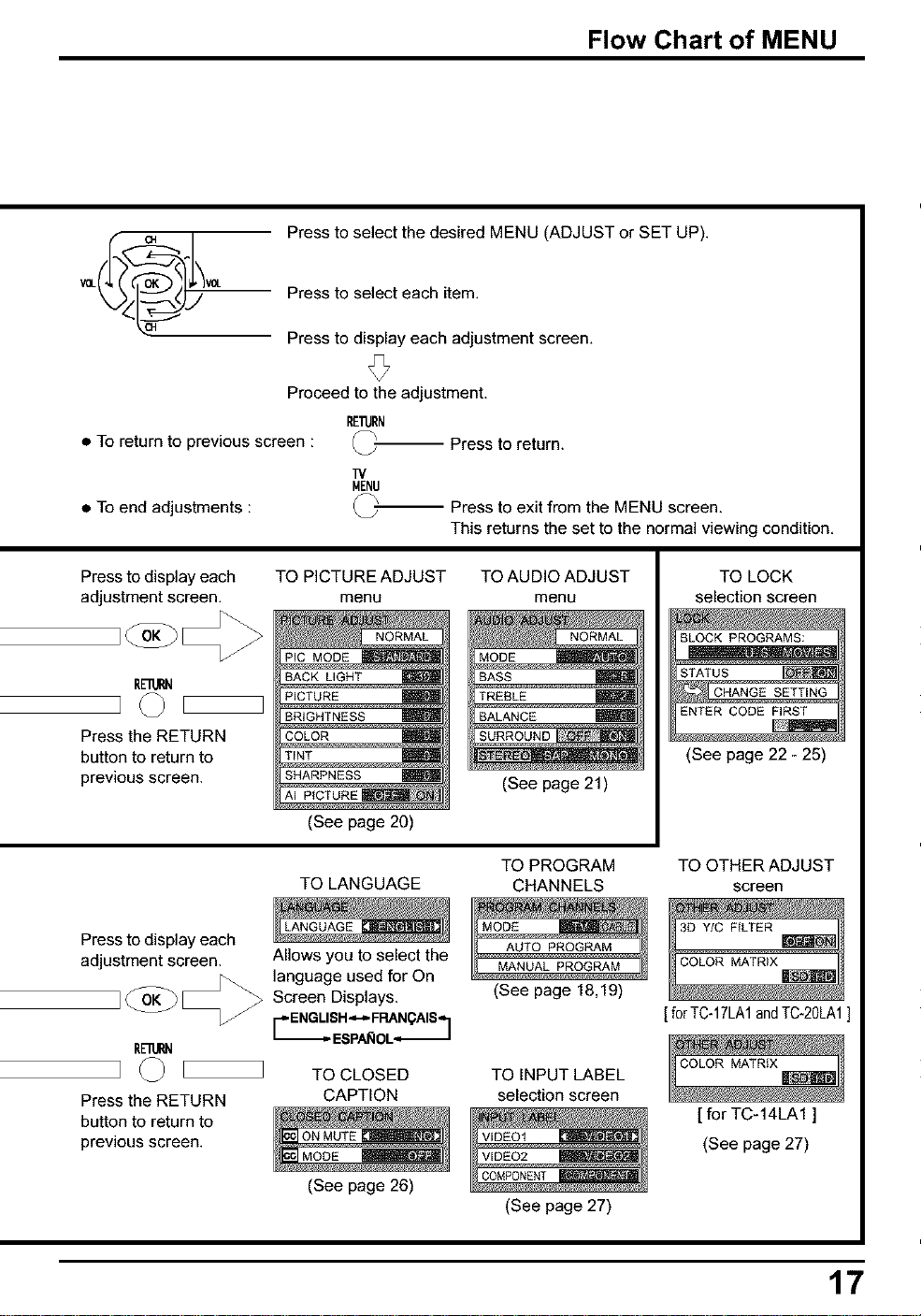
Press to select the desired MENU (ADJUST or SET UP).
Press to select each item.
Press to display each adjustment screen.
Proceed to the adjustment.
RE'ffJRN
• To return to previous screen : Press to return.
• To end adjustments :
TV
MENU
_-- Press to exit from the MENU screen.
This returns the set to the normal viewing condition.
Press to display each
adjustment screen.
Rnlll_l
Press the RETURN
button to return to
previous screen.
TO PICTURE ADJUST TO AUDIO ADJUST
menu menu
NORMAL
Pie MODE
BACK LIGHT
PICTURE
BRIGHTNESS .m
COLOR m
TiNT
SHARPNESS
AI PICTURE
(See page 20)
(See page 21)
TO LANGUAGE
TO PROGRAM
CHANNELS
TO LOCK
selection screen
(See page 22 - 25)
TO OTHER ADJUST
screen
Press to display each
adjustment screen. Allows you to select the
@ _ language used for On
Screen Displays.
] E_ ENGLISH.,H. FRANQAIS. 7
=-ESPAI_IOL.t-
RElUP,N
]
TO CLOSED
Press the RETURN CAPTION
button to return to
previous screen.
(See page 26)
(See page 18,19)
[for TC-17LA1andTC-20LA1]
TO INPUT LABEL
selection screen
[ for TC-14LA1 ]
(See page 27)
(See page 27)
17
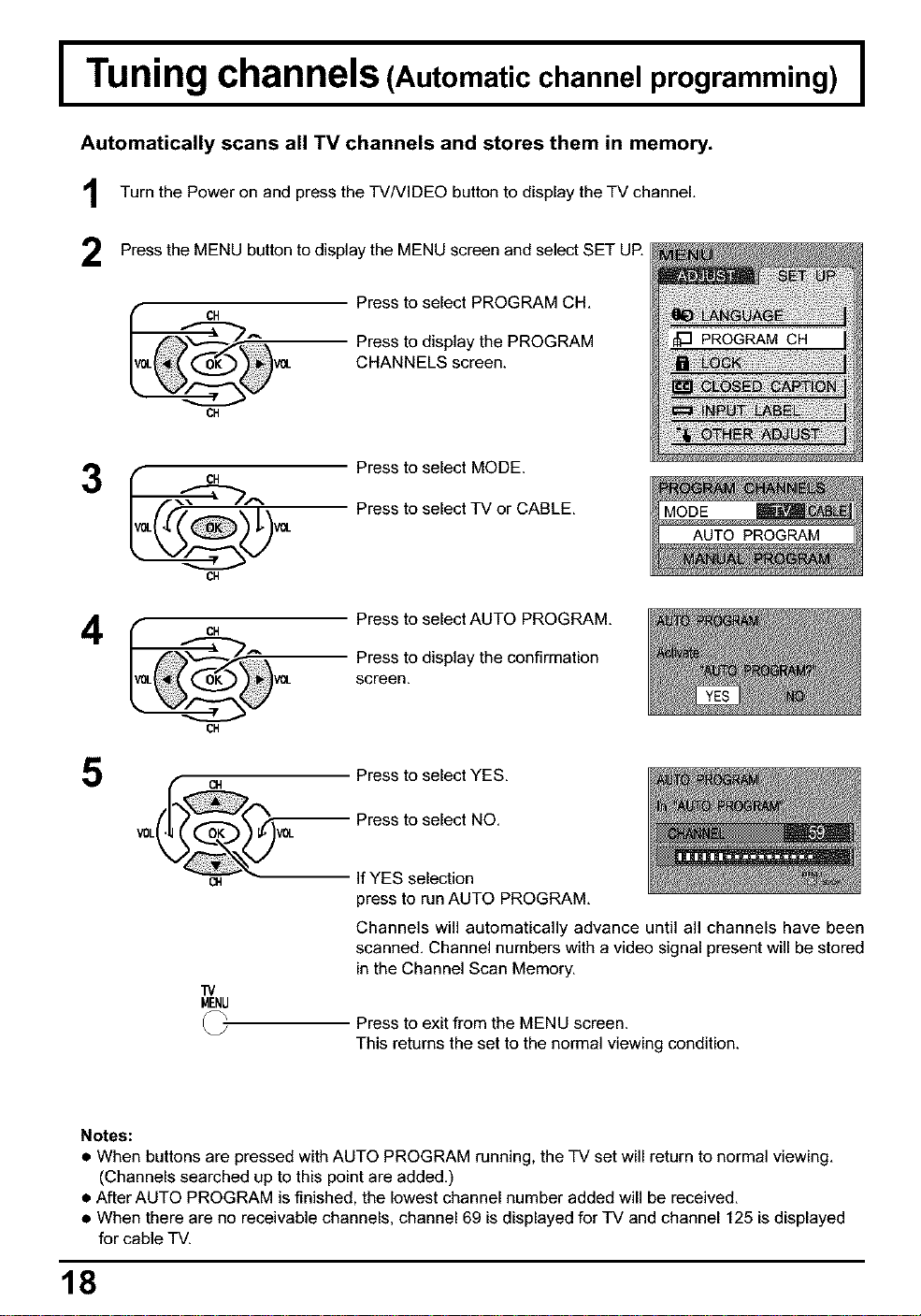
I Tuning channels (Automatic channel programming) I
Automatically scans all TV channels and stores them in memory.
Turn the Power and the TVNIDEO button to the TV channel,
on
press display
Press the MENU button to display the MENU screen and select SET UE
Press to select PROGRAM CH,
CH
Press to display the PROGRAM
CHANNELS screen.
CH
3
4
CH
CH
Press to select MODE.
Press to select TV or CABLE.
CH
Press to select AUTO PROGRAM,
Press to display the confirmation
screen.
CH
Press to select YES.
Press to select NO.
V0L VOL
m If YES selection
press to run AUTO PROGRAM.
TV
MENU
Channels will automatically advance until all channels have been
scanned. Channel numbers with a video signal present will be stored
in the Channel Scan Memory.
Press to exit from the MENU screen.
This returns the set to the normal viewing condition.
Notes:
• When buttons are pressed with AUTO PROGRAM running, the TV set will return to normal viewing.
(Channels searched up to this point are added.)
• After AUTO PROGRAM is finished, the lowest channel number added will be received.
• When there are no receivable channels, channel 69 is displayed for TV and channel 125 is displayed
for cable TV.
18
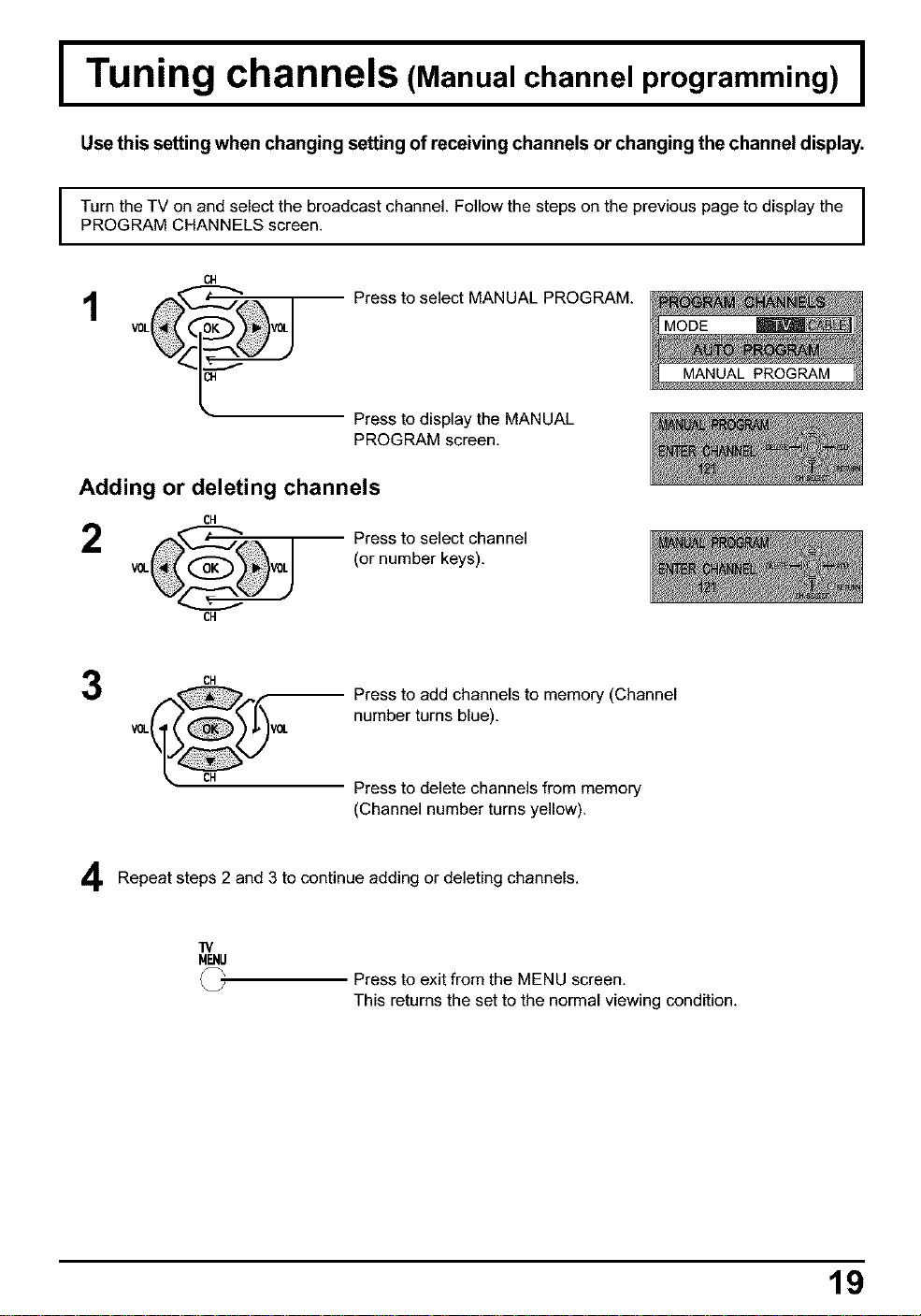
I Tuning channels (Manual channel programming) I
Use this setting when changing setting of receiving channels or changing the channel display.
I
Turn the TV on and select the broadcast channel. Follow the steps on the previous page to display the
PROGRAM CHANNELS screen.
CN
Press to select MANUAL PROGRAM.
Press to display the MANUAL
PROGRAM screen.
Adding or deleting channels
CH
CH
Press to select channel
(or number keys),
CH
Press to add channels to memory (Channel
number turns blue),
Press to delete channels from memory
(Channel number turns yellow).
Repeat steps 2 and 3 to continue adding or deleting channels,
]V
MENU
Press to exit from the MENU screen,
This returns the set to the normal viewing condition.
19
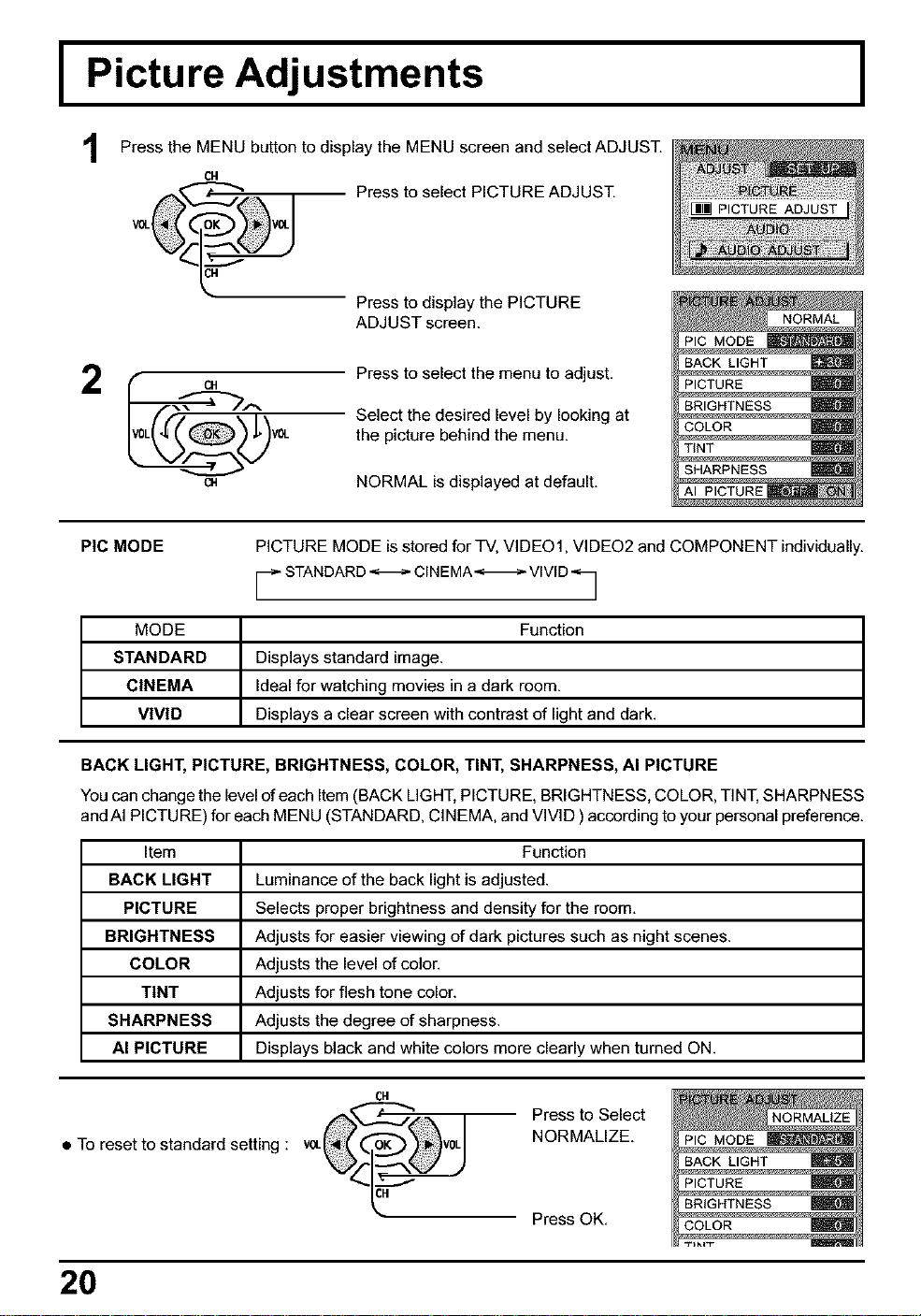
I Picture Adjustments
1
Press the MENU button to display the MENU screen and select ADJUST.
CH
Press to select PICTURE ADJUST.
Press to display the PICTURE
ADJUST screen.
¢.N
Press to select the menu to adjust.
Select the desired level by looking at
the picture behind the menu.
NORMAL is displayed at default.
NORMAL
PIC MODE
BACK LIGHT
PICTURE
BRIGHTNESS
COLOR
TINT
SHARPNESS
AI PICTURE
I
PIC MODE
PICTURE MODE is stored for TV, VIDEO1, VIDEO2 and COMPONENT individually.
F STANDARD<-I_- C,NEMA-_-I_ V,VID"_
MODE Function
STANDARD Displays standard image.
CINEMA Ideal for watching movies in a dark room.
VIVID Displays a clear screen with contrast of light and dark.
BACK LIGHT, PICTURE, BRIGHTNESS, COLOR, TINT, SHARPNESS, AI PICTURE
You can change the level of each Item (BACK LIGHT, PICTURE, BRIGHTNESS, COLOR, TINT, SHARPNESS
and AI PICTU RE) for each MENU (STANDARD, CINEMA, and VIVID ) according to your personal preference.
Item Function
BACK LIGHT Luminance of the back light is adjusted.
PICTURE Selects proper brightness and density for the room.
BRIGHTNESS Adjusts for easier viewing of dark pictures such as night scenes.
COLOR Adjusts the level of color.
TINT Adjusts for flesh tone color.
SHARPNESS Adjusts the degree of sharpness.
AI PICTURE Displays black and white colors more clearly when turned ON.
CH
o J
$ To reset to standard setting :
Press to Select
NORMALIZE.
Press OK.
20
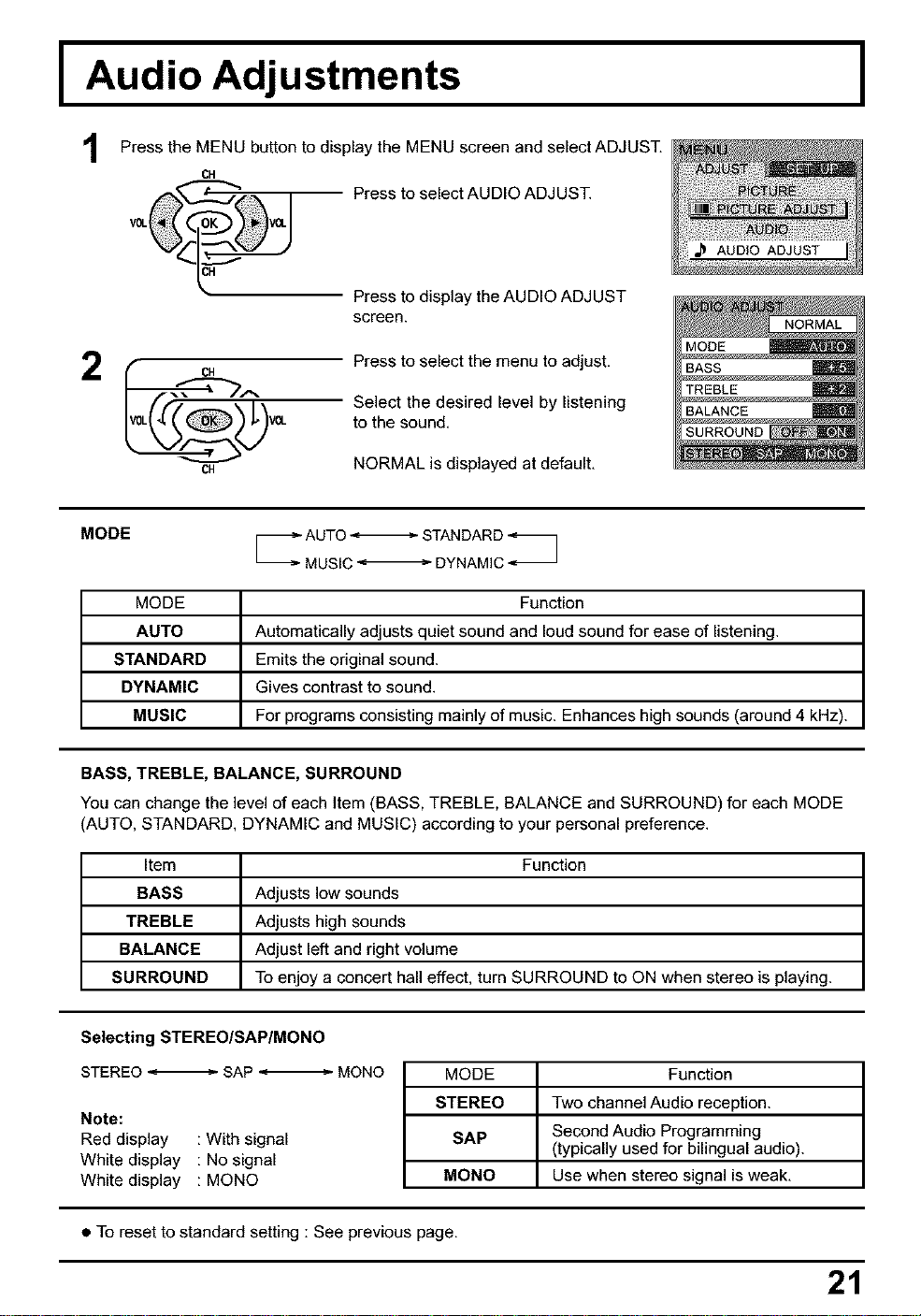
I Audio Adjustments
1
Press the MENU button to display the MENU screen and select ADJUST.
Press to select AUDIO ADJUST.
Press to display the AUDIO ADJUST
screen.
CH
Press to select the menu to adjust.
Select the desired level by listening
to the sound.
NORMAL is displayed at default.
I
MODE _ AUTO _ STANDARD
MUSIC_ DYNAMIC
MODE Function
AUTO Automatically adjusts quiet sound and loud sound for ease of listening.
STANDARD Emits the original sound.
DYNAMIC Gives contrast to sound.
MUSIC For programs consisting mainly of music. Enhances high sounds (around 4 kHz).
BASS, TREBLE, BALANCE, SURROUND
You can change the level of each Item (BASS, TREBLE, BALANCE and SURROUND) for each MODE
(AUTO, STANDARD, DYNAMIC and MUSIC) according to your personal preference.
Item Function
BASS Adjusts low sounds
TREBLE Adjusts high sounds
BALANCE Adjust left and right volume
SURROUND To enjoy a concert hall effect, turn SURROUND to ON when stereo is playing.
Selecting STEREO/SAP/MONO
STEREO _ SAP _ MONO
Note:
Red display : With signal
White display : No signal
White display : MONO
MODE Function
STEREO Two channel Audio reception.
SAP Second Audio Programming
(typically used for bilingual audio).
MONO Use when stereo signal is weak.
$ To reset to standard setting :See previous page,
21
I
Lock Feature
I
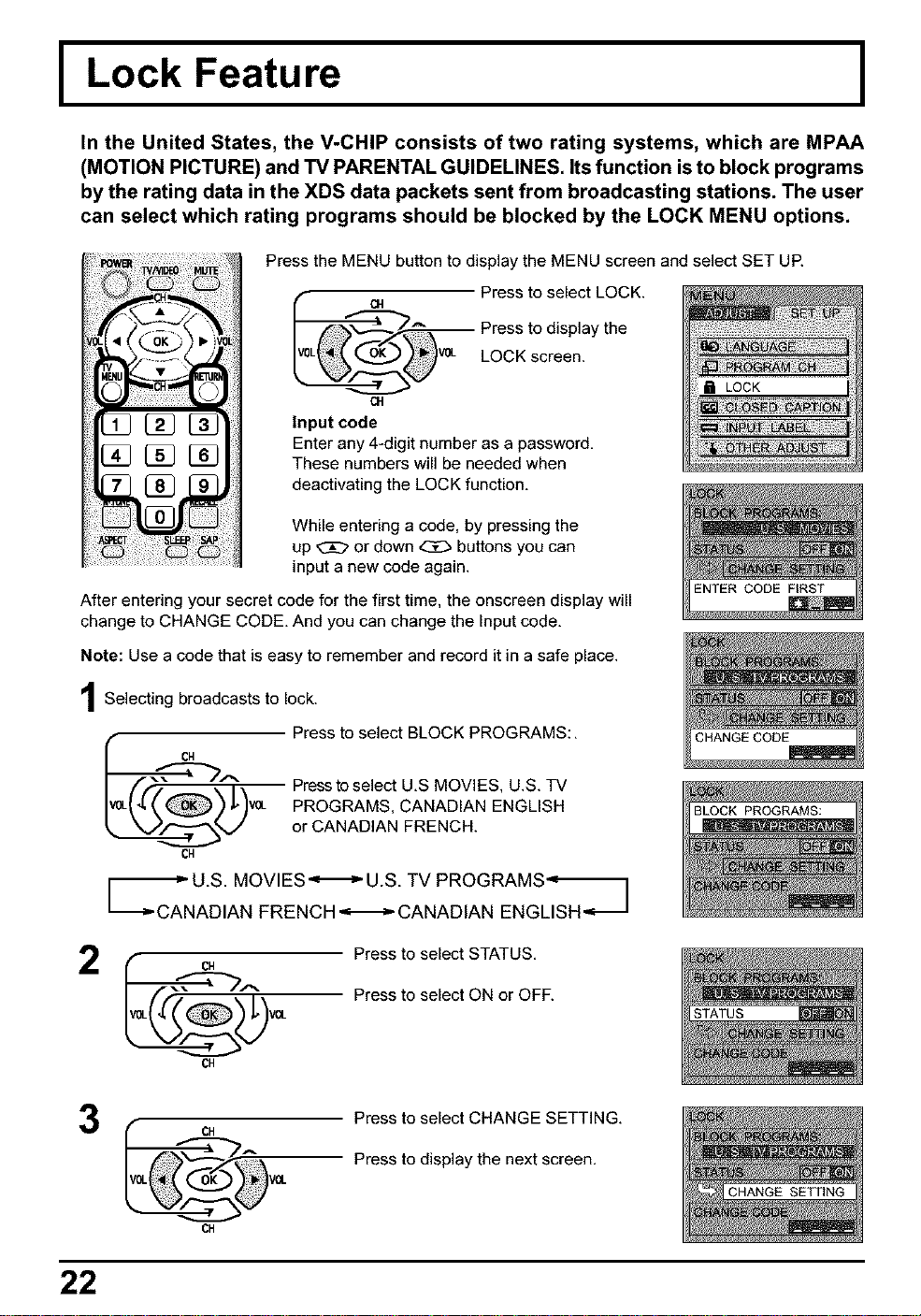
In the United States, the V-CHIP consists of two rating systems, which are MPAA
(MOTION PICTURE) and TV PARENTAL GUIDELINES. Its function is to block programs
by the rating data in the XDS data packets sent from broadcasting stations. The user
can select which rating programs should be blocked by the LOCK MENU options.
Press the MENU button to display the MENU screen and select SET UR
04 Press to select LOCK.
Press to display the
V0L LOCK screen.
c4
Input code
Enter any 4-digit number as a password.
These numbers will be needed when
deactivating the LOCK function.
While entering a code, by pressing the
up _ or down _ buttons you can
input a new code again.
After entering your secret code for the first time, the onscreen display will
change to CHANGE CODE. And you can change the Input code.
Note: Use a code that is easy to remember and record it in a safe place.
Selecting broadcasts to lock.
Press to select BLOCK PROGRAMS:.
CH
f ..'_'@---"_A
V0L(4f(_) j,)Ve- Press to select U.S MOVIES. U.S. TV
PROGRAMS, CANADIAN ENGLISH
V_/""_V or CANADIAN FRENCH.
CH
_--_cANU.S. MOVIES",_ U.S. TV PROGRAMS_
ADIAN FRENCH _ CANADIAN ENGLISH
CH
Press to select STATUS.
Press to select ON or OFF.
STATUS
3
CH
Press to select CHANGE SETTING.
Press to display the next screen.
CH
22
Lock Feature
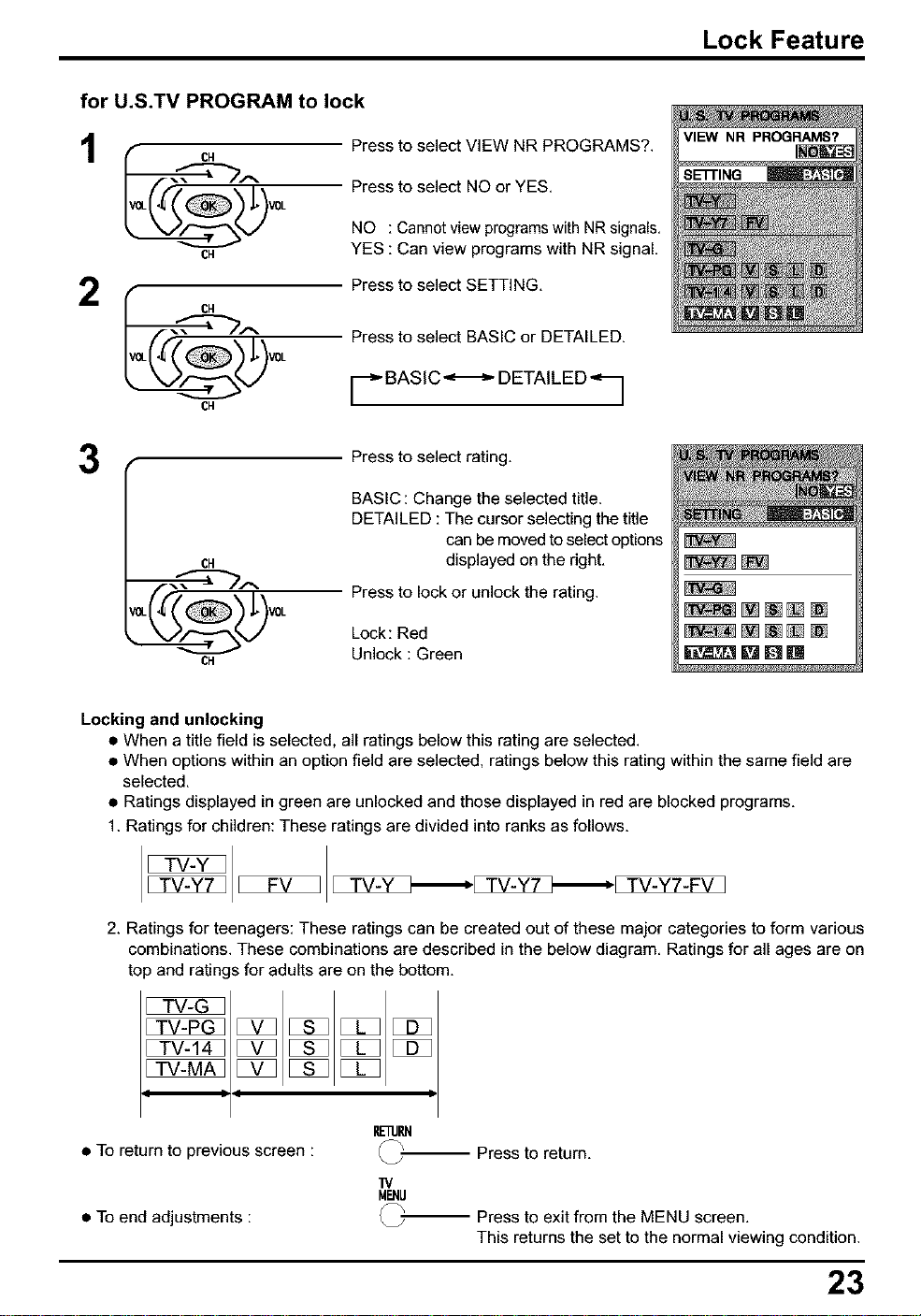
for U.S.TV PROGRAM to lock
1
2
CH
CH
CH
CH
Press to select VIEW NR PROGRAMS?.
Press to select NO or YES,
NO : Cannot view programs with NR signals,
YES : Can view programs with NR signal,
Press to select SETTING,
Press to select BASIC or DETAILED.
['--_ BASIC "_ DETAIL ED '_ ]
3
O1
CH
Press to select rating.
BASIC: Change the selected title.
DETAILED : The cursor selecting the title
can be moved to select options
displayed on the right,
Press to lock or unlock the rating.
Lock: Red
Unlock : Green
_[][]@[]
_[]Dn
Locking and unlocking
$ When a title field is selected, all ratings below this rating are selected.
$ When options within an option field are selected, ratings below this rating within the same field are
selected.
$ Ratings displayed in green are unlocked and those displayed in red are blocked programs.
1. Ratings for children: These ratings are divided into ranks as follows.
FV TV-Y ],_=,[]!_A_7_,_[ TV-Y7-FV ]
2. Ratings for teenagers: These ratings can be created out of these major categories to form various
combinations. These combinations are described in the below diagram, Ratings for all ages are on
top and ratin s for adults are on the bottom,
C Z3
! !
$ To return to previous screen :
$ To end adjustments :
IEq]Jl_l
_-- Press to return,
MENU
_-- Press to exit from the MENU screen,
This returns the set to the normal viewing condition.
23
Lock Feature
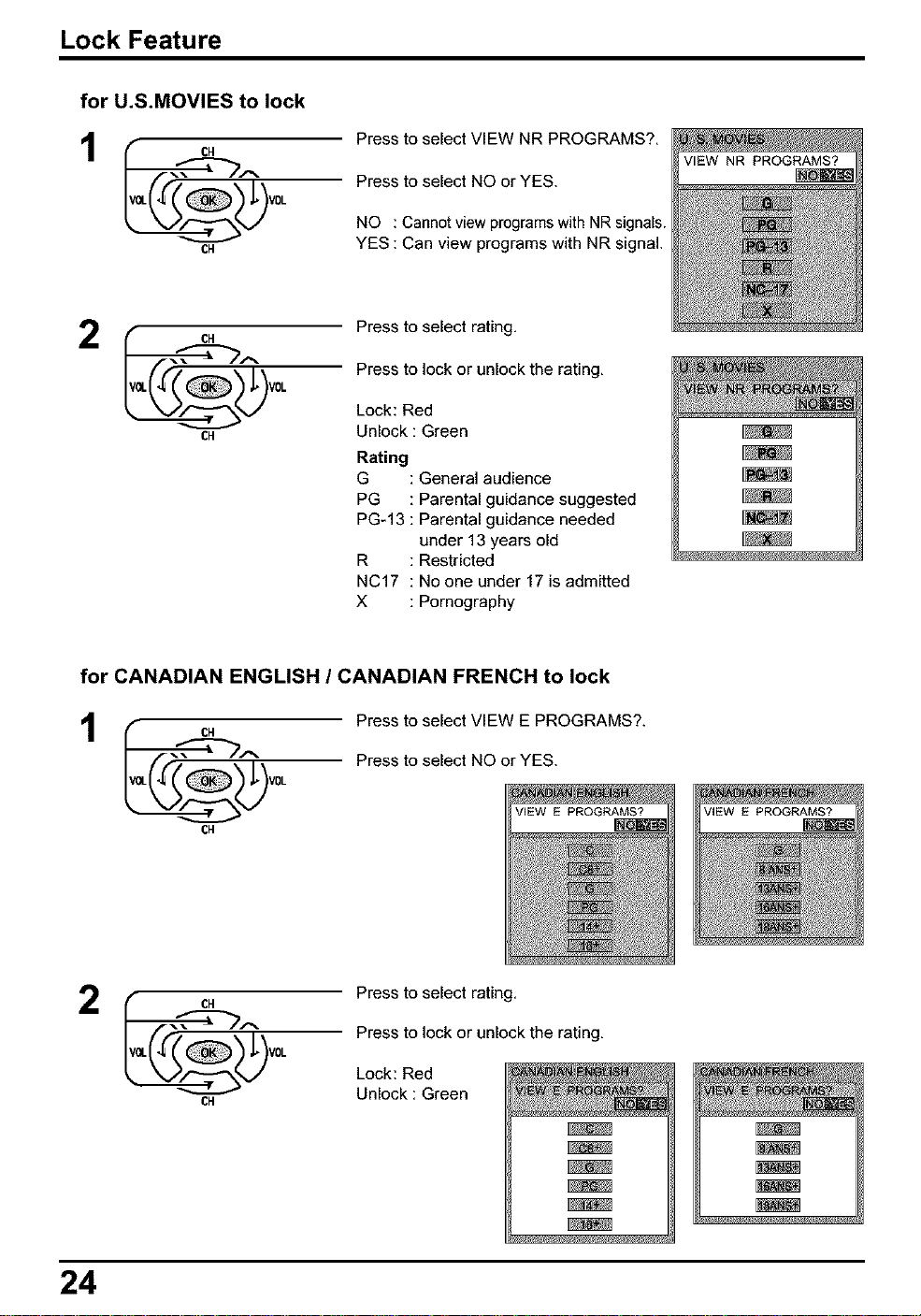
for U.S.MOVIES to lock
CH
CH
Press to select VIEW NR PROGRAMS?,
Press to select NO or YES.
NO : Cannot view programs with NR signals.
YES : Can view programs with NR signal.
2 Cl1
CH
Press to select rating,
Press to lock or unlock the rating,
Lock: Red
Unlock :Green
Rating
G
PG
PG-13
R
NC17
X
: General audience
: Parental guidance suggested
: Parental guidance needed
under 13 years old
: Restricted
: No one under 17 is admitted
: Pornography
for CANADIAN ENGLISH / CANADIAN FRENCH to lock
1
CH
CH
Press to select VIEW E PROGRAMS?.
Press to select NO or YES.
2 Cl1
CH
Press to select rating,
Press to lock or unlock the rating,
Lock: Red
Unlock :Green
24

Lock Feature
CANADIAN ENGLISH RATINGS CHART
Exempt - Exempt programming includes: news, sports, documentaries and other information
programming, talkshows, music videos, and vadety programming.
Programming intended for children under age 8. No offensive language, nudity or sexual
content.
Programming generally considered acceptable for children 8 years and over. No profanity,
nudity or sexual content.
General programming, suitable for all audiences.
Parental Guidance suggested. Some material may not be suitable for children.
Programming contains themes or content which may not be suitable for viewers under
the age of 14. Parents are strongly cautioned to exercise discretion in permitting viewing
by pre-teens and early teens.
General programming, suitable for all audiences.
:ANADIAN FRENCH RATINGS CHART
Exempt - Exempt programming.
General - Programming intended for audience of all ages. Contains no violence, or
the violence content is minimal or is depicted appropriately.
8+ General - Not recommended for young children. Programming intended for a broad
audience but contains light or occasional violence. Adult supervision recommended.
Programming may not be suitable for children under the age of 13 - Contains either a
few violent scenes or one or more sufficiently violent scenes to affect them. Adult
supervisionstrongly suggested.
Programming may not be suitable for children under the age of 16 - Contains frequent
scenes of violence or intense violence.
18+ arts Programming restricted to adults. Contains constant violence or scenes of
extreme violence.
• To return to previous screen :
• To end adjustments :
P,E'ilJP,N
Press to return,
1!/
MENU
_-- Press to exit from the MENU screen.
This returns the set to the normal viewing condition.
25
I Closed Captions I
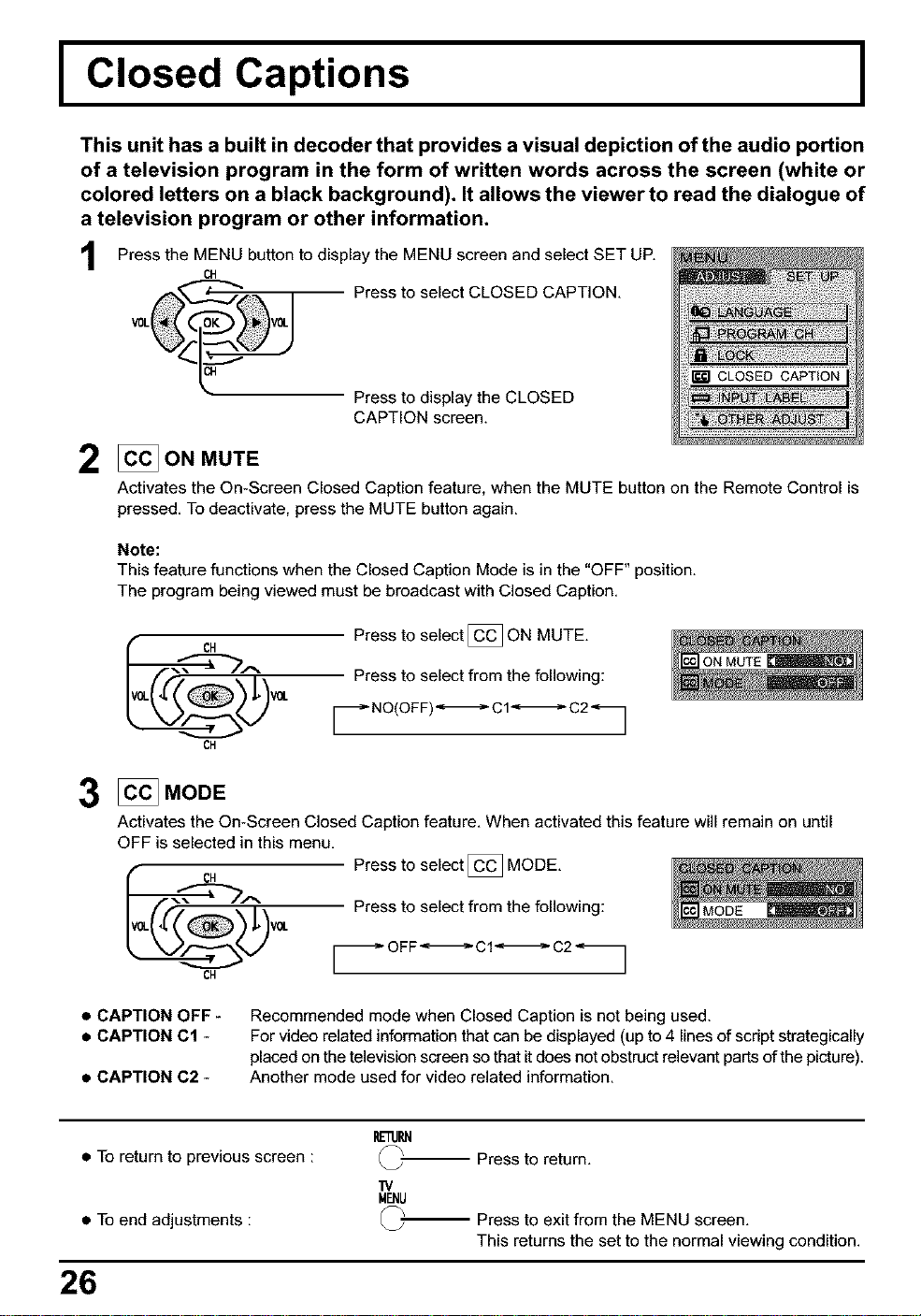
This unit has a built in decoder that provides a visual depiction of the audio portion
of a television program in the form of written words across the screen (white or
colored letters on a black background). It allows the viewer to read the dialogue of
a television program or other information.
1
Press the MENU button to display the MENU screen and select SET UP.
ca
V0L1%_""-7_/___ Press to select CLOSED CAPTION.
Press to display the CLOSED
CAPTION screen.
2 ON MUTE
Activates the On-Screen Closed Caption feature, when the MUTE button on the Remote Control is
pressed. To deactivate, press the MUTE button again.
Note:
This feature functions when the Closed Caption Mode is in the "OFF" position.
The program being viewed must be broadcast with Closed Caption.
ca
ca
Press to select [_ ON MUTE.
Press to select from the following:
_,- NO(OFF)*_. C1"_. C2 -_
_ MODE
Activates the On-Screen Closed Caption feature. When activated this feature will remain on until
OFF is selected in this menu.
VCL
ca
Press to select [_ MODE.
Press to select from the following:
_ OFF'_-m_ C1"_-_ C2 _
$ CAPTION OFF -
$ CAPTION C1 -
$ CAPTION C2 -
Recommended mode when Closed Caption is not being used.
For video related information that can be displayed (up to 4 lines of script strategically
placed on the television screen so that it does net obstruct relevant parts of the picture).
Another mode used for video related information.
$ To return to previous screen :
$ To end adjustments :
26
IE'I1JRN
Press to return.
33/
MENU
_-- Press to exit from the MENU screen,
This returns the set to the normal viewing condition.
I Customizing the VIDEO INPUT labels I
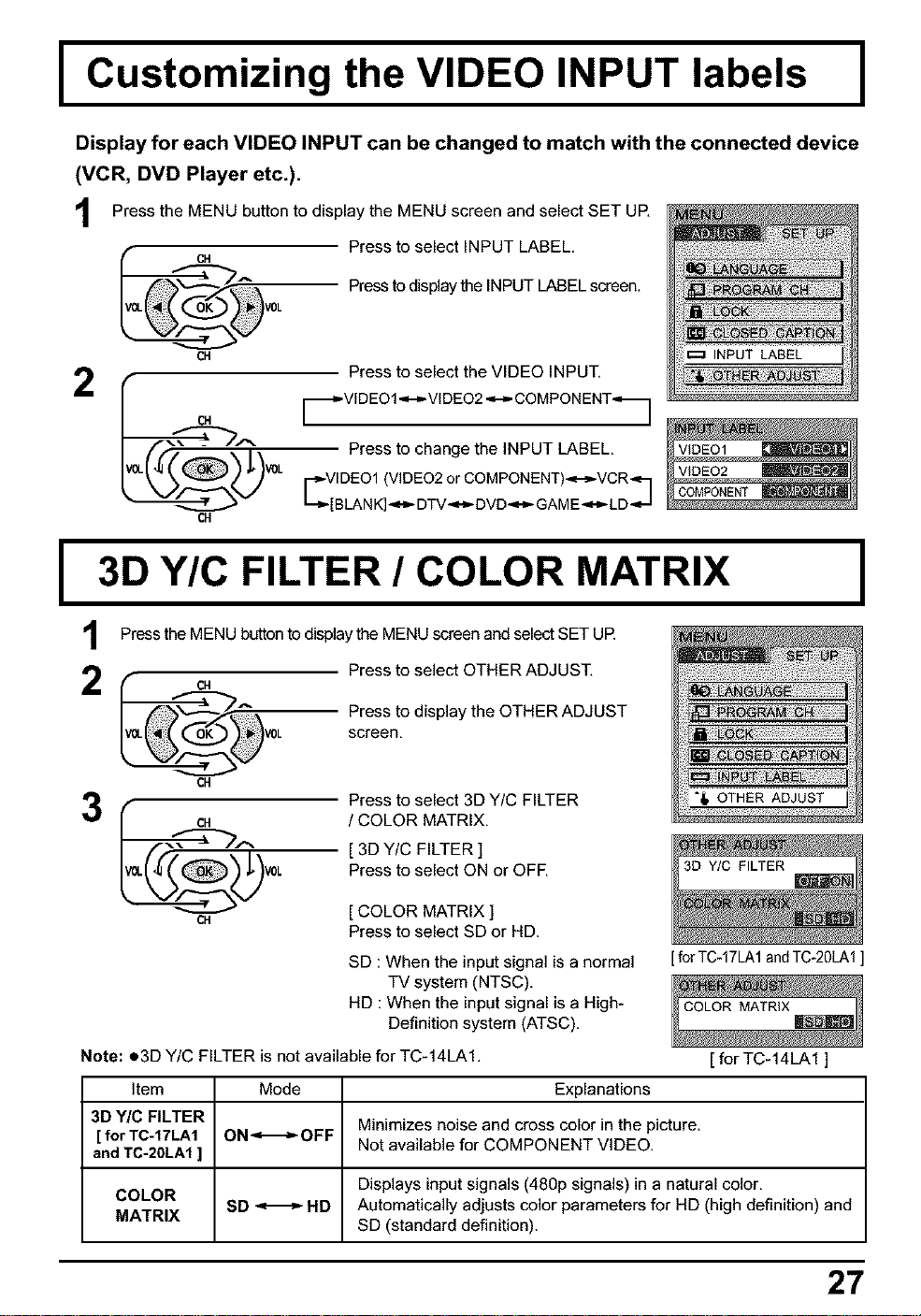
Display for each VIDEO INPUT can be changed to match with the connected device
(VCR, DVD Player etc.).
Press the MENU button to display the MENU screen and select SET UR
VGL _ VOL
CH
CH
Press to select INPUT LABEL,
Press to display the INPUT LABEL screen,
Press to select the VIDEO INPUT,
_..VIDEO1 .,L,-_VIDEO2 .,=-m.COMPON ENT<._
Press to change the INPUT LABEL,
F-_VIDEO1 (VIDEO2 or COMPONENT)_-,_-VCR_-]
I--_[BLAN K],<_- DTV,<-_ DVD,<-_ GAM E,<_-LD <-a
I 3D Y/C FILTER / COLOR MATRIX I
Press the MENU button to display the MENU screen and select SET UR
2 _M_._--._A"
CH
3 c.
CH
Press to select OTHER ADJUST,
Press to display the OTHER ADJUST
screen,
Press to select 3D Y/C FILTER
/ COLOR MATRIX,
[ 3D Y/C FILTER ]
Press to select ON or OFF,
[ COLOR MATRIX ]
Press to select SD or HD.
SD : When the input signal is a normal
TV system (NTSC),
HD : When the input signal is a High-
Definition system (ATSC),
[for TC-17LA1andTC-20LA1]
Note: o3D Y/C FILTER is not available for TC-14LA1, [ for TC-14LA1 ]
Item Mode Explanations
3D Y/C FILTER Minimizes noise and cross color in the picture,
[ for TC.17LAI ON'_=_OFF Not available for COMPONENT VIDEO.
and TC-20LA1 ]
COLOR Displays input signals (480p signals) in a natural color,
SD _ HD Automatically adjusts color parameters for HD (high definition) and
MATRIX
SD (standard definition).
27
IASPECT Controls I
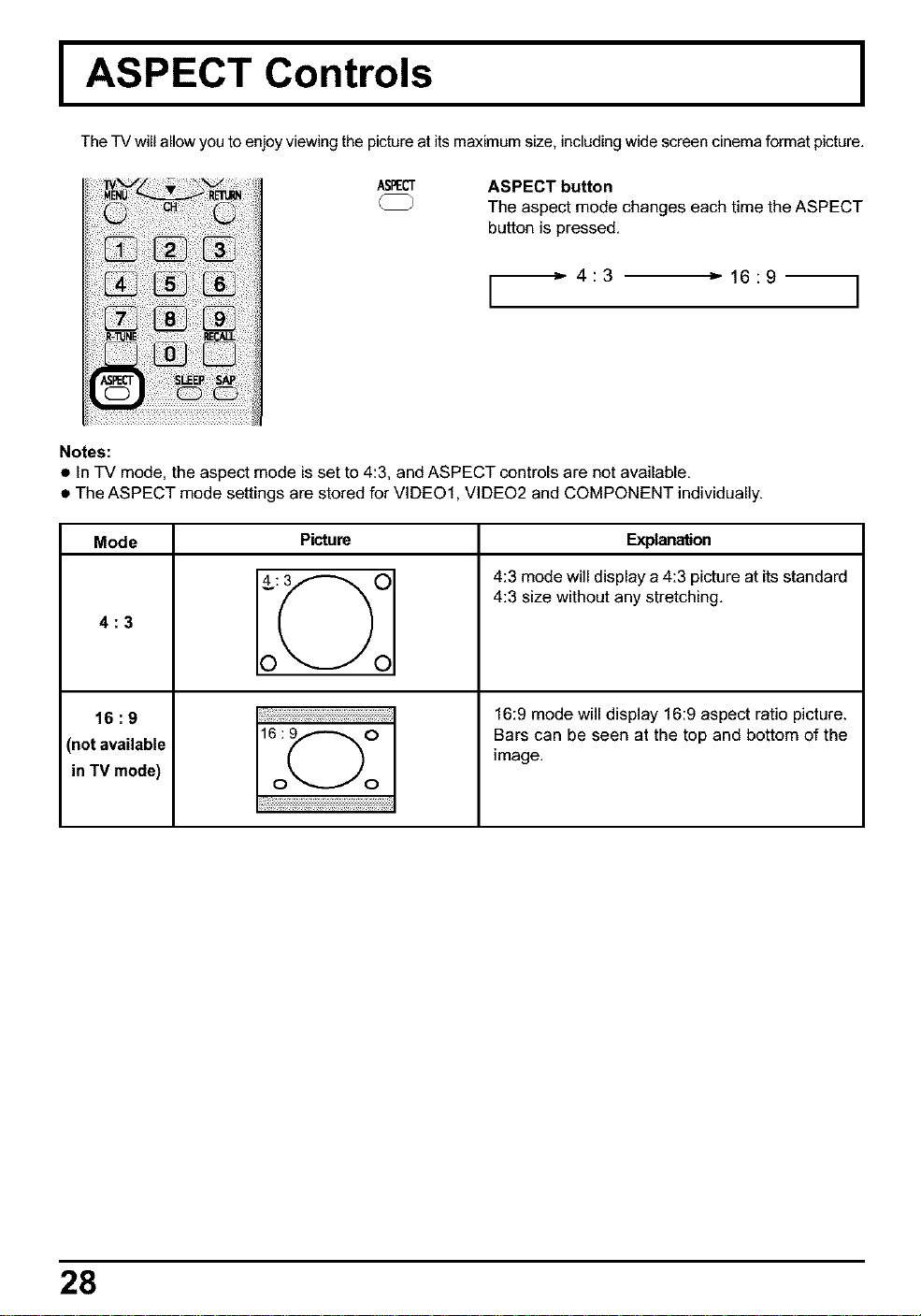
The TV will allow you to enjoy viewing the picture at its maximum size, including wide screen cinema format picture,
ASPECT ASPECT button
The aspect mode changes each time the ASPECT
button is pressed.
[_ 4:3 "_"16:9 I
Notes:
• in TV mode, the aspect mode is set to 4:3, and ASPECT controls are not available.
• The ASPECT mode settings are stored for VIDEO1, VIDEO2 and COMPONENT individually.
Mode
4:3
16:9
(not available
in TV mode)
Picture
4
i i):!!i!i i!i i!ii!i i!i i!i i!ii!i i!i i!i i! ¸
160_
i
Explanation
4:3 mode will display a 4:3 picture at its standard
4:3 size without any stretching,
16:9 mode will display 16:9 aspect ratio picture.
Bars can be seen at the top and bottom of the
image.
28
Manual de instrucciones [Resumen ]
Estimado cliente de Panasonic
Bienvenido a laJamilia de clientes de Panasonic.
Esperamos sinceramente que disfrute durante muchos a_os de su nuevo Esperamos
sinceramente que disJ?ute durante muchos a_os de su nuevo televisor LCD.
Para obtener el m{tximo beneficio de su aparato, lea estas instrucciones antes de hacer
cualquier ajuste, y gu{trdelas para poder utilizarlas como referencia en elJhturo.
Guarde tambibn el recibo de su compra, y anote el n_mero del modelo y el n{tmero de
serie de su aparato en el espacio provisto en la cubierta posterior de estas instrucciones.
I Preparacibn I
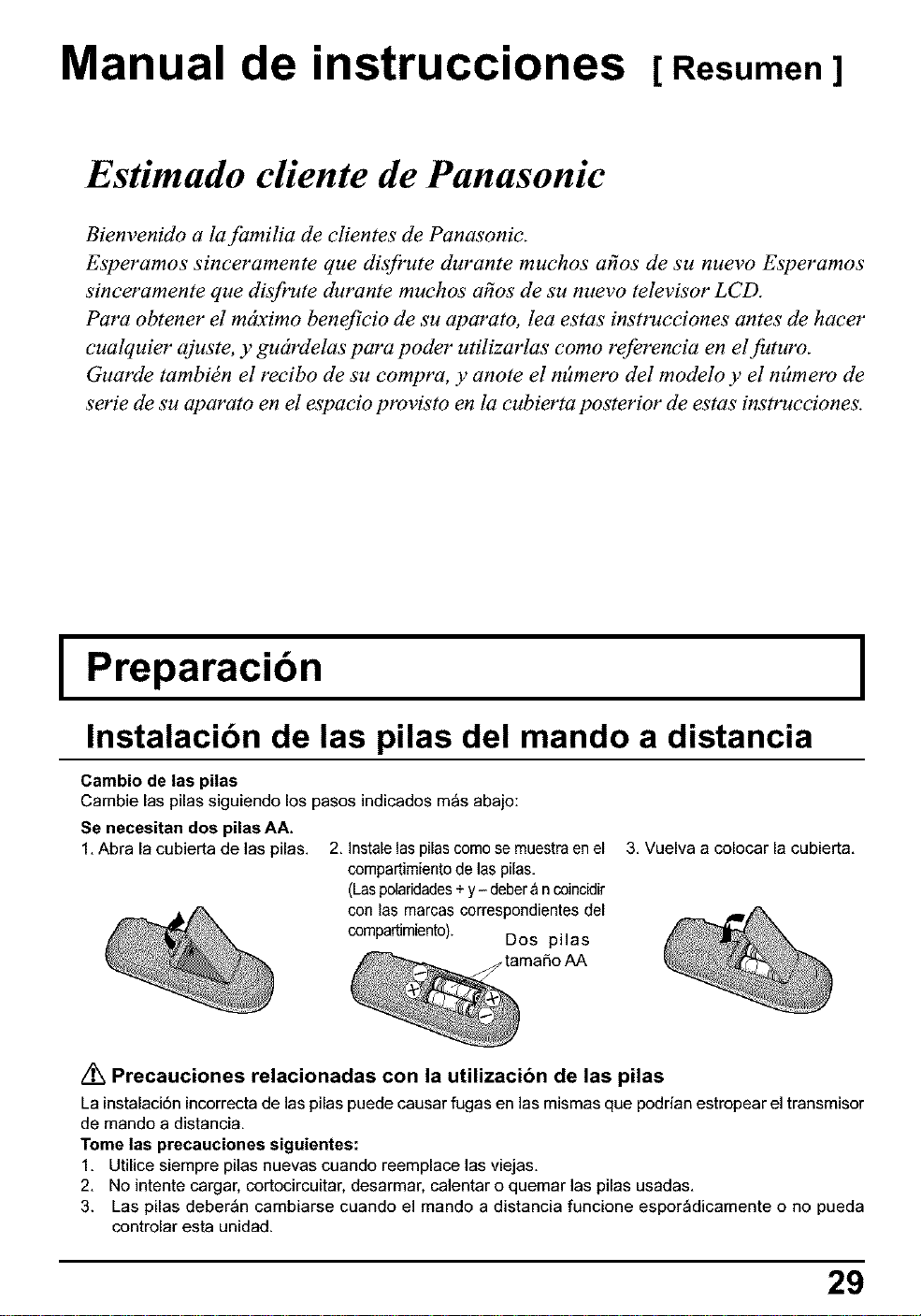
Instalacibn de las pilas del mando a distancia
Cambio de las pilas
Cambie [as pilas siguiendo los pasos
Se necesitan dos pilas AA.
1. Abra [a cubierta de las pilas.
indicados m_s abajo:
2. Insta[e laspi[as comose muestra en e[
compartimiento de las pi[as.
(Laspolaridades+y- deber& ncoincklir
con las marcas correspondientes del
compartimiento). Dos pilas
tfioAA
3. Vuelva a colocar la cubierta.
/_ Precauciones relacionadas con la utilizacibn de las pUas
La instalaci6n incorrecta de las pilas puede causar fugas en las mismas que podrian estropear el transmisor
de mando a distancia.
Tome las precauciones siguientes:
1. Utilice siempre pilas nuevas cuando reemplace las viejas.
2. No intente cargar, cortocircuitar, desarmar, calentar o quemar las pilas usadas.
3. Las pilas deber_n cambiarse cuando el mando a distancia funcione espor_dicamente o no pueda
controlar esta unidad.
29
Preparacibn
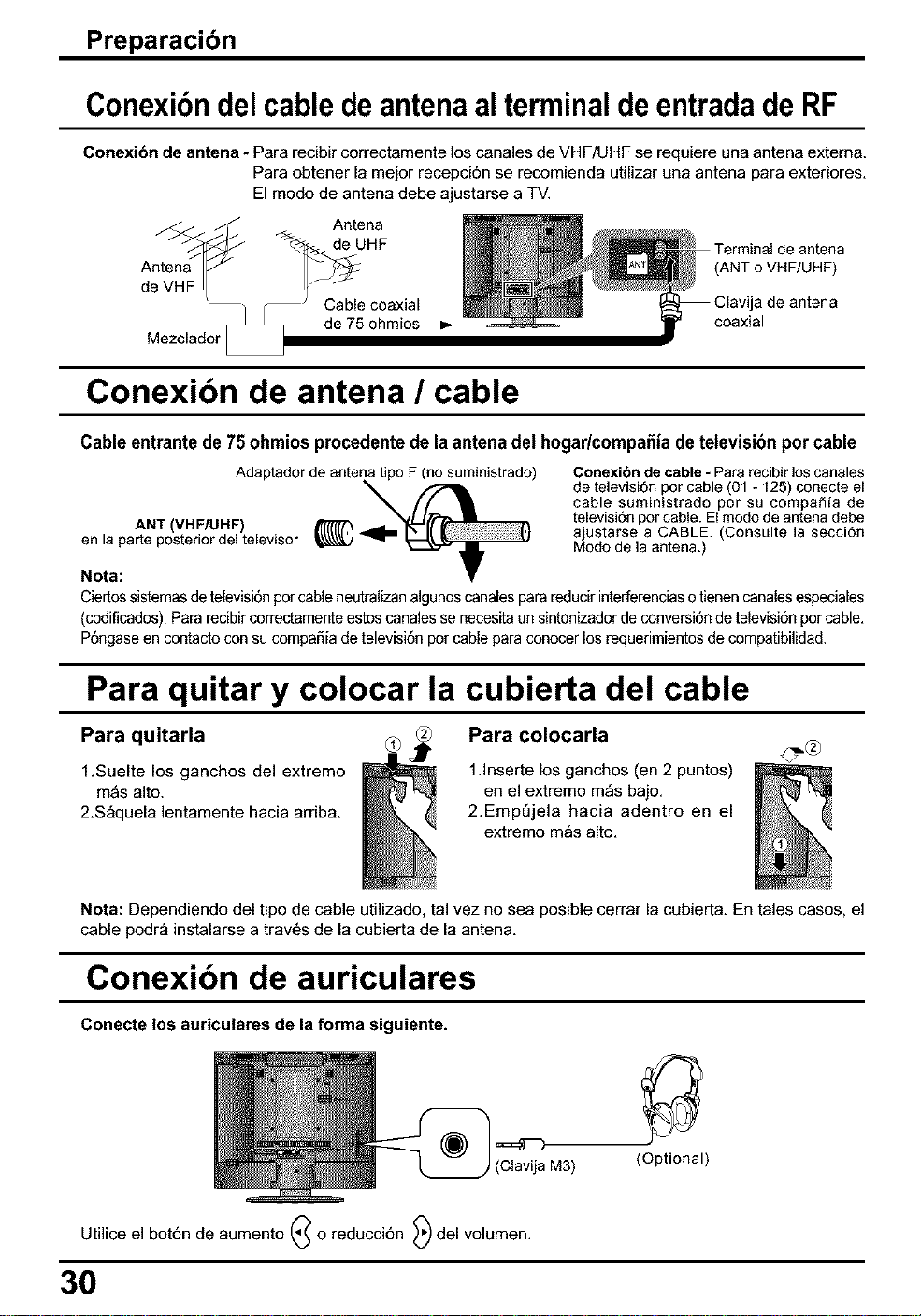
ConexibndelcabledeantenaalterminaldeentradadeRF
Conexibn de antena - Para recibir correctamente los canales de VHF/UHF se requiere una antena extema.
Para obtener la mejor recepci6n se recomienda utilizar una antena para exteriores,
El modo de antena debe ajustarse a TV.
Antena
de UHF
Conexibn de antena / cable
Cable entrante de 75 ohmios procedente de la antena del hogadcompaSia de televisibn por cable
Adaptador de antena tipo F (no suministrado)
ANT (VHF/UHF)
en la parte posterior del televisor
Nota:
Conexibn de cable - Para recibir los canales
de televisi6n por cable (01 - 125) conecte el
cable suministrado por su compaSia de
televisi6n por cable. El modo de antena debe
ajustarse a CABLE. (Consulte la secci6n
Modo de la antena,)
Ciertossistemasde televisi6nparcable neutralizanalgunoscanalesparareducirinterferenciaso tienencanalesespeciales
(codificados),Para recibircorrectamenteestos canalesse necesitaun sintonizadorde conversi6nde televisi6npercable,
P6ngaseen contacto con sucompaSiade televisi6npor cable paraconocer los requerimientosde compatibilidad.
Para quitar y colocar la cubierta del cable
Para colocarla
Para quitarla
1,Suelte los ganchos de] extremo
m_s alto.
2,S_quela lentamente hacia arriba,
®
1Jnserte los ganchos (en 2 puntos)
en el extremo m_s bajo,
2,EmpL_jela hacia adentro en el
extremo robs alto,
Nota: Dependiendo del tipo de cable utilizado, tal vez no sea posible cerrar la cubierta. En tales casos, el
cable podr_ instalarse a trav6s de la cubierta de la antena.
Conexibn de auriculares
Conecte los auriculares de la forma siguiente.
,===SZ_
(ClavijaM3)
(Optional)
Utilice el bot6n de aumento C o reducci6n _) del volumen.
30
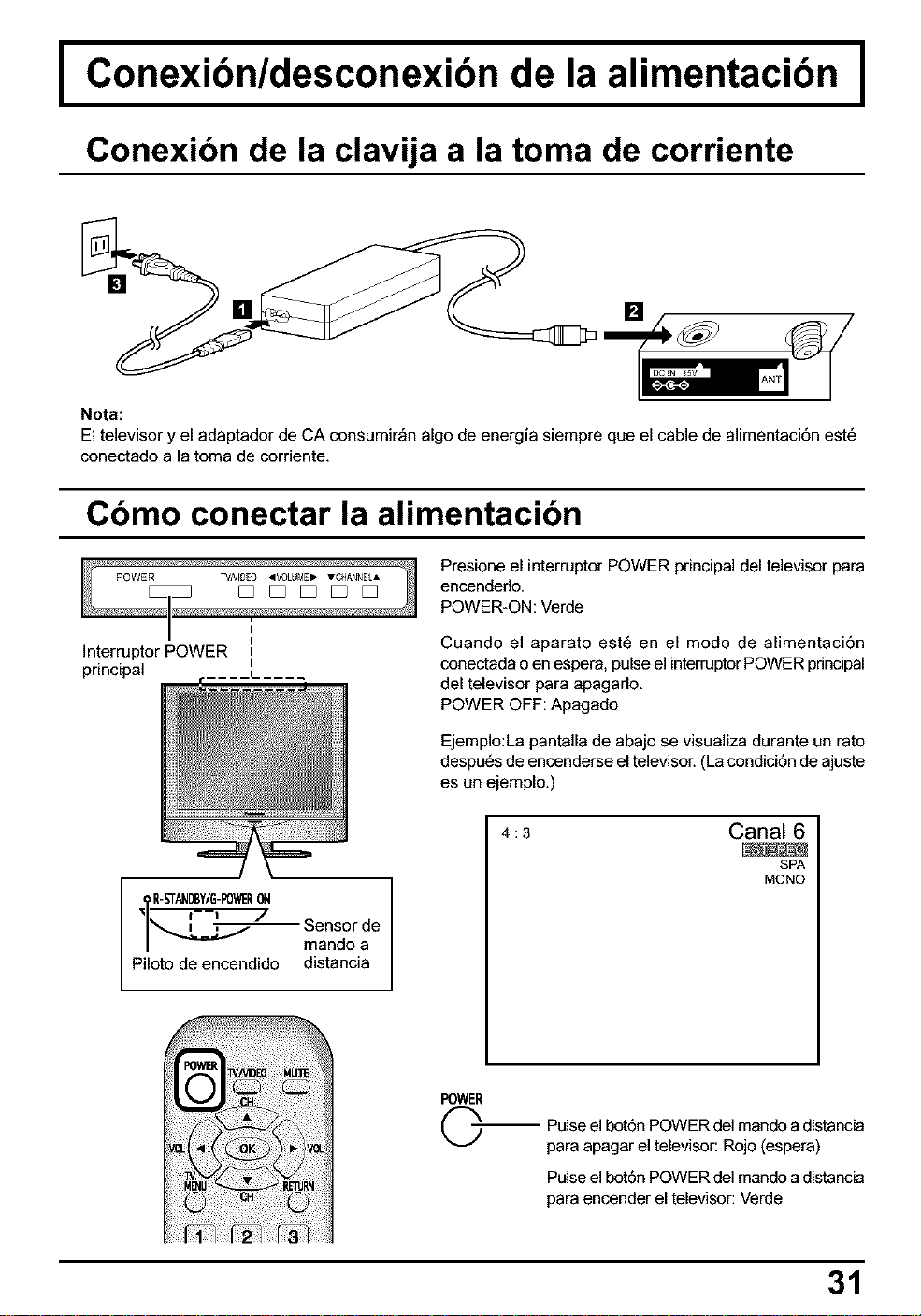
I Conexibnldesconexibn de la alimentacibn
Conexibn de la clavija a la toma de corriente
I
Nota:
El televisor y el adaptador de CA consumir_n algo de energia siempre que el cable de alimentaci6n est6
conectado a la toma de corriente.
Cbmo conectar la alimentacibn
I
I
]nterruptor POWER =
principal =.....
R-STANDBY/G-POWeRON
'_ _--_ / Sensor de
l_K'_'_-_ mando a
Piloto de encendido distancia
Presione el interruptor POWER principal del televisor para
encendedo,
POWER-ON: Verde
Cuando el aparato est6 en el modo de alimentaci6n
conectada o en espera, pulse el interruptor POWER principal
del televisor para apagarlo,
POWER OFF: Apagado
Ejemplo:La pantalla de abajo se visualiza durante un rato
despu6s de encenderse el televisor. (La condici6n de ajuste
es un ejemplo.)
4:3
Canal 6
SPA
MONO
FOWER
©
Pulse el bot6n POWER del mando a distancia
para apagar el televisor: Rojo (espera)
Pulse el bot6n POWER del mando a distancia
para encender el televisor: Verde
31
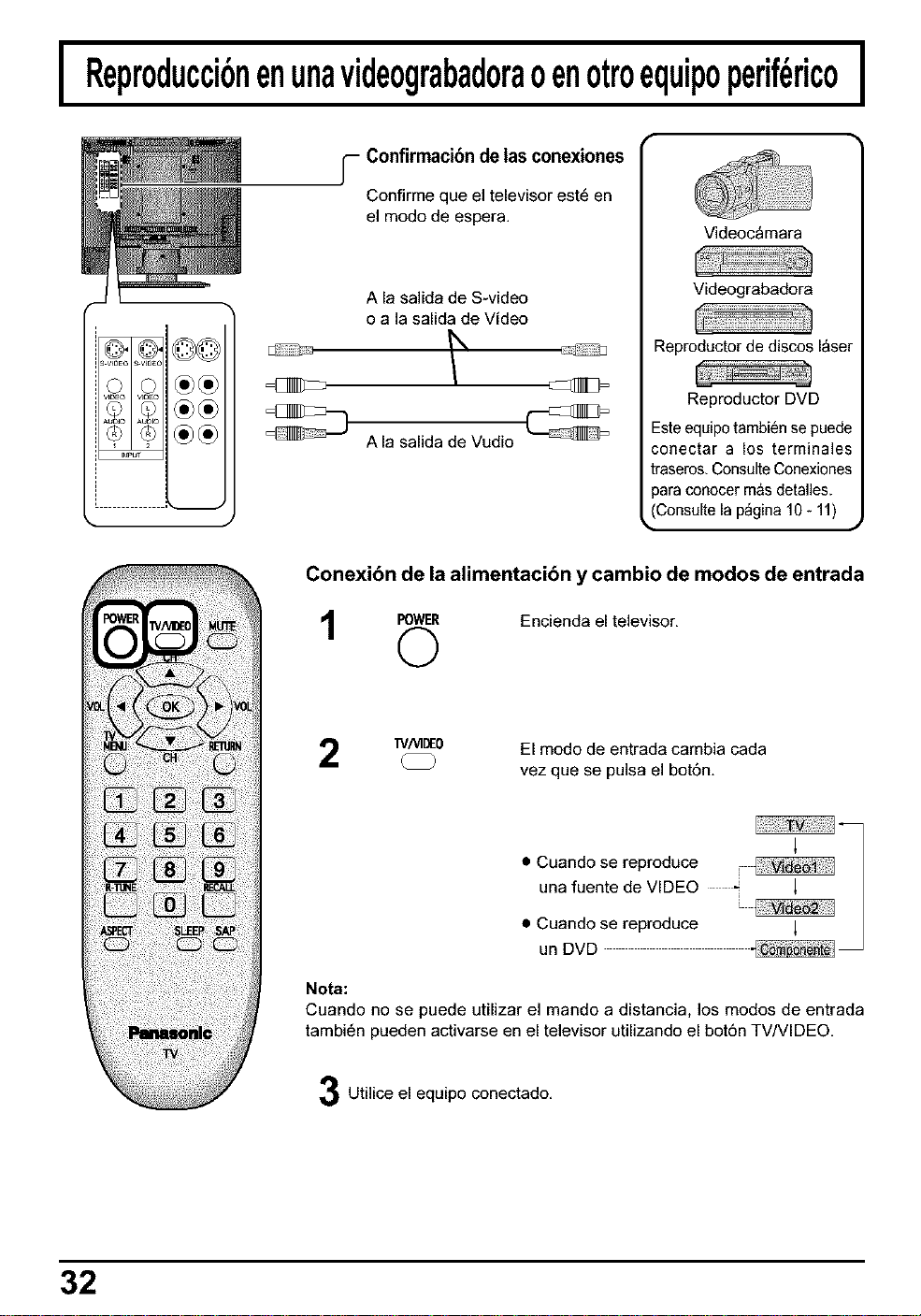
I Reproduccibnenunavideograbadoraoenotroequipoperif_ricoI
Confirmacibn de las conexiones
Confirme que el televisor est6 en
el modo de espera.
A la salida de S-video
o a la salida de Video
A la salida de Vudio
Videoc_mara
Videograbadora
:_eproductor de discos laser
Reproductor DVD
Este equipo tambien sepuede
conectar a los terminales
traseros,Consulte Conexiones
para conocer m&sdetalles.
(Consulte la p_gina 10 - 11)
J
Conexibn de la alimentacibn y cambio de modos de entrada
_,_ Encienda el televisor,
L)
W/VIDEO
El modo de entrada cambia cada
vez que se pulsa el bot6n,
• Cuando se reproduce r |
una fuente de VIDEO " |
/
• Cuando se reproduce l |
un DVD
Nota:
Cuando no se puede utilizar el mando a distancia, los modos de entrada
tambi6n pueden activarse en el televisor utilizando el bot6n TVNIDEO,
Utilice el equipo conectado,
32
I
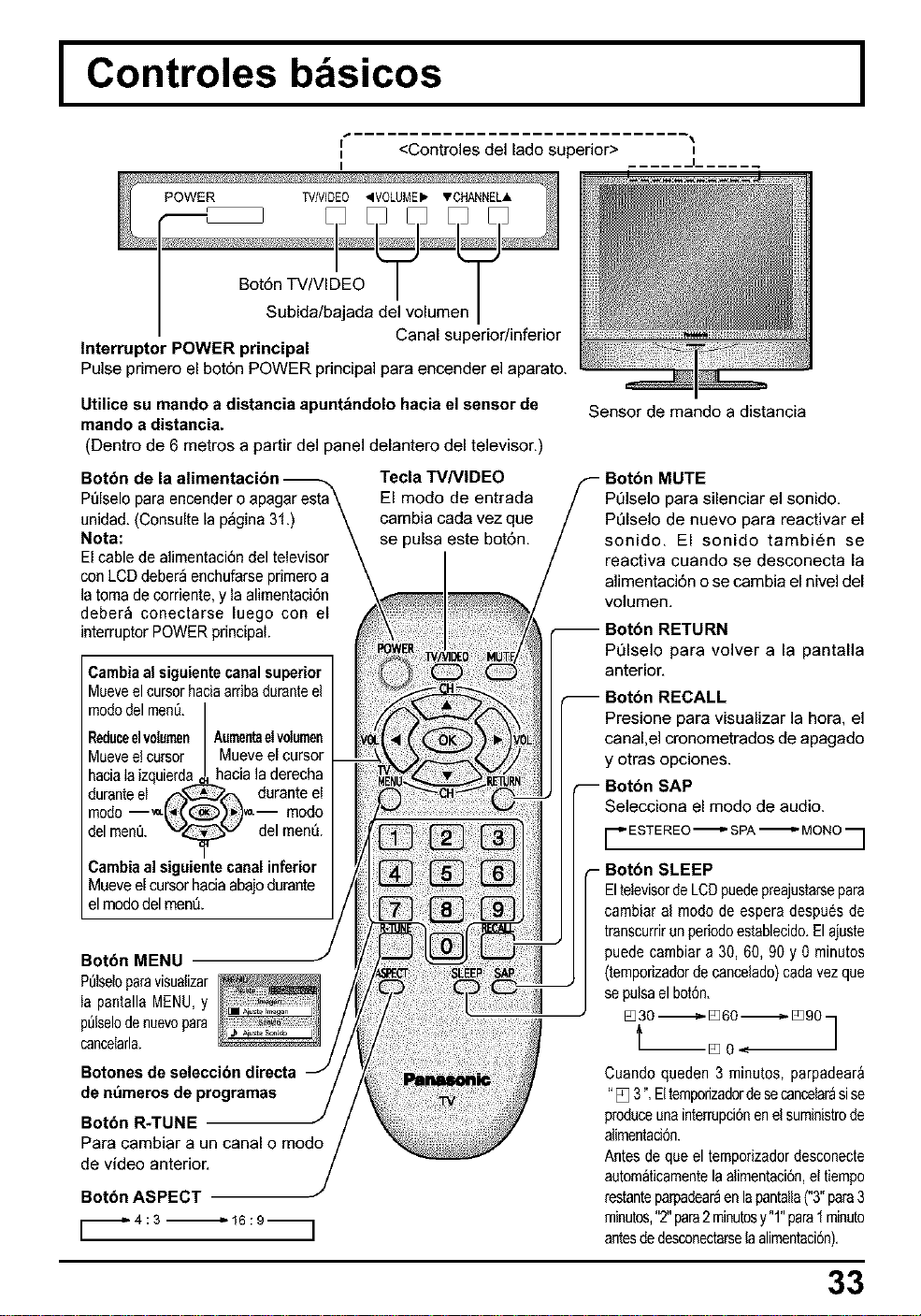
Controles bbsicos
<Controles del lado superior>
I
Bot6n TV/VIDEO
Subida/bajada del volumen
Canal superior/inferior
Interruptor POWER principal
Pulse primero el bot6n POWER principal para encender el aparato.
Utilice su mando a distancia apuntbndolo hacia el sensor de
mando a distancia.
(Dentro de 6 metros a partir del panel delantero del televisor,)
Tecla TVNIDEO
Pt_lselopara encender o a
unidad. (Consulte la p_gina 31.)
Nota:
El cable de alimentaci6n del televisor
conLCD deber_ enchufarseprimeroa
la toma de corriente,y la alimentaci6n
deberb conectarse luego con el
interruptorPOWER principal.
El modo de entrada
cambia cada vez que
se pulsa este bot6n.
Cambiaalsiguientecanalsuperior
Mueveel cursorhaciaardbaduranteel
mododelmen&
Reduceelvelumen Aumentaetvelumen
Mueveel cursor Mueveel cursor
haciaIaizquierda hacia la derecha
duranteel f'_ _,fN durante el
mode--'_-_C _-- mode
delmen& _ _ del men&
Cambia alsiguientecanal inferior
Mueveelcursorhaciaabajodurante
el mododel men&
Botbn MENU "J
P@seloparavisualizar
la pantallaMENU,y
p=)lselodenuevopara
cancelarla,
Botones de seleccibn directa
de nt_meros de
Botbn R-TUNE
Para cambiar a un canal o modo
de video anterior,
Botbn ASPECT
Sensor de mando a distancia
Pt_lselo para silenciar el sonido.
PQIselo de nuevo para reactivar el
sonido. El sonido tambi6n se
reactiva cuando se desconecta la
alimentaci6n o se cambia el nivel del
volumen.
IRN
Pt]lselo para volver a la pantalla
anterior.
Presione para visualizar la hora, el
canal,el cronometrados de apagado
y otras opciones.
Selecciona el modo de audio.
r ESTE REO _ SPA _ MONO
q
,- Botbn SLEEP
EltelevisordeLCDpuedepreajustarsepara
cambiaral modo de espera despu6sde
transcurrirunperiodoestablecido.Elajuste
puede cambiara 30, 60, 90 y 0minutos
(temporizadorde cancelado)cadavezque
sepulsael botOn.
/
Cuando queden 3 minutos, parpadear_
"[] 3".Ettemporizadordesecancelar_sise
produceunainterrupciOnenelsuministrode
alimentadOn.
Antesdequeel temporizadordesconecte
autom_ticamentelaalimentaci6n,el tiempo
restanteparpadear_enlapantaUa("3"para3
minutos,"2"para2minutosy"1"paraI minuto
antesdedesconectarselaalimentaci6n).
33
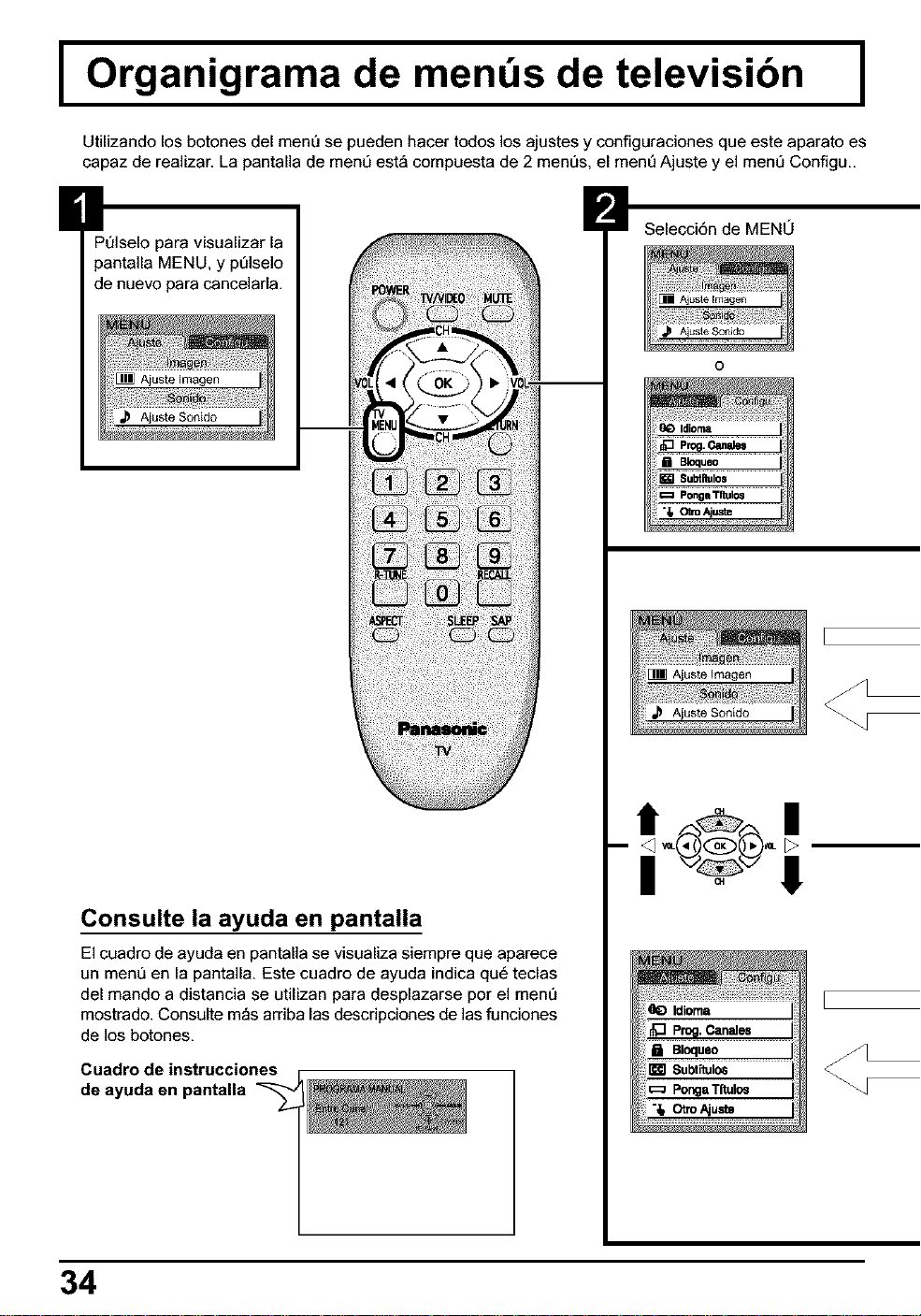
I Organigrama de mends de televisibn I
Utilizando los botones del menQ se pueden hacer todos los ajustes y configuraciones que este aparato es
capaz de realizar. La pantalla de ment_ est_ compuesta de 2 ment_s, el menQ Ajuste y el mem_ Configu..
Pt]lselo para visualizar la
pantalla MENU, y pt_lselo
de nuevo para cancelarla.
Consulte la ayuda en pantalla
El cuadro de ayuda en pantalla se visualiza siempre que aparece
un ment] en la pantalla. Este cuadro de ayuda indica qu6 teclas
del mando a distancia se utilizan para desplazarse por el ment]
mostrado. Consulte m_s arriba las descripciones de las funciones
de los botones.
Cuadro de instrucciones
de ayuda en pantalla
Selecci6n de MEN0
O
-- _ _,,_<_)_-
I !!
34
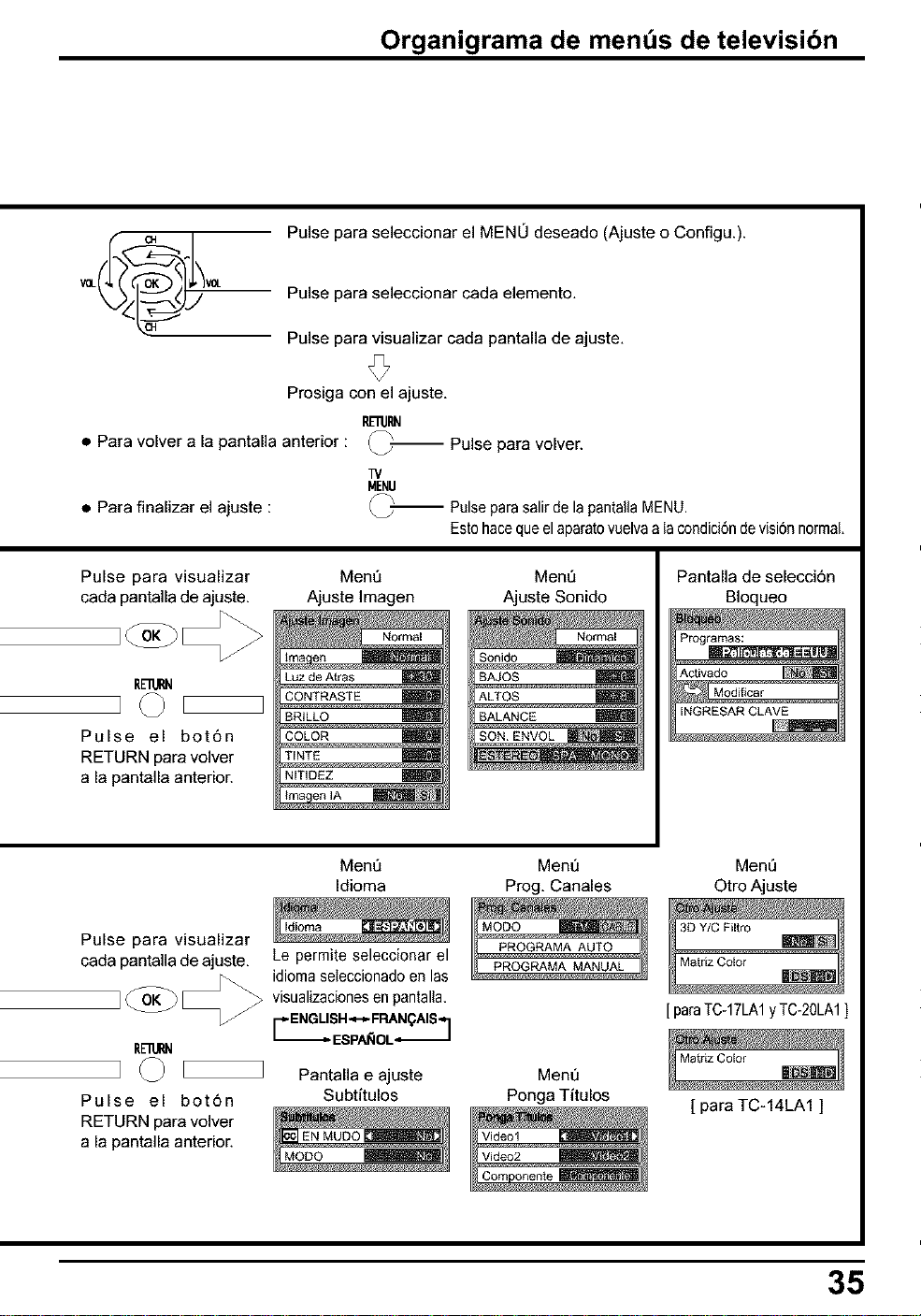
Organigrama de mends de televisibn
Pulse para seleccionar el MEN0 deseado (Ajuste o Configu.).
Pulse para seleccionar cada elemento,
Pulse para visualizar cada pantalla de ajuste,
Prosiga con el ajuste,
E'itl_
• Para volver a la pantalla anterior : _--
Pulse
para
volver.
• Para finalizar el ajuste :
TV
MENU
_-- Pulseparasalirde lapantallaMENU.
Estohacequeel aparatovuelvaalacondici6ndevisi6nnormal,
Pulse para visualizar
cada pantalla de ajuste.
Rnlll_l
Pulse el bot6n
RETURN para volver
a la pantalla anterior.
Ment]
Ajuste Imagen
Normal
Luz de Arras
CONTRASTE
8RILLO m
COLOR m
TINTE
NmDEZ m
Ment]
Ajuste Sonido
Pantalla de selecci6n
BIoqueo
Ment]
Idioma
Ment_
Prog, Canales
MenQ
Otro Ajuste
Pulse para visualizar
cada pantalla deajuste, Le permite seleccionar el
@ _ idioma seleccionado en las
] visualizacionesen pantalla.
L_ E NGLIS H"_-_ FRANQAIS _ ]
- ESPAf_IOL-_
RElURN
]
Pantalla e ajuste
Pulse el bot6n Subtitulos
RETURN para volver
a la pantalla anterior.
Ment]
Ponga Titulos
[para TC-17LA1yTC-20LA1]
[ para TC-14LA1 ]
35
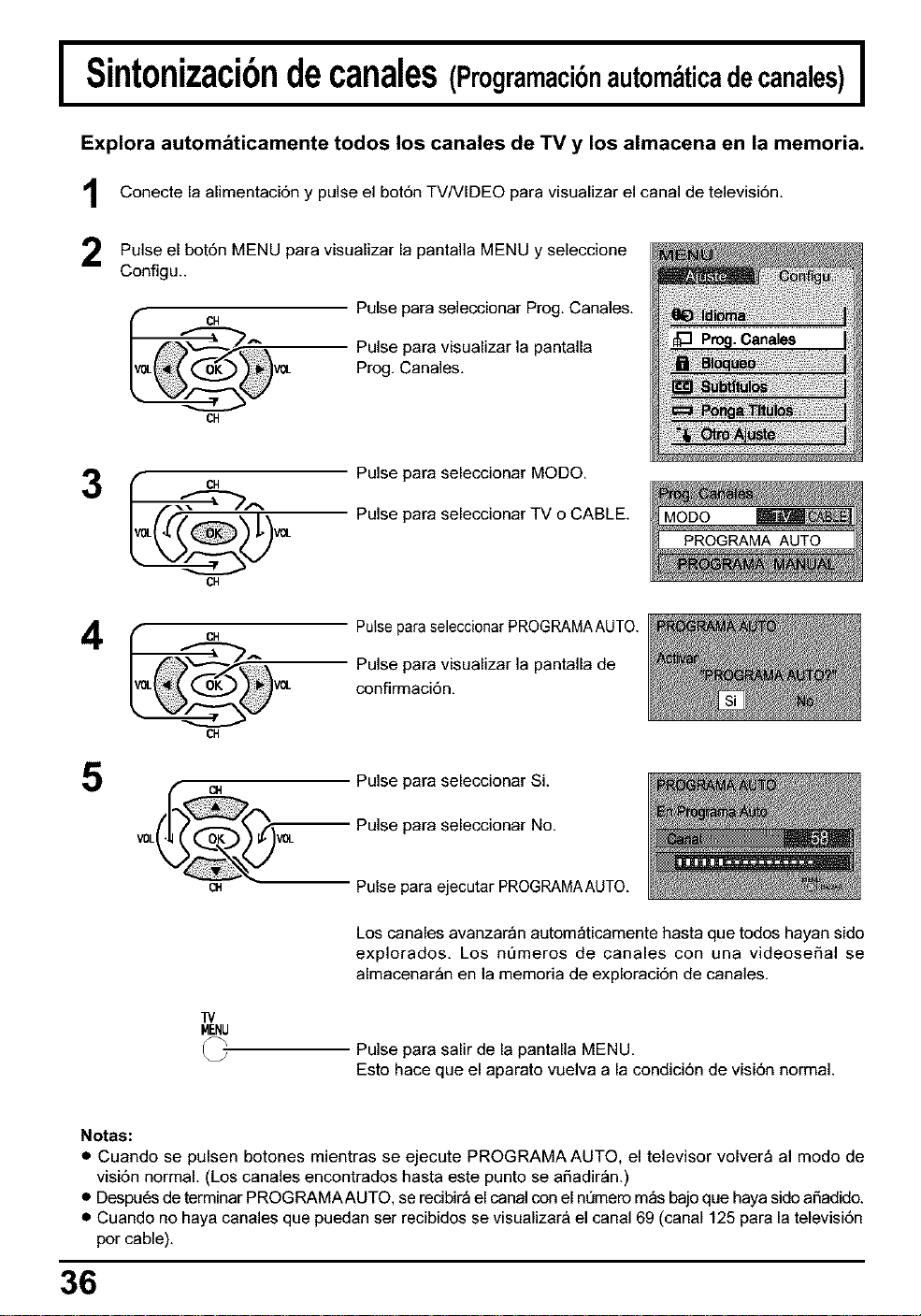
I Sintonizacibndecanales(Pr0gramacibnaut0mdticadecanales)I
Explora automdticamente todos los canales de TV y los almacena en la memoria,
Conecte la alimentaci6n y pulse el botSn TV/VIDEO para visualizar el canal de televisiSn.
Pulse el bot6n MENU visualizar la pantalla MENU seleccione
para Y
Configu..
._iiiiiiiiii_!i!i!ii!i_!'_
iiiii_ii!!G ;!_ii_!_ii¸i¸_
CH
Pulse para seleccionar Prog. Canales.
Pulse para visualizar la pantalla
Prog. Canales.
3
CH
v,______v
CH
Pulse para seleccionar MODO.
Pulse para seleccionar TV o CABLE.
4
CH
Pulse para seleccionarPROGRAMAAUTO.
Pulse para visualizar la pantalla de
confirmaciSn.
5
CH
V0L V0L
04
W
MENU
Pulse para seleccionar Si.
Pulse para seleccionar No.
Pulse para ejecutar PROGRAMAAUTO.
Los canales avanzar_n autom_ticamente hasta que todos hayan sido
explorados. Los nt]meros de canales con una videoseSal se
almacenar_n en la memoria de exploraciSn de canales.
Pulse para salir de la pantalla MENU.
Esto hace que el aparato vuelva a la condiciSn de visiSn normal.
Notas:
• Cuando se pulsen botones mientras se ejecute PROGRAMA AUTO, el televisor volver_ al modo de
visiSn normal. (Los canales encontrados hasta este punto se aSadir_n.)
• Despu6s de terminar PROGRAMAAUTO, se redbir_ el canal con el nt)mero m_s bajo que haya sido aSadide.
• Cuando no haya canales que puedan ser recibidos se visualizar& el canal 69 (canal 125 para la televisiSn
per cable).
36
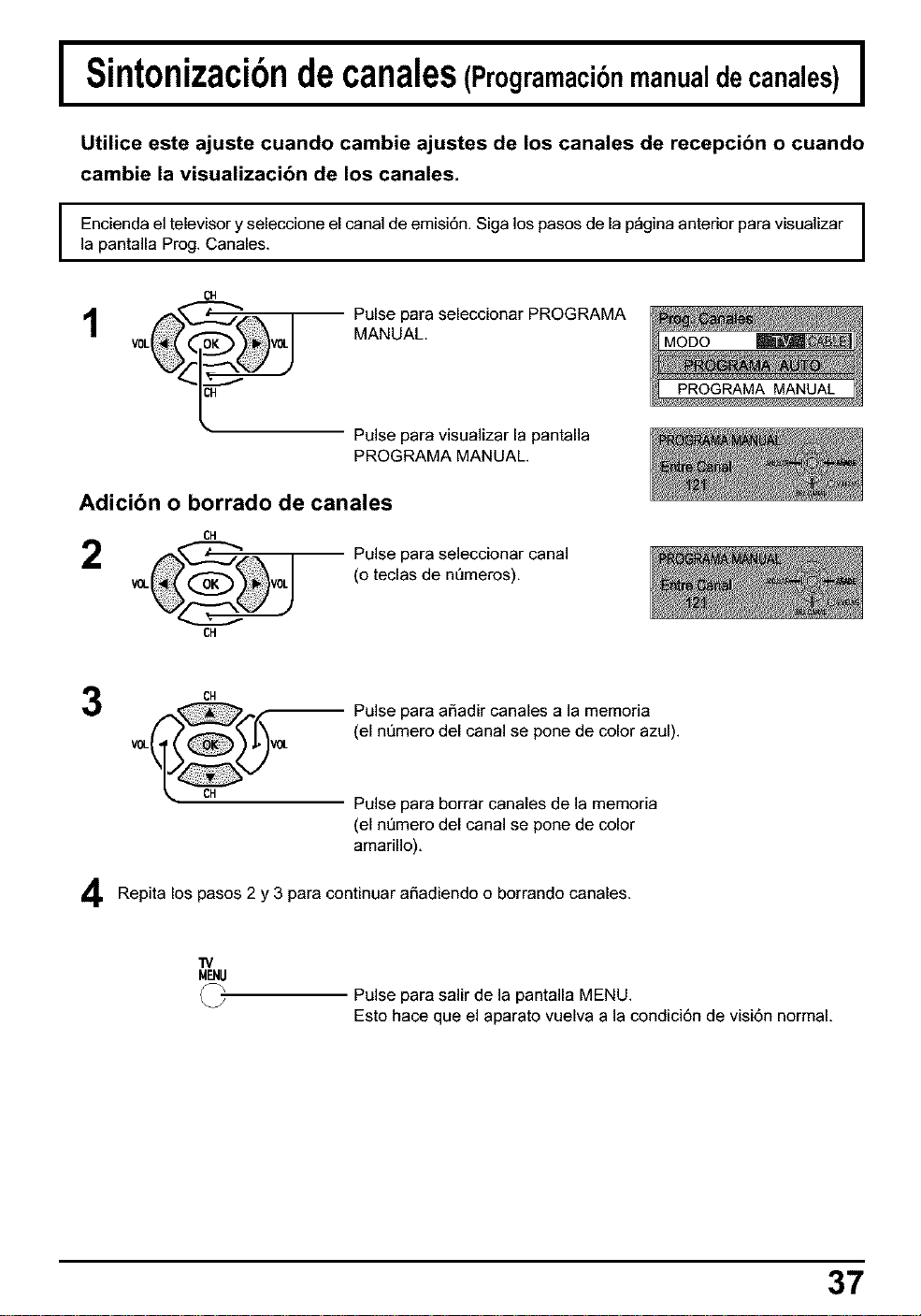
I
I
Sintonizacibndecanales(Programacibnmanualdecanales) I
Utilice este ajuste cuando cambie ajustes de los canales de recepcibn o cuando
cambie la visualizacibn de los canales.
Encienda el televisor y seleccione el canal de emisi6n. Siga los pasos de la p_gina anterior para visualizar
]a pantalla Prog. Canales.
04
Pulse para seleccionar PROGRAMA
MANUAL,
Pulse para visualizar la pantalla
PROGRAMA MANUAL.
Adicibn o borrado de canales
CH
2
CH
Pulse para seleccionar canal
(o teclas de nQmeros),
CH
Pulse para aSadir canales a la memoria
(el nt]mero del canal se pone de color azu0.
Pulse para borrar canales de la memoria
(el nt]mero del canal se pone de color
amarillo),
Repita los pasos 2 y 3 para continuar aSadiendo o borrando canales.
rv
MENU
Pulse para salir de la pantalla MENU.
Esto hace que el aparato vuelva a la condici6n de visi6n normal,
37
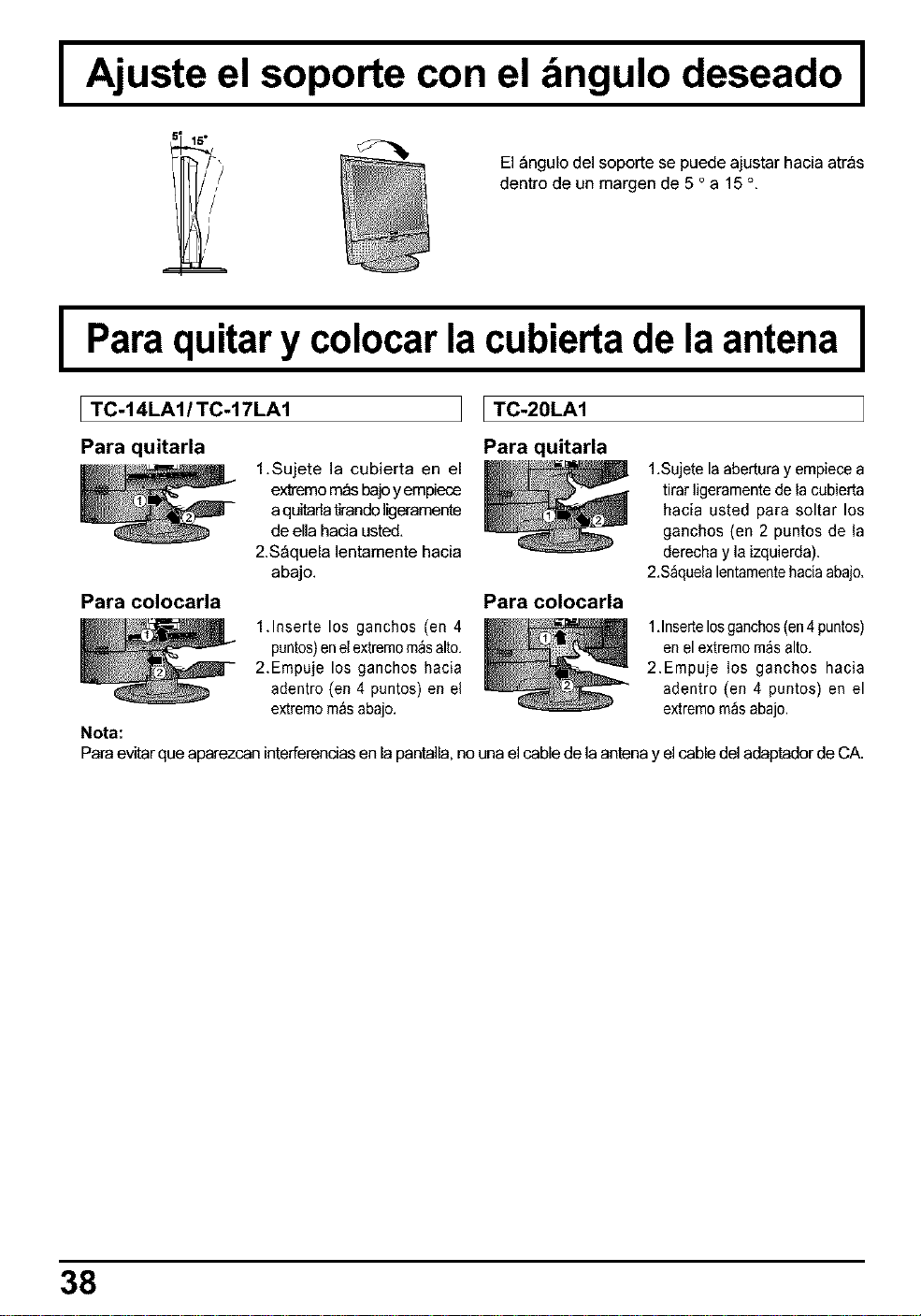
I Ajuste el soporte con el dngulo deseado I
El _ngulo del soporte se puede ajustar hacia atr_s
dentre de un margen de 5 ° a 15 °.
I Para quitar y colocar la cubierta de la antena I
ITC-14LA1/TC-17LA1 [ TC-20LAI
Para quitarla
Para colocarla
Para quitarla
1.Sujete la cubierta en el
extreme m&sbajo y empiece
aquitartatirandoligeramente
de ella hacia usted.
2.S_quela lentamente hacia
abajo.
1.Sujete la abertura y empiece a
tirarligeramente de la cubierta
hacia usted para soltar los
ganchos (en 2 puntos de la
derecha y la izquierda).
2.S_quelalentamentehaciaabajo.
Para colocarla
Nota:
1.1nserte los ganchos (en 4
puntos)enel extremom_salto.
2.Empuje los ganchos hacia
adentro (en 4 puntos) en el
extremom_s abajo.
1.1nser_elosganchos(en4puntos)
en elextremomas alto.
2.Empuje los ganchos hacia
adentro (en 4 puntos) en el
extremom_s abajo.
Para evitar que aparezcan interferencias en la pantalla, no una el cable de la antena y el cable del adaptador de CA.
38
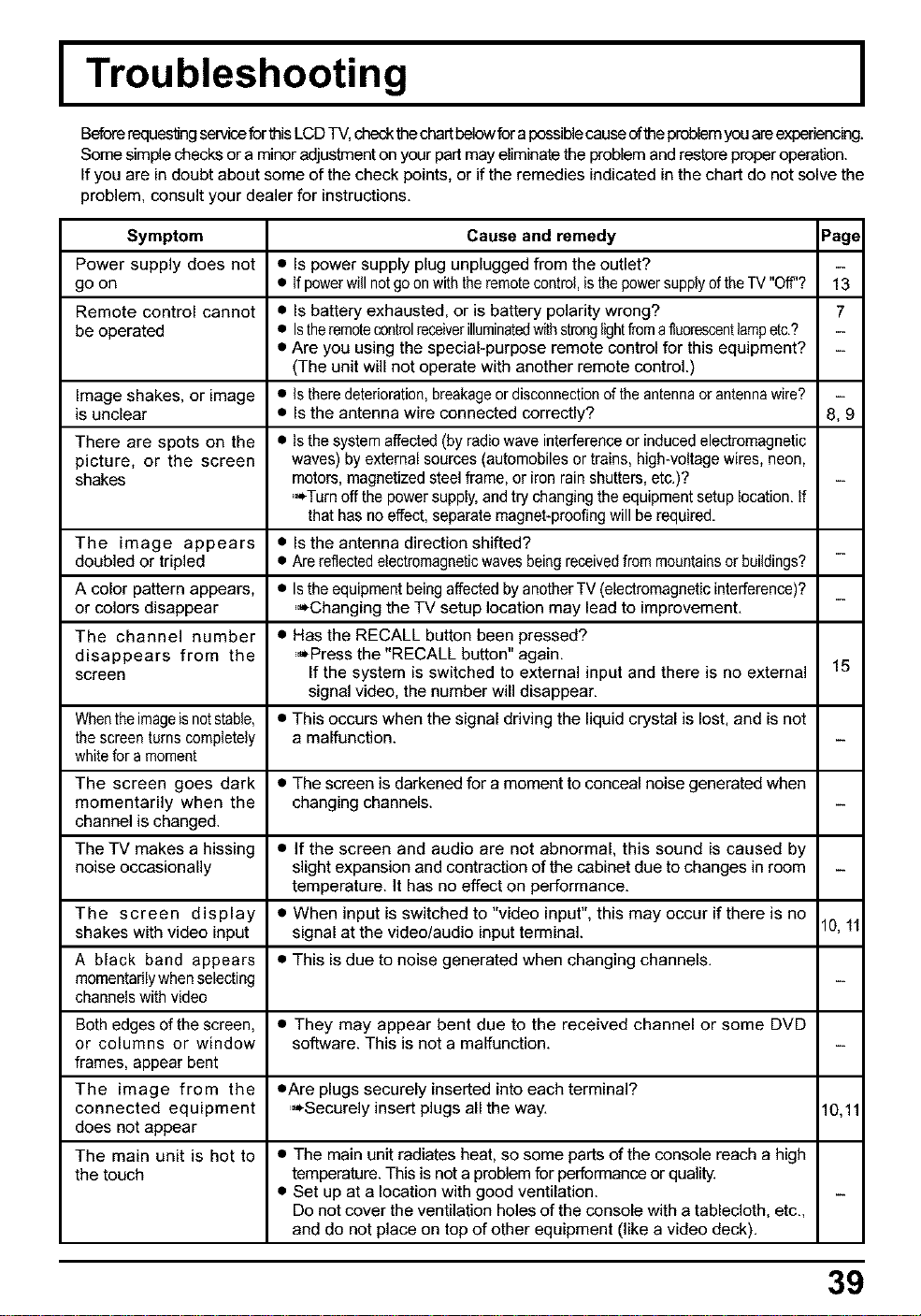
I Troubleshooting I
BeforerequestingserviceforthisLCD TV,check thechartbelow fora possiblecauseofthe problemyou areexperiencing.
Some simple checks or a minor adjustment on your part may eliminate the problem and restore proper operation.
If you are in doubt about some of the check points, or if the remedies indicated in the chart do not solve the
problem, consult your dealer for instructions.
Symptom Cause and remedy _age
Power supply does not • Is power supply plug unplugged from the outlet?
go on If powerwill notgo onwiththeremotecontrol,_sthepowersupplyoftheTV Off.
Remote control cannot • Is battery exhausted, or is battery polarity wrong? 7
be operated • Istheremotecontrolreceiverilluminatedwithstronglightfromafluorescentlampetc.?
• Are you using the special-purpose remote control for this equipment?
(The unit will not operate with another remote control.)
Image shakes, or image • Is there deterioration,breakageor disconnectionof the antennaor antennawire?
is unclear • Is the antenna wire connected correctly? 8, 9
There are spots on the • Is the system affected (by radio wave interference or induced electromagnetic
picture, or the screen waves) by external sources (automobiles or trains, high-voltage wires, neon,
shakes motors, magnetized steel frame, or iron rain shutters, etc.)?
,,-'_Turnoff the power supply,andtry changingthe equipment setup location. If
that has no effect, separate magnet-proofing will be required.
The image appears • ls the antenna direction shifted?
doubled or tripled • Are reflectedelectromagneticwavesbeingreceivedfrom mountainsor buildings?
A color pattern appears, • Is the equipment beingaffected by another TV (electromagnetic interference)?
or colors disappear ,,_Changing the TV setup location may lead to improvement.
The channel number • Has the RECALL button been pressed?
disappears from the ,,-'_Pressthe "RECALL button" again.
screen If the system is switched to external input and there is no external 15
signal video, the number will disappear.
Whentheimageisnotstable, • This occurs when the signal driving the liquid crystal is lost, and is not
the screen turns completely a malfunction.
white for amoment
The screen goes dark • The screen is darkened for a moment to conceal noise generated when
momentarily when the changing channels.
channel is changed.
The TV makes a hissing • if the screen and audio are not abnormal, this sound is caused by
noise occasionally slight expansion and contraction of the cabinet due to changes in room
temperature. It has no effect on performance.
The screen display • When input is switched to "video input", this may occur if there is no
shakes with video input signal at the video/audio input terminal. 10,11
A black band appears • This is due to noise generated when changing channels.
momentarilywhen selecting
channels with video
Both edges of the screen, • They may appear bent due to the received channel or some DVD
or columns or window software. This is not a malfunction.
frames, appear bent
The image from the •Are plugs securely inserted into each terminal?
connected equipment ,-'_Securely insert plugs all the way. 10,11
does not appear
The main unit is hot to • The main unit radiates heat, so some parts of the console reach a high
the touch temperature. This is not a problem for performance or quality.
• Set up at a location with good ventilation.
Do not cover the ventilation holes of the console with a tablecloth, etc.,
and do not place on top of other equipment (like a video deck).
39
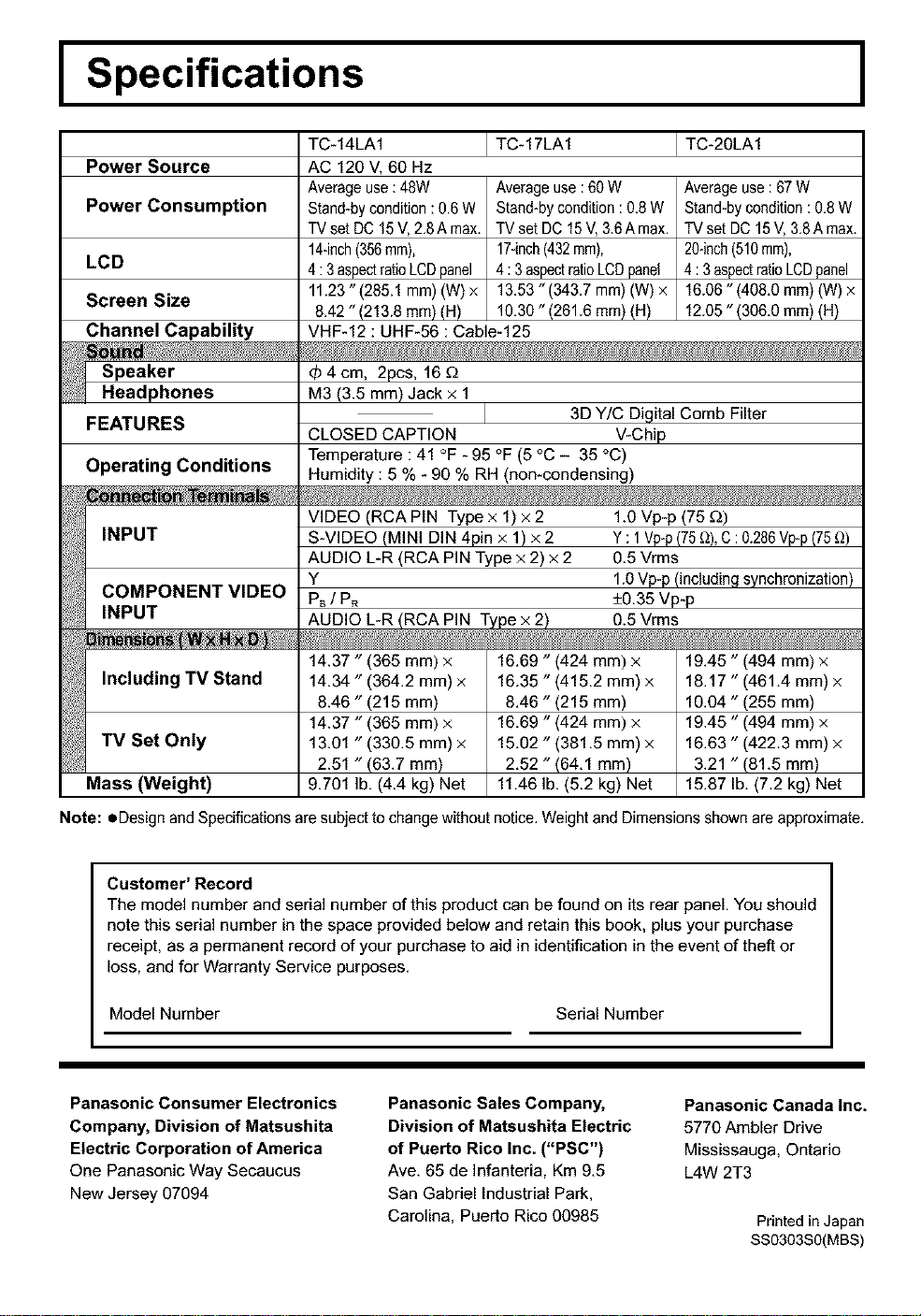
I Specifications I
Power Source
Power Consumption
LCD
Screen Size
Channel Capability
FEATURES
Operating Conditions
TC-14LA1 TC-17LA1 TC-20LA1
AC 120 V, 60 Hz
Averageuse :48W
Stand-bycondition: 0.6 W
TV set DC 15V,2,8A max.
14-inch(356rnm),
4 :3aspectratioLCDpanel
11.23" (285.1 mm) (W) x
8.42 " (213.8 mm) (H)
Averageuse :60 W
Stand-bycondition: 0.8 W
TV set DC15V,3.6A max.
17-inch(432rnrn),
4: 3aspectratioLCDpanel
13.53 " (343.7 mm) (W) x
10.30 " (261.6 mm) (H)
VHF-12 : UHF-56 : Cable-125
Averageuse: 67W
Stand-bycondition :0.8 W
TV setDC 15V,3,8A max.
20-inch(510rnrn),
4: 3aspectratioLCDpanel
16.06 " (408.0 mm) (W) x
12.05 "(306.0 mm) (H)
4 cm, 2pcs, 16 £2
M3 (3.5 mm) Jack x 1
3D Y/C Digital Comb Filter
CLOSED CAPTION V-Chip
Temperature : 41 °F - 95 °F (5 °C - 35 °C)
Humidity : 5 % - 90 % RH (non-condensing)
VIDEO (RCA PIN Type x 1) x 2 1.0 Vp-p (75 £_)
S-VIDEO (MINI DIN 4pin x 1) x 2 Y : 1vp-p (75_), C : 0.286vpp (75_)
AUDIO L-R (RCA PIN Type x 2) x 2 0.5 Vrms
Y 1.0 Vp-p (including synchronization)
PB/ PR ±0.35 Vp-p
AUDIO L-R (RCA PIN Type x 2) 0.5 Vrms
ii ii;iiiiiiiiiiiiiiiiiiiiiiiiiiiiiiiiiiiiiiiiiiiiiiiiiiiiiiiiiiiiiiiiiiiiiii)!iiiiiiiiiiiiiiiiiiiiiiiiiiiiiiiiiiiiiiiiiiiiiiiiiiiiiiiiiiiiiii}iiiiiiiiiiiiiiiiiiiiiiiiiiiiiiiiiiiiiiiiiiiii
14.87 ,' (365 ram) x 16.69, (424 mm) x 19.45 ,, (494 ram) x
14.84 ,',(364.2 ram) × 16.35 ,',(415,2 ram) x 18.17 ,, (461.4 ram) ×
8.46 (215 ram) 8,46 (215 mm) 10.04 (255 ram)
14.87" (365 ram) x 16.69 " (424 mm) x 19.45" (494 ram) x
18.91 " (389.5 ram) × 15.02 " (381,5 ram) x 16.68" (422.8 ram) ×
2.51 " (68.7 ram) 2,52" (64,1 mm) 3.21 " (81.5 ram)
Mass (Weight) 9.701 lb. (4.4 kg) Net 11.46 lb. (5.2 kg) Net 15.87 Ib. (7.2 kg) Net
Note: =,Designand Specifications aresubject to change without notice. Weight and Dimensionsshown are approximate.
Customer' Record
The model number and serial number of this product can be found on its rear panel. You should
note this serial number in the space provided below and retain this book, plus your purchase
receipt, as a permanent record of your purchase to aid in identification in the event of theft or
loss, and for Warranty Service purposes.
Model Number Serial Number
Panasonic Consumer Electronics
Company, Division of Matsushita
Electric Corporation of America
One Panasonic Way Secaucus
New Jersey 07094
Panasonic Sales Company,
Division of Matsushita Electric
of Puerto Rico Inc. ("PSC")
Ave, 65 de Infanteria, Km 9,5
San Gabriel Industrial Park,
Carolina, Puerto Rico 00985
Panasonic Canada Inc.
5770 Ambler Drive
Mississauga, Ontario
L4W 2T3
Printed in Japan
SS0303S0(MBS)