To prevent possible SERIOUS INJURY or DEATH from a moving gate or door:
•ALWAYSkeepremotecontrolsoutofreachofchildren.NEVERpermitchildrentooperate,orplaywithremotecontrol
transmitters.
•ActivategateordoorONLYwhenitcanbeseenclearly,isproperlyadjustedandtherearenoobstructionstodoortravel.
•ALWAYSkeepgateordoorinsightuntilcompletelyclosed.NEVERpermitanyonetocrosspathofmovinggateordoor.
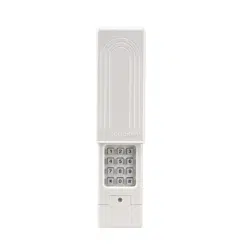
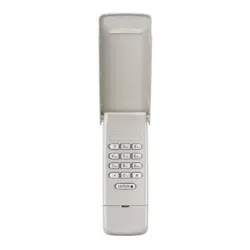
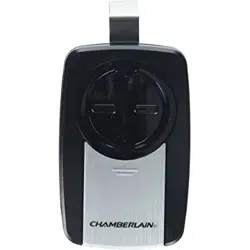
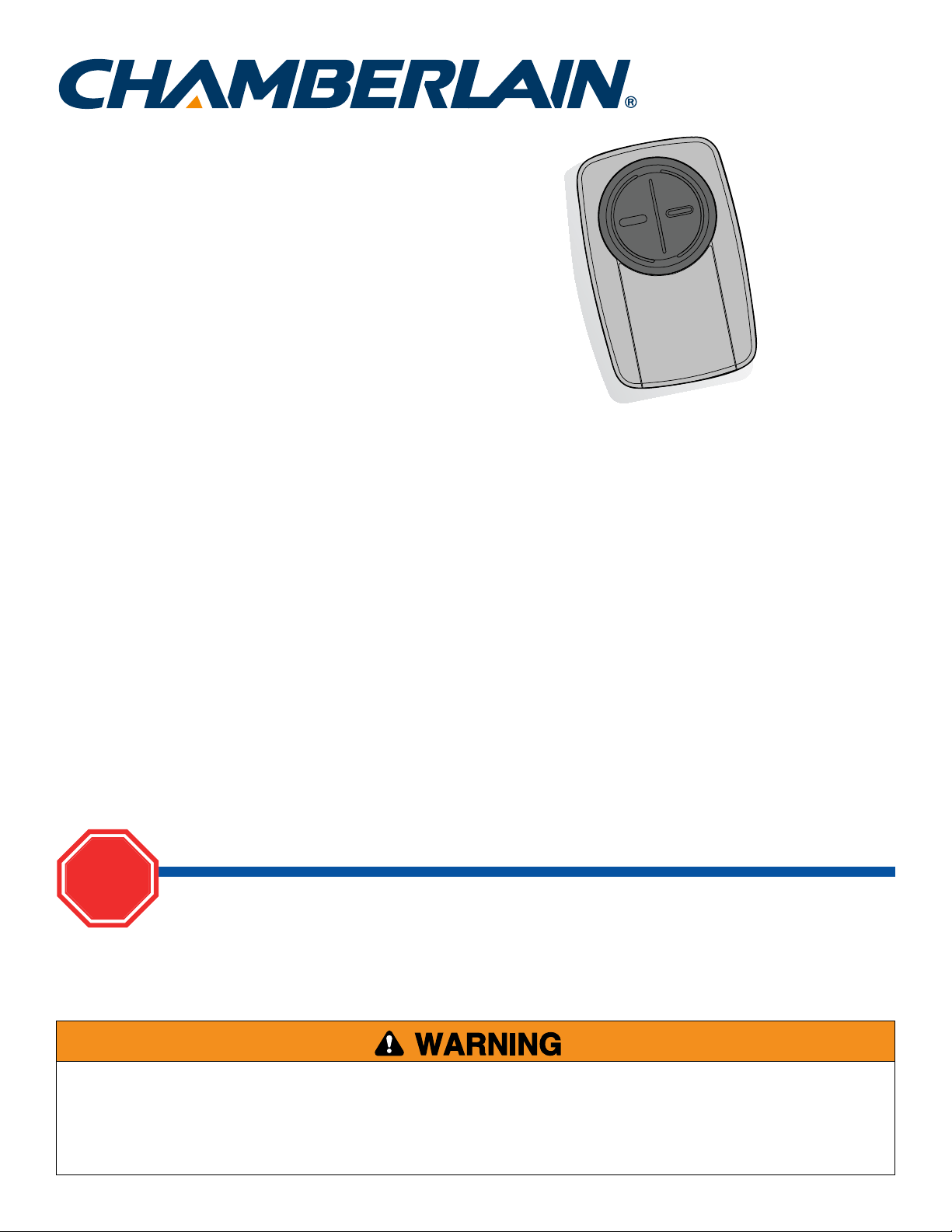
Universal Remote Control
Read instructions thoroughly BEFORE beginning.
If using the Universal Remote Control with residential door openers, the remote control must be used only with
door openers manufactured after 1993 that utilize photoelectric sensors. The photoelectric sensors are always
located on or near the bottom of the door track.
STOP
MODEL KLIK3U
TABLE OF CONTENTS
GETTING STARTED ........................................................................... 2
LOCATE THE PROGRAM/LEARN BUTTON ...................................... 3-7
Chamberlain
®
products ................................................................ 3
Genie
®
products ............................................................................ 4
Linear
®
products........................................................................... 5
Wayne Dalton
®
products .............................................................. 5
LiftMaster
®
products .................................................................... 6
Overhead Door
®
products ............................................................ 6
Stanley
®
products ......................................................................... 7
GARAGE DOOR OPENERS ..............................................................8-9
Programming to a garage door opener with a
Program/LEARN button ................................................................ 8
Programming to a Genie
®
Intellicode
®
2
garage door opener ...................................................................... 9
Commercial Door Operators .......................................................... 10
Programming to a commercial door operator
with a Program/LEARN button ................................................... 10
GATE OPERATORS .....................................................................11-13
Program to a gate operator
with a Program/LEARN button ................................................... 11
Programming to a GTO/Mighty Mule gate
operator without a remote control ............................................ 12
Programming to a GTO/Mighty Mule gate
operator with a remote control .................................................. 13
EXTERNAL RECEIVERS ..............................................................14-15
Programming to an external receiver
with DIP switches ....................................................................... 14
Programming to an external receiver
with a Program/LEARN button ................................................... 15
ALTERNATE PROGRAMMING OPTIONS .....................................16-17
Alternate programming option for products
with a Program/LEARN button ................................................... 16
Alternate programming option for products
with DIP switches ....................................................................... 17
NEED HELP? ................................................................................... 18
BATTERY ........................................................................................ 19
2
GETTING STARTED
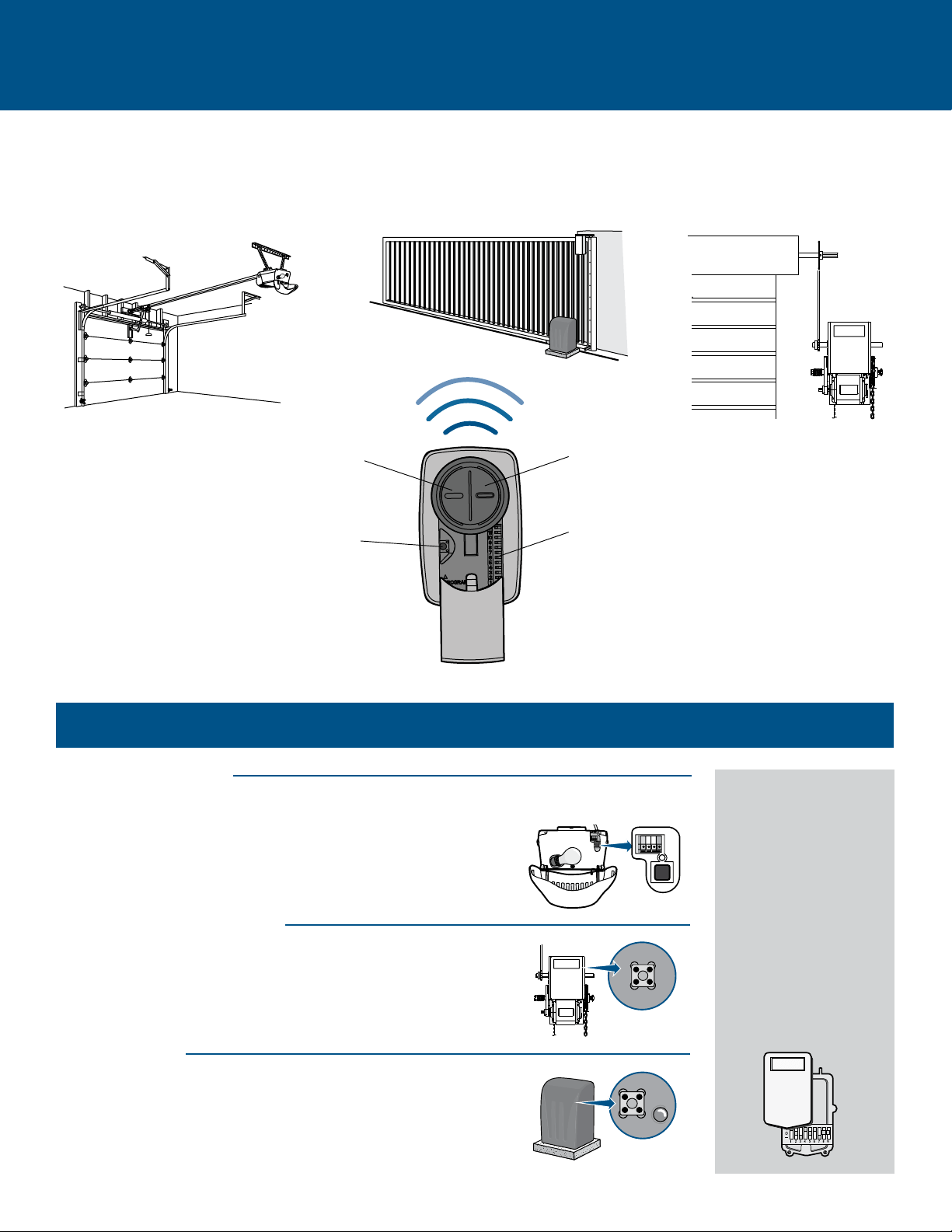
The remote control can be programmed to activate up to two products, such as a garage door opener, gate operator, or commercial
door operator. The images throughout this manual are for reference only and your product may look different.
Button 2
ProgrammedseparatelyfromButton1.
Garage Door Opener
Commercial Door OperatorGate Operator
Button 1
ProgrammedseparatelyfromButton2.
Program Button
Usedforprogrammingproducts.
Depending on your product, there is a button (Program/LEARN button) or DIP switches used for programming. You will need to locate
the Program/LEARN button or DIP switches on your product before you start programming.
DIP Switches
UsedforprogrammingproductswithDIPswitches.
GARAGE DOOR OPENERS
TheProgram/LEARNbuttonorDIPswitchesaretypicallylocatedonthe
backorsidepanelofyourgaragedooropener.YourProgram/LEARN
buttonmayhaveadifferentname(SMARTbutton,SETbutton,etc.).For
helplocatingyourProgram/LEARNbuttonorDIPswitchesrefertothe
TableofContentsinthismanualorcontactyourgaragedooropener
manufacturer.
COMMERCIAL DOOR OPERATORS
TheProgram/LEARNbuttonorDIPswitchesaretypicallylocatedonthe
logicboardofyouroperator.YourProgram/LEARNbuttonmayhavea
differentname(RADIObutton,XMITTERbutton,etc.).Forhelplocating
yourProgram/LEARNbuttonorDIPswitchescontactyourdooroperator
manufacturer.
GATE OPERATORS
TheProgram/LEARNbuttonorDIPswitchesaretypicallylocatedonthe
controlboardofyouroperator.YourProgram/LEARNbuttonmayhavea
differentname(RADIObutton,XMITTERbutton,etc.).Forhelplocating
yourProgram/LEARNbuttonorDIPswitchescontactyourgateoperator
manufacturer.
EXTERNAL RECEIVER
Someproductsdonot
haveaProgram/LEARN
buttonorDIPswitches.In
thiscase,theProgram/
LEARNbuttonorDIP
switcheswillbelocatedin
anexternalreceiver.The
receiverwillbelocatedon
theproductormounted
nearby.Followthe
programminginstructions
foranexternalreceiver.
3
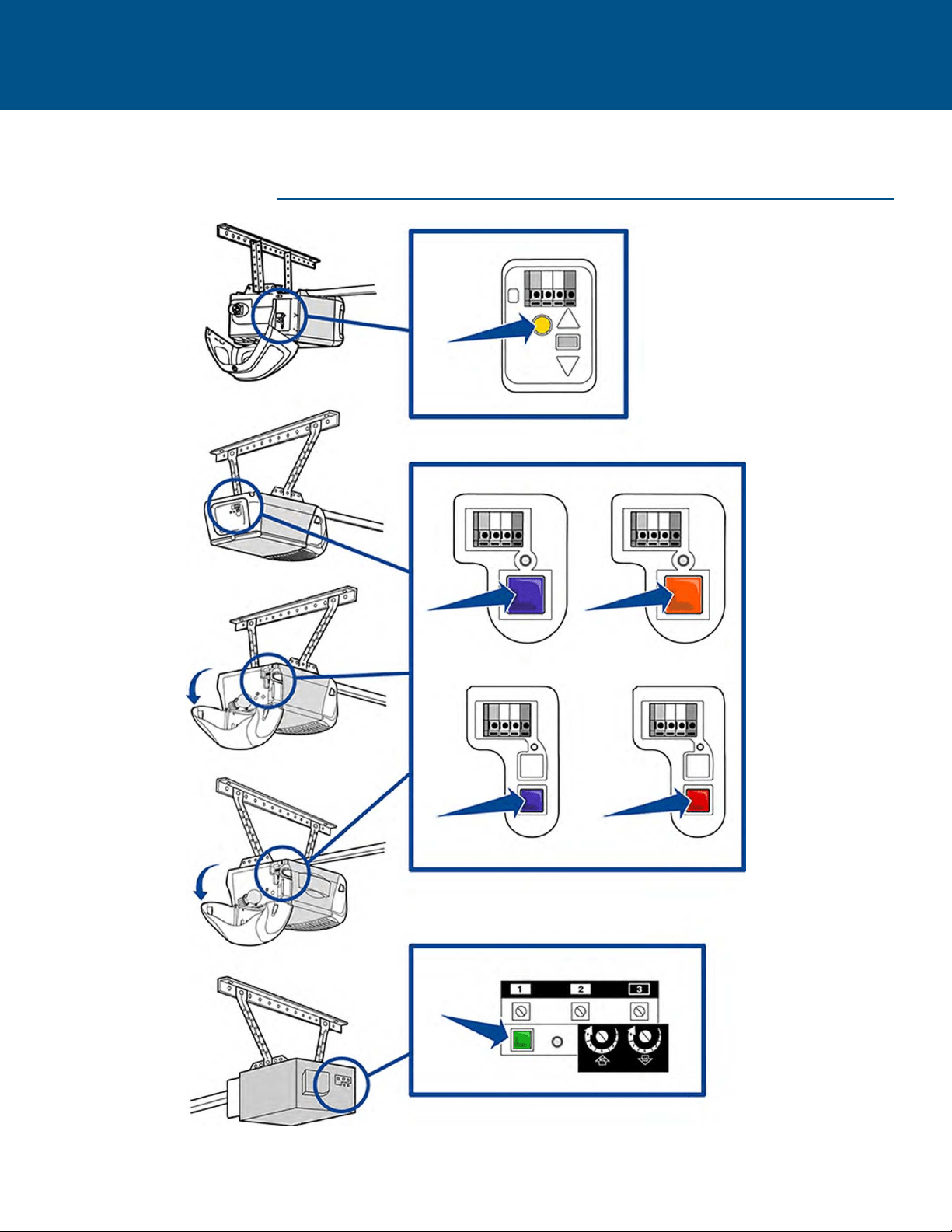
LOCATE THE PROGRAM/LEARN BUTTON
CHAMBERLAIN PRODUCTS
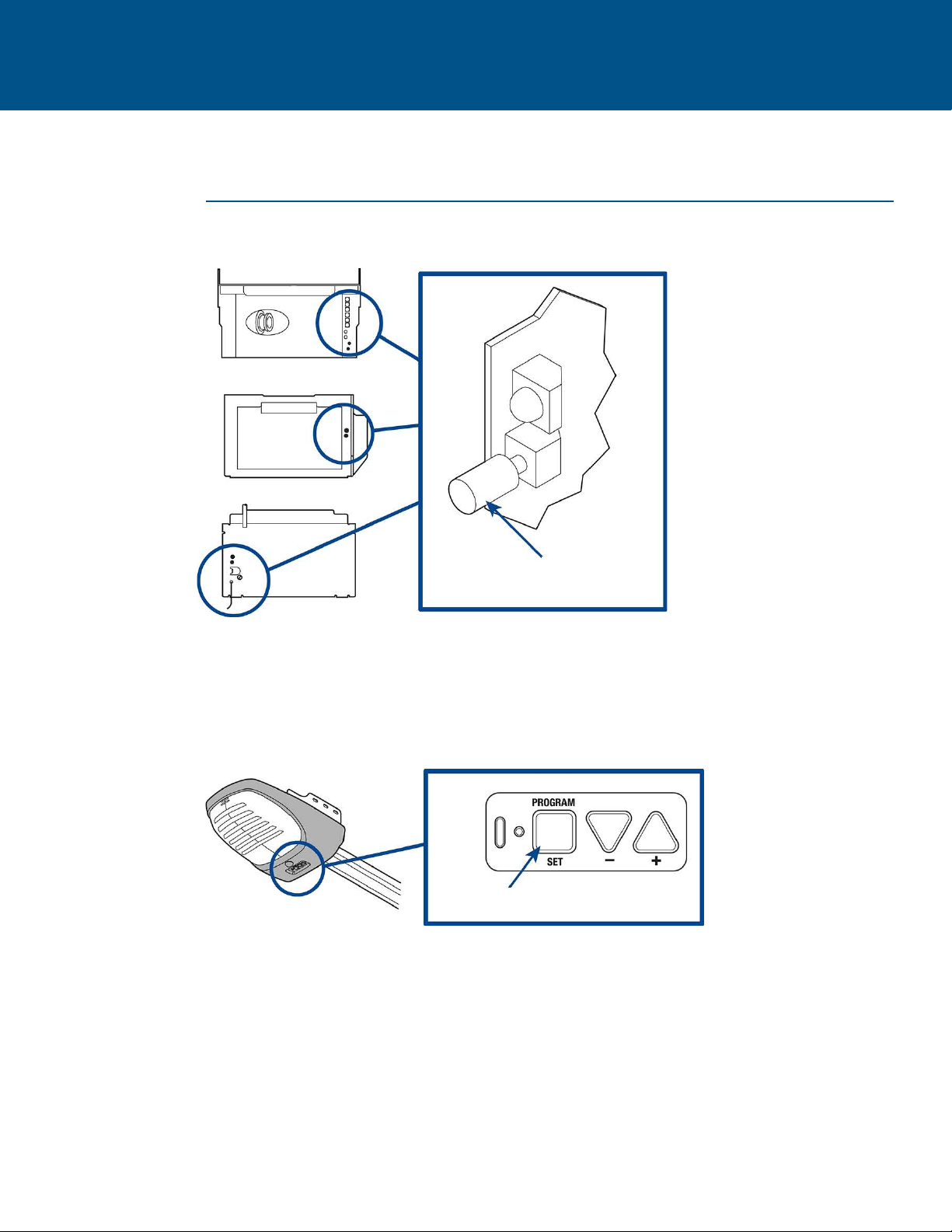
4
LOCATE THE PROGRAM/LEARN BUTTON
GENIE PRODUCTS
LearnCode
Button
ProgramSetButton
5
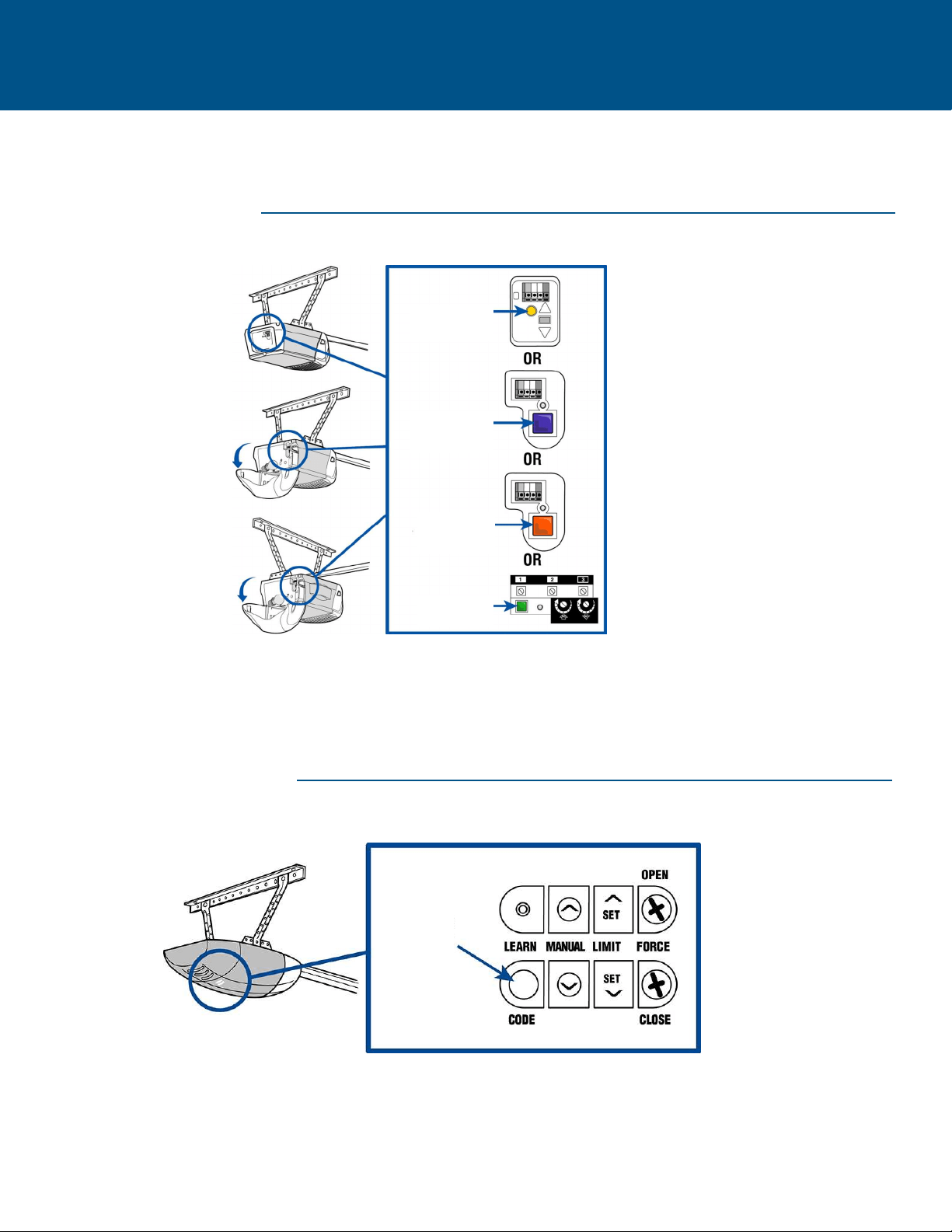
LOCATE THE PROGRAM/LEARN BUTTON
LINEAR PRODUCTS
WAYNE DALTON PRODUCTS
Learn
Button
Learn
Button
ProgramSW
Button
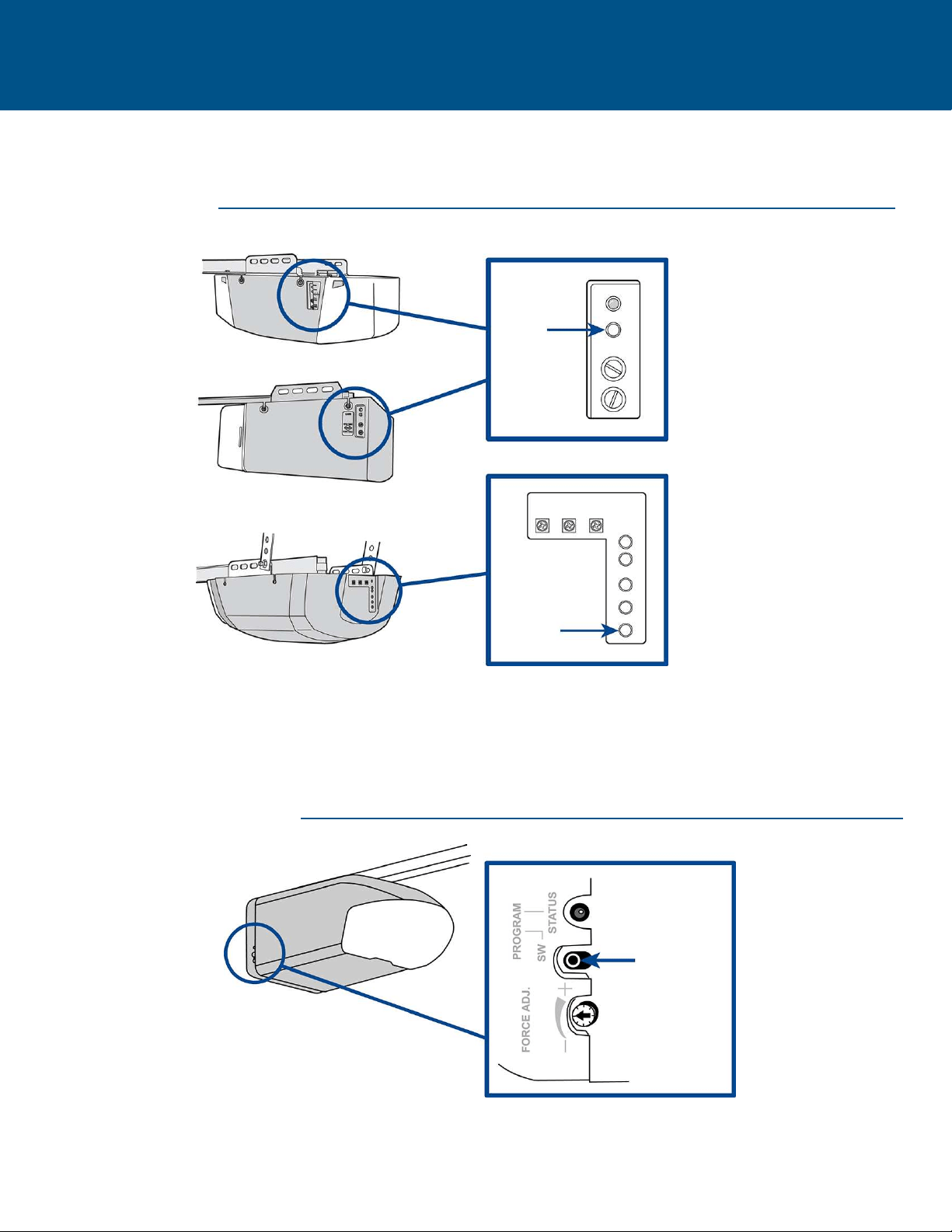
6
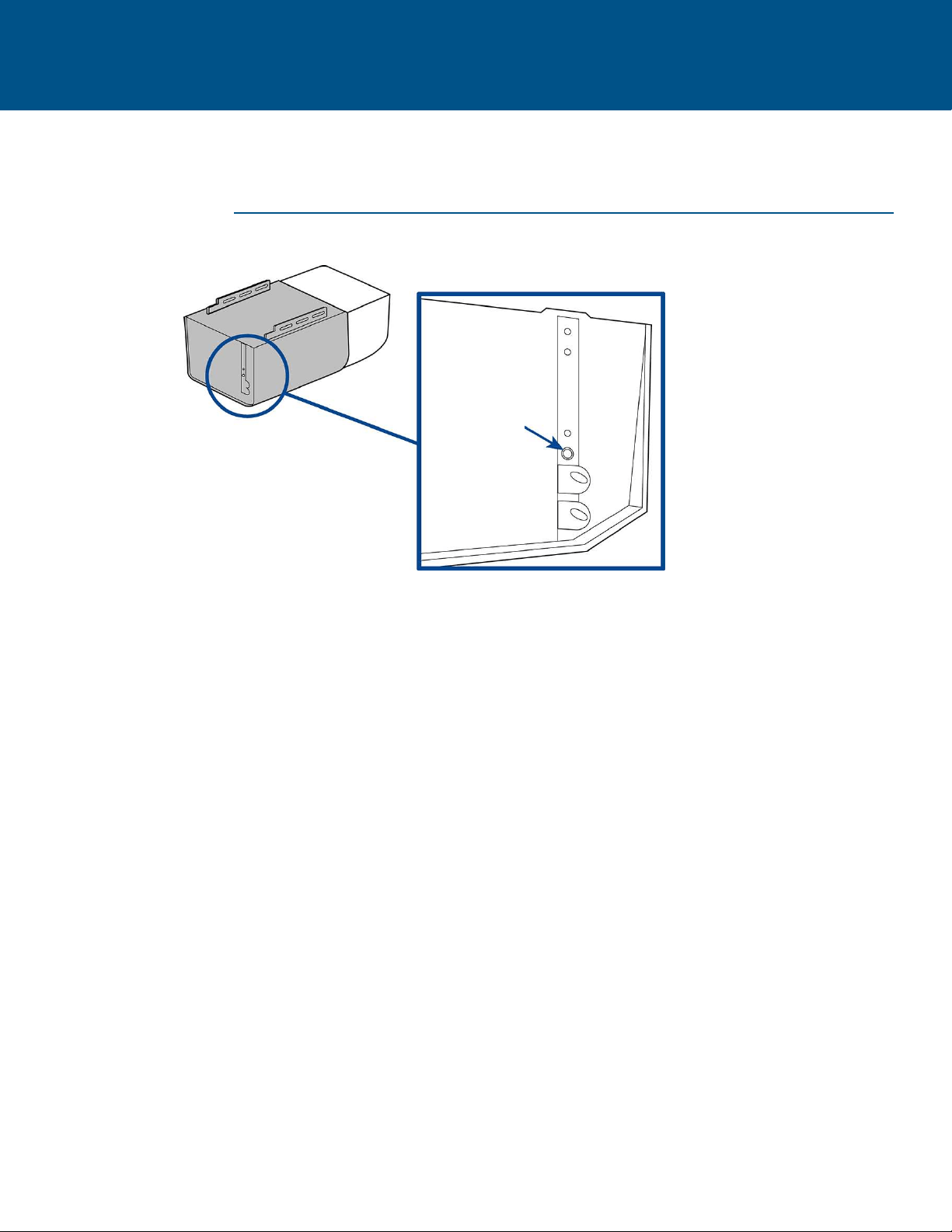
LOCATE THE PROGRAM/LEARN BUTTON
LIFTMASTER PRODUCTS
OVERHEAD DOOR PRODUCTS
YellowLearn
Button
PurpleLearn
Button
OrangeLearn
Button
GreenLearn
Button
LearnCode
Button
7
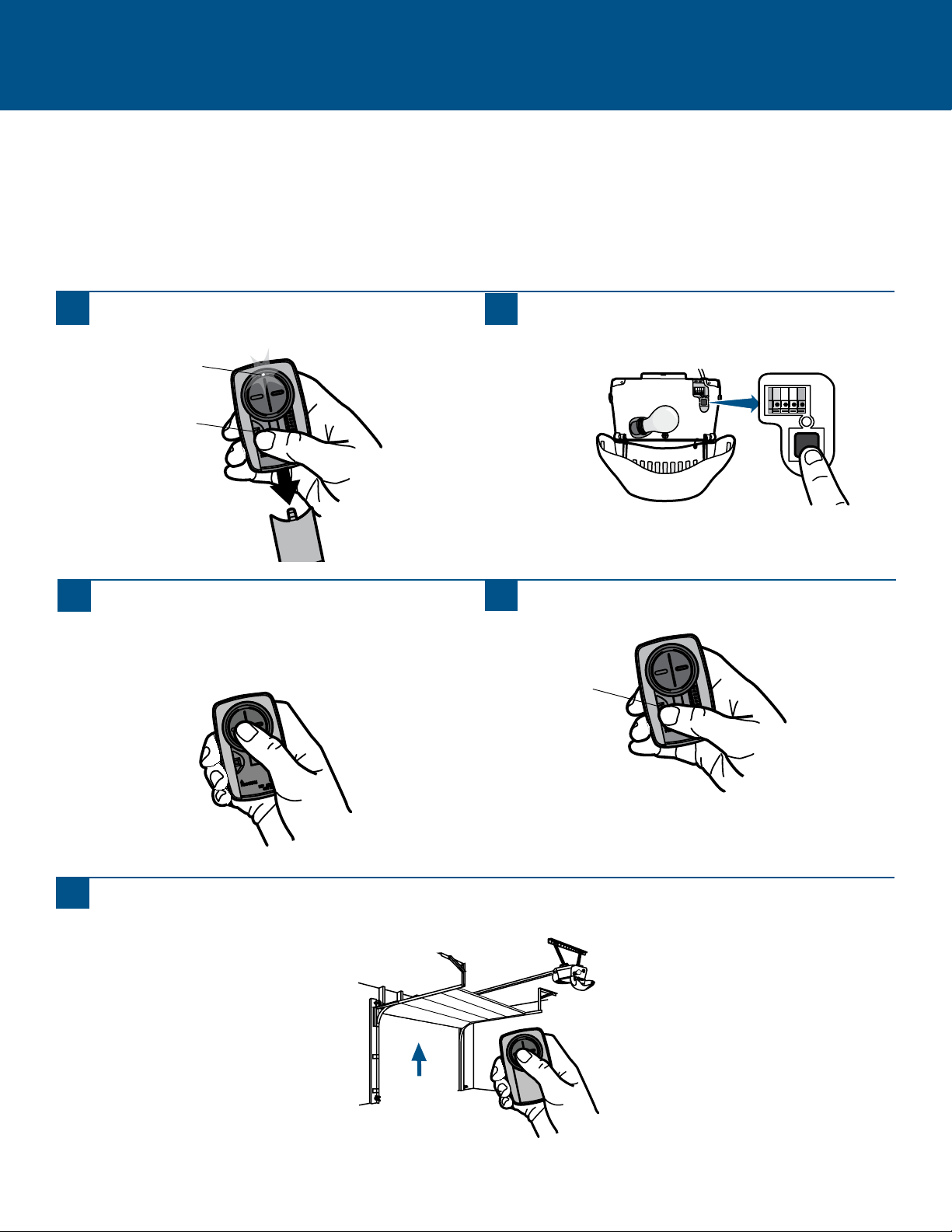
LOCATE THE LEARN BUTTON
STANLEY PRODUCTS
LearnButton
8
GARAGE DOOR OPENERS
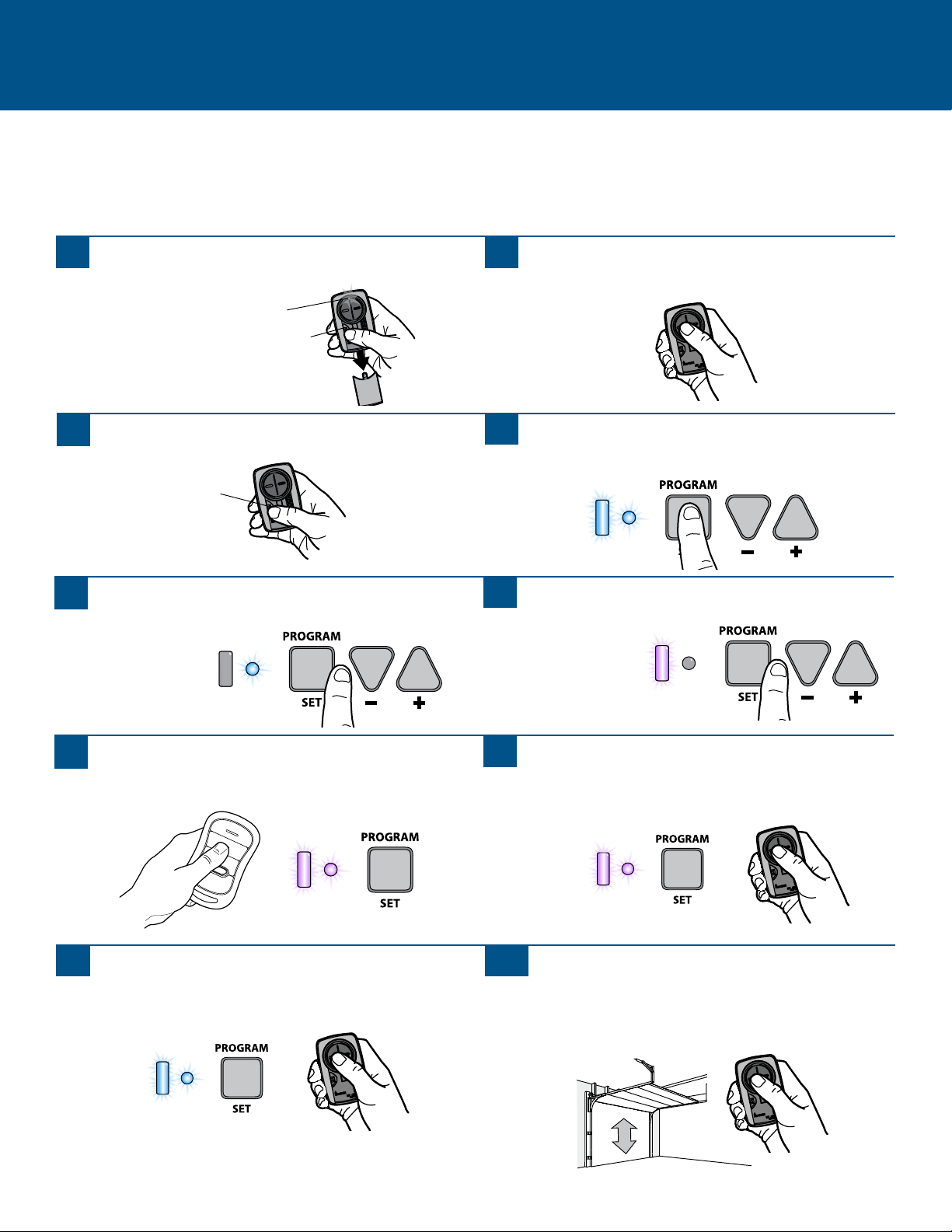
Programming to a Garage Door Opener with a Program/LEARN Button
The Program/LEARN button is typically located on the back or side panel of the garage door opener or an external receiver. For help
locating your Program/LEARN button refer to the Help section in this manual or contact your garage door opener manufacturer.
If you have a Genie
®
Intellicode
®
2 garage door opener go to the next page.
Theimagesthroughoutthismanualareforreferenceonlyandyourproductmaylookdifferent.
ProgramButton
1
Presstheprogrambuttonontheremotecontroluntil
theLEDturnson.
2
PressandreleasetheProgram/LEARNbutton*onyour
garagedooropener.
3
Pressandreleasetheremotecontrolbutton,theLEDwill
flash.WhentheLEDstopsflashing,continuetopressand
releasethebutton(maximumof9times)untilyour
garagedooropenerrespondsbyclicking,blinking,or
activating.
4
Presstheprogrambuttonontheremotecontroltosave.
5
Testtheremotecontrolbypressingthebutton.Ifthegaragedooropenerdoesnotactivate,repeattheprogrammingstepsor
followthealternativeprogrammingoption.
ProgramButton
*Dependingonyourproduct,theProgram/LEARNbuttonmayhaveadifferent
name(usethebuttonforprogrammingremotecontrols).
LED
9
Programming to a Genie
®
Intellicode
®
2 Garage Door Opener
Before starting, you MUST have a Genie
®
Intellicode
®
2 remote control with at least one button already programmed to the garage
door opener.
Theimagesthroughoutthismanualareforreferenceonlyandyourproductmaylookdifferent.
GARAGE DOOR OPENERS (continued)
1
PresstheprogrambuttonontheUniversal Remote
ControluntiltheLEDturnson.
2
Selectabuttontoprogramandpressthatbutton5times,
ensuring the LED stops flashing after each press.
3
PresstheprogrambuttonontheUniversal Remote
Control.
4
Onthegaragedooropener,pressandholdthe
Program/SetbuttonuntilboththelongandshortLED
lightupBLUE.
5
ReleasetheProgram/SetbuttonandonlytheroundLED
willbelitinBLUE.
6
PressandreleasetheProgram/Setbuttonandthelong
LEDwillflashPURPLE.
7
OntheUniversalRemoteControl,pressandreleasethe
samebuttonyouhavealreadyselectedinstep2.Both
LEDsonthegaragedooropenerwilllightupPURPLE.
8
OntheUniversal Remote Control,pressandreleasethe
samebuttonagain.BothLED’sonthegaragedooropener
willlightupBLUE.
OntheGenie
®
remotecontrol,pressandreleasethe
buttonthatisalreadyprogrammedtothegaragedoor
opener.BothLED’swillflashPURPLE.
9
OntheUniversal Remote Control,pressandreleasethe
samebuttonagain.Thiswillactivatethegaragedoor
openerandprogrammingiscomplete.
Ifthedoordoesnotactivate,repeatthesteps.
10
ProgramButton
ProgramButton
LED
10
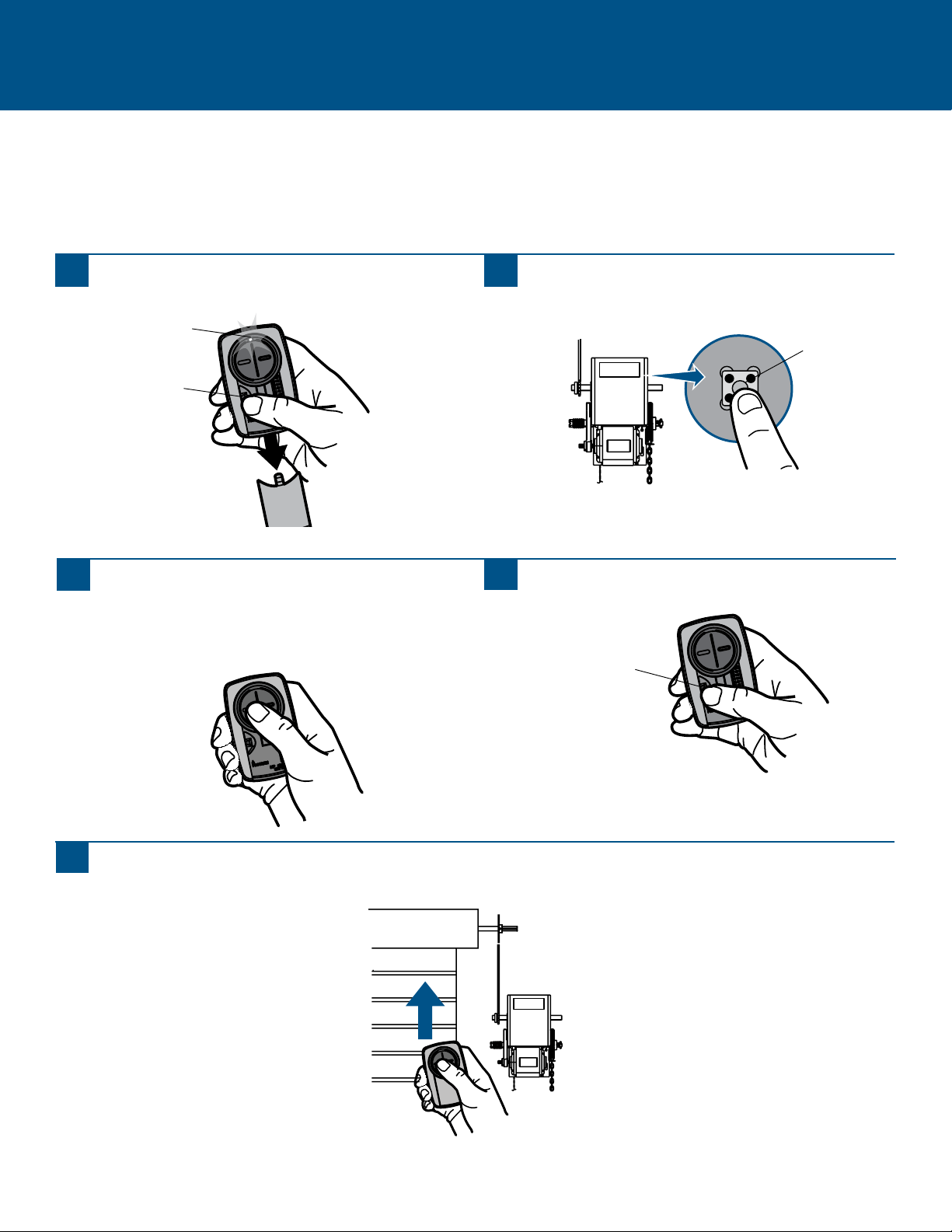
COMMERCIAL DOOR OPERATORS
Programming to a Commercial Door Operator with a LEARN Button
The Program/LEARN button is typically located on the logic board of the operator or an external receiver. For help locating your
Program/LEARN button contact your commercial door operator manufacturer.
Theimagesthroughoutthismanualareforreferenceonlyandyourproductmaylookdifferent.
1
Presstheprogrambuttonontheremotecontroluntil
theLEDturnson.
2
PressandreleasetheProgram/LEARNbutton*onyour
commercialdooroperator.
3
Pressandreleasetheremotecontrolbutton,theLEDwill
flash.WhentheLEDstopsflashing,continuetopress
andreleasethebuttonuntilyourcommercialdoor
operatorrespondsbyclicking,blinking,oractivating.
4
Presstheprogrambuttonontheremotecontroltosave.
5
Testtheremotecontrolbypressingthebutton.Ifthecommercialdooroperatordoesnotactivate,repeattheprogramming
stepsorfollowthealternativeprogrammingoption.
Program/LEARN
Button*
*Dependingonyourproduct,theProgram/LEARNbuttonmayhaveadifferent
name(usethebuttonforprogrammingremotecontrols).
ProgramButton
ProgramButton
LED
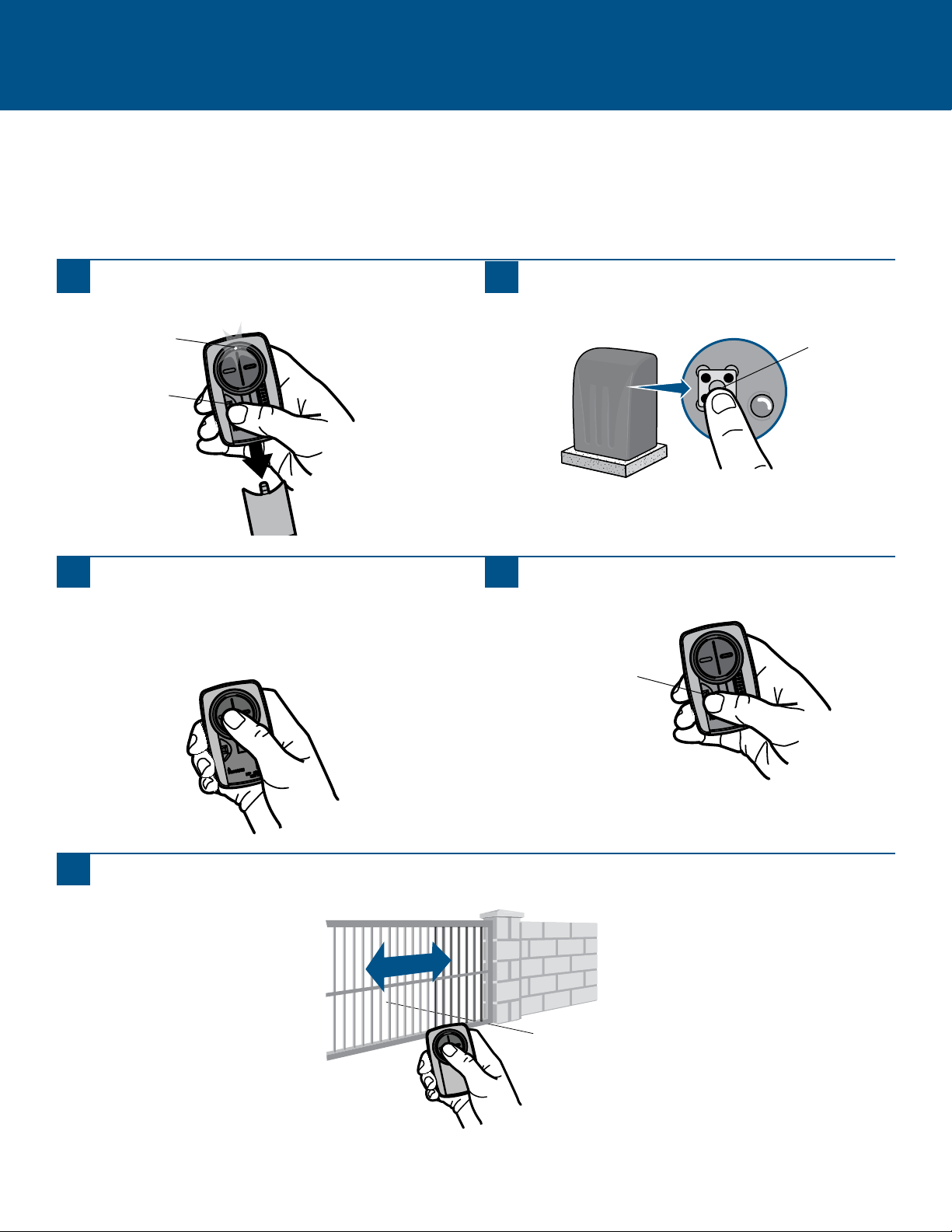
11
Programming to a Gate Operator with a Program/LEARN Button
The Program/LEARN button is typically located on the control board of the operator or an external receiver. For help locating your
Program/LEARN button contact your gate operator manufacturer.
Theimagesthroughoutthismanualareforreferenceonlyandyourproductmaylookdifferent.
GATE OPERATORS
1
Presstheprogrambuttonontheremotecontroluntil
theLEDturnson.
2
PressandreleasetheProgram/LEARNbutton*onyour
gateoperator.
3
Pressandreleasetheremotecontrolbutton,theLEDwill
flash.WhentheLEDstopsflashing,continuetopress
andreleasethebuttonuntilyourgateoperatorresponds
byclicking,blinking,oractivating.
4
Presstheprogrambuttonontheremotecontroltosave.
5
Testtheremotecontrolbypressingthebutton.Ifthegateoperatordoesnotactivate,repeattheprogrammingstepsorfollow
thealternativeprogrammingoption.
Program/Learn
Button*
*Dependingonyourproduct,theProgram/LEARNbuttonmayhaveadifferent
name(usethebuttonforprogrammingremotecontrols).
ProgramButton
ProgramButton
LED
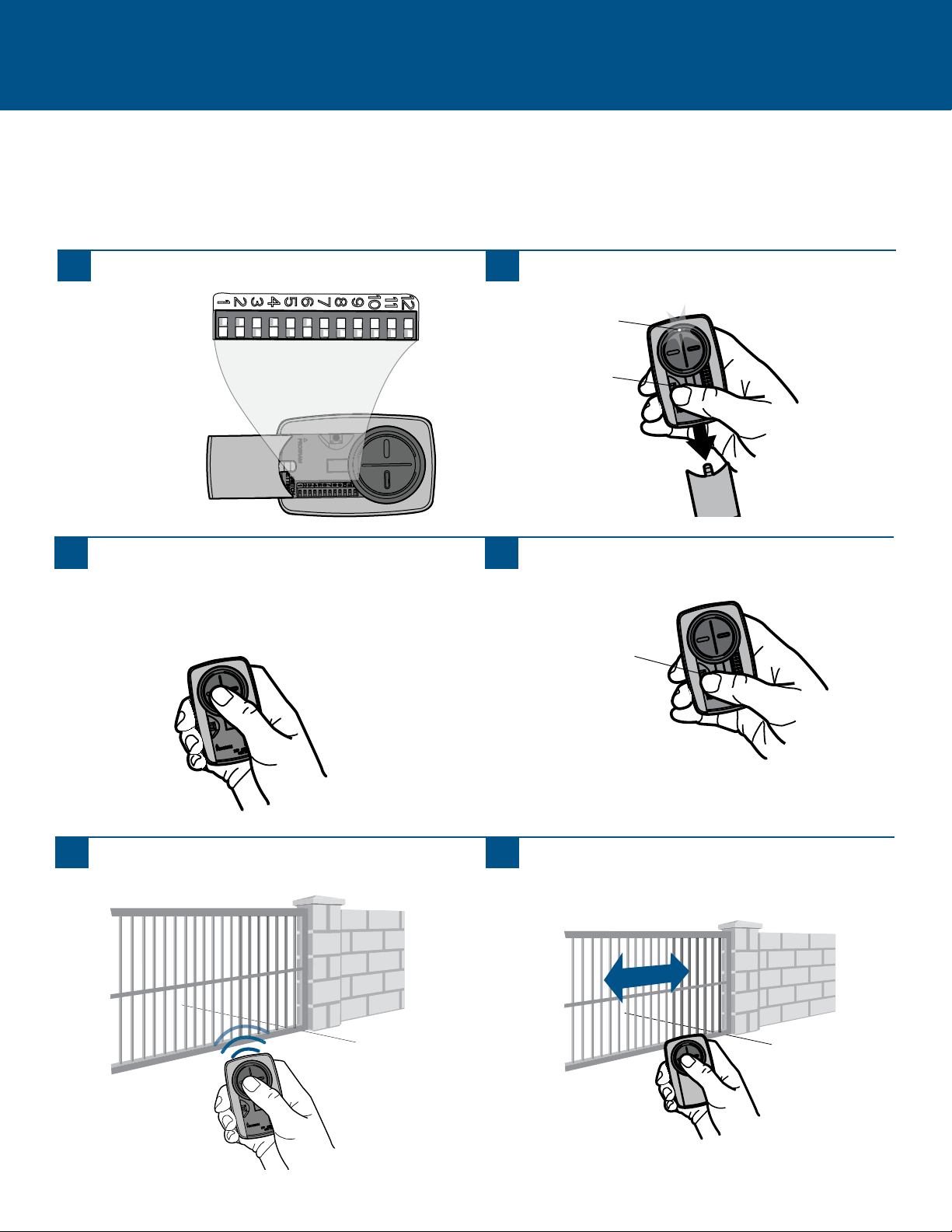
12
Programming to a GTO/Mighty Mule Gate Operator without a Remote Control
If you have an existing GTO remote control go to the next page.
Theimagesthroughoutthismanualareforreferenceonlyandyourproductmaylookdifferent.
SettheremotecontrolDIPswitches1-9toany
combination.
GATE OPERATORS (continued)
1
Presstheprogrambuttonontheremotecontroluntil
theLEDturnson.
2
3
Pressandreleasetheremotecontrolbutton,theLEDwill
flash.WhentheLEDstopsflashing,continuetopress
andreleasethebutton20times,ensuring the LED stops
flashing after each press.Thecodeisacceptedwhenthe
gateoperatorisactivated.
4
Presstheprogrambuttonontheremotecontroltosave.
5
Programtheremotecontroltothegateoperator(referto
thegateoperatorinstructions).
6
Testtheremotecontrolbypressingthebutton.Ifthegate
operatordoesnotactivate,repeattheprogrammingsteps.
ProgramButton
ProgramButton
LED
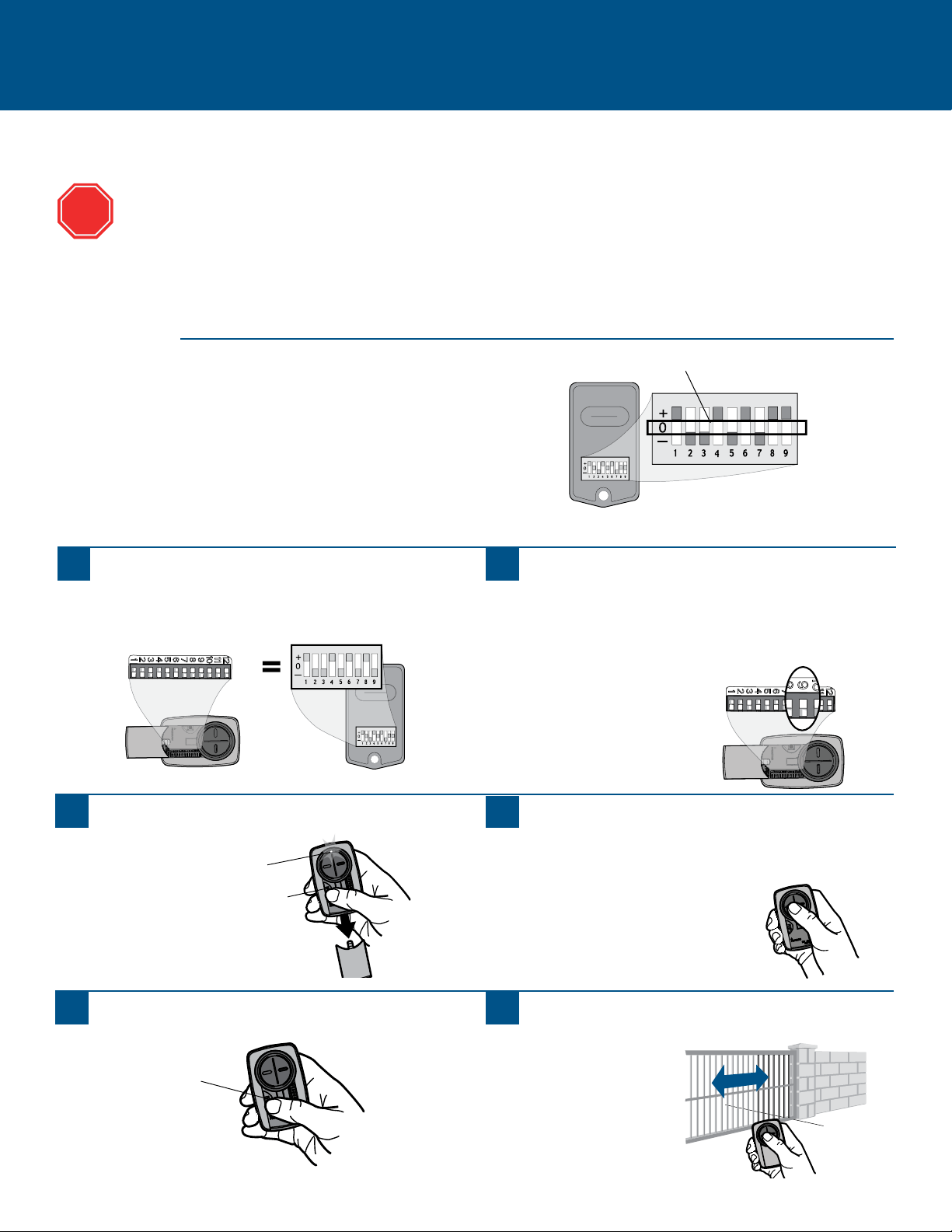
13
Programming to a GTO/Mighty Mule Gate Operator with a Remote Control
GATE OPERATORS (continued)
INITIAL SETUP
If you don’t have an existing GTO remote control go to the previous page.
Before beginning, check the DIP switches on the GTO remote control. If any of the DIP switches are in the "0" position,
move them to either the "+" or "-" position and reprogram the GTO remote control to the gate operator (refer to the gate
operator instructions).
Theimagesthroughoutthismanualareforreferenceonlyandyourproductmaylookdifferent.
2-BUTTON GTO REMOTE CONTROL
IftherightbuttonontheGTOremotecontrolisprogrammedto
thegateoperator,theGTOremotecontrolwillneedtobe
reprogrammedusingtheleftbutton.
3-BUTTON GTO REMOTE CONTROL
IfthemiddlebuttonontheGTOremotecontrolisprogrammedto
thegateoperator,theGTOremotecontrolwillneedtobe
reprogrammedusingeithertheleftorrightbutton.
STOP
NODIPswitchesinthe"0"position
1
MatchtheUniversal Remote ControlDIPswitchestothe
GTOremotecontrolDIPswitches:
GTO “+” = Universal Remote Control “ON”
GTO“-”=UniversalRemoteControl“OFF”
2
2-BUTTON GTO REMOTE CONTROLS ONLY:Setthe9thDIP
switchontheUniversal Remote Controltothe“ON”
position.
3-BUTTON GTO REMOTE CONTROLS ONLY:Setthe9thDIP
switchontheUniversal Remote Controltothe“ON”
positionifusingtheGTOleftbuttonorthe“OFF”position
ifusingtheGTOrightbutton.
3
PresstheprogrambuttonontheUniversal Remote Control
untiltheLEDturnson.
4
PressandreleasetheUniversal Remote Controlbutton,
theLEDwillflash.WhentheLEDstopsflashing,continue
topressandreleasethebutton20times,ensuring the
LED stops flashing after each press.Thecodeisaccepted
whenthegateoperatorisactivated.
5
PresstheprogrambuttonontheUniversal Remote Control
tosave.
6
TesttheUniversal Remote Controlbypressingthebutton.
Ifthegateoperatordoesnotactivate,repeatthe
programmingsteps.
ProgramButton
ProgramButton
LED
14
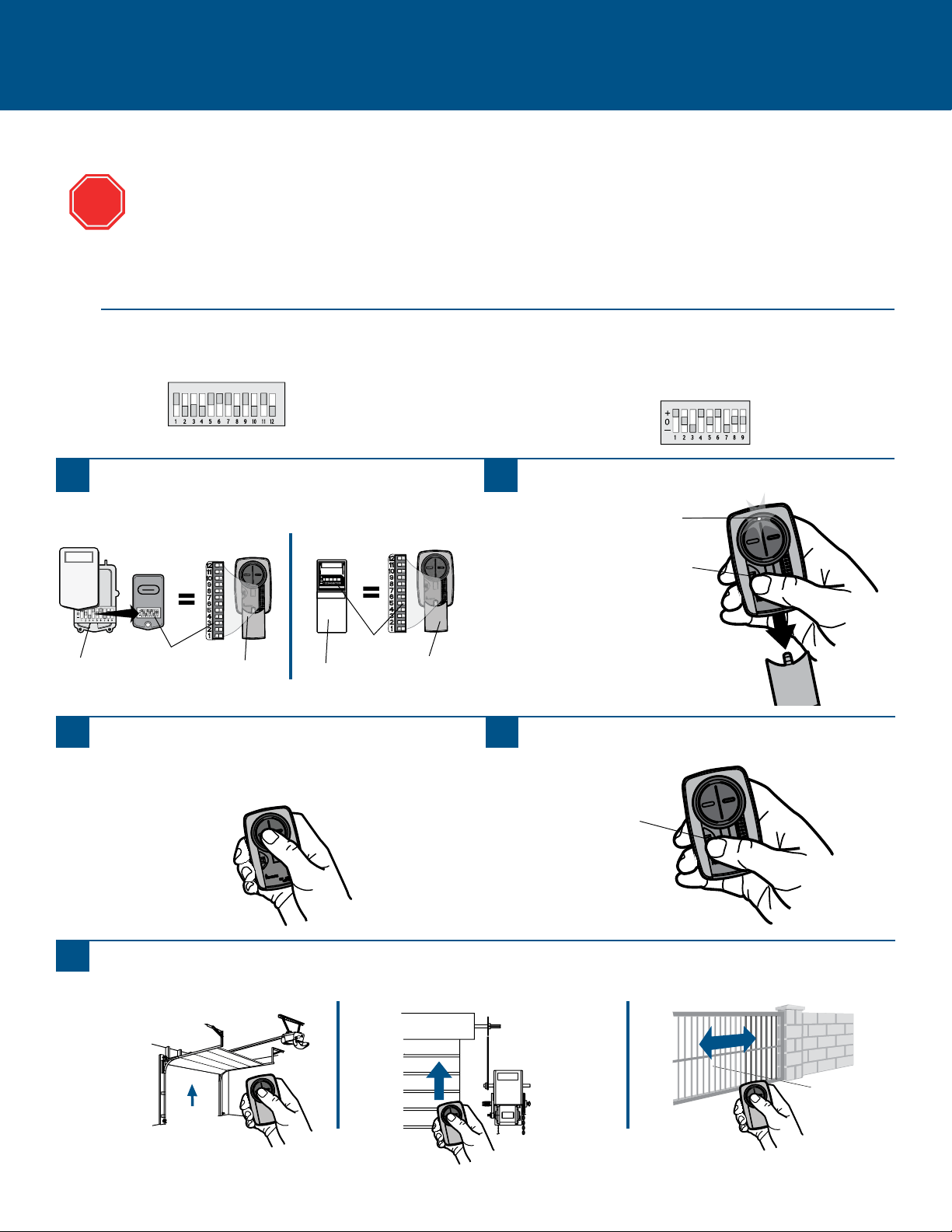
Programming to an External Receiver with DIP Switches
EXTERNAL RECEIVERS
1
PresstheprogrambuttonontheUniversalRemote
ControluntiltheLEDturnson.
2
MatchtheDIPswitchesbetweentheexistingremote
controlorexternalreceiverandtheUniversal Remote
Control.TurnextraswitchesOFF.
3
External
Receiver
DIPSwitches
DIPSwitches
Existing Remote
Universal
Remote
Control
Universal
Remote
Control
If using the Universal Remote Control with residential door openers, the remote control must be used only with door
openers manufactured after 1993 that utilize photoelectric sensors. The photoelectric sensors are always located on or
near the bottom of the door track.
The external receiver is typically located on the product or mounted near the product.
Theimagesthroughoutthismanualareforreferenceonlyandyourproductmaylookdifferent.
PressandreleasetheUniversalRemoteControlbutton,
theLEDwillflash.WhentheLEDstopsflashing,
continuetopressandreleasethebuttonuntilyour
productrespondsbyclicking,blinking,oractivating.
4
PresstheprogrambuttonontheUniversalRemote
Controltosave.
5
TesttheUniversalRemoteControlbypressingthebutton.Iftheproductdoesnotactivate,repeattheprogrammingstepsor
followthealternativeprogrammingoption.
STOP
ProgramButton
ProgramButton
LED
3 Position DIP Switch:
For Chamberlain remotes DO NOT use the “0” position, use “+” or “-”.
If you already have a 3-button remote, DIP switch #1 must be set to “-” if the
large button is to open the door. It may be necessary to reprogram original
remote controls.
2 Position DIP Switch:
If programming fails reverse DIP switches (OFF to ON and ON to OFF).
TIPS
15
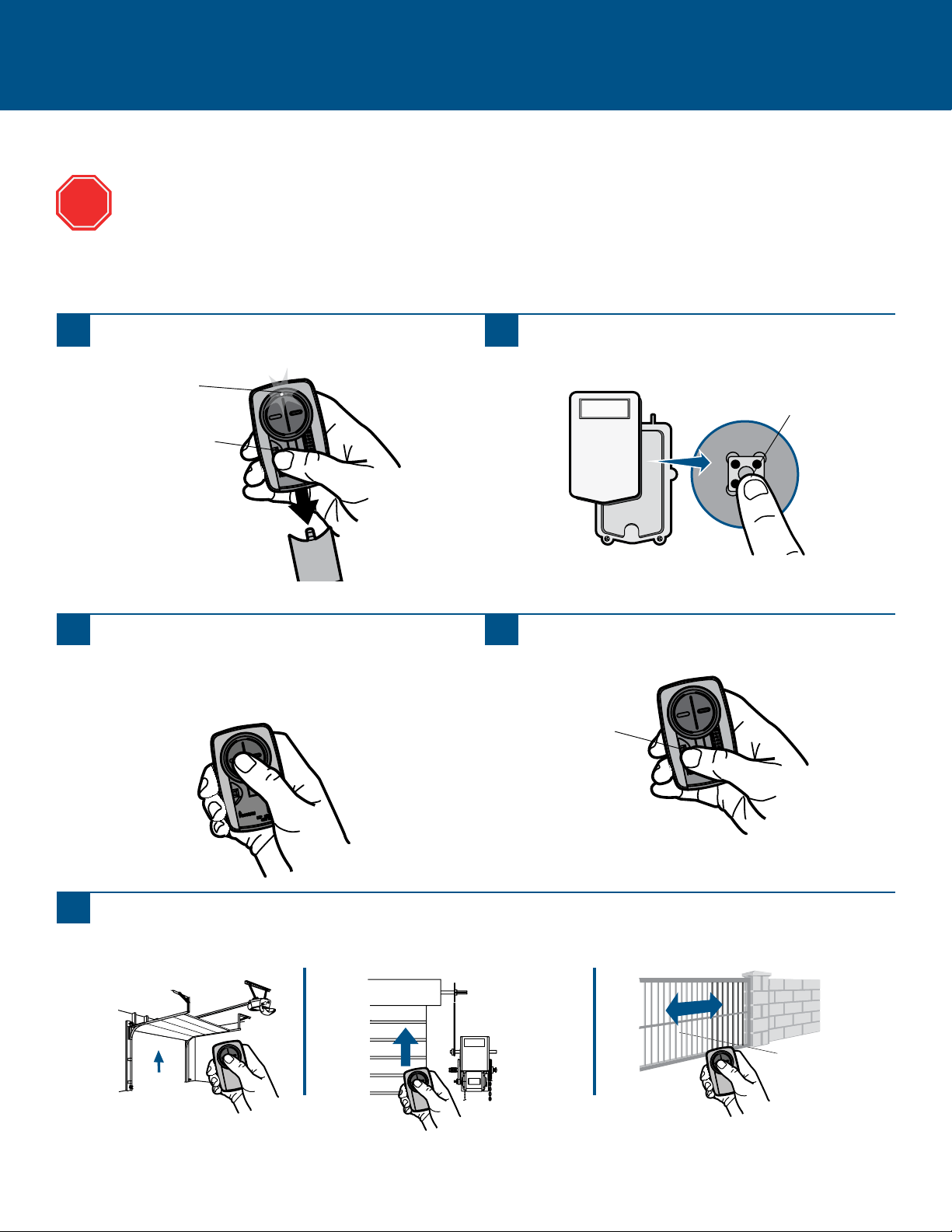
Programming to an External Receiver with a Program/LEARN Button
EXTERNAL RECEIVERS (continued)
1
Presstheprogrambuttonontheremotecontroluntil
theLEDturnson.
2
PressandreleasetheProgram/LEARNbutton*onthe
externalreceiver.
3
Pressandreleasetheremotecontrolbutton,theLEDwill
flash.WhentheLEDstopsflashing,continuetopress
andreleasethebuttonuntilyourproductrespondsby
clicking,blinking,oractivating.
4
Presstheprogrambuttonontheremotecontroltosave.
5
Testtheremotecontrolbypressingthebutton.Iftheproductdoesnotactivate,repeattheprogrammingstepsorfollowthe
alternativeprogrammingoption.
Program/LEARN
Button*
If using the Universal Remote Control with residential door openers, the remote control must be used only with door
openers manufactured after 1993 that utilize photoelectric sensors. The photoelectric sensors are always located on or
near the bottom of the door track.
The external receiver is typically located on the product or mounted near the product.
Theimagesthroughoutthismanualareforreferenceonlyandyourproductmaylookdifferent.
*Dependingonyourproduct,theProgram/SMART/LEARNbuttonmayhavea
differentname(usethebuttonforprogrammingremotecontrols).
STOP
ProgramButton
ProgramButton
LED
16
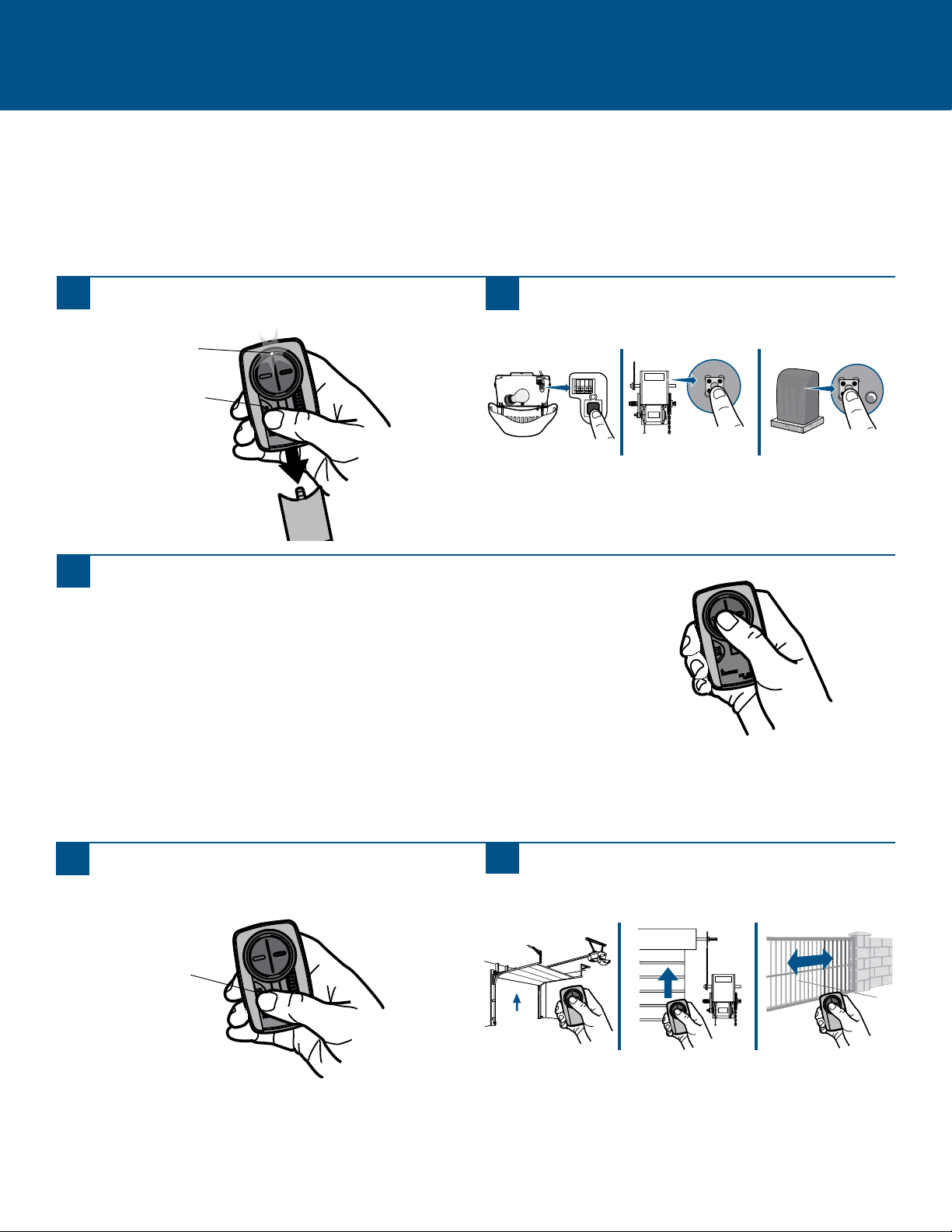
Alternative programming option for products with a Program/LEARN Button
The Program/LEARN button is typically located on the product or an external receiver. For help locating your Program/LEARN button
refer to the Help section in this manual or contact your product manufacturer.
Theimagesthroughoutthismanualareforreferenceonlyandyourproductmaylookdifferent.
**LiftMaster,Do-It,MasterMechanic,Raynor,TrueValueandSearsCraftsmanarecompatiblewithChamberlaintechnology.
ALTERNATIVE PROGRAMMING OPTIONS
1
Presstheprogrambuttonontheremotecontroluntil
theLEDturnson.
2
PressandreleasetheProgram/LEARNbutton*onyour
product.
3
Pressandreleasetheremotecontrolbutton...
...8 times(Chamberlain
®
**productwithyellowProgram/LEARNbutton).
...3 times(Chamberlain
®
**productwithpurple Program/LEARNbutton).
...2 times(Chamberlain
®
**productwithorangeProgram/LEARNbutton).
...4 times(Chamberlain
®
**productwithgreen Program/LEARNbutton).
...5 or 6 times(OverheadDoor
®
Genie
®
Intellicodeproduct).
...1 time(Linear
®
Mega-Codeproduct).
...7 times(Stanley
®
SecureCodeproduct).
...9 times(WayneDalton
®
RollingCodeproduct).
TheLEDontheremotecontrolmuststopblinkingbetweeneachpressofthebutton.Thecodeisacceptedwhentheproduct
respondsbyclicking,blinking,oractivating.
4
Presstheprogrambuttonontheremotecontrolto
save.
5
Testtheremotecontrolbypressingthebutton.Ifthe
productdoesnotactivate,repeattheprogrammingsteps.
*Dependingonyourproduct,theProgram/LEARNbuttonmayhaveadifferent
name(usethebuttonforprogrammingremotecontrols).
ProgramButton
ProgramButton
LED
17
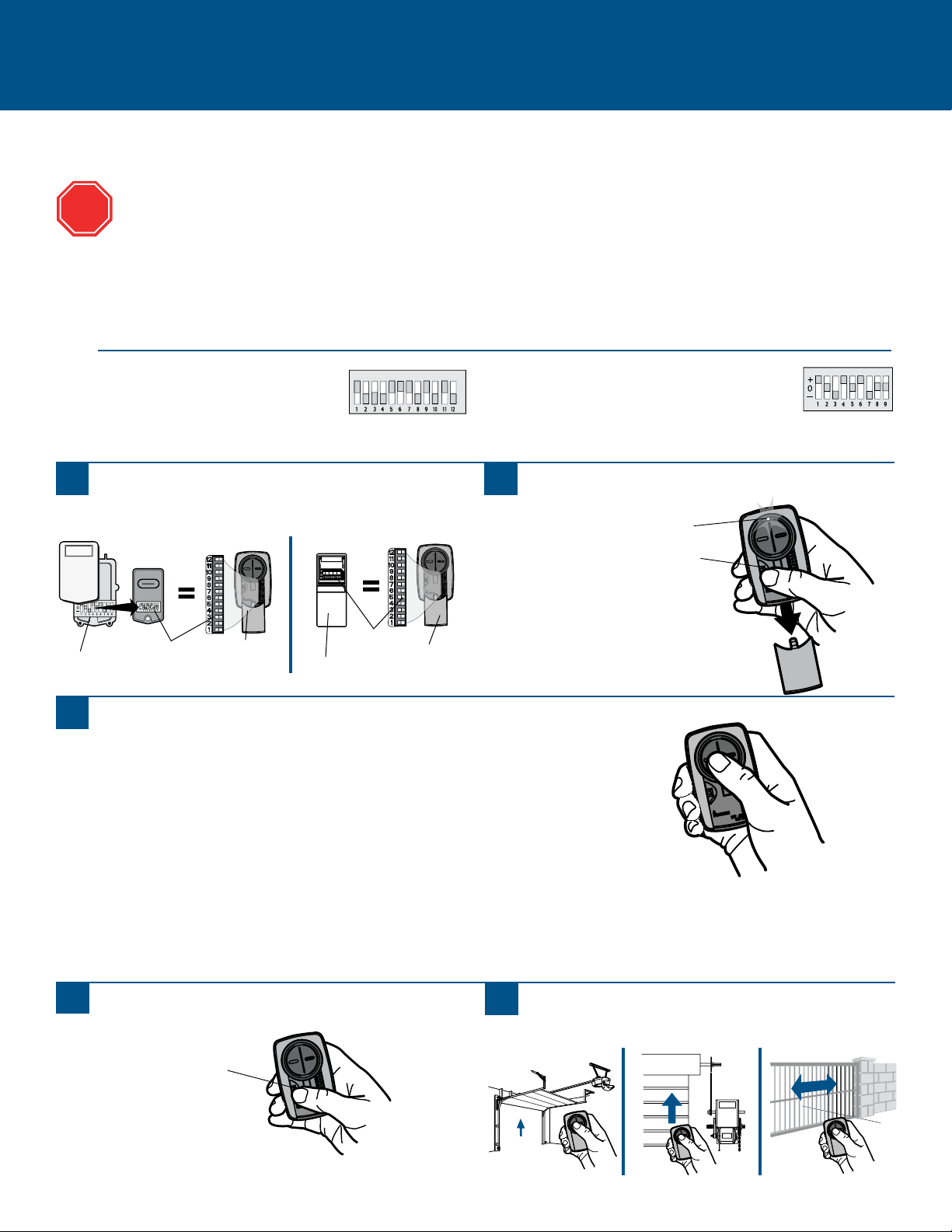
Alternative programming option for products with DIP Switches
ALTERNATIVE PROGRAMMING OPTIONS (continued)
PressandreleasetheUniversalRemoteControlbutton...
...11 times(Chamberlain
®
**productwith9 DIPswitches).
...12 times(Chamberlain
®
**Canadaproductwith9 DIPswitches).
...13 times(Genie
®
productwith12 DIPswitches).
...14 times(LinearMulticode
®
with10 DIPswitches).
...15 times(Chamberlain
®
*productwith8 DIPswitches).
...16 times(Stanley/Multicode
®
productwith10 DIPswitches).
...17 times(Genie
®
productwith9 DIPswitches).
...18 times(Linear
®
,Moore-O-Matic
®
productwith8 DIPswitches).
...19 times(Chamberlain
®
**productwith7 DIPswitches).
TheLEDontheUniversalRemoteControlmuststopblinkingbetweeneachpressofthebutton.Thecodeisacceptedwhenthe
garagedooropenerrespondsbyclicking,blinking,oractivating.
1
PresstheprogrambuttonontheUniversalRemote
ControluntiltheLEDturnson.
2
MatchtheDIPswitchesbetweentheexistingremote
controlorexternalreceiverandtheUniversalRemote
Control.TurnextraswitchesOFF.
3
5
PresstheprogrambuttonontheUniversalRemote
Controltosave.
6
TesttheUniversalRemoteControlbypressingthebutton.
Iftheproductdoesnotactivate,repeattheprogramming
steps.
External
Receiver
DIPSwitches
DIPSwitches
Existing Remote
Universal
Remote
Control
If using the Universal Remote Control with residential door openers, the remote control must be used only with door
openers manufactured after 1993 that utilize photoelectric sensors. The photoelectric sensors are always located on or
near the bottom of the door track.
The DIP switches are typically located on the product or an external receiver. For help locating your DIP switches contact
your product manufacturer.
Theimagesthroughoutthismanualareforreferenceonlyandyourproductmaylookdifferent.
**LiftMaster,Do-It,MasterMechanic,Raynor,TrueValueandSearsCraftsmanarecompatiblewithChamberlaintechnology.
STOP
Universal
Remote
Control
ProgramButton
ProgramButton
LED
3 Position DIP Switch:
For Chamberlain remote controls DO NOT use the “0” position,
use “+” or “-”. If you already have a 3-button remote, DIP
switch #1 must be set to “-” if the large button is to open the
door. It may be necessary to reprogram original remote controls.
2 Position DIP Switch:
If programming fails reverse DIP switches (OFF to ON
and ON to OFF).
TIPS

18
NEED HELP?
The remote control will not program to a product with DIP switches.
•Checkthebatteryintheremotecontrol.TheLEDshouldlightwhenyoupressabutton.Replacethebatteryifnecessary.
•Ifprogrammingwith2positionDIPswitches,reversetheDIPswitches(OFFtoONandONtoOFF),thenrepeattheprogramming
steps.
•ForChamberlainremotecontrolsDONOTusethe“0”position,use“+”or“-”.Ifyoualreadyhavea3-buttonremote,DIPswitch#1
mustbesetto“-”ifthelargebuttonistoopenthedoor.Itmaybenecessarytoreprogramoriginalremotecontrols.
•RepeattheprogrammingstepsbutmakesuretheLEDstopsflashingbetweeneachpressoftheremotecontrolbutton.
•TryprogrammingusingtheAlternativeProgrammingOptionforproductswithaLEARNbutton.
The remote control will not program to a product with a Program/LEARN button.
•Checkthebatteryintheremotecontrol.TheLEDshouldlightwhenyoupressabutton.Replacethebatteryifnecessary.
•RepeattheprogrammingstepsbutmakesuretheLEDstopsflashingbetweeneachpressoftheremotecontrolbutton.
•TryprogrammingusingtheAlternativeProgrammingOptionforproductswithDIPswitches.
The remote control LED will not light or it is dim.
•Replacethebattery.
The remote control LED does not activate the product until it is close to the product.
•Replacethebattery.
To prevent possible SERIOUS INJURY or DEATH:
• NEVER allow small children near batteries.
• If battery is swallowed, immediately notify doctor.
To reduce risk of fire, explosion or chemical burn:
• Replace ONLY with 3V2032 coin batteries.
• DO NOT recharge, disassemble, heat above 212°F (100°C)
or incinerate.
NOTICE: To comply with FCC and or Industry Canada (IC) rules, adjustment or
modifications of this receiver and/or transmitter are prohibited, except for
changing the code setting or replacing the battery. THERE ARE NO OTHER USER
SERVICEABLE PARTS.
Tested to Comply with FCC Standards FOR HOME OR OFFICE USE. Operation is
subject to the following two conditions: (1) this device may not cause harmful
interference, and (2) this device must accept any interference received, including
interference that may cause undesired operation.
Chamberlain and LiftMaster are Trademarks of Chamberlain Group. Genie is a Trademark of Overhead Door Corporation.
Overhead Door is a Trademark of Overhead Door Corporation. Linear is a Trademark of Linear Corporation. Master Mechanic
is a Trademark of TruServ. Sears is a Trademark of Sears & Roebuck. Stanley is a Trademark of The Stanley Works. Wayne
Dalton is a trademark of Wayne Dalton Corporation. Do It is a trademark of Do It Best Corporation. Mighty Mule and GTO are
trademarks of Nortek Inc.
© 2014, The Chamberlain Group, Inc.
All Rights Reserved
114A4774
www.chamberlain.com
1-800-442-1255
Battery
BATTERY
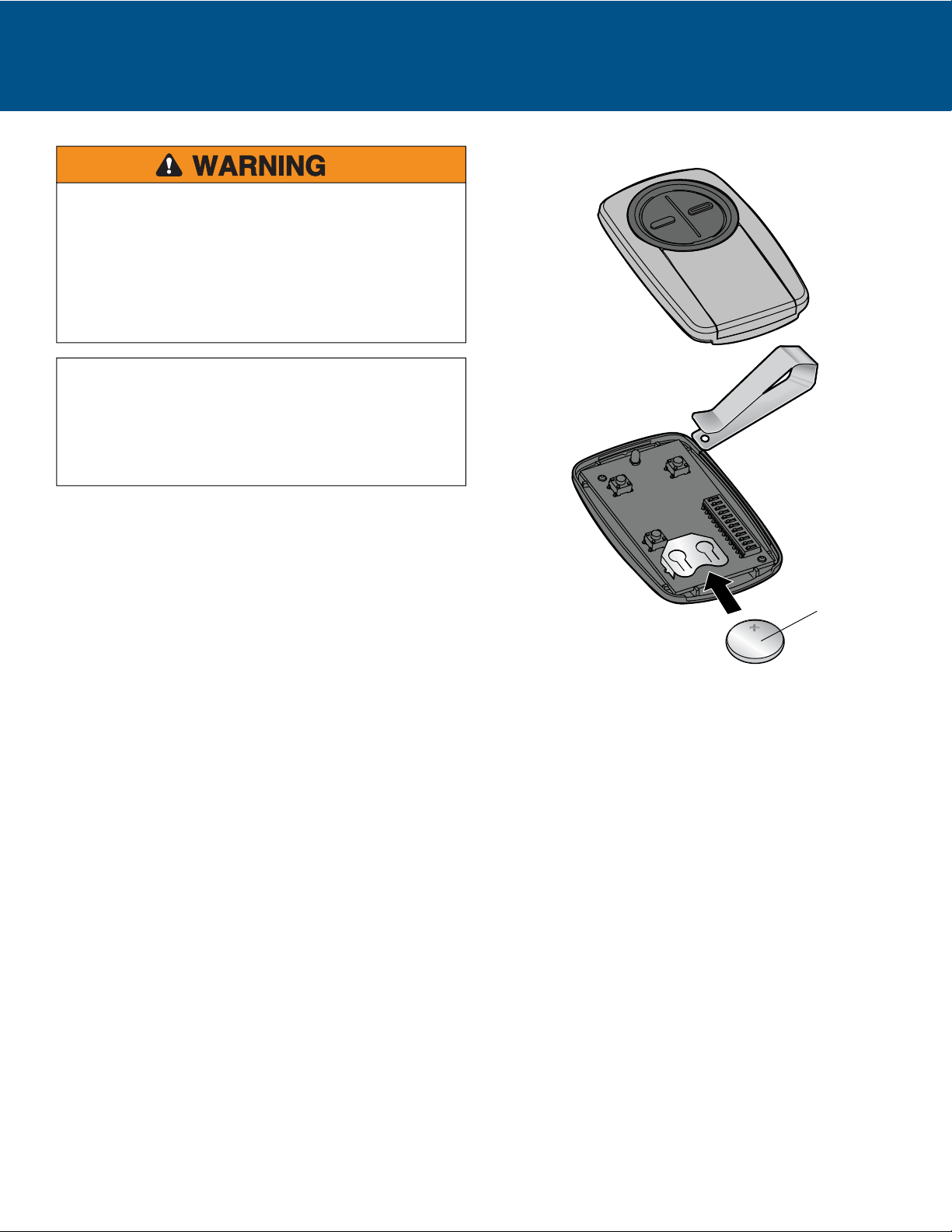
To replace the battery, pry open the cover with visor clip or
screwdriver, as shown. Insert batteries positive side up (+).
Dispose of batteries properly.
Replace ONLY with 3V2032 coin batteries.