Welcome Booklet

2

3
Welcome. Things are heating up ... get ready!
In the box. Let’s unpack and admire your goodies.
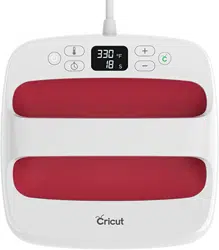
At a glance. An overview of Cricut EasyPress
controls.
Make it last. Suggestions for the longest-lasting iron-ons.
Instructions. Just a few easy steps to iron-on success.
The Cricut Advantage
™
. Resources for info and inspiration.
Cut your own designs. Tips for all you Cricut crafters.
Time and temperature chart. The perfect settings for your project.
More questions? Find answers at help.cricut.com/easypress.
4
6
8
10
12
16
20
22

4
Welcome
WELCOME
Hello, future iron-on pro. We’re so thrilled this Cricut EasyPress has found its way into your
amazing hands.
You inspired us with your passion to create and challenged us with your creative need:
crazy-simple iron-on transfers that last and last and last. So, here you go!
We cannot wait to see what you make with the magic of iron-on.

5

6
• Cricut EasyPress
• Safety Base
• Welcome Booklet
• Quick Reference Chart
• Practice project materials
• Warranty
IN THE BOX
In the box
7
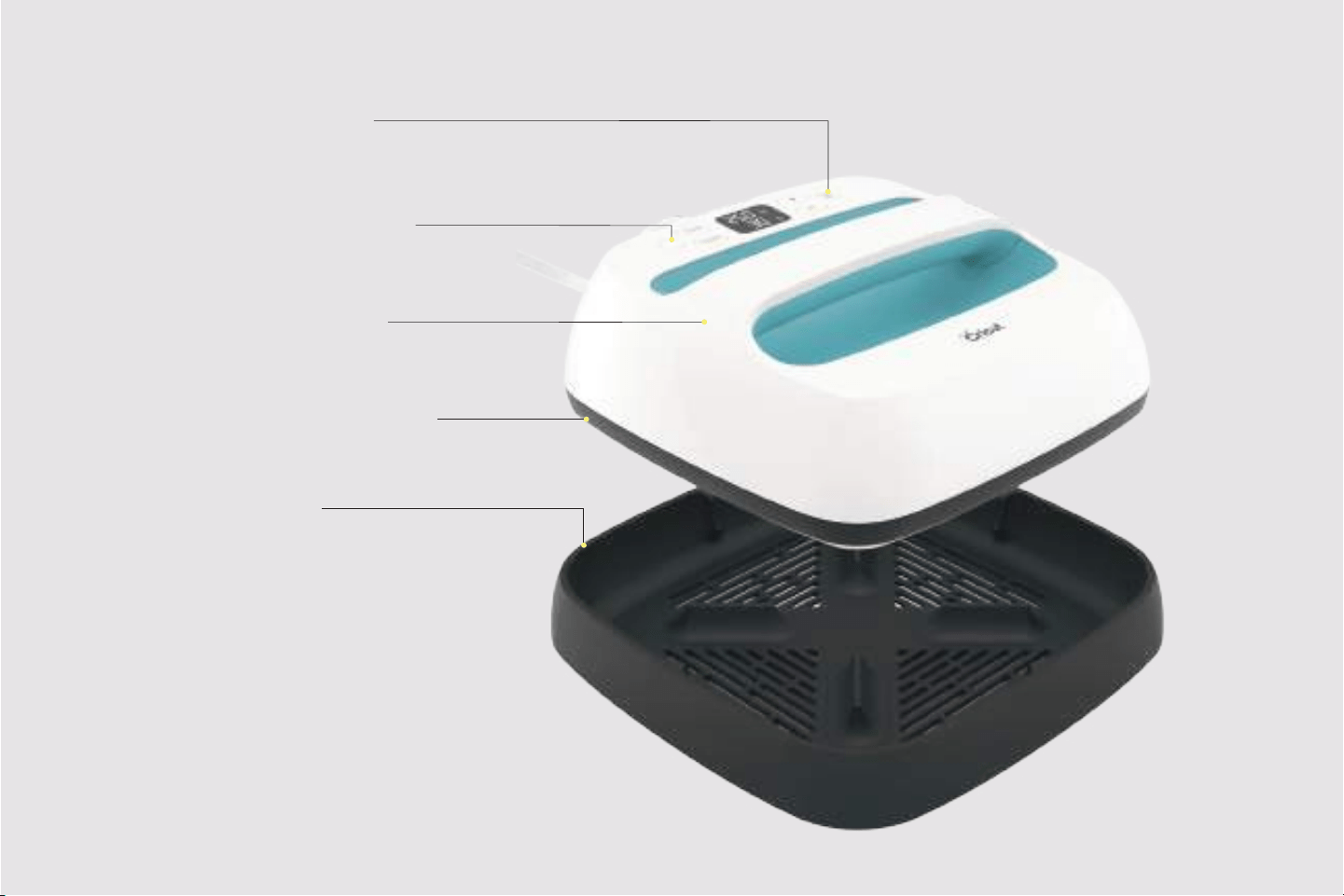
Countdown timer
Beeps when iron-on transfer is complete
Precise digital controls
Easy to set exact temperature and time
Comfortable handle
Safe and easy to grip during use
9" x 9" evenly heated plate
Dry, even heat means awless transfers
Safety Base
Insulated base keeps Cricut EasyPress
™
in a protected, resting position
Auto shuto
Shuts o automatically after 10 minutes

At a glance
The simple Cricut EasyPress controls are the secret to your iron-on success. You’ll love
the results.
TIP: To nd the correct time and temperature settings for your specic iron-on project,
refer to the included Quick Reference Chart. If you don’t see your project specics listed,
visit help.c ricut.com/easypress.
8
AT A GLANCE
9
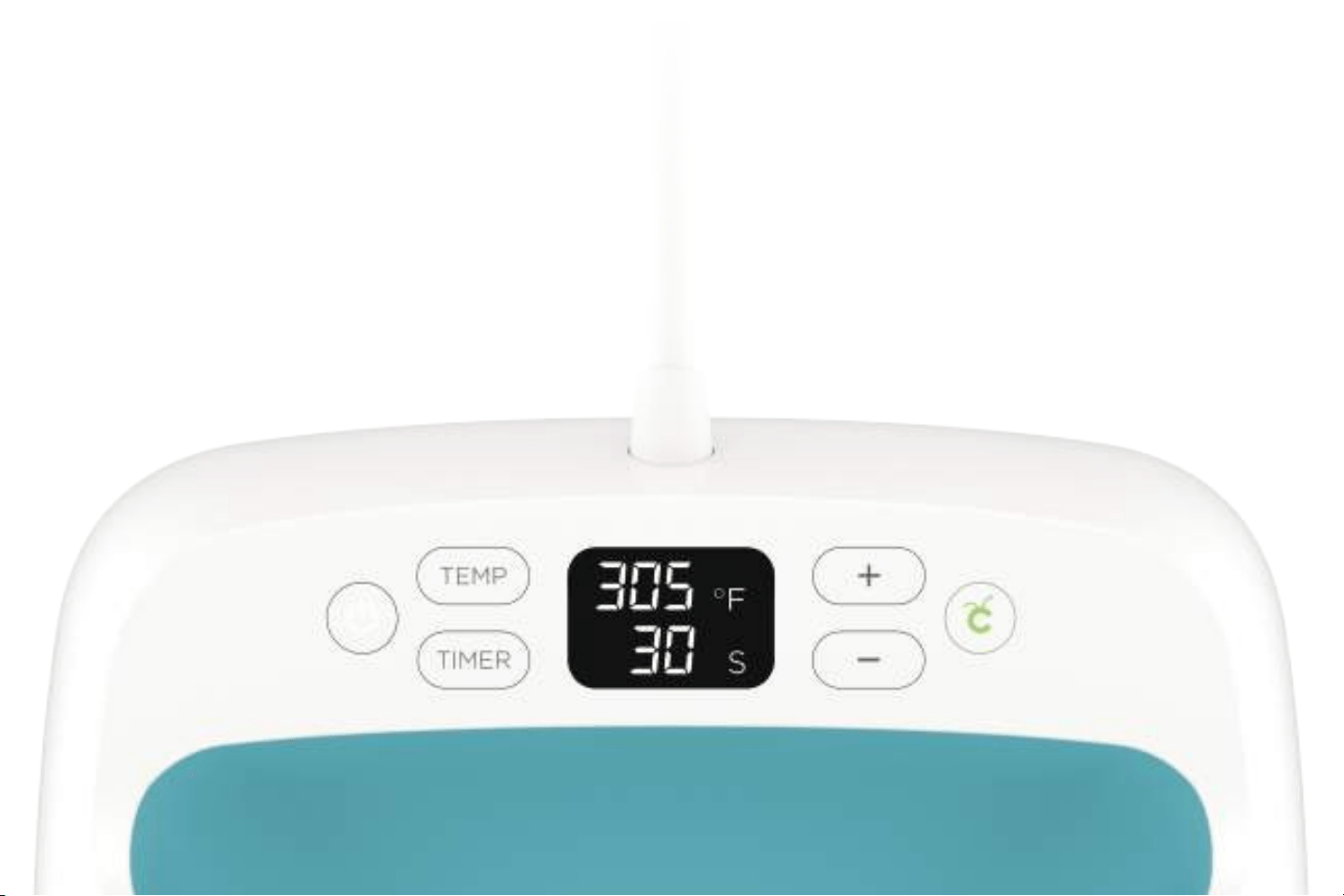
Set temperature
Press Temp button, then adjust value with plus (+)
and minus (-) buttons. To switch from Fahrenheit
to Celsius, press and hold the Temp button.
Set time
Press Timer button, then adjust value with plus (+)
and minus (-) buttons.
What the lights mean
Orange light means it’s heating up.
Green light means temperature has been reached.
Start timer
Press the Cricut C button to start the countdown.
A beep signals time is up.

10
MAKE IT LAST
Make it last
Maximize the life of your iron-on projects wash after wash with these suggestions.
Before iron-on application
For awesome results, always pre-wash and thoroughly dry your fabrics. When washing, do not
use fabric softener. If you have no time for washing, you’ll still get pretty great results.
During iron-on application
Just before transfer, preheat your base fabric for 3-5 seconds to remove wrinkles and moisture.
After adhering your design, ip your fabric and repeat on the other side. Use the same settings.
After iron-on application
Wait at least 24 hours before washing. Always wash inside-out. Do not bleach. Wash only in cool
water, then tumble dry low or lay at to dry. For foil iron-ons, hand-wash in cold water only.
Get more great tips and suggestions at hel p.cricut.com/easypress.

11

Instructions
12
INSTRUCTIONS
We’ll take on a T-shirt in the following steps, but you can apply these instructions to anything
your heart desires, from a purse to a pillowcase … to a wedding dress? (Yes, it’s been done!)
We want to see the projects you’ve made using Cricut EasyPress. Share your iron-on
creations using #CricutMade & #CricutEasyPress.
Caution: It may be easy, but it's also HOT. Handle EasyPress with care.
13
Get prepped
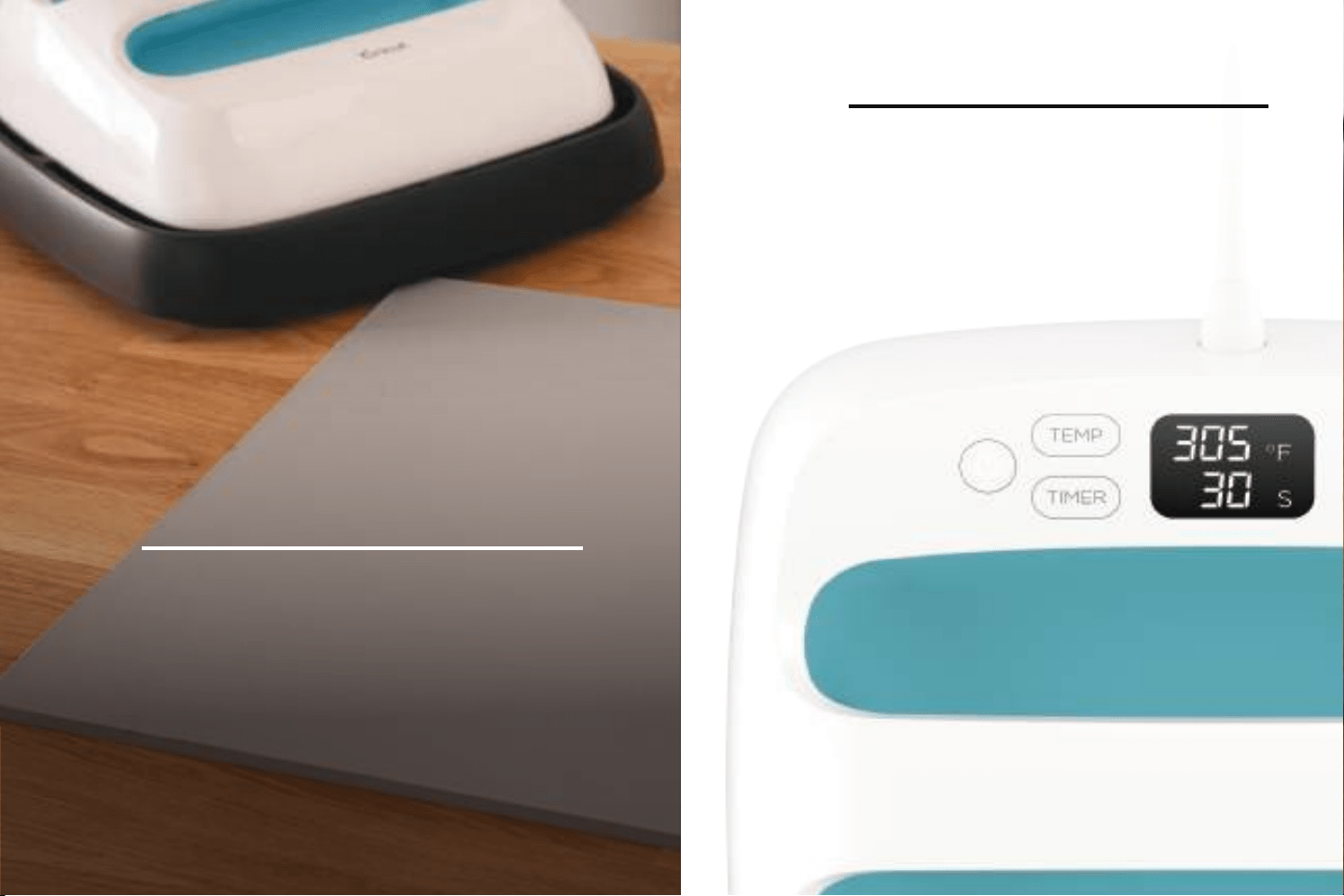
Power on Cricut EasyPress. Find a rm, at,
heat-resistant surface around waist height.
We recommend that you use Cricut EasyPress
Mat (pictured, sold separately) as your
foundation. Just be sure to avoid imsy,
padded ironing boards.
Set time and temperature
Use the Quick Reference Chart to determine
the settings for your project. The beep signals
Cricut EasyPress is ready to use.
1
2
1414
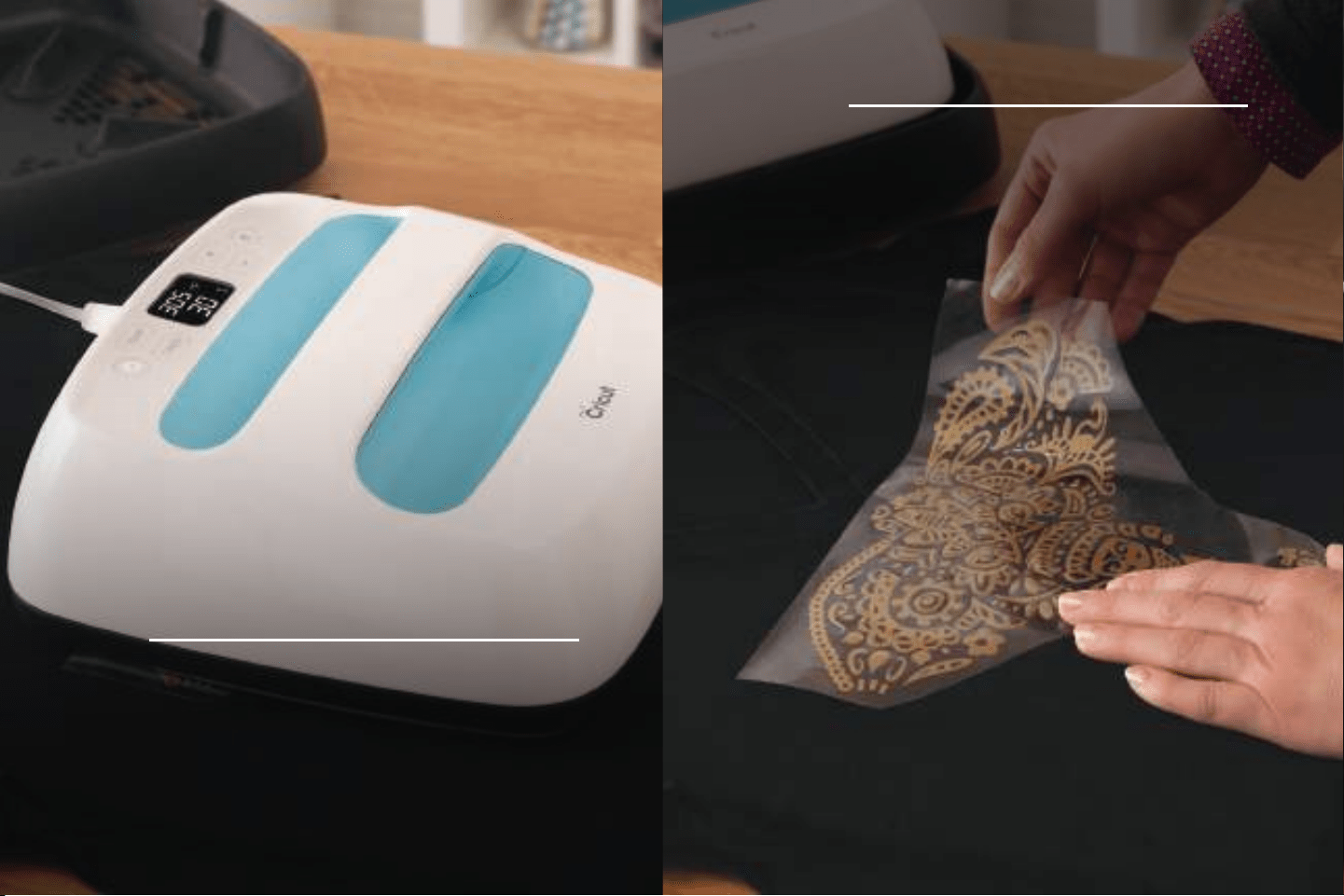
Preheat mat and base material
Place Cricut EasyPress on your fabric for 3 – 5
seconds to remove wrinkles and moisture.
Position your design
Place your design where you want it. Make
sure the shiny side (clear liner) is facing up.
4
3
INSTRUCTIONS
15
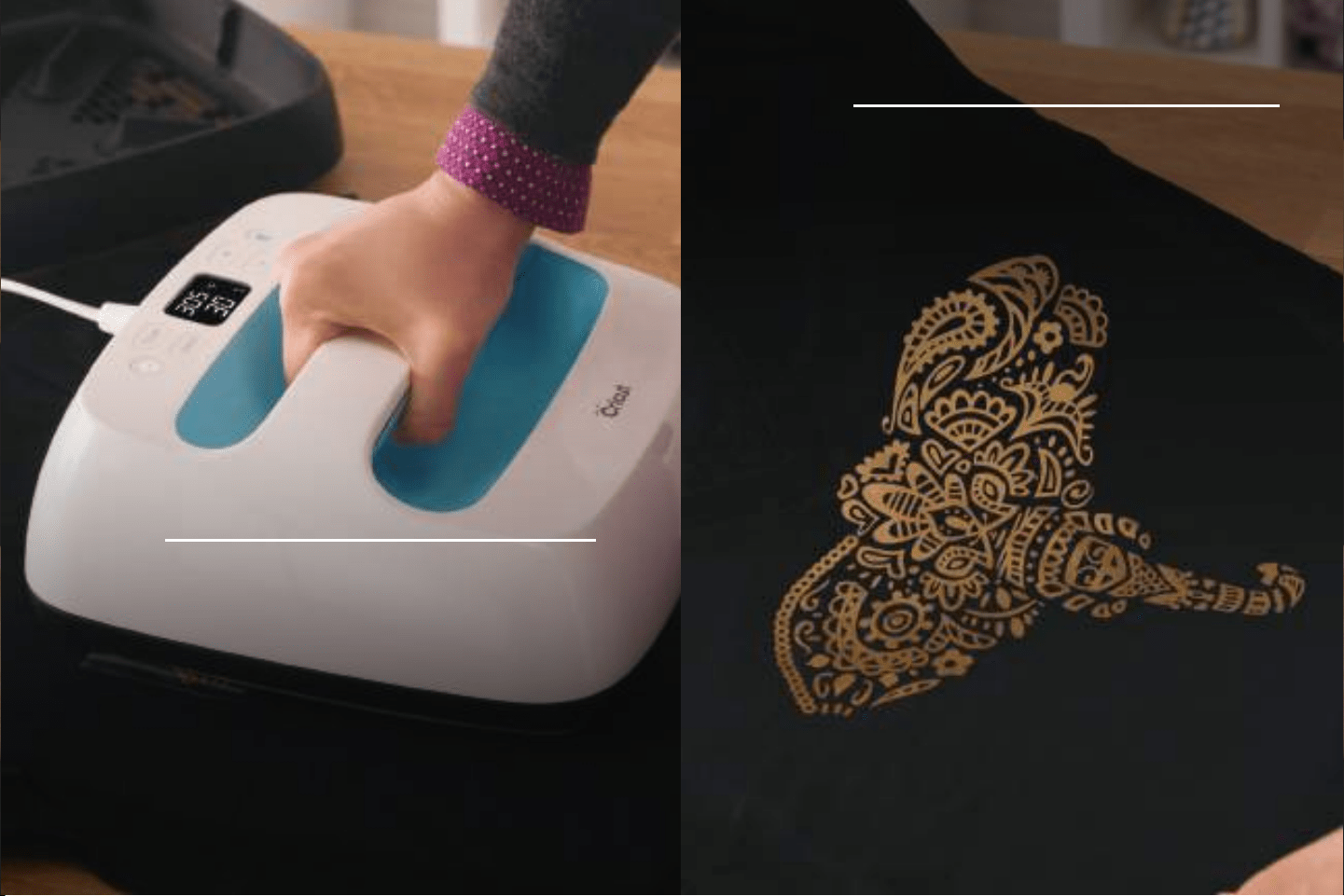
Apply heat on both sides
Place Cricut EasyPress on your design. Start the
timer. Hold Cricut EasyPress in place and apply
gentle pressure until it beeps. Flip the T-shirt
and apply heat on the back side of the design
for 10 – 15 seconds.
Wait ... before the big reveal!
Let the iron-on lm cool completely before you
test a corner. If the liner does not lift easily,
reapply and reheat a few more seconds.
Woo-hoo, that’s it!
6
5

16
THE CRICUT ADVANTAGE
The Cricut
Advantage
™
• For the most magnicent results, use Cricut EasyPress with Cricut brand iron-on lm. We don’t
just suggest “average” temperature and time settings for any old heat press on any random fabric.
We give you precise and rigorously tested settings for the very press that is now in your hand. Use
our Quick Reference Chart to make every project perfect.
• Because each iron-on type has unique properties, you'll be amazed at all the possibilities when
you learn the nuances of a fabulous foil, gorgeous glitter, or majestic metallic. We’ll always share
our insights, along with our best pro tips, at help.cricut.com/easypress.
Crafting with iron-on is part art and part science. We’ve given you a basic foundation to create iron-on
projects that truly last. When you’re ready for advanced projects we’ll be here for you then, too. On the
next few pages are ideas designed to inspire your imagination.

17
1818
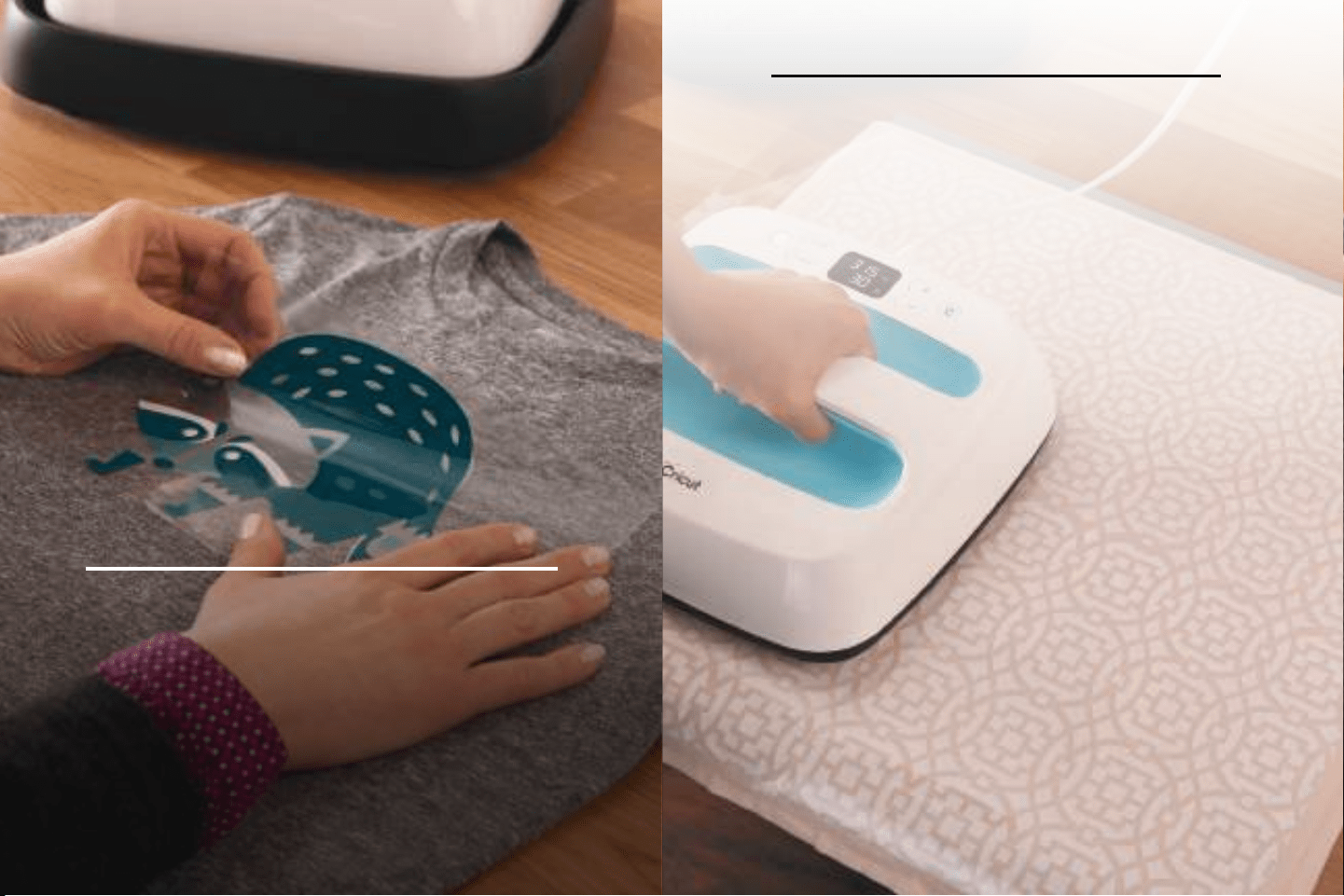
Learn to love the “layer”
Make a multicolored and textured masterpiece with
an iron-on technique called layering. We’ll show you
exactly how to do it and which iron-on types work
best at help.cricut.com/easypress.
Yes, you can go big
Indeed, you can have huge success with a large
iron-on design! Get our step-by-step instructions
on how to tackle your most ambitious ideas at
help.cricut.com/easypress.
19
Think beyond fabrics
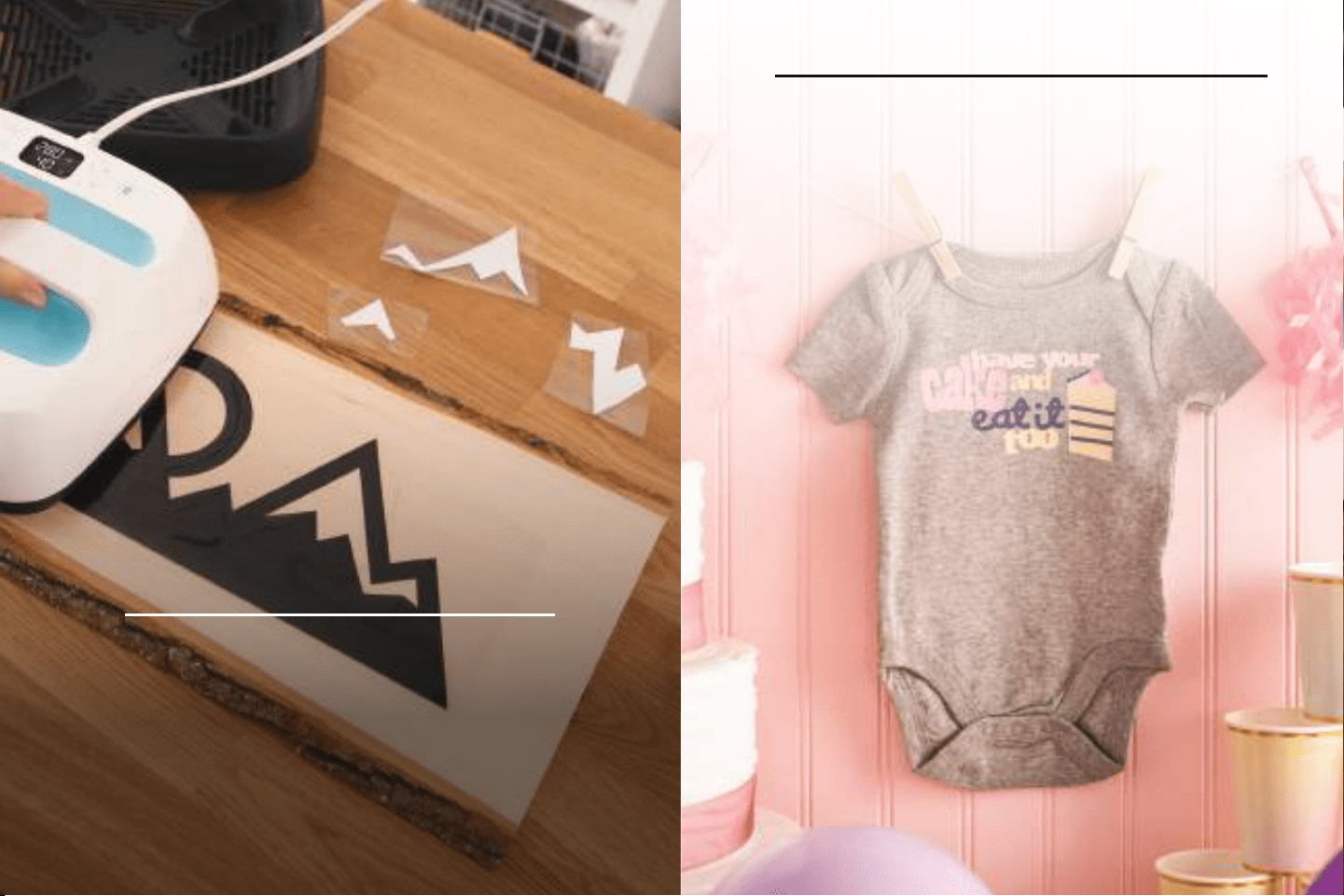
Customize your home decor. Iron-on works
on so many things, including wood and paper.
Learn more at help.cr icu t.com/easypress.
It’s not always what it “seams”
We have a simple strategy to get around pesky seams
to keep your fabric and design at for a perfect press.
Learn how at help.cricut.com/easypress.

20
CUT YOUR OWN DESIGNS
Cut your own designs
Before cutting, always mirror (reverse) your design.
If your image includes text or is asymmetrical, you must mirror it in Design Space before you cut.
Otherwise, once it’s transferred, your design will appear backward.
When cutting, remember this: shiny side faces down.
When using your Cricut machine to cut a design from iron-on lm, the clear liner (shiny side)
always sticks to your cutting mat.
Cricut machines and Cricut EasyPress are optimized for Cricut iron-on lms.
When you select your iron-on type, your Cricut machine automatically adjusts for cut depth.
When you use Cricut brand iron-on lm, you’ll get the perfect cut and a perfect press every time.
Visit shop.cricut.com.
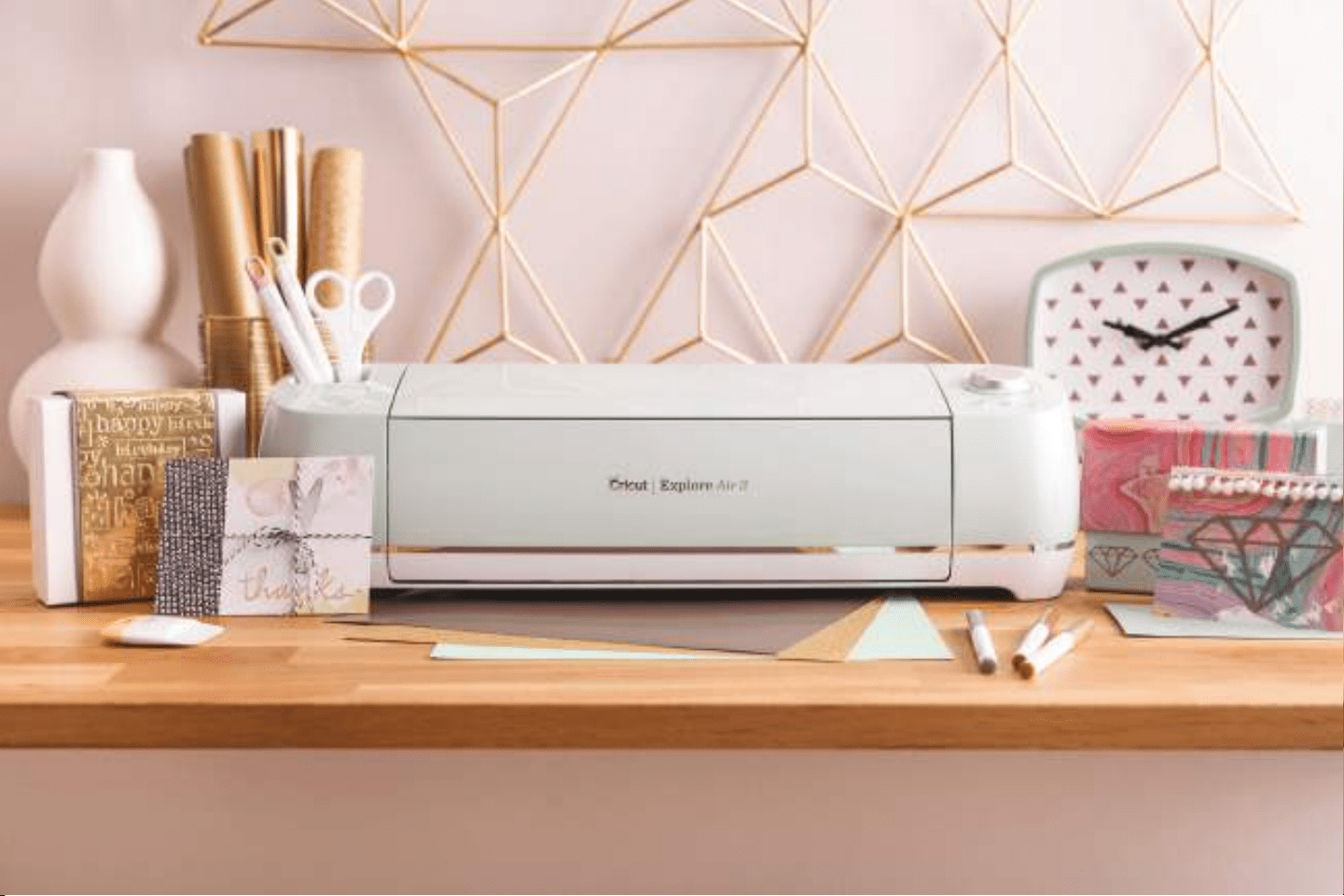
The real fun starts when you cut your own iron-on designs using your Cricut cutting machine and
Design Space
®
software.
21

22
Base material
100% Cotton
295°F / 145°C
35 sec
305°F / 150°C
30 sec
340°F / 170°C
20 sec
330°F / 165°C
20 sec
285°F / 140°C
30 sec
305°F / 150°C
20 sec
320°F / 160°C
15 sec
330°F / 165°C
30 sec
265°F / 130°C
30 sec
285°F / 140°C
15 sec
285°F / 140°C
20 sec
285°F / 140°C
30 sec
255°F / 125°C
30 sec
265°F / 130°C
30 sec
275°F / 135°C
20 sec
275°F / 135°C
20 sec
270°F / 130°C
40 sec
270°F / 130°C
40 sec
270°F / 130°C
40 sec
275°F / 135°C
40 sec
305°F / 150°C
30 sec
305°F / 150°C
30 sec
305°F / 150°C
30 sec
305°F / 150°C
30 sec
275°F / 135°C
20 sec
275°F / 135°C
20 sec
285°F / 140°C
20 sec
285°F / 140°C
20 sec
Cotton / poly
blend
Polyester
Nylon blend
or silk
Cotton canvas Burlap Felt
Iron-on type
Foil
Lite / Metallic
Glitter
Holographic
TIME AND TEMPERATURE CHART
Time and temperature chart
Use this chart (or the Quick Reference Chart) to determine the perfect time and temperature settings for your
project. For a complete list of Cricut EasyPress settings go to help.cricut.com/easypress.

23

help.cricut.com
Answers to all your Cricut questions
learn.cricut.com
Educational videos, instruction manuals,
and other learning materials
cricut.com/blog
News, announcements, tips, and inspiration
youtube.com/ocialcricut
Instructional videos, news, and more
facebook.com/ocialcricut
Join the discussion and connect with
the Cricut community
cricut.com/contact-us
Live chat and email support
Useful Links