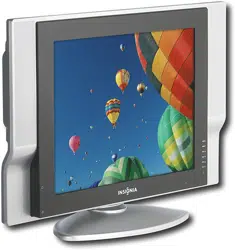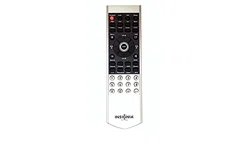

IS-LCDTV26
LCD TV

Table of Contents
Important Information ....................................................................................................................1
Important Safety Precautions........................................................................................................2
Preparations ....................................................................................................................................5
Using the Remote Control .....................................................................................................5
Batteries for the Remote Control..........................................................................................5
Power Connection.................................................................................................................5
Antenna Connection.............................................................................................................6
Identification of Controls................................................................................................................7
Main Unit..................................................................................................................................7
Remote Control ......................................................................................................................9
Connections...................................................................................................................................11
Cautions Before Connecting ..............................................................................................11
Connect a VCR.....................................................................................................................11
Connect a Camcorder........................................................................................................12
Connect a DVD player ........................................................................................................13
Connect a DTV receiver ......................................................................................................14
Connect a PC .......................................................................................................................15
Connect a VCR for Recording...........................................................................................16
Turning the Unit On and Off .........................................................................................................17
Turning the Unit On and Off.................................................................................................17
Viewing the Menus and Displays ........................................................................................17
Memorizing the Channels ............................................................................................................18
Selecting the Signal Source.................................................................................................18
Storing Channels in Memory Automatically ......................................................................18
Adding and Erasing Channels ............................................................................................19
Basic Operations ...........................................................................................................................20
Changing Channels .............................................................................................................20
Adjusting the Volume...........................................................................................................20
Selecting Input Source Signal..............................................................................................21
Selecting a Menu Language ..............................................................................................21
Setting Picture................................................................................................................................22
Customizing the Picture .......................................................................................................22
Using the Preset Picture Mode ............................................................................................22
Setting System................................................................................................................................23
Setting System In TV Mode...................................................................................................23
Adjusting Screen Aspect......................................................................................................23
Reducing Picture Noise........................................................................................................23
VCR mode .............................................................................................................................23
Loading Default Values........................................................................................................23
Setting System In VGA Mode ..............................................................................................24
Changing the Position of Image.........................................................................................24
Adjusting Clock and Phase .................................................................................................24
Adjusting the Picture Automatically ...................................................................................24
Adjusting Screen Aspect......................................................................................................25
Displaying Resolution Information.......................................................................................25
Loading Default Values........................................................................................................25

Table of Contents (continued)
Setting System In YPbPr Mode.............................................................................................26
Adjusting Phase.....................................................................................................................26
Adjusting Screen Aspect......................................................................................................26
Reducing Picture Noise........................................................................................................26
Loading Default Values........................................................................................................26
Setting System In DVI Mode .................................................................................................27
Adjusting Screen Aspect......................................................................................................27
Displaying Resolution Information.......................................................................................27
Setting Sound.................................................................................................................................28
Customizing the Sound ........................................................................................................28
Using the Preset Sound Mode .............................................................................................28
Setting SRS effect ..................................................................................................................28
Adjusting On-Screen Display........................................................................................................29
Adjusting OSD Position .........................................................................................................29
Adjusting OSD Transparence...............................................................................................29
Zooming OSD Menu .............................................................................................................29
Setting OSD Off Time ............................................................................................................29
Loading default values ........................................................................................................29
TVPC Operations ...........................................................................................................................30
Viewing the TVPC .................................................................................................................30
Selecting the Signal Source for the TVPC Frame ..............................................................30
Changing Channels for the TVPC Frame...........................................................................30
Changing the Position of the TVPC Frame ........................................................................31
Adjusting the Size of TVPC Frame .......................................................................................31
Viewing Picture-by-Picture ..................................................................................................31
Using Hotkeys .................................................................................................................................32
Setting Sleep Timer................................................................................................................32
Setting Audio Mode .............................................................................................................32
Freezing Picture.....................................................................................................................32
Viewing Closed Captions.............................................................................................................33
Turning Closed Caption On or Off ......................................................................................33
Setting Closed Caption........................................................................................................33
Setting CC When Mute ........................................................................................................33
Adjusting Child Lock Settings .......................................................................................................34
Child Lock ..............................................................................................................................34
Turning Child Lock On or Off ...............................................................................................36
Changing the Password.......................................................................................................36
Adjusting the Movie Rating .................................................................................................36
Adjusting the TV Rating ........................................................................................................36
Adjusting Canadian English Rating ....................................................................................37
Adjusting Canadian French Rating ....................................................................................37
Troubleshooting .............................................................................................................................38
...............................................................................................................39
Specification ..................................................................................................................................40
Care and Maintenance
Important Information
WARNING:
TO REDUCE THE RISK OF FIRE OR ELECTRIC SHOCK, DO NOT EXPOSE THIS APPARATUS TO RAIN
OR MOISTURE.
The lightning flash with arrowhead
s y m b o l ,
within an equilateral triangle is intended
t o
alert the user to the presence of
u n i n s u l a t e d
The exclamation point within an
e q u i l a t e r a l
triangle is intended to alert the user to
t h e
presence of important operating and
RISK OF ELECTRIC SHOCK
DO NOT OPEN
CAUTION
CAUTION-To reduce the risk of electric shock, do
not perform any servicing other than that
contained in the operating instructions
"Note to CATV system installer: This reminder is provided to call the CATV system installer's attention to Article
820-40 of the National Electrical Code that provides guidelines for proper grounding and, in particular,
specifies that the cable ground shall be connected to the grounding system of the building, as close to the
This product utilizes tin-lead solder, and fluorescent lamp containing a small amount of mercury. Disposal of
these materials may be regulated due to environmental considerations. For disposal or recycling information,
please contact your local authorities or the Electronic Industries Alliance: www.eia.org
FCC STATEMENT
FCC Notice
LCD TV: A CLASS B digital device
This equipment has been tested and found to comply with the limits for a Class B digital device, pursuant
to part 15 of the FCC Rules. These limits are designed to provide reasonable protection against harmful
interference when the equipment is operated in a commercial environment.
This equipment generates, uses, and can radiate radio frequency energy and, if not installed and used
in accordance with the instruction manual, may cause harmful interference to radio communications.
Operation of this equipment in a residential area is likely to cause harmful interference in which case the
user will be required to correct the interference at his own expense.
FCC CAUTION:
Pursuant to 47CFR, Part 15.21 of the FCC rules, any changes or modifications to this monitor not expressly
approved by the manufacturer could cause harmful interference and would void the user's authority to
WARNING: This is a CLASS B product. In a domestic environment this product may cause
radio interference in which case the user may be required to take adequate
1
Important Safety Precautions
Electrical energy can perform many useful functions, but it can also cause personal injuries and property
damage if improperly handled. This product has been engineered and manufactured with the highest
priority on safety. But IMPROPER USE CAN RESULT IN POTENTIAL ELECTRICAL SHOCK OR FIRE HAZARD. In
order to prevent potential danger, please observe the following instructions when installing, operating
and cleaning the product. To ensure your safety and prolong the service life of your LCD TV product,
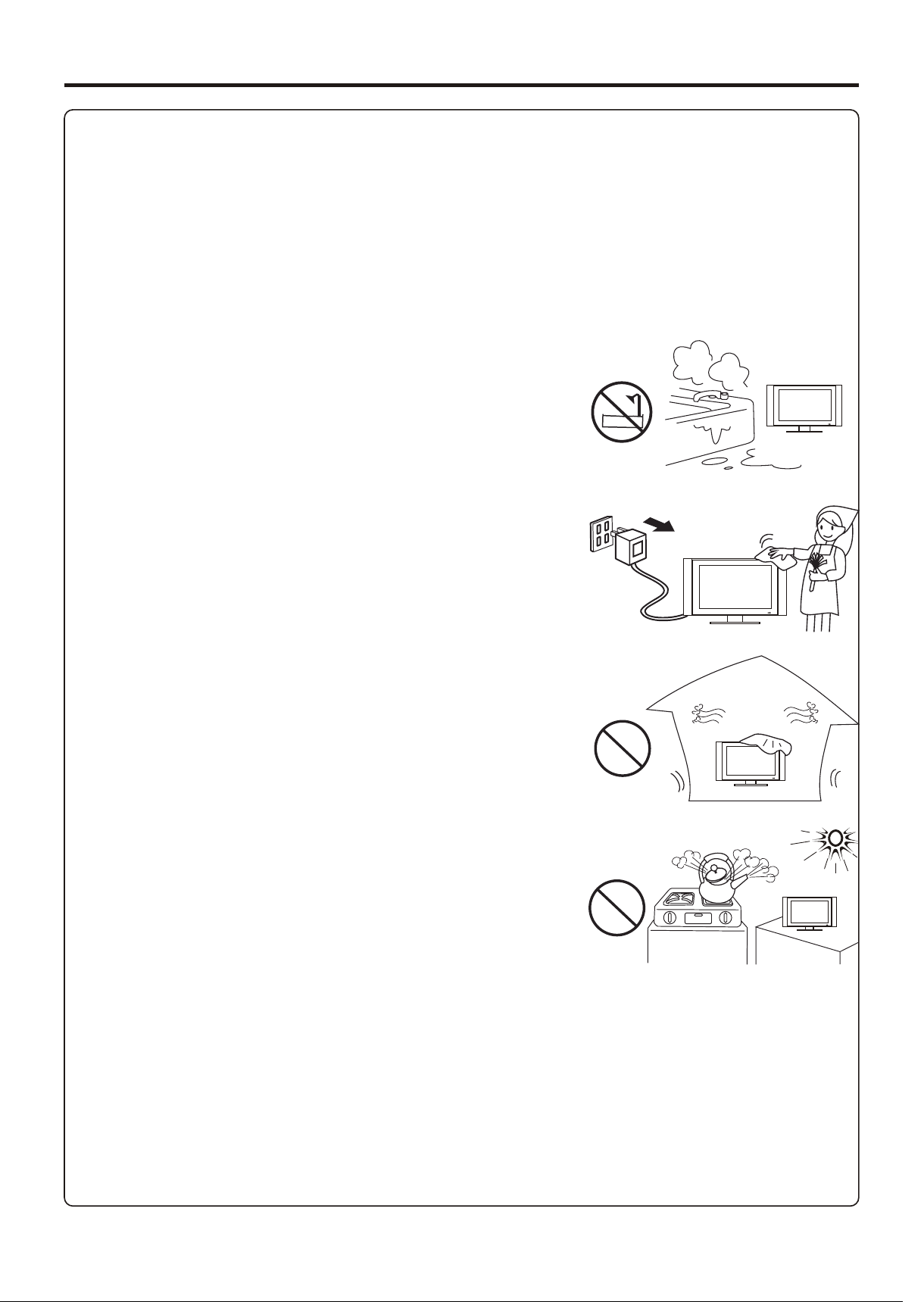
5. Do not use this apparatus near water---for example, near a
bathtub, washbowl, kitchen sink, or laundry tub, in a wet
basement, or near a swimming pool, and the like.
Do not use immediately after moving from a low temperature to
high temperature environment, as this causes condensation,
which may result in fire, electric shock, or other hazards.
Apparatus shall not be exposed to dripping or splashing and no
6. Clean only with dry cloth---Unplug this product from the wall
outlet before cleaning. Do not use liquid cleaners or aerosol
7. Ventilation---Do not block any ventilation openings. Install in
accordance with the manufacturer instructions. The vents and
other openings in the cabinet are designed for ventilation. Do not
cover or block these vents and openings since insufficient
ventilation can cause overheating and/or shorten the life of the
product. Do not place the product on a bed, sofa, rug or other
similar surface, since they can block ventilation openings. This
product is not designed for built-in installation; do not place the
8.Heat sources---Do not install near any heat sources such as
9.Grounding or Polarization---Do not defeat the safety purpose of the polarized or grounding-type plug.
A polarized plug has two blades with one wider than the other. A grounding type plug has two blades
and a third grounding prong. The wide blade or the third prong are provided for your safety. If the
10.Power cord protection---Protect the power cord from being walked on or pinched particularly at
11.Attachments---Only use attachments/accessories specified by the manufacturer. Do not use
2
Important Safety Precautions (continued)
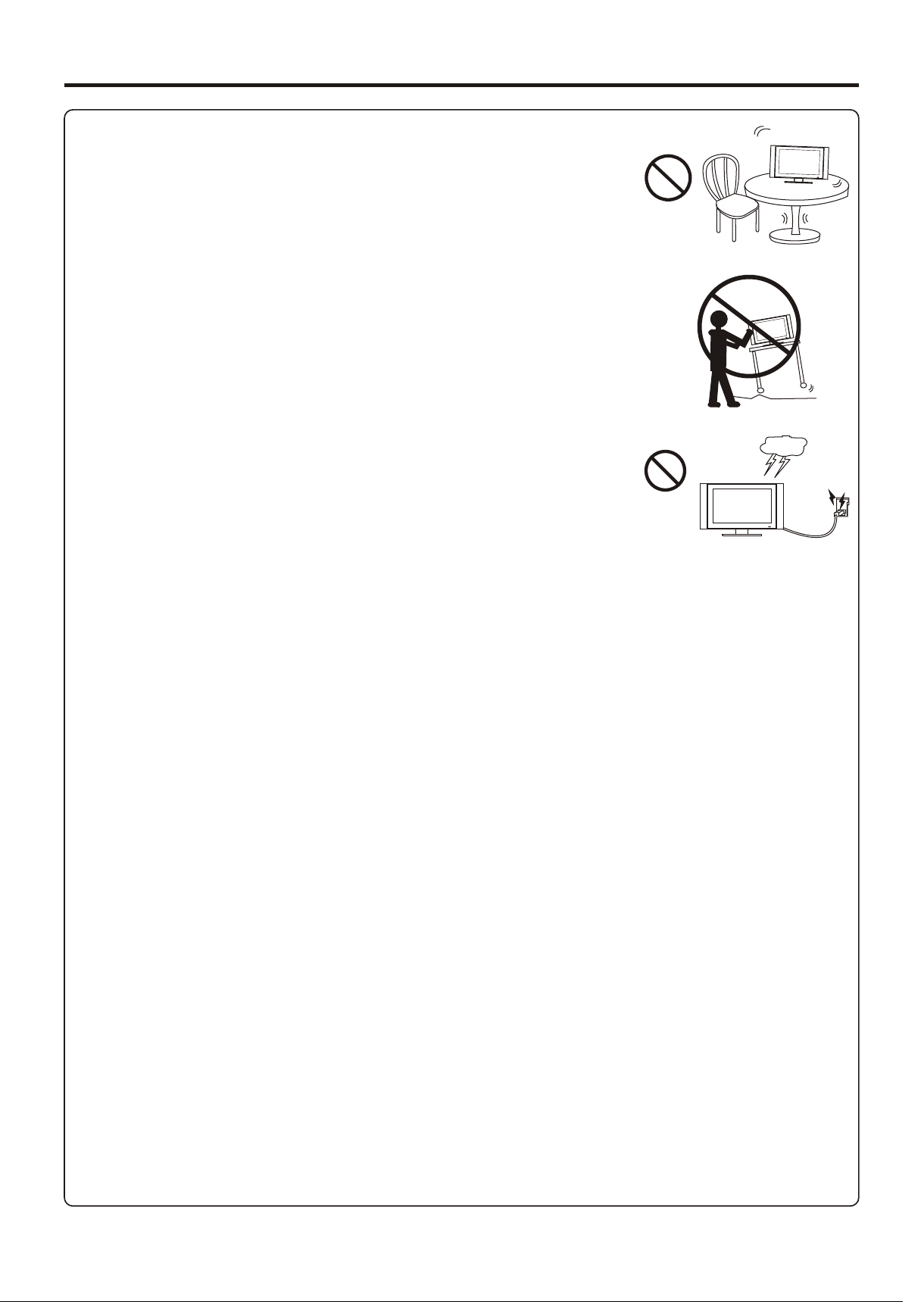
12. Stand---Use only with the cart, stand, tripod, bracket, or table specified
by the manufacturer, or sold with the apparatus. Do not place the
product on an unstable trolley, stand, tripod or table. Placing the product
on an unstable base can cause the product to fall, resulting inserious
personal injuries as well as damage to the product. When mounting the
13. Move Carefully---When a cart is used, use caution when moving the
cart/apparatus combination to avoid injury from tip-over. Sudden stops,
14. Lightning---Unplug this apparatus during lightning storms or when
unused for long periods of time.
For added protection for this television equipment during a lightning
storm, or when it is left unattended and unused for long periods of time,
unplug it from the wall outlet and disconnect the antenna. This will prevent
15. Servicing---Refer all servicing to qualified service personnel. Servicing is required when the apparatus
has been damaged in any way, such as power-supply cord or plug is damaged, liquid has been spilled
16. Replacement parts---In case the product needs replacement parts, make sure that the service
p e r s o n u s e s
17.Overloading---Do not overload wall outlets, extension cords, or convenience receptacles on other
18.Entering of objects and liquids---Never insert an object into the product through vents or openings.
High voltage flows in the product, and inserting an object can cause electric shock and/or short internal
19.Damage requiring service---If any of the following conditions occurs, unplug the power cord from the
AC outlet, and request a qualified service person to perform repairs.
a. When the power cord or plug is damaged.
b. When a liquid is spilled on the product or when objects have fallen into the product.
c. When the product has been exposed to rain or water.
d. When the product does not operate properly as described in the operating instructions.
Do not touch the controls other than those described in the operating instructions. Improper adjustment
of controls not described in the instructions can cause damage, which often requires extensive
adjustment work by a qualified technician.
e. If the product has been dropped or the cabinet has been damaged in any way.
f. When the product displays an abnormal condition or exhibits a distinct change in performance. Any
20.Safety checks---Upon completion of service or repair work, request the service technician to perform
21.Wall or ceiling mounting---When mounting the product on a wall or ceiling, be sure to install the
3
23.Panel protection---The LCD panel used in this product is made of glass.
Therefore, it can break when the product is dropped or impacted upon by
Important Safety Precautions (continued)
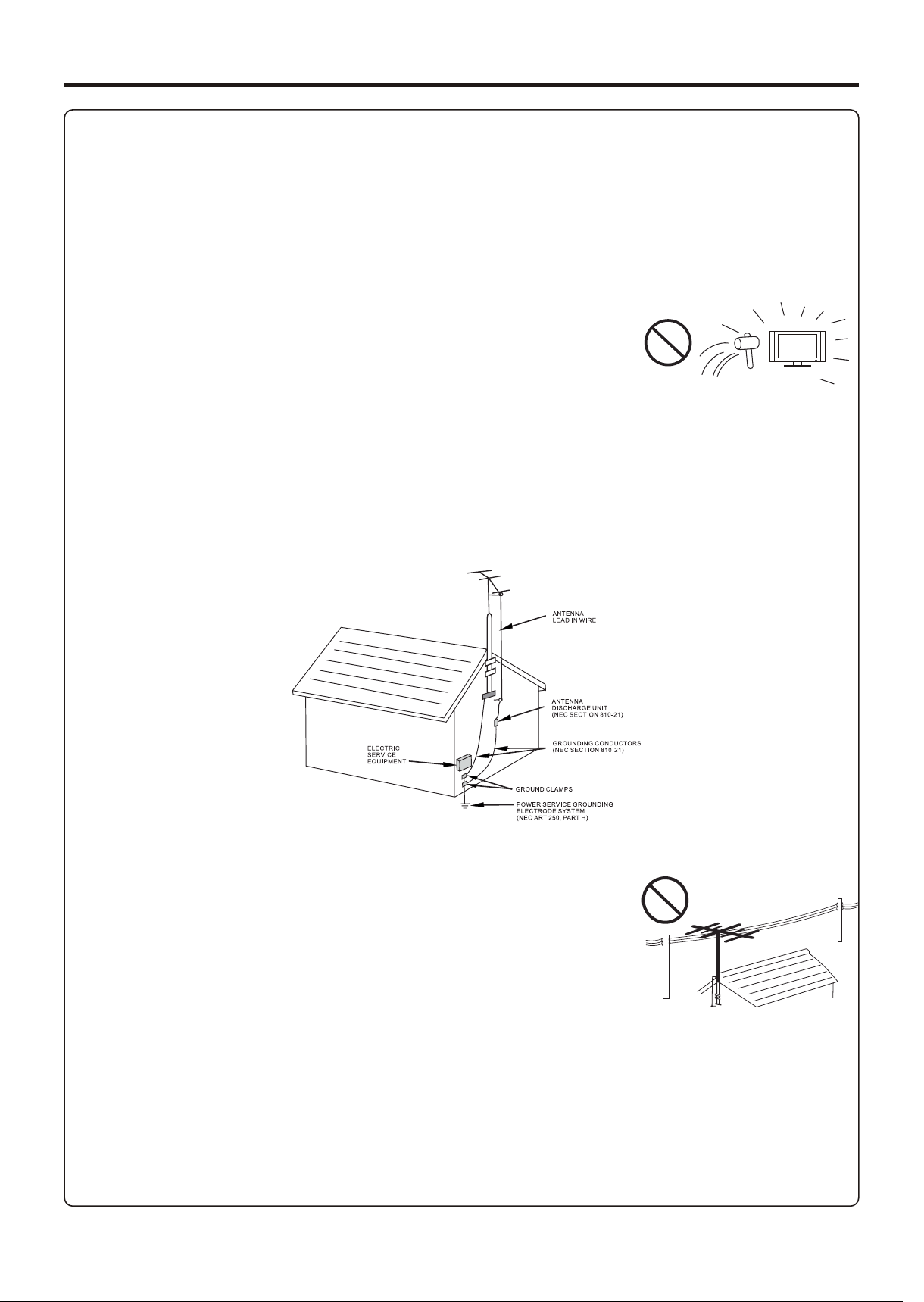
EXAMPLE OF ANTENNA GROUNDING AS PER
<If an outside antenna is connected to the television equipment, be sure the antenna system is
grounded so as to provide some protection against voltage surges and built-up static charges.
Section 810 of the National Electrical Code provides information with respect to proper grounding of
the mast and supporting structure, grounding of the lead-in wire to an antenna discharge unit, size of
grounding conductors, location of antenna-discharge unit, connection to grounding electrodes, and
<An outside antenna system should not be located in the vicinity of
overhead power lines or other electric light or power circuits, or where it
can collide with such power lines or circuits. When installing an outside
antenna system, extreme care should be taken to keep from touching
such power lines or circuits, as contact with them might be fatal.
22. Power source---This product is intended to be supplied by a listed power supply indicated on the
marking label. If you are not sure of the type of power supply to your home, consult your product dealer
or local power company. For added protection for this product during a lightning storm, or when it is left
unattended and unused for long periods of time, unplug it from the wall outlet and disconnect the
cable system. This will prevent damage to the product due to lightning and power line surges. When the
unit has to be used with another power supply voltage, the power cable must be changed. Consult your
product dealer. The socket outlet should be installed near the equipment and easily accessible. Use
4
Preparations
Improper use of batteries can result in a leakage of chemicals and/or explosion. Be sure to follow the
instructions below.
<Place batteries with their terminals corresponding to the (+) and (–) indications.
<Different types of batteries have different characteristics. Do not mix batteries of different types.
<Do not mix old and new batteries. Mixing old and new batteries can shorten the life of new batteries
and/or cause old batteries to leak chemicals.
<Remove batteries as soon as they are non-operable. Chemicals that leak from batteries can cause a
rash. If chemical leakage is found, wipe with a cloth.
<The batteries supplied with the product may have a shorter life expectancy due to storage conditions.
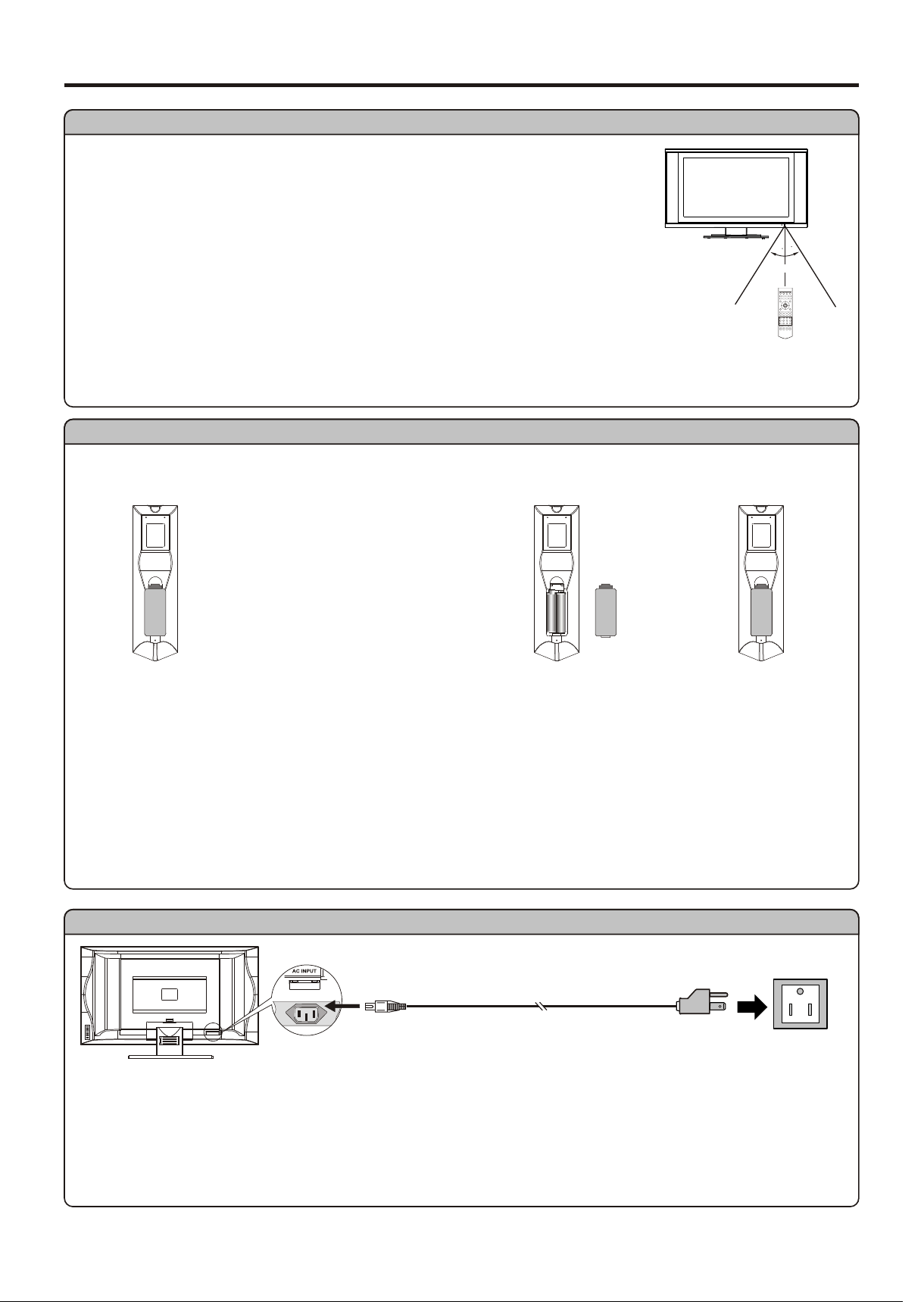
Using the Remote Control
<Use the remote control by pointing it towards the remote sensor window of
the set. Objects between the remote control and sensor window may
Cautions regarding use of remote control
<Do not expose the remote control to shock. In addition, do not expose the
remote control to liquids, and do not place in an area with high humidity.
<Do not install or place the remote control under direct sunlight. The heat may cause deformation of
<The remote control may not work properly if the remote sensor window of the main unit is under direct
sunlight or strong lighting. In such a case, change the angle of the lighting or LCD TV set, or operate the
remote control closer to the remote sensor window.
Batteries for the Remote Control
If the remote control fails to operate the LCD TV functions, replace the batteries in the remote.
<( P l a c e t h e
batteries with their
t e r m i n a l s
corresponding to
the (+) and (–)
indications in the
Open the battery
1
I n s e r t t w o s i z e - A A A
2
R e p l a c e t h e
3
Note: This illustration is for reference only. The remote sensor may be in
5
Power Connection
Plug into AC outlet.
AC cord
Household
power
AC INPUT
1. Connecting the female plug to the AC socket on the unit.
2. Connecting the male plug to the wall outlet as illustrated.
Note:
bottom view
<This illustration is for reference only. The AC plug may be different on different models.
<This product should be operated only from the type of power source indicated on the marking label.
0
3
3
0
5m
Preparation (continued)
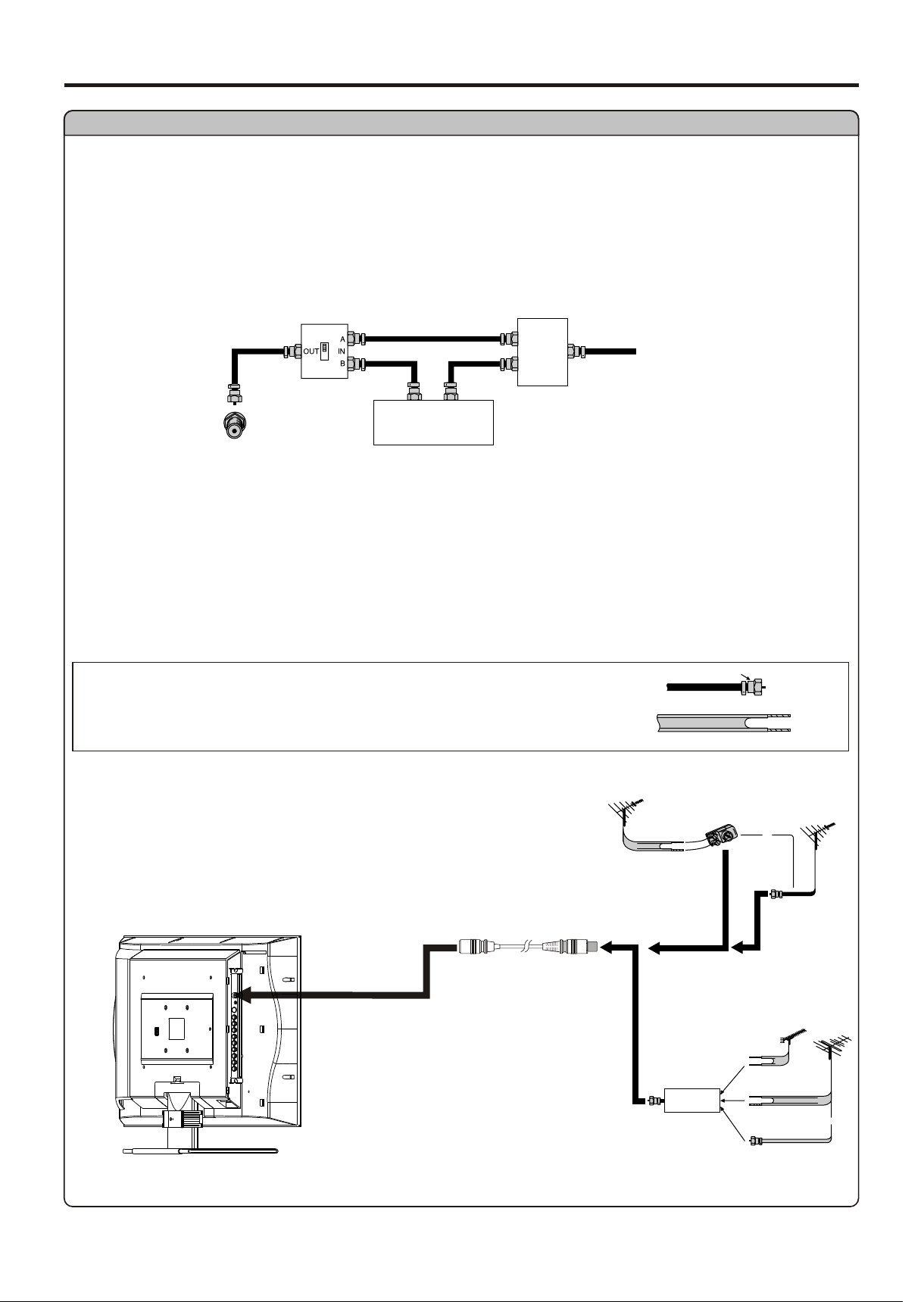
CABLE TV (CATV) CONNECTION
A 75-ohm coaxial cable connector is built into the set for easy hookup. When connecting the 75- ohm
coaxial cable to the set, screw the 75-ohm cable to the ANT. Terminal.
Some cable TV companies offer “premium pay channels”. Since the signals of these premium pay
channels are scrambled, a cable TV converter/descrambler is generally provided to the subscriber by
the cable TV company.
This converter/descrambler is necessary for normal viewing of the scrambled channels. For more
specific instructions on installing cable TV, consult your cable TV company. One possible method of
utilizing the converter/descrambler provided by your cable TV company is explained below. Please
“A” position on the RF switch (not supplied) : You can view all unscrambled channels by using the TV’s
channel keys.
“B” position on the RF switch (not supplied) : You can view the scrambled channels via the
Antenna Connection
Cable TV converter/
descrambler
(not supplied)
Two-set
signal
splitter
(not
supplied)
Cable TV Line
RF switch (not supplied)
OUT
IN
ANTENNAS
The antenna requirements for good color television reception are more important than those for black
& white television reception. For this reason, a good quality outdoor antenna is strongly recommended.
The following is a brief explanation of the type of connections that are provided with the various
1. A 75-ohm system is generally a round cable with F-type
connector that can easily be attached to a terminal without
tools (not supplied).
2. A 300-ohm system is a flat “twin-lead” cable that can be
OUTDOOR ANTENNA CONNECTION
Use one of the following two diagrams if you connect an
outdoor antenna.
A: Using a VHF/UHF combination outdoor antenna.
B: Using separate VHF and/or UHF outdoor antennas.
Connect the outdoor antenna cable lead-in to the ANT.
F-type connector
75-ohm coaxial cable (round)
300-ohm twin-lead cable (flat)
A. Combination VHF/UHF Antenna
B. Separate VHF and/or
UHF Antennas
Antenna cable
75-ohm
coaxial cable
300-ohm
twin-lead
VHF/UHF
antenna
VHF/UHF
antenna
300/75-ohm
adapter
(not supplied)
300-ohm
twin-lead
300-ohm
twin-lead
75-ohm
coaxial cable
OUT IN
VHF
antenna
UHF
antenna
Combiner
(not supplied)
or
or
6
Identification of Controls
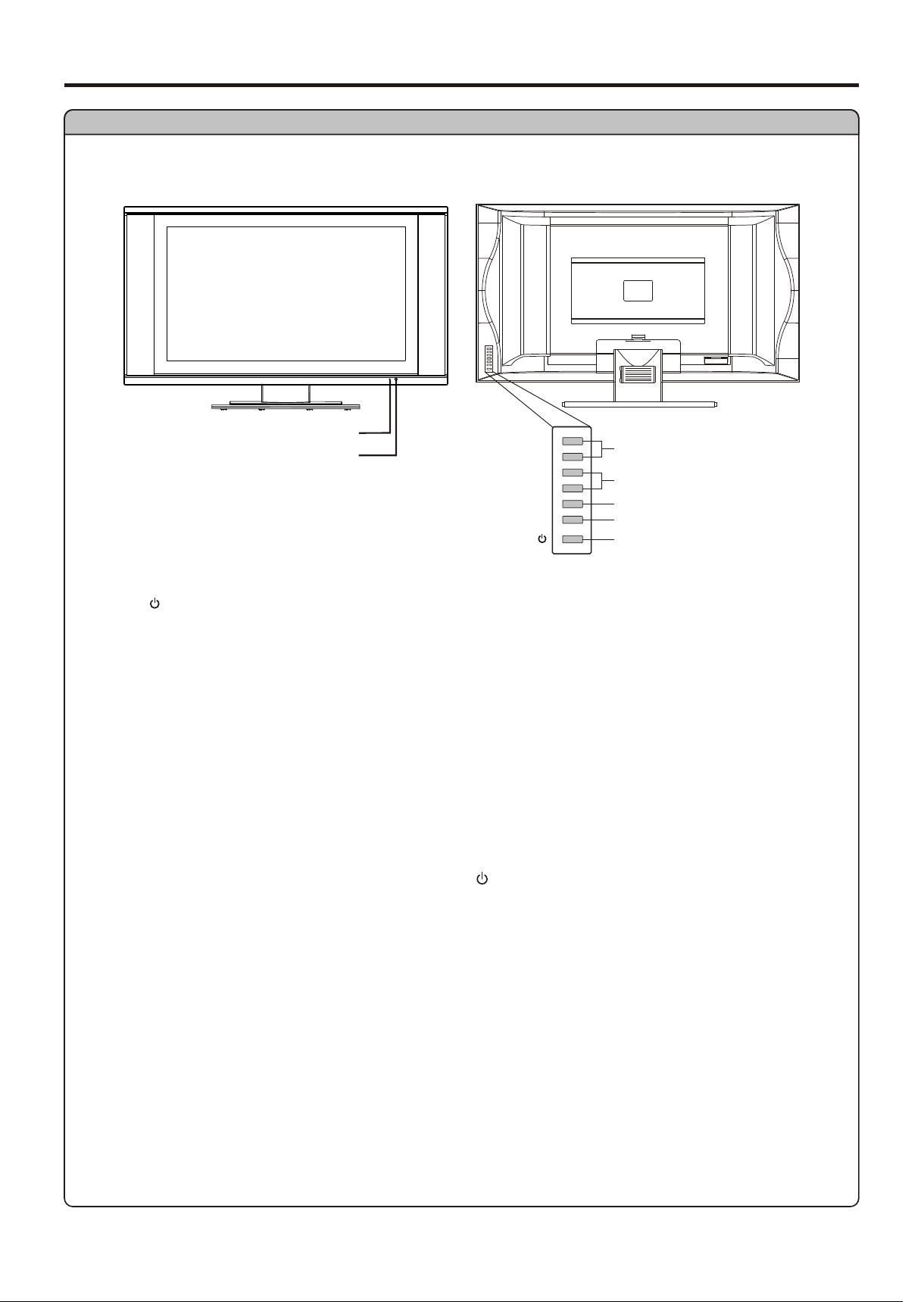
Main Unit
Functions of VOL+/-, CH+/-, MENU, SOURCE and POWER are also provided to the remote control. This
1. POWER
2. MENU
Press this button to access the Menu main page.
3. SOURCE
To access signal source select menu.
4. VOL+/-
Press the vol+ or vol- button to directly increase or decrease the sound volume level;
In OSD Menu, press these buttons to adjust the value or setting of each item.
5. CH+/-
Press this button to turn the unit ON from STANDBY mode. Press it again to turn the set back to
STANDBY.
Power Indicator
Remote Sensor
A blue indicator lights when the power is
on and a red indicator lights when in the
CH+
CH–
VOL+
VOL–
SOURCE
MENU
Channel Up/Down
Volume Up/Down
Select Input Signal
Power On/Standby
Menu
7
AC INPUT
Identification of Controls (continued)
Main Unit
AUDIO L
AUDIO R
Pr
Pb
Y
AUDIO
D-Sub
COMPONENT IN
D-Sub IN
VIDEO
AUDIO L
AUDIO R
S-VIDEO
VIDEO
AUDIO L/MONO
AUDIO R
VIDEO
AUDIO L/MONO
AUDIO R
HEADPHONE
ANTENNA INPUT
AV OUT
AVI INPUT/
S-VIDEO IN
AV2 INPUT
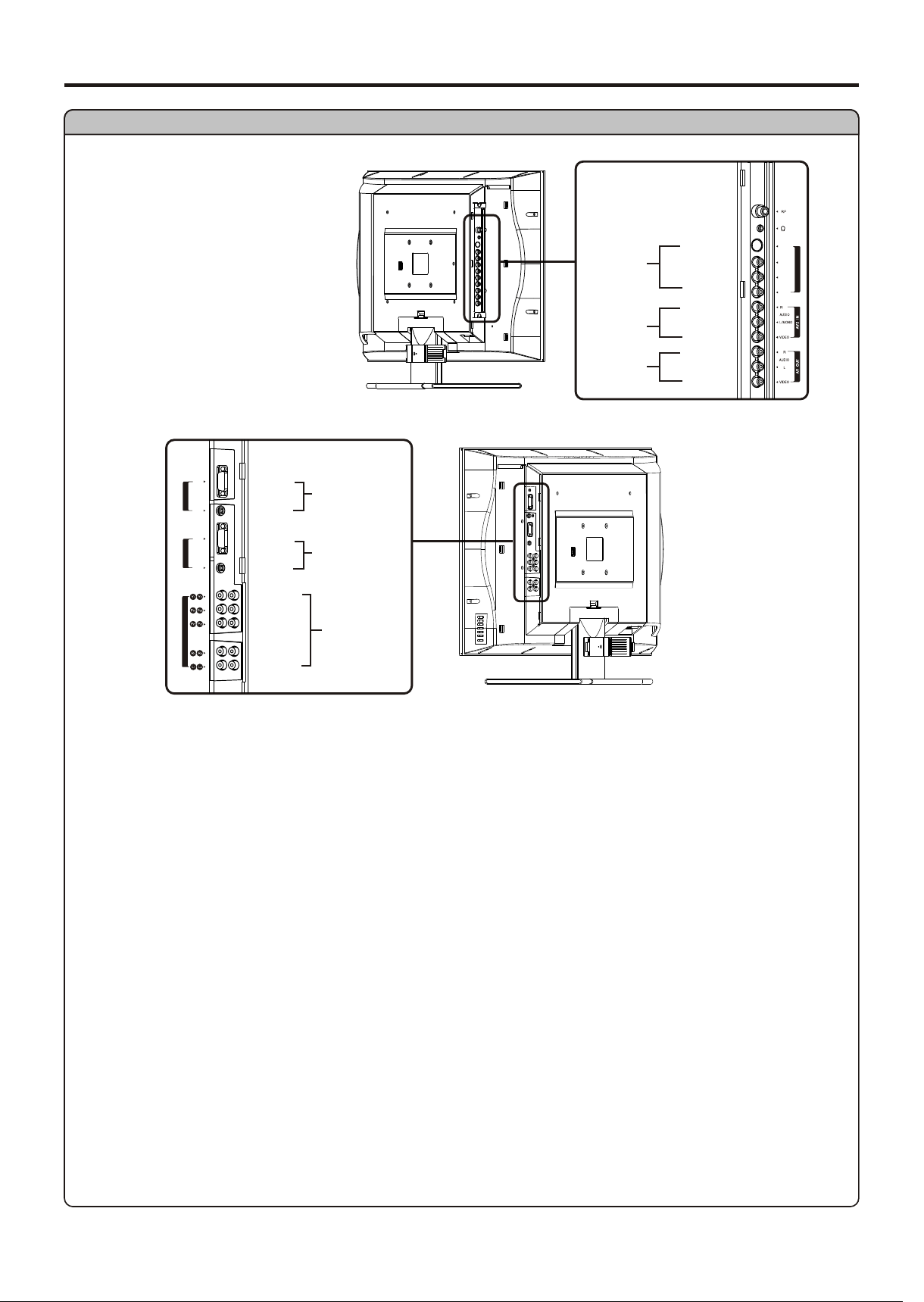
1. Antenna input
Allows you to connect cable or outdoor antenna.
2. Headphone jack
3. AV1 inputs (Video, Audio L/mono, R) / S-Video input
Receive video/audio signals from external sources such as VCR or DVD player.
Receive a S-Video signal from external source such as VCR or DVD player.
4. AV2 inputs (Video, Audio L/mono, R)
Receive video/audio signals from external sources such as VCR or DVD player.
5. AV outputs (Video, Audio L, R)
Connect to the VCR input jacks to record programs.
6. D-Sub input /Audio in
Connect to the D-Sub/audio output jacks on your PC.
7. DVI input /Audio in
Connect to the DVI/audio output jacks on your DTV receiver.
8. COMPONENT inputs (Y, Pb/Cb, Pr/Cr, Audio L, R)
Note:
S VI DEO
-
VID EO
AV1 IN / S- VID EO IN
AUD IO
L/MONO
R
AUDI O
8
AUDI O
V
-D I D IN
DVI-D
AUDIO
DVI-D
DVI-D IN
D-Sub IN
D-Sub
COM PO NE NT I N
5. TV/PC
Note:
The TVPC function means you may view a TV program
from a mini window while the main window is displaying a
Remote Control
Identification of Controls (continued)
9
1
2
3
4
5
6
7
9
10
11
12
13
14
8
15
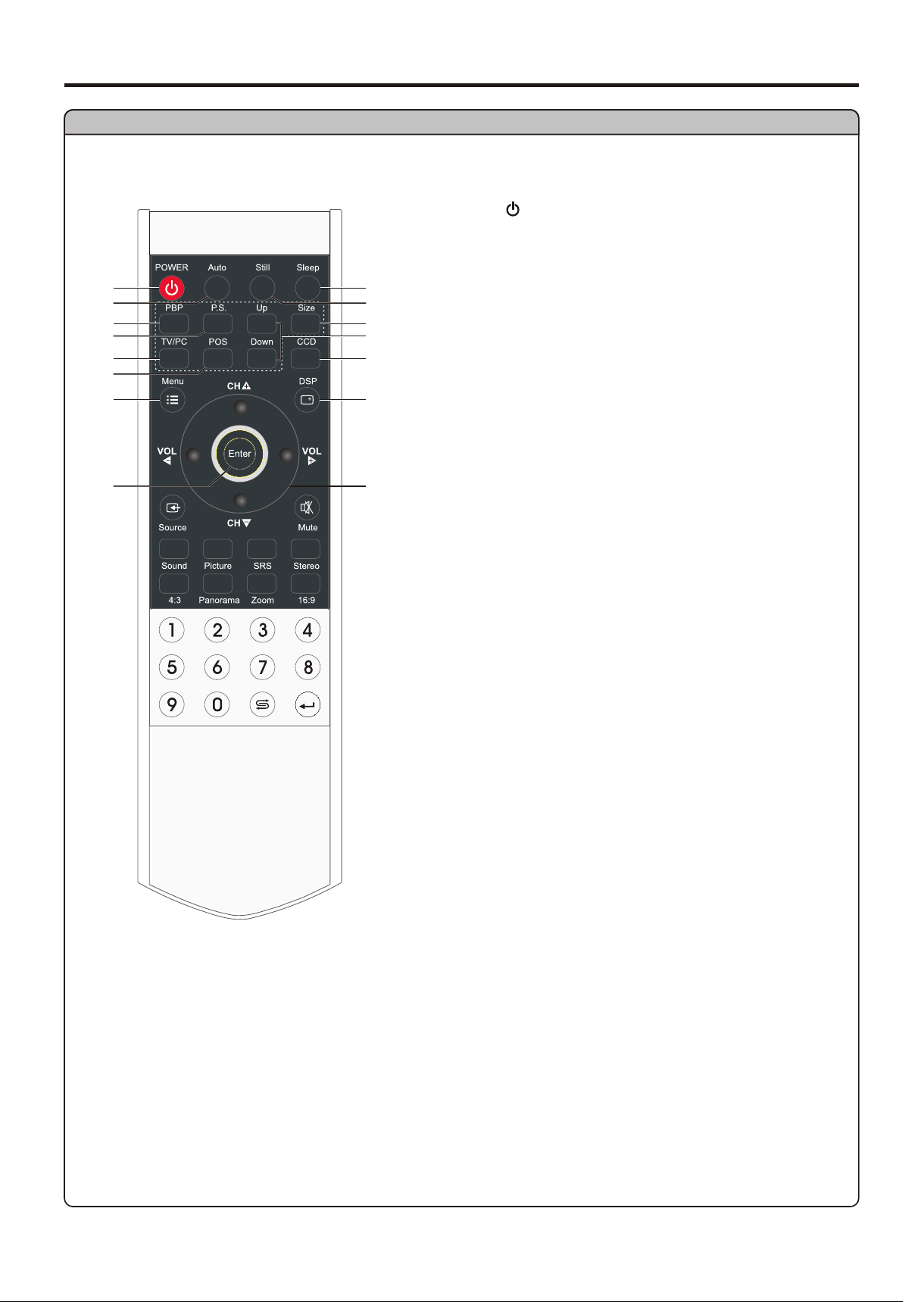
1. POWER
2. Auto
3. PBP
4. P.S.
6. POS
13. CCD
12. Up, Down
11. Size
10. Still
7. Menu
8.Enter
To confirm, enter submenu or toggle the settings of
9. Sleep
14. DSP
15. CH+/-: Use to switch channels;
In Menu operation, use CH+/- to select menu
item;
VOL+/-: Use to adjust volume;
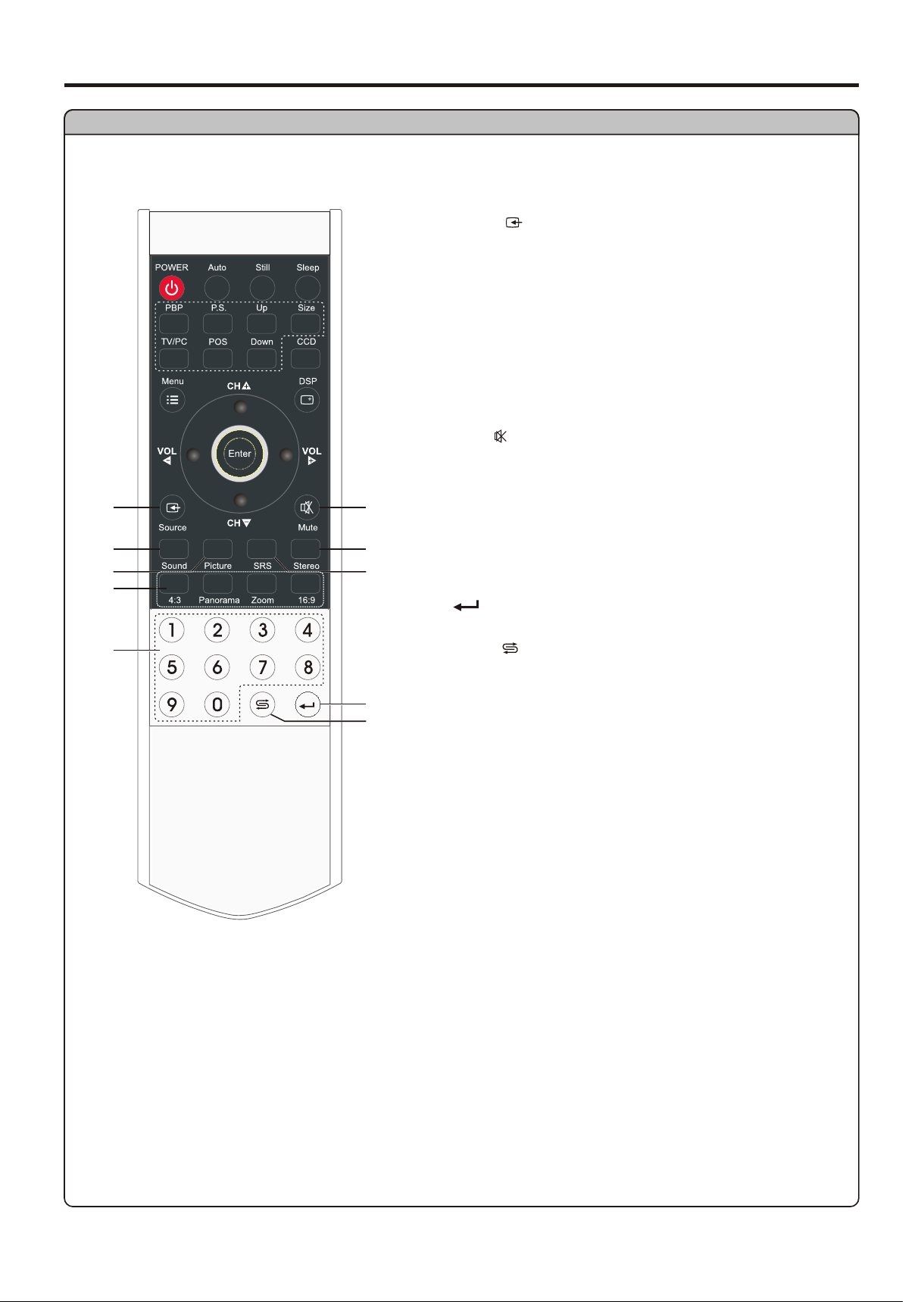
21. Mute
Remote Control
Identification of Controls (continued)
10
19
16
17
18
20
21
22
23
25
24
16. Source
22. Stereo
23. SRS
25. Return
To quickly jump between current channel and
* The SRS symbol are trademark of SRS Labs,Inc.
SRS technology is incorporated under license from SRS
20. 0~9 number buttons
17. Sound
18. Picture
19. 4:3, 16:9, Zoom and Panorama
24.
How to use remote controls provided with other equipment:
This TV can be controlled by many Universal remote controls, for this functionality use the Mitsubishi
code selections shown in the manual for your Universal remote control. Please note that not all
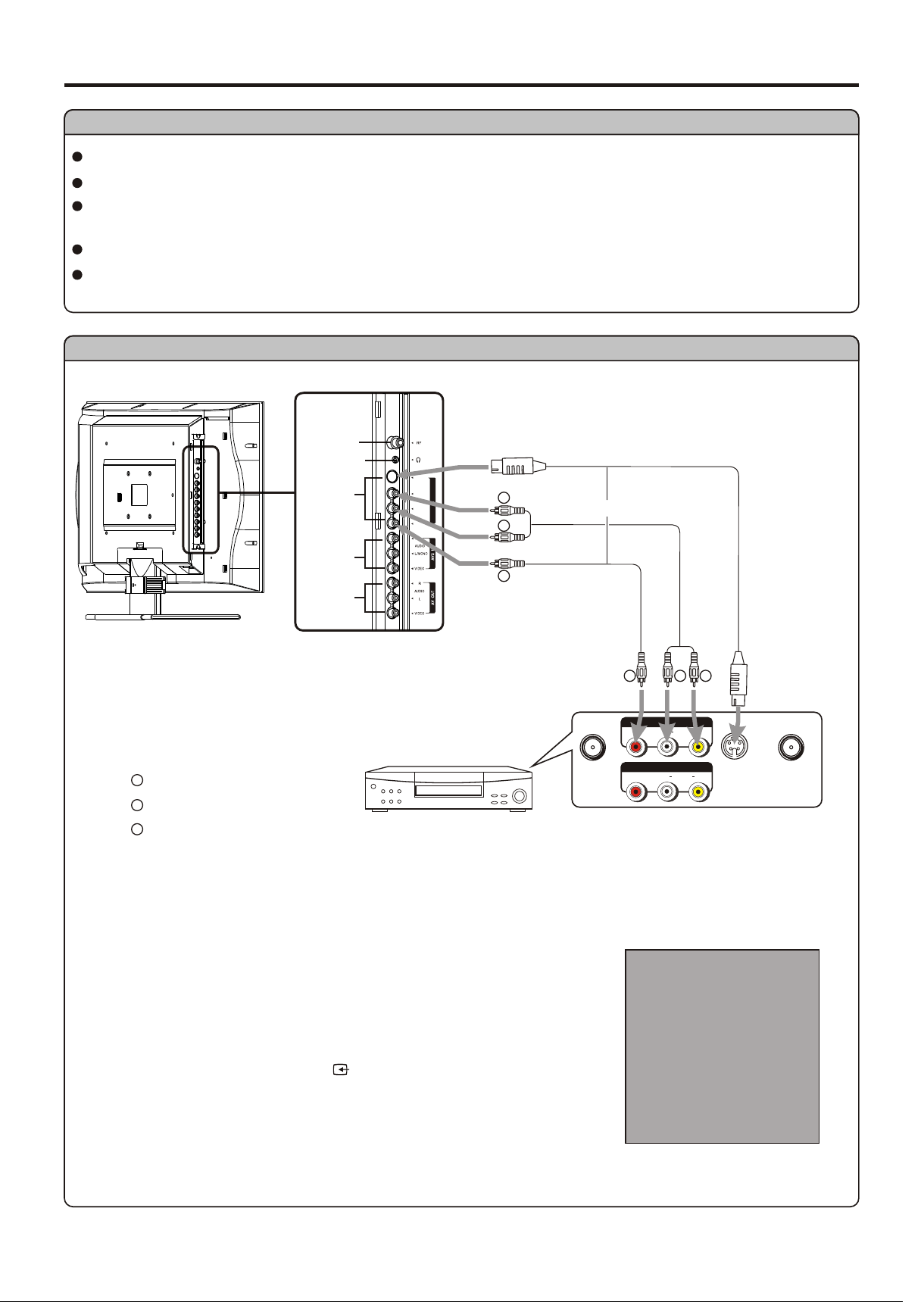
Connections
Connect a VCR
Connect the Audio/Video cables between the Audio (L/R)/Video jacks on the unit and VCR.
Note:
How to connect:
1. Turn on your LCD TV , press Source button on the remote
control.
To play VCR
Cautions Before Connecting
Carefully check the terminals for position and type before making any connections.
The illustration of the external equipment may be different depending on your model.
Loose connectors can result in image or color problems. Make sure that all connectors are securely
inserted into their terminals.
Refer to the operating manual of the external device as well.
When connecting an external device, turn the power off on the panel to avoid any issues.
WW
YY
RR
VCR
WW
YY
RR
Yellow (VIDEO)
White (AUDIO L)
Red (AUDIO R )
WW
YY
RR
AV OUT
RLVIDEO
AUDIO
-
S VIDEO
ANT INANT OUT
AV IN
RLVIDEO
AUDIO
Rear of the VCR
S-video
cable
or
Audio
cable
Video
cable
Source Select
VGA
RF
Video1
Video2
SVideo
YPbPr1
YPbPr2
HEADPHONE
ANTENNA
INPUT
AV OUT
AVI INPUT
AV2 INPUT
S VI DEO
-
VID EO
AV1 IN / S- VID EO IN
AUD IO
L/MONO
R
11
DVI
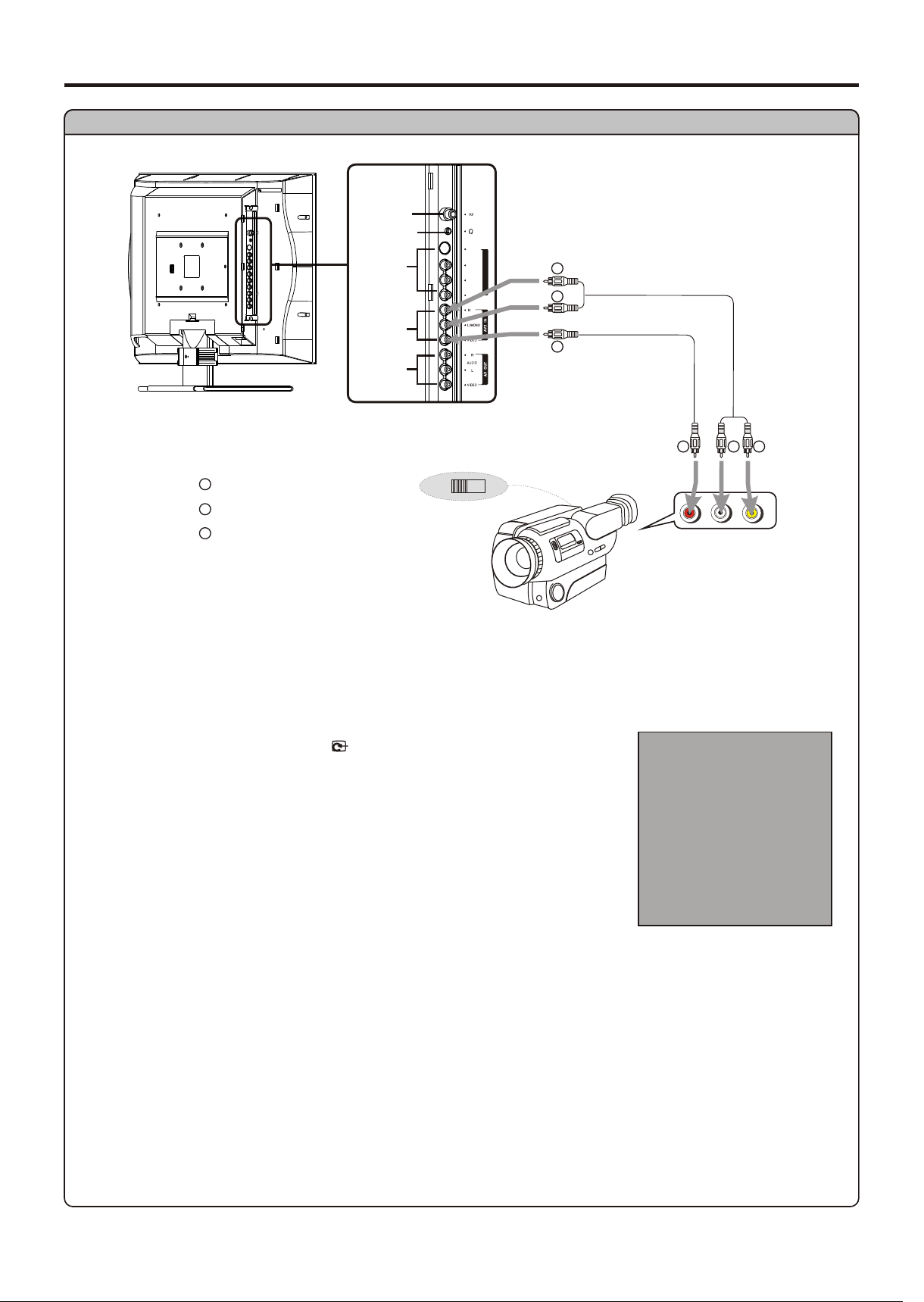
Connections (continued)
Connect a Camcorder
Note:
R LVIDEO
AUDIO
Yellow (VIDEO)
White (AUDIO L)
Red (AUDIO R )
WW
YY
RR
OUT
IN
Connect the Audio/Video cables between the Audio (L/R)/Video jacks on the unit and camcorder.
How to connect:
1. Turn on your LCD TV , press Source button on the remote control.
2. Press CH+/- to select Video2 and press Enter to confirm.
3. Turn on your camcorder and set it to output mode. (For details, refer
to your camcorder owner's manual.)
To playback Camcorder
The operations of the camcorder may be different and is
Source Select
VGA
RF
Video1
Video2
SVideo
YPbPr1
YPbPr2
HEADPHONE
ANTENNA
INPUT
AV OUT
AVI INPUT
AV2 INPUT
S VI DEO
-
VID EO
AV1 IN / S- VID EO IN
AUD IO
L/MONO
R
WW
YY
RR
WW
YY
RR
Audio
cable
Video
cable
12
DVI
AUDI O
AUDI O
V
I
I
D
-
D N
DVI-D
D-Sub IN
D-Sub
CO MP ON ENT I N
AUDIO COMPONENT
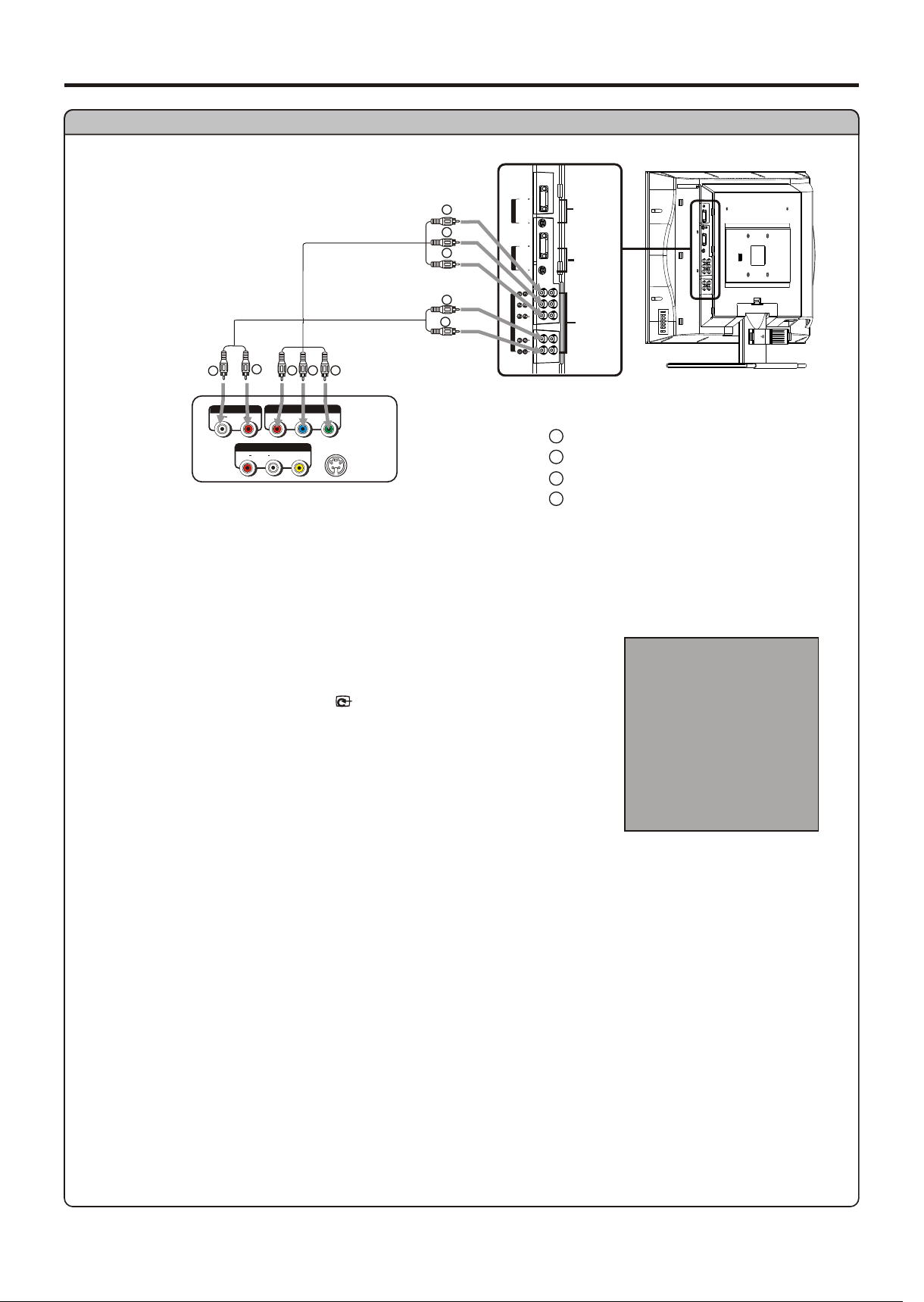
Connect a DVD player
WW
RR
-
S VIDEO
AV OUT
R L VIDEO
AUDIO
Rear of the DVD player
Audio
cable
L R
AUDIO
P
b
P
r
Y
Video
cable
RR GGBB
WW
RRRRGG BB
Connections (continued)
WW
RR
GG
BB
white (audio L)
red (audio R, P /C )
Green (Y)
Blue (P /C )
r
b
r
b
COMPONENT IN
D-Sub IN
13
DVI-D IN
Connect the Video cable between the Y, Pb, Pr input jacks on the unit and Y, Pb, Pr ( or Y, Cb, Cr)
output jacks on the DVD player.
Connect the Audio cable between the AUDIO input jacks on the unit and AUDIO output jacks on
1. Turn on your LCD TV , press Source button on the remote
control.
2. Press CH+/- to select YPbPr1 or YPbPr2.
To play DVD
How to connect a DVD Player using Component Video Connections:
Source Select
VGA
RF
Video1
Video2
SVideo
YPbPr1
YPbPr2
DVI
AUDI O
AUDI O
V
I
-D D IN
DVI-D
D-Sub IN
D-Sub
COM PO NE NT I N
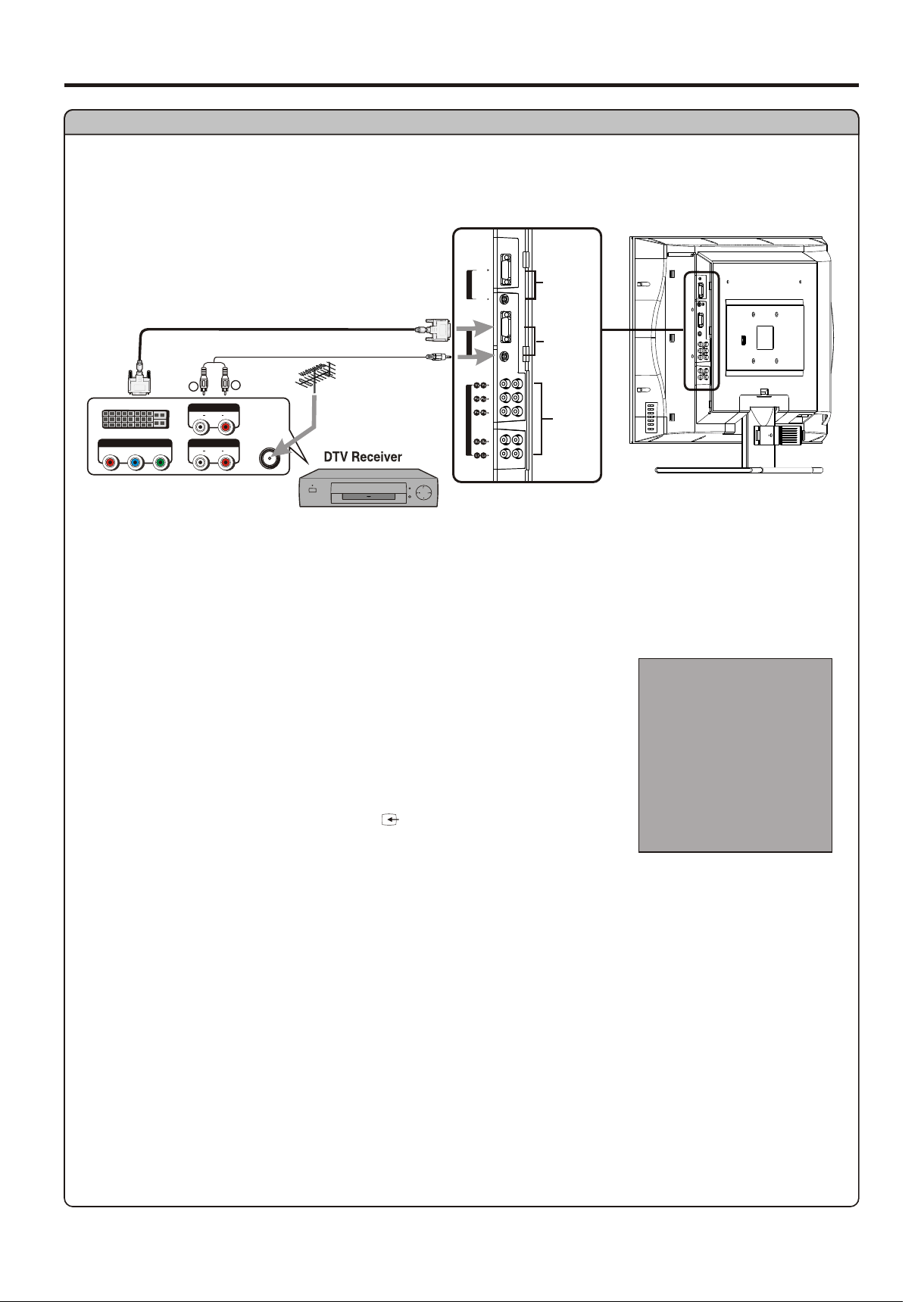
Connect a DTV receiver
Connections (continued)
Source Select
VGA
RF
Video1
Video2
SVideo
YPbPr1
YPbPr2
14
DVI
COMPONENT IN
D-Sub IN
DVI-D IN
Rear of the DTV receiver
DVI
ANT
AUDIOCO MP ON ENT
L R
AUDIO
P
b
P
r
Y
AUDIO
L R
AUDIO
DVI
cable
WW
RR
Audio
cable
How to connect:
1. Turn on your LCD TV , press Source button on the remote
control.
2. Press CH+/- to select DVI.
To Watch DTV
Connect the cable or antenna to the antenna input jack on the
DTV receiver.
Connect the DVI cable between the DVI input interface on the
unit and DVI output interface on the DTV receiver .
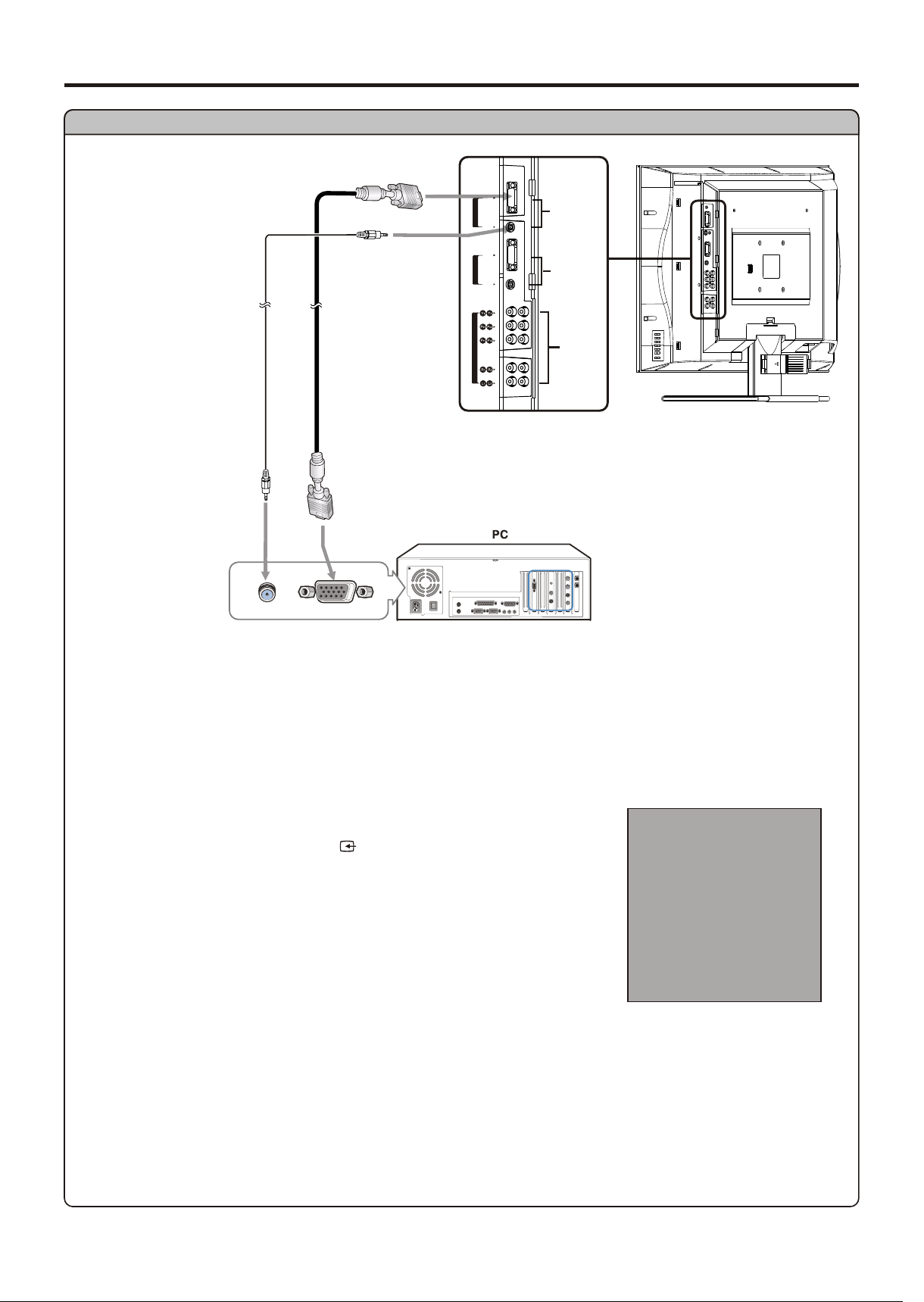
Connect a PC
Audio
cable
D-Sub
cable
Connections (continued)
How to connect:
1. Turn on your LCD TV , press Source button on the remote
control.
2. Press CH+/- to select VGA.
3. Press Enter to confirm.
4. Turn on your PC and check for PC system requirements.
To Watch the PC screen
Connect a D-Sub (VGA) cable between the D-Sub (VGA) jack on the PC and the D-Sub input jack
on the unit.
Source Select
VGA
RF
Video1
Video2
SVideo
YPbPr1
YPbPr2
COMPONENT IN
D-Sub IN
15
DVI-D IN
DVI
AUDI O
AUDI O
D
V
I-
I
N
D
DVI-D
D-Sub IN
D-Sub
COM PO NE NT I N
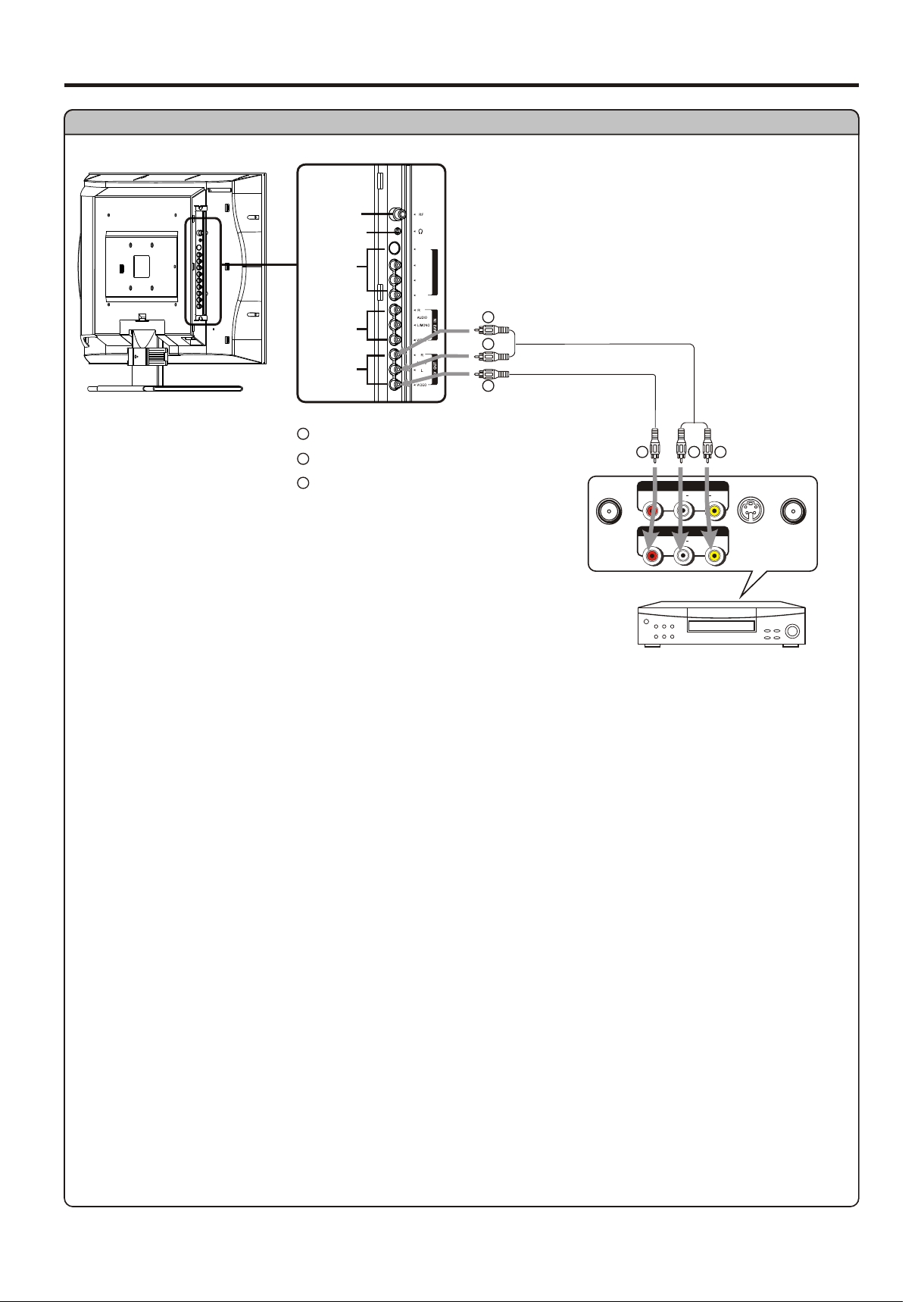
RLVIDEO
AUDIO
Connect a VCR for Recording
WW
YY
RR
VCR for recording
WW
YY
RR
Yellow (VIDEO)
White (AUDIO L)
Red (AUDIO R )
WW
YY
RR
AV OUT
RLVIDEO
AUDIO
-
S VIDEO
ANT INANT OUT
AV IN
Rear of the VCR
Audio
cable
Video
cable
Connections (continued)
Connect the Audio/Video cables between the Audio (L/R)/Video jacks on the unit and VCR.
How to connect:
1. Turn on your LCD TV, select a program you wish to record.
2. Turn on your VCR, insert a videotape for recording.
3. Press the Record button to begin recording.
To record program
Note:
HEADPHONE
ANTENNA
INPUT
AV OUT
AVI INPUT
AV2 INPUT
S VI DEO
-
VID EO
AV1 IN / S- VID EO IN
AUD IO
L/MONO
R
16
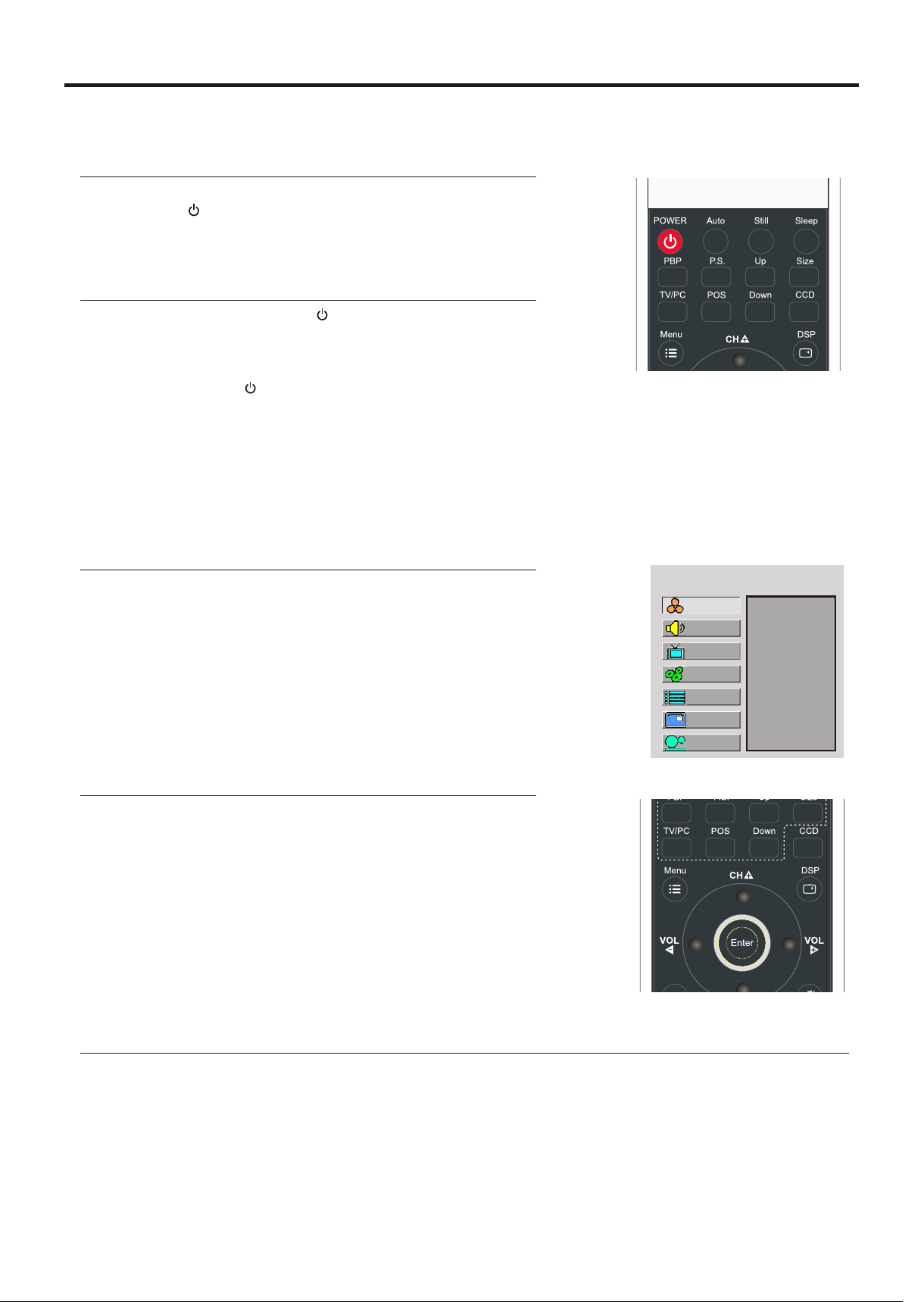
Turning the Unit On and Off
Turning the Unit On and Off
Turning On
Turning Off
With the power on, press the Power button on the remote
Note:
Viewing the Menus and Displays
Viewing the Menus
Your LCD TV has a simple, easy-to-use menu system that appears on the screen. This system makes it
convenient and fast
With the power on, press the Menu button on the remote
Use the CH+/- to select menu item. Use VOL+/- to
adjust value of item. Use Enter to confirm ,enter
submenu or toggle the settings of the selected menu
item.
1
2
Note:
Displaying Status Information
MAIN MENU
Color
Brightness
Contrast
Sharpness
Tint
To clearly introduce the menu operations , this operation
Press the DSP button on the remote control, the unit will display current status information such as
Insert the power cord into the wall outlet.
Press the Power button on the remote control.
Setup
Picture
Sound
CH
System
OSD
TVPC
17
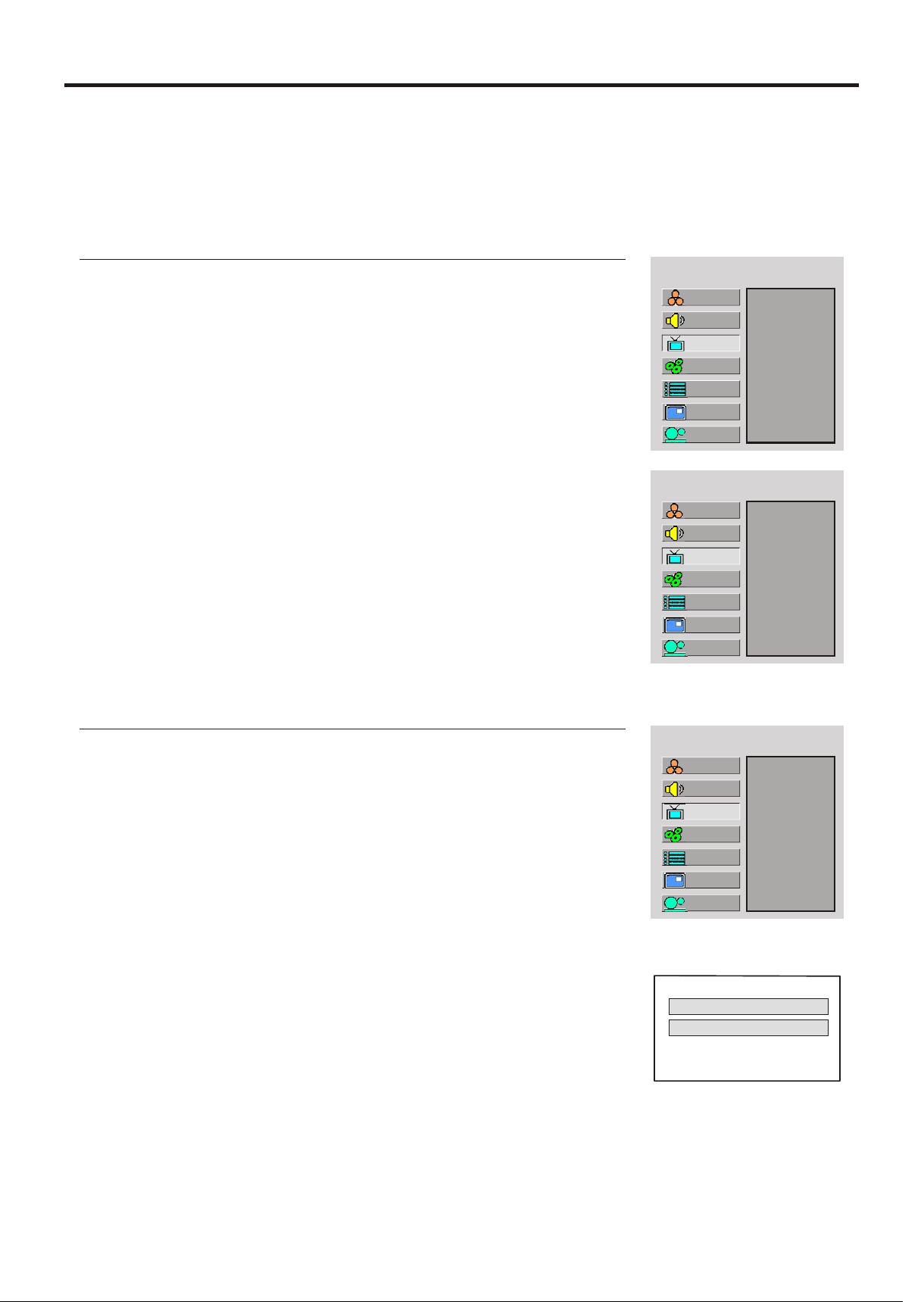
Memorizing the Channels
Selecting the Signal Source
Your LCD TV can memorize and store all the available channels for both antenna and cable channels.
1
Before your LCD TV can memorize the available channels, you must specify the type of signal source
that is connected to the unit. (i.e., an antenna or cable system)
2
3
4
If you are connected to an antenna, please select TV. If
you connect cable, please select cable.
Storing Channels in Memory Automatically
4
5
The unit will begin memorizing all the available channels. During the
MAIN MENU
TV/Cable
Channel No
Add/Erase
Auto Search
MAIN MENU
TV/Cable
Channel No
Add/Erase
Auto Search
MAIN MENU
TV/Cable
Channel No
Add/Erase
Auto Search
Auto Searching
Ch. Num: 8
M e n u t o e x i t
1
2
3
Cable
Setup
Picture
Sound
CH
System
OSD
TVPC
Setup
Picture
Sound
CH
System
OSD
TVPC
Setup
Picture
Sound
CH
System
OSD
TVPC
18
Memorizing the Channels (continued)
Adding and Erasing Channels
4
MAIN MENU
TV/Cable
Channel No
Add/Erase
Auto Search
1
2
3
5
You can also use number buttons to select a desired channel
6
7
8
MAIN MENU
TV/Cable
Channel No
Add/Erase
Auto Search
Erase
When the item is set to erase, the selected channel will be erased.
When the item is set to add, the selected channel will be added.
Setup
Picture
Sound
CH
System
OSD
TVPC
Setup
Picture
Sound
CH
System
OSD
TVPC
19
Basic Operations
Changing Channels
Using the Channel Buttons (CH+ or CH-)
Press the CH+ or CH- to change channels.
When you press the CH+ or CH-, the unit changes channels in sequence. You will see all the channels
that the unit has memorized.
Direct Accessing Channels
To select a one-digit channel: Input the channel using the 0-9 number button,then press Channel
Enter button to confirm..
To select a two-digit channel: Input the channel using the 0-9 number button,then press Channel
Enter button to confirm.
Note:
Using the Return button
Press this button to switch between the current channel and the previous channel.
Adjusting the Volume
Using the Mute
Using the volume buttons (VOL+ and VOL-)
Using the Mute button
At any time, you can temporarily cut off the sound using the Mute button.
Press the button and the sound cuts off.
1
To turn mute off, press the button again.
2
20
Basic Operations (continued)
Selecting a Menu Language
5
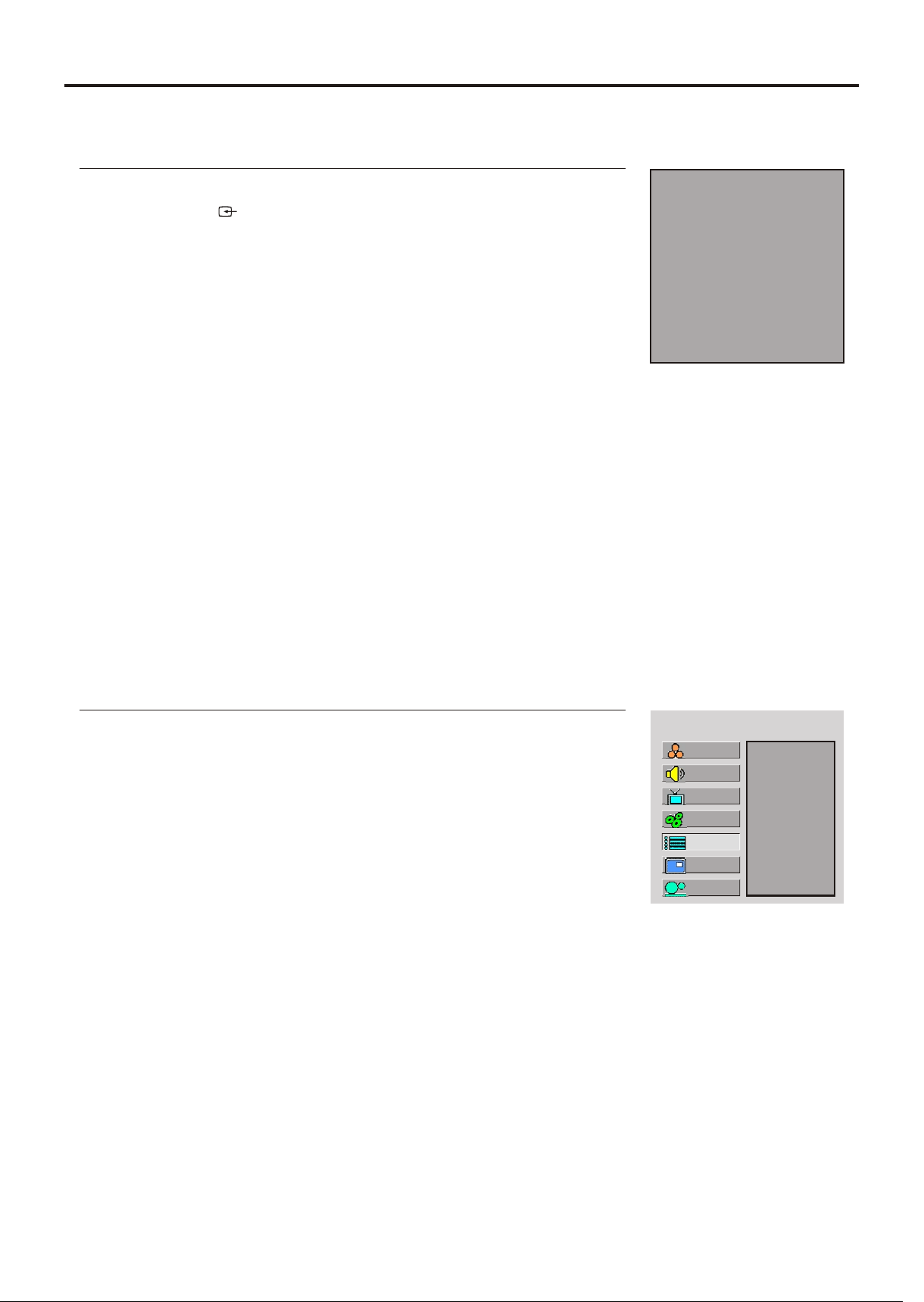
Selecting Input Source Signal
11
2
3
VGA ---Select signal from D-sub jack.
DVI-----Select signal from DVI terminals.
RF-------Select TV signal.
Video1-------Select signal from AV1 IN terminals.
Video2-------Select signal from AV2 IN terminals.
SVideo-------Select signal from S-video terminal.
YPbPr1------Select signal from YPbPr1.
MAIN MENU
Language
H Position
V Position
Halftone
Zoom
OSD off
Default
1
2
3
4
English
Setup
Picture
Sound
CH
System
OSD
TVPC
Source Select
VGA
RF
Video1
Video2
SVideo
YPbPr1
YPbPr2
21
DVI
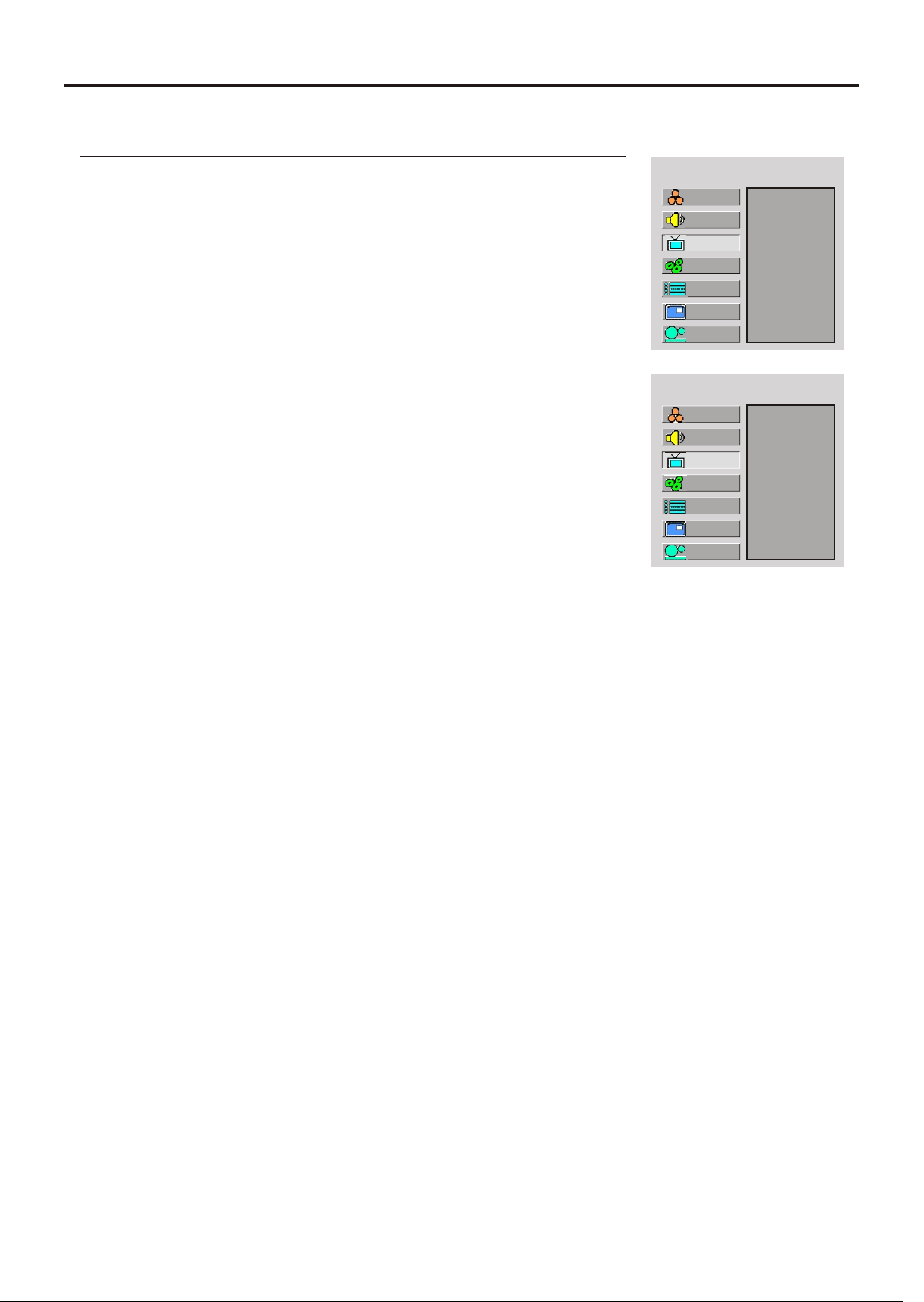
Setting Picture
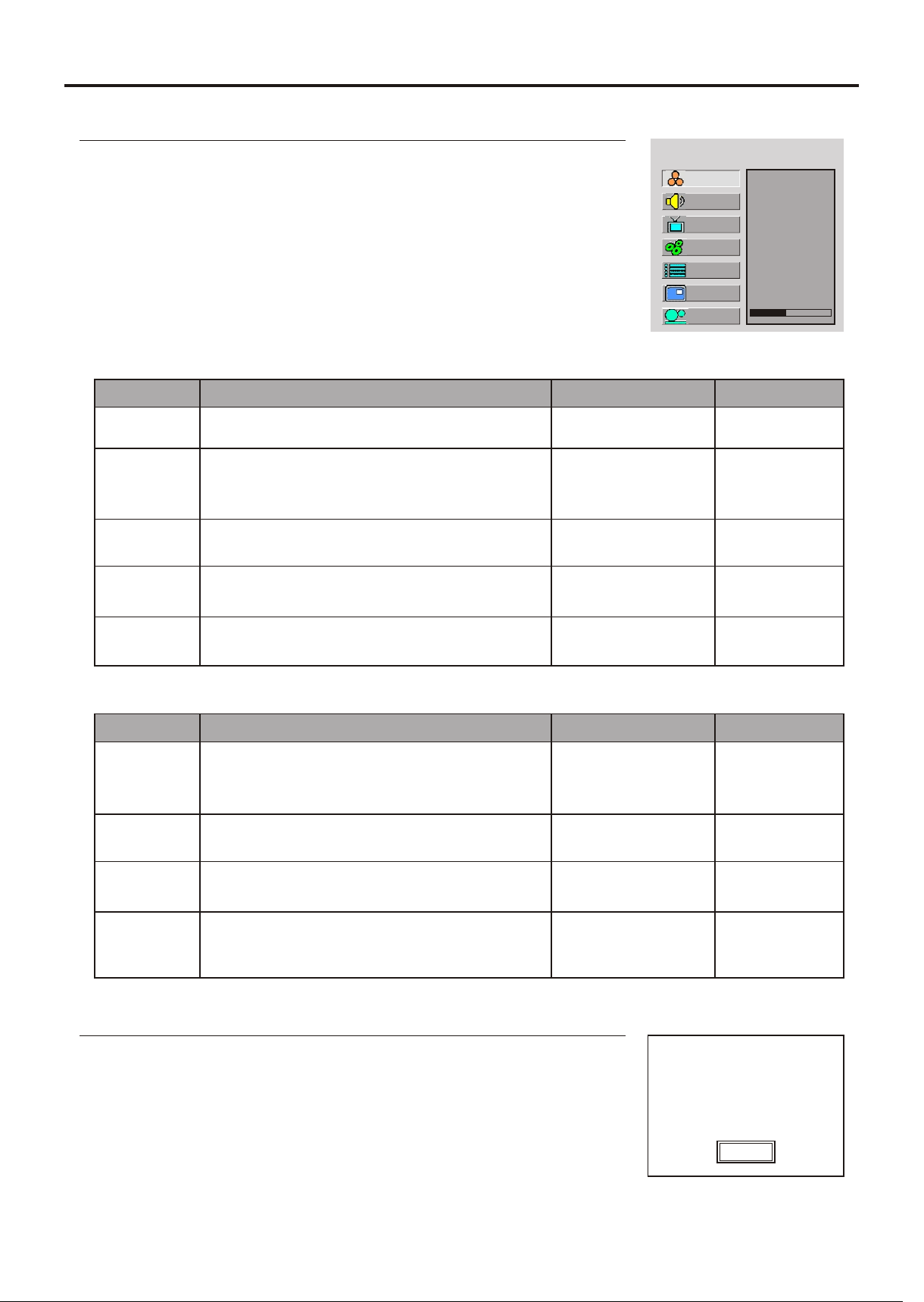
Customizing the Picture
1
The picture menu page will be displayed automatically.
3
4
5
MAIN MENU
Color
Brightness
Contrast
Sharpness
Tint
In TV/Video mode
In VGA/DVI mode
Option
Function
Operation
Range
Color
Brightness
Contrast
Sharpness
Tint
Adjusts color saturation.
VOL+ deeper
0~100
Adjusts screen brightness for easier viewing of
dark picture such as night scenes and black
hair.
VOL+ lighter 0~100
Adjusts image contrast.
0~100
Adjusts image sharpness and displays a
sharp image.
Adjusts tint for image.
0~100
VOL+ greenish
0~100
Option
Function
Operation
Range
Brightness
Contrast
Sharpness
Color Temp
Adjusts screen brightness for easier viewing
in of dark scenes such as those shot at night.
VOL+ lighter 0~100
Adjusts image contrast.
0~100
Adjusts image sharpness and displays a
sharp image.
Adjusts preset color temperature.
0~100
Using the Preset Picture Mode
40
Use the Picture button to quickly select picture mode.
There are three preset picture modes (Bright, Soft and Nature) and one
user-set picture mode (User). Each preset mode has its own picture
settings.
Bright: Select for a bright picture.
Soft: Select for a finely detailed picture.
Bright
2
Setup
Picture
Sound
CH
System
OSD
TVPC
22
WARM
NORMAL
COOL
Setting System
MAIN MENU
Aspect Ratio
N/R
VCR mode
Default
Adjusting Screen Aspect
1
2
3
4
16:9
Setting System In TV Mode
1
2
MAIN MENU
Aspect Ratio
N/R
VCR mode
Default
Reducing Picture Noise
5
4
3
Auto
1
2
MAIN MENU
Aspect Ratio
N/R
VCR mode
Default
VCR mode
5
4
3
On
When you are watching VCR program type or receiving weak signal,
please set the "VCR mode" item to "On". It helps to obtain a better
Loading Default Values
Note:
Setup
Picture
Sound
CH
System
OSD
TVPC
Setup
Picture
Sound
CH
System
OSD
TVPC
Setup
Picture
Sound
CH
System
OSD
TVPC
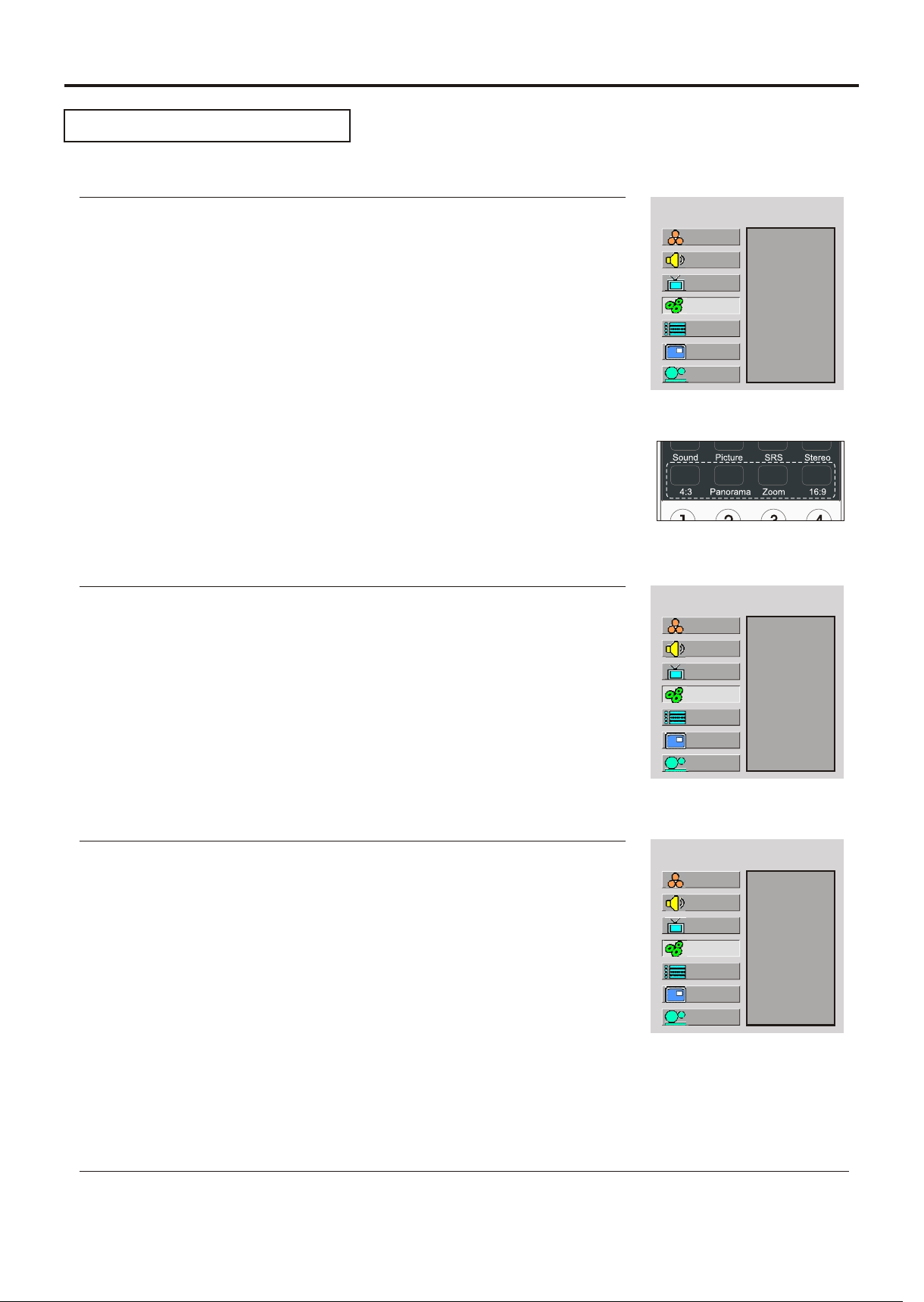
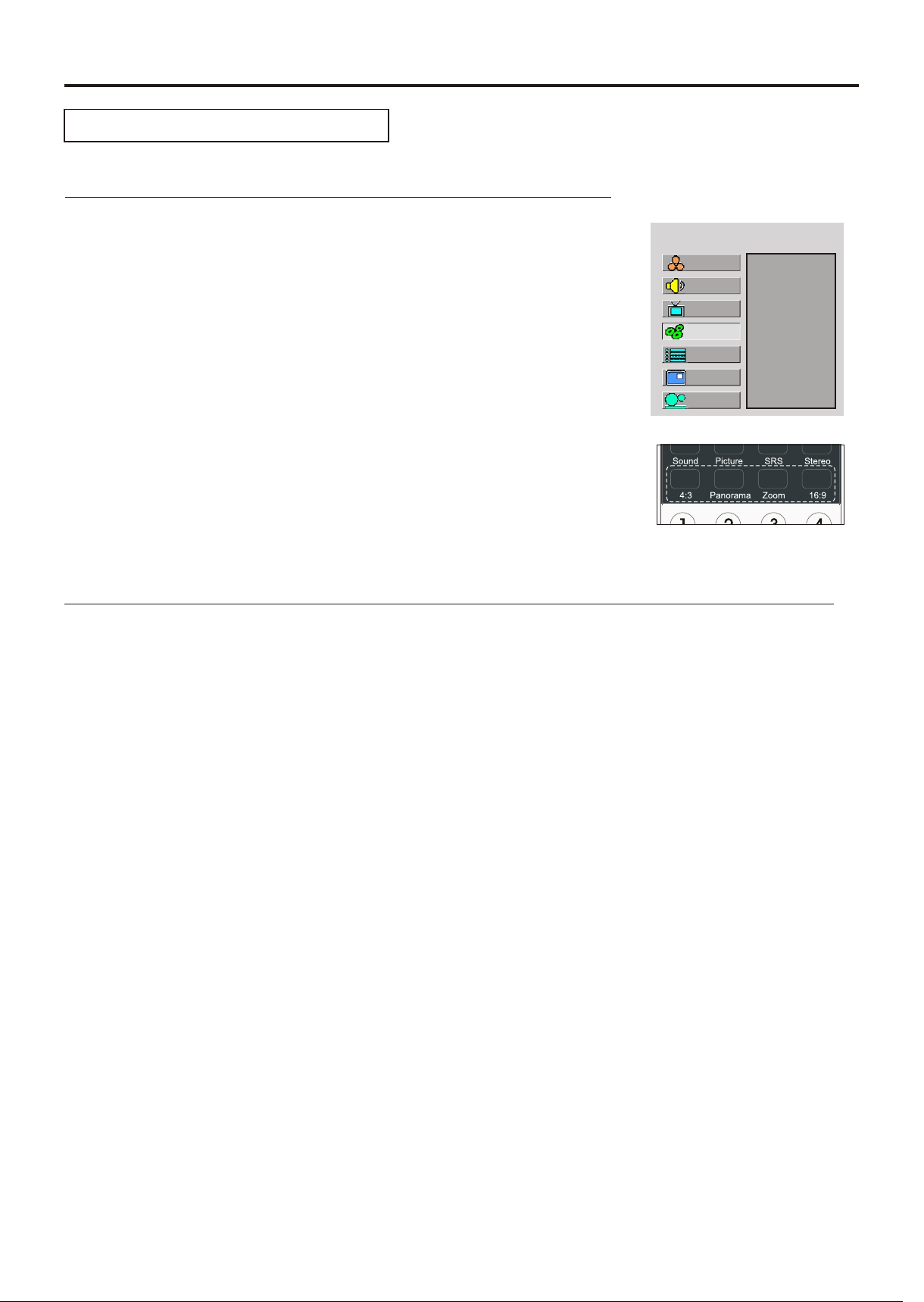
You can select the image aspect ratio between 4:3, 16:9, Panorama
and Zoom.
16:9 –– For 16:9 signal format. This mode displays 16:9 aspect ratio
picture.
Panorama –– In this mode the picture is progressively stretched toward
each side of the screen.
Sometimes a noisy picture may appear on the screen because of poor
signal. This function helps to enhance the picture quality by reducing the
23
Setting System (continued)
Changing the Position of Image
1
4
5
The unit allows you to adjust the position of the screen if it is not well-aligned.
MAIN MENU
H Position
V Position
Clock
Phase
Auto Adjust
Aspect Ratio
Resolution
Default
40
2
3
Setting System In VGA Mode
Adjusting Clock and Phase
MAIN MENU
H Position
V Position
Clock
Phase
Auto Adjust
Aspect Ratio
Resolution
Default
40
1
4
5
2
3
Adjust the clock frequency of the set's internal clock signal. If shimmering or rainbow-like
noise is apparent in
the image, try adjusting the clock frequency setting.
You may find that images blur, depending on the clock phase of your PC's Processor. If you
You may quickly adjust the picture by using the Auto button directly. The unit automatically adjusts
phase, clock or position, etc.
Adjusting the Picture Automatically
1
2
3
4
5
MAIN MENU
H Position
V Position
Clock
Phase
Auto Adjust
Aspect Ratio
Resolution
Default
Setup
Picture
Sound
CH
System
OSD
TVPC
Setup
Picture
Sound
CH
System
OSD
TVPC
Setup
Picture
Sound
CH
System
OSD
TVPC
24
Setting System (continued)
Displaying Resolution Information
Loading Default Values
1
2
3
5
4
Setting System In VGA Mode(continued)
MAIN MENU
H Position
V Position
Clock
Phase
Auto Adjust
Aspect Ratio
Resolution
Default
16:9
Note:
Adjusting Screen Aspect
Setup
Picture
Sound
CH
System
OSD
TVPC
25
MAIN MENU
Phase
Aspect Ratio
N/R
Default
Setting System In YPbPr Mode
Setting System (continued)
1
2
3
4
Adjusting Phase
1
2
3
5
4
Adjusting Screen Aspect
MAIN MENU
Phase
Aspect Ratio
N/R
Default
16:9
40
1
2
Reducing Picture Noise
5
4
3
MAIN MENU
Phase
Aspect Ratio
N/R
Default
Auto
Loading Default Values
Note:
Setup
Picture
Sound
CH
System
OSD
TVPC
Setup
Picture
Sound
CH
System
OSD
TVPC
Setup
Picture
Sound
CH
System
OSD
TVPC
For 480i or 480P signal format, you can select the image aspect ratio
between 4:3, 16:9, Panorama and Zoom.
For 720P or 1080i signal format, you can select the image aspect ratio
26
Setting System (continued)
MAIN MENU
Aspect Ratio
Resolution
Setting System In DVI Mode
Setup
Picture
Sound
CH
System
OSD
TVPC
16:9
1
2
3
4
Adjusting Screen Aspect
Displaying Resolution Information
Note:
1
2
3
4
27
Setting Sound
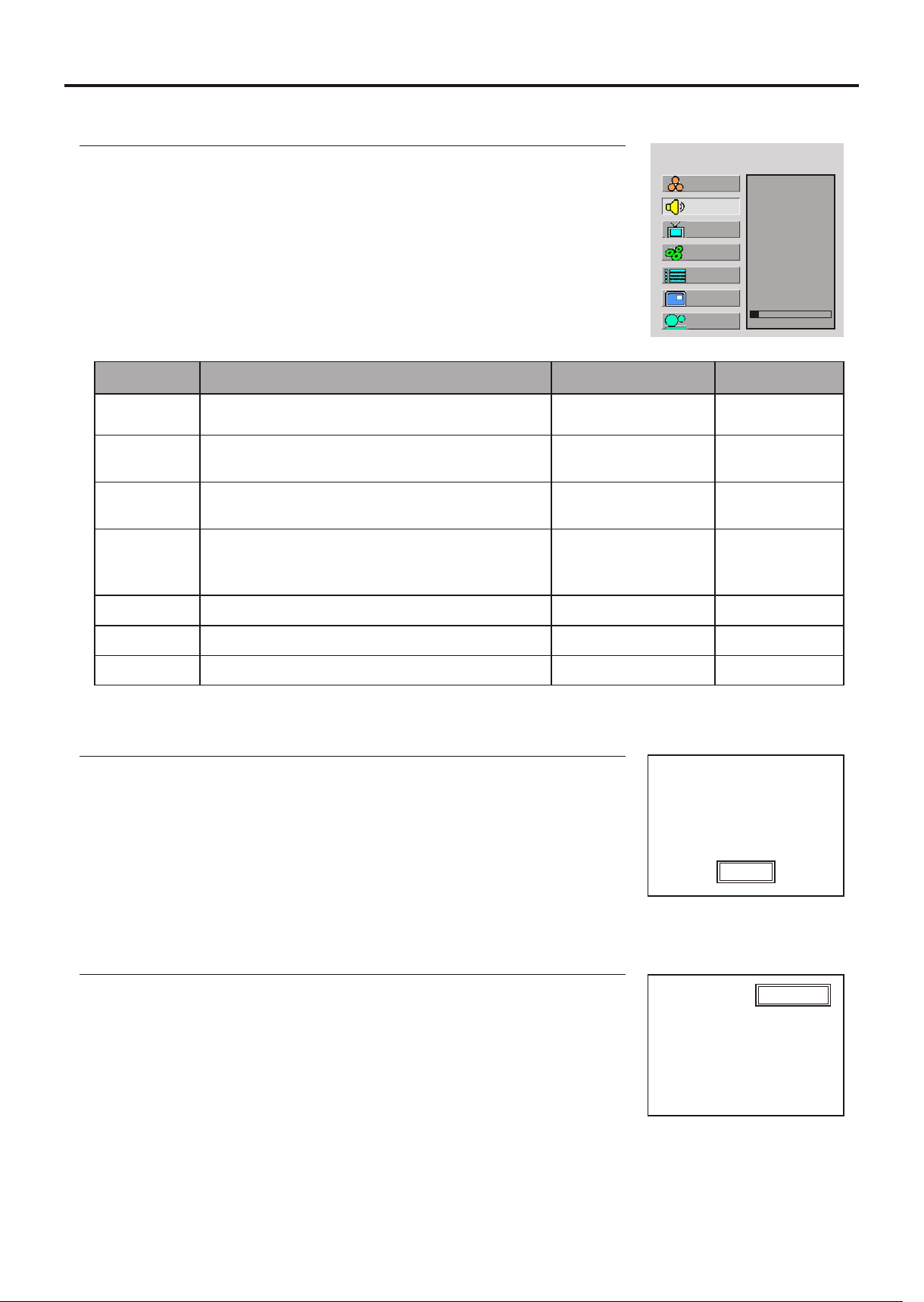
Customizing the Sound
Using the Preset Sound Mode
MAIN MENU
Volume
Bass
Treble
Balance
Mute
Speaker
Head Phone
4
5
1
2
3
Option
Function
Operation
Range
0~100
0~100
VOL+ stronger
0~100
0~100
VOL+Higher volume
from right speaker.
VOL-Higher volume
from left speaker.
Volume
Bass
Treble
Balance
Mute
10
Adjusts volume value.
Adjusts Treble (high sounds).
Adjusts Bass (low sounds)
VOL+ stronger
VOL+ stronger
Adjusts volume balance (left and right
Mutes the sound
Use Enter to toggle
On or Off
Use the Sound button to quickly select sound mode.
There are three preset sound modes (Movie, Music and News) and one
user-set sound mode (User). Each preset mode has its own sound
settings (Bass and Treble ).
Movie: Select for a movie program.
Music: Select for a music program.
Setting SRS effect
*
The SRS symbol are trademark of SRS Labs,Inc.
SRS technology is incorporated under license from SRS Labs, Inc.
News
SRS: On
Speaker
Head Phone
Turns on or off speaker sound output
Use Enter to toggle
On or Off
Turns on or off headphone sound output
Use Enter to toggle
On or Off
SRS (Sound Retrieval System®) is an audio enhancement technology
that restores the spatial cues that are present in a live listening
Note:
Setup
Picture
Sound
CH
System
OSD
TVPC
28
Adjusting On-Screen Display
Language
H Position
V Position
Halftone
Zoom
OSD off
Default
1
2
3
Adjusting OSD Position
4
5
Adjusting OSD Transparency
Language
H Position
V Position
Halftone
Zoom
OSD off
Default
1
2
3
4
5
10
4
Zooming OSD Menu
Language
H Position
V Position
Halftone
Zoom
OSD off
Default
1
2
3
4
5
Setting OSD Off Time
Language
H Position
V Position
Halftone
Zoom
OSD off
Default
1
2
3
4
5
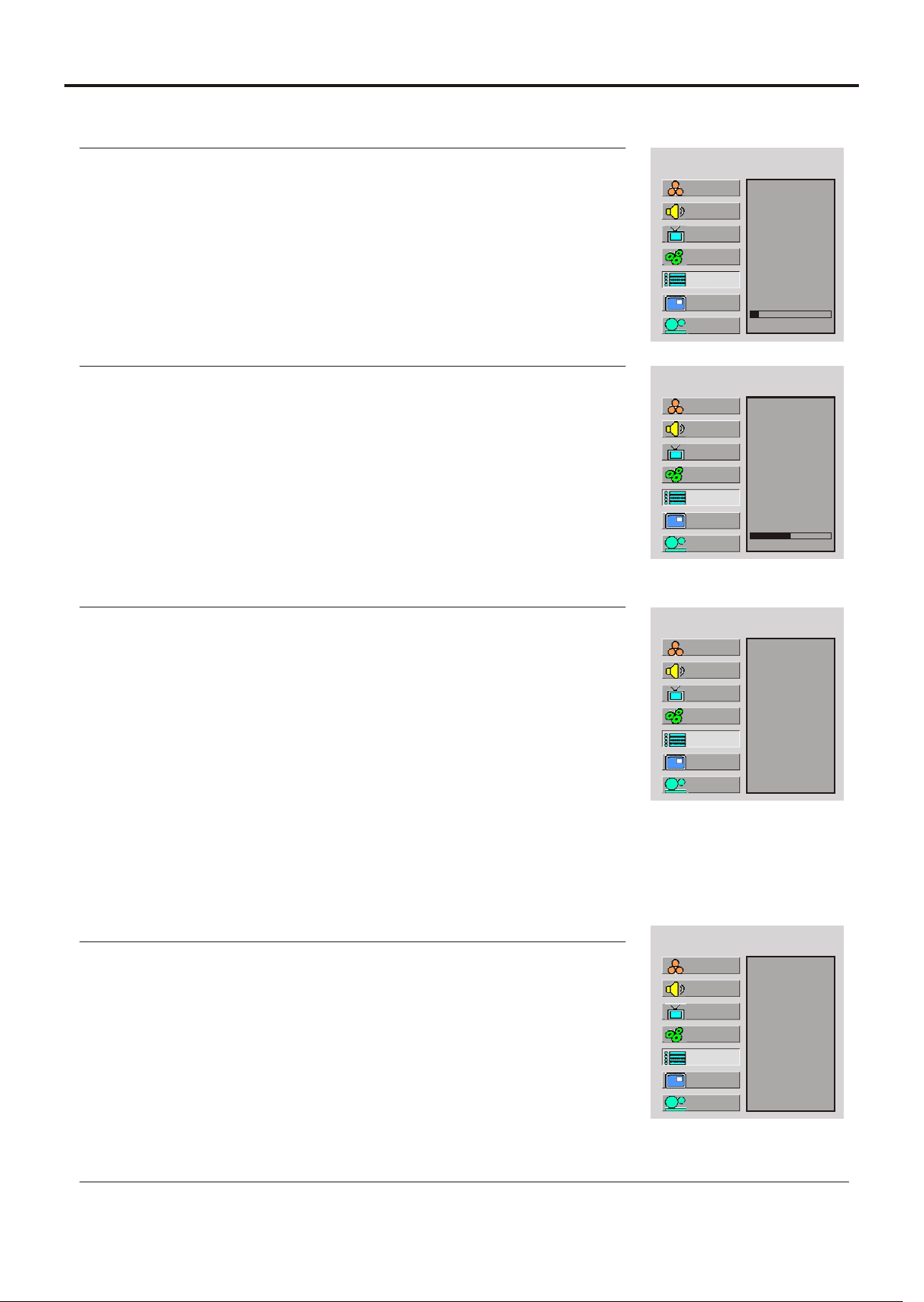
This setting allows you to set the time that the OSD for the main menu is
displayed onscreen.
Normal
10 Seconds
You may select between 5 seconds, 10 seconds, 20 seconds, 50 seconds or 200
Loading default values
Note:
Setup
Picture
Sound
CH
System
OSD
TVPC
Setup
Picture
Sound
CH
System
OSD
TVPC
Setup
Picture
Sound
CH
System
OSD
TVPC
Setup
Picture
Sound
CH
System
OSD
TVPC
MAIN MENU
MAIN MENU
MAIN MENU
MAIN MENU
29
Main Frame
TVPC Frame
Note:
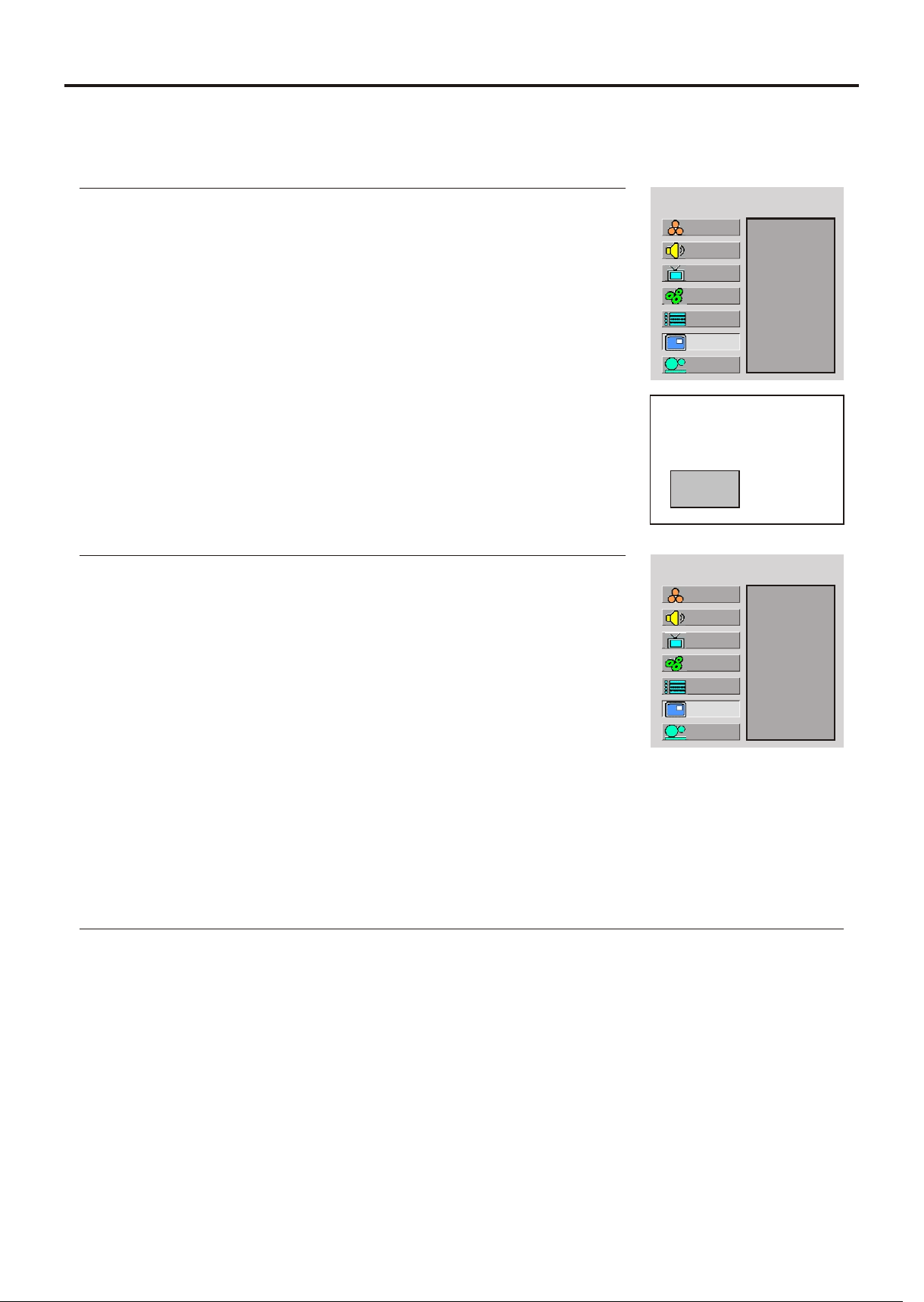
The TVPC function is available only when the main frame is in VGA/DVI mode (aspect
4
You may quickly open or close TVPC frame by using the TV/PC
Viewing the TVPC
TVPC Operations
MAIN MENU
TVPC On/Off
Source
H Position
V Position
Size
PBP
1
2
3
4
On
Selecting the Signal Source for the TVPC Frame
MAIN MENU
TVPC On/Off
Source
H Position
V Position
Size
PBP
RF
1
2
3
4
5
Note:
You may quickly select signal source for the TVPC frame by using the
Changing Channels for the TVPC Frame
When the TVPC frame is in TV mode, press the up or down button to change channels.
When you press the up or down, the unit changes channels in sequence. You will see all the channels
that the unit has memorized.
Setup
Picture
Sound
CH
System
OSD
TVPC
Setup
Picture
Sound
CH
System
OSD
TVPC
30
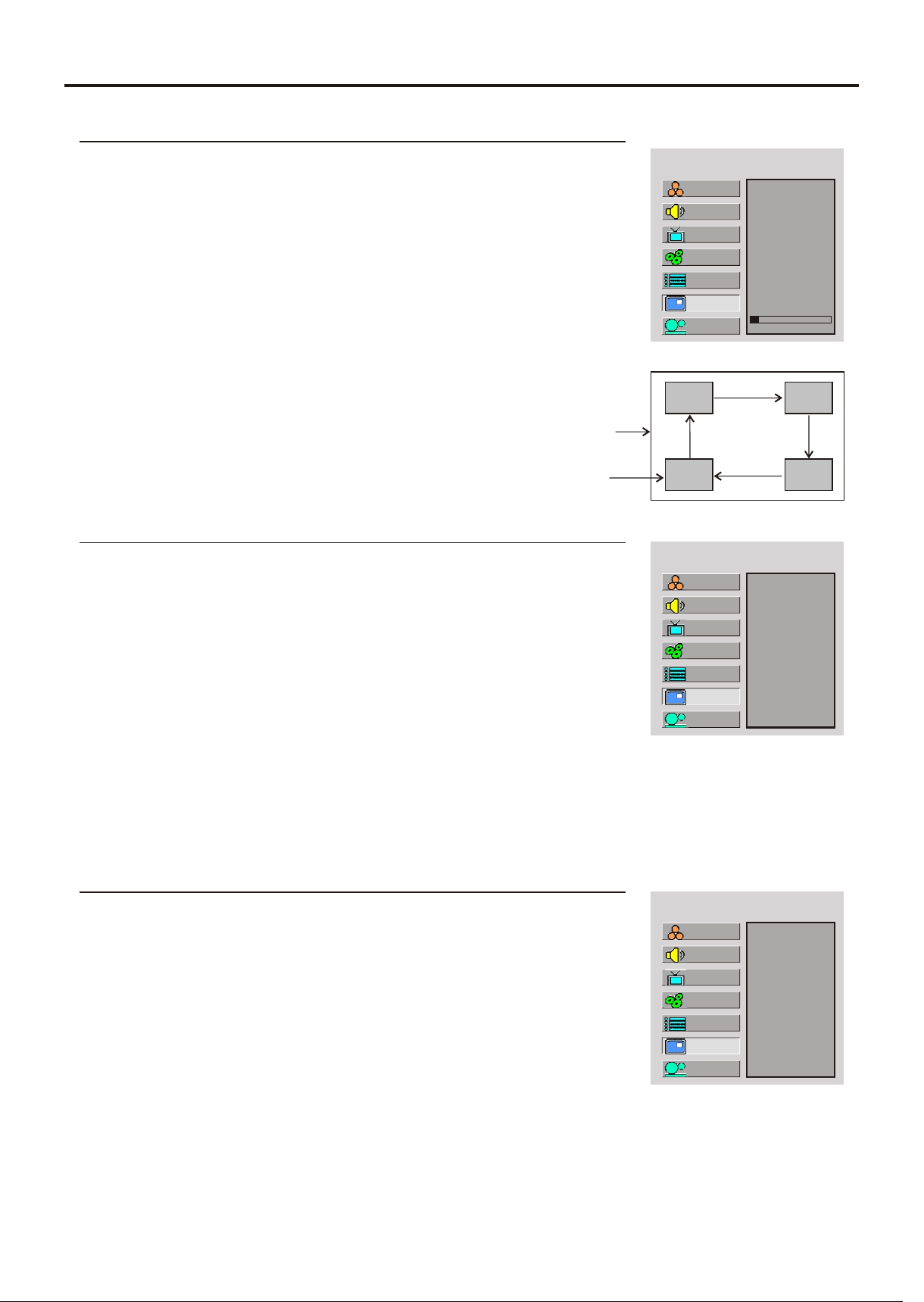
TVPC Operations (continued)
Changing the Position of the TVPC Frame
Main frame
TVPC frame
Adjusting the Size of TVPC Frame
Note:
Note:
MAIN MENU
TVPC On/Off
Source
H Position
V Position
Size
PBP
1
2
3
4
5
10
MAIN MENU
TVPC On/Off
Source
H Position
V Position
Size
PBP
Small
1
2
3
4
5
<
You can quickly switch to PBP mode by using the PBP button.
Viewing Picture-by-Picture
Note:
MAIN MENU
TVPC On/Off
Source
H Position
V Position
Size
PBP
On
Without TVPC function working, press Menu to display the menu main
1
2
3
4
5
Setup
Picture
Sound
CH
System
OSD
TVPC
Setup
Picture
Sound
CH
System
OSD
TVPC
Setup
Picture
Sound
CH
System
OSD
TVPC
31

Setting Sleep Timer
Freezing the Picture
Using Hotkeys
Press the Sleep button repeatedly to set a sleep time to
Sleep: 5 min.
Off
5 minutes
10 minutes
15 minutes
30 minutes
Press the Still button to hold on the image on the screen (the video
Note:
The freeze function works in TV, Video or S-video mode only.
Setting Audio Mode
Press the Stereo button repeatedly to select the audio mode between
Choose STEREO for channels that are broadcasting in stereo.
Choose MONO for channels that are broadcasting in mono, or if you are having difficulty receiving a
32
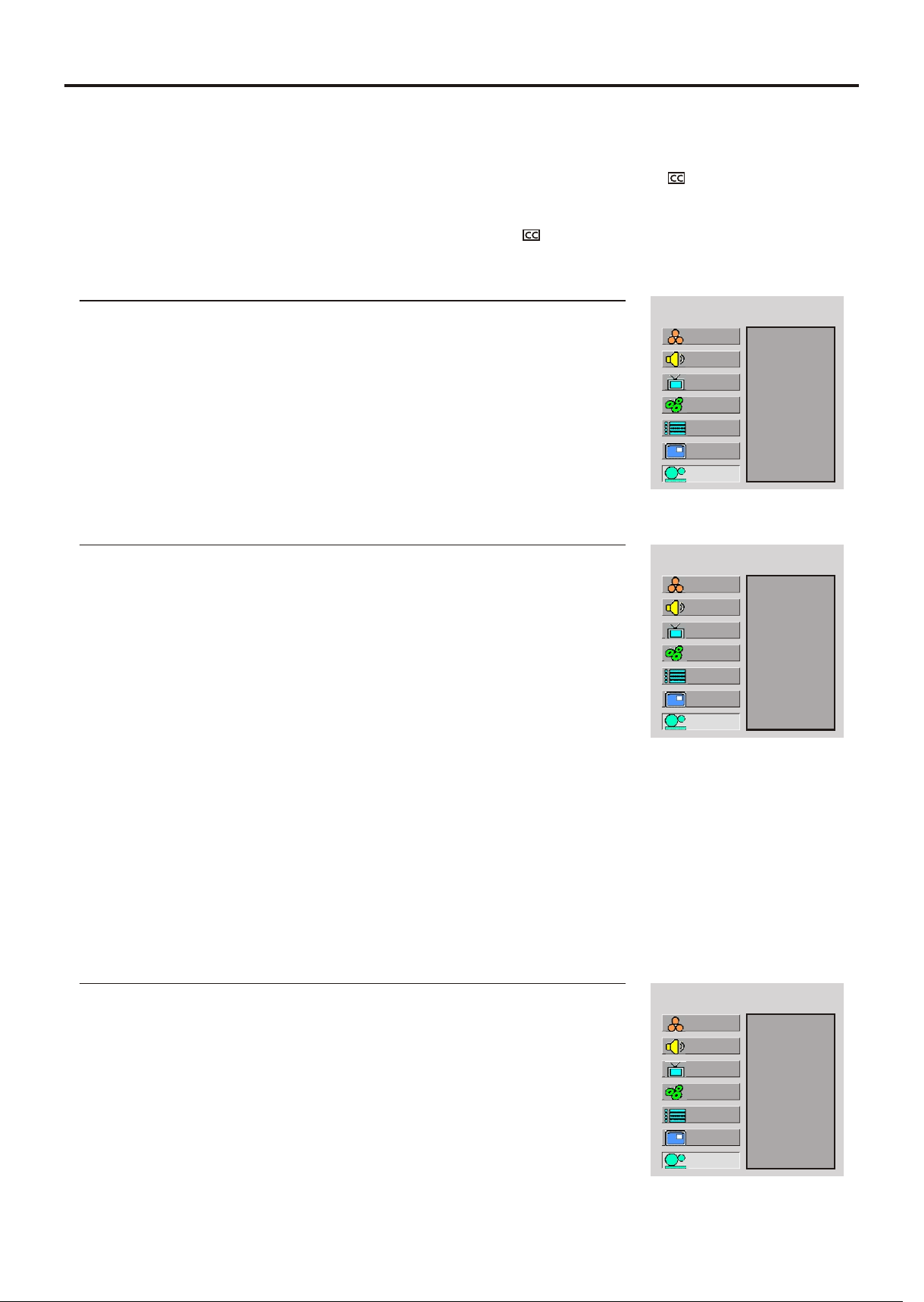
Viewing Closed Captions
The unit decodes and displays the closed captions that are broadcast with certain TV shows. These
captions are usually subtitles for the hearing impaired or foreign language translations. All VCRs record the
closed caption signal from television programs, so home-recorded video tapes also provide closed
captions. Most prerecorded commercial video tapes provide closed captions as well. Check for the
Note:
The Caption feature does not work with YPbPr, VGA,DVI.
Turning Closed Caption On or Off
You may select between CC-1, CC-2, CC-3, CC-4, T-1, T-2, T-3 and T-4.
The Closed Caption broadcasts can be viewed in two modes: CAPTION and TEXT. For each mode,
four channels are available.
The [CAPTION] mode shows subscripts of dialogues and commentaries of TV dramas and news
programs while allowing a clear view of the picture.
The [TEXT] mode displays various information over the picture (such as TV program schedule,
weather forecast, etc.) that is independent of the TV programs.
MAIN MENU
CCD On/Off
CCD Mode
CC when mute
Child Lock
On
1
2
3
4
Setting Closed Caption
1
3
4
5
MAIN MENU
CCD On/Off
CCD Mode
CC when mute
Child Lock
CC-1
2
Note:
Setting CC When Mute
MAIN MENU
CCD On/Off
CCD Mode
CC when mute
Child Lock
On
1
3
4
2
5
Setup
Picture
Sound
CH
System
OSD
TVPC
Setup
Picture
Sound
CH
System
OSD
TVPC
Setup
Picture
Sound
CH
System
OSD
TVPC
33
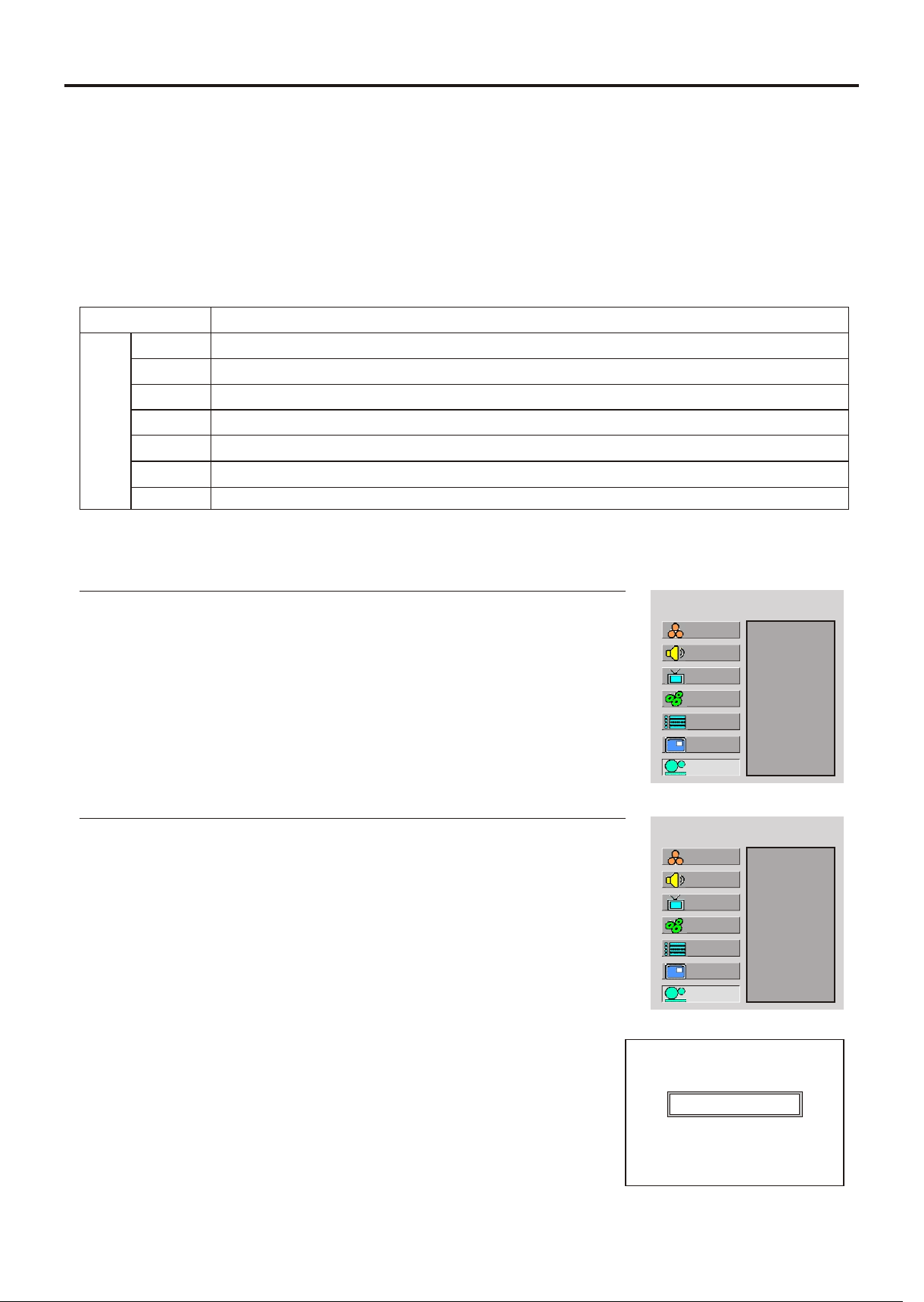
Adjusting Child Lock Settings
This function allows TV programs to be restricted and TV usage to be controlled based on FCC data. It
prevents children from watching violent or sexual scenes that may be harmful.
Restriction of TV programs includes two ratings that contain information about the program: the MPAA
rating and the TV Parental Guidelines. The MPAA rating is restricted by age. TV Parental Guidelines are
restricted by age and content.
Child Lock
[1] Movie Rating (MPAA)
Rating
age
based
G
PG
PG-13
R
NC-17
X
N/A
GENERAL AUDIENCES. All ages admitted.
PARENTAL GUIDANCE SUGGESTED. Some material may not be suitable for children.
PARENTAL STRONGLY CAUTIONED. Some material may be inappropriate for children under
13.
RESTRICTED. Under 17 requires accompanying parent or adult guardian.
NO ONE 17 AND UNDER ADMITTED.
X Rating is an older rating that is unified with NC-17 but may be encoded in the data of
Example 1:
“PG-13” in the age-based rating is blocked, this will automatically block
the higher ratings “R”, “NC-17”, “X” also.
“R” in the age-based rating is blocked, this will automatically block the
higher rating “NC-17”, “X” also.
Note:
Example 2:
MAIN MENU
Block On/Off
MPAA
TV Rating
CA EngRateSys
PG-13
MAIN MENU
Block On/Off
MPAA
TV Rating
R
“Child Lock Block” with a green screen will be displayed if you watch
Child Lock Block
Setup
Picture
Sound
CH
System
OSD
TVPC
Setup
Picture
Sound
CH
System
OSD
TVPC
New Password
CA FrnRateSys
CA EngRateSys
New Password
CA FrnRateSys
34
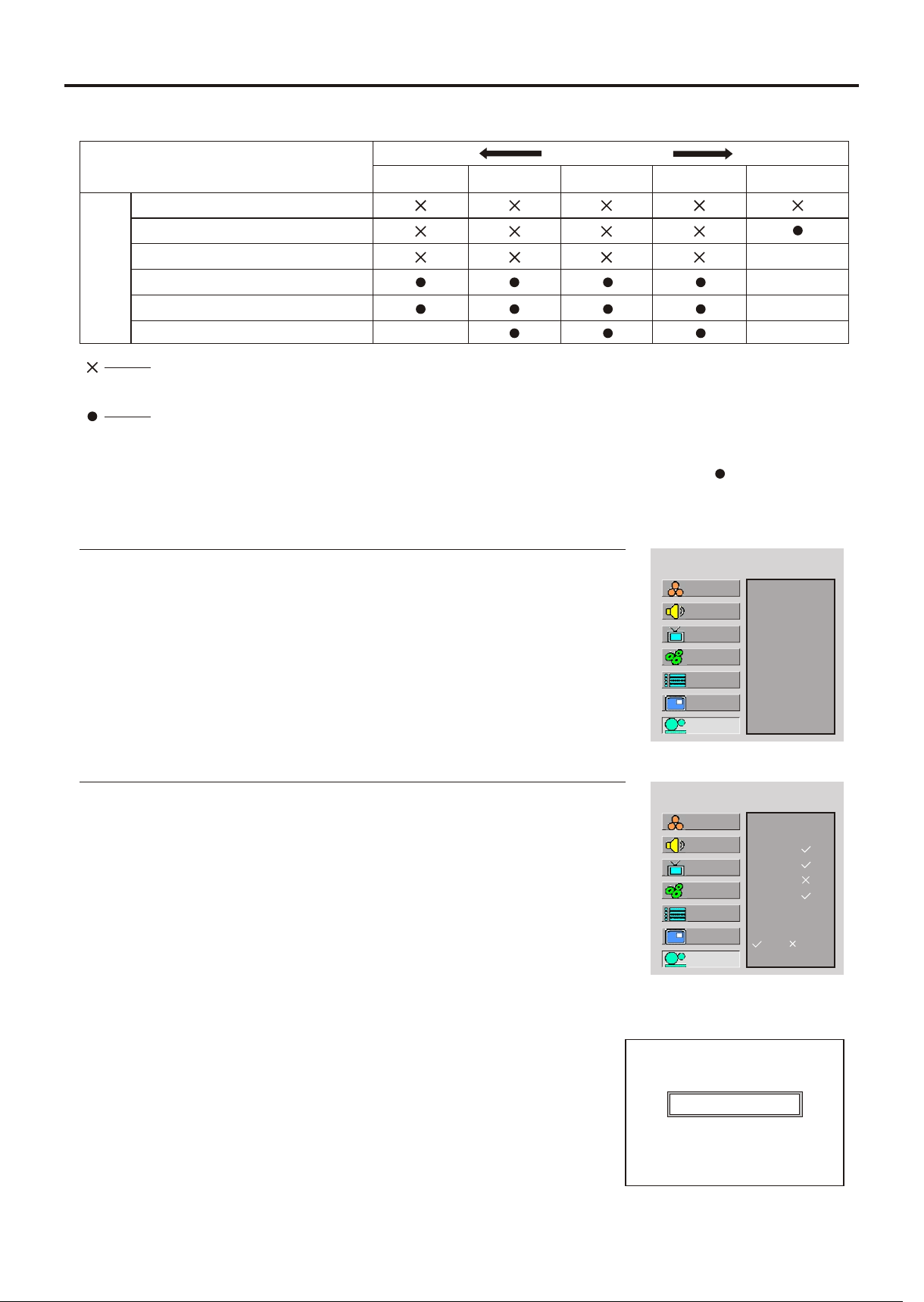
Adjusting Child Lock Settings (continued)
[2] TV Rating
Rating
age
based
Note:
Age-based ratings can be modified by the content-based ratings but only in the combinations
TV-Y (All children)
TV-Y7 (Direct to Older Children)
TV-G (General Audience)
TV-PG (Parental Guidance
Suggested)
TV-14 (Parents Strongly
content based
FVV
S
LD
Content Rating can be set but this Rating
is not normally broadcast by TV Station.
Content Rating can be set.
D:
L:
S:
V:
FV:
Sexually Suggestive Dialog
Adult Language
Sexual Situation
Violence
Fantasy Violence
Example 1:
Example 2:
When TV-Y7 in the age-based rating is set to BLOCK, this will automatically
block the higher ratings: TV-G, TV-PG, TV-14 and TV-MA. In addition, D, L, S,
V and FV in content are automatically blocked.
When TV-14 in the age-based rating is set to BLOCK, this will automatically
block the higher ratings: TV-MA.
In addition, if you block “L” sub-rating in TV-PG, then the D, L, S, V and FV in
c o n t e n t i n
MAIN MENU
Block On/Off
MPAA
TV Rating
TV-Y7
MAIN MENU
TV-PG:
V
S
L
D
:View :Block
Setup
Picture
Sound
CH
System
OSD
TVPC
Setup
Picture
Sound
CH
System
OSD
TVPC
CA EngRateSys
New Password
CA FrnRateSys
“Child Lock Block” with a green screen will be displayed if you watch
Child Lock Block
35
Adjusting Child Lock Settings (continued)
Turning Child Lock On or Off
1
2
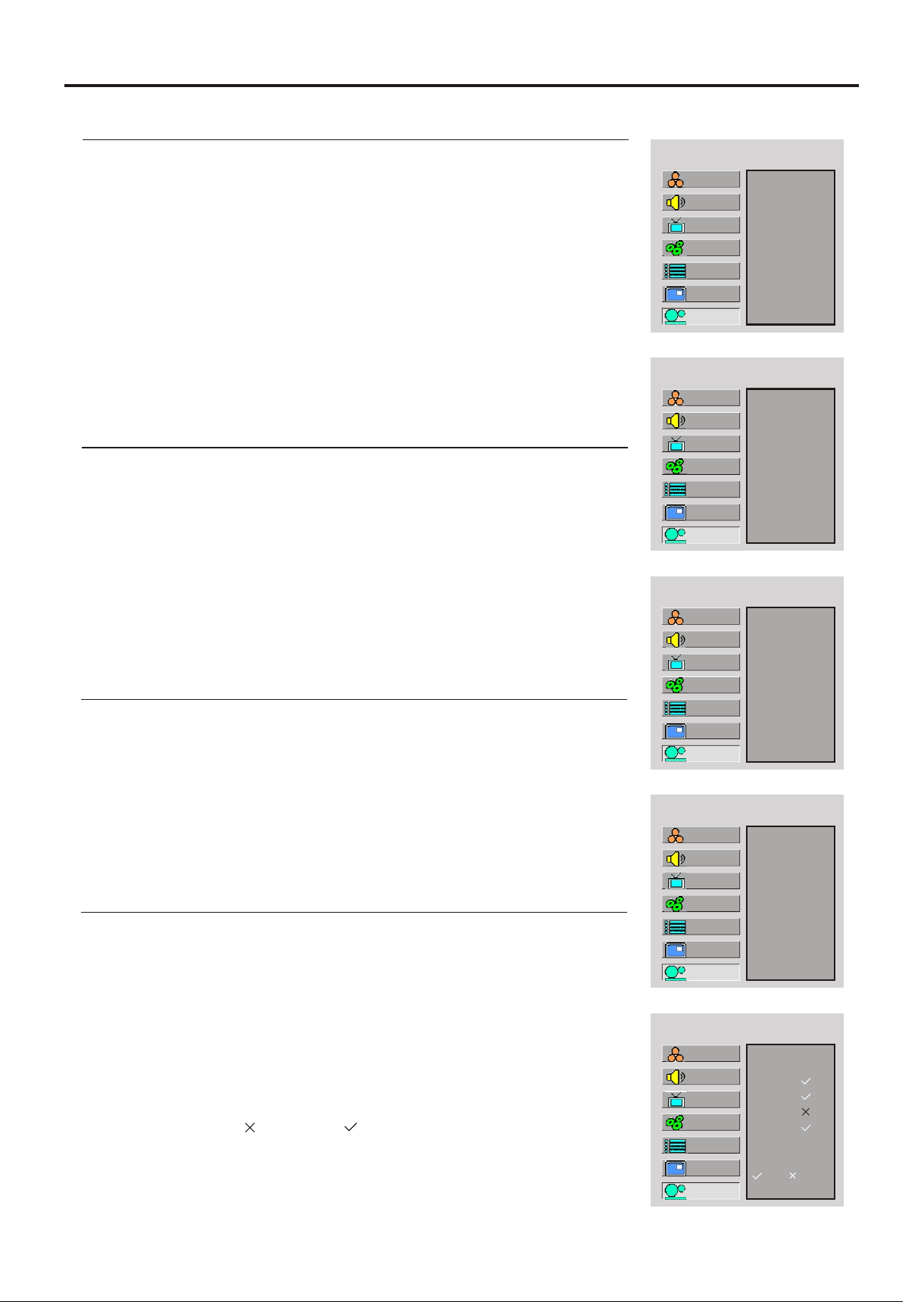
The default password is 1234, you can change the password by
yourself.
The unit allows you to access the Child Lock menu if you input the right
password, or
Changing the Password
From the password menu page, press CH repeatedly to select New +/-
1
Input a new 4-digit password. For example, you may set "0000" as your
new password.
2
3
MAIN MENU
Block On/Off
MPAA
TV Rating
On
3
4
5
MAIN MENU
Block On/Off
MPAA
TV Rating
New Password
0000
[0-9]
Adjusting the Movie Rating
1
2
3
For example, “PG-13” in the age-based rating is selected, this will
automatically block the higher ratings “R”, “NC-17”, “X” also.
MAIN MENU
Block On/Off
MPAA
TV Rating
PG-13
Adjusting the TV Rating
1
2
3
This will automatically block the higher age-based ratings. You may set the
individual content-based ratings as follow.
MAIN MENU
Block On/Off
MPAA
TV Rating
TV-PG
MAIN MENU
TV-PG:
V
S
LL
D
:View :Block
4
5
6
Setup
Picture
Sound
CH
System
OSD
TVPC
Setup
Picture
Sound
CH
System
OSD
TVPC
Setup
Picture
Sound
CH
System
OSD
TVPC
Setup
Picture
Sound
CH
System
OSD
TVPC
Setup
Picture
Sound
CH
System
OSD
TVPC
CA EngRateSys
New Password
CA FrnRateSys
CA EngRateSys
CA FrnRateSys
CA EngRateSys
New Password
CA FrnRateSys
CA EngRateSys
New Password
CA FrnRateSys
36
Be sure to write down your password and retain it for future use.
Adjusting Child Lock Settings (continued)
Adjusting Canadian English Rating
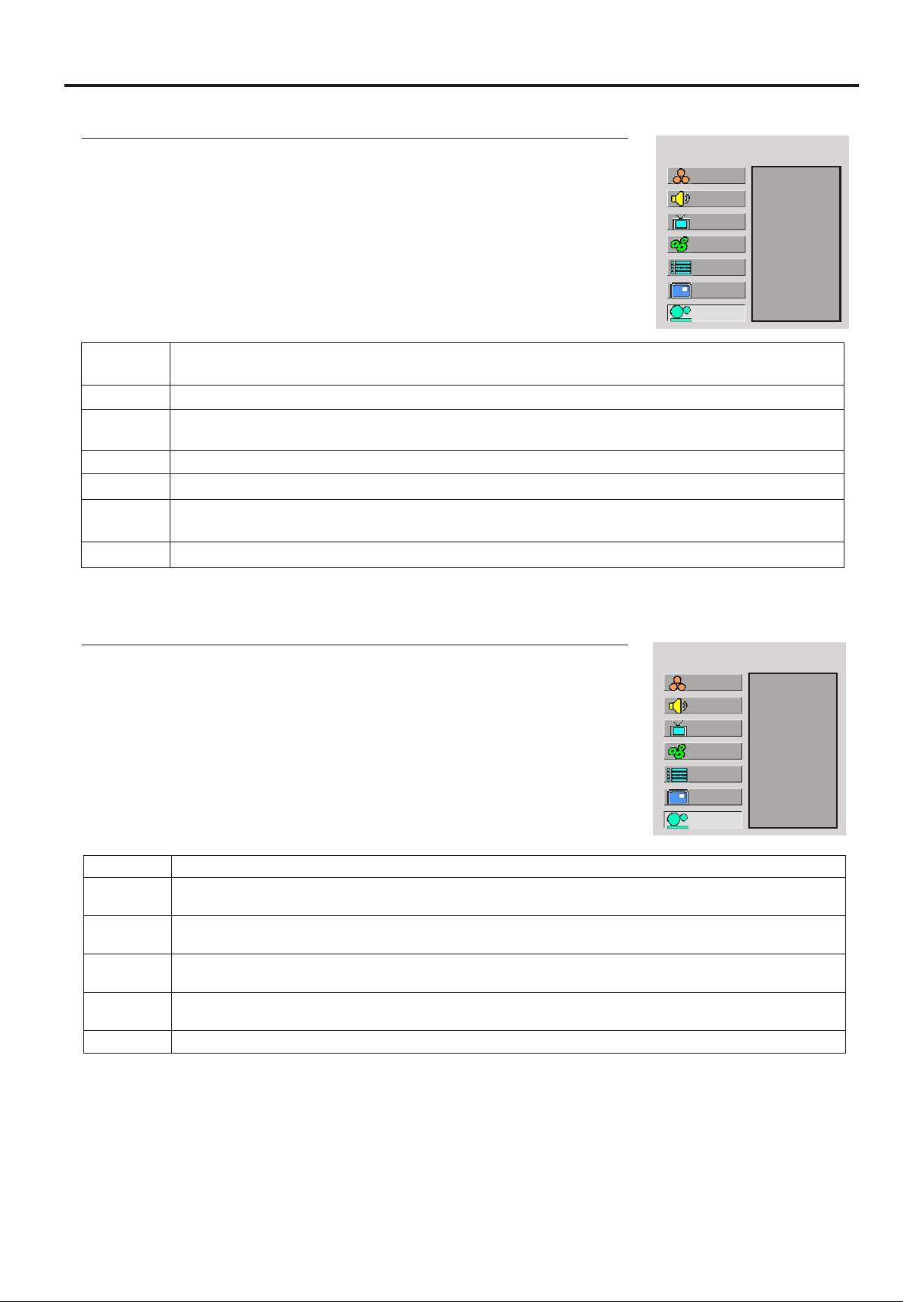
From the Child Lock menu page, press CH repeatedly to select CA +/-
1
2
3
MAIN MENU
Block On/Off
MPAA
TV Rating
PG
Setup
Picture
Sound
CH
System
OSD
TVPC
CA EngRateSys
New Password
CA FrnRateSys
CANADIAN ENGLISH RATING CHART
Exempt - Exempt programming includes: news, sports, documentaries and other
information programming, talk shows, music videos, and variety programming.
Programming intended for children under age 8. No offensive language, nudity or sexual
Programming generally considered acceptable for children 8 years and over. No
profanity, nudity or sexual content.
General programming, suitable for all audiences.
Parental Guidance suggested. Some material may not be suitable for children.
Programming contains themes or content which may not be suitable for viewers under
the age of 14. Parents are strongly cautioned to exercise discretion in permitting viewing
Intended for viewers 18 years and older and might contain depictions of violence.
E
C
C8+
G
PG
14+
18+
Adjusting Canadian French Rating
From the Child Lock menu page, press CH repeatedly to select CA +/-
1
2
3
MAIN MENU
Block On/Off
MPAA
TV Rating
G
Setup
Picture
Sound
CH
System
OSD
TVPC
CA EngRateSys
New Password
CA FrnRateSys
CANADIAN FRENCH RATING CHART
E
G
8 ANS+
13 ANS+
16 ANS+
18 ANS+
Exempt - Exempt
General - Programming intended for audience of all ages. Contains no violence, or
the violence content is minimal or is depicted appropriately.
8+ General - Not recommended for young children. Programming intended for a
broad audience but contains light or occasional violence. Adult supervision
Programming may not be suitable for children under the age of 13 - Contains either a
few violent scenes or one or more sufficiently violent scenes to affect them. Adult
Programming may not be suitable for children under the age of 16 - Contains
frequent scenes of violence or intense violence.
Only for adult viewing.Could contain frequent violent scenes and extreme violence.
37
Before calling for repair service, check the following items for possible remedies to the
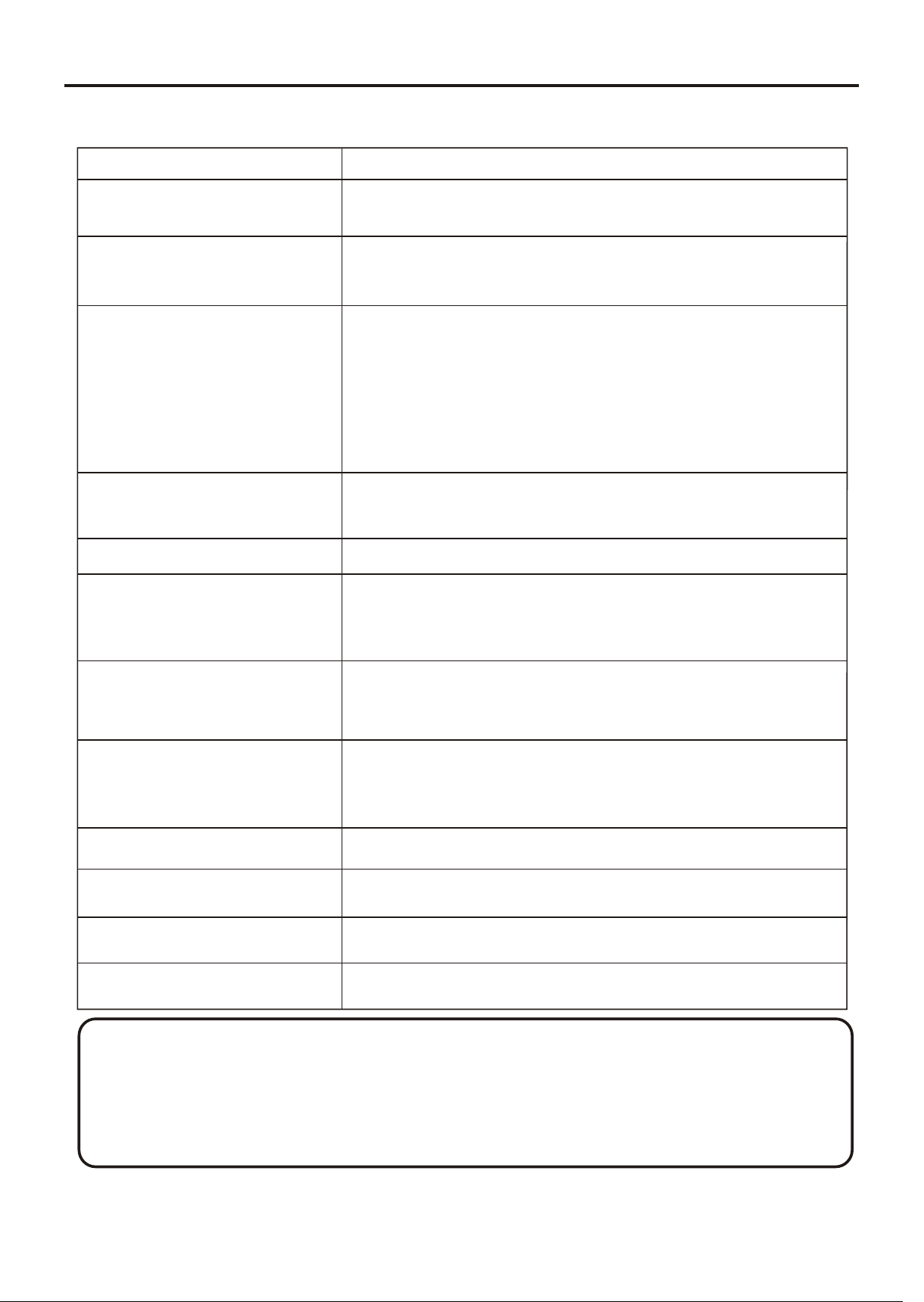
Symptoms
Check item
!
This may be caused by obstruction to the antenna due to high
rise buildings or hills. Using a highly directional antenna may
“Ghost” or double images
!
!
Check that the AC power cord is plugged into the mains
socket.
Unplug the power cord, wait for 60 seconds. Then re-insert plug
No power
!
!
!
!
!
!
Check antenna connections at the rear of the unit to see if it
is properly connected to the unit.
Possible broadcast station trouble. Try another channel.
Adjust the contrast and brightness settings.
Check the Closed Captions control. Some TEXT modes could
block the screen.
Select a correct input.
Is a non-compatible signal being input?
No picture
!
!
!
Increase the VOLUME.
Check that the unit is not muted.
Check that the Speaker item in SOUND menu is set to ON.
Good picture but no sound
• Adjust the contrast, color and brightness
Good sound but poor color
!
Sometimes, poor picture quality occurs when having
activated an S-VHS camera or camcorder connected and
having connected another peripheral at the same time. In this
case, switch off one of the other peripherals.
Poor picture
!
Check the antenna connection.
!
!
This may be caused by electrical interference (e.g. hairdryer,
nearby neon lights, etc.).
Turn off the equipment.
!
!
!
Check whether the batteries are working. Replace if
necessary.
Clean the remote control sensor lens on the unit.
Do not use the remote control under strong or fluorescent
Snowy picture and noise
Horizontal dotted line
Television not responding to
remote control
!
Check if you have selected the correct VGA mode in your
No stable or not
synchronized VGA picture
If your problem is not solved, turn your unit off and then on again once.
Note:
No output from one
of the speakers
!
Adjust Balance in the SOUND menu.
Troubleshooting
38
+ Do not use in hot or cold rooms (locations)
• When the unit is used in rooms (locations) with low temperature, the picture may leave trails or
appear slightly delayed. This is not a malfunction, and the unit will recover when the
temperature returns to normal.
• Do not leave the unit in a hot or cold location. Also, do not leave the unit in a location exposed
to direct sunlight or near a heater, as this may cause the cabinet to deform and the LCD panel
Control buttons do not work
!
Unplug the power cord, wait for some seconds. Then re-plug
the power cord and turn on the unit again.

39
Care and Maintenance
LCD Display panel information
The marking or retained image on the LCD panel resulting from fixed image use is not an operating
Note:
Important Information Regarding Use of Video Games, Computers, Captions or Other Fixed Image
Displays.
The extended use of fixed image program material can cause a permanent "shadow image" on the
LCD panel.
This background image is viewable on normal programs in the form of a stationary fixed image. This
type of irreversible LCD panel deterioration can be limited by observing the following steps:
A. Reduce the brightness/contrast setting to a minimum viewing level.
Cleaning and Maintenance
To clean this unit, wipe with a soft, dry cloth.
If the surfaces are extremely dirty, use a soft cloth dipped in a soap and water solution or a weak
detergent solution.
• Use eyeglass cleaner to remove stubborn dirt from the LCD.
• Never use alcohol, paint thinner or benzine to clean this unit.
• Before using a chemically treated cloth, read the instructions that came with the cloth carefully.
Specification
40
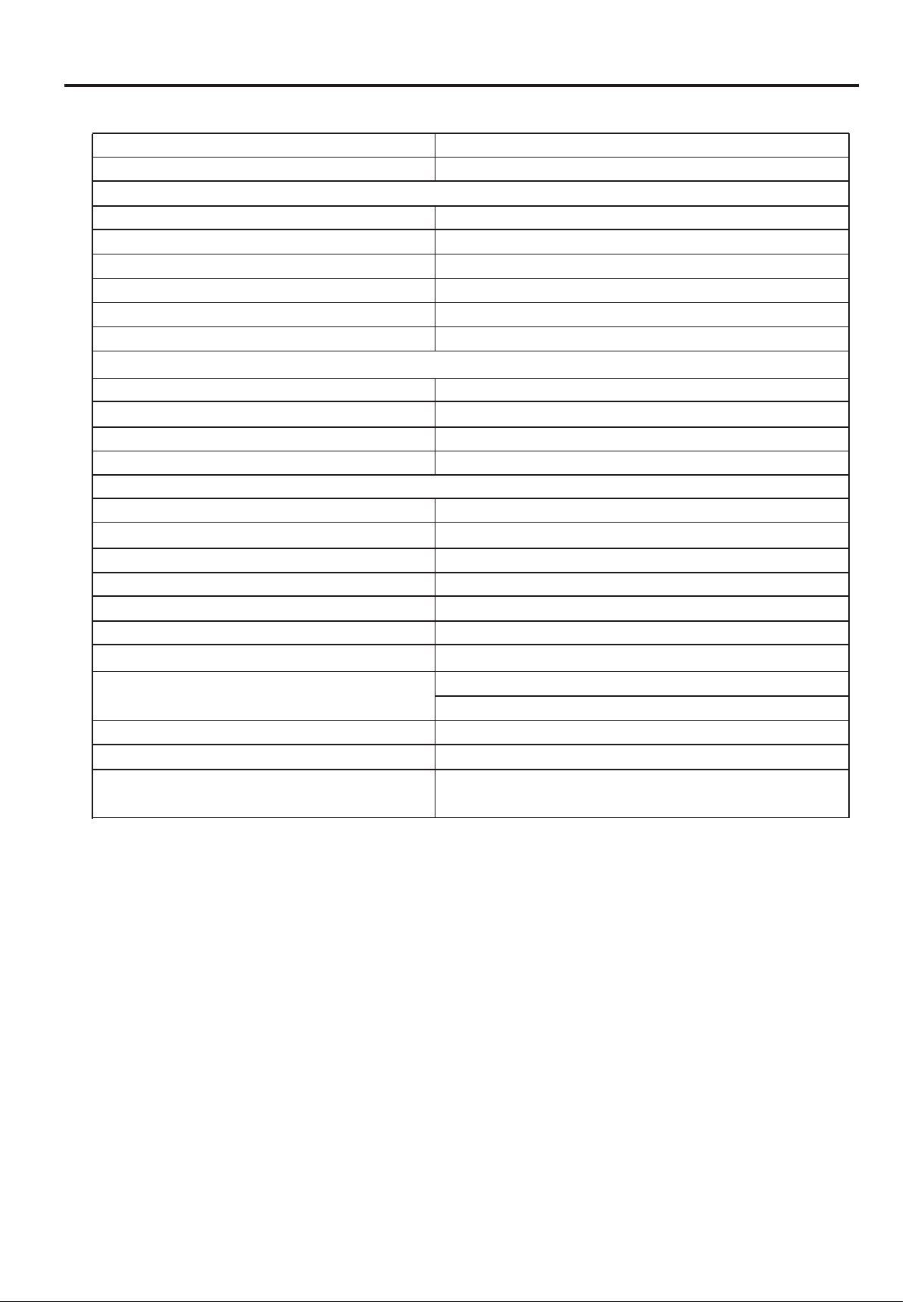
Type LCD TV
Display Size diagonal 26”
Display Feature
LCD panel TFT-LCD
Resolution 1366 x 768
Maximum Colors 16,777,216
Brightness 500 nit
Contrast 800:1
O O
Viewing Angle 170 /170
TV Tuner & Color System
Tuner FST x 1
TV System NTSC
Channel Coverage VHF 2-13, UHF 14-69, CATV (1-125)
Video Features Progressive Scan
Audio Speaker System
Speaker Output 7Wx2
Stereo Sound System BTSC
Power Supply AC100V-240V 50/60Hz
Power Consumption 140W
Stand by Mode Power Consumption <1W
Unit weight (lb) 41.9
TV Unit Dimension (WxHxD) (inch) 31.8 x 20.6 x 8.3
Other functions Sleep Timer (Off only)
Picture Freeze (TV and AV only)
Caption Closed Caption
Security Child Lock
Remote Control function support for OSD Support English, French,
Spanish
Video In RF : TV/CATV 75ohms coaxial x 1
AV : RCA 75ohms composite video x 2
S-Video : 4-pin DIN x 1
D-Sub 15 x 1
DVI-Dx1
YPbPr/YCbCr (Support HDTV): RCA for DVD, STB x 2
Video Out RCA 75 ohms x 1
Audio In L/R RCA for AV x 2
Stereo mini phone Jack for PC x 1
Stereo mini phone Jack for DVI-D x 1
L/R RCA for YPbPr/YCbCr x 2
Audio Out L/R RCA for Video Out x 1
Headphone Jack : Stereo mini phone Jack x 1
Accessories 1 User Manual
1 Remote Control
1 Power Cord
2 AAA Batteries
Specification (continued)
Terminals
Display Format Supported by This Unit
For D-Sub/DVI: 640X480 @ 60Hz,72Hz,75Hz; 800X600 @ 60Hz,72Hz,75Hz;
1024X768 @ 60Hz,70Hz,75Hz; 1280X960 @ 60Hz;
1280X1024 @ 60Hz; 1280X768 @ 60Hz; 1360X768 @ 60Hz .
For YPbPr: 480P @ 60Hz; 480i @ 60Hz;
720P @ 60Hz;
1080i @ 60Hz.
41

604-L26K165-00
Ver.1.0