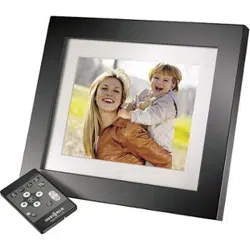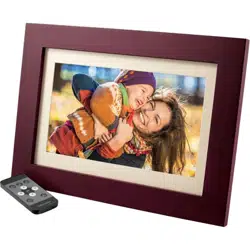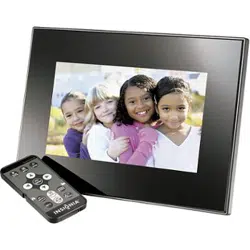

NS- DPF0712G
User Guide
7" Digital Picture Frame

2
www.insigniaproducts.com
7" Digital Picture Frame
Contents
Introduction . . . . . . . . . . . . . . . . . . . . . . . . . . . . . . . . . . . . . . . 2
Safety information. . . . . . . . . . . . . . . . . . . . . . . . . . . . . . . . . . 3
Features. . . . . . . . . . . . . . . . . . . . . . . . . . . . . . . . . . . . . . . . . . . 4
Setting up your picture frame . . . . . . . . . . . . . . . . . . . . . . . 10
Using your picture frame. . . . . . . . . . . . . . . . . . . . . . . . . . . . 13
Maintaining . . . . . . . . . . . . . . . . . . . . . . . . . . . . . . . . . . . . . . 28
Troubleshooting . . . . . . . . . . . . . . . . . . . . . . . . . . . . . . . . . . . 29
Specifications . . . . . . . . . . . . . . . . . . . . . . . . . . . . . . . . . . . . . 30
Legal notices. . . . . . . . . . . . . . . . . . . . . . . . . . . . . . . . . . . . . . 31
6-month limited warranty . . . . . . . . . . . . . . . . . . . . . . . . . . 33
Introduction
Congratulations on your purchase of a high-quality Insignia
product. Your new digital picture frame is designed for reliable
and trouble-free performance.

7" Digital Picture Frame
3
www.insigniaproducts.com
Safety information
Always follow these basic safety precautions when using your
digital picture frame. This will reduce the risk of fire, electric
shock, and injury.
Placement—To prevent fire or electric shock, do not expose this
digital picture frame to rain or moisture. To prevent it from falling
do not place it on an unstable cart, stand, tripod, bracket, or
table. Keep the unit away from strong magnets, heat sources,
direct sunlight, and excessive dust.
Installation—Make sure that the digital picture frame is used in
accordance with the instructions and illustrations provided in
this manual.
Objects and liquids—Do not push objects of any kind into the
digital picture frame through openings. Do not spill or spray
liquid of any kind on or in the digital picture frame (this may
result in a fire or electric shock). Do not place anything heavy on
the unit. To ensure proper ventilation and proper operation,
never cover or block the slots and openings with a cloth or other
material.
Disassembly—Do not attempt to disassemble the frame. There
is a risk of electric shock. Contact qualified service personnel if
your digital picture frame is in need of repair.
Cleaning the digital picture frame—When cleaning, make
sure the frame is unplugged from the power source. Use the
supplied cleaning cloth, or a cloth slightly dampened with water
for cleaning the exterior of the frame only.
Warnings
To reduce the risk of fire or shock hazard, do not expose
the frame to rain or moisture and unplug the frame during
lightning storms.
To prevent the risk of electric shock, do not remove the
cover. There are no user-serviceable parts inside. Refer all
servicing to qualified personnel.
There is a risk of explosion if the battery is incorrectly
replaced. Replace only with the same or equivalent type of
battery.

4
NS- DPF0712G
www.insigniaproducts.com
Features
• Displays digital pictures (JPEG format) and picture
slideshows without a computer
• Displays pictures directly from an inserted portable
memory device (not included)
• Bright, clear TFT LCD screen
• Compatible with a wide variety of memory cards,
including:
• Secure Digital™ (SD)
•SDHC™
• MultimediaCard (MMC™)
•Memory Stick®
• Memory Stick Pro Duo™ (requires an adapter - not
included)
•xD™
• microSD™ (requires an adapter - not included)
• Compatible with USB flash drives
• Mini-USB port to connect the digital picture frame to
your PC
• Multi-image mode displays multiple pictures at the
same time in a slideshow
• Auto Rotate–pictures are rotated based on your photos’
embedded EXIF data
• On-frame button controls and infrared remote control
• 128 MB internal memory
Note
EXIF (Exchangeable Image File) data
is information stored by a digital
camera as it records a photo. This
information includes what
orientation the camera is in when a
photo is captured.
7" Digital Picture Frame
5
www.insigniaproducts.com
Package contents
• Digital picture frame
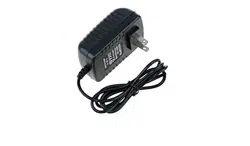
• AC power adapter
•USB cable
•User Guide
•Quick Setup Guide
• Remote control with battery (CR2025)
•Cleaning cloth
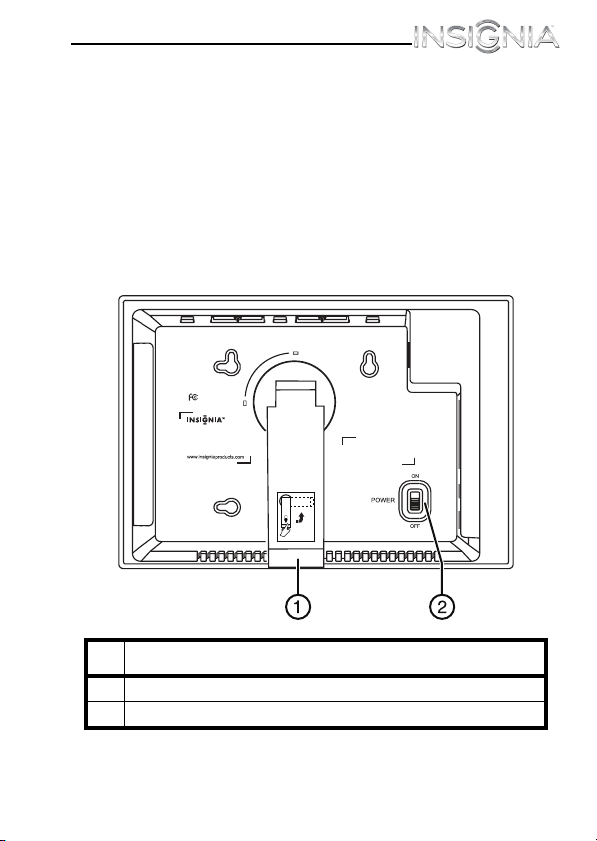
Back
#Description
1Adjustable stand
2Power On/Off switch
Made in China
THIS CLASS (B) DIGITAL APPARATUS COMPLIES
WITH CANADIAN ICES-003.
CET APPAREIL NUMÉRIQUE DE LA CLASSE (B) EST
CONFORME À LA NORME NMB-003 DU CANADA.
Model: NS-DPF0712G
Power: 5VDC, 1.0A (5W)
Tested to Comply with FCC Standards
FOR HOME OR OFFICE USE
Manufactured for Insignia Products
7601 Penn Avenue South
Richfield MN USA 55423
Portrait
Landscape
6
NS- DPF0712G
www.insigniaproducts.com
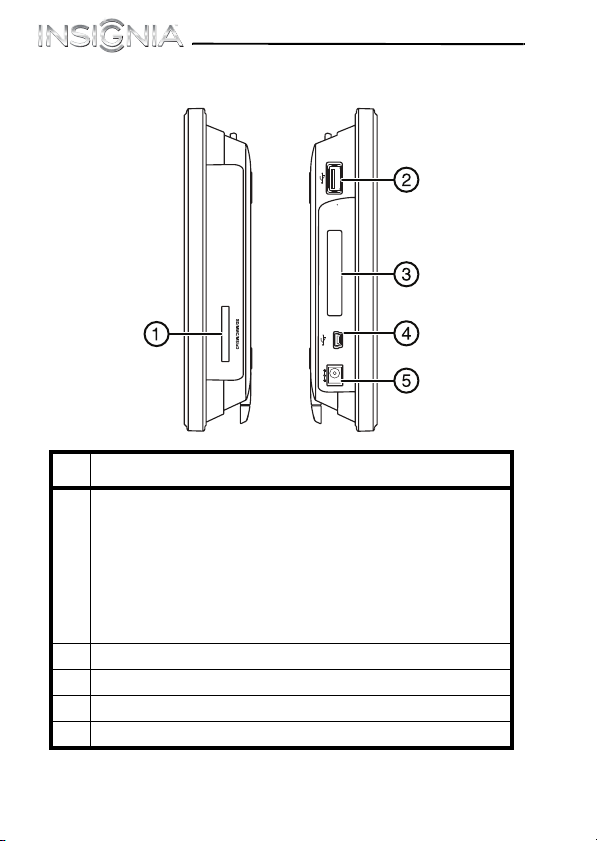
Sides
#Description
1 Memory card slot, supports:
• Secure Digital™ (SD)
•SDHC™
• MultimediaCard (MMC™)
•Memory Stick®
• Memory Stick Pro Duo™ (requires an adapter - not
included)
•xD™
• microSD™ (requires an adapter - not included)
2USB (type A) port
3 Remote control slot
4Mini USB port
5 DC 5 V power connector
REMOTE
D
C
5V
I
N
7" Digital Picture Frame
7
www.insigniaproducts.com
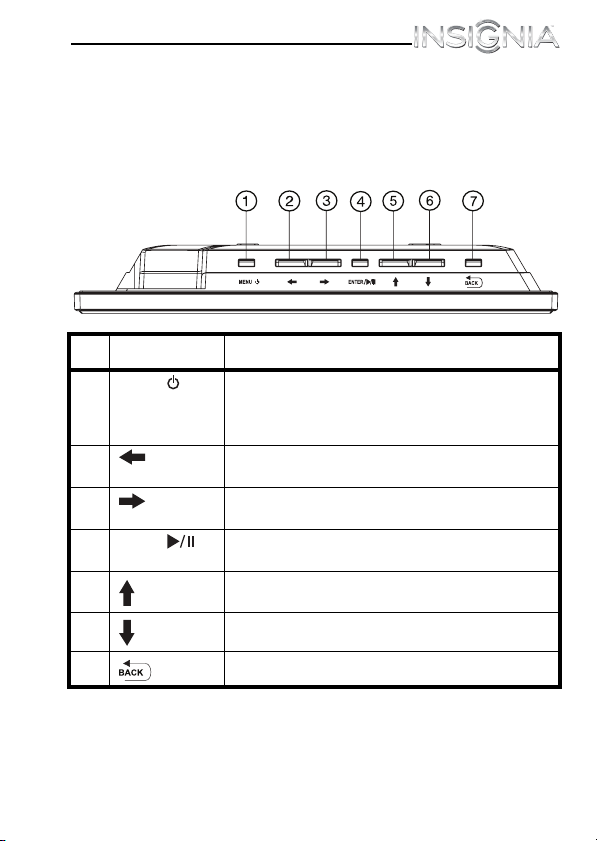
Top (buttons)
You can access most of the frame’s features by using either the
buttons on top of the frame or by using the remote control.
Selecting files for copying, deleting, or viewing requires the
remote control, and the instructions in this guide refer to remote
control buttons (except where noted).
#Button Description
1 MENU/ To open the setup menu, quickly press and
release.
To enter Standy mode, press and hold for two
seconds.
2 (left) Press to move the menu selection left or to
display the previous picture.
3 (right) Press to move the menu selection right or to
display the next picture.
4 ENTER/ Press to select menu items. During a slideshow,
press to pause or resume.
5 (up) Press to navigate up.
6 (down) Press to navigate down.
7 BACK Go back to previous selection or screen.
/
8
NS- DPF0712G
www.insigniaproducts.com
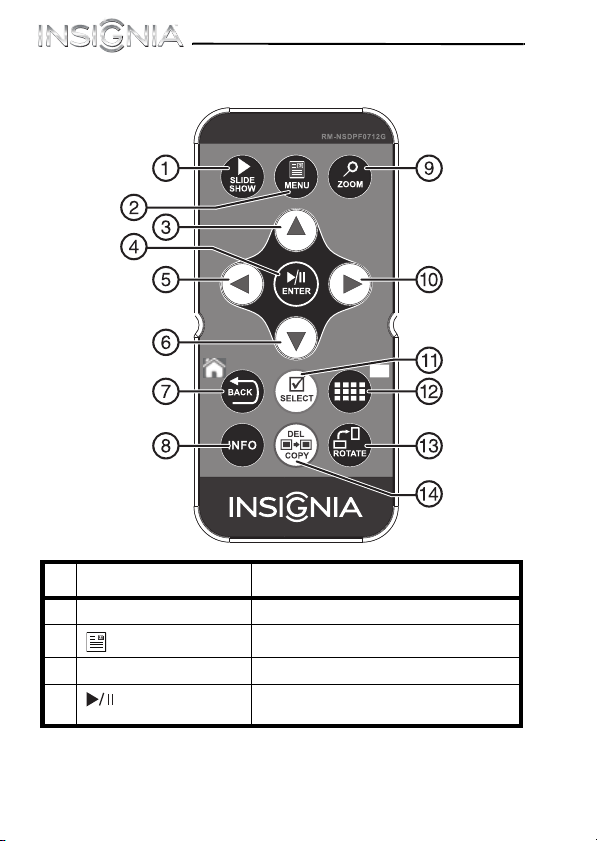
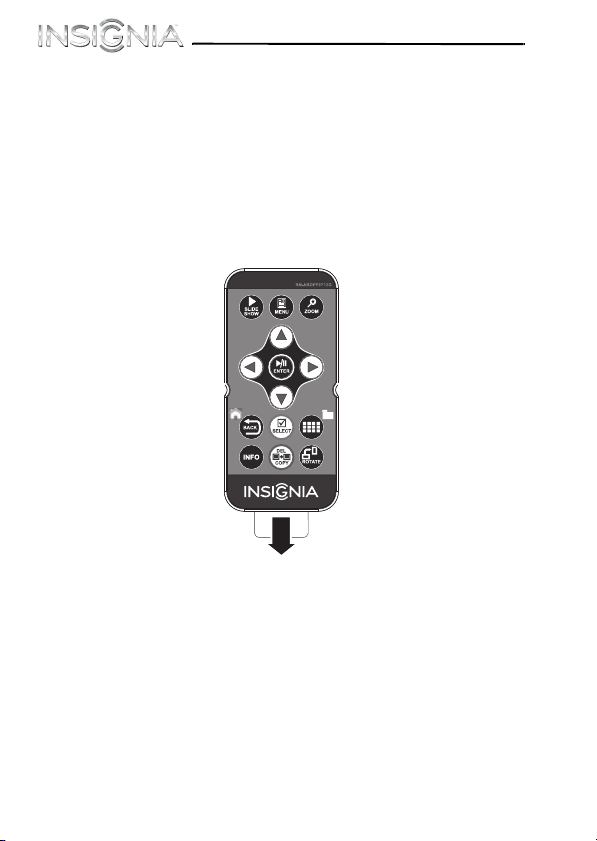
Remote control
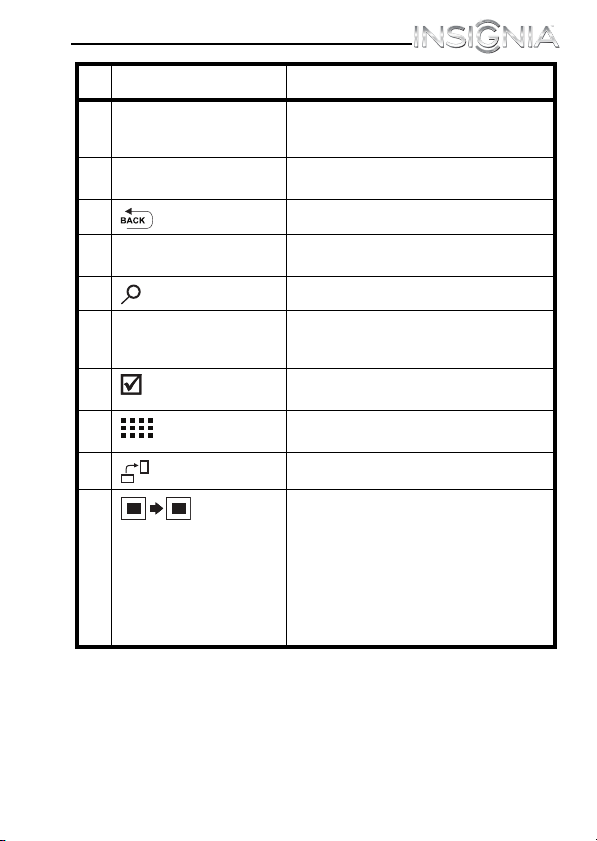
# Button Description
1 X SLIDESHOW Press to start a slideshow.
2 MENU Press to display the setup menu.
3 S (Up) Press to move the selection up.
4 ENTER Press to select the highlighted option
or to pause and resume the slideshow.
7" Digital Picture Frame
9
www.insigniaproducts.com
5 W (Left) PREV Press to move the menu selection left,
display the previous picture, or select
the previous file.
6 T (Down) Press to move the menu selection
down.
7 BACK Press to go back a screen.
8INFO Press to display information about the
picture.
9 ZOOM Press to magnify the picture.
10 X (Right) NEXT Press to move the menu selection
right, display the next picture, or select
the next file.
11 SELECT Press to select a picture or file to copy
or delete.
12 (thumbnail/
folder)
Press to enter Thumbnail mode or to
display files and folders.
13 ROTATE Press to rotate the picture.
14 DEL/COPY When reviewing pictures from
internal memory, press to delete
selected pictures.
When reviewing pictures from an
external, portable memory device,
press to copy selected pictures.
Note: Pressing this button does not
delete photos on the portable
memory device.
# Button Description
10
NS- DPF0712G
www.insigniaproducts.com
Setting up your picture frame
Setting up the remote control
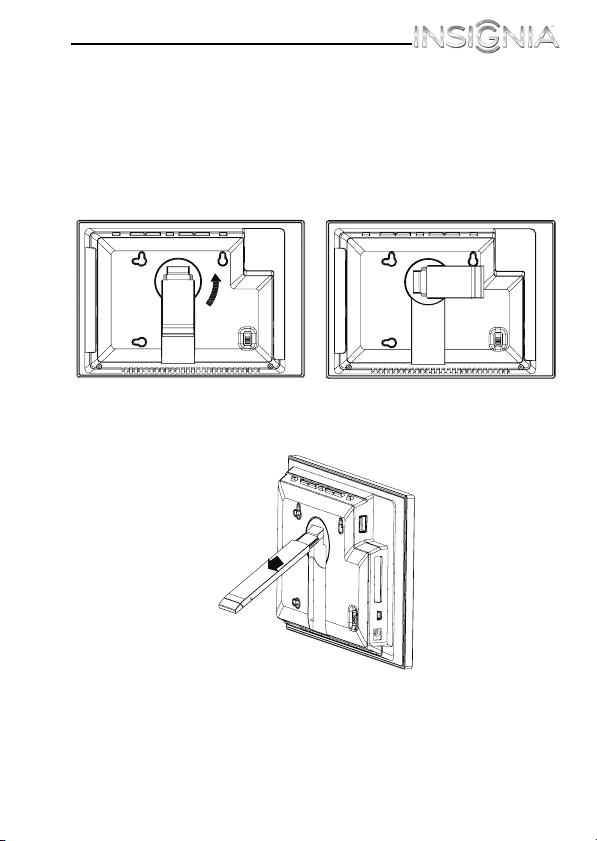
To set up the remote control:
• Remove the plastic tab that extends past the bottom
edge of the remote control. This tab protects the
battery. The remote control will not work until it is
removed.
7" Digital Picture Frame
11
www.insigniaproducts.com
Setting up the frame
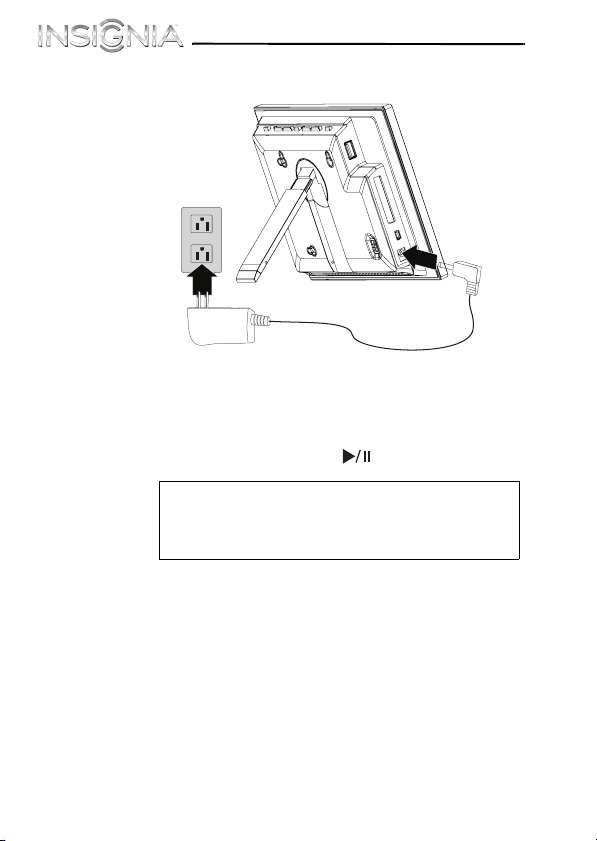
To set up the frame:
1
Pull out the stand to set the frame in landscape
orientation.
2 Turn the stand counterclockwise 90° if you want to set
the frame in portrait orientation.
3 Extend the stand from the back of the frame, then place
the frame on a flat surface. Gently push or pull the stand
to adjust the viewing angle.
12
NS- DPF0712G
www.insigniaproducts.com
4 Plug the AC power adapter into the frame’s DC power
connector and into an AC power outlet.
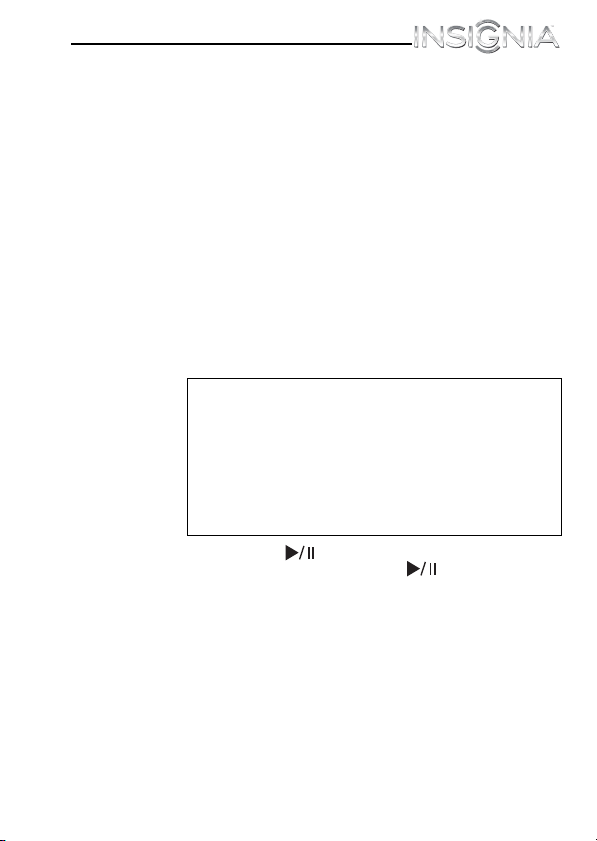
5 Slide the power switch to the ON position. The frame
automatically turns on and starts playing a slideshow of
the pictures stored in internal memory. This slideshow is
called Demo mode.
To turn off Demo mode, point the remote control at the
front of the frame and press ENTER.
Tip
You can also disable and re-enable Demo mode
from the menu. For instructions, see “Setup
options” on page 25.
7" Digital Picture Frame
13
www.insigniaproducts.com
Using your picture frame
You can use your digital picture frame to:
• Play a slideshow of pictures
•Adjust a picture’s view
• Change display settings
Playing slideshows
To play an instant slideshow from a portable
memory device:
1
Insert a portable memory device into one of the
available memory slots or the USB port.
A slideshow of pictures from the portable memory
device automatically starts to play.
2 Press ENTER/ to pause the slideshow on a
particular picture. Press ENTER/ again to resume
the slideshow.
Caution
Memory cards fit into the card slots in only one
direction. The label side of the card should face
the screen. Do not force a memory card into a
slot. The card should fit snugly when inserted
correctly. Some cards require an adapter to fit
correctly. For more information on supported
memory cards, see “Specifications” on
page 30.
14
NS- DPF0712G
www.insigniaproducts.com
To manually play a slideshow from an inserted
portable memory device or from internal
memory:
1
If the pictures you want to use are on a portable
memory device, insert the device into one of the
available memory slots or the USB port. A slideshow of
pictures from the portable memory device
automatically starts to play.
2 Press (BACK) repeatedly until the Home menu
opens.
3 Press W or X to select a portable memory device or
internal memory, then press ENTER/ .
4 Press X SLIDESHOW. A slideshow begins that displays
the pictures contained in the portable memory device
or internal memory.
Note
The option to select a portable memory device is
disabled if there is no device of that type in the
corresponding slot or port.
Tip
Press X SLIDESHOW during a slideshow to
switch to multi-image slideshow mode. Press
X SLIDESHOW again to return to single-image
display mode.
7" Digital Picture Frame
15
www.insigniaproducts.com
Copying pictures to internal memory
You can copy a single picture, multiple pictures, or all pictures
from an inserted portable memory device to the frame’s internal
memory.
To copy selected pictures from a portable
memory device:
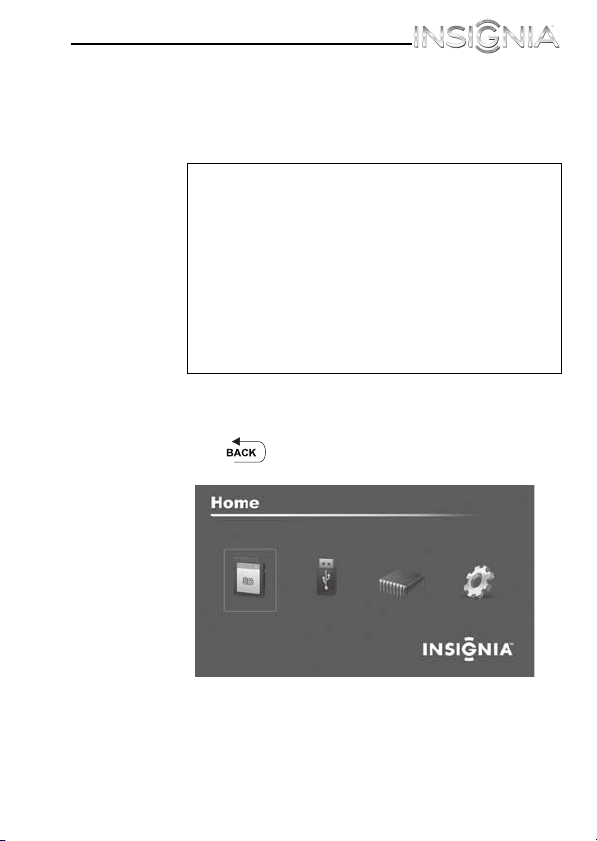
1
Press (BACK) repeatedly until the Home menu
opens.
Notes
Using the frame alone, you cannot copy pictures
from the internal memory to an inserted portable
memory device, and you cannot copy pictures
from one inserted portable memory device to
another.
Because you cannot copy pictures back from the
frame to a portable memory device using the
frame, the frame should not be considered your
primary picture storage method. Make sure that
you have the pictures stored elsewhere (such as a
memory card).
16
NS- DPF0712G
www.insigniaproducts.com
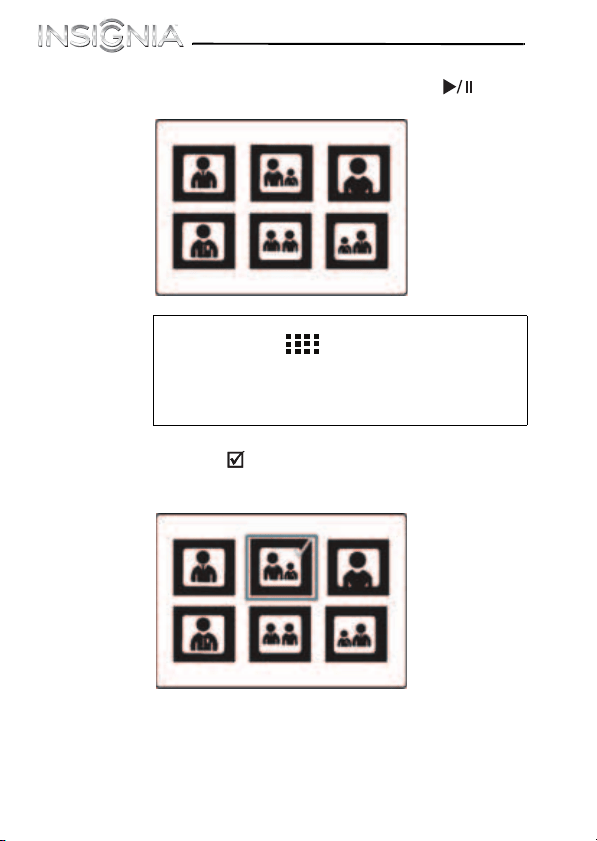
2 Press W or X to highlight the portable memory device
you want to copy from, then press ENTER/ . The
Thumbnail screen opens.
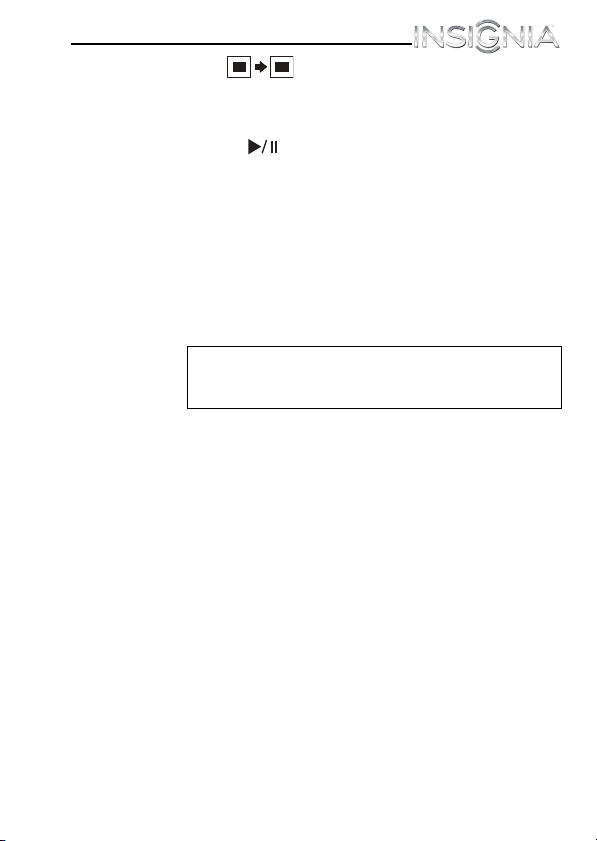
3 Press W or X to highlight each picture you want to copy,
then press SELECT to mark it. A check mark
appears in the upper-right corner of each marked
thumbnail. Mark as many pictures as you want to copy.
Tip
You can press (thumbnail/file list) to switch
between thumbnail mode and file list mode.
Thumbnail mode displays all files in the selected
portable memory device, and file list mode
displays files and folders.
7" Digital Picture Frame
17
www.insigniaproducts.com
4
Press DEL/COPY, then press S or T to
select Copy Selected (to copy the pictures you select)
or Copy All (to copy all pictures).
5 Press X, press S or T to select Yes, then press
ENTER/ . The pictures are copied.
To copy pictures from your PC to internal
memory or portable memory device:
1
Make sure that your computer has been started before
you begin.
2 Connect the mini plug of the supplied USB cable to the
mini USB port on the digital picture frame, then connect
the other end to an available USB port on your
computer.
3 Navigate to “Computer” or “My Computer” (Windows
operating systems). The frame's internal memory and
any inserted portable memory devices appear as
“removable disks.” Each memory area appears as a
separate removable disk.
On a Mac computer, the frame’s internal memory or an
external, inserted portable memory device appears as a
USB drive.
4 Use your computer's standard drag and drop or copy
and paste procedures to move pictures on your
computer to the frame's internal memory or a portable
memory device you inserted in the frame.
Note
The frame displays the message "PC connection
established. Remote is temporarily inoperative!”.

18
NS- DPF0712G
www.insigniaproducts.com
To copy pictures from your internal memory or
inserted portable memory device to your
computer:
1
Make sure that your computer has been started before
you begin.
2 Connect the mini plug of the supplied USB cable to the
mini USB port on the digital picture frame, then connect
the other end to an available USB port on your
computer.
3 Navigate to “Computer” or “My Computer” (Windows
operating systems). The frame's internal memory and
any inserted portable memory devices appear as
“removable disks.” Each memory area appears as a
separate removable disk.
On a Mac computer, the frame’s internal memory or an
external, inserted portable memory device appears as a
USB drive.
4 Use your computer's standard drag and drop or copy
and paste procedures to move pictures from the frame's
internal memory or an inserted portable memory
device to your computer.
Note
The frame displays the message “PC connection
established. Remote is temporarily inoperative!”.
7" Digital Picture Frame
19
www.insigniaproducts.com
Deleting pictures from internal
memory
To delete pictures from internal memory:
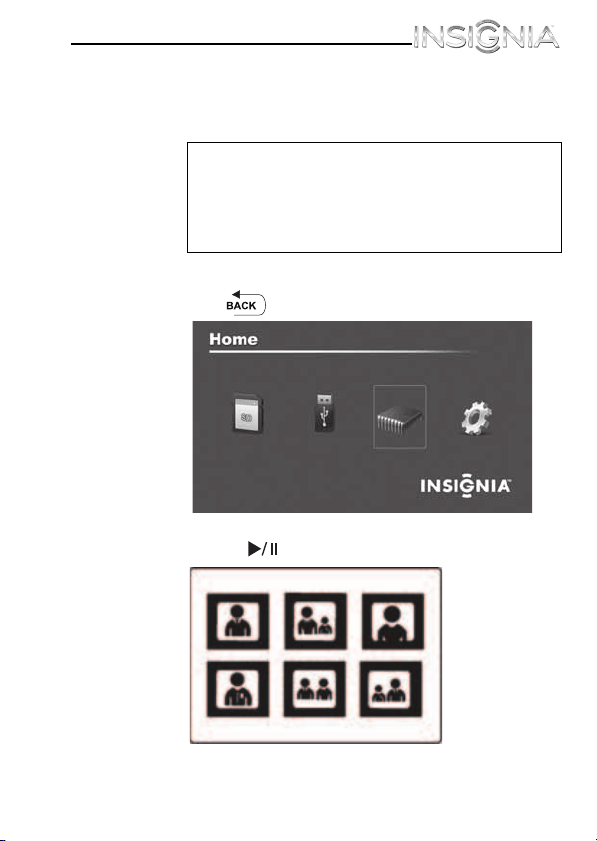
1
Press (BACK) until the Home menu opens.
2 Press W or X to highlight Internal Memory, then press
ENTER/ . The Thumbnail screen opens.
Note
You cannot delete pictures from an inserted
portable memory device. The frame should not
be considered your primary picture storage
method. Make sure that you have the pictures
stored elsewhere (such as a memory card).
20
NS- DPF0712G
www.insigniaproducts.com
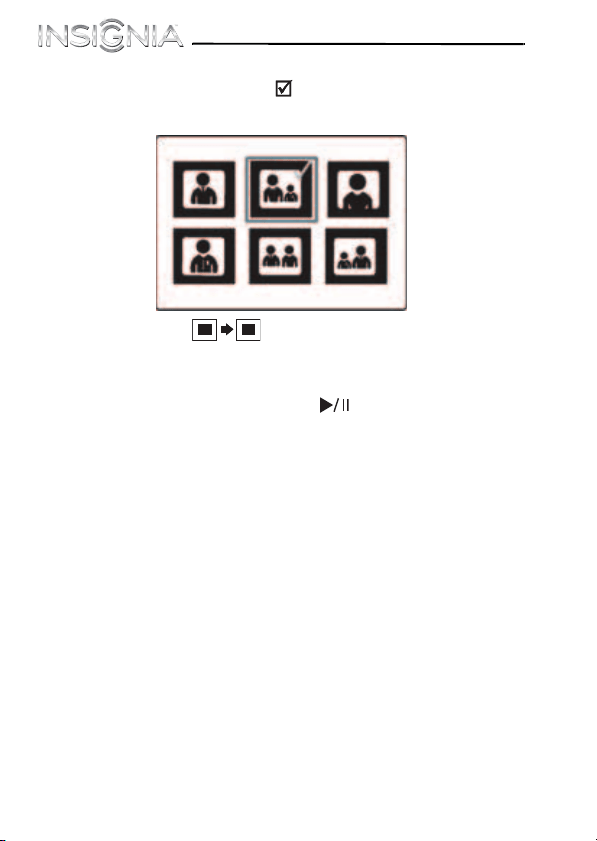
3 Press W/X/S/T to highlight each picture you want to
delete, then press SELECT to mark it. A check mark
appears in the upper-right corner of each marked
thumbnail. Mark as many pictures as you want to delete.
4 Press DEL/COPY, then press S or T to
select Delete Selected (to delete only the pictures you
select) or Delete All (to delete all pictures in memory).
5 Press X to open the submenu, press S or T to select
Yes, then press ENTER/ . The pictures are deleted.
To delete pictures with your computer:
1
Make sure that your computer is on before you begin.
2 Connect the mini plug of the supplied USB cable to the
mini USB port on the digital picture frame, and connect
the other end to an available USB port on your
computer.
3 Navigate to “Computer” or “My Computer” (Windows
operating systems). The frame's internal memory and
any inserted portable memory devices appear as
“removable disks.” Each memory area appears as a
separate removable disk.
On a Mac computer, the frame’s internal memory or an
external, inserted portable memory device appears as a
USB drive.
7" Digital Picture Frame
21
www.insigniaproducts.com
4
Find and highlight the pictures you want to delete, then
use your computer's standard procedures to delete
pictures from the frame's internal memory or an
inserted portable memory device.
Customizing slideshows
You can set up a slideshow using either all of the pictures or
selected pictures.
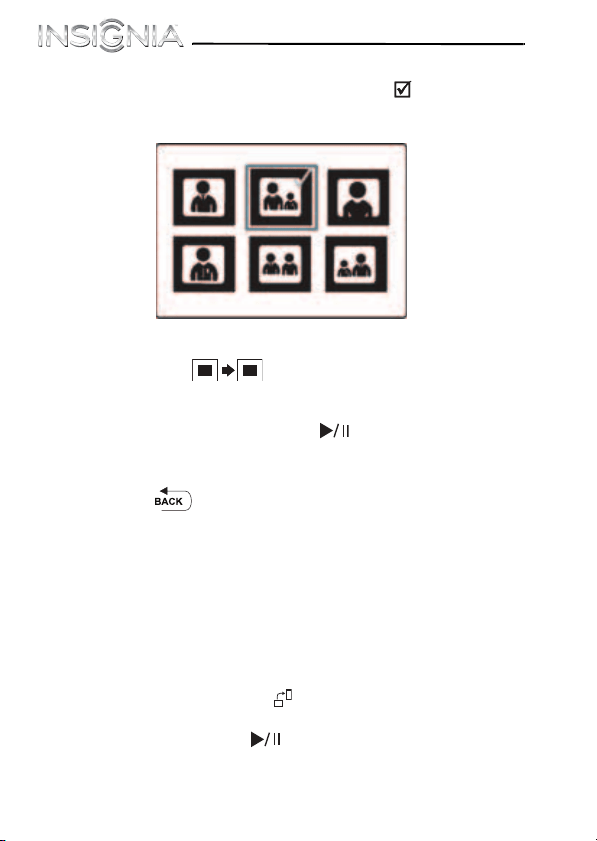
To set up a slideshow of selected pictures:
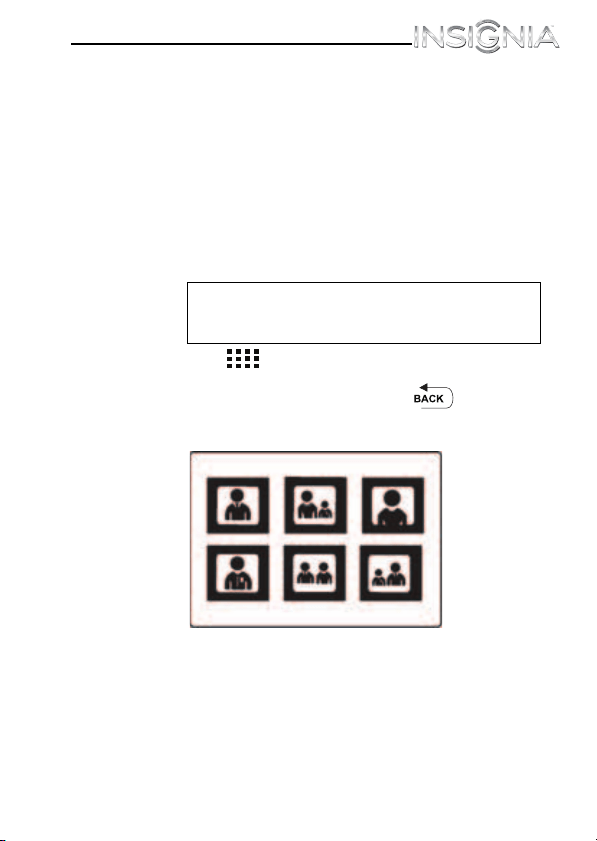
1
Press (thumbnails).
- OR -
If a slideshow is in progress, press (BACK) to
access the thumbnail screen. The Thumbnails screen
opens.
Tip
A slideshow of selected pictures can only be
set up by using the remote control.
22
NS- DPF0712G
www.insigniaproducts.com
2 Press W or X to highlight the picture you want to
include in the slideshow, then press SELECT. A
check mark appears at the upper-right corner of the
thumbnail.
3 Repeat until all pictures you want to add to the
slideshow are selected.
4 Press DEL/COPY, then press S or T to
select Play Selected.
5 Press X to open the submenu, press S or T to select
Yes, then press ENTER/ . A slideshow of the
selected pictures is played.
6 To end the slideshow and clear the selected items, press
(BACK). This returns you to the Thumbnail
screen. From there, you can select a photo to view or
begin another slideshow.
Customizing the picture display
You can rotate, magnify, and display information about any
picture that the frame displays.
To rotate a picture:
1
While a picture is displayed full screen (not as a
thumbnail), press ROTATE. The picture is rotated
90° clockwise with each press of the button.
2 Press ENTER/ to continue the slideshow.
7" Digital Picture Frame
23
www.insigniaproducts.com
To rotate a picture based on frame orientation
1
While a picture is displayed full screen (not as a
thumbnail), use the adjustable stand to set the frame in
landscape orientation or turn the stand
counter-clockwise by 90° to set the frame in the portrait
orientation.
2 Press MENU, then press T to select Frame
Orientation, then press ENTER/ .
3 Press W or X to select Landscape or Portrait, then
press ENTER/ . Pictures are rotated based on the
Frame Orientation setting.
4 To start the slideshow, press ENTER/ .
To magnify a picture:
1
While a picture is displayed full screen (not a thumbnail),
press ZOOM. The picture is magnified in size each
time you press the button (there are three zoom levels),
until it returns to the normal size.
2 Press ENTER/ to continue the slideshow. The next
picture is displayed at normal size.
Tip
While the picture is magnified, press the arrow
buttons to pan the picture so you can see the
different parts that are off the screen.
24
NS- DPF0712G
www.insigniaproducts.com
Setting viewing options
You can change all of the viewing options in the Setup menu
using the buttons on the top of the frame or on the remote
control. You can display the Setup menu at any time by pressing
MENU. Only the available setup options are displayed for each
menu.
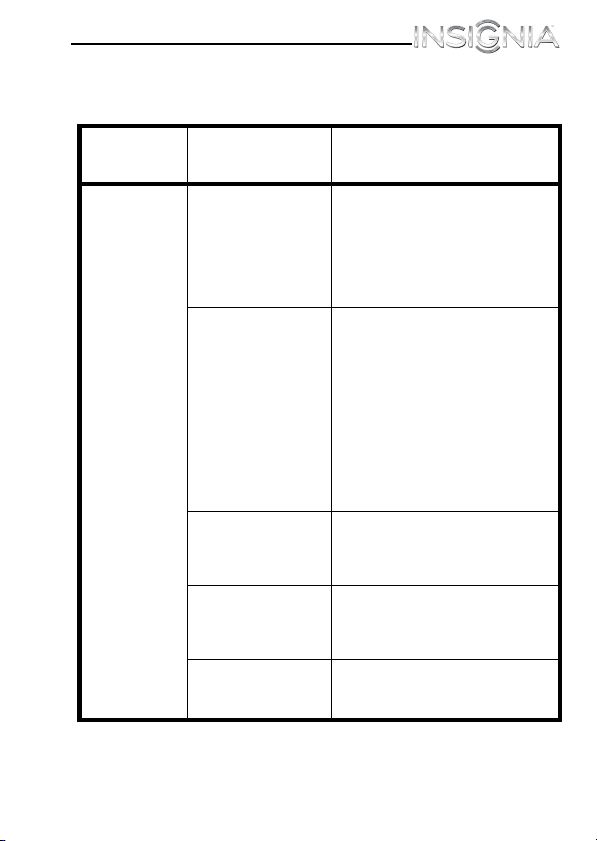
To set viewing options:
1
Press (BACK) until the Home menu opens.
2 Press the arrow buttons to highlight the SETUP icon,
then press ENTER/ . The Setup menu opens.
3 Press S or T to highlight a display option, then press
ENTER/ to select the option. A second menu
opens, listing the available settings. A square icon ( )
to the right of an option shows the current setting.
4 Press S or T to highlight a setting, then press ENTER/
to select the setting.
5 When you are finished, press (BACK) to close the
Setup menu and return to the previous screen.
7" Digital Picture Frame
25
www.insigniaproducts.com
Setup options
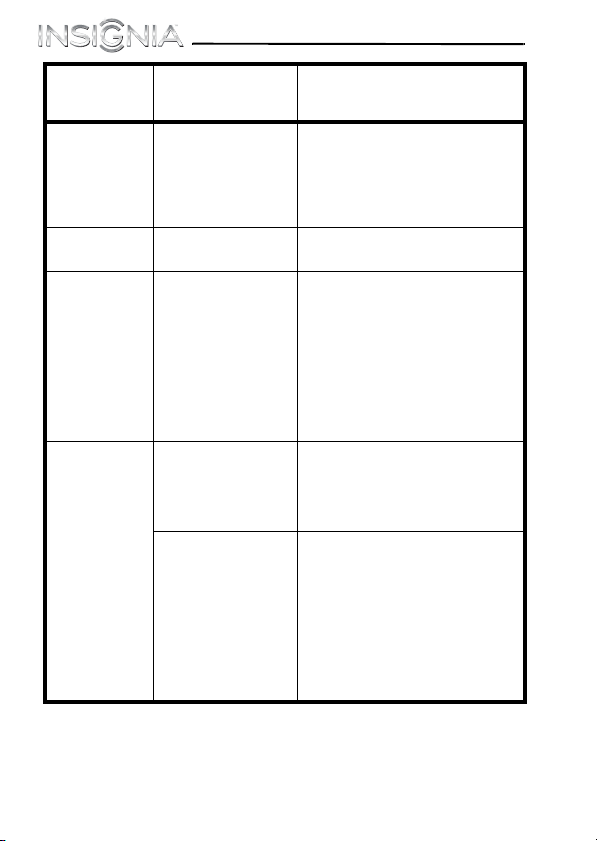
The following table lists and describes setup menu options:
Menu
option
Settings Description
Slideshow
Settings
Slideshow interval
•5 Seconds
•10 Seconds
•30 Seconds
•60 Seconds
•60 Minutes
•24 Hours
Sets the interval between each
picture transition in a slideshow.
Slideshow
transition
•Normal
•Random
•Fade
•Curtain
Left-Right
•Curtain
Top-Bottom
•Open-Door
•Cross-Comb
•Cross-Fade
Sets the special effects used to
transition from one picture to
the next in a slideshow.
The Normal setting plays
slideshows without any special
transition effects.
The Random setting cycles
through the available special
transition effects during
slideshows.
Slideshow shuffle
•On
•Off
Displays pictures in a different
(random) order than they
appear on the portable memory
device.
Date/Time stamp
•On
•Off
Displays the date and time that a
picture was taken. This feature is
not available in multi-image
display mode.
Color Enhancement
•On
•Off
Corrects colors in the image.
26
NS- DPF0712G
www.insigniaproducts.com
Slideshow
Settings
(continued)
Panorama Scroll
•On
•Off
When Panorama Scroll is
enabled, pictures that were
taken in panorama mode are
scrolled across the screen during
slideshows rather than resized
to fit the screen.
Frame
Orientation
Landscape
Portrait
Changes the display orientation
of images.
Image display
format
Normal
Zoom
Wide
Cinema
Adjusts how the image is sized
to fit the screen. If the pictures
you are viewing are in 4:3
format, they will have black bars
on the sides of the screen with
the Normal setting enabled.
Selecting one of the other
modes hides the black bars by
zooming in on the image and
cropping it.
Copy type Normal Maintains the picture's original
resolution when a picture file is
copied from a portable memory
device to the frame's internal
memory.
Resize Optimizes (resizes) a picture file
when it is copied from a
portable memory device to the
frame's internal memory.
Enabling this feature lets you
store more files in your frame's
internal memory. Using this
setting lets you store the
maximum number of pictures in
your frame’s internal memory.
Menu
option
Settings Description

7" Digital Picture Frame
27
www.insigniaproducts.com
Power saving Off
15 Minutes
30 Minutes
1 Hour
2 Hours
4 Hours
Sets the power save option. If
the buttons on the frame or
remote control are not used for
the specified time, the frame
enters Power Saving (Standby)
mode.
To turn the frame back on, press
any button on the frame.
Language English
Spanish
French
Sets the language used in the
setup menus.
Sort image
mode
File name A-Z
File name Z-A
Date, oldest to
newest
Date, newest to
oldest
Lets you sort files in the order
you select.
Factory
Settings
Demo Mode
•On
•Off
Displays pictures from internal
memory for demo purposes.
Reset All Settings
•No
•Yes
Resets all settings to factory
default values.
Erase Internal
Memory
•No
•Yes
Erases all files from the internal
memory.
Software Version Displays the software (firmware)
version.
Menu
option
Settings Description

28
NS- DPF0712G
www.insigniaproducts.com
Maintaining
Cleaning the digital picture frame
Make sure the frame is unplugged from the power source. Use
the supplied cleaning cloth, or a cloth slightly dampened with
water for cleaning the exterior of the frame only.
Replacing the remote control battery
To replace the remote control battery:
1
Turn the remote control over.
2 While pressing down on the ridged area of the battery
cover, slide the battery tray out and remove the old
battery.
3 Place a new CR2025 (or equivalent) lithium battery in
the tray, with the positive (+) side facing up.
4 Slide the battery tray back into the remote control.

7" Digital Picture Frame
29
www.insigniaproducts.com
Troubleshooting
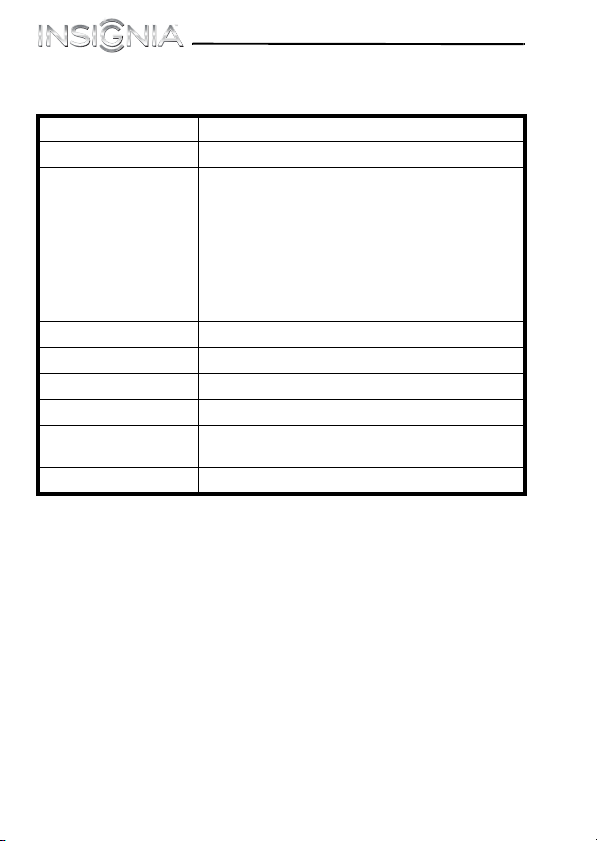
Problem Solution
The frame will not
turn on.
The power adapter is not securely connected to
the picture frame, or the power switch is not on.
Check power adapter connections, then switch
the power on.
A portable memory
device is inserted in
the frame, but you
can’t view your
pictures.
• Make sure that the portable memory
device is one of the supported formats
and that the files on the device are JPEG
image files.
• Turn the digital picture frame off and
make sure that the portable memory
device is inserted all the way into the slot
or port and is inserted correctly, then turn
it back on. After a few seconds, you should
see your first picture.
• Try formatting the portable memory
device.
Caution: Formatting the device erases all files on
the device. Back up the files on the device to your
computer before attempting to format the
device.
•Some digital cameras save images in
formats other than JPEG. Refer to your
camera’s manual for details.
The frame displays
some pictures more
slowly than others.
Higher resolution pictures load more slowly. Try
using lower resolution pictures or
down-sampling (compressing or resizing) them.
See your camera’s user guide for instructions on
down-sampling your pictures, or see “Setting
viewing options” on page 24 for instructions on
automatically resizing and compressing your
pictures while copying from them from an
inserted portable memory device to the frame's
internal memory.
30
NS- DPF0712G
www.insigniaproducts.com
Specifications
Screen size 7" (178 mm)
Screen format Widescreen
Memory card formats • Secure Digital™ (SD)
•SDHC™
• MultimediaCard (MMC™)
•Memory Stick
®
• Memory Stick PRO Duo™ (requires an
adapter - not included)
•xD™
• microSD™ (requires adapter - not
included)
File formats Standard JPEG
USB USB (type A) port and Mini-USB port
Power input 100 V~240 V AC, 50~60 Hz
Power output 5 V DC, 1 A
Certification FCC/ICES-003 and CUL/International Efficiency
Marking Level V (adapter)
Internal memory 128 MB

7" Digital Picture Frame
31
www.insigniaproducts.com
Legal notices
FCC Statement
This equipment has been tested and found to comply with the limits for a
Class B digital device, pursuant to part 15 of the FCC Rules. These limits are
designed to provide reasonable protection against harmful interference in
a residential installation. This equipment generates, uses and can radiate
radio frequency energy and, if not installed and used in accordance with
the instructions, may cause harmful interference to radio communications.
However, there is no guarantee that interference will not occur in a
particular installation. If this equipment does cause harmful interference
to radio or television reception, which can be determined by turning the
equipment off and on, the user is encouraged to try to correct the
interference by one or more of the following measures:
• Reorient or relocate the receiving antenna.
• Increase the separation between the equipment and receiver.
• Connect the equipment into an outlet on a circuit different from
that to which the receiver is connected.
• Consult the dealer or an experienced radio/TV technician for
help.
FCC Caution
Changes or modifications not expressly approved by the part responsible
for compliance could void the user's authority to operate the equipment.
Image use restrictions
Use of the images pre-loaded on the digital picture frame is limited to
personal, non-commercial use. Consumer may not modify, duplicate,
distribute, retransmit, republish, reproduce, or create derivative works
from the pre-loaded images.
Canada ICES-003 statement
This Class B digital apparatus complies with Canadian ICES-003.

32
NS- DPF0712G
www.insigniaproducts.com

7" Digital Picture Frame
33
www.insigniaproducts.com
6-month limited warranty
Insignia Products (“Insignia”) warrants to you, the original purchaser of this
new NS-DPF0712G (“Product”), that the Product shall be free of defects in
the original manufacture of the material or workmanship for a period of 6
months from the date of your purchase of the Product (“Warranty Period”).
This Product must be purchased from an authorized dealer of Insignia
brand products and packaged with this warranty statement. This warranty
does not cover refurbished Product. If you notify Insignia during the
Warranty Period of a defect covered by this warranty that requires service,
terms of this warranty apply.
How long does the coverage last?
The Warranty Period lasts for 6 months from the date you purchased the
Product. The purchase date is printed on the receipt you received with the
Product.
What does this warranty cover?
During the Warranty Period, if the original manufacture of the material or
workmanship of the Product is determined to be defective by an
authorized Insignia repair center or store personnel, Insignia will (at its sole
option): (1) repair the Product with new or rebuilt parts; or (2) replace the
Product at no charge with new or rebuilt comparable products or parts.
Products and parts replaced under this warranty become the property of
Insignia and are not returned to you. If service of Products or parts are
required after the Warranty Period expires, you must pay all labor and
parts charges. This warranty lasts as long as you own your Insignia Product
during the Warranty Period. Warranty coverage terminates if you sell or
otherwise transfer the Product.
How to obtain warranty service?
If you purchased the Product at a retail store location, take your original
receipt and the Product to the store you purchased it from. Make sure that
you place the Product in its original packaging or packaging that provides
the same amount of protection as the original packaging. If you purchased
the Product from an online web site, mail your original receipt and the
Product to the address listed on the web site. Make sure that you put the
Product in its original packaging or packaging that provides the same
amount of protection as the original packaging.
To obtain in-home warranty service for a television with a screen 25 inches
or larger, call 1-888-BESTBUY. Call agents will diagnose and correct the
issue over the phone or will have an Insignia-approved repair person
dispatched to your home.

34
NS- DPF0712G
www.insigniaproducts.com
Where is the warranty valid?
This warranty is valid only to the original purchaser of the product in the
United States, Canada, and Mexico.
What does the warranty not cover?
This warranty does not cover:
• Customer instruction
• Installation
•Set up adjustments
• Cosmetic damage
• Damage due to acts of God, such as lightning strikes
• Accident
•Misuse
•Abuse
•Negligence
•Commercial use
• Modification of any part of the Product, including the antenna
• Plasma display panel damaged by static (non-moving) images
applied for lengthy periods (burn-in).
This warranty also does not cover:
• Damage due to incorrect operation or maintenance
• Connection to an incorrect voltage supply
• Attempted repair by anyone other than a facility authorized by
Insignia to service the Product
• Products sold as is or with all faults
• Consumables, such as fuses or batteries
• Products where the factory applied serial number has been
altered or removed
REPAIR REPLACEMENT AS PROVIDED UNDER THIS WARRANTY IS YOUR
EXCLUSIVE REMEDY. INSIGNIA SHALL NOT BE LIABLE FOR ANY INCIDENTAL
OR CONSEQUENTIAL DAMAGES FOR THE BREACH OF ANY EXPRESS OR
IMPLIED WARRANTY ON THIS PRODUCT, INCLUDING, BUT NOT LIMITED
TO, LOST DATA, LOSS OF USE OF YOUR PRODUCT, LOST BUSINESS OR LOST
PROFITS. INSIGNIA PRODUCTS MAKES NO OTHER EXPRESS WARRANTIES
WITH RESPECT TO THE PRODUCT, ALL EXPRESS AND IMPLIED
WARRANTIES FOR THE PRODUCT, INCLUDING, BUT NOT LIMITED TO, ANY
IMPLIED WARRANTIES OF AND CONDITIONS OF MERCHANTABILITY AND
FITNESS FOR A PARTICULAR PURPOSE, ARE LIMITED IN DURATION TO THE
WARRANTY PERIOD SET FORTH ABOVE AND NO WARRANTIES, WHETHER
EXPRESS OR IMPLIED, WILL APPLY AFTER THE WARRANTY PERIOD. SOME
STATES, PROVINCES AND JURISDICTIONS DO NOT ALLOW LIMITATIONS ON
HOW LONG AN IMPLIED WARRANTY LASTS, SO THE ABOVE LIMITATION
MAY NOT APPLY TO YOU. THIS WARRANTY GIVES YOU SPECIFIC LEGAL
RIGHTS, AND YOU MAY ALSO HAVE OTHER RIGHTS, WHICH VARY FROM
STATE TO STATE OR PROVINCE TO PROVINCE.

7" Digital Picture Frame
35
www.insigniaproducts.com
Contact Insignia:
For customer service please call 1-877-467-4289
www.insigniaproducts.com
Distributed by Best Buy Purchasing, LLC
7601 Penn Avenue South, Richfield, Minnesota, U.S.A. 55423-3645
© 2012 BBY Solutions, Inc.
All rights reserved. INSIGNIA is a trademark of BBY Solutions, Inc.
Registered in some countries. All other products and brand names are
trademarks of their respective owners.

ENGLISH
12-0792
www.insigniaproducts.com (877) 467-4289
Distributed by Best Buy Purchasing, LLC
7601 Penn Avenue South, Richfield, MN 55423-3645 USA
© 2012 BBY Solutions, Inc.
All rights reserved. INSIGNIA is a trademark of BBY Solutions, Inc. Registered in some countries.
All other products and brand names are trademarks of their respective owners.