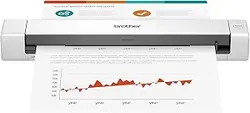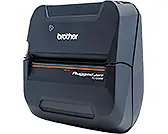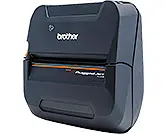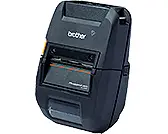

USER’S GUIDE
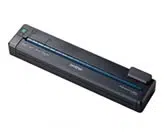
PJ-673
Mobile Printer
Before using this printer, be sure to read
this Users Guide.
We suggest that you keep this manual in a
handy place for future reference.
Version 0
US ENG
i
Introduction
Thank you for purchase of the Brother mobile printer PocketJet PJ-673 (hereafter referred to as
“the printer”). This mobile thermal printer can be connected to an iPhone or iPad (hereafter
referred to as "an iOS device") or a computer running Windows
®
to print documents. Be sure to
read User’s Guide and Safety and Legal Guide before using the printer. We suggest that you keep
this document in a handy place for future reference.
When printing from an iOS device, printing software created by a software developer will be
needed in addition to the product and services that we provide. (We provide a Software
Development Kit (hereafter referred to as “SDK”) that can be used.) Consult with a software
developer for printing software for the iOS device.
Symbols Used in This Document
The following symbols are used throughout this document.
About This Document
This document (PDF) is included on the CD-ROM.
The latest version is available for download at:
http://solutions.brother.com
NOTE
If using Adobe
®
Reader
®
to view this document on a computer, the cursor changes to when
the cursor is placed on a link. Click the link to open the corresponding page. For information
about using Adobe
®
Reader
®
, see the help file included with Adobe
®
Reader
®
.
This symbol indicates instructions that may result in injuries or damage if they are ignored
or incorrectly followed.
This symbol indicates information or directions that should be followed. Ignoring them
may result in damage, or failed operations.
This symbol indicates notes that provide information or directions that can help you better
understand and use the product more efficiently.

ii
Table of Contents
1 Setting Up the Printer 1
General Description...............................................................................................1
Power Sources and Their Installation ....................................................................1
Connecting the Printer to External Power..............................................................2
Connecting to an AC Power Outlet (Optional).................................................2
Connecting to a DC Power Outlet (Optional)...................................................2
Using the Rechargeable Ni-MH Battery (Optional)................................................3
Installing the Rechargeable Ni-MH Battery .....................................................3
Charging the Rechargeable Ni-MH Battery .....................................................4
Tips on Using the Rechargeable Ni-MH Battery..............................................5
Explaining Battery Terms ................................................................................5
Using the Rechargeable Li-ion Battery (Optional) .................................................6
Installing the Rechargeable Li-ion Battery.......................................................6
Charging the Rechargeable Li-ion Battery ......................................................7
Tips on Using the Rechargeable Li-ion Battery ...............................................8
Rechargeable Battery Overview..........................................................................10
Connecting the Printer and iOS Device...............................................................11
Printing From an iOS Device Via a Wireless LAN Connection......................11
Connecting the Printer and a Windows
®
Computer ............................................15
Printing From a Windows
®
Computer Via a Wireless LAN Connection ........15
Printing From a Computer Running Windows
®
Via a USB Connection ........25
Uninstall the Printer Driver............................................................................. 26
2 Using the Printer 28
Operation Panel...................................................................................................28
Power Button and Feed Button Functions.....................................................28
Indicators .......................................................................................................29
Switching Between Wireless LAN Mode and USB Mode ..............................30
Connecting the iOS Device to a Separate Wireless Network Than the One
Connected to the Printer...................................................................................31
Changing the iOS Device’s Settings..............................................................31
Connecting a Windows
®
Computer to a Separate Wireless Network Than
the One Connected to the Printer.....................................................................31
Printing Solutions.................................................................................................33
Updating the Software...................................................................................33
Printing ................................................................................................................33
Making Prints Lighter or Darker.....................................................................34
Setting Printer Driver Options.............................................................................. 35
Paper Type....................................................................................................35
Density...........................................................................................................35
2-ply Mode.....................................................................................................35
Page Feed Mode...........................................................................................35
No Feed Mode Extra Feed ............................................................................36
Roll Paper Pause...........................................................................................36
Dash Line Print ..............................................................................................36
Automatically Switch Command Mode ..........................................................36
Feed Position for Custom Paper ...................................................................36

iii
Setting Paper Size ...............................................................................................37
Selecting Paper Type ..........................................................................................38
Cut Sheet Paper............................................................................................38
Non-Perforated Roll Paper ............................................................................38
Perforated Roll Paper....................................................................................38
Tips on Using Paper ............................................................................................39
Using Genuine Brother Thermal Paper .........................................................39
3 Brother PJ-673 Utility 40
Overview..............................................................................................................40
Installing Brother PJ-673 Utility............................................................................40
Uninstalling PJ-673 Utility ....................................................................................41
Using PJ-673 Utility .............................................................................................42
Before Using PJ-673 Series Utility ................................................................42
Starting PJ-673 Utility ....................................................................................42
How to Use PJ-673 Utility..............................................................................42
Parameters ....................................................................................................43
4 Maintaining the Printer 53
Cleaning the Platen Roller ...................................................................................53
Cleaning the Printer’s Exterior .............................................................................54
5 Reference 55
Indicators .............................................................................................................55
Indicator Warnings...............................................................................................57
Printing a Printer Report ......................................................................................59
6 Troubleshooting 60
Overview..............................................................................................................60
Paper Problems.............................................................................................61
Printed Image Problems................................................................................61
Pages Don’t Print...........................................................................................64
Pages Are Partially Printed............................................................................65
7 Technical Information 66
Product Specifications .........................................................................................66
A Character Sets 68
Character Code Tables........................................................................................68
1
1
1
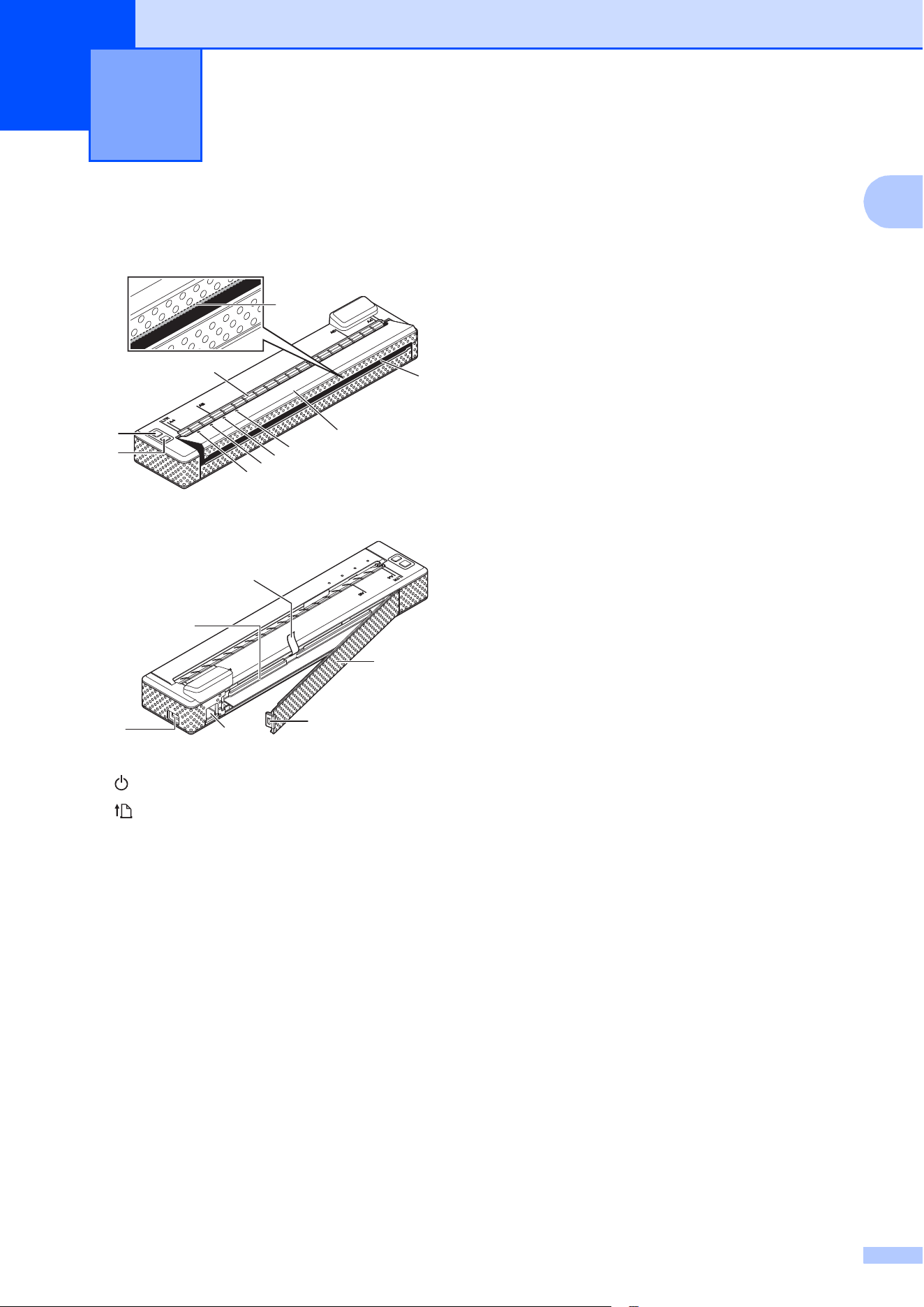
General Description 1
1 (Power) button
2 (Feed) button
3 POWER indicator
4 DATA indicator
5 STATUS indicator
6 WIRELESS LAN indicator
7 Release cover
8 Paper outlet slot
9Tear bar
10 Paper input slot
11 USB port
12 AC/DC connector
13 Battery cover latch
14 Battery cover
15 Battery removal ribbon
16 Battery compartment
Power Sources and
Their Installation
1
This printer operates on various types of
power sources. Select the power source
(some are sold separately) appropriate for
your intended use, and then purchase the
necessary equipment.
The AC adapter or car adapter can provide
power directly to the printer for printing when
the rechargeable Ni-MH (nickel-metal
hydride) battery or rechargeable Li-ion
(lithium-ion) battery (hereafter, both will be
referred to simply as “the rechargeable
battery”) is not installed.
In addition, the AC adapter or car adapter can
be used to charge the rechargeable Ni-MH
battery installed in the printer or to charge an
external rechargeable Li-ion battery.
The rechargeable batteries provide power to
the printer for printing when power is not
supplied by the AC adapter or car adapter.
Setting Up the Printer 1
1
2
3
4
5
6
7
10
9
8
13
14
11
12
16
15
Chapter 1
2
Connecting the Printer
to External Power
1
Connecting to an AC Power
Outlet (Optional) 1
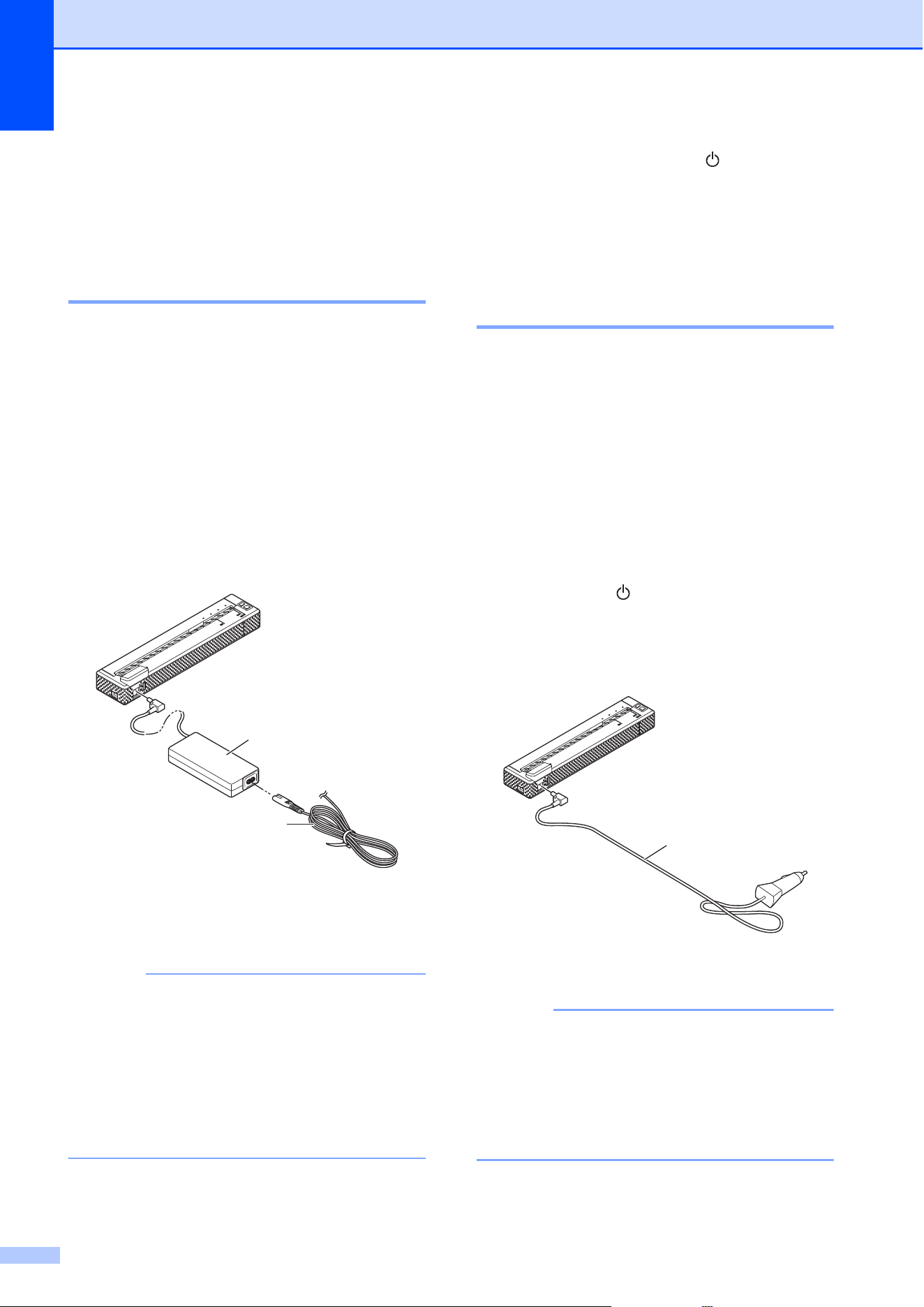
Connect the printer to a nearby AC power
outlet to power the printer or charge the
rechargeable battery using AC power.
a Connect the AC adapter to the printer.
b Connect the AC power cord to the AC
adapter.
c Connect the AC power cord to a nearby
AC power outlet (100 - 240 VAC,
50 - 60 Hz).
1 AC adapter
2 AC power cord
NOTE
• The AC adapter and AC power cord are
optional accessories. When purchasing,
choose the adapter and power cord
appropriate for the region where the
printer will be used.
• When using the AC adapter, unwind the
bundled cord.
d Hold down the printer's (Power)
button for about 1 second to turn the
printer on. The POWER indicator lights
in green, and the printer is in standby.
Connecting to a DC Power
Outlet (Optional) 1
Connect the printer to your vehicle’s 12 V DC
power outlet (cigarette lighter, etc.) to power
the printer or charge the rechargeable battery
using the vehicle’s DC power.
a Connect the Car adapter to the vehicle’s
12 V DC power outlet.
b Connect the Car adapter to the printer.
c Start the vehicle, and then hold down
the printer’s (Power) button for about
1 second to turn it on.
The POWER indicator lights in green,
and the printer is in standby.
1 Car adapter
NOTE
• The Car adapter is an optional accessory.
• The voltage supplied by a vehicle
fluctuates. The printing speed may differ
depending on the supplied voltage.
• 24 V vehicles are incompatible.
1
2
1
Setting Up the Printer
3
1
Using the
Rechargeable Ni-MH
Battery (Optional)
1
Installing the Rechargeable
Ni-MH Battery 1
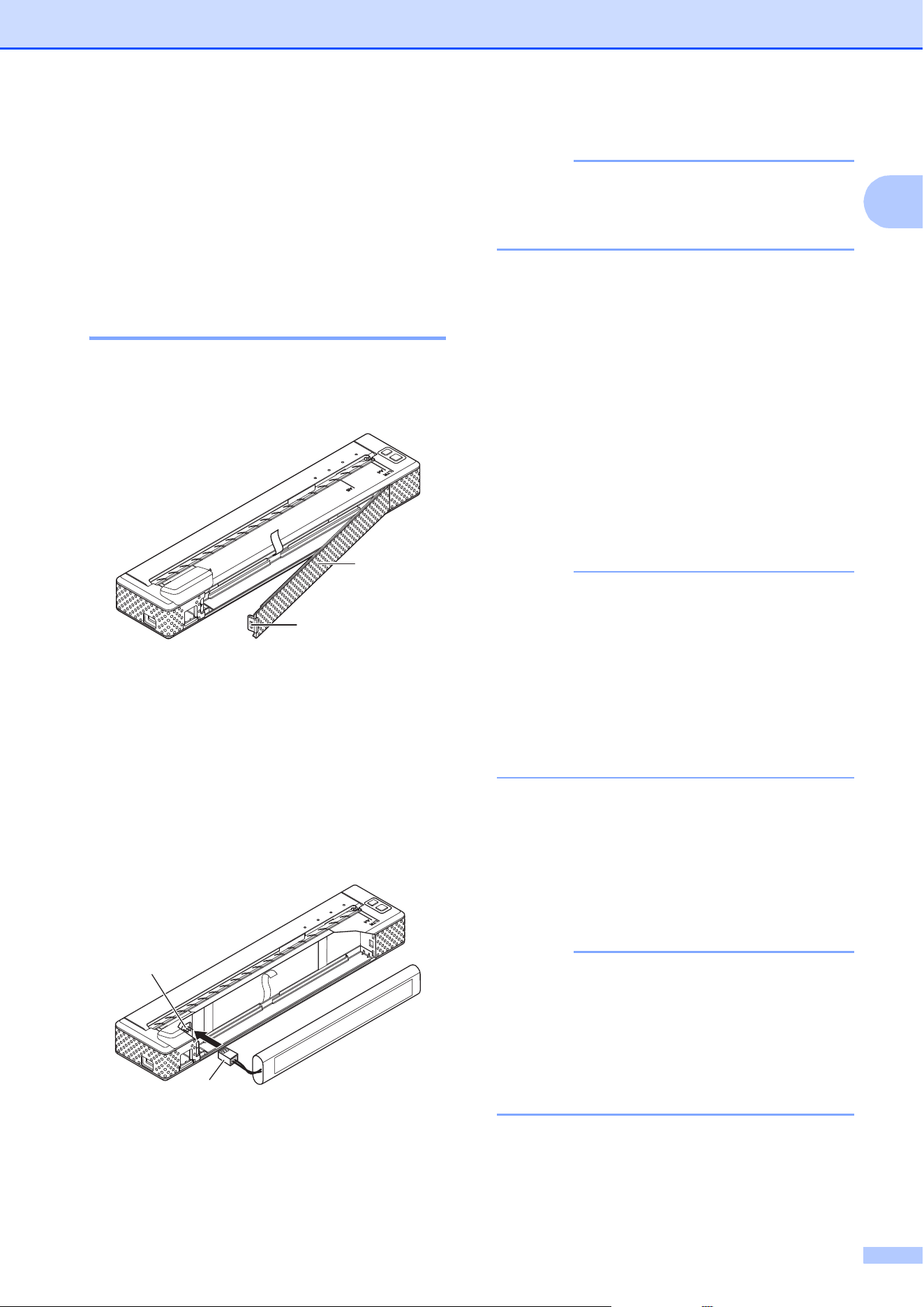
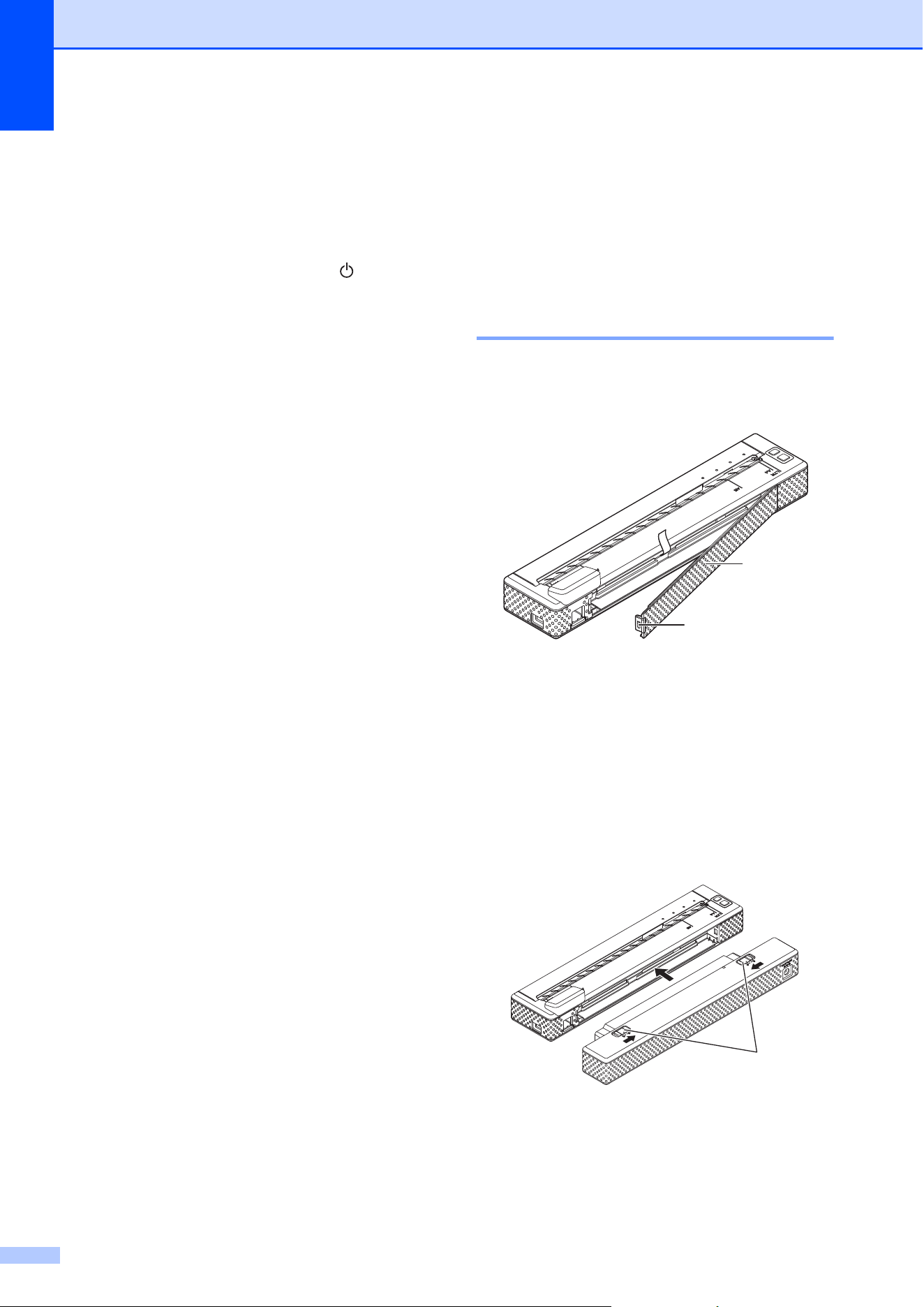
a Open the battery cover (1) by pressing
the cover latch (2).
1 Battery cover
2 Cover latch
b Swing the cover open and remove it.
c Check the orientation of the battery
connector, and then gently insert the
connector (4) into the terminal (3) on the
inside of the battery compartment.
3Terminal
4 Battery connector
NOTE
With the printer positioned as shown
below, the red wire of the battery
connector (4) will be on the left side.
d Grasp the battery removal ribbon, which
is attached to the inside of the battery
compartment. Make sure that enough
ribbon is exposed after the rechargeable
Ni-MH battery installed so that you can
pull the ribbon to remove the battery.
e While holding onto the ribbon, tilt the
rechargeable Ni-MH battery and insert it
into the battery compartment. After the
rechargeable Ni-MH battery passes the
outer edges of the compartment, press it
securely into position.
NOTE
• Make sure that the side of the
rechargeable Ni-MH battery marked
“Ni-MH” faces away from the battery
compartment, otherwise the battery cover
will not close properly.
• The rechargeable Ni-MH battery contains
a heat sensor that stops the flow of
electricity if the battery overheats.
f Attach the battery cover to the end of the
battery compartment opposite the
AC/DC connector. Close and latch the
cover. If necessary, gently push the
cover latch towards the AC/DC
connector until it latches.
NOTE
• Be careful that you do not pinch the
battery connector cord.
• The voltage supplied by the rechargeable
Ni-MH battery fluctuates. The printing
speed may also fluctuate depending on
the voltage.
2
1
4
3
Chapter 1
4
Removing the Rechargeable Ni-MH
Battery
1
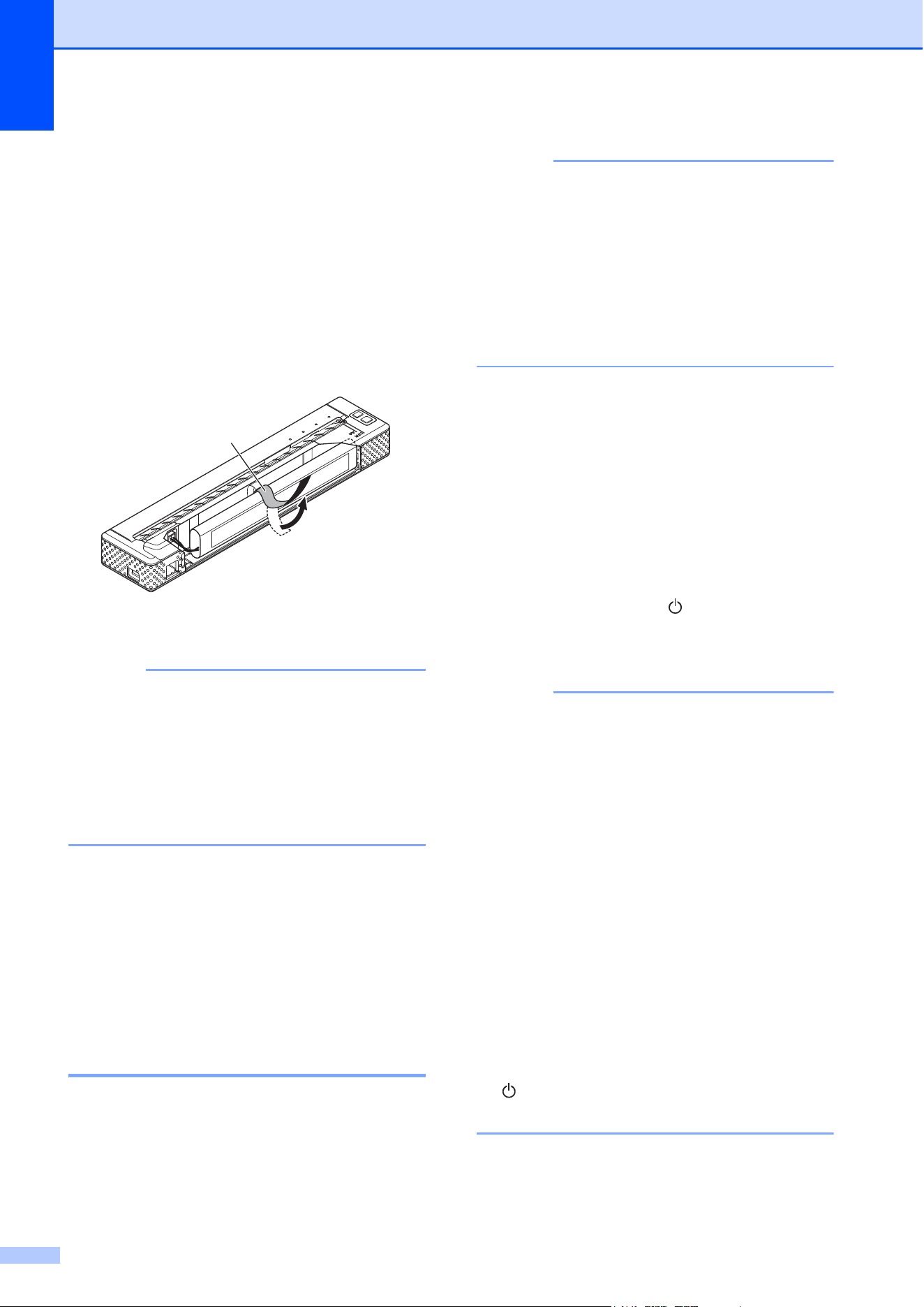
a Open the battery cover by pressing the
cover latch.
b Swing the cover open and remove it.
c Gently pull the battery removal ribbon
until the rechargeable Ni-MH battery
starts to tilt out of its compartment.
1 Battery removal ribbon
NOTE
If the battery removal ribbon is trapped
behind the rechargeable Ni-MH battery,
insert a thin metal object such as a
flat-blade screwdriver between the battery
and the case at the end away from the
AC/DC connector and tilt it out of its
compartment.
d Remove the rechargeable Ni-MH
battery from the compartment.
e Gently pull the rechargeable Ni-MH
battery connector and disconnect it from
the terminal inside the printer.
Charging the Rechargeable
Ni-MH Battery 1
Perform the following procedure to charge
the rechargeable Ni-MH battery.
NOTE
• Charge the rechargeable Ni-MH battery
immediately after purchase using the
following procedure.
• Up to 120 minutes is needed to fully
charge a rechargeable Ni-MH battery.
About 70 pages can be printed when
using a new, fully-charged rechargeable
Ni-MH battery.
a Install the rechargeable Ni-MH battery
into the printer.
b Use the AC adapter and AC power cord
to connect the printer to an AC power
outlet, or use the DC cable to connect
the printer to a DC power outlet.
c Make sure that the printer is turned off.
d Press and hold the (Power) button for
a few seconds until the POWER
indicator begins to blink in green.
NOTE
• Depending on the settings specified in PJ-
673 Utility, charging of the rechargeable
Ni-MH battery may begin after the battery
is refreshed. For more information, see
Refresh Ni-MH Battery on page 46.
• While the POWER indicator is blinking in
green and orange, the power remaining in
the rechargeable battery is being
discharged and the battery is being
refreshed (see Explaining Battery Terms
on page 5).
• If there is still a considerable amount of
charge in the rechargeable Ni-MH battery,
it may not be refreshed.
• While the rechargeable Ni-MH battery is
being refreshed, press and hold the
(Power) button to stop refreshing the
battery and begin charging it.
1

Setting Up the Printer
5
1
e After the rechargeable Ni-MH battery
has been refreshed, charging begins
automatically.
The POWER indicator blinks in green
until charging is complete.
When charging is complete, the
POWER indicator turns off.
Stopping Rechargeable Ni-MH Battery
Charging
1
To stop rechargeable Ni-MH battery from
charging, press the (Power) button quickly
two times.
Tips on Using the
Rechargeable Ni-MH Battery 1
Charge the rechargeable Ni-MH battery
immediately after purchase. Do not use it
before it is charged.
The rechargeable Ni-MH battery loses its
charge gradually over time, even if it is not
used. Therefore, we recommend charging
the rechargeable Ni-MH battery before
using it.
While the printer is connected to an AC or
DC power outlet, a small amount of
current is used to charge the rechargeable
Ni-MH battery. This is called “trickle
charging”. Trickle charging compensates
for the battery’s tendency to gradually
discharge. For this reason, we
recommend connecting the printer to an
AC or DC power outlet even if a
rechargeable Ni-MH battery is installed.
The rechargeable Ni-MH battery can be
charged in an environment between
32F-104F (0C-40C). Charge the
rechargeable Ni-MH battery in an
environment within this temperature
range. If the environment is not within this
temperature range, a charging error will
occur and charging will stop. For details
on the errors shown by the indicators, see
Indicators on page 55.
Darker prints will discharge the
rechargeable Ni-MH battery faster than
lighter prints. Adjust the print density
setting in the printer driver’s dialog box
(see Setting Printer Driver Options
on page 35) or in PJ-673 Utility (see Print
Density on page 48).
If you are experiencing problems with the
rechargeable Ni-MH battery, try refreshing
the battery before deciding to replace it.
If the Printer Will Not be Used For a
Long Period of Time
1
If the printer will not used for a long period
of time, remove the rechargeable Ni-MH
battery from the printer and store it in a
cool place away from direct sunlight.
A rechargeable Ni-MH battery that is not
used for a long period of time may become
over-discharged or inactive. For this
reason, we recommend refreshing and
charging the rechargeable Ni-MH battery
every 3 months.
For other precautions, refer to the
instruction manual included with the
rechargeable Ni-MH battery.
Explaining Battery Terms 1
Discharge
Discharge occurs when the rechargeable
Ni-MH battery's power is depleted. The
battery discharges slowly over time, even
when the battery is not in use. When the
battery has been fully-discharged, it
cannot be used until it is recharged.
Chapter 1
6
Refresh
Refresh occurs when the printer fully
discharges the rechargeable Ni-MH
battery so that the battery can be
recharged to its full capacity. To refresh
the battery, press and hold the (Power)
button for a few seconds until the POWER
indicator begins to blink in green and
orange. The specified settings determine
whether the battery is simply recharged or
if it is refreshed. (See Refresh Ni-MH
Battery on page 46 for more options.)
Over-discharge
Over-discharge occurs when the
rechargeable Ni-MH battery's power has
been depleted to the point that even when
charged, it will not retain as much power
as before. To avoid over-discharging the
battery, charge it periodically.
Inactivity
Inactivity is the condition when the
rechargeable Ni-MH battery has been
unused for too long, and it cannot retain as
much power as before. The battery can be
restored to its earlier capacity by trickle
charging for an hour. If more than one
year has passed since the battery was last
use, it will not return to its earlier capacity.
Trickle charge
Trickle charge is the small amount of
power used to charge the rechargeable
Ni-MH battery whenever the printer is
connected to AC or DC power. The battery
slowly discharges (loses power) over time,
even when not in use. Trickle charging
offsets this discharge, so that the battery
remains charged.
Using the
Rechargeable Li-ion
Battery (Optional)
1
Installing the Rechargeable
Li-ion Battery 1
a Open the battery cover by pressing the
cover latch.
1 Battery cover
2 Cover latch
b Swing the cover open and remove it.
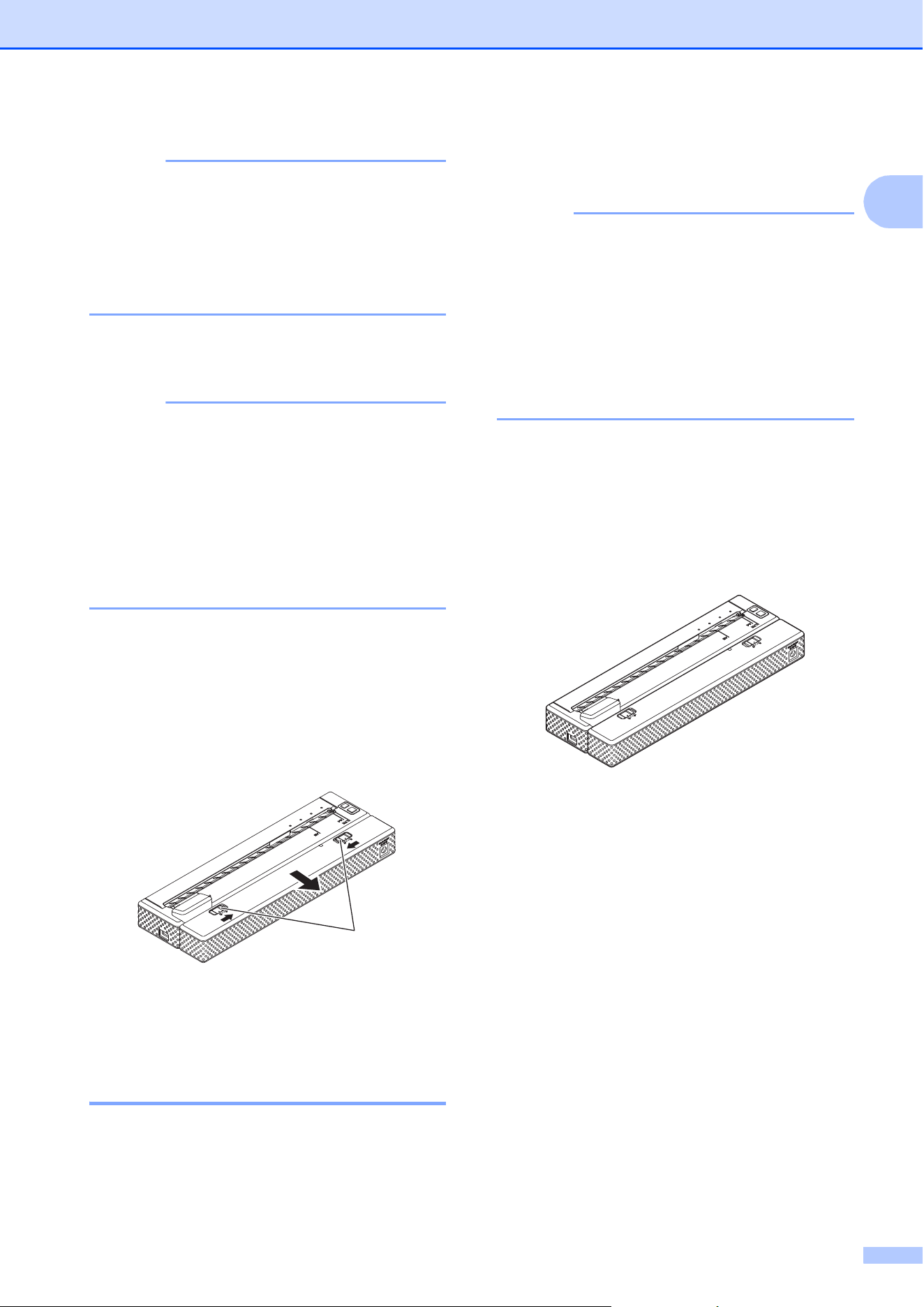
c Move the slide switches on the
rechargeable Li-ion battery inward, and
then insert the battery into the battery
compartment.
3 Slide switches
2
1
3
Setting Up the Printer
7
1
NOTE
When installing the rechargeable Li-ion
battery, insert the battery removal ribbon
into the battery compartment, and then
install the battery. The battery removal
ribbon is not needed when removing the
rechargeable Li-ion battery.
d Move the slide switches outward to lock
the battery in place.
NOTE
• The voltage supplied by the rechargeable
Li-ion battery fluctuates. The printing
speed may also fluctuate depending on
the voltage.
• When the rechargeable Li-ion battery is
being used, the battery cover will not be
needed. Keep it in a safe place so that it
will not be lost.
Removing the Rechargeable Li-ion
Battery
1
Slide the switches on the rechargeable Li-ion
battery inward, and then remove the battery
from the printer.
1 Slide switches
Charging the Rechargeable
Li-ion Battery 1
The rechargeable Li-ion battery can be
charged either while inserted in the printer, or
while removed from the printer.
Perform the following procedure to charge
the rechargeable Li-ion battery.
NOTE
• Charge the rechargeable Li-ion battery
immediately after purchase using the
following procedure.
• Up to 180 minutes is needed to fully
charge a rechargeable Li-ion battery.
About 300 pages can be printed when
using a new, fully-charged rechargeable
Li-ion battery.
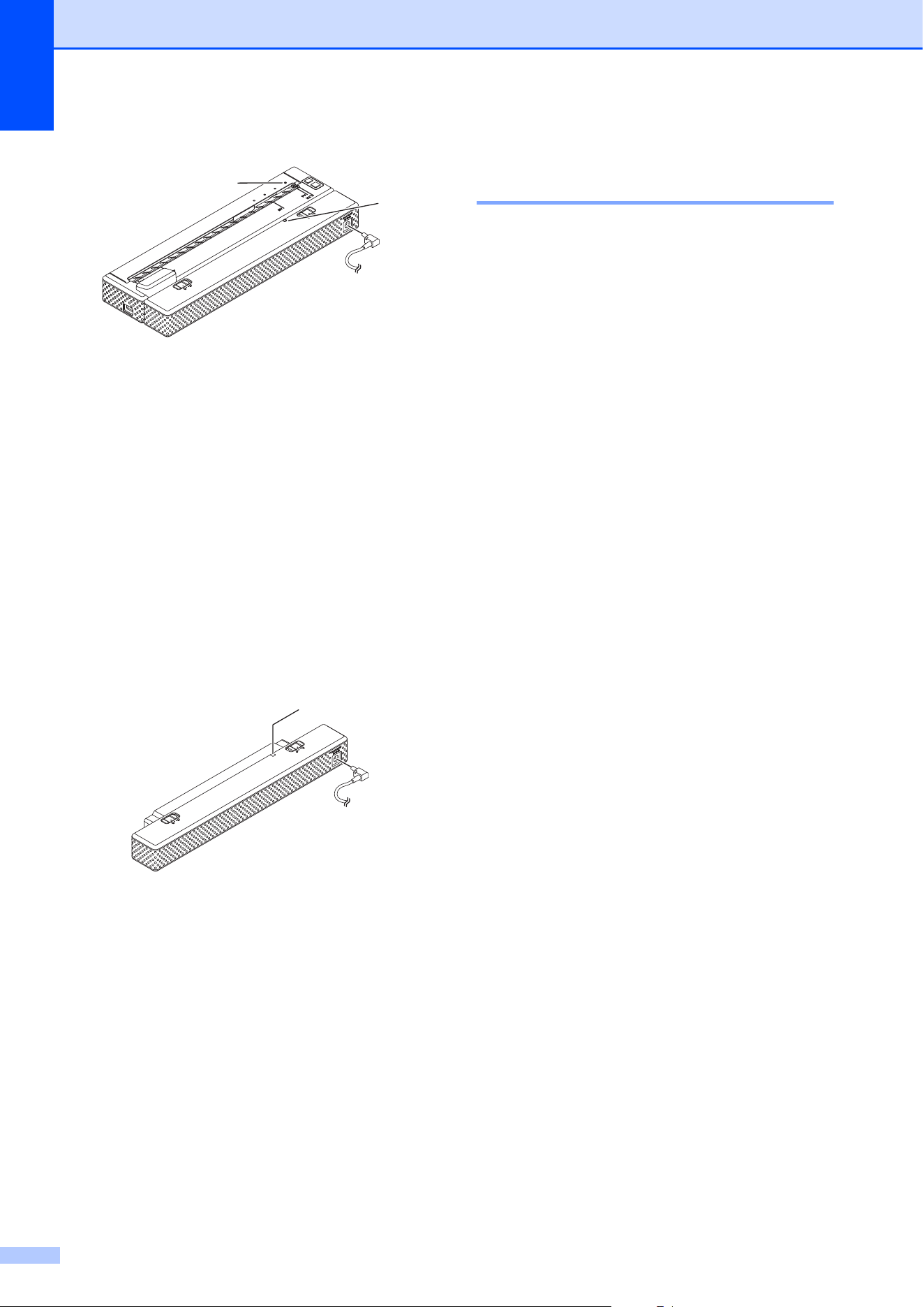
Charging While Installed in the Printer1
a Make sure that the printer is turned off.
b Make sure that the rechargeable Li-ion
battery is installed in the printer.
c Use the AC adapter and AC power cord
to connect the rechargeable Li-ion
battery to an AC power outlet, or use the
DC cable to connect the battery to a DC
power outlet.
The battery indicator lights in orange.
When the rechargeable Li-ion battery is
fully charged, the battery indicator turns
off.
1
Chapter 1
8
1 POWER indicator
2 Li-ion battery indicator
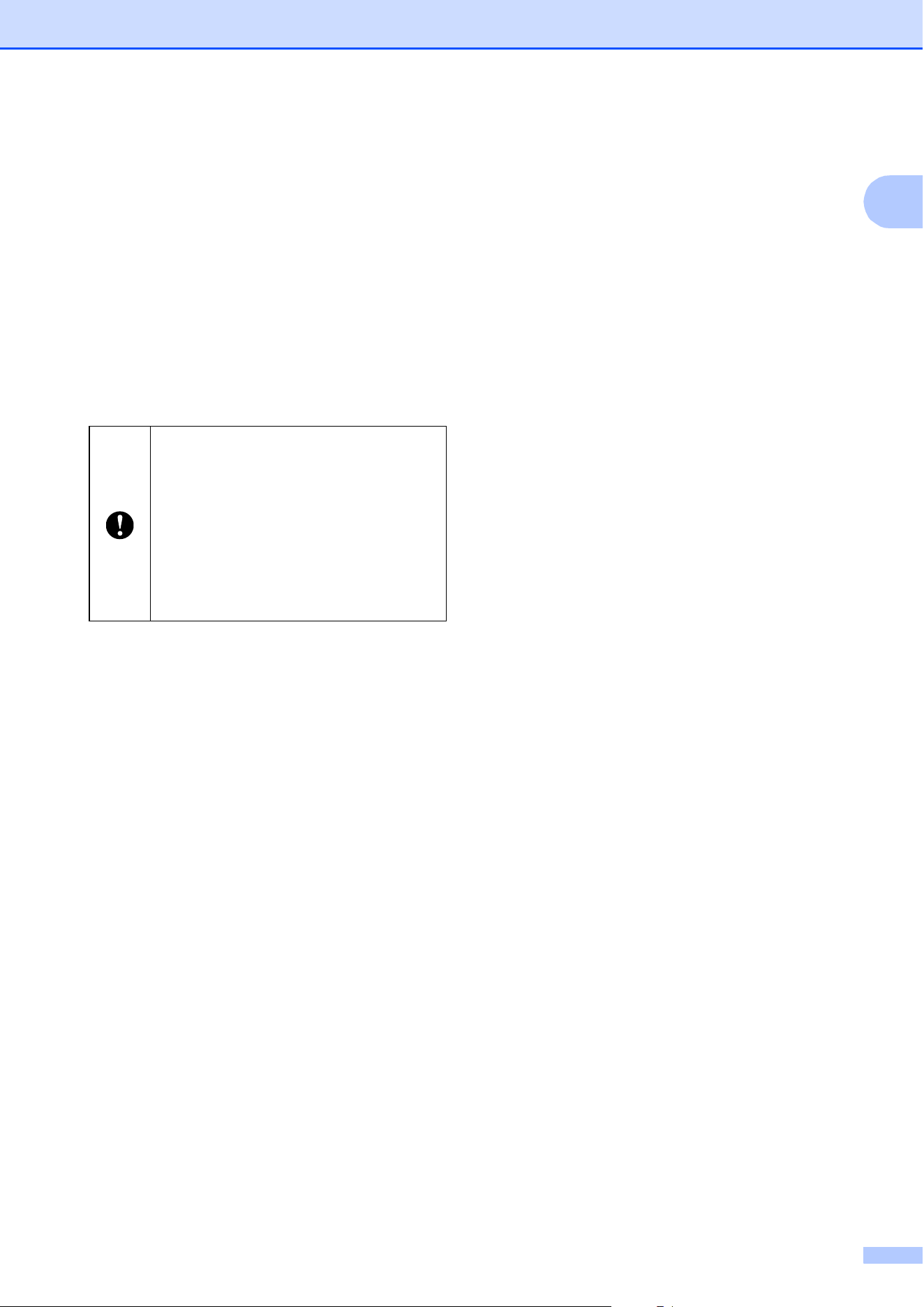
Charging While Removed From the
Printer
1
Use the AC adapter and AC power cord to
connect the rechargeable Li-ion battery to an
AC power outlet, or use the DC cable to
connect the battery to a DC power outlet.
The battery indicator lights in orange.
When the rechargeable Li-ion battery is fully
charged, the battery indicator turns off.
1 Li-ion battery indicator
Stopping Rechargeable Li-ion Battery
Charging
1
To stop rechargeable Li-ion battery charging,
disconnect the AC power cord or DC cable
from the battery’s AC/DC connector.
Tips on Using the
Rechargeable Li-ion Battery 1
Charge the rechargeable Li-ion battery
immediately after purchase. Do not use it
before it is charged.
Darker prints discharge the rechargeable
Li-ion battery faster than lighter prints.
Adjust the print density setting in the
printer driver’s dialog box (see Setting
Printer Driver Options on page 35) or in
PJ-673 Utility (see Print Density
on page 48).
Unlike the rechargeable Ni-MH battery,
battery refreshing and trickle charging are
not necessary when using the
rechargeable Li-ion battery
The rechargeable Li-ion battery charging
can take place in 32F-104F (0C-40C)
environments. Charge the rechargeable
Li-ion battery in an environment in this
temperature range. If the surrounding
temperature is out of this range, the
rechargeable Li-ion battery will not be
charged, and the battery indicator will
remain lit.
If the temperature of the environment
returns to this range, recharging will
continue.
2
1
1
Setting Up the Printer
9
1
If the printer is used when both the
rechargeable Li-ion battery is installed
and the AC adapter or DC cable is
connected, the auto power off function will
turn off the printer after the specified
amount of time (see Auto Power
Off(Ni-MH) on page 46) passes, after
which the rechargeable Li-ion battery will
be charged. When 180 minutes (max.)
have passed since the printer was turned
on, the battery indicator turns off and
charging stops.
When charging the rechargeable Li-ion
battery while the DC cable is connected,
the amount of voltage required to fully
charge the rechargeable Li-ion battery
may not be supplied by the DC power
outlet. When 180 minutes (max.) have
passed since charging started, the battery
indicator turns off and charging stops even
if the rechargeable Li-ion battery has not
been fully charged.
Rechargeable Li-ion Battery
Characteristics
1
Understanding the properties of the
rechargeable Li-ion battery will allow you to
optimize its usage.
Using or storing the rechargeable Li-ion
battery in a location exposed to high or low
temperatures may accelerate its
deterioration. In particular, using a
rechargeable Li-ion battery with a high
charge (charged 90% or more) in a
location exposed to high temperatures will
considerably accelerate battery
deterioration.
Using the printer while the rechargeable
Li-ion battery is installed and charging
may accelerate the battery’s deterioration.
If using the printer when the rechargeable
Li-ion battery is installed, disconnect the
AC adapter or DC cable.
Try to fully discharge the rechargeable
Li-ion battery before charging it.
If the Printer Will Not be Used For a
Long Period of Time
1
If the printer will not be used for a long
period of time, remove the rechargeable
Li-ion battery from the printer, and then
store the battery in a cool place away from
direct sunlight.
If the rechargeable Li-ion battery will not
be used for a long period of time, we
recommend charging it every 6 months.
For other precautions, refer to the
instruction manual included with the
rechargeable Li-ion battery.
If the printer is used when both the
rechargeable Li-ion battery is installed
and the AC adapter or DC cable is
connected, the battery indicator may
turn off and charging may stop even if
the rechargeable Li-ion battery has not
been fully charged.
In order to fully charge the battery, turn
off the printer.
Chapter 1
10
Rechargeable Battery Overview 1
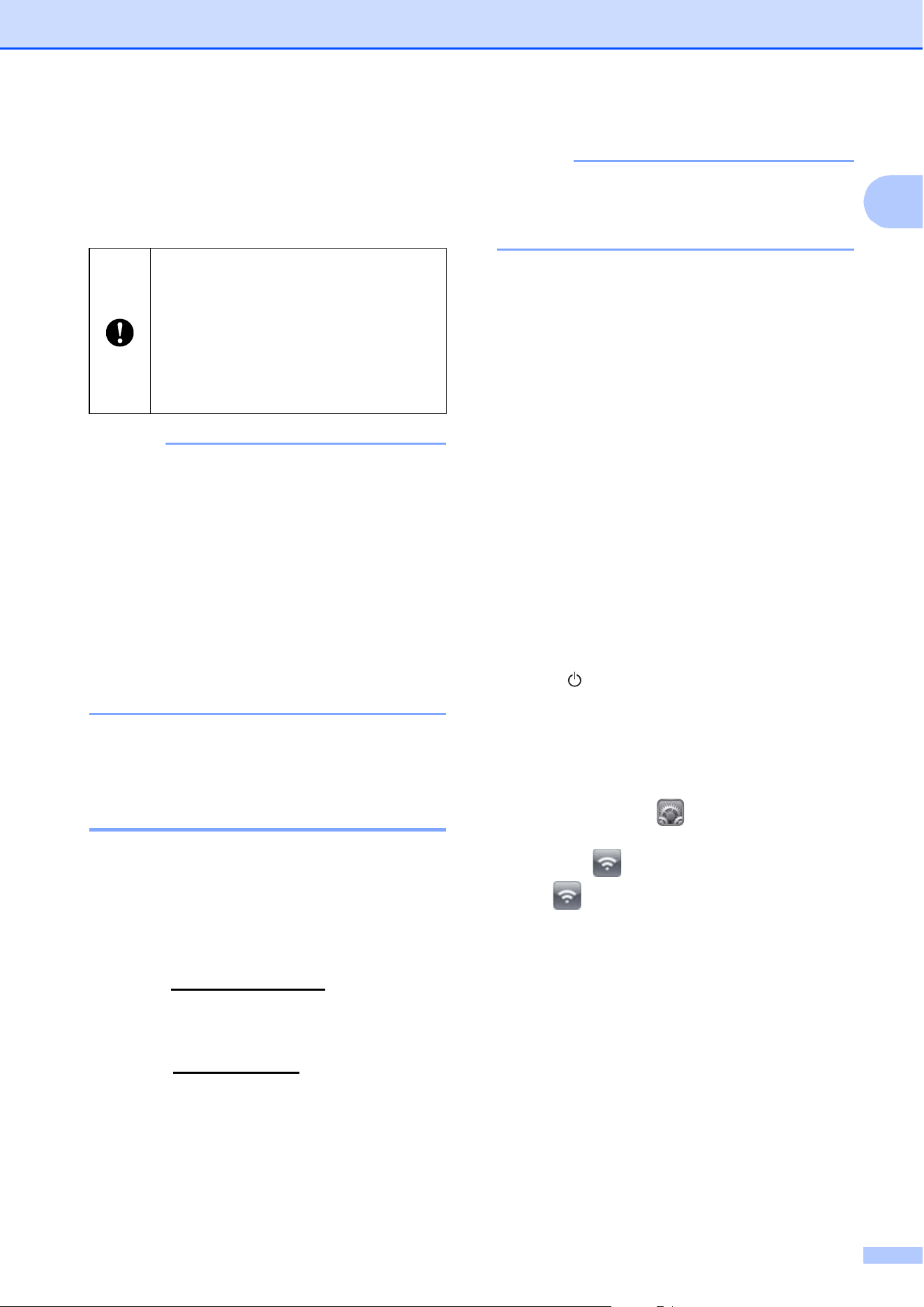
The characteristics of the two types of rechargeable batteries that can be used with the printer are
described in the following table.
NOTE
Since it is necessary for the rechargeable Ni-MH battery to be trickle charged, regularly
connect a power supply (AC adapter and AC power cord or car adapter). Since frequently
charging the rechargeable Li-ion battery will shorten its service life, try to charge it only after it
has been fully discharged.
Ni-MH battery Li-ion battery
Battery mounting Internal External
Print while charging Yes Yes
Trickle charge battery Yes No
Battery charger location Inside Printer Inside Battery
Approximate charge time 120 min 180 min
Approximate number of pages/charge 70 pages (equivalent to A4) 300 pages (equivalent to A4)
Refresh battery feature Yes No
Charge without the printer No Yes
Setting Up the Printer
11
1
Connecting the Printer
and iOS Device
1
NOTE
• This printer can establish a connection
with the “Open System” authentication
method and when the encryption method
is set to “None” or the “WEP” ad-hoc
mode.
• While connected to this printer in ad-hoc
mode, Wi-Fi cannot be used to connect to
the Internet. In addition, when the iOS
device enters sleep mode, the connection
between the printer and iOS device will be
cut.
Printing From an iOS Device
Via a Wireless LAN
Connection 1
The default printer settings are listed below.
It may be useful to first print a report of the
printer settings as described in Printing a
Printer Report on page 59.
SSID (network name): PJ-673_XXXX (where
“XXXX” is the last four digits
of the printer’s
serial number)
Encryption method: WEP
WEP key: Last five digits
of the printer’s
serial number
IP address: 169.254.100.1
Subnet mask: 255.255.0.0
NOTE
The serial number appears as “SER. NO.
XXXXXX-XXXXXXXXX” on the back of
the printer.
Connecting the Printer
(With the Default Settings)
1
Follow this setup method when using the
printer’s factory default settings to connect an
iOS device. To change the printer settings,
see Setting Up the Printer (With the Default
Settings Changed) on page 12.
In addition, if the printer’s wireless LAN
settings are changed, even after they had
already been specified, the connection
between the iOS device and the printer must
be re-established.
a Turn on the printer.
b Check that the POWER indicator is lit,
and then hold down (at least 3 seconds)
the (Power) button to enter wireless
LAN mode. Check that the WIRELESS
LAN indicator is blinking. For details,
see Switching Between Wireless LAN
Mode and USB Mode on page 30.
c Start Settings on the iOS device.
d Select .
If is set to [Off], change it to [On].
e A list of Wi-Fi networks (SSID) that can
be joined appears.
To establish a connection, tap the
printer’s default network (SSID) so that
a checkmark appears beside the
network (SSID). For the password, type
in the default WEP key (last five digits
of the serial number). It will take time for
the iOS device to search for the SSID
and display it. If it is not displayed, set
Wi-Fi to [Off], then to [On] again.
When printing from an iOS device,
printing software created by a software
developer will be needed in addition to
the product and services that we
provide. (We provide an SDK that can
be used.) Consult with a software
developer for printing software for the
iOS device.

Chapter 1
12
f When the WIRELESS LAN indicator
stops blinking and remains lit, the printer
is connected.
Print from the printing software created
with the SDK.
NOTE
It may take more than 1 minute to
establish a wireless LAN connection.
Since it differs depending on the device
and environment, check with the device
manufacturer.
If printing is not possible
In the following cases, the wireless LAN
connection between the printer and iOS
device will be cut, preventing printing.
1 The iOS device has entered sleep
mode.
2 The printer has been turned off.
3 The printer has been switched to USB
mode.
For the cases mentioned above, perform
the operations below to re-establish the
connection.
1 Select the SSID for the ad-hoc mode
for step e on page 11.
2 Select the connection for step a on
page 11.
3 Hold down the (Power) button for at
least 3 seconds to enter wireless LAN
mode, and then select the SSID for the
ad-hoc mode for step c on page 11.
Setting Up the Printer
(With the Default Settings Changed)
1
NOTE
• A computer running Windows
®
and a USB
cable are required to change the printer’s
default settings, even if the printer will be
used by an iOS device via a wireless LAN
connection. In the process, the printer
driver for a USB connection will be
installed on the computer running
Windows
®
.
• In order to use the printer via a wireless
LAN connection, settings must be
specified on both the printer and the iOS
device. The printer settings will be
specified with the printer driver; however,
the settings on the iOS device must be
specified manually. Specify the settings
according to the procedures in this
manual.
• With administrator rights, log onto the
computer running Windows
®
.
• If, while specifying the settings, a dialog
box appears, requesting administrator
rights or requesting confirmation to
perform the operation with administrator
rights, follow the instructions.
• If, while specifying the settings, a dialog
box appears, requesting confirmation to
continue the installation, continue it.
• The descriptions in this manual apply to
wireless network connections that can be
set up using a standard procedures for
your operating system. For any other
cases, refer to the instruction manual
included with your wireless adapter.
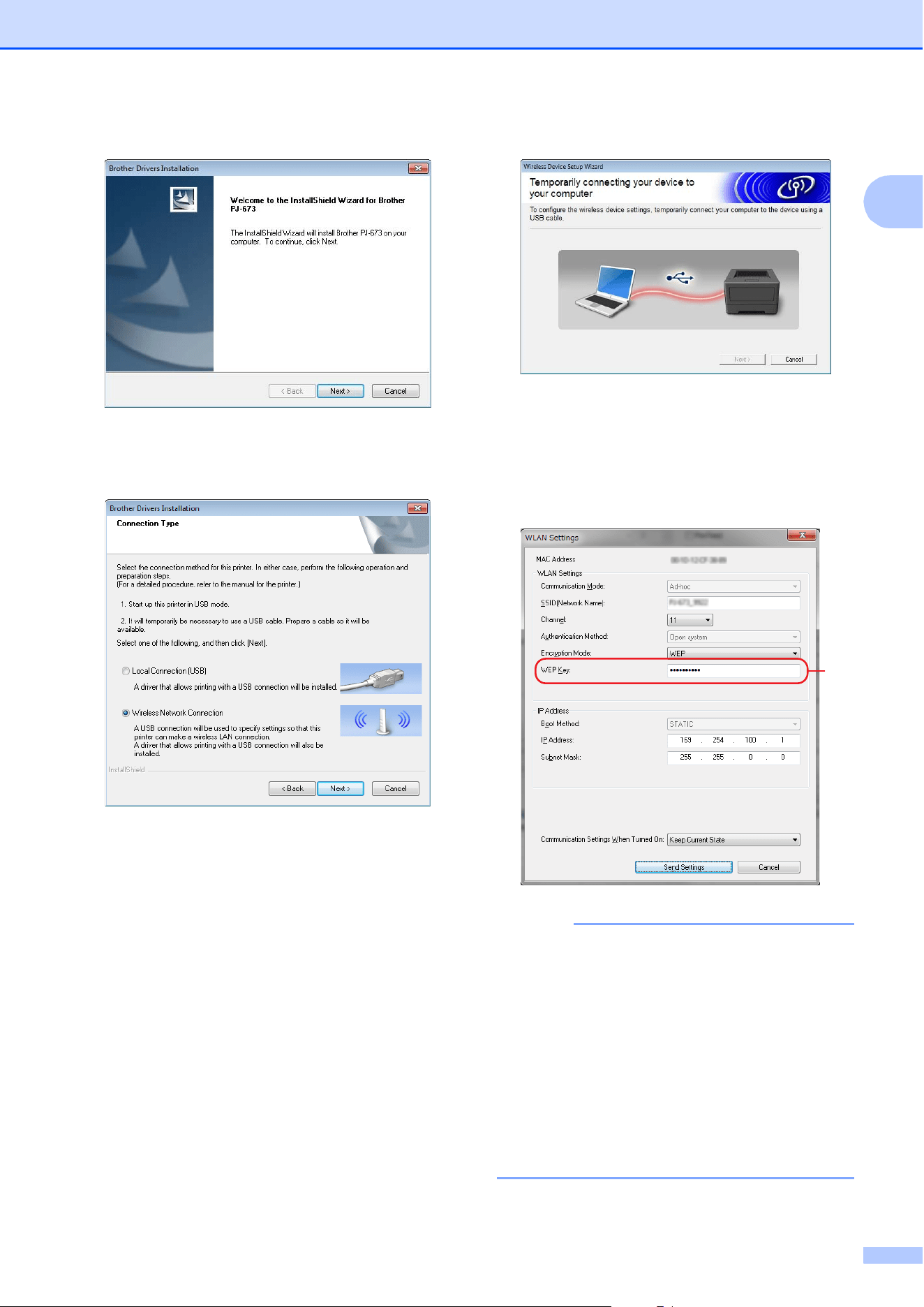
a If you have the included CD-ROM, insert
it into your computer’s CD-ROM drive,
and then click [Standard Installation] in
the installer screen that appeared. If the
Web version was download, run the
downloaded file.
Click [Next].
Setting Up the Printer
13
1
b Select [Wireless Network
Connection], and then click [Next].
c With the USB cable, connect the printer
to the computer running Windows
®
, and
then turn on the printer in USB mode.
(As a factory default, the printer will be in
USB mode.) If the printer is in wireless
LAN mode (the WIRELESS LAN
indicator is blinking), switch it to USB
mode. For details, see Switching
Between Wireless LAN Mode and USB
Mode on page 30.
The next screen will automatically
appear.
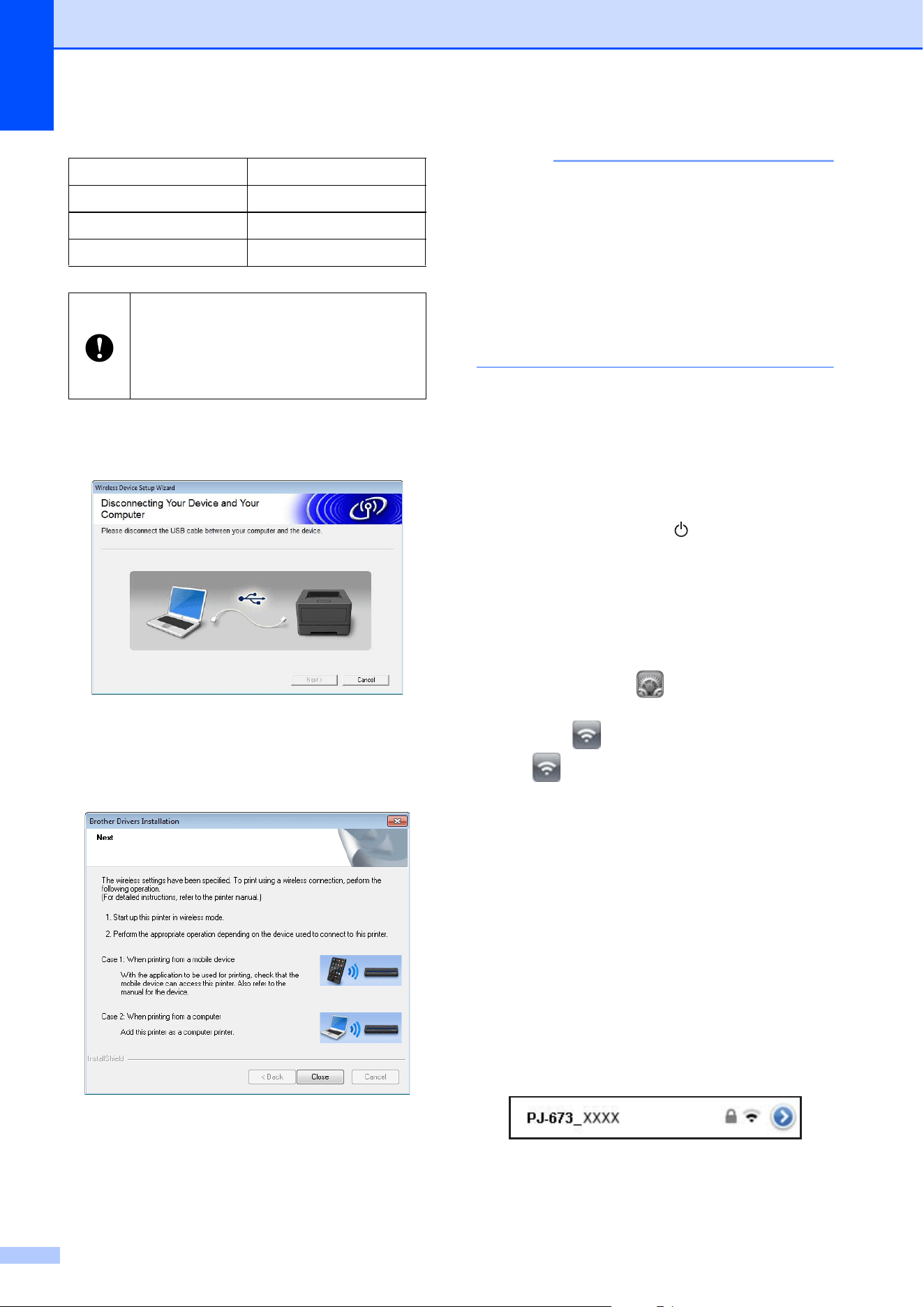
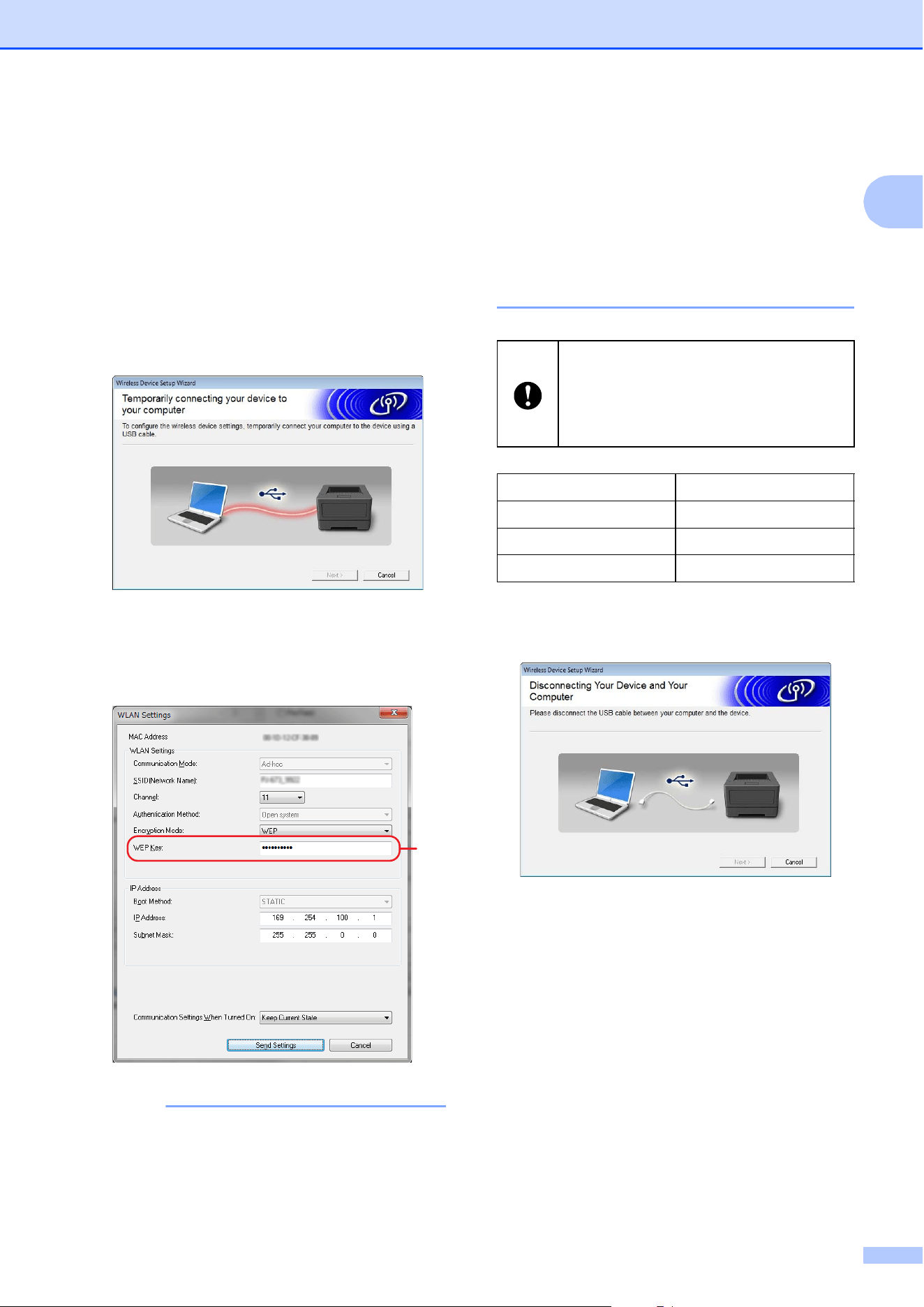
d The wireless LAN settings will appear in
the [WLAN Settings] screen. Type the
settings in the [WLAN Settings] screen,
and then click [Send Settings].
Make a note of the specified settings.
NOTE
• The WEP key normally appears as shown
by A, regardless of the setting retrieved by
the printer at startup.
• When changing the WEP key, type in 5 or
13 ASCII characters or 10 or 26
hexadecimal characters. The WLAN
settings can later be changed with PJ-673
Utility on a computer running Windows
®
.
For details, see WLAN Settings
on page 51 in PJ-673 Utility Menu.
A
Chapter 1
14
e When the USB cable is disconnected,
the next screen automatically appears.
f Click [Close].
Printer setup using a computer running
Windows
®
is now complete.
NOTE
In this procedure, the printer driver and
setup utility were installed at the same
time on the computer running Windows
®
.
Later, the computer running Windows
®
can be used to change the settings. See
WLAN Settings on page 51 in PJ-673
Utility Menu. Next, connect the printer to
the iOS device.
Connecting the Printer
(With the Default Settings Changed)
1
a Turn on the printer.
b Check that the POWER indicator is lit,
then hold down the (Power) button
(for at least 3 seconds) to enter wireless
LAN mode. Check that the WIRELESS
LAN indicator is blinking. For details,
see Switching Between Wireless LAN
Mode and USB Mode on page 30.
c Start Settings on the iOS device.
d Select .
If is set to [Off], change it to [On].
e A list of Wi-Fi networks (SSID) that can
be joined appears.
To establish a connection, tap the
network name (SSID) noted in step d of
Setting Up the Printer (With the Default
Settings Changed) so that a checkmark
appears beside the network (SSID). If
[Encryption Mode] was set to [WEP],
type in the WEP key as the password.
It will take time for the iOS device to
search for the SSID and display it. If it is
not displayed, set Wi-Fi to [Off], then to
[On] again.
SSID
IP Address
Subnet Mask
WEP Key
[Communication Mode],
[Authentication Method] and [Boot
Method] have been set to [Ad-hoc].
[Open system] and [STATIC],
respectively, and cannot be changed.

Setting Up the Printer
15
1
f When the WIRELESS LAN indicator
stops blinking and remains lit, the printer
is connected. Print from the printing
software created with the SDK.
NOTE
It may take more than 1 minute to
establish a wireless LAN connection.
Since it differs depending on the device
and environment, check with the device
manufacturer.
If printing is not possible
In the following cases, the wireless LAN
connection between the printer and iOS
device will be cut, preventing printing.
1 The iOS device has entered sleep
mode.
2 The printer has been turned off.
3 The printer has been switched to USB
mode.
For the cases mentioned above, perform
the operations below to re-establish the
connection.
1 Select the SSID for the ad-hoc mode
for step e on page 14.
2 Select the connection for step a on
page 14.
3 Hold down the (Power) button for at
least 3 seconds to enter wireless LAN
mode, and then select the SSID for the
ad-hoc mode for step c on page 14.
Connecting the Printer
and a Windows
®
Computer
1
Printing From a Windows
®
Computer Via a Wireless LAN
Connection 1
NOTE
• This printer can establish a connection
with the “Open System” authentication
method and when the encryption method
is set to “None” or the “WEP” ad-hoc
mode.
• The printer settings will be specified when
the printer driver is installed on the
Windows
®
computer. Prepare the
computer and the USB cable.
• Log on with administrator rights.
• If, while specifying the settings, a dialog
box appears requesting administrator
rights or requesting confirmation to
perform the operation with administrator
rights, follow the instructions.
• If, while specifying the settings, a dialog
box appears requesting confirmation to
continue the installation, continue it.
• The descriptions in this manual apply to
wireless LAN connections that can be set
up using procedures for a standard
operating system. For any other cases,
refer to the instruction manual included
with your wireless LAN adapter or
Windows
®
Computer.
• If a firewall is being used, the installation
may not be completed correctly. Open
TCP/IP port number 9100. If you are
unsure of how to perform the operation,
check with the administrator who originally
specified the settings.
Chapter 1
16
• Before the installation, disconnect the
LAN cable from the computer or disable
the wired LAN connection.
The default printer settings are listed below.
It may be useful to first print a report of the
printer settings as described in Printing a
Printer Report on page 59.
SSID (network name): PJ-673_XXXX (where
“XXXX” is the last four digits
of the printer’s
serial number)
Encryption method: WEP
WEP key: Last five digits
of the printer’s
serial number
IP address: 169.254.100.1
Subnet mask: 255.255.0.0
NOTE
The serial number appears as “SER. NO.
XXXXXX-XXXXXXXXX” on the back of
the printer.
Setting Up the Printer
(With the Default Settings)
1
If the printer will be used with its default
settings, printer setup is unnecessary;
however, the settings on the Windows
®
Computer must be specified manually.
Specify the settings according to the
procedures in this manual.
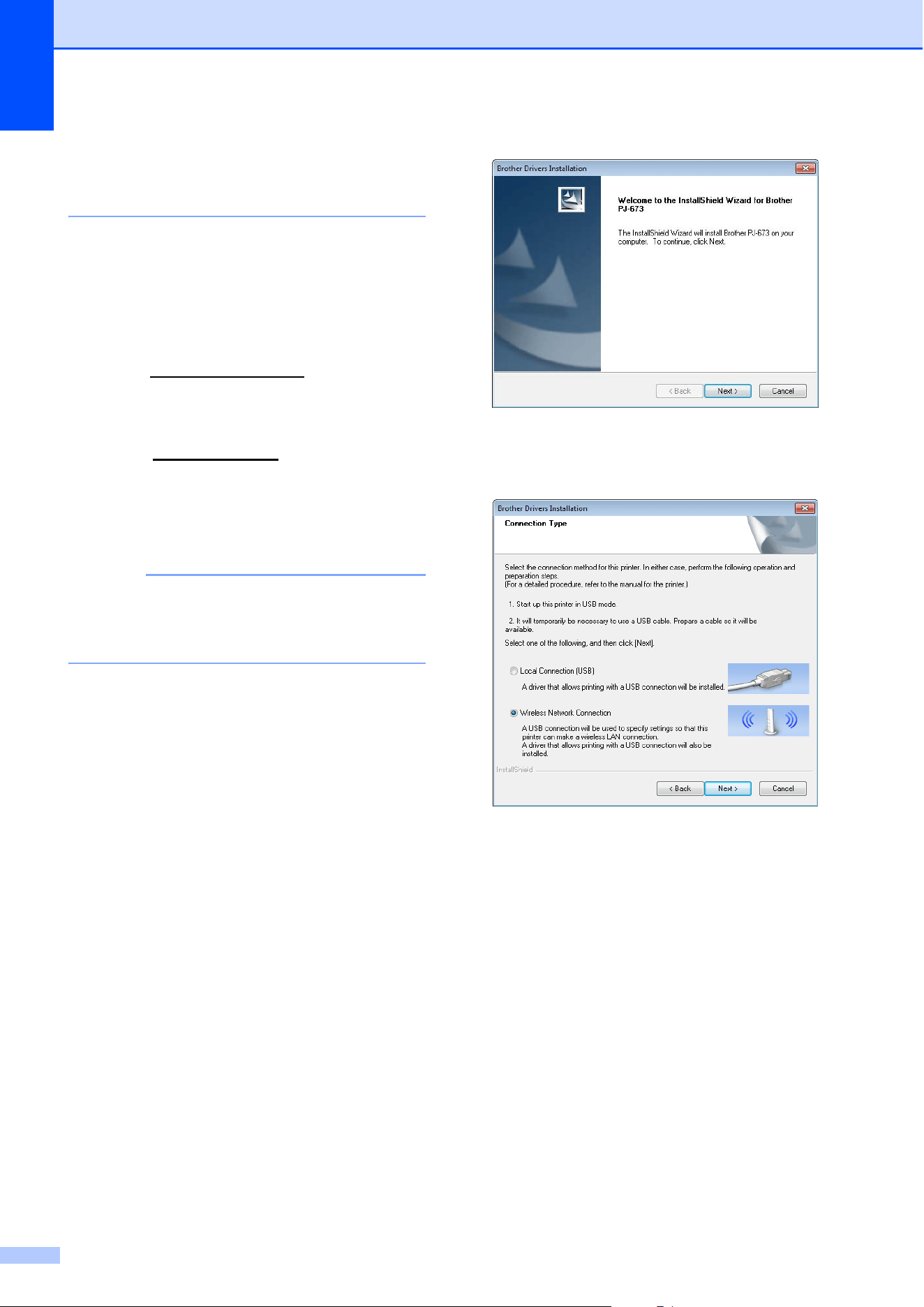
a If you have the included CD-ROM, insert
it into your computer’s CD-ROM drive,
and then click [Standard Installation] in
the installer screen that appeared. If the
Web version was downloaded,
double-click the downloaded file.
Click [Next].
b Select [Wireless Network
Connection], and then click [Next].
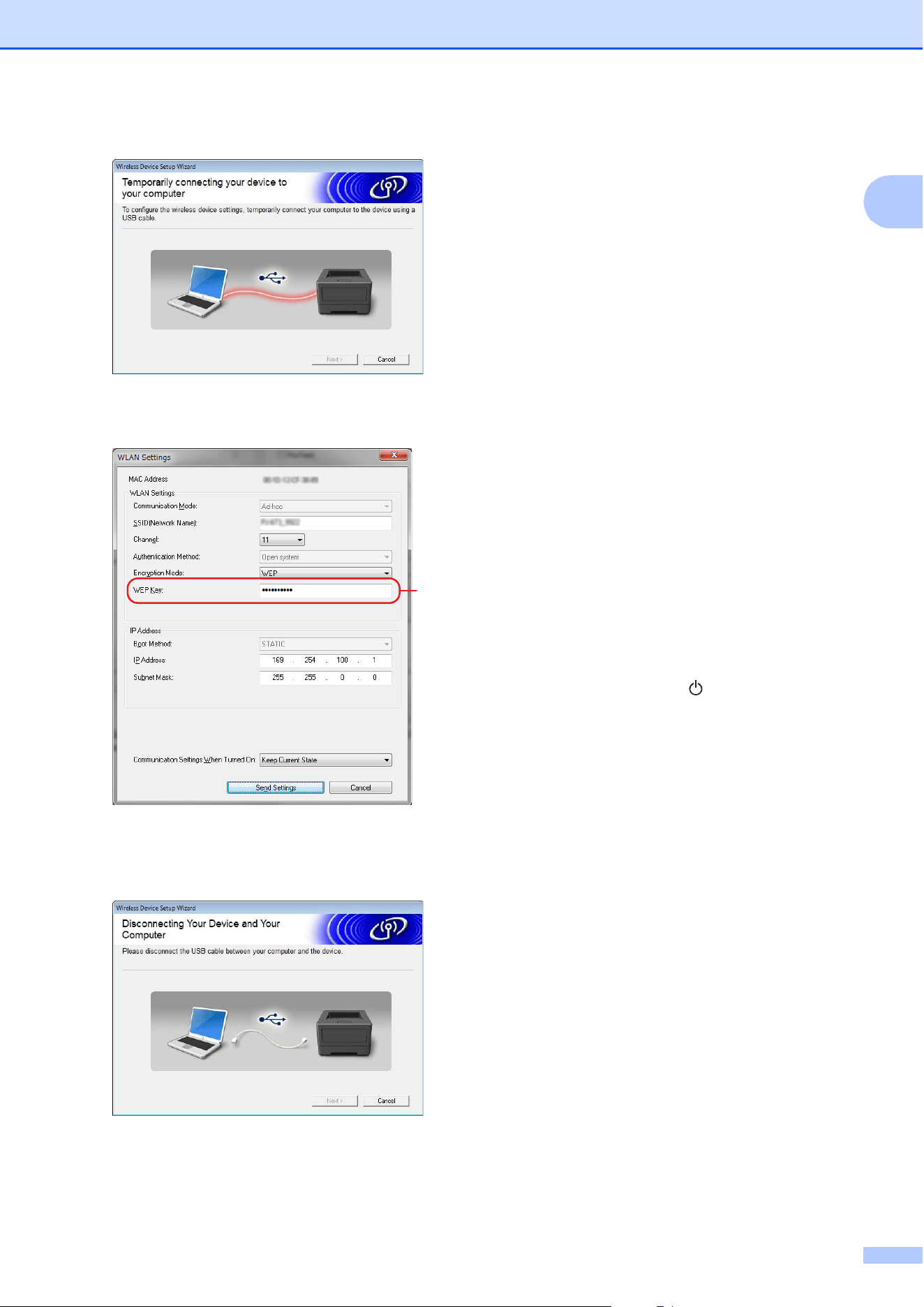
c With the USB cable, connect the printer
to the computer running Windows
®
, and
then turn on the printer. If the printer is in
wireless LAN mode (the WIRELESS
LAN indicator is blinking), switch it to
USB mode. For details, see Switching
Between Wireless LAN Mode and USB
Mode on page 30.
The next screen will automatically
appear.
Setting Up the Printer
17
1
d Click [Send Settings].
e When the USB cable is disconnected,
the next screen automatically appears.
f Click [Close].
The installation is now complete.
Continue by setting up the computer
running Windows
®
and adding the
printer.
Setting Up the Computer Running
Windows
®
1
This procedure describes how to specify
settings for a wireless LAN connection. Since
the connection procedure differs depending
on the operating system, check the
procedure for your operating system. (As
examples, screens from Windows
®
7 are
used in the following procedures.)
Performing the procedure to Adding a Printer
will complete printing setup.
If wireless LAN is disabled on the computer
running Windows
®
, enable it.
Switch the printer to wireless LAN mode. To
enter wireless LAN mode, check that the
POWER indicator is lit, and then hold down
(at least 3 seconds) the (Power) button.
Check that the WIRELESS LAN indicator is
blinking. For details, see Switching Between
Wireless LAN Mode and USB Mode
on page 30.
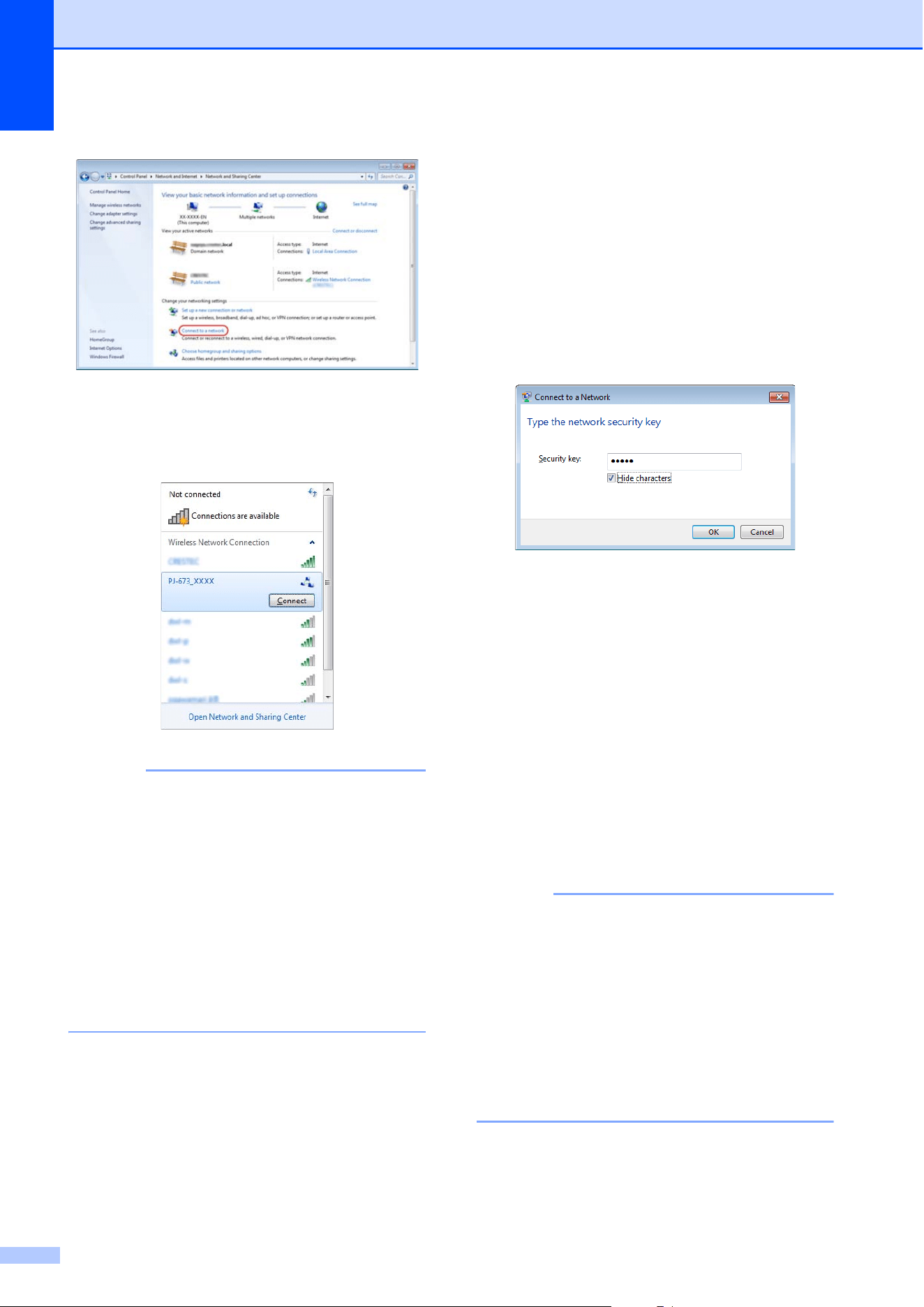
a Windows
®
8:
Click [Control Panel] in [Apps] screen -
[Network and Internet].
Click [Network and Sharing Center].
Windows
®
7:
From the [Start] menu, click [Control
Panel]-[Network and Internet].
Click [Network and Sharing Center].
Windows Vista
®
:
From the [Start] menu, click [Connect
to].
Windows
®
XP:
From the [Start] menu, click [Control
Panel]-[Network connection].
Right-click [Wireless Network
Connection], and then click [View
Available Wireless Networks].
A
Chapter 1
18
b To establish a connection, select the
printer's default SSID from the list of
available SSIDs.
NOTE
If the printer's default SSID does not
appear in the list, check that the printer
has been turned on and is in wireless LAN
mode (the WIRELESS LAN indicator is
blinking), and then click the update button
in the screen. It the SSID still does not
appear, contact the manufacturer of your
wireless LAN card. If you are using a
computer with wireless LAN built in,
contact the manufacturer of your
computer.
c Windows
®
8 / Windows
®
7:
For the security key, type in the printer’s
default WEP key (last five digits of the
serial number), and then click [OK].
Windows Vista
®
:
For the security key or passphrase, type
in the printer’s default WEP key (last five
digits of the serial number), and then
click [Connect].
Windows
®
XP:
For the network key, type in the printer’s
default WEP key (last five digits of the
serial number), and then click
[Connect].
d Windows
®
8 / Windows
®
7 / Windows
®
XP:
When the WIRELESS LAN indicator
stops blinking and remains lit, the printer
connection is complete.
Continue with Adding a Printer
on page 19.
Windows Vista
®
:
When [Connected successfully.]
appears, setup is complete.Click
[Close].
Continue with Adding a Printer
on page 19.
NOTE
• Since this printer makes an ad-hoc
connection, it will automatically connect to
any wireless LAN access points. Take
care when using a wireless LAN network.
• It may take more than 1 minute to
establish a wireless LAN connection.
Since it differs depending on the device
and environment, check with the device
manufacturer.
Setting Up the Printer
19
1
Adding a Printer 1
NOTE
• Turn on the printer in wireless LAN mode.
(page 30)
• When a printer is added, the two printer
names [Brother PJ-673 USB] and
[Brother PJ-673] are created. Select the
first when printing via a USB connection,
and select the second when printing via a
wireless LAN connection.
(As examples, screens from Windows
®
7 are
used in the following procedures. )
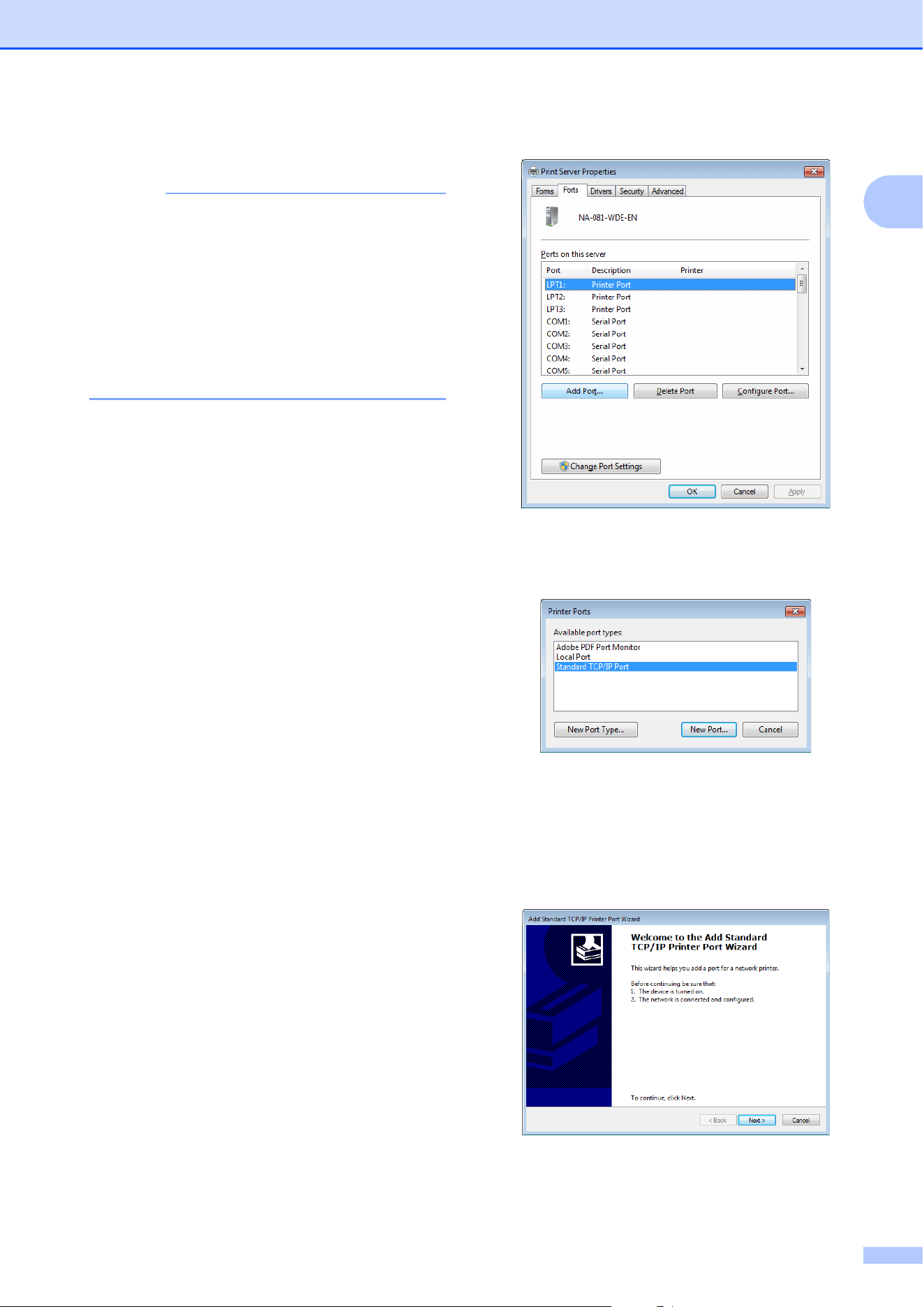
a Windows
®
8:
Click [Control Panel] in [Apps] screen -
[Hardware and Sound] - [Devices and
Printers]. Select a printer in the
[Printers and Faxes] window, and then
click [Print Server Properties], which
appeared in the menu bar.
Click [Add Port] on the [Ports] tab.
Windows
®
7:
Open [Start]-[Devices and Printers].
Select a printer in the [Printers and
Faxes] window, and then click [Print
Server Properties], which appeared in
the menu bar.
Click [Add Port] on the [Ports] tab.
Windows Vista
®
:
Open [Start]-[Control Panel]-
[Hardware and Sound]-[Printers].
Right-click in the window, and then click
[Run as administrator]-[Server
Properties...].
Click [Add Port] on the [Ports] tab.
Windows
®
XP:
Log on with a user account that has
administrator rights, and then open
[Start]-[Printers and Faxes].
From the [File] menu, click [Server
Properties...].
Click [Add Port] on the [Ports] tab.
b Select [Standard TCP/IP Port], and
then click [New Port].
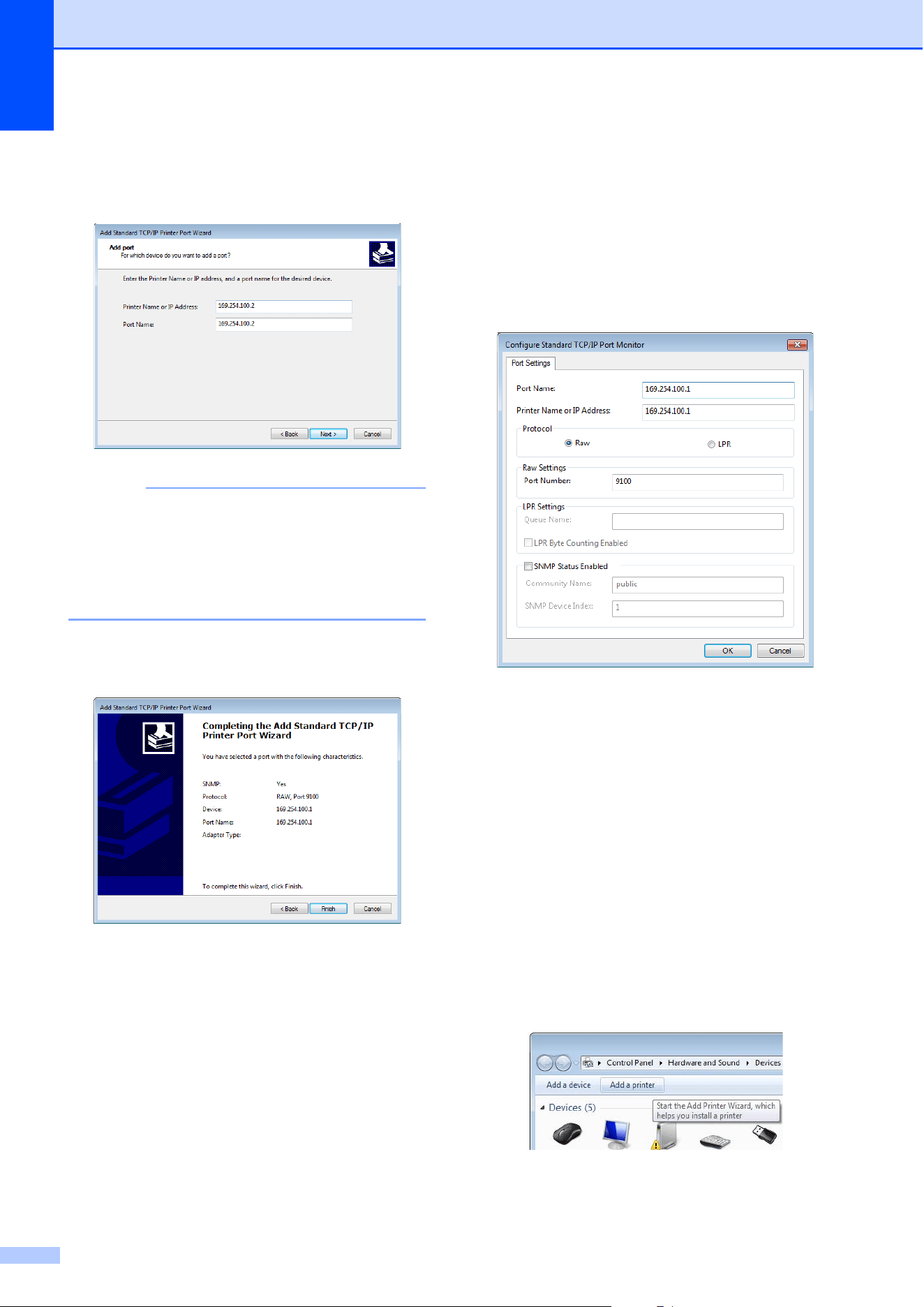
c The [Welcome to the Add Standard
TCP/IP Printer Port Wizard] window
appears.
Click [Next], and then follow the on-
screen instructions.
Chapter 1
20
d Type the IP address of your PJ-673 in
the [Printer Name or IP Address] box,
and then click [Next].
NOTE
If the installation was completed using the
default settings, type in [169.254.100.1]
as the IP address of your PJ-673. If the
settings were changed, type in the new
settings.
e If the port was detected automatically:
Click [Finish].
If the port was not detected
automatically:
Select [Custom], and then click
[Settings…].
Type in the following settings, and then
click [OK].
Protocol: Raw
Raw Settings: 9100
SNMP Status Enabled: Check box
cleared
Type the specified IP address as the
port name. If the installation was
completed using the default settings,
type in [169.254.100.1] as the IP
address.
Click [OK] to return to the previous
screen, and then click [Next], then
[Finish].
f Windows
®
8:
Click [Control Panel] in [Apps] screen -
[Hardware and Sound] - [Devices and
Printers], and then click [Add Printer].
Windows
®
7:
Open [Start]-[Devices and Printers],
and then click [Add Printer].
Windows Vista
®
:
Open [Start]-[Control Panel]-
[Hardware and Sound]-[Printers], and
then click [Install Printer].
Windows
®
XP:
Open [Start]-[Printers and Faxes], and
then click [Install Printer].
Setting Up the Printer
21
1
g Windows
®
8 / Windows
®
7 / Windows
Vista
®
:
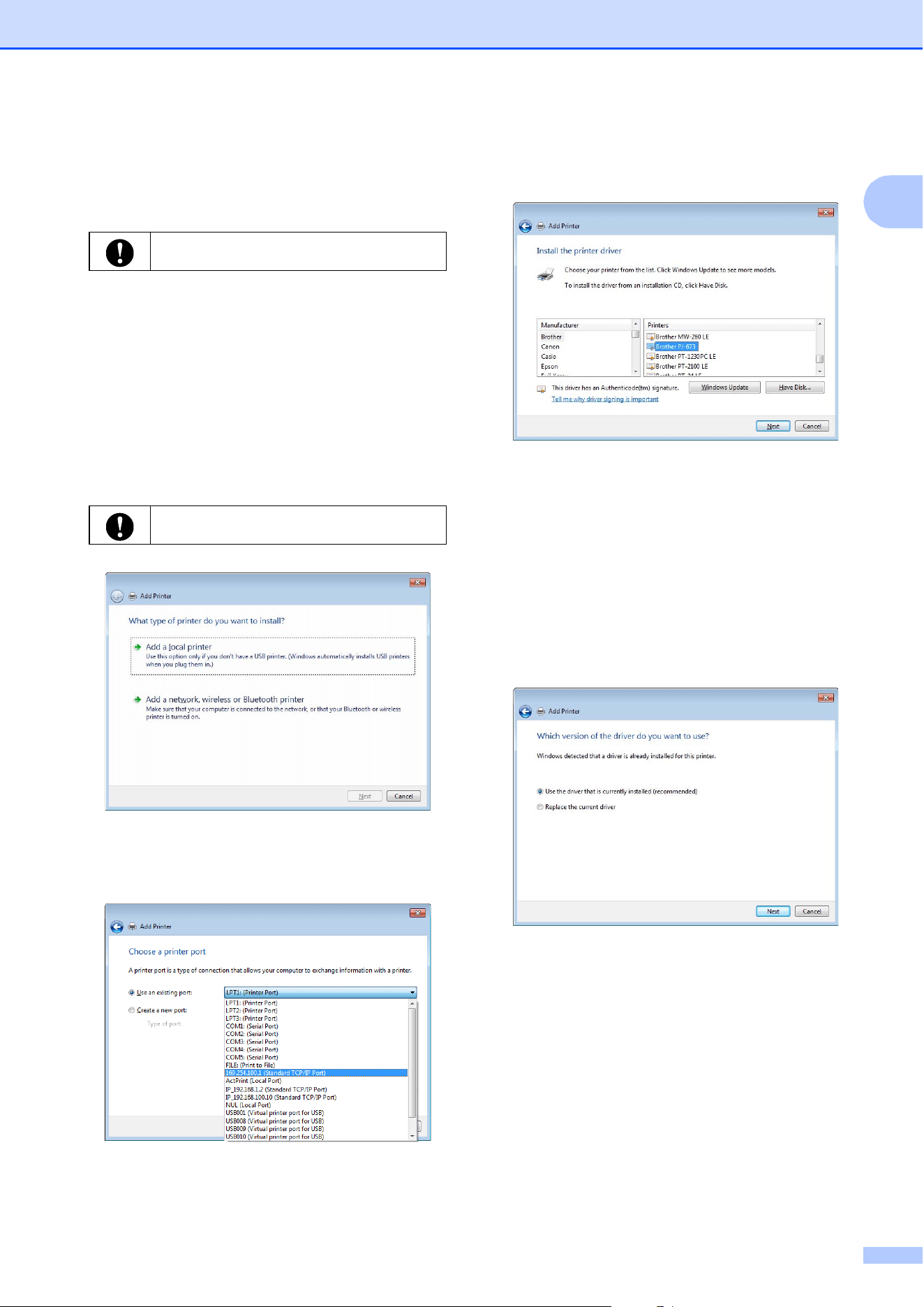
Click [Add a local printer].
Windows
®
XP:
The [Add Printer Wizard] window
appears.
Click [Next].
Clear the [Automatically detect and
install my Plug and Play printer]
check box.
Select [Local printer attached to this
computer], and then click [Next].
h Select the created TCP/IP port, and
then click [Next].
i Select [Brother PJ-673], and then click
[Next].
j Windows
®
8 / Windows
®
7 / Windows
Vista
®
:
When the following screen appears,
select [Use the driver that is currently
installed (recommended)], and then
click [Next].
Windows
®
XP:
Select [Keep existing driver
(recommended)], and then click [Next].
k Windows
®
8 / Windows
®
7:
Click [Next].
Windows Vista
®
/ Windows
®
XP:
Click [Next].
When the completion screen for the
[Add Printer Wizard] appears, click
[Finish] to close the screen.
Be sure to select [Add a local printer].
Be sure to select [Add a local printer].
Chapter 1
22
NOTE
Then, follow the on-screen instructions to
finish adding the printer. If a screen for
selecting printer sharing appears, select
“No share”.
l Use any application to check that
printing can be performed with this
printer.
If printing does not work
If the printer is turned off, the wireless LAN
connection will be ended. Even if the
printer is turned on, printing will not be
possible until the connection is
re-established.
Turn on the printer, hold down the
(Power) button for at least 3 seconds to
enter wireless LAN mode, and then re-
establish the connection after setting up
the computer running Windows
®
(page 17
or page 23).
Setting Up the Printer
(With the Default Settings Changed)
1
NOTE
• Since a USB cable is required to change
the printer’s default settings, prepare one.
In the process, the printer driver for a USB
connection will be installed on the
computer running Windows
®
.
• In order to use the printer via a wireless
LAN connection, settings must be
specified on both the printer and the
computer running Windows
®
. The printer
settings will be specified with the printer
driver; however, the settings on the
computer running Windows
®
must be
specified manually. Specify the settings
according to the procedures in this
manual.
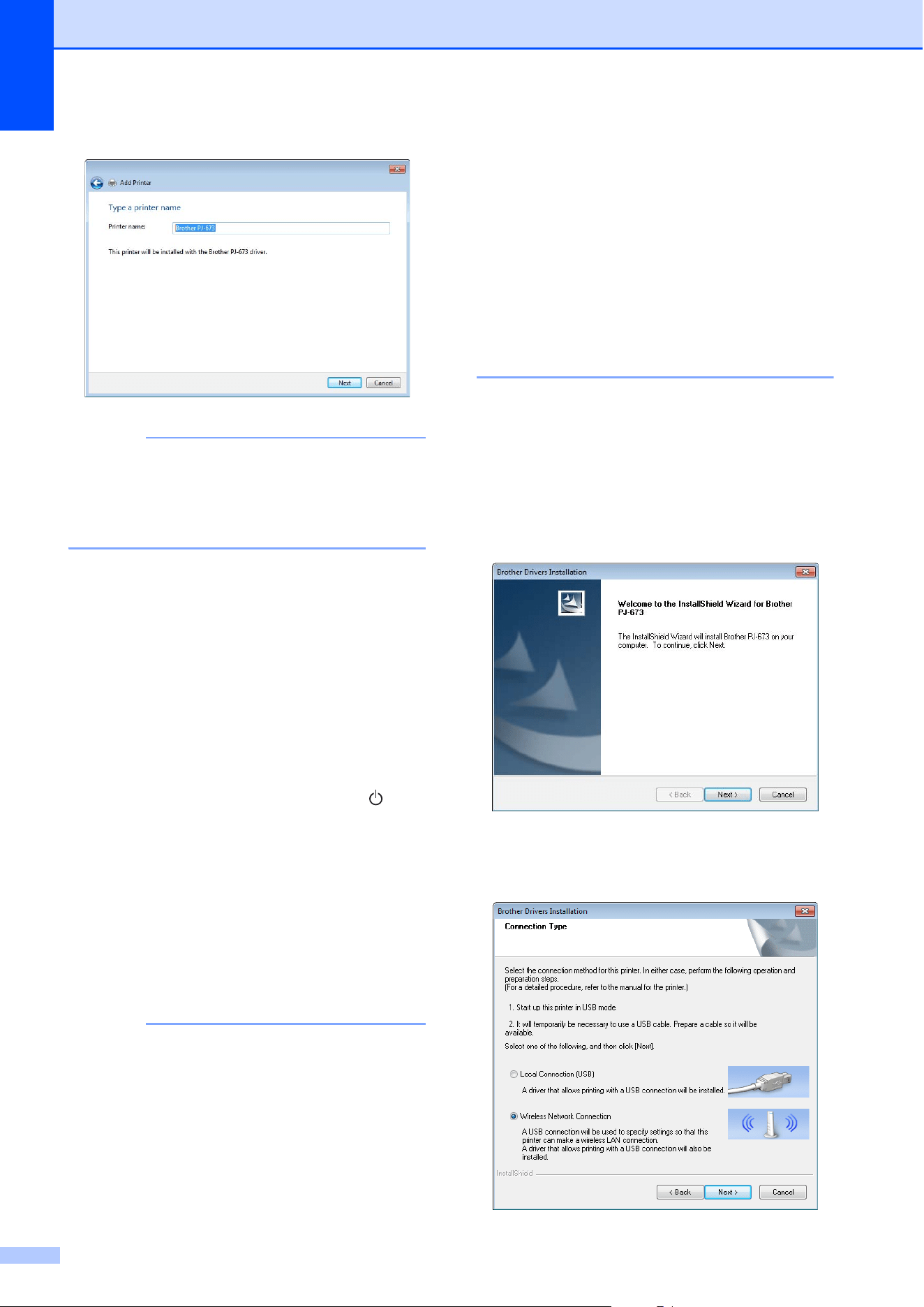
a If you have the included CD-ROM, insert
it into your computer’s CD-ROM drive,
and then click [Standard Installation] in
the installer screen that appeared. If the
Web version was downloaded,
double-click the downloaded file.
Click [Next].
b Select [Wireless Network
Connection], and then click [Next].
Setting Up the Printer
23
1
c With the USB cable, connect the printer
to the computer running Windows
®
, and
then turn on the printer. If the printer is in
wireless LAN mode (the WIRELESS
LAN indicator is blinking), switch it to
USB mode. For details, see Switching
Between Wireless LAN Mode and USB
Mode on page 30.
The next screen will automatically
appear.
d Type in the new settings, and then click
[Send Settings].
Make a note of the specified settings.
NOTE
• The WEP key normally appears as shown
by A, regardless of the setting retrieved by
the printer at startup.
• When changing the WEP key, type in 5 or
13 ASCII characters or 10 or 26
hexadecimal characters. The WLAN
settings can later be changed with PJ-673
Utility on a computer running Windows
®
.
For details, see WLAN Settings
on page 51 in PJ-673 Utility Menu.
e When the USB cable is disconnected,
the next screen automatically appears.
f Click [Close].
The installation is now complete.
Continue by setting up the computer running
Windows
®
and adding the printer.
Setting Up the Computer Running
Windows
®
1
Turn on the printer in wireless LAN mode.
(As examples, screens from Windows
®
7 are
used in the following procedures.)
A
[Communication Mode],
[Authentication Method] and [Boot
Method] have been set to [Ad-hoc].
[Open system] and [STATIC],
respectively, and cannot be changed.
SSID
IP Address
Subnet Mask
WEP Key
Chapter 1
24
a Windows
®
8:
Click [Control Panel] in [Apps] screen -
[Network and Internet].
Click [Network and Sharing Center].
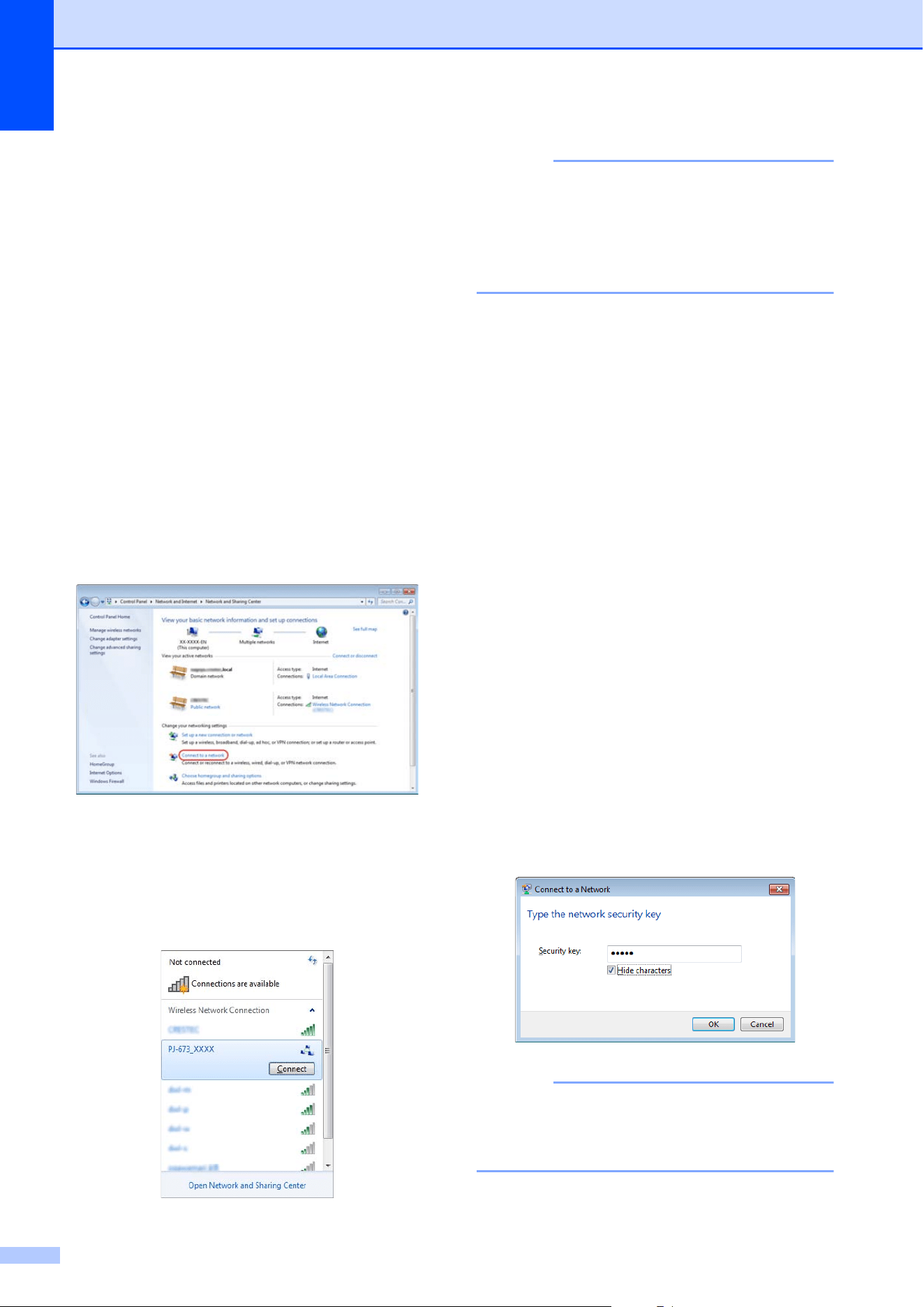
Click [Connect the Network].
Windows
®
7:
From the [Start] menu, click [Control
Panel]-[Network and Internet].
Click [Network and Sharing Center].
Click [Connect the Network].
Windows Vista
®
:
From the [Start] menu, click [Connect
to].
Windows
®
XP:
From the [Start] menu, click [Control
Panel]-[Network connection]. Right-
click [Wireless Network Connection],
and then click [View Available
Wireless Networks].
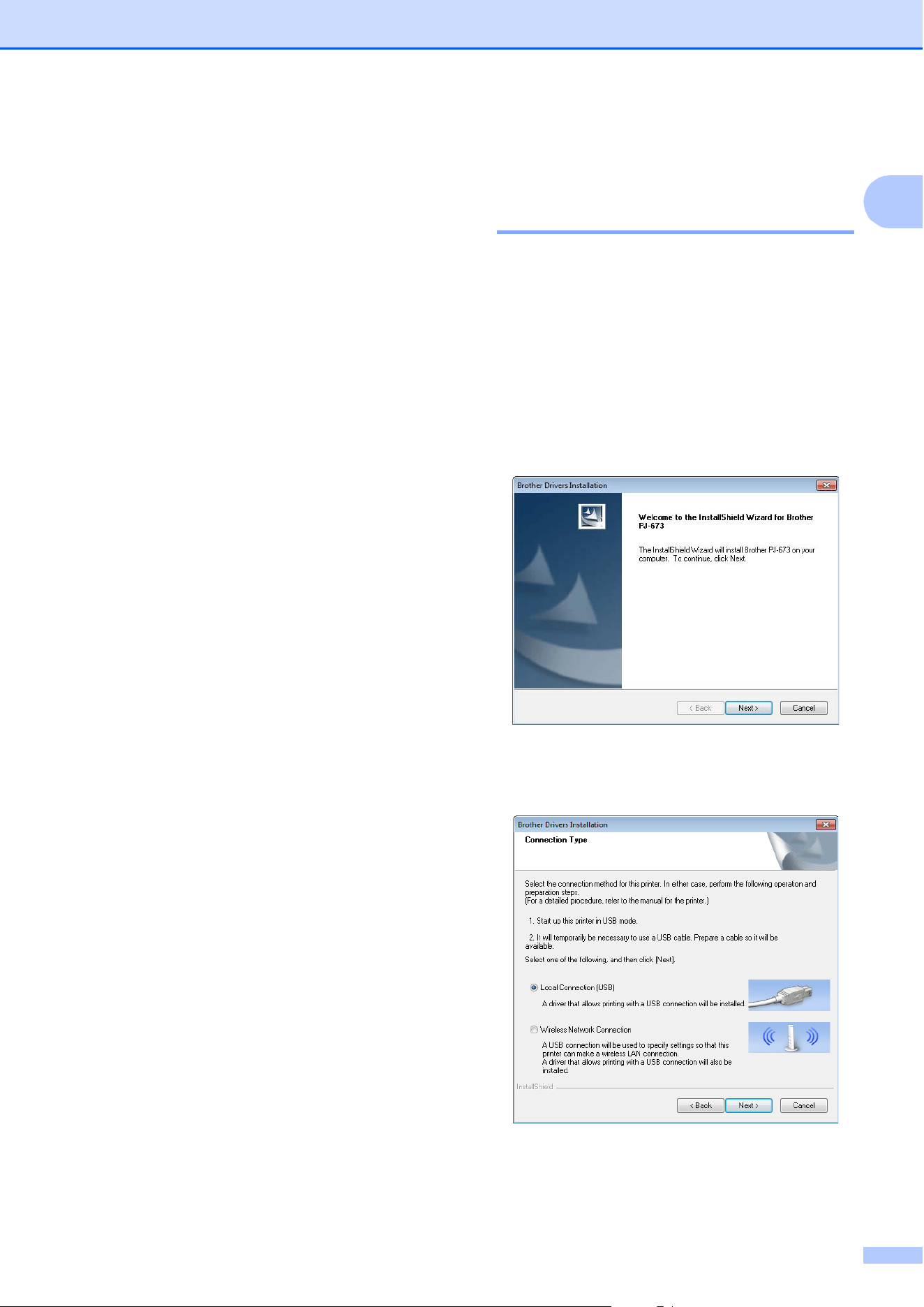
b To establish a connection, from the list
of currently available SSIDs that
appears, select the SSID noted in step
d of Setting Up the Printer (With the
Default Settings Changed) on page 22.
NOTE
If the list does not appear, contact the
manufacturer of your wireless LAN card. If
you are using a computer with wireless
LAN built in, contact the manufacturer of
your computer.
c Windows
®
8 / Windows
®
7:
If [WEP] was set as the encryption
method in the printer settings, a screen
for entering the security key will appear.
Type in the WEP key (5 characters or 13
alphanumeric characters) noted in step
d of Setting Up the Printer (With the
Default Settings Changed) on page 22,
and then click [OK].
Windows Vista
®
:
When a screen for entering the security
key or passphrase appears, type in the
WEP key (5 characters or 13
alphanumeric characters) noted in step
d of Setting Up the Printer (With the
Default Settings Changed) on page 22,
and then click [Connect].
Windows
®
XP:
When a screen for entering the network
key appears, type in the WEP key (5
characters or 13 alphanumeric
characters) noted in step d of Setting
Up the Printer (With the Default Settings
Changed) on page 22, and then click
[Connect].
NOTE
If [None] was set as the encryption
method in the printer settings, these steps
are unnecessary.
Setting Up the Printer
25
1
d Windows
®
8 / Windows
®
7 / Windows
®
XP:
When the WIRELESS LAN indicator
stops blinking and remains lit, the printer
connection is complete. Continue with
Adding a Printer on page 19.
Windows Vista
®
:
When [Connected successfully.]
appears, setup is complete. Click
[Close].
Continue with Adding a Printer
on page 19.
Printing From a Computer
Running Windows
®
Via a USB
Connection 1
Setting Up the Printer 1
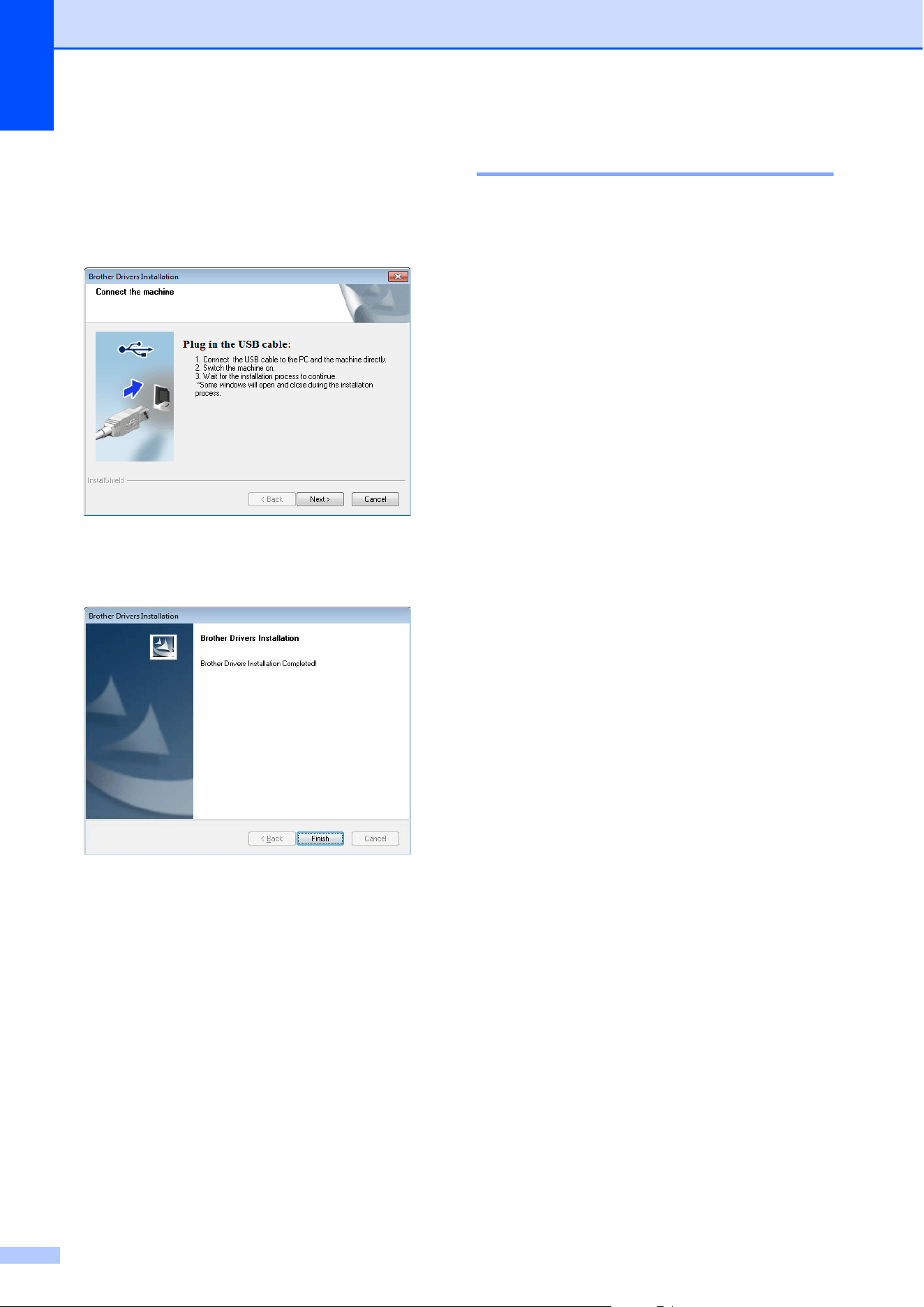
a If you have the included CD-ROM, insert
it into your computer’s CD-ROM drive,
and then click [Standard Installation] in
the installer screen that appeared. If the
Web version was downloaded,
double-click the downloaded file.
Click [Next].
b Select [Local Connection (USB)], and
then click [Next].
Chapter 1
26
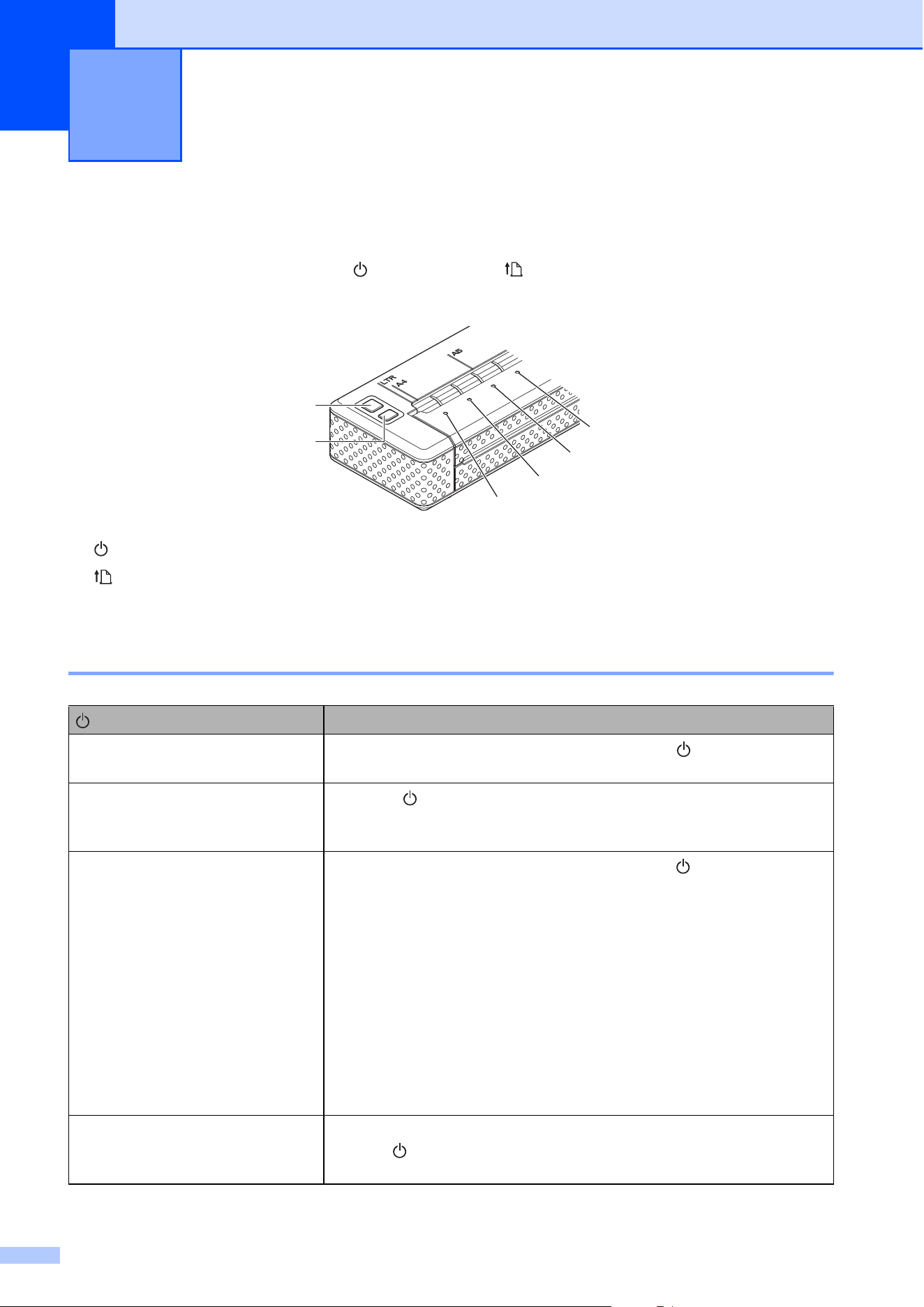
c With the USB cable, connect the printer
to the computer running Windows
®
, and
then turn on the printer. Check that the
printer is in USB mode (page 30), and
then click [Next].
d Installation of the driver is now
complete.
e Use any application to check that
printing can be performed with this
printer.
Uninstall the Printer Driver 1
Perform this procedure only when printing
from this printer (PJ-673) is no longer
necessary or when re-installing this printer's
printer driver.
If the installation was performed via a
wireless LAN connection, both [Brother
PJ-673 USB] and [Brother PJ-673] must be
uninstalled.
Windows
®
8 / Windows
®
7:
a Turn off the printer.
b For Windows
®
8 users: click
[Control Panel] in [Apps] screen -
[Hardware and Sound] - [Devices
and Printers].
For Windows
®
7: From the [Start]
menu, click - [Devices and
Printers].
c Choose [Brother PJ-673] or
[Brother PJ-673 USB], and click
[Remove device] or right click on the
icon, and then click [Remove
device].
If a User Account Control message
displayed, type in the password, and
then click [Yes].
d Choose [Fax] or [Microsoft XPS
Document Writer] in the [Devices
and Printers] window, and then click
[Print server properties], which
appeared in the menu bar.
e Click the [Drivers] tab, and then click
[Change Driver Settings]. If a User
Account Control message displayed,
type in the password, and then click
[Yes]. Choose [Brother PJ-673] or
[Brother PJ-673 USB], and then
click [Remove...].
f Choose [Remove driver and driver
package], and then click [OK].
Follow the on-screen instructions.

Setting Up the Printer
27
1
g Close the [Print Server Properties]
window. The printer driver has been
uninstalled.
Windows Vista
®
a Turn off the printer.
b Start button - [Control Panel] -
[Hardware and Sound] - [Printers].
c [Brother PJ-673] or [Brother
PJ-673 USB], and click [Delete this
printer] or right click on the icon, and
then click [Delete].
d In the [Printers] window, right click
and select [Run as administrator] -
[Server Properties...].
If the authorization confirmation
dialog displayed, click [Continue].
If the [User Account Control] dialog
displayed, enter the password and
click [OK]. The [Print Server
Properties] window displayed.
e Click the [Drivers] tab and choose
[Brother PJ-673] or [Brother
PJ-673 USB]. Then, click
[Remove...].
f Choose [Remove driver and driver
package] and click [OK]. Follow the
on-screen instructions.
g Close the [Print Server Properties]
window. The printer driver has been
uninstalled.
Windows
®
XP
a Turn off the printer.
b [Start] - [Control Panel] - [Printers
and Other Hardware] - [Printers
and Faxes].
c Choose [Brother PJ-673] or
[Brother PJ-673 USB], and click
[File] - [Delete] or right click on the
icon and then click [Delete].
d Go to [File] - [Server Properties].
The [Print Server Properties]
window displayed.
e Click the [Drivers] tab and choose
[Brother PJ-673] or [Brother
PJ-673 USB]. Then, click [Remove].
f Close the [Print Server Properties]
window. The printer driver has been
uninstalled.
NOTE
• The first time, the installer for this printer
installs the printer driver and PJ-673 Utility
at the same time.
• PJ-673 Utility will not be uninstalled when
the printer driver is uninstalled. Uninstall
each separately.
28
2
Operation Panel 2
The operation panel consists of the (Power) button, (Feed) button and the indicators.
1 (Power) button
2 (Feed) button
3 POWER indicator
4 DATA indicator
5 STATUS indicator
6 WIRELESS LAN indicator
Power Button and Feed Button Functions 2
Using the Printer 2
3
1
2
4
5
6
(Power) button function
Operation
Turn the printer on
While the printer is turned off, press and hold the (Power) button for
about one second until the POWER indicator turns on.
Turn the printer off
Press the (Power) button quickly two times. (If the Auto-Off feature
is enabled in PJ-673 Utility, the printer will turn itself off automatically
after the selected period of inactivity.)
Charge the rechargeable Ni-MH
battery
While the printer is turned off, press and hold the (Power) button for
two or more seconds until the POWER indicator begins to blink in
green. The POWER indicator continues to blink until charging is
complete. For details on charging the rechargeable Ni-MH battery, see
Charging the Rechargeable Ni-MH Battery on page 4.
Depending on the settings specified in PJ-673 Utility, charging of the
rechargeable Ni-MH battery may begin after the battery is refreshed.
(See Refresh Ni-MH Battery on page 46.)
When the POWER indicator is blinking in green and orange, the power
remaining in the rechargeable battery is being discharged and the
battery is being refreshed. For details, see Explaining Battery Terms
on page 5.
Skip rechargeable Ni-MH battery
refresh, begin charging
While the rechargeable Ni-MH battery is being refreshed, press and
hold the (Power) button to stop refreshing the battery and begin
charging it.
Using the Printer
29
2
NOTE
Rechargeable Li-ion battery is not controlled by these functions.
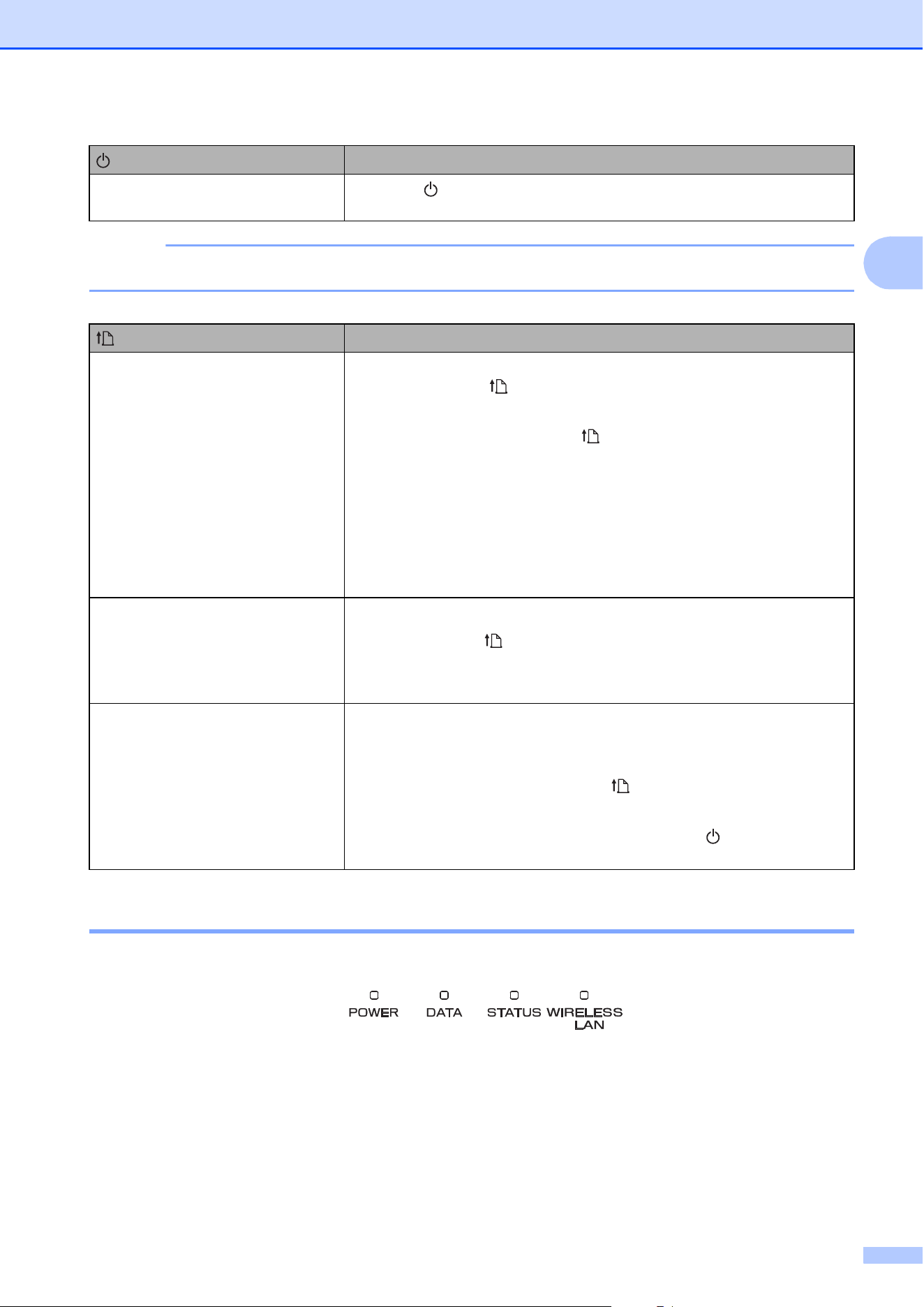
Indicators 2
The indicators light and flash to indicate the printer’s status. Each indicator may light or blink in
green, red, orange, or blue. For details, see Indicators on page 55.
Turn the printer off while charging
the rechargeable Ni-MH battery
Press the (Power) button quickly two times.
(Feed) button function
Operation
Eject the paper manually (manual
form feed)
Make sure that the printer is turned on and that there is paper loaded,
and then press the (Feed) button. Paper is slowly ejected as long
as the button is held down.
If you continue to hold down the (Feed) button after about 1/2 inch
(12.7 mm) of paper has been ejected, about one page length of paper
is ejected at high speed. The amount of paper ejected is determined
by the [Form Feed Mode] setting (see Page Feed Mode on page 35
or 48).
In order to assure that printing is complete before permitting a form
feed, manual form feeds cannot be performed for five seconds after
the printer has received any data.
Print the printer settings 1 Make sure that the printer is turned on and that no paper is loaded.
2 Hold down the (Feed) button for at least 2 seconds.
3 After the DATA indicator lights in red, load paper to print the printer
settings.
Set the printer to maintenance
mode
Maintenance mode is used when printing the printer settings
(described above) and when cleaning the platen roller (page 53).
Make sure that the printer is turned on and that there is no paper
loaded, and then press and hold the (Feed) button for two or more
seconds until the DATA indicator turns red.
To return to the previous mode, quickly press the (Power) button
twice to turn off the printer.
(Power) button function
Operation

Chapter 2
30
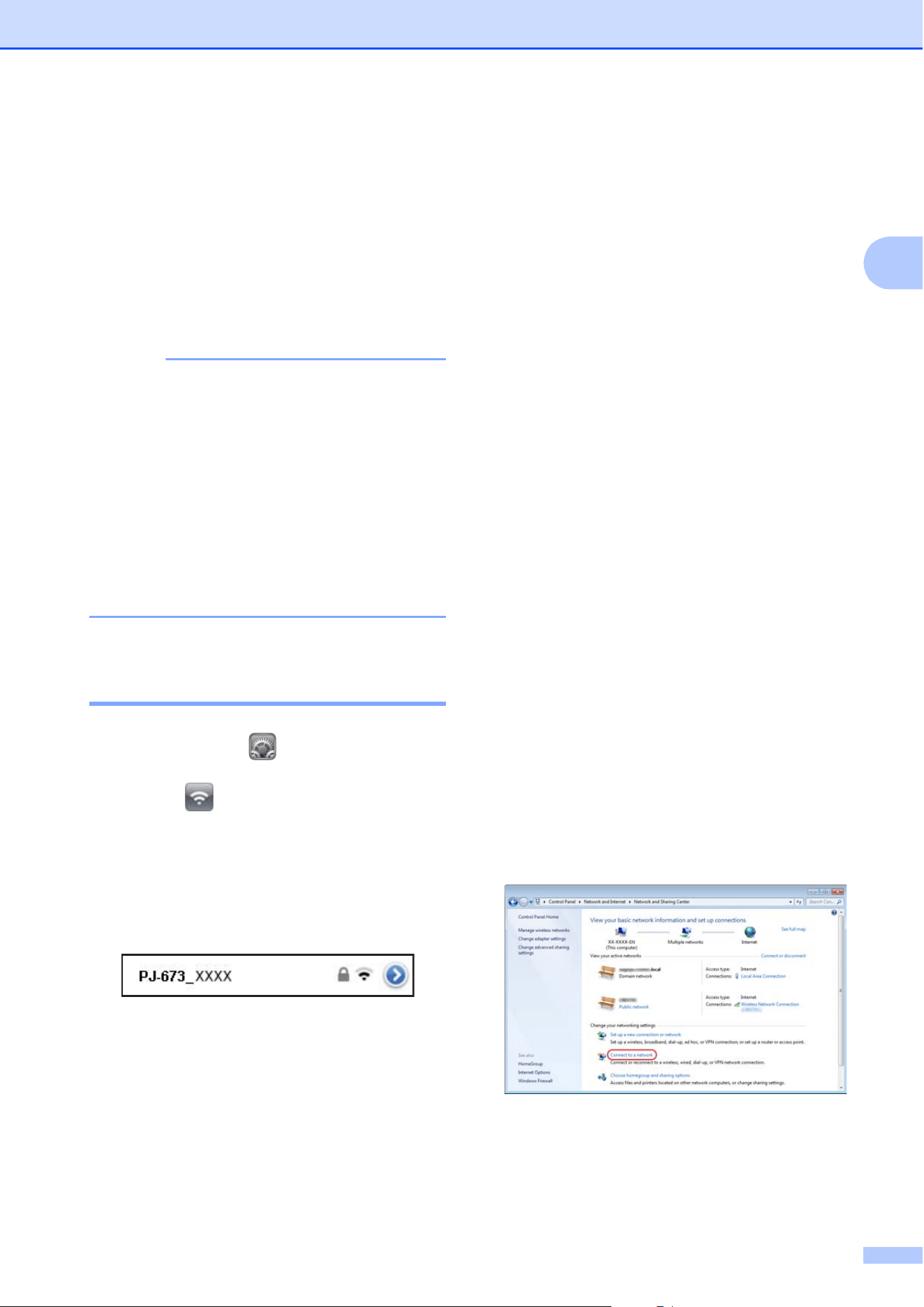
Switching Between Wireless LAN Mode and USB Mode 2
Following the procedure below to switch the connection interface between wireless LAN and USB.
1 Turn on the printer, and then hold down the (Power) button for at least 3 seconds.
2 Check that the WIRELESS LAN indicator switches either from lit to blinking or from blinking to
lit, and then release the (Power) button.
NOTE
• If the printer cannot be switched to wireless LAN mode or USB mode after holding down the
button for at least 3 seconds, wait a while, and then try again.
• Default, the printer is in USB mode.
• If the printer was started up in wireless LAN mode, it will take a maximum of about 15 seconds
for wireless LAN to become functional after the printer is turned on.
• If the printer was switched to wireless LAN mode while it is starting up in USB mode, it will take
a maximum of about 15 seconds for wireless LAN to become functional.
• As with turning on the printer in wireless LAN mode, it will take a maximum of about 15 seconds
to become functional, even if the printer was started up in USB mode, then immediately
switched to wireless LAN mode.
Using the Printer
31
2
Connecting the iOS
Device to a Separate
Wireless Network Than
the One Connected to
the Printer
2
NOTE
• While connected to this printer in ad-hoc
mode, the device cannot connect to the
Internet.
• When an iOS device in ad-hoc mode
enters sleep mode, the connection
between the printer and iOS device will be
lost.
• Follow the procedure below to manually
return the ad-hoc wireless connection
setting to the infrastructure mode.
Changing the iOS Device’s
Settings 2
a Start Settings on the iOS device.
b Select .
c A list of Wi-Fi networks (SSID) that can
be joined appears.
Select the SSID normally used for the
network connection (infrastructure
mode).
Connecting a
Windows
®
Computer
to a Separate Wireless
Network Than the One
Connected to the
Printer
2
(As examples, screens from Windows
®
7 are
used in the following procedures.)
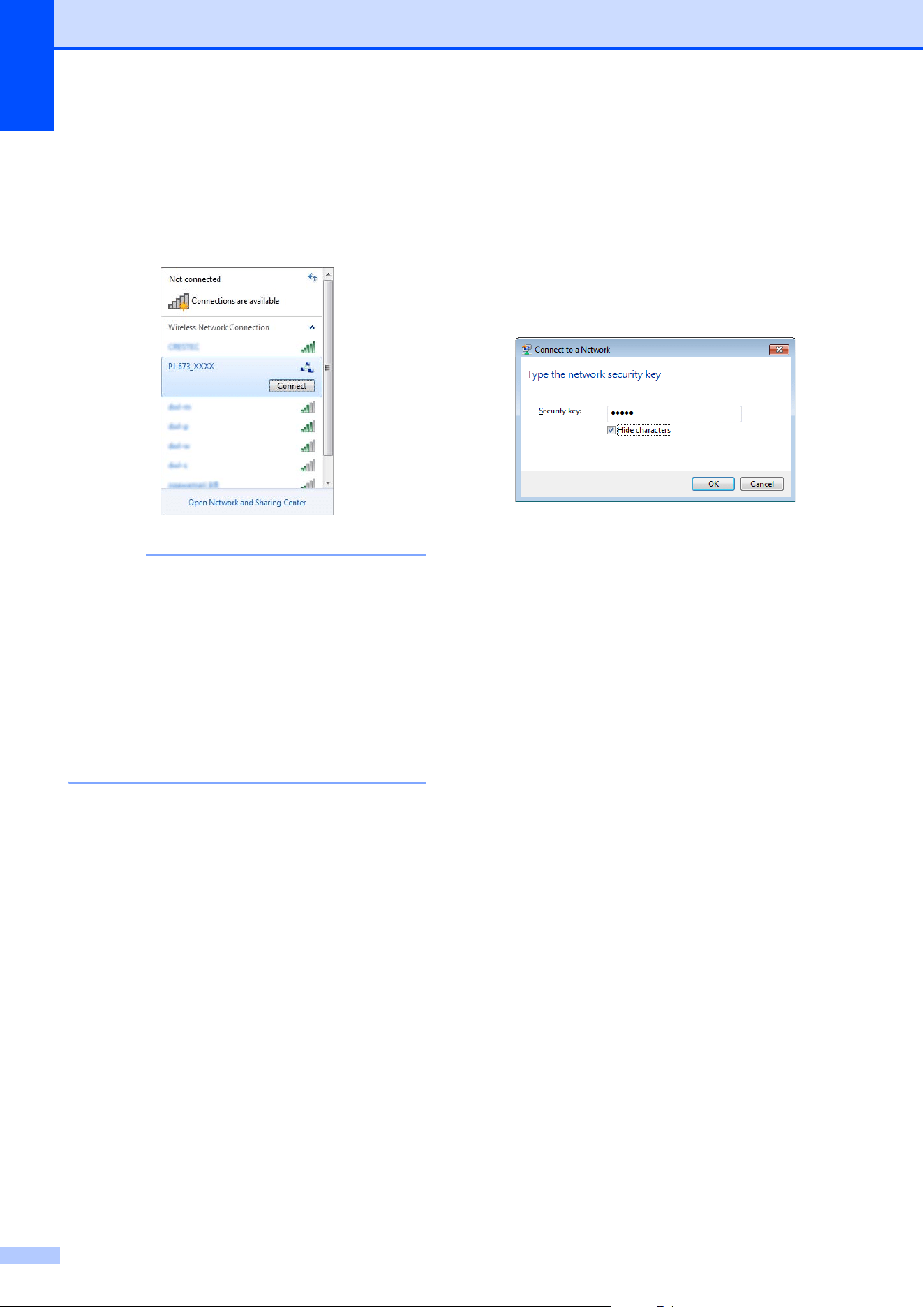
a Windows
®
8:
Click [Control Panel] in [Apps] screen -
[Network and Internet].
Click [Network and Sharing Center].
Click [Connect the Network].
Windows
®
7:
From the [Start] menu, click [Control
Panel]-[Network and Internet].
Click [Network and Sharing Center].
Click [Connect the Network].
Windows Vista
®
:
From the [Start] menu, click [Connect
to].
Windows
®
XP:
From the [Start] menu, click [Control
Panel]-[Network connection].
Right-click [Wireless Network
Connection], and then click [View
Available Wireless Networks].
Chapter 2
32
b To establish a connection, from the list
of currently available SSIDs that
appears, select the usual SSID for the
network connection (infrastructure
mode).
NOTE
If the list does not appear, contact the
manufacturer of your wireless LAN card. If
you are using a computer with wireless
LAN built in, contact the manufacturer of
your computer.
If the usual network (SSID) does not
appear in the list, contact your network
administrator or the provider of your
wireless LAN service.
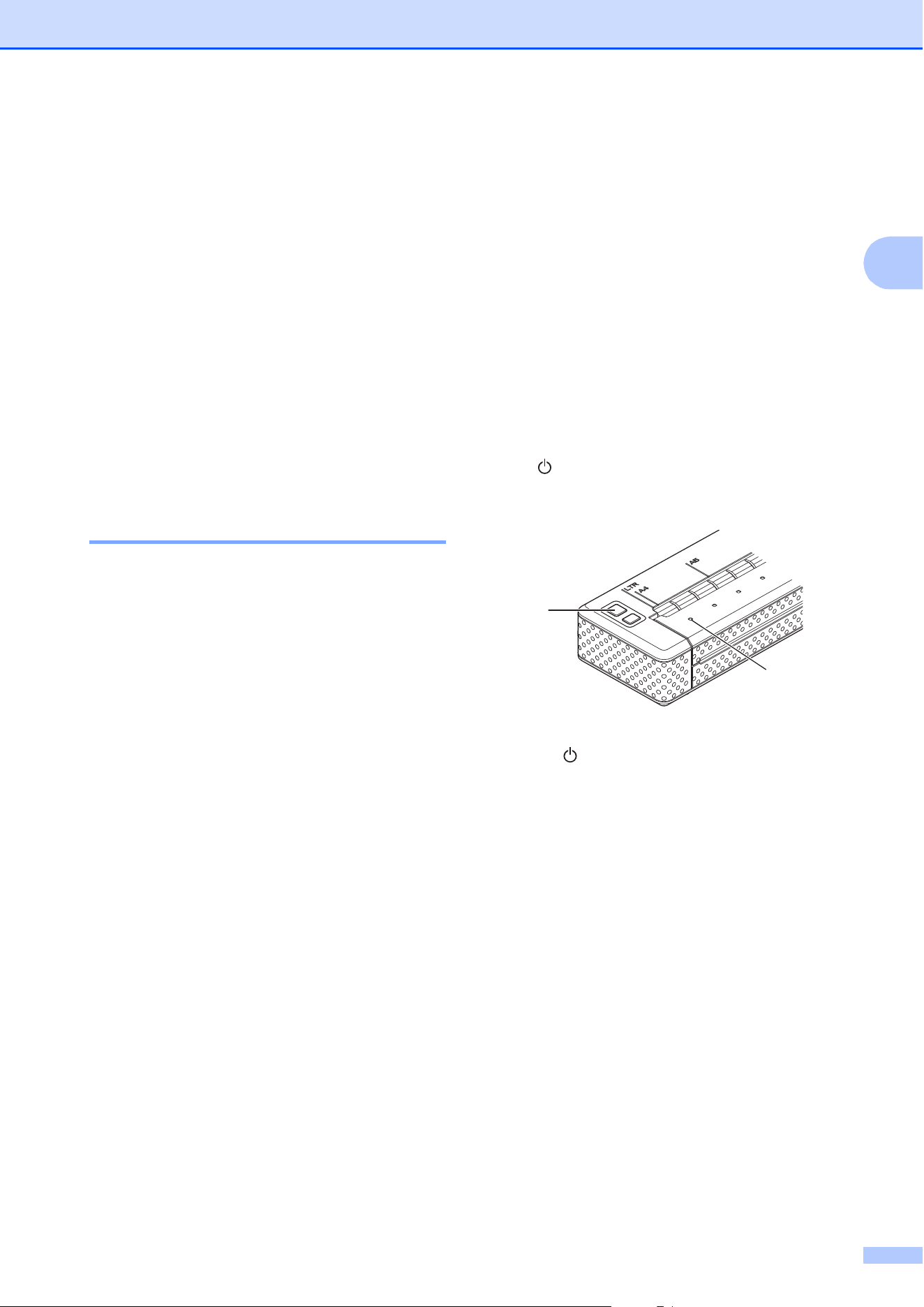
c Windows
®
8 / Windows
®
7:
To re-establish the connection, type in
the security key according to the
security settings specified for the
wireless LAN network that is normally
used.
With a WEP connection, the WEP key is
the security key.
Windows Vista
®
:
To re-establish the connection, type in
the security key or passphrase
according to the security settings
specified for the wireless LAN network
that is normally used. With a WEP
connection, the WEP key is the security
key or passphrase.
Windows
®
XP:
To re-establish the connection, type in
the network key according to the
security settings specified for the
wireless LAN network that is normally
used.
With a WEP connection, the WEP key is
the network key.
Using the Printer
33
2
Printing Solutions 2
Your printer can be used with several
versions of Windows
®
and iOS.
When printing from a computer running
Windows
®
, the printer driver for this printer is
required.
When printing from an iOS device, printing
software created by a software developer will
be needed in addition to the product and
services that we provide. (We provide an
SDK that can be used.) Consult with a
software developer about printing software
for the iOS device.
Updating the Software 2
We recommend that you visit the web site to
make sure that you have the latest version of
the drivers.
The latest versions can be downloaded from
the Brother Solutions Center website
(http://solutions.brother.com/). We
recommend that you visit the website to make
sure that you have the latest version of the
drivers.
A software development kit (SDK) is
available.
Visit the Brother Developer Center
(http://www.brother.com/product/dev/index.h
tm).
Printing 2
For typical printing, use the following
procedure.
a Open the document on the computer to
be printed.
b Make sure that the printer is properly
powered. Use a charged battery, or
connect the printer to an AC or DC
power outlet.
c Turn the printer on by pressing the
(Power) button. The POWER
indicator lights.
1 (Power) button
2 POWER indicator
d Connect the printer to a computer, using
either USB or Wireless LAN. For details,
see Connecting the Printer and iOS
Device on page 11 or Connecting the
Printer and a Windows
®
Computer
on page 15.
e Load the paper. Use both hands to hold
the paper straight, and then gently insert
the paper into the printer’s input slot until
the roller pulls it into the starting
position. Use genuine Brother paper.
2
1
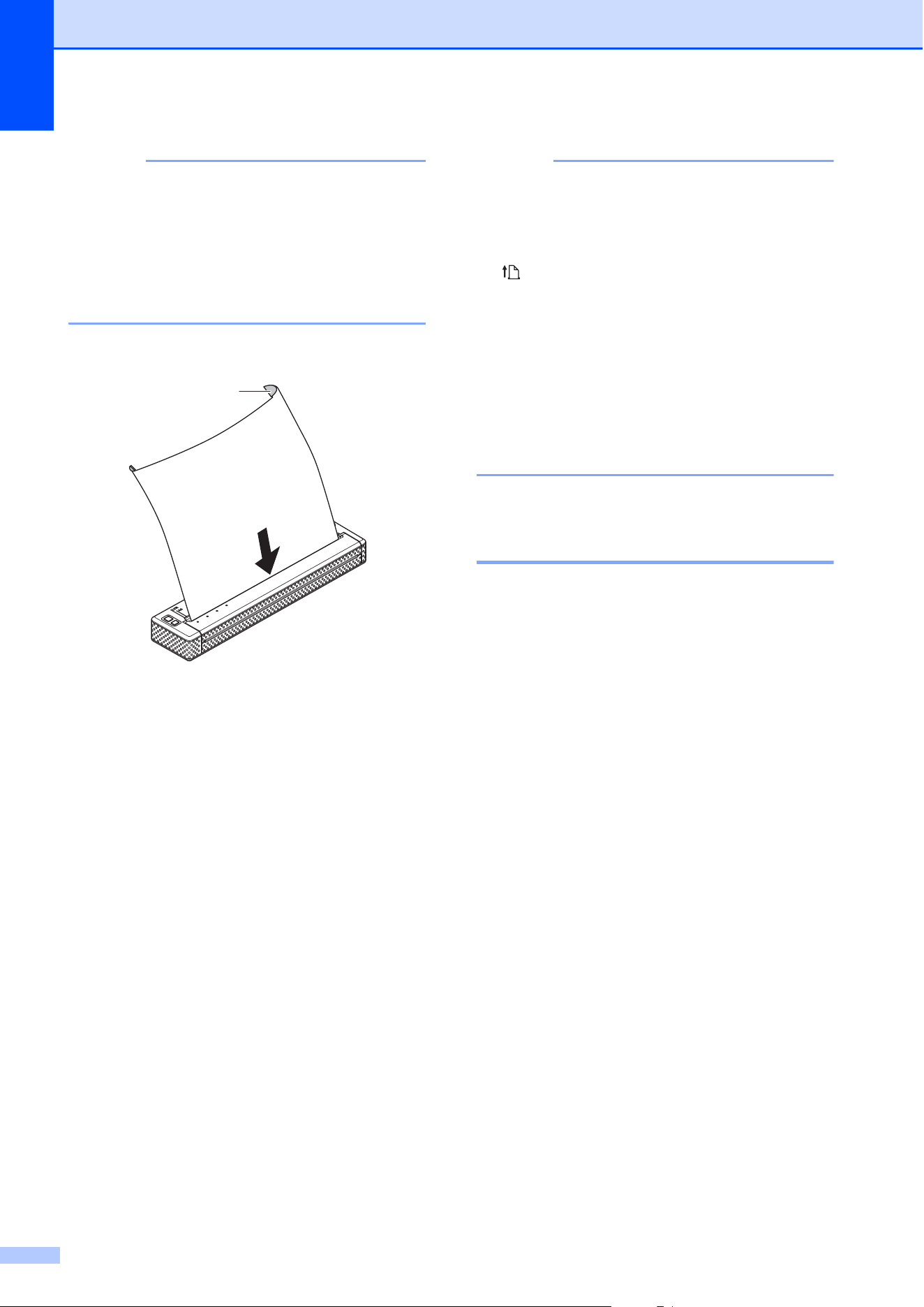
Chapter 2
34
NOTE
• Make sure that the bottom edge of the
paper is parallel with the roller.
• Only one side of the paper can be printed
on. Check the paper, and load it so that
the smooth, coated side faces down (see
Tips on Using Paper on page 39).
1 Print surface
f If necessary, change the print settings
using either the printer driver (see
Setting Printer Driver Options
on page 35) or PJ-673 Utility (see
Brother PJ-673 Utility on page 40).
g Print from each application.
The DATA indicator blinks in green to
indicate that the printer is receiving data,
and the document is printed.
NOTE
• If paper is loaded and the DATA indicator
remains green without blinking, the printer
has not received enough data to print an
entire page. Press and hold the
(Feed) button to print and eject the
page.
• The paper can be loaded after the print job
has been sent. If the paper is skewed after
the printer pulls it into the starting position,
open the release cover completely,
remove the paper, and then close the
cover and load the paper again (see
Clearing a Paper Jam on page 39).
Making Prints Lighter or
Darker 2
You can make prints lighter or darker by
adjusting the print density setting in the
printer driver’s dialog box (see Setting Printer
Driver Options on page 35) or PJ-673 Utility
(see Print Density on page 48).
When using the battery, changing the print
density setting may result in slight changes in
printing speed and the number of pages that
can be printed on a single charge.
1

Using the Printer
35
2
Setting Printer Driver
Options
2
When printing from a computer program,
various printing options can be selected using
the printer driver.
Paper Type 2
Available settings: [Cut Sheet], [Roll],
[Perforated Roll], [Perforated Roll Retract]
Default setting: [Cut Sheet]
Set this option to match the type of paper that
is loaded.
Density 2
Available settings: [0]-[10], [Printer
Setting]
1
Default setting: [6]
1
This option controls the print density, which
affects the darkness of the printed document.
A lower value produces lighter print; a higher
value produces darker print.
1
[Printer Setting] is the default setting ([6]) or the
setting specified in the Brother PJ-673 Utility.
Darker print uses more battery power, but
may be easier to read if the font or the
document contains many narrow lines. If
battery life is important, select a lower value.
2-ply Mode 2
Available settings: [Thermal Paper],
[Thermal Copy Paper]
Default setting: [Thermal Paper]
This option is used when 2-ply paper is
loaded. When [Thermal Copy Paper] is
selected, the printer produces prints that are
darker (and print slower) than when [Density]
is set to 10.
Page Feed Mode 2
Available settings: [No Feed], [Fixed Page],
[End of Page], [End of Page Retract]
Default setting: [Fixed Page]
This option determines how paper is ejected;
and controls how the printer responds to form
feed commands.
No Feed - Paper is not fed at the end of a
job. Because additional paper is not
ejected when at the end of the document,
this setting is useful when using
non-perforated roll paper.
Fixed Page - Paper is fed at the end of a
job to suit the vertical length of the
selected page size (i.e., letter, legal, A4, or
user-defined size). Select this setting
when using cut sheet paper.
End of Page - Paper is fed until the printer
detects that no paper remains in the input
slot, or until 14" (355.6 mm) of paper has
been fed. Select this setting when using
perforated paper.
End of Page Retract - Paper is fed until
the paper sensor detects a pre-printed
end-of-page mark on the paper or the end
of the sheet. When this setting is selected,
set [Paper Type] to [Perforated Roll
Retract].

Chapter 2
36
No Feed Mode Extra Feed 2
Available settings: [None], [1/2 inch (12.7
mm)], [1 inch (25.4 mm)], [1-1/2 inches
(38.1 mm)], [2 inches (50.8 mm)]
Default setting: [1 inch (25.4 mm)]
This option is used when [Page Feed Mode]
is set to [No Feed]. Paper is ejected after the
last page of the document according to the
setting.
NOTE
This option only affects the last page of a
document. The bottom margin specified
by the computer program has no effect,
and the top margin determines the total
top and bottom margin between pages of
a multi-page document.
Roll Paper Pause 2
Available settings: [Disable], [Enable]
Default setting: [Disable]
This option is used to display a confirmation
message for each page when printing on roll
paper.
Dash Line Print 2
Available settings: [Disable], [Enable]
Default setting: [Disable]
This option is used to print perforation lines
between pages, useful when printing on roll
paper. When [Enable] is selected, set [Page
Feed Mode] to [Fixed Page]. Note that
perforation lines are printed on the paper;
they are not punched into the paper.
Automatically Switch
Command Mode 2
Available settings: [Disable], [Enable]
Default setting: [Enable]
Select whether or not the mode switching
command is automatically sent when the
commands are switched while using the
printer.
Feed Position for Custom
Paper 2
Available settings: [Center], [Left]
Default setting: [Center]
Select the paper feed position for printing on
custom paper.

Using the Printer
37
2
Setting Paper Size 2
To use a pre-defined paper size (letter, legal,
A4, etc.), select the desired paper size in the
page Setup dialog box.
If the desired paper size has not been
defined, use the following procedure to add
and configure the desired paper size.
Windows
®
8 / Windows
®
7
a For Windows
®
8 users: click
[Control Panel] in [Apps] screen -
[Hardware and Sound] - [Devices
and Printers].
For Windows
®
7 users: click [Start] -
[Devices and Printers].
b Select [Brother PJ-673], and then
click [Print server properties].
c Click the [Forms] tab, and then click
[Change Form Settings]. If the
[User Account Control] dialog box
is displayed, enter the password and
click [Yes].
d Configure the desired paper size,
etc., and add the paper size.
Windows Vista
®
a Open [Control Panel] - [Hardware
and Sound] - [Printers].
b Make sure no items are selected,
and then right-click in the [Printers]
window and select [Run as
administrator] - [Server
Properties...]. If the authorization
confirmation dialog box is displayed,
click [Continue]. If the [User
Account Control] dialog box is
displayed, enter the password and
click [OK].
c Click the [Forms] tab, configure the
desired paper size, etc., and then
add the paper size.
Windows
®
XP
a Open [Control Panel] - [Printers
and Other Hardware] - [Printers
and Faxes].
b Make sure no items are selected,
and then right-click in the [Printers
and Faxes] window and select
[Server Properties]. The [Server
Properties] window is displayed.
c Click the [Forms] tab, configure the
desired paper size, etc., and then
add the paper size.
NOTE
If a paper size is specified with the same
size as a pre-defined one (Letter, Legal,
A4, etc.), the standard settings will be
given priority and the new paper size
cannot be used.

Chapter 2
38
Selecting Paper Type 2
Paper type can be set to [Cut Sheet], [Roll],
[Perforated Roll] or [Perforated Roll
Retract].
Cut Sheet Paper 2
When using cut sheet paper, configure the
printer driver as described below.
a Select the appropriate paper size
(Letter, A4, or Legal).
b Set [Paper Type] to [Cut Sheet].
c Set [Page Feed Mode] to [Fixed Page].
Non-Perforated Roll Paper 2
When using non-perforated roll paper,
configure the printer driver as described
below, depending on the desired length of
each page.
Variable-Length Pages (Saves Paper) 2
In this case, the paper size that is selected
determines the maximum number of lines per
page.
a Select the appropriate paper size.
Letter, A4, or Legal
b Set [Paper Type] to [Roll].
c Set [Page Feed Mode] to [No Feed].
d Set [No Feed Mode Extra Feed] to the
desired setting. Paper is ejected after
the last page of the document according
to the settings.
NOTE
When using roll paper, the end of printing
will be slightly fed out to adjust for the
roller, even if [Page Feed Mode] is set to
[No Feed] and [No Feed Mode Extra
Feed] is set to [None].
Infinite Length Pages (Such as for
Geological Recordings or Polygraph
Charts)
2
a Set the paper size to [Infinite].
b Set [Paper Type] to [Roll].
c Set [Page Feed Mode] to [No Feed].
d Set the desired setting to [No Feed
Mode Extra Feed]. Paper is ejected
after the last page of the document
according to the setting.
e Confirm that the top and bottom margins
specified within the computer program
are set to zero (0).
Perforated Roll Paper 2
When using perforated roll paper, configure
the printer driver as described below.
a Select the appropriate paper size.
Letter, A4, or Legal
b Set [Paper Type] to [Perforated Roll]
or [Perforated Roll Retract].
c Set [Page Feed Mode] to [End of Page]
or [End of Page Retract].
When [Perforated Roll] is selected,
paper is not fed between pages, and the
printable area for any paper size
(including custom sizes) is reduced.
When [Perforated Roll Retract] is
selected, paper is fed between pages,
and the printable area is the same as
when using cut sheet paper.
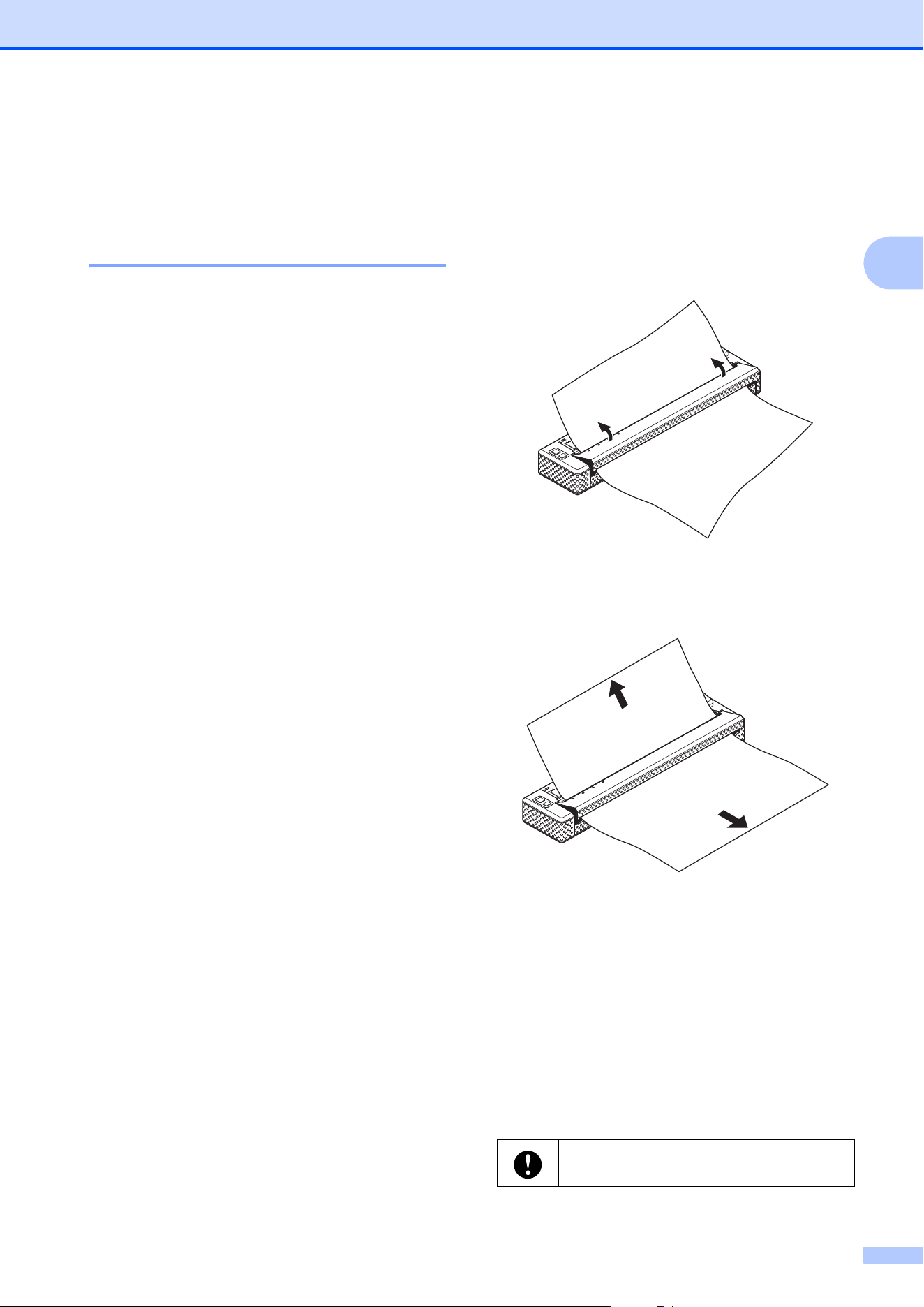
Using the Printer
39
2
Tips on Using Paper 2
Using Genuine Brother
Thermal Paper 2
Thermal paper eliminates the need for toner,
ribbon or ink. Genuine Brother thermal paper
is fully compatible with this printer and the
PocketJet printer series. We recommend
using genuine Brother thermal paper. Using
non-genuine paper may adversely affect the
printer, such as reducing the print quality or
damaging the printer. The warranty does not
cover damage resulting from the use of non-
genuine parts, even if it occurs within the
warranty period or during the period of a
service agreement. (This does not imply that
all non-genuine parts will cause a
malfunction.)
Usage and Handling Instructions 2
Only one side of the paper can be printed
on. When loading paper, make sure that
the smooth, coated side faces the back of
the printer.
To avoid wrinkling and tearing, keep paper
in its box or bag until ready to use.
Do not fold, crease, or wrinkle paper prior
to loading it.
When storing paper, avoid high
temperatures and humidity.
Avoid prolonged exposure to intense
ultraviolet light.
Avoid contact with Diazo (blueprint),
carbon-less, or cast-coated papers.
Avoid contact with vinyl or acetate
materials, such as many notebook or
report covers.
Avoid contact with organic solvents, oils,
and ammonia.
When using a colored marker, be sure to
use one with a water-based ink. If you use
a solvent-based marker, it may darken the
paper.
Clearing a Paper Jam 2
If paper becomes jammed, remove the paper
according to the following procedure.
a Gently open the release cover
completely.
b Gently pull the paper out of the printer in
either direction.
c Close the release cover.
d Insert a new sheet of paper and print
again.
Cutting Roll Paper 2
Roll paper can be cut using the printer’s tear
bar. Pull one edge of the ejected paper up
and toward the other edge diagonally.
The tear bar is sharp. To avoid injury, do
not touch the tear bar.
40
3
Overview 3
Brother PJ-673 Utility (hereafter referred to
as “PJ-673 Utility”) is computer program that
allows you to change the printer's default
settings.
Installing Brother
PJ-673 Utility
3
If Brother PJ-673 Utility has not been
installed, follow the procedure below to install
it.
a Download the software from the
CD-ROM if it is included or from the
Brother Solutions Center website
(http://solutions.brother.com/) if the
CD-ROM is not included.
b Refer to Printing From a Computer
Running Windows
®
Via a USB
Connection on page 25 to install the
PJ-673 printer driver.
The Brother PJ-673 Utility will be
installed together with the printer driver.
Brother PJ-673 Utility 3
Use PJ-673 Utility to configure the
printer only when the printer is idle. The
printer may malfunction if you attempt to
configure it while it is handling a job.

Brother PJ-673 Utility
41
3
Uninstalling PJ-673
Utility
3
Perform this procedure only when printing
from this printer (PJ-673) is no longer
necessary or when re-installing this printer’s
printer driver.
NOTE
When the printer driver is uninstalled,
PJ-673 Utility can no longer be used.
a Windows
®
8:
Click [Control Panel] in [Apps] screen -
[Programs] - [Programs and
Features]. The [Uninstall or change a
program] window appears.
Windows
®
7 / Windows Vista
®
:
[Start] - [Control Panel] - [Programs] -
[Programs and Features].
The [Uninstall or change a program]
window appears.
Windows
®
XP:
[Start] - [Control Panel] - [Add or
Remove Programs]. The [Add or
Remove Programs] window appears.
b Windows
®
8 / Windows
®
7 / Windows
Vista
®
:
Select [Brother PJ-673 Utility], and
then click [Uninstall].
Windows
®
XP:
Select [Brother PJ-673 Utility], and
then click [Remove].
c Click [Yes] or [Allow]. When the [User
Account Control] dialog box appears,
click [Allow]. If a password is requested,
type in the password, and then click
[Yes]. The uninstall operation begins.
d Close the [Programs and Features]
window (Windows
®
8 / Windows
®
7 /
Windows Vista
®
) / [Add or Remove
Programs] window (Windows
®
XP).
PJ-673 Utility has been uninstalled.
NOTE
The printer driver will not be uninstalled
when PJ-673 Utility is uninstalled.
Uninstall each separately.
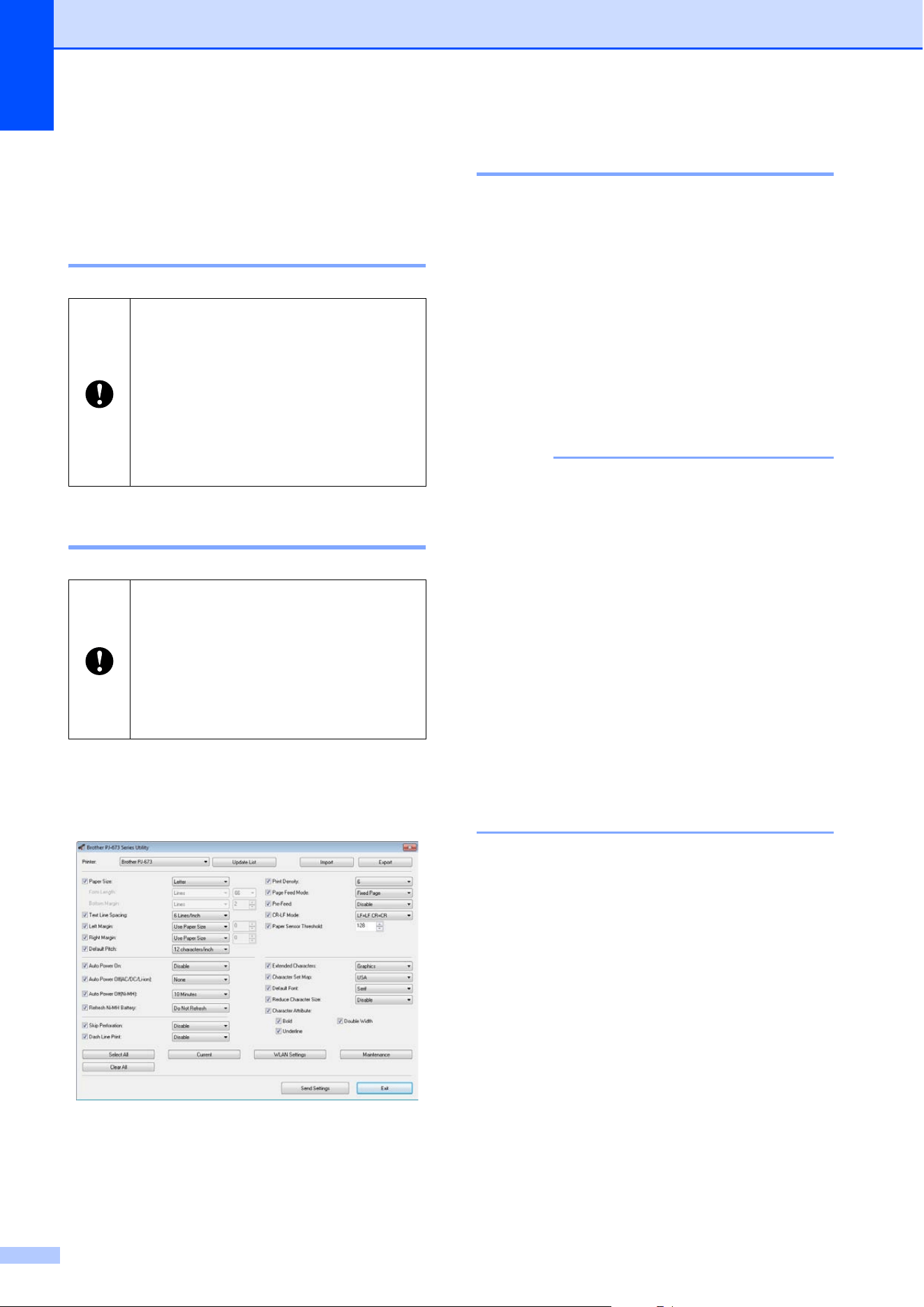
Chapter 3
42
Using PJ-673 Utility 3
Before Using PJ-673 Series
Utility 3
Starting PJ-673 Utility 3
To start PJ-673 Utility, click [Start] - [All
Programs] - [Brother PocketJet] - [Brother
PJ-673 Utility].
How to Use PJ-673 Utility 3
a In the main window of the PJ-673 Utility,
select the check boxes of the
parameters with settings that can be
changed.
b Select the desired settings from the
drop-down menus or enter the desired
values.
c Click [Send Settings] to save the
settings in the printer.
NOTE
Some parameters can be adjusted using
both the printer driver's dialog box and
PJ-673 Utility. For the following
parameters, the setting specified in the
printer driver’s dialog box has priority.
[Paper Size]
[Density] ([Print Density])
[Page Feed Mode]
[Dash Line Print]
Settings that are specified using the
printer driver are used during printing and
are saved until the printer is turned off.
When the printer is turned on again, the
settings specified using PJ-673 Utility are
used as the default settings.
With the AC adapter, connect the
printer to an AC power outlet.
Make sure that the printer driver has
been installed and is functional.
With the USB cable, connect the
printer to the computer running
Windows
®
, turn on the printer, and
then enter USB mode.
In order to transfer utility settings to
the printer, a computer running
Windows
®
and a USB cable are
required.
PJ-673 Utility can only be used via a
USB connection. It cannot be used
via a wireless LAN connection.
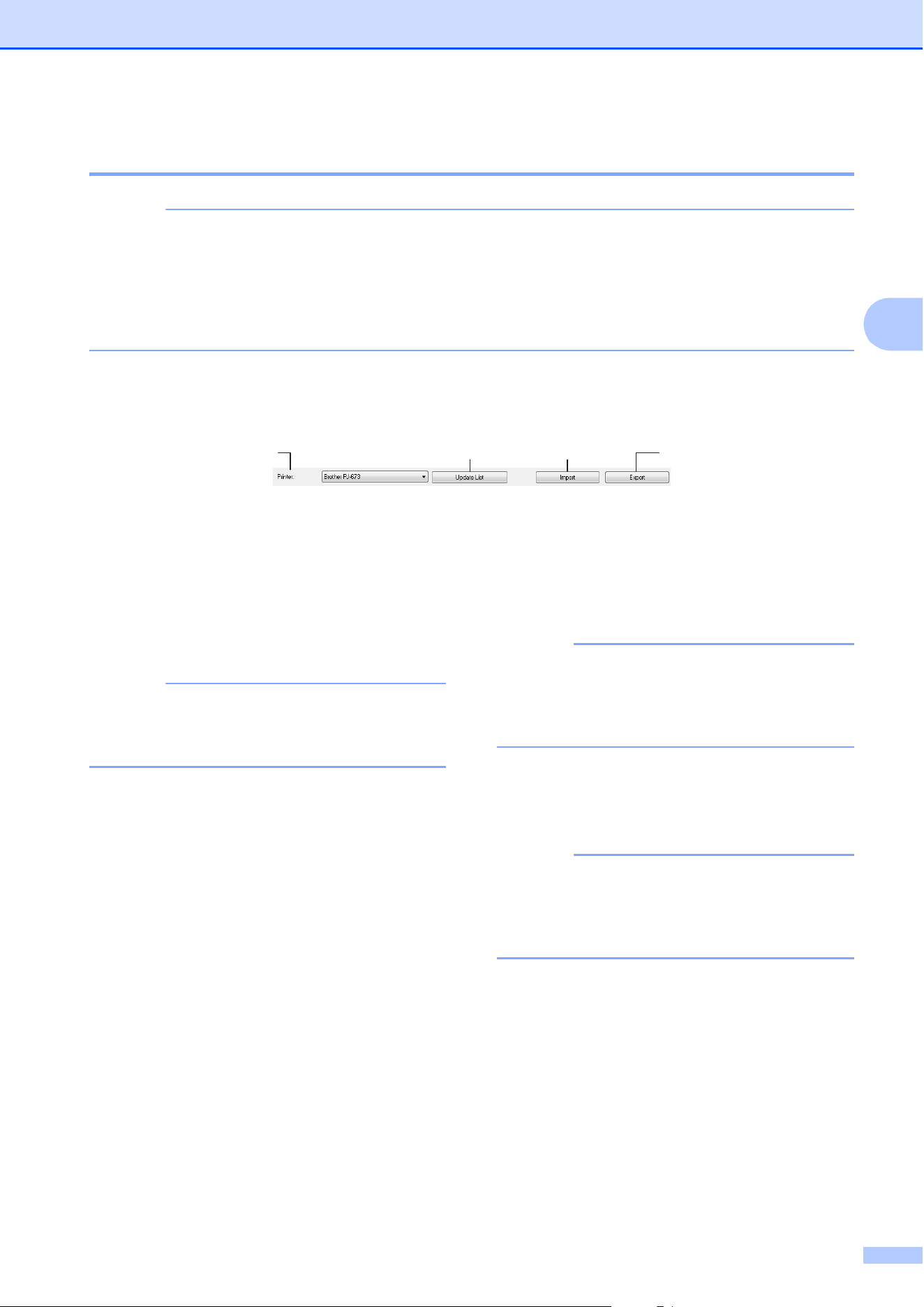
Brother PJ-673 Utility
43
3
Parameters 3
NOTE
• Most users will not need to change these settings of PJ-673 Utility; generally they are relevant
only when printing simple text data from a computer that does not have this printer's driver
installed.
• The parameters which are common to all operating systems include Auto Power On, Auto
Power Off and Pre-feed.
Changing Parameter Settings 3
1Printer
Displays a list of the compatible printers that
are connected to the computer. When using
PJ-673 Utility to change printer settings, the
settings of the printer selected in this list will be
changed.
NOTE
Only printers for the USB ports appear in the
Printer list. Printers for network ports will not be
listed.
2 Update List
Refreshes the printer list. If a printer is
connected to the computer or is turned on
while PJ-673 Utility is running, click this button
to refresh the list and select the desired printer.
The added priter appears beside [Printer] and
can be selected.
3Import
Loads a configuration file created with PJ-673
Utility that was saved previously using the
export feature.
NOTE
If the Import command is used to load a
configuration file saved using the Export
command, the settings selected when the file
was saved will appear in the window.
4Export
Saves the current settings as a configuration
file.
NOTE
Wireless LAN settings specified with [WLAN
Settings], such as [SSID(Network Name)]
and [WEP Key], will not be saved in the
configuration file.
14
23
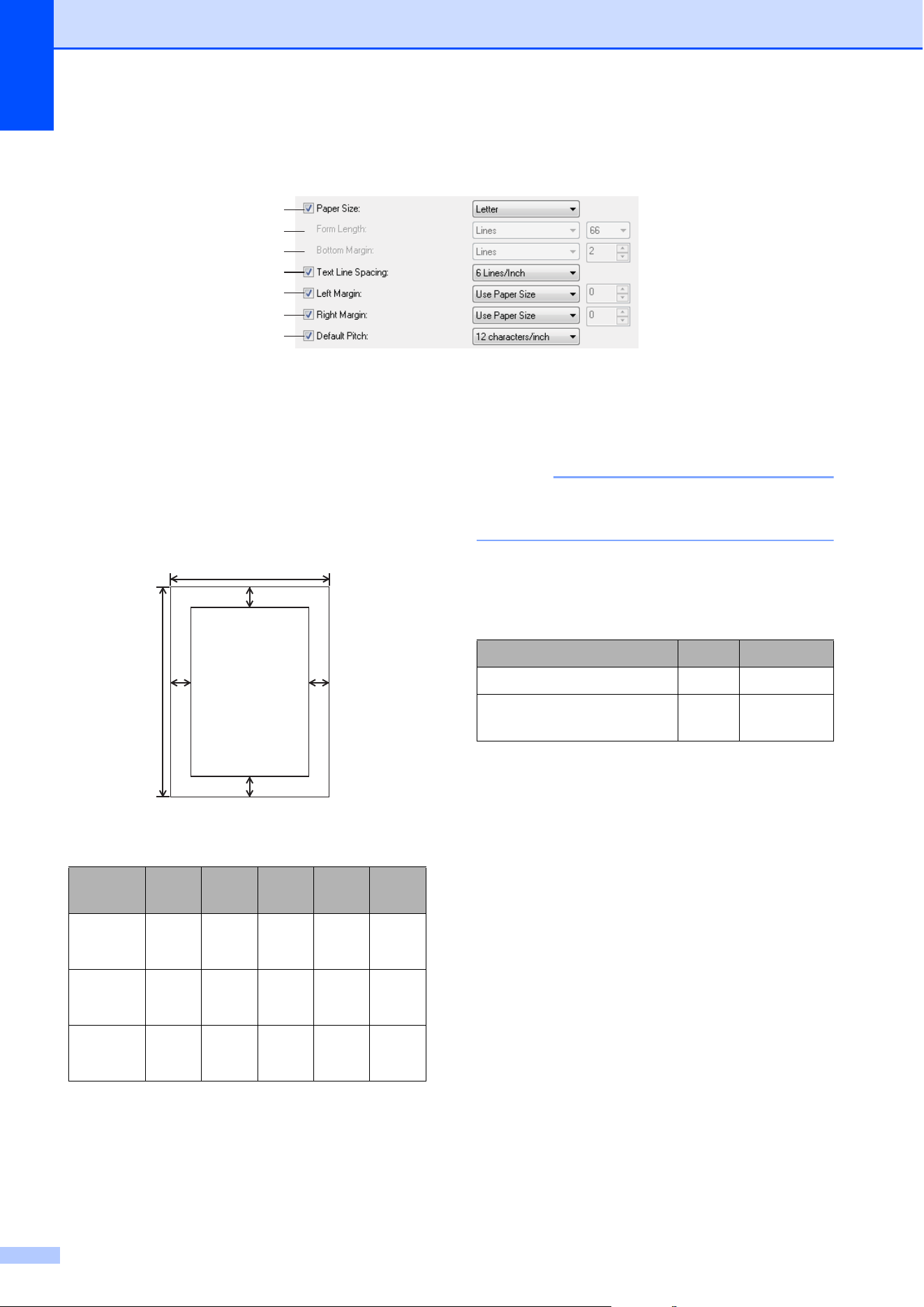
Chapter 3
44
Defining Paper Size 3
1 Paper Size
Available settings: [Letter], [A4], [Legal],
[Custom]
Default setting: [Letter]
This parameter determines the default paper
size. For standard paper sizes, this parameter
also determines the default margins and the
length for each printed page, as shown below.
(All measurements are in inches (mm))
When [Custom] is selected, the following
parameters determine the page specifications.
[Form Length]
[Bottom Margin]
[Left Margin]
[Right Margin]
NOTE
If this parameter is changed in the printer
driver’s dialog box, that setting has priority.
2 Form Length
The available settings differ depending on the
selected [Text Line Spacing] settings.
Default setting: [Lines] (6)
This parameter can be set only when [Paper
Size] is set to [Custom].
Form length is determined by specifying the
number of lines per page, or the length in
inches of each page.
Lines - Form length (i.e. the height of the
page) is determined by the number of text
lines per page (specified here), and the
height of each line (specified for [Text Line
Spacing]).
Inches - Form length is specified in inches.
If you switch between [Lines] and [Inches],
PJ-673 Utility automatically recalculates the
settings.
2
3
4
5
6
1
7
Paper
Size
A B C D E
Letter 11
(279)
8-1/2
(216)
0.10
(2.5)
0.23
(5.8)
0.17
(4.3)
A4 11.69
(297)
8.27
(210)
0.10
(2.5)
0.59
(15)
0.13
(3.3)
Legal 14
(356)
8-1/2
(216)
0.10
(2.5)
0.23
(5.8)
0.17
(4.3)
B
C
D
A
EE
Text Line Spacing Lines Inches
[6 Lines/Inch] 6-127 1.00-21.16
[8 Lines/Inch (0.125")] or
[8 Lines/Inch (0.12")]
8-127 1.00-15.87

Brother PJ-673 Utility
45
3
3Bottom Margin
The available settings differ depending on the
selected [Text Line Spacing] setting.
Default setting: [Lines] (3)
The setting specified for this parameter takes
effect only when [Paper Size] is set to
[Custom].
The height of the bottom margin is expressed
in lines of text. For example, if [Bottom
Margin] is set to 6 lines, and if [Text Line
Spacing] is set to 6 lines per inch, the actual
height of the bottom margin is 1 inch
(25.4 mm).
Note that the minimum height of the bottom
margin must be at least 0.5 inches (12.7 mm).
For example, if [Text Line Spacing] is set to 6
lines per inch, [Bottom Margin] must be set to
at least 3 lines.
The maximum setting is the number of lines
determined by the [Form Length] setting – 1.
4 Text Line Spacing
Available settings: [6 Lines/Inch], [8
Lines/Inch (0.125")], [8 Lines/Inch (0.12")]
Default setting: [6 Lines/Inch]
This parameter determines the height of each
line of text. When [Extended Characters] is
set to [Graphics] in order to print graphic
characters, we recommend selecting [8
Lines/Inch (0.12")] because graphic
characters are 0.12 inches (3.1 mm) tall.
5Left Margin
Available settings: [Use Paper Size],
[Columns] (number of columns can be
specified)
Default setting: [Use Paper Size]
Use Paper Size - The default margins
determined by the paper size setting are
used, providing for 8 inches (203.2 mm) of
available print width.
Columns - The left margin equals the
number of columns (specified here)
multiplied by the width of the number of
columns specified. The width of each
column is determined by the [Default
Pitch] setting. For example, if [Left Margin]
is set to 12, and [Default Pitch] is set to [12
characters/inch], the actual width of the
left margin is 1 inch (25.4 mm). Note that if
[Default Pitch] is set to [Proportional], 10
characters/inch is used for this calculation.
The maximum width of the left margin is 4.5
inches (114.3 mm).
6 Right Margin
A
vailable settings: [Use Paper Size],
[Columns] (number of columns can be
specified)
Default setting: [Use Paper Size]
Use Paper Size - The default margins
determined by the paper size setting are
used, providing for 8 inches (203.2 mm) of
available print width.
Columns - The right margin equals the
number of columns (specified here)
multiplied by the width of the number of
columns specified. The width of each
column is determined by the [Default
Pitch] setting. For example, if [Right
Margin] is set to 12, and [Default Pitch] is
set to [12 characters/inch], the actual
width of the left margin is 1 inch (25.4 mm).
Note that if [Default Pitch] is set to
[Proportional], 10 characters/inch is used
for this calculation.
The maximum width of the right margin is a
setting that results in 0.2 inches (5.08 mm) of
printable page width (the space between the
left and right margins).
7 Default Pitch
Available settings: [10 characters/inch], [12
characters/inch], [15 characters/inch],
[Proportional]
Default setting: [12 characters/inch]
This parameter determines character width.
When 10, 12, or 15 characters/inch is selected,
each character is the same width. For
example, the letters “w” and “i” will be the same
width. When [Proportional] is selected,
character width varies by character. For
example, the letter “w” will be wider than the
letter “i”. Note that the setting selected here
affects the width of the left and right margins.
Text Line Spacing Lines
[6 Lines/Inch]3-126
[8 Lines/Inch (0.125")] or [8
Lines/Inch (0.12")]
4-126

Chapter 3
46
Defining Power and Roll Paper Options 3
1 Auto Power On
Available settings: [Disable], [Enable],
[Enable (No Main Button)]
Default setting: [Disable]
This parameter determines how the printer
responds when it is connected to an AC or DC
power outlet.
Disable - The printer enters sleep mode,
using minimal power. To turn on the printer,
press the (Power) button.
Enable - The printer turns on automatically.
This is useful in situations where the
(Power) button is difficult to access.
Enable (No Main Button)
- The printer
turns on automatically. The
(Power) button cannot be used to turn off
the printer. This is useful in situations
where the button could be accidentally
pressed. To turn off the printer, disconnect
the printer from the AC or DC power outlet.
2 Auto Power Off(AC/DC/Li-ion)
Available settings: [None], [10 Minutes], [20
Minutes], [30 Minutes], [40 Minutes], [50
Minutes], [60 Minutes]
Default setting: [None]
This parameter determines how much time
passes before the printer turns off
automatically to conserve power when it is
being powered by AC power, DC power, or a
rechargeable Li-ion battery. If no data is
received for the specified amount of time, the
printer turns off.
3 Auto Power Off(Ni-MH)
Available settings: [None], [10 Minutes], [20
Minutes], [30 Minutes], [40 Minutes], [50
Minutes], [60 Minutes]
Default setting: [10 Minutes]
This parameter determines how much time
passes before the printer turns off
automatically to conserve power when it is
being powered by the rechargeable Ni-MH
battery. If no data is received for the specified
amount of time, the printer turns off.
If the printer is connected to an AC or DC
power outlet while a rechargeable Ni-MH
battery is installed, the setting selected for
[Auto Power Off(AC/DC/Li-ion)] has priority
over this parameter.
4 Refresh Ni-MH Battery
Available settings: [Do Not Refresh], [Each
Time], [Every 5 Times], [Every 10 Times]
Default setting: [Do Not Refresh]
This parameter determines how frequently the
Ni-MH battery is refreshed. For example, if
[Every 5 Times] is selected, the rechargeable
Ni-MH battery is refreshed one time for every
five times the battery is charged.
For details on the refresh and charge
operations for the rechargeable Ni-MH battery,
see Charging the Rechargeable Ni-MH Battery
on page 4.
5 Skip Perforation
Available settings: [Disable], [Enable]
Default setting: [Disable]
This parameter is used to leave a one-inch
(25.4 mm) margin at the top and bottom of the
paper. This is useful when printing on
perforated roll paper so that the printer does
not print on the perforation.
1
2
3
4
5
6

Brother PJ-673 Utility
47
3
6 Dash Line Print
Available settings: [Disable], [Enable]
Default setting: [Disable]
This parameter is used to print dash lines
between pages, useful when printing on roll
paper. Set [Form Feed Mode] to [Fixed Page],
and then select [Enable]. Note that dash lines
are printed on the paper; they are not punched
in the paper.
NOTE
If this parameter is changed in the printer
driver’s dialog box, that setting has priority.

Chapter 3
48
Defining Print Density and Other Options 3
1 Print Density
Available settings: [0]-[10]
Default setting: [6]
This parameter determines print density, which
affects the darkness of the printed document. A
lower value produces lighter print; a higher
value produces darker print.
Darker print uses more battery power, but may
be easier to read if the font or other document
content is made up of narrow lines. If battery
conservation is important, select a lower value.
NOTE
If this parameter is changed in the printer
driver’s dialog box, that setting has priority.
2 Form Feed Mode
Available settings: [No Feed], [Fixed Page],
[End of Page], [End of Page Retract]
Default setting: [Fixed Page]
This parameter determines how paper is
ejected; it determines how the printer responds
to form feed commands received from any
source.
No Feed - Paper is not fed at the end of a
job. Because additional paper is not
ejected when at the end of the document,
this setting is useful when using
non-perforated roll paper.
Fixed Page - Paper is fed at the end of a
job to suit the vertical length of the selected
page size (i.e., letter, legal, A4, or
user-defined size). Select this setting when
using cut sheet paper.
End of Page - Paper is fed until the printer
detects that no paper remains in the input
slot, or until 14" (355.6 mm) of paper has
been fed. Select this setting when using
perforated paper.
End of Page Retract - Paper is fed until the
paper sensor detects a pre-printed
end-of-page mark on the paper or the end
of the sheet. When this setting is selected,
set [Paper Type] to [Perforated Roll
Retract].
NOTE
If this parameter is changed in the printer
driver’s dialog box, that setting has priority.
3Pre-Feed
Available settings: [Disable], [Enable]
Default setting: [Disable]
If [Enable] is selected, the printer ejects a short
length of paper when the printer turns on.
When using perforated roll paper or roll paper
that is pre-printed, we recommend setting this
parameter to [Disable].
4 CR-LF Mode
Available settings: [LF=LF CR=CR],
[LF=CR+LF CR=CR+LF]
Default setting: [LF=LF CR=CR]
This parameter determines how the printer
responds when LF and CR commands (ASCII
characters 10 and 13) are received. By default,
the print head advances to the next line for an
LF (line feed) command, and the print head
returns to the left margin for a CR (carriage
return).
1
2
3
4
5

Brother PJ-673 Utility
49
3
When the device sends data to the printer, it
may send both an LF and a CR command at
the end of a line in order to move the print head
to the left margin (via the CR command) of the
next line (via the LF command). However,
some devices send only one command, and in
these cases, the printer must respond as if
both commands were sent. If your device
sends only LF or CR commands at the ends of
lines, select [LF=CR+LF CR=CR+LF].
5 Paper Sensor Threshold
Available settings: Setting a number (0 - 255)
Default setting: [128]
This parameter determines the threshold of the
paper detection sensor.
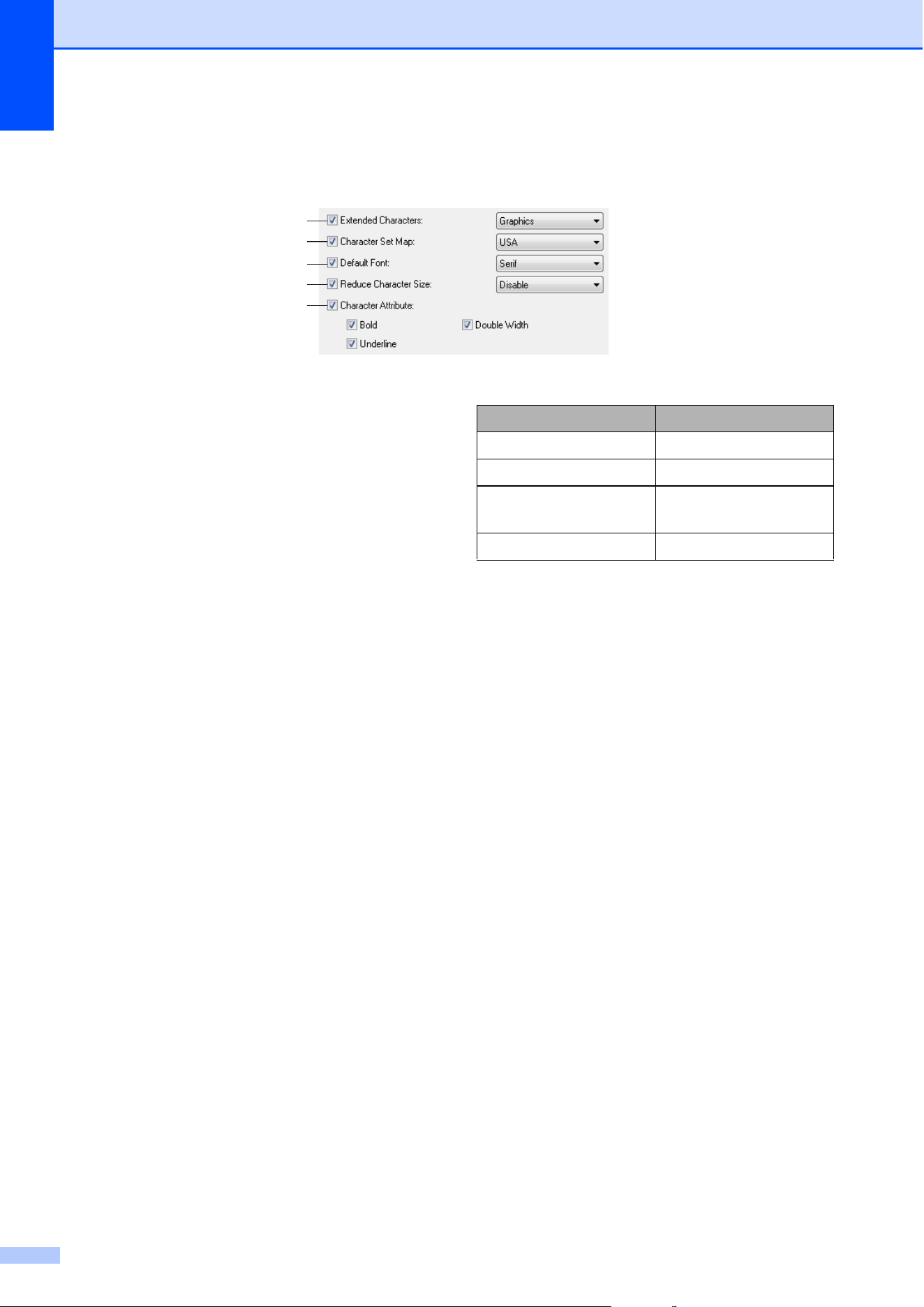
Chapter 3
50
Defining Internal Font Settings 3
1 Extended Characters
Available settings: [Italic], [Graphics]
Default setting: [Graphics]
This parameter determines which characters
are used when printing ASCII characters 128
to 255. When [Italic] is selected, italic versions
of ASCII characters 32 to 127 are used. When
[Graphics] is selected, the characters shown
in the table on page 68 are used.
2 Character Set Map
Available settings: [USA], [France],
[Germany], [United Kingdom], [Denmark I],
[Sweden], [Italy], [Spain I], [Japan], [Norway],
[Denmark II], [Spain II], [Latin America],
[Korea], [Legal]
Default setting: [USA]
This parameter determines which character set
is used, allowing you to print special characters
appropriate for the language selected. See the
table on page 70 for details.
3 Default Font
Available settings: [Serif], [Sans Serif]
Default setting: [Serif]
This parameter determines which built-in font
is used. A serif font (similar to Courier) and a
Sans Serif font (similar to Letter Gothic) are
built-in.
4 Reduce Character Size
Available settings: [Disable], [Enable]
Default setting: [Disable]
This parameter determines whether text is
printed at a reduced size. The actual size of the
text depends on the setting selected for
[Default Pitch], as shown below.
5 Character Attribute
Available settings: [Bold], [Double Width],
[Underline]
This parameter determines the attributes used
for printed text.
1
2
3
4
5
Default Pitch Reduced Size
10 characters/inch 16.67 characters/inch
12 characters/inch 20 characters/inch
Proportional Half the character
width
15 characters/inch Does not change
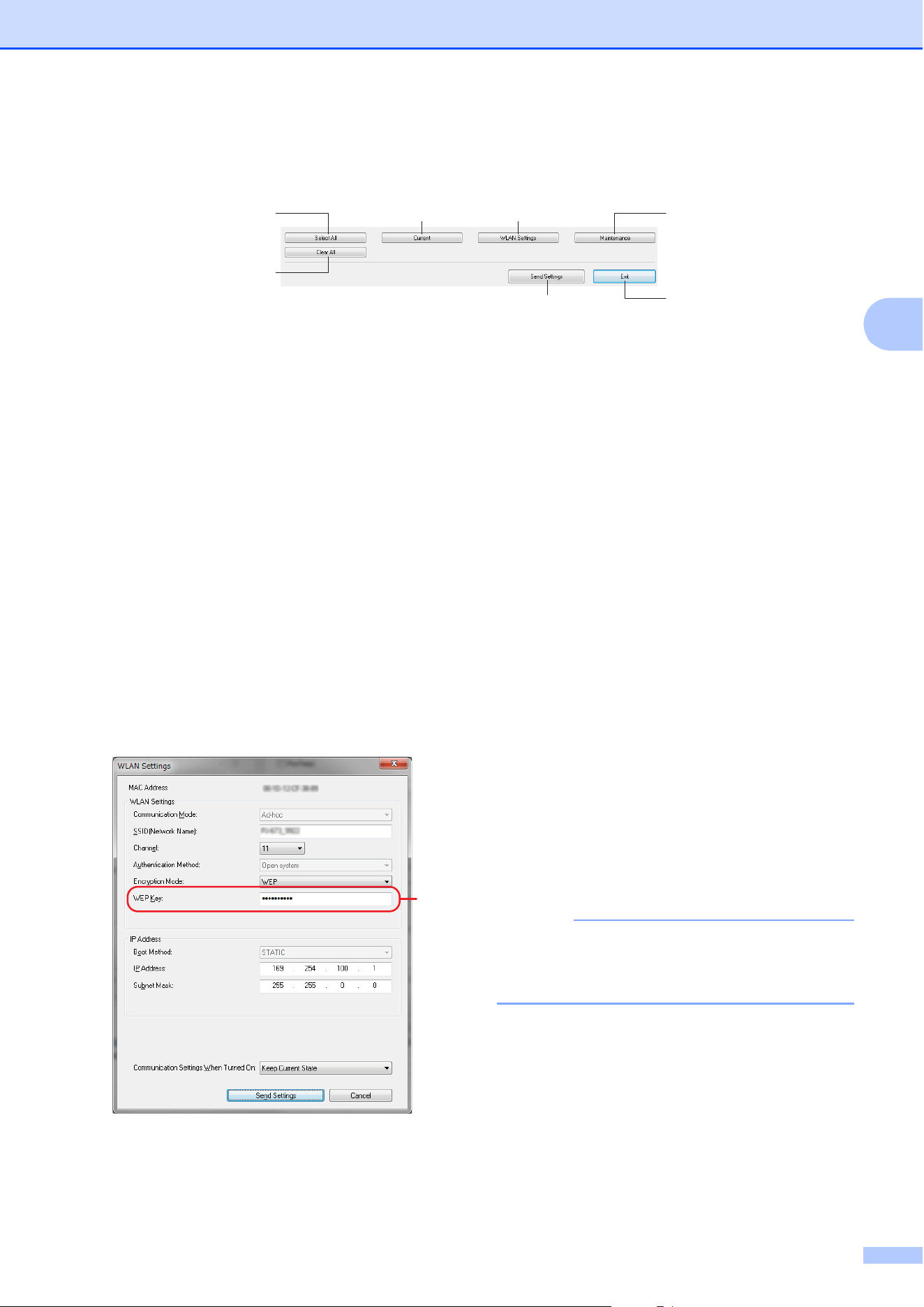
Brother PJ-673 Utility
51
3
PJ-673 Utility Menu 3
1 Select All
Click [Select All] to select all of the check
boxes in PJ-673 Utility.
2 Clear All
Click [Clear All] to clear all of the check boxes
in PJ-673 Utility.
3 Current
Click [Current] to retrieve the current settings
from the printer selected in the [Printer]
pull-down menu.
4 WLAN Settings
Click [WLAN Settings] to specify the wireless
LAN settings.
Clicking [WLAN Settings] retrieves the current
settings from the connected printer and
displays them in the dialog box. If retrieving the
current settings failed, the dialog box does not
appear.
MAC Address
Displays the MAC address of the currently
connected printer.
Communication Mode
Select the communication mode. [Ad-hoc]
has already been selected.
SSID(Network Name)
The SSID is the name that appears when
searching for the access point (network).
Between 1 and 32 ASCII characters can be
typed in.
Channel
Select the channel for transmitting data.
Authentification Method
Select the communication mode. [Open
system] has already been selected.
Encryption Mode
Select the encryption method. Two settings
([None] and [WEP]) are available.
WEP Key
This can be typed in if [Encryption Mode]
is set to [WEP]. Either 5 or 13 ASCII
characters can be typed in. If hexadecimal
characters are being entered, either 10 or
26 characters can be typed in. The default
setting is the last five digits of the printer’s
serial number. Depending on your
computer, [Network Key], [Security Key]
or [Passphrase] may appear.
NOTE
The WEP key normally appears as shown by
A, regardless of the setting retrieved by the
printer at startup.
IPAddress Setting
Select the communication mode. [STATIC]
has already been selected.
IP Address
Type in the IP address.
1
2
5
6
34
7
A
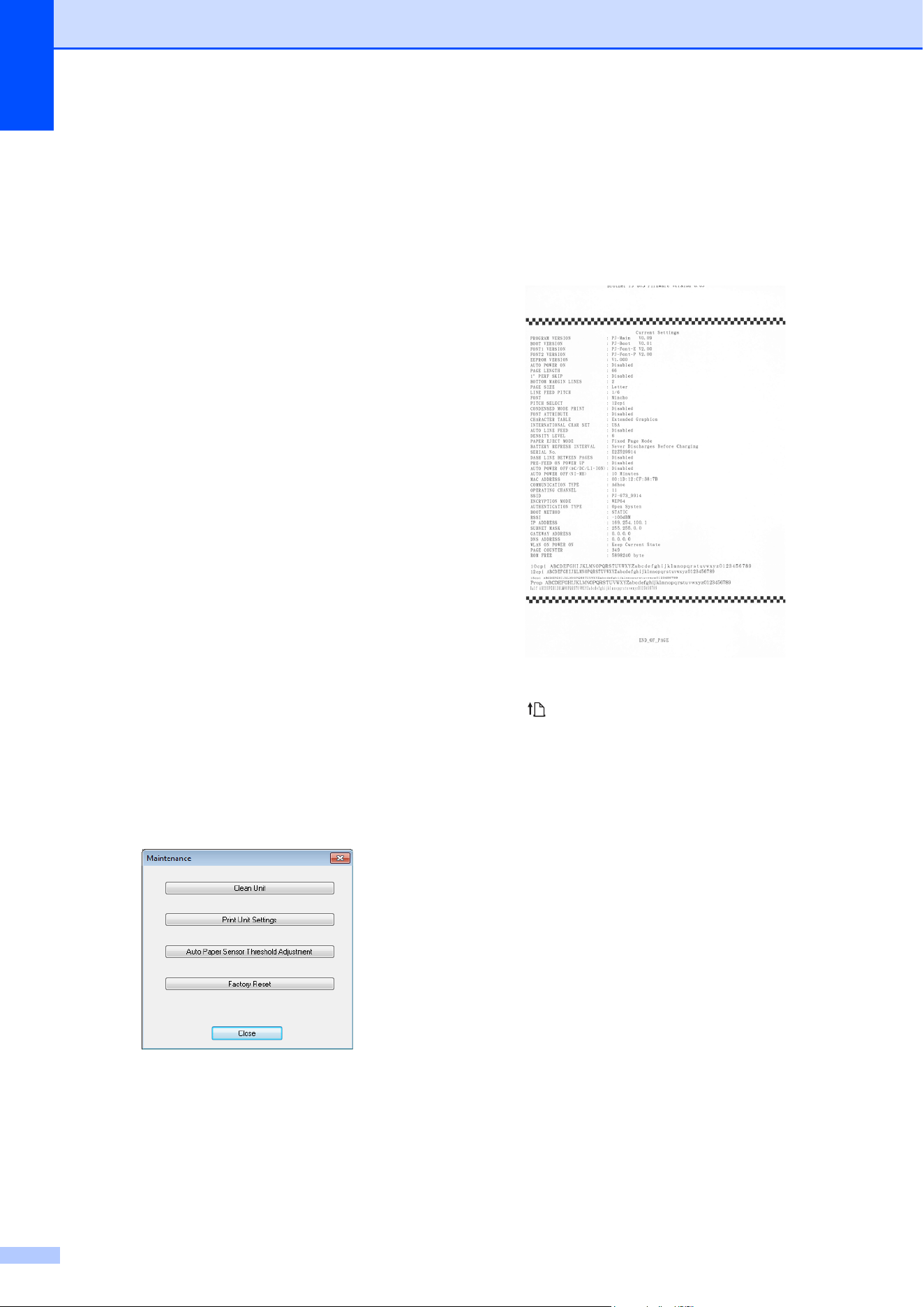
Chapter 3
52
[169.254.100.1] is specified as the
default.Type in four values between [0-255]
and separated with [.]. Since each device
on a network must have a unique number,
do not specify the same number as the
computer. Users unfamiliar with network
requirements should use the default
setting.
Subnet Mask
Type in the subnet mask.
[255.255.0.0] is specified as the default.
Type in four values between [0-255] and
separated with [.]. Communication is not
possible if the same subnet mask is not
specified on both devices. If this setting is
changed, change the subnet mask on the
computer to the same setting. Since binary
number [1] from high-order bits is linked to
form a number, the subnet mask is a
number with a fixed pattern. Users
unfamiliar with network requirements
should use the default setting.
Communication Settings When Turned
ON
Select the communication mode when the
printer is turned on. Three settings ([USB
by Default], [Wireless LAN by Default]
and [Keep Current State]) are available.
The default setting is [Keep Current
State].
5 Maintenance
Click [Maintenance] to open the maintenance
dialog box.
Clean Unit
See Cleaning the Platen Roller on page 53.
Print Unit Settings
Click [Print Unit Settings] to print a report
containing firmware version, image quality,
and configuration information, as shown
below. The wireless settings are printed on
this page.
You can also print this report using the
(Feed) button (see Printing a Printer
Report on page 59).
Auto Paper Sensor Threshold
Adjustment
Click [Auto Paper Sensor Threshold
Adjustment] and follow the on-screen
instructions to adjust the paper detection
sensor automatically.
Factory Reset
Click [Factory Reset] to reset PJ-673
Utility to its default settings and send them
to the printer. The wireless LAN settings will
also return to their default settings.
6Exit
Click [Exit] to exit PJ-673 Utility.
7Send Settings
Click [Send Settings] to save the settings
displayed with a checkmark in PJ-673 Utility to
a configuration file on the computer and then
send the settings to the printer. These settings
become the default settings when the printer is
turned on.
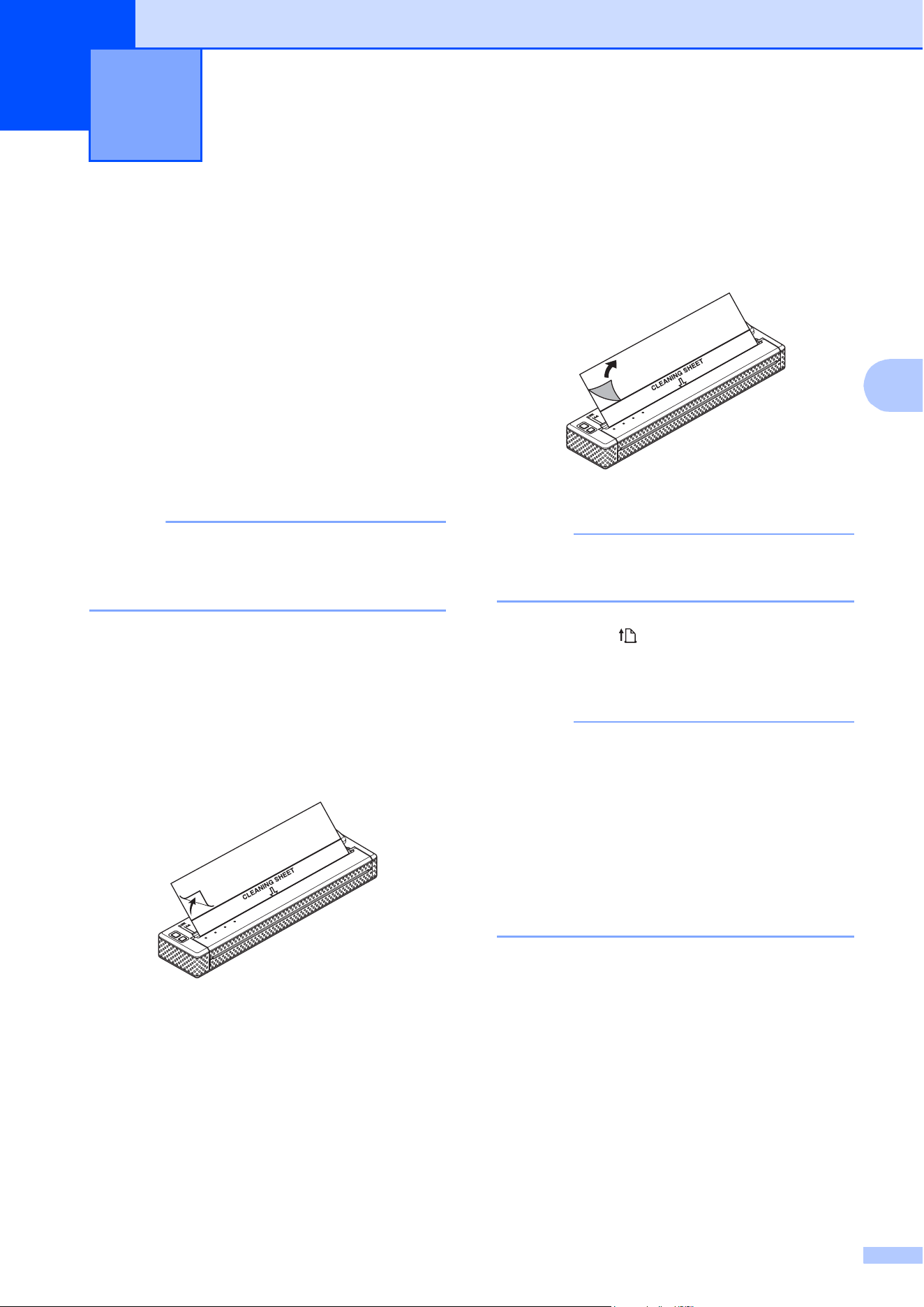
53
4
4
Cleaning the Platen
Roller
4
Dirt and debris on the platen roller can cause
the paper to be fed incorrectly (skewing the
print image) and degrade the print quality
(distorting the print image).
Follow the procedure below to clean the
platen roller.
a Make sure that the printer is turned on
and that no paper is loaded.
NOTE
If paper is loaded when you attempt to
clean the platen roller, a form feed will be
executed and the paper will be ejected.
b Insert the cleaning sheet into the paper
input slot. The text “CLEANING SHEET”
should be upright and face the front of
the printer, as shown. The roller will pull
the cleaning sheet into the starting
position.
c Remove the backing paper on the upper
half of the cleaning sheet, as shown.
NOTE
Do not remove the backing paper from the
lower half of the cleaning sheet.
d Press the (Feed) button for more
than two seconds. The printer will feed
and eject the cleaning sheet.
NOTE
• Do not attempt to clean the platen roller
with any material other than the cleaning
sheet.
• The cleaning sheet is for cleaning the
platen roller only. Do not use it to clean
any other part of the printer.
• Contact Brother or your reseller for a
replacement cleaning sheet.
Maintaining the Printer 4

Chapter 4
54
Cleaning the Printer’s
Exterior
4
Clean the exterior of the printer by wiping it
with a dry cloth.
NOTE
• Do not wet the cloth or allow water to enter
the printer.
• Do not use benzene, alcohol, paint
thinner, or cleaners that are abrasive,
alkaline, or acidic. Such cleaners may
damage the printer’s case.
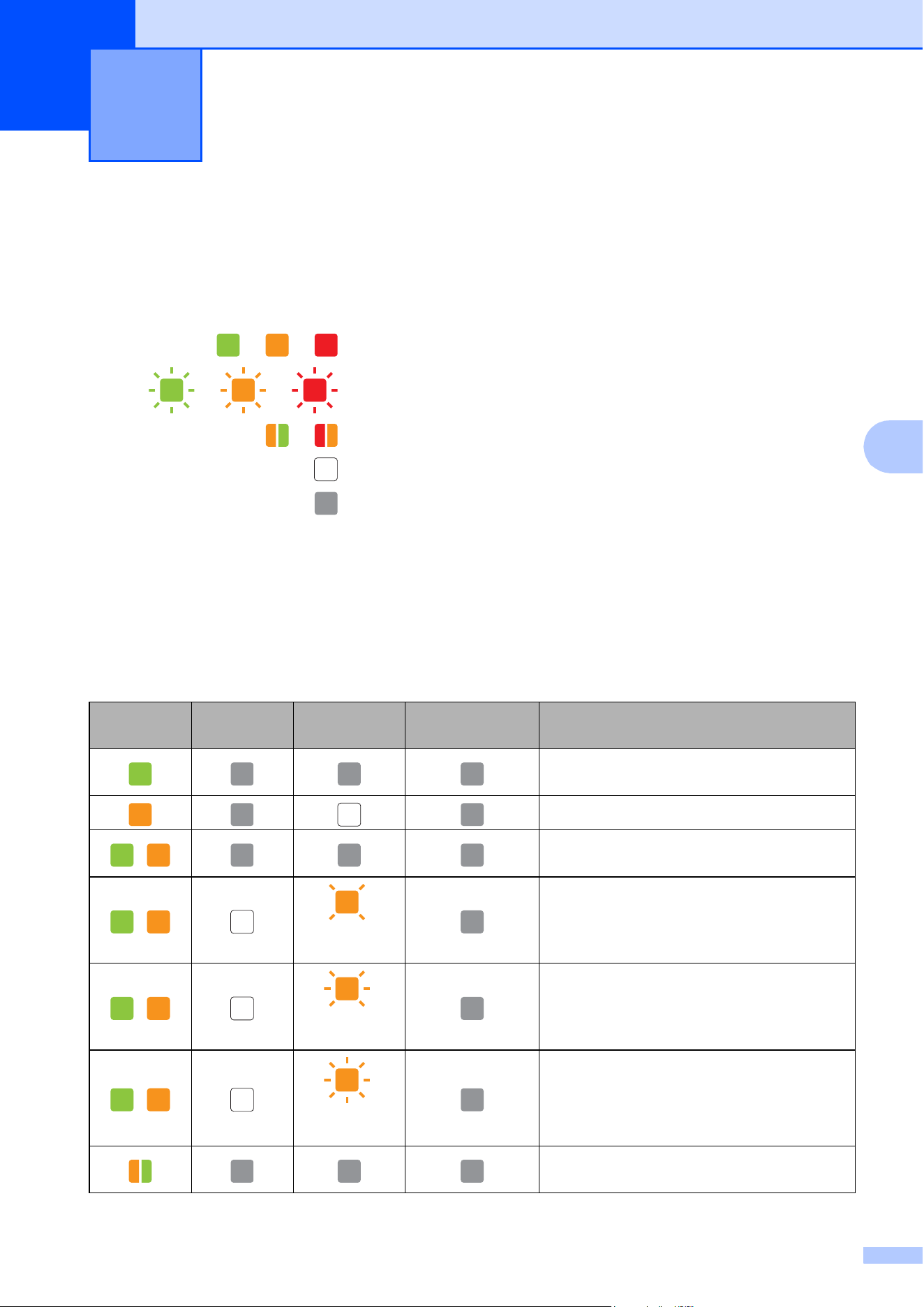
55
5
5
Indicators 5
The indicators light and flash to indicate the printer’s status. The following symbols are used in
this section to explain the meaning of the different indicator colors and patterns.
For details on error causes and solutions, see Indicator Warnings on page 57 or Troubleshooting
on page 60.
The indications shown by the WIRELESS LAN indicator differ in wireless LAN mode and USB
mode. The printer status is indicated by the POWER indicator, DATA indicator and STATUS
indicator.
For differences in the communication modes, see WIRELESS LAN indicator on page 56.
Reference 5
or or
Indicator is lit in the color shown
or or
Indicator is blinking in the color shown
or
Indicator is blinking in alternating colors as shown
Indicator is lit or blinking in any color or pattern
Indicator is off
POWER DATA STATUS
WIRELESS
LAN
Description
AC adapter/DC cable/Rechargeable Li-ion
battery in use
Rechargeable Ni-MH battery in use
/
Rechargeable battery in use, battery
charge is full
/
(Once every
4 seconds)
Rechargeable battery in use, battery
charge is half-full
/
(Twice every
4 seconds)
Rechargeable battery in use, battery
charge is low
/
(Once every
second)
Rechargeable battery in use, battery
needs to be charged
Rechargeable Ni-MH battery is
discharging
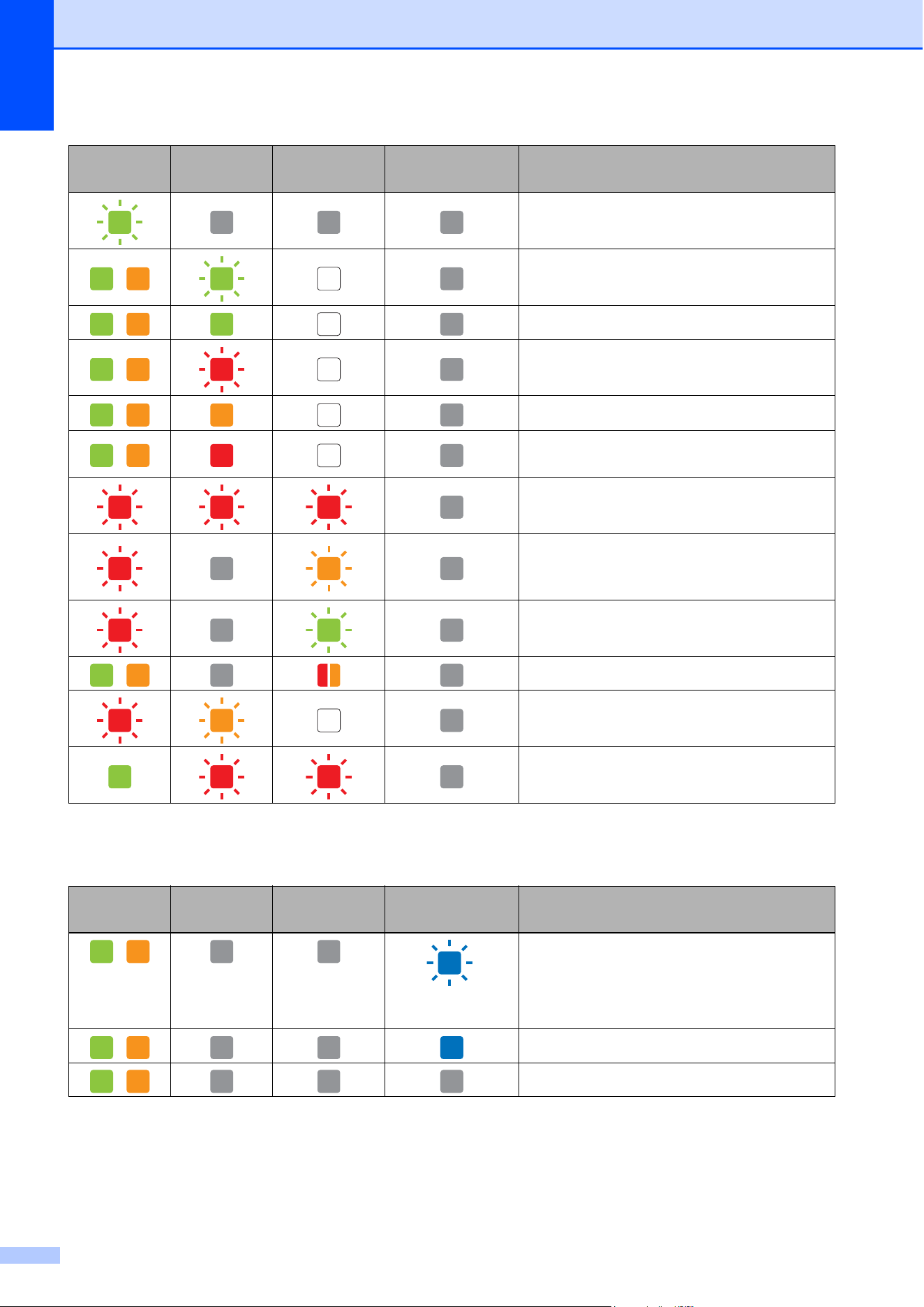
Chapter 5
56
WIRELESS LAN indicator
Rechargeable Ni-MH battery is charging
/
Printing or receiving data
/
Buffer contains unprinted data
/
Receiving flash upgrade
/
Receiving Printer upgrade
/
Printer is in maintenance mode (for
printing a printer report)
System error (call for service)
Error when beginning
charging/discharging (rechargeable Ni-MH
battery not installed)
Charging/discharging timeout error
(rechargeable Ni-MH battery)
/
Head or motor is cooling down
Data reception error
Printer is in boot mode
POWER DATA STATUS
WIRELESS
LAN
Description
/
(Once every
3 seconds)
Wireless LAN on, not connected
/
Wireless LAN on, connected
/
USB mode
POWER DATA STATUS
WIRELESS
LAN
Description
Reference
57
5
Indicator Warnings 5
Problem Solution
The POWER indicator does not light The printer is receiving no power.
If you are using AC or DC power, make sure that the AC
adapter or DC cable is properly connected (see Connecting the
Printer to External Power on page 2) and make sure that the
AC or DC power outlet is turned on.
If you are using a rechargeable battery, make sure that the
rechargeable battery is firmly installed in the printer and is fully
charged.
If you are using DC power, check the fuse.
Error when beginning
charging/discharging (rechargeable Ni-
MH battery not installed)
The printer did not detect a rechargeable Ni-MH battery when
you tried to charge the battery.
Make sure that the rechargeable Ni-MH battery is installed
properly and that there are no broken wires at the battery or
connector. For more information, see Installing the
Rechargeable Ni-MH Battery on page 3.
If the rechargeable Ni-MH battery is connected properly, the
battery may have overheated while charging. Allow the
rechargeable Ni-MH battery to cool before charging it again. If
this is a reoccurring problem, replace the rechargeable Ni-MH
battery.
Charging/discharging timeout error
(rechargeable Ni-MH battery)
The rechargeable Ni-MH battery is taking too long to charge
(normally the battery should be fully-charged within 120
minutes).
Replace the rechargeable Ni-MH battery.
Received data in buffer Print data is saved in the buffer. Since printing will not begin
until all data has been received, accidentally stopping the
wireless LAN connection during transmission will save the
data, leaving the printer in a state where it cannot print. Turn off
the printer, and then turn it on again.

Chapter 5
58
NOTE
For errors not described above, see the next chapter, Troubleshooting on page 60.
Head or motor is cooling down The thermal head or motor is too hot.
Head:
If the thermal head becomes too hot, the thermal head may
produce imaging on the paper in areas not intended to be
printed. This phenomenon may occur when printing a large
number of documents with a great deal of text and a high print
density.
To avoid this, the printer will stop, and resume printing after the
print head has cooled down.
To avoid or delay the onset of this condition, print using a lighter
density setting, reduce the amount of black space being printed
(for example, remove background shading and colors in graphs
and presentation documents), and make sure that the printer
has adequate ventilation and is not located in an enclosed
space.
Motor:
Do not use the printer continuously. If the printer is used
continuously, the motor will become too hot. In this case, the
printer will stop and resume printing after the motor has cooled
down.
NOTE
This condition may occur more often when the printer is
used at high altitude (more than 10,000 feet (3,048 m)) due
to a lower air density available to cool the printer.
Data reception error With unstable communication, it may not be possible to receive
data correctly. Improve the communication conditions, and
then establish the connection again.
Printer is in boot mode This issue must be resolved.
Contact your reseller or Brother Customer Service for
assistance.
Problem Solution

Reference
59
5
Printing a Printer
Report
5
This feature is used to print a Letter-size
printer settings report without connecting the
printer to a computer. (The report will fit on
A4-size paper.) The report contains firmware
version, image quality, and configuration
information.
The wireless settings are printed on this
page.
a Make sure that the printer is turned on
and that no paper is loaded.
b Press and hold the (Feed) button for
two or more seconds until the DATA
indicator turns red.
c Insert a piece of genuine Brother
thermal paper into the printer’s paper
input slot. The report will print
automatically, and then the printer will
return to an idle state.
NOTE
This operation can also be performed
using PJ-673 Utility (see Print Unit
Settings on page 52).

60
6
Overview 6
If you have any problems with the printer, first
check to make sure that you have performed
the following tasks correctly.
Install the battery or connect the printer to
an AC or DC power outlet (see
Connecting the Printer to External Power
on page 2).
Print the printer settings to check that the
printing operation can be performed (see
Printing a Printer Report on page 59).
Enabled communication between the
printer and computer. Re-establish the
connection (see Connecting the Printer
and iOS Device on page 11 or Connecting
the Printer and a Windows
®
Computer
on page 15).
If you still have problems, read the
troubleshooting tips in this chapter for help.
Troubleshooting 6
Troubleshooting
61
6
Paper Problems 6
Printed Image Problems 6
Problem Solution
The paper is jammed in the printer See Clearing a Paper Jam on page 39.
The paper moves through the printer, but
nothing appears on the paper
Make sure that the paper is thermal paper.
Make sure that the print surface faces the back, when
looking from the front of the printer.
Check the print density setting (see Setting Printer Driver
Options on page 35).
The paper does not feed even though the
motor is running
Make sure that the release cover is completely closed.
Make sure that you are using genuine Brother thermal paper.
Heavy paper may not pass through the printer.
If you still have problems, the printer may be damaged. Contact
your reseller or Brother Customer Service for assistance.
Problem Solution
The printed image is out of alignment Make sure that you are using genuine Brother thermal paper
and that the paper is loaded properly (see Printing on page 33).
Check if whether the platen roller is dirty. If it is dirty, clean it
(see Cleaning the Platen Roller on page 53).
Print quality is poor, and the printed
image is too light or too dark
Adjust the density setting using the printer driver (see Making
Prints Lighter or Darker on page 34).
Make sure that you are using genuine Brother thermal paper.
The image is compressed and stretched
in many places
Make sure that the release cover was not left open during
printing. If it is open, close it completely.
Check if the paper is slipping in the printer. If it is slipping, make
sure that the platen roller is clean (see Cleaning the Platen
Roller on page 53).
Make sure that you are using genuine Brother thermal paper.
Before loading paper, make sure that it is not wrinkled.
The top margin is incorrect Make sure that the correct margins have been set in PJ-673
Utility and the computer program. Adjust the top and bottom
margins as needed.
Make sure that you are not forcefully inserting the paper into
the paper input slot. Always insert paper gently.

Chapter 6
62
The side margins are incorrect Make sure that the correct margins have been set in PJ-673
Utility and your application. Adjust the left margin as needed.
Make sure that the application, the printer, and the printer driver
have been set to match the paper size of the paper that is
loaded in the printer. If the computer program or printer driver
has been set to a different width of paper, the image will not
print in the proper horizontal position. Adjust the settings as
needed.
The printed page does not contain the
proper characters
Make sure that you have defined the proper character set (font)
in the computer program. Change the character set if
necessary.
Try changing the font used in the document.
This printer is not detected when
establishing a USB connection.
This printer is not detected when
establishing a wireless LAN connection.
When not detected, and using a USB connection:
Check that the WIRELESS LAN indicator is turned off.
If the WIRELESS LAN indicator is lit or blinking, the printer
is in wireless LAN mode. Switch the printer to USB mode.
For details on switching the communication mode, see
Switching Between Wireless LAN Mode and USB Mode
on page 30.
When not detected, and using a Wireless LAN connection:
1 Check that the WIRELESS LAN indicator is lit or
blinking.
If the WIRELESS LAN indicator is turned off, the printer
is in USB mode. Switch the printer to wireless LAN
mode. For details on switching the communication
mode, see Switching Between Wireless LAN Mode and
USB Mode on page 30.
2 Check the wireless LAN settings.
To print the printer settings, see Printing a Printer
Report on page 59.
Consult with the network administrator, and then
change the settings with PJ-673 Utility. For details on
the utility, see Brother PJ-673 Utility on page 40.
Problem Solution

Troubleshooting
63
6
I want to print using either a wireless LAN
connection or a USB connection.
Set up the printer for both a wireless LAN connection and a
USB connection. If the printer was set up for only one
communication method, it cannot be switched.
If the wireless LAN driver was not installed during the USB
installation:
a. With the default settings
See Adding a Printer on page 19.
b. With the default settings changed
See Setting Up the Printer (With the Default Settings
Changed) on page 22.
If printing is not possible after performing step a. and b.
Check the network connection.
See Setting Up the Computer Running Windows
®
on page 17.
In addition, see Switching Between Wireless LAN Mode
and USB Mode on page 30.
If the driver of the desired interface is not be selected:
The driver of the desired interface must be selected.
When the printer is installed, Brother PJ-673 and Brother
PJ-673 USB drivers are installed.
If printing is still not possible, see Switching Between
Wireless LAN Mode and USB Mode on page 30.
If the printer interface cannot be switched:
See Switching Between Wireless LAN Mode and USB
Mode on page 30.
The wireless connection takes time. From initialization to completing the connection takes time, so
it may take 1 minute or more to establish the wireless LAN
connection. Since this differs depending on the device and
environment, check with the device manufacturer. For details
on the printer's wireless LAN preparation time, see Switching
Between Wireless LAN Mode and USB Mode on page 30.
Problem Solution
Chapter 6
64
Pages Don’t Print 6
Problem Solution
The DATA indicator remains lit in green
but the printer does not print
Printing of all received data is not completed. Wait until it is
finished.
If paper is not installed, load new paper.
If the printer does not print even though paper is loaded,
remove the paper, and then load it again.
Try printing again after turning the printer off, then on again.
NOTE
If the printer is connected via wireless LAN, the connection
is cut when the printer is turned off. When the printer is
turned on again, it will take a maximum of about 15 seconds
for wireless LAN to become functional.
There may be problems with sending simple ASCII text
data to the printer. If the CR/LF command is not at the end
of lines or the form feed command is not at the end of the
last line, the printer may be waiting for this data to be sent.
Print another page, or press the (Feed) button to feed
the paper.
The computer program should be
sending data to the printer, but the DATA
indicator does light in green
With a USB connection:
1 Make sure that the USB cable is connected firmly and
properly.
2 If the WIRELESS LAN indicator is lit or blinking, the
printer is in wireless LAN mode. Switch the printer to
USB mode. For details on switching the communication
mode, see Switching Between Wireless LAN Mode and
USB Mode on page 30.
3 Try using another USB cable.
With a wireless LAN connection:
1 If the WIRELESS LAN indicator is turned off, the printer
is in USB mode. Switch the printer to wireless LAN
mode. For details on switching the communication
mode, see Switching Between Wireless LAN Mode and
USB Mode on page 30.
2 Make sure that the wireless LAN settings have been
specified properly.
Troubleshooting
65
6
Pages Are Partially Printed 6
Problem Solution
The DATA indicator turns off while a page
remains in the printer
The computer program may not have sent a full page of data.
Try printing the document again.
The computer program may have sent the wrong page size
information, or the paper loaded is the wrong size. Check
settings in the computer program and the print driver for the
proper page size. Make sure that the page size specified in the
computer program matches the paper that is loaded.
Make sure that the [Form Feed Mode] setting of the printer
driver is not set to [No Feed].
Try pressing the (Feed) button to manually form feed.
The printer ejects a partially printed page,
and the DATA indicator remains lit or
blinking in green
Make sure that the computer application’s paper size setting is
correct.
66
7
Product Specifications 7
1
These figures vary by environment. “Our standard environment” is as follows:
JEITA J1 pattern printed continuously on A4 size paper when connected by USB interface and powered by AC adapter
(Print Speed), or powered by battery charged using AC adapter (Battery Yield)
Print density=6 Environment temperature=77 F / 25 C (Via a wireless LAN connection: 60 pages with a rechargeable
Ni-MH battery, and 250 pages with a rechargeable Li-ion battery )
2
With iOS 4.3 or later (wireless LAN), printing functions can be added by creating applications. Refer to the SDK for
iOS 4.3 or later (wireless LAN) at the Brother Developer Center.
Technical Information 7
Model Name PJ-673
Dimensions 10.04 (W) x 2.17 (D) x 1.57 (H) in. / 255 (W) x 55 (D) x 40 (H) mm
Weight Approximately 1.058 lb. / 480g (excluding battery, paper)
Printing
Method Direct thermal printing
Print Speed Average: 9.4 sec./page
(under our standard environment
1
)
Resolution 300 x 300 dpi
Printable Area Configure with printer driver (min. 3.73" x 0.9"/ 94.7 mm x 22.8 mm -
max. 8.21" x 99.67 / 208.5 mm x 2531.6 mm)
Paper Size A4 (8.27" x 11.69" / 210 x 297 mm), Letter (8.5" x 11" / 216 x 279 mm),
Legal (8.5" x 14" / 216 x 356 mm)
Power (optional)
Battery Rechargeable Ni-MH battery:14.4 V
Rechargeable Li-ion battery:11.1 V
Adapter AC adapter (15 V)
Car adapter Cigarette car adapter (12 V (DC))
Battery Yield
1
Rechargeable Ni-MH battery: Approximately 70 sheets
Rechargeable Li-ion battery: Approximately 300 sheets
Interface
USB USB Ver.2.0 (Full Speed) (mini-B, Peripheral)
Wireless LAN Wireless LAN IEEE802.11b/g (Ad-hoc mode)
Compatible operating system
2
Printer driver
Windows
®
8 / Windows
®
7 / Windows Vista
®
/ Windows
®
XP (USB,
Wireless LAN)
Technical Information
67
7
Model Name PJ-673
Software
Printer font size 10 cpi, 12 cpi, 15 cpi and proportional sizes
Printer font face Serif and Sans Serif
Environmental
Operation temperature 32 - 104 F/0 - 40 C
Operation humidity 30 - 80 % (No condensation)
Storage temperature 5 - 122 F/-15 - 50 C
Storage humidity 30 - 85 % (No condensation)
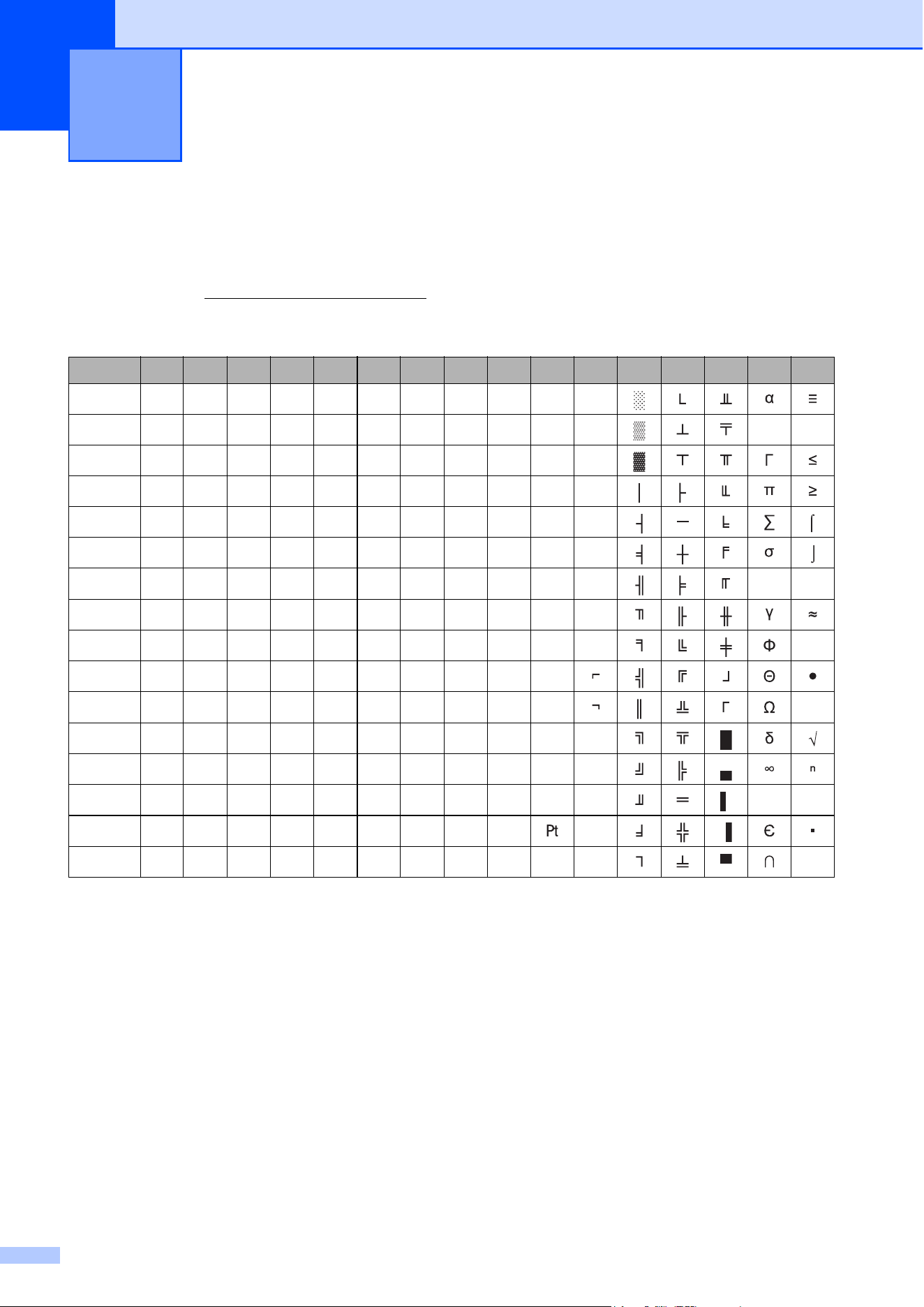
68
A
Character Code Tables A
For more detailed information, download the Command Reference from the Brother Solutions
Center web site (http://solutions.brother.com/
)
Character Sets A
Extended Graphics Character Table
MSB> 0 1 2 3 4 5 6 7 8 9 A B C D E F
LSB 0 0 @ P ` p Ç É á
1 ! 1AQaqüæí ß
2“2BRbréÆó
3 #3CScsâôú
4$4DTdtäöñ
5 %5EUeuàòÑ
6&6FVfvåûa µ÷
7‘7GWgwçùo
8(8HXhxêÿ¿ º
9)9IYiyëÖ
A*:JZjzèÜ •
B+;K[k{
C,<L\l¦î£¼
D-=M]m}쥡 ø²
E.>N^n~Ä«
F/?O_oŃ»
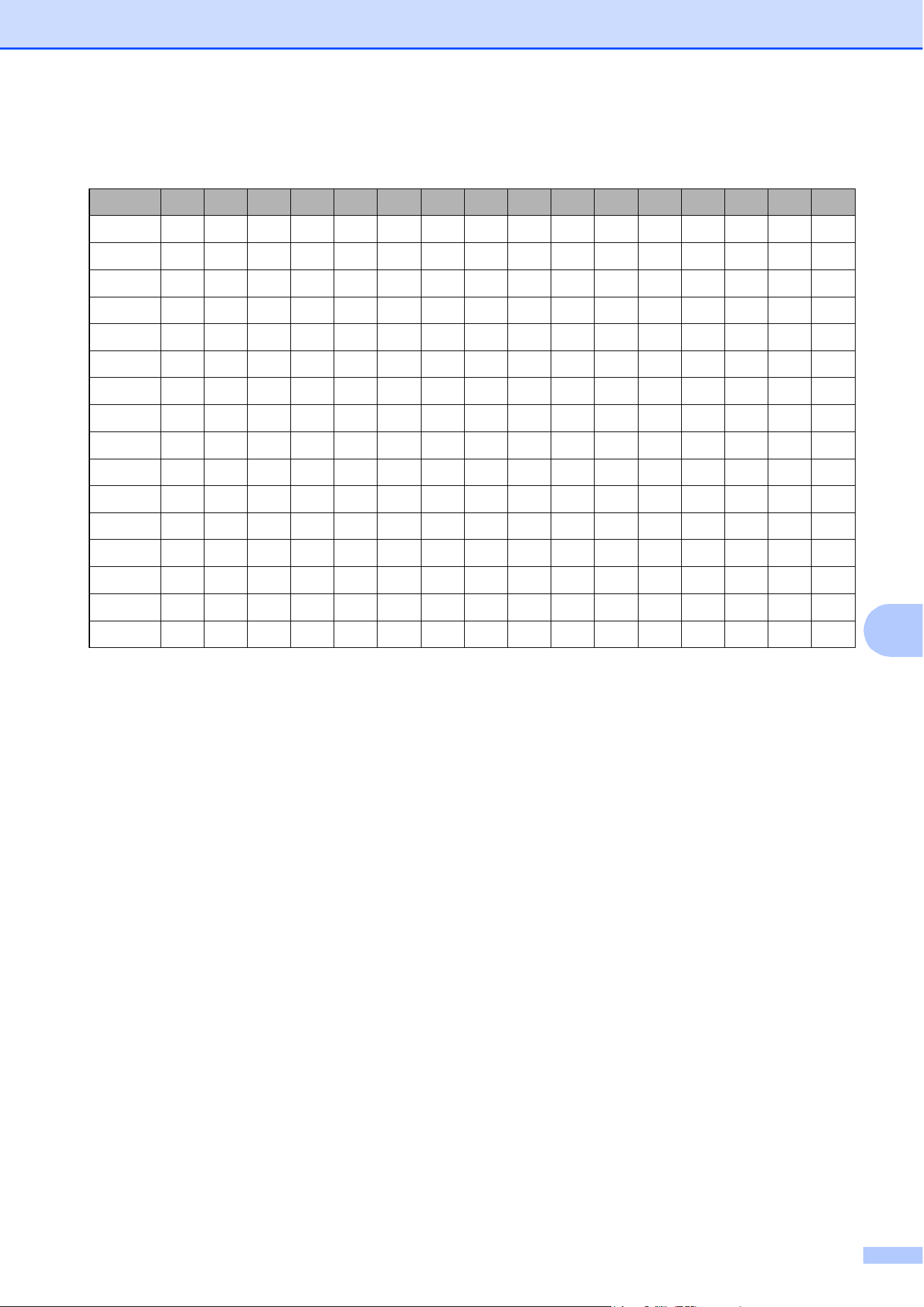
Character Sets
69
A
Italic Character Table
MSB> 0 1 2 3 4 5 6 7 8 9 A B C D E F
LSB 0 SP 0 @ P ` p SP 0 @ P ` p
1 ! 1AQaq ! 1AQaq
2 “ 2BRb r “ 2BRb r
3 #3CScs #3CScs
4 $4DTd t $4DTd t
5 %5EUeu %5EUeu
6 &6FVfv &6FVfv
7 ‘ 7GWgw ‘ 7GWgw
8 ( 8HXhx ( 8HXhx
9)9IYiy)9IYiy
A*:JZjz*:JZjz
B +;K[k{ +;K[k{
C , <L \ l ¦ , <L \ l ¦
D - =M ] m } - =M ] m}
E . >N^ n~ . >N^ n~
F/?O_o /?O_oØ
70
International Character Set Table
23 24 40 5B 5C 5D 5E 60 7B 7C 7D 7E
USA #$@[\]^ {¦}~
France #$à ǧ^ éùèØ
Germany #$§ÄÖÜ^ äöüß
United Kingdom £$@[\]^ {¦}~
Denmark I #$@ÆØÅ^ æøå~
Sweden #¤ÉÄÖÅÜéäöåü
Italy #$@ \é^ùàòèì
Spain I Pts $ @ ¡ Ñ ¿ ^ Ø ñ } ~
Japan #$@[¥] ^ { ¦ }~
Norway #¤ÉÆØÅÜéæøåü
Denmark II #$ÉÆØÅÜéæøåü
Spain II #$á ¡Ñ¿é í ñóú
Latin America #$á ¡Ñ¿éü í ñóú
Korea #$@[ ] ^ { ¦ }~
Legal #$§ ¶©®†™