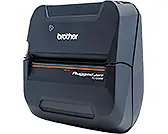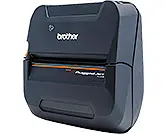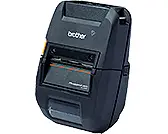

User's Guide TD-4420TN/4520TN
RJ-2035B/RJ-2055WB
RJ-3035B/RJ-3055WB
User's Guide (English)
User's Guide RJ-2035B/RJ-2055WB/RJ-3035B/RJ-3055WB
Product specifications vary by region. For more information, see
the Specification Sheet available from the Brother support website
at
support.brother.com.
© 2020 Brother Industries, Ltd. All rights reserved.
Version 01
ENG

i
Copyright Information
The copyright in this manual, the software, and firmware in the printer
described therein are owned by Brother. All rights reserved.
Information in this document is subject to change without notice and does
not represent a commitment on the part of the company. No part of this
manual may be reproduced or transmitted in any form or by any means,
for any purpose other than the purchaser’s personal use, without the
expressed written permission of the company.
Trademarks
The Bluetooth
®
word mark and logos are registered trademarks owned by the
Bluetooth SIG, Inc. and any use of such marks by Brother Industries, Ltd. is
under license.
Wi-Fi
®
is a registered trademark of Wi-Fi Alliance
®
.
CG Triumvirate is a trademark of Agfa Corporation. CG Triumvirate Bold
Condensed font is under license from the Monotype Corporation.
All other trademarks are the property of their respective owners.
Any trade names and product names of companies appearing on Brother
products, related documents and any other materials are all trademarks or
registered trademarks of those respective companies.

ii
Contents
1. Introduction .................................................................................................. 1
2. Operations Overview ................................................................................... 2
2.1 Unpack the printer and check the components ........................................ 2
2.2 Printer Overview ...................................................................................... 3
2.2.1 Front View ........................................................................................ 3
2.2.2 Interior View ..................................................................................... 4
2.2.3 Rear View ........................................................................................ 5
2.2.4 LED Indicators and Buttons ............................................................. 6
2.2.5 Battery Charging Cycle .................................................................. 10
3. Set up Your Printer .................................................................................... 13
3.1 Install the Battery ................................................................................... 13
3.2 Charge the Battery ................................................................................ 15
3.2.1 Charge the Printer's Battery ........................................................... 15
3.2.2 Charge the Battery using the Battery Charger (PA-BC-005)
(Optional: only compatible with RJ-3035B/RJ-3055WB) ............... 16
3.3 Loading the Media ................................................................................. 18
3.4 Printer Driver Installation ....................................................................... 20
3.4.1 USB Connection (Windows/Mac/Linux) ......................................... 20
3.4.2 Bluetooth Connection (Windows) ................................................... 21
3.4.3 Wi-Fi Network Connection (Windows) ........................................... 22
3.5 Creating and Printing Labels Using BarTender ..................................... 23
3.6 Connect Your Printer to a Computer ..................................................... 24
4. Accessories................................................................................................ 25
4.1 Install the Belt Clip ................................................................................. 25
4.2 Install the Roll Holder (PA-RH-002) (Optional) ...................................... 27
4.3 Install the Roll Spacer Set (Optional) .................................................... 29
4.4 Use the IP54 Protective Case with Shoulder Strap (Optional)............... 33
4.5 Install the Shoulder Strap with an Adapter (Optional) ............................ 35
4.6 Using the 1-bay Charging Cradle (Optional) .......................................... 36
4.7 Using the 4-bay Charging Cradle (Optional) .......................................... 38
4.8 Rechargeable Lithium-Ion Battery (Optional) ........................................ 40

iii
5. Power-on Utilities ....................................................................................... 41
5.1 The Gap/Black Mark Sensors Calibration.............................................. 42
5.2 Self-test and Dump Mode ...................................................................... 43
5.3 Printer Initialization ................................................................................ 47
6. BPM (Brother Printer Management Tool) .................................................. 49
6.1 Start the BPM ........................................................................................ 49
6.2 Calibrating the Media Sensor using the BPM ........................................ 50
7. Product Specifications ............................................................................... 51
7.1 General Specifications ........................................................................... 51
7.2 Print Specifications ................................................................................ 52
7.3 Media Specifications .............................................................................. 53
8. Troubleshooting ......................................................................................... 54
9. Maintenance .............................................................................................. 56

1
1. Introduction
The RJ-2035B/RJ-2055WB/RJ-3035B/RJ-3055WB is a compact and light-weight
mobile printer ideal for organizations that have a mobile workforce.
Its IP54-rated rugged case is splash, dust, and shock resistant, and offers operational
mobility virtually anywhere.
The printer can be connected to a computer or mobile device using USB, NFC tag,
Bluetooth, or Wi-Fi a/b/g/n to print using various mobile and desktop printing software.
For more information about printing labels, see your labelling software's documentation
on the Brother support website at support.brother.com.

2
2. Operations Overview
2.1 Unpack the printer and check the components
Note
Keep the packaging materials in case you must ship the printer.
The components included in the box:
RJ-2035B/RJ-2055WB
RJ-3035B/RJ-3055WB
1. Printer
2. Belt Clip
3. Rechargeable Li-ion Battery
4. AC Adapter
5. Quick Setup Guide
6. Product Safety Guide
If any components are missing, contact the product manufacturer's customer service or
your local dealer.
1
1
2
3
4
5
6
2
3
5
6
4
3
2.2 Printer Overview
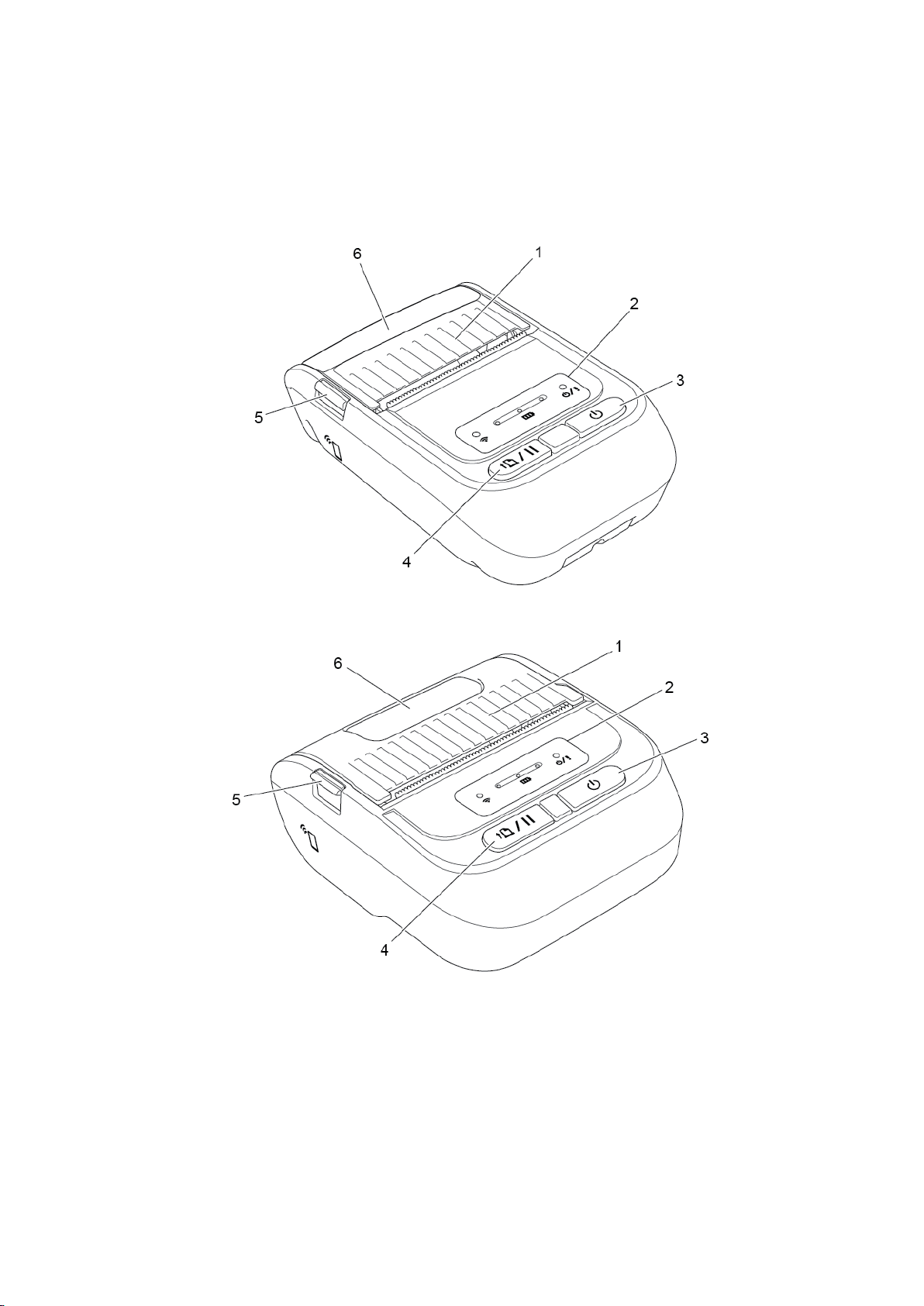
2.2.1 Front View
RJ-2035B/RJ-2055WB
RJ-3035B/RJ-3055WB
1. Media Compartment Cover
2. LED Indicators
3. Power Button
4. Feed/Pause Button
5. Media Compartment Cover Release Tab
6. Media View Window

4
2.2.2 Interior View
RJ-2035B/RJ-2055WB
RJ-3035B/RJ-3055WB
1. Tear Edge
2. Print Head
3. Platen Roller
4. Black Mark Sensor
5. Gap Sensor*
* Product specifications vary by region. For more information, see the Specification Sheet
available from the Brother support website at support.brother.com.
5
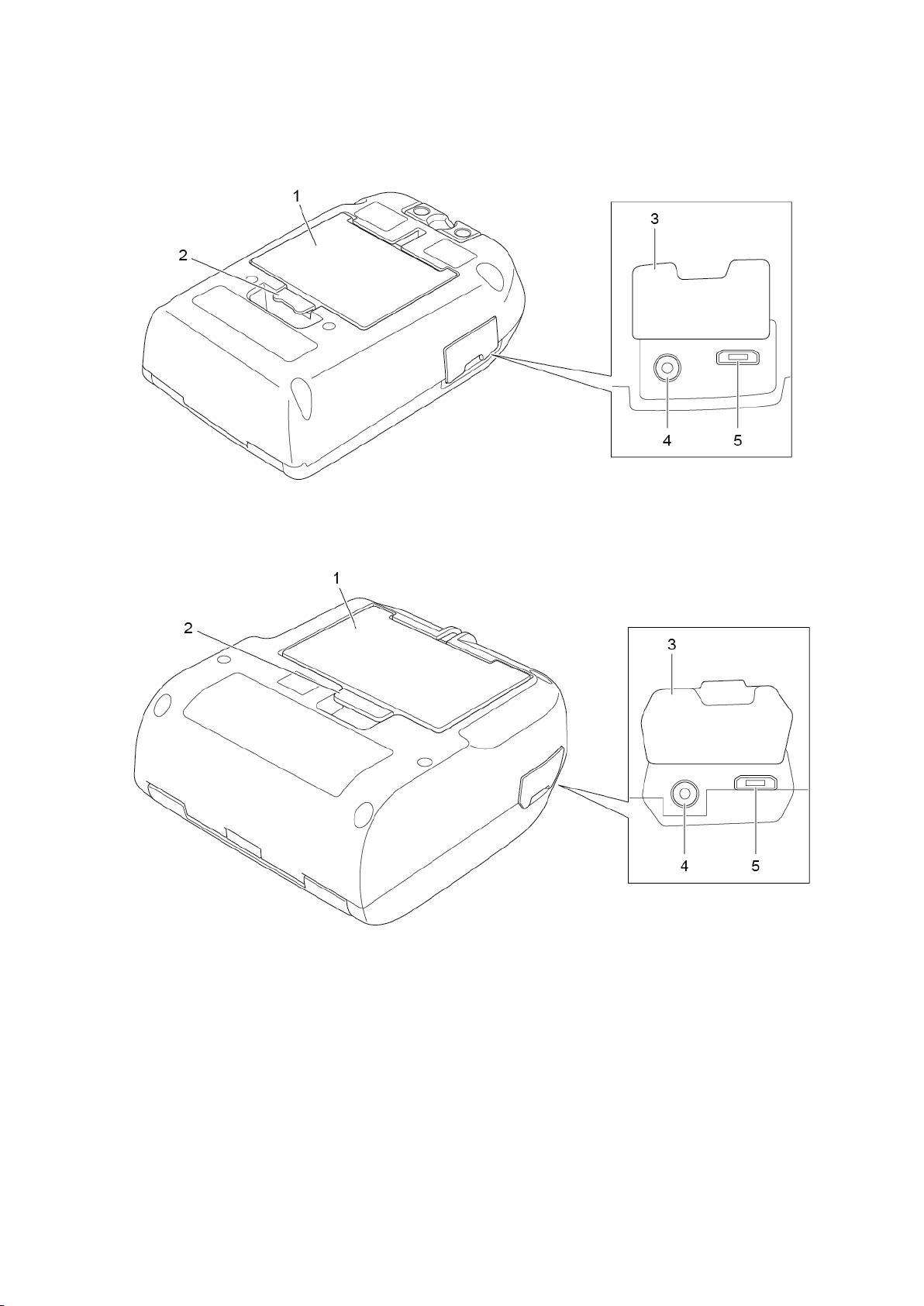
2.2.3 Rear View
RJ-2035B/RJ-2055WB
RJ-3035B/RJ-3055WB
1. Rechargeable Li-ion Battery
2. Battery Release Latch
3. Interface Cover
4. Power Port
5. USB Port (Micro Type USB 2.0)

6
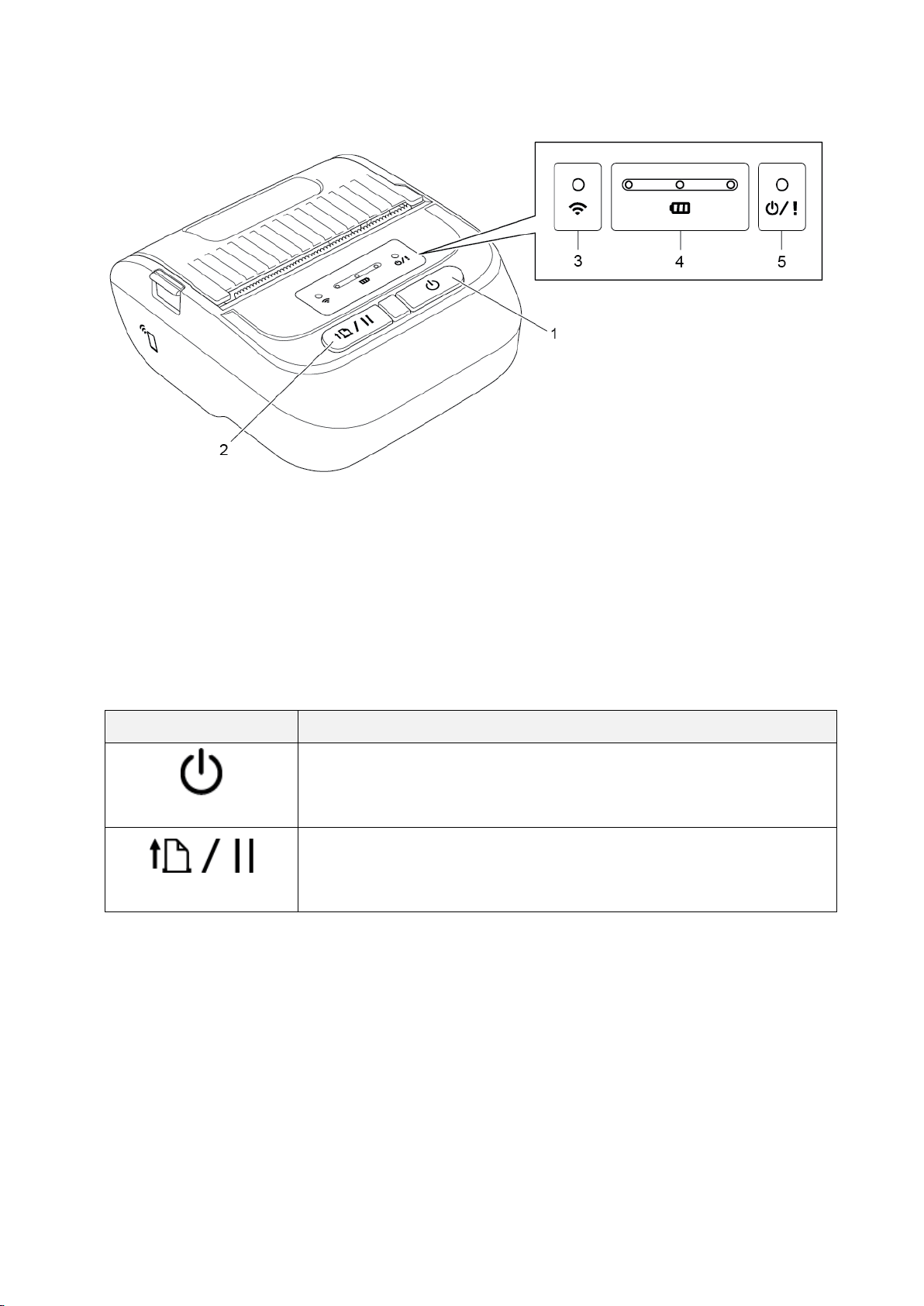
2.2.4 LED Indicators and Buttons
RJ-2035B/RJ-2055WB
1. Power Button
2. Feed/Pause Button
3. Wi-Fi/Bluetooth Status LED Indicator
4. Battery Status LED Indicators
5. Printer Status LED Indicator
Buttons Function
Power Button
Press and hold for three seconds to turn the printer on/off.
Feed/Pause Button
• Ready status: Feeds one label or receipt.
• Printing status: Pauses the print job.

7
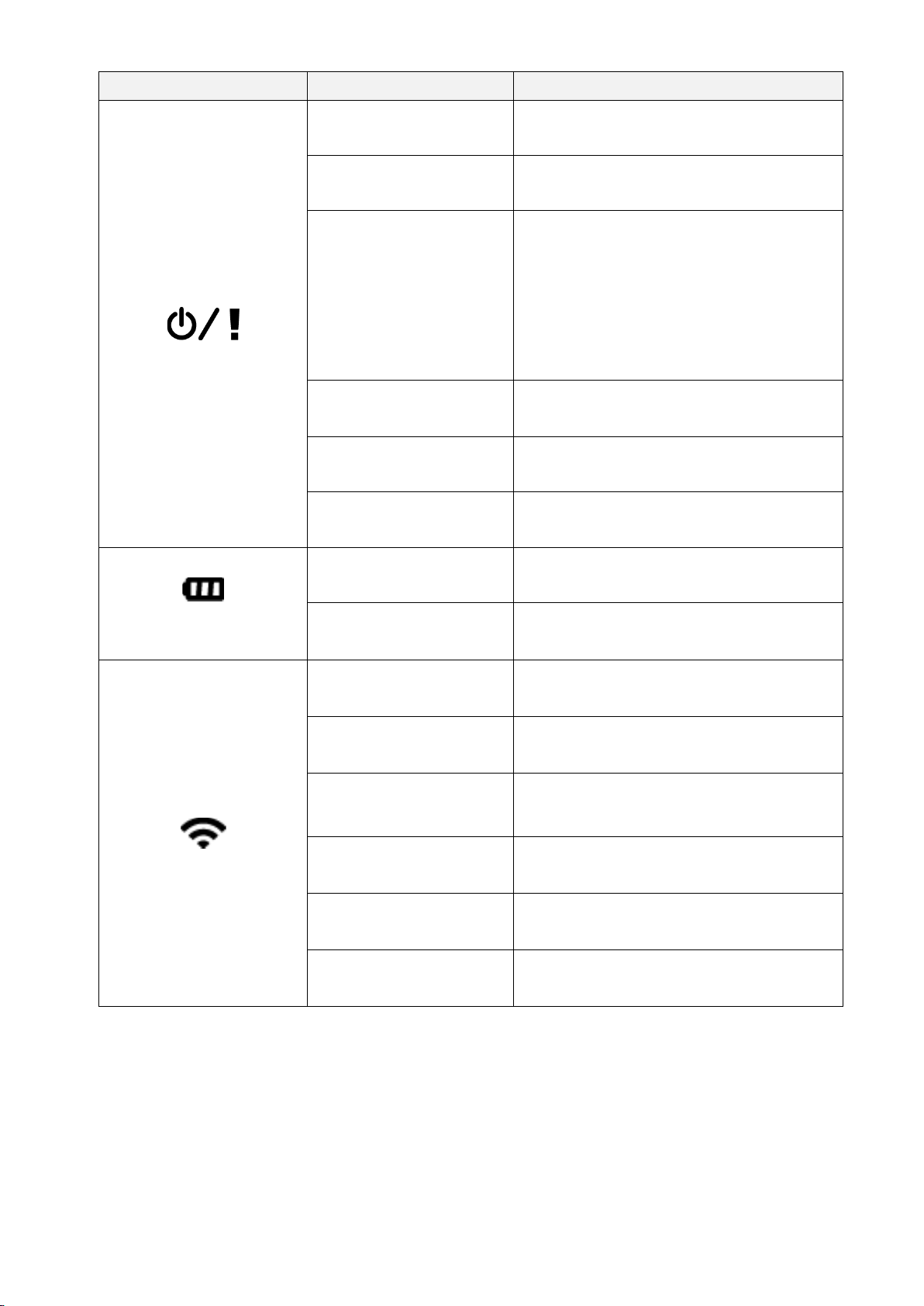
LED Indicator
Status
Indication
Printer Status
Off The printer is ready.
Green (blinking) The printer is paused.
Green (blinking
every two seconds)
The printer has entered sleep mode
after more than two minutes of
inactivity. To change the sleep mode
time, see FBPL Command Reference
Manual on the Brother support
website.
Red (solid)
The Media Compartment Cover is
open.
Red (blinking) A printer error has occurred.
Orange (blinking) The printer's battery is charging.
Battery Status
Green (blinking) The printer's battery is charging.
Green (solid) The printer's battery is fully charged.
Wi-Fi/Bluetooth Status
Blue (blinking)
The printer is communicating with a
Bluetooth/Wi-Fi device.
Blue (solid)
The printer is connected to a
Bluetooth/Wi-Fi device.
8
RJ-3035B/RJ-3055WB
1. Power Button
2. Feed/Pause Button
3. Wi-Fi/Bluetooth Status LED Indicator
4. Battery Status LED Indicators
5. Printer Status LED Indicator
Buttons Function
Power Button
Press and hold for three seconds to turn the printer on/off.
Feed/Pause Button
• Ready status: Feeds one label or receipt.
• Printing status: Pauses the print job.
9
LED Indicator
Status
Indication
Printer Status
Off The printer is ready.
Green (blinking) The printer is paused.
Green (blinking every
two seconds)
The printer has entered sleep mode
after more than two minutes of
inactivity. To change the sleep mode
time, see FBPL Command Reference
Manual on the Brother support
website.
Red (solid)
The Media Compartment Cover is
open.
Red (blinking) A printer error has occurred.
Orange (blinking) The printer's battery is charging.
Battery Status
Green (blinking) The printer's battery is charging.
Green (solid) The printer's battery is fully charged.
Wi-Fi/Bluetooth Status
Green (blinking)
The printer is communicating with a
Wi-Fi device.
Green (solid)
The printer is connected to a Wi-Fi
device.
Blue (blinking)
The printer is communicating with a
Bluetooth device.
Blue (solid)
The printer is connected to a Bluetooth
device.
White (blinking)
The printer is communicating with a
Bluetooth/Wi-Fi device.
White (solid)
The printer is connected to a
Bluetooth/Wi-Fi device.

10
2.2.5 Battery Charging Cycle
1. When the printer is on or in use
Note
The printer automatically turns off if the battery is fully charged and if it has not received
any print jobs for 30 minutes.
: LED Indicator is lit in the color shown
: LED Indicator is blinking in the color shown
Charging Cycle LED Indicators
Charge
Level
1. Charging the battery
0% - 30%
30% - 60%
60% - 100%
100%
2. Power saving mode
• The Printer Status LED blinks in orange (charging
continues).
• To exit the power saving mode, press Power button or
disconnect the power supply.
3. Charging complete When fully charged, the printer turns off automatically.
Charging Starts
Power Saving Mode
(Charging continues)
Charging Complete
(The printer turns off
automatically)

11
Note
When the printer's battery is being charged, the Printer Status LED blinks in orange.
To check the charging status, press the Power button.
2. When the printer is off
To check the charging status, press the Power button.
Charging Cycle LED Indicators Charge
Level
Charging the battery
when the printer is off.
0% - 30%
30% - 60%
60% - 100%
100%
Note
When the printer's battery is being charged, the Printer Status LED blinks in orange.
The printer automatically turns off if the battery is fully charged and if it has not
received any print jobs for 30 minutes.

12
For RJ-3035B/RJ-3055WB only
To check the charge level and life of the Rechargeable Li-ion Battery, use the Brother
Printer Management Tool (BPM). You can download the BPM from your model's
Downloads page at support.brother.com.
To display the Battery Capacity and Battery Life in the BPM:
1. Insert the smart battery into your printer.
2. Connect the printer to the computer using a USB cable or Wi-Fi.
3. Start the BPM and click the Setup button.
4. Select the battery management settings you want and close the Setup dialog box.

13
3. Set up Your Printer
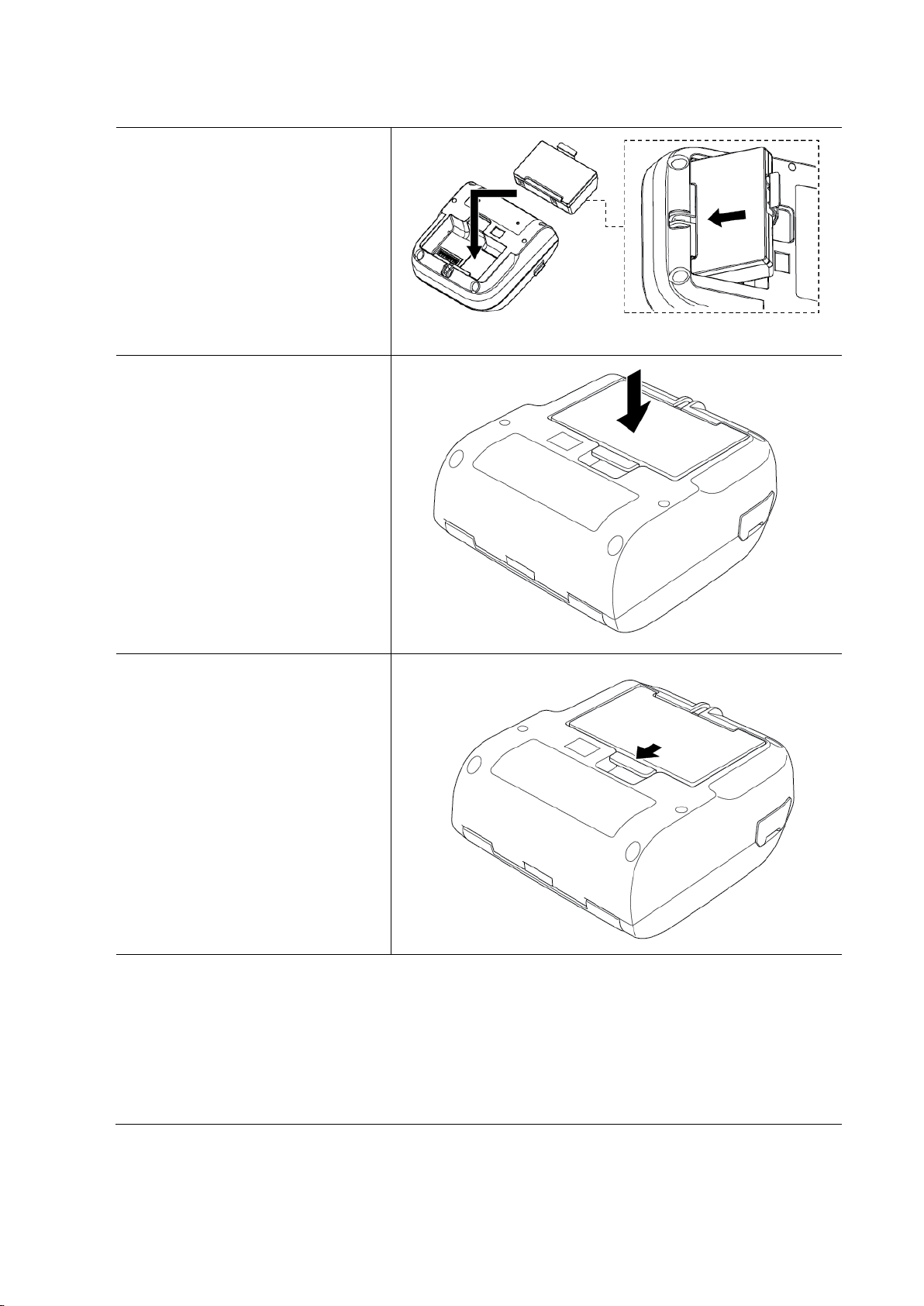
3.1 Install the Battery
RJ-2035B/RJ-2055WB
1. Insert the battery into the
Battery Compartment as
illustrated.
2. Gently press the battery down
and pull the Battery Release
Latch until it locks into place.
Battery safety warning:
• DO NOT throw the battery into fire, expose to heat, disassemble or modify it.
• DO NOT connect the + and - terminals with metal objects such as wire. Do not
carry or store the battery with metal objects.
• DO NOT dispose of the battery with household waste.
• Observe all applicable regulations when disposing of this product.
14
RJ-3035B/RJ-3055WB
1. Insert the battery into the
Battery Compartment as
illustrated.
2. Gently press the battery
down.
3. Pull the Battery Release
Latch and push until it
locks into place.
Battery safety warning:
• DO NOT throw the battery into fire, expose to heat, disassemble or modify it.
• DO NOT connect the + and - terminals with metal objects such as wire. Do not
carry or store the battery with metal objects.
• DO NOT dispose of the battery with household waste.
• Observe all applicable regulations when disposing of this product.

15
3.2 Charge the Battery
Make sure you fully charge the battery before the first usage. This may take up to two
hours.
3.2.1 Charge the Printer's Battery
1. Open the Interface Cover and plug
the Power Cord into the Power Port.
RJ-2035B/RJ-2055WB
RJ-3035B/RJ-3055WB
2. Plug the Power Cord into a power
outlet (an electrical socket).
Note
For more information about the
battery charging cycle, see section
2.2.5 Battery Charging Cycle.
Charging Temperature
For safe and optimal charging, make sure you charge the printer's battery where the
temperature is between 0°C and 40°C (32°F and 104°F). Charging may stop if the
internal temperature of the printer or battery exceeds the maximum operating
temperature.
16
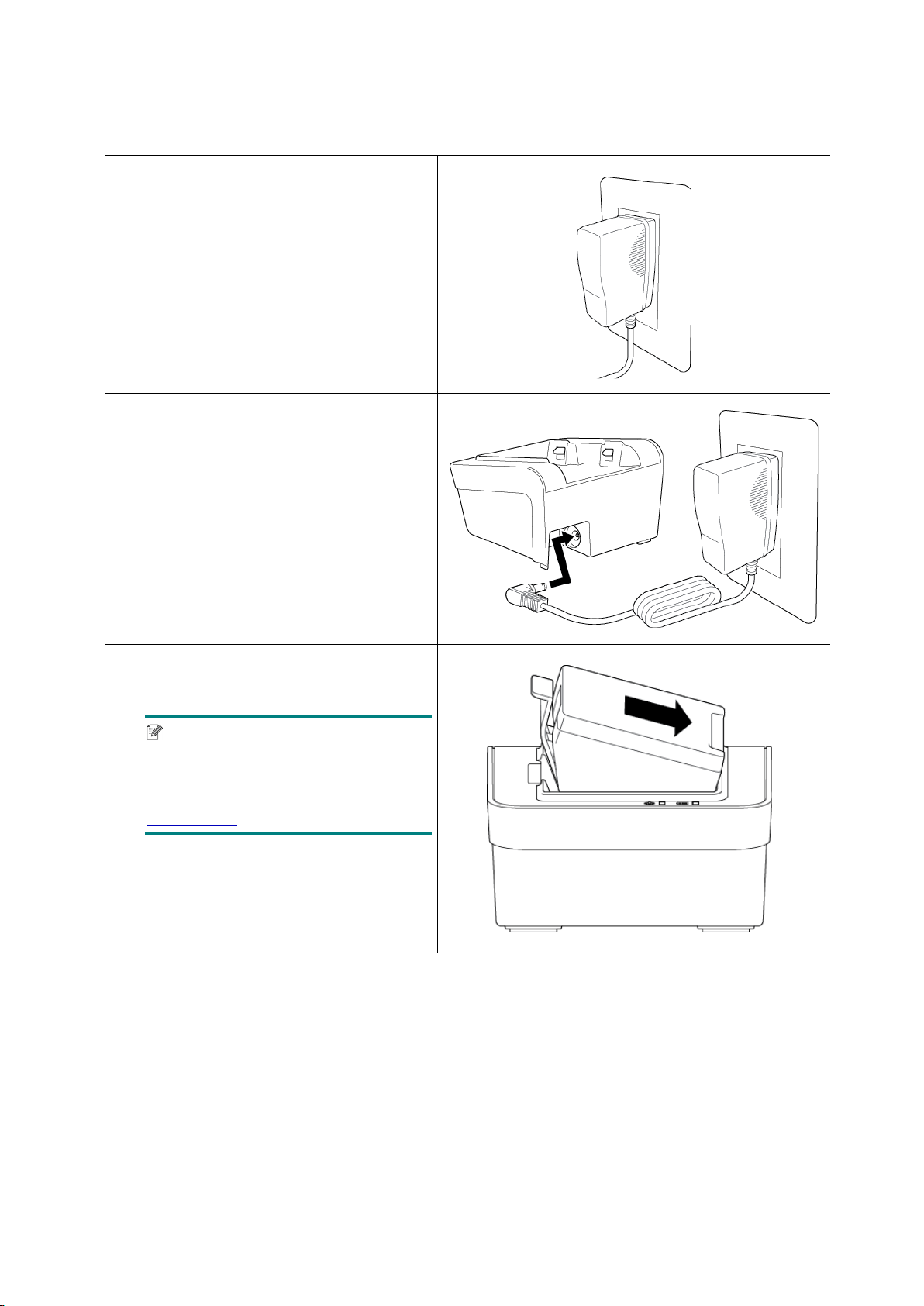
3.2.2 Charge the Battery using the Battery Charger (PA-BC-005)
(Optional: only compatible with RJ-3035B/RJ-3055WB)
1. Plug the power adapter of the
Battery Charger into a grounded
AC outlet (an earthed electrical
socket).
2. Plug the charger connector into
the Battery Charger's DC socket.
3. Insert the battery into the slot as
illustrated.
Note
For battery installation
instructions, see section 3.1 Install
the Battery.
17
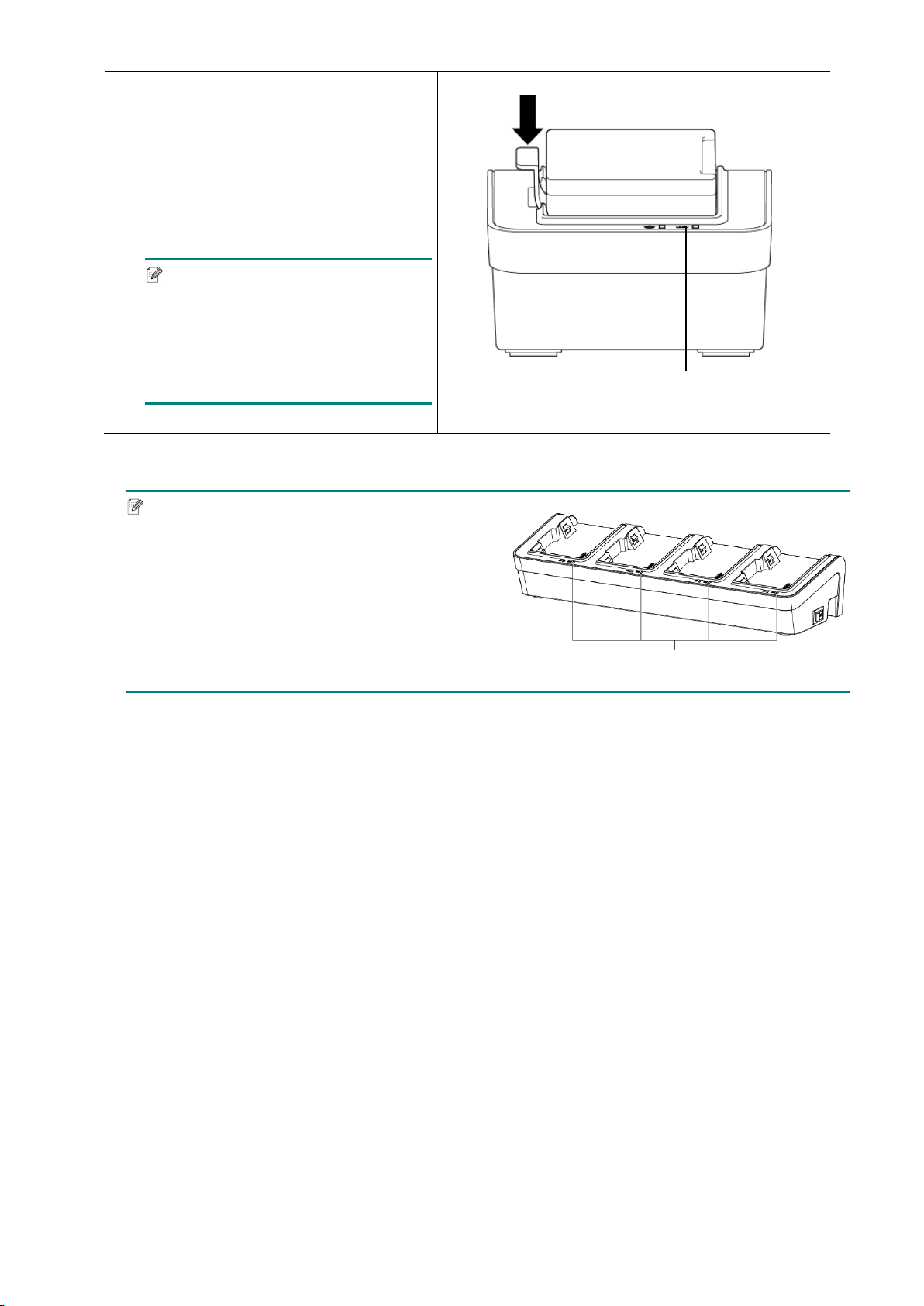
4. Push the Battery Release Latch
down until the battery locks into
place.
5. (For 4-bay Battery Charger only)
Press the battery charger's power
switch to On.
Note
When the battery is fully charged,
the Battery Status LED lights in
green and the charging stops
automatically.
Note
The 4-bay Battery Charger is also available.
For RJ-2035B/RJ-2055WB:
PA-4BC-001
For RJ-3035B/RJ-3055WB:
PA-4BC-002
Status LED
Status LED

18
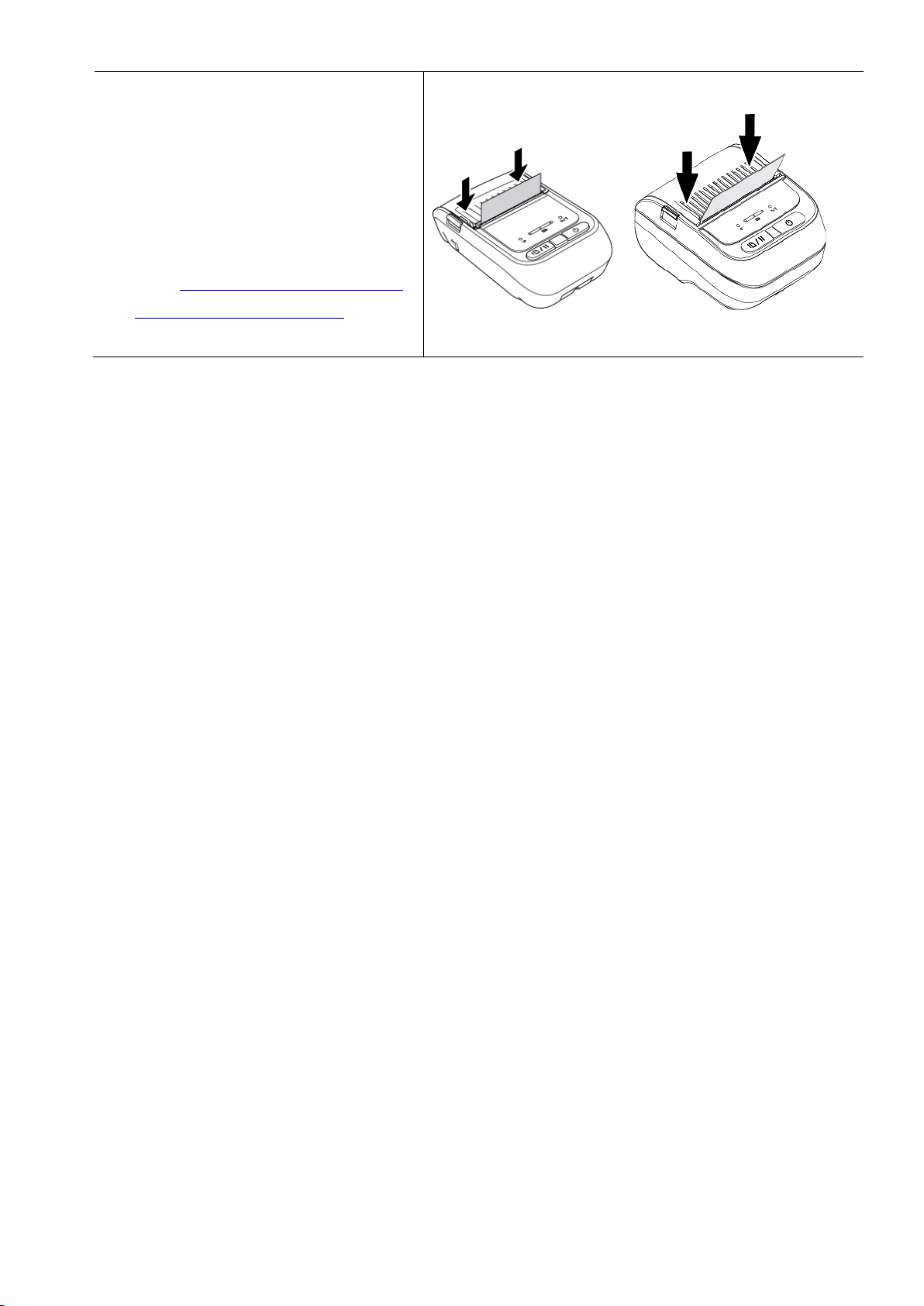
3.3 Loading the Media
1. Press the Media Compartment
Cover Release Tab and lift the
Media Compartment Cover.
RJ-2035B/RJ-2055WB RJ-3035B/RJ-3055WB
2. Insert the media roll as illustrated,
and pull out enough paper over
the tear edge.

20
3.4 Printer Driver Installation
Note
For the model name and serial number, see the label on the base of your printer or
inside the battery compartment.
The driver installation method depends on the connection type:
USB Connection (Windows/Mac/Linux)
Bluetooth Connection (Windows)
Wi-Fi Network Connection (Windows)
3.4.1 USB Connection (Windows/Mac/Linux)
Note
Mac/Linux Users
For more information about driver installation, see the driver installation guide provided
with the driver.
1. Connect your printer to the computer using a USB cable.
2. Visit support.brother.com, go to your model's Downloads page, and download the
latest printer driver and software.
3. Run the Seagull Driver Wizard application and select Install printer drivers and
USB.
4. Follow the on-screen instructions.
Note
If you cannot install a printer driver:
Install a printer driver manually:
In the Seagull Driver Wizard application, select Install printer drivers > Others.
Remove the printer drivers:
In the Seagull Driver Wizard application, select Remove printer drivers >
Automatically remove all Drivers by Seagull or Use advanced printer driver
removal options.
Reset the printer settings:
Start the BPM, and then click Printer Function > Factory Default.

21
3.4.2 Bluetooth Connection (Windows)
1. Check the Bluetooth Local Name:
Using the BPM
a. Connect the printer to the computer using a USB cable.
b. Click Printer Configuration > Bluetooth.
Note
The default Bluetooth Local Name is “PS-*****” where ***** is the last six digits of the
Bluetooth MAC Address on the printer's rating label, located on the back of the machine.
2. Turn on your computer’s Bluetooth feature.
3. Pair the computer with the printer by selecting Start > Settings > Devices >
Bluetooth & other devices and enabling Bluetooth.
4. Select Add Bluetooth or other device and select your printer.
5. Visit support.brother.com, go to your model's Downloads page, and download the
latest printer driver and software.
6. Run the Seagull Driver Wizard application and select Install printer drivers and
Bluetooth.
7. Follow the on-screen instructions.
Note
If you cannot install a printer driver:
Remove the printer drivers:
In the Seagull Driver Wizard application, select Remove printer drivers >
Automatically remove all Drivers by Seagull or Use advanced printer driver
removal options.
Reset the printer settings:
Start the BPM, and then click Printer Function > Factory Default.

22
3.4.3 Wi-Fi Network Connection (Windows)
Make sure both your wireless router/access point's and your printer's network settings are
correctly set up. For more information, see the documentation provided with your wireless
router/access point, or contact the router manufacturer, your system administrator, or
Internet service provider.
1. Configure the network settings:
- Using the BPM
1. Connect your printer to the computer using a USB cable.
2. Click Printer Configuration > Wi-Fi.
3. Specify SSID, Encryption, and Key (Network Password), and then click Set.
4. Click Get and confirm that the printer's IP address is correct.
2. Visit support.brother.com, go to your model's Downloads page, and download the
latest printer driver and software.
3. Run the Seagull Driver Wizard application and select Install printer drivers and
Network.
4. Select your printer, and then click Next.
5. If your TCP/IP port does not appear in the list, click Create port and select Standard
TCP/IP port > New Port.
6. Type your printer’s IP address and port name, and then click Next.
7. Click Finish.
8. Return to the Specify Port window and select the port you created.
9. Follow the on-screen instructions.
Note
If you cannot install a printer driver:
Remove the printer drivers:
In the Seagull Driver Wizard application, select Remove printer drivers >
Automatically remove all Drivers by Seagull or Use advanced printer driver
removal options.
Reset the printer settings:
Start the BPM, and then click Printer Function > Factory Default.

23
3.5 Creating and Printing Labels Using BarTender
BarTender is a label creation tool, which can be downloaded for free from the
product's page at support.brother.com.
1. Launch BarTender.
• For Windows 10, Windows Server 2016, or Windows Server 2019:
Start > BarTender 2016 R7 UltraLite > click BarTender UltraLite, or double-click
the BarTender UltraLite icon on the desktop.
• For Windows 8.1, Windows Server 2012, or Windows Server 2012 R2:
Click BarTender UltraLite on the application screen, or double-click the BarTender
UltraLite icon on the desktop.
• For Windows 7:
Start > All Programs > BarTender 2016 R7 UltraLite > click BarTender UltraLite,
or double-click the BarTender UltraLite icon on the desktop.
2. Follow the on-screen steps to create a label.
Note
For more information on using BarTender, click Help.
3. Click File > Print to print the label.

24
3.6 Connect Your Printer to a Computer
To connect your printer to a computer, use a Micro USB 2.0 cable.
1. Open the Interface Cover.
2. Connect the printer to the
computer with the USB
cable.
Note
The Micro USB 2.0 cable is not included with the printer and must be purchased
separately.
USB Port

25
4. Accessories
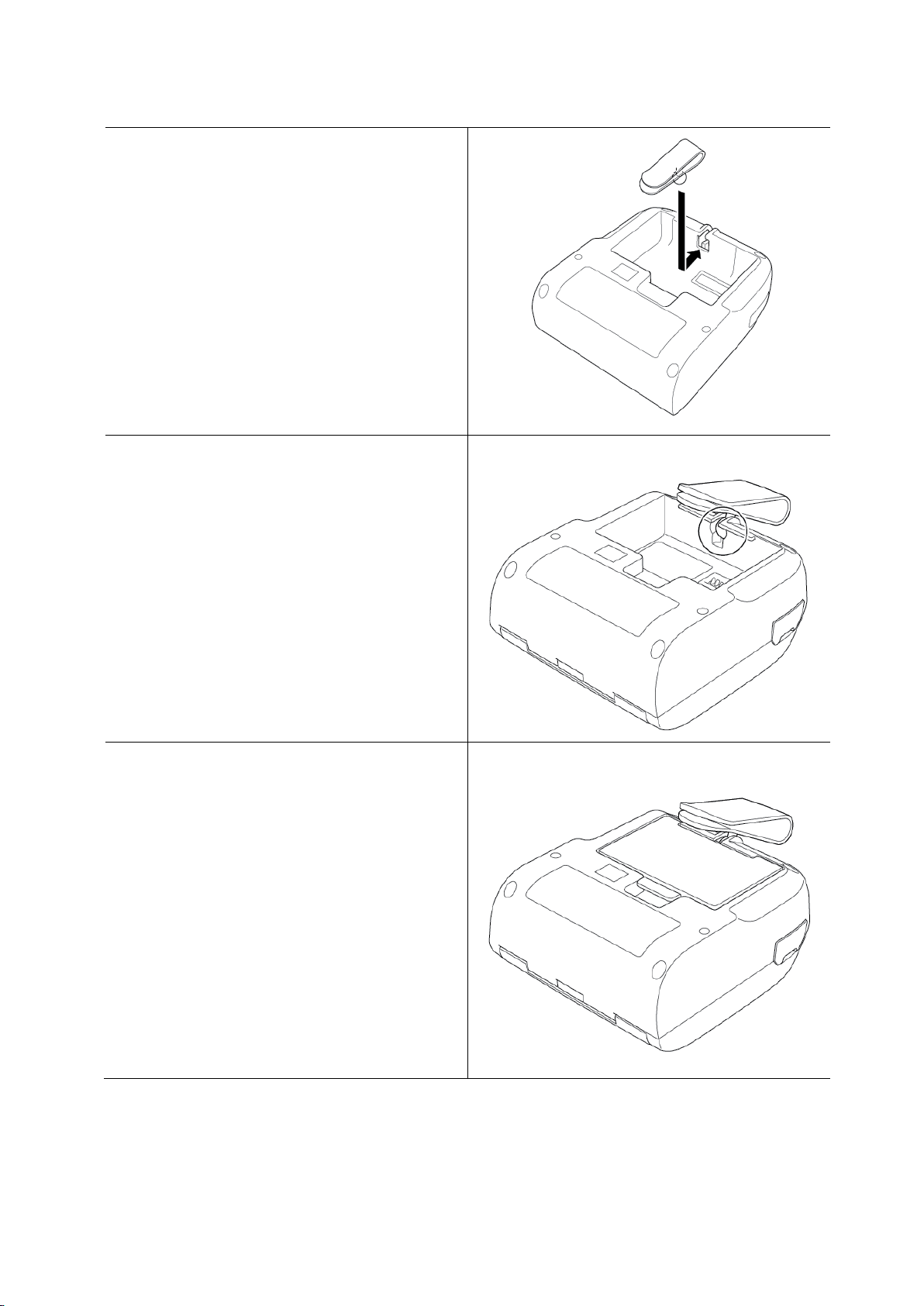
4.1 Install the Belt Clip
RJ-2035B/RJ-2055WB
1. Insert the belt clip into the slot on the
back of the printer as illustrated.
2. Press the clip down until it locks into
place.
26
RJ-3035B/RJ-3055WB
1. Remove the battery from the printer.
2. Insert the Belt Clip into the slot in the
Battery Compartment.
3. Press the Belt Clip until it locks into
place.
4. Install the battery back into the
printer.
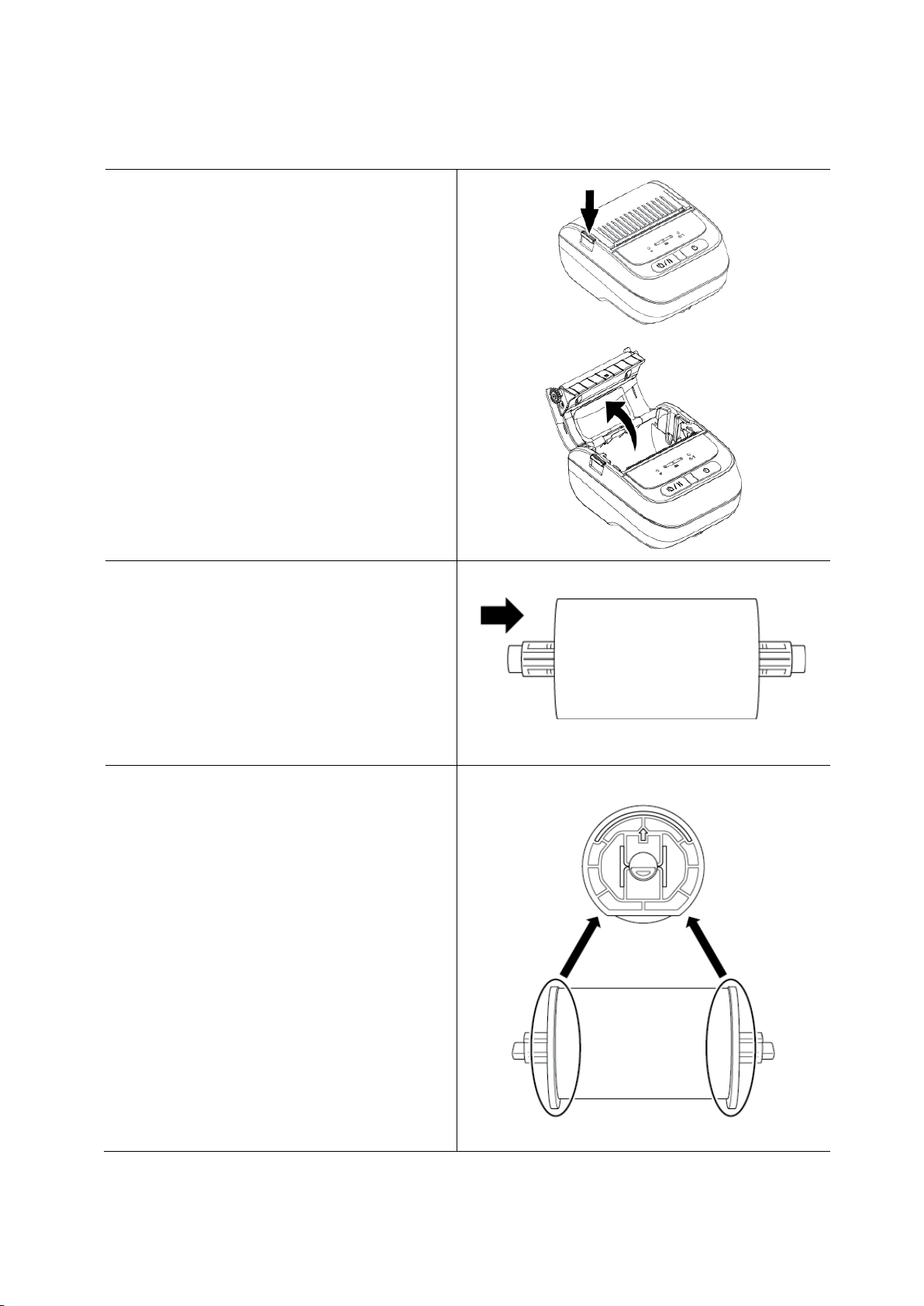
27
4.2 Install the Roll Holder (PA-RH-002) (Optional)
For RJ-3035B/RJ-3055WB only
1. Press the Media Compartment
Cover Release Tab and lift the
Media Compartment Cover.
2. Insert the Label Spindle into the
paper roll as illustrated.
3. Install the Fixing Tabs on both sides
of the paper roll.
Fixing Tabs

28
4. Insert the label roll with the installed
Fixing Tabs and Label Roll Spindle
into the printer.
5. Press down the Media Compartment
Cover on both sides to close it
gently, and make sure it has closed
correctly.

29
4.3 Install the Roll Spacer Set (Optional)
For RJ-2035B/RJ-2055WB: PA-RS-001
For RJ-3035B/RJ-3055WB: PA-RS-002
Note
To use a customized media width, install the required number of Roll Spacers in the
Media Compartment. Use the same number of Roll Spacers on each side.
Available widths: 1" (25.4 mm), 1.5" (38.1 mm), 2" (50.8 mm), and 2.5" (63.5 mm).
1. Press the Media Compartment
Cover Release Tab and lift the
Media Compartment Cover.
RJ-2035B/RJ-2055WB RJ-3035B/RJ-3055WB

30
2. Insert the Roll Spacers into the
Spindle Slots on both sides of
the Media Compartment as
illustrated.
RJ-2035B/RJ-2055WB
RJ-3035B/RJ-3055WB
Slot
Slot

31
Note
The media width can be
changed from 1" (25.4 mm),
1.5" (38.1 mm), 2" (50.8
mm), to 2.5" (63.5 mm) by
attaching or detaching both
sides of the Roll Spacers.
When installing the Roll
Spacers, use the same
number of Roll Spacers on
each side.
RJ-2035B/RJ-2055WB
RJ-3035B/RJ-3055WB
1" width
1.5" width
2" width
1" width
1.5" width
2" width
2.5" width

32
3. Press down the Media
Compartment Cover on both
sides to close it gently, and
make sure it has closed
correctly.
Note
When the Media Compartment
Cover is closed correctly, it locks
into place and the printer
automatically feeds a small
amount of the media.

33
4.4 Use the IP54 Protective Case with Shoulder Strap (Optional)
For RJ-2035B/RJ-2055WB: PA-CC-002
For RJ-3035B/RJ-3055WB: PA-CC-003
1. Use the zipper to open the case
cover.
2. Place the printer in the case.
Note
The printing side must face the
outside cover as indicated.

34
3. Zip up the case cover. Make sure the Outer Cover is open and fixed while printing.
Outer Cover Fixed
Outer Cover Open

35
4.5 Install the Shoulder Strap with an Adapter (Optional)
1. Remove the battery from the
printer.
2. Insert the Shoulder Strap
Adapter into the slot in the
Battery Compartment.
3. Reinstall the battery in the
printer and pull the Battery
Release Latch until it locks into
place.

36
4.6 Using the 1-bay Charging Cradle (Optional)
For RJ-2035B/RJ-2055WB: PA-CR-003
For RJ-3035B/RJ-3055WB: PA-CR-004
1. Insert the printer into the
Charging Cradle, and then
gently press the printer down.
RJ-2035B/RJ-2055WB
RJ-3035B/RJ-3055WB
2. Connect the Charging Cradle's
power adapter to its Power Port.
RJ-2035B/RJ-2055WB RJ-2035B/RJ-2055WB
3. Connect the power adapter of
the Charging Cradle to a
grounded AC outlet (an earthed
electrical socket).

37
4. The charging starts.
When the battery is fully
charged, all three Battery Status
LEDs are lit in green.
RJ-2035B/RJ-2055WB RJ-3035B/RJ-3055WB

38
4.7 Using the 4-bay Charging Cradle (Optional)
For RJ-2035B/RJ-2055WB: PA-4CR-001
For RJ-3035B/RJ-3055WB: PA-4CR-002
1. You can install the 4-bay Charging
Cradle either vertically or
horizontally.
To install the 4-bay Charging Cradle
vertically, use the supplied base
support.
Vertical Installation
Horizontal Installation
2. Install the printer in the Charging
Cradle as illustrated.
Vertical Installation

39
Horizontal Installation
3. Connect the Charging Cradle's
power adapter to its Power Port.
4. Connect the Charging Cradle's
power adapter to a grounded AC
outlet (an earthed electrical socket).
The plug may differ by country

40
5. Turn on the power switch on the Charging Cradle. The Charging Cradle's LED blinks
in blue and the charging starts.
When the battery is fully charged, all three Battery Status LEDs on the printer are lit
in green.
4.8 Rechargeable Lithium-Ion Battery (Optional)
For RJ-2035B/RJ-2055WB: PA-BT-008 (Standard)
For RJ-3035B/RJ-3055WB: PA-BT-009 (Standard), PA-BT-010 (Smart Battery)
41
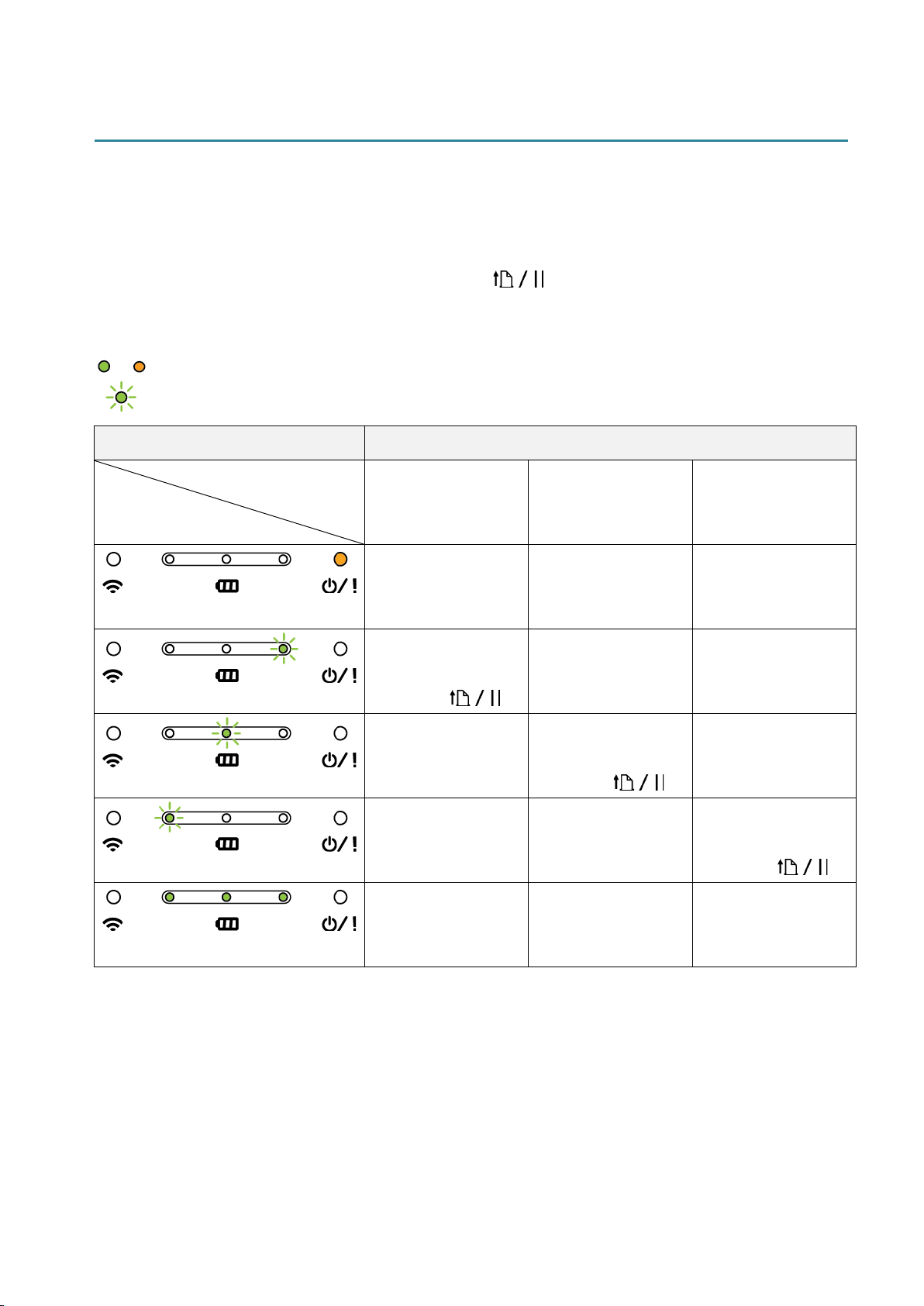
5. Power-on Utilities
There are three power-on utilities to set up and test the printer's functions.
To activate a power-on utility:
1. Turn off the printer.
2. Press and hold the Feed/Pause button ( ) and then turn on the printer.
3. Release the Feed/Pause button when the LEDs indicate the function you want:
or : LED Indicator is lit in the color shown
: LED Indicator is blinking in the color shown
LED Patterns Power-On Utility
Function
LED
1. Media sensor
calibration
2. Self-test and
entering
dump mode
3. Printer
initialization
Orange (Lit)
5 times
Release the
Feed/Pause
button ( )
5 times
Release the
Feed/Pause
button ( )
5 times
Release the
Feed/Pause
button ( )
Green (Lit)

42
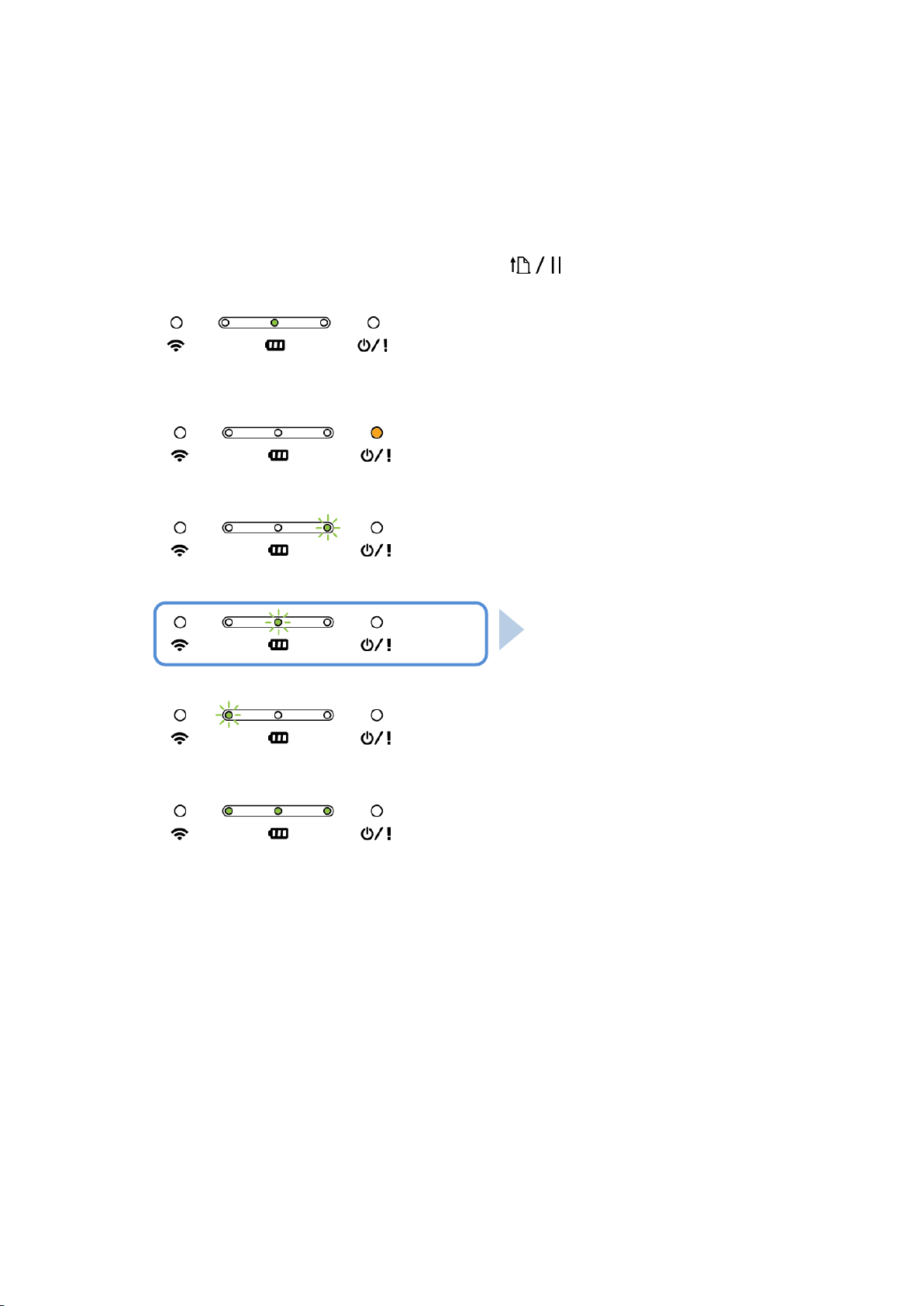
5.1 The Gap/Black Mark Sensors Calibration
The Gap/Black Mark Sensor sensitivity should be calibrated when:
A new printer is purchased
Label media is changed
To calibrate the Gap/Black Mark Sensor:
1. Turn off the printer.
2. Press and hold the Feed/Pause button ( ) and then turn on the printer.
3. Release the Feed/Pause button when the printer's Status LED changes to
and starts blinking.
The LEDs will change as follows:
(Orange)
(5 times)
(5 times)
(5 times)
(Green (lit))
After calibration is complete, you can resume printing.
Release the Feed/Pause button
to enter calibration mode.
43
5.2 Self-test and Dump Mode
The printer calibrates the sensor, detects the media length, prints internal settings,
and then enters the dump mode.
To perform the printer self-test and enter dump mode:
1. Turn off the printer.
2. Press and hold the Feed/Pause button ( ) and then turn on the printer.
3. Release the Feed/Pause button when the printer's Status LED changes to
and starts blinking.
The LEDs will change as follows:
(Orange)
(5 times)
(5 times)
(5 times)
(Green (lit))
To resume printing, turn the printer off and then on again.
The self-test information is printed automatically.
Release the Feed/Pause button to
perform the printer self-test and
enter dump mode.

44
Self-test
You can print the printer configuration after the media sensor calibration. The
self-test printout lists the printer's configuration and available memory space, and
can indicate whether there is any dot damage on the heater component.
Self-test Printout
Model name
Firmware version
Firmware checksum
Printer serial number
Configuration file
System date
System time
Printed mileage (meter)
Cutting counter
Print speed (inch/sec)
Print density
Label size (inch)
Gap distance (inch)
Gap/black mark sensor sensitivity
Code page
Country code
ZPL setting information
Print darkness
Print speed (inch/sec)
Label size
Control prefix
Format prefix
Delimiter prefix
Printer power up motion
Printer Head close motion
Note
ZPL is emulation for Zebra
®
language.

45
Self-test Printout
Bluetooth settings
Total number of downloaded files
and available memory space.
Print Head check pattern

46
Dump mode
The printer will enter dump mode after printing the printer configuration. This
mode allows users to verify and debug the printer's programs. The characters in
the left column are received from the printer's system and those in the right
column are their hexadecimal representation.
Note
Dump mode requires 2" (50.8 mm) wide paper.
To resume printing, turn the printer off and then on again.
ASCII data
Hexadecimal representation
of the ASCII data

47
5.3 Printer Initialization
Printer initialization clears the printer's DRAM and restores its factory settings.
To activate printer initialization:
1. Turn off the printer.
2. Press and hold the Feed/Pause button ( ) and then turn on the printer.
3. Release the Feed/Pause button when the printer's Status LED changes to
and starts blinking.
The LEDs will change in the following order:
(orange)
(5 times)
(5 times)
(5 times)
(Green (Lit))
To resume printing, turn the printer off and then on again.
After the initialization, the following factory settings will be restored:
Parameter
Default Setting
Speed
76.2 mm/s (3 ips)
Density 8
Media Width RJ-2035B/RJ-2055WB: 1.89" (48 mm)
RJ-3035B/RJ-3055WB: 2.84" (72 mm)
Media Height RJ-2035B/RJ-2055WB: 2" (50.8 mm)
RJ-3035B/RJ-3055WB: 4" (101.5 mm)
Print Direction
0
Release the Feed/Pause button
to activate printer initialization.

48
Parameter
Default Setting
Reference Point 0,0 (upper left corner)
Offset 0
Code Page
850
Clear Flash Memory No
IP Address
DHCP

49
6. BPM (Brother Printer Management Tool)
The Brother Printer Management Tool (BPM) is an integrated tool allowing you to:
Check a printer’s status and settings.
Change printer settings.
Send additional commands to a printer.
Download graphics and fonts.
Create a printer bitmap font.
Download and update firmware.
Configure Wireless LAN (Wi-Fi) and Bluetooth settings.
Using this tool, you can also review your printer's status and settings to troubleshoot
any problems.
6.1 Start the BPM
The BPM does not support the Bluetooth connection. We recommend connecting your
printer to the computer using either the USB or Wi-Fi connection.
Double-click the BPM icon to start the software.
The BPM interface is common to the RJ-2035B/2055WB/3035B/3055WB models.
The battery information is shown only for the RJ-3035B/3055WB models using smart
battery.
Features
buttons
Interface
type
Printer
status
Configuration
buttons

50
The BPM's main screen allows you to access the following options:
Printer Configuration
File Manager
Command Tool
RTC Setup
Printer Function
Bitmap Font Manager
For more information, see Brother Printer Management Tool Quick Start Guide.
6.2 Calibrating the Media Sensor using the BPM
Use the BPM to set the media sensor type (Gap Sensor or Black Mark Sensor) and
calibrate the selected sensor.
The Gap Sensor or Black Mark Sensor can:
Detect the beginning of the label and feed the label to the correct position.
Detect the mark and feed the media to the correct position.
For more information about the position of each sensor, see section 2.2.2 Interior View.
1. Make sure the media is already installed and the Print Head is closed.
(See section 3.3 Loading the Media.)
2. Turn on the printer.
3. Start the BPM.
4. Click the Printer Function button.
5. Click the Calibrate button.
6. Select the sensor media type and click Calibrate.
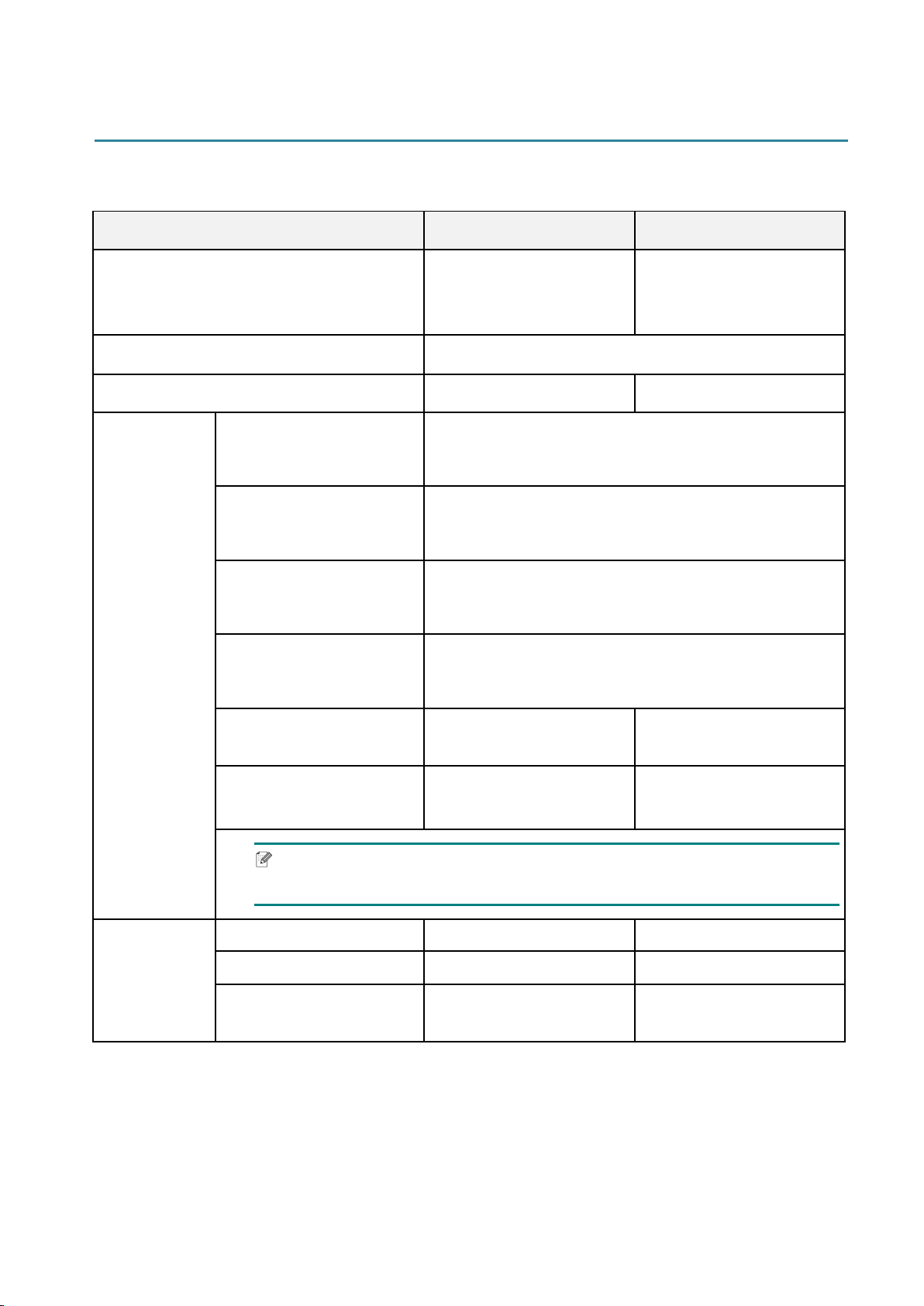
51
7. Product Specifications
7.1 General Specifications
General Specifications RJ-2035B/RJ-2055WB RJ-3035B/RJ-3055WB
Dimensions
3.11" (79 mm) (W) ×
4.57" (116 mm) (H) ×
1.44" (36.5 mm) (D)
4.13" (105 mm) (W) ×
4.57" (116 mm) (H) ×
1.95" (49.5 mm) (D)
Enclosure Plastic
Weight (incl. battery) 0.215 kg (0.47 lb) 0.375 kg (0.83 lb)
Electrical
Car Adapter (Cigarette
Socket Type)
Input: DC 12 V - 24 V, 2.3 A
Output: DC 12 V / 1.5 A
AC Adapter
Input: AC 100 V - 240 V, 0.35 A, 50 Hz - 60 Hz
Output: DC 12 V / 1 A
Charging Cradle
Input: 12 V / 1 A
Output: 12 V / 0.9 A
4-bay Charging Cradle
Input: 12 V / 5 A
Output:12 V / 0.9 A × 4
Battery Charger -
Input: 12 V / 2 A
Output: 8.4 V / 1.0 A
4-bay Battery Charger
Input: 12 V / 5 A
Output: 8.4 V / 0.7 A × 4
Input: 24 V / 2.5 A
Output: 8.4 V / 1.0 A × 4
Note
The printer turns off automatically after 30 minutes of inactivity.
Battery
Output 7.4 V 7.4 V
Capacity 1,130 mAh 3,080 mAh
Charging Time
<2.5 h
(by 12 V / 1 A charger)
3.5 h - 4 h
(by 12 V / 1 A charger)

52
Smart
Battery
(RJ-3035B/
RJ-3055WB
only)
Output - 7.4 V
Capacity - 3,030 mAh
Charging Time -
<3.5 h
(by 12 V / 1 A charger)
Environmental Conditions RJ-2035B/RJ-2055WB RJ-3035B/RJ-3055WB
Operating Temperature -15˚C - 50˚C (5˚F - 122˚F)
1
Storage Temperature -30˚C - 70˚C (-22˚F - 158˚F)
Relative Humidity
Operation / Storage: 10% to 90%
non-condensing
1
For RJ-2035B/RJ-2055WB:
Average operating time is 8.6 h at:
- ips: 4
- Density: 8
- Print coverage: 12.5%
- Print time: 2 min
- Label quantity: 1
- Connection: Bluetooth
IP Rating RJ-2035B/RJ-2055WB RJ-3035B/RJ-3055WB
IP42 (not including the protective
case)
● ●
IP54 (including the protective case)
● ●
7.2 Print Specifications
Print Specifications RJ-2035B/RJ-2055WB RJ-3035B/RJ-3055WB
Print Head Resolution 203 dots/inch (8 dots/mm)
Printing Method Direct thermal
Dot Size (Width × Length) 0.125 mm × 0.125 mm (1 mm = 8 dots)
Print Speed (mm per second) Maximum 4 ips (102 mm/s)
Maximum Print Width 1.89" (48 mm) 2.83" (72 mm)
Maximum Print Length Continuous receipt paper: 110" (2,794 mm)
Printout Bias
Vertical: Maximum 1 mm
Horizontal: Maximum 1 mm
For RJ-3035B/RJ-3055WB:
Average operating time is 38.2 h at:
- ips: 4
- Density: 8
- Print coverage: 12.5%
- Print time: 2 min
- Label quantity: 1
- Connection: Bluetooth

53
7.3 Media Specifications
Media
Specifications
RJ-2035B/RJ-2055WB RJ-3035B/RJ-3055WB
Media Roll
Capacity
Maximum Outer Dimension:
1.18
" (
30 mm)
Maximum Outer Dimension:
1.57
" (
40 mm)
Media Type
Receipt paper
Black mark receipt paper (mark
on the printing side)
Linerless (Optional)
Black mark sensor model:
Receipt paper
Black mark receipt paper (mark
on the printing side)
Linerless (Optional)
Gap sensor model:
Receipt paper
Black mark receipt paper (mark
on the printing side (default
setting) or on the other side)
Label with gap
Linerless (Optional)
Media Winding
Type
Outside wound
Media Length
1" (25.4 mm) - 110" (2,794 mm)
Tear mode: 1.97" (50 mm) - maximum print length
Media Width
Maximum 2.28" (58 mm)
(including a liner)
Maximum 3.15" (80 mm)
(including a liner)
Black mark: Minimum 0.31" (8 mm) (W) × 0.08" (2 mm) (H)
-
Gap: Minimum 0.31" (8 mm) (W) ×
0.08" (2 mm) (H)
-
With Roll Holder: 0.79" (20 mm) -
2.75" (70 mm)
Media
Thickness
2 mil (0.06 mm) - 3.94 mil (0.10 mm)
2 mil (0.06 mm) - 6 mil (0.16 mm)
Note
Set the black mark on the printing side when using black mark receipt media.

54
8. Troubleshooting
This chapter explains how to resolve typical problems you may encounter when using the
printer. If you have any problems with the printer, first make sure you have performed the
following tasks correctly.
If you still have problems, contact the product manufacturer's customer service or your local
dealer.
Problem Possible Cause Solution
The LED Indicator is not lit.
• The battery is not installed
correctly.
• The battery's metal contact
pins are dirty.
• The battery has finished.
• Clean the battery metal contacts.
• Reinstall the battery.
• Turn the printer on.
• Charge the battery.
The Brother Printer
Management Tool shows
“Head Open”.
The Media Compartment
Cover is open.
[RJ-2035B/RJ-2055WB]
• Close the Media Compartment Cover.
[RJ-3035B/RJ-3055WB]
• Close the Media Compartment Cover.
The Brother Printer
Management Tool shows
“Out of Paper”.
• The media roll has finished.
• The media roll is installed
incorrectly.
• The Black Mark/Gap Sensor
is not calibrated.
• Install a new media roll.
• To install a new media roll, see
section
3.3 Loading the Media.
• Calibrate the Black Mark Sensor.
[RJ-3035B/RJ-3055WB only]
• Calibrate the Gap Sensor.
The Brother Printer
Management Tool shows
“Paper Jam”.
• Media may be jammed
inside the Print Head.
• The Gap/Black Mark Sensor
is not calibrated.
• Make sure the media size is
set correctly.
• Calibrate the Gap/Black Mark Sensor.
• Set the media size correctly.
• Clean the Print Head.
Memory full
( Flash / DRAM )
The printer’s FLASH/DRAM
storage is full.
Delete unused files from the
FLASH/DRAM memory from the BPM tool.
Poor Print Quality
• The media is loaded
incorrectly.
• Dust or adhesive has
accumulated on the Print
Head.
• The print density is set
incorrectly.
• The Print Head is
damaged.
• Make sure that both the right and left
sides of the Media Compartment Cover
are fully closed.
• Clean the Print Head.
• Clean the Platen Roller.
• Adjust the print density and print speed.
• Run the printer self-test and check the
Print Head test pattern for missing dots.
• Install the correct media.
Incomplete printing on the left
or right side of media.
The media size is set
up incorrectly.
Set the correct media size.

55
Problem Possible Cause Solution
Blank labels with gray lines.
• The Print Head is dirty.
• The Platen Roller is dirty.
• Clean the Print Head.
• Clean the Platen Roller.
Irregular printing
The printer is in Hex Dump
mode.
Turn the printer on and off to skip the dump
mode. (See section 5.2 Self-test and Dump
Mode).

56
9. Maintenance
We recommend cleaning your printer on a regular basis to maintain its correct performance.
Recommended cleaning materials:
Cotton swab
Lint-free cloth
Vacuum / blower brush
Compressed air
Isopropyl alcohol or ethanol
Printer Part
Cleaning Method
Interval
Print Head
1. Turn the printer off.
2. Allow the Print Head to cool down
for at least one minute.
3. Wipe the Print Head with a cotton
swab dipped in isopropyl alcohol or
ethanol.
Clean the Print Head when
changing a new label roll.
[RJ-2035B/RJ-2055WB]
[RJ-3035B/RJ-3055WB]
Cotton swab
Cotton swab
Heating element
Heating element
Heating element
Print Head
Heating element
Print Head

57
Printer Part
Cleaning Method
Interval
Platen Roller
1. Turn the power off.
2. Rotate the Platen Roller and wipe it
thoroughly with a lint-free cloth or
cotton swab dipped in isopropyl
alcohol or ethanol.
Clean the Platen Roller
when changing a new label
roll.
Tear Bar/Peel Bar
Wipe it with a lint-free cloth dipped in
isopropyl alcohol or ethanol.
As needed
Sensor
Use compressed air or vacuum. Monthly
Exterior
Wipe the printer exterior with a lint-free
cloth dipped in water.
As needed
Interior
Use a brush or vacuum. As needed
Note
Do not touch the Print Head. If you have touched it, clean it as described above.
Do not use medical alcohol as it may damage the Print Head. Use isopropyl alcohol
or ethanol according to the manufacturer's safety guidelines, as applicable.
When replacing the media, we recommend cleaning the Print Head.