E
User Manual
Benützersanleitung
Guida Utente
Manual de uso
Manuel de l’utilisateur
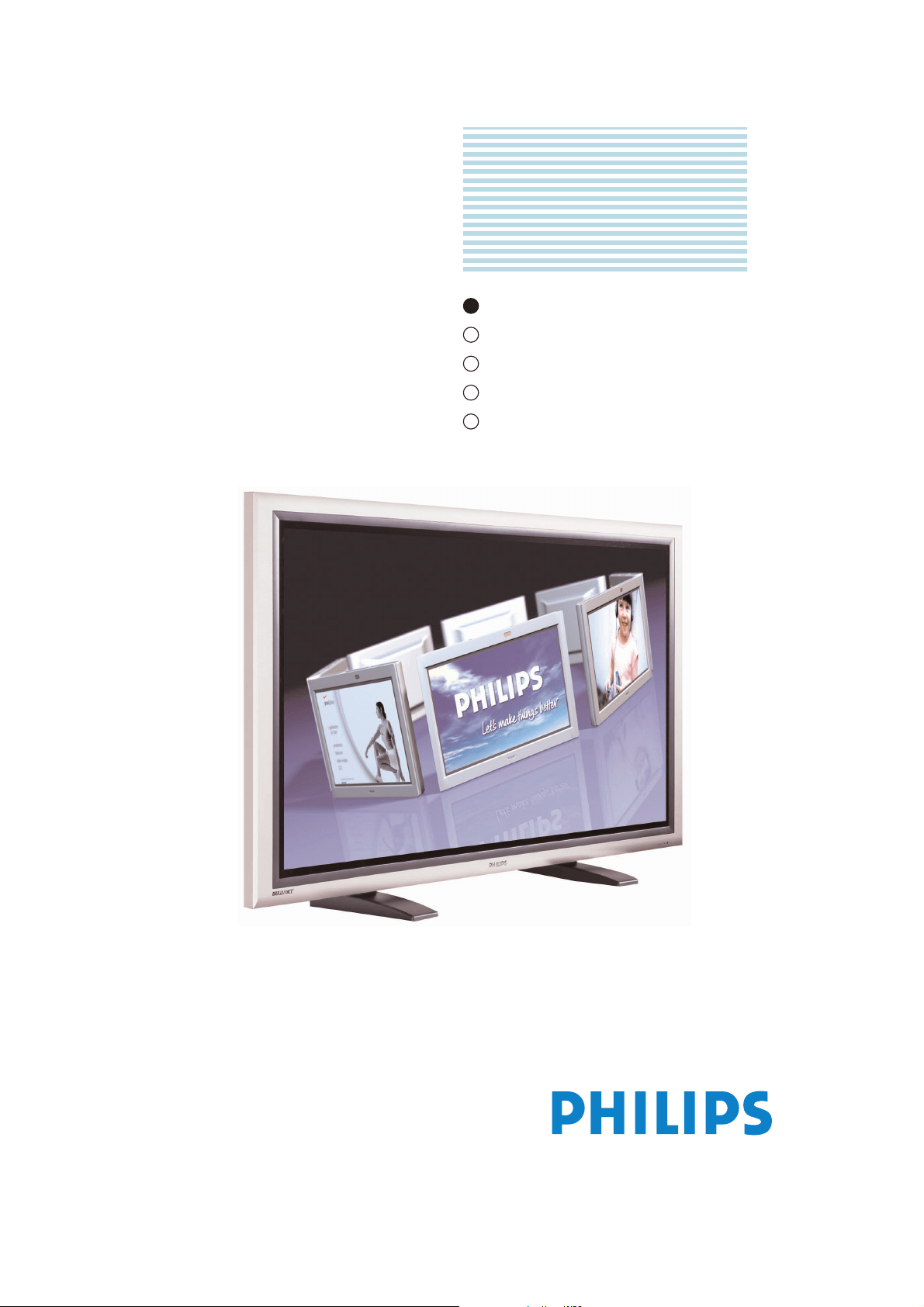
TYPE NR. BDH5011
Philips
Business
Solutions
G
I
S
F
E

TABLE OF CONTENTS
1. Important Safety Instructions . . . . . . . . . . . . . . . . . . . . . . . . . . . . . . . . . . . . . . . . .3
2. FCC Statement . . . . . . . . . . . . . . . . . . . . . . . . . . . . . . . . . . . . . . . . . . . . . . . . . . .5
3. Cleaning and Maintenance . . . . . . . . . . . . . . . . . . . . . . . . . . . . . . . . . . . . . . . . . .6
4. Product Features . . . . . . . . . . . . . . . . . . . . . . . . . . . . . . . . . . . . . . . . . . . . . . . . . .8
5. Package Contents . . . . . . . . . . . . . . . . . . . . . . . . . . . . . . . . . . . . . . . . . . . . . . . .10
6. Understanding your Display . . . . . . . . . . . . . . . . . . . . . . . . . . . . . . . . . . . . . . . . .12
6.1 Front View . . . . . . . . . . . . . . . . . . . . . . . . . . . . . . . . . . . . . . . . . . . . . . . . . .12
6.2 Rear View . . . . . . . . . . . . . . . . . . . . . . . . . . . . . . . . . . . . . . . . . . . . . . . . . .12
6.3 Remote Control . . . . . . . . . . . . . . . . . . . . . . . . . . . . . . . . . . . . . . . . . . . . .13
7. Connecting the Display . . . . . . . . . . . . . . . . . . . . . . . . . . . . . . . . . . . . . . . . . . . .15
7.1 Connecting a DVD Player . . . . . . . . . . . . . . . . . . . . . . . . . . . . . . . . . . . . . .15
7.2 Connecting a HDTV Decoder Set-Top Box . . . . . . . . . . . . . . . . . . . . . . . . .16
7.3 Connecting a VCR . . . . . . . . . . . . . . . . . . . . . . . . . . . . . . . . . . . . . . . . . . . .16
7.4 External Audio Connections . . . . . . . . . . . . . . . . . . . . . . . . . . . . . . . . . . . .17
7.5 Connecting a PC Using RGB or DVI Video Input . . . . . . . . . . . . . . . . . . . . .18
7.6 RS-232 Remote Control Connections . . . . . . . . . . . . . . . . . . . . . . . . . . . . .19
8. Using your Display - Basics . . . . . . . . . . . . . . . . . . . . . . . . . . . . . . . . . . . . . . . . .22
8.1 Powering ON / OFF . . . . . . . . . . . . . . . . . . . . . . . . . . . . . . . . . . . . . . . . . .22
8.2 Selecting Signal Source . . . . . . . . . . . . . . . . . . . . . . . . . . . . . . . . . . . . . . . . .23
8.3 Adjusting Sound Volume . . . . . . . . . . . . . . . . . . . . . . . . . . . . . . . . . . . . . . . .24
9. Using with HDTV . . . . . . . . . . . . . . . . . . . . . . . . . . . . . . . . . . . . . . . . . . . . . . . .25
9.1 Understanding HDTV . . . . . . . . . . . . . . . . . . . . . . . . . . . . . . . . . . . . . . . . .25
10. Advanced Functions . . . . . . . . . . . . . . . . . . . . . . . . . . . . . . . . . . . . . . . . . . . . . . .27
10.1 Picture-In-Picture (PIP) / Side-by-Side Picture (POP) . . . . . . . . . . . . . . . . . .27
10.2 Widescreen (16:9 Aspect Ratio) Viewing Modes . . . . . . . . . . . . . . . . . . . . .31
10.3 On-Screen Display (OSD) Settings . . . . . . . . . . . . . . . . . . . . . . . . . . . . . . .33
10.4 Sleep Timer Settings . . . . . . . . . . . . . . . . . . . . . . . . . . . . . . . . . . . . . . . . . .34
10.5 Variable and Fixed Audio Output . . . . . . . . . . . . . . . . . . . . . . . . . . . . . . . . .35
10.6 Sound Adjustments . . . . . . . . . . . . . . . . . . . . . . . . . . . . . . . . . . . . . . . . . . .35
10.7 Inner speaker ON/OFF . . . . . . . . . . . . . . . . . . . . . . . . . . . . . . . . . . . . . . . .36
10.8 Signal Frequency Information Display . . . . . . . . . . . . . . . . . . . . . . . . . . . . . .37
11. Picture Adjustment . . . . . . . . . . . . . . . . . . . . . . . . . . . . . . . . . . . . . . . . . . . . . . .39
11.1 For AV/Component Video (480i signal) . . . . . . . . . . . . . . . . . . . . . . . . . . . .39
11.2 For Component Video (480p, 720p and 1080i signal) . . . . . . . . . . . . . . . . . .41
11.2 For Component Video (480p, 720p and 1080i signal) - Contd. . . . . . . . . . . .43
11.3 For RGB / DVI . . . . . . . . . . . . . . . . . . . . . . . . . . . . . . . . . . . . . . . . . . . . . . .44
12. Troubleshooting . . . . . . . . . . . . . . . . . . . . . . . . . . . . . . . . . . . . . . . . . . . . . . . . . .46
13. Specifications . . . . . . . . . . . . . . . . . . . . . . . . . . . . . . . . . . . . . . . . . . . . . . . . . . .47
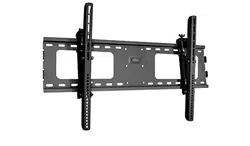
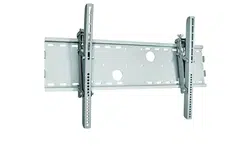
14. Wall Mount (Option) . . . . . . . . . . . . . . . . . . . . . . . . . . . . . . . . . . . . . . . . . . . . . .55
15. Limited Warranty . . . . . . . . . . . . . . . . . . . . . . . . . . . . . . . . . . . . . . . . . . . . . . . . .56
2
User Manual BDH5011
3
User Manual BDH5011
1. IMPORTANT SAFETY INSTRUCTIONS
WARNING
RISK OF ELECTRIC SHOCK
DO NOT OPEN
The lightning flash with arrow-head symbol
within a triangle is intended to alert the user to
the presence of uninsulated dangerous voltage
within the product enclosure that may be of
sufficient magnitude to constitute a risk of
electric shocks to persons.
WARNING
To reduce the risk of electric shock, do not
remove the front or back covers.
No user-serviceable parts inside. Refer servicing
to qualified service personnel only.
The exclamation point within a triangle
is intended to tell the user that important
operating and servicing instructions are
explained.
WARNINGS & PRECAUTIONS
• To prevent damage which may result in fire
or shock hazard, do not expose this product
to rain or moisture.
• To prevent electric shock, do not remove
cover. No user serviceable parts are inside.
Refer servicing to qualified service personnel
only.
• Keep display away from excessive dust, high
temperatures, moisture or direct sunlight.
• Use in a well-ventilated area and do not
cover ventilation openings.
• Unauthorized modification of this equipment
or using an unshielded connecting cable may
cause excessive interference.
• When the display is not in use for a long
period of time, disconnect it from the
electric outlet.
• If the picture displayed is in any way
abnormal, turn off the unit and disconnect it
from the electric outlet.Verify your signal
wire connections and reconnect the display
to the electric outlet.
• Disconnect from the electric outlet before
cleaning. Do not use liquid or aerosol
cleaners. Use only a slightly damp cloth for
cleaning.
• Do not place this product on an unstable
cart, stand or table.The product may fall,
causing serious damage.

• Do not place the unit on a bed, sofa, rug, or
other similar surface. Never place the unit
near or over a radiator or heat source.
• Do not install unit in an enclosed area unless
proper ventilation is provided.
• The unit should be operated from the type
of power source indicated on the label. If the
type of available power is unknown, consult
your dealer or local power company.
• The unit is equipped with a 3-pin grounded
plug.The plug will only fit into a grounded
power outlet.This is a safety feature. If you
are unable to insert the plug into the outlet,
contact your electrician. Do not alter the
plug; this will defeat the safety feature.
• Do not rest objects on the power cable and
avoid placing power cable near high traffic
areas.
• Do not overload wall outlets and extension
cables as this can result in a risk of fire or
electric shock.
• Disconnect the unit from the mains supply
and refer servicing to qualified service
personnel under the following conditions:
• Power cable or plug is damaged or frayed.
• Liquid has been spilled into the product.
• Unit has been exposed to water or
moisture.
• Unit does not operate normally when the
operating instructions are followed.Adjust
only those controls that are covered by
the operating instructions, improper
adjustment of other controls may result in
damage which often requires extensive
work by a qualified technician to restore
the unit to normal operation.
• Unit has been dropped or the cabinet has
been damaged.
• Unit exhibits a distinct change in
performance, indicating a need for service.
4
User Manual BDH5011

5
User Manual BDH5011
2. FCC STATEMENT
FCC Compliance Statement
The equipment has been tested and found to
comply with the limits for a Class B digital
device, pursuant to part 15 of FCC rules.
These limits are designed to provide reasonable
protection against harmful interference when the
equipment is operated in a commercial
environment.
This equipment generates, uses, and can radiate
radio frequency energy and, if not installed and
used in strict accordance with the instruction
manual, may cause harmful interference to radio
communications.
There is no guarantee that interference will not
occur in a particular installation. If this
equipment does cause harmful interference to
radio or television reception, which can be
determined by turning the equipment off and on,
the user is encouraged to try to decrease the
interference by one or more of the following
measures:
• Reorient or relocate the receiving antenna.
• Increase the distance between the equipment
and the receiver.
• Connect the equipment into an outlet on a
circuit different from that to which the
receiver is connected.
• Consult the dealer or an experienced
radio/TV technician for help.
Operation of this equipment in a residential area
is likely to cause harmful interference in which
case the user will be required to decrease the
interference at the owner’s expense.
Shielded interconnected cables and shielded
power cords must be used with this equipment
to ensure compliance with the pertinent RF
emission limits governing this device.
Changes or modifications not expressly
approved by the manufacturer could void the
user's authority to operate the equipment and
void the warranty.
Canadian Compliance Statement
This Class B digital apparatus meets all
requirements of the Canadian Interference
Causing Equipment Regulations.
Cet appareil numérique de la Classe B respecte
toutes les exigences du Règlement sur le
matériel brouilleur du Canada.
6
User Manual BDH5011
3. CLEANING AND MAINTENANCE
Cautions When Using the Plasma Display
• Do not bring your hands, face or objects
close to the ventilation holes of the plasma
display.Top of plasma display is usually very
hot due to the high temperature of exhaust
air being released through the ventilation
holes. Burns or personal injuries may occur if
any body parts are brought too close. Placing
any object near the top of the display could
also result in heat related damages to the
object as well as to the display itself.
• Be sure to disconnect all cables before
moving the plasma display. Moving the display
with its cables attached may damage the
cables, and thus, cause fire or electric shock
danger.
• Disconnect the power plug from the wall
outlet as a safety precaution before carrying
out any type of cleaning or maintenance
procedure.
Front Panel Cleaning Instructions
• The front of the display has been specially
treated.Wipe the surface gently using only a
cleaning cloth or a soft, lint-free cloth.
• If the surface is particularly dirty, soak a soft,
lint-free cloth in a mild detergent solution.
Wring the cloth to remove excessive liquid.
Wipe the surface of the display to remove
dirt.Then use a dry cloth of the same type
to dry the surface.
• Do not scratch or hit the surface of the
panel with fingers or hard objects of any
kind.
• Do not use volatile substances such as insect
sprays, solvents and thinners.
Cabinet Cleaning Instructions
• If the cabinet becomes dirty, wipe the
cabinet with a soft, dry cloth.
• If the cabinet is extremely dirty, soak a lint-
free cloth in a mild detergent solution.Wring
the cloth to remove as much moisture as
possible.Wipe the cabinet.Then use a dry
cloth of the same type to dry the surface.
• Do not allow any water or detergent to
come into contact with the surface of the
display.
If water or moisture gets inside the unit,
operating problems and electrical hazards
may occur.
• Do not scratch or hit the cabinet with hard
objects of any kind.

• Do not use volatile substances such as insect
sprays, solvents and thinners on the cabinet.
• Do not place anything made from rubber or
PVC near the cabinet for extended periods
of time.
Avoid Still Images
• Do not allow a still picture to be displayed
for extended periods of time.This can cause
a permanent image to remain on the plasma
display. Examples of still images may include:
still computer images, still video game
images, still logos or pictures, text and
images displayed in 4:3 Normal mode.
Contents of this manual is subject to
change without notice.
Trademark Credits
• VGA is a trademark of IBM Corporation.
• Macintosh is a registered trademark of Apple
Computer Corporation.
• SVGA is a registered trademark of the Video
Electronics Standard Association.
• All other trademarks are the properties of
their respective owners.
7
User Manual BDH5011

8
User Manual BDH5011
4. PRODUCT FEATURES
• Advanced Digital Image Processing
Advanced digital processor with adaptive
motion de-interlacing converts all 15KHz
signals into progressive scan for a brighter,
flicker free image.
• Pull-Down for Film Scan Conversion
Built-in 3:2 pull-down processing can
automatically detect and convert film
content to properly display with minimal
motion artifacts.
• 3D Comb Filter
Built-in 3D comb filter converts analog signal
into a digital signal for more accurate
processing, eliminating cross-color
interference for superior NTSC video
performance.
• Dual HD Component Video Inputs
Two high-definition component video inputs
with auto-detection capabilities will
automatically synchronize the display to
match the incoming signal source without
manual intervention.
• Picture-in-Picture (PIP)
Watch two programs simultaneously using
the display’s picture-in-picture with four
selectable window position settings.
• Side-by-Side Picture (POP)
Watch two programs simultaneously by
splitting the screen in half.
• HDTV Signal Compatible
This display is capable of accepting 1080i and
720p HDTV signals via an external HDTV
decoder with RGB or Component Video
outputs.
• Digital Zoom Modes
Digital zoom modes gets rid of black bars
common to non-16:9 aspect ratio movie
content.

• DVI Digital Video Interface with HDCP
(High-Bandwidth Digital Content
Protection Protocol) Standard DVI interface
supports the lastest in digital video
peripherals equipped with DVI HDCP digital
video output(s).This means that digital
content can now be passed from sources
such as a digital DVD player, directly to this
display without digital-to-analog conversion
that causes loss of video quality. Direct
digital-to-digital connection ensures the
absolute best in video quality.
• 280x1024 SXGA Support
The onboard digital scaling engine can accept
various PC and HDTV signals and digitally
map the signals to fit within 1366 x 768
pixels.
• Discrete Power ON/OFF
Separate Power ON/OFF buttons on the
remote control facilitates the recording of IR
macros with advanced system setups.
• Direct Input Selection Buttons
Separate input selection keys on the remote
control allow quick and easy selection of
various inputs.
• RS-232 Serial Connection
The RS-232 command set includes front
panel lock, input selection, power on/off,
volume and other standard RS-232 command
controls.
9
User Manual BDH5011
5. PACKAGE CONTENTS
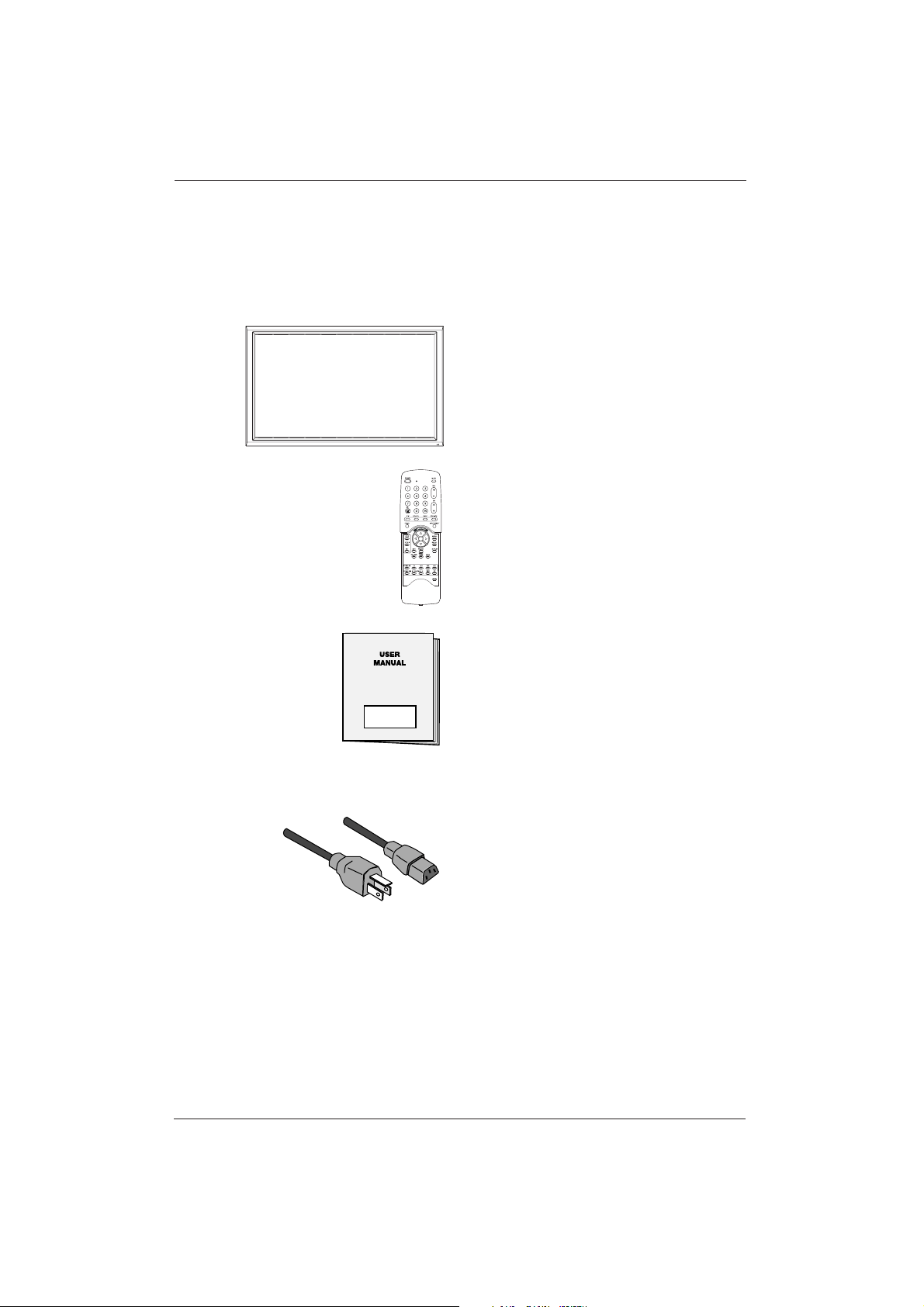
Supplied Accessories
Please verify that you received the following
items with your package content:
Plasma Display
Remote Control
User Manual
Power Cable
10
User Manual BDH5011
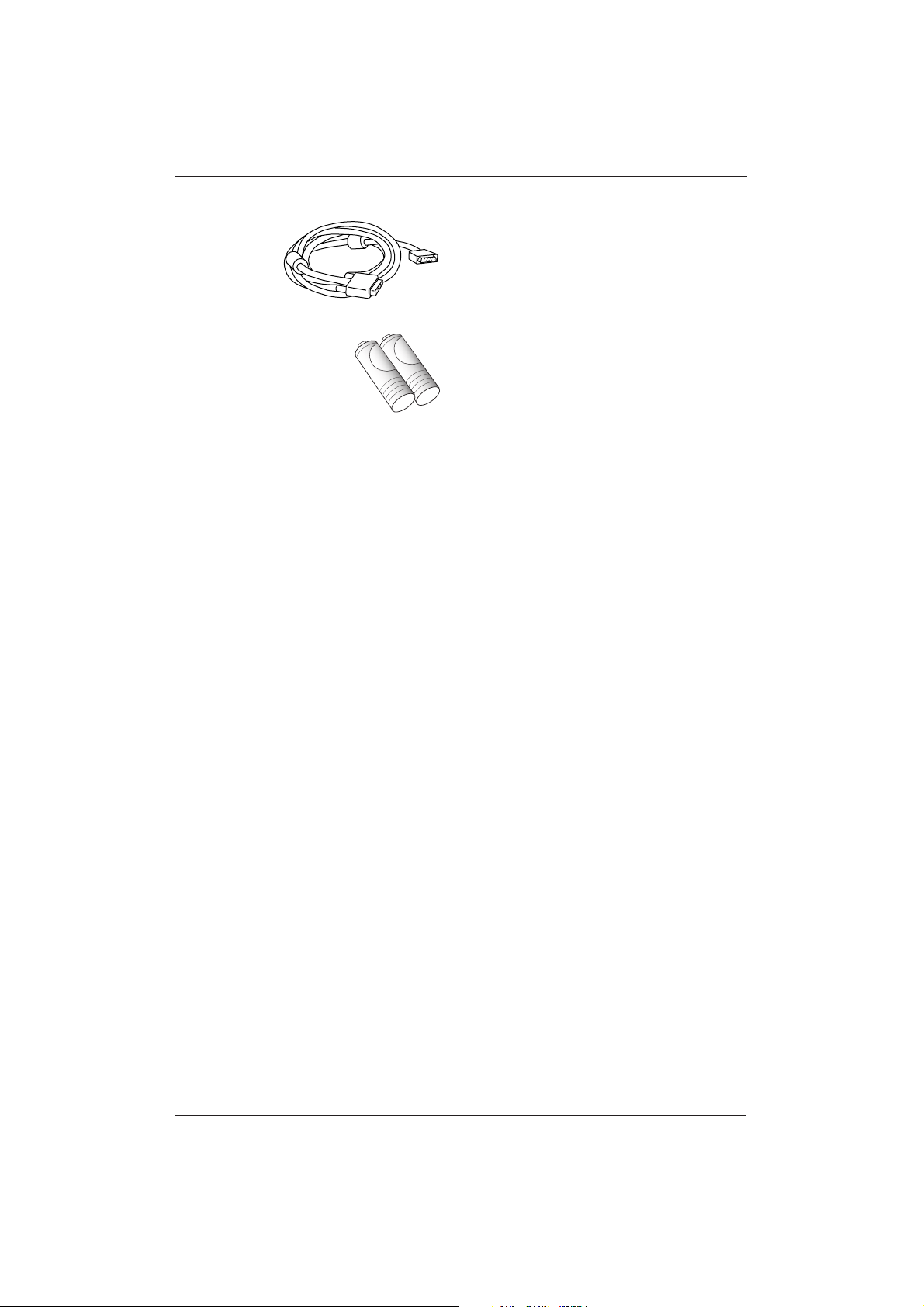
VGA Cable
Batteries
Optional Accessories
The following accessories are available and may
be purchased from your local sales
representative:
• Wall Mount
• Composite Video Cable (RCA)
• S-Video Cable (Mini-Din)
• Component Video Cable (RCA to RCA)
• Audio Cable (RCA Cable)
11
User Manual BDH5011
12
User Manual BDH5011
6. UNDERSTANDING YOUR DISPLAY
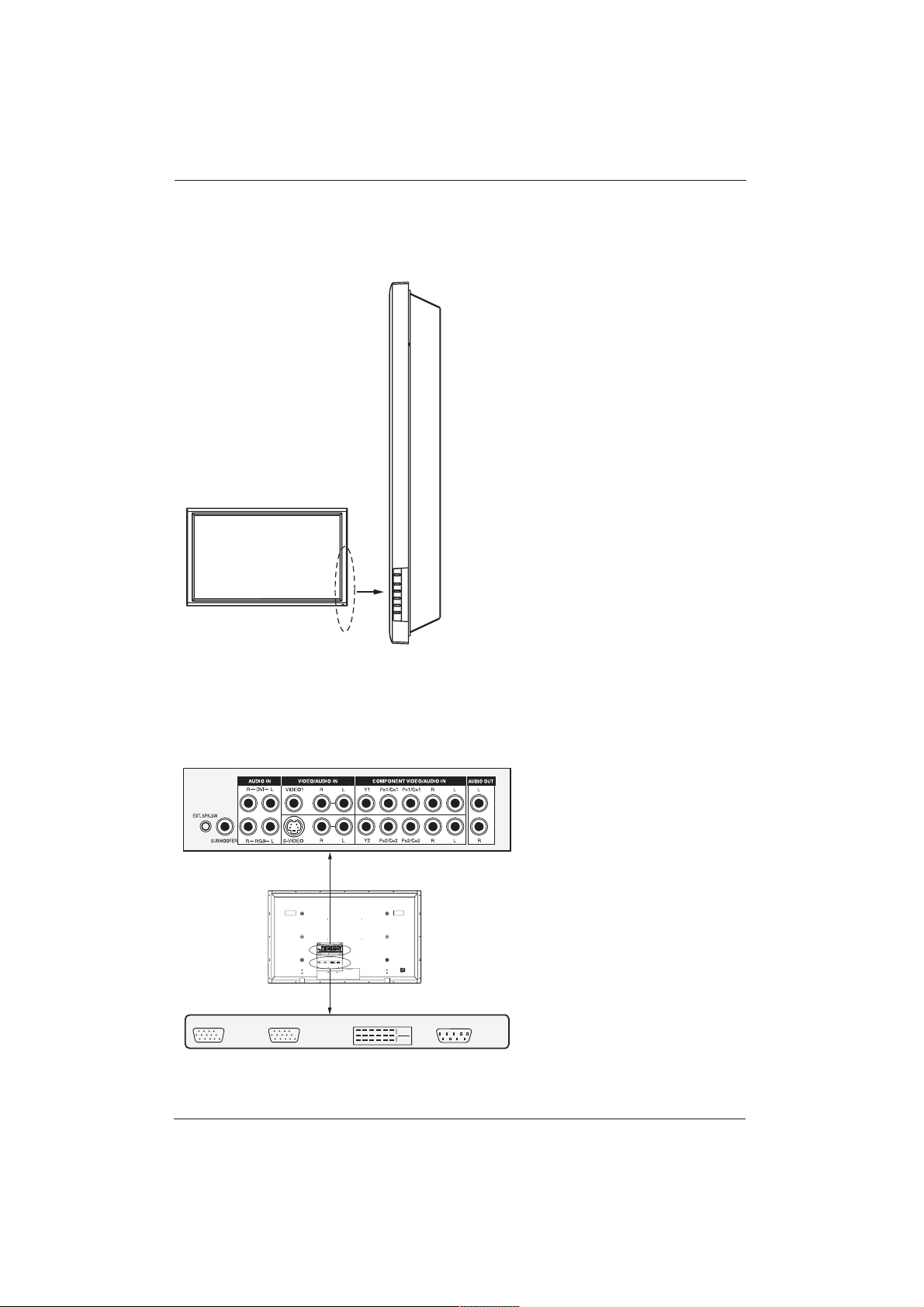
6.1 Front View
Power (Standby) Button
Turns power on/off from standby mode.
There is a 3-second wait between on/off cycles.
Status LED:
• Not Illuminated - No AC Power
detected
If the main power switch (rear of panel) is
turned off, this LED will not illuminate.
• Solid Yellow - Standby (Power OFF)
with AC power detected
The LED will illuminate in yellow color if the
display is shut-off but the main power cord is
plugged into the back of the unit.
• Solid Green - Power ON
• Input Button
Use this button to switch between available
inputs.
• Menu +/- Buttons
Use this menu to engage the On Screen
Display menu.
• Volume Adjustment +/- Buttons
Use these buttons to adjust volume up and
down.
These buttons also serve as adjustment
buttons when the On Screen Display is
engaged.
6.2 Rear View
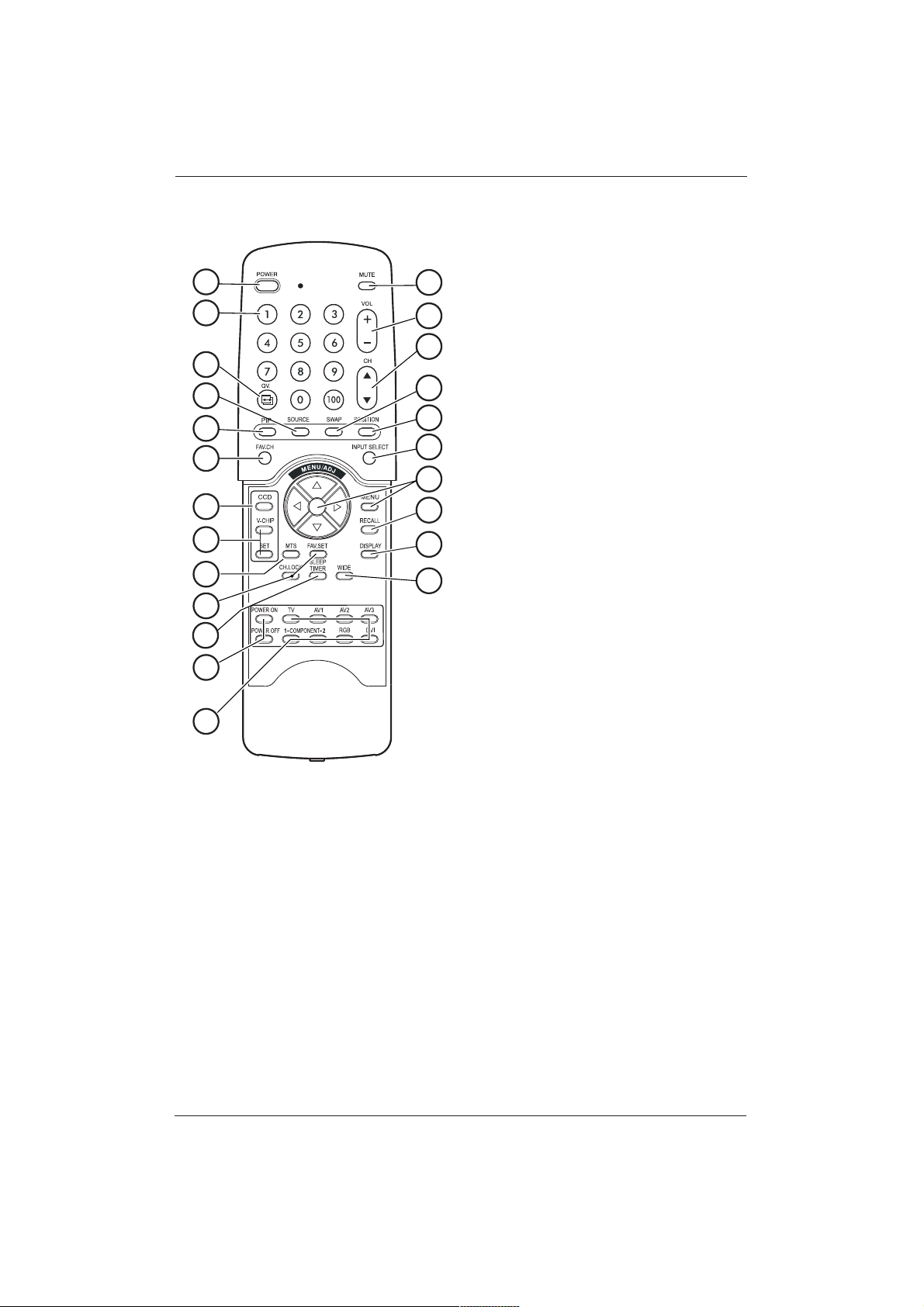
RGB OUTRGB IN RS-232DVI IN
VIDEO CONNECTORS
RGB OUTRGB IN RS-232DVI IN
RGB / COMPUTER RELATED CONNECTORS
13
User Manual BDH5011
6.3 Remote Control
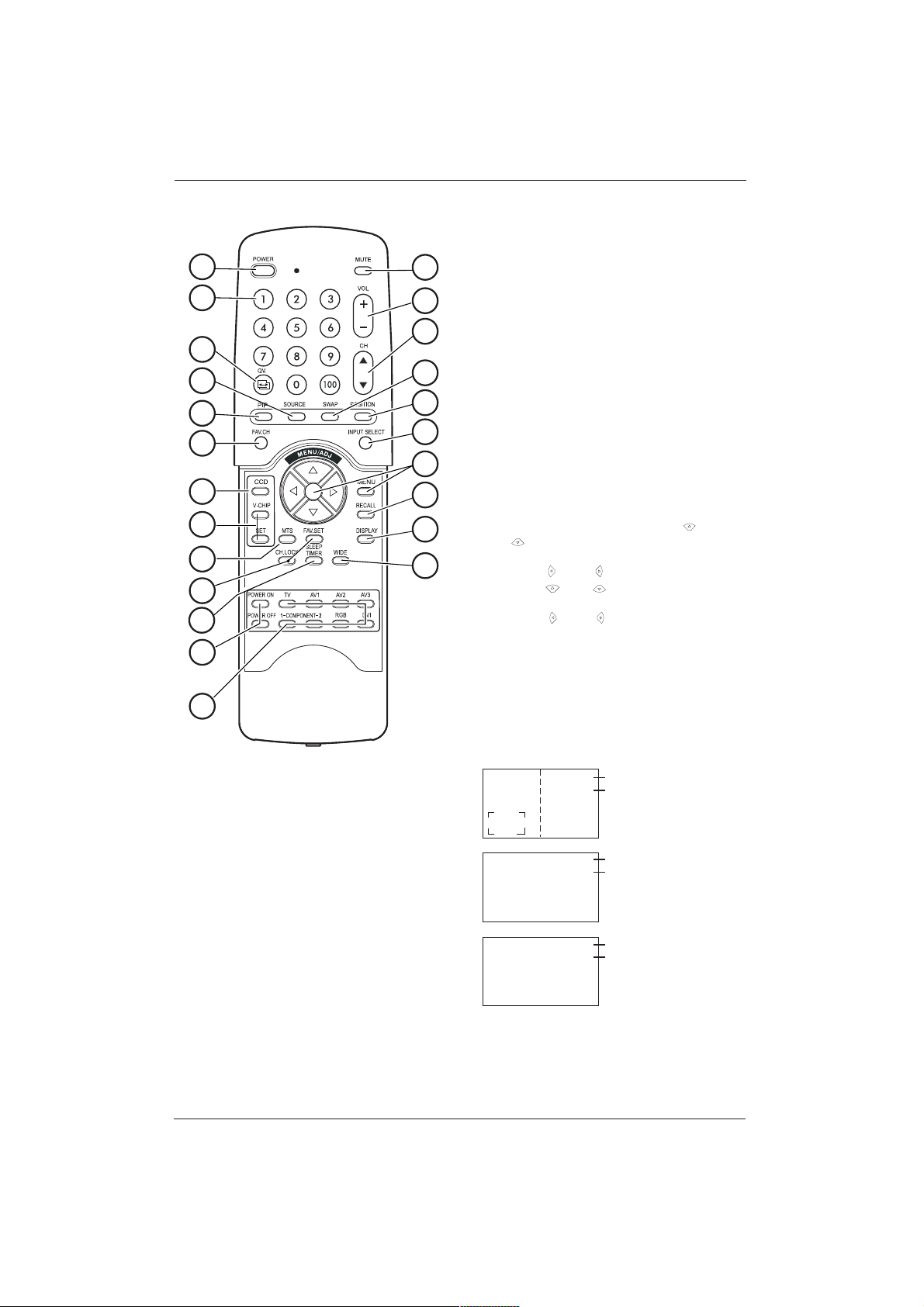
1. Standby Power On/Off
Push this button to switch on the display
from Standby mode. Push it again to switch
off to Standby mode.
2. Number Keypad
These buttons are not applicable for this
display.
3. QuickView
This button is not applicable for this display.
4. PIP/POP Source
Changes the input source of the PIP or POP
sub-window. (See Chapter 10.1)
5. PIP (Picture-in-Picture Button)
Turns on PIP (Picture-in-Picture) mode and
POP (Side-by-Side) picture mode.
(See chapter 10.1).
6. Favorite Channel
This button is not applicable for this display.
7. Closed Captioning|
This button is not applicable for this display.
8. V-Chip
These buttons are not applicable for this
display.
9. MTS Stereo
This button is not applicable for this display.
10. Channel Lock / Fav. Set
These buttons are not applicable for this
display.
11. Sleep Timer
Engages Sleep Timer Settings.
(See Chapter 10.4).
12. Discrete Power ON/OFF
Press OFF to switch the display to Standby
mode. Press ON to power on from standby
mode.
13. Direct Input Selection Buttons
Direct input signal selection by pressing the
appropriate button.
14. Sound Mute On/Off
15. Volume +/-
Turns volume up or down.
2
1
3
5
6
7
4
8
9
10
12
13
23
22
11
21
20
19
18
17
16
15
14
14
User Manual BDH5011
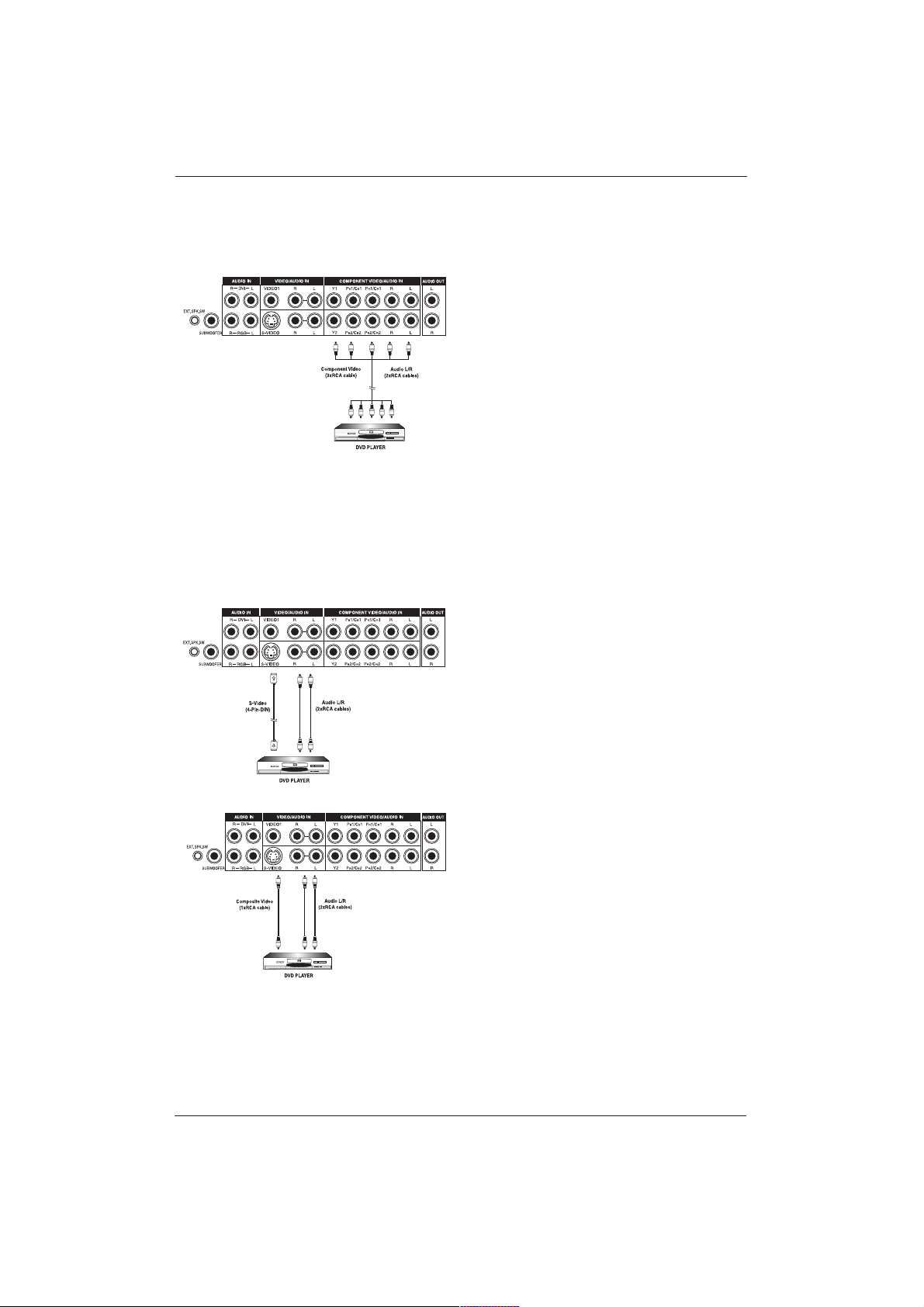
16. Channel Up/Down
These buttons are not applicable to this
display.
17. Swap
This button swaps the main and sub picture
windows under PIP or POP modes.
(See chapter 10.)
18. PIP Position
This button changes the PIP sub-window to
4 different corner locations.
(See Chapter 10.)
19. Input Select
Press to select input signal modes
sequentially. (See Chapter 8.2.)
20. MENU Adjustment
1. Show OSD menu by pressing or
button or MENU button.
2. Scroll through the major OSD category
using or button.
3. Press or button again to select
sub-options within the category.
4. Press or buttons to change the
actual sub-option setting.
21. Recall
Recalls the default picture settings.
(See Chapter 11.)
22. Display
Press to show the status of the display.
23. Wide
Toggles between various aspect ratio
settings. (See Chapter 10.2.)
PIP
AV1
AV2
COMPONENT 1
1080I
RGB
M:06
AV Mode (PIP/POP On)
Component Mode
RGB Mode
Main Source
PIP/POP Source
Main Source
Incoming Signal
Main Source
Display Mode
2
1
3
5
6
7
4
8
9
10
12
13
23
22
11
21
20
19
18
17
16
15
14
7. CONNECTING THE DISPLAY
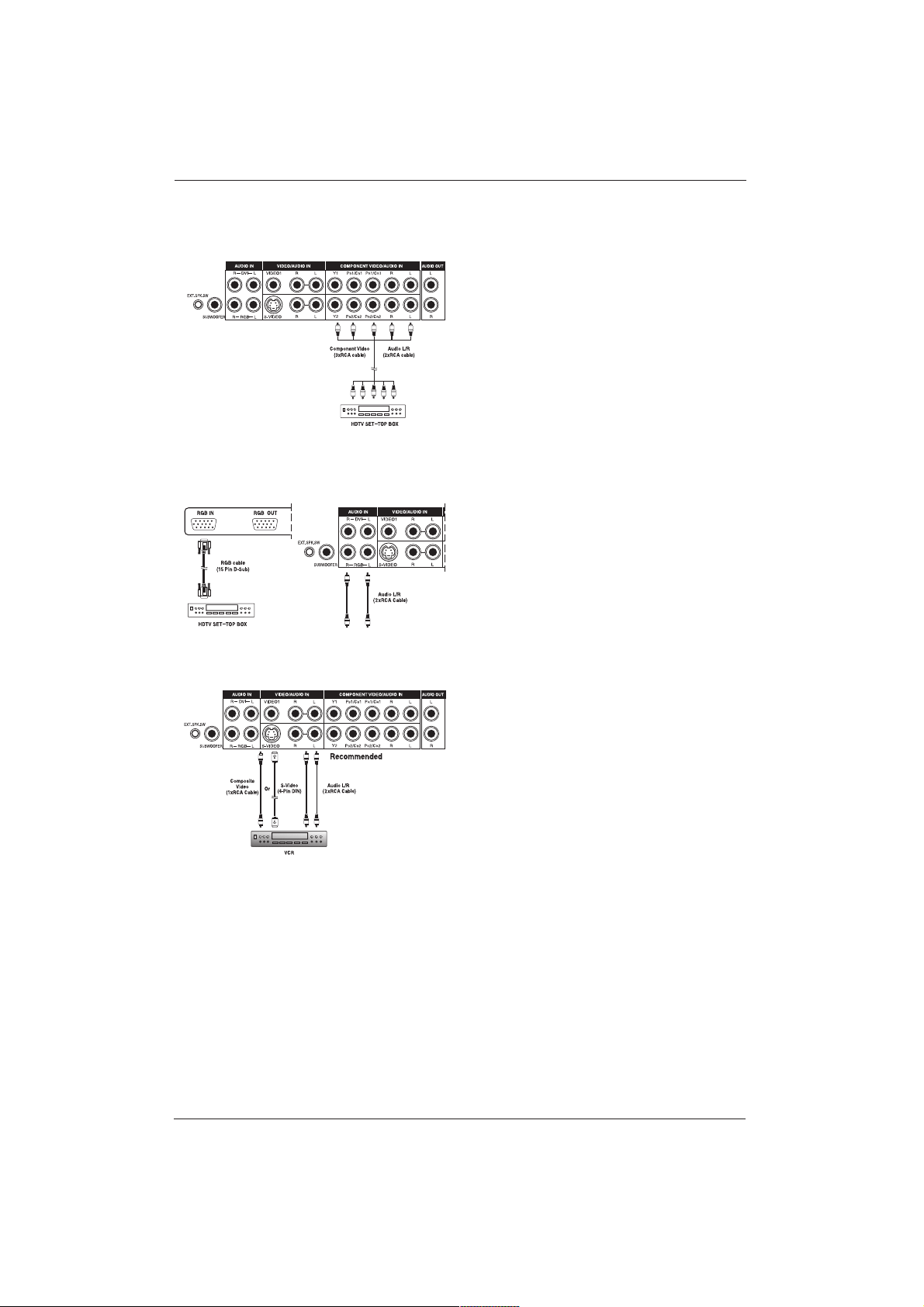
7.1 Connecting a DVD Player
Using Component Video Input
1. Connect the green-colored (labeled as Y)
jack from the DVD to the green-colored
Y1-jack of the display.
2. Connect the red-colored (labeled as PR or
CR) jack from the DVD to the red-colored
PR1/CR1 jack of the display.
3. Connect the blue-colored (labeled as PB or
CB) jack from the DVD to the blue-colored
PB1/CB1 jack of the display.
4. Connect the red (R) and white (L) audio
jacks from the DVD to the R and L audio-in
jacks located next to the PR1/CR1 connec-
tor.
Note:
There are two sets of component inputs
provided.You can use either set of
component inputs to connect your DVD.
Using S-Video Input
1. Connect the S-Video (4-pin DIN) connector
from the DVD to the S-VIDEO input on
the back of display.
2. Connect the red (R) and white (L) audio
jacks from the DVD to the R and L audio-in
jacks located next to the S-VIDEO connec-
tor.
Using Composite (AV) Video Input
1. Connect the yellow (video) connector from
the DVD to the yellow VIDEO 1 input on
the back of display.
2. Connect the red (R) and white (L) audio
jacks from the DVD to the R and L audio-in
jacks located next to the yellow VIDEO 1
connector.
15
User Manual BDH5011
7.2 Connecting a HDTV
Decoder Set-Top Box
Using Component Video Input
1. Connect the green (labeled as Y) jack from
the HDTV Set-top box to the green Y1 jack
of the display.
2. Connect the red (labeled as PR or CR) jack
from the HDTV Set-top box to the red
PR1/CR1 jack of the display.
3. Connect the blue (labeled as PB or CB)
jack from the HDTV Set-top box to the blue
PB1/CB jack of the display.
4. Connect the red (R) and white (L) audio
jacks from the HDTV Set-top box to the R
and L audio-in jacks located next to the
PR1/CR connector.
Using RGB Input
1. Connect the 15-pin D-Sub RGB connector
from the back of the HDTV Set-top box to
the RGB-IN connector located on the back
of the display.
2. Connect the red (R) and white (L) audio-out
jacks from the HDTV Set-top box to the R
and L audio-in jacks located to the left of the
S-VIDEO connector.
7.3 Connecting a VCR
Using S-Video Input
1. Connect the S-Video (4-pin DIN) connector
from the VCR to the S-VIDEO input on the
back of display.
2. Connect the red (R) and white (L) audio
jacks from the VCR to the R and L audio-in
jacks located next to the S-VIDEO
connector.
Using Composite Input
1. Connect the yellow (video) out connector
from the VCR to the yellow Video 1 input on
the back of the display.
2. Connect the red (R) and white (L) audio-out
jacks from the VCR to the R and L audio-in
jacks located next to the yellow Video
connector.
16
User Manual BDH5011
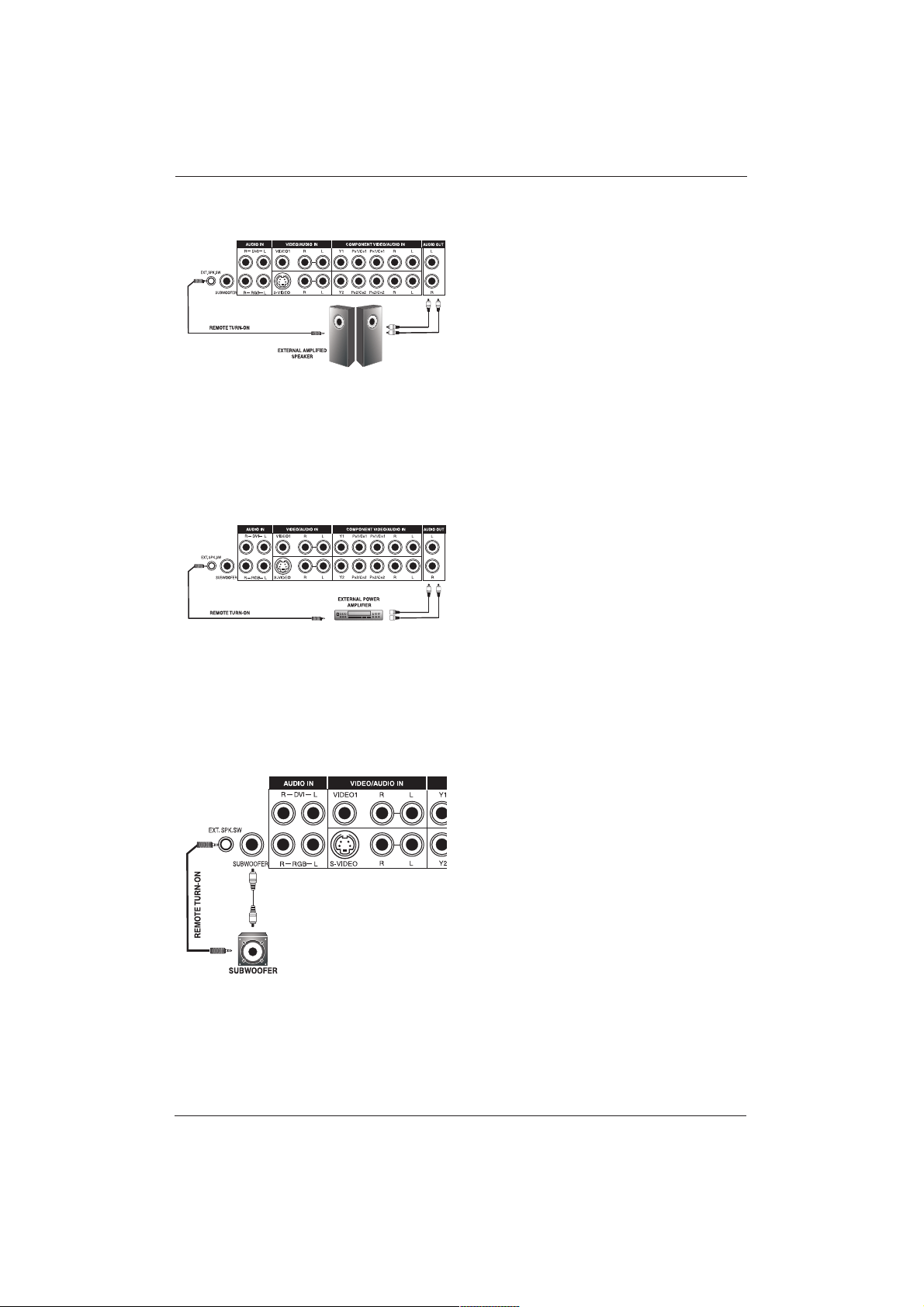
17
User Manual BDH5011
7.4 External Audio Connections
Connecting External Amplified Speakers
1. This display can be connected to an external
set of amplified speakers using the AUDIO
OUT jacks located on the back of the
display. In addition, this display is equipped
with a small 3.5 mm phono style plug for
remote turn-on applications that will auto-
matically send a remote turn-on/off signal to
the external amplified speakers.
2. Connect the red (R) and white (L) AUDIO
OUT jacks at the right hand side of the
connector panel to the external amplified
speaker.
3. As an option, you may use the remote turn-
on plug. Please note that not all external
amplified speakers can accept remote-turn
on signals.
Connecting to an External Amplifier
1. This display can be connected to an external
amplifier using the AUDIO OUT jacks
located on the back of the display. In
addition, this display is equipped with a small
3.5 mm phono style plug for remote turn-on
applications that will automatically send a
remote turn-on/off signal to the external
amplifier.
2. Connect the red (R) and white (L) AUDIO
OUT jacks from right side of the connector
panel to the external amplifier or receiver.
3. As an option, you may use the remote turn-
on plug. Please note that not all external
amplifiers can accept remote-turn on signals.
Using the Subwoofer Out
(Connecting a Subwoofer)
1. This display is equipped with a subwoofer
output for connecting to an external
amplified subwoofer.
2. Connect the subwoofer output jack to the
external subwoofer using an RCA cable.
Notes:
• The AUDIO OUT RCA jacks can be set to
either Fixed or Variable audio output levels.
(See Chapter 10.5 for more information).
• The RCA subwoofer outputs frequencies
below 120Hz.The subwoofer will use the
same Fixed or Variable audio output setting
as AUDIO OUT RCA jacks.
• The 3.5mm phono/earphone output level is
always used for remote turn on/off
applications.
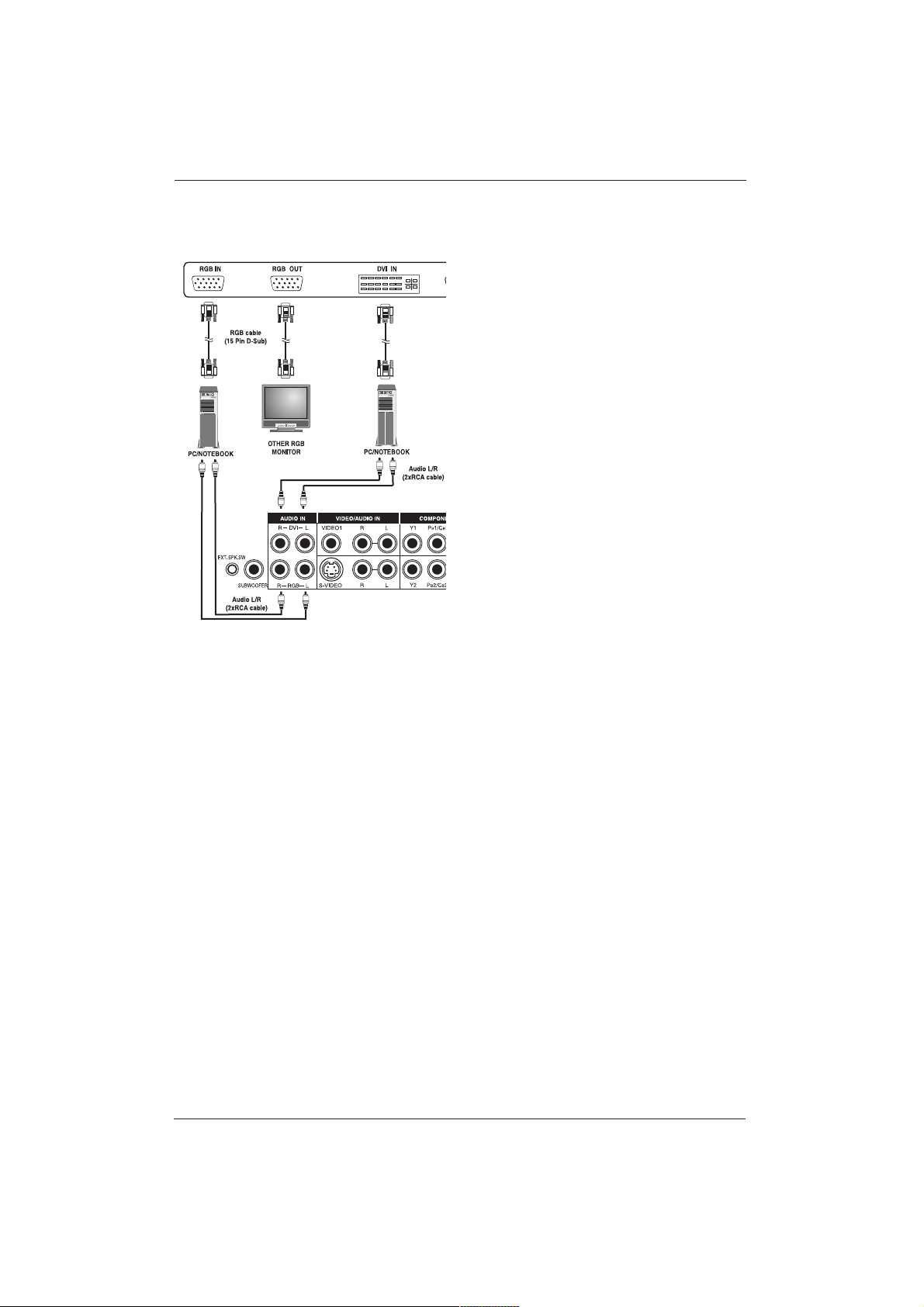
7.5 Connecting a PC Using RGB
or DVI Video Input
1. For most PC’s, connect the 15-pin D-Sub
RGB connector from the back of the PC to
the RGB-IN connector located on the back
of the display. If you have a PC that is
equipped with a DVI (Digital Visual Interface),
you may connect the PC DVI connector
from the back of the PC to the DVI-In
connector located on the back of the display.
2. Connect the red (R) and white (L) audio
jacks from the PC to the R and L jacks
located to the left of the S-VIDEO
connector. If you are using a DVI interface,
simply connect the (R) and (L) audio jacks to
the R and L jacks located to the left of the
VIDEO 1 connector.
Notes:
• Your PC may have audio jacks in the form of
a 3.5mm phono plug. If this is the case, you
will need to use a phono-plug to RCA
converter cable in order to connect audio.
• A RGB loop-out labeled iaRGB OutlB will
allow another RGB display to be connected.
The RGB loop-out will display the same
signal as the RGB In signal source.
• The physical display resolution is a maximum
of 1024x768 dots when aspect ratio is set to
4:3 and 1366x768 dots when set to 16:9.
If the PC’s display resolution exceeds these
maximums, the display will have to artificially
eliminate dots in order to fit within the
physical dot capability of the display.
Therefore, it is possible that the display may
not be able to show details with adequate
clarity.
18
User Manual BDH5011
19
User Manual BDH5011
7.6 RS-232 Remote Control
Connections
RS-232 Serial Terminal Overview
This display is equipped with an RS-232 serial
terminal for using the display with computer
controls.The RS-232 serial terminal conforms to
the RS-232C interface specification.The
computer will require a software application
(such as programming language software) which
allows the computer to send and receive control
data that can support the communications
parameters listed below.
Communications Parameters
These parameters are required to setup
communications with the display.
Specification: RS-232C
Sync Method: Synchronous
Baud Rate: 9600 bps
Parity: None
Character: Length 8 Bits
Stop Bit: 1 Bits
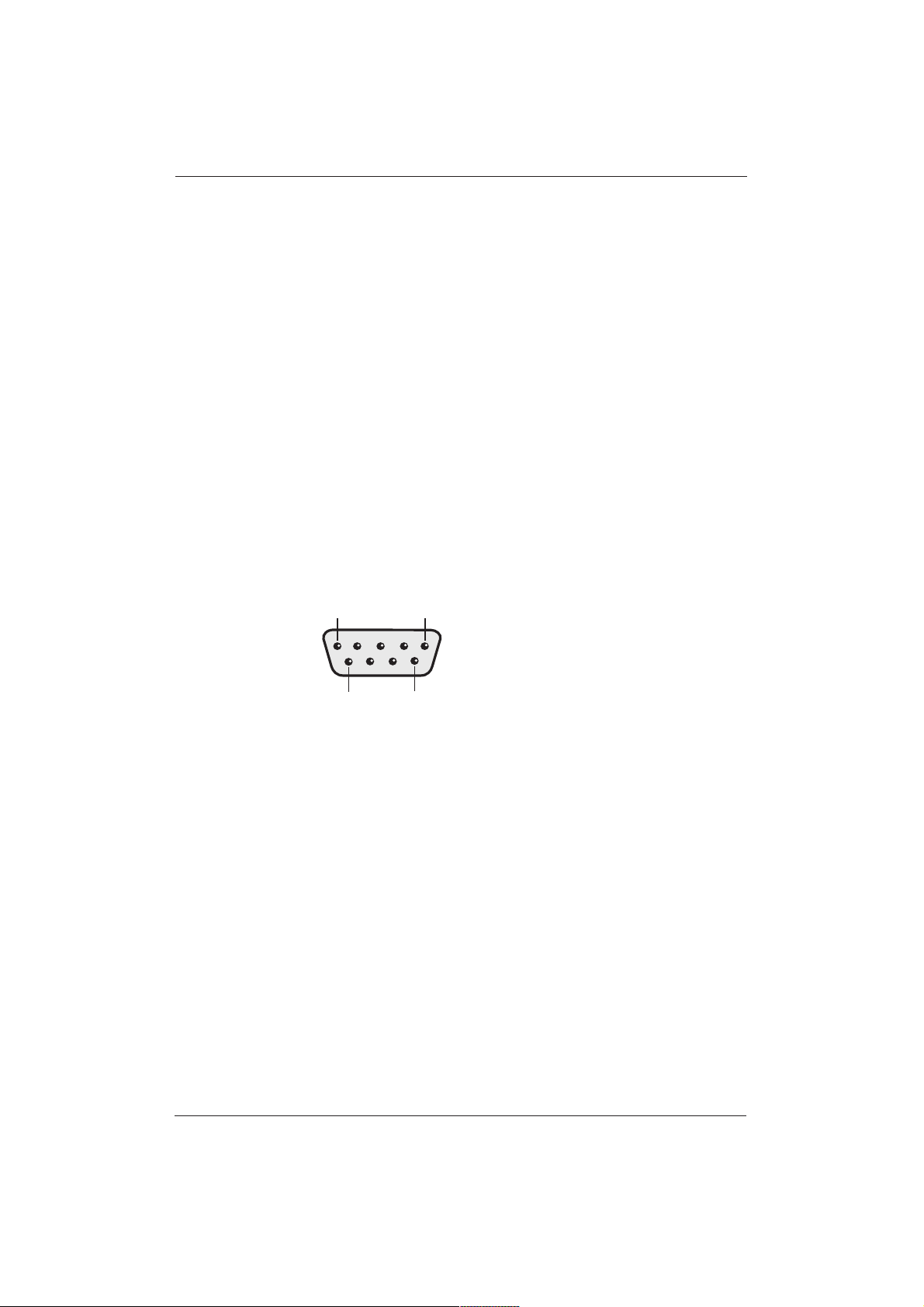
Pin Layout for RS-232 Terminal
The RS-232C terminal pin layout is as follows:
Pin 1: Received Line Signal Detector (Data
Carrier Detect)
Pin 2: Received Data (RXD)
Pin 3: Transmit Data (TXD)
Pin 4: Data Terminal Ready (DTR)
Pin 5: Signal Ground
Pin 6: Data Set Ready (DSR)
Pin 7: Request To Send (RTS)
Pin 8: Clear To Send (CTS)
Pin 9: Ring Indicator
Basic Format for Command Parameters
In order to transmit data from the computer to
the display, the data must be sent in 1-byte-hex
format.
The command code (see table below) must first
be sent to the display, followed by the desired
value setting in hexadecimal format.
The following is an example of a sequence to
change the displays input to RGB:
Step 1: Send 1-byte for command 91 (input
select) to the display in hex format 0x91
Step 2: Send 1-byte for the value of the RGB
input. In this example, send 0x06.
Step 3: The display will respond back to
the PC with a 1-byte value to confirm
the setting.
RS-232
1
5
9
6

Notes:
• To connect a PC to the display’s RS-232
port, you must use a straight-through RS-232
cable where pins 2 (RX) and 3 (TX) are not
reversed at one end.
• If there is no data to be sent, then it is not
necessary to send the parameter signal.
• If multiple commands are transmitted, make
sure to wait for the response for the first
command to come from the display before
sending the next command. Normally the
sent data byte will be returned as an answer.
In case of an error the next signals will be
returned:
RESPONSE: 70h = MODE ERROR
71h = TEM ERROR
72h = FORMAT ERROR
Command Parameters
These remote control commands are available to
send to the display using RS-232.
Item Cmd Data Details
Read 80 81-A7 Reads the
displays current
settings for
command 81
thru A7
Volume 81 01-64H
Set between 01-64H
Power On/Off 83 00-01 00=Off, 01=On
Brightness 85 01-64H
Contrast 86 01-64H
V-Size 87 01-64H
V-Position 88 01-64H
H-Size 89 01-64H
H-Position 8A 01-64H
Color 8E 01-64H
Tint 8F 01-64H
Sharpness 90 01-64H
Input Select 91 00-07
00=TV, 01=AV1,
02=AV2, 03=AV3,
04=Component 1
05=Component 2
06=RGB,
07=DVI
Recall 92 00 00=Initiate a recall
Mute On/Off 95 00-01 00=Off 01=On
PanelKey Lock 96 00-01 00=Off 01=On
Language 97 00-02 00=English,
01=French,
02=Spanish
Color Temp 98 00-03 00=High, 01=Mid,
02=Low,
03=6500D
Bass 9A 01-64H
Treble 9B 01-64H
Balance 9C 01-64H
20
User Manual BDH5011

Item Cmd Data Details
Woofer 9D 00-01 00=Off, 01=On
BBE 9E 00-01 00=Off, 01=On
Surround 9F 00-02 00=Off, 01=3D
Stereo,
02=3D Mono
RF Input A0 00-01 00=Air, 01=Cable
Full Search A1 00 00=initiate full
search
MTS A4 00-02 00=Stereo,
01=Mono, 02=SAP
Zoom A5 00-05 00=16:9,
01=Panorama,
02=4:3, 03=Zoom1,
04=Zoom 2,
05=Zoom3
PIP/POP A7 00-03 00=Normal, 01=PIP,
02=POP1, 03=POP2
(4:3), 04=POP3
(16:9).
21
User Manual BDH5011
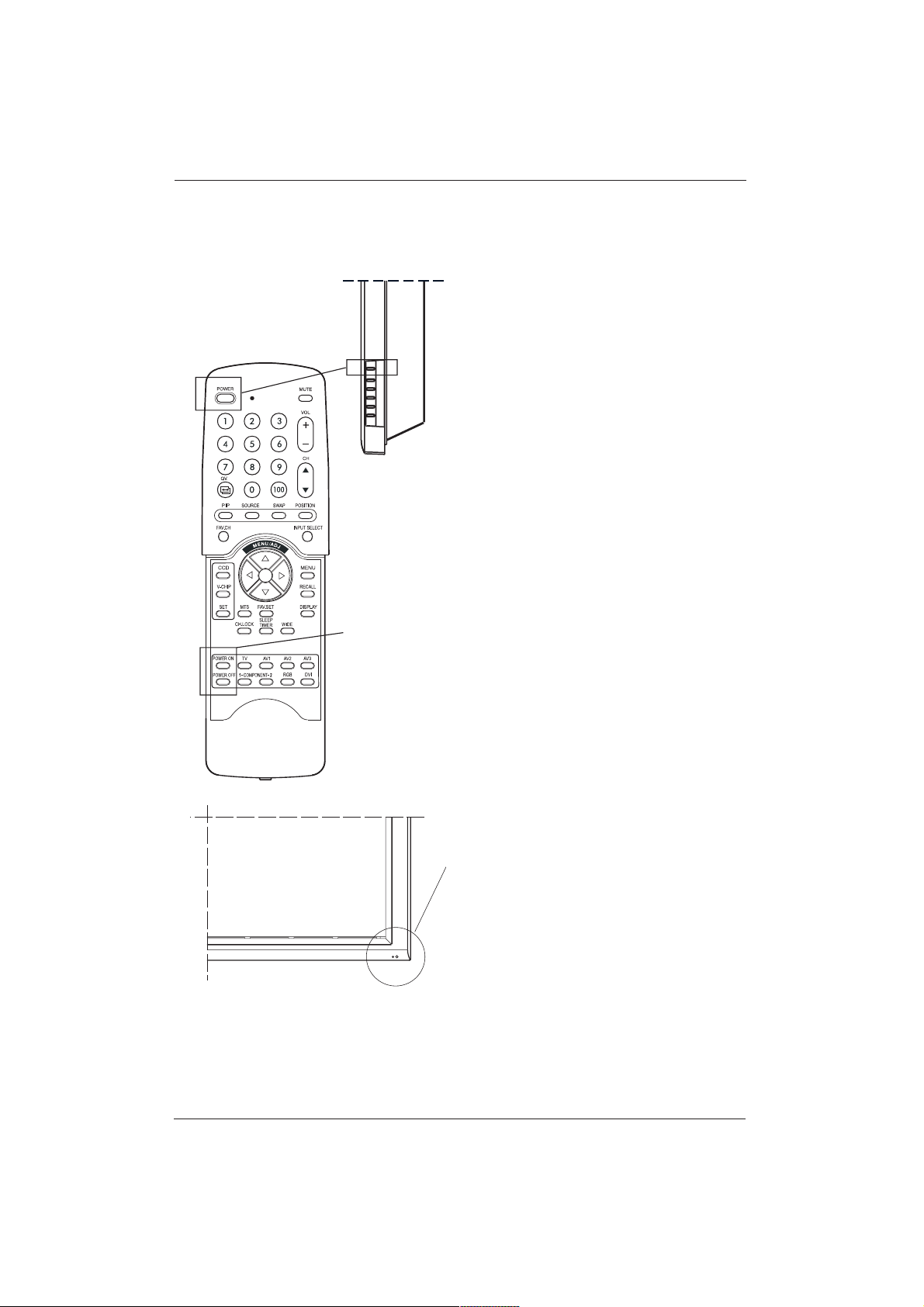
8. USING YOUR DISPLAY - BASICS
8.1 Powering ON / OFF
Using Front Panel or Remote Control
1. Make sure the display is plugged into the wall
outlet and the main AC switch located at the
rear side of the display is switched to ON
position. If the power is plugged in and the
AC switch is on, the STATUS LED will
illuminate solid yellow.
2. Press the POWER button on the front panel
or on the remote control.
3. The display will turn on after a brief pause.
The STATUS LED will turn green to indicate
the power on status.
4. To turn power off, simply press the POWER
button on the front panel or on the remote
control once again.
Using Discrete Power ON/OFF Buttons
1. The discrete POWER ON/OFF buttons send
two discrete signals to the display.
2. To turn power on, simply press the POWER
ON button. If the display is already switched
on, pressing this button will have no effect.
3. To turn off power, simply press the POWER
OFF button. If the display is already switched
off, pressing this button will have no effect.
Status LED
• Not Illuminated - No AC Power detected.
If the main power switch (rear of panel) is
switched off, this LED will not illuminate.
• Solid Yellow - Standby (Power OFF) with AC
power detected.The LED will illuminate
yellow if the display is switched off while the
main power cord is plugged in.
• Solid Green - Power ON
DISCRETE
POWER ON/OFF
POWER (Toggle)
22
User Manual BDH5011
23
User Manual BDH5011
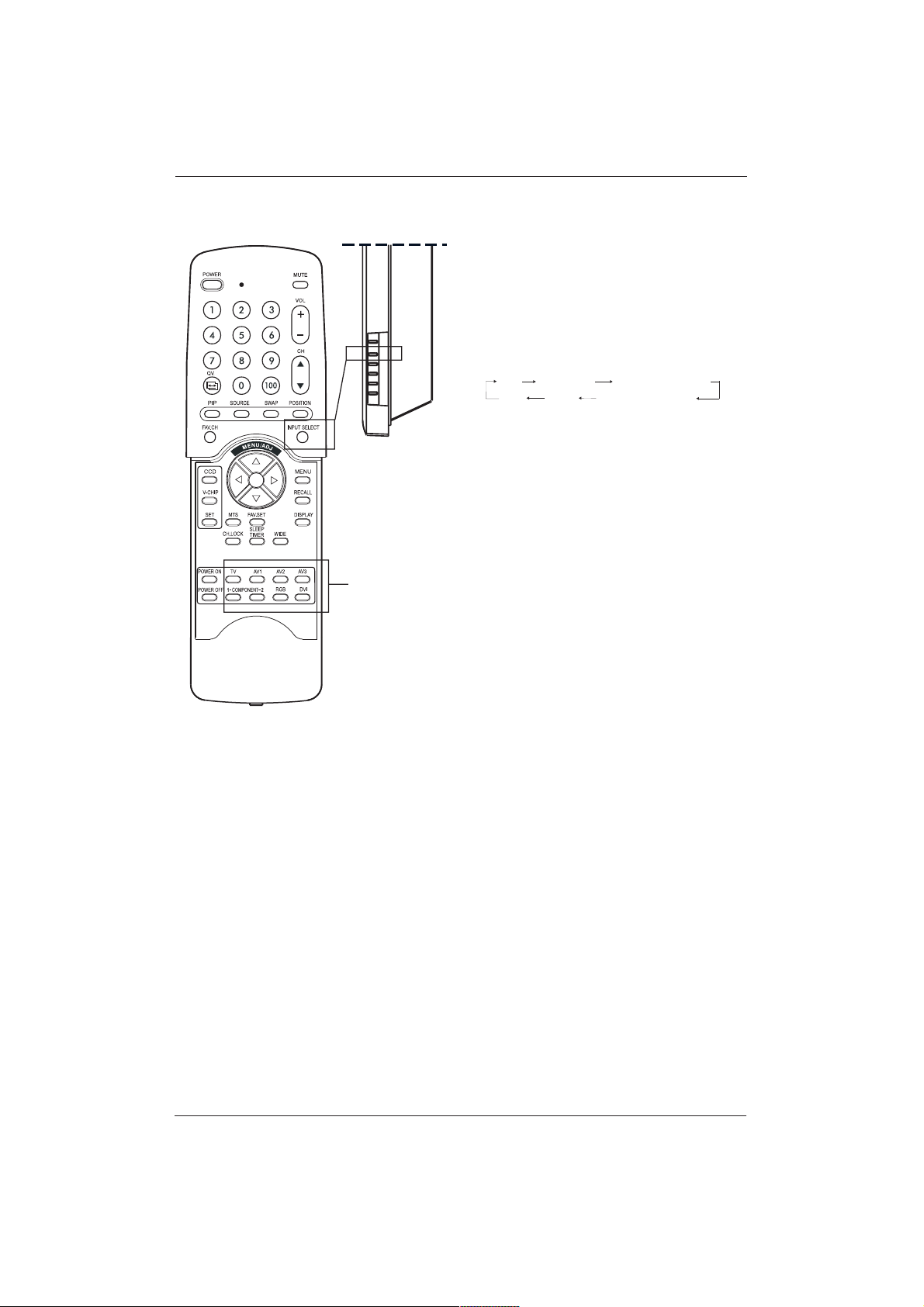
8.2 Selecting Signal Source
Using Front Panel or Remote Control
1. Press the INPUT button on the front panel
or the INPUT SELECT button on the
remote control.
2. Pressing the INPUT button will cycle the
display through all available input signal
sources in the following order:
Using Direct Input Selection Buttons
1. If you prefer not to cycle through all
available inputs, you can use the Direct Input
Selection buttons located at the bottom of
the remote control.
2. Simply select the input that you would like
to switch to and press the Direct Input
Selection button for that input.
Notes:
• Some of the Direct Input Selection buttons
will not be applicable for this display.
For AV mode, use AV1.
For S-Video, use AV2.
AV S-VIDEO COMPONENT1
RGB COMPONENT2DVI
DIRECT INPUT
SELECTING KEYS
INPUT SELECT
(Toggle)
24
User Manual BDH5011
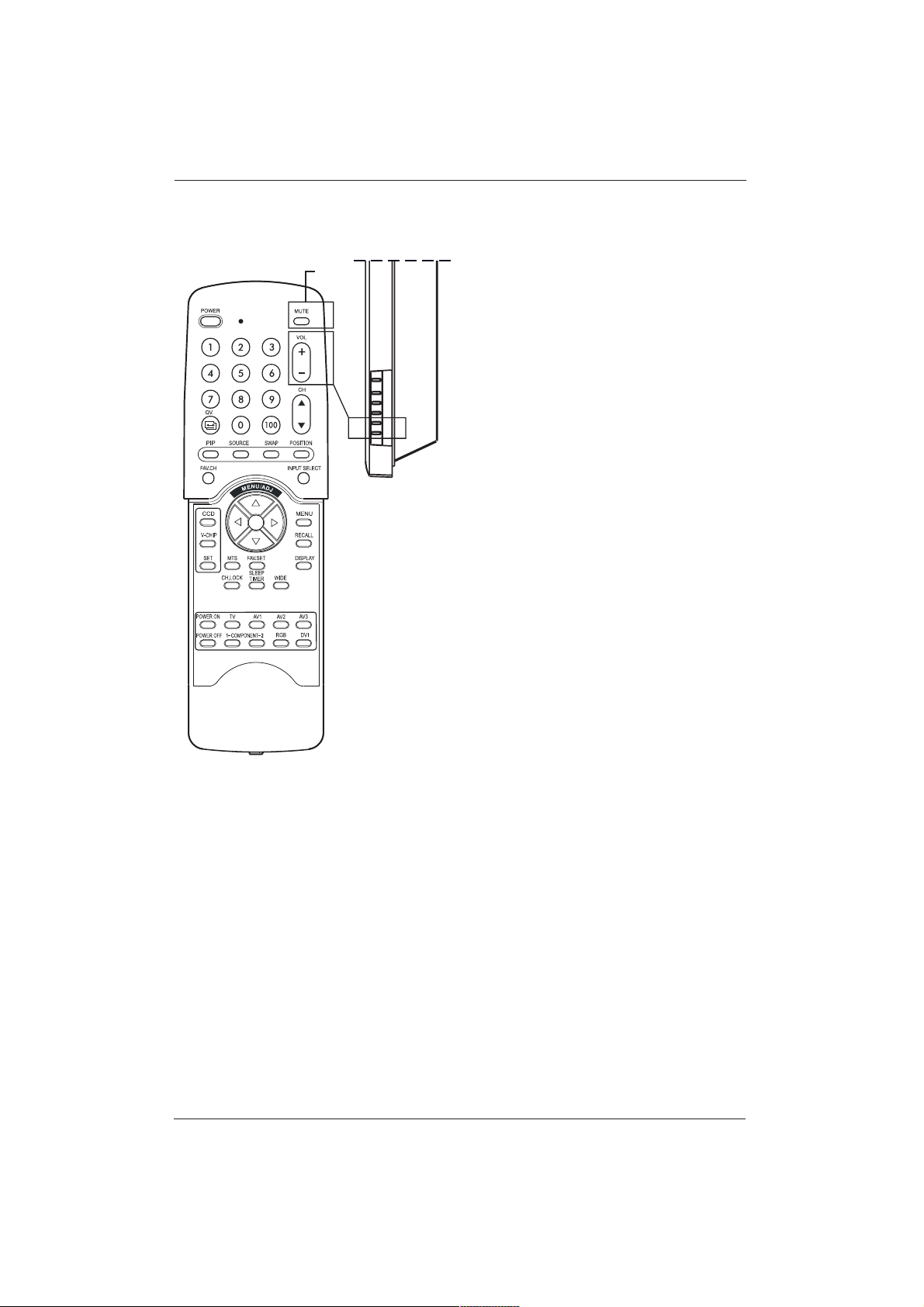
8.3 Adjusting Sound Volume
Using Front Panel or Remote Control
1. To increase the sound volume, press
VOLUME + on either the front panel of
display or on the remote control.
2. To decrease the sound volume, press
VOLUME - On either the front panel of
display or on the remote control.
Using MUTE
1. If you temporarily would like to have no
sound, simply press the MUTE button to
silence the volume.
2. When the display’s volume is muted, the
display will show MUTE on the upper right
corner of the screen.
3. To disengage the mute mode, simply press
the MUTE button or the VOLUME +/-
button again.
Notes:
• If the display’s built-in speakers are turned off
using the OSD, then volume controls will not
affect volume generated by the built-in
speaker.
• Volume controls are valid when audio output
is set to VARIABLE. (See Chapter 10.5.)
VOLUME +/-
MUTE
9. USING WITH HDTV
9.1 Understanding HDTV
What is Digital Television or DTV?
Digital TVs are able to receive and display digital
television broadcasts, sent using one of the three
following categories: HDTV (High Definition TV),
EDTV (Enhanced Digital TV), and SDTV
(Standard Definition TV).
What is the Difference Between HDTV,
EDTV, and SDTV?
HDTV, EDTV and SDTV are three types of
television or displays.They reference the
maximum resolution capability of a digital
television or display to fully display digital
broadcasts without having to ‘down-convert’ the
actual signal content to fit the display’s
limitations.The resolution requirements for each
of the three DTV classifications and an
explanation of the specifications are described
below:
HDTV Interlaced scan method
1
Vertical Res
2
: 1080 lines
Horizontal Res.
3
: 1920 dots
Aspect Ratio
4
: 16:9 Wide
HDTV Progressive scan method
1
Vertical Res.
2
: 720 lines
Horizontal Res.
3
: 1280 dots
Aspect Ratio
4
: 16:9 Wide
HDTV grade televisions and displays are capable
of displaying a maximum of either 1080 lines
using interlaced scan method or 720 lines using
progressive scan method.
EDTV Progressive scan method
1
Vertical Res.
2
: 480 lines
Horizontal Res.
3
: 640 dots
Aspect Ratio
4
: 4:3 Wide
EDTV grade televisions and displays are capable
of displaying a maximum of 480 lines using
progressive scan method.All resolutions higher
than 480 lines must be reduced to 480 lines in
order to be displayed. Progressive scan method
reduces flicker; however, picture quality may not
necessarily outperform 480 interlaced when
viewed at normal viewing distances.
25
User Manual BDH5011
SDTV Interlaced scan method
1
Vertical Res.
2
: 480 lines
Horizontal Res.
3
: 640 dots
Aspect Ratio
4
: 4:3 Wide
SDTV grade televisions and displays are capable
of displaying a maximum of 480 lines using
interlaced scan method.All resolutions higher
than 480 lines must be reduced to 480 lines in
order to be displayed.
1
Scan Mode
Interlaced scanning is a method that creates a
TV picture with alternating lines of information
and is the cause of flickering. Progressive
scanning is a method that creates a TV picture
with consecutive lines of information that results
in flicker-free picture quality.
2
Vertical Resolution (Scan Lines)
Vertical scan lines refer to the number of
horizontal lines a TV or display can show to
create an image.
As the number of lines increase, more
information is displayed, resulting in better
picture quality.
3
Horizontal Resolution
Each horizontal line in a TV or display is made
up of individual dots (pixels).The higher the
number of pixels, the finer the TV picture
becomes. Horizontal pixel measurements using
today's technology can range from 250 for a
VCR to as much as 500 for a DVD player.
4
Aspect Ratio
Aspect ratio identifies the ratio of the TV screen's
width over its height. A 16:9 aspect ratio refers
to a wide-screen picture format, while a 4:3
refers to a standard TV format.
26
User Manual BDH5011
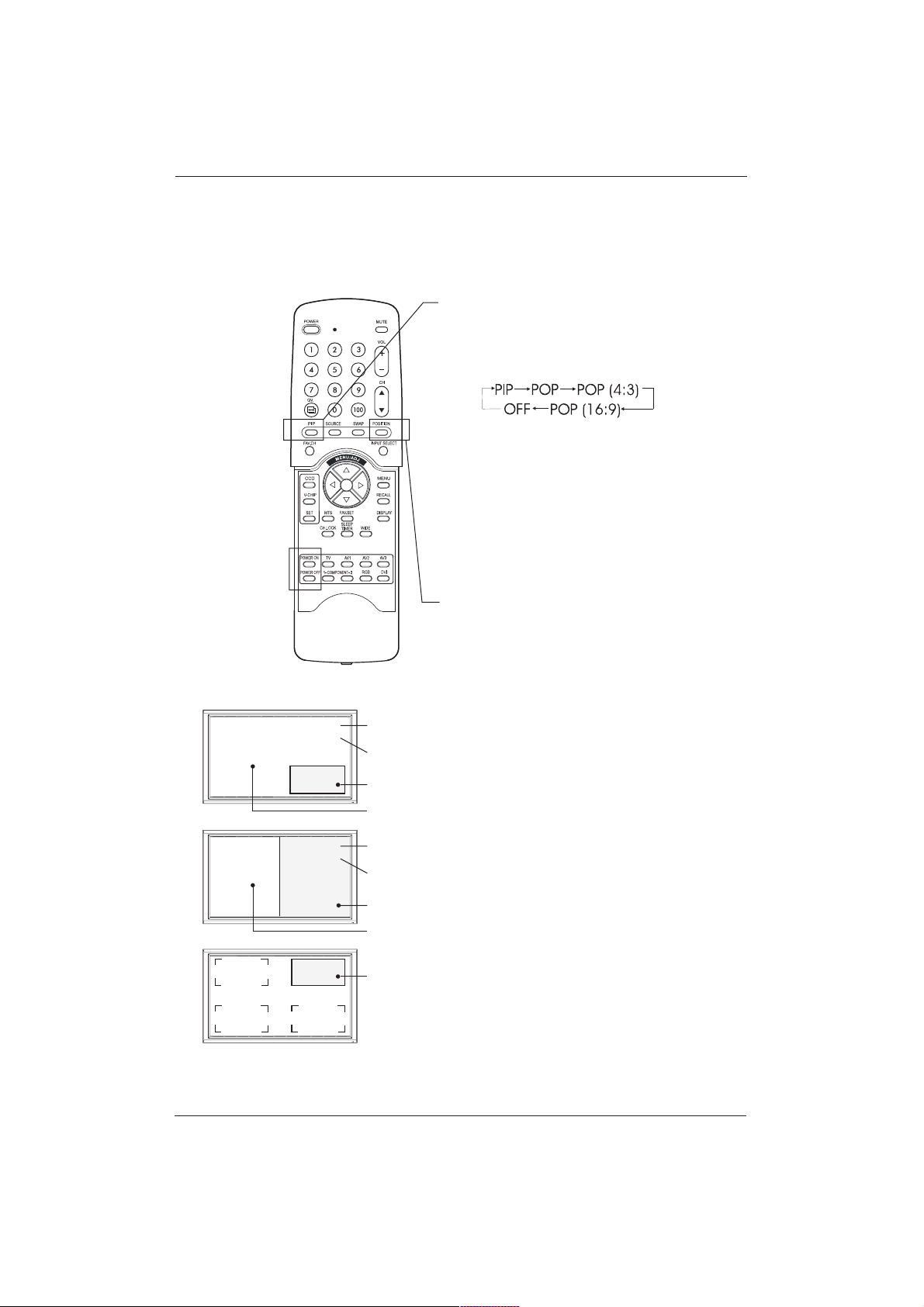
10. ADVANCED FUNCTIONS
10.1 Picture-In-Picture (PIP) /
Side-by-Side Picture (POP)
Switch On PIP or POP Mode
1. Press the PIP button once on the remote
control to enable PIP mode. Pressing the PIP
again will switch to POP mode. Pressing the
PIP button sequentially will cycle between:
2. When PIP mode is enabled, a small window
is displayed in one of the four corners.The
OSD on the upper right corner will display
the input selected for the main picture (large
screen) and the sub-picture (small screen).
3. When POP mode is enabled, the screen will
be split in half.The screen on the left side is
the main picture and the screen on the right
is the sub-picture.The OSD on the upper
right corner will display the input signal
source for both the main and sub-pictures.
Changing the Sub-Picture Position in PIP
Mode
1. Once the PIP mode is enabled, you can
switch the PIP sub-picture position to any
one of the four corners of the screen.
2. Press the POSITION button to switch
position. Pressing the POSITION button
repeatedly will cycle through all four corners
of the screen.
3. This function is not available for POP mode.
M: AV1
S: AV2
Input Source for
Main Picture
Input Source for
Sub Picture
Sub Picture
Main Picture
M: AV1
S: AV2
Input Source for
Main Picture
Input Source for
Sub Picture
Sub Picture
Main Picture
Position 1
(Default)
PIP Mode
POP Mode
Sub-Picture Positions
27
User Manual BDH5011
28
User Manual BDH5011
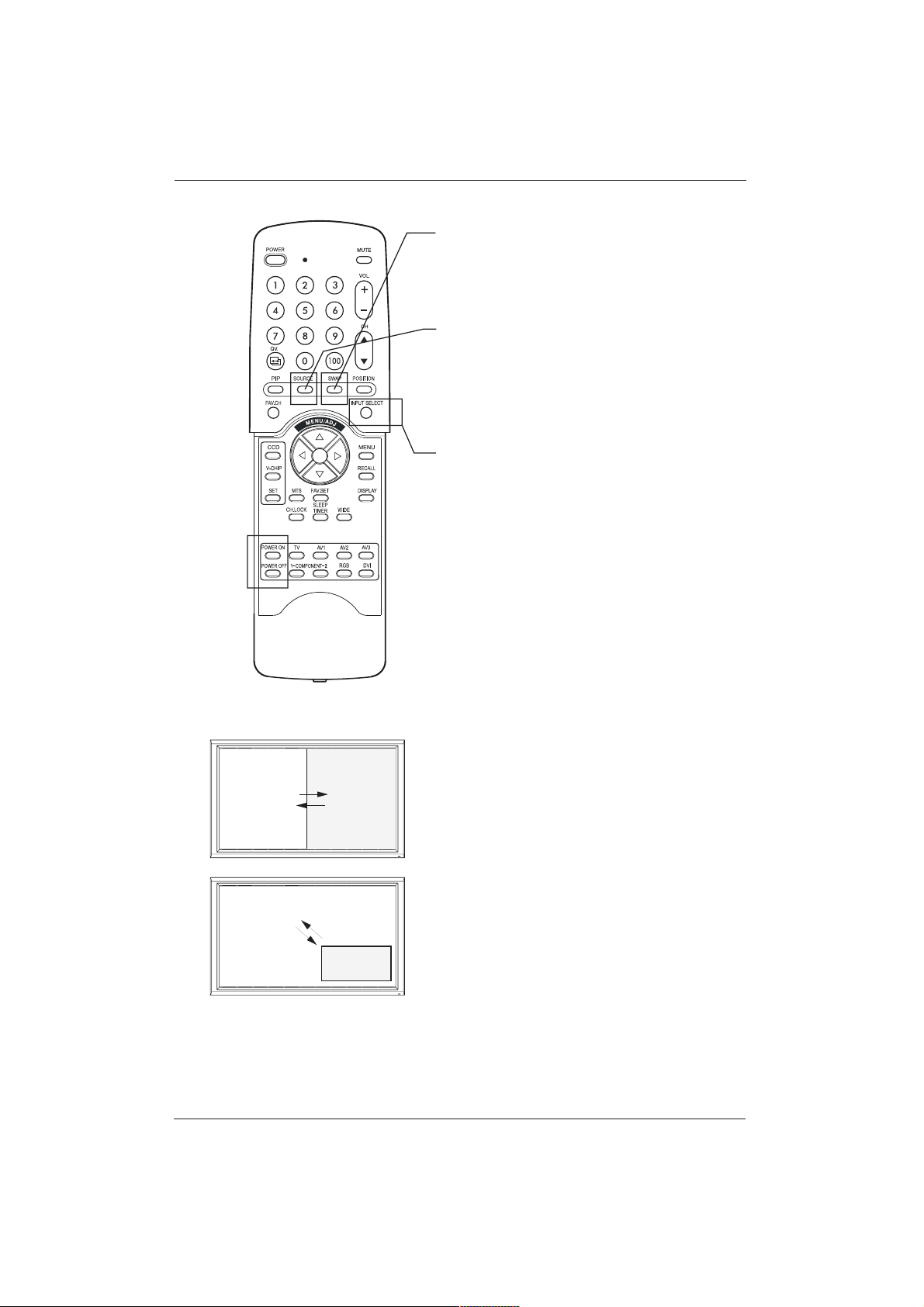
Switching Main and Sub-Pictures (SWAP)
1. You can switch between the main picture
and the sub picture using the SWAP button.
Changing the Input Source for Sub-Picture
1. Once PIP or POP mode is enabled, you can
change the sub-picture’s input source by
pressing the SOURCE button.
2. Pressing the SOURCE button repeatedly
will cycle through all available inputs for the
sub- picture.
Changing the Input Source for Main
Picture
1. Once PIP or POP mode is enabled, you can
change the main picture’s input source by
pressing the INPUT SELECT button or
any one of the DIRECT INPUT BUTTONS.
Notes:
1. POP (4:3) Mode will preserve 4:3 aspect
ratio for both images displayed in the POP
windows.
2. POP (16:9) Mode will preserve 16:9
aspect ratio for both images displayed in the
POP windows.
All PIP and POP related settings are also
accessible using the on-screen Menu display.
Please read the next pages for details.
Main Picture
Main Picture
Swapping
Sub Picture
Sub
Picture
Picture-In-Picture (PIP) / Side-by-Side
Picture (POP) /
Contd.
Notes:
• PIP mode can only be enabled if the display’s
input is set to:AV, S-Video, Component 1 or
2. If the displays main input is set to RGB or
DVI, PIP, and POP will not function.
• If the displays input is set to Component 1
or Component 2, PIP mode will only be
available when the input signal source is
compatible with 15KHz signals such as 480i
and Y/CB/CR signals.
• When the input source for sub-pictures is
changed to Component 1 or Component 2,
only 15KHz compatible signals such as 480i
and Y/CB/CR will result in a video picture
display.The input source selection will not be
available if a signal other than 480i or
Y/CB/CR is detected.
• Once PIP mode is disabled, the next time
you enable PIP mode, the position of the
sub-window will start at the default position.
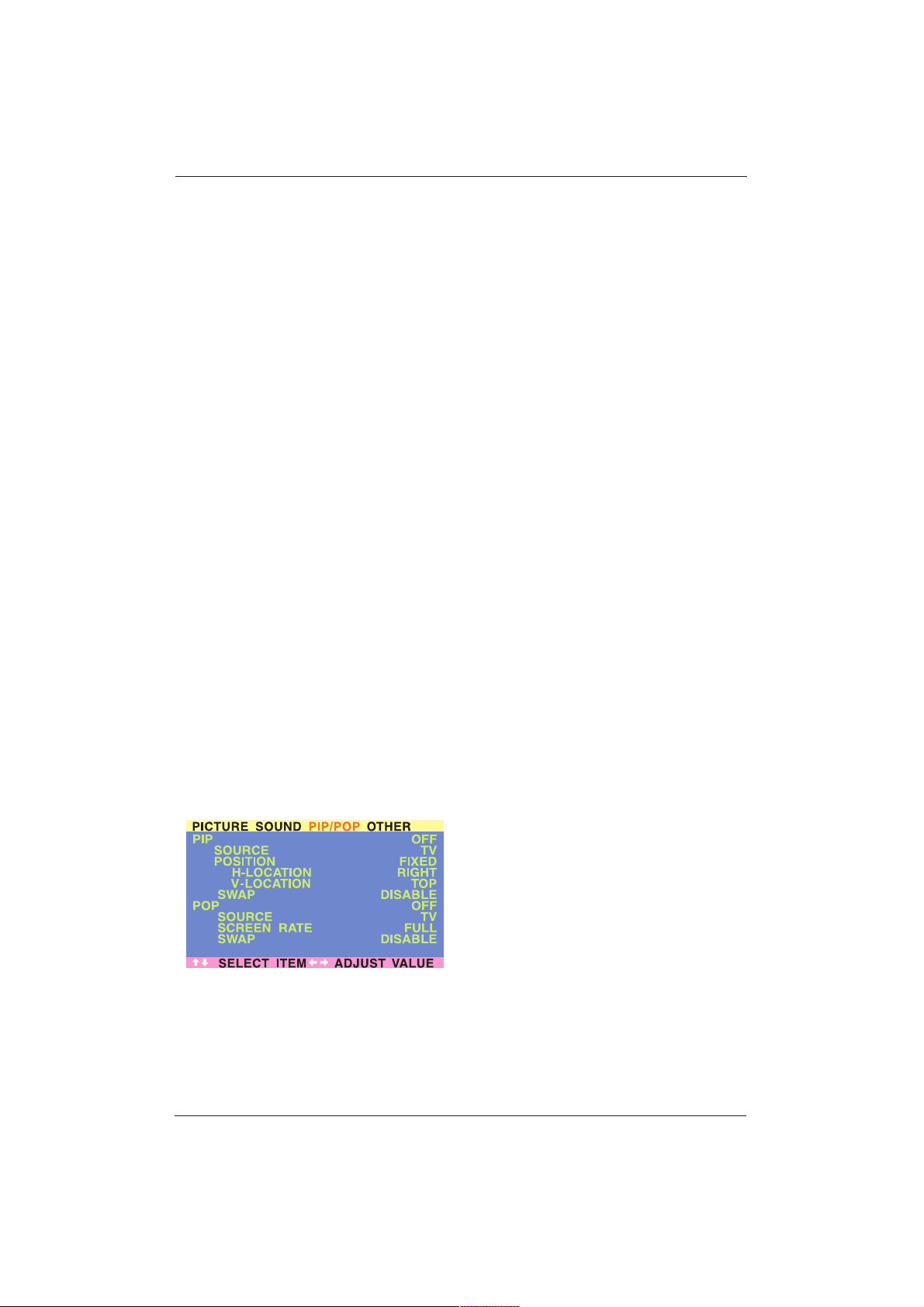
Accessing PIP and POP Modes using OSD
You can also use the OSD menu to access PIP
and POP mode functions:
1. Press the MENU +/- buttons on the remote
control or the front control panel.
2. Use the ADJ +/- buttons to select the
‘PIP/POP’ menu.
3. Make sure that the OSD menu below is
displayed.
4. Use the MENU +/- buttons to move up and
down to select the sub-category you wish to
change.
5. Use the ADJ +/- buttons to change the
setting.
PIP Window Position
1. Choose between FIXED or VARIABLE
windows position.
2. If set to FIXED, the PIP window can be set in
any one of the four corners of the screen.
Use H-LOCATION and V-LOCATION to
select the position of the window.
3. If set to VARIABLE, the PIP window can be
positioned anywhere on the screen using H-
LOCATION and V-LOCATION.
29
User Manual BDH5011
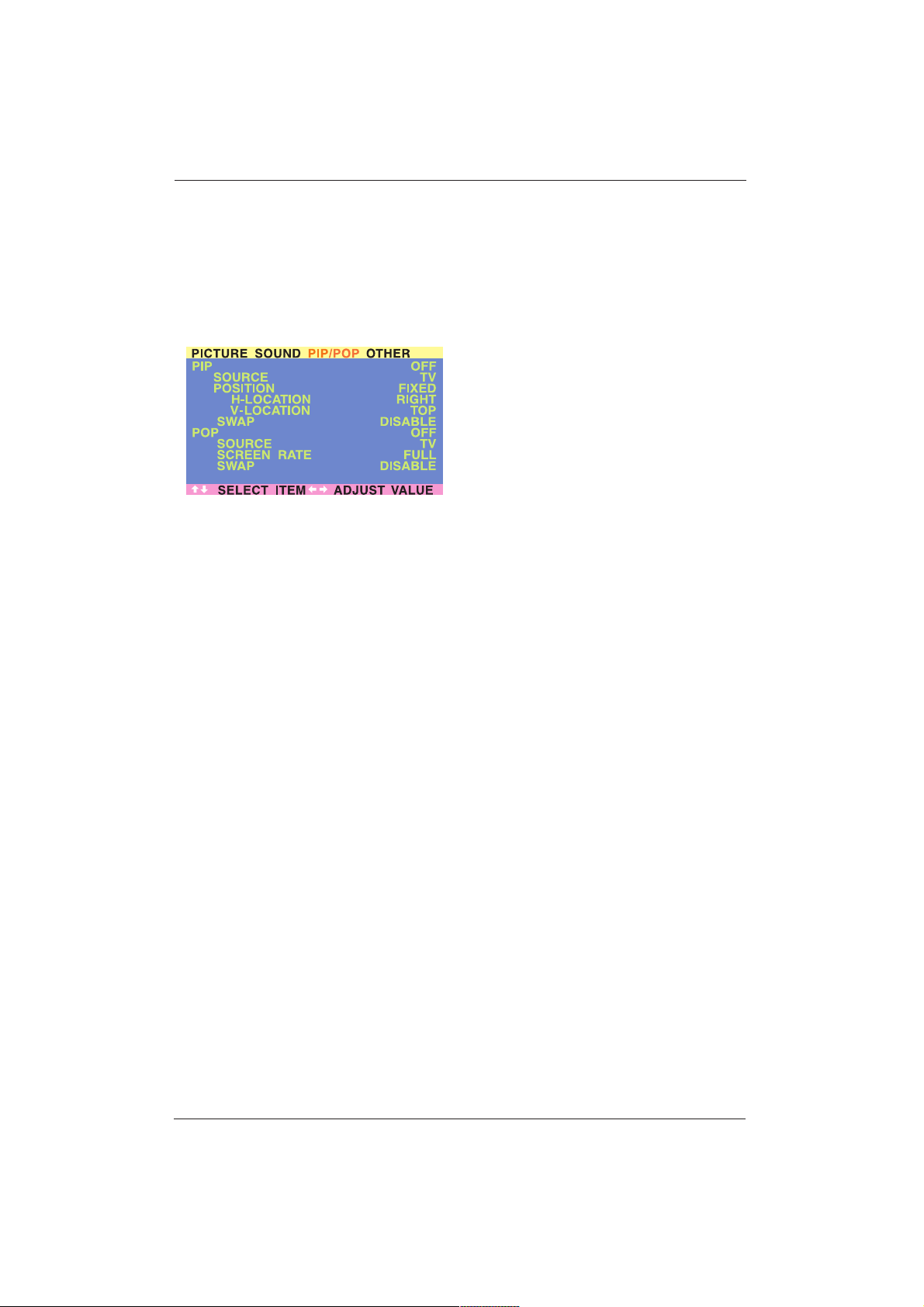
PIP Window SWAP
1. By default, the OSD will always display
DISABLE.To swap the main and sub
windows, use the ADJ +/- button to select
ENABLE.
Once the swap is complete, the OSD will
return to display DISABLE.
Screen Rate (Aspect Ratio Control)
1. When POP (Side-by-side) picture is enabled,
you can change the aspect ratio for the
image displayed.
2. Choose FULL to show a full screen image.
The displayed image will be distorted
because the display has to manipulate the
image so that it fits within the smaller
window.
3. Choose 4:3 to show an image in 4:3 aspect
ratio within the POP windows. Small black
bars are added in order to obtain a 4:3
aspect ratio.
4. Choose 16:9 to show an image in wide-
screen aspect ratio within the POP windows.
Small black bars are added in order to obtain
a 16:9 aspect ratio.
POP Window SWAP
1. By default, the OSD will always display
DISABLE.To swap the main (left) and sub
(right) windows, use the ADJ +/- button to
switch to ENABLE. Once the swap is
complete, the OSD will return to display
DISABLE.
30
User Manual BDH5011
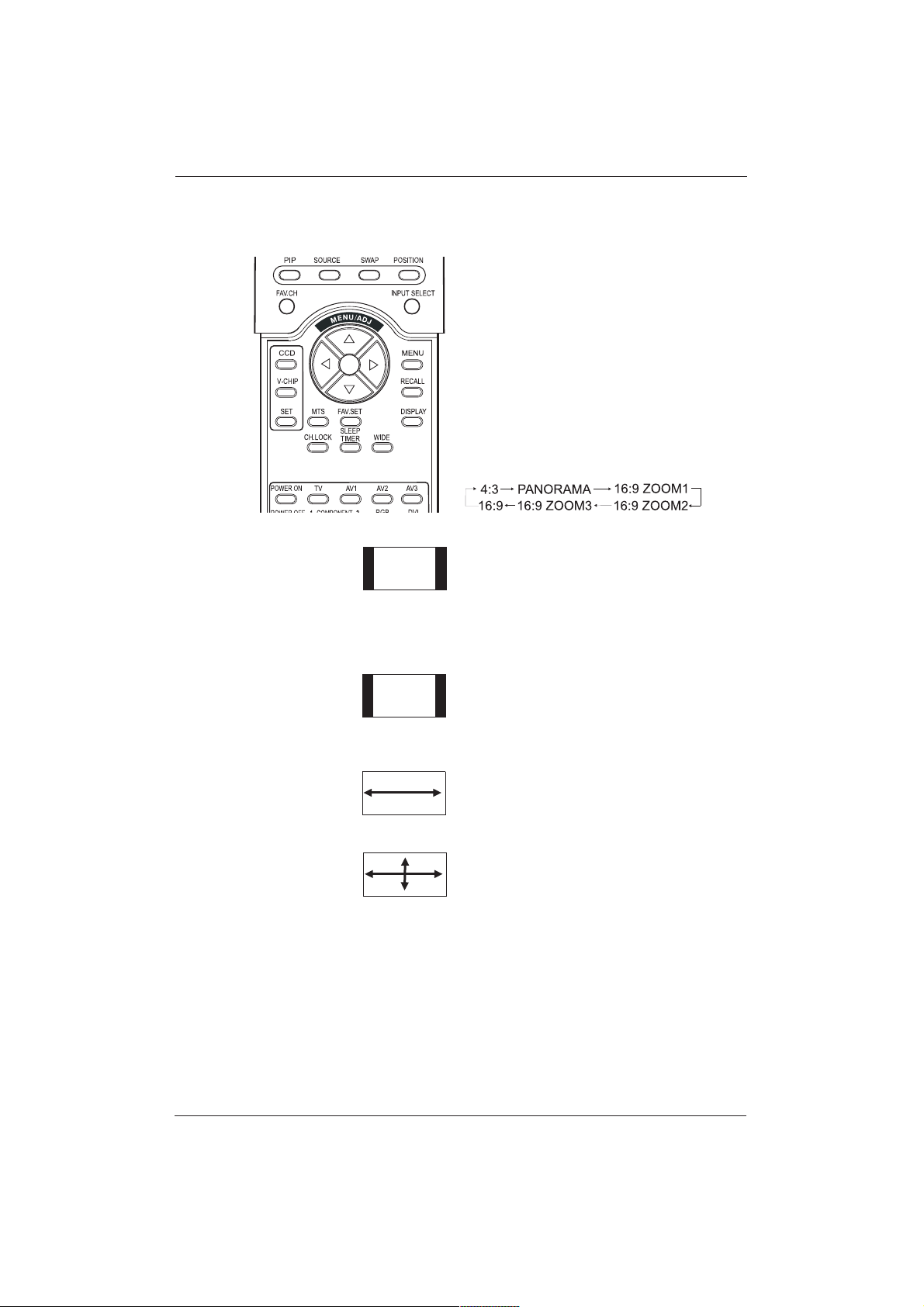
10.2 Widescreen (16:9 Aspect
Ratio) Viewing Modes
Understanding Widescreen Modes
This plasma display is capable of displaying a
widescreen image on the native 16:9 aspect ratio
screen. However, not all available broadcast or
video content fits perfectly in a widescreen
(16:9) format, resulting in unused screen space.
Use the following guidelines to determine an
avaible and suitable widescreen viewing mode
that best supports the type of broadcast / video
content you wish to display. All widescreen
viewing modes are available by pressing the
WIDE button. Pressing the WIDE button will
repeatedly cycle through:
For 4:3 Aspect Ratio (Square) Content
Content from VCR and some DVD’s are format-
ted using a quare 4:3 format.
We recommend the following three
viewing options:
4:3 (NORMAL)
In 4:3 mode, the original 4:3 image is preserved
but black bars are added to fill the remaining
space on the left and right.
16:9 (FULL)
The original 4:3 image is proportionally
stretched to fill the entire screen.
PANORAMA
The original 4:3 image is expanded in both the
horizontal and vertical directions.The center of
the picture is almost normal while the edges are
considerably expanded.
31
User Manual BDH5011
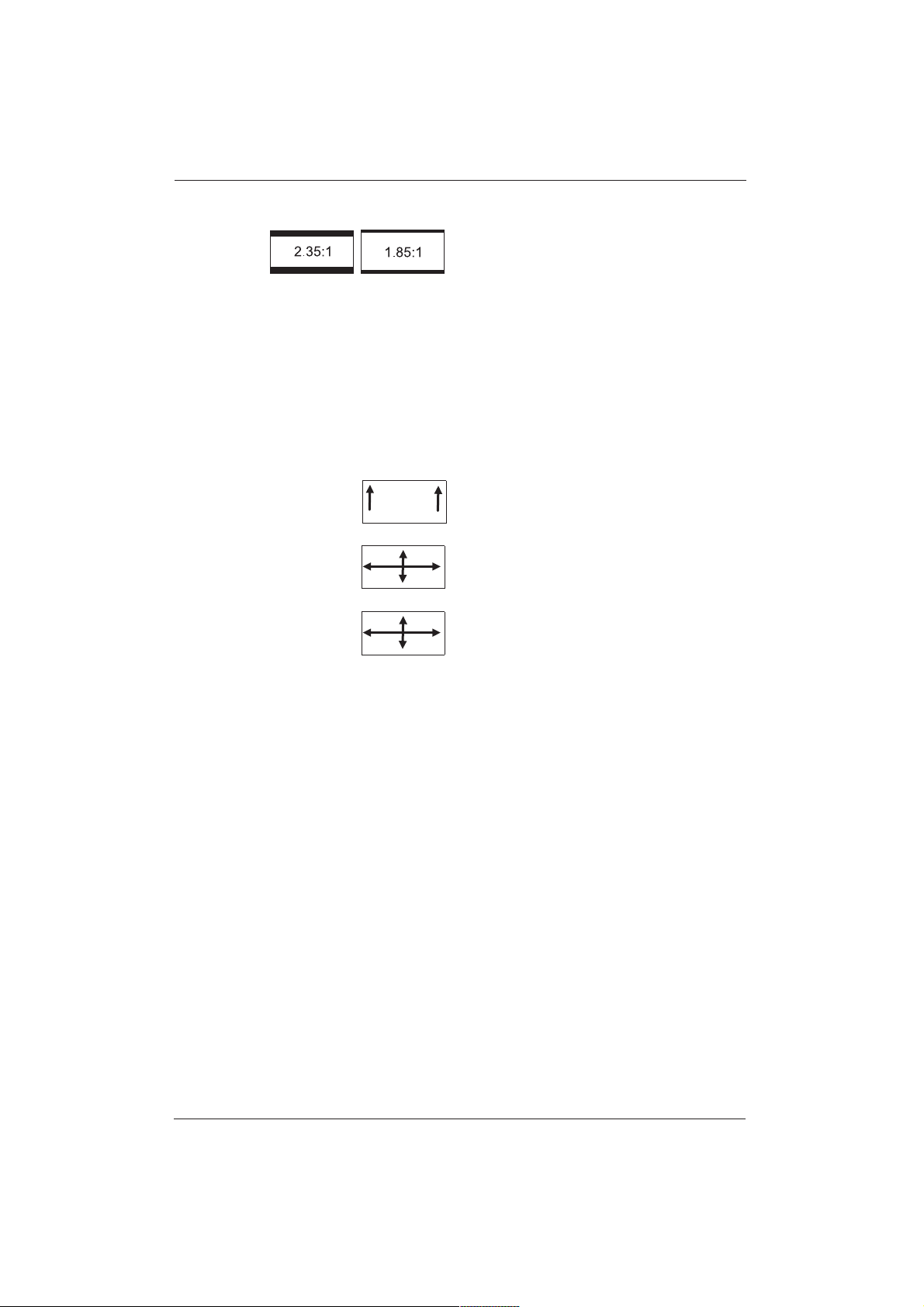
For Widescreen Content
Many popular DVD titles are ‘Anamorphic’
(widescreen); however, there are two
predominant ‘Anamorphic’ (widescreen) aspect
ratios: 2.35:1 and 1.85:1.When 2.35:1 content is
displayed on this 16:9 widescreen display, you
will notice smaller black bars on top or bottom
of the screen.When a 1.85:1 content is
displayed, you will still see black bars, but not as
large as 2.35:1.
If you do not want to see the black bars
whenplaying back a widescreen movie, you can
useZOOM 2 or ZOOM 3 to fully stretch the
image.
ZOOM: 1
Zoom1 shifts the image up to facilitate the
display of sub- titles.
ZOOM: 2
Zoom 2 is used to stretch 1.85:1 content to full
screen, eliminating the black bars.
ZOOM: 3
Zoom 3 is used to stretch 2.35:1 content to full
screen, eliminating the black bars.
Notes:
1. 4:3 and Panorama modes are not available
when zoom mode is enabled.
2. When using Component 1 or Component 2
inputs to display 480p, 1080i or 720p,
Panorama mode is not available.
3. When using RGB or DVI inputs, only 4:3,
16:9 and an additional 4:3 Zoom modes are
available. In this 4:3 Zoom mode, the original
4:3 image is preserved but is stretched to full
screen in both horizontal and vertical
directions, so the top and bottom of the
image will not be visible.
4. Avoid displaying in 4:3 mode for an extensive
time,This may cause a permanent after-image
remaining on the screen.
32
User Manual BDH5011
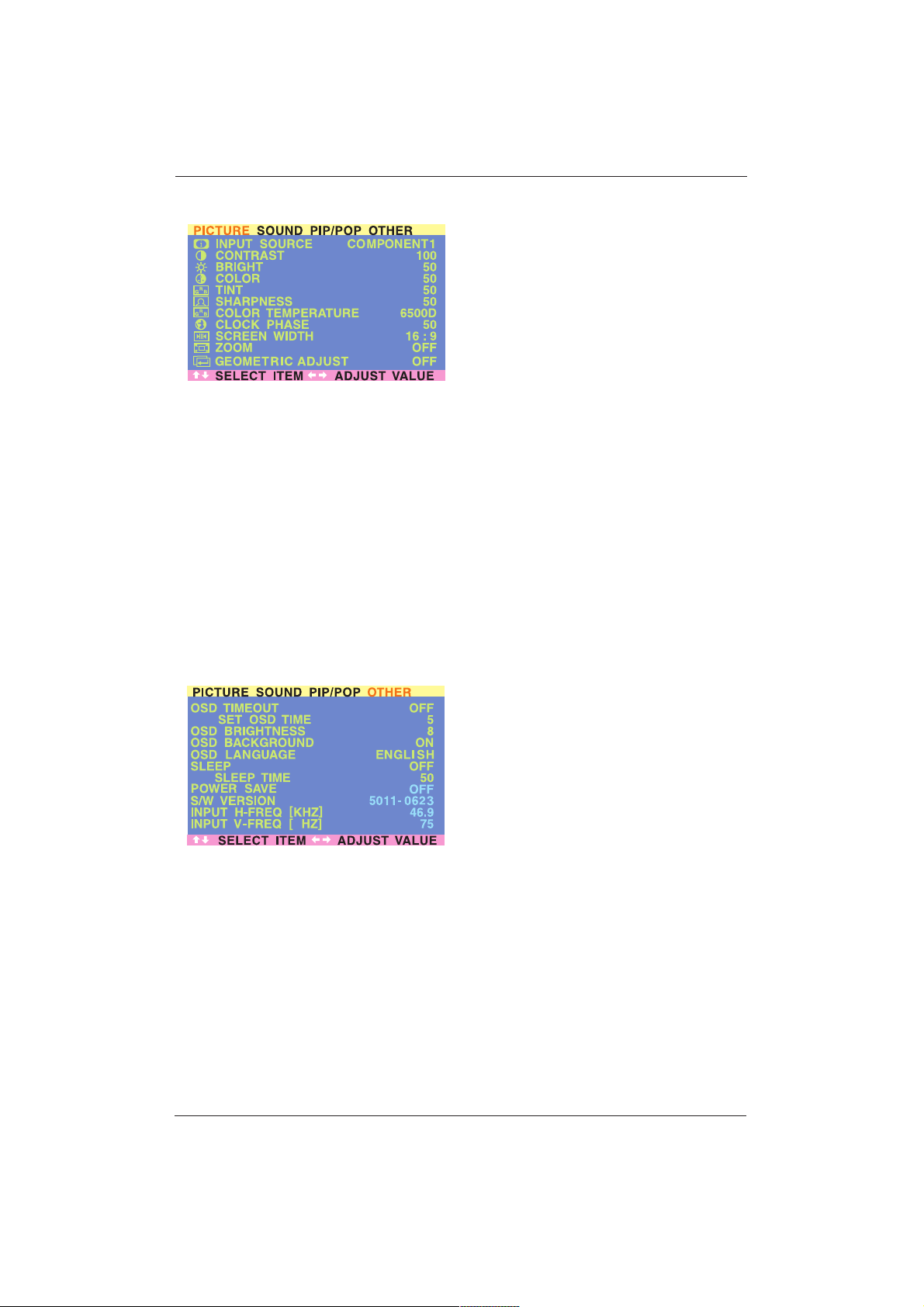
Accessing Widescreen Viewing Modes
using OSD
You can also use the OSD menu to access the
same widescreen and zoom mode functions:
1. Press the MENU +/- buttons on the remote
control or the front control panel.
2. Make sure that the PICTURE menu is
displayed.
3. Use the MENU +/- buttons to navigate to
SCREEN WIDTH and use the ADJ +/-
buttons
to switch between 4:3, 16:9 or PANO-
RAMA.
4. Use the MENU +/- buttons to navigate to
ZOOM and use the ADJ +/- buttons to
switch between zoom 1, 2 or 3. Please note
that this function is not accessible unless the
SCREEN WIDTH is set to 16:9.
10.3 On-Screen Display (OSD)
Settings
Accessing OSD Settings Menu
You can set various OSD display settings from
the OSD menu:
1. Press the MENU +/- buttons on the remote
control or the front control panel.
2. Use the ADJ +/- buttons to navigate to
OTHER OSD Sub-menu as displayed below.
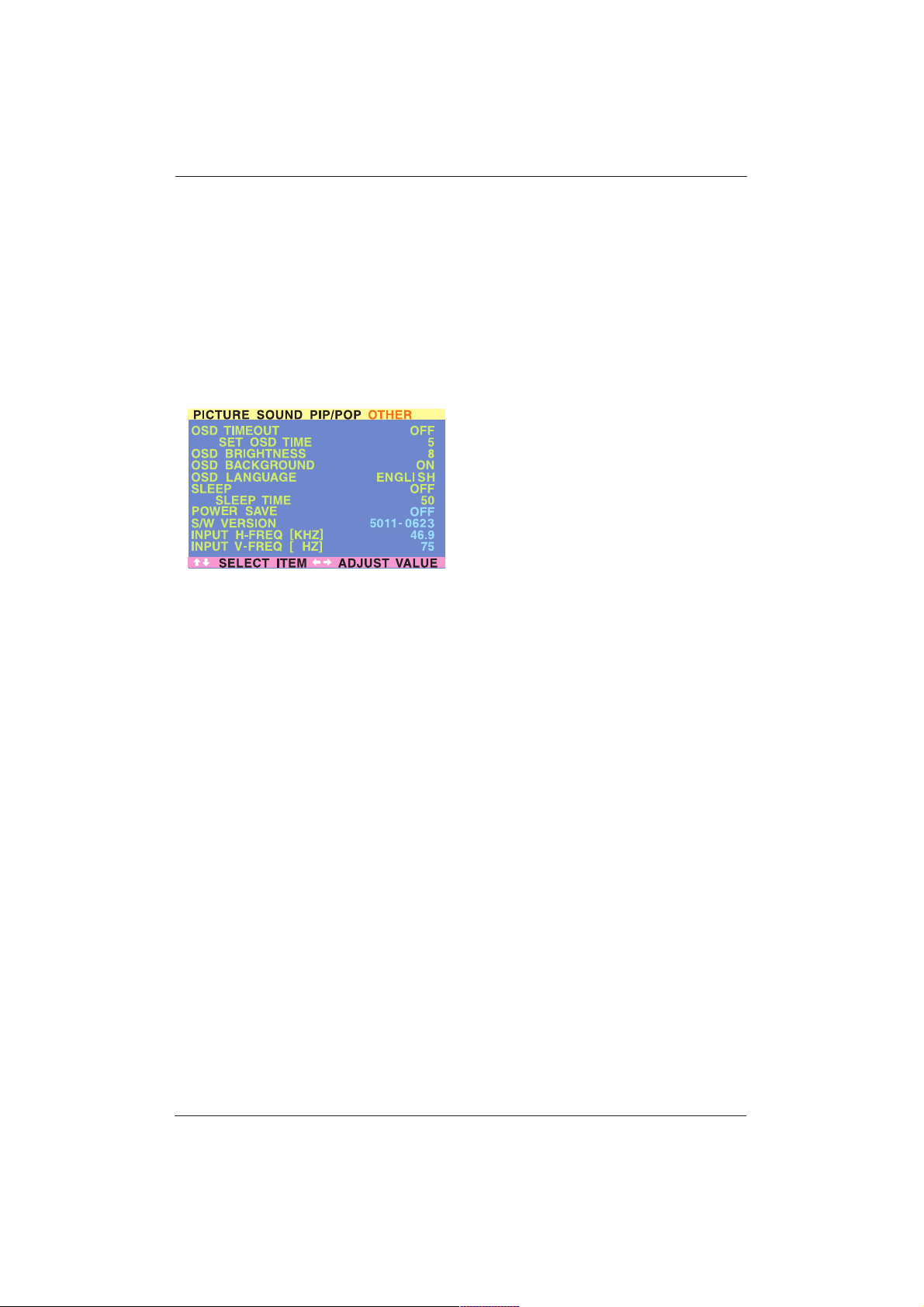
OSD Timeout
Initiates the OSD timer when set to ON.When
set to ON, the OSD will automatically disappear
from the display if no button action is detected
for the set number of seconds. If set to OFF,
then the OSD will remain on the screen.
OSD Time Setting
Sets the number of seconds the OSD will remain
active on the display before switching itself off.
OSD TIMEOUT must be set to ON for this
setting to function.
OSD Brightness
Sets the brightness level of the OSD screen
between 1 and 10.
OSD Background
You can set the OSD menu’s background to
transparent or to blue. Set to OFF if you want a
transparent setting. Set to ON if you want a blue
background.
OSD Language
You can set the OSD language to English, French
or Spanish.
Note: To prevent a permanent after-image, we
strongly suggest setting the OSD
TIMEOUT to ON.
33
User Manual BDH5011
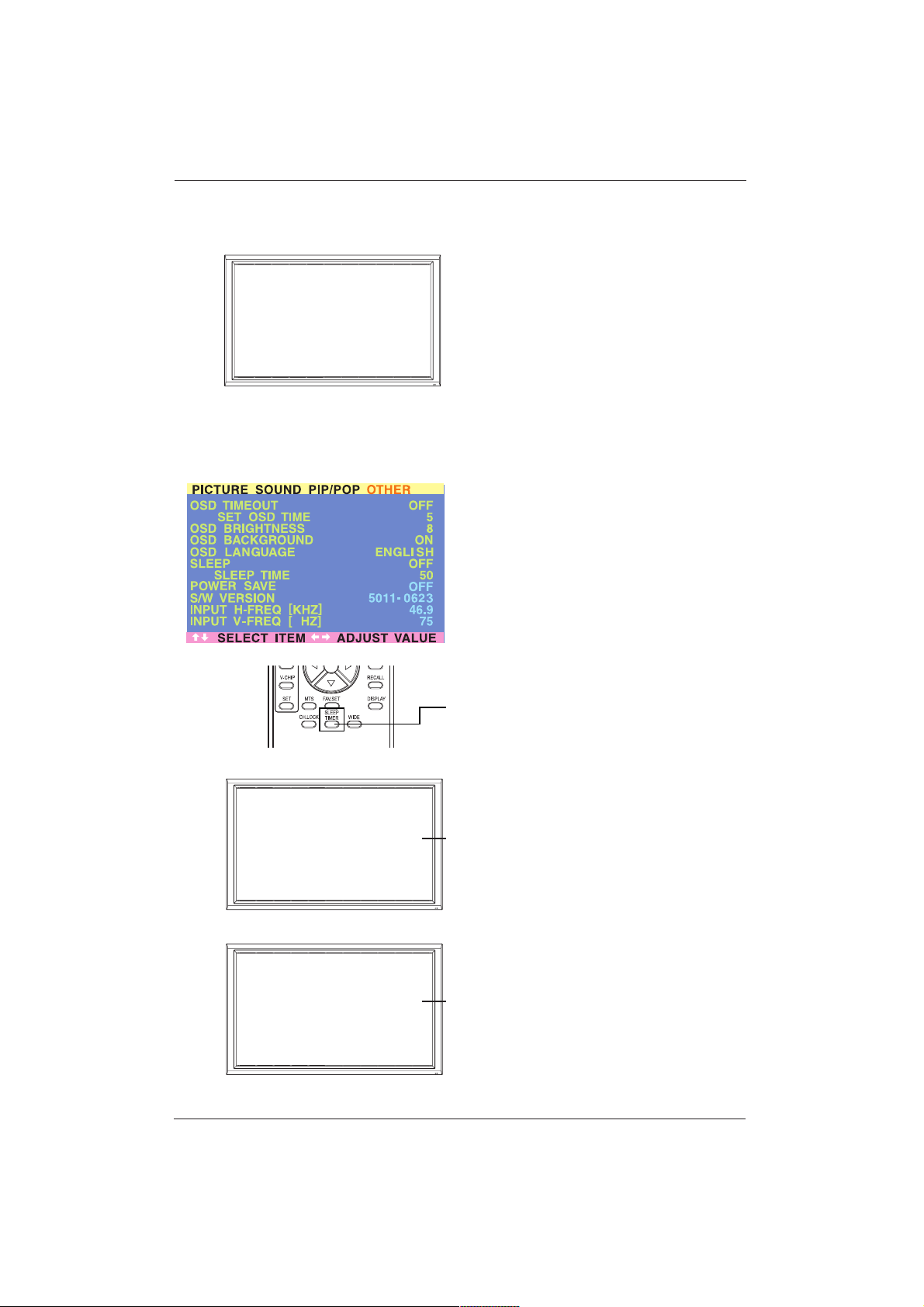
10.4 Sleep Timer Settings
Setting Sleep Timer Using OSD
To set the sleep timer using the OSD screen:
1. Press the MENU +/- buttons on the remote
control or the front control panel.
2. Use the ADJ +/- buttons to navigate to
OTHER OSD sub-menu as displayed below.
3. Use the MENU +/- buttons to navigate to
SLEEP function.
4. Use the ADJ +/- buttons to set to ON.
5. The display will function normally until the
1-minute mark. At the 1-minute mark, the
sleep timer will display a second by second
coundown clock to notify you that the
display is about to switch off.
Sleep Timer On/Off
Switches the sleep timer ON or OFF.
Timer Setting
You can set the timer from 1 to 120 minutes.
Use the ADJ +/- buttons to set any number
between 1 and 120.
Setting Sleep Timer Using Remote Control
To set the sleep timer using the remote control:
1. Press the SLEEP TIMER button on the
remote control.The sleep timer will be
displayed at the upper right corner of the
screen.
2. Pressing the SLEEP TIMER button again will
cycle the sleep timer through all the preset
times.
3. When setting is complete, simply press the
DISPLAY button to hide the sleep timer
display.The sleep timer is running in the
background.
4. The display will function normally until the
1-minute mark. At the 1-minute mark, the
sleep timer will display a second by second
countdown clock to notify you that the
display is about to switch off.
5. If you wish to switch the sleep timer OFF
before the display switches off, simply press
the SLEEP TIMER button again and cycle
through all the preset times until SLEEP:
OFF is displayed.
SLEEP TIMER
0:59
Power Off Warning
SLEEP: OFF
Sleep Timer Set
SLEEP TIMER
0:59
Power Off Warning
34
User Manual BDH5011
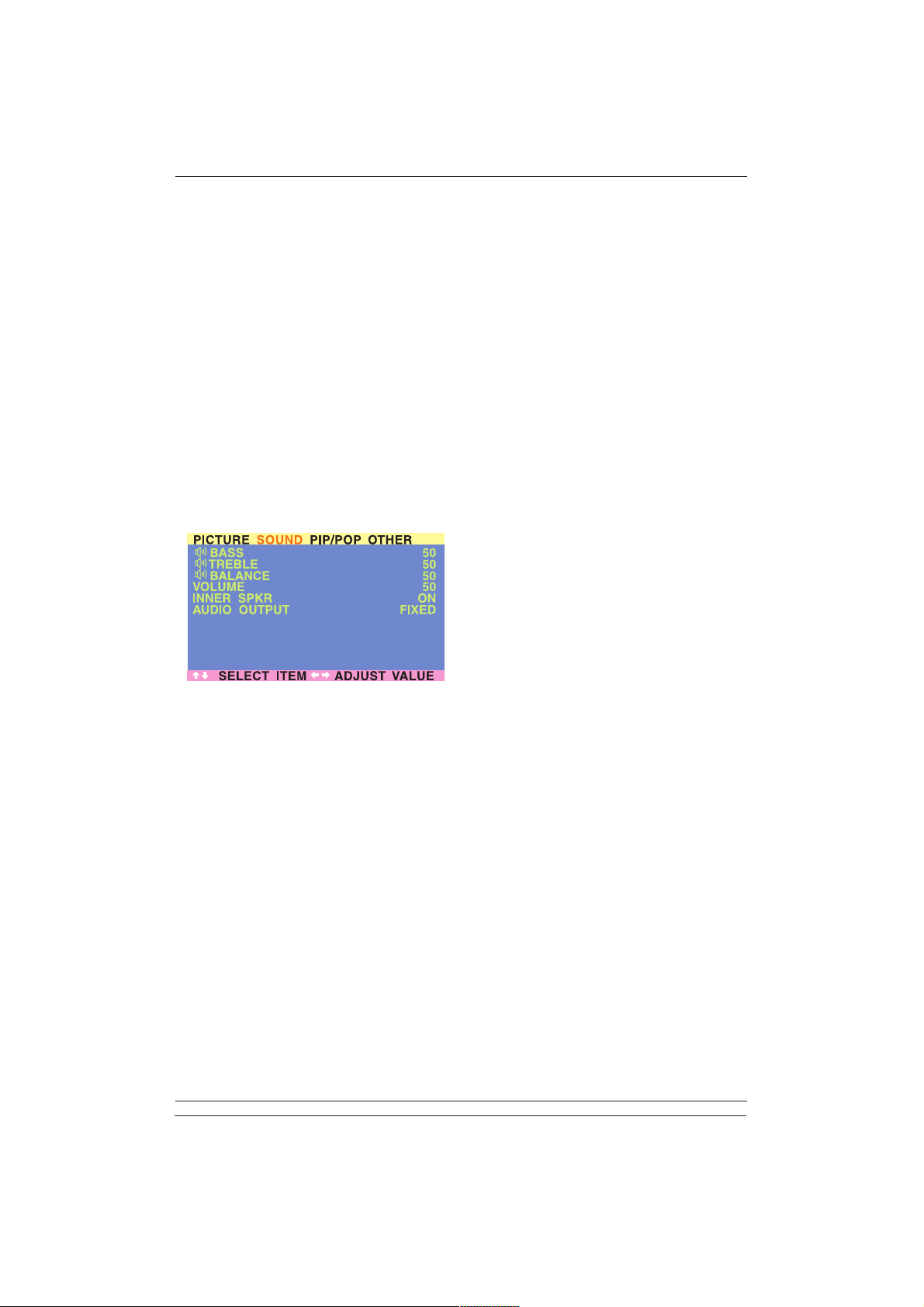
10.5 Variable and Fixed Audio
Output
Setting Output Using OSD
You can set the type of output sent from the
audio output jack, located on the rear side of the
display. By using an OSD based switch, you can
easily choose between variable or fixed audio
outputs.
To set the audio output setting:
1. Press the MENU +/- buttons on the remote
control or the front control panel.
2. Use the ADJ +/- buttons to navigate to
SOUND OSD sub-menu.
3. Use the MENU +/- buttons to select the
AUDIO OUTPUT option.
4. Use the ADJ +/- buttons to change setting
between FIXED or VARIABLE.
AUDIO OUTPUT
Sets the type of audio output sent from the
audio output jacks located on the rear side of
display.
• VARIABLE
When set to Variable, audio output is
affected by the display’s internal audio
controls including bass, treble, surround, BBE,
bass extension, and volume.
• FIXED
When set to Fixed, the audio output
bypasses the display’s internal audio control
so that functions such as bass, treble,
surround, BBE, bass extension, and volume
controls have no effect.
10.6 Sound Adjustments
Sound Adjustments Using OSD
Sound adjustments are available to enhance the
sound performance of the display.These
adjustments will affect the display’s built-in
speakers and the AUDIO OUTPUT jacks when
set to ‘Variable’ (see above section).To access
sound adjustments:
1. Press the MENU +/- buttons on the remote
control or the front control panel.
2. Use the ADJ +/- buttons to navigate to
SOUND OSD sub-menu.
3. Use the MENU +/- buttons to select the
various options described in this section.
35
User Manual BDH5011
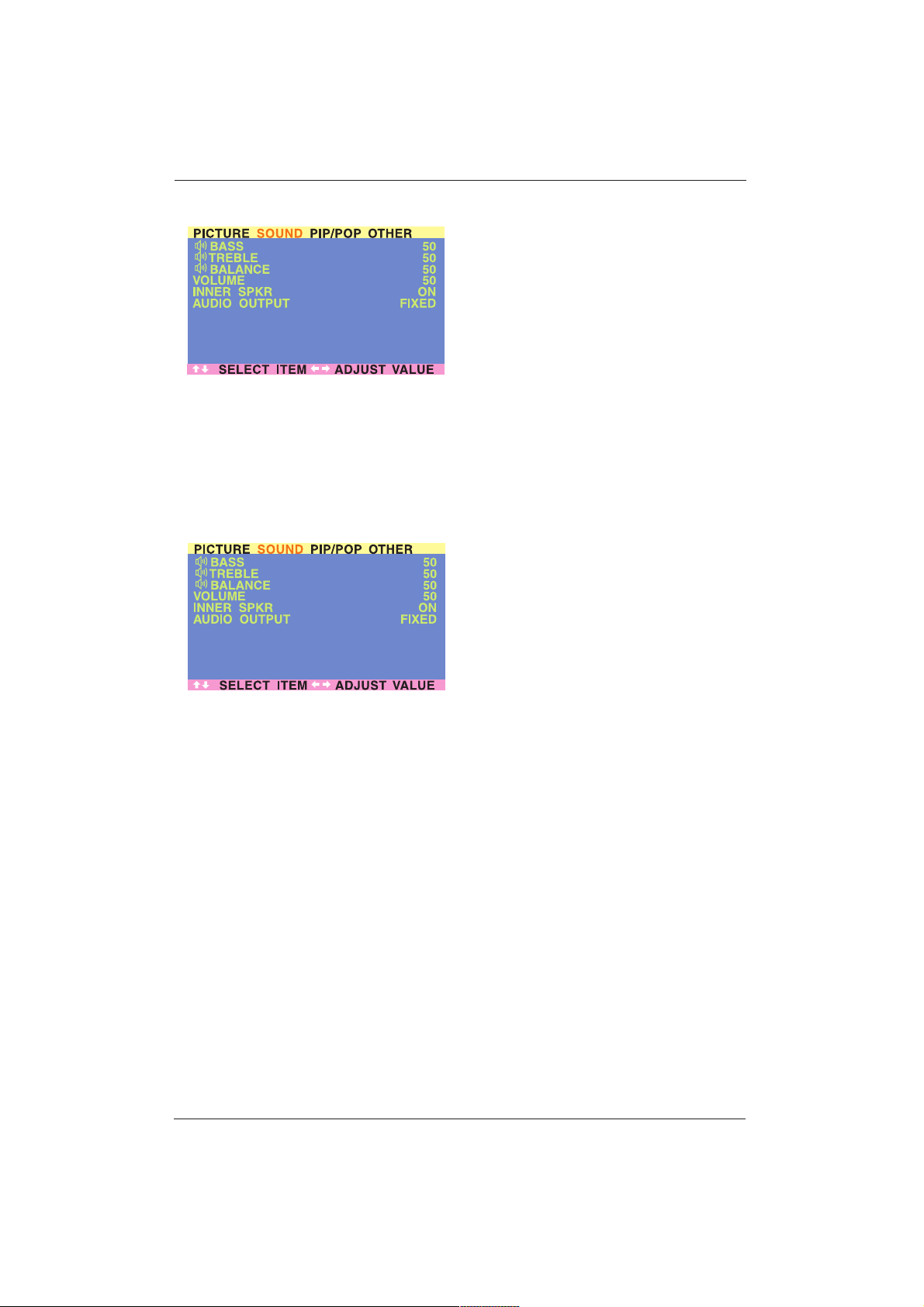
BASS
Adjusts the BASS level of the sound. For more
bass response, increase the BASS level.
TREBLE
Adjusts the TREBLE level of the sound. For more
vocal and high frequency response, increase the
TREBLE level.
BALANCE
Adjusts the BALANCE level between LEFT and
RIGHT channels. A value of 50 is the center
point between LEFT and RIGHT. To shift the
sound to the RIGHT, increase the value
towards 100.To shift the sound to the LEFT,
reduce the value towards 1.
10.7 Inner speaker ON/OFF
Switching OFF Built-In Speakers
This display is equipped with built-in speakers.
You can switch the internal speakers ON or
OFF using the OSD. Because these speakers are
general purpose, you may consider switching
them OFF during hi-fidelity playback of movies
or other content.
Switch the internal speakers of the display ON
or OFF.This setting will not affect AUDIO
OUTPUT connections.
36
User Manual BDH5011
37
User Manual BDH5011
10.8 Signal Frequency
Information Display
Displaying Frequency of Signal
This display is capable of displaying the frequency
level of the signal being displayed. To see signal
frequency information:
1. Press the MENU +/- buttons on the remote
control or the front control panel.
2. Use the ADJ +/- buttons to navigate to the
OTHER OSD sub-menu.
A
INPUT H-FREQ (KHZ)
Displays the horizontal signal frequency of the
signal currently displayed. Use the frequency
cross reference tables below to see which type
of signal is being displayed under various input
modes.
INPUT V-FREQ (HZ)
Displays the vertical signal frequency of the
signal currently displayed. Use the frequency
cross reference tables below to see which type
of signal is being displayed under various input
modes.
A
When Using AV1 and AV2 Inputs
Horizontal Vertical Format
15.7 60 NTSC Video
15.6 50 PAL Video
When Using Component 1 & 2 Inputs
Horizontal Vertical Format
15.7 60 NTSC Video
15.6 50 PAL Video
15.7 60 480i (SDTV)
31.5 60 480p (EDTV)
33.0 60 1080i (HDTV)
45.0 60 720p (HDTV)

When Using RGB & DVI Inputs
Mode Hor. Vertical Format Refresh
1 31.469 59.940 640•480 (VGA) 60
2 37.861 72.809 640•480 (VGA) 72
3 37.500 75.000 640•480 (VGA) 75
4 43.269 85.008 640•480 (VGA) 85
5 35.156 56.250 800x600 (SVGA) 56
6 37.879 60.317 800x600 (SVGA) 60
7 48.077 72.188 800x600 (SVGA) 72
8 46.875 75.000 800x600 (SVGA) 75
9 53.674 85.061 800x600 (SVGA) 85
10 48.364 60.004 1024x768 (XGA) 60
11 56.476 70.069 1024x768 (XGA) 70
12 60.023 75.029 1024x768 (XGA) 75
13 68.677 84.997 1024x768 (XGA) 85
14 63.981 60.020 1280x1024 (SXGA) 60
15* 79.976 75.025 1280x1024 (SXGA) 75
16* 91.146 85.024 1280x1024 (SXGA) 85
18 31.469 70.087 720x400 (DOS) 70
19 31.469 50.030 640x480 (VGA) 50
20* 45.000 60.000 1280x720p (HDTV) 60
21* 33.750 60.000 1920x1080i (HDTV) 60i
22 31.469 70.087 640x350 (VGA) 70
23 31.413 59.835 852x480 (WVGA) 60
24 35.000 66.667 640x480 (Apple) 67
25 49.725 74.550 832x624 (Apple) 75
26 68.681 75.062 1152x870 (Apple) 75
27 47.400 60.000 1366x768 60
28 47.368 59.960 1360x768 60
29 29.640 60.000 848x480 60
30 60.000 60.000 1280x960 60
31* 85.938 85.002 1280x960 85
Notes:
• When using RGB mode, the OSD will display
a mode number that references the table
above.
• Modes 15, 16, 20, 21, 31 under RGB mode
are not available when using DVI input.
• Modes 24-26 are for use with Apple
Macintosh computers.
*These modes are not supported in DVI mode.
RGB
M:05
38
User Manual BDH5011
11. PICTURE ADJUSTMENT
11.1 For AV/Component Video
(480i signal)
Accessing Picture Adjustment Mode
Various picture adjustments can be set using the
Picture Adjustment OSD menu.To access the
OSD menu:
1. Press the MENU +/- buttons on the remote
control or the front control panel.
2. The first menu displayed is the PICTURE
menu. Make sure that the PICTURE OSD
menu is displayed.
3. Use the MENU +/- buttons to move up and
down to select the option you wish to
adjust.An explanation of each adjustment is
listed below.
4. Use the ADJ +/- buttons to change the
setting.
Notes:
• These controls are available when input
selection is set to:AV1, AV2 (S),
Component 1 or Component 2 (when the
input signal is 480i) inputs.
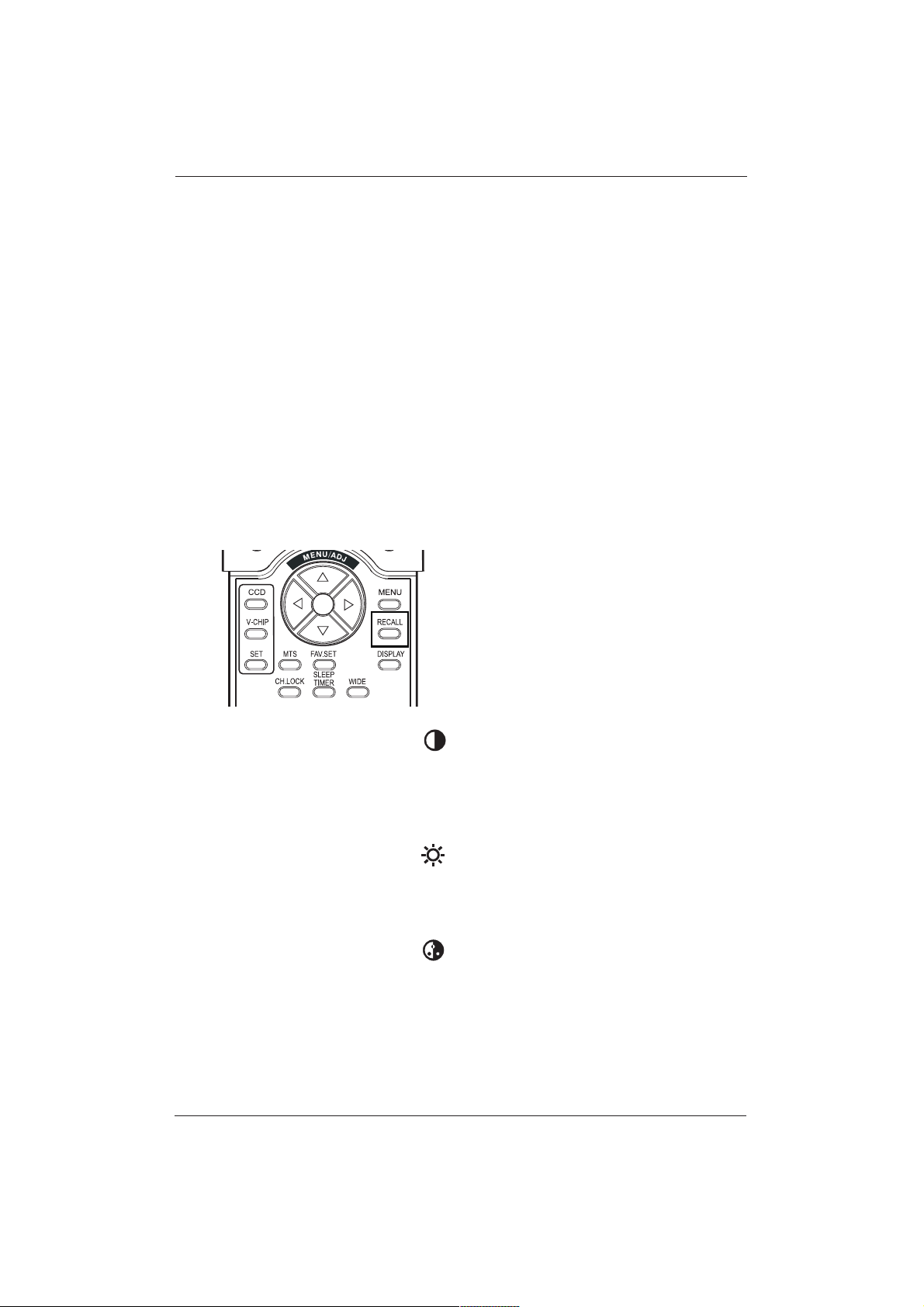
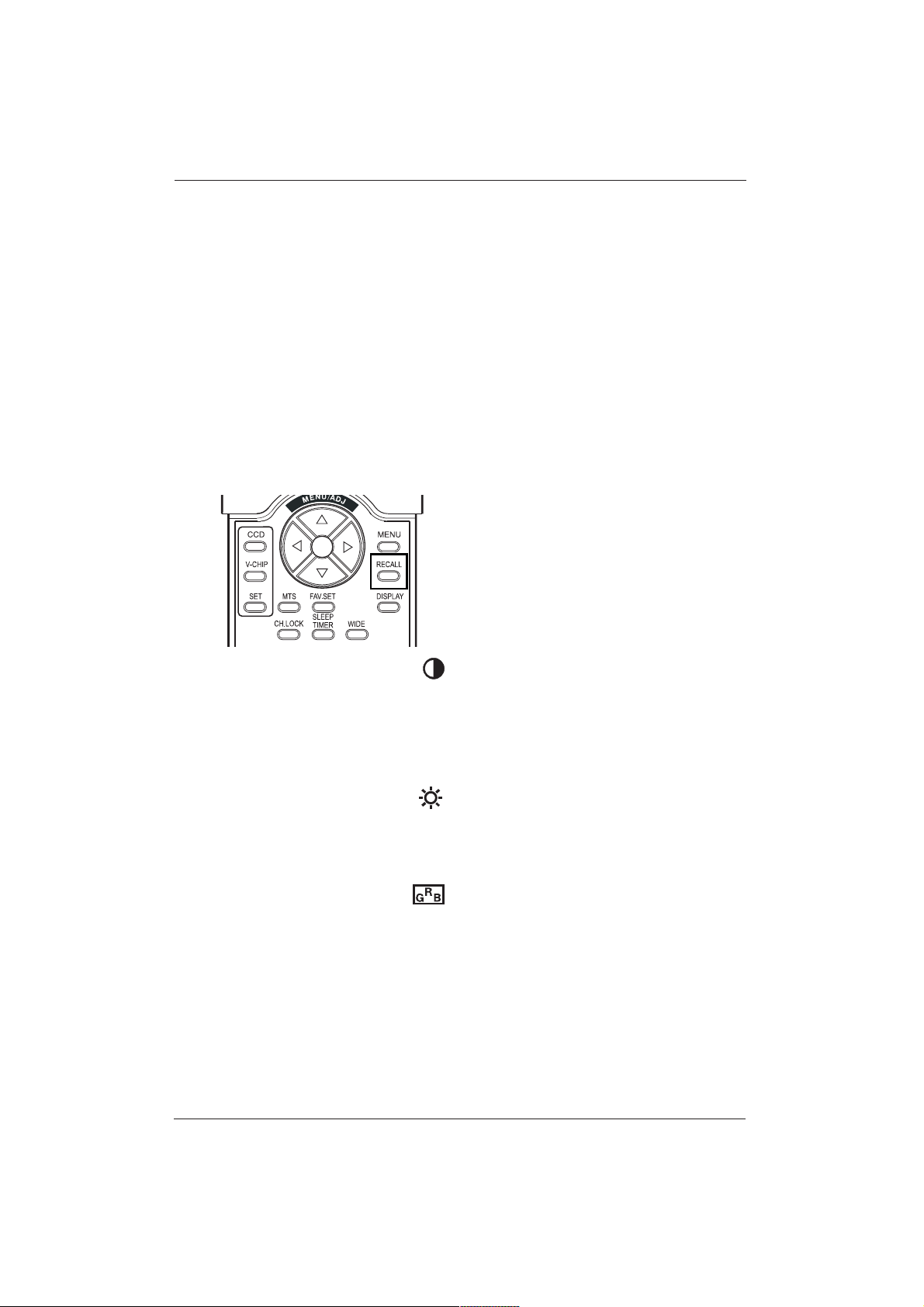
• To restore picture settings to the factory
defaults, simply press the RECALL button
from the remote control.
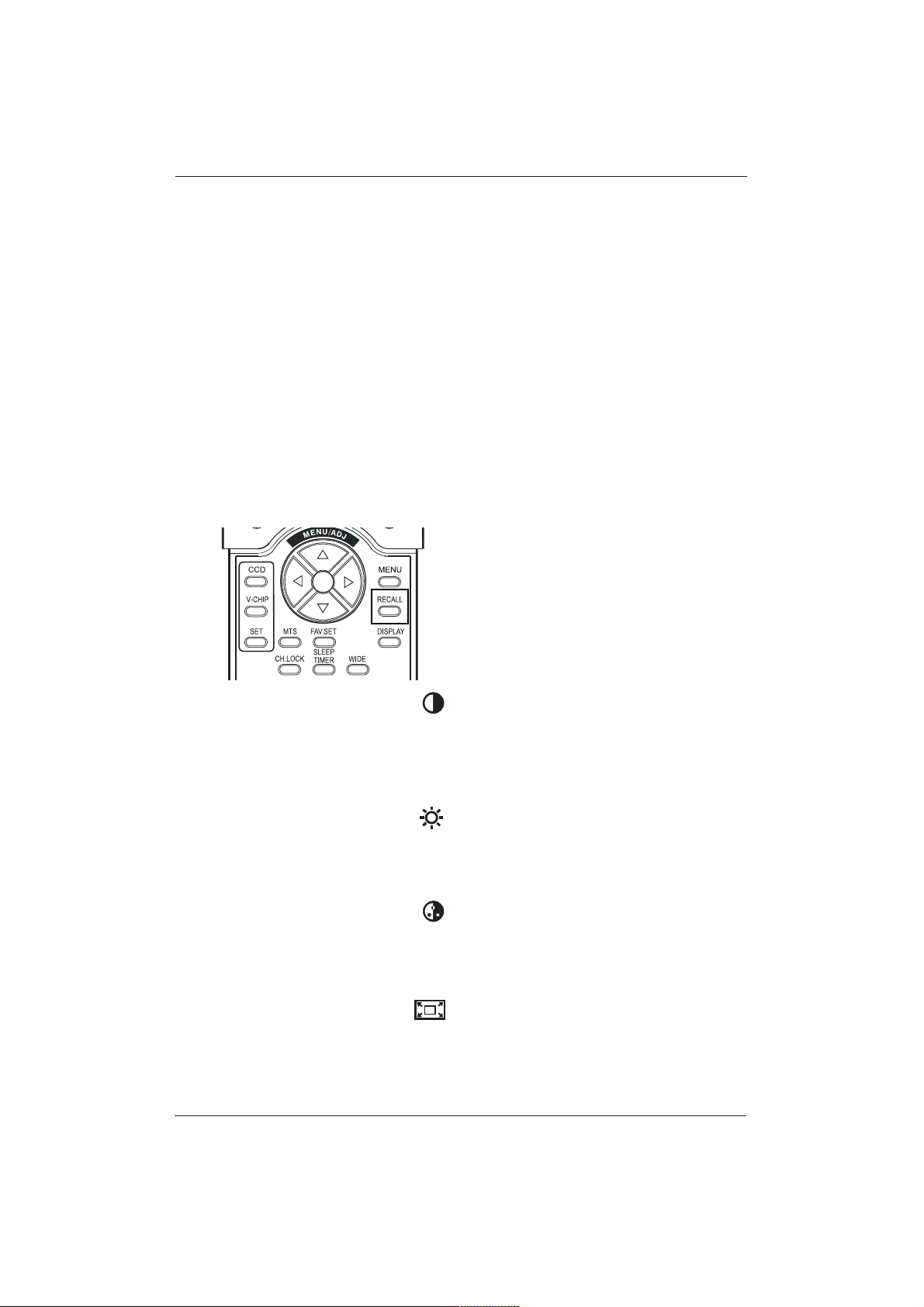
CONTRAST
Adjust Contrast to increase the level of ‘white’
in the video picture.
Increasing contrast will make white areas of the
video picture brighter. Contrast works in
conjunction with BRIGHTNESS.
BRIGHTNESS
Adjust brightness to enhance the level of dark
areas in the video picture such as night scenes
and shadow scenes. Increasing brightness will
make dark areas more visible.
COLOR
Use color to adjust the color saturation of the
video picture. Increasing color will make the
color more intense. Reducing color setting will
make the color less intense.
39
User Manual BDH5011
40
User Manual BDH5011
TINT
Use tint to adjust fleshtone colors. Increasing the
tint setting will add more cyan to the picture
(more green appearance). Decreasing the setting
will add more magenta to the picture (more red
appearance).
SHARPNESS
Use sharpness to adjust the amount of detail
enhancement to the video picture. Increasing the
setting will enhance the edges of objects in the
video picture.
Decreasing the setting will reduce enhancement.
COLOR TEMPERATURE
Select the color temperature for white balance.
There are five settings to choose from:
(1) 6500D - sets the white balance to 6500D;
(2) LOW - sets to 5400K;
(3) MID - sets to 9300K;
(4) HIGH - sets to 13800K.
Note: Each of the (4) color temperature
settings may vary a little from the
temperature defined settings.
CLOCK PHASE
This function is not available for this picture
adjustment mode.
SCREEN WIDTH
Use to change various screen width modes.
For more information see Chapter 10.
ZOOM
Use to change various digital zoom modes.
For more information see Chapter 10.
11.2 For Component Video (480p,
720p and 1080i signal)
Accessing Picture Adjustment Mode
Various picture adjustments can be set using the
Picture Adjustment OSD menu.To access the
OSD menu:
1. Press the MENU +/- buttons on the remote
or the front control panel.
2. The first menu displayed is the PICTURE
menu. Make sure that the PICTURE OSD
menu is displayed.
3. Use the MENU +/- buttons to move up and
down to select the option you wish to
adjust.An explanation of each adjustment is
listed below.
4. Use the ADJ +/- buttons to change the
setting.
Notes:
• These controls are available when input
selection is set to: Component 1 and
Component 2 (when the input signal is 480p,
780p or 1080i) inputs.
• To restore picture settings to the factory
defaults, simply press the RECALL button
from the remote control.
CONTRAST
Adjust Contrast to increase the level of ‘white’
in the video picture.
Increasing contrast will make white areas of the
video picture brighter. Contrast works in
conjunction with BRIGHTNESS.
BRIGHTNESS
Adjust brightness to enhance the level of dark
areas in the video picture such as night scenes
and shadow scenes. Increasing brightness will
make dark areas more visible.
COLOR
Use color to adjust the color saturation of the
video picture. Increasing color will make the
color more intense. Reducing color setting will
make the color less intense.
TINT
Use tint to adjust fleshtone colors. Increasing the
tint setting will add more cyan to the picture
(more green appearance). Decreasing the setting
will add more magenta to the picture (more red
appearance).
41
User Manual BDH5011
SHARPNESS
Use sharpness to adjust the amount of detail
enhancement to the video picture. Increasing the
setting will enhance the edges of objects in the
video picture.
Decreasing the setting will reduce enhancement.
COLOR TEMPERATURE
Select the color temperature for white balance.
There are five settings to choose from:
(1) 6500D - sets the white balance to 6500D;
(2) LOW - sets to 5400K;
(3) MID - sets to 9300K;
(4) HIGH - sets to 13800K.
Note: Each of the (4) color temperature
settings may vary a little from the
temperature defined settings.
CLOCK PHASE
This function is not available for this picture
adjustment mode mode.
SCREEN WIDTH
Use to change various screen width modes.
For more information see Chapter 10.
ZOOM
Use to change various digital zoom modes. See
For more information see Chapter 10.
GEOMETRIC ADJUST
Use to access Geometric Adjust sub-menu. For
more information see Chapter 11.3.
42
User Manual BDH5011
43
User Manual BDH5011
11.2 For Component Video (480p,
720p and 1080i signal) -
Contd.
Accessing Geometric Adjustment Mode
Various geometric adjustments can be set using
the Geometric Adjustment OSD menu.To access
the Geometric Adjust sub-menu:
1 Press the MENU +/- buttons on the remote
control or the front control panel.
2 The First menu displayed is the PICTURE
Menu. Make sure that the PICTURE OSD
Menu is displayed.
3 Use the MENU +/- buttons to set the
selection to ON. As soon as you press the
button, the Geometric Adjust sub-menu will
be displayed.
4 Press the ADJ +/- buttons to move up and
down to select the option you wish to
adjust.An explanation of each adjustment is
listed below.
5 Use the ADJ +/- buttons to change the
setting.
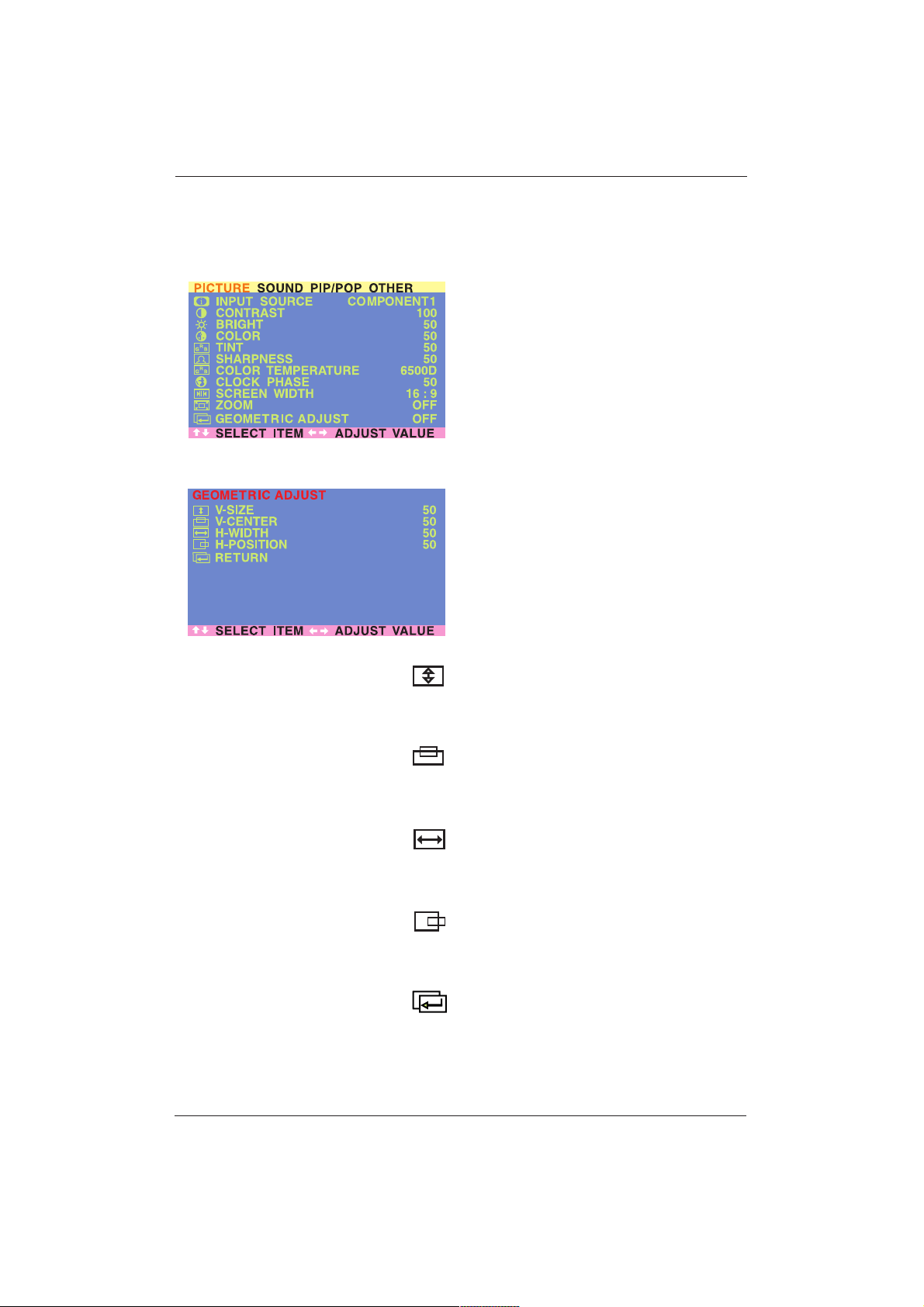
V-SIZE
Adjusts the vertical size of the picture. Increase
to enlarge the vertical picture size.
Decrease to reduce the vertical picture size.
V-CENTER
Adjusts the vertical position of the picture.
Increase to shift the picture up. Decrease to shift
the picture down.
H-WIDTH
Adjusts the horizontal size of the picture.
Increase to enlarge the horizontal picture size.
Decrease to reduce the horizontal picture size.
H-POSITION
Adjusts the horizontal position of the picture.
Increase to shift the picture to the right. De-
crease to shift the picture to the left.
RETURN
Return to PICTURE OSD Menu.
11.3 For RGB / DVI
Accessing Picture Adjustment Mode
Various picture adjustments can be set using the
Picture Adjustment OSD menu.To access the
OSD menu:
1. Press the MENU +/- buttons on the remote
or the front control panel.
2. The first menu displayed is the PICTURE
menu. Make sure that the PICTURE OSD
Menu is displayed.
3. Use the MENU +/- buttons to move up and
down to select the option you wish to
adjust.An explanation of each adjustment is
listed below.
4. Use the ADJ +/- buttons to change the
setting.
Notes:
• These controls are available when input
selection is set to: RGB or DVI inputs.
• To restore picture settings to the factory
defaults, simply press the RECALL button
from the remote control.
CONTRAST
Adjust Contrast to increase the white level in
the video picture.
Increasing contrast will make white areas of the
video picture brighter.
Contrast works in conjunction with
BRIGHTNESS.
BRIGHTNESS
Adjust brightness to enhance the level of dark
areas in the video picture such as night scenes
and shadow scenes. Increasing brightness will
make dark areas more visible.
COLOR TEMPERATURE
Select the color temperature for white balance.
There are several settings to choose from:
(1) 6500D - sets the white balance to 6500D;
(2) LOW - sets to 5400K;
(3) MID - sets to 9300K;
(4) HIGH - sets to 13800K.
Note: Each of the (4) color temperature
settings may vary a little from the
temperature defined settings.
44
User Manual BDH5011
45
User Manual BDH5011
CLOCK PHASE
Use clock phase to fine-tune the display to
perfectly synchronize the video’s signal source.
SCREEN WIDTH
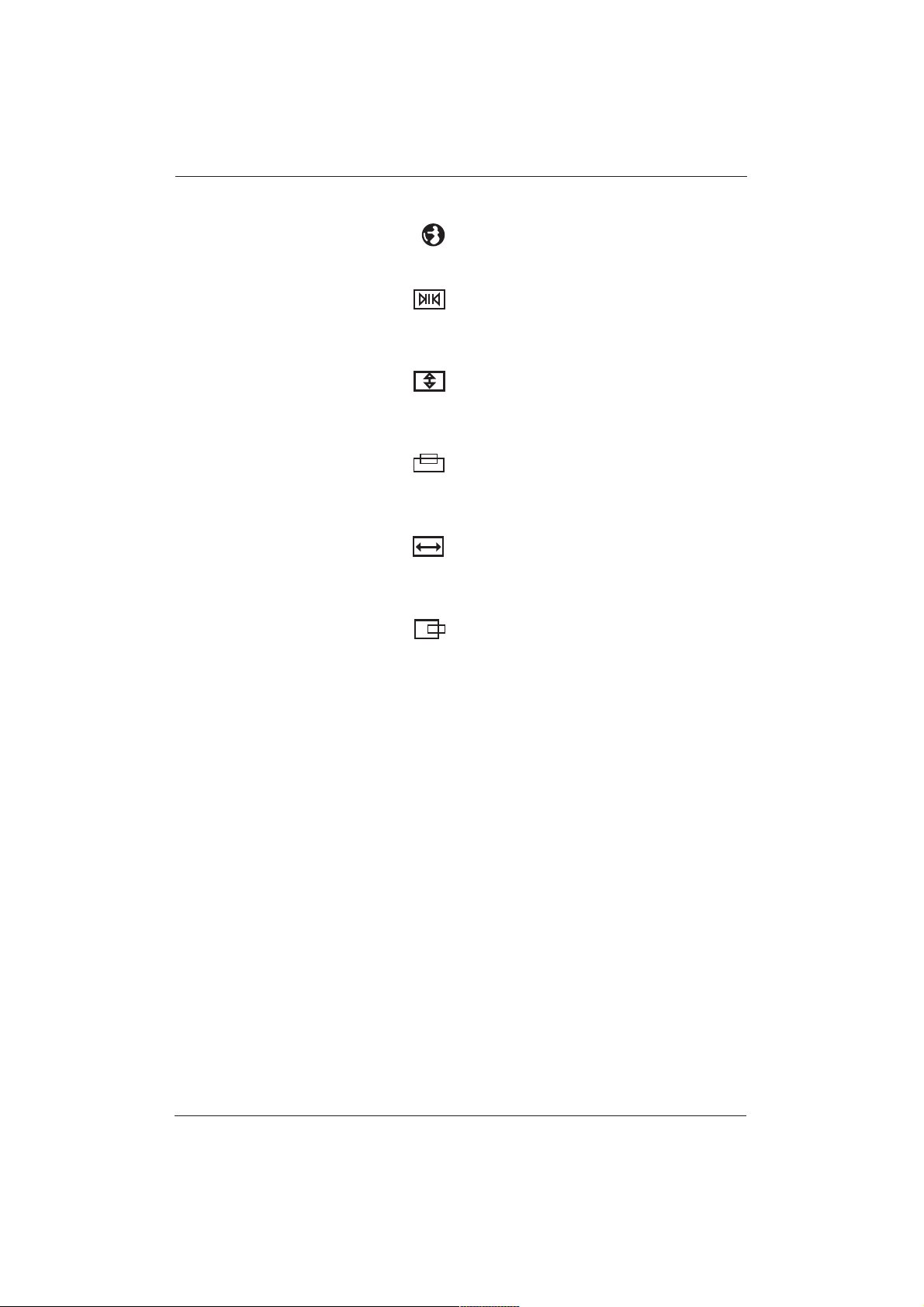
Use to change the screen width mode.There are
two selections available: 16:9 and 4:3.
See Chapter 10..2 for more information.
V-SIZE
Adjusts the vertical size of the picture. Increase
to enlarge the vertical picture size.
Decrease to reduce the vertical picture size.
V-CENTER
Adjusts the vertical position of the picture.
Increase to shift the picture up. Decrease to shift
the picture down.
H-WIDTH
Adjusts the horizontal size of the picture.
Increase to enlarge the horizontal picture.
Decrease to reduce the horizontal picture size.
H-POSITION
Adjusts the horizontal position of the picture.
Increase to shift the picture to the right.
Decrease to shift the picture to the left.
12. TROUBLESHOOTING
Troubleshoot Common Conditions
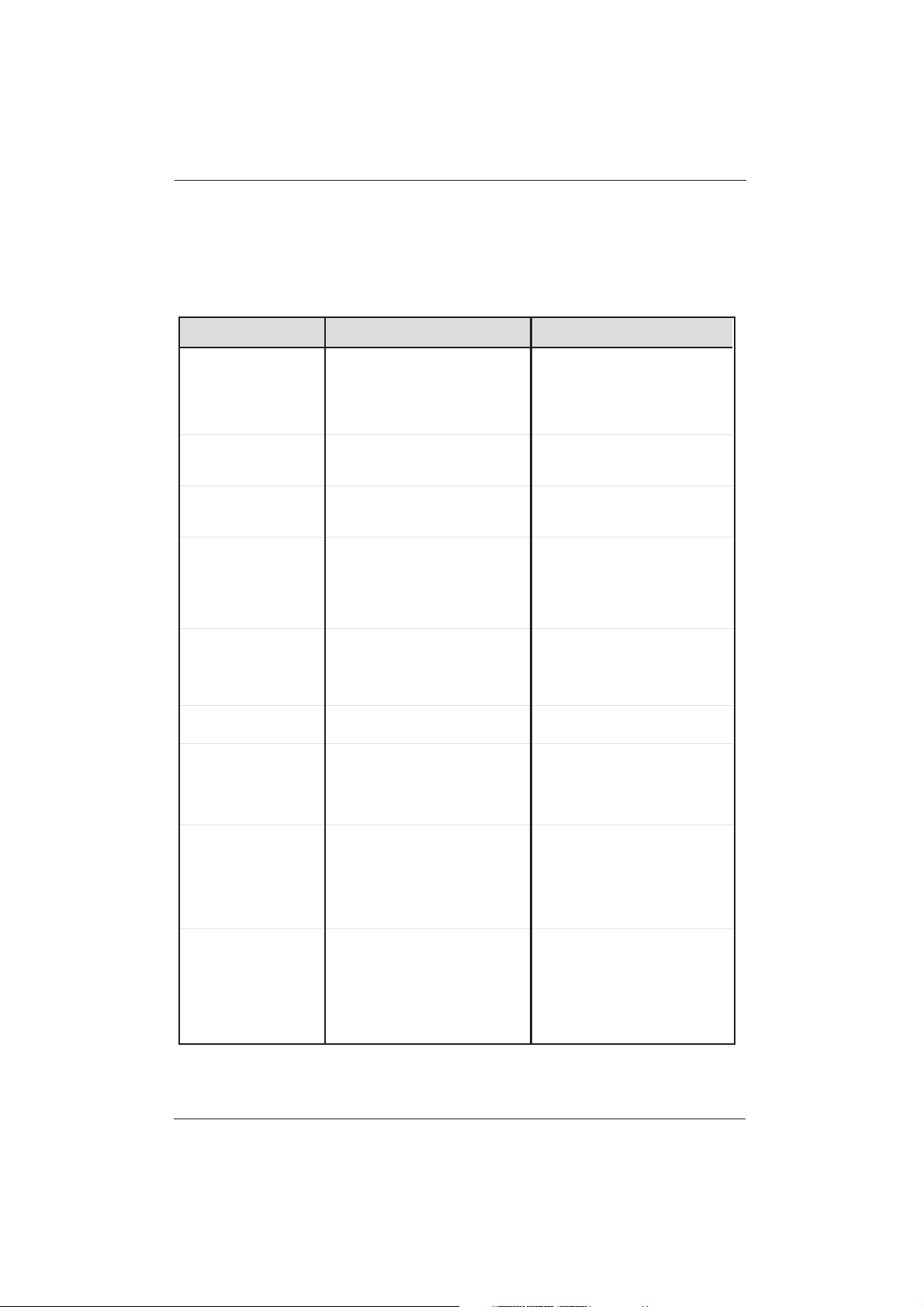
The following list represents possible anomalies that you may encounter and methods for remedy.
Please refer to this checklist prior to contacting a service representative.
1. The power cord is disconnected.
2. The main power switch on the back of
the display is not switched on.
3. The selected input has no connection.
4. The display is in standby mode in RGB
mode.
No picture displayed 1. Plug in the power cord.
2. Make sure the power switch is
switched on.
3. Connect a signal connection to the
display.
4. Press any key on your keyboard.
Possible CauseSymptom Remedy
1. Caused by surrounding electrical
appliances, cars/motorcycles or fluores-
cent lights.
Interference displayed on
the display or audible noise
is heard
1. Move the display to another location
to see if the interference is reduced.
1. The signal cable is not connected
properly.
Color is abnormal 1. Make sure that the signal cable is
attached firmly to the back of the
display.
1. The signal cable is not connected
properly.
2. The input signal is beyond the
capabilities of the display.
Picture is distorted with
abnormal patterns
1. Make sure that the signal cable is
attached firmly.
2. Check the video signal source to see if
it is beyond the range of the display.
Please verify its specifications with
this display's specification section.
1. If under RGB mode, the H-Size and
V-Size is incorrectly set.
2. If under AV1, AV2, or Component with
480i input, the 4:3 WIDE mode is
switched on.
.
Display image doesn't fill up
the full size of the screen
1. Use H-Size and V-Size to adjust the size
of the video.
2. Use the WIDE key to scroll through
various full screen modes.
1. Improperly connected source signal
cable.
Can hear sound, but no
picture
1. Make sure that both video inputs and
sound inputs are correctly connected.
1. Improperly connected source signal
cable.
2. Volume is turned all the way down.
3. MUTE is switched on.
Can see picture but no sound
is heard
1. Make sure that both video inputs and
sound inputs are correctly connected.
2. Use VOLUME +/- to hear sound.
3. Switch MUTE off by using the MUTE
button.
1. Some pixels of the plasma display
may not display.
Some picture elements do
not light up
1. This display is manufactured using an
extremely high level of precision
technology; however, sometimes some
pixels of the display may not display.
This is not a malfunction. Please see
the enclosed warranty card for more
information.
11. A still picture is displayed for an over
extended period of time.
After-Images can still be
seen on the display after the
display is powered off.
(Examples of still pictures
include logos, video games,
computer images, and
images displayed in 4:3
normal mode)
1. Do not allow a still image to be
displayed for an extended period of
time as this can cause a permanent
after-image to remain on the display.
46
User Manual BDH5011

13. SPECIFICATIONS
Display Panel
Screen size: Diagonal 50 inch
Aspect ratio: 16:9 wide
Number of pixels: 1366(Horizontal, RGB Trio ) x 768(Vertical)pixels
Pixel Pitch: 0.81mm x 0.81mm
Luminance: 1000 cd/m 2 , at 1% white window pattern
Power Source
Input voltage: 100 ~ 240 Vac , 50 / 60 Hz
Input current: 4A
Inrush current: 60 A p-p/20ms Max.
Power consumption: 470±10% Watts (at 110Vac/color bar pattern)
Stand-by & Power Save: 10 Watts Max. (at 110Vac)
Connection
Connector Types: RCA Jacks for audio, video,Y/CB/CR and Y/PB/PR
6 pin Din S-terminal for S-Video
9 pin D-SUB for RS-232
15 pin D-SUB for RGB
24 pin DVI
Video/S-Video Signal
Type: Analog
Polarity: Positive
Amplitude: AV: 1Vp-p (with sync),
S-Video:Y=1Vp-p (with
sync) C=0.286Vp-p
Frequency: H: 15.734KHz V: 60Hz(NTSC)
H: 15.625KHz V: 50Hz(PAL)
Input impedance: 75 ohms
Y/CB/CR or Y/PB/PR Signal (Component 1 & 2)
Type: Analog
Polarity: Positive
Amplitude: Y: 1Vp-p (with sync)
CB/PB: 0.286Vp-p
CR/PR: 0.286Vp-p
Frequency
Y/CB/CR: H: 15.734KHz V: 60Hz (NTSC)
Y/PB/PR: HDTV H: 15.625KHz V: 50Hz (PAL)
H: 31KHz V: 60Hz (480p)
H: 45KHz V: 60Hz (720p)
H: 33KHz V: 60Hz(1080i)
RGB Signal
Type: TTL
Polarity: Positive or Negative
Amplitude: RGB: 0.7Vp-p
Frequency: H: support to 31K~91KHz
V: support to 50~85Hz
47
User Manual BDH5011

DVI Signal
Type: Digital
Polarity: Positive or Negative
Frequency H: support to 31K~68KHz
V: support to 50~85Hz
Audio Signal: Analog 500mV rms /more than 22Kohm.
Pin Assignments For D-SUB Connector (In/Loop Out)
Pin Signal Assignment
1 RED 6 RED GND 11 GND
2 GREEN 7 GREEN GND 12 SDA
3 BLUE 8 BLUE GND 13 H-SYNC
4 GND 9 NC 14 V-SYNC
5 GND 10 GND 15 SCL
Pin Assignments For 24 Pin DVI Connector (Digital Only)
Pin Signal Assignment
1 TMDS Data 2- 9 TMDS Data 1- 17 TMDS Data 0-
2 TMDS Data 2+ 10 TMDS Data 1+ 18 TMDS Data 0+
3 TMDS Data 2/4 Shield 11 TMDS Data 1/3 Shield 19 TMDS Data 0/5
Shield
4 TMDS Data 4- 12 TMDS Data 3- 20 TMDS Data 5-
5 TMDS Data 4+ 13 TMDS Data 3+ 21 TMDS Data 5+
6 DDC Clock 14 +5V Power 22 TMDS Clock
Shield
7 DDC Data 15 Ground (For +5V) 23 TMDS Clock +
8 No Connect 16 Hot Plug Detect 24 TMDS Clock -
48
User Manual BDH5011

RGB/DVI
Refr. Hor.. Vert. V-Sync H-Sync
Mode Rate Freq. Freq. Polariy Polarity Dot rate
No Resolution (Hz) (K Hz) (Hz) (TTL) (TTL) (MHz)
1 640(VGA)x480 60 31.469 59.940 - - 25.175
2 640(VGA)x480 72 37.861 72.809 - - 31.500
3 640(VGA)x480 75 37.500 75.000 - - 31.500
4 640(VGA)x480 85 43.269 85.008 - - 36.000
5 800(SVGA)x600 56 35.156 56.250 + + 36.000
6 800(SVGA)x600 60 37.879 60.317 + + 40.000
7 800(SVGA)x600 72 48.077 72.188 + + 50.000
8 800(SVGA)x600 75 46.875 75.000 + + 49.500
9 800(SVGA)x600 85 53.674 85.061 + + 56.250
10 1024(XGA)x768 60 48.364 60.004 - - 65.000
11 1024(XGA)x768 70 56.476 70.069 - - 75.000
12 1024(XGA)x768 75 60.023 75.029 + + 78.750
13 1024(XGA)x768 85 68.677 84.997 + + 94.500
14 1280(SXGA)x1024 60 63.981 60.020 + + 108.000
15* 1280(SXGA)x1024 75 79.976 75.025 + + 135.000
16* 1280(SXGA)x1024 85 91.146 85.024 + + 157.500
18 720(DOS)x400 70 31.469 70.087 + - 28.322
19 640(VGA)x480 50 31.469 50.030 - - 25.175
20* 1280(HDTV)x720p 60 45.000 60.000 + + 74.250
21* 1920(HDTV)x1080i 60(i) 33.750 60.000 + + 74.250
22 640(VGA)x350 70 31.469 70.087 - + 25.175
23 852(WGA)x480 60 31.413 59.835 - - 30.000
24 640x480 67 35.000 66.667 - - 30.240
25 832x624 75 49.725 74.550 - - 57.283
26 1152x870 75 68.681 75.062 - - 100.000
27 1366x768 60 47.700 60.000 - - 85.383
28 1360x768 60 47.368 59.960 - + 72.000
29 848x480 60 29.640 60.000 - + 29.875
30 1280x960 60 60.000 60.000 + + 108.000
31* 1280x960 85 85.938 85.002 + + 148.500
Notes:
• * These modes are not supported in DVI mode.
• Modes 24-26 are for use with Apple Macintosh computers.
49
User Manual BDH5011

Y/PB/PR For Component 1 and 2
Mode Resolution Rate
1 640 x 480p 60
2 1920 x1080i 60
3 1280 x 720p 60
Maximum Resolution: Up to 1280 x 1024 (VGA Mode)
Dimensions: Without/Stand With/Stand
Width: 1256 mm 1256 mm
Height: 762 mm 810 mm
Depth: 107.5 mm 300 mm
Package Dimensions
Width: 1436 mm
Height: 1125 mm
Depth: 470 mm
Weight
Net weight: 108.00 lbs/49 kgs (w/ stand)
Gross weight: 132.24 lbs/60 kgs
Operating
Temperature: 0~40 Degrees C (32~104 degrees F)
Relative humidity: 20~80%
Pressure: 800~1100hpa
Non-Operating
Temperature: 20~60 Degrees C (-4~140 Degrees F)
Relative humidity: 00~90%
Pressure: 700~1100hpa
Vibration: X/Y/Z, 0.5G/10~55Hz (sweep), 10 minutes
Acoustics
(IHF A-weighted 1 meter): 40dB Max.
Sound
Residual hum (at volume max): 500µW Max.
Practical max.Audio output (at 10% THD max.): 1.0vp-p 1K Hz
input 5W +5W
Max. /12 ohm
Sound distortion (at 250 mw 1K Hz): 1% Max.
Audio output (input at 1.4V p-p ): >=1.0 V P-P
Reliability Requirement
The MTBF is 20,000 hrs under operation 25±5 C°
(Half luminosity, motion picture).
50
User Manual BDH5011

Emission Requirement
This unit meets the EMI limits in all screen modes as qualified by FCC
Class B part 15.
Power Management
Mode H-sync V-sync Video Power dissipation
Normal Pulse Pulse Active Normal power
Standby No pulse No pulse No video Power off
Power saving Pulse No pulse blanked Less than 6 watts
No pulse Pulse
Note: This Plasma display is Energy star compliant when used
with a computer equipped with DPMS.
51
User Manual BDH5011
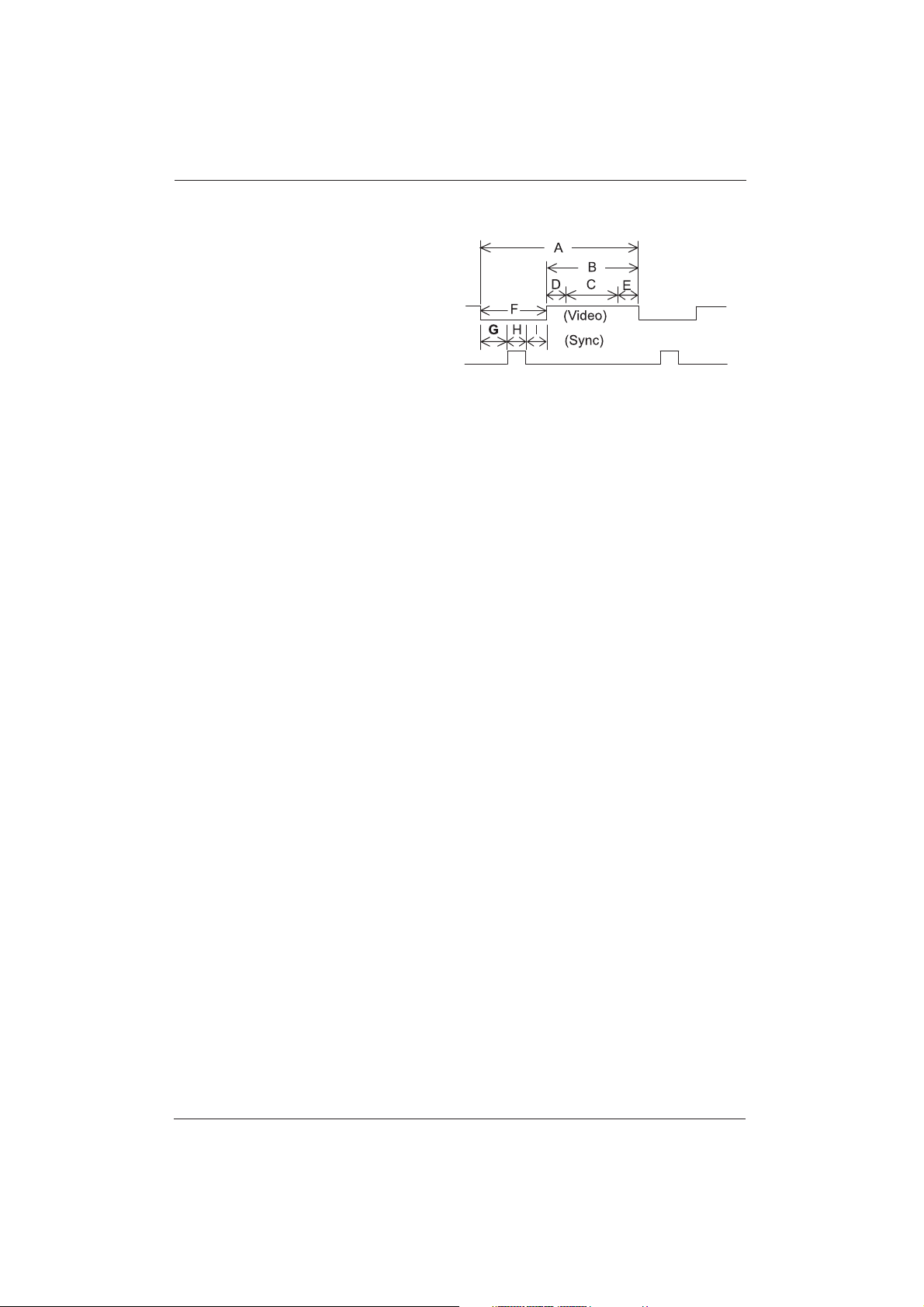
Preset Timing Chart
Item Description:
A :Total time
B :Active display area including borders
C : Active display area excluding borders
D : Left/Top border
E : Right/bottom border
F : Blanking time
G : Front porch
H : Sync-width
I : Back porch.
52
User Manual BDH5011

Mode No. : 1 2 3 4 5 6 7 8 9
H Resolution: 640 640 640 640 800 800 800 800 800
V Resolution: 480 480 480 480 600 600 600 600 600
Refresh Rate: 60 72 75 85 56 60 72 75 85 Hz
Pixel Clock: 25.175 31.500 31.500 36.000 36.000 40.000 50.000 49.500 56.250 MHz
Horizontal visible: 640 640 640 640 800 800 800 800 800 Dots
Horizontal total: 800 832 840 832 1024 1056 1040 1056 1048 Dots
Horizontal front porch: 16 24 16 56 24 40 56 16 32 Dots
Horizontal sync: 96 40 64 56 72 128 120 80 64 Dots
Horizontal back porch: 48 128 120 80 128 88 64 160 152 Dots
Horiz blanking time: 160 192 200 192 224 256 240 256 248 Dots
Vertical visible: 480 480 480 480 600 600 600 600 600 Lines
Vertical total: 525 520 500 509 625 628 666 625 631 Lines
Vertical front porch: 10 9 1 1 1 1 37 1 1 Lines
Vertical sync: 2 3 3 3 2 4 6 3 3 Lines
Vertical back porch: 33 28 16 25 22 23 23 21 27 Lines
Vertical blanking time: 45 40 20 29 25 28 66 25 31 Lines
Horizontal frequency: 31.469 37.861 37.500 43.269 35.156 37.879 48.077 46.875 53.674 KHz
Vertical frequency: 59.940 72.809 75.000 85.008 56.250 60.317 72.188 75.000 85.061 Hz
Vertical sync polarity: - - - - + + + + + TTL
Horiz sync polarity: - - - - + + + + + TTL
Mode No 10 11 12 13 14 15 16 18 19
H Resolution 1024 1024 1024 1024 1280 1280 1280 720 640
V Resolution 768 768 768 768 1024 1024 1024 400 480
Refresh Rate 60 70 75 85 60 75 85 70 50 Hz
Pixel Clock 65.000 75.000 78.750 94.500 108.000 135.000 157.500 28.322 25.175 MHz
Horizontal visible 1024 1024 1024 1024 1280 1280 1280 720 640 Dots
Horizontal total 1344 1328 1312 1376 1688 1688 1728 900 800 Dots
Horizontal front porch 24 24 16 48 48 16 64 18 16 Dots
Horizontal sync 136 136 96 96 112 144 160 108 96 Dots
Horizontal back porch 160 144 176 208 248 248 224 54 48 Dots
Horiz blanking time 320 304 288 352 408 408 448 180 160 Dots
Vertical visible 768 768 768 768 1024 1024 1024 400 480 Lines
Vertical total 806 806 800 808 1066 1066 1072 449 629 Lines
Vertical front porch 3 3 1 1 1 1 1 12 62 Lines
Vertical sync: 6 6 3 3 3 3 3 2 2 Lines
Vertical back porch: 29 29 28 36 38 38 44 35 85 Lines
Vertical blanking time: 38 38 32 40 42 42 48 49 149 Lines
Horizontal frequency: 48.364 56.476 60.023 68.677 63.981 79.976 91.146 31.469 31.469 KHz
Vertical frequency: 60.004 70.069 75.029 84.997 60.020 75.025 85.024 70.087 50.030 Hz
Vertical sync polarity: - - + + + + + + - TTL
Horiz sync polarity: - - + + + + + - - TTL
53
User Manual BDH5011

Mode No 20 21 22 23 24 25 26 27 28
H Resolution: 1280 1920 640 852 640 832 1152 1366 1360
V Resolution: 720p 1080i 350 480 480 624 870 768 768
Refresh Rate: 60 60i 70 60 67 75 75 60 60 Hz
Pixel Clock: 74.250 74.250 25.175 30.000 30.240 57.283 100.000 85.383 72.000 MHz
Horizontal visible: 1280 1920 640 852 640 832 1152 1366 1360 Dots
Horizontal total: 1650 2200 800 955 864 1152 1456 1790 1520 Dots
Horizontal front porch: 110 88 16 19 64 32 32 100 48 Dots
Horizontal sync: 40 44 96 48 64 64 128 112 32 Dots
Horizontal back porch: 220 148 48 36 96 224 144 212 80 Dots
Horiz blanking time: 370 280 160 103 224 320 304 424 160 Dots
Vertical visible: 720 540 350 480 480 624 870 768 768 Lines
Vertical total: 750 562.5 449 525 525 667 915 795 790 Lines
Vertical front porch: 5 3 37 10 3 1 3 1 2 Lines
Vertical sync: 5 5 2 2 3 3 3 3 5 Lines
Vertical back porch: 20 15 60 33 39 39 39 23 15 Lines
Vertical blanking time: 30 23 99 45 45 43 45 27 22 Lines
Horizontal frequency: 45.000 33.750 31.469 31.413 35.000 49.725 68.681 47.700 47.368 KHz
Vertical frequency: 60.000 60.000 70.087 59.835 66.667 74.550 75.062 60.000 59.960 Hz
Vertical sync polarity: + + - - - - - - - TTL
Horiz sync polarity: + + + - - - - - + TTL
Mode No 29 30 31
H Resolution: 848 1280 1280
V Resolution: 480 960 960
Refresh Rate: 60 60 85 Hz
Pixel Clock: 29.875 108.000 148.500 MHz
Horizontal visible: 848 1280 1280 Dots
Horizontal total: 1008 1800 1728 Dots
Horizontal front porch 48 96 64 Dots
Horizontal sync: 32 112 160 Dots
Horizontal back porch: 80 312 2 24 Dots
Horiz blanking time: 160 520 448 Dots
Vertical visible: 480 960 960 Lines
Vertical total: 494 1000 1011 Lines
Vertical front porch: 2 1 1 Lines
Vertical sync: 5 3 3 Lines
Vertical back porch: 7 36 47 Lines
Vertical blanking time: 14 40 51 Lines
Horizontal frequency: 29.640 60.000 85.938 KHz
Vertical frequency: 60.000 60.000 85.002 Hz
Vertical sync polarity: - + + TTL
Horiz sync polarity: + + + TTL
54
User Manual BDH5011
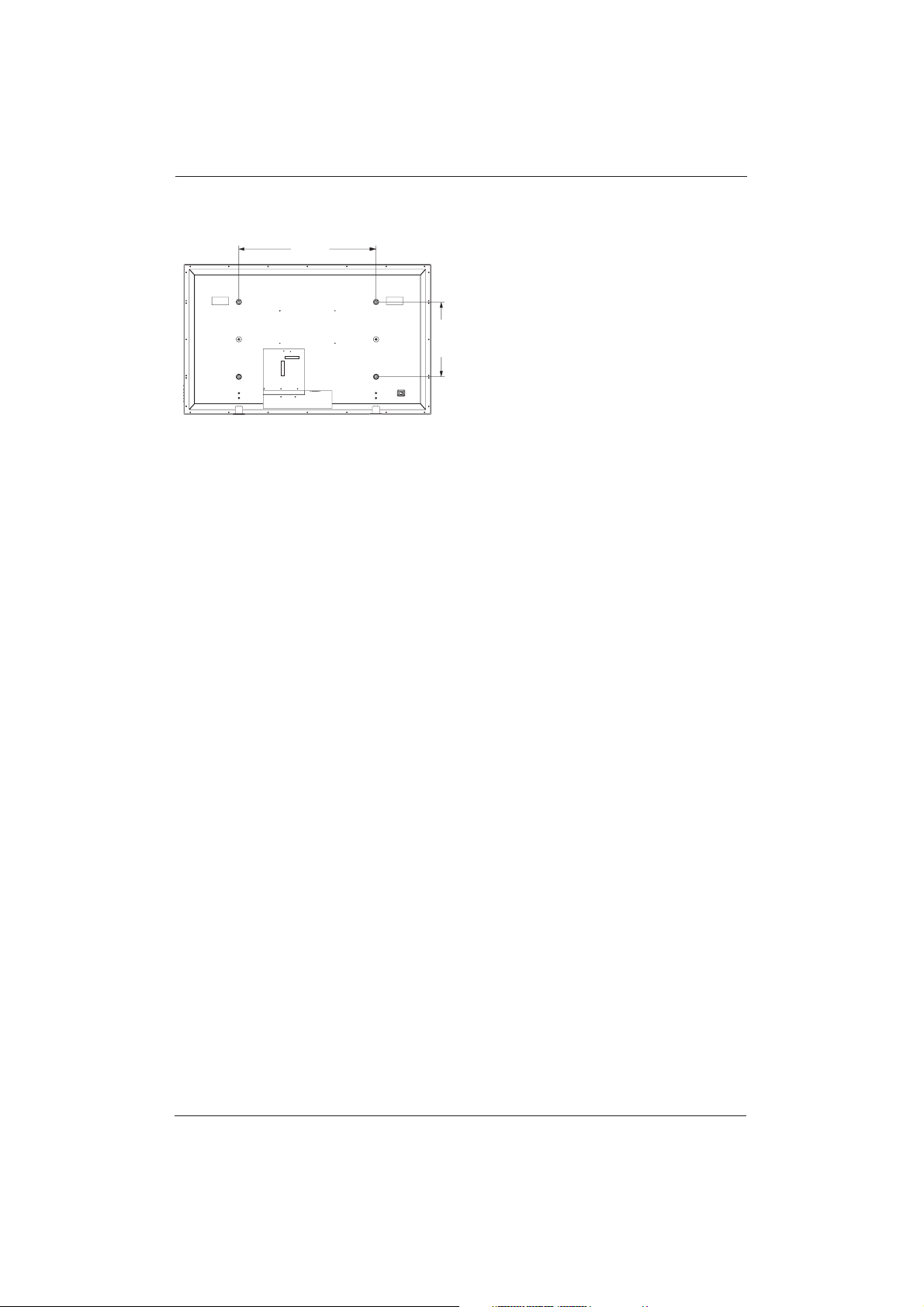
14. WALL MOUNT (OPTION)
Rear View
Notes:
• Follow mount bracket instruction included in
the mounting kit.
• This type of equipment is to be installed by
qualified installers, please contact an
authorized dealer for installation.
697 mm
380 mm
55
User Manual BDH5011

15. LIMITED WARRANTY
One Year Free Labor
One Year Free Parts
WHO IS COVERED?
You must have proof of the date purchased to
receive warranty service.A sales receipt or
other document showing the date that you
purchased the product is considered proof of
purchase.
WHAT IS COVERED?
Warranty coverage begins the day you buy your
product. For one year thereafter, all defective
parts will be repaired or replaced and labor is
free.After one year from the day of purchase,
you pay for the replacement or repair of all
parts, and for all labor charges.
All parts, including repaired and replaced parts,
are covered only for the original warranty
period.When the warranty on the product
expires, the warranty on all replaced and
repaired parts also expires.
WHAT IS EXCLUDED?
Your warranty does not cover:
• labor charges for removal, installation or
setup of the product, adjustment of
customer controls on the product, and
installation or repair of antenna systems
outside of the product.
• product repair and/or part replacement
because of misuse, accident, unauthorized
repair or other cause not within the control
of Philips Consumer Electronics North
America.
• reception problems caused by signal
conditions or cable or antenna systems
outside the unit.
• modifications or adaptations to enable the
product to operate in any country other
than the country for which it was designed,
manufactured, approved and/or authorized,
or the repair of products damaged by these
modifications.
56
User Manual BDH5011

57
User Manual BDH5011
• incidental or consequential damages resulting
from the product. (Some states do not allow
the exclusion of incidental or consequential
damages, so the above exclusion may not
apply to you.This includes, but is not limited
to, prerecorded material, whether
copyrighted or not copyrighted.)
• normal wear and tear (decreased light
output of PDP module) over the product's
lifetime.
• phosphor burn. Do not display static images
for prolonged periods, otherwise phosphor
burn might appear on part of the panel.
• limited quantity of cells (fine pixel elements)
that do not produce light, or that remain lit
after they should have turned off.
WHERE IS SERVICE AVAILABLE?
Warranty service is available in all countries
where the product is officially distributed by
Philips Consumers Electronics North America.
In countries where Philips Consumers
Electronics North America does not distribute
the product, the local Philips service organization
will attempt to provide service (although there
may be a delay if the appropriate spare parts and
technical manual(s) are not readily available).
MAKE SURE YOU KEEP ...
Please keep your sales receipt or other
document showing proof of purchase.Attach it
to this owner’s manual and keep both nearby.
Also keep the original box and packing material
in case you need to return your product.
BEFORE REQUESTING SERVICE...
Please check your owner’s manual before
requesting service.Adjustments of the controls
discussed there may save you a service call.

TO GET WARRANTY SERVICE....
Please contact Philips at: 1-877-835-1838.
Repair must be performed by an authorized
service center or a factory service center. If you
do not live near a factory service center, contact
your dealer. If your dealer is an authorized
service center, he will arrange repair. If your
dealer is not an authorized service center he will
direct you to the authorized service center
engaged by him to service the products he sells.
(In U.S.A., Puerto Rico and U.S.Virgin Islands, all
implied warranties, including implied warranties
of merchantability and fitness for a particular
purpose, are limited in duration to the duration
of this express warranty. But, because some
states do not allow limitations on how long an
implied warranty may last, this limitation may not
apply to you.)
IF YOU HAVE QUESTIONS
Please contact Philips at:
1-877-835-1838
REMEMBER...
Please record the model and serial numbers
found on the product below.Also, please fill out
and mail your warranty registration card
promptly. It will be easier for us to notify you if
necessary.
MODEL # _ _ _ _ _ _ _ _ _ _ _ _ _ _ _ _ _ _ _
SERIAL # _ _ _ _ _ _ _ _ _ _ _ _ _ _ _wo_ _ _
58
User Manual BDH5011

59
User Manual BDH5011