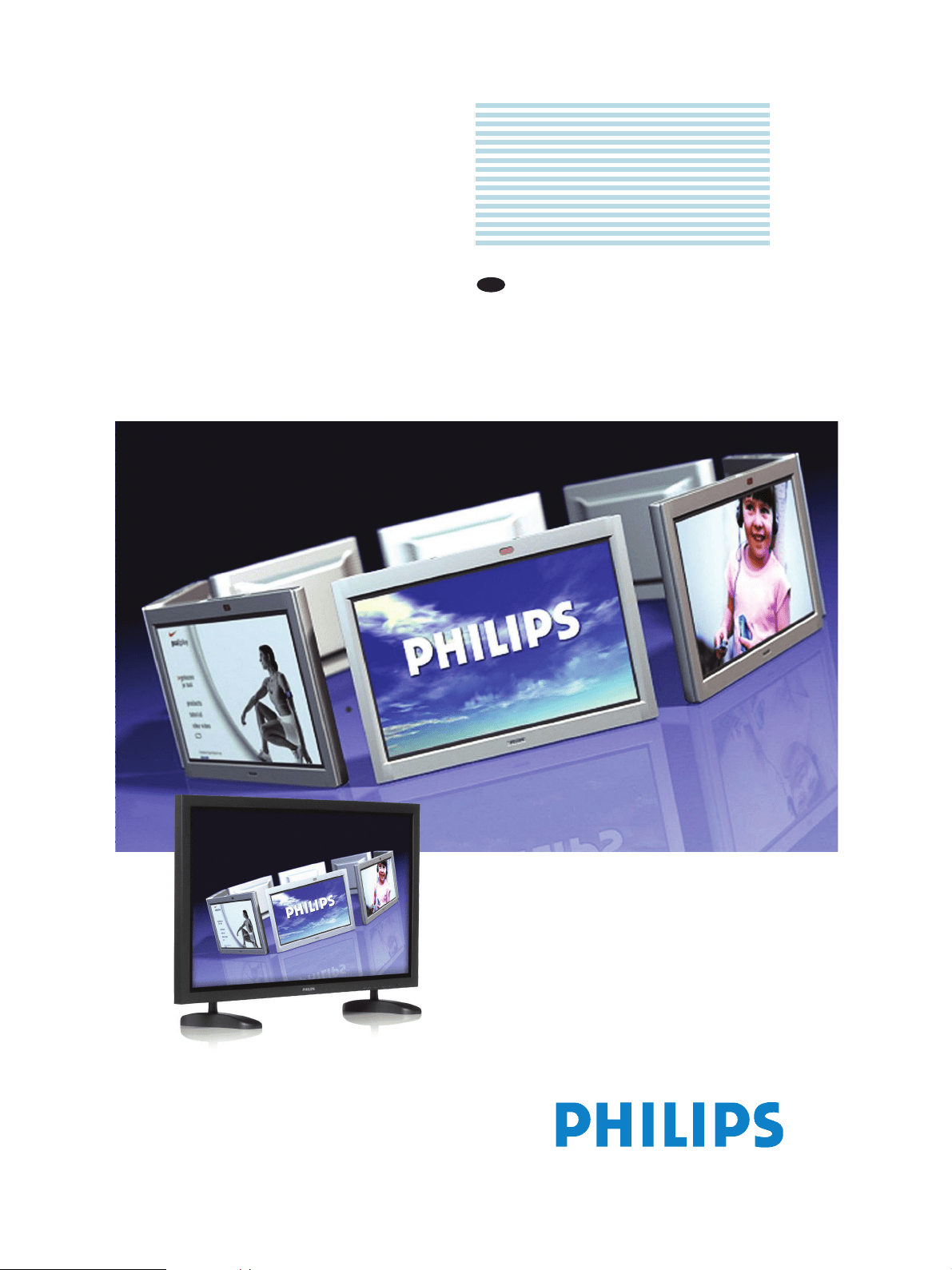
Philips
Business
Solutions
User Manual
EN
TYPE Nr. BDS4241V
BDH4241V
BDH5021V

1
. . . . . . . . . . . . . . . . . . . . . . . . . 3
1.1 . . . . . . . . . . . . . . . . . . . . . . . . . . . . . . . . . . . . . . . . . . . . . . . . . . . . . . . . . . . . . . . . . . . 3
1.2 . . . . . . . . . . . . . . . . . . . . . . . . . . . . . . . . . . . . . . . . . . . . . . . . . . . . . . . . . . . . . . . . . . . . . 5
1.3 . . . . . . . . . . . . . . . . . . . . . . . . . . . . . . . . . . . . . . . . . . . . . . . . . . . . . . . . . . . . . . . . . 6
. . . . . . . . . . . . . . . . . . . . . . . . . . . . . . . . . . . . . . . . . . 8
2.1 . . . . . . . . . . . . . . . . . . . . . . . . . . . . . . . . . . . . . . . . . . . . . . . . . . . . . . . . . . . . . . . . . . . . . . . . . . 8
2.2 . . . . . . . . . . . . . . . . . . . . . . . . . . . . . . . . . . . . . . . . . . . . . . . . . . . . . . . . . . . . . . . . . . . . 8
2.3 . . . . . . . . . . . . . . . . . . . . . . . . . . . . . . . . . . . . . . . . . . . . . . . . . . . . . . . . . . . . . . . . . . . . 9
. . . . . . . . . . . . . . . . . . . . . . . . . . . . . . . . . . . . . . . . . . . . . . . . .10
3.1 . . . . . . . . . . . . . . . . . . . . . . . . . . . . . . . . . . . . . . . . . . . . . . . . . . . . . . . . . . . . . . . . . . . . . . . .
3.2 . . . . . . . . . . . . . . . . . . . . . . . . . . . . . . . . . . . . . . . . . . . . . . . . . . . . . . . . . . . . . . . . . . . . . . . 11
10
3.3 . . . . . . . . . . . . . . . . . . . . . . . . . . . . . . . . . . . . . . . . . . . . . . . . . . . . . . . . . . . . . . . . . . . . 12
3.3.1 . . . . . . . . . . . . . . . . . . . . . . . . . . . . . . . . . . . . . . . . . . . . . . . . . . . . . . . . . . . . . 12
3.3.2 . . . . . . . . . . . . . . . . . . . . . . . . . . . . . . . . . . . . . . . . 13
. . . . . . . . . . . . . . . . . . . . . . . . . . . . . . . 14
4.1 . . . . . . . . . . . . . . . . . . 14
4.1.1 . . . . . . . . . . . . . . . . . . . . . . . . . . . . . . . . . . . . . . . . . . . . . . . . . . . . . . . . . . . 14
4.1.2 . . . . . . . . . . . . . . . . . . . . . . . . . . . . . . . . . . . . . . . . . . . . . . . . . . 14
4.1.3 . . . . . . . . . . . . . . . . . . . . . . . . . . . . . . . . . . . . . . . . . . . . . . . . . . . . . . . . . . . . . 15
4.1.4 . . . . . . . . . . . . . . . . . . . . . . . . . . . . . . . . . . . . . . . . . . . . . . . . . . . . . . . . . . 15
4.1.5 . . . . . . . . . . . . . . . . . . . . . . . . . . . . . . . . . . . . . . . . . . . . . . . . . . . . . . . . . . . . . . 15
4.2 . . . . . . . . . . . . . . . . . . . . . . . . . . . . . . . . . . . . . . . . . . . . . . . . . . . . . . . . . . . 16
4.2.1 . . . . . . . . . . . . . . . . . . . . . . . . . . . . . . . . . . . . . . . . . . . 16
4.3 . . . . . . . . . . . . . . . . . . . . . . . . . . . . . . . . . . . . . . . . . . . . . . . . . . . . . . . . . . . . . . . . . . . . 17
4.3.1 . . . . . . . . . . . . . . . . . . . . . . . . . . . . . . . . . . . . . . . . . . . . . 17
. . . . . . . . . . . . . . . . . . . . . . . . . . . . . . . . . . . . . . . . . . . . . . . . . . . . . . . . 18
5.1 . . . .. . . . . . . . . . . . . . . . . . . . . . . . . . . . . . . . . . . . . . . . . . . . . . . . . . . . . . . . . . . . . . 18
5.2 . . . . . . . . . . . . . . . . . . . . . . . . . . . . . . . . . . . . . . . . . . . . . . . . . . . . . . . . . . . . . 18
5.3 . . . . . . . . . . . . . . . . . . . . . . . . . . . . . . . . . . . . . . . . . . . . . . . . . . . . . . . . . . . . . . . . . 19
5.4 . . . . . . . . . . . . . . . . . . . . . . . . . . . . . . . . . . . . . . . . . . . . . . . . . . . . . . . . . . . . . . . . . . . . . . . . . . . . 19
5.5 . . . . . . . . . . . . . . . . . . . . . . . . . . . . . . . . . . . . . . . . . . . . . . . . . . . . . . . . . . . . . . . . . 20
. . . . . . . . . . . . . . . . . . . . . . . . . . . . . . . . . . . . . . . . . . . . . . . . . 22
6.1 . . . . . . . . . . . . . . . . . . . . . . . . . . . . . . . . . . . . . . . . . . . . . . . . . . . . . . . . . . . . . . . . . . . . 22
6.1.1 . . . . . . . . . . . . . . . . . . . . . . . . . . . . . . . . . . . . . . . . . . . . . . . . . . . . . . 22
6.1.2 . . . . . . . . . . . . . . . . . . . . . . . . . . . . . . . . . . . . . . . . . . . . . . . . . . . . 22
6.2 . . . . . . . . . . . . . . . . . . . . . . . . . . . . . . . . . . . . . . . . . . . . . . . . . . . . . . . . . . . . . . . . . . . . 23
6.2.1 . . . . . . . . . . . . . . . . . . . . . . . . . . . . . . . . . . . . . . . . . . . . . . . . . . . . . . . 23
6.3 . . . . . . . . . . . . . . . . . . . . . . . . . . . . . . . . . . . . . . . . . . . . . . . . . . . . . . . . . . . . . . . . 24
6.4 . . . . . . . . . . . . . . . . . . . . . . . . . . . . . . . . . . . . . . . . . . . . . . . . . . . . . . . 24
6.5 . . . . . . . . . . . . . . . . . . . . . . . . . . . . . . . . . . . . . . . . . . . . . . . . . . . . . . . . . . . . . . . . . 24
6.6 . . . . . . . . . . . . . . . . . . . . . . . . . . . . . . . . . . . . . . . . . . . . . . . . . . . . . . . . . . . . . 25
6.7 . . . . . . . . . . . . . . . . . . . . . . . . . . . . . . . . . . . . . . . . . . . . . . . . . . . . . . . . . . . 25
6.8 . . . . . . . . . . . . . . . . . . . . . . . . . . . . . . . . . . . . . . . . . . . . . . . . . . . . . . . . . . 25
6.9 . . . . . . . . . . . . . . . . . . . . . . . . . . . . . . . . . . . . . . . . . . . . . . . . . . . . . . . 25
User Manual BDS4241V/BDH4241/BDH5021V
T A B L E O F C O N T E N T S
Unpacking
Package Contents
Installation Notes
P A R T S A N D FU N C T IO N S
Front View
Rear View
Remote Control
General Functions
Using S-Video Input
Using Component Video Input
Inserting the batteries in the remote control
C O N N E C T IO N S T O E X T E R N A L E Q U I PME N T
Connecting external equipment (VCR, DVD, camcorder, satellite receiver)
Using Video Input
Using Monitor Output
Using DVI Input
External Audio Connection
Connecting External Amplified Speakers
Connecting a PC
Using RGB (VGA) or DVI Video Input
B A S IC F U N C T IO N S
Powering ON/OFF
Selecting Signal Source
Volume Adjustment
MUTE
Display Information
A D V A N C E D FU N C T IO N S
Picture Controls
Adjusting Picture Settings
Reset to the factory defaults
Sound Controls
Adjusting Sound Settings
OSD Menu Language
Power Save Mode
Adjusting the color Temperature
Minimize screen sticking
Freezing the current picture
On-screen display TIMEOUT
Adjusting the menu trasparency
Changing the screen size
IMP O R T A N T N O T E S A N D SA FE T Y IN S T R U C T IO N S
Safety Instructions
FCC Instruction
End-Of-Life Disposal
U N P A C K IN G A N D IN S T A L L A T IO N
6.10 . . . . . . . . . . . . . . . . . . . . . . . . . . . . . . . . . . . . . . . . . . . . . . . . . . . . . . . . . . . . . 26
2
6.10 . . . . . . . . . . . . . . . . . . . . . . . . . . . . . . . . . . . . . . . . . . . . . . . . . . . . . . . . . . . . . 26
. . . . . . . . . . . . . . . . . . . . . . . . . . . . . . . . . . . . . . . . . . . . . . . . . . . . . . . . . . . . . . 30
. . . . . . . . . . . . . . . . . . . . . . . . . . . . . . . . . . . . . . . . . . . . . . . 32
. . . . . . . . . . . . . . . . . . . . . . . . . . . . . . . . . . . . . . 36
9.1 . . . . . . . . . . . . . . . . . . . . . . . . . . . . . . . . . . . . . . . . . . . . . . . . . . . . . . . . . . . . . . . . . . . . . . . . . . 36
9.2 . . . . . . . . . . . . . . . . . . . . . . . . . . . . . . . . . . . . . . . . . . . . . . . . . . . . . . . . . . . . . . . . . . . . 37
User Manual BDS4241V/BDH4241/BDH5021V
Setting up the PC Input
Changing the screen size
6.11 . . . . . . . . . . . . . . . . . . . . . . . . . . . . . . . . . . . . . . . . . . . . . . . . . . . . . . . . . . . . . . . 26
6.12 . . . . . . . . . . . . . . . . . . . . . . . . . . . . . . . . . . . . . . . . . . . . . . . . . . . . . . 27
Viewing the picture in picture (PIP)
6.13 . . . . . . . . . . . . . . . . . . . . . . . . . . . . . . . . . . . . . . . . . . . . . . . . . . . . . . . . . . . . . . . 28
Remote management
IN P U T MO D E
T E C H N IC A L SP E C IF IC A T IO N S
C L E A N IN G A N D T R O U B L E S H O O T IN G
. . . . . . . . . . . . . . . . . . . . . . . . . . . . . . . . . . . . . . . . . . . . . . 38
Cleaning
Troubleshooting
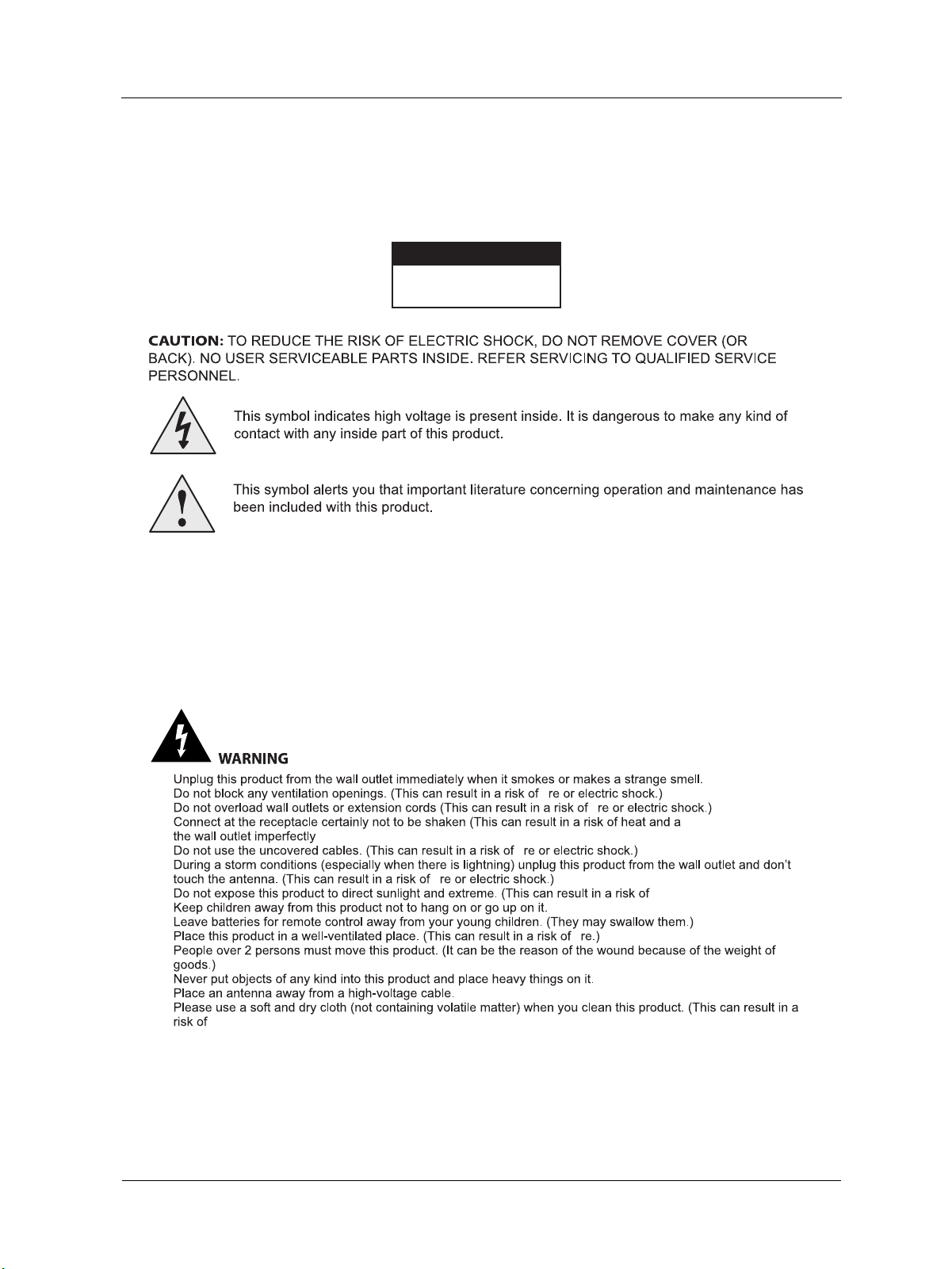
CAUTION
RISK OF ELECTRIC SHOCK
DO NOT OPEN
3
User Manual BDS4241V/BDH4241/BDH5021V
1.1 Safty Instructions
1. IMPORTANT NOTES AND SAFETY INSTRUCTIONS
•
•
•
• re if it is connected to
.)
•
•
• re.)
•
•
•
•
•
•
•

4
User Manual BDS4241V/BDH4241/BDH5021V
CAUTION
•
Please use a soft and dry cloth when you clean this product. (This can result in a risk of electric shock)
• Should not be adhered to a power supply plug and receptacle. (This can result in a risk of re)
• Do not use new batteries with old ones together. (This can result in a risk of electric shock)
• Do not place this product in the place to reach children’s hands.
• Do not take out a power supply plug with the wet hand. (This can result in a risk of electric shock)
• Bend down the outdoor antenna cable to prevent the rain water ows and not to enter the room. (This can result in
a risk of
• Maintain a suitable distance between you and a TV or monitor to protect your eye sight. (Your eye sight can get
worse if you watch TV very nearly)
• Place remote control away from a humid or hot place because it is very minute device.
• If this product is not used for a long period of time, unplug the power cord. (This can result in a risk of re or
electric shock)
• Do not drop this product. Unplug the power cord and ask to Service Centre when it is broken.
• Do not cover this product with curtains or a tablecloth. (This can result in a risk of re)
• Place the batteries rightly to the both sides (+,-) when you replace them. (The batteries can be explosive and you’
re wound)
• Do not place this product on the oor. (Children can press it down)
• Do not damage the power cord. (This can result in a risk of re or electric shock)
• The PDP panel is very high technology product with about million thin lm transistors, giving you ne picture
details. Occasionally, a few non-active pixels may appear on the screen as a xed point of blue, green or red.
Please note that this does affect the performance of your product.

5
User Manual BDS4241V/BDH4241/BDH5021V
User Instructions
User Information
Changes or modi cations not expressly approved by the party responsible for compliance could void
the user’s authority to operate the equipment. If necessary, consult your dealer or an experienced
radio/television technician for additional suggestions.
You may and Resolve Radio/TV Interference Problems helpful. This booklet was prepared by the Federal
Communications Commission. It is available from the U.S. Government Printing Of ce, Washington, DC
20402, Stock Number 004-000-00345-4.
Warning
1.2 FCC Information
This device complies with part 15 of the FCC Rules. Operation is subject to the following two conditions:
1. This device may not cause harmful interference, and
2. This device must accept any interference received, including interference that may cause undesired operation.
NOTE:
This equipment has been tested and found to comply with the limits for a Class A digital device, pursuant to Part 15 of
the FCC Rules. These limits are designed to provide reasonable protection against harmful interference when the
equipment is operated in a commercial environment. This equipment generates, uses, and can radiate radio frequency
energy and, if not installed and used in accordance with the instruction manual, may cause harmful interference to
radio communications. Operation of this equipment in a residential area is likely to cause harmful interference in which
case the user will be required to correct the interference at his own expense.
User must use shielded signal interface cables to maintain FCC compliance for the product. Provided with this monitor
is a detachable power supply cord with IEC320 style terminations. It may be suitable for connection to any UL Listed
personal computer with similar configuration. Before making the connection, make sure the voltage rating of the
computer convenience outlet is the same as the monitor and that the ampere rating of the computer convenience outlet
is equal or exceeds the monitor voltage rating.
For 120 Volt applications, use only UL Listed detachable power cord with NEMA configuration 5-15P type (parallel
blades) plug cap. For 240 Volt applications use only UL Listed detachable power supply cord with NEMA configuration
6015P type (tandem blades) plug cap.
This television receiver provides display of television closed captioning in accordance with Section 15.119 of the FCC
rules. (TV broadcast receivers with picture screens 13 inches or larger in diameter models only)

6
User Manual BDS4241V/BDH4241/BDH5021V
This Philips product and its packaging contain materials that cna be
recycled and re-used. Specialized companies can recycle your
product to increase the amount of reusable materials and minimize
the amounts which need to be properly disposed.
This product might also use batteries, which should not be thrown
away when depleted, but should be handed in and disposed of as
small chemical waste.
Please find out about the local regulations regarding the disposal of
the television, batteries, and packaging materials whenever you
replace existing equipment.
1.3 END-OF-LIFE DISPOSAL

7
User Manual BDS4241V/BDH4241/BDH5021V
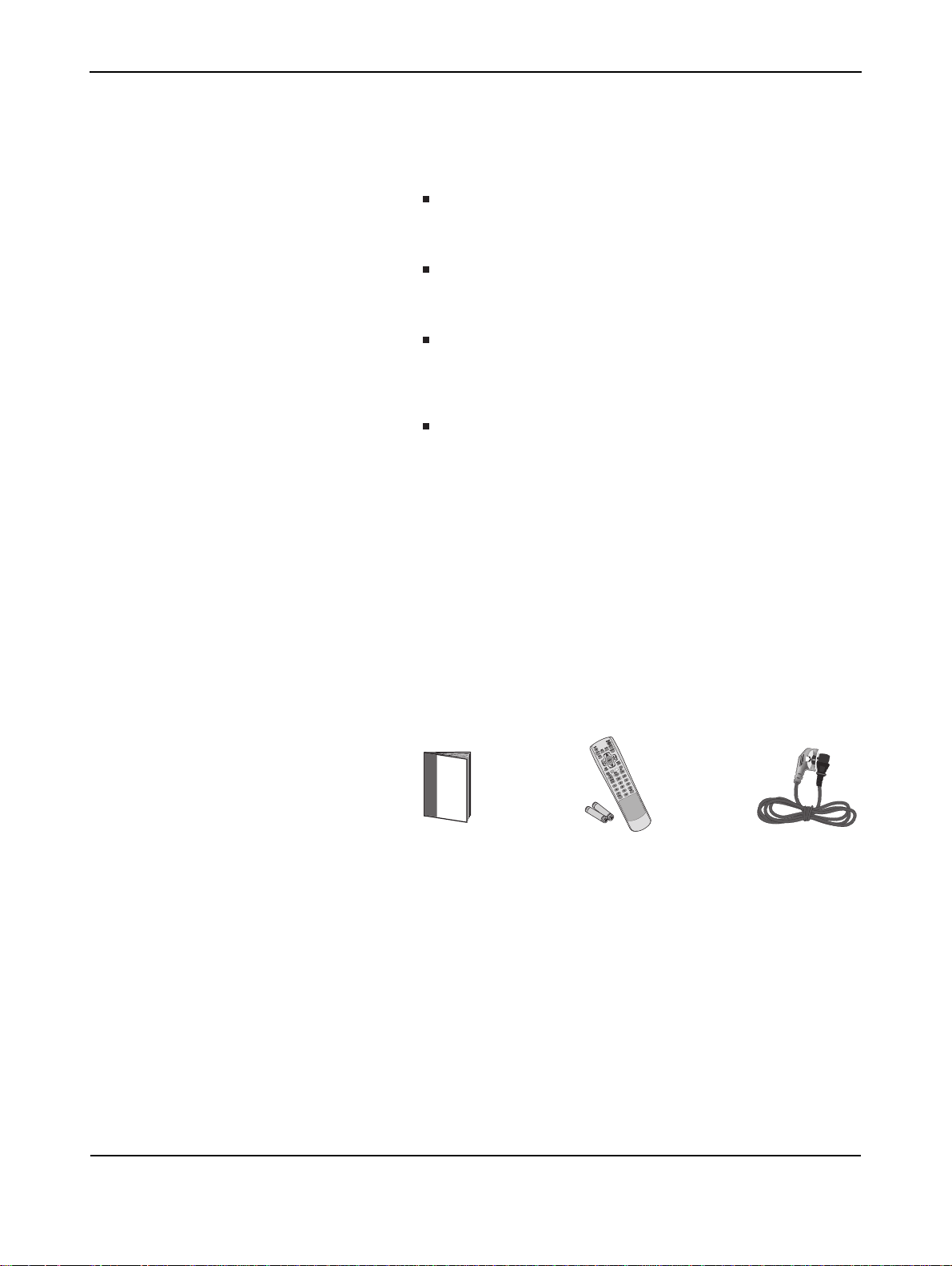
8
User Manual
R emote C ontrol/
AAA B atteries
P ower C ord
2. UNPACKING AND INSTALLATION
User Manual BDS4241V/BDH4241/BDH5021V
2.1 UNPACKING
2.2 PACKAGE CONTENTS
The monitor is packed in a carton, to gether with the standard
accessories. Any other optional accessories will be packed
separately.
The weight of the monitor differs-depending on the type-from29
to 43kg. Due to the size and weight it is rccommended to move it
by 2 people.
The protective glass and the glass substrate are installed on the front
of the product. Since both glass can be broken and scraped easily the
product has to be handled with care. Never place the monitor with
the glass faced down unless it is protected with pads.
After opening the carton ensure that the content is in good
condition and complete.
Please verify that you received the following items with your package
content :
1 Monitor
2 Remote Control with batteries
3 User Manual on CD - ROM
4 Power Cables
5 VGA, DVI cable
6 Table stand(feet)

9
User Manual BDS4241V/BDH4241/BDH5021V
Due to the high power consumption, always use the plug exclusively
designed for this product. If an extended line is required, please
consult your service agent.
The product should be installed on a flat surface to avoid tipping. The
distance between the back of the product and the wall should be
maintained for proper ventilation. Avoid installing the product in the
kitchen, bathroom or any other places with high humidity so as not
to shorten the service life of the electronic components.
Please ensure the product is installed horizontally. Any 90 degrees
clockwise or counter-clockwise installation may induce poor
ventilation and subsequent component damage.
To protect the screen and avoid screen damage, do not display a still
picture for a long time.
The PDP can normally operate only under 2000m in height. It might
abnormally function at a place over 2000m in height and do not
install and operate there.
2.3 INSTALLATION NOTES
10
User Manual BDS4241V/BDH4241/BDH5021V
111 112 113 114 115 116 117
3. PARTS AND FUNCTIONS
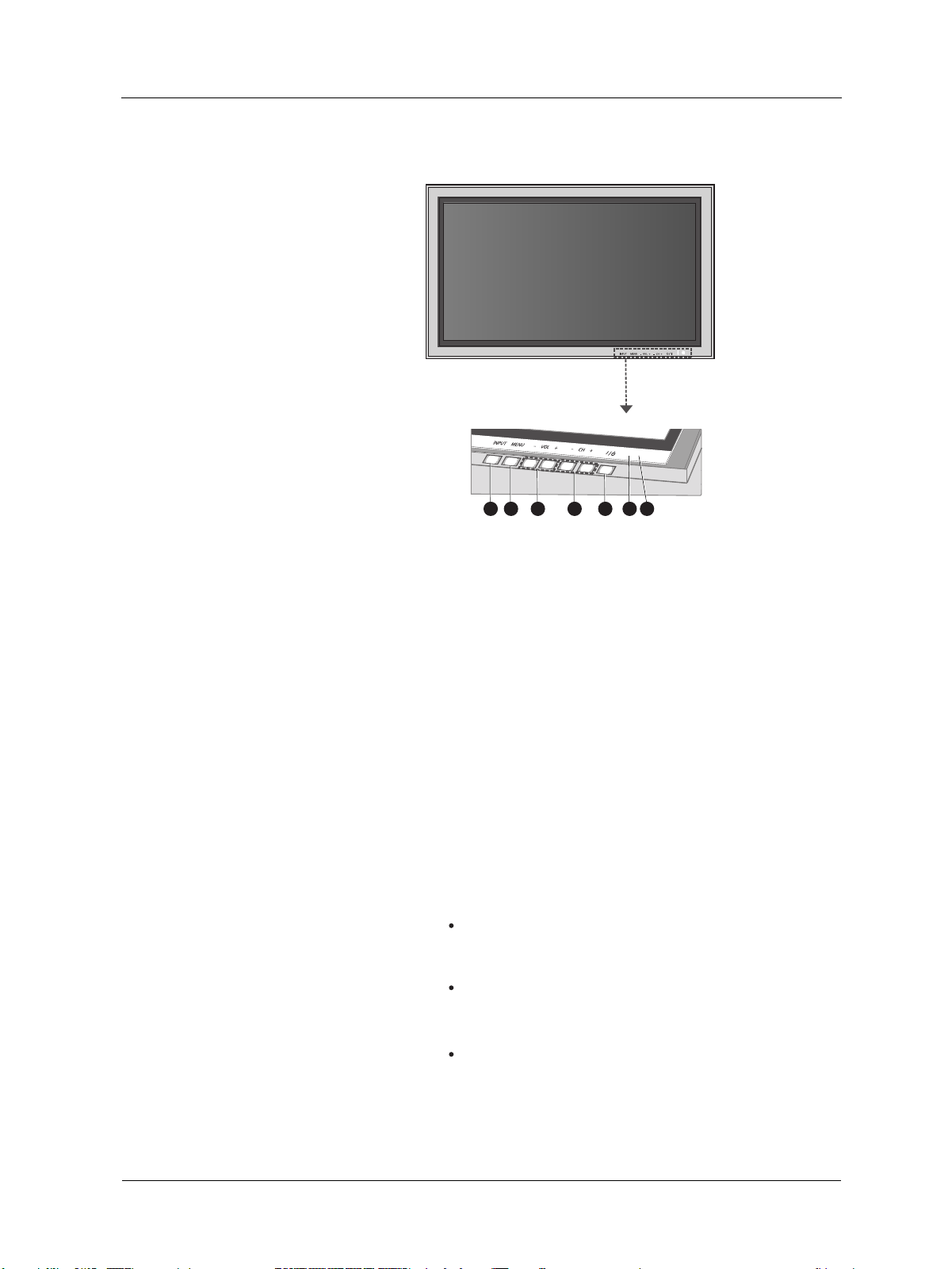
3.1 FRONT VIEW
1. Input Button
Use this button to switch between available inputs.
2. Menu Button
Use this button to engage the On Screen Display menu.
3. Volume Adjustment Buttons
Use these buttons to adjust volume up and down. These keys also
serve as navigation and adjustment keys when On Screen Display
menu is engaged.
4. Select Buttons
Use these buttons to navigate through the On Screen Display
menu. If an optional TV tuner is installed, these buttons also function
as Channel Up/Down.
5. Power(Standly) Button
Turns power on/off from standby mode. There is a wait period
between on/off cycles.
6. Status LED
Not Illumated = No AC Power detected
If the main power switch (rear of panel) is turned off, this LED
will not illuminate.
Red = Standby (Power OFF) with AC power detected
The LED will illuminate in red color if the monitors is shut off but
the main power cord is plugged into the back of the unit.
Solid Green = Power ON
7. Remote Control Signal Receiver
Poinjt the remote control towards this spot on the PDP.
11
User Manual BDS4241V/BDH4241/BDH5021V
11
1
11
2
11
3
11
4
11
5
11
6
11
11
7
1111
1
11
98
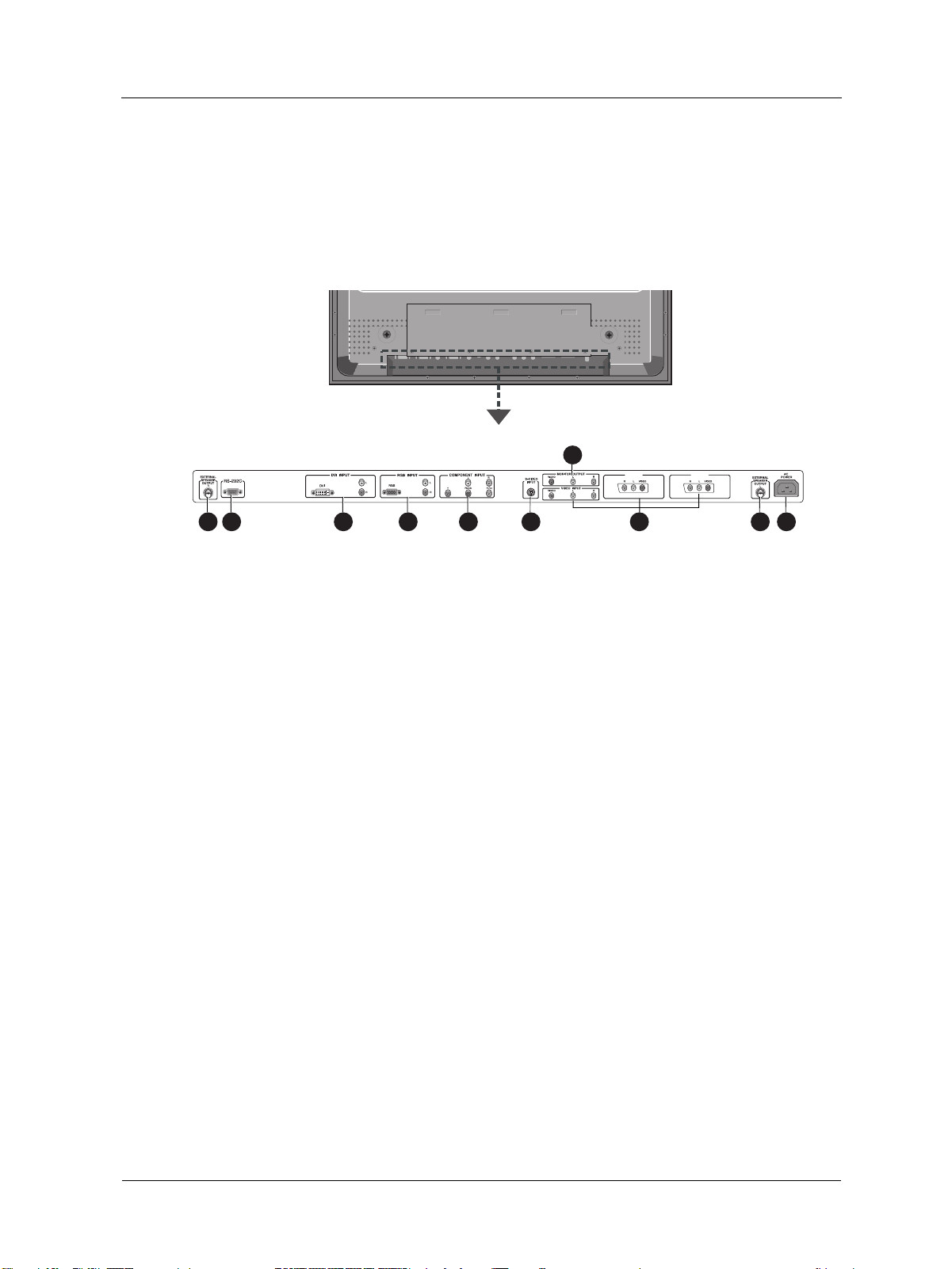
1. External speaker output
Connect to external speakers.
2. RS-232 Connector
Connec to a PC to update software.
4. RGB(VGA) Input
Connect to RGB(VGA) output of Computer or Set-Top box.
3. Digital DVI Input
Connect to digital video signals from a Set-Top box or Computer
Audio output.
6. S-Video Input
Connect S-Video signals from external sources such as VCRs or
DVD players.
7. Monitor Output
Connect to the video and audio input of a recording VCR or DVD.
Connect to the audio input of an audio system.
8. Video Input
Connect to the video and audio output of an external device.
9. Power Connection
Connect to the video and audio output of an external device.
5. Component Video Inputs
Auto-detecting component video inputs (Y/Pb/Pr or Y/Cb/Cr) for
Connecting to the component output jacks of a DVD player or
Set-Top Box.
3.2 REAR VIEW
VIDEO 2 VIDEO 1
U ser Manual BD S 4241V /B D H 4241V /B D H 5021V
12
11
1
11
2
11
5
11
7
11
11
11
4
11
6
11
12
11
8
11
9
11
10
11
3
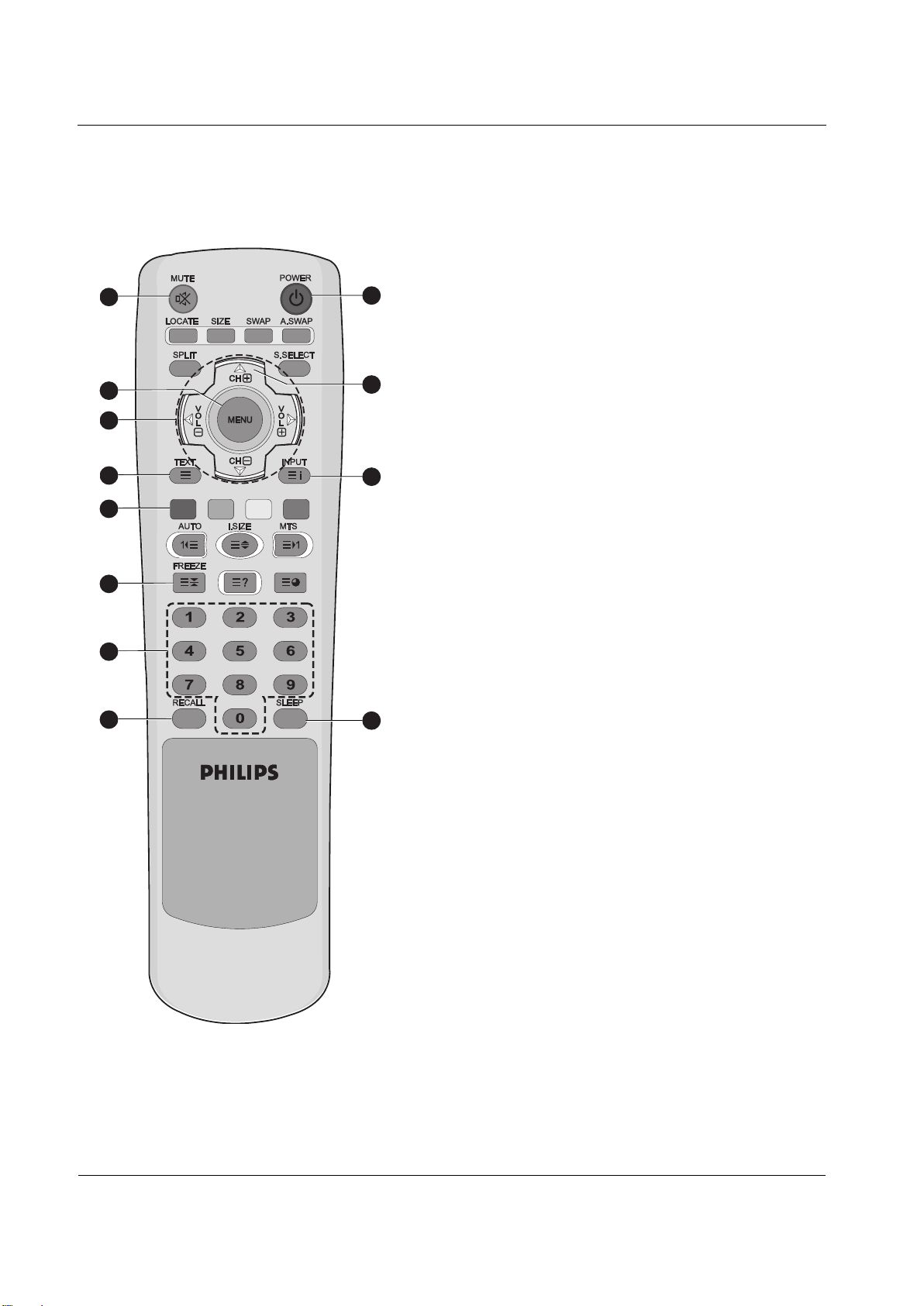
3.3 REMOTE CONTROL
3.3.1 GENERAL FUNCTIONS
1. Sound Mute On/Off
2. Standby Power On/Off
Push this button to switch on the monitor from Standby mode. Push
it again to turn it off to Standby mode.
3. Menu
Activates the OSD (On Screen Display) menu
4. Volume +/-
Turns volume up or down.
5. Channel Up/Down
Changes the TV channels sequentially.
6. TEXT
Activates the TELETEXT mode.
7. INPUT
Displays the available input sources.
8. FREEZE
Freeze the display on the screen. The playback system will continue
playing.
9. Number keypad
Use number keypad to select the TV channel you want to watch
10. RECALL
Display information.
11. SLEEP
Press this button to set timer off.
12. AUTO
Auto adjustment with RGB and DVI

U ser Manual BD S 4241V /B D H 4241V /B D H 5021V
13
3.3.2 INSERTING THE BATTERIES IN THE REMOTE
CONTROL
1. Remove the cover on the rear of the remote control.
2. Insert two AAA size 1.5V batteries ensuring that the "+" and "-" ends
of the batteries are correctl aligned.
3. Replace the cover.
Note :
Do not mix battery types, e.g. alkaline and managnese.
14
User Manual BDS4241V/BDH4241/BDH5021V
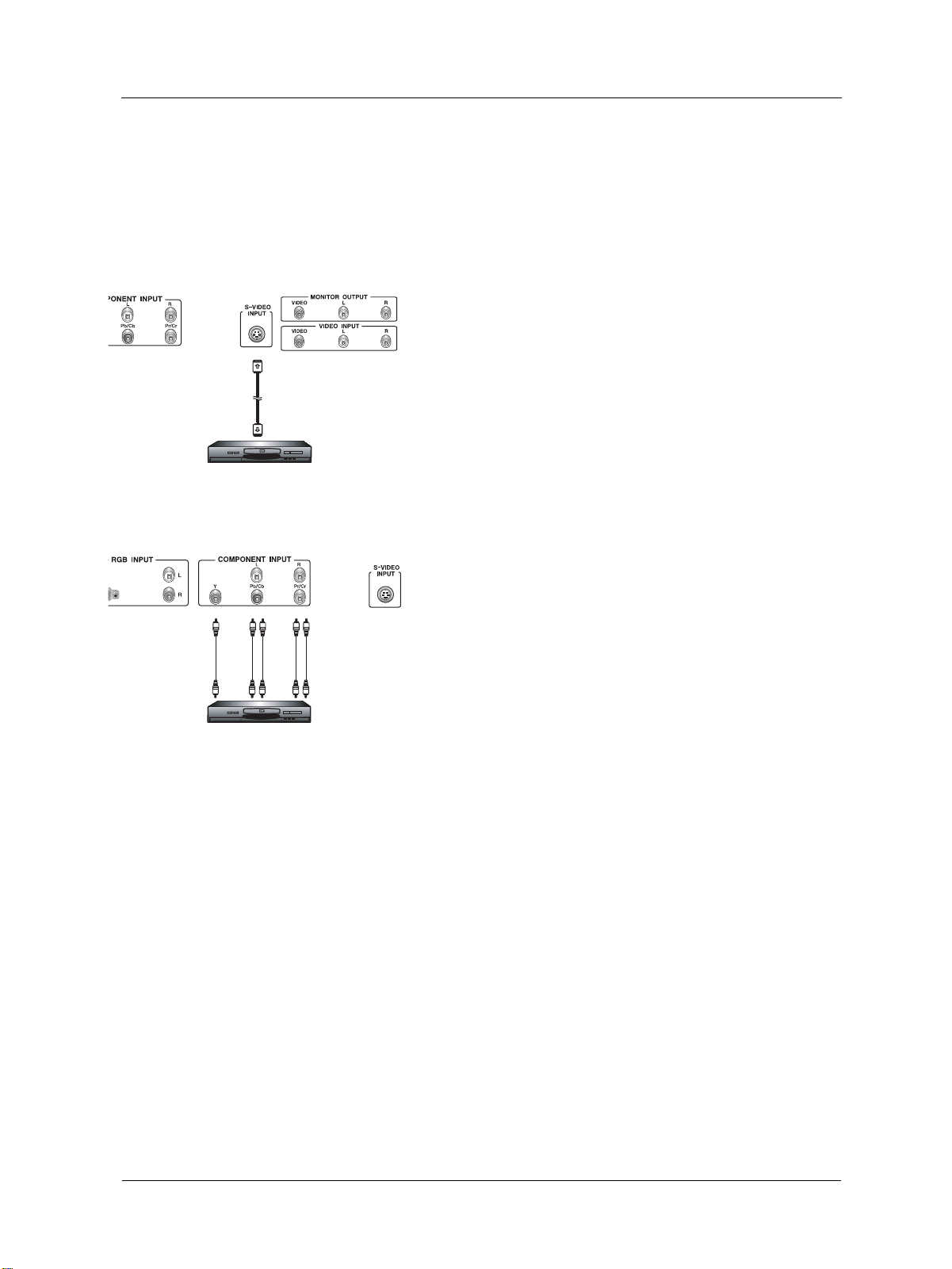
4.1.1 USING S-VIDEO INPUT
1. Connect the S-Video (4-pin DIN)connector of the external decvice
to the "S-VIDEO" input of the monitor.
2. Connect the red (R) and white (L) audio jacks of the device to the
R and L audio-in jacks located next to the S-VIDEO connector.
4.1.2 USING COMPONENT VIDEO INPUT
1. Connect the green-colored (labeled as "Y") jack of the device to the
green-colored "Y1" jack of the monitor.
2. Connect the red-colored (labeled as "Pr") jack of the device to the
red-colored "PR/CR" jack of the monitor.
3. Connect the blue-colored (labeled as "Pb") jack of the device to the
blue-colored "PB/CB" jack of the monitor.
4. Connect the red(R) and white (L) audio jacks of the device to the R
and L audio-in jacks of the monitor.
4. CONNECTIONS TO EXTERNAL EQUIPMENT
4.1 CONNECTING EXTERNAL EQUIPMENT
U ser Manual BD S 4241V /B D H 4241V /B D H 5021V
15
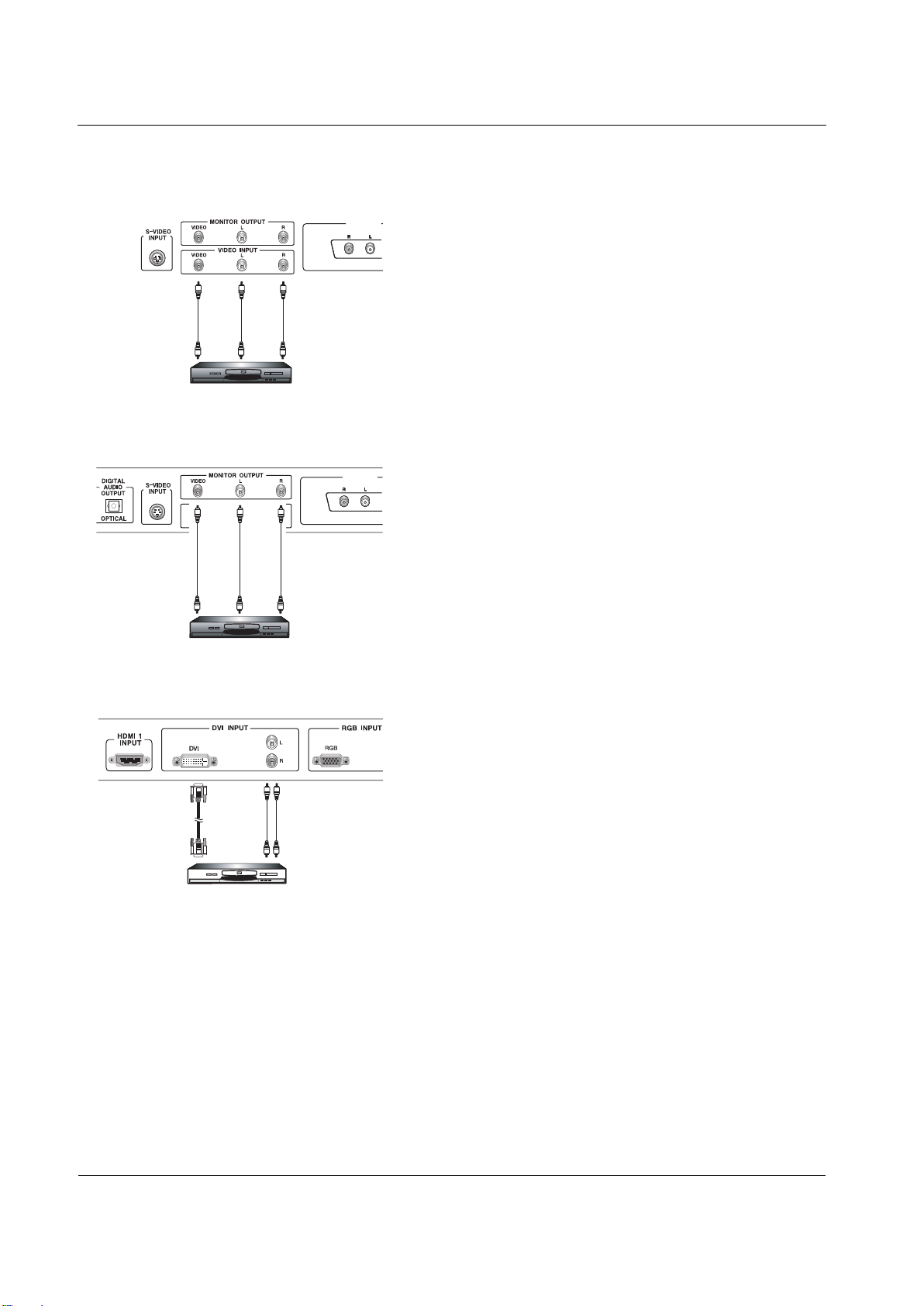
4.1.3 USING VIDEO INPUT
1. Connect the jack of the external device to the VIDO INPUT of
the monitor.
2. Connect the red(R) and white (L) audio jacks to the R and L audio-
in jacks located next to the VIDO connector.
4.1.4 USING MONITOR OUTPUT
1. Connect the jack of the DVD or VCR (for recording) or audio
system to the MONITOR OUTPUT of the monitor.
2. Connect the red (R) and white (L) audio jacks to the R and L audio-
in jacks located next to the VIDEO connector.
4.1.5 USING DVI INPUT
1. Connect the DVI-jack of the DVD, decoder or satellite receiver to
the DVI input.
2. Connect the red (R) and white (L) audio jacks to the R and L audio-
in jacks located next to the DVI connector.
VIDEO 2
VIDEO 1
U ser Manual BD S 4241V /B D H 4241V /B D H 5021V
16
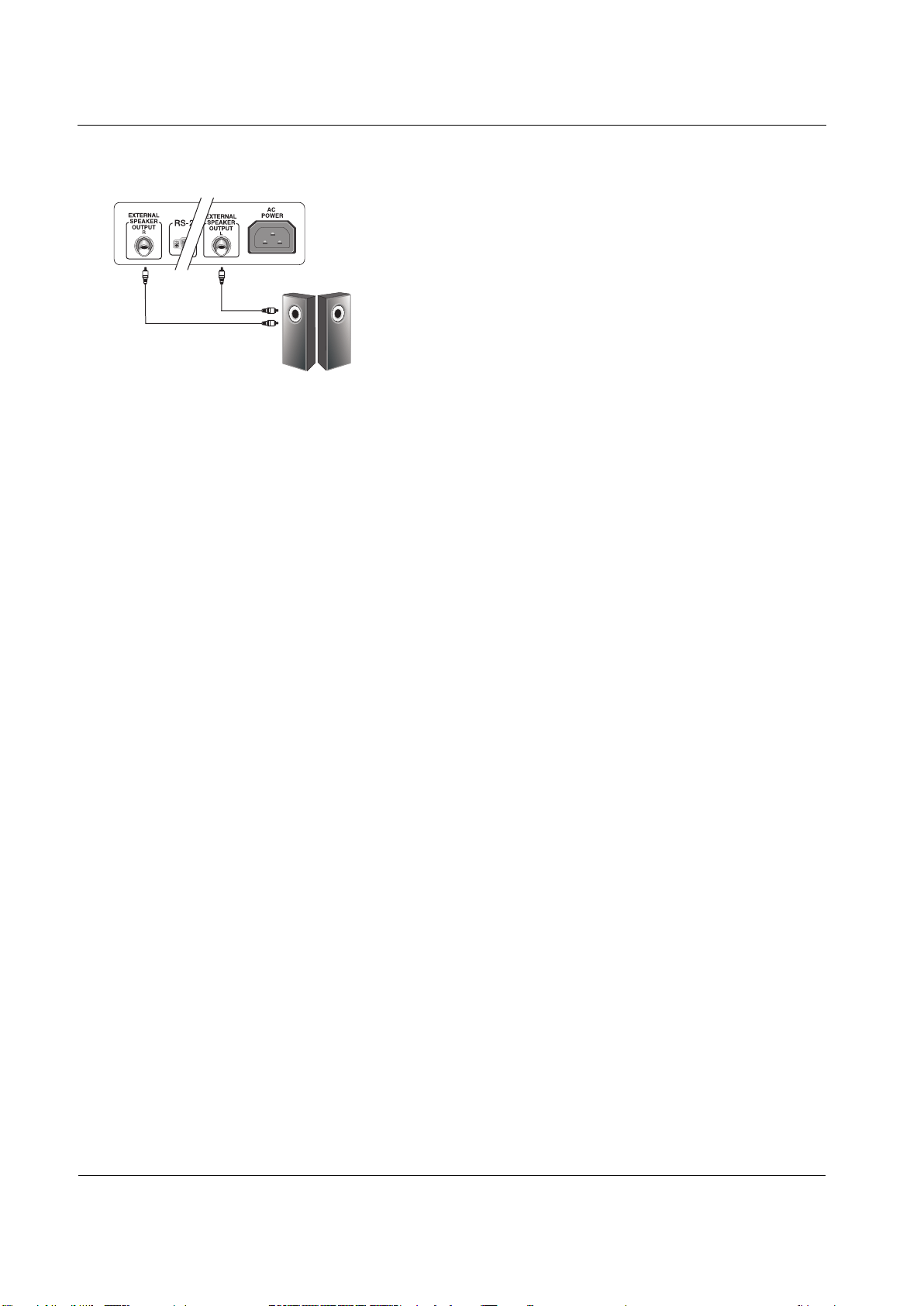
4.2 EXTERNAL AUDIO CONNECTION
4.2.1 CONNECTING EXTERNAL AMPLIFIED
SPEAKERS
This monitor can be connected to an external set of amplified speakers
using the ADDIO OUT jacks located on the back of the monitor.
1. Connect the red (R) and white (L) AUDIO OUT jacks to the
external amplified speakers.
17
User Manual BDS4241V/BDH4241/BDH5021V
11
1
11
4
11
2
11
3
11
5
4.3 CONNECTING A PC
4.3.1 USING RGB (VGA) OR DVI VIDEO INPUT
1. Connect the 15-pin D-Sub RGB(VGA) connector of the PC to the
RGB-IN connector of the monitor.
If you have a PC that is equipped with a DVI (Digital Visual Interface),
you may connect the PC DVI connector from the PC to the DVI-IN
connector of the monitor.
2. For both RBB(VGA) and DVI, connect the red (R) and white (L)
audio jacks of the PC to the R and L (DVI/RGB) AUDIO IN jacks of
the monitor.
Settig Up Your Display Using Plug and Play
This display adheres to VESA Plug and Play standard to eliminate
complicated and time consuming setup of monitors. This monitor
identifies itself to the computer and automatically sends the PC its
EXtended Display Identification Data (EDID) using Display Data Channel
(DDC) protocols.
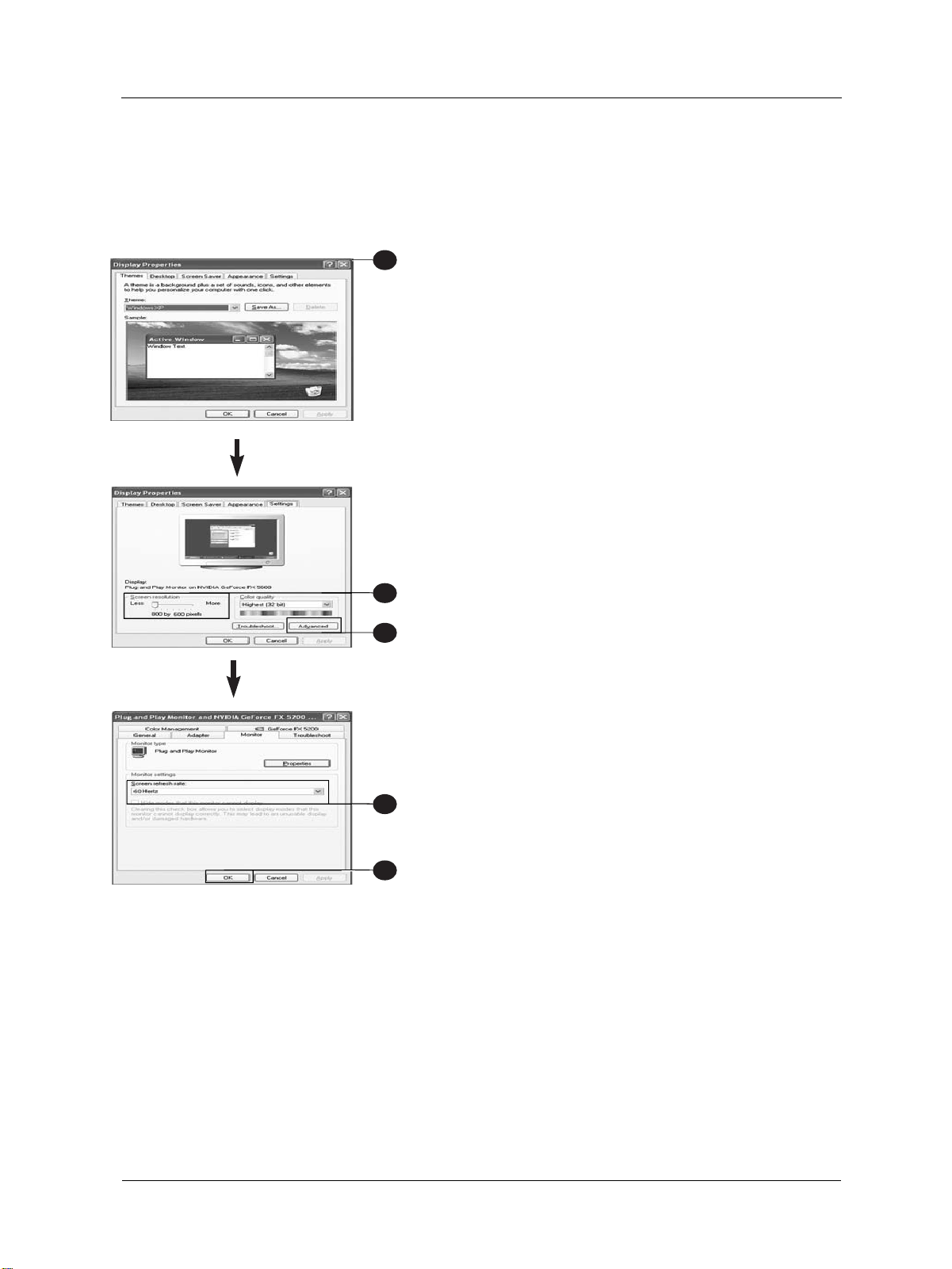
How to Set up Your PC for Use with Monitor ( Windows)
The display settings for a typical Windows-based computer are shown
below. Howerer, the actual screen on your computer will differ
depending on the version of windows and video card equipped with the
computer. Even though the actual screen may look different from
example displayed below, basic set-up routine will apply in most cases.
1. Go to the Window's CONTROL PANEL by clicking START,
SETTINGS, CONTROL PANEL.
> The CONTROL PANEL Window is display.
2. Select the DISPLAY icon from theis window.
> The DISPLAY PROPERTIES dialog box is displayed.
3. Select the SETTINGS tab to display your computer's video output
settings.
4. Set the "Screen Resolution" settings to 1024 x 768 PIXELS. For
COLOR QUALITY, select 24 BIT COLOR (might also be expressed
as 16 million colors).
5. If a vertical-frequency option is available, set the value to 60 or
60 Hz.
6. Click OK to complete the setting.
Note:
Both screen position and size will vary, depending on the type of PC
graphics card and its resolution selected. Sett # for an overview of the
supported resolutions.
18
User Manual BDS4241V/BDH4241/BDH5021V
Main Input
Move [- CH +] Select [- VOL +] Exit [MENU]
VIDEO 1
VIDEO 2
VIDEO
S-VIDEO
COMPONENT
RGB
DVI
HDMI 1
HDMI 2
5. BASIC FUNCTIONS
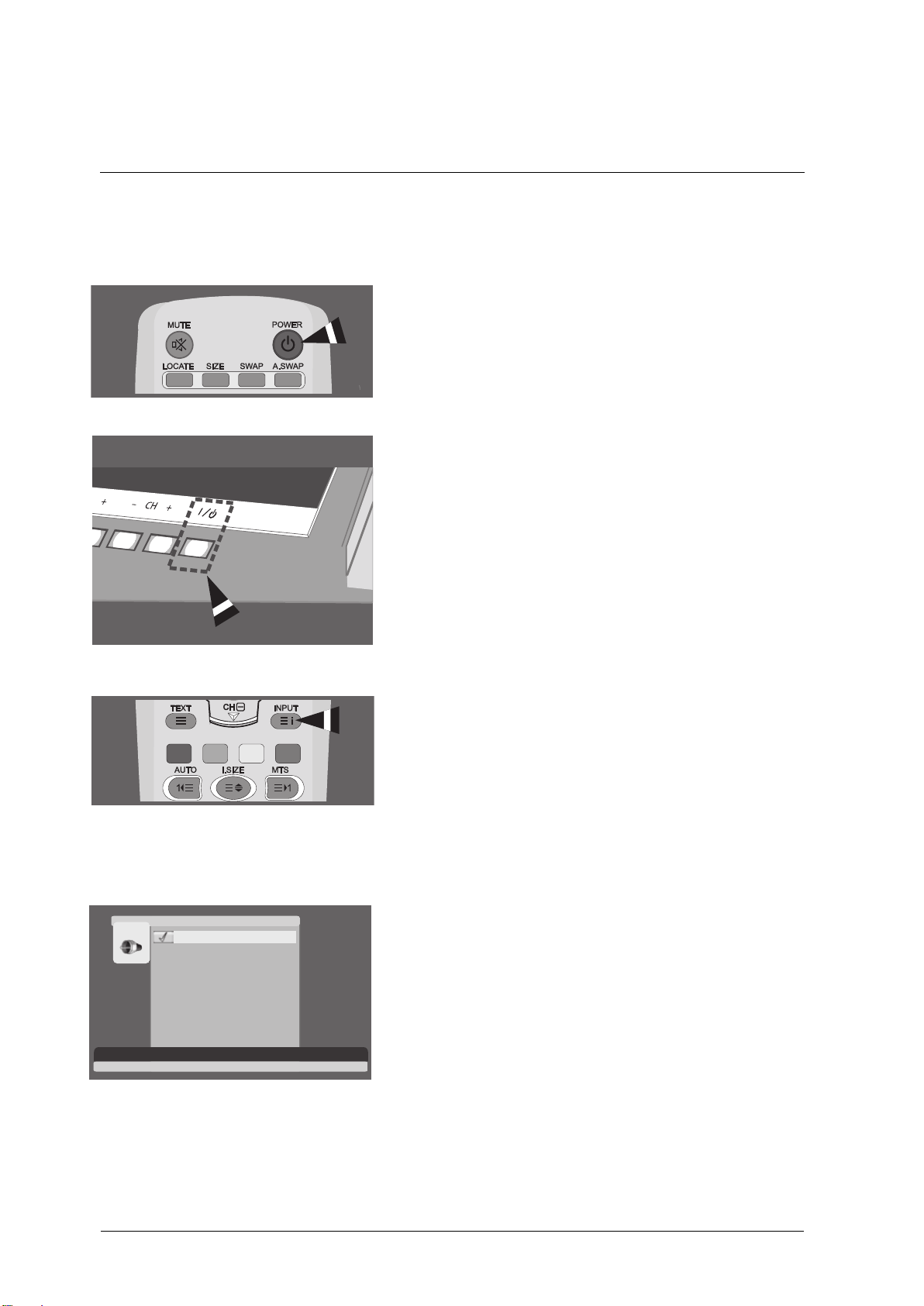
5.1 POWERING ON / OFF
Make sure the monitor is plugged into the wall outlet with the supplied
power cord.
If the power is plugged in, the STATUS LED on the control panel will
illuminate in red color.
Using Front Panel or Remote Control
1. Press the POWER key on the front panel or the remote control.
=> The monitor will now turn on after a brief pause. The STATUS
LED will now turn green to indicate power on status.
2. Turn off the power by pressing the POWER key on the front panel
or the remote control again.
5.2 SELECTING SIGNAL SOURCE
Using Front Panel or Remote Control
1. Press the INPUT key on the from panel or the AV key on the
remote control.
2. Pressing the CH+ or CH- key will cycle the monitor through all
available input signal sources in the following order:
VIDEO1 - VIDEO2 - VIDEO - S-VIDEO - COMPONENT
- RGB - DVI
3. Press the VOL+ or VOL- button to select the source.
19
User Manual BDS4241V/BDH4241/BDH5021V
Move [- C H +] Adjus t [- V OL+] E xit [ME NU]
V 06 emulo
T 550elber
270ssaB
340ecnalaB
FFO NOetuM
Audio Pres et [-V OL +] to Pres et Audio
Move [- C H +] Select [- VOL+] E x it [ME NU]
V 06 emulo
T 550elber
270ssaB
340ecnalaB
FFO NOetuM
Audio Pres et [-VO L +] to Pres et Audio
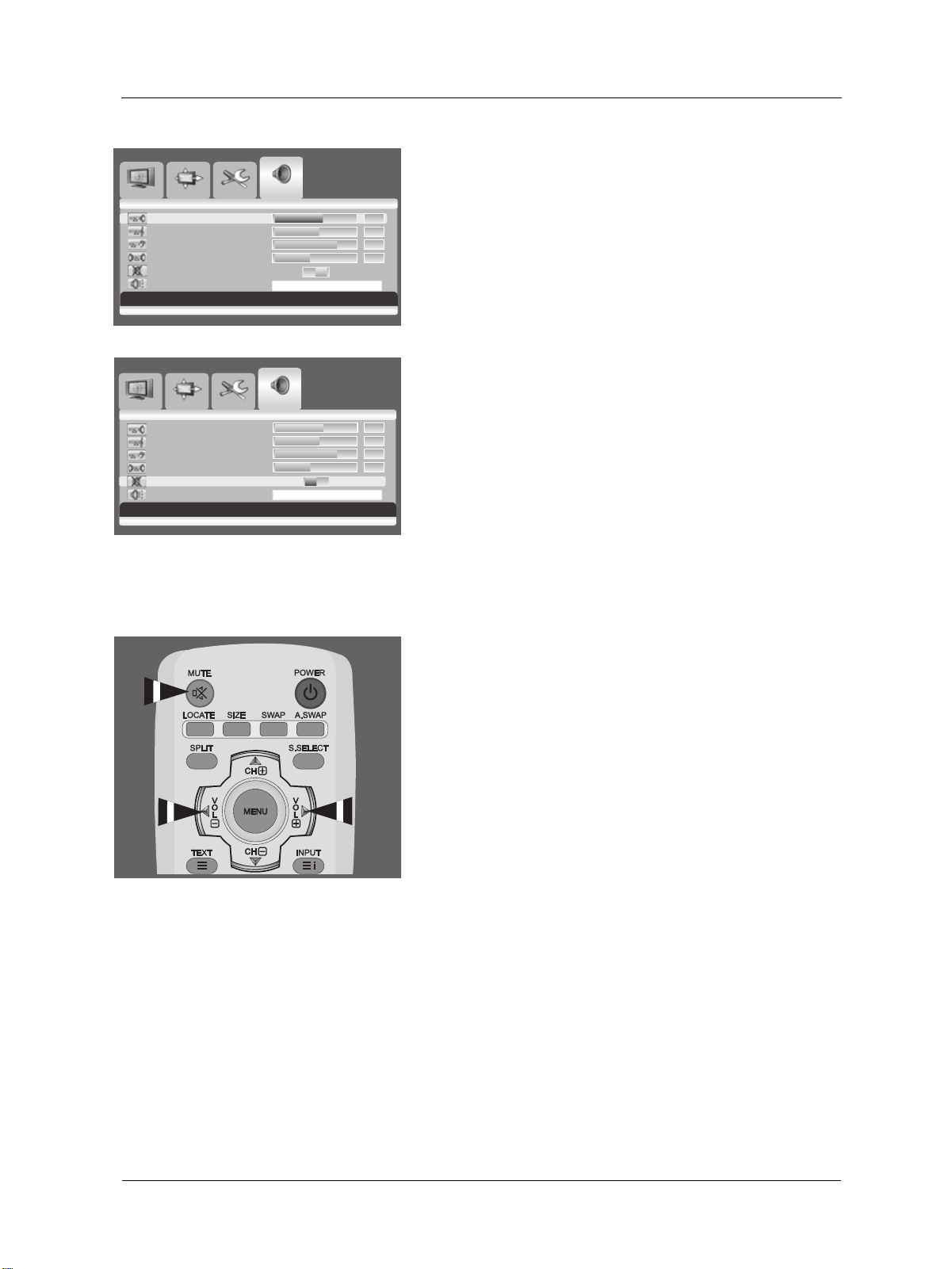
5.3 VOLUME ADJUSTMENT
Using Front Panel or Remote Control
1. Press the MENU button on either the front panel or on the remote
control.
2. Press the VOL+ or VOL- button to select Audio.
3. Press the CH- button to enter the selected menu group.
4. Press the VOL+ or VOL- button to adjust the sound volume.
Note:
If the monitor's built-in speakers are turned off, then the volume
controls will not affect volume generated by the built-in speaker.
5.4 MUTE
Using Remote Control
1. Press the MUTE key on the remote control.
=> The audio is cut off.
2. Press the MUTE, VOL+ or VOL- key to turn the audio back
on.
Image S creen S etup A udio
Image S creen S etup A udio
20
User Manual BDS4241V/BDH4241/BDH5021V
001-ABC
TIMER OFF
TV
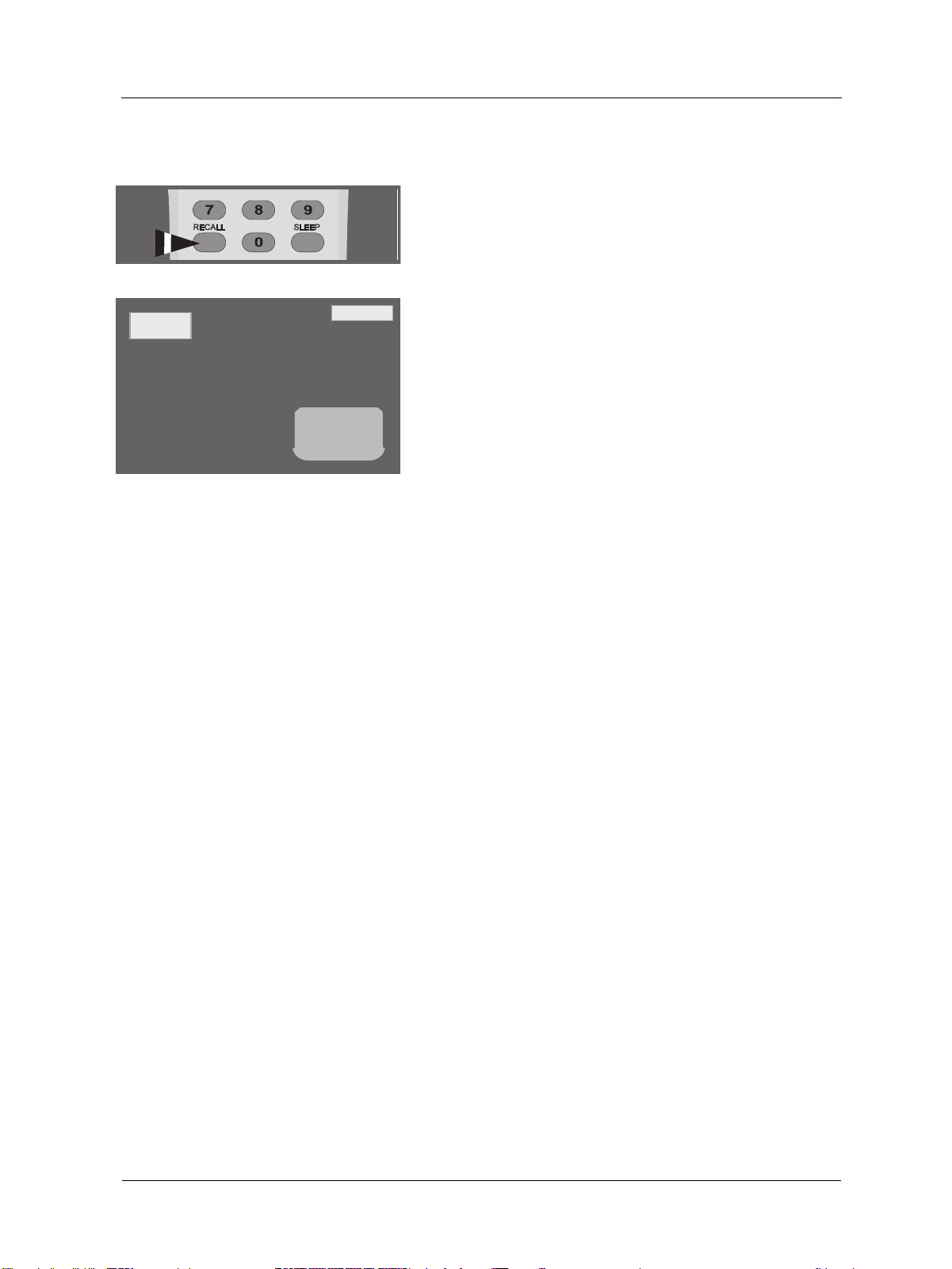
5.5 DISPLAY INFORMATION
Via Remote Control
Press the RECALL button to display the channel information and
setting status. Press again to exit.
Note
The displayed information can differ, depending on the selected source.

21
User Manual BDS4241V/BDH4241/BDH5021V
22
User Manual BDS4241V/BDH4241/BDH5021V
380 ssenthgirB
250tsartnoC
910ssenprahS
360roloC
T0 50tni
Image [-VOL+]to Preset Image
Adjust [- VOL +] Exit [MENU]
380 ssenthgirB
380 ssenthgirB
250tsartnoC
910ssenprahS
360roloC
T0 50tni
Image Preset Image Preset Complete!
6. ADVANCED FUNCTIONS
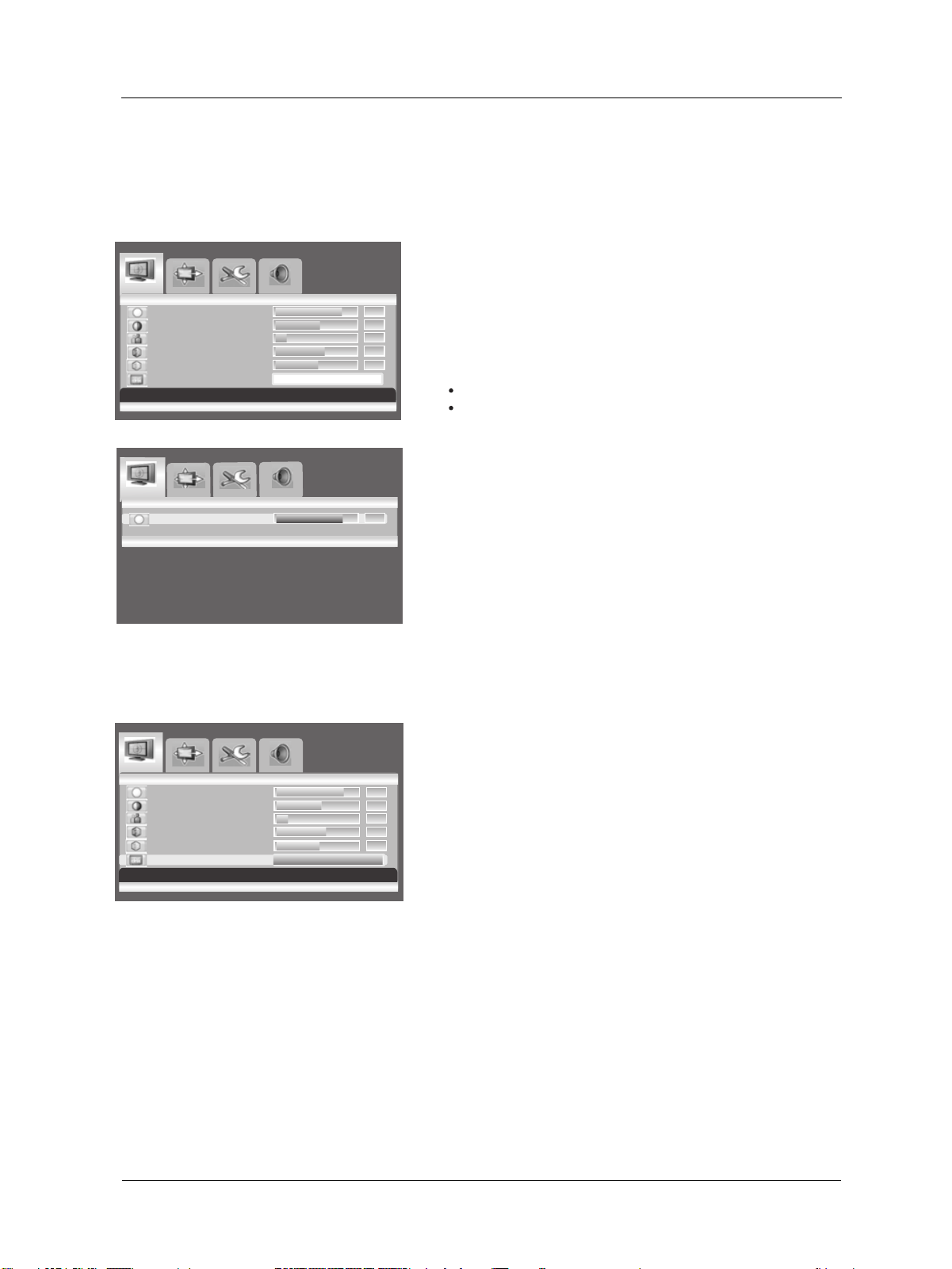
6.1 PICTURE CONTROLS
6.1.1 ADJUSTING PICTURE SETTINGS
Various picture adjustments can be set using the Picture Adjustment
OSD menu.
1. Press the MENU button on the monitor panel or remote control.
The Image menu is displayed.
2. Press the CH+ key to enter the selected menu group.
3. Press the CH- or CH+ key to select the option to be adjusted.
Depending on the input source, the following menu's appear:
Brightness - Contrast - Sharpness - Color - Tint - Image preset
Brightness - Contrast - Phase - Frequency - Sharpness (RGB
(PC) mode )
4. Press the VOL+ or VOL- key toe select the optimal setting.
5. Press the MENU button to reture to the previous menu.
6.1.2 RESET TO THE FACTORY DEFAULTS
1. Press the CH+ or CH- key to select Image Preset.
2. Press the VOL+ or VOL- key to reset the picture settings to the
factory defaults.
Image Screen Setup Audio
Image Screen Setup Audio
Image Screen Setup Audio
Preset
Move [- CH +] Select [- VOL +] Exit [MENU]
Move [- CH +] Select [- VOL +] Exit [MENU]
23
User Manual BDS4241V/BDH4241/BDH5021V
Move [- C H +] Adjus t [- VO L +] E x it [ME NU]
V o 06 emul
T 550elber
270ssaB
340ecnalaB
FFO NOetuM
Audio Pr es et [-V OL+] to P res et A udio
Image S creen Setup Audio
V 06 emulo
T 550elber
270ssaB
340ecnalaB
FFO NOetuM
Audio P res et
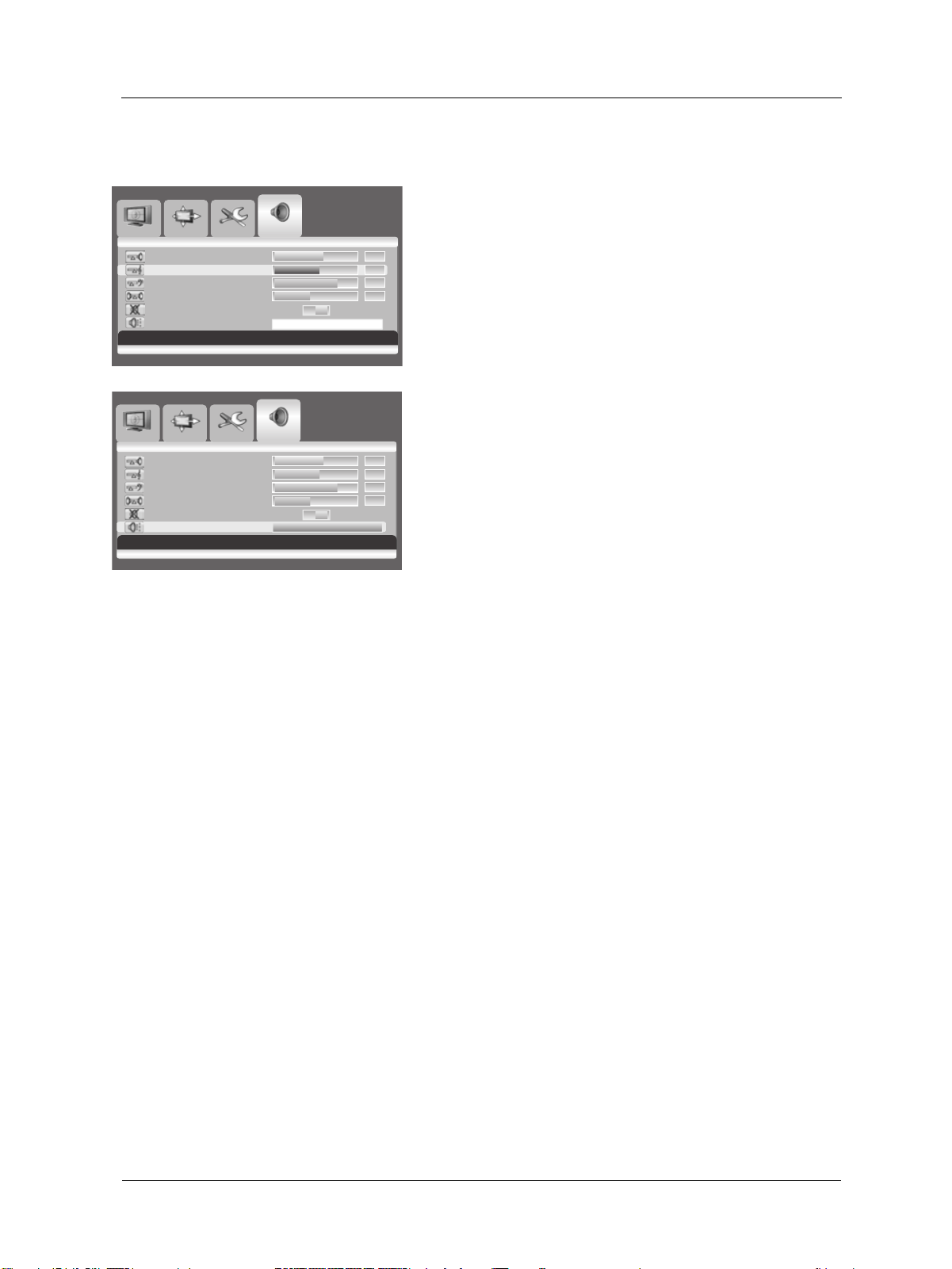
6.2 SOUND CONTROLS
6.2.1 ADJUSTING SOUND SETTINGS
Various sound adjustments can be set using the Sound Adjustment OSD
menu.
1. Press the MENU button on the monitor panel or remote control.
2. Press the VOL+ or VOL- key to select Audio.
3. Press the CH- key to enter the selected menu group.
4. Press the CH+ or CH- key to select the desired option:
Treble - Bass - Balance
5. Press the VOL+ or VOL- key to adjust the settings.
Note:
You can reset the sound settings to the factory defaults:
1. Press the CH+ or CH- key to select Audio Preset.
2. Press the VOL+ or VOL- key.
Audio P res et C omplete!
Move [- C H +] S elect [- V OL +] E x it [ME NU]
Image S creen S etup A udio
24
User Manual BDS4241V/BDH4241/BDH5021V
Image S etup Audio
Move [- C H +] S elect [- V OL +] E x it [ME NU]
L anguage
E nglis h
S leep T
C olor Temp
imer 030
OS D S ettings
Image
S
etup Audio
hsilgnEegaugnaL
030remiT peelS
OS D S ettings
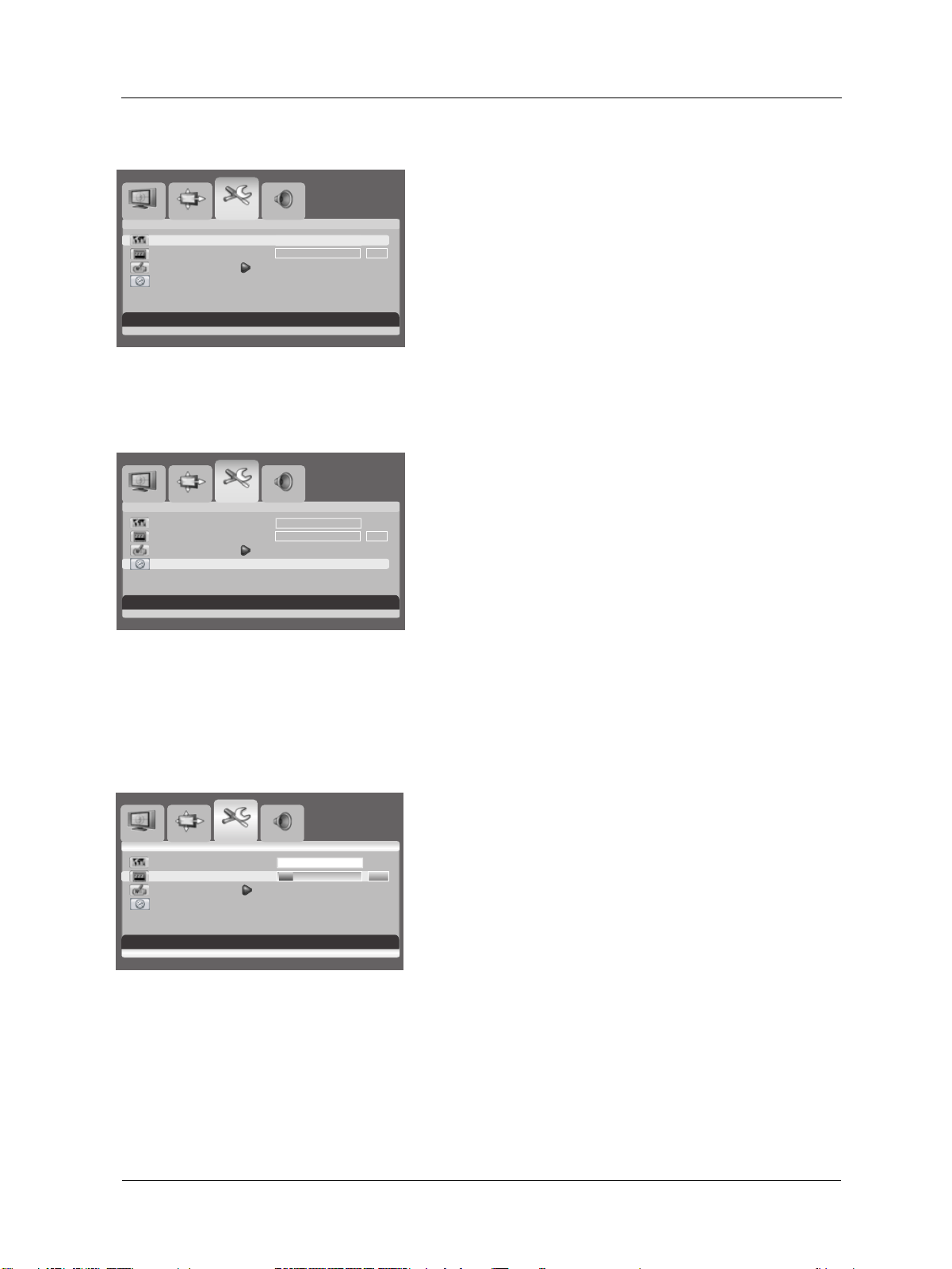
6.3 OSD MENU LANGUAGE
This monitor has multiple OSD Menu languages built-in including English,
French, Spanish, Italian, German and Dutch.
Setting OSD Menu Language
1. Press the MENU button on the monitor panel or remote control.
2. Press the VOL+ or VOL- key to select Setup.
3. Press the CH- key to enter the selected menu group.
4. Press the VOL+ or VOL- key to select the required language.
6.4 ADJUSTING THE COLOR TEMPERATURE
You can change tint of the entire screen to suit your requirements.
1. Press the MENU.
2. Press the VOL+ or VOL- button to select setup.
Press the CH- button to enter the selected menu group.
The color temp is selected.
3. Press the VOL+ or VOL- button to select required option.
WARM - NORMAL - COOL
6.5 POWER SAVE MODE
This monitor is equipped with a Power Save mode under RGB(VGA) or
DVI input modes. When there are no signals detected by the monitor
for a certain time, the monitor will automatically go into sleep mode
until signal is restored. You can select a time period between 10 and 180
minutes.
Setting Power Save Mode
1. Press the MENU button on the monitor panel or remote control.
2. Press the VOL+ or VOL- key to select Setup.
3. Press the CH- key to enter the selected menu group.
4. Press the CH+ or CH- key to select Sleep Timer.
5. Press the VOL+ or VOL- key to select the required time interval.
Note:
You can simply select required time interval by repeatedly pressing the
SLEEP button on the remote control.
S c reen
S c reen
Image S etup Audio
L anguage
E nglis h
S leep T
C olor Temp
imer 030
OS D S ettings
S c reen
C olor Temp
Move [- C H +] S elect [- V OL +] E x it [ME NU]
Move [- C H +] S elect [- V OL +] E x it [ME NU]
25
User Manual BDS4241V/BDH4241/BDH5021V
OTUAeziS
NO FFO ezeerF
OF F ON
hsilgnEegaugnaL
030remiT peelS
OS D S ettings
Trans parency
070
Timeout
020
hsilgnEegaugnaL
030remiT peelS
OS D S ettings
Trans parency
070
T0 20tuoemi
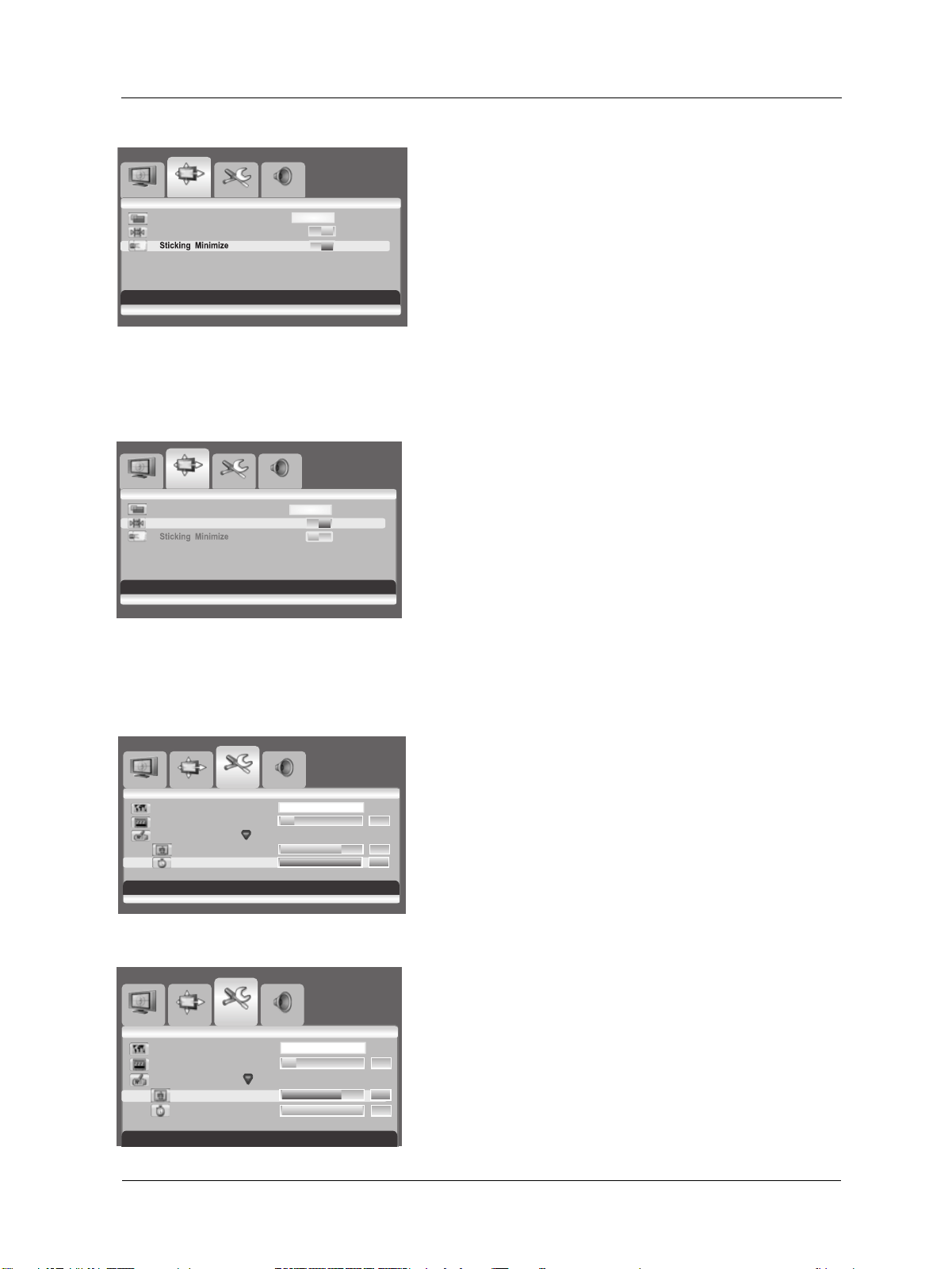
6.7 FREEZING THE CURRENT PICTURE
You can freeze the picture when watching a television program.
1. Press the MENU button.
2. Press the VOL+ or VOL- key to select Screen.
3. Press the CH- key to enter the selected menu group.
4. Press the CH- or CH+ key to select Freeze.
5. Press the VOL+ or VOL- key to select required option (OFF or
ON).
Note:
Simply press the FREEZE button on the remote control. then current
picture is stilled. To return to normal viewing press it again.
6.8 ON-SCREEN DISPLAY TIMEOUT
You can select for how long the OSD will be snown.
1. Press the MENU button.
2. Press the VOL+ or VOL- key to select Setup.
3. Press the CH- key to enter the selected menu group.
4. Press the CH- or CH+ key to select OSD Settings.
5. Press the Vol+ key to enter the selected menu group.
6. Press the CH- or CH+ key to select Timeout.
7. Press the VOL+ or VOL- key until you reach the optimal setting
6.9 ADJUSTING THE MENU TRANSPARENCY
You can give the transparency OSD background.
1. Press the MENU button.
2. Press the VOL+ or VOL- key to select Setup.
3. Press the CH- key to enter the selected menu group.
4. Press the CH- or CH+ key to select OSD Settings.
5. Press the VOL+ key to enter the selected menu group.
> The Transparency is selected.
6. Press the VOL+ or VOL- key until you reach the optimal setting.
Image S etup Audio
OTUAeziS
NO FFO ezeerF
OF F O N
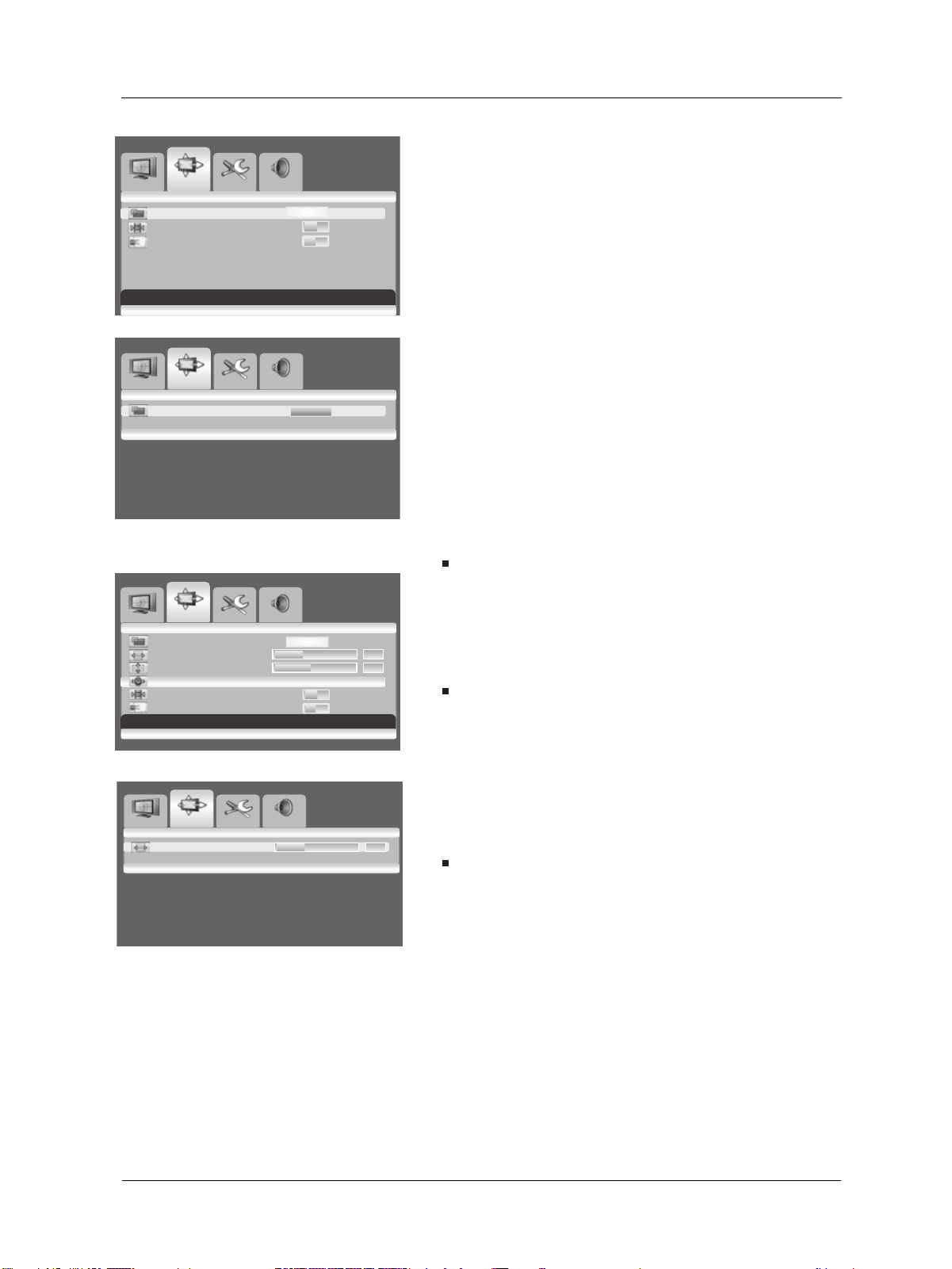
6.6 MINIMIZE SCREEN STICKING
If the fixed pattern is displayed for a long time, a difference in brightness
is caused around the lighting area and non-lighting area due to
deterioration in the fluorescent substance used in the plasma module. It
comes to be recognized as image sticking. This feature allows you to
make the occurrence of image sticking as slow as possible.
Minimize screen sticking
1. Press the MENU button on the monitor panel or remote control.
2. Press the VOL+ or VOL- key to select Screen.
3. Press the CH- key to enter the selected menu group.
4. Press the CH+ or CH- key to select Sticking Minimum.
5. Press the VOL+ or VOL- key to select the required option (OFF
or ON).
S c reen
S
S c reen
Image S etup Audio
S c reen
S
S c reen
Image S etup Audio
S c reen
S
S c reen
Move [- C H +] S elect [- V OL +] E xit [ ME NU ]
Move [- C H +] S elect [- V OL +] E xit [ ME NU ]
Image S etup Audio
S c reen
S
S c reen
Move [- C H +] A djus t [- V OL +] E x it [ME NU]
Move [- C H +] A djus t [- V OL +] E x it [ME NU]
26
User Manual BDS4241V/BDH4241/BDH5021V
OTUAeziS
NO FFO ezeerF
Sticking Minimum OFF ON
OTUAeziS
Select [- VOL +] Exit [MENU]
OTUAeziS
530noitisoP H
440noitisoP V
Au to
NO FFO ezeerF
Sticking Minimum OFF ON
Adjust [- VOL +] Exit [MENU]
530noitisoP H
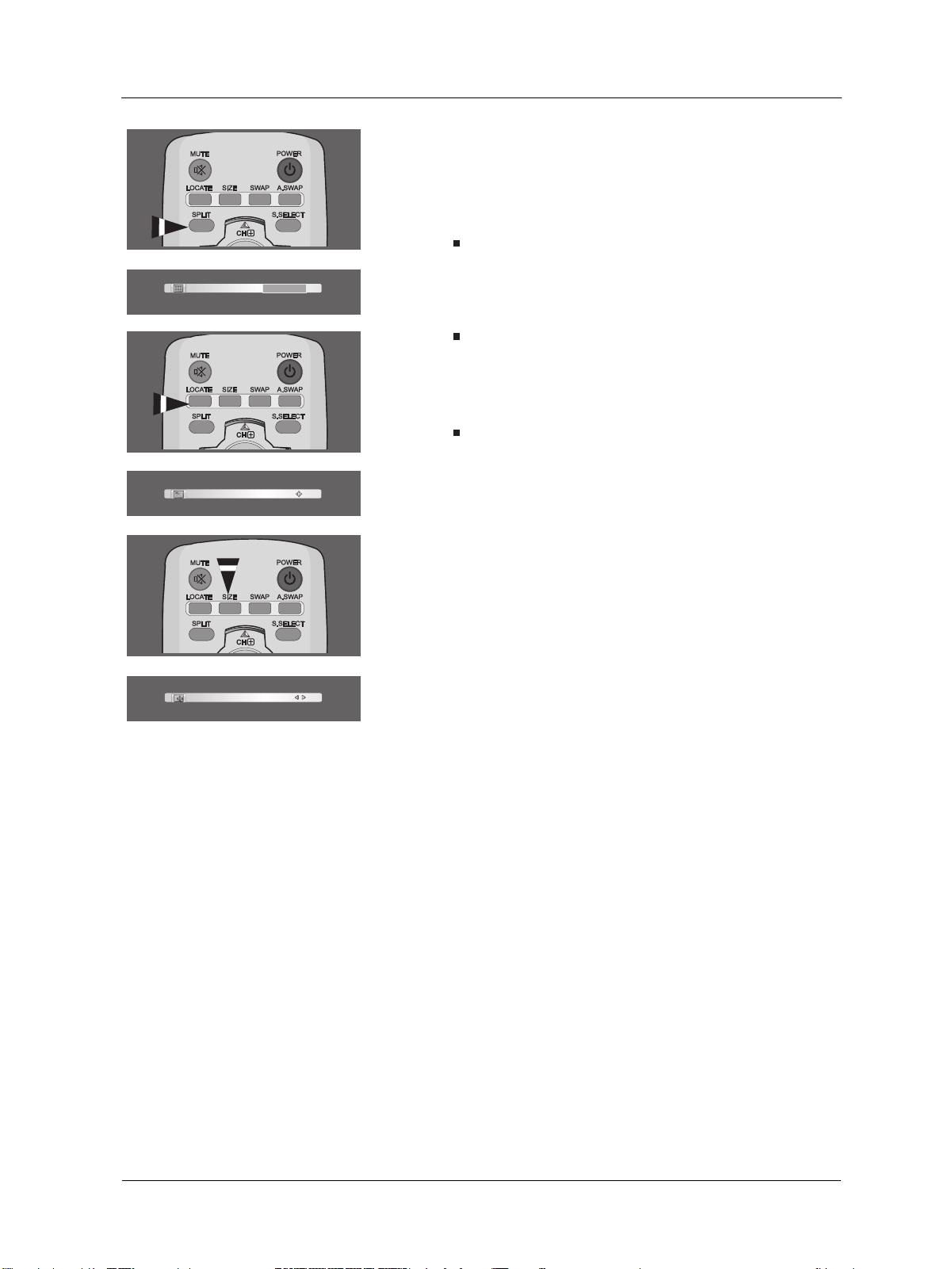
6.10 CHANGING THE SCREEN SIZE
You can select the screen size which best corresponds to your viewing
requirements.
1 Press the MENU button.
2. Press the VOL+ or VOL- key to select Screen.
3. Press the CH- key to enter the selected menu group.
> The Size is selected.
4. Press the VOL+ or VOL- key to select required screen size.
Note:
You can simply select required screen size by repeatedly pressing the
I.SIZE (Image SIZE) button on the remote control.
6.11 SETTING UP THE PC INPUT
Preset to the RGB mode by pressing the INPUT button.
1. Press the MENU button.
2. Press the VOL+ or VOL- key to select Screen.
3. Press the CH- key to enter the selected menu group.
Adjusting the PC screen automatically
1. Press the CH- or CH+ key to select Auto.
2. Press the VOL+ or VOL- key.
>The screen quality and position are automatically adjusted.
Note:
You can adjust the PC screen automatically by simply pressing the
AUTO button on the remote control.
Selecting the position of the PC screen if it does not fit the
PDP screen
1. Press the CH+ or CH- button to select H Position or
V Positing.
2. Press the VOL+ or VOL- key to fit the TV screen until you reach
the optimal setting.
Image S etup Audio
Screen
S
Screen
Image S etup Audio
Screen
S
Screen
Move [- CH +] Select [- VOL +] Exit [ MENU ]
Image S etup Audio
Screen
S
Screen
Image S etup Audio
Screen
S
Screen
Move [- CH +] Select [- VOL +] Exit [ MENU ]
AUTO - FILL ALL - FILL ASPECT - ZOOM - ANAMORPHIC
- *WIDE
( *WIDE is only available when the split screen mode is not
selected.)
27
User Manual BDS4241V/BDH4241/BDH5021V
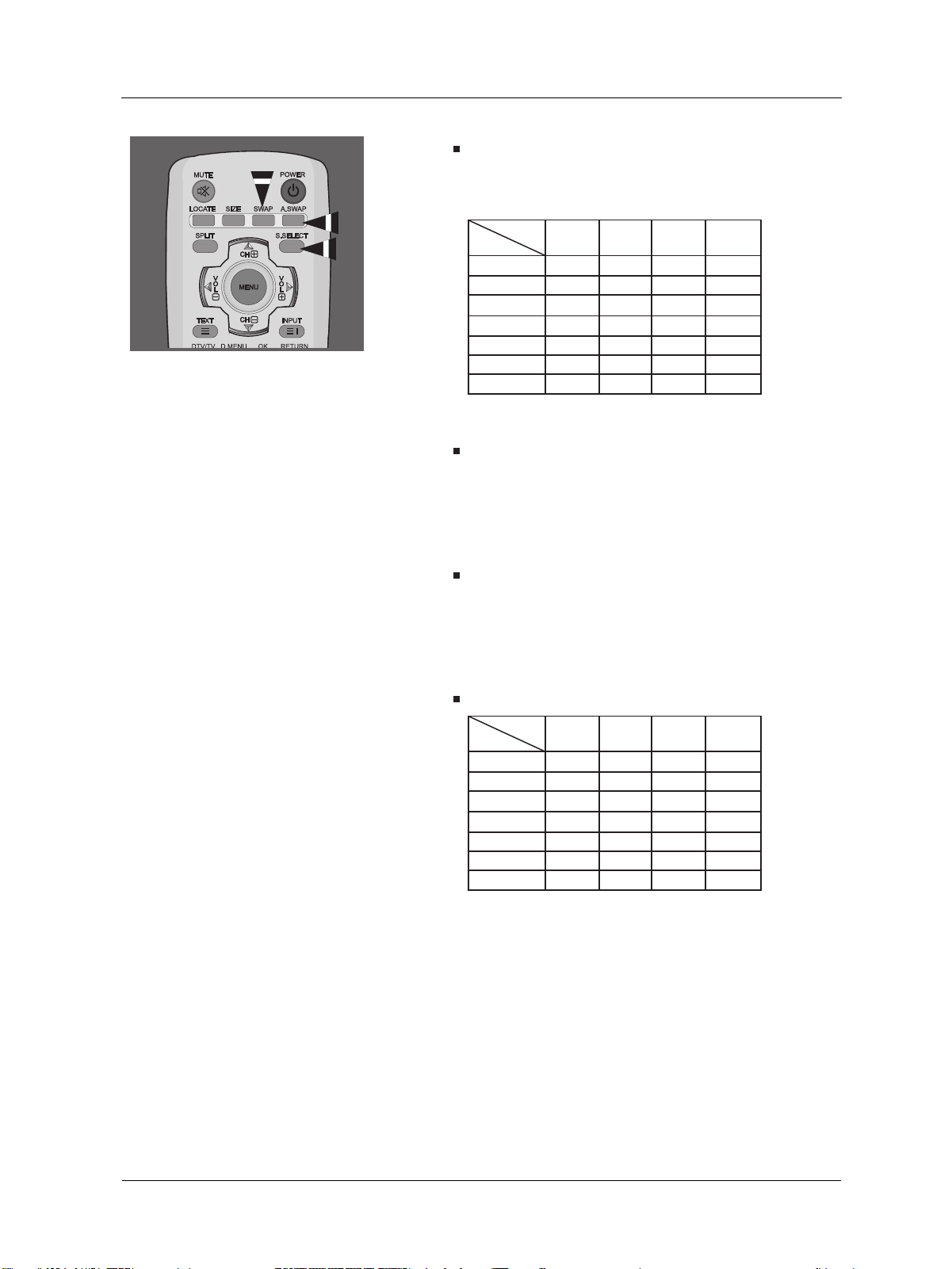
6.12 VIEWING THE PICTURE IN PICTURE (PIP)
You can display a sub-picture with the main picture. In this way
you can watch monitor the video input from any
connected devices while watching other video input.
Selecting a PIP mode
Press the SPLIT button repeatedly to select required mode.
The available modes are displayed in the following order.
NORMAL - PIP - PBP
Selecting a location of the sub-picture
Press the LOCATE button.
Press the VOL-, VOL+, CH-, or CH+ button to select required
location. It is available in PIP mode only.
Selecting a size of the sub-picture
Press the SIZE button.
Press the VOL- or VOL+ button to select required size.
It is available in PIP mode only.
S plit S creen NOR MA L
P IP Loc ate
P IP S ize
28
User Manual BDS4241V/BDH4241/BDH5021V
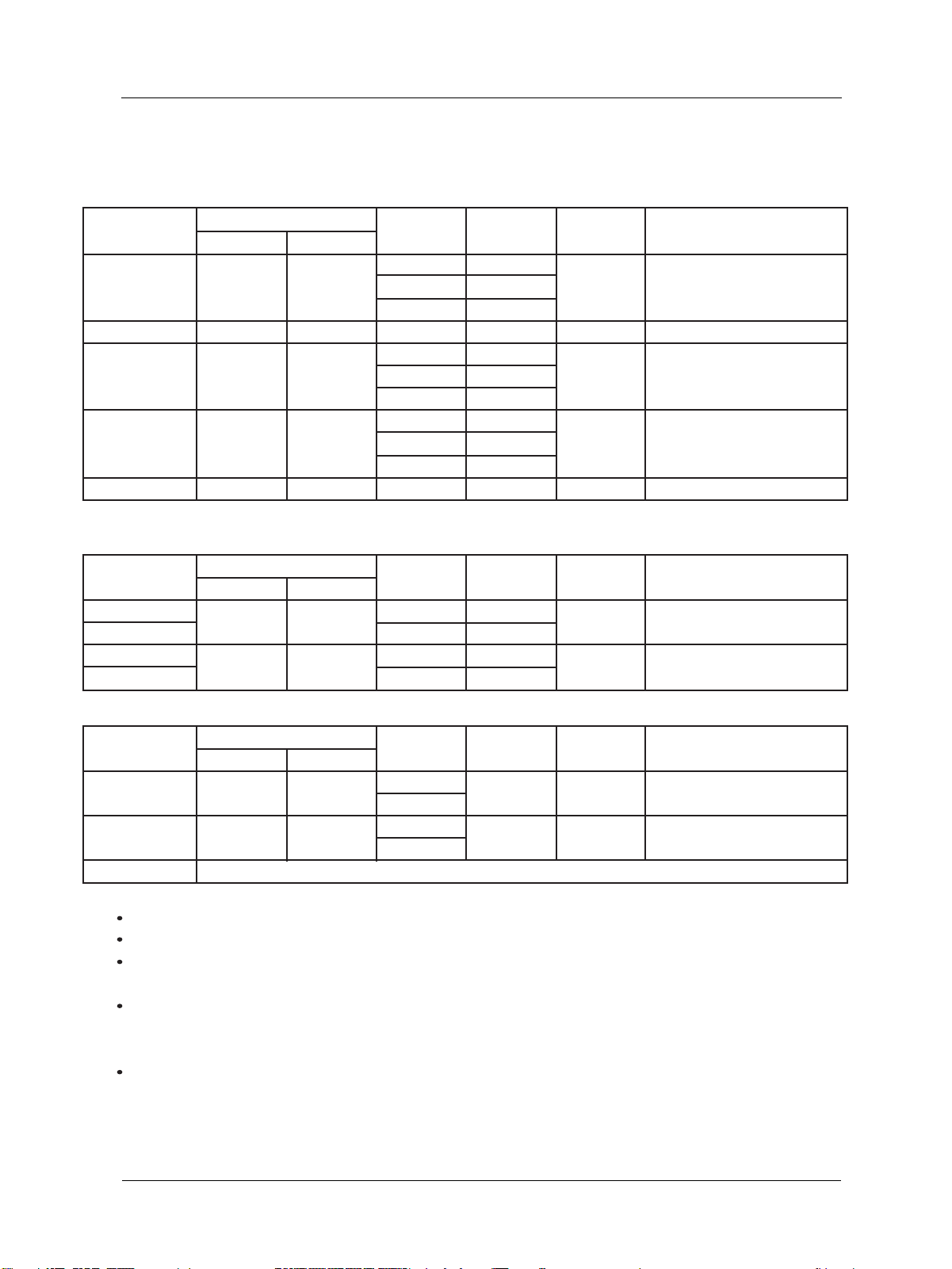
Swapping the main picture and the sub-picture
Press the SWAP button.
The main picture and the sub picture are interchanged.
It is available in PIP and PBP mode only.
Sub Input
Main Input
VIDEO 1
VIDEO 1
VIDEO 2
VIDEO 2 Video S-Video
Video
S-Video
COMPONENT
RGB
DVI
X
X
X
X
X
X
X
X
X
X
X
X
X
X
X
X
O
O
O O
O O
O
O O
O O O
Sub Input
Main Input
VIDEO 1
VIDEO 1
VIDEO 2
VIDEO 2 Video S-Video
Video
S-Video
COMPONENT
RGB
DVI
X
X
X
X
O
O
O O
O O
O
O O
O O O
O O O O
O O O O
O O O O
- It is variable depending on the model.
In the PIP mode, the sub input source is differently defined
for the default value (video1 or video2) depending on your PDP model.
Swapping the audio of the main or
sub-picture
Press the A.SWAP (Audio SWAP) button repeatedly.
You can hear the audio of the main or sub-picture alternately
It is available in PIP and PBP mode only.
Selecting the main picture or the sub-picture
Press the S.SELECT button repeatedly.
You can select the main or sub-picture alternately and adjust the
status of selected picture.
It is available in PIP and PBP mode only.
PIP Settings
6.13 REMOTE MANAGEMNET
This display can be managed remotely through the RS232 9-pin port,
by using a Serial Interface Communication Protocol (SICP).
The specifications of the SICP protocol can be found in a separate
document, called "SICP User Manual".

29
User Manual BDS4241V/BDH4241/BDH5021V
30
User Manual BDS4241V/BDH4241/BDH5021V
640 480
60 25.175 MHz
16:9
72 31.5 MHz
31.5 MHz
75
848
480 60
16:9
800 600
60
40 MH z
16:9
72
50 MH z
75
49.5 MHz
1024 768
60 65 MHz
16:9
70 75 MH z
75
78.5 MHz
1280 1024
60 108 MHz
16:9
480i
720 480
29,97 H z 13,5 MHz
4:3
480p
59,94 Hz 27 MH z
576i
720 576
25 H z 13.5 MHz
4:3
576p
50 Hz 27 MH z
720p 1280 720
30 H z
74,25 MHz 16:9
50 H z
1080i 1920 1080
25 H z
74,25 MHz 16:9
30 H z
1080p
7. INPUT MODE
VGA Resolution
Standard
resolution
Aspect
ratio
Active Resolution
Refresh
Rate
Pixel Rate
Stand for Mode
WVGA
SVGA
XGA
SXGA
VGA
H Pixels
V Lines
Standard
resolution
Aspect
ratio
Active Resolution
Refresh
Rate
Pixel Rate
Stand for Mode
H Pixels
V Lines
Video Graphic Array
Wide Video Graphic Array
Super VGA Extended Graphic
Array
Super VGA
Super XGA
Modified DVB Mode
Modified PAL Standard
SDTV Resolution
HDTV Resolution
Normally DVB Mode
Normally ATSC Mode
Not supported
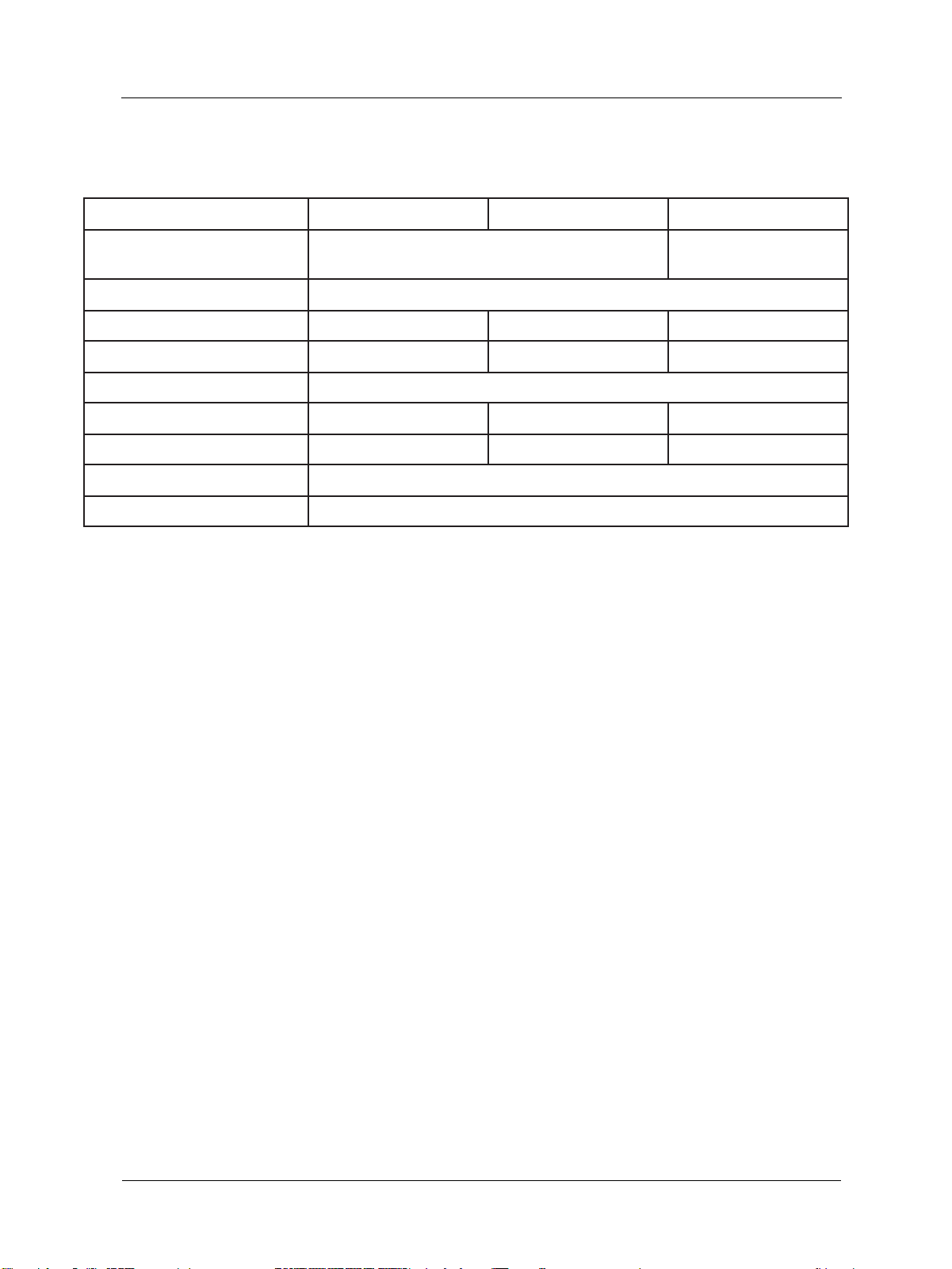
The PC text quality is optimumin in XGA mode (1024 x 768, 60Hz).
When this PDP is used as a PC display, 24-bit color is supported (over 16 million colors).
Your PC display screen mightapear different depending on the manufacture (and your particular version of
Windows). Chec your PC instruction book for information about connecting your PC to a display.
If a vertical and horizontal frequency-select mode exists, select 60Hz (vertical) and 31.5kHz (horizontal). In some
cases, abnormal signals (such as stripes) might appear on the screen when the PC power is turned off (or if the PC is
disconnected). If so, press the INPUT button to enter the video mode. Also, make sure that the PC is connected.
When connecting a notebook PC to the PDP, make sure that the PC screen is displayed through only the PDP
(Otherwise, random signals might appear).
Standard
resolution
Aspect
ratio
Active Resolution
Refresh
Rate
Pixel Rate
Stand for Mode
H Pixels
V Lines

31
User Manual BDS4241V/BDH4241/BDH5021V
When horizontal synchronous signals seem irregular in RGB mode, check PC power saving mode or cable
connections.
The display settings table complies to the IBM/VESA standards, and based on the analog input.
The DVI support mode is regarded as same to the PC support mode.
The best timing for the vertical frequency to each mode is 60Hz.
32
User Manual BDS4241V/BDH4241/BDH5021V
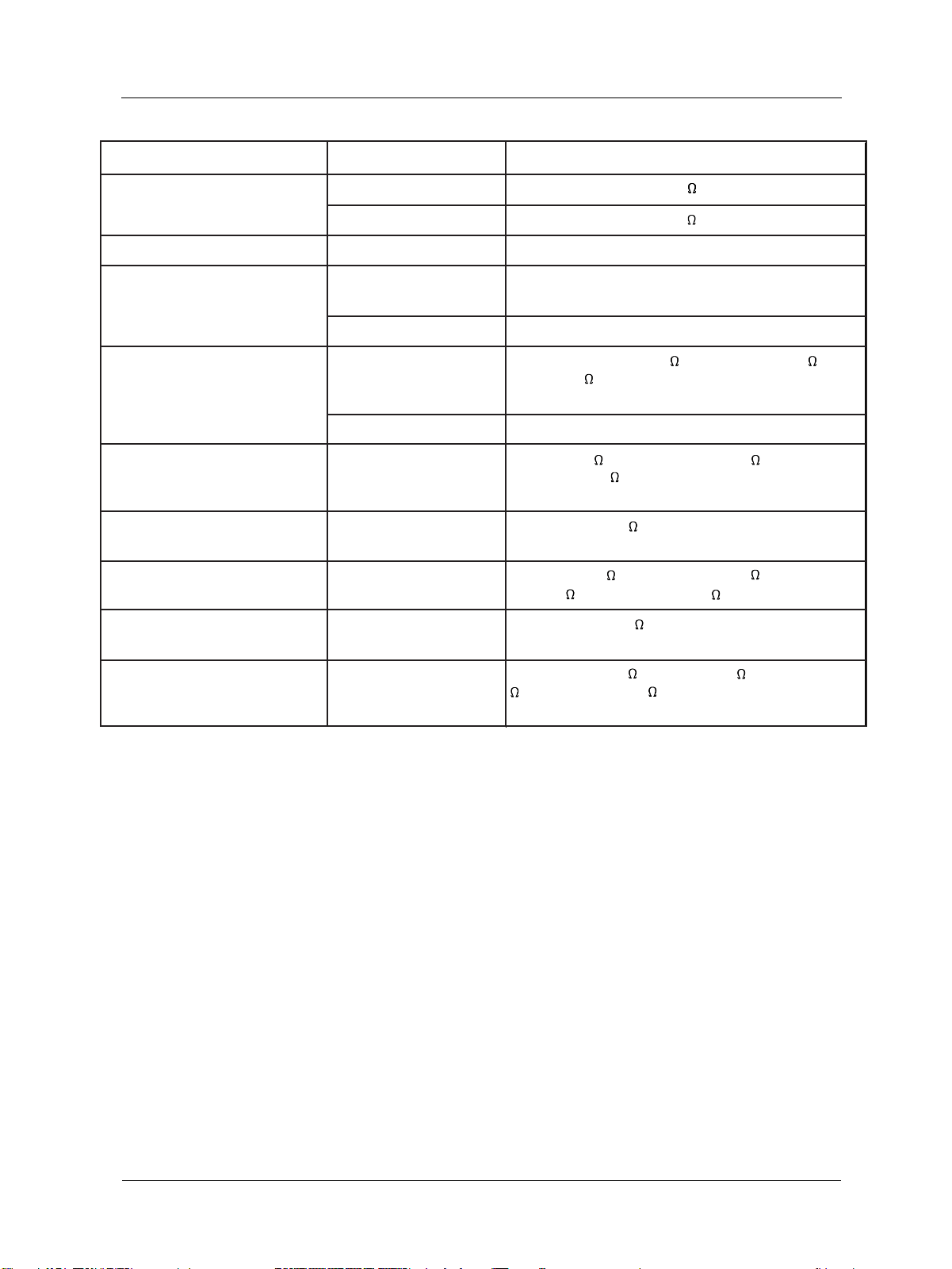
42" (920.1(H) x 518.4(V) ± 0.5mm) 50" (1106.5(H) x 622.1(V)
±0.5mm)
16:9
852 (H ) x 480 (V) 1024 (H ) x 7 68 (V ) 1366 (H) x 76 8 (V)
1.080(H) x 1. 080(V) [mm] 0.900(H) x 0.676(V) [ mm] 0.810(H) x 0 .810(V) [mm]
1 billion (O ption)
1500 cd/m2 1000 cd/m2 1000 cd/m2
10.000:1 5000:1 8000:1
9500 K
O ver 160 degrees
8. TECHNICALS SPECIFICATIONS
Display
Item
42" SD
42" HD
50" HD
Screen Size (Active Area)
Aspect ratio
Number of pixels
Pixel pitch
Displayable Colors
Brightness
Contrast Ratio
Color Temperature
Viewing Angle
33
User Manual BDS4241V/BDH4241/BDH5021V
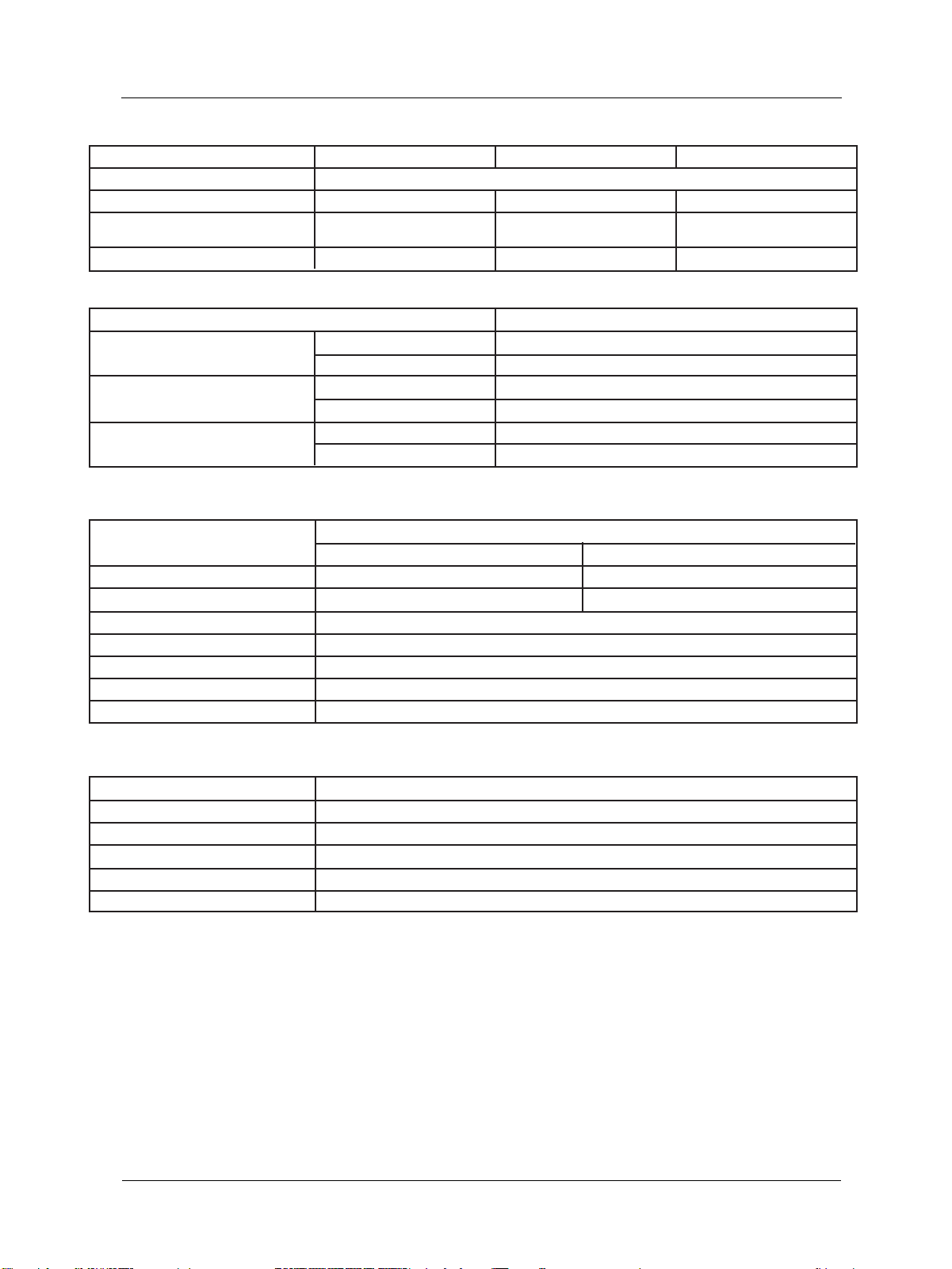
) 10W (L) + 10W (R) [ RMS] / 8 2 Way 2 Speaker
Way 6 Speaker
n) 10W( L) + 1 0W (R) [R MS]
TXD + R XD (1:1)
Digital RGB : TM DS MAX : 720p, 1080i, 1280 x 1024 / 60
Hz (SXGA)
Audio : 0.5V [rms](N ormal) / 2 Channel (L + R )
Analog RGB : 0.7V[p-p](75 ), H/CS/V : TT L (2.2 k ), SO G
: 1V[p-p](75 ) MAX : 720p, 1080i, 1280 x 1024 / 60 H z
(SX GA)
Audio : 0.5V [rms](N ormal) / 2 Channel (L + R )
Y:1V[p-p](75 ), Pb/Cb:0.7V[p-p](75 ) , Pr/
C r:0.7V[p-p](75 ) 480i, 576i, 480p, 576p, 720p,
1080i Audio : 0.5V[r ms](Normal) / 2 Channel (L + R )
Video : 1V[p-p] ( 75 ) Audio : 0.5V[r ms](Normal) / 2
Channel (L + R)
Y : 1V [p-p] ( 75 ), C : 0.286V [p-p] ( 75 ) [N TSC ] Y : 1 V
[p-p] ( 75 ), C : 0 .300V [p-p] (7 5 ) [ PAL / SECAM ]
Video : 1V [p-p] ( 75 ) [NTSC / PAL / SECAM] Audio :
0.5V [rms] ( Normal) / 2 Channel (L + R )
Video : 1V[p-p] (7 5 ) Y : 1 V[p-p] (75 ) , C: 0.3 V[p-p] (7 5
) R GB : 0. 7V[p-p] ( 75 ) Audio : 0.5V[r ms]( Normal) / 2
Channel (L + R)
In / Out Terminals
Item
Speaker Output
RS-232C
DVI input
RGB Input
Component Input
Monitor Output
S-Video Input
Video Output
Scart of Video 1,2
Internal speaker (option)
External speaker (option)
D-Sub Jack x 1 (15 pin)
D-Sub Jack x 1 (9 pin)
DVI Jack x 1 (24 pin)
RCA Jack x 1
RCA Jack x 1
RCA Jack x 1
RCA Jack x 1
RCA Jack x 1
Mini DIN Jack x 1 (4 pin)
Scart Jack x 2 (21 pin) [Full
x 1, Half x 1] or RCA Jack x
1
42" SD ; 42" HD ; 50" HD
/ 8 2
34
User Manual BDS4241V/BDH4241/BDH5021V
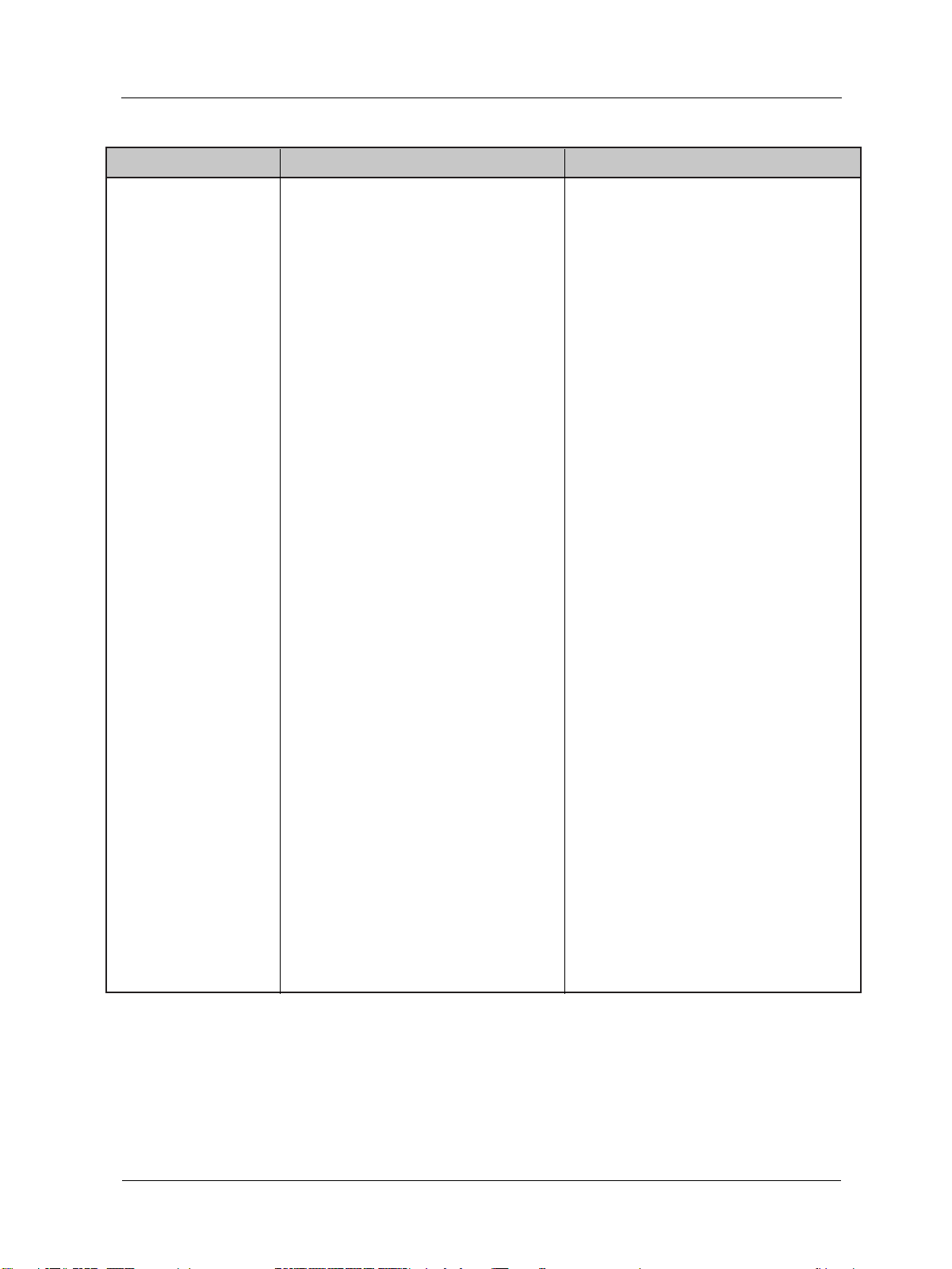
AC 100 V ~ 240 V, 50/60 Hz
250 W 300 W 440 W
1028 x 625 x 8 9.8 (A) 1028 x 625 x 107.4 (B) 1205 x 721 x 114.3 (D )
29 kg 31 kg 43 kg
0 ~ 40
-20 ~ 60
20 ~ 80% RH (No condensation)
10 ~ 90% RH (No condensation)
800 ~ 1100 hPa (Al titude: 0 ~2,000 m)
700 ~ 1100 hPa (Al titude: 0 ~ 3,000 m)
42" 50"
113 mm x 626.6 mm x 82.2 mm 90 mm x 721 mm x 68 mm
5 kg (L + R ) 3 kg (L + R)
2 Way 6 Speaker System
10 W (R MS)
8 Ohm
87 dB/W /M
45 H z ~ 20 KH z
2 Way 6 Speaker System
10 W (R MS)
8 Ohm
88 dB/W /M
140 Hz ~ 10 KHz
42" SD ; 42" HD ; 50" HD
42" SD 42" HD 50" HD
Specifications
Specifications
General
Item
Power Supply
Power Consumption
Dimension ( With Stand ) [W mm x
H mm x D mm]
Weight ( Without Stand )
Environment Condition
Temperature
Item
Humidity
Pressure
Operational
Storage
Operational
Storage
Operational
Storage
External Speaker (Option)
Dimension (W x H x D)
Weight
Input
Type
Impedence
Output Sound Pressure
Frequency Response
Internal Speaker (Option)
Type
Input
Impedence
Output Sound Pressure
Frequency Response

35
User Manual BDS4241V/BDH4241/BDH5021V

36
User Manual BDS4241V/BDH4241/BDH5021V
9. CLEANING AND TROUBLESHOOTING
9. 1 CLEANING
Cautions When Using the Plasma Display
Do not bring your hands, face or objects close to the ventilation
holes of the plasma dislay. Top of plasma dislay is usually very hot
due to the high temperature of exhaust air being released through
the ventilation holes. Burns or personal injuries may occur if any
body parts are brought too close. Placing any object near the top of
the display could also result in heat related damages to the object as
well as the display itself.
Be sure to disconnect all cables before moving the plasma display.
Moving the display with its cables attached may damage the cables
and thus case fire or electric shock danger.
Disconnect the power plug from the wall outlet as a safety
precaution before carrying out any type of cleaning or maintenance
procedure.
Freont Panel Cleaning In structions
The front of the display has been specially treated. Wipe the surface
gently using only a cleaning cloth or a soft, line-free cloth.
If the surface is particular dirty, soak a soft, line-free cloth in a mild
detergent solution. Wring the cloth to remove excess liquid. Wipe
the surface of the display to remove dirt. Then use a dry cloth of the
same type to dry.
Do not scratch or hit the surface of the panel with fingers or hard
objects of any kind.
Do not use volatile substances such as insert sprays, solvents and
thinners.
Cabinet Cleaning Instructions
If the cabinet becomes dirty, wipe the cabinet with a soft, dry cloth.
If the cabinet is extremely dirty, soak a lint-free cloth in a mild
detergent solution. Wring the cloth to remove as much moisture as
possible. Wipe the cabinet. Use another dry cloth to wipe over until
the surface is dry.
Do not allow any water or detergent to come into contact with the
surface of the display. If water or moisture gets inside the unit,
operating problems, electrical and shock hazards may result.
Do not scratch or hit the cabinet with fingers or hard objects of any
kind.
Do not use volatile substances such as insert sprays, solvents and
thiners on the cabinet.
Do not place anything made from rubber or PVC near the cabinet
for any extended periods of time.
37
User Manual BDS4241V/BDH4241/BDH5021V
9.2 TROUBLESHOOTING
Symptom
Possible Cause Remedy
No picture is displayed
1. The power cord is disconnected.
2. The main power switch on the back of the
monitor is not switched on.
3. The selected input has no connection.
4. The monitor is in standby mode in RGB
mode.
1. Plug in the power cord.
2. Make sure the power switch is switched on.
3. Connect a signal connection to the monitor.
4. Press any key on your keyboard.
Caused by surrounding electrical appliances,
cars/motor cycles or fluorescent lights.
Move the monitor to another location to see is
the interference is reduced.
Color is abnormal
The signal cable is not connected properly.
Make sure that the signal cable is
attached firmly to the back of the
monitor.
Picture is distorted with
abnormal patterns
1. The signal cable is not connected properly.
2. The input signal is beyond the capabilites of
the monitor.
1. Make sure that the signal cable is attached
firmly.
2. Check the video signal source to see if it is
beyond the range of the monitor. Please
verify its specifications with this monitor's
specification section.
Display image doesn't fill up
the full size of the screen
1. If under RGB mode, the H-Size and V-Size is
incorrectly set.
2. If under AV1, AV2, or Component with 480i
input, the 4:3 WIDE mode is switched on.
1. Use H-Size and V-Size to adjust the size of
the video.
2. Use the WIDE key to scroll through various
full screen modes.
Can hear sound, but no
picture
Can see picture but no sound
is heard
Some picture elements do
not light up
After-Images can still be seen
on the monitor after the
monitor is powered off.
(Examples of still pictures
include logos, video games,
computer images, and images
displayed in 4:3 normal
mode)
Improperly connected source signal cable.
1. Improperly connected source signal cable.
2. Volume is turned all the way down.
3. MUTE is turned on.
Some pixels of the plasma display may not turn
on
A still picture is displayed for an over extended
period of time.
Make sure that both video inputs and sound
inputs are correctly connected.
1. Make sure that both video inputs and sound
inputs are correctly connected.
2. Use VOLUME +/- to hear sound.
3. Switch MUTE off by using the MUTE button.
This monitor is manufactured using an
extremely high level of precision technology:
however, sometimes some pixels of the monitor
may not display.
This is not a malfuction. Please see the enclosed
warranty card for more information.
Do not allow a still image to be displayed for an
extended period of time as this can cause a
permanent after-image to remain on the
monitor.
Interference displayed on the
monitor or audible noise is
heard

38
User Manual BDS4241V/BDH4241/BDH5021V
10. LIMITED WARRANTY (USA)
Two Year Free Laber
Two Year Free Parts
WHO IS COVERED?
You must have proof of the date purchased to receive warranty service.
A sales receipt or other document showing the date that you purchased
the product is considered proof of purchase.
WHAT IS COVERED?
Warranty cover age begins the day you buy your product. For two years
thereafter, all defective parts will be repaired or replaced and labor is
free. After two years from the day of purchase, you pay for the
replacement or repair of all parts, and for all labor charges. All parts,
including repaired and replaced parts, are covered only for the original
warranty period. When the warranty on the product expires, the
warranty on all replaced and repaired parts also expires.
WHAT IS EXCLUDED?
Your warranty does not cover:
labor charges for removal, installation or setup of the product,
adjustment of customer controls on the product, and installation or
repair of antenna systems outside of the product.
a product that requires modification or adaptation to enable it to
operate in any country other than the country for which it was
designed, manufactured, approved and/or authorized, or repair of
products damaged by these modifications.
incidental or consequential damages resulting from the product.
(some states do not allow the exclusion of incidental or
consequential damages, so the above exclusion may not apply to you.
This includes, but is not limited to, prerecorded material, whether
copyrighted or not copyrighted.)
modifications or adaptations to enable the product to operate in any
country other than the country for which it was designed,
manufactured, approved and/or authorized, or the repair of products
damaged by these modifications.
normal wear and tear (decreased light output of PDP mudule)over
the product's lifetime.
phosphor burn. Do not display static images for prolonged periods,
otherwise phosphor burn might appear on part of the panel.
limited quantity of cells (fine pixel elements) that do not produce
light, or that remain lit after they should have turned off.
product repair and/or part replacement because of misuse, accident,
unauthorized repair or other cause not within the control of Philips
Consumer Electronics North America.
reception problems caused by signal conditions or cable or antenna
systems outside the unit.

39
User Manual BDS4241V/BDH4241/BDH5021V
MAKE SURE YOU KEEP...
Please keep your sales receipt or other document showing proof of
purchase. Attach it to this owner's manual and keep both nearby. Also
keep the original box and packing material in case you need to return
your product.
BEFORE REQUESTING SERVICE...
Please check your owner's manual before requesting service.
Adjustments of the controls discussed there may save you a service call.
TO GET WARRANTY SERVICE U.S.A.,
PUERTO RICO OR US VIRGIN ISLANDS ...
Where IS SERVICE AVAILABLE?
Warranty service is available in all countries where the product is officially
distributed by Philips Consumer Electronics.
In countries where Philips Consumer Electronics does not distribute the
product, the local Philips service organization will attempt to provide service
(although there may be a delay if the appropriate spare parts and technical
manual(s) are not readily available).
Where CAN I GET MORE INFORMATION?
For more information, contact the Philips Customer Care Center by calling
(877) 835-1838 or (919) 573-7855.
Before Requesting Service...
Please check your owner's manual before requesting service. Adjustments
of the controls discussed there may save you a service call.
TO GET WARRANTY SERVICE IN U.S.A.,
PUERTO RICO OR U.S. VIRGIN ISLANDS...
Contact the Philips Customer Care Center phone number listed below for
product assistance and procedures for servicing:
Philips Customer Care Center
(877) 835-1838 or (919) 573-7855
(In U.S.A., Puerto Rico and U.S. Virgin Islands, all implied warranties, including
implied warranties of merchantability and fitness for a particular purpose,
are limited in duration to the duration of this express warranty.
But, because some states do not allow limitations on how long an implied
warranty may last, this limitation may not apply to you.)
TO GET WARRANTY SERVICE IN CANADA ...
Please contact the Philips Customer Care Center at:
(877) 835-1838 or (919) 573-7855
(In Canada, this warranty is given in lieu of all other warranties.
No other warranties are expressed or implied, including any implied
warranties of merchantability or fitness for a particular purpose.
Philips is not liable under any circumstances for any direct, indirect, special,
incidental or consequential damages, howsoever incurred, even if notified
of the possibility of such damages.)

40
User Manual BDS4241V/BDH4241/BDH5021V