
2
Thank You.
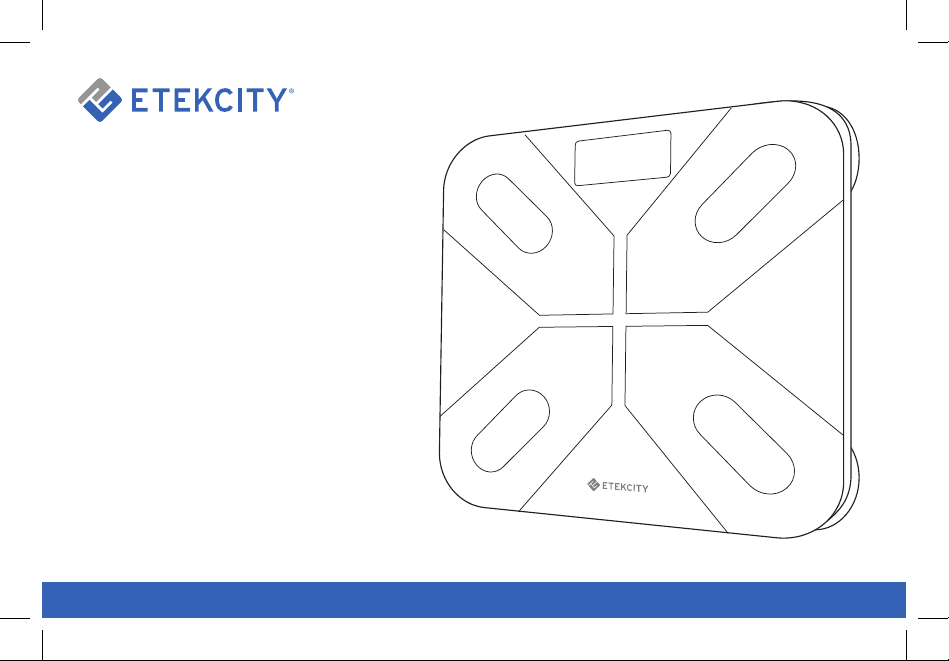
Thank you for purchasing the ESF28
Smart Fitness
Scale by Etekcity. We are dedicated to providing
our customers with quality products for building
a better living. Should you have any questions or
concerns about using your new product, feel free to
reach out to our helpful Customer Support Team at
support@etekcity.com. We hope you enjoy your new
product!
3
Table of Contents
Safety Information 4
Function Diagram 6
Setup 7
Operation 9
Weighing without the VeSyncFit App 9
Weighing with the VeSyncFit App 10
Pairing the Scale with VeSyncFit 10
Viewing Reports 12
Deleting Reference Data 13
Share Progress 14
Adding/Deleting Users 16
Settings 18
Connecting Other Fitness Apps 19
Apple Health 19
Google Fit 20
Fitbit 21
Maintenance 23
Common Display Codes 25
Frequently Asked Questions 26
Warranty 27
Customer Support 28
Package Contents
Specifications
Weight Capacity: 400 lb / 180 kg / 28 st
Graduation: 0.2 lb (0.05 kg)
Weight Units: lb / kg / st
Platform: Tempered glass
Battery: 3 x 1.5V AAA batteries
Dimensions: 11.8” x 11.8” x 1.0”
(300 x 300 x 25mm)
1 x Smart Fitness Scale
3 x 1.5V AAA Batteries
1 x User Manual

4
Safety Information
IMPORTANT: Please read and comply with all
of the instructions and warnings provided in this
manual before using the product. Failure to comply
with the instructions and warnings provided herein
may result in inaccurate results and/or damage to
the product itself.
General Safety
• This scale should not be used to diagnose or treat
any medical condition. Consult your primary care
physician before making changes to your diet,
exercise plans, or physical activities.
• If you are pregnant, have a pacemaker, or other
internal device, you should not heavily rely on the
data provided by this product. Please note that
all data should be used as a reference and is not
a substitute for medical advice from a licensed
healthcare professional.
• Check the scale before each use. Do not use the
scale if it is damaged in anyway.
• The glass platform is slippery when wet. Make
sure the platform and your feet are dry before
stepping on for measurement.

5
Use & Care
• This scale is not intended for commercial use.
• Always place the scale on a hard, flat surface
before measurement.
• To weigh safely and accurately, stand with your
feet shoulder-width apart while on the scale.
• DO NOT strike or drop the scale.
• DO NOT stand on the edge of the scale or jump
on it.
• DO NOT stand on the scale platform for
a prolonged period of time or when not in
operation.
• DO NOT store or operate near heat sources or in
humid environments.
• Handle the scale with care, as it is a precision
instrument.
• Clean the scale with a clean, dry cloth. Avoid
getting water or any other liquid inside the scale.
• DO NOT use chemical or abrasive cleaning
agents to clean the scale.
• Keep the scale in a cool environment with dry air.
• Always keep the scale in a horizontal position, do
not store vertically.
• If the scale fails to turn on, check whether the
batteries are installed correctly. Replace the
batteries if necessary.
• If an error appears on the display or if the scale
does not turn off automatically, remove the
batteries for 3 seconds, then reinstall them.
• DO NOT overload the scale (maximum weight
capacity: 400 lb / 180 kg).
• DO NOT mix new and used batteries or different
battery brands to power the scale.
• If the scale is not in use for an extended period
of time, remove the batteries to ensure battery
conservation and to extend the scale service
lifetime.
Note: This smart scale complies with Part 15 of the
FCC Rules. Operation is subject to the following two
conditions: (1) this device may not cause harmful
interference, and (2) this device must accept any
interference received, including interference that
may cause undesired operation.
6
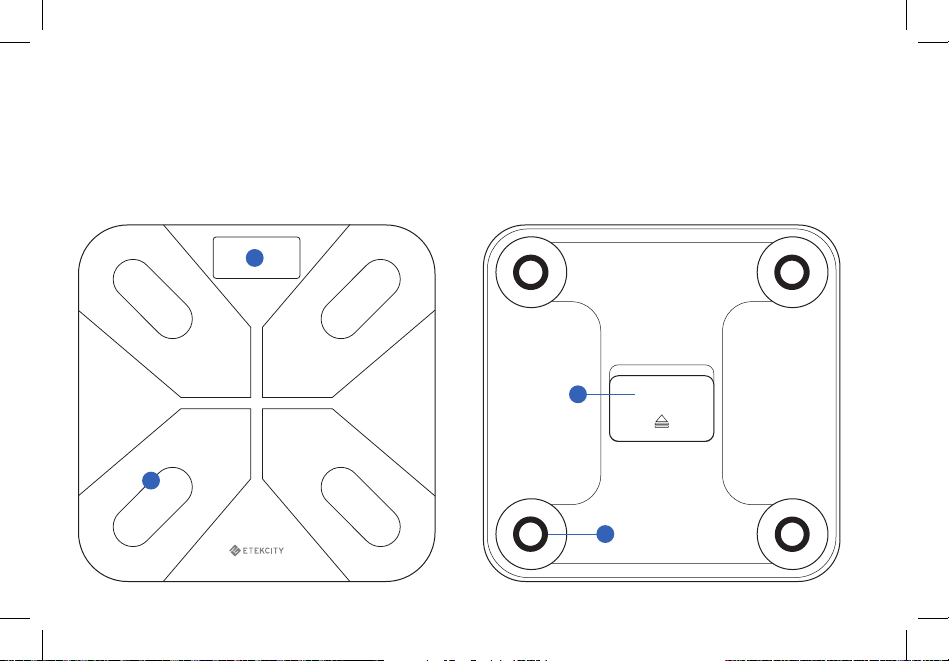
Main Functions
4
3
1. Weighing Platform
2. Display
3. Anti-skid Padding
4. Battery Compartment
2
1
7
Setup
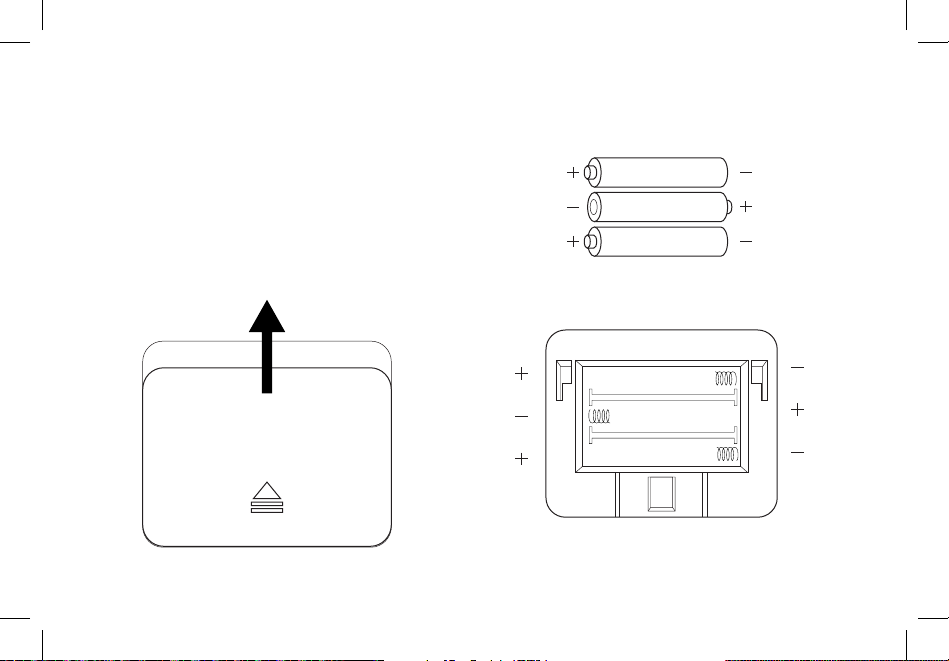
Before First Use
Open the battery compartment and remove the
plastic film from the 3 AAA 1.5V batteries. Install the
batteries under the correct polarity and replace the
battery compartment cover.
Slide
1.5v - AAA
1.5v - AAA
1.5v - AAA
8
VeSyncFit
To view more in depth weight analyses, download
the free VeSyncFit app from the App Store or
Google Play Store. You can also scan the QR code
below.

9
Operation
Weighing without the VeSyncFit
App
.1 Place the scale on a hard, flat surface.
2. Step onto the scale. The scale will automatically
turn on and start measuring your weight.
3. Keep standing on the scale until the digits
on the screen flash 2 times with your final
measurement.
NOTE: To change weight units, you must download
the VeSyncFit app and select the desired weight unit
in the Settings menu (see page 18).
10
Weighing with the VeSyncFit App
Pairing the Scale with VeSyncFit
1. Turn on Bluetooth
®
on your smartphone.
NOTE: For Android users, Location and
Bluetooth
®
must be turned on for Android 6.0
and later.
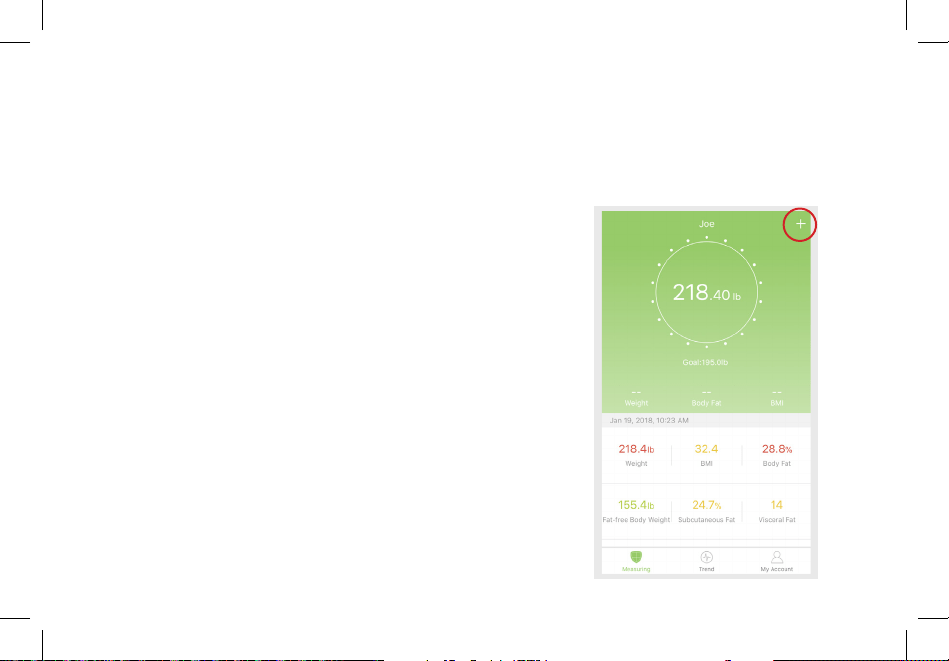
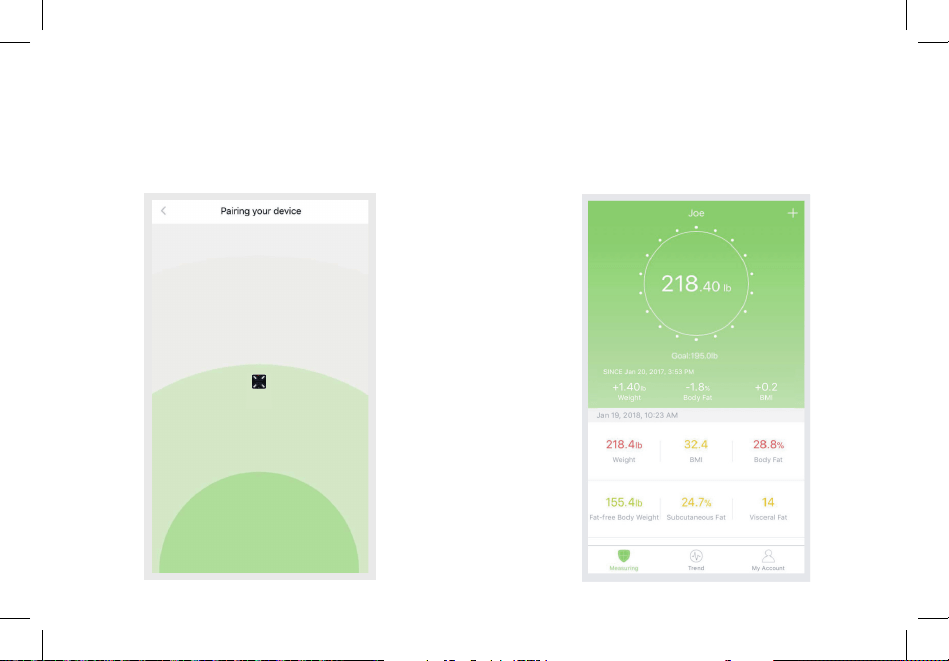
2. Tap + on the measuring page to discover the
scale.
11
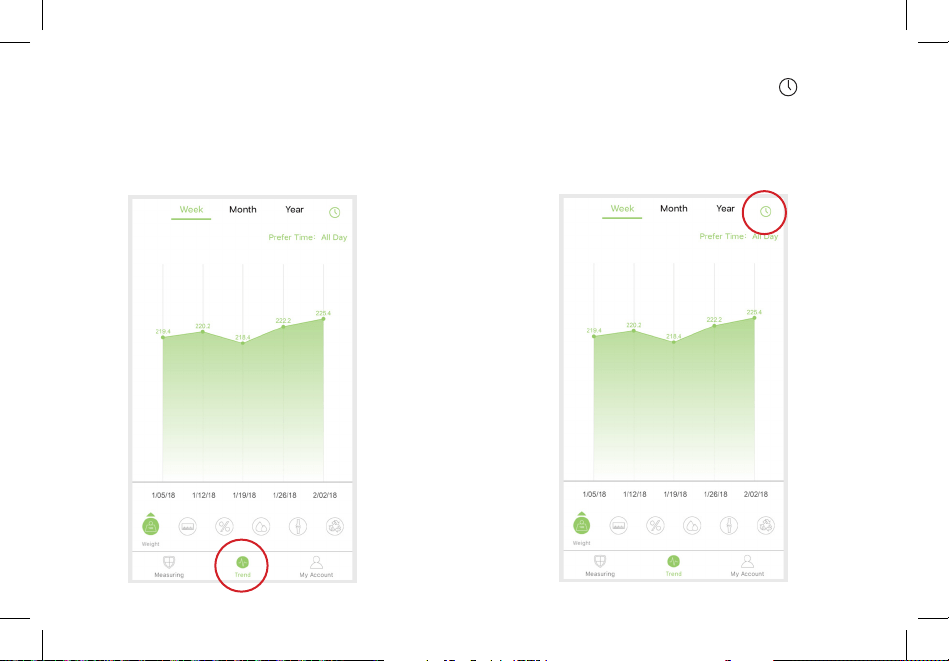
3. Step onto the scale with bare feet, then add the
device named “ESF28.”
4. Keep standing on the scale for 5-10 seconds.
Pairing is successful when your final weight
measurement appears on the VeSyncFit app.
NOTE: If you see a series of zeros flash across
the display of your scale, it means that the scale
is sending measurement data to the VeSyncFit
app.
ESF28
12
Viewing Reports
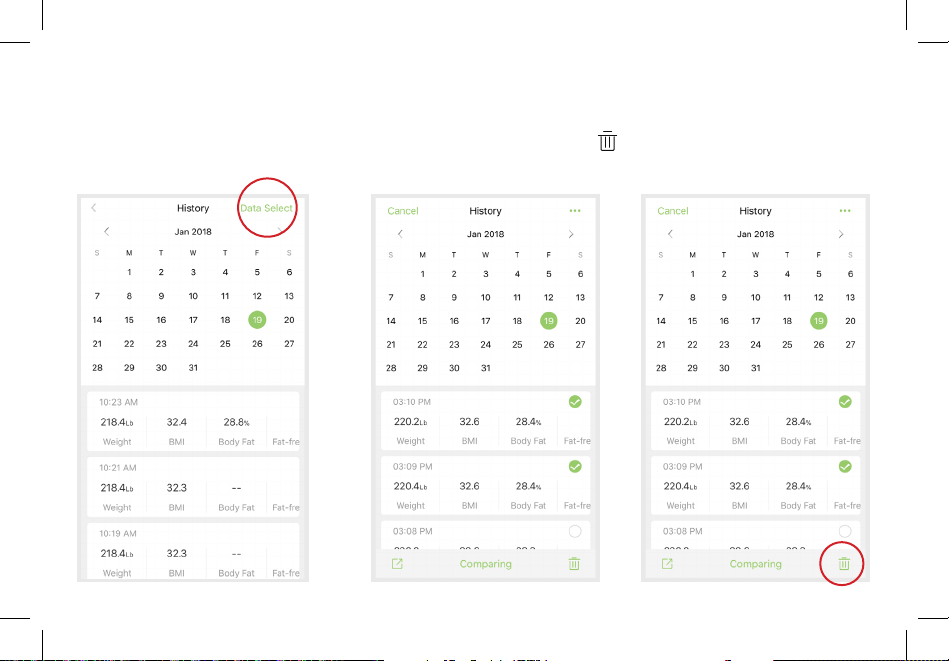
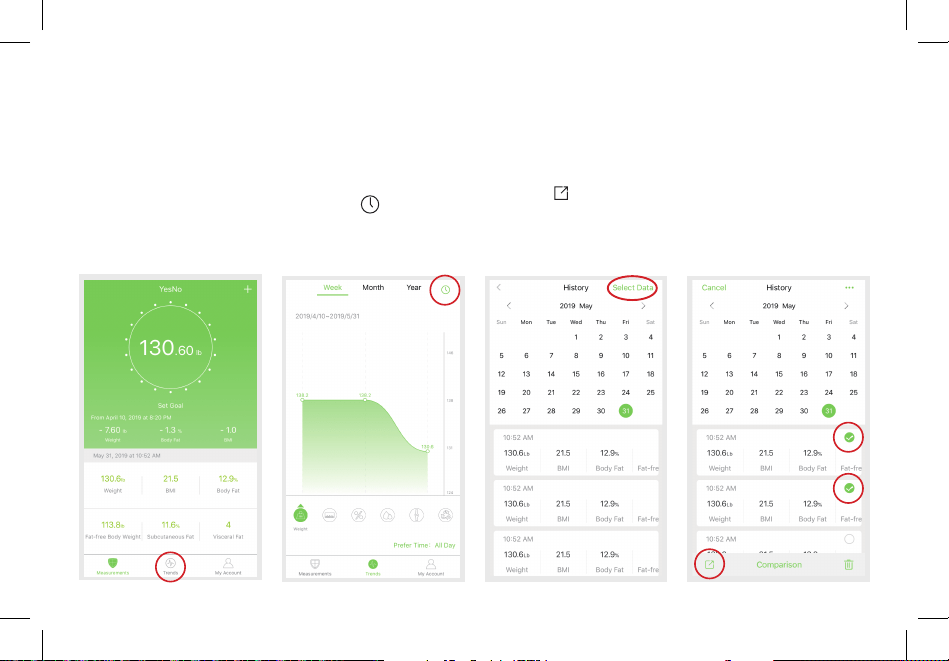
1. Tap Trend to view your progress history. You
can select your progress for the week, month,
or year.
2. To view data for a specific day, tap on the
top right corner of the screen.
13
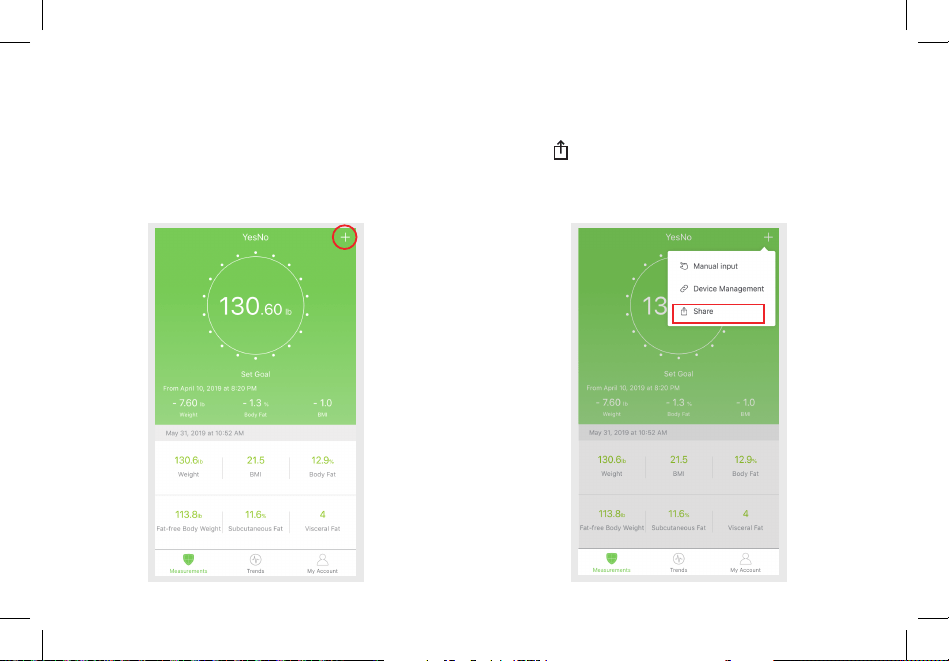
3. To view reference data from a specific time
frame, tap Data Select, then select date.
Deleting Reference Data
1. To delete a reference data, tap on a set, then
tap on the .
14
Share Progress
A.
Share current data.
1 .
To share current data, tap + on the top right
corner of the screen.
2.
Tap Share to share the current data.
Note: If the current measurement data only has
weight and BMI, the data cannot be shared.
15
1.
2.
B. Share history data
Tap Trend to view your history data. You can
select your progress for the week, month, or
year.
To view data for a specific day, tap on the
top right corner of the screen.
3.
4. Tap on the bottom left corner of the screen
to share your data on Facebook, Instagram, or
through text message.
To view reference data from a specific time
frame, tap Select Data, then select date.
16
Adding/Deleting Users
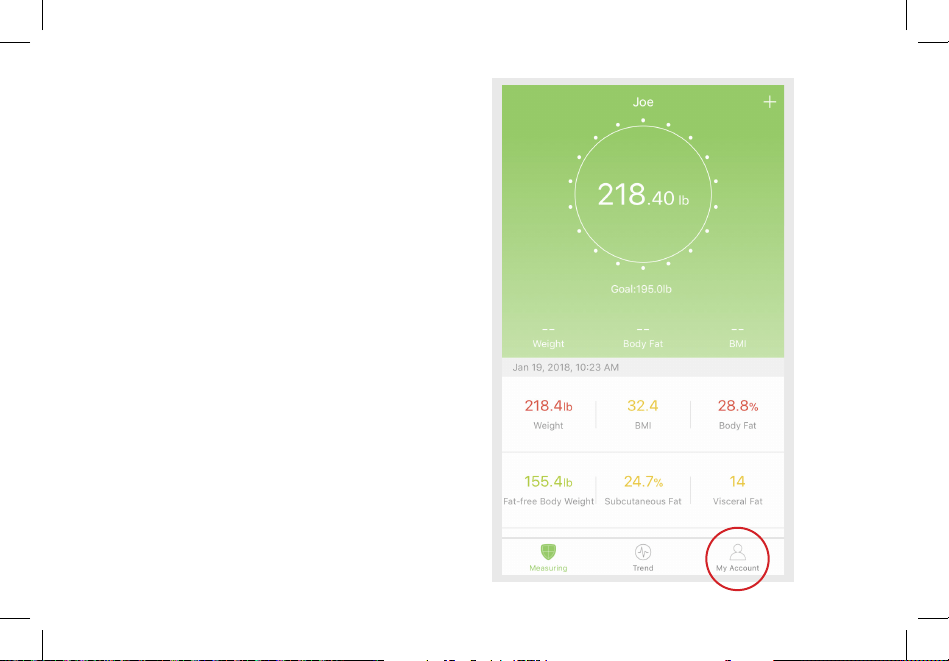
1. On the Measurement page, tap My Account at
the bottom of the screen.
17
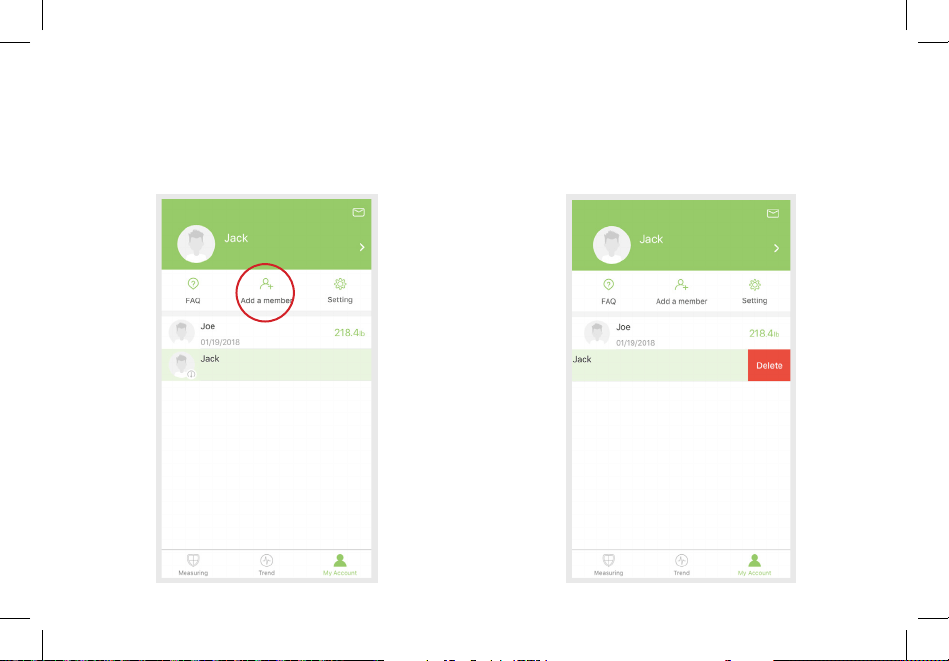
2. To add new users, tap Add a Member and enter
their information.
3. To delete a user, swipe left on the account and
tap Delete.
18
Settings
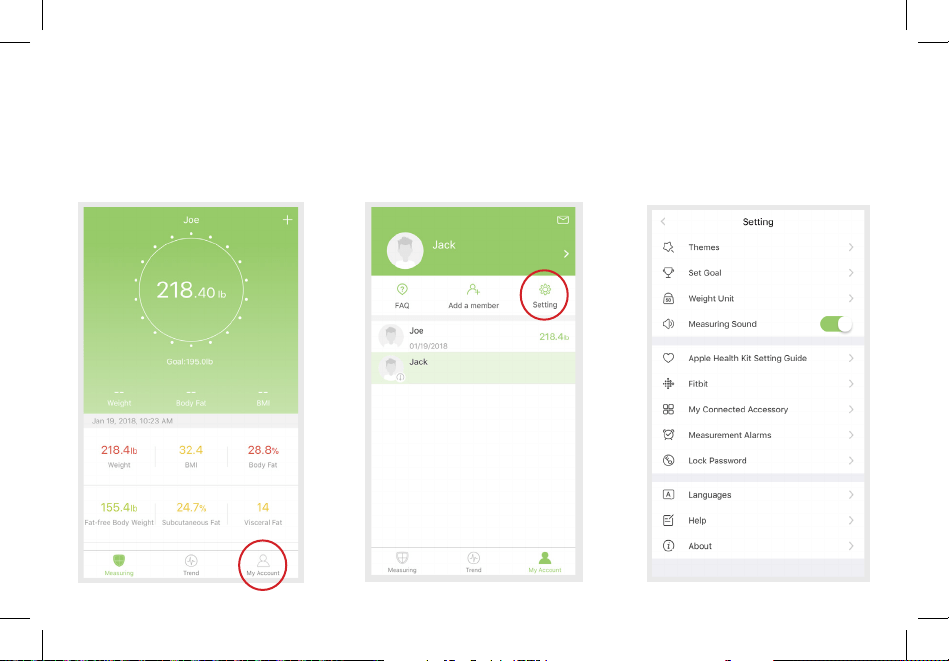
1. To access the Settings menu tap My Account.
2. Tap Setting.
NOTE: You can change the app theme, set goal
weights, change weight units, select sounds, select
languages, and reset your password on the Settings
menu.
19
Connecting with Other Fitness Apps
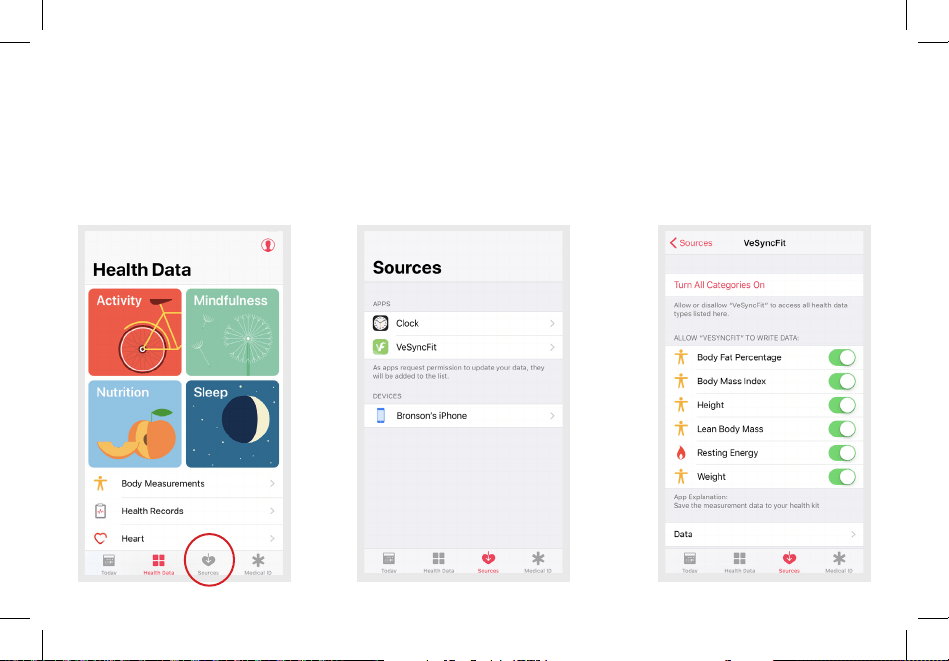
Apple Health
1. Open the Health App on your iPhone then tap
Sources. Be sure to turn on your Bluetooth
setting.
2. Select VeSyncFit from the list.
3. Turn on all categories to allow the VeSyncFit
app to work.
20
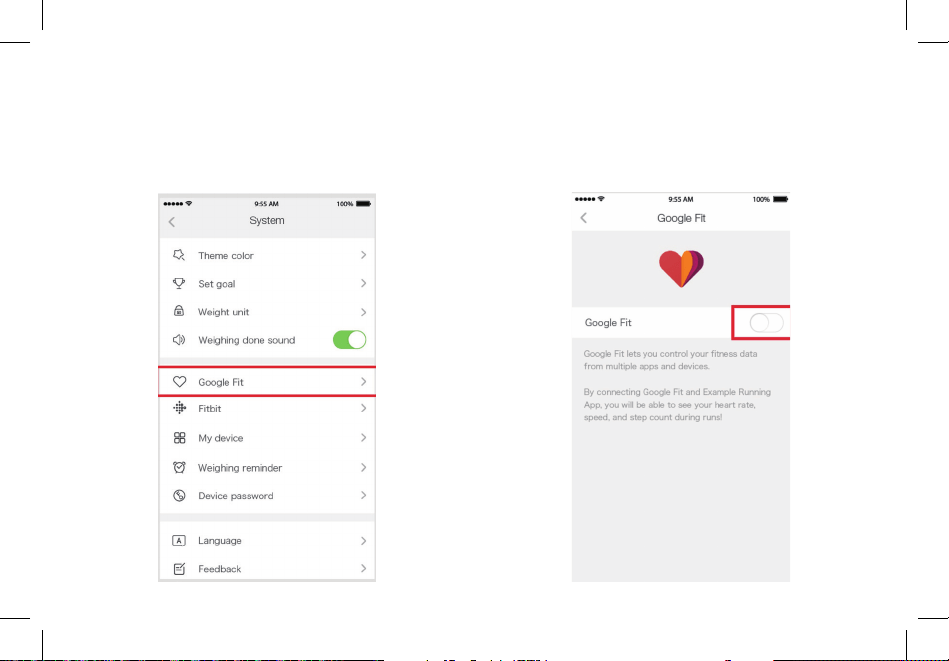
Google Fit
1. Access the Settings menu by tapping My
Account, then Setting on VeSyncFit. Select
Google Fit from the menu.
2. Turn on Google Fit, then sign into your Google
Account. You will be automatically redirected
to the Google Fit page.
3. After successfully connecting, your weight
data will sync with Google Fit.
21
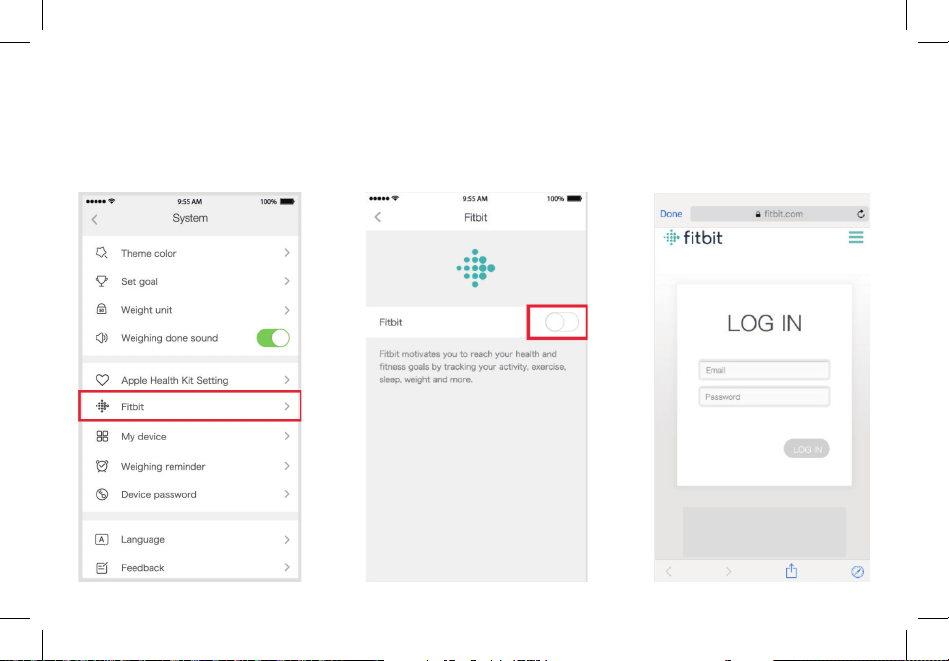
Fitbit
1. Access the Settings menu by tapping My
Account, then Setting on VeSyncFit. Select
Fitbit from the menu.
2. Turn on Fitbit, then sign into your Fitbit
account.
22
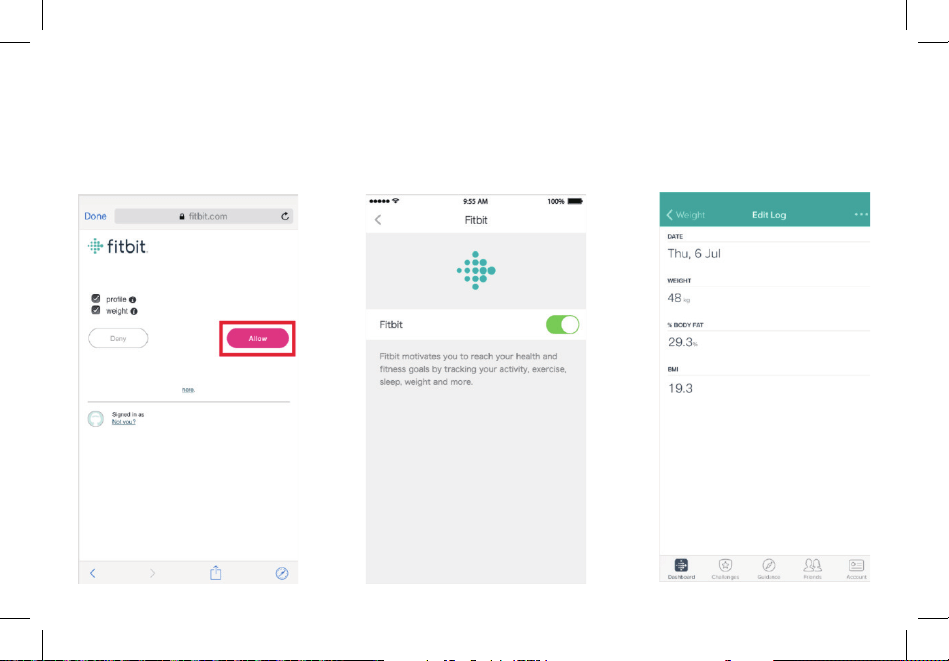
3. Tap Allow to access the Fitbit app. 4. After successfully connecting, your data will
sync to the Fitbit app. You will be able to
view your progress both on the app as well as
online.
23
Maintenance
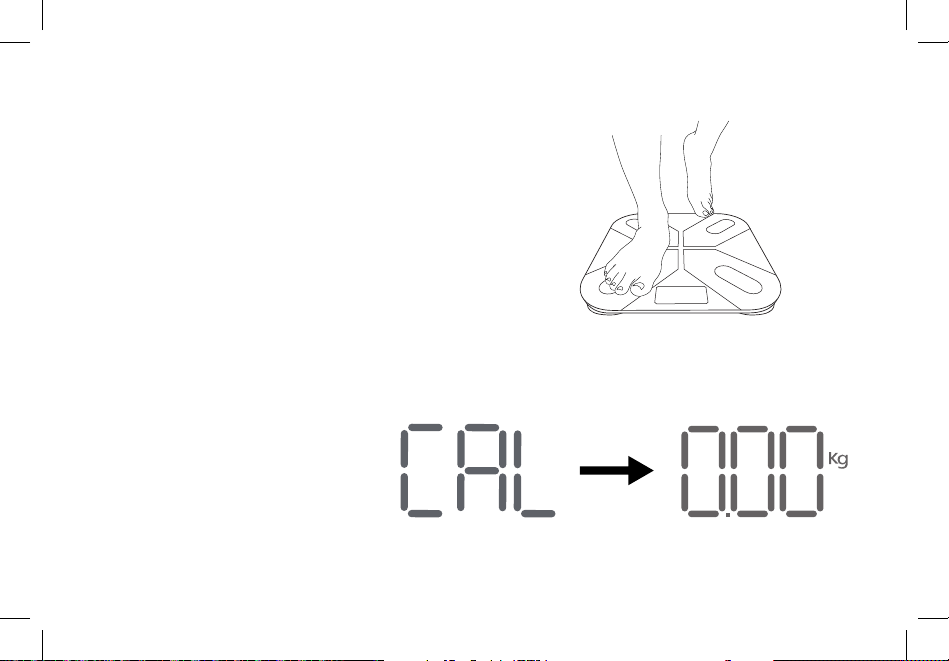
Recalibrating the Scale
If the scale has been moved or flipped upside down,
it must be recalibrated to ensure accurate results.
1. Place the scale on a hard, flat surface.
2. Step on the scale with 1 foot until the digits
appear on the display, then step off.
3. The scale will show “CAL”, then “0.00”, indicating
that the calibration process is complete.
24
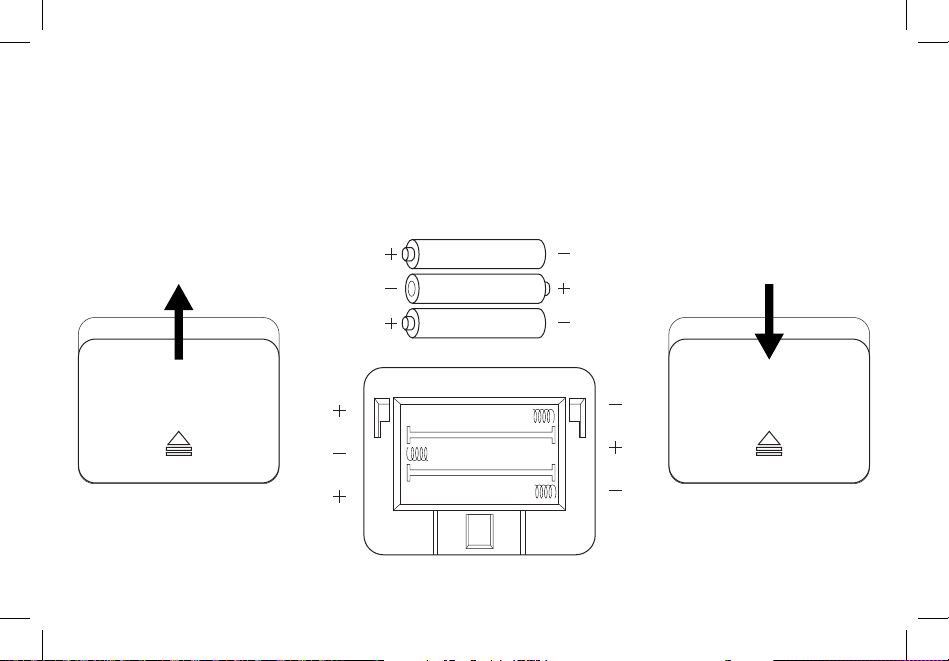
Battery Replacement
The display will show “Lo” when the batteries need
to be replaced.
1. Open the battery compartment on the back of the
scale.
2. Remove the old batteries and dispose of them
properly.
3. Install 3 new 1.5V AAA batteries, making sure
they are placed under the correct polarity.
4. Replace the battery compartment cover.
NOTE: The scale may need to be recalibrated after
replacing the batteries.
1.5v - AAA
1.5v - AAA
1.5v - AAA
25
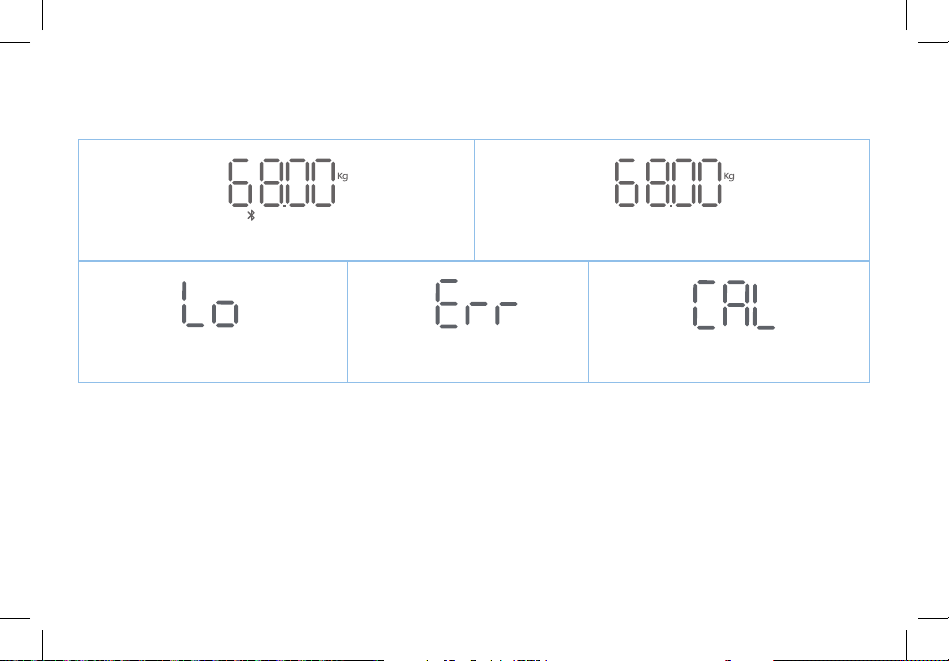
Common Display Codes
Wireless Connection
Change Battery Overload Calibrating
No Wireless Connection
26
Frequently Asked Questions
1. Why doesn’t the scale turn on?
• Check if the batteries are properly installed.
2. Why does the data flash on the screen and
then disappear?
• The batteries are low and need to be
replaced.
3. Why doesn’t the scale connect with the
VeSyncFit app?
• Make sure your phone’s operating system is
running on iOS 8.0+ or Android 4.3.
• Download and open the newest version of
the VeSyncFit app.
• Turn on Bluetooth on your phone (for
Android users, make sure your Location is
turned on as well).
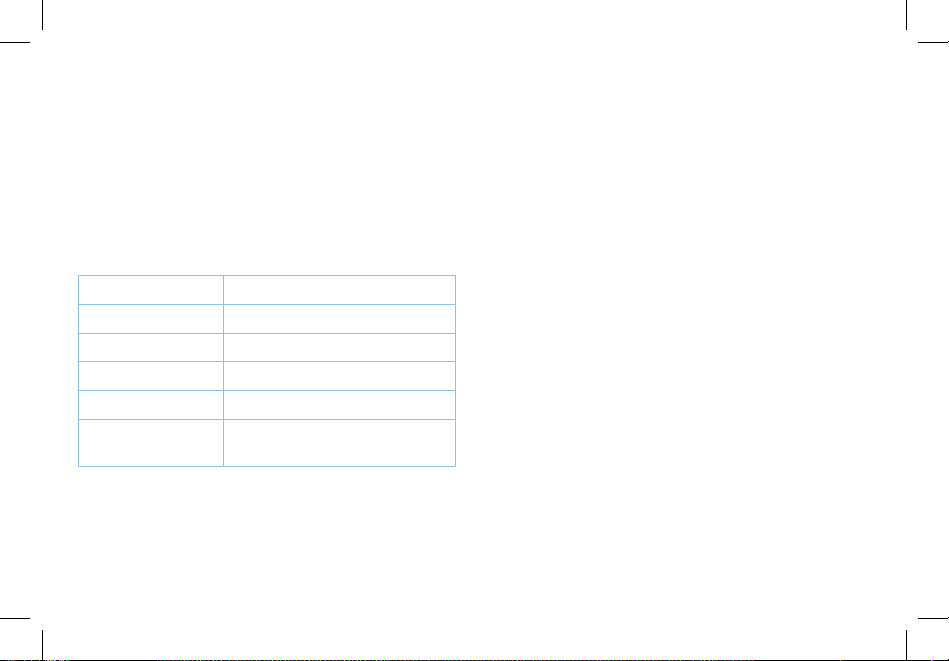
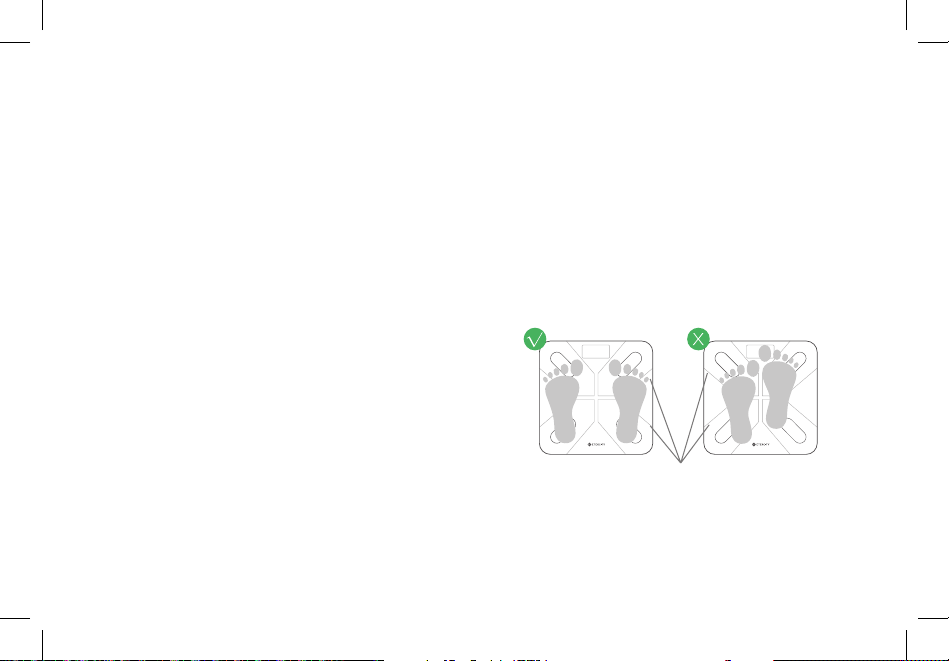
4. Why is my body fat not measured when
weighing in?
• Step on the scale with dry, bare feet.
• Make sure Bluetooth is turned on.
• Enter your personal information when
creating your VeSyncFit account.
• Make sure to place your feet on the scale’s
conductive areas.
Conductive Areas

27
Warranty
Terms & Policy
Etekcity warrants all products to be of the highest quality in material,
craftsmanship, and service, effective from the date of purchase to
the end of the warranty period.
Etekcity will replace any product found to be defective due to
manufacturer flaws based on eligibility. Refunds are available
within the first 30 days of purchase. This warranty extends only to
personal use and does not extend to any product that has been used
for commercial, rental, or any other use in which the product is not
intended for. There are no warranties other than the warranties
expressly set forth with each product.
This warranty is non-transferrable. Etekcity is not responsible in any
way for any damages, losses or inconveniences caused by equipment
failure or by user negligence, abuse, or use noncompliant with the
user manual or any additional safety, use, or warnings included in the
product packaging and manual.
This warranty does not apply to the following:
• Damage due to abuse, accident, alteration, misuse, tampering, or
vandalism.
• Improper or inadequate maintenance.
• Damage in return transit.
• Unsupervised use by children under 18 years of age.
Etekcity and its subsidiaries assume no liability for damage caused
by the use of the product other than for its intended use or as
instructed in the user manual. Some states do not allow this exclusion
or limitation of incidental or consequential losses so the foregoing
disclaimer may not apply to you. This warranty gives you specific legal
rights and you may also have other rights which may vary from state
to state.
ALL EXPRESSED AND IMPLIED WARRANTIES, INCLUDING THE
WARRANTY OF MERCHANTABILITY, ARE LIMITED TO THE
PERIOD OF THE LIMITED WARRANTY.
Additional 1-Year Warranty
You can extend your 1-year warranty by an additional year. Log onto
www.etekcity.com/warranty and enter your order number (e.g., from
Amazon or Houzz) to register your new product for the extended
warranty.
If you are unable to provide the order number for your product, or if
your product has been gifted to you, please type a short note in the
order number field along with the date you received your product (i.e.,
Gift received on dd/mm/yy).
Defective Products & Returns
Should your product prove defective within the specified warranty
period, please contact Customer Support via [email protected] with
your order number. Once our Customer Support Team has approved
your request, please return the unit with a copy of the invoice or your
order number.
Product ESF28 Smart Fitness Scale
Default Warranty Period 1 year
For your own reference, we strongly recommend that you record
your Order Number and date of purchase.
Order Number:
Date of Purchase:

28
Customer Support
Should you encounter any issues or have any questions regarding your new product, feel free to contact our
helpful Customer Support Team. Your satisfaction is our goal!
Customer Support
Etekcity Corporation
1202 N. Miller St., Suite A
Anaheim, CA 92806
Toll Free: (855) 686-3835
Email: [email protected]
Support Hours
Monday - Friday:
9:00 am - 5:00 pm PST/PDT
*Please have your order confirmation number ready
before contacting customer support.

29
Connect with us @Etekcity

Scan here to join the community!
Visit us at www.etekcity.com
Building on better living.