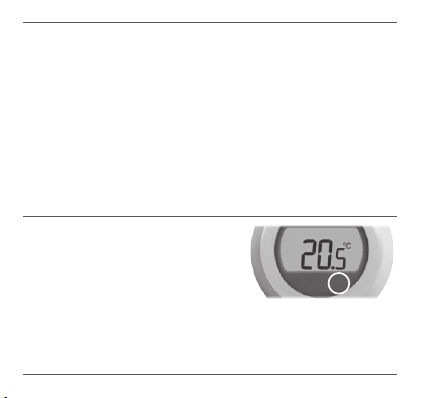
After ve seconds the current room temperature will be
displayed once again. The thermostat will then try to
maintain your set temperature as accurately as possible.
You can check your set temperature by turning the dial one ‘click’
to the left or right. The set temperature will ash up for a few
seconds, before returning to display the room temperature again.
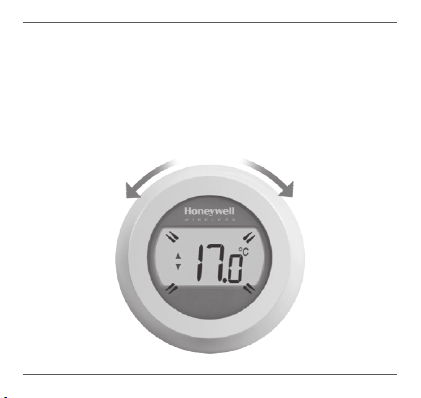
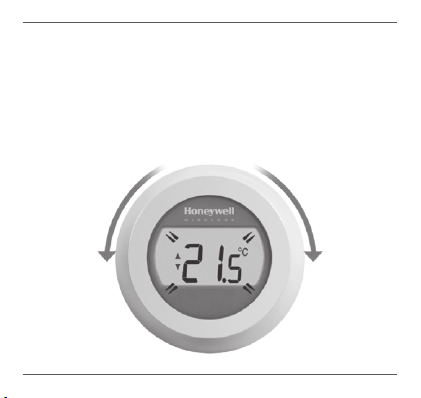
Setting your room temperature
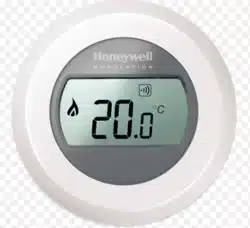
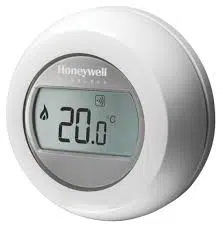
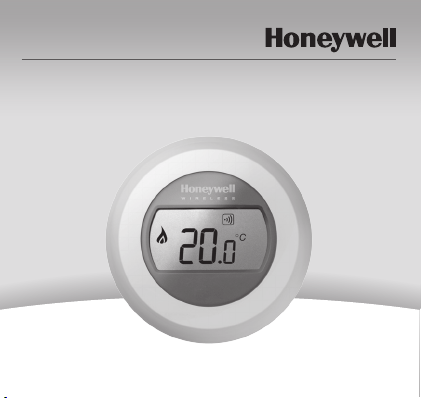
Your current room temperature is shown in the display.
To set the temperature you want, just turn the dial
right to increase and left to decrease. Each ‘click’
as the dial turns represents a 0.5º change.
User Guide
Single Zone Thermostat
Y87RF
User Guide
Single Zone Thermostat
Y87RF
Night-time temperature reduction
Overnight, or if you are out, it is best to set the thermostat to
a lower temperature, as it will save you energy. In general a
reduction of 5°C is recommended, but this will depend on your
heating system and the amount of insulation in your home.
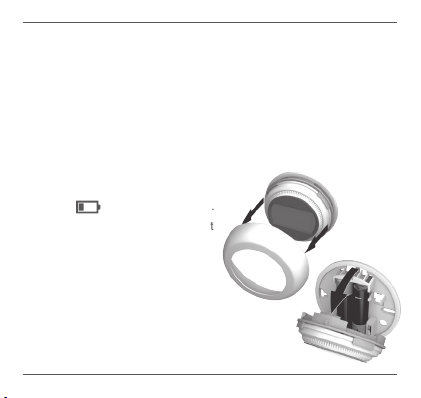
Replacing the batteries
Your batteries should be replaced
when the
symbol is displayed.
To do this, separate the thermostat
from the wiring plate and insert 2
new AA alkaline batteries in place
of the empty ones. Then reattach
the thermostat to the wiring plate.
C
L
I
C
K
I
N
C
R
E
A
S
E
D
E
C
R
E
A
S
E
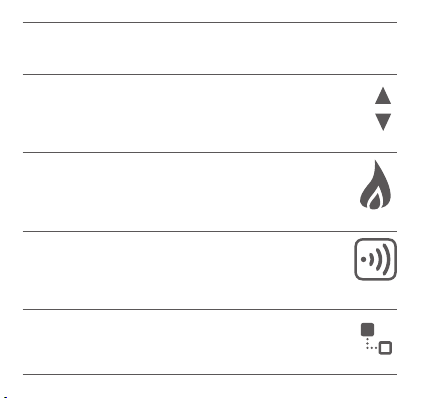
Getting to know your display
Set Temperature Indicator
Means the gure on the screen is your set temperature,
rather than your current room temerature.
Heating on
Means there is a requirement for some heating, so
your boiler should either be on or cycling on/off.
Boiler Relay Connection
Means your thermostat is successfully
connected to your Boiler Relay.
Internet Gateway Connection (optional)
Means your thermostat is successfully
connected to your Internet Gateway.
After ve seconds the current room temperature will be
displayed once again. The thermostat will then try to
maintain your set temperature as accurately as possible.
You can check your set temperature by turning the dial one ‘click’
to the left or right. The set temperature will ash up for a few
seconds, before returning to display the room temperature again.
Setting your room temperature
Your current room temperature is shown in the display.
To set the temperature you want, just turn the dial
right to increase and left to decrease. Each ‘click’
as the dial turns represents a 0.5º change.
User Guide
Single Zone Thermostat
Y87RF
User Guide
Single Zone Thermostat
Y87RF
Night-time temperature reduction
Overnight, or if you are out, it is best to set the thermostat to
a lower temperature, as it will save you energy. In general a
reduction of 5°C is recommended, but this will depend on your
heating system and the amount of insulation in your home.
Replacing the batteries
Your batteries should be replaced
when the
symbol is displayed.
To do this, separate the thermostat
from the wiring plate and insert 2
new AA alkaline batteries in place
of the empty ones. Then reattach
the thermostat to the wiring plate.
C
L
I
C
K
I
N
C
R
E
A
S
E
D
E
C
R
E
A
S
E
Getting to know your display
Set Temperature Indicator
Means the gure on the screen is your set temperature,
rather than your current room temerature.
Heating on
Means there is a requirement for some heating, so
your boiler should either be on or cycling on/off.
Boiler Relay Connection
Means your thermostat is successfully
connected to your Boiler Relay.
Internet Gateway Connection (optional)
Means your thermostat is successfully
connected to your Internet Gateway.
After ve seconds the current room temperature will be
displayed once again. The thermostat will then try to
maintain your set temperature as accurately as possible.
You can check your set temperature by turning the dial one ‘click’
to the left or right. The set temperature will ash up for a few
seconds, before returning to display the room temperature again.
Setting your room temperature
Your current room temperature is shown in the display.
To set the temperature you want, just turn the dial
right to increase and left to decrease. Each ‘click’
as the dial turns represents a 0.5º change.
User Guide
Single Zone Thermostat
Y87RF
User Guide
Single Zone Thermostat
Y87RF
Night-time temperature reduction
Overnight, or if you are out, it is best to set the thermostat to
a lower temperature, as it will save you energy. In general a
reduction of 5°C is recommended, but this will depend on your
heating system and the amount of insulation in your home.
Replacing the batteries
Your batteries should be replaced
when the
symbol is displayed.
To do this, separate the thermostat
from the wiring plate and insert 2
new AA alkaline batteries in place
of the empty ones. Then reattach
the thermostat to the wiring plate.
C
L
I
C
K
I
N
C
R
E
A
S
E
D
E
C
R
E
A
S
E
Getting to know your display
Set Temperature Indicator
Means the gure on the screen is your set temperature,
rather than your current room temerature.
Heating on
Means there is a requirement for some heating, so
your boiler should either be on or cycling on/off.
Boiler Relay Connection
Means your thermostat is successfully
connected to your Boiler Relay.
Internet Gateway Connection (optional)
Means your thermostat is successfully
connected to your Internet Gateway.
After ve seconds the current room temperature will be
displayed once again. The thermostat will then try to
maintain your set temperature as accurately as possible.
You can check your set temperature by turning the dial one ‘click’
to the left or right. The set temperature will ash up for a few
seconds, before returning to display the room temperature again.
Setting your room temperature
Your current room temperature is shown in the display.
To set the temperature you want, just turn the dial
right to increase and left to decrease. Each ‘click’
as the dial turns represents a 0.5º change.
User Guide
Single Zone Thermostat
Y87RF
User Guide
Single Zone Thermostat
Y87RF
Night-time temperature reduction
Overnight, or if you are out, it is best to set the thermostat to
a lower temperature, as it will save you energy. In general a
reduction of 5°C is recommended, but this will depend on your
heating system and the amount of insulation in your home.
Replacing the batteries
Your batteries should be replaced
when the
symbol is displayed.
To do this, separate the thermostat
from the wiring plate and insert 2
new AA alkaline batteries in place
of the empty ones. Then reattach
the thermostat to the wiring plate.
C
L
I
C
K
I
N
C
R
E
A
S
E
D
E
C
R
E
A
S
E
Getting to know your display
Set Temperature Indicator
Means the gure on the screen is your set temperature,
rather than your current room temerature.
Heating on
Means there is a requirement for some heating, so
your boiler should either be on or cycling on/off.
Boiler Relay Connection
Means your thermostat is successfully
connected to your Boiler Relay.
Internet Gateway Connection (optional)
Means your thermostat is successfully
connected to your Internet Gateway.
After ve seconds the current room temperature will be
displayed once again. The thermostat will then try to
maintain your set temperature as accurately as possible.
You can check your set temperature by turning the dial one ‘click’
to the left or right. The set temperature will ash up for a few
seconds, before returning to display the room temperature again.
Setting your room temperature
Your current room temperature is shown in the display.
To set the temperature you want, just turn the dial
right to increase and left to decrease. Each ‘click’
as the dial turns represents a 0.5º change.
User Guide
Single Zone Thermostat
Y87RF
User Guide
Single Zone Thermostat
Y87RF
Night-time temperature reduction
Overnight, or if you are out, it is best to set the thermostat to
a lower temperature, as it will save you energy. In general a
reduction of 5°C is recommended, but this will depend on your
heating system and the amount of insulation in your home.
Replacing the batteries
Your batteries should be replaced
when the
symbol is displayed.
To do this, separate the thermostat
from the wiring plate and insert 2
new AA alkaline batteries in place
of the empty ones. Then reattach
the thermostat to the wiring plate.
C
L
I
C
K
I
N
C
R
E
A
S
E
D
E
C
R
E
A
S
E
Getting to know your display
Set Temperature Indicator
Means the gure on the screen is your set temperature,
rather than your current room temerature.
Heating on
Means there is a requirement for some heating, so
your boiler should either be on or cycling on/off.
Boiler Relay Connection
Means your thermostat is successfully
connected to your Boiler Relay.
Internet Gateway Connection (optional)
Means your thermostat is successfully
connected to your Internet Gateway.
Troubleshooting
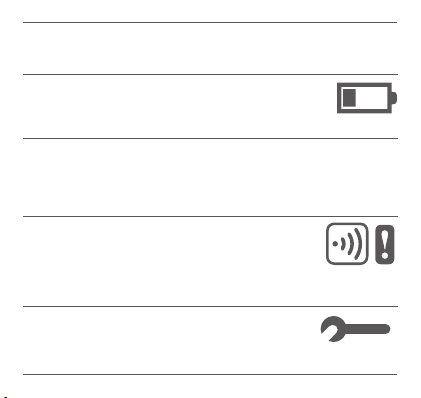
Low batteries
If you see this battery icon then you need to
replace the batteries right away. See overleaf.
No power to the thermostat
If the thermostat screen is blank after initial installation,
then check the protective tab has been removed from
the batteries. Otherwise, try replacing the batteries.
RF communication error
If these icons are ashing, then there may be an
issue with the signal from the Boiler Relay. First
check there is mains power to the Boiler Relay. If this
does not resolve the problem, consult your installer.
Defective thermostat
If this icon is displayed then the thermostat is no
longer functioning and will need to be replaced.
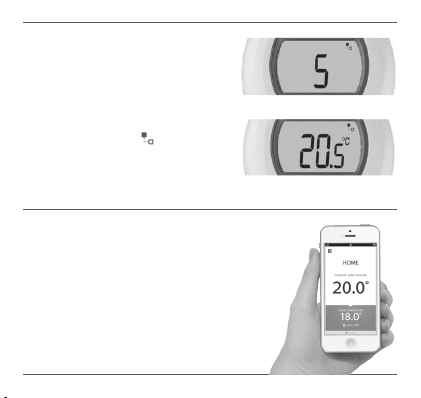
4. After binding, the strength of the
signal between the devices will
appear on the thermostat for a
few seconds. 1 equals the lowest
strength and 5 the highest.
Then the normal screen will be
shown, including a
symbol
to conrm the Gateway and the
thermostat are now connected.
5. Please refer to your Gateway
instructions to learn how to
create your online account and
download our smartphone app.
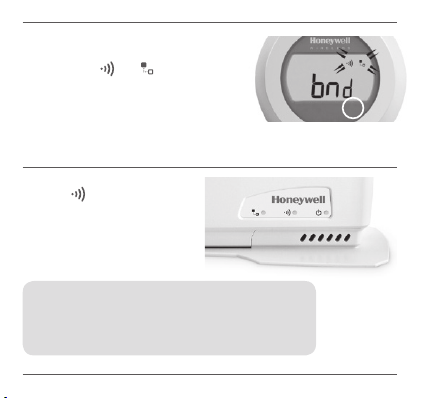
2. Briey touch the right-hand touch
zone once again to send the binding
signal. The
and symbols will
ash until binding is successful.
3. With good reception, the
green
LED on the Gateway
will then light up to conrm
successful binding.
Binding your thermostat to a
RFG100 Internet Gateway
If you want to be able to operate your Single Zone
Thermostat remotely or add scheduling then you will
need to use the Honeywell RFG100 Internet Gateway
(sold separately) and bind the thermostat to it.
To do this, please follow the full installation instructions
in the RFG100 box, and at the relevant binding stage
follow these steps to connect your thermostat:
1. Touch and hold the right-hand
touch zone for about 10 seconds
to activate the binding screen.
10s
Manufactured for and on behalf of the Environmental and
Combustion Controls Division of Honeywell Technologies
Sàrl, ACS-ECC EMEA, Z.A. La Pièce 16, 1180 Rolle,
Switzerland by its Authorised Representative Honeywell Inc.
Need help? For assistance with this product please visit:
www.honeywelluk.com
Honeywell Control Systems Ltd.
Skimped Hill Lane,
Bracknell
Berkshire
RG12 1EB
www.honeywelluk.com
50094158-006 A
Note: if you have tried to bind but have
persistent problems doing so, please
visit the URL below for assistance:
www.honeywelluk.com/supp ort/sztbinding
Troubleshooting
Low batteries
If you see this battery icon then you need to
replace the batteries right away. See overleaf.
No power to the thermostat
If the thermostat screen is blank after initial installation,
then check the protective tab has been removed from
the batteries. Otherwise, try replacing the batteries.
RF communication error
If these icons are ashing, then there may be an
issue with the signal from the Boiler Relay. First
check there is mains power to the Boiler Relay. If this
does not resolve the problem, consult your installer.
Defective thermostat
If this icon is displayed then the thermostat is no
longer functioning and will need to be replaced.
4. After binding, the strength of the
signal between the devices will
appear on the thermostat for a
few seconds. 1 equals the lowest
strength and 5 the highest.
Then the normal screen will be
shown, including a
symbol
to conrm the Gateway and the
thermostat are now connected.
5. Please refer to your Gateway
instructions to learn how to
create your online account and
download our smartphone app.
2. Briey touch the right-hand touch
zone once again to send the binding
signal. The
and symbols will
ash until binding is successful.
3. With good reception, the
green
LED on the Gateway
will then light up to conrm
successful binding.
Binding your thermostat to a
RFG100 Internet Gateway
If you want to be able to operate your Single Zone
Thermostat remotely or add scheduling then you will
need to use the Honeywell RFG100 Internet Gateway
(sold separately) and bind the thermostat to it.
To do this, please follow the full installation instructions
in the RFG100 box, and at the relevant binding stage
follow these steps to connect your thermostat:
1. Touch and hold the right-hand
touch zone for about 10 seconds
to activate the binding screen.
10s
Manufactured for and on behalf of the Environmental and
Combustion Controls Division of Honeywell Technologies
Sàrl, ACS-ECC EMEA, Z.A. La Pièce 16, 1180 Rolle,
Switzerland by its Authorised Representative Honeywell Inc.
Need help? For assistance with this product please visit:
www.honeywelluk.com
Honeywell Control Systems Ltd.
Skimped Hill Lane,
Bracknell
Berkshire
RG12 1EB
www.honeywelluk.com
50094158-006 A
Note: if you have tried to bind but have
persistent problems doing so, please
visit the URL below for assistance:
www.honeywelluk.com/supp ort/sztbinding
Troubleshooting
Low batteries
If you see this battery icon then you need to
replace the batteries right away. See overleaf.
No power to the thermostat
If the thermostat screen is blank after initial installation,
then check the protective tab has been removed from
the batteries. Otherwise, try replacing the batteries.
RF communication error
If these icons are ashing, then there may be an
issue with the signal from the Boiler Relay. First
check there is mains power to the Boiler Relay. If this
does not resolve the problem, consult your installer.
Defective thermostat
If this icon is displayed then the thermostat is no
longer functioning and will need to be replaced.
4. After binding, the strength of the
signal between the devices will
appear on the thermostat for a
few seconds. 1 equals the lowest
strength and 5 the highest.
Then the normal screen will be
shown, including a
symbol
to conrm the Gateway and the
thermostat are now connected.
5. Please refer to your Gateway
instructions to learn how to
create your online account and
download our smartphone app.
2. Briey touch the right-hand touch
zone once again to send the binding
signal. The
and symbols will
ash until binding is successful.
3. With good reception, the
green
LED on the Gateway
will then light up to conrm
successful binding.
Binding your thermostat to a
RFG100 Internet Gateway
If you want to be able to operate your Single Zone
Thermostat remotely or add scheduling then you will
need to use the Honeywell RFG100 Internet Gateway
(sold separately) and bind the thermostat to it.
To do this, please follow the full installation instructions
in the RFG100 box, and at the relevant binding stage
follow these steps to connect your thermostat:
1. Touch and hold the right-hand
touch zone for about 10 seconds
to activate the binding screen.
10s
Manufactured for and on behalf of the Environmental and
Combustion Controls Division of Honeywell Technologies
Sàrl, ACS-ECC EMEA, Z.A. La Pièce 16, 1180 Rolle,
Switzerland by its Authorised Representative Honeywell Inc.
Need help? For assistance with this product please visit:
www.honeywelluk.com
Honeywell Control Systems Ltd.
Skimped Hill Lane,
Bracknell
Berkshire
RG12 1EB
www.honeywelluk.com
50094158-006 A
Note: if you have tried to bind but have
persistent problems doing so, please
visit the URL below for assistance:
www.honeywelluk.com/supp ort/sztbinding
Troubleshooting
Low batteries
If you see this battery icon then you need to
replace the batteries right away. See overleaf.
No power to the thermostat
If the thermostat screen is blank after initial installation,
then check the protective tab has been removed from
the batteries. Otherwise, try replacing the batteries.
RF communication error
If these icons are ashing, then there may be an
issue with the signal from the Boiler Relay. First
check there is mains power to the Boiler Relay. If this
does not resolve the problem, consult your installer.
Defective thermostat
If this icon is displayed then the thermostat is no
longer functioning and will need to be replaced.
4. After binding, the strength of the
signal between the devices will
appear on the thermostat for a
few seconds. 1 equals the lowest
strength and 5 the highest.
Then the normal screen will be
shown, including a
symbol
to conrm the Gateway and the
thermostat are now connected.
5. Please refer to your Gateway
instructions to learn how to
create your online account and
download our smartphone app.
2. Briey touch the right-hand touch
zone once again to send the binding
signal. The
and symbols will
ash until binding is successful.
3. With good reception, the
green
LED on the Gateway
will then light up to conrm
successful binding.
Binding your thermostat to a
RFG100 Internet Gateway
If you want to be able to operate your Single Zone
Thermostat remotely or add scheduling then you will
need to use the Honeywell RFG100 Internet Gateway
(sold separately) and bind the thermostat to it.
To do this, please follow the full installation instructions
in the RFG100 box, and at the relevant binding stage
follow these steps to connect your thermostat:
1. Touch and hold the right-hand
touch zone for about 10 seconds
to activate the binding screen.
10s
Manufactured for and on behalf of the Environmental and
Combustion Controls Division of Honeywell Technologies
Sàrl, ACS-ECC EMEA, Z.A. La Pièce 16, 1180 Rolle,
Switzerland by its Authorised Representative Honeywell Inc.
Need help? For assistance with this product please visit:
www.honeywelluk.com
Honeywell Control Systems Ltd.
Skimped Hill Lane,
Bracknell
Berkshire
RG12 1EB
www.honeywelluk.com
50094158-006 A
Note: if you have tried to bind but have
persistent problems doing so, please
visit the URL below for assistance:
www.honeywelluk.com/supp ort/sztbinding
Troubleshooting
Low batteries
If you see this battery icon then you need to
replace the batteries right away. See overleaf.
No power to the thermostat
If the thermostat screen is blank after initial installation,
then check the protective tab has been removed from
the batteries. Otherwise, try replacing the batteries.
RF communication error
If these icons are ashing, then there may be an
issue with the signal from the Boiler Relay. First
check there is mains power to the Boiler Relay. If this
does not resolve the problem, consult your installer.
Defective thermostat
If this icon is displayed then the thermostat is no
longer functioning and will need to be replaced.
4. After binding, the strength of the
signal between the devices will
appear on the thermostat for a
few seconds. 1 equals the lowest
strength and 5 the highest.
Then the normal screen will be
shown, including a
symbol
to conrm the Gateway and the
thermostat are now connected.
5. Please refer to your Gateway
instructions to learn how to
create your online account and
download our smartphone app.
2. Briey touch the right-hand touch
zone once again to send the binding
signal. The
and symbols will
ash until binding is successful.
3. With good reception, the
green
LED on the Gateway
will then light up to conrm
successful binding.
Binding your thermostat to a
RFG100 Internet Gateway
If you want to be able to operate your Single Zone
Thermostat remotely or add scheduling then you will
need to use the Honeywell RFG100 Internet Gateway
(sold separately) and bind the thermostat to it.
To do this, please follow the full installation instructions
in the RFG100 box, and at the relevant binding stage
follow these steps to connect your thermostat:
1. Touch and hold the right-hand
touch zone for about 10 seconds
to activate the binding screen.
10s
Manufactured for and on behalf of the Environmental and
Combustion Controls Division of Honeywell Technologies
Sàrl, ACS-ECC EMEA, Z.A. La Pièce 16, 1180 Rolle,
Switzerland by its Authorised Representative Honeywell Inc.
Need help? For assistance with this product please visit:
www.honeywelluk.com
Honeywell Control Systems Ltd.
Skimped Hill Lane,
Bracknell
Berkshire
RG12 1EB
www.honeywelluk.com
50094158-006 A
Note: if you have tried to bind but have
persistent problems doing so, please
visit the URL below for assistance:
www.honeywelluk.com/supp ort/sztbinding