1
ENGLISH
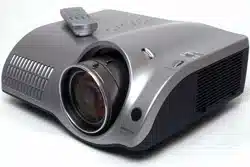
Projector
PJ-TX100
User's Manual - Operating Guide
Thank you for purchasing this projector.
WARNING ►Before using, read the "User's Manual - Safety Guide" and
these manuals to ensure correct usage through understanding. After reading,
store them in a safe place for future reference.
About this manual
About this manual
Various symbols are used in this manual. The meanings of these symbols are
described below.
WARNING This symbol indicates information that , if ignored, could possibly
result in personal injury or even death due to incorrect handling.
CAUTION This symbol indicates information that , if ignored, could result
possibly in personal injury or physical damage due to incorrect
handling.
Please refer to the pages written following this symbol.
NOTE • The information in this manual is subject to chance without notice.
• The manufacture assumes no responsibility for any errors that may appear in this manual.
• The reproductiob, transmission or use of this document or contents is not permitted without
express written authority.
Trademark acknowledgment
• VGA and XGA are registered trademarks of the International Business Machines
Corporation.
• Apple and Mac are registrered trademarks of the Apple Computer, Inc.
• VESA and SVGA are trademarks of the Video Electronics Standard Association.
• Internet Explorer is a trademark of Microsoft Corporation.
All other trademarks are the property of their respective owners.
2
About this manual . . . . . . . . . . 1
Contents . . . . . . . . . . . . . . . . . 2
Projector features . . . . . . . . . . 3
Preparations . . . . . . . . . . . . . . 3
About contents of package . . . . . . . 3
Fastening the lens cover . . . . . . . . . 3
Part names . . . . . . . . . . . . . . . 4
Projector . . . . . . . . . . . . . . . . . . . . . 4
Remote control . . . . . . . . . . . . . . . . 5
Setting up . . . . . . . . . . . . . . . . 6
Arrangement . . . . . . . . . . . . . . . . . . 6
Using the lens shift dials . . . . . . . . . 7
Adjusting the projector's elevator . . 7
Connecting your devices . . . . . . . . . 8
Connecting power supply . . . . . . . 10
Remote control . . . . . . . . . . . 10
Putting batteries . . . . . . . . . . . . . . 10
Using the LIGHT button . . . . . . . . . .11
Using the remote control . . . . . . . . .11
Power on/off . . . . . . . . . . . . . 12
Turning on the power . . . . . . . . . . . 12
Turning off the power . . . . . . . . . . . 12
Operating . . . . . . . . . . . . . . . 13
Selecting an input signal . . . . . . . . 13
Selecting an aspect ratio . . . . . . . . 13
Adjusting the zoom and focus . . . . 14
Using the automatic
adjustment feature . . . . . . . . . . . . . 14
Improving the contrast ratio . . . . . . 14
Selecting a mode of picture type . . 15
Adjusting a black image . . . . . . . . 15
Adjusting the picture . . . . . . . . . . . 16
Recalling your adjustment . . . . . . . 16
Multifunctional settings . . . . 17
Using the menu function . . . . . . . . 17
EASY Menu . . . . . . . . . . . . . . . . . . 18
ASPECT, KEYSTONE, MODE,
OPTICAL BLACK, BRIGHT, CONTRAST,
COLOR, TINT, SHRPNESS, WHISPER,
MIRROR, RESET, FILTER TIME,
LANGUAGE, Go To Advanced Menu
Contents
Contents
Contents
PICTURE Menu . . . . . . . . . . . . . . . 19
BRIGHT, CONTRAST, GAMMA, COLOR TEMP,
COLOR, TINT, SHARPNESS, PROGRESSIVE,
MY MEMORY
Adjustment steps of the CUSTOM GAMMA
or the CUSTOM COLOR TEMP
. . . 21
IMAGE Menu . . . . . . . . . . . . . . . . . 22
ASPECT, OVER SCAN, V POSITION,
H POSITION, H PHASE, H SIZE,
AUTO ADJUST
INPUT Menu . . . . . . . . . . . . . . . . . 24
COLOR SPACE, COMPONENT,
VIDEO FORMAT, DVI, S-ASPECT,
INFORMATION
SETUP Menu . . . . . . . . . . . . . . . . . 26
KEYSTONE, WHISPER, IRIS, MIRROR
SCREEN Menu . . . . . . . . . . . . . . . 27
LANGUAGE, MENU POSITION,
OSD BRIGHT, START UP, My Screen,
My Screen Lock, MESSAGE
How to register your picture as the
MyScreen . . . . . . . . . . . . . . . . . . 28
OPTION Menu . . . . . . . . . . . . . . . . 29
AUTO OFF, LAMP TIME, FILTER TIME, SERVICE
Maintenance . . . . . . . . . . . . . 31
Lamp . . . . . . . . . . . . . . . . . . . . . . . 32
Air fi lter . . . . . . . . . . . . . . . . . . . . . 33
Inside of the projector . . . . . . . . . . 34
Caring for the lens . . . . . . . . . . . . . 34
Caring for the cabinet and remote control
. . 34
Troubleshooting . . . . . . . . . . 35
Related messages . . . . . . . . . . . . . 35
Regarding the indicator lamps . . . . 37
Phenomena that may easily be
mistaken for machine defects . . . . 39
Warranty and after-service
. . . 41
Specifi cations . . . . . . . . . . . . 41
Technical (English only)
(Please see the end of this book,
although only in English.)
3
ENGLISH
Projector features / Preparations
Projector
Projector
features
features
This projector is used to project various computer signals as well as NTSC/PAL/
SECAP video signals onto a screen. Little space is required for installation and
large images can easily be realized.
This is the entertainment projector that will turn your room into a high
defi nition theater!
Super focus ED (Extra-low dispersion) lenses are adopted for the highest
possible image quality.
720P wide LCD panels realize faithful reproduction of high-defi nition images.
Motorized iris control is provided for realizing fi lm-like images with blacker
black.
1.6x zoom lens and the optical lens shift allow fl exible installation and viewing
position.
Preparations
Preparations
About contents of package
Please see the "Contents of package" of the "User's manual - Quick guide". Your
projector should come with the items shown there. Contact immediately your
dealer if anything is missing.
NOTE • Keep the original packing materials for future reshipment. For
moving the projector, be sure to use the original packing material. Use special
caution for the lens part.
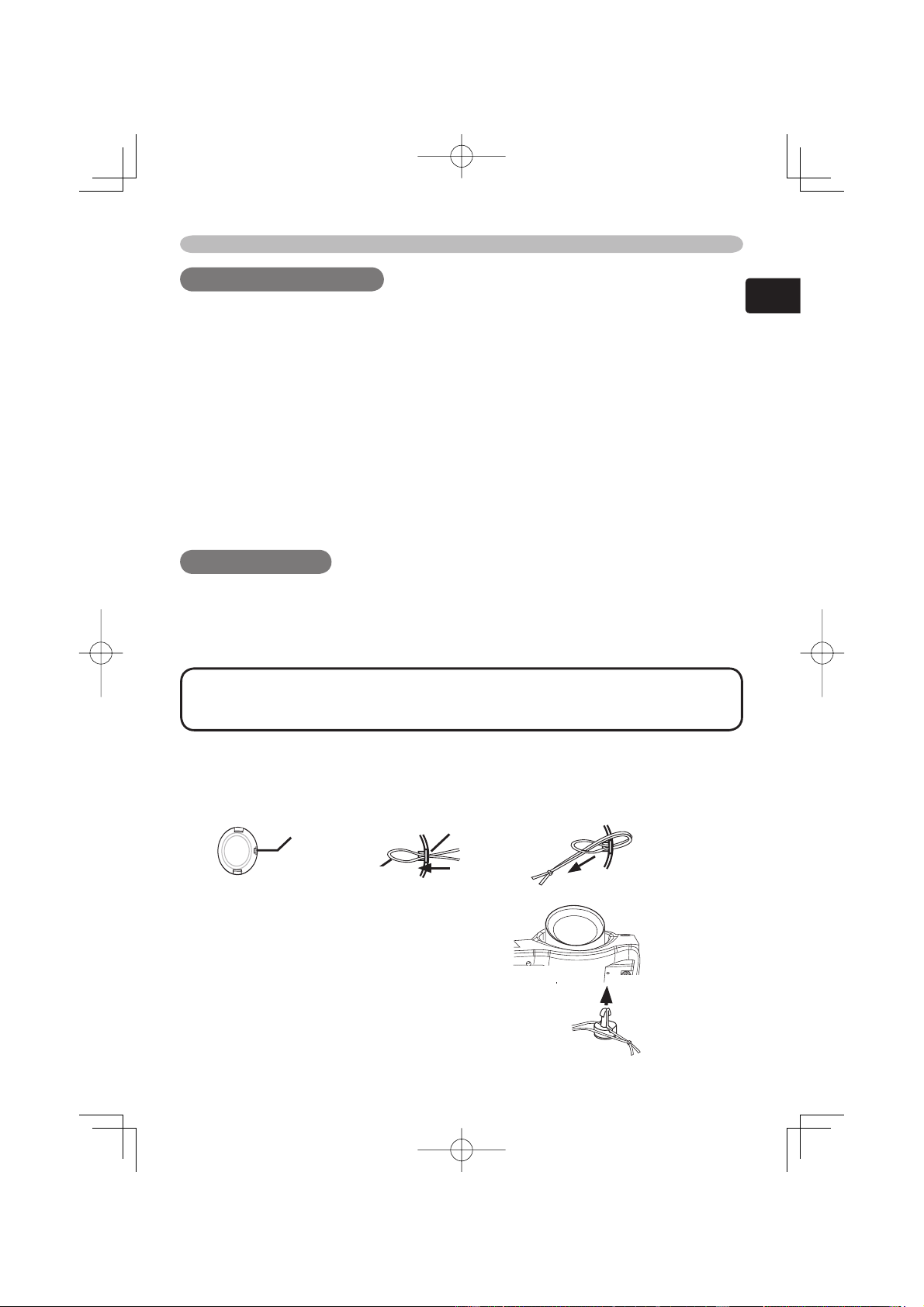
Strap ring
Strap
Strap ring
Fastening the lens cover
To avoid losing, please fasten the lens cover to the projector using the strap.
1.
Fix the strap to the strap ring of lens cover.
2.
Put the strap into the groove on rivet.
3.
Push the rivet into the strap hole.
Bottom side
Strap hole
4
Part names
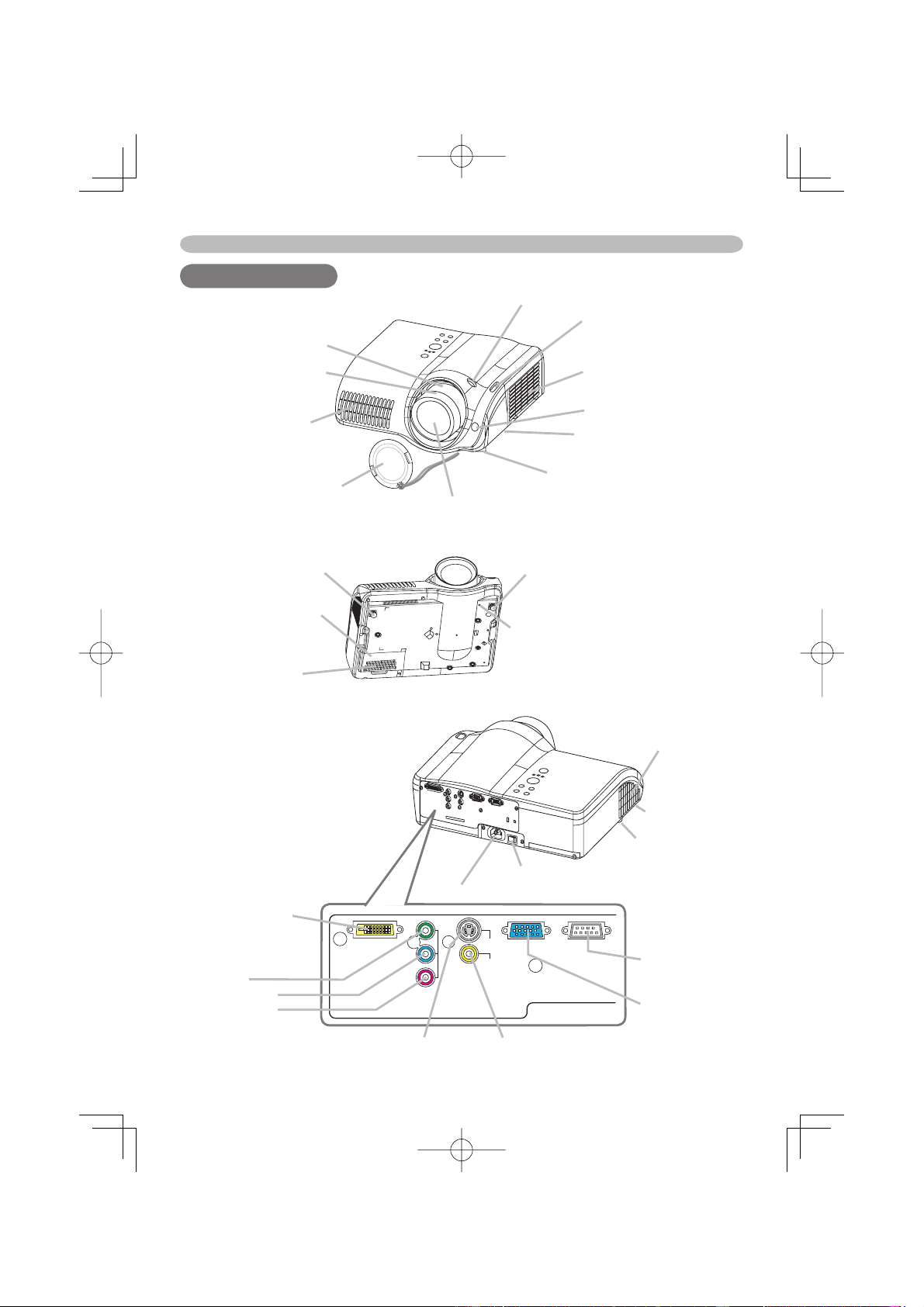
Lens (
34)
radiates powerful light for projecting an image.
Lens cover (
3)
Vertical
lens shift dials (
7)
Horizontal
lens shift dials (
7)
Filter cover (
33)
(An air fi lter is inside.)
Elevator button (
7)
is on the both sides.
Elevator foot (
7)
is on the both sides.
Remote sensor (
11)
Zoom knob (
14)
Focus knob (
14)
Exhaust vent (
6)
AC inlet (
10)
Power switch (
12)
Elevator button
DVI-D
Y
C
B/PB
CR/PR
COMPONENT VIDEO
S-VIDEO
VIDEO
COMPUTER CONTROL
DVI-D port (
8)
COMPONENT
VIDEO ports (
8)
Y
C
B
/P
B
C
R
/P
R
S-VIDEO port (
8)
VIDEO port (
8)
COMPUTER
port (
8)
CONTROL port
(
8)
Part names
Part names
Projector
Intake vent (
6)
Lamp cover (
32)
Strap hole (
3)
Elevator foot
Elevator foot
(Bottom of projector)
Elevator foot
Exhaust vent (
6)
5
ENGLISH
Part names
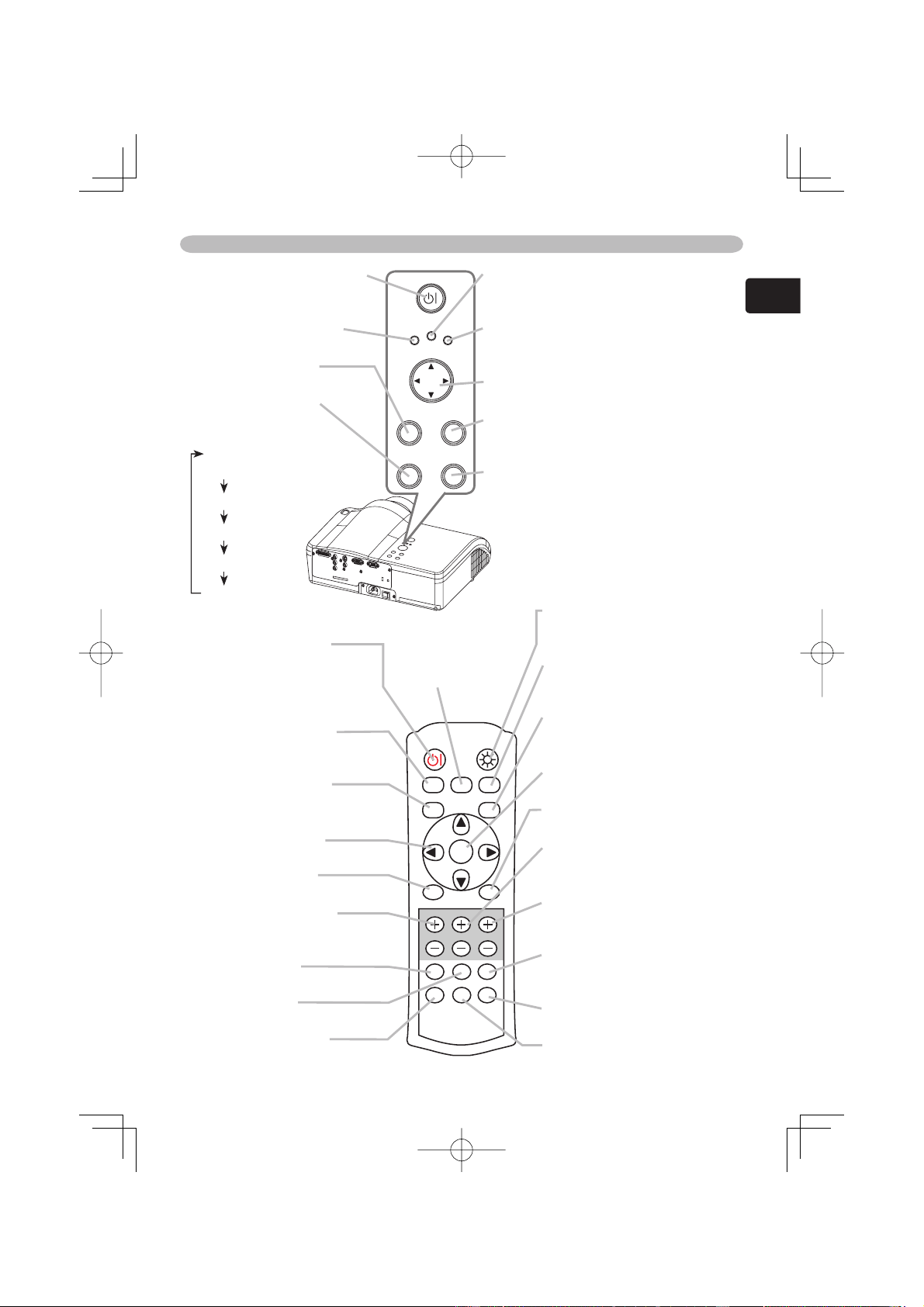
STANDBY/ON button (
12)
prepares for turning the power
on/off.
POWER indicator (
12)
tells the state of power supply.
MENU button (
17)
operates the menu function.
INPUT button (
13)
toggles between the
signal ports.
COMPONENT
VIDEO
S-VIDEO
VIDEO
DVI-D
COMPUTER
POWER
MENU
ENTER
LAMP
TEMP
STANDBY/ON
INPUT
RESET
TEMP indicator (
37)
lights or blinks when any problem about
internal temperature has happened.
LAMP indicator (
37)
light or blinks when any problem about
the lamp has happened.
Cursor buttons (
17)
works for adjusting or menu controlling.
ENTER button (
17)
proceeds to the next operation at the
menu functions.
RESET button (
17)
cancels the adjustment in progress.
* Note that the items whose functions
are performed simultaneously with
operating are nor reset.
Remote control
POWER button (
12)
prepares for turning the
power on/off.
(the same as the
STANDBY/ON button above.)
OPT BLK button (
15)
toggles between the
modes for the optical black.
ASPECT button (
16)
toggles between the modes for
the aspect ratio.
Cursor buttons (
17)
(the same as the above.)
MENU button (
17)
(the same as the above.)
BRIGHT buttons (
16)
controls the brightness of the
whole screen.
DVI button (
13)
selects the DVI-D port input.
PC button (
13)
selects the COMPUTER port input.
COMPO button (
13)
selects the COMPONENT
VIDEO port input.
POWER LIGHT
OPT BLK
ASPECT
MENU
BRIGHT CONTRAST COLOR
IRIS
MODE
MEMORY
ENTER
RESET
DVI PC
AUTO
COMPO
S-VIDEO
VIDEO
LIGHT button (
11)
turn on/off the back light for
the remote control buttons.
MEMORY button (
16)
toggles between your
adjustments.
IRIS button (
14)
toggles between the modes
for the iris.
ENTER button (
17)
(the same as the above.)
RESET button (
17)
(the same as the above.)
CONTRAST buttons (
16)
controls the contrast of the
whole screen.
COLOR buttons (
16)
controls the color of the whole
screen.
AUTO button (
14)
executes automatic
adjustment.
VIDEO button (
13)
selects the VIDEO port input.
S-VIDEO button (
13)
selects the S-VIDEO port input.
MODE button
(
15)
toggles between
the modes for the
picture type.
6
Setting up
Setting up
Setting up
Arrangement
WARNING ►Install the projector in a suitable environment according to
instrictions of the "User's Manual - Safety Guide".
CAUTION ►In installation, pay attention enough to ventilation. If internal
temperature rises, it could cause malfunction. Avoid blocking vents. (about the
locations of vents please see
4.)
This projector has some intake vents also on
the bottom. Put nothing that is sucked or sticks to the bottom of projector.
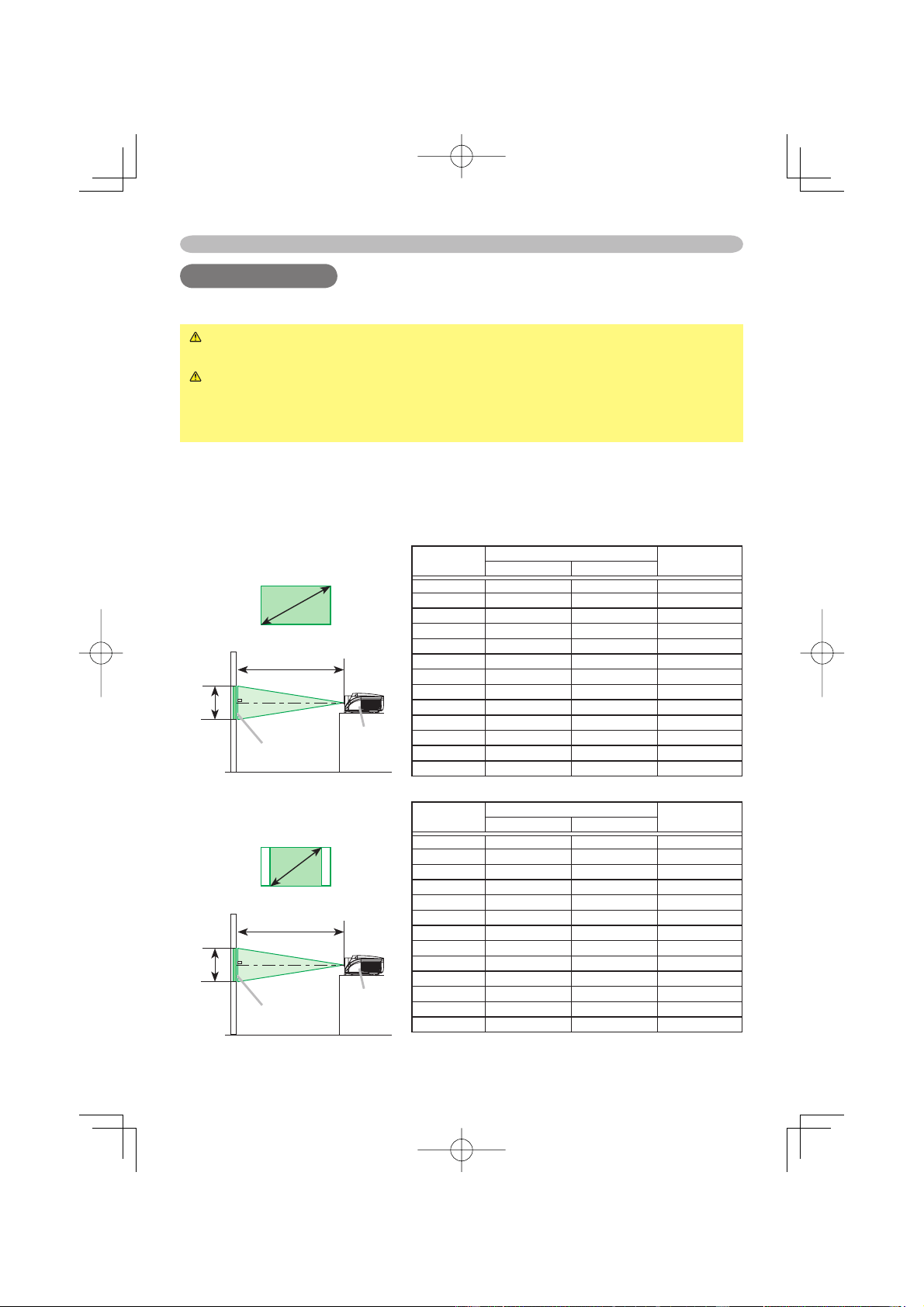
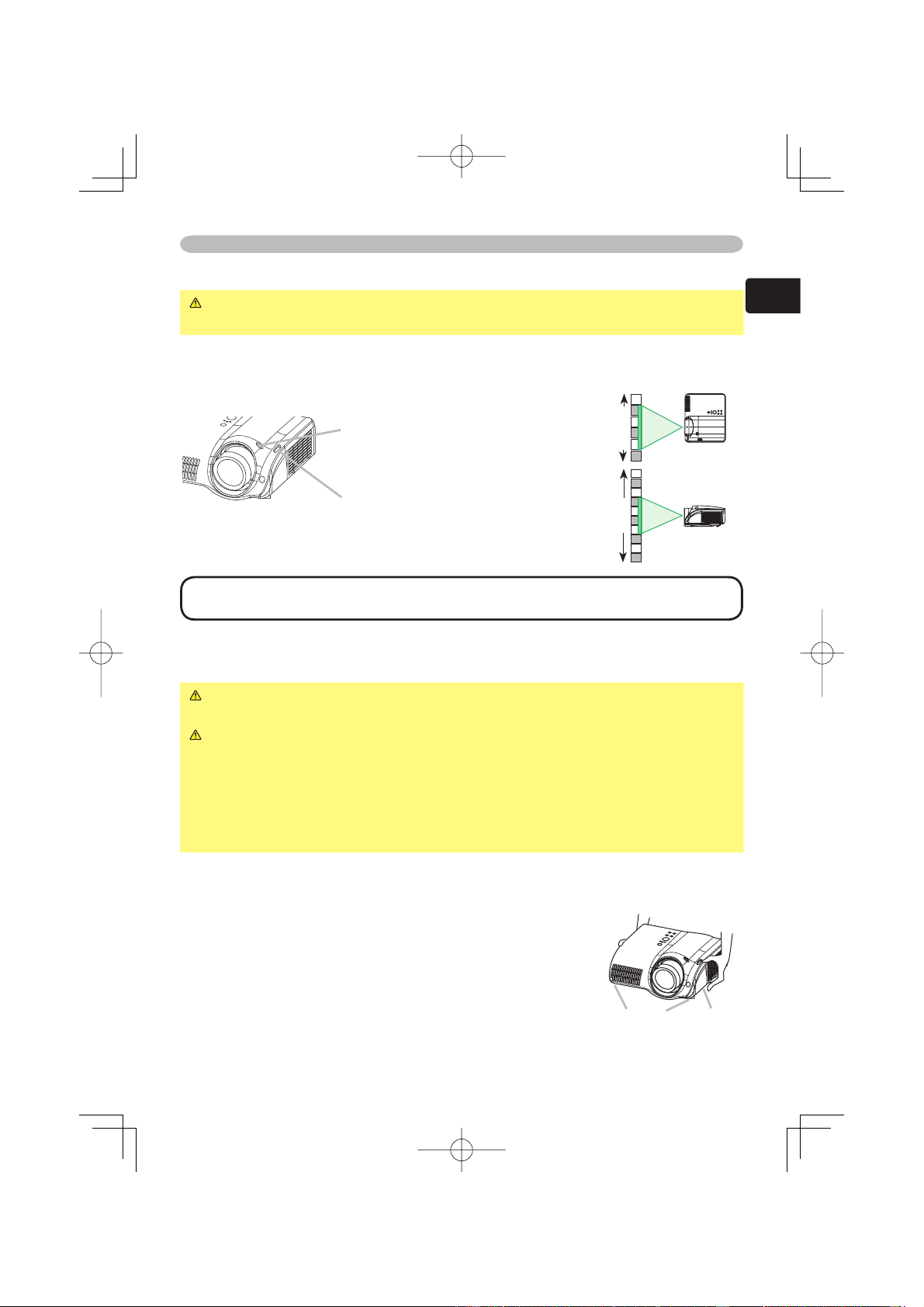
Refer to the illustrations and tables below to determine the screen size and projection
distance.
The values shown in the table are calculated for a full size screen: 1280 x 720
(a) Distance from the projector to the screen (±10%)
(b) The height of the screen (±10%)
At 4:3 screen size
Screen size
(a)
(b)
Projector
Screen
Screen size
[inch (m)]
(a)Projection distance [inch (m)] (b)Screen height
[inch (cm)]
min. max.
30 (0.8) 39 (1.0) 65 (1.6) 18 (46)
40 (1.0) 53 (1.4) 87 (2.2)
24 (61)
50 (1.3) 67 (1.7) 109 (2.8)
30 (76)
60 (1.5) 81 (2.1) 131 (3.3)
36 (91)
70 (1.8) 95 (2.4) 153 (3.9)
42 (107)
80 (2.0) 109 (2.8) 175 (4.5)
48 (122)
90 (2.3) 122 (3.1) 198 (5.0)
54 (137)
100 (2.5) 136 (3.5) 220 (5.6)
60 (152)
120 (3.0) 164 (4.2) 264 (6.7)
72 (183)
150 (3.8) 206 (5.2) 330 (8.4)
90 (229)
200 (5.1) 275 (7.0) 441 (11.2)
120 (305)
250 (6.4) 344 (8.7) 552 (14.0)
150 (381)
300 (7.6) 413 (10.5) 663 (16.8)
180 (457)
At 16:9 screen size
Screen size
(a)
(b)
Projector
Screen
Screen size
[inch (m)]
(a)Projection distance [inch (m)] (b)Screen height
[inch (cm)]
min. max.
30 (0.8) 32 (0.8) 52 (1.3) 15 (37)
40 (1.0) 43 (1.1) 70 (1.8)
20 (50)
50 (1.3) 54 (1.4) 89 (2.3)
24 (62)
60 (1.5) 66 (1.7) 107 (2.7)
30 (75)
70 (1.8) 77 (2.0) 125 (3.2)
34 (87)
80 (2.0) 89 (2.2) 143 (3.6)
39 (100)
90 (2.3) 100 (2.5) 161 (4.1)
44 (112)
100 (2.5) 111 (2.8) 179 (4.6)
49 (125)
120 (3.0) 134 (3.4) 215 (5.5)
59 (149)
150 (3.8) 168 (4.3) 270 (6.9)
74 (187)
200 (5.1) 225 (5.7) 360 (9.2)
98 (249)
250 (6.4) 281 (7.1) 451 (11.5)
122 (311)
300 (7.6) 338 (8.6) 541 (13.8)
147 (374)
7
ENGLISH
Setting up
Using the lens shift dials
CAUTION ►Do not put your fi ngers around the projection lens to prevent
them from being caught by the lens and lens ring.
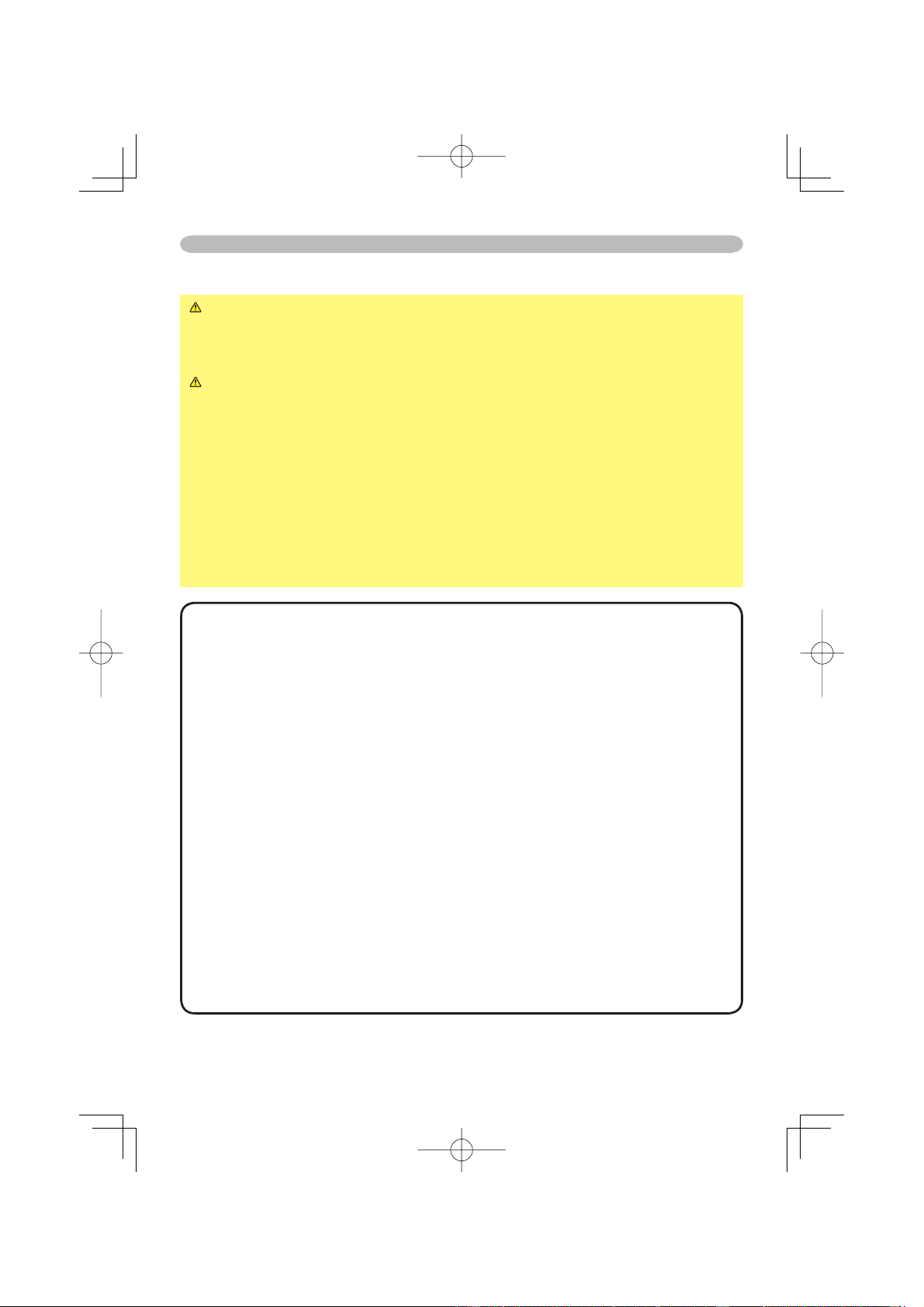
The Lens of this projector can be shifted horizontally and vertically. When you
want to adjust the picture position, use the lens shift dials.
(a) Using the horizontal picture shift
dial shifts the picture to right or
left.
(b) Using the vertical lens shift dial
shifts the picture upward or
downward.
NOTE • Generally, better quality of a picture is available when the lens shift is set to
the center known by each click point of the dials.
Adjusting the projector's elevator
WARNING ►Do not touch about the lens and ventilation openings during
use or immediately after use to prevent a burn.
CAUTION ►If you press the elevator button without holding the projector,
the projector might crash down, overturn, smash your fi ngers and possibly
result in malfunction. To prevent damaging the projector and injuring yourself,
always hold the projector whenever using the elevator buttons to adjust the
elevator feet.
►Except for inclining by the elevator feet adjustment, place the projector
horizontally.
You can use the elevator feet to make adjustments if the surface on which you
need to set the projector is uneven or if you otherwise need to adjust the angle of
projection. The adjustment range of the elevator feet is 0 to 9 degrees.
1.
Press and hold in the elevator buttons.
2.
Raise or lower the projector to the desired height
and the release the elevator buttons.
When you release the elevator buttons, the elevator
feet will lock into position.
3.
As necessary, you can also fi nely adjust the height
of the projector by twisting the elevator feet by hand.
3/4
3/4
1/4
1/4
Elevator
feet
Elevator
button
8
Setting up
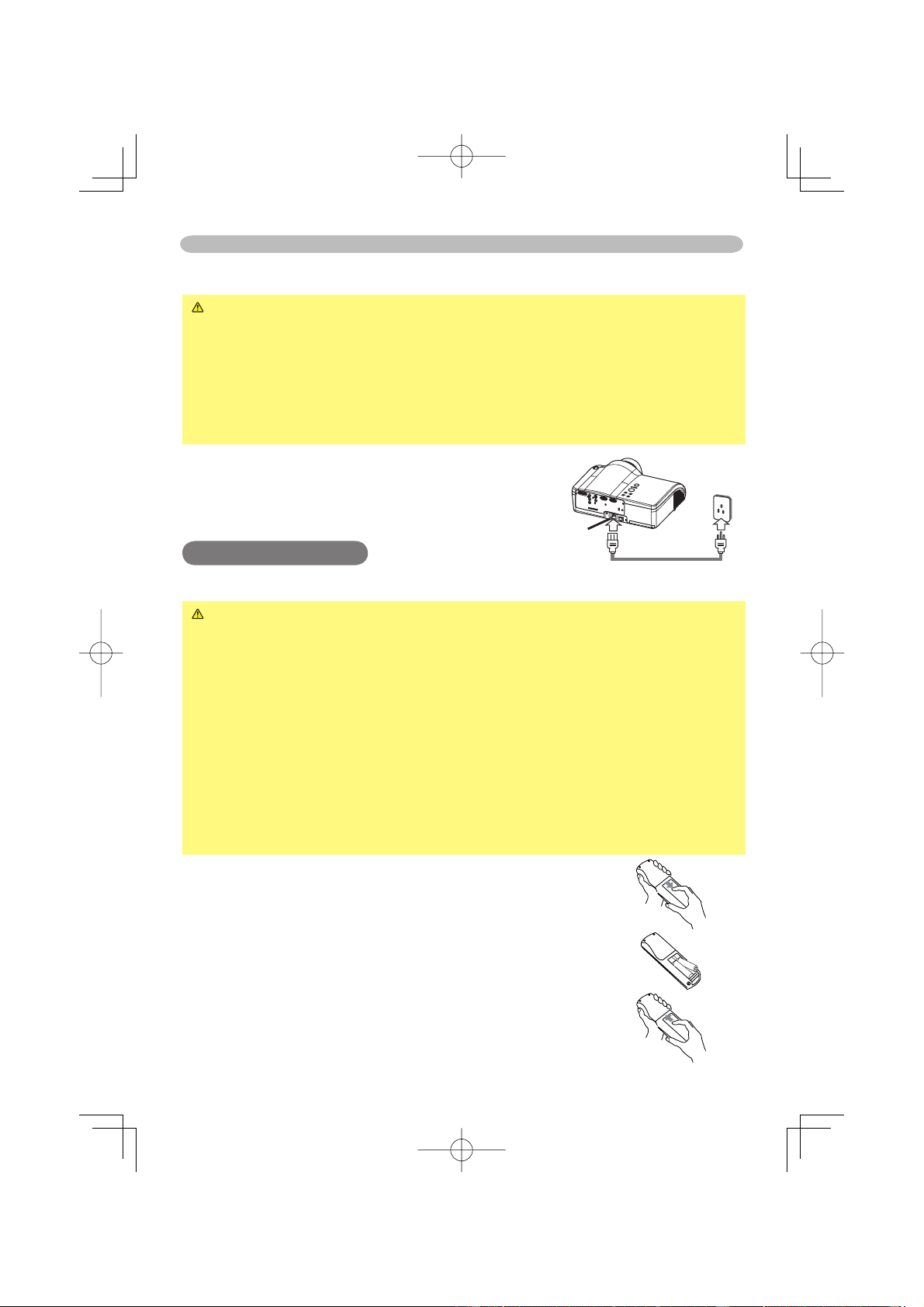
Connecting your devices
WARNING ►Incorrect connecting could result in fi re or electrical shock.
Whenever attempting to connect other devices to the projector, please
thoroughly read the "User's Manual - Safety Guide", this manual and the
manual of each device to be connected.
CAUTION ►Turn off all devices prior to connecting them to the projector.
Attempting to connect a live device to the projector may generate extremely
loud noises or other abnormalities that may result in malfunction and/or damage
to the device and/or projector.
►Some cables have to be used with core set. A too long cable may cause
a certain picture degradation. Use the accessory cable or a designated-type
cable for the connection. Please consult with your dealer for details. For cables
that have a core only at one end, connect the core to the projector.
►Make sure that you connect devices to the correct port. Incorrect connection
may result in malfunction and/or damage to the device and/or projector.
Refer to the section “TECHNICAL” of this manual for the pin assignment of
connectors and RS-232C communication data.
NOTE • Whenever attempting to connect a laptop computer to the projector, be sure
to activate the laptop’s RGB external image output (set the laptop to CRT display or to
simultaneous LCD and CRT display). For details on how this is done, please refer to the
instruction manual of the corresponding laptop computer.
• Secure the screws on the connectors and tighten.
• Some computers may have multiple display screen modes. Use of some of these
modes will not be possible with this projector.
• For some COMPUTER input modes, the optional Mac adapter is necessary.
• When the image resolution is changed on a computer, depending on an input,
automatic adjust function may take some time and may not be completed. In this case,
you may not be able to see a check box to select “Yes/No” for the new resolution on
Windows. Then the resolution will go back to the original. It might be recommended to
use other CRT or TFT monitors to change the resolution.
About Plug-and-Play capability
Plug-and-Play is a system composed of the computer, its operating system and
peripheral equipment (i.e. display devices). This projector is compatible with VESA DDC
2B. Plug-and-Play can be achieved by connecting this projector to computers that are
VESA DDC (display data channel) compatible.
• Please take advantage of this function by connecting the accessory RGB cable to
the COMPUTER port (DDC 2B compatible) and/or the optional DVI cable to the DVI-D
port (DDC 2B compatible). Plug-and-Play may not work properly if any other type of
connection is attempted.
• Please use the standard drivers in your computer as this projector is a Plug-and-Play
monitor.

9
ENGLISH
Setting up
DVI-D
Y
C
B
/P
B
C
R
/P
R
COMPONENT VIDEO
S-VIDEO
VIDEO
COMPUTER CONTROL
DVI-D
Y
C
B
/P
B
C
R
/P
R
COMPONENT VIDEO
S-VIDEO
VIDEO
COMPUTER CONTROL
DVI-D
Y
C
B
/P
B
C
R
/P
R
COMPONENT VIDEO
S-VIDEO
VIDEO
COMPUTER CONTROL
DVI-D
Y
C
B
/P
B
C
R
/P
R
COMPONENT VIDEO
S-VIDEO
VIDEO
COMPUTER CONTROL
DVI-D
Y
C
B
/P
B
C
R
/P
R
COMPONENT VIDEO
S-VIDEO
VIDEO
COMPUTER CONTROL
RS-232C DVI out
DVI cable
RS-232C cable
RGB cable
RS-232C cable
S-video cable
S-video cable
VIideo cable
Video cable
RS-232C RGB out
Video out S-video out
Component cable
Component cable
Component video out
SCART RGB out
SCART cable
SCART adapter
10
Settin up
Connecting power supply
WARNING ►Please use extra caution when connecting the power cord as
incorrect or faulty connections may result in fi re and/or electrical shock.
• Only use the power cord that came with the projector. If it is damaged, contact
your dealer to newly get correct one.
• Only plug the power cord into an outlet rated for use with the power cord's
specifi ed voltage range.
• Never modify the power cord. Never attempt to defeat the ground connection
of the three-pronged plug.
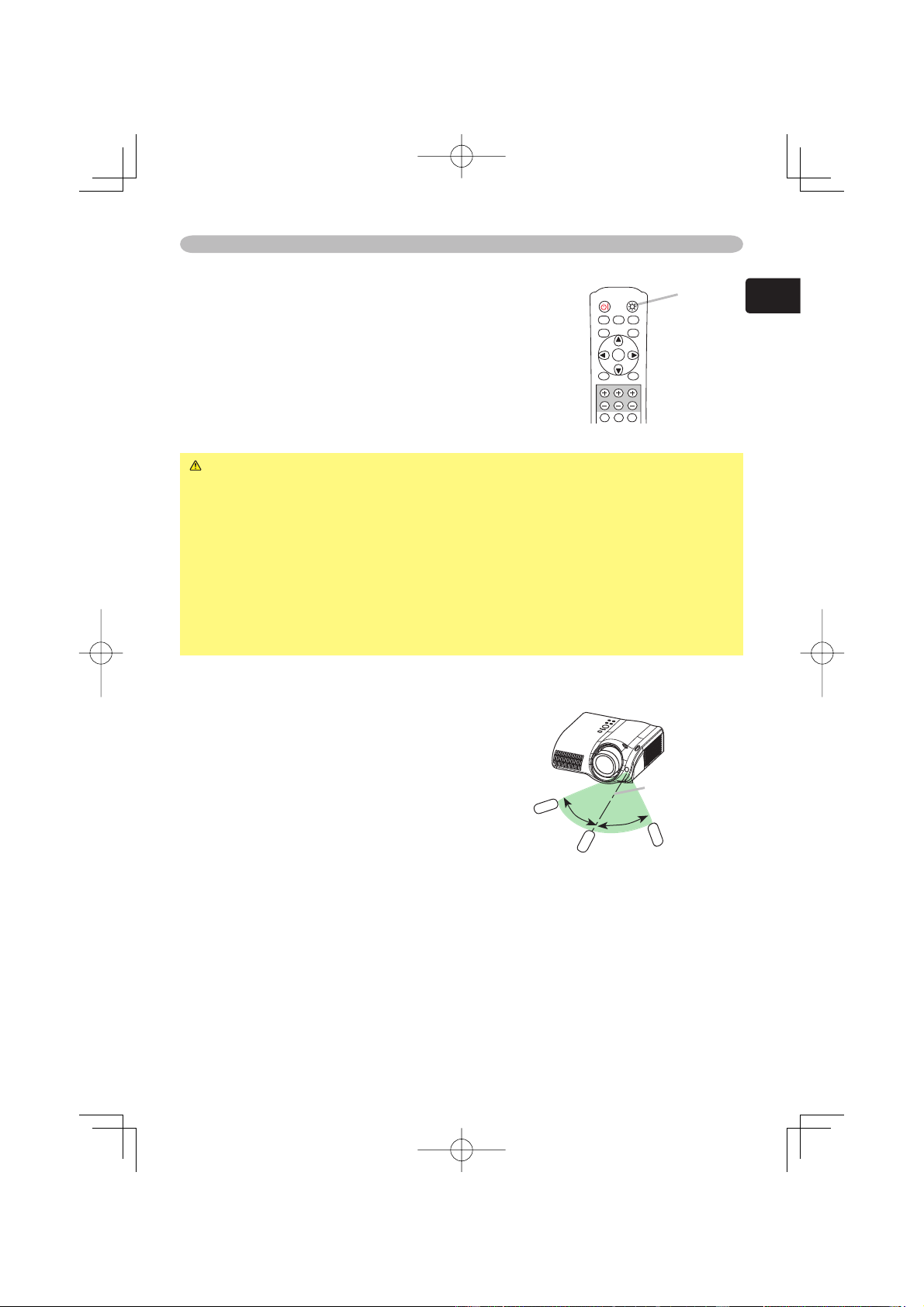
1.
Connect the connector of the power cord to the
AC inlet of the projector.
2.
Firmly plug the power cord's plug into the outlet.
R
R
emote control
emote control
Putting batteries
WARNING ►Always handle the batteries with care and use them only as
directed. Improper use may result in battery explosion, cracking or leakage,
which could result in fi re, injury and/or pollution of the surrounding environment.
• Be sure to use only the batteries specifi ed. Do not use batteries of different
types at the same time. Do not mix a new battery with used one.
• Make sure the plus and minus terminals are correctly aligned when loading a
battery.
• Keep a battery away from children and pets.
• Do not recharge, short circuit, solder or disassemble a battery.
• Do not allow a battery in a fi re or water. Keep batteries in a dark, cool and dry
place.
• If you observe a leakage of a battery, wipe out the fl ower and then replace
a battery. If the fl ower adheres your body or clothes, rinse well with water
immediately.
1.
Remove the battery cover.
Slide back and remove the battery cover in the
direction of the arrow.
2.
I
nsert the batteries.
Align and insert the two AAA batteries according
to their plus and minus terminals as indicated in the
remote control.
3.
Close the battery cover.
Replace the battery cover in the direction of the
arrow and snap it back into place.
AC
inlet
Power
outlet
11
ENGLISH
Remote control
Using the LIGHT button
To illuminate the buttons of the remote control, press the
LIGHT button of it.
1.
Press the
LIGHT
LIGHT button.
If you don’t push the LIGHT button again, the lights will
turn off in several seconds.
Using the remote control
CAUTION ►Be careful in handling the remote control.
• Do not drop or otherwise expose the remote control to physical impact.
• Do not get the remote control wet or place it on wet objects. Doing so may
result in malfunction.
• Remove the batteries from the remote control and store them in a safe place if
you won’t be using the remote control for an extended period.
• Replace the batteries whenever the remote control starts to malfunction.
• When strong lights, such as direct sunlight or light from an extremely close
range (such as from an inverter fl uorescent lamp), hit the projector’s remote
sensor, the remote control may cause to function. Adjust the direction of the
projector to keep light from directly hitting the projector’s remote sensor.
The remote control works with the projector’s remote sensor.
• The range of the remote sensor is 3 meters with
a 60- degree range (30 degrees to the left and
right of the remote sensor).
• Also a remote signal refl ected in the screen etc.
may be available. If it is diffi cult to send a remote
signal to the sensor directly, please try.
• Since the remote control uses infrared light
to send signals to the projector (Class1 LED),
be sure to use the remote control in an area
free from obstacles that could block the remote
control’s output signal to the projector.
LIGHT
button
approximately
3 meters
30º
30º
POWER LIGHT
OPT BLK
ASPECT
MENU
BRIGHT CONTRAST COLOR
IRIS
MODE
MEMORY
ENTER
RESET
DVI PC
AUTO

12
Power on/off
Power on/off
Power on/off
WARNING
►
When the power is on, a strong light is emitted. Do not look
into the lens or vents of the projector.
NOTE • Turn the power on/off in right order. Please power on the projector
before the connected devices. Power off the projector after the connected devices.
Power
switch
STANDBY/ON
button
POWER
indicator
POWER
LAMP
TEMP
STANDBY/ON
POWER
(Solid orange)
Turning on the power
1.
Make sure that the power cord is fi rmly and correctly connected to the
projector and outlet.
2.
Remove the lens cover, and set the power switch to
the ON position.
The power indicator will light to solid orange. Then wait
several seconds because buttons may not function for
these several seconds.
3.
Press the button STANDBY/ON (projector) or POWER
(remote control).
The projector lamp will light up and the POWER
indicator will begin blinking green.
When the power is completely on, the indicator will stop blinking light green.
To display the picture, select an input signal according to the section "Selecting an
input signal" (
13
). Then select the aspect ratio (
13
), adjust the picture position
(
7
), and adjust the zoom and focus (
14
).
Turning off the power
1.
Press the button STANDBY/ON (projector) or POWER (remote control).
The message "Power off?" will appear on the
screen for approximately 5 seconds.
2.
Press the button STANDBY/ON (projector) or
POWER (remote control) again while the message
is visible.
The projector lamp will go off, and the POWER
indicator will begin blinking orange. Then the POWER
indicator will stop blinking and light to solid orange
when the lamp cooling is complete.
3.
Set the power switch to the OFF position. The
POWER indicator will go off.
Power off?
POWER
(Blinking green)
POWER
(Solid green)
POWER
(Blinking orange)
POWER
(Solid orange)
POWER
button
POWER LIGHT
OPT BLK
ASPECT
MENU
BRIGHT CONTRAST COLOR
IRIS
MODE
MEMORY
ENTER
RESET
DVI PC
AUTO
COMPO
S-VIDEO
VIDEO
13
ENGLISH
Operating
Operating
Operating
Selecting an input signal
1.
Using the projector's button, press the INPUT
button.
Each time you press the INPUT button, the projector
switches between its input ports. Select the signal
you wish to project.
COMPONENT VIDEO
S-VIDEO
VIDEO
DVI-D
COMPUTER
MENU
ENTER
INPUT
RESET
1.
Using the remote control's button, press the button
DVI, PC, COMPO, S-VIDEO or VIDEO according to
the input port to choose.
DVI button
DVI-D
PC button
COMPUTER
COMPO button
COMPONENT VIDEO
S-VIDEO button
S-VIDEO
VIDEO button
VIDEO
4:3
16:9
MOVIE1
MOVIE2
WIDE
16:9
MOVIE1
4:3
WIDE
MOVIE2
POWER LIGHT
OPT BLK
ASPECT
MENU
BRIGHT CONTRAST COLOR
IRIS
MODE
MEMORY
ENTER
RESET
DVI PC
AUTO
COMPO
S-VIDEO
VIDEO
DVI PC
AUTO
COMPO
S-VIDEO
VIDEO
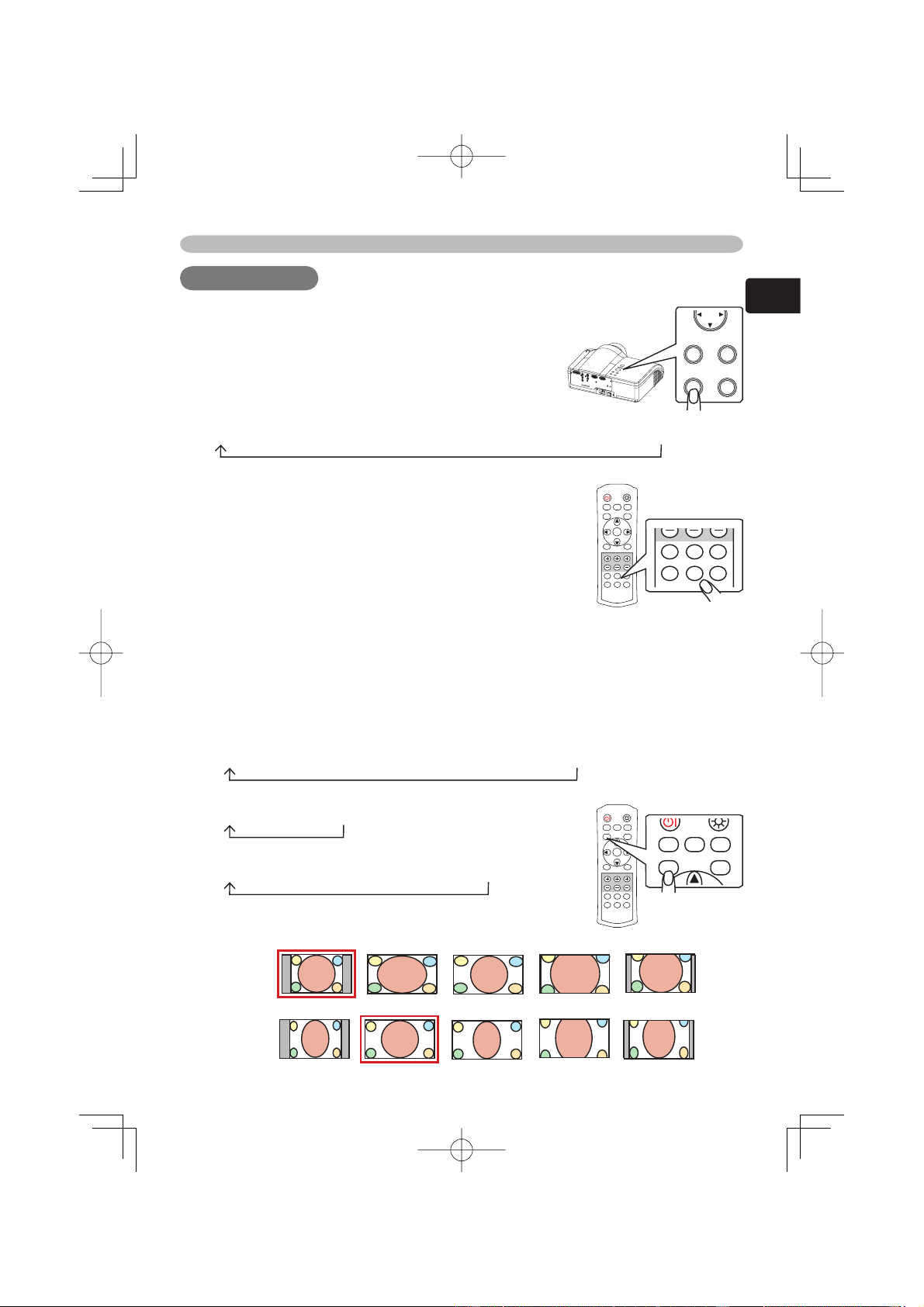
Selecting an aspect ratio
1.
Press the ASPECT button (remote control) to toggle between the modes for
aspect ratio.
The NORMAL mode keeps the original aspect ratio of the signal. At a HDTV
signal of 1125i or 750p, only the 16:9 mode can be selected.
At a DVI-D port's input
4:3
16:9
WIDE
MOVIE1
MOVIE2
NORMAL
At a computer signal (not DVI-D port's input)
4:3
16:9
NORMAL
At a video signal
4:3
16:9
WIDE
MOVIE1
MOVIE2
At no signal
4:3
16:9
At a signal
for 4:3
At a signal
for 16:9
POWER LIGHT
OPT BLK
ASPECT
MENU
BRIGHT CONTRAST COLOR
IRIS
MODE
MEMORY
ENTER
RESET
DVI PC
AUTO
COMPO
S-VIDEO
VIDEO
OPT BLK
ASPECT
IRIS
MODE
MEMORY
14
Operating
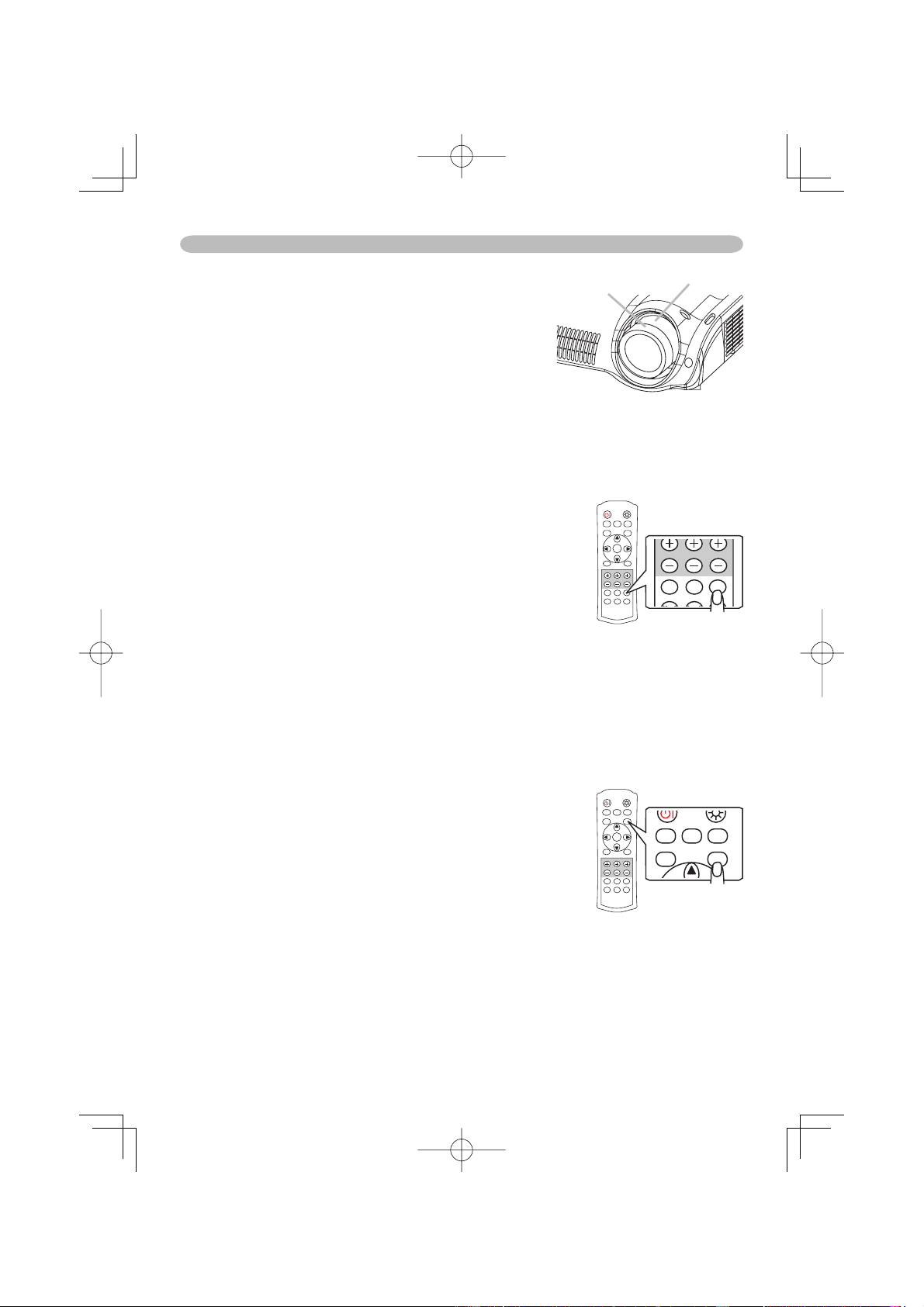
Adjusting the zoom and focus
1.
Use the zoom knob to adjust the screen size.
2.
Use the focus knob to focus the picture.
Zoom knob
Focus knob
Using the automatic adjustment feature
1.
Press the AUTO button (remote control).
The automatic adjustment operation requires approximately 10 seconds. Also
please note that it may not function correctly with some input.
At a computer signal
The vertical position, the horizontal position,
the clock phase and horizontal size will be
automatically adjusted.
Make sure that the application window is set to
its maximum size prior to attempting to use this
feature. A dark picture may still be incorrectly
adjusted. Use a bright picture when adjusting.
At a video signal
The video format best suited for the respective input signal will be selected
automatically.
This function is available only when the AUTO mode is selected to the item
VIDEO FORMAT of the INPUT menu
(
24)
. For a component video signal,
the signal type is identifi ed automatically independently of this function.
Improving the contrast ratio
1.
Press the IRIS button (remote control).
A dialog will appear on the screen to aid you in
adjusting the iris.
2.
Use the cursor buttons ▲/▼ (remote control/
projector) to adjust the iris.
3.
Press the IRIS button again to close the dialog and
complete this operation.
Even if you don't do anything, the dialog will
automatically disappear after about 5 seconds.
POWER LIGHT
OPT BLK
ASPECT
MENU
BRIGHT CONTRAST COLOR
IRIS
MODE
MEMORY
ENTER
RESET
DVI PC
AUTO
COMPO
S-VIDEO
VIDEO
DVI PC
AUTO
CO O
SO
O
POWER LIGHT
OPT BLK
ASPECT
MENU
BRIGHT CONTRAST COLOR
IRIS
MODE
MEMORY
ENTER
RESET
DVI PC
AUTO
COMPO
S-VIDEO
VIDEO
OPT BLK
ASPECT
IRIS
MODE
MEMORY
15
ENGLISH
Operating
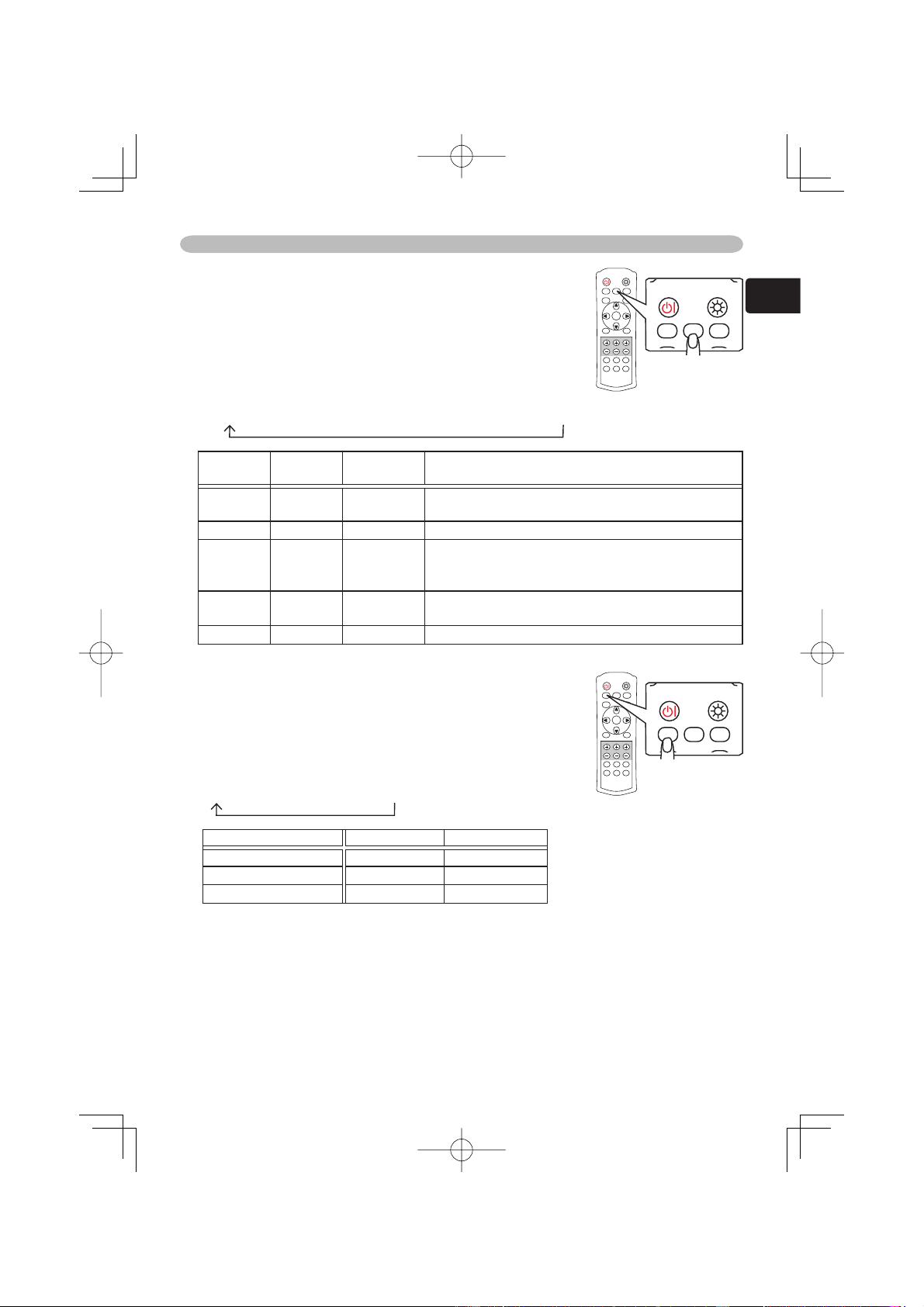
Selecting a mode of picture type
1.
Press the MODE button (remote control) to toggle
between the modes for picture type.
These arrangements are combinations of a mode of
GAMMA
(
19)
and a mode of COLOR TEMP
(
19)
.
Choose a suitable mode according to the projected
source.
NORMAL
CINEMA
MUSIC
SPORTS
DYNAMIC
MODE
COLOR
TEMP
GAMMA Description
NORMAL 7500K #1 DEFAULT Standard image quality, it can be enjoyed with
various sources.
CINEMA 8000K #2 DEFAULT Film tone image that is best for cinema picture.
MUSIC 8500K #3 DEFAULT The image pursuits DVD source image that is best
for music video clip, and the DVD image other
than cinema.
SPORTS 9300K #4 DEFAULT The image that emphasis on higher contrast that is
best for HDTV and sports program.
DYNAMIC DYNAMIC #1 DEFAULT This is the brightest mode of all.
Adjusting a black image
1.
Press the OPT BLK button (remote control) to
toggle between the modes of OPTICAL BLACK
(
18)
.
These arrangements are combinations of a mode of
IRIS
(
26)
and a mode of WHISPER
(
26)
.
OFF
NATURAL
DEEP BLACK
OPTICAL BLACK IRIS WHISPER
OFF 10 NORMAL
NATURAL 4 WHISPER
DEEP BLACK 0 WHISPER
POWER LIGHT
OPT BLK
ASPECT
MENU
BRIGHT CONTRAST COLOR
IRIS
MODE
MEMORY
ENTER
RESET
DVI PC
AUTO
COMPO
S-VIDEO
VIDEO
POWER LIGHT
OPT BLK
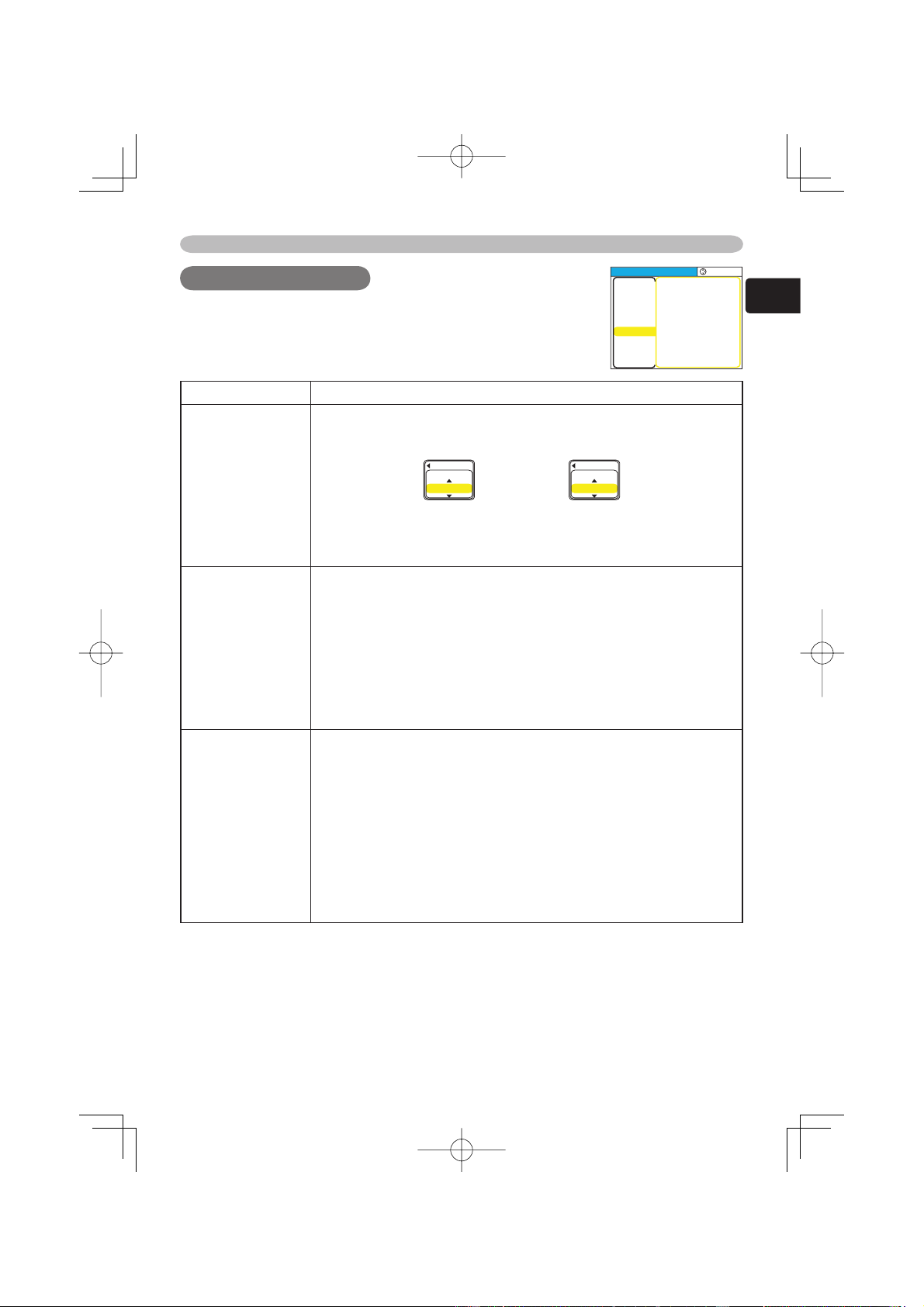
MODE
MEMORY
POWER LIGHT
OPT BLK
ASPECT
MENU
BRIGHT CONTRAST COLOR
IRIS
MODE
MEMORY
ENTER
RESET
DVI PC
AUTO
COMPO
S-VIDEO
VIDEO
POWER LIGHT
OPT BLK
MODE
MEMORY
16
Operating
Recalling your adjustment
This projector can memorize 4 settings by the MY
MEMORY function of the PICTURE menu
(
20)
.
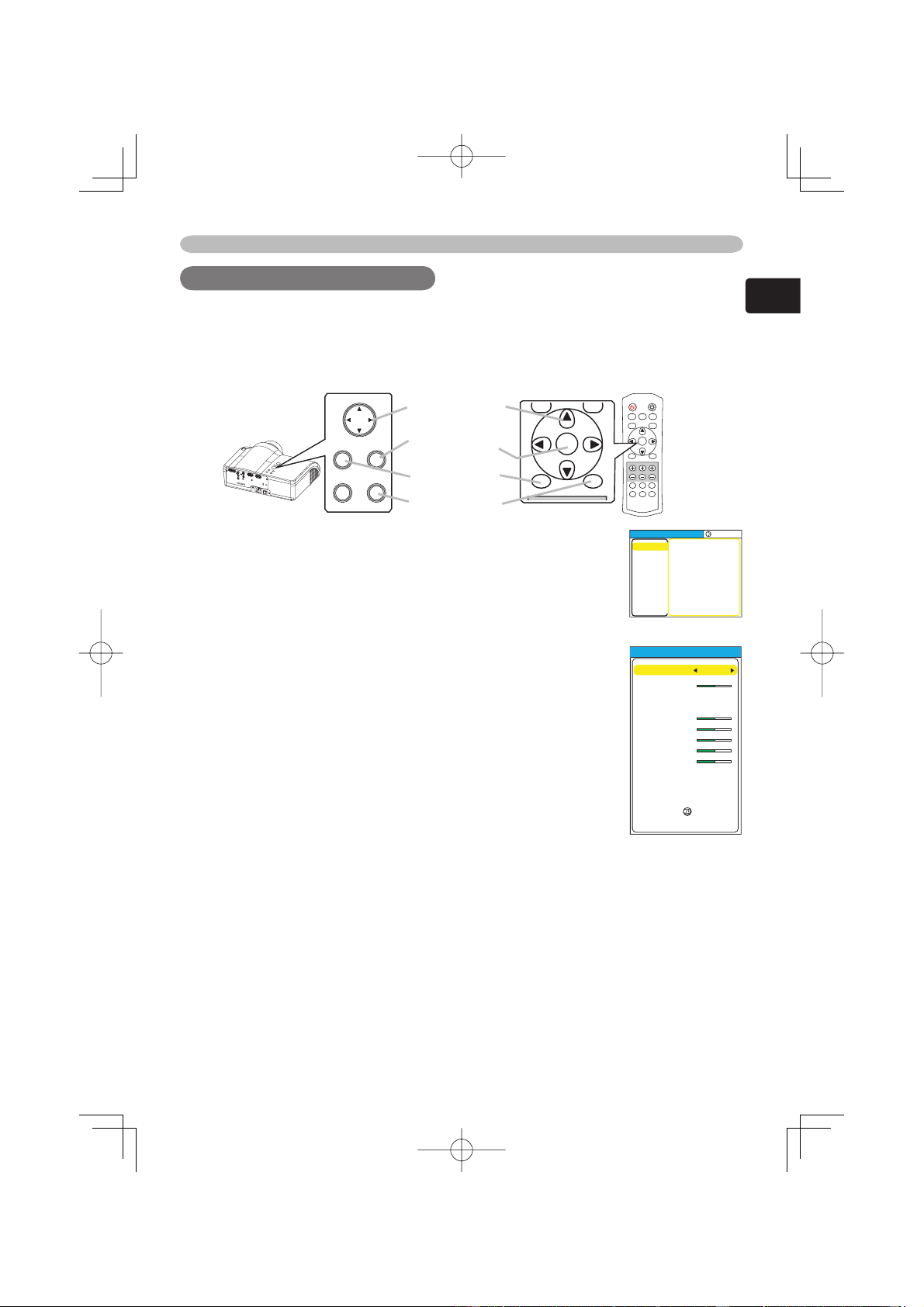
Pressing the MEMORY button (remote control) calls the
settings and adjusts the current picture.
The memory which is not registered is skipped. When
there is no memory registered, the picture isn't adjusted.
1.
Press the MEMORY button.
Each time you press the MEMORY button, one of
memorized settings comes in the order below.
LOAD1
LOAD2
LOAD3
LOAD4
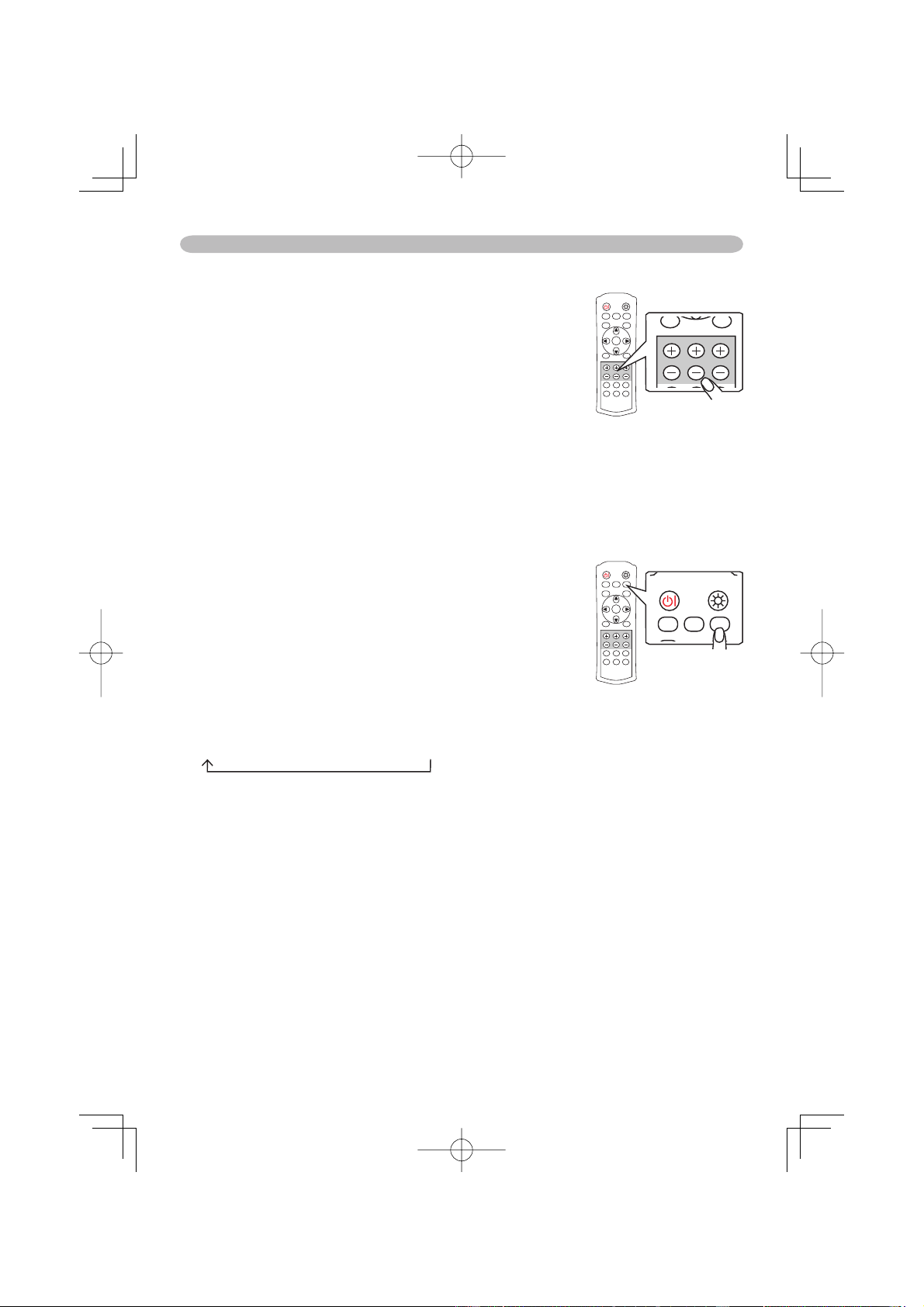
Adjusting the picture (brightness, contrast, color)
Brightness and contrast can be adjusted using each (+)
and (-) button (remote control). At a video signal, the
color can also be adjusted.
1.
Press the (+) or (-) button under the item indication
to adjust. Use the (+) button to increase the item, or
use the (-) button to decrease the item.
A dialog will appear on the screen to aid you in
adjusting the item to adjust. You can inactivate the
display using the item "MESSAGE" of the SCREEN
menu
(
27)
.
2.
If you don't do anything, the dialog will automatically
disappear after about 5 seconds.
POWER LIGHT
OPT BLK
ASPECT
MENU
BRIGHT CONTRAST COLOR
IRIS
MODE
MEMORY
ENTER
RESET
DVI PC
AUTO
COMPO
S-VIDEO
VIDEO
MENU
BRIGHT CONTRAST COLOR
RESET
POWER LIGHT
OPT BLK
ASPECT
MENU
BRIGHT CONTRAST COLOR
IRIS
MODE
MEMORY
ENTER
RESET
DVI PC
AUTO
COMPO
S-VIDEO
VIDEO
POWER LIGHT
OPT BLK
MODE
MEMORY
17
ENGLISH
Multifunctional settings
Multifunctional settings
Multifunctional settings
Using the menu function
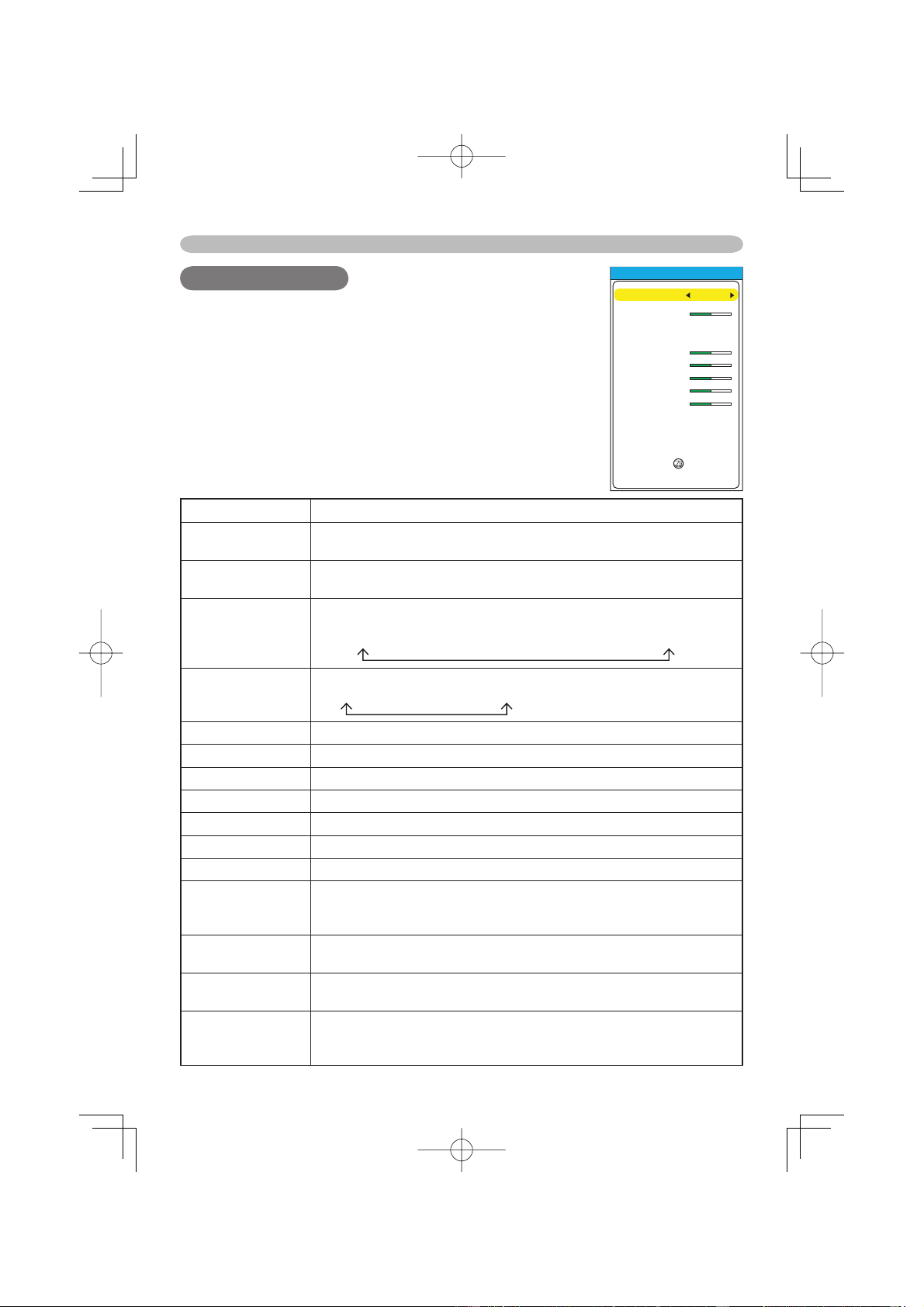
This projector has the following menus: PICTURE, IMAGE, INPUT, SETUP,
SCREEN, OPTION and EASY MENU. Each of these menus is operated using the
same methods. The basic operations of these menus are as follows.
1.
Press the MENU button (remote control/projector).
The advanced MENU or EASY MENU will appear. Which
menu is displayed is dependent on the last use.
2.
Use the cursor buttons ▲/▼ (remote control/projector) to
select a menu.
At the EASY MENU, if you want it to change to the
advanced MENU, select the "Go to Advanced Menu".
At the advanced MENU, select a menu of PICTURE,
IMAGE, INPUT, SETUP, SCREEN or OPTION.
If you want it to change to the EASY MENU, select the
EASY MENU.
3.
Then press the cursor button ► or the ENTER button
(remote control/projector) to progress. The display of the
selected menu will active.
4.
Use the cursor buttons ▲/▼ to select an item to operate.
Then press the cursor button ► or the ENTER button to
progress. The operation display of the selected item will
appear.
5.
Use the cursor buttons▲/▼ to operate the item.
When you want to reset the operation, press the RESET button (remote
control/projector) during the operation. Note that items whose functions are
performed simultaneously with operation (ex. LANGUAGE, H PHASE etc.)
aren't reset.
When you want to return to the previous display, press the cursor button ◄.
6.
Press the MENU button again to close the menu and complete this operation.
Even if you don't do anything, the dialog will automatically disappear after
about 50 seconds.
MENU
[
RGB
]
:SELECT
PICTURE
IMAGE
INPUT
SETUP
SCREEN
OPTION
EASY MENU
BRIGHT
CONTRAST
GAMMA
COLOR TEMP
COLOR
TINT
SHARPNESS
PROGRESSIVE
MY MEMORY
+0
+0
DEFAULT 1
6500K
+0
+0
+0
TURN OFF
SAVE 1
MENU
EASY MENU
ASPECT
KEYSTONE
MODE
OPTICAL BLACK
BRIGHT
CONTRAST
COLOR
TINT
SHRPNESS
WHISPER
MIRROR
RESET
FILTER TIME
LANGUAGE
4:3
+0
NORMAL
OFF
+0
+0
+0
+0
+3
NORMAL
NORMAL
0
ENGLISH
Go To Advance Menu...
EASY MENU
POWER LIGHT
OPT BLK
ASPECT
MENU
BRIGHT CONTRAST COLOR
IRIS
MODE
MEMORY
ENTER
RESET
DVI PC
AUTO
COMPO
S-VIDEO
VIDEO
RESET button
ENTER button
MENU button
Cursor buttons
MENU
ENTER
INPUT
RESET
ASPECT
MENU
BRIGHT CONTRAST COLOR
IRIS
ENTER
RESET
18
Multifunctional settings
EASY Menu
EASY Menu
Item Description
ASPECT
Select the ASPECT menu to toggle the mode of image aspect ratio.
Refer to description of “ASPECT” in the “IMAGE” menu. (
22)
KEYSTONE
Perform the KEYSTONE adjustment using ◄/► buttons.:
Refer to description of “KEYSTONE” in the “SETUP” menu. (
26)
MODE
Select a picture mode using ◄/► button.
NORMAL
CINEMA
MUSIC
SPORTS
DYNAMIC
OPTICAL BLACK
Select a Optical Black mode using ◄/► button.
OFF
NATURAL
DEEP BLACK
BRIGHT Refer to description of “BRIGHT” in the “PICTURE” menu. (
19)
CONTRAST
Refer to description of “CONTRAST” in the “PICTURE” menu.
(
19)
COLOR Refer to description of “COLOR” in the “PICTURE” menu. (
19)
TINT Refer to description of “TINT” in the “PICTURE” menu. (
19)
SHRPNESS
Refer to description of “SHARPNESS” in the “PICTURE” menu.
(
20)
WHISPER Refer to description of “WHISPER” in the “SETUP” menu. (
26)
MIRROR Refer to description of “MIRROR” in the “SETUP” menu. (
26)
RESET
EASY MENU reset window will appear. Select “RESET” using
“▲” button to reset the all of the items in the “EASY Menu” to the
default, except “FILTER TIME” and “LANGUAGE”.
FILTER TIME
FILTER TIME reset window will appear. Refer to the “FILTER TIME”
in the “OPTION” menu. (
29)
LANGUAGE
Select the LANGUAGE to toggle the menu language. Refer to
description of “LANGUAGE” in the “SCREEN” menu. (
27)
Go To
Advanced Menu
Select the “Go To Advanced Menu” to use the PICTURE, the
IMAGE, the INPUT, the SETUP, the SCREEN and the OPTION
menus.
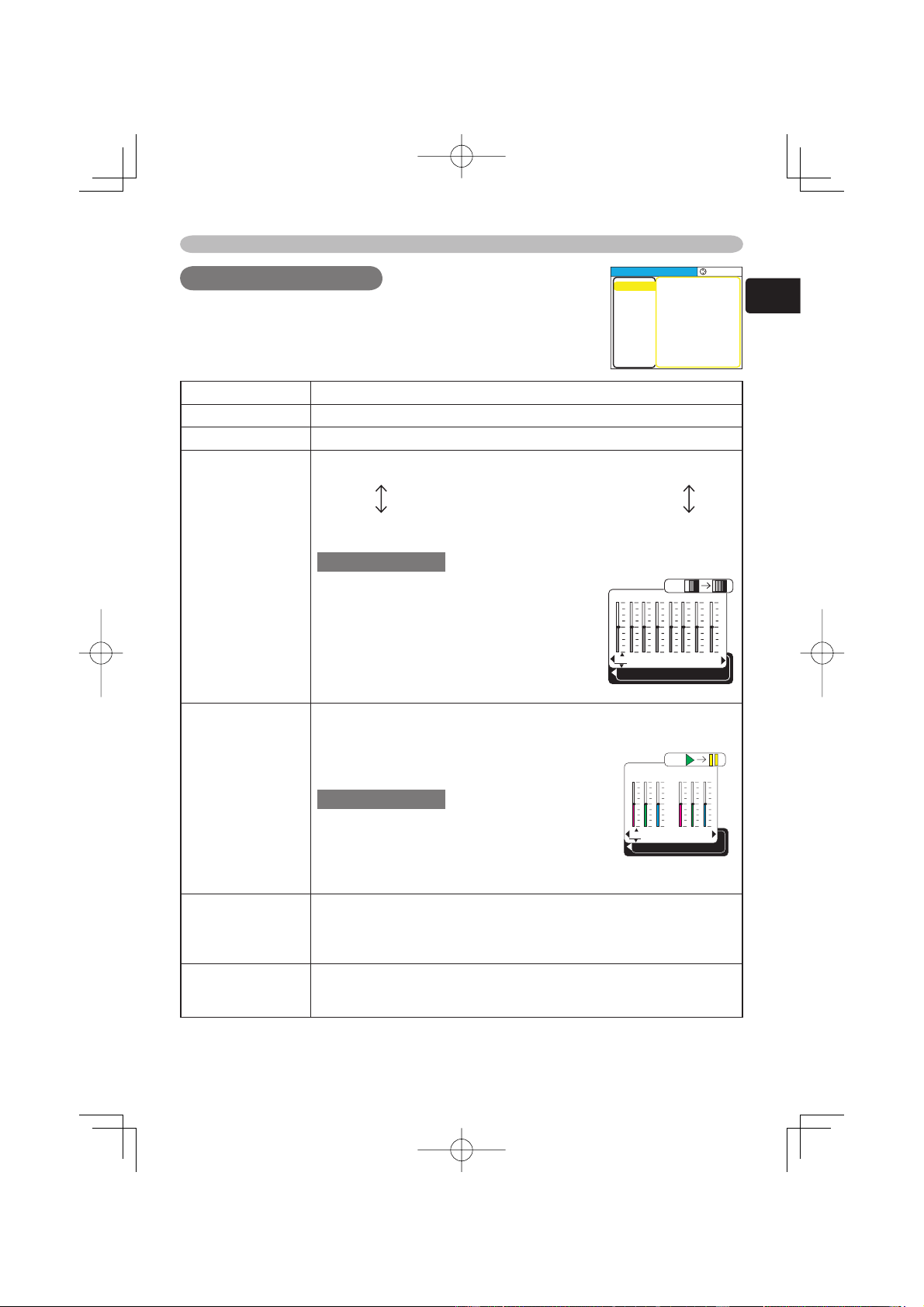
With the EASY menu, items shown in the table below can be
performed. Perform each operation in accordance with the
instructions in the table below.
Select an item using the ▲/▼ buttons, and press the ◄/►
button to perform each function. :
EASY MENU
ASPECT
KEYSTONE
MODE
OPTICAL BLACK
BRIGHT
CONTRAST
COLOR
TINT
SHRPNESS
WHISPER
MIRROR
RESET
FILTER TIME
LANGUAGE
4:3
+0
NORMAL
OFF
+0
+0
+0
+0
+3
NORMAL
NORMAL
0
ENGLISH
Go To Advance Menu...
19
ENGLISH
Multifunctional settings
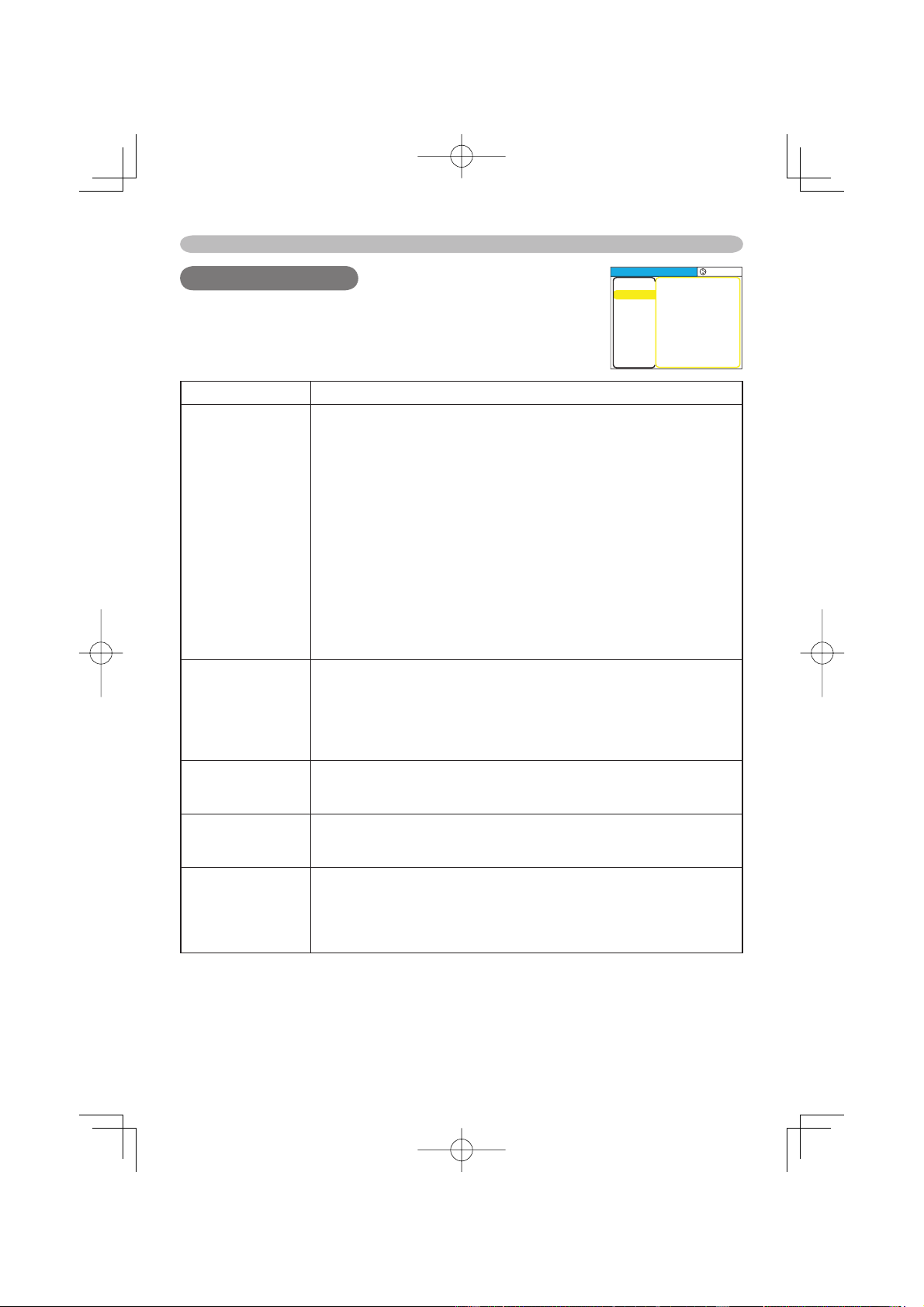
PICTURE Menu
PICTURE Menu
Item Description
BRIGHT Adjust the brightness using the ▲/▼ buttons. : Light
Dark
CONTRAST Adjust the contrast using the ▲/▼ buttons. : Strong
Weak
GAMMA
Select a GAMMA mode using the ▲/▼ button. :
#1 DEFAULT
#1 CUSTOM
#2 DEFAULT
#2 CUSTOM
#4 CUSTOM
#4 DEFAULT
#3 CUSTOM
#3 DEFAULT
The radio button of the selected will indicate.
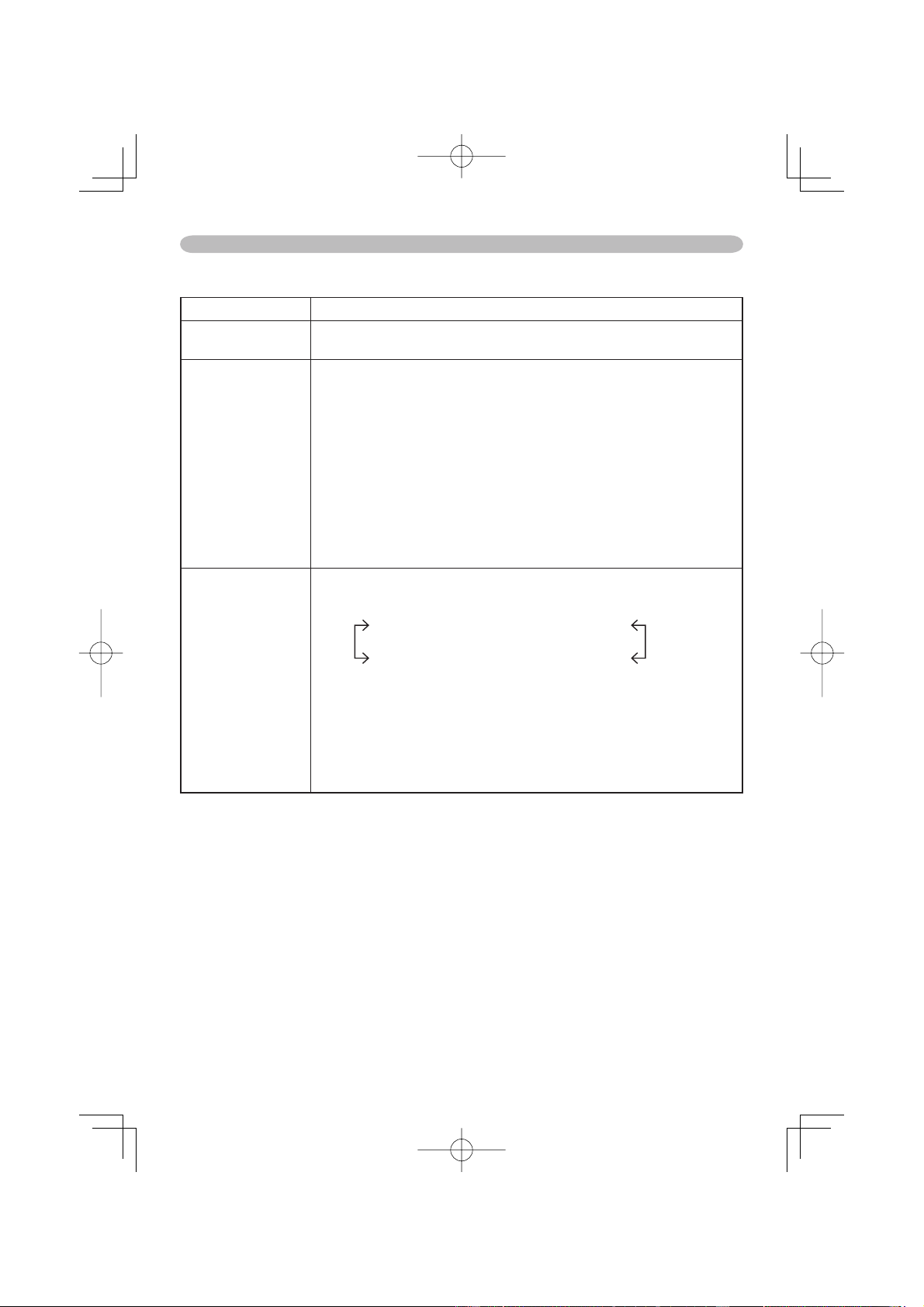
CUSTOM mode
Selecting the CUSTOM and then pressing
the ► (or the ENTER) button calls the
dialog shown in right. Choose an item using
the ◄/► buttons, and adjust the level using
the ▲/▼ buttons. :
memo When you press the ENTER button,
the test pattern for checking appears on the
screen. (
21)
COLOR TEMP
Select a color temperature using the ▲/▼ buttons. :
9300K
8500K
8000K
7500K
6500K
DYNAMIC
CUSTOM
Selecting CUSTOM and pressing the ►
button make the adjustment enabled.
CUSTOM mode
Select a color item of OFFSET or GAIN
using the ◄/► buttons, and adjust the level
using the ▲/▼ buttons. :
memo When you press the ENTER button, the test pattern for
checking appears on the screen. (
21)
COLOR
Adjust the whole color using the ▲/▼ buttons. :
Strong
Weak
memo This item can be selected only at a video signal.
memo This function doesn’t work with some input signal formats.
TINT
Adjust the tint using the ▲/▼ buttons. :
Green
Red
memo This item can be selected only at a video signal.
With the PICTURE menu, the items shown in the table below
can be performed. Perform each operation in accordance
with the instructions in the table below.
MENU
[
RGB
]
:SELECT
PICTURE
IMAGE
INPUT
SETUP
SCREEN
OPTION
EASY MENU
BRIGHT
CONTRAST
GAMMA
COLOR TEMP
COLOR
TINT
SHARPNESS
PROGRESSIVE
MY MEMORY
+0
+0
DEFAULT 1
6500K
+0
+0
+0
TURN OFF
SAVE 1
1
+0
2
+0
3
+0
4
+0
5
+0
6
+0
7
+0
8
+0
GAMMA
[
CUSTOM 1
]
ENTER :
R
+0
G
+0
B
+0
COLOR TEMP
ENTER :
OFFSET
R
+0
G
+0
B
+0
GAIN
20
Multifunctional settings
Item Description
SHARPNESS
Adjust the sharpness using the ▲/▼ buttons. :
Clear
Soft
PROGRESSIVE
Select the Progressive Mode:
TV
FILM
TURN OFF
memo This function performs only at an interlaced signal of a
VIDEO input, a S-VIDEO input or a COMPONENT
VIDEO input of
525i or 625i signal. The FILM mode is adaptable to the 3-2 Pull-
Down system to the conversion.
memo When the TV or FILM is selected, the screen image will
be crisper
. But it may cause a certain defect (for example, jagged
line) of the picture at a quick moving object. In such a case, please
select the TURN OFF, even though the screen image may lose the
crisp.
memo This function may cause a certain degradation of the picture.
In such a case, please select the
TURN OFF.
MY MEMORY
Selecting one from the following and then pressing the ► (or the
ENTER) button performs each function.
LOAD1
LOAD2
LOAD3
LOAD4
SAVE4
SAVE3
SAVE2
SAVE1
This projector has 4 numbered memories for adjustment data.
Performing the SAVE1, SAVE2, SAVE3 or SAVE4 puts the current
adjustment data on the memory whose number corresponds with
the command’s number. Performing the LOAD1, LOAD2, LOAD3 or
LOAD4 loads the data on the memory whose number corresponds
with the command’s number, and adjusts the picture automatically
depending on the data.
PICTURE Menu (continued)
21
ENGLISH
Multifunctional settings
PICTURE Menu (continued)
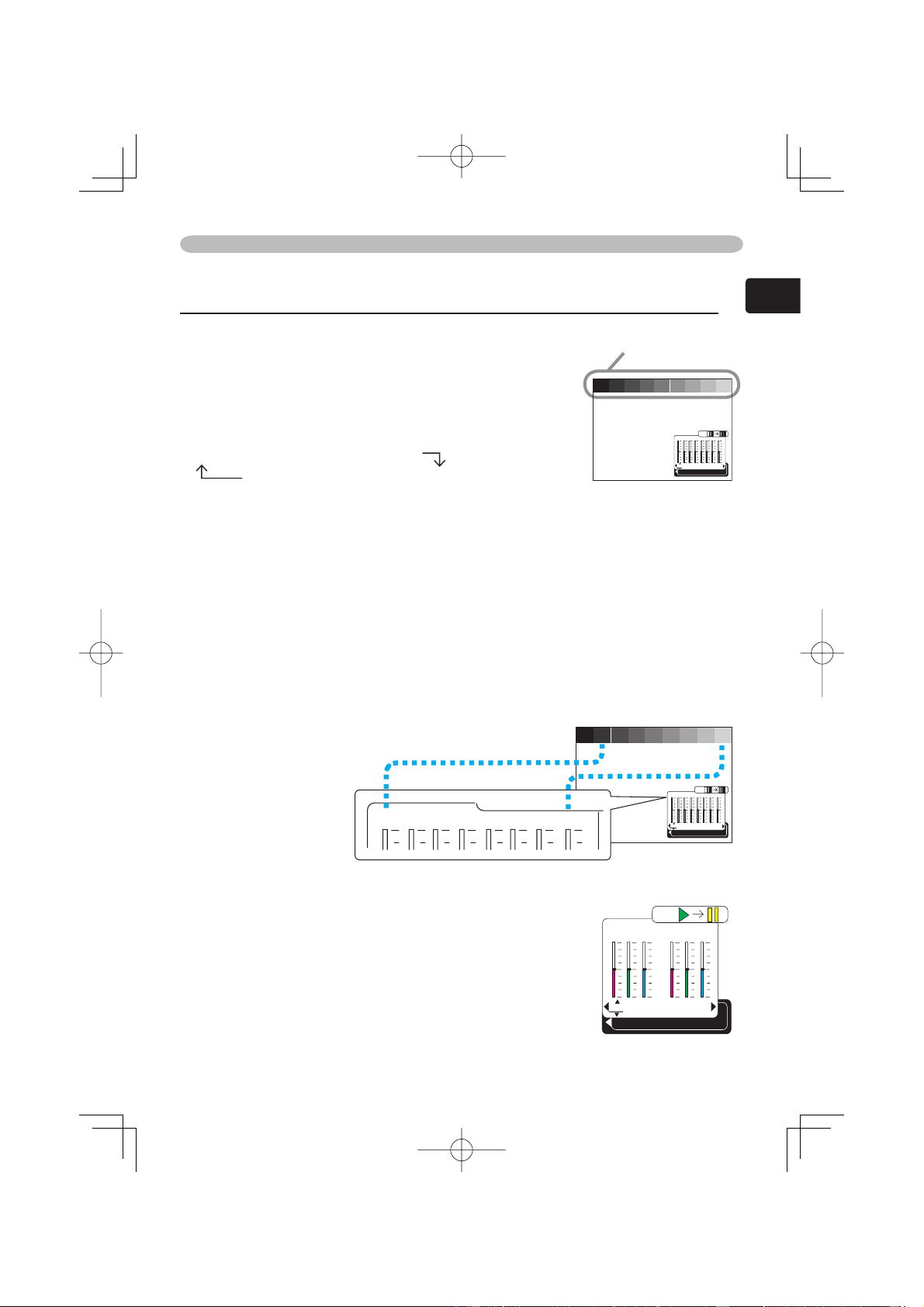
Adjustment steps of the CUSTOM GAMMA or the CUSTOM COLOR TEMP
Press the ENTER button while the CUSTOM menu of
“GAMMA” or “COLOR TEMP” is displayed. And the test
pattern appears at the top of the screen as shown in the
right.
Each time you press the ENTER button, the pattern
changes as below.
No pattern
Gray scale(9 steps)
Ramp
Gray scale(15 steps)
These patterns help you perceive the effect of your
adjustments.
The CUSTOM GAMMA adjustment
Choose a tone using the
◄/►
button and adjust the gamma by the ▲/▼ buttons.
This function is useful when you want to change the brightness of the particular
tones. Eight of equalizing bars corresponds to eight of tones of test pattern except
the darkest in the left end. If you want to adjust the 2
nd
tone from left end on the
test pattern, use the equalizing adjustment bar “1”.
memo
The darkest tone at the left end of the test pattern cannot be controlled with
any of equalizing adjustment bar.
The CUSTOM GAMMA adjustment
Choose the offset and/or the gain item for each color
using the
◄/►
button and adjust by the ▲/▼ buttons.
OFFSET adjustments change the color intensity on the
whole tones of the test pattern.
GAIN adjustments mainly affect color intensity on the
brighter tones of the test pattern.
Test pattern
1
+0
2
+0
3
+0
4
+0
5
+0
6
+0
7
+0
8
+0
GAMMA
[
CUSTOM 1
]
ENTER :
1
+0
2
+0
3
+0
4
+0
5
+0
6
+0
7
+0
8
+0
GAMMA
[
CUSTOM 1
]
ENTER :
1234567 8
R
+0
G
+0
B
+0
COLOR TEMP
ENTER :
OFFSET
R
+0
G
+0
B
+0
GAIN
22
Multifunctional settings
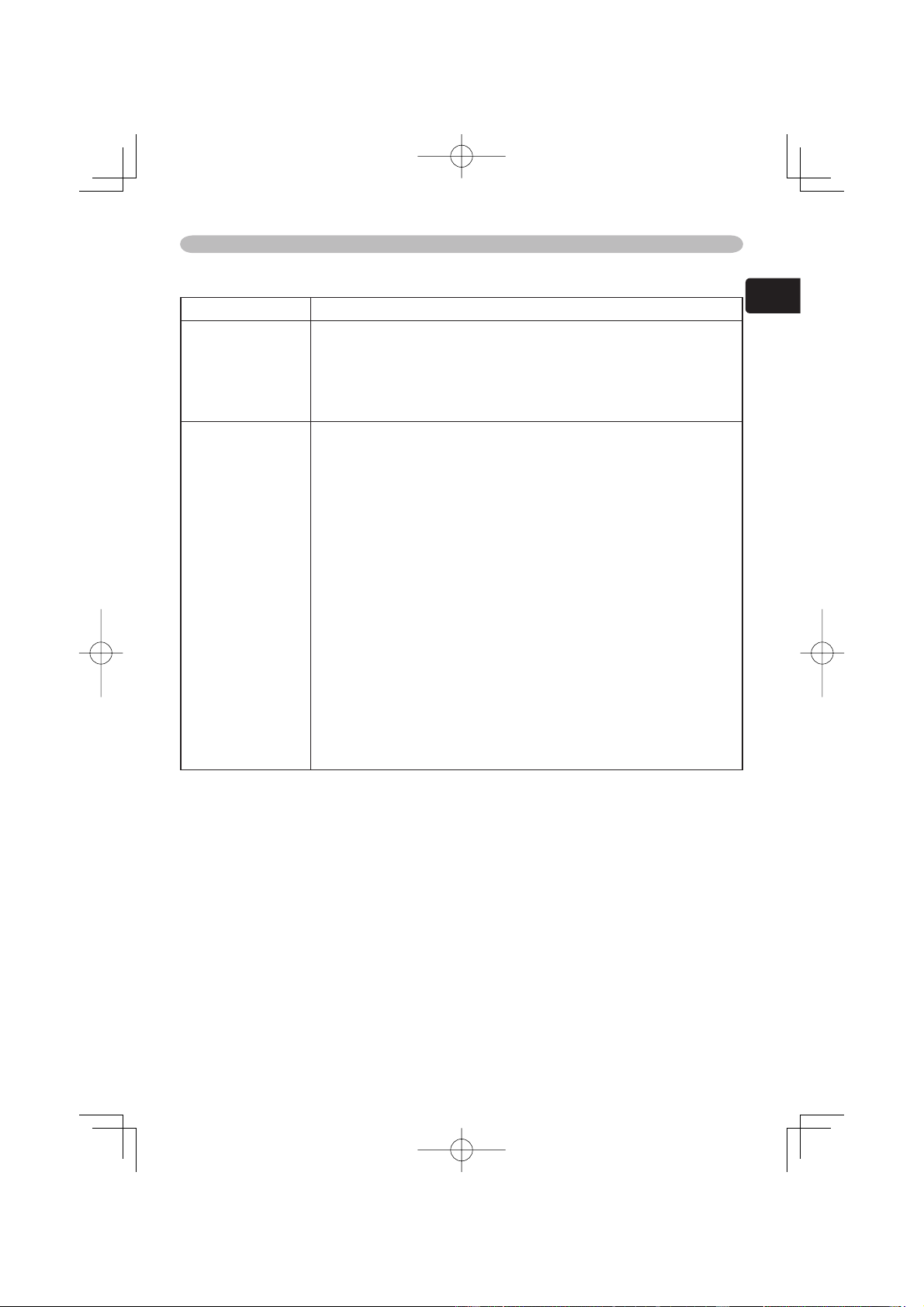
IMAGE Menu
IMAGE Menu
Item Description
ASPECT
Select an Aspect Ratio using the ▲/▼ buttons:
At a COMPUTER input:
4:3
16:9
NORMAL
• The NORMAL keeps the original aspect ratio of the input signal.
• At a COMPUTER input, selecting an aspect ratio may display the
message“SYNC IS OUT OF RANGE”. In this case, please select
one of other aspect ratios.
At a DVI-D input:
4:3
16:9
WIDE
MOVIE1
MOVIE2
NORMAL
At a VIDEO input, a S-VIDEO input or a COMPONENT VIDEO
input:
4:3
16:9
WIDE
MOVIE-1
MOVIE-2
• At a COMPONENT VIDEO input of 16:9 HD signal of 1125i(1080i)/
750p(720p), only 16:9 can be selected.
At no input.:
4:3
16:9
OVER SCAN
Adjust the over-scan ratio using the ▲/▼ buttons. :
Small
Large
memo This item can be selected only at a video signal.
memo When this adjustment is too large, certain degradation may
appear at the frame area of the picture. In such a case, please
adjust small.
V POSITION
Adjust the vertical position using the ▲/▼ buttons. :
Up
Down
memo This item cannot be selected only at a DVI-D signal.
H POSITION
Adjust the horizontal position using the / buttons. :
Left
Right
memo This item cannot be selected only at a DVI-D signal.
H PHASE
Adjust the horizontal phase to eliminate fl
icker using the ▲/▼
buttons. :
Right
Left
memo This item can be selected only at a RGB signal or a
component video signal.
With the IMAGE menu, the items shown in the table below
can be performed. Perform each operation in accordance
with the instructions in the table below.
MENU
[
RGB
]
:SELECT
PICTURE
IMAGE
INPUT
SETUP
SCREEN
OPTION
EASY MENU
ASPECT
OVER SCAN
V POSITION
H POSITION
H PHASE
H SIZE
AUTO ADJUST
4:3
95
25
142
16
1344
23
ENGLISH
Multifunctional settings
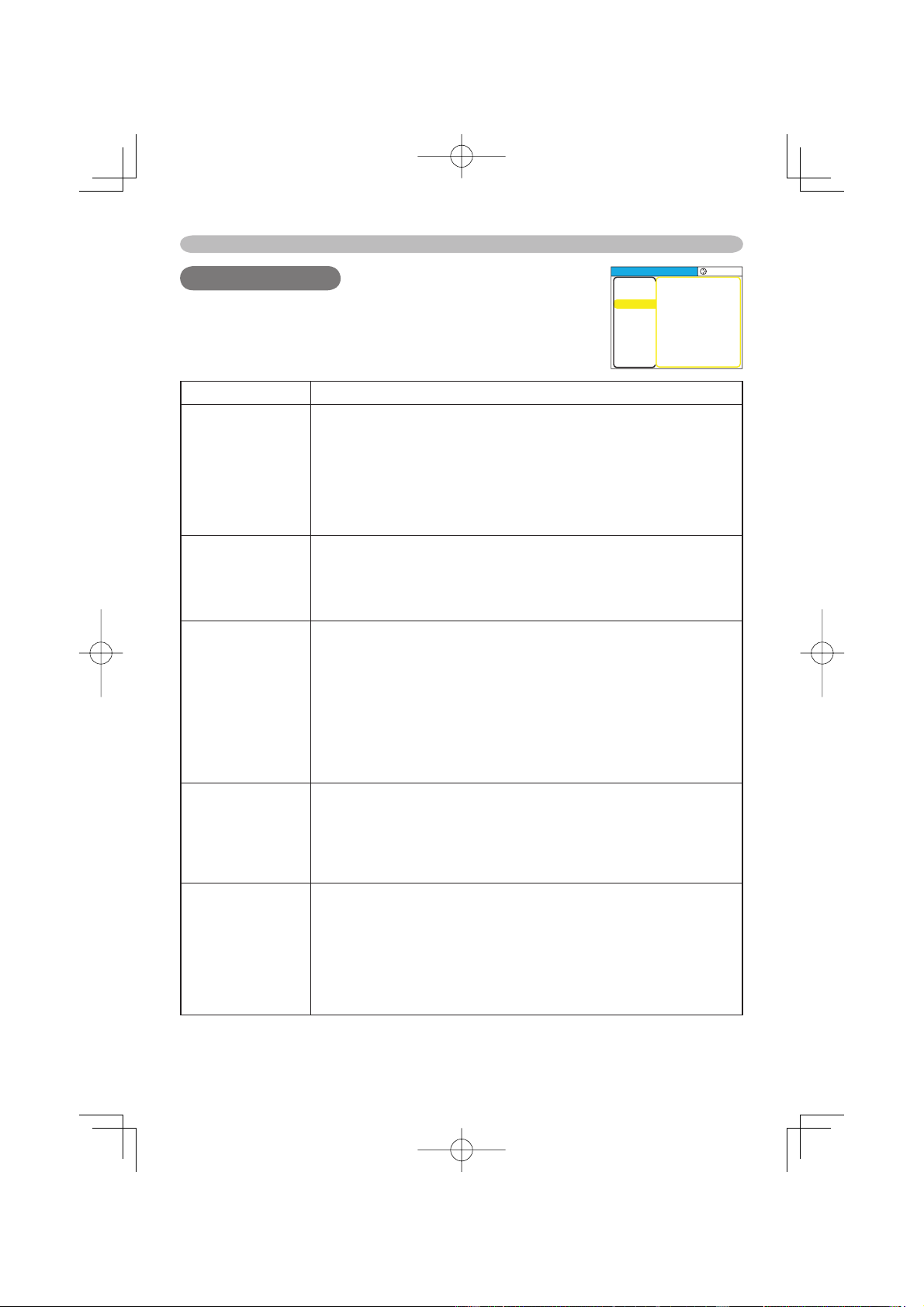
Item Description
H SIZE
Adjust the horizontal size using the ▲/▼ buttons. :
Large
Small
memo This item can be selected only at a RGB signal.
memo When this adjustment is excessive, the picture may not be
displayed correctly
. In such a case, please reset the adjustment
pressing the RESET button during this operation.
AUTO ADJUST
Pressing the ► (or the ENTER) button performs the automatic
adjustment.
At a RGB signal
The vertical position (V POSITION), the horizontal position (H
POSITION), the clock phase (H PHASE) and the horizontal size (H
SIZE) will be automatically adjusted.
memo Make sure that the application window is set to its maximum
size prior to attempting to use this feature. Dark pictures may still
be incorrectly adjusted. Use a bright screen when adjusting.
At a video signal
The signal type mode best suited for the respective input signal will
be selected automatically
.
memo This function is available only when the AUTO is selected
to the item“VIDEO FORMA
T” of the INPUT menu. For a component
video signal, the signal type is identifi ed automatically independently
of this function.
memo This operation requires approximately 10 seconds, and the
message“AUT
O IN PROGRESS” is displayed during the operation.
memo This operation may not work well at some signals. If the
picture becomes unstable (ex. a irregular picture, a color lack),
please select the suitable mode to the item “VIDEO FORMA
T” of
the INPUT menu.
IMAGE Menu (continued)
24
Multifunctional settings
INPUT Menu
INPUT Menu
Item Description
COLOR SPACE
Select a color space mode using the ▲/▼ buttons. :
AUTO
RGB
SMPTE240
REC709
REC601
Selecting the AUTO automatically selects the optimum mode.
memo This item can not be selected only at a VIDEO or a S-VIDEO
signal.
memo The AUTO operation may not work well at some signals.
In such a case, select the SMPTE240 or the REC709 for a HDTV
signal.
COMPONENT
Select a function of COMPONENT
port using the ▲/▼ buttons. :
COMPONENT
SCART RGB
When the SCART RGB is selected, the COMPONENT port function
as a port for a SCART RGB signal input. Please refer to the section
“Connecting Your Devices”.
VIDEO FORMAT
Select a signal type mode using the ▲/▼ buttons. :
AUTO
NTSC
PAL
SECAM
NTSC4.43
M-PAL
N-PAL
Selecting the AUTO automatically selects the optimum mode.
memo This item is performs only at a video signal from the VIDEO
port or the S- VIDEO port. For a component video signal, the signal
type is identifi
ed automatically independently of this function.
memo The AUTO operation may not work well at some signals. If
the picture becomes unstable (ex. a irregular picture, a color lack),
please select the mode depending on the input signal.
DVI
Select a signal source of the DVI-D port sing the ▲/▼ buttons. :
DVD
COMPUTER
memo If unsuitable setting is chosen, brightest or darkest tones
may not be displayed correctly
.
memo When you watch the DVD, always choose the “DVD” inspite
of the signal source, the computer or the DVD player
.
S-ASPECT
Select the TURN ON or the TURN OFF using the ▲/▼ buttons. :
TURN ON
TURN OFF
When the TURN ON is selected, an S2-video signal can be
identifi ed and the optimum aspect ratio is automatically selected.
memo This item is performs only at a S-VIDEO signal.
memo When the ASPECT button is used or the item “ASPECT” of
the IMAGE menu is operated, the
TURN OFF will be automatically
selected to this item.
With the INPUT menu, the items shown in the table below
can be performed. Perform each operation in accordance
with the instructions in the table below.
MENU
[
RGB
]
:SELECT
PICTURE
IMAGE
INPUT
SETUP
SCREEN
OPTION
EASY MENU
COLOR SPACE
COMPONENT
VIDEO FORMAT
DVI
S-ASPECT
INFORMATION
AUTO
COMPONENT
AUTO
DVD
TURN OFF
25
ENGLISH
Multifunctional settings
Item Description
INFORMATION
Pressing the ► (or the ENTER) button displays the INPUT
INFORMATION menu.
The INPUT INFORMATION menu shows the information about the
current signal input as illustrated below.
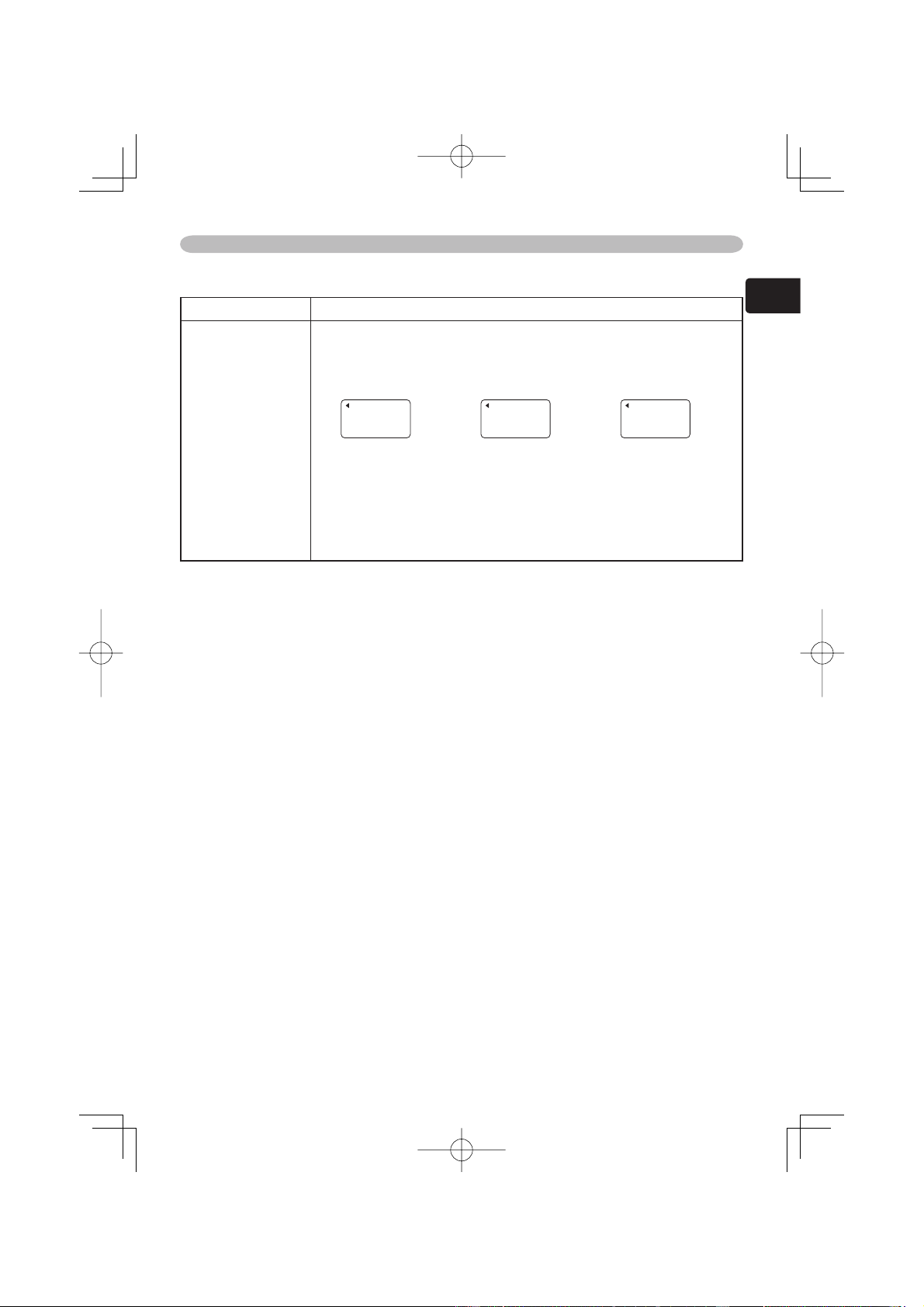
memo The “FRAME LOCK” message means the frame lock
function is working.
This function automatically works when a RGB
signal with vertical frequency of 50 to 60 Hz is input, and it displays
a moving picture more smoothly.
memo The “SCART RGB” message means the COMPONENT
port is working as a SCAR
T RGB port. Please refer to the item
“COMPONENT” in this table.
INPUT Menu (continued)
INPUT-INFORMATION
RGB
1024x768 @60.0
FRAME LOCK
INPUT-INFORMATION
S-VIDEO
SECAM
AUTO
INPUT-INFORMATION
COMPONENT
576i @50
SCART RGB
26
Multifunctional settings
SETUP Menu
SETUP Menu
Item Description
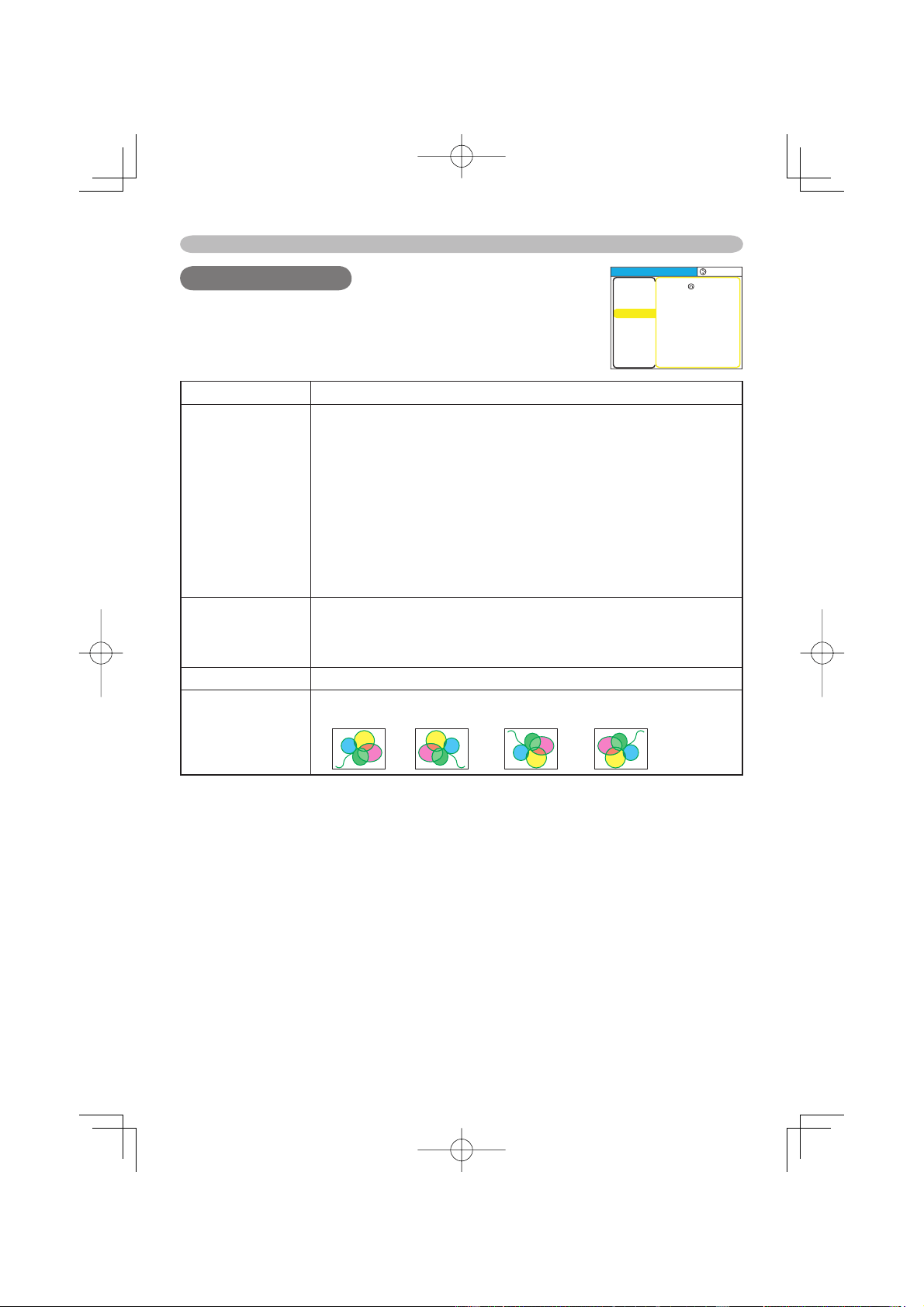
KEYSTONE
Adjust the Keystone (Vertical) Distortion:
Upper in the data
Lower in the data
memo The adjustable range of this function will vary with the type
of input signal.
At some signals, this function may not work well.
memo When the V:INVERT or the H&V:INVERT is selected
under the MIRROR item, if the projector screen is inclined or if the
projector is angled downward, this function may not work correctly
.
memo When the WIDE is selected under the ASPECT item of the
IMAGE menu, this adjustment is ignored.
memo When the zoom adjustment is set to the TELE side, this
correction may be excessive.
This function should be used with
zoom set to WIDE whenever possible.
WHISPER
Select the NORMAL or the WHISPER using the ▲/▼ buttons. :
NORMAL
WHISPER
When the WHISPER is selected, acoustic noise and screen
brightness are reduced.
IRIS Adjust the iris using the ▲/▼ buttons. : Bright
Dark
MIRROR
Select a mirror status using the ▲/▼ buttons. :
NORMAL
H:INVERT
V:INVERT
H&V:INVERT
With the SETUP menu, items shown in the table below can
be performed. Perform each operation in accordance with
the instructions in the table below.
MENU
[
RGB
]
:SELECT
PICTURE
IMAGE
INPUT
SETUP
SCREEN
OPTION
EASY MENU
KEYSTONE
WHISPER
IRIS
MIRROR
+0
NORMAL
100
NORMAL
27
ENGLISH
Multifunctional settings
SCREEN Menu
SCREEN Menu
Item Description
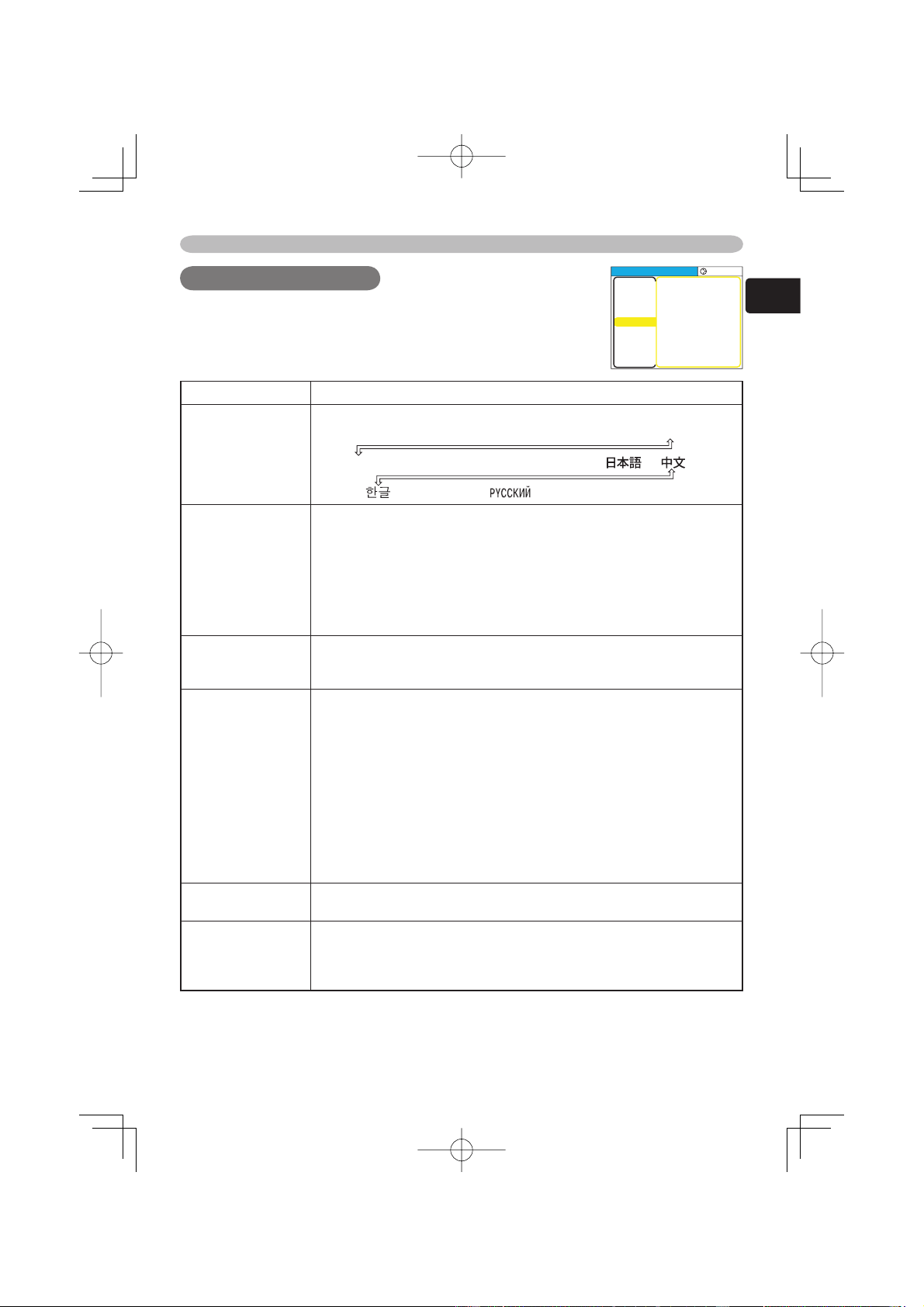
LANGUAGE
Select a menu language using the ▲/▼ buttons. :
ENGLISH FRANÇAIS DEUTSCH ESPAÑOL ITALIANO
NORSK NEDERLANDS PORTUGUÊS
SVENSKA SUOMI POLSKI
MENU POSITION
Adjust the menu position using the ▲/▼/◄/► buttons.:
Up
Left
Right
Down
To quit the operation, press the “MENU” button or keep no operation
for 50 seconds.
OSD BRIGHT
Select a brightness level of the OSD on the screen using the ▲/▼
buttons. :
BRIGHT
DARK
START UP
Select a type of the START UP screen using the ▲/▼ buttons. :
MyScreen
ORIGINAL
TURN OFF
The START UP screen is the screen, which is displayed by
detecting no signal or an unsuitable signal.
The MyScreen is the screen you can register a desired screen, and
the ORIGINAL is the existing standard screen. When the TURN
OFF is selected, the BLUE is used.
memo The MyScreen and the ORIGINAL Screen will each change
to a non-patterned (plain) black color screen several minutes after
being displayed.
memo About the MyScreen, please refer to the item “MyScreen” in
this table.
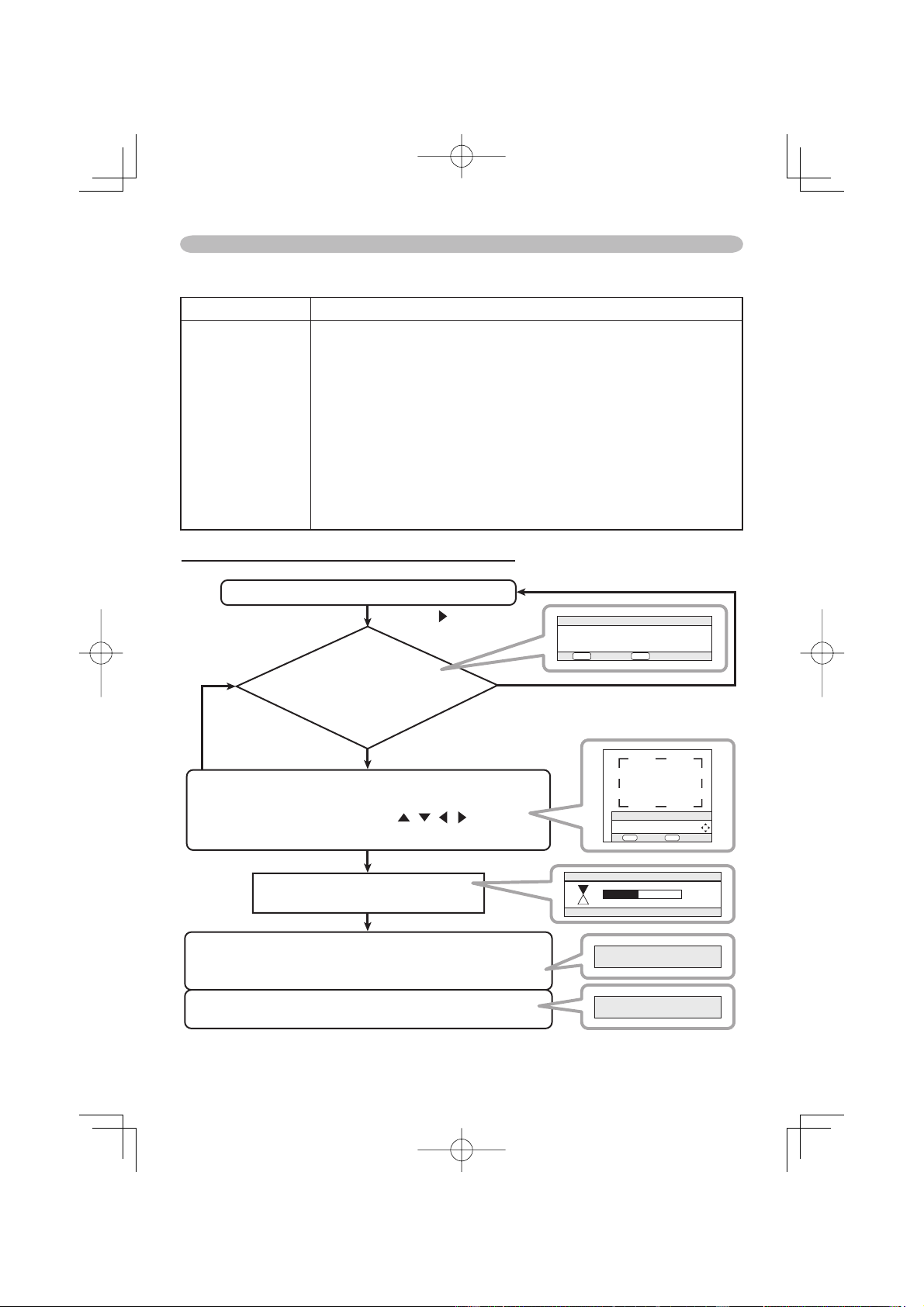
My Screen
Pressing the ► (or the ENTER) button starts the MyScreen
registration. Please see the fl
ow chart on the following page.
My Screen Lock
Select the TURN ON or the TURN OFF using the ▲/▼ buttons. :
TURN ON
TURN OFF
The TURN ON disables the operation of the item “MyScreen” of this
SCREEN menu.
With the SCREEN menu, the items shown in the table below
can be performed. Perform each operation in accordance
with the instructions in the table below.
MENU
[
RGB
]
:SELECT
PICTURE
IMAGE
INPUT
SETUP
SCREEN
OPTION
EASY MENU
LANGUAGE
MENU POSITION
OSD BRIGHT
START UP
MyScreen
MyScreen Lock
MESSAGE
ENGLISH
5
ORIGINAL
TURN OFF
TURN ON
28
Multifunctional settings
Item Description
MESSAGE
Select the TURN ON or the TURN OFF using the ▲/▼ buttons. :
TURN ON
TURN OFF
When the TURN ON is selected, the following message function
works.
The message of the “AUTO IN PROGRESS” for the auto
adjustment.
The message of the ”NO INPUT IS DETECTED”
The message of the ”SYNC IS OUT OF RANGE”
The message of the “Detecting …”
The indication of the input signal by input change.
The indication of the aspect ratio by changing the aspect ratio.
The indication of “IRIS”, “BRIGHT”, “CONTRAST”, “COLOR” by
adjusting them.
SCREEN Menu (continued)
How to register your picture as the MyScreen
MyScreen is pointed on the SCREEN menu.
The MyScreen
menu appears.
Do you capture the picture from
the current screen?
Registering.
It takes about 1~2 minute to register.
Just when the picture registration is completed
the registered screen and
the message of the right is displayed for a few seconds.
If the picture registration failed,
the message of the right is displayed for a few seconds.
The picture freeze and the frame for capturing appears.
Move the frame to the position of the picture
which you want to use, using / / / buttons,
and press the ENTER button to register.
NO: Press the RESET button
YES: Press the ENTER button
If the RESET
button is pressed ...
Press the button
:NO
ENTER
:YES
MyScreen
Do you start capturing this picture?
RESET
:RETURN :NEXT
MyScreen
Move the capture area
as you want.
My Screen
45%
MyScreen registration is finished.
A capturing error has occurred.
Please try again.
RESET ENTER
29
ENGLISH
Multifunctional settings
OPTION Menu
OPTION Menu
Item Description
AUTO OFF
Set the time using the ▲/▼ buttons. :
Long (max. 99 minutes)
Short (min. 0 minute = DISABLE)
ex.
When the time is set to 1 to 99, the projector lamp will go off and
the power indicator begins blinking when the passed time with a
proper signal (without no-signal and an unsuitable signal) reaches
at the set time. Please refer to the section “Turning Off The Power”.
LAMP TIME
Pressing the RESET button for about 3 seconds displays the LAMP
TIME menu.
Select the RESET using ▲ button to reset the timer. :
RESET
CANCEL
Selecting the RESET resets the count of the lamp timer to 0.
memo Perform this function only when you have replaced the
lamp.
The lamp timer counts the used time of the current lamp, to
display the messages about the lamp. Incorrect performing causes
incorrect operation of the messages.
memo About replacing the lamp, please refer to the section” Lamp”.
FIL
TER TIME
Pressing the RESET button for about 3 seconds displays the
FILTER TIME menu.
Select the RESET using ▲ button to reset the timer. :
RESET
CANCEL
Selecting the RESET resets the count of the lamp timer to 0.
memo Perform this function only when you have cleaned or
replaced the air fi
lter. The fi lter timer counts the used time of the air
fi lter after cleaning or replacement, to display the messages about
the air fi lter. Incorrect performing causes incorrect operation of the
messages.
memo About caring for the air fi lter, please refer to the section “Air
Filter”.
With the OPTION menu, items shown in the table below can
be performed. Perform each operation in accordance with
the instructions in the table below.
AUTO OFF
ENABLE
1
AUTO OFF
DISABLE
0
MENU
[
RGB
]
:SELECT
PICTURE
IMAGE
INPUT
SETUP
SCREEN
OPTION
EASY MENU
AUTO OFF
LAMP TIME
FILTER TIME
SERVICE
0
0
0
30
Multifunctional settings
Item Description
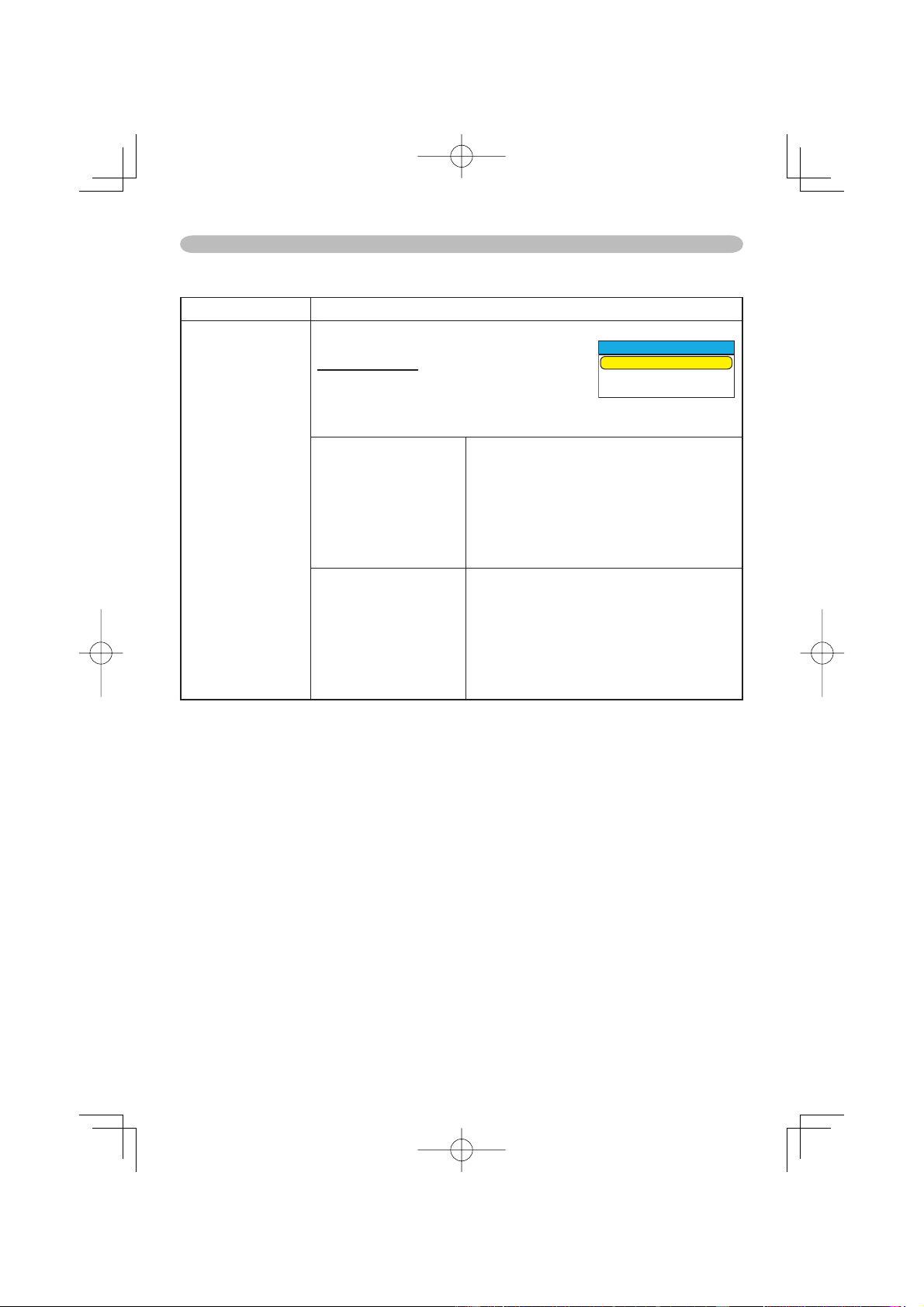
SERVICE
Pressing the ► (or the ENTER) button calls
the SERVICE menu.
SERVICE Menu
Select an item using the ▲/▼ buttons,
and press the ► (or the ENTER) button to
perform each function. :
FANSPEED
FACTORY RESET
FANSPEED
Select the fan speed level using the ▲/▼
buttons. :
HIGH
LOW
The HIGH ups rotation speeds of fans.
Please use this function in using a
projector at highlands etc.
memo Note that the projector is noisier
when the HIGH is selected.
F
ACTORY RESET
Initialize the Items in all of the menus:
Selecting the RESET performs this
function.
RESET
CANCEL
All the items in all of menu will collectively
returned to the factory defaults. Note that
the items “Lamp Time”, “Filter Time” and
“Language” are not reset.
OPTION Menu (continued)
SERVICE
FANSPEED
FANCTORY RESET
NORMAL
31
ENGLISH
Maintenance
Maintenance
Maintenance
LAMP WARNING
HIGH VOLTAGE
HIGH TEMPERATURE
HIGH PRESSURE
►The projector uses a high-pressure mercury glass lamp. The lamp can break
with a loud bang, or burn out, if jolted or scratched, handled while hot, or worn
over time. Note that each lamp has a different lifetime, and some may burst or
burn out soon after you start using them. In addition, when the bulb bursts, it is
possible for shards of glass to fl y into the lamp housing, and for gas containing
mercury to escape from the projector’s vent holes.
►About disposal of a lamp • This product contains a mercury lamp; do not
put in trash. Dispose of in accord with environmental laws.
For lamp recycling, go to www.lamprecycle.org. (in the US)
For product disposal, contact your local government agency
or www.eiae.org (in the US) or www.epsc.ca (in Canada).
For more information, call your dealer.
• If the lamp should break (it will make a loud bang when it does),
unplug the power cord from the outlet, and make sure to request a
replacement lamp from your local dealer. Note that shards of glass
could damage the projector’s internals, or cause injury during handling,
so please do not try to clean the projector or replace the lamp yourself.
• If the lamp should break (it will make a loud bang when it does),
ventilate the room well, and make sure not to breathe the gas that
comes out of the projector vents, or get it in your eyes or mouth.
• Before replacing the lamp, make sure the power switch is off and the
power cable is not plugged in, then wait at least 45 minutes for the lamp
to cool suffi ciently. Handling the lamp while hot can cause burns, as well
as damaging the lamp.
• Never unscrew except the appointed (marked by an arrow) screws.
• Do not open the lamp cover while the projector is suspended from
above. This is dangerous, since if the lamp’s bulb has broken, the
shards will fall out when the cover is opened. In addition, working in
high places is dangerous, so ask your local dealer to have the lamp
replaced even if the bulb is not broken.
• Do not use the projector with the lamp cover removed. At the lamp
replacing, make sure that the screws are screwed in firmly. Loose
screws could result in damage or injury.
• Use only the lamp of the specifi ed type.
• If the lamp breaks soon after the first time it is used, it is possible
that there are electrical problems elsewhere besides the lamp. If this
happens, contact your local dealer or a service representative.
•
Handle with care: jolting or scratching could cause the lamp bulb to burst during use.
• If the indicators or a message prompts you to replace the lamp (see
the section "Related Messages" and "Regarding the indicator Lamps"),
replace the lamp as soon as possible. Using the lamp for long periods
of time, or past the replacement date, could cause it to burst. Do not
use old (used) lamps; this is a cause of breakage.
32
Maintenance
Lamp
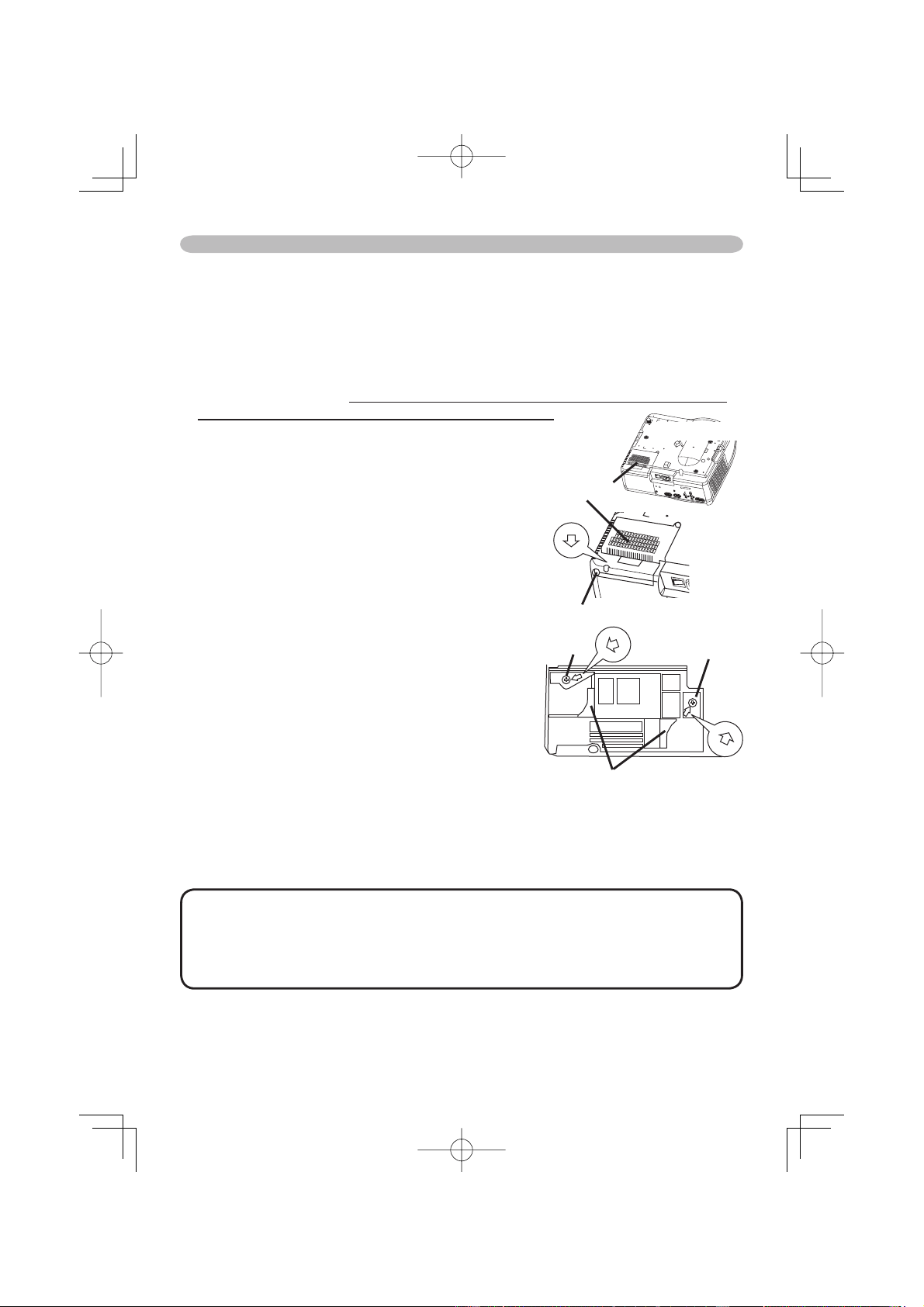
If the indicators or a message prompts you to replace the lamp, replace the lamp
as soon as possible.
1.
Turn off the projector, and unplug the power cord. Allow the lamp bulb to cool
for at least 45 minutes.
2.
Contact your dealer to prepare a new lamp. Tell the dealer your lamp type
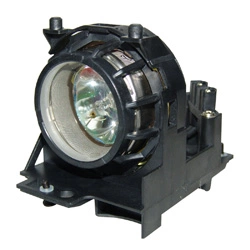
number: DT00661. If the projector is mounted on the ceiling, or if the lamp
has broken, also ask the dealer to replace the lamp.
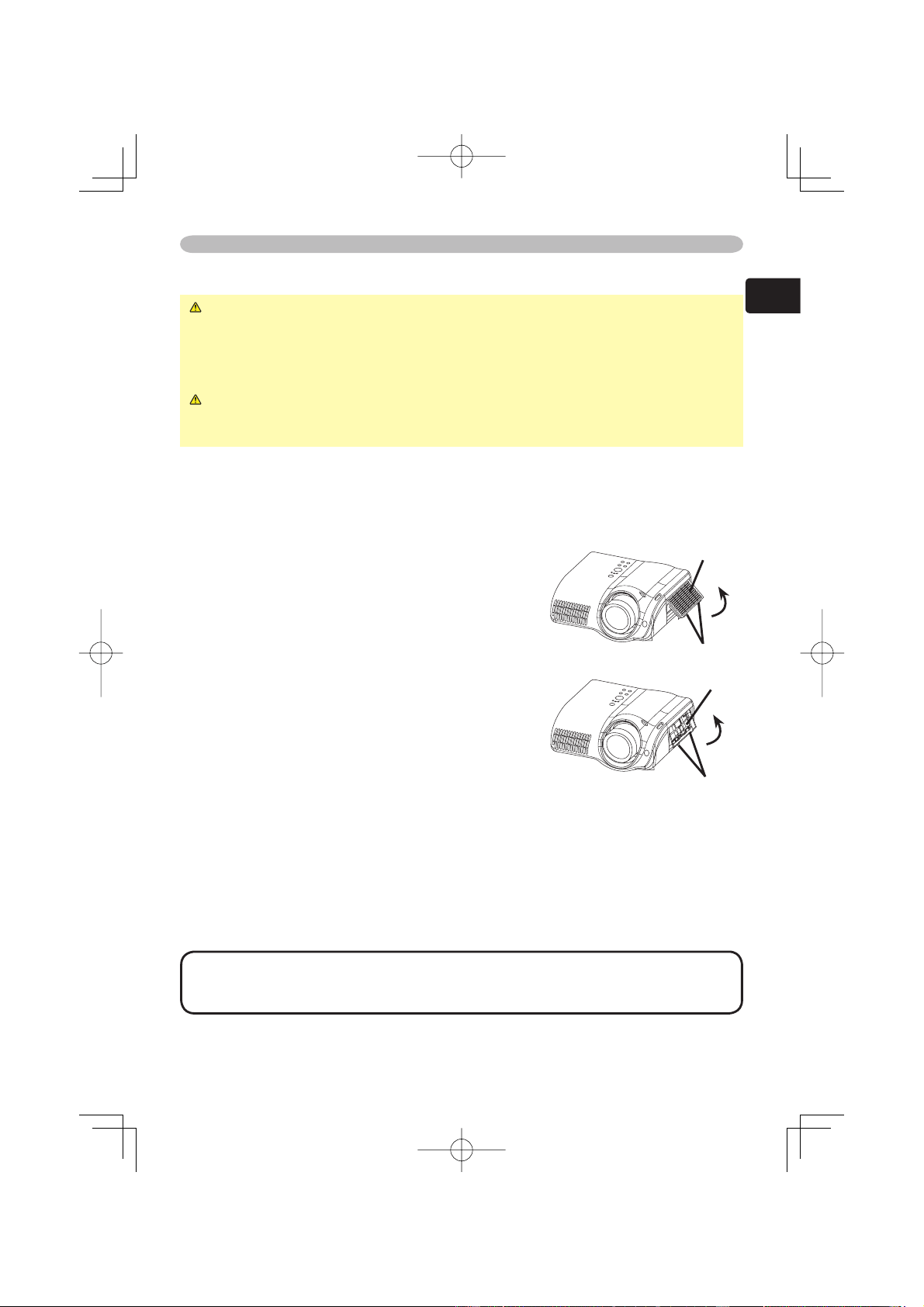
In the case of replacement by yourself,
3.
After making sure that the projector has
cooled adequately, slowly fl ip over the
projector, so that the bottom is facing up.
4.
Unscrew the screw (marked by arrow) of the
lamp cover, the slide and take the lamp cover
up.
5.
Unscrew the 2 screws (marked by arrow),
and slowly pick up the lamp by the handles.
6.
Insert the new lamp, and retighten fi rmly two
screws unscrewed in the previous process to
lock it in place.
7.
Slide the lamp cover into place, and retighten
fi rmly the screw of the lamp cover unscrewed
in the process number 4.
8.
Turn on the projector power, and reset the
lamp timer.
(1) While the projector running, press the
MENU button to open the menu.
(2) Choose the "OPTION" on the menu using the ▲/▼ button, then press
the ► button or ENTER button.
(3) Choose the "LAMP TIME" using the ▲/▼ button, then press and hold the
RESET button for 3 seconds.
(4) Choose the "RESET" using the ▲ button.
NOTE • When the lamp has been replaced after the message of "THE
POWER WILL TURN OFF AFTER 0hr." is displayed, complete the following
operation within 10 minutes of switching power on.
• Incorrectly resetting of the lamp timer (resetting without replacement, or
neglect of resetting after replacement) will result in incorrect message functions.
Lamp cover
Bottom side
Screw of the lamp cover
Screw
Screw
Handles
33
ENGLISH
Maintenance
Air fi lter
WARNING ►Before replacing the lamp, make sure the power switch is off
and the power cord is not plugged in, then wait at least 45 minutes for the lamp
to cool suffi ciently.
►Use only the air fi lter of the specifi ed type. Do not use the projector with the
air fi lter and fi lter cover removed.
CAUTION ►If the air fi lter becomes clogged by dust or the like, internal
tempereture rises and the power may be automatically turned off for
malfunction prevention .
If the indicators or a message prompts you to clean the air fi lter, clean the air fi lter
as soon as possible. Please replace the air fi lter when you replace the lamp, and
also when it is damaged or too soiled.
1.
Turn off the projector, and unplug the power cord. Allow the lamp bulb to cool
for at least 45 minutes.
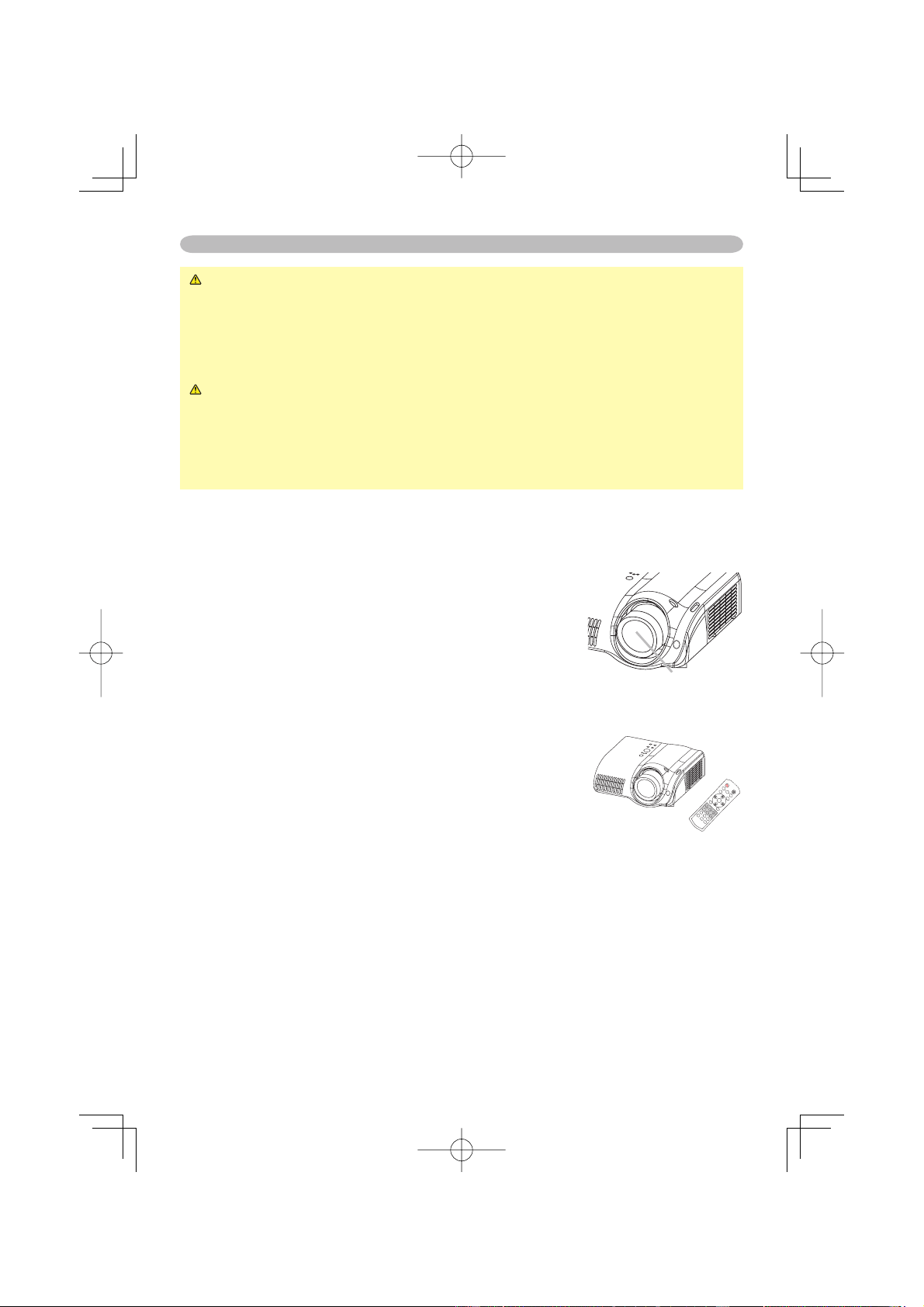
2.
After making sure that the projector has
cooled adequately, remove the fi lter cover
and the air fi lter. Hold its release buttons while
pulling up it.
3.
Apply a vacuum cleaner to the fi lter cover
and the air fi lter.
To replace the air fi lter,
Contact your dealer to prepare a new air fi lter.
Tell the dealer your air fi lter type number:
NJ09452.
4.
Insert the cleaned air fi lter or a new air fi lter,
and replace the fi lter cover.
5.
Turn on the projector power, and reset the fi lter timer.
(1) While the projector running, press the MENU button to open the menu.
(2) Choose the "OPTION" on the menu using the ▲/▼ button, then press
the ► button or ENTER button.
(3) Choose the "FILTER TIME" using the ▲/▼ button, then press and hold
the RESET button for 3 seconds.
(4) Choose the "RESET" using the ▲ button.
NOTE • Incorrectly resetting of the fi lter timer (resetting without replacement,
or neglect of resetting after replacement) will result in incorrect message
functions.
Filter cover
Release buttons
Air fi lter
Release buttons
34
Maintenance
WARNING ►Please carefully read the "User's Manual - Safety Guide".
►Before caring, make sure the power switch is off and the power cord is not
plugged in.
►Be cautious of high temperature. Do not touch about the lens and ventilation
openings during use or immediately after prevent a burn.
►Never try to care for the inside of the unit yourself. Doing so is dangerous.
CAUTION ►Incorrect care could have adverse infl uence such as
discoloration, peeling paint, etc.
►Do not use cleaner or chemicals other than those listed below, including
benzene and paint thinner.
►Do not use aerosols or sprays.
►Do not polish or wipe with hard objects.
Inside of the projector
In order to ensure the safe use of your projector, please have it cleaned and
inspected by your local dealer about once every 2 years.
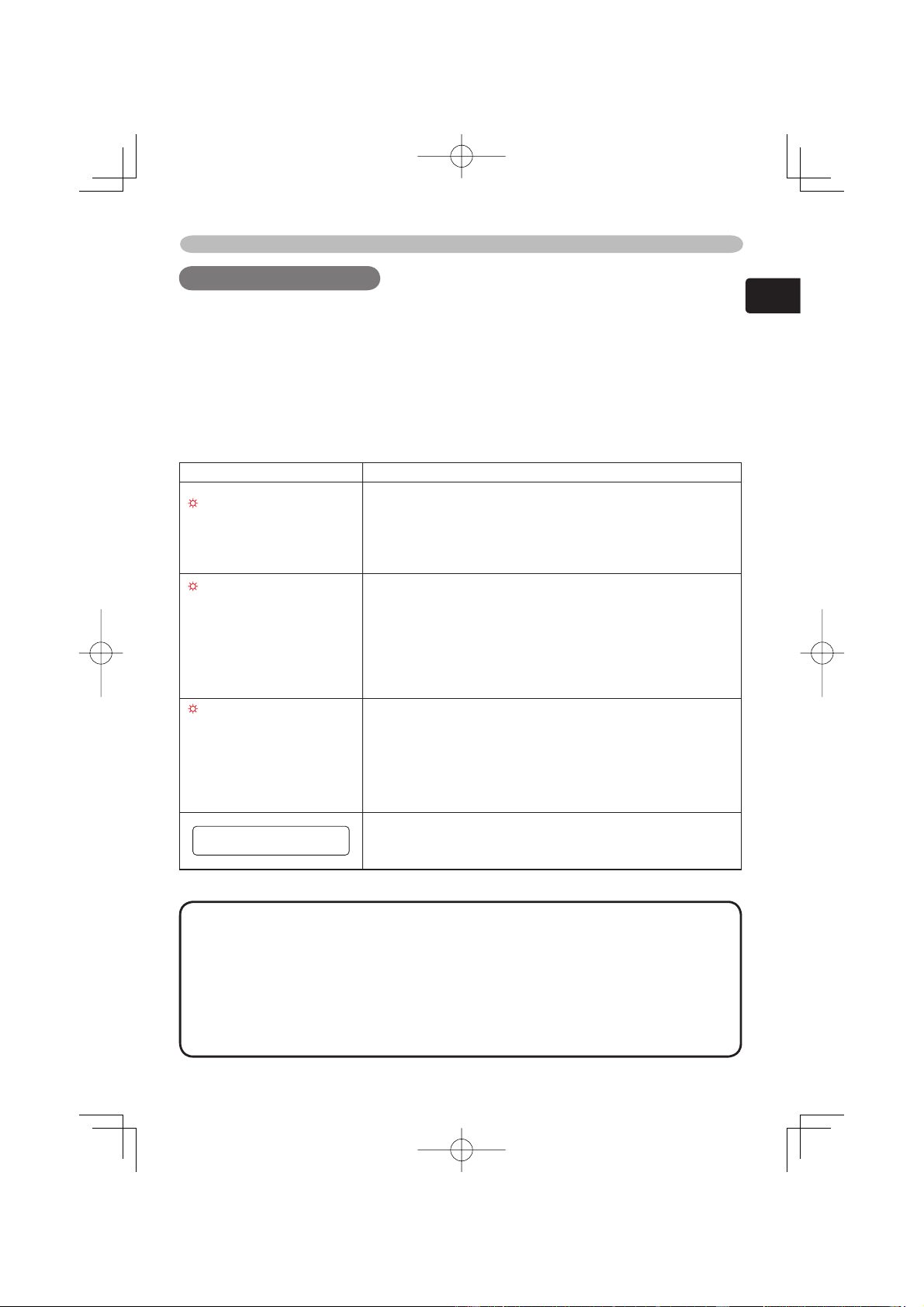
Caring for the lens
1.
Turn off the projector, and unplug the power cord.
2.
Lightly wipe the lens with a commercially available
lens-cleaning wipe. Do not touch the lens directly
with your hand.
Caring for the cabinet and remote control
1.
Turn off the projector, and unplug the power cord.
2.
Wipe lightly with gauze or a soft cloth.
If soiling is severe, dip soft cloth in water or a
neutral cleaner dilute in water, and wipe lightly after
wringing well. Then, wipe lightly with a soft, dry cloth.
Lens
POWER
LIGHT
OPT BL
K
ASPE
CT
MENU
BRIG
HT CONT
RAST
COLOR
IRIS
MODE
MEMOR
Y
ENTER
RESET
DVI
PC
AUTO
COM
PO
S-VIDEO
VIDEO
35
ENGLISH
Troubleshooting
Troubleshooting
Troubleshooting
Related messages
When the unit's power is on, messages such as those shown below may be
displayed. When any such message is displayed on the screen, please respond
as described below. If the same message is displayed after the treatment, or if a
message other than the following appears, please contact your dealer or service
company.
Although these messages will be automatically disappeared around several
minutes, it will be reappeared every time the power is turned on.
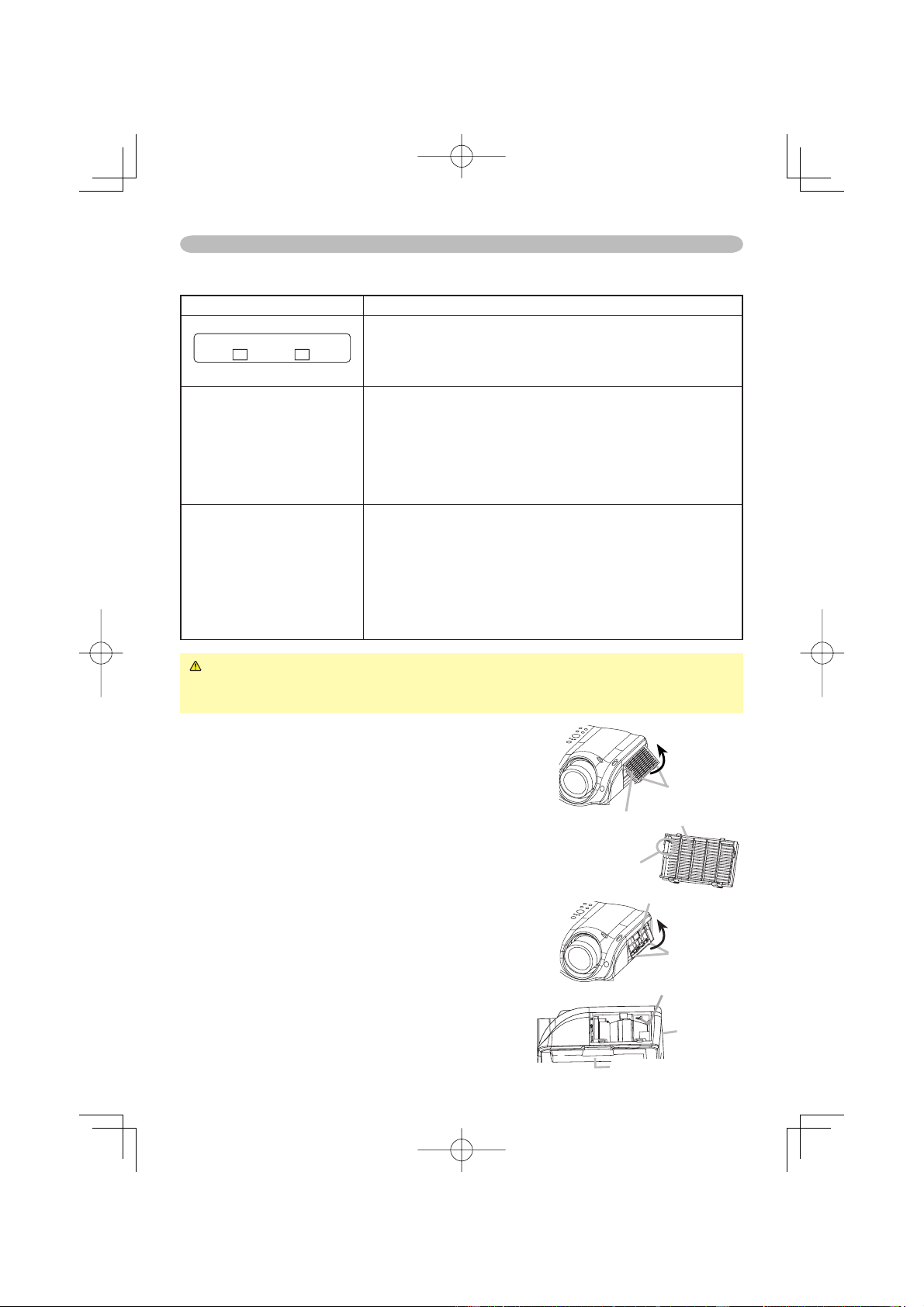
Message Description
CHANGE THE LAMP
AFTER REPLACING LAMP,
RESET THE LAMP TIMER.
The time the lamp timer has counted is approaching
2000 hours.
Preparation of a new lamp, and an early lamp change is
recommended. After you have change the lamp, please be
sure to reset the lamp timer.
CHANGE THE LAMP
AFTER REPLACING LAMP,
RESET THE LAMP TIMER.
THE POWER WILL TURN OFF
AFTER ** hr.
The time the lamp timer has counted is approaching
2000 hours, so a lamp change within ** hours is
recommended.
When lamp usage reaches 2000 hours, the power will
automatically be turned off. Please change the lamp by
referring to the section “Lamp”. After you have changed the
lamp, please be sure to reset the lamp timer.
CHANGE THE LAMP
AFTER REPLACING LAMP,
RESET THE LAMP TIMER.
THE POWER WILL TURN OFF
AFTER 0 hr.
As the time the lamp timer has counted has reached
2000 hours, the power will soon be automatically
turned off.
Please immediately turn the power off, and change the lamp
by referring to the section “Lamp”. After changing the lamp,
please be sure to reset the lamp timer.
NO INPUT IS DETECTED
ON ***
There is no input signal.
Please confi rm the signal input connection, and the status
of the signal source.
(This table is continued to the following page.)
NOTE • A lamp has a fi nite product life. Lamps are characterized by the
fact that, after long hours of usage, a lamp will no longer light up, or the lamp
will break or burst, etc. This projector is equipped with an automatic shut-down
function, such that the power will automatically be turned off when lamp usage
time has reached 2000 hours. Please be aware, however, that among lamp
types, there are major differences in product lifetimes; a lamp may thus fail to
light even prior to the functioning of the automatic shut-down function of this
projector.
36
Troubleshooting
Related messages (continued)
Message Description
SYNC IS OUT OF RANGE
ON *** fH *****kHz fV *****Hz
The horizontal or vertical wavelength of the inputted
signal is outside of the response parameters of this unit.
Please confi rm the specs for this unit or the signal source
specs.
CHECK THE AIR FLOW
The internal portion temperature is rising.
Please turn the power OFF, and allow the unit to cool down
at least 20 minutes. After having confi rmed the following
items, please turn the power ON again.
• Is there blockage of the air passage aperture?
• Is the air fi lter dirty?
• Does the peripheral temperature exceed 35°C?
CLEAN THE AIR FILTER
POWER OFF FIRST,
THEN CLEAN THE AIR
FILTER.
AFTER CLEANING THE AIR
FILTER,
RESET THE FILTER TIMER.
A note of precaution when cleaning the air fi lter.
Please immediately turn the power OFF, and clean or
change the air fi lter by referring to the “Air Filter” section of
this manual. After you have cleaned or changed the air fi lter,
please be sure to reset the fi lter timer. If the same message
is displayed after the treatment, please clean the transparent
area of fi lter cover and the dust-detecting window, according
to the following.
CAUTION ►The transparent area of fi lter cover and the dust-detecting
window should be cleaned for normal operation of the optical dust detecting
system. Please pay attention not to remain fi ber or fragment of cloth inside the duct.
1.
Turn off the projector, and unplug the power cord.
2.
After making sure that the projector has cooled
adequately, remove the fi lter cover.
Hold the release buttons of the fi lter cover, while
pulling up it.
3.
Wipe the transparent area of the fi lter cover by
using a swab or a soft cloth.
4.
Remove the air fi lter.
Hold the release buttons of the air fi lter, while
pulling up it.
5.
Wipe the dust-detecting window by using a soft
cloth.
6.
Replace the air fi lter and fi lter cover.
Filter cover
Release
buttons
Air fi lter
Transparent
area
Release
buttons
Dust detecting
window
(Bottom side)
(Rear side)
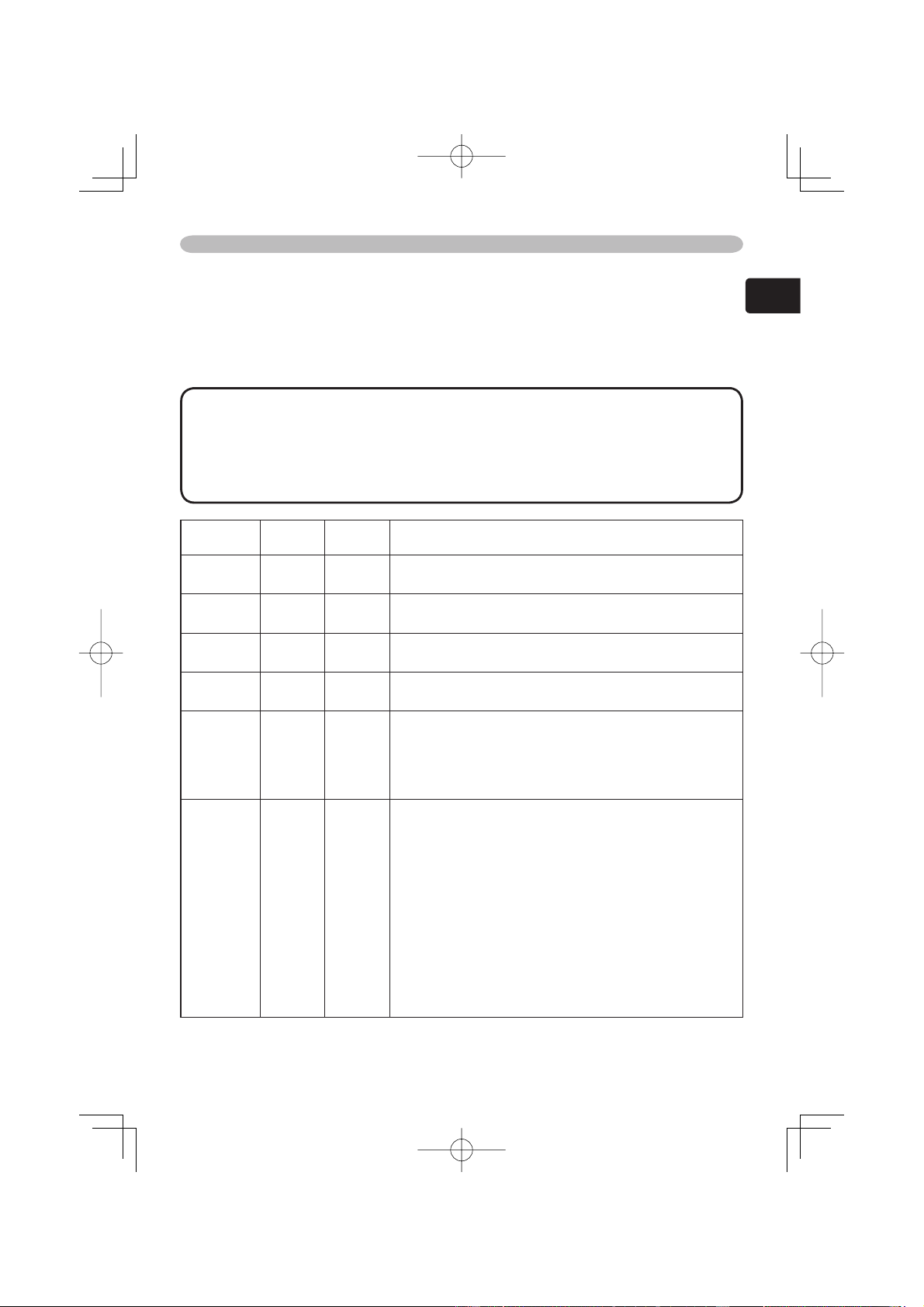
37
ENGLISH
Troubleshooting
Regarding the indicator lamps
Lighting and fl ashing of the POWER indicator, the LAMP indicator, and the TEMP
indicator have the meanings as described in the table below. Please respond
in accordance with the instructions within the table. If the same indication is
displayed after the treatment, or if an indication other than the following is
displayed, please contact your dealer or service company.
NOTE • When the interior portion has become overheated, for safety
purposes, the power source is automatically turned off, and the indicator lamps
may also be turned off. In such a case, press the “” (OFF) side of the main
power switch, and wait at least 45 minutes. After the projector has suffi ciently
cooled down, please make confi rmation of the attachment state of the lamp and
lamp cover, and then turn the power on again.
POWER
indicator
LAMP
indicator
TEMP
indicator
Description
Lighting
In Orange
Turned
off
T
urned
off
The projector is in a standby state.
Please refer to the section “Power On/Off”.
Blinking
In Green
Turned
off
T
urned
off
The projector is warming up.
Please wait.
Lighting
In Green
Turned
off
T
urned
off
The projector is in an on state.
Ordinary operations may be performed.
Blinking
In Orange
Turned
off
Turned
off
The projector is cooling down.
Please wait.
Blinking
In Red
(discre-
tionary)
(discre-
tionary)
The projector is cooling down. A certain error
has been detected.
Please wait until the POWER indicator fi nishes blink,
and then perform the proper response measure using
the item descriptions below as reference.
Blinking
In Red
or
Lighting
In Red
Lighting
In Red
Turned
off
The lamp does not light, and there is a
possibility that interior portion has become
heated.
Please turn the power off, and allow the unit to cool
down at least 20 minutes. After the projector has
suffi ciently cooled down, please make confi rmation of
the following items, and then turn the power on again.
• Is there blockage of the air passage aperture?
• Is the air fi lter dirty?
• Does the peripheral temperature exceed 35°C?
If the same indication is displayed after the treatment,
please change the lamp by referring to the section
“Lamp”.
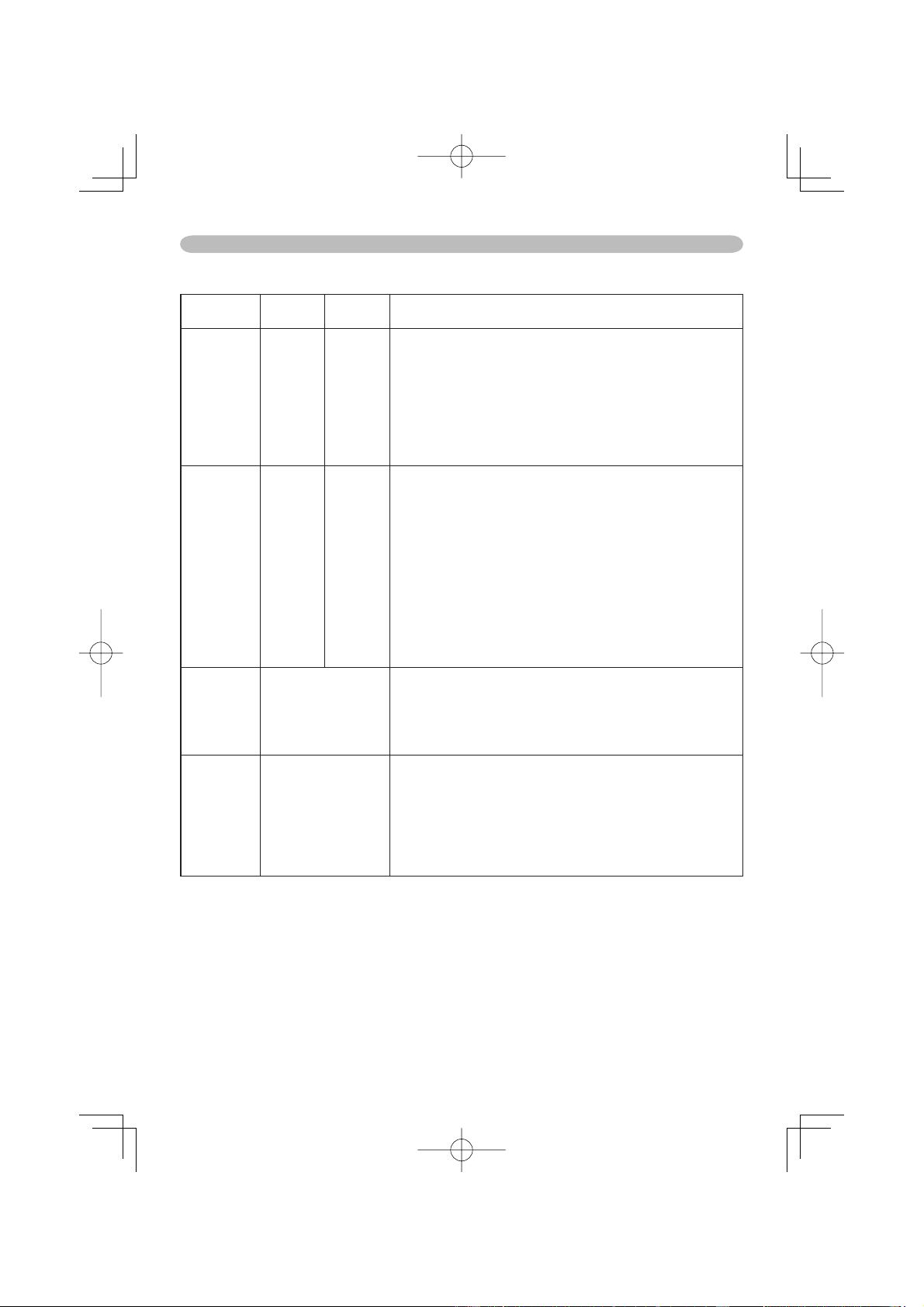
38
Troubleshooting
Regarding the indicator lamps (continued)
POWER
indicator
LAMP
indicator
TEMP
indicator
Description
Blinking
In Red
or
Lighting
In Red
Turned
off
Blinking
In Red
The cooling fan is not operating.
Please turn the power off, and allow the unit to cool
down at least 20 minutes. After the projector has
suffi ciently cooled down, please make confi rmation
that no foreign matter has become caught in the fan,
etc., and then turn the power on again.
If the same indication is displayed after the treatment,
please contact your dealer or service company.
Blinking
In Red
or
Lighting
In Red
Turned
off
Lighting
In Red
There is a possibility that the interior portion
has become heated.
Please turn the power off, and allow the unit to cool
down at least 20 minutes. After the projector has
suffi ciently cooled down, please make confi rmation of
the following items, and then turn the power on again.
• Is there blockage of the air passage aperture?
• Is the air fi lter dirty?
• Does the peripheral temperature exceed 35°C?
If the same indication is displayed after the treatment,
please change the lamp by referring to the section
“Lamp”.
Lighting
In Green
Alternative
blinking in Red
There is a possibility that the interior portion
has become overcooled.
Please use the unit within the usage temperature
parameters (5°C to 35°C). After the treatment, resent
the power to ON.
Lighting
In Green
Simultaneous
blinking in Red
It is time to clean the air fi lter, or there is no air
fi lter.
Please immediately turn the power OFF, and clean
or change the air fi lter by referring to the section “Air
Filter”. After cleaning or changed the lamp, please be
sure to reset the fi lter timer. After the treatment, resent
the power to ON.
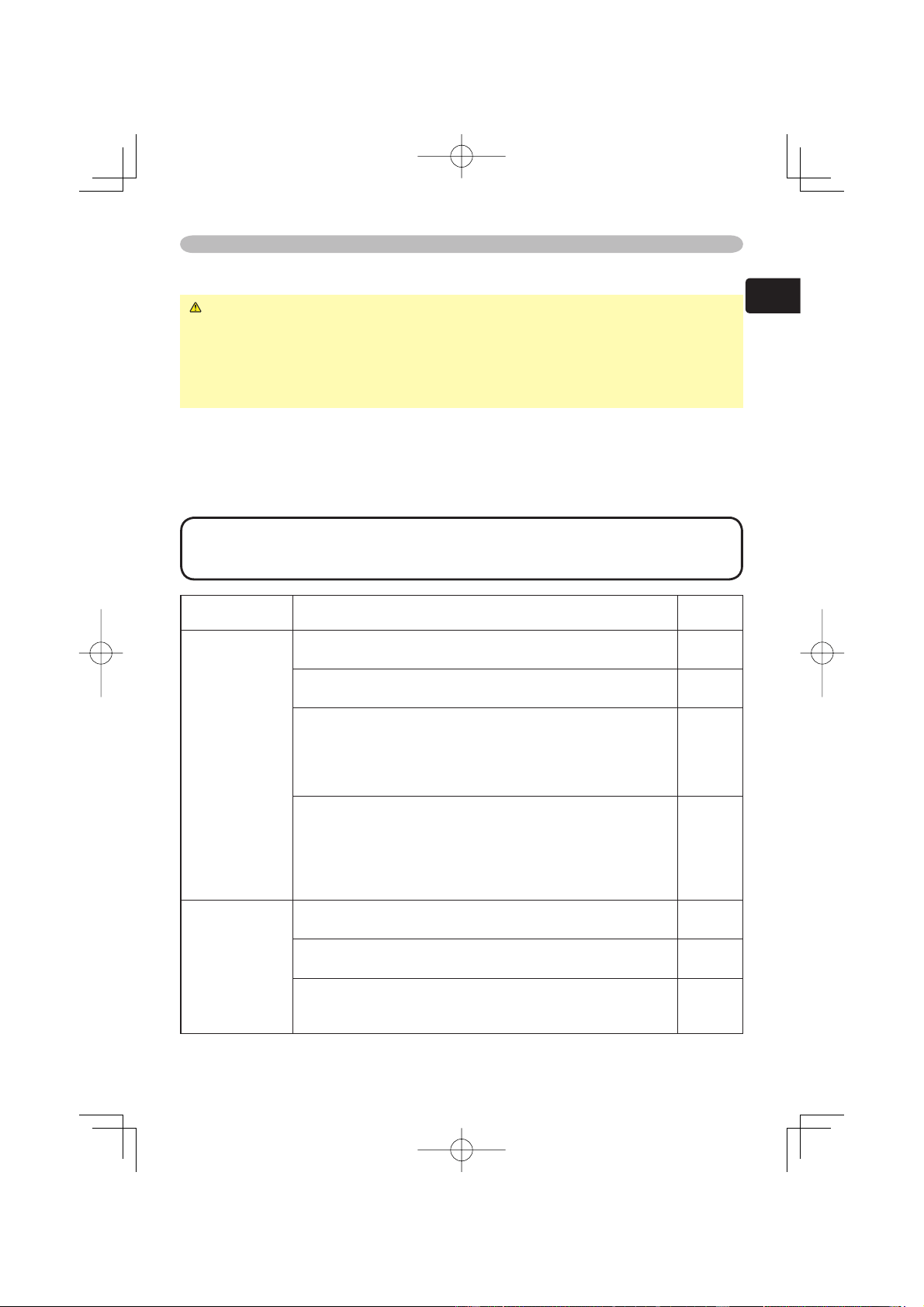
39
ENGLISH
Troubleshooting
Phenomena that may easily be mistaken for machine defects
WARNING ►Never use the projector if abnormal operations such as
smoke, strange odor, excessive sound, damaged casing or elements or cables,
penetration of liquids or foreign matter, etc. should occur. In such cases,
immediately turn off the power switch and then disconnect the power plug from
the power outlet After making sure that the smoke or odor has stopped, contact
your dealer or service company.
Before requesting repair, please check in accordance with the following chart. If
the situation cannot be corrected, please contact your dealer or service company.
memo If the problem is not removed after described maintainance, please use
the F
ACTORY RESET to reset all settings to factory default. This operation
sometimes resolve your problem.
NOTE • Although bright spots or dark spots may appear on the screen, this
is a unique characteristic of liquid crystal displays, and such do not constitute or
imply a machine defect.
Phenomenon Cases not involving a machine defect
Reference
page
Power does not
come on.
The electrical power cord is not plugged in.
Correctly connect the power cord.
10
The power switch is not set to the on position.
Set the power switch to [ | ] (On).
12
The main power source has been interrupted during
operation such as by a power outage (blackout), etc.
Please turn the power off, and allow the unit to cool down at
least 20 minutes. After the projector has suffi ciently cooled
down, please turn the power on again.
12
Either there is no lamp and/or lamp cover, or either
of these has not been properly fi xed.
Please turn the power off, and allow the unit to cool down at
least 45 minutes. After the projector has suffi ciently cooled
down, please make confi rmation of the attachment state of
the lamp and lamp cover, and then turn the power on again.
31, 32
No pictures are
displayed.
The lens cap is attached.
Remove the lens cap.
4
The signal cables are not correctly connected.
Correctly connect the connection cables.
8, 9
The brightness is adjusted to an extremely low level.
Adjust the BRIGHT to a higher level using the menu function
or the remote control.
16, 19
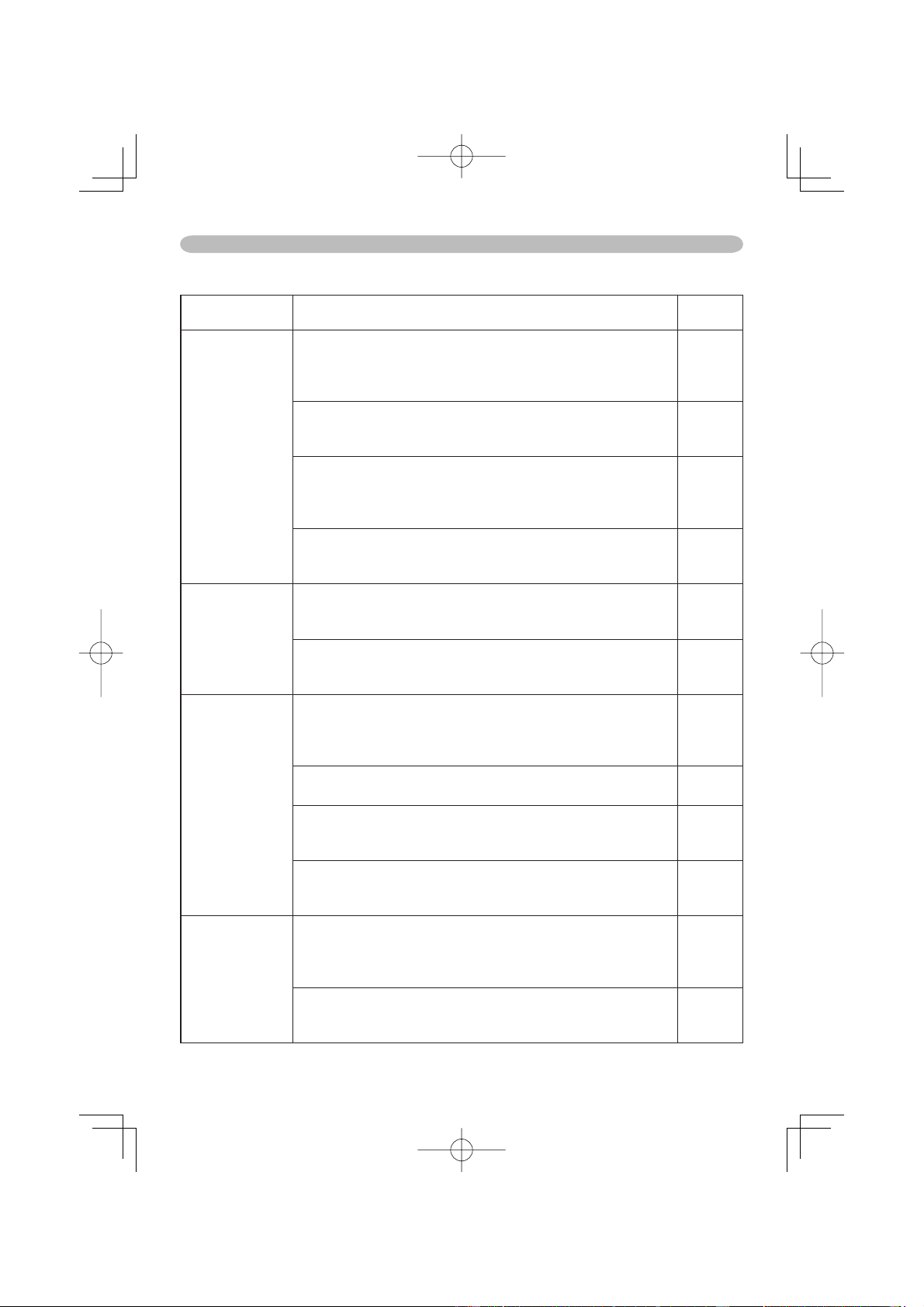
40
Phenomena that may easily be mistaken for machine defects (continued)
Phenomenon Cases not involving a machine defect
Reference
page
No pictures are
displayed.
The PC cannot detect the projector as a plug and
play monitor.
Make sure that the PC’s can detect a plug and play monitor
using other plug and play monitor.
8
If the connected PC has a DVI output, the driver
software of the DVI board is too old.
Consult with the dealer of your PC to install new software.
-
The signal source cannot output both a DVI signal
and a VGA signal simultaneously.
Disconnect the VGA connection when you use the DVI
input.
-
If the output signal can be selected on the PC, it isn't
selected properly
Select the digital output for DVI connection.
-
Colors have a
faded- out
appearance, or
Color tone is
poor.
Color settings are not correctly adjusted.
Perform picture adjustments by changing the COLOR TEMP,
COLOR and/or TINT settings, using the menu functions.
18, 19
COLOR SPACE setting is not suitable.
Change the COLOR SPACE setting to AUTO, RGB,
SMPTE240, REC709 or REC601.
24
Pictures appear
dark.
The brightness and/or contrast are adjusted to an
extremely low level.
Adjust the BRIGHT and/or CONTRAST settings to a higher
level using the menu function.
16, 18,
19
The IRIS setting lowers the brightness.
Set the IRIS to +10.
26
The WHISPER function is working.
Select the NORMAL to the item WHISPER in the SETUP
menu.
26
The lamp is approaching the end of its product
lifetime.
Replace the lamp.
32
Pictures appear
blurry.
Either the focus and/or horizontal phase settings are
not properly.
Adjust the focus using the focus knob, and/or H PHASE
using the menu function.
14, 22
The lens is dirty or misty.
Clean the lens by referring to the section “Caring For The
Lens”.
34
Troubleshooting
41
ENGLISH
Warranty And After-Service
Warranty and after-service
Warranty and after-service
If a problem occurs with the equipment, fi rst refer to the “Troubleshooting” and
run through the suggested checks. If this does not resolve the problem, please
contact your dealer or the service company. They will tell you what warranty
condition is applied.
Specifi cations
Specifi cations
Specifi cations
NOTE • This specifi cations are subject to change without notice.
Item Specifi cation
Product name Liquid crystal projector
Liquid
Crystal
panel
Panel size 1.8 cm (0.7 type)
Drive system TFT active matrix
Pixels 921,600 pixels (1280 horizontal x 720 vertical)
Lens Zoom lens F=1.8 ~ 2.4 f=20.0 ~ 31.9 mm
Lamp 150W UHB
Power Supply AC100-120V/2.4A, AC220-240V/1.1A
Power Consumption 220W
Temperature range 5 ~ 35°C (Operating)
Size
340 (W) x 110 (H) x 280 (D) mm (Not including protruding
parts)
• Please refer to the fi gure of the section “TECHNICAL” of
the end of this manual.
Weight (mass) 4.5 kg
Ports
Optional
parts
Lamp DT00661
Air fi lter NJ09452
Others • Please consult your dealer.
RGB input ports
Computer ........................1
DVI-D ..............................1
Video input ports
Video ..............................1
S-Video ..........................1
Component Video ...........1
(Y, Cb/Pb, Cr/Pr)
Control port
CONTROL ....................... 1