Thank you for purchasing this projector.
• The information in this manual is subject to change without notice.
• The manufacturer assumes no responsibility for any errors that may appear in this manual.
• The reproduction, transmission or use of this document or contents is not permitted without
express written authority.
TRADEMARK ACKNOWLEDGMENT :
• VGA and XGA are registered trademarks of the International Business Machines Corporation.
• Apple and Mac are registered trademarks of Apple Computer, Inc.
• VESA and SVGA are trademarks of the Video Electronics Standard Association.
• Windows is a registered trademark of Microsoft Corporation.
All other trademarks are the property of their respective owners.
NOTE
WARNING Before using, read the "User's Manual - Safety Guide" and
these manuals to ensure correct usage through understanding. After reading,
store them in a safe place for future reference.
Projector
PJ-TX10
PJ-TX10W / PJ-TX10E / PJ-TX10W(AU)
User's Manual - Operating Guide
1
01PJ-TX10En03.7.1511:18AMページ1

●
Ultra High Brightness
Crisp, ultra-bright presentations is achieved by using a UHB (ultra high brightness) lamp and a highly
efficient optical system.
●
Whisper Mode Equipped
Special mode is available for reducing projector noise to achieve quieter operation.
●
User Memory Function
This projector can memorize 4 settings by MY MEMORY function.
●
Optical Lens Shift
The lens of this projector can be shifted horizontally and vertically. When you want to finely adjust the
picture position, use the picture shift dials.
●
Keystone Distortion Correction
Quick correction of distorted images electrically.
Preparation
Please see the “Contents Of Package” of the “User’s Manual – Quick Guide”.
Your projector should come with the items shown there. Contact your dealer
anything is missing.
Projector Features
This multimedia projector is used to project various computer signals as well as
NTSC / PAL / SECAM video signals onto a screen. Little space is required for
installation and large images can easily be realized.
• Keep the original packing material for future reshipment. For moving the projector, be
sure to use the original packing material. Use special caution for the lens part.
NOTE
2
01PJ-TX10En03.7.1511:18AMページ2

3
Projector Features
……………………………………
2
Preparation
……………………………………………………
2
Part Names
……………………………………………………
4
The Projector ………………………4
Fastening The Lens Cap …………4
The Remote Control ………………6
Setting Up
…………………………………………………………
7
Arrangement ………………………7
Adjusting The Projector’s
Elevator ……………………………8
Using The Picture Shift Dials ……8
Connecting Your Devices…………9
Connecting Power Supply ………11
Remote Control
…………………………………………
12
Putting Batteries …………………12
Operating The Remote Control…13
Power ON/OFF
…………………………………………
14
Turning On The Power …………14
Selecting An Input Signal ………15
Turning Off The Power …………16
Operating
……………………………………………………
17
Adjusting The Volume …………17
Temporarily Muting The Sound…17
Using The Automatic
Adjustment Feature………………18
Correcting Keystone
Distortions…………………………18
Signal Searching …………………19
Selecting The Aspect Ratio ……19
Temporarily Blanking
The Screen ………………………19
Selecting The Gamma Mode……20
Recalling Your Adjustments ……20
Multifunctional Settings
……………………
21
Using The Menu Functions ……21
MAIN Menu ………………………22
PICTURE-1 Menu ………………23
PICTURE-2 Menu ………………25
INPUT Menu ……………………26
AUTO Menu ………………………28
SCREEN Menu …………………29
OPTION Menu……………………30
Lamp
………………………………………………………………
31
Replacing The Lamp ……………32
Air Filter
…………………………………………………………
33
Caring For The Air Filter…………33
Replacing The Air Filter …………34
Other Care
……………………………………………………
35
Caring For The Inside
Of The Projector …………………35
Caring For The Lens ……………35
Caring For The Cabinet
And Remote Control ……………35
Troubleshooting
……………………………………
36
Related Messages ………………36
Regarding
The Indicator Lamps ……………38
Phenomena That May Easily Be
Mistaken For Machine Defects …40
Warranty And After-Service ……41
Specifications
…………………………………………
42
TECHNICAL
Contents
01PJ-TX10En03.7.1511:18AMページ3
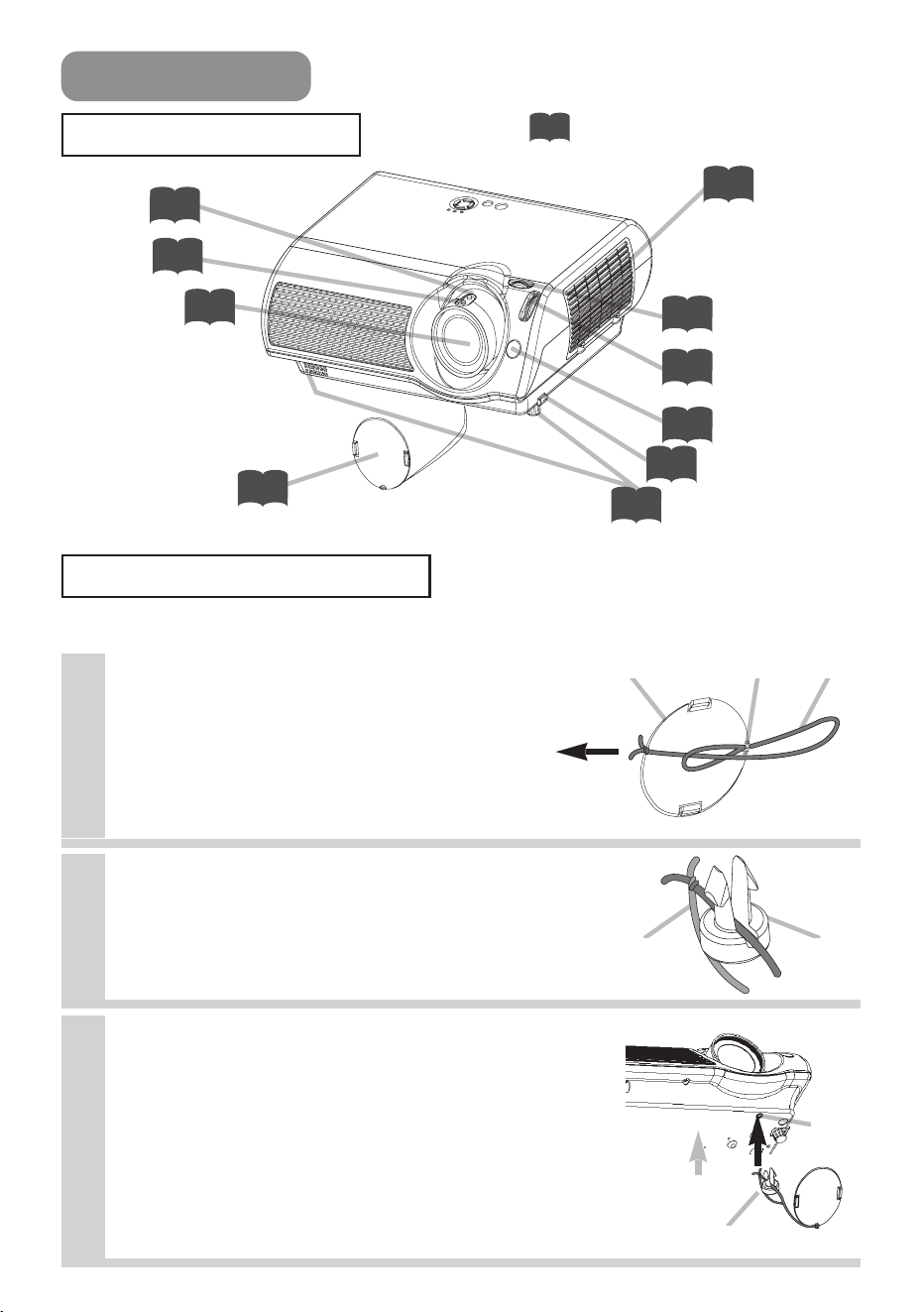
4
Strap Rivet
Strap
hole
Part Names
The Projector
Zoom ring
15
Focus ring
15
Air filter cover
(An air filter is
inside.)
33
Elevator button
8
Elevator feet
8
Indicates the corresponding
reference page
Lens cap
14
Lens
(The picture is
projected from
here.)
Remote sensor
13
Picture shift dial
(vertical)
8
Picture shift dial
(horizontal)
8
Projector (Front/Right)
Fastening The Lens Cap
To avoid losing, please fasten the lens cap to the projector using the strap.
1
Fix the strap to the strap ring of lens
cap, as the right drawing.
2
Put one piece of the strap into the
groove on rivet, as the right drawing.
3
Push the rivet into the strap hole.
Lens cap Strap ring Strap
Pull
Rivet
Push in
(Bottom side)
35
01PJ-TX10En03.7.1511:18AMページ4
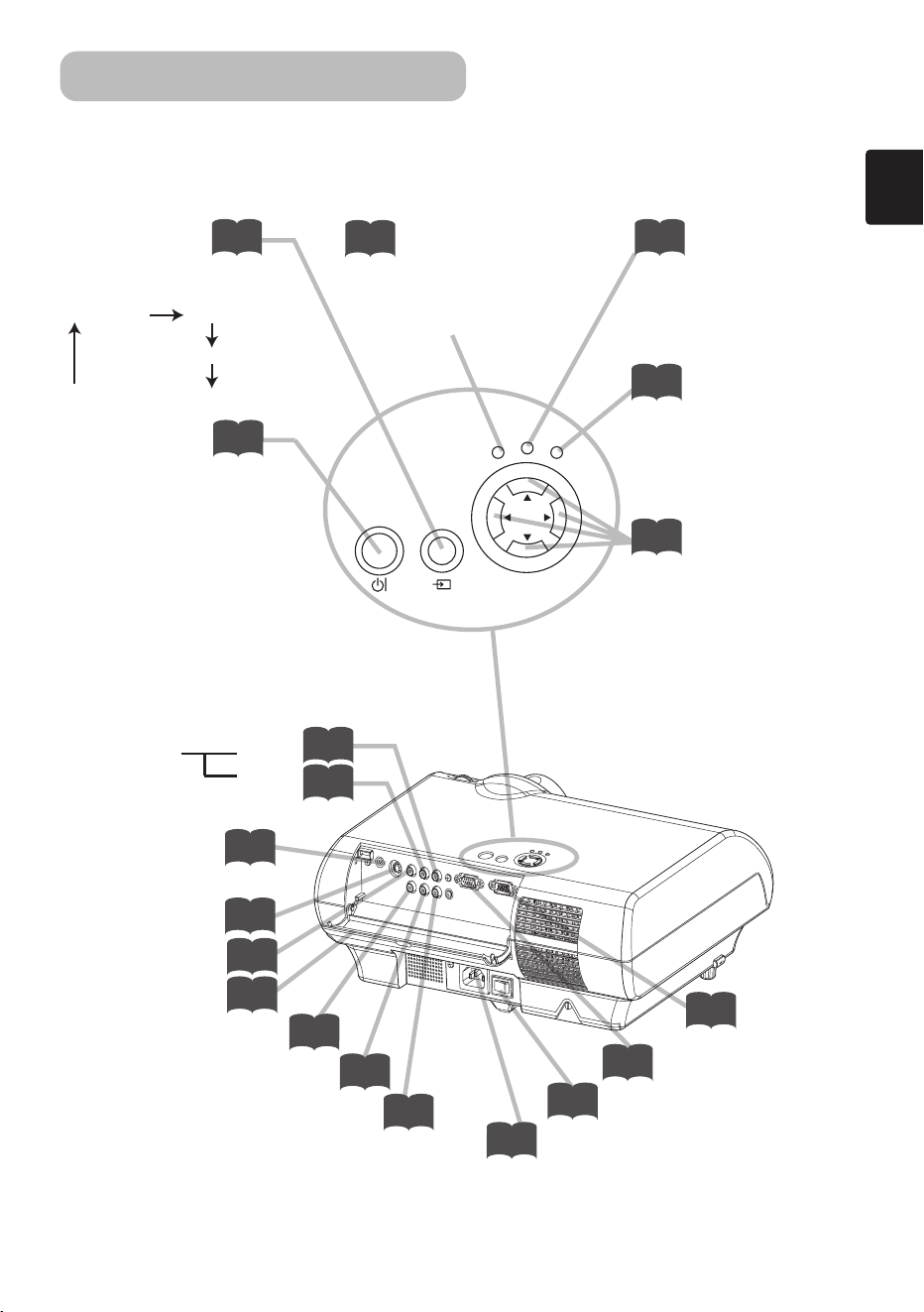
5
AC inlet
11
VIDEO port
10
Ports cover
10
AUDIO port
(from a computer)
10
S-VIDEO port
10
COMPONENT VIDEO - Y
10
COMPONENT VIDEO - C
B/PB
10
COMPONENT VIDEO - CR/PR
10
AUDIO R port
L port
(from a video equipment)
10
10
Power switch
14
COMPUTER port
10
CONTROL
port
10
Projector (Rear/Left)
STANDBY/ON
INPUT
POWER
LAMP
TEMP
MENU
POWER indicator
tells the state of power supply.
Refer to the section “Power
ON/OFF”.
INPUT button
toggles between the signal
ports.
MENU buttons
operate the menu function.
STANDBY/ON
button
prepares for turning the
power on/off. Refer to the
section “Power ON/OFF”.
TEMP indicator
lights or blinks when any
problem about internal
temperature has happened.
LAMP indicator
lights or blinks when any
problem about the lamp has
happened.
COMPUTER VIDEO
S-VIDEO
COMPONENT VIDEO
Part Names (continued)
The Projector (continued)
15
14
38
38
21
14
01PJ-TX10En03.7.1511:18AMページ5
6
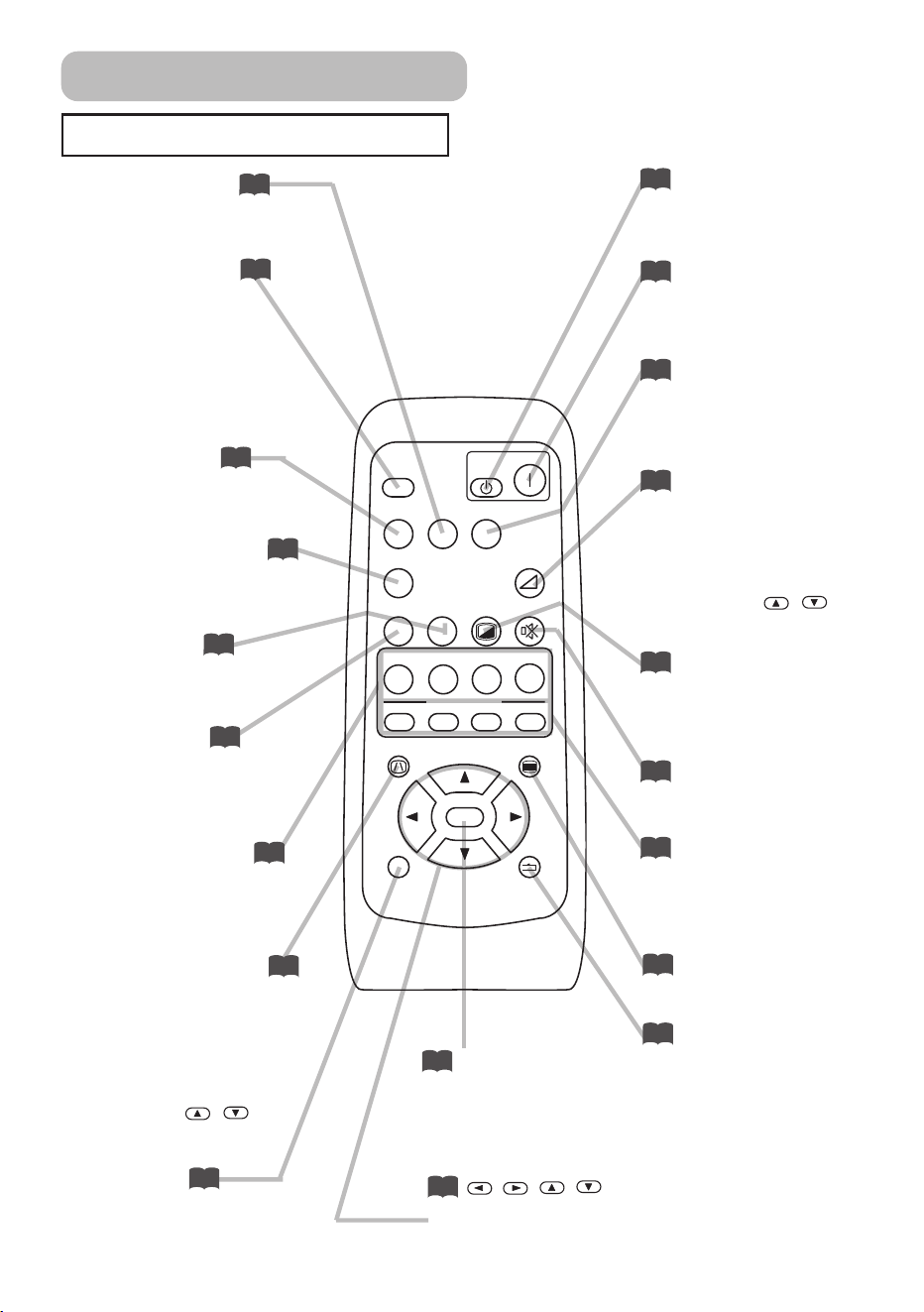
The Remote Control
Part Names (continued)
OFF button
prepares for turning the
power off.
SEARCH button
searches for an input
signal between the
following signal ports of
COMPUTER, VIDEO,
S-VIDEO and
COMPONENT VIDEO.
MENU button
opens/closes the menu.
S-VIDEO button
selects the input signal
of S-VIDEO port.
COMPONENT
button
selects the input signal of
COMPONENT port.
VOLUME button
turns on/off the VOLUME
mode.
In the VOLUME mode,
To adjust the volume,
use the cursor
/
buttons.
MUTE button
mutes/restores the sound.
BLANK button
blanks the screen
temporarily.
M1, M2, M3, M4
buttons
call the setting data on
each memory.
VIDEO button
selects the input signal of
VIDEO port.
ON button
prepares for turning the
power on.
COMPUTER button
selects the input signal of
COMPUTER port.
WIDE button
toggles between the
modes for aspect ratio.
AUTO button
executes automatic
adjustment.
CINEMA, DYNAMIC,
NORMAL, CUSTOM
buttons
select each of gamma
mode.
KEYSTONE button
turns on/off the KEYSTONE
mode.
In the KEYSTONE mode,
To adjust the
keystone,
use the cursor
/
buttons.
ESC button
returns to the previous
display at the menu
functions.
,,,
(Cursor) buttons
works for adjusting or
menu controlling.
RESET button
cancels the adjustment in
progress.
* The adjustments of the
volume etc. are not reset.
ENTER button
proceeds to the next
operation at the menu
functions.
SEARCH
SRC
VIDEO
VSVC
WIDEAUTO
MUTE
BLANK
CUSTOM
CINEMA
AT
CIN
M1
E
DYNAMIC
DYN
ENT
MYMEMORY
NORMAL
NOR CUS
WID
PC
MENU
ENTER
ESC RESET
VOLUME
COMPUTER
COMPONENTS-VIDEO
OFF
ON
KEYSTONE
M2 M3 M4
15
19
15
15
19
18
20
18
21
21
21
21
21
20
17
19
17
15
14
16
01PJ-TX10En03.7.1511:18AMページ6
7
Setting Up
Arrangement
WARNING • Install the projector in a suitable environment according to
instructions of the “User’s Manual – Safety Guide” and this manual.
• The power outlet should be close to the projector and easily accessible.
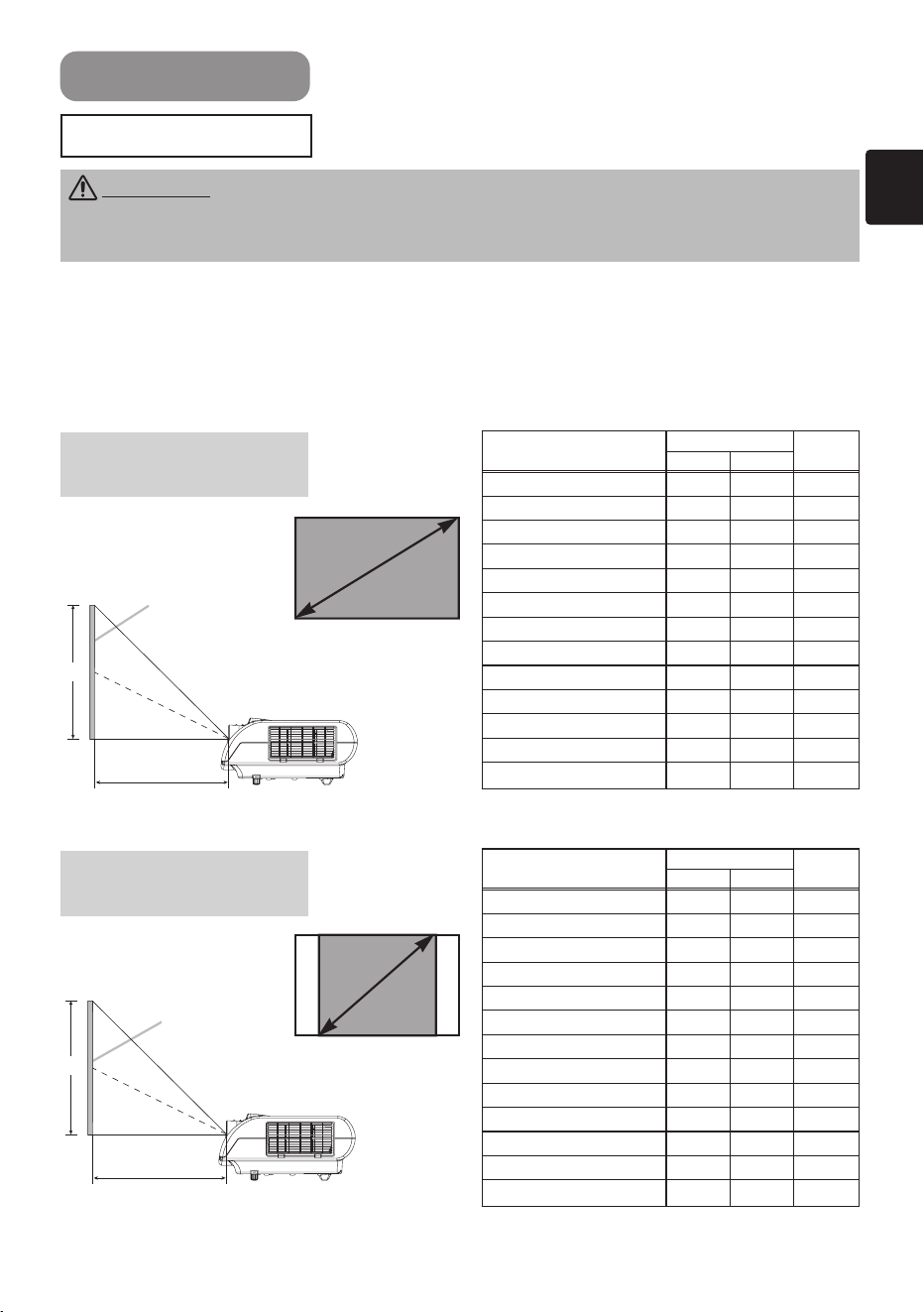
Refer to the illustrations and tables below to determine the screen size and projection
distance.
The values shown in the table are calculated for a full size screen:854×480
(a):Distance from the projector to the screen (±10%)
(b):Distance from the lens center to the top of the screen (±10%)
Screen Size [inch (m)]
(a) [inch (m)]
(b)
[inch (cm)]
Min. Max.
30 (0.8) 29(0.7) 60(1.5) 15(37)
40 (1.0) 40(1.0) 81(2.1) 20(50)
50 (1.3) 50(1.3) 102(2.6) 25(62)
60 (1.5) 60(1.5) 122(3.1) 29(75)
70 (1.8) 71(1.8) 143(3.6) 34(87)
80 (2.0) 81(2.1) 163(4.2) 39(100)
90 (2.3) 91(2.3) 184(4.7) 44(112)
100 (2.5) 101(2.6) 205(5.2) 49(125)
120 (3.0) 122(3.1) 246(6.2) 59(149)
150 (3.8) 153(3.9) 308(7.8) 74(187)
200 (5.1) 204(5.2)
411(10.4)
98(249)
250 (6.4) 256(6.5)
513(13.0)
123(311)
300 (7.6) 307(7.8)
616(15.7)
147(374)
(a)
(b)
Screen
Reference for
the 16:9 aspect ratio
Screen Size [inch (m)]
(a) [inch (m)]
(b)
[inch (cm)]
Min. Max.
30 (0.8) 36(0.9) 74(1.9) 18(46)
40 (1.0) 49(1.2) 99(2.5) 24(61)
50 (1.3) 62(1.6) 125(3.2) 30(76)
60 (1.5) 74(1.9) 150(3.8) 36(91)
70 (1.8) 87(2.2) 175(4.4) 42(107)
80 (2.0) 99(2.5) 200(5.1) 48(122)
90 (2.3) 112(2.8) 225(5.7) 54(137)
100 (2.5) 124(3.2) 251(6.4) 60(152)
120 (3.0) 150(3.8) 301(7.6) 72(183)
150 (3.8) 187(4.8) 377(9.6) 90(229)
200 (5.1) 250(6.4)
503(12.8)
120(305)
250 (6.4) 313(8.0)
629(16.0)
150(381)
300 (7.6) 376(9.5)
755(19.2)
180(457)
(a)
(b)
Screen
Reference for
the 4:3 aspect ratio
Side View
Side View
Screen
size
Screen
size
01PJ-TX10En03.7.1511:18AMページ7
8
• Generally, better quality of a picture is available when the lens shift is set
to the center.
• Do not attach anything other than specified options (such as an optional conversion
lens) to the screw thread. For details, please ask your dealer.
NOTE
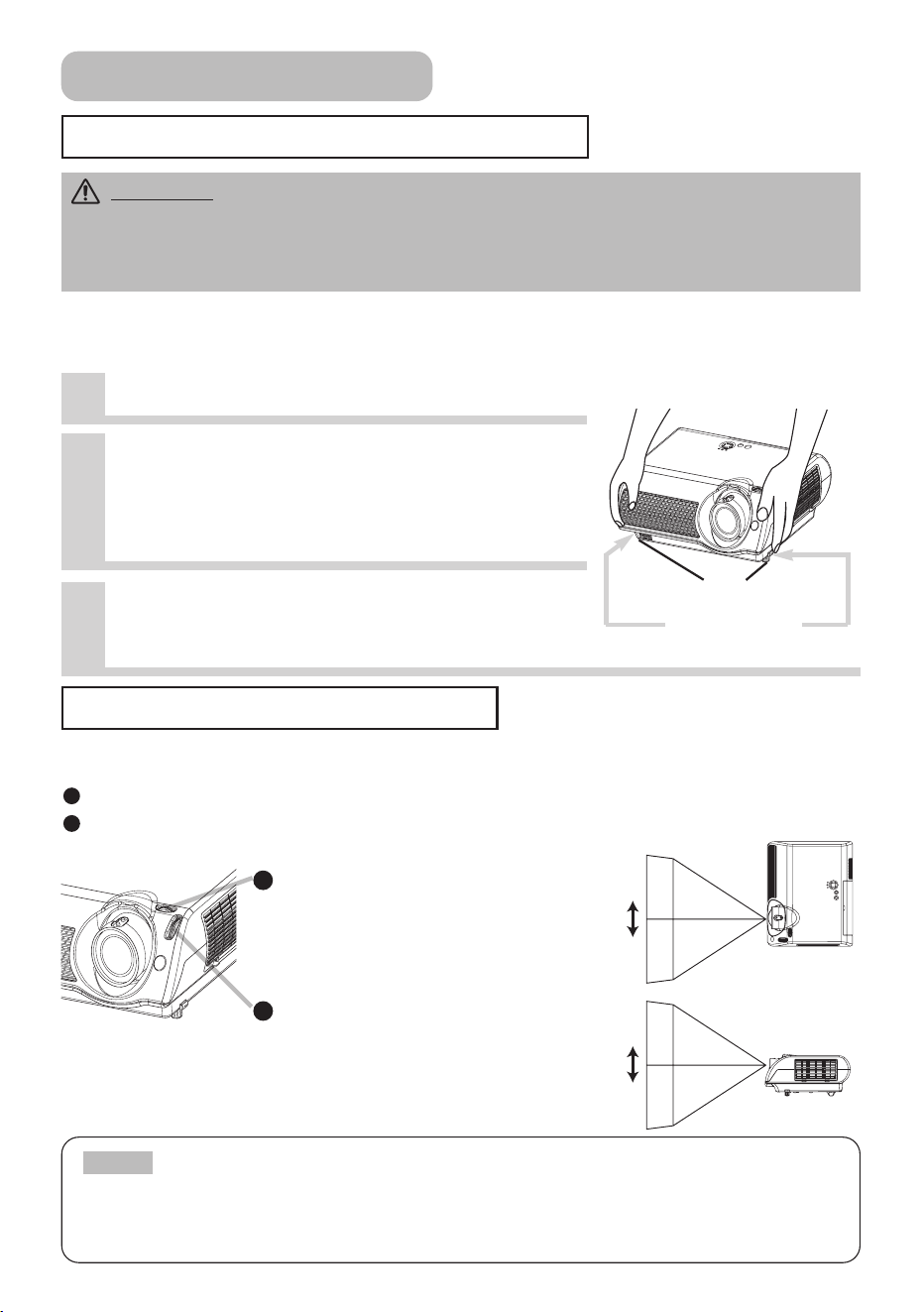
Adjusting The Projector's Elevator
Using The Picture Shift Dials
CAUTION •
If you press the elevator buttons without holding the projector, the
projector might crash down, overturn, smash your fingers and possibly result in
malfunction. To prevent damaging the projector and injuring yourself, ALWAYS HOLD
THE PROJECTOR whenever using the elevator buttons to adjust the elevator feet.
You can use the elevator feet to make adjustments if the surface on which you need to set
the projector is uneven or if you otherwise need to adjust the angle of projection. The
adjustment range of the elevator feet is 0 to 9 degrees.
The lens of this projector can be shifted horizontally and vertically. When you want to
finely adjust the picture position, use the picture shift dials.
Using the horizontal picture shift dial shifts the picture to right or left.
Using the vertical picture shift dial shifts the picture upward or downward.
2
1
1
Press and hold in the elevator buttons.
2
Raise or lower the projector to the
desired height and then release the
elevator buttons.
When you release the elevator buttons, the elevator
feet will lock into position.
3
As necessary, you can also finely
adjust the height of the projector by
twisting the elevator feet by hand.
Elevator buttons
Elevator feet
Setting Up (continued)
1
2
Horizontal picture shift dial
7.5:2.5
to
2.5:7.5
10:0
to
0:10
Vertical picture shift dial
01PJ-TX10En03.7.1511:18AMページ8
9
Connecting Your Devices
WARNING • Incorrect connecting could result in fire or electrical shock.
Whenever attempting to connect other devices to the projector, please thoroughly read
the "User's Manual - Safety Guide", this manual and the manual of each device to be
connected.
CAUTION
• TURN OFF ALL DEVICES prior to connecting them to the projector.
Attempting to connect a live device to the projector may generate extremely loud
noises or other abnormalities that may result in malfunction and/or damage to the
device and/or projector.
ATTENTION
• Make sure that you connect devices to the correct port. Incorrect
connection may result in malfunction and/or damage to the device and/or projector.
Refer to the section “TECHNICAL” of this manual for the pin assignment of connectors
and RS-232C communication data.
• Some cables have to be used with core set. Use the accessory cable or a
designated-type cable for the connection. For cables that have a core only at one end,
connect the core to the projector.
• Secure the screws on the connectors and tighten.
• Whenever attempting to connect a laptop computer to the projector, be sure to
activate the laptop’s RGB external image output (set the laptop to CRT display or to
simultaneous LCD and CRT display). For details on how this is done, please refer to the
instruction manual of the corresponding laptop computer.
About Plug-and-Play Capability
• This projector is compatible with VESA DDC 1/2B. Plug-and-Play can be achieved by
connecting this projector to computers that are VESA DDC (display data channel)
compatible. Please take advantage of this function by connecting the accessory RGB
cable to the COMPUTER port (DDC 1/2B compatible). Plug-and-Play may not work
properly if any other type of connection is attempted.
• Plug-and-Play is a system composed of the computer, its operating system and
peripheral equipment (i.e. display devices).
• Please use the standard drivers in your computer as this projector is a Plug-and-Play
monitor.
NOTE
• Some computers may have multiple display screen modes. Use of some of
these modes will not be possible with this projector.
• For some COMPUTER input modes, the optional Mac adapter is necessary.
• When the image resolution is changed on a computer, depending on an input,
automatic adjust function may take some time and may not be completed. In this case,
you may not be able to see a check box to select “Yes/No” for the new resolution on
Windows. Then the resolution will go back to the original. It might be recommended to
use other CRT or TFT monitors to change the resolution.
NOTE
Setting Up (continued)
01PJ-TX10En03.7.1511:18AMページ9
10
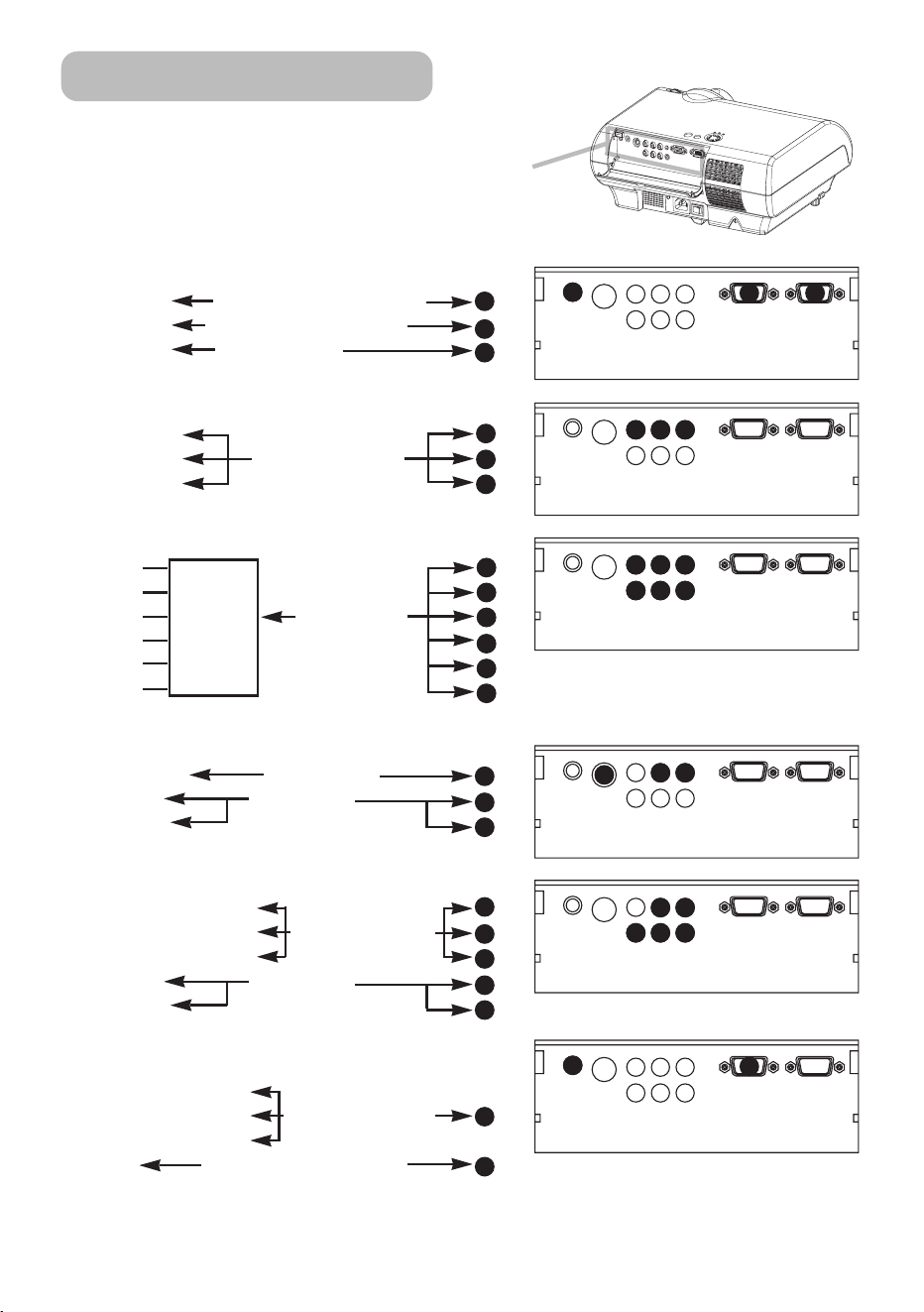
Please refer to the following for connecting your devices.
See the rear of the projector and open the ports cover.
You can see the ports.
S-VIDEO
AUDIO
Y
COMPONENT VIDEO
C
B/PB CR/PR
COMPUTER
CONTROL
S-VIDEO
AUDIO
Y
COMPONENT VIDEO
C
B/PB CR/PR
COMPUTER
CONTROL
S-VIDEO
AUDIO
Y
COMPONENT VIDEO
C
B/PB CR/PR
COMPUTER
CONTROL
S-VIDEO
AUDIO
Y
COMPONENT VIDEO
C
B/PB CR/PR
COMPUTER
CONTROL
S-VIDEO
AUDIO
Y
COMPONENT VIDEO
C
B/PB CR/PR
COMPUTER
CONTROL
S-VIDEO
AUDIO
Y
COMPONENT VIDEO
C
B/PB CR/PR
COMPUTER
CONTROL
2
2
1
3
4
4
5
6
5
6
5
10
6
5
6
7
8
9
7
8
9
1
L-AUDIO-R
VIDEO
L-AUDIO-R
VIDEO
L-AUDIO-R
VIDEO
L-AUDIO-R
VIDEO
L-AUDIO-R
VIDEO
L-AUDIO-R
VIDEO
Connecting to a computer
RGB out RGB cable (D-sub 15 pin)
Audio out Audio cable (Stereo mini)
RS-232C port RS-232C cable
Connecting to a DVD/VCR player
Video out
Audio out (L) Audio/Video cable
Audio out (R)
If using a SCART RGB input,
Video
AUDIO-L
AUDIO-R SCART SCART cable
G out port
B
R
If using a S-video input,
S-video out port S-video cable
Audio out (L) Audio cable
Audio out (R)
If using a component input,
Component (Y) out
Component (CB
/PB) out Component cable
Component (C
R/PR) out
Audio out (L) Audio cable
Audio out (R)
If using a component input from
COMPUTER port,
Component (Y) out
Component (C
B/PB) out Component cable
Component (C
R/PR) out (with D-sub 15 pin)
Audio out Audio cable(Stereo mini)
1
2
2
3
4
7
8
9
4
5
6
5
6
5
6
7
8
1
9
10
5
6
Setting Up (continued)
01PJ-TX10En03.7.1511:19AMページ10
11
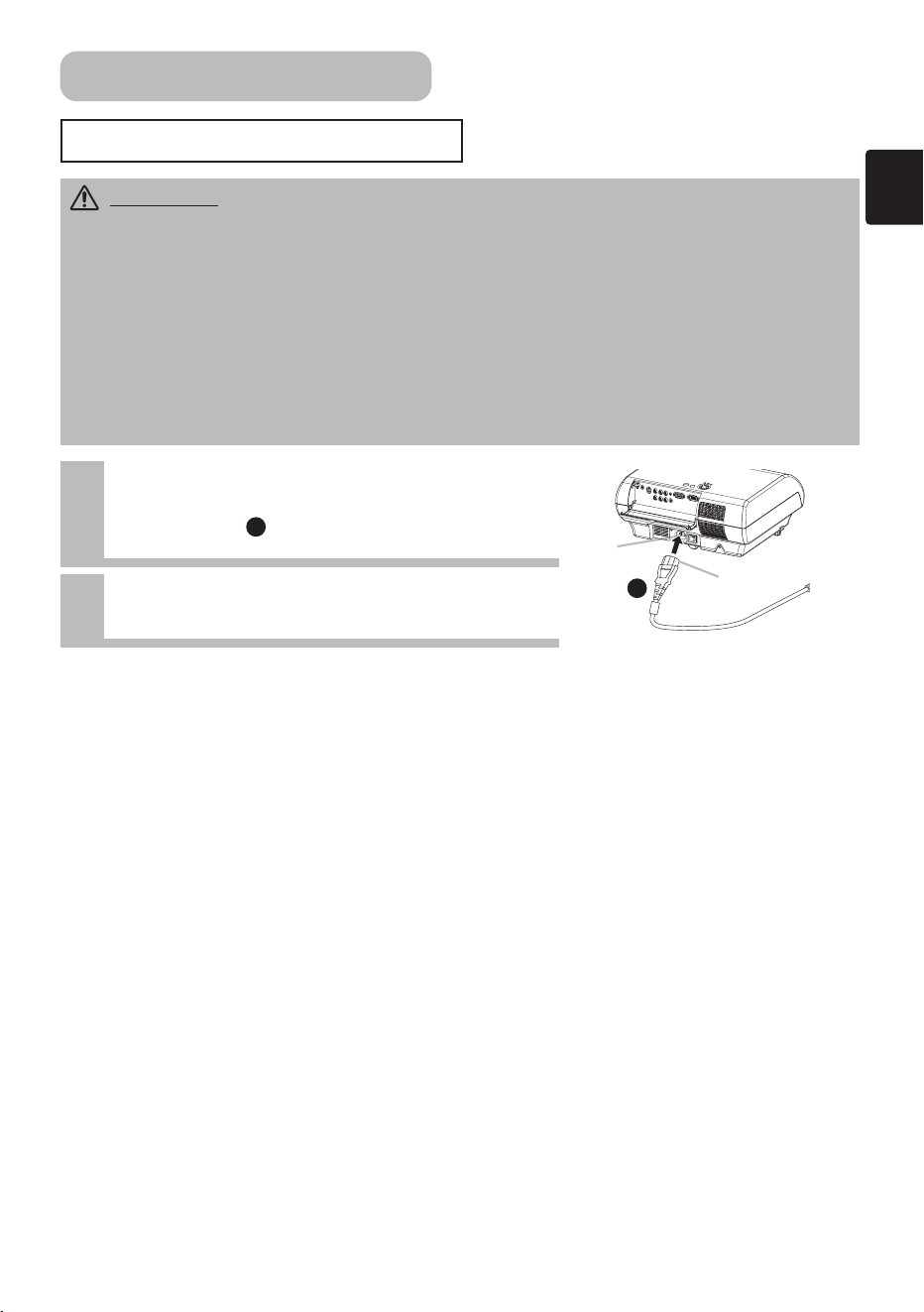
1
Connect the connector of the
power cord to the AC inlet of the
projector.
1
2
Firmly plug the power cord’s plug
into the outlet.
WARNING • Please use extra caution when connecting the power cord as
incorrect or faulty connections may result in FIRE and/or ELECTRICAL SHOCK. Please
adhere to the “User’s manual – Safety Guide” and the following.
• Only plug the power cord into outlets rated for use with the power cord’s specified
voltage range.
• Only use the power cord that came with the projector. If it is damaged, contact your
dealer to newly get correct one.
• Never modify the power cord. Never attempt to defeat the ground connection of the
three-pronged plug.
• Make sure that you firmly connect the power cord to the projector and wall outlet.
AC Inlet
Connector Side
Power cord
1
Connecting Power Supply
Setting Up (continued)
01PJ-TX10En03.7.1511:19AMページ11
12
CAUTION Always handle the batteries with care and use them only as directed.
Improper use may result in battery cracking or leakage, which could result in fire, injury
and/or pollution of the surrounding environment.
• Keep the battery away from children and pets.
• Be sure to use only the batteries specified for use with the remote control. Do not mix
new batteries with used ones.
• When inserting batteries, verify that the plus and minus terminals are aligned correctly
(as indicated in the remote control).
• When you dispose the battery, you should obey the law in the relative area or country.
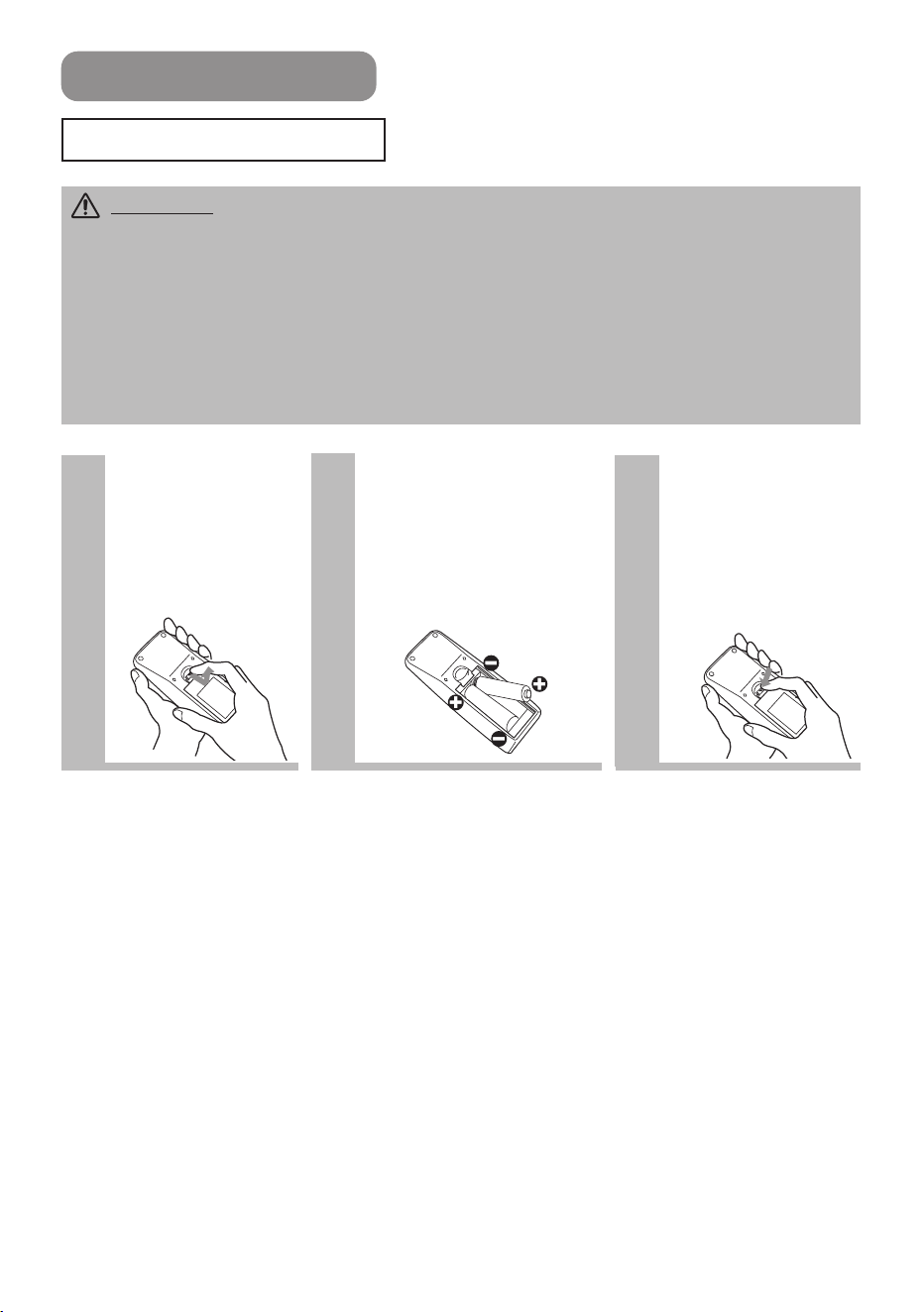
1
Remove the
battery cover.
Slide back and
remove the battery
cover in the direction
of the arrow.
Insert the
batteries.
Align and insert the two
AA batteries according to
their plus and minus
terminals (as indicated in
the remote control).
Close the
battery cover.
Replace the battery
cover in the direction
of the arrow and
snap it back into
place.
2
3
Remote Control
Putting Batteries
01PJ-TX10En03.7.1511:19AMページ12

13
Operating The Remote Control
ATTENTION • Do not drop or otherwise expose the remote control to physical
impact.
• Do not get the remote control wet or place it on wet objects. Doing so may result in
malfunction.
• Remove the batteries from the remote control and store them in a safe place if you
won’t be using the remote control for an extended period.
• Replace the batteries whenever the remote control starts to malfunction.
• When strong lights, such as direct sunlight or light from an extremely close range
(such as from an inverter fluorescent lamp), hit the projector’s remote sensor, the
remote control may cause to function. Adjust the direction of the projector to keep light
from directly hitting the projector’s remote sensor.
• The remote control works with the projector’s remote
sensor.
• The range of the remote sensor is 3 meters with a 60-
degree range (30 degrees to the left and right of the
remote sensor).
Also a remote signal reflected in the screen etc. may be
available. If it is difficult to send a remote signal to the
sensor directly, please try.
• Since the remote control uses infrared light to send
signals to the projector (Class1 LED), be sure to use the
remote control in an area free from obstacles that could
block the remote control’s output signal to the projector.
30° 30°
approximately
3 meters
Remote sensor
Remote Control (continued)
01PJ-TX10En03.7.1511:19AMページ13
14
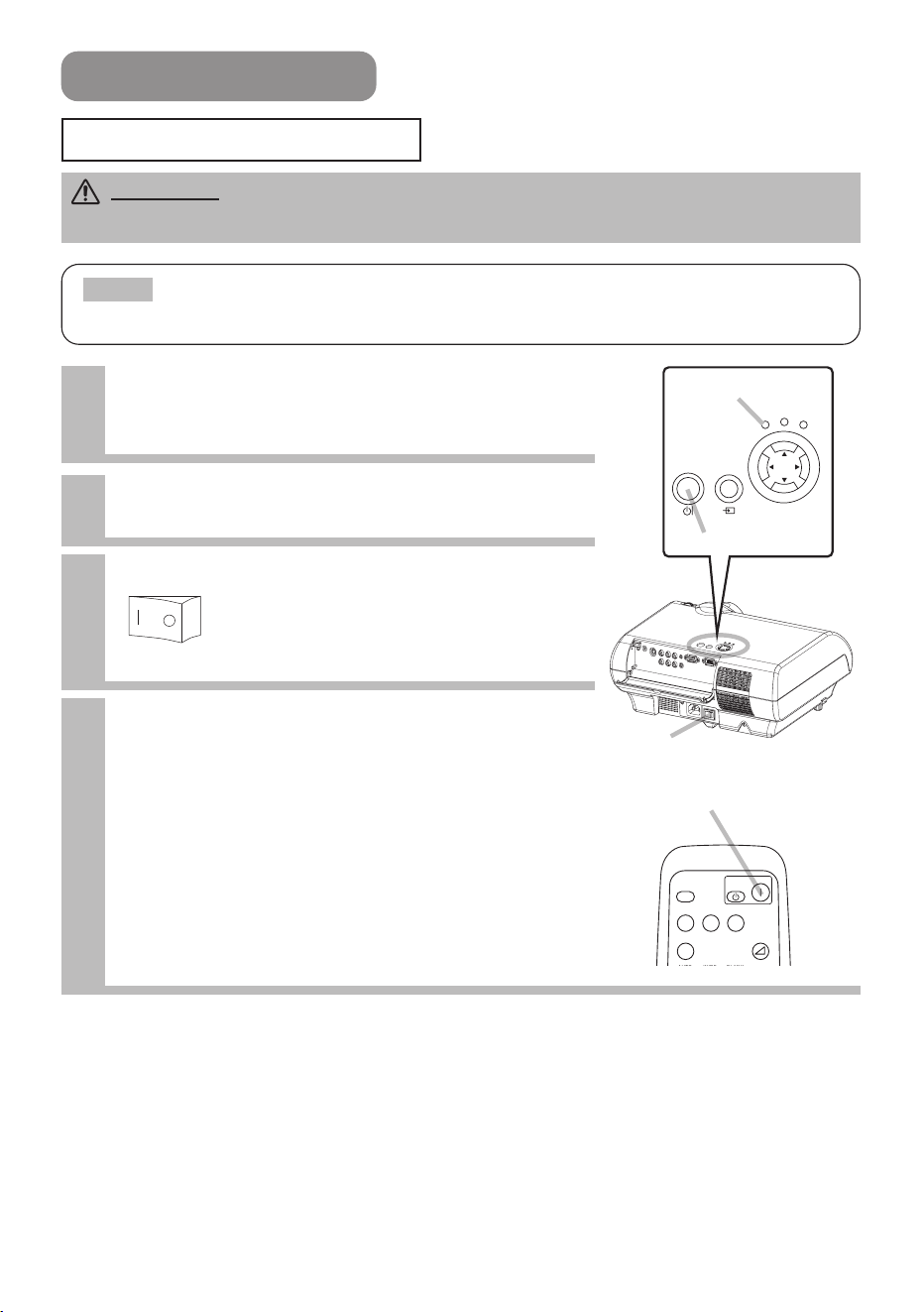
STANDBY/ON
INPUT
POWER
LAMP
TEMP
MENU
Power ON/OFF
Turning On The Power
WARNING • When the power is ON, a strong light is emitted. Do not look into the
lens or vents of the projector.
• Turn the power on/off in right order. Please power on the projector before
the connected devices. Power off the projector after the connected devices.
NOTE
1
Make sure that the power cord is
firmly and correctly connected to the
projector and outlet.
2
When the lens cap is attached, remove
the lens cap.
3
Set the power switch to [ | ] (ON).
4
Press the STANDBY/ON button of the
projector or the ON button of the
remote control.
The projector lamp will light up and the POWER
indicator will begin blinking green.
According to a setup, the projector lamp may light
up and the POWER indicator may begin blinking
green, without pressing this button.
When the power is completely on, the indicator will
stop blinking and light green.
The POWER indicator will light orange.
Power switch (ON position)
Power switch
STANDBY/ON button
POWER indicator
SEARCH
SRC
VIDEO
VSVC
WIDEAUTO BLANK
PC
VOLUME
COMPUTER
COMPONENTS-VIDEO
OFF
ON
ON button
01PJ-TX10En03.7.1511:19AMページ14
15
SEARCH
SRC
VIDEO
VSVC
WIDEAUTO BLANK
PC
VOLUME
COMPUTER
COMPONENTS-VIDEO
OFF
ON
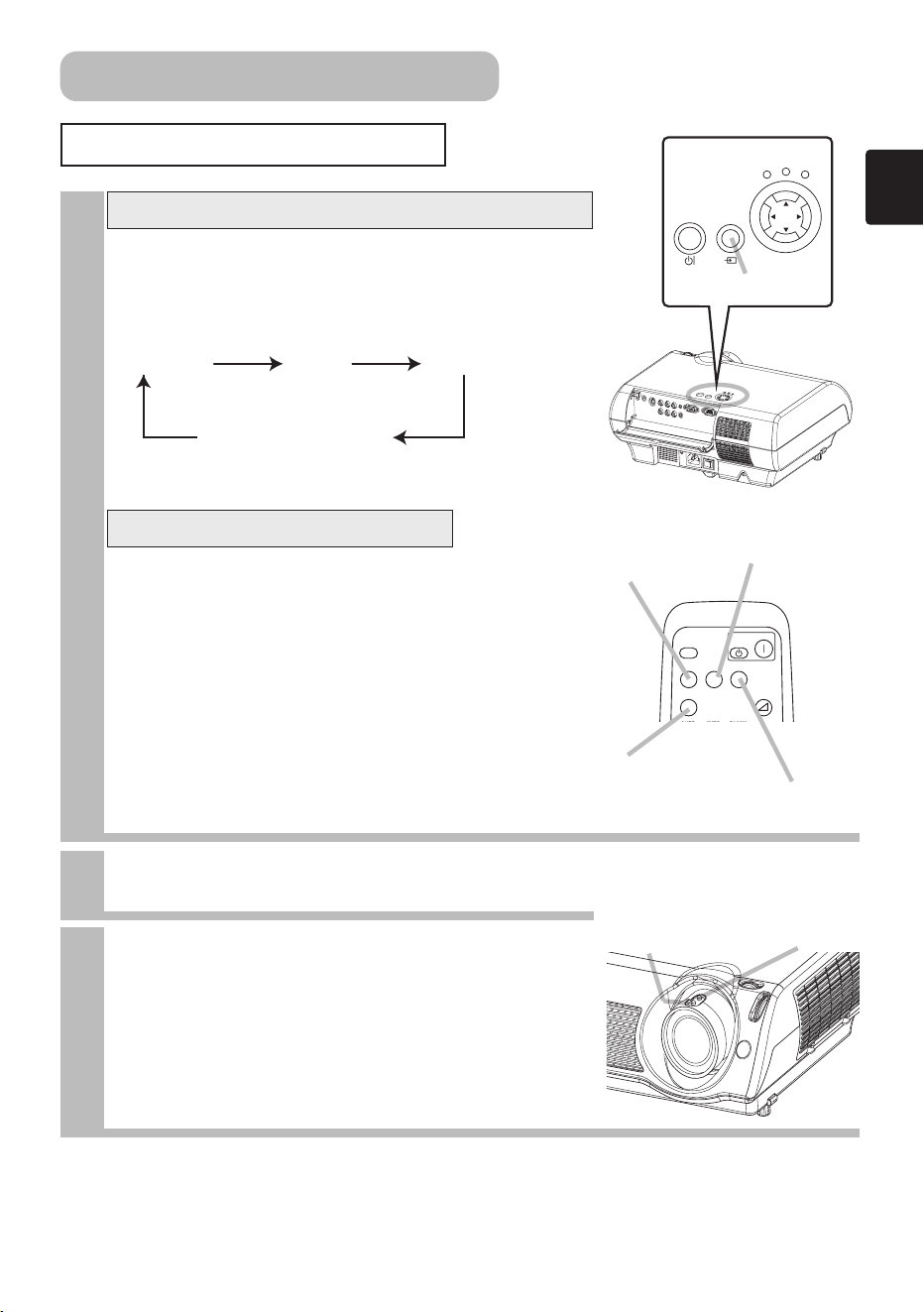
Selecting An Input Signal
1
2
Use the zoom ring to adjust the screen
size.
3
Use the focus ring to focus the picture.
Press the INPUT button.
As illustrated below, each time you press the INPUT
button, the projector switches between its input signal
ports. Select the signal you wish to project.
Using the projector’s control button
Press the COMPUTER, VIDEO, S-VIDEO
or COMPONENT button according to an
input to choose.
Using the remote control
COMPUTER VIDEO S-VIDEO
COMPONENT VIDEO
STANDBY/ON
INPUT
POWER
LAMP
TEMP
MENU
INPUT button
VIDEO button
COMPUTER button
COMPONENT button
Zoom ring
Focus ring
Power ON/OFF (continued)
S-VIDEO button
01PJ-TX10En03.7.1511:19AMページ15
16
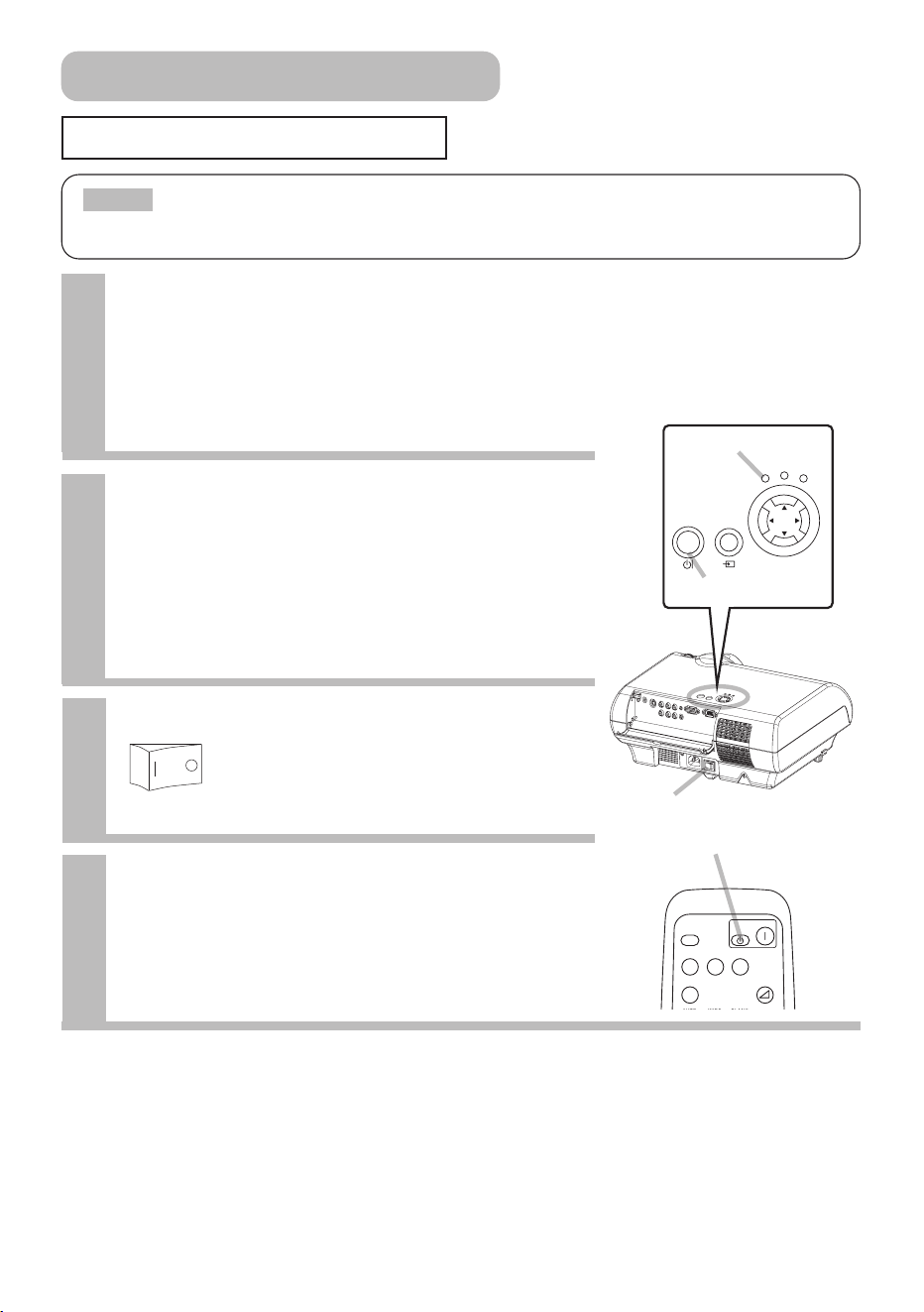
Turning Off The Power
• Turn the power on/off in right order. Please power on the projector before
the connected devices. Power off the projector after the connected devices.
NOTE
Power switch
STANDBY/ON
INPUT
POWER
LAMP
TEMP
MENU
STANDBY/ON button
POWER indicator
1
Press the STANDBY/ON button of the
projector or the OFF button of the
remote control.
The message “Power off?” will appear on the screen
for approximately 5 seconds.
4
Attached the lens cap.
2
Press the STANDBY/ON button or the
OFF button again while “Power off?”
the message is visible.
The projector lamp will go off, and the POWER
indicator will begin blinking orange.
Then the POWER indicator will stop blinking and light
to solid orange when the lamp cooling is complete.
3
Switch the power switch to [O] (OFF).
The POWER indicator will go off.
Power switch (OFF position)
Power ON/OFF (continued)
SEARCH
SRC
VIDEO
VSVC
WIDEAUTO BLANK
PC
VOLUME
COMPUTER
COMPONENTS-VIDEO
OFF
ON
OFF button
01PJ-TX10En03.7.1511:19AMページ16
17
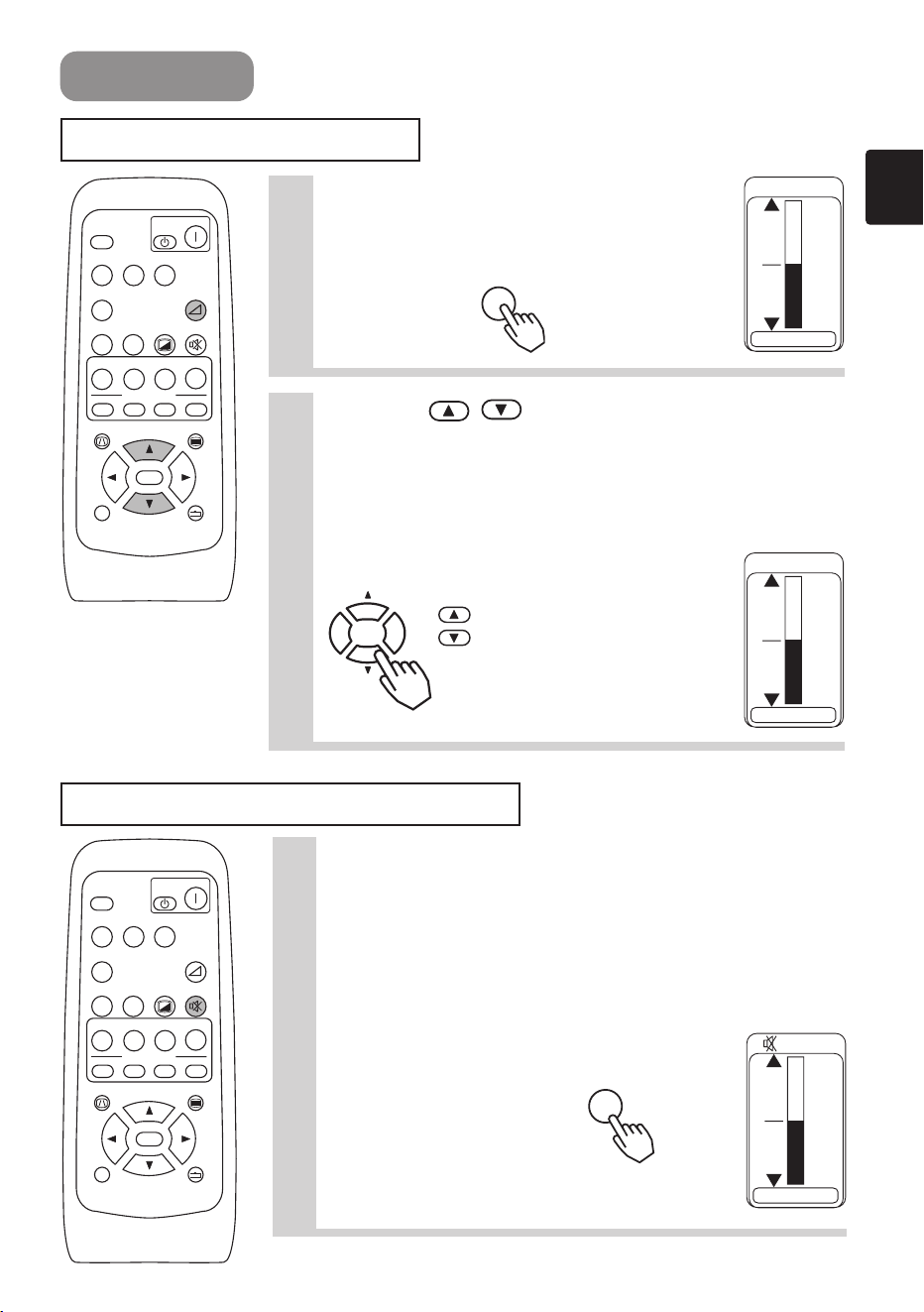
Operating
Adjusting The Volume
Temporarily Muting The Sound
1
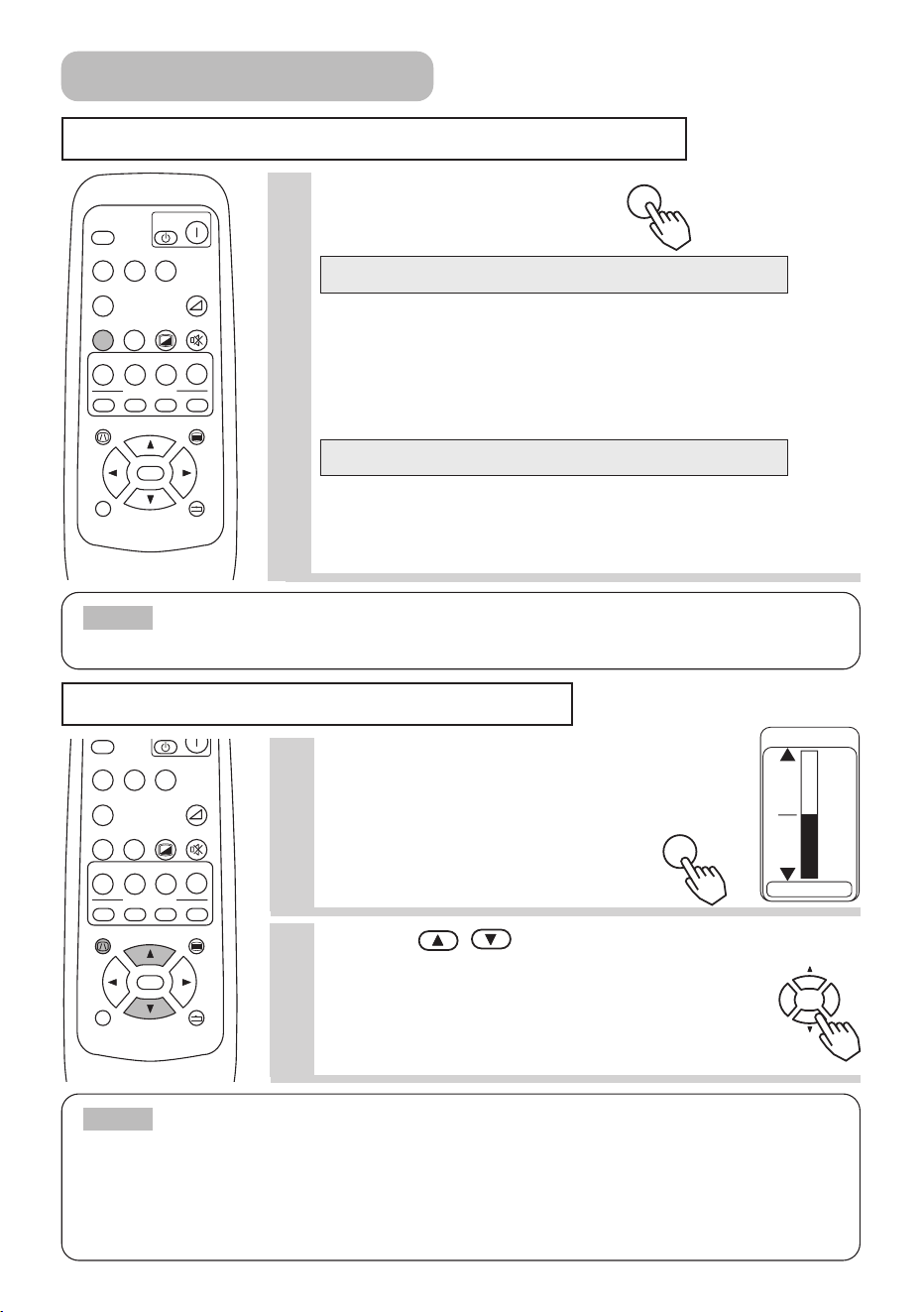
Press the VOLUME button.
As illustrated on the right, a dialog will
appear on the screen to aid you in adjusting
the volume.
2
Use the
/
buttons to adjust the
volume.
Press the VOLUME button again to close the dialog and
complete this operation.
(Even if you don't do anything, the dialog will
automatically disappear after a few seconds.)
Press this to increase the volume
Press this to decrease the volume
16
VOLUME
16
VOLUME
VOLUME
VOLUME
1
Press the MUTE button.
Press the MUTE button.
As illustrated on the right, a dialog will appear on the
screen indicating that you have muted the sound.
(If you don't do anything, the dialog will automatically
disappear after a few seconds.)
Press the MUTE or VOLUME button again to restore the
sound.
VOLUME
16
MUTE
MUTE
SEARCH
SRC
VIDEO
VSVC
WIDEAUTO
MUTE
BLANK
CUSTOM
CINEMA
AT
CIN
M1
E
DYNAMIC
DYN
ENT
MYMEMORY
NORMAL
NOR CUS
WID
PC
MENU
ENTER
ESC RESET
VOLUME
COMPUTER
COMPONENTS-VIDEO
OFF
ON
KEYSTONE
M2 M3 M4
SEARCH
SRC
VIDEO
VSVC
WIDEAUTO
MUTE
BLANK
CUSTOM
CINEMA
AT
CIN
M1
E
DYNAMIC
DYN
ENT
MYMEMORY
NORMAL
NOR CUS
WID
PC
MENU
ENTER
ESC RESET
VOLUME
COMPUTER
COMPONENTS-VIDEO
OFF
ON
KEYSTONE
M2 M3 M4
01PJ-TX10En03.7.1511:19AMページ17
18
Using The Automatic Adjustment Feature
Correcting Keystone Distortions
SEARCH
SRC
VIDEO
VSVC
WIDEAUTO
MUTE
BLANK
CUSTOM
CINEMA
AT
CIN
M1
E
DYNAMIC
DYN
ENT
MYMEMORY
NORMAL
NOR CUS
WID
PC
MENU
ENTER
ESC RESET
VOLUME
COMPUTER
COMPONENTS-VIDEO
OFF
ON
KEYSTONE
M2 M3 M4
SRC
VIDEO
VSVC
WIDEAUTO
MUTE
BLANK
CUSTOM
CINEMA
AT
CIN
M1
E
DYNAMIC
DYN
ENT
MYMEMORY
NORMAL
NOR CUS
WID
PC
MENU
ENTER
ESC RESET
VOLUME
COMPUTER
COMPONENTS-VIDEO
KEYSTONE
M2 M3 M4
• The automatic adjustment operation requires approximately 10 seconds.
Also, please note that it may not function correctly with some input.
NOTE
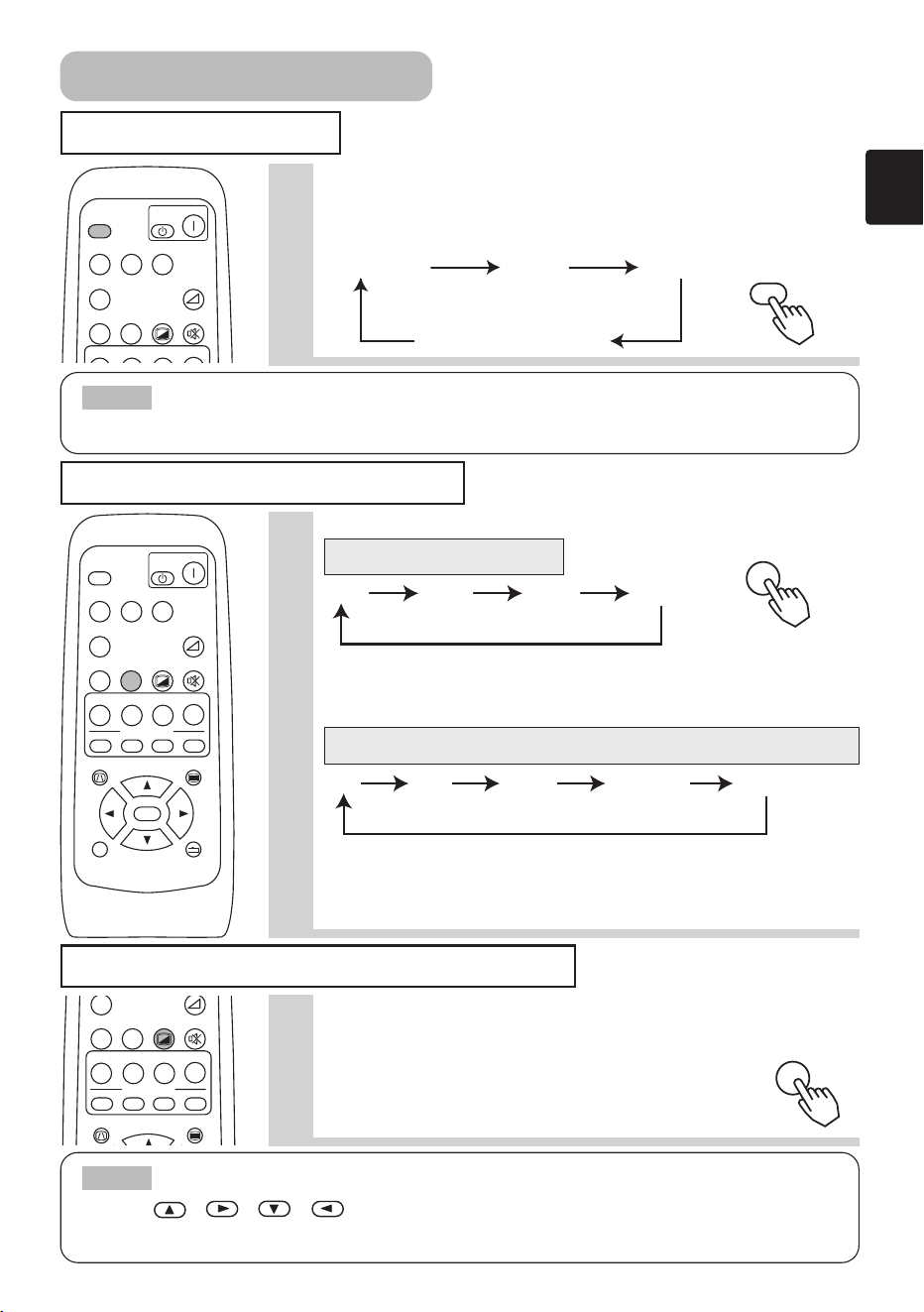
1
Press the AUTO button.
Horizontal position (H POSITION), vertical position (V POSITION),
clock phase (H PHASE) and horizontal size (H SIZE) are
automatically adjusted.
Make sure that the application window is set to its maximum size
prior to attempting to use this feature. Dark pictures may still be
incorrectly adjusted. Use a bright screen when adjusting.
The signal type best suited for the respective input signal is
selected automatically.
This feature is available only if VIDEO is set to AUTO in the INPUT
menu.
Automatic Adjustment for RGB Input
Automatic Adjustment for Video Input
AUTO
1
Press the KEYSTONE button.
As illustrated on the right, a dialog will appear on
the screen to aid you in correcting the distortion.
2
Use the
,
buttons to correct distortion.
Press the KEYSTONE button again to close the dialog
and complete this operation. (Even if you don't do
anything, the dialog will automatically disappear after
a few seconds.)
KEYSTONE
+0
KEYSTONE
• When the WIDE is selected under the ASPECT item of the MAIN menu, this
adjustment is ignored.
• The correcting keystone distortions function may not be work well with some types of
input signals.
• The adjustable range for correcting keystone distortions will vary with the type of
input signal.
NOTE
Operating (continued)
01PJ-TX10En03.7.1511:19AMページ18
19
Signal Searching
Selecting The Aspect Ratio
1
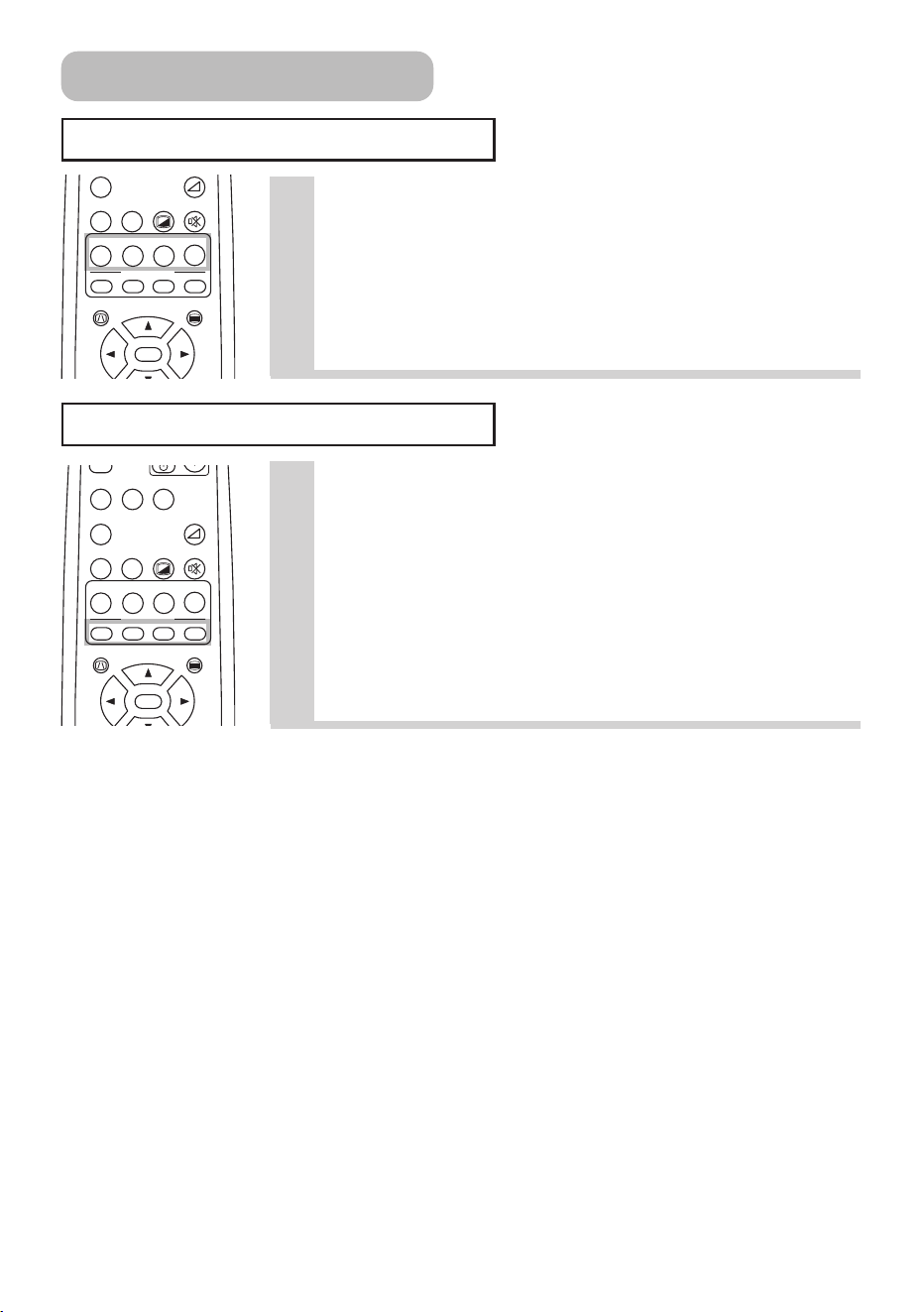
Press the SEARCH button.
Cycle through input signals, displaying the images of retrieved signals. If
no signal is found, returns to the signal that was selected before the search
was begun.
• May not function properly with some input signals.
• The signal searching function takes about 10 seconds to display an image.
NOTE
• The temporarily blanking function will automatically finish if a button of the remote control
except the , , , , ENTER, ESC, RESET or ON button is pressed, or if a button of
projector is pressed, or if there is a change in the input signal’s state.
NOTE
COMPUTER VIDEO S-VIDEO
COMPONENT VIDEO
SEARCH
SRC
VIDEO
VSVC
WIDEAUTO
MUTE
BLANK
CUSTOM
CINEMA
AT
DYNAMIC NORMAL
WID
PC
VOLUME
COMPUTER
COMPONENTS-VIDEO
OFF
ON
SEARCH
SRC
VIDEO
VSVC
WIDEAUTO
MUTE
BLANK
CUSTOM
CINEMA
AT
CIN
M1
E
DYNAMIC
DYN
ENT
MYMEMORY
NORMAL
NOR CUS
WID
PC
MENU
ENTER
ESC RESET
VOLUME
COMPUTER
COMPONENTS-VIDEO
OFF
ON
KEYSTONE
M2 M3 M4
WIDEAUTO
MUTE
BLANK
CUSTOM
CINEMA
AT
CIN
M1
DYNAMIC
DYN
MYMEMORY
NORMAL
NOR CUS
WID
PC
MENU
KEYSTONE
M2 M3 M4
SEARCH
1
• At a COMPONENT VIDEO input of 16:9 Hi-Vision of 1125i
(1035i/1080i)/750p, only 16:9 can be selected.
• At a COMPUTER input, selecting an aspect ratio may display the
message “SYNC IS OUT OF RANGE”. In this case, please select one of
other aspect ratios.
WIDE
COMPUTER input
VIDEO, S-VIDEO, COMPONENT VIDEO input
Press the WIDE button.
4:3 16:9 15:9 32:15
4:3 16:9 WIDE MOVIE-1 MOVIE-2
Temporarily Blanking The Screen
1
Press the BLANK button.
The input signal screen is shut off, and a blank screen appears. You can
set the blank screen using the menu (from the SCREEN menu,
select BLANK).
Press the BLANK button again to remove the blank screen,
and return to the input signal screen.
BLANK
Operating (continued)
01PJ-TX10En03.7.1511:19AMページ19
20
Selecting The Gamma Mode
Operating (continued)
1
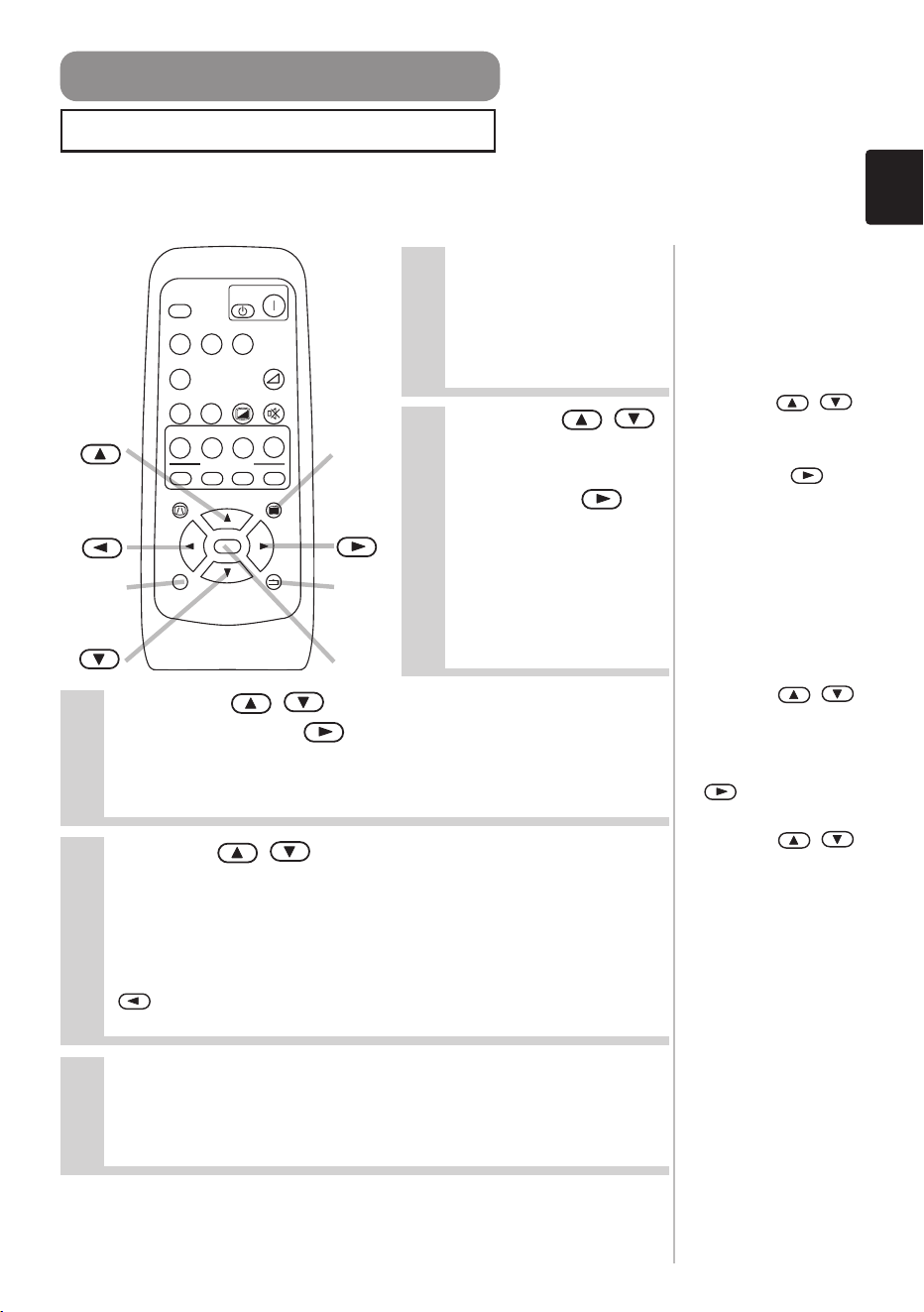
Press the CINEMA, DYNAMIC, NORMAL or
CUSTOM button according to a mode to
choose.
This projector has the 4 modes called the CINEMA,
DYNAMIC, NORMAL and CUSTOM.
Recalling Your Adjustments
1
Press the M1, M2, M3 or M4 button to recall
a setting.
This projector can memorize 4 settings by the MY MEMORY
function of the PICTURE-1 menu.
Pressing the M1, M2, M3 or M4 button calls the setting of
the memory whose number corresponds, if it is memorized.
It is the same function as selecting the LOAD1, LOAD2,
LOAD3 or LOAD4 under the MY MEMORY item of the
PICTURE-1 menu. Please refer to the description of MY
MEMORY item of the section “PICTURE-1 Menu”.
WIDEAUTO
MUTE
BLANK
CUSTOM
CINEMA
AT
CIN
M1
DYNAMIC
DYN
ENT
MYMEMORY
NORMAL
NOR CUS
WID
PC
MENU
ENTER
ESC RESET
CO U
KEYSTONE
M2 M3 M4
SRC
VIDEO
VSVC
WIDEAUTO
MUTE
BLANK
CUSTOM
CINEMA
AT
CIN
M1
DYNAMIC
DYN
ENT
MYMEMORY
NORMAL
NOR CUS
WID
PC
MENU
ENTER
ESC RESET
VOLUME
COMPUTER
COMPONENTS-VIDEO
KEYSTONE
M2 M3 M4
01PJ-TX10En03.7.1511:19AMページ20
21
This projector has the following menus: MAIN, PICTURE-1, PICTURE-2, INPUT, AUTO,
SCREEN, OPTION. Each of these menus is operated using the same methods. The basic
operations of these menus are as follows.
1
Press the MENU
button.
The menu display
appears on the screen.
2
Use the
/
buttons to select
a menu , then
press the or
ENTER button.
The display of the
selected menu
appears.
3
Use the
/
buttons to select an item,
then press the or ENTER button.
The operation display of the selected item appears.
4
Use the
/
buttons to operate the item.
When you want to reset the adjustment, press the RESET
button during the operation. Note that the items whose
functions are performed simultaneously with operating (ex.
LANGUAGE, WHISPER, H PHASE etc.) are not reset.
When you want to return to the previous display, press the
or ESC button.
[ex. Adjusting
VOLUME]
1. Press the MENU
button.
2.
Use the /
buttons to select
the OPTION, then
press the or
ENTER button.
3.Use the /
buttons to select
the VOLUME,
then press the
or ENTER
button.
4.Use the /
buttons to adjust
the VOLUME.
5.Press the MENU
button.
5
Press the MENU button, or do not perform
any operation for several seconds
.
The menu display disappears and your operation finishes.
MENU
RESETESC
ENTER
SEARCH
SRC
VIDEO
VSVC
WIDEAUTO
MUTE
BLANK
CUSTOM
CINEMA
AT
CIN
M1
E
DYNAMIC
DYN
ENT
MYMEMORY
NORMAL
NOR CUS
WID
PC
MENU
ENTER
ESC RESET
VOLUME
COMPUTER
COMPONENTS-VIDEO
OFF
ON
KEYSTONE
M2 M3 M4
Using The Menu Functions
Multifunctional Settings
01PJ-TX10En03.7.1511:19AMページ21
22
MAIN Menu
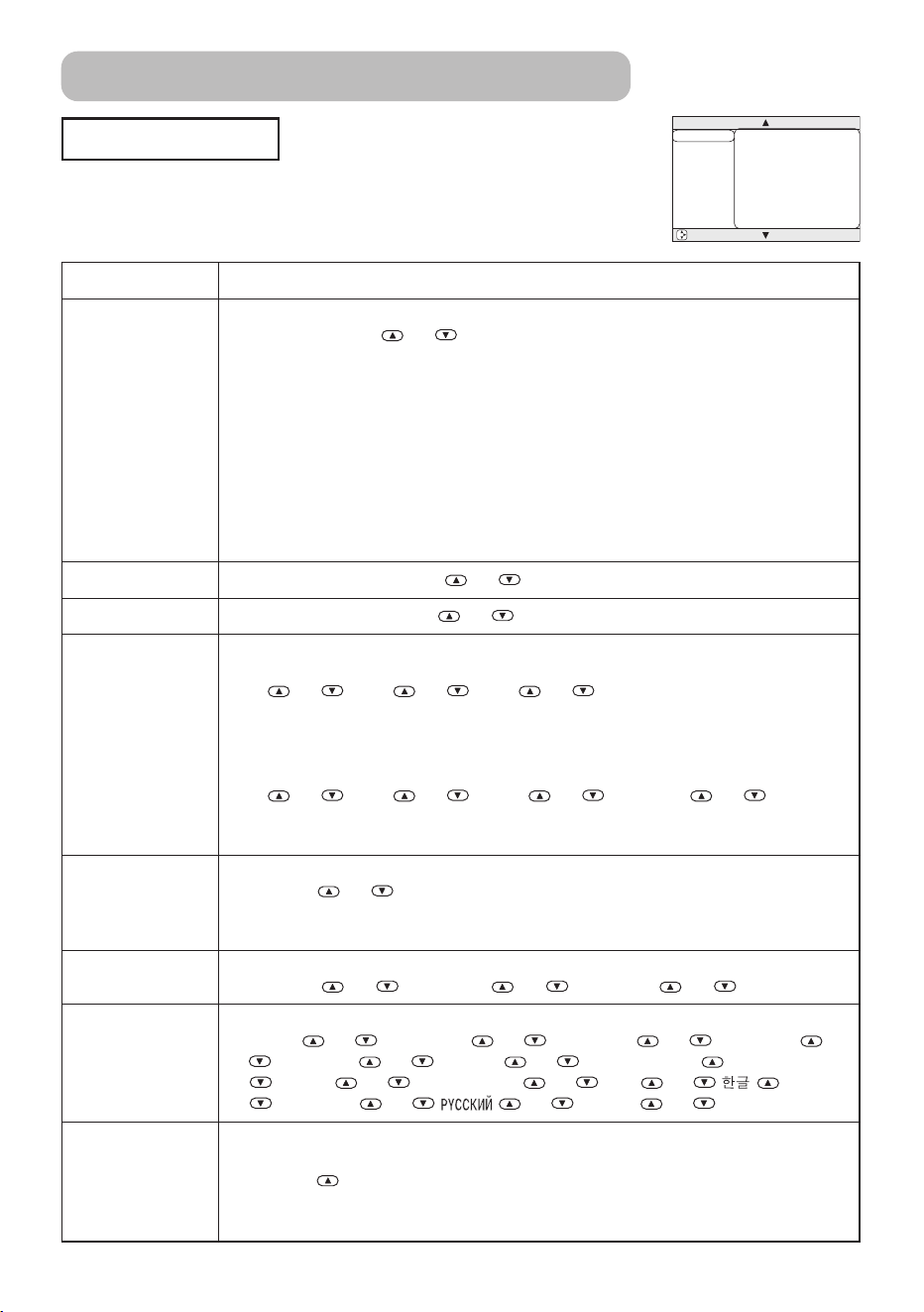
With the MAIN menu, the items shown in the table below can be
performed.
Perform each operation in accordance with the instructions in the
table below.
MENU
MAIN
PICTURE-1
PICTURE-2
INPUT
AUTO
SCREEN
OPTION
KEYSTONE
BRIGHT
CONTRAST
ASPECT
WHISPER
MIRROR
LANGUAGE
[Language]
+0
+0
+0
4:3
NORMAL
NORMAL
ENGLISH
: SELECT
Item Description
KEYSTONE
Adjust the Keystone (Vertical) Distortion:
Upper in the data ⇔ Lower in the data
• The adjustable range of this function will vary with the type of input signal. At
some signals, this function may not work well.
• When the V:INVERT or the H&V:INVERT is selected under the MIRROR item, if
the projector screen is inclined or if the projector is angled downward, this
function may not work correctly.
• When the WIDE is selected under the ASPECT item of the MAIN menu, this
adjustment is ignored.
• When the zoom adjustment is set to the TELE side, this correction may be
excessive. This function should be used with zoom set to WIDE whenever
possible.
BRIGHT
Adjust Brightness: Light ⇔ Dark
CONTRAST
Adjust Contrast: Strong ⇔ Weak
ASPECT
Select an Aspect Ratio
At a COMPUTER input:
4:3 ⇔ 16:9 ⇔ 15:9 ⇔ 32:15
• At a COMPUTER input, selecting an aspect ratio may display the message
“SYNC IS OUT OF RANGE”. In this case, please select one of other aspect
ratios.
At a VIDEO input, a S-VIDEO input or a COMPONENT VIDEO input:
4:3 ⇔ 16:9 ⇔ WIDE ⇔ MOVIE-1 ⇔ MOVIE-2
• At a COMPONENT VIDEO input of 16:9 Hi-Vision of 1125i(1035i/1080i)/750p,
only 16:9 can be selected.
WHISPER
Select the Whisper Mode:
NORMAL ⇔ WHISPER
• When the WHISPER is selected, acoustic noise and screen brightness are
reduced.
MIRROR
Select a Mirror Status:
NORMAL ⇔ H:INVERT ⇔ V:INVERT ⇔ H&V:INVERT
LANGUAGE
Select a Menu Language:
ENGLISH ⇔ FRANÇAIS ⇔ DEUTSCH ⇔ ESPAÑOL
⇒ ITALIANO ⇔ NORSK ⇔ NEDERLANDS
⇒ 日本語 ⇔ PORTUGUÊS ⇔
中文 ⇔
⇒ SVENSKA ⇔⇔SUOMI ⇔ POLSKI
RESET
Reset the MAIN Menu Items:
Selecting the EXECUTE performs this function.
EXECUTE CANCEL
• The items of the MAIN menu are collectively returned to the initial setting.
Note that the items WHISPER and LANGUAGE are not reset.
⇒
Multifunctional Settings (continued)
⇒
⇒
⇒
01PJ-TX10En03.7.1511:19AMページ22
23
PICTURE - 1 Menu
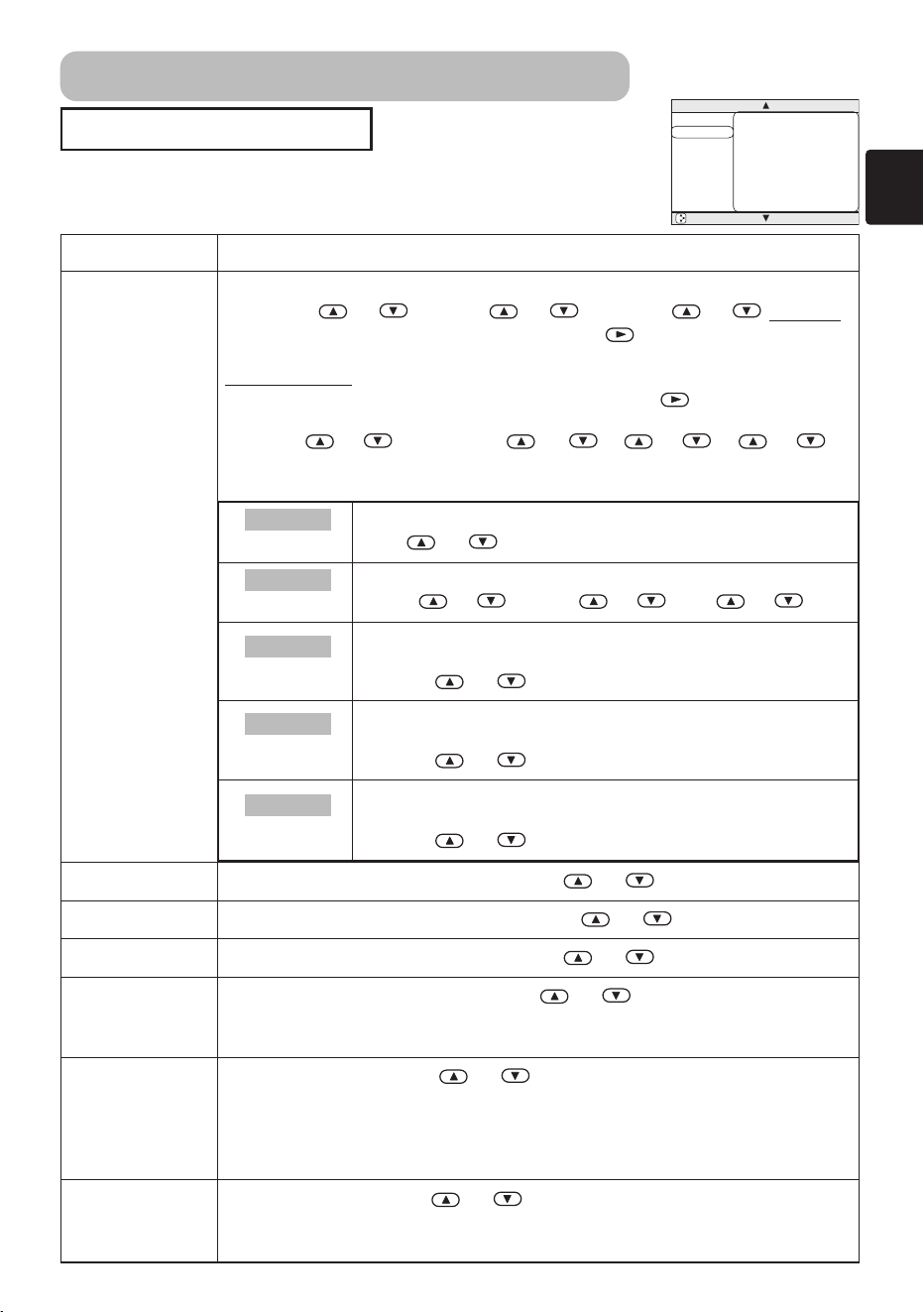
With the PICTURE-1 menu, the items shown in the table below can be
performed.
Perform each operation in accordance with the instructions in the table below.
MENU
MAIN
PICTURE-1
PICTURE-2
INPUT
AUTO
SCREEN
OPTION
GAMMA
COLOR BAL R
COLOR BAL G
COLOR BAL B
SHARPNESS
COLOR
TINT
MY MEMORY
NORMAL
+0
+0
+0
+0
+0
+0
SAVE1
: SELECT
Item Description
GAMMA
Select a Gamma Mode:
NORMAL ⇔ CINEMA ⇔ DYNAMIC ⇔ CUSTOM
• Selecting the COSTOM and then pressing the or the ENTER button calls
the CUSTOM menu.
CUSTOM
Menu
Selecting one from the following and then pressing the or the ENTER
button performs each function.
GAMMA ⇔ COLOR TEMP ⇔ R ⇔ G ⇔ B
• The R, G and B can be selected only when the USER is selected under the
COLOR TEMP.
COLOR BAL R
Adjust the Red Color Balance: Strong ⇔ Weak
COLOR BAL G
Adjust the Green Color Balance: Strong ⇔ Weak
COLOR BAL B
Adjust the Blue Color Balance: Strong ⇔ Weak
SHARPNESS
Adjust the Whole Sharpness: Clear ⇔ Soft
• This is a function for video inputs. This item can’t be selected only at
COMPUTER inputs.
COLOR
Adjust COLOR : Strong ⇔ Weak
• This is a function for video inputs. This item can’t be selected only at
COMPUTER inputs including SCART RGB inputs.
• It is unavailable to deepen colors on SECAM signal input. (The adjustment
bar position and value in menu box are changeable but no effect.)
TINT
Adjust the Tint: Green ⇔ Red
• This is a function for video inputs. This item can’t be selected only at
COMPUTER inputs including SCART RGB inputs.
GAMMA
Adjust the Gamma Data:
Up ⇔ Down
COLOR TEMP
Select a Color Temperature Mode:
HIGH ⇔ MIDDLE ⇔ LOW ⇔ USER
R
Adjust the Red Color Level for the USER mode of the
COLOR TEMP:
Strong ⇔ Weak
G
Adjust the Green Color Level for the USER mode of the
COLOR TEMP:
Strong ⇔ Weak
B
Adjust the Blue Color Level for the USER mode of the
COLOR TEMP:
Strong ⇔ Weak
CUSTOM
CUSTOM
CUSTOM
CUSTOM
CUSTOM
Multifunctional Settings (continued)
01PJ-TX10En03.7.1511:19AMページ23
24
Item Description
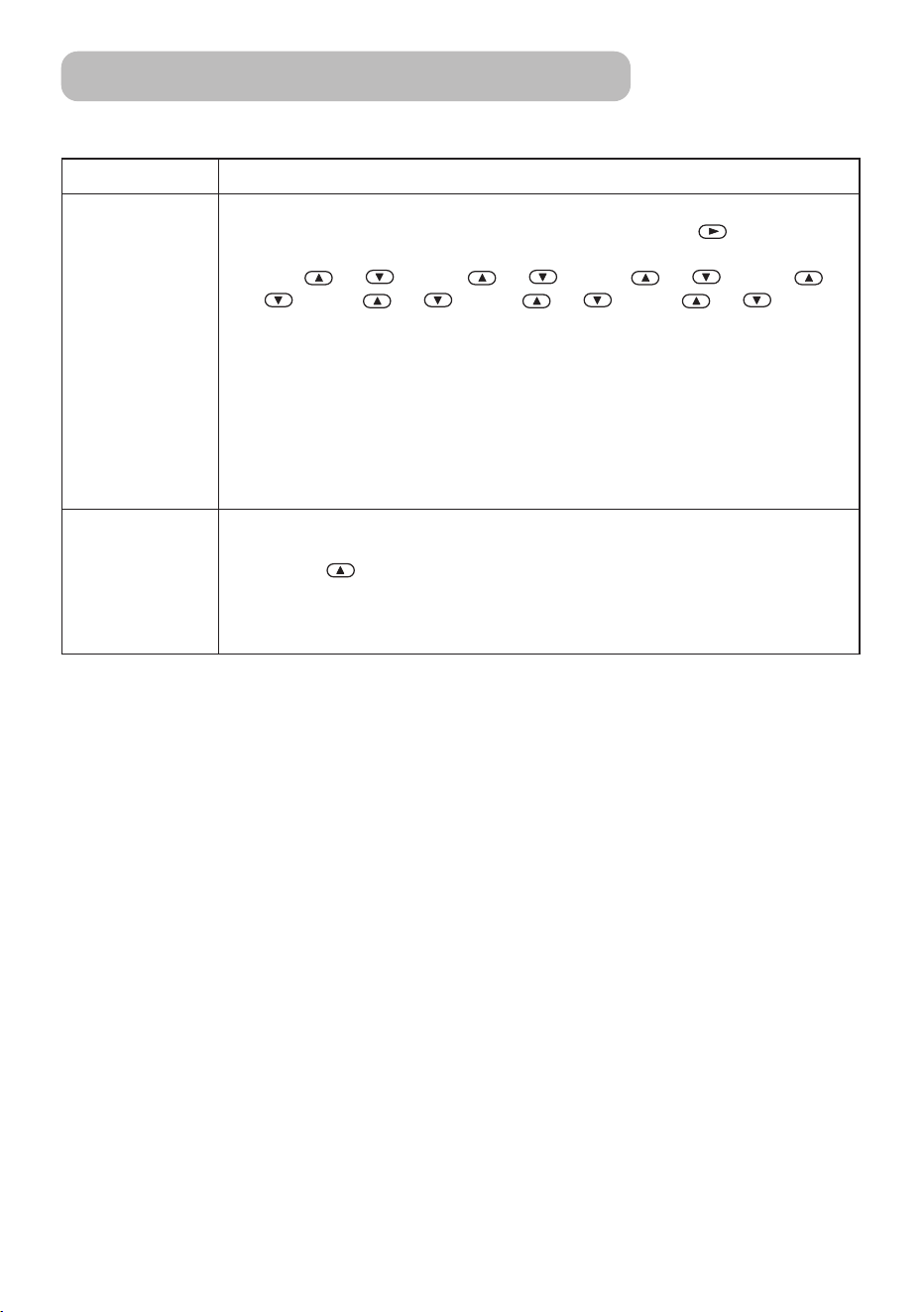
MY MEMORY
Load/Save a Setting:
Selecting one from the following and then pressing the or the ENTER
button performs each function.
LOAD1 ⇔ LOAD2 ⇔ LOAD3 ⇔ LOAD4
⇒ SAVE1 ⇔ SAVE2 ⇔ SAVE3 ⇔ SAVE4
• This projector has 4 memories called M1, M2, M3 and M4 for settings.
Performing the SAVE1, SAVE2, SAVE3 or SAVE4 puts the current setting data
on the memory whose number corresponds. Performing the LOAD1, LOAD2,
LOAD3 or LOAD4 calls the data of memory whose number corresponds, and
adjusts the picture automatically depending on the data.
• The LOAD1, LOAD2, LOAD3 or LOAD4 cannot be selected when there is no
memory whose number corresponds.
• At a different signal input from the signal that was being inputted when the
setting was memorized, the picture may not be adjusted correctly.
RESET
Reset the PICTURE-1 Menu Items:
Selecting the EXECUTE performs this function.
EXECUTE CANCEL
• The items of the PICTURE-1 menu are collectively returned to the initial
setting. Note that the items MY MEMORY and CUSTOM - GAMMA are not
reset.
PICTURE - 1 Menu (continued)
Multifunctional Settings (continued)
⇒
⇒
01PJ-TX10En03.7.1511:19AMページ24
25
PICTURE - 2 Menu
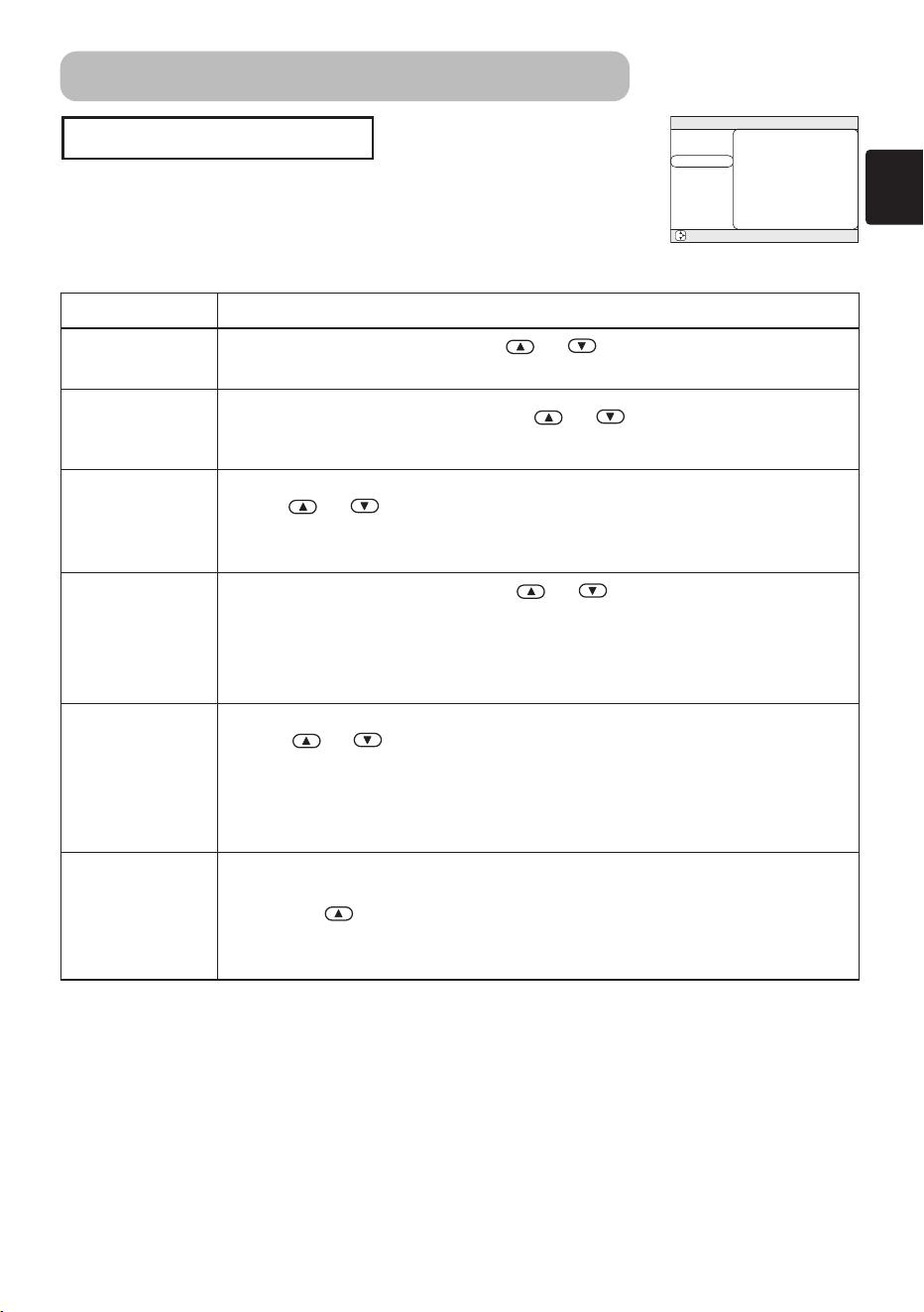
With the PICTURE-2 menu, the items shown in the table below can
be performed.
Perform each operation in accordance with the instructions in the
table below.
MENU
MAIN
PICTURE-1
PICTURE-2
INPUT
AUTO
SCREEN
OPTION
V POSITION
H POSITION
H PHASE
H SIZE
OVER SCAN
RESET
20
142
31
1344
95
: SELECT
Item Description
V POSITION
Adjust the Vertical Position: Up ⇔ Down
• This item can be selected only at a COMPUTER input.
H POSITION
Adjust the Horizontal Position: Left ⇔ Right
• This item can be selected only at a COMPUTER input.
H PHASE
Adjust the Horizontal Phase (to eliminate flicker) :
Right ⇔ Left
• This item can be selected only at a COMPUTER input or a COMPONENT
VIDEO input.
H SIZE
Adjust the Horizontal Size: Large ⇔ Small
• When this adjustment is excessive, the picture may not be displayed
correctly. In such a case, please press the RESET button during selection of
this item to reset the H SIZE.
• This item can be selected only at a COMPUTER input.
OVER SCAN
Adjust the Over-scan Ratio:
Large ⇔ Small
• This item can be selected only at a VIDEO input, a S-VIDEO input or a
COMPONENT VIDEO input.
• When this adjustment is too large, a certain degradation may appear at the
frame area of the picture. In such a case, please adjust small.
RESET
Reset the PICTURE-2 Menu Items:
Selecting the EXECUTE performs this function.
EXECUTE CANCEL
• The items of the PICTURE-2 menu are collectively returned to the initial
setting. Note that the H PHASE item is not reset.
Multifunctional Settings (continued)
⇒
01PJ-TX10En03.7.1511:19AMページ25
26
INPUT Menu
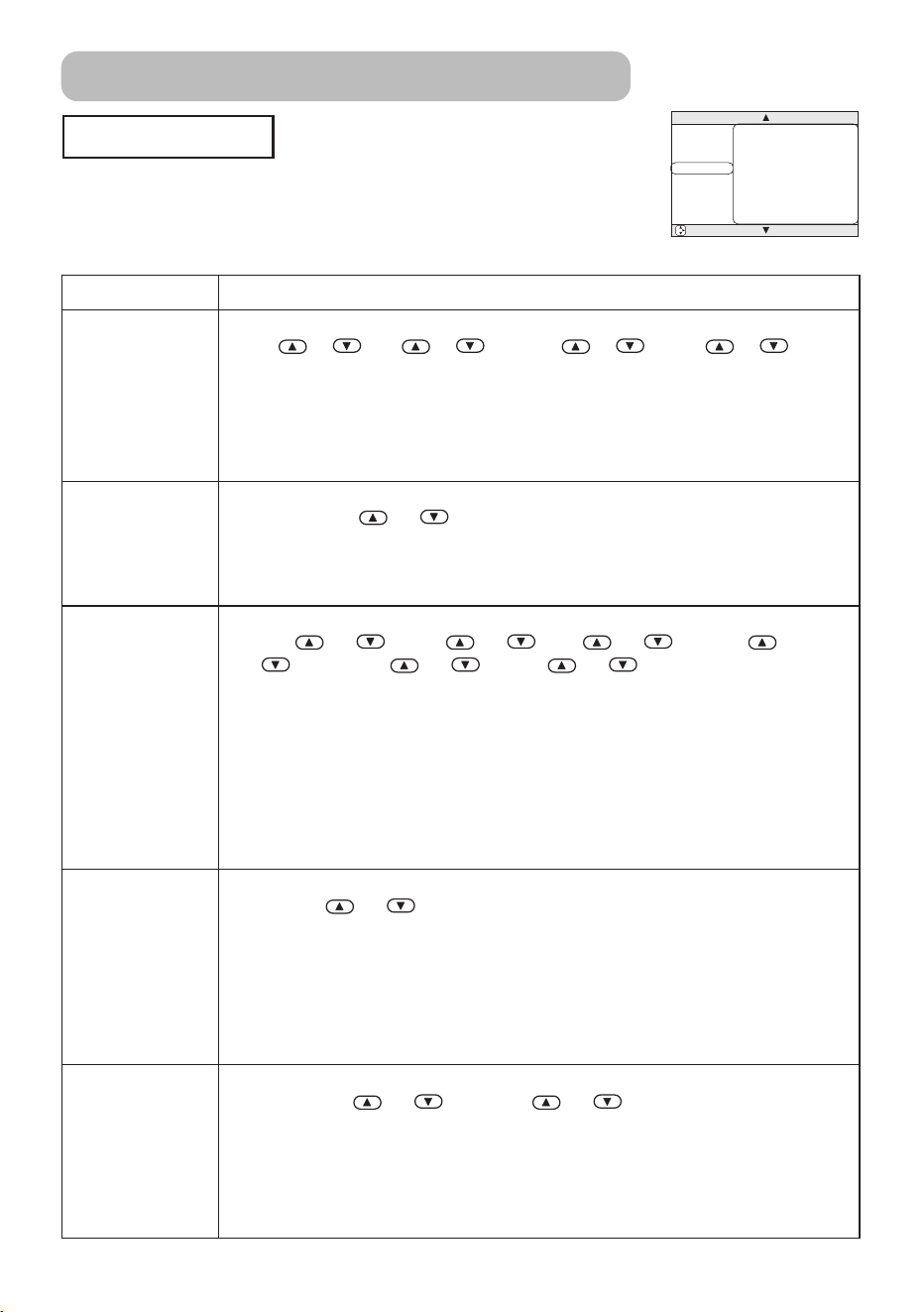
With the INPUT menu, the items shown in the table below can be
performed.
Perform each operation in accordance with the instructions in the
table below.
MENU
MAIN
PICTURE-1
PICTURE-2
INPUT
AUTO
SCREEN
OPTION
COLOR SPACE
COMPONENT
VIDEO
FRAME LOCK
3D-YCS
VIDEO NR
PROGRESSIVE
INFORMATION
AUTO
COMPONENT
AUTO
TURN ON
NORMAL
LOW
TURN OFF
: SELECT
Item Description
COLOR SPACE
Select a Color Space Mode:
AUTO ⇔ RGB ⇔ SMPTE240 ⇔ REC709 ⇔ REC601
• This item can be selected only at a COMPUTER input or a COMPONENT
VIDEO input.
• When the AUTO is selected, the optimum mode is automatically selected.
However, it may not work well at some signals. In such a case, select the
SMPTE240 or REC709 for HDTV signal.
COMPONENT
Select a Function of COMPONENT VIDEO Jacks:
COMPONENT ⇔ SCART RGB
• When the SCART RGB is selected, the COMPONENT VIDEO jacks function
as ports for a RGB input with a SCART cable. Refer to the section “Signal
Connectors” of “TECHNICAL”.
VIDEO
Select a Signal Type Mode:
AUTO ⇔ NTSC ⇔ PAL ⇔ SECAM
⇒
NTSC 4.43 ⇔ M-PAL ⇔ N-PAL
• This item performs only at a VIDEO input or a S-VIDEO input. For a
COMPONENT VIDEO input, although this item is ineffective, the signal type is
identified automatically even if the AUTO is not selected.
• Selecting the AUTO automatically selects the optimum mode. However, it
may not work well at a PAL60 signal and some other signals. If the picture
becomes unstable (ex. a irregular picture, color lack), please select the mode
depending on the input signal.
• The AUTO operation requires approximately 10 seconds.
FRAME LOCK
Select the Frame Lock Mode:
TURN ON ⇔ TURN OFF
• This function performs only at a COMPUTER input with vertical frequency of
48 to 72 Hz.
• When the TURN ON is selected, a moving picture is displayed more
smoothly.
• This function may cause a certain degradation of the picture. In such a case,
please select the TURN OFF.
3D-YCS
Select a 3D-YCS mode:
STILL IMAGE ⇔ NORMAL ⇔ TURN OFF
• This function performs only at a VIDEO input of NTSC 3.58.
• NORMAL is the mode for images with a lot of motions like movies, and STILL
IMAGE is the mode for images with few motions or completely still ones like
slides.
• When this function performs, the VIDEO NR function is ineffective.
Multifunctional Settings (continued)
⇒
01PJ-TX10En03.7.1511:19AMページ26
27
Item Description
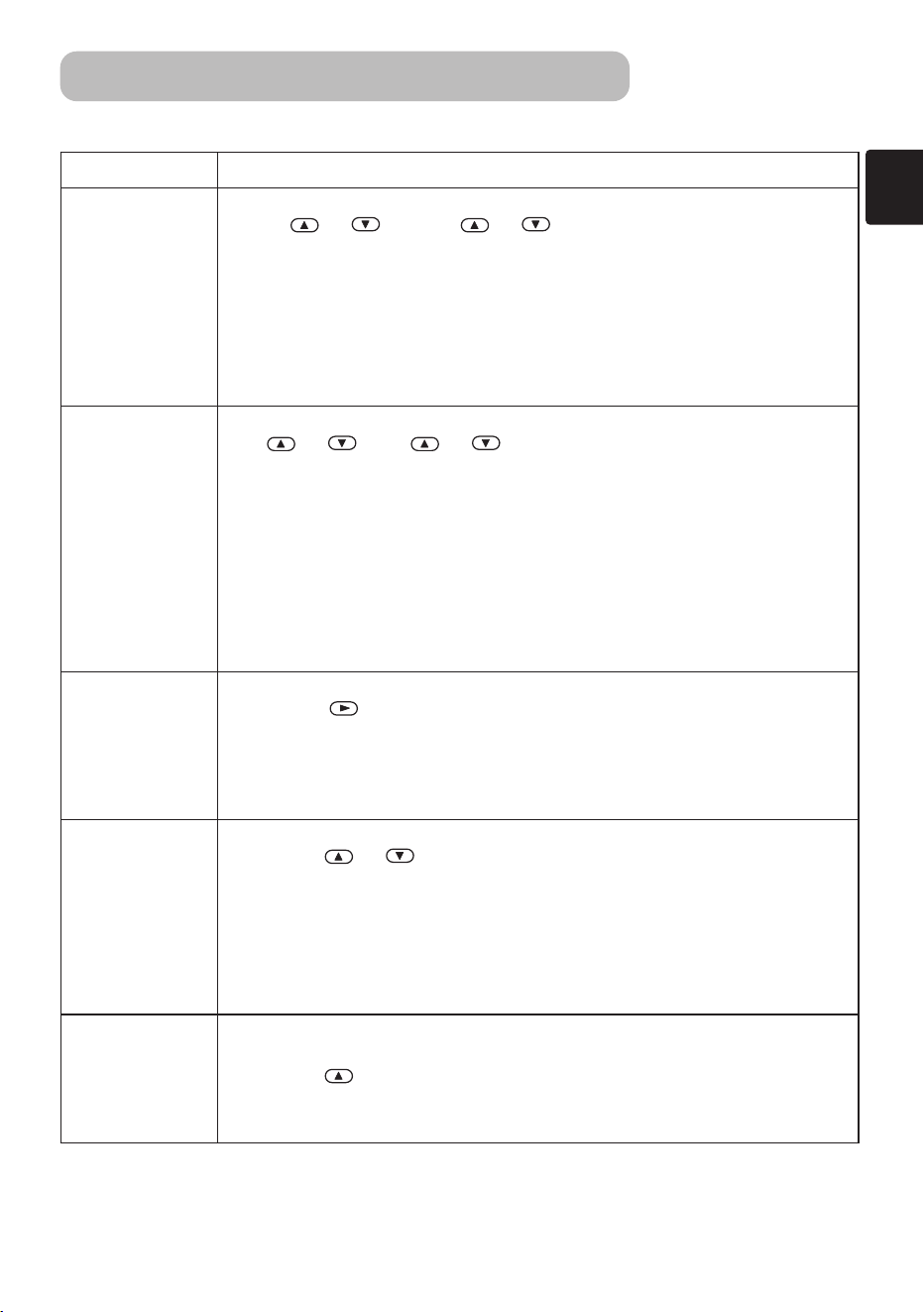
VIDEO NR
Select a Noise Reduction Mode:
HIGH ⇔ MIDDLE ⇔ LOW
• This function performs only at a VIDEO input or a S-VIDEO input. At a VIDEO
input of NTSC 3.58, this function performs only when the TURN OFF is
selected under the 3D-YCS.
• When the HIGH, the MIDDLE or the LOW is selected, the noise on screen is
reduced according to each mode.
• When this function is excessive, it may cause a certain degradation of the
picture.
PROGRESSIVE
Select the Progressive Mode:
TV ⇔ FILM ⇔ TURN OFF
• This function performs only at an interlaced signal of a VIDEO input, a S-
VIDEO input or a COMPONENT VIDEO input of 525i or 625i signal. The FILM
mode is adaptable to the 3-2 Pull-Down system to the conversion.
• When the TV or FILM is selected, the screen image will be crisper. But it may
cause a certain defect (for example, jagged line) of the picture at a quick
moving object. In such a case, please select the TURN OFF, even though the
screen image may lose the crisp.
• This function may cause a certain degradation of the picture. In such a case,
please select the TURN OFF.
INFORMATION
Display the Information:
Pressing the or the ENTER button performs this function.
• Use this function when you want the information about the current input (ex.
the resolution and the vertical frequency at a COMPUTER input, the signal
type of a video input) and setting states of the COMPONENT, the VIDEO and
the FLAME LOCK.
S2-ASPECT
Select the S2-ASPECT Mode:
TURN ON ⇔ TURN OFF
• This function performs only at a S-VIDEO input.
• When the TURN ON is selected, an S2-Video signal can be identified and the
optimum aspect ratio is automatically selected.
• When the ASPECT button of the remote control is used or the ASPECT item of
the MAIN menu is operated, the S2-ASPECT mode will be switched to the
TURN OFF automatically.
RESET
Reset the INPUT Menu Items:
Selecting the EXECUTE performs this function.
EXECUTE CANCEL
• The items of the INPUT menu are collectively returned to the initial setting.
Note that the INFORMATION item is not reset.
INPUT Menu (continued)
Multifunctional Settings (continued)
⇒
01PJ-TX10En03.7.1511:19AMページ27
28
MENU
MAIN
PICTURE-1
PICTURE-2
INPUT
AUTO
SCREEN
OPTION
ADJUST
POWER OFF
SEARCH
RESET
0 min
TURN ON
: SELECT
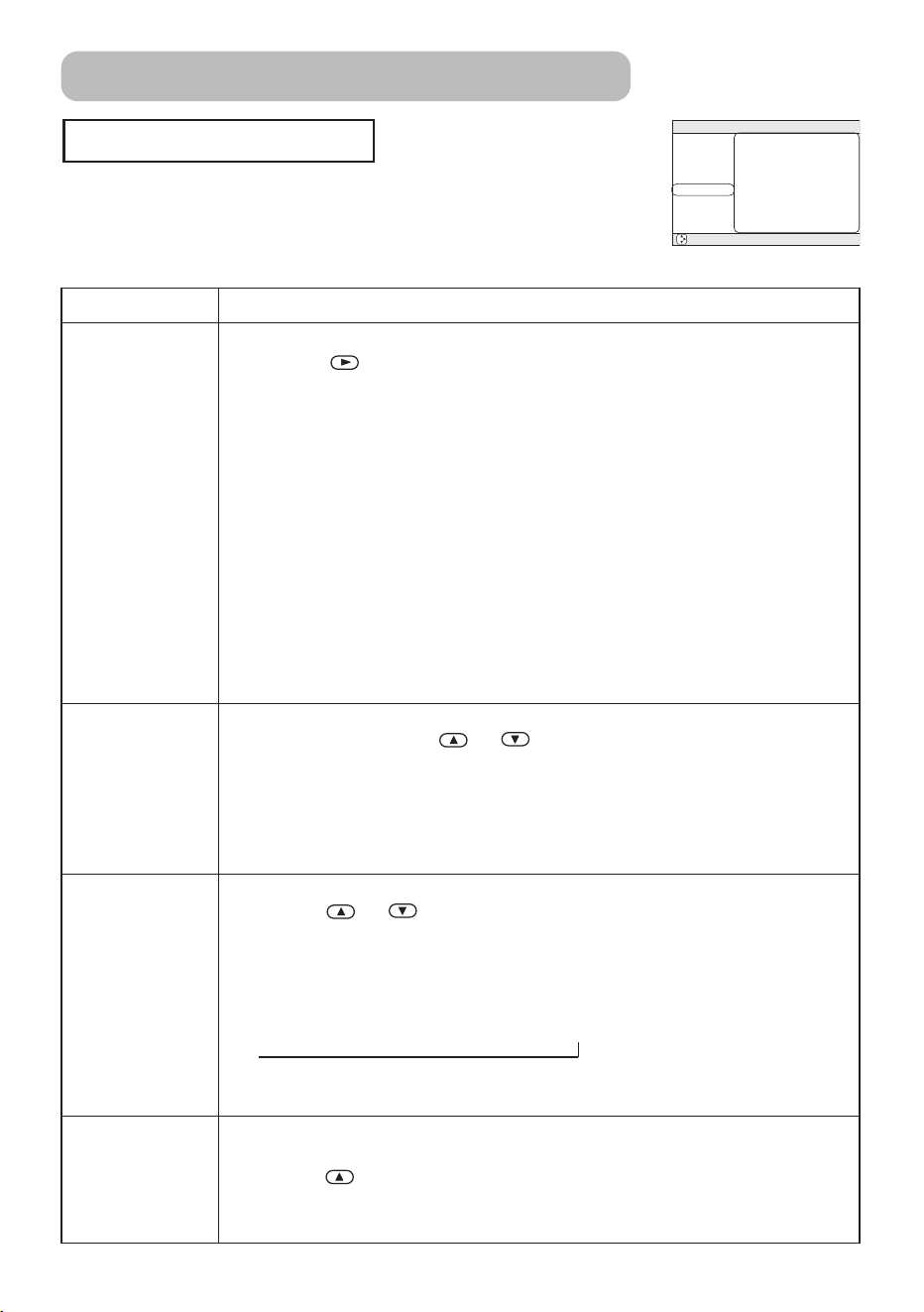
AUTO Menu
With the AUTO menu, the items shown in the table below can be
performed.
Perform each operation in accordance with the instructions in the
table below.
Item Description
ADJUST
Automatically Adjust the Picture:
Pressing the or the ENTER button performs this function.
At a COMPUTER input:
• V POSITION, H POSITION, H PHASE and HSIZE are automatically adjusted.
Please use this function with the maximum window size.
At a VIDEO input or S-VIDEO input:
• This function performs only when the AUTO is selected under the VIDEO item
of the INPUT menu. For a COMPONENT VIDEO input, although this function is
ineffective, the signal type is identified automatically even if the AUTO is not
selected.
• This function automatically selects the optimum mode for the input signal.
However, it may not work well at a PAL60 signal and some other signals. If
the picture becomes unstable (ex. irregular picture, color lack), please use
the function of VIDEO of the INPUT menu.
• The operation of this function requires approximately 10 seconds. Also,
please note that it may not function correctly with some input.
POWER OFF
Set the Automatically Power Off Timer:
Long (Max. 99 minutes.) ⇔ Short (Min. 0 minute =DISABLE)
• This function performs only when the time is set to 1 to 99.
• When the set time passes without a valid signal (there is no signal, or the
signal is out of specifications), the projector lamp automatically goes off, and
the POWER indicator begins blinking. Please refer to the section “Turning
OFF The Power” of “Power ON/OFF” about the turning off.
SEARCH
Automatically Signal Search:
TURN ON ⇔ TURN OFF
• If the TURN ON is selected under this item when no signal input is detected,
the projector begins searching for an input signal. When an input signal is
detected the projector will cease searching and the picture will appear.
• The priority of a search is as follows:
COMPUTER
→ VIDEO → S-VIDEO → COMPONENT VIDEO
• If the projector is unstable to find an input signal at any of its ports, it will
return to the state it was in prior to the search.
RESET
Reset the AUTO Menu Items:
Selecting the EXECUTE performs this function.
EXECUTE CANCEL
• The items of the AUTO menu are collectively returned to the initial setting.
Note that the item ADJUST is not reset.
⇒
Multifunctional Settings (continued)
→
01PJ-TX10En03.7.1511:19AMページ28
29
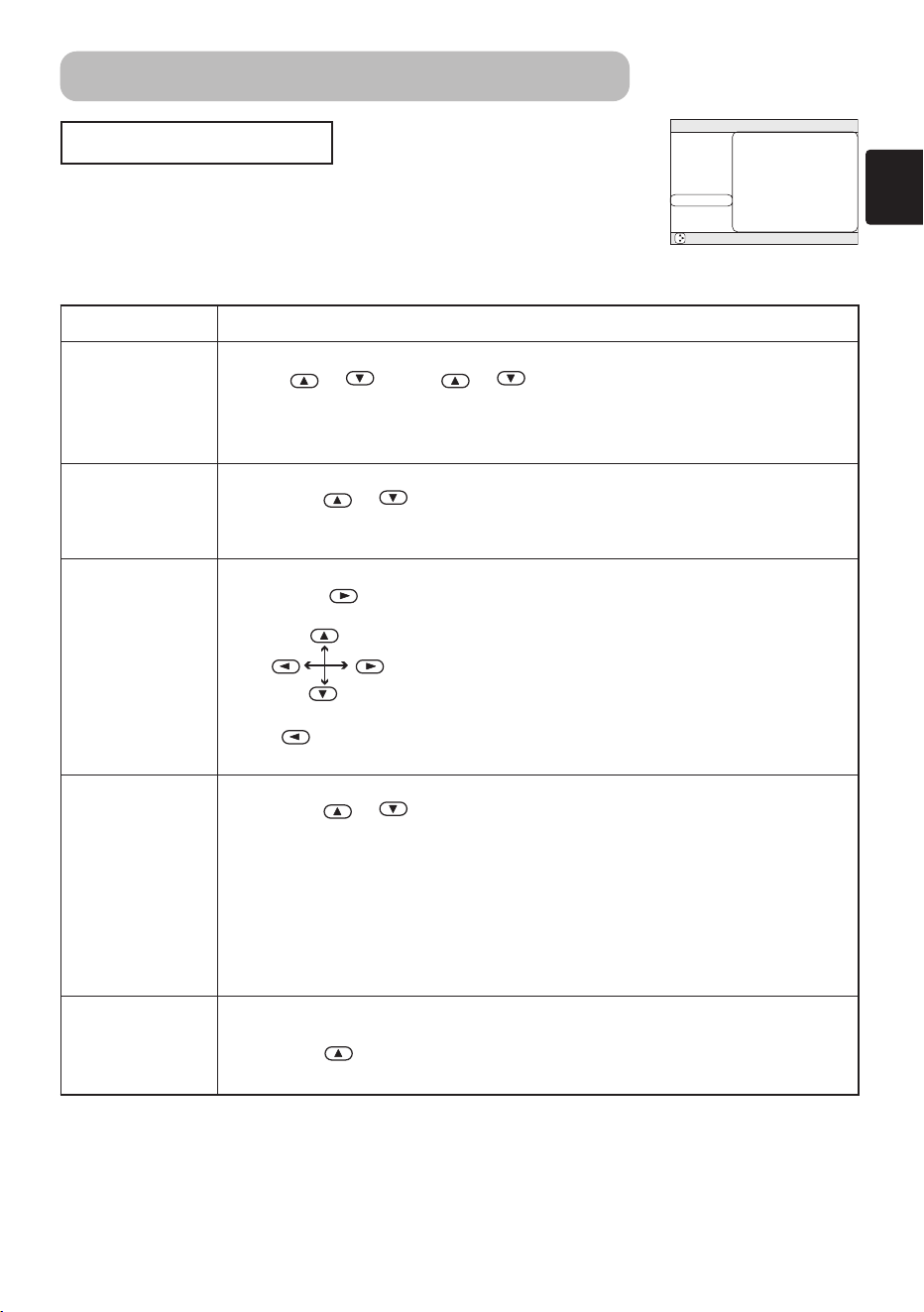
SCREEN Menu
With the SCREEN menu, the items shown in the table below can be
performed.
Perform each operation in accordance with the instructions in the
table below.
: SELECT
MENU
MAIN
PICTURE-1
PICTURE-2
INPUT
AUTO
SCREEN
OPTION
BLANK
START UP
MENU POSITION
MESSAGE
RESET
BLACK
TURN ON
TURN ON
Item Description
BLANK
Select a Blank Screen Color:
BLUE
⇔
WHITE
⇔
BLACK
• The blank screen of selected color is displayed by pressing the BLANK
button. Please refer to the section “Temporarily Blanking The Screen” of
“Operating” about the screen blanking.
START UP
Select the Start Up Screen:
TURN ON
⇔
TURN OFF
• If the TURN ON is selected when there is no signal or the detected signal is
out of specifications, the blank screen is displayed.
MENU POSITION
Adjust a Menu Position:
Pressing the or ENTER button start adjusting,
Up
Left Right
Down
• The button does not finish this item. When you want to return to the
previous display, please press the ESC button.
MESSAGE
Select the Message Mode:
TURN ON
⇔
TURN OFF
• When the TURN OFF is selected, the following message functions are
disabled:
The message of “AUTO IN PROGRESS”
The message of “NO INPUT IS DETECTED”
The message of “SYNC IS OUT OF RANGE”
The message while being searched for an input signal, “Searching …..”
The message when an input signal is detected, “Detecting …..”
The indication of the input signal by input change.
RESET
Reset the SCREEN Menu Items:
Selecting the EXECUTE performs this function.
EXECUTE CANCEL
• The items of the SCREEN menu are collectively returned to the initial setting.
⇒
Multifunctional Settings (continued)
01PJ-TX10En03.7.1511:19AMページ29
30
OPTION Menu
With the OPTION menu, the items shown in the table below can be
performed.
Perform each operation in accordance with the instructions in the
table below.
: SELECT
MENU
MAIN
PICTURE-1
PICTURE-2
INPUT
AUTO
SCREEN
OPTION
VOLUME
LAMP TIME
FILTER TIME
16
1234h
21h
Item Description
VOLUME
Adjust Volume: High ⇔ Low
LAMP TIME
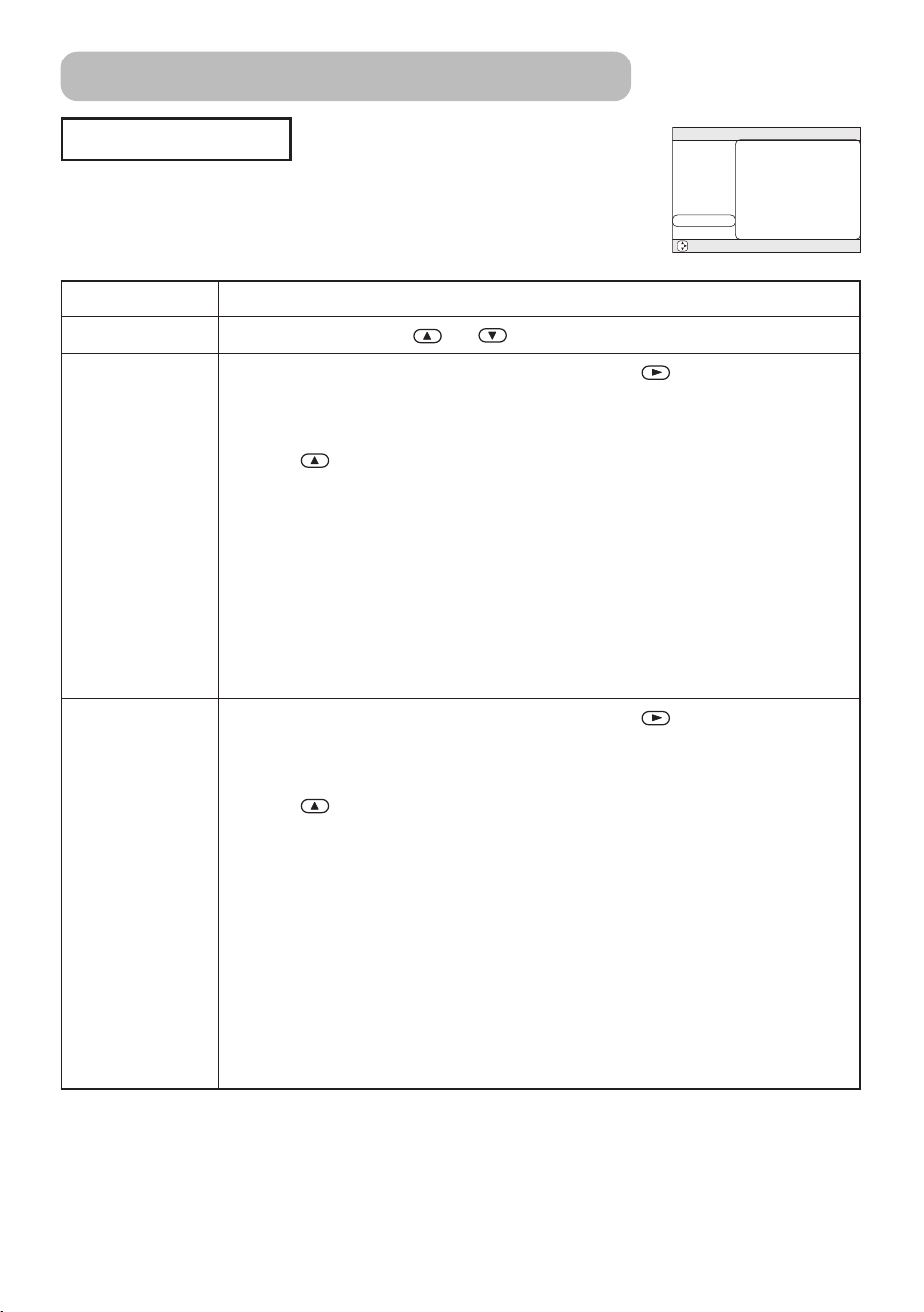
To begin the operation of this item, please press the button of the
projector or the RESET button of the remote control for 3 seconds.
Reset the Lamp Timer:
Selecting the RESET performs this function.
RESET CANCEL
• The numerical value of four digits shown on this menu is the projector use
time since the last RESET operation of this item. The value is reset to 0 at the
same time the RESET is selected.
• The value of this function is used to display the message of “CHANGE THE
LAMP”. So this function must be performed only immediately after replacing
the lamp.
Do not perform this function unless you have replaced the lamp. Perform this
function every time the lamp is replaced. Incorrect performing of this function
causes incorrect operation of the message function.
• Please see to the section “Lamp” about replacing the lamp.
FILTER TIME
To begin the operation of this item, please press the button of the
projector or the RESET button of the remote control for 3 seconds.
Reset the Filter Timer:
Selecting the RESET performs this function.
RESET CANCEL
• The numerical value of four digits shown on this menu is the projector use
time since the last RESET operation of this item. The value is reset to 0 at the
same time the RESET is selected.
• The value of this function is used to display the message of “CLEAN THE AIR
FILTER”. So this function must be performed only immediately after cleaning
or replacing the air filter.
Do not perform this function unless you have cleaned or replaced the air filter.
Perform this function every time the air filter is cleaned or replaced. Incorrect
performing of this function causes incorrect operation of the message
function.
• Please see to the section “Air Filter” about cleaning and replacing the air
filter.
⇒
⇒
Multifunctional Settings (continued)
01PJ-TX10En03.7.1511:19AMページ30
31
Lamp
The projector uses a high-pressure mercury glass lamp. The lamp can break with a
loud bang, or burn out, if jolted or scratched, handled while hot, or worn over time.
Note that each lamp has a different lifetime, and some may burst or burn out soon after
you start using them. In addition, when the bulb bursts, it is possible for shards of
glass to fly into the lamp housing, and for gas containing mercury to escape from the
projector’s vent holes.
• If the lamp should break (it will make a loud bang when it does), unplug the power
cord from the outlet, and make sure to request a replacement lamp from your local
dealer. Note that shards of glass could damage the projector’s internals, or cause
injury during handling, so please do not try to clean the projector or replace the lamp
yourself.
• If the lamp should break (it will make a loud bang when it does), ventilate the room
well, and make sure not to breathe the gas that comes out of the projector vents, or
get it in your eyes or mouth.
• Do not open the lamp cover while the projector is suspended from above. This is
dangerous, since if the lamp’s bulb has broken, the shards will fall out when the cover
is opened. In addition, working in high places is dangerous, so ask your local dealer
to have the lamp replaced even if the bulb is not broken
• If the indicators or a message prompts you to replace the lamp (see the section
“Related Messages” and “Regarding the indicator Lamps”), replace the lamp as soon
as possible. Using the lamp for long periods of time, or past the replacement date,
could cause it to burst. Do not use old (used) lamps; this is a cause of breakage.
• If the lamp breaks soon after the first time it is used, it is possible that there are
electrical problems elsewhere besides the lamp. If this happens, contact your local
dealer or a service representative.
• Use the lamp of the specified type only.Type number: DT00611
(sold separately)
• Handle with care: jolting or scratching could cause the lamp bulb to burst during use.
• Before replacing the lamp, make sure the power switch is off and the power cable is
not plugged in, then wait at least 45 minutes for the lamp to cool sufficiently. Handling
the lamp while hot can cause burns, as well as damaging the lamp.
• Do not use the projector with the lamp cover removed. At the lamp replacing, make
sure that the screws are screwed in firmly. Loose screws could result in damage or
injury.
• Obey local ordinances when disposing of used lamps. In most cases, it is possible to
dispose of used bulbs in the same manner as used glass bottles, but in some cases,
bulbs are sorted separately.
WARNING
HIGH VOLTAGE HIGH TEMPERATURE HIGH PRESSURE
01PJ-TX10En03.7.1511:19AMページ31
32
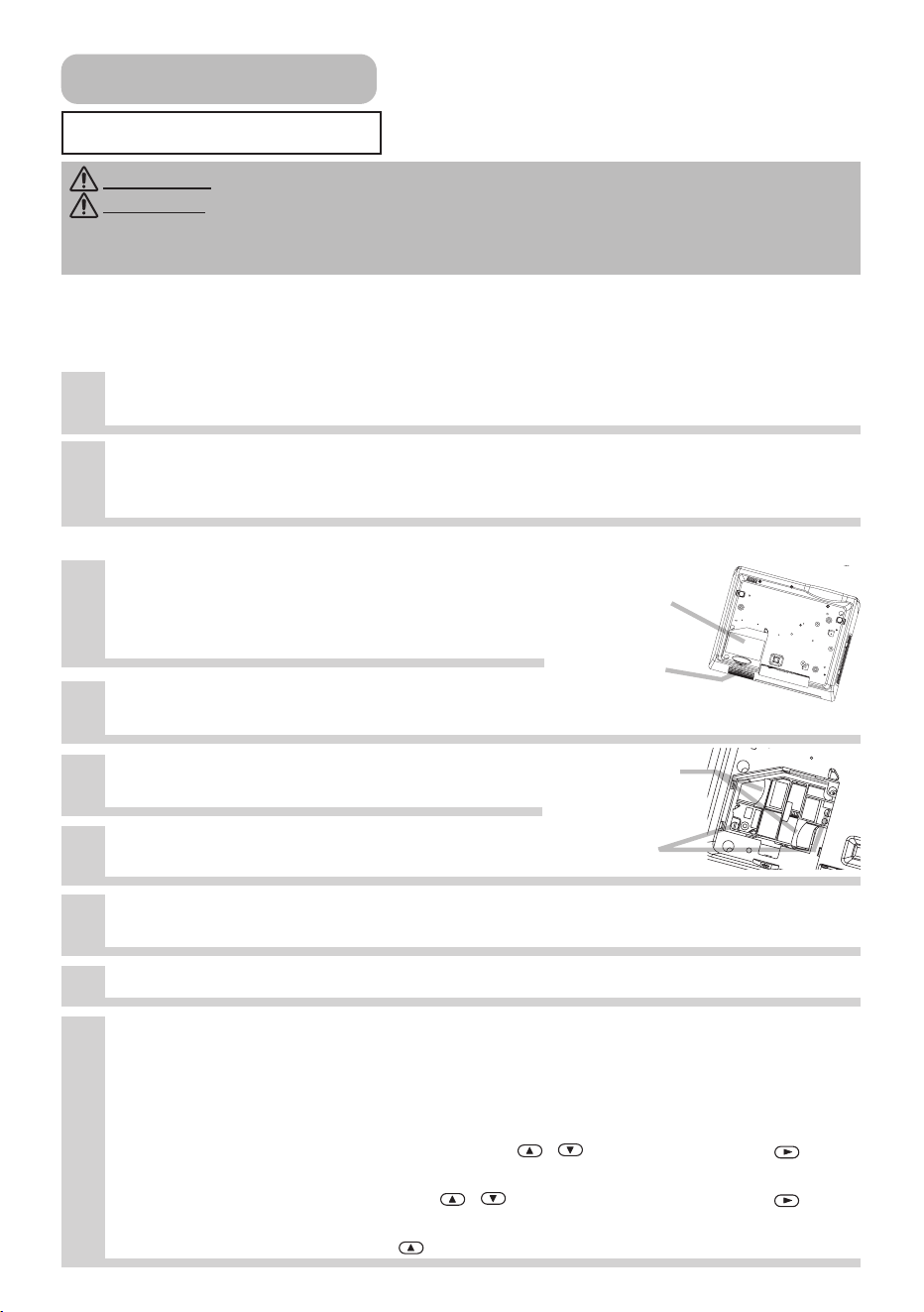
1
Turn off the projector, and unplug the power cord. Allow the lamp
bulb to cool for at least 45 minutes.
6
Insert the new lamp, and tighten the 2
screws firmly to lock it in place.
Slide the lamp cover into place, and tighten the screw of the lamp
cover firmly.
Slowly turn the projector so that the top is facing up.
3
After making sure that the projector
has cooled adequately, slowly flip
over the projector, so that the bottom
is facing up.
4
Unscrew the screw of the lamp cover,
then slide and take the lamp cover up.
2
Contact your local dealer to prepare a new lamp. Tell the dealer
your lamp type number. If the projector is mounted on the ceiling,
or if the lamp has broken, also ask the dealer to replace the lamp.
9
Turn on the projector, and reset the lamp timer. When the lamp has
been replaced after the message of “THE POWER WILL TURN OFF
AFTER 0hr.” is displayed, complete the following operation within
10 minutes of switching power on.
(1) While the projector running, press the MENU button to open the menu.
(2) Choose the “OPTION” on the menu using the
/
button, then press the button
or ENTER button.
(3) Choose the “LAMP TIME” using the
/
button, then press and hold the button
of projector or the RESET button of remote control for 3 seconds.
(4) Choose the “RESET” using the button.
In the case of replacement by yourself,
5
Unscrew the 2 screws, and slowly
pick up the lamp by the handles.
Replacing The Lamp
WARNING • Please carefully read the “User’s Manual - Safety Guide”.
CAUTION
• Do not reset the lamp timer without replacing the lamp.
• When you replace the lamp, please replace also the air filter. The air filter may be
attached when you buy a replacement lamp for this projector. Please ask your dealer.
If the indicators or a message prompts you to replace the lamp, replace the lamp as soon
as possible. Using the lamp for long periods of time, or past the replacement date, could
cause it to burst. If the projector is mounted on the ceiling, or if the lamp has broken, do
not try to clean the projector or replace the lamp yourself.
Lamp cover
Screw
Handles
Screws
7
8
Lamp (continued)
01PJ-TX10En03.7.1511:19AMページ32
33
Air Filter
Caring For The Air Filter
The air filter should be cleaned about every 100 hours. If the indicators or a message
prompts you to clean the air filter (see the section “Related Messages” and “Regarding
The Indicator Lamps”), clean the air filter as soon as possible. If the air filter becomes
clogged by dust or the like, internal temperature rises and could cause malfunction.
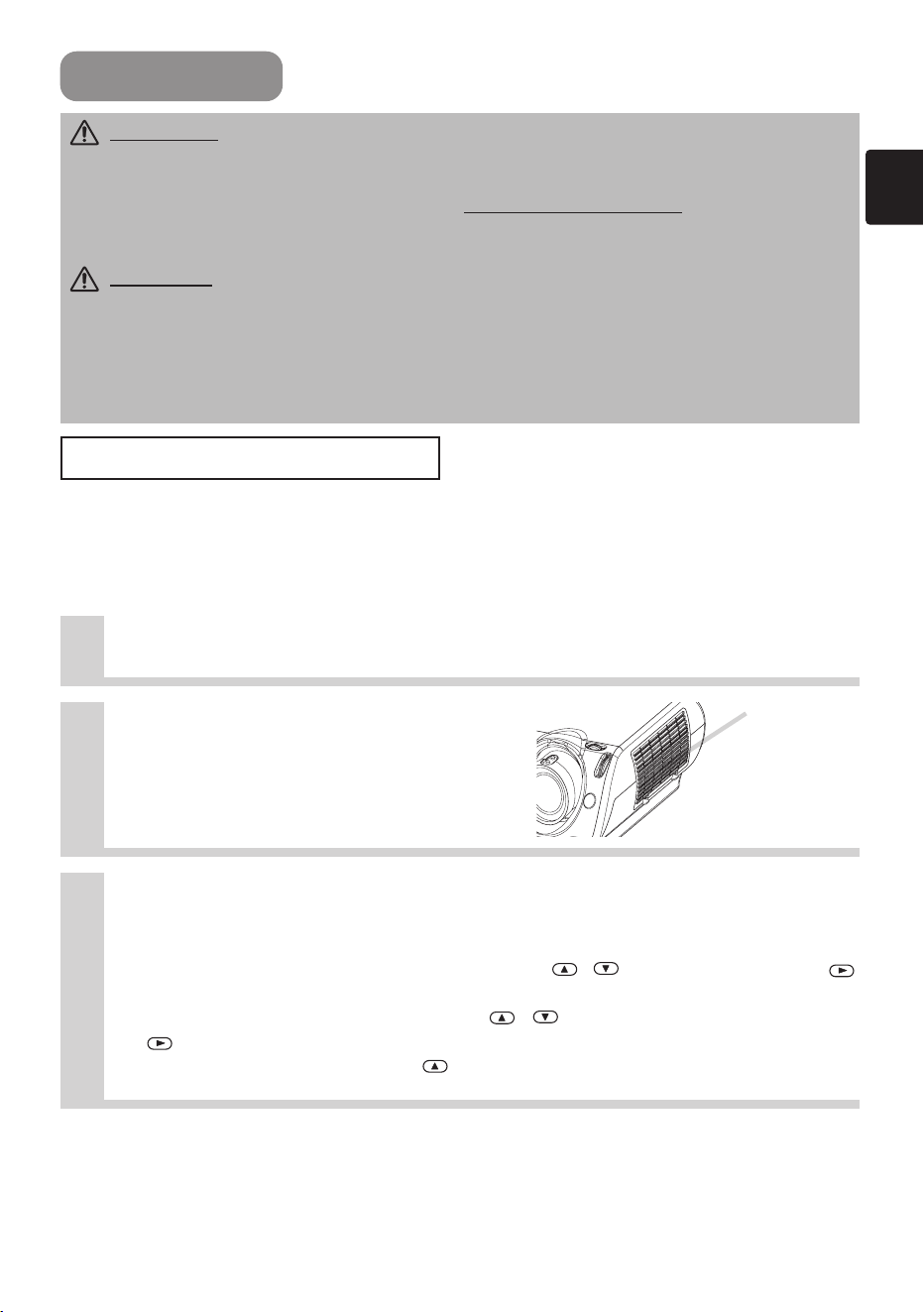
1
Turn off the projector, and unplug the power cord.
2
Apply a vacuum cleaner to
the top of the filter cover to
clean the air filter.
3
Reset the filter timer.
Filter Cover
WARNING • Please carefully read the “User’s Manual - Safety Guide”.
• Before replacing the air filter, make sure the power switch is off and the power cable
is not plugged in.
• Use the air filter of the specified type only. Type number:
NJ08312 (sold separately)
• Do not use the projector with the air filter and filter cover removed. The use without
the air filter could result in damage.
CAUTION
• Do not reset the filter timer without cleaning or replacing the air filter.
• If the air filter becomes clogged by dust or the like, internal temperature rises and
could cause malfunction. The power is automatically turned off in order to prevent the
projector from overheating internally.
• When you replace the lamp, please replace also the air filter. The air filter may be
attached when you buy a replacement lamp for this projector. Please ask your dealer.
(1) Turn on the projector. While the projector running, press the MENU button to
open the menu.
(2) Choose the “OPTION” on the menu using the
/
button, then press the
button or ENTER button.
(3) Choose the “FILTER TIME” using the
/
button, then press and hold the
button of projector or the RESET button of remote control for 3 seconds.
(4) Choose the “RESET” using the button.
01PJ-TX10En03.7.1511:19AMページ33
34
Replacing The Air Filter
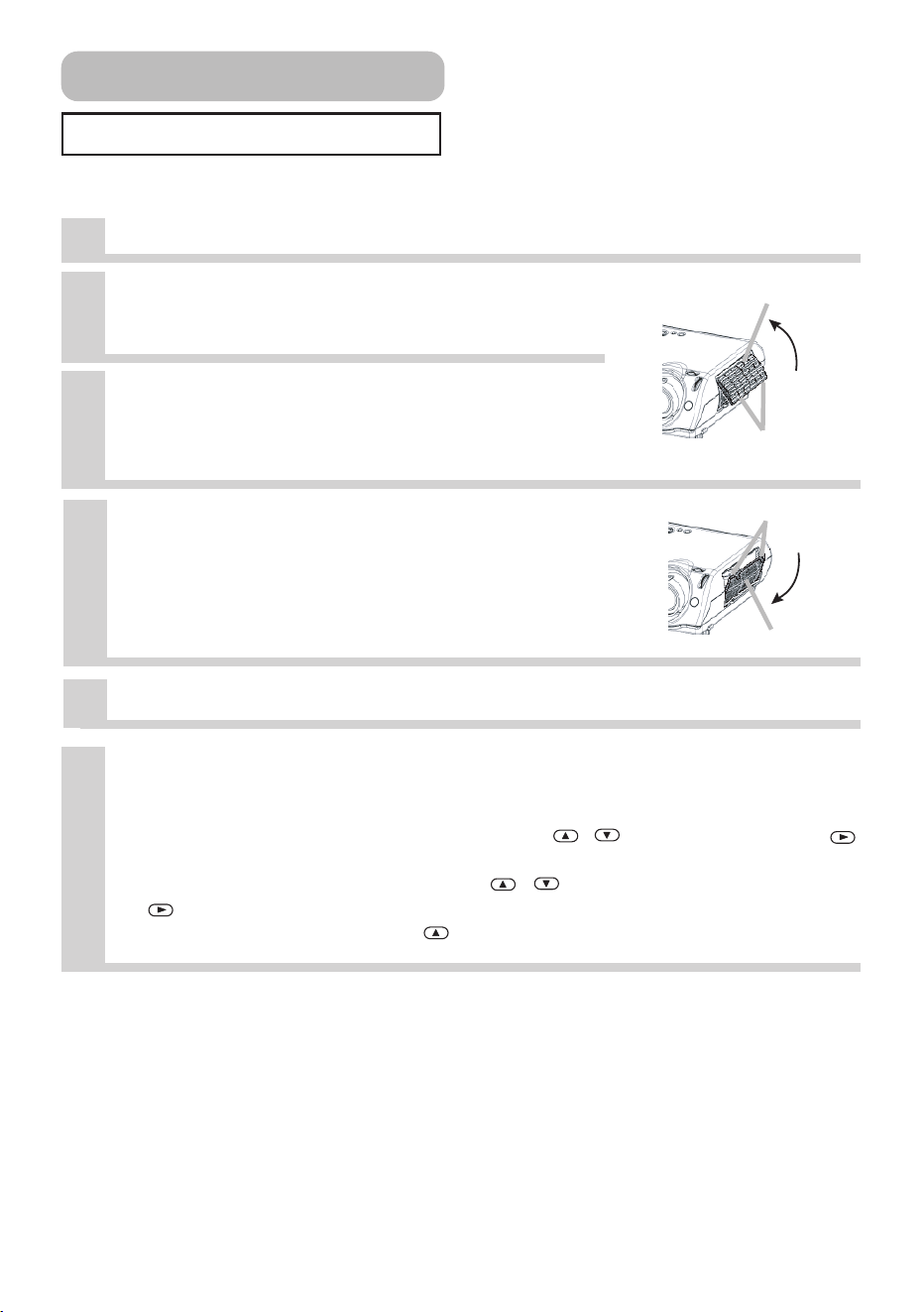
Filter cover
Air filter
Release buttons
Release buttons
Turn off the projector, and unplug the power cord.
2
Contact your local dealer to prepare a
new air filter. Tell the dealer your air
filter type number.
4
Hold the release buttons of the air
filter, while pulling down it.
3
After making sure that the projector
has cooled adequately, remove the
filter cover. Hold the release buttons of
the filter cover, while pulling up it.
6
Reset the filter timer.
(1) Turn on the projector. While the projector running, press the MENU button to
open the menu.
(2) Choose the “OPTION” on the menu using the
/
button, then press the
button or ENTER button.
(3) Choose the “FILTER TIME” using the
/
button, then press and hold the
button of projector or the RESET button of remote control for 3 seconds.
(4) Choose the “RESET” using the button.
If the soiling will not come off the air filter, or it becomes damaged, then it needs to be
replaced. Please replace the air filter as soon as possible.
1
Insert a new air filter, and replace the filter cover.
5
Air Filter (continued)
01PJ-TX10En03.7.1511:19AMページ34
35
Other Care
WARNING • Please carefully read the “User’s Manual - Safety Guide”.
• Before replacing the air filter, make sure the power switch is off and the power cable
is not plugged in.
ATTENTION
• Do not use cleaners or chemicals other than those listed below,
including benzene and paint thinner.
• Do not use aerosols or sprays.
• Do not polish or wipe with hard objects.
Caring For The Inside Of The Projector
Caring For The Lens
In order to ensure the safe use of your projector, please have it cleaned and inspected by
your local dealer about once every 2 years. Never try to care for the inside of the unit
yourself. Doing so is dangerous.
1
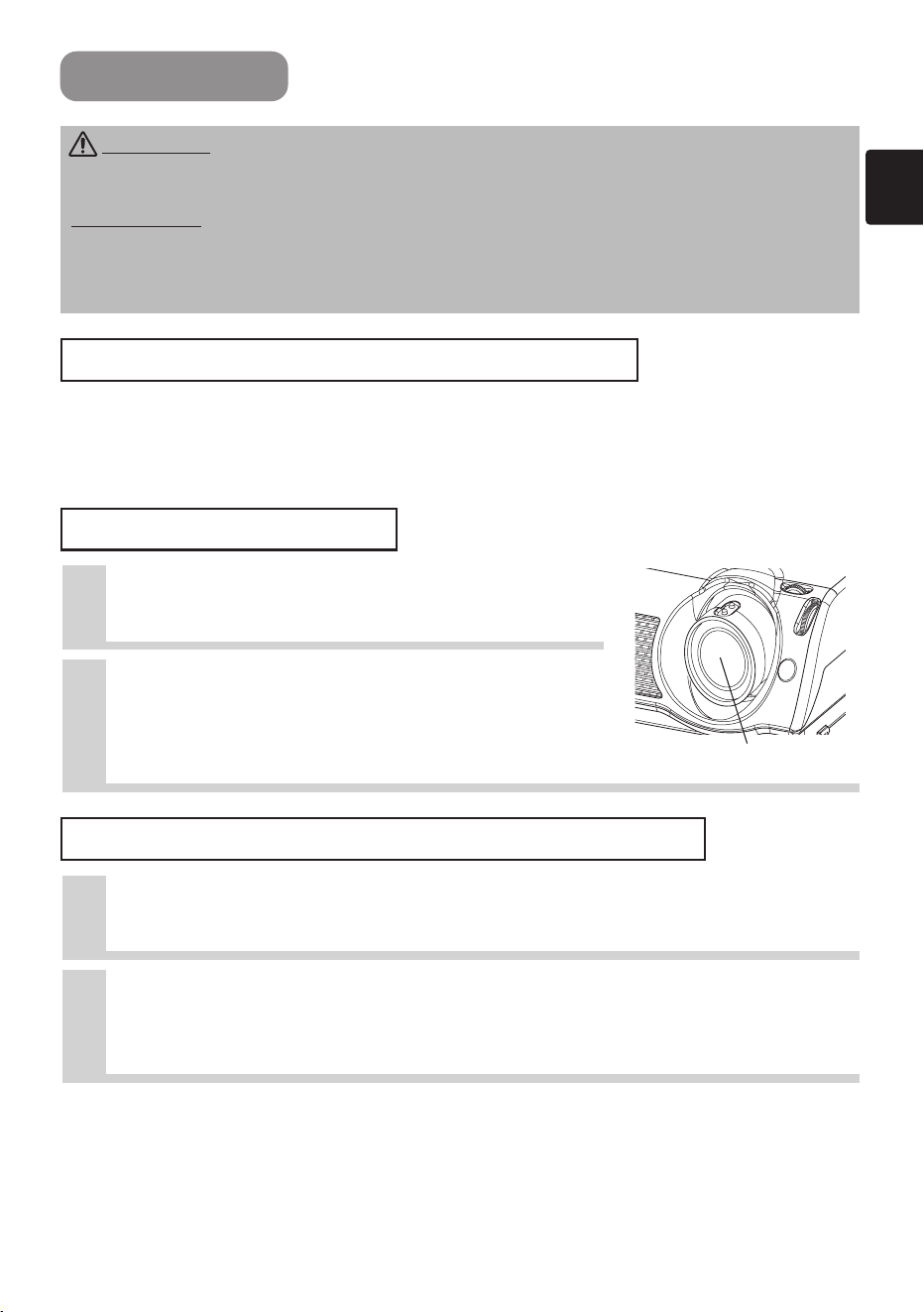
Turn off the projector, and unplug the
power cord.
2
Lightly wipe the lens with a
commercially available lens-cleaning
wipe. Do not touch the lens directly
with your hand.
Caring For The Cabinet And Remote Control
1
Turn off the projector, and unplug the power cord.
2
Wipe lightly with gauze or a soft cloth.
If soiling is severe, dip soft cloth in water or a neutral cleaner dilute in water, and
wipe lightly after wringing well. Then, wipe lightly with a soft, dry cloth.
Lens
01PJ-TX10En03.7.1511:19AMページ35
36
Troubleshooting
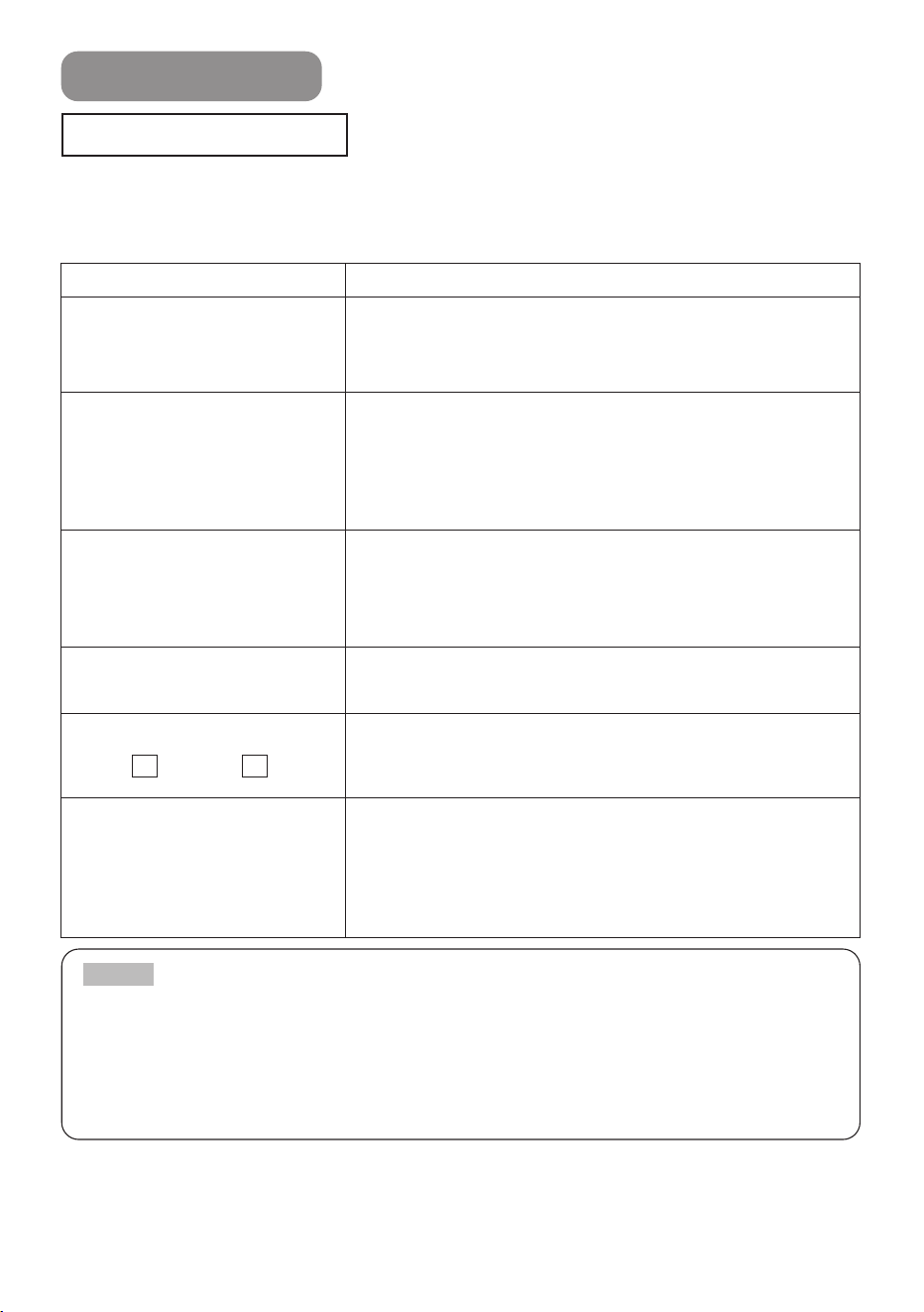
Related Messages
When the unit's power is ON, messages such as those shown below may be displayed.
When any such message is displayed on the screen, please respond as described
below. If the same message is displayed after the treatment, or if a message other than
the following appears, please contact your dealer or service company.
Message Description
CHANGE THE LAMP
AFTER REPLACING LAMP,
RESET THE LAMP TIMER.
(*1)
Lamp usage time is approaching 2000 hours. (*2)
Preparation of a new lamp, and an early lamp change is
recommended. After you have changed the lamp, please be
sure to reset the lamp timer.
CHANGE THE LAMP
AFTER REPLACING LAMP,
RESET THE LAMP TIMER.
THE POWER WILL TURN OFF
AFTER ** hr.
(*1)
Lamp usage time is approaching 2000 hours. (*2)
A lamp change within ** hours is recommended. When lamp
usage reaches 2000 hours, the power will automatically be
turned OFF. Please change the lamp by referring to the “Lamp”
section of this manual. After you have changed the lamp,
please be sure to reset the lamp timer.
CHANGE THE LAMP
AFTER REPLACING LAMP,
RESET THE LAMP TIMER.
THE POWER WILL TURN OFF
AFTER 0 hr.
As lamp use has reached 2000 hours (*2), the power will soon
be automatically turned OFF.
Please immediately turn the power off, and change the lamp by
referring to the “Lamp” section of this manual. After you have
changed the lamp, please be sure to reset the lamp timer.
NO INPUT IS DETECTED
ON ***
There is no input signal.
Please confirm the signal input connection, and the status of the
signal source.
SYNC IS OUT OF RANGE
ON *** *****kHz *****Hz
The horizontal or vertical wavelength of the inputted signal is
outside of the response parameters of this unit.
Please confirm the specs for this unit or the signal source
specs.
CHECK THE AIR FLOW
The internal portion temperature is rising.
Please turn the power OFF, and allow the unit to cool down at
least 20 minutes. After having confirmed the following items,
please turn the power ON again.
• Is there blockage of the air passage aperture?
• Is the air filter dirty?
• Does the peripheral temperature exceed 35°C?
(*1) • Although this message will be automatically disappeared after around 3 minutes, it will be reappeared
every time the power is turned ON.
(*2) • Lamps have a finite product life. Lamps are characterized by the fact that, after long hours of usage, a lamp will no
longer light up, or the lamp will break or burst, etc. This unit is equipped with an automatic shut-down function, such that
the power will automatically be turned OFF when lamp usage time has reached 2,000 hours. Please be aware, however,
that among lamp types, there are major differences in product lifetimes; a lamp may thus fail to light even prior to the
functioning of the automatic shut-down function of this unit.
NOTE
fH fV
01PJ-TX10En03.7.1511:19AMページ36
37
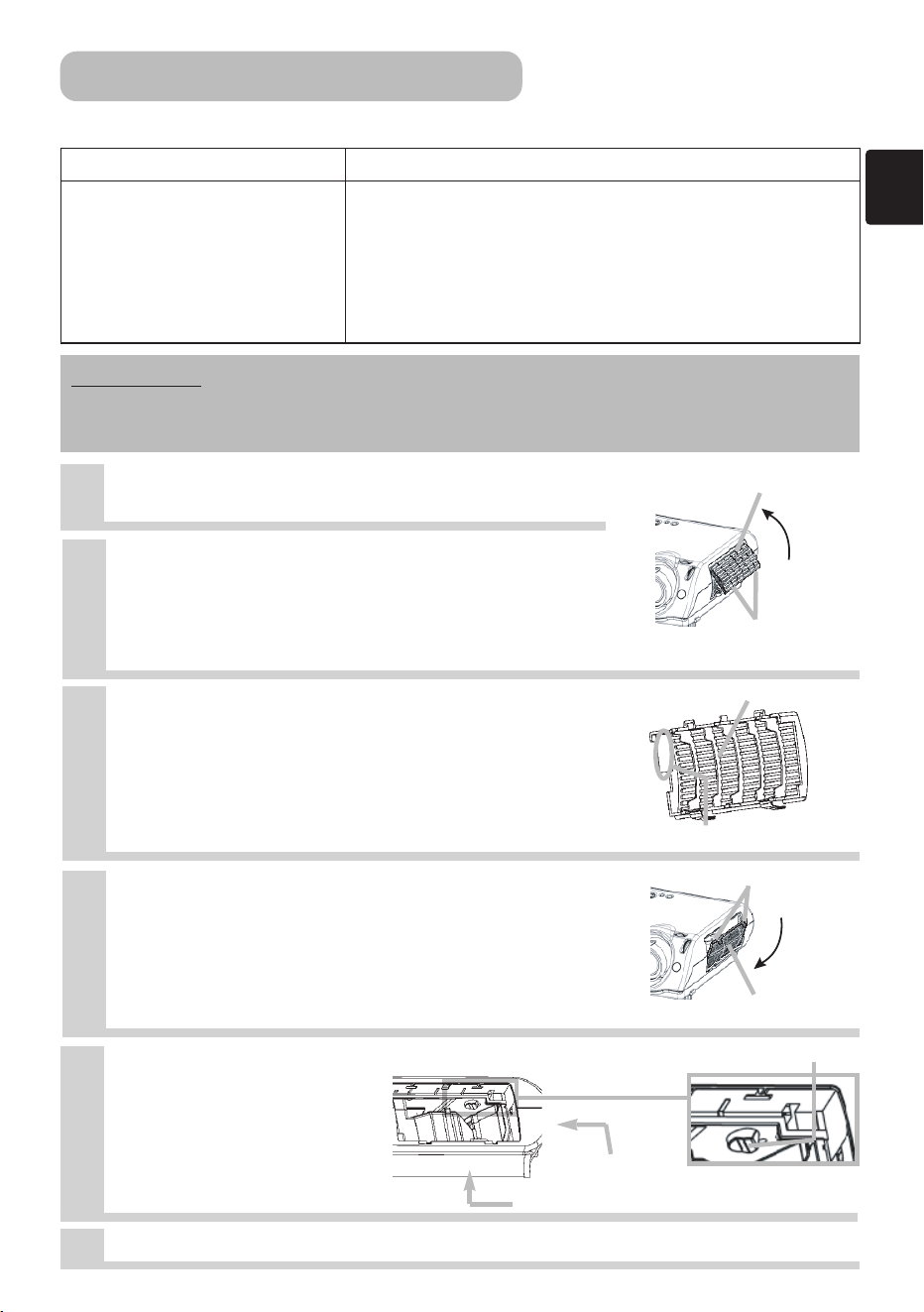
Wipe the dust-detecting window by
using a soft cloth.
Troubleshooting (continued)
Related Messages
(continued)
Message Description
CLEAN THE AIR FILTER
POWER OFF FIRST,
THEN CLEAN THE AIR FILTER.
AFTER CLEANING THE AIR
FILTER,
RESET THE FILTER TIMER.
A note of precaution when cleaning the air filter.
Please immediately turn the power OFF, and clean or change
the air filter by referring to the “Air Filter” section of this manual.
After you have cleaned or changed the air filter, please be sure
to reset the filter timer.
If the same message is displayed after the treatment, please
clean the transparent area of filter cover and the dust-detecting
window, according to the following.
ATTENTION • The transparent area of filter cover and the dust-detecting window
should be cleaned for normal operation of the optical dust detecting system. Please
pay attention not to remain fiber or fragment of cloth inside the duct.
Turn off the projector, and unplug the
power cord.
2
After making sure that the projector
has cooled adequately, remove the
filter cover.
Hold the release buttons of the filter cover, while
pulling up it.
4
Remove the air filter.
Hold the release buttons of the air filter, while pulling
down it.
1
Replace the air filter and filter cover.
Transparent area
Filter cover
Dust detecting window
3
Wipe the transparent area of the filter
cover by using a swab or a soft cloth.
5
6
(Rear side)
(Bottom side)
Filter cover
Air filter
Release buttons
Release buttons
01PJ-TX10En03.7.1511:19AMページ37
38
ATTENTION • When the interior portion has become overheated, or when the lamp
cover has not been properly fixed (attached), for safety purposes, the power source
may be automatically turned off, and the indicator lamps may also be turned off. In
such a case, press the “○” (OFF) side of the power switch, and wait at least 45
minutes. After the unit has sufficiently cooled down, please make confirmation of the
attachment state of the lamp and lamp cover, and then turn the power on again.
Regarding The Indicator Lamps
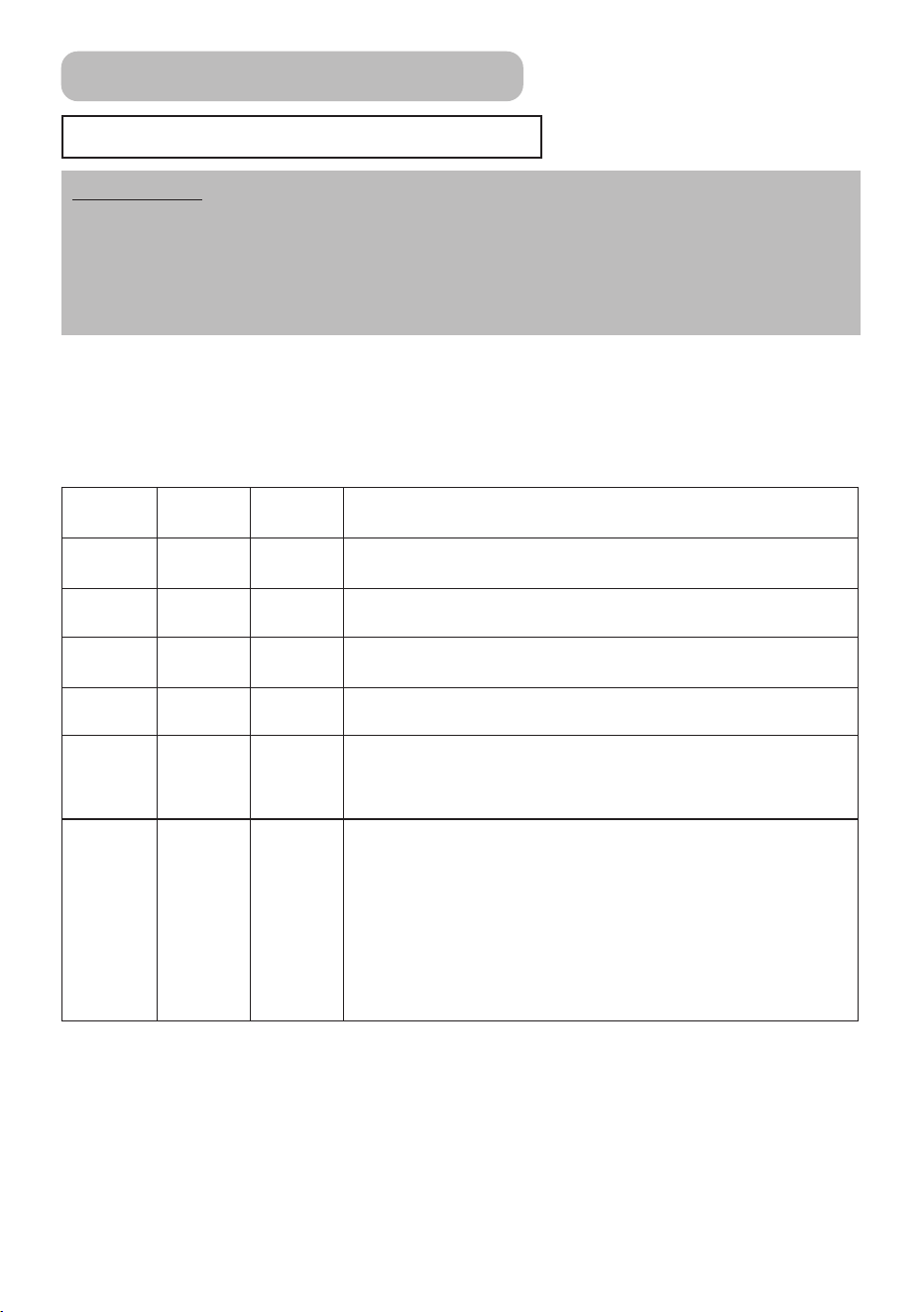
Lighting and flashing of the POWER indicator, the LAMP indicator, and the TEMP indicator
have the meanings as described in the table below. Please respond in accordance with the
instructions within the table. If the same indication is displayed after the treatment, or if an
indication other than the following is displayed, please contact your dealer or service
company.
POWER
indicator
LAMP
indicator
TEMP
indicator
Description
Lighting in
orange
Turned off Turned off
The unit is in a standby state. Please refer to the “Power
ON/OFF” section of this manual.
Flashing in
green
Turned off Turned off The unit is warming up. Please wait.
Lighting in
green
Turned off Turned off
The unit is in an ON state. Ordinary operations may be
performed.
Flashing in
orange
Turned off Turned off The unit is cooling down. Please wait.
Blinking in
red
- -
The unit is cooling down. A certain error has been detected.
Wait until the POWER indicator has finished flashing, and then
perform the proper response measure using the item
descriptions below as reference.
Lighting or
blinking in
red
Lighting in
red
Turned off
The projector lamp does not light, and/or there is a possibility
that the interior portion has become heated. Turn the power
OFF and wait at least 20 minutes. After the unit has sufficiently
cooled down, please make confirmation of the following items,
and then turn the power ON again. If the same indication is
displayed, please change the lamp.
• Is there blockage of the air passage aperture?
• Is the air filter is dirty?
• Does the peripheral temperature exceed 35°C?
Troubleshooting (continued)
01PJ-TX10En03.7.1511:19AMページ38
39
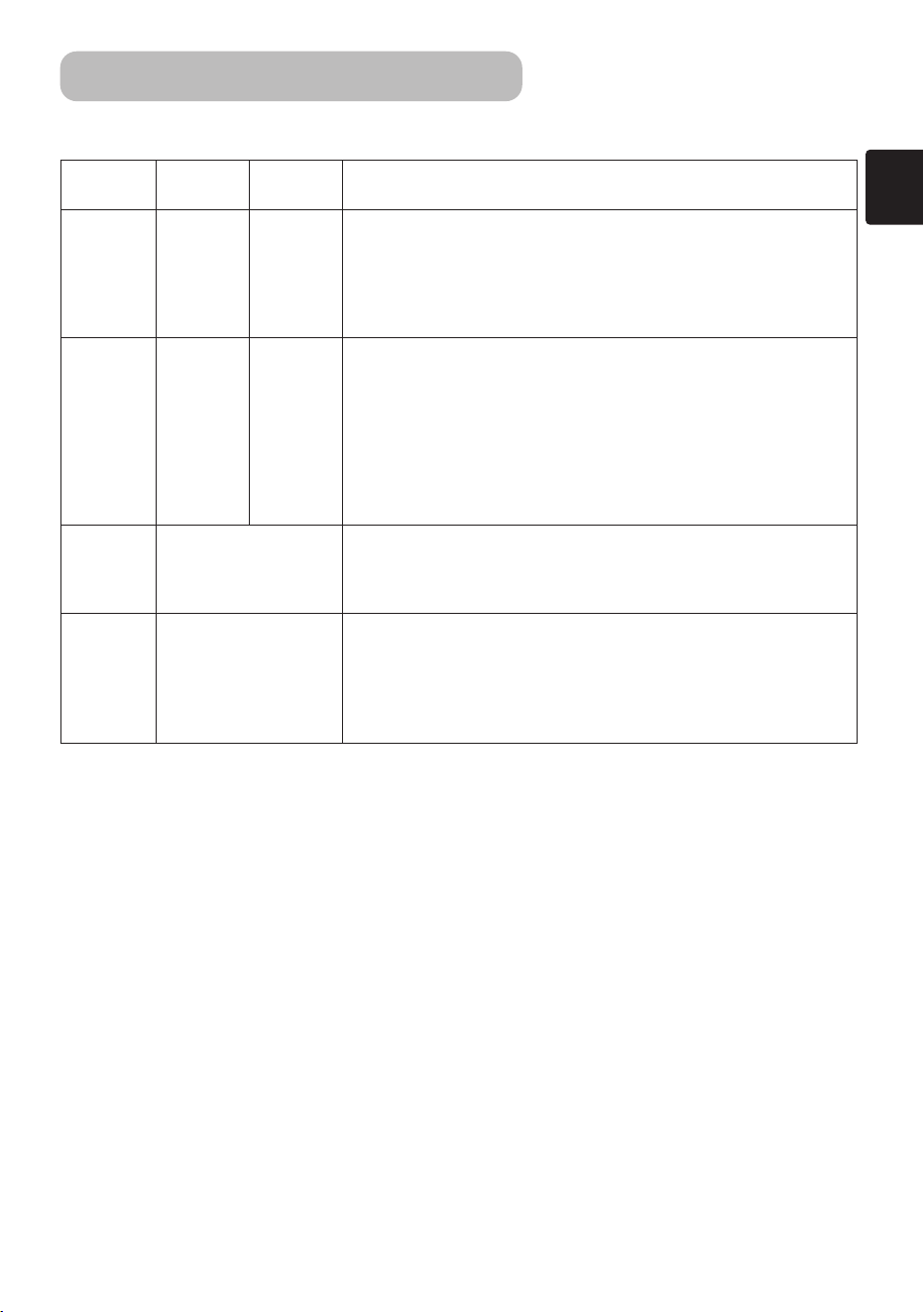
POWER
indicator
LAMP
indicator
TEMP
indicator
Description
Lighting or
blinking in
red
Turned off
Blinking in
red
The cooling fan is not operating. Turn the power OFF and wait
at least 20 minutes. After the unit has sufficiently cooled down,
please make confirmation of the following item, and then
resent the power to ON.
• Is there no foreign matter caught in the cooling fan?
Lighting or
blinking in
red
Turned off
Lighting in
red
There is a possibility that the interior portion has become
heated. Turn the power OFF and wait at least 20 minutes.
After the unit has sufficiently cooled down, please make
confirmation of the following item, and then resent the power
to ON.
• Is there blockage of the air passage aperture?
• Is the air filter is dirty?
• Does the peripheral temperature exceed 35°C?
Lighting in
green
Alternative blinking in
the red
There is a possibility that the interior portion has become
overcooled. Please use the unit within the usage temperature
parameters (0°C to 35°C). After the treatment, resent the
power to ON.
Lighting in
green
Simultaneous blinking
in red
It is time to clean the air filter, or there is no air filter. Please
immediately turn the power OFF, and clean or change the air
filter by referring to the “Air Filter” section of this manual. After
you have cleaned or changed the air filter, please be sure to
reset the filter timer. After the treatment, resent the power to
ON.
Regarding The Indicator Lamps
(continued)
Troubleshooting (continued)
01PJ-TX10En03.7.1511:19AMページ39
40
WARNING • Please carefully read the “User’s Manual - Safety Guide”.
Never use the projector if abnormal operations such as smoke, strange odor, excessive
sound, damaged casing or elements or cables, penetration of liquids or foreign matter,
etc. should occur.
Phenomena That May Easily Be Mistaken For Machine Defects
• Although bright spots or dark spots may appear on the screen, this is a
unique characteristic of liquid crystal displays, and such do not constitute or imply a
machine defect.
NOTE
Before requesting repair, please check in accordance with the following chart. If the
situation cannot be corrected, then contact your dealer.
Phenomenon
Cases not involving a machine defect,
and Items to be confirmed
Reference
pages
Power does not
come ON.
The main power source is not ON.
Turn on the main power.
11,14
The electrical power cord is not plugged in.
Correctly connect the power cord.
The main power source has been interrupted during operation,
such as by a power outage (blackout), etc.
Be sure to press the “○” (power OFF) side of the main power switch,
and leave this OFF for at least 20 minutes. After the unit has
sufficiently cooled down, turn ON the power source.
14
The lamp has not been properly fixed.
Turn the power OFF and wait at least 45 minutes. After the unit has
sufficiently cooled down, please make confirmation of the attachment
state of the lamp and lamp cover, and then turn the power ON again.
32
Neither sounds
nor pictures are
outputted.
The input changeover settings are mismatched.
Select the input signal, and correct the settings.
15
No signal is being inputted.
Correctly connect the connection cables.
10
Pictures are
displayed,
but no sounds
are heard.
The electrical wiring to this unit is not correctly connected.
Correctly connect the connection cables.
10
The volume setting has been set at (or adjusted to) an
extremely low level.
Adjust the VOLUME setting to a higher level.
17
The MUTE mode is the current setting.
Press the MUTE button to release (change) the MUTE mode setting.
17
Sounds are
heard,
but no pictures
are displayed.
The electrical wiring to this unit is not correctly connected.
Correctly connect the connection cables.
10
The brightness setting has been set at (or adjusted to) an
extremely low level.
Adjust the BRIGHT setting to a brighter level.
22
The lens cap has not been removed.
Remove the lens cap.
4,14
Troubleshooting (continued)
01PJ-TX10En03.7.1511:19AMページ40
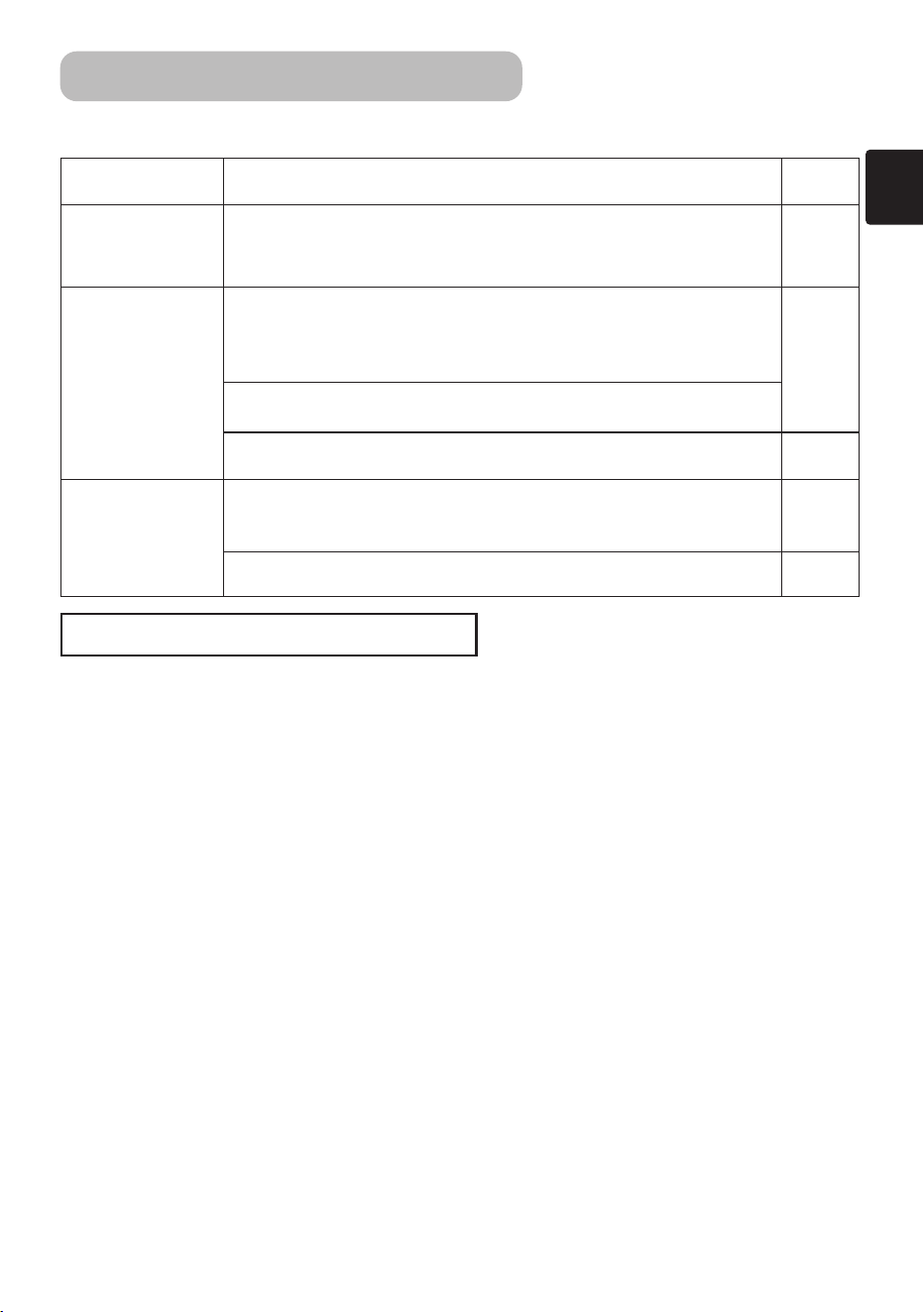
41
Phenomenon
Cases not involving a machine defect,
and Items to be confirmed
Reference
pages
Colors have a
faded- out
appearance, or
Color tone is poor.
Color settings are not correctly adjusted.
Perform picture adjustments by changing the COLOR BAL R,
COLOR BAL G, COLOR BAL B, COLOR, and/or the TINT settings,
etc.
23
Pictures appear
dark.
The brightness setting and/or contrast setting has not been
properly adjusted.
Perform picture adjustments by changing the BRIGHT and/or
CONTRAST settings, etc.
22
The WHISPER mode is the current setting.
Change (by releasing) from the WHISPER mode.
Lamp is approaching the end of its product lifetime.
Exchange the old lamp with a new lamp.
31,32
Pictures appear
blurry.
Either the FOCUS setting or the H PHASE is not properly
adjusted.
Adjust the focus and the H PHASE setting.
15,25
The lens is dirty or misty.
Clean the lens.
35
Warranty And After-Service
If a problem occurs with the equipment, first refer to the “Troubleshooting” section of this
manual, and run through the suggested checks. If this does not resolve the problem
contact your dealer or service company. They will tell you what warranty condition is
applied.
Phenomena That May Easily Be Mistaken For Machine Defects
(continued)
Troubleshooting (continued)
01PJ-TX10En03.7.189:13AMページ41
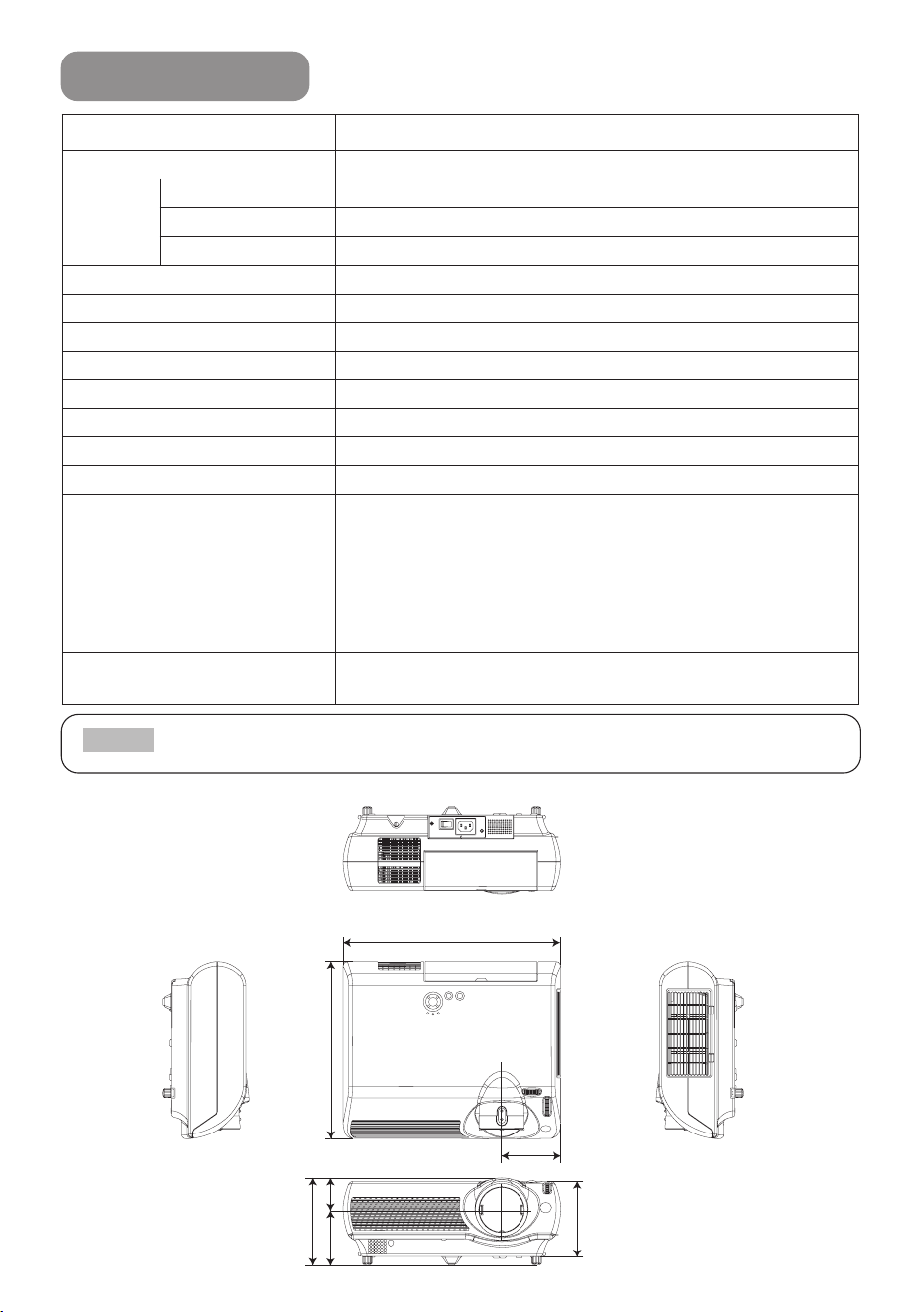
42
• This specifications are subject to change without notice.
NOTE
Item Specification
Product name Liquid crystal projector
Liquid
crystal
panel
Panel size 1.4 cm (0.55 type)
Drive system TFT active matrix
Pixels 409,920 pixels (854 horizontal x 480 vertical)
Lens Zoom lens F=1.6 ~ 2.8 f=14.2 ~ 28.4 mm
Lamp 130W UHB
Speaker 1.0W
Power supply AC100 ~ 120V, 2.4A / AC220 ~ 240V, 1.1A
Power consumption 220W
Temperature range 0 ~ 35°C (Operating)
Size 350 (W) x 121 (H) x 285 (D) mm (Not including protruding parts)
Weight (mass) 3.5 kg
Ports
Optional Parts
Lamp: DT00611 Air Filter: NJ08312
For others, consult your dealer.
RGB Input Ports
COMPUTER....................1
VIDEO Input Ports
VIDEO ............................1
S-VIDEO ........................1
COMPONENT VIDEO
(C
R/PR, CB/PB, Y) ............1
AUDIO Ports
AUDIO ............................1
AUDIO R, L.....................1
CONTROL Ports
CONTROL ....................1
350
285
140
121
51
89
95
Specifications
01PJ-TX10En03.7.1511:19AMページ42
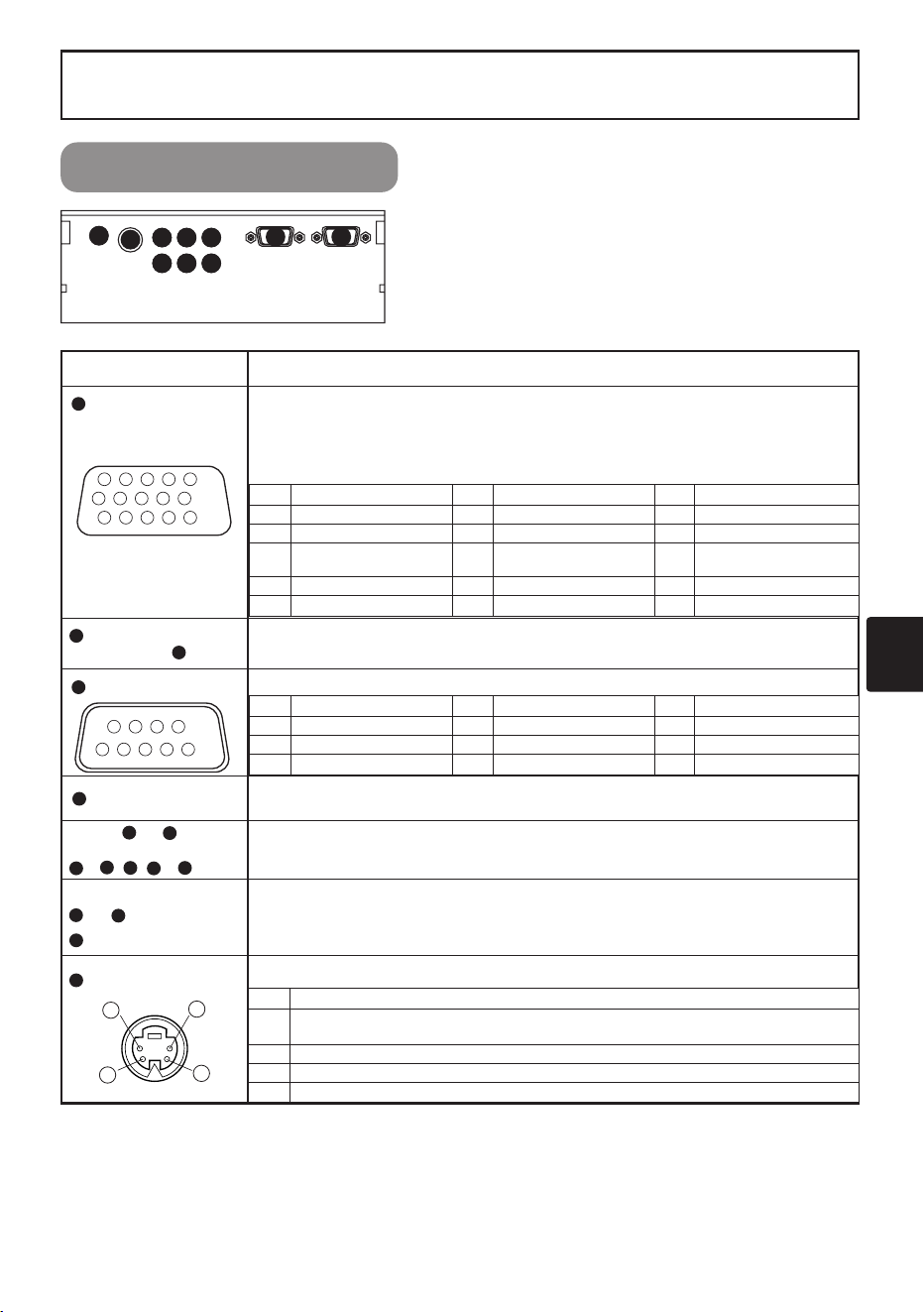
1
Signal Connectors
L-AUDIO-R
VIDEO
S-VIDEO
AUDIO
Y
COMPONENT VIDEO
C
B/PB CR/PR
COMPUTER
CONTROL
2
1
3
4
5
6
10
7
8
9
TECHNICAL
TECHNICAL
Port Specification
COMPUTER
1
Video signal: RGB separate, Analog, 0.7 Vp-p, 75 Ω terminator (positive)
H/V. sync. signal:TTL level (positive/negative)
Composite sync. signal: TTL level
D-sub 15-pin shrink jack
AUDIO
(interlocked port)
1
2
200 mVrms, 50 kΩ (max. 3.0 Vp-p), Stereo mini jack
CONTROL
3
D-sub 9-pin plug
VIDEO
4
1.0 Vp-p, 75 Ω terminator, RCA jack
AUDIO L, R
(interlocked
// )
10
9874
65
200 mVrms, 50 kΩ (max. 3.0 Vp-p), RCA jack
COMPONENT VIDEO
Y, C
B/PB,
C
R/PR
9
87
Y signal: 1.0 Vp-p, 75 Ω terminator
C
B/PB signal: 0.7 Vp-p, 75 Ω terminator
C
R
/PR signal: 0.7 Vp-p, 75 Ω terminator
S-VIDEO
10
Mini Din 4-pin jack
11 12 13 14 15
10
9876
12345
6789
54321
No. Signal No. Signal No. Signal
1 Video input Red 6 Ground Red 11 -
2 Video input Green 7 Ground Green 12 SDA (DDC)
3 Video input Blue 8 Ground Blue 13
H. sync./Composite
sync.
4 - 9 Ground 14 Vertical sync
5 Ground 10 - 15 SCL (DDC)
No. Signal No. Signal No. Signal
1 - 4 - 7 RTS
2 RD 5 Ground 8 CTS
3 TD 6 - 9 -
No. Signal
1
Color signal: 0.286 Vp-p (NTSC, burst), 75 Ω terminator
Color signal: 0.300 Vp-p (PAL/SECAM, burst), 75 Ω terminator
2 Brightness signal: 1.0 Vp-p, 75 Ω terminator
3 Ground
4 Ground
1
2
4
3
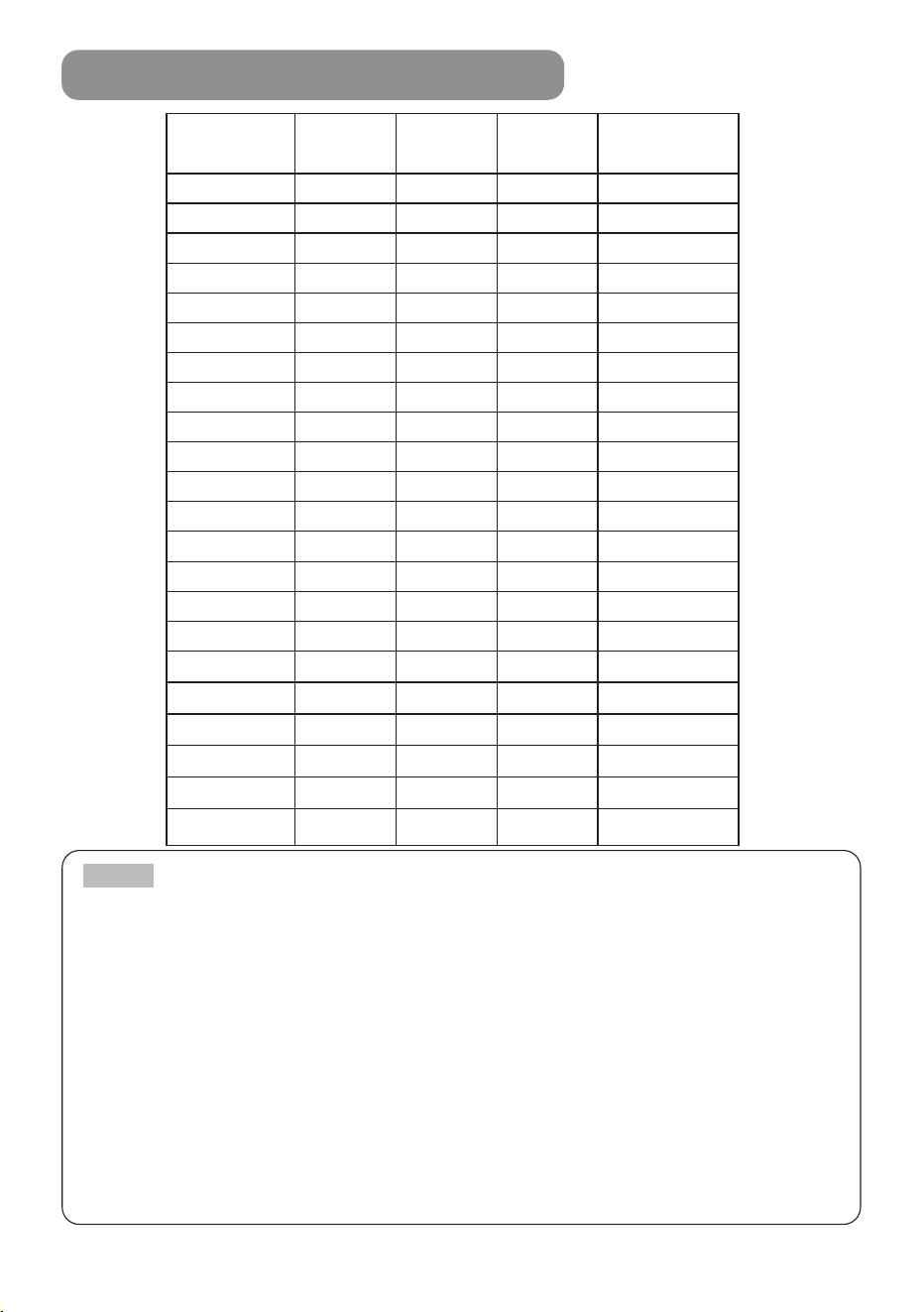
2
Example Of Computer Signal
Resolution
H
××
V
fH (kHz) fV (Hz) Rating Signal mode
720 × 400
37.9 85.0 VESA TEXT
640 × 480
31.5 59.9 VESA VGA (60Hz)
640 × 480
35.0 66.7 Mac13"mode
640 × 480
37.9 72.8 VESA VGA (72Hz)
640 × 480
37.5 75.0 VESA VGA (75Hz)
640 × 480
43.3 85.0 VESA VGA (85Hz)
800 × 600
35.2 56.3 VESA SVGA (56Hz)
800 × 600
37.9 60.3 VESA SVGA (60Hz)
800 × 600
48.1 72.2 VESA SVGA (72Hz)
800 × 600
46.9 75.0 VESA SVGA (75Hz)
800 × 600
53.7 85.1 VESA SVGA (85Hz)
832 × 624
49.7 74.5 Mac16"mode
848 x 480 29.8 60.0 VESA W VGA (60Hz)
1024 × 768
48.4 60.0 VESA XGA (60Hz)
1024 × 768
56.5 70.1 VESA XGA (70Hz)
1024 × 768
60.0 75.0 VESA XGA (75Hz)
1280 × 960
60.0 60.0 VESA SXGA (60Hz)
1280 × 1024
64.0 60.0 VESA SXGA (60Hz)
• Keep the original packing material for future reshipment.
• Some computers may have multiple display screen modes. Use of some of these
modes will not be possible with this projector.
• Be sure to check jack type, signal level, timing and resolution before connecting this
projector to a computer.
• Depending on the input signal, full-size display may not be possible in some cases.
Refer to the number of display pixels above.
• Although the projector can display signals with resolution up to UXGA (1,600 x
1,200), the signal will be converted to the projector’s panel resolution before being
displayed. The best display performance will be achieved if the resolutions of the
input signal and projector panel are identical.
• The image may not be displayed correctly when the input sync. signal is “Composite
Sync.” or “Sync. on G”.
• Automatically adjustment may not function correctly with some input signals.
NOTE
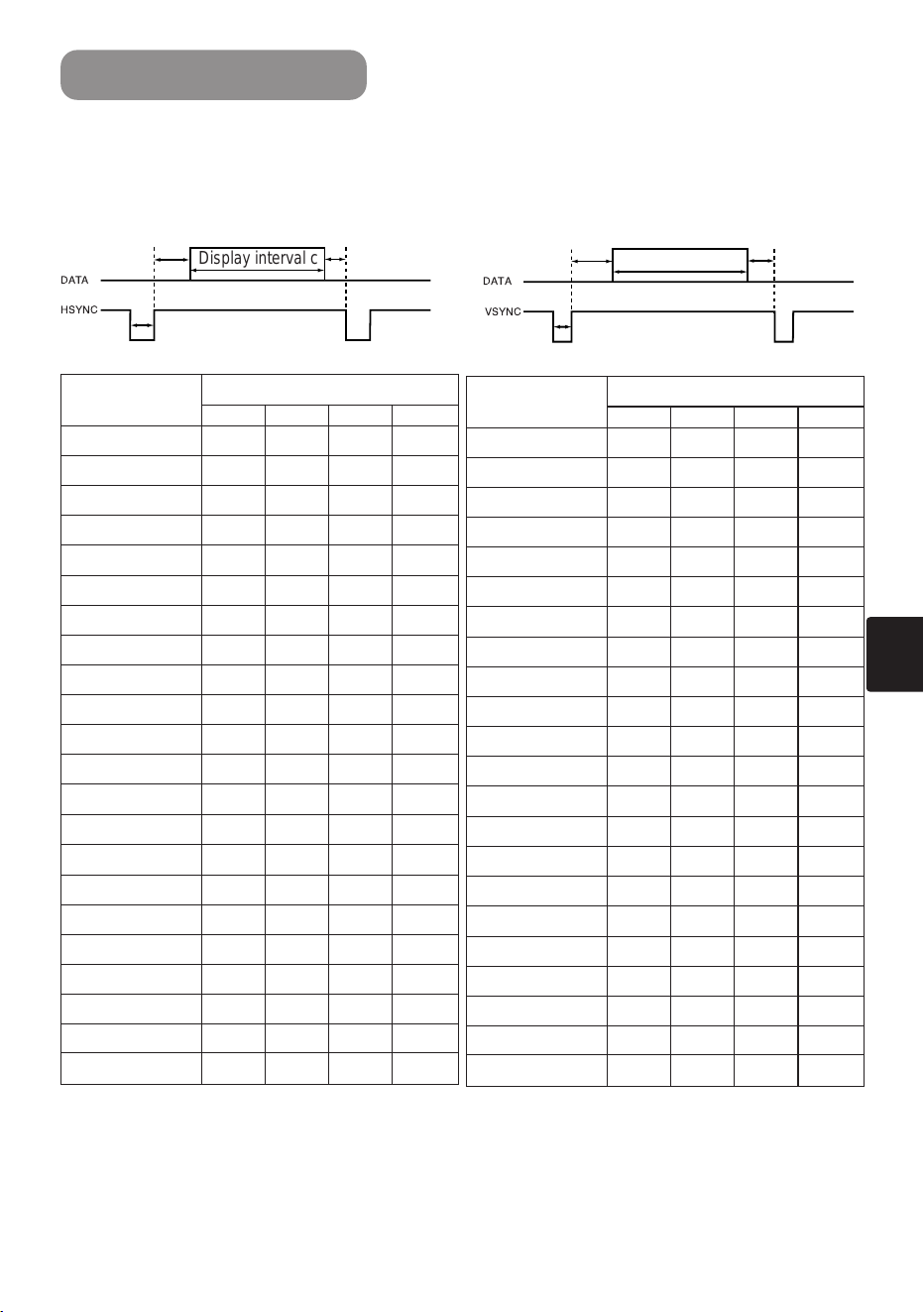
3
Initial Set Signals
The following signals are used for the initial settings.
The signal timing of some computer models may be different. In such case, refer to
adjust the V.POSIT and H.POSIT of the menu.
DATA
HSYNC
DATA
VSYNC
Display interval c
Back porch b
Sync a
Front porch d
Display interval c
Back porch b
Sync a
Front porch d
Computer /
Signal
Horizontal signal timing (µs)
a b c d
TEXT 2.0 3.0 20.3 1.0
VGA (60Hz) 3.8 1.9 25.4 0.6
Mac 13"mode 2.1 3.2 21.2 2.1
VGA (72Hz) 1.3 3.8 20.3 1.0
VGA (75Hz) 2.0 3.8 20.3 0.5
VGA (85Hz) 1.6 2.2 17.8 1.6
SVGA (56Hz) 2.0 3.6 22.2 0.7
SVGA (60Hz) 3.2 2.2 20.0 1.0
SVGA (72Hz) 2.4 1.3 16.0 1.1
SVGA (75Hz) 1.6 3.2 16.2 0.3
SVGA (85Hz) 1.1 2.7 14.2 0.6
Mac 16"mode 1.1 3.9 14.5 0.6
848 x 480 (60Hz) 2.8 3.3 26.9 0.5
XGA (60Hz) 2.1 2.5 15.8 0.4
XGA (70Hz) 1.8 1.9 13.7 0.3
XGA (75Hz) 1.2 2.2 13.0 0.2
1280×960 (60Hz)
1.0 2.9
11.9 0.9
1280×1024 (60Hz)
1.0 2.3
11.9 0.4
Computer /
Signal
Vertical signal timimg (lines)
a b c d
TEXT 3 42 400 1
VGA (60Hz) 2 33 480 10
Mac 13"mode 3 39 480 3
VGA (72Hz) 3 28 480 9
VGA (75Hz) 3 16 480 1
VGA (85Hz) 3 25 480 1
SVGA (56Hz) 2 22 600 1
SVGA (60Hz) 4 23 600 1
SVGA (72Hz) 6 23 600 37
SVGA (75Hz) 3 21 600 1
SVGA (85Hz) 3 27 600 1
Mac 16"mode 3 39 624 1
848 x 480 (60Hz) 3 13 480 1
XGA (60Hz) 6 29 768 3
XGA (70Hz) 6 29 768 3
XGA (75Hz) 3 28 768 1
1280×960 (60Hz)
3 36
960 1
1280×1024 (60Hz)
3
38 1024 1
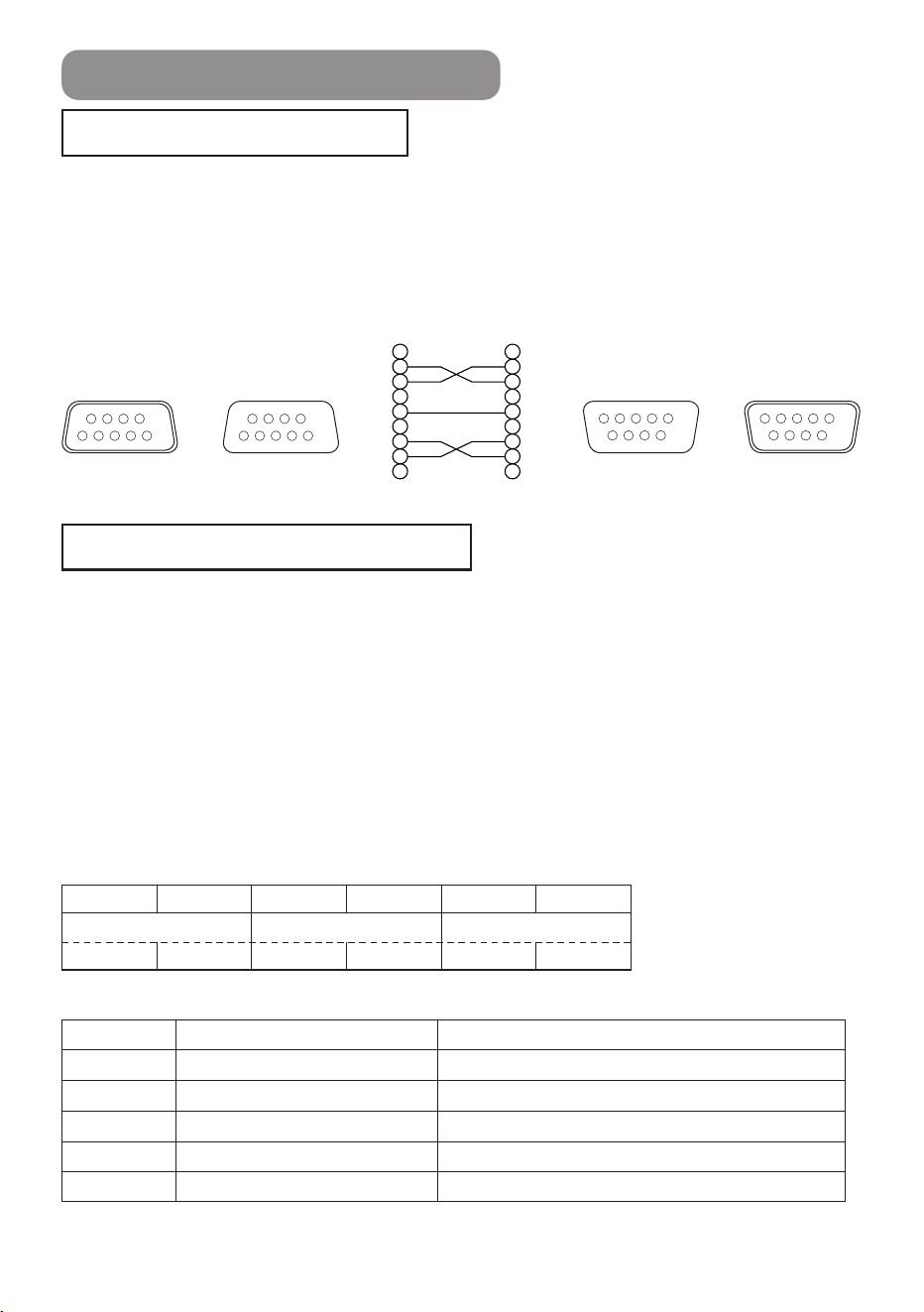
4
RS-232C Communication
19200bps, 8N1
1. Protocol
Consist of header (7 bytes) + command data (6 bytes).
2. Header
BE + EF + 03 + 06 + 00 + CRC_low + CRC_high
CRC_low : Lower byte of CRC flag for command data
CRC_high : Upper byte of CRC flag for command data
3 Command data
Command Data Chart
Connecting The Cable
Communications Setting
(1)
Turn off the projector and the computer power supplies.
(2) Connect the CONTROL port of the projector with a RS-232C port of the computer by a RS-
232C cable. Use the cable that fulfills the specification shown in the following figure.
(3) Turn on the computer power supply and after the computer has started up, turn on the
projector power supply.
byte_0 byte_1 byte_2 byte_3 byte_4 byte_5
Action Type Setting code
low high low high low high
Action (byte_0 - 1)
Action Classification Content
1 SET Change setting to desired value.
2 GET Read projector internal setup value.
4 INCREMENT Increment setup value by 1.
5 DECREMENT Decrement setup value by 1.
6 EXECUTE Run a command.
CONTROL
port
D-sub 9-pin
plug
RS-232C port
D-sub 9-pin
plug
D-sub 9-pin
jack
D-sub 9-pin
jack
1
2
3
4
5
6
7
8
9
RD
TD
GND
CTS
RTS
1
2
3
4
5
6
7
8
9
CD
RD
TD
DTR
GND
DSR
RTS
DTS
RI
Projector RS-232C cross cable Computer
6789
54321
9876
12345
6789
54321
9876
12345
⇔⇔

5
RS-232C Communication
(continued)
Requesting projector status (Get command)
(1) Send the request code Header + Command data (‘02H’+‘00H’+ type (2
bytes)+‘00H’+‘00H’) from the computer to the projector.
(2) The projector returns the response code ‘1DH’+ data (2 bytes) to the computer.
Changing the projector settings (Set command)
(1) Send the setting code Header + Command data (‘01H’+‘00H’+ type (2 bytes) +
setting code (2 bytes)) from the computer to the projector.
(2) The projector changes the setting based on the above setting code.
(3) The projector returns the response code ‘06H’ to the computer.
Using the projector default settings (Reset Command)
(1) The computer sends the default setting code Header + Command data (‘06H’+‘00H’+
type (2 bytes) +‘00H’+‘00H’) to the projector.
(2) The projector changes the specified setting to the default value.
(3) The projector returns the response code ‘06H’ to the computer.
Increasing the projector setting value (Increment command)
(1) The computer sends the increment code Header + Command data (‘04H’+‘00H’+
type (2 bytes) +‘00H’+‘00H’) to the projector.
(2) The projector in creases the setting value on the above setting code.
(3) The projector returns the response code ‘06H’ to the computer.
Decreasing the projector setting value (Decrement command)
(1) The computer sends the decrement code Header + Command data (‘05H’+‘00H’+
type (2 bytes) +‘00H’ + ‘00H’) to the projector.
(2) The projector decreases the setting value on the above setting code.
(3) The projector returns the response code ‘06H’ to the computer.
When the projector cannot understand the received command
When the projector cannot understand the received command, the error code ‘15H’ is
sent back to the computer.
Sometimes the projector cannot properly receive the command. In such a case, the
command is not executed and the error code ‘15H’ is sent back to the computer. If this
error code is returned, send the same command again.
When the projector cannot execute the received command.
When the projector cannot execute the received command, the error code ‘1cH’ +
‘xxxxH’ is sent back to the computer. When the data length is greater than indicated by
the data length code, the projector ignore the excess data code.
Conversely when the data length is shorter than indicated by the data length code, an
error code will be returned to the computer.
• Operation cannot be guaranteed when the projector receives an
undefined command or data.
• Provide an interval of at least 40ms between the response code and any other code.
• The projector outputs test data when the power supply is switched ON, and when the
lamp is lit. Ignore this data.
• Commands are not accepted during warm-up.
NOTE
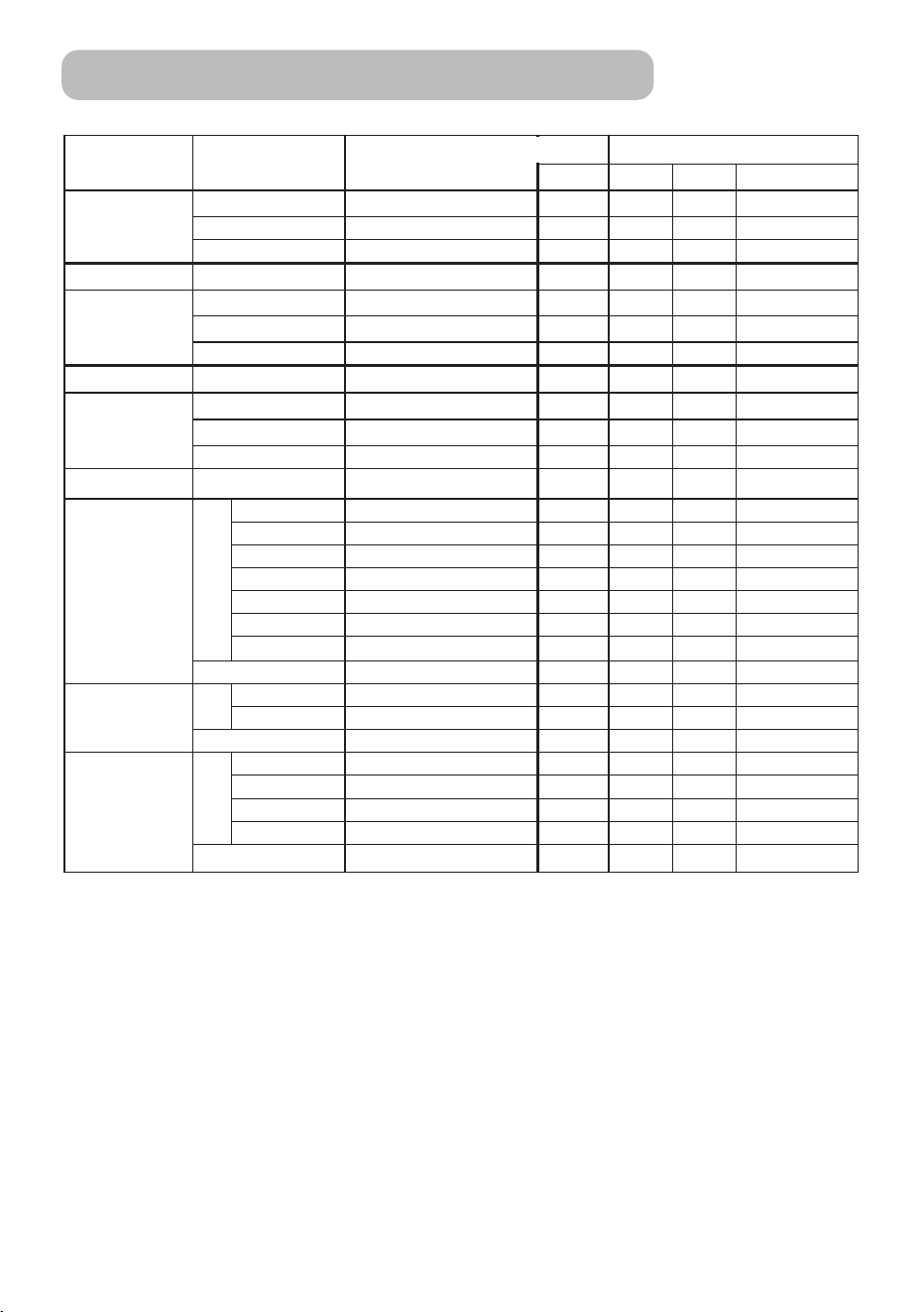
6
Command Data Chart
Names Operation type Header
Command data
CRC Action Type Setting code
Keystone
Get BE EF 03 06 00 B9 D3 02 00 07 20 00 00
Increment BE EF 03 06 00 DF D3 04 00 07 20 00 00
Decrement BE EF 03 06 00 0E D2 05 00 07 20 00 00
Keystone Reset Execute BE EF 03 06 00 08 D0 06 00 0C 70 00 00
Brightness
Get BE EF 03 06 00 89 D2 02 00 03 20 00 00
Increment BE EF 03 06 00 EF D2 04 00 03 20 00 00
Decrement BE EF 03 06 00 3E D3 05 00 03 20 00 00
Brightness Reset Execute BE EF 03 06 00 58 D3 06 00 00 70 00 00
Contrast
Get BE EF 03 06 00 FD D3 02 00 04 20 00 00
Increment BE EF 03 06 00 9B D3 04 00 04 20 00 00
Decrement BE EF 03 06 00 4A D2 05 00 04 20 00 00
Contrast Reset Execute BE EF 03 06 00 A4 D2 06 00 01 70 00 00
Aspect
Set
4:3 BE EF 03 06 00 9E D0 01 00 08 20 00 00
16:9 BE EF 03 06 00 0E D1 01 00 08 20 01 00
15:9 BE EF 03 06 00 6E D0 01 00 08 20 03 00
32:15 BE EF 03 06 00 5E D2 01 00 08 20 04 00
WIDE BE EF 03 06 00 CE D3 01 00 08 20 05 00
MOVIE-1 BE EF 03 06 00 3E D3 01 00 08 20 06 00
MOVIE-2 BE EF 03 06 00 AE D2 01 00 08 20 07 00
Get BE EF 03 06 00 AD D0 02 00 08 20 00 00
Whisper
Set
NORMAL BE EF 03 06 00 3B 23 01 00 00 33 00 00
WHISPER BE EF 03 06 00 AB 22 01 00 00 33 01 00
Get BE EF 03 06 00 08 23 02 00 00 33 00 00
Mirror
Set
Normal BE EF 03 06 00 C7 D2 01 00 01 30 00 00
H Inverse BE EF 03 06 00 57 D3 01 00 01 30 01 00
V lnverse BE EF 03 06 00 A7 D3 01 00 01 30 02 00
H&V Inverse BE EF 03 06 00 37 D2 01 00 01 30 03 00
Get BE EF 03 06 00 F4 D2 02 00 01 30 00 00
RS-232C Communication
(continued)
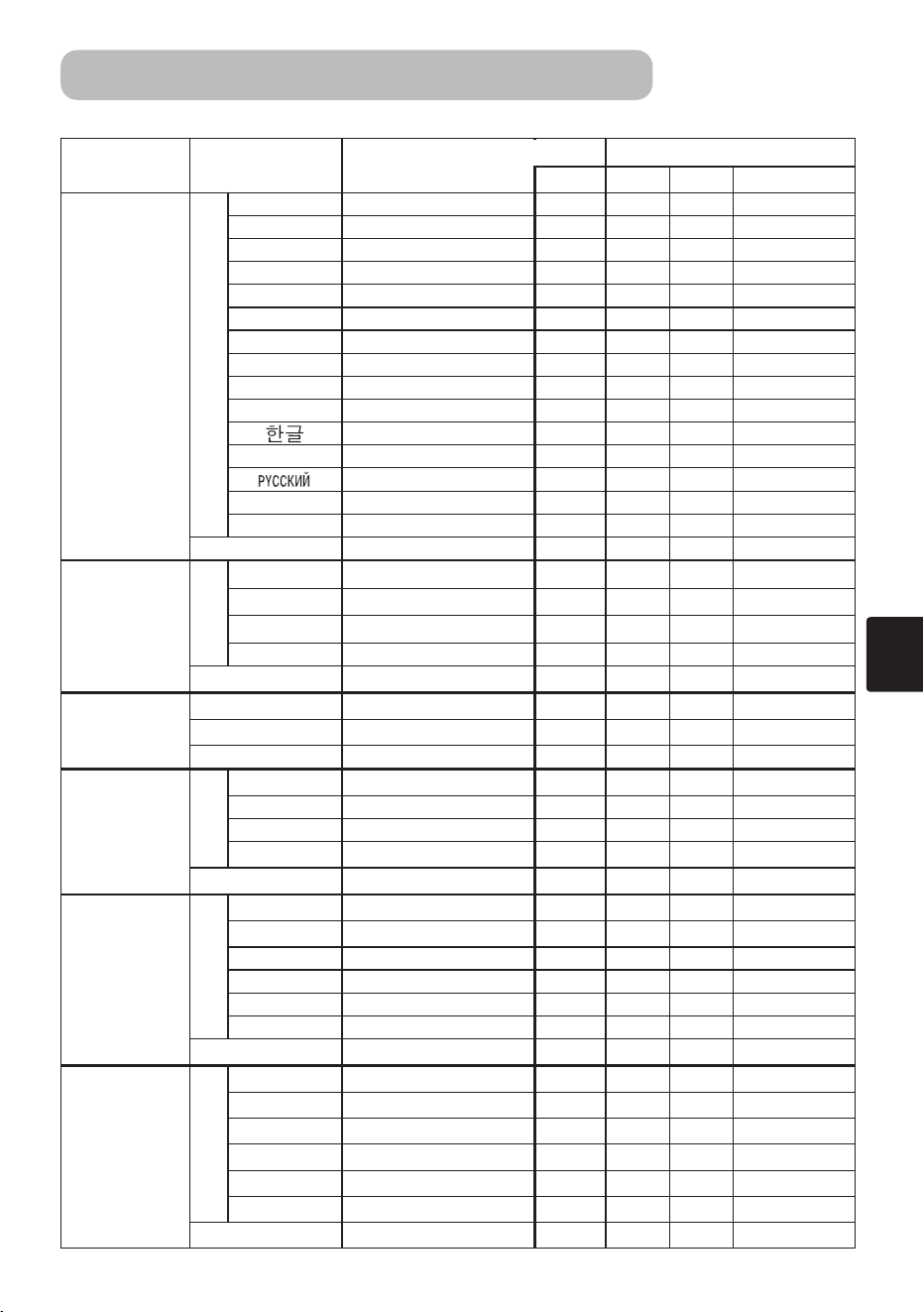
7
Command Data Chart
(continued)
RS-232C Communication
(continued)
Names Operation type Header
Command data
CRC Action Type Setting code
Language
Set
English BE EF 03 06 00 F7 D3 01 00 05 30 00 00
FRANÇAIS
BE EF 03 06 00 67 D2 01 00 05 30 01 00
Deutsch BE EF 03 06 00 97 D2 01 00 05 30 02 00
ESPAÑOL BE EF 03 06 00 07 D3 01 00 05 30 03 00
Italiano BE EF 03 06 00 37 D1 01 00 05 30 04 00
Norsk BE EF 03 06 00 A7 D0 01 00 05 30 05 00
Nederlands
BE EF 03 06 00 57 D0 01 00 05 30 06 00
PORTUGUÊS
BE EF 03 06 00 C7 D1 01 00 05 30 07 00
日本語
BE EF 03 06 00 37 D4 01 00 05 30 08 00
中文
BE EF 03 06 00 A7 D5 01 00 05 30 09 00
BE EF 03 06 00 57 D5 01 00 05 30 0A 00
SVENSKA BE EF 03 06 00 C7 D4 01 00 05 30 0B 00
BE EF 03 06 00 F7 D6 01 00 05 30 0C 00
SUOMI BE EF 03 06 00 67 D7 01 00 05 30 0D 00
POLSKI BE EF 03 06 00 97 D7 01 00 05 30 0E 00
Get BE EF 03 06 00 C4 D3 02 00 05 30 00 00
Gamma
Set
NORMAL BE EF 03 06 00 C7 F0 01 00 A1 30 00 00
CINEMA BE EF 03 06 00 57 F1 01 00 A1 30 01 00
DYNAMIC BE EF 03 06 00 A7 F1 01 00 A1 30 02 00
CUSTOM BE EF 03 06 00 07 FD 01 00 A1 30 10 00
Get BE EF 03 06 00 F4 F0 02 00 A1 30 00 00
Custom Gamma
Get BE EF 03 06 00 08 F1 02 00 A3 30 00 00
Increment BE EF 03 06 00 6E F1 04 00 A3 30 00 00
Decrement BE EF 03 06 00 BF F0 05 00 A3 30 00 00
Custom
Color Temp
Set
USER BE EF 03 06 00 3B F8 01 00 B0 30 10 00
HIGH BE EF 03 06 00 0B F5 01 00 B0 30 03 00
MIDDLE BE EF 03 06 00 9B F4 01 00 B0 30 02 00
LOW BE EF 03 06 00 6B F4 01 00 B0 30 01 00
Get BE EF 03 06 00 C8 F5 02 00 B0 30 00 00
Custom User R
Set
50 BE EF 03 06 00 57 F7 01 00 B1 30 05 00
60 BE EF 03 06 00 C7 F6 01 00 B1 30 04 00
70 BE EF 03 06 00 F7 F4 01 00 B1 30 03 00
80 BE EF 03 06 00 67 F5 01 00 B1 30 02 00
90 BE EF 03 06 00 97 F5 01 00 B1 30 01 00
100 BE EF 03 06 00 07 F4 01 00 B1 30 00 00
Get BE EF 03 06 00 34 F4 02 00 B1 30 00 00
Custom User G
Set
50 BE EF 03 06 00 13 F7 01 00 B2 30 05 00
60 BE EF 03 06 00 83 F6 01 00 B2 30 04 00
70 BE EF 03 06 00 B3 F4 01 00 B2 30 03 00
80 BE EF 03 06 00 23 F5 01 00 B2 30 02 00
90 BE EF 03 06 00 D3 F5 01 00 B2 30 01 00
100 BE EF 03 06 00 43 F4 01 00 B2 30 00 00
Get BE EF 03 06 00 70 F4 02 00 B2 30 00 00
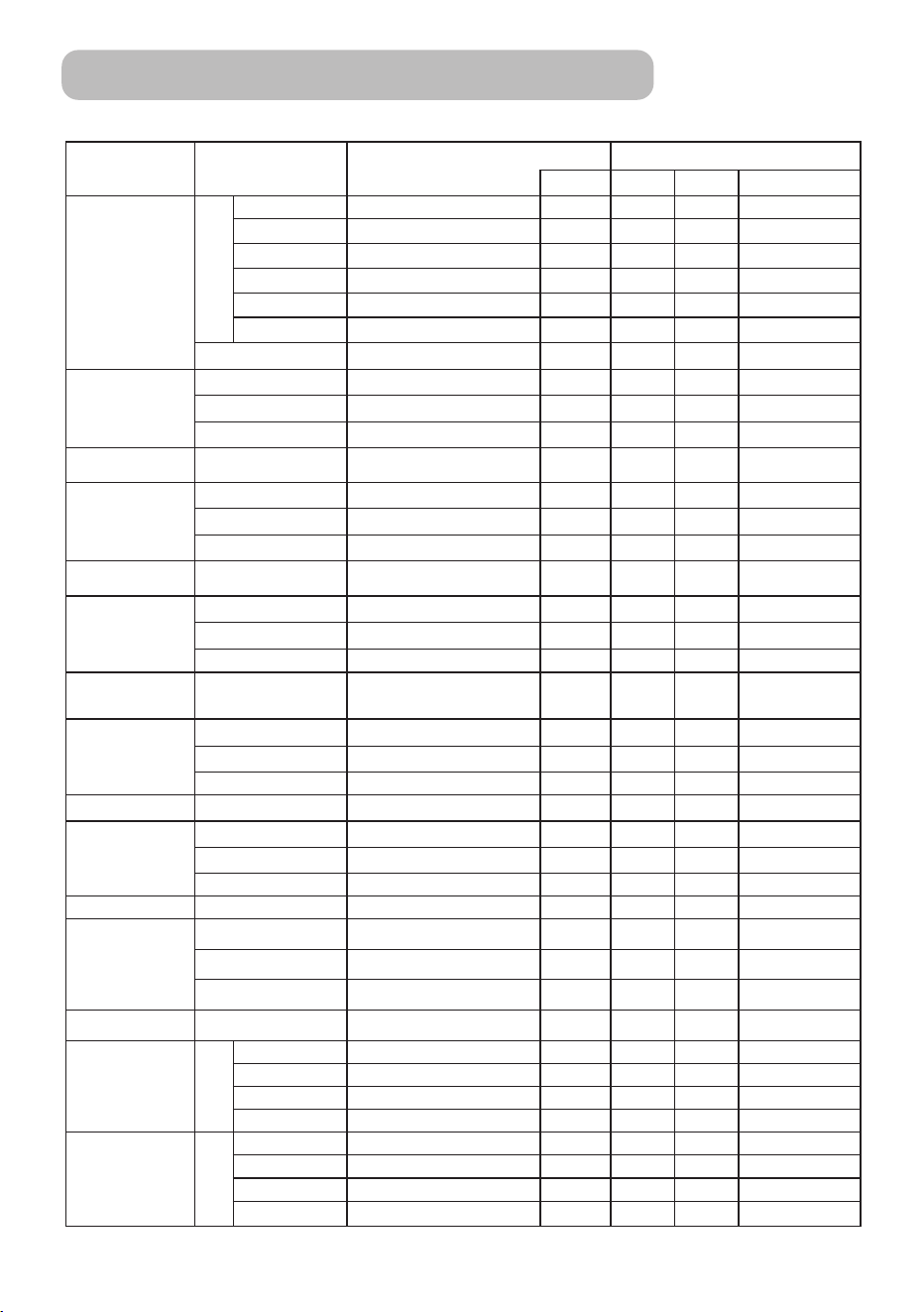
8
Command Data Chart
(continued)
RS-232C Communication
(continued)
Names Operation type Header
Command data
CRC Action Type Setting code
Custom User B
Set
50 BE EF 03 06 00 EF F6 01 00 B3 30 05 00
60 BE EF 03 06 00 7F F7 01 00 B3 30 04 00
70 BE EF 03 06 00 4F F5 01 00 B3 30 03 00
80 BE EF 03 06 00 DF F4 01 00 B3 30 02 00
90 BE EF 03 06 00 2F F4 01 00 B3 30 01 00
100 BE EF 03 06 00 BF F5 01 00 B3 30 00 00
Get BE EF 03 06 00 8C F5 02 00 B3 30 00 00
Color Balance R
Get BE EF 03 06 00 01 D2 02 00 05 20 00 00
Increment BE EF 03 06 00 67 D2 04 00 05 20 00 00
Decrement BE EF 03 06 00 B6 D3 05 00 05 20 00 00
Color Balance R
Reset
Execute BE EF 03 06 00 94 D3 06 00 05 70 00 00
Color Balance G
Get BE EF 03 06 00 B5 D7 02 00 12 20 00 00
Increment BE EF 03 06 00 D3 D7 04 00 12 20 00 00
Decrement BE EF 03 06 00 02 D6 05 00 12 20 00 00
Color Balance G
Reset
Execute BE EF 03 06 00 04 DB 06 00 29 70 00 00
Color Balance B
Get BE EF 03 06 00 45 D2 02 00 06 20 00 00
Increment BE EF 03 06 00 23 D2 04 00 06 20 00 00
Decrement BE EF 03 06 00 F2 D3 05 00 06 20 00 00
Color Balance B
Reset
Execute BE EF 03 06 00 D0 D3 06 00 06 70 00 00
Sharpness
Get BE EF 03 06 00 F1 72 02 00 01 22 00 00
Increment BE EF 03 06 00 97 72 04 00 01 22 00 00
Decrement BE EF 03 06 00 46 73 05 00 01 22 00 00
Sharpness Reset Execute BE EF 03 06 00 C4 D0 06 00 09 70 00 00
Color
Get BE EF 03 06 00 B5 72 02 00 02 22 00 00
Increment BE EF 03 06 00 D3 72 04 00 02 22 00 00
Decrement BE EF 03 06 00 02 73 05 00 02 22 00 00
Color Reset Execute BE EF 03 06 00 80 D0 06 00 0A 70 00 00
Tint
Get BE EF 03 06 00 49 73 02 00 03 22 00 00
Increment BE EF 03 06 00 2F 73 04 00 03 22 00 00
Decrement BE EF 03 06 00 FE 72 05 00 03 22 00 00
Tint Reset Execute BE EF 03 06 00 7C D1 06 00 0B 70 00 00
My Memory Load
Set
1 BE EF 03 06 00 0E D7 01 00 14 20 00 00
2 BE EF 03 06 00 9E D6 01 00 14 20 01 00
3 BE EF 03 06 00 6E D6 01 00 14 20 02 00
4 BE EF 03 06 00 FE D7 01 00 14 20 03 00
My Memory Save
Set
1
BE EF 03 06 00 F2 D6 01 00 15 20 00 00
2
BE EF 03 06 00 62 D7 01 00 15 20 01 00
3
BE EF 03 06 00 92 D7 01 00 15 20 02 00
4
BE EF 03 06 00 02 D6 01 00 15 20 03 00
9
Command Data Chart
(continued)
RS-232C Communication
(continued)
Names Operation type Header
Command data
CRC Action Type Setting code
V Position
Get BE EF 03 06 00 0D 83 02 00 00 21 00 00
Increment BE EF 03 06 00 6B 83 04 00 00 21 00 00
Decrement BE EF 03 06 00 BA 82 05 00 00 21 00 00
V Position Reset Execute BE EF 03 06 00 E0 D2 06 00 02 70 00 00
H Position
Get BE EF 03 06 00 F1 82 02 00 01 21 00 00
Increment BE EF 03 06 00 97 82 04 00 01 21 00 00
Decrement BE EF 03 06 00 46 83 05 00 01 21 00 00
H Position Reset Execute BE EF 03 06 00 1C D3 06 00 03 70 00 00
H Phase
Get BE EF 03 06 00 49 83 02 00 03 21 00 00
Increment BE EF 03 06 00 2F 83 04 00 03 21 00 00
Decrement BE EF 03 06 00 FE 82 05 00 03 21 00 00
H Size
Get BE EF 03 06 00 B5 82 02 00 02 21 00 00
Increment BE EF 03 06 00 D3 82 04 00 02 21 00 00
Decrement BE EF 03 06 00 02 83 05 00 02 21 00 00
H Size Reset Execute BE EF 03 06 00 68 D2 06 00 04 70 00 00
Over Scan
Get BE EF 03 06 00 91 70 02 00 09 22 00 00
Increment BE EF 03 06 00 F7 70 04 00 09 22 00 00
Decrement BE EF 03 06 00 26 71 05 00 09 22 00 00
Over Scan Reset Execute BE EF 03 06 00 EC D9 06 00 27 70 00 00
Color Space
Set
AUTO BE EF 03 06 00 0E 72 01 00 04 22 00 00
RGB BE EF 03 06 00 9E 73 01 00 04 22 01 00
SMPTE240 BE EF 03 06 00 6E 73 01 00 04 22 02 00
REC709 BE EF 03 06 00 FE 72 01 00 04 22 03 00
REC601 BE EF 03 06 00 CE 70 01 00 04 22 04 00
Get BE EF 03 06 00 3D 72 02 00 04 22 00 00
Component
Set
COMPONENT BE EF 03 06 00 4A D7 01 00 17 20 00 00
SCART RGB BE EF 03 06 00 DA D6 01 00 17 20 01 00
Get BE EF 03 06 00 79 D7 02 00 17 20 00 00
Video Format
Set
AUTO BE EF 03 06 00 9E 75 01 00 00 22 0A 00
NTSC BE EF 03 06 00 FE 71 01 00 00 22 04 00
PAL BE EF 03 06 00 6E 70 01 00 00 22 05 00
SECAM BE EF 03 06 00 6E 75 01 00 00 22 09 00
NTSC 4.43 BE EF 03 06 00 5E 72 01 00 00 22 02 00
M-PAL BE EF 03 06 00 FE 74 01 00 00 22 08 00
N-PAL BE EF 03 06 00 0E 71 01 00 00 22 07 00
Get BE EF 03 06 00 0D 73 02 00 00 22 00 00
Frame Lock
Set
TURN OFF BE EF 03 06 00 CB D6 01 00 14 30 00 00
TURN ON BE EF 03 06 00 5B D7 01 00 14 30 01 00
Get BE EF 03 06 00 F8 D6 02 00 14 30 00 00
3D-YCS
Set
TURN OFF BE EF 03 06 00 E6 70 01 00 0A 22 00 00
NORMAL BE EF 03 06 00 76 71 01 00 0A 22 01 00
STILL IMAGE BE EF 03 06 00 86 71 01 00 0A 22 02 00
Get BE EF 03 06 00 D5 70 02 00 0A 22 00 00
10
Command Data Chart
(continued)
RS-232C Communication
(continued)
Names Operation type Header
Command data
CRC Action Type Setting code
Video NR
Set
LOW BE EF 03 06 00 26 72 01 00 06 22 01 00
MIDDLE BE EF 03 06 00 D6 72 01 00 06 22 02 00
HIGH BE EF 03 06 00 46 73 01 00 06 22 03 00
Get BE EF 03 06 00 85 73 02 00 06 22 00 00
Progressive
Set
Turn off BE EF 03 06 00 4A 72 01 00 07 22 00 00
TV BE EF 03 06 00 DA 73 01 00 07 22 01 00
Film BE EF 03 06 00 2A 73 01 00 07 22 02 00
Get BE EF 03 06 00 79 72 02 00 07 22 00 00
S2-Aspect
Set
TURN OFF BE EF 03 06 00 1A 71 01 00 0B 22 00 00
TURN ON BE EF 03 06 00 8A 70 01 00 0B 22 01 00
Get BE EF 03 06 00 29 71 01 00 0B 22 00 00
Auto Adjust Execute BE EF 03 06 00 91 D0 06 00 0A 20 00 00
Auto off
Get BE EF 03 06 00 08 86 02 00 10 31 00 00
Increment BE EF 03 06 00 6E 86 04 00 10 31 00 00
Decrement BE EF 03 06 00 BF 87 05 00 10 31 00 00
Auto Search
Set
TURN OFF BE EF 03 06 00 B6 D6 01 00 16 20 00 00
TURN ON BE EF 03 06 00 26 D7 01 00 16 20 01 00
Get BE EF 03 06 00 85 D6 02 00 16 20 00 00
Blank Color
Set
Blue BE EF 03 06 00 CB D3 01 00 00 30 03 00
White BE EF 03 06 00 6B D0 01 00 00 30 05 00
Black BE EF 03 06 00 9B D0 01 00 00 30 06 00
Get BE EF 03 06 00 08 D3 02 00 00 30 00 00
Blank on/off
Set
TURN OFF BE EF 03 06 00 FB D8 01 00 20 30 00 00
TURN ON BE EF 03 06 00 6B D9 01 00 20 30 01 00
Get BE EF 03 06 00 C8 D8 02 00 20 30 00 00
Startup
Set
TURN ON BE EF 03 06 00 0B D2 01 00 04 30 00 00
TURN OFF BE EF 03 06 00 9B D3 01 00 04 30 01 00
Get BE EF 03 06 00 38 D2 02 00 04 30 00 00
Menu Position V
Get BE EF 03 06 00 40 D7 02 00 16 30 00 00
Increment BE EF 03 06 00 26 D7 04 00 16 30 00 00
Decrement BE EF 03 06 00 F7 D6 05 00 16 30 00 00
Menu Position V
Reset
Execute BE EF 03 06 00 A8 C7 06 00 44 70 00 00
Menu Position H
Get BE EF 03 06 00 04 D7 02 00 15 30 00 00
Increment BE EF 03 06 00 62 D7 04 00 15 30 00 00
Decrement BE EF 03 06 00 B3 D6 05 00 15 30 00 00
Menu Position H
Reset
Execute BE EF 03 06 00 DC C6 06 00 43 70 00 00
Message
Set
TURN OFF BE EF 03 06 00 8F D6 01 00 17 30 00 00
TURN ON BE EF 03 06 00 1F D7 01 00 17 30 01 00
Get BE EF 03 06 00 BC D6 02 00 17 30 00 00
11
Command Data Chart
(continued)
RS-232C Communication
(continued)
Names Operation type Header
Command data
CRC Action Type Setting code
Volume
Get BE EF 03 06 00 31 D3 02 00 01 20 00 00
Increment BE EF 03 06 00 57 D3 04 00 01 20 00 00
Decrement BE EF 03 06 00 86 D2 05 00 01 20 00 00
MUTE
Set
TURN ON BE EF 03 06 00 46 D3 01 00 02 20 00 00
TURN OFF BE EF 03 06 00 D6 D2 01 00 02 20 01 00
Get BE EF 03 06 00 75 D3 02 00 02 20 00 00
Lamp Time Get BE EF 03 06 00 C2 FF 02 00 90 10 00 00
Lamp Time Reset Execute BE EF 03 06 00 58 DC 06 00 30 70 00 00
Filter Time Get BE EF 03 06 00 C2 F0 02 00 A0 10 00 00
Filter Time Reset Execute BE EF 03 06 00 98 C6 06 00 40 70 00 00
Magnify
Get BE EF 03 06 00 7C D2 02 00 07 30 00 00
Increment BE EF 03 06 00 1A D2 04 00 07 30 00 00
Decrement BE EF 03 06 00 CB D3 05 00 07 30 00 00
Freeze
Set
Normal BE EF 03 06 00 83 D2 01 00 02 30 00 00
Freeze BE EF 03 06 00 13 D3 01 00 02 30 01 00
Get BE EF 03 06 00 B0 D2 02 00 02 30 00 00
Power
Set
TURN OFF BE EF 03 06 00 2A D3 01 00 00 60 00 00
TURN ON BE EF 03 06 00 BA D2 01 00 00 60 01 00
Get
BE EF 03 06 00 19 D3 02 00 00 60 00 00
(Example Return)
00 00 01 00 02 00
(Off) (On) (Cool down)
Input Source
Set
COMPUTER BE EF 03 06 00 FE D2 01 00 00 20 00 00
Video BE EF 03 06 00 6E D3 01 00 00 20 01 00
S-Video BE EF 03 06 00 9E D3 01 00 00 20 02 00
Component BE EF 03 06 00 AE D1 01 00 00 20 05 00
Get BE EF 03 06 00 CD D2 02 00 00 20 00 00
Error Status Get
BE EF 03 06 00 D9 D8 02 00 20 60 00 00
(Example of Return)
00 00 01 00 02 00 03 00
(Normal) (Cover-error) (Fan-error) (Lamp-error)
04 00 05 00 06 00 07 00 08 00
(Temp-error) (Air flow- (Lamp- (Cool-error) (Filter-Error)
error) Time-over)