
User Manual
Model No.:
Serial No.:
24PT6341/37
3141 095 20341-English
Thank you for choosing Philips.
Need help fast?
Read your Quick Use Guide and/or
Owner's Manual first for quick tips
that make using your Philips product
more enjoyable.
If you have read your instructions
and still need assistance,
you may access our online help at
www.usasupport.philips.com
or call
1-888-PHILIPS (744-5477)
while with your product
(and Model / Serial number)
ARRÊT
ALTO
ST
ST
OPOP
2
Registering your model with PHILIPS makes you eligible for all of the valuable benefits listed below, so don't miss out.
Complete and return your Product Registration Card at once to ensure:
Return your Product Registration Card today
to get the very most from your purchase.
Visit our World Wide Web Site at http://www.usasupport.philips.com
Congratulations on your purchase,
and welcome to the “family!”
Dear PHILIPS product owner:
Thank you for your confidence in PHILIPS.You’ve selected one of
the best-built, best-backed products available today.We’ll do every-
thing in our power to keep you happy with your purchase for many
years to come.
As a member of the PHILIPS “family,” you’re entitled to protection
by one of the most comprehensive warranties and outstanding
service networks in the industry.What’s more, your purchase guar-
antees you’ll receive all the information and special offers for which
you qualify, plus easy access to accessories from our convenient
home shopping network.
Most importantly, you can count on our uncompromising commit-
ment to your total satisfaction.
All of this is our way of saying welcome - and thanks for investing
in a PHILIPS product.
P.S. To get the most from your PHILIPS purchase, be
sure to complete and return your Product Registration
Card at once.
For Customer Use
Enter below the Serial No. which is locat-
ed on the rear of the cabinet. Retain this
information for future reference.
Model No.__________________________
Serial No. ________________________
Know these
safetysymbols
This “bolt of lightning” indicates unin-
sulated material within your unit may
cause an electrical shock. For the safety of
everyone in your household, please do not
remove product covering.
The “exclamation point” calls atten-
tion to features for which you should
read the enclosed literature closely to pre-
vent operating and maintenance problems.
WARNING: To r educe the risk of fire or
electric shock, this apparatus should not be
exposed to rain or moisture and objects
filled with liquids, such as vases, should not
be placed on this apparatus.
CAUTION: To prevent electric shock,
match wide blade of plug to wide slot, fully
insert.
ATTENTION:Pour éviter les choc élec-
triques, introduire la lame la plus large de la
fiche dans la borne correspondante de la
prise et pousser jusqu’au fond.
CAUTION
RISK OF ELECTRIC SHOCK
DO NOT OPEN
CAUTION: TO REDUCE THE RISK OF ELECTRIC SHOCK, DO NOT
REMOVE COVER (OR BACK). NO USER-SERVICEABLE PARTS
INSIDE. REFER SERVICING TO QUALIFIED SERVICE PERSONNEL.
t
s
*Proof of
Purchase
Returning the enclosed card guarantees
that your date of purchase will be on file,
so no additional paperwork will be
required from you to obtain warranty
service.
*Product Safety
Notification
By registering your product, you'll receive
notification - directly from the manufac-
turer - in the rare case of a product
recall or safety defect.
*Additional Benefits
of Product Ownership
Registering your product guarantees that
you'll receive all of the privileges to
which you're entitled, including special
money-saving offers.
3
IMPORTANT SAFETY INSTRUCTIONS
Read before operating equipment
1. Read these instructions.
2. Keep these instructions.
3. Heed all warnings.
4. Follow all instructions.
5. Do not use this apparatus near water.
6. Clean only with a dry cloth.
7. Do not block any of the ventilation openings. Install in accordance
with the manufacturers instructions.
8. Do not install near any heat sources such as radiators, heat regis-
ters, stoves, or other apparatus (including amplifiers) that produce
heat.
9. Do not defeat the safety purpose of the polarized or grounding-
type plug. A polarized plug has two blades with one wider than
the other. A grounding type plug has two blades and third ground-
ing prong. The wide blade or third prong are provided for your
safety. When the provided plug does not fit into your outlet, con-
sult an electrician for replacement of the obsolete outlet.
10. Protect the power cord from being walked on or pinched particu-
larly at plugs, convenience receptacles, and the point where they
exit from the apparatus.
11. Only use attachments/accessories specified by the manufacturer.
12. Use only with a cart, stand, tripod, bracket, or table
specified by the manufacturer, or sold with the app-
aratus. When a cart is used, use caution when moving
the cart/apparatus combination to avoid injury from tip-over.
13. Unplug this apparatus during lightning storms or when unused for
long periods of time.
14. Refer all servicing to qualified service personnel. Servicing is
required when the apparatus has been damaged in any way, such
as power-supply cord or plug is damaged, liquid has been spilled
or objects have fallen into apparatus, the apparatus has been
exposed to rain or moisture, does not operate normally, or has
been dropped.
15. This product may contain lead and mercury. Disposal of these
materials may be regulated due to environmental considerations.
For disposal or recycling information, please contact your local
authorities or the Electronic Industries Alliance: www.eiae.org
16. Damage Requiring Service - The appliance should be serviced
by qualified service personnel when:
A. The power supply cord or the plug has been damaged; or
B. Objects have fallen, or liquid has been spilled into the appli-
ance; or
C. The appliance has been exposed to rain; or
D. The appliance does not appear to operate normally or
exhibits a marked change in performance; or
E. The appliance has been dropped, or the enclosure damaged.
17. Tilt/Stability - All televisions must comply with recommended
international global safety standards for tilt and stability properties
of its cabinet design.
• Do not compromise these design standards by applying exces-
sive pull force to the front, or top, of the cabinet which could ulti-
mately overturn the product.
• Also, do not endanger yourself, or children, by placing electron-
ic equipment/toys on the top of the cabinet. Such items could
unsuspectingly fall from the top of the set and cause product dam-
age and/or personal injury.
18. Wall or Ceiling Mounting - The appliance should be mounted to
a wall or ceiling only as recommended by the manufacturer.
19. Power Lines - An outdoor antenna should be located away from
power lines.
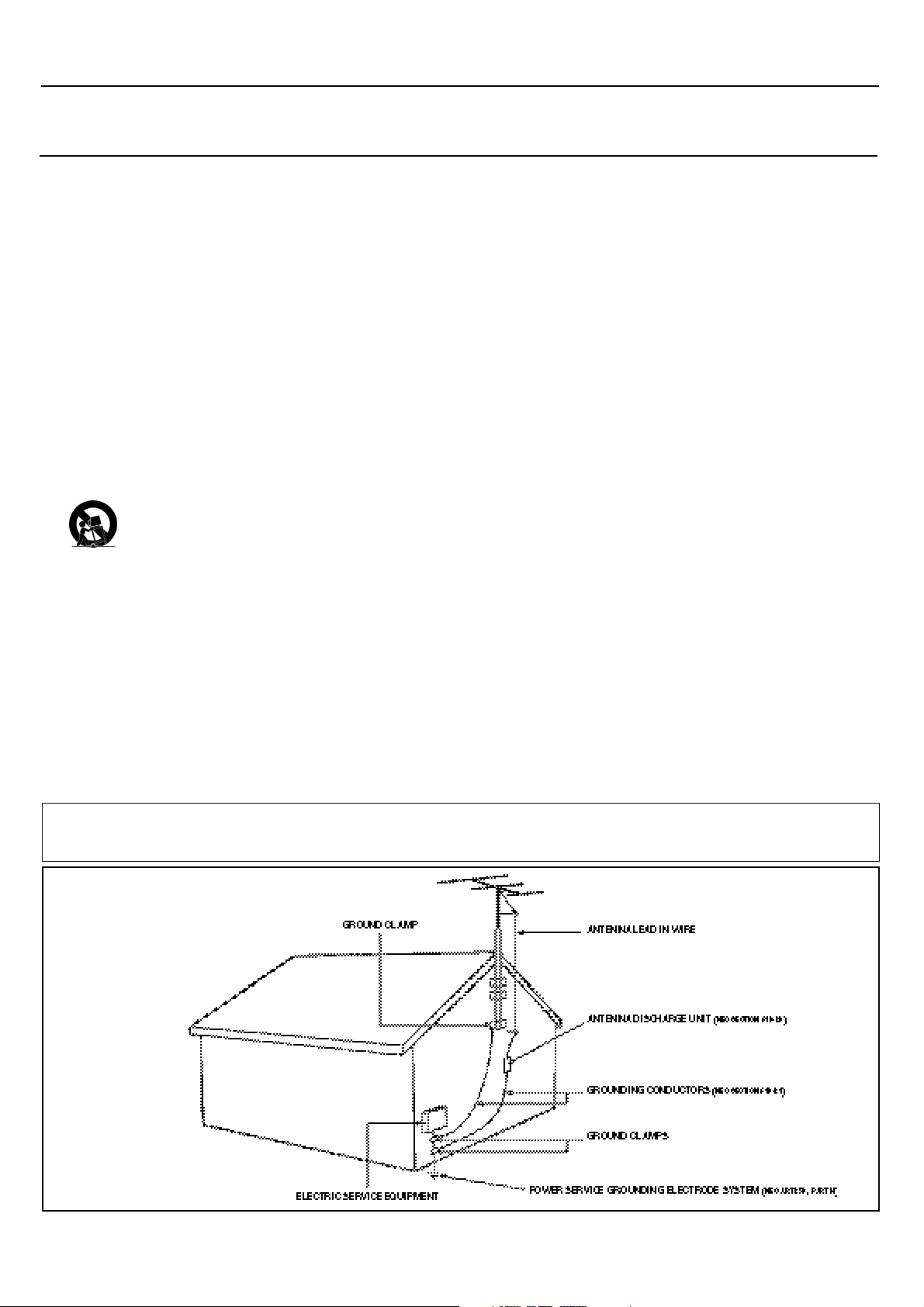
20. Outdoor Antenna Grounding - If an outside antenna is connect-
ed to the receiver, be sure the antenna system is grounded so as to
provide some protection against voltage surges and built up static
charges.
Section 810 of the National Electric Code, ANSI/NFPA No. 70-
1984, provides information with respect to proper grounding of
the mast and supporting structure, grounding of the lead-in wire to
an antenna discharge unit, size of grounding connectors, location
of antenna-discharge unit, connection to grounding electrodes, and
requirements for the grounding electrode. See Figure below.
21. Object and Liquid Entry - Care should be taken so that objects
do not fall and liquids are not spilled into the enclosure through
openings.
22. Battery Usage CAUTION - To prevent battery leakage that may
result in bodily injury, property damage, or damage to the unit:
• Install all batteries correctly, with + and - aligned as marked on
the unit.
• Do not mix batteries (old and new or carbon and alkaline, etc.).
• Remove batteries when the unit is not used for a long time.
Example of Antenna Grounding
as per NEC - National Electric Code
Note to the CATV system installer: This reminder is provided to call the CATV system installer's attention to Article 820-40 of the NEC that
provides guidelines for proper grounding and, in particular, specifies that the cable ground shall be connected to the grounding system of the build-
ing, as close to the point of cable entry as practical.
4
CONTENTS
Introduction
Welcome/Registration of Your TV . . . . . . . . . . . . . . . . . . .2
Safety Instructions . . . . . . . . . . . . . . . . . . . . . . . . . . . . . . .3
Table of Contents . . . . . . . . . . . . . . . . . . . . . . . . . . . . . . . .4
Getting Star
ted
Basic Television Operation . . . . . . . . . . . . . . . . . .5
Basic Remote Operation . . . . . . . . . . . . . . . . . . . . . . . . . .5
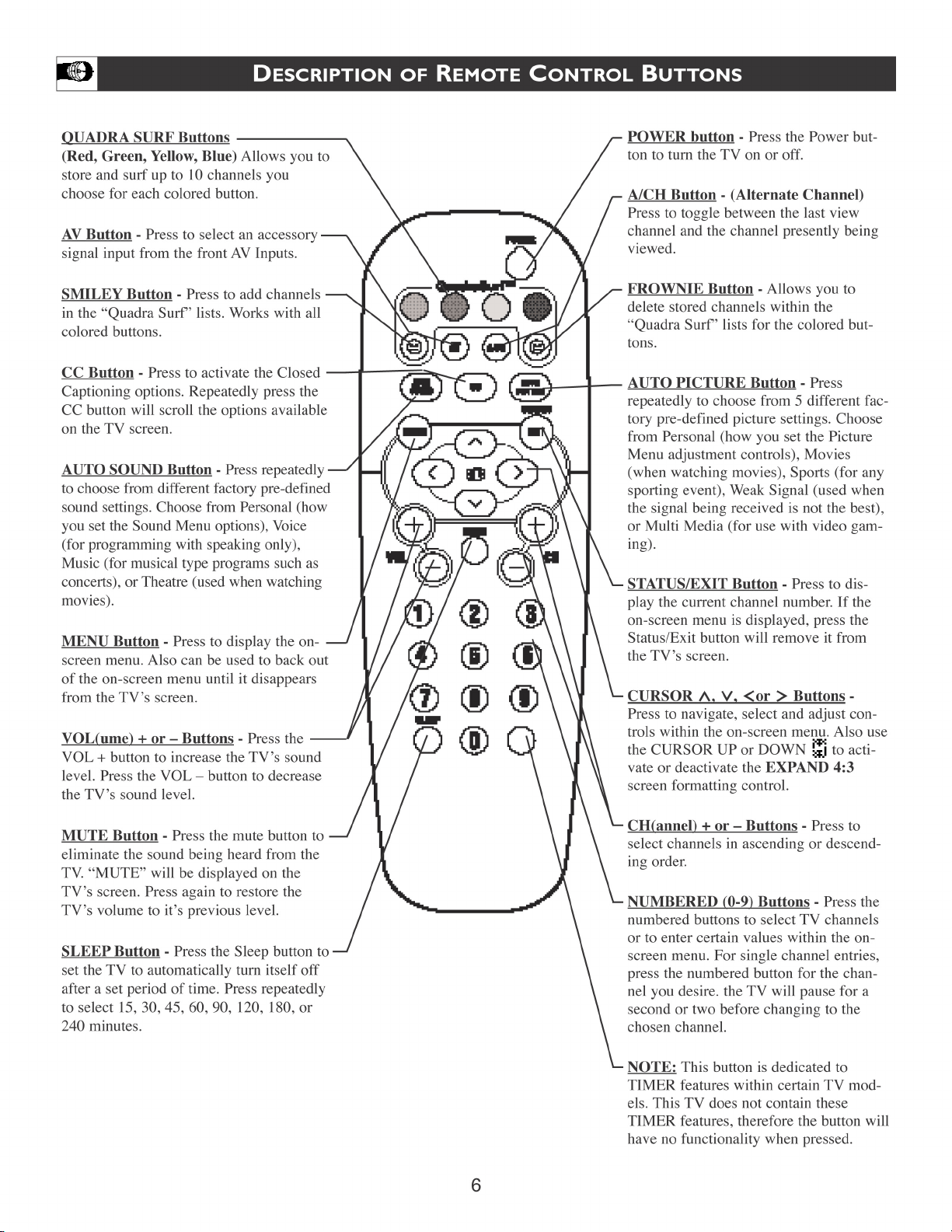
Description of Remote Control Buttons . . . . . . . . . . . . . . .6
Basic Antenna Connection . . . . . . . . . . . . . . . . . . . . . . . . .7
Basic Cable TV Connection . . . . . . . . . . . . . . . . . . . . . . . .7
Basic Cable Box Connection . . . . . . . . . . . . . . . . . . . . . . .8
Using the Audio/Video 1 and 2 Jack Connections . . . . . . .9
Using the S-Video Jack Connections . . . . . . . . . . . . . . . .10
Using Component Video Jack Connections . . . . . . . . . . .11
Using the Audio/Video Outputs . . . . . . . . . . . . . . . . . . . .12
Using the Side Audio/Video Inputs . . . . . . . . . . . . . . . . .13
Install Menu
How to use the Language Control . . . . . . . . . . . .14
How to use the Tuner Mode Control . . . . . . . . . . . . . . . .15
How to Auto Program TV Channels . . . . . . . . . . . . . . . . .16
How to Add or Delete Channels . . . . . . . . . . . . . . . . . . . .17
Picture Menu
How to use the Picture Adjustment Controls . . . .18
Sound Menu
How to Use the Sound Adjustment Controls . . . . .19
Features Men
u
Using the Fromat Control . . . . . . . . . . . . . . . . . . .20
Understanding the AutoLock™ Controls . . . . . . . . . . . . .21
Setting up the AutoLock™ Access Code . . . . . . . . . . . . .22
How to Block Channels . . . . . . . . . . . . . . . . . . . . . . . . . .23
How to Clear All Blocked Channels at the Same Time . . .24
How to Block All Channels at the Same Time . . . . . . . . .25
Blocking Programming Based on Movie Ratings . . . . . . .26
Blocking Programming Based on TV Ratings . . . . . . . . .27
Other AutoLock™ Blocking Options . . . . . . . . . . . . . . . .28
Remote Control Use
Setting the Sleeptimer Control . . . . . . . . . . . . . . .29
How to use the Closed Captioning Control . . . . . . . . . . . .30
Setting the AutoPicture™ Control . . . . . . . . . . . . . . . . . .31
Setting the AutoSound™ Control . . . . . . . . . . . . . . . . . . .32
Using the QuadraSurf™ Buttons (Alternate Channel) .33-34
General Information
Troubleshooting Tips . . . . . . . . . . . . . . . . . . . . . .35
Cleaning and Care . . . . . . . . . . . . . . . . . . . . . . . . . . . . . .35
Glossary of Terms . . . . . . . . . . . . . . . . . . . . . . . . . . . . . .36
Index . . . . . . . . . . . . . . . . . . . . . . . . . . . . . . . . . . . . . . . .37
Warranty . . . . . . . . . . . . . . . . . . . . . . . . . . . . . . . . . . . . .38
Here are a few of the features built into your new Television:
QuadraSurf™ A remote control feature that allows you to
store and view up to ten of your favorite channels per button (4
buttons - 40 channels total). Can be set to hold movie, sports,
news channels, etc., or add the audio/video channels for a quick
source function to swap between your external accessory
devices.
AutoLock™ feature allows you to block the viewing of cer-
tain channels or external audio/video connections where you
might not want your children viewing inappropriate material.
Infrared Remote Control works your TV set, and allows
you to program certain features with the press of one button.
Standard broadcast (VHF/UHF) or Cable TV (CATV)
channel capability with stereo sound.
Closed Captioning allows the viewer to read TV program
dialogue or voice conversations as on-screen text.
Automatic Programming of Channels for quick and easy
selection of favorite stations available in your area.
On-screen Features (in either English or Spanish) show
helpful messages for setting of TV controls.
Audio/Video Jackpanel located on the back and side of the
television for direct connections when using audio/video acces-
sory devices. these Jacks can provide improved quality TV pic-
ture and sound playback.
Expand 4:3 will allow you to expand the “letterbox” image
produced by certain DVD players to fill the entire TV screen.
Sleeptimer automatically turns the TV OFF at preset times.
AutoPicture™ allows you to set the picture color, tint, con-
trast, etc. for various types of programming such as Sports,
Movies, Personal, Weak Signals or Multi Media with the push
of one button.
AutoSound™ controls allow you to set the sound controls for
various types of listening programs such as Personal (sound
controls the way you set them), Theater, Music, or Voice with
the push of one button.
Treble Boost, Bass Boost, and Balance controls to enhance
the television’s sound.
Your new television and its packing contain materials that can
be recycled and reused. Specialized companies can recycle your
product to increase the amount of reusable materials and mini-
mize the amounts that need to be properly disposed.
Your product also uses batteries that should not be thrown away
when depleted, but should be handed in and disposed of as
small chemical waste.
When you replace your existing equipment, please find out
about the local regulations regarding disposal of your old tele-
vision, batteries, and packing materials.
END-OF-LIFE DISPOSAL
NOTE: It is possible that this owner's manual may be used
with several different television models. Not all features (and
drawings) discussed in this manual will necessarily match
those found with your television system. This is normal and
does not require you contacting your dealer or requesting
service.
Auto Lock, Auto Picture, Auto Sound, QuadraSurf
are all registered trademarks of Philips Consumer Electronics Company.
Copyright © 2002 All rights reserved.
5
VOL
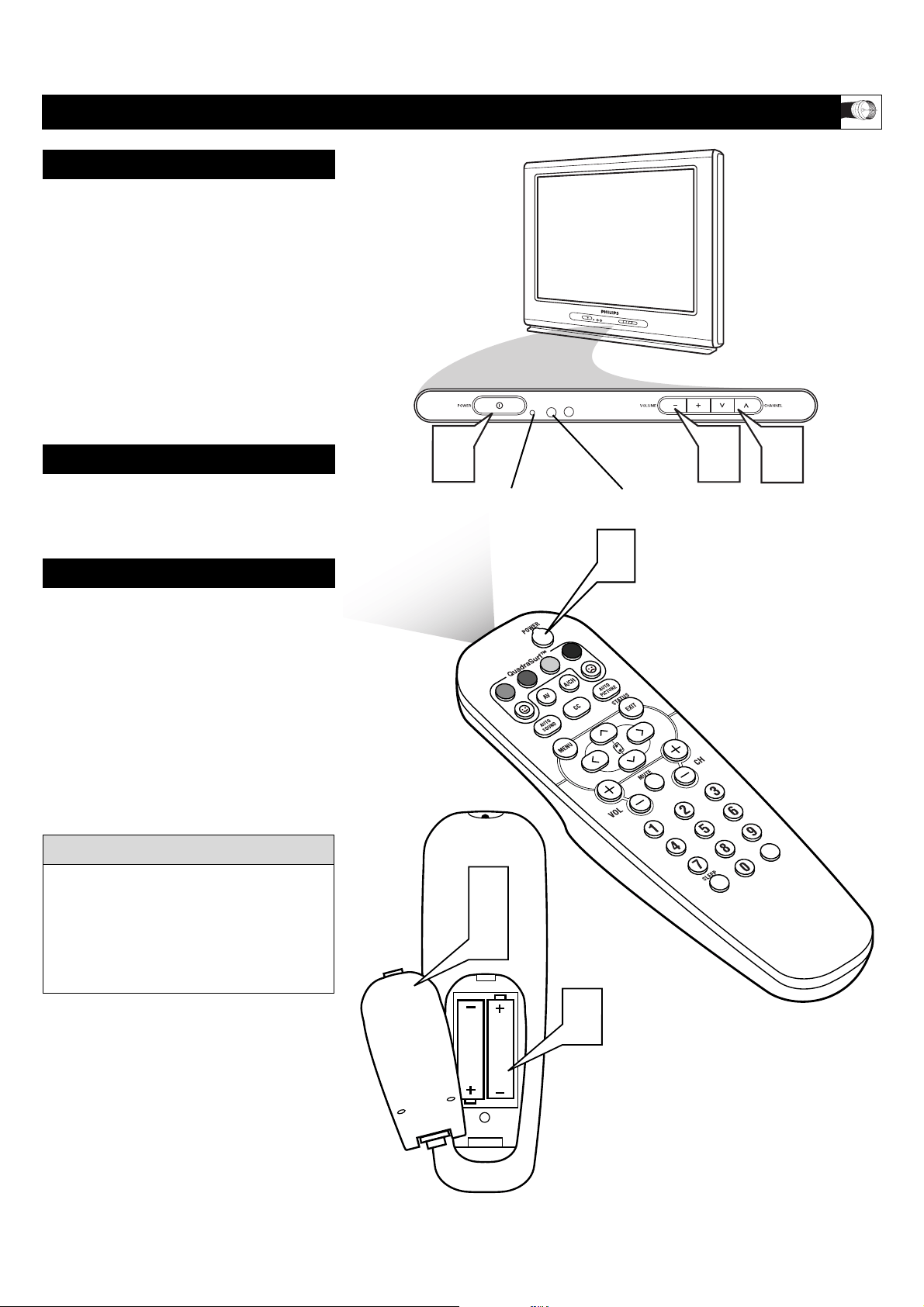
1
1
Press the POWER button to turn the
TV ON.
Note: You can also press any button on
the front of the TV to turn the TV ON.
2
Press the VOLUME + button to
increase the sound level, or the VOL-
UME – button to lower the sound
level.
3
Press the CHANNEL UP ▲ or
DOWN ▼ button to select TV chan-
nels.
4
Point the remote control toward the
remote sensor window on the TV when
operating the TV with the remote.
5
Remove the battery compartment lid
on the back of the remote.
6
Place the batteries (2-AA) in the
remote. Be sure the (+) and (-) ends of
the batteries line up correctly (inside of
case is marked.)
7
Reattach the battery lid.
BASIC TELEVISION AND REMOTE CONTROL OPERATION
Remember, the tuned channel number will
always briefly appear when the TV is first
turned ON (and with channel changes.)
You can also press the STATUS/EXIT but-
ton (on the remote) to see what channel the
TV is ON.
HELPFUL HINT
TELEVISION
REMOTE CONTROL
BATTERY
I
NSTALLATION
1
3
2
5
7
6
Remote Sensor - Sensor for activating remote control
commands when the remote is used to control the TV.
Standby Light Indicator -
Green light will show when in
the Standby Mode. Press the
Power button to return the TV
to it’s active state.
7
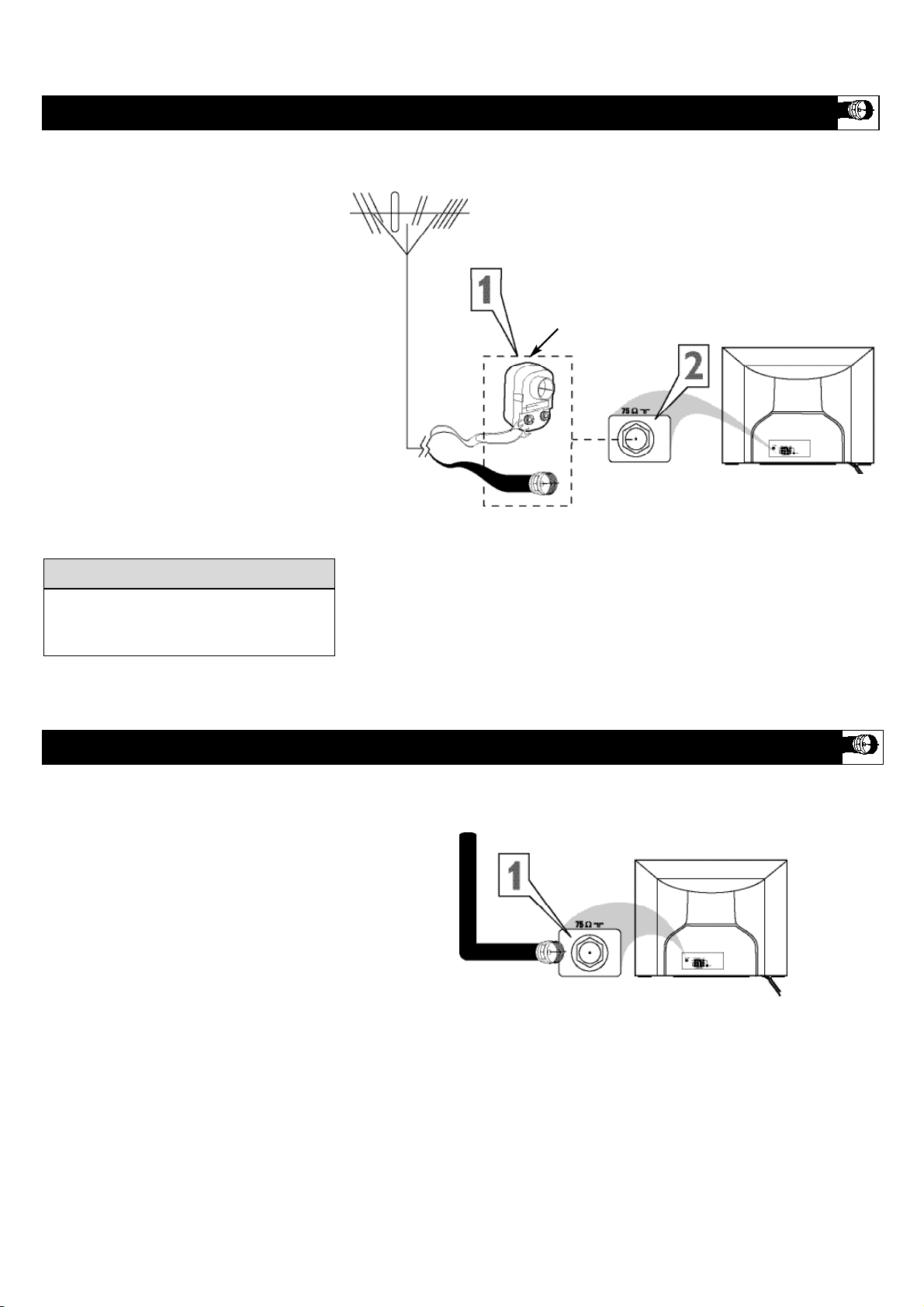
Y
our Cable TV input into your home may
be a single (75 ohm) cable. If so, this con-
nection is very simple. Follow the steps below
to connect your cable signal to your new tele-
vision.
Direct Cable Connections:
1
Connect the open end of the round
Cable Company supplied cable to the
75Ω input on the TV. Screw it down fin-
ger tight.
BASIC CABLE TELEVISION CONNECTION
BACK OF TV
Direct Cable Connection:
Cable signal coming
from Cable
Company (Round
75Ω coaxial cable)
Jack Panel Back of TV
A
combination antenna receives normal
broadcast channels (VHF 2–13 and
UHF 14–69). Your connection is easy
because there is only one 75Ω (ohm)
antenna plug on the back of your TV, and
that’s where the antenna goes.
1
If your antenna has a round cable
(75 ohm) on the end, then you're ready
to connect it to the TV.
If your antenna has flat, twin-lead
wire (300 ohm), you first need to
attach the antenna wires to the screws
on a 300- to 75-ohm adapter.
2
Push the round end of the adapter (or
antenna) onto the 75Ω (ohm) plug on
the back of the TV. If the round end of
the antenna wire is threaded, screw it
down finger tight.
BASIC ANTENNA TELEVISION CONNECTION
After using the AutoProgram Control, press
the CH + and – buttons to scroll through all
the channels stored in the television’s memory.
cc
C
HECK
IT O
UT
Back of TV
Round 75Ω
Coaxial Cable
from Antenna
Twin
Lead Wire
300 to 75-ohm
Adapter
Outdoor or Indoor Antenna
(Combination VHF/UHF)
The combination antenna receives normal
broadcast channels 2-13 (VHF) and 14-69 (UHF).
Antenna Connection:
Jack Panel
Back of TV
8
CABLE
IN
TO
TV
VIDEO
OUT
LR
AUDIO
OUT
3 4
OUTPUT
CH
TO TV
CABLE
IN
3
1
2
ANT 75‰
L/Mono
Monitor out
VIDEO
S-VIDEO
AV1 in
Y
Pb
Pr
AV2 in
AUDIO
R
COMPONENT VIDEO INPUT
24
L/Mono
Monitor out
VIDEO
S-VIDEO
AV1 in
Y
Pb
Pr
AV2 in
AUDIO
R
COMPONENT VIDEO INPUT
ANT 75‰
L/Mono
Monitor out
VIDEO
S-VIDEO
AV1 in
Y
Pb
Pr
AV2 in
AUDIO
R
COMPONENT VIDEO INPUT
4
5
6
OUTPUT
CH
3 4
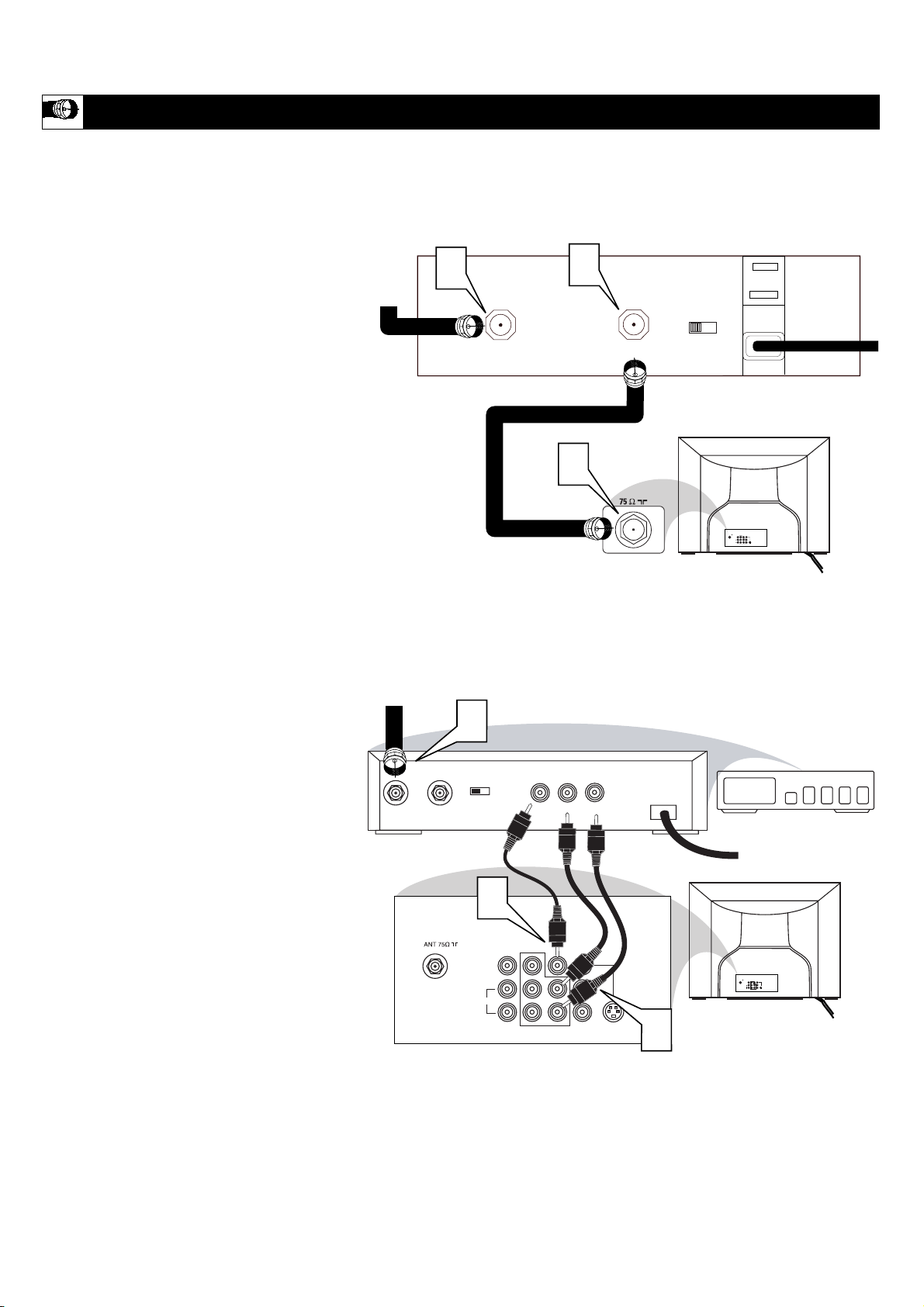
Cable Box Connection (RF Input/Output Only):
Jack Panel Back of Cable Box
Cable Signal
IN from the
Cable
Company
Round 75Ω
Coaxial Cable
Jack Panel Back of TV
Cable Box Connection (with Audio/Video Outputs):
Cable Signal IN
from the Cable
Company
Jack Panel Back
of Cable Box
Cable Box with
Audio/Video Outputs
Video Cable
RCA type Audio
Left and Right
Cables
Jack Panel Back of TV
BASIC CABLE BOX/DECODER CONNECTION
I
f you cable signal uses a cable box or
decoder, follow the easy steps below to
complete the connection.
Cable Box (w/RF In/Outputs):
This connection will NOT supply Stereo sound
to the TV. The sound from the cable box will
be mono.
1
Connect the open end of the round
Cable Company supplied cable to
the
cable signal IN(put) plug on the back
of the Cable Box.
2
Using a separate round coaxial cable,
connect one end to the OUT(put) (TO
TV) plug on the back of the Cable
Box.
3
Connect the other end of the round
coaxial cable to the 75Ω input on the
back of the television. Screw it down
finger tight.
NOTE: Be sure to set the OUTPUT CHAN-
NEL SWITCH on the back of the cable box to
CH 3 or 4, then tune the TV to the correspon-
ding channel. Once tuned, change channels at
the cable box, not the television.
Cable Box (w/Audio/Video
Outputs):
This connection will supply Stereo sound to the
TV.
4
Connect the open end of the round
Cable Company supplied cable to
the
cable signal IN(put) plug on the back
of the Cable Box.
5
Using a RCA type Video Cable, connect
one end of the cable to the Video (or
ANT, your cable box may be labeled dif-
ferently) Out jack on the cable box and
the other end to the AV1 Video Input on
the TV.
6
Using a RCA type Audio Left and Right
Cable, connect one end to the left and
right Audio Out L & R jacks on the
cable box. Connect the other end to the
AV1 Audio L & R Input jacks on the TV.
NOTE: Use the Channel +, or – buttons on the
TV remote control to tune to the AV1 channel
for the cable box signal. Once tuned, change
channels at the cable box, not the television.
9
24
L/Mono
Monitor out
VIDEO
S-VIDEO
AV1 in
Y
Pb
Pr
AV2 in
AUDIO
R
COMPONENT VIDEO INPUT
Front
SVHS
CVI
AV1
AUDIO OUT
R L
S-VIDEO
OUT
ANT/CABLE
OUT
VIDEO
OUT
3
AUDIO OUT
R L
S-VIDEO
OUT
ANT/CABLE
OUT
VIDEO
OUT
3
4
5
7
1
AV2
2
4
2
1
5
7
VOL
6
T
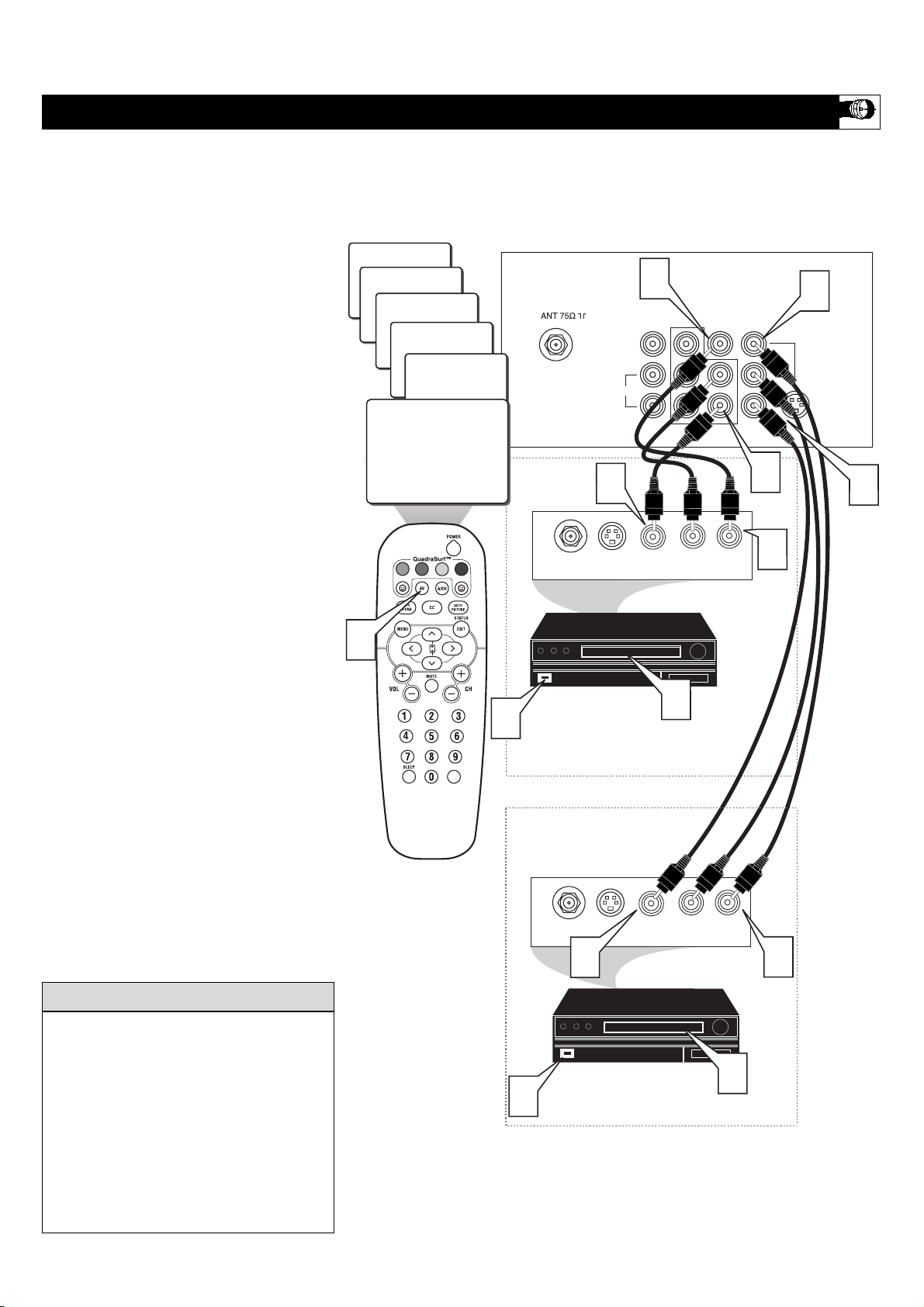
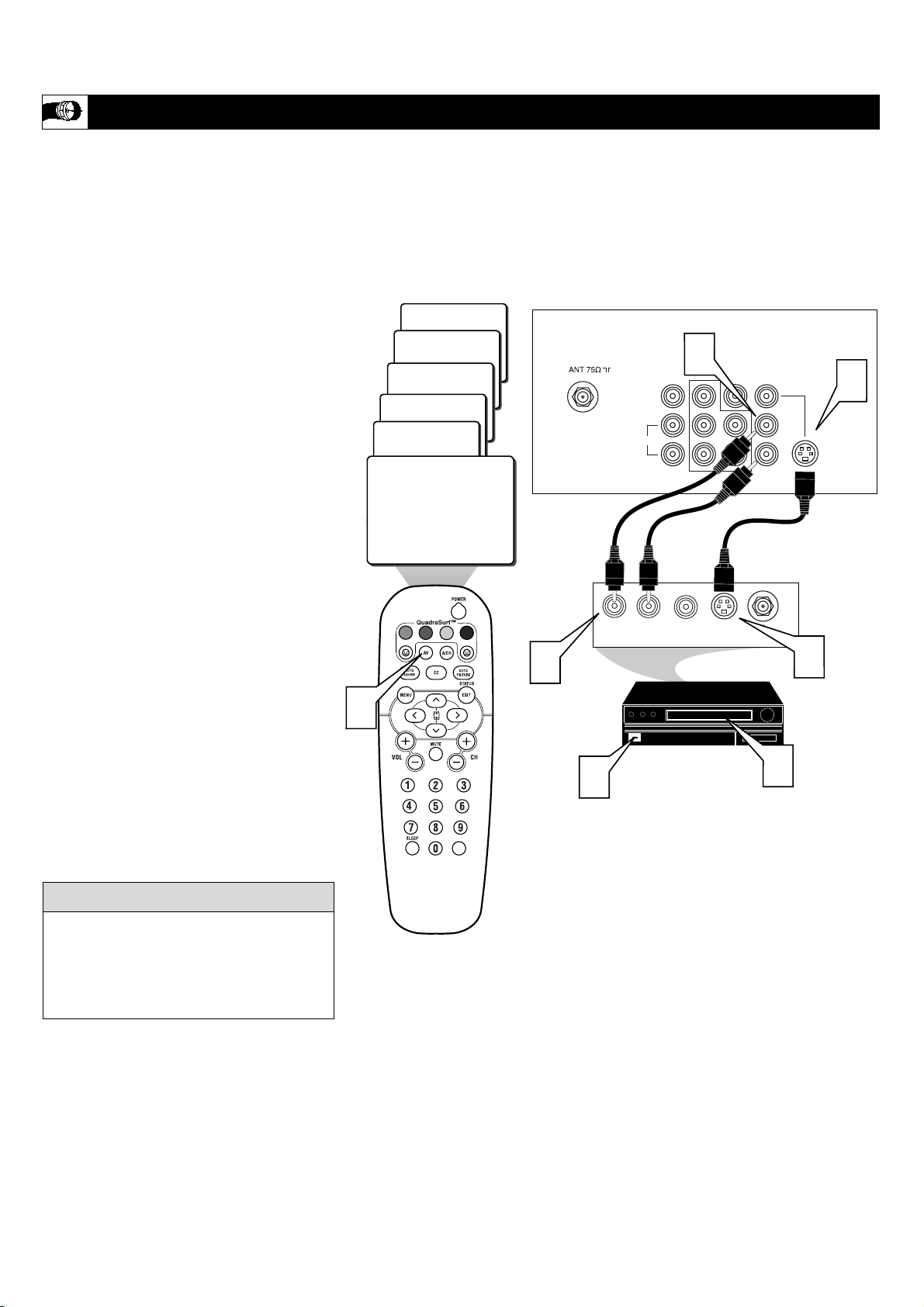
he TV’s audio/video input jacks are for
direct picture and sound connections
between the TV and a VCR (or similar device)
that has audio/video output jacks. Both the
AV1 and AV2 Input Jack connections are shown
on this page, but either one can be connected
alone. Follow the easy steps below to connect
your accessory device to the AV1 and AV2 in
Jacks located on the back of the TV.
1
Connect the VIDEO (yellow) cable to
the VIDEO AV1 in (or AV2 in) jack on
the back of the TV.
2
Connect the AUDIO (red and white)
cables to the AUDIO (left and right)
AV1 in (or AV2 in) jacks on the rear of
the TV.
3
Connect the VIDEO (yellow) cable to
the VIDEO OUT jack on the back of
the VCR (either one or two) or acces-
sory device being used.
4
Connect the AUDIO (red and white)
cables to the AUDIO (left and right)
OUT jacks on the rear of the VCR
(either one or two) or accessory device
being used.
5
Turn the VCR (either one or two) or
accessory device and the TV ON.
6
Press the AV button on the remote
control to select the AV1 channel for
accessory device number one, or the
AV2 channel for accessory device
number two. AV1 or AV2 will appear
in the upper left corner on the TV
screen depending on the channel cho-
sen.
7
With either of the VCRs (or accessory
devices) ON and a prerecorded tape
(CD, DVD, etc.) inserted, press the
PLAY button to view the tape on the
television.
USING THE AV1 IN OR AV2 IN (INPUT) JACKS
The S-VIDEO and VIDEO AV2 in(puts) are
in parallel. The S-VIDEO input is domi-
nant when in use. If separate video signals
are connected to the S-VIDEO and VIDEO
AV2 in(puts), the signal from the VIDEO
AV2 in(put) will not be usable.
Note: The Audio/Video cables needed for
this connection are not supplied with your
TV. Please contact your dealer or Philips at
800-531-0039 for information about purchas-
ing the needed cables.
cc
C
HECK IT OUT
AUDIO IN
(RED/WHITE)
VCR TWO (or accessory device)
(EQUIPPED WITH VIDEO AND
AUDIO OUTPUT JACKS)
VIDEO IN
(YELLOW)
BACK OF VCR
NOTE: Repeatedly pressing the AV button on the remote control will toggle the
picture source from the current channel, then the AV1 channel (or CVI channel),
then the AV2 channel, then the S-Video (SVHS) channel, then the Front channel
(side inputs), then back to the current channel being watched.
BACK OF TV
AV 1
Connection
AV 2
Connection
VCR ONE (or accessory device)
(EQUIPPED WITH VIDEO AND
AUDIO OUTPUT JACKS)
10
AV2
CVI
AV1
24
Front
L/Mono
Monitor out
VIDEO
S-VIDEO
AV1 in
Y
Pb
Pr
AV2 in
AUDIO
R
COMPONENT VIDEO INPUT
AUDIO OUT
L R
S-VIDEO
OUT
ANT/CABLE
OUT
VIDEO
OUT
SVHS
1
2
2
2
3
5
VOL
4
T
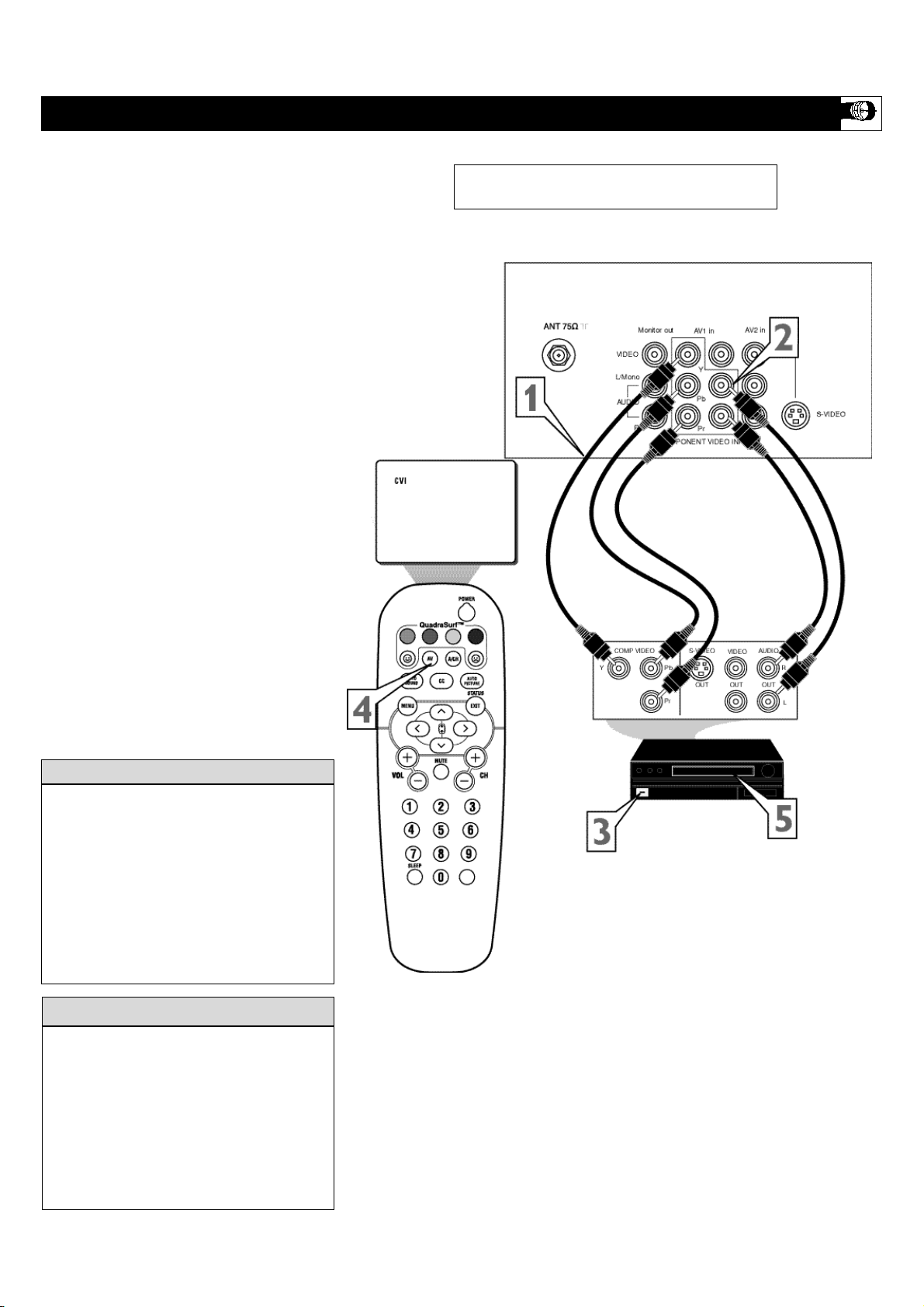
he S(uper)-Video connection on the rear
of the TV can provide you with better pic-
ture detail and clarity for the playback of
accessory sources such as DBS (digital
broadcast satellite), DVD (digital video
discs), video games, and S-VHS VCR (video
cassette recorder) tapes than the normal
antenna picture connections.
NOTE: The accessory device must have an
S-VIDEO OUT(put) jack in order for you to
complete the connection on this page.
1
Connect one end of the S-VIDEO
CABLE to the S-VIDEO jack on the
back of the TV. Then connect one end
the AUDIO (red and white) CABLES
to the AV2 in AUDIO L and R(left and
right) jacks on the rear of the TV.
2
Connect other end of the S-VIDEO
CABLE to the S-VIDEO OUT jack on
the back of the VCR. Then connect the
other ends of the AUDIO (red and
white) CABLES to the AUDIO (left
and right) OUT jacks on the rear of the
VCR.
3
Turn the VCR and the TV ON.
4
Press the AV button on the remote to
scroll the channels until SVHS appears
in the upper left corner of the TV
screen.
5
devices) ON and a prerecorded tape
(CD, DVD, etc.) inserted, press the
PLAY button to view the tape on the
television.
USING THE S-VIDEO INPUT JACKS
Note: The S-Video and Audio cables needed
for this connection are not supplied with
your TV. Please contact your dealer or
Philips at 800-531-0039 for information
about purchasing the needed cables.
H
ELPFUL HINT
AUDIO CABLE
(RED/WHITE)
VCR
(EQUIPPED WITH
S-VIDEO JACKS)
S-VIDEO
CABLE
BACK OF VCR
NOTE: Repeatedly pressing the AV button on the remote control will toggle the
picture source from the current channel, then the AV1 channel (or CVI channel),
then the AV2 channel, then the S-Video (SVHS) channel, then the Front channel
(side inputs), then back to the current channel being watched.
With either the VCRs (or accessory
11
C
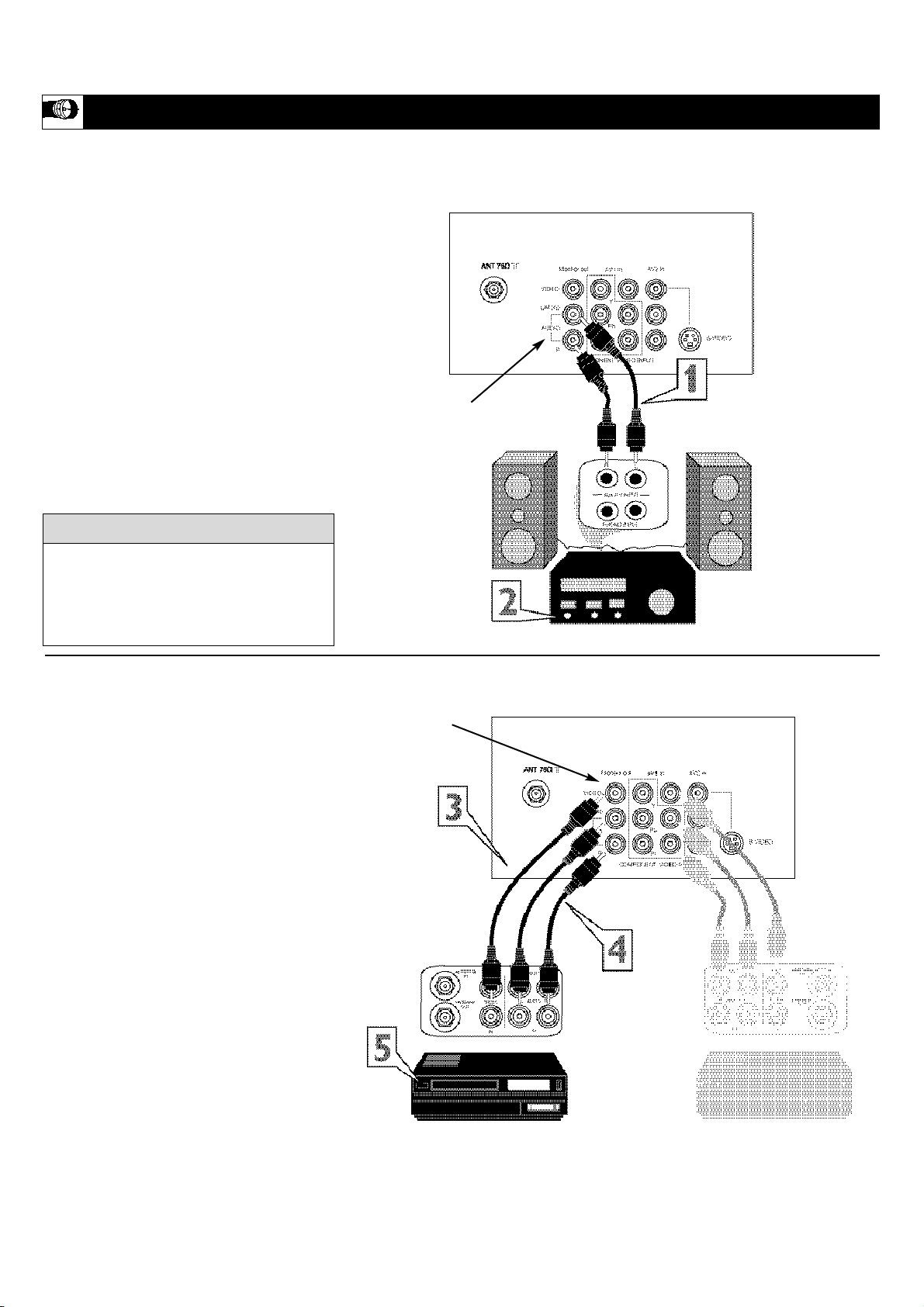
omponent Video inputs provide for the
highest possible color and picture resolu-
tion in the playback of digital signal source
material, such as with DVD players. The
color difference signals (Pb, Pr) and the lumi-
nance (Y) signal are connected and received
separately, which allows for improved color
bandwidth information (not possible when
using composite video or S-Video connec-
tions).
1
Connect the Component (Y, Pb, Pr)
Video OUT jacks from the DVD play-
er (or similar device) to the (Y, Pb, Pr)
in(put) jacks on the TV. When using
the Component Video Inputs, it is best
not to connect a signal to the AV1 in
Video Jack.
2
Connect the red and white AUDIO
CABLES to the Audio (left and right)
output jacks on the rear of the accesso-
ry device to the Audio (L and R) AV1
in Input Jacks on the TV.
3
Turn the TV and the DVD (or digital
accessory device) ON.
4
Press the AV button or the CH +, –
buttons to scroll the available channels
until CVI appears in the upper left cor-
ner of the TV screen.
5
Insert a DVD disc into the DVD player
and press the PLAY © button on the
DVD Player.
USING THE
CVI (COMPONENT
VIDEO INPUT) JACKS
The description for the component video
connectors may differ depending on the
DVD player or accessory digital source
equipment used (for example, Y, Pb, Pr; Y,
B-Y, R-Y; Y, Cr, Cb). Although abbrevia-
tions and terms may vary, the letters b and r
stand for the blue and red color component
signal connectors, and Y indicates the lumi-
nance signal. Refer to your DVD or digital
accessory owner’s manual for definitions
and connection details.
HELPFUL HINT
AUDIO CABLES
(RED/WHITE)
COMPONENT
VIDEO CABLES
(Green, Blue, Red)
BACK OF TV
ACCESSORY DEVICE
EQUIPPED WITH COMPONENT
VIDEO OUTPUTS.
The CVI connection will be dominate over the AV1 in Video Input.
When a Component Video Device is connected as described, it is best
not to have a video signal connected to the AV1 in Video Input jack.
Repeatedly pressing the AV button on the
remote control will toggle the picture source
from the current channel, then AV1 (or CVI),
AV2, SVHS, Front, or current channel.
Note: The Component Video and Audio
cables needed for this connection are not
supplied with your TV. Please contact your
dealer or Philips at 800-531-0039 for infor-
mation about purchasing the needed cables.
cc
C
HECK IT OUT
12
T
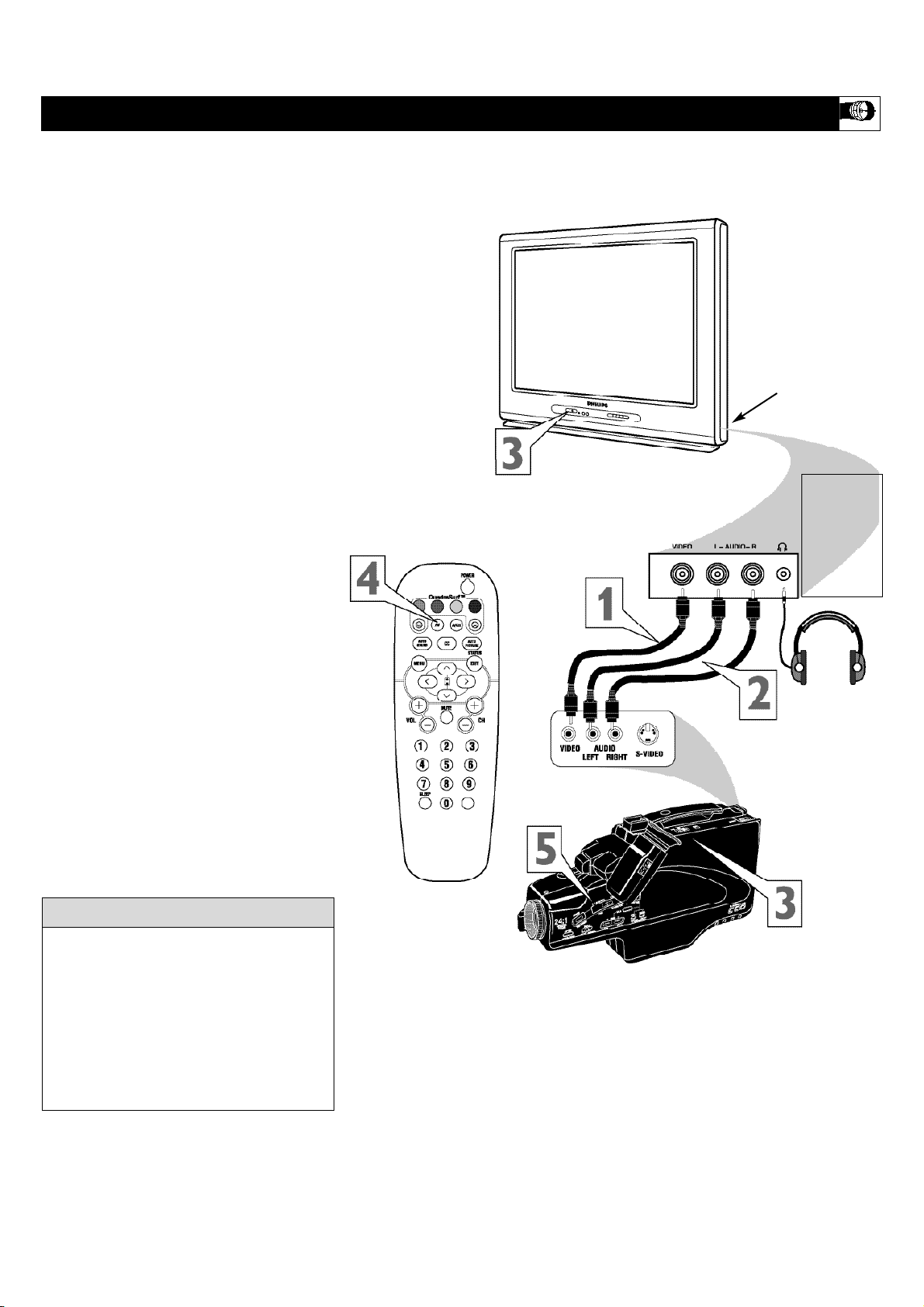
he Monitor (Audio/Video) out jacks are
great for recording with a VCR or used to
connect an external audio system for better
sound reproduction.
For Audio System Connection:
1
Connect one end of the R(ight) and
L(eft) AUDIO (Monitor Out) jacks on
the TV to the R and L audio input jacks
on your amplifier or sound system. Set
the audio system’s volume to a normal
listening level.
2
Turn the TV and audio system ON.
You can now adjust the sound level
coming from the audio system via the
system.
For Second VCR
Connection/Recorder:
NOTE: Refer to page 9 for the proper
hookup of the first VCR. Follow the instruc-
tions on how to tune to the AV 1 channel to
view a pre-recorded tape.
The following steps allow you to connect a
second VCR to record the program while
your watching it.
3
Connect one end of the yellow Video
Cable to the Monitor out VIDEO
plug. Connect the other end to the
VIDEO IN plug on the second VCR.
4
Connect one end of the red and white
Audio cable from the Monitor out
AUDIO L and R plugs on the TV to the
AUDIO IN plugs on the VCR.
5
Turn the Second VCR ON, insert a
blank VHS tape and it’s ready to
record what’s being viewed on the TV
screen.
USING THE MONITOR OUT(PUT) JACKS
JACK PANEL
Located on the back of the TV
AUDIO CABLES
(Red & White)
AUDIO SYSTEM
with AUDIO INPUTS
AV OUT
AUDIO L(eft) and R(ight)
JACK PANEL
Located on the back of the TV
AUDIO CABLES
(Red & White)
FIRST VCR (accessory device)
(Hookup from Page 9)
Monitor OUT
VIDEO &AUDIO
L(eft) and R(ight)
SECOND VCR
VIDEO CABLE
(Yellow)
Note: The Audio cables needed for this con-
nection are not supplied with your TV. Please
contact your dealer or Philips at 800-531-
0039 for information about purchasing the
needed cables.
cc
C
HECK IT OUT
13
A
udio and Video Side Inputs are available
for a quick connection of a VCR, to play-
back video from a camera or attach a gaming
device. Use the AV button on the remote con-
trol to tune these inputs.
1
Connect the video (yellow) cable
from the Video output on the Camera
(or accessory device) to the Video (yel-
low) Input located on the SIDE of the
TV.
2
For Stereo Devices: Connect the audio
cable (red and white) from the Audio
Left and Right Outputs on the Camera
to a Stereo to Mono adapter. Then plug
the single end of the adapter to the
Audio In (white) jack on the SIDE of
the television.
For Mono Devices: Connect one end
of the audio cable from the Audio Out
jack on the device to the Audio In
(white) jack on the SIDE of the televi-
sion.
3
Turn the TV and the accessory device
ON.
4
Press the AV button on the remote
control to tune the TV to the side input
jacks. “Front” will appear on the TV
screen.
5
Press the PLAY
ÆÆ
button on the
accessory device to view playback, or
to access the accessory device (camera,
gaming unit, etc.).
USING THE SIDE AUDIO/VIDEO INPUTS
Jack Panel located
on the Side of TV
Jack Panel
of Accessory Device
Side A/V Input Connection:
Video Cable
(yellow)
Audio Cables
(red & white)
Optional
Headphones
When head-
phones are
used the
sound coming
from the TV
speakers will
be mute.
Repeatedly pressing the AV button on the
remote control will toggle the picture source
from the current channel, then AV1 (or CVI),
AV2, SVHS, Front, or current channel.
Note: The Audio/Video cables needed for
this connection are not supplied with your
TV. Please contact your dealer or Philips at
800-531-0039 for information about purchas-
ing the needed cables.
cc
C
HECK IT OUT
14
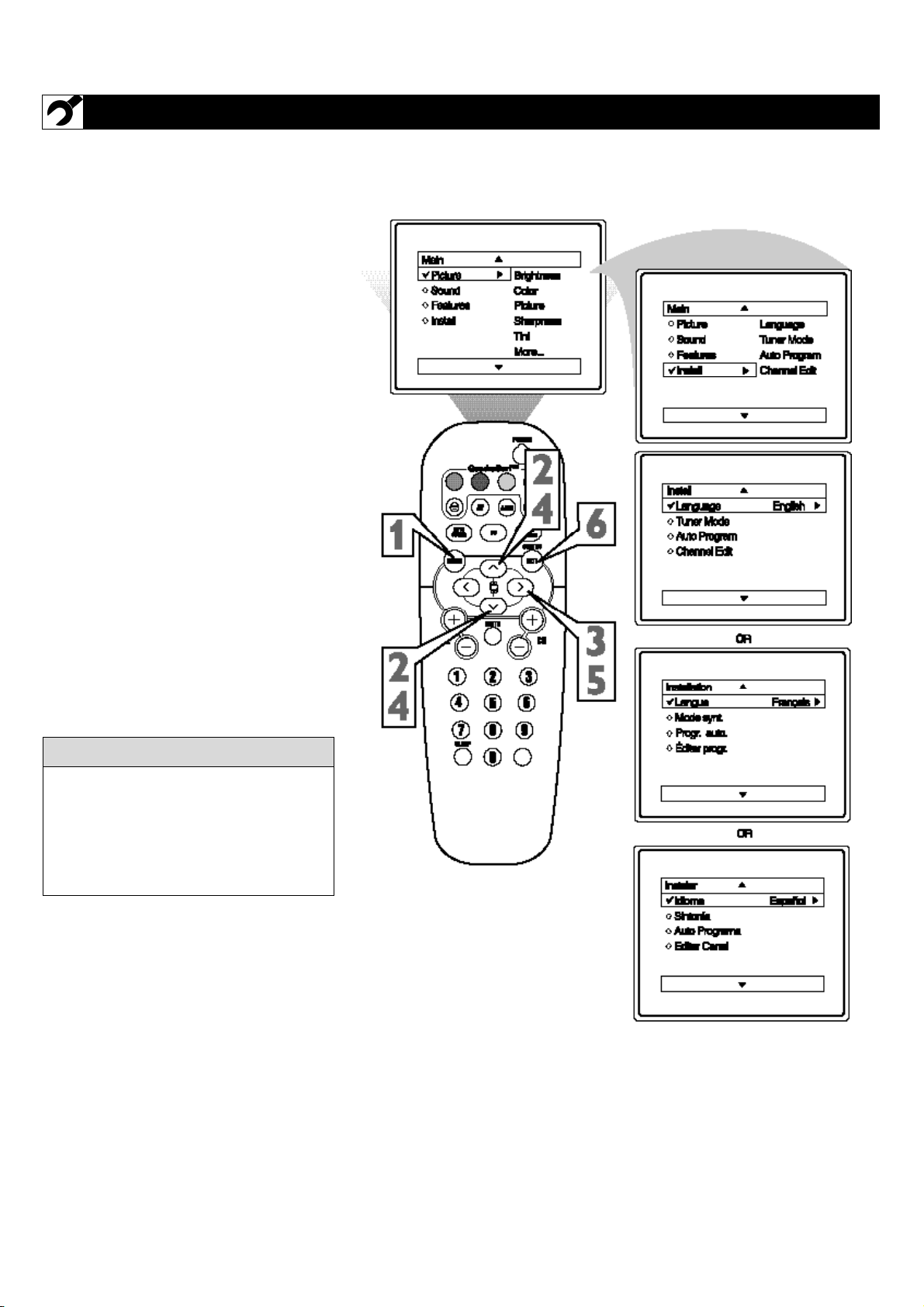
F
or our Spanish speaking TV owners an on-
screen LANGUAGE option is present. With
the LANGUAGE control you can set the TV’s
on-screen menu to be shown in either English,
French or Spanish.
1
Press the MENU button on the
remote to show the on-screen menu.
2
Press the CURSOR UP Î or DOWN
ï buttons to scroll through the on-
screen menu until the word INSTALL
is highlighted.
3
Press the CURSOR RIGHT Æ button
to display the INSTALL menu fea-
tures.
4
Press CURSOR UP Î or DOWN ï
buttons to scroll the Install features
until the word LANGUAGE is high-
lighted.
5
Press the CURSOR RIGHT Æ but-
ton repeatedly to select ENGLISH,
FRANÇAIS(French) or ESPAÑOL
(Spanish).
6
When finished, press the STATUS
/EXIT button to remove the menu
from the TV’s screen.
HOW TO USE THE LANGUAGE CONTROL
The Language control only makes the TV’s
on-screen MENU items appear in English,
French or Spanish text.
It does not change the other on-screen text
features such as Closed Caption (CC) TV
shows.
HELPFUL HINT
15
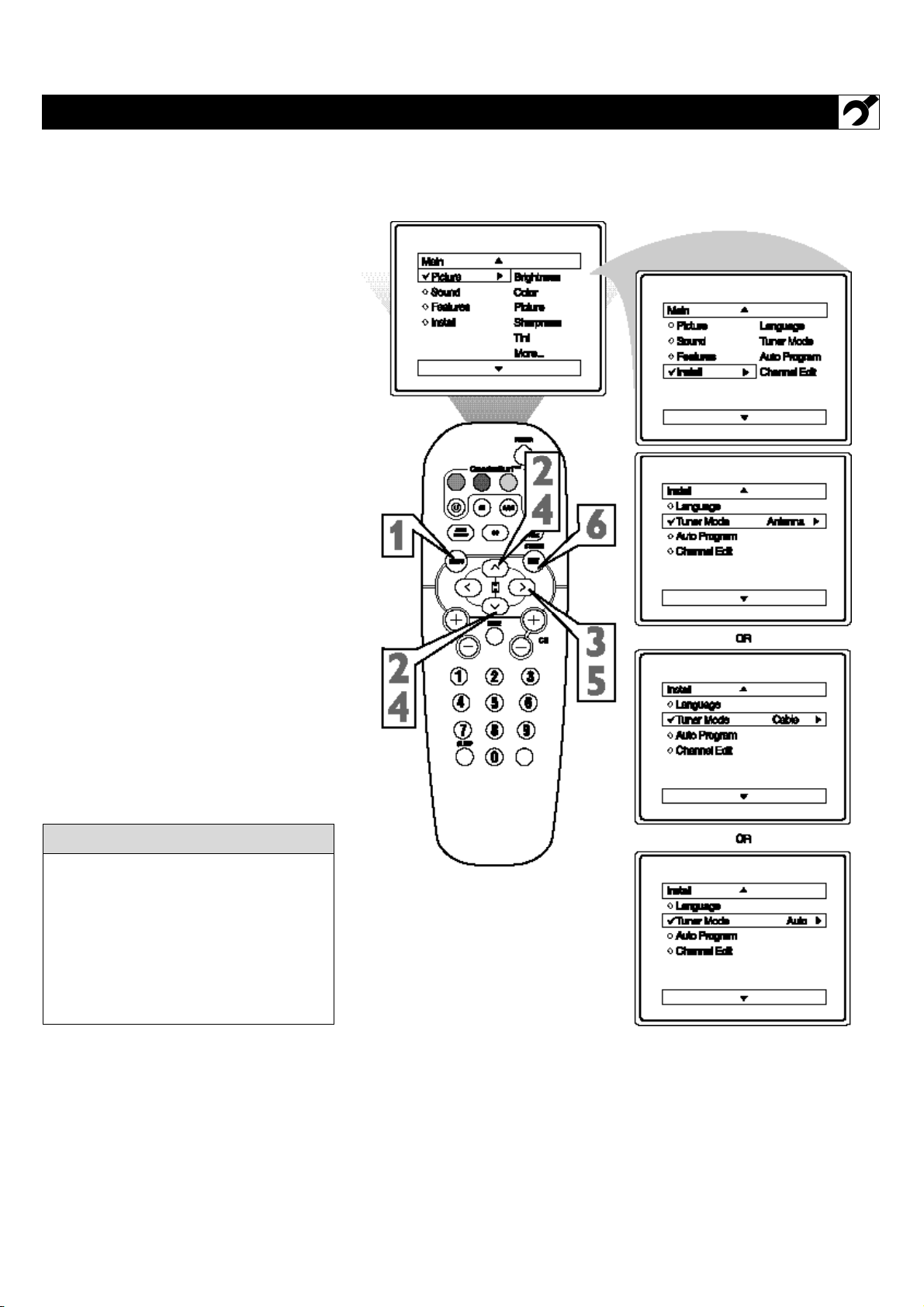
T
he TUNER MODE control allows you to
change the TV’s signal input to either
ANTENNA, CABLE or AUTO mode. It’s
important for the TV to know what type of
signal to look for. (From a Cable TV signal or
a normal Antenna signal.) In the AUTO
mode, when the AUTO PROGRAM feature is
activated, the TV will automatically choose
the correct mode.
1
Press the MENU button on the
remote to show the on-screen menu.
2
Press the CURSOR UP Î or DOWN
ï buttons to scroll through the on-
screen menu until the word INSTALL
is highlighted.
3
Press the CURSOR RIGHT Æ button
to display the INSTALL menu fea-
tures.
4
Press CURSOR UP Î or DOWN ï
buttons to scroll the Install features
until the words TUNER MODE is
highlighted.
5
Press the CURSOR RIGHT Æ button
to select either ANTENNA, CABLE,
or AUTO mode.
6
When finished, press the STATUS
/EXIT button to remove the on-screen
menu from the TV’s screen.
HOW TO USE THE TUNER MODE CONTROL
When CABLE is selected, channels 1-125
are available.
When ANTENNA is selected, channels 2-
69 are available.
When AUTO is selected, the TV will auto-
matically set itself to the correct mode
based on the type of signal it detects when
the AUTO PROGRAM feature is activated.
HELPFUL HINT
16
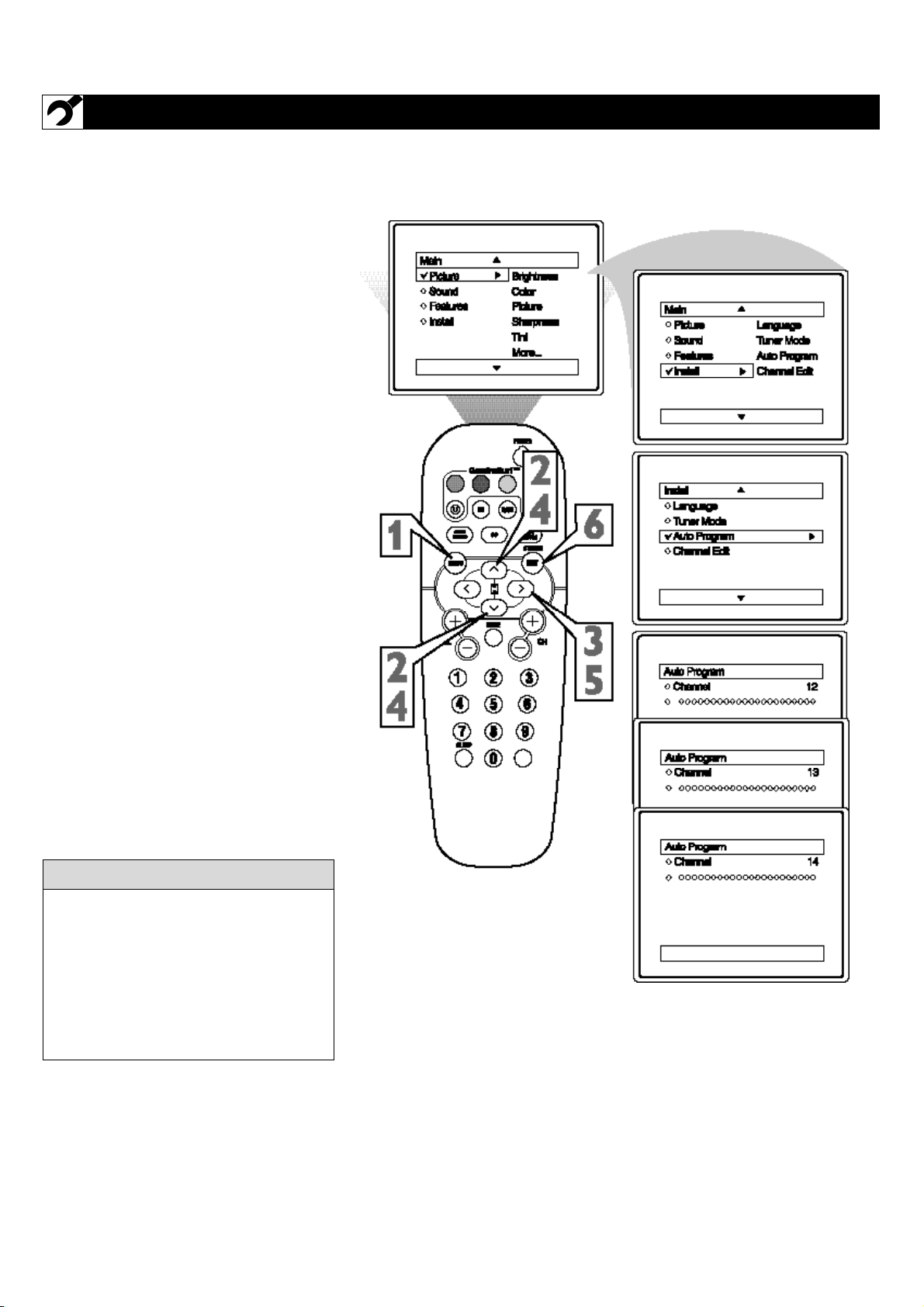
Y
our TV can automatically set itself for
local area (or Cable TV) channels. This
makes it easy for you to select only the TV
stations in your area when the CHANNEL
(+), (–) buttons are pressed.
Note: Make sure the antenna or cable signal
connection has been completed before AUTO
PROGRAM is activated.
1
Press the MENU button on the
remote to show the on-screen menu.
2
Press the CURSOR UP ▲ or DOWN
▼ buttons to scroll through the on-
screen menu until the word INSTALL
is highlighted.
3
Press the CURSOR RIGHT © but-
ton to display the INSTALL menu
features.
4
Press CURSOR UP ▲ or DOWN ▼
buttons to scroll the Install features
until the words AUTO PROGRAM
are highlighted.
5
Press the CURSOR RIGHT © but-
ton to start the Auto Program scanning
of channels. Auto Programming will
store all available channels in the TV’s
memory then tune to the lowest avail-
able channel when done.
6
When finished, press the STATUS
/EXIT button to remove the menu
from the TV’s screen.
HOW TO AUTOMATICALLY PROGRAM CHANNELS
When CABLE is selected, channels 1-125
are available.
When ANTENNA is selected, channels 2-
69 are available.
When AUTO is selected, the TV will auto-
matically set itself to the correct mode
based on the type of signal it detects when
the AUTO PROGRAM feature is activated.
HELPFUL HINT
17
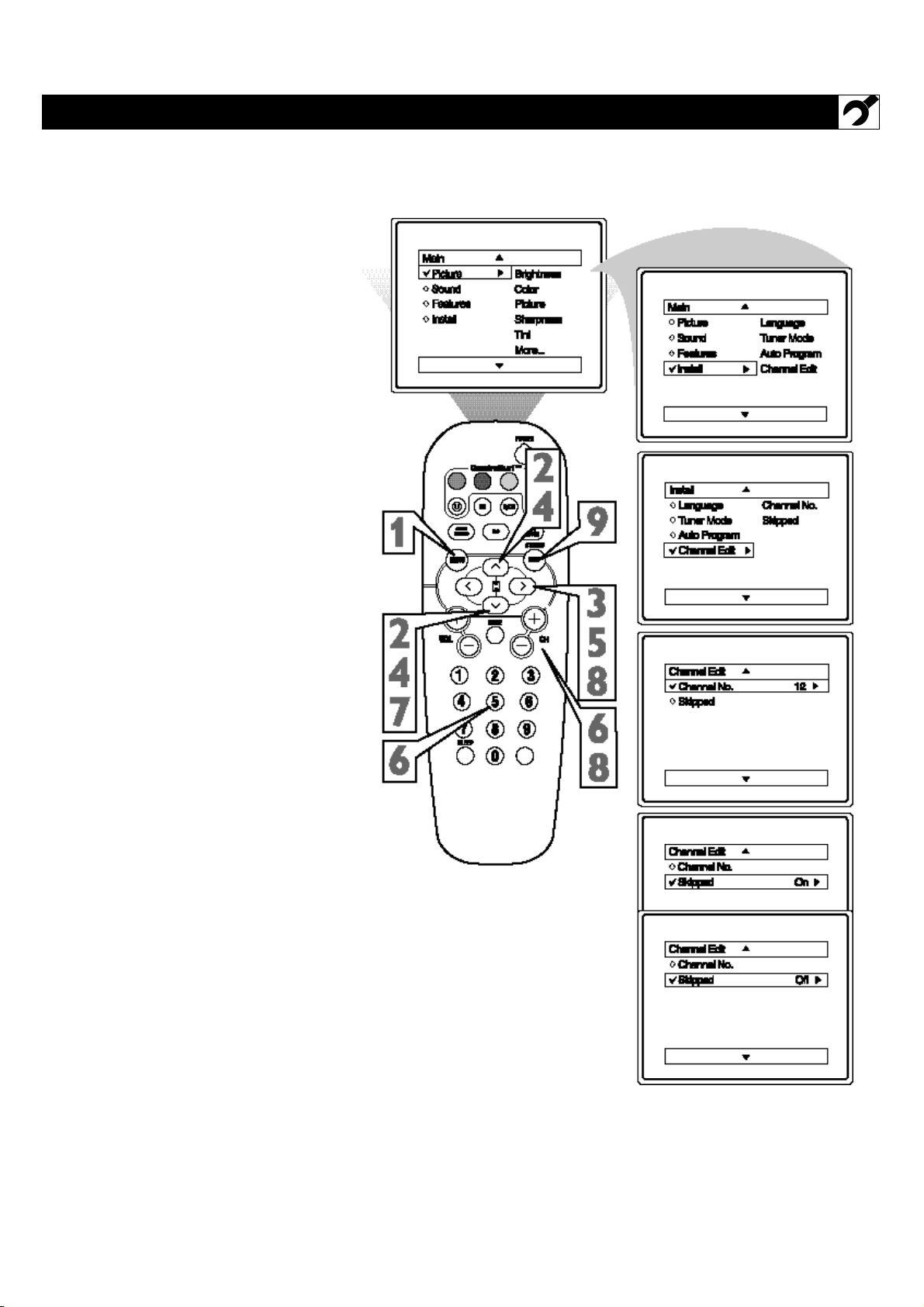
C
hannel Edit makes it easy for you to ADD
or DELETE channels from the list of
channels stored in the TV’s memory.
1
Press the MENU button on the
remote to show the on-screen menu.
2
Press the CURSOR UP ▲ or DOWN
▼ buttons to scroll through the on-
screen menu until the word INSTALL
is highlighted.
3
Press the CURSOR RIGHT © but-
ton to display the INSTALL menu
features.
4
Press the CURSOR UP ▲ or DOWN
▼ buttons to scroll the Install features
until the words CHANNEL EDIT are
highlighted.
5
Press the CURSOR RIGHT © but-
ton to display the CHANNEL EDIT
options.
6
With the CHANNEL EDIT options
displayed, and CHANNEL NO. high-
lighted; enter the channel number (with
the NUMBERED or the CH + or –
buttons) you wish to add (Skipped
OFF), or delete (Skipped ON) from the
TV’s memory.
7
Using the CURSOR DOWN ▼ but-
ton, scroll the menu to highlight the
word SKIPPED.
8
Now use the CURSOR RIGHT ©
button to toggle between ON or OFF.
If ON is selected the channel is
skipped when scrolling channels with
the CH + or – buttons. If OFF is
selected the channel is not skipped
when scrolling channels with the CH +
or – buttons.
9
When finished, press the STATUS
/EXIT button to remove the menu
from the TV’s screen.
HOW TO ADD OR DELETE CHANNELS
18
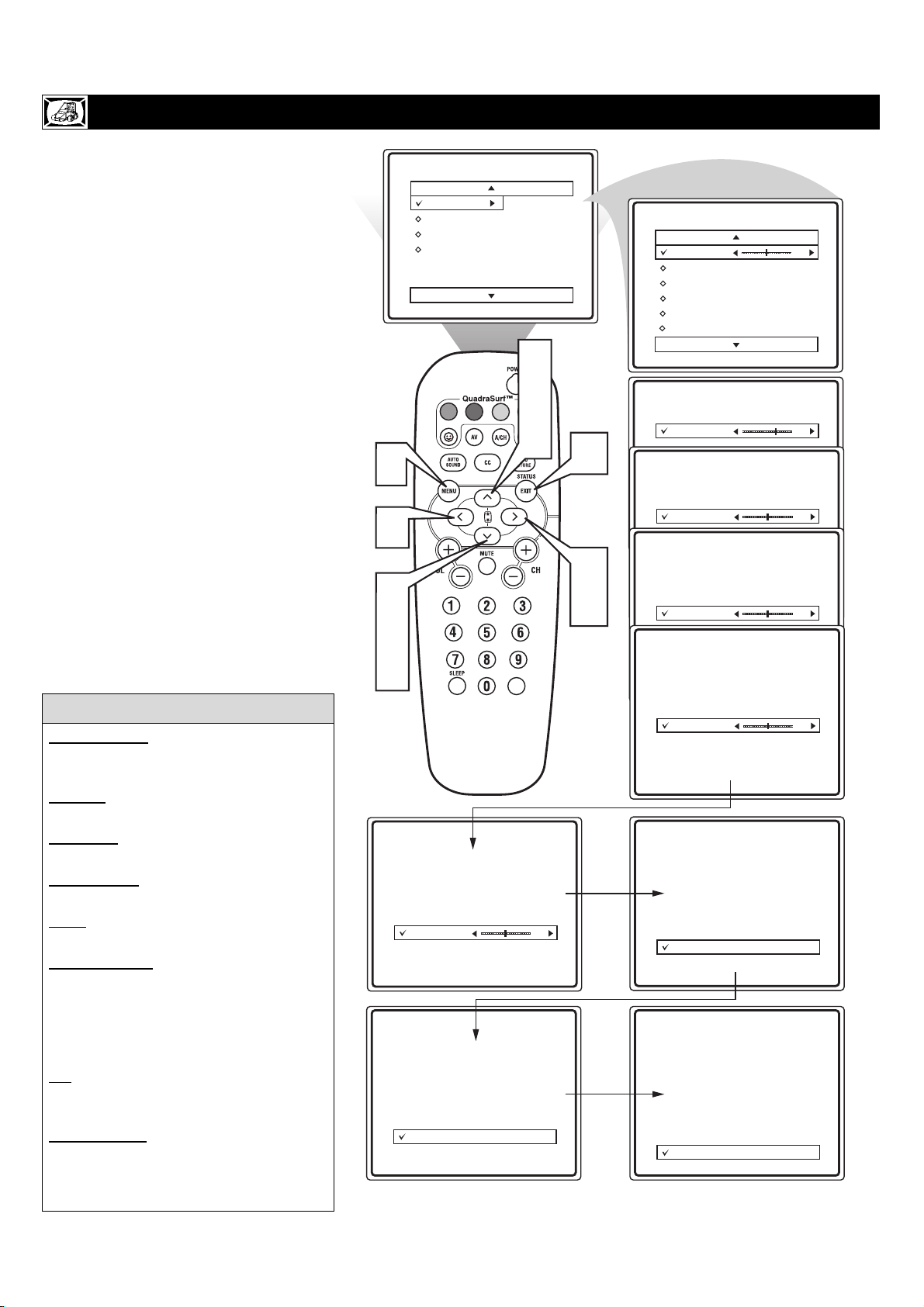
T
o adjust your TV picture controls, select a
channel and follow the steps shown below:
1
Press the MENU button on the
remote to display the on-screen menu.
2
Press the CURSOR UP Î or DOWN
ï buttons until the word PICTURE is
highlighted.
3
Press the CURSOR RIGHT Æ but-
ton to display the PICTURE menu
features.
4
Press CURSOR UP Î or DOWN ï
buttons to scroll the Picture features
and highlight the control you wish to
adjust (Brightness, Color, Picture,
Sharpness, Tint, Color Temp., DNR, or
Contrast +).
5
Press the CURSOR RIGHT Æ or the
CURSOR LEFT ß buttons to adjust
the selected control or to make selec-
tions for the choosen control.
6
Press the CURSOR UP Î or DOWN
ï buttons to select and adjust other
Picture Menu controls.
7
When finished, press the STATUS
/EXIT button to remove the menu
from the TV’s screen.
HOW TO USE THE PICTURE ADJUSTMENT CONTROLS
Main
Picture
Sound
Features
Install
Brightness
Color
Picture
Sharpness
Tint
More...
Picture
Brightness
Color
Picture
Sharpness
Tint
Color Temp.
50
Picture
Brightness
Color
Picture
Sharpness
Tint
Color Temp.
65
Picture
Brightness
Color
Picture
Sharpness
Tint
Color Temp.
50
Picture
Brightness
Color
Picture
Sharpness
Tint
Color Temp.
50
Picture
Brightness
Color
Picture
Sharpness
Tint
Color Temp.
50
Picture
Brightness
Color
Picture
Sharpness
Tint
Color Temp.
0
Picture
Brightness
Color
Picture
Sharpness
Tint
Color Temp.
Normal
Picture
Brightness
Color
Picture
Sharpness
Tint
DNR
On
Contrast +
On
VOL
7
2
4
6
3
5
1
2
4
6
5
BRIGHTNESS: Press the Æ or Í buttons
until darkest parts of the picture are as bright
as you prefer.
COLOR: Press the Æ or Í buttons to add
or eliminate color.
PICTURE: Press the Æ or Í buttons until
lightest parts of the picture show good detail.
SHARPNESS
: Press the
Æ or Í buttons to
improve detail in the picture.
TINT: Press the Æ or Í buttons to obtain
natural skin tones.
COLOR
TEMP: Press the Æ or Í buttons
to select NORMAL, COOL, or WARM pic-
ture preferences. (NORMAL will keep the
whites, white; COOL will make the whites,
bluish; and WARM will make the whites,
reddish.)
NR: Press the Æ or Í buttons to turn NR
ON or OFF. Noise Reduction helps to elimi-
nate “noise” from the picture.
CONTRAST +: Press the Æ or Í buttons to
turn CONTRAST + ON or OFF. When ON,
this control will optimize the picture contrast
for improve picture clarity.
HELPFUL
HINT
19
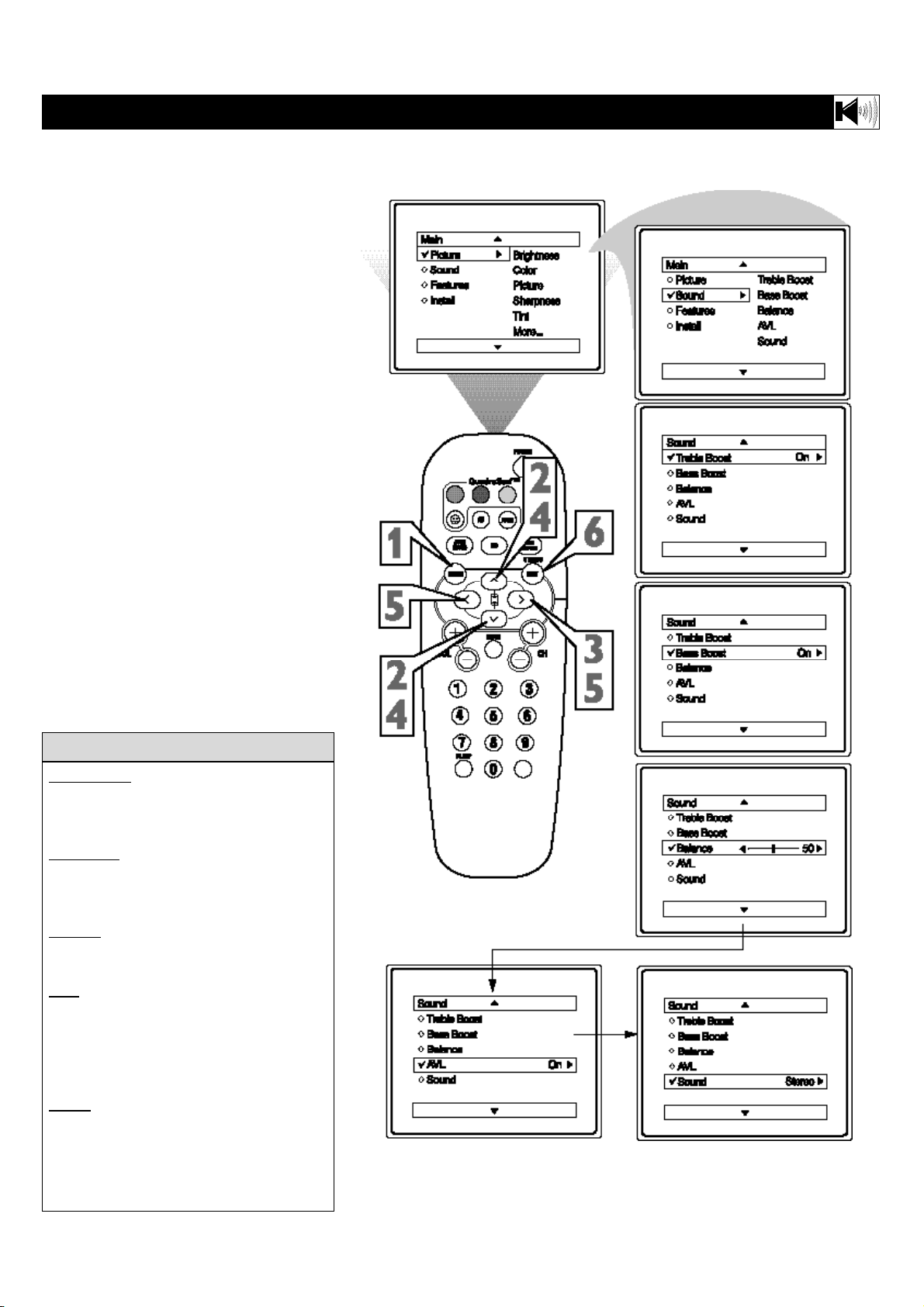
B
esides the normal volume level control,
your TV also has Treble Boost, Bass
Boost, Balance, AVL (automatic volume level-
er), and Sound (Stereo/Mono) controls.
1
Press the MENU button on the remote
to display the on-screen menu.
2
Press the CURSOR
UP ▲
or CUR-
SOR DOWN ▼ button until the word
SOUND is highlighted.
3
Press the CURSOR RIGHT © but-
ton to display the SOUND menu fea-
tures.
4
Press the CURSOR UP ▲
or CUR-
SOR DOWN ▼ button
to scroll the
Sound menu features until the control
you wish to change is highlighted
(Treble Boost, Bass Boost, Balance,
AVL, or Sound ).
5
Press the CURSOR RIGHT © or
LEFT ß button to turn the adjust or
turn the control On or Off.
6
When finished, press the STATUS
/EXIT button to remove the menu
from the TV’s screen.
HOW TO USE THE SOUND ADJUSTMENT CONTROLS
Treble Boost
: Press the © or ß buttons to
turn the control On or Off. When On, the
control will enhance the high frequency
sounds.
Bass Boost
: Press the © or ß buttons to
turn the control On or Off. When On, the
control will enhance the low frequency
sounds.
Balance
: Press the © or ß buttons to
adjust the level of sound coming from the
left and right speakers.
A
VL: (Auto Volume Leveler) Press the ©
or ß buttons to turn the control On or Off.
When On, AVL will level out the sound
being heard when sudden changes in volume
occur during commercial breaks or channel
changes.
Sound
: Press the © or ß buttons to select
between Stereo or Mono settings. Note: If
Stereo is not present on a selected show and
the TV is placed in the Stereo mode, the
sound coming from the TV will remain in
the Mono mode.
HELPFUL H
INT
20
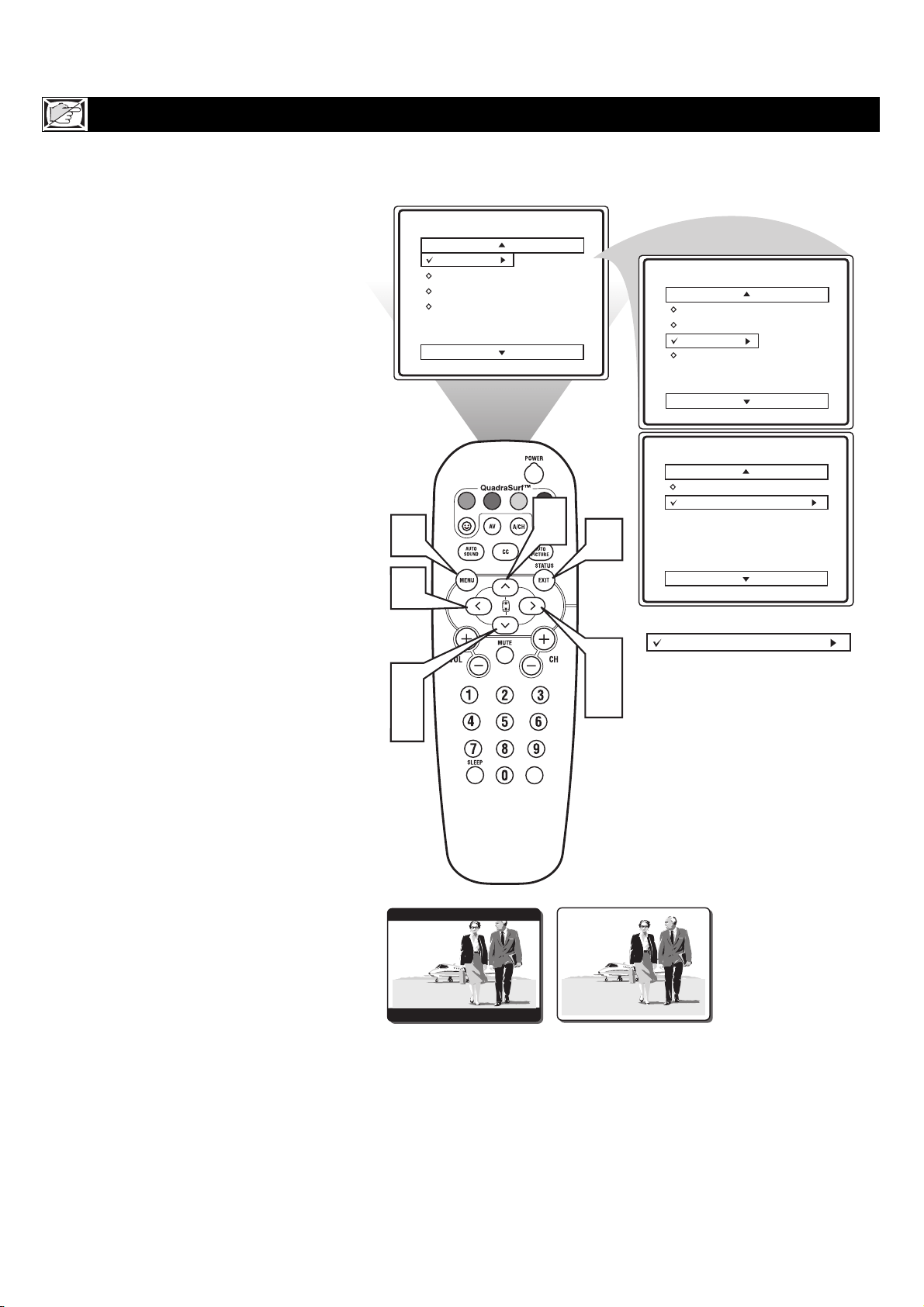
M
any times while watching movies from a
DVD player the image is shown in “let-
ter box” format. This is the format that is
shown in movie theaters. when shown on a TV
screen, the image will have areas of black on
top and bottom of the screen.
1
Press the MENU button on the
remote to display the on-screen menu.
2
Press the CURSOR DOWN ▼ but-
ton until the word FEATURES is
highlighted.
3
Press the CURSOR RIGHT
ÆÆ
but-
ton to display the FEATURES menu
options (AutoLock or Format).
4
Press the CURSOR DOWN ▼ but-
ton until the word FORMAT is high-
lighted.
5
Press the CURSOR RIGHT
ÆÆ
or
CURSOR LEFT
ÍÍ
buttons to select
one of the two options 4:3 or Expand
4:3.
4:3 - Standard format for the TV.
Expand 4:3 - Enlarges the picture to
fill out the entire screen area, eliminat-
ing the “letter box” effect.
6
When finished, press the STATUS
/EXIT button to remove the menu
from the TV’s screen.
Note: The Expand 4:3 format can also be
activated using the CURSOR UP or DOWN
buttons when the onscreen menu is not being
displayed. Pressing these buttons will toggle
the standard 4:3 format and the Expand 4:3
format.
HOW TO USE THE FORMAT CONTROL
VOL
6
2
4
3
5
2
Main
Picture
Sound
Features
Install
Brightness
Color
Picture
Sharpness
Tint
More...
Main
Picture
Sound
Features
Install
AutoLock
Format
Features
AutoLock
Format 4:3
Format Expand 4:3
OR
1
5
4:3
Expand 4:3
21
T
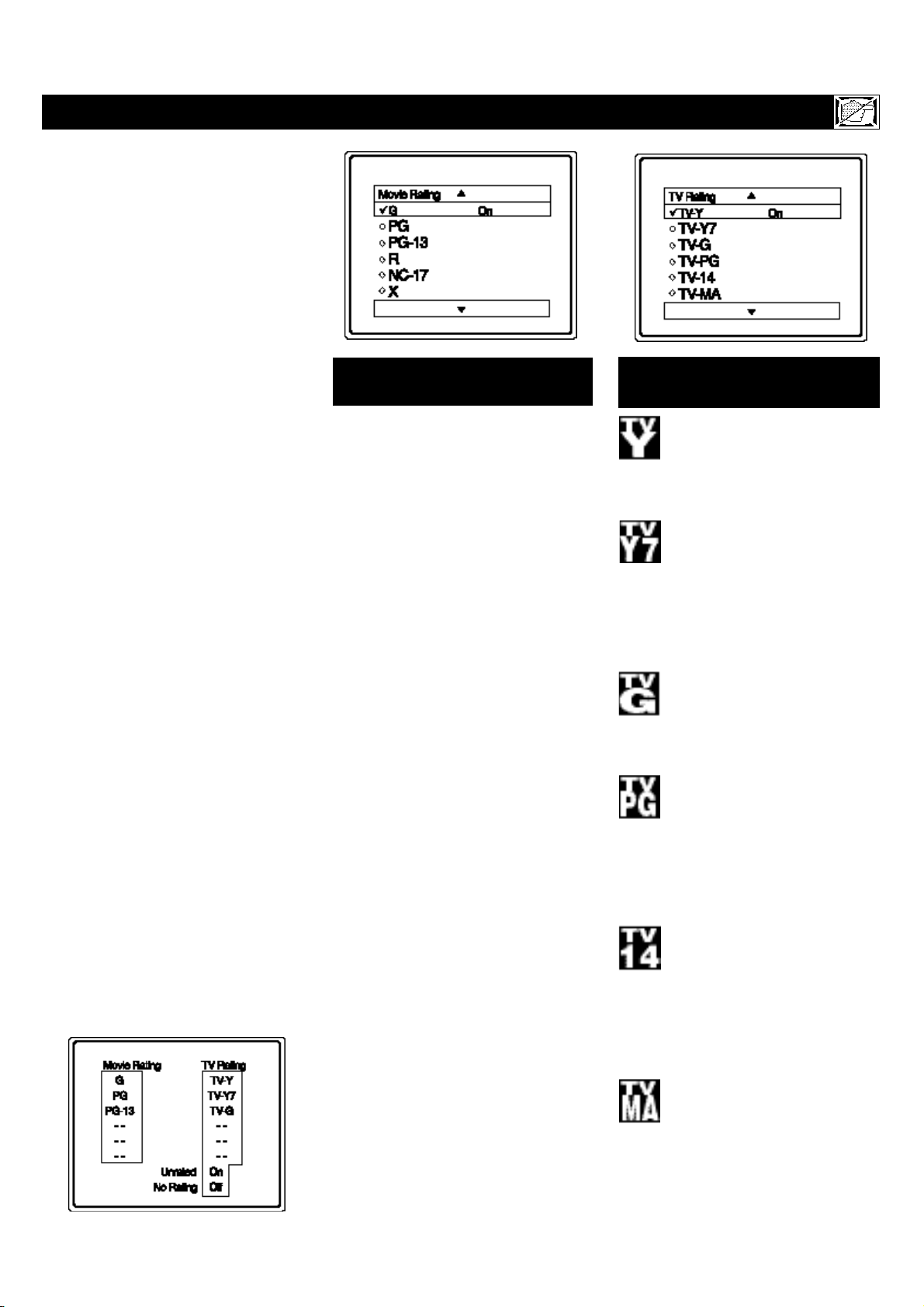
he AutoLock™ feature is an integrat-
ed circuit that receives and processes
data sent by broadcasters, or other pro-
gram providers, that contain program con-
tent advisories. When programmed by the
viewer, a TV with AutoLock™ can respond
to the content advisories and block pro-
gram content that may be found objection-
able (such as offensive language, violence,
sexual situations, etc.). This is a great fea-
ture to censor the type of viewing children
may watch.
Over the next few pages you’ll learn how
to block channels and certain rated pro-
gramming. Below is a brief explanation of
some terms and ratings you will find in the
AutoLock feature.
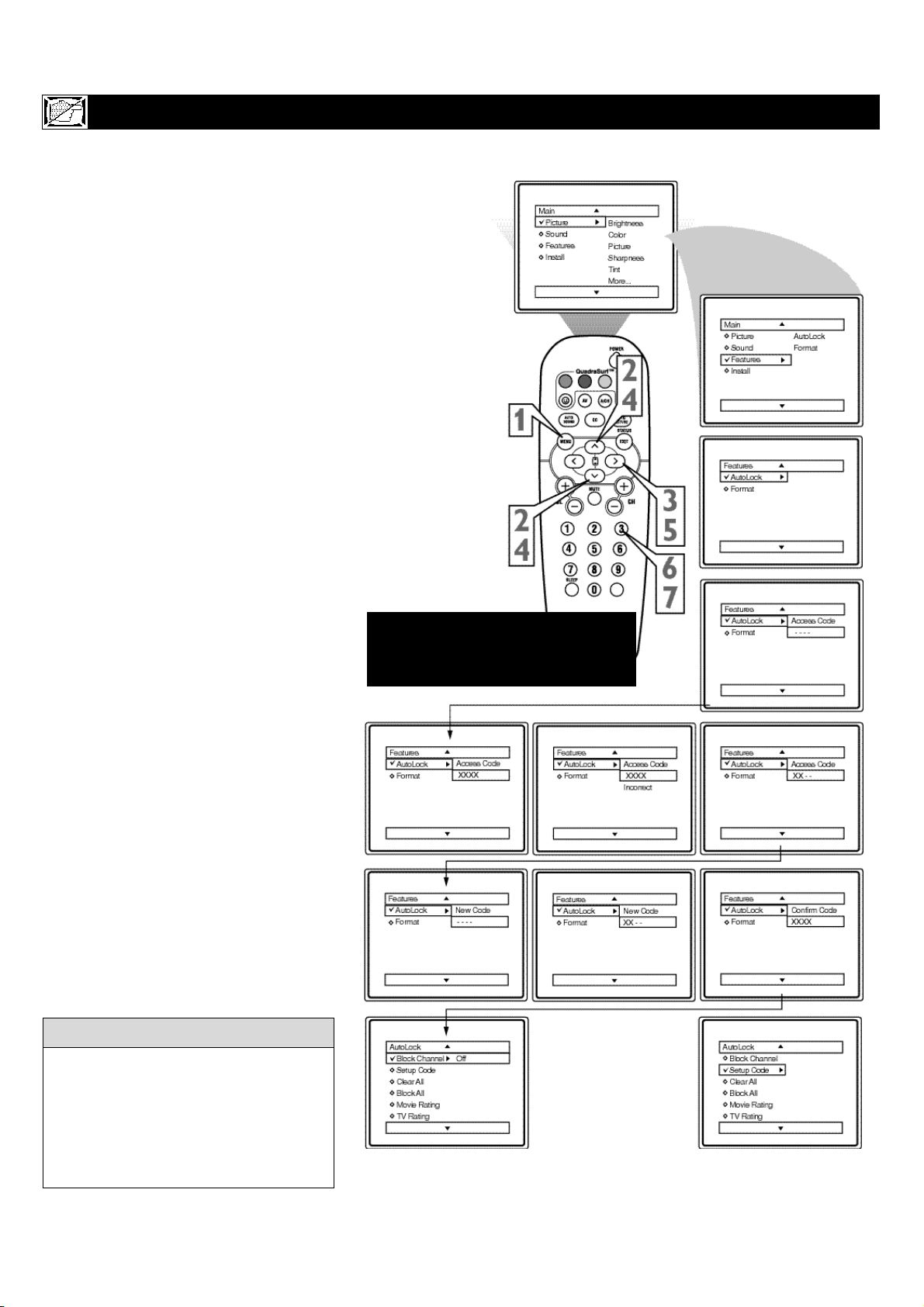
AutoLock™ offers various BLOCKING
controls from which to choose:
Access Code: An Access Code must be set
to prevent children from unblocking ques-
tionable programming.
Channel Block: Individual channels
including the A/V inputs can be blocked.
Clear All: Allows you clear all channels
being blocked from your viewing set with
the Channel Block Control.
Block All: Allows you to block ALL chan-
nels and A/V inputs at one time.
Movie Ratings: Block programming
based on ratings patterned by the Motion
Pictures Association of America.
TV Ratings: Block programming based
on standard TV ratings set by TV broad-
casters.
To learn more about the Motion Picture
Ratings and the TV Ratings, refer to the
definitions listed on the columns to the
right.
Press the STATUS/EXIT button twice to
display the AutoLock review screen.
This screen shows what is activated within
the AutoLock settings.
UNDERSTANDING THE AUTOLOCK™ CONTROLS
G: General Audience - All ages admit-
ted. Most parents would find this pro-
gram suitable for all ages. This type of
programming contains little or no vio-
lence, no strong language, and little or
no sexual dialogue or situations.
PG: Parental Guidance Suggested -
This programming contains material that
parents may find unsuitable for younger
children.) It may contain one or more of
the following: Moderate violence, some
sexual situations, infrequent coarse lan-
guage, or some suggestive dialogue.
PG-13: Parents Strongly Cautioned -
This programming contains material that
parents may find unsuitable for children
under the age of 13. It contains one or
more of the following: violence, sexual sit-
uations, coarse language, or suggestive
dialogue.
R: Restricted -This is programming is
specifically designed for adults. Anyone
under the age of 17 should only view this
programming with an accompanying par-
ent or adult guardian. It contains one or
more of the following: intense violence,
intense sexual situations, strong coarse
language, or intensely suggestive dialogue.
NC-17: No one under the age of 17 will
be admitted. - This type of programming
should be viewed by adults only. It con-
tains graphic violence, explicit sex, or
crude indecent language.
X: Adults Only - This type of program-
ming contains one or more of the follow-
ing: very graphic violence, very graphic
and explicit or indecent sexual acts, very
coarse and intensely suggestive language.
MOVIE RATINGS
(M
OTION
P
ICTURE
A
SSOCIATION OF
A
MERICA
)
TV-Y - (All children -- This pro-
gram is designed to be appropriate
for all children.) Designed for a
very young audience, including children
ages 2-6. This type of programming is not
expected to frighten younger children.
TV-Y7 - (Directed to Older
Children -- This program is
designed for children age 7 and
above.) It may be more appropriate for
children who have acquired the develop-
ment skills needed to distinguish between
make-believe and reality. This program-
ming may include mild fantasy and comic
violence (FV).
TV-G - (General Audience -- Most
parents would find this program
suitable for all ages.) This type of
programming contains little or no vio-
lence, no strong language, and little or no
sexual dialogue or situations.
TV-PG - (Parental Guidance
Suggested -- This program con-
tains material that parents may
find unsuitable for younger children.) This
type of programming contains one or more
of the following: Moderate violence (V),
some sexual situations (S), infrequent
coarse language (L), or some suggestive
dialogue (D).
TV-14 - (Parents Strongly
Cautioned -- This program con-
tains some material that many par-
ents would find unsuitable for children
under 14 years of age.) This type of pro-
gramming contains one or more of the fol-
lowing: intense violence (V), intense sexu-
al situations (S), strong coarse language
(L), or intensely suggestive dialogue (D).
TV-MA - (Mature Audience Only
-- This program is specifically
designed to be viewed by adults
and therefore may be unsuitable for chil-
dren under 17.) This type of programming
contains one or more of the following:
graphic violence (V), explicit sexual situa-
tions (S), or crude indecent language (L).
TV PARENTAL G
UIDELINES
(TV BROADCASTERS)
22
O
ver the next few pages you’ll learn how
to block channels and get a better under-
standing of the rating terms for certain pro-
gramming.
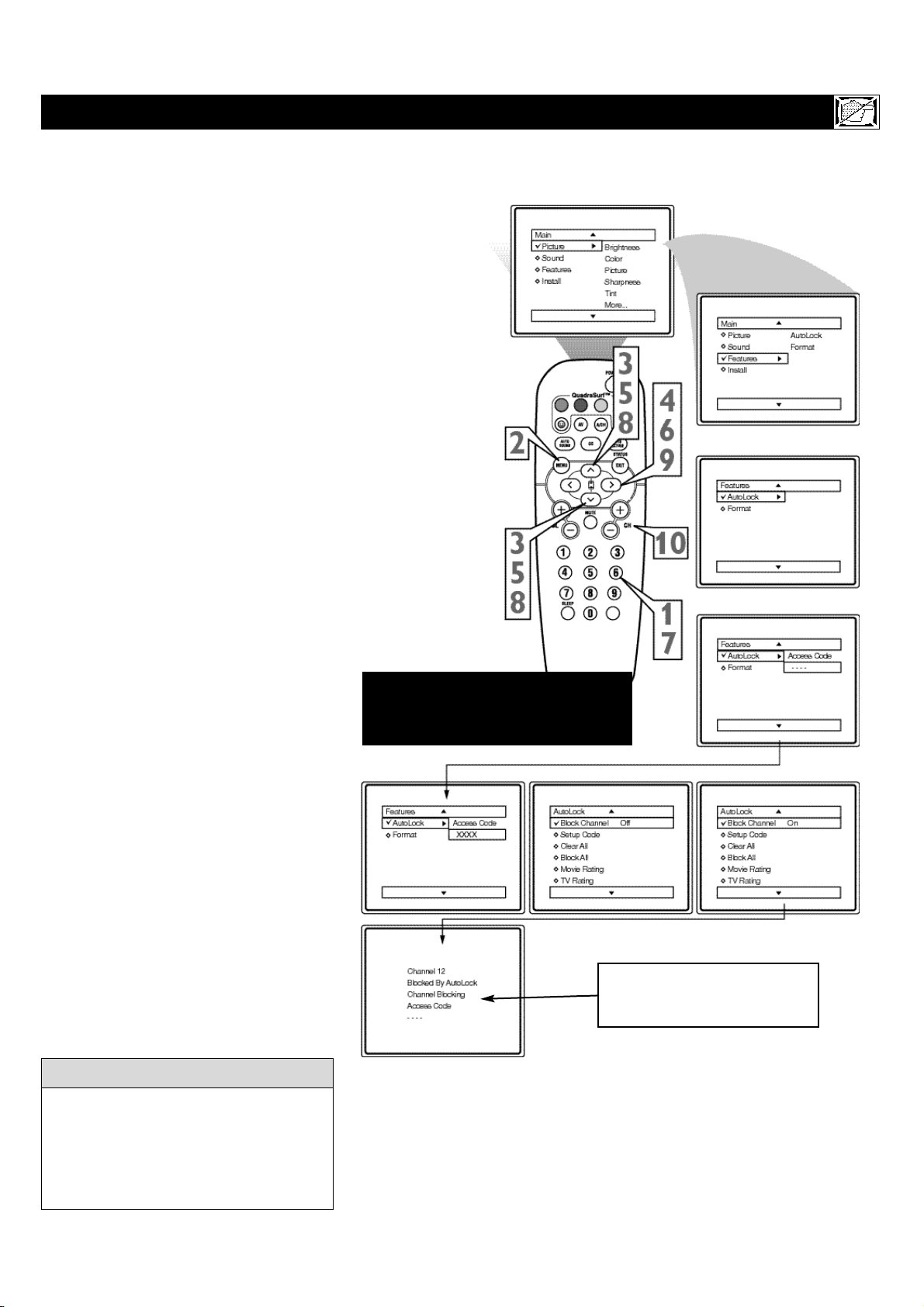
First, let’s start by learning how to set a per-
sonal access code:
1
Press the MENU button on the remote
to display the on-screen menu.
2
Press the CURSOR UP ▲ or DOWN
▼ button until the word FEATURES
is highlighted.
3
Press the CURSOR RIGHT © but-
ton to display the FEATURES menu
options.
4
Press the CURSOR UP
▲
or DOWN
▼
button until the words
AUTOLOCK are highlighted.
5
Press the CURSOR RIGHT © but-
ton. The screen will read, “ACCESS
CODE - - - - .”
6
Using the NUMBERED buttons,
enter 0, 7, 1, 1. “XXXX” appears on
the Access Code screen as you press
the numbered buttons.
“INCORRECT CODE” will appear
on the screen, and you will need to
enter 0, 7, 1, 1 again.
7
The screen will ask you to enter a
“New Code.” Enter a “new” 4 digit
code using the NUMBERED buttons.
The screen will then ask you to CON-
FIRM the code you just entered. Enter
your new code again. “XXXX” will
appear when you enter your new code
and then display the AutoLock menu
options.
Proceed to the next page to learn more...
SETTING UPANAUTOLOCK™ ACCESS CODE
Parents - it isn’t possible for your child to
unblock a channel without knowing your
access code or changing it to a new one. If
your code changes, and you didn’t change
it, then you know it’s been altered by some-
one else and blocked channels have been
viewed.
HELPFUL HINT
NOTE: The 0,7,1,1 access code shown
on this page is the default code or a
way to reset the code when the current
access code is not known.
23
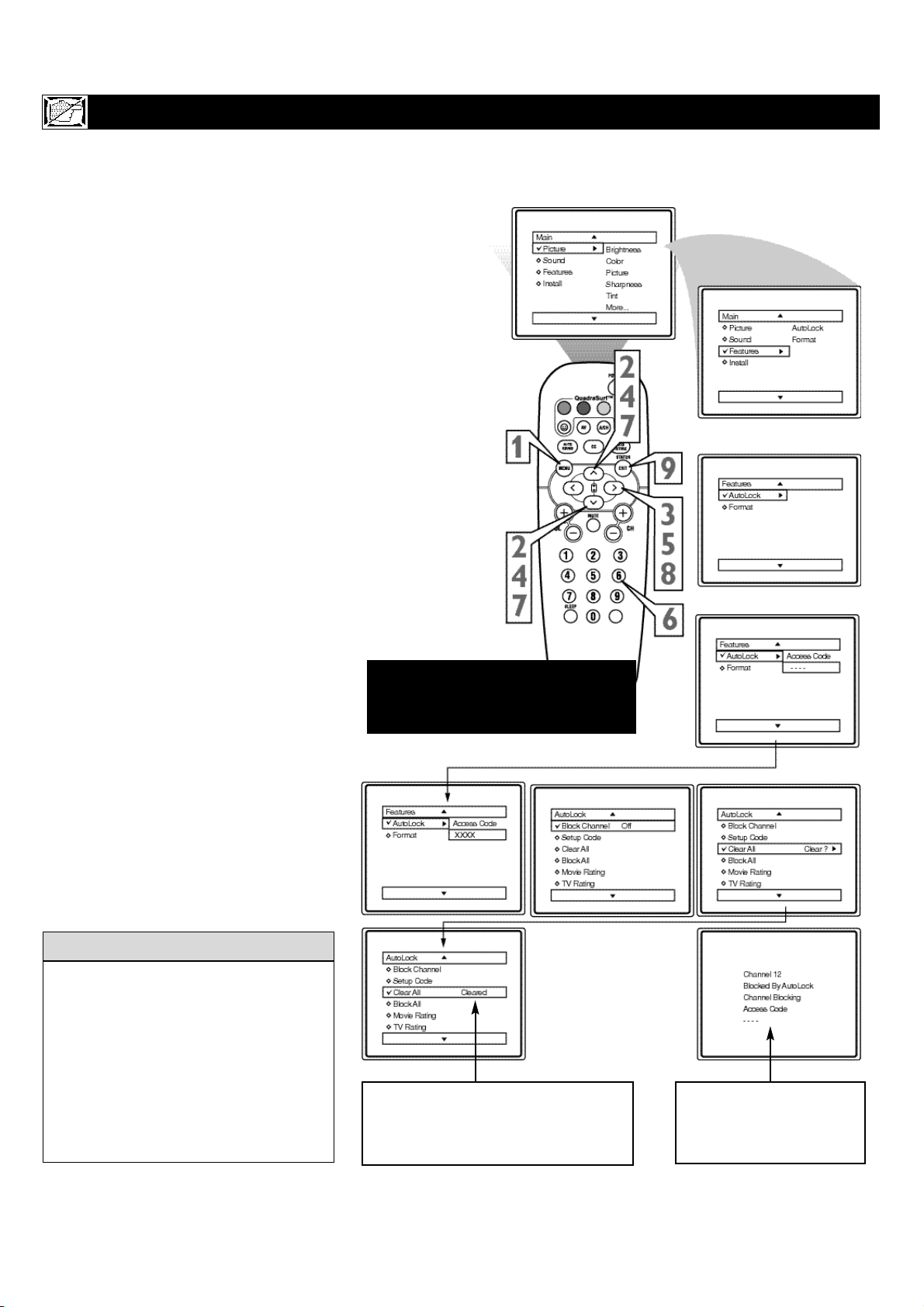
A
fter your personal access code has been
set (see previous page), you are now
ready to select the channels you want to
block out or censor.
1
Press the NUMBERED (or CH +, –)
buttons to tune the channel you wish
to block or censor.
2
Press the MENU button on the
remote to show the on-screen menu.
3
Press the CURSOR UP ▲ or
DOWN ▼ button until the word
FEATURES is highlighted.
4
Press the CURSOR RIGHT © but-
ton to display the FEATURES menu
options.
5
Press the CURSOR UP ▲ or
DOWN ▼ button until the words
AutoLock are highlighted.
6
Press the CURSOR RIGHT © but-
ton. “ACCESS CODE” will appear
on the screen.
7
Enter the correct access code num-
ber. “XXXX” shows on the Access
Code display as you press the NUM-
BERED buttons. AutoLock menu
options will be displayed.
8
Press the CURSOR UP ▲ or
DOWN ▼ buttons until the words
BLOCK CHANNELS are highlight-
ed.
9
Press the CURSOR RIGHT © but-
ton to turn blocking ON or OFF for
that channel. When ON is selected the
channel will be blocked.
Press the CH + or – button to select
other channels you wish to block.
Repeat step 9 to block the new chan-
nel.
HOW TO BLOCK CHANNELS
If you tune to a blocked channel and enter
your Access Code to view the channel, ALL
blocked channels will be viewable until the
TV has been turned off. When the TV is
powered back ON, the previously blocked
channels will be blocked again.
H
ELPFUL HINT
10
Enter your Access Code to
view a tuned channel that is
blocked with Block Channel.
NOTE: The 0,7,1,1 access code shown
on this page is the default code or a
way to reset the code when the current
access code is not known.
24
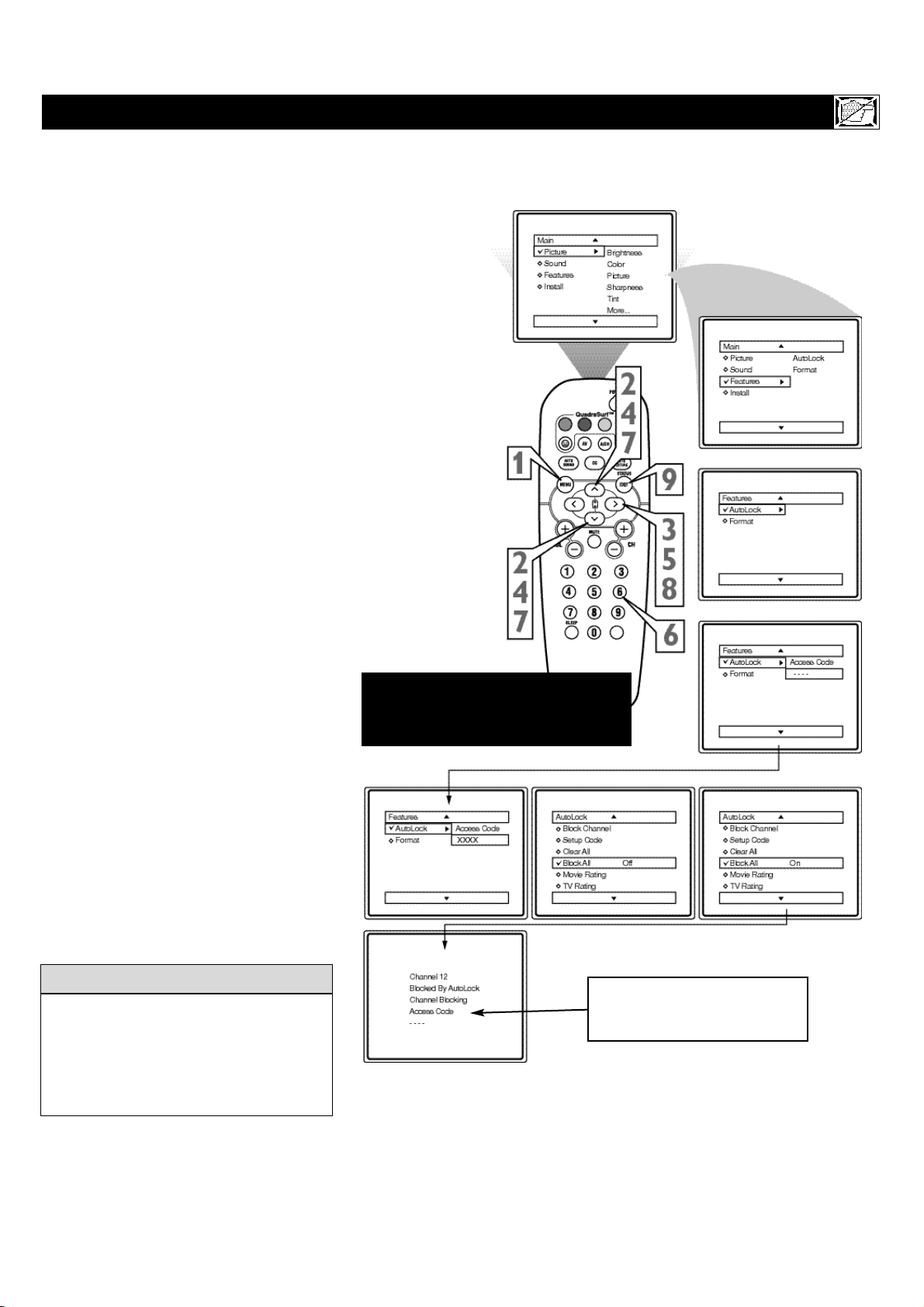
A
fter blocking specific channels there may
come a time when you want to clear all
the channels so they can be viewed. The fol-
lowing steps explain how to CLEAR ALL
blocked channels.
1
Press the MENU button on the
remote to show the on-screen menu.
2
Press the CURSOR UP ▲ or DOWN
▼ button until the word FEATURES
is highlighted.
3
Press the CURSOR RIGHT © but-
ton to display the FEATURES menu
options.
4
Press the CURSOR UP ▲ or DOWN
▼ button until the words AutoLock
are highlighted.
5
Press the CURSOR RIGHT © but-
ton.
6
Enter the correct access code num-
ber. “XXXX” shows on the Access
Code display as you press the NUM-
BERED buttons. AutoLock menu
options will be displayed.
7
Press the CURSOR UP ▲ or DOWN
▼ buttons until the words CLEAR
ALL are highlighted.
8
Press the CURSOR RIGHT © but-
ton to clear all blocked channels. The
Clear All option will read, “Cleared.”
9
When finished, press the STATUS
/EXIT button to remove the menu
from the TV’s screen.
HOW TO CLEAR ALL BLOCKED CHANNELS AT THE SAME TIME
If you tune to a blocked channel and enter
your Access Code to view the channel, ALL
blocked channels will be viewable until the
TV is powered OFF and then turned back
ON. When the TV is powered back ON, the
previously blocked channels will be blocked
again.
CLEAR ALL will not work with the Movie
and TV Ratings. These options must be
reset individually.
HELPFUL HINT
NOTE: The 0,7,1,1 access code shown
on this page is the default code or a
way to reset the code when the current
access code is not known.
The Clear All option when activated
will unblock ALL blocked channels. It
will not affect programming blocked
by the Movie or TV Rating options.
Or, enter your Access
Code to view a tuned
channel that is blocked
with Block Channel.
25
T
here may come a time when you want to
Block All the television’s channels. Maybe
you don’t want your children to watch TV for
a given time. With the Block All control, ALL
available channels (including the A/V Inputs)
can be set to block at the same time.
1
Press the MENU button on the
remote to show the on-screen menu.
2
Press the CURSOR UP ▲ or DOWN
▼ button until the word FEATURES
is highlighted.
3
Press the CURSOR RIGHT © but-
ton to display the FEATURES menu
options.
4
Press the CURSOR UP ▲ or DOWN
▼ button until the words AutoLock
are highlighted.
5
Press the CURSOR RIGHT © but-
ton.
6
Enter the correct access code num-
ber. “XXXX” shows on the Access
Code display as you press the NUM-
BERED buttons. AutoLock menu
options will be displayed.
7
Press the CURSOR UP ▲ or DOWN
▼ buttons until the words BLOCK
ALL are highlighted.
8
Press the CURSOR RIGHT © but-
ton to turn Block All ON or OFF.
When ON is selected, ALL available
channels will be blocked.
9
When finished, press the
STATUS/EXIT button to remove the
menu from the screen.
HOW TO BLOCK ALL CHANNELS AT THE SAME TIME
If you tune to a blocked channel and enter
your Access Code to view the channel, ALL
blocked channels will be viewable until the
TV has been turned off. When the TV is
powered back ON, the previously blocked
channels will be blocked again.
HELPFUL HINT
NOTE: The 0,7,1,1 access code shown
on this page is the default code or a
way to reset the code when the current
access code is not known.
Enter your Access Code to
view a tuned channel that is
blocked with Block Channel.
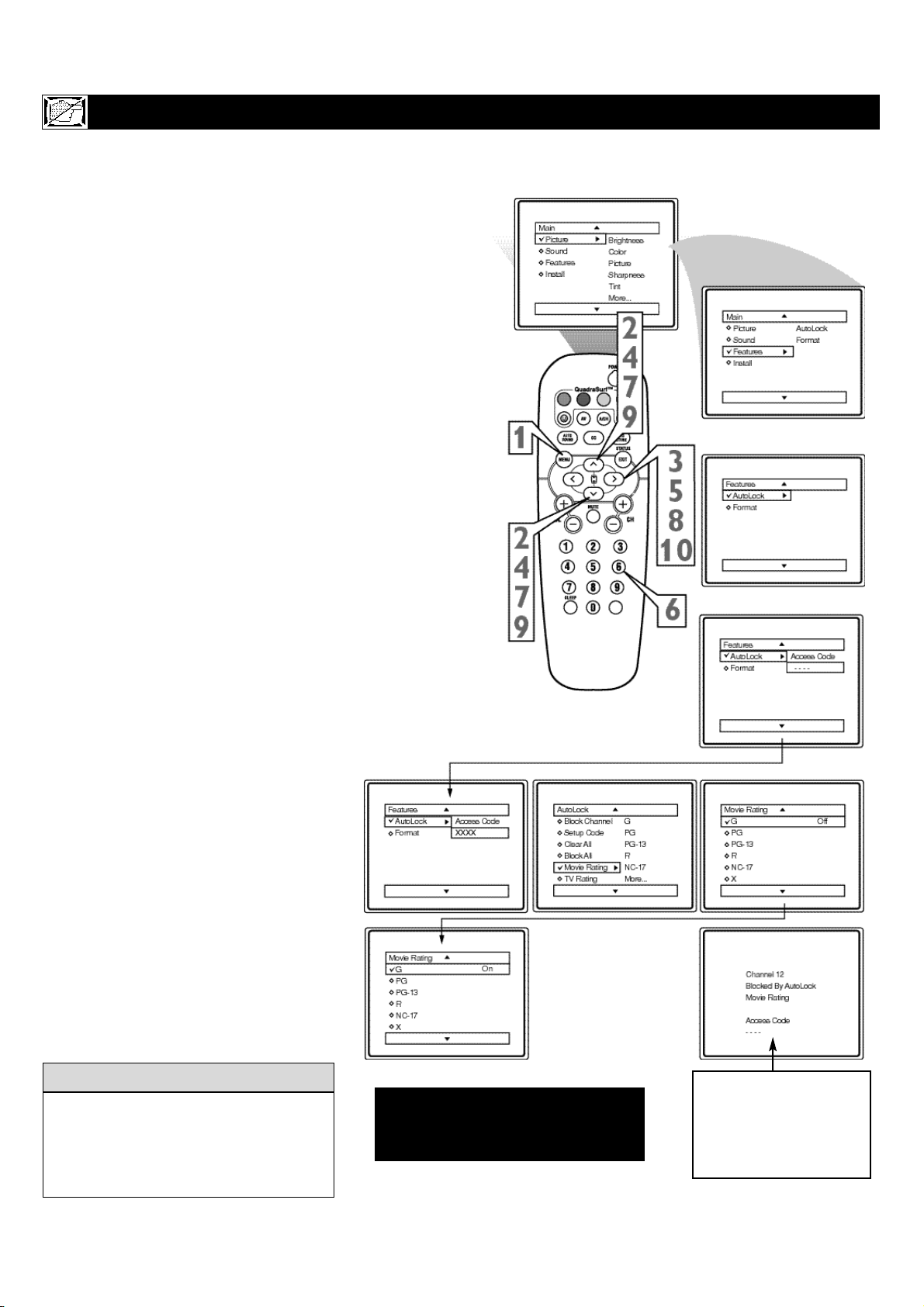
26
T
here are two types of program ratings
within the AutoLock™ feature. One is
based on the Movie Industry ratings while the
other is based on the TV Industry ratings. Both
can be used to block or censor programming
that has been rated in either manner.
Let’s first look at the Movie Rating options of
AutoLock™:
1
Press the MENU button on the remote
to display the on-screen menu.
2
Press the CURSOR UP ▲ or DOWN
▼ button until the word FEATURES is
highlighted.
3
Press the CURSOR RIGHT © but-
ton to display the FEATURES menu
options.
4
Press the CURSOR UP
▲
or DOWN
▼
button until AutoLock is highlight-
ed.
5
Press the CURSOR RIGHT © but-
ton. The screen will prompt you for
your Access Code.
6
Using the NUMBERED buttons on
the remote, enter your 4 digit Access
Code. The AutoLock menu options will
be displayed.
7
Press the CURSOR UP
▲
or DOWN
▼
button to highlight the words
MOVIE RATINGS.
8
Press the CURSOR RIGHT © but-
ton to display the MOVIE RATINGS
options (G, PG, PG-13, R, NC17, or X).
9
Press the CURSOR UP
▲
or DOWN
▼ button
to highlight any of the Movie
Ratings options. When highlighted, all
these options can be turned ON (which
will allow blocking) or OFF (which will
allow viewing).
Use the CURSOR RIGHT
© button
on the remote to turn the rating option
ON or OFF.
BLOCKING PROGRAMS BASED ON MOVIE RATINGS
When a rating is set to block, all higher rat-
ings will be automatically blocked as well.
(Example: If the the PG-13 rating is set to
block, the R, NC-17, and X ratings will also
be blocked.
H
ELPFUL HINT
NOTE: The 0,7,1,1 access code shown
on this page is the default code or a
way to reset the code when the current
access code is not known.
10
To view a program blocked by
the Movie Rating options, enter
your 4 digit access code. This
will disable all blocked Movie
Ratings until the TV is powered
off and on again. Then the block-
ing options will be restored.
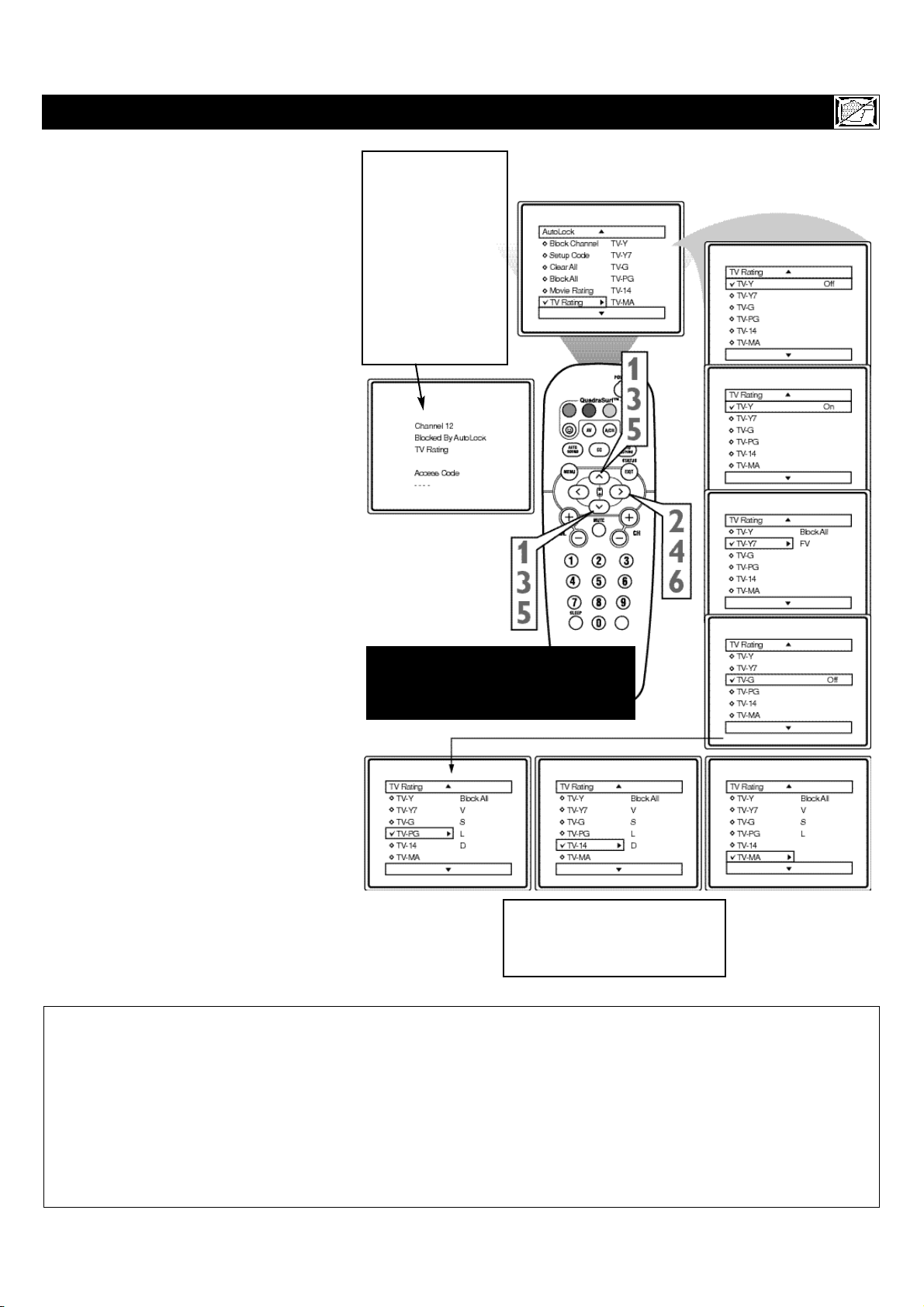
27
T
his portion of the AutoLock™ features
cover program ratings based on the TV
Industry rating system. This is known as TV
Ratings within AutoLock™.
After selecting the Autolock™ feature and
entering your personal access code, the
AutoLock™ options screen appears;
1
Scroll the menu using the CURSOR
UP ▲ or DOWN ▼ buttons until the
words TV RATINGS are highlighted.
2
Press the CURSOR RIGHT © but-
ton to display the TV Ratings (TV-Y,
TV-Y7, TV-G, TV-PG, TV-14, or TV-
MA). When highlighted, the TV-Y and
TV-G can be turned ON (which will
allow blocking) or OFF (which will
allow viewing), of these rated pro-
grams.
The ratings of TV-Y7, TV-PG, TV-14,
TV-MA can be customized to block V
(violence), FV (fantasy violence), S
(sexual situations), L (coarse lan-
guage), or D (suggestive dialogue).
3
Press the CURSOR UP ▲ or DOWN
▼ button to highlight the desired rat-
ing.
4
Press the CURSOR RIGHT © but-
ton on the remote to turn the TV-Y or
TV-G rating ON or OFF. Or, press the
CURSOR RIGHT © button to enter
the sub-menus for the TV-Y7, TV-PG,
TV-14 or TV-MA ratings.
5
If the TV-Y7, TV-PG, TV-14 or TV-
MA sub-menu is accessed, press the
CURSOR UP ▲ or CURSOR
DOWN ▼ button to select one of the
options (Block All, V, S, L, D, or FV).
6
Press the CURSOR RIGHT © but-
ton on the remote to turn the option
ON or OFF.
BLOCKING PROGRAMS BASED ON TV RATINGS
TV-Y - (All children -- This program is designed to be appropriate for all children.) Designed for a very young audience, including children ages 2-6. This type
of programming is not expected to frighten younger children.
TV-Y7 - (Directed to Older Children -- This program is designed for children age 7 and above.) It may be more appropriate for children who have acquired the
development skills needed to distinguish between make-believe and reality. This programming may include mild fantasy and comic violence (FV).
TV-G - (General Audience -- Most parents would find this program suitable for all ages.) This type of programming contains little or no violence, no strong
language and little or no sexual dialogue or situations.
TV-PG - (Parental Guidance Suggested -- This program contains material that parents may find unsuitable for younger children.)This type of programming
contains one or more of the following: some suggestive dialogue (D), infrequent coarse language (L), some sexual situations (S), or moderate violence (V).
TV-14 - (Parents Strongly Cautioned -- This program contains some material that many parents would find unsuitable for children under 14 years of age.) This
type of programming contains one or more of the following: intensely suggestive dialogue (D), strong coarse language (L), intense sexual situations (S), or
intense violence (V).
TV-MA - (Mature Audience Only -- This program is specifically designed to be viewed by adults and therefore may be unsuitable for children under 17.) This
type of programming contains one or more of the following: crude indecent language (L), explicit sexual situations (S), or graphic violence (V).
To view a program
blocked by the TV
Rating options, enter
your 4 digit access
code. This will dis-
able all blocked TV
Ratings until the TV
is powered off and
on again. Then the
blocking options will
be restored.
TV Ratings and
Rating Sub-Menus
When a TV Rating is selected to block,
ALL higher ratings will be blocked also.
NOTE: The 0,7,1,1 access code shown
on this page is the default code or a
way to reset the code when the current
access code is not known.
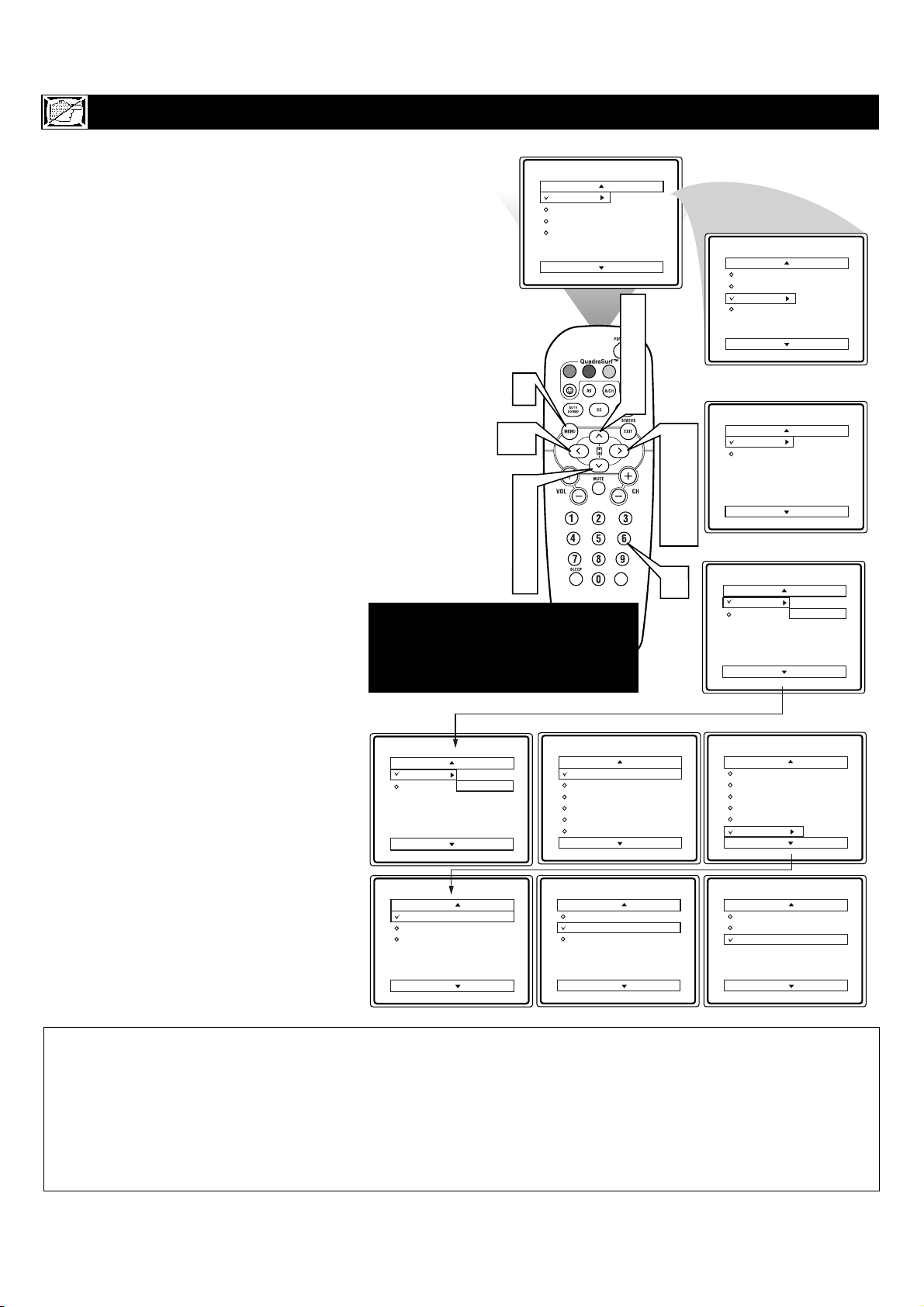
28
A
utoLock™ offers the viewer other block-
ing features as well. With these Blocking
Options, the censoring can be turned ON or
OFF.
1
Press the MENU button on the
remote to show the on-screen menu.
2
Press the CURSOR UP ▲ or DOWN
▼ button until the word FEATURES
is highlighted.
3
Press the CURSOR RIGHT
ÆÆ
but-
ton to display the FEATURES menu
options.
4
Press the CURSOR UP ▲ or DOWN
▼ button until the words AutoLock
are highlighted.
5
Press the CURSOR RIGHT
ÆÆ
but-
ton.
6
Enter the correct access code num-
ber. “XXXX” shows on the Access
Code display as you press the NUM-
BERED buttons. AutoLock menu
options will be displayed.
7
Press the CURSOR UP ▲ or DOWN
▼ buttons until the words BLOCK-
ING OPTIONS are highlighted.
8
Press the CURSOR RIGHT
ÆÆ
but-
ton to display the Blocking Options
(BLOCKING, UNRATED, or NO
RATING) menu.
9
Press the CURSOR UP ▲ or DOWN
▼ buttons to highlight the desired fea-
ture.
When highlighted, each feature can be
turned ON or OFF using the CUR-
SOR RIGHT
ÆÆ
or LEFT
ÍÍ
buttons
on the remote.
OTHER AUTOLOCK™ BLOCKING OPTIONS
Features
AutoLock
Format
Access Code
- - - -
Main
Picture
Sound
Features
Install
Brightness
Color
Picture
Sharpness
Tint
More...
AutoLock
Block Channel
Setup Code
Clear All
Block All
Movie Rating
TV Rating
OffStop Time
Channel
Activate
Display
AutoLock
Setup Code
Clear All
Block All
Movie Rating
TV Rating
Blocking Options
Blocking Options
Unrated
No Rating
Blocking
On
Blocking Options
Unrated
No Rating
Blocking
On
Blocking Options
Unrated
No Rating
Blocking
On
Features
AutoLock
Format
Access Code
- - - -
Main
Picture
Sound
Features
Install
AutoLock
Format
Features
AutoLock
Format
VOL
2
4
7
9
2
4
7
9
1
10
3
5
8
10
6
10
BLOCKING OPTIONS:
BLOCKING: This is what might be called the “master switch” for AutoLock™. When in the ON position, ALL blocking/censoring
will take place. When in the OFF position, ALL blocking is disabled.
UNRATED: ALL unrated programs based on the Movie Ratings or Parental (TV) Guidelines can be blocked if this feature is set to
ON and the BLOCKING feature is set to OFF.
NO RATING: ALL programming with NO content advisory data can be blocked if this feature is set to ON and the BLOCKING fea-
ture is set to OFF.
NOTE: Remember, if you ever forget
your Access Code, the 0,7,1,1 access
code is the default code or a way to
reset the code when the current access
code is not known.
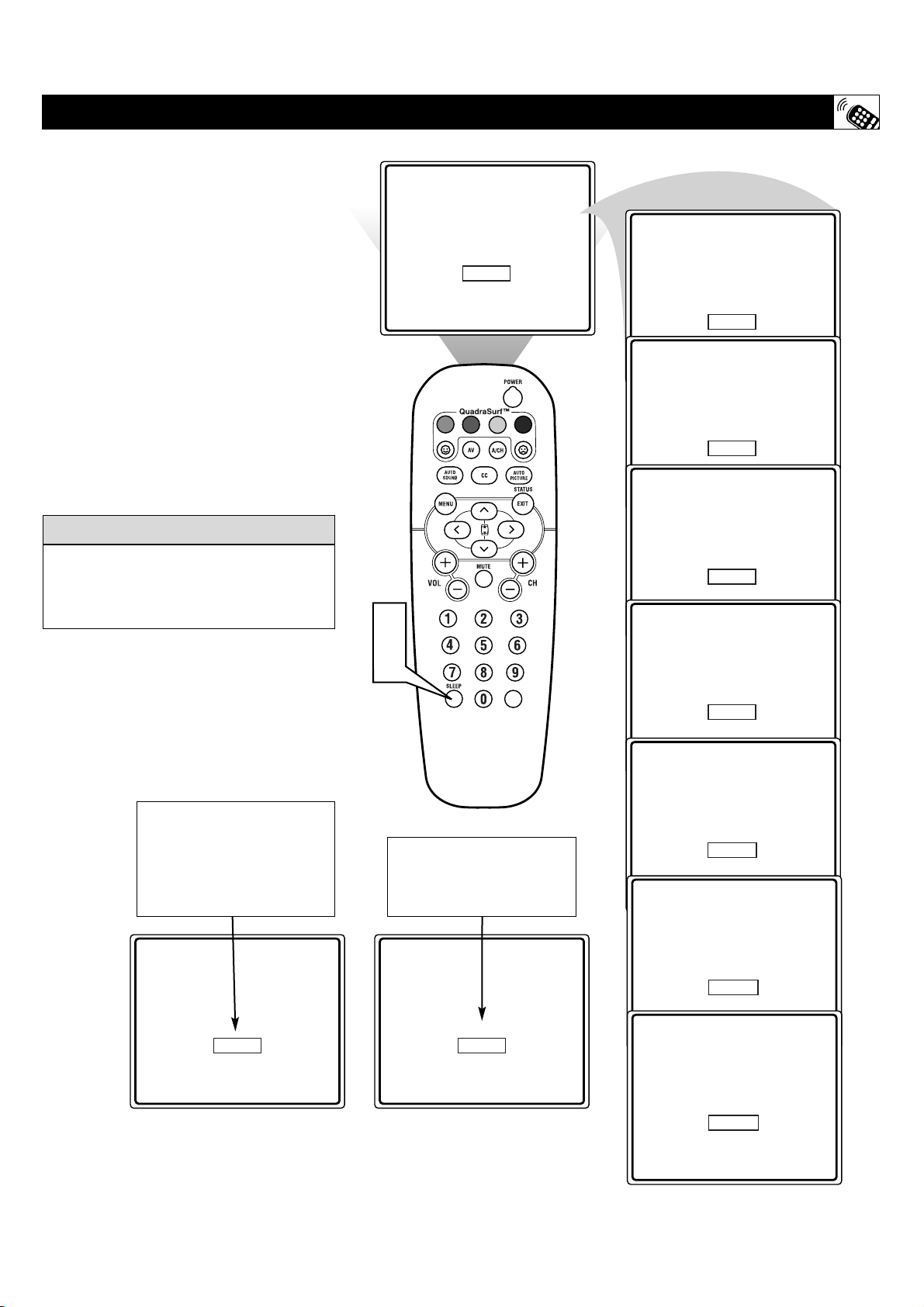
29
Sleep 15
Sleep 30
Sleep 45
Sleep 60
Sleep 90
Sleep 120
Sleep 180
Sleep 45 Sleep 9
Sleep 240
VOL
1
2
H
ave you ever fallen asleep in front of the
TV only to have it wake you up at two in
the morning with a test pattern screeching in
your ears? Well, your TV can save you all
that trouble by automatically turning itself off.
1
Press the SLEEP button on the
remote control and the SLEEP timer
display will appear on the screen.
2
Press the SLEEP button repeatedly to
pick the amount of time (15, 30, 45,
60, 90, 120, 180 or 240 minutes)
before the TV will turn itself off.
An on-screen count down will appear
during the last minute before the TV
shuts itself off.
SETTING THE SLEEPTIMER CONTROL
The on-screen menu will time out and dis-
appear from the screen when you finish, or
you can press the STATUS/EXIT button to
clear the menu from the screen.
HELPFUL H
INT
During the last 10 seconds of
a Sleeptimer setting, an on-
screen display will read
GOOD BYE.
During the last minute of a
Sleeptimer setting, an on-
screen count down will be dis-
played. Pressing any button
during the last minute will
cancel the Sleeptimer.
30
C
losed Captioning (CC) allows you to
read the voice content of television pro-
grams on the TV screen. Designed to help the
hearing impaired, this feature uses on-screen
“text boxes” to show dialogue and conversa-
tions while the TV program is in progress.
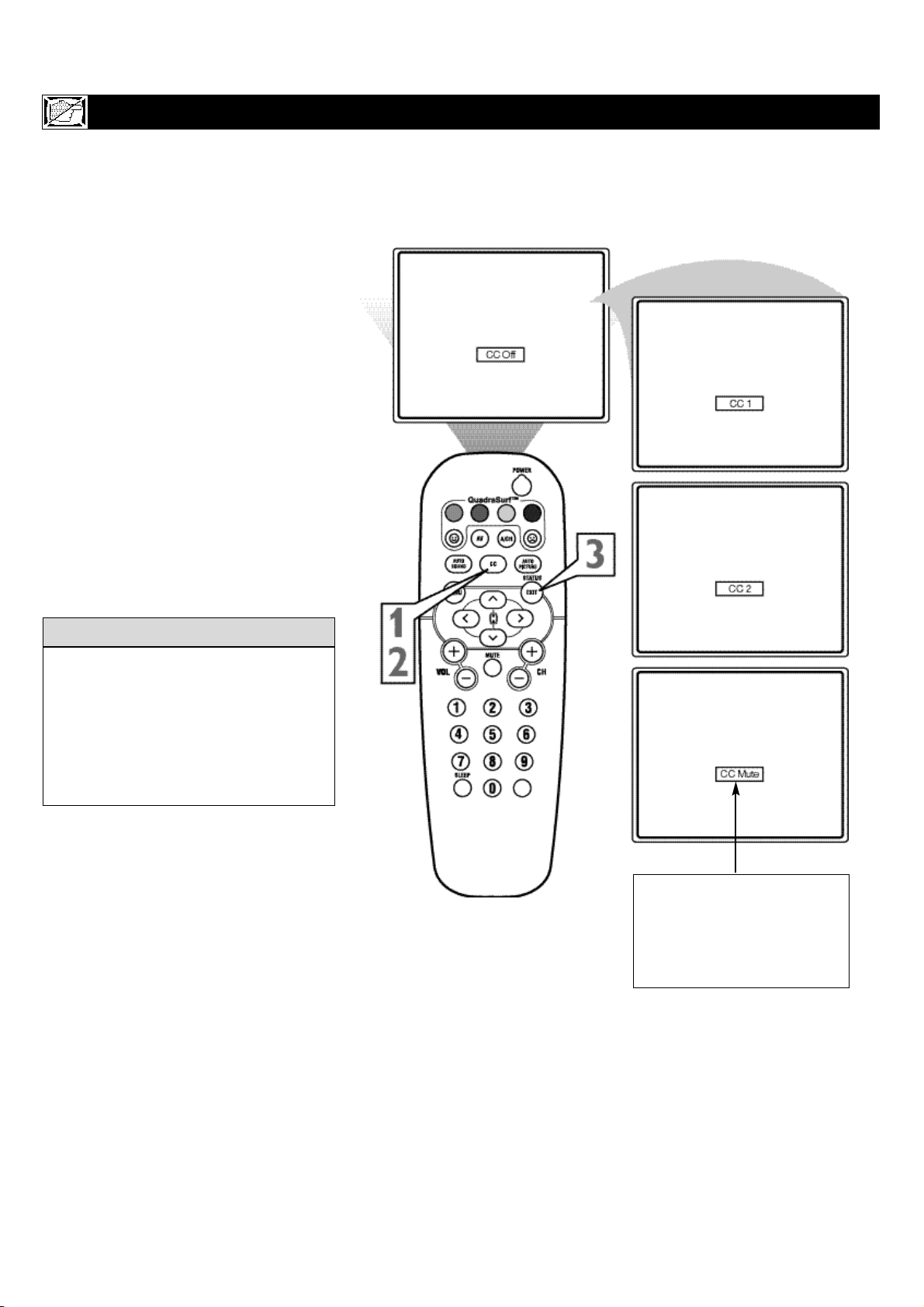
1
Press the CC button on the remote to
display the current Closed Caption set-
ting.
2
Press the CC button repeatedly to
choose from the four Closed Caption
options (CC Off, CC 1, CC 2, CC
Mute). Dialogue (and descriptions) for
the action on the captioned TV program
will appear on-screen if the tuned pro-
gram is broadcasting CC information.
3
When finished, press the STATUS
/EXIT button to remove the menu from
the TV’s screen or let the option time out
and disappear from the TV screen.
HOW TO USE THE CLOSED CAPTIONING CONTROL
Not all TV programs and product com-
mercials are made with Closed Caption
(CC) information included. Neither are all
Closed Caption modes (CC1, or CC2) nec-
essarily being used during the transmission
of a closed caption program. Refer to your
area's TV program listings for the stations
and times of Closed Caption shows.
HELPFUL HINT
NOTE: The CC MUTE option
can be used to set the TV to
turn the Closed Caption mode
“ON” whenever the MUTE but-
ton on the remote is pressed.
This activates the CC1 option.
31
W
hether you’re watching a movie or a
sporting event, your TV has automatic
video control settings matched for your cur-
rent program source or content. The
AutoPicture™ feature quickly resets your
TV’s video controls for a number of different
types of programs and viewing conditions you
may have in your home. Each AutoPicture™
setting is preset at the factory to automatical-
ly adjust the TV’s Brightness, Color, Picture,
Sharpness, Tint, Color Temperature, DNR and
Contrast+ levels.
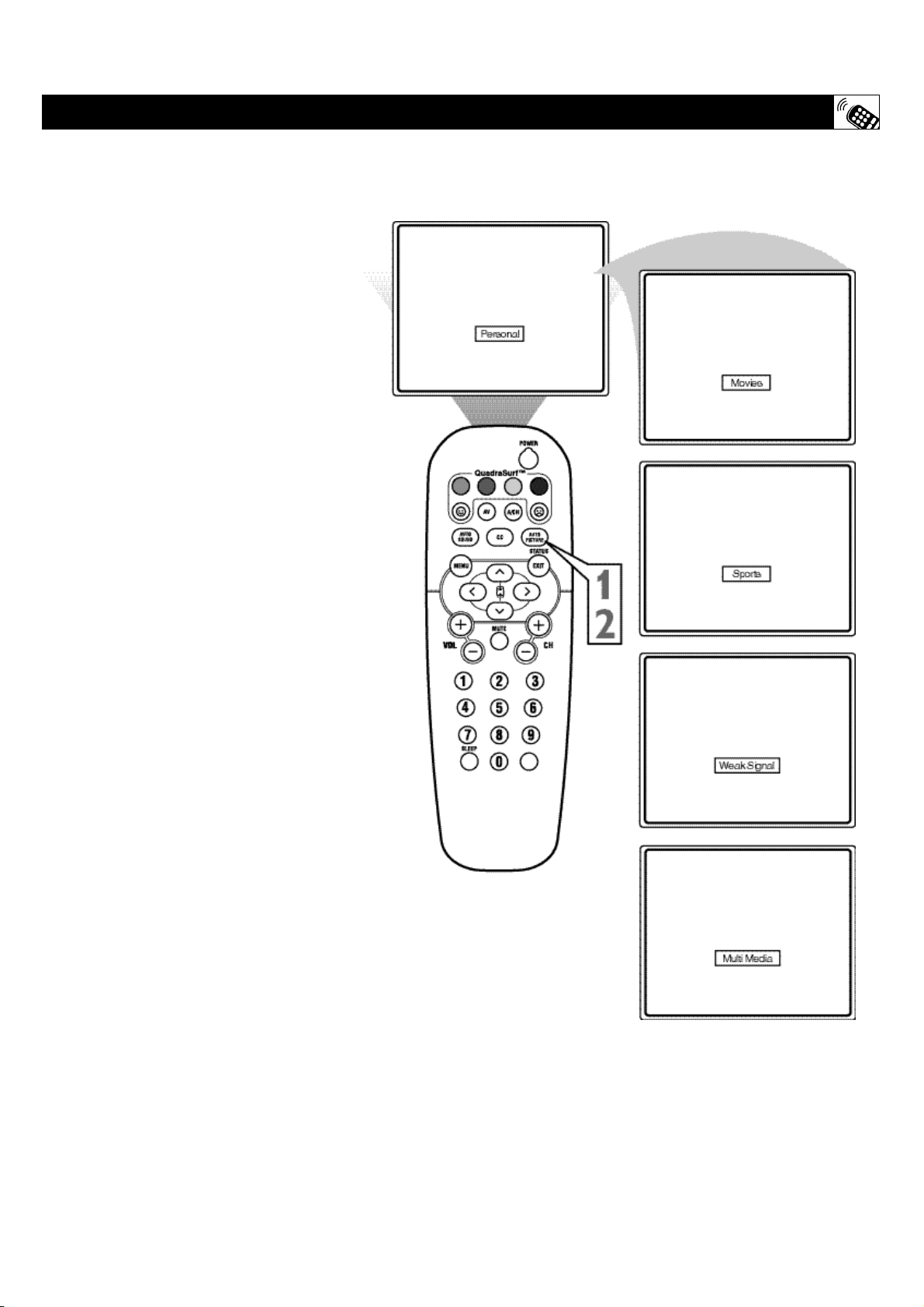
1
Press the AUTO PICTURE button on
the remote control. The current Auto
Picture setting will appear in the middle
of the screen.
2
Press the AUTO PICTURE button
repeatedly to select either PERSON-
AL, MOVIES, SPORTS, WEAK SIG-
NAL, or MULTI MEDIA picture set-
tings.
Note: The PERSONAL setting is the setting
that you setup using the PICTURE options
within the on-screen menu. This is the only
Auto Picture setting that can be changed. All
other settings are setup at the factory during
the time of production.
MOVIES - Preset picture options for watch-
ing Video Tapes, or DVDs.
SPORTS - Preset picture options for watch-
ing sporting events.
WEAK SIGNAL - Preset picture options for
watching programs where the reception is not
at its best.
MULTI MEDIA - Preset picture options for
use with video gaming.
SETTING THE AUTOPICTURE™ CONTROL
32
T
he AutoSound™ feature allows the listen-
er to select between four different factory
set sound options. Personal (which can be set
by the user), Theatre (for movie viewing),
Music (for musical type programming) and
Voice (when the program is mainly dialogue).
These setting affect the Sound menu’s Bass,
Treble, AVL, and Incredible Surround controls
To select any of the options follow the direc-
tions below.
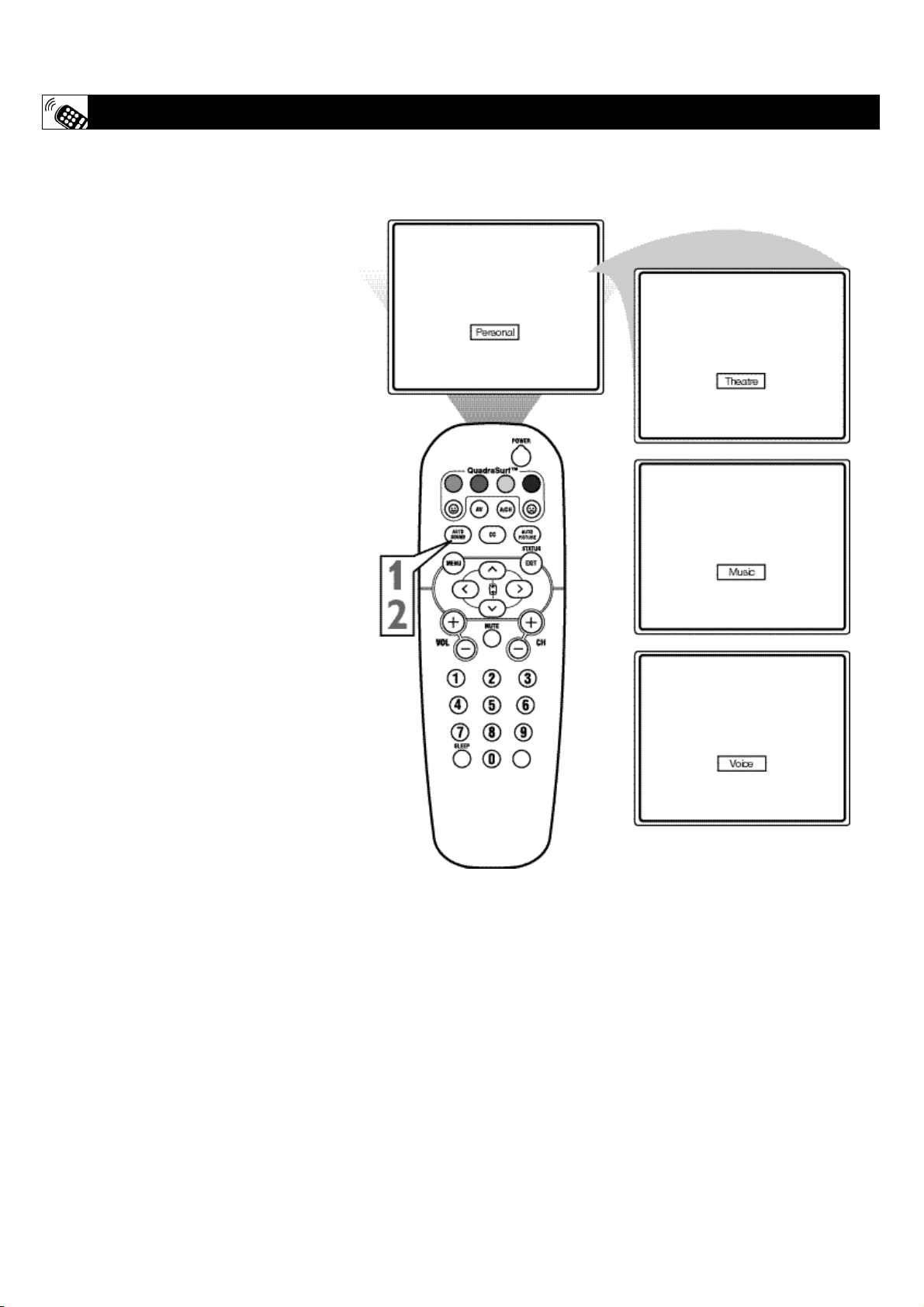
1
Press the AUTO SOUND button on
the remote control. The current Auto
Sound setting will appear in the middle
of the screen.
2
Press the AUTO SOUND button
repeatedly to toggle between the four
settings.
Note: Only the PERSONAL control can be
changed by the viewer. This changes the set-
tings in the main on-screen menu's sound con-
trols.
THEATRE - Preset sound options for watch-
ing movies.
MUSIC - Preset sound options for musical
programming where there is little dialogue.
VOICE - Preset sound options for program-
ming where heavy dialogue is present.
SETTING THE AUTOSOUND™ CONTROL
33
A
“list” or series of previously viewed
channels can be selected with the
QuadraSurf™ (colored) buttons on your
remote control. With this feature you can easi-
ly switch between different TV programs that
currently interest you. The QuadraSurf™ con-
trol allows you set up four different personal
Surf lists using the colored buttons (on the
remote control), each holding up to ten chan-
nels in its quick viewing“list.”
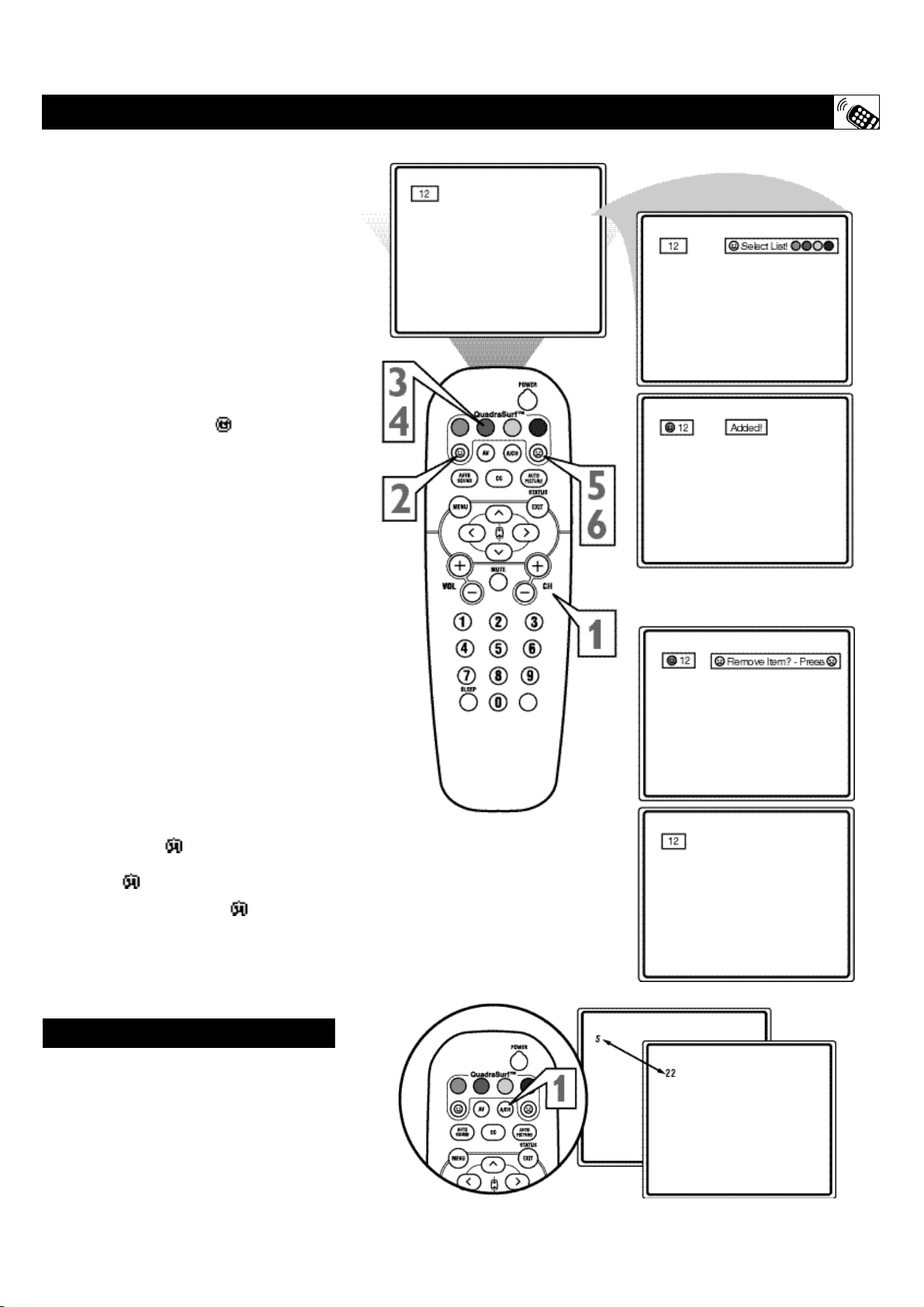
1
Press the CHANNEL (+) or (–) but-
tons (or the NUMBER buttons) to
select a channel to add to one of the
SURF lists.
2
Press the SMILEY button on the
remote control to ADD the channel to
one of the SURF lists.
3
Press the corresponding COLORED
(Red, Green, Yellow or Blue) button
to add the channel to that button’s Surf
list. (Up to ten channels per button can
be stored.)
Repeat steps 1 through 3 to add additional
channels (up to 10) to each of the the SURF
lists.
To remove a channel from one of the SURF
lists;
4
Press the COLORED QuadraSurf™
button until the desired channel
appears. The screen will display the
channel number with a colored
“Smiley” face to indicate the Colored
button it relates to.
5
While the “Smiley” face channel
indicator is displayed, press the
FROWNIE face button. The
screen will read, “Remove item? -
Press .”
6
Press the FROWNIE face button
again to confirm your decision to
remove the channel from the Surf list.
Repeat steps 4-6 to remove other channels
from Surf lists.
USING THE QUADRASURF™ BUTTONS
Your remote also has an A/CH (Alternate
Channel) button. Pressing this button will tog-
gle between the Current and one previously
selected channel.
ALTERNATE CHANNEL
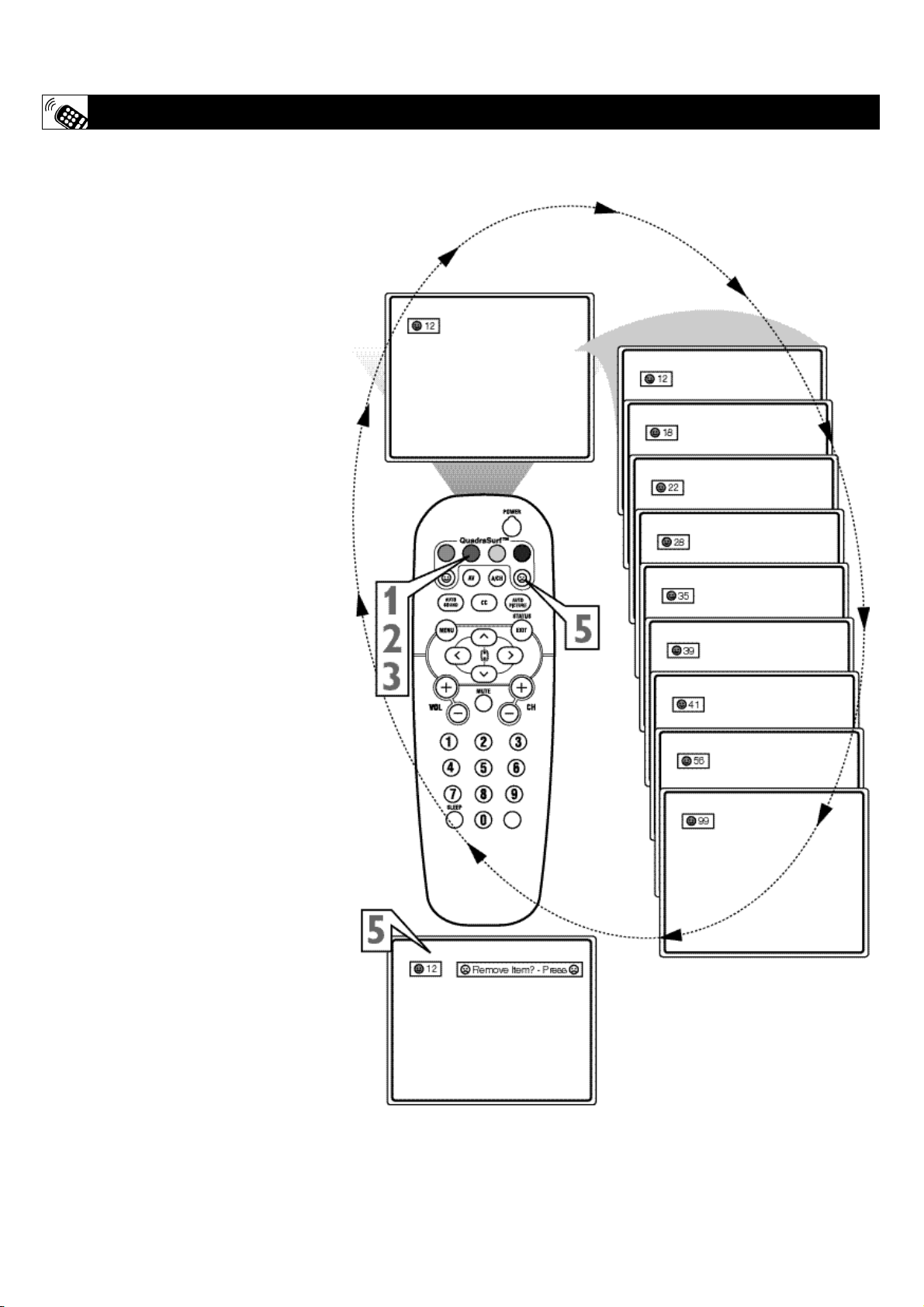
34
T
he QuadraSurf™ buttons on your remote
control allow you to store up to 10 chan-
nels per button (40 total). This is a great fea-
ture if you want to store all your favorite
Sports channels, Movie channels, or News
channels in one surf list. Family members can
have there own favorite list of channels. You
can even program the external A/V Input
jacks (Front channel) for one of the buttons
making it a “source” button for your external
accessory devices.
Assuming channels have now been added to
the four QuadraSurf™ lists (the four colored
buttons on the remote, see the previous page),
let’s review how the feature works.
1
Press one of the pre-programmed
COLORED buttons on the remote
(Red, Green, Yellow or Blue). The
screen will display a smiley face with the
first programmed channel for that surf
list.
2
While the colored “smiley” face still
appears on the screen, press the same
COLORED button on the remote to
tune the second channel programmed for
that specific surf list.
3
Repeatedly pressing the same COL-
ORED button while the “smiley” face
appears will tune all the programmed
channels for that specific surf list. After
the last channel is tuned, pressing the
COLORED button again will return you
to the first channel in the list.
If the “smiley” face disappears from the
screen and the same COLORED button
is pressed, the surf channels will be dis-
played starting with the FIRST pro-
grammed channel again.
4
Repeat steps 1-3 for the other three
COLORED buttons (Surf lists) if
desired.
5
Any time the “smiley” face appears
with the channel number, pressing the
“frownie” face button will allow you
to remove it from the list (see the pre-
vious page for more details).
USING THE QUADRASURF™ BUTTONS

35
TROUBLESHOOTING
CARE AND CLEANING
WARNING Concerning Stationary Images on the TV
Screen:
Do not leave stationary or letterbox images on screen
for extended periods of time. This can cause uneven
picture-tube aging.
Normal use of the TV should involve the showing of pictures
that contain constantly moving and changing images that fill the
screen. Be careful not to leave nonmoving images on screen for
extended periods of time, or to display the same images on
screen too frequently, because subtle ghost images can be left
on the picture tubes. Sources of stationary images may be DVD
disks, laser disks, video games, CD-i disks, videotapes, digital
television boxes, broadcast channels, cable channels, satellite
channels, and others. Here are some examples of stationary
images (this is not an all-inclusive list; you may encounter
others in your viewing):
• DVD menus—listings of DVD disk content
• Letterbox black bars—shown at the top and bottom of the
TV screen when a wide screen (16:9) movie is viewed on a
TV with standard (4:3) aspect ratio.
• Video-game images and scoreboards
• Television station logos—present a problem if they are
bright and stationary; moving or low-contrast graphics are
less likely to cause uneven aging of the picture tube
• Stock-market tickers—presented at the bottom of the TV
screen
• Shopping channel logos and pricing displays—bright
and shown constantly or repeatedly in the same location on
the TV screen.
P
LACEMENT OF THE TV
• To avoid cabinet warping, cabinet color changes, and
increased chance of set failure, do not place the TV where
temperatures can become excessively hot; for example, in
direct sunlight or near a heating appliance.
• Be sure to allow a free flow of air to and from the perforated
back cover of the set.
CLEANING
• To avoid possible shock hazard, be sure the TV is unplugged
from the electrical outlet before cleaning.
• Regularly dust the TV with a dry, nonscratching duster to
keep the TV clean.
• When cleaning the TV, take care not to scratch or damage the
screen surface. Avoid wearing jewelry or using anything
abrasive. Do not use household cleaners. Wipe the front
screen with a clean cloth dampened with water. Use even,
easy, vertical strokes when cleaning.
• Gently wipe the cabinet surfaces with a clean cloth or sponge
dampened in a solution of cool, clear water and a mild soap
or detergent. Use a clean, dry cloth to dry the wiped surfaces.
• Occasionally vacuum the ventilation holes or slots in the back
cover of the set.
• Never use thinners, insecticide sprays, or other chemicals on
or near the cabinet, as they might cause permanent marring
of the cabinet finish.
No Power
• Check the TV power cord. Unplug the TV, wait 10 seconds,
then reinsert the plug into the outlet and push the POWER
button again.
• Check that the outlet is not on a wall switch.
• Be sure the fuse is not blown on the AC power strip, if one is
being used.
No Picture
• Check antenna connections. Are they properly secured to the
TV's ANT 75Ω plug?
• Check the TUNER MODE control for the correct tuner set-
ting.
• Try running the Auto Program feature to find all available
channels.
• Press the AV button on the remote to make sure the correct
signal source is selected (FRONT or Current Channel).
No Sound
• Check the VOLUME buttons.
• Check the MUTE button on the remote control.
• If you’re attempting to hook up auxiliary equipment, check
the audio jack connections located on the front of the TV.
Remote Does Not Work
• Check the batteries. If necessary, replace them with AA
Heavy Duty (Zinc Chloride) or Alkaline batteries.
• Clean the remote control and the remote control sensor win-
dow on the TV.
• Check the TV power cord. Unplug the TV, wait 10 seconds,
then reinsert the plug into the outlet and push the POWER
button again.
• Be sure the fuse is not blown on the AC power strip, if one is
being used.
• Check to be sure the TV outlet is not on a wall switch.
TV Displays Wrong Channel or No Channels Above 13
• Repeat channel selection.
• Add the desired channel numbers (using the CHANNEL
EDIT control) into the TV’s memory.
• Check to be sure the TUNER MODES are set to the CABLE
option and run the Auto Program feature to find all available
channels.

36
Auto Programming • The procedure of adding or deleting
channel numbers into the Television’s memory circuits. In this
way the Television “remembers’’ only the locally available or
desired channel numbers and skips over any unwanted channel
numbers.
Coaxial Cable • A single solid antenna wire normally matched
with a metal plug (F-type) end connector that screws (or pushes)
directly onto a 75 Ohm input found on the Television or VCR.
Closed Caption • Broadcast standard which allows you to
read the voice content of television programs on the TV screen.
Designed to help the hearing impaired this feature uses on-
screen "text boxes" to show dialogue and conversations while
the TV program is in progress.
Side Audio/Video Inputs • Located on the side of the TV
these connectors (phono type plug) are used for the input of
audio and video signals. Designed for easy use with VCRs or
cameras.
On Screen Displays (OSD) • Refers to the wording or mes-
sages generated by the television (or VCR) to help the user with
specific feature controls (color adjustment, programming, etc.).
Menu • An on-screen listing of feature controls shown on the
Television screen that are made available for user adjustments.
Quadra Surf • The feature that allows the programming of
four separate Surf lists holding up to 10 channels each.
Remote Sensor Window • A window or opening found on
the Television control panel through which infrared remote con-
trol command signals are received.
Status/Exit • Allows the user to quickly confirm what channel
number is currently being viewed. Status can also be used to
clear the Television of on screen displays or information (rather
than waiting for the displays to “time out” or automatically dis-
appear from the screen).
Surf • The action of scanning specific channel in a limited
channel list.
Twin Lead Wire • The more commonly used name for the two
strand 300 Ohm antenna wire used with many indoor and out-
door antenna systems. In many cases this type of antenna wire
requires an additional adapter (or balun) in order to connect to
the 75 Ohm Input terminals designed into the more recent
Televisions and VCRs.
Tuner Mode • Feature control settings made by the TV.
Designed for first time set up and use. Settings for signal con-
nections (antenna or cable TV), plus channel program memory
are held in the TV's memory (even if the set is unplugged and
moved to a new location.)
GLOSSARY OF TERMS

37
INDEX
Alternate Channel . . . . . . . . . . . . . . . . . . . . . . . . . . . . . . . . .33
Antenna TV Connection . . . . . . . . . . . . . . . . . . . . . . . . . . . . .7
Audio/Video Inputs . . . . . . . . . . . . . . . . . . . . . . . . . . . . . . . . .9
Audio/Video Outputs . . . . . . . . . . . . . . . . . . . . . . . . . . . . . . .12
Auto Lock
Access Code . . . . . . . . . . . . . . . . . . . . . . . . . . . . . . . . . . . .22
Block All Control . . . . . . . . . . . . . . . . . . . . . . . . . . . . . . . .25
Block Channels Control . . . . . . . . . . . . . . . . . . . . . . . . . . .23
Blocking Options . . . . . . . . . . . . . . . . . . . . . . . . . . . . . . . .28
Clear All Control . . . . . . . . . . . . . . . . . . . . . . . . . . . . . . . .24
Explanation of Auto Lock . . . . . . . . . . . . . . . . . . . . . . . . .21
Movie Rating Control . . . . . . . . . . . . . . . . . . . . . . . . . . . .26
TV Rating Control . . . . . . . . . . . . . . . . . . . . . . . . . . . . . . .27
Auto Picture Control . . . . . . . . . . . . . . . . . . . . . . . . . . . . . . .31
Auto Program Control . . . . . . . . . . . . . . . . . . . . . . . . . . . . . .16
Auto Sound Control . . . . . . . . . . . . . . . . . . . . . . . . . . . . . . .32
AVL Control . . . . . . . . . . . . . . . . . . . . . . . . . . . . . . . . . . . . .19
Balance Control . . . . . . . . . . . . . . . . . . . . . . . . . . . . . . . . . .19
Bass Boost Control . . . . . . . . . . . . . . . . . . . . . . . . . . . . . . . .19
Brightness Control . . . . . . . . . . . . . . . . . . . . . . . . . . . . . . . .18
Cable Box Connection . . . . . . . . . . . . . . . . . . . . . . . . . . . . . .8
Cable TV Connection (Basic Connection) . . . . . . . . . . . . . . . .7
Care and Cleaning . . . . . . . . . . . . . . . . . . . . . . . . . . . . . . . . .35
Channel Edit Control . . . . . . . . . . . . . . . . . . . . . . . . . . . . . . .17
Closed Caption Control . . . . . . . . . . . . . . . . . . . . . . . . . . . . .30
Color Control . . . . . . . . . . . . . . . . . . . . . . . . . . . . . . . . . . . .18
Color Temperature Control . . . . . . . . . . . . . . . . . . . . . . . . . .18
Component Video Inputs . . . . . . . . . . . . . . . . . . . . . . . . . . . .11
Contrast + Control . . . . . . . . . . . . . . . . . . . . . . . . . . . . . . . . .18
Noise Reduction (NR) Control . . . . . . . . . . . . . . . . . . . . . . .18
Format (Expand 4:3) Control . . . . . . . . . . . . . . . . . . . . . . . . .20
Format (Compress 16:9) Control . . . . . . . . . . . . . . . . . . . . . .20
Glossary of Terms . . . . . . . . . . . . . . . . . . . . . . . . . . . . . . . . .36
Index . . . . . . . . . . . . . . . . . . . . . . . . . . . . . . . . . . . . . . . . . . .37
Language Control . . . . . . . . . . . . . . . . . . . . . . . . . . . . . . . . .14
Picture Control . . . . . . . . . . . . . . . . . . . . . . . . . . . . . . . . . . .18
Remote Control Buttons . . . . . . . . . . . . . . . . . . . . . . . . . . . . .6
Remote Control Operation (Basic) . . . . . . . . . . . . . . . . . . . . .5
S-Video Inputs . . . . . . . . . . . . . . . . . . . . . . . . . . . . . . . . . . .10
Safety Instructions . . . . . . . . . . . . . . . . . . . . . . . . . . . . . . . . . .3
Sharpness Control . . . . . . . . . . . . . . . . . . . . . . . . . . . . . . . . .18
Side A/V Inputs . . . . . . . . . . . . . . . . . . . . . . . . . . . . . . . . . . .13
Sleeptimer Control . . . . . . . . . . . . . . . . . . . . . . . . . . . . . . . .29
Surf/Quadra Surf Controls . . . . . . . . . . . . . . . . . . . . . . . .33-34
Table of Contents . . . . . . . . . . . . . . . . . . . . . . . . . . . . . . . . . .4
Tint Control . . . . . . . . . . . . . . . . . . . . . . . . . . . . . . . . . . . . . .18
Troubleshooting Tips . . . . . . . . . . . . . . . . . . . . . . . . . . . . . . .35
Treble Boost Control . . . . . . . . . . . . . . . . . . . . . . . . . . . . . . .19
Tuner Mode Control . . . . . . . . . . . . . . . . . . . . . . . . . . . . . . .15
TV Operation (Basic) . . . . . . . . . . . . . . . . . . . . . . . . . . . . . . .5
Limited Warranty . . . . . . . . . . . . . . . . . . . . . . . . . . . . . . . . .38
Welcome/Registration Information . . . . . . . . . . . . . . . . . . . . .2

38
Philips, P.O. Box 671539, Marietta, GA. 30006-0026
90 Days Labor & One (1) Year Parts & Two (2) Years Display
PHILIPS LIMITED WARRANTY
PHILIPS CONSUMER ELECTRONICS warrants this
product against defect in material or workmanship, subject to
any conditions set forth as follows:
PROOF OF PURCHASE: You must have proof of the date
of purchase to receive warranted repair on the product.A sales
receipt or other document showing the product and the date
that you purchased the product as well as the authorized retail-
er included, is considered such proof.
COVERAGE:
(If the product is determined to be defective)
LABOR: For a period of ninety (90) days from the date of pur-
chase, Philips will repair or replace the product, at its option, at
no charge, or pay the labor charges to any Philips authorized
repair facility. After the period of ninety (90) days, Philips will no
longer be responsible for charges incurred.
PARTS: For a period of one (1) year from the date of purchase,
Philips will supply at no charge, new or rebuilt replacement
parts in exchange for defective parts. Philips authorized service
centers will provide removal and installation of the part under
the specified labor warranty.
DISPLAY: For a period of two (2) years from the date of pur-
chase, Philips will supply, at no charge, a new or rebuilt active
display device in exchange for the defective display. Philips
authorized service centers will provide removal and installation
of the parts under the specified labor warranty.
EXCLUDED FROM WARRANTY COVERAGE
Your warranty does not cover:
• Labor charges for installation or setup of the product, adjust-
ment of customer controls on the product, and installation
or repair of antenna systems outside of the product.
• Product repair and/or part replacement because of improper
installation, connections to improper voltage supply, abuse,
neglect, misuse, accident, unauthorized repair or other cause
not within the control of Philips.
• A product that requires modification or adaptation to enable
it to operate in any country other than the country for
which it was designed, manufactured, approved and/or
authorized, or repair of products damaged by these modifica-
tions.
• Damage occurring to product during shipping when improp-
erly packaged or cost associated with packaging.
• Product lost in shipment and no signature verification of
receipt can be provided.
• A product used for commercial or institutional purposes
(including but not limited to rental purposes).
• Products sold AS IS or RENEWED.
TO OBTAIN WARRANTY SERVICE IN THE U.S.A.,
PUERTO RICO, OR U.S.VIRGIN ISLANDS…
Contact Philips Customer Care Center at:
1-888-PHILIPS (1-888-744-5477)
TO OBTAIN WARRANTY SERVICE IN CANADA…
1-800-661-6162 (French Speaking)
1-888-PHILIPS (1-888-744-5477) - (English or Spanish
Speaking)
REPAIR OR REPLACEMENT AS PROVIDED UNDER THIS
WARRANTY IS THE EXCLUSIVE REMEDY FOR THE CON-
SUMER. PHILIPS SHALL NOT BE LIABLE FOR ANY INCIDEN-
TAL OR CONSEQUENTIAL DAMAGES FOR BREACH OF
ANY EXPRESS OR IMPLIED WARRANTY ON THIS PROD-
UCT. EXCEPT TO THE EXTENT PROHIBITED BY APPLICABLE
LAW,ANY IMPLIED WARRANTY OF MERCHANTABILITY OR
FITNESS FOR A PARTICULAR PURPOSE ON THIS PRODUCT
IS LIMITED IN DURATION TO THE DURATION OF THIS
WARRANTY.
Some states do not allow the exclusions or limitation of inci-
dental or consequential damages, or allow limitations on how
long an implied warranty lasts, so the above limitations or exclu-
sions may not apply to you. In addition, if you enter into a serv-
ice contract agreement with the PHILIPS partnership within
ninety (90) days of the date of sale, the limitation on how long
an implied warranty lasts does not apply.
This warranty gives you specific legal rights. You may have other rights which vary from state/province to state/province.
(Warranty: 4835 710 27400)

Specifications are subject to change without notice.
Trademarks are the property of Koninklijke Philips Electronics N.V. or their respective owners.
2005 © Koninklijke Philips Electronics N.V.All rights reserved.
www.philips.com
3141 095 20341