User Guide

Contents
Exciting F
eatures
Featured Usage Tips 1
Camera Tips 1
More Features 3
New Device
New Device Conguration 5
Smart Charging: Charge Your Device Faster and Safer 7
Wireless Charging, the New Choice for Easy Charging 8
Gestures and Operations
Screenshots and Screen Recording 10
Home Screen
Navigation Bar 11
Use Shortcut Switches to Quickly Enable Frequently Used Features 12
Notication Panel and Status Bar 12
Screen Lock and Unlock 15
Home Screen Management 16
Contacts
Managing Business Cards 20
Search Contacts 21
Managing Contacts 22
Merging Third-party App Contacts 23
Dialing
Basic Calling Functions 25
VoLTE 26
Use VoWi-Fi for a New Calling Experience 27
Message
Basic Messaging Functions 28
Camera
Basic Camera Functions 30
Use Portrait Mode to Take Stunning Portraits 33
Panorama 33
Use 3D Panorama to Take 360-degree Photos 34
Pro Mode 35
Take Black and White Photos 37
Light Painting Mode 38
More Capture Modes 43
i

Gallery
Customize Highlights Albums 46
Photo Management 47
Phone Manager
Use One-touch Optimization 52
Manage Mobile Data Usage 52
Enable Smart Power-Saving Management to Optimize Power
Consumption
53
Enable Virus Scanner 54
Email
Add Email Accounts 55
Manage Email Accounts 55
Manage VIP Email Contacts 56
Set Auto Response for Exchange Email 56
Calendar
Navigate the Calendar 57
Import To-Dos to Keep Your Work Organized 58
View Global Holidays 58
Clock
Use the Clock 60
Notepad
Manage Your Notes to Keep Your Records in Order 62
Utilities
Use Recorder to Make Audio Notes 64
Multiple Users
Set and Use Multiple Users 65
Device Connection
Bluetooth 67
NFC 69
Desktop Mode 71
Connecting USB Device 75
Huawei Share 76
Security and Privacy
Face Unlock 79
Fingerprint 80
Enable or Disable Location Services 82
PrivateSpace 82
Contents
ii

Enable App Lock 86
More Security Settings 87
Backup and Restoration
Data Backup: Prevent the Loss of Your Data 89
Data Backup Using HiSuite 89
Data Backup to a USB Storage Device 89
Reset Your Phone 90
Restore Your Backup Data 90
Wi-Fi and Network
Wi-Fi 92
Connecting to the Internet 95
Share Your Mobile Network with Other Devices 95
Apps and Notications
App Twin: Log in to Two Social Media Accounts at Once 97
Sound and Display
Congure Do Not Disturb Mode 98
Congure Your Sound Settings 98
More Display Settings 99
Storage
Enable Memory Cleanup 101
Smart Assistance
Access Phone Functions from Anywhere with Navigation Dock 102
System
Change the Input Method 103
Accessibility 103
General Settings 105
System Update
Performing an Online Update 109
Legal Notice
Legal Notice 110
Personal Information and Data Security 112
Water and Dust Resistance 112
Laser safety information 113
Obtaining help 114
Contents
iii

Exciting Features
Featur
ed Usage Tips
Access Phone Functions from Anywhere with Navigation Dock
In order to close an app or return to the home screen, you must use the navigation bar at the bottom
of your Phone. You can enable the Navigation dock feature on your Phone to avoid using navigation
buttons and to comfortably operate your device with one hand.
Open
Settings. Go to System
> System navigation > Navigation dock and enable
Navigation dock. The Navigation dock will appear on the screen. You can then drag it to your
preferred location. The Navigation dock can perform the following actions:
l Back: Touch the Navigation dock once to go back one step, or touch it twice to go back two steps.
l Home: Touch and hold the Navigation dock and then release it to go to the home screen.
l View background apps: Touch and hold the Navigation dock and then swipe left or right to view
any apps that are running in the background.
App Twin: Log in to Two Social Media Accounts at Once
Have you ever wished you could log in to two WeChat and Facebook accounts on your Phone
without the hassle of constantly switching between them? App twin lets you log in to two WeChat
and Facebook accounts at the same time, allowing you to keep your work and private life separate.
The App twin feature is currently limited to WeChat, QQ Messenger, LINE, Facebook, Snapchat,
WhatsApp, and Messenger. Please download and instal
l the latest version of these apps before
using the App twin feature.
Touch
Settings, and go to Apps > App twin. Enable App twin as requir
ed.
When App twin is enabled for an app, two app icons are displayed for the app on the home screen.
This means that you can log in to two accounts at the same time. Touch and hold the twinned app
icon on the home screen to quickly disable App twin.
Camera Tips
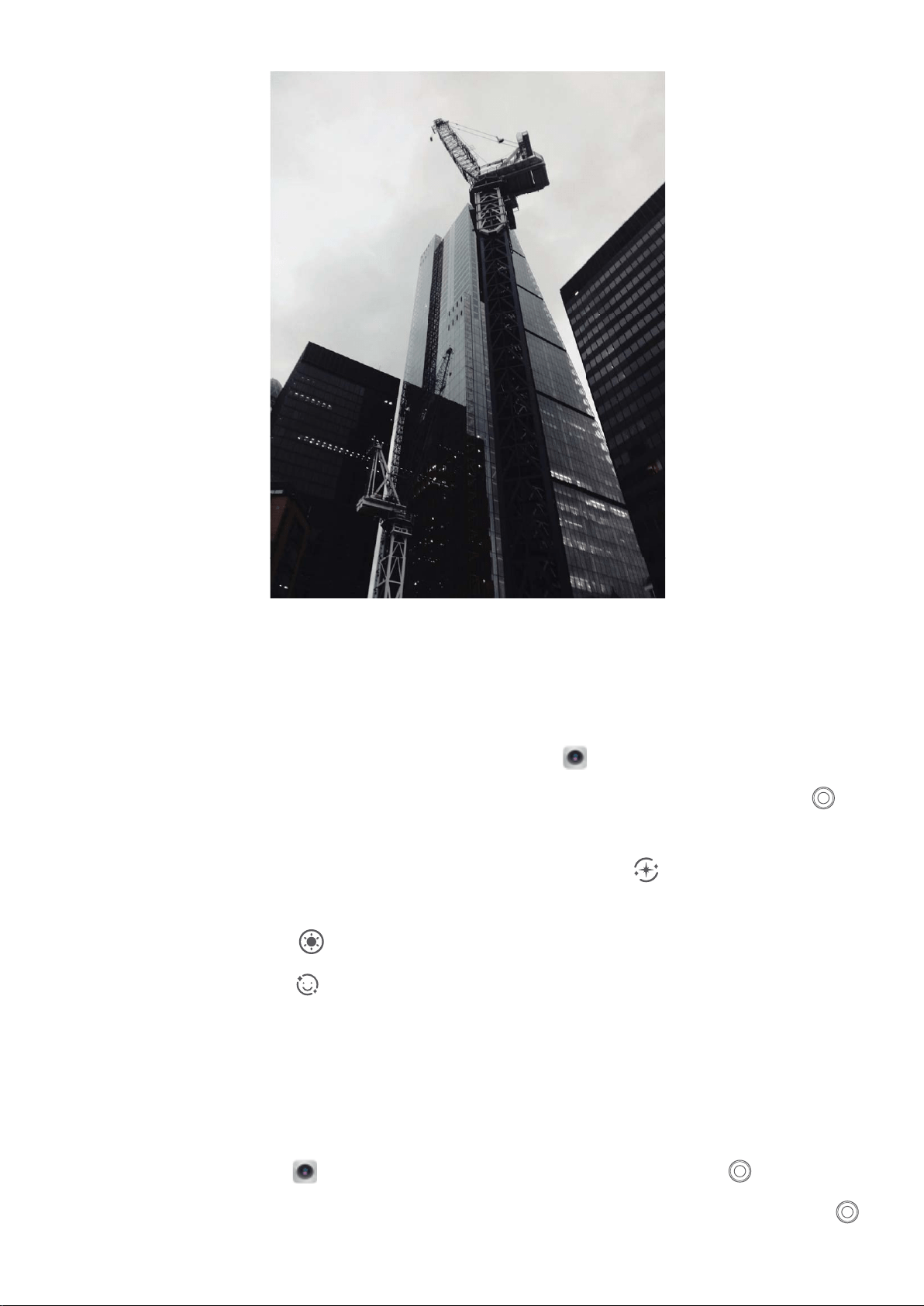
Take Black and White Photos
The world is an amazingly colorful place. But sometimes too many colors can be distracting.
Monochrome mode lters out color, helping to bring out light and shadows, and give photos more
mood and atmosphere.
Open
Camera > More
> Monochrome, and then touch
to take photos in black and white.
1
Use Portrait Mode to Take Stunning Portraits
W
ant to make your seles or group shots even more beautiful? Portrait mode provides you with
customized options to make every photo beautiful and memor
able.
Enable Portrait mode and make your photos shine: Open
Camera > P
ortrait, and you can
set the following parameters to make your photos shine. After making the adjustments, touch
to
take photos.
l Blurr
ed effect: If there is a light source in the background, touch the
icon in the viewnder
and select different blurred effects.
l S
tage lighting: Touch the
icon in the viewnder and select a stage lighting effect.
l Beauty effect: T
ouch the
icon in the viewnder
and drag the slider left or right to adjust
beautication settings. Larger parameter values will make the beautication effects more distinct.
Use 3D Panorama to Take 360-degree Photos
Try the 3D panorama function to capture a 360-degree view of a scene or person.
There are three shooting modes for the 3D panorama function:
l Shooting objects: Go to
Camera > Mor
e > 3D panorama. Touch and hold
, then follow
the onscr
een prompts to slowly move your Phone around your subject in one direction. Release
Exciting Features
2

to stop shooting. After shooting, touch the camera thumbnail, and then touch
3D
above the
photo to generate a 3D panor
amic photo.
l Shooting scenery: Go to
Camera > More
> 3D panorama. Touch and hold
, then follow
the onscreen pr
ompts to slowly move your Phone around your subject in one direction. Release
to stop shooting. After shooting, touch the camera thumbnail, and then touch
3D
above the
photo to generate a 3D panor
amic photo.
After a 3D panorama has been generated, you can tilt your Phone or drag the photo to view the 3D
effect.
More Features
Enable App Lock
App lock allows you to set a password for your important apps. Once you restart your Phone or
unlock the screen, you will be asked to enter your App lock password when opening the apps for the
rst time. App lock enhances the protection of your private information and prevents unauthorized
access to important apps on your device.
Enable App lock: Open
Settings. Go to Security & privacy > App lock. When you access the
app for the rst time, follow the onscreen instructions to set the password and enter the app lock. In
subsequent access, you can directly enter the app lock passwor
d. On the App lock screen, enable App
lock for the apps you want to protect. When accessing a locked app for the rst time, you need to
enter the password in the password text box. If you forget the password, touch Forgot password,
enter the answer in the password protection question box, and reset the password. If you have not
set the password protection, the Forgot password option is not available.
If you have set up a ngerprint and facial recognition to unlock your Phone and are opening App
lock for the rst time, you can follow the onscreen instructions to associate your ngerprint and
facial recognition with App lock for easier app unlocking.
Modify your App lock passwor
d and password protection: T
ouch
on the App lock screen,
and then touch Change password
or Change password protection to modify your App lock
password or password protection.
Enable PrivateSpace
Do you worry that potentially embarrassing information might be seen by your friends and co-workers
when you are showing them photos and other things on your Phone? PrivateSpace lets you store
private information in a hidden space within your device that can only be accessed with your
ngerprint or password.
You can add up to three users to Users
and PrivateSpace on your Phone. If you have already
added three users under Settings > Users & accounts > Users > Add user, you cannot add
more users to PrivateSpace.
Exciting Features
3

Enable PrivateSpace: If you ar
e using PrivateSpace for the rst time, open
Settings, go to
Security & privacy > PrivateSpace > Enable, and fol
low the onscreen instructions to create your
PrivateSpace.
You can only create one PrivateSpace.
Quickly switch between MainSpace and PrivateSpace: Fr
om the lock screen, you can quickly
switch between spaces using your ngerprint or password. After you restart your Phone, you are
required to rst enter the MainSpace using your password. You can then switch between spaces from
your lock screen.
Enter PrivateSpace: You can enter your PrivateSpace directly from the lock screen using your
ngerprint or password. Alternatively, open
Settings in MainSpace, and go to Security &
privacy > PrivateSpace > L
og in to enter your PrivateSpace.
Exit PrivateSpace: When you exit your PrivateSpace, all system memory used by the PrivateSpace
will be freed. You can still switch back to your PrivateSpace whenever you need it. To exit
PrivateSpace, open
Settings, and go to Security & privacy > PrivateSpace > Quit
PrivateSpace.
Delete PrivateSpace: Deleting your PrivateSpace wil
l permanently delete all apps and data stored
within your PrivateSpace and this data will be unable to be restored. You can delete your PrivateSpace
in the following ways:
l From the MainSpace, open
Settings, then go to Security & privacy > PrivateSpace and
touch > Delete PrivateSpace.
l Fr
om the PrivateSpace, open
Settings, then go to Security & privacy > PrivateSpace >
Delete PrivateSpace.
Exciting Features
4

New Device
New Device
Conguration
Connecting to the Internet
Connect to Wi-Fi networks effortlessly with your device.
Connecting to a Wi-Fi network
1 Swipe down from the status bar to open the notication panel.
2 Touch and hold
to open the Wi-Fi settings screen.
3 S
witch on Wi-Fi. Your device will list all available Wi-Fi networks at your location.
4 Select the Wi-Fi network you want to connect to. If you select an encrypted network, you will also
need to enter the Wi-Fi password.
Connecting using mobile data
Before using mobile data, ensure that you have a data plan with your carrier to avoid incurring
excessive data char
ges.
1 S
wipe down from the status bar to open the notication panel.
2 Touch
to enable mobile data.
When you don't need to access the Internet, disable mobile data to save battery power and
r
educe data usage.
Enroll Your Facial Information and Enable Face Unlock
Want to quickly unlock your Phone or make payment without entering your lock screen password?
Huawei Phone brings you a Face unlock function. After enrolling your facial information, you can
quickly unlock the screen or make payment using your face securely without a password.
1 Open
Settings. Go to Security & privacy > F
ace recognition and enter your lock screen
password.
2 Enable Pick up to wake device to enhance the Face unlock experience is selected by
default. Your Phone will turn on the screen and recognize your face to unlock the screen
automatically whenever you pick up your Phone and hold it to your face. If you do not wish to use
this feature, you can disable this option. Touch Enroll face and follow the onscreen instructions to
enroll your face.
3 Methods to set Face unlock:
l Direct unlock: Go to Settings > Security & privacy > Face recognition and enter your lock
screen password. On the Face recognition screen, select Direct unlock. Then, you can
unlock the screen by lifting your Phone and aligning the screen to your face.
l Swipe to unlock: Turn on the screen. After your Phone has recognized your facial
information, swipe your nger on the lockscreen to unlock your device.
5

l Smart lock scr
een notication display: Smart lock screen notications is enabled by
default. Notication details will not be displayed on the lock screen until your Phone recognizes
your facial features.
l Access App lock: If you enable Access app lock, the Face unlock function can be used to
access apps and locked apps.
l When enr
olling facial data, ensure that the camera lens is clean, and maintain an unobstructed
distance of 20 cm to 50 cm between your face and the device. Make sure that your face is
within the enrollment window, and then turn your head slowly to enroll facial data.
l Only the owner can enable Face unlock. This feature is not available for users or guests, and
not supported in PrivateSpace either.
l When using Face unlock to unlock your Phone, keep your eyes open, face directly towards your
Phone. Your device cannot be unlocked using a picture, photo or video.
l The Face unlock function will be locked after ve unsuccessful face recognition attempts in a
row. You need to enter the lock screen password to unlock it.
l If you power on your Phone for the rst time or restart it, you need to enter the lock screen
password to unlock it. In this case, Face unlock will not be available.
l Face unlock does not work when your device is in quick calling mode or the screen is turned on
during an incoming call. After the call has ended, Face unlock is enabled again.
Pick Up to Lock
Open
Settings, and go to Security & privacy > F
ace recognition. When enrolling facial data,
select Enable Pick up to wake device to enhance the Face unlock experience, and set the Face
unlock method to Direct unlock. Once the setup is complete, you can simply raise your Phone to
unlock the screen, without a password or ngerprint.
If you haven't selected Enable Pick up to wake device to enhance the Face unlock experience
when enrolling facial data, you can open
Settings, go to Security & privacy > F
ace
recognition, and set the Face unlock method to Direct unlock. Then, open
Settings, go to
Smart assistance > Motion contr
ol > Pick up, and select Wake up device.
Connect to Wi-Fi
By connecting your device to a Wi-Fi network, you can effectively save mobile data.
To avoid potential security risks (such as unauthorized access to your personal data and nancial
information), please exercise caution when connecting to a public Wi-Fi network.
New Device
6
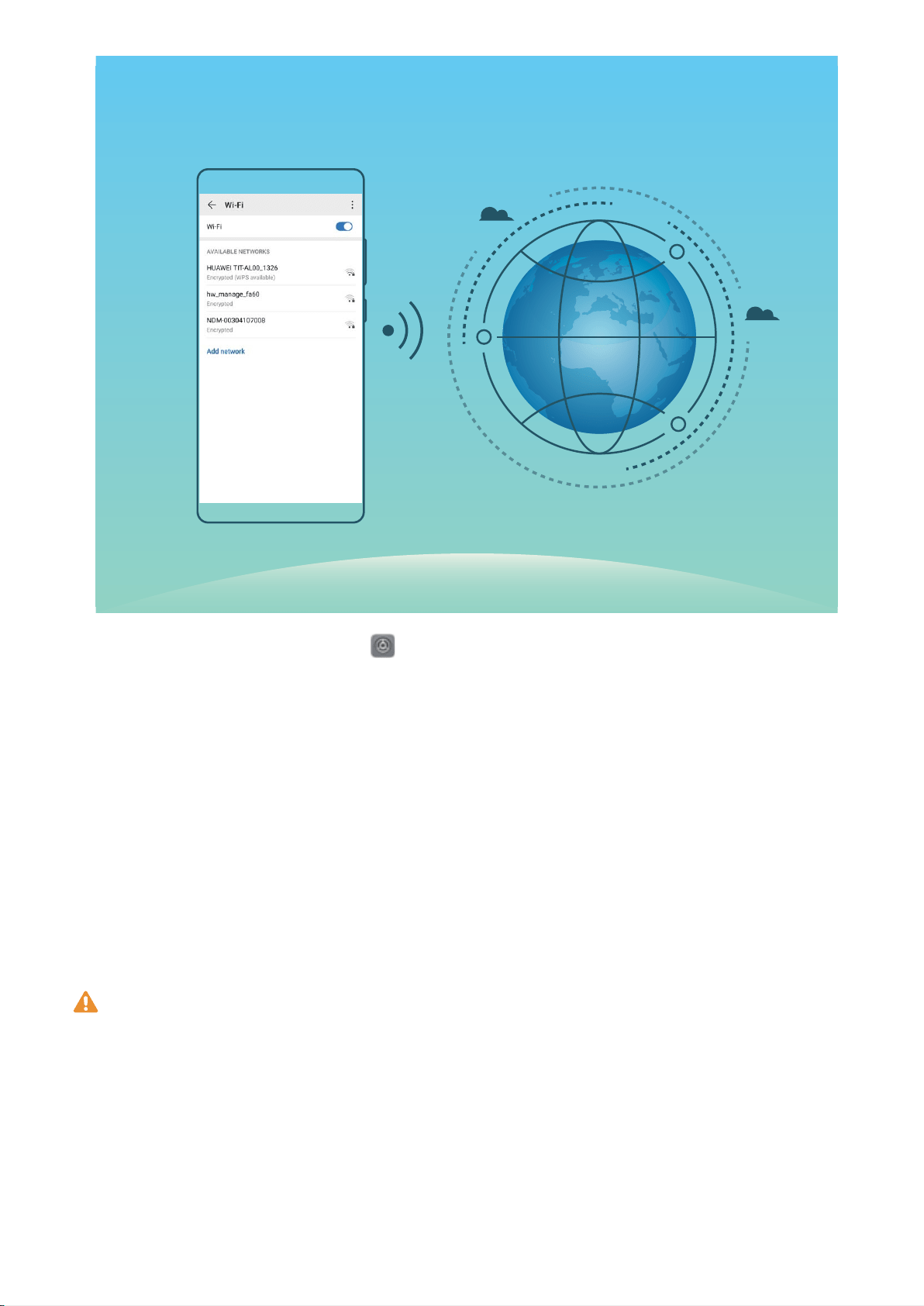
Connect to a Wi-Fi Network: Open Settings, go to W
ireless & networks > Wi-Fi, and enable
Wi-Fi. Touch a Wi-Fi network to access it, and enter the network password or complete the
authentication if required. Alternatively, you can scroll to the bottom of the menu, touch Add
network, and follow the onscreen instructions to add a network hotspot by entering its name and
password.
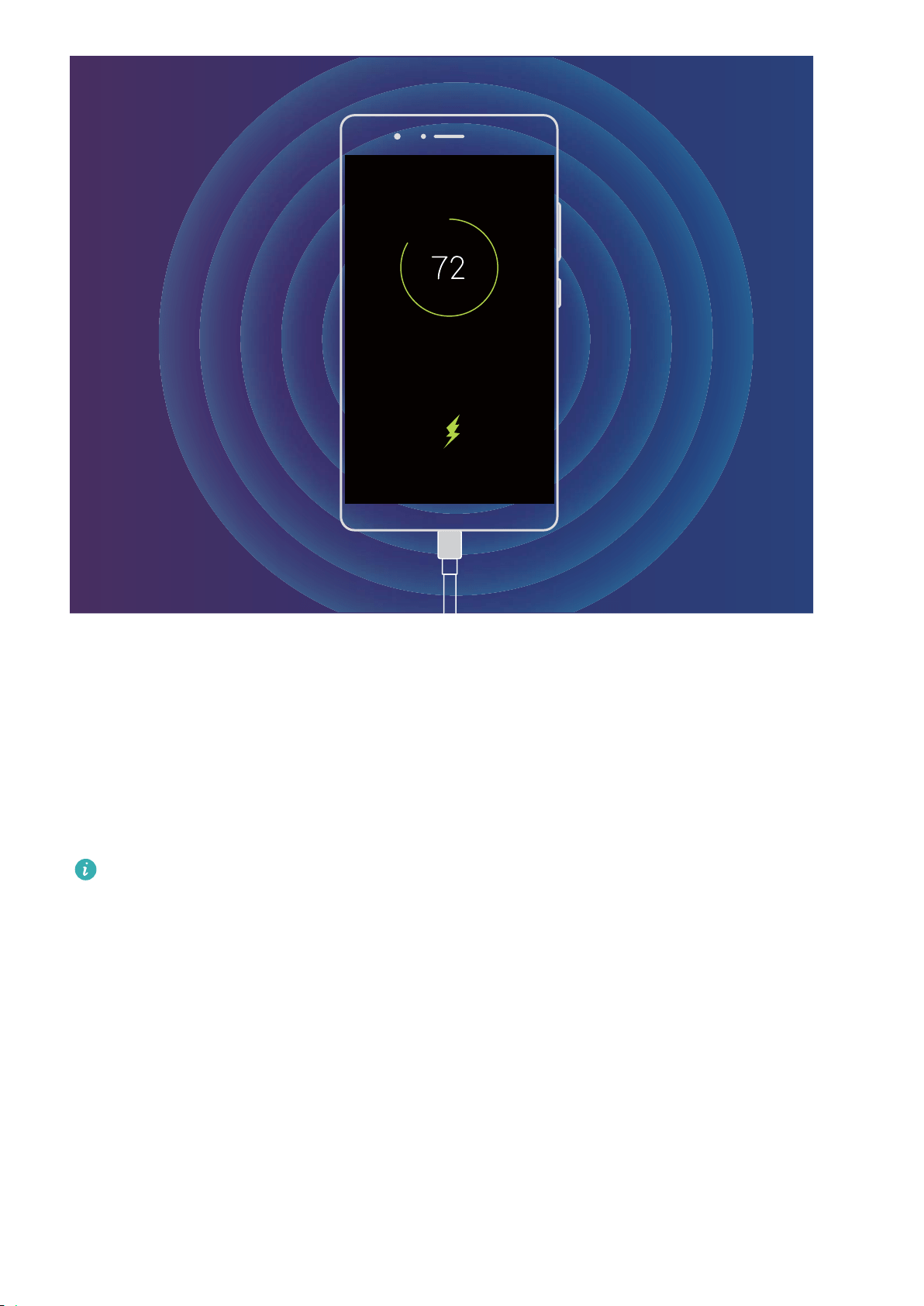
Smart Charging: Charge Your Device Faster and Safer
Many people nd ordinary charging too slow, but worry about the safely of fast-charging. Worry no
more: SmartCharge has you covered. SmartCharge establishes a direct connection between the Phone
and the charger and intelligently coordinates the charging voltage and current based on the battery
power of the Phone to provide a smarter, faster, and safer charge.
Make sure you are using the original charger and USB cable when charging your Phone. Using a
thir
d-party charger or USB cable may cause repeated restarts, longer charges, overheating, and in
extreme cases, Phone battery damage or even explosion.
New Device
7
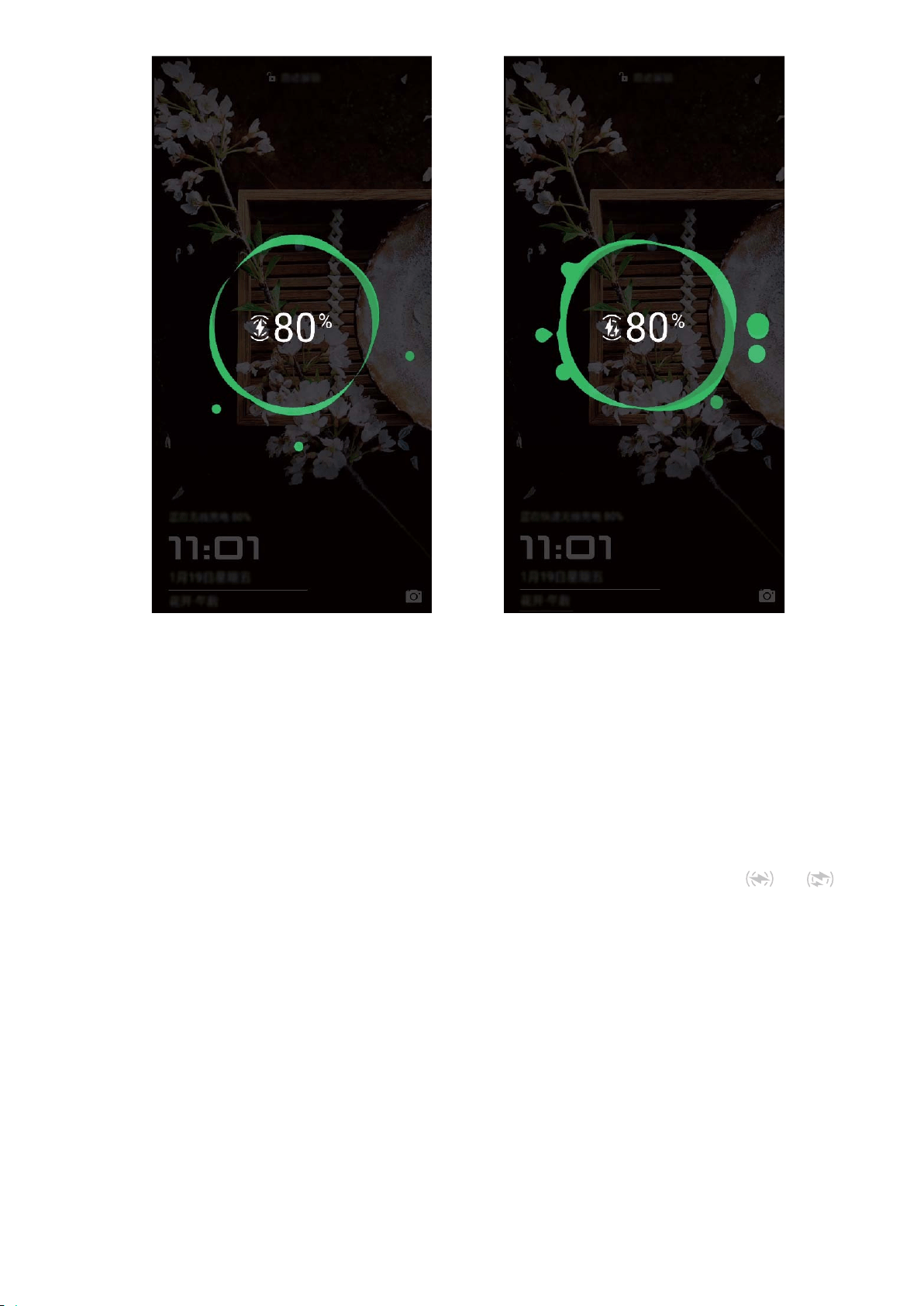
Wireless Charging, the New Choice for Easy Charging
EMUI 9.0 supports wir
eless charging, making charging even simpler and easier than before. A Phone
which supports wireless charging can be used together with a charger. The charger may either be
used as a separate accessory or installed in a car, hotel, or in a piece of furniture, making charging
much easier as it avoids the hassle of dealing with incompatible charging ports, nding outlets, and
dealing with the need for space and the bother of cables and plugs.
l Not al
l EMUI 9.0 Phones support wireless charging. Please refer to the actual model of the
device you purchased for specic instructions.
l A wireless charger consists a charging head, a charging cable, and a charging cradle. The
charging cradle doesn't come with the device. Please purchase an ofcial cradle on Vmall to
ensure a safe and quality charging.
l The charging mode supported by your Phone depends on the charger that comes with your
device. If your charger supports high voltage fast charging, your device will use wireless fast
charging mode; otherwise, only normal wireless charging will be available.
New Device
8
The process of using your wireless charger is as follows:
1 Connect the char
ging cradle to the power supply. Use the charging head and cable that come with
your device, and the wireless charging cradle that you purchased.
2 Place the cradle on the horizontal surface or on the specic area recommended by the
manufacturer.
3 Place the device on the cradle with the screen facing upwards. For optimal performance, place
your device in the center of the cradle or on the specic area recommended by the manufacturer.
4 Y
ou device will start charging a few seconds after being placed on the wireless charger, and you
will hear a beep when charging begins. When charging starts, you will see either a
or
icon displayed in the status bar
Huawei wir
eless charging specications: < 37.7 dBuA/m at 10m.
New Device
9
Gestures and Operations
Scr
eenshots and Screen Recording
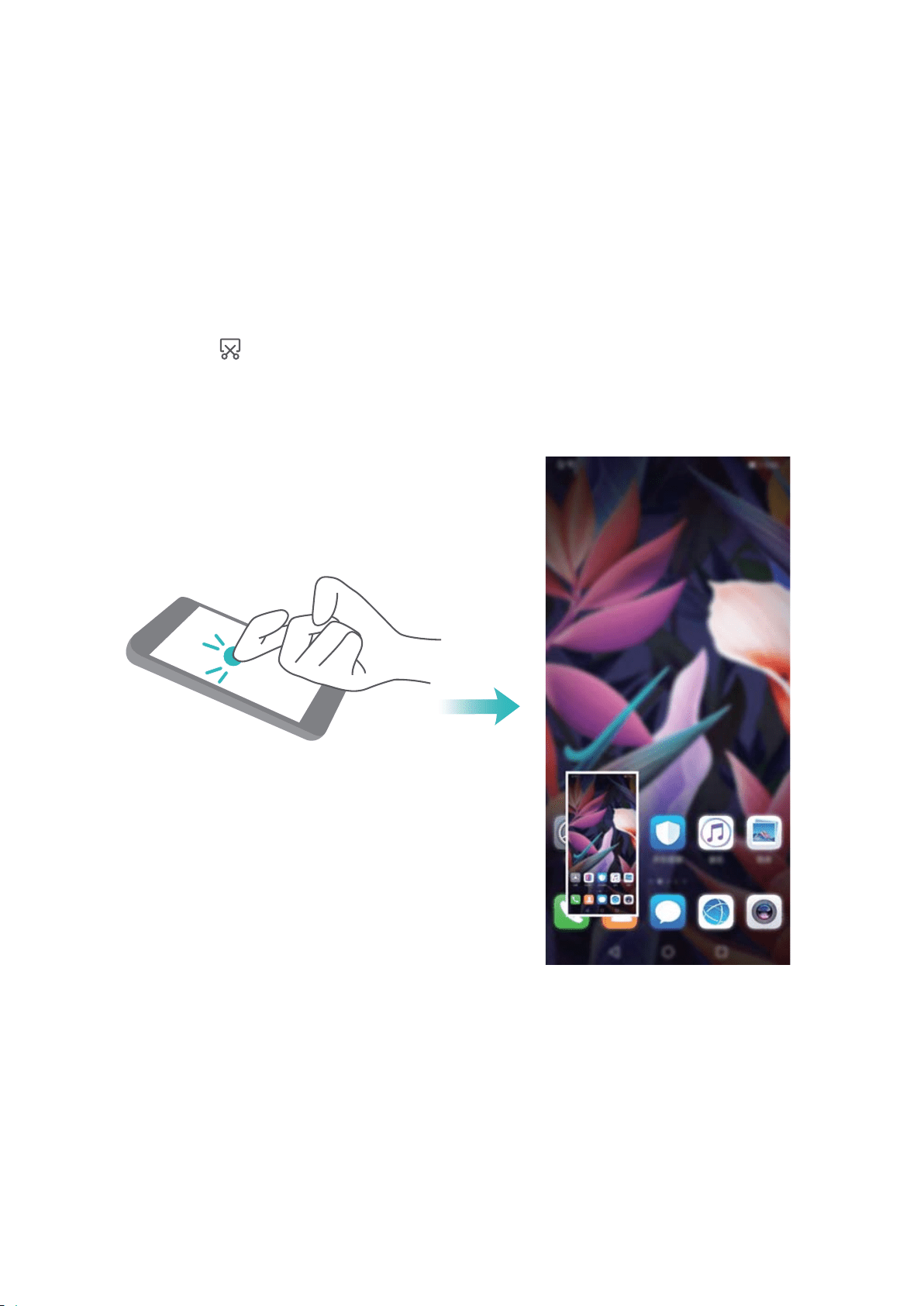
Take a Screenshot of Your Entire Screen
Use combo key to take screenshot: Simultaneously press and hold the Power button and the
Volume down button to take a screenshot of the full screen.
Use shortcut switch to take screenshot: Swipe down from the status bar and open the shortcuts
panel, then touch
to take a screenshot of the full screen.
Use knuckle to take scr
eenshot: Use a knuckle to gently double-tap the screen in quick succession
to take a screenshot of the full screen.
10
Home Screen
Navigation Bar
Congure
Your Navigation Bar Layout
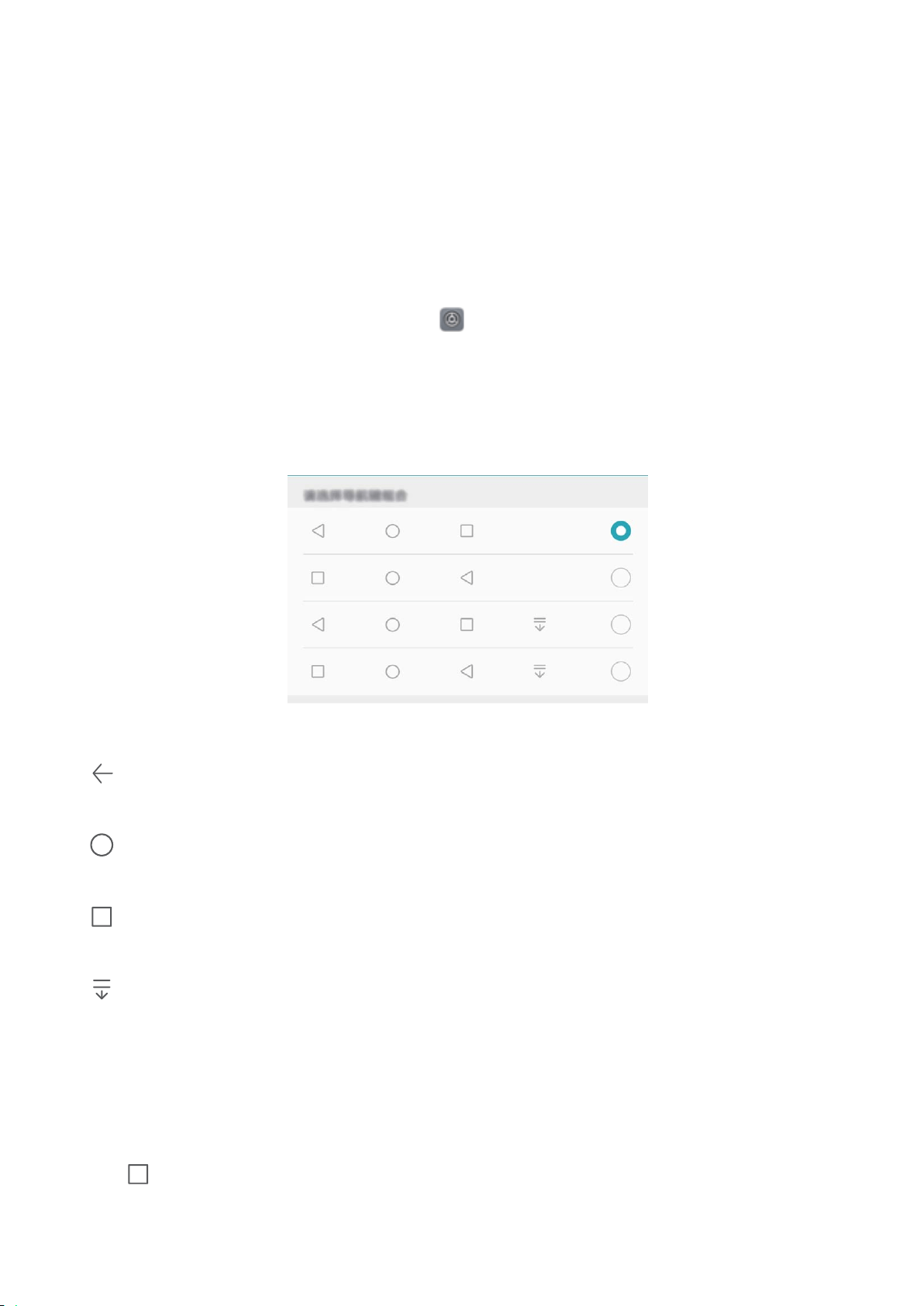
Using the navigation bar, you can conveniently access the home screen, return to the previous page,
exit an app, or view recent apps used.
To congure your navigation bar layout, touch
Settings, then go to S
ystem > System
navigation > Three key navigation > Settings, and select the navigation key combination and
enable or disable Hide navigation keys based on your usage habits.
l Back key: T
ouch to return to the previous page or exit an app. Touch to close the onscreen
keyboard when inputting text.
l
Home key: T
ouch to return to the home screen. Touch and hold to display the HiVoice icon
and swipe upwards on the icon to enable HiVoice features.
l
Recent key: T
ouch to open a list of recently used apps. Touch and hold to enable split screen
mode.
l
Downwar
d swipe notication key: Touch to open the notication panel.
Use the Recent Key to Manage Background Apps
If you want to quickly switch to a recently used app, you might try using the Recent key. The Recent
key can help you quickly switch between several recently used apps. You can also use it to close your
background apps to increase your Phone's operating speed.
Touch
. You can view, switch to, close, or lock recently used background apps:
l V
iew recently used apps: Recently used apps will be displayed on the screen and you can check
them by swiping left or right.
11

l S
witch to a recently used app: Swipe left or right on the screen to nd the app you want to use,
and touch the app tab.
l Close an app: Swipe up or down on the app tab to close the corresponding app.
l Close all apps: Touch
to close all apps.
Use Shortcut S
witches to Quickly Enable Frequently
Used Features
Want to quickly enable or disable mobile data or hotspot? You can enable frequently used features by
using shortcut switches.
View all shortcuts
Touch to enable
this feature
Touch and hold to
enter Settings
Organize shortcuts
Notication
Panel and Status Bar
Notication
and Status Icons and Descriptions
The icons in the status bar give you a quick view of the overall status of your Phone, including its
network connection, battery level, and any new messages received when your Phone is in Silent
mode.
Status icons: By checking the status icons, you can quickly learn the status of your device, such as
network connection, signal strength, battery level, time, and more.
The network status icons may vary by regions and service providers.
Signal strength No signal.
4G+ network connected 3G network connected
4G network connected HSPA network connected
2G network connected
LTE
LTE
Long Term Evolution (LTE) network
connected
LTE
LTE
LTE+ network connected NFC enabled
Home Screen
12
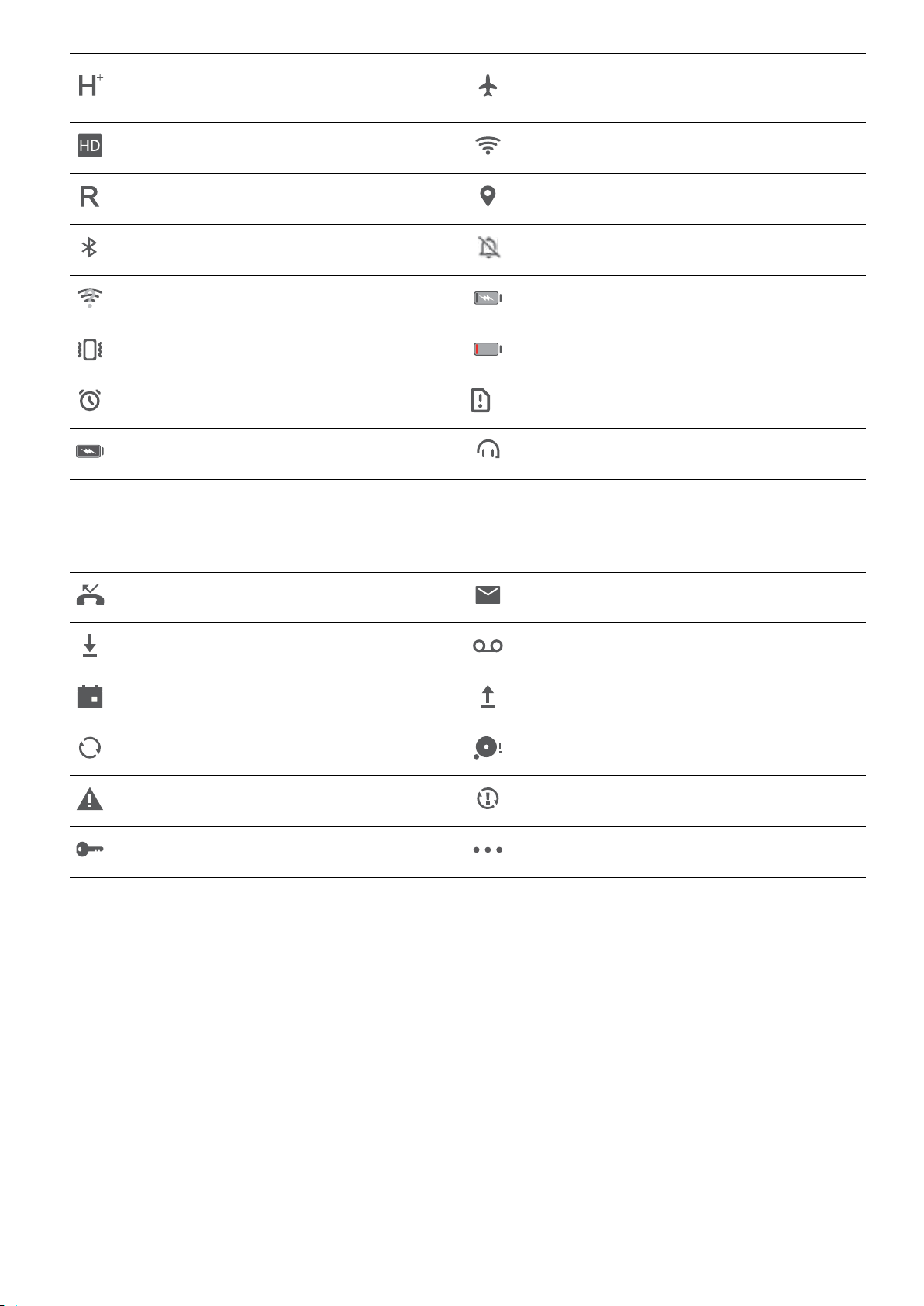
Evolved High-Speed Packet Access
(HSP
A+) network connected
Airplane mode enabled
VoLTE available Wi-Fi network connected
Roaming Receiving location data from GPS
Bluetooth enabled Silent mode enabled
Wi-Fi network detected Charging
Vibration mode enabled Battery level low
Alarm enabled No SIM card detected
Battery fully charged Headset plugged in
Notication
icons: When there is a new message, notication or reminder on your Phone, the
relevant icon will be displayed in your status bar.
Missed call New emails
Downloading data New voicemails
Event reminder Uploading data
Synchronizing data Phone memory full
Sign-in or synchronization problem Sync failed
VPN connected More
notications
Open the
Notication Panel to Get Important Information
Want to ensure that you do not miss out on any important notications? From your Phone's status
bar, you can view real time notication information and your device's operating status.
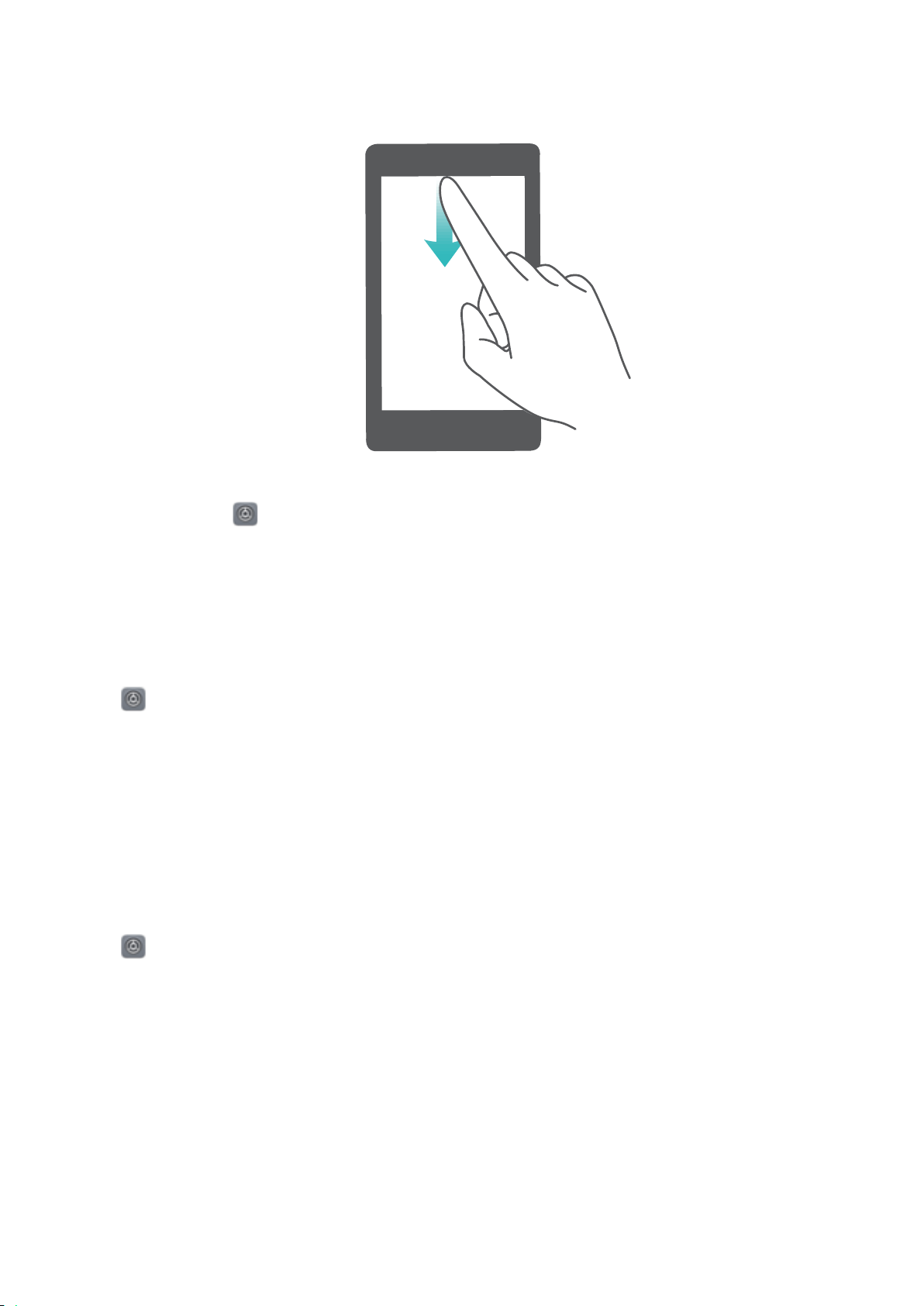
When there is a notication reminder, you can turn on the screen and swipe down from the status bar
to view the notication. You can access notication and status bar settings in the following ways:
Access notication panel when the screen is unlocked: Swipe down from the status bar to open
the notication panel. You can turn on or off shortcut switches, or touch notications to view the
details.
Home Screen
13
Want the
notication and status bar to display only the number of notications or to display no
notications? Touch
Settings, and go to
Notications > More notication settings >
Notication method. Then, select Numbers or None as required.
Disable Disruptive App Notications
Find it annoying to receive so many different types of app notications? You can set and disable app
notications to prevent this from happening.
Open
Settings, and go to Notications
. You can:
l Disable push notications from an app: On the Notications screen, nd and touch the desired
app, and then turn off .
l Prevent all apps from pushing notications: Touch Batch management, and then turn off All.
Customize Notications
Not a fan of the default notication
reminders? You can customize your notication reminders so that
you get your notications the way you want them.
Open
Settings, then go to Notications
> More notication settings. From here you can:
l Enable Notications turn on screen: Enable Notications turn on screen. When your Phone
screen is off, it will turn on when a notication is received.
l Set Pulse notications light: Turn on Pulse notication light, and the notication light will ash
whenever you receive new notications.
l Set notication method: Touch Notication method. Depending on your preferences, you can
select Icons, Numbers, or None.
Home Screen
14

Screen Lock and Unlock
Set a L
ock Screen Password to Protect Your Privacy
Your Phone stores a lot of sensitive information, such as personal photos, contact information,
banking apps (for example, Alipay). Set a lock screen password so that a password is required each
time you unlock your Phone. A lock screen password helps to protect your private information if your
Phone is lost or accessed by an unauthorized user.
Set a lock screen password: Open
Settings, go to Security & privacy > L
ock screen
password, and set the type of lock screen password you prefer.
l Set a PIN: A PIN number is a sequence of digits. Entering a PIN to unlock your Phone is quick and
simple. For better security, use a long sequence of random numbers as your PIN. Go to Set lock
screen password, follow the prompts to set up a pin. Alternatively, touch Change unlock
method, and set 4-digit PIN or Custom PIN.
l Set a pattern: Unlock your Phone by drawing a preset pattern on the screen. For better security,
use a pattern that includes overlapping line segments. Go to Set lock screen password > Change
unlock method > Pattern and draw the same pattern twice. The pattern must connect at least 4
dots.
l Set a password: A password made up of numbers, letters, and special characters is more secure
than a PIN or pattern. For better security, use a password with 8 or more characters that includes
numbers, letters, and special characters. Be sure to memorize the password so that you don't get
locked out of your Phone if you forget it. Go to Set lock screen password > Change unlock
method > Password, follow the prompts to set up a password.
l Unlock your device using a smart band: If your device supports unlocking with a smart band,
the screen will automatically light up when the band comes within 80 cm of your device. Swiping
on the screen of your Phone will instantly unlock the device. Touch Smart unlock, and follow the
onscreen prompts to complete the setup.
l Unlock your device using a ngerprint: If your device supports ngerprint unlock, this is the
r
ecommended unlock method. Using a ngerprint is a secure and quick way to unlock the
device. After setting a lock screen password, touch Enroll in the dialog box that pops up and
follow the onscreen prompts to enroll your ngerprints.
l For security reasons, please do not disable the lock screen password: A lock screen
password prevents unauthorized access to your device. For the security of your device, do not
select Disable lock screen password as the screen lock method.
l Regular password prompts help you to remember your password: If you have not
entered your screen lock password for 3 days, the system will require that you enter the
password to unlock your device.
Home Screen
15

Lock the Screen to Quickly Secure Your Phone
If you don't use your Phone for a set period of time, the scr
een will turn off and lock. As long as the
screen stays on, you can use your Phone without needing to unlock the screen. Lock your screen
when you are not using your Phone to protect your privacy and prevent mistaken inputs.
Set a lock screen password to help protect your privacy. You can lock your device in the following
ways:
Lock the screen instantly with the Power button: Pr
ess the Power button to lock the screen at
any time.
Lock the screen with one-touch screen lock: Pinch two ngers together on the home screen to
enter the editing screen. Touch Widgets > Screen Lock and add the Screen Lock widget to your
home screen. This helps reduce wear and tear on your power button. After leaving the home screen
editing mode, touch the Screen Lock widget to instantly lock your screen. To lock your screen this
way, rst switch to the home screen page where the Screen Lock widget is located.
Home Screen Management
Manage Home Screen Icons
Is your home screen cluttered with app icons? You can move or delete icons from the home screen or
sort and move them to folders for more convenient use.
Move a home screen icon: From the home screen, touch and hold an app icon until your Phone
vibrates, then drag it to any position on the home screen.
Delete an app: From the home screen, touch and hold the icon of the app you want to uninstall until
your Phone vibrates, and then touch Uninstall. Follow the onscreen prompts to delete the app.
To ensure that the system runs normally, some preinstalled system apps cannot be uninstalled.
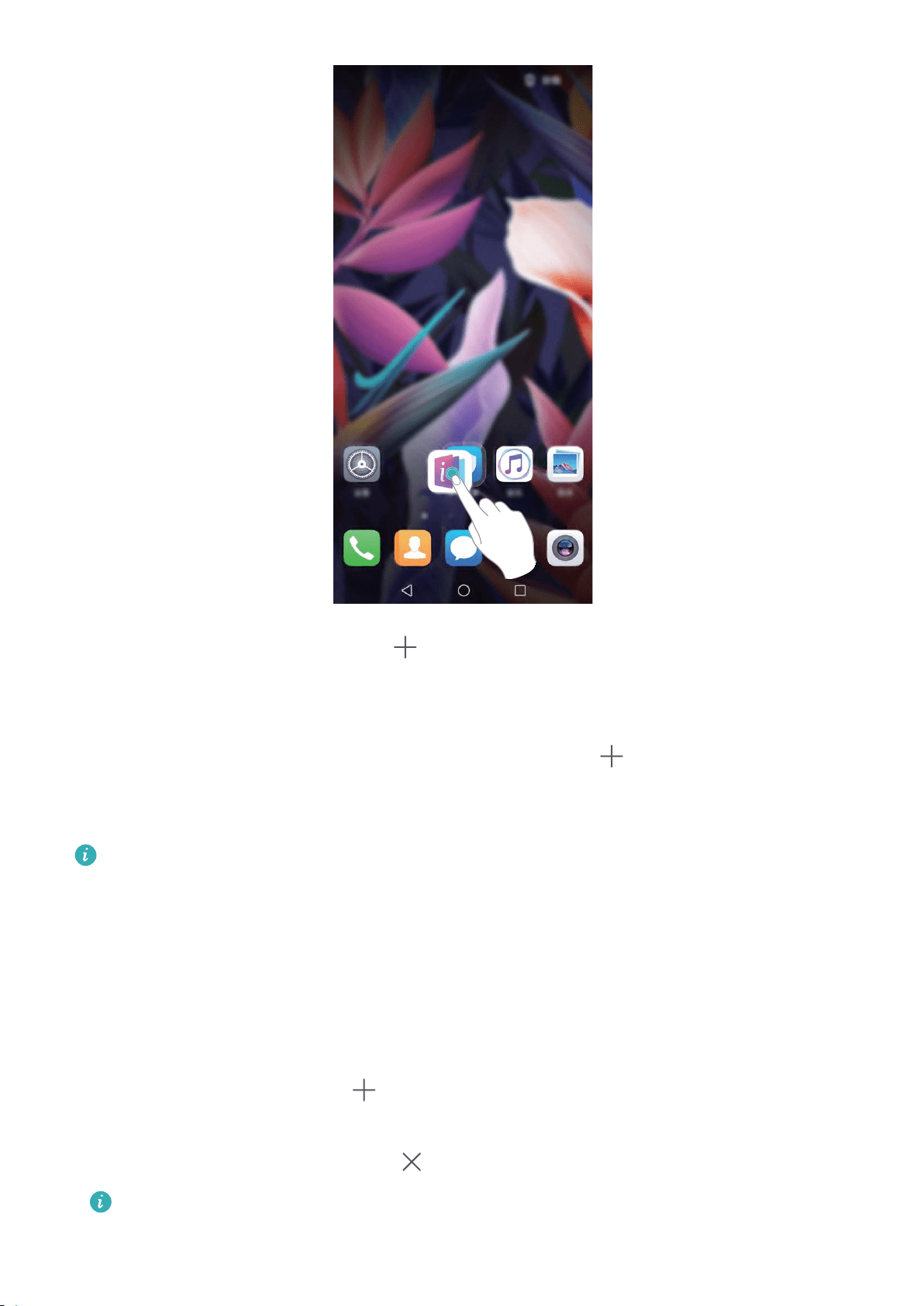
Create a folder: Fr
om the home screen, touch and hold an app icon until your Phone vibrates, then
drag it on top of another icon. The two icons will now be placed in a new folder.
Home Screen
16
Delete a folder: Open the folder
, touch
, deselect all the apps, then touch OK. The folder wil
l be
deleted automatically and all the app icons in the folder will be moved to your home screen.
Rename a folder: Open the folder, touch the folder name and enter a new name.
Add or remove app icons from a folder: Open the folder, touch
, select or deselect apps and
then touch OK. The selected app icons wil
l be automatically added to the folder while the deselected
apps will be removed from the folder.
Another way to remove an app icon from a folder is to touch and hold the icon in the folder until
your Phone vibr
ates, and then drag it to the home screen.
Manage Your Home Screen
T
oo many icons on your home screen? You can add a new page to your home screen and customize it
to your liking.
Touch and hold an empty area on the home screen to enter home screen editing mode. You can do
the following:
l Add a new screen page: Touch
at the left or right side of the screen to add a new screen
page.
l Delete an empty scr
een page: Touch
to delete the page.
Screen pages with app icons or widgets on them cannot be deleted.
Home Screen
17

l Modify scr
een page order: Touch and hold the screen page you want to move, then drag it to the
desired position.
l Set a default home screen page: Touch
in the upper part of the home screen to set the
selected scr
een page as your default home screen page.
Set Your Home Screen Wallpaper
Tired of default wallpapers? Set a photo you like as your home screen wallpaper to personalize your
home screen.
Open
Settings, and then go to Home scr
een & wallpaper > Wallpaper. You can:
Set a picture as your home screen wallpaper: Touch Gallery or select a preset wallpaper in your
device, and follow the onscreen instructions to select Lock screen, Home screen or Both.
Set a photo as your wallpaper from Gallery: Have a great photo you want to set as your
wallpaper? In
Gallery, open the photo that you like, go to > Set as > W
allpaper, and
follow the onscreen instructions to set the photo as your home screen wallpaper.
Manage Your Home Screen Widgets
Want to quickly manage widgets on your home screen? You can add, move or delete home screen
widgets to tidy up your home screen and make it easier to use.
Add widgets: Touch and hold an empty area on the home screen to enter home screen editing
mode. Touch Widgets, touch and hold a widget and drag it to an empty area on the home screen, or
touch the widget you want.
Home Screen
18
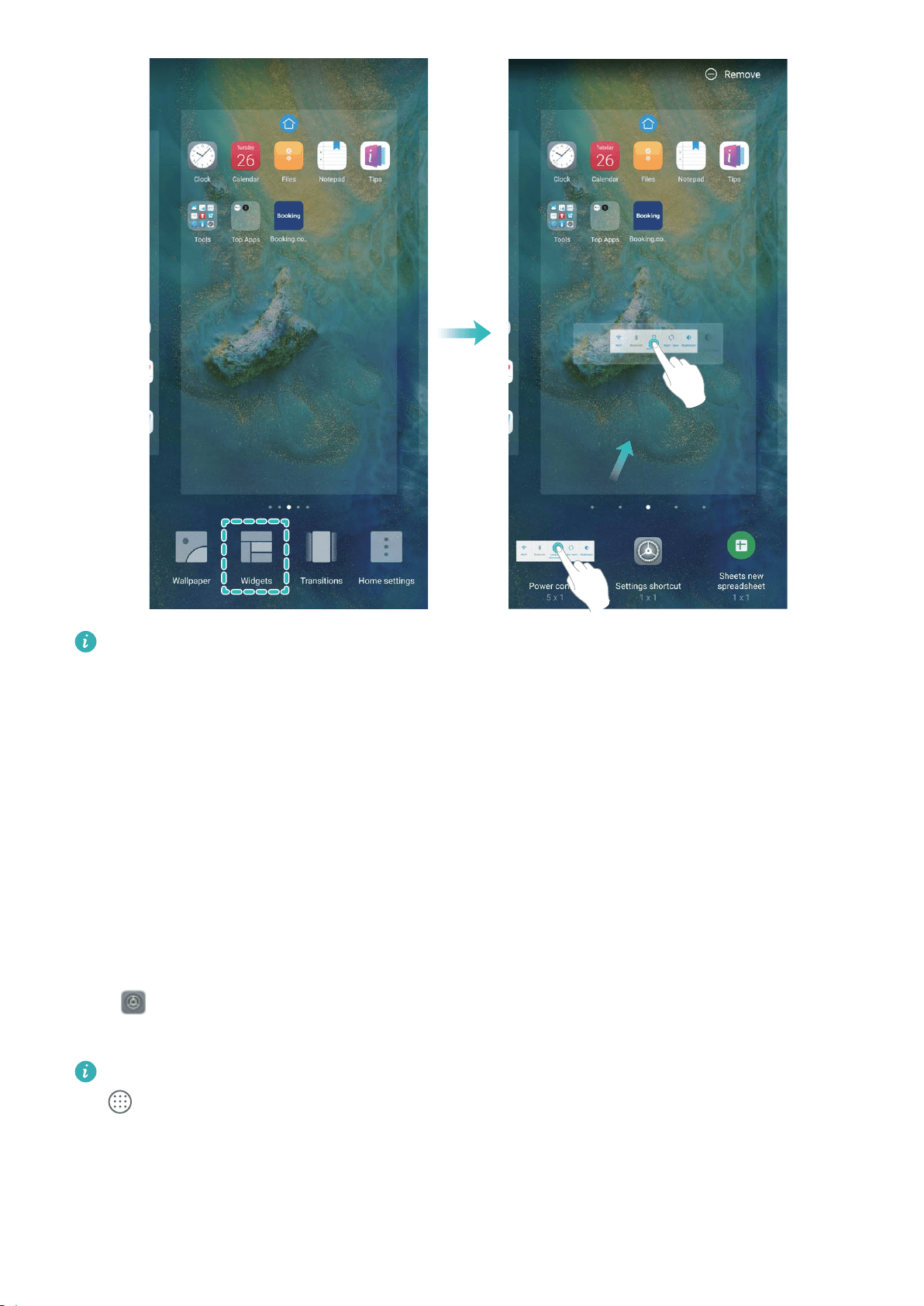
Check that there are enough empty spaces on the home screen for the widget. If there is not
enough space, add an empty scr
een page or free up some space on the current home screen
page.
Delete widgets: T
ouch and hold a widget on the home screen until your Phone vibrates, and then
select Remove.
Move widgets: Touch and hold a widget on the home screen until your Phone vibrates. Drag the
widget to any position on the screen.
Use App Drawer to Store Apps
Want to store your apps in one location on your home screen to make your home screen look
cleaner? You can enable app drawer on your home screen to store all your apps and free up space on
your home screen.
Open
Settings, go to Home scr
een & wallpaper > Home screen style, and select Drawer. If
you want to switch back to a standard home screen, select Standard.
Add an app icon from app drawer to the home screen: After you enable app dr
awer, touch
on the home screen to enter the app list. From the app list, touch and hold the app icon that
you want to add until your Phone vibr
ates, and then drag it to the desired position on the home
screen.
Home Screen
19
Contacts
Managing Business C
ards
Scan Business Cards to Add Them to Contacts
Open
Contacts, go to Business car
ds > Scan, and you can:
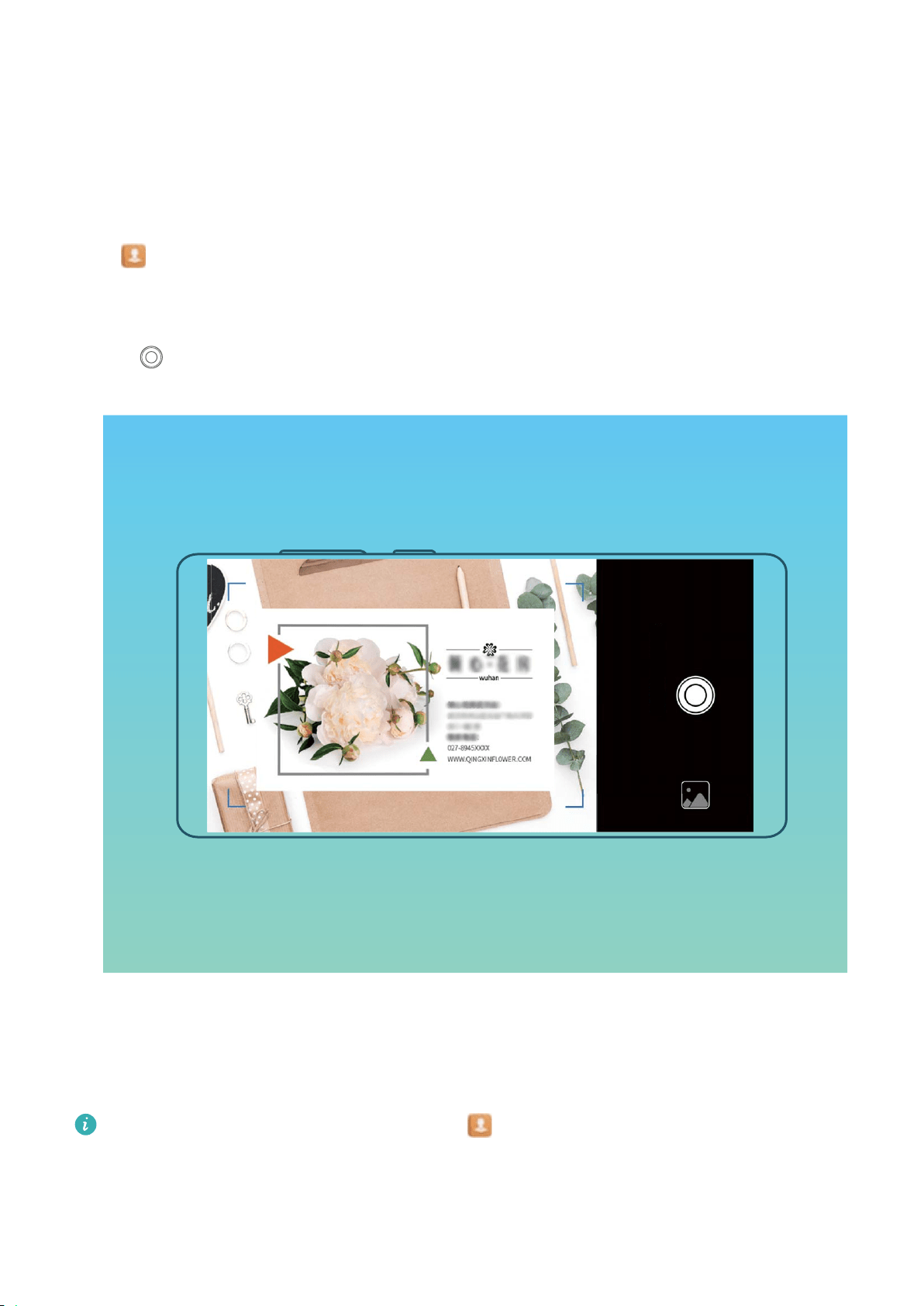
l Scan a single business card: Place the business card on a at surface and adjust the camera's
focus frame so that the contents on the business card are clearly displayed in the viewnder, then
touch
.
l Scan multiple business car
ds: Switch to Multiple mode and follow the onscreen instructions to
capture multiple business cards.
The information on the business cards will be automatically converted into contact information and
saved in Business cards in your Phone.
To view a business card you have saved, open Contacts, select scanned contacts, then go to
Details.
Share Contacts Using Electronic Business Cards
20

Share your business card: Open Contacts and touch My car
d to set your prole picture and
enter your name, work address, telephone number, and other information. Then touch
and your
device wil
l automatically generate your QR code business card. You can share your business card
directly using the QR code. Alternatively, touch
, select a sharing method, and follow the
onscr
een instructions to share.
Share contacts: Open Contacts, select the contact you want to shar
e, and touch the QR code
icon in the upper right corner to share the contact using the QR code. You can also touch Share,
select a sharing method, and follow the onscreen instructions to complete the sharing process.
If the other party's device supports QR code analysis, they can directly take pictures of or scan QR
codes to add contacts.
Search Contacts
Open Contacts, in the contacts list, you can use the fol
lowing search methods:
For most accurate search results, ensure your device is displaying all contacts. On the contacts list
scr
een, go to
> Display pr
eferences, and touch All contacts.
l Drag the index on the side to quickly scroll through the list.
Contacts
21

l In the sear
ch bar at the top of the contacts list, enter the contact name, initials, telephone number,
or email address, and the search results will be displayed below the search bar. You can also enter
multiple keywords for your search, such as "John London", and the system will quickly nd all
matching contacts.
If an error occurs while you're searching for a contact, on the contacts list screen, go to >
Or
ganize contacts, and then touch Rebuild index data > OK.
Managing Contacts
Import and Export Contacts
When you switch to a new Phone, you'll need to transfer your existing contacts.
Open
Contacts, go to > Import/Export, and then select one of the fol
lowing:
l Import contacts: Select Import from storage, Import via Bluetooth, or Import from SIM and
follow the onscreen instructions.
l Export contacts: Select Export to storage, Export to SIM, or Share contacts and follow the
onscreen instructions. By default, .vcf les exported through Export to storage are saved in the
root directory of your device's internal storage. Open Files to view exported les.
Manage Your Contacts
The Contacts app gives you a host of featur
es for managing your contacts. You can simplify your
contacts list, choose to only view contacts on your Phone or SIM card, and easily nd your frequent
contacts.
Mer
ge duplicate contacts: If there are duplicate contacts in your contacts list, you can use the
Merge duplicate contacts function to merge them. From the contacts list, go to
> Or
ganize
contacts > Merge duplicate contacts, select the contacts you want to merge, and then touch
Merge.
Display contacts for different accounts: Want to only view contacts on your Phone or SIM card?
Go to
> Display pr
eferences, and select the accounts that you want to display. You can also:
l Enable Simple layout: Want to hide the prole pictures, companies, and titles in the contacts list?
From the contacts list screen, go to
> Display pr
eferences, and enable Simple view.
l View contact storage space: Want to check your contact storage space? From the contacts list,
go to
> Display pr
eferences. In the Accounts eld, you can see the available and total
storage space on your device or SIM card.
Add contacts to Favorites: Tired of constantly searching through your contacts for a particular
entry? You can Favorite your frequent contacts for quick and easy access. From your Contacts list,
touch the entry you want to Favorite, then touch Favorite to add it to the Favorites screen.
Contacts
22

Manage Contact Groups
W
ant to send a message to a group of colleagues or host a get-together? Smart groups automatically
groups your contacts by company, city, and most recent contact time, so you can quickly send a group
email or message.
Create a contact group: From the groups list, touch
, enter the group name (such as Family or
Friends), and then touch OK. F
ollow the onscreen instructions to add contacts, and then touch
.
Send a message to smart gr
oup contacts: From the groups list, from the Smart groups section,
open a group and touch
to send a message or to send an email.
Edit a gr
oup: From the groups list, select the group you want to edit and touch
to add a
contact, or touch to Remove members, Gr
oup ringtone, Delete group or Rename.
Delete a group: From the groups list, touch and hold a group, and then touch Delete.
Add Contacts to the Blacklist
You can add contacts to the blacklist to avoid receiving harassing or spam calls from them.
Open
Contacts, touch the contact you want to add to the blacklist, and then go to > Block
contact. Y
our device will block all calls and messages from contacts in the blacklist.
View blacklisted contacts: Open
Phone Manager, go to Blocked > , and then touch
Blacklist to view the blacklist.
Remove a contact fr
om the blacklist: Open
Contacts, touch the contact you want to r
emove
from the blacklist, and then go to
> Remove fr
om blocklist.
Erase Call and Message Records
Use Erase traces to erase call and message records for a contact to protect your privacy.
Open
Contacts, select a contact, and go to > Er
ase traces > Erase. All of your call and
message records for that contact will be erased.
Merging Third-party App Contacts
Associate Contact Information with Your Social Account
What does each contact in your Phone do? What are their emails? What are their job titles? You can
use third-party social media apps (such as LinkedIn) to nd out more information about your contacts.
Associate LinkedIn account: Open
Contacts, go to > Settings > A
ssociate LinkedIn
account and follow the onscreen instructions to log in to your LinkedIn account. Once logged in,
your Phone will automatically update your local contacts information. To sync all your LinkedIn
Contacts
23

contacts information, from Contacts in LinkedIn settings scr
een, go to Sync LinkedIn contacts > All
LinkedIn contacts, and select Sync or Auto-update LinkedIn.
View contacts information provided by LinkedIn: Open a LinkedIn contact and touch View
LinkedIn prole online.
Disassociate LinkedIn contacts: Go to Contacts >
> Settings > LinkedIn, and select
Disassociate.
V
iew an Sender's Job Description
If you've just started a new job, you'll need to quickly gure out what all of your new colleagues do.
You can associate a social media account (such as LinkedIn) with your email contacts. The job
information of email senders will then be displayed on the email details screen.
From the
Email inbox, open an email you have r
eceived. Go to email details, then touch the
sender's prole picture and select View LinkedIn prole.
Contacts
24

Dialing
Basic C
alling Functions
Make Calls
On the dialer screen, enter part of the telephone number or the rst letter or pinyin initials of the
contact's name. Your Phone will automatically search for the relevant contacts.
Open
Dialer. Fr
om the dialer screen, enter the phone number or the rst letter or pinyin initials of
the contact's name (for example, enter hwkf for Huawei customer service). Your device will
automatically search for the corresponding number in your Contacts and call history. Touch the
contact that you want to call in the list. If you have a dual-SIM device, touch
1
or
2
to make the
cal
l. You can check your contact's status on your screen (such as whether ringing or call forwarding is
enabled). Touch
to hang up.
After you copy a phone number that you want to dial, the system prompts you to paste the
number when you enter the dialer scr
een.
Press the power button to hang up: A
ccidentally dialed the wrong number and hid the calling
screen, and want to hang up quickly? You can set Power button ends call. On the Dialer screen, go
to
> Settings > Mor
e, and enable Power button ends call to quickly hang up calls.
Make Emergency Calls
In an emergency situation, if your Phone is powered on and within the service area, you can make
emergency calls even if the screen is locked or there is no mobile reception.
The emergency call feature is subject to your local regulations and Internet service provider.
Network issues or envir
onmental interference may lead to failed emergency calls. In emergency
situations, do not rely on your Phone as your only method of communication.
Open
Dialer or touch Emer
gency on the lock screen, enter the local emergency number on the
dialer, and then touch
. If your location has strong mobile reception and your Phone is connected
to the Internet with enabled location services, your location wil
l be obtained and displayed on your
screen for reference.
Enable Call Waiting to Never Miss Important Third-Party Calls
Receiving an incoming call while you're already on a call? Call waiting allows you to answer the new
call and then switch between the two calls.
Some carriers may not support this feature.
25

Open Dialer, go to > Settings > Mor
e, and enable Call waiting. When receiving another
call, touch
to answer the call and place your
rst call on hold. Touch
or the call on hold in
the cal
l list to switch between calls.
Enable Call Forwarding and Never Miss a Call
If you are unavailable to answer calls, you can set your device to forward calls to another number.
Some carriers may not support this feature.
Open Dialer, and go to > Settings > C
all forwarding. If you have a dual-SIM device, in the
SIM 1 or SIM 2 section, touch Call forwarding and select a forwarding method. Enter the number
you want to forward your calls to, then conrm. When call forwarding is enabled, your device will
automatically forward eligible calls to the preset number.
Delete Call Logs
You can delete call logs that you no longer need.
Open
Dialer and touch to hide the dialpad. You can now perform one of the following:
l Delete a single r
ecord: Touch and hold an entry, then touch Delete entry.
l Delete multiple records: Go to
> Delete multiple entries, select the entries you want to
delete or Select al
l, then touch
.
A
ctivate International Roaming for Borderless Communication
When you travel abroad for work or a holiday, you can make calls when your Phone is roaming
without having to dial the country code.
1 Contact your carrier to activate the international call or roaming service.
2 Open
Dialer or Contacts, and make a cal
l.
VoLTE
VoLTE: Make Calls and Use Data at the Same Time
VoLTE (Voice over LTE) allows both call and data services to be carried on the same 4G network, which
means you can use the Internet even while making calls. VoLTE also provides you with shorter call
connection times and higher quality voice and video calls.
Both of your Phone's SIM card slots support 4G, VoLTE, and VoWiFi, so there is no need to switch
SIMs back and forth.
l Dual 4G: Both of your Phone's SIM card slots support 4G.
l Dual VoLTE: Both of your Phone's SIM card slots support VoLTE, allowing you to use the Internet
while making HD calls.
Dialing
26

l Dual V
oWiFi: Both of your Phone's SIM card slots support VoWiFi, which allows calls to be made
using Wi-Fi. You can use VoWiFi to make calls even in Airplane mode.
Some carriers may not support this feature.
Enable VoLTE to Enjoy HD Calls
l Some carriers may not support this featur
e.
l Only dual-SIM phones support both SIM card slots enabling 4G, VoLTE, and VoWiFi.
Open
Settings, and go to W
ireless & networks > Mobile network. In the settings section for
SIM 1 or 2 (if supported by your carrier network), you can:
l Enable 4G: Turn on 4G. Due to carrier customization, there may not be a 4G switch on your
device. This indicates 4G is already enabled and does not need to be turned on manually.
l Enable VoLTE calling: Turn on VoLTE calls.
l Enable Wi-Fi calling: Turn on Wi-Fi calling.
After the setting is complete, select the contact you want to call and touch
to make a video call.
Y
ou can also touch
on the screen during a voice call to switch to a video call.
Use V
oWi-Fi for a New Calling Experience
You can use VoWi-Fi to make voice and video calls in any location that has a Wi-Fi network, even
when there is no mobile network reception.
This feature must be supported by your carrier. Contact your carrier for more information,
including fees and char
ges.
Open
Dialer, go to > Settings > W
i-Fi calling, enable Wi-Fi calling. Touch Mode and
follow the onscreen instructions to set the preferred network.
Dialing
27

Message
Basic Messaging F
unctions
Send Messages
Text messages give you a quick and easy way to communicate with friends, family and colleagues. In
addition to text, you can also add emojis or insert pictures and audio les to enrich your messages.
Send a message: Open
Messages. Fr
om the Messaging list screen, touch
and select
contacts or gr
oups. Enter your message content, touch
to add other types of content, and touch
to send the message.
Save a dr
aft message: Touch
Back key to save a message as a dr
aft.
Manage Messages
The Messaging app makes it easy to stay on top of your messages.
Open
Messages. In the list of message thr
eads, touch a contact name or phone number to view
the conversation thread.
Reply to messages: Enter the message content in the text box and touch
.
Ar
chive a message: Worried about accidentally deleting an important message? Touch and hold a
message and then touch
to archive the message.
Delete a message: Tir
ed of the clutter created by too many messages? Delete unneeded
conversations or messages to clean up your Messaging list. To delete conversations or messages,
touch and hold the conversations or messages to enter the editing screen, select the conversation or
message, and touch
. Deleted messages cannot be recovered.
Sear
ch messages: Want to nd a message quickly? From the Messaging list screen, enter the
keywords in the search bar and the relevant results will be displayed beneath the search bar.
Block a contact: Want to stop someone from sending you spam messages? Touch and hold a
message and then touch
to block the contact.
Block Spam Messages
Tir
ed of receiving spam messages? Enable message blocking and say goodbye to spam messages!
Open
Messages.
Use the har
assment lter to perform the following:
Block messages: Touch and hold a message and touch
to block messages and calls from that
number
.
28

Unblock messages: T
ouch
and touch Blocked contacts. T
ouch
at the end of the phone
number to unblock the number
.
Set MMS Message Automatic Download Rules
Set MMS message automatic download rules to prevent costly mobile data usage.
Open
Messages and touch . Go to Settings > Advanced.
Fr
om here you can congure the following:
Whether to retrieve MMS messages automatically: Disable Auto-download MMS to prevent
your device from automatically downloading MMS messages.
Whether to retrieve MMS messages automatically when roaming: Disable Auto-download
MMS when roaming to prevent your device from automatically downloading MMS messages in
roaming mode.
Message
29

Camera
Basic C
amera Functions
Use Basic Camera Features
Understand your camera's basic features to help you take better pictures.
Basic photo mode: Open
Camera. In the
viewnder, touch
to take a photo. You can also
set the volume down key as a shutter button for your camer
a.
Select a camera mode: Open
Camera. In the
viewnder, choose a camera mode from the
preinstalled ones.
Assistive grid: Your camera automatically helps you compose photos with perfect proportions.
Zoom your camera in or out: From the viewnder, touch the screen with two ngers and pinch
them together to zoom out or move them apart to zoom in. If you zoom in beyond your camera's
optical zoom limit, the image quality will decrease. After you touch the screen with two ngers and
zoom in or out, a zoom bar will appear on the side of the screen, with which you can also zoom your
camera in or out.
Adjust your camera's exposure: Your camera will adjust its exposure automatically depending on
the ambient light level. Increasing the exposure will make pictures appear brighter whereas decreasing
the exposure will make pictures appear darker. You can adjust the exposure manually from the
viewnder
by touching the screen and dragging the
icon up or down.
Enable or disable
ash: Flash is used to provide extra lighting for taking photos in low light
conditions. From the viewnder, touch
to select one of the following ash modes:
l Auto: The camer
a automatically enables or disables ash depending on the ambient light level.
l
Off: Disable ash.
l
On: Enable
ash.
l
Always on: Flash is always on while you ar
e in the viewnder.
Capture smiles automatically: Fr
om the viewnder, touch , and enable Capture smiles. The
camera will now take a photo automatically when it detects a smile in the viewnder.
Mute shooting: Fr
om the viewnder, touch
, and enable Mute.
Enable geolocation: Y
our geographic location will be recorded when you take a photo, and this
allows you to search through your pictures by location. From the viewnder, touch
, and enable
GPS tag.
30

Use Camera to Record Videos
Besides taking pictur
es, you can also use the camera to capture high resolution videos with sound.
Record a video: Open
Camera > V
ideo, touch
to start recording a video.
T
ake a picture while recording a video: You can touch
to take a picture when recording a
video.
T
urn on ashlight: When recording a video in low light conditions, you can touch
and select
to turn on the ashlight.
Adjust Camera Settings
On the C
amera setting screen, you can adjust a variety of camera settings, modes, and specications
to suit your needs.
Capture smiles automatically: From Settings, enable Capture smiles. The camera will now take a
picture automatically when it detects a smile in the viewnder.
Mute photography: From the Settings screen, enable Mute.
Use Assistive Grid to Compose Your Photos
Ever get annoyed that your photos turn out looking skewed or the subject always seems to be off-
center? You can use your camera's assistive grid feature to help you line up the perfect shot.
To select an assistive grid, open
Camera and touch to enter Settings. Then touch A
ssistive
grid and select the type of grid or lines you want to use.
Rule of thirds composition method: Use either Grid or Phi grid. The four intersection points in the
grid are the focus areas of the picture. Place the subject of your photo on one of the intersection
points to achieve a good composition.
Camera
31

Spiral composition method: Use either F
ibonacci spiral (left) or Fibonacci spiral (right). Place
the subject of your photo within the center of the spiral.
Camera
32

Use Portrait Mode to Take Stunning Portraits
W
ant to make your seles or group shots even more beautiful? Portrait mode provides you with
customized options to make every photo beautiful and memorable.
Enable Portrait mode and make your photos shine: Open
Camera > P
ortrait, and you can
set the following parameters to make your photos shine. After making the adjustments, touch
to
take photos.
l Blurr
ed effect: If there is a light source in the background, touch the
icon in the viewnder
and select different blurred effects.
l S
tage lighting: Touch the
icon in the viewnder and select a stage lighting effect.
l Beauty effect: T
ouch the
icon in the viewnder
and drag the slider left or right to adjust
beautication settings. Larger parameter values will make the beautication effects more distinct.
Panorama
Use Panorama Mode to Take Panoramic Seles
Want to t more friends or scenery in a sele? Use Panorama to take seles with a wider eld of view.
Camera
33

1 Open Camera and touch to switch to the front-facing camera.
2 Go to Mor
e > Panorama.
3 Hold your Phone steady and touch
to take the rst picture.
4 F
ollow the onscreen instructions and pan your Phone horizontally until the blue frame overlaps
with the square screen frame. Your camera will automatically take another picture.
5 Follow the onscreen instructions again and pan your Phone in the opposite direction until the blue
frame overlaps with the square screen frame. Your camera will automatically take the last picture.
6 Once complete, the camera will automatically combine the three pictures into a wide-angle 3D
sele.
Use Panorama Mode to Take Panoramic Photos
P
anoramas provide a wider viewing angle than ordinary photos, letting you take sweeping landscape
shots.
To capture a panorama shot, the camera takes multiple photos of objects within our visual eld and
stitches them together into a single photo.
When taking a panorama, nd a wide, open space that is some distance away from the subject
and try to avoid backgr
ounds that are all in one color.
1 Go to
Camera > Mor
e > Panorama.
2 Touch
at the bottom of the screen to
congure the shooting direction.
3 Hold your Phone steady, and then touch
to start shooting. Slowly move the Phone in the
dir
ection indicated, holding the device steady and ensuring that the arrow stays level with the
center line.
4 Touch
when you are
nished. The camera will automatically stitch the photos together to
create a panorama.
Use 3D Panorama to Take 360-degree Photos
T
ry the 3D panorama function to capture a 360-degree view of a scene or person.
Camera
34

There are three shooting modes for the 3D panor
ama function:
l Shooting objects: Go to
Camera > Mor
e > 3D panorama. Touch and hold
, then follow
the onscr
een prompts to slowly move your Phone around your subject in one direction. Release
to stop shooting. After shooting, touch the camera thumbnail, and then touch
3D
above the
photo to gener
ate a 3D panoramic photo.
l Shooting scenery: Go to
Camera > Mor
e > 3D panorama. Touch and hold
, then follow
the onscr
een prompts to slowly move your Phone around your subject in one direction. Release
to stop shooting. After shooting, touch the camera thumbnail, and then touch
3D
above the
photo to gener
ate a 3D panoramic photo.
After a 3D panorama has been generated, you can tilt your Phone or drag the photo to view the 3D
effect.
Pro Mode
Pro Camera: Use Light to Tell Your Story
Pro camera lets you adjust exposure, shutter speed, and a range of other settings, giving you full
control of your camera.
Pro camera is a pre-installed camera mode in your Phone. In Pro camera mode, you can adjust various
parameters to produce photos and videos with results comparable to professional cameras.
Use Pro Mode to Take Scenic Photos
Want to make your scenic photos more vibrant and interesting? Use Pro mode to take unique and
personalized scenic photos.
Open
Camera > Pr
o to enter Pro mode.
Select a metering mode based on the shooting subject: On the Pro mode screen, touch
,
and select a metering mode accor
dingly.
Metering mode Application scenario
Matrix Broad landscapes and seas
Center
The subject is in the center of the picture, and stands out from the
backgr
ound.
Spot
The subject to be highlighted in the picture is relatively small, such as a
ower or a tree.
Adjust brightness based on the shooting environment:
l Adjust ISO: On the Pr
o mode screen, touch
, and swipe left or right on the ISO slider to adjust
its value.
Camera
35

To avoid excessive noises, the recommended ISO is below 400. The recommended ISO for the
daytime is between 100 and 200 and above 400 for night scenes.
l Adjust t
he shutter speed: On the Pro mode screen, touch
(shutter speed), slide on the
shutter speed slider
, and drag your desired speed to the center.
The recommended shutter speed for static scenes (such as mountains) is between 1/80 and
1/125; and faster (less than 1 second) for moving subjects (such as waves). F
or the best result,
using a tripod when shooting a moving subject.
l Adjust EV compensation: On the Pro mode screen, touch
&7
, slide on the EV slider and drag the
selected value to the center
.
Adjust AWB: On the Pro mode screen, touch
"8#
, slide on the AWB slider and drag the selected
value to the center
.
l When shooting under sunlight, you can select . In a weak light environment, you can select
.
l T
ouch
to adjust the color temperature. If you want to give your photo a cozy, nostalgic
tone, incr
ease the K value. For a cold, calm or futuristic tone, select a lower K value.
Adjust AF based on the shooting subject: On the Pro mode screen, touch
"'
, slide on the AF
slider and dr
ag your desired mode to the center.
AF modes Application scenario
AF-S mode Static scenes (such as mountains).
AF-C mode Moving scenes (such as owing water and sea waves).
MF mode Protruding objects (such as a close-up of a ower).
Hold your device steady when shooting: In Pro mode, touch and enable Horizontal level.
After this feature is enabled, two horizontal guiding lines will appear in the viewnder. When the
dotted line overlaps with the solid line, it indicates that the camera is horizontally aligned.
Save RAW format pictures: In Pro mode, touch > Resolution, and enable RA
W format. After
this function is enabled, pictures taken in Pro mode will be saved in both RAW and standard JPG
formats.
l Some settings in Pr
o mode may change after you change a setting. You may adjust them based
on your actual needs.
l The recommended settings above are for reference only. You may adjust them based on the
actual condition to achieve your desired effect.
Use Pro Mode to Capture Portraits
Want to take more professional portraits? The Pro mode allows you to adjust your camera settings to
shoot professional portraits.
Camera
36

Open Camera > Pro
.
Select a Metering mode:
or mode is recommended for taking portraits. Place your
shooting subjects (their faces for example) in the center of the viewnder.
Adjust brightness based on the shooting environment
l Adjust ISO: To avoid excessive noises, it is r
ecommended that you adjust the ISO to a low level
when shooting portraits. You may adjust the ISO based on the actual shooting environments.
Shooting Environment Recommended ISO
Outdoors Between 100 and 200
Indoors Around 400
Night scenes Between 400 and 800
l Adjust shutter speed: The shutter speed should be slow if the ambient light is low and fast when
the ambient light is strong. The r
ecommended shutter speed for static portraits is between 1/80 and
1/125. To shoot moving subjects, select a shutter speed at or above 1/125.
l Adjust EV compensation: You may increase the EV compensation if the light on the subjects or
background is low, and decrease the EV compensation if there is too much light.
Adjust AWB: Select AWB depending on the lighting conditions. When shooting under sunlight, you
can select
. In a low light environment, you can select .
Adjust Focus
: To better highlight a subject, it is recommended that you use manual focus (MF) when
shooting portraits. In the viewnder, touch to focus on the part (the subject's face for example) you
want to highlight.
l In Pro mode, some settings may change after you change a setting. You may adjust them
based on your actual needs.
l The r
ecommended settings above are for reference only. You may adjust them based on the
actual usage conditions to achieve your desired effect.
Take Black and White Photos
The world is an amazingly colorful place. But sometimes too many colors can be distracting.
Monochr
ome mode lters out color, helping to bring out light and shadows, and give photos more
mood and atmosphere.
Open
Camera > More
> Monochrome, and then touch
to take photos in black and white.
Camera
37

Light Painting Mode
Light P
ainting: Shoot Light Trails
Light painting mode automatically sets a slow shutter speed to take long-exposure shots of light trails.
This mode produces stunning photos that have an ethereal quality.
Light painting mode offers four creative shooting modes for different subjects and light conditions:
l Trafc trails: Captures light trails created by cars at night.
l Light
grafti: Captures trails created by a moving light source in low-light conditions.
l Silky water: Captures silky-smooth photos of waterfalls and owing water.
l S
tar trails: Captures stunning photos of star trails in the night sky.
Camera
38

Use Tail Light Trails to Capture the Lights of the City
T
ail light trails lets you create artistic photos of car tail lights at night.
l Shoot fr
om a distance and slightly above your subject for best results. Ensure that car
headlights do not point directly at the camera, as this can overexpose the image.
l Place your device on a tripod or solid surface so that it does not move during the exposure.
Open
Camera > Mor
e > Light painting > Trafc trails. Hold your Phone steady, and then
touch
to start shooting. A preview of the image is displayed in the viewnder. Touch when
you ar
e nished.
Camera
39

Use Light
Grafti to Create Light Patterns
Light
grafti lets you create patterns or write words by moving a light source in front of the camera.
l Find a dark location away fr
om other light sources and ensure that the subject's silhouette is
not visible. Choose a suitably bright light source of an appropriate color, such as a small torch
or glow stick.
l Place your device on a tripod or solid surface so that it does not move during the exposure.
Open
Camera > Mor
e > Light painting > Light grafti. Hold your Phone steady, and then
touch
to start shooting. A preview of the image is displayed in the viewnder. Touch when
you ar
e nished.
Camera
40

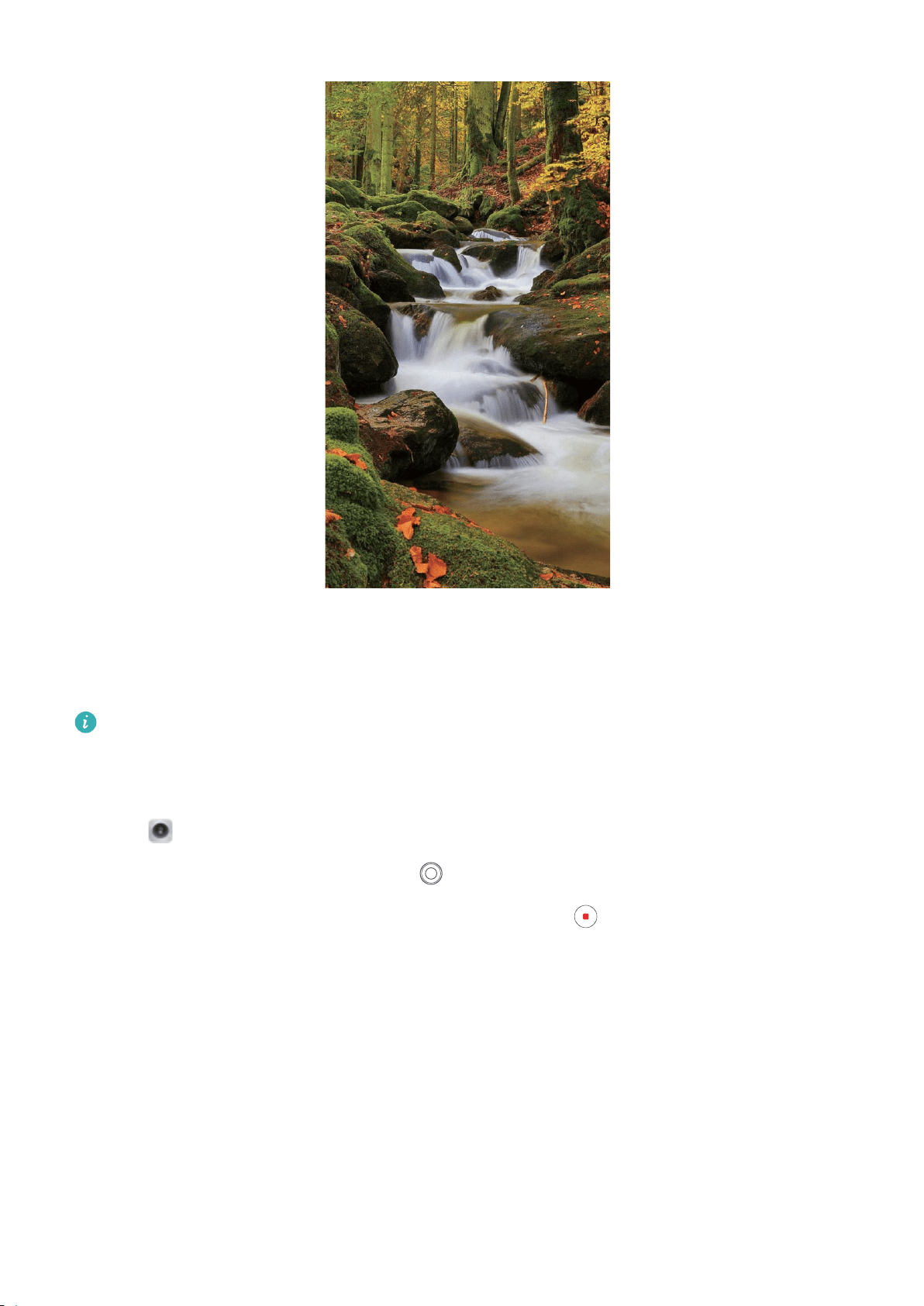
Use Silky Water to Capture Rivers and Waterfalls
Sil
ky water lets you capture silky smooth photographs of waterfalls and rivers.
l F
or better results, nd a stream or waterfall with lots of water.
l Place your device on a tripod or solid surface so that it does not move during the exposur
e.
1 Open
Camera > Mor
e > Light painting > Silky water.
2 Hold your Phone steady, and then touch
to start shooting.
3 A pr
eview of the image is displayed in the viewnder. Touch
when you are nished.
Camera
41
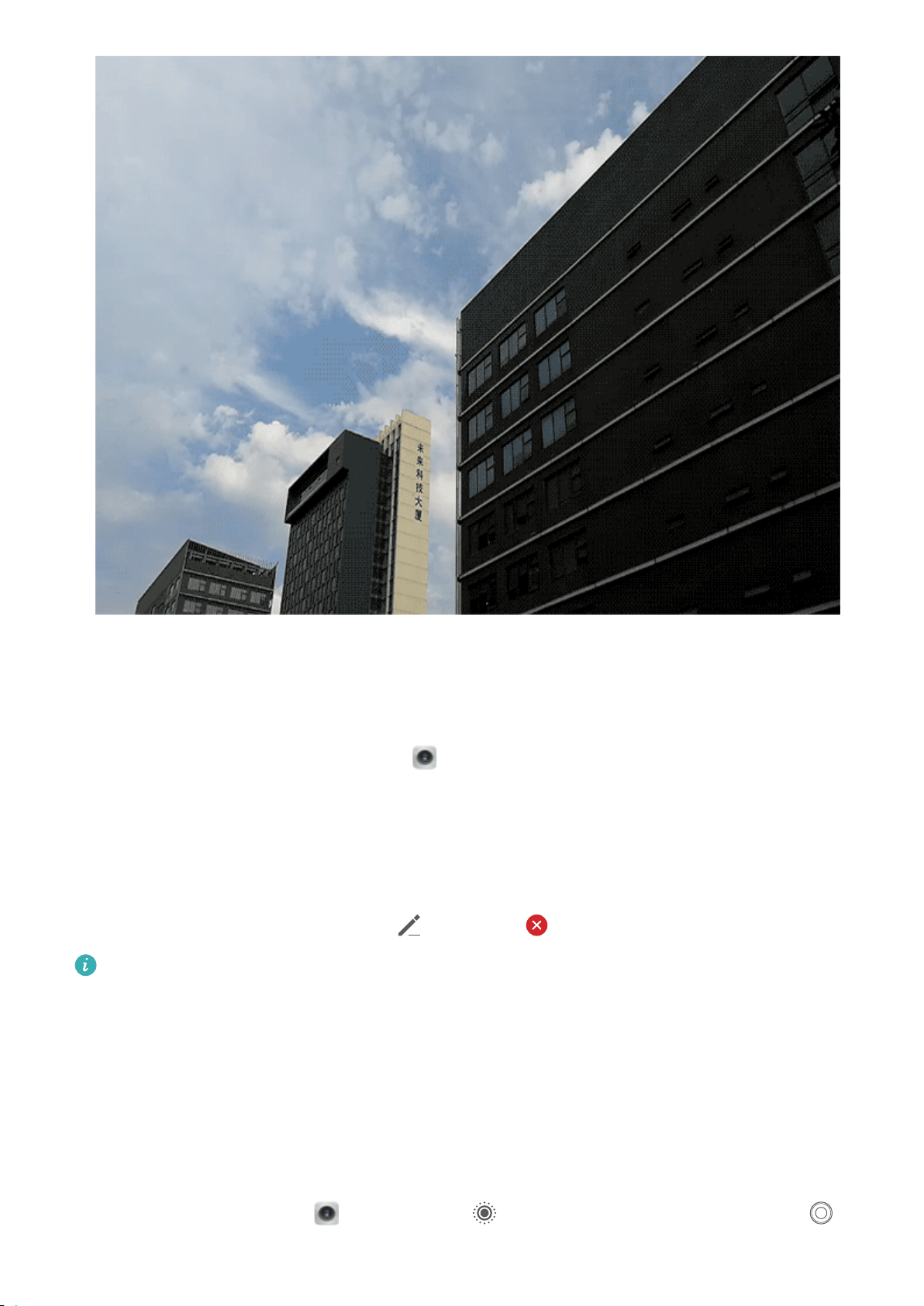
Use Star Track to Capture the Beauty of Stars
S
tar track lets you use your camera to capture the movement of stars in the night sky.
l F
or best results, choose a location free of light pollution with an unobstructed view of the sky,
and on a clear night.
l Place your device on a tripod or solid surface so that it does not move during the exposure.
1 Open
Camera > Mor
e > Light painting > Star trails.
2 Hold your Phone steady, and then touch
to start shooting.
3 A pr
eview of the image is displayed in the viewnder. Touch
when you are nished.
Camera
42

More Capture Modes
Use T
ime-lapse to Create a Short Video
You can use Time-lapse mode to capture images over a long period of time and condense them into a
short video, allowing you to view owers blooming, cloud movement, city trafc, and the movement
of stars in the night sky.
l A
void recording time-lapse for too long as it will use up your battery power and storage space.
l Use a sturdy tripod to keep your device steady during time-lapse recording.
1 Befor
e starting the time-lapse, ensure that the scene is well lit and the camera is in focus. Position
the camera carefully to avoid capturing irrelevant background objects.
2 Open
Camera > Mor
e > Time-lapse. Touch
to start recording.
3 T
ouch
to
nish recording.
4 Go to Gallery to play your time-lapse video.
To ensure the best result, the playback speed is decided by the system. You cannot manually
adjust the r
ecording speed or the playback speed.
Camera
43
Custom Shooting Modes
W
ant to discover new ways of using your camera besides the preset functions? You can download or
delete shooting modes based on your needs.
Download more shooting modes: Open
Camera > Mor
e > Download > More. Select the
shooting modes to download, and touch ADD.
Update shooting modes: To update shooting modes, go to the More screen. The shooting modes
with available updates will have red dots next to them. You can follow the onscreen prompts to
update them.
Delete shooting modes: Go to More >
, and touch to delete unneeded shooting modes.
To ensure that Camera works normally, preset shooting modes cannot be deleted.
Take Moving Pictures
W
ant to make your photos more interesting and dynamic? Take a moving picture and prolong life's
wonderful moments.
With moving pictures, you can record a scene approximately one second before and after the shutter
button is pressed. When browsing these pictures in Gallery, you can not only view the static picture
taken the moment you press the shutter button, but also play the dynamic picture and sound.
Take moving pictures: Open
Camera, touch on the top of your screen, then touch to
captur
e.
Camera
44

View moving pictures: The captur
ed moving picture will be saved to Gallery in JPG format. Go to
Gallery > Al
bums > Camera. Touch pictures with
icon, and touch on the top of the
pictur
e to view the dynamic effect. The moving picture automatically stops after a complete playback.
You can also touch the screen to stop the playback.
Share Moving pictures: Go to
Gallery > Al
bums > Camera, touch the moving photo you want
to share, then touch
, select a sharing method and follow the onscreen instructions to complete
the sharing.
Moving pictures can be shared directly through Wi-Fi, Bluetooth, Huawei Share, and more. The
r
eceiving device must be a Huawei device that supports the capture of moving pictures in order to
play the moving photo effects. When you share moving pictures to third-party apps or
unsupported devices, the moving pictures will be displayed as static images.
Camera
45

Gallery
C
ustomize Highlights Albums
Want to change the photos and videos in a Highlights album, the background music, or the video
template of a Highlights video? You can edit a Highlights album by customizing photos and videos in
the album and personalizing the generated video with the background music or template you like.
l The Highlights al
bum is generated based on the time and location of photos and videos. Your
Phone will generate a video based on the time and location of photos. Before taking a photo,
open Camera, touch
, and then enable GPS tag.
l Ensur
e that your Phone is connected to the Internet.
l When your Phone is charging in sleep mode and has more than 50% battery, it will
automatically sort out photos or videos and create a Highlights album. It may take a while for
your device to nish
the analysis. Your device will not automatically create a Highlights album if
there are insufcient photos or videos (fewer than 7 photos) in your Gallery.
Open
Gallery. Fr
om the Highlights tab, touch the Highlights album you want to view or edit.
Afterwards, you can also perform the following:
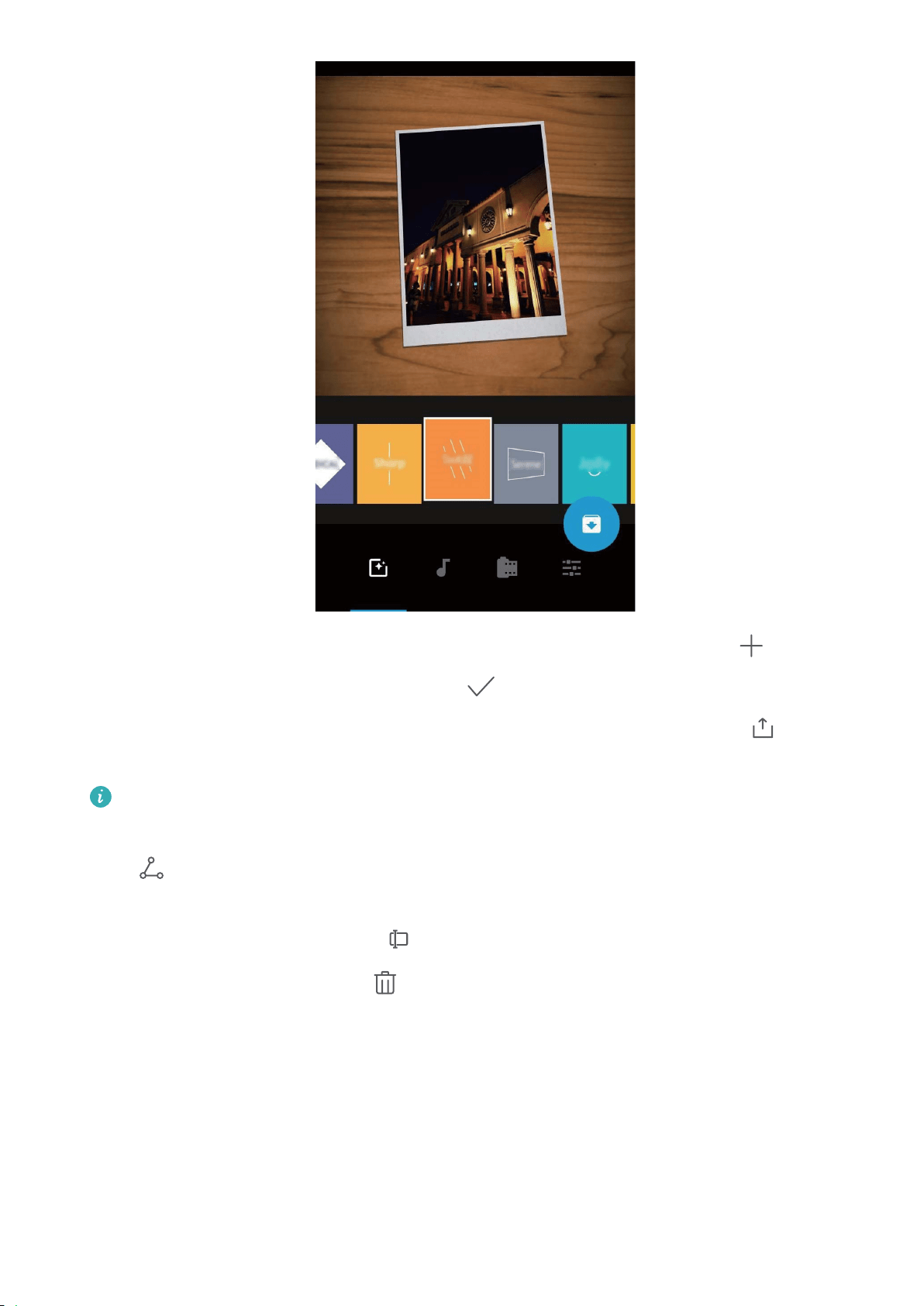
l Play or edit Highlights: Touch
and you can edit the video's template or background music
using the options bar at the bottom of the scr
een during playback.
46
l Add or delete photos and videos in t
he album: To add a photo or video, touch
and select
the photo or video you want to add, then touch to add the selected item into the album. To
delete a photo or video, pr
ess and hold any photo or video in the album, then touch
, and
touch Move to delete the item fr
om the album.
Only videos in MP4 format can be added to the album.
l Shar
e photos and videos in the album: Press and hold any photo or video in the album, then
touch
to select a sharing mode and follow the onscreen instructions to complete the sharing
pr
ocess.
l Rename a Highlights album: Touch
and enter a new name.
l Delete a Highlights al
bum: Touch
, and then touch Delete.
Photo Management
Photo Recognition Helps Y
ou Sort Photos Intelligently
Is sorting your photos taking too long? Are you having a hard time nding the photo you're looking
for? Photo r
ecognition can automatically sort your photos into categories such as portraits, locations,
scenery, and food in Gallery, so you can quickly nd what you're looking for.
Gallery
47

Sort photos intelligently: Gallery will automatically sort the photos you take into categories such as
portr
aits, locations, scenery, and food, so you can quickly nd what you're looking for.
Customize photo aggregation: After Gallery automatically aggregates different portrait albums for
you, you can manually change the album names of portraits and set the relationship (for example,
"Baby" and "Mom"). After the setting is complete, you can view different photo albums by name. You
can also search for a photo by searching for the name and relationship in the Gallery search bar.
Aggregate group photos into albums: After Gallery intelligently identies the categories, you can
name the generated albums. If there are more than 10 group photos, Gallery will cluster them and
generate a group photo album.
Edit Videos
Crop a video: Open
Gallery, select the video you want to edit, and touch to enter the video
editing scr
een. You can drag the slider in the crop area to select the segment you want to keep, and
touch
to
nish cropping the video.
Adjust the video resolution: As you drag the slider to select the video segment you want to keep,
you can touch
to preview the cropped video. You can also touch the video resolution options on
the editing scr
een to adjust the video resolution.
The higher the resolution, the clearer the video, but also the greater the storage space required.
Choose accor
ding to your needs.
When a long video contains multiple characters, you need to watch the entire video repeatedly just to
nd
the video segments with the particular character that you are looking for. With the AI leading role
stories, it can save you the hassle and help automate this process. When your device screen is off and
charging with a battery level greater than 50%, the system automatically analyzes characters in the
video, and generates highlights and clips based on specic characters. When you want to view the
video again, you can swipe up to view the generated video segments.
Ensure that the length of your video is between 15 seconds to 3 minutes.
Adjust Slow Motion Video Playback
Open Gallery, select the r
ecorded slow motion video, and touch
to play. Touch the screen
and dr
ag the slider in the edit area to select the segment you want to play in slow motion.
Edit Photos
Want to edit a picture you just took to make it even better? You can use the Gallery's editing features
to crop, rotate, and apply a variety of effects (such as grafti, personalized watermarks, and lters) to
your photos to make them more striking.
Go to
Gallery, select the photo you want to edit, and touch to enter the photo editing
scr
een. You can use the following features to edit your photos:
Gallery
48

l Rotate a photo: T
ouch
, and slide the angle dial to customize the rotation angle of the photo.
Y
ou can also touch Rotate or Mirror to rotate your photo 90 degrees or ip it.
l Crop a photo: Touch
, and drag the grid tool box or its corners to make your selection. You
can also select a xed crop ratio and drag the corners of the grid tool to crop the photo.
l Add
lter effects: Touch
, and select a lter effect.
l Color r
etention: Touch
, and follow the onscreen instructions to select the colors you want to
keep. The ar
eas selected to retain colors will be highlighted.
l Blur a photo: Touch
, select a blur mode, and drag the slider to adjust the degree of the blur.
l Adjust photo effects: T
ouch
to adjust the photo's brightness, contrast, saturation, and other
par
ameters.
l Beautify a portrait photo: When the system detects a portrait photo, it will automatically provide
you with the Beauty feature. You can touch
in the photo editing screen to apply features such
as Smoot
h, Blemish, Thin face, and Enhance eyes to make your portrait shot more attractive.
l Create photo mosaics: Touch
, and select a mosaic style and size to create a photo mosaic.
l Grafti
on photos: Touch
, and select a brush and color to add grafti to photos.
l Add watermarks: T
ouch
, and select a watermark (such as T
ime, Location, Weather, or
Mood) to personalize your photos.
l Add a tag: Touch
, and select an annotation style and font format to enrich your photos.
Br
owse and Share Photos or Videos
Browsing through old photos or videos can bring back some of your most precious memories. Your
photos and videos are stored in your device's Gallery. You can view them by time, location, or by
album.
View photos in full screen: Open
Gallery, and touch a photo to view it in ful
l screen mode.
Touch the screen again to hide the menu. When viewing photos in full screen mode, you can:
l View the basic information about a photo or video: Swipe up on a photo or video to display its
basic information.
l Zoom in or out on a photo: Place two ngers on the screen and separate them to zoom in on the
photo, or pinch them together to zoom out. If a photo has a higher resolution than that of the
screen, after you use two ngers to zoom in on the photo and then lift your ngers off the screen,
the photo can be enlarged two times in the maximum.
l View shooting parameters: You can touch
, and swipe up and down on the details window
to view the ISO (sensitivity), EV (exposur
e compensation), resolution, and other detailed shooting
parameters of the photo.
l Rename a photo: Go to
> Rename, and enter a new name.
Gallery
49

l Set photo as a contact pictur
e or home screen wallpaper: Go to
> Set as, and set the
photo as a W
allpaper or Contact photo.
Share a photo or video: Open
Gallery, pr
ess and hold any item to enter the selection screen
and select the items you want to share, then touch
to select a sharing method and follow the
onscr
een instructions to complete the sharing process.
View by shooting time: From the Photos tab, photos and videos are displayed by their shooting
times. To display shooting dates when viewing photos in full screen mode, go to
> Settings, and
enable Show time and location. Under the Photos tab, you can separ
ate or pinch together two
ngers to zoom in or out on the screen, and switch between display-by-day and display-by-month.
View by shooting location: If the photos or videos were taken while GPS tag is enabled in the
Camera settings menu, you can view them in Map mode. From the Photos tab, touch
, and the
photos or videos containing location information wil
l be marked at the corresponding shooting
locations on the map. You can also separate two ngers on the screen to zoom in on the map and
view details of the shooting location. Touch the photo thumbnail to view all the photos and videos
taken at that location.
View by album: From the Albums tab, you can view photos and videos by album. Some photos and
videos are stored in default albums specied by the system. For example, videos recorded with the
camera are saved in the Videos album. Screenshots and screen recordings are saved in the
Screenshots album.
Play slideshows: From the Photos tab, touch
> Slideshow, and the system wil
l automatically
play a photo slideshow. Touch the screen to stop playing.
Organize Photo Albums
Add photos or videos to a new album: From the Albums tab, touch Add album, enter an album
name, and then touch OK. Select a photo or video and add the selected item to a new album.
Relocate photos and videos: You can move photos and videos from various locations to the same
album for unied
management and browsing. After entering the corresponding album, press and hold
a photo or video until the
icon appears, then select the photos and videos you want to move.
T
ouch
, and select the album to move the items into. Once the items are moved, they will no
longer be r
etained in their original locations.
Favorite photos and videos: Want to store your favorite photos and videos separately? You can
Favorite your special photos and videos for easy viewing. Open the photo or video you want to
Favorite, then touch
to store it in the My favorites al
bum. The items you Favorite will remain in
their original locations. However, a
icon will appear on their thumbnails.
Gallery
50

Hide albums: Have important personal al
bums you don't want others to see? You can hide them to
ensure personal privacy. From the Albums tab, go to
> Hide al
bums and turn on the switches
for albums that you want to hide.
Albums such as C
amera, Videos, My favorites, and Screenshots cannot be hidden.
Delete photos and videos: Press and hold a photo or album until the
icon appears, select the
items you want to delete, and then go to > Delete. Deleted photos and videos wil
l remain in the
Recently deleted album, along with a tag indicating the number of days until the item is
permanently removed from the system. To permanently delete a photo or video before it expires, from
Recently deleted, select the photo or video you want to permanently delete and go to
>
Delete.
Recover deleted photos and videos: Go to the Recent
ly deleted album, press and hold a photo or
video until the
icon appears, then select the items you want to recover, and touch to
r
ecover them to their original albums. If the original album is deleted, the system will re-create a new
album for you.
Gallery
51

Phone Manager
Use One-touch Optimization
Have you noticed that your Phone has slowed down r
ecently? Do you worry that it might be
vulnerable to malware and other security threats? Use one-touch optimization to make your Phone
run smoother and protect it from security threats.
Open
Phone Manager, and touch OPTIMIZE. Y
our Phone will automatically perform overall
performance optimization, security optimization, battery performance optimization, and device
management optimization. You can customize the optimization options. However, the system will
recommend you to perform a one-touch manual optimization to increase its running speed, check for
security risks, optimize power consumption, and monitor and block unknown phone numbers and
harassing calls.
Manage Mobile Data Usage
Manage mobile data usage to avoid incurring extra charges.
Go to
Phone Manager, and touch Data usage to view data usage statistics or enable Smart
data saver.
l Data usage r
anking: View data usage for each app.
l Networked apps: Manage Internet access permissions for each app.
l Smart data saver: Enable Data saver (prevents background apps from using mobile data) and
select the apps that are exempt from data usage restrictions.
52
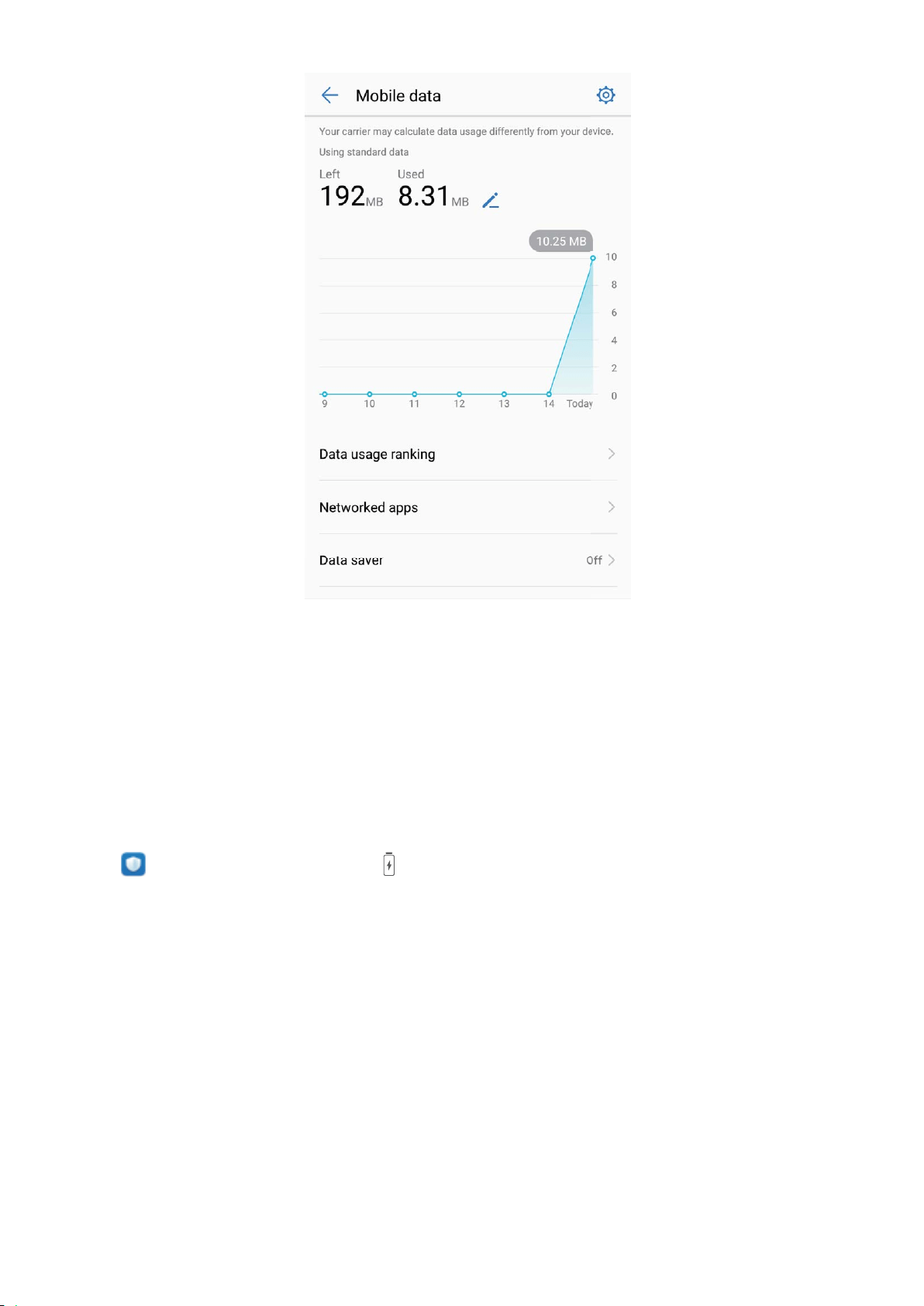
Enable Smart Power-Saving Management to Optimize
P
ower Consumption
Running out of battery at an inopportune time can cause many inconveniences. Smart power-saving
management helps you to effectively extend the battery life of your Phone so that you can better
enjoy your favorite games and other interests.
Open
Phone Manager and touch to perform the following:
l Compr
ehensive power consumption analysis and optimization: Touch Optimize battery
usage to check for power consumption problems and automatically optimize performance.
l Enable Power-saving mode or Ultra power-saving mode: Enable Power saving mode or Ultra
power saving mode. Choose the appropriate power saving mode based on your Phone's battery
level to extend battery life.
l View power consumption details: Touch Power consumption details to view power
consumption details. In the Battery usage details section, the colored bars beneath Charging
indicate the various points when you charge your device. Gaps between the colored bars indicate
the various points when you were not charging your device. This feature does not consume power.
Touch Battery usage to view power-intensive apps and hardware.
l Enable smart resolution to save power: Smart resolution is a function that automatically
decreases the resolution of your device to save power. Enable Screen resolution, and select Smart
Phone Manager
53

resolution. Y
our device will automatically adjust the screen resolution based on the apps running in
the background to save power. Enabling smart resolution may affect the display of the screen. You
can also manually set the screen resolution to save power when high resolution is unnecessary.
To learn more about power saving settings, open
Phone Manager and touch > to
perform the fol
lowing:
l Enable power-intensive apps notication: Enable Power-intensive prompt, and you'll get
notied when power-intensive apps are detected by your Phone. Then touch Power-intensive app
history to check and manually disable such apps as you wish.
l Display remaining battery percentage on the status bar: Enable Battery percentage to
display the remaining battery percentage of your device on the status bar.
Enable Virus Scanner
Opening the wrong advertisement or touching the wrong link can infect your device with Trojans and
malware that will secretly install themselves onto your device and potentially steal your personal data.
Running a virus scan can locate and remove any potential threats to keep your Phone in good shape.
Virus scan is enabled by default. You can view it in the following way: Open
Phone Manager
and touch V
irus scan. If you see the Secure icon, it indicates that your device is safe. At the same
time, you can touch
to
congure the following settings:
Allow cloud-based virus scan and the virus database update on the data network: If this
option is enabled, your Phone will use the data network to perform cloud-based virus scan and
update the virus database.
The virus scan reminder is enabled by default. The system will notify you if you do not perform an
anti-virus scan for mor
e than 30 days.
Phone Manager
54

Email
Add Email A
ccounts
Add your email account to your Phone for convenient email access at any time. If you have questions
about specic settings while conguring your email, please consult your email account provider.
Add a personal email account: Open
, select an email service provider or touch Ot
hers, enter
your email address and password, then touch Sign in and follow the onscreen instructions to
congure your account. The system will automatically connect to the server and check server settings.
Add an Exchange account: Exchange is developed by Microsoft and used by companies as their
internal email system. If your company email uses Exchange servers, you can log in to your work email
on your Phone. Go to
> Exchange, enter your email addr
ess, username, and password, then
touch Sign in and follow the onscreen instructions to congure your account. The system will
automatically connect to the server and check server settings.
After conguration, the system will open the Inbox screen by default.
Manage Email Accounts
You can manage multiple email accounts concurrently on your Huawei Phone.
Open
Email. Y
ou can:
l Check emails: On the Inbox screen, touch
, and then select an email account to view the list
of your emails. S
wipe down to refresh the list of emails. Open an email to read, reply, forward, or
delete it. Swipe left or right on the screen to view the previous or next email. To delete multiple
emails, touch and hold an email to go to the email management screen, select the emails, and
touch
.
l S
ync emails: Swipe down on the Inbox screen to refresh the emails list. Go to
> Settings,
touch an account, and then enable S
ync email. To sync automatically, touch Sync frequency and
select the syncing time to complete conguration.
l Search emails: On the emails list screen, touch the search bar, and enter a keyword, such as email
subject and content.
l Add multiple email accounts: Go to
> Settings > Add account, select your email service
pr
ovider, and enter your information.
l Switch between email accounts: On the accounts screen, touch
, and then touch an account
name to switch to.
l Congure
email accounts: On the account screen, go to
> Settings, select an account to set
A
ccount name, Default account, and Remove account.
55

Manage VIP Email Contacts
W
orried about missing an important contact's email among a sea of emails? You can add important
contacts to the VIP list. Your device will automatically move emails from VIP contacts to the VIP
mailbox.
Open
Email, and go to > Settings > VIP contacts. Fr
om the VIP list screen, go to Add >
Create or Add from contacts.
Add or remove VIP contacts: On the VIP list screen, touch
or to manage VIP contacts.
Set A
uto Response for Exchange Email
Unable to reply to emails on vacation? Enable auto responses to automatically reply to emails.
Open
Email, go to > Settings, and select your Exchange account. T
ouch Automatic
replies, enable Automatic replies, set the content and time of your auto reply, and then touch
Done.
Email
56
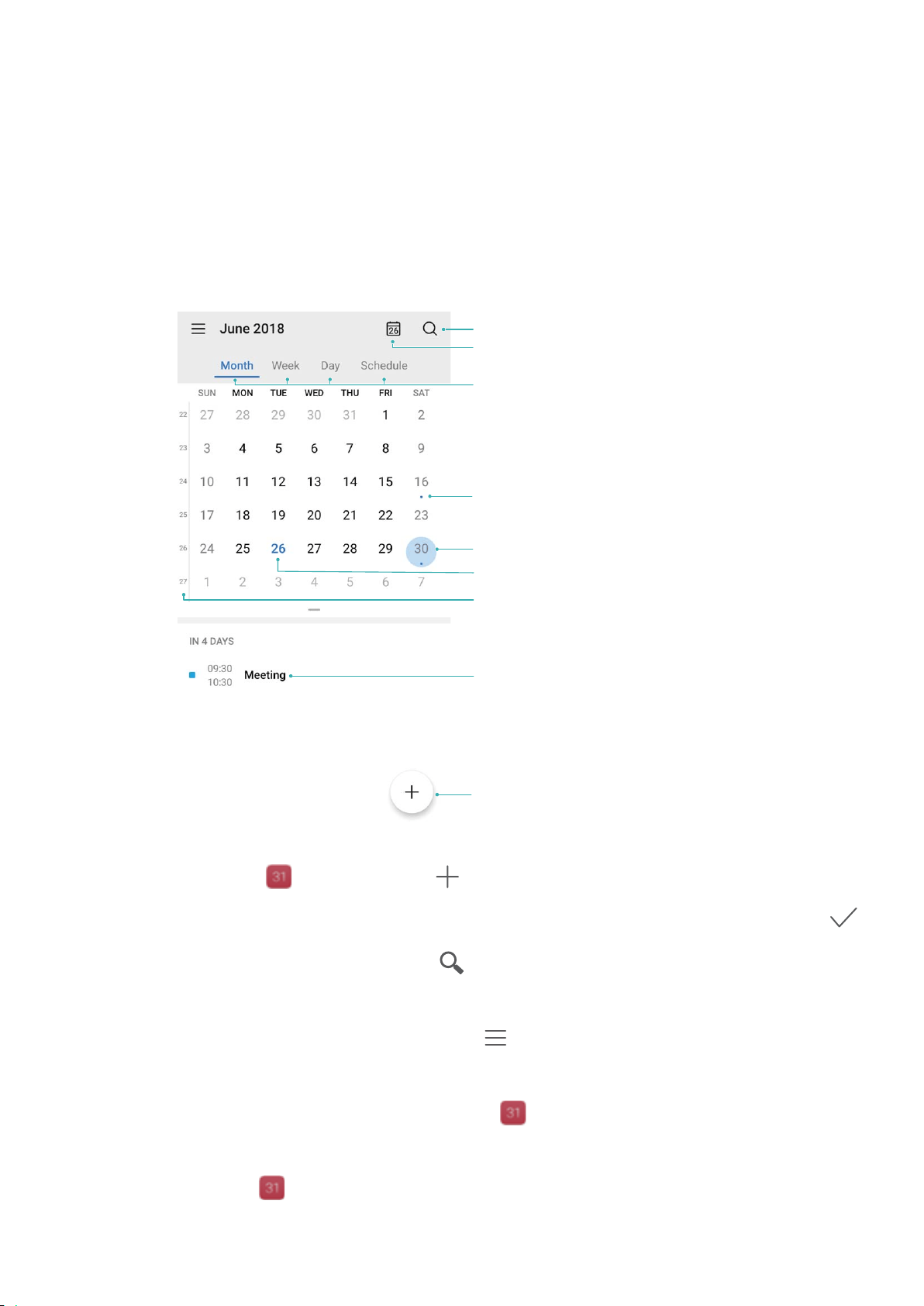
Calendar
Navigate t
he Calendar
Want to bring order to your busy life? Try using the app Calendar on your Huawei Phone to manage
your daily schedule.
View today
Search event
Week no.
Today
View event(s) on the day selected
Event available
Event(s) on the day selected
Switch view
Add event
Create an event: Open Calendar, touch , and enter your event information including title,
location, and start and end times. Go to Reminder to add a r
eminder for your event, then touch
.
Sear
ch events: On the Calendar page, touch
and enter the event keywords, such as title or
location.
Congure Calendar: On the C
alendar page, go to
> Settings to customize calendar display
and r
eminders.
Check the exact location of the destination: Open
Calendar. In a view or schedule, touch the
event wher
e the destination has been set to view the exact location information about the event.
Query weather: Open
Calendar, and touch an event in a view or schedule to view the weather
of the day in the event.
57
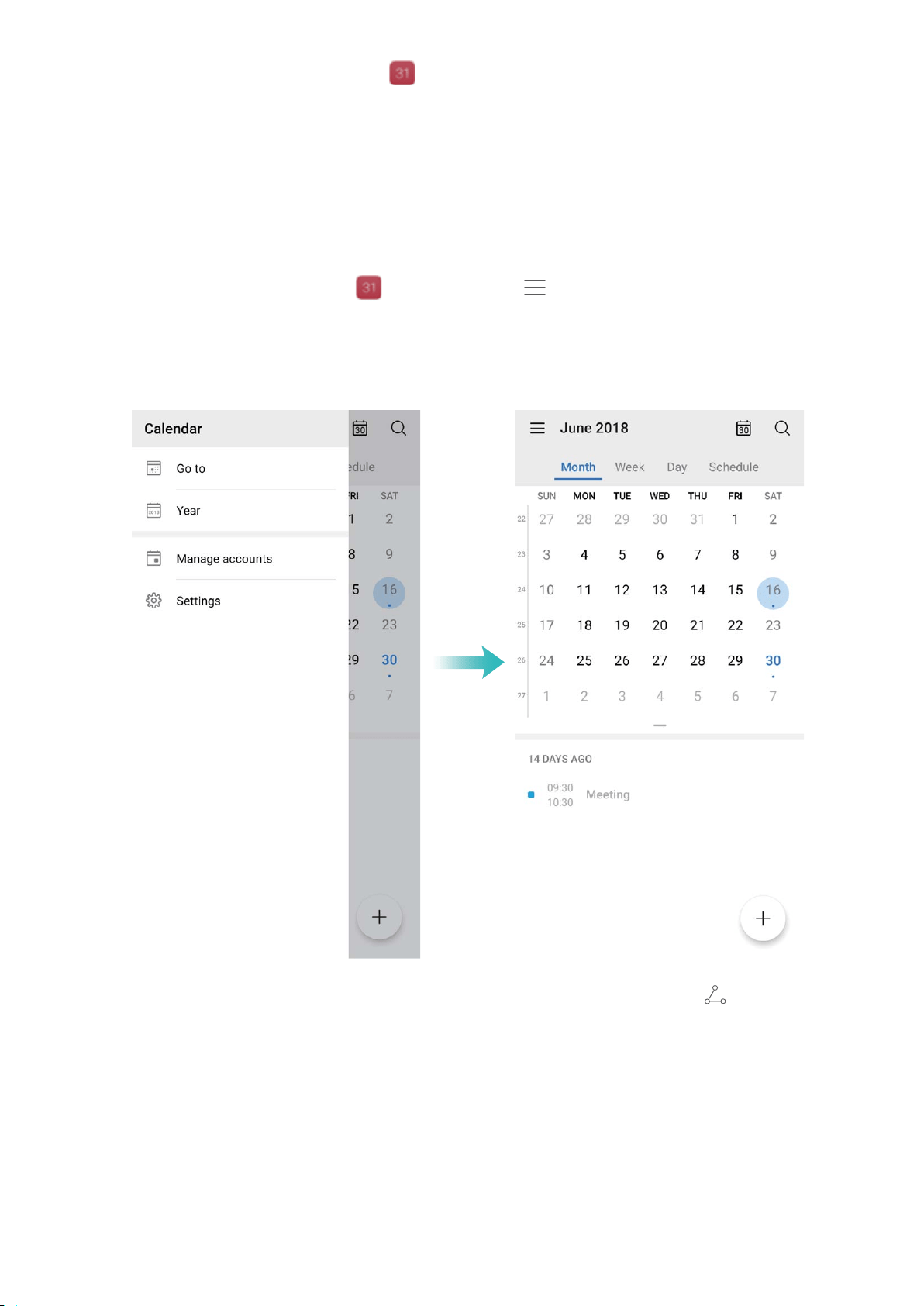
Check conference participants: Open Calendar, and touch the confer
ence reminder to view
the participants.
Import To-Dos to Keep Your Work Organized
Many to-dos cannot be handled in time. What can I do if I forget to handle them? Import each to-do
item to Calendar for easy reference and you will not miss any important events.
Import meeting reminders: Open
Calendar, go to > Manage accounts > Add account,
and fol
low the onscreen prompts to add your work emails (Exchange account) to the calendar to
check meeting reminders.
Share an event: T
ouch an event on the calendar or under schedule, then touch
and follow the
onscr
een prompts to share the event using any of the multiple methods.
View Global Holidays
Traveling overseas for work or holiday? Download your destination country's holiday information
ahead of time to better plan your work and schedule.
Calendar
58

Open Calendar, go to > Settings > National (Regional) holidays, and enable the
corr
esponding switch for your destination country. Your device will automatically download the
holiday information.
Calendar
59

Clock
Use t
he Clock
With many powerful features and lots of information, the humble Clock has a lot to offer. The Clock
can be used as an alarm, a world clock, stopwatch, or a timer.
View the time all over the world: Go to Clock, touch on the W
orld clock tab and enter
the name of a city or select a city from the list of cities. Touch
to set the date and time.
Display t
he time in two different regions: Go to
Clock, then go to > Date & time in the
W
orld clock tab. Enable Dual clocks, touch Home city, and select your city of residence from the
city list.
60
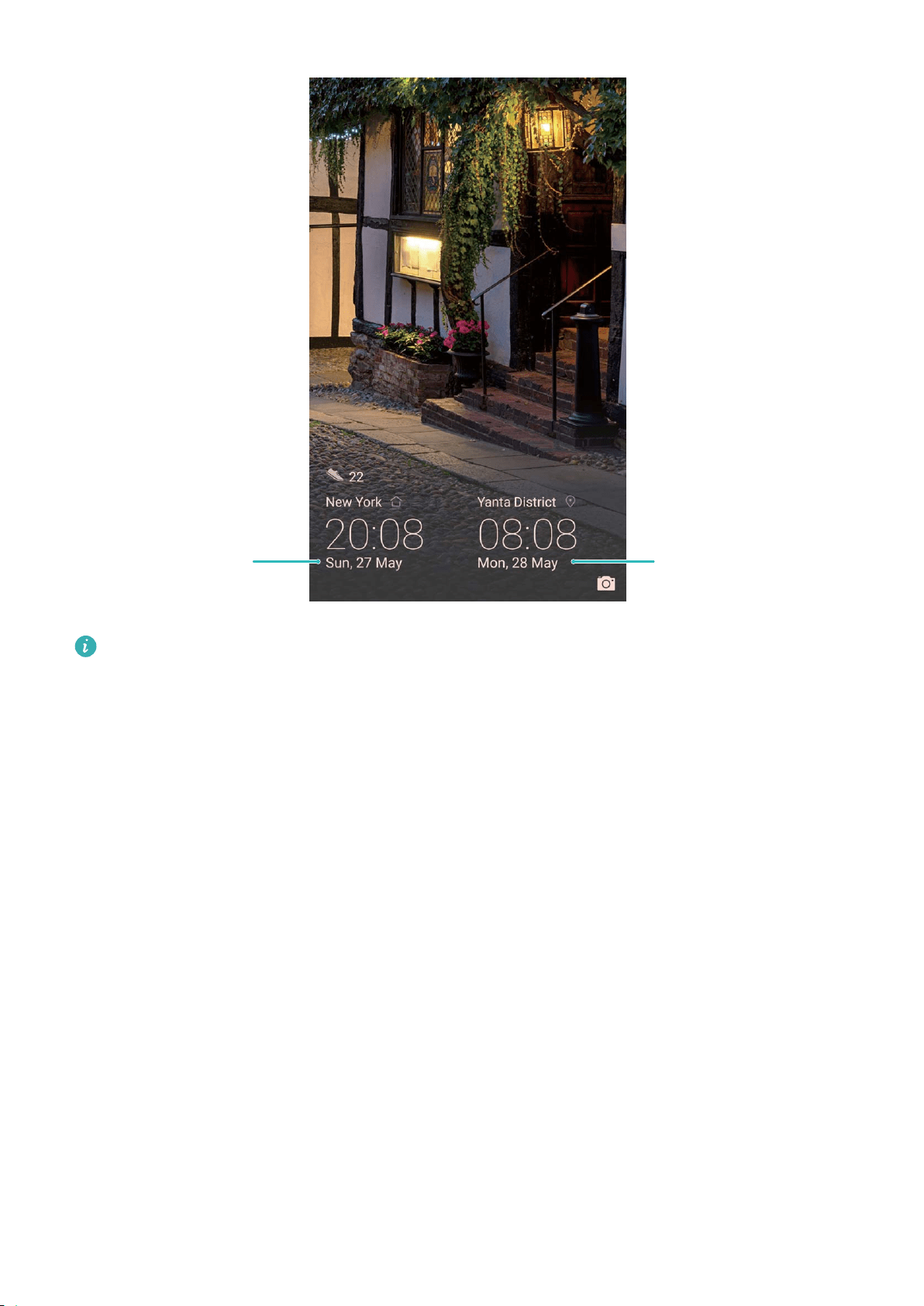
Network-provided
date and time
Time and date
in your selected city
If the time in your current region is the same as that of your home city, the lock screen will only
display one time.
Clock
61

Notepad
Manage Y
our Notes to Keep Your Records in Order
Want to share important notes or add something to favorites? Manage your notes to keep your
records in order.
Share a note: Want to send your meeting notes to your colleague? On the list page of All notes or
All to-dos, open the note you want to share, then touch
to select a sharing method and follow
the onscr
een prompts.
Add a note to favorites: Want to add a note to favorites so you can refer to it later? On the list
page of All notes, swipe left on a note and touch
. Alternatively, open the note you want to add
to favorites and touch .
Delete a note: W
ant to delete an outdated note? On the list page of All notes or All to-dos, swipe
left on a note, then touch
. Alternatively, touch and hold a note to view options, select the note(s)
you want to delete, and touch .
Sear
ch notes: Want to quickly nd a note? Touch the search bar on the list page of All notes and
enter the keywords into the search bar. Alternatively, swipe down on the home screen to access the
search bar, and enter the keywords into the search bar.
Generate a to-do list: Want to create a shopping list? On the page of Notepad, touch
> ,
enter an item, and then touch Save. Add multiple items to gener
ate a to-do list.
After completing an item, go to the editing page of Al
l to-dos, and select
on the left of the
completed item.
62
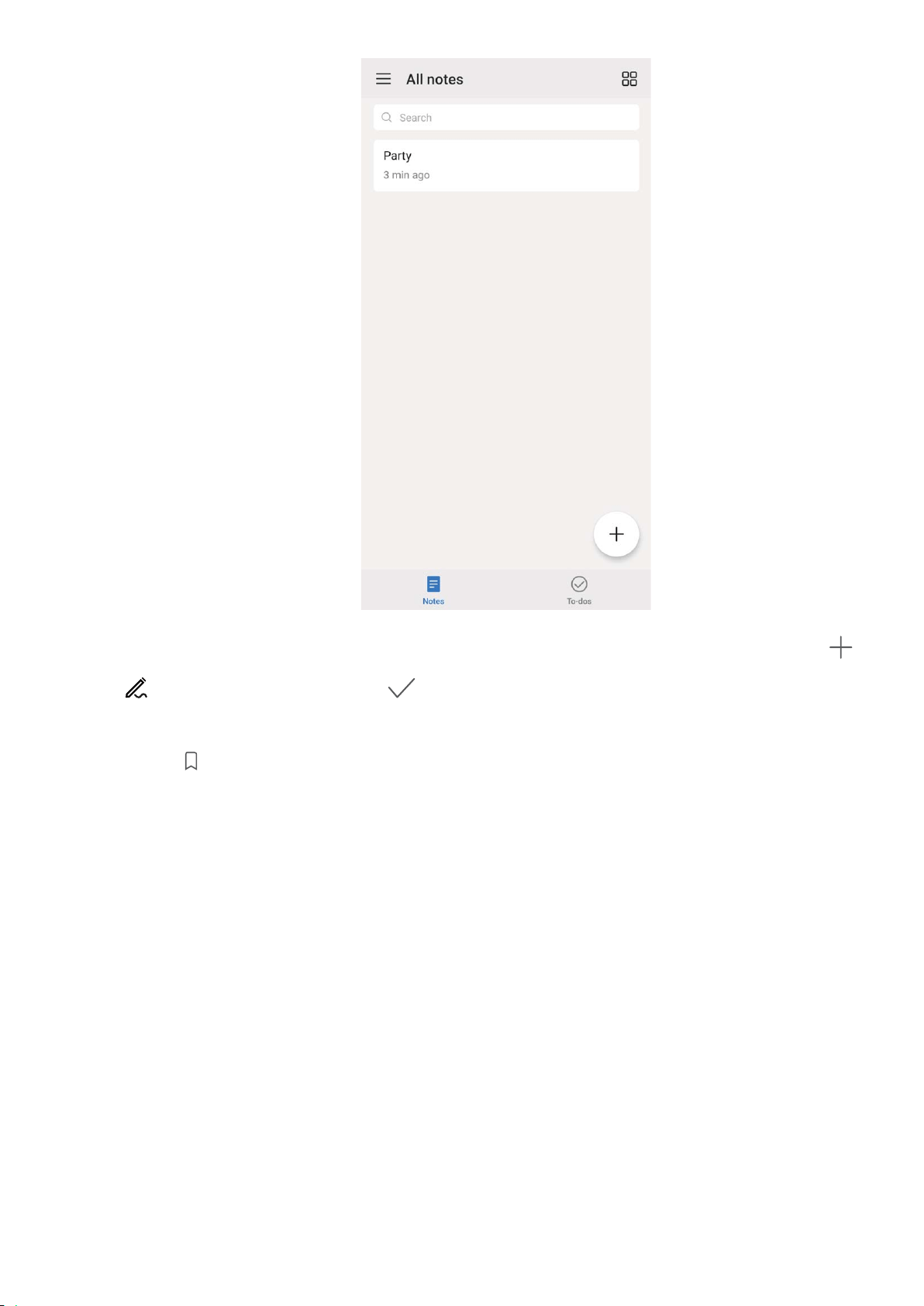
Add a handwritten note: W
ant to quickly record your drawing or handwriting? Go to Notes >
,
touch , write your notes, and touch to save it. You can write and draw in Notepad.
Add tags to notes: W
ant to easily view the categories of your notes? On the editing page of All
notes, touch
, and use different colored tags to categorize different content for a clearer view of
your notes.
Notepad
63

Utilities
Use Recor
der to Make Audio Notes
Have you ever felt like you do not have enough time to take important notes during a meeting? Do
you need to sort out a pile of notes from an interview or class? Recorder lets you record audio les
that you can conveniently play back later.
Open
Recorder, and touch to begin recording. While recording, you can add tags at
important points. T
ouch
to
nish recording and save the audio le.
After the recording is completed, you can:
l Play recording from tag: Touch New recording , and then touch a recording to switch to the
play screen. Swipe left on the play screen to switch to the tag screen. You can then choose a tag
and play the recording from that point.
l Manage recordings: Touch and hold a recording to access options such as sharing and deleting
the recording.
In the recording le
list, touch and hold a recording le, and then touch
> Details to view its
stor
age location.
64

Multiple Users
Set and Use Multiple Users
W
ant to have more than one user account on your Phone to keep your work and personal life
separate? You can add multiple users to your Phone and switch between them with a single touch.
Add Users or Guests
A maximum of three users and one guest can be added.
Add a user: T
ouch
Settings, and go to Users & accounts > Users. T
ouch Add user, enter a
name for the user and touch ADD. After you add a new user, you can switch to the new user and
follow the onscreen instructions to congure the user's account settings.
Add a guest: Touch
Settings, and go to Users & accounts > Users. T
ouch Add guest > ADD
to create a guest.
Set a user account name and prole picture: After adding a user, you can set a user account
name and a prole picture for the user. To do this, switch to the relevant user, and touch
. Follow
the onscr
een instructions to change the user name and prole picture.
Allow a user to make calls, send messages, and share call records: The basic call functions can
still be used after you switch to a different user mode. The added new user can make calls, send
messages, and share call records with the phone owner. The guest user can make calls and share call
records with the phone owner. To do this, log in with the owner account, and touch
Settings,
and then go to Users & accounts > Users. Select the desir
ed user, and touch Allow calls,
messages, and sharing of communication history.
Delete Users or Guests
To delete a user, select one of the following methods:
l Log in with the owner account, and touch
Settings, and then go to Users & accounts >
Users. Select the desir
ed user, and touch Delete user > DELETE.
l Log in with the owner account, and swipe down from the status bar, and then go to
> Mor
e
settings. Select the desired user, and touch Delete user > DELETE.
To delete a guest, touch
Settings. Go to Users & accounts > Users, and then touch Guest >
Delete guest > DELETE.
S
witch Between the Owner Account, User, and Guest Modes
To switch between the owner account, user, and guest modes, select one of the following methods:
l Swipe down from the status bar, and touch
. Then, touch the prole picture of the desired user.
65

l T
ouch
Settings, and go to Users & accounts > Users. Then, touch the user name or prole
picture of the desired user.
You will be prompted to enter the password to unlock the screen when switching back to the
owner fr
om another user.
Multiple Users
66
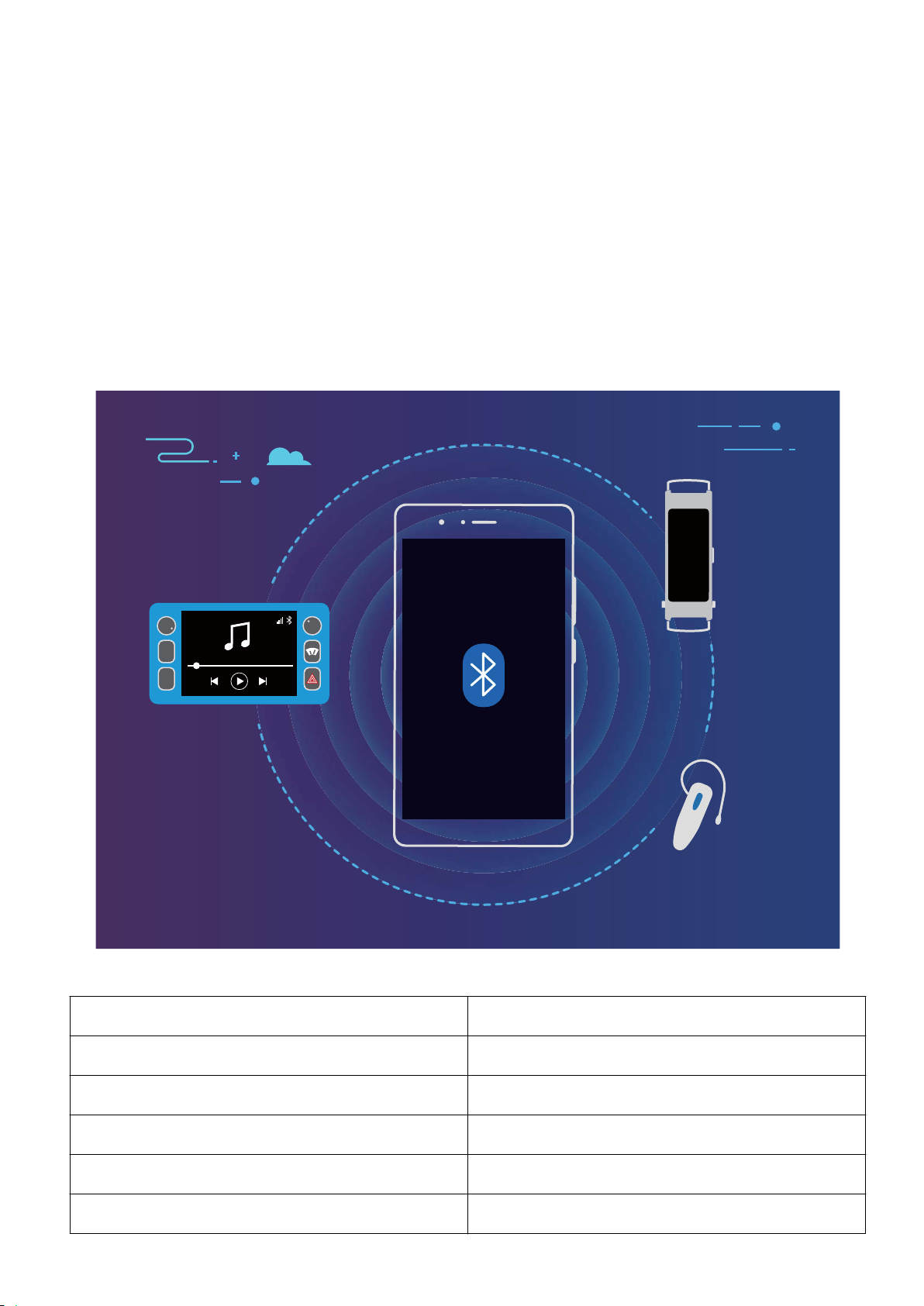
Device Connection
Bluetoot
h
Connect Your Phone to Bluetooth Devices
Use Bluetooth to connect your Phone to Bluetooth headsets and in-car Bluetooth to navigate or listen
to music while you drive. You can also connect your Phone to Bluetooth wearables to record and
manage tness data. Connecting Bluetooth devices to your Phone does not increase power
consumption signicantly.
$0
)0
Bluetooth protocols used by Huawei devices and their functions:
HFP, HSP Make calls
A2DP Play music
AVRCP Control music playback
OPP Transfer
les
PBAP Sync contacts
MAP Sync text messages
67

HID Operate Bluetooth keyboards and mouses
PAN Tethering
BLE Connect to Bluetooth Low Energy (BLE) devices
Enable or disable Bluetooth: Fr
om the home screen, swipe down from the status bar, open the
shortcuts panel, and then touch
to enable or disable Bluetooth. Touch and hold to open the
Bluetooth settings scr
een.
Pair a Bluetooth device: Enable Bluetooth from the Bluetooth device's settings screen. Check that
the Bluetooth device is set to visible. From Available devices, touch the device you want to pair and
then follow the onscreen instructions to complete pairing.
Unpair a Bluetooth device: Enable Bluetooth from the Bluetooth device's settings screen. Touch
next to the name of the paired device and then touch Unpair.
Change Bluetoot
h device name: From the Bluetooth settings screen, enable Bluetooth. Touch
Device name, enter a new name for the device, and then touch Save.
View Bluetooth help: From the Bluetooth settings screen, touch
to view information on how to
establish Bluetooth connections with in-car systems, headsets, speakers, wear
ables, phones, tablets,
and computers.
Use Bluetooth to Share Data
Connect your Phone to another device over Bluetooth to share data, import and export contacts, and
set up Internet tethering.
Use Bluetooth to send les: Ensure that your Phone is within Bluetooth range of the other device
(10 m or 32 ft). You can then establish a Bluetooth connection and share multimedia les, web pages,
contacts, documents, and apps between the two devices. Open
Files, touch and hold the
le that
you want to send, and then go to More > Share > Bluetooth. Follow the onscreen instructions to
enable Bluetooth. When the other device is detected (Bluetooth must be enabled and the device must
be visible), touch the name of the device to establish a connection and start sending les.
Receive
les over Bluetooth: From the home screen, swipe down from the status bar, open the
shortcuts panel, and then touch to enable Bluetooth. Touch Accept on the le transfer
notication to begin receiving the les. Received les are saved to the bluetooth folder in Files by
default.
Import or export contacts over Bluetooth: Open Contacts and go to > Import/Export
to perform the fol
lowing:
l Import contacts: Touch Import via Bluetooth and follow the onscreen instructions to establish a
Bluetooth connection with the other device. Contacts from the other device will then be imported
to your Phone automatically.
Device Connection
68
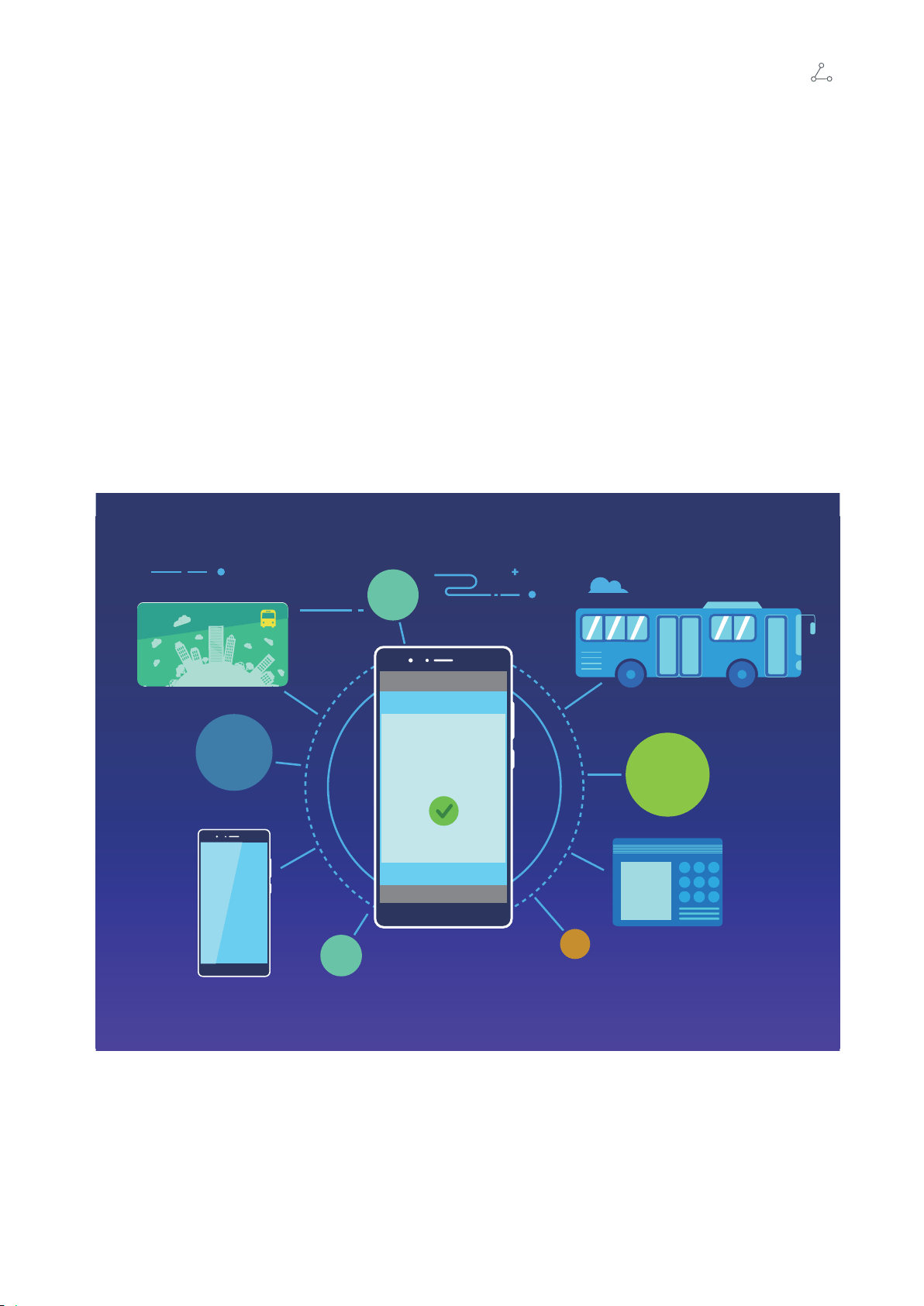
l Export contacts: T
ouch Share contacts, select the contacts that you want to share, touch
and select Bluetoot
h. Follow the onscreen instructions to establish a Bluetooth connection with the
other device. Those contacts selected will be exported from your Phone to the other device
automatically.
NFC
Introduction to NFC
NFC (Near Field Communication) is a technology that enables short-distance wireless communication.
Through NFC's point-to-point mode, two devices can transfer data in real time when they are within
10 cm (4 inches) of each other. Photos, networks, and apps can all be quickly shared using this
method. NFC read/write mode lets you check product information contained in NFC tags. NFC card
emulation mode allows your device to act as a bank card for quick and easy payments.
NFC
123
456
789
Use NFC to Share Data Quickly
NFC lets you shar
e data across two devices quickly without the hassle of pairing. Simply place the NFC
detection areas of both your devices in close proximity to each other, and then you can transfer les
and other data quickly between the two NFC-enabled devices.
Device Connection
69
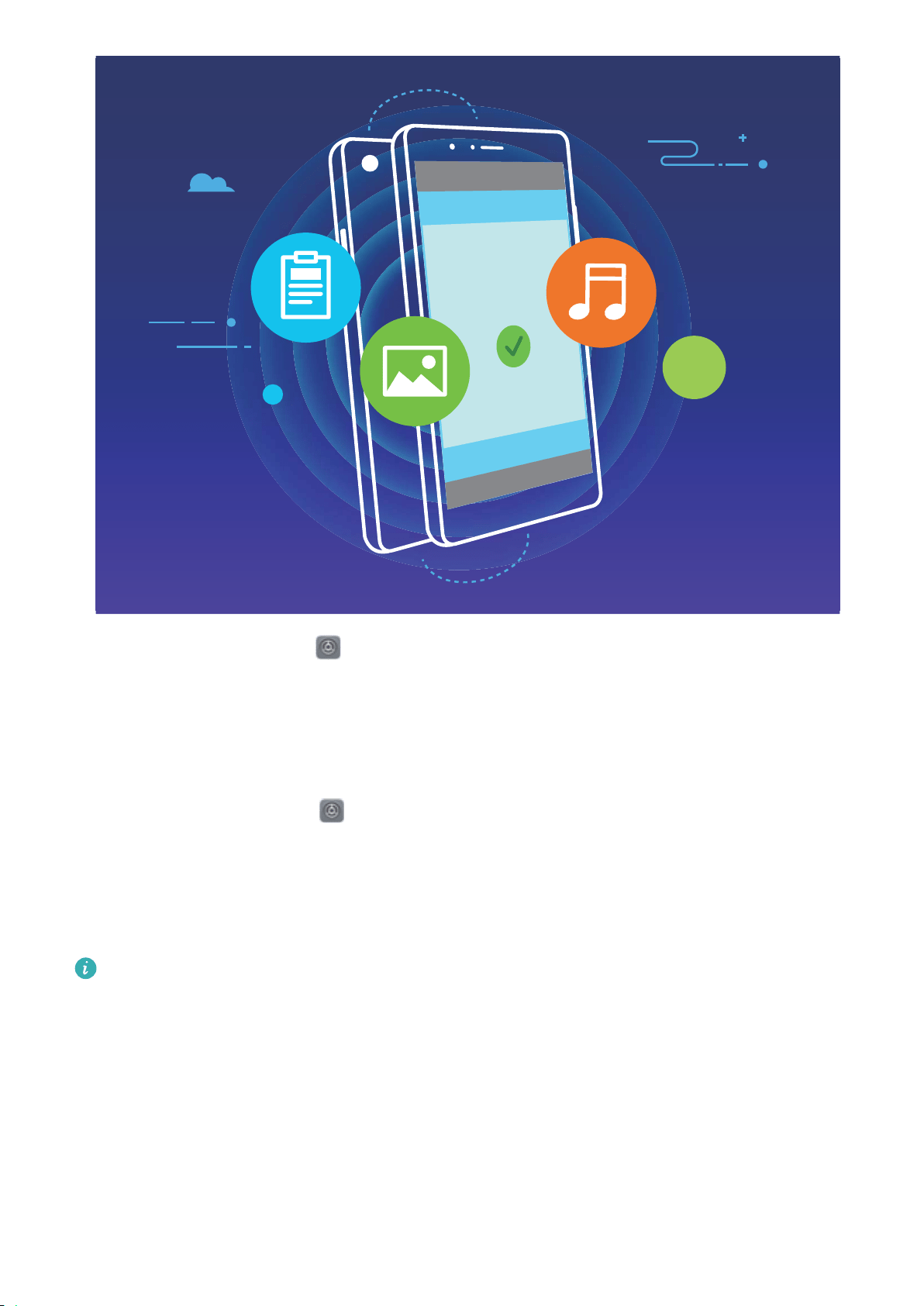
NFC
Use NFC to send data: Open Settings, touch Device connectivity and enable NFC and
Huawei Beam. Select the les you want to send and touch Shar
e > Huawei Beam. Keep your
Phone unlocked and the screen on. Place the NFC detection areas of both devices close together.
Once a connection is established, the transmitting device will play an audio alert and minimize the
sharing screen. Touch the transmitting device's screen to send les.
Receive
les over NFC: Open
Settings, then touch Device connectivity and enable NFC and
Huawei Beam. K
eep your Phone unlocked and the screen on. Place the NFC detection areas of both
devices close together. Once a connection is established, the transmitting device will play an audio
prompt. After the prompt, please wait for the le transfer to complete. Received les are saved by
default to the Beam folder of your Files.
If there is an option to enable Read and write/P2P on the NFC scr
een, ensure that it is enabled.
Features may vary depending on your carrier.
Use NFC to Quickly Establish Connections between Devices.
Place the NFC detection areas of two devices close together to quickly establish a Bluetooth or Wi-Fi
connection between them. You can also use this method to establish a Wi-Fi Direct connection or
share a Wi-Fi hotspot without searching for devices, pairing and entering connection details manually.
Device Connection
70
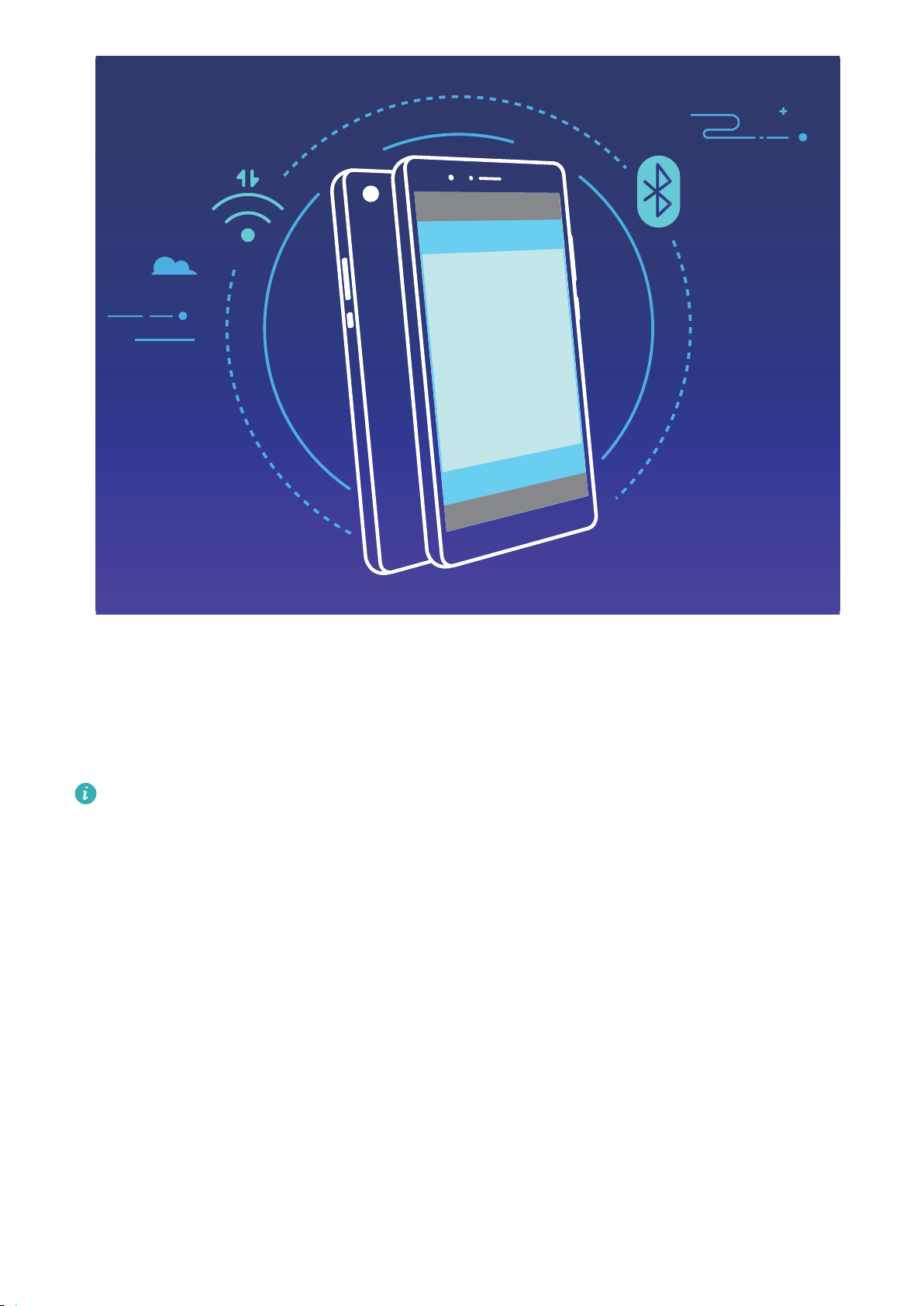
NFC
Using Bluetooth pairing as an example, enable NFC, Huawei Beam, and Bluetooth on both devices.
Open the Bluetooth pairing scr
een on both devices and place the NFC detection areas of devices close
together. When the sending device plays an audio prompt and content on the screen shrinks, follow
the onscreen instructions and touch the screen on the sending device to establish a Bluetooth
connection
If there is a Read and write/P2P switch on the NFC scr
een, ensure it is also enabled. Features
may vary depending on your carrier.
Desktop Mode
Connect Your Phone to an External Display
By using a cable, your Phone can be connected to an external display.
Use a docking station without USB ports to connect your Phone to an external display, or a docking
station with USB ports to connect your Phone to a display, keyboard, and mouse simultaneously.
l Docking station without USB ports: supports the conversion of USB Type-C to one interface,
such as USB Type-C to HDMI. If your external display has an HDMI port, use a USB Type-C to HDMI
adapter to connect your device to the external display.
l Docking station with USB ports: supports the conversion of USB Type-C to multiple interfaces,
such as USB Type-C to HDMI/USB/USB. If your external display has an HDMI port, but you also want
to connect a mouse and keyboard to your device, use a USB Type-C to HDMI/USB/USB adapter.
Device Connection
71
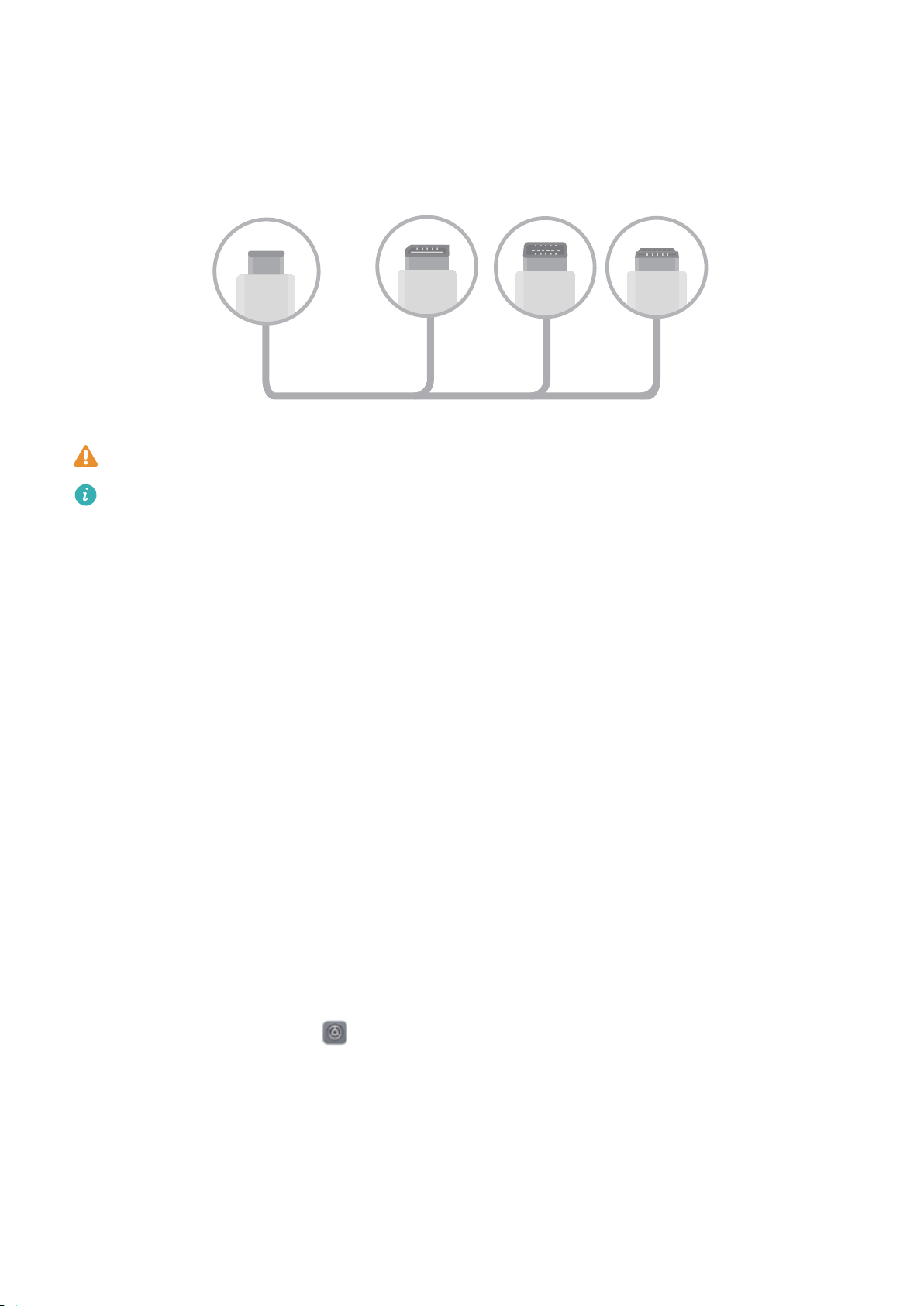
Alternatively, use a USB Type-C to DisplayPort/HDMI cable to directly connect your device to the
external display
.
Type-C
DP MiniDP HDMI
If you connect the adapter to too many devices, it may not function properly.
l T
o ensure full compatibility, visit Vmall and buy an adapter that is designed to work with your
device.
l When your Phone is connected to an external display via an adapter, you can plug the adapter
into a charger to charge your Phone. The charger must meet Huawei's charging specication.
Devices with a power output of less than 5 V/2 A should not be used.
l You can also use Bluetooth to connect a mouse or keyboard to your Phone directly.
l If the desktop screen does not
t onto the external display, go to the settings menu on the
display device to change the image adjustment mode to automatic. You can also right-click the
screen and adjust the screen mode you want on the desktop of the external display. The
settings vary with TVs or projectors. The actual display of your TV or projector prevails.
In a wireless manner, your Phone can be connected to an external display.
By using one of the following methods, your Phone can be connected to an external display:
l If the external display supports Miracast, you can turn on the Wi-Fi of your Phone and connect your
Phone to the external display.
l If the external display does not support Miracast, you can use a wireless HDMI adapter to connect
your Phone and the display. Insert the wireless HDMI adapter into the HDMI interface of the
external display and connect the power cable to the wireless HDMI adapter. After the wireless HDMI
adapter works properly, open
Settings on your Phone, go to Device connectivity > Easy
Pr
ojection, and enable Wireless projection to connect your Phone to the network of the wireless
HDMI adapter.
Drag down from the status bar on your Phone, or open the notication center on the external display
to switch between Phone and Desktop.
Device Connection
72
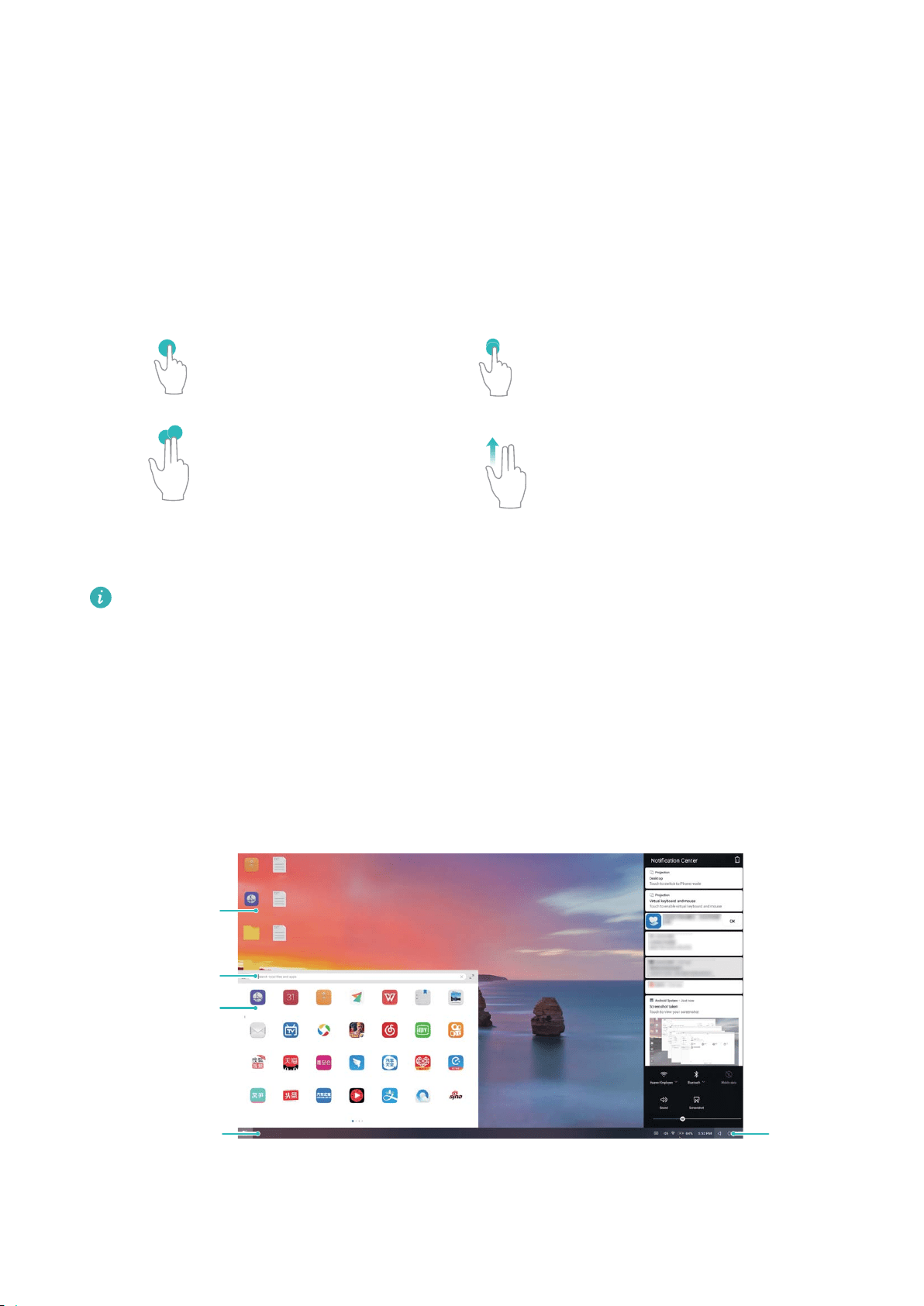
Use Your Phone as a Touchpad
Now that you've connected your Phone to an external display
, what happens if you don't have a
keyboard or mouse with you? You can turn your Phone into a touchpad in a few simple steps.
Swipe down from the status bar of your Phone and touch Virtual keyboard and mouse in the
notication panel. Use touch gestures to simulate mouse commands.
l Use touch gestures to simulate mouse commands.
One finger touch - left-click
Double touch - select text
Two finger swipe -
browse page
Two finger touch - right-click
l Enter text using a virtual keyboar
d when an external keyboard is not connected.
The virtual keyboard is unavailable when an external keyboard is connected.
Project Your Phone Screen onto an External Display
Desktop layout: View content on your Phone in a desktop layout. T
ouch the signal status icon in the
status bar to open the notication center; touch the time to open the calendar; or touch the onscreen
navigation icons as you would in the navigation bar.
Desktop
apps/documents
Task bar
Status
bar
Search bar
Start menu
Device Connection
73
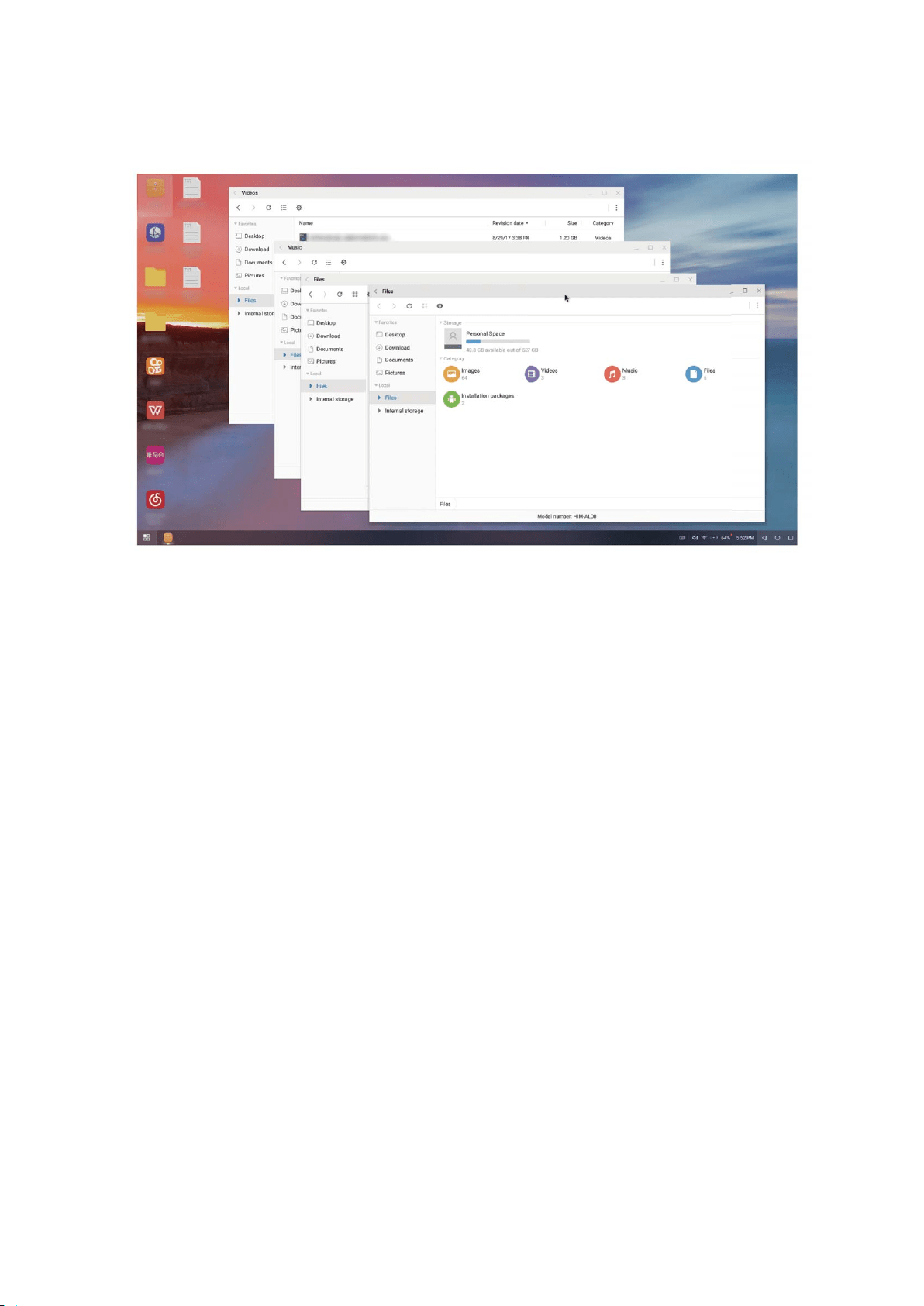
Multiple windows: When you'r
e working on something important, open more than one window so
that you can cross reference documents and increase your productivity.
File management: Manage your les conveniently. You can save les to the desktop, create new les
or folders, and rename or delete les.
Quick search: L
ocate les in a ash. Search for documents, multimedia les, and start menu apps
from the start menu search bar.
Change your desktop wallpaper: An inspiring desktop can brighten your mood and boost your
productivity. Right-click the mouse on the desktop to change the desktop wallpaper.
Create app shortcuts: Want to open an app quickly from the desktop? From the start menu, you can
touch and hold an app and then drag it to the desktop to create a shortcut. You can also right-click
the app icon and choose Send to Desktop to create an app shortcut.
Audio output: Want to change the audio output device? You can select the external display or your
Phone as an audio output device.
Large-screen conference: You can project a PPT on a large screen. With the touchpad, laser pointer,
and uorescent pen supported simultaneously, you can write directly on the PPT when it is projected
on the large screen to make your presentation more vivid.
Quick app projection: On your Phone,touch and hold an app icon. After the projection menu is
displayed, you can project the app to the large screen and open the app.
Separate management of screens: When using the external display for work, you can use online
chat apps or answer calls on your Phone. The large screen can also be used for audiovisual
entertainment.
Device Connection
74

Connecting USB Device
T
ransfer Data between Your Phone and Computer
Use a USB cable to connect your Phone to your computer and transfer data.
Select USB connection mode
Use a USB cable to connect your Phone to the computer, you can then select a default connection
method. You can transfer photos and les between your Phone and computer, or charge your Phone
through the USB connection to your computer.
Swipe down from the status bar to open the notication panel, then touch Settings and select a
method for connecting your device and your computer.
l Transfer photos: Transfer photos between your Phone and computer.
l Transfer
les: Transfer les between your Phone and computer.
l Charge only: Charge your Phone with just a USB cable.
l Reverse charging: Connect your Phone to another device with a USB Type-C cable to charge the
other device.
l Input MIDI: Use your Phone as a MIDI input device and play music on your computer.
Transfer data over a USB port
Connect your Phone to your Phone using a USB cable to transfer data and perform other tasks.
l Transfer les: Media Transfer Protocol (MTP) is a type of transmission protocol for media les. You
can tr
ansfer les between your Phone and computer using this connection method. First, install
Windows Media Player 11 or later on your computer.
Swipe down from the status bar to open the notication panel, and then set your USB connection
method to Transfer les. Your computer will automatically install the necessary drivers. After the
installation is complete, click the new drive icon named Phone on the computer to view the les on
your Phone. You can use Windows Media Player to view the media les on your Phone.
l Transfer images: Picture Transfer Protocol (PTP) is a protocol that allows you to transfer images.
You can upload and share photos between your Phone and computer using this connection
method.
Swipe down from the status bar to open the notication panel, and then set your USB connection
method to Transfer photos. Your computer will automatically install the necessary drivers. After
the installation is complete, click the new drive icon named Phone on the computer to view the
images on your Phone.
l Transfer MIDI data to your Phone: MIDI (Musical Instrument Digital Interface) is an industry
standard audio format for composing music established by electronic instrument manufacturers.
Swipe down from the status bar to open the notication panel, and then set your USB connection
method to Input MIDI. You can then use Phone to receive and process MIDI messages transmitted
by other devices.
Device Connection
75
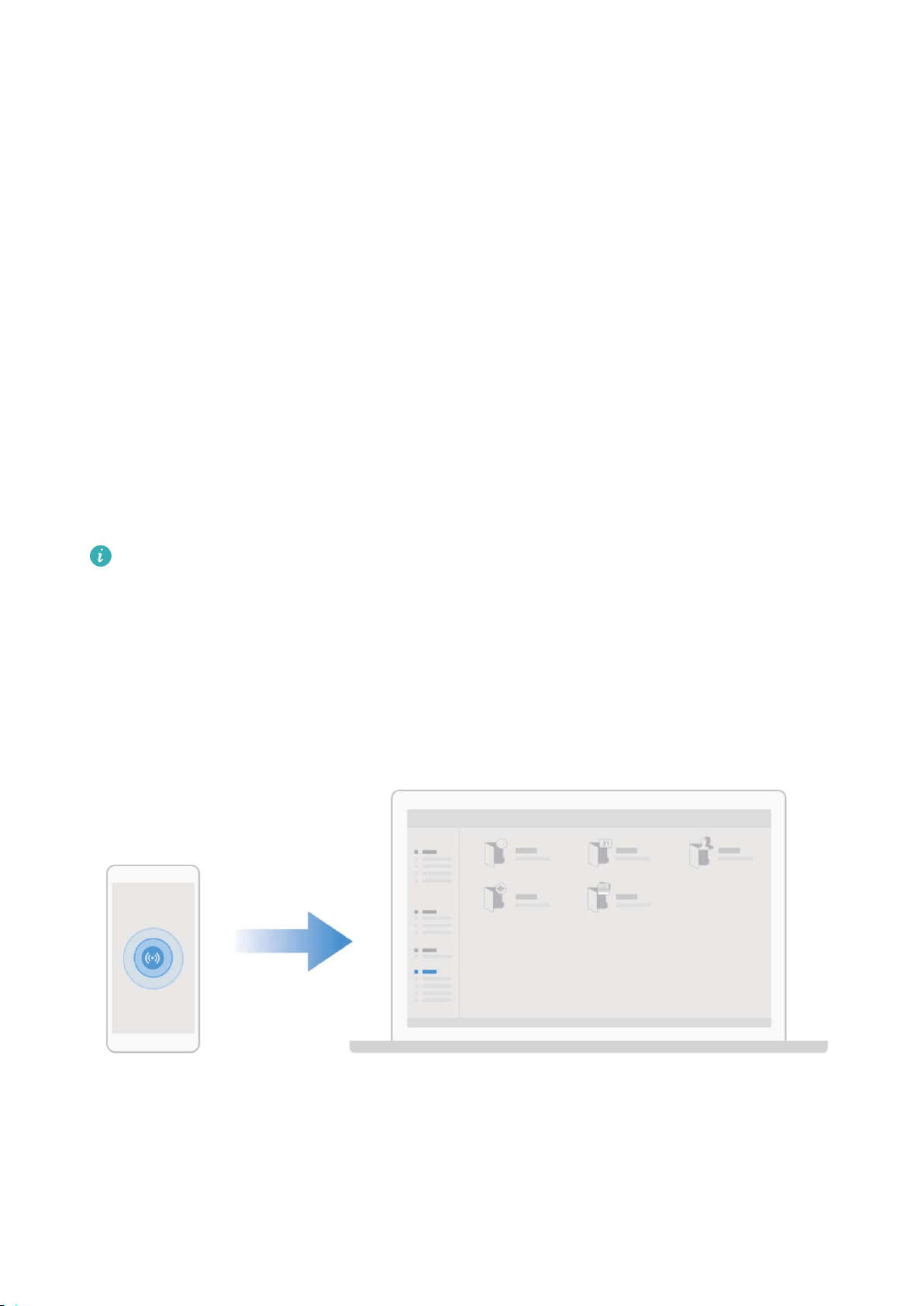
Huawei Share
Intr
oduction to Huawei Share
How do I quickly share apps, transfer pictures and les between my Phone and other mobile devices,
or between my Phone and computers? Huawei Share allows you to quickly share apps and wirelessly
transfer les between your phone, tablet, and computer.
Huawei Share supports data transfers between the following devices:
l Between mobile phones and tablets: You can use Huawei Share to share photos and les on your
Phone with other phones or tablets. Touch and hold the apps, photos, and les you want to share,
and then select Huawei Share to enjoy a simple and easy sharing process that doesn't consume your
mobile data.
l Between your Phone and computer (PC or Mac): You can use Huawei Share to share photos and
les on your Phone with your computer, and you can also edit these photos on your computer.
Thanks to Huawei Share, you don't even need a USB cable for data transfer between your Phone
and computer.
l Both your Phone and computer must be connected to the same network (for example, to the
same Wi-Fi network).
Device Connection
76
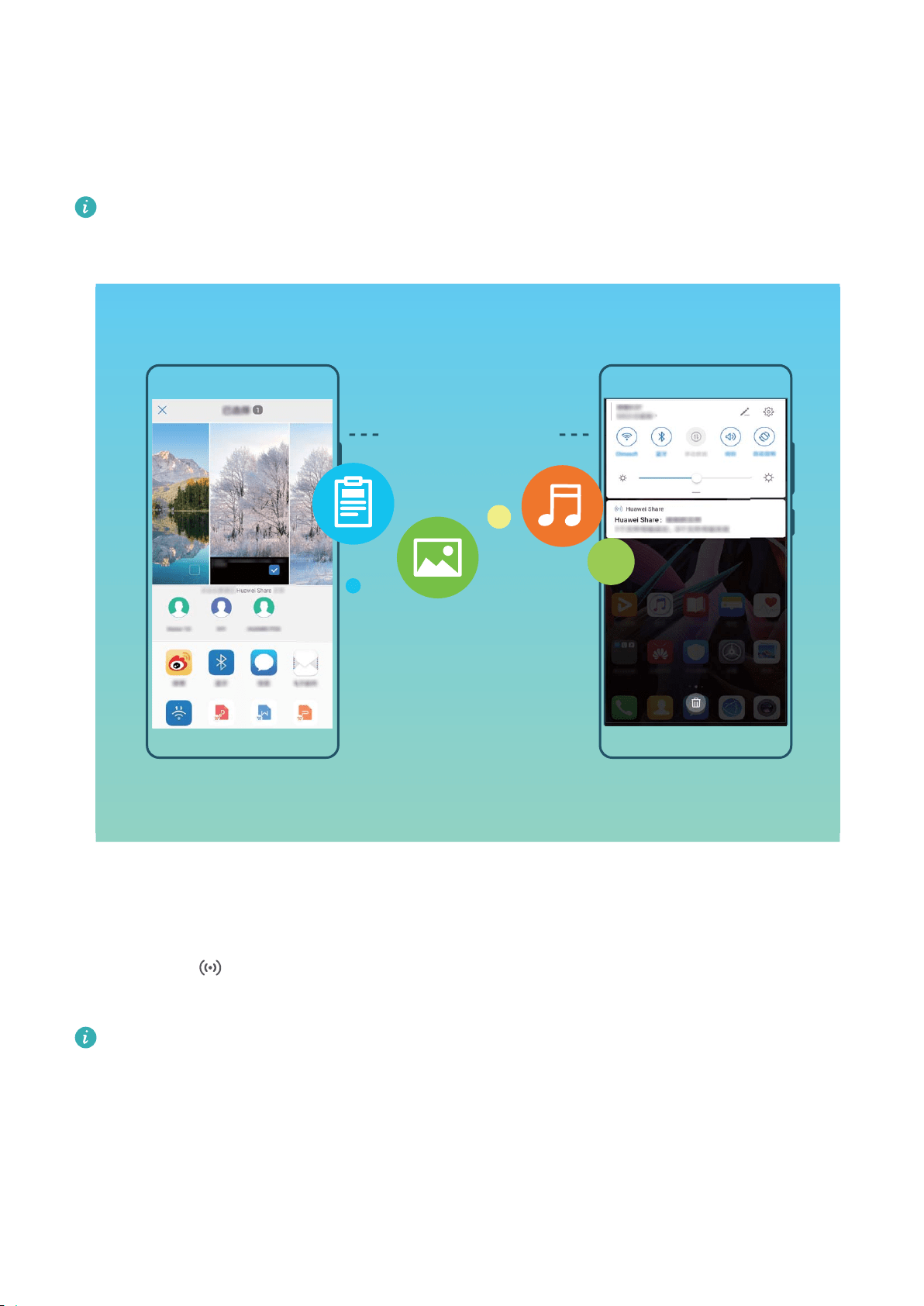
Use Huawei Share to Quickly Share Files Between Huawei Devices
Y
ou can use Huawei Share to quickly transfer photos, videos and other les between Huawei devices.
Huawei Share uses Bluetooth to detect other nearby Huawei devices and then uses Wi-Fi Direct to
quickly transfer les without using mobile data.
Huawei Share uses Wi-Fi and Bluetooth to transfer data. When Huawei Share is enabled, both Wi-
Fi and Bluetooth ar
e automatically enabled.
Huawei Share
Use Huawei Share to send
les: Select the les you want to share and then touch Share. To send
les, select a receiving device from the list of nearby devices and conrm.
Use Huawei Share to receive les: Swipe down from the status bar to open the notication panel,
and then touch
to enable Huawei Share. Touch A
ccept when the le transfer notication is
displayed. Received les are saved by default to your Huawei Share folder in Files.
No conrmation is required if the two Huawei devices have been logged in using the same
HU
AWEI ID.
Transfer Files between Your Phone and Computer Using Huawei Share
With Huawei Share, you can easily share photos and les from your Phone to your computer (PC/
Mac), with no USB cable necessary.
Device Connection
77

l Huawei Shar
e uses Wi-Fi and Bluetooth to transfer data. When Huawei Share is enabled, Wi-Fi
and Bluetooth are automatically enabled.
l During the data transfer, ensure that your Phone and computer are connected to the same
network (for example, to the same Wi-Fi network).
Share les on your Phone with a PC
1 Open
Settings, then touch Device connectivity > Huawei Shar
e to enable Huawei Share.
Record Name shown on computers.
2 From your PC, open the Network folder, and double-click Name shown on computers.
3 Then enter the password. You can view the password under Device connectivity > Huawei
Share > Verication on computers.
4 View your albums or internal storage.
Share les on your Phone with a Mac computer
1 Open
Settings, then touch Device connectivity > Huawei Shar
e to enable Huawei Share.
Record Name shown on computers.
2 From your Mac, open Finder and double-click the recorded Name shown on computers.
3 Choose to register a new user, then enter the user name and password. You can then view the
password under Device connectivity > Huawei Share > Verication on computers.
4 View your al
bums or internal storage.
Device Connection
78

Security and Privacy
F
ace Unlock
Enroll Your Facial Information and Enable Face Unlock
Want to quickly unlock your Phone or make payment without entering your lock screen password?
Huawei Phone brings you a Face unlock function. After enrolling your facial information, you can
quickly unlock the screen or make payment using your face securely without a password.
1 Open
Settings. Go to Security & privacy > F
ace recognition and enter your lock screen
password.
2 Enable Pick up to wake device to enhance the Face unlock experience is selected by
default. Your Phone will turn on the screen and recognize your face to unlock the screen
automatically whenever you pick up your Phone and hold it to your face. If you do not wish to use
this feature, you can disable this option. Touch Enroll face and follow the onscreen instructions to
enroll your face.
3 Methods to set Face unlock:
l Direct unlock: Go to Settings > Security & privacy > Face recognition and enter your lock
screen password. On the Face recognition screen, select Direct unlock. Then, you can
unlock the screen by lifting your Phone and aligning the screen to your face.
l Swipe to unlock: Turn on the screen. After your Phone has recognized your facial
information, swipe your nger on the lockscreen to unlock your device.
l Smart lock screen notication display: Smart lock screen notications is enabled by
default. Notication details will not be displayed on the lock screen until your Phone recognizes
your facial features.
l Access App lock: If you enable Access app lock, the Face unlock function can be used to
access apps and locked apps.
79

l When enr
olling facial data, ensure that the camera lens is clean, and maintain an unobstructed
distance of 20 cm to 50 cm between your face and the device. Make sure that your face is
within the enrollment window, and then turn your head slowly to enroll facial data.
l Only the owner can enable Face unlock. This feature is not available for users or guests, and
not supported in PrivateSpace either.
l When using Face unlock to unlock your Phone, keep your eyes open, face directly towards your
Phone. Your device cannot be unlocked using a picture, photo or video.
l The Face unlock function will be locked after ve unsuccessful face recognition attempts in a
row. You need to enter the lock screen password to unlock it.
l If you power on your Phone for the rst time or restart it, you need to enter the lock screen
password to unlock it. In this case, Face unlock will not be available.
l Face unlock does not work when your device is in quick calling mode or the screen is turned on
during an incoming call. After the call has ended, Face unlock is enabled again.
Fingerprint
Introduction to Fingerprint Recognition
Fingerprint recognition not only allows you to unlock your Phone faster, it also provides added
security to your personal information.
You can use your ngerprint to:
l Unlock your screen with a single touch: Want to avoid the hassle of using PIN codes and
patterns to unlock your screen? Use your ngerprint to quickly and securely unlock your screen with
a single touch.
l Access your private les: Afraid of forgetting your password for the Safe or app lock, or having it
fall into the hands of someone you don't trust? Set ngerprint access for the Safe and app lock to
keep your les and apps secure and accessible by only you.
l P
erform ngerprint shortcuts: Can't reach the shutter button to take a photo? Want a faster way
to answer a call or turn off an alarm? Set ngerprint shortcuts to quickly take photos, answer calls,
and turn off alarms with any of your ngers.
Security and Privacy
80
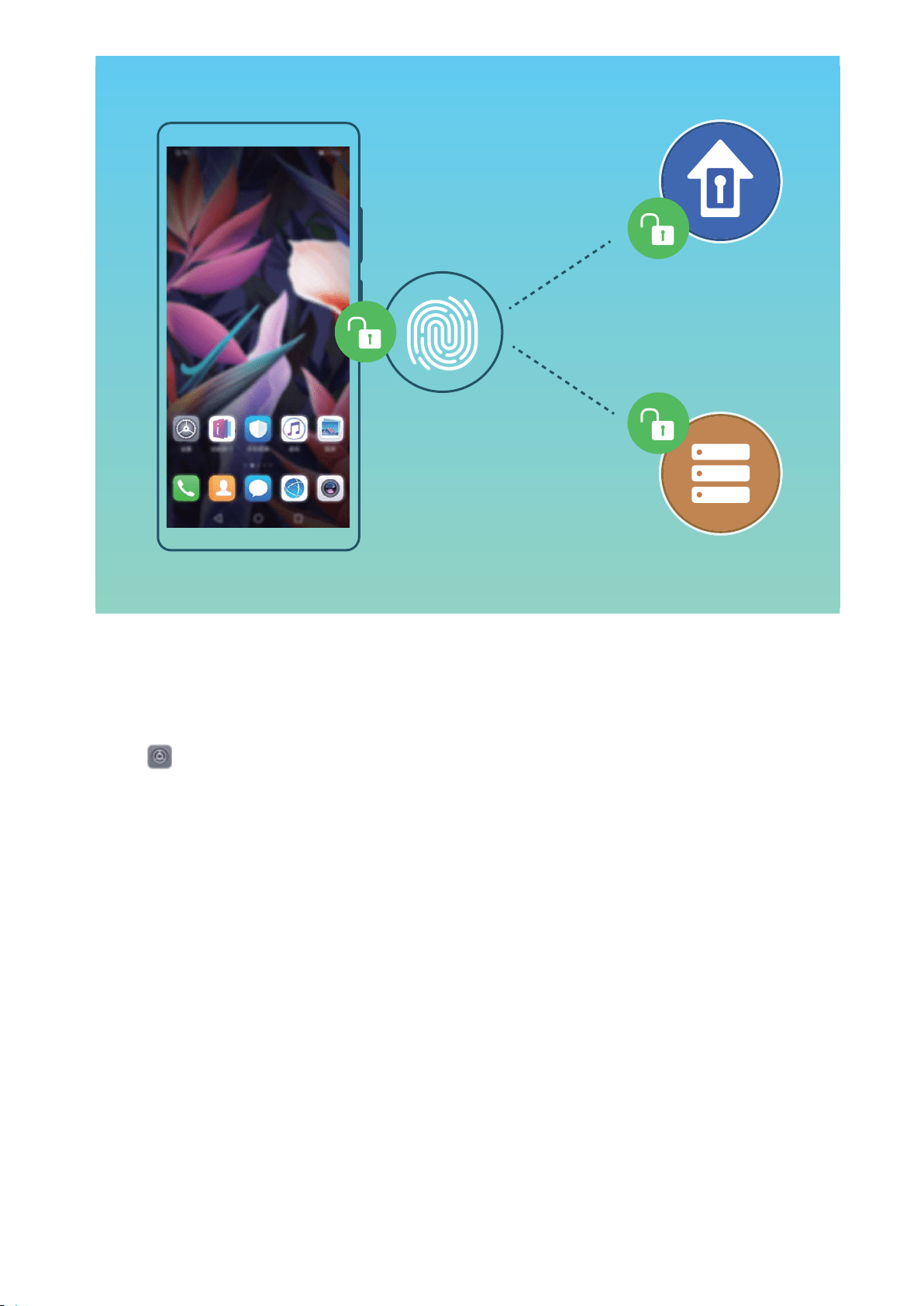
Add or Modify a Fingerprint
Y
ou can enroll a maximum of ve ngerprints on your device. You can also delete or rename your
ngerprints.
1 Open
Settings.
2 Go to Security & privacy > F
ingerprint ID.
3 Enter the screen unlock password and then follow the onscreen instructions to enter the
ngerprint conguration screen.
4 In the Fingerprint list section, you can:
l Enroll a new ngerprint: Touch New in-scr
een ngerprint > ENROLL FINGERPRINT to
enroll a new ngerprint.
l Rename or delete a ngerprint: Touch a previously enrolled ngerprint to rename or delete
it.
l Identify a ngerprint: Touch Fingerprint recognition to identify and highlight enrolled
ngerprints.
Use a Fingerprint to Quickly Access Private Information
Tired of having to enter a password each time you want to access private information in your Safe or
a locked app? You can use your ngerprint to quickly access your private information. This method is
convenient and safe.
Security and Privacy
81

1 Open Settings.
2 Go to Security & privacy > F
ingerprint ID.
3 Enter the screen unlock password and then follow the onscreen instructions to enter the
ngerprint conguration screen. Enable Access safe and Access app lock, and then follow the
onscreen instructions to enter the passwords.
Now you can:
l Use a ngerprint to access the Safe: Open
Files and touch Safe, you can then access the
Safe using your
ngerprint.
l Use a ngerprint to access apps locked by App lock: You can now open locked apps on your
home screen using your ngerprint.
Enable or Disable Location Services
After obtaining the location information permission, apps can obtain your location at any time. If your
location information is obtained by a malicious app, you may be at risk of harm or fr
aud. You can
enable or disable location services as needed and regularly monitor and manage the allowed
permissions for your apps to protect your privacy and security.
Enable or disable location services: Open
Settings, go to Security & privacy > L
ocation
access, and enable or disable Access my location. When location services are disabled, aside for
pre-installed software, your Phone will stop all apps and services from collecting and using your
location information. The system will ask you to enable location services when you attempt to use
these apps.
l F
eatures may vary depending on your carrier.
l Huawei only uses location data to provide you with necessary functions and services, not for
the purpose of identifying and collecting your private information.
Set indoor positioning assistance: Open
Settings, go to Security & privacy > L
ocation
access > Advanced settings, and enable or disable Wi-Fi and Bluetooth scanning. Scanning Wi-Fi
networks and Bluetooth devices will improve the accuracy of indoor positioning.
PrivateSpace
PrivateSpace: Keep Your Private Information Hidden
PrivateSpace is a feature that allows you to create an independent space on your Phone to store your
private information. Files and apps stored in PrivateSpace cannot be accessed from the MainSpace.
Security and Privacy
82
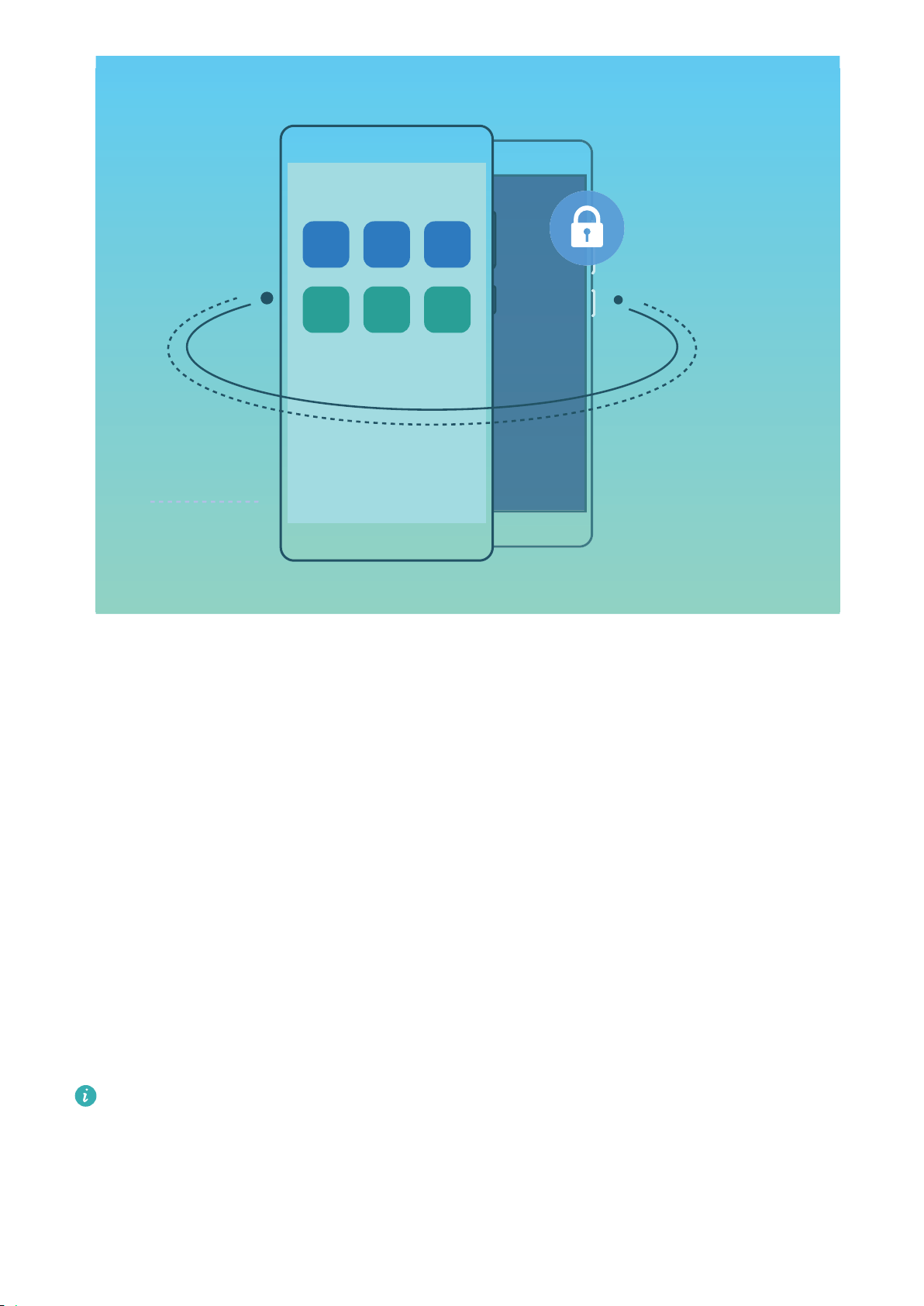
PrivateSpace provides you with the following features:
l Hide access to your PrivateSpace: W
ant to keep your PrivateSpace hidden from other people?
You can hide access to your PrivateSpace in the MainSpace to keep your PrivateSpace out of sight.
l Quickly switch between MainSpace and PrivateSpace: From the lock screen, you can quickly
switch between spaces using different ngerprints or passwords. The Wi-Fi and Bluetooth
information set in the MainSpace or PrivateSpace can be automatically identied and connected in
other spaces.
l Transfer les and contacts between MainSpace and PrivateSpace: You can transfer private
les (such as pictures and videos) and also migrate contacts to share les and contacts between
MainSpace and PrivateSpace.
l Reset the PrivateSpace password: It is understandable to forget passwords occasionally. To reset
your PrivateSpace password, you can enable password protection function by entering your
MainSpace password and answering security questions.
l PrivateSpace data backup: Use the space clone function in the PrivateSpace to copy your
PrivateSpace to another device.
If you want to switch directly to PrivateSpace from the lock screen using a password or
ngerprint,
the PrivateSpace password must be of the same type as your MainSpace password
with a different content, or else you will not be able to access PrivateSpace from the lock screen.
Security and Privacy
83

Enable PrivateSpace
Do you worry that potentially embarr
assing information might be seen by your friends and co-workers
when you are showing them photos and other things on your Phone? PrivateSpace lets you store
private information in a hidden space within your device that can only be accessed with your
ngerprint or password.
You can add up to three users to Users
and PrivateSpace on your Phone. If you have already
added three users under Settings > Users & accounts > Users > Add user, you cannot add
more users to PrivateSpace.
Enable PrivateSpace: If you are using PrivateSpace for the rst time, open
Settings, go to
Security & privacy > PrivateSpace > Enable, and follow the onscr
een instructions to create your
PrivateSpace.
You can only create one PrivateSpace.
Quickly switch between MainSpace and PrivateSpace: From the lock scr
een, you can quickly
switch between spaces using your ngerprint or password. After you restart your Phone, you are
required to rst enter the MainSpace using your password. You can then switch between spaces from
your lock screen.
Enter PrivateSpace: You can enter your PrivateSpace directly from the lock screen using your
ngerprint or password. Alternatively, open
Settings in MainSpace, and go to Security &
privacy > PrivateSpace > Log in
to enter your PrivateSpace.
Exit PrivateSpace: When you exit your PrivateSpace, all system memory used by the PrivateSpace
will be freed. You can still switch back to your PrivateSpace whenever you need it. To exit
PrivateSpace, open
Settings, and go to Security & privacy > PrivateSpace > Quit
PrivateSpace.
Delete PrivateSpace: Deleting your PrivateSpace will permanently delete al
l apps and data stored
within your PrivateSpace and this data will be unable to be restored. You can delete your PrivateSpace
in the following ways:
l From the MainSpace, open
Settings, then go to Security & privacy > PrivateSpace and
touch > Delete PrivateSpace.
l From the PrivateSpace, open Settings, then go to Security & privacy > PrivateSpace >
Delete PrivateSpace.
Hide the Entr
ance to Your PrivateSpace
Want to keep all traces of your PrivateSpace hidden from other people? You can hide the entrance to
your PrivateSpace in the MainSpace, keeping your PrivateSpace hidden and secret.
Security and Privacy
84

After entering your PrivateSpace, open Settings, go to Security & privacy > PrivateSpace, and
enable Hide PrivateSpace. After you hide the entr
ance to your PrivateSpace, you can only enter the
space by using your ngerprint or password on the lock screen.
Transfer Files Between Your PrivateSpace and MainSpace
Want to quickly transfer private photos, music, or videos to your PrivateSpace, or from your
PrivateSpace to your MainSpace?
1 After entering your PrivateSpace, open
Settings, and go to Security & privacy >
PrivateSpace.
2 T
ouch MainSpace to PrivateSpace or PrivateSpace to MainSpace.
3 Follow the onscreen instructions to select the les and transfer them to the target location.
Files stored on your device or memory card can be transferred from your MainSpace to your
PrivateSpace, but only
les stored locally on your device can be transferred from your
PrivateSpace to your MainSpace. This is because memory cards are blocked in PrivateSpace.
Files stored in the cloud cannot be transferred between your PrivateSpace and your
MainSpace. Not all devices support memory cards.
By default, transferred image
les are stored at Gallery > Shared images, video les are stored at
Gallery > Shared videos, and audio les are stored at Files > Move les > Share audio.
Transfer Your PrivateSpace Data to Your New Device
You can clone your PrivateSpace to quickly transfer your private les to another device.
l Befor
e transferring your data, ensure that the new device has enough storage space remaining.
l You can transfer the following data from one device to another: pictures, audio les and
videos.
1 Enter PrivateSpace on your new device and open
Settings. Go to Security & privacy >
PrivateSpace > Space Clone > THIS IS THE NEW PHONE to gener
ate a QR code.
2 Enter PrivateSpace on your old device and open
Settings. Go to Security & privacy >
PrivateSpace > Space Clone > THIS IS THE OLD PHONE. F
ollow the onscreen instructions to
scan the QR code displayed on your new device. Alternatively, connect your old device to your
new device's Wi-Fi hotspot manually. After establishing a connection, select and transfer data from
your old device to your new device.
You can cancel the le transfer anytime during the transfer process and continue your progress
when you r
e-establish a connection.
Reset Your PrivateSpace Password
You can set a security question so that when you forget your PrivateSpace password, you can answer
the security question to quickly reset you PrivateSpace password.
Enable the security question feature: Enter your PrivateSpace and open
Settings. Go to
Security & privacy > PrivateSpace. T
ouch Password protection and follow the onscreen
Security and Privacy
85

instructions to enter your MainSpace and PrivateSpace passwords. Enter the set security question
scr
een.
Set your security question: Touch the security question and either select one of the preset security
questions or create your own. Enter the security question answer and touch Finish to enable the
security question feature.
After you enable the security question feature, you can also modify the security question and its
answer
.
Modify your PrivateSpace password: Enter the MainSpace, open
Settings and go to Security
& privacy > PrivateSpace. T
ouch
> Reset passwor
d. Follow the onscreen instructions to enter
your MainSpace password, security question answer, and then set your PrivateSpace password.
l In case the entr
ance to PrivateSpace is hidden and you cannot enter the reset PrivateSpace
screen, enter the MainSpace and open
Settings. Go to Security & privacy > Mor
e
settings > Show all settings and touch OK to display the entrance to PrivateSpace.
Enable App Lock
App lock al
lows you to set a password for your important apps. Once you restart your Phone or
unlock the screen, you will be asked to enter your App lock password when opening the apps for the
rst
time. App lock enhances the protection of your private information and prevents unauthorized
access to important apps on your device.
Enable App lock: Open
Settings. Go to Security & privacy > App lock. When you access the
app for the rst time, follow the onscreen instructions to set the password and enter the app lock. In
subsequent access, you can dir
ectly enter the app lock password. On the App lock screen, enable App
lock for the apps you want to protect. When accessing a locked app for the rst time, you need to
enter the password in the password text box. If you forget the password, touch Forgot password,
enter the answer in the password protection question box, and reset the password. If you have not
set the password protection, the Forgot password option is not available.
If you have set up a ngerprint and facial recognition to unlock your Phone and are opening App
lock for the rst time, you can follow the onscreen instructions to associate your ngerprint and
facial r
ecognition with App lock for easier app unlocking.
Modify your App lock password and password protection: T
ouch on the App lock screen,
and then touch Change password or Change password protection to modify your App lock
password or password protection.
Security and Privacy
86
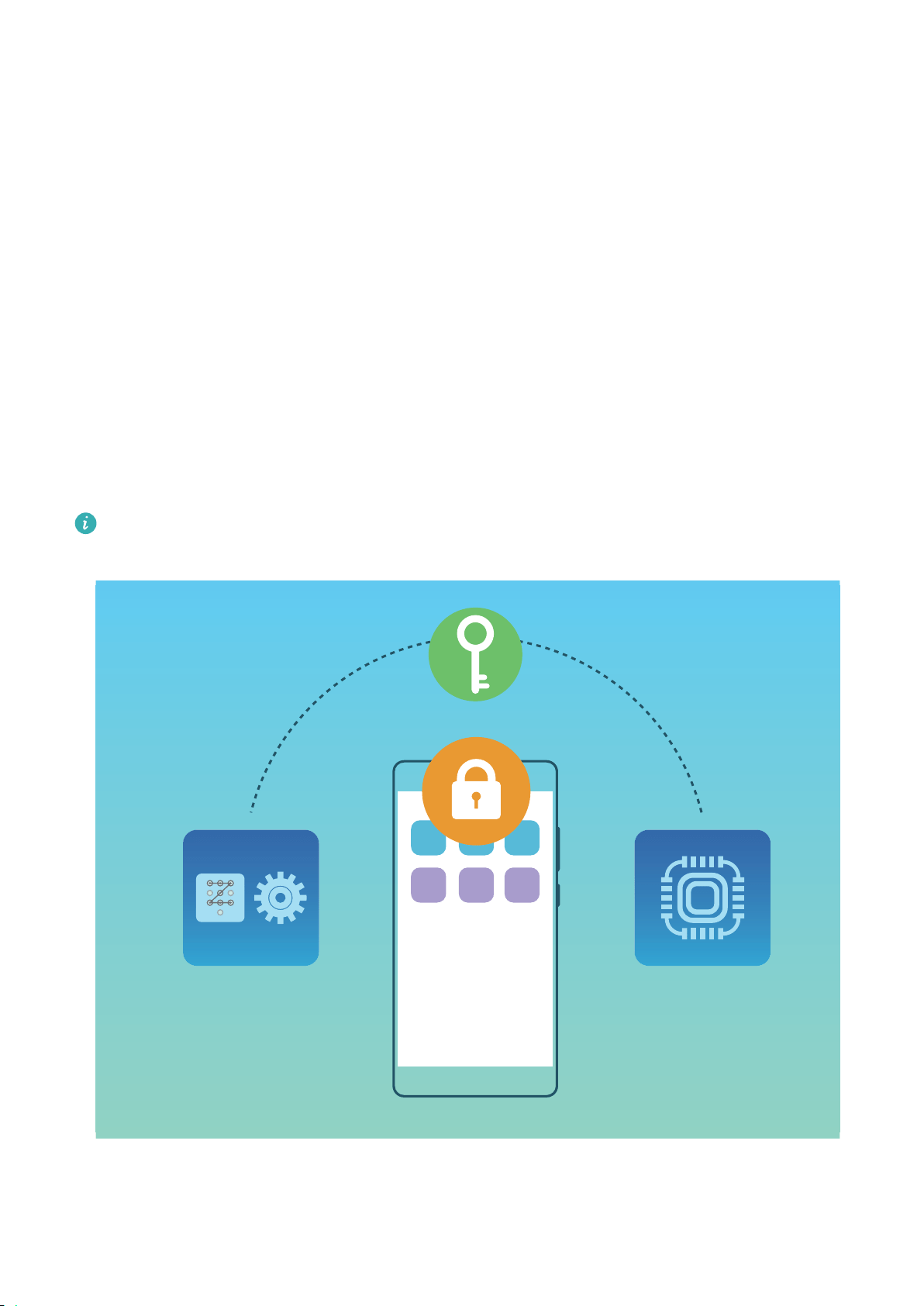
More Security Settings
Intr
oduction to User Data Protection
Worried that your photos, bank account information, or other private data might get leaked if your
Phone is lost or stolen? Huawei Phones now feature security chips in addition to the combined
protection provided by the trusted root key and lock screen password. Whether your data is stored in
a memory card or internal storage, it will receive the highest level of protection.
Stronger encryption and safeguards: Huawei Phones use a hardware key that cannot be used to
decrypt data when separated from the Phone. Based on the trusted root key, the encrypted
components are incorporated into the memory control chip to enhance the data protection capability
of the hardware. This works together with your lock screen password to protect your private data.
When you use PrivateSpace, Multi-user, encrypted memory card les, or other features to encrypt
photos, personal information, or other personal data, others cannot gain access to your data unless
the trusted root key, lock screen password, and security chip are simultaneously cracked.
Not all devices support memory cards.
Enable memory Card Encryption
W
orried that others might see your photos and other personal data after you lend them your memory
card? You can encrypt the les stored in your memory card so that no one else who gets the card can
Security and Privacy
87

access your personal data. Encrypted les can only be viewed and used on your own device. Other
people can use the memory car
d's storage space, but cannot view the content of any encrypted les.
l Do not restart your Phone or remove your memory card during the encryption or decryption
pr
ocess, as this may result in encryption or decryption failure, or even loss of data.
l Before encrypting your les, make sure there is enough storage space in the memory card, and
that neither the card nor its les have been damaged.
l Memory card encryption and decryption is available only to the device owner.
To encrypt a memory card: Open
Settings. Go to Security & privacy > More settings
>
Encryption and credentials, then touch Encrypt memory card and follow the onscreen
instructions to complete the encryption process.
To decrypt a memory card: Touch Decrypt memory card and follow the onscreen instructions to
complete the decryption process.
Formatting a memory card will clear all the data stored inside it and decrypt the card.
Security and Privacy
88

Backup and Restoration
Data Backup: Prevent t
he Loss of Your Data
Worried about losing important data on your Phone? Protect yourself against data loss with regular
data backups.
You can back up the data in your Phone in the following ways:
l To an NM card: If your Phone supports an NM card (nano memory card), you can back up your
data to the NM card at any time to prevent data loss.
l Not all devices support NM cards (nano memory cards).
l Insert the NM car
d (nano memory card) into slot 2. If necessary, you can purchase it from
Vmall or an authorized Huawei store.
l T
o a USB storage device: Using a USB OTG cable, you can connect your Phone and back up your
important data to a USB stor
age device.
l To your computer or home NAS devices: Using Wi-Fi scanning to detect shared folders on the
same Wi-Fi network, you can back up all your Phone's important data, such as pictures and large
les, to your computer or home NAS devices to prevent data loss and free up storage space on your
Phone.
Data Backup Using HiSuite
You can use the backup function of HiSuite to back up all your device's important information,
including your contacts, SMS messages, images, or other large les on your Phone and store them on
your computer. You can easily restore data from the computer back on your original device, or restore
it to other Huawei devices.
HiSuite can help you with the following:
l Back up all your data to your computer.
l The storage space for your data depends on the computer's available space.
l Provide encrypted backups (unencrypted by default).
Data Backup to a USB Storage Device
If you are running out of storage space on your Phone or you want to back up your important data to
an external storage device, you can connect your Phone to a USB storage device using a USB OTG
cable and back up your data to the storage device. USB storage devices compatible with your Phone
include USB
ash
drives, card readers, and devices with a Memory card inserted.
Open
Settings, go to System
> Backup & restore > Data backup > External storage > USB
storage, then touch BACK UP. On theSelect data screen, select the data you want to back up and
touch Back up.
89

l Y
ou can enable Auto-backup on the backup page. If your device has more than 75% of the
battery's capacity left, the system will automatically back up the data when the screen is off.
l You can go to
> Backup encryption > Encrypt backups to enable Backup encryption
on the backup page, and then set a passwor
d when prompted. The password will be used
when you want to restore les later. Always remember your backup password or set security
questions to help remember the password as you will not be able to retrieve your backup les
without it.
Reset Your Phone
If the operating speed of your Phone starts to slow down due to long-term accumulation of caches
and residual les, you can reset your Phone to erase these cached les completely and restore your
device's factory settings.
Reset network settings: This will restore your Wi-Fi, mobile data network, and Bluetooth settings,
including hotspot tethering and Bluetooth pairing information. It won't change other settings on your
Phone, or delete any data or les.
Open
Settings, go to S
ystem > Reset > Network settings reset, touch Reset network
settings, and follow the onscreen instructions to reset the settings.
Restore all settings: This will restore your device's initial network settings, ngerprint data, face
data, and lock screen passwords. It won't reset settings for Find my Phone or HUAWEI ID, nor will it
delete any data or les.
Open
Settings, go to S
ystem > Reset > Reset all settings, touch Reset all settings, and
follow the onscreen instructions to reset the settings.
Restore factory settings: This will delete all data in your device's memory and storage, including
your account settings, system settings, app data, installed apps, music, images, and documents, and
restore your Phone to its original factory settings. Back up your data before restoring your device to its
factory settings.
Open
Settings, go to S
ystem > Reset > Reset to factory settings, touch Reset phone, enter
the screen unlock password (if any), and follow the onscreen instructions to reset the settings.
Before restoring your Phone to its factory settings, log out of your Huawei account. Otherwise,
you may not be able to activate your Phone after the r
eset. (To log out, open
Settings, enter
Huawei account in the sear
ch box to open Account center, and touch Log out at the bottom
of the Account center screen.)
Restore Your Backup Data
You need to select the corresponding method to the original backup method to restore the data on
your Phone.
Backup and Restoration
90

1 Open Settings, then touch System
> Backup & restore > Data backup > external storage.
2 Select the location from which your backup data will be restored:
a If you are using a Memory card for backup, ensure that your NM card (nano memory card)
has been inserted into slot 2 in your Phone. Then touch Memory card and select an
appropriate backup record to access.
l Not all devices support NM cards (nano memory cards).
l Insert the NM car
d (nano memory card) into card slot 2. You can buy a NM card (nano
memory card) in Huawei stores.
b If you ar
e using a USB storage device for backup, ensure that your Phone has been connected
to a USB stor
age device. Then touch USB storage and select an appropriate backup record to
access.
c If you are using a shared folder for backup, ensure that your Phone has detected the shared
folder on your computer or home NAS devices through Wi-Fi scanning. Then touch Shared
folder and select an appropriate backup record to access.
Your Phone stores the last three backup records (including automatic and manual backups).
When there ar
e more than three backup records, the earliest records will be deleted.
3 Select the data you want to restore and touch Restore. If you have enabled Encrypt backups,
enter the password as prompted and restore your data.
Backup and Restoration
91
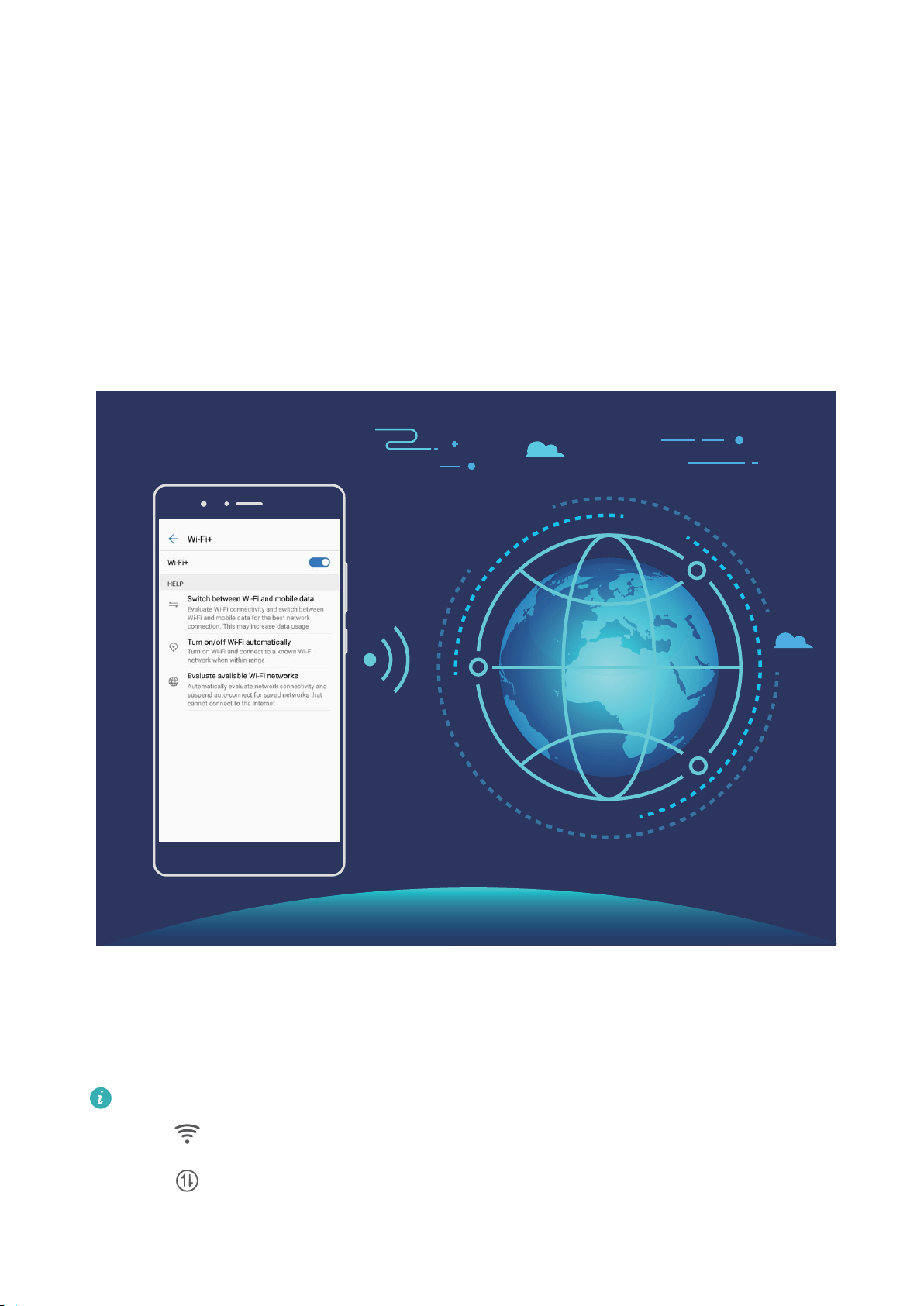
Wi-Fi and Network
W
i-Fi
Introduction to Wi-Fi+
Wi-Fi+ intelligently connects to Wi-Fi networks to save mobile data consumption. When your device
detects a known or free Wi-Fi network, it will automatically turn on Wi-Fi and connect to the network.
Your device will also automatically select the optimal network in the area for the best Internet
connection.
Once you have enabled Wi-Fi+, your device will:
l A
utomatically select and connect to the optimal network: Automatically select and connect to
Wi-Fi networks you've previously connected to, free networks, or your mobile data network,
depending on the signal strength at your current location.
You can view the connection status by checking the icons in the status bar:
l The icon indicates that your Phone is connected to the Internet over Wi-Fi.
l The icon in the bottom left of the signal bar indicates that your Phone is connected to
the Internet over mobile data.
92

l A
utomatically turn Wi-Fi on and off: Depending on the Wi-Fi networks you have connected to
previously, Wi-Fi will be automatically enabled or disabled in specic locations. This will prevent your
device from constantly searching for new networks.
l Assess the quality of available networks: Evaluate currently available network hotspots and
prevent your device from automatically connecting to networks with no Internet connection.
Connect to Wi-Fi
By connecting your device to a Wi-Fi network, you can effectively save mobile data.
To avoid potential security risks (such as unauthorized access to your personal data and nancial
information), please exercise caution when connecting to a public Wi-Fi network.
Connect to a Wi-Fi Network: Open Settings, go to W
ireless & networks > Wi-Fi, and enable
Wi-Fi. Touch a Wi-Fi network to access it, and enter the network password or complete the
authentication if required. Alternatively, you can scroll to the bottom of the menu, touch Add
network, and follow the onscreen instructions to add a network hotspot by entering its name and
password.
Transfer Data Using Wi-Fi Direct
Wi-Fi Direct allows you to rapidly transfer data between Huawei devices. Wi-Fi Direct is faster than
Bluetooth and does not require devices to be paired. It is better suited to transferring large les over
short distances.
Wi-Fi and Network
93
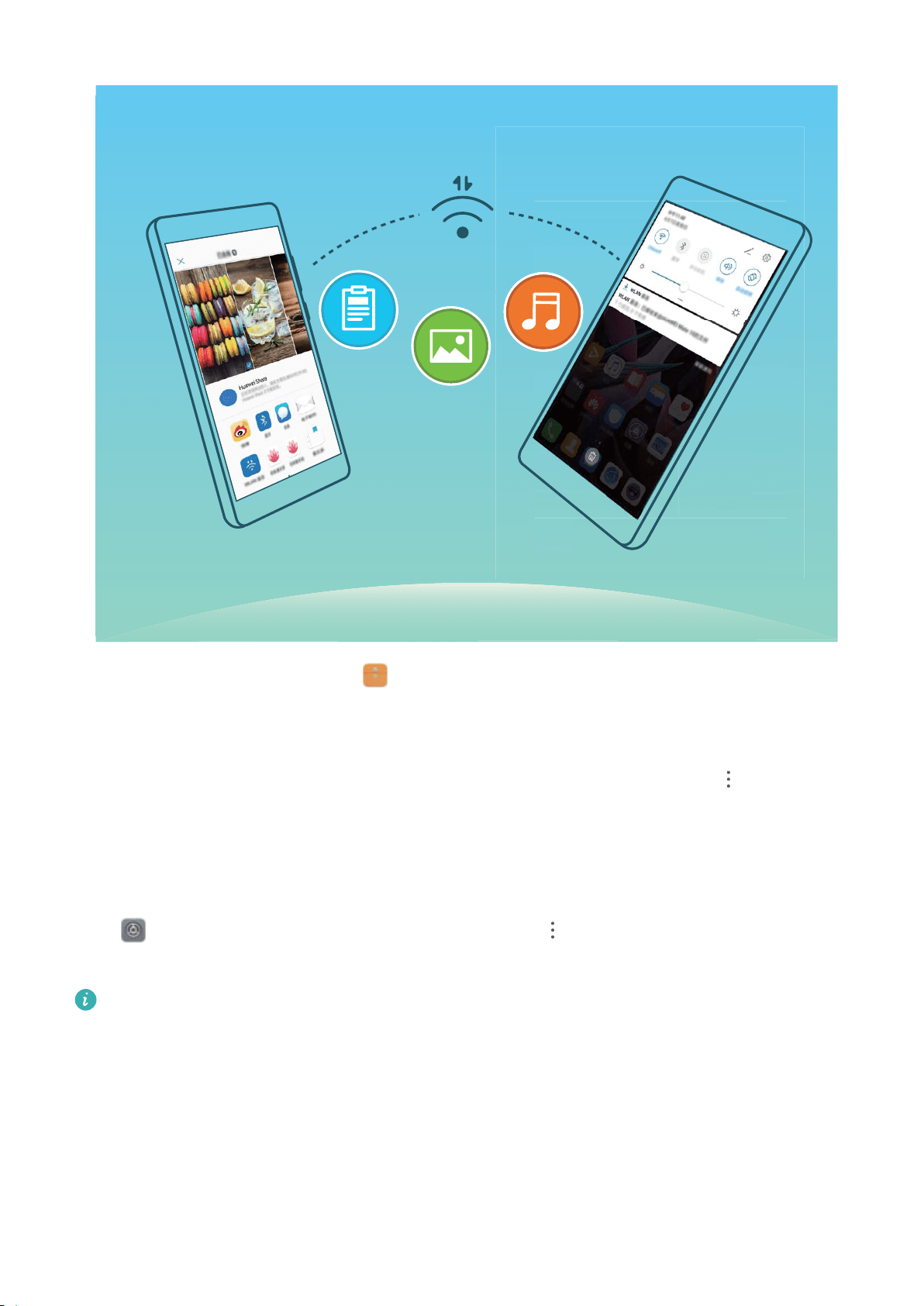
Send
les with Wi-Fi Direct: Open
Files, touch and hold a le you want to send, and go to
Mor
e > Share > Wi-Fi Direct. When another device is detected, touch its name to establish the
connection and begin le transfer.
Receive les
with Wi-Fi direct: Enable Wi-Fi. In the Wi-Fi settings screen, touch
> W
i-Fi Direct
to enable detection. When you receive an incoming le prompt, touch Accept to begin the transfer.
The received le will be saved under Files in the Wi-Fi Direct folder by default.
Turn Wi-Fi+ On or Off
Open
Settings, go to W
ireless & networks > Wi-Fi >
> Settings > W
i-Fi+, and choose to
enable or disable Wi-Fi+.
l Y
our Phone will automatically connect to the optimal network available after Wi-Fi+ is enabled.
l Wi-Fi+ may automatically switch to your mobile data network, depending on strength of Wi-Fi+
signals in your area. Note that using mobile data to download or view videos and other large
les
may incur additional data usage fees. To avoid excessive data charges, purchase an
appropriate data plan.
l After Wi-Fi+ is enabled, even if Wi-Fi is disabled manually, the device may automatically switch
to a Wi-Fi network when it detects a viable Wi-Fi network you have previously connected to.
Wi-Fi and Network
94

Connecting to the Internet
Connect to Wi-Fi networks effortlessly with your device.
Connecting to a W
i-Fi network
1 Swipe down from the status bar to open the notication panel.
2 Touch and hold
to open the Wi-Fi settings screen.
3 S
witch on Wi-Fi. Your device will list all available Wi-Fi networks at your location.
4 Select the Wi-Fi network you want to connect to. If you select an encrypted network, you will also
need to enter the Wi-Fi password.
Connecting using mobile data
Before using mobile data, ensure that you have a data plan with your carrier to avoid incurring
excessive data char
ges.
1 Swipe down from the status bar to open the notication panel.
2 Touch
to enable mobile data.
When you don't need to access the Internet, disable mobile data to save battery power and
r
educe data usage.
Share Your Mobile Network with Other Devices
Have extra mobile data at the end of the month? You can share it with your friends.
Wi-Fi and Network
95
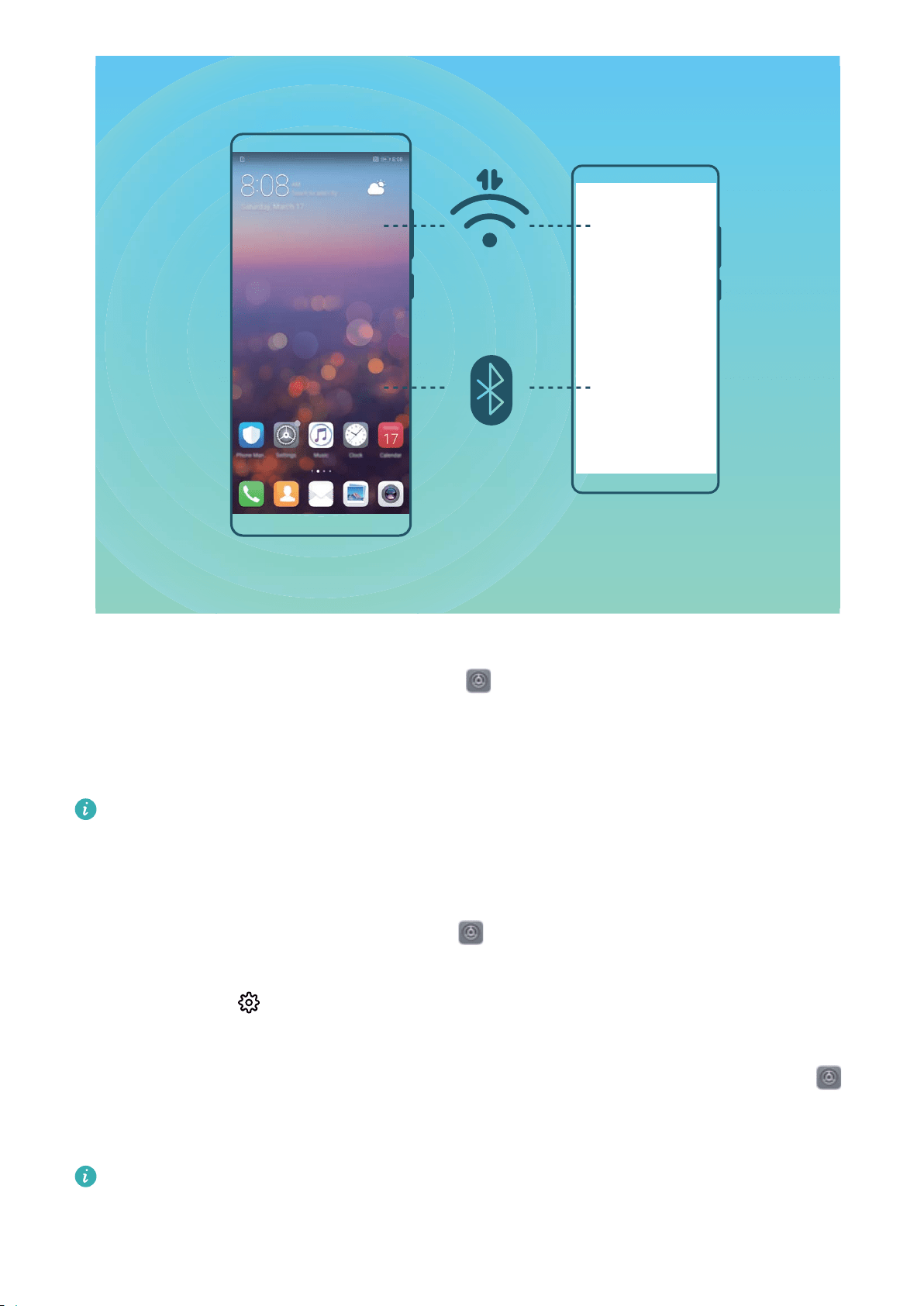
-
You can use Wi-Fi hotspot or Bluetooth to share your mobile data with other devices.
Use W
i-Fi hotspot to share mobile data: Open
Settings and go to W
ireless & networks >
Tethering & portable hotspot > Portable Wi-Fi hotspot > Congure hotspot. Set the network
name, encryption type, and password for the Wi-Fi hotspot, then touch Save and enable the hotspot
to use it.
Worried other devices will have unlimited access to your hotspot data? On the P
ortable
Wi-Fi hotspot screen, touch Data limit to set the data limit for a single session. When the data
sharing limit is reached, your device will automatically disable the hotspot.
Use Bluetooth to share mobile data: Establish a Bluetooth connection between devices before
using Bluetooth to share your mobile data. Open
Settings, go to W
ireless & networks >
Tethering & portable hotspot, and enable Bluetooth tethering. On the Bluetooth screen of the
paired device, touch
next to the paired device, and enable Internet access to establish an
Internet connection and shar
e your mobile data.
Use USB to share mobile data: Use a USB cable to connect your device to a computer. Open
Settings, go to W
ireless & networks > Tethering & portable hotspot, and enable USB tethering
to start sharing your mobile data.
Depending on the operating system, you may need to install drivers or establish the relevant
network connection on your computer befor
e using this function. Refer to your computer's
operating system guide for more information.
Wi-Fi and Network
96

Apps and
Notications
App Twin: Log in to Two Social Media Accounts at
Once
Have you ever wished you could log in to two WeChat and Facebook accounts on your Phone
without the hassle of constantly switching between them? App twin lets you log in to two WeChat
and Facebook accounts at the same time, allowing you to keep your work and private life separate.
The App twin feature is currently limited to WeChat, QQ Messenger, LINE, Facebook, Snapchat,
WhatsApp, and Messenger
. Please download and install the latest version of these apps before
using the App twin feature.
Touch
Settings, and go to Apps > App twin. Enable App twin as r
equired.
When App twin is enabled for an app, two app icons are displayed for the app on the home screen.
This means that you can log in to two accounts at the same time. Touch and hold the twinned app
icon on the home screen to quickly disable App twin.
97

Sound and Display
Congure
Do Not Disturb Mode
Do not disturb mode blocks calls from strangers and only noties you when you receive calls and
messages from chosen contacts.
Open
Settings and go to Sounds > Do not disturb. T
oggle on the Enable now switch, then
touch Do not disturb mode and select one of the following options:
l Allow calls and messages from important contacts: Select Allow only priority interruptions,
and then touch Dene priority interruptions to congure which contacts can call or message
you.
l Allow alarm ringtones: Select Alarms only to only allow alarm ringtones.
l Disable all interruptions: Select Don't interrupt to disable ringtones and vibrations and prevent
the screen from turning on for incoming calls, messages, and alarms.
l Some thir
d-party apps may continue to ring when Do not disturb mode is enabled. Congure
the in-app settings to mute notications from these apps.
Time rule: Prevent interruptions at set times, such as weekends or evenings. Touch Time to congure
the time period and repeat interval, then toggle on the Time switch.
Event rule: Prevent interruptions during meetings or events. Touch Event to enable Do not disturb
mode during calendar events.
Congure Your Sound Settings
When you are watching movies or playing games, your device will automatically switch to stereo
sound to enhance your audio experience. You can also set ringtones and audio reminders for a variety
of different scenarios.
Adjust system volume: Press a volume button or move the slider to quickly adjust the media
volume. Touch
to display the sound settings screen. You can then adjust the volume of the
ringtone, media, and alarm.
You can also adjust volume in your system settings. Open Settings, touch Sounds and dr
ag
the volume slider to adjust your volume.
Switch between sound, vibration, and silent mode: Swipe down from the status bar and open
the shortcuts panel. Touch
to switch quickly between Sound, Silent and V
ibration mode.
Enable keypad and notication tones: Open
Settings, and go to Sounds > Mor
e sound
settings to enable or disable keypad and notication tones and vibration on touch.
98

Set your Phone to Silent mode: Fr
om the Sounds screen, enable Silent mode. After you enable
Silent mode, enable Vibrate in silent mode. Now when you receive an incoming call, your screen
will light up and your device will vibrate.
Customize your ringtone and notication tone: From the Sounds screen, select a custom
ringtone or use the Notication.
More Display Settings
Use Shortcuts to Access Frequently Used Features
You can touch and hold an app icon to display a menu of frequently used features for quick access.
You can also touch and hold a feature and drag it to your home screen to create a shortcut.
If you touch and hold an app icon and no shortcut is created, the app does not support home
scr
een shortcuts.
Quickly access frequently used app features: Touch and hold an app icon on your home screen,
and then touch a frequently used feature to access it. Each app supports up to four frequently used
features. These are preset by the app and cannot be changed. For example, to take a sele, touch and
hold the camera icon, and then touch Sele in the pop-up menu to create a sele shortcut.
Add shortcuts to your home screen: Touch and hold an app icon on your home screen to bring up
the menu. Touch and hold the desired feature, and then drag it to your home screen to create a
shortcut. For example, you can add a shortcut for the camera's sele feature for quick access to the
sele feature.
Change the Display Settings
Change the font size and adjust the screen brightness to suit your needs.
Open
Settings and touch Display. Fr
om here, you can:
l Full-screen display: Go to More display settings > Full screen display to display the app in full
screen mode as required.
l Congure the notch display settings: Touch , and go to More display settings > Notch to
congure the notch display settings.
l Change the image and text size: Touch Text and display size and select a display mode to suit
your needs.
l Enable automatic screen rotation: Go to More display settings > Auto-rotate screen to
enable automatic rotation. Alternatively, swipe down from the status bar to open the notication
panel, and then enable
.
l Adjust t
he color temperature: Go to Color mode & temperature. You can select the Default,
Warm, or Cold option recommended by the system. Alternatively, touch or drag the slider to
manually adjust the color temperature.
Sound and Display
99

l A
utomatically adjust the screen resolution: Touch Screen resolution and enable Smart
resolution. The Phone will automatically adjust the screen resolution to reduce power
consumption.
l Play screen savers while charging in Sleep mode: Go to More display settings > Screen
saver, and enable Screen saver. You can set Picture source and Duration. After the setting is
complete, your Phone will display a slideshow of your photos when it is being charged and enters
Sleep mode.
l Display more information in the status bar: Touch More display settings. Depending on your
preferences, you can enable Display carrier name or Display network speed.
Sound and Display
100

Storage
Enable Memory Cleanup
Y
our Phone may slow down over time as your storage space gets smaller. You can use memory
cleanup to free up storage space, improve system performance, and keep your Phone running
smoothly.
Open
Phone Manager. T
ouch Cleanup to clear memory and cache and optimize performance. If
your storage space is still low, you can perform a deep clean to free up additional storage space.
101

Smart Assistance
A
ccess Phone Functions from Anywhere with
Navigation Dock
In order to close an app or return to the home screen, you must use the navigation bar at the bottom
of your Phone. You can enable the Navigation dock feature on your Phone to avoid using navigation
buttons and to comfortably operate your device with one hand.
Open
Settings. Go to S
ystem > System navigation > Navigation dock and enable
Navigation dock. The Navigation dock will appear on the screen. You can then drag it to your
preferred location. The Navigation dock can perform the following actions:
l Back: Touch the Navigation dock once to go back one step, or touch it twice to go back two steps.
l Home: Touch and hold the Navigation dock and then release it to go to the home screen.
l View background apps: Touch and hold the Navigation dock and then swipe left or right to view
any apps that are running in the background.
102

System
Change t
he Input Method
You can change the input method on your Phone as desired.
Switch the input method: Open
Settings, go to S
ystem > Language & input > Default
keyboard, and select an input method.
Accessibility
Enable TalkBack to Have Onscreen Content Read Aloud
TalkBack reads aloud content on the screen that you touch, select, or activate. It is a useful tool that
helps visually impaired users interact with their Phone.
1 Open
Settings and go to Smart assistance > A
ccessibility > TalkBack >
to open the
T
alkBack settings screen.
2 Enable TalkBack and touch OK. Your device will launch a tutorial when you enable TalkBack for
the rst time. If you need to listen to the tutorial again, touch
, open the TalkBack settings
screen, and then launch the tutorial.
3 Touch and enable Explor
e by touch. When Explore by touch is enabled, your device will
read out content that you touch.
Why does my Phone suddenly start reading out content on the screen? How do I disable this
feature? You may have enabled TalkBack by accident. To disable TalkBack, press and hold the Power
button until your device vibrates, and then touch the screen with two ngers for at least three
seconds.
Learn TalkBack Gestures
TalkBack uses a special set of gestures for Phone operation. When TalkBack is enabled, these gestures
are required to interact with the device.
If you accidentally enable TalkBack, press and hold the Power button until your device vibrates,
and then touch the scr
een with two ngers for at least three seconds to disable it.
Navigate the screen: S
wipe up or down with two ngers to scroll through menu lists. Swipe left or
right to move between screens.
103
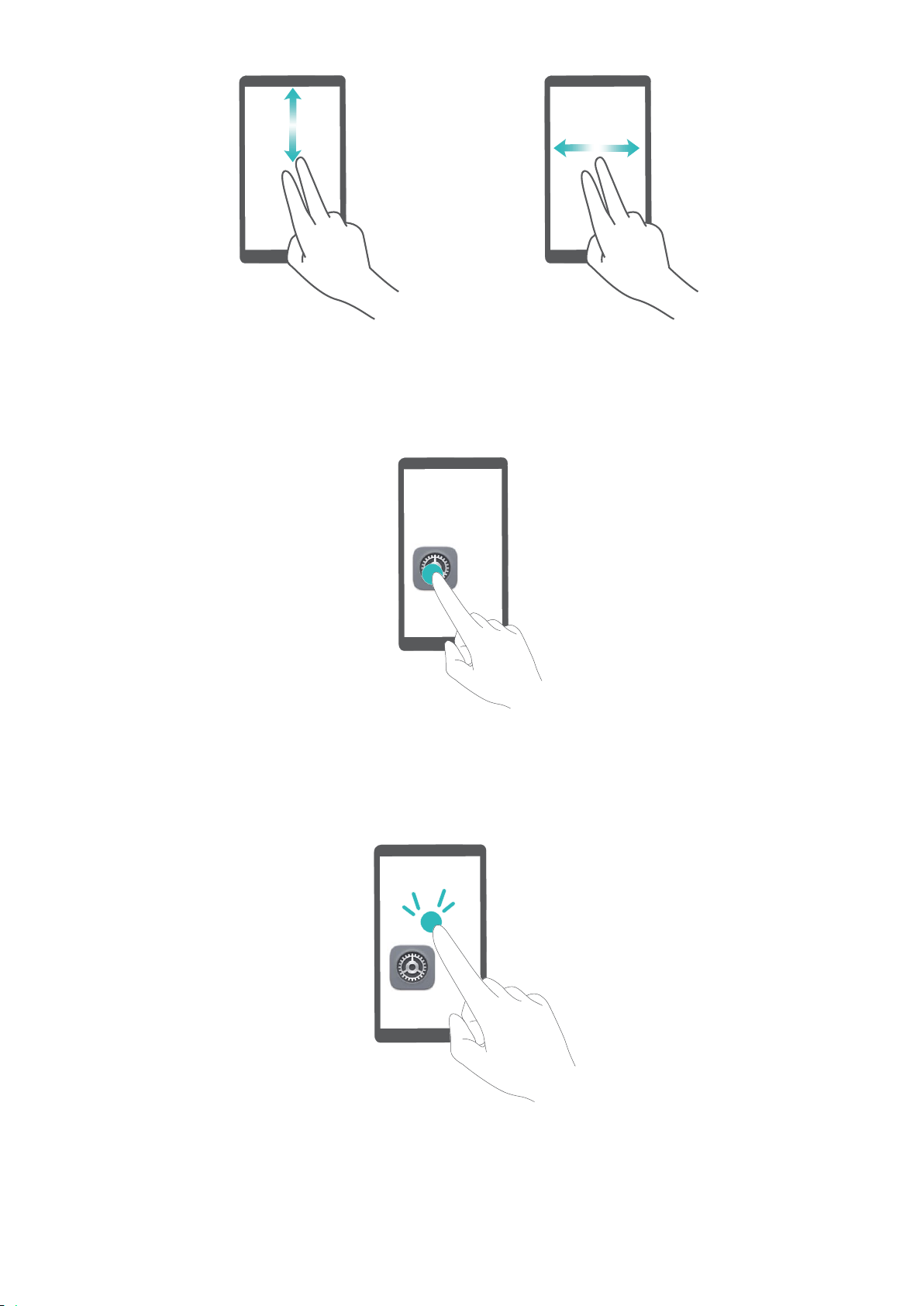
Select an item: T
ouch an item with one nger to select it (it will not open). Your device will read out
the content of the selected item.
Open an item: Double-touch any part of the scr
een using one nger to conrm your selection from
the previous step.
For example, if you want to open Settings, touch the Settings icon once using one
nger, and then
touch twice anywhere on the screen.
System
104

Use Text-to-Speech Output with TalkBack
The text-to-speech featur
e can read aloud texts on the screen of your Phone. It can also be used with
the TalkBack service to help visually impaired users interact with their devices.
Open
Settings, go to Smart assistance > A
ccessibility, and enable Text-to-speech output.
Congure your preferred engine and speech rate to enable this feature.
Enable Color Correction
The color correction setting enables your device to compensate for the effects of color blindness.
When color correction is enabled, users with normal color vision may have difculty viewing some
colors.
Open Settings, go to Smart assistance > A
ccessibility > Color correction, and enable Color
correction. Touch Correction mode to select the required color correction mode.
General Settings
Change Your System Language
Want to change your Phone's system language? This can be done with ease.
Open
Settings, go to S
ystem > Language & input > Language, and select the language you
want to use. If the language you want is not listed, touch Add language, search and add the
language, and then select it.
Set Your System Time and Date
If you travel abroad or change your SIM card, your Phone will automatically display the time and date
provided by the local mobile network. You can also adjust the time and date manually, modify the
time format, or set dual clocks on your lock screen.
Open
Settings and go to S
ystem > Date & time. From here you can:
l Modify the time and date: Enable Set automatically to sync your Phone's time and date with
your mobile network. Disable Set automatically to set your time and date manually.
l Modify your time zone: Enable Set automatically, to sync your Phone's time zone with your
mobile network. Disable Set automatically to set your time zone manually.
l Change the time format: Enable 24-hour time to set your time format to 24 hours. Disable 24-
hour time to set your time format to 12 hours.
l Set dual clocks on your lock screen: If you are overseas, your Phone will automatically display
the local time and date provided by the local mobile network. You can enable Dual clocks and set
Home city to display dual clocks on your lock screen: one displaying the local time and the other
the time in your home country.
System
105
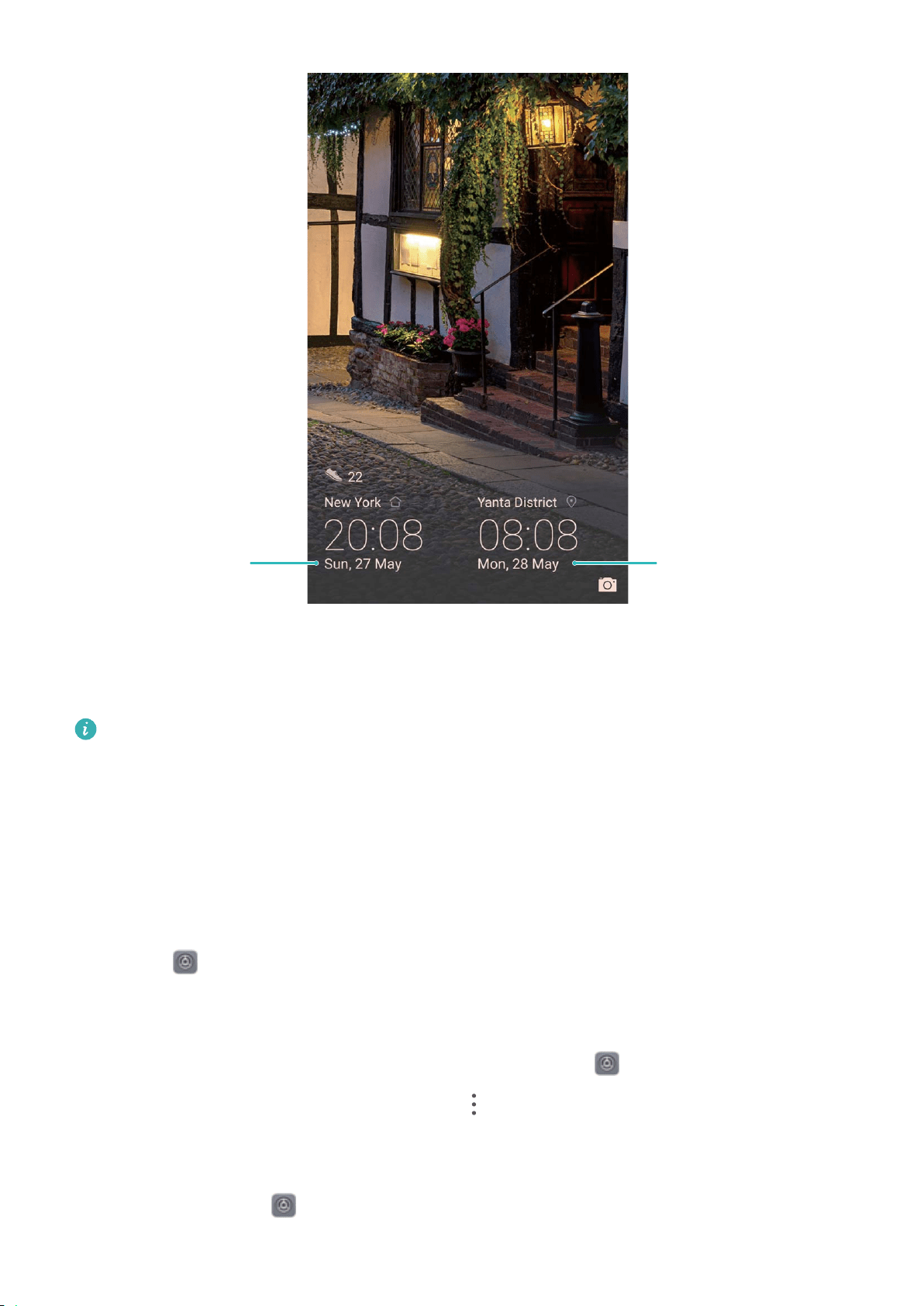
Network-provided
date and time
Time and date
in your selected city
Print Documents and Photos from Your Phone
Connect your Phone to a printer over Wi-Fi to print out documents and photos with ease.
l Mopria al
lows you to print directly from your Phone to a Mopria-certied printer. The printer
connects to your Phone over Wi-Fi.
l If your printer is not
Mopria-certied, contact the printer manufacturer to obtain a plug-in for
your model.
1 Connect your Phone and printer to the same Wi-Fi network.
l Connect to your printer's hotspot: If your printer has a wireless hotspot, follow the
instructions in the printer manual to enable the hotspot and set a password. On your Phone,
open
Settings and go to W
ireless & networks > Wi-Fi. Enable Wi-Fi, select the printer
hotspot, and then follow the onscreen instructions to establish the connection.
l Connect with Wi-Fi Direct: If your printer supports Wi-Fi Direct, follow the instructions in the
printer manual to enable this feature. On your Phone, open
Settings and go to W
ireless
& networks > Wi-Fi. Enable Wi-Fi, touch
> W
i-Fi Direct, and then select your printer
from the list of detected devices.
l Connect to your router: On your printer, enable Wi-Fi and connect to your home router. On
your Phone, open
Settings and go to W
ireless & networks > Wi-Fi. Enable Wi-Fi, select
your router, and then follow the onscreen instructions to complete the settings.
System
106
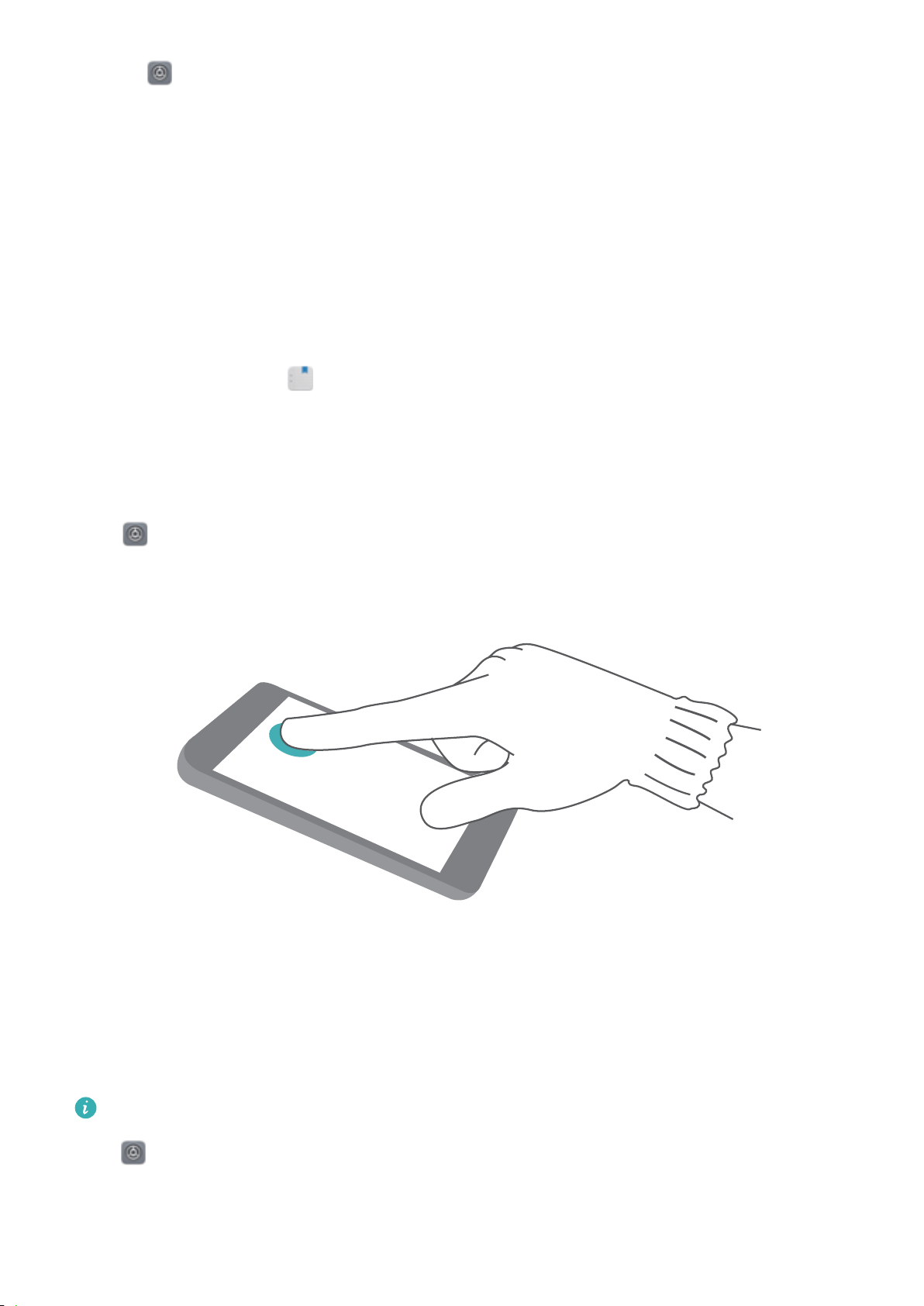
2 Open Settings. Go to Device connectivity > Printing > default print service and check
that default print service is enabled. Select a printer fr
om the search results and follow the
onscreen instructions to manually add a printer.
3 You can now print directly from your Phone:
l Print an image: Go to Gallery. Open the image that you want to print, go to More > Print
or export to PDF, and then follow the onscreen instructions to send the image to the printer.
l Print a webpage: In your browser, open the webpage that you want to print, and then select
the print option from the menu.
l Print a document: Open the document that you want to print in a productivity app and select
the print option from the menu.
l Print a note: Open
Notepad. Open the note that you want to print, go to Print, and
then fol
low the onscreen instructions to send the note to the printer.
Enable Gloves Mode
Gloves mode makes it easier to use your phone when you are wearing gloves on cold winter days.
Go to
Settings > Smart assistance, and enable Gloves mode.
View Memory and Storage Status
Unsur
e of how much memory and storage you have left after using your Phone for a long time? You
can view your Phone's memory and storage information to help you monitor your memory and
storage use and decide whether to perform a cleanup.
Not all devices support memory cards.
Open Settings, and touch S
torage to view the memory usage, and free up more space in a
timely manner based on the available storage space.
System
107

Clean up space: Select CLEAN UP, you can view the usage details of apps. Based on the scan r
esult,
you can also manually clean up the system as recommended or specify items to clean up.
System
108

System Update
P
erforming an Online Update
Your Phone will prompt you to download and install a system update when a new version is available.
The online update feature allows you to update your Phone quickly and securely.
l Befor
e performing an online update, ensure that your Phone is connected to the Internet.
Online updates require an Internet connection. Update your Phone over a Wi-Fi network to
avoid incurring unnecessary data charges.
l Ensure that your Phone is at least 30% charged during the update process.
l Avoid using unauthorized third-party software to install
rmware and system updates. These
may cause your Phone to cease functioning or disclose your personal information. For best
results, update your system using the online update feature, or take your Phone to your nearest
Huawei service center.
l Always back up your data before updating your Phone to avoid potential data loss.
l Some third-party apps may be incompatible with the new system version (such as online
banking apps or games). Please wait for a new version of the third-party app to be released.
1 Open
Settings.
2 Go to S
ystem > Software update.
l When the system detects a new update, go to New version > DOWNLOAD AND INSTALL.
l If the system indicates that it is up-to-date, go to
> Download latest ful
l package.
When the system detects a new update, go to New version > DOWNLOAD AND INSTALL.
System updates may take a while to complete. Avoid using your Phone during this time. Your Phone
will automatically restart when the update is complete.
109

Legal Notice
Legal Notice
Copyright © Huawei T
echnologies Co., Ltd. 2018. All rights reserved.
No part of this manual may be reproduced or transmitted in any form or by any means without prior
written consent of Huawei Technologies Co., Ltd. and its afliates ("Huawei").
The product described in this manual may include copyrighted software of Huawei and possible
licensors. Customers shall not in any manner reproduce, distribute, modify, decompile, disassemble,
decrypt, extract, reverse engineer, lease, assign, or sublicense the said software, unless such
restrictions are prohibited by applicable laws or such actions are approved by respective copyright
holders.
Trademarks and Permissions
, , and are trademarks or registered trademarks of Huawei Technologies Co., Ltd.
Andr
oid™ is a trademark of Google Inc.
The Bluetooth
®
word mark and logos are registered trademarks owned by Bluetooth SIG, Inc. and any
use of such marks by Huawei Technologies Co., Ltd. is under license.
and are registered trademarks of Qualcomm Inc.
(NA
SDAQ: QCOM).
is a registered trademark of Sony Corporation.
The N-Mark is a trademark or registered trademark of NFC Forum, Inc. in the United States and
in other countries.
Manufactur
ed under license from Dolby Laboratories. Dolby, Dolby Atmos, and the double-D symbol
are trademarks of Dolby Laboratories.
Other trademarks, product, service and company names mentioned may be the property of their
respective owners.
Notice
Some features of the product and its accessories described herein rely on the software installed,
capacities and settings of local network, and therefore may not be activated or may be limited by
local network operators or network service providers.
Thus, the descriptions herein may not exactly match the product or its accessories which you
purchase.
110

Huawei reserves the right to change or modify any information or specications contained in this
manual without prior notice and without any liability
.
Third-Party Software Statement
Huawei does not own the intellectual property of the third-party software and applications that are
delivered with this product. Therefore, Huawei will not provide any warranty of any kind for third
party software and applications. Neither will Huawei provide support to customers who use third-
party software and applications, nor be responsible or liable for the functions or performance of third-
party software and applications.
Third-party software and applications services may be interrupted or terminated at any time, and
Huawei does not guarantee the availability of any content or service. Third-party service providers
provide content and services through network or transmission tools outside of the control of Huawei.
To the greatest extent permitted by applicable law, it is explicitly stated that Huawei shall not
compensate or be liable for services provided by third-party service providers, or the interruption or
termination of third-party contents or services.
Huawei shall not be responsible for the legality, quality, or any other aspects of any software installed
on this product, or for any uploaded or downloaded third-party works in any form, including but not
limited to texts, images, videos, or software etc. Customers shall bear the risk for any and all effects,
including incompatibility between the software and this product, which result from installing software
or uploading or downloading the third-party works.
This product is based on the open-source Android™ platform. Huawei has made necessary changes to
the platform. Therefore, this product may not support all the functions that are supported by the
standard Android platform or may be incompatible with third-party software. Huawei does not
provide any warranty or representation in connect with any such compatibility and expressly excludes
all liability in connection with such matters.
DISCLAIMER
ALL CONTENTS OF THIS MANUAL ARE PROVIDED "AS IS". EXCEPT AS REQUIRED BY APPLICABLE
LAWS, NO WARRANTIES OF ANY KIND, EITHER EXPRESS OR IMPLIED, INCLUDING BUT NOT LIMITED
TO, THE IMPLIED WARRANTIES OF MERCHANTABILITY AND FITNESS FOR A PARTICULAR PURPOSE,
ARE MADE IN RELATION TO THE ACCURACY, RELIABILITY OR CONTENTS OF THIS MANUAL.
TO THE MAXIMUM EXTENT PERMITTED BY APPLICABLE LAW, IN NO EVENT SHALL HUAWEI BE
LIABLE FOR ANY SPECIAL, INCIDENTAL, INDIRECT, OR CONSEQUENTIAL DAMAGES, OR LOSS OF
PROFITS, BUSINESS, REVENUE, DATA, GOODWILL SAVINGS OR ANTICIPATED SAVINGS REGARDLESS
OF WHETHER SUCH LOSSES ARE FORSEEABLE OR NOT.
THE MAXIMUM LIABILITY (THIS LIMITATION SHALL NOT APPLY TO LIABILITY FOR PERSONAL INJURY
TO THE EXTENT APPLICABLE LAW PROHIBITS SUCH A LIMITATION) OF HUAWEI ARISING FROM THE
USE OF THE PRODUCT DESCRIBED IN THIS MANUAL SHALL BE LIMITED TO THE AMOUNT PAID BY
CUSTOMERS FOR THE PURCHASE OF THIS PRODUCT.
Legal Notice
111

Import and Export Regulations
C
ustomers shall comply with all applicable export or import laws and regulations and be responsible
to obtain all necessary governmental permits and licenses in order to export, re-export or import the
product mentioned in this manual including the software and technical data therein.
Personal Information and Data Security
The use of some functions or third-party applications on your device could result in your personal
information and data being lost or becoming accessible to others. Use the following measures to help
you protect your personal information:
l Put your device in a safe place to prevent unauthorized use.
l Set your device screen to lock and set a password or unlock pattern.
l Periodically back up personal information stored on your SIM card, memory card, or your device
memory. If you change to a different device, be sure to move or delete any personal information on
your old device.
l Do not open messages or emails from strangers to prevent your device from becoming infected
with a virus.
l When using your device to browse the Internet, do not visit websites that might pose a security risk
to avoid your personal information from being stolen.
l If you use services such as the portable Wi-Fi hotspot or Bluetooth, set passwords for these services
to prevent unauthorized access. Turn these services off when they are not in use.
l Install device security software and regularly scan for viruses.
l Be sure to obtain third-party applications from a legitimate source. Downloaded third-party
applications should be scanned for viruses.
l Install security software or patches released by Huawei or authorized third-party application
providers.
l Using unauthorized third-party software to update your device may damage your device or put your
personal information at risk. It is recommended that you update through your device's online
update feature or download ofcial update packages for your device model from Huawei.
l Some applications r
equire and transmit location information. As a result, a third-party may be able
to share your location information.
l Some third-party application providers may collect detection and diagnostic information on your
device to improve their products and services.
Water and Dust Resistance
The device is splash, water, and dust resistant and was tested under controlled laboratory conditions
with a rating of IP68 under IEC 60529. Splash, water, and dust resistance are not permanent
conditions, and resistance might decrease as a result of normal wear. Do not charge your device in
humid conditions. For details about this feature, please visit http://consumer.huawei.com/cn/support.
Legal Notice
112

Conditions for IP68 resistance level:
l S
tatic fresh water at a depth of 1.5 m
l Test duration: 30 minutes
l Temperature difference between the water and the device: no greater than 5°C
To prevent liquid damage, avoid the following:
l Exposing your device to pr
essurized or high velocity water. For example, carrying the device with
you when taking a shower, swimming, water skiing, or surng.
l Using the device in hot and humid conditions, such as in a sauna, spa, and bathroom.
l Exposing the device to liquids other than pure water. For example, seawater, pond water, salt water,
ionized water, beverages containing alcohol or sugar, cosmetic lotions, or detergents.
l Intentionally submerging the device or placing it in environments that may cause damage.
l Connecting the device to accessories or charging it when it is wet.
l Dropping your device or other impacts that may cause damage. Disassembling your device or
performing other destructive operations.
l Using the device when the card tray or slot is not properly inserted.
What should I do if my device gets wet?
l Avoid drying your device using external sources of heat (such as a hair dryer or microwave oven).
Avoid placing objects such as cotton swabs or tissue paper into the charging port or speaker holes.
l Immediately dry all surfaces of your device, and then place it in a well-ventilated and dry area. Place
your device in front of a fan. Let the fan blow cold air against the charging port and speaker holes.
This may dry your device faster.
l If your device has been immersed in water, or the microphone, receiver, or speaker is wet, the
sound may not be clear during calls. Dry your device by referring to the preceding operations.
l If your device comes into contact with any liquids, do not charge the device or connect it to any
accessories. Use a piece of soft, lint-free cloth (such as microber cloth) to wipe your device dry
befor
e using it. If you have further questions, bring your device and the proof of purchase to a
Huawei authorized service center for assistance.
l The device has an oil repelling coating that prevents ngerprint smudges but may wear out over
time. Cleaning and corrosive products may further reduce the effectiveness of this coating and
scratch the device.
l Despite the foregoing care tips, the device may still be susceptible to damage under certain
circumstances.
Laser safety information
l Laser class: CLASS 1. Compliance with 21 CFR 1040.10 and 1040.11 except for deviations pursuant
to Laser Notice. 50, dated June 24, 2007
l Wavelength: 940 nm
l Laser standard (International): IEC/EN 60825-1:2014
Legal Notice
113

l Laser standar
d (US): FDA 21 CFR Part 1040.10
Obtaining help
Read the Quick Start Guide included with your phone.
Touch Settings > System > About phone > Legal to read the legal information.
Visit http://consumer.huawei.com/en/ for more information.
Legal Notice
114

Please visit http://consumer.huawei.com/en/support/hotline for recent updated
hotline and email address in your country or region.
Model: LYA-L09
LYA-L29
EMUI 9.0_01
Note: Remember the Google account your phone last logged in to.
During an untrusted factory settings restoration, Google's anti-theft mechanism
requires you to enter the Google account your phone last logged in to on the startup
navigation screen for identity authentication. Your phone can properly power on only
after the identity authentication passes.
This guide is for reference only. The actual product, including but not limited to the
color, size, and screen layout, may vary. All statements, information, and
recommendations in this guide do not constitute a warranty of any kind, express or
implied.