User Guide

Contents
Essent
ials
Basic Gestures
1
Get Familiar with the Home Screen
4
Control Panel
9
Screenshots & Screen Recording
17
Enter Text
22
Multi-Window
23
Show Date and Time When the Screen Is O
31
Charging
32
Smart Features
AI Voice
33
AI Touch
36
Super Device
37
Easy Projection
42
Multi-screen Collaboration
46
Huawei Share
56
Easy Print
56
Camera and Gallery
Take Photos
58
Portrait Mode
59
Night Mode
60
Aperture Mode
61
Master AI
62
Take Photos with Various Zoom Settings
62
Macro
64
Monochrome Photography
65
Moving Pictures
65
Pro Mode
67
Record Videos
71
Tracking Shot
73
Slow-Mo Recording
74
Time-Lapse Photography
75
Dual-View Mode
75
Story Creator
76
Multi-cam
77
Adjust Camera Settings
79
Manage Gallery
80
Edit Pictures and Videos
84
Golden Snap
86
i

Essentials
Basic Gestur
es
Basic Gestures and Shortcuts
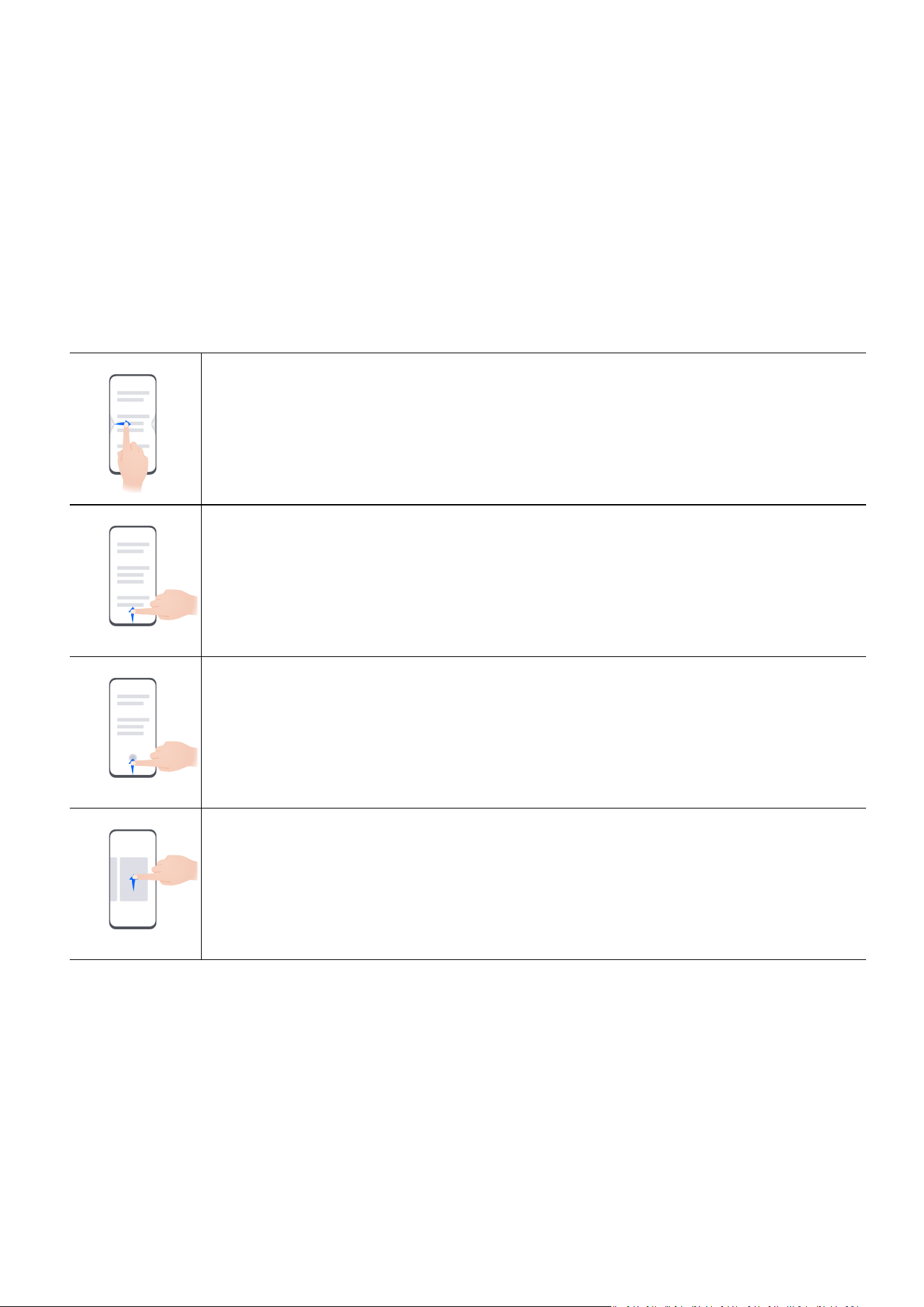
System Navigation Gestures
Go to Settings > System & updates > System navigation and make sure that Gestures is
selected.
Return to the previous screen
S
wipe in from the left or right edges to return to the previous screen.
Back to home screen
S
wipe up from the bottom to go to the home screen.
Recent tasks
S
wipe up from the bottom of the screen and hold to view recent tasks.
Close an app
When viewing r
ecent tasks, swipe up on an app preview to close the app.
1
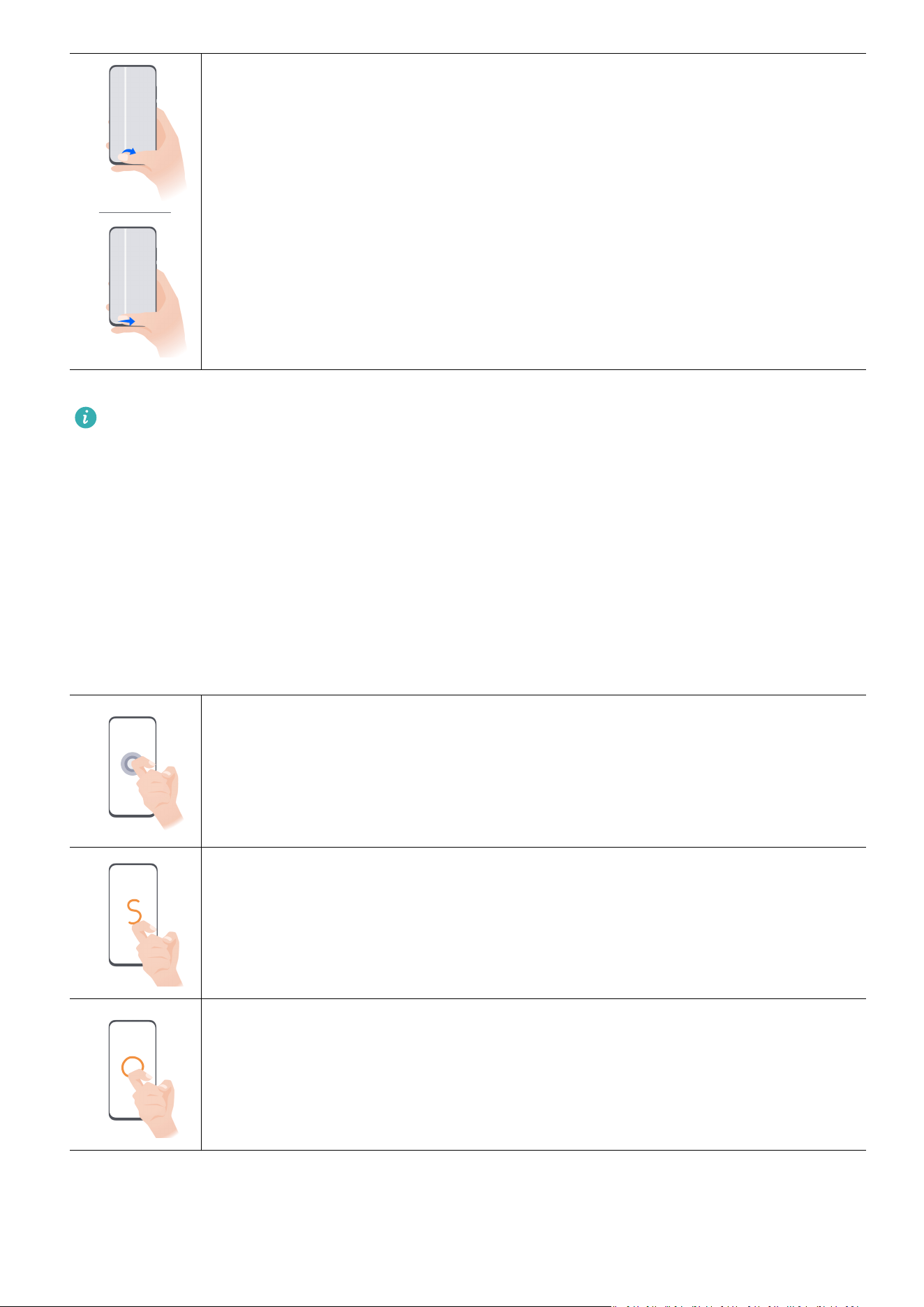
Switch between apps
• Slide acr
oss the bottom edge of the screen to switch between apps.
Before using this gesture, touch Settings on the System navigation
screen, and ensure that Slide across bottom to switch apps is enabled.
• Swipe across the bottom of the screen in an arc to switch between apps.
If your device does not have the Slide acr
oss bottom to switch apps switch, it indicates
that the corresponding feature is not supported.
Knuckle Gestures
Before using knuckle gestures, use either of the following methods to make sure that all
necessary features are enabled (depending on your device model):
• Go to Settings > Accessibility features > Shortcuts & gestures, and enable Take
screenshot and Record screen.
• Go to Settings > Accessibility features > Motion control > Take screenshot, and enable
Smart screenshot.
Take a screenshot
Knock t
wice on the screen with a knuckle to take a screenshot.
Take a scrollshot
Knock on the scr
een with a knuckle and draw an "S" to take a scrolling
screenshot.
Capture part of the screen
Knock and dr
aw an enclosed area with a knuckle to capture part of the
screen.
Essentials
2
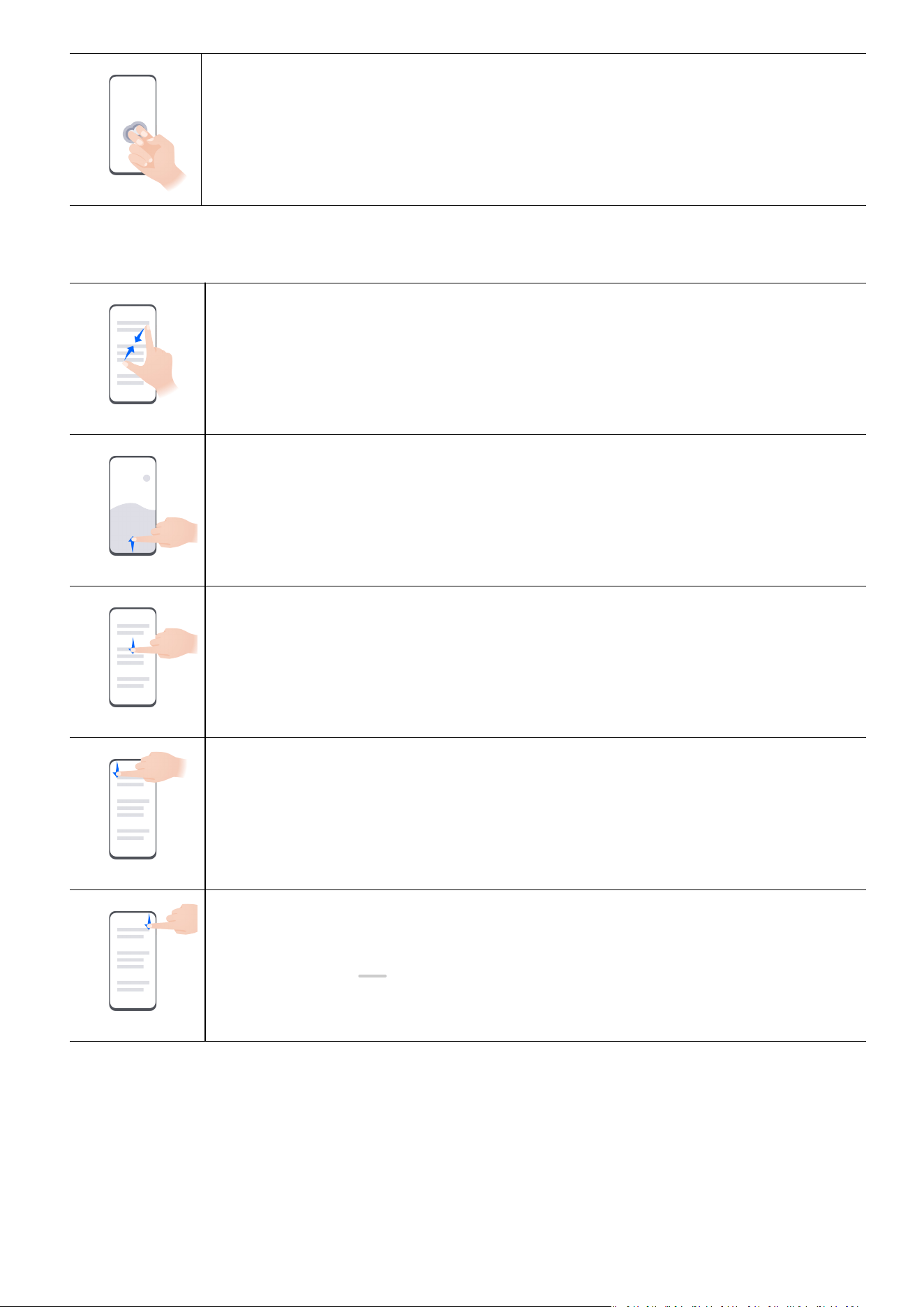
Record screen
Knock t
wice on the screen with two knuckles to start or end a screen
recording.
More Gestures
Access Home screen editing mode
Pinch t
wo ngers together on the home screen.
Display the shortcut panel on the lock screen
T
urn on the screen and swipe up from the bottom of the lock screen.
Display the search bar
S
wipe down from the middle of the home screen.
Display the notication panel
S
wipe down from the upper left edge of the screen.
Turn on a shortcut switch
S
wipe down from the upper right edge of the screen to display Control
Panel and touch
to expand the shortcut switches panel.
Essentials
3
Button Shortcuts
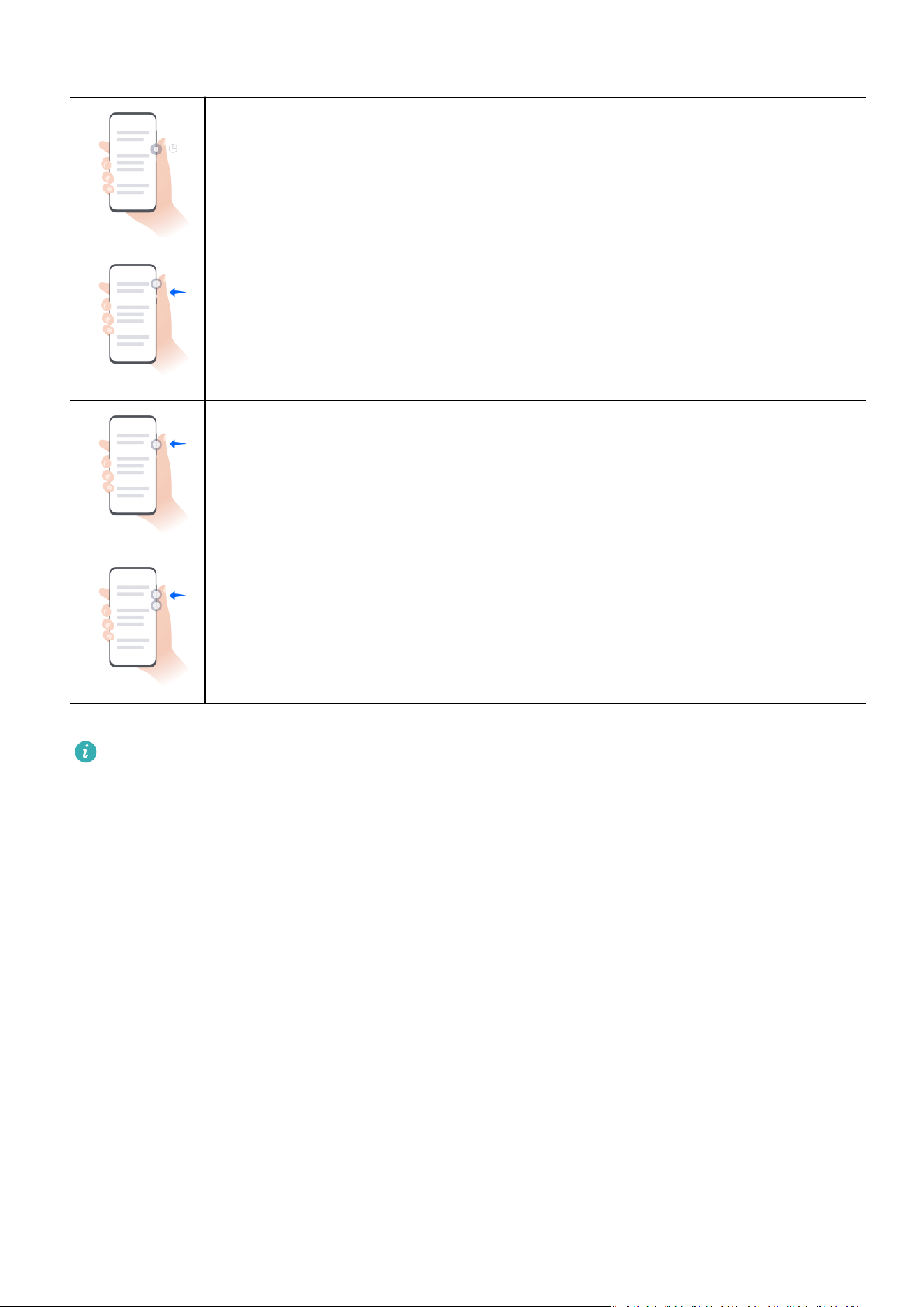
Power o and restart
Pr
ess and hold the Power button until your phone displays the Power o
and Restart menus.
Turn up the volume
Pr
ess the Volume up button.
Turn down the volume
Pr
ess the Volume down button.
Take a screenshot
Pr
ess the Volume down and Power buttons simultaneously.
Some products do not have volume buttons.
Get Familiar with the Home Screen
Use Ser
vice Widgets
Service widgets allow you to:
• Preview or access apps, such as to view the weather forecast, or play music.
• Select from a range of service widget styles and layouts to customize your home screen.
• Stack and combine multiple service widgets to save home screen space, streamline your
home screen, and navigate with greater ease.
Essentials
4
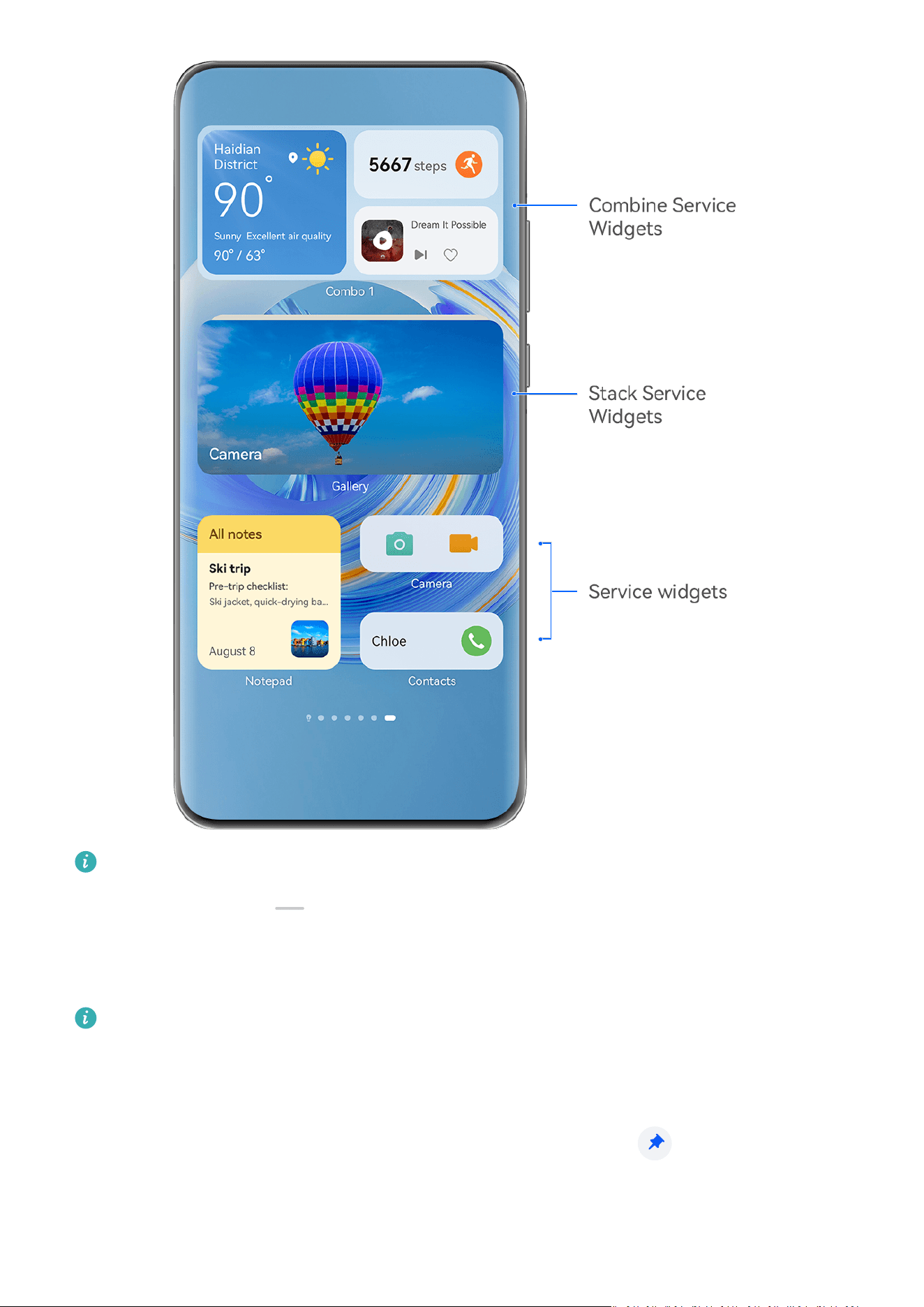
The gures are for reference only.
Apps with a widget bar at the bottom support service widgets.
T
o remove the widget bar, go to Settings > Home screen & wallpaper > Home screen
settings > Show widget bars.
This feature is not supported in some cases, such as when your device is in Simple mode.
Add Service Widgets to Your Home Screen
Y
ou can add a service widget to the home screen in any of the following ways:
• Swipe up on an app icon to expand its service widget, and touch
to add the service
widget to the home scr
een.
Essentials
5

• S
wipe up on an app icon to expand its service widget, touch and hold down on the service
widget, select More service widgets, and select your desired style. Then touch Add to
home screen.
• Touch and hold down on an app icon, touch Service widgets, select your desired style, and
touch Add to home screen.
If there is no space available on the current screen, the widget will be pinned to the next
screen. If neither screen has any space, a new screen will be created for the service widget, to
the right of the current screen.
You can also touch and hold down on a service widget on the More service widgets screen,
and drag it to any blank area on the home screen. If you decide not to add the service widget
to the home screen while dragging it, drag it to the cancel zone instead at the top of the
screen.
• Ser
vice widgets cannot be pinned to folders.
• You won't be able to swipe up on an app icon to expand the service widget in Drawer
mode.
Stack Service Widgets
Stack same-siz
ed service widgets to save home screen space, and streamline your home
screen.
1 To do so, touch and hold down on a service widget, drag it to another service widget of
the same size, and release to stack the two widgets, once they have completely
overlapped. Swipe up or down to cycle between widgets.
2 Swipe down further to expand the stack. From there, you can perform the following
operations for any single service widget:
• Pinning a service widget to the top: Touch a service widget, and pin it to the top of
the stack.
• Adjusting the position of a service widget: Touch and hold down on a service
widget, and drag it to change its position.
• Removing a service widget from the stack: Touch and hold down on a service
widget, drag it to the left or right screen edge, wait for the service widget to be moved
out of the stack, and drag it to any blank area on the home screen.
• Deleting a service widget from the stack: Swipe left on a service widget.
You can also touch and hold down on a service widget stack to edit or remove the top service
widget.
Combine Service Widgets
Combine service widgets of all sizes, and add frequently-used shortcuts to service widget
combinations, to create shortcuts for common features.
Essentials
6

1 T
o do so, touch and hold down on a service widget, drag it to another service widget of
any size until they partially overlap, and release to complete the combination, once the
back panel has been expanded.
2 Touch and hold down on a service widget combination. From there, you can:
• Touch Edit combo to add or remove Service widgets or Shortcuts. Touch
, , or
to change the template size. Hold and drag to adjust the position of the added
c
ontent.
• Touch Rename to edit the name of the service widget combination.
• Touch Remove combo to remove the service widget combination.
If there is an empty space in a service widget combination, you can drag another service
widget to add it to the combination. If there is not enough space for the service widget
combination, you can go to Edit combo, and change the template size to a larger one.
You can also touch and hold down on a service widget to edit or remove it.
Certain service widgets can't be edited.
Edit and Remove Service Widgets
Edit ser
vice widgets:
Touch and hold down on a service widget, and select Edit to set which information will
display for the widget. For example, you can select cities for the Weather service widget, or
select a time zone for the Clock service widget.
Remove service widgets:
Touch and hold down on a service widget, and select Remove to remove it from the home
screen.
• If y
ou uninstall certain apps, the corresponding service widgets will also be removed.
• Certain service widgets can't be edited.
Create and Use Large Folders
Lar
ge folders make it easy to categorize app icons on the home screen. Directly open an app
by touching the app icon, without expanding the folder, and adjust the folder size as needed,
to craft your ideal home screen layout.
Create a Large Folder
1 Touch and hold an app icon and drag it over another icon to create a new folder.
2 Touch and hold a folder to switch between display modes. For example, you can touch
and hold a new folder and select Enlarge from the displayed menu to create a large
folder.
3 You can touch the lower right corner of the large folder to open it and then touch the
folder name to rename it.
Essentials
7
You can also rename the folder by touching and holding it and selecting Rename.
O
perations in a Large Folder
You can perform the following operations in large folders:
• Adjust the folder size: Touch and hold down on a large folder, and release your nger
when the pop-up menu displays. Drag the blue edges or corners around the folder to adjust
the folder size, and touch any blank area on the home screen to complete the operation.
• Enter or exit folders: Touch the lower right corner on a large folder to enter it. Touch a
blank area in the folder to exit it.
When there are too many app icons to display on one page within a large folder, a stacked
icon will appear in the folder's lower right corner. You can touch the stack icon to open the
folder.
• Add or remove apps: Open a large folder, and touch
, and add or remove apps as
r
equired. If you deselect all apps within the folder, the folder will be deleted.
• Switch between display modes: Touch and hold down on a folder to switch between a
standard and large display. For example, you can touch and hold down on a standard
folder, and select Enlarge from the displayed menu to create a large folder.
Notication and Status Icons
Network status icons may vary depending on your region or network service provider.
Supported f
eatures vary depending on the device model. Some of the following icons
may not be relevant to your phone.
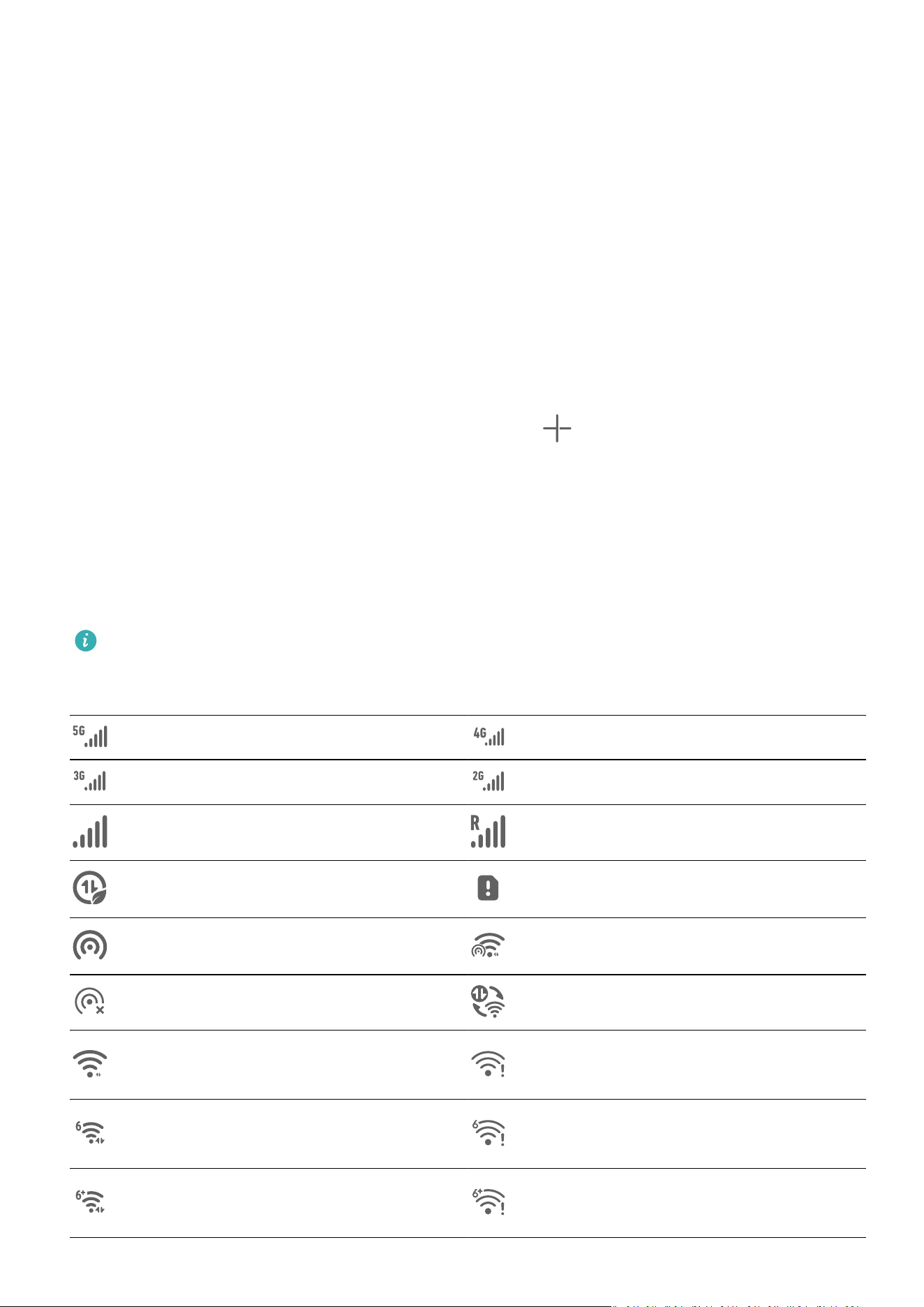
5G network connected 4G network connected
3G network connected 2G network connected
Full signal strength Roaming
Data saver enabled No SIM card inserted
Hotspot enabled Hotspot connected
Hotspot disconnected Switching networks via Wi-Fi+
Wi-Fi connected
Wi-Fi network is faulty, unable to
c
onnect to the Internet
Wi-Fi 6 connected
Wi-Fi 6 network is faulty, unable
to c
onnect to the Internet
Wi-Fi 6+ connected
Wi-Fi 6+ network is faulty, unable
to c
onnect to the Internet
Essentials
8
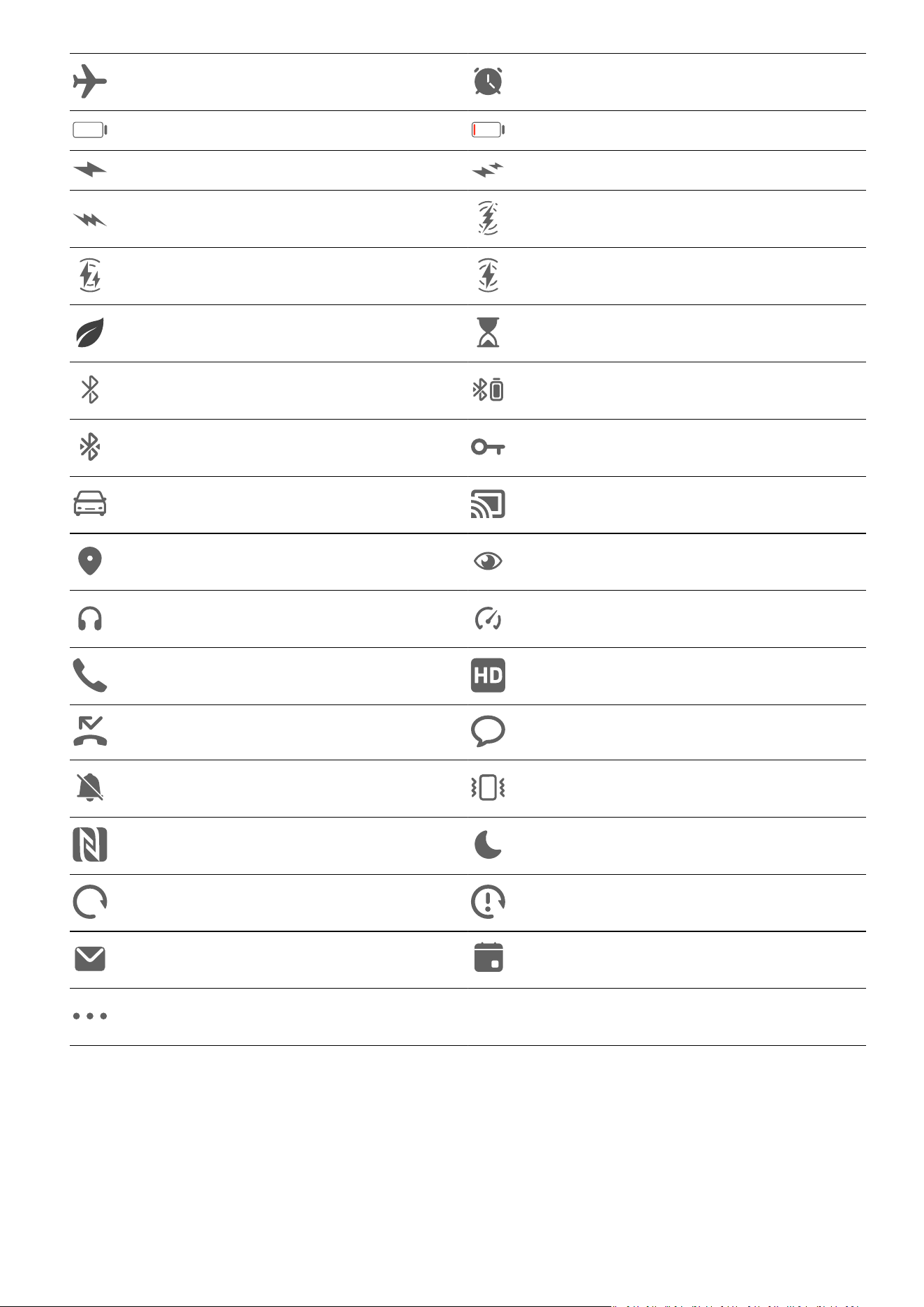
Airplane mode enabled Alarm set
Battery empty Low battery
Charging Fast charging
Super charging Wireless super charging
Wireless fast charging Regular wireless charging
Power Saving mode enabled Digital Balance enabled
Bluetooth enabled Bluetooth device battery
Bluetooth device connected VPN connected
Driving mode enabled Projection device connected
Location service enabled Eye Comfort enabled
Headset connected Performance mode enabled
Calling VoLTE enabled
Missed call New message
Silent mode Vibration pattern
NFC enabled Do Not Disturb mode enabled
Syncing data Data syncing failed
New email Event reminder
More
notications
Control Panel
Intr
oduction to Control Panel
Manage and control audio playback, shortcuts, and Super Device, with greater ease, in
Control Panel.
Essentials
9
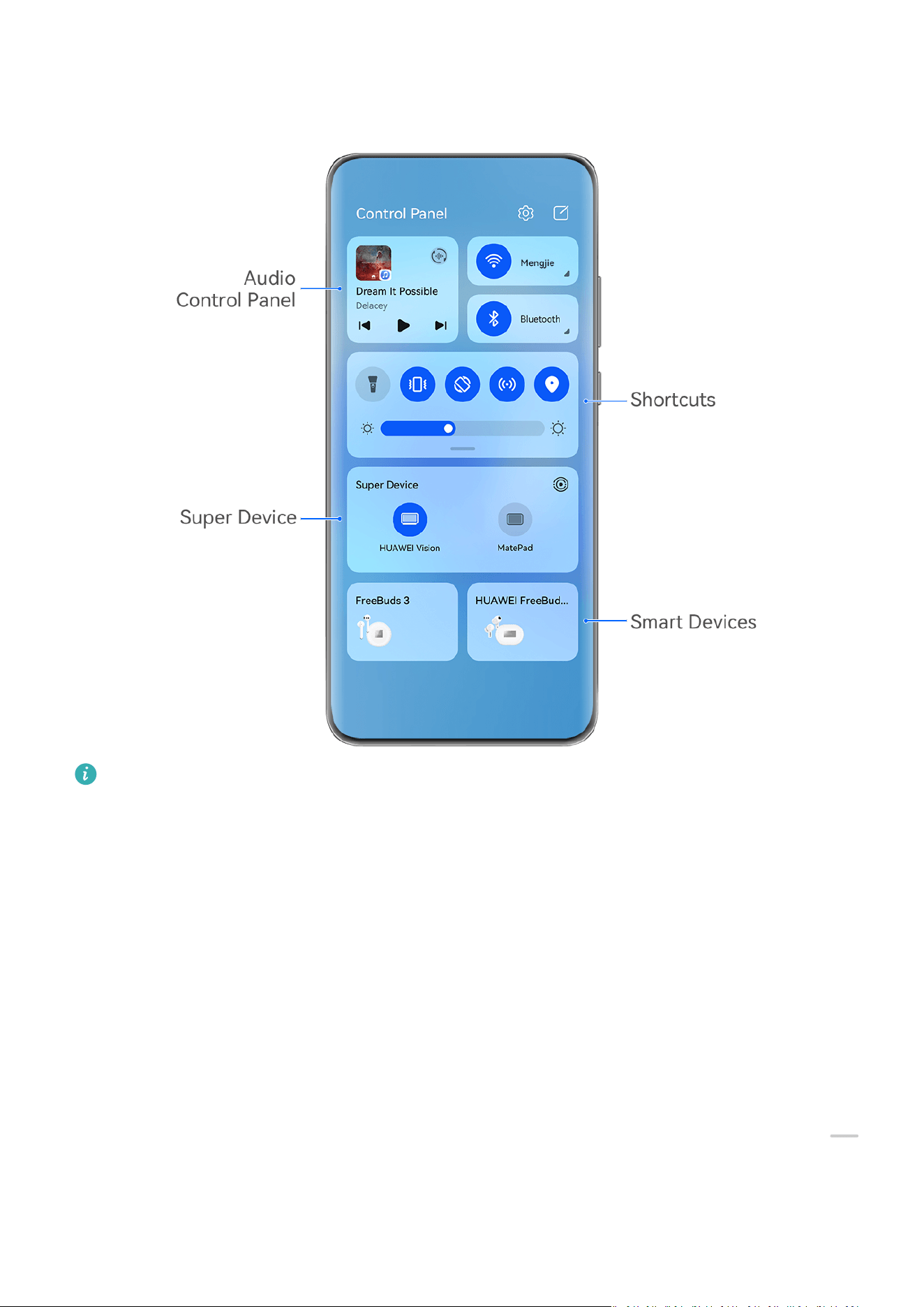
Swipe down from the upper right edge of the screen to display Contr
ol Panel to access the
following features:
The gures are for reference only.
• Audio Contr
ol Panel: Controls audio playback and switches between recently-used media
apps and media devices (such as Visions and Bluetooth headsets).
• Shortcuts: Enables, disables, or sets frequently-used features.
• Super Device: Collaborates with tablets, laptops, Visions, and other devices to facilitate
seamless video transfers and other cross-device features.
• Smart devices: Allows you to manage and control devices and scenes that have been
added in AI Life.
Use Shortcut Switches
Turn on a Shortcut Switch
Swipe down from the upper right edge of the screen to display Control Panel and touch
to expand the shortcut switches panel.
Essentials
10
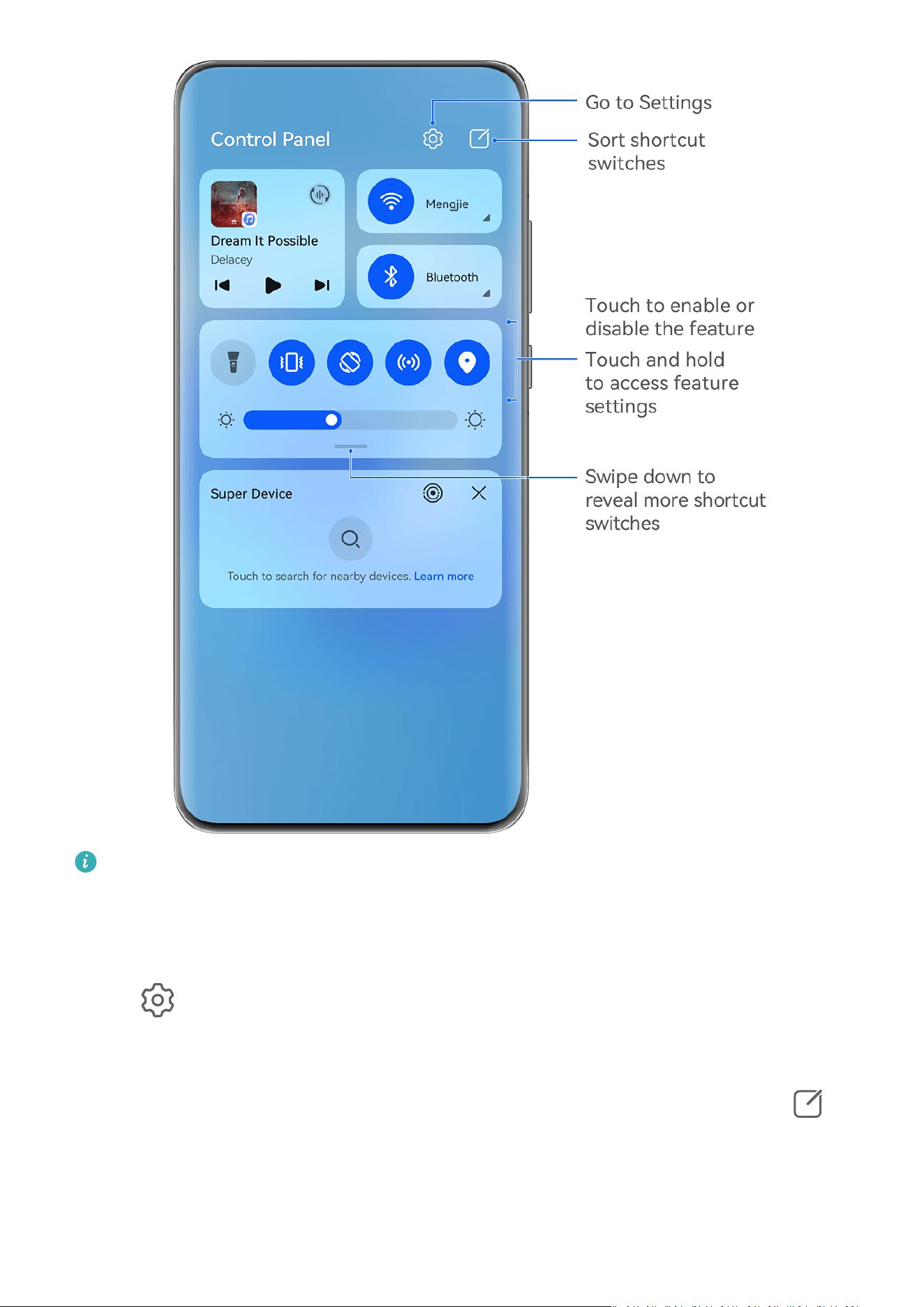
The gures are for reference only.
• T
ouch a shortcut switch to enable or disable the corresponding feature.
• Touch and hold a shortcut switch to access the settings screen of the corresponding feature
(supported by some features).
• Touch
to access the system settings screen.
Customize Shortcuts
Swipe down from the upper right edge of the screen to display Control Panel, go to >
Edit switches, then touch and hold a shortcut switch to dr
ag it to your preferred position,
and touch Done.
Essentials
11

Audio Control Panel
Manage playback and switch listening apps at any t
ime, or even transfer streaming audio
from your phone to other devices, like a headset or speaker.
Manage Playback and Switch Seamlessly Between Audio Apps
When multiple audio apps (such as Music) are open, use the audio control panel to manage
playback and switch audio apps at any time.
1 Swipe down from the upper right edge of the phone to display Control Panel, and touch
the playback control card at the top.
2 Current and recently-used audio apps will display in the playback control card, where you
can manage playback (such as playing, pausing, and switching tracks) in the app in use,
or switch to another audio app.
• The audio c
ontrol panel is only supported for certain apps .
• Some apps need to be updated to the latest version.
Sharing Audio with Friends via Bluetooth Earphones
Sharing audio allo
ws you to connect multiple pairs of Bluetooth earphones to the same
phone, so that you can listen to music or watch videos along with a friend.
• This f
eature is only supported on certain Bluetooth earphones.
• If your Bluetooth earphones support this feature, update them to their latest available
version.
1 P
air your device with a pair of Bluetooth earphones, and touch
in the upper right
c
orner of the playback control card for Control Panel.
2 Set a sharing mode based on the pairing status of the other pair of earphones:
Self sharing (the other pair of earphones has been paired with your device): The
paired earphones will display in the device list. Select the two pairs of earphones that you
wish to share audio with.
You can also go to Control Panel > Super Device, and drag the icons for the two pairs of
earphones to the icon for this device, to initiate a connection.
Temporary sharing (the other pair of earphones has not been paired with this
device): Select the paired earphones from the device list on this device, touch Share
audio under the name of the earphones, and initiate sharing as follows:
• The other pair of earphones has not been paired with any device: Place the
earphones that you wish to share in the charging case, open the case, place it close to
this device, and follow the onscreen instructions to complete the connection. If your
phone does not detect any earphones, touch and hold down on the button on the
charging case, and place the earphones close to this device to initiate paring.
• The other pair of earphones has been paired with another tablet/phone: Turn on
the screen of the phone that is paired with that earphones, and place that phone close
to this device, and follow the onscreen instructions to complete the connection.
Essentials
12

3 Onc
e the pairing is complete, you'll be able to share the audio on this device with the two
pairs of earphones.
To stop audio sharing, touch
on the playback control card, touch the shared earphones,
and deselect it
.
Transfer Phone Audio to Another Device
When your phone is connected to a listening device (such as a headset, speaker, or Vision
product), you can send the audio playing on your phone to the listening device, and continue
to manage playback in the audio control panel.
1 Connect your phone to a listening device via Bluetooth, AI Life, or another method.
2 Touch
in the upper right corner of the playback control card in Contr
ol Panel, and
select the listening device from the list to transfer the audio playing on your phone to the
listening device.
If there is no audio cast device list in the playback control card, touch
to display the list.
Use a Phone to Contr
ol HUAWEI Smart Speakers and Other Devices
When your phone is connected to multiple HUAWEI smart audio devices (such as HUAWEI
smart speakers), you can use the audio control panel to manage playback and switch
listening devices at any time.
• B
efore using this feature, update any HUAWEI smart speaker to their latest versions.
The following uses the HUAWEI smart speaker as an example.
1 Add the HU
AWEI smart speaker to AI Life, and connect your phone and speaker to the
Internet.
2 Touch the playback control card in Control Panel. The icon of the added device will
display above the card.
3 Touch a device icon to access the corresponding device control screen. From there, you can
play, pause, switch tracks, and adjust the volume.
If multiple audio devices are connected, you can tap on device icons to switch listening
devices.
If there are no device icons above the playback control card, touch
to display the device
list
.
Switch Seamlessly Between Screens, with Super Device
Use Super Device for multi-device collaboration with just a tap, to turn all of your smart
devices into one cohesive unit. For example, when you go home, you can continue watching
a movie on your HUAWEI Vision, by picking up right from where you had left o on your
phone; when you return to the oce, you can continue to edit the same documents on your
computer, by picking up right from where you had left o on your phone.
Essentials
13
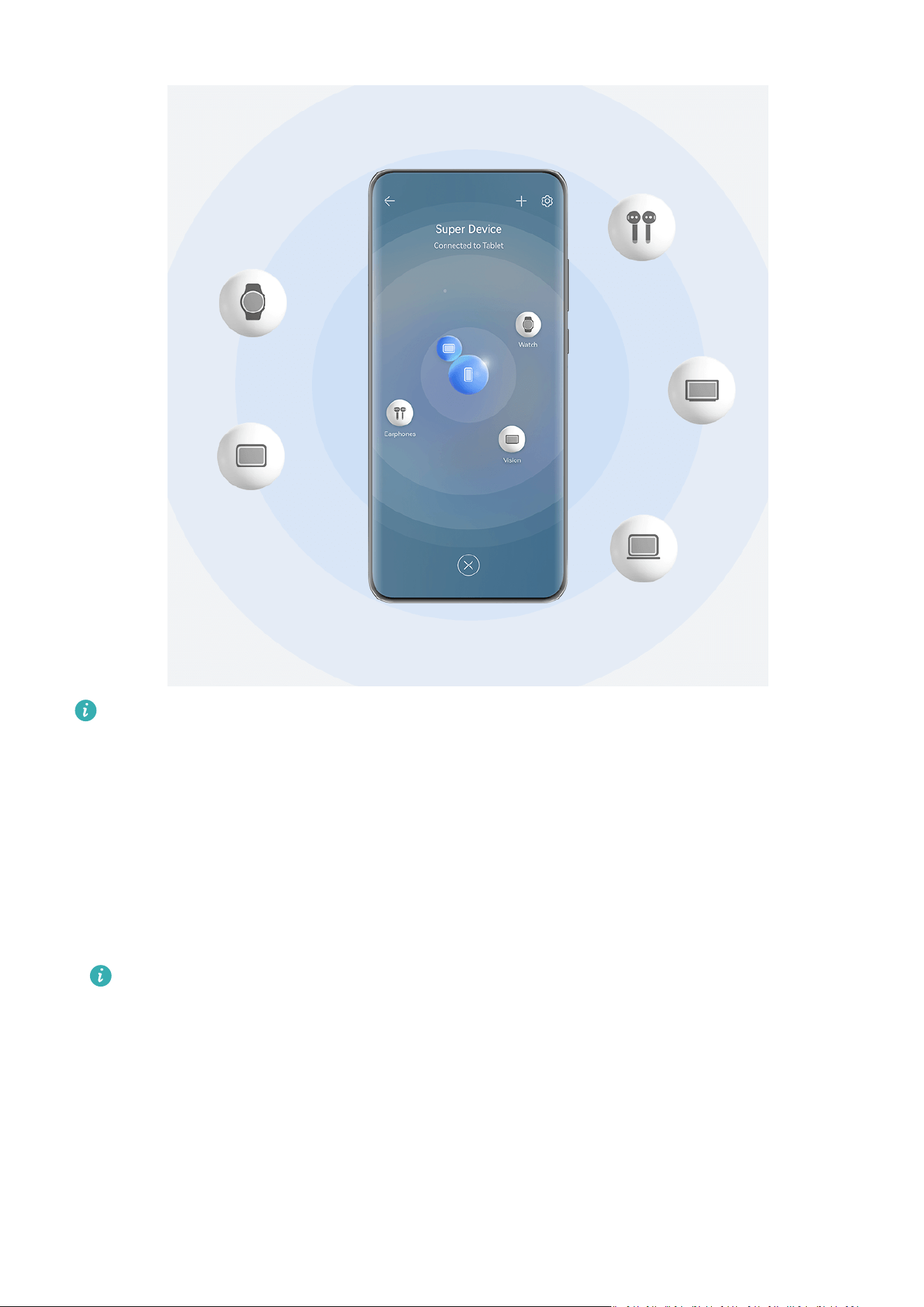
The gures are for reference only.
Devic
e types supported by Super Device may vary by product.
Set Super Device Before Getting Started
Before using Super Device, enable Bluetooth and Wi-Fi on your phone, and log in to your
HUAWEI ID.
Make sure that the screens of your other devices remain on, and apply the following settings
on these devices:
• Phone: Enable Bluetooth and Wi-Fi.
Only phones that support Multi-cam mode can be used as connected devices. You can
check whether Mult
i-cam mode is supported by going to Camera > More (for the list
of supported devices, please visit the Huawei ocial website).
• Tablet: Enable Bluetooth and Wi-Fi.
• Tablet with an E Ink display: Enable Bluetooth and Wi-Fi, and make sure that it is logged
in to the same HUAWEI ID as your phone.
• Computer: Enable Bluetooth and Wi-Fi, and make sure that it is logged in to the same
HUAWEI ID as your phone.
• Vision or monitor: Enable Bluetooth and Wi-Fi.
Essentials
14

• Smart speak
er or printer: Make sure that it is connected to the same LAN as your phone,
paired in AI Life with your phone, and logged in to the same HUAWEI ID.
Enter the AI Lif
e home screen, go to
> Add devic
e, and follow the onscreen
instructions to complete the connection.
• Earphones or glasses: Make sure that they are paired and connected to your phone via
Bluetooth.
• Watch or band: Make sure that it is paired with your phone via Huawei Health, and logged
in to the same HUAWEI ID.
Create Your Super Device, by Connecting to Nearby Devices
If you can't
nd Super Device in Control Panel, touch
in the upper right corner, and
touch Sho
w Super Device.
The devices are logged in to the same HUAWEI ID.
1 Swipe down from the upper right edge of your phone to display Control Panel, and touch
or in Super Devic
e to search for nearby devices to connect with.
2 Touch the device to be connected, or drag the device to be connected to this device, and
follow the onscreen instructions to complete the connection.
Once device connections are established, you can touch
to switch the application
sc
enario.
The devices are not logged in to the same HUAWEI ID.
1 On the phone/tablet that you wish to connect to, go to Settings > Super Device > This
device > Visible to, and select All nearby devices.
2 Swipe down from the upper right edge of your phone to display Control Panel, and touch
in Super Devic
e.
3 Touch
, select the device that you wish to connect to, and follow the onscreen
instruct
ions to complete the connection.
To unlink a device that is not logged in to the same HUAWEI ID, touch in Super
Device, touch and hold down on the device, and touch Delete. Alternatively, you can
go to Settings > Super Device, select the device that you wish to unlink in Other
devices, and touch Delete.
4 T
ouch the device to be connected, or drag the device to be connected to this device, and
follow the onscreen instructions to complete the connection.
Once device connections are established, you can touch
to switch the application
sc
enario.
Essentials
15
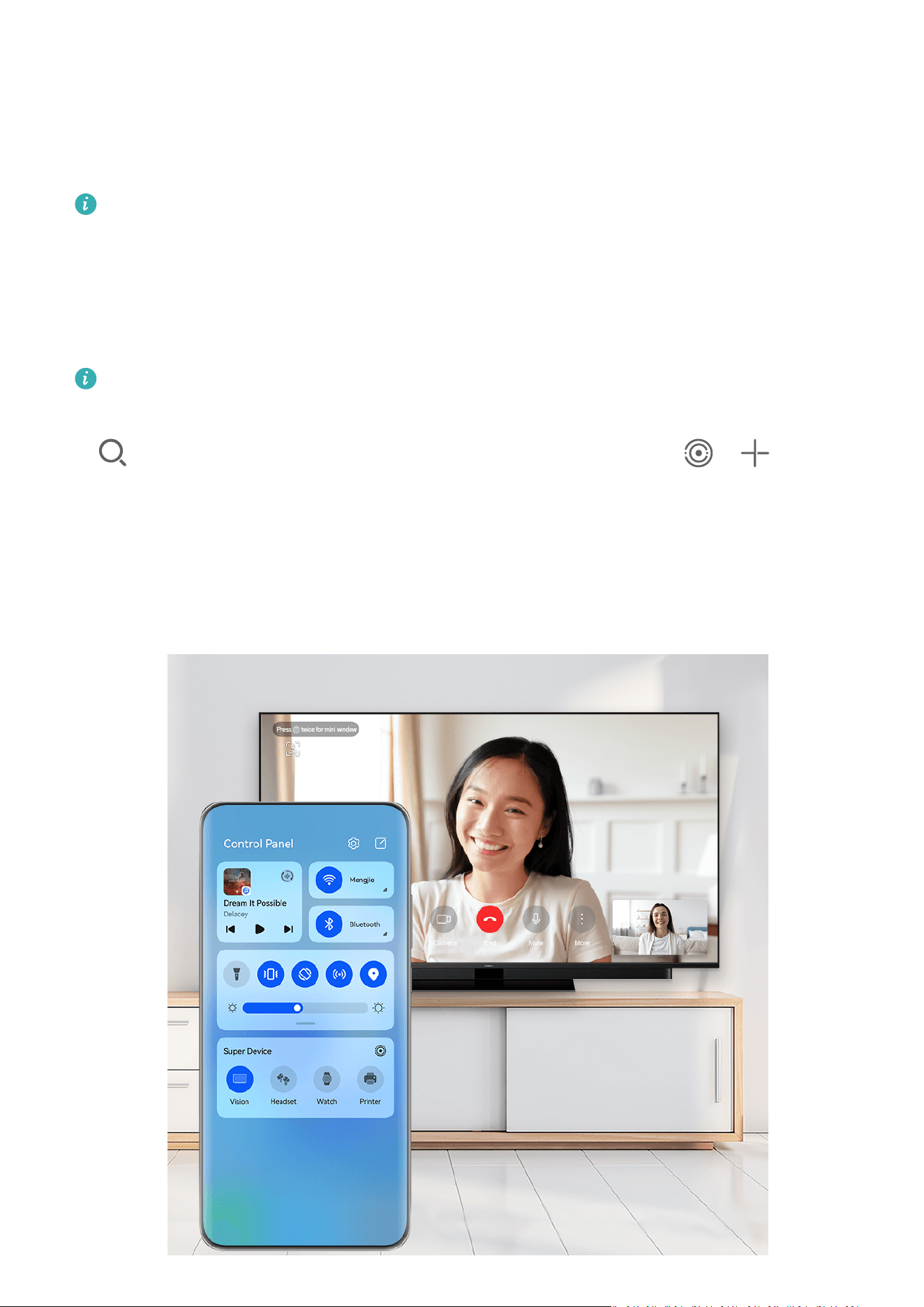
Transfer MeeTime Calls and Streaming Audio or Videos to Connected Devices
T
ransfer a streaming video (for example, a video in HUAWEI Video), song, or MeeTime call
from your phone to another device, and pick up from exactly where you had left o, without
missing a beat.
MeeTime: This f
eature is only available in some countries and regions.
For instance, you can:
• T
ransfer videos to tablets.
• Transfer MeeTime calls to Visions.
• Transfer music to Bluetooth earphones, speakers, head units, Visions, or glasses.
Device types and transfers supported by Super Device may vary by product.
1 S
wipe down from the upper right edge of the phone to display Control Panel, and touch
in Super Device to search for nearby available devices, or go to > to bind a
new device.
2 Open an app running a task you wish to transfer (such as HUAWEI Video or HUAWEI
Music) on your phone.
3 Touch the target device to which the task you wish to transfer, or drag the target device to
the local device, and follow the onscreen instructions to complete the transfer.
Essentials
16

The gures are for reference only.
Multi-Screen Collaboration on a Computer or Tablet
Connect y
our phone to a computer and tablet via Super Device to make oce work more
ecient and collaborative. You can view and edit les, drag and drop les, copy and paste
text, or even browse phone apps, from the Multi-screen Collaboration window on your
computer or tablet.
1 Swipe down from the upper right edge of the phone to display Control Panel, and touch
in Super Devic
e to search for nearby available devices, or go to
> to bind a
new devic
e.
2 Touch the device to be connected, or drag this device to the local device, and follow the
onscreen instructions to complete the connection.
Once the connection is established, your phone screen will display on the connected device.
To halt Multi-Screen Collaboration, touch the connected device on the Super Device screen.
Screenshots & Screen Recording
Take a Screenshot
Take a Full Screenshot with a Knuckle Tap
1 Before using knuckle gestures, use either of the following methods to enable this feature
(depending on your device model):
• Go to Settings > Accessibility features > Shortcuts & gestures > Take screenshot,
and enable Knuckle screenshots.
• Go to Settings > Accessibility features > Motion control > Take screenshot, and
enable Smart screenshot.
2 Tap twice in quick succession with one knuckle to take a screenshot of the entire screen.
Take a Screenshot with a Key Shortcut
Press and hold down on the Power and Volume down buttons at the same time to take a
screenshot.
Take a Screenshot with a Shortcut Switch
Swipe down from the upper right edge of the screen to display Control Panel, touch
to
expand the shortcut switches panel, and touch Scr
eenshot to take a screenshot.
Share or Edit a Screenshot
After you take a screenshot, a thumbnail will appear in the lower left corner of the screen.
Feel free to:
Essentials
17
• S
wipe up on the thumbnail to select a method for sharing the screenshot with others.
• Tap on the thumbnail to edit, delete, or do more with the screenshot.
Screenshots are saved to Gallery by default.
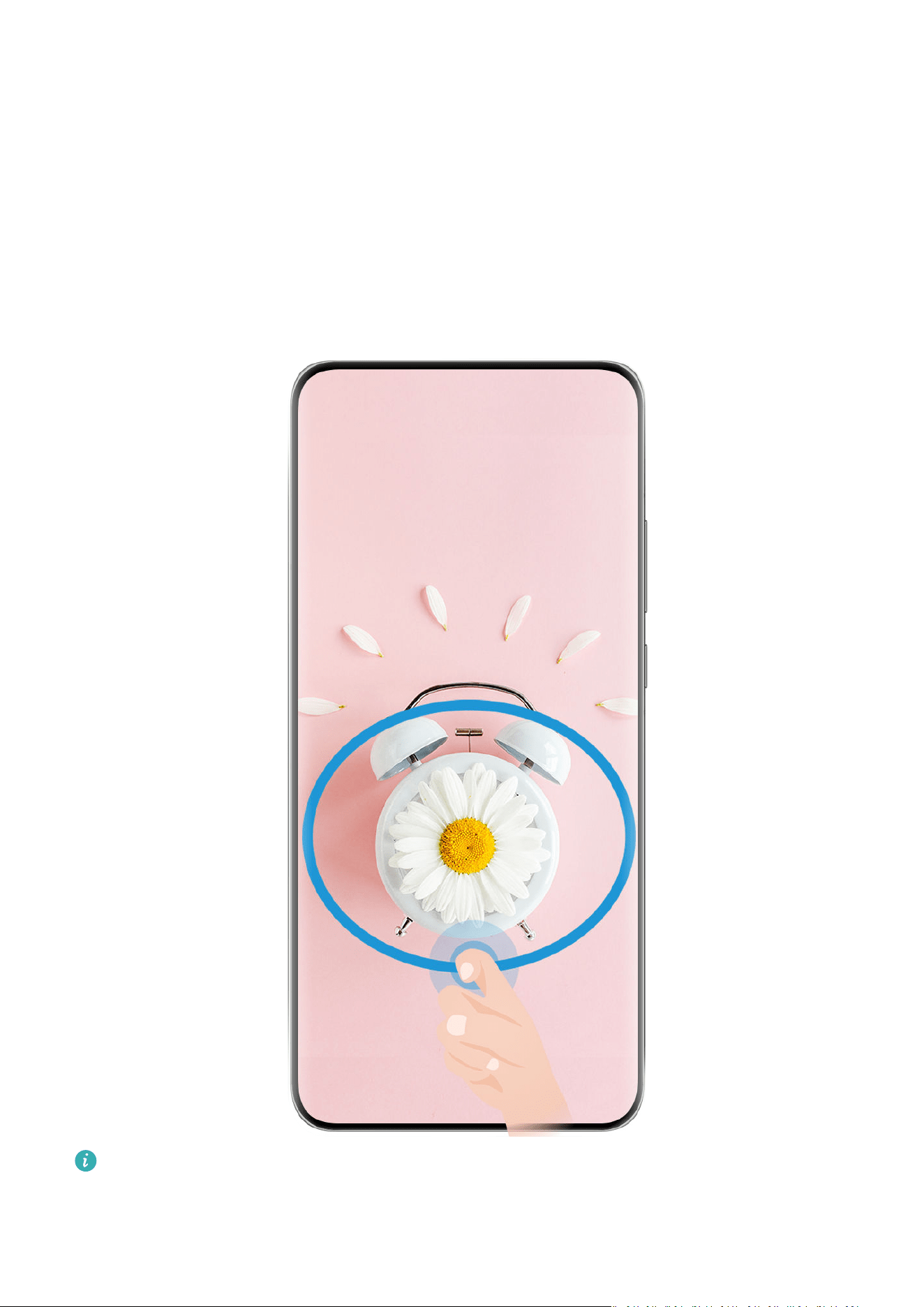
Take a Partial Screenshot
Use Partial screenshot to take a screenshot of a part of the screen. You can choose your
preferred screenshot shape (such as a rectangle, oval, or heart).
Take a Partial Screenshot with Knuckle Gestures
The gures are for reference only.
1 Knock on the scr
een with a single knuckle and hold to draw an enclosed shape around the
part of the screen that you wish to capture. Make sure that your knuckle does not leave
the screen.
Essentials
18

2 The scr
een will display the motion of your knuckle. From there, feel free to:
• Drag the frame to the desired position, or resize it.
• Touch any of the shape options on the toolbar to change the shape of the captured
area.
3 Touch
to save the screenshot.
Use a Shortcut to T
ake a Partial Screenshot
1 Swipe down from the upper right edge of the screen to display Control Panel, touch
to expand the shortcut switch panel, touch the triangle icon next to Screenshot, and then
touch Partial screenshot in the pop-up.
2 Follow the onscreen instructions to draw an enclosed shape with your nger around the
part of the scr
een that you wish to capture.
3 The screen will display the motion of your nger. From there, feel free to:
• Dr
ag the frame to the desired position, or resize it.
• Touch any of the shape options on the toolbar to change the shape of the captured
area.
4 Touch
to save the screenshot.
T
ake a Scrolling Screenshot
Use Scrollshot to capture a memorable chat, article, or essential work document that can't
display in full on the screen, and share with others.
Use a Knuckle to Take a Scrolling Screenshot
Essentials
19
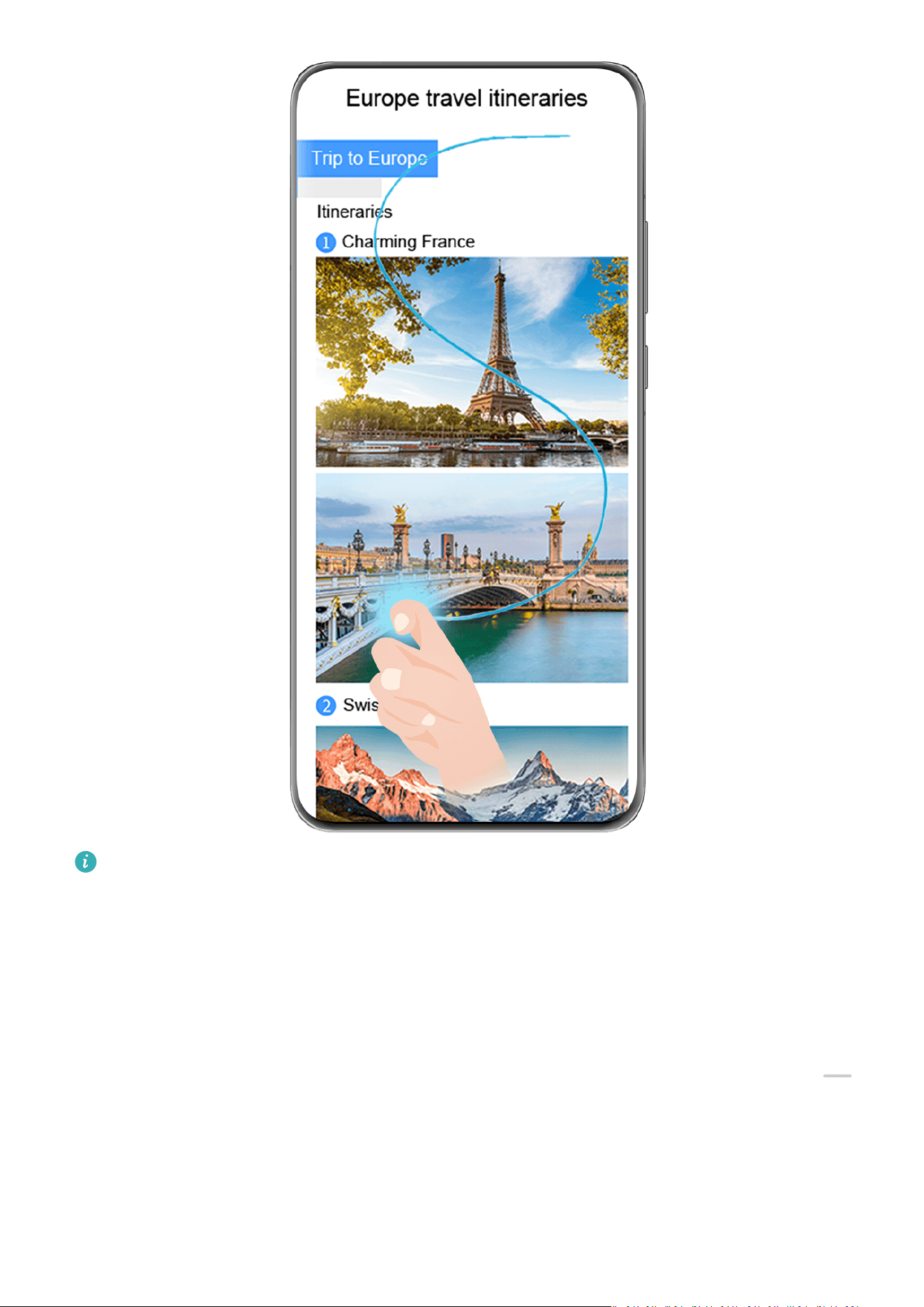
The gures are for reference only.
1 T
ap a single knuckle against the screen and hold to draw an "S". Your device will
automatically scroll to the bottom of the page to capture all of the content in a single
screenshot.
2 You can touch the screen at any time to stop the scrolling.
Use a Shortcut to Take a Scrolling Screenshot
1 Swipe down from the upper right edge of the screen to display Control Panel, touch
to expand the shortcut switches panel, touch the triangle icon next to Scr
eenshot, and
touch Scrollshot in the displayed dialog box.
2 You can touch the screen at any time to stop the scrolling.
Swipe down on the Thumbnail to Take a Scrolling Screenshot
Essentials
20
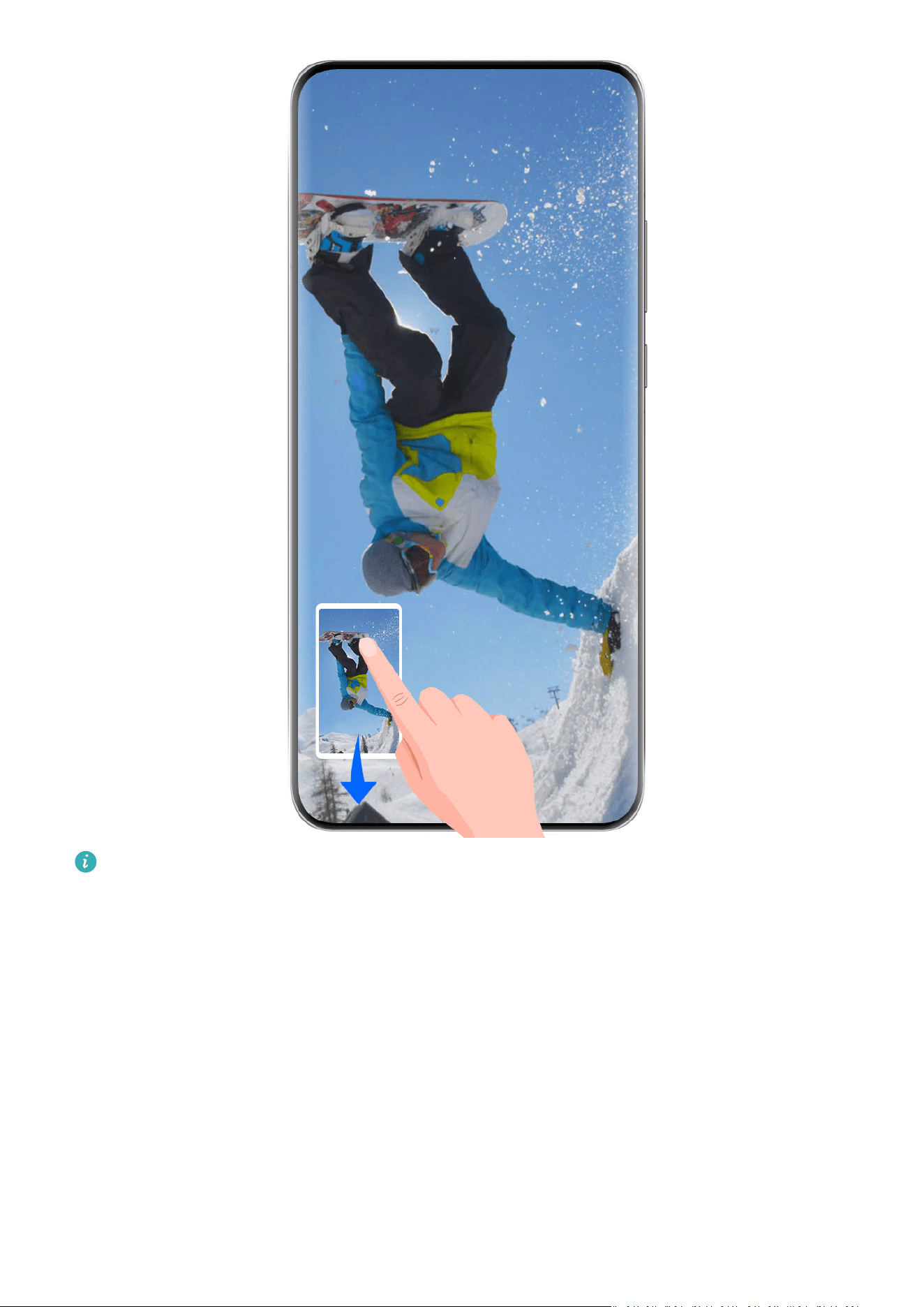
The gures are for reference only.
After you take a screenshot, a thumbnail will appear in the lower left corner. You can
c
ontinue to take a scrolling screenshot.
1 Swipe down on the thumbnail to take a scrolling screenshot.
2 You can touch the screen at any time to stop the scrolling.
Record the Screen
Capture action onscreen to create sharable videos, to show o your gaming skills, compose
tutorials, and do so much more.
Use a Key Combination to Start Screen Recording
Press and hold the Power and Volume up buttons simultaneously to start screen recording. To
stop recording, press and hold both buttons again.
Essentials
21

Use a Shortcut to Start Screen Recording
1 S
wipe down from the upper right edge of the screen to display Control Panel, touch
to expand the shortcut switches panel, and touch Scr
een Recorder to start screen
recording.
2 To stop the recording, touch the timer at the top of the screen.
3 The recording will be saved in Gallery.
Use Two Knuckles to Start Screen Recording
1 Before using knuckle gestures, use either of the following methods to enable this feature
(depending on your device model):
• Go to Settings > Accessibility features > Shortcuts & gestures > Record screen, and
enable Record screen.
• Go to Settings > Accessibility features > Motion control > Take screenshot, and
enable Smart screenshot.
2 Knock the screen twice in quick succession with two knuckles to start a screen recording.
To stop recording, knock twice as before.
Record Your Voice During Screen Recording
Touch the microphone icon to enable or disable the microphone while recording the screen.
• When the microphone is enabled (i.e. it is displayed as
), you can record your voice
while r
ecording the screen.
• When the microphone is disabled (i.e. it is displayed as
) you'll only be able to record
system sounds, such as audio and video playback.
Enter Text
Use Celia Keyboard
Celia Keyboard is a secure and intuitive keyboard developed by Huawei. It supports ecient
voice inputs, smooth handwriting, as well as 170+ input languages.
If Celia K
eyboard is not yet installed on your device, search for and install it in AppGallery.
Go to Settings > System & updates > Language & input and set Celia Keyboard as the
default keyboard.
Text Input
Keyboard input
Celia Keyboard comes with a 26-key layout by default. As you type on the keyboard, a box
will be displayed for you to select predicted words.
Essentials
22

Press and hold a letter key and then swipe up to enter a number, or swipe left or right to
enter the let
ter.
Voice input
You can have your speech converted into text to improve your input eciency.
• T
ouch and hold
to go to the voice input screen.
• On the v
oice input screen, touch
to select your preferred language.
This feature is only available in some countries and regions.
Rich Media Input
• On the k
eyboard, touch and hold
, then touch and select dierent emojis.
• On the k
eyboard, touch and hold
, then touch and select dierent emoticons.
S
witch to Another Input Language
Touch and hold
in the lower left corner and select English(United States) or Mor
e
languages… in the pop-up menu. Alternatively, touch
to quickly switch input language.
Celia K
eyboard Settings
Set the skin
On the input keyboard, go to
> Theme and select a skin.
Set the f
ont
On the input keyboard, go to
> Set
tings > Font and select a font.
Set the Mechanical Keyboard
On the input keyboard, go to
> Mechanical k
eyboard and toggle on the Mechanical
keyboard switch.
To switch back to the normal keyboard, toggle o the Mechanical keyboard switch.
Some devices do not support the mechanical keyboard.
Multi-Window
Edit the Mult
i-Window Dock
Edit apps in the Multi-Window dock, by adding or removing them, or rearranging their order,
to customize the dock to your heart's content!
Essentials
23
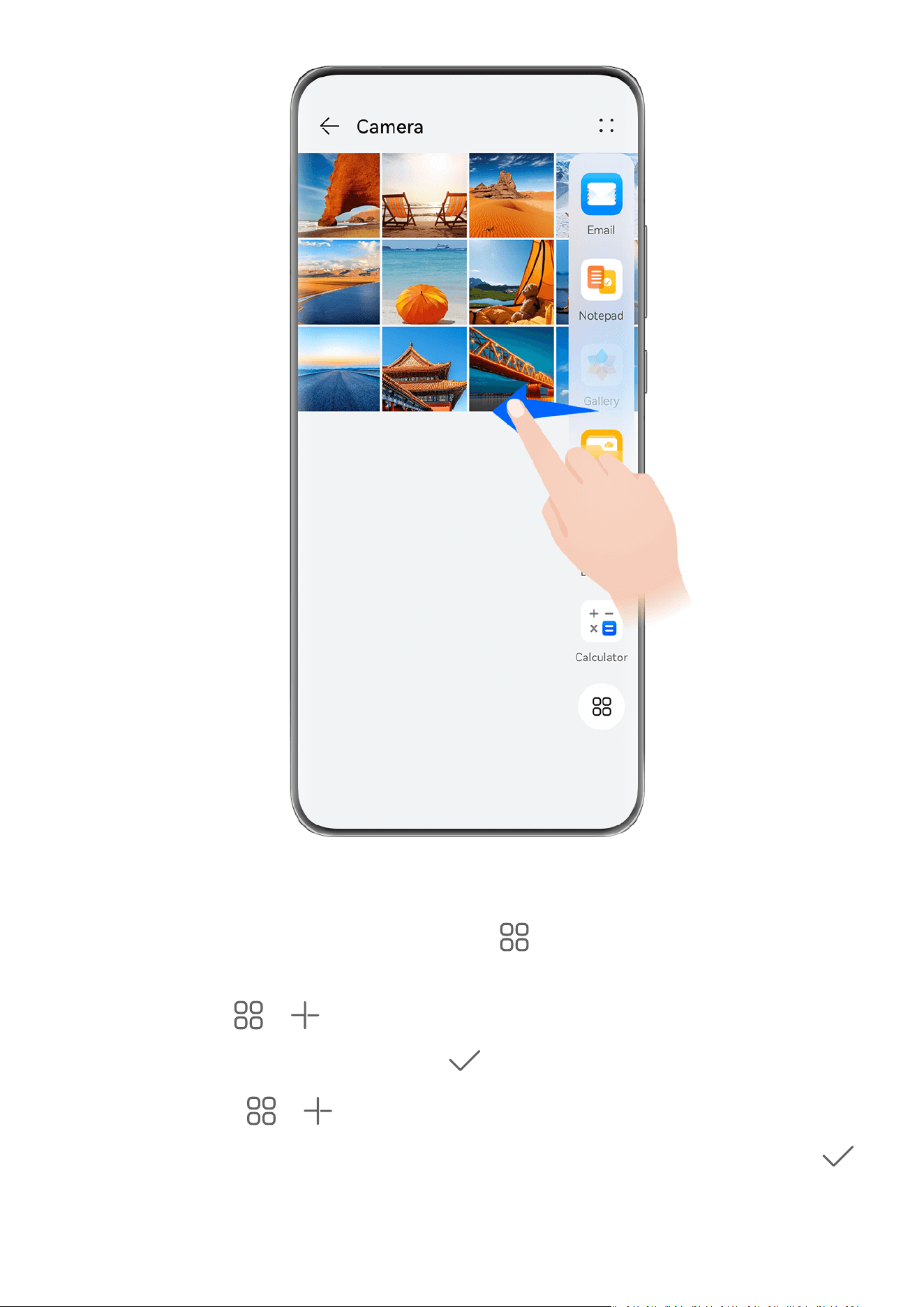
Swipe inward from the left or right edge of your phone and hold to bring up the Multi-
Windo
w dock. From there, feel free to:
• View apps that support Multi-Window: Touch
to nd apps that support Multi-
Windo
w in the More apps section.
• Add apps: Go to
> to enter the editing screen. Then touch the apps you wish to
add to the Mult
i-Window dock, and touch
.
• Mo
ve apps: Go to
> to enter the editing screen, touch and hold down on an app
ic
on in the Multi-Window dock, drag it to your desired position in the dock, and touch
.
Essentials
24
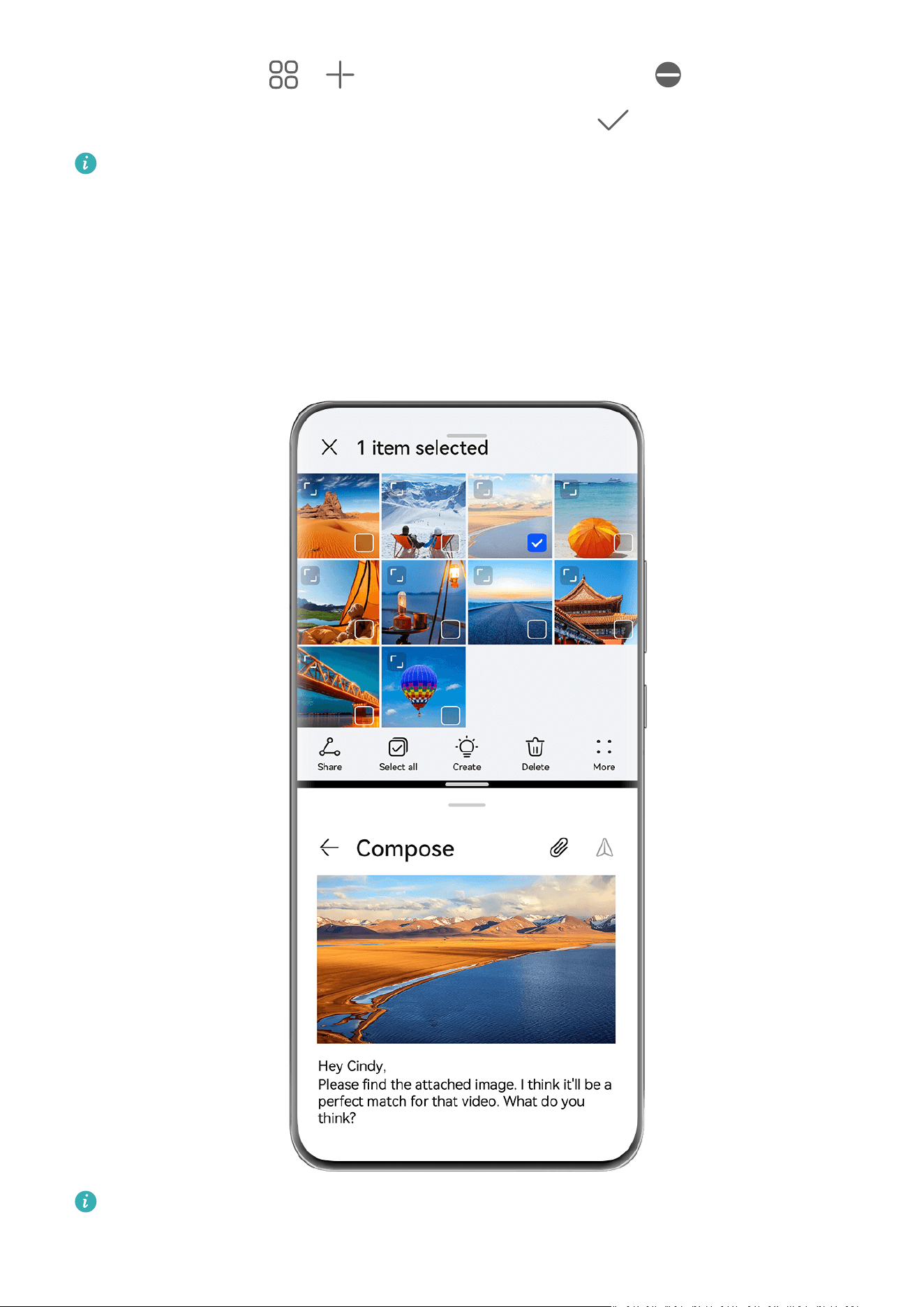
• Remo
ve apps: Go to
> to enter the editing screen, touch in the upper right
c
orner of an app icon in the Multi-Window dock, and touch
.
The recommended apps in the Multi-Window dock can't be deleted.
The Multi-Window dock is enabled by default. To disable it, go to Set
tings > Accessibility
features > Multi-Window, and turn o the Multi-Window dock switch.
Split the Screen, to Multi-Task Away
Multi-Window allows you to open apps in split-screen mode, for seamless multi-tasking at all
times.
The gures are for reference only.
To split the screen:
Essentials
25

1 Af
ter opening an app from the home screen, swipe inward from the left or right edge of
your phone and hold, to bring up the Multi-Window dock.
2 Hold down on an app in the dock, drag it on to the screen, and release.
Split-screen mode is only supported on certain apps.
To switch split-screen panes:
T
ouch and hold down on
at the top of a split-screen pane until the pane shrinks, then
dr
ag the pane to the other side of the screen and release, to switch panes.
To adjust the split screen ratio:
Drag
on the split screen line to adjust the relative size of each split screen.
T
o exit split-screen mode:
Drag
or on the split screen line, until you see the other pane disappear.
To switch to a oating window: Touch and hold down on at the top of a split-screen
windo
w, and drag it to the left or right (in portrait mode) or down (in landscape mode).
Drag and Drop Between Apps with Multi-Window
Use the Multi-Window feature to easily drag and drop images, text, and documents between
apps.
• Drag and drop an image: When taking notes with Notepad, open Files, select the photo
you want to add, and drag it into the Notepad editor.
• Drag and drop text: When sending an SMS message, open Notepad, touch and hold the
text you want to send, and drag it into the message text input box.
• Drag and drop a document: When writing an email, open Files, select the document you
want to attach, and drag it into the email editor.
Not all apps fully support drag-and-drop with Multi-Window.
Multi-Window View for a Single App
Y
ou can create two task windows for the same app (such as Email and Notepad), and drag
images, text, or documents between the windows.
This feature is unavailable in some apps.
To enable multi-window view for a single app:
1 On the home scr
een, open Email.
2 Swipe inward from the left or right edge of your phone and hold to bring up the Multi-
Window dock.
3 Touch and hold down on the Email app icon in the dock, and drag it on to the screen and
release, to open two windows within the app.
To drag images, text, or documents between a single app's split-screen windows:
Essentials
26
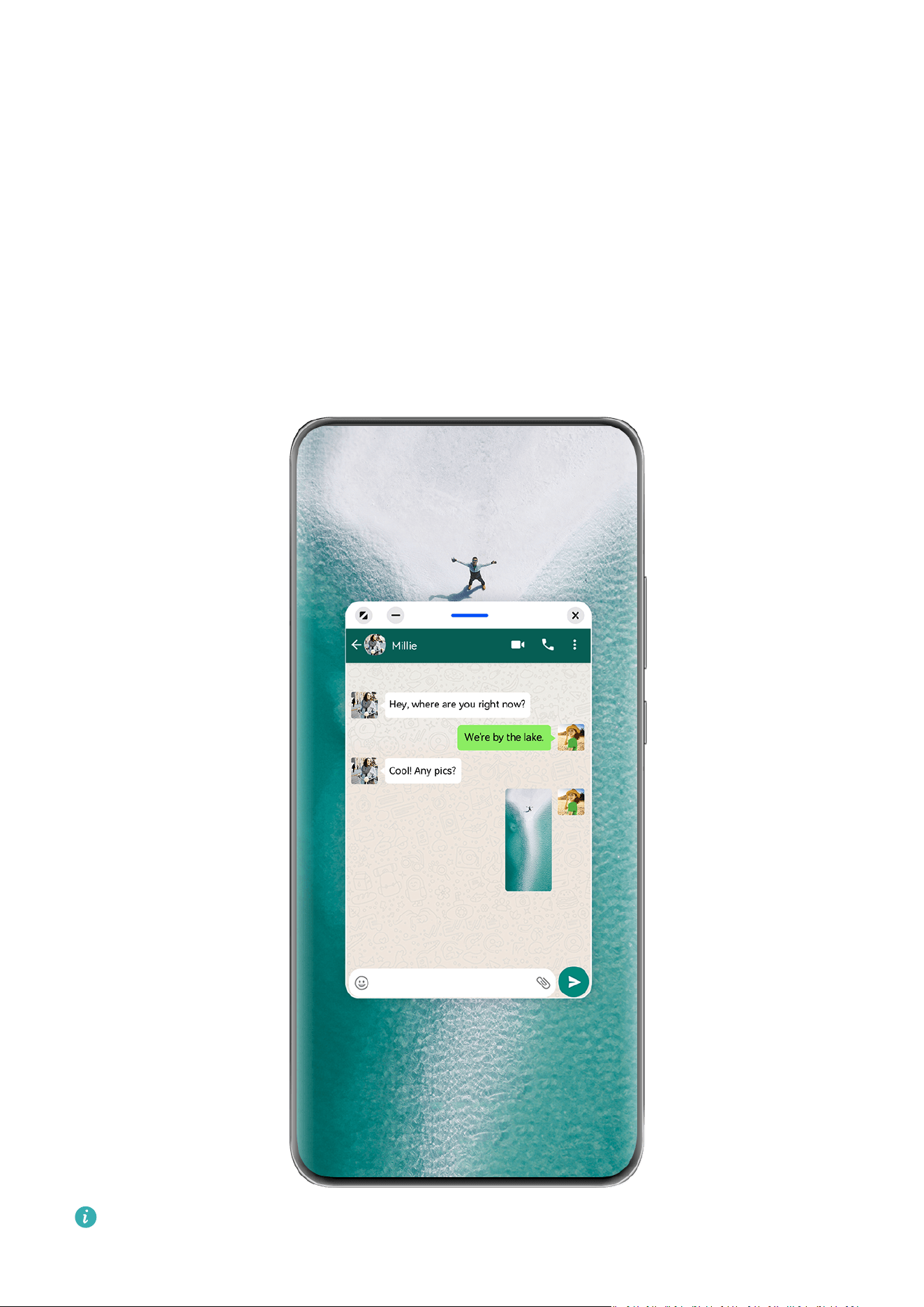
• Dr
ag an image: Select an image from one of the Email app's split-screen windows, and
drag it to the other window.
• Drag text: Touch and hold down on the text and select the desired portion, from one of the
Email app's split-screen windows, then touch and hold down on the text once again, and
drag it to the other window.
• Drag a document: Select a document from one of the Email app's split-screen windows,
and drag it to the other window.
Use the Floating Window
Open a oating window while gaming, and you can chat with a friend without missing a
second of the action.
The gures are for reference only.
Essentials
27

To open a oating window:
• S
wipe inward from the left or right edge of your phone and hold to bring up the Multi-
Window dock. Then touch any app in the dock to open it as a oating window.
• Swipe up from the bottom of the screen to enter the Recent tasks screen, and touch the
icon in the top right corner of an app preview to open the app as a oating window.
T
o relocate the oating window:
Drag the bar at the top of the oating window to move the window to the desired location.
To resize the oating window:
Drag the bottom edge, two sides, or bottom corners of the oating window to resize it.
If you reduce the
oating window to the smallest possible size, and then release the
window, it will automatically shrink into a small oating window that remains xed to
the upper right corner of the screen.
To minimize a oating window, perform any of the following:
• Touch
at the top of the oating window.
• T
ouch and hold down on the bar at the top of the oating window, and quickly drag it to
the lef
t or right.
• Touch and hold down on the bar at the top of the oating window, and drag it to the left
or right screen edge.
To return to full-screen mode, perform any of the following:
• Touch
at the top of the oating window.
• T
ouch and hold down on the bar at the top of the oating window, and quickly drag it
up
wards.
• Touch and hold down on the bar at the top of the oating window, and drag it up to the
status bar.
To close a oating window, perform any of the following:
• Touch
at the top of the oating window.
• T
ouch and hold down on the bar at the top of the oating window, and quickly drag it
do
wnwards.
• Touch and hold down on the bar at the top of the oating window, and drag it down to
at the bottom of the screen.
To switch to Split-screen mode: If you are not on the home screen, touch and hold down
on at the top of the oating window, and drag it to the left or right edge (in
landscape mode) or the top or bot
tom edge (in portrait mode) of the screen.
Essentials
28

Find and Switch Between Floating Windows for Apps
Y
ou can quickly nd and switch between oating windows for apps using the oating
window management function.
1 Make sure that you have opened oating windows for multiple apps and minimized them
into the oating ball.
2 T
ouch the oating ball to display all oating window previews:
• Br
owse through the oating window previews: Swipe up or down to nd the
oating window preview of the app you are looking for.
• Display the oating window for an app: Touch the oating window preview of the
app to display it in a oating window.
• Close the oating window for an app: T
ouch
on the oating window preview to
close it
.
Open an Attachment in a Floating Window
You can open a link or attachment within specic apps (such as Email and Notepad) in a
oating window.
This feature is unavailable in some apps.
1 O
pen the Email app.
2 Touch a link or attachment in the Email app to open it in the oating window.
• Open a link: Touch a link in the Email app to display it in a oating window.
• Open an attachment: Touch an attachment (such as a document, image, or video) in
the Email app to display it in a oating window.
Shrink an App Windo
w or Split the Screen
In full-screen mode, you can shrink the app screen to turn it into a oating window, or create
a split screen with another app as well, at any time.
This feature is unavailable in some apps.
Before using this feature, go to Set
tings > System & updates > System navigation, and
select Gestures.
Shrink the app window
When an app is displayed in full-screen mode, swipe up from the bottom to
in the top
right c
orner of the screen, to display the app as a small oating window. The small oating
window will automatically display in landscape mode, when you shrink a video or game app
in landscape mode.
Small oating windows in Landscape mode are only supported in certain apps.
Essentials
29
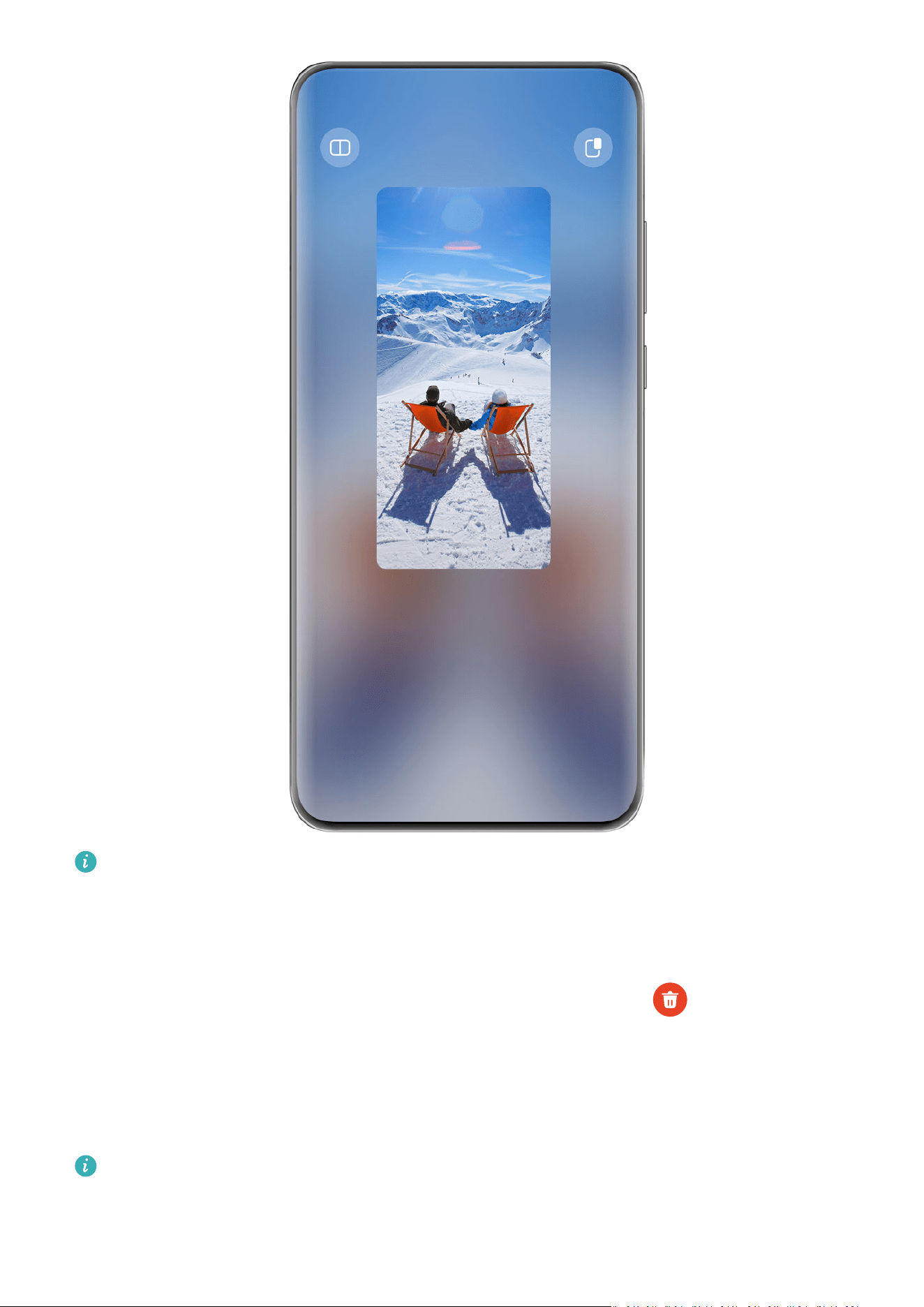
The gures are for reference only.
You can try the following:
• T
o minimize a oating window, hold down on the window, and drag it to the left or right
edge of the screen, or quickly drag it to the left or right.
• To close a oating window, hold do
wn on the window, drag it to
at the bottom of
the scr
een, or quickly drag it downwards.
• To open in full-screen mode, hold down on the window, drag it to the top of the screen,
or quickly drag it upwards.
• To enlarge the small oating window, tap on it.
If you drag the bottom edge, two sides, or bottom corners of the standard-sized oating
window to reduce the window to the smallest possible size, and then release the window,
it will automat
ically shrink into a small oating window that remains xed to the upper
right corner of the screen.
Essentials
30

Split the screen
1 When an app is display
ed in full-screen mode, swipe up from the bottom to
in the
top lef
t corner of the screen.
2 Then open another split-screen-capable app to display both apps in split-screen mode.
Show Date and Time When the Screen Is O
Always On Display
With Al
ways On Display enabled, the lock screen will show the date, time, and more when
the screen is o.
Enable Always On Display
1 Go to Set
tings > Home screen & wallpaper > Always On Display, and enable Always
On Display.
2 Set Display mode as prompted.
Set the Style for Always On Display
You can customize the display style for Always On Display (AOD) on your phone according to
your preferences.
Select a GIF Image or Moving Picture
You can select a local image (such as a GIF image or moving picture) for Always On Display
to make your display stand out.
1 From under Images on the Always On Display screen, go to
> Select image > .
Af
ter selecting a GIF image or moving picture, you can go to Edit > Edit to edit it.
2 Set other options available on the screen as needed, and touch Apply.
Add Grati
You can personalize Always On Display by specifying text to be displayed, selecting your
pr
eferred color scheme, and adding stickers.
1 From under Grati on the Al
ways On Display screen, touch the style you would like to
use.
2 Enter text in the input box and set the style options, such as Color.
You can also add Stickers and drag the sticker border to adjust its position and size, and
touch
or to change its direction or delete it.
3 T
ouch Apply.
Essentials
31

Create an Artistic Image for Always On Display
Y
ou can choose from multiple modern art styles. You can also specify the color scheme for
the artistic image, by taking a photo or choosing from your favorite photos. The colors in the
photo will form a color palette for the artistic image.
1 From under Artistic on the Always On Display screen, touch the style you would like to
use.
2 Set the related options for the Artistic style, such as Layout.
When setting Color, your phone can parse the colors in your specied photo and apply
the abstr
acted color palette to the artistic image.
Touch
, take a photo or select a photo from Gallery, and then go to > E
xtract
colors.
3 Touch Apply.
Clock Styles
You can select an Analog or Digital clock style for Always On Display.
1 From under Analog or Digital on the Always On Display screen, swipe left or right to
browse the clock styles and select your preferred clock style.
2 Set the related options for the selected clock style, such as Show date.
3 Touch Apply.
Get More Styles for Always On Display
On the Always On Display screen, touch My AODs or More.
Charging
Wireless Reverse Charging
Wireless reverse charging allows your device to charge other devices that support this
feature, including phones, tablets, watches, and bands.
1 Go to Settings > Battery (or Optimizer >
) and enable Wir
eless reverse charging.
2 Power on the device to be charged and place it on the center of the back of your phone.
Do not place any metal objects between your phone and the device to be charged.
3 If the devic
e does not start charging within a few seconds, adjust its position and try
again.
Essentials
32

Smart Features
AI V
oice
AI Voice
AI Voice allows you to communicate verbally with your phone.
To operate hands-free on your phone, wake up AI Voice and give a voice command.
• This f
eature is only available in some countries and regions.
• Please make sure your device has been updated to the latest system version.
Countries and Regions that Support AI Voice
AI V
oice is only supported in certain countries and regions. You can set your location to one
of these countries and regions on your phone to use AI Voice.
AI Voice can be used in c
ountries/regions such as the UK, France, Spain, Chile, Mexico,
Colombia, Italy, Germany, Saudi Arabia, UAE, Kuwait, Jordan, Iraq, Egypt, Türkiye,
Thailand, the Philippines, Czech Republic, Romania, Serbia, Ukraine, Pakistan, Singapore,
Poland, and Malaysia. You need to select a language supported by AI Voice during use.
1 Go to Set
tings > System & updates > Language & input > Language and region and
touch Current region to select a country/region from the above list.
2 Go to Settings > HUAWEI Assistant > AI Voice, touch Conversation language, select a
language, and follow the onscreen instructions to set it up.
Wake up AI Voice
You can wake up AI Voice in multiple ways:
Press and hold the Power button for 1 second to wake up AI Voice
1 Go to Settings > HUAWEI Assistant > AI Voice > Wake with Power button, and enable
Wake with Power button.
2 Press and hold the Power button for 1 second to wake up AI Voice.
Say the wakeup phrase to wake up AI Voice
1 Go to Settings > HUAWEI Assistant > AI Voice > Voice wakeup, enable Voice wakeup,
and follow the onscreen instructions to record your wakeup phrase.
2 When you need to wake up AI Voice, say the wakeup phrase.
33

• The set
tings items vary by device. If your phone does not provide a specic item, it
indicates that the corresponding feature is not supported.
• You cannot wake up AI Voice with the wakeup phrase when your phone is in a call.
• You cannot wake up AI Voice with the wakeup phrase either if you are making an
audio or screen recording (with microphone enabled). In this case, you can press and
hold the Power button to wake up AI Voice.
• This feature is only available in some countries and regions.
Communicate with AI Voice
AI V
oice can be in one of the following three modes: Idle, Listening, and Thinking. You can
talk to AI Voice when it is in the Listening mode.
• Idle mode: AI Voice doesn't pick up any sound in this mode.
• Listening mode: You can talk to AI Voice as it can listen to you in this mode.
• Thinking mode: AI Voice can start to execute your voice commands.
This feature is only available in some countries and regions.
AI Voice Skills
AI V
oice allows you to navigate on your phone with simple voice commands. You can use AI
Voice to:
• Make phone calls
• Send SMS messages
• Launch apps
• Add calendar events and reminders
• Check the weather and more
• Enable AI Lens, and identify content onscreen
To use the voice assistant, wake up AI Voice and say your command, such as "Call Zichen",
"Set an alarm for 8 AM", and "Open Camera".
View AI Voice Skills
You can view the skills incorporated into the AI Voice feature in either of the following ways:
• Wake up AI Voice and ask: "What can you do?". AI Voice will display the Skill center, where
its skills are listed.
• This f
eature is only available in some countries and regions.
• Please make sure your device has been updated to the latest system version.
Play Music or Videos with Voice Commands
If y
ou want to listen to music or watch videos, wake up AI Voice and give the voice
commands directly.
Smart Features
34

Play Music with Voice Commands
Y
ou can request your device to play a song for you with AI Voice.
Wake up AI Voice, and give voice commands such as "Play a song for me", "Play the song
My Dream", or "Skip this song".
This feature is only available in some countries and regions.
Play Videos with Voice Commands
W
ake up AI Voice and give voice commands such as "Play video", "Play Friends in HUAWEI
Video", "Show me a funny video", or "Play a Coldplay video".
This feature is only available in some countries and regions.
Speech Translation
AI V
oice allows you to translate your voice or text input so you can communicate with
foreign friends easily.
• This f
eature is only available in some countries and regions.
• Please make sure your device has been updated to the latest system version.
Speech Translation
Y
ou can use AI Voice to translate your voice or text input into the target language you have
set.
1 Wake up AI Voice and give the voice command "Translate".
2 Say or type in what you want to be translated.
3 AI Voice will display the translated result and broadcast it for you.
Communicate Easily with Face-to-Face Translation
Face-to-face translation allows you to overcome language barriers when you are traveling
abroad or in an international conference.
1 Wake up AI Voice, and give the voice command "Face-to-face translation" to enter the
translation screen.
2 Touch
, so the text on each of the two sections can be read from each side of the
devic
e.
3 Press the button on your side of the section, say what you want to be translated, and
release the button for AI Voice to display the translated result in real time and broadcast
it.
Enable AI Lens with AI Voice
You can use AI Voice to wake up AI Lens.
Wake up AI Voice and give a voice command such as "AI Lens".
Smart Features
35

• This f
eature is only available in some countries and regions.
• Please make sure your device has been updated to the latest system version.
Scan and Shop with AI Voice
1 W
ake up AI Voice, and give voice commands such as "I want to buy this" or "Find similar
items".
2 Position the object you wish to buy within the viewnder, and touch the shutter button.
3 Af
ter the item has been identied by AI Lens, links to purchase it on dierent shopping
platforms will be displayed.
Scan and Translate with AI Voice
1 Wake up AI Voice, and ask questions or give voice commands such as "Translate this for
me".
2 Select the source and target languages from the language list.
3 Position the text you wish to translate within the viewnder, and follow the onscreen
instruct
ions. For example, if you select Photo translation, you will need to touch the
shutter button and wait for the translation result.
Scan to Learn More with AI Voice
1 Wake up AI Voice, and give voice commands such as "What is this" or "Who is this".
2 Position the object you wish to identify within the viewnder. Then touch the shutter
but
ton and wait for your device to recognize the object.
3 Touch the service widget in the recognition result to obtain additional information.
Scan and Count Calories with AI Voice
1 Wake up AI Voice and ask questions or give voice commands such as "Have a look how
much heat this steak has", or "How much heat I can gain by eating this egg tart".
2 Position the food within the viewnder and wait for the calorie and nutrient information
to be display
ed.
Scan Codes with AI Voice
1 Wake up AI Voice, and give voice commands such as "Scan the code", "Scan the QR
code", or "Scan the barcode".
2 Position the QR code or barcode within the scan frame, and wait for it to be recognized.
AI Touch
Enable AI Touch
When you see any content that you are interested in on your phone, touch and hold the
screen with two ngers to bring up AI T
ouch to learn more.
Smart Features
36

Go to Set
tings > HUAWEI Assistant > AI Touch, and enable AI Touch.
AI Touch will not be triggered when your phone is in landscape mode.
Shop with AI Touch
When y
ou see an item you wish to buy on your phone, you can use AI Touch to quickly
search for the item and compare prices across multiple shopping platforms before making
the purchase.
Touch and Hold the Screen with Two Fingers for Visual Shopping
1 Go to Settings > HUAWEI Assistant > AI Touch, and enable AI Touch.
2 When you see an item that you wish to buy on your device, touch and hold down on the
image of the item with two ngers.
3 Adjust the siz
e and position of the identication box to t around the item you wish to
identify.
4 After the item has been identied, links to purchase it on dierent shopping platforms will
be display
ed.
Super Device
Switch Seamlessly Between Screens, with Super Device
Use Super Device for multi-device collaboration with just a tap, to turn all of your smart
devices into one cohesive unit. For example, when you go home, you can continue watching
a movie on your HUAWEI Vision, by picking up right from where you had left o on your
phone
; when you return to the oce, you can continue to edit the same documents on your
computer, by picking up right from where you had left o on your phone.
Smart Features
37
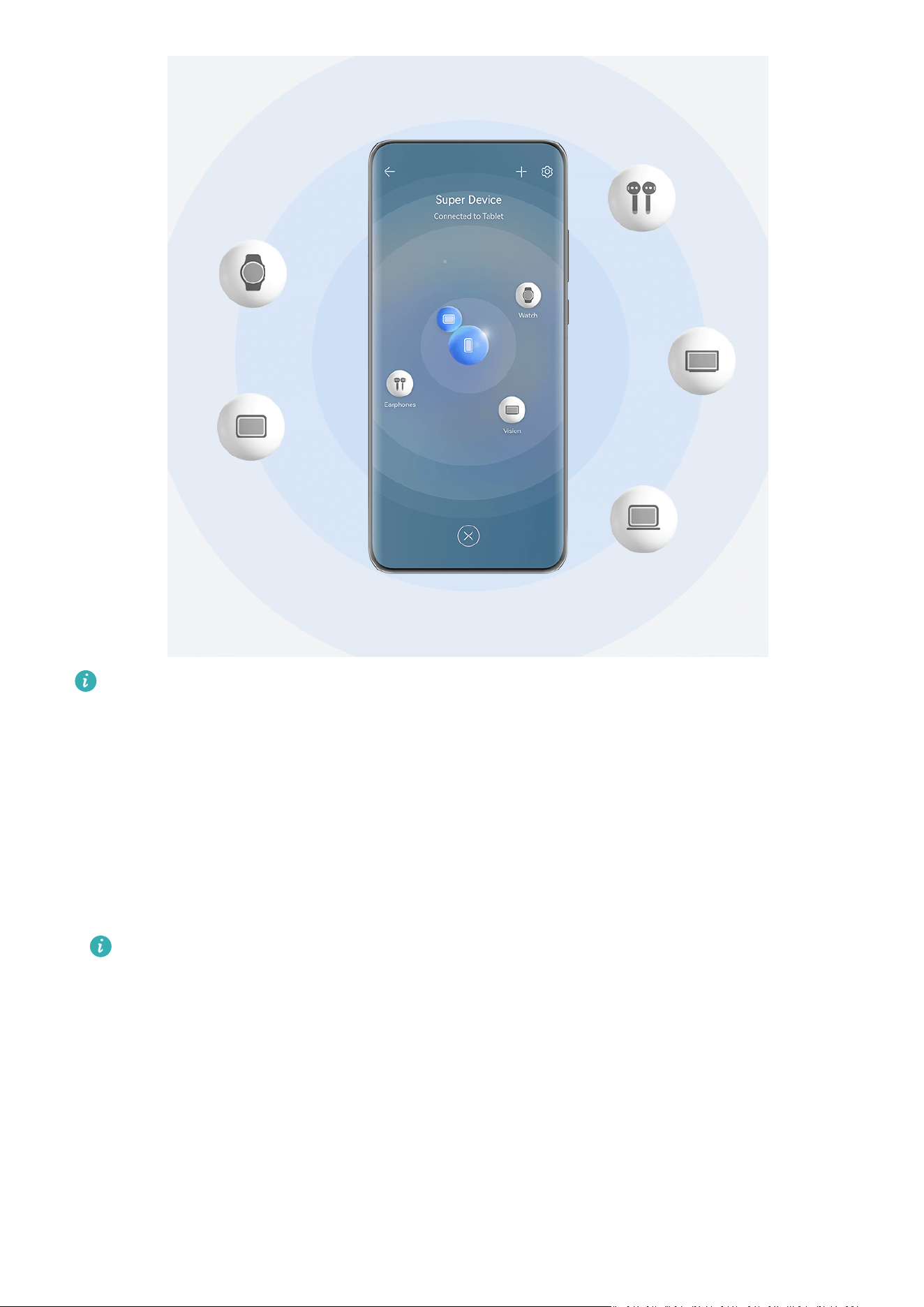
The gures are for reference only.
Devic
e types supported by Super Device may vary by product.
Set Super Device Before Getting Started
Before using Super Device, enable Bluetooth and Wi-Fi on your phone, and log in to your
HUAWEI ID.
Make sure that the screens of your other devices remain on, and apply the following settings
on these devices:
• Phone: Enable Bluetooth and Wi-Fi.
Only phones that support Multi-cam mode can be used as connected devices. You can
check whether Mult
i-cam mode is supported by going to Camera > More (for the list
of supported devices, please visit the Huawei ocial website).
• Tablet: Enable Bluetooth and Wi-Fi.
• Tablet with an E Ink display: Enable Bluetooth and Wi-Fi, and make sure that it is logged
in to the same HUAWEI ID as your phone.
• Computer: Enable Bluetooth and Wi-Fi, and make sure that it is logged in to the same
HUAWEI ID as your phone.
• Vision or monitor: Enable Bluetooth and Wi-Fi.
• Smart speaker or printer: Make sure that it is connected to the same LAN as your phone,
paired in AI Life with your phone, and logged in to the same HUAWEI ID.
Smart Features
38

Enter the AI Lif
e home screen, go to
> Add devic
e, and follow the onscreen
instructions to complete the connection.
• Earphones or glasses: Make sure that they are paired and connected to your phone via
Bluetooth.
• Watch or band: Make sure that it is paired with your phone via Huawei Health, and logged
in to the same HUAWEI ID.
Create Your Super Device, by Connecting to Nearby Devices
If you can't
nd Super Device in Control Panel, touch
in the upper right corner, and
touch Sho
w Super Device.
The devices are logged in to the same HUAWEI ID.
1 Swipe down from the upper right edge of your phone to display Control Panel, and touch
or in Super Devic
e to search for nearby devices to connect with.
2 Touch the device to be connected, or drag the device to be connected to this device, and
follow the onscreen instructions to complete the connection.
Once device connections are established, you can touch
to switch the application
sc
enario.
The devices are not logged in to the same HUAWEI ID.
1 On the phone/tablet that you wish to connect to, go to Settings > Super Device > This
device > Visible to, and select All nearby devices.
2 Swipe down from the upper right edge of your phone to display Control Panel, and touch
in Super Devic
e.
3 Touch
, select the device that you wish to connect to, and follow the onscreen
instruct
ions to complete the connection.
To unlink a device that is not logged in to the same HUAWEI ID, touch in Super
Device, touch and hold down on the device, and touch Delete. Alternatively, you can
go to Settings > Super Device, select the device that you wish to unlink in Other
devices, and touch Delete.
4 T
ouch the device to be connected, or drag the device to be connected to this device, and
follow the onscreen instructions to complete the connection.
Once device connections are established, you can touch
to switch the application
sc
enario.
Smart Features
39
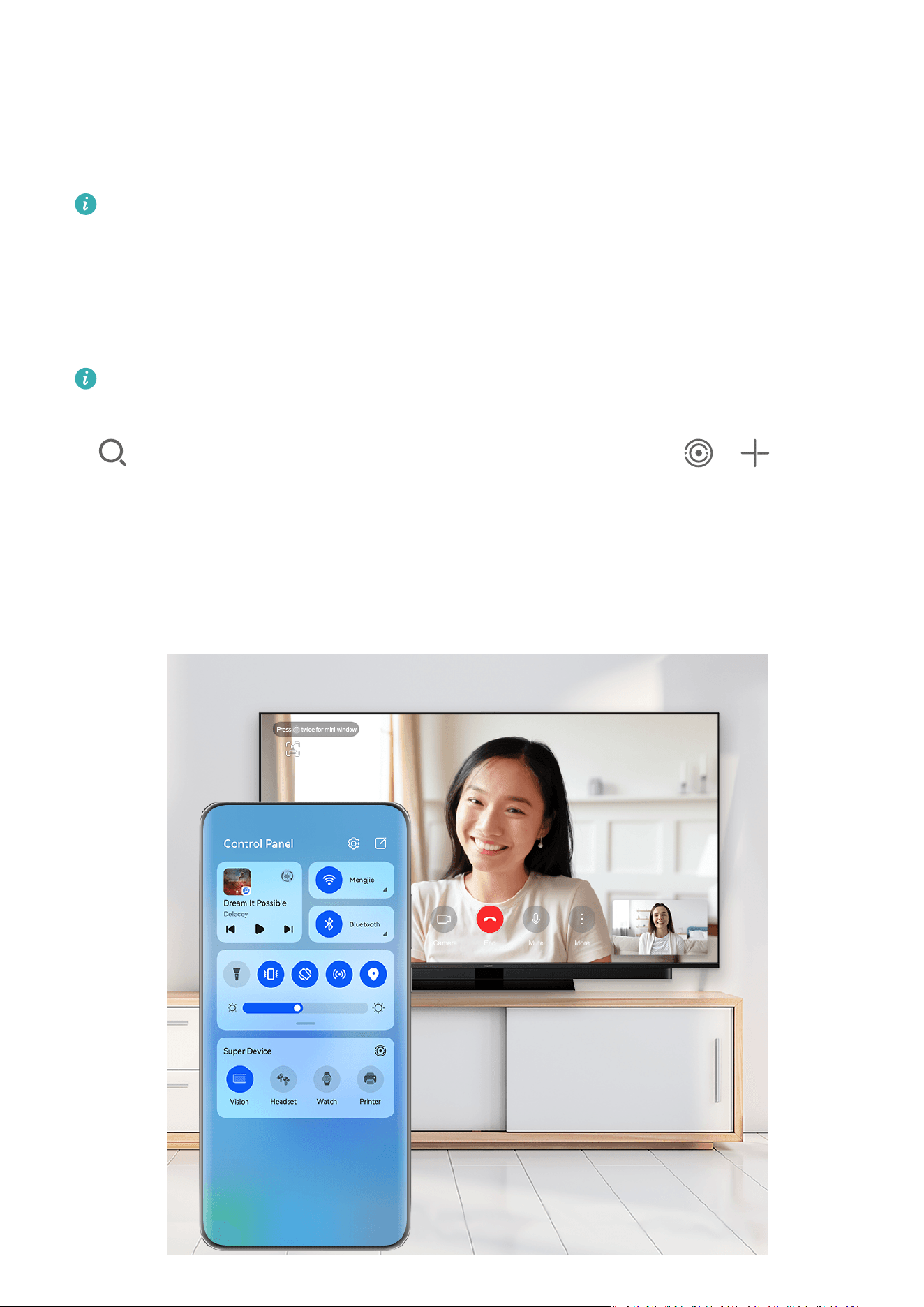
Transfer MeeTime Calls and Streaming Audio or Videos to Connected Devices
T
ransfer a streaming video (for example, a video in HUAWEI Video), song, or MeeTime call
from your phone to another device, and pick up from exactly where you had left o, without
missing a beat.
MeeTime: This f
eature is only available in some countries and regions.
For instance, you can:
• T
ransfer videos to tablets.
• Transfer MeeTime calls to Visions.
• Transfer music to Bluetooth earphones, speakers, head units, Visions, or glasses.
Device types and transfers supported by Super Device may vary by product.
1 S
wipe down from the upper right edge of the phone to display Control Panel, and touch
in Super Device to search for nearby available devices, or go to > to bind a
new device.
2 Open an app running a task you wish to transfer (such as HUAWEI Video or HUAWEI
Music) on your phone.
3 Touch the target device to which the task you wish to transfer, or drag the target device to
the local device, and follow the onscreen instructions to complete the transfer.
Smart Features
40

The gures are for reference only.
Multi-Screen Collaboration on a Computer or Tablet
Connect y
our phone to a computer and tablet via Super Device to make oce work more
ecient and collaborative. You can view and edit les, drag and drop les, copy and paste
text, or even browse phone apps, from the Multi-screen Collaboration window on your
computer or tablet.
1 Swipe down from the upper right edge of the phone to display Control Panel, and touch
in Super Devic
e to search for nearby available devices, or go to
> to bind a
new devic
e.
2 Touch the device to be connected, or drag this device to the local device, and follow the
onscreen instructions to complete the connection.
Once the connection is established, your phone screen will display on the connected device.
To halt Multi-Screen Collaboration, touch the connected device on the Super Device screen.
Copy and Paste Content Between Your Phone and Tablet
Copy and paste text or pictures between your phone and tablet using the shared clipboard to
make writing and creating posters even easier.
1 Log in to the same HUAWEI ID on your phone and tablet.
2 Enable Bluetooth and connect to the same Wi-Fi network on both devices.
3 Go to Settings > Super Device > Cross-Device Clipboard and make sure that Cross-
Device Clipboard is enabled.
4 Copy text or a picture from one device to another.
This feature is supported by HUAWEI Notepad, Email, Gallery, Browser, and certain
thir
d-party apps.
Copy and Paste Text or Pictures Across Devices
Copy and paste text
1 Touch and hold the text to be selected within an app (such as Notepad, Email, or
Browser) on a device until
is displayed.
What happens after you touch and hold the text may vary between apps. Perform
oper
ations as prompted.
2 Dr
ag
and to select just the words you want, or touch Select all.
3 T
ouch Copy or Cut as required.
4 On another device, touch and hold where you want to insert the text within an app (such
as Notepad or Email) and touch Paste.
Copy and paste pictures
Smart Features
41
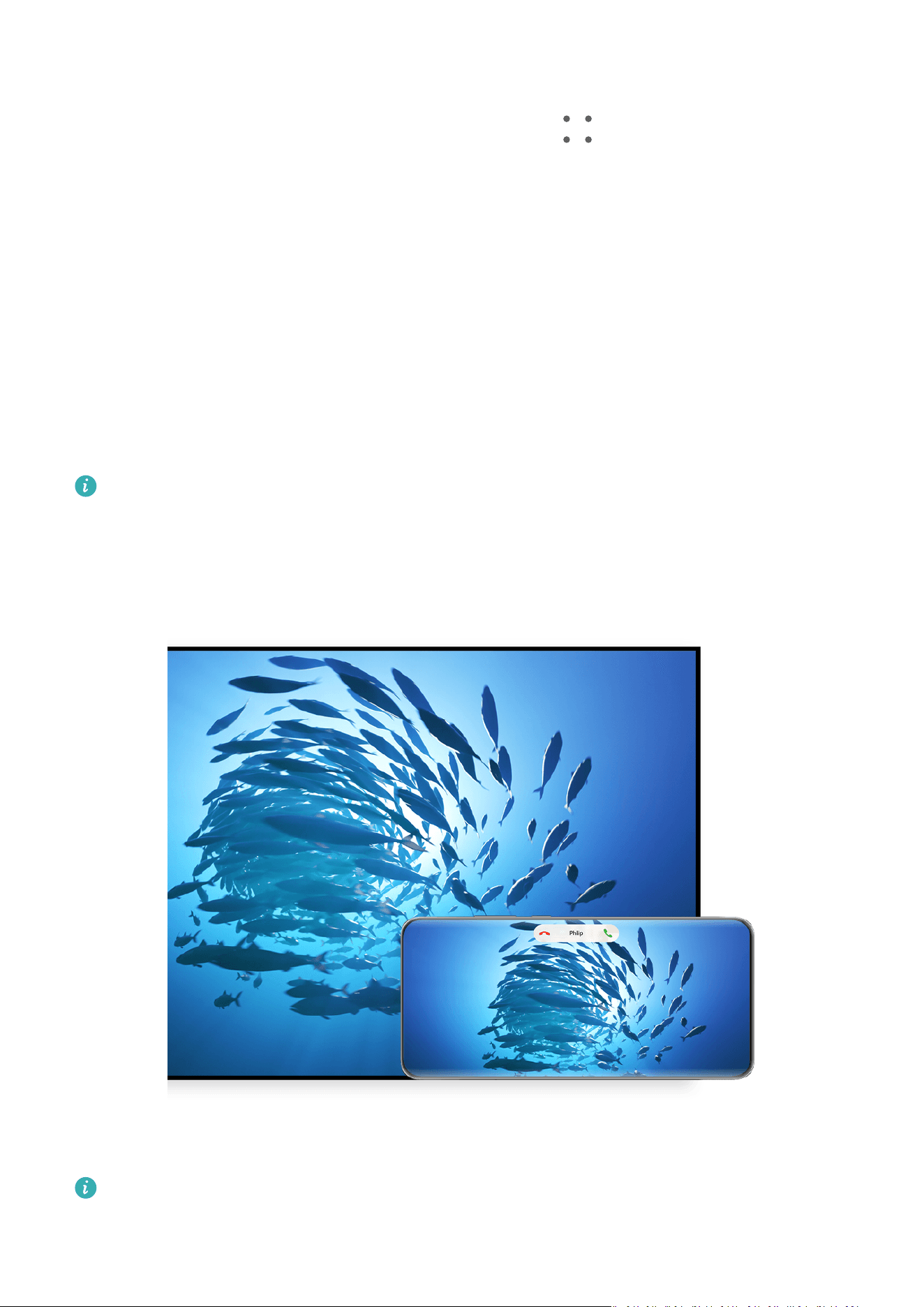
1 T
ouch and hold the picture you want to copy within an app (such as Notepad or Email)
on a device and touch Copy.
You can also select a picture in your Gallery and go to
> Cop
y to clipboard to copy it.
2 On another device, touch and hold where you want to insert the picture within an app
(such as Notepad or Email) and touch Paste.
Easy Projection
Project Your Phone Screen Wirelessly
Project your phone wirelessly to stream movies and work on a large-screen device (such as a
Vision).
Dierent display devices support dierent projection protocols. Therefore, the projection
method may v
ary. Choose a suitable method based on the protocol supported by your device.
For details about the supported projection protocols, refer to the product manual or
c
ontact the product manufacturer.
The gures are for reference only.
Smart Features
42

1 Ensur
e that the Cast+/Miracast switch or the projection switch is enabled on the large-
screen device. For details about how to turn on the switch, refer to the product manual or
contact the product manufacturer.
2 Swipe down from the upper right edge of your phone to display Control Panel, and touch
and .
3 In Contr
ol Panel, touch
to expand the shortcut switch panel (depending on your
devic
e model), and touch Wireless Projection. Your phone will then start searching for
available external large-screen devices.
You can also go to Set
tings > More connections > Easy Projection to enable
Wireless projection.
4 T
ouch the device that you want to project your phone to from the detected devices.
By default, after the connection is successful, banner notications for incoming calls,
messages, and alarms, and Mult
i-Window are only displayed on your phone instead of the
large-screen device. To change the settings, touch
, and turn o the switch for Hide
notications.
Some products do not support the Hide
notications feature. The actual product
prevails.
To exit wireless projection, go to
> Pr
oject screen on the phone screen; alternatively,
swipe down from the upper left edge of the screen to display the notication panel, and
touch DISCONNECT (depending on your device model).
Use Desktop Mode to Make Work More Convenient
After your phone screen is projected, go to
> Desktop mode.
In Desktop mode, y
our phone and the large-screen device work independently and can show
dierent content. The content of a phone projected on the large-screen device is in a layout
similar to that of the computer desktop.
For example, you can edit a document on the large-screen device while chatting on your
phone. You don't need to worry about missing out on notications, calls, or messages, as a
red dot will appear on the notication panel on the large-screen device to let you know.
Use Your Phone as a Touchpad
After your phone screen is projected to a large-screen device in Desktop mode, if no
keyboard or mouse is available, your phone can work as a touchpad to complete input
operations of a mouse and keyboard.
Go to
> T
ouchpad, and you're free to:
• Use gestures as instructed to simulate mouse commands.
Smart Features
43
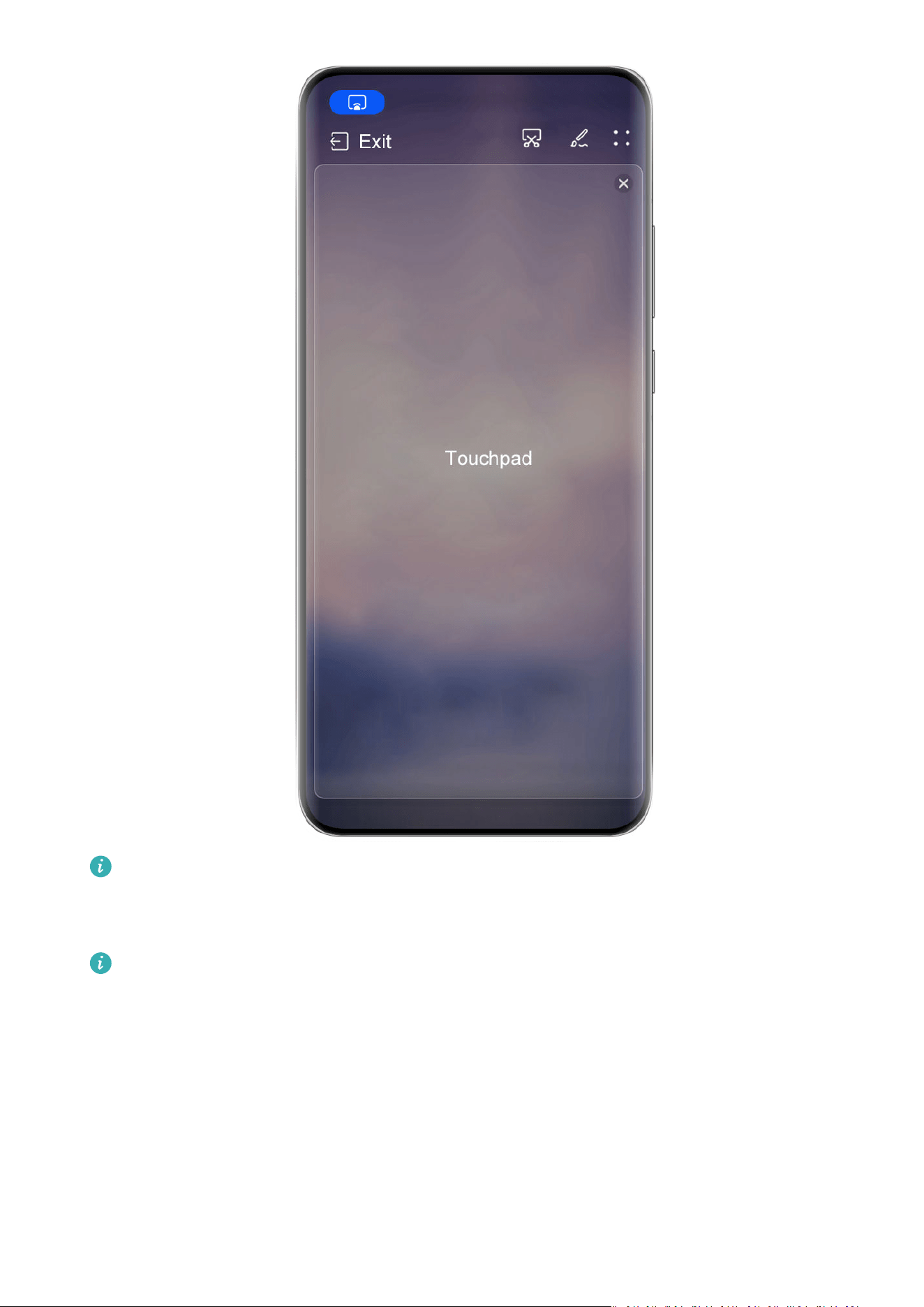
The gures are for reference only.
• When no external k
eyboard is connected, touch the text input box on the large-screen
device to display the onscreen keyboard to input text.
If an external keyboard is connected, the onscreen keyboard will not be available. In
this case, y
ou need to use the external keyboard to input text.
Project the Phone's Screen to the Large-Screen Device to Make Work Easier
In Desktop mode, you can use the following features:
• Multi-window display: Open multiple windows at a time to multitask.
• File management: Save les to the desktop, create les or folders, and rename or delete
les.
• Quick sear
ch: Search for documents, multimedia les, and apps using the start menu
search box.
Smart Features
44
• Quick app pr
ojection: Touch and hold down on an app icon on your phone, and touch the
projection menu to project the app to the large-screen device and open it.
Exit Desktop mode
You can exit Desktop mode in any of the following ways:
• Touch Exit to exit Desktop mode.
• Go to
> Pr
oject screen to return to wireless projection.
• In Control Panel, touch
to expand the shortcut switch panel (depending on your
devic
e model), and touch Wireless Projection to exit wireless projection.
• Swipe down from the upper left edge of your phone to display the notication panel and
touch DISCONNECT to exit wireless projection.
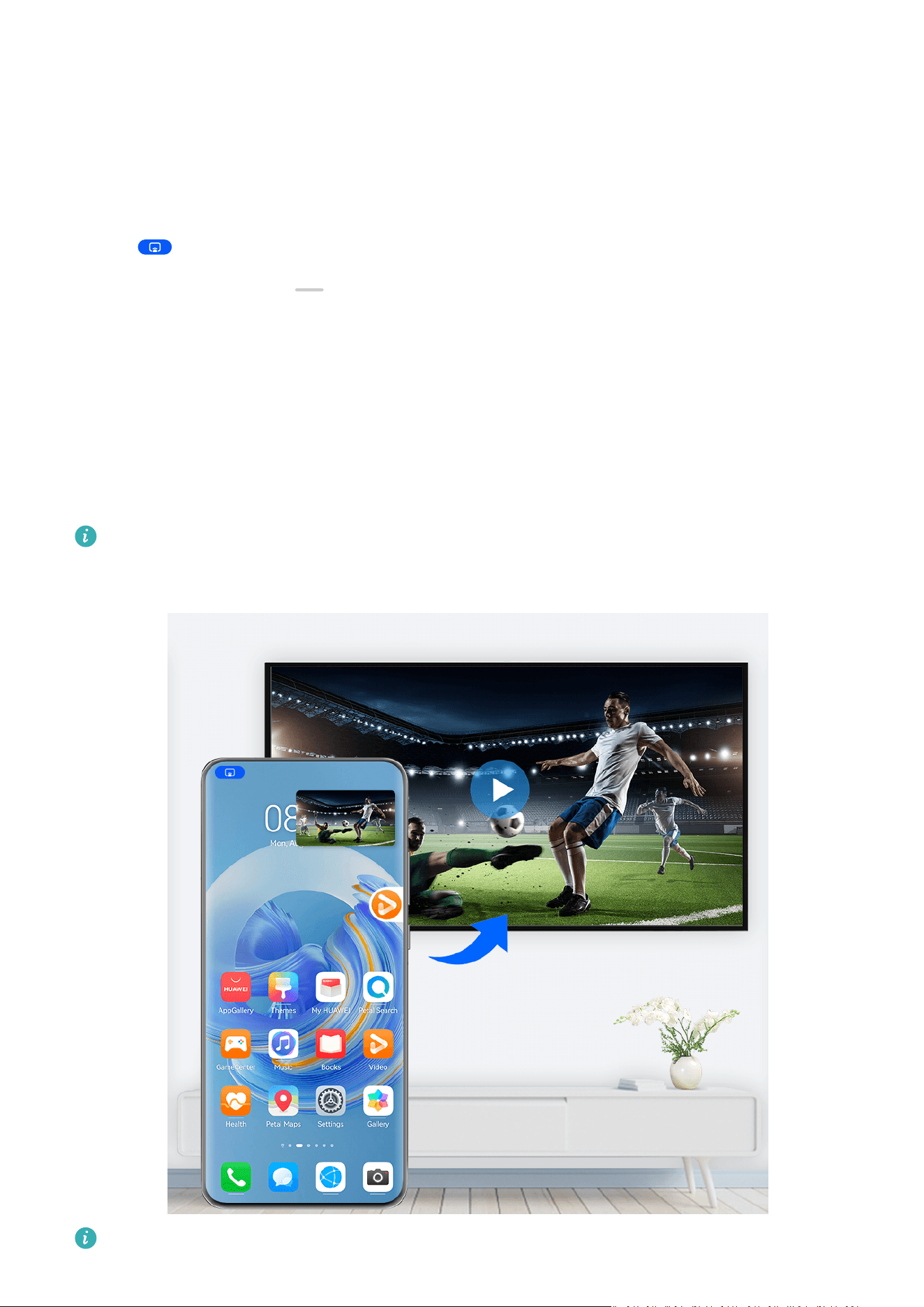
Project the Current App to a Large-screen Device
You can project the current app on your phone to a large-screen device (for example, a
Huawei Vision), while continuing to use and browse other apps on your phone.
App projection is supported on large-screen devices that support the Cast+/Miracast
pr
otocol.
The gures are for reference only.
Smart Features
45

After wireless projection is enabled on your phone, open the app you wish to project in full-
scr
een mode, go to
> to project the app to the large-screen device, and minimize
the app
, which will appear as a oating ball o to the side on the phone screen.
• Apps in split
-screen or oating-window mode can't be projected.
• To safeguard your privacy, this feature can't be used once your device screen has been
locked.
Touch the projected app in the oating ball to display the app's
oating window, and use this
window to control the app.
You can exit app projection in any of the following ways:
• Go to
> Pr
oject screen to return to wireless projection.
• In Control Panel, touch
to expand the shortcut switch panel (depending on your
devic
e model), and touch Wireless Projection to exit wireless projection.
• Swipe down from the upper left edge of your phone to display the notication panel and
touch DISCONNECT to exit wireless projection.
Tap to Project Your Phone to a Vision
With just one tap, you can project videos or games from your phone to a Vision to enjoy it on
a larger display.
1 Swipe down from the upper right edge of your phone to display Control Panel, touch
to expand the shortcut switch panel, and enable NF
C and Wi-Fi.
2 Tap the NFC area of your phone (usually around the rear camera) against the
icon on
the r
emote control of your Vision.
3 Follow the instructions in the pop-up dialog to select the Vision on your phone when
pairing the two devices for the rst time, click on AL
WAYS ALLOW on the Vision, and
enter the code shown on the Vision, on your phone to complete the process.
To disconnect the two devices, swipe down from the upper left edge of your phone to display
the notication panel and touch DISCONNECT.
Screen projection won't work if your phone is locked or the screen is o.
Multi-screen Collaboration
Mult
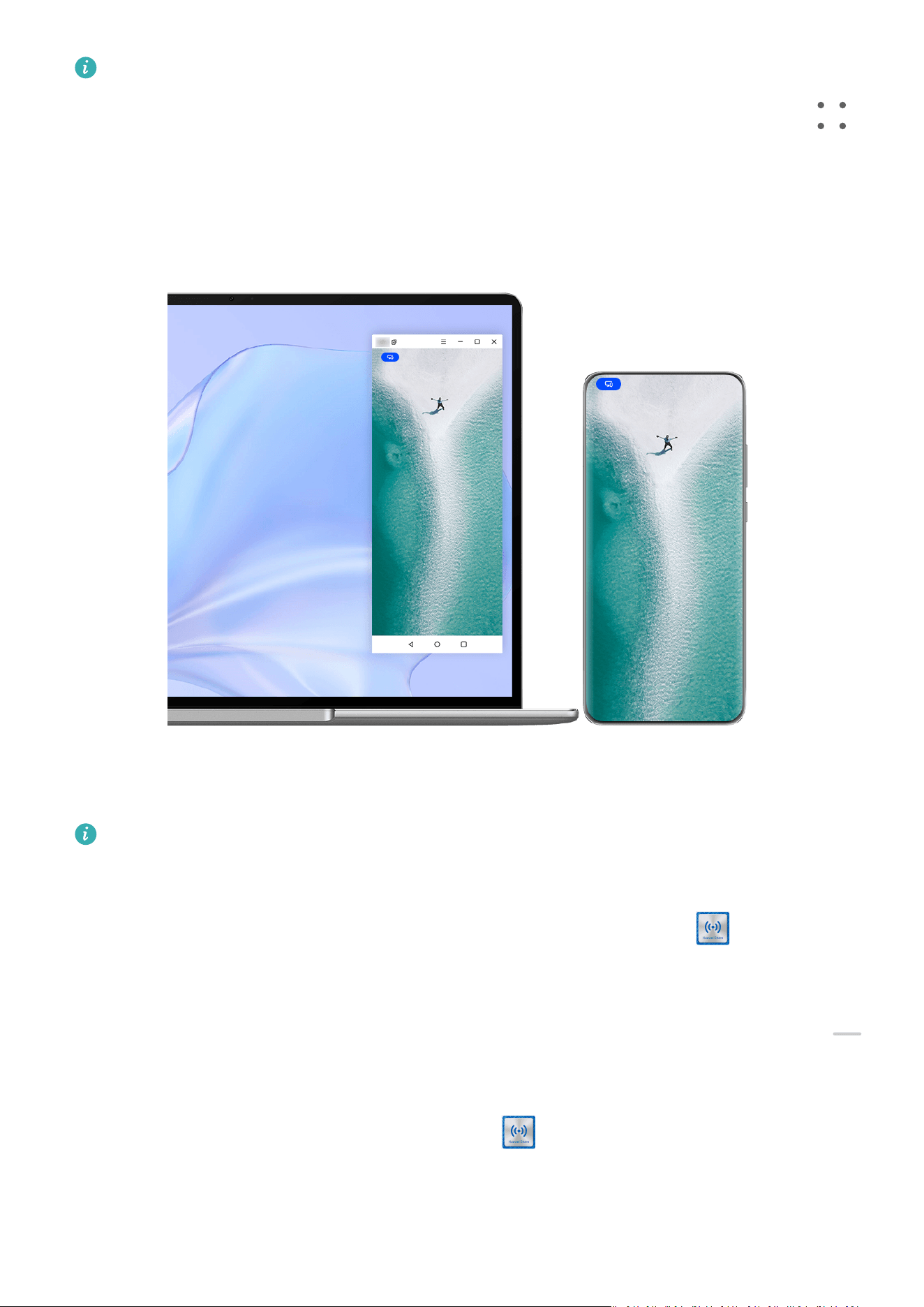
i-Screen Collaboration Between Your Phone and Laptop
Connect your phone to a laptop, and use your keyboard and mouse to control your phone, or
share and edit les, and copy and paste text across systems, making your work more
pr
oductive and ecient.
Smart Features
46
• The f
eatures and operations may vary between PC Manager versions.
• It is recommended that you update PC Manager to the latest version by going to
>
Check f
or updates.
The gures are for reference only.
Connect Your Phone to Your Laptop Through OneHop
1 Ensur
e that your laptop has a Huawei Share sensor or an area with a
label.
2 On y
our laptop, enable Wi-Fi, Bluetooth, and PC Manager, and agree to the user license
agreement.
3 Swipe down from the upper right edge of your phone to display Control Panel, touch
to expand the shortcut switch panel, and enable NF
C, Wi-Fi, and Bluetooth.
4 Tap the NFC area (near the rear camera) on the back of your phone against the Huawei
Share sensor of your laptop, or the area with a
label, until your phone vibrates or
play
s a tone.
5 Follow the onscreen instructions on your phone and laptop to complete the connection.
Smart Features
47

Connect Your Phone to Your Laptop via Bluetooth
1 S
wipe down from the upper right edge of your phone to display Control Panel, and touch
Bluetooth.
2 Open PC Manager on your laptop, and go to My devices > My Phone > Connect. Place
your phone above the keyboard, and your laptop will start searching for your phone.
3 Follow the onscreen instructions on your phone and laptop to complete the connection.
Connect Your Phone to Your Laptop by Scanning the QR Code
1 Open PC Manager on your laptop, and go to My devices > My Phone > Connect, and
click the QR code in the upper left corner.
2 Ensure that your phone is connected to the Internet. Go to the Account center on your
phone, and scan the QR code displayed on your laptop.
3 Follow the onscreen instructions on your phone and laptop to complete the connection.
Connect Your Phone to Your Laptop Using Super Device
1 Enable Bluetooth and Wi-Fi on your laptop, and make sure that it is logged in to the same
HUAWEI ID as your phone.
2 Swipe down from the upper right edge of your phone to display Control Panel, and touch
or to search for nearby available devices.
3 T
ouch the name of the laptop or drag the laptop to the local device, and follow the
onscreen instructions to complete the connection.
Connect Your Phone to Your Laptop via a USB Cable
1 Use a USB cable to connect your phone to your laptop.
2 Open PC Manager on your laptop.
3 Conrm the connection on your phone.
If you have canceled the connection on your phone and wish to re-establish the
c
onnection, open PC Manager and go to My devices > My Phone > Connect > Other
ways to connect > USB.
Disconnect Your Phone from Your Laptop
After you have nished using Multi-Screen Collaboration, you can disconnect your devices
using the following methods:
• Open PC Manager on your laptop, and go to My devices > My Phone > Disconnect.
• Swipe down from the upper left edge of your phone to display the notication panel, and
touch DISCONNE
CT.
• Touch
, and touch D
isconnect.
• If your phone and laptop are connected via a USB cable, remove the cable to disconnect
them.
Smart Features
48
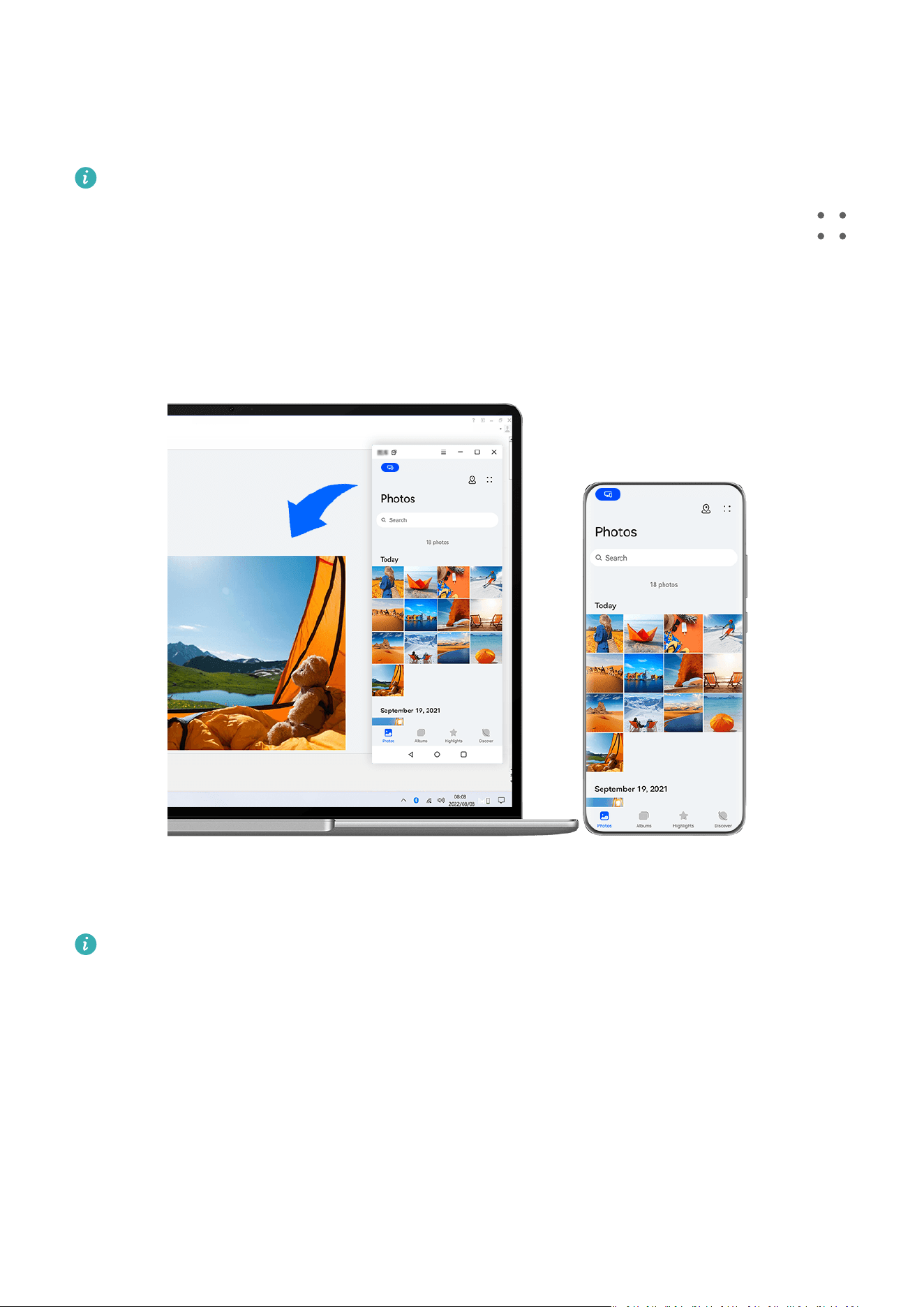
Drag to Transfer Files Between Your Phone and Laptop
Af
ter connecting your phone to a laptop, you can transfer les between them to work more
eciently.
• The f
eatures and operations may vary between PC Manager versions.
• It is recommended that you update PC Manager to the latest version by going to
>
Check f
or updates.
The gures are for reference only.
Drag and Drop Files
Af
ter Multi-Screen Collaboration is established between your phone and laptop, you can drag
and drop les such as pictures and videos between them to make your work easier.
From phone to laptop:
• In the phone window on your laptop, open Gallery or Files, click and hold down on a
picture or video, click and hold down on the selected les until a dragging icon displays,
then drag the les to a folder or the desktop on your laptop.
• In the phone window on your laptop, drag a selected picture or a segment of text and drop
it in an opened document on your laptop.
Smart Features
49

For example, drag a picture or a segment of text from Notepad in the phone window, and
dr
op it into an Oce document opened on your laptop, then continue editing on your
laptop.
Transfer les from your laptop to your phone:
• Drag and drop a picture or video from your laptop to Gallery > Albums in the phone
window on your laptop.
• Drag and drop a le from your laptop to Files in the phone window on your laptop.
The le will be saved in the folder that is open in Files, or in the Huaw
ei Share folder
by default.
• Drag and drop a picture or a segment of text from your laptop to an opened document in
the phone window on your laptop.
For example: Drag and drop a picture from your laptop to an opened note in the phone
window, then continue editing on your phone.
Use Huawei Share OneHop to Transfer Files
After Multi-Screen Collaboration is enabled between your phone and laptop, you can transfer
les between them using Huawei Share OneHop, without needing a data cable or any
software.
Share pictures and videos
• Transfer pictures and videos from your phone to your laptop:
1 On your phone, select one or more pictures or videos in Gallery.
2 Tap the NFC area (near the rear camera) on the back of your phone against the Huawei
Share sensor of your laptop, or the area with a
label, until your phone vibrates or
play
s a tone. The selected pictures or videos will be quickly transferred to your laptop.
• Transfer pictures and videos from your laptop to your phone:
1 Right-click a picture on your laptop, and use Huawei Image viewer to open it.
2 On your phone, exit Gallery or return to the home screen, and tap your device against
your laptop (in the same way as above) to transfer the picture from your laptop to your
phone.
Record the laptop screen:
Shake your phone and tap it against your laptop to project and record the laptop screen on
your phone.
1 Shake your phone, and tap the NFC area (near the rear camera) on the back of your
phone against the Huawei Share sensor on the laptop, or the area with a
label, until
y
our phone vibrates or plays a tone. Your laptop screen will then be projected and
recorded on your phone.
You can also record the laptop screen by swiping down from the upper left edge of
y
our phone to display the notication panel, or touching
.
Smart Features
50

2 T
ouch
on your phone to stop the recording. The screen recording will be saved to
Galler
y on your phone.
This feature is currently supported on Intel laptops only.
Share documents
• T
ransfer documents from your phone to your laptop:
1 On your phone, use Microsoft
Oce to open the le you wish to transfer.
2 Tap the NFC area (near the rear camera) on the back of your phone against the Huawei
Share sensor of your laptop, or the area with a
label, until your phone vibrates or
play
s a tone. The document will then be transferred to your laptop.
• Transfer documents from your laptop to your phone:
1 On your laptop, use Microsoft
Oce to open the document you wish to transfer.
2 On your phone, exit Microsoft Oce or return to the home screen, and tap your device
against your laptop (in the same way as above) to transfer the document from your
laptop to your phone.
Access Phone Apps and Files on Your Laptop
After Multi-Screen Collaboration is enabled between your phone and laptop, you can use a
mouse and keyboard with the laptop to facilitate using phone apps and les.
• The f
eatures and operations may vary between PC Manager versions.
• It is recommended that you update PC Manager to the latest version by going to
>
Check f
or updates.
Access Phone Apps from Your Laptop
Use a mouse to perform operations quickly
• Open an app: Click an app in the phone window to open it.
• Browse a page: Use the mouse scroll wheel to browse web pages in the phone window or
scroll between home screen tabs.
Use a keyboard to perform operations quickly
• Input text: Use the input method on your laptop to enter text in the phone window.
• Copy and paste text: Press Ctrl+C on the laptop keyboard to copy text and press Ctrl+V to
paste it in the phone window.
To view information about the text you have copied recently, click Notication Center of
PC Manager on y
our laptop, then select Clipboard.
• Send messages quickly: Press Ctrl+Enter on the laptop keyboard to quickly send the
message edited in the phone window
• Exit an app: Press the ESC key on the laptop keyboard to exit an app in the phone window.
Always display the phone window on the top
Smart Features
51

In the phone window on your laptop, click > to pin the window so that it will always
display on the top
, and click this icon again to unpin the window.
Answer a Voice or Video Call on Your Laptop
After Multi-screen Collaboration is enabled between your phone and your laptop, you can
use the laptop to answer voice and video calls (such as those in WeChat and MeeTime) from
your phone. During a call, the audio and video can be played through your computer and its
accessories such as the speaker and camera.
Swipe down from the upper left edge of your phone to display the notication panel or touch
to switch between playback devices.
O
pen and Edit Files on Your Phone Using Laptop Apps
After connecting your Phone to your laptop, you can open and edit various les on your
Phone with laptop apps.
• Documents: Use laptop Microsoft Oce to open a document.
• Pictures: In PC Manager, go to My devices > My Phone to view pictures on your Phone.
You may also use a photo viewing or editing app on your laptop, such as Photoshop, to
open and edit a picture.
• Audio and video les: In PC Manager, go to My devic
es > My Phone to view audio and
video les on your Phone. You may also use a laptop player, such as Windows Media Player,
to open the les.
• Web pages: Use a laptop browser, such as IE, to open a web page.
• Compressed les: Use a le compression app on your laptop, such as WinRAR, to extract
and open c
ompressed les.
Open Multiple Phone App Windows on Your Laptop
After Multi-screen Collaboration is enabled between your phone and your laptop, you can
open multiple phone app windows on your laptop and perform operations on them
separately.
This feature is unavailable in some apps.
Smart Features
52
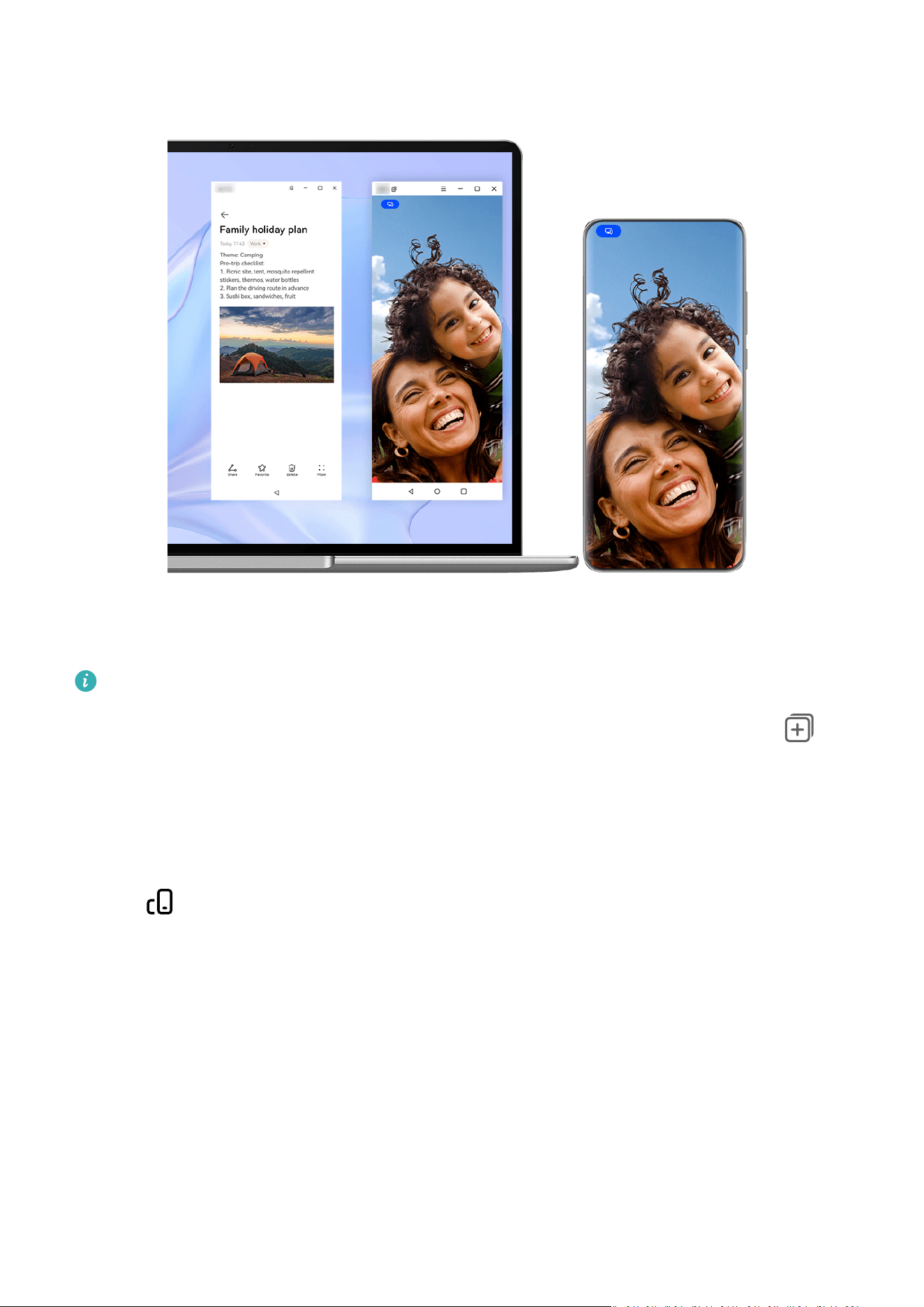
The gures are for reference only.
Open an app (for example, NotePad) in the phone window on your laptop, click on
in
the windo
w to display this app in a separate window. You can then open another app in the
phone window.
Click and hold down on an app (for example, NotePad) in the phone window of your laptop,
and select Open in new window to display this app in a separate window.
Click on
in the separate app window to switch to Landscape mode.
Mult
i-screen Collaboration Between Your Phone and Tablet
Connect your phone and tablet to use Multi-screen Collaboration for cross-device operations,
such as to display your phone screen on the tablet, use your phone apps on the tablet, drag
les across the two devices, copy and paste text, and edit a le from your phone on the
tablet.
Smart Features
53
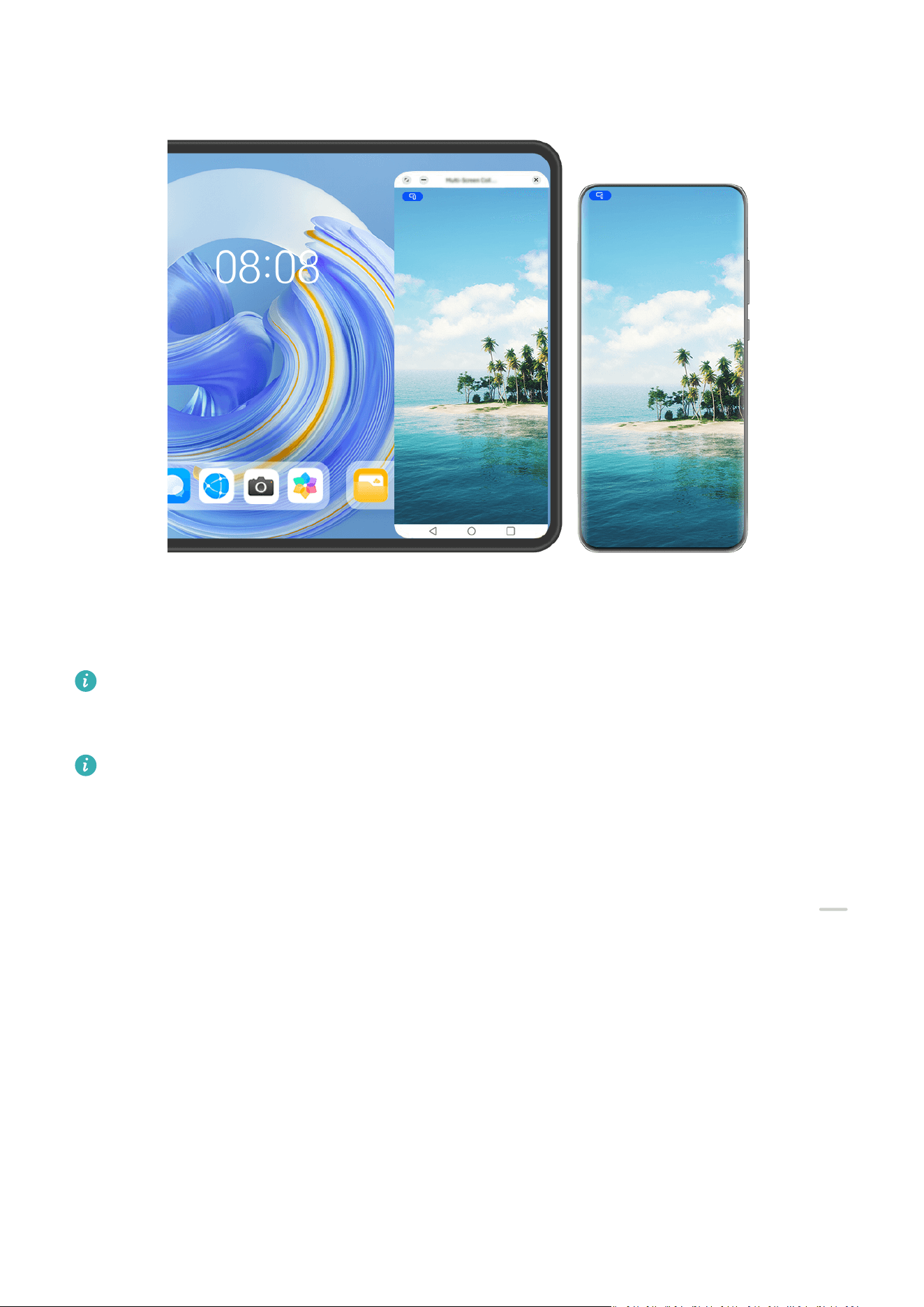
The gures are for reference only.
Connect Your Tablet and Phone
Only certain tablets support this feature.
Connect your phone and tablet and enable Multi-Screen Collaboration using one of the
f
ollowing methods (depending on your device model):
Connect over Bluetooth:
1 Swipe down from the upper right edge of the tablet to display Control Panel, touch
to expand the shortcut switch panel, and enable Mult
i-Screen Collaboration.
2 Swipe down from the upper right edge of the phone to display Control Panel, and enable
Bluetooth.
3 Hold your phone close to your tablet and follow the onscreen instructions to establish a
connection.
Scan a QR code to connect:
1 Open Multi-Screen Collaboration on your tablet, and touch Scan to connect on the
Multi-Screen Collaboration screen.
2 Ensure that your phone is connected to the Internet and connect your phone and tablet as
prompted.
Connect by tapping against an NFC-capable keyboard:
Smart Features
54

You can tap your phone against the standard NFC-capable keyboard that comes with your
tablet to enable Mult
i-screen Collaboration.
1 Make sure that your tablet has been paired with the keyboard.
2 Swipe down from the upper right edge of your phone to display Control Panel, touch
to expand the shortcut switch panel, and enable NF
C.
3 Tap the NFC area at the back of your phone (near the rear cameras) against the NFC area
of the keyboard until your phone vibrates or plays a tone.
4 Follow the onscreen instructions on your phone and tablet to complete the connection.
Connect via Super Device:
1 Enable Bluetooth and Wi-Fi and log in to the HUAWEI ID on your phone.
2 Swipe down from the upper right edge of the tablet to display Control Panel, and enable
Wi-Fi and Bluetooth.
If you have not logged in to your HUAWEI ID on your tablet or you are not using the
same HU
AWEI ID, go to Settings > Super Device > This device > Visible to, and
selectAll nearby devices.
3 S
wipe down from the upper right edge of the phone to display Control Panel, and touch
in Super Devic
e to search for nearby available devices or touch
> to bind a
new devic
e.
4 Touch the name of the tablet or drag the tablet to the local device, and follow the
onscreen instructions to complete the connection.
Access Phone Apps and Files from Your Tablet
After connecting your phone with your tablet, navigate on your phone from the convenience
of the tablet screen, such as browsing phone apps and les, viewing phone notications
(such as SMS messages), and making or answering phone calls.
When y
our phone screen is unlocked, you can perform the following operations in the phone
window on your tablet:
• Open Phone to make a call by dialing a number.
• Open Messaging to view and reply to SMS messages.
• Open Gallery or Files to view photos, videos, and les, as well as to play video or audio
les from your phone.
• S
wipe down from the upper left edge of your phone or tablet to display the notication
panel or touch
to switch between playback devices.
• If y
our tablet is connected to an external keyboard or a stylus, you can use it to input text
and control the phone window on your tablet.
Drag to Transfer Files Between Your Phone and Tablet
1 Open Gallery or Files, and touch and hold a picture, video, or document.
Smart Features
55

2 Select mor
e les if needed, touch and hold any of the selected les, then drag them when
an icon for dragging les appears.
For example, you can:
• Drag to transfer les in Gallery or Files between your phone and tablet.
• Drag to transfer les in Files bet
ween your phone and tablet.
• Drag a picture, text, or le from your phone to an open document on your tablet, such as a
Micr
osoft Oce document, memo, or email.
Disconnect Your Phone from Your Tablet
After you have nished using Multi-Screen Collaboration, you can disconnect your devices
using the following methods:
• In the Multi-screen Collaboration window on your tablet, touch .
• T
ouch
, and touchD
isconnect.
• Swipe down from the upper left edge of your phone to display the notication panel, and
touch D
isconnect.
• Swipe down from the upper right edge of your phone to display Control Panel, and touch
the name of your tablet in Super Device.
Huawei Share
Pin Frequently-Used Sharing Methods to the Top
Pin your frequently-used sharing methods (such as Bluetooth or email) to the top of the
system sharing box, to share les and content with friends, colleagues, and loved ones with
gr
eater ease.
1 Touch and hold down on the le to be shared, and touch
.
2 In the app sharing ar
ea, swipe left to the last screen, and touch All >
.
3 T
ouch the sharing method to be pinned to the top. Some apps include multiple sharing
methods. You can also add a sharing method as needed.
4 In the top area, drag to sort the sharing methods, and touch
.
You can also touch a sharing method pinned to the top to unpin it.
Easy Print
Print Files, with Huawei Print
Your phone makes it easy to print images and documents on it, by detecting nearby printers
that support Huawei Print. Then just touch to print!
Smart Features
56

1 P
ower on the target printer and make sure that it is connected to the same Wi-Fi network
as your phone, or that Wi-Fi Direct is enabled.
2 To print les stored in
dierent locations on your phone:
• Gallery: Open an image or select multiple images in Gallery, and go to Share >
or Mor
e > Print or export to PDF.
• Notepad: Open a note in Notepad, and go to More > Print.
• Files: Select one or more les in Files, and go to Shar
e > Print.
3 After granting the necessary permissions, touch Select to detect nearby printers and select
the desired printer. You can then set the number of copies, color, paper size, and other
options on the preview screen, and touch PRINT.
If no printer is detected, download and install the required printer plug-in as prompted on
the Select printer screen.
Eortlessly Print Files with Fast Print
Onc
e a printer has been added to Super Device, it can be connected to your phone in real
time via Drag to Connect, and you'll be able to print multiple les, including images,
documents, notes, and w
eb pages, with just a tap.
Currently, Fast Print is only supported on select HUAWEI printer models. For details,
please c
ontact Huawei customer service.
Before using this feature, complete the printer's network conguration, by referring to the
user guide.
1 Swipe down from the upper right edge of your phone to display Control Panel, enable
Bluetooth, and connect your phone to the same Wi-Fi network as the printer.
2 In the Super Device panel from Control Panel on your phone, touch
, and drag the
printer to the
phone to display the print oating ball.
If you wish to set printing parameters based on the content to be printed, touch the print
oating ball to expand it, and touch Fast Print. Once you've completed the settings,
perform the steps below:
• To print one or more images, open an image or select multiple images in Gallery.
• To print a document, open the document with WPS.
• To print a note, open the note in Notepad.
• To Print a web page, open the web page in the pre-installed browser on your phone.
Then touch the oating ball to expand it, and touch
to start printing.
3 Onc
e the printing task is complete, touch and hold down on the oating ball, drag it to
at the bottom of the screen, and follow the onscreen instructions to cancel the
c
onnection.
If you need to view the print status and print list while printing, you can expand the print
oating ball and touch the text to display the print task dialog box.
Smart Features
57
Camera and Gallery
T
ake Photos
Take Photos
1 Open Camera.
2 You can then:
• Focus: Touch the location you want to focus on.
To adjust focus and metering separately, touch and hold the viewnder and drag the
r
espective frame or ring to the desired location.
• Adjust brightness: Touch the viewnder. When the
symbol appears next to the
f
ocus frame, drag it up or down.
• Zoom in or out: On the viewnder, pinch in or out, or drag the zoom slider.
• Select a camera mode: Swipe up, down, left, or right across the camera mode options.
• Turn the ash on or o: Touch
and select (Auto), (On), (O), or
(Always on).
If y
ou select
(Auto) and the camera detects that you are in a dimly lit
envir
onment, a ash icon will appear in the viewnder and the ash will be
automatically turned on when you take a photo.
These features may not be available in some camera modes.
3 T
ouch the shutter button to take a photo.
Use the Floating Shutter to Take Photos
You can enable the oating shutter to display it in the camera viewnder, and drag it
anywher
e you like to take photos quickly.
1 Go to Camera >
and enable Float
ing shutter.
2 The oating shutter will then be displayed in the viewnder. You can drag it anywhere you
like.
3 Touch the oating shutter to take a photo.
T
ake Burst Photos
Use Burst mode to take a sequence of photos in quick succession so you can choose the best
one.
1 Open Camera, select Photo mode, and make sure the rear camera is in use.
58

2 Pr
ess and hold the shutter button or one of the Volume buttons to take burst photos.
When shooting, you'll see a number in the viewnder, which indicates how many photos
you've taken so far.
Burst shooting via Volume button pressing is only supported on certain phone models.
3 Release y
our nger to stop shooting.
Select the Burst Photos You Want to Keep
1 Open Gallery. Touch a burst photo (which is tagged with
), then touch .
2 S
wipe through the burst photos, select the ones you want to keep, then touch
and
f
ollow the onscreen instructions.
To delete the whole burst photo, touch and hold to select the photo, then touch
.
T
ake Timed Photos
The camera timer allows you to set a countdown so you can get into position after you have
touched the shutter button.
1 Go to Camera >
> Timer and select a c
ountdown.
2 Return to the viewnder and touch the shutter button. Your phone will take a photo when
the countdown ends.
Use Audio Control to Take Photos
You can use your voice to take photos without having to touch the shutter button.
1 Go to Camera >
> Audio control, and select an option.
2 Go back to the viewnder, then say your command to take a photo.
Get Instant Gratication, with Snapshot Mode
Snapshot will r
eward you with a photo as soon as you touch the shutter button, turning your
spur-of-the-moment pics into instant classics!
1 Go to Camera > More and select Snapshot.
2 Touch
to take a photo.
P
ortrait Mode
Shoot Dazzling Portraits
Portrait mode comes with custom beauty and lighting eects to choose from, so that a touch
of the shut
ter brings out your subject at their best.
1 Open Camera and select Portrait mode.
Camera and Gallery
59
2 Fr
ame your subject within the viewnder.
To take a sele, touch
.
3 Fr
om there, feel free to:
• Enable beauty eects: Touch
to adjust the beauty eects.
To disable the beauty eects, drag the setting to its lowest value, or touch .
• Set lighting eects: Touch , and select your desired
eect.
• Light c
ompensation: When you switch to the front camera in dim lighting conditions,
you can touch the ash icon to enable light compensation.
Touch the ash icon and select
(auto) or (steady on).
Not all devices support all of these features.
4 T
ouch the shutter button to take a photo.
Night Mode
Take Night Shots
Night mode gives your photos sharper details and brighter colors even when shooting in low
light or at night.
1 Open Camera and select Night mode.
2 When shooting with the rear camera, some phones allow you to adjust the ISO sensitivity
and shutter speed by touching
or in the viewnder.
3 Steady y
our phone and touch the shutter button.
4 Your phone will adjust the exposure time based on the ambient brightness. Keep your
phone steady until the countdown nishes.
You can also touch the shutter button to take a photo before the countdown nishes.
Some phones do not support ending a countdown before it is due to nish.
Take Dazzling Night Seles
To take a sele at night, or in a low-light environment, simply use the front camera in Night
mode.
In dim envir
onments, you can turn on the ash to illuminate your face.
1 Open Camera and select Night mode.
2 Touch
to switch to the front camera. From there, feel free to:
Camera and Gallery
60

• T
ouch the ash icon and select
(auto) or (steady on) to enable the ash. This
allo
ws you to capture a well-lit photo of your face when you are in a poor lighting
environment.
• Touch
to adjust the beauty eects.
If you can't
nd the
icon in the viewnder of your phone, it means that Beauty
mode is not av
ailable.
3 Steady y
our phone and touch the shutter button.
Aperture Mode
Take Photos and Videos, with Aperture Mode
Take Wide Aperture Photos
Wide aperture mode allows you to shoot photos with blurry backgrounds, which brings your
subjects into sharper focus.
1 Open Camera, and select Aperture mode.
2 Touch the area that you wish to focus in on. For best results, your phone should be within
2 meters of your subject.
3 Touch
in the viewnder, and drag the slider to adjust the virtual aperture. A smaller
virtual f-number will cr
eate a more blurry background.
4 Touch the shutter button to take the picture.
Edit Background Blur in Wide Aperture Photos
Feel free to adjust the focus and background blur after you've taken a wide aperture photo.
1 Go to Gallery > Albums > Camera.
2 Touch a photo tagged with
, and touch at the top of the photo.
3 T
ouch other areas on the photo to re-focus. Drag the slider at the bottom to adjust the
virtual aperture.
4 Touch
to save the settings.
Shoot Wide Apertur
e Videos
Wide aperture mode allows you to shoot videos with blurry backgrounds, which brings your
subjects into sharper focus.
1 Open Camera, and select Aperture mode.
2 Touch
to switch to Video mode.
Camera and Gallery
61

3 T
ouch the area that you wish to focus in on. Touch
in the viewnder, and drag the
slider to adjust the virtual apertur
e. A smaller virtual f-number will create a more blurry
background.
4 Touch the shutter button to start recording. While recording, touch the viewnder to
adjust the f
ocus.
Master AI
Take Professional-Looking Photos
Master AI is a pre-installed camera feature that helps you take better photos by intelligently
identifying objects and scenes (such as food, beaches, blue skies, and greenery, as well as
text) and optimizing the color and brightness settings accordingly.
Master AI is displayed as AI photography or AI camera on some devices.
1 O
pen Camera and select Photo mode.
2 Touch to turn on
.
3 Fr
ame the subject within the viewnder. Once the camera identies what you are
shooting, it will automatically recommend a mode (such as portrait, greenery, or text).
4 To disable the recommended mode, touch
next to the mode text or turn o .
Use Moon Mode
1 O
pen Camera and select Photo mode.
2 Touch to turn on
.
3 Aim the camer
a at the moon and spread your ngers on the viewnder to adjust the
zoom to 10x or more.
When the camera detects the moon, it will automatically enter Moon mode.
4 Touch
to take a photo.
Moon mode can onl
y identify the moon if it is at least half full. The mode may not
launch if the moon is shrouded by clouds.
Take Photos with Various Zoom Settings
T
ake Wide-Angle or Long-Focus Photos
The zoom capabilities of your device's camera allow you to capture more of a scene, or
distant vistas.
Camera and Gallery
62

Take Wide-Angle Photos
1 O
pen Camera and select Photo mode.
2 Point the camera at the subject and zoom in or out using the side bar, or by pinching or
spreading two ngers on the screen. The smaller the value, the wider the angle of view.
Y
ou can also use Super wide angle mode (only available on certain models).
On the Photo screen, make sure that
is enabled. Then point the camera at the
desir
ed subject. If your phone detects a high-rise or other buildings, it will automatically
recommend Super wide angle mode to you. Touch Wide to get a wider eld of view.
3 Touch
to take a photo.
Automat
ically Switch to Wide Angle When Taking Seles with the Front Camera
When the fr
ont camera of your phone detects multiple people in the frame, it will
automatically switch to the wide angle to t more people into your photo.
1 Open Camera, select Photo or Portrait mode, then touch
to switch to the front
camer
a.
2 After you switch your phone from portrait to landscape orientation, the camera will
automatically switch to Wide-angle mode. When there are three or more people in the
viewnder, the camera will automatically switch to the widest angle in Wide-angle mode.
Y
ou can also drag the zoom slider in the viewnder to manually switch between zoom
levels.
3 Touch
to take a photo.
T
ake Photos from Far Away
1 Open Camera and select Photo mode.
2 Point the camera at a distant subject and zoom in or out using the side bar or by pinching
or spreading two ngers on the screen.
If your phone supports zooming in more than 15X, a picture-in-picture preview frame will
be displayed in the viewnder to help you focus on your subject when you zoom in more
than 15X.
Some products do not support the picture-in-picture preview frame.
3 In the viewnder, touch where you want to focus, and touch
to shoot when the
subject is in f
ocus.
Intelligent Tracking of a Target Person When Taking Long-Focus Photos
When the camera is aimed at a person in the distance, your phone can identify and track the
target to ensure a sharp image with details.
1 Open Camera and select Photo mode.
2 Aim the camera at the distant object you want to shoot. Drag the zoom slider, or pinch in
or out to adjust the zoom. When the zoom level is set to 15x or higher, a Picture-in-
Picture preview frame will be displayed in the viewnder to help you focus.
Camera and Gallery
63

3 Align the white fr
ame in the Picture-in-Picture preview frame with the subject. When this
frame turns yellow, it indicates that the camera has identied the subject. Then touch the
yellow frame. When the frame turns green, it indicates that the camera has successfully
locked onto your target.
4 Touch
to take a photo.
• If the white fr
ame doesn't turn yellow after the camera has identied the subject, it
indicates that your phone does not support this feature.
• Currently, intelligent tracking only supports solo shots.
• If the camera isn't aimed at the subject you want to capture, your phone will
temporarily exit the target tracking status (if so, the green frame in the Picture-in-
Picture preview frame will turn white). If the target tracking is paused for an extended
period of time, it will automatically go back to the non-tracking status.
Macro
Get Closer with Super Macr
o
Delve down into the details by enabling Super macro mode, and capture the dance of a
dragony or dewdrop in descent.
Shoot Close-up Photos, with Super Macr
o
1 You can access Super macro in any of the following ways:
• Open Camera, and select Photo mode. Then frame your subject within the viewnder,
and bring your camera closer. When the camera is close enough, it will automatically
enter Super macr
o mode and focus in on the subject.
• Go to Camera > More, and select Super macro mode. The camera will automatically
focus. You can also touch AF and drag the zoom slider to manually focus.
2 Drag the zoom slider in the viewnder to adjust the focal length. A smaller value will
cr
eate a wider angle of view.
3 Touch
to take the picture.
Shoot Close-up Videos, with Super Macr
o
1 You can access Super macro in any of the following ways:
• Open Camera, and select Video mode. Then frame your subject within the viewnder,
and bring your camera closer. When
displays, touch to enter Super macr
o
mode. The camera will automatically focus in on the subject.
Camera and Gallery
64

• Go to Camer
a > More, select Super macro mode, and touch
to switch to Video
mode. The camer
a will automatically focus. You can also touch AF and drag the zoom
slider to manually focus.
2 Drag the zoom slider in the viewnder to adjust the focal length. A smaller value will
cr
eate a wider angle of view.
3 Touch
to start recording.
Monochr
ome Photography
Monochrome
Take Black and White Photos
Black and white photography removes distracting colors to help you focus more on form,
shape, and texture.
1 Go to Camera > More and select
mode.
2 T
ouch
to take a photo.
Take Monochrome Videos
Monochrome videos lter out colors and highlight the contrast and details.
1 Go to Camer
a > More and select
mode.
2 T
ouch
to switch to Video mode.
3 T
ouch the shutter button to begin recording. While shooting, you can touch
to take a
photo
.
Moving Pictures
Take Moving Pictures to Bring Photos to Life
Can't quite capture that perfect moment? Moving picture shoots a short period of movement
and sound before and after you touch the shutter button, to bring that elusive snapshot you
just missed… into full view!
Take Moving Pictures
1 Go to Camera > Photo and touch
to enable Moving picture, or go to Camer
a > More
and select Moving picture (depending on your device model).
2 Touch the shutter button to shoot.
Camera and Gallery
65

Play Moving Pictures
Mo
ving pictures are saved in JPG format in Gallery.
Go to Gallery > Albums > Camera, touch a moving picture, then touch
at the top of the
pictur
e to view it.
The moving picture will automatically stop after a complete playback. You can also touch the
screen to stop the playback.
Edit Moving Pictures
After taking a moving picture, you can select and optimize any frame within it, and even set
the frame as a cover or static photo.
1 Open Gallery, touch the moving picture that you wish to edit, and then touch
.
2 T
ouch Smart to have your phone recommend the best frames for you, which are indicated
by crown icons. Touch the frame that you wish to edit, and touch Set as cover. A dot will
display over the selected frame.
3 After setting the frame to be edited as the cover frame, select Auto, De-mist, from
among other options in Smart. Your phone will automatically optimize the cover frame
for you.
If you wish to apply more than one of the above features to the photo, touch
each time that you apply a feature to save the edit.
4 Af
ter you are done with editing the picture, touch
to save it as prompted. You can
also sav
e the picture as a new moving photo in the original photo album.
To save one of the frames in the moving picture as a static photo, touch
, set the frame
as the c
over frame, edit the frame using any other features than Smart, and touch
. The
c
over frame will be saved as a static photo.
Save a Moving Picture as a GIF File or Video
To save a moving picture as a GIF le or video, touch the moving picture in the album, touch
, then select Sav
e as video or Save as GIF.
Share Moving Pictures
Share moving pictures to your HUAWEI devices via Wi-Fi Direct, Bluetooth, or Huawei Share.
Go to Gallery > Albums > Camera, touch and hold to select the moving pictures that you
wish to share, and touch
. Then follow the onscreen instructions to complete the process.
If you share moving pictures to third-party apps or incompatible devices, moving pictures will
be displayed as static images.
Camera and Gallery
66

View Cinemagraphs of Your Moving Pictures
When y
ou take a moving picture of a dynamic object from the same angle (such as a leaf
swaying in the wind), and there is a sharp static and dynamic contrast within the scene, your
phone will automatically create a cinemagraph of the picture to make it interactive and stand
out.
1 Open Gallery, touch the moving picture you want to view, then swipe up on the picture.
If no playback eects are available after you swipe up on a picture, it indicates that
y
our phone does not support this feature.
2 If c
onditions permit, your phone will recommend three playback eects: Default (played
once when swiping left or right), Loop (played repeatedly), and Cinemagraph (the part
of the moving picture that stands out the most is identied automatically and played
repeatedly). Cinemagraphs will not be displayed if they are unavailable.
3 You can touch to preview the eects and apply the one you want to the picture.
T
o save the eect as a video or GIF, touch
on the picture details screen, and touch
Sav
e as video or Save as GIF.
Pro Mode
Use Pro Mode to Shoot Like a Pro
Pro mode lets you ne-tune photos and videos and gives you full control over ISO sensitivity,
f
ocus mode, and more when taking photos or recording videos.
Shoot Photos in Pro Mode
Camera and Gallery
67
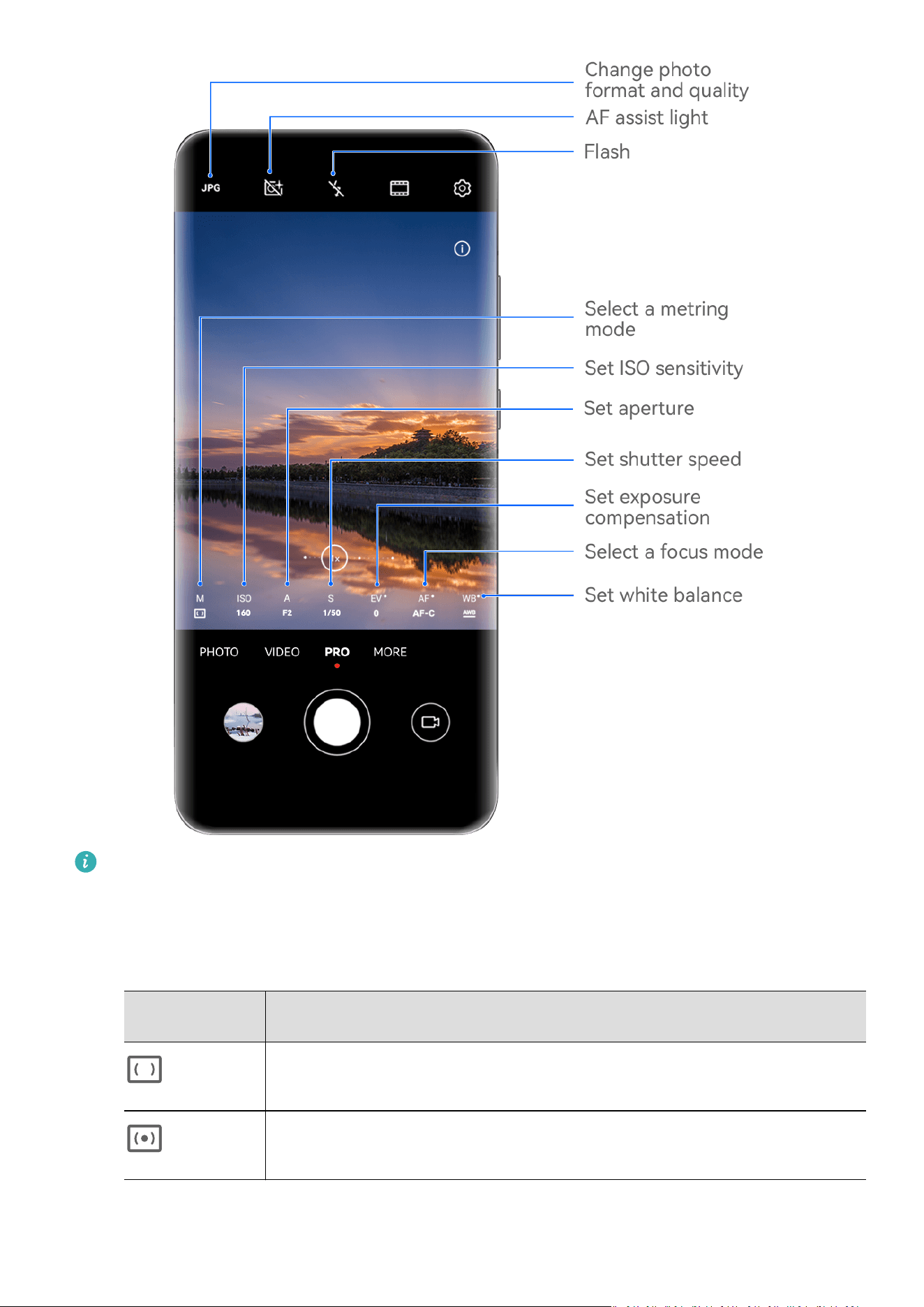
The gures are for reference only.
1 O
pen Camera, and select Pro mode.
2 From there, feel free to:
• Adjust the metering mode: Touch M, and select a metering mode.
Metering
Mode
Usage Scenario
Matrix
Measures light across the entire frame; ideal for shooting natural
landscapes.
Center
Focuses in on light near the center of the screen; ideal for shooting
portr
aits.
Camera and Gallery
68
Metering
Mode
Usage Scenario
Spot
Focuses in on light from a specic tiny region, such as from a
subject's ey
es.
• Adjust the ISO sensit
ivity: Touch ISO, and drag the slider.
In low-light environments, you'll generally want to increase the ISO sensitivity. In well-
lit environments, you'll want to reduce it to avoid image noise.
• Adjust the shutter speed: Touch S, and drag the slider.
The shutter speed determines the amount of light that is able to enter the camera
lens. When shooting stationary scenes or portraits, it is recommended that you use a
slower shutter speed. Likewise, when shooting fast-moving scenes or objects, you'll
want to increase the shutter speed.
• Adjust the aperture: Touch A, and drag the slider.
A smaller f-number will create a more blurry background. To take portrait shots, try
small f-numbers. To shoot scenery, try large f-numbers.
• Adjust EV exposure compensation: Touch EV·, and drag the slider.
It is recommended that you increase the EV value in low-light environments, and
decrease it in well-lit environments.
• Adjust the focus: Touch AF·, and select a focus mode.
Focus Mode Usage Scenario
AF-S (single-
shot auto-
f
ocus)
Stationary subjects
AF-C
(continuous-
shot auto-
focus)
Moving subjects
MF (manual
focus)
Touch the subject of interest to focus in on them, or on specic
features, such as their face.
• Adjust the c
olor cast: Touch WB·, and select a mode.
When shooting in bright daylight, select
. When shooting in overcast conditions or
lo
w-light environments, select
.
Touch to adjust the color temperature.
• Select the stor
age format: Pro mode allows you to save the photo in dierent formats.
Touch
in the viewnder to select your preferred format.
Images in JPG f
ormat require less storage space.
Camera and Gallery
69
If you select RAW format, your phone will automatically save photos taken in DNG
and standar
d formats. DNG format retains more details, and gives you access to a
wider range of post-processing options, but takes up more storage space.
• Enable AF assist light: For better focus performance in low-light environments, touch
to enable AF assist light.
3 T
ouch the shutter button to take the picture.
• These f
eatures are only supported on certain device models.
• Adjusting a
specic setting will sometimes cause other settings to change as well.
Remember to only make adjustments based on actual needs.
Shoot Videos in Pro Mode
1 Under Pro mode, touch
to switch to Video mode. From there, feel free to:
• Adjust the metering mode: Touch M, and select a metering mode.
Metering
Mode
Usage Scenario
Matrix
Measures light across the entire frame; ideal for shooting natural
landscapes.
Center
Focuses in on light near the center of the screen; ideal for shooting
portraits.
Spot
Focuses in on light from a specic tiny region, such as from a
subject's eyes.
• Adjust the ISO sensitivity: Touch ISO, and drag the slider.
In low-light environments, you'll generally want to increase the ISO sensitivity. In well-
lit environments, you'll want to reduce it to avoid image noise.
• Adjust the aperture: Touch A, and drag the slider.
A smaller f-number will create a more blurry background. To take portrait shots, try
small f-numbers. To shoot scenery, try large f-numbers.
• Adjust the shutter speed: Touch S, and drag the slider.
The shutter speed determines the amount of light that is able to enter the camera
lens. When shooting stationary scenes or portraits, it is recommended that you use a
slower shutter speed. Likewise, when shooting fast-moving scenes or objects, you'll
want to increase the shutter speed.
• Adjust EV exposure compensation: Touch EV·, and drag the slider.
It is recommended that you increase the EV value in low-light environments, and
decrease it in well-lit environments.
• Adjust the focus: Touch AF·, and select a focus mode.
Camera and Gallery
70
Focus Mode Usage Scenario
AF-S (single-
shot auto-
f
ocus)
Stationary subjects
AF-C
(continuous-
shot auto-
focus)
Moving subjects
MF (manual
focus)
Touch the subject of interest to focus in on them, or on specic
features, such as their face.
• Adjust the c
olor cast: Touch WB·, and select a mode.
When shooting in bright daylight, select
. When shooting in overcast conditions or
lo
w-light environments, select
.
T
ouch
to adjust the color temperature.
2 T
ouch
to start recording.
• These f
eatures are only supported on certain device models.
• Adjusting a
specic setting will sometimes cause other settings to change as well.
Remember to only make adjustments based on actual needs.
Record Videos
Captur
e Video
1 Open Camera and select Video mode.
2 Adjust the following settings:
• Zoom in or out: Pinch in or out on the viewnder, or drag the zoom slider.
• F
ocus: Touch the location you want to focus on. Touch and hold the viewnder to lock
the exposur
e and focus.
• Turn the ash on or o: Touch
and select (steady on) or (o).
When using the front camera to record videos in low-light conditions, you can set the
ash to
(steady on). The camera will provide light compensation.
• Adjust beaut
y eects: Touch
and drag to adjust the eects.
Camera and Gallery
71

• Adjust the video r
esolution and frame rate: Go to
> Video r
esolution and select
the desired resolution. A higher resolution will result in a higher quality video with a
larger le size.
You can touch Frame rate to select your desired frame rate.
• Select a space-saving video format: Touch
and toggle on the Ecient video
f
ormat switch.
When this feature is enabled, your phone will use a video format that takes up less
storage space. However, videos in this format may not play on other devices. Please
exercise caution when selecting this option.
• Not all devic
es support these features.
• Changing a specic setting will sometimes cause other settings to change as well.
Adjust them ac
cording to your actual requirements.
3 T
ouch
to shoot.
When r
ecording videos with the rear camera, you can touch and hold
or to zoom
in or out
.
Touch
to take a shot of the current frame.
4 T
ouch
to pause and touch to stop shooting.
Enable Sound V
olume to Adjust with the Zoom Level
When you are shooting a video, your phone can focus on the sound of the subject you are
shooting, so that the sound turns up as you zoom in.
For example, if you are recording a child singing onstage, the child's voice will become clearer
as you zoom in on the child.
1 Open Camera and select Video mode.
2 When using the rear camera, aim the camera at the subject you want to record.
3 Touch
to start recording. Zoom in on the subject by pinching out on the viewnder or
dragging the zoom slider up.
As the camera zooms in, the recorded sound will become clearer.
4 Touch to end the recording.
Steady Y
our Shooting
When shooting and moving at the same time, you can enable Steady shot to reduce camera
shake.
1 Open Camera and select Video mode.
Camera and Gallery
72
2 T
ouch
to enable Steady shot.
3 T
ouch
to start the recording.
4 T
ouch
to pause and touch to end the recording.
When Steady shot is enabled, some features (such as zooming and video resolution
adjustment) may be unav
ailable.
Use AI Movie Eects to Record Videos
Use AI movie eects to add an artistic element to your videos without the need for post-
processing.
1 Open Camera and select Video mode.
2 Switch to the rear camera, touch
> Filters or > Filters, and f
ollow the onscreen
instructions to select AI color, Background blur, or other movie eects (depending on
your device model).
3 Go to
> Video r
esolution and select the 21:9 aspect ratio (which most movies are
shot in).
• Some pr
oducts do not support the 21:9 aspect ratio.
• If your phone supports the
feature, disable it rst.
4 T
ouch
to shoot.
T
ouch
to take photos with movie eects while recording.
5 T
ouch
to end shooting.
Shoot 4K UHD Videos
Y
our phone supports 4K Ultra HD (UHD) video recording, allowing you to record in even
greater clarity.
1 Open Camera and select Video mode.
2 Go to
> Video r
esolution and select the 4K resolution.
Beauty mode, lters, and special eects are not supported at 4K, and will be
automatically disabled when you select the 4K resolution.
3 Return to the Video screen and touch
to start recording.
A higher resolution will result in a higher quality video, but will also take up more
stor
age space.
Tracking Shot
Camera and Gallery
73

Take Tracking Shots
Tracking shots allow the camer
a to follow the subjects being recorded so that they always
remain in the center of the viewnder.
1 Open Camera and select Video mode.
2 T
ouch
to conrm that Tracking shot is enabled.
3 Frame the subject in the viewnder. Your phone
will automatically identify the trackable
subjects and display the
icon around them. Touch one of the icons to start
tr
acking the subject
.
Tracking shots support people, cats, and dogs. A maximum of three subjects can be
tr
ack
ed in the same viewnder.
4 Touch
to start recording. During the recording, the camera automatically zooms in or
out along with the tracked subject so that the subject remains in the c
enter of the
viewnder.
You can also touch other trackable subjects in the viewnder to start tracking them.
5 Touch
to pause and to end the recording.
Slow-Mo Recor
ding
Shoot Slow-Mo Videos
Use Slow-mo mode to capture eeting moments in detail. Adjust the slow motion speed
based on ho
w slow you w
ant your footage to appear. With a higher speed you'll get slower
playback.
The available slow motion speeds vary by device.
• 32x or 16x: suitable for recording bubbles popping and water splashing.
• 8x or 4x: suitable for recording breakdowns of fast movements, such as diving into water
and a football being kicked. You can customize the overall shooting length and the length
of the slow-mo portion.
For best results, shoot the slow-mo videos in bright and natural lighting.
Shoot Slow-Mo Videos
1 Go to
Camera > More and select Slow
-mo mode.
2 Touch
and select a slow motion speed.
3 Frame your subject within the viewnder, then touch to start recording.
Camera and Gallery
74

Shoot Slow-Mo Videos with the Front Camera
Y
ou can use the front camera to take slow-mo sele videos such as of your hair blowing in
the wind.
1 Go to Camera > More, select Slow-mo mode, then touch
to switch to the front
camer
a.
2 If your phone allows, touch
and select a slow motion speed.
3 T
ouch
to start recording.
4 T
ouch
to end the recording.
Time-Lapse Photogr
aphy
Use Time-Lapse to Create a Short Video
You can use Time-lapse to capture images slowly over several minutes or even hours, then
condense them into a short video. This allows you to capture the beauty of change –
blooming owers, drifting clouds, and more.
1 Go to Camer
a > More and select Time-lapse mode.
2 Place your phone in position. To reduce camera shake, use a tripod to steady your phone.
3 Touch
to start recording, then touch to end the recording.
The r
ecorded video is automatically saved to Gallery.
Dual-View Mode
Record Dual-View Videos
In Dual-view mode, you can capture two dierent perspectives at once by independently
lming on two cameras – using both the front and rear cameras or just the rear camera
setup
– instead of one. When using the front and rear cameras, the dual view shows what's
captured by the front camera and rear camera side by side. When using just the rear camera
setup, the dual view shows a panorama and a close-up of the center of what is being lmed.
Please make sure your device has been updated to the latest system version.
1 Go to Camer
a > More and select Dual-view.
2 Frame your subject in the viewnder.
• T
o capture images from both the front and rear cameras, touch to have the dual
view show what's captured by the front camera and rear camera. You can pinch in or
Camera and Gallery
75

out on the viewnder to adjust the zoom level of the view from the rear camera.
T
ouch the screen twice to swap the positions of the dual view images.
Touch
to enable Picture in Picture mode. You can then tap the small window twice
to sw
ap the positions of the images, or drag the window to any other position. Touch
to return to split-screen mode.
• T
o use just the rear camera setup for dual-view recording, touch
to switch to the
r
ear camera. A panoramic view and a close-up of the center of the panorama will be
displayed in split-screen mode in the viewnder.
You can adjust the zoom level of the close-up view by pinching in or out on the
viewnder. Touch the screen twice to swap the positions of the panorama and close-up
views.
3 Touch
to start recording and to stop recording.
Choose the Sound Sour
ce You Want to Pick Up in Dual-view Mode
You can decide which direction you want to pick up sound from in Dual-view mode. For
instance, when using the dual-rear Dual-view mode, you can pick up sound from either the
panoramic or close-up view. When using the front and rear Dual-view mode, you can pick up
sound from the front or rear.
Some phones do not support front and rear Dual-view mode.
1 Go to Camer
a > More and select Dual-view.
2 Point your phone at the scene you want to record, touch
in the viewnder, and
choose which view y
ou want to pick up sound from as prompted.
• When using the dual-rear Dual-view mode, you can pick up sound from either the
panoramic or close-up view. If you choose to pick up sound from the close-up view,
your phone can focus on the sound of the subject you are shooting, and the sound
turns up as you zoom in. For instance, you can zoom in on the subject by pinching out
on the viewnder or dragging the zoom slider up. In doing so, the recorded sound of
the subject will become clearer.
• When using the front and rear Dual-view mode, you can pick up sound from either the
front or rear. For instance, when you are lming dierent subjects with the front and
rear cameras, you can choose which subject you want to focus on.
3 Touch the shutter button to start recording.
Story Creator
Camera and Gallery
76
Tell Your Story in Story Creator Mode
In Stor
y creator mode, you can choose a template and follow the instructions to create an
engaging story with the camera and without having to focus or zoom manually.
1 Go to Camera > More, and select Story creator mode.
2 Touch a template to preview what it looks like. Touch
to start.
3 Y
our phone will instruct you to take several shots. Before shooting, the viewnder will
show the preview of each shot. Touch
to close the preview.
T
ouch
to start recording. Your phone will take care of the focusing, rotating, and
z
ooming in the viewnder. When the preset time has elapsed, your phone will stop
recording. You can touch
and record the next shot until all shots are recorded.
4 T
o shoot a dierent scene, exit the camera. Your phone will automatically save your shots.
When y
ou enter Story creator mode again, you can continue with the saved shots (only
the shots recorded from the last time are saved).
5 When you are nished, your phone will automatically splice the shots and create a video
clip with music. If y
ou are unsatised with any of the shots, touch the preview frame of
the shot, then touch
and follow the onscreen instructions to retake the shot.
If y
ou are unsatised with all shots, touch
to remove them all and shoot again.
6 When y
ou are nished, touch
to export the video to the Videos album.
Mult
i-cam
Quickly Switch to Multi-cam Mode
If you have more than one Huawei phone or tablet, you can connect the devices to quickly
switch between their cameras on the host device while shooting to lm from dierent angles
without missing a single moment!
Get
ting Started
Before you get started, perform the following operations on this device and the connected
device:
Multi-cam is only supported on certain devices and apps.
1 Log in to HU
AWEI ID on this device, and enable Bluetooth and Wi-Fi on both this device
and the connected device.
If the two devices are not logged in to the same HUAWEI ID or the connected device is
not logged in to any HUAWEI ID, go to Settings > Super Device > This device > Visible
to, and select All nearby devices on both devices.
2 On this device and the connected device, go to Settings > Super Device > This device,
and make sure that the Camera permission has been enabled.
Camera and Gallery
77

In the Camera App
Enter Mult
i-cam mode in the Camera app to switch between the cameras on this device and
a connected device to capture every angle.
1 On this device, go to Camera > More, and select Multi-cam.
2 This device will then search for and display all available devices. Touch the device that you
wish to connect to, and follow the onscreen instructions to complete the connection. It is
recommended that the distance between the two devices is less than 10 m.
3 Once the connection is successful, the viewnder of the connected device will be displayed
on this devic
e. You can then start shooting or performing the following operations:
• Touch Select camera to switch between the camera on this device and that on the
connected device.
• Touch
to switch to Video mode. This device picks up sound during the recording.
T
o end the connection, touch
or on the connected device.
In Mult
i-cam mode, only certain shooting parameters can be adjusted.
In Third-Party Live Stream and Camera Apps
S
witch device cameras on a moment's notice, when using third-party live stream, camera, or
video chat apps.
1 It is recommended that the distance between the two devices is less than 10 m. Swipe
down from the upper right edge of this device to display Control Panel. From there, feel
free to:
• If both this device and the device to be connected to are logged in to the same
HUAWEI ID:Super Device will search for and display that device. Touch that device,
and follow the onscreen instructions to complete the connection. You can also touch
in Super Devic
e, and drag the icon for that device to the icon for this device.
• If the two devices are not logged in to the same HUAWEI ID or the device to be
connected is not logged in to any HUAWEI ID: Touch
in Super Devic
e, and
touch
at the top of the screen. Your phone will automatically search for and
display all av
ailable devices. Touch the device that you wish to connect to, and follow
the onscreen instructions to complete the connection.
2 When you start shooting, the viewnder of the connected device will be displayed on this
devic
e during live video streams or photography in a third-party app on this device. This
device picks up sound during the recording.
To switch devices, use any of the following methods on this device:
• Swipe down from the status bar, touch
, and touch the name of the device that
y
ou wish to connect to in the displayed list.
Camera and Gallery
78

• S
wipe down from the upper right edge of this device to display Control Panel, and
touch the name of the device that you wish to connect to in Super Device.
• In Super Device, touch
. Then drag the icon for the connected device away from
the ic
on for this device, and drag the icon for the new device to the icon for this device.
To end the connection, touch
or on the connected device.
If Super Devic
e is not displayed in Control Panel, go to
> Sho
w Super Device in
Control Panel.
Adjust Camera Settings
Adjust Camer
a Settings
You can adjust the camera settings to take photos and videos more quickly.
The following features may not be available in some camera modes.
Adjust the Aspect Ratio
Go to Camer
a >
> Aspect r
atio and select an aspect ratio.
This feature is not available in some modes.
Enable Location Tags
To enable Location tag, enable Location Services for your phone rst, then go to Camera >
. Your photos and videos will then be tagged with location information.
Y
ou can touch and swipe up on a photo or video in Gallery to view its shooting location.
To enable Location Services on your phone:
• Swipe down from the upper right edge of the phone to display Control Panel, touch
to
expand the shortcut switches panel, and enable Locat
ion.
• Go to Settings > Location and enable Access my location.
Add Device Watermarks
Enable Add watermark. Photos and videos shot with the rear camera will have a device
watermark added.
Adding a device watermark to videos is not supported on certain phones.
Use the Assistive Grid to Compose Your Photos
Use the assistive grid to help you line up the perfect shot.
1 Enable Assistive grid. Grid lines will then appear in the viewnder.
Camera and Gallery
79

2 Plac
e the subject of your photo at one of the intersecting points, then touch the shutter
button.
Use Mirror Reection
When using the front camera, touch
, then enable or disable Mirr
or reection.
When Mirror reection is enabled, the image will appear as you see yourself in the
viewnder, instead of ipped.
When Mirror reection is disabled, the image will be ipped, so it's the opposite of what
you see in the viewnder.
Mute the Shutter Sound
Enable Mute to mute the camera shutter sound.
This feature is only available in some countries and regions.
Capture Smiles
Enable Captur
e smiles. The camera will take a photo automatically when it detects a smile
in the viewnder.
Use the Horizontal Level for Better Compositions
Enable Horizontal level to display a horizontal guiding line on the viewnder.
When the dotted line overlaps with the solid line, it indicates that the camera is parallel with
the horizontal level.
Customize Camera Mode Layout
You can customize the layout of the Camera mode screen based on your preferences by
moving the frequently used modes to the camera home screen, or change the order of
modes.
Photo, P
ortrait, and Video modes cannot be moved to More.
1 Go to Camer
a > More, and touch
to enter the mode editing screen.
2 T
ouch and hold a mode and drag it to the desired position. You can move a mode on the
More screen to the camera home screen, move the mode on the camera home screen to
More, or adjust the layout of the mode screen based on how often you use certain modes.
Modes with a
icon can be deleted by simply touching this icon.
3 T
ouch
to save the layout.
T
o restore a deleted mode, go to Camera > More, touch
, and then touch ADD.
Manage Galler
y
Camera and Gallery
80

Make Quick Searches in Gallery
Quickl
y Search for Images in Gallery
Quickly locate an image by searching with keywords, such as a date, food, or category, in
Gallery.
1 Go to Gallery, touch the search bar at the top of the screen, then type in a keyword (such
as "food" or "scenery") or touch a suggested word to start searching.
2 Thumbnails of images related to that keyword will be displayed, and more keywords will
be suggested. Touch a suggested keyword or enter more keywords for more precise
results.
Quickly Search for Videos in Gallery
Your phone automatically analyzes and categorizes videos in Gallery when charging and with
the screen o. Suggested keywords will be displayed in the search bar for quick results on
r
elated topics.
1 Go to Gallery, touch the search bar at the top of the screen, then type in a keyword (such
as "food" or "scenery") or touch a suggested word to start searching.
2 Thumbnails of videos related to that keyword will be displayed, and more keywords will
be suggested. Touch a suggested keyword or enter more keywords for more precise
results.
Key moments of videos in the search results will automatically be played in sequence for
you to see a preview.
Screenshots will not be anal
yzed.
Share Images and Videos
O
pen Gallery and share an image or video in the following ways:
• Share a single image or video: Touch the image or video, then touch
.
• Shar
e multiple images or videos: In an album or on the Photos tab, touch and hold to
select multiple images and videos, then touch
.
Share Images Without Divulging Your Life
When sharing an image in Gallery, you can choose to delete sensitive information such as the
location, time, device, and image name, to keep your privacy intact.
1 Open Gallery.
2 Touch an image, or touch and hold down to select multiple images, and touch .
3 T
ouch Privacy options at the top of the sharing screen, follow the onscreen instructions to
enable both Remove location info and Remove other info, and touch OK to share the
image.
Camera and Gallery
81

If Locat
ion tag was disabled when an image was taken, Remove location info will not
display in Privacy options.
Organize Albums
Or
ganize images and videos into albums to easily sift through them.
Add Albums
1 Go to Gallery > Albums.
2 Touch
, name the album, then touch OK.
3 Select the images or videos y
ou want to add, and then move or copy them to the album.
Sort Albums
1 Go to Gallery > Albums >
and touch Sort albums.
2 Hold and dr
ag
next to the albums to adjust the order.
T
ouch Reset or go to
> Reset to r
estore the default order.
Adjust the Album Display Style
Go to Gallery > Albums, touch
or at the top, and select an album display style.
Change Album Co
vers
1 Go to Gallery > Albums and touch the album you want to set.
2 Go to
> Change album c
over and select the image you want to set as the album
cover.
Move Images and Videos
1 Open an album, then touch and hold to select the images and videos you want to move.
2 Touch
> Mo
ve to album to select the desired album.
3 Once the items are moved, they will no longer be in their original album.
The All photos and Videos albums show all images and videos stored on your device.
Moving items across albums will not remove them from these albums.
Delete Images and Videos
Touch and hold to select images, videos, or albums and go to Delete > Delete.
Some preset albums cannot be deleted, including All photos, My favorites, Videos, and
Camera.
Deleted images and videos will be temporarily moved to the Rec
ently deleted album for a
period of time, after which they will be permanently deleted.
Camera and Gallery
82

To permanently delete images and videos before the retention period expires, touch and hold
to select images or videos in the Rec
ently deleted album and go to Delete > Delete.
Recover Deleted Images and Videos
In the Recently deleted album, touch and hold to select the items you want to recover, then
touch
to restore them to their original albums.
If the original album has been deleted, a new one will be cr
eated.
Add Images and Videos to Favorites
Open an image or video, then touch
.
The item will appear in both its original album and the My f
avorites album.
Block Albums
Block third-party app albums to prevent them from being displayed in Gallery.
1 In the Others list, touch the album you want to block.
2 Go to
> Block this album?.
Block
ed albums can only be viewed in Files.
3 To unblock an album, open the Others list, touch View blocked albums, then touch
Unblock next to the album.
Only some albums in Others can be block
ed.
Keep Gallery Images, Videos, and Albums Safe from Prying Eyes
Hide priv
ate images, videos, or albums in Gallery, for additional peace of mind.
First go to Gallery > Albums. From there, you can:
• Hide images or videos: Tap to open an album, touch and hold down to select images or
videos you wish to hide, and go to
> Hide > OK.
• Hide a single album: T
ap to open an album you wish to hide, and go to
> Hide this
album > OK.
• View hidden images, videos, or albums: On the Albums tab
, go to
> Hidden items.
Y
ou can switch to the album view, to quickly locate desired items by album. In Hidden
items, go to
> Album view.
• Unhide images or videos: In Hidden items, touch and hold down to select the images or
videos you wish to unhide, and touch Unhide. These images and videos will then be
restored to their original albums.
Camera and Gallery
83

• Unhide a single album: In Hidden items, go to > Album view, and switch to the
album view
. Touch the album you wish to unhide, and go to
> Unhide.
View Images or Videos on Other Devic
es from Your Phone
With Multi-device browsing, you can browse and search for photos and videos saved on a
connected phone or tablet.
• This f
eature is only available in some countries and regions.
• Before using this feature, ensure that your devices have sucient power and that the
devic
e being connected is near the phone.
1 Enable the f
ollowing functions on this device and the connected device:
Go to Settings > Super Device > Multi-Device Gallery and ensure that Multi-Device
Gallery is enabled.
If Multi-Device Gallery is not displayed in the above path on the phone or tablet, search
for and enable Multi-Device Collaboration in Settings. If neither of the two switches can
be found on your device, it indicates that this feature is not supported.
2 Enable Wi-Fi and Bluetooth and log in to the same HUAWEI ID on your phone and the
device you want to connect to.
After the connection is set up, the Other devices tab will be displayed under Gallery >
Albums.
If your phone cannot connect to the target device, connect them to the same router or
personal hotspot
, log in to the same HUAWEI ID, and enable Bluetooth on both
devices.
3 T
ouch the Other devices tab to view connected devices. If the device you want to browse
from is not connected, touch the device name and initiate a connection as prompted. You
can then:
• Browse images or videos: Touch a connected device to view the albums stored on that
device.
• Search for images: On the Albums tab, enter a keyword (such as "food" or
"landscapes") in the search bar. The search results will be displayed by device.
• Save items from other devices to your phone: Touch the target device, touch and hold
to select images or videos, then touch
.
The sav
ed items will be displayed in Gallery > Albums > From other devices.
To disable this feature, disable Multi-Device Gallery.
Edit Pictures and Videos
Edit Images
Gallery oers a wide range of editing features for images.
Camera and Gallery
84

Basic Editing
1 O
pen Gallery, touch the image you want to edit, and then touch
. You can then:
• Cr
op and rotate: Touch Crop, select a frame, then drag the grid or its corners to select
which part you want to keep. You can drag the image in the frame, or use two ngers
to zoom in or out to adjust the displayed part of the image.
To rotate the image, touch Crop and drag the angle wheel to the desired orientation.
To rotate the image by a certain degree or mirror ip the image, touch
or .
• Add a
lter eect: Touch Filter to select a lter.
• Adjust image eects: Touch Adjust to adjust the brightness, c
ontrast, saturation, and
other aspects of the image.
• Other: Touch More to edit the image in other ways, such as by adding a color splash,
blur, doodle, or text element.
When using the Adjust or Filter feature, you can touch Compare to compare the image
before and after editing. Comparison is not supported in some editing modes.
2 Touch or to save the edits.
Add St
ickers to Images
1 In Gallery, touch an image, then go to
> Mor
e > Stickers.
2 Select a sticker and drag it anywhere you like. Touch and hold the dot on the corner of the
sticker and drag it to resize the sticker. Touch
to delete the sticker.
Y
ou can also edit the text in some types of stickers. Touch the editable area which is
typically encircled with dash lines to enter the new text.
3 Touch
to save your edits and touch to save the image.
Pix
elate Images
1 In Gallery, touch an image, then go to
> Mor
e > Mosaic.
2 Select a mosaic style and size to cover parts of the image.
3 To remove the mosaic, touch Eraser and wipe it o the image.
4 Touch
to save your edits and touch to save the image.
Rename Images
1 In Galler
y, touch the image thumbnail you want to rename.
2 Go to
> Rename and enter a new name.
3 T
ouch OK.
Camera and Gallery
85

Remove Unwanted Objects from Images
1 In Galler
y, touch the image you wish to edit, then go to
> Mor
e > Remove.
2 You can remove objects from images in either of the following ways:
• Smart: Select Smart, and tap on or draw lines over items you wish to remove.
• Manual: Select Manual, choose the size of the eraser that best meets your needs, and
swipe on the part of the image you wish to remove.
It's recommended that you use a smaller eraser to remove ner details (such as power
cables).
T
o undo the changes you have made, touch
at the top of the screen.
3 Touch to save the changes and touch to save the edited image as prompted.
Collage
Y
ou can use the collage feature in Gallery to quickly combine multiple images into one for
easier sharing.
1 You can access the collage feature in the following ways :
• On the Discover tab, touch Create collage, select some images, then touch Create.
• On the Photos or Albums tab, touch and hold to select some images, then go to
> Collage.
2 Select a template. Y
ou can then:
• Relocate an image: Touch and hold the image and drag it to a dierent position.
• Adjust the display
ed portion of an image: Slide on the image, or pinch in or out on it
so that only the part you want to see is displayed in the grid.
• Rotate an image: Touch the image, then touch
to rotate it or to ip it.
• Add or r
emove borders: By default, borders are displayed between images and along
the grid edges. To remove them, touch Frame.
3 Touch
to save the collage.
T
o view the saved collage, go to Albums > Collages.
Golden Snap
Spruce Up Images with Golden Snap
Enhance Your Images with Functions Such As Brighten and De-mist
1 Open Gallery, touch the image that you want to edit, then touch
.
Camera and Gallery
86

2 T
ouch Smart to access the smart editing screen. You can then:
• Perform one-touch automatic optimization: Touch Auto for your phone to intelligently
optimize the image.
• Brighten the image: Touch Brighten to brighten the image.
• Remove blurriness: Touch De-mist for your phone to automatically detect and remove
blurriness from the image.
• Straighten the image: Touch Straighten for your phone to automatically check
whether the image is tilted (for example, whether the background horizon line is
tilted) and straighten it.
If you want to apply more than one of the aforementioned features to the image, save
the image each t
ime you apply a feature.
3 Af
ter you have nished editing the image, touch
to save the image to the same
album as the original image.
Retouch Images of Documents
If ther
e are shadows in an image of a document, you can use the Retouch document
function in Gallery to remove them.
1 Open Gallery, touch an image of a document, then touch
.
2 Go to Smart > Retouch document. Y
our phone will then remove the shadows.
3 Touch
and follow the onscreen instructions to save the image to the same album as
the original image.
Adjust document
If an image of a document is sk
ewed, you can use the Adjust document function in Gallery
to straighten the image.
1 Open Gallery, touch an image of a document, then touch
.
2 Go to Smart > Adjust document and dr
ag the four corners to select the area to be
straightened.
3 Touch
. Your phone will then straighten the selected area.
4 T
ouch
and follow the onscreen instructions to save the image to the same album as
the original image.
Highlights
Camera and Gallery
87
Introduction to Highlights
Galler
y automatically creates Highlights albums from your best photos and videos based on
time, location, and theme information, and even generates a short video clip so you can walk
down memory lane and instantly relive the good times.
• To start using Highlights, go to Camera >
and enable Locat
ion tag.
• Highlights albums are created automatically when your phone is charging and connected
to a Wi-Fi network, the screen is turned o, and the battery has sucient power. It may
tak
e a while for the albums to be created.
Highlights albums will not be automatically generated if there are not enough relevant
photos.
View Highlights Videos
1 Go to Gallery > Highlights and touch an album.
2 Touch
to play the video.
Edit Highlights Videos
1 Touch to play a Highlights video
.
2 On the playback screen, touch
, and select your favorite theme template.
3 When y
ou are nished, touch Export, follow the onscreen instructions to select the
resolution and frame rate, and export the video.
Change the Highlights Album Cover
1 On the Highlights tab, touch an album.
2 Go to
> Change cover, select a photo, then touch .
Add or Remove Images or Videos from a Highlights Album
1 In the Highlights tab, select a Highlights album.
2 You can then:
• Add images or videos: Touch and follow the onscreen instructions to select images
or videos to be added to the album.
• Remo
ve images or videos: Touch and hold to select the images or videos you want to
remove from the album, touch
, then touch Remo
ve.
Share Highlights
You can share Highlights as videos, full-length images, or covers.
Share Highlights as videos
Camera and Gallery
88

1 If y
ou have edited and exported a Highlights video, the exported video can be found in
Gallery > Albums > Video Editor.
2 You can touch and hold to select the video in Video Editor and touch
to share it.
Shar
e Highlights as full-length images or covers
Touch the Highlights album you wish to share, touch
, and select F
ull-length image or
Cover only.
• If you select Full-length image, your phone will generate a full-length Highlights image.
You can follow the onscreen instructions to share it.
• If you select Cover only, your phone will generate an image (including the cover and text)
based on the Highlights cover. You can follow the onscreen instructions to share it.
You can also share the photo under Gallery > Albums > Collages, where the full-length
images and covers created for Highlights albums are saved by default.
Rename Highlights Albums
1 On the Highlights tab, touch an album.
2 Go to
> Rename and enter a new name.
Delete Highlights Albums
1 On the Highlights tab
, select a Highlights album.
2 Go to
> Delete and then touch Delete.
After you delete a Highlights album, it cannot be r
estored, and the photos and videos in
the Highlights album will remain in Gallery.
Camera and Gallery
89

Apps
MeeTime
Use MeeTime to Mak
e Calls
Use MeeTime to make high-quality video or voice calls with contacts who have Huawei
devices (such as phones and tablets), and share your screen during calls.
Thanks to the GPU Turbo technology, the video call resolution will be optimized
automatically when the network signal is weak. With intelligent algorithms, the other party
can see your face clearly even when making a video call at night or in dark environments.
• Please mak
e sure your device has been updated to the latest system version.
• This feature is only available in some countries and regions.
• If your phone is not pre-installed with the MeeTime app, download it from
AppGallery.
Using the Free MeeTime Service
• MeeTime onl
y uses Wi-Fi or mobile data and will not be charged as calls by your carrier. It
is recommended that you use this feature over a Wi-Fi network.
• If you need to make a video call using mobile data, you can perform the following to save
on the amount of mobile data you use: On the MeeTime screen, touch your prole picture
in the upper right corner to access the Settings screen, then turn on the Data saver switch.
Make a High-quality Video or Voice Call
Use MeeTime to make smooth and high-quality calls between Huawei devices such as
phones and tablets. You can enjoy clear video calls even in dark environments and adjust the
beauty level during video calls.
1 Open MeeTime and follow the onscreen instructions to activate and enable it.
2 In the MeeTime app, go to Contacts > MeeTime, and touch
or next to a contact
who has enabled MeeTime on their devic
es to make a high-quality video or voice call.
3 During a video call, touch the screen and then touch
> to access the Sof
ten
function. Drag the slider left or right to adjust the beauty level.
• F
or better video calls, keep your phone within 1 meter (3.3 feet) of you and ensure
that you are in a bright environment.
• The beauty mode is only supported by some products.
4 Y
ou can touch
and then perform the following:
90
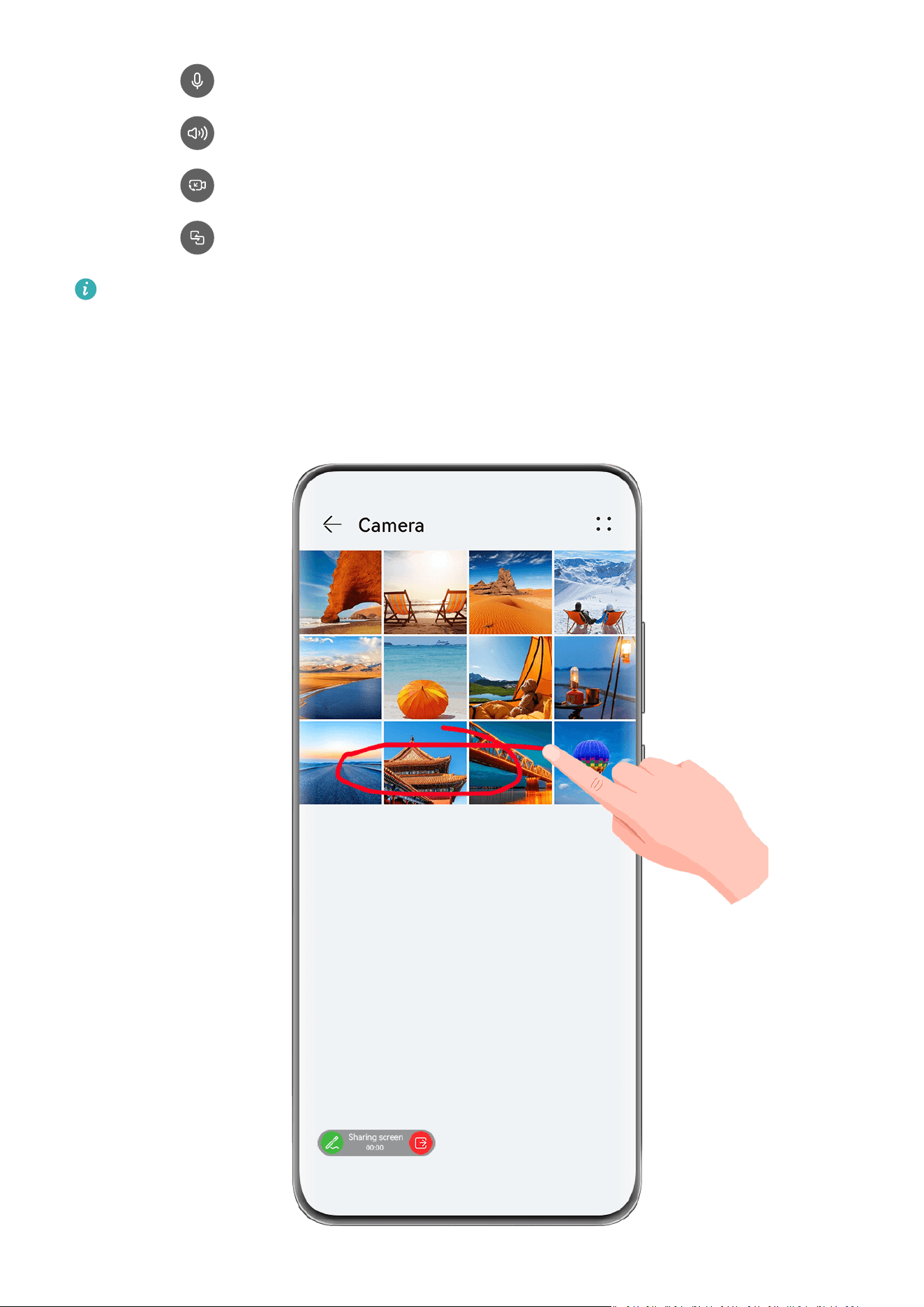
• T
ouch
to mute MeeTime.
• T
ouch
to use the speaker.
• Touch to switch to a voice call.
• T
ouch
to share the screen.
To view or manage your call logs, touch Calls.
Share Your Phone Screen During a MeeTime Call
During a MeeTime video call, y
ou can share your screen with the other party and doodle on
the screen. The other party will then be able to view your screen and your doodles on it.
Apps
91
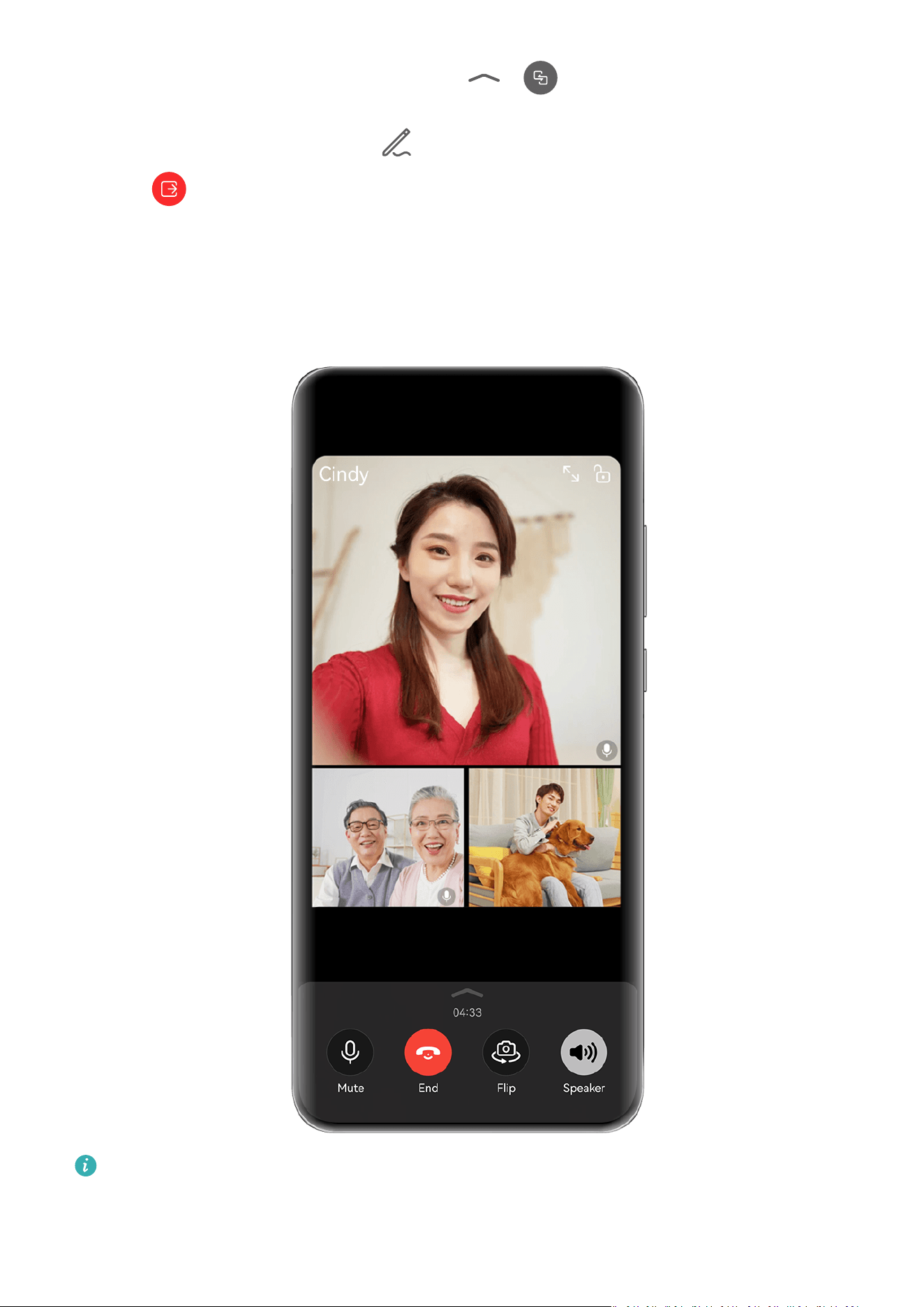
1 During a video call, touch the scr
een, go to
> , and follow the onscreen
instruct
ions to share your screen.
While sharing your screen, touch
to start doodling on your screen.
2 T
ouch
to exit screen sharing.
Init
iate MeeTime Group Calls
With MeeTime group calls you can have a voice or video call with multiple users at the same
time.
The gures are for reference only.
Go to MeeTime and select one of the following methods to initiate a group call:
Apps
92

• Go to > Gr
oup call, select contacts that you want to invite, and touch START CALL.
• During a one-on-one video call, tap the screen, go to
> , add contacts, and then
touch Add members to call to initiate a group call.
• During a one-on-one voice call, touch , add contacts, and then touch Add members to
call to init
iate a group call.
During a group call, you can tap the screen and touch
to display the shortcut panel.
Fr
om there, you can:
• Add call members: Go to
> Add members, select c
ontacts that you want to invite,
and touch START CALL.
• Beauty mode: Touch
to adjust the beauty level during a video call.
• Shar
e screen: Touch
to share your screen with other members. When sharing your
scr
een, you can touch
to write or doodle on the screen. To stop sharing your screen,
touch
and then touch .
• S
witch between voice and video calls: Touch
to switch between voice and video calls.
• Some of these f
eatures are only supported in group video calls.
• Beauty mode is only supported on certain device models.
Set MeeTime Phone Numbers
Y
ou can use MeeTime with more than one of your phone numbers.
1 On the MeeTime screen, touch your
prole picture icon in the upper right corner to
access the Settings screen.
2 Touch Number settings. You can then:
• Touch to add another phone number if only one phone number has been linked.
• T
ouch
to delete any numbers or add new ones if multiple phone numbers have
been link
ed.
• In the list of Outgoing number (this device), select one of the added phone numbers
to set it as the default number.
Notepad
Apps
93

Create and Edit a Note
Captur
e an inspired idea before it's too late, with Notepad. You can also add checklists,
images, and web links to notes to make them more detailed and enriching.
Create a Note
1 Go to Notepad > Notes, touch
, and enter the title and content.
2 T
o change the text style, color, or background, touch
.
3 Onc
e you're done editing, touch
to save the note.
Add a Checklist
Add the w
ork content and items you wish to purchase to the checklist. Once the checklist is
created, you can select annotations to organize your work and life with greater ease.
When you create a note in Notepad, touch
. From there, feel free to:
• Add an item to the list: Enter text af
ter the hollow circle, and go to the next line to enter
another item.
• Mark an item as completed: Touch the hollow circle next to an item to mark the item as
completed.
Add Images to a Note
1 When creating a note in Notepad, touch
, and select T
ake photo or Select from
Gallery to insert an image. Hold and drag to adjust the position of the added image
within the note.
2 Once you're done editing, touch
to save the note.
Add W
eb Page Content to a Note
Add web page content or text to Notepad to quickly create a note. Touch the added web
page link in the note to open the web page and view the details.
Content sharing is not supported in all apps.
1 When browsing a web page, select the content you wish to share, such as a web page or
text on the web page.
2 Touch the share button, and select Notepad.
3 Add the shared content to an existing note, or create a new note, by following the
onscreen instructions.
Create Notes by Dragging Content from Other Apps
Drag text, images, and les to Notepad, from apps like HUAWEI Browser and Files, to create
inf
ormative notes in little time. You can also select and drag individual items (such as text,
Apps
94
images, audio and video les, and documents) all at a time within notes to create a new
note.
Drag-and-drop operations are only supported in certain apps.
1 Go to Notepad > Notes, and touch .
2 Select and dr
ag the content that you wish to add (from the corresponding apps) to
Notepad.
• Drag from other apps: Open Files in either split-screen or oating window mode,
select the text, images, or les, and hold and drag them to the desired note.
• Drag between notes: Open another note in either split-screen or oating window
mode, select the desired items (including text, images, audio and video les, and
documents), and hold and drag them all at a time to the desired note.
3 When editing a note, you also select multiple types of items, and hold and drag these
items to relocate them within the note.
4 Touch
to save the note.
Cr
eate To-dos
You can create to-dos to keep a track of day-to-day essentials, such as daily shopping lists,
tasks at work, and household chores.
Add a To-do Item and Set a Reminder
You can add a to-do item and set a time reminder for it.
If you have marked the to-do item as important, you will be prompted with a full-screen
reminder when the screen is locked.
1 Go to Notepad > To-dos and touch
.
2 Enter y
our to-do item.
3 Touch
, set a reminder time, then touch OK.
4 T
ouch
to mark the to-do item as important.
5 Then touch Sav
e.
Set Repeated Reminders for a To-do Item
If you specify a time for a to-do item, you can select a repeat mode for it (for example,
Never, Every day, Every week, Every month, or Every year), and your phone will repeatedly
prompt you to complete the to-do item at the specied time.
Dr
aw Grati and Handwrite Notes
Sk
etch and write to record sources of inspiration, and make your notes more vivid and
informative.
Apps
95
1 Go to Notepad > Notes, and touch .
2 T
ouch
, and draw or write by following the instructions below:
• T
ouch
to select a brush color.
• T
ouch
to select the pen type (such as ballpoint pen or pen) and tip size.
• T
ouch
to manually erase specic
grati or handwriting. Touch
again, and
select Clear to clear all
grati or handwriting.
• Touch
, circle the
grati or handwritten content, and drag the circle to adjust its
position within the note. Touch and hold down on the circle to copy, share, or resize it.
• Touch
to select the note background.
• T
ouch
to display horizontal lines.
• If y
our device is connected to a stylus, touch
to block drawing
grati or
handwriting by nger. After you do so, you'll only be able to edit the note with a
stylus.
Not all devices support all of these features.
3 Onc
e you're done editing, touch
to save the note.
Scan a Document or Car
d
In Notepad, you can use your device's camera to scan an image or document, such as an ID
card, bank card, or other certicate, to save it as a note in Notepad, with an anti-theft
w
atermark.
Scan Documents to Create Notes
1 Go to Notepad > Notes, and go to
> > Scan document.
2 P
oint the camera to the images or documents you wish to scan, and touch
to scan
them one at a time, or consecutively.
3 Then go to Extract text > Save, select Save images and text or Save text only, and
touch
If your phone does not have this option, it indicates that this feature is not supported.
Scan Cards and Certicates to Store Them Away
1 Go to Notepad > Notes, and go to > > Add car
d.
Apps
96

2 P
oint the camera to the certicates you wish to scan, and touch
to scan them one at
a t
ime, or consecutively. Touch
to preview the scanned copies.
3 (O
ptional) If you wish to adjust the photo, touch
in the upper left corner to return to
the scanning scr
een. Then touch the thumbnail, manually adjust the photo, and touch
to preview the scanned copy.
4 (O
ptional) To add a watermark to the scanned copy, touch Full-screen watermark or
Single watermark.
5 Touch
to insert the modied scanned copy into the note.
6 T
ouch
to save the note.
Search for and Sort Notes
Quickly Search for Notes
Use keywords, such as note titles, specic text content, or attachment names, to search for
notes within Notepad with newf
ound ease.
1 Open Notepad, touch the search bar at the top of the screen, and type in a keyword to
start searching.
2 Notes will display based on the keywords. You can continue to enter keywords for more
accurate searches.
Add a Folder or Notebook
Create folders or notebooks to store dierent types of notes, and even add color-coded labels
to cr
eate digital notebooks in Notepad.
Go to Notepad, and touch All notes or All to-dos. From there, feel free to:
• Create a folder: Go to Manage > New folder, rename the folder, and touch Save.
• Create a notebook: Open any folder, touch New, select a color label, rename the
notebook, and touch Save.
To rename or delete a folder or notebook, go to Manage > Edit, and touch the folder or
notebook name to rename or delete it.
Folders and items in Exchange accounts cannot be edited.
Classify Notes and To-Dos by Category
Classif
y notes or to-dos into notebooks separated by folder and category, to reference
content with greater ease.
• Pin a note to the top: In the All notes list, swipe left on a note, and touch
to pin it to
the top
.
Apps
97

• Add a note to f
avorites: In the All notes list, swipe left on a note, and touch
to add it
to f
avorites.
To view favorite items, touch All notes, and go to My favorites.
• Move a note or to-do to another notebook: In the All notes or All to-dos list, swipe left
on a note or to-do, touch
, and select the target notebook.
T
ouch and hold down on a note or to-do item you wish to classify, select or swipe along
the check boxes of multiple items, and touch
to move them by batch to the target
categor
y.
Lock Notes
You can apply App Lock to Notepad or set a password for a note to protect your privacy.
• To lock the Notepad app, go to Settings > Security > App Lock, follow the onscreen
instructions to enter the screen lock password or custom app lock password, and enable the
switch next to Notepad.
• To lock a single note, go to Notepad > Notes, open the note you wish to lock, go to
> Add lock, f
ollow the onscreen instructions to set a password, and touch
.
T
o remove the note lock, open the note, and go to
> Remove lock.
If your device supports ngerprint or face unlock, and you've enrolled your ngerprint or
facial data, you can use fast authentication by performing the following steps: Go to
Notepad > > Set
tings > Note lock, and enable Unlock with Fingerprint ID and Unlock
with Face Recognition.
Share and Export Notepad Items
Share notes or to-dos in Notepad with others, and even export notes in image, TXT, and
other formats.
Share Notes or To-dos
• To share a single note or to-do: Open the note or to-do you wish to share in the All notes
or All to-dos list, and touch
. Then follow the onscreen instructions to complete the
pr
ocess.
You can share a note by touching Share as image, Share as text, or Send to another
device.
• To share multiple notes: Touch and hold down on a note, select multiple notes you wish
to share in the All notes list, and touch
. Then follow the onscreen instructions to
c
omplete the process.
Apps
98

Export Notes
Go to Notepad > Notes, open the note y
ou wish to export, and touch
. From there, feel
fr
ee to:
• Export it as an image: Go to Share as image > Save image. You'll nd the exported image
in Gallery.
• Export it as a document: Touch Export as document, and follow the instructions to select
the document format you need and complete the process.
To view notes that you have saved, open Files, search for and access Documents, and
touch NotePad.
The E
xport as document feature is not available for handwritten-only notes. Other types
of notes can be exported into TXT or HTML les when you select Export as document.
Delete Notes or To-dos
Y
ou can delete notes or to-dos in any of the following ways:
• In the All notes or All to-dos list, swipe left on a note or to-do, and touch
to delete it.
• T
ouch and hold down on the note or to-do you wish to delete, select or swipe along the
check boxes of multiple notes or to-dos that you wish to delete, and touch
.
Onc
e deleted, you can touch All notes or All to-dos and go to Recently deleted to view the
deletion records. To restore a deleted item, touch and hold down on it, or go to its details
screen, and touch
.
Compass
Compass
View D
irections and Coordinates, with Compass
Compass shows you the direction your phone is pointing towards, as well as your current
longitude and latitude.
1 You can open Compass in either of the following ways:
• Swipe down from the middle of the home screen to display the search box, and search
for Compass. The rst result will be the pre-installed Compass app
.
• Find Compass in the Tools folder.
2 You can view directions and coordinates in either of the following ways:
• When you hold your phone at, the Compass screen will display the direction your
phone
is pointing towards, along with the current coordinates.
Apps
99

• When y
ou hold your phone upright, the Compass screen will display the viewnder of
the rear camera on your phone, as well as the direction your phone is pointing
towards, and the current coordinates.
To lock the current direction, touch the compass dial. The dial marks will turn blue if you
stray o course.
For optimal accuracy, remember to hold your phone at or upright when using Compass.
Optimizer
Clean Up Phone Storage
Cleanup in Optimizer helps you scan for redundant or large les, such as residual app les,
unwanted installation packages, WeChat data, and more. Once detected, you can choose
whether or not to delete individual les. This tool can also compress duplicate les and less
fr
equently-used apps to free up space.
Compress Apps and Files to Free up Space
1 Go to Optimizer, and touch Cleanup.
2 Once the scan is complete, touch Compress in the Recommended for compression list,
and follow the onscreen instructions to compress duplicate les and rarely-used apps to
fr
ee up storage space.
Compression will not change the storage location, quantity, or quality of les, nor aect
the running of apps.
Manually Clean the System Trash
1 Go to O
ptimizer, and touch Cleanup.
2 Once the scanning is complete, touch Clean up next to Junk les. You can also touch
Clean up next to other items, select the items to be cleaned, and touch DELETE.
Clean Up W
eChat Data
Over an extended period of use, WeChat will accumulate a large amount of data, including
cache les, chat videos, audio les, emojis, and more. Optimizer can scan for unwanted
WeChat data for you to clean up by category or by chat thread.
On the Cleanup screen, and touch WeChat. Then you can:
• Clean up Cached les, Cached videos, and Favorites.
• Go to WeChat to delete data from chats.
• Perform targeted cleanups of Chat images, Chat videos, Chat audios, and more.
Clean Up Duplicate Files
Optimizer can identify duplicate les on your phone.
Apps
100

On the Cleanup scr
een, touch Duplicate les, then select unwanted les to delete them.
Apps
101

Settings
Mor
e Connections
Project Your Phone Screen Wirelessly
Project your phone wirelessly to stream movies and work on a large-screen device (such as a
Vision).
Dierent display devices support dierent projection protocols. Therefore, the projection
method may v
ary. Choose a suitable method based on the protocol supported by your device.
For details about the supported projection protocols, refer to the product manual or
c
ontact the product manufacturer.
The gures are for reference only.
1 Ensur
e that the Cast+/Miracast switch or the projection switch is enabled on the large-
screen device. For details about how to turn on the switch, refer to the product manual or
contact the product manufacturer.
2 Swipe down from the upper right edge of your phone to display Control Panel, and touch
and .
102

3 In Contr
ol Panel, touch
to expand the shortcut switch panel (depending on your
devic
e model), and touch Wireless Projection. Your phone will then start searching for
available external large-screen devices.
You can also go to Set
tings > More connections > Easy Projection to enable
Wireless projection.
4 T
ouch the device that you want to project your phone to from the detected devices.
By default, after the connection is successful, banner notications for incoming calls,
messages, and alarms, and Mult
i-Window are only displayed on your phone instead of the
large-screen device. To change the settings, touch
, and turn o the switch for Hide
notications.
Some products do not support the Hide
notications feature. The actual product
prevails.
To exit wireless projection, go to
> Pr
oject screen on the phone screen; alternatively,
swipe down from the upper left edge of the screen to display the notication panel, and
touch DISCONNECT (depending on your device model).
Use Desktop Mode to Make Work More Convenient
After your phone screen is projected, go to
> Desktop mode.
In Desktop mode, y
our phone and the large-screen device work independently and can show
dierent content. The content of a phone projected on the large-screen device is in a layout
similar to that of the computer desktop.
For example, you can edit a document on the large-screen device while chatting on your
phone. You don't need to worry about missing out on notications, calls, or messages, as a
red dot will appear on the notication panel on the large-screen device to let you know.
Use Your Phone as a Touchpad
After your phone screen is projected to a large-screen device in Desktop mode, if no
keyboard or mouse is available, your phone can work as a touchpad to complete input
operations of a mouse and keyboard.
Go to
> T
ouchpad, and you're free to:
• Use gestures as instructed to simulate mouse commands.
Settings
103
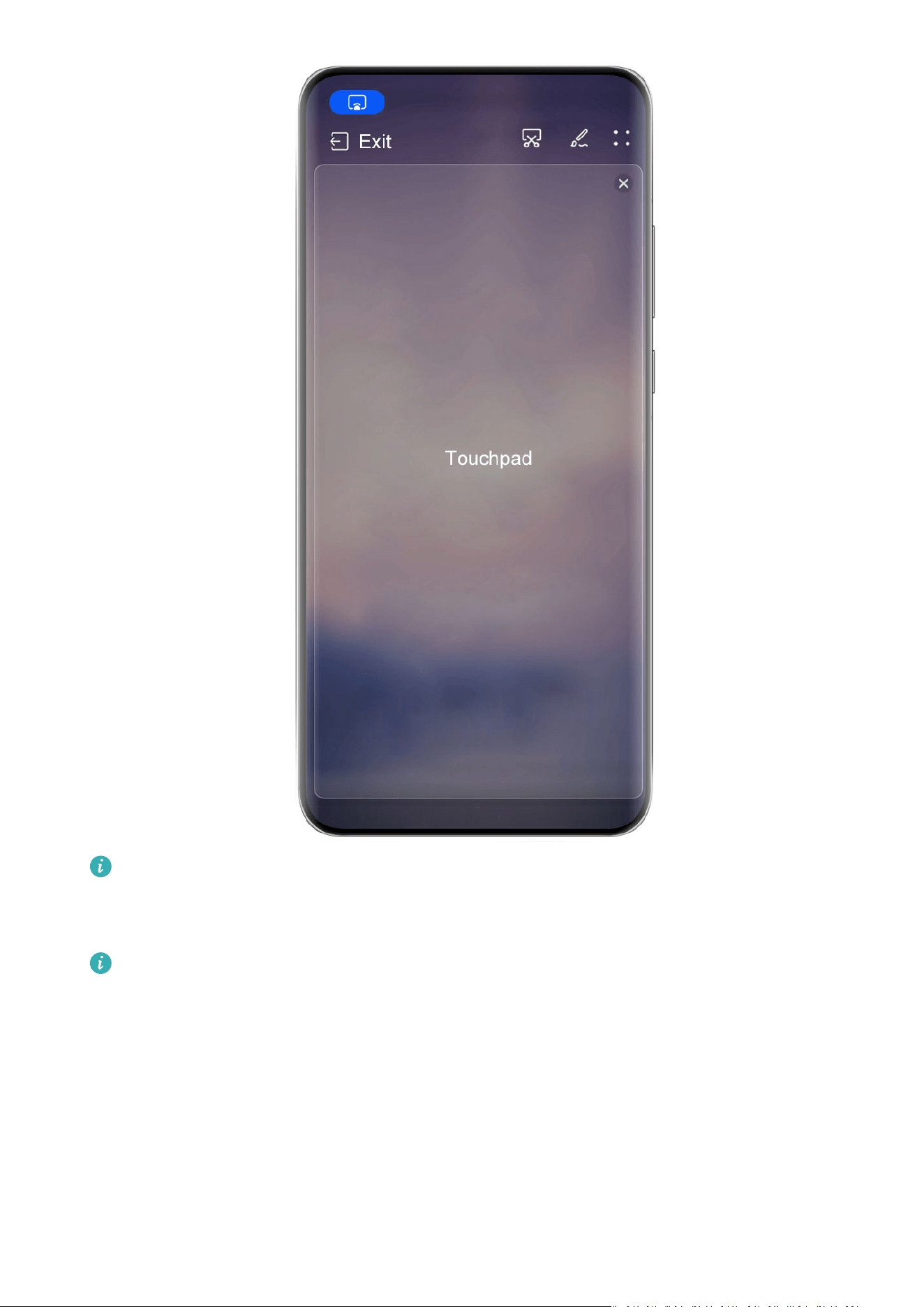
The gures are for reference only.
• When no external k
eyboard is connected, touch the text input box on the large-screen
device to display the onscreen keyboard to input text.
If an external keyboard is connected, the onscreen keyboard will not be available. In
this case, y
ou need to use the external keyboard to input text.
Project the Phone's Screen to the Large-Screen Device to Make Work Easier
In Desktop mode, you can use the following features:
• Multi-window display: Open multiple windows at a time to multitask.
• File management: Save les to the desktop, create les or folders, and rename or delete
les.
• Quick sear
ch: Search for documents, multimedia les, and apps using the start menu
search box.
Settings
104
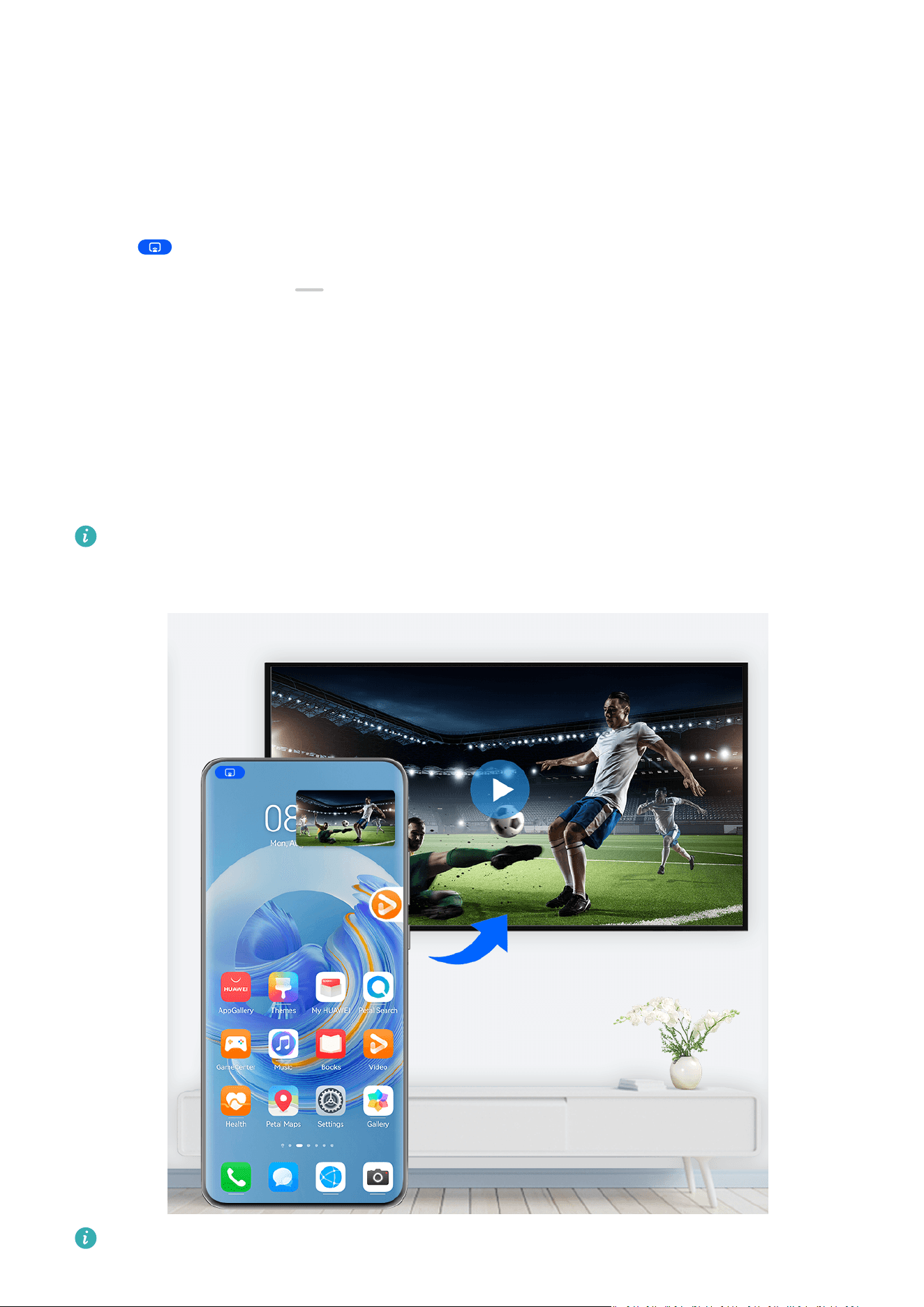
• Quick app pr
ojection: Touch and hold down on an app icon on your phone, and touch the
projection menu to project the app to the large-screen device and open it.
Exit Desktop mode
You can exit Desktop mode in any of the following ways:
• Touch Exit to exit Desktop mode.
• Go to
> Pr
oject screen to return to wireless projection.
• In Control Panel, touch
to expand the shortcut switch panel (depending on your
devic
e model), and touch Wireless Projection to exit wireless projection.
• Swipe down from the upper left edge of your phone to display the notication panel and
touch DISCONNECT to exit wireless projection.
Project the Current App to a Large-screen Device
You can project the current app on your phone to a large-screen device (for example, a
Huawei Vision), while continuing to use and browse other apps on your phone.
App projection is supported on large-screen devices that support the Cast+/Miracast
pr
otocol.
The gures are for reference only.
Settings
105

After wireless projection is enabled on your phone, open the app you wish to project in full-
scr
een mode, go to
> to project the app to the large-screen device, and minimize
the app
, which will appear as a oating ball o to the side on the phone screen.
• Apps in split
-screen or oating-window mode can't be projected.
• To safeguard your privacy, this feature can't be used once your device screen has been
locked.
Touch the projected app in the oating ball to display the app's
oating window, and use this
window to control the app.
You can exit app projection in any of the following ways:
• Go to
> Pr
oject screen to return to wireless projection.
• In Control Panel, touch
to expand the shortcut switch panel (depending on your
devic
e model), and touch Wireless Projection to exit wireless projection.
• Swipe down from the upper left edge of your phone to display the notication panel and
touch DISCONNECT to exit wireless projection.
Display & Brightness
Use Eye Comfort Mode
Eye comfort mode can eectively reduce harmful blue light and adjust the screen to display
w
armer colors, relieving eye fatigue and protecting your eyesight.
Enable or Disable Eye Comfort Mode
• Swipe down from the upper right edge of the screen to display Control Panel and touch
to expand the shortcut switches panel. Enable or disable E
ye Comfort. Touch and hold
Eye Comfort to access the settings screen.
• Go to Settings > Display & brightness > Eye Comfort and enable or disable Enable all
day.
Once Eye Comfort mode is enabled,
will be displayed in the status bar, and the screen
will tak
e on a yellow tint since less blue light is being emitted.
Set a Schedule for Eye Comfort Mode
Go to Settings > Display & brightness > Eye Comfort, enable Scheduled, then set Start and
End according to your preferences.
Settings
106
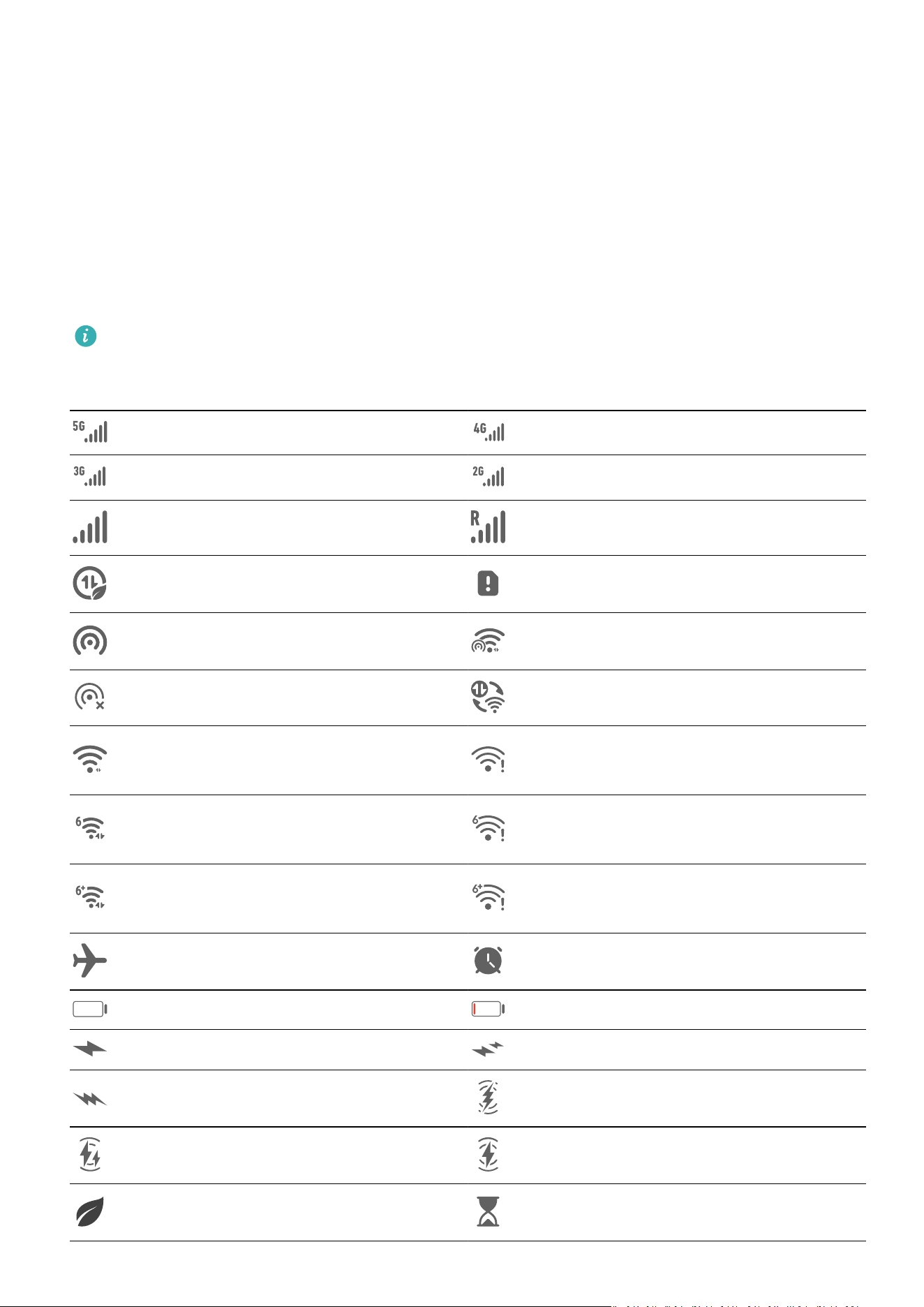
Adjust the Blue Light Filter in Eye Comfort Mode
Go to Set
tings > Display & brightness > Eye Comfort, enable Enable all day or set up
Scheduled, and adjust the slider under Filter level to customize how much blue light you
would like to be ltered.
Notications & status bar
Notication and Status Icons
Network status icons may vary depending on your region or network service provider.
Supported f
eatures vary depending on the device model. Some of the following icons
may not be relevant to your phone.
5G network connected 4G network connected
3G network connected 2G network connected
Full signal strength Roaming
Data saver enabled No SIM card inserted
Hotspot enabled Hotspot connected
Hotspot disconnected Switching networks via Wi-Fi+
Wi-Fi connected
Wi-Fi network is faulty, unable to
c
onnect to the Internet
Wi-Fi 6 connected
Wi-Fi 6 network is faulty, unable
to c
onnect to the Internet
Wi-Fi 6+ connected
Wi-Fi 6+ network is faulty, unable
to c
onnect to the Internet
Airplane mode enabled Alarm set
Battery empty Low battery
Charging Fast charging
Super charging Wireless super charging
Wireless fast charging Regular wireless charging
Power Saving mode enabled Digital Balance enabled
Settings
107
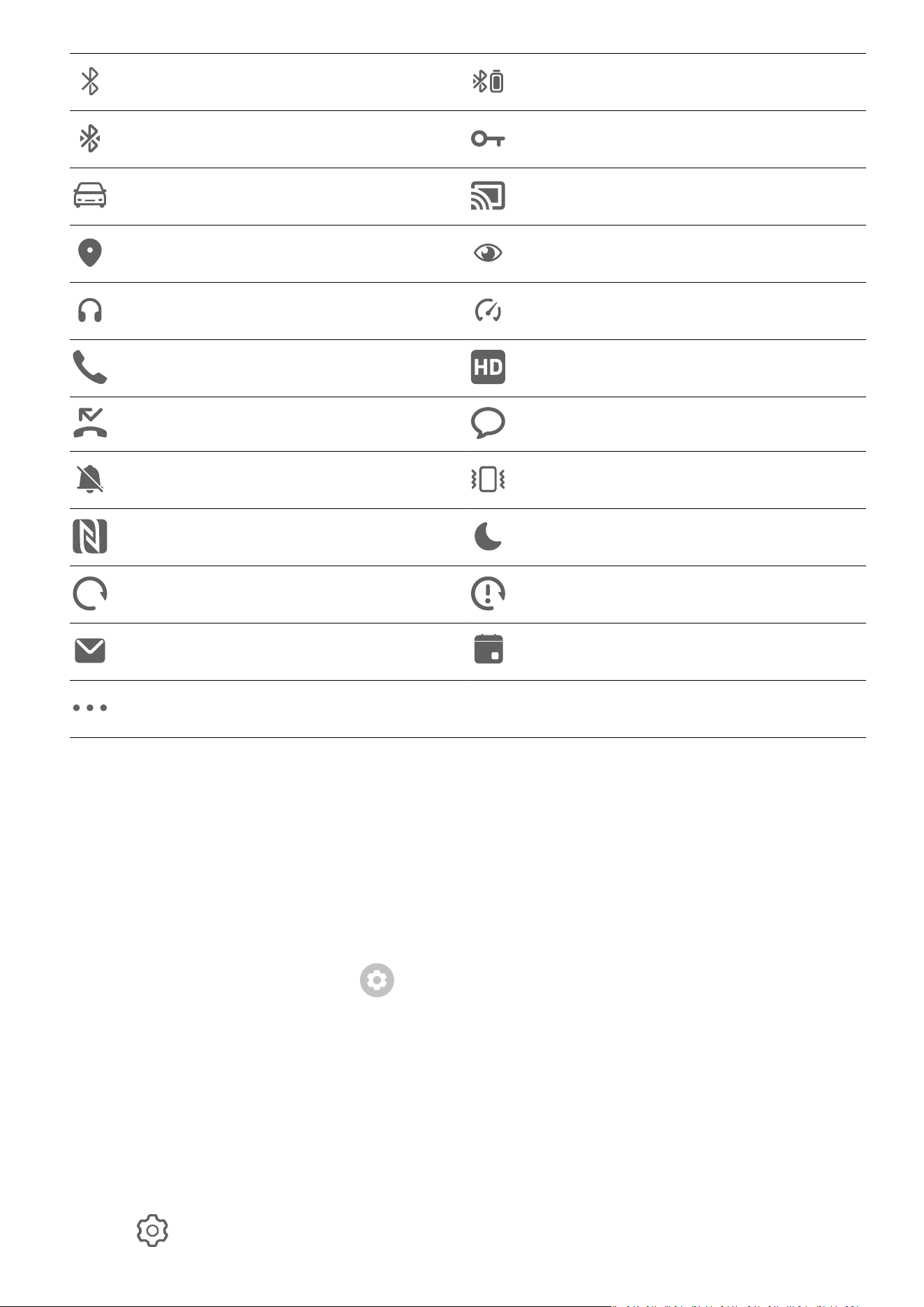
Bluetooth enabled Bluetooth device battery
Bluetooth device connected VPN connected
Driving mode enabled Projection device connected
Location service enabled Eye Comfort enabled
Headset connected Performance mode enabled
Calling VoLTE enabled
Missed call New message
Silent mode Vibration pattern
NFC enabled Do Not Disturb mode enabled
Syncing data Data syncing failed
New email Event reminder
More
notications
Manage the Notications and Status Bar
Pin App
Notications to the Top
You can pin app notications to the top of the notication panel in either of the following
ways:
• Swipe down from the upper left edge of the screen to display the notication panel, swipe
left on a notication, and touch
> Pin to top.
• Go to Set
tings > Notications & status bar, locate and touch the app for which you wish
to pin notications, and enable Pin to top.
Disable App Notications
If you do not want to be disturbed by notications from an app, perform either of the
following:
• After you receive a notication from the app, swipe left on it in the notication panel, and
go to
> D
isable notications.
Settings
108

• Go to Set
tings > Notications & status bar, locate and touch the app for which you want
to disable notications, then disable Allow notications.
• Go to Settings > Notications & status bar > Manage all, and turn o the switch next to
the app.
Hide Content of Notications on the Lock Screen
To enable this feature:
Go to Settings > Notications & status bar, and enable Hide notication content.
Notications Turn on Screen
Go to Settings > Notications & status bar, and enable Wake screen. Your phone will then
automatically turn on the lock screen when it receives a notication.
Manage Notications for Specic Apps
Go to Settings > Notications & status bar, touch an app to go to the notication
management details screen, and enable or disable notications for the app. You can then set
the notication mode within the app, or separate modes for dierent types of notications,
by touching the corresponding notication type (for example, Social), as follows:
The notication types may vary by app.
• Gentle notications: When this switch is turned on, notications will only display in
Notication Panel, and will not appear as banners, lock screen notications, or status bar
ic
ons, nor will your device ring or vibrate.
• Lock screen and Banners: Allows you to select the notication display method.
• Notication tone: Allo
ws you to change the notication tone and set a vibration pattern.
• Allow interruptions: When you enable Allow interruptions for an app, your phone will
still be able to receive notications from this app in Do Not Disturb mode.
Y
ou can also swipe down from the upper left edge of the screen to display Notication Panel,
swipe left on a notication, and go to
> Mor
e settings to manage the app's
notications.
Set the Status Bar to Simple Display
Go to Settings > Notications & status bar > Status bar, and enable Simple display. After
doing so, only the following frequently-used icons will display on the phone status bar by
default: time, Wi-Fi network, mobile signal, and battery level.
Biometrics & Password
Settings
109

Set Fingerprints
Y
ou can enroll a ngerprint and then use it to unlock the screen and access your Safe, App
Lock
, and more.
Add Fingerprints
1 Go to Settings > Biometrics & password > Fingerprint ID and follow the onscreen
instructions to set or enter the lock screen password.
2 Touch New ngerprint or New r
ear ngerprint (depending on your device model) to
begin enrolling your ngerprint.
3 Plac
e your ngertip on the ngerprint sensor. When you feel a vibration, lift your nger
and then press down again. Move your nger around until the entire ngerprint is
captured.
4 Once enrollment is complete, touch OK.
You can now place your nger on the ngerprint sensor to unlock the screen.
Rename or Delete a Fingerprint
1 Go to Settings > Biometrics & password > Fingerprint ID and enter your lock screen
password.
2 In the Fingerprint list section, touch an enrolled ngerprint to rename or delete it.
Fingerprint Identication
Fingerprint identication allows you to match your ngers with the enrolled ngerprints.
1 Go to Set
tings > Biometrics & password > Fingerprint ID and enter the lock screen
password.
2 In the Fingerprint list section, touch Identify ngerprint.
3 T
ouch the ngerprint sensor with your nger. The recognized ngerprint will be
highlighted.
Use Your Fingerprint to Access Your Safe
1 Go to Settings > Biometrics & password > Fingerprint ID and enter your lock screen
password.
2 Turn on the switch for Access Safe and follow the onscreen instructions to link your
ngerprint with the Safe.
No
w you can go to Files > Me, touch Safe, then use your ngerprint to access it.
Please make sure your device has been updated to the latest system version.
Use Your Fingerprint to Access a Locked App
1 Go to Set
tings > Biometrics & password > Fingerprint ID and enter the lock screen
password.
2 Turn on the Access App Lock switch and follow the onscreen instructions to link your
ngerprint with App Lock.
Settings
110

You can then touch a locked app on your home screen and use your ngerprint to access it.
Enable and Use Fingerprint P
ayment
You can use your ngerprint to verify your payments in a payment app.
Go to the payment app and follow the onscreen instructions to enable this feature.
Set a Fingerprint Animation
If you have added your ngerprint, you can select an animation to be displayed whenever
you unlock with your ngerprint.
Go to Settings > Biometrics & password > Fingerprint ID > Fingerprint animation and
follow the onscreen instructions to complete the settings.
Face Recognition
3D Face Recognition utilizes more information than traditional face recognition technology to
further enhance your device security. Time-of-Flight (ToF) 3D imaging technology makes face
recognition possible even in dark environments.
You can unlock your phone, make payments, and access locked apps using your facial data.
You can also enroll an alternate look for even greater convenience.
Set up Face Recognition
1 Go to Settings > Biometrics & password > Face Recognition, and enter your lock screen
password.
If you haven't set the lock screen password, follow the onscreen instructions to do so.
2 Some phones support screen wakeup when you raise the device. If you can nd the
Enable r
aise to wake setting option on your device, you can enable it as needed.
The settings items vary by device. If your phone does not provide a specic item, it
indicates that the c
orresponding feature is not supported.
3 T
ouch Get started, position your face in front of your phone, and follow the onscreen
instructions to enroll your facial data.
Set an Alternate Look
You can add an alternate look for more accurate and convenient face recognition.
On the Face Recognition screen, touch Set an alternate look, and follow the onscreen
instructions to enroll the alternate facial data.
Set Face Unlock
On the Face Recognition screen, touch Unlock device and select an unlock method.
Some phones support Require eye contact. When this is enabled, you will need to keep your
eyes open while unlocking the device with your face. If you can't nd this switch on your
device, it means that this feature is not supported.
Settings
111

If you have enabled PrivateSpace, you'll only be able to use Face unlock in MainSpace. If
y
ou have added multiple users, you'll only be able to use Face unlock with the Owner
account.
Enable and Use Face Payment
Currently, HUAWEI phones support face payment on apps such as Alipay.
The method of enabling face payment varies depending on the apps. For details, contact
the app dev
eloper.
Access App Lock with Face Recognition
On the Face Recognition screen, enable Access App Lock, and follow the onscreen
instructions to add your facial data to App Lock.
You can then touch a locked app on your home screen and use face recognition to access the
app.
Link Your Face with Password Vault
Access the Face Recognition screen and enable Autoll usernames and passwords.
When logging in to an app, you can use Face Recognition to automatically ll in the account
name and password saved in Password Vault.
Bolster Your Device Security, with Face Recognition
Enable Require trusted device when using Face unlock to ensure that your phone will only
unlock when it detects your face and is connected to a trusted device.
This feature is disabled by default. To enable it, go to the Face Recognition settings screen,
touch Require trusted device, turn on the Require trusted device switch, and follow the
onscreen instructions to complete the settings.
A trusted device can be any Bluetooth device that can be used for unlocking purposes,
such as earphones, a w
atch, or a band.
Disable or Delete Facial Data
Go to the Face Recognition screen to:
• Prevent certain features from accessing your facial data: Disable Unlock device, Access
App Lock, or other features, to prevent them from using your facial data. Doing so won't
delete your facial data.
• Delete facial data: Touch Delete facial data to delete your facial data. You'll have to enroll
your face once again if you want to use the facial recognition feature later on.
Storage
Settings
112

Clean Up Phone Storage
Cleanup in O
ptimizer helps you scan for redundant or large les, such as residual app les,
unwanted installation packages, WeChat data, and more. Once detected, you can choose
whether or not to delete individual les. This tool can also compress duplicate les and less
fr
equently-used apps to free up space.
Compress Apps and Files to Free up Space
1 Go to Optimizer, and touch Cleanup.
2 Once the scan is complete, touch Compress in the Recommended for compression list,
and follow the onscreen instructions to compress duplicate les and rarely-used apps to
fr
ee up storage space.
Compression will not change the storage location, quantity, or quality of les, nor aect
the running of apps.
Manually Clean the System Trash
1 Go to O
ptimizer, and touch Cleanup.
2 Once the scanning is complete, touch Clean up next to Junk les. You can also touch
Clean up next to other items, select the items to be cleaned, and touch DELETE.
Clean Up W
eChat Data
Over an extended period of use, WeChat will accumulate a large amount of data, including
cache les, chat videos, audio les, emojis, and more. Optimizer can scan for unwanted
WeChat data for you to clean up by category or by chat thread.
On the Cleanup screen, and touch WeChat. Then you can:
• Clean up Cached les, Cached videos, and Favorites.
• Go to WeChat to delete data from chats.
• Perform targeted cleanups of Chat images, Chat videos, Chat audios, and more.
Clean Up Duplicate Files
Optimizer can identify duplicate les on your phone.
On the Cleanup scr
een, touch Duplicate les, then select unwanted les to delete them.
Security
Keep Your Phone Under Lock-and-Key with Security Center
Security Center provides you with your phone's real time security status, and handy tips,
making it easy to set a wide range of high-level security safeguards.
Settings
113

Check the Security Status of Your Device
Y
our phone will display the security status of this device and devices connected via Super
Device, and logged in to the same HUAWEI ID as well. You can also view security tips and
records for all of these devices.
This feature is currently supported on phones and tablets running EMUI 13.0 or later.
Mor
e devices will be supported in the future.
Go to Settings > Security. Your phone will display the security status of this device and
devices connected via Super Device, and logged in to the same HUAWEI ID as well.
A green sign indicates that your device is in good condition. A yellow sign indicates that your
device has security risks. A red sign indicates that your device is at high risk, and should be
optimized as soon as possible.
Touch this device, to do the following:
• View and set security features: This device will display its current security status. You can
touch specic features to set or apply them. For example, you can touch Lock screen
password, and follow the onscreen instructions to set it.
• View security suggestions: This device will provide you with security suggestions based on
the device settings. Feel free to touch the button next to each suggestion, and follow the
onscreen instructions to optimize your safeguards.
• View recent security records: You can nd your recent security records in a list, for a
better sense of how to protect your device.
Touch a connected device to view its security status. If you would like to modify the settings,
follow the onscreen instructions on the corresponding device.
Set Security Features for Your Phone
Go to Settings > Security, touch the features you wish to set, such as App Lock and
Password Vault, and follow the onscreen instructions to complete the process.
View Security Suggestions on Your Phone
Feel free to view the recommended safeguards on your phone, and apply them on a case-by-
case basis.
To do so, go to Settings > Security, and touch the switch next to the suggestion you wish to
optimize, or follow the onscreen instructions to go to the corresponding screen and optimize
the settings.
If you wish to ignore a suggestion, swipe left on the suggestion, and touch
.
Priv
acy
Settings
114

View and Manage the Privacy Settings on Your Phone
Find priv
acy tips, privacy permissions, and app privacy behavior logs on your phone, by
visiting the privacy center. When an app uses a sensitive permission, your phone will inform
you in real time, so that you can make timely adjustments, when necessary.
• Priv
acy behavior logs are analyzed and displayed solely on your phone, and will not be
uploaded to the cloud.
• Some system apps will not display permission reminders or privacy suggestions when
using permissions.
View Permission Access Notications
Your phone will inform you of any sensitive permissions that are being used on the status bar,
and display the app information on Control Panel in real time. From there, you can choose to
manage these permissions on a case-by-case basis.
For example, when an app uses the microphone permission, the microphone icon will display
on the status bar. You can swipe down from the upper right edge of your phone to display
Control Panel, and check which app is using this permission at the top.
Touch the app name to view the recent sensitive permission logs for the app, or to disable
specic permissions for the app.
Real-time access notication is only supported for certain sensitive permissions.
View Sensitive Permission Records
Y
ou can view records related to sensitive permission usage and recent app privacy behavior in
the privacy dashboard.
To do so, go to Settings > Privacy, and touch the permission icon, app icon, or
next to
the permission ic
on on the dashboard.
Touch View full history to view records of lock screen data access, frequent data access, and
app privacy behavior.
Bolster Image Privacy Protections
Concerned that certain third-party apps might obtain sensitive information from images in
the background, or the image information may be leaked when you share images on social
media, just enable Image privacy for ultimate peace of mind.
Go to Settings > Privacy, touch Image privacy, and enable Remove location info and
Remove other info.
Once this feature has been enabled, third-party apps, rather than system apps, for example
Gallery, will not be able to obtain sensitive image information, such as the locations, device
models, and times when the images were taken.
Settings
115

Get Tips on How to Protect Your Privacy
When y
our phone detects that your privacy settings are risky or can be optimized, it will
provide handy tips that are easy to apply.
Go to Settings > Privacy, and follow the onscreen instructions to touch the button next to
each suggestion.
If you wish to ignore a suggestion, swipe left on the suggestion, and touch
. The system
will not c
ontinue to remind you, if you ignore the same suggestion twice.
Accessibility Features
Use the Accessibility Features on Your Phone
Accessibility features, like screen-reading apps, magnication gestures, and screen color
c
orrections, make the phone easier to navigate and more friendly to visually-impaired users.
Enable Color Correction to Customize the Screen Color
Color correction helps people with poor eyesight see the screen content more easily.
1 Go to Settings > Accessibility features > Accessibility > Color correction and enable
Color correction.
2 Touch Correction mode to select a color correction mode.
Use Magnication Gestures
Use magnication gestures to zoom in on the screen.
On the Ac
cessibility > Magnication screen, touch Magnication, then enable it.
Zoom in or out by touching the screen three times in a row.
• While zoomed in, spread two or more ngers to further zoom in, then pinch two or more
ngers together to zoom back out.
• Drag the screen with two or more ngers to view other parts of the screen.
Enable Color Inversion
Color inversion allows you to invert the color of the text and the background. When Color
inversion is enabled, your phone will display text in white and the background in black.
On the Accessibility screen, enable Color inversion.
Use a Shortcut to Activate an Accessibility Feature
You can use Volume buttons to quickly activate an accessibility feature.
1 On the Accessibility screen, touch Accessibility shortcut.
2 Touch Select feature to select the feature you want to activate with the shortcut.
Settings
116

3 Enable Ac
cessibility shortcut. You can now press and hold the Volume up and down
buttons simultaneously for 3 seconds to activate the feature.
Adjust the Screen Touch Duration
You can adjust the touch duration and long touch duration, and set the time within which
repeated touches will be ignored.
On the Accessibility settings screen, touch Touchscreen settings, then you can perform the
following:
• Touch Touch duration, and set the touch duration as required.
• Touch Touch & hold duration, and set the long touch duration as required.
• Enable Ignore repeated touches, and drag the slider to set the time interval for repeated
screen touches as required.
Connect to a Hearing Aid Device via Bluetooth
Link your phone with a hearing aid device that supports Bluetooth low energy technology, to
hear calls and audio loud and clear.
1 Swipe down from the upper right corner of the phone to display Control Panel, and
enable Bluetooth.
2 Pair your phone with a hearing aid device that supports Bluetooth low energy technology
via Bluetooth.
3 Once the connection is established, simply put on your hearing aid device to answer calls
and listen to audio directly on it.
You can also manually switch the playback device.
• MeeTime/Voice calls: On the call screen, touch
to switch between them.
If there is no option on the call screen, it means that you won't be able to use
the hearing aid devic
e to answer calls.
• Audio playback: Swipe down from the upper right corner of your phone to display
Control Panel, and touch
in the audio control panel to switch the playback
devic
e.
You can also go to Settings > Accessibility features > Accessibility > Hearing aids, and
follow the onscreen instructions to set the hearing aid device (for example, adjust the
volume).
Pool Text and Images with SuperHub
Drag text, images, and les on dierent screens to SuperHub, where they are temporarily
stored, and then drag individual items, or multiple items, to other apps as needed.
Settings
117
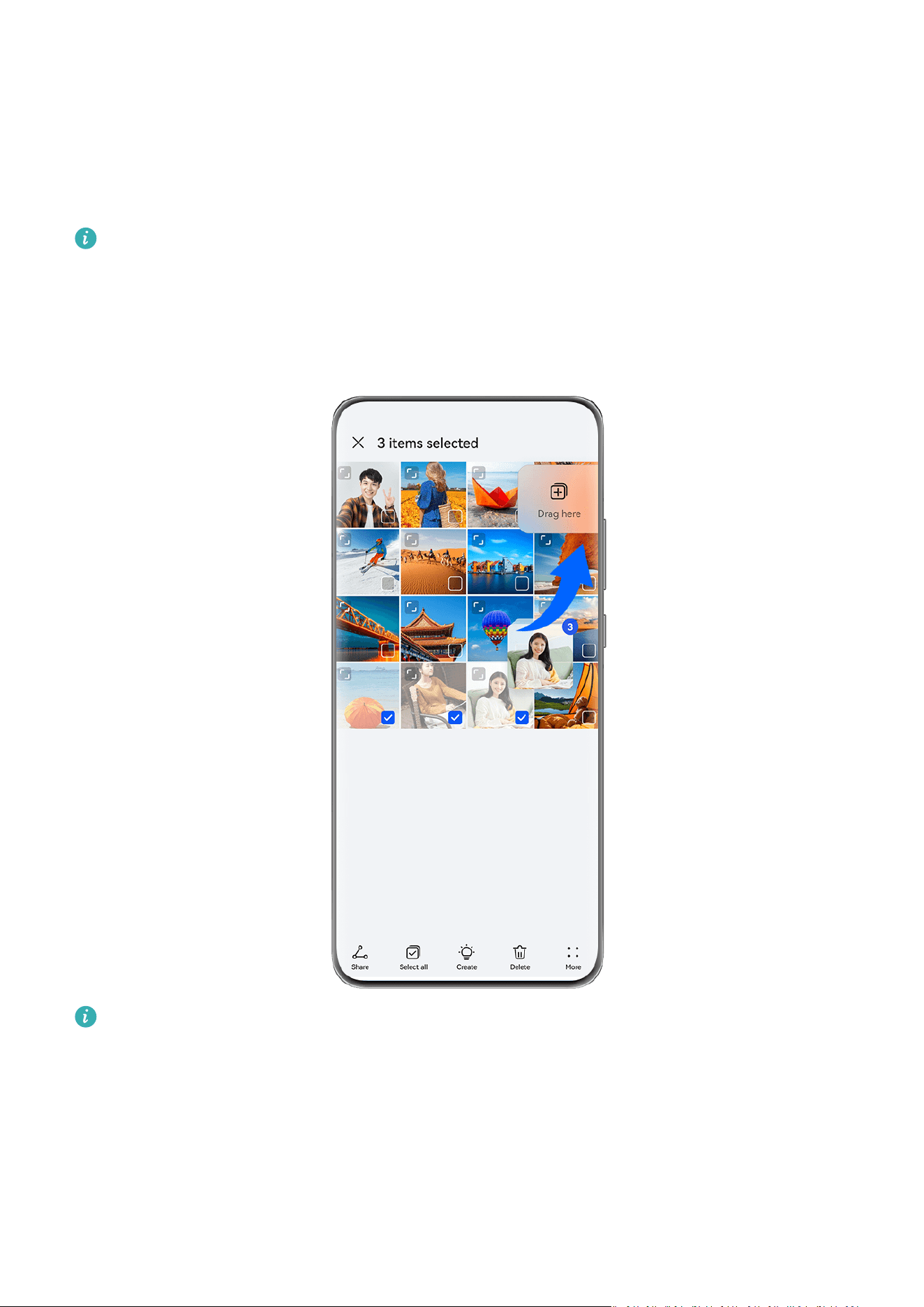
Pool Content from Dierent Screens
Select text
, images, or les within an app, touch and hold down on the content until it starts
oating, and drag the content to the SuperHub oating window.
If you select multiple images or les at the same time, the selected content will stack up in
SuperHub. You can touch the stacked content to view its details.
• If the SuperHub
oating window does not pop up after you touch and hold down on
the content, go to Settings > Accessibility features > SuperHub, and enable Show on
drag.
• Drag-and-drop operations are only supported in certain apps.
The gures are for reference only.
Drag Content to Other Apps
Drag content in SuperHub to apps like Notepad or Email for editing, or to apps like Files or
Gallery for storage.
Settings
118
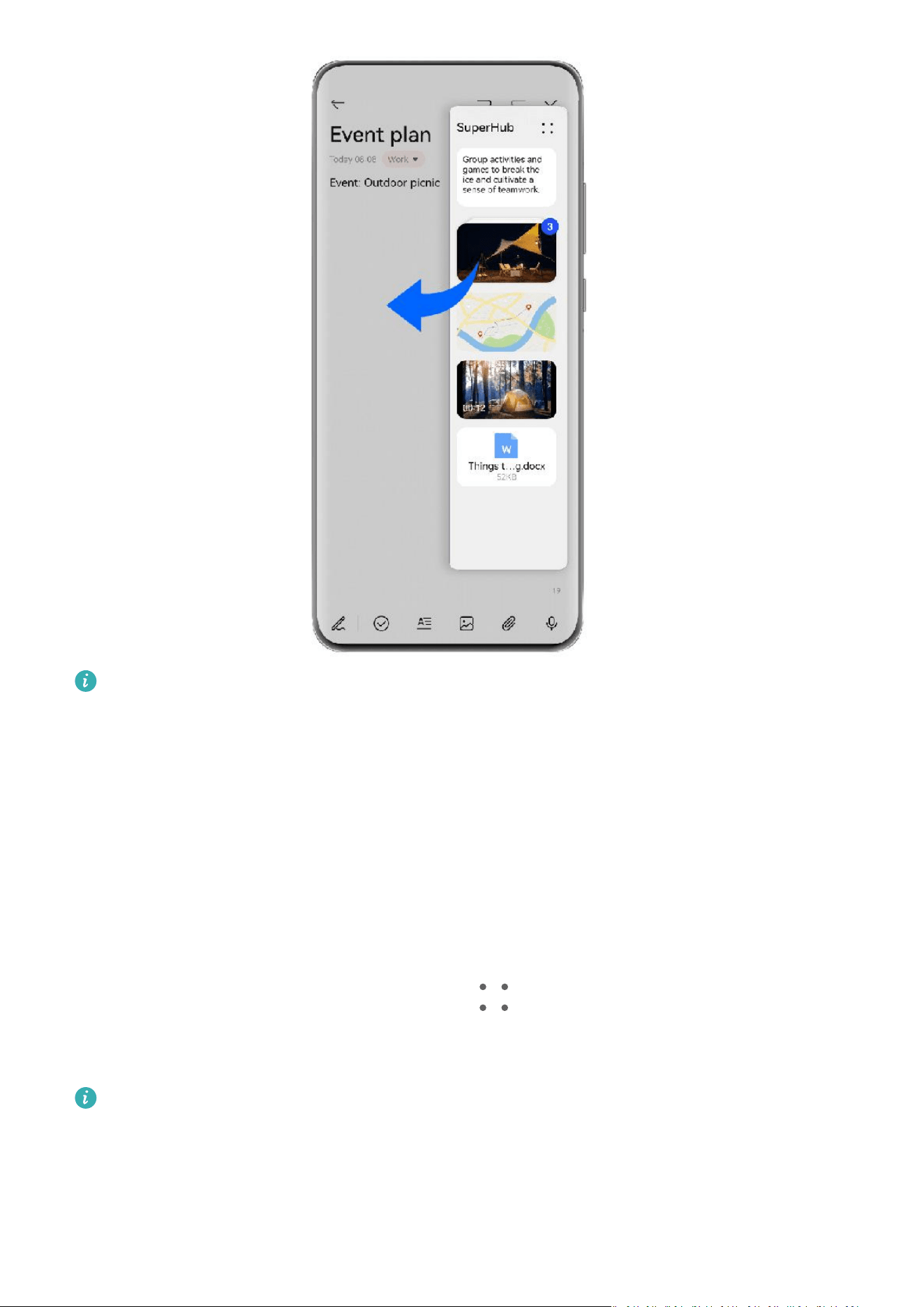
The gures are for reference only.
For example, when editing a note in Notepad, feel free to:
• Dr
ag out all items: Touch and hold down on the SuperHub oating window, wait for the
content to start oating, and drag all items to the note at once.
• Drag out individual items: Touch the SuperHub oating window to expand SuperHub,
touch and hold down on the item that you wish to transfer, wait for the item to start
oating, and drag it to the note.
You can also touch the stacked content in SuperHub to view details, and drag individual
items out as needed.
• Drag out multiple items: Touch the SuperHub oating window to expand SuperHub,
touch and hold down on the content or go to
> Select, select the items that y
ou wish
to transfer, touch and hold down on these items, wait for them to start oating, and drag
them to the note.
Drag-and-drop operations are only supported in certain apps.
Settings
119

Manage SuperHub
Delet
ing content from SuperHub: Touch the SuperHub oating window to expand
SuperHub, touch and hold down on the content or go to
> Select, select the items that
y
ou wish to delete, and touch Delete.
Closing the SuperHub oating window: Touch the SuperHub oating window to expand
SuperHub, and go to
> Close. Onc
e closed, content in SuperHub will be transferred to
History, which will overwrite the previously used content.
History: Touch the SuperHub oating window to expand SuperHub, and swipe up from the
bottom of SuperHub to view and use History.
Clipboard: Touch the SuperHub oating window to expand SuperHub, and go to
>
Clipboar
d to view and use the recently cut or copied text.
Drag Content to Other Devices
If you wish to complete an unnished task on another device, you can transfer the content
from SuperHub to another device capable of SuperHub with just a touch.
1 Make sure that Wi-Fi and Bluetooth are enabled on both this device and the target
device, and that both devices are logged in to the same HUAWEI ID.
2 On this device, touch the SuperHub oating window to expand SuperHub, touch and
hold do
wn on the content or go to > Select, select the items that y
ou wish to
transfer, touch Hop, and touch the name of the target device to transfer the items to
SuperHub on the target device.
Unable to Find the Target Device During Transfers
To transfer content between devices, both of the following conditions must be met:
1 Make sure that the operating systems of this device and target device are EMUI 13.0 or
later, and that both devices support SuperHub. (This feature will be made available on
more models.)
If the target device does not display the SuperHub option, it indicates that this feature is
not supported by the target device.
2 Make sure that Wi-Fi and Bluetooth are enabled on both this device and the target
device, and that both devices are logged in to the same HUAWEI ID.
Write with a Stylus
A stylus can perfectly capture the unique character of your writing style and make you feel as
if you are writing or painting on paper. You can use it to take quick notes, perform standard
touchscreen operations, such as taking screenshots, or use it with special apps for a more
interactive and dynamic writing and drawing experience.
When using the stylus for the rst time, open the stylus cap and insert the stylus into the
char
ging port of your phone, then follow the onscreen instructions to complete the pairing.
Settings
120

The stylus can be connected to a maximum of four devices at the same time (depending on
y
our device model).
The stylus will power o if left inactive for a certain period of time. In this case, press the
Smart key on the stylus or insert the stylus into your phone to resume the connection.
After pairing, you can:
• Quickly access Notepad: Press and hold the Smart key on the stylus, then tap the screen to
quickly open Notepad.
• Capture screenshots: When the screen is on, press and hold the Smart key on the stylus,
then tap the screen twice to take a screenshot, draw a closed shape to capture part of the
screen, or draw an "S" to take a scrollshot.
• Learn more about the stylus: Go to Settings > Accessibility features > Stylus. You can also
touch Firmware update to update the stylus rmware.
HUAWEI M-Pen 2 is not supported on all phone models.
About Phone
Legal Not
ice
Copyright © Huawei 2022. All rights reserved.
Settings
121

This guide is for reference only. The actual product, including but not limited
to the c
olor, size, and screen layout, may vary. All statements, information,
and recommendations in this guide do not constitute a warranty of any kind,
express or implied.
Please visit https://consumer.huawei.com/en/support/hotline for recently
updated hotline and email address in your country or region.
Model:
DCO-LX9
EMUI13.0_01