
USER GUIDE & SUPPORT

YOU HAVE A 1 YEAR WARRANTY

TABLE OF CONTENTS
4
PARTS GUIDE
SMARTPHONES WITH 3.5MM EARPHONE PORT
IPHONE - MIC SETUP
ANDROID - MIC SETUP
ANDROID - MIC NOT RECOGNIZED
IPAD - MIC SETUP
TABLET - MIC SETUP
ZOOM [H1N / H2N / H4N] - MIC SETUP
ZOOM [H5 / H6] - MIC SETUP
TASCAM - MIC SETUP
OTHER AUDIO RECORDERS
GOPRO - MIC SETUP
DSLR - MIC SETUP
TROUBLESHOOTING
NEED MORE HELP?
SPECIFICATIONS
1
2
3
4
5-6
7
8
9
10
11
12
13
14
15-17
18
19
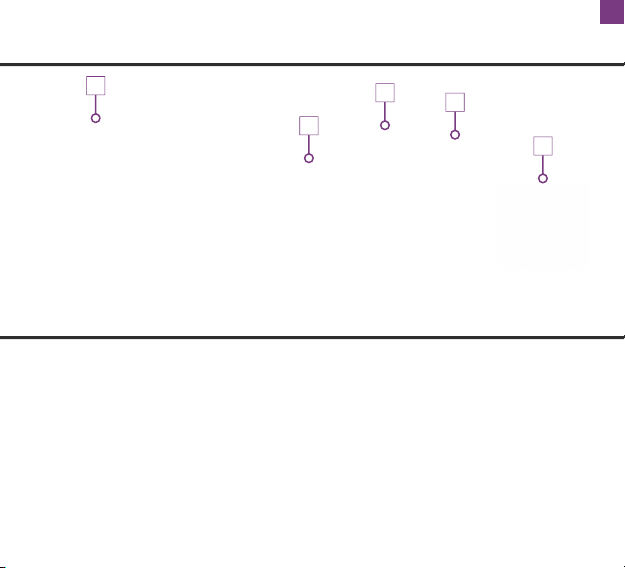
Microphone with TRRS Connector
9.8ft (3m) Extension Cord with TRRS Connector
TRS (2-Ring) Adapter
Mini USB Adapter
Fuzzy Windscreen for Windy Environments
1.
2.
3.
4.
5.
1
2
3
4
5
PARTS GUIDE
1
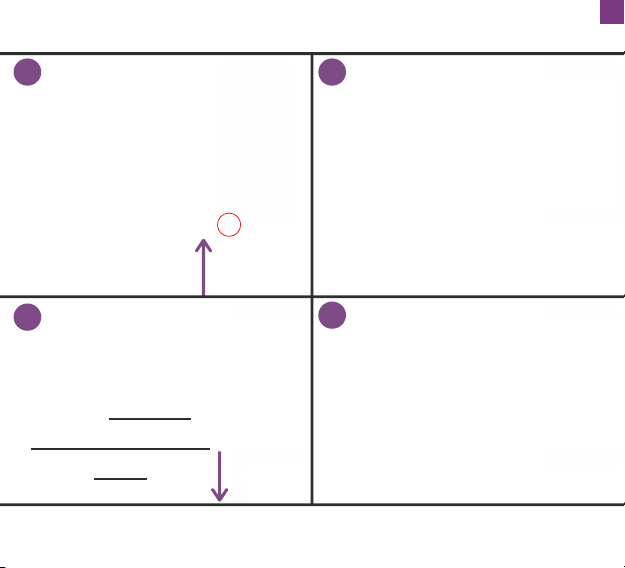
SMARTPHONES WITH 3.5MM EARPHONE PORT
1 2
INSERT
RECORD
"CLICK"
CONNECT THE
MICROPHONE PLUG
FIRMLY INTO THE
EARPHONE PORT OF
YOUR SMARTPHONE
3
UNPLUG
4
PLAY
PRESS THE "PLAY"
BUTTON TO LISTEN
TO YOUR RECORDING
AFTER UNPLUGGING
THE MICROPHONE
ATTACH THE MIC TO
YOUR SHIRT AND
START RECORDING
USING THE PHONE'S
RECORDING APP
FOR DEVICES WITHOUT AN EARPHONE PORT, READ FURTHER
INSTRUCTIONS
TO LISTEN TO YOUR
RECORDING YOU
MUST UNPLUG
THEMICROPHONE
FIRST
2
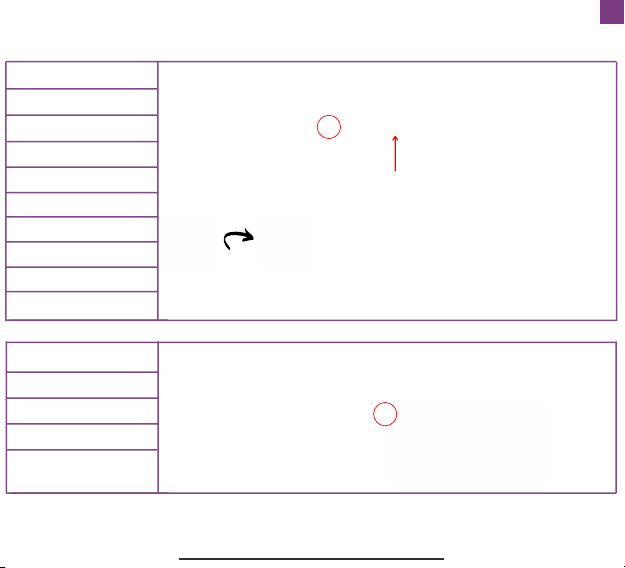
IPHONE - MIC SETUP
iPhone 11 Pro
iPhone 8 Plus
iPhone 7
iPhone 6S Plus
iPhone 6
iPhone SE & Older
Models
iPhone 11 Pro Max
iPhone XS
iPhone XS Max
iPhone XR
iPhone X
iPhone 8
iPhone 7 Plus
iPhone 6S
iPhone 6 Plus
TURN OVER
MIC
NOT INCLUDED: LIGHTNING TO 3.5 MM
HEADPHONE JACK ADAPTER
(SOLD SEPARATELY BY APPLE, OR
INCLUDED WITH YOUR IPHONE 7, 7
PLUS, 8, 8 PLUS, AND X AT THE BACK OF
THE EARPHONES PACKAGE IN THE BOX)
MIC
CONNECT THE MIC PLUG FIRMLY
UNTIL YOU HEAR A “CLICK”
IMPORTANT: TO LISTEN TO YOUR RECORDING YOU MUST
UNPLUG THEMICROPHONE
CONNECT THE MIC PLUG FIRMLY
UNTIL YOU HEAR A “CLICK”
3
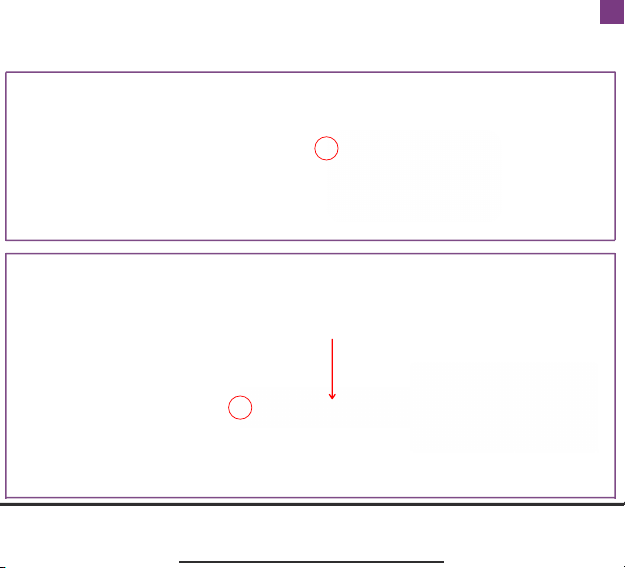
ANDROID - MIC SETUP
SMARTPHONES WITHOUT AN EARPHONE PORT REQUIRE A
USB-C TO 3.5MM ADAPTER: NOT INCLUDED
SOLD SEPARATELY BY THE PHONE COMPANY (EG. SAMSUNG)
IMPORTANT: TO LISTEN TO YOUR RECORDING YOU MUST
UNPLUG THEMICROPHONE
MIC
MIC
CONNECT THE MIC PLUG FIRMLY
UNTIL YOU HEAR A “CLICK”
CONNECT THE MIC PLUG FIRMLY
UNTIL YOU HEAR A “CLICK”
4
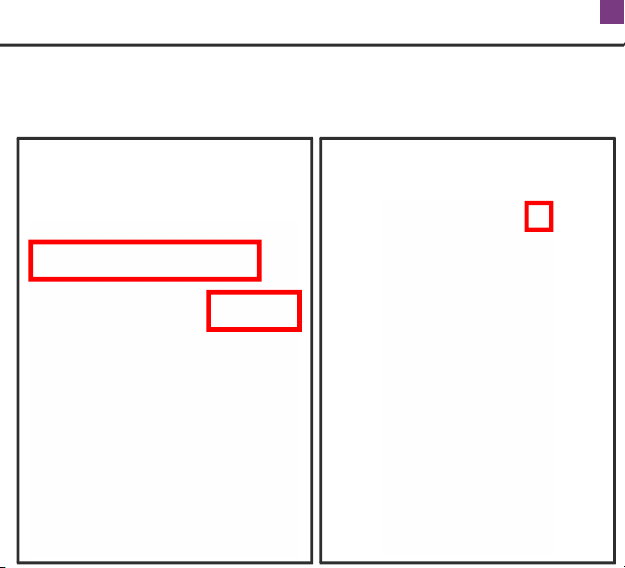
ANDROID - MIC NOT RECOGNIZED
SOME ANDROID PHONES REQUIRE AN EXTERNAL APP FOR THE
MIC TO WORK. DOWNLOADING THE OPEN CAMERA APP WOULD
BE AN EASY FIX, PLEASE TAKE THE FOLLOWING STEPS:
1. Launch the Play Store and
search for "Open Camera" then
press on "Install"
2. Launch the Open Camera app
then press on the settings icon
5
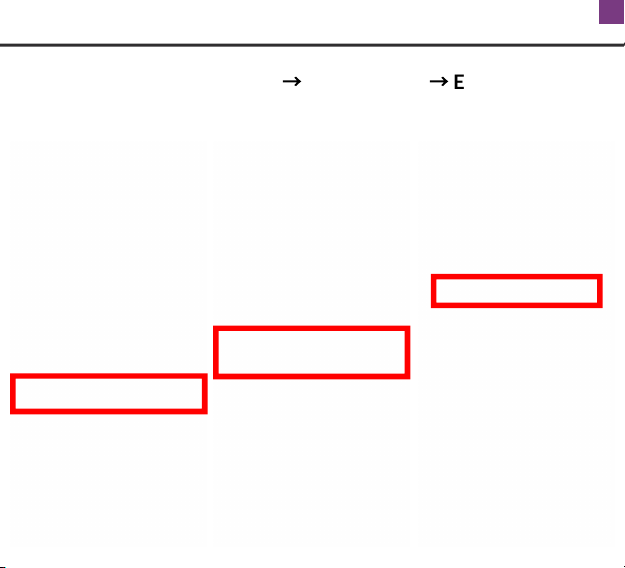
ANDROID - MIC NOT RECOGNIZED
3. Select Video Settings...
→
Audio Source
→
External Mic
Then create your video recording using the Open Camera app
6
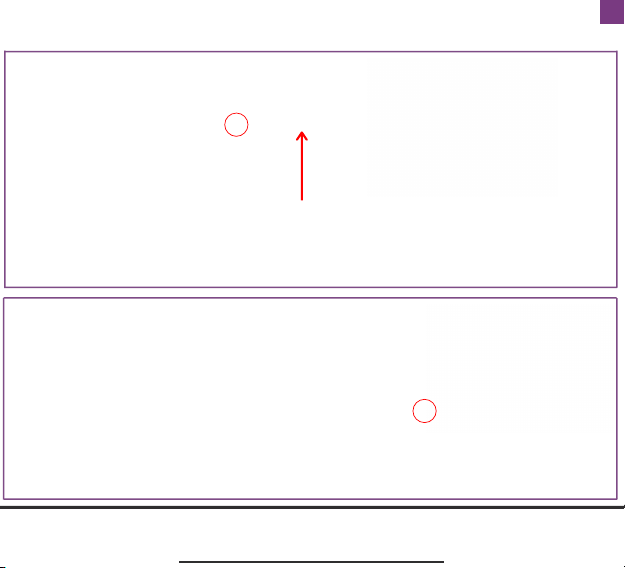
IPAD - MIC SETUP
IMPORTANT: TO LISTEN TO YOUR RECORDING YOU MUST
UNPLUG THEMICROPHONE
NEWER MODELS (12.9‐INCH IPAD PRO, 11‐INCH IPAD PRO, ETC.)
REQUIRE THE USB-C TO 3.5MM ADAPTER: NOT INCLUDED
SOLD SEPARATELY BY APPLE
CONNECT THE MIC PLUG FIRMLY
UNTIL YOU HEAR A “CLICK”
FOR MODELS WITH A 3.5MM EARPHONE PORT
(IPAD AIR, IPAD MINI, AND CLASSIC IPAD),
CONNECT THE MIC PLUG DIRECTLY INTO IPAD
MIC
MIC
CONNECT THE MIC PLUG FIRMLY
UNTIL YOU HEAR A “CLICK”
7
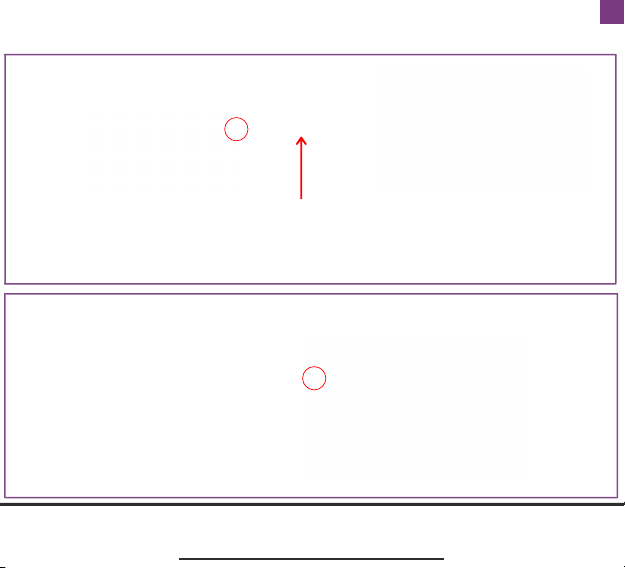
IMPORTANT: TO LISTEN TO YOUR RECORDING YOU MUST
UNPLUG THEMICROPHONE
FOR MODELS WITH A 3.5MM EARPHONE PORT
CONNECT THE MIC PLUG DIRECTLY INTO THE TABLET
TABLETS WITHOUT AN EARPHONE PORT REQUIRE A
USB-C TO 3.5MM ADAPTER: NOT INCLUDED
SOLD SEPARATELY BY THE TABLET COMPANY (EG. SAMSUNG)
TABLET - MIC SETUP
MIC
CONNECT THE MIC PLUG FIRMLY
UNTIL YOU HEAR A “CLICK”
MIC
CONNECT THE MIC PLUG FIRMLY UNTIL YOU HEAR A “CLICK”
8

IMPORTANT: “PLUG-IN POWER” MUST BE TURNED ON ON YOUR
DEVICE FOR THE MIC TO WORK
ZOOM H1n / ZOOM H2n / ZOOM H4n
ZOOM - MIC SETUP
H4n: Go to “Menu” > “Input” > “PLUG-IN” > ON
H2n: Go to “Menu” > “Input” > “Plug-in Power” > ON
H1n: Plug-in power is turned on automatically
MIC
CONNECT FIRMLY UNTIL YOU
HEAR A “CLICK”
.
4. Adjust the input level as desired on the Zoom recorder and
record
TRS ADAPTER
Connect the Microphone Plug into the TRS adapter tightly
until you hear a “CLICK”
Plug the TRS adapter tightly into the “LINE IN” jack on the
Zoom recorder
Turn ON “Plug-in Power” from Zoom recorder settings
1.
2.
3.
9

ZOOM - MIC SETUP
IMPORTANT: “PLUG-IN POWER” MUST BE TURNED ON ON YOUR
DEVICE FOR THE MIC TO WORK
ZOOM H5 / ZOOM H6
H6: Go to “Menu” > “Input & Output” > “Plugin Power” > ON
TRS ADAPTER
MIC
CONNECT FIRMLY UNTIL YOU
HEAR A “CLICK”
H5: Go to “Menu” > “IN/OUT” > “PLUGIN POWER” > ON
4. Adjust the input level as desired on the Zoom recorder and
record
Connect the Microphone Plug into the TRS adapter tightly
until you hear a “CLICK”
Plug the TRS adapter tightly into the “LINE IN” jack found on
the X/Y Mic Capsule
Turn ON “Plug-in Power” from Zoom recorder settings
1.
2.
3.
10

TASCAM - MIC SETUP
Connect the Microphone Plug into the TRS adapter tightly
until you hear a “CLICK”
Plug the TRS adapter into the “MIC/EXT IN” jack on the
TASCAM recorder
Turn ON “MIC POWER” from TASCAM recording settings
1.
2.
3.
MIC
TRS ADAPTER
CONNECT FIRMLY UNTIL YOU
HEAR A “CLICK”
TASCAM DR05: Go to “Menu” > Rec Setting > Mic Power > ON
For other models: Refer to TASCAM device manual for
instructions to turn on mic power setting
IMPORTANT: “MIC POWER” MUST BE TURNED ON ON YOUR
DEVICE FOR THE MIC TO WORK
4. Adjust the input level as desired on the TASCAM recorder
and record
11

OTHER AUDIO RECORDERS
MIC
TRS ADAPTER
CONNECT FIRMLY UNTIL YOU
HEAR A “CLICK”
IMPORTANT: “MIC POWER” MAY NEED TO BE TURNED ON ON
YOUR DEVICE FOR THE MIC TO WORK
AUDIO RECORDERS OTHER THAN ZOOM AND TASCAM MAY
OR MAY NOT BE COMPATIBLE
PLEASE FOLLOW THE ZOOM INSTRUCTIONS (PAGE 7-8)
12
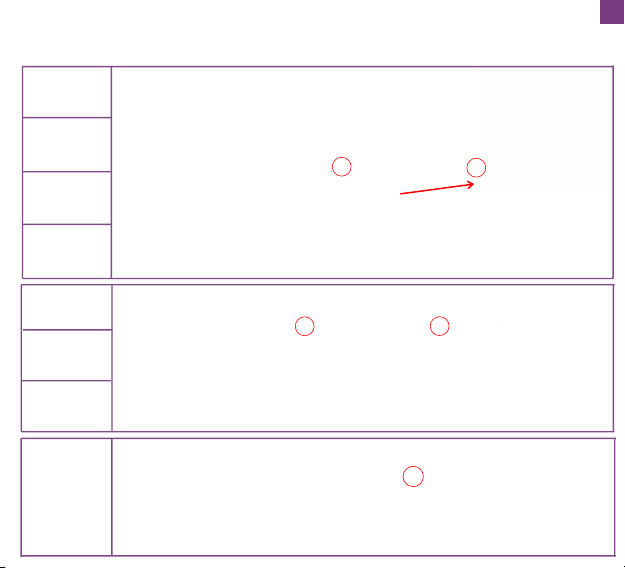
Hero 4
Hero 7
Hero 6
Hero 3
Hero 5
Hero 2
Hero 3+
MIC
TRS ADAPTER MINI USB ADAPTER
Hero 8
CONNECT FIRMLY UNTIL YOU
HEAR A “CLICK”
MIC
TRS ADAPTER
CONNECT FIRMLY UNTIL YOU
HEAR A “CLICK”
NOT INCLUDED: GOPRO’S “PRO 3.5MM
MIC ADAPTER” REQUIRED
SOLD SEPARATELY BY GOPRO
TRS ADAPTER
MIC
CONNECT FIRMLY UNTIL YOU
HEAR A “CLICK”
GOPRO - MIC SETUP
13

DSLR - MIC SETUP
TRS ADAPTER
MIC
CONNECT FIRMLY UNTIL YOU HEAR A
“CLICK”
Plug Microphone Plug into TRS adapter firmly until
you hear a “CLICK”
Plug TRS adapter firmly into DSLR port
1.
2.
CONNECTION FOR ALL DSLR MODELS:
14

TROUBLESHOOTING
Record an audio recording (preferably with a smartphone)
while scratching the foam windscreen on the mic. Unplug
the mic and listen to the recording, if the mic is working, the
scratching sound should be loud which means the mic is
active.
HOW TO TEST IF YOUR MIC IS WORKING:
When connecting adapters to each other, connect them
firmly until you hear a “CLICK”. Many issues happen due to
the adapters not being connected properly. Make sure you
are using the correct combination of adapters for your
device by referring to the instructions in this guide.
IMPORTANT:
15

TROUBLESHOOTING
1. When connecting adapters to each other, connect
them firmly until you hear a “CLICK”. Many issues
happen due to the adapters not being connected
properly. Make sure you are using the correct
combination of adapters for your device by referring to
the instructions in this guide.
BUZZING NOISES IN RECORDING?
2. Ensure that Bluetooth and NFC (near field
communication) are turned off on the device.
3. Check if the microphone cable or extension cables
are crossing other cables that are causing electrical
interference. This is especially possible close to power
cables.
16

TROUBLESHOOTING
4. Check if the microphone cable or extension cables
are close to or wrapped around other electrical devices
(including the one you are recording with).
BUZZING NOISES IN RECORDING?
5. Try the microphone with a smartphone to ensure
there is not a problem with the microphone itself. If you
are trying to use any of the adapters, ensure that they
are plugged in firmly (until you hear a click) and that the
correct combination of adapters is being used.
17

WE’RE ALWAYS HERE TO HELP, YOUR
SATISFACTION IS OUR BIGGEST PRIORITY
YOU HAVE A 1 YEAR WARRANTY
18
NEED MORE HELP?
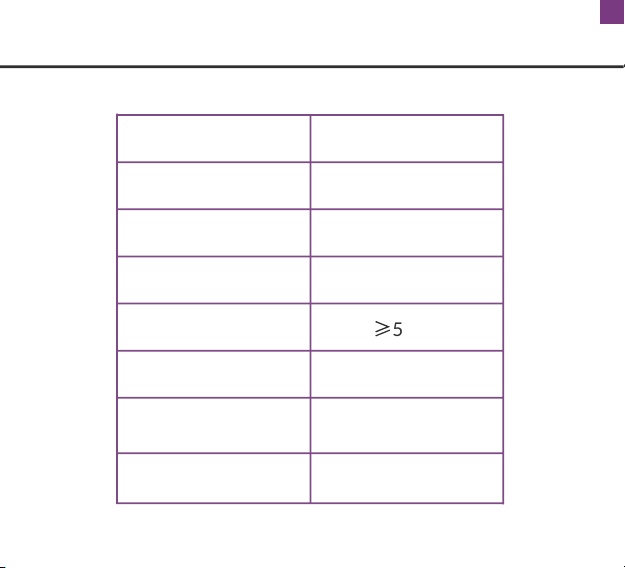
SPECIFICATIONS
Capsule Diameter
Polar Pattern
Sensitivity (±4dB)
Frequency Range
S/N Ratio
Power Source
Operating
Temperature
7.9mm
Omnidirectional
-40 ±3dB
40Hz~16kHz
≥
55dB
1.8~5V
-20°~+50°
Output Connection TRRS / TRS / Mini USB
19