
User Manual
27PT8302/37
32PT8302/37
Thank you for choosing Philips.
Need help fast?
Read your User Manual and/or Quick-Use Guide first
for quick tips that make using your Philips product
more enjoyable. If you have read your instructions and
still need assistance you may access our online help at
www.p4c.philips.com
or
call 1-888-PHILIPS (1-888-744-5477)
while with your product.
3121 235 22331
Color TV
Color TV
Model No.:
Serial No.:
2
Registering your model with PHILIPS mak es you eligible for all of the valuable benef its listed below,so don't miss out.
Complete and r eturn your Pr oduct Registr ation Car d at once to ensur e:
Return your Product Registration Card today
to get the very most from your purchase.
Visit our World Wide W eb Site at http://www .philips.com
Congratulations on your purchase,
and welcome to the “family!”
Dear PHILIPS product owner:
Thank you for your confidence in PHILIPS.You’ve selected one of
the best-built, best-backed products available today.We’ll do every-
thing in our power to keep you happy with your purchase for many
years to come.
As a member of the PHILIPS “family,” you’re entitled to protection
by one of the most comprehensive warranties and outstanding
service networks in the industry.What’s more, your purchase guar-
antees you’ll receive all the information and special offers for which
you qualify, plus easy access to accessories from our convenient
home shopping network.
Most importantly, you can count on our uncompromising commit-
ment to your total satisfaction.
All of this is our way of saying welcome - and thanks for investing
in a PHILIPS product.
P. S. To get the most from your PHILIPS purchase, be
sure to complete and return your Product Registration
Card at once.
For Customer Use
Enter below the Serial No. which is locat-
ed on the rear of the cabinet. Retain this
information for future reference.
Model No.__________________________
Serial No. ________________________
Kno w these
safetysymbols
This “bolt of lightning” indicates unin-
sulated material within your unit may
cause an electrical shock. For the safety of
everyone in your household, please do not
remove product covering.
The “exclamation point” calls atten-
tion to features for which you should
read the enclosed literature closely to pre-
vent operating and maintenance problems.
WARNING: To r educe the risk of fire or
electric shock, this apparatus should not be
exposed to rain or moisture and objects
filled with liquids, such as vases, should not
be placed on this apparatus.
CAUTION: To prevent electric shock,
match wide blade of plug to wide slot, fully
insert.
ATTENTION:Pour éviter les choc élec-
triques, introduire la lame la plus large de la
fiche dans la borne correspondante de la
prise et pousser jusqu’au fond.
t
s
*Proof of
Purchase
Returning the enclosed card guarantees
that your date of purchase will be on file,
so no additional paperwork will be
required from you to obtain warranty
service.
*Product Safety
Notification
By registering your product, you'll receive
notification - directly from the manufac-
turer - in the rare case of a product
recall or safety defect.
*Additional Benefits
of Product Ownership
Registering your product guarantees that
you'll receive all of the privileges to
which you're entitled, including special
money-saving offers.
3
IMPORTANT SAFETY INSTRUCTIONS
Read before operating equipment
1. Read these instructions.
2. Keep these instructions.
3. Heed all warnings.
4. Follow all instructions.
5. Do not use this apparatus near water.
6. Clean only with a dry cloth.
7. Do not block any of the ventilation openings. Install in accordance
with the manufacturers instructions.
8. Do not install near any heat sources such as radiators, heat regis-
ters, stoves, or other apparatus (including amplifiers) that produce
heat.
9. Do not defeat the safety purpose of the polarized or grounding-
type plug. A polarized plug has two blades with one wider than
the other. A grounding type plug has two blades and third ground-
ing prong. The wide blade or third prong are provided for your
safety. When the provided plug does not fit into your outlet, con-
sult an electrician for replacement of the obsolete outlet.
10. Protect the power cord from being walked on or pinched particu-
larly at plugs, convenience receptacles, and the point where they
exit from the apparatus.
11. Only use attachments/accessories specified by the manufacturer.
12. Use only with a cart, stand, tripod, bracket, or table
specified by the manufacturer, or sold with the app-
aratus. When a cart is used, use caution when moving
the cart/apparatus combination to avoid injury from tip-over.
13. Unplug this apparatus during lightning storms or when unused for
long periods of time.
14. Refer all servicing to qualified service personnel. Servicing is
required when the apparatus has been damaged in any way, such
as power-supply cord or plug is damaged, liquid has been spilled
or objects have fallen into apparatus, the apparatus has been
exposed to rain or moisture, does not operate normally, or has
been dropped.
15. This product may contain lead and mercury. Disposal of these
materials may be regulated due to environmental considerations.
For disposal or recycling information, please contact your local
authorities or the Electronic Industries Alliance: www.eiae.org
16. Damage Requiring Service - The appliance should be serviced
by qualified service personnel when:
A. The power supply cord or the plug has been damaged; or
B. Objects have fallen, or liquid has been spilled into the appli-
ance; or
C. The appliance has been exposed to rain; or
D. The appliance does not appear to operate normally or
exhibits a marked change in performance; or
E. The appliance has been dropped, or the enclosure damaged.
17. Tilt/Stability - All televisions must comply with recommended
international global safety standards for tilt and stability properties
of its cabinet design.
• Do not compromise these design standards by applying exces-
sive pull force to the front, or top, of the cabinet which could ulti-
mately overturn the product.
• Also, do not endanger yourself, or children, by placing electron-
ic equipment/toys on the top of the cabinet. Such items could
unsuspectingly fall from the top of the set and cause product dam-
age and/or personal injury.
18. Wall or Ceiling Mounting - The appliance should be mounted to
a wall or ceiling only as recommended by the manufacturer.
19. Power Lines - An outdoor antenna should be located away from
power lines.
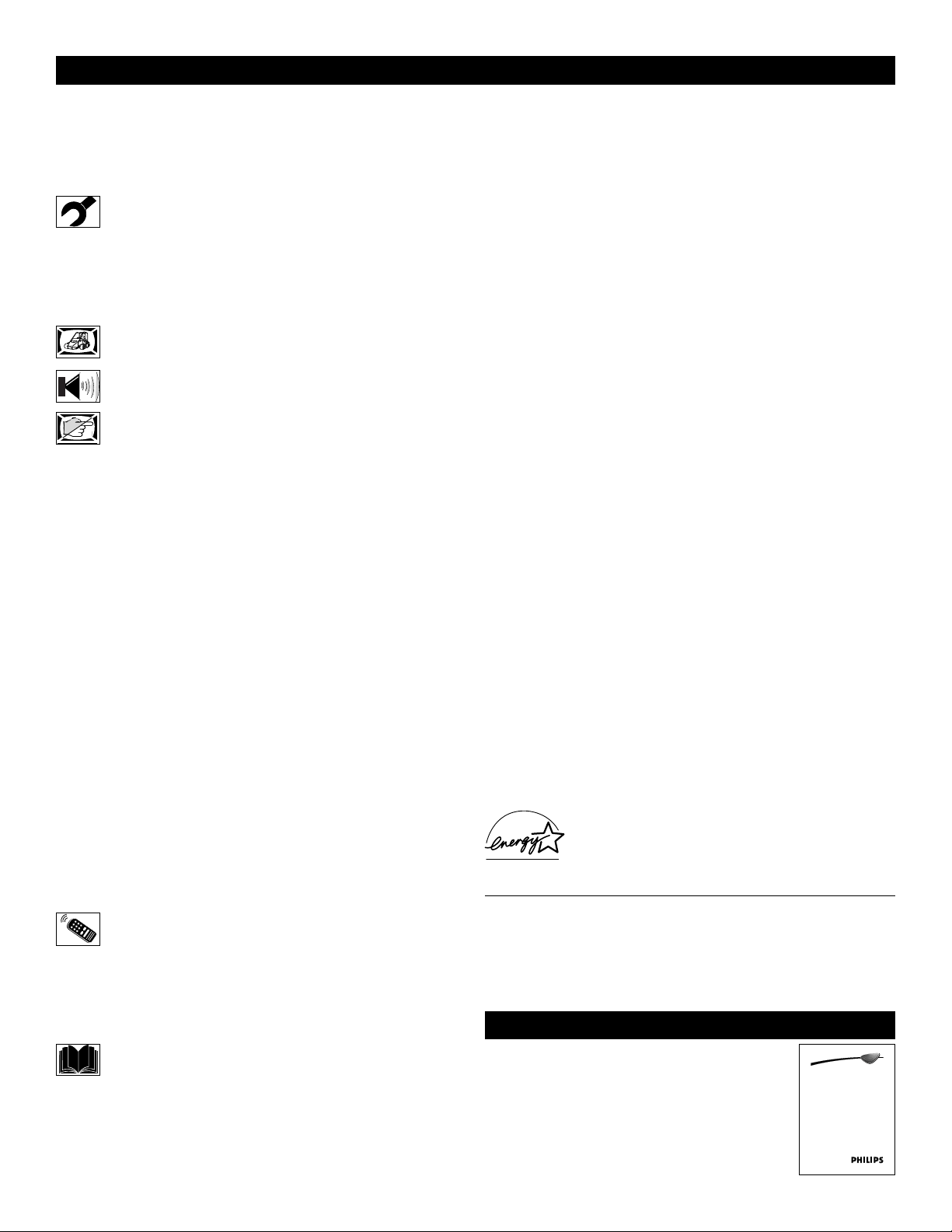
20. Outdoor Antenna Grounding - If an outside antenna is connected to
the receiver, be sure the antenna system is grounded so as to provide
some protection against voltage surges and built up static charges.
Section 810 of the National Electric Code, ANSI/NFPA No. 70-
1984, provides information with respect to proper grounding of
the mast and supporting structure, grounding of the lead-in wire to
an antenna discharge unit, size of grounding connectors, location
of antenna-discharge unit, connection to grounding electrodes, and
requirements for the grounding electrode. See Figure below.
21. Object and Liquid Entry - Care should be taken so that objects
do not fall and liquids are not spilled into the enclosure through
openings.
a) Warning: To reduce the risk of fire or electric shock, this appa-
ratus should not be exposed to rain or moisture and objects filled
with liquids, such as vases, should not be placed on this apparatus.
22. Battery Usage CAUTION - To prevent battery leakage that may
result in bodily injury, property damage, or damage to the unit:
• Install all batteries correctly, with + and - aligned as marked on
the unit.
• Do not mix batteries (old and new or carbon and alkaline, etc.).
• Remove batteries when the unit is not used for a long time.
ANTENNA LEAD IN WIRE
ANTENNA DISCHARGE UNIT
(NEC SECTION 810-20)
GROUNDING CONDUCTORS (NEC SECTION 810-21)
GROUND CLAMPS
POWER SERVICE GROUNDING ELECTRODE SYSTEM (NEC ART 250, PART H)
GROUND CLAMP
ELECTRIC SERVICE EQUIPMENT
Example of Antenna Grounding
as per NEC - National Electric Code
Note to the CATV system installer: This reminder is provided to call the CATV system installer's attention to Article 820-40 of the NEC
that provides guidelines for proper grounding and, in particular, specifies that the cable ground shall be connected to the grounding system of the
building, as close to the point of cable entry as practical.
4
CONTENTS
INTRODUCTION
Welcome/Registration of Your TV . . . . . . . . . . . . . . . . . . . . . .2
Safety/Precautions . . . . . . . . . . . . . . . . . . . . . . . . . . . . . . . . .2–3
Features . . . . . . . . . . . . . . . . . . . . . . . . . . . . . . . . . . . . . . . . . . .4
INSTALLATION MENU
How to use the Language Controls . . . . . . . . . . . . . . . .5
How to use the Tuner Mode Controls . . . . . . . . . . . . . . . . . . . .5
How to use the Auto Program Controls . . . . . . . . . . . . . . . . . .6
How to use the Channel Edit Controls . . . . . . . . . . . . . . . . . . .6
How to use the Name Controls . . . . . . . . . . . . . . . . . . . . . . .7-8
PICTURE MENU CONTROLS
How to use the Picture Menu Controls . . . . . . . . . . . . .9
SOUND MENU
CONTROLS
How to use the Sound Menu Controls . . . . . . . . . . . .10
FEATURE MENU CONTROLS
How to use the Timer Menu Controls . . . . . . . . . . . . .11
How to use the AutoChron™ Control . . . . . . . . . . . . . . . . . . .12
Understanding the AutoLock™ Controls . . . . . . . . . . . . . . . .13
Setting up an AutoLock™ Access Code . . . . . . . . . . . . . . . . .14
How to lock channels using AutoLock™ . . . . . . . . . . . . . . . .15
How to clear all locked channels at the same time . . . . . . . . .16
How to block programming using the Movie Ratings Controls .17
How to block programming using the TV Ratings Controls .18
Other AutoLock™ Blocking options . . . . . . . . . . . . . . . . . . .19
Using the AutoLock™ Review screen . . . . . . . . . . . . . . . . . .20
How to use the Widescreen Format Control . . . . . . . . . . . . . .21
How to use the Closed Captioning Controls . . . . . . . . . . . . . .22
How to use the Rotation Control . . . . . . . . . . . . . . . . . . . . . .23
How to use the Dynamic NR Control . . . . . . . . . . . . . . . . . . .24
How to use the Permanent OSD . . . . . . . . . . . . . . . . . . . . . . .24
How to use the QuadraSurf™ Controls . . . . . . . . . . . . . . .25-26
How to use the Program List Control . . . . . . . . . . . . . . . . . . .27
How to use the Active Control feature . . . . . . . . . . . . . . . . . .27
How to use the Sleeptimer Controls . . . . . . . . . . . . . . . . . . . .28
How to use the Freeze Control . . . . . . . . . . . . . . . . . . . . . . . .28
How to use the AutoPicture™ Control . . . . . . . . . . . . . . . . . .29
How to use the AutoSound™ Control . . . . . . . . . . . . . . . . . .29
REMOTE CONTROL RELATED FEATURES
Using the Remote Control with accessory devices
Mode Selection . . . . . . . . . . . . . . . . . . . . . . . . . . . . . . . . . . .30
Code-Entry Method . . . . . . . . . . . . . . . . . . . . . . . . . . . . . . . .31
Direct-Entry Code list for accessory devices . . . . . . . . .32-34
Remote Control Accessory Device Specific Buttons . . . . . . .35
IMPORTANT INFORMATION
Troubleshooting . . . . . . . . . . . . . . . . . . . . . . . . . . . . . .36
Care and Cleaning . . . . . . . . . . . . . . . . . . . . . . . . . . . . . . . . . .37
Index . . . . . . . . . . . . . . . . . . . . . . . . . . . . . . . . . . . . . . . . . . . .38
Notes . . . . . . . . . . . . . . . . . . . . . . . . . . . . . . . . . . . . . . . . . . . .39
Limited Warranty . . . . . . . . . . . . . . . . . . . . . . . . . . . . . . . . . . .40
Refer to the simple Quick Use and
Setup Guide (supplied with your TV)
for details on making Connections
and Remote Control Operation.
QUICK USE AND SETUP GUIDE
TV
TV
Quick Use and Hookup Guide
Guía Rápida de Uso y Configuración
Guide d’Utilisation Rapide
27PT8302/37
32PT8302/37
3121 233 44742
Features
Active Control™ continuously measures and corrects all incoming
signals to help provide the best picture quality. This feature moni-
tors and corrects both the sharpness control and noise reduction con-
trol.
Audio/Video Jack Panel allows direct connections with VCRs,
DVDs, or other devices, providing quality TV picture and sound
playback.
Audio Volume Leveler (AVL) Control keeps the TV sound at an
even level. Peaks and valleys that occur during program changes or
commercial breaks are reduced, making for a more consistent, com-
fortable sound.
AutoLock™ allows you to block the viewing of certain channels or
programs with certain ratings if you do not want your children to
view inappropriate materials.
AutoPicture™ allows you to change the picture settings (color, tint,
contrast, etc.) for various types of programming, such as sports,
movies, multimedia (games), or weak signals with the push of one
button.
AutoSound™ allows you to select from four factory-set controls
and a personal control that you set according to your own prefer-
ences through the onscreen Sound menu. The four factory-set con-
trols (Speech, Movie, Music, and Multimedia) enable you to tailor
the TV sound so as to enhance the particular programming you are
watching.
Channel Edit allows you to add or delete channels from the list
stored in the TV’s memory. Channel Edit makes it easy to limit or
expand the number of channels that are available to you when you
press the Channel (+) or (–) buttons on your remote control.
Closed Captioning allows the viewer to read TV program dialogue
or voice conversations as onscreen text.
Infrared Remote Control works your TV and other remote-con-
trolled devices, such as VCRs, DVD players, cable converters, and
satellite receivers.
Onscreen Menu shows helpful messages and instructions for set-
ting TV feature controls (can be viewed in English, French, or
Spanish).
Sleep Timer automatically turns the TV OFF after a set amount of
time that you choose.
Timer allows you to set your TV to turn itself ON and OFF once or
daily like an alarm clock.
As an Energy Star® Partner, Philips Consumer
Electronics has determined this product meets the
Energy Star® guidelines for energy efficiency.
Energy Star® is a U.S. registered mark. Using
products with the Energy Star® label can save energy. Saving
energy reduces air pollution and lowers utility bills.
Active Control, AutoPicture, AutoSound, AutoChron, and
Incredible Surround are trademarks of Philips Consumer
Electronics Company. Copyright 2001 Philips Consumer
Electronics.
*Manufactured under license from Dolby Laboratories. “Dolby”
and the double-D symbol are trademarks of Dolby Laboratories.
Menu
Install
Language English
Tuner Mode
Auto Program
Channel Edit
Name
Menu
Install
Language
English
Tuner Mode
Auto Program
Channel Edit
Name
Menu
Picture Brightness
Sound Color
Features Contrast
Install Sharpness
Color Temp.
Menu
Picture Language
Sound Tuner Mode
Features Auto Program
Install Channel Edit
Name
OK
1
2
3
4
5
6
7
8
0
9
Select
SLEEP
ACTIVE
CONTROL
CC
AV
CLOCK
MENU
EXIT
PICTURE
SOUND
STATUS
SELECT
PIC SIZE
MAIN
FREEZE
QuadraSurf
TM
PROGRAM
LIST
TV/VCR
REC
SAP
A/CH
SATVCR AMP ACCDVD
VOL CH
MUTE
Power
3
4
2
5
6
1
5
OR
OR
Francais
Español
Language
Language
5
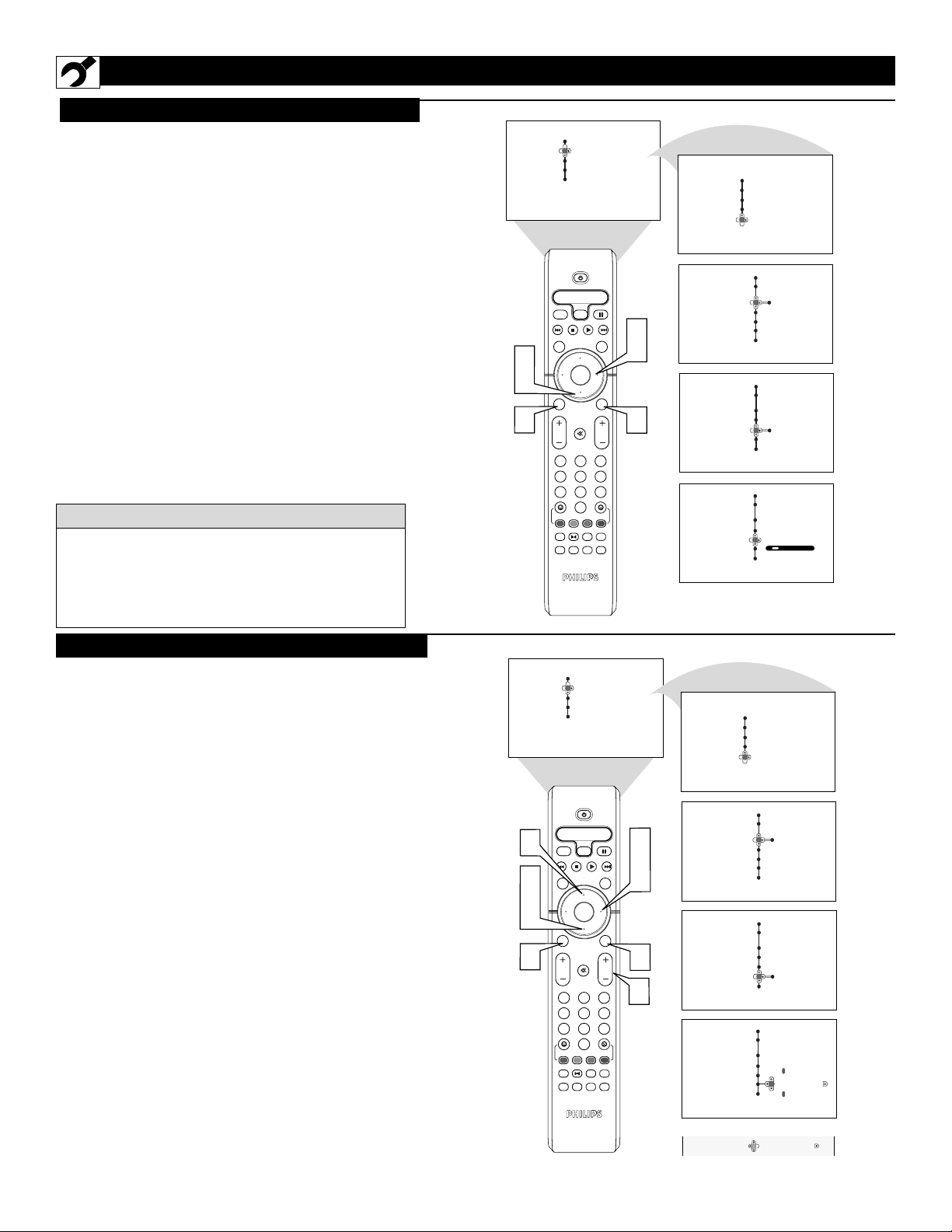
HOW TO USE THE INSTALLATION FEATURES
F
or our Spanish and French-speaking TV own-
ers, an onscreen LANGUAGE option is pres-
ent. The LANGUAGE control enables you to set
the TV’s onscreen menu to be shown in either
English, Spanish, or French.
1
Press the MENU/SELECT button on the
remote control to show the onscreen menu.
2
Press the CURSOR DOWN button repeatedly
until Install is highlighted.
3
Press the CURSOR RIGHT button to shift
the menu to the left and highlight Language.
4
Press the CURSOR RIGHT button to high-
light the Language Control options.
5
Press the CURSOR DOWN or CURSOR UP
button to select English, Español (Spanish), or
Francais (French).
6
Press the STATUS/EXIT button to remove the
menu from the screen.
LANGUAGE
Remember, the LANGUAGE control makes only the
TV’s onscreen MENU items appear in English, Spanish,
or French text. It does not change the other onscreen
text features, such as Closed Captioning (CC), with TV
shows.
HELPFUL
HINT
TUNER MODE
T
he Tuner Mode allows you to change the Tv’s
signal input to Cable, Antenna, or Auto Mode.
It’s important for the TV to know what type of sig-
nal is connected, either Antenna or Cable.
1
Press the MENU/SELECT button on the
remote control to show the onscreen menu.
2
Press the CURSOR DOWN button repeated-
ly until INSTALL is highlighted.
3
Press the CURSOR RIGHT button to shift
the menu to the left.
4
Press the CURSOR DOWN button to select
the Tuner Mode control.
5
Press the CURSOR RIGHT button to high-
light the tuner options.
6
Press the CURSOR UP or CURSOR DOWN
to select Cable, Antenna, or Auto.
If Tuner Mode is set to Auto, Auto Program
will detect whether or not cable input is present.
7
Press the STATUS/EXIT button to remove the
menu from the screen.
When Cable is selected, channels 1-125 are available.
When Antenna is selected, channels 2-69 are available.
H
ELPFUL HINT
Menu
Picture Brightness
Sound Color
Features Contrast
Install Sharpness
Color Temp.
Menu
Picture Language
Sound Tuner Mode
Features Auto Program
Install Channel Edit
Name
OK
1
2
3
4
5
6
7
8
0
9
Select
SLEEP
ACTIVE
CONTROL
CC
AV
CLOCK
MENU
EXIT
PICTURE
SOUND
STATUS
SELECT
PIC SIZE
MAIN
FREEZE
QuadraSurf
TM
PROGRAM
LIST
TV/VCR
REC
SAP
A/CH
SATVCR AMP ACCDVD
VOL CH
MUTE
Power
3
2
5
6
1
4
6
Menu
Install
Language
Auto
Tuner Mode
Auto Program
Channel Edit
Name
Menu
Install
Language English
Tuner Mode
Auto Program
Channel Edit
Name
7
Menu
Install
Language
Auto
Tuner Mode
Auto Program
Channel Edit
Name
OR
OR
Antenna
Cable
Tuner Mode
Tuner Mode
6
HOW TO USE THE INSTALLATION FEATURES
Y
our TV can automatically set itself for local
area (or cable TV) channels. This makes it
easy for you to select only the TV stations in your
area by pressing the CHANNEL (+) or (–) button.
1
Press the MENU/SELECT button on the
remote control to show the onscreen menu.
2
Press the CURSOR DOWN button repeatedly
until Install is highlighted.
3
Press the CURSOR RIGHT button to enter the
Install menu. Language will be highlighted.
4
Press the CURSOR DOWN button repeatedly
until Auto Program is selected. “Search ?” will
appear.
5
Press the CURSOR RIGHT button to start the
Auto Programming process.
6
Press the STATUS/EXIT button to remove the
menu from the screen when the Auto program-
ming process has finished.
AUTO PROGRAM
OK
1
2
3
4
5
6
7
8
0
9
Select
SLEEP
ACTIVE
CONTROL
CC
AV
CLOCK
MENU
EXIT
PICTURE
SOUND
STATUS
SELECT
PIC SIZE
MAIN
FREEZE
QuadraSurf
TM
PROGRAM
LIST
TV/VCR
REC
SAP
A/CH
SATVCR AMP ACCDVD
VOL CH
MUTE
Power
3
5
1
2
4
6
Menu
Picture Brightness
Sound Color
Features Contrast
Install Sharpness
Color Temp.
Menu
Picture Language
Sound Tuner Mode
Features Auto Program
Install Channel Edit
Name
Menu
Install
Language
Cable
Tuner Mode
Please Wait
Auto Program
Channel Stored 12
Channel Edit
Name
Menu
Install
Language English
Tuner Mode
Auto Program
Channel Edit
Name
Menu
Install
Language
Search?
Tuner Mode
Auto Program
Channel Edit
Name
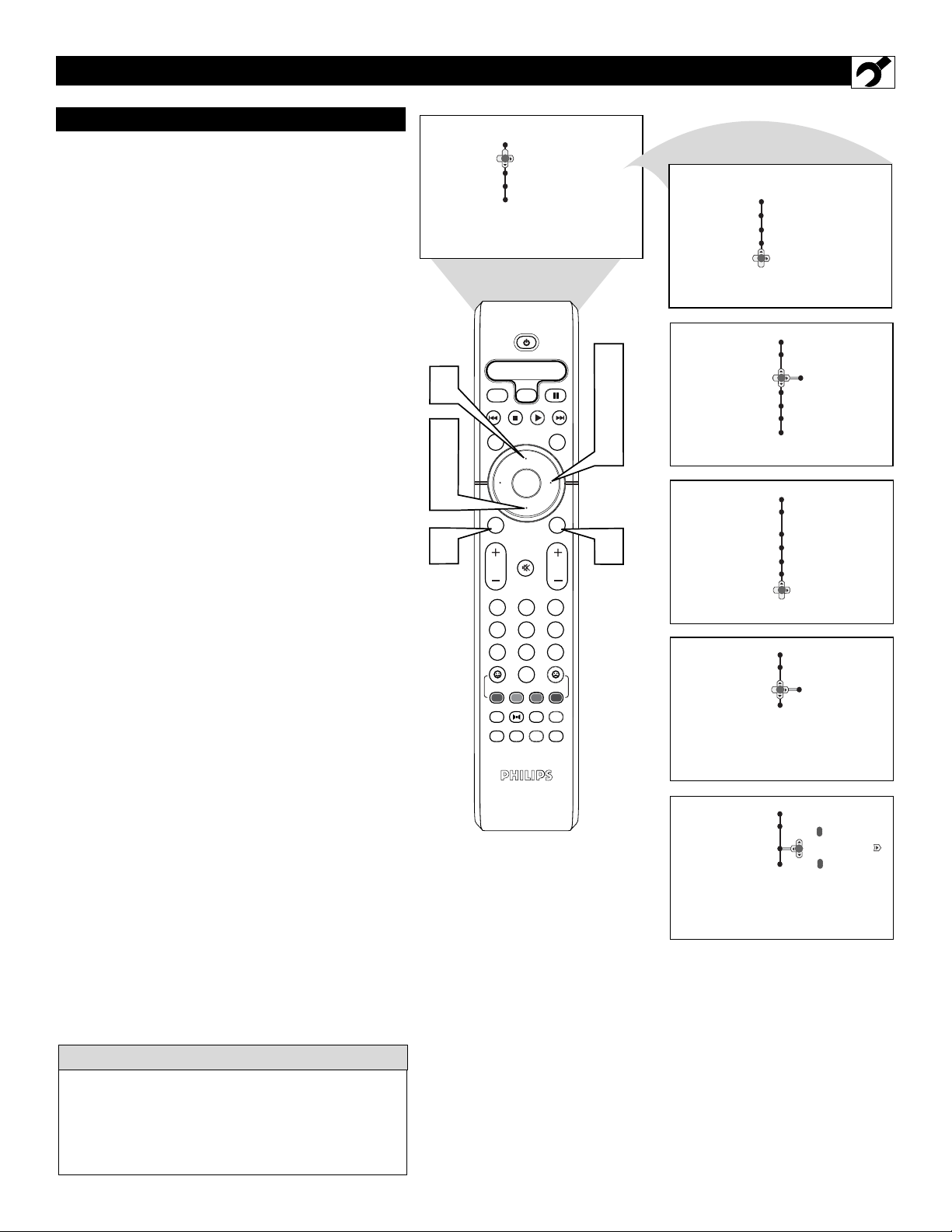
CHANNEL EDIT
After you’ve run Auto Program, check out the
results. Press the CHANNEL (+) or (–) button and
see which channels you can select.
Remember, an antenna or cable TV signal must first
be connected to your TV, see Quick-Use Guide for
making connections.
HELPFUL
HINT
OK
1
2
3
4
5
6
7
8
0
9
Select
SLEEP
ACTIVE
CONTROL
CC
AV
CLOCK
MENU
EXIT
PICTURE
SOUND
STATUS
SELECT
PIC SIZE
MAIN
FREEZE
QuadraSurf
TM
PROGRAM
LIST
TV/VCR
REC
SAP
A/CH
SATVCR AMP ACCDVD
VOL CH
MUTE
Power
3
5
6
1
2
4
6
7
8
Menu
Picture Brightness
Sound Color
Features Contrast
Install Sharpness
Color Temp.
Menu
Picture Language
Sound Tuner Mode
Features Auto Program
Install Channel Edit
Name
Menu
Install
Language
Tuner Mode
Auto Program
Channel Edit
Name
Menu
Install
Language English
Tuner Mode
Auto Program
Channel Edit
Name
Menu
Install
Language
Tuner Mode
Auto Program
Channel Edit
Name
3
OR
3 Skipped
Channel Edit
3
6
C
hannel Edit makes it easy for you to add or delete
channels from the list of channels stored in the
TV’s memory.
1
Press the MENU/SELECT button on the remote
control to show the onscreen menu.
2
Press the CURSOR DOWN button repeatedly
until Install is highlighted.
3
Press the CURSOR RIGHT button to enter the
Install menu. Language will be highlighted.
4
Press the CURSOR DOWN button repeatedly
until Channel Edit is selected.
5
Press the CURSOR RIGHT button to enter the
Channel Edit mode.
6
Press the CURSOR UP or CURSOR DOWN
buttons to scroll though the list of available chan-
nels, you can also press the CH+ or CH- to scroll
through the list of channels. Or, press the numbered
buttons to select a specific numbered channel.
7
With the channel you want to edit selected, press the
CURSOR RIGHT button to activate the “skip-
ping” of the channel. The skipped channel will not
appear when changing channels.
8
Press the STATUS/EXIT button to remove the
onscreen menu from the screen.
Note: When you want to add a channel that has been
skipped, repeat steps 1-4. By pressing the CURSOR
RIGHT button skipped is deactivated.
7
HOW TO USE THE INSTALLATION FEATURES
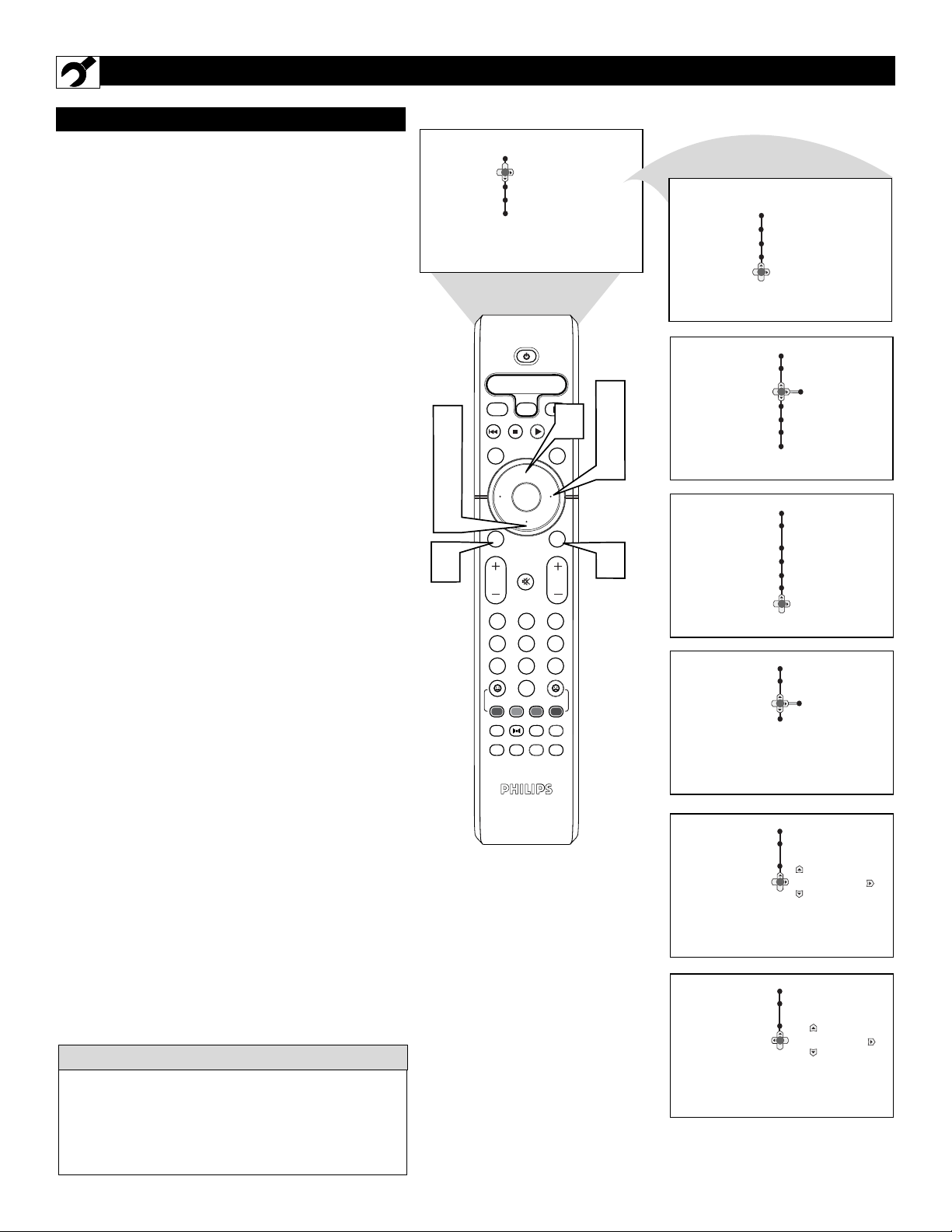
NAME CONTROL (PICK LIST)
T
he channel NAME feature allows you to list
the “call” letters of your favorite stations
beside their channel numbers when they appear
on the screen. The TV has in memory a list of the
50 most popular channel names (for example:
ABC, CBS, FOX, NBC, etc.). You can also enter
a custom name (up to five characters) see next
page for details.
Tune to the specific channel you want to name, then
follow the steps below.
1
Press the MENU/SELECT button on the
remote control to show the onscreen menu.
2
Press the CURSOR DOWN button repeatedly
until Install is highlighted.
3
Press the CURSOR RIGHT button to enter
the Install menu. Language will be highlighted.
4
Press the CURSOR DOWN button repeatedly
until Name is selected.
5
Press the CURSOR RIGHT button to move
to enter the Name menu.
6
With Pick List highlighted, press the CURSOR
RIGHT button to enter the “Pick List” selec-
tions.
7
Press the CURSOR UP or CURSOR DOWN
buttons to scroll through a list of options.
8
After you have selected a name for the channel,
press the CURSOR RIGHT button to save
the name in the TV’s memory, it will appear in
the upper left hand corner of the screen.
9
Press the STATUS/EXIT button to remove the
menu from the screen.
OK
1
2
3
4
5
6
7
8
0
9
Select
SLEEP
ACTIVE
CONTROL
CC
AV
CLOCK
MENU
EXIT
PICTURE
SOUND
STATUS
SELECT
PIC SIZE
MAIN
FREEZE
QuadraSurf
TM
PROGRAM
LIST
TV/VCR
REC
SAP
A/CH
SATVCR AMP ACCDVD
VOL CH
MUTE
Power
3
5
7
1
2
4
7
6
8
9
Install
Name
Pick List
Personal
Menu
Picture Brightness
Sound Color
Features Contrast
Install Sharpness
Color Temp.
Menu
Picture Language
Sound Tuner Mode
Features Auto Program
Install Channel Edit
Name
Install
Name
Pick List
Personal
Menu
Install
Language English
Tuner Mode
Auto Program
Channel Edit
Name
Menu
Install
Language
Tuner Mode
Auto Program
Channel Edit
Name
ABC
Pick List
Personal
ABC
The five characters that the channel NAME feature
allows you to input can be letters, a dash (-), or the
numbers 0 to 9.
The Channel Label or Name will appear when a
channel change is made or when the STATUS/EXIT
button is pressed.
HELPFUL HINT
8
HOW TO USE THE INSTALLATION FEATURES
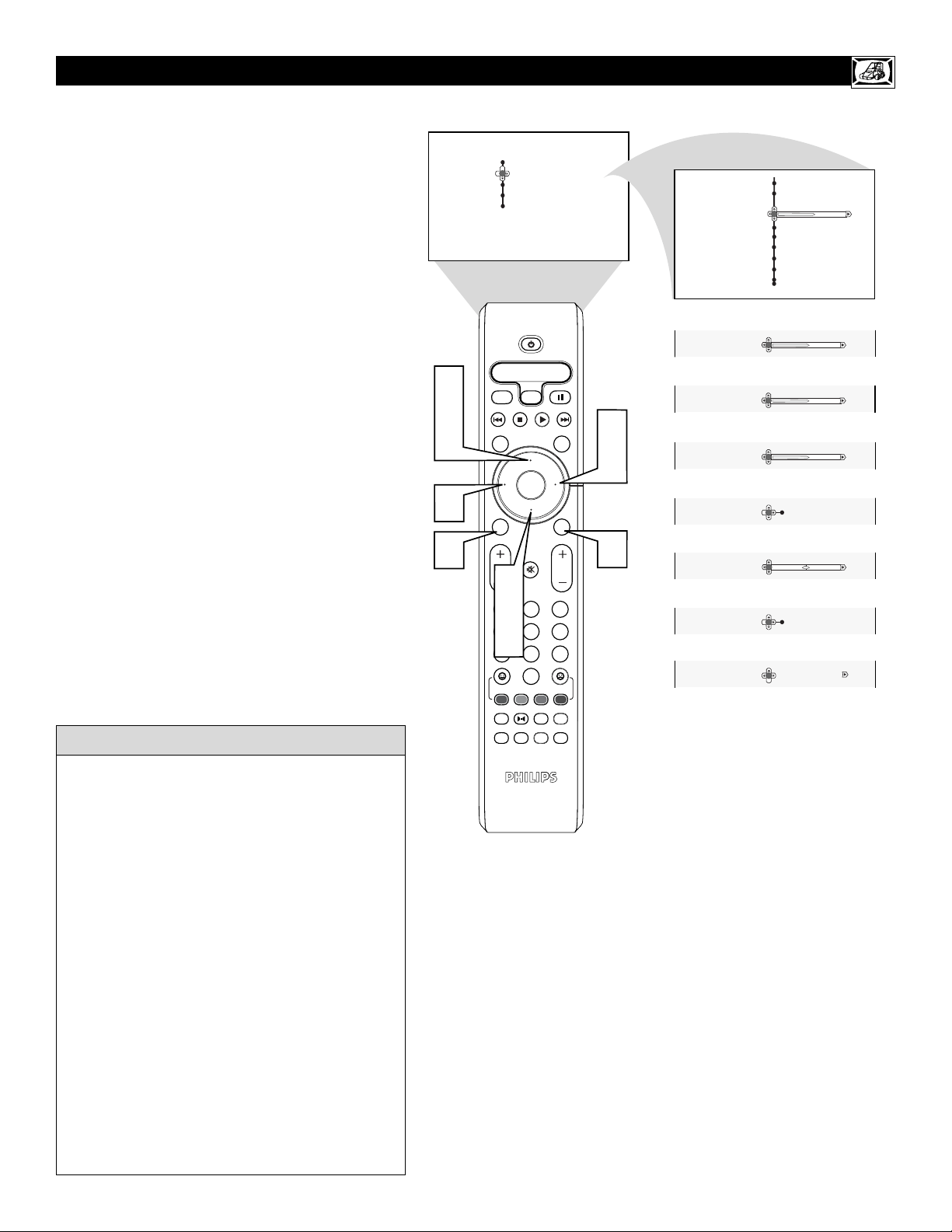
NAME CONTROL (PERSONAL)
T
he channel NAME feature allows you to list
the “call” letters of your favorite stations
beside their channel numbers when they appear
on the screen. You can enter a custom name (up
to five characters) for each channel.
Tune to the specific channel you want to name, then
follow the steps below.
1
Press the MENU/SELECT button on the
remote control to show the onscreen menu.
2
Press the CURSOR DOWN button repeatedly
until Install is highlighted.
3
Press the CURSOR RIGHT button to enter
the Install menu. Language will be highlighted.
4
Press the CURSOR DOWN button repeatedly
until Name is selected.
5
Press the CURSOR RIGHT button to move
to enter the Name menu.
6
Press the CURSOR DOWN button to select
Personal.
7
Press the CURSOR RIGHT button again;
then press the CURSOR UP or CURSOR
DOWN buttons to scroll through a list of
options for the first character (A through Z, 0
through 9). Press the CURSOR RIGHT but-
ton, and repeat for the second, third, fourth, and
fifth characters.
8
Press the STATUS/EXIT button to remove the
menu from the screen.
OK
1
2
3
4
5
6
7
8
0
9
Select
SLEEP
ACTIVE
CONTROL
CC
AV
CLOCK
MENU
EXIT
PICTURE
SOUND
STATUS
SELECT
PIC SIZE
MAIN
FREEZE
QuadraSurf
TM
PROGRAM
LIST
TV/VCR
REC
SAP
A/CH
SATVCR AMP ACCDVD
VOL CH
MUTE
Power
Menu
Picture Brightness
Sound Color
Features Contrast
Install Sharpness
Color Temp.
Menu
Picture Language
Sound Tuner Mode
Features Auto Program
Install Channel Edit
Name
Install
Name
Pick List
Personal
Menu
Install
Language English
Tuner Mode
Auto Program
Channel Edit
Name
Menu
Install
Language
Tuner Mode
Auto Program
Channel Edit
Name
Pick List
Personal
Install
Name
Pick List
Personal
Install
Name
Pick List
Personal
FAV
3
5
7
1
2
4
6
7
8
7
ABC
F
The five characters that the channel NAME feature
allows you to input can be letters, a dash (-), or the
numbers 0 to 9.
The Channel Label or Name will appear when a
channel change is made or when the STATUS/EXIT
button is pressed.
HELPFUL HINT
9
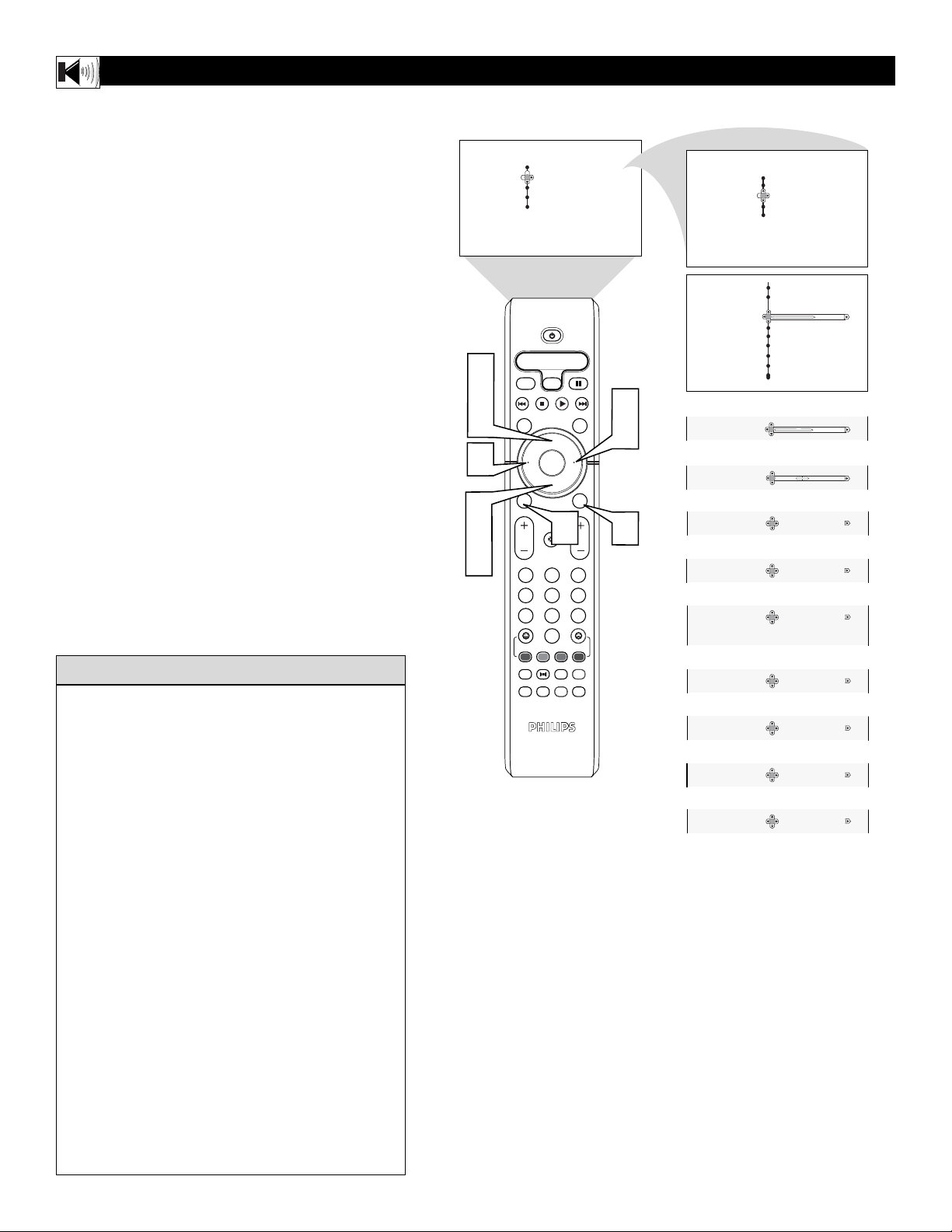
HOW TO USE THE PICTURE ADJUSTMENT CONTROLS
T
o adjust your TV picture controls, select a channel and
follow these steps.
1
Press the
MENU/SELECT
button on the remote
control to show the onscreen menu.
2
Press the CURSOR UP or CURSOR DOWN but-
ton to highlight PICTURE.
3
Press the CURSOR RIGHT button to enter the
Picture menu.
4
Press the CURSOR UP or CURSOR DOWN
button to select the picture adjustment you want to
change: Brightness, Color, Contrast, Sharpness,
Color Temp., Tint, Dyn. Contrast, or Color Enh.
NOTE: The menu will show only five items at a time, so
you will need to continue scrolling with the CURSOR
DOWN button to adjust the Tint, Dyn. Contrast, or Color
Enh.
5
Press the CURSOR LEFT or CURSOR RIGHT
button to adjust the selected control. OR, if Color
Temp. or Dyn. Contrast is chosen, press the CUR-
SOR UP or CURSOR DOWN to select the pre-
ferred mode. If Color Enh. is selected press the
CURSOR RIGHT button repeatedly to toggle the
various modes.
6
Press the STATUS/EXIT button when finished to
remove the menu from the screen.
NOTE: The Tint Controls will not be available for
adjustments when tuned to the AV1/AV2/AV3
Inputs.
Brightness – adds or subtracts light from the darkest
part of the picture.
Color – adds or eliminates color.
Contrast – improves the detail of the lightest parts of
the picture.
Sharpness – improves the detail in the picture.
Color Temp. offers NORMAL, COOL, or WARM
picture preferences. (Normal will keep the whites,
white; Cool will make the whites, bluish; and Warm
will make the whites, reddish.)
Tint – adjusts the picture to obtain natural skin tones.
Dyn(amic) Contrast – helps to “sharpen” the picture
quality by making the dark portions of the picture
darker and the light portions more noticeable. You can
select from the various modes: Off, Min, Med, and
Max.
Color Enh(ancement) – increases the intensity of the
color when “On” is selected.
HELPFUL HINT
OK
1
2
3
4
5
6
7
8
0
9
Select
SLEEP
ACTIVE
CONTROL
CC
AV
CLOCK
MENU
EXIT
PICTURE
SOUND
STATUS
SELECT
PIC SIZE
MAIN
FREEZE
QuadraSurf
TM
PROGRAM
LIST
TV/VCR
REC
SAP
A/CH
SATVCR AMP ACCDVD
VOL CH
MUTE
Power
Menu
Picture Brightness
Sound Color
Features Contrast
Install Sharpness
Color Temp.
Menu
Picture
Brightness
40
Color
Contrast
Sharpness
Color Temp.
3
5
4
2
5
4
2
5
5
1
6
OR
Color
OR
38
Contrast
41
OR
Sharpness
41
OR
Color Temp.
Cool
OR
Tint
0
OR
Dyn. Contrast
Min
OR
Color Enh.
On Off
10
HOW TO USE THE SOUND ADJUSTMENT CONTROLS
Treble – enhances the high frequency sounds.
Bass – enhances the low frequency sounds.
Balance – adjusts the level of sound coming from the
left and right speakers.
AV L (Auto Volume Leveler) - when On, AVL will
level out the sound being heard when sudden changes
in volume occur during commercial breaks or channel
changes.
Dynamic Bass - enhances the low frequency sounds.
Incr. Surround - adds greater depth and dimension to
TV sound. Select from Incr. Surrourd, Dolby Virtual or
Stereo sound (if Stereo) or Dolby Virtual, Spatial or
Mono (if Mono).
SAP (Secondary Audio Programming)– sent as a
third audio channel, a SAP signal can be heard apart
from the current TV program sound. Note: If SAP is
not available, “Not Available” will appear on the
screen.
Audio Out – select from Variable or Fixed. When
Variable is selected, change the volume at the TV using
the TV’s remote control. If fixed is selected, change
the volume at the external device’s audio controls.
Speaker -turn the TV speaker On or Off. When a Hi-
Fi system is used, turn the TV speaker Off to hear the
sound from the Hi-fi system instead of the TV’s speak-
ers. When no external audio system is connected, On
must be selected to hear sound coming from the TV.
HELPFUL HINT
OK
1
2
3
4
5
6
7
8
0
9
Select
SLEEP
ACTIVE
CONTROL
CC
AV
CLOCK
MENU
EXIT
PICTURE
SOUND
STATUS
SELECT
PIC SIZE
MAIN
FREEZE
QuadraSurf
TM
PROGRAM
LIST
TV/VCR
REC
SAP
A/CH
SATVCR AMP ACCDVD
VOL CH
MUTE
Power
Menu
Picture Brightness
Sound Color
Features Contrast
Install Sharpness
Color Temp.
Menu
Sound
Treble 65
Bass
Balance
AVL
Dynamic Bass
OR
Bass 60
OR
Menu
Picture Treble
Sound Bass
Features Balance
Install
AVL
Dynamic Bass
Balance 0
AVL Off On
OR
Incr. Surround Mono
Spatial
Dolby Virtual
OR
Stereo Stereo Mono
OR
OR
SAP Off On
OR
Audio Out Fixed Variable
OR
Speaker Off On
3
5
4
2
5
5
1
6
4
2
5
Dynamic Bass
Off On
OR
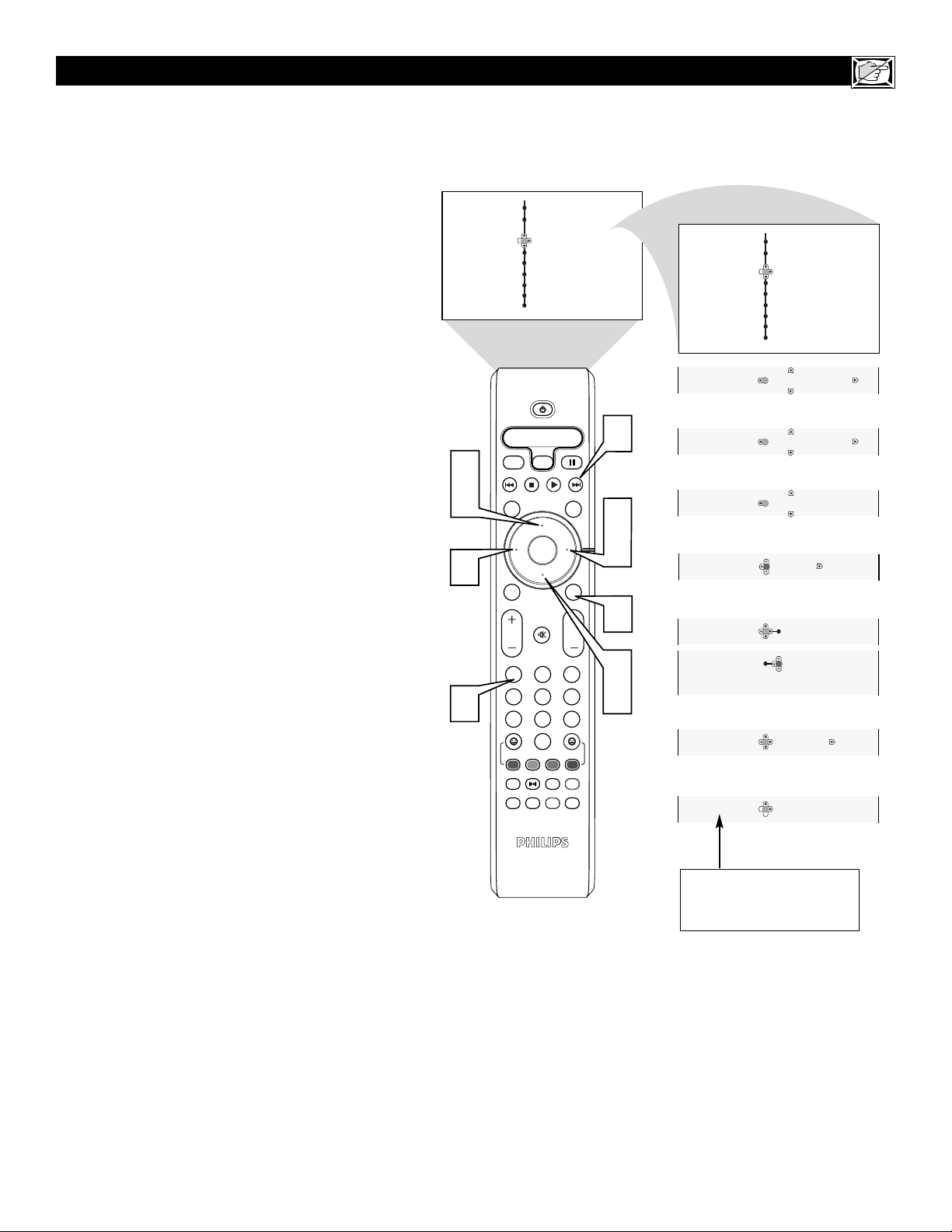
T
o adjust your TV sound controls, select a channel and
follow these steps.
1
Press the
MENU/SELECT
button on the remote
control to show the onscreen menu.
2
Press the CURSOR UP or CURSOR DOWN but-
ton to highlight Sound.
3
Press the CURSOR RIGHT button to enter the
sound menu.
4
Press the CURSOR UP or CURSOR DOWN
button to select the sound adjustment you want to
change: Treble, Bass, Balance, AVL, Dynamic
Bass, Incr. Surround, Stereo, SAP, Audio Out, and
Speaker. NOTE: The menu will show only five
items at a time, so you will need to continue scroll-
ing with the CURSOR DOWN button to adjust the
Incr. Surround, Stereo, SAP, Audio Out, or Speaker.
5
Press the CURSOR LEFT or CURSOR RIGHT
button to adjust the selected control. Or, if Incr.
Surround is chosen, press the CURSOR UP or
CURSOR DOWN to select the preferred mode. If
AVL, Stereo, SAP, Audio Out, or Speaker is select-
ed press the CURSOR RIGHT button repeatedly to
toggle the various modes.
6
Press the STATUS/EXIT button when finished to
remove the menu from the screen.
11
HOW TO USE THE TIMER MENU CONTROLS
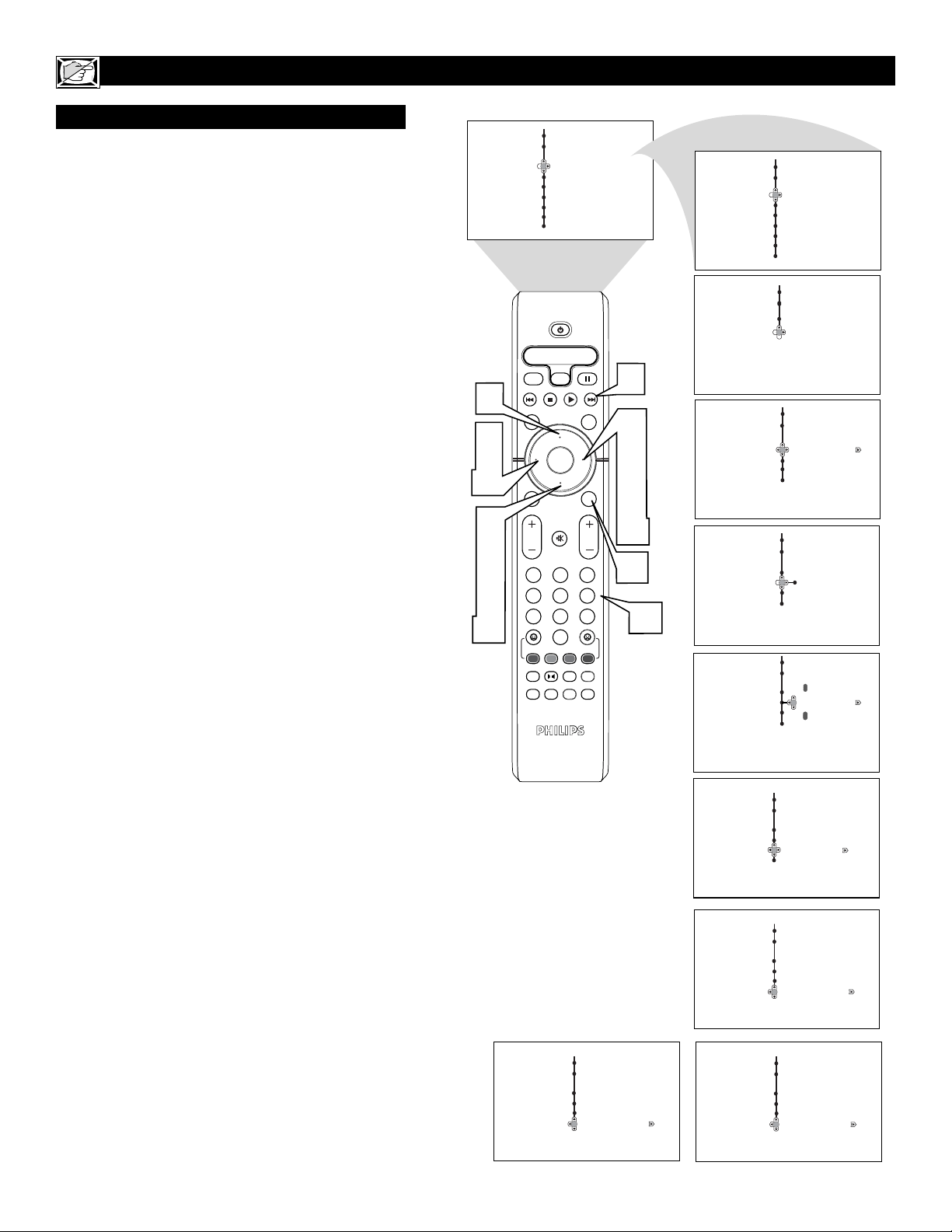
Y
our television comes with an onscreen clock. The
TV can also be set to turn on or off at a specific
time and tune to a specific channel when it powers
itself on.
1
Press the CLOCK button on the remote con-
trol to display the Timer onscreen menu.
2
Press the CURSOR UP or CURSOR DOWN
button to highlight one of the Timer controls.
These controls are Time, Start Time, Stop Time,
Program No., Activate, Display, and AutoChron.
3
Press the CURSOR RIGHT button to display
the menu for the selected item.
4
Make adjustments to the selected items by fol-
lowing the steps below.
Time: Enter the current time using the
Numbered buttons. Use the CURSOR UP and
CURSOR DOWN buttons to toggle the AM and
PM setting.
Start Time: Use the numbered buttons to enter
the time you want the TV to turn itself On. Use
the CURSOR UP and CURSOR DOWN but-
tons to toggle the AM and PM setting.
Stop Time: Use the numbered buttons to enter
the time you want the TV to turn itself Off. Use
the CURSOR UP and CURSOR DOWN but-
tons to toggle the AM and PM setting.
Program No.: Use the NUMBERED buttons or
the CH + or CH- buttons to enter the desired
start-up channel. You can also press the CUR-
SOR RIGHT or CURSOR LEFT buttons to
enter the desired start-up channel.
Activate: Set the timer to turn itself On (Once
or Daily) or Off. Press the CURSOR UP or
CURSOR DOWN buttons to select Once, Daily,
or Off.
Display: Press the CURSOR RIGHT or CUR-
SOR LEFT to toggle between On or Off. If On
is selected, the time will be displayed all the
time when the TV is on. When Off is selected,
the time will only appear when the
STATUS/EXIT button is pressed.
AutoChron: For use of the AutoChron feature,
refer to the section on “How to Use the
AutoChron Control” see next page.
5
Press the STATUS/EXIT button to remove the
menu from the screen.
OK
1
2
3
4
5
6
7
8
0
9
Select
SLEEP
ACTIVE
CONTROL
CC
AV
CLOCK
MENU
EXIT
PICTURE
SOUND
STATUS
SELECT
PIC SIZE
MAIN
FREEZE
QuadraSurf
TM
PROGRAM
LIST
TV/VCR
REC
SAP
A/CH
SATVCR AMP ACCDVD
VOL CH
MUTE
Power
Menu
Features
Timer Time
Auto Lock Start Time
Wide Screen Stop Time
Rotation
Program No.
Activate
Features
Timer
Time – – : – – AM
Start Time
Stop Time
Program No.
Activate
3
4
4
1
4
4
2
5
4
2
OR
Time
– – : – – AM
OR
Start Time
– – : – – AM
OR
Stop Time
– – : – – AM
Program No. 12
OR
Activate Off
Activate Off
Once
Daily
OR
Display Off On
OR
AutoChron Mode
Time Zone
DST
Channel
Closed Caption
Refer to the next page for
details about how to use
the AutoChron control.
12
HOW TO USE THE TIMER MENU CONTROLS (CONT’D)
AUTO CHRON
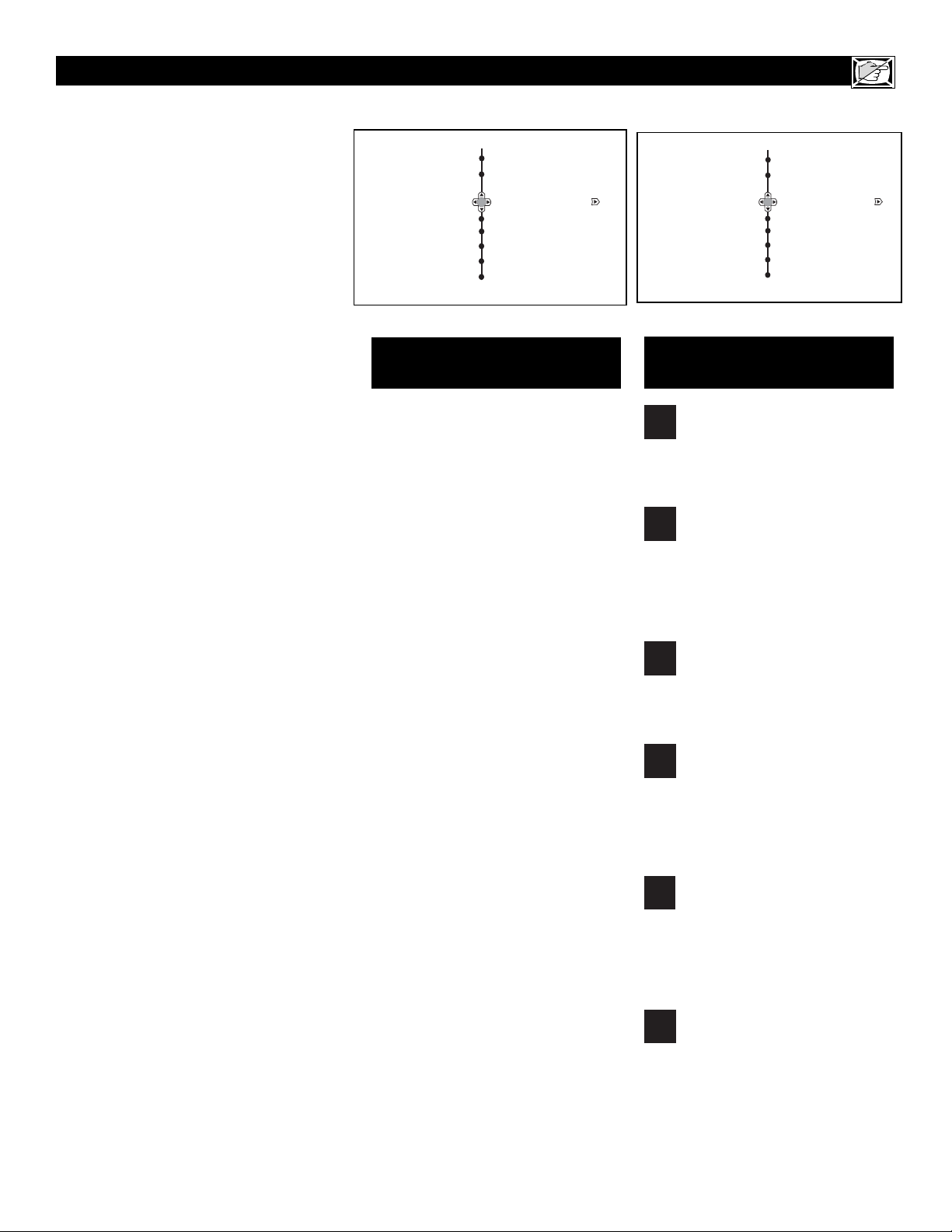
A
utoChron™ can automatically set the TV’s onscreen
clock. Since the time is received from a broadcast
signal, you must be sure that a cable TV or Antenna
signal is present before you use the AutoChron™ fea-
ture.
1
Press the CLOCK button on the remote control
to display the Timer onscreen menu.
2
Press the CURSOR DOWN button until
AutoChron is selected.
3
Press the CURSOR RIGHT button to display
the AutoChron menu. Mode will be highlighted.
4
Press the CURSOR RIGHT button to display
toggle between Manual and Auto.
5
Press the CURSOR DOWN button to select
Time Zone.
6
Press the CURSOR RIGHT button to enter the
Time Zone menu.
7
Press the CURSOR UP or CURSOR DOWN
buttons to select the correct Time Zone. To
activate the Time Zone, press the CURSOR
LEFT button.
8
Press the CURSOR DOWN button to select
DST (Daylight Savings Time).
9
If your time zone uses Daylight Savings Time,
press the CURSOR RIGHT or CURSOR
LEFT button to toggle between Off or On, and
select On.
Press the CURSOR DOWN to select Channel.
Then use the NUMBERED buttons to enter
your local PBS channel or any local channel
that transmits the current time. You can also use
the CURSOR RIGHT or CURSOR LEFT but-
tons to change channels one at a time. If TIME
FOUND appears,the process is finished. If not,
follow the onscreen instructions, and try another
channel.
Press the STATUS/EXIT button when finished to
remove the onscreen menu from the TV screen.
NOTE: If the AutoChron™ control is unable to find
the time being transmitted on any channels, you may
have to enter the time manually. Refer to the previous
page for details.
Features
Timer
Auto Chron
Mode
Time Zone
DST
Channel
Timer
AutoChron
Mode Auto Manual
Time Zone
DST
Channel
Timer
AutoChron
Mode
Time Zone
Atlantic
DST
Channel
Timer
AutoChron
Mode
Time Zone Atlantic
DST
Channel
Timer
AutoChron
Mode
Time Zone
DST
Channel
Timer
AutoChron
Mode
Time Zone
DST
Channel 4
TIME NOT FOUND
RE-ENTER CHANNEL
OK
1
2
3
4
5
6
7
8
0
9
Select
SLEEP
ACTIVE
CONTROL
CC
AV
CLOCK
MENU
EXIT
PICTURE
SOUND
STATUS
SELECT
PIC SIZE
MAIN
FREEZE
QuadraSurf
TM
PROGRAM
LIST
TV/VCR
REC
SAP
A/CH
SATVCR AMP ACCDVD
VOL CH
MUTE
Power
7
1
11
Menu
Features
Timer Time
Auto Lock Start Time
Stop Time
Rotation
Program No.
Activate
Wide Screen
Features
Timer
Time – – : – – AM
Start Time
Stop Time
Program No.
Activate
Off On
10
Timer
AutoChron
Mode
Time Zone
DST
Channel 2
Please Wait
Closed Caption
4
3
6
9
10
2
5
7
8
10
9
7
10
Display
Timer
AutoChron
Mode
Time Zone
DST
Channel 2
TIME FOUND
10
11
13
UNDERSTANDING THE AUTOLOCK™CONTROLS
G: General Audience - All ages admitted.
Most parents would find this programming
suitable for all ages. This type of program-
ming contains little or no violence, no
strong language, and little or no sexual dia-
logue or sexual situations.
PG: Parental Guidance Suggested -
This
programming contains material that parents
may find unsuitable for younger children. It
may contain one or more of the following:
Moderate violence, some sexual situations,
infrequent coarse language, or some sugges-
tive dialogue.
PG-13: Parents Strongly Cautioned - This
programming contains material that parents
may find unsuitable for children under the
age of 13. It contains one or more of the fol-
lowing: violence, sexual situations, coarse
language, or suggestive dialogue.
R: Restricted -This programming is specifi-
cally designed for adults. Anyone under the
age of 17 should view this programming
only with an accompanying parent or adult
guardian. It contains one or more of the fol-
lowing: intense violence; intense sexual situ-
ations; strong, coarse language; or intensely
suggestive dialogue.
NC-17: No one under the age of 17 will be
admitted. - This type of programming should
be viewed by adults only. It contains graphic
violence; explicit sex; or crude, indecent lan-
guage.
X: Adults Only - This type of programming
contains one or more of the following: very
graphic violence, very graphic and explicit or
indecent sexual acts, very coarse and intense-
ly suggestive language.
MOVIE R
ATINGS
(M
OTION
P
ICTURE
A
SSOCIATION OF
A
MERICA
)
TV-Y: (All children -- This program is
designed to be appropriate for all chil-
dren.) Designed for a very young audi-
ence, including children ages 2-6. This type of
programming is not expected to frighten
younger children.
TV-Y7: (Directed to Older Children --
This program is designed for children
ages 7 and above.) It may be more
appropriate for children who have acquired the
development skills needed to distinguish
between make-believe and reality. This pro-
gramming may include mild fantasy and comic
violence (FV).
TV-G: (General Audience -- Most par-
ents would find this program suitable for
all ages.) This type of programming
contains little or no violence, no strong lan-
guage, and little or no sexual dialogue or sexual
situations.
TV-PG: (Parental Guidance
Suggested -- This program contains
material that parents may find unsuit-
able for younger children.) This type of pro-
gramming contains one or more of the follow-
ing: Moderate violence (V), some sexual situa-
tions (S), infrequent coarse language (L), or
some suggestive dialogue (D).
TV-14: (Parents Strongly Cautioned -
- This program contains some material
that many parents would find unsuitable
for children under 14 years of age.) This type
of programming contains one or more of the
following: intense violence (V); intense sexual
situations (S); strong, coarse language (L); or
intensely suggestive dialogue (D).
TV-MA: (Mature Audience Only --
This program is specifically designed to
be viewed by adults and therefore may
be unsuitable for children under 17.) This type
of programming contains one or more of the
following: graphic violence (V); explicit sexual
situations (S); or crude, indecent language (L).
TV PARENTAL GUIDELINES
(TV BROADCASTERS)
TV
G
TV
PG
TV
Y
TV
Y7
TV
14
TV
MA
T
he AutoLock™ feature receives and
processes data sent by broadcasters or
other program providers that contain pro-
gram content advisories. When programmed
by the viewer, a TV with AutoLock™ can
respond to the content advisories and block
program content that may be found objection-
able (such as offensive language, violence,
sexual situations, etc.). This is a great feature
to censor the type of programming children
may watch.
In the AutoLock™ section, you’ll learn how
to block channels and programming that is
not rated, is unrated, or has no rating. You
will also find out how to turn these blocking
features ON or OFF. Following are brief
explanations of some terms and ratings relat-
ed to the AutoLock™ feature.
AutoLock™ offers various Blocking
Options from which to choose:
BLOCKING: The BLOCKING control is
what can be thought of as the “master switch”
for AutoLock™. This control affects the set-
tings you have chosen for blocking programs
according to movie ratings or TV ratings, or
for blocking programs that have no rating or
are unrated. When the BLOCKING control is
OFF, the blocking or censoring of programs is
disabled. When the BLOCKING control is
ON, blocking will occur according to the set-
tings you have chosen.
NO RATING: ALL programming with no
content advisory data can be blocked if NO
RATING is set to ON.
Programming that has No Rating is not
encoded with any rating information from the
MPAA or the Parental Guidelines. Any pro-
gramming could fall into this category.
You also can block individual channels or
block programming based on ratings of the
MPAA and TV broadcasters. (See a descrip-
tion of the ratings on this page.)
Auto Lock
Movie Ratings
G
PG
PG-13
R
NC-17
Off On
Auto Lock
TV Ratings
TV-Y
TV-Y7
TV-G
TV-PG
TV-14
Off On
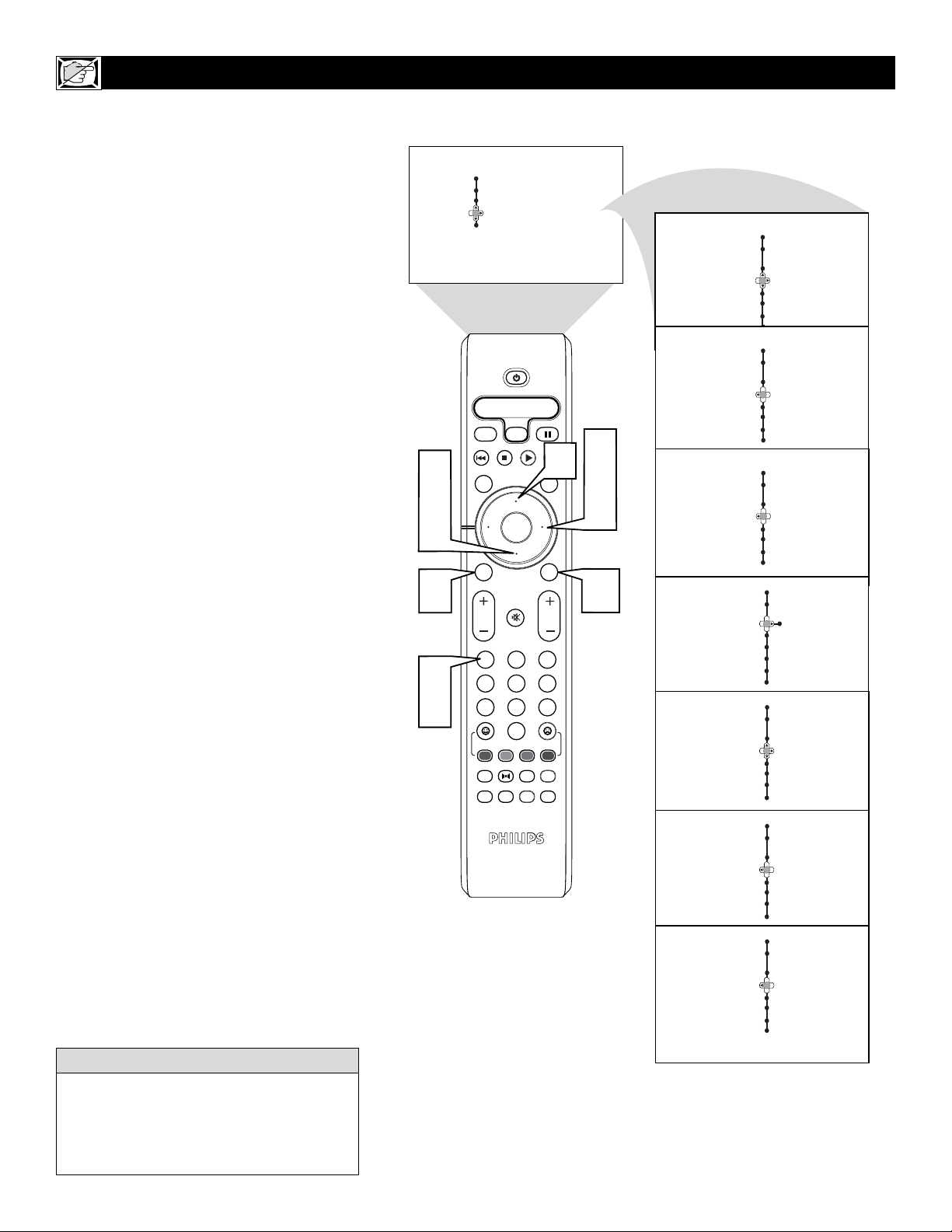
14
A
utoLock
TM
allows parents to block out or
“censor” any channels they think children
should not watch. A channel blocked by the
AutoLock
TM
control cannot be viewed until a cor-
rect access code is used to unlock the channel
for viewing. First, let’s set your AutoLock access
code.
1
Press the MENU/SELECT button on
the remote control to show the onscreen
menu.
2
Press the CURSOR UP or CURSOR
DOWN button to highlight Features.
3
Press the CURSOR RIGHT button to
display the Features menu.
4
Press the CURSOR DOWN button to
highlight the AutoLock control.
5
Press the CURSOR RIGHT button to
enter the AutoLock mode. “Access Code
----” will appear.
6
Using the numbered buttons on the
remote control, enter the access code. If
you do not know your code, 0,7,1,1 is the
default code. After you have entered the
code once, Incorrect will appear on the
screen. Enter the code a second time,
Correct will appear. When “Correct”
appears, the AutoLock menu is accessible
and you can proceed to change the access
code.
7
Press the CURSOR DOWN button to
highlight Change Code.
8
Press the CURSOR RIGHT button to
enter the Change Code menu, “Enter
New Code ----” will appear. Enter a new
four-digit code using the number but-
tons, “Confirm Code----” will appear on
the screen.
9
Using the numbered buttons, re-enter
your new four-digit code, “Confirm
Code” will appear. After re-entering
your new code,”Correct” will flash on
the screen briefly and the highlight bar
goes back to AutoLock.
Press the STATUS/EXIT button to
remove the menu from the screen.
SETTING U
PANA
UTOLOCK™ACCESS CODE
Menu
Picture Timer
Sound Auto Lock
Features
Close Caption
Install
Rotation
Wide Screen
Menu
Features
Timer Access Code
Auto Lock – – – –
Menu
Features
Timer Access Code
Auto Lock x x x x
Incorrect
Wide Screen
Menu
Features
Timer Access Code
Auto Lock
Correct
OK
1
2
3
4
5
6
7
8
0
9
Select
SLEEP
ACTIVE
CONTROL
CC
AV
CLOCK
MENU
EXIT
PICTURE
SOUND
STATUS
SELECT
PIC SIZE
MAIN
FREEZE
QuadraSurf
TM
PROGRAM
LIST
TV/VCR
REC
SAP
A/CH
SATVCR AMP ACCDVD
VOL CH
MUTE
Power
2
4
1
7
6
9
5
8
3
10
x x x x
Menu
Features
Lock Channel
Change Code
Clear All
Movie Rating
TV Rating
Menu
Features
New Code
– – – –
Lock Channel
Change Code
Clear All
Movie Rating
TV Rating
Menu
Features
New Code
Lock Channel
Change Code
Clear All
Movie Rating
TV Rating
x x x x
Menu
Features
Lock Channel
Change Code
Confirm
Clear All – – – –
Movie Rating
TV Rating
2
Close Caption
Rotation
Wide Screen
Close Caption
Rotation
Wide Screen
Rotation
Wide Screen
Enter
Code
Closed Caption
2
10
Remember that 0711 is the default
AutoLock
TM
code. If your access code has
been changed by someone other than you (a
child, for example) or you have forgotten the
code, you can always get in by inputting the
default code.
HELPFUL HINT
NOTE TO PARENTS: It isn’t possible for
your child to unblock a channel without know-
ing your access code or changing it to a new
one. If your code has been changed without
your knowledge, then you will become aware
that blocked channels may have been viewed.
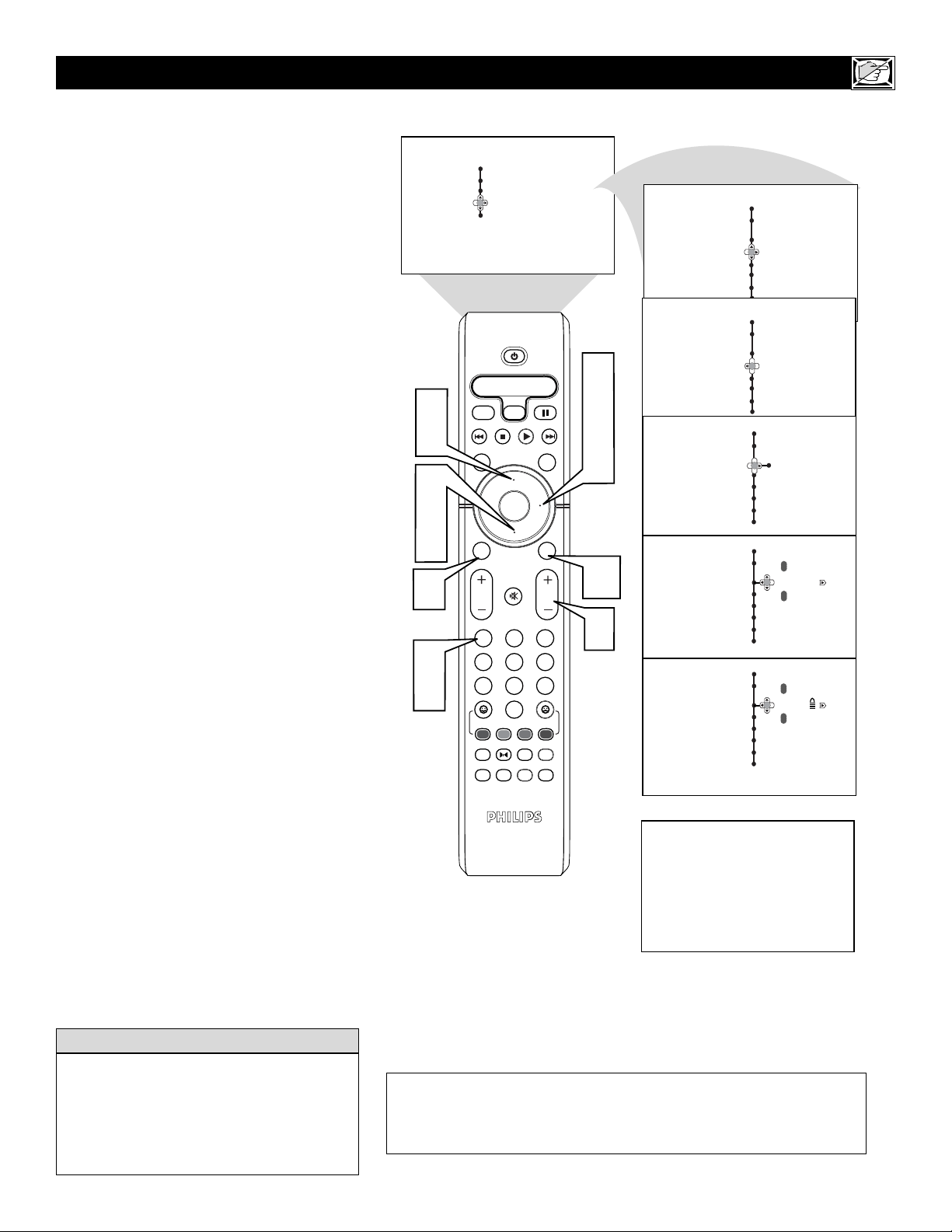
15
HOW TO
LOCK
CHANNELS USING AUTOLOCK™
Remember that 0711 is the default
AutoLock
TM
code. If your access code has
been changed by someone other than you (a
child, for example) or you have forgotten the
code, you can always get in by inputting the
default code.
HELPFUL HINT
Channel 3
BLOCKED BY AUTOLOCK
CHANNEL BLOCKING
Access Code
- - - -
Menu
Picture Timer
Sound Auto Lock
Features
Install
OK
1
2
3
4
5
6
7
8
0
9
Select
SLEEP
ACTIVE
CONTROL
CC
AV
CLOCK
MENU
EXIT
PICTURE
SOUND
STATUS
SELECT
PIC SIZE
MAIN
FREEZE
QuadraSurf
TM
PROGRAM
LIST
TV/VCR
REC
SAP
A/CH
SATVCR AMP ACCDVD
VOL CH
MUTE
Power
3
5
2
4
7
1
9
6
8
10
Menu
Features
Timer Access Code
Auto Lock – – – –
Menu
Features
Timer Access Code
Auto Lock x x x x
Correct
Menu
Features
Lock Channel
Change Code
Clear All
Movie Rating
TV Rating
- - - -
Menu
Features
Lock Channel
Change Code
Clear All
Movie Rating
TV Rating
3
- - - -
Menu
Features
Lock Channel
Change Code
Clear All
Movie Rating
TV Rating
3
2
Close Caption
Rotation
Wide Screen
Rotation
Wide Screen
Rotation
Wide Screen
8
Closed Caption
Closed Caption
3
8
8
A
fter your personal access code has been
set (see the previous page), you are ready
to select the channels or inputs you want to
block out or censor.
1
Press the MENU/SELECT button on
the remote control to show the
onscreen menu.
2
Press the CURSOR UP or CURSOR
DOWN button to highlight Features.
3
Press the CURSOR RIGHT button
to display the Features menu.
4
Press the CURSOR DOWN button
to highlight the AutoLock™ control.
5
Press the CURSOR RIGHT button
again display the AutoLock menu.
6
Enter your four-digit ACCESS
CODE. Correct will flash very briefly
and the AutoLock™ will be accessible.
7
Press the CURSOR RIGHT to enter
the Lock Channel menu.
8
Using the numbered buttons or the
CH+ or CH- buttons enter the chan-
nel you wish to lock. You can also use
the CURSOR UP or CURSOR DOWN
buttons to scroll to the channel you
wish to block.
9
Press the CURSOR RIGHT buttons
to activate the locking of a channel.
A padlock image appears to the right
of the channel number.
Repeat steps 8 and 9 for any channels you
want to lock.
Press the STATUS/EXIT button to
remove the menu from the screen.
10
NOTE TO PARENTS: It isn’t possible for
your child to unblock a channel without know-
ing your access code or changing it to a new
one. If your code has been changed without
your knowledge, then you will become aware
that blocked channels may have been viewed.
If your access code is entered on a blocked channel, the current channel
along with all other blocked channels will become unblocked until the TV
is powered off. Blocked channels will not appear when the Channel + or –
buttons are pressed.
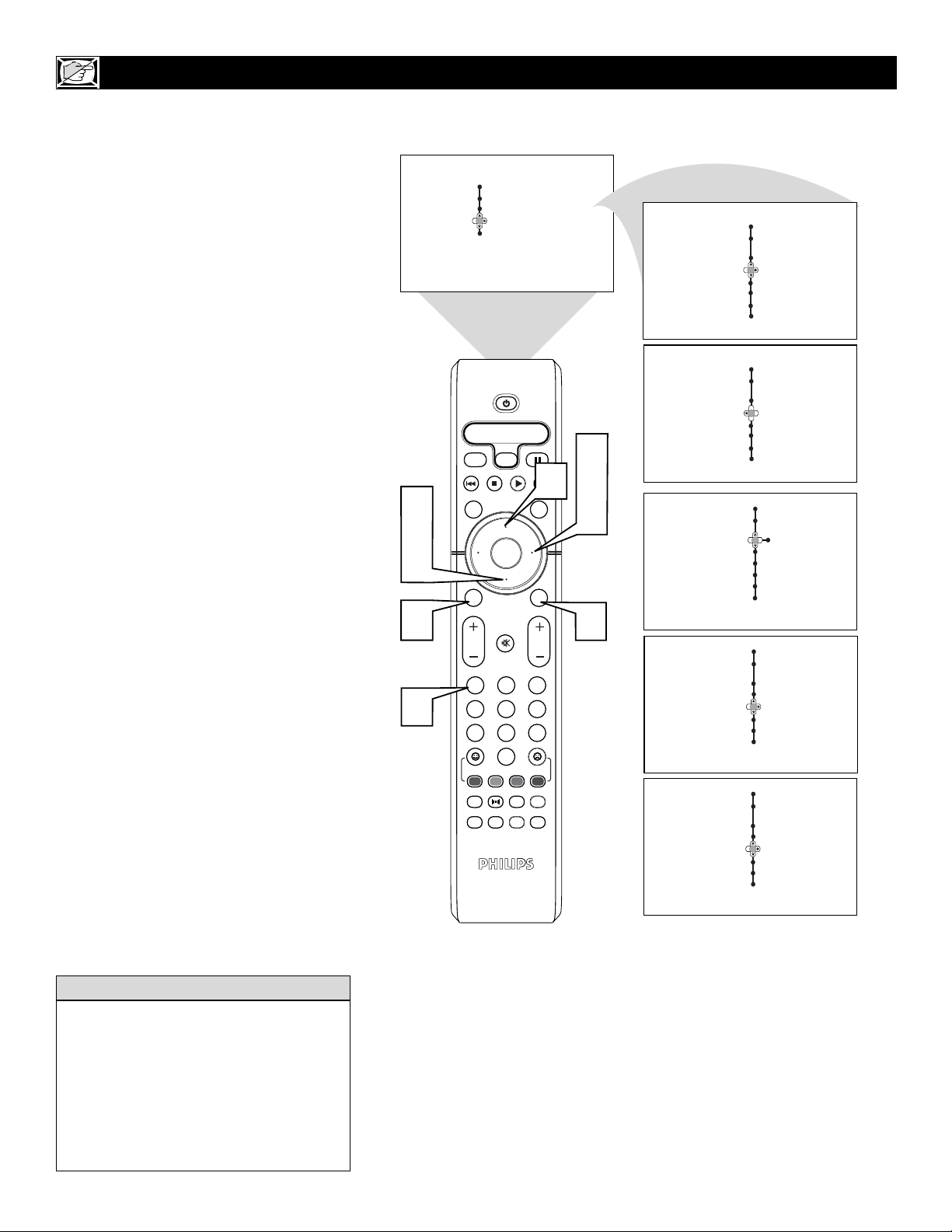
16
HOW TO
CLEAR ALL
LOCKED CHANNELS AT THE SAME TIME
Features
Auto Lock
Lock Channel
Change Code
Clear All Clear?
Movie Rating
TV Rating
Features
Auto Lock
Lock Channel
Change Code
Clear All Cleared
Movie Rating
TV Rating
Menu
Picture Timer
Sound Auto Lock
Features Wide Screen
Install
Rotation
Menu
Features
Timer Access Code
Auto Lock – – – –
Menu
Features
Timer Access Code
Auto Lock x x x x
Correct
Menu
Features
Lock Channel
Change Code
Clear All
Movie Rating
TV Rating
OK
1
2
3
4
5
6
7
8
0
9
Select
SLEEP
ACTIVE
CONTROL
CC
AV
CLOCK
MENU
EXIT
PICTURE
SOUND
STATUS
SELECT
PIC SIZE
MAIN
FREEZE
QuadraSurf
TM
PROGRAM
LIST
TV/VCR
REC
SAP
A/CH
SATVCR AMP ACCDVD
VOL CH
MUTE
Power
3
5
2
4
7
1
6
8
2
Wide Screen
Rotation
Wide Screen
Rotation
Closed Caption
Closed Caption
Closed Caption
3
9
V
arious onscreen messages will appear
when someone tries to view blocked pro-
gramming. The message is determined by how
the current programming is blocked. You may
view the blocked programming and turn OFF
the AutoLock™ feature by using the Clear All
control or by entering your access code.
1
Press the MENU/SELECT button on
the remote control to show the
onscreen menu.
2
Press the CURSOR UP or CURSOR
DOWN button to highlight Features.
3
Press the CURSOR RIGHT button
to display the Features menu.
4
Press the CURSOR DOWN button to
select the AutoLock™ control.
5
Press the CURSOR RIGHT button
again to highlight ACCESS CODE.
6
Enter your four-digit Access Code,
“Correct” will briefly appear on the
screen and the AutoLock menu will be
accessible.
7
Press the CURSOR DOWN button to
select Clear All. Clear? will appear on
the screen.
8
Press the CURSOR RIGHT button
to activate the clearing of all channels.
9
Press the STATUS/EXIT button to
remove the menu from the screen.
If you tune to a specific channel that has
been blocked by BLOCK CHANNEL or
any of the AutoLock™ RATING options,
simply enter your four-digit access code to
view the channel.
NOTE: This will unblock ALL channels
until the TV is shut OFF. When powered
back ON, all previously blocked channels
will be blocked again.
HELPFUL HINT
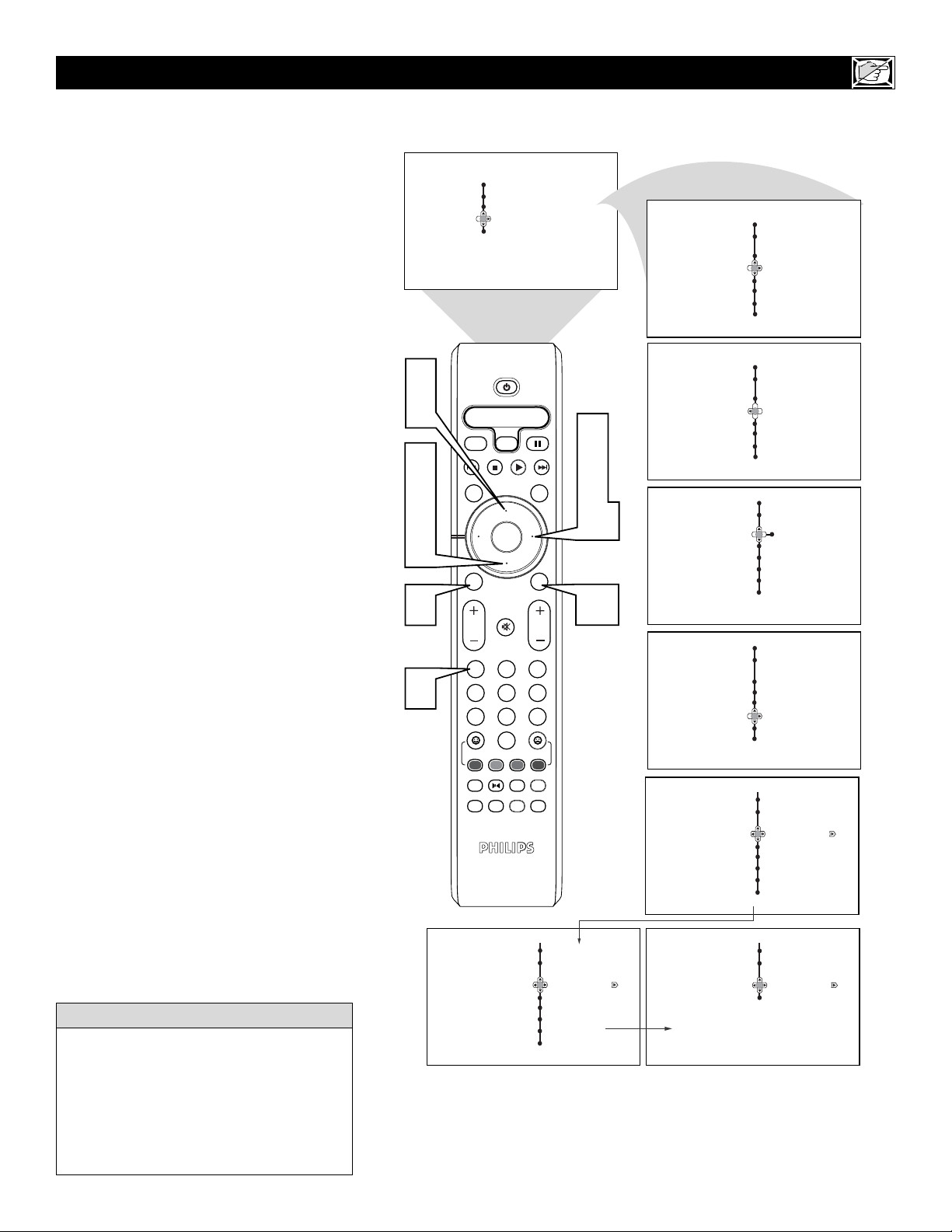
17
BLOCKING P
ROGRAMS BASED ON
MOVIE RATINGS
Auto Lock
Movie Rating
XOnOff
Auto Lock
Movie Rating
GOnOff
PG
PG-13
R
NC-17
Menu
Picture Timer
Sound Auto Lock
Features
Install
Menu
Features
Timer Access Code
Auto Lock – – – –
Menu
Features
Timer Access Code
Auto Lock x x x x
Correct
Menu
Features
Lock Channel
Change Code
Clear All
Movie Rating
TV Rating
OK
1
2
3
4
5
6
7
8
0
9
Select
SLEEP
ACTIVE
CONTROL
CC
AV
CLOCK
MENU
EXIT
PICTURE
SOUND
STATUS
SELECT
PIC SIZE
MAIN
FREEZE
QuadraSurf
TM
PROGRAM
LIST
TV/VCR
REC
SAP
A/CH
SATVCR AMP ACCDVD
VOL CH
MUTE
Power
Auto Lock
Movie Rating
G Off On
PG
PG-13
R
NC-17
Features
Auto Lock
Lock Channel G
Change Code PG
Clear All PG-13
Movie Rating R
TV Rating NC-17
1
6
2
4
9
3
5
7
9
2
Wide Screen
Rotation
Wide Screen
Rotation
Wide Screen
Rotation
Closed Caption
Closed Caption
Closed Caption
3
8
11
10
A
fter your personal access code has been
set, you can select specific movie ratings
that you want to censor.
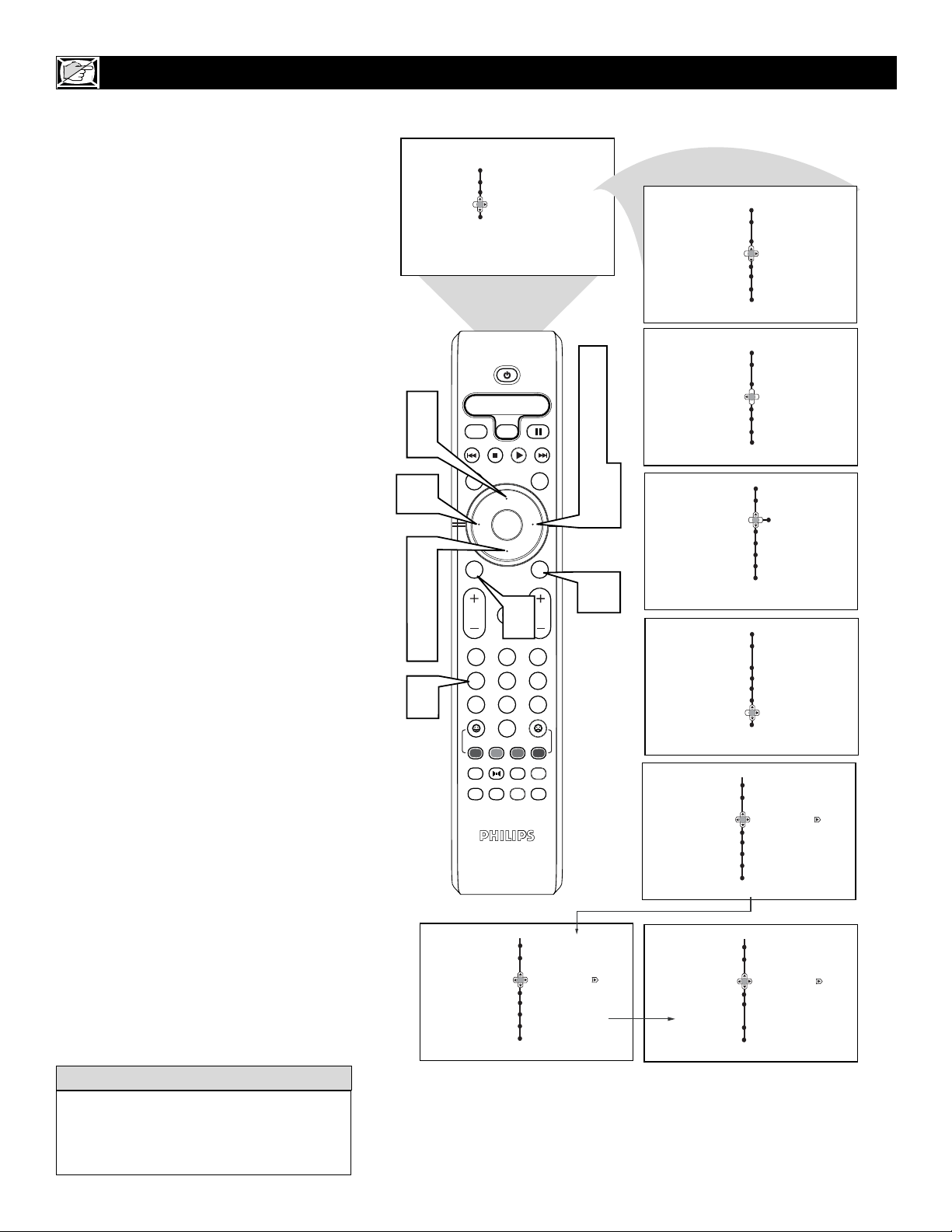
1
Press the MENU/SELECT button on
the remote control to show the
onscreen menu.
2
Press the CURSOR UP or CURSOR
DOWN button to highlight Features.
3
Press the CURSOR RIGHT button
to display the Features menu.
4
Press the CURSOR DOWN button to
highlight the AutoLock™ control.
5
Press the CURSOR RIGHT button
again to highlight Access Code.
6
Enter your four-digit Access Code.
Correct will flash very briefly and the
menu will move to the left with the
AutoLock menu now accessible.
7
Press the CURSOR DOWN repeated-
ly until Movie Rating is highlighted.
8
Press the CURSOR RIGHT button
and the Rating menu shifts to the left
with G highlighted.
9
Press the CURSOR UP or DOWN
buttons to highlight each rating you
want.
Press the CURSOR RIGHT button
to turn the rating ON or OFF. Turning
the rating ON will block programs with
that rating from being seen.
Press the STATUS/EXIT button to
remove the menu from the screen.
When a rating is turned ON, all higher ratings
also will be turned on automatically. For
example, if the R rating is turned on, the NC-
17 and X ratings also will be turned on.
All Movie Ratings can be turned ON or OFF.
Refer to page 13 for Movie Rating defini-
tions.
HELPFUL HINT
10
11
18
BLOCKING P
ROGRAMS BASED ON
TV RATINGS
Auto Lock
TV Rating
TV-MA
On Off
Menu
Picture Timer
Sound Auto Lock
Features
Install
Menu
Features
Timer Access Code
Auto Lock – – – –
Menu
Features
Timer Access Code
Auto Lock x x x x
Correct
Menu
Features
Lock Channel
Change Code
Clear All
Movie Rating
TV Rating
OK
1
2
3
4
5
6
7
8
0
9
Select
SLEEP
ACTIVE
CONTROL
CC
AV
CLOCK
MENU
EXIT
PICTURE
SOUND
STATUS
SELECT
PIC SIZE
MAIN
FREEZE
QuadraSurf
TM
PROGRAM
LIST
TV/VCR
REC
SAP
A/CH
SATVCR AMP ACCDVD
VOL CH
MUTE
Power
Auto Lock
TV Rating
TV-Y
TV-Y7
TV-G
TV-PG
TV-14
TV-MA
Auto Lock
TV Rating
TV-Y
TV-Y7
TV-G
TV-PG
TV-14
Features
Auto Lock
Lock Channel TV-Y
Change Code TV-Y7
Clear All TV-G
Movie Rating TV-PG
TV Rating TV-14
1
6
2
4
9
7
3
5
7
8
10
11
12
9
Off On
On Off
10
2
Wide Screen
Rotation
Wide Screen
Rotation
Wide Screen
Rotation
Closed Caption
Closed Caption
Closed Caption
3
Y
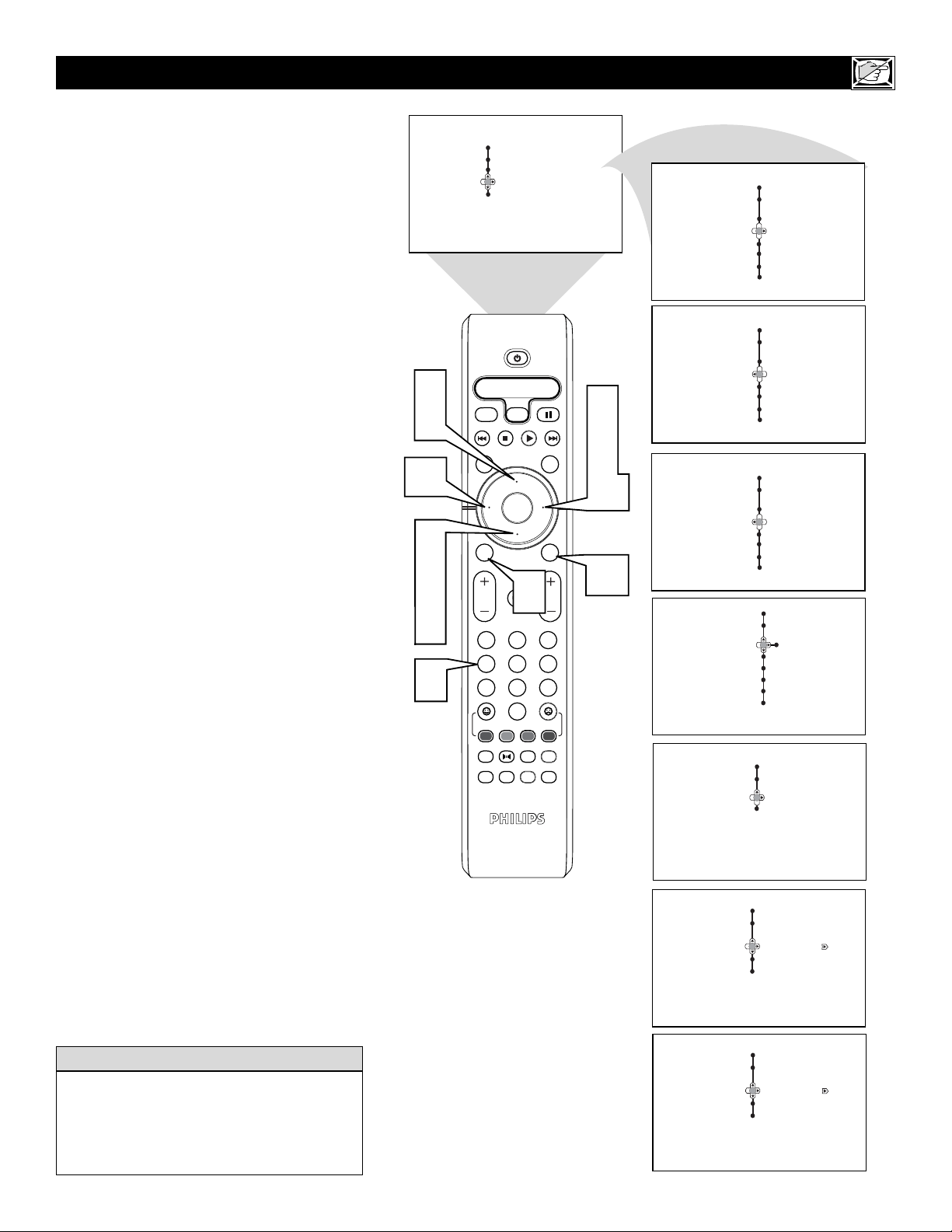
ou can select specific TV ratings that you
want to censor by following these steps.
1
Press the MENU/SELECT button on
the remote control to show the
onscreen menu.
2
Press the CURSOR UP or CURSOR
DOWN button to highlight Features.
3
Press the CURSOR RIGHT button
to display the Features menu.
4
Press the CURSOR DOWN button to
highlight the AutoLock™ control.
5
Press the CURSOR RIGHT button
again to highlight Access Code.
6
Enter your four-digit Access Code.
Correct will flash very briefly and the
menu will move to the left with the
AutoLock menu now accessible.
7
Press the CURSOR DOWN button
repeatedly until TV Rating is highlight-
ed.
8
Press the CURSOR RIGHT button
to enter the TV RATING menu.
9
Press the CURSOR UP or DOWN to
select a desired rating (TV-Y, TV-Y7,
TV-G, TV-PG, TV-14, or TV-MA) .
Press the CURSOR RIGHT or LEFT
to turn the block on the rating ON or
OFF.
NOTE: More specific subratings (for violence,
sexual content, dialogue, or fantasy violence)
are available for TV-Y7, TV-PG, TV-14, and
TV-MA. (Refer to page 13 for definitions.)
To access these subratings, with the
main rating selected, press the CUR
SOR RIGHT. Then, repeat steps 8
and 10 to turn the sub-ratings ON or
OFF.
Press the STATUS/EXIT button to
remove the menu from the screen.
When a rating is turned ON, all higher ratings
also will be turned on automatically. For
example, if the TV-Y7 rating is turned on, the
TV-14 and TV-X ratings also will be turned on.
HELPFUL HINT
10
12
11
19
OTHER A
UTOL
OCK™BLOCKING OPTIONS
Auto Lock
Block Options
Blocking Off On
Block Unrated
No Rating
Menu
Picture Timer
Sound Auto Lock
Features
Install
Menu
Features
Timer Access Code
Auto Lock – – – –
Menu
Features
Timer Access Code
Auto Lock x x x x
Menu
Features
Timer Access Code
Auto Lock – – – –
Correct
Menu
Features
Lock Channel
Change Code
Clear All
Movie Rating
TV Rating
OK
1
2
3
4
5
6
7
8
0
9
Select
SLEEP
ACTIVE
CONTROL
CC
AV
CLOCK
MENU
EXIT
PICTURE
SOUND
STATUS
SELECT
PIC SIZE
MAIN
FREEZE
QuadraSurf
TM
PROGRAM
LIST
TV/VCR
REC
SAP
A/CH
SATVCR AMP ACCDVD
VOL CH
MUTE
Power
Features
Auto Lock
Blocking
Block Unrated
No Rating
Block Options
6
2
4
9
7
11
9
10
1
3
5
8
10
Auto Lock
Block Options
Blocking On Off
Block Unrated
No Rating
2
Wide Screen
Rotation
Wide Screen
Rotation
Wide Screen
Rotation
Wide Screen
Rotation
Closed Caption
Closed Caption
Closed Caption
Closed Caption
T
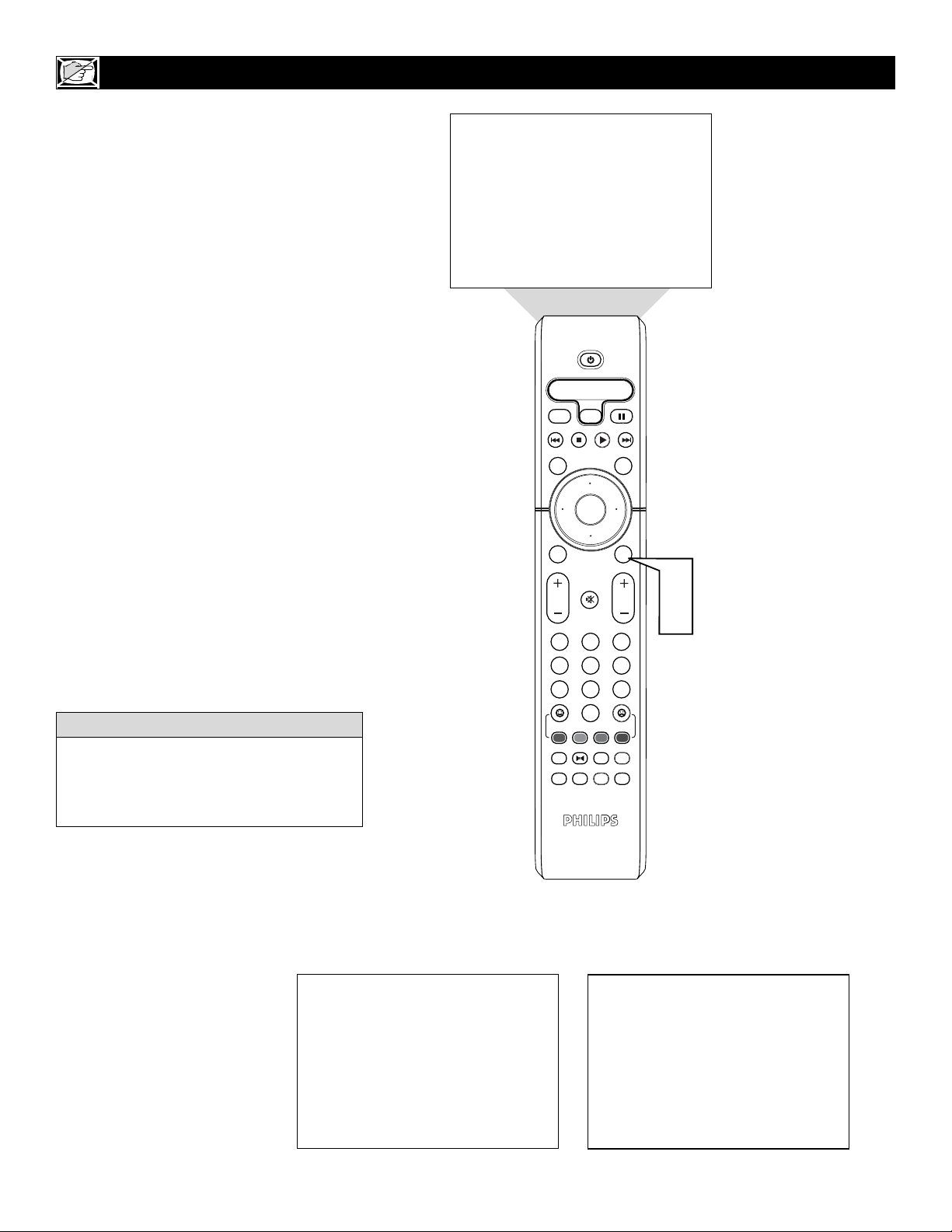
he AutoLock™ control offers the viewer
other blocking options as well/ With
Block Options, the censoring can be turned
On or Off.
1
Press the MENU/SELECT button on
the remote control to show the
onscreen menu.
2
Press the CURSOR UP or CURSOR
DOWN button to highlight Features.
3
Press the CURSOR RIGHT button
to display the Features menu.
4
Press the CURSOR DOWN button to
highlight the AutoLock™ control.
5
Press the CURSOR RIGHT button
again to highlight Access Code.
6
Enter your four-digit Access Code.
Correct will flash very briefly and the
menu will move to the left with the
AutoLock menu now accessible.
7
Press the CURSOR DOWN button
repeatedly until Block Options is high-
lighted.
8
Press the CURSOR RIGHT button
to enter the Block Options menu.
9
Press the CURSOR UP or DOWN
buttons to select the desired block
option.
Blocking: Might be called the “master
switch” for AutoLock™. When On,
ALL blocking/censoring will take place.
When Off, ALL blocking is disabled.
Block Unrated: ALL unrated programs
based on the Movie Ratings or
Parental (TV) Guidelines can be
blocked if this feature is set to On and
the Blocking feature is set to OFF.
No Rating: ALL programming with
NO content advisory data can be
blocked if set to On and the Blocking
feature is set to OFF.
Press the CURSOR RIGHT or
LEFT to toggle BLOCKING ON or
OFF.
Press the STATUS/EXIT button to
remove the menu from the screen.
Remember, when the BLOCKING control is
OFF, the blocking or censoring of programs is
disabled. When the BLOCKING control is
ON, blocking will occur according to the set-
tings you have chosen.
HELPFUL HINT
10
11
20
USING THE
AUTO
LOCK™REVIEW SCREEN
OK
1
2
3
4
5
6
7
8
0
9
Select
SLEEP
ACTIVE
CONTROL
CC
AV
CLOCK
MENU
EXIT
PICTURE
SOUND
STATUS
SELECT
PIC SIZE
MAIN
FREEZE
QuadraSurf
TM
PROGRAM
LIST
TV/VCR
REC
SAP
A/CH
SATVCR AMP ACCDVD
VOL CH
MUTE
Power
Movie Rating -
-
-
R
NC-17
X
TV Rating -
Y7
TV-G
TV-PG
TV-14
TV-MA
Block Unrated
Off
No Rating
Off
AutoLock DISABLED
2
1
Movie Rating -
-
-
R
NC-17
X
TV Rating -
TV-Y7
TV-G
TV-PG
TV-14
MA
Block Unrated
Off
No Rating
Off
T
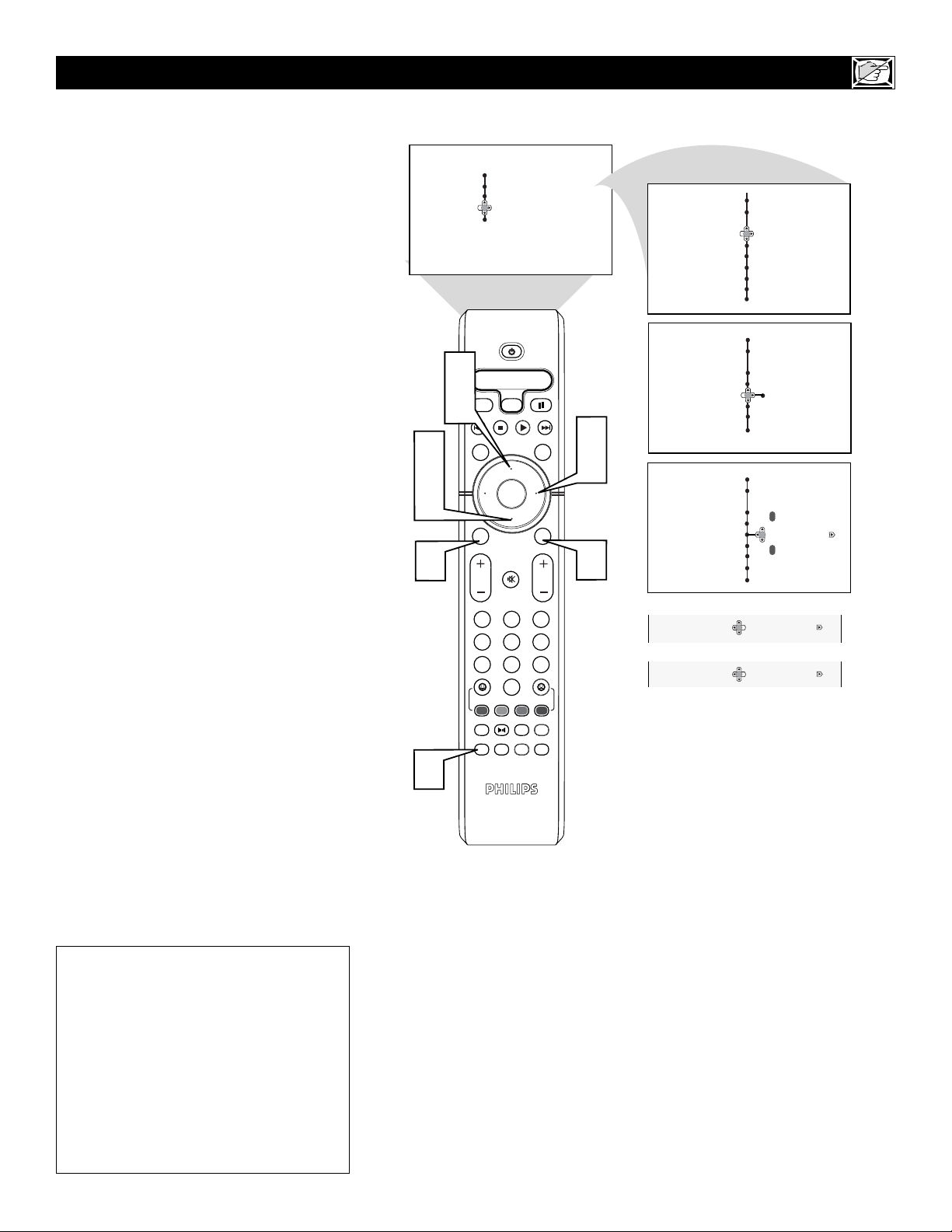
o remind you wich rating you have locked
and which Block Options you have selected,
a review screen is available to review your
AutoLock
TM
settings. To access this screen follow
the steps below.
1
Press the STATUS/EXIT button on the
remote control TWICE. Your
AutoLock™ settings will appear on the
screen.
NOTE: If you have blocked specific subratings,
such as V for violence in the TV-PG category,
these blocked subratings will not appear in the
review. The subratings however are still blocked
according to your selections.
2
After a few seconds, the settings will
leave the screen automatically, or you can
press the STATUS/EXIT button a third
time to remove them from the screen.
The AutoLock™ status screen will only
appear if the Block option is set to On. See
previous page for details.
AutoLock is set to Off by default.
HELPFUL HINT
This display will appear after Step One
(above) is completed if the AutoLock™
Block Option is set to On.
This display will appear after Step One
(above) is completed if the AutoLock™
Block Option is set to Off.
21
OK
1
2
3
4
5
6
7
8
0
9
Select
SLEEP
ACTIVE
CONTROL
CC
AV
CLOCK
MENU
EXIT
PICTURE
SOUND
STATUS
SELECT
PIC SIZE
MAIN
FREEZE
QuadraSurf
TM
PROGRAM
LIST
TV/VCR
REC
SAP
A/CH
SATVCR AMP ACCDVD
VOL CH
MUTE
Power
3
5
2
4
1
Menu
Features
4 : 3
Timer
Auto Lock
7
Menu
Picture Timer
Sound Auto Lock
Features
Install
Menu
Features
Timer Time
Auto Lock Start Time
Stop Time
Program No.
Activate
Menu
Features
4 : 3
Timer
Auto Lock
8
2
Format
Rotation
Format
Rotation
Format
Rotation
OR
OR
Expand 4:3
Compress16:9
Format
Rotation
Format
Format
Closed Caption
Closed Caption
Closed Caption
Closed Caption
6
6
HOW TO USE THE
FORMAT CONTROLS
Y
ou can change the screen format size to
match the type of program you’re watch-
ing. Select the normal 4:3, Expand 4:3, or
Compress 16:9. Compress 16:9 allows movies
to be viewed in their full width (known as let-
ter-box style).
1
Press the MENU/SELECT button on
the remote control to show the on-
screen menu.
2
Press the CURSOR UP or CURSOR
DOWN twice to highlight Features.
3
Press the CURSOR RIGHT and the
menu will shift to the left.
4
Press the CURSOR DOWN repeated-
ly until the Format control is highlight-
ed.
5
Press the CURSOR RIGHT button
to enter the Format menu.
6
Press the CURSOR UP or CURSOR
DOWN repeatedly to toggle among the
screen format sizes – 4:3, Expand 4:3,
and Compress 16:9.
7
Press the STATUS/EXIT button to
remove the menu from the screen.
OR
8
You can toggle the screen format by
repeatedly pressing the PIC SIZE
button on the remote control.
IMPORTANT NOTE:
Some DVD Discs are encoded with as much
as 30% more video information to give the
viewer the best possible picture quality. With
the DVD Player in the 16:9 picture format,
the playback of this type of disc (containing
extra video information), can produce a num-
ber of small white lines in the upper portion
of the black letterbox area. With some of
these discs, this situation is unavoidable and
it does not require a service call.
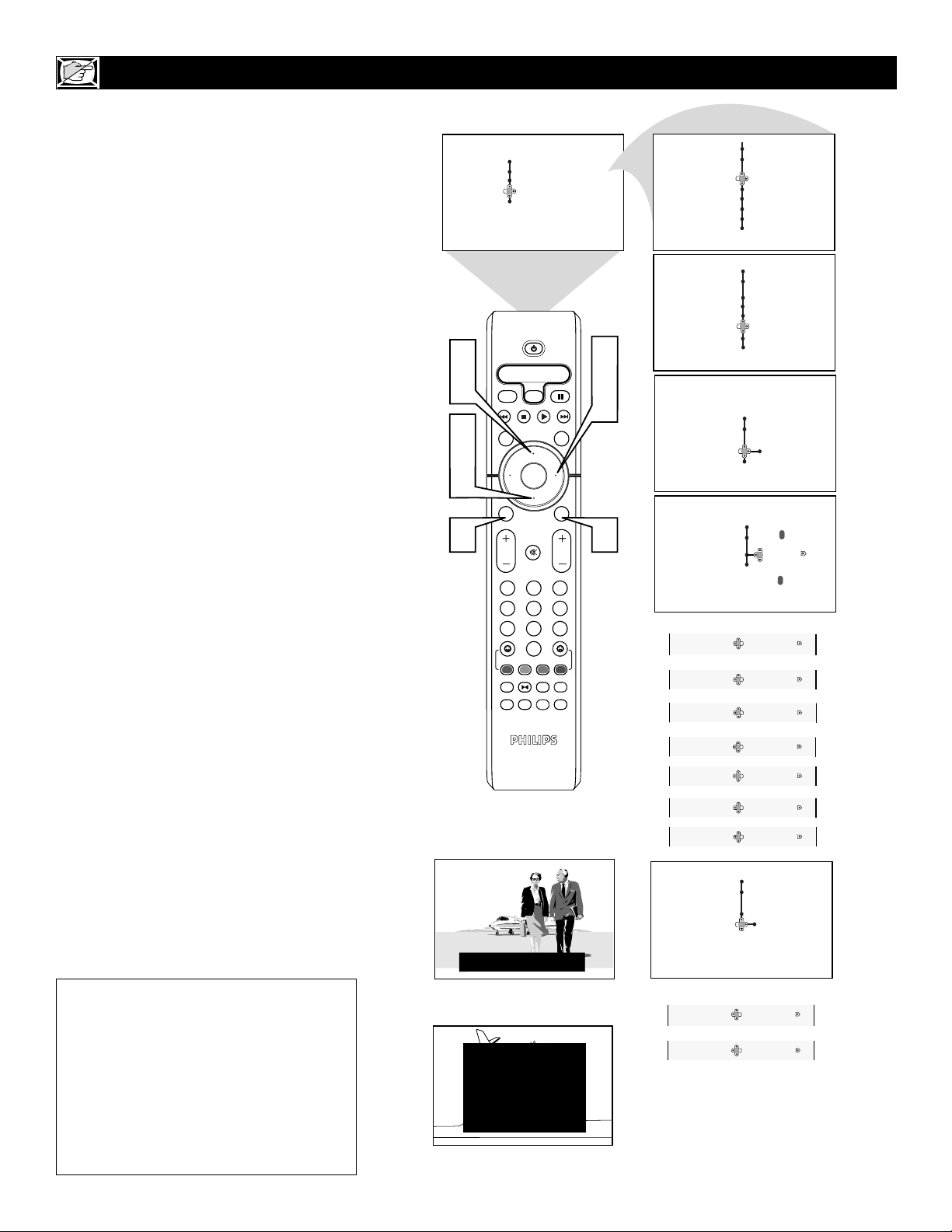
22
HOW TO USE THE
CLOSED CAPTION CONTROLS
OK
1
2
3
4
5
6
7
8
0
9
Select
SLEEP
ACTIVE
CONTROL
CC
AV
CLOCK
MENU
EXIT
PICTURE
SOUND
STATUS
SELECT
PIC SIZE
MAIN
FREEZE
QuadraSurf
TM
PROGRAM
LIST
TV/VCR
REC
SAP
A/CH
SATVCR AMP ACCDVD
VOL CH
MUTE
Power
CLOSE CAPTION PROGRAMS ON WXYZ
ALL ITEMS ARE EASTERN STANDARD TIME (EST)
CHECK LOCAL LISTINGS
FOR TIMES IN YOUR AREA
6:00 TOP OF THE MORNING
12:00 NOONDAY NEWS
6:00 WORLD NEWS FOR TODAY
10:00 THE BEST LITTLE CALL-IN SHOW EVER
9:00 PLAYHOUSE MOVIE OF THE WEEK
1:30 AS YOUR LIFE TURNS MY WORLD AROUND
Features
Closed Caption
Caption Mode CC1
CC Display
Features
Closed Caption
Caption Mode
CC Display
TEXT4
CC1
CC3
Features
Close Caption
Caption Mode
CC Display Off
JOHN: Why did they move the meeting up to this week?
MARSHA: I don t know, but they are pushing to close the deal.
Menu
Picture Timer
Sound Auto Lock
Features
Install
Menu
Features
Timer Caption Mode
Auto Lock CC Display
3
5
6
1
2
4
7
8
7
Menu
Features
Timer Time
Auto Lock Start Time
Stop Time
Program No.
Activate
2
Wide Screen
Closed Caption
Rotation
Wide Screen
Closed Caption
Rotation
Wide Screen
Closed Caption
Rotation
OR
OR
OR
OR
OR
Caption Mode
Caption Mode
Caption Mode
Caption Mode
Caption Mode
CC2
CC4
TEXT1
TEXT2
OR
OR
Caption Mode
Caption Mode
TEXT3
CC Mute
OR
OR
On
CC Display
CC Display
C
losed Captioning (CC) allows you to
read the voice content of television pro-
grams on the TV screen. Designed to help the
hearing impaired, this feature uses onscreen
“text boxes” to show dialogue and conversa-
tions while the TV program is in progress.
1
Press the MENU/SELECT button on
the remote control to show the on-
screen menu.
2
Press the CURSOR UP or CURSOR
DOWN twice to highlight Features.
3
Press the CURSOR RIGHT button,
the menu will shift to the left.
4
Press the CURSOR DOWN repeated-
ly until the Closed Caption control is
highlighted.
5
Press the CURSOR RIGHT again.
The menu will shift to the left and
Caption Mode will be highlighted.
6
Press the CURSOR RIGHT to high-
light Caption Modes.
7
Press the CURSOR UP or DOWN to
select a Caption Mode: CC1, CC2,
CC3, CC4, TEXT1, TEXT2, TEXT3,
or TEXT4. CC Display turns text OFF
or ON if the TV station broadcasting
on the channel is making Closed
Captioning available. With CC Display
highlighted, press the CURSOR
RIGHT to toggle Closed Captioning
ON, OFF, or CC Mute.
NOTE: You also can press the CC button on
the remote control to turn the CC Text option
On or Off.
8
Press the STATUS/EXIT button to
remove the menu from the screen.
NOTE: When Closed Captioning is turned
On, the screen will automatically change to
the Wide screen format to allow text to fit on
screen.
NOTE: Not all TV programs and product
commercials are broadcast with Closed
Captioning (CC). Nor are all Closed
Captioning MODEs (CAPTION 1–4 or
TEXT 1–4) necessarily being used by broad-
cast stations during the transmission of a pro-
gram offering Closed Captioning. Refer to
your area’s TV program listings for the sta-
tions and times of shows being broadcast
with Closed Captioning.
CAPTION Mode
Example Display
TEXT Mode Example Display -
The TV screen will be
blocked from viewing.
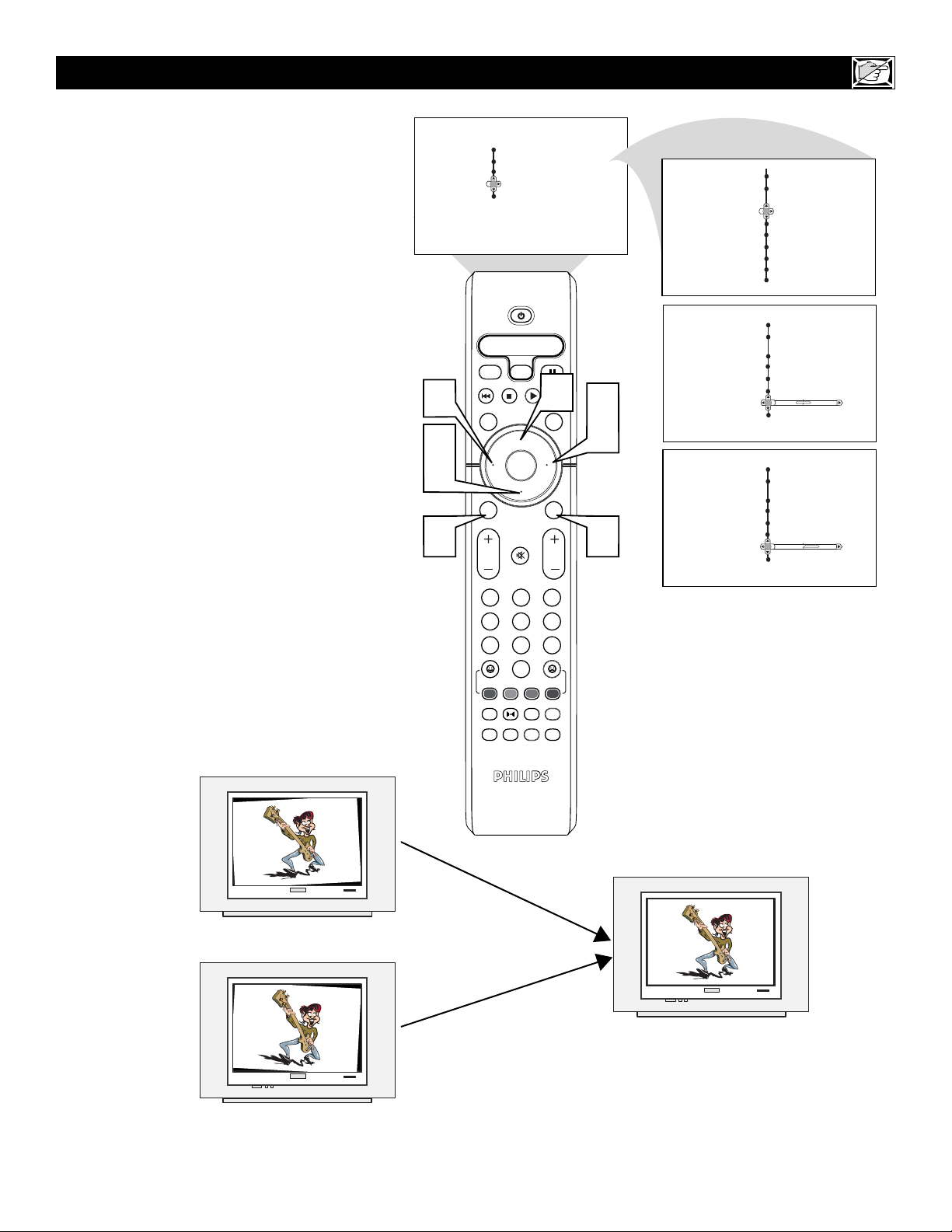
23
OK
1
2
3
4
5
6
7
8
0
9
Select
SLEEP
ACTIVE
CONTROL
CC
AV
CLOCK
MENU
EXIT
PICTURE
SOUND
STATUS
SELECT
PIC SIZE
MAIN
FREEZE
QuadraSurf
TM
PROGRAM
LIST
TV/VCR
REC
SAP
A/CH
SATVCR AMP ACCDVD
VOL CH
MUTE
Power
3
5
2
4
1
5
Menu
Picture Timer
Sound Auto Lock
Features
Install
Menu
Features
Timer
Auto Lock
0
PHILIPS
PHILIPS
PHILIPS
6
Menu
Features
Timer Time
Auto Lock Start Time
Stop Time
Program No.
Activate
Menu
Features
Timer
Auto Lock
2
Wide Screen
Rotation
Wide Screen
Rotation
Wide Screen
Rotation
4
Wide Screen
Rotation
Closed Caption
Closed Caption
Closed Caption
Closed Caption
HOW TO USE THE
ROTATION CONTROLS
I
n rare cases the video supplied to the TV
screen might show slightly tilted one way or
another. The Tilt Adjust control will allow you
to correct the problem by adjusting the screen
in a clockwise or counterclockwise direction.
1
Press the MENU/SELECT button on
the remote control to show the on-
screen menu.
2
Press the CURSOR UP or CURSOR
DOWN twice to highlight Features.
3
Press the CURSOR RIGHT and the
menu will shift to the left.
4
Press the CURSOR DOWN repeated-
ly until the ROTATION control is
highlighted.
5
Press the CURSOR RIGHT or
LEFT to rotate the picture on the
screen clockwise or counter clockwise.
Please note that the amount of rotation
will be very minimal.
6
Press the STATUS/EXIT button to
remove the menu from the screen.
Picture tilted to the left
After adjustment
Picture tilted to the right
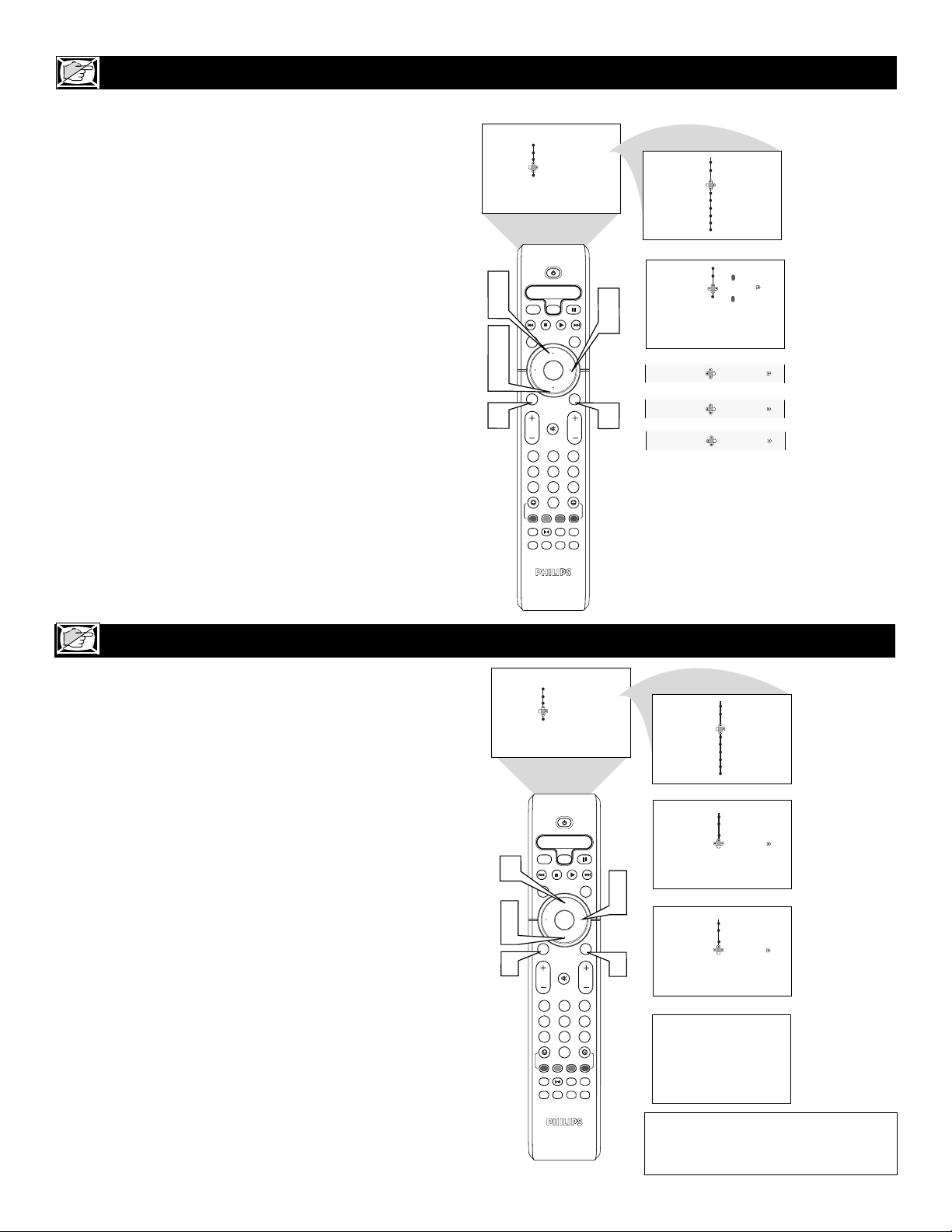
24
HOW TO USE THE
DYNAMIC NR (NOISE REDUCTION) CONTROL
OK
1
2
3
4
5
6
7
8
0
9
Select
SLEEP
ACTIVE
CONTROL
CC
AV
CLOCK
MENU
EXIT
PICTURE
SOUND
STATUS
SELECT
PIC SIZE
MAIN
FREEZE
QuadraSurf
TM
PROGRAM
LIST
TV/VCR
REC
SAP
A/CH
SATVCR AMP ACCDVD
VOL CH
MUTE
Power
3
5
2
4
1
6
6
Menu
Features
Dynamic NR
Permanent OSD
Off
Med
7
Menu
Picture Timer
Sound Auto Lock
Features
Install
Menu
Features
Timer Time
Auto Lock Start Time
Stop Time
Program No.
Activate
2
Wide Screen
Rotation
Wide Screen
Rotation
OR
OR
Dynamic NR
Dynamic NR
Min
OR
Dynamic NR
Max
Closed Caption
Closed Caption
Med
Menu
Features
OK
1
2
3
4
5
6
7
8
0
9
Select
SLEEP
ACTIVE
CONTROL
CC
AV
CLOCK
MENU
EXIT
PICTURE
SOUND
STATUS
SELECT
PIC SIZE
MAIN
FREEZE
QuadraSurf
TM
PROGRAM
LIST
TV/VCR
REC
SAP
A/CH
SATVCR AMP ACCDVD
VOL CH
MUTE
Power
2
4
1
3
5
6
Menu
Picture Timer
Sound Auto Lock
Features
Install
Menu
Features
Timer Time
Auto Lock Start Time
Stop Time
Program No.
Activate
Menu
Features
Permanent Osd Off On
12
Dynamic NR
Permanent Osd On Off
Dynamic NR
Wide Screen
Rotation
Wide Screen
Rotation
Closed Caption
Closed Caption
2
HOW TO USE THE PERMANENT OSD (ONSCREEN DISPLAY) CONTROL
T
he Dynamic Noise Reduction feature can
help eliminate slightly “speckled” pic-
tures (an indication of signal noise in the pic-
ture).
1
Press the MENU/SELECT button on
the remote control to show the
onscreen menu.
2
Press the CURSOR UP or CURSOR
DOWN twice to highlight Features.
3
Press the CURSOR RIGHT button
to display the Features menu.
4
Press the CURSOR DOWN button
repeatedly until the Dynamic NR con-
trol is highlighted.
5
Press the CURSOR RIGHT button
to enter the Dynamic NR menu.
6
Press the CURSOR UP or CURSOR
DOWN button repeatedly to select the
desired Dynamic NR mode (Off, Min,
Med, or Max).
7
Press the STATUS/EXIT button to
remove the menu from the screen.
T
he Permanent Osd control will store the
TV’s channel number in the upper left
corner of the TV while the TV is on. Follow
the steps to turn the feature On or Off.
1
Press the MENU/SELECT button on
the remote control to show the
onscreen menu.
2
Press the CURSOR UP or CURSOR
DOWN button repeatedly to highlight
Features.
3
Press the CURSOR RIGHT button
to display the Features menu.
4
Press the CURSOR DOWN button
repeatedly until the Permanent Osd
control is highlighted.
5
Press the CURSOR RIGHT button
to enter the Permanent Osd menu and
toggle the On or Off selection.
6
Press the STATUS/EXIT button to
remove the menu from the screen.
Setting the Permanent OSD control to
ON, will display the current channel
number in the upper left of the screen.
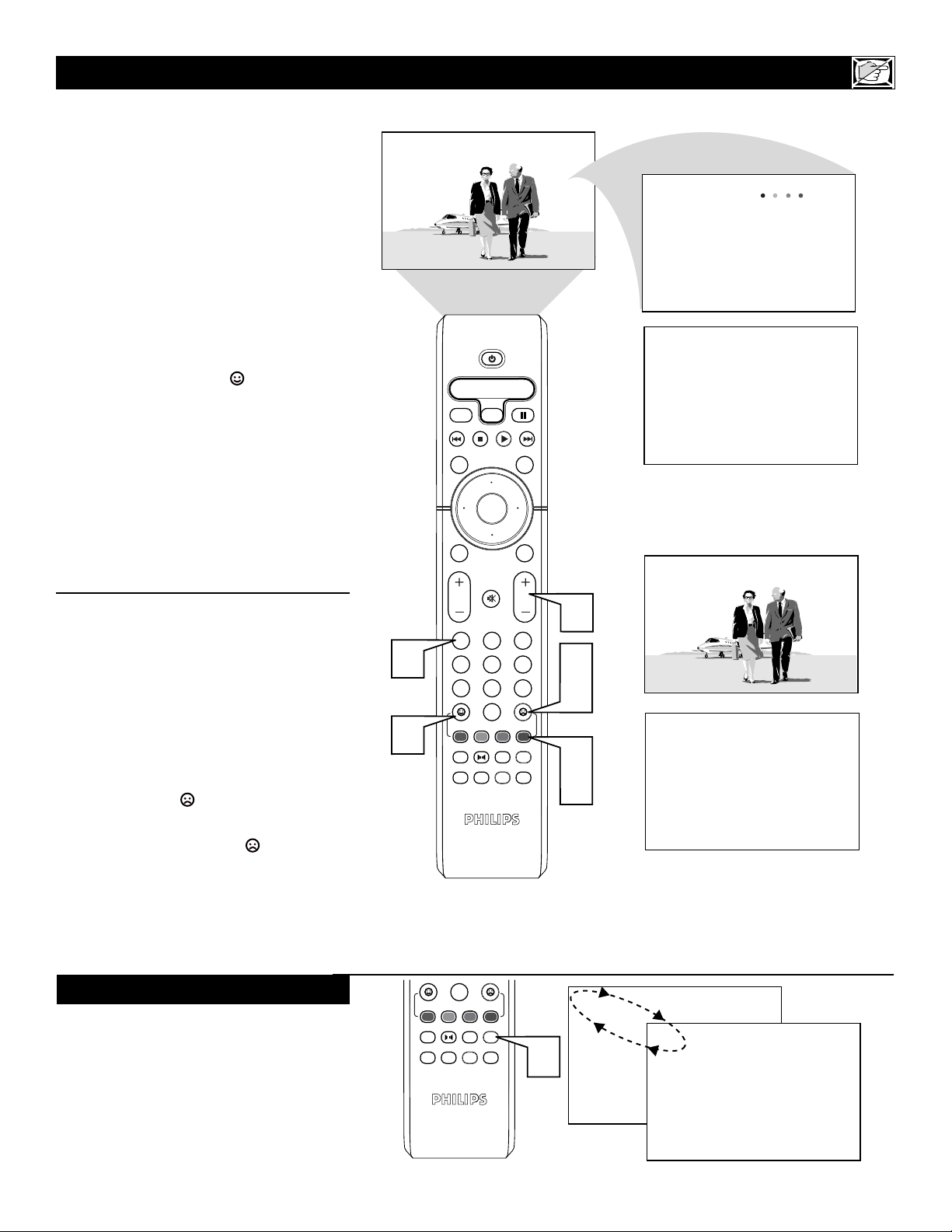
25
HOW TO
USE
THE QUADRASURF CONTROLS
OK
1
2
3
4
5
6
7
8
0
9
Select
SLEEP
ACTIVE
CONTROL
CC
AV
CLOCK
MENU
EXIT
PICTURE
SOUND
STATUS
SELECT
PIC SIZE
MAIN
FREEZE
QuadraSurf
TM
PROGRAM
LIST
TV/VCR
REC
SAP
A/CH
SATVCR AMP ACCDVD
VOL CH
MUTE
Power
8
Select list
{
8
8 Added!
{
8
{
8
Remov
e From List?
1
2
3
4
5
6
1
A
“list” or series of previously viewed
channels can be selected with the
QuadraSurf™ (colored) buttons on your
remote control. With this feature you can easi-
ly switch between different TV programs that
currently interest you. The QuadraSurf™ con-
trol allows you set up four different personal
Surf lists using the colored buttons (on the
remote control), each holding up to ten chan-
nels in its quick viewing“list.”
1
Press the CHANNEL (+) or (–) but-
tons (or the NUMBER buttons) to
select a channel to add to one of the
SURF lists.
2
Press the SMILEY button on the
remote control to ADD the channel to
one of the SURF lists.
3
Press the corresponding COLORED
(Red, Green, Yellow or Blue) button
to add the channel to that button’s Surf
list. (Up to ten channels per button can
be stored.)
Repeat steps 1 through 3 to add additional
channels (up to 10) to each of the the SURF
lists.
To remove a channel from one of the SURF
lists;
4
Press the COLORED QuadraSurf™
button until the desired channel
appears. The screen will display the
channel number with a colored
“Smiley” face to indicate the Colored
button it relates to.
5
While the “Smiley” face channel
indicator is displayed, press the
FROWNIE face button. The
screen will read, “Remove from List?”
6
Press the FROWNIE face button
again to confirm your decision to
remove the channel from the Surf list.
Repeat steps 4-6 to remove other channels
from Surf lists.
1
Your remote also has an A/CH
(Alternate Channel) button. Pressing
this button will toggle between the
Current and one previously selected
channel.
ALTERNATE CHANNEL
0
PIC SIZE
MAIN
FREEZE
QuadraSurf
TM
PROGRAM
LIST
TV/VCR
REC
SAP
A/CH
8
1
12
26
HOW TO
USE
THE QUADRASURF CONTROLS
T
he QuadraSurf™ buttons on your remote
control allow you to store up to 10 chan-
nels per button (40 total). This is a great fea-
ture if you want to store all your favorite
Sports channels, Movie channels, or News
channels in one surf list. Family members can
have there own favorite list of channels. You
can even program the external A/V Input
jacks for one of the buttons making it a
“source” button for your external accessory
devices.
Assuming channels have now been added to
the four QuadraSurf™ lists (the four colored
buttons on the remote, see the previous page),
let’s review how the feature works.
1
Press one of the pre-programmed
COLORED buttons on the remote
(Red, Green, Yellow or Blue). The
screen will display a smiley face with the
first programmed channel for that surf
list.
2
While the colored “smiley” face still
appears on the screen, press the same
COLORED button on the remote to
tune the second channel programmed for
that specific surf list.
3
Repeatedly pressing the same COL-
ORED button while the “smiley” face
appears will tune all the programmed
channels for that specific surf list. After
the last channel is tuned, pressing the
COLORED button again will return
you to the first channel in the list.
Repeat steps 1-3 for the other three
COLORED buttons (Surf lists) if
desired.
4
Pressing the “frownie” face button
will allow you to remove it from the
list (see the previous page for more
details).
10
12
18
22
28
35
39
41
56
99
12
Remove from list?
4
OK
1
2
3
4
5
6
7
8
0
9
Select
SLEEP
ACTIVE
CONTROL
CC
AV
CLOCK
MENU
EXIT
PICTURE
SOUND
STATUS
SELECT
PIC SIZE
MAIN
FREEZE
QuadraSurf
TM
PROGRAM
LIST
TV/VCR
REC
SAP
A/CH
SATVCR AMP ACCDVD
VOL CH
MUTE
Power
1
2
3
4
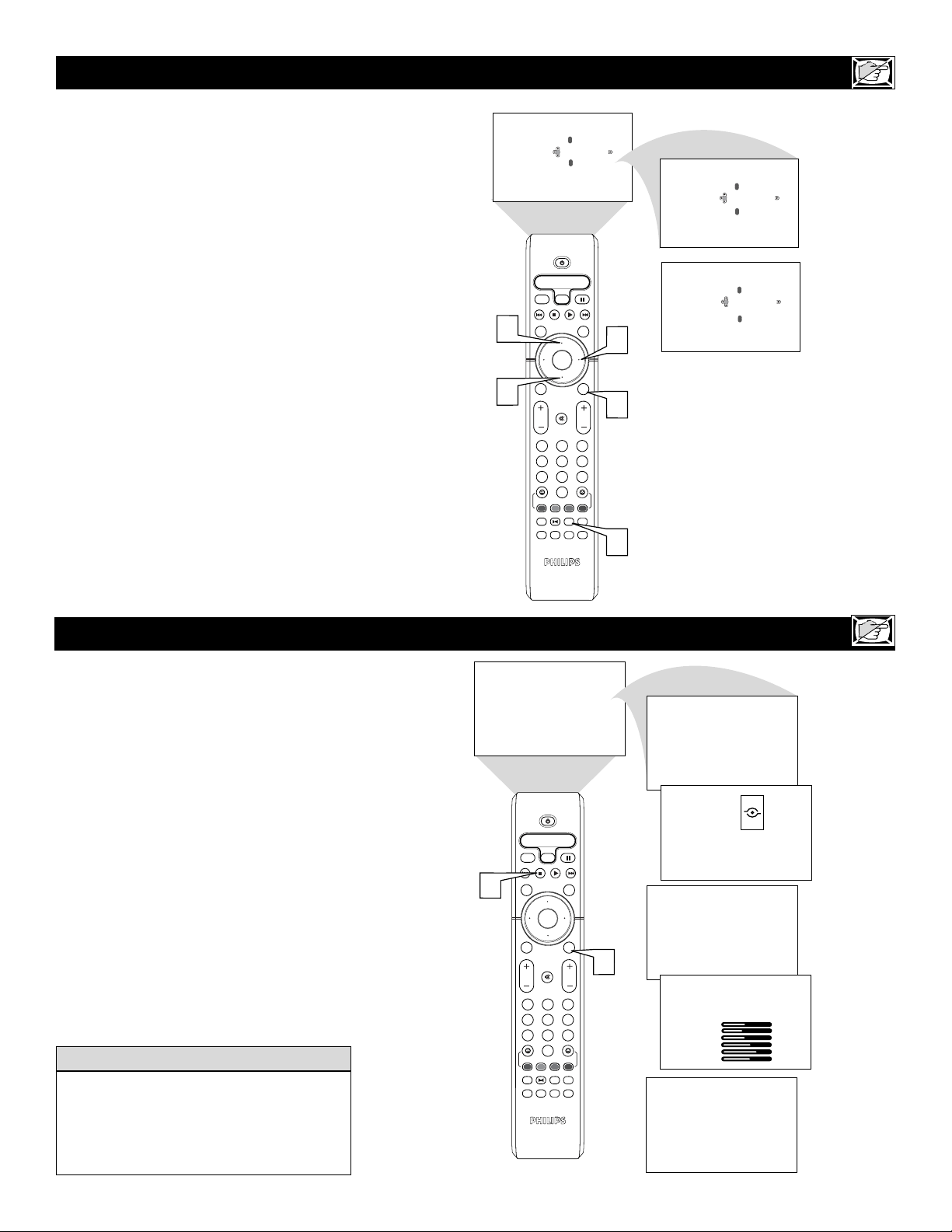
27
HOW TO USE THE
PROGRAM LIST CONTROL
OK
1
2
3
4
5
6
7
8
0
9
Select
SLEEP
ACTIVE
CONTROL
CC
AV
CLOCK
MENU
EXIT
PICTURE
SOUND
STATUS
SELECT
PIC SIZE
MAIN
FREEZE
QuadraSurf
TM
PROGRAM
LIST
TV/VCR
REC
SAP
A/CH
SATVCR AMP ACCDVD
VOL CH
MUTE
Power
Program No. 2 _ _ _ _
2
2
3
4
1
Program No. 3 _ _ _ _
Program No. 4 _ _ _ _
T
he Active Control monitors and adjusts
incoming video signals to help provide the
best picture quality.
When you choose to turn the Active Control
ON, the picture sharpness and noise reduc-
tion are controlled automatically. Active
Control adjusts these picture settings continu-
ously and automatically.
NOTE: Active Control is not available for
signals connected to the AV4 inputs.
1
Press the ACTIVE CONTROL but-
ton on the remote control to toggle the
control options (Off, On, Display
Logo, or Display On) and select the
option that you want.
2
Press the STATUS/EXIT to remove
the menu from the screen.
HOW TO USE THE ACTIVE CONTROL
OK
1
2
3
4
5
6
7
8
0
9
Select
SLEEP
ACTIVE
CONTROL
CC
AV
CLOCK
MENU
EXIT
PICTURE
SOUND
STATUS
SELECT
PIC SIZE
MAIN
FREEZE
QuadraSurf
TM
PROGRAM
LIST
TV/VCR
REC
SAP
A/CH
SATVCR AMP ACCDVD
VOL CH
MUTE
Power
Off
1
On
Display Logo
2
Display On
12 Stereo
active
control
14 Stereo
Active Control
Brightness
Contrast
Sharpness
Dyna Contrast
Dyna NR
Dyna Color
48
38
47
62
74
61
T
he Program List Control will allow you to
quickly overview all the programmed
channels that have been placed into the tele-
visions memory (see the Auto Programming
section of this manual for more details). pro-
gram List will display the channel number,
the name of the channel if you have given it
one, and where it will have AutoLock turned
On or Off.
1
Press the PROGRAM LIST button on
the remote control to show the current
list of installed channels (the current
channel will be highlighted).
2
Press the CURSOR UP or DOWN
buttons to scroll the list of channels,
highlighting the one you want to acti-
vate.
3
Press the CURSOR RIGHT button to
activate the channel. The TV will tune
to that channel.
4
Press the STATUS/EXIT button to
remove the menu from the screen.
If Display On is selected, a display screen
will appear when the channel is changed
showing the picture setting. If Display
Logo is selected, the Active Control logo
will be displayed during channel changes.
HELPFUL HINT
28
HOW TO USE THE
SLEEPTIMER CONTROL
Sleep Off
Sleep 9
Good Bye
Sleep 49
OK
1
2
3
4
5
6
7
8
0
9
Select
SLEEP
ACTIVE
CONTROL
CC
AV
CLOCK
MENU
EXIT
PICTURE
SOUND
STATUS
SELECT
PIC SIZE
MAIN
FREEZE
QuadraSurf
TM
PROGRAM
LIST
TV/VCR
REC
SAP
A/CH
SATVCR AMP ACCDVD
VOL CH
MUTE
Power
Sleep 15
Sleep 30
Sleep 45
Sleep 60
Sleep 90
Sleep 120
Sleep 180
Sleep 240
1
2
HOW TO USE THE FREEZE CONTROL
OK
1
2
3
4
5
6
7
8
0
9
Select
SLEEP
ACTIVE
CONTROL
CC
AV
CLOCK
MENU
EXIT
PICTURE
SOUND
STATUS
SELECT
PIC SIZE
MAIN
FREEZE
QuadraSurf
TM
PROGRAM
LIST
TV/VCR
REC
SAP
A/CH
SATVCR AMP ACCDVD
VOL CH
MUTE
Power
1
2
Have you ever fallen asleep in front of the TV,
only to have it wake you up at two in the
morning with a test pattern sound screech-
ing in your ears? Well, your TV can
enable you to avoid that discomfort by
automatically turning itself off. With the
Sleep Timer feature, you can set a timer to
automatically switch the TV OFF after a
period of time you choose (15-minute
increments up to 60 minutes, then 30-
minute increments up to 90 minutes, then
60-minute increments up to 240 minutes).
1
Press the SLEEP button on the
remote control. The SLEEP timer
onscreen display will appear in the
upper part of the screen.
2
Within five seconds, press the
SLEEP button repeatedly to pick the
amount of time (15-minute increments
up to 60 minutes, then 30-minute
increments up to 90 minutes, then 60-
minute increments up to 240 minutes)
before the TV will turn itself off.
An onscreen countdown will appear during
the last minute before the TV shuts itself off.
H
ave you ever wished you could freeze the
picture on the television broadcast to
write down a special telephone number or to
capture a needed address? Your television
will allow you to do just that with the press of
just one button on the remote control.
1
With a signal on the television screen,
simply press the FREEZE button on
the remote control to stop the picture
at any given moment.
2
Press the FREEZE button on the
remote control again to resume normal
viewing.
After freezing a picture on the screen, when the
FREEZE control is turned OFF, the normal sig-
nal programming will be shown at it’s present
time. The signal that was being shown while the
picture was frozen will not be viewable.
HELPFUL HINT
To see how many minutes remain before the TV
shuts itself off, press the STATUS/EXIT button.
A Sleep Timer setting can be cancelled by press-
ing any button during the last minute of the oper-
ation.
HELPFUL HINT
During the last minute of a
SLEEP timer setting, an onscreen
countdown will be displayed.
During the last 10 seconds of a
SLEEP timer setting, an onscreen
display will read GOOD BYE.
29
HOW TO USE THE
AUTOPICTURE™CONTROL
OK
1
2
3
4
5
6
7
8
0
9
Select
SLEEP
ACTIVE
CONTROL
CC
AV
CLOCK
MENU
EXIT
PICTURE
SOUND
STATUS
SELECT
QuadraSurf
TM
PROGRAM
LIST
TV/VCR
REC
SAP
A/CH
SATVCR AMP ACCDVD
VOL CH
MUTE
Power
1
2
Personal
Brightness
Color
Contrast
Sharpness
48
38
47
62
Movies
Brightness
Color
Contrast
Sharpness
40
37
47
50
Sports
Brightness
Color
Contrast
Sharpness
65
33
85
40
Weak Signals
Brightness
Color
Contrast
Sharpness
48
38
47
62
Multimedia
Brightness
Color
Contrast
Sharpness
48
38
47
62
HOW TO USE THE AUTOSOUND™CONTROL
Personal
Treble
Bass
48
38
Multimedia
40
37
Speech
Treble
Bass
65
33
Music
Treble
Bass
48
38
Movies
Treble
Bass
48
38
OK
1
2
3
4
5
6
7
8
0
9
Select
SLEEP
ACTIVE
CONTROL
CC
AV
CLOCK
MENU
EXIT
PICTURE
SOUND
STATUS
SELECT
QuadraSurf
TM
PROGRAM
LIST
TV/VCR
REC
SAP
A/CH
SATVCR AMP ACCDVD
VOL CH
MUTE
Power
1
2
Treble
Bass
W
hether you’re watching a movie or a video
game, your TV has automatic video con-
trol settings that will match with your current
program source or content. AutoPicture™
quickly resets your TV’s video controls for a
number of different types of programs and
viewing conditions that you may have in your
home. The Movies, Sports, Weak Signal, and
Multimedia AutoPicture™ controls have been
preset at the factory to automatically adjust the
TV’s brightness, color, picture, sharpness, tint,
and color temperature levels. The Personal
AutoPicture™ settings are the ones that you
made through the PICTURE options within the
onscreen menu
1
Press the PICTURE button on the
remote control. The current
AutoPicture
TM
setting will appear in the
middle of the screen.
2
Press the PICTURE button repeatedly
to select either Personal, Movies, Sports,
Weak Signal, or Multimedia picture set-
tings.
NOTE: The PERSONAL setting and the PIC-
TURE options within the onscreen menu are
the same. This is the only option in
AutoPicture
TM
that can be changed. To adjust
these settings, use the PICTURE options within
the onscreen menu. All other settings are set up
at the factory during production and cannot be
adjusted.
A
utoSound™ allows you to select from
four factory-set controls and a personal
control that you set according to your own
preferences through the onscreen Sound
menu. The four factory-set controls
(Multimedia, Speech, Music, and Movies)
enable you to tailor the TV sound so as to
enhance the particular program you are
watching. You can change the Personal set-
ting to your preference. Follow these steps to
select any of the options.
1
Press the SOUND button on the
remote control. The current
AutoSound
TM
setting will appear in the
middle of the screen.
2
Press the SOUND button repeatedly
to toggle among the settings: Personal,
Multimedia,Speech, Music, or Movies.
Remember, only the PERSONAL control can
be changed by the viewer. This changes the
settings in the main onscreen menu’s SOUND
controls.
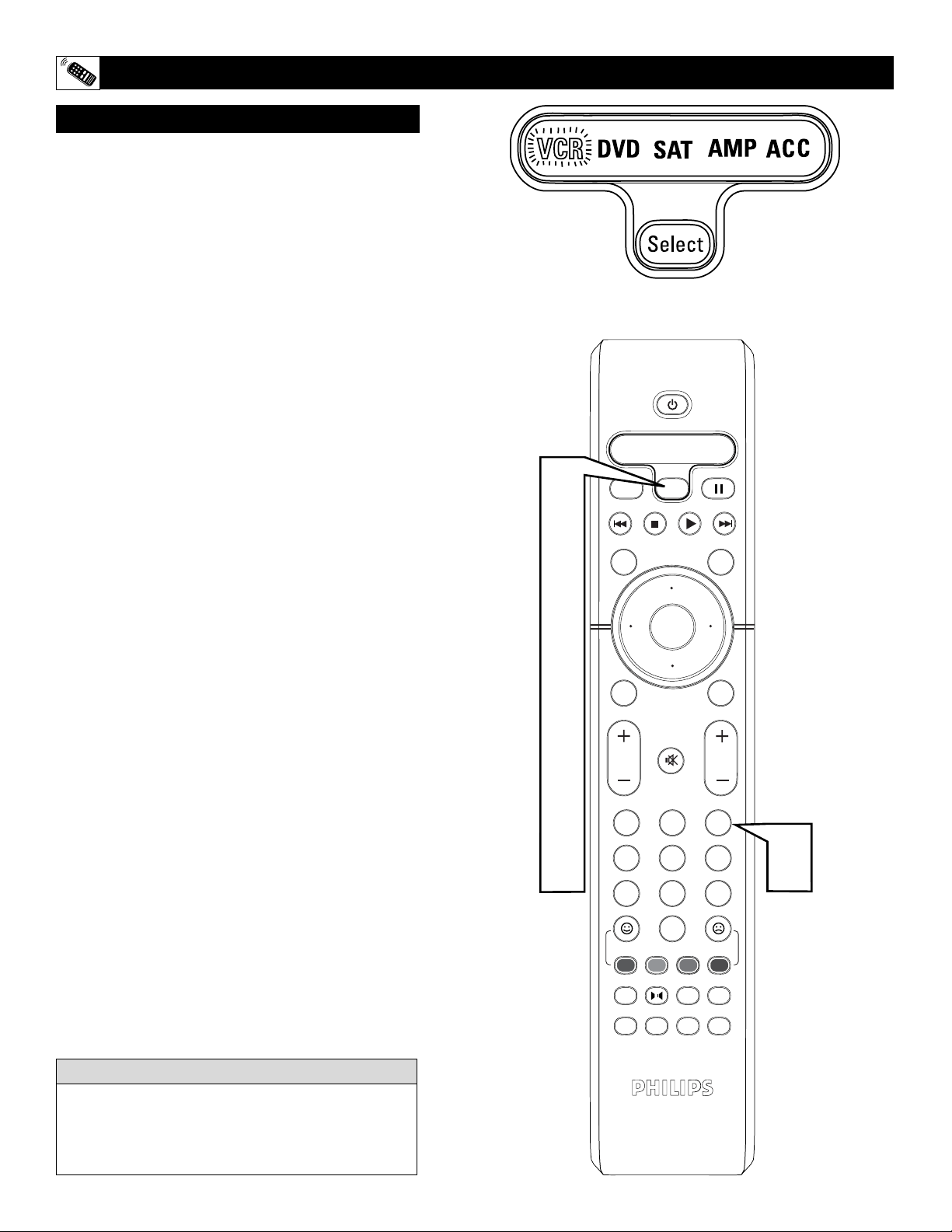
30
OK
1
2
3
4
5
6
7
8
0
9
Select
SLEEP
ACTIVE
CONTROL
CC
AV
CLOCK
MENU
EXIT
PICTURE
SOUND
STATUS
SELECT
PIC SIZE
MAIN
FREEZE
QuadraSurf
TM
PROGRAM
LIST
TV/VCR
REC
SAP
A/CH
SATVCR AMP ACCDVD
VOL CH
MUTE
Power
1
2
3
4
5
6
7
6
T
he remote control that is supplied with your television
may also work with a variety of infrared controlled
accessory devices such as VCRs, Cable Boxes, DVD
Players, Satellite Receivers, etc. The following instruc-
tions explain how to change the remote mode for the
type of accessory device you are using. If you are using
Philips accessory devices, such as a VCR, DVD Player,
Satellite, and/or Amplifier, we have pre-programmed the
remote control for you. For additional equiptment, you
can program additional accessories using the ACC(esso-
ry) mode, see next page for details.
To select one of the pre-programmed devices:
1
Press and release the SELECT button on the
remote control. The last used mode before TV-
MODE will light up for 2 seconds. After 2 sec-
onds, the LED for that MODE will begin to flash.
2
Press and release the SELECT button on the
remote control within 2 seconds to move to the
next MODE. The new MODE’s LED will light
for 2 seconds, then begin to flash.
3
Repeat the steps above to continue through the
MODEs until the desired MODE is selected.
To select an accessory that has been programmed into
the Universal (ACC) mode follow the steps below:
4
Press the SELECT button until the ACC device
LED light is ON, it will only stay active (lit) for
two seconds.
5
Within two seconds of selecting the ACC mode,
press and hold the SELECT button.
6
While holding the SELECT button down, press
and release the NUMBER button that corre-
sponds to the type of accessory device you want
to operate.
Digit 2 = Cable
Digit 3 = VCR
Digit 4 = DVD
Digit 5 = SAT
7
Release the SELECT button.
(Example: You have a VCR from Adventura and want to
program the remote. It’s code is 2001. Press and hold
the SELECT button, then press and release the number 3
button. Now release the SELECT button. Now you’re
ready to use the remote to control the VCR.)
Note: Make sure you complete this step within two sec-
onds of selecting the ACC mode.
SETTING THE REMOTE CONTROL TO OPERATE ACCESSORY DEVICES
MODE SELECTION
It is recommended that you use Philips brand external
accessory devices with your Philips television to insure
proper remote control functions. If you are using
Philips brand accessory devices, your remote control
should be ready to use with these devices.
HELPFUL HINT
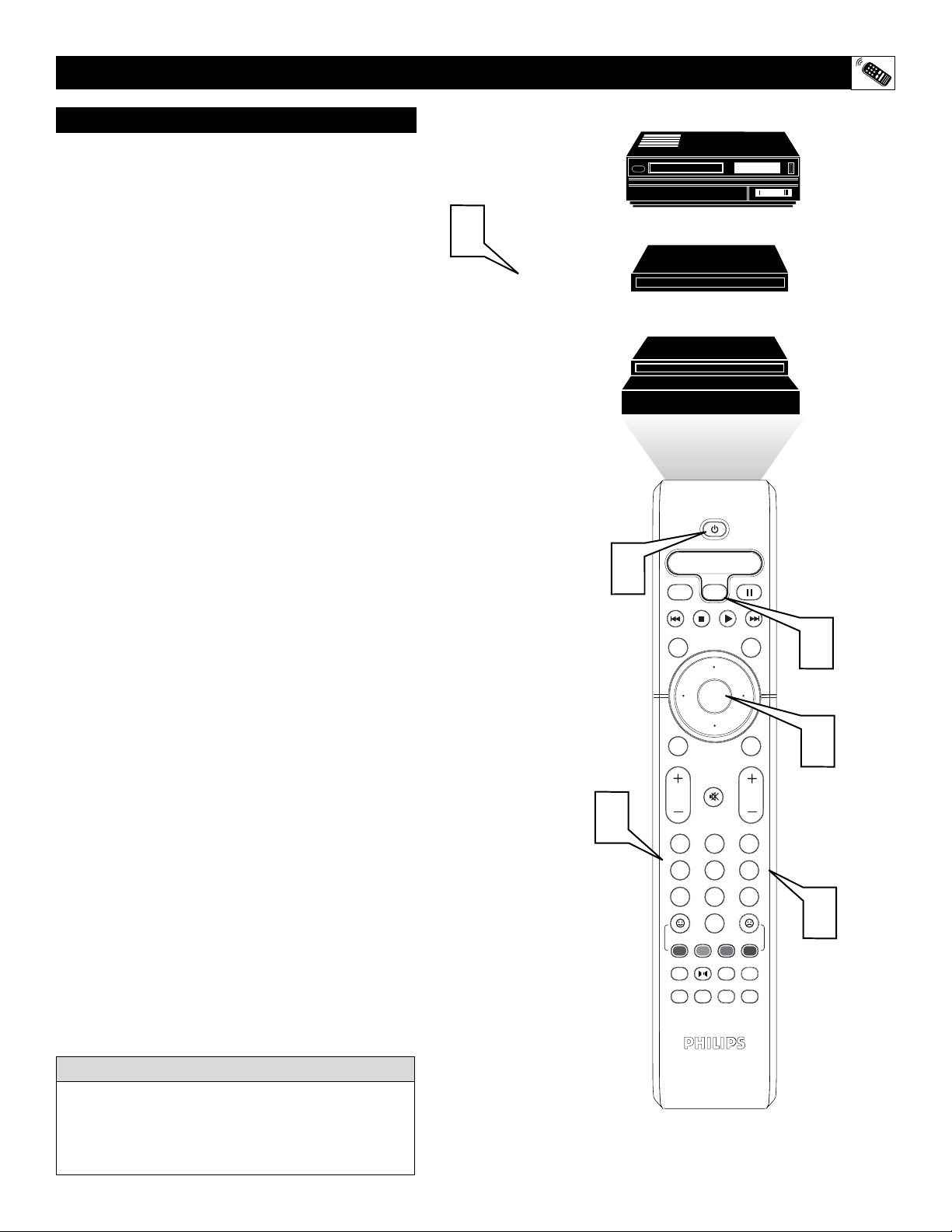
31
PROGRAMMING THE REMOTE CONTROL TO OPERATE ACCESSORY DEVICES
2054
2056
2057
2891
2944
1
OK
1
2
3
4
5
6
7
8
0
9
Select
SLEEP
ACTIVE
CONTROL
CC
AV
CLOCK
MENU
EXIT
PICTURE
SOUND
STATUS
SELECT
PIC SIZE
MAIN
FREEZE
QuadraSurf
TM
PROGRAM
LIST
TV/VCR
REC
SAP
A/CH
SATVCR AMP ACCDVD
VOL CH
MUTE
Power
3
4
5
2
2
Cable Converter
Satellite Receiver
VCR
T
he remote control supplied with your TV can also be
programmed by entering a specific code for your
type of accessory device. Follow the instructions below
to program the remote using one of the codes listed on
pages 32-34.
Note: You must be in TV mode to enter the program-
ming setup. The remote is in TV mode when no LED
device lights blink.
1
Look up the codes for your brand of accessory
device.
2
With the SELECT button held down, press
the OK button. Next, release the OK button
then release the SELECT button. The ACC
device light (LED) will blink once to confirm
correct procedure. If the ACC light blinks twice,
repeat step 2.
3
Press the NUMBER button that corresponds to
the type of accessory device you are using.
Digit 2 = Cable
Digit 3 = VCR
Digit 4 = DVD
Digit 5 = SAT
Again, the ACC device light will blink once to
confirm the correct procedure.
4
Press the NUMBERED button to enter the 4
digit code number from pages 32-34. Again, the
ACC device light will blink once to confirm the
correct procedure.
5
Once the remote is in the correct ACC MODE
(follow steps 4-7 on previous page) press the
POWER button. If the accessory device powers
ON your finished. If it does not power ON,
repeat the procedure with another code listed. If
all codes fail, the remote will not control your
specific accessory device.
(Example: You have a VCR from Adventura and want to
program the remote. It’s code is 2001. Press and hold
the SELECT button, then press and release the OK but-
ton. Now release the SELECT button. Press the NUM-
BER 3 for VCR, then enter the listed four digit code;
i.e.; 3, 2, 0, 0, 1.)
CODE ENTRY METHOD
Codes from
page 32-34
It is recommended that you use Philips brand external
accessory devices with your Philips television to
insure proper remote control functions. If you are
using Philips brand accessory devices, your remote
control should be ready to use with these devices.
HELPFUL HINT

32
REMOTE C
ONTROL DIRECT
ENTRY CODES FOR ACCESSORY DEVICES
VCR CODES
Admiral . . . . . . . . . . . . . . . . . .2027, 2052
Adventura . . . . . . . . . . . . . . . . . . . . .2001
Aiko . . . . . . . . . . . . . . . . . . . . . . . . .2059
Aiwa . . . . .2001, 2017, 2062, 2070, 2072
Akai . . . . .2021, 2029, 2038, 2060, 2063
Akiba . . . . . . . . . . . . . . . . . . . . . . . .2034
Alba 2011, 2034, 2052, 2059, 2063, 2072
Ambassador . . . . . . . . . . . . . . . . . . .2011
American Action . . . . . . . . . . . . . . . .2059
American High . . . . . . . . . . . . . . . . .2015
Amstrad . . . . . . .2001, 2059, 2067, 2068
Anam . . . . . . . . . . . . . . . . . . .2017, 2042,
. . . . . . . . . 2054, 2057, 2059, 2082, 2084
Anam National . . . . . . .2042, 2054, 2087
Anitech . . . . . . . . . . . . . . . . . . . . . . .2034
Asa . . . . . . . . . . . . . . . . . . . . .2017, 2035
Asha . . . . . . . . . . . . . . . . . . . . . . . . .2057
Asuka . . . . . . . . . . . . . . . . . . . . . . . .2017
Audiovox . . . . . . . . . . . . . . . . . . . . .2017
Baird . . . . . . . . . .2001, 2021, 2037, 2039
Basic Line . . . . . . . . . . .2011, 2034, 2059
Beaumark . . . . . . . . . . . . . . . . . . . . .2057
Bell & Howell . . . . . . . . . . . . . . . . .2037
Blaupunkt . . . . .2003, 2005, 2010, 2014,
. . . . 2041, 2042, 2048, 2054, 2055, 2075
Brandt . . . . . . . . . . . . . .2047, 2064, 2065
Brandt Electronic . . . . . . . . . . . . . . .2021
Broksonic .2002, 2040, 2046, 2052, 2078
Bush . . . . . . . . . .2034, 2052, 2059, 2072
Calix . . . . . . . . . . . . . . . . . . . . . . . . .2017
Canon . . . . . . . . . . . . . . . . . . . . . . . .2015
Capehart . . . . . . . . . . . . . . . . . . . . . .2011
Carver . . . . . . . . . . . . . . . . . . . . . . . .2035
Catron . . . . . . . . . . . . . . . . . . . . . . . .2011
CCE . . . . . . . . . . . . . . . . . . . .2034, 2059
CGE . . . . . . . . . . . . . . . . . . . . . . . . .2001
Cimline . . . . . . . . . . . . . . . . . . . . . . .2034
Cineral . . . . . . . . . . . . . . . . . . . . . . .2059
Citizen . . . . . . . . . . . . . . . . . . .2017, 2059
Clatronic . . . . . . . . . . . . . . . . . . . . . .2011
Colt . . . . . . . . . . . . . . . . . . . . . . . . . .2034
Combitech . . . . . . . . . . . . . . . . . . . . .2072
Condor . . . . . . . . . . . . . . . . . . . . . . .2011
Craig . . . . .2017, 2026, 2034, 2057, 2058
Crown . . . . . . . . . . . . . .2011, 2034, 2059
Curtis Mathes . . .2015, 2021, 2032, 2042
Cybernex . . . . . . . . . . . . . . . . . . . . . .2057
Cyrus . . . . . . . . . . . . . . . . . . . . . . . . .2035
Daewoo . . .2011, 2024, 2025, 2059, 2083
Dansai . . . . . . . . . . . . . . . . . . . . . . . .2034
Daytron . . . . . . . . . . . . . . . . . . . . . . .2011
De Graaf . . . . . . . . . . . . . . . . .2022, 2043
Decca . . . . . . . . . . . . . . . . . . .2001, 2035
Denon . . . . . . . . . . . . . . . . . . . . . . . .2022
Dual . . . . . . . . . . . . . . . . . . . . . . . . .2021
Dumont . . . . . . . . . . . . .2001, 2035, 2037
Dynatech . . . . . . . . . . . . . . . . . . . . . .2001
Elbe . . . . . . . . . . . . . . . . . . . . . . . . . .2018
Elcatech . . . . . . . . . . . . . . . . . . . . . .2034
Electrohome . . . . . . . . . . . . . . . . . . .2017
Electrophonic . . . . . . . . . . . . . . . . . .2017
Emerex . . . . . . . . . . . . . . . . . . . . . . .2012
Emerson . .2001, 2002, 2017, 2023, 2040,
. . . .2046, 2051, 2052, 2059, 2078, 2083
ESC . . . . . . . . . . . . . . . . . . . . .2057, 2059
Ferguson . . . . . . .2021, 2039, 2064, 2065
Fidelity . . . . . . . . . . . . . . . . . . . . . . .2001
Finlandia . . . . . . . . . . . . . . . . .2035, 2037
Finlux . . . . . . . . .2001, 2022, 2035, 2037
Firstline . . .2017, 2023, 2024, 2034, 2052
Fisher . . . . . . . . .2025, 2026, 2030, 2037
Frontech . . . . . . . . . . . . . . . . . . . . . .2011
Fuji . . . . . . . . . . . . . . . . . . . . . . . . . .2015
Funai . . . . . . . . . . . . . . . . . . . . . . . . .2001
Garrard . . . . . . . . . . . . . . . . . . . . . . .2001
GE . . . . . . . . . . . .2015, 2027, 2032, 2057
GEC . . . . . . . . . . . . . . . . . . . . . . . . .2035
General . . . . . . . . . . . . . . . . . . . . . . .2011
Go Video . . . . . . . . . . . . . . . . .2077, 2081
Goldhand . . . . . . . . . . . . . . . . . . . . .2034
Goldstar . . . . . . .2017, 2018, 2053, 2079
Goodmans .2001, 2017, 2034, 2059, 2075
Gradiente . . . . . . . . . . . . . . . .2001, 2008
Graetz . . . . . . . . .2005, 2021, 2037, 2057
Granada . . . . . . . . . . . .2025, 2035, 2037
Grandin . . . . . . . . . . . . .2001, 2017, 2034
Grundig . .2003, 2005, 2007, 2010, 2034,
.2035, 2048, 2050, 2054, 2069, 2071, 2075
Hanseatic . . . . . . . . . . . . . . . . . . . . .2017
Harley Davidson . . . . . . . . . . . . . . . .2001
Harman/Kardon . . . . . . . . . . .2018, 2035
Harwood . . . . . . . . . . . . . . . . . . . . . .2034
HCM . . . . . . . . . . . . . . . . . . . . . . . . .2034
Headquarter . . . . . . . . . . . . . . . . . . .2025
Hinari . . . . . . . . .2004, 2034, 2057, 2072
Hi-Q . . . . . . . . . . . . . . . . . . . . . . . . .2026
Hitachi 2001, 2004, 2021, 2022, 2043, 2057
Hughes Network Systems . . . . . . . .2022
Hypson . . . . . . . . . . . . . . . . . . . . . . .2034
Imperial . . . . . . . . . . . . . . . . . . . . . . .2001
Ingersol . . . . . . . . . . . . . . . . . . . . . . .2004
Interfunk . . . . . . . . . . . . . . . . . . . . . .2035
ITT . . . . . . . . . . . . . . . .2005, 2021, 2025,
. . . . . . . . . . . . . .2037, 2038, 2057, 2074
ITV . . . . . . . . . . . . . . . . . . . . .2017, 2059
Jensen . . . . . . . . . . . . . . . . . . . . . . . .2021
JVC . . . . . . . . . . . . . . .2008, 2021, 2033,
. . . . . . . . . . . . . .2049, 2050, 2074, 2080
Kaisui . . . . . . . . . . . . . . . . . . . . . . . .2034
KEC . . . . . . . . . . . . . . . . . . . .2017, 2059
Kendo . . . . . . . . . . . . . . . . . . .2038, 2052
Kenwood . . . . . . . . . . .2018, 2021, 2033
KLH . . . . . . . . . . . . . . . . . . . . . . . . .2034
Kodak . . . . . . . . . . . . . . . . . . .2015, 2017
Korpel . . . . . . . . . . . . . . . . . . . . . . . .2034
Layco . . . . . . . . . . . . . . . . . . . . . . . .2034
Lenco . . . . . . . . . . . . . . . . . . . . . . . .2059
LG . . . . . . . . . . . . . . . . . . . . . . . . . . .2079
Lloyd's . . . . . . . . . . . . . . . . . .2001, 2051
Loewe . . . . . . . . .2004, 2005, 2017, 2035
Logik . . . . . . . . . . . . . .2004, 2034, 2057
Luxor . . . .2023, 2025, 2027, 2037, 2038
LXI . . . . . . . . . . . . . . . . . . . . . . . . . .2017
M Electronic . . . . . . . . . . . . . . . . . . .2001
Magnasonic . . . . . . . . . . . . . . . . . . . .2059
Magnavox . . . . . .2001, 2015, 2019, 2035
Magnin . . . . . . . . . . . . . . . . . . . . . . .2057
Manesth . . . . . . . . . . . . . . . . .2024, 2034
Marantz . . . . . . . .2003, 2005, 2015, 2035
Marta . . . . . . . . . . . . . . . . . . . . . . . . .2017
Matsui .2004, 2016, 2036, 2052, 2070, 2072
Matsushita . . . . . . . . . .2015, 2042, 2055
Mei . . . . . . . . . . . . . . . . . . . . . . . . . .2015
Melectronic . . . . . . . . . . . . . . . . . . . .2018
Memorex . . . . . . . . . . .2001, 2015, 2017,
. . . . . . . . .2019, 2025, 2026, 2027, 2037,
. . . .2052, 2057, 2062, 2085, 2087, 2088
Memphis . . . . . . . . . . . . . . . . . . . . . .2034
Metz . . . . . . . . . . . . . . .2003, 2005, 2017,
. . . . . . . . . . . . . . 2042, 2048, 2055, 2069
MGA . . . . . . . . . . . . . . . . . . . .2023, 2057
MGN Technology . . . . . . . . . . . . . . .2057
Mincrva . . . . . . . . . . . . . . . . . . . . . . .2048
Minerva . . . . . . . . . . . .2005, 2010, 2048
Minolta . . . . . . . . . . . . . . . . . . . . . . .2022
Mitsubishi .2023, 2027, 2033, 2035, 2045
Motorola . . . . . . . . . . . . . . . . .2015, 2027
MTC . . . . . . . . . . . . . . . . . . . .2001, 2057
Multitech . . . . . . . . . . . . . . . . .2001, 2034
Murphy . . . . . . . . . . . . . . . . . . . . . . .2001
NAD . . . . . . . . . . . . . . . . . . . . . . . . .2031
National . . . . . . . . . . . . . . . . . . . . . .2054
NEC . . . . .2018, 2020, 2021, 2033, 2037
Neckermann . . . . . . . . . . . . . . . . . . .2035
Nesco . . . . . . . . . . . . . . . . . . . . . . . .2034
Nikko . . . . . . . . . . . . . . . . . . . . . . . .2017
Nikon . . . . . . . . . . . . . . . . . . . . . . . .2014
Noblex . . . . . . . . . . . . . . . . . . . . . . .2057
Nokia . . . . . . . . .2025, 2037, 2038, 2057
Nokia . . . .2021, 2025, 2037, 2038, 2057
Nordmende .2021, 2061, 2064, 2065, 2074
Oceanic . . . . . . . . . . . . . . . . . .2001, 2021
Okano . . . . . . . . . . . . . . . . . . .2063, 2070
Olympus . . . . . . . . . . . . . . . . .2015, 2054
Optimus . . . . . . . . . . . .2017, 2027, 2031,
. . . 2037, 2042, 2077, 2086, 2087, 2088
Orion . . . . . . . . . . . . . .2002, 2004, 2016,
. . . .2036, 2046, 2052, 2070, 2072, 2078
Osaki . . . . . . . . . . . . . .2001, 2017, 2034

33
REMOTE C
ONTROL DIRECT
ENTRY CODES FOR ACCESSORY DEVICES
VCR Codes Cont’d
Otto Versand . . . . . . . . . . . . . . . . . . .2035
Palladium . . . . . .2005, 2017, 2021, 2034
Panasonic . . . . . . . . . . . . . . .2015, 2042,
. . . . . . . . . . . . . .2053, 2054, 2055, 2087
Pathe Cinema . . . . . . . . . . . . . . . . . .2016
Pathe Marconi . . . . . . . . . . . . . . . . .2021
Penny 2015, 2017, 2018, 2020, 2022, 2057
Pentax . . . . . . . . . . . . . . . . . . . . . . . .2022
Perdio . . . . . . . . . . . . . . . . . . . . . . . .2001
Philco . . . . . . . . .2015, 2018, 2052, 2078
Philips . . .2015, 2035 (DEFAULT VCR),
. . . . . . . . . . . . . . . . . . . . . . . .2074, 2075
Phonola . . . . . . . . . . . . . . . . . . . . . . .2035
Pilot . . . . . . . . . . . . . . . . . . . . . . . . .2017
Pioneer . . . . . . . . . . . . .2031, 2033, 2035
Portland . . . . . . . . . . . . . . . . . . . . . .2011
Profex . . . . . . . . . . . . . . . . . . . . . . . .2066
Profitronic . . . . . . . . . . . . . . . . . . . .2057
Proline . . . . . . . . . . . . . . . . . . . . . . .2001
Proscan . . . . . . . . . . . . . . . . . . . . . . .2032
Protec . . . . . . . . . . . . . . . . . . . . . . . .2034
Pulsar . . . . . . . . . . . . . . . . . . . . . . . .2019
Pye . . . . . . . . . . . . . . . . . . . . . . . . . .2035
Quarter . . . . . . . . . . . . . . . . . . . . . . .2025
Quartz . . . . . . . . . . . . . . . . . . . . . . . .2025
Quasar . . . . . . . . . . . . .2015, 2042, 2087
Quelle . . . . . . . . . . . . . . . . . . . . . . . .2035
Radio Shack . . . . . . . . . . . . . .2001, 2085
Radiola . . . . . . . . . . . . . . . . . . . . . . .2035
Radix . . . . . . . . . . . . . . . . . . . . . . . .2017
RCA 2015, 2022, 2027, 2032, 2038, 2057
Realistic . . . . . . . . . . . . . . . . .2001, 2015,
. . . . . . . . .2017, 2025, 2026, 2027, 2037
REX . . . . . . . . . . . . . . . . . . . .2021, 2074
RFT . . . . . . . . . . . . . . . . . . . . . . . . .2075
Ricoh . . . . . . . . . . . . . . . . . . . . . . . .2014
Roadstar . . . . . . .2017, 2034, 2057, 2059
Runco . . . . . . . . . . . . . . . . . . . . . . . .2019
Saba . . . . . . . . . . . . . . .2021, 2049, 2050,
. . . . . . . . . . . . . 2061, 2064, 2065, 2074
Saisho . . . . . . . . .2004, 2016, 2036, 2052
Salora . . . . . . . . . . . . . .2023, 2025, 2038
Samsung . . . . . . .2024, 2057, 2076, 2077
Sanky . . . . . . . . . . . . . . . . . . .2019, 2027
Sansui . . . . . . . . . . . . . . . . . .2001, 2021,
. . . . . . . . . . . . . .2033, 2052, 2058, 2078
Sanyo . . . . . . . . .2025, 2026, 2037, 2057
Saville . . . . . . . . . . . . . . . . . . . . . . . .2072
SBR . . . . . . . . . . . . . . . . . . . . . . . . .2035
Schaub Lorenz . .2001, 2005, 2021, 2037
Schneider . . . . . . . . . . .2001, 2034, 2035
Scott . . . . . . . . . .2023, 2024, 2040, 2046
Sears . . . . . . . . . . . . . . . . . . .2001, 2015,
. . . . . . . . .2017, 2022, 2025, 2026, 2037
SEG . . . . . . . . . . . . . . . . . . . .2057, 2066
SEI . . . . . . . . . . . . . . . . . . . . .2004, 2035
Seleco . . . . . . . . . . . . . . . . . . . . . . . .2021
Semp . . . . . . . . . . . . . . . . . . . . . . . . .2024
Sentra . . . . . . . . . . . . . . . . . . . . . . . .2011
Sharp . . . . . . . . . . . . . . . . . . .2027, 2073
Shintom . . . . . . . . . . . . . . . . .2034, 2037
Shogun . . . . . . . . . . . . . . . . . . . . . . .2057
Shorai . . . . . . . . . . . . . . . . . . . . . . . .2004
Siemens . . . . . . . . . . . . . . . . .2003, 2005,
. . . .2010, 2017, 2030, 2035, 2037, 2048
Silva . . . . . . . . . . . . . . . . . . . . . . . . .2017
Singer . . . . . . . . . . . . . . . . . . .2024, 2034
Sinudyne . . . . . . . . . . . . . . . . .2004, 2035
Solavox . . . . . . . . . . . . . . . . . . . . . . .2011
Sonolor . . . . . . . . . . . . . . . . . . . . . . .2025
Sontec . . . . . . . . . . . . . . . . . . . . . . . .2017
Sony . . . . .2001, 2012, 2013, 2014, 2015
STS . . . . . . . . . . . . . . . . . . . . . . . . . .2022
Sunkai . . . . . . . . . . . . . . . . . . . . . . . .2070
Sunstar . . . . . . . . . . . . . . . . . . . . . . .2001
Suntronic . . . . . . . . . . . . . . . . . . . . .2001
Sylvania . . . . . . .2001, 2015, 2023, 2035
Symhonic . . . . . . . . . . . . . . . . . . . . .2001
Tashiko . . . . . . . . . . . . . . . . . . . . . . .2001
Tatung . . . . . . . . . . . . .2001, 2021, 2035
Teac . . . . . . . . . . . . . . . . . . . .2001, 2021
TEC . . . . . . . . . . . . . . . . . . . . . . . . .2011
Technics . . . . . . . . . . . .2015, 2042, 2054
Teknika . . . . . . . .2001, 2015, 2007, 2017
Teleavia . . . . . . . . . . . . . . . . . . . . . .2021
Telefunken 2021, 2047, 2058, 2064, 2074
Tenosal . . . . . . . . . . . . . . . . . . . . . . .2034
Tensai . . . . . . . . . . . . . . . . . . .2001, 2066
Thomas . . . . . . . . . . . . . . . . . . . . . . .2001
Thomson . . . . . . . . . . .2021, 2064, 2074
Thorn . . . . . . . . . . . . . .2016, 2021, 2037
TMK . . . . . . . . . . . . . . . . . . . .2051, 2057
Toshiba . . .2021, 2023, 2024, 2035, 2074
Totelevision . . . . . . . . . . . . . .2017, 2057
Towada . . . . . . . . . . . . . . . . . . . . . . .2066
Uher . . . . . . . . . . . . . . . . . . . . . . . . .2057
Unitech . . . . . . . . . . . . . . . . . . . . . . .2057
Universum . . . . . . . . . .2001, 2006, 2010,
. . . .2017, 2035, 2038, 2048, 2057, 2067
Vector . . . . . . . . . . . . . . . . . . . . . . . .2024
Vector Research . . . . . . . . . . .2018, 2020
Victor . . . . . . . . . . . . . .2008, 2021, 2033
Video Concepts . . . . . . . . . . .2020, 2024
Videosonic . . . . . . . . . . . . . . . . . . . .2057
Wards . . . . . . . . . . . . .2001, 2015, 2022,
. . . .2026, 2027, 2032, 2034, 2035, 2057
White Westinghouse . . . . . . .2052, 2059
XR-1000 . . . . . . . . . . . . . . . . . . . . . .2001
XR-1001 . . . . . . . . . . . . . . . . . . . . . .2015
XR-1002 . . . . . . . . . . . . . . . . . . . . . .2034
Yamaha . . . . . . . . . . . . . . . . . . . . . . .2018
Yamishi . . . . . . . . . . . . . . . . . . . . . . .2034
Yokan . . . . . . . . . . . . . . . . . . . . . . . .2034
Yoko . . . . . . . . . . . . . . . . . . . .2011, 2057
Zenith . . . .2001, 2014, 2019, 2052, 2078
DVD Codes
Akai . . . . . . . . . . . . . . . . . . . . . . . . .5316
Harman/Kardon . . . . . . . . . . . . . . . .5314
JVC . . . . . . . . . . . . . . . . . . . . .5311, 5318
Kenwood . . . . . . . . . . . . . . . . . . . . .5307
Magnavox . . . . . . . . . . . . . . . . . . . . .5302
Mitsubishi . . . . . . . . . . . . . . . . . . . . .5303
Onkyo . . . . . . . . . . . . . .5302, 5317, 5319
Panasoni . . . . . . . . . . . . . . . . .5301, 5322
Philips . . .5302, 5308 (DEFAULT DVD)
Pioneer . . . . . . . . . . . . .5305, 5312, 5321
Proscan . . . . . . . . . . . . . . . . . . . . . . .5304
RCA . . . . . . . . . . . . . . . . . . . . . . . . .5304
Samsung . . . . . . . . . . . . . . . . . . . . . .5313
Sharp . . . . . . . . . . . . . . . . . . . . . . . .5320
Sony . . . . . . . . . . . . . . . . . . . . . . . . .5306
Technics . . . . . . . . . . . . . . . . . . . . . .5301
Theta Digital . . . . . . . . . . . . . . . . . .5312
Thomson . . . . . . . . . . . . . . . . . . . . . .5310
Toshiba . . . . . . . . . . . . . . . . . . . . . . .5302
Yamaha . . . . . . . . . . . . . . . . . .5301, 5309
Cable Box Codes
ABC . . . . .3002, 3003, 3004, 3006, 3008
Andover . . . . . . . . . . . . . . . . . . . . . .3037
Bell & Howell . . . . . . . . . . . . . . . . .3006
Birgmingham Cable Communication . . .3020
British Telecom . . . . . . . . . . .3002, 3012
Cabletime . . . . . .3016, 3019, 3025, 3029
Clyde . . . . . . . . . . . . . . . . . . . . . . . .3011
Contec . . . . . . . . . . . . . . . . . . . . . . .3009
Cryptovision . . . . . . . . . . . . . . . . . . .3038
Daehan . . . . . . . . . . . . . . . . . . . . . . .3043
Daeryung . . . . . . . . . . . . . . . . . . . . .3003
Decsat . . . . . . . . . . . . . . . . . . . . . . . .3027
Everquesst . . . . . . . . . . . . . . . . . . . .3007
Filmnet . . . . . . . . . . . . . . . . . . . . . . .3028
France Telecom . . . . . . . . . . . . . . . .3030
GEC . . . . . . . . . . . . . . . . . . . . . . . . .3011
Gemini . . . . . . . . . . . . . . . . . . . . . . .3007
General Instrument . .3004, 3020, 3031, 3046
Goldstar . . . . . . . . . . . . . . . . .3014, 3047
Grundig . . . . . . . . . . . . . . . . . . . . . .3035
Hitachi . . . . . . . . . . . . . . . . . . . . . . .3004
Jasco . . . . . . . . . . . . . . . . . . . . . . . . .3007
Jerrold . . . . . . . . . . . . .3002, 3004, 3005,
. . . . . . . . .3006, 3007, 3020, 3031, 3046
LG Alps . . . . . . . . . . . . . . . . . . . . . .3044
Memorex . . . . . . . . . . . . . . . . . . . . .3001
Mnet . . . . . . . . . . . . . . . . . . . .3009, 3028
Now . . . . . . . . . . . . . . . . . . . . . . . . .3041

34
REMOTE C
ONTROL DIRECT
ENTRY CODES FOR ACCESSORY DEVICES
Cable Box Codes
Now . . . . . . . . . . . . . . . . . . . . . . . . .3041
Oak . . . . . . . . . . . . . . . . . . . . . . . . . .3009
Pacific . . . . . . . . . . . . . . . . . . . . . . . .3039
Panasonic . . . . . . . . . . . . . . . .3001, 3013
Paragon . . . . . . . . . . . . . . . . . . . . . . .3001
Pioneer . . . . . . . . . . . . . . . . . .3014, 3036
Pulsar . . . . . . . . . . . . . . . . . . . . . . . .3001
PVP Stereo Visual Matrix . . . . . . . .3002
Quasar . . . . . . . . . . . . . . . . . . . . . . .3001
Radio Shack . . . . . . . . . . . . . . . . . . .3007
Rembrandt . . . . . . . . . . . . . . . . . . . .3004
Runco . . . . . . . . . . . . . . . . . . . . . . . .3001
Salora . . . . . . . . . . . . . . . . . . . . . . . .3026
Samsung . . . . . . . . . . . . . . . . .3014, 3040
Satbox . . . . . . . . . . . . . . . . . . . . . . . .3024
Scientific . . . . . . . . . . .3003, 3032, 3049
Scientific Atlanta . . . . .3003, 3008, 3021
Seawoo . . . . . . . . . . . . . . . . . . . . . . .3045
Signal . . . . . . . . . . . . . . . . . . . . . . . .3007
Signature . . . . . . . . . . . . . . . . . . . . .3004
Starcom . . . . . . . . . . . . . . . . .3002, 3007
Stargate . . . . . . . . . . . . . . . . . . . . . . .3007
Starquest . . . . . . . . . . . . . . . . . . . . . .3007
STS . . . . . . . . . . . . . . . . . . . . . . . . . .3015
Taihan . . . . . . . . . . . . . . . . . . . . . . . .3043
Tele+1 . . . . . . . . . . . . . . . . . . . . . . . .3028
Teleservice . . . . . . . . . . . . . . . . . . . .3022
Tocom . . . . . . . . . . . . . . . . . . . . . . . .3005
Tongkook . . . . . . . . . . . . . . . .3042, 3048
Toshiba . . . . . . . . . . . . . . . . . . . . . . .3001
Tudi . . . . . . . . . . . . . . . . . . . . . . . . .3023
Tusa . . . . . . . . . . . . . . . . . . . . . . . . .3007
United Cable . . . . . . . . . . . . . . . . . .3002
Videoway . . . . . . . . . . . . . . . . . . . . .3017
Visicable+ . . . . . . . . . . . . . . . . . . . . .3033
Westminster . . . . . . . . . . . . . . . . . . .3012
Wolsey Gene . . . . . . . . . . . . . . . . . .3037
Zenith . . . . . . . . . . . . . . . . . . .3001, 3034
Satellite Receiver Codes
Absat . . . . . . . . . . . . . . . . . . . . . . . .4006
Alba . . . . . . . . . .4029, 4034, 4037, 4052
Aldes . . . . . . . . . . . . . . . . . . . . . . . .4019
Amstrad . . . . . . . . . . . . . . . . .4003, 4016,
. . . . . . . . . . . . . .4025, 4038, 4039, 4042
Ankard . . . . . . . .4013, 4019, 4030, 4044
Anttron . . . . . . . . . . . . . . . . . .4009, 4034
Armstrong . . . . . . . . . . . . . . . . . . . .4015
AST . . . . . . . . . . . . . . . . . . . . . . . . .4027
Astra . . . . . . . . . . . . . . . . . . . . . . . . .4005
Astro . . . . . . . . . . . . . . .4008, 4039, 4045
Avalon . . . . . . . . . . . . . . . . . . . . . . .4031
Axis . . . . . . . . . . . . . . . . . . . .4030, 4046
Beko . . . . . . . . . . . . . . . . . . . . . . . . .4010
Best . . . . . . . . . . . . . . . . . . . . . . . . . .4030
Blaupunkt . . . . . . . . . . . . . . . . . . . . .4008
Boca . . . . . . . . . . . . . . . . . . . .4015, 4043
Brain Wave . . . . . . . . . . . . . . . . . . . .4022
British Sky Broadcasting . . . . . . . . .4058
BT . . . . . . . . . . . . . . . . . . . . . . . . . . .4053
Bush . . . . . . . . . . . . . . . . . . . . . . . . .4002
Cambridge . . . . . . . . . . . . . . . . . . . .4024
Canal Satellite . . . . . . . . . . . . . . . . .4059
Canal+ . . . . . . . . . . . . . . . . . . . . . . .4059
Channel Master . . . . . . . . . . . . . . . .4029
CNT . . . . . . . . . . . . . . . . . . . . . . . . .4045
Comlink . . . . . . . . . . . . . . . . . . . . . .4019
Connexions . . . . . . . . . . . . . . . . . . . .4031
Crown . . . . . . . . . . . . . . . . . . . . . . . .4015
Cyrus . . . . . . . . . . . . . . . . . . . . . . . .4011
D-Box . . . . . . . . . . . . . . . . . . . . . . . .4054
DDC . . . . . . . . . . . . . . . . . . . . . . . . .4029
DNT . . . . . . . . . . . . . . . . . . . .4011, 4031
Echostar . . . . . . . . . . . .4031, 4036, 4061
Emanon . . . . . . . . . . . . . . . . . . . . . .4034
Ferguson . . . . . . .4002, 4009, 4010, 4023
Fidelity . . . . . . . . . . . . . . . . . . . . . . .4016
Finlux . . . . . . . . .4005, 4024, 4032, 4037
Fracarro . . . . . . . . . . . . . . . . . . . . . .4061
Freecom . . . . . . . . . . . . . . . . . . . . . .4034
FTE Humax . . . . . . . . . . . . . . . . . . .4060
Fube . . . . . . . . . . . . . . .4030, 4031, 4034
Galaxis . . . . . . . . . . . . .4019, 4057, 4060
General Instrument . . . . . . . . . . . . . .4012
Gold Box . . . . . . . . . . . . . . . . . . . . .4059
Gooding . . . . . . . . . . . . . . . . . . . . . .4048
Goodmans . . . . . . . . . . . . . . . . . . . .4010
Grundig . . . . . . . . . . . .4008, 4010, 4048
G-sat . . . . . . . . . . . . . . . . . . . . . . . . .4009
Hinari . . . . . . . . . . . . . . . . . . . . . . . .4009
Hirschimann . . .4008, 4032, 4039, 4040, 4049
Hitachi . . . . . . . . . . . . . . . . . . . . . . .4037
Houston . . . . . . . . . . . . . . . . . . . . . .4053
Huth . . . . . . . . . .4013, 4015, 4019, 4026
Intervision . . . . . . . . . . . . . . . . . . . .4050
Invideo . . . . . . . . . . . . . . . . . . . . . . .4061
ITT . . . . . . . . . . . . . . . . . . . . . . . . . .4005
Johansson . . . . . . . . . . . . . . . . . . . . .4022
JVC . . . . . . . . . . . . . . . . . . . . . . . . . .4048
Kathrein .4004, 4006, 4008, 4011, 4035, 4041
Kreiselmeyer . . . . . . . . . . . . . . . . . .4008
Kyostar . . . . . . . . . . . . . . . . . . . . . . .4034
La Sat . . . . . . . . . . . . . . . . . . .4043, 4045
Lenco . . . . . . . . . . . . . . . . . . . . . . . .4034
Lennox . . . . . . . . . . . . . . . . . . . . . . .4050
Lupus . . . . . . . . . . . . . . . . . . . . . . . .4030
Luxor . . . . . . . . . . . . . . . . . . .4005, 4049
Manhattan . . . . . . . . . .4037, 4045, 4050
Marantz . . . . . . . . . . . . . . . . . . . . . . .4011
Maspro . . . . . . . . . . . . . . . . . .4004, 4023
Matsui . . . . . . . . . . . . . . . . . . .4024, 4048
Mediamarkt . . . . . . . . . . . . . . . . . . .4015
Mediasat . . . . . . . . . . . . . . . . . . . . . .4059
Minerva . . . . . . . . . . . . . . . . . . . . . .4048
Morgan's . . . . . . . . . . . . . . . . .4015, 4043
Navex . . . . . . . . . . . . . . . . . . . . . . . .4022
Neuhaus . . . . . . . . . . . . . . . . . . . . . .4039
Neusat . . . . . . . . . . . . . . . . . . . . . . . .4057
Newhaus . . . . . . . . . . . . . . . . . . . . . .4013
Nokia .4005, 4032, 4037, 4049, 4054, 4063
Nordmende . . . . . . . . . . . . . . . . . . . .4029
Orbitech . . . . . . . . . . . . . . . . . . . . . .4039
Oxford . . . . . . . . . . . . . . . . . . . . . . .4024
Pace . . . . . . . . . . . . . . .4002, 4009, 4014,
. . . . . . . . . . . . . .4023, 4037, 4055, 4058
Palladium . . . . . . . . . . . . . . . . . . . . .4048
Palsat . . . . . . . . . . . . . . . . . . . . . . . .4039
Panda . . . . . . . . . . . . . . . . . . . . . . . .4037
Philips . . . . . . . . . . . . . . . . . .4007, 4011,
. . . . . . . . . . . . . .4020, 4037, 4048, 4059
Phonotrend . . . . . . . . . . . . . . .4019, 4050
Pioneer . . . . . . . . . . . . . . . . . .4021, 4059
Planet . . . . . . . . . . . . . . . . . . . . . . . .4061
Promax . . . . . . . . . . . . . . . . . . . . . . .4037
Prosat . . . . . . . . . . . . . . . . . . . . . . . .4019
Quadral . . . . . . . . . . . . . . . . . .4029, 4044
Radiola . . . . . . . . . . . . . . . . . . . . . . .4011
Radix . . . . . . . . . . . . . . . . . . .4031, 4064
RFT . . . . . . . . . . . . . . .4011, 4013, 4019
Saba . . . . . . . . . . . . . . . . . . . .4023, 4045
Sabre . . . . . . . . . . . . . . . . . . . . . . . . .4037
Sagem . . . . . . . . . . . . . . . . . . . . . . . .4056
Salora . . . . . . . . . . . . . . . . . . . . . . . .4005
SAT . . . . . . . . . . . . . . . . . . . . .4027, 4038
Satcom . . . . . . . . . . . . . . . . . .4026, 4051
Satec . . . . . . . . . . . . . . . . . . . . . . . . .4009
Satmaster . . . . . . . . . . . . . . . . . . . . .4026
Satpartner . . . . . .4022, 4034, 4040, 4045
Schwaiger . . . . . . . . . . . . . . . .4009, 4041
Seemann . . . . . . . . . . . . . . . . .4031, 4046
SEG . . . . . . . . . . . . . . . . . . . .4030, 4034
Siemens . . . . . . . . . . . . . . . . . . . . . .4008
Skymaster . . . . . . . . . . .4019, 4044, 4051
Sony . . . . . . . . . . . . . . . . . . . .4017, 4018
Strong . . . . . . . . . . . . . . . . . . . . . . . .4062
Sunstar . . . . . . . . . . . . . . . . . . . . . . .4043
Tantec . . . . . . . . . . . . . . . . . . .4023, 4037
Techniland . . . . . . . . . . . . . . . . . . . .4026
Technisat . . . . . . . . . . . . . . . .4001, 4039
Telefunken . . . . . . . . . . . . . . . . . . . .4034
Teleka . . . . . . . . . . . . . . . . . . .4015, 4052
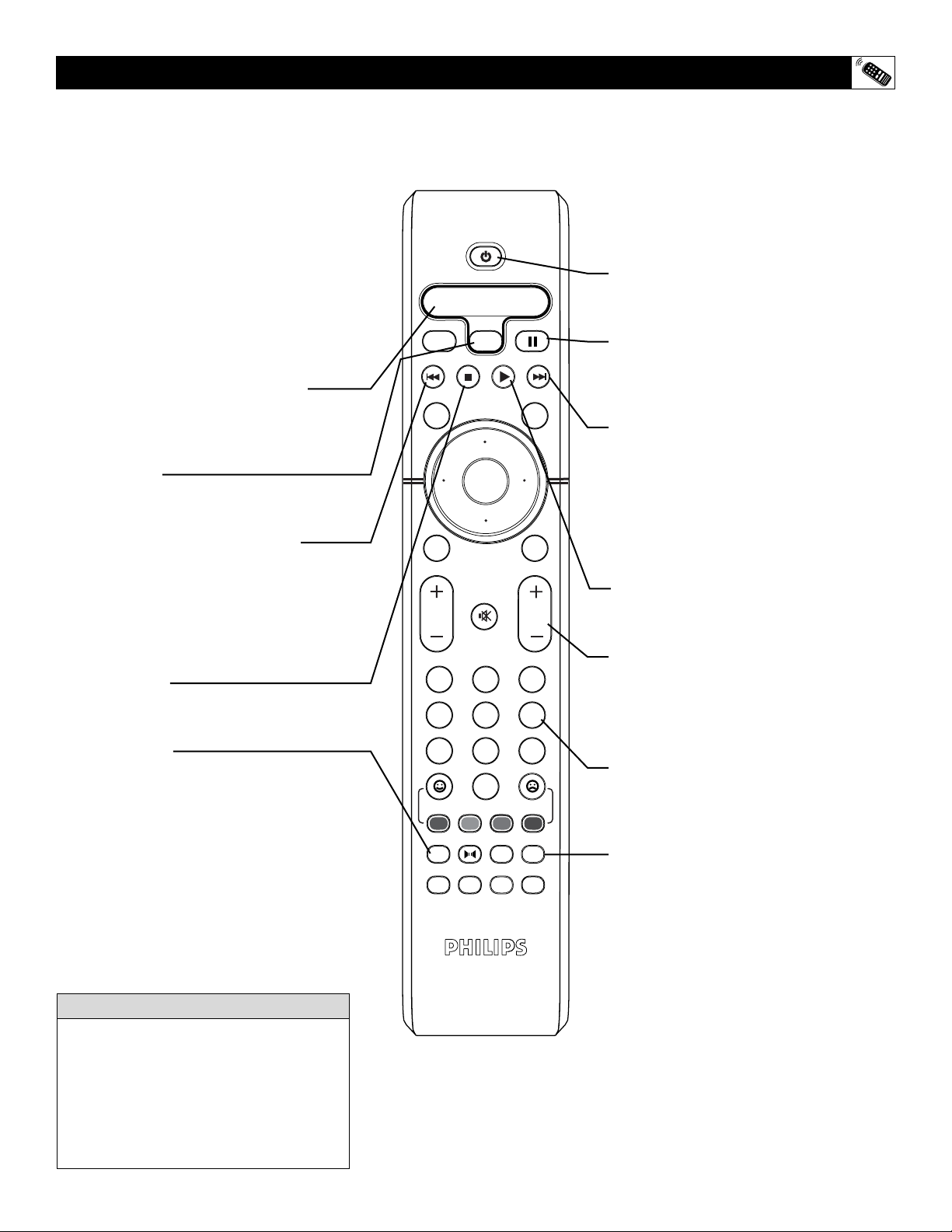
35
OK
1
2
3
4
5
6
7
8
0
9
Select
SLEEP
ACTIVE
CONTROL
CC
AV
CLOCK
MENU
EXIT
PICTURE
SOUND
STATUS
SELECT
PIC SIZE
MAIN
FREEZE
QuadraSurf
TM
PROGRAM
LIST
TV/VCR
REC
SAP
A/CH
SATVCR AMP ACCDVD
VOL CH
MUTE
Power
REMOTE C
ONTROL ACCESSORY
DEVICE RELATED BUTTONS
W
hen using the TV remote control with an
external accessory device, first make
certain the proper mode is selected and the
remote has been programmed to control the
device (see pages 30-31).
1
Press the SELECT button repeatedly
to highlight the proper accessory mode
(VCR, DVD, SAT, AMP, or ACC).
2
Point the top of the remote toward the
front of the accessory device’s remote
sensor window when pressing buttons.
Remember, the VCR buttons on the remote will
not operate your VCR if those features are not
found on your VCR remote control.
NOTE: All VCR functions (particularly
Search, Rewind, Fast Forward, etc.) will oper-
ate the same as with the original VCR remote
control provided with the VCR.
H
ELPFUL HINT
External Accessory Mode Indicator
when the Select button is repeatedly pressed,
the indicator will highlight what mode the
remote control is in.
Select Button
Press repeatedly to highlight and select one of
the accessory modes within the Mode Indicator.
Rewind Button (Fast Reverse)
Press to rewind tapes or fast rewind DVD
discs. For some accessory devices, the STOP
button may have to be pressed first, then
REWIND. In playback mode, hold down the
button to view the picture moving rapidly in
reverse.
Stop Button ■
Press to stop the playback of a tape or disc
in playback, rewind, fast forward, and so on.
Record Button
Hold the REC(ord/Sap) and PLAY
buttons
down to begin a VCR recording.
Power Button
Press to turn the accessory device ON and
OFF.
Pause Button II
Press to temporarily stop the videotape,
DVD disc, etc., during a playback or
recording. Press again to release Pause.
Fast Forward Button (Wind Forward)
Press to rapidly advance a videotape, DVD
disc, etc. For some devices, you may need
to press the STOP button first, then the
FAST FORWARD button. In playback
mode, hold the button down to view the
picture moving rapidly in the forward
direction.
Play Button
Press to begin playback of a videotape or
DVD disc, etc.
Channel + and – Buttons
Press to scan up or down through the chan-
nel numbers using the external accessory
devices tuner (some accessory devices do
not have channel tuners).
Number Buttons
Press buttons for the direct selection of
external device channels if the unit is
equipped with a tuner.
TV/VCR Button
Press while in the VCR mode (the VCR indi-
cator on the front of the unit will light) to view
the playback of a tape. Press again to place in
the TV position (the VCR indicator light will
go off) to view one program while recording
another program.

36
TROUBLESHOOTING T
IPS
No Power
• Check the TV power cord. Unplug the TV, wait 10 seconds,
then reinsert the plug into the outlet and push the POWER
button again.
• Check that the outlet is not on a wall switch.
• Be sure the fuse is not blown on the AC power strip, if one is
being used.
No Picture
• Check antenna connections. Are they properly secured to the
TV's ANT 75Ω plug?
• Check the TUNER MODE control for the correct tuner set-
ting.
•Try running the Auto Program feature to find all available
channels.
• Press the AV button on the remote to make sure the correct
signal source is selected (FRONT, AV1, AV2, Current
Channel, etc.).
No Sound
• Check the VOLUME buttons.
• Check the MUTE button on the remote control.
• If you’re attempting to hook up auxiliary equipment, check
the audio jack connections located on the front of the TV.
Remote Does Not Work
• Check the batteries. If necessary, replace them with AA
Heavy Duty (Zinc Chloride) or Alkaline batteries.
Remote Does Not Work Continued
• Clean the remote control and the remote control sensor win-
dow on the TV.
• Check the TV power cord. Unplug the TV, wait 10 seconds,
then reinsert the plug into the outlet and push the POWER
button again.
• Be sure the fuse is not blown on the AC power strip, if one is
being used.
• Check to be sure the TV outlet is not on a wall switch.
TV Displays Wrong Channel or No Channels Above 13
• Repeat channel selection.
• Add the desired channel numbers (using the CHANNEL
EDIT control) into the TV’s memory.
• Check to be sure the TUNER MODES are set to the CABLE
option and run the Auto Program feature to find all available
channels.
TV Displays white lines in letterbox when viewing a DVD
disc
• Some DVD Discs are encoded with as much as 30% more
video information to give the best possible picture quality.
With the DVD Player in the 16:9 picture format, the play-
back of this type of disc with extra video information, can
produce a number of small white lines in the upper portion
of the black letterbox area. With some of these discs, this sit-
uation is unavoidable and it does not require a service call.

CLEANING AND
CARE
WARNING Concerning Stationary Images on the TV
Screen:
Do not leave stationary or letterbox images on screen for
extended periods of time. This can cause uneven picture-
tube aging.
Normal use of the TV should involve the showing of pictures
that contain constantly moving and changing images that fill the
screen. Be careful not to leave nonmoving images on screen for
extended periods of time, or to display the same images on
screen too frequently, because subtle ghost images can be left
on the picture tubes. Sources of stationary images may be DVD
disks, laser disks, video games, CD-i disks, videotapes, digital
television boxes, broadcast channels, cable channels, satellite
channels, and others. Here are some examples of stationary
images (this is not an all-inclusive list; you may encounter
others in your viewing):
• DVD menus—listings of DVD disk content
• Letterbox black bars—shown at the top and bottom of the
TV screen when a wide screen (16:9) movie is viewed on a
TV with standard (4:3) aspect ratio.
•Video-game images and scoreboards
•Television station logos—present a problem if they are
bright and stationary; moving or low-contrast graphics are
less likely to cause uneven aging of the picture tube
• Stock-market tickers—presented at the bottom of the TV
screen
• Shopping channel logos and pricing displays—bright and
shown constantly or repeatedly in the same location on the
TV screen.
Placement of the TV
•To avoid cabinet warping, cabinet color changes, and
increased chance of set failure, do not place the TV where
temperatures can become excessively hot; for example, in
direct sunlight or near a heating appliance.
• Be sure to allow a free flow of air to and from the perforated
back cover of the set.
Cleaning
•To avoid possible shock hazard, be sure the TV is unplugged
from the electrical outlet before cleaning.
• Regularly dust the TV with a dry, nonscratching duster to
keep the TV clean.
• When cleaning the TV, take care not to scratch or damage the
screen surface. Avoid wearing jewelry or using anything
abrasive. Do not use household cleaners. Wipe the front
screen with a clean cloth dampened with water. Use even,
easy, vertical strokes when cleaning.
• Gently wipe the cabinet surfaces with a clean cloth or sponge
dampened in a solution of cool, clear water and a mild soap
or detergent. Use a clean, dry cloth to dry the wiped surfaces.
• Occasionally vacuum the ventilation holes or slots in the back
cover of the set.
• Never use thinners, insecticide sprays, or other chemicals on
or near the cabinet, as they might cause permanent marring
of the cabinet finish.
37

38
INDEX
Active Control™ . . . . . . . . . . . . . . . . . . . . . . . . . . . . . . . . . . .27
Alternate Channel Control . . . . . . . . . . . . . . . . . . . . . . . . . . . .25
Audio Out Control . . . . . . . . . . . . . . . . . . . . . . . . . . . . . . . . . .10
AutoChron™ Controls . . . . . . . . . . . . . . . . . . . . . . . . . . . . . . .12
AutoLock™ Controls
Access Code . . . . . . . . . . . . . . . . . . . . . . . . . . . . . . . . . . . . .14
AutoLock™ Review Screen . . . . . . . . . . . . . . . . . . . . . . . . .20
Blocking Programs based on Movie Ratings . . . . . . . . . . . .17
Blocking Programs based on TV Ratings . . . . . . . . . . . . . .18
Locking Channels . . . . . . . . . . . . . . . . . . . . . . . . . . . . . . . . .15
Clearing All Locked Channels . . . . . . . . . . . . . . . . . . . . . . .16
Understanding the AutoLock™ Features . . . . . . . . . . . . . . .13
AutoPicture™ Control . . . . . . . . . . . . . . . . . . . . . . . . . . . . . . .29
Auto program Controls . . . . . . . . . . . . . . . . . . . . . . . . . . . . . . .6
AutoSound™ Control . . . . . . . . . . . . . . . . . . . . . . . . . . . . . . .29
AV L (Automatic Volume Leveler) Control . . . . . . . . . . . . . . .10
Balance Control . . . . . . . . . . . . . . . . . . . . . . . . . . . . . . . . . . . .10
Bass Control . . . . . . . . . . . . . . . . . . . . . . . . . . . . . . . . . . . . . . .10
Brightness Control . . . . . . . . . . . . . . . . . . . . . . . . . . . . . . . . . . .9
Care and Cleaning Information . . . . . . . . . . . . . . . . . . . . . . . .36
Channel Edit Cotnrols . . . . . . . . . . . . . . . . . . . . . . . . . . . . . . . .6
Closed Captioning . . . . . . . . . . . . . . . . . . . . . . . . . . . . . . . . . .22
Color Control . . . . . . . . . . . . . . . . . . . . . . . . . . . . . . . . . . . . . . .9
Color Temperature (Color Temp) Control . . . . . . . . . . . . . . . . .9
Dynamic Bass . . . . . . . . . . . . . . . . . . . . . . . . . . . . . . . . . . . . .10
Dyn(amic) Contrast Control . . . . . . . . . . . . . . . . . . . . . . . . . . .9
Dynamic NR (Nosie Reduction) . . . . . . . . . . . . . . . . . . . . . . .24
Feature Highlights . . . . . . . . . . . . . . . . . . . . . . . . . . . . . . . . . . .4
Format Controls . . . . . . . . . . . . . . . . . . . . . . . . . . . . . . . . . . . .21
Freeze Control . . . . . . . . . . . . . . . . . . . . . . . . . . . . . . . . . . . . .28
Incr.(edible) Surround Control . . . . . . . . . . . . . . . . . . . . . . . . .10
Index . . . . . . . . . . . . . . . . . . . . . . . . . . . . . . . . . . . . . . . . . . . . .37
Language Control . . . . . . . . . . . . . . . . . . . . . . . . . . . . . . . . . . . .5
Name Conrol . . . . . . . . . . . . . . . . . . . . . . . . . . . . . . . . . . . . . .7-8
Permanent OSD . . . . . . . . . . . . . . . . . . . . . . . . . . . . . . . . . . . .24
Picture Control . . . . . . . . . . . . . . . . . . . . . . . . . . . . . . . . . . . . . .9
Program List Control . . . . . . . . . . . . . . . . . . . . . . . . . . . . . . . .27
QuadraSurf™ Controls . . . . . . . . . . . . . . . . . . . . . . . . . . . .25-26
Registration of TV Information . . . . . . . . . . . . . . . . . . . . . . . . .2
Remote Control Use with Accessory Devices
Code-Entry Method of Identification . . . . . . . . . . . . . . . . . .31
Mode Selection . . . . . . . . . . . . . . . . . . . . . . . . . . . . . . . . . . .30
Direct-Entry Code List . . . . . . . . . . . . . . . . . . . . . . . . . .32-34
Accessory Device Specific Buttons . . . . . . . . . . . . . . . . . . .35
Rotation Control . . . . . . . . . . . . . . . . . . . . . . . . . . . . . . . . . . . .23
Safety Information . . . . . . . . . . . . . . . . . . . . . . . . . . . . . . . . . . .3
SAP (Secondary Audio Programs) Control . . . . . . . . . . . . . . .10
Sharpness Control . . . . . . . . . . . . . . . . . . . . . . . . . . . . . . . . . . .9
Sleep Timer Control . . . . . . . . . . . . . . . . . . . . . . . . . . . . . . . . .28
Stereo/Mono Control . . . . . . . . . . . . . . . . . . . . . . . . . . . . . . . .10
Timer Controls
Activate Control . . . . . . . . . . . . . . . . . . . . . . . . . . . . . . . . . .11
Clock, Time Control . . . . . . . . . . . . . . . . . . . . . . . . . . . . . . .11
Display Control . . . . . . . . . . . . . . . . . . . . . . . . . . . . . . . . . . .11
Progam No. Control . . . . . . . . . . . . . . . . . . . . . . . . . . . . . . .11
Start Time Control . . . . . . . . . . . . . . . . . . . . . . . . . . . . . . . .11
Stop Time Control . . . . . . . . . . . . . . . . . . . . . . . . . . . . . . . .11
Tint Control . . . . . . . . . . . . . . . . . . . . . . . . . . . . . . . . . . . . . . . .9
Treble Control . . . . . . . . . . . . . . . . . . . . . . . . . . . . . . . . . . . . .10
Troubleshooting . . . . . . . . . . . . . . . . . . . . . . . . . . . . . . . . . . . .36
Tuner Mode Controls . . . . . . . . . . . . . . . . . . . . . . . . . . . . . . . . .5
TV Speaker Control . . . . . . . . . . . . . . . . . . . . . . . . . . . . . . . . .10
Warranty (Limited) . . . . . . . . . . . . . . . . . . . . . . . . . . . . . . . . .40

39
NOTES

40
Philips, P.O. Box 671539, Marietta, GA. 30006-0026
90 Days Labor & One (1) Year Parts & Two (2) Years Display
PHILIPS LIMITED WARRANTY
PHILIPS CONSUMER ELECTRONICS warrants this
product against defect in material or workmanship, subject to
any conditions set forth as follows:
PROOF OF PURCHASE: You must have proof of the date
of purchase to receive warranted repair on the product. A sales
receipt or other document showing the product and the date
that you purchased the product as well as the authorized retail-
er included, is considered such proof.
COVERAGE:
(If the product is determined to be defective)
LABOR: For a period of ninety (90) days from the date of pur-
chase, Philips will repair or replace the product, at its option, at
no charge, or pay the labor charges to any Philips authorized
repair facility. After the period of ninety (90) days, Philips will
no longer be responsible for charges incurred.
PARTS: For a period of one (1) year from the date of purchase,
Philips will supply at no charge, new or rebuilt replacement
parts in exchange for defective parts. Philips authorized service
centers will provide removal and installation of the part under
the specified labor warranty.
DISPLAY: For a period of two (2) years from the date of pur-
chase, Philips will supply, at no charge, a new or rebuilt active
display device in exchange for the defective display. Philips
authorized service centers will provide removal and installation
of the parts under the specified labor warranty.
EXCLUDED FROM WARRANTY COVERAGE
Your warranty does not cover:
• Labor charges for installation or setup of the product, adjust-
ment of customer controls on the product, and installation
or repair of antenna systems outside of the product.
• Product repair and/or part replacement because of improper
installation, connections to improper voltage supply, abuse,
neglect, misuse, accident, unauthorized repair or other cause
not within the control of Philips.
•A product that requires modification or adaptation to enable
it to operate in any country other than the country for
which it was designed, manufactured, approved and/or
authorized, or repair of products damaged by these modifica-
tions.
• Damage occurring to product during shipping when improp-
erly packaged or cost associated with packaging.
• Product lost in shipment and no signature verification of
receipt can be provided.
•A product used for commercial or institutional purposes
(including but not limited to rental purposes).
• Products sold AS IS or RENEWED.
TO OBTAIN WARRANTY SERVICE IN THE U.S.A.,
PUERTO RICO, OR U.S. VIRGIN ISLANDS…
Contact Philips Customer Care Center at:
1-888-PHILIPS (1-888-744-5477)
TO OBTAIN WARRANTY SERVICE IN CANADA…
1-800-661-6162 (French Speaking)
1-888-PHILIPS (1-888-744-5477) - (English or Spanish
Speaking)
REPAIR OR REPLACEMENT AS PROVIDED UNDER THIS
WARRANTY IS THE EXCLUSIVE REMEDY FOR THE CON-
SUMER. PHILIPS SHALL NOT BE LIABLE FOR ANY INCIDEN-
TAL OR CONSEQUENTIAL DAMAGES FOR BREACH OF
ANY EXPRESS OR IMPLIED WARRANTY ON THIS PROD-
UCT. EXCEPT TO THE EXTENT PROHIBITED BY APPLICA-
BLE LAW, ANY IMPLIED WARRANTY OF MERCHANTABILI-
TY OR FITNESS FOR A PARTICULAR PURPOSE ON THIS
PRODUCT IS LIMITED IN DURATION TO THE DURATION
OF THIS WARRANTY.
Some states do not allow the exclusions or limitation of inci-
dental or consequential damages, or allow limitations on how
long an implied warranty lasts, so the above limitations or
exclusions may not apply to you. In addition, if you enter into a
service contract agreement with the PHILIPS partnership within
ninety (90) days of the date of sale, the limitation on how long
an implied warranty lasts does not apply.
EL6588E002 / 07-04
This warranty gives you specific legal rights. You may have other rights which vary from state/province to state/province.