Overview
The Gaoducash WiFi Temperature & Humidity Sensor is a compact, wireless monitoring device. It connects to your home's 2.4 GHz WiFi network to provide real-time and historical data on temperature and humidity via a smartphone app. It is designed for indoor use in various settings such as homes, greenhouses, pet habitats, and wine cellars.

Model: TH01
Features & Specifications
Key Features
- WiFi Connectivity: Connects directly to 2.4 GHz WiFi networks (5 GHz not supported). No hub required.
- Remote Monitoring & Alerts: View real-time data and receive app notifications when temperature or humidity goes beyond your preset limits.
- Voice Control: Compatible with Amazon Alexa for voice queries (e.g., "Alexa, what's the temperature in the living room?"). Note: Alexa app only displays humidity.
- Data History & Export: View historical records and graphs within the app. Free data storage is provided.
- Smart Scene Automation: Can be used as a data source in the Tuya/Smart Life app to trigger other smart devices (e.g., turn on a fan when temperature reaches a set point).
- Compact & Versatile Design: Small size allows placement in tight spaces like plant pots or terrariums. Can be placed on a surface or mounted on a wall.
- Low Power Consumption: Powered by 2 included AAA batteries. The app provides low-battery alerts.
Technical Specifications
- Temperature Range: -20°C to 60°C (-4°F to 140°F)
- Temperature Accuracy: ±1°C
- Humidity Range: 0% to 100% RH
- Humidity Accuracy: ±5% RH
- WiFi Standard: 802.11 b/g/n (2.4 GHz only)
- Power Source: 2 x AAA Batteries (included)
- Material: ABS (Acrylonitrile Butadiene Styrene)
- Dimensions: 71mm x 25mm x 20mm (2.79" x 0.98" x 0.79")
- Weight: 19g
- Display: None. All data is viewed through the companion app.
- Certification: CE

What's in the Box
- 1 x WiFi Temperature & Humidity Sensor (TH01)
- 2 x AAA Batteries
- 1 x Adhesive Sticker for mounting
- 1 x User Manual
Device Overview
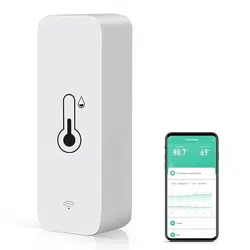
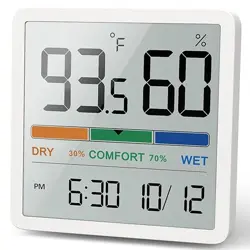
The device is a small, white rectangular unit. It contains internal sensors, a WiFi module, and a reset button. There is no physical display on the device itself.

Setup & Installation Guide
1. Install the App
Download and install either the "Tuya Smart" or "Smart Life" app from your smartphone's app store (iOS App Store or Google Play Store).
2. Power On the Sensor
Insert the two included AAA batteries into the compartment on the back of the sensor.
3. Add Device to the App
- Open the Tuya Smart or Smart Life app and create an account or log in.
- Tap the "+" (Add Device) icon, usually in the top right corner of the app's home screen.
- Ensure your phone's Bluetooth is turned on. The app should automatically discover the sensor.
- Follow the in-app instructions to connect the sensor to your 2.4 GHz WiFi network.
- Important: The sensor only works with 2.4 GHz WiFi bands. It does not support 5 GHz networks.
- Name your sensor (e.g., "Living Room," "Greenhouse") for easy identification.

4. Placement
Choose a location to monitor. You can:
- Place it on a flat surface.
- Use the included adhesive sticker to mount it on a wall.
- Use screws (not included) for a more permanent wall mount.
Avoid: Placing the sensor in direct sunlight, right next to HVAC vents, or in areas with standing water.
Using the App
Viewing Data
Once connected, the sensor's current temperature and humidity will appear on the app's main dashboard. Tap on the device to see more details.

Setting Alerts
- Within the device settings in the app, look for an "Alarm" or "Alert" menu.
- Set your desired maximum and minimum thresholds for temperature and humidity.
- Enable push notifications for the app on your phone.
- The app will send an alert to your phone when readings exceed these preset values.
Viewing History & Graphs
Inside the device menu in the app, navigate to a section labeled "History," "Records," or "Trend." Here you can view data over time in graphical or list format. The app provides free data storage and export functionality.
Switching Temperature Units (°F/°C)
- In the device settings within the app, find the unit setting (e.g., under "Set" or "Preferences").
- Select your preferred unit (°C or °F).
- The app will prompt you to update the device. Press the physical reset button on the sensor once. The device's indicator light will flash, confirming the change.

Creating Smart Scenes
The sensor can act as a trigger for other Tuya/Smart Life compatible devices.
- In the app, go to the "Automation" or "Smart Scene" section.
- Create a new scene. Set the condition as "When [Sensor Name] temperature is above 75°F."
- Set the action as "Turn on [Smart Plug connected to a fan]."
- Save the scene. The fan will now automatically turn on when the temperature condition is met.

Sharing Access
You can share device access with family members through the app's sharing function, allowing multiple people to monitor the data.

Voice Control Setup
With Amazon Alexa
- Ensure the sensor is successfully set up in the Tuya Smart or Smart Life app.
- In the Alexa app, enable the "Tuya Smart" or "Smart Life" skill and link your account.
- Discover devices. The sensor should appear.
- You can now ask Alexa for the temperature. For example: "Alexa, what's the temperature in the living room?" (Use the name you gave the sensor in the Tuya/Smart Life app).
- Note: The Alexa app may only display humidity readings, not temperature.
Data Update & Accuracy
- The sensor reports data to the app immediately upon connection.
- Subsequent updates occur:
- Immediately: When temperature changes ≥ 0.5°C (0.9°F) or humidity changes ≥ 5%.
- Every Hour: If changes are less than the above thresholds within a one-hour period.

Battery Information
- The device uses 2 AAA batteries (included).
- A low-power microprocessor is used for extended battery life.
- The app will send a notification when the battery level is low.
- To replace batteries, open the compartment on the back of the unit and insert new AAA batteries.
Troubleshooting
Sensor Won't Connect to WiFi/App
- Verify WiFi Band: Ensure your router's 2.4 GHz network is enabled and you are connecting to it. The device does not work with 5 GHz networks.
- Check Password: Re-enter your WiFi password carefully during setup.
- Proximity to Router: During setup, place the sensor close to your WiFi router.
- Restart & Retry: Restart your smartphone and router. Remove the batteries from the sensor for 10 seconds, reinsert them, and try the setup process again.
- Reset the Sensor: Press and hold the reset button on the device for 5-10 seconds until the indicator light flashes, then attempt setup again.
No Data or Data Not Updating in App
- Check that your phone has an active internet connection.
- Ensure the sensor is within range of your WiFi router.
- Verify the sensor has power (batteries are correctly installed and not depleted).
No Alert Notifications
- Check that push notifications are enabled for the Tuya Smart/Smart Life app in your phone's settings.
- Verify that alert thresholds are correctly set and enabled within the app's device settings.
Alexa Cannot Find Device or Report Temperature
- Confirm the Tuya/Smart Life skill is properly linked in the Alexa app.
- Try rediscovering devices in the Alexa app.
- Ensure you are using the exact device name as it appears in the Tuya/Smart Life app when asking Alexa.
Care & Maintenance
- Cleaning: Wipe the exterior with a soft, dry cloth. Do not use liquids or abrasive cleaners.
- Storage: If not in use for an extended period, remove the batteries.
- Environment: For indoor use only. Do not submerge in water or expose to extreme conditions outside its specified operating range.
Compliance
This product is CE certified, indicating conformity with health, safety, and environmental protection standards for products sold within the European Economic Area.