Overview
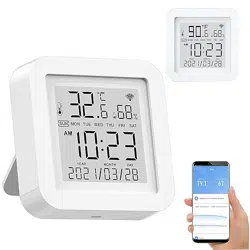
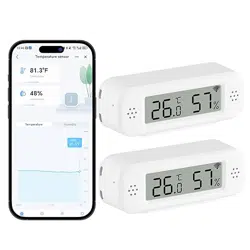
This device is a Smart WiFi Temperature and Humidity Monitor. It connects to your home WiFi network to provide real-time environmental data, which can be viewed on its built-in LCD screen or remotely via a smartphone app. The device is designed for indoor use in areas such as homes, garages, pet areas, and greenhouses.
Features
Core Monitoring
- Real-Time Data: Monitors temperature and humidity with updates provided without delay.
- Swiss-Made Sensor: Provides reliable and accurate environmental monitoring 24/7.
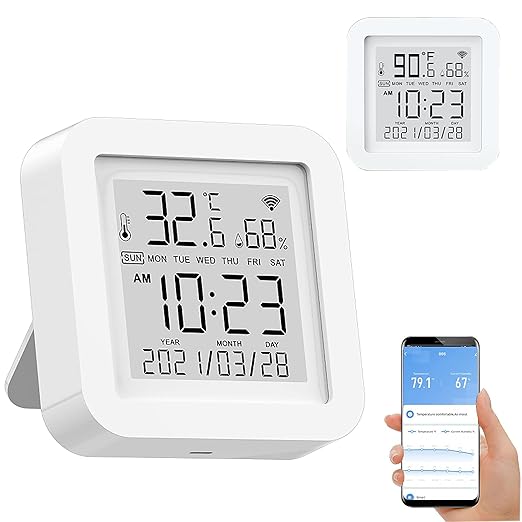
- LCD Display: Shows current temperature, humidity, time, and date.
Connectivity & Control
- WiFi Connectivity: Connects to 2.4 GHz WiFi networks (does not support 5 GHz).
- App Control: Use the Tuya Smart or Smart Life app for remote monitoring and control.
- Voice Control: Compatible with Amazon Alexa and Google Assistant for hands-free queries.
- Smart Scenes: Set up automated alerts or trigger other smart devices based on temperature or humidity thresholds.
Design & Power
- USB Powered: Uses a USB cable for power (DC 5V/1A). No batteries are required.
- Compact Design: Dimensions: 2.6" W x 2.6" H x 0.8" D.
- Unit Conversion: Temperature display can be switched between Celsius (°C) and Fahrenheit (°F).
In the Box
- 1 x Smart WiFi Temperature Humidity Sensor
- 1 x USB Cable
- 1 x User Manual (this document)
Product Specifications
| Specification |
Detail |
| Brand |
Gaoducash |
| Color |
White |
| Product Dimensions |
2.6" W x 2.6" H |
| WiFi Protocol |
2.4 GHz IEEE 802.11 b/g/n |
| Temperature Range |
0°C to 60°C (32°F to 140°F) |
| Temperature Accuracy |
±1°C |
| Humidity Range |
0% to 99% RH |
| Humidity Accuracy |
±5% RH |
| Power Input |
DC 5V / 1A via USB cable |
| Mounting |
Place anywhere. No specific mounting hardware included. |
Getting Started
1. Physical Setup
- Place the device in the desired location.
- Connect the provided USB cable to the device's micro-USB port.
- Plug the other end of the USB cable into a standard 5V USB power adapter (not included) or a USB port on a computer or power strip.
- The LCD screen will light up, showing the time, date, temperature, and humidity.
2. Connecting to WiFi & App
- Download the "Tuya Smart" or "Smart Life" app from your smartphone's app store (iOS App Store or Google Play Store).
- Create an account or log in within the app.
- Ensure your smartphone is connected to your home's 2.4 GHz WiFi network.
- In the app, tap the "+" or "Add Device" button.
- Select the category for "Temperature & Humidity Sensor" or similar.
- The app will guide you through the pairing process. You may need to press the reset button on the back of the device to put it into pairing mode (the LED indicator will flash blue).
- Follow the in-app instructions to connect the device to your WiFi network.
- Once connected, the device will appear in your app's device list.
Note: The device only works with 2.4 GHz WiFi networks. It will not connect to 5 GHz networks.
Use Guide
Understanding the Display
The LCD screen shows the following information:
- Time: Displayed in a 12-hour or 24-hour format.
- Date: Shows the current month and day.
- Temperature: The current ambient temperature.
- Humidity: The current relative humidity (RH%).

Using the Mobile App
Once connected, the app allows you to:
- View Real-Time Data: See current and historical graphs of temperature and humidity.
- Set Notification Alerts: Configure smart scenes to receive app notifications when temperature or humidity goes above or below your set points.
- Example: Get an alert if the temperature in your greenhouse exceeds 30°C.
- Create Smart Scenes: Automate other Tuya/Smart Life compatible devices.
- Example: Automatically turn on a smart fan when the temperature reaches a certain level.
- Switch Temperature Units: Change the display unit between °C and °F within the app settings.
Using Voice Control
If you have an Amazon Alexa or Google Assistant device:
- Ensure the Tuya/Smart Life skill is enabled and linked in your Alexa or Google Home app.
- Discover devices.
- Once added, you can ask questions like:
- "Alexa, what's the temperature in the garage?"
- "Hey Google, what's the humidity in the living room?"
Switching Temperature Units on the Device
To change the temperature unit displayed on the device's LCD screen:
- Locate the black reset button on the back of the device.
- Briefly press the button once.
- The display will toggle between Celsius (°C) and Fahrenheit (°F).
Important: The temperature unit on the physical device is changed only by pressing the reset button. Changing the unit in the mobile app does not affect the device's LCD display.
Troubleshooting
Device Won't Connect to WiFi
- Ensure you are using a 2.4 GHz WiFi network. The device does not support 5 GHz.
- Check that your WiFi password is entered correctly in the app during setup.
- Move the device closer to your WiFi router during the initial setup process.
- Restart the device by unplugging and replugging the USB cable, then try the pairing process again.
No Data in the App
- Verify the device is powered on (LCD screen is lit).
- Check your smartphone's internet connection.
- Ensure the device is still online in the app's device list. If it shows as offline, it may have lost its WiFi connection.
Inaccurate Readings
- Avoid placing the device in direct sunlight, near heat sources (ovens, radiators), or in areas with excessive moisture (directly next to a humidifier).
- Allow the device to acclimate to a new environment for at least one hour for readings to stabilize.
Care & Maintenance
- Clean the device with a soft, dry cloth. Do not use liquids or abrasive cleaners.
- Ensure the USB cable and port are kept free of dust and debris.
- Use only a standard 5V/1A USB power adapter. Using an incorrect power source may damage the device.