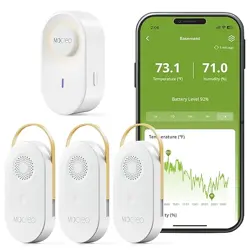
1. Overview
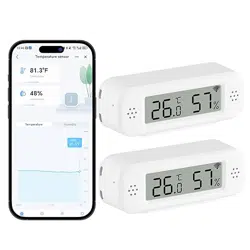
The eMylo WiFi Thermometer Hygrometer Sensor is a smart wireless device for monitoring indoor temperature and humidity. It connects to your home Wi-Fi network, allowing you to view real-time data, set alerts, and review historical trends via the Smart Life mobile application. The package includes two sensor units.

2. What's in the Box
- Thermo-hygrometer sensor unit (x2)
3. Key Features & Specifications
3.1. Core Features
- Wi-Fi Connectivity: Connects to 2.4GHz Wi-Fi networks (5GHz is not supported) for remote monitoring via the Smart Life app.
- LCD Display: High-definition screen for local temperature and humidity reading.
- App Alerts: Receive push notifications on your mobile device for high/low temperature/humidity thresholds and low battery warnings.
- Smart Linkage: Create automated scenes with other compatible smart devices (e.g., turn on an air conditioner when temperature exceeds a set point).
- Voice Control: Compatible with Amazon Alexa and Google Home for voice queries (e.g., "Alexa, what's the temperature in the living room?").
- Data History & Export: View historical data by year, month, day, or hour. Export data from the past year via the app.
3.2. Technical Specifications
| Measurement Range | Temperature: 14.2°F to 140°F (-9.9°C to 60°C)
Humidity: 0% to 100% RH |
|---|
| Accuracy | Temperature: ±1°C (±1.8°F)
Humidity: ±5% |
|---|
| Response Time | Approximately 30 minutes |
|---|
| Display Type | LCD |
|---|
| Connectivity | Wi-Fi (2.4GHz only) |
|---|
| Power Source | 4 x AAA batteries (included) |
|---|
| Battery Life | Up to 1 year (with low-power chip) |
|---|
| Material | Acrylonitrile Butadiene Styrene (ABS) |
|---|
| Dimensions | Length: 2.95 inches |
|---|
| Indoor/Outdoor Use | Indoor use only. The device is not waterproof. |
|---|
4. Getting Started & Use Guide
4.1. Initial Setup
- Install Batteries: Open the battery compartment on the back of the sensor and insert the 4 included AAA batteries.
- Power On: The LCD display will activate.
- Download the App: Install the "Smart Life" or "Tuya Smart" app from your device's app store (iOS App Store or Google Play Store).
- Create an Account: Open the app and create a new account or log in to an existing one.
4.2. Connecting to Wi-Fi
- Ensure your phone is connected to your 2.4GHz Wi-Fi network.
- In the Smart Life app, tap the "+" icon to add a new device.
- Select "Sensor" > "Temperature and Humidity Sensor".
- Follow the in-app instructions. You will be prompted to enter your Wi-Fi password.
- The sensor's indicator light will flash during the pairing process. Wait for the app to confirm a successful connection.
Note: The sensor must be within 32.8 feet (10 meters) of your Wi-Fi router in an open area for a reliable connection. It does not support 5GHz networks.
4.3. Using the App
Once connected, you can use the Smart Life app to:
- View Real-Time Data: See current temperature and humidity for each connected sensor.
- Set Alerts: Navigate to the device settings to set high and low thresholds for temperature and humidity. You will receive a push notification when readings fall outside these ranges.
- Review History: Tap on the history/graph icon to view trends over different time periods (hourly, daily, monthly, yearly).
- Export Data: Use the export function within the history section to send a data report to your email.
- Create Smart Scenes: Use the "Automation" or "Scene" section to create linkages with other smart devices (e.g., "If temperature > 80°F, then turn on smart plug for fan").
4.4. Switching Temperature Units (°C/°F)
- In the Smart Life app, go to the settings for your specific sensor device.
- Select your preferred temperature unit (°C or °F).
- Double-click the reset button (using the provided S/S pin) on the physical sensor unit.
- The display and app will synchronize to the new unit.
4.5. Setting Up Voice Control
For Amazon Alexa:
- Enable the "Smart Life" skill in the Alexa app.
- Link your Smart Life account.
- Discover devices. The sensor should appear.
- You can now ask, e.g., "Alexa, what's the temperature in the baby room?"
For Google Home:
- In the Google Home app, tap "Add" > "Set up device" > "Works with Google".
- Search for and link the "Smart Life" service.
- Your devices will sync. You can then ask, "Hey Google, what's the humidity?"
Note: Temperature and humidity data is accessible via voice but is not displayed within the Alexa app interface.
5. Frequently Asked Questions (FAQ)
Why won’t my thermometer connect to Wi-Fi?
Ensure the sensor is within 32.8ft (10m) of the router, you are using a 2.4GHz Wi-Fi network (5GHz is unsupported), and you have entered the correct Wi-Fi password during setup.
Can this Wi-Fi thermometer be used outdoors?
No. The temperature sensor is designed for indoor use only and is not waterproof.
How do I share access with family members?
Connect the sensor to one Tuya/Smart Life account. Family members can then log into the Smart Life app on their phones using the same account credentials to view the data.
Does the device itself sound an alarm?
No. All alerts (for temperature, humidity, or low battery) are sent as push notifications through the Smart Life app on your smartphone. The physical device does not have an audible alarm.
What should I do if the readings seem inaccurate?
Allow approximately 30 minutes after Wi-Fi configuration for readings to stabilize and match the ambient environment. Ensure the sensor is placed away from direct heat sources, vents, or windows.
6. Care & Maintenance
- Use a soft, dry cloth to clean the device. Do not use liquids or abrasive cleaners.
- Replace the batteries when you receive a low battery alert via the app. Using the included 4 AAA batteries provides up to one year of operation.
- For long-term storage, remove the batteries.