User Manual
Overview
TechnicalSpecifications
1
2
ProductDiagram
3
KeyDefinitions
4
APPInstallation&Connection
5
Please keep this manual properly for reference.
You can also scan the QR code below to visit
our official website for product usage videos.
For any usage issues, please feel free to
contact us at [email protected].
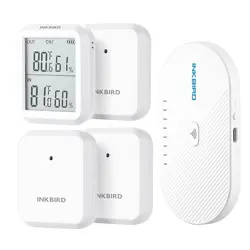
This combo of ITH-20R Wireless Temperature-Humidity Sensor and IBS-M1
WiFi Gateway can enable you to monitor the outdoor temperature and
humidity through the indoor thermometer of ITH-20R and also realize remote
monitoring through a smartphone with the WiFi gateway networking to check
history and receive alert notifications.
Press and hold the RESET
button for more than 5 seconds
to reset the registration of all
sensors. The user should take
out the batteries of the ITH-20R
Wireless sensors and install
Input Voltage: DC 5V, 1000mAh
Maximum Wireless Connection Distance: Up to 300ft without interferences
成品尺寸10cm *12cm 9折页 黑白印刷
IBS-M1 WiFi Gateway:
IBS-M1 WiFi Gateway
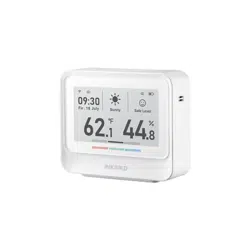
ITH-20R indoor thermometer (receiver)
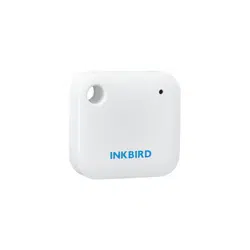
ITH-20R Wireless sensor
ITH-20R Indoor Monitor (receiver)
ITH-20R Wireless sensor (transmitter)
IBS-M1 WiFi Gateway
Battery:2XAAA 1.5V (Indoor thermometer/Wireless sensor)
Transmission Distance:Up to 300ft without interferences
Number of Devices Supported: max 3 wireless sensors simultaneously
supported by the indoor thermometer
Temperature Measurement Range of indoor thermometer: 0℃~60℃ (32
℉~140℉)
Temperature Measurement Range of wireless sensor:-40℃~70℃ (-40
℉~158℉)
Temperature Display Accuracy:0.1℃ (0.1℉)
Temperature Measurement Accuracy:±1.0℃ (±1.8℉)
Humidity Measurement Range:0%~100%
Humidity Measurement Accuracy:±3%
Humidity Display Accuracy:1%
Data Sampling Interval:10 seconds
The interval for recording the indoor thermometer's maximum and
minimum temperature and humidity values can be ALL-TIME or 24 hours.
ALL-TIME or 24-HOUR recording starts from the power-on time or the last
clearing the maximum and minimum values.
The indoor thermometer displays “HH.H” or“LL.L” when the detected value
is out of range.
Warranty: 1 year
ITH-20R Temperature-Humidity Sensor:
Wi-Fi Button
Reset Button
Wi-Fi Button
Reset Button
Number of Devices Supported: max 50 outdoor sensors of ITH-20R at the
same time
Wireless sensor
Channel Number
Wireless sensor
Temperature
indoor
thermometer
Temperature
Wireless sensor
Battery Life
Wireless sensor
Transmission
Signal Indicator
Wireless sensor
Humidity
indoor
thermometer
Humidity
Reset Button:
Wi-Fi Button:
CH/R Button:
℃/℉ Button:
them again, and be sure to put all sensors as close as possible to the
IBS-M1 WiFi Gateway to re-establish the connection and complete the
registration.
Press and hold the WiFi button for more than 5 seconds to reset WiFi and
pair it with the network again.
a. When there are multiple Wireless sensors, press the CH/R button to
switch the current Wireless sensor channel (CH1/CH2/CH3) and fix it on
the current channel. When switching to CH8, after 5 seconds, it enters the
channel automatic scrolling mode, and each channel will be displayed for 5
seconds.
b. Press and hold the CH/R button for 5 seconds to reset the
synchronization of the indoor thermometer and all Wireless sensors. After
Wireless
ITH-20R
Temperature-
Humidity
Sensor
withIBS-M1
WiFi
Gateway
1 2 3 4 5 6 7 8
that, the user needs to take out the batteries of the Wireless sensors and
reinstall them to sync data with the indoor thermometer. The first 2 minutes
after the Wireless sensor is turned on is the synchronization time between
the indoor thermometer and the Wireless sensor. When synchronizing, put
the outdoor sensor as close as possible to the indoor thermometer.
a. In a normal working state, press the ℃/℉ button to switch the temperature
unit between ℃and ℉.
b. When the maximum and minimum temperature/humidity values are
displayed, press the ℃/℉ button to switch the recording interval of the
maximum and minimum temperature/humidity between ALL-TIME and
24-Hour.
TX Button:
TX Button
Press the TX button to send temperature and humidity data to the Wireless
sensor. After data are sent successfully, the red light on the Wireless sensor
will flash once.
5.2 Registration
Step1: Registering an account is necessary before using the INKBIRD app for
the first time.
Step2: Open the app, select your Country/Region, and a verification code will
be sent to you.
Step3: Enter the verification code to confirm your identity, and the
registration is complete.
5.3 How To Connect
NOTE:
1.Your iOS devices must be running iOS 12.0 or above to download the app
smoothly.
2.Your Android devices must be running Android 7.1 or above to download
the app smoothly.
3.The device supports a 2.4GHz Wi-Fi router only.
5.1 Search the INKBIRD App from
Google Play or App Store to get it for
free, or you can scan the QR code
below to download it directly.
MAX/MIN/CLEAR Button:
a. Short press the MAX/MIN/CLEAR button to display the maximum and
minimum temperature/humidity values. If there is no other operation within
30 seconds, the screen will return to display the current temperature and
humidity.
b. Press and hold the MAX/MIN/CLEAR button for 5 seconds to clear all
records of maximum and minimum temperature/humidity values and start a
new record.
9
5.3.1 Open the app and click “+”
to select the IBS-M1 to start the
connection.
5.3.2 Plug into the USB power
supply to correctly start it up and
click Next Step.
10
5.3.3 Press the button on the
device and hold until the WiFi
indicator enters the fast flashing
state. Then select Fast Flashing to
connect. After that, click Next
Step.
5.3.4 Select a WiFi network to
connect, enter the password, then
click Confirm to enter automatic
networking.
11
5.3.5 The App is automatically
pairing with the device.
5.3.6 Paring is successful.
NOTE: If the pairing fails, unplug the power plug and restart the device, then
repeat steps 5.3.1~5.3.6 to try again.
12
5.4 Add ITH-20R Wireless sensors
a)Firstly, plug in the IBS-M1 WiFi Gateway, install the battery of the
Wireless sensor of ITH-20R, and start it up correctly. Then follow the
above steps to establish the App connection. If the app connection is
already done, skip this step.
b)Secondly, install the battery of the Wireless sensor of ITH-20R, and start
it up correctly. Put it as close as possible to the IBS-M1 WiFi Gateway and
ITH-20R indoor thermometer.
c)The Wireless sensor sub-devices of ITH-20R will automatically establish
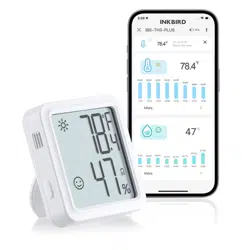
a connection. The user can view the added sub-devices through the phone
APP and the indoor thermometer of ITH-20R, as shown in the figure
below. Note that if adding the device fails, take out the battery of ITH-20R
and repeat steps a~c to complete the addition.
13 14
1. Please do not disassemble the product if you are not a professional.
2. Be sure that the sensor is not covered with dust as dust may lead to
inaccurate measurements.
3. Do not use alcohol to clean the sensor.
ImportantNotes/Warning
TroubleshootingGuide
a. Make sure the 2.4GHz WiFi signal is
stable, and place the WiFi gateway as close
to the router as possible.
b. Make sure there are as few barriers as
possible between the WiFi gateway and the
router.
c. Enable Bluetooth and positioning
functions, allow the App to obtain location
information, and allow the local network
(iOS System).
PossibleSolutionsProblems
The WiFi gateway
cannot connect to
the network
15
Changes or modifications not expressly approved by the party responsible
for compliance could void the user’s authority to operate the equipment.
This device complies with Part 15 of the FCC Rules. Operation is subject
to the following two conditions:
(1) this device may not cause harmful interference, and
(2) this device must accept any interference received, including
interference that may cause undesired operation.
Note: This equipment has been tested and found to comply with the limits
FCCRequirement
8
Reset the WiFi gateway and the registration
of ITH-20R sensors. Remove and reinstall
the battery of the ITH-20R Wireless sensor,
and then try again to add sub-devices.
Leave the sensor in a ventilated place for
one day, and be careful not to block the
sensing area.
Unable to add
sub-devices
Incorrect
temperature/
humidity detection
16
for a Class B digital device, pursuant to Part 15 of the FCC Rules. These
limits are designed to provide reasonable protection against harmful
interference in a residential installation. This equipment generates, uses,
and can radiate radio frequency energy, and if not installed and used in
accordance with the instructions, may cause harmful interference to radio
communications. However, there is no guarantee that interference will not
occur in a particular installation. If this equipment does cause harmful
interference to radio or television reception, which can be determined by
turning the equipment off and on, the user is encouraged to try to correct
the interference by one or more of the following measures:
– Reorient or relocate the receiving antenna.
– Increase the separation between the equipment and receiver.
– Connect the equipment into an outlet on a circuit different from that to
which the receiver is connected.
– Consult the dealer or an experienced radio/TV technician for help.
This equipment complies with FCC radiation exposure limits set forth for
an uncontrolled environment. This equipment should be installed and
operated with a minimum distance of 20cm between the radiator & your
body. This transmitter must not be co-located or operating in conjunction
with any other antenna or transmitter.
This item carries a 1-year warranty against defects in either components
or workmanship. During this period, products that prove to be defective
will, at the discretion of INKBIRD, be either repaired or replaced without
charge. For any problems in use, please feel free to contact us at
[email protected]. We will do our best to help you.
CustomerService
9
V 1.0
INKBIRD TECH.C.L.
Factory address: 6th Floor, Building 713, Pengji Liantang Industrial Area,
NO.2 Pengxing Road, Luohu District, Shenzhen, China
Office address: Room 1803, Guowei Building, NO.68 Guowei Road,
Xianhu Community, Liantang, Luohu District,Shenzhen, China
MADE IN CHINA
6
7
TX
Temperature Unit
The Measure
Temperature
Model
The Measure
Humidity
Graph
Settings
Battery Life