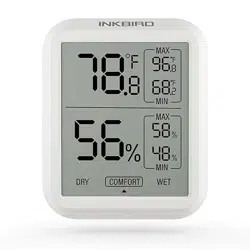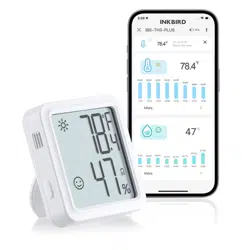
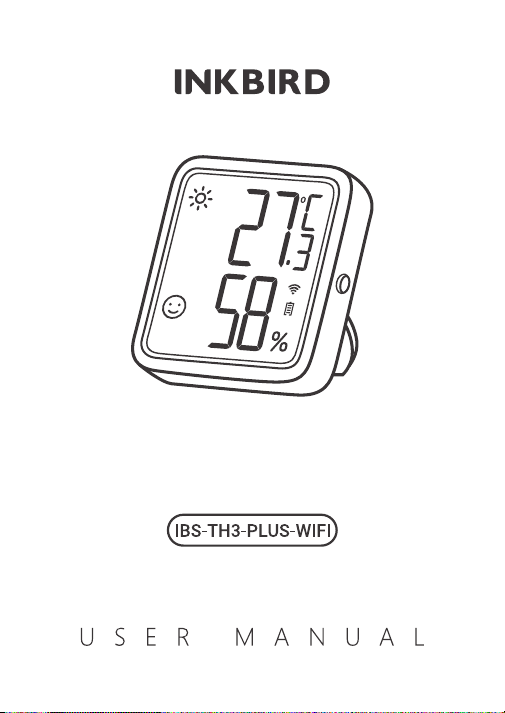
TEMPERATURE
HUMIDITY SENSOR
1
3
5
14
15
15
CONTENTS
01 Product Introduction
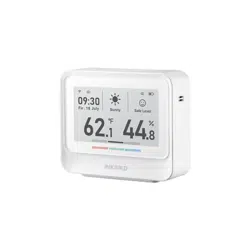
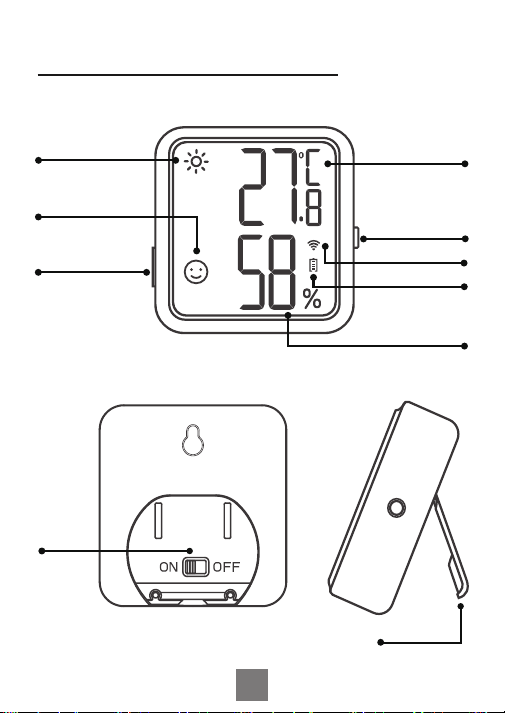
Temperature
Comfort Level
Humidity
Comfort Level
Current
Temperature
Action Button
WiFi Icon
Battery Level
Current Humidity
USB
Charging Port
1
Power
Switch
Kickstand
Screen Display Description
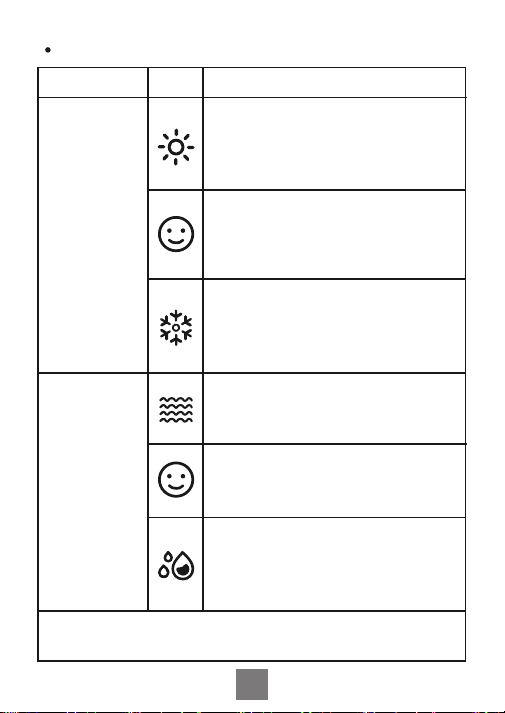
Type
Temperature
Comfort
Level
Humidity
Comfort
Level
Icon Definition
Hot; The current temperature is
higher than the preset high-tem-
perature value, which is 26℃/78.8
℉ by default.
Comfortable; The current
temperature is in the comfort
zone, the default is 20℃~26℃/68
℉~78.8℉.
Cold; The current temperature is
lower than the preset low-tem-
perature value, which is 20℃/68℉
by default.
Dry; The current humidity is lower
than the preset low-humidity
value, which is 35%RH by default.
Comfortable; The current humidity
is in the comfort zone, the default
is 35%RH~65%RH.
Wet; The current humidity is
higher than the preset high-humid-
ity value, which is 65%RH by
default .
Note:All the above parameters can be modified through
the App.
2

02 Technical Parameters
Action Button Operation
Short press it to check the current WiFi status. When
the WiFi icon remains on, the sensor is paired to the
network. Pressing the action button at this point will
instantly sync the data with the app. If the WiFi icon is
flashing rapidly, the sensor is not yet paired to the
network and can enter the pairing state.
Press and hold it for 5 to 8 seconds to reset the WiFi
of the sensor. The WiFi icon will blink rapidly, and the
sensor will enter the pairing state.
Note: When the WiFi icon blinks slowly, the sensor is
currently on a bad WiFi network. Please place the
sensor as close as possible to the WiFi router.
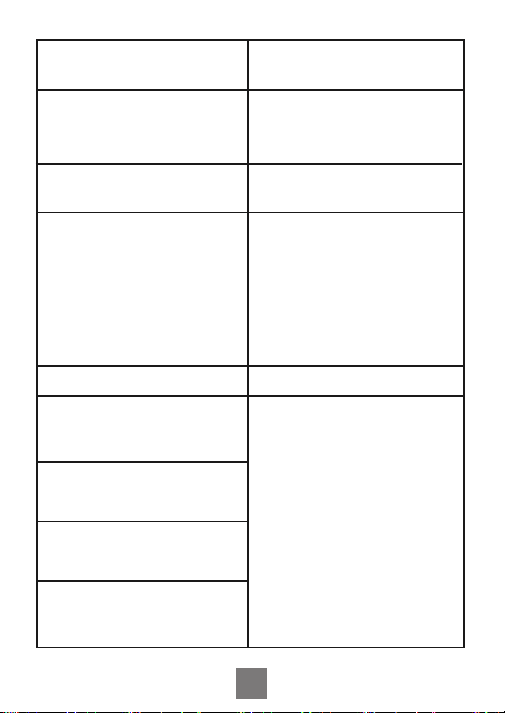
Power Source
Input Power
Temperature
Measurement Range
Temperature
Measurement Accuracy
0℃~50℃ / 32℉~122℉
Typical ±0.3℃/±0.5℉
Maximum ±0.5℃/±9℉
Rechargeable Lithium
Battery 500mAh
USB 5V (over 250mA)
3
10 minutes, 30 minutes, 60
minutes (default), 120
minutes, 180 minutes, 240
minutes (The longer the
recording interval you
choose, the longer the
battery life.)
Supported; To synchronize
the relevant parameters
immediately, please press
the device button after
setting the parameters on
the App.
Otherwise, they will be only
automatically synchronized
when temp or humidity data
are synchronized (varies
with the data change and
recording time interval).
Humidity Measurement
Range
Humidity Measurement
Accuracy
(25℃/77℉, 20%~80%RH)
Relative Humidity Accuracy
(25℃/77℉, 0%~100%RH)
Recording Interval
Sampling Interval
Temperature/Humidity
Comfort Value Setting
Temperature/Humidity
Calibration
High/Low-Temperature
(-Humidity) Alarm
Temperature Unit Switch
Function
10 seconds
Typical ±3%RH
Maximum ±4.5%RH
Typical ±4.5%RH
Maximum ±7.5%RH
0%RH~99%RH
4
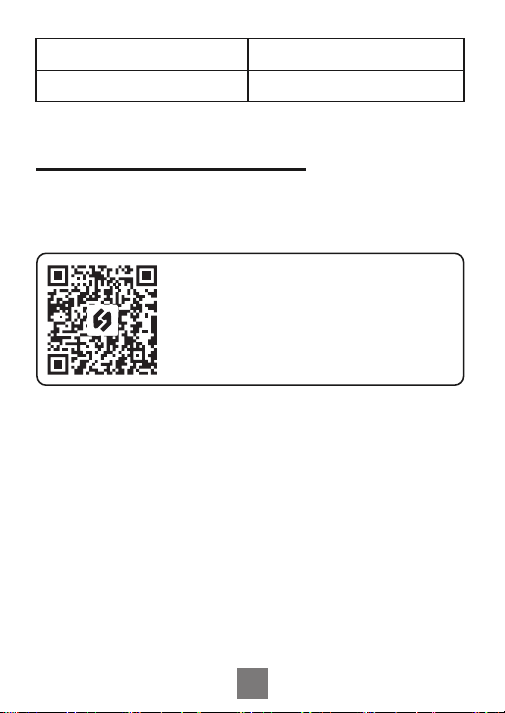
3.1 How to download the INKBIRD App
3.2 Registration
Search the INKBIRD App from
Google Play or App Store to get it
for free, or you can scan the QR
code left to download it directly.
NOTE:
1.Your iOS devices must be running iOS 10.0 or above
to download the app smoothly.
2.Your android devices must be running android 4.4 or
above to download the app smoothly.
3.The device supports a 2.4GHz Wi-Fi router only.
3.2.1 Open the app, select your Country/Region, and a
verification code will be sent to you.
Magnetic Back
Product Warranty
Yes
1 Year
03 APP Instructions
5
3.3 How to connect
3.2.2 Enter the verification code to confirm your
identity, and the registration is complete.
3.2.3 Registering an account is necessary before
using the INKBIRD app for the first time.
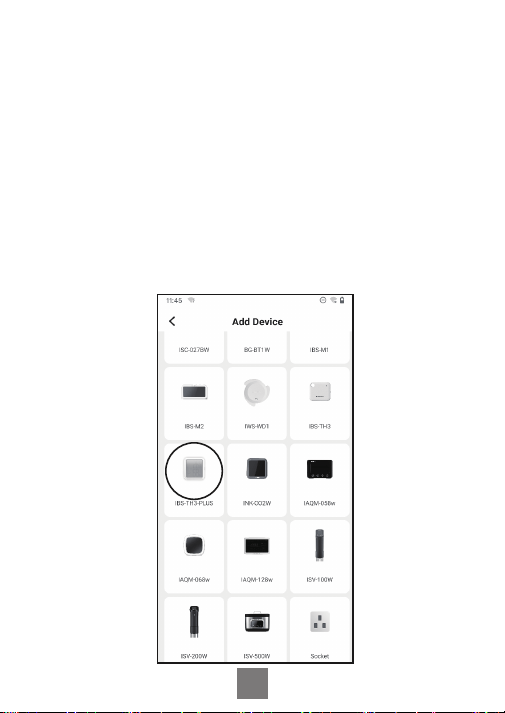
3.3.1 Open the app, click the “+” in the upper right
corner, and select IBS-TH3 PLUS to start the connec-
tion. Please make sure your smartphone has
Bluetooth permission.
6
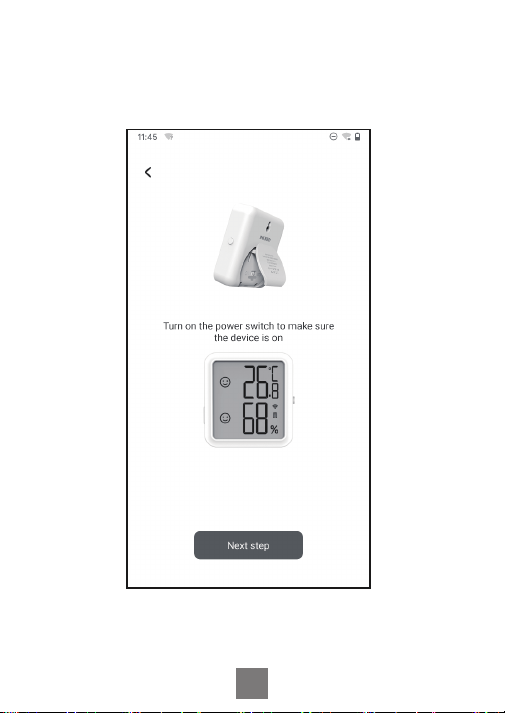
3.3.2 Make sure the power switch is pushed to ON
and the screen displays normally, then click Next Step
to continue.
7
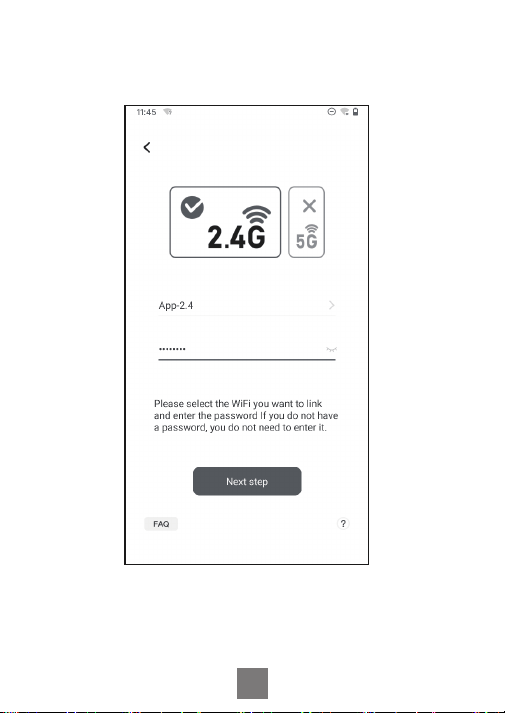
3.3.3 Select the Wi-Fi to connect to, enter the
password, and click Next Step to continue.
8
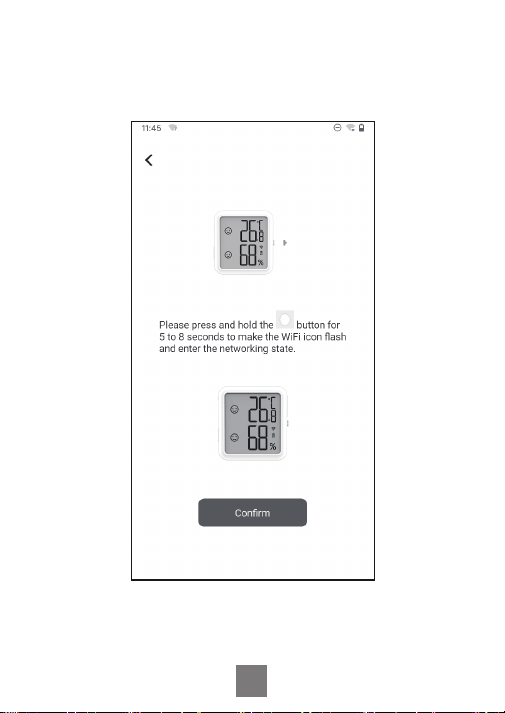
3.3.4 Press and hold the action button of the sensor
until the WiFi icon flashes to enter the pairing state.
Then click Confirm to continue.
9
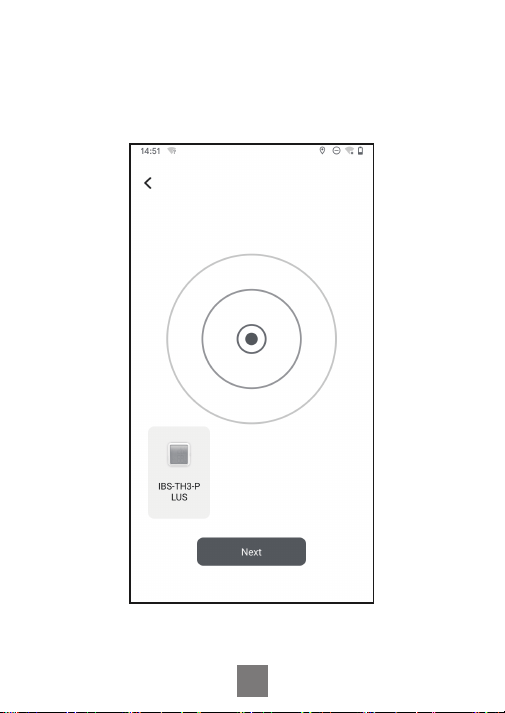
3.3.5 Your smartphone will automatically enter the
device scan page. Please place the device as close as
possible to your smartphone and router. Once the
device is found, click Next Step to continue.
10
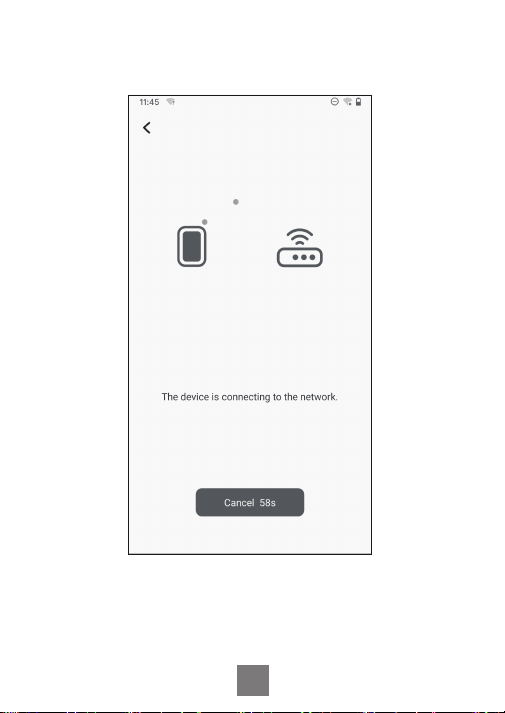
3.3.6 The device automatically pairs with your
smartphone.
11
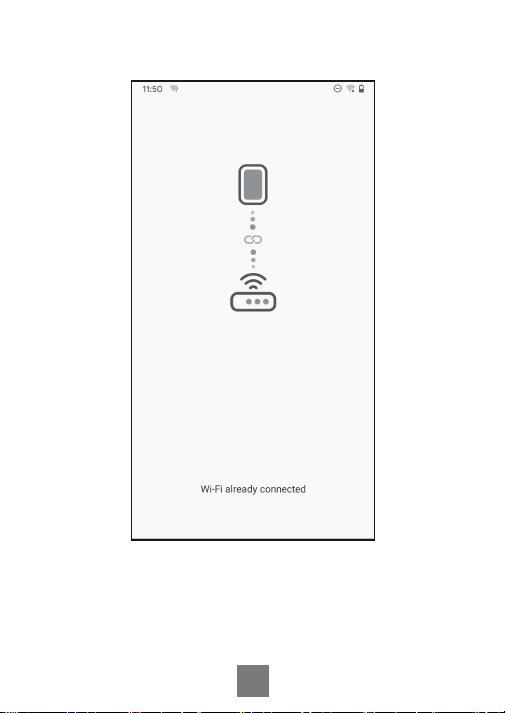
3.3.7 Pairing is successful.
Note: If the pairing fails, turn off the power supply and
restart the device, place the device as close as
possible to your smartphone and router, then repeat
steps 3.3.1~3.3.6 to try again.
12
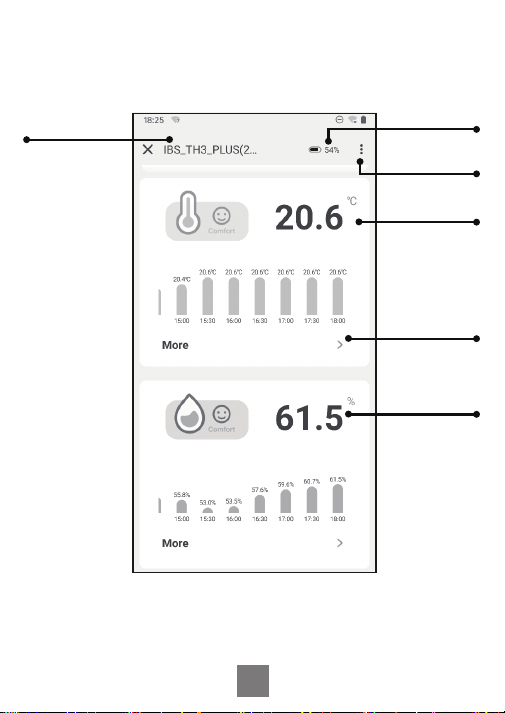
3.4 APP Main Interface
IBS-TH3 PLUS
Battery Level
Enter the
settings page
Current
Temperature
Go to view
history
Current
Humidity
13

1. Please do not disassemble the product if you are
3.5.1 The WiFi network is often dropped, historical
data is lost, or the network cannot be connected?
a. Make sure the WiFi signal is stable, and place the
device as close to the router as possible.
b. Make sure there are as few barriers as possible
between the device and the router.
c. Check to see if the battery level is low.
d. Enable Bluetooth and positioning functions, allow
the App to obtain location information, and allow the
local network (iOS System).
3.5.2 The alarm notification is not received or
delayed?
a. Make sure the WiFi signal is stable, and place the
device as close to the router as possible.
b. Make sure there are as few barriers as possible
between the device and the router.
c. Check to see if the app notification permission is
enabled.
3.5 Troubleshooting
04 Safeguards
14

not a professional.
2. Be sure that the sensor is not covered with dust as
dust may lead to inaccurate measurements.
3. Do not use alcohol to clean the sensor.
This item carries a 1-year warranty against defects in
either components or workmanship. During this
period, products that prove to be defective will, at the
discretion of INKBIRD, be either repaired or replaced
without charge.
Changes or modifications not expressly approved by
the party responsible for compliance could void the
user’s authority to operate the equipment. This device
complies with Part 15 of the FCC Rules. Operation is
subject to the following two conditions:
(1) this device may not cause harmful interference,
and
(2) this device must accept any interference received,
including interference that may cause undesired
operation.
05 Product Warranty
06 FCC Requirement
15

Note: This equipment has been tested and found to
comply with the limits for a Class B digital device,
pursuant to Part 15 of the FCC Rules. These limits are
designed to provide reasonable protection against
harmful interference in a residential installation. This
equipment generates, uses, and can radiate radio
frequency energy, and if not installed and used in
accordance with the instructions, may cause harmful
interference to radio communications. However, there
is no guarantee that interference will not occur in a
particular installation. If this equipment does cause
harmful interference to radio or television reception,
which can be determined by turning the equipment off
and on, the user is encouraged to try to correct the
interference by one or more of the following
measures:
– Reorient or relocate the receiving antenna.
– Increase the separation between the equipment and
receiver.
– Connect the equipment into an outlet on a circuit
different from that to which the receiver is connected.
– Consult the dealer or an experienced radio/TV
technician for help.
This equipment complies with FCC radiation exposure
limits set forth for an uncontrolled environment. This
equipment should be installed and operated with a
minimum distance of 20cm between the radiator &
16

your body. This transmitter must not be co-located or
operating in conjunction with any other antenna or
transmitter.
17