1. Overview
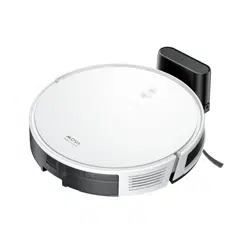
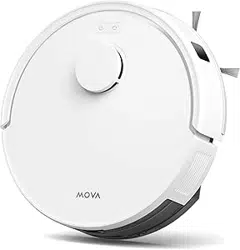
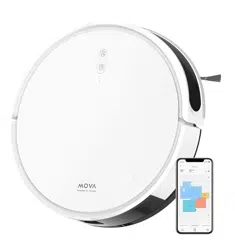
The MOVA L600 is a 2-in-1 robotic vacuum cleaner and mop designed for automated floor cleaning. It utilizes LiDAR (Laser) navigation for precise mapping and path planning.

Key components visible on the device include a central LiDAR sensor dome for navigation, a bumper for collision detection, and a dustbin compartment.

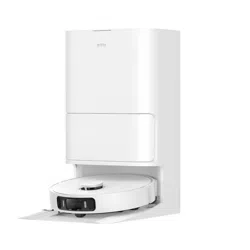
The charging dock provides a home base for automatic recharging. The robot is equipped with a side brush and a main V-shaped brush roll.
2. Features and Specifications
2.1 Navigation and Intelligence
- LiDAR Navigation: Uses a rotating laser sensor to scan, map, and navigate your home efficiently.
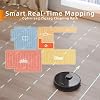
- Smart Mapping: Creates an accurate map of your floor plan within the companion app.
- No-Go Zones: Allows you to set virtual boundaries to restrict the robot from entering specific areas.
- Resume Cleanup: Automatically returns to the charging dock when battery is low, then resumes cleaning from where it left off once recharged.

2.2 Cleaning Performance
- Suction Power: Up to 4000Pa with four adjustable levels (Quiet, Standard, Strong, Max).
- 2-in-1 Vacuum and Mop: Can simultaneously vacuum and mop hard floors. The mopping module features a 270ml water tank with three water flow settings.
- Tangle-Free Brush System: V-shaped main brush designed to resist hair wrap, suitable for pet hair.
- Auto Carpet Boost: Automatically increases suction power when transitioning from hard floor to carpet.
- High-Efficiency Filter: Includes a washable HEPA filter to trap fine dust and allergens.


2.3 Battery and Runtime
- Battery Capacity: 5200mAh lithium-ion battery.
- Runtime: Up to 150 minutes of vacuuming on a single charge. Mopping runtime is up to 110 minutes with a full water tank.

2.4 Controls and Connectivity
- Wi-Fi & Mobile App: Connect to the "MOVA" app for scheduling, remote control, map management, and Over-The-Air (OTA) updates.
- Voice Control: Compatible with Amazon Alexa for voice commands.
- Noise Level: Approximately 55 dB in Quiet mode.

2.5 Physical Specifications
- Model: L600
- Colour: Black
- Dimensions: 35 cm (Diameter) x 9.6 cm (Height)
- Weight: 5.1 kg
- Dustbin Capacity: Not explicitly stated in source.
- Water Tank Capacity: 270ml
3. What's in the Box
- MOVA L600 Robot Vacuum (with main brush and HEPA filter pre-installed)
- Charging Dock
- Power Adapter
- Side Brush (x1)
- Water Tank Module
- Anti-Bacterial Mop Cloth (x1)
- Cleaning Tool
- User Manual
4. Use Guide
4.1 Initial Setup
- Prepare the Area: Remove loose cables, small objects, and potential obstacles from the floor. Ensure the area is clear for the robot's first mapping run.
- Install Brushes and Filter: The main brush and HEPA filter are pre-installed. Attach the side brush to the underside of the robot by pressing it onto the mounting post.
- Charge the Robot: Place the charging dock against a wall, in an open area with at least 0.5 meters of clearance on both sides and 1.5 meters in front. Connect the power adapter. Place the robot on the dock to charge fully before first use.
- Install the MOVA App: Download the "MOVA" app from your device's app store (iOS or Android).
- Connect to Wi-Fi: Power on the robot. Follow the in-app instructions to connect the robot to your home Wi-Fi network. This enables app control, scheduling, and smart features.
4.2 Basic Operation
Starting a Clean
- Via App: Open the MOVA app, select the L600, and press the "Clean" button. You can select a specific room or zone to clean if a map has been created.
- Via Physical Button: Press the "Clean/Power" button on the robot itself to start a whole-house clean.
- Via Voice: Use a command like "Alexa, ask MOVA to start cleaning" if you have linked the robot to your Alexa device.
Using the Mopping Function
- Ensure the dustbin is installed in the robot.
- Fill the water tank with clean water. Do not exceed the "Max" line.
- Attach the dampened mop cloth to the bottom of the water tank module.
- Remove the dustbin from the robot and install the water tank module in its place.
- In the app, select the desired water flow level (Low, Medium, High) based on your floor type and cleaning need.
- Start the cleaning cycle. The robot will now vacuum and mop simultaneously.
- Note: Remove the mop module and cloth before the robot returns to the charging dock to prevent a damp dock.
Pausing and Docking
- To pause cleaning, press the "Clean/Power" button on the robot or use the pause function in the app.
- To send the robot back to its dock, press the "Home" button on the robot or use the "Return to Charge" function in the app.
4.3 App Functions
The MOVA app provides advanced control:
- Map Management: View the saved map, label rooms, set No-Go Zones (virtual walls), and create cleaning zones.
- Scheduling: Set daily or weekly cleaning schedules for specific rooms or the entire house.
- Cleaning History: Review past cleaning sessions, including duration and area covered.
- Suction/Water Settings: Adjust suction power and water flow levels for different sessions or rooms.
- Firmware Updates: Receive notifications for and install OTA updates to add new features or improve performance.


5. Maintenance
5.1 Regular Cleaning
- Dustbin: Empty after every cleaning cycle. Remove and empty the dustbin by pressing the release button.
- Main Brush: Regularly remove and clean the main V-shaped brush to remove wrapped hair and debris. Use the provided cleaning tool.
- Side Brush: Check and clean the side brush of any tangled hair or threads.
- Filter: Remove the HEPA filter from the dustbin and tap it clean. It can be rinsed with water but must be completely dry for 24 hours before reinstalling.
- Sensors: Gently wipe the LiDAR sensor window, cliff sensors (on the underside), and charging contacts with a soft, dry cloth.
- Wheels: Check for and remove any debris lodged in the wheels.


5.2 Mopping Module Care
- Empty any remaining water from the tank after each use.
- Rinse the tank with clean water and leave it open to dry.
- Wash the mop cloth after use. The anti-bacterial cloth is machine washable (check care label).
5.3 Charging Dock
Keep the charging dock and its contacts clean and free from dust. Ensure the area around the dock remains clear for the robot to dock successfully.
6. Troubleshooting
- Robot won't start: Ensure it is charged. Check if the power switch on the side of the robot is in the "ON" (I) position.
- Robot is stuck or reports an error: The app will display an error message (e.g., "Wheel stuck," "Main brush stuck"). Move the robot to a new location, clear the obstruction, and restart the cleaning cycle.
- Poor cleaning performance: Empty the dustbin, clean the filter and brushes. Check for blockages in the suction inlet. Select a higher suction power level.
- Robot cannot find the dock: Ensure the dock is in an open location, plugged in, and its indicator light is on. Clear obstacles between the robot and the dock.
- Wi-Fi connection issues: Ensure the robot is within range of your router. Restart your router and the robot. Re-run the connection setup in the app.
- LiDAR sensor error: Ensure the rotating LiDAR dome is not obstructed. Gently clean the dome with a dry cloth.
7. Safety Information
- This appliance is not intended for use by persons (including children) with reduced physical, sensory or mental capabilities, unless they have been given supervision or instruction.
- Children should be supervised to ensure they do not play with the appliance.
- Use only the charger supplied by the manufacturer.
- Do not use the robot to pick up liquids, burning materials (ashes, cigarettes), or sharp/hard objects (glass, nails).
- Do not use the mopping function on carpets or rugs.
- Do not place the robot or charging dock in wet areas or outdoors.
- Before performing maintenance, turn off the robot and disconnect it from the charging dock.
8. Warranty and Support
The MOVA L600 comes with a 12-month limited warranty from the date of purchase. The warranty covers defects in materials and workmanship under normal use.
For product support or warranty service: Please contact the seller from whom you purchased the product or refer to the contact information provided in the documentation included in the box. Specific contact details for MOVA EU Store are not provided in the source material.