Overview
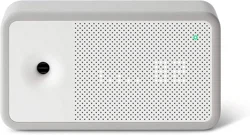
The Awair Element is an indoor air quality monitor that tracks key environmental factors in your space. It connects to your Wi-Fi network and provides data and insights via a companion smartphone app.

The device monitors five key parameters to help you understand and improve your indoor environment.
Features & Specifications
Monitored Parameters
- Temperature: Monitors ambient room temperature.
- Humidity: Measures the level of moisture in the air.
- Carbon Dioxide (CO2): Tracks CO2 levels, which can indicate ventilation quality.
- Chemicals (VOCs): Detects Volatile Organic Compounds from household products, paints, and furnishings.
- Particulate Matter (PM2.5): Measures fine dust particles in the air.
Physical Specifications
- Dimensions: 1.8"D x 6.06"W x 3.33"H
- Weight: 0.53 Pounds
- Color: White/Grey Trim
- Power Source: Electric (via included USB-C Power Cable and Power Adapter)
- Wattage: 10 watts
Connectivity & Integration
- Wi-Fi: Requires a 2.4 GHz Wi-Fi connection for operation.
- Bluetooth: Used for initial device setup.
- App: Free Awair Home companion app for iOS and Android.
- Smart Assistant Control: Compatible with Amazon Alexa, Google Assistant, and Vera.

What's in the Box
- Awair Element device
- USB-C Power Cable
- Power Adapter
Setup & Installation Guide
Initial Setup
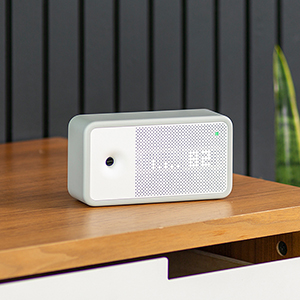
- Place the Device: Place your Awair Element on a stable, flat surface. For best results, avoid placing it in direct sunlight, behind obstructions, or directly next to air vents, windows, or humidifiers.
- Power On: Connect the USB-C cable to the port on the back of the device and plug the power adapter into a wall outlet. The device will power on.
- Download the App: On your smartphone, download the "Awair Home" app from the Apple App Store or Google Play Store.
- Create an Account: Open the app and follow the prompts to create an Awair account.
- Add Your Device: In the app, tap the '+' icon to add a new device. Select "Awair Element" from the list.
- Connect via Bluetooth: Ensure your phone's Bluetooth is enabled. The app will guide you through the Bluetooth pairing process to connect to your Element.
- Connect to Wi-Fi: Follow the in-app instructions to connect your Element to your 2.4 GHz Wi-Fi network. You will need your Wi-Fi network name and password.
Once connected, the device will begin calibrating its sensors. This process may take up to 10 minutes.
Use Guide
Understanding the Device
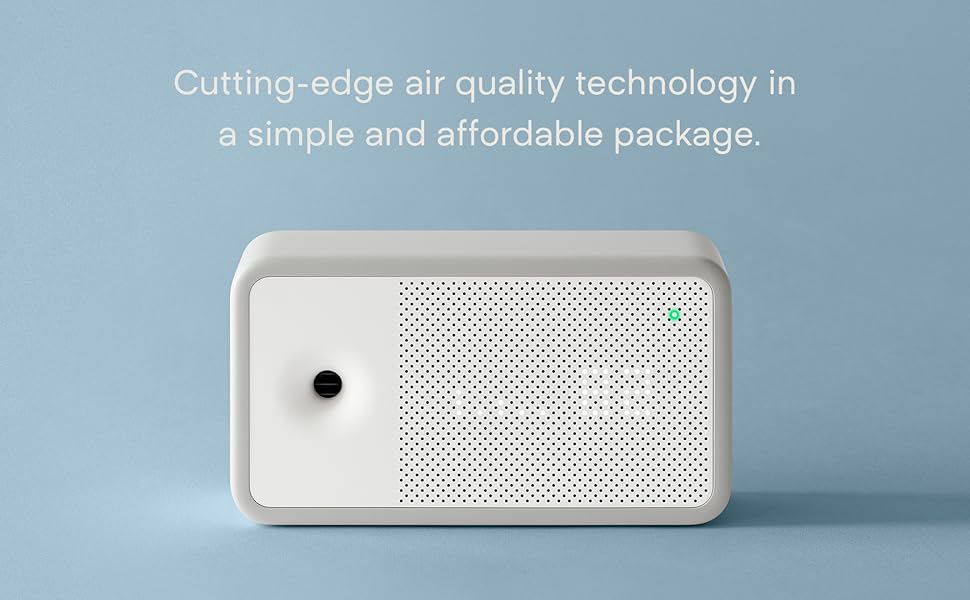
The front of the device houses the sensors. The top features an LED indicator that shows the overall air quality score at a glance.
Using the Awair Home App
Dashboard
The main dashboard displays your current overall Air Quality Score and the real-time readings for all five monitored factors (Temp, Humidity, CO2, VOCs, PM2.5). Each factor is color-coded (Green/Orange/Red) to indicate its condition.
Trends & History
Navigate to the "Trend" tab in the app to view historical data. You can see how your air quality changes over hours, days, or months to identify patterns.

Insights & Tips
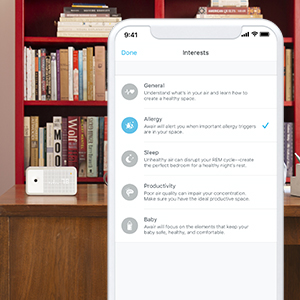
The app provides personalized feedback and actionable tips based on your air quality data to help you improve your environment. You can customize your "Awair Interests" (e.g., Sleep, Allergies, General Health) to receive relevant guidance.
Multiple Devices
You can add multiple Awair devices to the same app account to monitor and compare air quality in different rooms.

Troubleshooting
Device Won't Connect to Wi-Fi
- Ensure you are using a 2.4 GHz Wi-Fi network. The device does not support 5 GHz networks.
- Move the device closer to your Wi-Fi router during setup.
- Restart your router and the Awair Element, then try the setup process again.
- Check that your Wi-Fi password is entered correctly.
App Not Showing Data
- Ensure your smartphone is connected to the internet.
- Check that the Awair Element is powered on (LED should be visible).
- Try pulling down on the app's dashboard screen to refresh the data.
- Log out of the app and log back in.
Inaccurate Readings
- Ensure the device is placed in an appropriate location (see Setup & Installation Guide).
- Allow 10 minutes for sensor calibration after powering on or moving the device.
- Dust or debris on the sensor vents can affect readings. Gently clean the vents with a soft, dry brush if needed.
Care & Maintenance
- Use a soft, dry cloth to clean the exterior of the device. Do not use liquid cleaners or aerosols.
- Ensure the sensor vents on the front of the device remain unobstructed and free of dust.
- Do not disassemble the device.
Warranty & Support
This product is covered by a 1-year limited warranty from the date of purchase. For warranty service or technical support, contact the manufacturer, Awair.