Overview
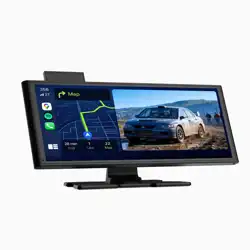
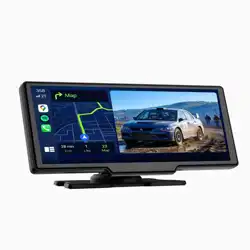
The Podofo Car Stereo is a 7-inch Double Din MP5 player with an HD touch screen. It is designed to replace your vehicle's factory radio, providing multimedia playback, Bluetooth connectivity, and a backup camera system.

Features and Specifications
Core Features
- 7-inch HD Touch Screen: Digital display for controlling all functions.
- Double Din Form Factor: Standard size for in-dash installation (178mm x 63mm x 100mm / 7.01" x 2.48" x 3.94").
- Bluetooth: Built-in for hands-free calling and wireless audio streaming from your smartphone.
- Mirror Link (PhoneLink): Supports screen mirroring and navigation from most Android phones and iPhones. The unit itself is not a GPS unit; it uses your phone's GPS.
- Backup Camera System: Includes a 12-LED, HD waterproof, night vision rear camera. The screen automatically displays the camera feed when the vehicle is put into reverse gear.
- Audio Playback: Supports MP3, WMA, ACC, OGG, WAV, FLAC, APE, and other formats from USB, SD (TF) card, and AUX-in.
- Video Playback: Supports AVI, MP4, FLV, RMVB, MPG, and other formats.
- FM Radio: Digital tuner with preset memory for 18 stations.
- Amplifier: 4-channel output with a maximum power of 4 x 45W (4 x 24W RMS).
- Steering Wheel Control: Supports connection to your vehicle's steering wheel audio controls (requires proper wiring).
- Multi-color Backlight: Physical buttons feature a seven-color backlight.


Technical Specifications
- Operating Voltage: 12V DC (Not suitable for 24V trucks).
- Screen Resolution: Supports 1080p Full HD video playback.
- Connections: USB, SD (TF) Card, AUX-in, Backup Camera Input, Dash Camera Input.
- Audio Output: 4.0 channel surround sound configuration.
- Model Number: A2084A3
Installation Guide
Warning: Disconnect the vehicle's battery before beginning installation. Some vehicles may require an additional dash kit and wiring harness for a proper fit. Consult a professional if you are unsure.
Pre-Installation Check
Before installing in the vehicle, you can test the basic functionality of the unit:
- Connect the RED (ACC) and YELLOW (Battery +) wires to a 12V positive (+) power source.
- Connect the BLACK wire to a ground (-) source.
- The unit should power on. This confirms the head unit is operational.

Main Wiring Connections
- Red Wire (ACC): Connect to the vehicle's ignition-switched 12V+ source. This turns the unit on/off with the key.
- Yellow Wire (Battery + / Memory): Connect to a constant 12V+ source from the vehicle's battery. This preserves memory (presets, time, settings) when the ignition is off.
- Black Wire (GND): Connect to a clean, bare metal point on the vehicle's chassis for grounding.
- Blue Wire (Antenna/Amplifier Remote): Typically connects to a power antenna or turns on an external amplifier.
- Speaker Wires: Connect the eight speaker output wires (Front Left/Right +/- and Rear Left/Right +/-) to the corresponding vehicle speaker wires. Ensure positive (+) to positive (+) and negative (-) to negative (-) to avoid sound issues.
- Steering Wheel Control Wire: Connect to your vehicle's steering wheel control interface if applicable.
Backup Camera Installation
- Mount the provided 12-LED camera on the rear of the vehicle, typically near the license plate.
- Route the camera's video cable from the rear to the dashboard.
- Connect the camera's video plug to the "BACK CAMERA" input on the stereo's wiring harness.
- Connect the camera's red power wire to the vehicle's reverse light positive (+) wire. This triggers the display automatically when you shift into reverse.

Use Guide
Powering On/Off
The unit will power on automatically when the vehicle's ignition is turned to the ACC or ON position. It will power off when the ignition is turned off, provided the wiring is correct.
Main Menu and Touch Screen
Use the touch screen to navigate the main menu icons for different functions: Radio, Media, Bluetooth, Settings, etc.
Bluetooth Connection
- Turn on your phone's Bluetooth.
- On the stereo, enter the Bluetooth menu.
- Select "Pair" or "Search". The stereo should appear on your phone's list as "Podofo" or a similar name.
- Select it on your phone and confirm pairing if required.
- Once paired, you can make hands-free calls and stream audio wirelessly.

Mirror Link (PhoneLink)
- Connect your compatible Android or iPhone to the stereo's USB port using a data cable (using the original phone cable is recommended).
- The stereo should detect the connection and may launch a mirroring app.
- Follow any prompts on your phone to allow screen mirroring.
- Your phone's screen will be mirrored on the stereo's display, allowing you to use navigation and other apps.

Playing Media from USB/SD Card
- Insert a USB flash drive or SD (TF) card containing supported audio/video files into the corresponding port.
- Tap the Media or MP5 icon on the main screen.
- Select the source (USB or SD).
- Browse and select the file or folder you wish to play.

Using the FM Radio
- Ensure the vehicle's antenna is connected.
- Tap the Radio icon on the main screen.
- Use the seek buttons or manual tuning to find a station.
- To save a preset, tune to the desired station, then press and hold one of the numbered preset buttons on the screen.

Using the Backup Camera
When the vehicle is shifted into reverse gear, the screen will automatically switch to show the video feed from the rear camera. No manual intervention is required. Ensure the camera is correctly powered and connected for this feature to work.
Steering Wheel Control Learning
If your vehicle has steering wheel audio controls and they are properly interfaced, you may need to program them within the stereo's settings menu. Refer to the specific "Steering Wheel Control" or "Key Learn" option in the Settings.

Settings Menu
Access the Settings menu to adjust various parameters:
- Sound: Adjust Bass, Treble, Balance, Fader, and select EQ presets.
- Display: Adjust screen brightness, button backlight color, and sleep timer.
- System: Set the clock, change language, and restore factory defaults.
Troubleshooting
- No Power: Check the main fuse, and verify connections for the Red (ACC), Yellow (B+), and Black (GND) wires.
- No Sound from Speakers: Verify all speaker wires are connected correctly, ensuring positive/negative polarity is matched. Check the vehicle's fuses for the audio system.
- Memory (Presets/Time) Resets: The Yellow memory wire must be connected to a constant 12V+ source. If it is incorrectly connected to the Red ACC wire, memory will be lost when the ignition is off.
- Bluetooth Won't Pair: Ensure Bluetooth is enabled on your phone. Delete "Podofo" from your phone's paired devices list and try pairing again. Restart both devices.
- Mirror Link Disconnects: Try using the original cable that came with your phone. Some third-party cables may only support charging, not data transfer.
- Backup Camera Not Displaying: Check that the camera's video plug is securely connected to the stereo. Verify the camera's red power wire is connected to the vehicle's reverse light wire (test for 12V+ when in reverse).
- Unit Does Not Fit Dashboard: This is a standard Double Din unit (178x100mm). Some vehicles require a specific mounting dash kit or may need modification. Confirm your vehicle's stereo opening size before purchase.
What's in the Box
- Podofo 7" Double Din Car Stereo (MP5 Player)
- Wiring Harness
- 12-LED Backup Camera with Cable
- Steering Wheel Remote Control
- Remote Control
- User Manual