1. Overview
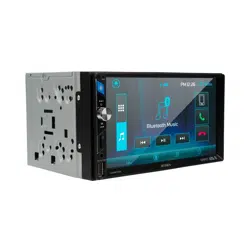
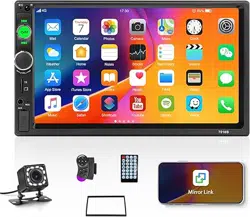
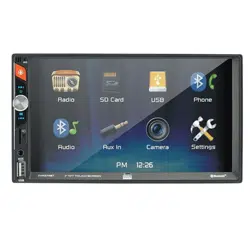
The Podofo Double Din Car Stereo is a 7-inch touch screen multimedia receiver designed for in-dash installation in vehicles. It integrates audio playback, Bluetooth connectivity, FM radio, phone mirroring, and a rearview camera input.

Key physical attributes:
- Form Factor: Double DIN (178mm x 100mm x 63mm / 7.01" x 3.94" x 2.48")
- Screen: 7-inch TFT LCD touch screen with 800 x 480 resolution.
- Control Interface: Touch screen combined with physical buttons with multi-color backlighting.
2. Features and Specifications
2.1 Audio Playback
- Supported Formats: MP3, WMA, WAV, APE, OGG, FLAC, MKV, DIS, ACC, RA, AC3, MP2, AMR.
- Playback Sources: USB flash drive, TF (MicroSD) card, AUX input (3.5mm jack).
- Audio Controls: Electronic volume, treble, bass, left/right balance, front/rear fader.
- Features: Shuffle, repeat (all/single/directory), song memory function.
2.2 Connectivity
- Bluetooth: Built-in for hands-free phone calls and wireless audio streaming (A2DP).
- USB: High-speed USB 2.0 port for media playback and charging connected devices.
- AUX Input: 3.5mm auxiliary input for external audio sources.
- Steering Wheel Control (SWC): Supports wireless connection to vehicle's steering wheel controls (included adapter required).
2.3 Radio
- FM Tuner: Digital tuning with automatic scanning.
- Presets: Stores up to 18 radio stations.
2.4 Video and Display
- Video Playback: Supports AVI, MP4, FLV, PMP, RM, RMVB, MPG formats up to 1080p resolution.
- Rear Camera Input: Dedicated RCA video input for connecting the included backup camera. The screen automatically switches to the camera feed when the vehicle is put into reverse gear.
2.5 Phone Integration (Mirror Link)
- Function: Mirrors the display of a connected smartphone onto the stereo's screen.
- Connection: Requires the phone's original USB cable.
- Compatibility: Android 10.0 and below, iOS 15.0 and below.
- Note: The unit itself is not a GPS navigation device. GPS functionality is provided by the connected phone via Mirror Link.


3. Installation Guide
3.1 Pre-Installation Check
- Vehicle Compatibility: Verify your vehicle's dashboard opening is larger than 178mm (W) x 100mm (H). The unit is designed for 12V electrical systems and is not suitable for 24V trucks.
- Power Test: Before final installation, you can test basic functionality by connecting:
- Red Wire (ACC+) and Yellow Wire (BATT+): Connect to a 12V positive (+) power source.
- Black Wire (GND): Connect to a negative (-) ground.
3.2 Wiring Connections
Refer to the included manual for the complete wiring harness diagram. Key connections include:
- Power:
- Yellow Wire (BATT+): Connect to constant 12V+ (for memory preservation of settings and radio presets).
- Red Wire (ACC+): Connect to switched 12V+ (ignition/accessory power).
- Black Wire (GND): Connect to vehicle chassis ground.
- Speakers: Correctly connect the eight speaker wires (four channels: Front Left/Right, Rear Left/Right) to the corresponding vehicle speaker wires, observing polarity (+ to +, - to -). Incorrect connection can result in no sound or poor audio quality.
- Backup Camera: Connect the video RCA plug from the included camera to the "CAM IN" port on the stereo. Connect the camera's red power wire to the vehicle's reverse light circuit.
- Steering Wheel Control: Connect the included wireless steering wheel control adapter as per its instructions to interface with your vehicle's controls.


3.3 Physical Installation
- Remove the factory stereo and mounting bracket from your vehicle's dashboard.
- Secure the provided mounting sleeve or bracket to the Podofo unit.
- Connect all wiring harnesses, ensuring connections are secure and insulated.
- Carefully tuck excess wiring into the dashboard cavity.
- Slide the unit into the dashboard opening until it is firmly seated and the retention tabs click into place.
- Reconnect the vehicle battery.
4. Use Guide
4.1 Basic Operation
- Power On/Off: Press the physical power button. The unit will also turn on/off with the vehicle's ignition if the ACC wire is connected correctly.
- Source Selection: Use the "MODE" or "SOURCE" button on the screen or physical panel to cycle between Bluetooth, USB, TF Card, FM Radio, and AUX.
- Touch Screen: The primary interface for menu navigation, playback control, and settings adjustment.

4.2 Bluetooth Pairing
- Turn on the car stereo and navigate to the Bluetooth source mode.
- On your smartphone, enable Bluetooth and search for new devices.
- Select "Podofo" or a similar name from the list on your phone.
- If prompted, enter the pairing code '0000' or '1234'.
- Once paired, you can make/receive calls hands-free and stream audio.

4.3 Using Mirror Link
- Connect your compatible smartphone to the stereo's USB port using its original data cable.
- On the stereo, select the "Mirror Link" or "Phone Link" function.
- Follow any on-screen prompts on your phone to allow the connection.
- Your phone's display should now appear on the stereo's screen. Use the touch screen to interact with phone apps (e.g., maps for navigation).
4.4 Using the Backup Camera
The feature is automatic. When the vehicle's transmission is shifted into reverse, the stereo screen will automatically display the video feed from the rear camera. Ensure the camera is correctly powered from the reverse light circuit.
4.5 Steering Wheel Control Learning
Refer to the instructions for the included wireless steering wheel control adapter. Typically, it involves putting the adapter into a "learning" mode and pressing the desired buttons on your vehicle's steering wheel to assign functions (volume, track change, etc.).

5. Troubleshooting
- No Power:
- Check vehicle battery connection.
- Verify the Yellow (BATT+) and Red (ACC+) wires have 12V+.
- Ensure the Black (GND) wire is properly grounded.
- No Sound from Speakers:
- Verify all speaker wires are connected securely.
- Check that speaker polarity is correct (+ to +, - to -).
- Ensure the audio source is playing and volume is turned up.
- Memory (Presets/Time) Resets When Car is Off:
- The Yellow memory wire (BATT+) is not connected to a constant 12V source. It must be connected directly to the battery positive or a constant fuse.
- Ensure the Red (ACC+) and Yellow (BATT+) wires are not swapped.
- Mirror Link Not Working:
- Use the phone's original USB cable.
- Check phone compatibility (Android ≤10.0, iOS ≤15.0).
- Enable USB debugging or file transfer mode on the phone if prompted.
- Note: This model does not have CarPlay or Android Auto; it uses Mirror Link technology.
- Backup Camera Not Displaying:
- Check the RCA video connection at the stereo.
- Verify the camera is receiving power (red wire connected to reverse light positive).
- Ensure the vehicle is in reverse gear.
6. What's in the Box
- Podofo Double Din Car Stereo Unit
- HD Backup Camera
- Wireless Steering Wheel Control Adapter
- Power and Speaker Wiring Harness
- User Manual