SI\MSUNG
Galaxy
Watch Active
User manual

i
Table of contents
Device features
1
Work out in the water
1
Goodnight mode
1
Water and dust resistances
1
Get started
2
Device Layout
3
Assemble your device
4
Wear the Watch
5
Start using your device
7
Galaxy Wearable app
7
Lock or unlock your device
8
Navigation
9
Change the watch face
9
Status panel
14
Notifications
15
Water lock mode
17
Do not disturb
17
Theater mode
17
WEA_R500_EN_UM_TN_SAC_022119_FINAL


Device features
1
Device features
Meet Bixby
Bixby responds to your voice commands and can help you understand your
settings and set up your Samsung device. For more information, see Bixby on
page 26.
Work out in the water
Use Water lock mode when you exercise in the water. See Water lock mode on
page 17.
Goodnight mode
Goodnight mutes all alerts, except for alarms and notifications. For more
information, see Goodnight mode on page 1
Water and dust resistances
This device is rated 5ATM, and passed military specification (MIL-STD-810G)
testing. See Maintaining water and dust resistance on page 58.

Get started
3
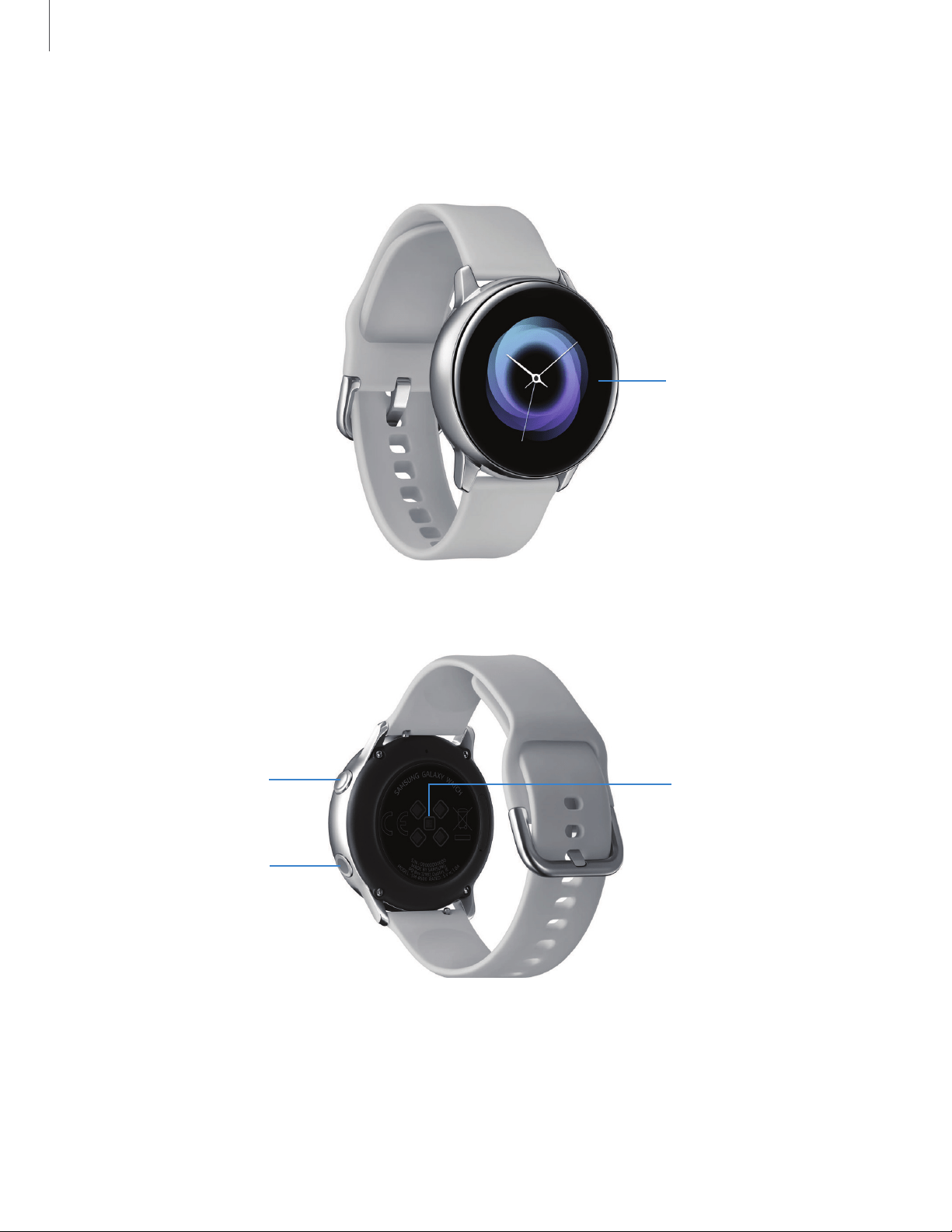
Device Layout
Touchscreen
Heart rate sensor
Back button
Home button
Devices and software are constantly evolving — the illustrations you see here are for reference only.

Get started
7
Start using your device
The instructions below explain how to turn your device on or off.
To turn the device on:
◌
Press and hold the Power button until the device turns on.
To
turn the device off:
1.
Press and hold the Power button.
2. Tap Power off.
Galaxy Wearable app
To connect your Watch to a smartphone, install the Galaxy Wearable app on the
smartphone. You can download the app from Galaxy Apps, or the Google Play
™
store.
Compatible with select devices using Android 5.0 and later, with at least 1.5 GB RAM.
Supported devices may vary by carrier and device. Some features may not be available.
For best results, connect with compatible Samsung Galaxy devices. Visit
samsung.com/us/support/owners/app/galaxy-wearable-watch for a list of
compatible smartphones.
Connect the Watch to a smartphone
Turn on the Watch.
1.
From the Apps screen of the smartphone, tap
Galaxy Wearable.
2. If necessary, update the app to the latest version.
3. Tap Start the Journey, and follow the prompts to select your device.
4. When the Bluetooth
®
pairing request window is displayed, confirm the passkeys
displayed on your Watch and smartphone match, and then tap
OK.
5. Follow the prompts to complete the connection.
When the devices are connected, a tutorial is displayed on the Watch’s screen. Follow
the prompts to learn basic controls.

-
-
Get started
8
Connect the Watch to a new smartphone
When you connect the Watch to another smartphone, the Watch automatically resets
and all data is removed from its memory. Make sure you back up any important data
stored on your Watch.
Back up your Watch’s data on your smartphone as follows:
1.
From
Galaxy Wearable, tap the Home tab.
2. Tap Account and backup > Back up and restore > Backup settings.
Remote connection
Set the Watch to remotely connect to the smartphone when a Bluetooth connection
between the devices is not available. With this connection, you can still receive
notifications from your smartphone.
To enable or disable this feature:
1.
From
Galaxy Wearable, tap the Home tab.
2. Tap Account and backup > Remote connection.
NOTE The Watch and smartphone must be connected to the same wi-fi network
in order to receive notifications and calls.
Disconnect
1.
From
Galaxy Wearable, tap the Home tab.
2.
Tap
Menu > Disconnect, and confirm when prompted. The Watch disconnects
from your smartphone.
Lock or unlock your device
Use the screen lock features to secure your device. Your Watch locks when you
remove it from your wrist or when the screen times out while you are wearing it.
To u
nlock the Watch:
◌
Press the Power button or Back button.
The default Screen lock on your device is None. To choose a secure screen lock, see
Se
t a screen lock on page 51.

Get started
9
Navigation
Please note that a touchscreen responds best to a light touch from the pad of your
finger or a capacitive stylus. Using excessive force or a metallic object on the
touchscreen may damage the tempered glass surface and void the warranty.
Tap
Lightly tap the screen to launch an app, select a menu item, or press a button.
Double-tap
Lightly tap an image twice to zoom in and out.
Touch and hold
Touch and hold items to access edit mode or view available options.
Swipe
Lightly drag your finger vertically or horizontally across the screen to view panels.
Drag
Touch and hold an item, and then move it to a new location.
Change the watch face
From the Watch:
1. Touch and hold the Watch screen, and then swipe to view available watch faces.
l You can add more watch faces from Galaxy Apps.
2. Touch and hold the watch face to select it.
• You can customize the watch face by tapping Customize.

A
Get started
10
F
rom the smartphone:
1.
From
Galaxy Wearable, tap the Watch faces tab.
2. Tap a desired watch face. The watch face you selected is applied on the Watch
screen.
3. Tap Customize to select a background and items to display on the watch face.
Widgets
You can add widgets to the Home screens. Widgets are small apps that offer limited
functionality to provide information and convenient access.
Add Widgets
To add more widgets on the Home screen:
1. Swipe to the end of the Widget screens, and tap Add widget.
2. Select a widget.
The selected widget is displayed in a new panel.
Move Widgets
◌
Touch and hold a widget and then drag it to the desired location.
Remove Widgets
◌
Touch and hold a widget, and then tap Remove.
~--
Keyboard
.____
,.__
____
Emo
j
is
0
Get started
11
Enter text
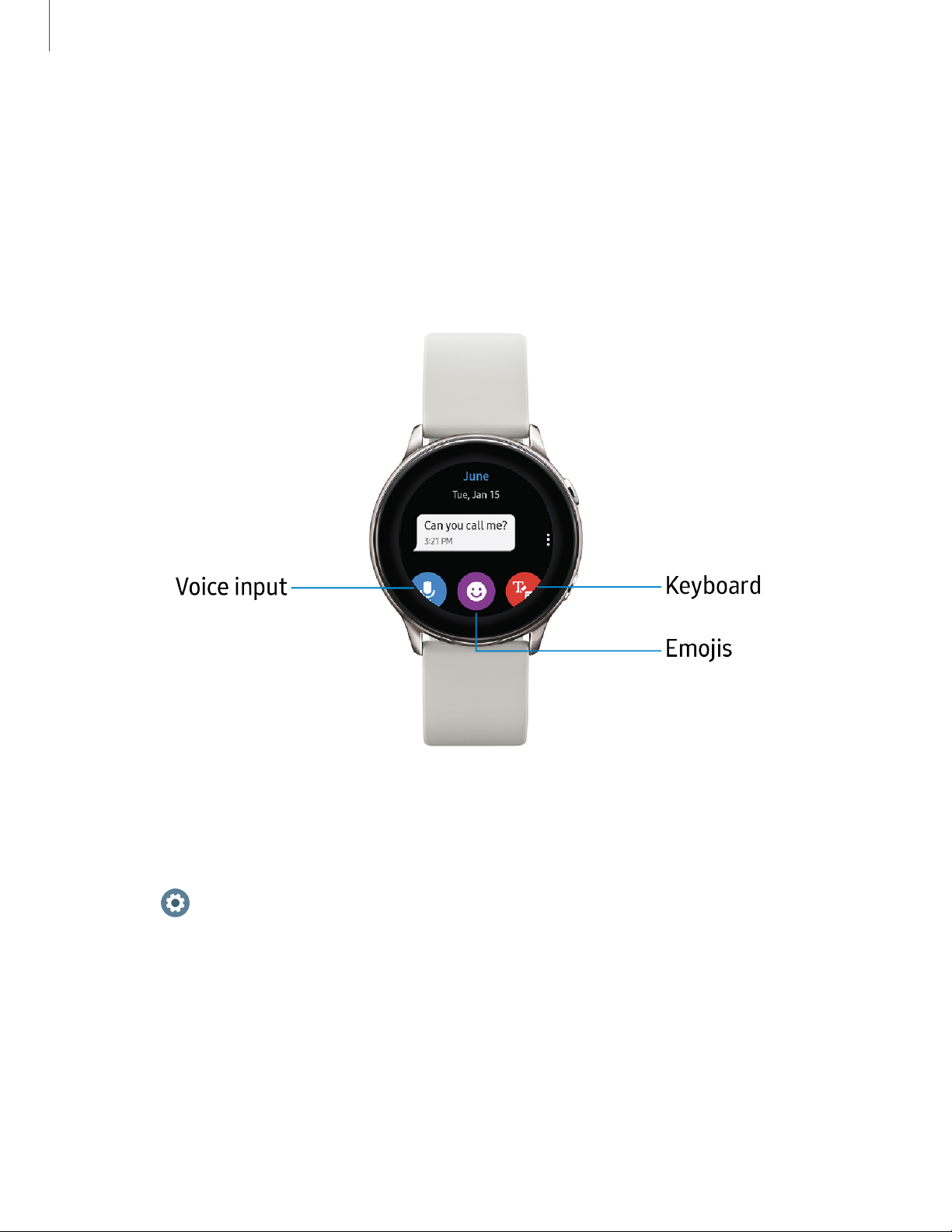
Text can be entered by speaking or by using a keyboard.
A text input screen is displayed automatically when you are able to enter text. Select
an emoji or text template to enter a message. You can also use voice input or the
keyboard to type texts.
Devices and software are constantly evolving — the illustrations you see here are for reference only.
Default keyboard
Sel
ect a default keyboard type for text input.
◌
From Settings, tap General > Input > Default keyboard and select your default
keyboard.
e
-
•
•
•
•
•
•
0
0
0
0
Get started
12
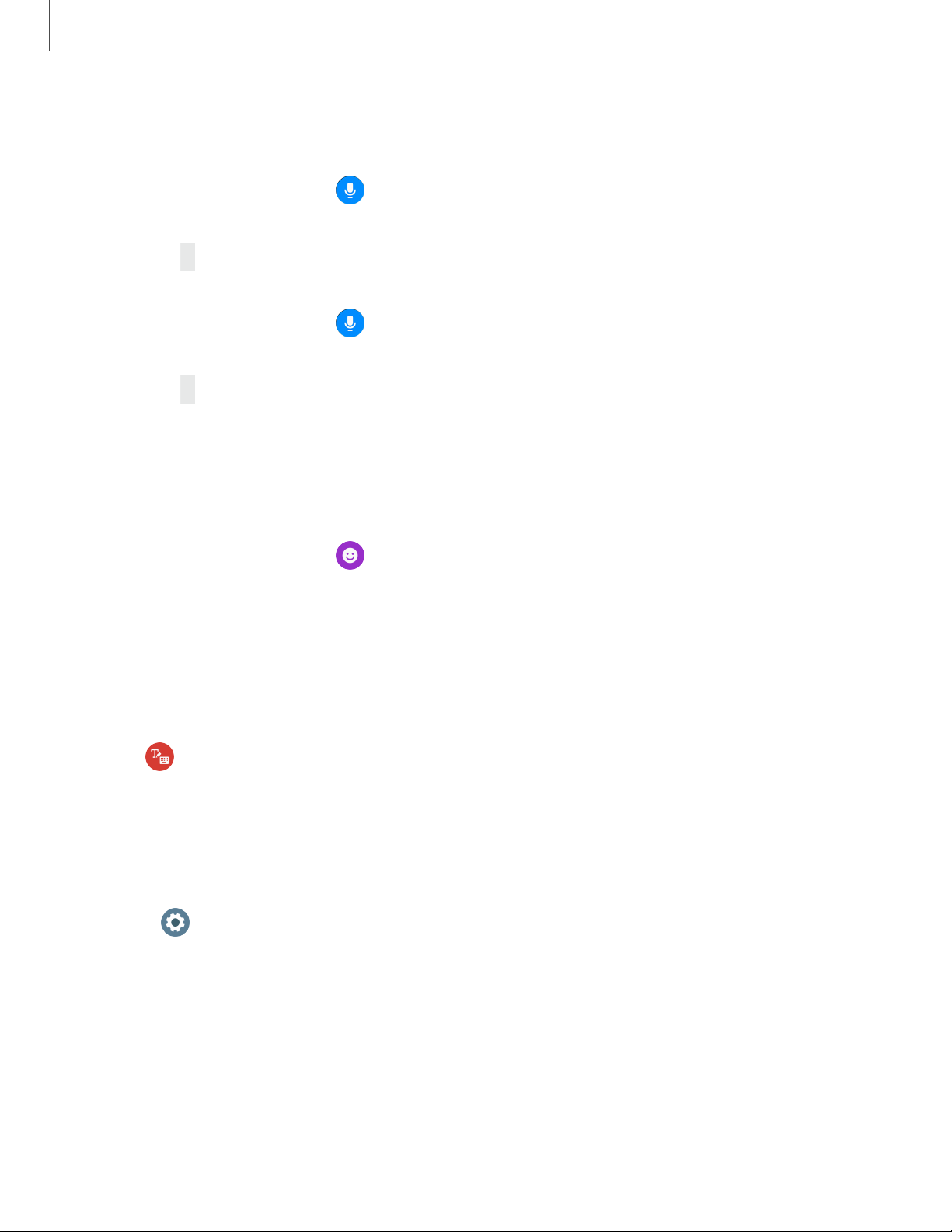
Voice input
Instead of typing your text, you can speak it.
◌
From the keyboard, tap Voice input and speak the message you want to
enter. Tap Send when you are finished.
•
Tap
More options
>
Input languages
to change the language. Voice input is
not supported in some languages.
◌
From the keyboard, tap Voice input and speak the message you want to
enter. Tap Send when you are finished.
•
Tap
More options
>
Input languages
to change the language. Voice input is
not supported in some languages.
Em
ojis
You can add emojis to your message.
◌
From the keyboard, tap Emojis, and select an emoji to include in your
message.
•
To draw an image, tap Doodle.
Keyboard
Use the keyboard to enter your message.
◌
Tap Keyboard, and then use your finger to write text, or swipe right to view
the keyboard mode options.
Keyboard settings
Change the Samsung keyboard settings.
◌
From Settings, tap General > Input > Keyboard settings, and tap options to
customize:
•
English (US): Choose the keyboard layout.
•
Select input languages: Select languages for text input.
•
Check for updates: Set the Watch to check for and download the latest
version of the Samsung keyboard.

Get started
13
•
Handwriting: Enable handwriting mode.
•
Smart typing: Customize features like predictive text, auto capitalize, and
auto punctuate.
•
Key-tap feedback: Set the watch to vibrate when you tap a key on the
keyboard.
•
Reset keyboard settings: Return your keyboard to the default settings.
•
Clear personalized data: Remove word predictions and other personalized
data.
~
:!Ill
•
·:t
·
1
I •
100',-,
..J
(t'l
~l
0
0
·8
-
0
·•·
~
Quick
settings
Col'lrJ(!
e'\
1
lr:::,'-'<:'--
ct(!d
u~intJ
C\'J
~~
~~
Get started
14
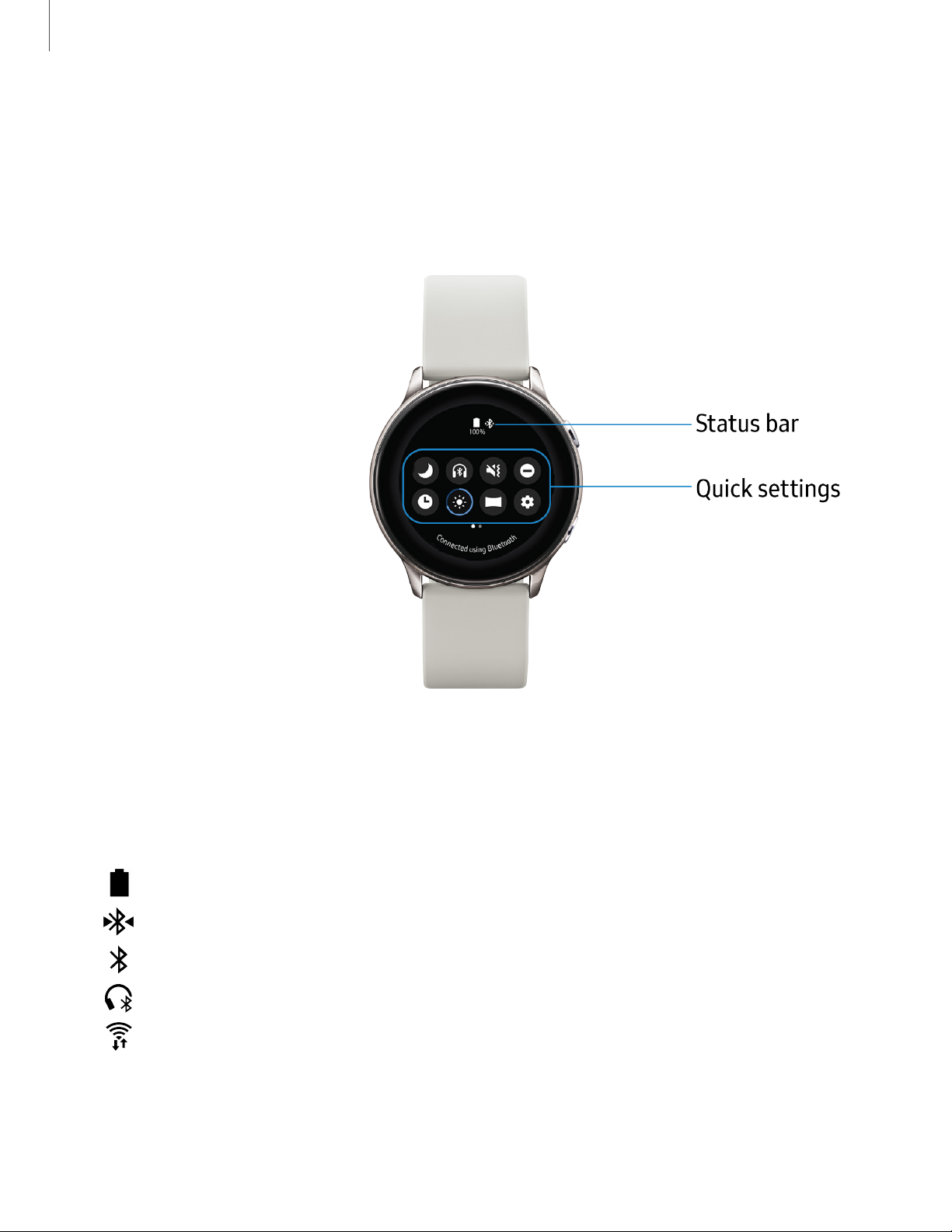
Status panel
To open the Status panel:
◌
On the Watch screen, swipe down from the top of the screen.
Devices and software are constantly evolving — the illustrations you see here are for reference only.
Status Bar
Indicator icons display at the top of the screen in the Status bar.
Indicator icons
Battery full
Bluetooth connected
Bluetooth enabled but not connected
Bluetooth headset connected
Wi-Fi connected

0
Get started
15
Quick settings
You can quickly access settings through the status panel.
•
Tap a quick setting to open it.
•
Touch and hold a quick setting to edit the placement, remove a setting, or add a
new setting.
TIP You can also edit quick settings from Settings > Advanced > Edit quick
settings.
Notifications
Stay up to date with events, notifications, and messages from your smartphone.
When you receive a notification, information about the notification, such as its type, is
displayed on the screen while the Watch is vibrating.
◌
From the Watch screen, swipe left and tap a notification to view details.
View the notifications list
To view a list of notifications from the same app:
1. From the Watch screen, swipe left to view notifications.
2. Tap the number at the bottom of the notification.
Clear all notifications
To clear all notifications:
1. From the Watch screen, swipe right to view notifications.
2. Swipe right to the end of the notifications screens, and then tap Clear all.
Block notifications
To block notifications from an app:
1. From the Watch screen, swipe right to view notifications.
2. Tap a notification from the app that you want to block.

•
•
•
C)
Get started
16
3. Tap the notification to view the details.
4.
Tap
More options > Block notifications.
Notification settings
Change settings for the notification feature.
1.
From the Apps screen of the smartphone, tap
Galaxy Wearable > Home tab >
Notifications.
2. Tap
to activate it, and then tap to select items:
• Manage notifications: Select apps on the smartphone to send notifications to
the Watch.
• Show only while wearing watch: Show notifications on your Watch only while
it is being worn.
• Mute connected phone: Mute notifications on your phone while receiving
them on your Watch.
•
Auto show details: Set the Watch to show details for notifications when they
are received.
• Notification indicator: Show an indicator the watch face when there are
unread notifications.
• Turn on screen: Set the Watch to turn on the screen when the notification is
received.
• Show while using phone: Show notifications from your phone on your Watch
while you are using your phone.
• Smart relay: Set the smartphone to display notification information from the
Watch when you pick up the smartphone.

0
C)
-*
,)I
,
0
C)
0
C)
-~
Get started
17
Water lock mode
You can use Water lock mode to exercise in the water. While in Water lock mode
touchscreen, wake-up gestures, and watch always on will be disabled.
◌
From Settings, tap Advanced > Water lock mode, and tap to enable this
feature.
TIP You can also access Water lock mode from quick settings.
Exit water lock mode
◌
Press and hold the Home button for two seconds to turn off the mode.
Do not disturb
Use these options to determine block out time where notifications are turned off, and
during which time periods you want to enter this mode.
◌
From Settings, tap Advanced > Do not disturb, and tap to enable an
option:
•
Turn on now: Enable this option, and set the time period.
•
Turn on as scheduled: When you select this option, tap
Set schedule to
configure the start time, end time, and days that you want to enable Do not
disturb.
Theater mode
You can use Theater mode to silence your Watch during a movie. This will keep the
screen off and the Watch silent.
◌
From Settings, tap Advanced > Theater mode, and tap to enable this
feature.
NOTE When enabled, the theater mode symbol will display at the top of the
screen.

0
C)
Get started
18
Goodnight mode
Goodnight mutes all alerts, except for alarms and notifications. This keeps the screen
off and the Watch silent while you sleep.
◌
From Settings, tap Advanced > Goodnight mode, and tap to enable this
feature.
TIP You can also access Goodnight mode from quick settings.

-
C)
•
•
•
0
0
Apps
23
Send SOS requests
In an emergency situation, quickly press the Watch’s Home button three times. The
device sends messages to your emergency contacts. The first time you enable this
feature, you will be prompted to designate your emergency contacts.
The messages include your location information. You can also send sound recordings
along with the message to the recipients.
1.
From
Galaxy Wearable, tap the Home tab > Send SOS requests.
2. Tap
to enable this feature, and then customize options:
• Send SOS messages to: Follow the prompts to add an emergency contact to
send SOS messages to.
• Count down before sending: Wait five seconds before sending SOS requests
to allow them to be canceled.
Read messages
1.
From
Messages, tap a conversation to view it.
2.
Tap
More options for additional options:
• Call: Call the sender.
• Send my location: Use your GPS to send a map link to your location.
• Show on phone: View the message on your smartphone.
• Add to contacts: Add the sender as a contact.
• Delete: Delete the message.
NOTE You may not be able to reply to messages depending on the smartphone
that you connect to the Watch.
Reply to messages
1.
From
Messages, tap a conversation to view it.
2. Tap an icon or a quick reply to compose and send your message.
e
•
•
•
•
•
•
Apps
26
Call or message a contact
You can send a message or make a phone call from Contacts.
◌
From Contacts, tap the contact you want to connect with, and tap an option:
•
Call: Begin a phone call with the contact.
•
Message: Type a message to the contact.
Bixby
Bixby is a voice service that helps you use your Watch more conveniently. You can talk
to Bixby to launch a function or provide you with information.
1.
From Apps, tap
Bixby.
2. Follow the prompts to set up Bixby.
NOTE To use Bixby, your mobile device must be connected to a Wi-Fi or mobile
network, and you must sign in to your Samsung account.
Enable voice launch
You can launch Bixby using your own voice wake-up command. You can only use this
feature when your Watch’s screen is turned on.
◌
From Bixby, tap More options > Voice wake-up to enable this feature.
Change the language
Change the speech recognition language.
◌
From Bixby, tap More options > Language, and then choose a language.
Use Bixby
To launch Bixby for voice commands:
◌
Quickly press the Home button twice, or say "Hi Bixby."

0
Apps
27
Samsung Health
Samsung Health helps you manage your wellness and fitness. Set fitness goals and
regularly record and check your progress.
When the Watch is synced with the Samsung Health app, you can save and manage
health-related data and receive useful information about your health every day.
Only your most recent activity records are stored on your Watch. You can view
previous data on the smartphone where the Samsung Health app is installed.
◌
From the Apps screen, tap Samsung Health.
CAUTION The information gathered from this device, Samsung Health, or
related software is not intended for use in the diagnosis of disease or other
conditions, or in the cure, mitigation, treatment or prevention of disease.
The accuracy of the information and data provided by this device and its related
software, including heart rate readings, may be affected by factors such as
environmental conditions, skin condition, specific activity performed while
using/wearing the device, settings of the device, user configuration/user-provided
information, placement of the sensor on the body, and other end-user interactions.
For more information on proper wear and use, visit samsung.com/us/heartratesensor.
Before you start exercising
Although the Samsung Health application is a great companion to your exercise
routine, it is always best to make sure you consult with your physician before
beginning any exercise regimen. While moderate physical activity, such as brisk
walking, is safe for most people, health experts suggest that you talk with your doctor
before you start an exercise program, particularly if you have any of the following
conditions:
l Heart disease; Asthma or lung disease; Diabetes, or liver or kidney disease; and
Arthritis.
0
0
0
0
Apps
29
T
o set your floors target:
1.
From
Samsung Health, swipe Floors.
2.
Swipe down, tap
Settings, and then tap Floor target.
3. Swipe up or down to set the target.
4. Tap Done.
Exercise
Record your exercise information and calories burned using Samsung Health’s
exercise feature.
Exercise with the Watch
1.
From
Samsung Health, swipe to Exercise.
2. Tap Work out and tap an activity type.
3. Enter the exercise information.
4. Tap Start [activity type] to start monitoring your exercise. Your heart rate
measurement begins.
• When you swipe right or left you can view exercise information, such as
calories burned and current speed.
5. Press the Back button to pause the workout.
• Press the Back button again to resume the workout.
• Tap Finish to complete your workout and view your workout summary.
6. Swipe to and tap View log to see your workout log.
NOTE Measured distance may differ from the actual distance due to uneven
strides, walking in place, and pacing around.
Sleep
Automatically track your sleep patterns.
1.
From
Samsung Health, swipe to Sleep.
2. Swipe up to view your sleep data.

0
0
0
0
Apps
3
0
Heart rate
Measure and record your heart rate. Take heart rate measurements when you are
seated and relaxed.
1.
From
Samsung Health, swipe to Heart rate.
2. Tap Measure to begin measuring your heart rate.
• After a moment, your current heart rate is displayed on the screen.
3. Tap Tag to select a status tag for your measured heart rate.
• The Watch displays information about your heart rate in relation to your
selected tag.
Track your heart rate
The Watch can automatically measure and track your heart rate. Your Watch
measures your heart rate at regular intervals.
1.
From
Samsung Health, swipe to Heart rate.
2.
Swipe up, tap
Auto HR settings, and select a measuring interval.
• Always: The Watch measures your heart rate continuously, regardless of your
movement.
• Frequent: The Watch measure your heart rate regularly when you are relaxed.
• Never: The Watch does not measure your heart rate automatically.
3. Tap Help to view help information for using the auto HR feature.
Stress
Keep track of your stress. Breathing exercises are also available to help reduce stress.
1.
From
Samsung Health, swipe to Stress.
2. Tap Measure to measure your current stress level
0
0
0
•
•
•
•
•
•
-
Apps
31
Breathing exercise
Use the Breathe feature to help reduce stress.
1.
From
Samsung Health, swipe to Stress.
2. After taking a stress measurement, the Breathe feature is available. Tap Breathe
for the following options:
• Start: Being the breathing exercise.
• Target: Adjust the target cycles per minute.
• Inhale/Exhale: Adjust the time for inhaling and exhaling.
• Sound: Enable or disable sound for the breathing exercise.
• Haptic: Vibrate the Watch between inhale and exhale prompts.
Automatic tracking
Automatically measure and record your stress level at regular intervals.
1.
From
Samsung Health, swipe to Stress.
2.
Swipe down, tap
Settings, and tap Auto stress settings.
3. Tap Always to enable or disable the feature.
Water
Record and track how many glasses of water you drink.
1.
From
Samsung Health, swipe to Water.
2.
Tap
Add when you drink a glass of water.
•
If you accidentally added an incorrect value, tap
Remove.
To set your daily water target:
1
.
F
rom
Samsung Health, swipe to Water.
2.
Swipe down, tap
Settings, and tap Set target.
3. Tap Daily target and set the number.
4. Tap Done.
0
•
•
•
-
Apps
32
Caffeine
Record and track how many cups of caffeinated beverages you drink each day.
1.
From
Samsung Health, swipe to Caffeine.
2.
Tap
Add when you drink a caffeinated beverage.
•
If you accidentally added an incorrect value, tap
Remove.
To set your daily caffeine target:
1.
From
Samsung Health, swipe to Caffeine.
2.
Swipe down, tap
Settings, and tap Set target.
3. Tap Set target to enable this feature.
4. Tap Daily target, and set the number.
5. Tap Done.
Together
Compete with other Samsung Health users.
Steps leaderboard
Add challenges through Samsung Health on your smartphone.
1.
From
Galaxy Wearable, tap the Settings tab.
2. Tap Samsung Health > Together tab. Here you can add friends and challenges.
View challenges on your Watch
View your challenges and rank on the Steps leaderboard.
◌
From Samsung Health, swipe to Together, and tap a list to see your
challenges.
0
0
0
-
YJ
-
0
0
Apps
33
Settings
Customize your Samsung Health settings.
1.
From
Samsung Health, swipe to Settings.
2. Tap an item to customize:
• Profile: Update your personal profile.
• Units: Change units for distance, temperature, and volume.
• Workout detection: Set the Watch to recognize and encourage you when it
detects that you are exercising.
• Inactive time alerts: Set the Watch to alert you if you have been still for
almost an hour.
• Data permissions: Configure access permissions to your health data.
3. Tap Help for a description of Samsung Health.
Galaxy Apps
Samsung Galaxy Apps provides a quick and easy way to find and download free
premium apps that are compatible with your Galaxy device.
◌
From Apps, tap Galaxy Apps.
TIP A Samsung account is required to purchase and download apps.
Weather
View weather information on the Watch for locations set on the smartphone when
the devices are connected.
1.
From the Apps screen, tap
Weather.
2. Tap the screen and swipe to view weather information.
• Swipe right to add cities on your phone.
0
•
•
•
0
0
•
•
•
0
Apps
35
Create an event
You can use your Calendar to create events.
1.
From Apps, tap
Calendar.
2.
Tap the day of the event, and tap
Create . Enter the event details, and set a
reminder.
3. Tap Save when finished.
Delete an event
You can delete an event that you created.
1.
From Apps, tap
Calendar.
2. Tap the day of the event, and tap the event you want to remove to view it.
3.
Tap
More options > Delete.
Reminder
Add reminders for events and set alarms outside of the Calendar app.
Create a reminder
1.
From the Apps screen, tap
Reminder.
2. Tap Add and choose a keyboard.
3. Follow the prompts to name and set the time for your reminder.
4. Tap Save when finished.
Complete a reminder
To mark reminders complete:
1.
From
Reminder, tap the reminder you want to complete.
2. Tap the checkbox to mark it as complete.
3.
To delete the reminder, tap
More options > Delete.

e
•
•
•
•
•
•
Apps
36
Email
View emails received on your smartphone and reply to them.
Read emails
1.
From the Apps screen, tap
Email.
2. Tap a message to view its content.
3.
Tap
More options for additional options:
• Star: Mark the email as important.
• Show on phone: View the email on your smartphone.
• Delete: Delete the email.
Note: You may not be able to reply to emails depending on the smartphone that you
connect to the Watch.
Reply to emails
1.
From
Email, tap an email to open the email screen.
2. Tap an icon or a quick reply to compose and send your message.
Delete emails
1.
From
Email, scroll through the inbox to the email you want to delete.
2.
Tap
More options > Delete.
3. Select the email again, and then tap Delete.
0
•
•
•
•
r
\
~
Rewind
--
---+<
Play/Pause
--
~
G
a
~
..
•
>)
0
14-4
•
~
Over
the
Horizon
Samsung
~
~
A ~
··
~
~
--
~
~
•
I
]
.A
--
--
More
options
,.___
__
Fast-forward
•
•
Apps
37
Music app
Devices and software are constantly evolving — the illustrations you see here are for reference only.
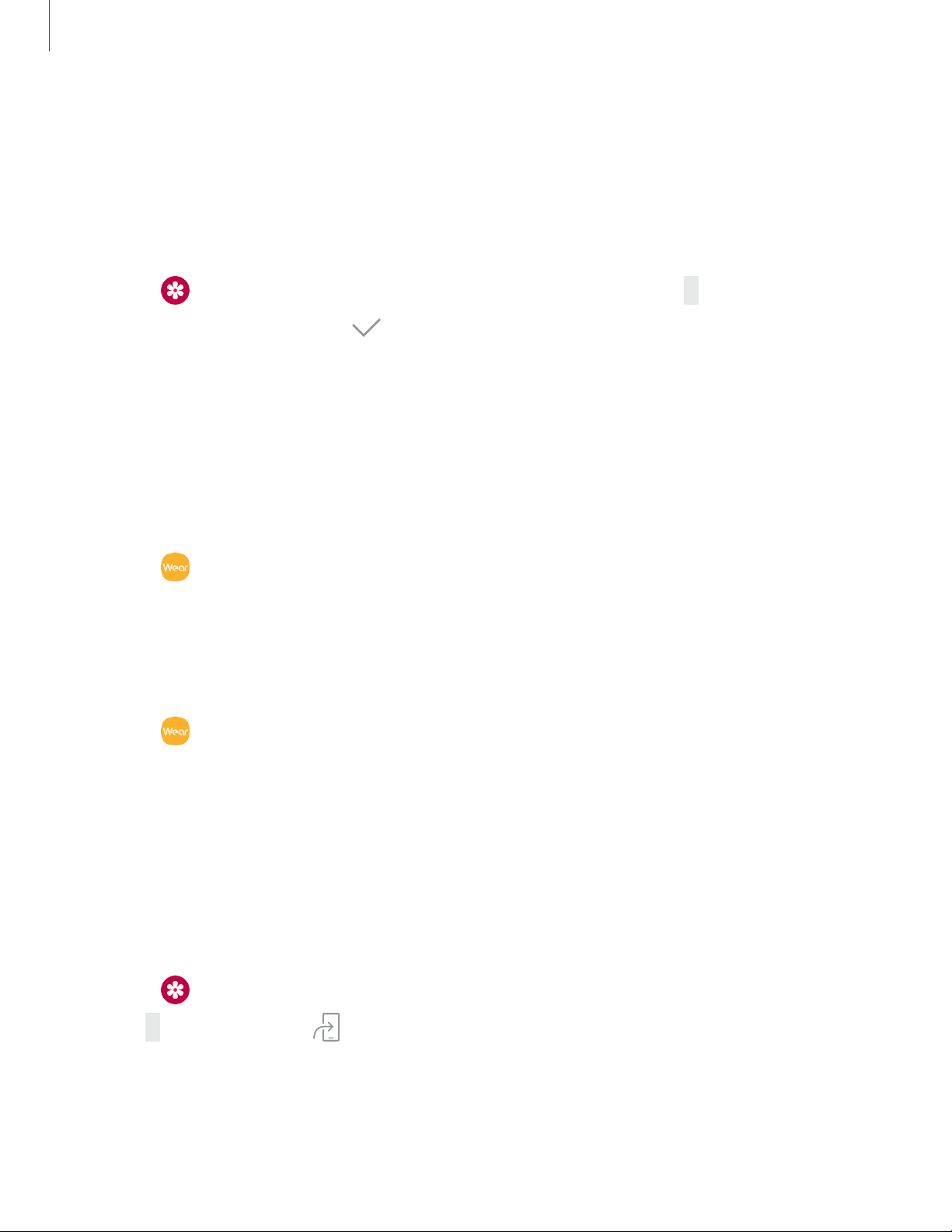
Play music from the Watch
You can play music from the Watch through Bluetooth headphones (not included).
1.
From the Apps screen, tap
Music.
2.
Tap the output until the
Watch icon is displayed.
3.
Tap
More options for the following options:
• Turn on shuffle: Enable or disable shuffle.
• Repeat: Tap to repeat all songs, tap again to repeat once, and tap again to
turn off repeat.
4.
Tap
Play music to play music.
5. Swipe up from the bottom of the screen to open the library screen, where you
can view the current song, playlist, and queue music.
•
•
•
•
•
•
Apps
3
9
Zoom in or out
While viewing an image:
◌
Double-tap the image to zoom in or out.
Delete images
1.
From
Gallery, touch and hold an image to delete, or tap More options.
2.
Tap Delete, and then tap
Ok to confirm.
Import and export images
Images can be exchanged between your Watch and smartphone.
Import images from your smartphone
Send images or entire albums from your smartphone to your Watch.
1.
From
Galaxy Wearable, tap the Home tab.
2. Tap Add content to your watch > Copy images.
3. Select files or albums and tap Done.
To automatically sync images on your smartphone with your Watch:
1.
From
Galaxy Wearable, tap the Home tab.
2. Tap Add content to your watch > Auto sync to enable. Images will be synced
while the Watch battery power is at least 15 percent.
• Image limit: Set a limit to the number of images that can be synced to your
Watch.
• Albums to sync: Select which Gallery albums to sync to your Watch.
Export images to your smartphone
1.
From
Gallery, tap the image you want to send to the smartphone.
2.
Tap
More options > Send to phone.
0
-
ct
0
CD
Apps
40
Take a screenshot
Capture an image of your screen. It is automatically saved to the Gallery app.
To enable the screen capture feature:
◌
From Settings, tap Advanced > Screen capture to enable this feature.
To t
ake a screenshot:
◌
From any screen, press and hold the Power key, and swipe the screen from left
to right.
Find My Phone
If you misplace your smartphone, the Watch can help you find it.
1.
From Apps, tap
Find My Phone.
2. Select an option:
•
Tap
Start, and the smartphone emits sounds and turns on the screen.
•
Tap Stop on the Watch to terminate the search, or tap Dismiss on the
smartphone.
Find your Watch
You can also locate your Watch by making it light up and make sounds from the
Galaxy Wearable app.
1.
From
Galaxy Wearable, tap the Home tab > Find My Watch.
2.
Tap
Start.
• The Watch vibrates and the screen turns on.
3.
Drag
Stop to the right on the Watch or tap Stop on the smartphone. .

Apps
4
2
Additional apps
The following apps are preloaded or downloaded over-the-air to your device.
Spotify
With Spotify, you have access to a world of music and podcasts. You can listen to
artists and albums, or create your own playlist of your favorite songs. Want to discover
new music? Choose a ready-made playlist that suits your mood or get personalized
recommendations.
◌
From Apps, tap Spotify.
0
C)
0
C)
0
0
0
Settings
44
Access Settings
You can personalize your device by configuring various setting options.
◌
From Apps, tap Settings, or swipe down from the top of the screen to open
the status panel and tap
Settings.
Connections
Manage connections between your device and a variety of networks and other
devices.
Bluetooth
Use Bluetooth to connect the Watch to a smartphone and a headset (not included).
1.
From
Settings, tap Connections > Bluetooth.
2. Tap
to turn on the feature.
• Tap BT headset to connect a headset to the Watch.
NOTE Headsets can only be used for playing music on the Watch.
Wi-Fi
Activate the Wi-Fi feature to connect to a Wi-Fi network.
1.
From
Settings, tap Connections > Wi-Fi.
2. Tap
to enable the feature, and then choose to set Wi-Fi to Auto, Always on,
or Always off.
Connect to a Wi-Fi network
This feature is available when the Watch is not connected to the smartphone through
Bluetooth.
1.
From
Settings, tap Connections > Wi-Fi.
2. Tap Wi-Fi networks > Scan, and select a network from the list.
• Networks that require a password display a lock icon.
-tt
0
C)
0
0
Settings
45
3.
Enter the password if required, and tap Connect.
NOTE Once the Watch connects to a Wi-Fi network, the Watch reconnects to
that network each time it is available without requiring a password. To prevent
the Watch connecting to the network automatically, select the network, and
then tap Forget.
Sync Wi-Fi profiles
Set the device to sync the list of saved Wi-Fi networks with your Watch.
1.
From
Galaxy Wearable, tap the Home tab.
2. Tap Sync phone settings > Sync Wi-Fi profiles.
NFC
The Watch lets you use the built-in technology to make payments and buy tickets for
transportation or events after downloading and configuring the required apps.
1.
From
Settings, tap Connections > NFC.
2. Tap
to enable the feature, and tap Tap and pay to set the default payment
app for mobile payments.
Make payments with the NFC feature
Before you can use the NFC feature to make payments, you must register for the
mobile payment service. To register or get more information about the service,
contact your service provider.
1.
From
Settings, tap Connections > NFC.
2. Touch the top of the Watch’s touchscreen to the card reader.
NOTE The payment services list may not include all available payment apps.
Connection alerts
Receive alerts when disconnected from Bluetooth.
◌
From Settings, tap Connections > Alerts to enable or disable this option.
0
0
C)
0
0
Settings
46
Airplane mode
Airplane mode disconnects your device from all networks and turns off connectivity
features, such as phone calls and Wi-Fi.
◌
From Settings, tap Connections > Airplane mode to enable this option.
Location
Some apps may require location services to be turned on for full functionality.
1.
From
Settings, tap Conenctions > Location.
2. Tap
to enable this feature, and select a mode.
• GPS and wireless networks: Use GPS and wireless networks.
• Wireless networks: Use wireless networks only.
• GPS: Use GPS only.
Connect to a new phone
Connect your Watch to a new mobile device. The Watch can connect to another
mobile device after performing a light reset to delete data.
◌
From Settings, tap Connect to a new phone and follow the prompts.
NOTE This feature is available when the Watch is connected to a smartphone.
Otherwise, Connect to phone is displayed.
Vibration
Configure the vibrations used to indicate notifications, screen touches, and other
interactions.
Vibration intensity
Configure the vibration intensity.
◌
From Settings, tap Vibration > Vibration intensity, and select your preferred
intensity level. Tap OK to confirm.

0
0
0
0
Settings
4
7
Long vibration
Increase the duration of the vibration for calls and notifications.
◌
From Settings, tap Vibration > Long vibration to enable this feature.
Ringtone vibration
Vibrate for calls.
1.
From the Apps screen, rotate the bezel and tap
Settings.
2. Tap Vibration > Ringtone vibration and select a vibration pattern.
3. Tap OK to confirm.
Notification vibration
Choose a vibration pattern for new notifications.
◌
From Settings, tap Vibration > Notification vibration and select a vibration
pattern. Tap OK to confirm.
Display
You can configure the screen brightness, timeout delay, font size, and many other
display settings.
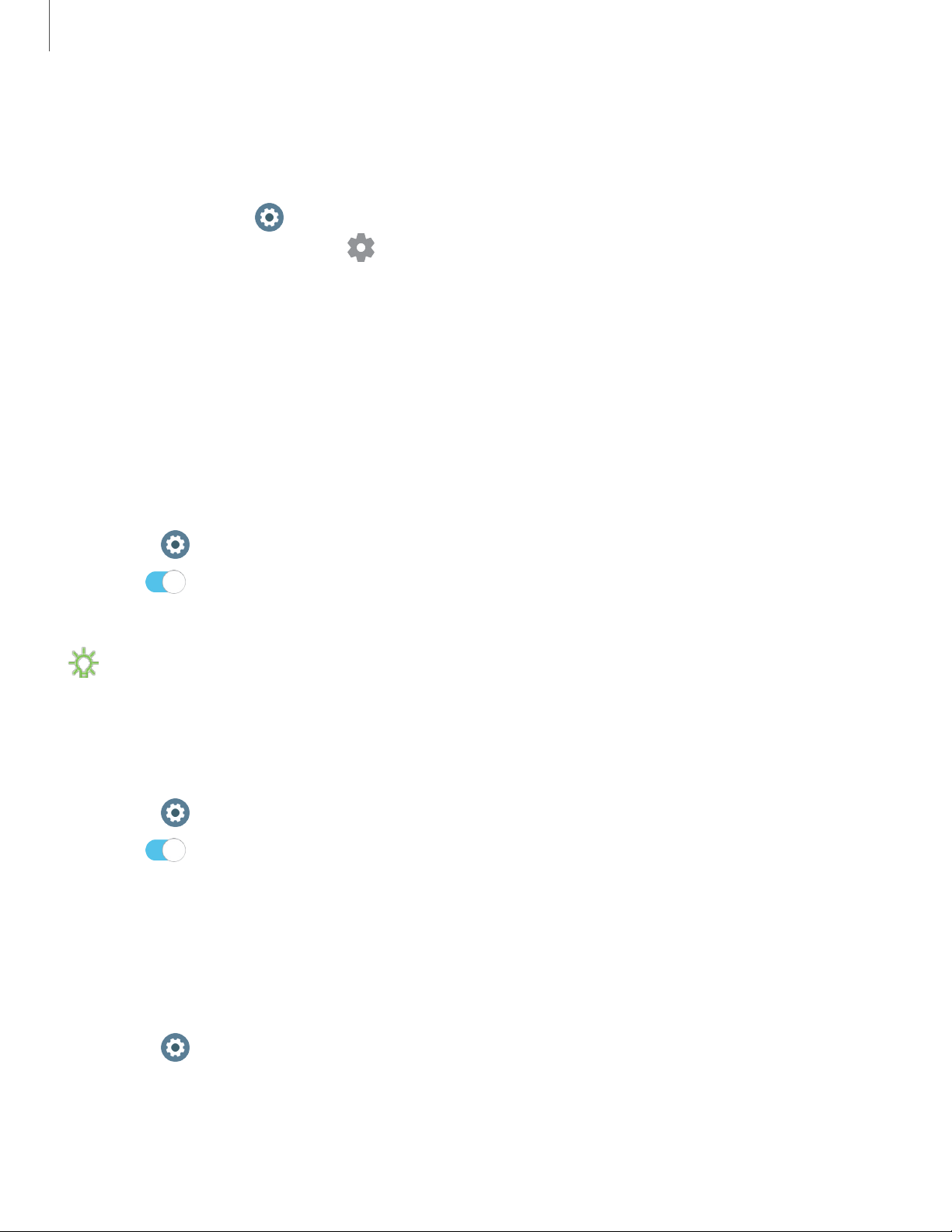
Watch faces
Change the style settings.
◌
From Settings, tap Watch faces. The following options are available:
•
Watch faces: Select a watch type.
•
Watch always on: Set the Watch to display a watch when the screen is turned
off.
•
Watch face order: Set a sort order.
•
Notification indicator: Enable or disable the notification indicator.
•
Status indicator: Indicators are icons that show the current status of your
Watch on the watch face.

0
0
v
Settings
5
0
Watch only mode
Activate Watch only mode to save battery power by limiting the Watch’s functions to
only showing the time.
1.
From
Settings, tap Battery.
2.
Tap Watch only, and then tap
OK.
To disable Watch only mode:
◌
Touch and hold the Power button for three seconds.
Reset the Watch
Reset settings to their factory default values and delete all data.
1.
From
Settings, tap General > Reset.
2.
Tap
OK.
Watch status
Access information about the Watch.
1.
From
Galaxy Wearable, tap the Home tab > About watch.
2. Tap an option below:
• Update watch software: Update the Watch to the latest software.
• Legal information: View the legal information for the Watch.
• Install unknown apps: Set the Watch to allow the installation of apps from
unknown sources.
• Device name: Change the Watch’s name.
• Device information: View identification codes for your Watch.

0
0
Settings
52
Accessibility
Accessibility services are special features that make using the device easier for those
with certain physical disabilities.
For more information about Accessibility for Samsung products, please contact us at
accessibility@sea.samsung.com.
Visibility enhancements
You can configure Accessibility features to assist with visual aspects of your device.
◌
From Settings, tap Accessibility > Visibility enhancements for the following
options:
•
Zoom: Use gestures to zoom in or out.
•
Grayscale: Remove all colors from the display, and use shades of gray.
•
Negative colors: Reverse the display of colors from white text on a black
background to black text on a white background.
•
Vibration watch: The watch will use vibrations to communicate the time.
Advanced settings
You can configure Accessibility features.
◌
From Settings, tap Accessibility > Advanced settings for the following
options:
•
Notification reminder: Enable and customize notification reminders.
•
Two finger triple tap: Use two fingers when using the gesture triple tap.

0
0
0
Settings
53
Text to speech
To set accessibility settings related to Text to speech:
◌
From Settings, tap General > Text-to-speech and select a mode:
•
Language: Choose the language for spoken text.
•
Speech rate: Set the speed at which the text is spoken.
•
Read notifications aloud: Set the Watch to read out notifications received on
your Watch.
•
Check for updates: Search for any updates to the Text-to-speech feature.
Other settings
Configure features on your device that make it easier to use.
Custom shortcut
You can set up a custom shortcut when the Home key is double pressed.
◌
From Settings, tap Advanced > Double press Home key, and select an action
to perform.
Wake-up gesture
Change the Watch’s button and motion settings.
◌
From Settings, tap Advanced and select an option to customize:
•
Wake-up gesture: Set the Watch to turn on the screen when you raise your
wrist.
•
Touch wake-up: Wake up your watch by touching the screen.

0
C)
0
Settings
54
Touch sensitivity
Set the Watch to allow use of the touch screen with gloves on.
1.
From
Settings, tap Advanced > Touch sensitivity.
2. Tap
to enable this feature.
TIP You can also enable touch sensitivity by holding the Back button, and
tapping Touch sensitivity.
Watch info
View the Watch’s information.
◌
From Settings, tap About watch to view the following information about your
Watch:
•
Model number: Check your Watch’s model number.
•
Serial number: View your Watch’s serial number.
•
Storage: Check the available storage space.
•
Device: Access device information about the Watch.
•
Software: Check your Watch’s software version and security status.
•
Battery: Check the Watch’s battery voltage and capacity.
•
Open source licenses: View the guide for checking the Watch’s open source
license.
•
Report diagnostic and usage info: Give consent to provide diagnostic and
usage data to Samsung to help improve the quality and performance of its
products and services.
•
Debugging: Activate or deactivate USB debugging mode when developing
apps for the Watch.

56
Legal information
READ THIS INFORMATION BEFORE USING YOUR MOBILE DEVICE.
Arbitration Agreement - This Product is subject to a binding arbitration agreement
between you and SAMSUNG ELECTRONICS AMERICA, INC. (“Samsung”). You can opt
out of the agreement within 30 calendar days of the first consumer purchase by
emailing optout@sea.samsung.com or calling 1-800-SAMSUNG (726-7864) and
providing the applicable information. For complete terms and conditions that bind
you and Samsung, refer to the “Arbitration Agreement” section of the Terms &
Conditions, included with the Product.
Find Legal Information Online
The full Arbitration Agreement, Standard Limited Warranty, and Health & Safety
Information for your device are available online:
https://www.samsung.com/us/Legal/Gear-HSGuide/
The full End User License Agreement (EULA) for your device can be found in the
Galaxy Wearable application, which is required for operation of your device, and
online:
• Online: www.samsung.com/us/Legal/SamsungLegal-EULA-GEAR
• Galaxy Wearable application: Settings > About watch > Legal information >
Samsung legal
Intellectual property
All Intellectual Property, as defined below, owned by or which is otherwise the
property of Samsung or its respective suppliers relating to the SAMSUNG mobile
device, including but not limited to, accessories, parts, or software relating thereto
(the “mobile device”), is proprietary to Samsung and protected under federal laws,
state laws, and international treaty provisions. Intellectual Property includes, but is
not limited to, inventions (patentable or unpatentable), patents, trade secrets,
copyrights, software, computer programs, and related documentation and other works

Legal information
58
•
compliance of the Product with the requirements of any law, rule, specification
or contract pertaining thereto.
Nothing contained in the User Manual or any other document shall be construed to
create an express or implied warranty of any kind whatsoever with respect to the
Product. Neither Samsung nor the wireless carrier are responsible for, and the
Standard Limited Warranty does not apply to, any damage or injury arising from
disassembly or repairs by persons not authorized or approved by Samsung to service
this Product. In addition, Samsung shall not be liable for any damages of any kind
resulting from the purchase or use of the Product or arising from the breach of the
express warranty, including incidental, special or consequential damages, or loss of
anticipated profits or benefits.
Modification of software
Samsung is not liable for performance issues or incompatibilities caused by your
editing of registry settings, or your modification of Operating System (OS) software.
Using custom OS software may cause your device and applications to work
improperly. Your carrier may not permit users to download certain software, such as
custom OS.
Samsung Knox
Samsung Knox is Samsung’s security platform and is a mark for a Samsung device
tested for security with enterprise use in mind. Additional licensing fee may be
required. For more information about Knox, please refer to: samsung.com/us/knox.
Maintaining water and dust resistance
To avoid electric shock and damage to your device, do not charge device while it
is wet or in an area where it could get wet. Do not handle device, charger or
cords with wet hands while charging.
This device is rated 5ATM. Your device is water resistant up to 50 meters per ISO
standard 22810:2010. Not intended for scuba diving. Avoid excessive, sudden

-}J
Legal information
temperature changes, and high velocity activities. Falls and shocks may breach
integrity. After use in sea water, rinse in fresh water and dry device. Despite this
classification, your device is not impervious to water damage in any situation. It is
important that all compartments are closed tightly.
59
NOTE If any liquid is found to have entered your device components or an
internally sealed system, this condition will void your device warranty.
Follow these tips carefully to prevent damage to the device.
l Whenever your device gets wet, dry it thoroughly with a clean, soft cloth. Failure to
rinse the device in fresh water and dry it as instructed may cause the device to
suffer from operability or cosmetic issues.
l Do not expose the device to water at high pressure.
l If the device is dropped or receives an impact, the water and dust resistant features
of the device may be damaged.
NOTE This device passed military specification (MIL-STD-810G) testing against
specific conditions, including drops from 4.9 feet, extreme temperatures, dust,
shock/vibration, and low pressure/high altitude. Device may not perform as
described in all extreme conditions.
Restricting children’s access to your
mobile device
Your device is not a toy. Do not allow children to play with it because they could hurt
themselves and others, damage the device, or make calls that increase your device
bill. Keep the device and all its parts and accessories out of the reach of small
children.
