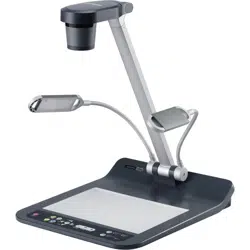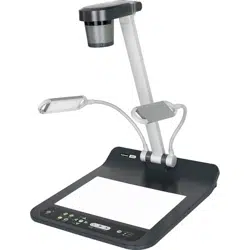
StarBoard DCHD-5M
User’s Guide
How to Request a User's Guide
When requesting a separate copy of this User's Guide, specify DCHD-ML101201.
DCHD-ML101201
Read this User’s Guide carefully, and connect correctly.
Before using this product, be sure to read and fully understand the safety precautions.
Store this User’s guide in a safe place near to this equipment for easy future reference.

StarBoard DCHD-5M
1
Notices
Reproduction or reprinting, without permission, of this User's Guide or any part thereof is
prohibited.
The contents of this User’s Guide are subject to change without prior notice.
Every effort has been made to ensure that this User’s Guide is complete and correct. However,
should any questionable points, mistakes, etc., come to your attention, please inform the vendor.
Hitachi Solutions Ltd. assumes no responsibility for losses resulting from or related to the use of
this product, irrespective of the previous statement.
Disposing of this Device
When disposing of this device, be sure to follow all necessary laws and regulations, and treat this
device as industrial waste.

StarBoard DCHD-5M
2
Disclaimer
Hitachi Solutions Ltd. assumes no liability and makes no warranty, either express or implicit,
regarding the contents of this User’s Guide.
Also, the company makes no warranty as to the product’s suitability, merchantability, or fitness for a
particular intended use.
All products of Hitachi Solutions Ltd., described in this User's Guide are presently for sale or are
site-licensed.
Users who purchased the aforementioned product(s) will bear the cost of all required services,
repairs, and damages resulting from defects in this product, and will bear the costs of direct or
indirect damages (including the loss of profits or required information) that resulted from the
product defects.
Moreover, Hitachi Solutions Ltd, retains the right to revise this User’s Guide and to modify the
contents thereof, without obligation to notify anyone.
Product Warranty Provisions
This product is limited for use within Japan.
For warranty details, see “4.5 Product Warranty Provisions”.
This User’s Guide (DCHD-ML101201) is for the StarBoard DCHD-5M product.
AH00275: DCHD-5M(US)
AH00276: DCHD-5M(EU)
AH00277: DCHD-5M(JP)
Windows is a trademark of Microsoft Corporation (U.S.) and in other countries.
Mac and Mac OS are trademarks of Apple Inc., registered in the U.S. and other countries.
Other trademarks and product names are trademarks and/or registered trademarks of their respective
holders.
HDMI, the HDMI logo, and High-Definition Multimedia Interface are trademarks and/or registered
trademarks of HDMI Licensing LLC.
Manual Creation Date
December 2010 First Edition DCHD-ML101201
All Rights Reserved, Copyright © 2010, Hitachi Solutions, Ltd.

StarBoard DCHD-5M
3
Introduction
Thank you very much for purchasing this Hitachi Solutions Ltd., StarBoard DCHD-5M (henceforth
referred to as document camera).
This User’s Guide has been created for people who already have a working knowledge of personal
computers (henceforth referred to as “PC”).
Please make sure that you understand the contents of this User’s Guide and use the software
correctly.
Store this User’s Guide nearby for ease of reference.
StarBoard DCHD-5M
4
Safe Handling
Markings and Symbols
Various markings and symbols are used in this User’s Guide and on this product to ensure the safe
and correct use of this product, and to prevent personal injury and property damage. These
symbols and their meanings are as explained below. Understand the information well before
reading the body of the User’s Guide.
Explanation of Markings and Symbols
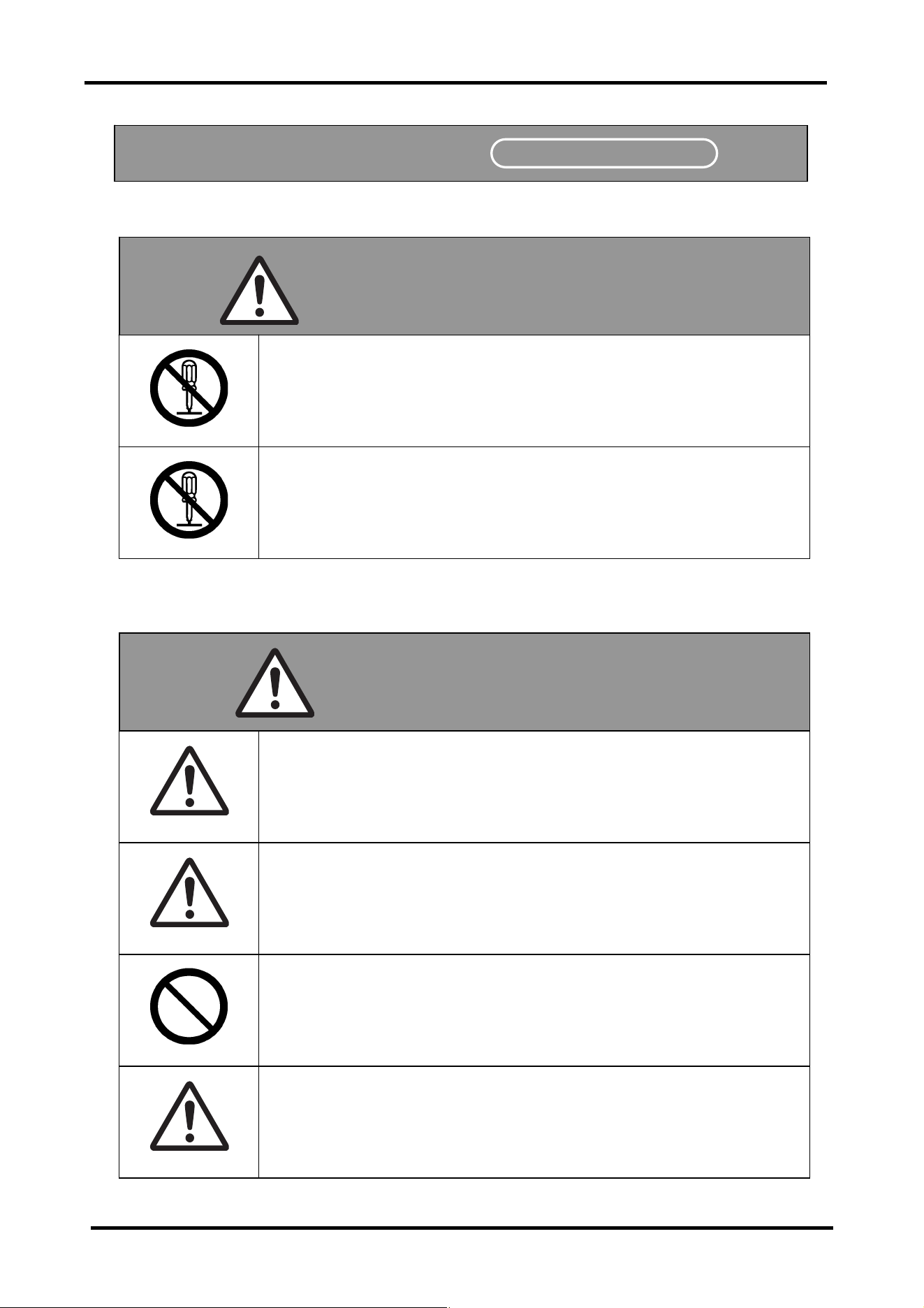
This symbol draws attention to cautions (including warnings).
This is a Safety Warning symbol. This symbol raises the attention of the
user to existing risks that may cause harm to people. To avoid any
chances of injuries or possibly death, be sure to follow the safety
instructions that follow this symbol.
WARNING
This is used to warn of the risk of death or fatal injury.
CAUTION
This is used to warn of the risk of moderate or light injury.
NOTICE
This is used to warn of the risk of damage to property.
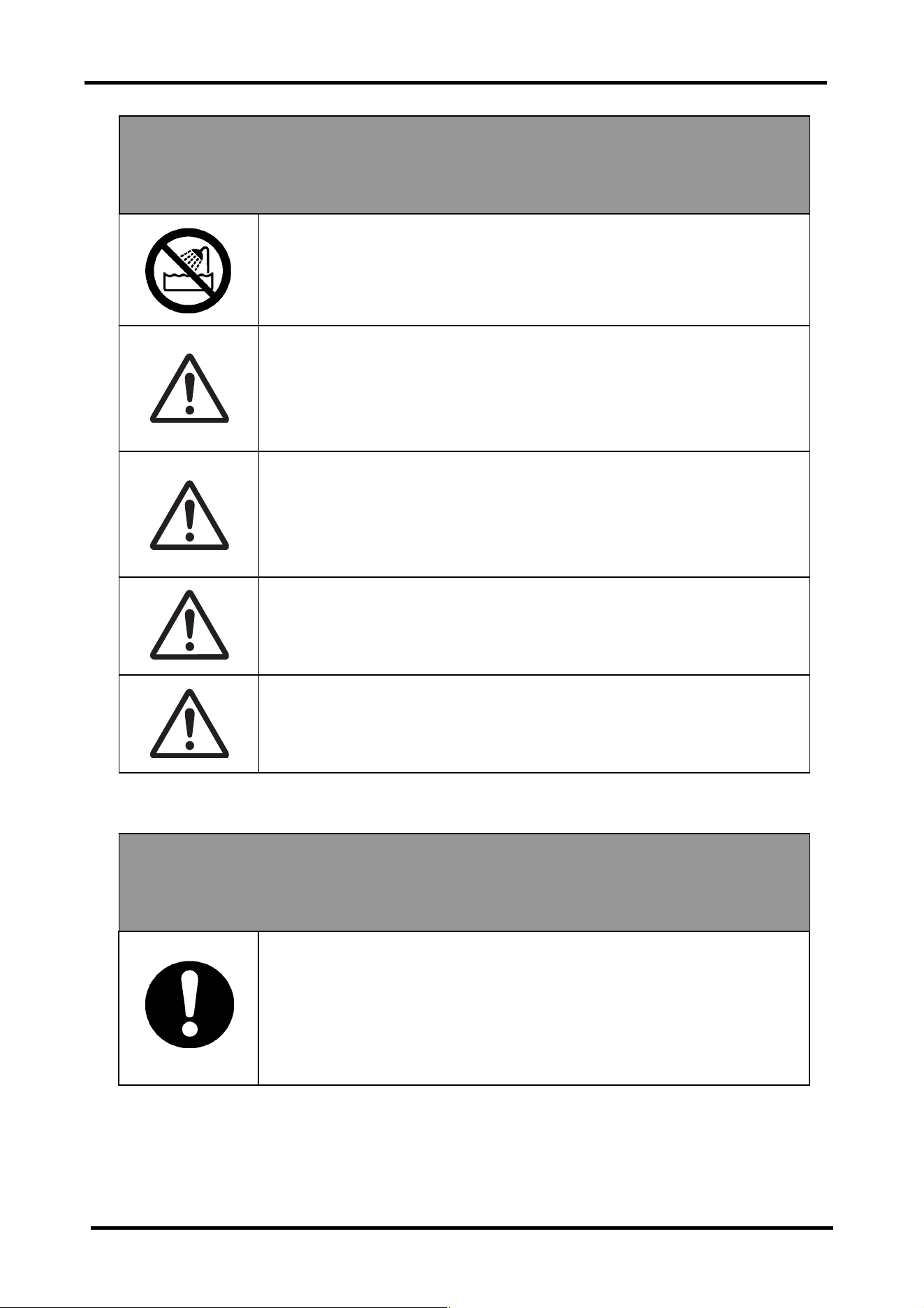
This symbol indicates something prohibited.
This symbol indicates something that must be done.
StarBoard DCHD-5M
5
(1)Precautions Regarding Operation
Safety Precautions
Re
q
uired Precautions
WARNING
Do not make modifications.
Do not make any adjustments, repairs, or modifications.
Doing so may lead to electric shock or injury.
Do not remove the cover of this product.
Doing so may cause electric shock, injury, or damage to the product.
Refer internal inspections, adjustments, and repairs to your dealerof
support center.
Do not place objects on top of this product.
If a foreign object falls on top of or inside this product, it may lead to
personal injury or damage to the product.
CAUTION
Be particularly careful when laying connecting cables etc.
Laying cables in places where people may trip over them may lead
to injury or damage to the device if the device falls.
Do not install this product or accessories on the floor.
Doing so may cause damage to the products or injury by people
accidentally stepping on the products.
Do not point the camera lens directly at the sun, or record bright
light sources for prolonged periods.
Doing so may cause damage to eyesight or damage the product.
StarBoard DCHD-5M
6
(2) Dealing with Trouble
(3) Precautions Regarding Handling
NOTICE
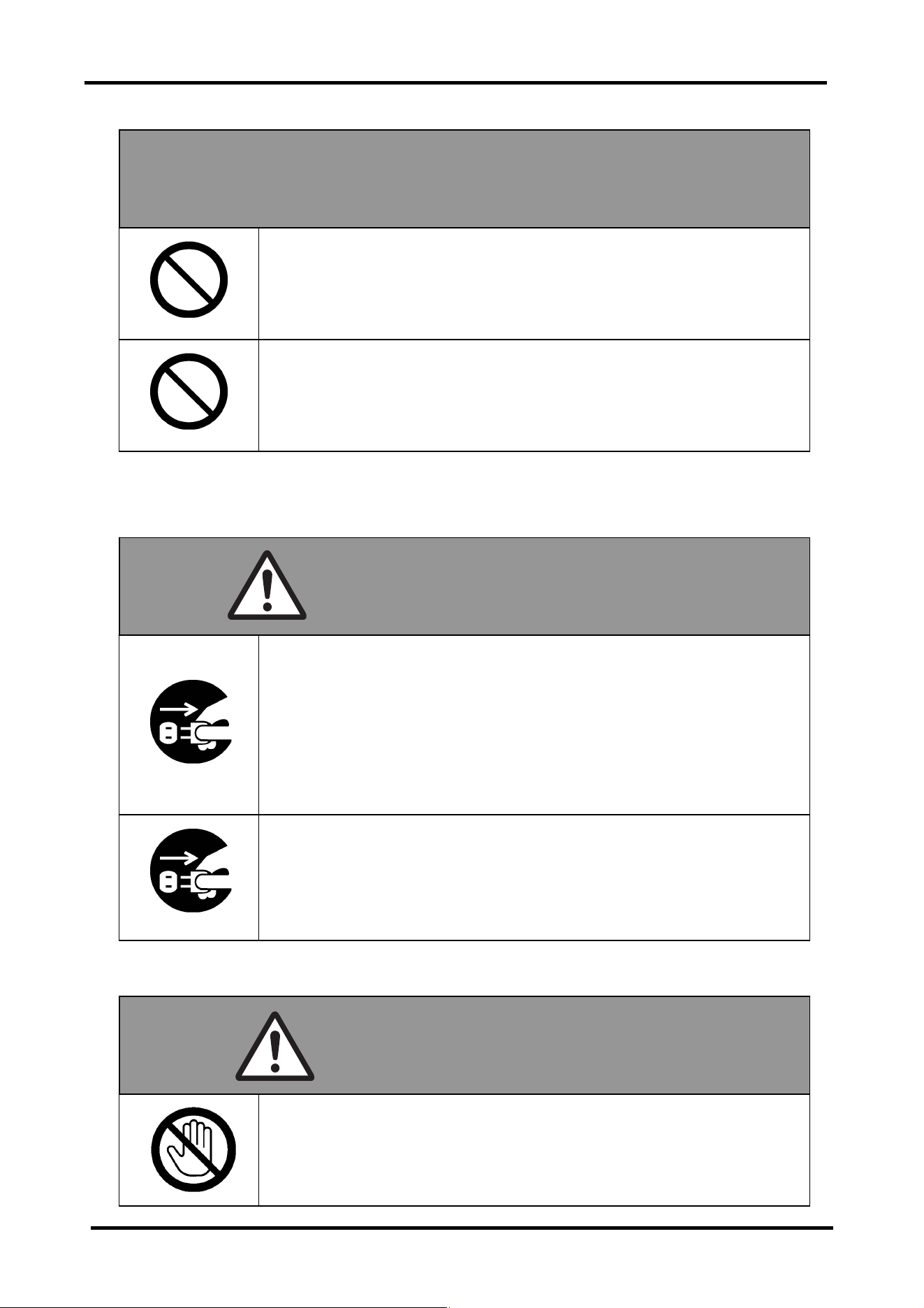
Do not place heavy objects on, pull on, or subject cables to excess
heat.
Doing so may result in damage to the cables.
Always grasp the plug of the connecting cable when connecting or
disconnecting.
Pulling on the cables may result in scratching or damage to the
cables.
What to do in case of emission of smoke, stran
g
e odors, or stran
g
e
noises.
If an abnormal condition such as emission of smoke, strange odor, or
strange noise happen to occur, immediately disconnect all of the
cables from this device.
Confirm that the smoke or strange odor is no longer being emitted,
and contact a support center to request repairs. Continued operation
without repair may result in fire.
What to do if the product breaks down, or if a connectin
g
cable is
damaged.
If this product breaks down or a connecting cable becomes damaged
for some reason, immediately disconnect the cable and contact a
support center. Continued operation without repair may result in
emission of a strange odor or smoke.
WARNING
Do not touch this product if you hear thunder.
Doing so may result in electric shock.
WARNING
StarBoard DCHD-5M
7
(4) Precautions Regarding Moving the Product
CAUTION
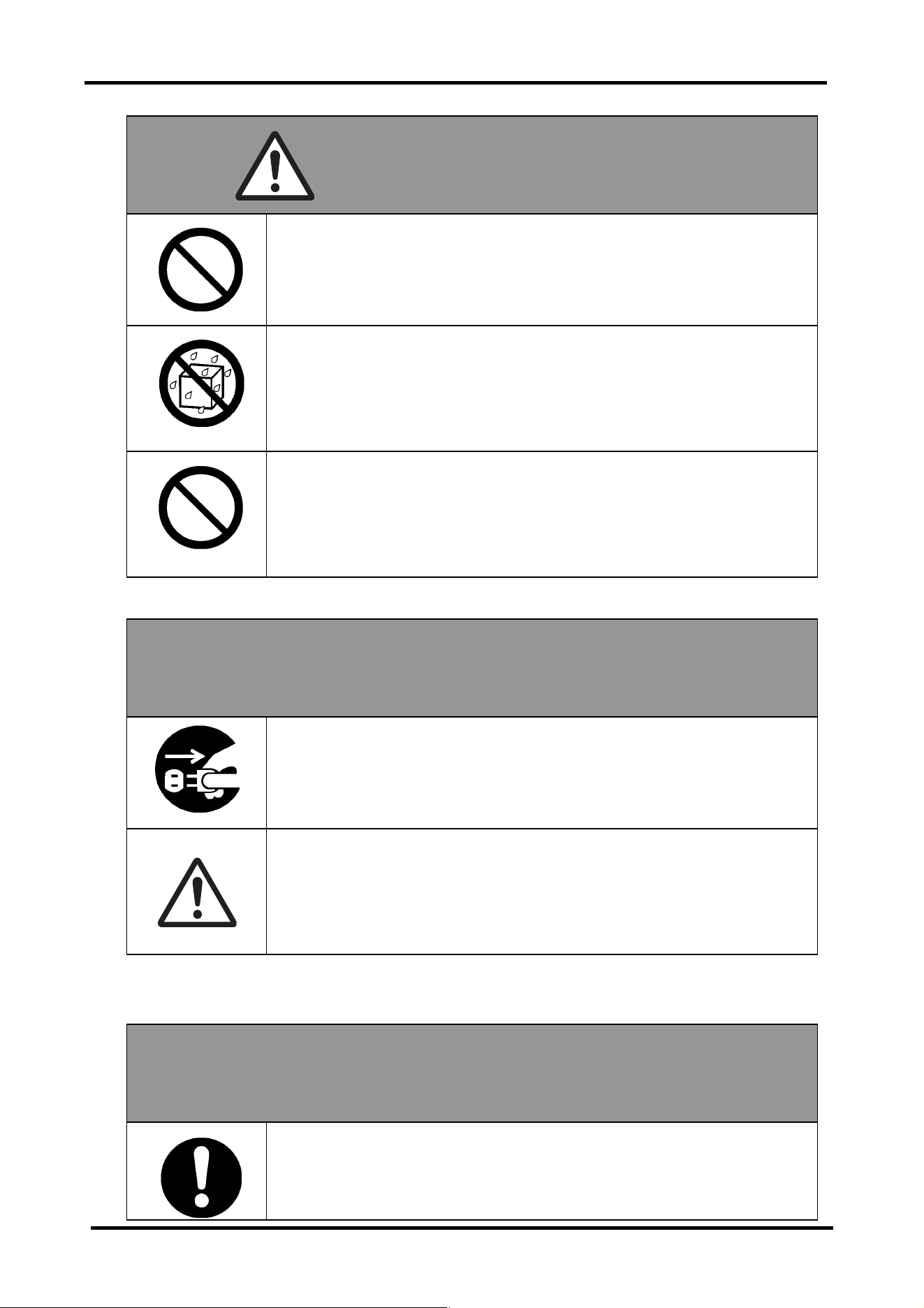
Do not place heavy objects onto this device unit.
Do not place heavy objects onto this unit.
Doing so may cause personal injury if the object becomes
unbalanced and falls.
Do not splash with water or chemical compounds.
Do not place this product in a location subject to contact with water
droplets or place any containers containing water or other chemical
compounds on top of or nearby this product. Doing so may result in
damage or fire if water or chemical compounds get inside this
product.
Do not mix old and new batteries, and do not use unspecified
batteries.
Doing so may cause the batteries to rupture and leak, which may
cause fire, injury, or damage to the product surroundings.
NOTICE
Disconnect connectin
g
cables durin
g
extended periods of non-use.
For safety reasons, disconnect the connecting cables if the product is
not going to be used for an extended period of time. Failure to do so
may result in fire.
Handle connecting cables properly.
Improper handling of the connecting cables such as jamming them
against walls, undue bending, pulling, or twisting may result in
overheating or damage due to exposure of the conductive core,
electrical short, or severing of the cable.
NOTICE
Alwa
y
s disconnect the connectin
g
cables when movin
g
this
product.
Failure to do so may result in damage to the cables and/or the
product itself.
StarBoard DCHD-5M
8
(5) Precautions Regarding Setup Environment
NOTICE
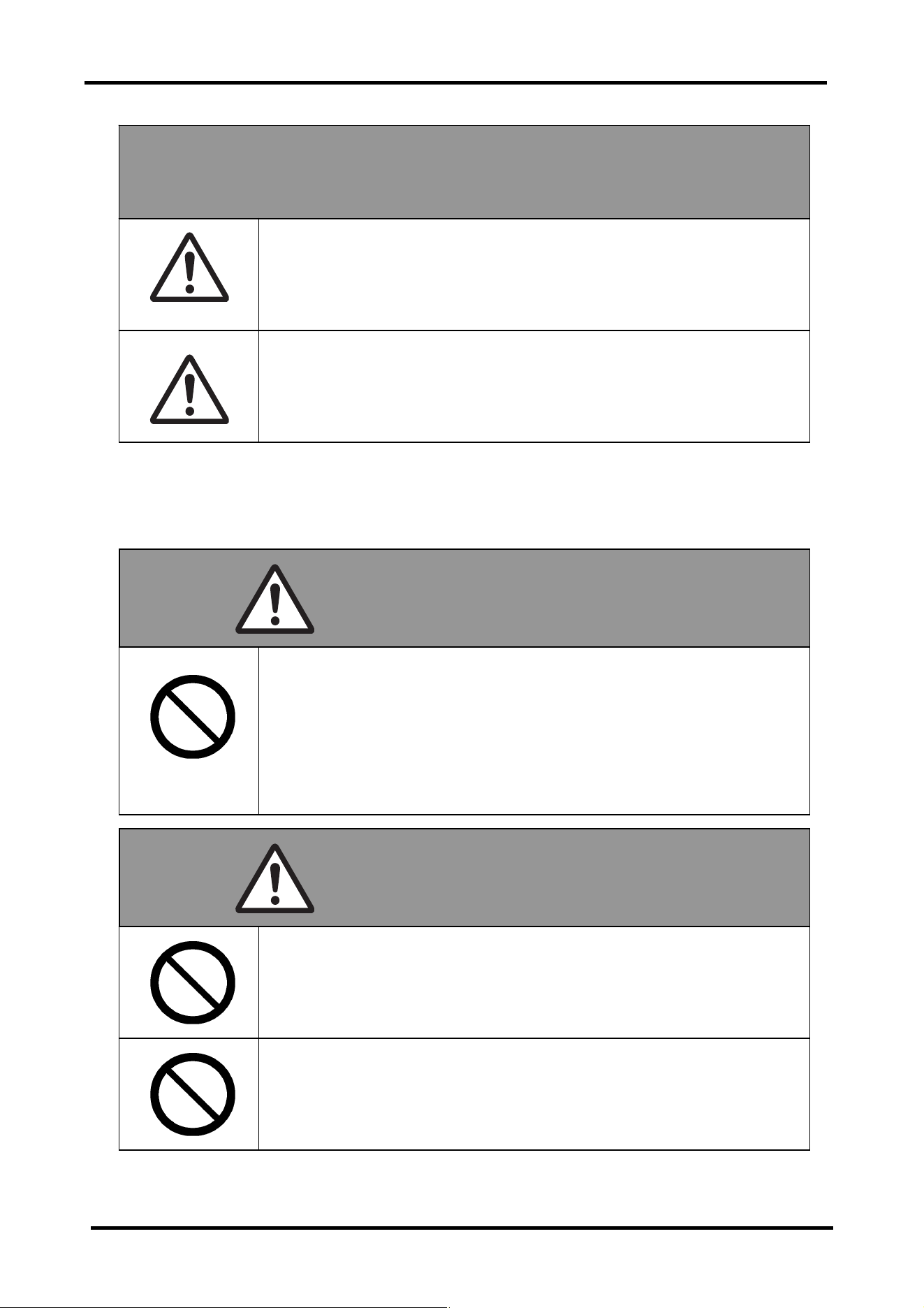
Do not subject to shock of impact.
This product is a precision instrument. Excessive shock of impact
may hinder further operation. Take extreme care when moving this
p
roduct.
WARNING
Do not place in a location with flammable or corrosive
g
as.
Placing this product in a location where there is flammable or
corrosive gas may result in fire or damage to this product.
In particular, there is a risk of explosion from flammable gas. Do not
place this product in a location where there is flammable or
corrosive gas.
CAUTION
Do not place in locations subject to excess moisture, dust, smoke,
or steam.
Placing this product in a location where there is flammable or
corrosive
g
as ma
y
r
esult in fire or dama
g
e to this
p
roduct.
Do not touch internally mounted parts.
Directly touching internally mounted parts may result in personal
injury or damage to the product.
Do not carry holding the camera section.
Doing so may cause damage to the main unit section.
StarBoard DCHD-5M
9
(6) Precautions Regarding Disposal
NOTICE
Do not use this product near water.
If water somehow gets inside this product, immediately disconnect
the connecting cables and contact the support center.
Do not use this product in locations sub
j
ect to hi
g
h temperature or
high humidity.
Product usage environment conditions:
Temp.: 5°C – 35°C
Humidity: 20%RH – 80%RH (no condensation)
Do not set up in location sub
j
ect to vibration and/or shock of
impact.
Vibration and/or shock of impact may harm internal components of
this product, causing damage to it. Do not set up this product in a
location subject to vibration or shock of impact.
Do not set up this product near a hi
g
h-volta
g
e line or power
source.
If this product is set up near high-voltage lines or power sources, it
might receive interference.
Do not set up in a location subject to direct sunlight or near a
heater.
Doing so may result in deformation or damage to the product.
NOTICE
At the time of disposal, handle this product as industrial waste
according to all applicable laws and regulations.
When disposing of this product, the user should follow all laws and
regulations of the locality in which it is being used.
StarBoard DCHD-5M
10
(7) Product Disclaimer
NOTICE
This product uses a CMOS image sensor that is composed of many image pixels, and
among these image pixels there are some which do not operate correctly. When an
image is externally output, there may be some dots that appear white or black. However,
this is a special characteristic of the CMOS system and is not a malfunction.
LCD screens are manufactured using extremely precise technology, yet sometimes
pixels may appear to be missing or always on. This is not a malfunction. Also, it does
not affect the recorded image.
StarBoard DCHD-5M
11
(8) Warning Displays Throughout the manual
CAUTION Page
P. 3 - 6
Be sure to install batteries correctly.
Do not install batteries with positive and negative terminals reversed,
or use batteries other than the type specified. Do not mix old and new
batteries. Doing so may cause fire or damage.
P. 3-6
Be sure to insulate batteries for disposal.
Be sure to insulate the positive and negative terminals of the battery
using cellophane tape for disposal. Disposing of batteries without
insulating them may lead to overheating, bursting, or ignition due to
shorting, resulting in personal injury or fire. Furthermore, be sure to
follow all local rules and regulations regarding proper battery disposal.
NOTICE
Page
P. 2-7
Do not strike the camera section a
g
ainst a table or hard ob
j
ect.
Subjecting the camera section to impact may cause damage to the
product.
P. 2 - 7
Do not bend the arm backwards.
Bending the arm in the wrong direction may cause damage to the
product.
P. 2 - 8
Switch off the product power suppl
y
before connectin
g
cables.
Performing wiring work when the power is on may cause damage to
the product.
P. 2-8, 3-4
Do not insert or remove cables while the product is operatin
g
.
Do not insert or remove cables when operating using the control panel
or remote control. Doing so may cause the product to malfunction.
P. 4 - 3
Always remove all cables before cleaning.
Failure to do so may cause electric shock or damage to the device.
P. 3 - 4
Precautions for handling SD cards.
Do not switch off the document camera unit power supply while the
SD card is being formatted. Also, use this product to format the SD
card for use. When using cards formatted using a PC, use this product
to format the SD card again.

StarBoard DCHD-5M Contents
12
1. Introduction ......................................................................... 1-1
1.1 Component Parts/Accessories Check ..........................................................1-1
1.2 Names and Functions of Parts......................................................................1-2
2. Document Camera Setup.................................................... 2-1
2.1 Setup Method .................................................................................................2-1
2.1.1 Driver Installation ........................................................................................................................................ 2-1
2.1.2 Document Camera Unit Setup ..................................................................................................................... 2-7
2.2 Connection Method .......................................................................................2-8
2.2.1 Connection Method when using RGB Cables ............................................................................................. 2-9
2.2.1 Connection Method when using an HDMI Cable........................................................................................ 2-9
2.2.1 Connection Method when using VIDEO Cables ....................................................................................... 2-10
2.2.4 Connection Method to PC (when using RGB cables)................................................................................ 2-10
2.2.5 Connection Method to PC (when using USB cables) ................................................................................ 2-11
2.2.6 Connection Method for Speakers............................................................................................................... 2-11
2.2.7 Connection Method for Microphone.......................................................................................................... 2-11
2.2.8 Connection Method for Microscope .......................................................................................................... 2-12
3. How to Use the Document Camera.................................... 3-1
3.1 How to Use the Document Camera..............................................................3-1
3.1.1 Control Panel ............................................................................................................................................... 3-1
3.1.2 OSD Menu................................................................................................................................................... 3-2
3.1.3 Various Usage Methods ............................................................................................................................... 3-3
3.2 How to Use the Remote Control...................................................................3-6
4. Appendix .............................................................................. 4-1
4.1 Troubleshooting .............................................................................................4-1
4.2 Product Specifications...................................................................................4-2
4.3 Proper Care and Cleaning ............................................................................4-3
4.4 Replaceable Parts/Product Warranty Period .............................................4-4
4.4.1 Replaceable Parts......................................................................................................................................... 4-4
4.4.2 Product Warranty Period.............................................................................................................................. 4-4
4.5 Product Warranty Provisions.......................................................................4-4

StarBoard DCHD-5M
1. Introduction
1. Introduction
1.1 Component Parts/Accessories Check
1.2 Names and Functions of Parts
StarBoard DCHD-5M
1. Introduction
1-1
1. Introduction
1.1 Component Parts/Accessories Check
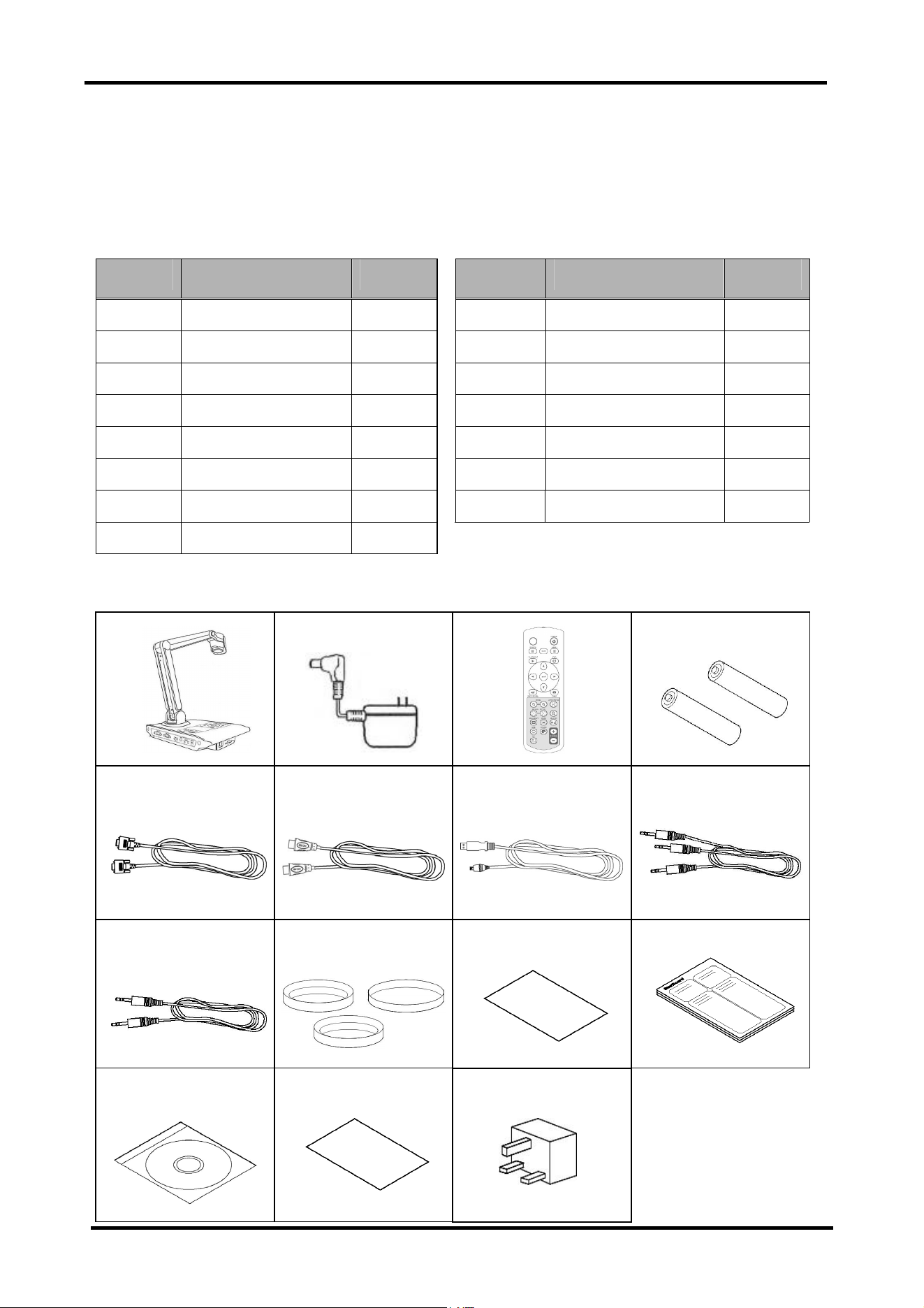
After unpacking, make sure that all of the following component parts and accessories are
present.
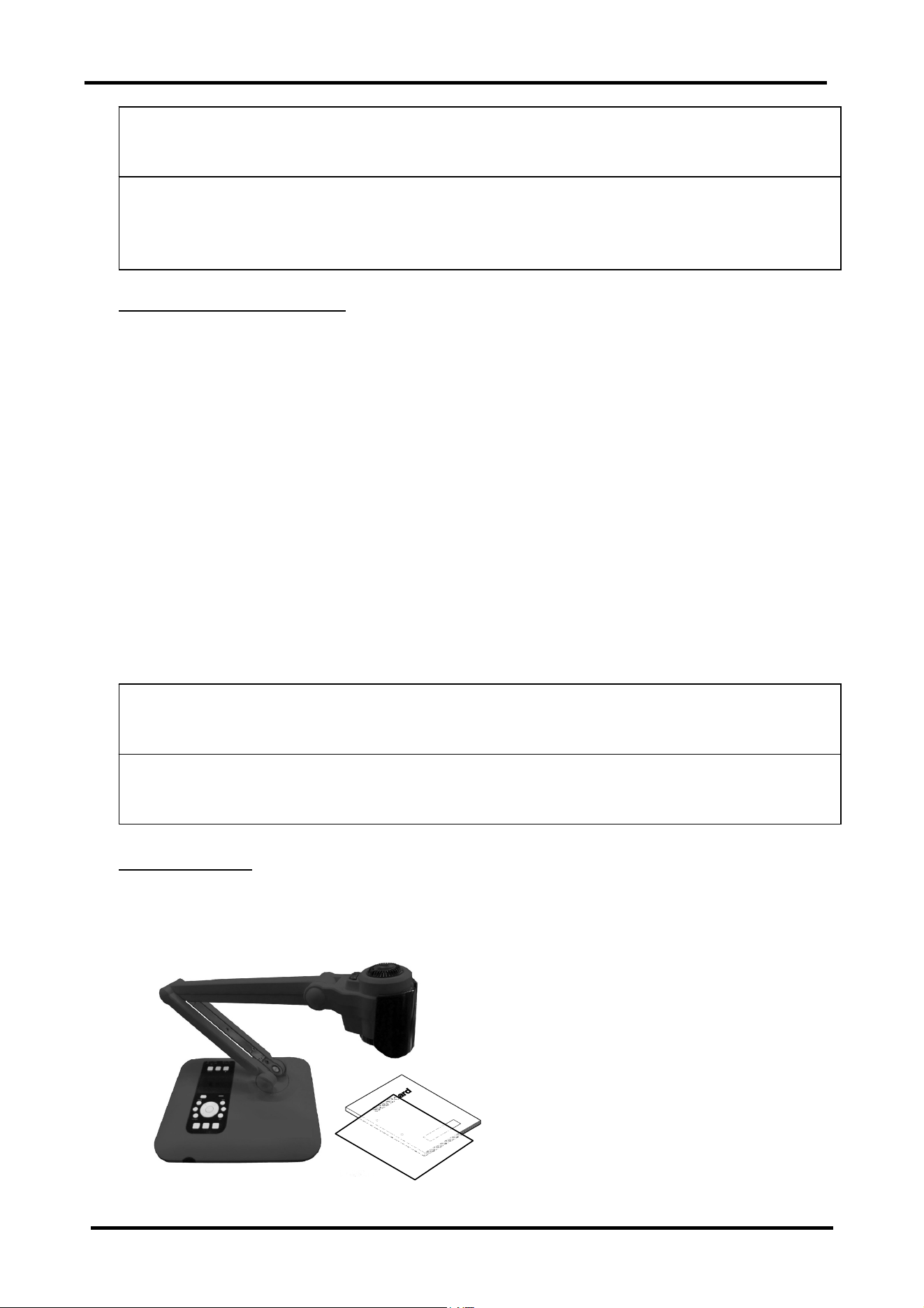
Number Name Quantity Number Name Quantity
(1) Document Camera 1 (9) Audio cable 1
(2) AC Adaptor 1 (10) Microscope adaptor 3
(3) Remote Control 1 (11) Anti Glare Sheet 1
(4) AAA batteries 2 (12) Startup guide 1
(5) RGB Cable 1 (13) CD 1
(6) HDMI Cable 1 (14) Warranty card 1
(7) USB Cable 1 (15) Conversion plug 1
(8) VIDEO Cable 1
(1) (2) (3) (4)
(5) (6) (7) (8)
(9) (10) (11) (12)
(13) (14)
(15)
* The shape of (2) differs depending on the delivery
location. (15) May not be included depending on the
delivery location.
StarBoard DCHD-5M
1. Introduction
1-2
1.2 Names and Functions of Parts
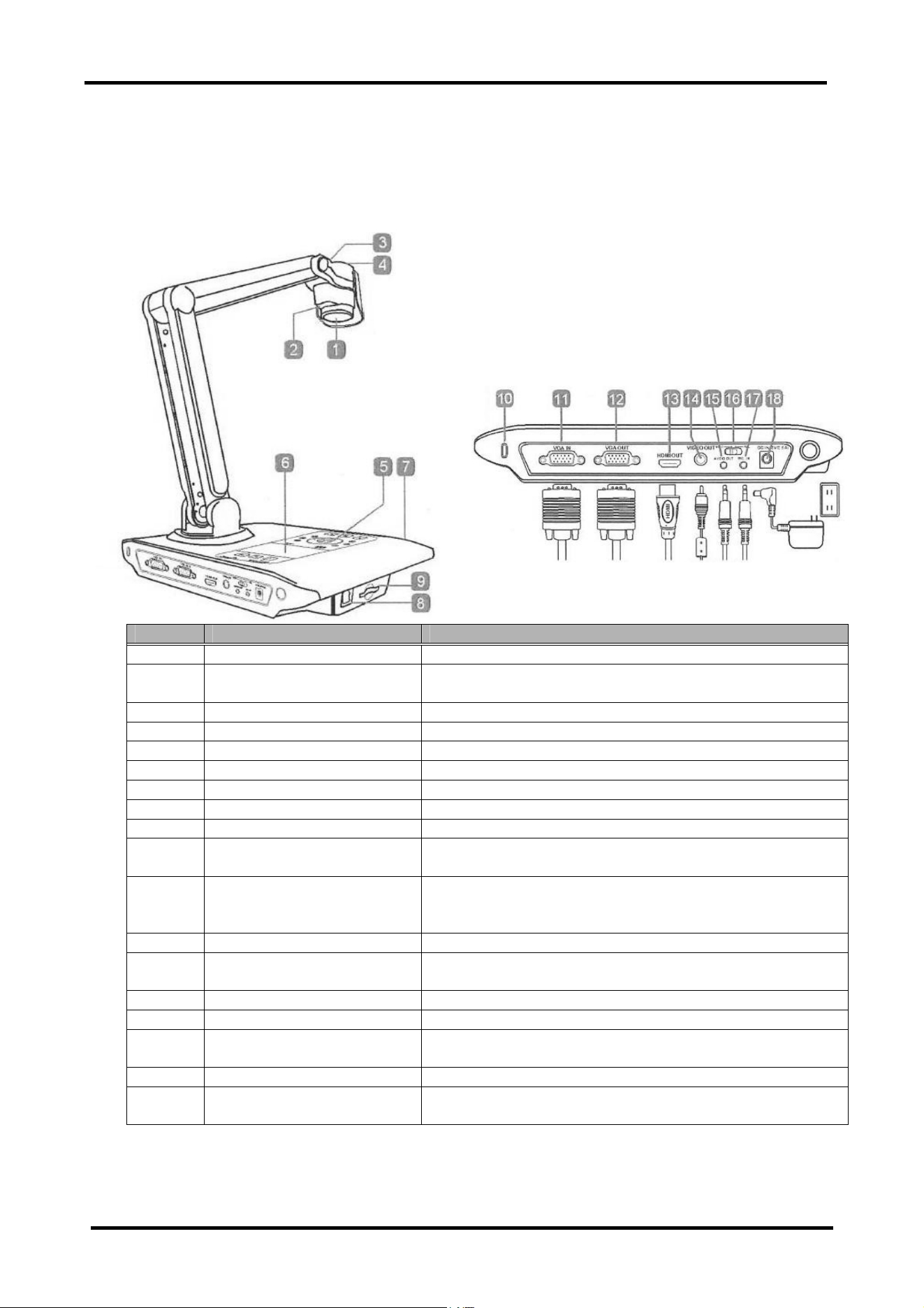
The terminals installed on the side of the document camera are arranged as shown in the
diagram below. See the table for explanations of each of the terminals.
Number Name Explanation
1 Camera section Lends and CMOS sensor used to record the subject.
2 LED Light The LED light can be used when the surrounding environment is
dark.
3 LED Light ON/OFF Button Used to turn the LED light ON/OFF.
4 LED Light Brightness The brightness of the LED light can be adjusted.
5 Control Panel Contains various buttons.
6 LCD Screen LCD screen used to display photographed images.
7 Remote control sensor Receives signals from the remote control.
8 USB port Connect to output a recorded image to a PC.
9 SD Card Slot Insert an SD card to save movies and pictures.
10 Anti-theft slot Compatible for use with a Kensington security lock or other such
anti-theft device.
11 RGB Input Terminal A signal is entered from the PC, and passed through only to the
RGB output terminal. Connect this terminal to the RGB output
terminal of the PC.
12 RGB Output Terminal Connect to output to a CRT/LCD monitor or projector.
13 HDMI Output Terminal Connect to output to an LCD/PDP monitor that is equipped with
a HDMI input terminal.
14 Video Output Terminal Connect to output to a TV or other video device.
15 Audio Output Terminal Used to output audio signals to external speakers etc.
16 Television signal switching
switch
Used to switch between NTSC and PAL signals.
17 Microphone Input Terminal Used to input audio from a microphone.
18 AC Adaptor Connection
Terminal
Connect the AC adaptor.

StarBoard DCHD-5M
2. Document Camera Setup
2. Document Camera Setup
2.1 Setup Method
2.2 Connection Method
StarBoard DCHD-5M
2. Document Camera Setup
2-1
2. Document Camera Setup
2.1 Setup Method
2.1.1 Driver Installation
The attached driver is compatible with Windows XP(32bit)/Vista(32bit)/7(32bit, 64bit) and
Mac OS 10.4/10.5/10.6. Before using the Document Camera connected to the PC for the first
time, install the driver in accordance with the following procedure. Start the install procedure
without connecting the Document Camera to the PC. To use the Document Camera's images
while displaying on the screen, use StarBoard Software 9.3 or later. (Please refer to the
Starboard Software User's Guide for how to operate the StarBoard Software.) When the
Document Camera is connected to the PC, some of the buttons on the main body cannot be used.
Please refer to P. 3-1 for details.
For Windows
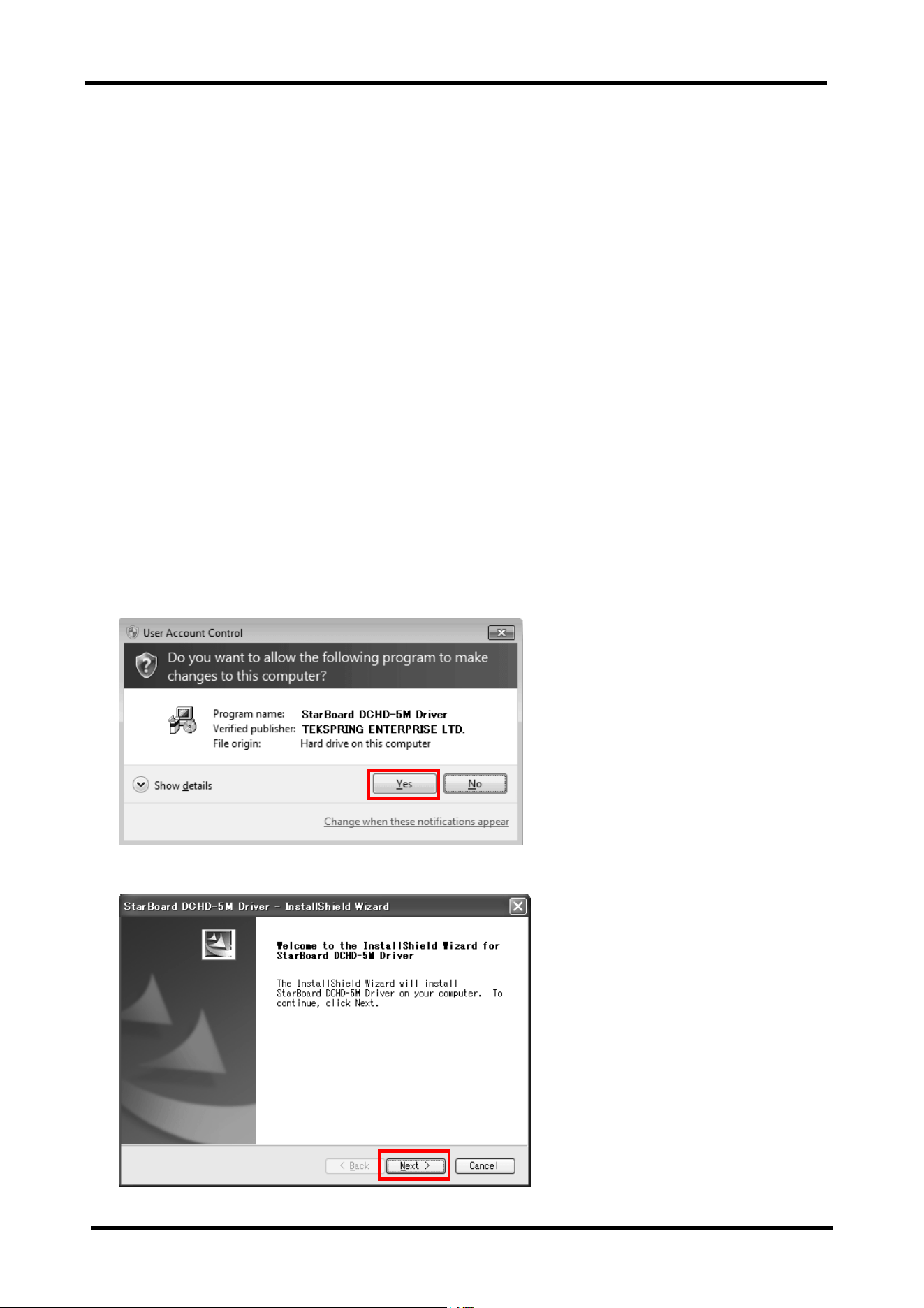
1. Insert the "StarBoard DCHD-5M Setup Software" CD-ROM into the PC.
2. Move to the "StarBoard DCHD-5M Driver (WIN)" in the DVD drive using Windows
Explorer to execute "DCHD-5M Driver Setup.exe".
※ For Windows Vista/7, "User Account Control" window starts up. Click "Yes". (The
confirmed publisher differs from our company name.)
3. "InstallShield Wizard" window starts up. Click "Next".
StarBoard DCHD-5M
2. Document Camera Setup
2-2
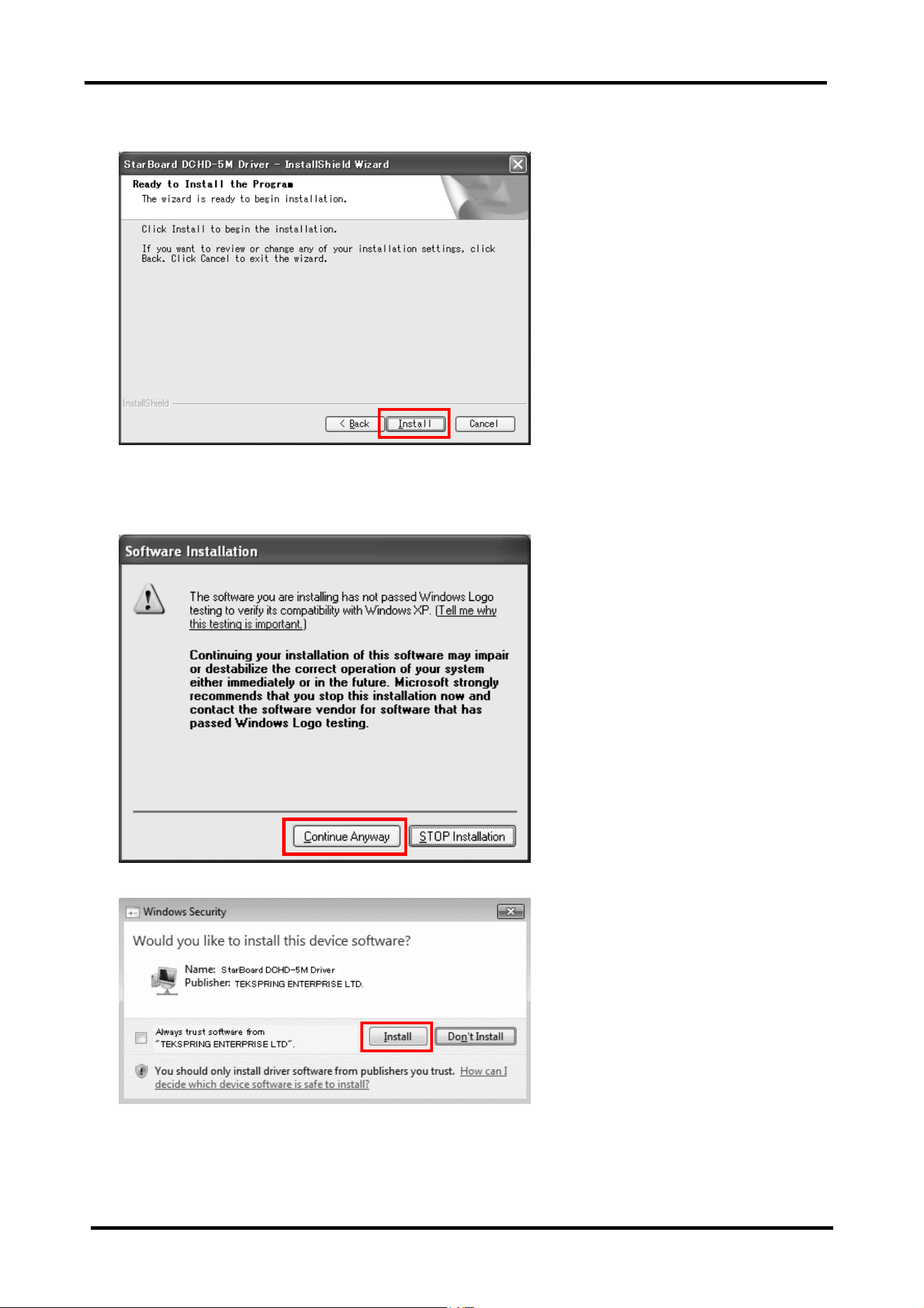
4. Click "Install".
5. Procedure differs depending on the Windows version.
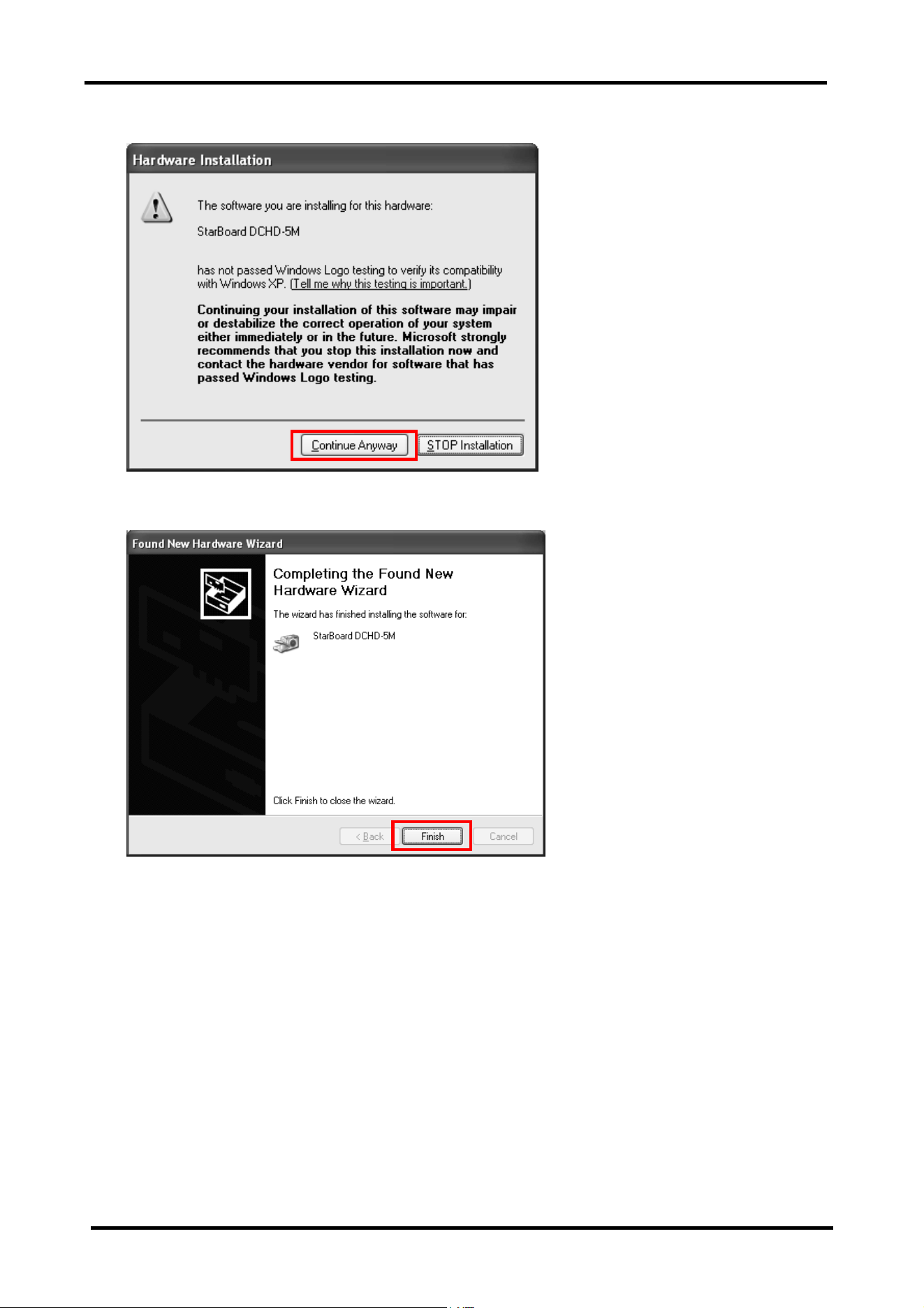
5-1. For Windows XP, the following warning message appears. Click "Continue Anyway".
5-2. For Windows Vista/7, "Windows Security" window starts up. Click "Install".
StarBoard DCHD-5M
2. Document Camera Setup
2-3
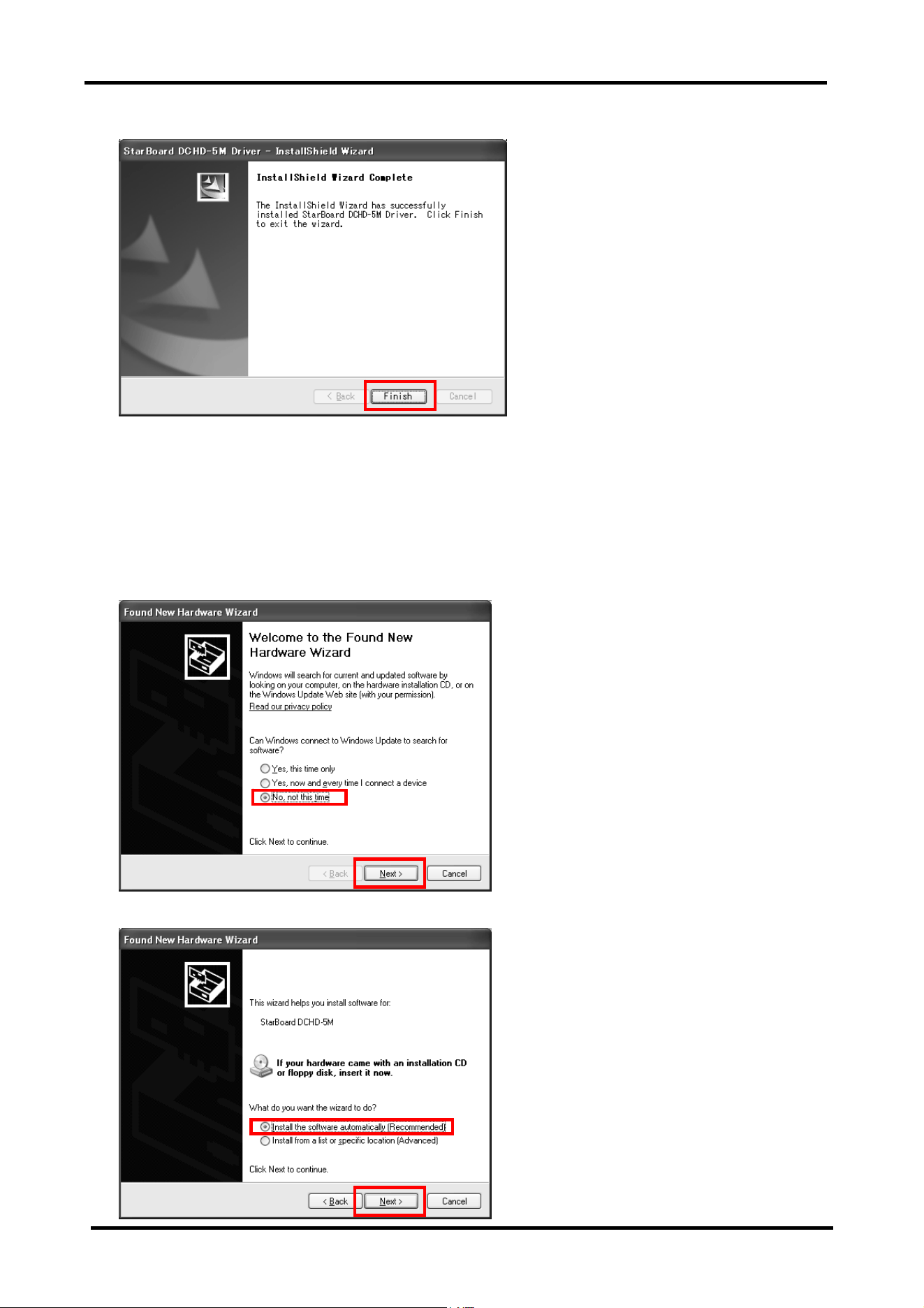
6. When install is successfully completed, the display below appears. Click "Finish".
7. Turn on the Document Camera. Connect the Document Camera to the PC using a USB
cable.
7-1. For Windows Vista/7, you can use it as is. You do not have to carry out any more
procedures.
7-2. For Windows XP, "Found New Hardware Wizard" window starts up. Select "No, not this
time" and click "Next".
8. Select "Install the software automatically (Recommended)" and click "Next".
StarBoard DCHD-5M
2. Document Camera Setup
2-4
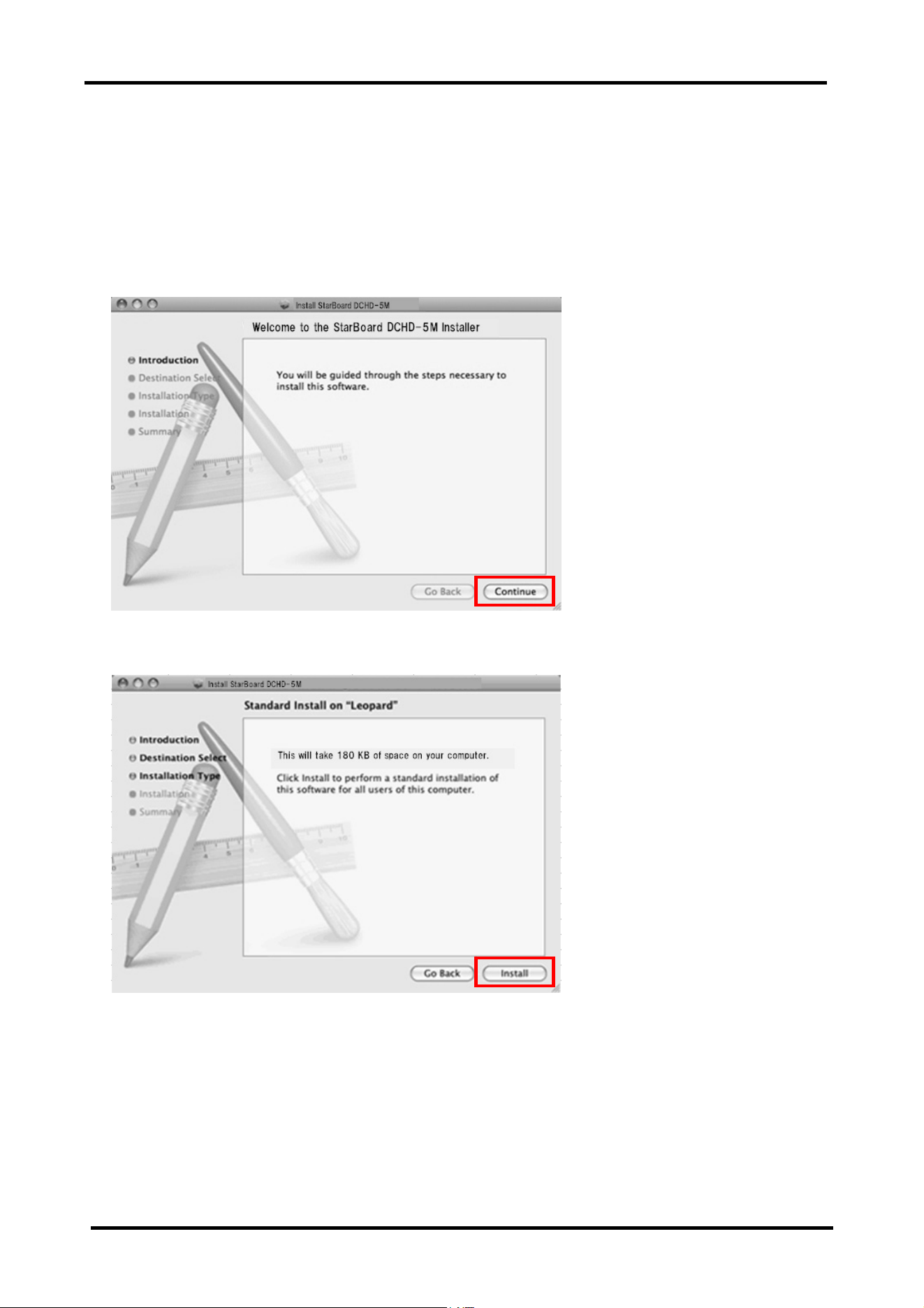
9. The following warning message appears. Click "Continue Anyway".
10. "Completing the Found New Hardware Wizard" window is displayed. Click "Finish".
Then Windows driver install is finished.
StarBoard DCHD-5M
2. Document Camera Setup
2-5
For Mac OS
1. Insert the CD-ROM, "StarBoard DCHD-5M Setup Software" into the PC.
2. Move to the "StarBoard DCHD-5M Driver (Mac)" in the DVD drive and click
"DCHD-5N_Driver.pkg".
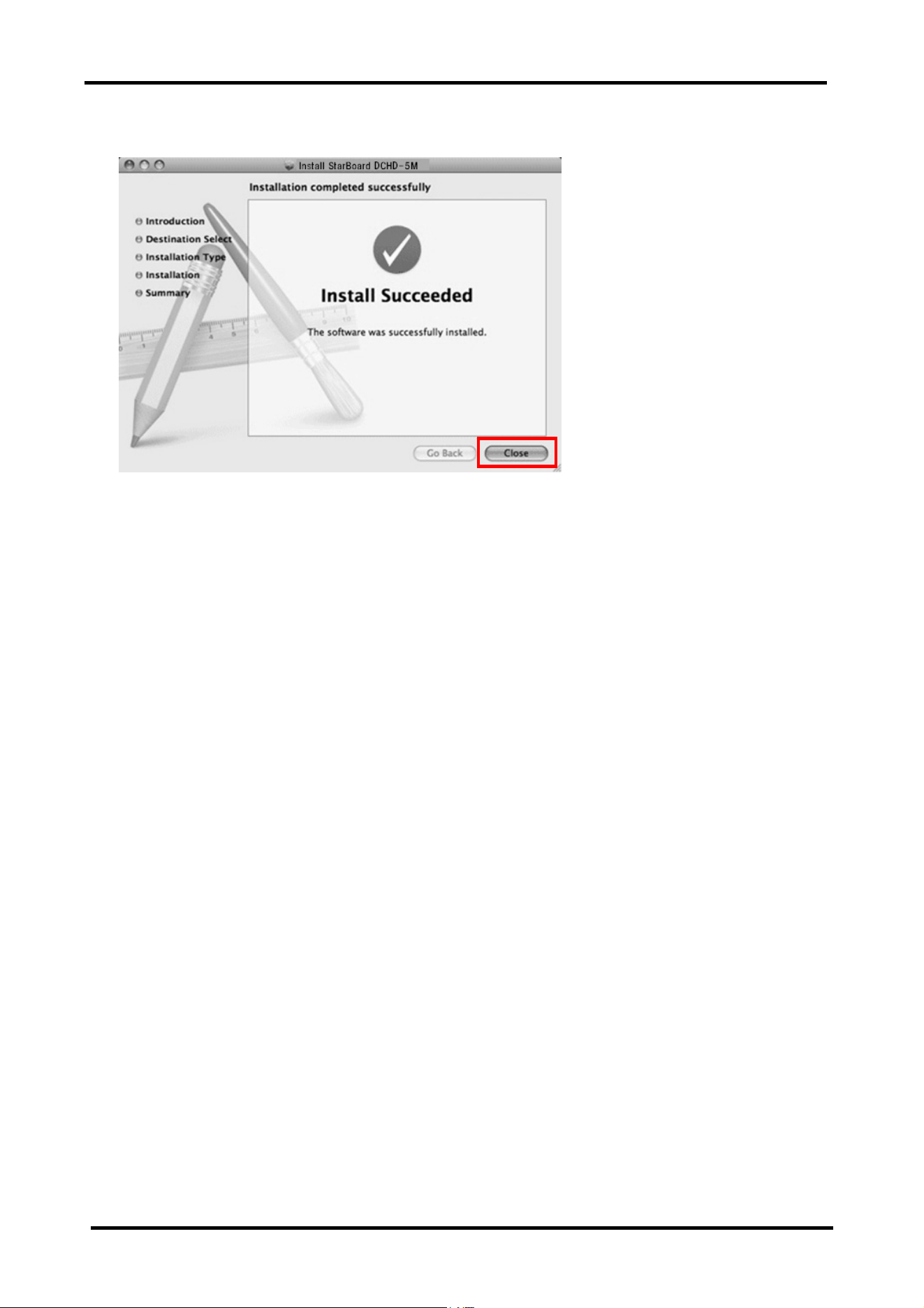
3. "Welcome to StarBoard DCHD-5M Installer" window starts up. Click "Continue".
4. Click "Install".
StarBoard DCHD-5M
2. Document Camera Setup
2-6
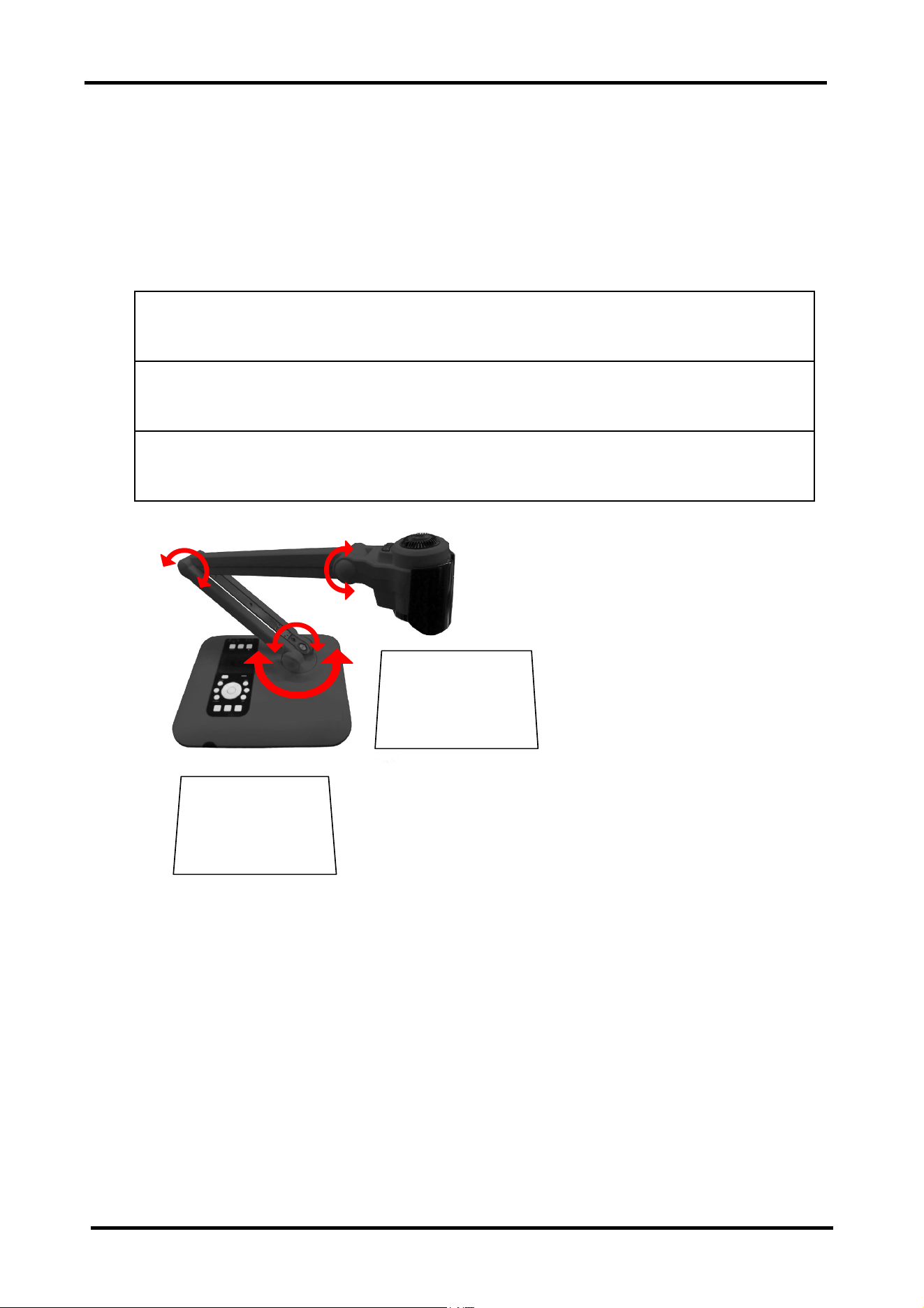
5. When install is successfully completed, the display below appears. Click "Close".
6. Turn on the Document Camera. Connect the Document Camera with Mac using a USB
cable. Then Mac OS driver install is finished.
StarBoard DCHD-5M
2. Document Camera Setup
2-7
2.1.2 Document Camera Unit Setup
The camera section and arm can be adjusted to a position where the subject can be seen easily.
Each moveable part can be rotated a maximum of 180°. If the recording location is dark, the
LED lamp can be used to illuminate the subject for recording. Additionally, the arm installation
section can be rotated 180° to enable use in a variety of recording areas.
NOTICE
Do not strike the camera section against a table or hard object.
Subjecting the camera section to impact may cause damage to the product.
Do not bend the arm backwards.
Bending the arm in the wrong direction may cause damage to the product.
The moveable sections can be
rotated a maximum of 180° as
shown on the left. 2 Recording
areas can be used.
Recording Area 1
Recording Area 2
StarBoard DCHD-5M
2. Document Camera Setup
2-8
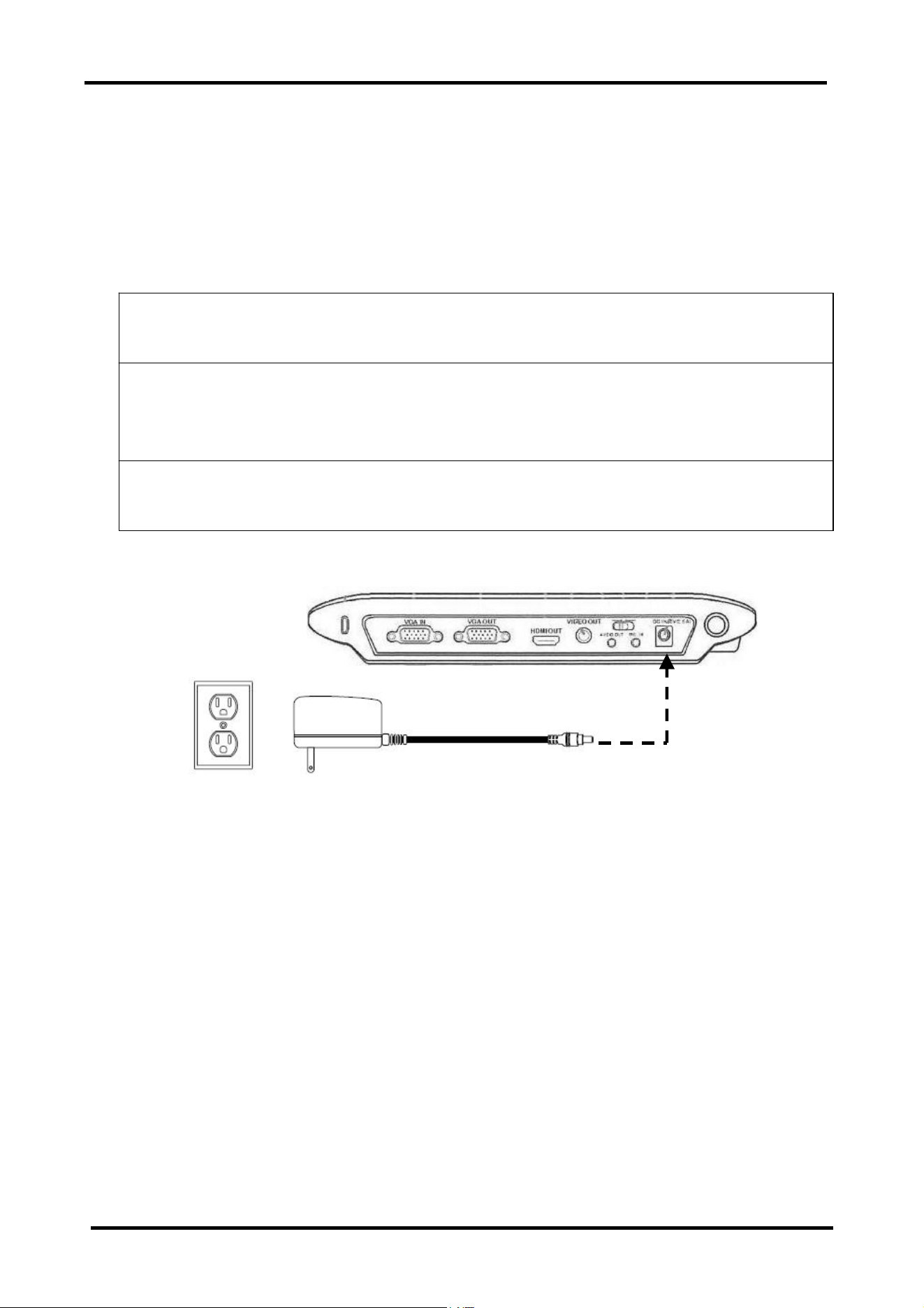
2.2 Connection Method
Images recorded using the document camera can be displayed on a wide variety of external
output devices. Use the connection terminals on the side of the document camera and provided
cables to connect to external devices. You can also connect a microphone for audio recording,
and playback sound via external speakers.
First, connect the supplied AC adaptor to an AC100-240V power supply.
NOTICE
Do not insert or remove cables while the product is operating.
Do not insert or remove cables when operating using the control panel or remote control.
Doing so may cause the product to malfunction.
Switch off the product power supply before connecting cables.
Performing wiring work when the power is on may cause damage to the product.
StarBoard DCHD-5M
2. Document Camera Setup
2-9
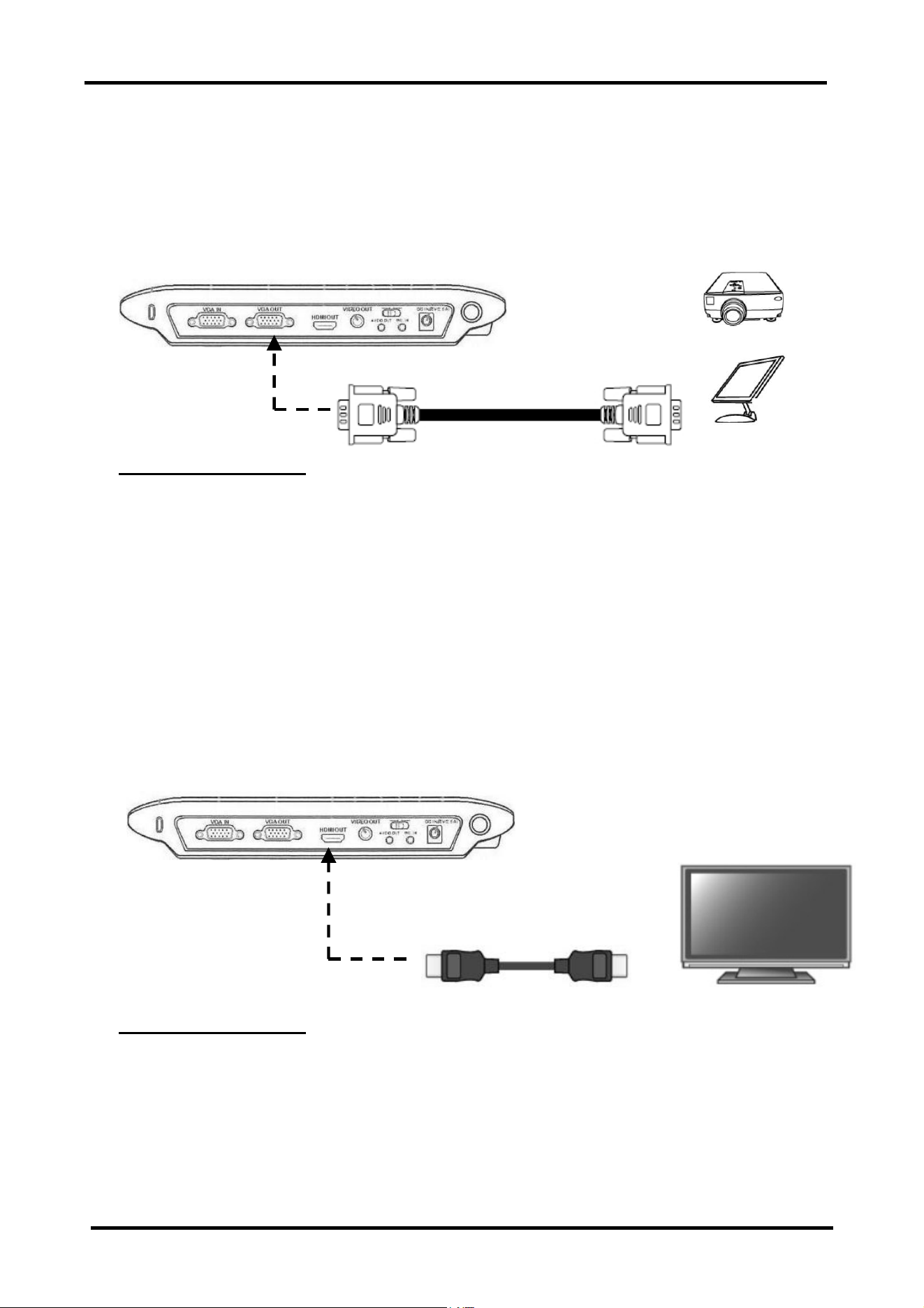
2.2.1 Connection Method when using RGB Cables
Connect the RGB input terminal of an external display such as an LCD projector or LCD
display etc with the RGB output terminal of the document camera using the provided RGB
cable. At this time, set the connection switch on the main control panel to VGA. Also, change
the aspect ratio to match that of the display.
Connection Procedure
1. Connect the RGB cable.
2. Switch the document camera power on.
3. Set the connection switch to "VGA".
4. Select the aspect ratio of the display you are using with the aspect ratio selection switch.
5. Press the DISPLAY SELECT switch.
2.2.1 Connection Method when using an HDMI Cable
Connect the HDMI input terminal of an external display device such as a plasma display to the
HDMI output terminal of the document camera using the supplied HDMI cable. At this time,
set the connection switch on the main control panel to HDMI. Also, change the aspect ratio to
match that of the display.
Connection Procedure
1. Connect the HDMI cable.
2. Switch the document camera power on.
3. Set the connection switch to "HDMI".
4. Select the aspect ratio of the display you are using with the aspect ratio selection switch.
5. Press the DISPLAY SELECT switch.
Projector
LCD Display etc.
RGB Cable
Plasma display etc.
HDMI cable
StarBoard DCHD-5M
2. Document Camera Setup
2-10
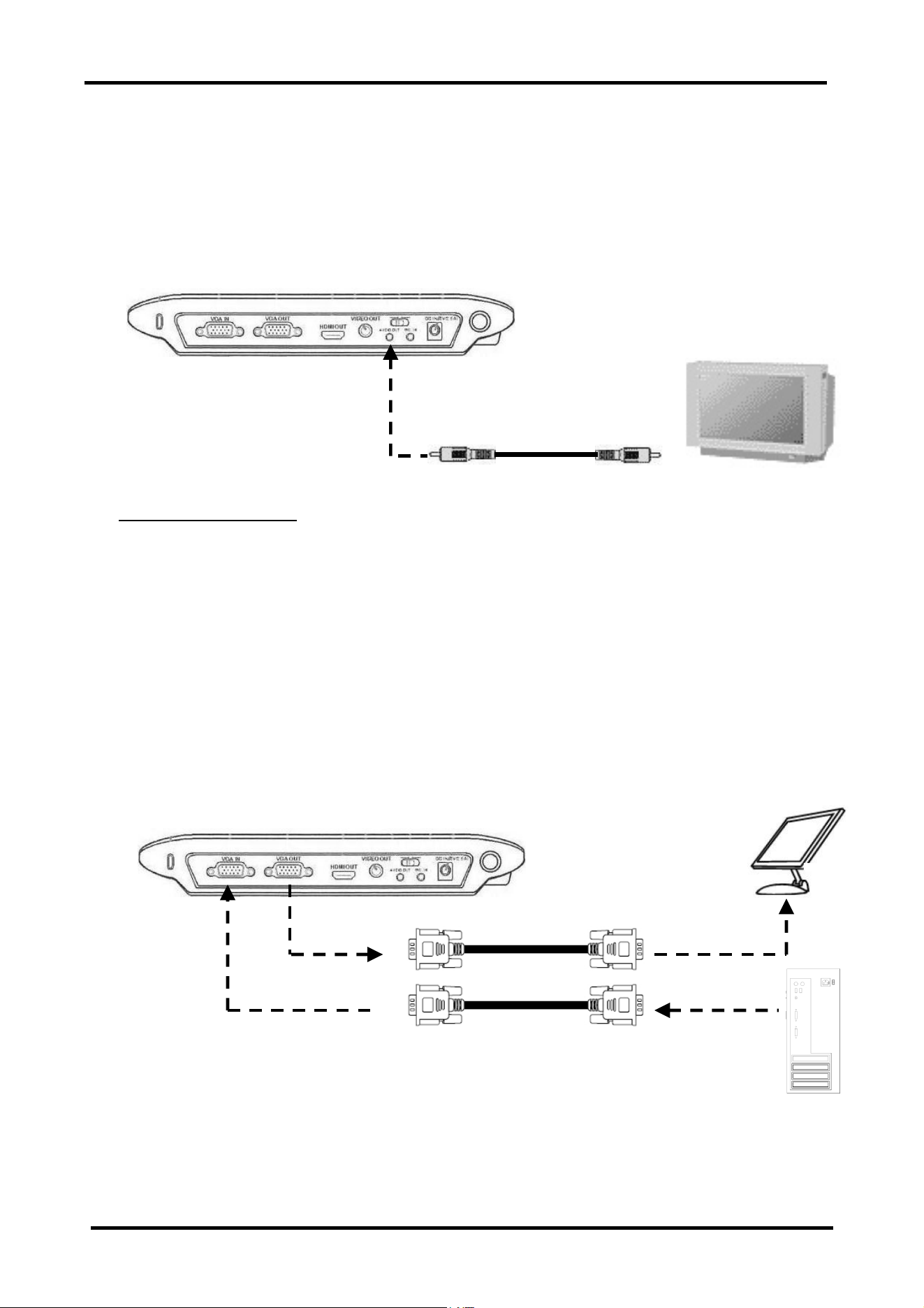
2.2.1 Connection Method when using VIDEO Cables
Connect the VIDEO input terminal of an external display device such as a television to the
VIDEO output terminal of the document camera using the supplied VIDEO cable. At this time,
set the connection switch on the main control panel to VIDEO. Also, change the aspect ratio to
match that of the display.
Connection Procedure
1. Connect the VIDEO cable.
2. Switch the document camera power on.
3. Set the connection switch to "VIDEO".
4. Select the aspect ratio of the display you are using with the aspect ratio selection switch.
5. Press the DISPLAY SELECT switch.
2.2.4 Connection Method to PC (when using RGB cables)
Connect the RGB output terminal of the PC to be used for displaying a presentation to the RGB
input terminal of the document camera. RGB input terminal video signals are streamed to the
RGB output terminals and displayed on the screen.
To display the PC image, press the PC button on main unit, and switch the document camera to
PC mode.
Television etc. VIDEO cable
PC
LCD Display etc.
RGB cable
StarBoard DCHD-5M
2. Document Camera Setup
2-11
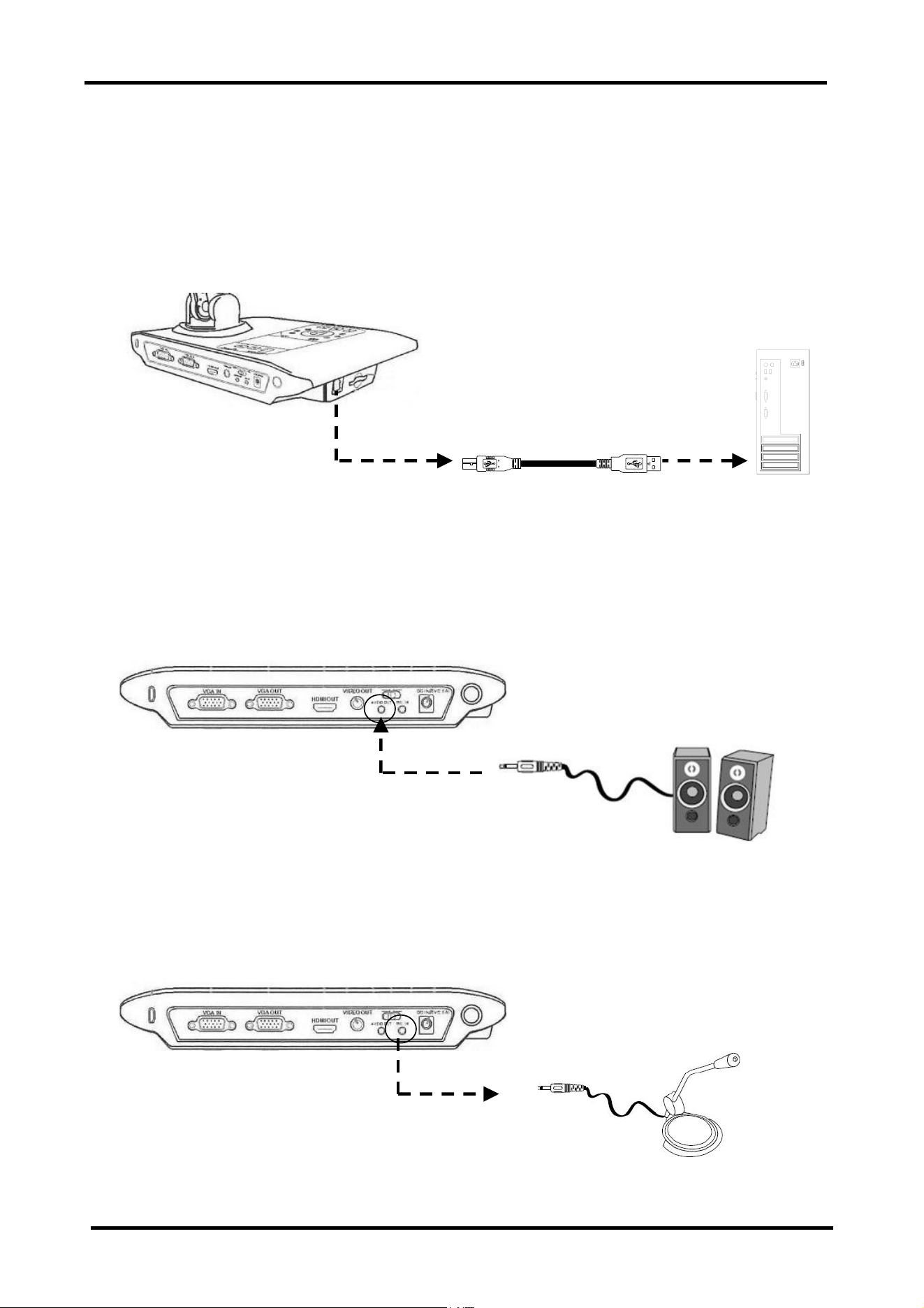
2.2.5 Connection Method to PC (when using USB cables)
Connect the PC and document camera with a USB cable. The document camera can be used as
a USB camera to record images onto the internal memory, and then copy them to the PC. For
details, see P.3-4. When the Document Camera is connected with the PC, some of the buttons
on the main body cannot be used. Please refer to P. 3-1 for details.
2.2.6 Connection Method for Speakers
Connect the 3.5mm speaker plug to the audio output terminal of the document camera. Only the
audio recorded when movies are recorded using the document camera can be output.
2.2.7 Connection Method for Microphone
Connect the 3.5mm microphone plug to the mic input terminal of the document camera. When
an external microphone is connected, the document camera internal microphone cannot be used.
USB Cable PC
Speakers
Microphone
StarBoard DCHD-5M
2. Document Camera Setup
2-12
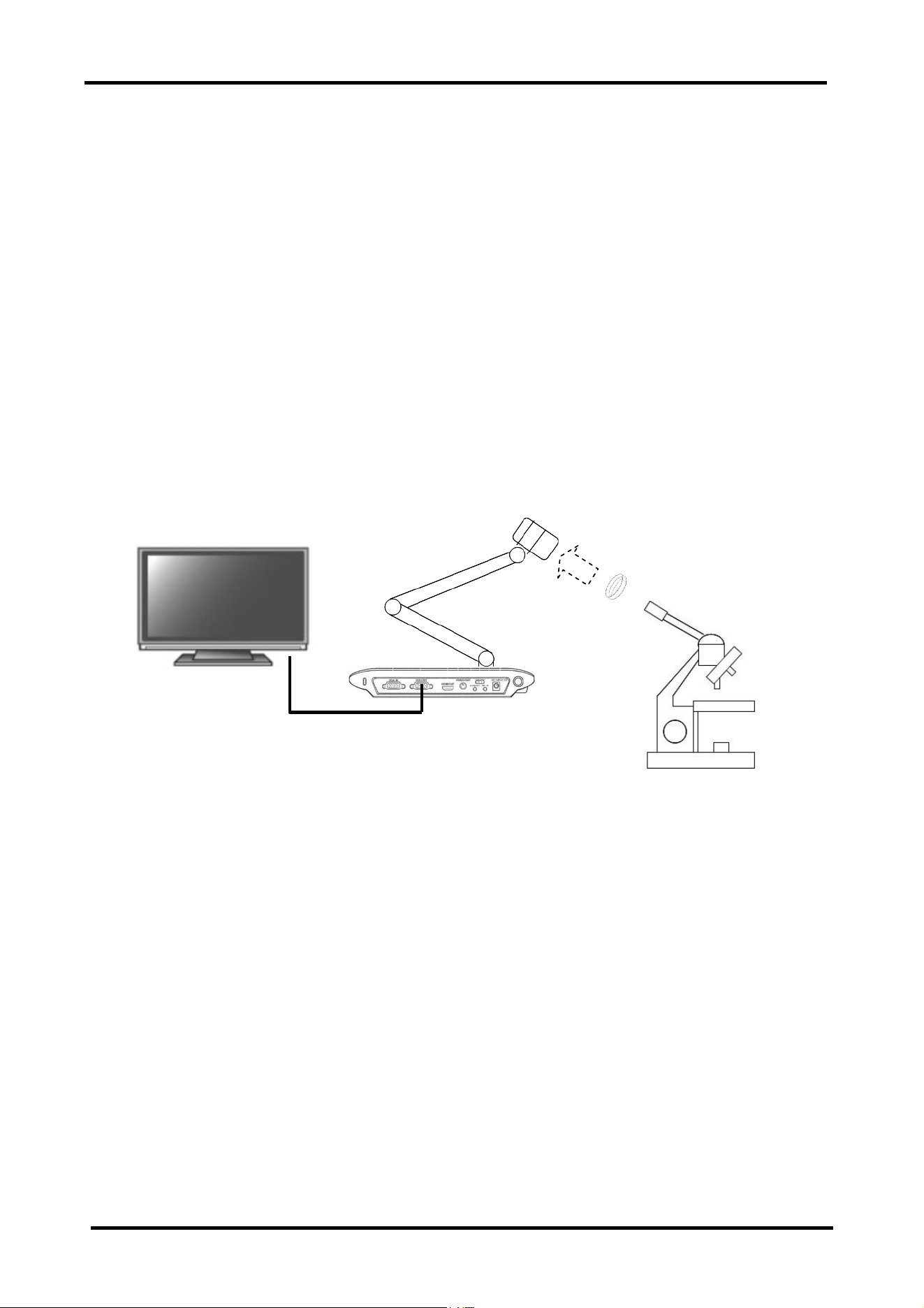
2.2.8 Connection Method for Microscope
By connecting a microscope to the document camera, the subject can be displayed on a large
screen. Follow the procedure below to connect the microscope and display images.
1. Capture the subject using the microscope, and adjust the focus so the subject can be seen
clearly.
2. Check the size of the microscope adaptor that corresponds to the eyepiece of the microscope,
and select the correct microscope adaptor.
* Size can be adjusted using the included adaptor (for details, see the next page).
3. Attach the microscope adaptor to the document camera section.
4. Connect the document camera to an external display etc, and then bring the camera close to
the microscope.
5. Set the focus to macro mode using the procedure below.
1) Press the MENU button.
2) Select “Focus”.
3) Select “Macro”.
4) Press the Enter button.
* When using the remote control, simply pressing the “Macro button” switches to macro mode.
Microscope Adaptor
Document Camera
Microscope
External Display
StarBoard DCHD-5M
2. Document Camera Setup
2-13
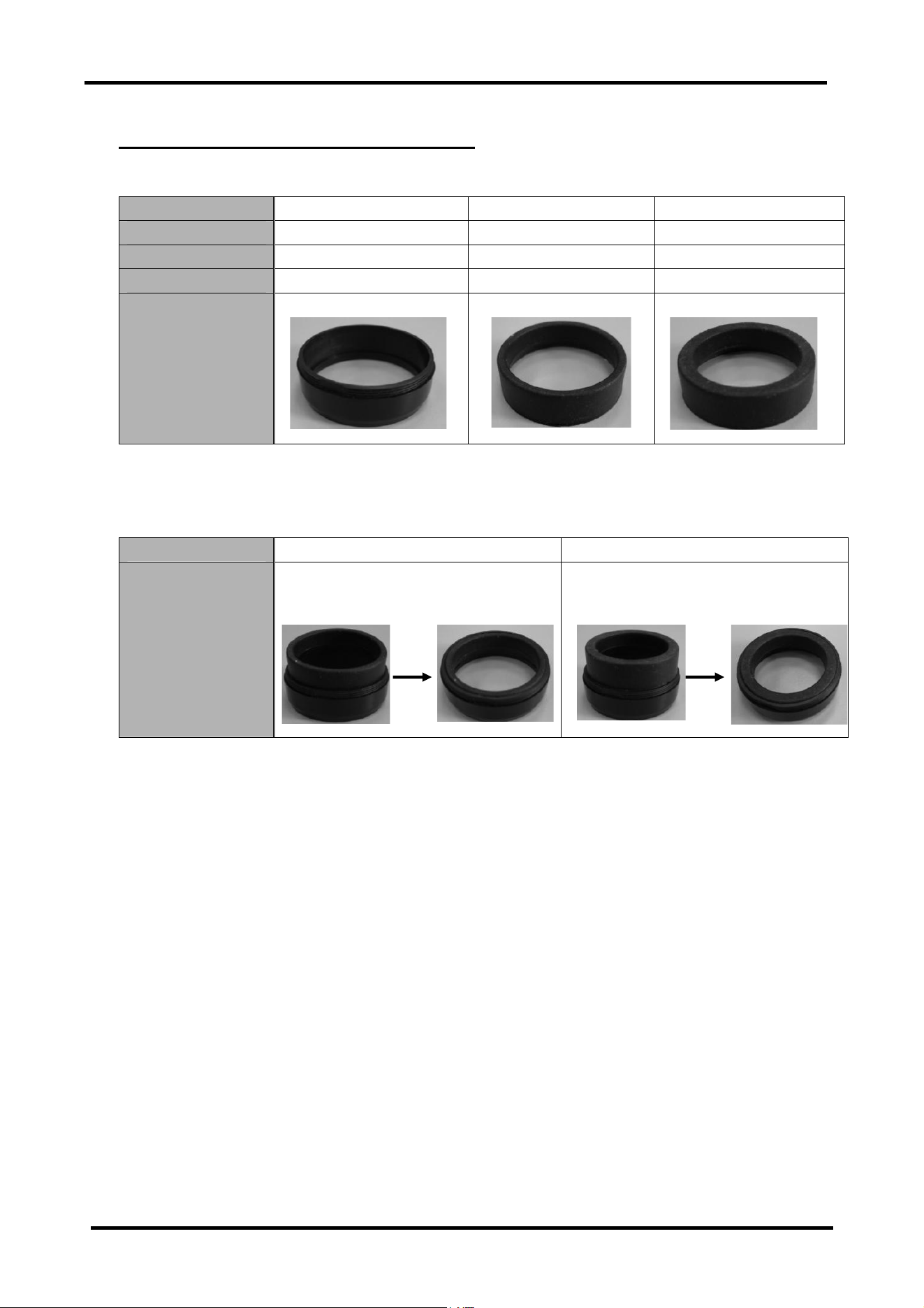
Adjustment Method for Microscope Adaptor
1. Check parts
Part Name Adaptor Unit Adjustment Adaptor Adjustment Adaptor
Material Plastic Rubber Rubber
Diameter 33–34mm 31mm 28mm
Quantity 1 1 1
Figure
2. Adaptor Adjustments
If the diameter of the microscope eyepiece is 33–34mm, use the adaptor unit as is. If the
diameter is 31mm or 28mm, follow the procedure below to assembly and adjust the adaptor.
Eyepiece Diameter 31mm 28mm
Connection Method Attach the adjustment adaptor (31mm) to
the adaptor unit.
Attach the adjustment adaptor (28mm) to
the adaptor unit.

StarBoard DCHD-5M
3. How to Use the Document Camera
3. How to Use the Document Camera
3.1 How to Use the Document Camera
3.2 How to Use the Remote Control
StarBoard DCHD-5M
3. How to Use the Document Camera
3-1
3. How to Use the Document Camera
3.1 How to Use the Document Camera
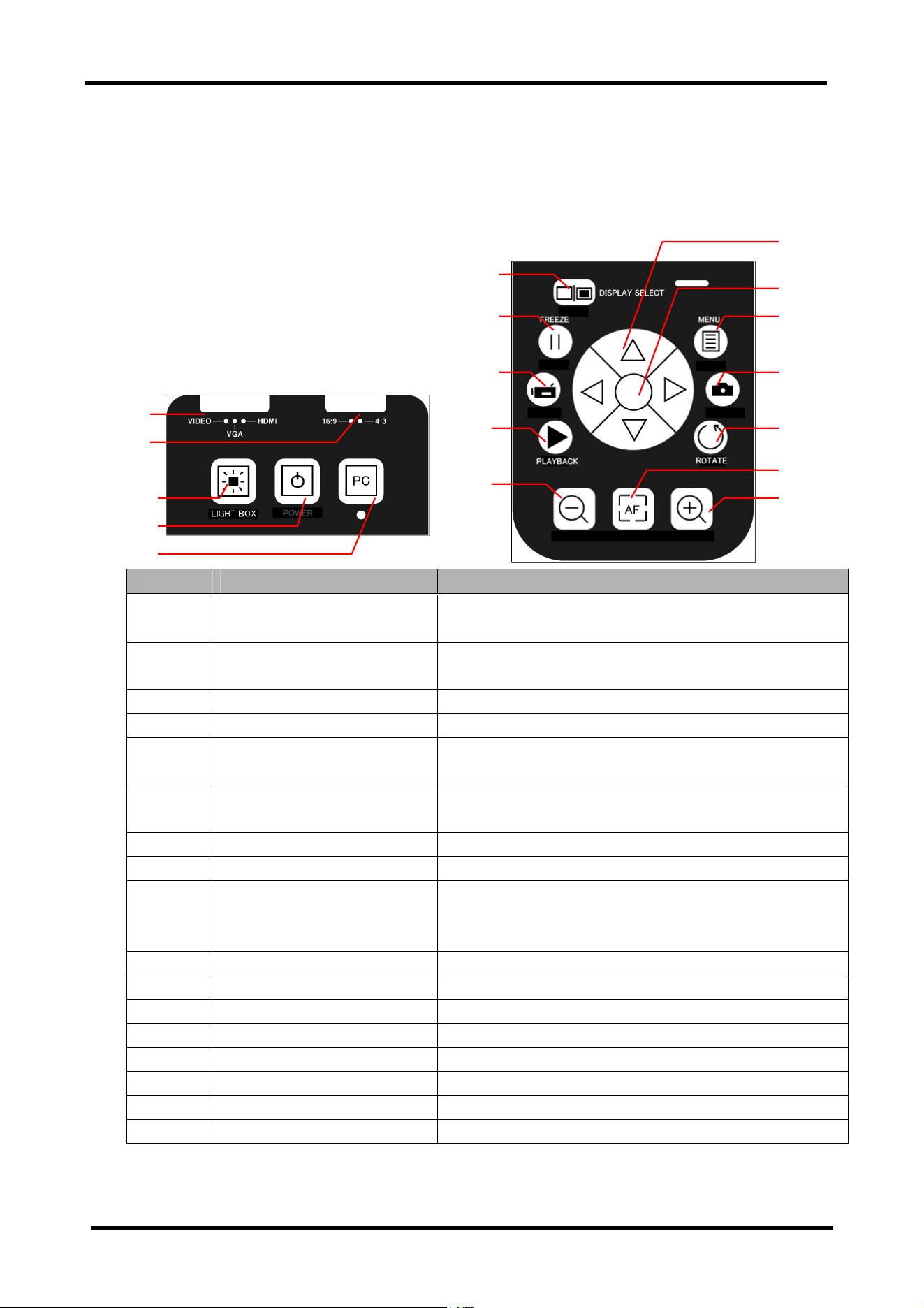
3.1.1 Control Panel
The document camera can be controlled using the control panel on the document camera unit.
Number Name Explanation
1 OUTPUT Select the connection method from VIDEO, VGA, or HDMI to
match the external display device.
2 ASPECT RATIO Switches the aspect ratio of output images between 16:9 and
4:3.
3 LIGHT BOX Switches the LCD display backlight ON/OFF.
4 POWER Switches the main unit power ON/OFF.
5 PC Used when RGB is connected, to pass-through the document
camera.
6 DISPLAY SELECT Switches the output destination between LCD display and
external display device.
7 FREEZE Pauses the image during recording or playback.
8 RECORDING Records movies.
9 PLAYBACK Plays still images or movies as follows.
SD card in use: SD card
SD card not in use: Internal memory
10 Zoom Out Zooms out of the image being displayed.
11 Cross Key Used to select menu items or perform settings.
12 Enter Key Used to confirm the selected menu.
13 MENU Displays or exits from the OSD menu.
14 SNAP Records still images.
15 ROTATE Rotates images in the display by 180°.
16 AUTO FOCUS Automatically adjusts the focus.
17 Zoom In Zooms in to the image being displayed.
When the Document Camera is connected with the PC using a USB cable, only FREEZE,
ZOOM and AUTO FOCUS buttons can be used.
(1)
(2)
(3)
(4)
(5)
(6)
(7)
(8)
(9)
(10)
(13)
(14)
(15)
(16)
(17)
(12)
(11)
StarBoard DCHD-5M
3. How to Use the Document Camera
3-2
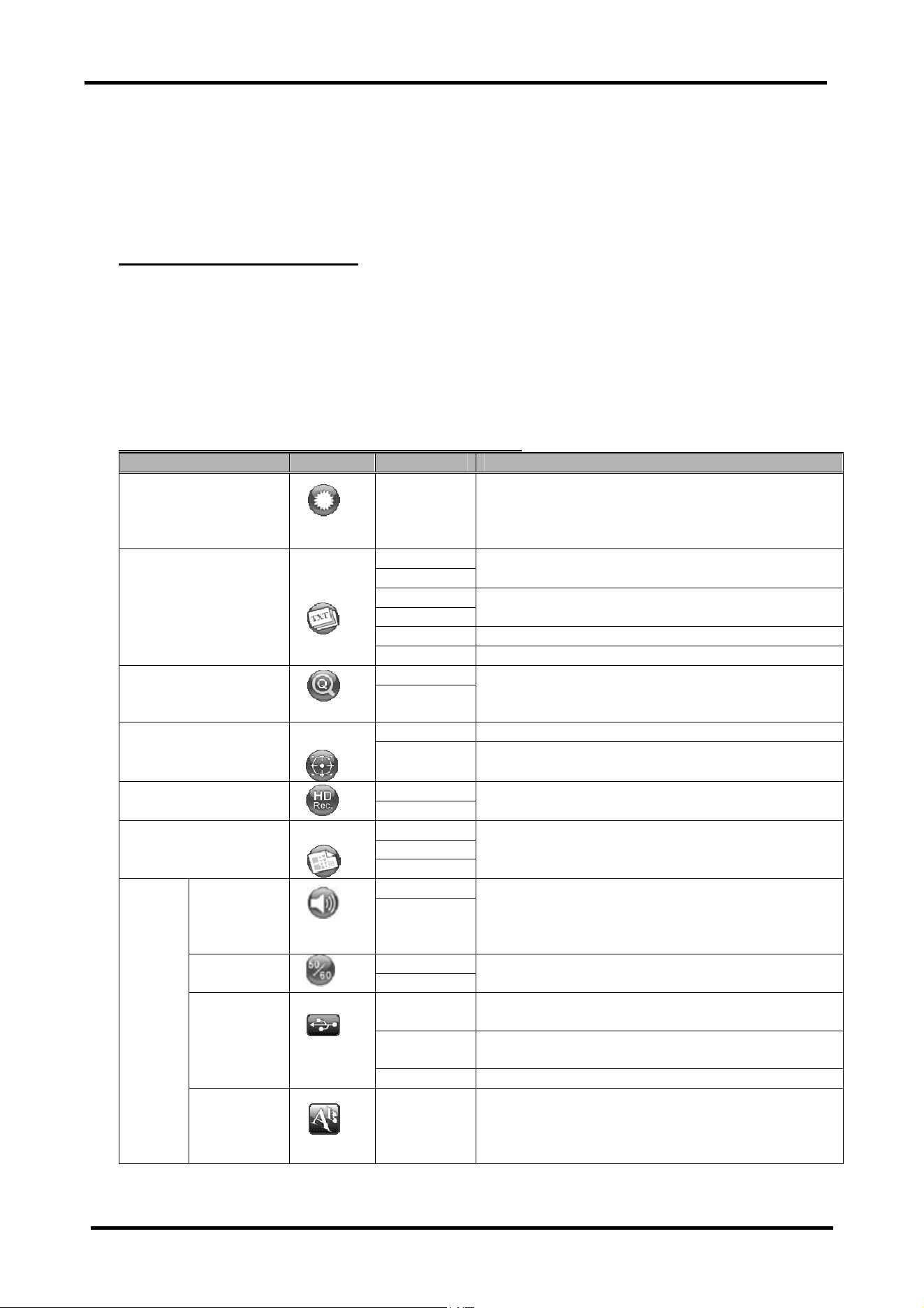
3.1.2 OSD Menu
Using the OSD menu function, you can perform fine adjustments of the screen display, select
the OSD language, and perform other such settings.
OSD Menu Basic Operations
1. Press the “MENU” button on the control panel or remote control.
2. Select the icon using the left and right buttons of the cross key.
3. Press the Enter key to select the chosen icon.
4. Adjust the settings using the left and right buttons of the cross key.
5. Press the Enter key to enter the selected settings.
6. Press the “MENU” button to exit the OSD menu.
OSD Menu List (Normally displayed in the screen)
Name Icon Option Details
Brightness
Adjusts the image to appear brighter or darker.
Graphic 1
Graphic 2
Mode optimized for image display.
Text 1
Text 2
Mode optimized for text displays that emphasizes the
outline of images.
B&W Displays images in black and white.
Effect
Negative Displays images in negative.
2x Zoom
4x
Changes the magnification settings applied by the quick
zoom button on the remote control.
Normal Standard focus mode. Focus
Macro Focus mode optimized for macro recording, and when
using a microscope.
OFF Rec HD
ON
Set to record movies in HD720p high definition format.
2M
5M
Still Resolution
12M
The resolution of still images can be selected.
OFF Beep
ON
Set whether or not to sound the beep sound.
50Hz Flicker
60Hz
Selects the electrical frequency.
PC Camera When connected to a PC, this device is detected as a PC
camera.
Disk When connected to a PC, this device is detected as a
large capacity disk.
USB
Connection
OFF Cancels the USB connection.
Setting
Language
Selects the OSD menu language.

StarBoard DCHD-5M
3. How to Use the Document Camera
3-3
Name Icon Option Details
Vo l u m e
Adjusts the output volume.
Clock The year, month, date, and time can be set.
Yes Format
No
Formats the following.
SD card in use: SD card
SD card not in use: Internal memory
*When format is performed, all recorded images
are deleted.
Yes
Setting
Reset
Default
No
Returns all settings to the factory default settings.
OSD Menu List (Only displayed during recording)
When the PLAYBACK button is pressed, recorded images are displayed on the screen. When
each menu button is pressed, the following OSD menus are displayed.
Name Icon Option Details
File Info Confirm the file name, recording date and time,
size, and recording duration (movies).
OFF
5 sec
10 sec
Slide Show
30 sec
Recorded images are continually displayed at the
set interval.
Yes Delete One
No
Deletes the 1 file that is currently in the display.
Yes Delete All
No
Deletes all recorded images.
3.1.3 Various Usage Methods
Inserting an SD Card (Sold Separately)
1. With the label side of the SD card facing upwards, insert the SD card fully into the slot until
you hear a clicking sound.
2. If the SD card is inserted correctly, the SD card icon is displayed on the screen, and the
internal memory can no longer be accessed.
3. To remove the SD card, push the SD card in once, and then slowly pull it out.
*This equipment is compatible with SD memory cards and SDHC memory cards.
StarBoard DCHD-5M
3. How to Use the Document Camera
3-4
Saving Recorded Files to PC
1. Turn on the Document Camera.
2. On the OSD menu, select "Setting" > "USB Connection" > "Disk".
3. Connect the Document Camera with the PC using a USB cable.
The Document Camera is detected as USB device. Using Windows Explorer or Mac OS's
Finder, etc., image data recorded in the SD card or built-in memory can be operated from the
PC.
To display images as the Document Camera, follow the procedure below.
1. Unplug the USB cable from the PC.
2. On OSD menu, select "Setting" > "USB Connection" > "PC Cam".
3. Connect the Document Camera with the PC using a USB cable.
To switch between displaying images with the Document Camera and operating as a USB
device, plug or unplug the USB cable in addition to the setting change of the OSD menu.
Anti Glare Sheet
The anti glare sheet is a specially coated sheet. By simply placing the anti glare sheet onto
glossy documents such as magazines or photographs, the amount of light reflected from the
document when recording the image is reduced.
Do not insert or remove a USB cable while the device is operatin
g
.
Do not insert or remove a USB cable while operating the device with the control panel or
remote control. Doing so may cause a malfunction.
NOTICE
Precautions for handlin
g
SD cards.
Do not switch off the document camera unit power supply while the SD card is being
formatted. Also, use this product to format the SD card for use. When using cards formatted
using a PC, use this product to format the SD card again.
NOTICE

StarBoard DCHD-5M
3. How to Use the Document Camera
3-5
Recording Movies
1. Set up the subject and document camera. If the distance between the subject and camera is
more than 20cm, set the focus mode to standard mode. If the distance is between 5-20cm,
set to macro mode. For details on the setting method, see “3.1.2 OSD Menu”.
2. Use the ZOOM button to zoom in or out to the desired position.
3. Press the AUTO FOCUS button to adjust the focus. To use the manual focus, use the
MANUAL FOCUS button on the remote control.
4. Press the RECORDING button, and recording starts.
5. Press the RECORDING button again to stop recording.
Recording Still Images
1. Set up the subject and document camera. If the distance between the subject and camera is
more than 20cm, set the focus mode to standard mode. If the distance is between 5–20cm,
set to macro mode. For details on the setting method, see “3.1.2 OSD Menu”.
2. Use the ZOOM button to zoom in or out to the desired position.
3. Press the AUTO FOCUS button to adjust the focus. To use the manual focus, use the
MANUAL FOCUS button on the remote control.
4. Press the SNAP button to record a still image.
Playing Back Movies and Still Images
1. Press the PLAYBACK button.
2. The most recently recorded movie or still image is played back.
3. Use the up and down button of the cross key to select the file that you want to play back.
4. Press the zoom out button to display the screen divided into 9 segments.
*Playback the still image on aspect ratio 4:3.
StarBoard DCHD-5M
3. How to Use the Document Camera
3-6
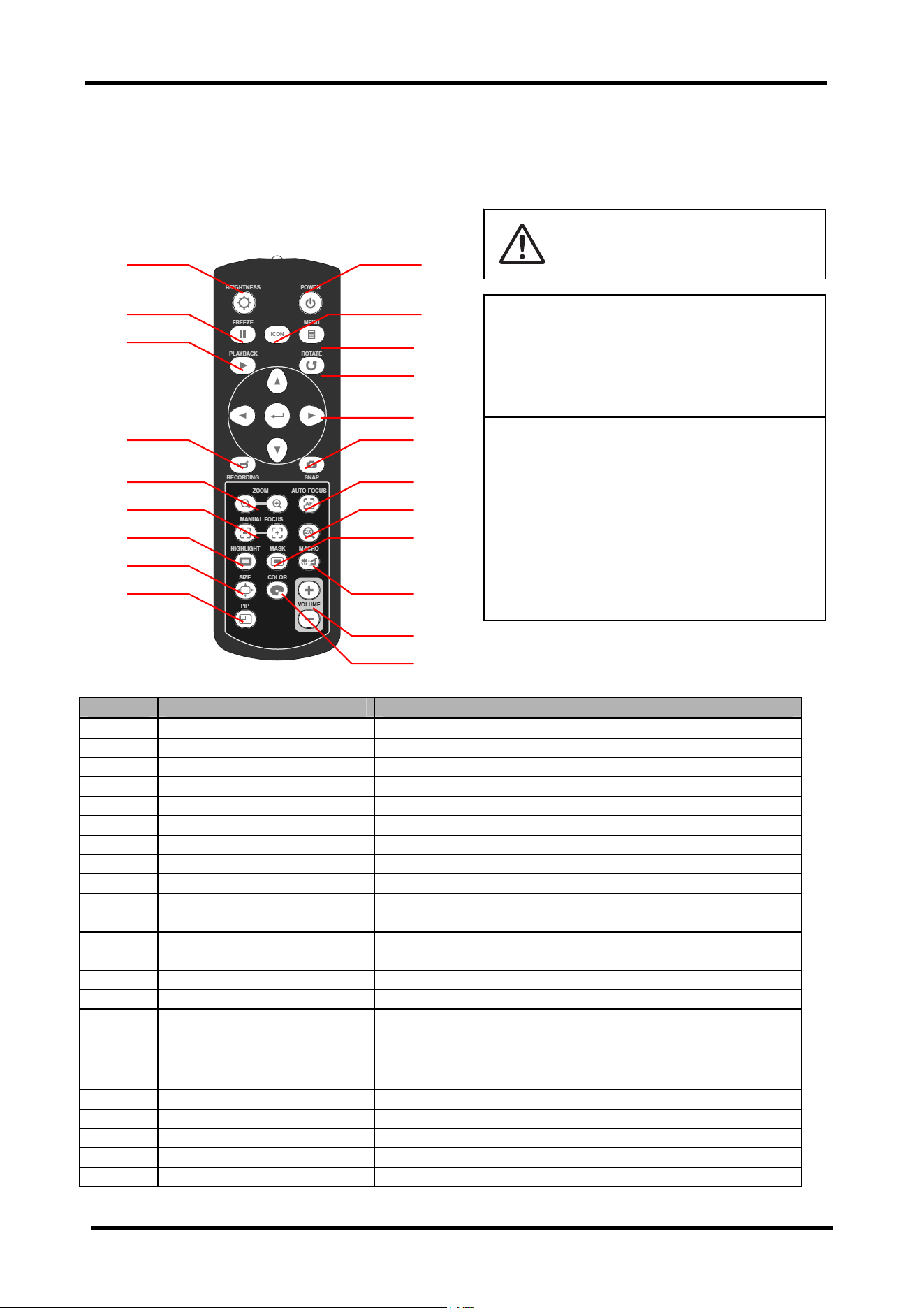
3.2 How to Use the Remote Control
The document camera can be operated using the remote control provided.
Number Name Explanation
1 POWER Switches the main unit power ON/OFF.
2 ICON Selects whether to display or hide the icon on the screen.
3 MENU Displays or exits from the OSD menu.
4 ROTATE Rotates images in the display by 180°.
5 Cross Key Used to select menu items or perform settings.
6 SNAP Records still images.
7 AUTO FOCUS Automatically adjusts the focus.
8 2X Zooms at either 2x or 4x magnification.
9 MASK Hides one part of the image.
10 MACRO Switches between macro ON/OFF.
11 VOLUME Adjusts the output volume.
12 COLOR Switches the color of the external area when highlight or mask is
used.
13 BRIGHTNESS Adjusts the screen brightness, picture and video.
14 FREEZE Pauses the image during recording or playback.
15 PLAYBACK Plays still images or movies as follows.
SD card in use: SD card
SD card not in use: Internal memory
16 RECORDING Records movies.
17 ZOOM Zooms in/out of the image being displayed.
18 MANUAL FOCUS Adjusts the focus manually.
19 HIGHLIGHT Displays only 1 section of the image.
20 SIZE Adjusts the border size of the highlighting or mask.
21 PIP Displays a small window within the image.
(1)
(2)
(3)
(4)
(5)
(6)
(7)
(8)
(9)
(12)
(11)
(10)
(13)
(14)
(15)
(16)
(17)
(18)
(19)
(20
(21)
CAUTION
Be sure to install batteries correctl
y
.
Do not install batteries with positive and
negative terminals reversed, or use
batteries other than the type specified.
Do not mix old and new batteries. Doing
so may cause fire or damage.
Be sure to insulate batteries for disposal.
Be sure to insulate the positive and
negative terminals of the battery using
cellophane tape for disposal. Disposing
of batteries without insulating them may
lead to overheating, bursting, or ignition
due to shorting, resulting in personal
injury or fire. Furthermore, be sure to
follow all local rules and regulations
regarding proper battery disposal.

StarBoard DCHD-5M
4. Appendix
4. Appendix
4.1 Troubleshooting
4.2 Product Specifications
4.3 Proper Care and Cleaning
4.4 Replaceable Parts
/Product Warranty Period
4.5 Product Warranty Provisions
StarBoard DCHD-5M
4. Appendix
4-1
4. Appendix
4.1 Troubleshooting
Problem What to Check What to Do
Power does not switch on. Is the AC adaptor plugged correctly
into the wall socket, and connected
correctly to the document camera?
Disconnect the AC adaptor from the wall socket and
camera, and reconnect them.
Is there insufficient free space on
the SD card or internal memory?
Delete some of the data recorded onto the SD card or
internal memory to free up more space.
Cannot record still images
or movies.
Is the SD card write protected? Remove write protection from the SD card.
Is the document camera connected
correctly to the external display?
Read this User’s Guide carefully, and connect
correctly.
Does the out
p
ut display support the
resolution of this product?
Adjust the resolution settings of the display to match
the resolution settings of this product (for details on
how to change the settings, see the display manual).
Is the connection switch on the
document camera set correctly?
Set the connection switch to the correct position.
Is the image displayed on the LCD
panel of the control panel?
Press the DISPLAY SELECT switch to display the
image on the external display.
Is the PC Pass-through button ON? Switch the PC Pass-through button OFF.
Cannot display images
even when connected.
Is HD Recording ON? If Rec HD is ON, the mage can only be displayed on
the control panel LCD display. Turn Rec HD OFF.
Press the AUTO FOCUS or MANUAL FOCUS
button to adjust the focus.
Image is blurred. Is the subject too close to the
camera lens?
If the distance between the lens and subject is less
than 20m, switch to macro mode.
Is the image paused? Is the recording image currently
paused?
Press the FREEZE button again to release the image
from being paused.
Are the batteries exhausted? Replace with new AAA batteries.
Is there an obstruction between the
document camera and remote
control?
Remove the obstruction, and point the remote control
at the remote control sensor on the document camera
to operate it.
Remote control does not
operate.
Is the distance between the
document camera and remote
control too great?
Operate the remote control within 2m from the
document camera.
The format of the SD card is not
compatible with this device.
Format the SD card with this device. “MEMORY ERROR” or
“CARD ERROR” is
displayed on the LCD
screen of the camera unit.
Is the SD card damaged? Use a new SD card.
N
oise is occurring in the
image.
Is the electrical frequency setting
adjusted correctly for the region
where you live?
Switch the electrical frequency settings to the
appropriate settings for your region.
StarBoard DCHD-5M
4. Appendix
4-2
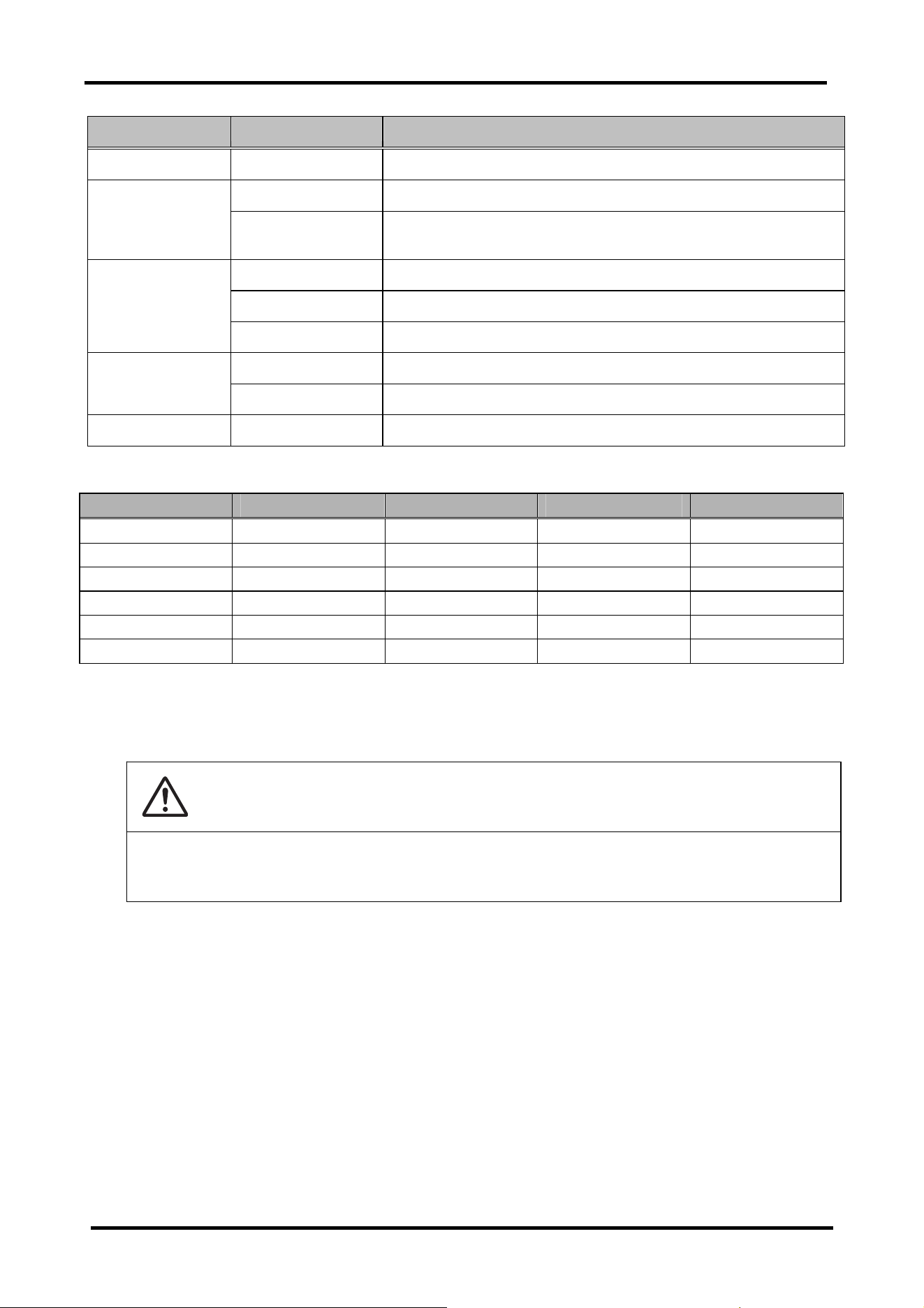
4.2 Product Specifications
Document Camera Specifications
Classification Item Specification
Model name DCHD-5M Model
Type name AH00275(US), AH00276(EU), AH00277(JP)
Image Sensor 1/2.5 Inch CMOS sensor
Maximum effective
pixels
Approx. 5 million megapixels
Frame rate Max. 30 frames/second
HDMI Output HD:1,280 X 720 (30fps), XGA:1,024 X 768 (30fps)
VGA Output HD:1,280 X 720 (30fps), XGA:1,024 X 768 (30fps)
White balance Auto
Image
Brightness Adjustable
Internal Memory Image capture Max 45 images (still), 70 seconds (movie)
Lens 7.5–22.5mm / F3.6–6.7
Focus Auto/Manual
Recording area When aspect ratio is 4:3, 330mm x 246mm
When aspect ratio is 16:9, 330mm x 183mm
Optical system
Zoom Optical 3x, digital 4x
Upper level LED light Lighting
Lower level 3-inch LCD light box
Image control Pause, highlight, mask, rotate, picture-in-picture, slideshow
Image effects Text emphasis, photo, black & white, negative
Aux. monitor Yes
Remote Control Yes
Arm operation Camera section: 180°, arm section: 180°
Presentation tool
RGB Pass through Yes
RGB Input/Output 15 pin D-sub
HDMI Output 19 pin HDMI
VIDEO Output RCA Jack
MIC Input 3.5mm Audio jack
Audio Output 3.5mm Audio jack
(Recommender impedance: over 16Ω, Output 15mW)
USB USB2.0 Type B
Input/Output
Power DC 5V
StarBoard DCHD-5M
4. Appendix
4-3
Compatible Display Resolution
Output Aspect Ratio TV Signal Type Resolution Refresh Rate
VIDEO - NTSC 720 x 480 60Hz
VIDEO - PAL 720 x 576 50Hz
VGA 16:9 - 1280 x 720 50Hz/60Hz
VGA 4:3 - 1024 x 768 50Hz/60Hz
HDMI 16:9 - 1280 x 720 50Hz/60Hz
HDMI 4:3 - 1024 x 768 50Hz/60Hz
4.3 Proper Care and Cleaning
Clean the document camera periodically so that you may use it for a long time to come.
・ To clean the document camera, use a diluted neutral cleansing agent that does not
contain a polishing compound. (Never use a solvent such as thinner.)
・ Rubbing or striking the surface of the document camera with a fingernail or other hard
object may result in scratching.
・ To clean the surface of the LCD display, use a soft cloth that will not scratch the
surface.
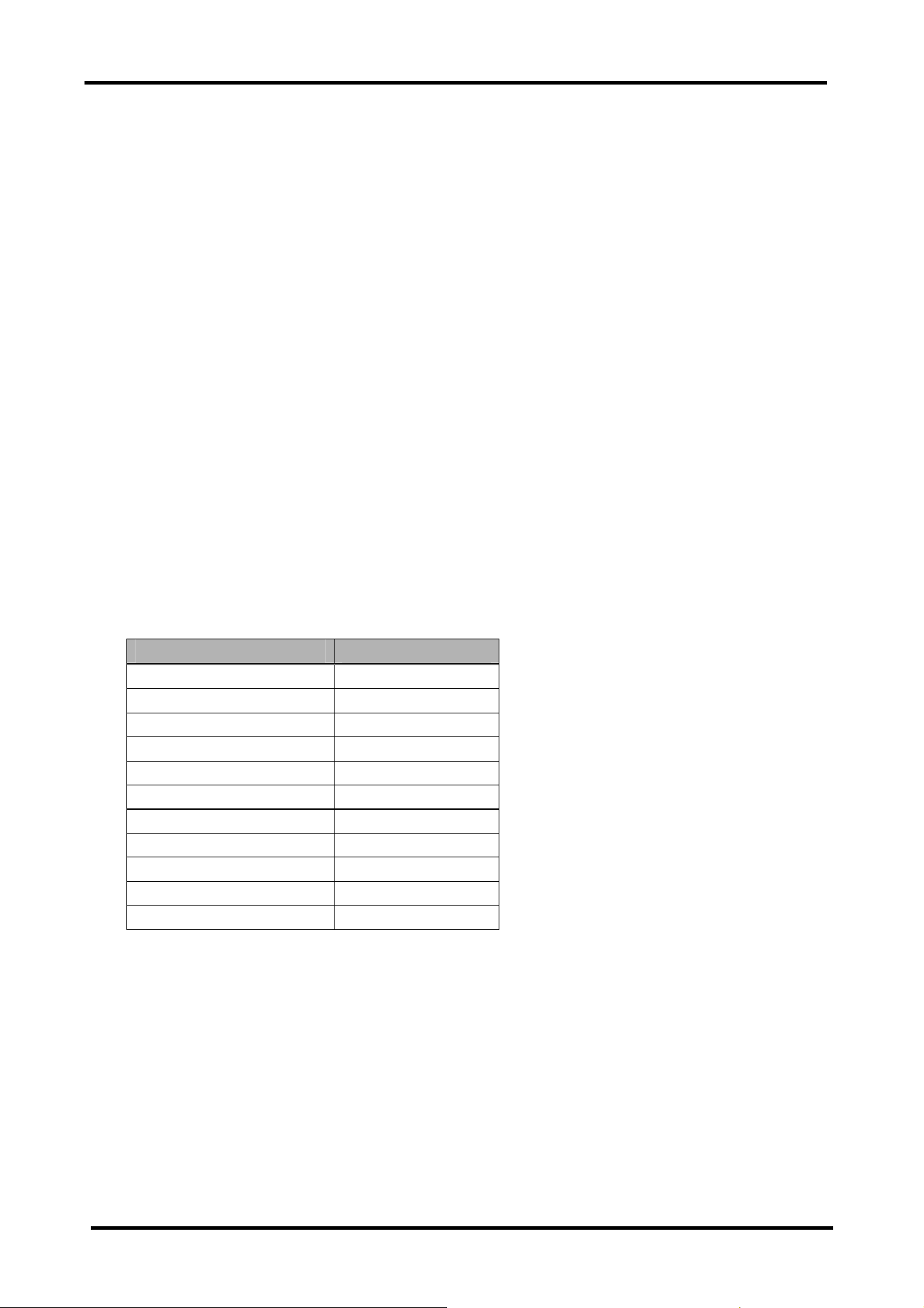
Classification Item Specification
External recording SDHC Card slot (operable on Max. 32GB SDHC Card)
Power DC 5V、100–240V、50–60Hz Power Supply
Power consumption When LED light is OFF, 5.5W
When LED light is ON, 7W
When in use 386mm x 198mm x 508mm
When in storage 386mm x 198mm x 86mm
Dimensions
(WxDxH)
Weight Approx. 2.0kg
Operating Conditions +5–+35°C (humidity 20–80% RH, no condensation) Environment
Storage conditions -10–+45 (humidity 20–80% RH, no condensation)
Regulations etc. Document Camera VCCI Class A, FCC Class A, CE
CAUTION
Remove all cables before starting to clean this equipment.
Failure to do so may cause electric shock or damage to the equipment.
StarBoard DCHD-5M
4. Appendix
4-4
4.4 Replaceable Parts/Product Warranty Period
4.4.1 Replaceable Parts
・ AAA batteries
4.4.2 Product Warranty Period
・ Document Camera (5 years)
For details on obtaining them contact your dealer or the support center.
4.5 Product Warranty Provisions
1. During the free warranty service period, if a malfunction occurs during normal use, the
malfunction will be corrected without charge, according to the provisions of the warranty.
Furthermore, if the customer registration card accompanying the warranty is not returned to
our company, the customer information will not be registered; so free repairs might be
unavailable. After receiving this product, please immediately fill out and return this
customer registration card.
2. The warranty coverage is listed in the following table.
Part Name Warranty Coverage
Document Camera +
AC Adaptor -
Remote Control -
RGB Cable -
HDMI Cable -
USB Cable -
VIDEO Cable -
Audio cable -
Microscope adaptor -
Anti Glare Sheet -
AAA batteries -
(Key): + →Covered by warranty (excluding wear or physical damage)
- →Not covered by warranty

StarBoard DCHD-5M
4. Appendix
4-5
3. Please refer to the warranty about this product’s warranty service period.
4. Even during the warranty period, there will be a repair charge in the following cases.
1) If the registration card accompanying the warranty is not returned to our company.
2) If the warranty is not presented.
3) If specified fields on the registration card accompanying the warranty are not completed,
or if the wording has been changed without authorization.
4) The warranty applies only to the original purchasers. (It does not apply to a third party to
whom the customer resold this product.)
5) In the event of a malfunction or damage resulting from the customer’s improper handling,
such as a fall, impact etc., caused by the customer during transportation or movement.
6) In the event of problems resulting from handling contrary to the handling and precautions
mentioned in this user's guide.
7) In the event of failure or damage resulting from abnormal voltages, pollution or other
natural disasters, such as fire, earthquake, and lightening.
8) In the event of a malfunction in this product caused by a different device connected to
this product.
9) In the event that there is no abnormality in this product, but a defect in a part other than
this product was detected or remedied.
10) In the event of ordinary wear and tear, wear, deterioration etc., of consumables, even
during normal use.
5. If this product malfunctions, review the contents of this user’s guide. If the problems remain
irreparable, contact the support center. The support center will determine whether or not the
product must be repaired, so please contact them. If the customer sends the product to our
company without contacting us first, the product may not be covered by the warranty.
6. As a rule the customer is responsible for shipping charges required to send all or part of the
product for repair etc. Our company will assume responsibility for the return shipping to the
customer.
7. This warranty does not cover labor fees for repair-associated equipment assembly or
disassembly.
8. Incidental damaged caused by the failure of this product (e.g., loss of profit that should have
resulted from the use of this product) is outside the scope of this warranty.
9. The aforementioned provisions define this warranty, and they supersede those of all express
or implied warranties that include legal defect liability.
10. This warranty is limited to use of this product within the country where the user bought
this product.