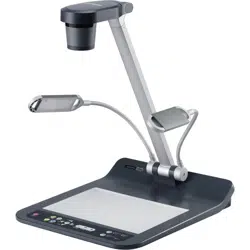
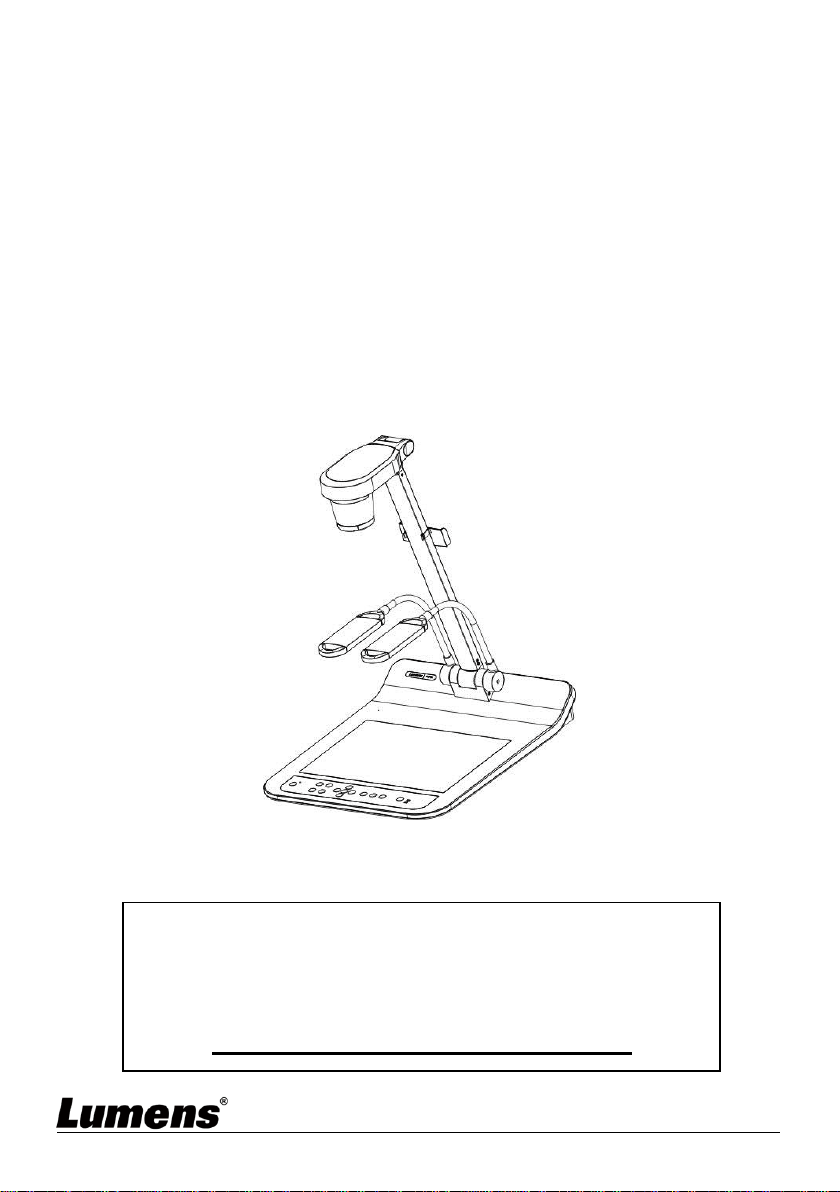
PS753
Document Camera
[Important]
User Manual - English
To download the latest versions of the Quick Start
Guide, multilingual user manual, software, driver,
etc., please visit Lumens
https://www.MyLumens.com/support

English - 1
Table of Contents
Chapter 1 Package Contents..................................................................................................................... 2
Chapter 2 Product Overview..................................................................................................................... 3
2.1 Relative Operation Position .................................................................................................................................. 3
Chapter 3 Installation and Connections ................................................................................................ 4
3.1 System diagram ........................................................................................................................................................ 4
3.2 Installing Application Software ........................................................................................................................... 5
Chapter 4 Start Using ................................................................................................................................. 6
Chapter 5 Control Panel/Remote Control and Setting Menu .......................................................... 7
5.1 Functions of control panel and remote control ............................................................................................ 7
5.2 Setting Menu.............................................................................................................................................................. 9
Chapter 6 Descriptions of Major Functions ....................................................................................... 14
6.1 Automatically adjust the image to have the best brightness and focusing performance .......... 14
6.2 Switch Image Sources ........................................................................................................................................... 14
6.3 Make text clearer and photos more colorful ................................................................................................ 14
6.4 Rotate Image ............................................................................................................................................................ 14
6.5 Capture Image ......................................................................................................................................................... 14
6.6 Record ......................................................................................................................................................................... 14
6.7 View captured/recorded images ...................................................................................................................... 15
6.8 Delete captured/recorded images ................................................................................................................... 15
6.9 Adjust the output volume ................................................................................................................................... 15
6.10 Automatically delete the stored images whenever it is turned off (Auto Erase) ............................ 15
6.11 Enlarge a part of the image (PAN) .................................................................................................................... 15
6.12 I would like to use the MASK and Spotlight function ............................................................................... 15
6.13 Play the slides (Slide Show)................................................................................................................................. 16
6.14 Use a USB disk ......................................................................................................................................................... 16
6.15 Image comparison (to compare live images with stored image files (PIP)) ..................................... 17
6.16 Lock/Unlock keys .................................................................................................................................................... 17
6.17 Change the power on image.............................................................................................................................. 17
Chapter 7 Network Function Settings Description .......................................................................... 18
Chapter 8 Connecting to Microscope ................................................................................................. 28
Chapter 9 Packing the Machine ............................................................................................................ 29
Chapter 10 DIP Switch Setting .............................................................................................................. 30
Chapter 11 Troubleshooting .................................................................................................................. 31
Chapter 12 Safety Instructions .............................................................................................................. 33
Supplier's Declaration of Conformity 47 CFR § 2.1077 Compliance Information .................... 35
Appendix 1 Power frequency for each country in the world ......................................................... 36
Appendix 2 Resolution Comparison .................................................................................................... 38
Copyright Information ............................................................................................................................ 40
English - 2
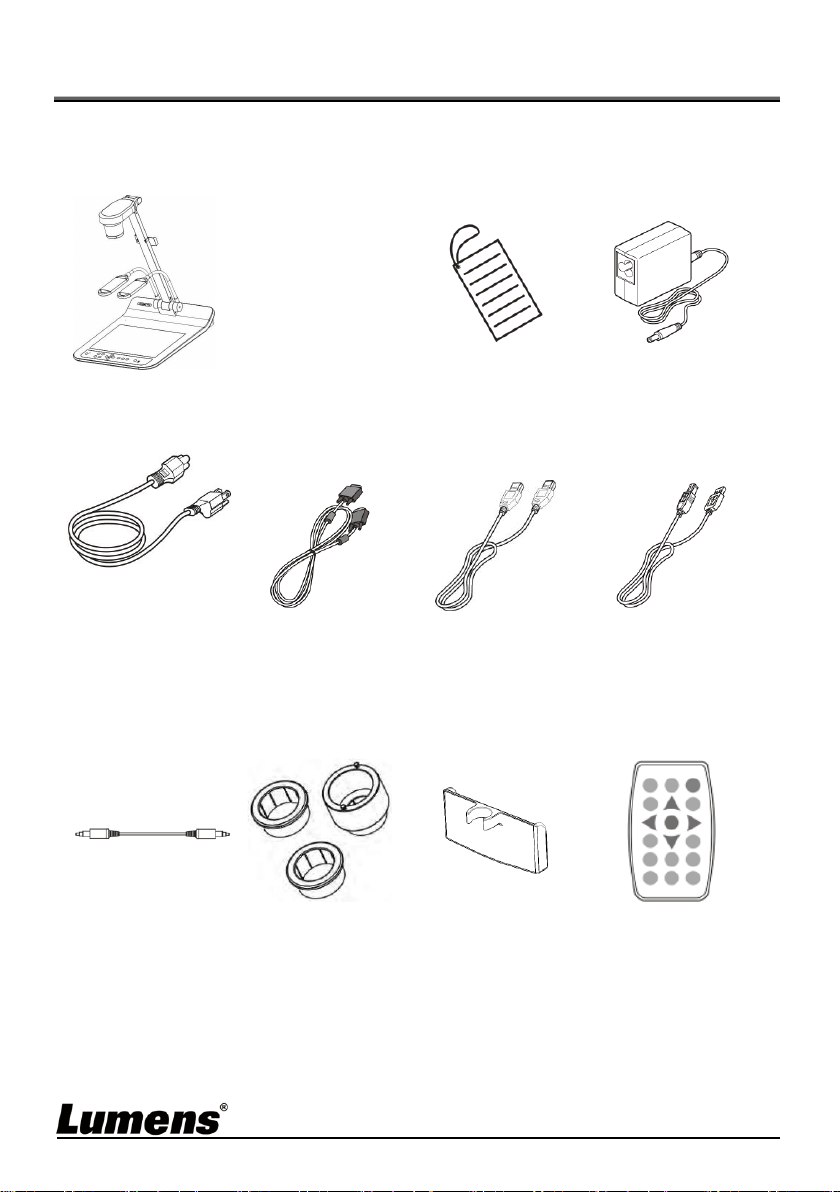
Chapter 1 Package Contents
PS753
Quick
Installation
Guide
4-Step
Instruction Card
Power Adapter
Power Cord
VGA cable
HDMI cable * 2
USB 2.0 cable
Appearance may
vary depending on
country/region
Audio Cable
Microscope
Adapter
Remote Control
Holder
Remote Control
English - 3
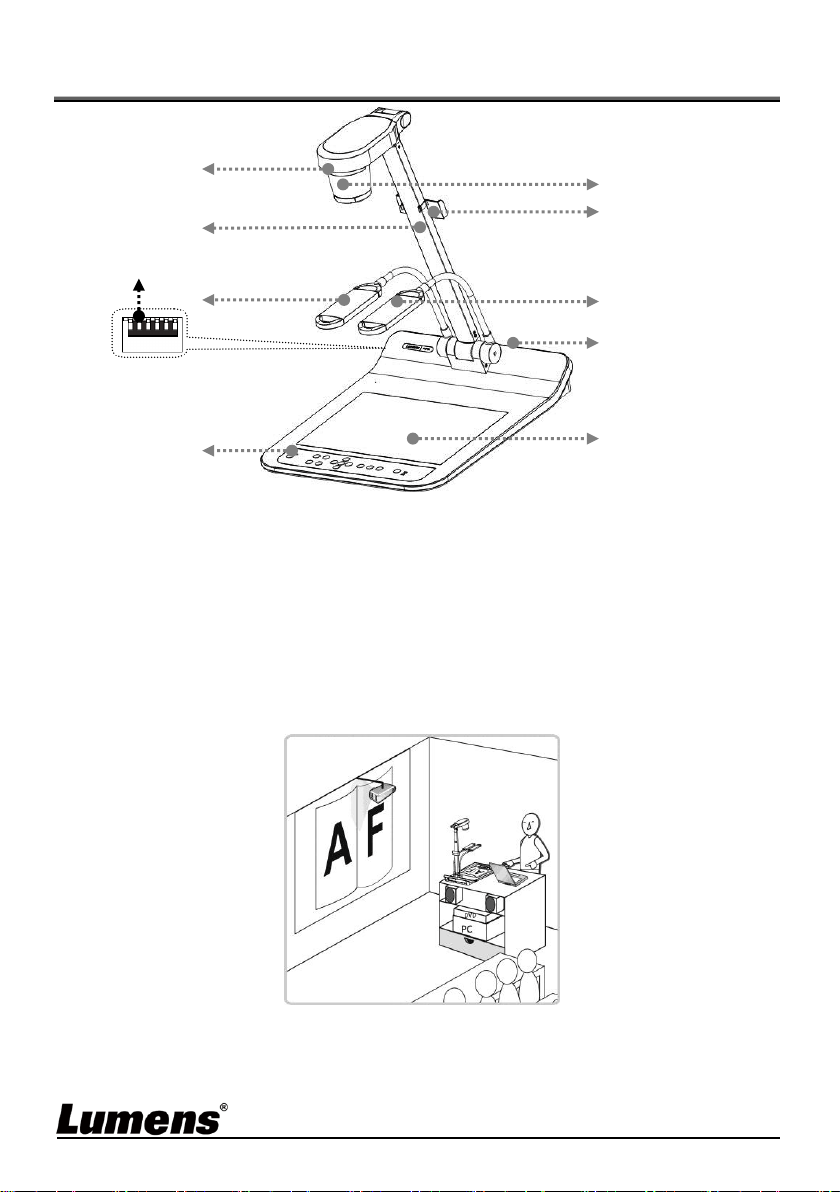
Chapter 2 Product Overview
1. Remote sensor
2. Lens
3. Camera arm
4. Remote Control Holder
5. Auxiliary floodlight and lamp arm
6. DIP Switch Setting
7. Input/output port
8. Backlight
9. Control panel
2.1 Relative Operation Position
Projector
PC
5
2
5
8
6
4
7
3
9
1
English - 4
Chapter 3 Installation and Connections
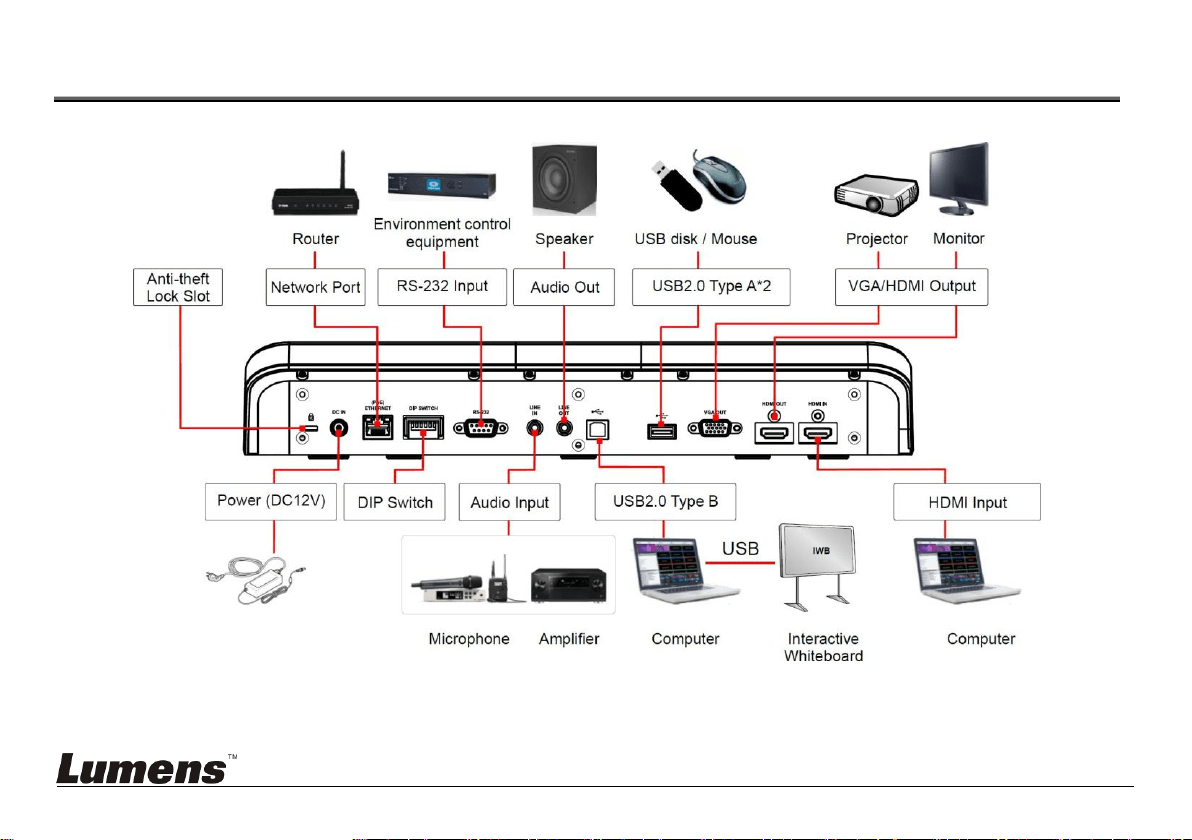
3.1 System diagram
Press the [SOURCE] button to switch between PS753 real-time image and HDMI IN image sources

English - 5
3.2 Installing Application Software
The Lumens Ladibug application software installed on the computer enables
you to:
Control the PS753.
Capture and record images.
Annotate the image, highlight important details and save it.
Support the full screen function.
Please refer to Ladibug™ software user manual for software
installation steps and operation.
Windows: Ladibug 4K Software User Manual
MAC: Ladibug 3.0 Software User Manual
English - 6
Chapter 4 Start Using
Please adjust to the local voltage frequency of 50/60 Hz. For the
frequency in actual use, please refer to Appendix 1 power frequency
for each country in the world in the manual.
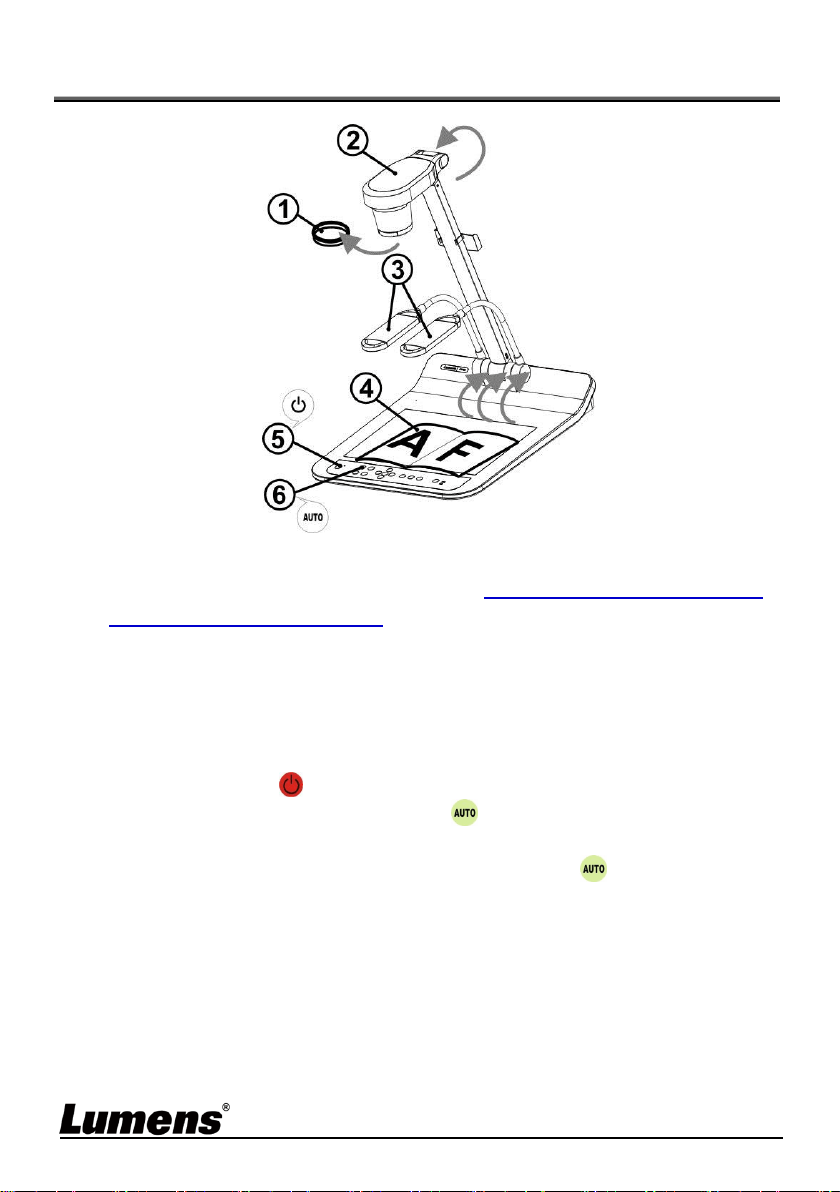
1. Remove the lens cap.
2. Pull up the camera and the camera arm. The camera should aim at the
center of the presenter.
3. Pull up the lamp arm to a proper position.
4. Place an object to be displayed under the camera.
5. Press [POWER] on the
remote control
or
control panel
to power on.
6. Press
control panel
[AUTO TUNE] button to optimize the image.
You are ready to teach/present.
7. Each time the lens is moved, press [AUTO TUNE] on the
remote
control
or
control panel
to refocus.
According to your request, you can adjust the camera head slightly to aim
at the center of the documents when the anchor of lens was reached.
When using the remote control, aim at the remote sensor on the PS753,
and press the power button.
Once PS753 is turned on, the LED on the control panel will flash a few times
and stay lit. Please contact your distributor if the LED does not light up.
English - 7
Chapter 5 Control Panel/Remote Control and
Setting Menu
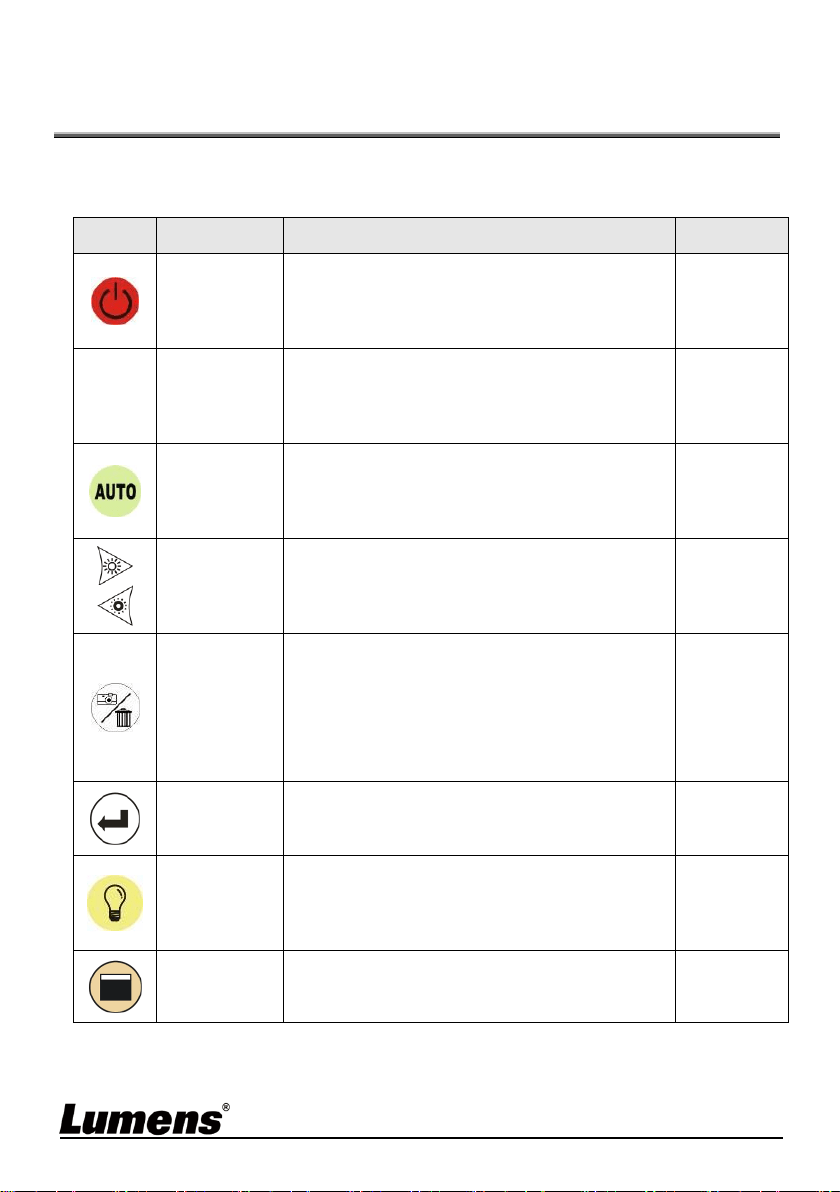
5.1 Functions of control panel and remote control
<Remark> The below functions are listed alphabetically
Icon
Name
Function Descriptions
Operation
Power
Power on and off
Press and hold for 5 ~ 10 seconds to turn
off
Remote
control/
Control
panel
,
,
Arrow Key
Move up, down, left or right to select the
needed function
Remote
control/
Control
panel
AUTO TUNE
Automatically adjust the image to have the
best brightness and focusing performance
Remote
control/
Control
panel
BRT+/-
Adjust the brightness of the image
Remote
control/
Control
panel
CAPTURE
/DEL
Capture and save images to USB disk
(priority) or internal memory card while
displaying live images
Delete files from the USB disk (priority) or
internal memory card while reading the
stored files (in Playback mode)
Remote
Control
ENTER
Activate/Enter functions
Remote
Control
LAMP
Lamp mode toggle switch (Arm
lamp/Backlight/Off the lamp)
Remote
control/
Control
panel
MASK
Activate Mask/Spotlight mode
Remote
Control

English - 8
MENU
Activate the setting menu/exit the menu
Remote
control/
Control
panel
PAN
Enable/Disable the partial enlarged mode
Remote
Control
PIP
Image comparison (to compare live images
with stored image files)
Remote
Control
PLAYBACK
Read files in the USB disk (priority) or
internal memory card
Remote
control/
Control
panel
RECORD
Record motion images
Remote
Control
ROTATE
Rotate the image
0°/180°/Vertical flip/Horizontal flip/90°/270°
Remote
Control
SOURCE
Switch the input source between live image
(default) or HDMI image
Remote
control/
Control
panel
ZOOM +/-
Increase or decrease the image size
Remote
control/
Control
panel

English - 9
5.2 Setting Menu
5.2.1 Main menu
Press [MENU] on the remote control or control panel to display the
setting menu.
Auto Tune
Automatically adjust the image
to have the best brightness and
focusing performance.
Playack
Preview the photos or videos
stored in the USB disk (priority) or
internal memory card.
PAN
Enable/Disable the partial
enlarged mode.
Manual Focus
Manual Focus.
LAMP
Lamp mode toggle switch.
Rotate
Screen rotation 0°/180°/Vertical
flip/Horizontal flip/90°/270°.
PIP
Compare live images with stored
images.
Settings
Set up various functions.
Brightness
Adjust the brightness of the
image.
Photo/Text
Select Photo/Text/Gray Mode.
Mask
Activate the mask mode.
Annotation
Annotate or mark the image.
Zoom
Increase or decrease the image
size.
Mode
Select image mode.
Spotlight
Activate the spotlight mode.
Exit
Exit the setting menu.
English - 10
5.2.2 Setting menu
1st Level
Major
Items
2nd Level
Minor Items
Function Descriptions
Capture
Capture Mode
Use the left and right arrow keys to select the
capture mode
Single Capture/Time Lapse/Record/Off
Capture Time
Use the left and right arrow keys to select the
capture time. The setting range is 1 ~ 72 hours
This will be active only when capture
mode is set to time lapse
Capture Interval
Use the left and right arrow keys to select the
capture interval. The setting range is 3 ~ 5
minutes
This will be active only when capture
mode is set to time lapse
Image Quality
Use the left and right arrow keys to select the
image quality for the captured images and
recorded videos
Date & Time
Set SNTP server and manually set system time
Stream
Select Ethernet or USB function
Ethernet/USB may only choose one, because
they cannot be output at the same time
Storage
Slide Show
Show the photos or videos stored in the USB
disk (priority) or internal memory card in slide
mode
Delay
Use the left and right arrow keys to select the
delay time
The range is 0.5 seconds ~ 10 seconds, use
manual mode to switch manually
Copy To USB Disk
Use the left and right arrow keys to select, and
then press [ENTER] to confirm to copy files
from internal memory card to USB disk
Delete All
Use the left and right arrow keys to select,
press [ENTER] to confirm the deletion of all
images from the USB disk (priority) or internal
memory card
Format
Use the left and right arrow keys to select, and
then press [ENTER] to format the USB disk
(priority) or internal memory card

English - 11
Control
Auto Exposure
Regardless of outside environment, the
machine will adjust the brightness to the
optimal condition
Auto White Balance
Regardless of outside light or color, the
machine will adjust the color to the optimal
condition; Press [ENTER] to execute
Audio Out Volume
Use the left and right arrow keys to adjust the
volume
Audio In Levels
Use the left and right arrow keys to adjust the
volume
Audio Source
Built-in microphone/Line in
Zoom Limit
Set the Zoom magnification
Auto Power On
Powers on automatically when connected to
power supply
IP Address
Display the IP address
(If it is not connected to a router, the default IP
is 192.168.100.100)
Advanced
Language
Support multi-language (default is English)
Lock Down
Enable/Disable lock down
Select [Enable] to set the password.
Auto Erase
Enable/Disable Auto Erase
When [On] is selected, the stored images will
automatically be deleted when the system is
turned off
Preset Load
Load the stored settings
Use the left and right arrow keys to select, and
then confirm by pressing [ENTER]
Preset Save
Store the value of the current image mode
Use the left and right arrow keys to select, and
then confirm by pressing [ENTER]
Splash Screen
Settings
Launch [Splash Screen Settings] window
Factory Reset
Use the left and right arrow keys to select, and
then confirm by pressing [ENTER] to restore
the factory defaults
Firmware Version
Show the firmware version

English - 12
5.2.3 Mask Mode setting menu
Function Items
Function Descriptions
Live
Press [ENTER] to return to the live image.
Transparency
Use the left and right arrow keys to adjust the
transparency of the mask.
Step
Use the left and right arrow keys to select the
step of the mask.
V Size
Use the left and right arrow keys to select the
vertical height of the mask.
H Size
Use the left and right arrow keys to select the
horizontal length of the mask.
Exit
Press [ENTER] to confirm your selection and exit
the mask mode setting menu.
5.2.4 Spotlight Mode setting menu
Function Items
Function Descriptions
Live
Press [ENTER] to return to the live image.
Shape
Use the left and right arrow keys to select the
shape of the spotlight zone.
Transparency
Use the left and right arrow keys to adjust the
transparency of the border in the spotlight mode.
Step
Use the left and right arrow keys to select the
step of the spotlight zone.
V Size
Use the left and right arrow keys to adjust the
height of the spotlight zone.
H Size
Use the left and right arrow keys to adjust the
width of the spotlight zone.
Exit
Press [ENTER] to confirm your selection and exit
the spotlight mode setting menu.
5.2.5 Splash Screen Setting
Function Items
Function Descriptions
Power On Image Setting
Select to default/custom power on image
Power On Logo Show
Time
Set the duration of displaying the power on logo
that can be adjusted between 4 ~ 30 seconds
Power On Image Select
Power On Image Select
Only pictures in JPEG format are supported
Exit
Press [ENTER] to confirm your selection and exit
splash screen setting window

English - 13
5.2.6 Annotation Tools
After connecting the mouse via USB, right-click to activate the drawing
function of the setting menu
When the mouse stays at the right side of the screen, the mouse annotation
menu can be activated
Choose either USB screen or Mouse Annotation. If you want to use Mouse
Annotation function, please remove the USB cable.
Icon
Description
Icon
Description
Custom tool 1
Clear all
Custom tool 2
Open setting menu of the
annotation tool
Eraser
Exit the annotation tool

English - 14
Chapter 6 Descriptions of Major Functions
6.1 Automatically adjust the image to have the best
brightness and focusing performance
Press [AUTO TUNE] on the remote control or control panel to adjust
to the optimal brightness and focal length.
6.2 Switch Image Sources
The default image source is Live Image. Press [SOURCE] to change
the setting, and the output screen will switch between Live Image
(default)/HDMI IN.
6.3 Make text clearer and photos more colorful
1. Go to the setting menu, select [Photo/Text] > [Photo/Text/Gray].
[Photo] (default): for viewing photos or text with photos, making
photos more colorful.
[Text]: for viewing text files, making the text clearer.
[Gray]: for viewing black & white photos which will make the
grayscale differentiation distinct.
2. Press [MENU] to exit.
6.4 Rotate Image
Remote control: Press [ROTATE] key to rotate the screen.
Control panel: Go to the setting menu, select [Rotate] to change the
rotation method.
The following functions are not available when the image is rotated:
PAN/PIP/Recording.
6.5 Capture Image
Press [CAPTURE/DEL] to capture and save images.
You cannot capture images when the capture mode is set to [Disable]. If
it is set to [Continuous], you can capture images continuously by pressing
[CAPTURE/DEL] , or press again to exit.
To change the quality of images, go to the setting menu [Settings] >
[Capture] > [Image Quality] to do the setting.
6.6 Record
Connect USB disk to PS753 to start recording images.
You may not be able to capture or record images when [Capture Image]
mode is set to [Disable].
1. Press [RECORD] to record videos.
2. Record sounds with the built-in microphone of the control panel.
English - 15
3. Press [RECORD] again to stop recording.
6.7 View captured/recorded images
1. Press [PLAYBACK] to show the thumbnails of all stored files.
2. Select the thumbnail you want to play and press [ENTER] to play.
3. When playing the video, press [FREEZE] to pause/play the video
or press [ENTER] to stop playing.
4. Press [
] or [
] to select the next or previous audio/video file.
5. Press [
] or [
] to adjust the volume of the video.
An external speaker must be connected to AUDIO OUT to play sound
when you use VGA OUT.
6.8 Delete captured/recorded images
1. Press [PLAYBACK] to show the thumbnails of all stored files.
2. After selecting the file to be deleted, press [CAPTURE/DEL] to
show the [Delete File] window.
3. Select [Yes], press [ENTER] to delete the selected file.
6.9 Adjust the output volume
Volume control is intended to control the external audio output equipment
only.
In PLAYBACK mode, Press [] or [] to adjust the volume of the video.
6.10 Automatically delete the stored images whenever it is
turned off (Auto Erase)
1. Go to the setting menu, select [Settings] > [Advanced] > [Auto Erase] >
[On].
2. Press [MENU] to exit.
6.11 Enlarge a part of the image (PAN)
1. Enable the partial enlarged mode.
Remote control: Press [PAN] to enable the partial enlarged mode.
Control panel: Go to the setting menu, select [PAN] , and press
[ENTER] for execution.
2. Press [
],[
],[
], or [
] to move and view the partial enlarged images.
3. Press [MENU] to exit the partial enlarged mode.
6.12 I would like to use the MASK and Spotlight function
6.12.1 Use the mask or spotlight mode
Use
remote control
:
1. Press [MASK] key to enter the Mask/Spotlight mode menu.
Press [
] or [
] to select mode.
2. Press [ENTER] to enter the Mask or Spotlight mode.
3. Press [],[], [], or [] to move the zone position.
English - 16
4. Press [MASK] again to return to the live image.
Use control panel:
1. Go to the setting menu, select [Mask] , and press [ENTER] to
enter the Mask or Spotlight mode.
2. Press [],[],[], or [] to move the zone position.
3. Go to the setting menu, select [Live image], and press [ENTER] to
return to the live image.
6.12.2 I would like to set the size of Mask/Spotlight function
In Mask/Spotlight mode, use the remote control or control panel:
1. Go to the setting menu, select the item to be changed.
Mask mode: [Transparency/Step/V Size/H Size].
Spotlight mode: [Shape/Transparency/Step/V Size/H Size].
(For details, please refer to 5.2 Setting Menu.)
2. Press [MENU] to exit the Setting Menu and return to Mask/Spotlight
mode.
6.13 Play the slides (Slide Show)
6.13.1 Setting delay time
1. Go to the setting menu, select [Settings] > [Storage] > [Delay], and
select the delay time.
2. Press [MENU] to exit.
6.13.2 Playing/Pausing/Stopping the slide show
Upper limit: The maximum size of single photo is 7 MB.
1. Go to the setting menu, select [Settings] > [Storage] > [Slide Show]
> [ENTER] for execution.
2. Press [ENTER] again to pause/play.
6.14 Use a USB disk
Insert the USB disk and a [Copy To USB disk] dialog box will appear,
and you are asked whether to copy files from PS753 to the USB disk.
Press [] or [] to select.
Copy To USB Disk
Yes
No
English - 17
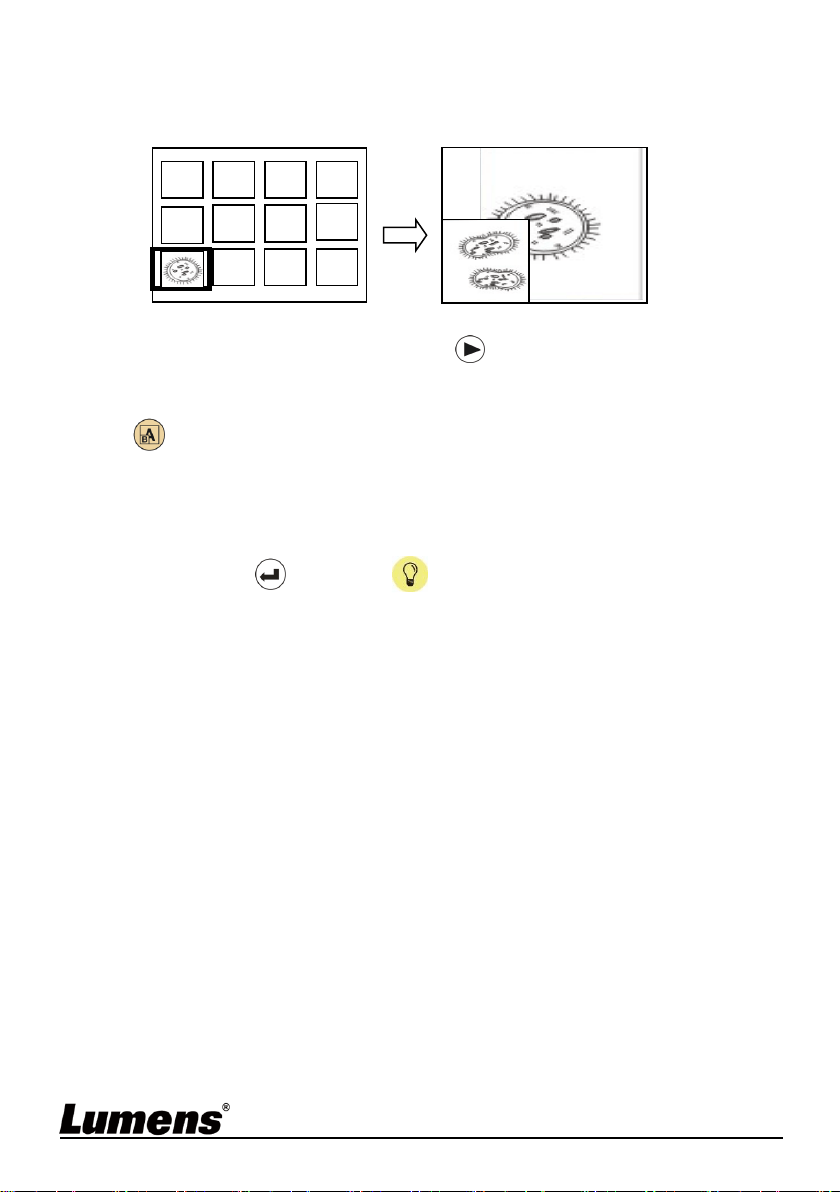
6.15 Image comparison (to compare live images with stored
image files (PIP))
This function will compare and contrast a live image with a stored image.
1. Open the thumbnail screen.
Remote control: Press [Playback] to access the thumbnail screen,
and select the image files to be compared.
Control panel: Press [MENU] to go to the setting menu, select [PIP]
, and choose the image files to be compared.
2. Press [],[],[], or [] to move the live image.
3. Repeat Step 1 to change other image files.
4. Press [MENU] to exit.
6.16 Lock/Unlock keys
Press
[ENTER]
+
[LAMP]
buttons on the panel for 2 seconds to
enable the Lock function.
Repeat the action again to unlock.
This function is only valid for the panel buttons, the remote control can
still operate normally. When turning off with the remote control, the lock
function will be released automatically after rebooting.
6.17 Change the power on image
1. Go to the setting menu, select [Settings] > [Advanced] > [Splash Screen
Settings].
2. Select [Default/Custom].
2.1 If you select [Custom], you can set the [Power On Logo Show
Time] and [Select Splash Screen].
The power on image file must be less than 5 MB and in JPEG
format.
To save the file, please follow the instruction below:
File path: \DCIM\100MEDIA, for example: J:\DCIM\100MEDIA
File name: four English letters+ four numbers, for example:
LUMN0001.JPG
3. Press [] to [Exit] and press [ENTER] to exit.
Stored image
Live image
C1
C5
C2
C6
C10
C11
C12
C3
C7
C4
C8
English - 18
Chapter 7 Network Function Settings
Description
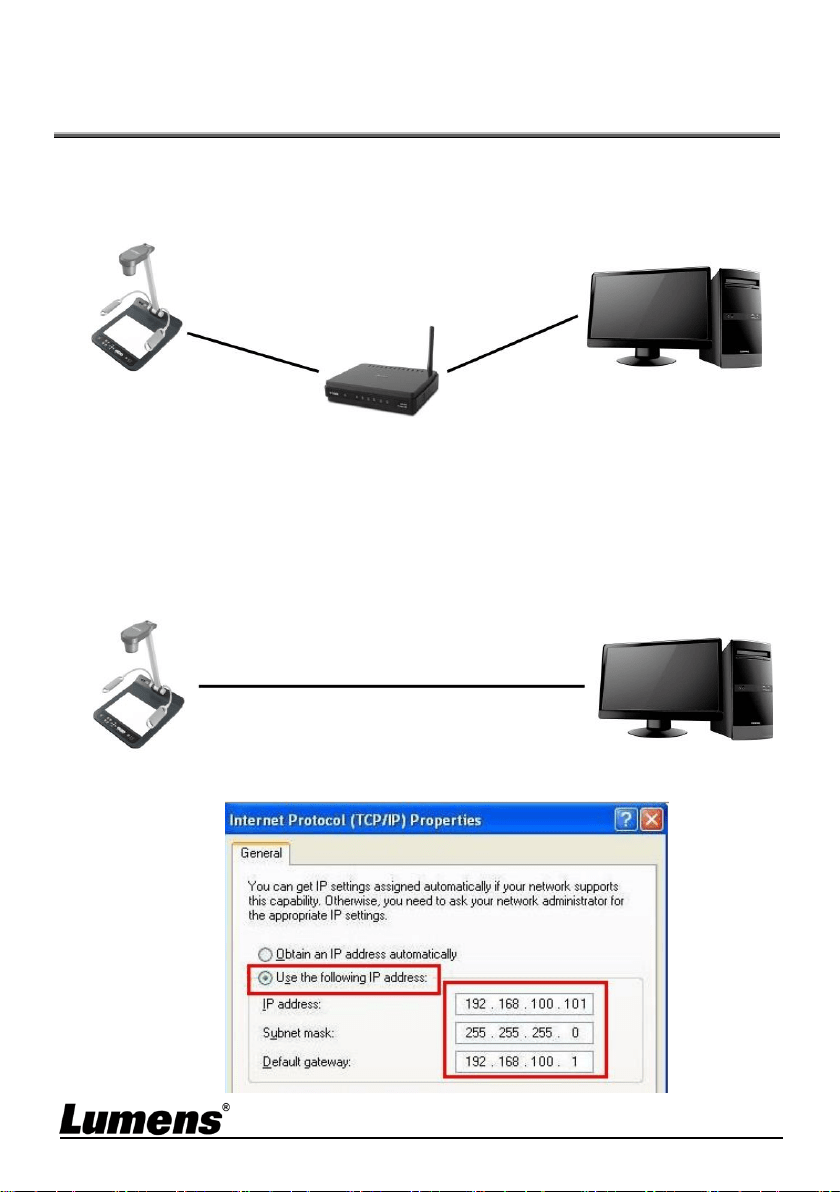
7.1 Connecting Camera to Internet
Two common connection methods are shown below
1. Connecting via switch or router
2. To connect directly through network cable, the IP address of the computer
should be changed so that it is on the same network segment as the
camera
E.g.: The factory-preset default IP address of PS753 is 192.168.100.100.
The computer IP address must be set with the same network segment,
such as 192.168.100.101, so that the computer can be connected
correctly with the camera
Change network settings
Network cable
Network cable
PS753
電腦
PS753
Computer
Network cable
Switch or router
Computer
English - 19
7.2 Using the Browser to View the Images
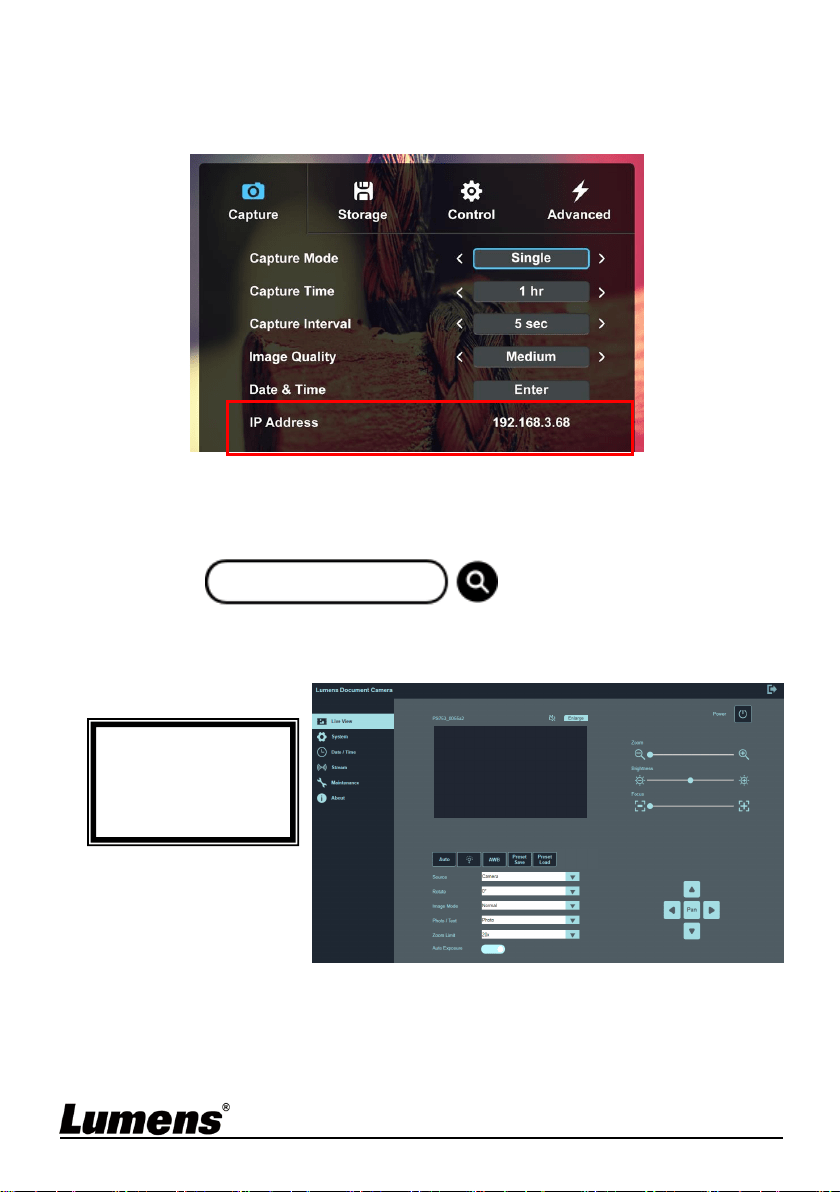
1. DHCP is enabled by default. You can view the IP location from Menu >
Settings > Control.
2. Open the browser, and enter the IP address in the address bar
(If it is not connected to a router, the default IP is 192.168.100.100)
3. Enter the account and password to view the images and control PS753
Account: admin
Password: 9999
192.168.4.28
English - 20
7.3 Using RTSP Player to View the Images
RTSP connections can be made using free software, e.g.: VLC, Quick
Time, PotPlayer, etc
RTSP connection address formats are as follows: rtsp://camera IP:
8557/h264
Example:
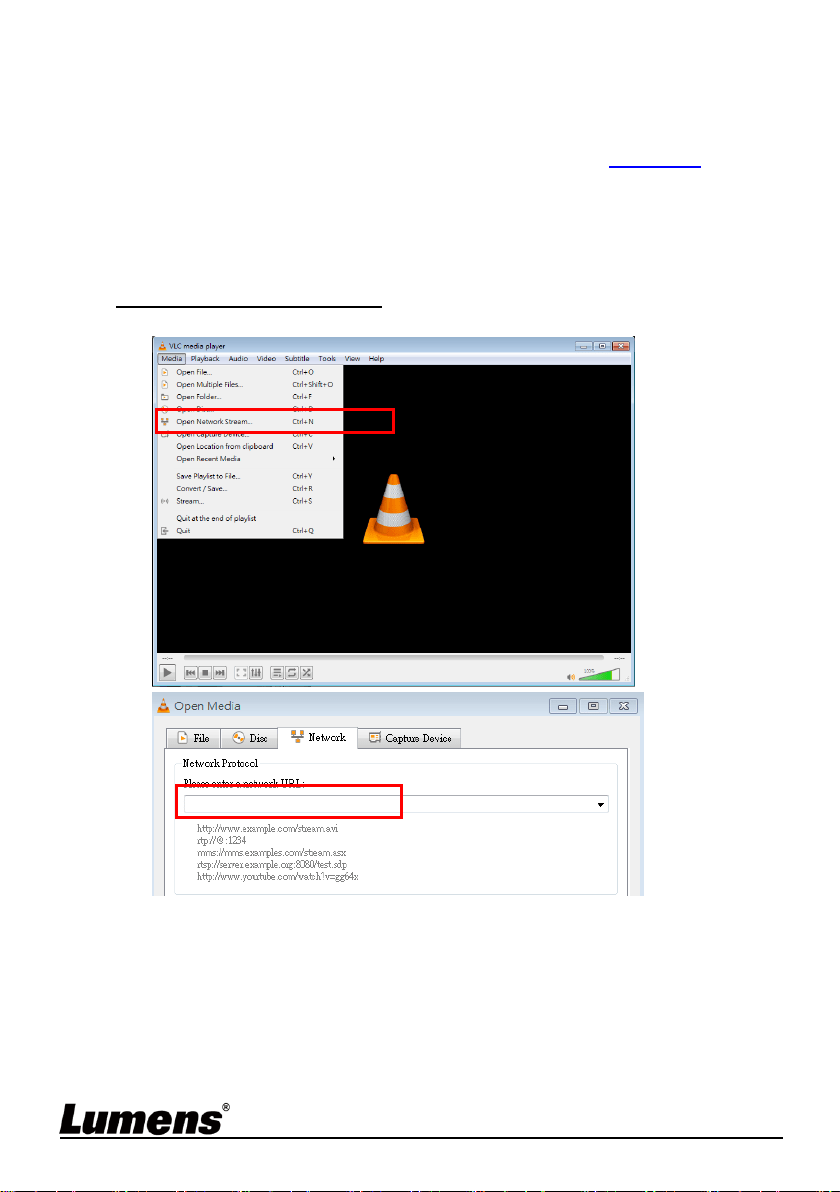
Open the VLC software, select [Media] > [Open Network Streaming], and
enter the URL:
rtsp://192.168.4.28:8557/h264
rtsp://192.168.4.28:8557/h264
English - 21
7.4 Web Page Menu Function Description
7.4.1 Login Screen
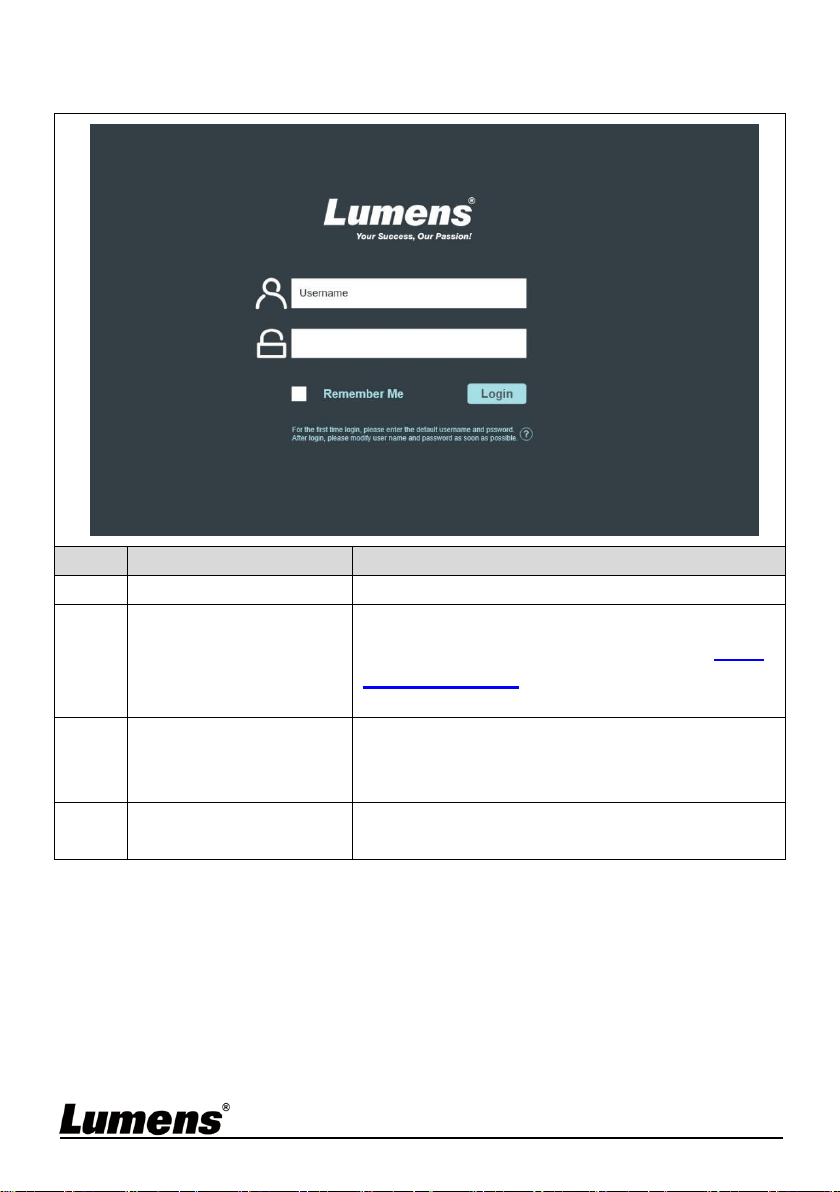
No
Item
Function Descriptions
1
User Login Account
Enter user login account (default: admin)
2
User Password
Enter user password (default: 9999)
* For the first-time login, please refer to 7.4.4
System Settings to change the default
password
3
Remember user
account and password
Save user login account and password to the
browser. When you log in next time, there is no
need to re-enter them
4
Login
Log into the administrator screen on the
website
➊
➋
➌
➍
English - 22
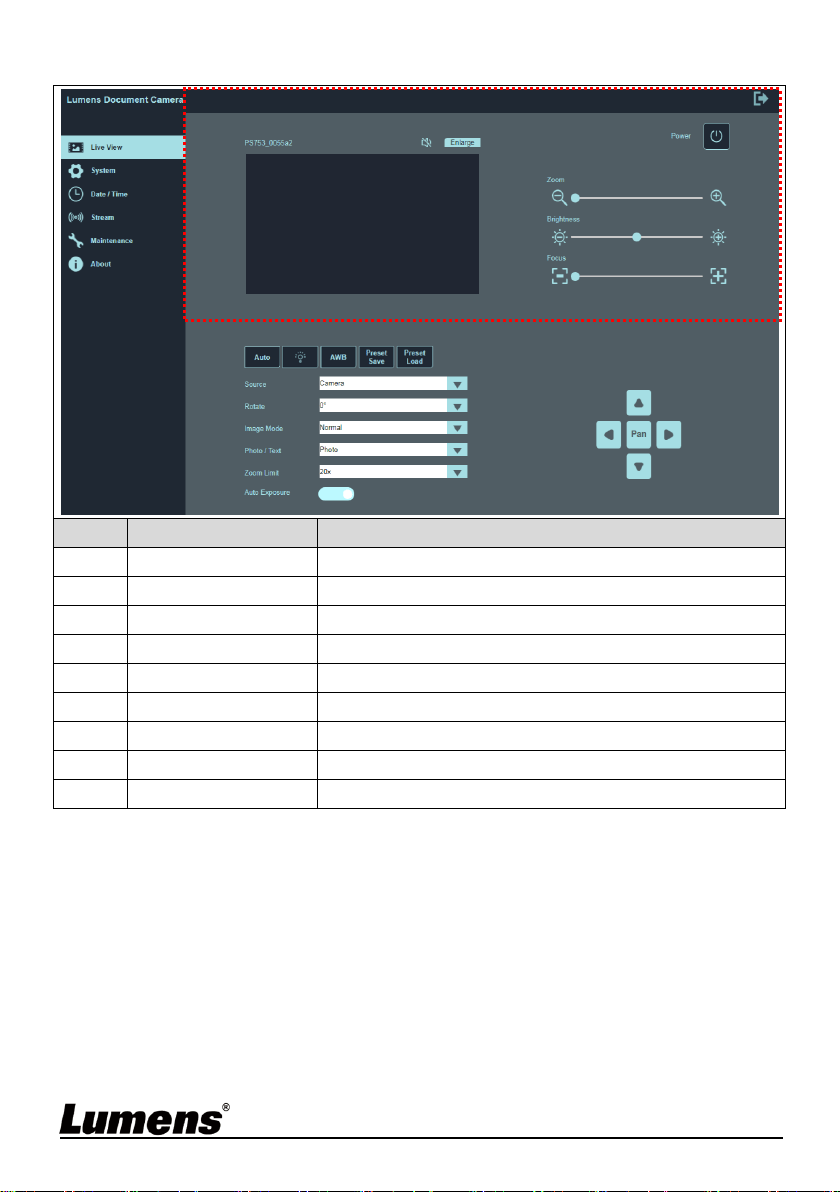
7.4.2 Live View-1
No
Item
Function Descriptions
1
Camera ID
Display the device name
2
Mute
Turn on/off web audio output
3
Enlarge
Switch the preview window to full screen
4
Preview window
Display the screen currently captured by PS753
5
Zoom
Zoom in/out images
6
Brightness
Brightness
7
Focus
Tune the focus
8
Power
Enable/Disable PS753
9
Logout
Log out of the web page
➊
➋
➌
➍
➎
➏
➐
➑
➒
English - 23
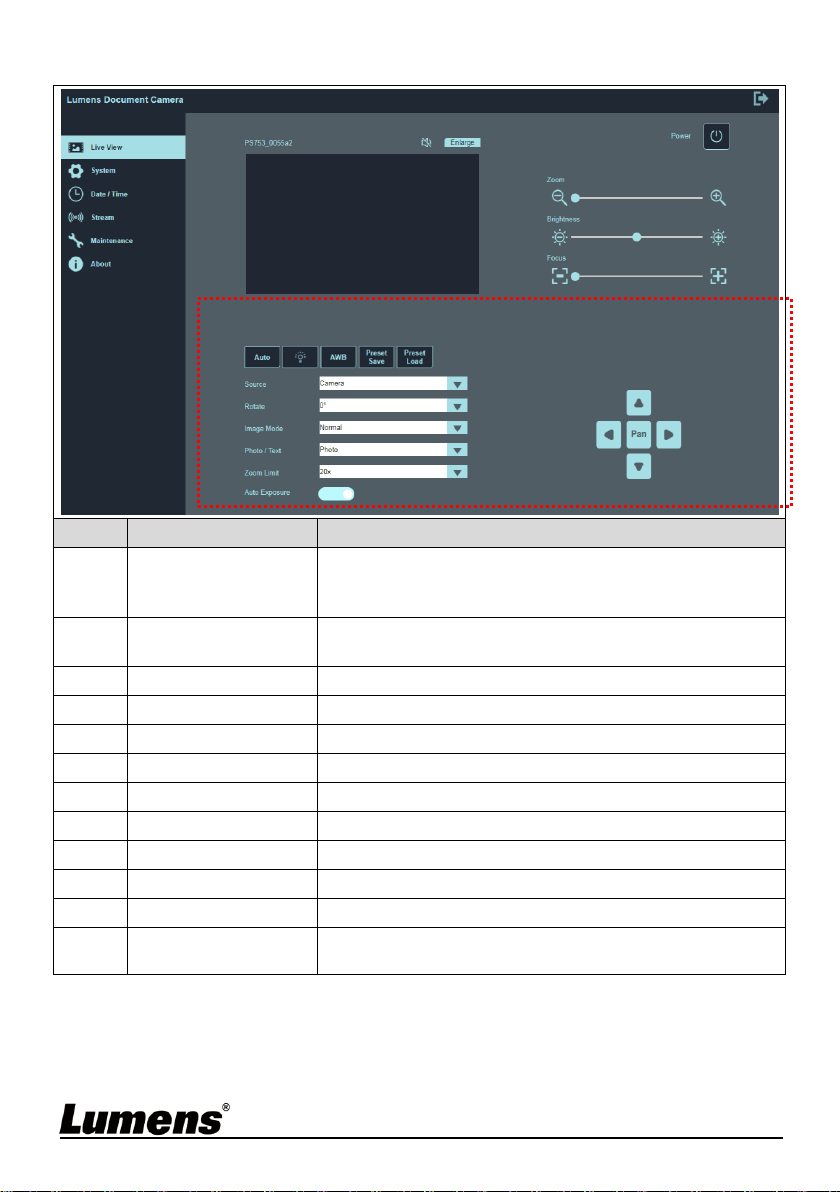
7.4.3 Live View-2
No
Item
Function Descriptions
1
Auto Tune
Automatic Image Optimization; automatically
adjust the image to have the best brightness and
focal length
2
Lamp
Click lamp mode toggle switch: off / brightness 1 /
brightness 2 / brightness 3
3
AWB
Execute Auto White Balance once
4
Preset Save
Store the value of the current image mode
5
Preset Load
Load the stored settings
6
Source
Camera/HDMI In screen switching
7
Rotate
Rotate the image: 0°/90°/270°/Flip/Mirror
8
Image Mode
Normal/Film/Slide/Microscope
9
Photo / Text
Select Photo/Text/Gray Mode
10
Zoom Limit
Set the Zoom magnification
11
Auto Exposure
Enable/disable auto exposure
12
Pan
Turn on/off partial digital enlarge
Arrow keys can move the screen
➊
➋
➌
➍
➎
➏
➐
➑
➒
➓
⓫
⓬
English - 24
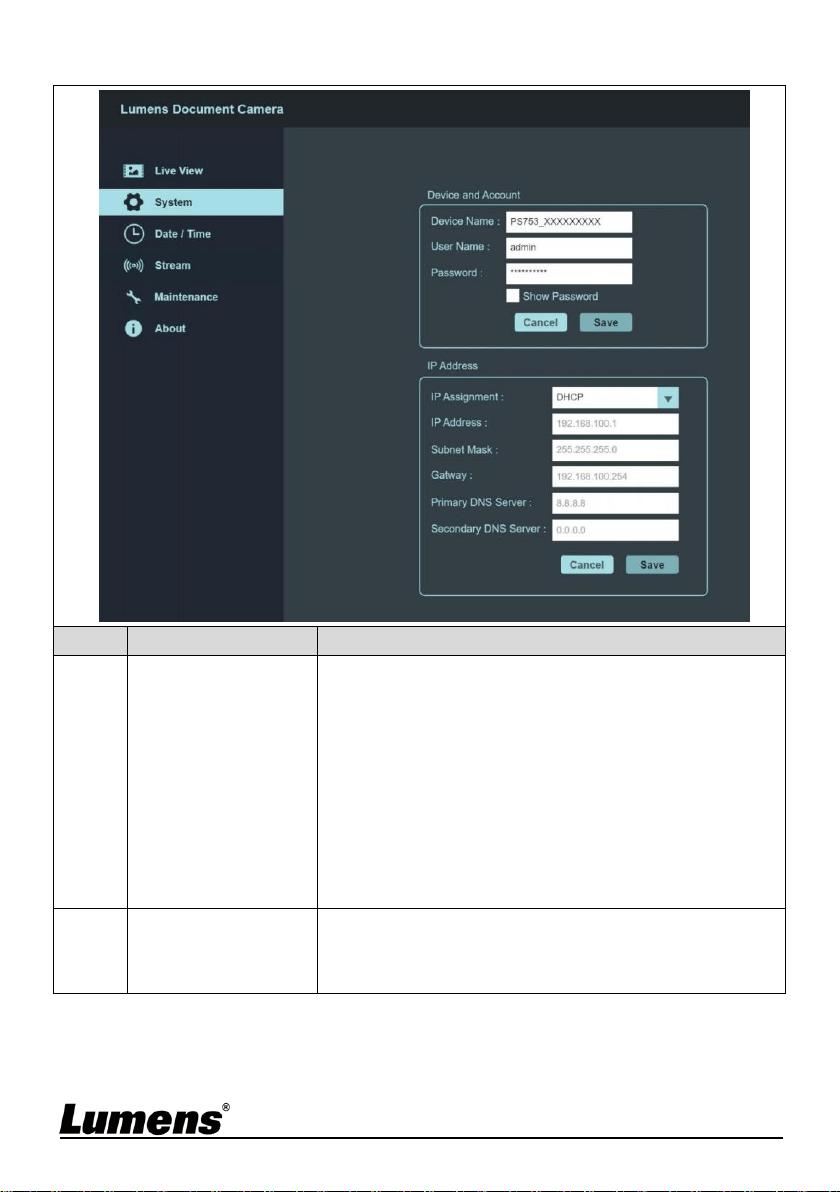
7.4.4 System settings
No
Item
Function Descriptions
1
Device and
Account
Display the current device name of PS753 and
web login settings.
You can change the device name, user account
and password, click [Save] to save the settings,
and click [Cancel] to cancel the changes.
The name is limited to 1 - 12 characters
Please use a camera name by mixing
uppercase and lowercase letters or numbers. Do
not use “/” and “space” or special symbols
2
IP Address
Ethernet Setting.
When it is set to Static IP, the setting can be
modified.
➊
➋
English - 25
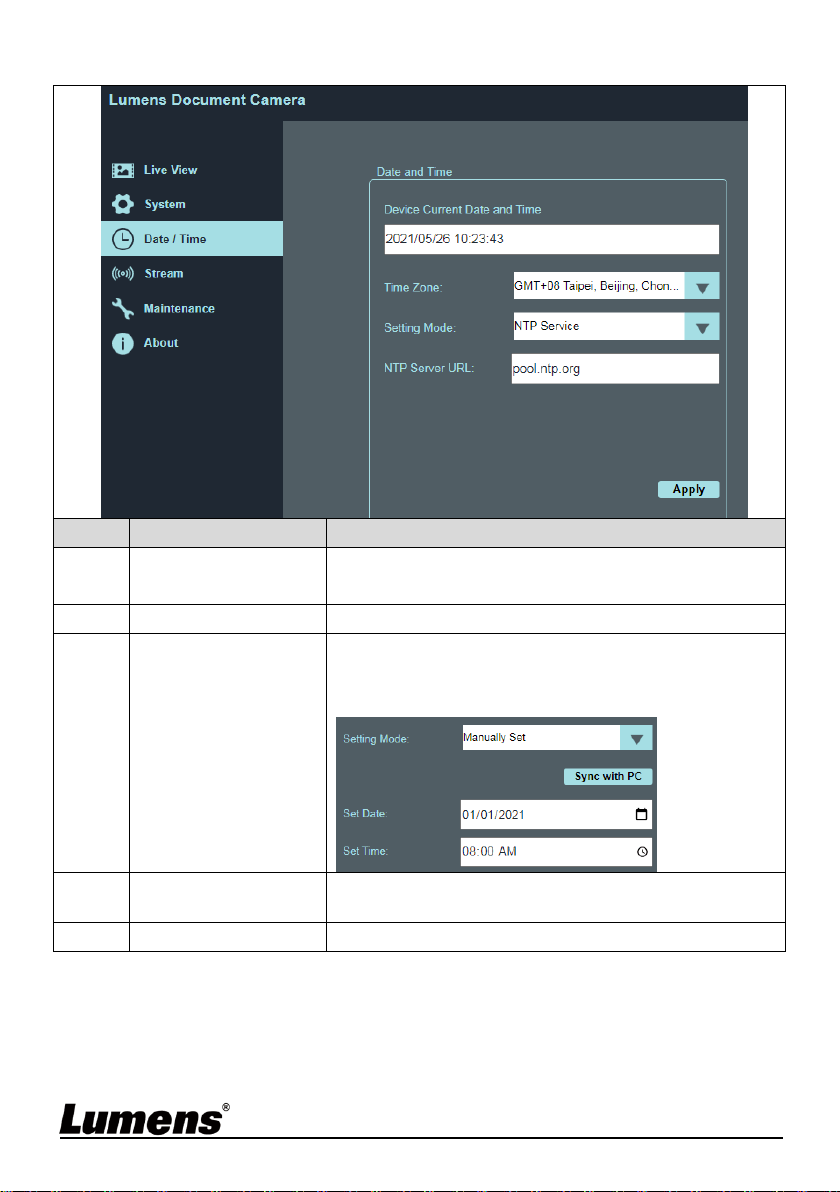
7.4.5 Date/Time Settings
No
Item
Function Descriptions
1
Device Current
Date and Time
Display the current system time
2
Time Zone
Set the Time Zone.
3
Setting Mode
Select NTP Service/Manually Set
Turn on Manually Set and choose to synchronize
with the computer or set the date/time manually.
4
NTP Server URL
NTP service to display this item
Connect to a NTP server to correct time
5
Apply
Apply your settings
➊
➋
➌
➍
➎
English - 26
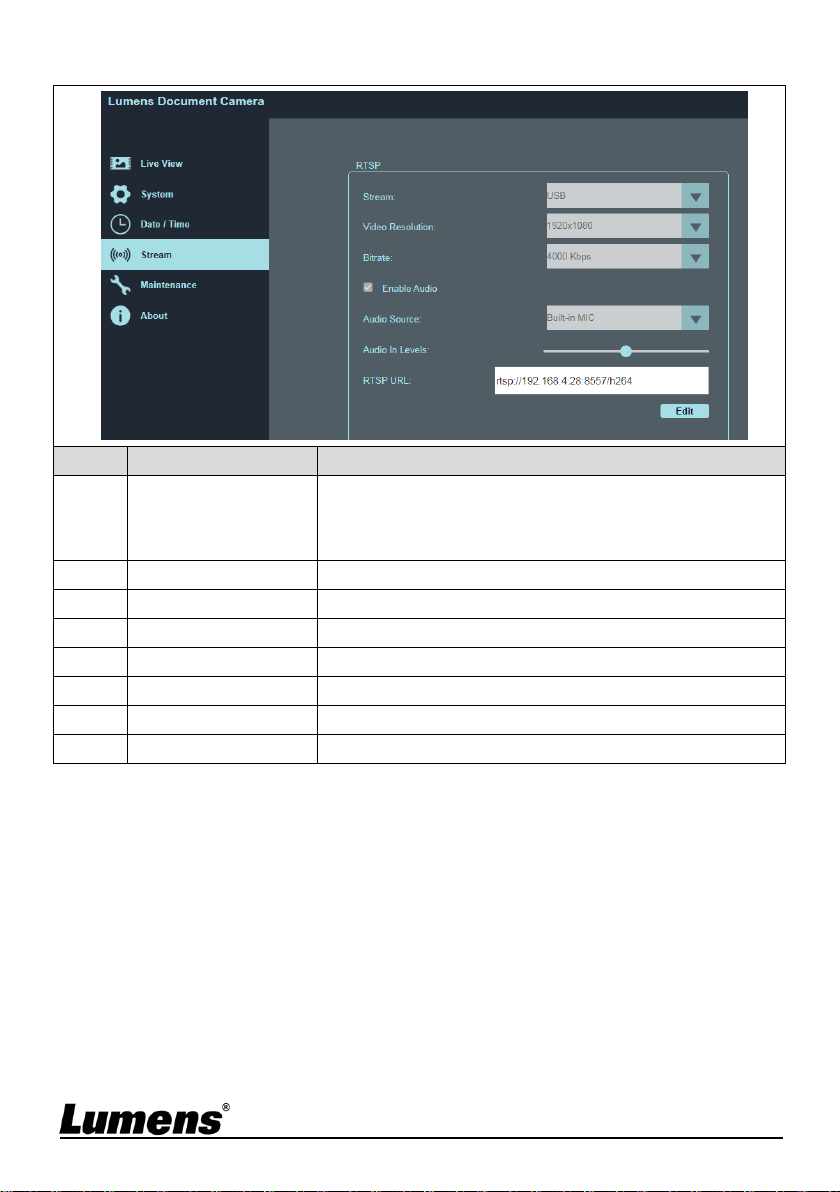
7.4.6 Streaming Setting
No
Item
Function Descriptions
1
Stream
Switch Ethernet or USB function
Ethernet/USB may only choose one, because
they cannot be output at the same time
2
Video Resolution
Show or set the RTSP output resolution and fps
3
Bitrate
Display or set the bit rate of RTSP
4
Enable Audio
Turn on/off RTSP audio
5
Audio Source
Select the audio source
6
Audio In Levels
Adjust the volume
7
RTSP URL
Display current RTSP URL
8
Edit
Enter Edit mode
➊
➋
➌
➍
➎
➏
➐
➑
English - 27
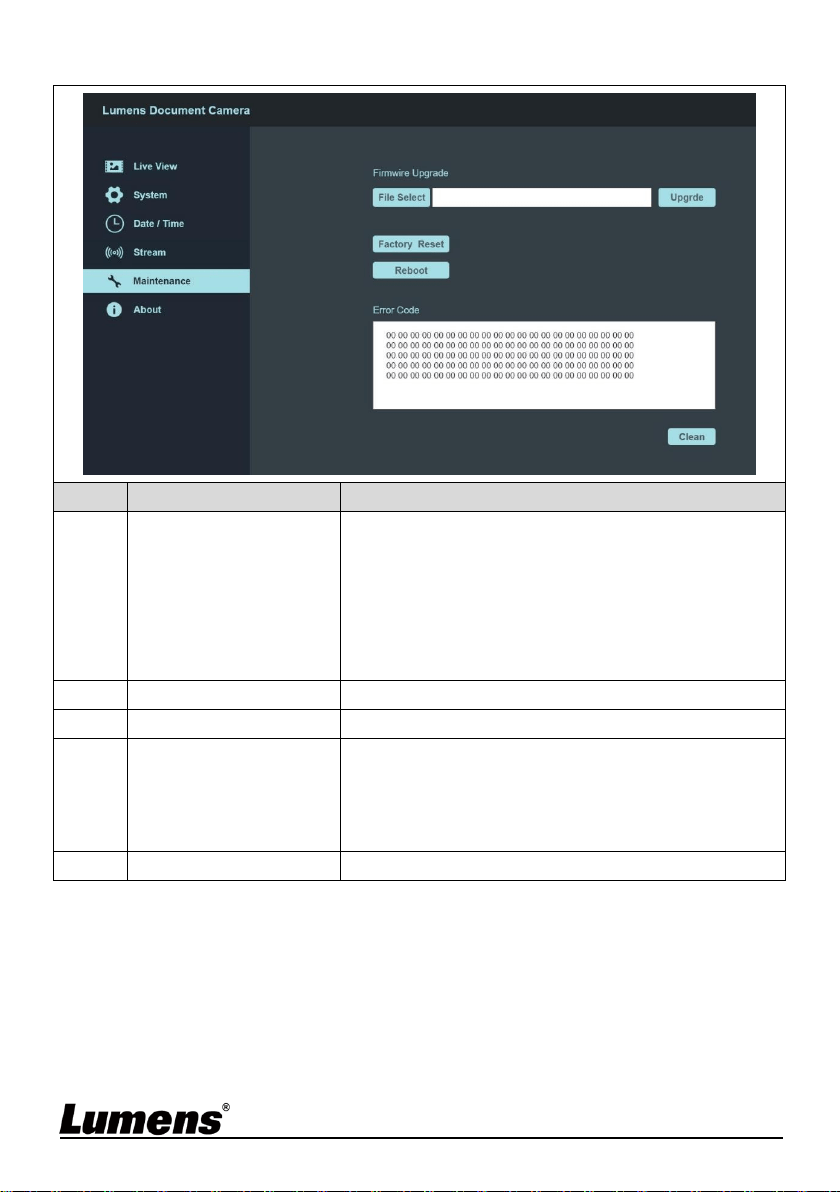
7.4.7 Maintenance
No
Item
Function Descriptions
1
Firmware Upgrade
Select the firmware file, and click [Upgrade] to
update the firmware
Update takes about 1 - 2 minutes
Please do not operate or turn off the power of
the device during the update to avoid firmware
update failure
2
Factory Reset
Restore the factory default (software)
3
Reboot
Restart
4
Error Code
Display system Error code
When an error code appears, the user may
try to clear and confirm if the error will repeat
itself
5
Clean
Clear Error code
➊
➋
➌
➍
➎
English - 28
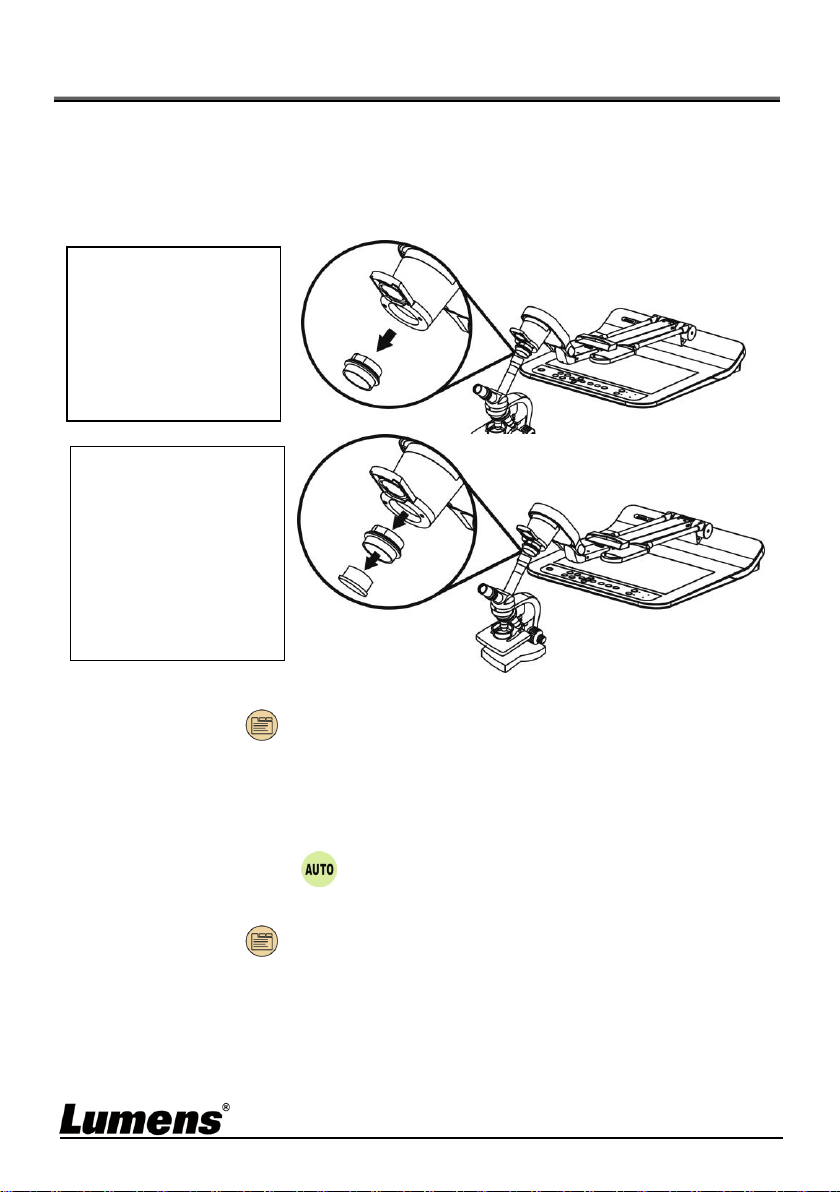
Chapter 8 Connecting to Microscope
1 Mount the microscope adapter onto the microscope
Please choose an appropriate microscope adapter for eyepieces size of Ø 28
mm, Ø 31 mm, Ø 33 mm, and Ø 34 mm.
2 The lens of PS753 connects with the microscope adapter
3 Select the [Microscope] mode
Press [MENU] to enter the Service Menu, and select [Image Mode] >
[Microscope].
4 If the image is not clear
Please adjust the focus of microscope
Press [AUTO TUNE] to activate the auto focus
5 Please reset to normal mode after using the microscope.
Press [MENU] to enter the Service Menu, and select [Image Mode] >
[Normal].
For eyepieces of Ø 33
mm or Ø 34 mm, only
one microscope
adapter (with the
greatest diameter) is
needed.
For eyepieces of Ø 28
mm or Ø 31 mm, fit
one microscope
adapter with the
greatest diameter
along with another
appropriate one.

English - 29
Chapter 9 Packing the Machine
1. Put the remote control back to the holder.
2. Fold back the camera head to align with the arm.
3. Turn the two lamp arms and the arm of camera head down
and adjust them to be parallel with the platform.
4. Put the lens cap on the camera head.
5. Finally, fold the machine as in the following figure.
English - 30
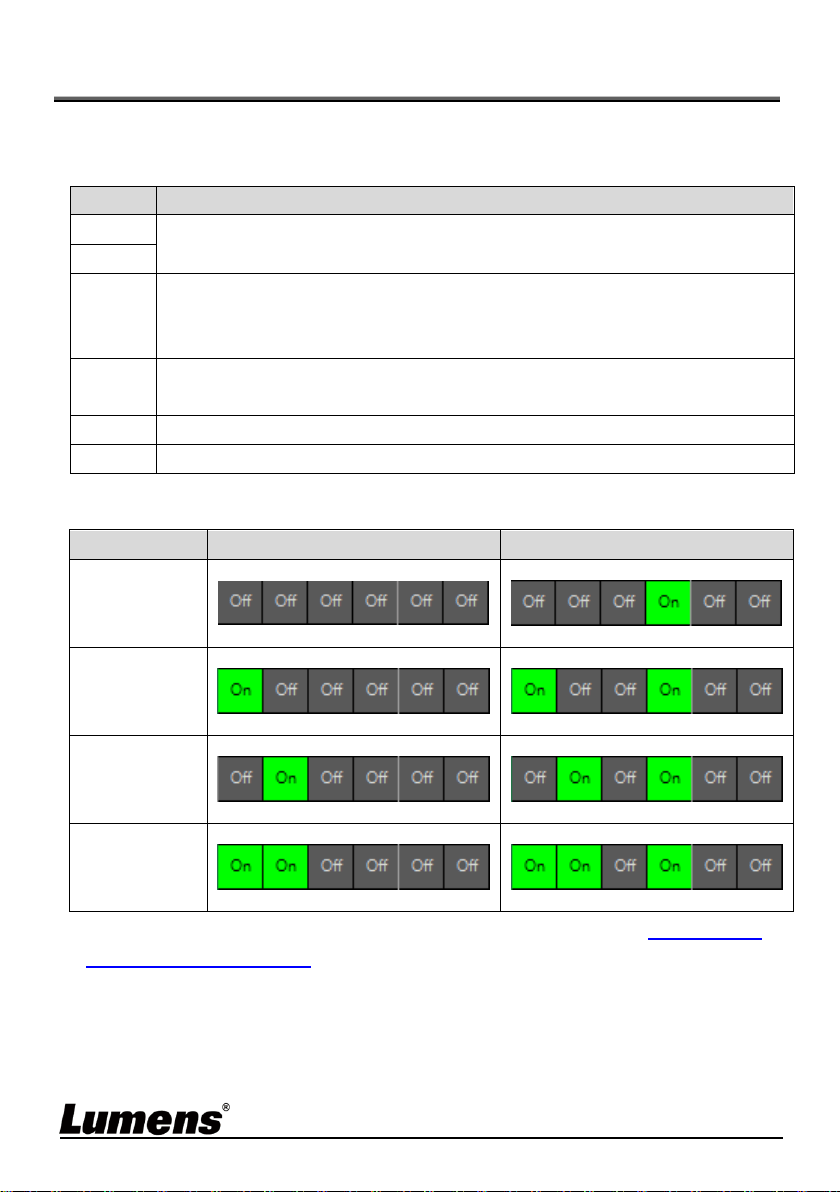
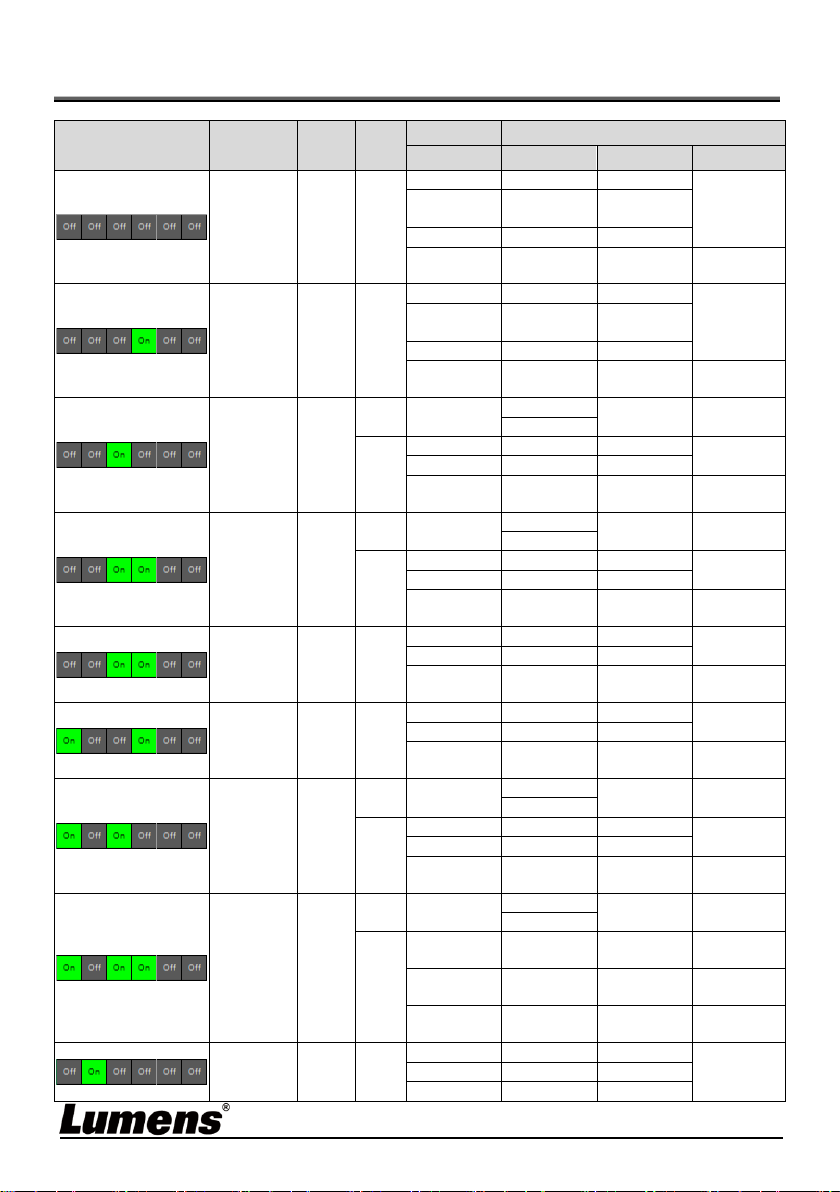
Chapter 10 DIP Switch Setting
You should unplug and reconnect the power cord, and then restart the
PS753 for all DIP switching to take effect.
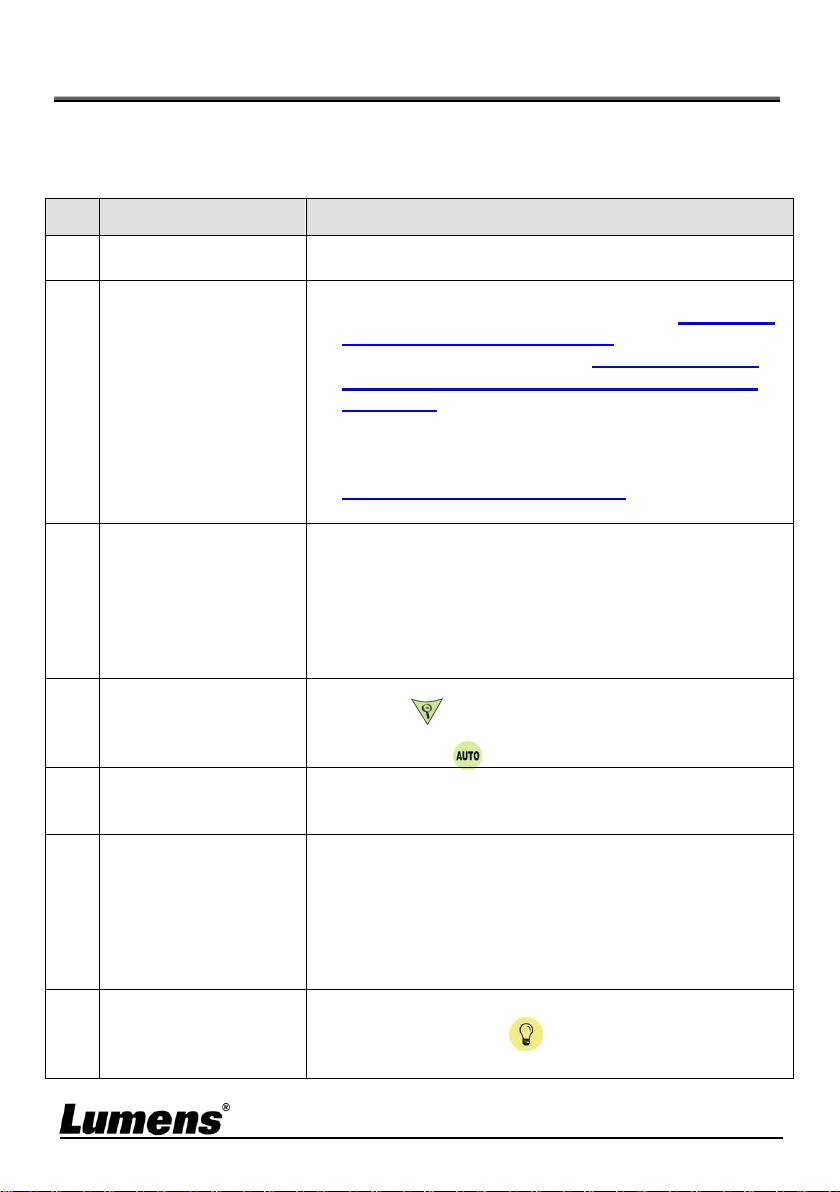
1. Description of DIP
DIP
Function Descriptions
1
Output Resolution
2
3
OFF (Normal mode): 30 fps, applicable to general scene
ON (High-speed mode): 60 fps, applicable to support rapidly
changing scene (4K resolution not available)
4
OFF: 60 Hz
ON: 50 Hz
5
Reserved, no function
6
Reserved, no function
2. HDMI Resolution
Resolution
60Hz
50Hz
1920 x 1080
3840 x 2160
1280 x 720
1024 x 768
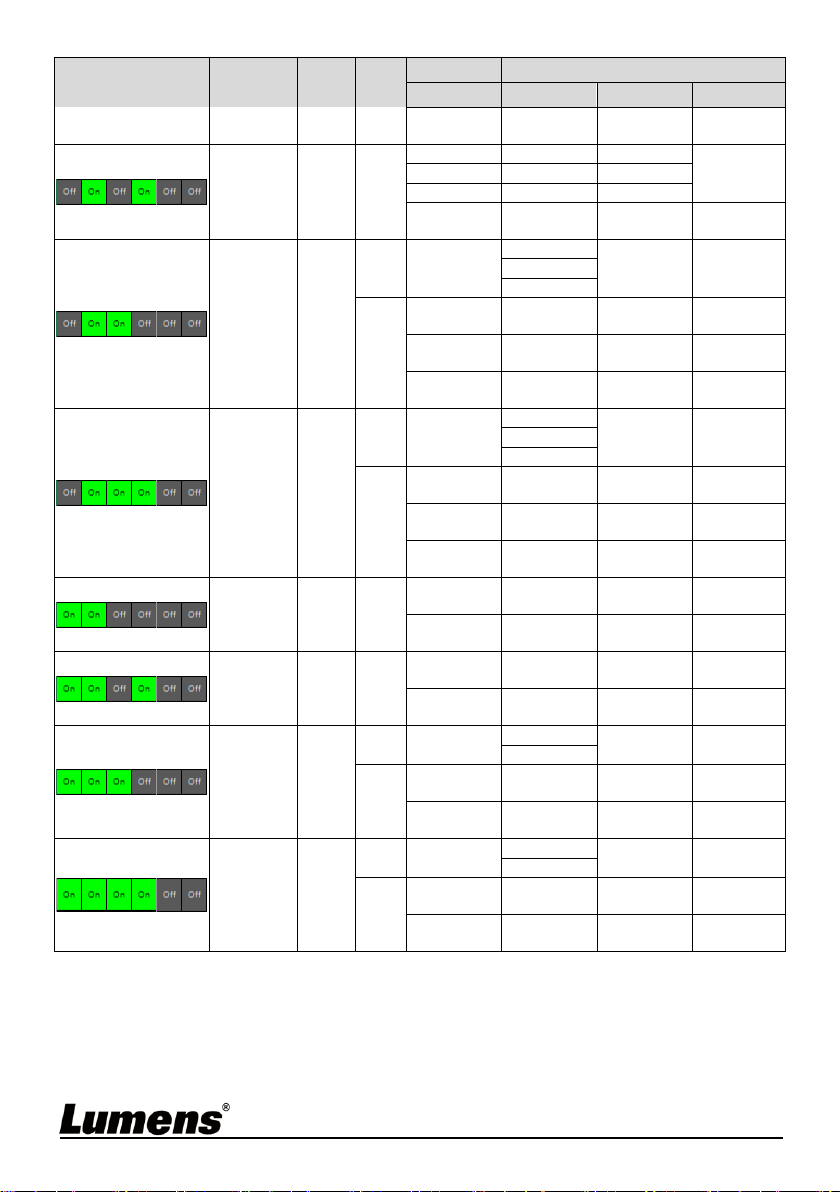
For the corresponding resolution of RTSP/UVC, please refer to Appendix 2
Resolution Comparison.
English - 31
Chapter 11 Troubleshooting
This chapter describes problems you may encounter while using PS753. If you
have questions, please refer to related chapters and follow all the suggested
solutions. If the problem still occurred, please contact our distributors or service
center.
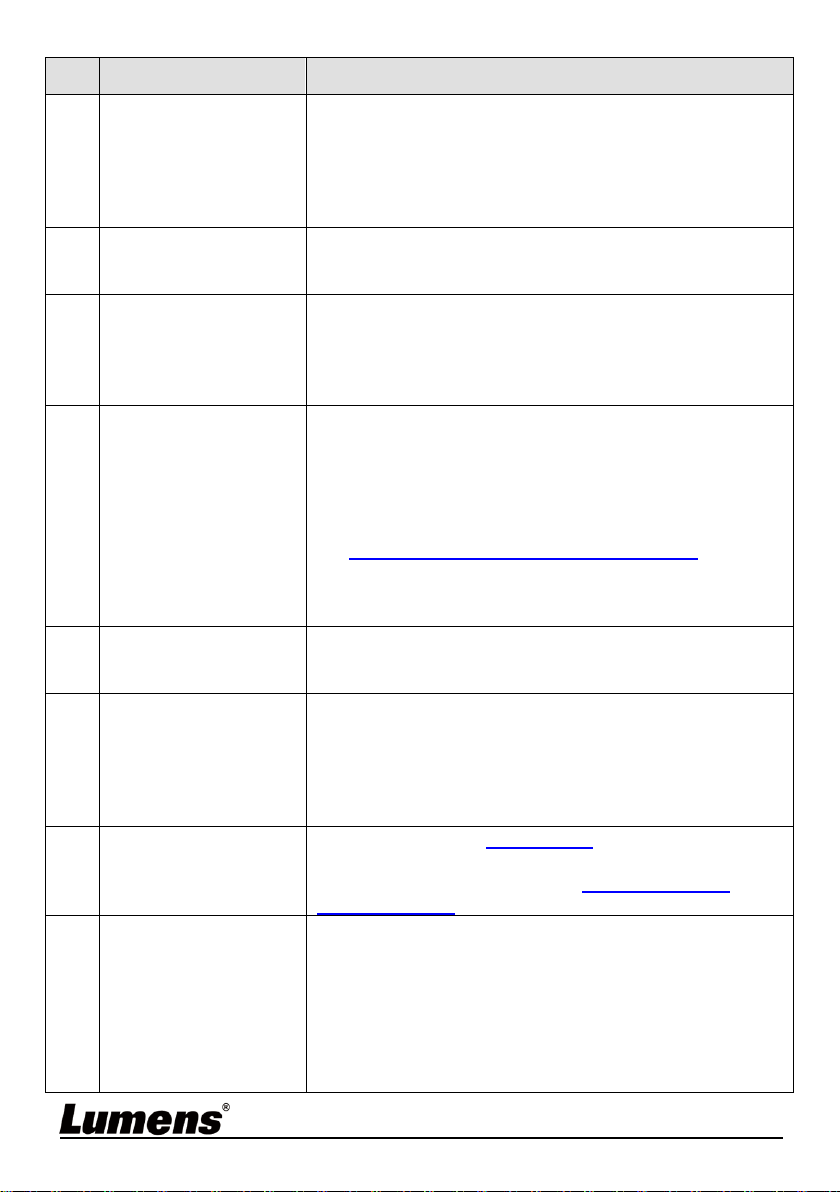
No.
Problems
Solutions
1
Boot without
power signal
Make sure you have plugged in the power cord.
2
There is no image
output from PS753
1. Check the power.
2. Check all cable connections. Refer to Chapter 3
Installation and Connections in this manual.
3. Check the [Source], refer to 6.2 Switch Image
Sources of Chapter 6 Descriptions of Major
Functions.
4. Check the settings for the source of the projector.
Please refer to the user manual of the projector.
5. Check if DIP switch is properly set. Please refer to
Chapter 10 DIP Switch Setting in this manual for
related settings.
3
No Ethernet/USB
Image Output
Ethernet/USB may only choose one, because they
cannot be output at the same time.
Please switch the streaming settings on the setting
menu or web page
Setting Menu: [Settings] > [Capture] > [Streaming]
> [Ethernet/USB]
Web page: [Stream] > [Stream] > [Ethernet/USB]
4
Unable to focus
Probably the document is too close. Press the
[ZOOM -] button or pull away the distance
between the lens and the document, and then press
[AUTO TUNE] to auto-focus.
5
The image is
incomplete
Check the Auto Image setting of your projector.
Please refer to the user manual of the projector or
check for the DIP Switch resolution setting.
6
No screen with
Ladibug software
1. Change the USB cable.
2. Please try the USB port on the back of the
computer or other USB port.
3. Please close the currently running applications
and then start Ladibug software.
If other software is already using PS753 images,
Ladibug software cannot output the screen.
7
When PS753 is
turned on, the
auxiliary floodlight
do not light
Please press [Lamp] to switch the lamp source.
English - 32
No.
Problems
Solutions
8
PS753 fails to store
images or react
1. Check to see if the stored data have reached the
maximum size of the USB disk (priority) or
internal memory.
2. Please make sure if the capture function is set to
continuous mode or the time for capture is set to
be long.
9
The output image
is too bright, too
dark, or vague
Press [AUTO TUNE] button to automatically adjust
the image to have the best brightness and focusing
performance.
10
Unable to record
images
1. Check to see if the stored data have reached the
maximum size of the USB disk.
2. The recording function is not supported in the
internal memory. Please make sure that USB
disk is inserted.
11
The operating steps
in the manual are
not applicable to
the machine
The operating steps in the manual may be not
applicable to the machine due to improvement in
functions. Check to see if the Firmware version
of your machine is up-to-date.
1 Please go to Lumens official website to check
whether the latest version is available for update.
https://www.MyLumens.com/support
2 Firmware version confirmation steps: Go to the
setting menu, and select [Settings] > [Advanced]
> [Firmware Version].
12
How to unlock the
locked device
1. Go to the setting menu and select [Settings] >
[Advanced] > [Lock Down].
2. Cancel the password setting function.
13
When using the USB
cable to connect to a
computer, HDMI IN
screen output is not
available through
USB
After using the USB cable to connect to a computer,
only Live Image output is available.
14
The output image is
not clear with water
ripples
Please refer to the Appendix 1 in the manual to
confirm the applicable voltage frequency, and reset it
according to the instruction in Chapter 10 DIP
Switch Setting.
15
The data in the USB
disk cannot be read
1. The USB disk with the capacity of 4 G and
above is recommended (up to 4 TB supported).
2. Make sure the file is saved at the specified path:
\DCIM\100MEDIA.
(E.g.: J:\ DCIM\100MEDIA)
3. Make sure the file is named appropriately, e.g.
four English letters + four numbers. (E.g.:
LUMN0001.JPG)

English - 33
Chapter 12 Safety Instructions
Always follow these safety instructions when setting up and using the Document
Camera:
1 Operation
1.1 Please use the product in the recommended operating environment,
away from water or source of heat.
1.2 Do not place the product on a tilted or unstable trolley, stand or table.
1.3 Do not block the slots and openings in the case of the product. They
provide ventilation and prevent the product from overheating.
1.4 Do not open or remove covers, otherwise it may expose you to dangerous
voltages and other hazards. Refer all servicing to licensed service
personnel.
1.5 Unplug the product from the wall outlet and refer servicing to licensed
service personnel when the following situations happen:
If the USB port becomes damaged or frayed.
If liquid is spilled into the product or the product has been exposed to
rain or water.
2 Installation
2.1 For security considerations, please make sure the standard hanging rack
you bought is in line with UL or CE safety approbations and installed by
technician personnel approved by agents.
3 Storage
3.1 Do not place the product where the cord can be stepped on as this may
result in fraying or damage to the lead or the plug.
3.2 Remove the USB cable during thunderstorms or when the product is not
used for a long time.
3.3 Do not place this product or accessories on top of vibrating equipment or
heated objects.
4 Cleaning
4.1 Disconnect all the cables prior to cleaning and wipe the surface with a dry
cloth. Do not use alcohol or volatile solvents for cleaning.
5 Batteries (for products or accessories with batteries)
5.1 When replacing batteries, please only use similar or the same type of
batteries
5.2 When disposing of batteries or products, please adhere to the relevant
instructions in your country or region for disposing of batteries or products
English - 34
Precautions
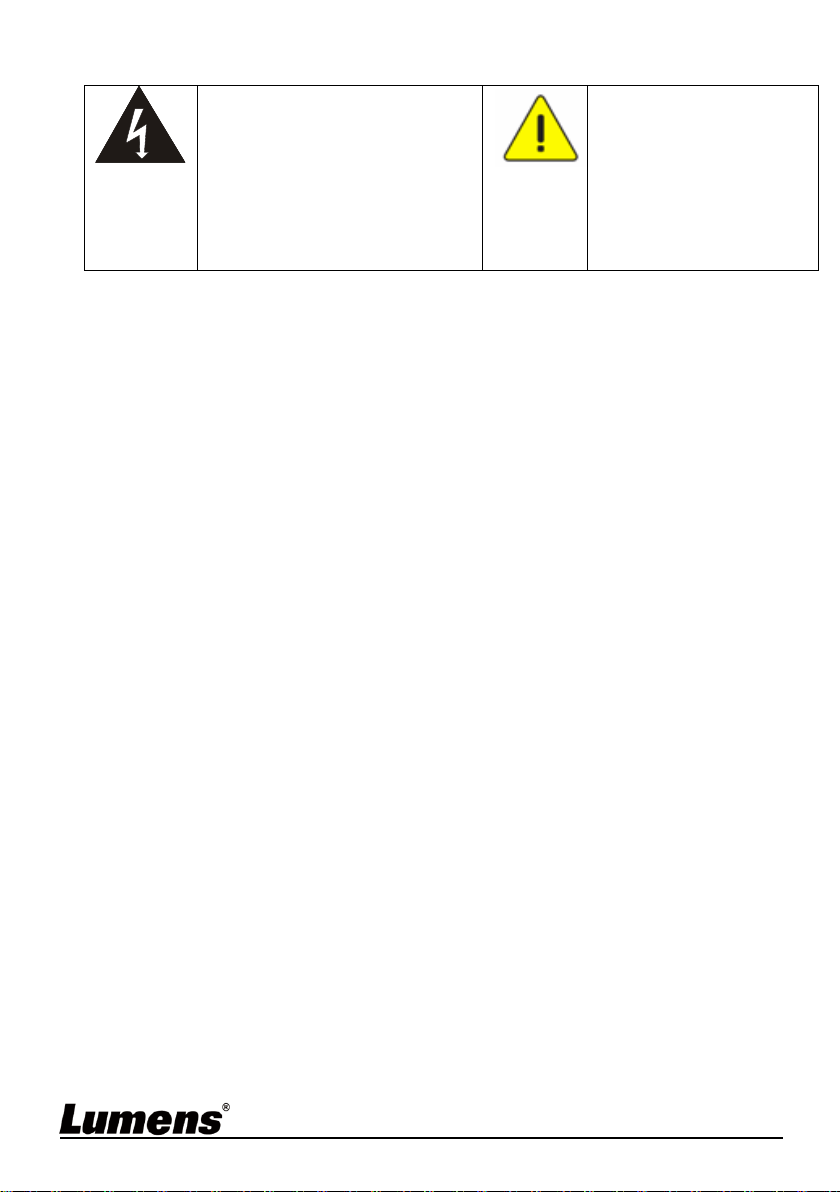
This symbol indicates that
this equipment may contain
dangerous voltage which
could cause electric shock.
Do not remove the cover (or
back). No user-serviceable
parts inside. Refer servicing
to licensed service personnel.
This symbol indicates
that there are important
operating and
maintenance
instructions in this User
Manual with this unit.
FCC Warning (A)
This equipment has been tested and found to comply with the limits for a Class
A digital device, pursuant to part 15 of the FCC Rules. These limits are
designed to provide reasonable protection against harmful interference when
the equipment is operated in a commercial environment.
Notice :
The changes or modifications not expressly approved by the party responsible
for compliance could void the user’s authority to operate the equipment..
This equipment has been tested and found to comply with the limits for a Class
A digital device, pursuant to part 15 of the FCC Rules. These limits are
designed to provide reasonable protection against harmful interference when
the equipment is operated in a commercial environment.
IC Warning
This digital apparatus does not exceed the Class A limits for radio noise
emissions
from digital apparatus as set out in the interference-causing equipment
standard
entitled "Digital Apparatus," ICES-003 of Industry Canada.
Cet appareil numerique respecte les limites de bruits radioelectriques
applicables aux appareils numeriques de Classe A prescrites dans la norme
sur le material brouilleur: "Appareils Numeriques," NMB-003 edictee par
l'Industrie.
EN55032 CE Warning
Operation of this equipment in a residential environment could cause radio
interference.
Warning: Operation of this equipment in a residential environment may cause
radio interference

English - 35
Supplier's Declaration of Conformity
47 CFR § 2.1077 Compliance Information
Manufacturer:Lumens Digital Optics Inc.
Product Name:PS753
Model Number:Document Camera
Responsible Party – U.S. Contact Information
Supplier:Lumens Integration, Inc.
4116 Clipper Court, Fremont, CA 94538, United States
FCC Compliance Statement
This device complies with Part 15 of the FCC Rules. Operation is subject to the
following two conditions : (1) This device may not cause harmful interference,
and (2) this device must accept any interference received, including
interference that may cause undesired operation.
English - 36
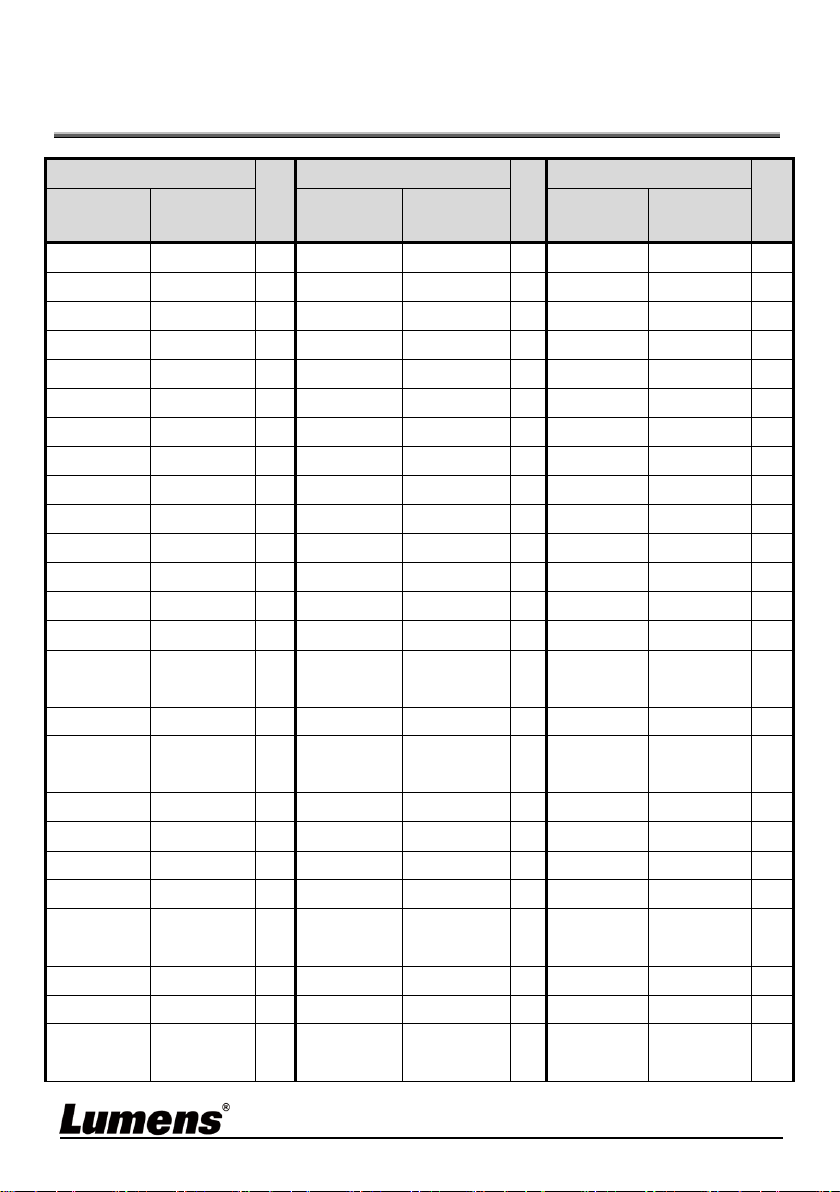
Appendix 1 Power frequency for each country
in the world
Region or Country
Frequency
Region or Country
Frequency
Region or Country
Frequency
Chinese
English
Chinese
English
Chinese
English
阿富汗
Afghanistan
50
大陸
China
50
關島
Guam
60
阿 爾 及 利 亞
Algeria
50
哥 倫 比 亞
Colombia
60
石 榴 島
Grenada
50
安哥拉
Angola
50
剛果
Congo
50
瓜地馬拉
Guatemala
60
安地瓜
Antiqua
50
哥斯大黎加
Costa Rica
60
幾 內 亞
Guinea
50
阿根廷
Argentina
50
古巴
Cuba
60
蓋 亞 納
Gayana
50
澳洲
Australia
50
塞 普 路 斯
Cyprus
50
海地
Haiti
60
澳地利
Austria
50
捷克
Czechoslovakia
50
夏 威 夷
Hawaii
60
亞述爾
Azores
50
達 荷 美
Dahomey
50
宏都拉斯
Honduras
60
巴哈馬
Bahamas
60
丹麥
Den mark
50
香港
Hong Kong
50
巴林
Bahrain
60
多 明 尼 加
Dominican
60
匈 牙 利
Hungary
50
孟加拉
Bangladesh
50
杜貝
Dubai
50
冰島
Ice land
50
巴貝多
Babados
50
厄 瓜 多 爾
Ecuador
60
印度
India
50
比利時
Belgium
50
埃及
Egypt
50
印尼
Indonesin
50
百慕達
Bermuda
60
薩 爾 瓦 多
El Salvador
60
伊朗
Iran
50
玻利維亞
Bolivia
50
赤道幾內亞
Equatorial
Guinea
50
伊 拉 克
Iraq
50
波札那
Botswana
50
衣 索 匹 亞
Ethiopia
50
愛 爾 蘭
Ireland
50
巴西
Brazil
50
60
法 羅 群 島
Faeroe
Island
50
曼島
Isle of Man
50
保加利亞
Bulgaria
50
裴濟
Fiji
50
以 色 列
Israel
50
緬甸
Burma
50
芬蘭
Finland
50
義 大 利
Italy
50
蒲隆地
Burundi
50
法國
France
50
象牙海岸
Ivory Coast
50
高棉
Cambodia
50
蓋 亞 那
French Guiana
50
牙 買 加
Jamaica
50
喀麥隆
Cameroon
50
加彭
Gabon
50
日本
Japan
50
60
加拿大
Canada
60
甘 比 亞
Gambia
50
約旦
Jordan
50
康 那 利 群 島
CanaryIsland
50
德國
Germany
50
肯亞
Kenya
50
中 非 共 和 國
Central
Africa Rep.
50
迦納
Ghana
50
韓國
Korea
60
English - 37
Region or Country
Frequency
Region or Country
Frequency
Region or Country
Frequency
Chinese
English
Chinese
English
Chinese
English
錫蘭
Ceylon
50
直 布 羅 陀
Gibraltar
50
科 威 特
Kuwait
50
查德
Chad
50
大 不 列 顛
Great Britain
50
黎 巴 嫩
Lebanon
50
海峽群島
Channel Island
50
希臘
Greece
50
賴 索 托
Lesotho
50
智利
Chile
50
格 陸 蘭
Greenland
50
賴比瑞亞
Liberia
60
利比亞
Libya
50
阿曼
Oman
50
敘 利 亞
Syria
50
盧森堡
Luxembourg
50
巴 基 斯 坦
Pakistan
50
大 溪 地
Tahiti
60
澳門
Macao
50
巴 拿 馬
Panama
60
中華民國
R.O.C. Taiwan
60
馬 得 拉 群 島
Madeiral
50
巴 拉 奎
Paraguay
50
坦尚尼亞
Tanzania
50
馬約卡島
Majokca Island
50
秘魯
Peru
60
泰國
Thailand
50
馬拉加西
Malagasy
50
菲 律 賓
Philippines
60
多哥共和國
Togo Rep.of
50
馬拉威
Malawi
50
波蘭
Poland
50
東加
Tonga
50
馬來西亞
Malaysia
50
葡 蔔 牙
Portugal
50
千 里 達
Trinidad
60
馬利
Mali Rep.
50
波 多 黎 各
Puerto Rico
60
他 巴 哥
Tobago
60
馬爾他
Malta
50
科托
Qatar
50
突尼西亞
Tunisia
50
馬 丁 尼 克 島
Martinique
50
羅 德 西 亞
Rhodesia
50
土 耳 其
Turkey
50
茅 里 塔 尼 亞
Mauritania
50
羅 馬 尼 亞
Romania
50
烏 干 達
Uganda
50
模里西斯
Mauritius
50
盧 安 達
Rwanda
50
美國
USA.
60
墨西哥
Mexico
60
沙 烏 地
阿 拉 伯
Saudi Arabia
50
60
蘇聯
USSR
50
摩那哥
Monaco
50
蘇 格 蘭
Scotland
50
英國
United
Kingdom
50
蒙 特 色 納 島
Montserrat
60
塞 內 加 爾
Senegal
50
上 伏 塔
Upper Volta
50
摩洛哥
Morocco
50
獅 子 山
Sierra Leone
50
烏 拉 奎
Uruguay
50
莫桑鼻克
Mozambique
50
新 加 坡
Singapore
50
委內瑞拉
Venezuela
60
尼泊爾
Nepal
50
索 馬 利 亞
Somalia
50
越南
Viet-Nam
50
荷爾
Netherlands
50
南非共和國
South Africa Rep.
50
維爾京群島
Virgin Island
60
新蘇格蘭
New Caledonia
50
西 班 牙
Spain
50
西薩摩亞
Western Samoa
50
紐西蘭
New Zealand
50
斯 里 蘭 卡
Sri Lanka
50
葉門亞丁
Yeman(Aden)
50
尼加拉瓜
Nicaragua
60
蘇丹
Sudan
50
葉門阿拉伯
Yemen(Arab)
50
尼日
Niger
50
蘇 利 南
Surinam
60
南斯拉夫
Yugoslavia
50
奈及利亞
Nigeria
50
史 瓦 濟 蘭
Swaziland
50
薩伊共和國
Zaire Rep. of
50
挪威
Norway
50
瑞典
Sweden
50
尚 比 亞
Zambia
50
琉球
Okinawa
60
瑞士
Switzerland
50
English - 38
Appendix 2 Resolution Comparison
Dip Switch
HDMI
Output
Mode
FPS
RTSP
UVC
H264
H264
MJPEG
YUV
1920x1080
60Hz
Normal
30
3840x2160
3840x2160
NA
NA
1920x1080
(Default)
1920x1080
1920x1080
1280x720
1280x720
1280x720
640x360
NA
640x360
640x360
1920x1080
50Hz
Normal
25
3840x2160
3840x2160
NA
NA
1920x1080
(Default)
1920x1080
1920x1080
1280x720
1280x720
1280x720
640x360
NA
640x360
640x360
1920x1080
60Hz
High
Speed
60
NA
1920x1080
NA
NA
1280x720
30
1920x1080
1920x1080
1920x1080
NA
1280x720
1280x720
1280x720
640x360
NA
640x360
640x360
1920x1080
50Hz
High
Speed
50
NA
1920x1080
NA
NA
1280x720
25
1920x1080
1920x1080
1920x1080
NA
1280x720
1280x720
1280x720
640x360
NA
640x360
640x360
3840x2160
30 Hz
Normal
30
1920x1080
1920x1080
1920x1080
NA
1280x720
1280x720
1280x720
640x360
NA
640x360
640x360
3840x2160
25 Hz
Normal
25
1920x1080
1920x1080
1920x1080
NA
1280x720
1280x720
1280x720
640x360
NA
640x360
640x360
1920x1080
60Hz
High
Speed
60
NA
1920x1080
NA
NA
1280x720
30
1920x1080
1920x1080
1920x1080
NA
1280x720
1280x720
1280x720
640x360
NA
640x360
640x360
1920x1080
50Hz
High
Speed
50
NA
1920x1080
NA
NA
1280x720
25
1920x1080
1920x1080
1920x1080
NA
1280x720
1280x720
1280x720
NA
640x360
NA
640x360
640x360
1280x720
Normal
30
3840x2160
3840x2160
NA
NA
1920x1080
1920x1080
1920x1080
1280x720
1280x720
1280x720
English - 39
Dip Switch
HDMI
Output
Mode
FPS
RTSP
UVC
H264
H264
MJPEG
YUV
60 Hz
640x360
NA
640x360
640x360
1280x720
50 Hz
Normal
25
3840x2160
3840x2160
NA
NA
1920x1080
1920x1080
1920x1080
1280x720
1280x720
1280x720
640x360
640x360
640x360
640x360
1280x720
60 Hz
High
Speed
60
NA
1920x1080
NA
NA
1280x720
NA
30
1920x1080
1920x1080
1920x1080
NA
1280x720
1280x720
1280x720
NA
640x360
NA
640x360
640x360
1280x720
50 Hz
High
Speed
50
NA
1920x1080
NA
NA
1280x720
NA
25
1920x1080
1920x1080
1920x1080
NA
1280x720
1280x720
1280x720
NA
640x360
NA
640x360
640x360
1024x768
60 Hz
Normal
30
1024x768
1024x768
1024x768
NA
640x480
NA
640x480
640x480
1024x768
60 Hz
Normal
25
1024x768
1024x768
1024x768
NA
640x480
NA
640x480
640x480
1024x768
60 Hz
High
Speed
60
NA
1024x768
NA
NA
NA
30
1024x768
1024x768
1024x768
NA
640x480
NA
640x480
640x480
1024x768
60 Hz
High
Speed
50
NA
1024x768
NA
NA
NA
25
1024x768
1024x768
1024x768
NA
640x480
NA
640x480
640x480

English - 40
Copyright Information
Copyrights © Lumens Digital Optics Inc. All rights reserved.
Lumens is a trademark that is currently being registered by Lumens Digital Optics
Inc.
Copying, reproducing or transmitting this file is not allowed if a license is not
provided by Lumens Digital Optics Inc. unless copying this file is for the purpose
of backup after purchasing this product.
In order to keep improving the product, Lumens Digital Optics Inc. hereby
reserves the right to make changes to product specifications without prior notice.
The information in this file is subject to change without prior notice.
To fully explain or describe how this product should be used, this manual may
refer to names of other products or companies without any intention of
infringement.
Disclaimer of warranties: Lumens Digital Optics Inc. is neither responsible for any
possible technological, editorial errors or omissions, nor responsible for any
incidental or related damages arising from providing this file, using, or operating
this product.