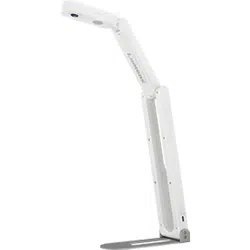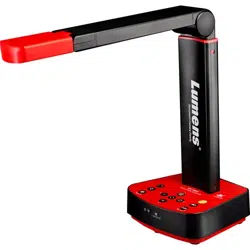
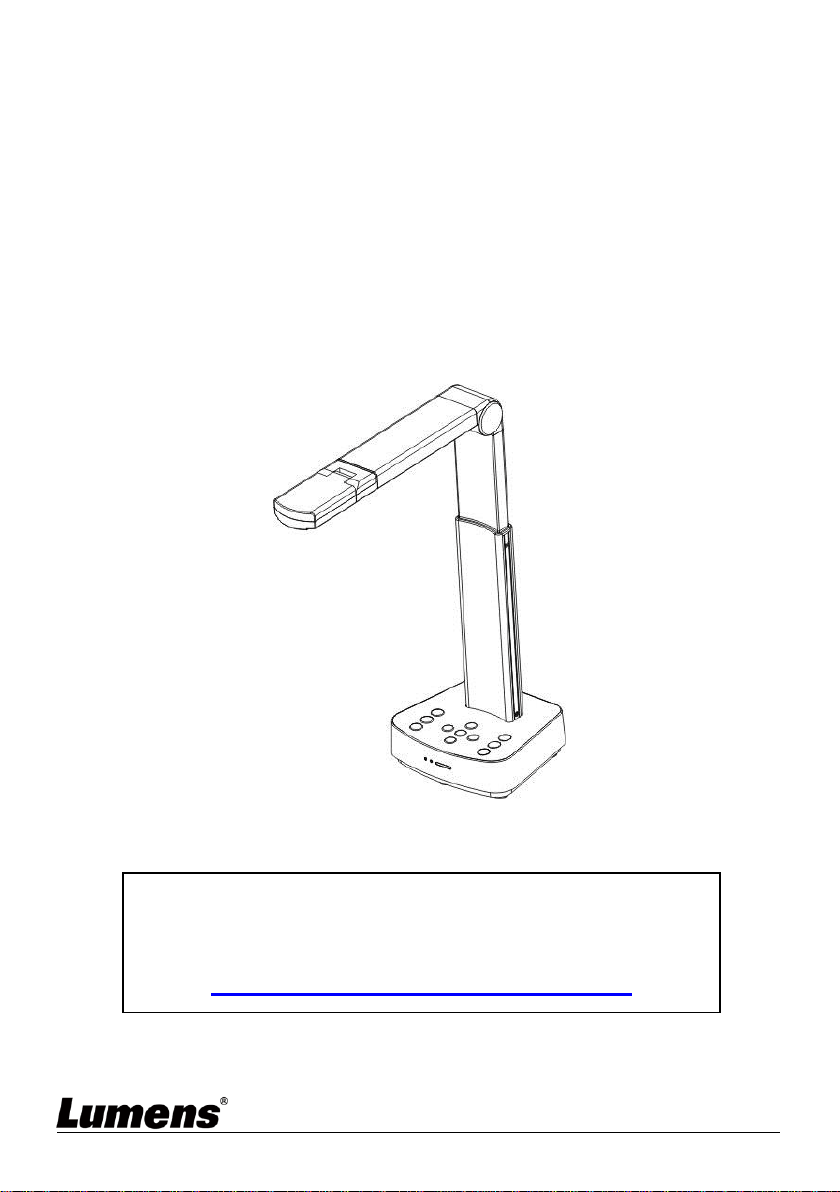
DC-W80
4K Document Camera
User Manual - English
[Important]
To download the latest versions of the Quick Start
Guide, multilingual user manual, software, driver,
etc., please visit Lumens
https://www.MyLumens.com/support

English - 1
Table of Contents
Copyright Information ....................................................................................... 3
Chapter 1 Safety Instructions .......................................................................... 4
Chapter 2 Package Contents ........................................................................... 5
Chapter 3 Product Overview ............................................................................ 6
3.1 Overview ............................................................................................. 6
3.2 Extension angle .................................................................................. 6
3.3 Notes for Operation ............................................................................ 7
3.4 I/O functions Introduction ................................................................... 7
3.5 Description of LED indicator ............................................................... 8
3.6 Relative position of the presenter and document ............................... 9
Chapter 4 Installation and Connections ....................................................... 10
4.1 Machine Size .................................................................................... 10
4.2 Installation and setup ....................................................................... 10
4.3 Connecting to a computer and use Lumens™ software (Wi-Fi mode)11
4.4 Connect to a projector, monitor or HDTV (HDMI mode) .................. 11
4.5 Connecting to a computer and use Lumens™ software (USB Mode)12
4.6 Installing Application Software .......................................................... 12
Chapter 5 Start Using ...................................................................................... 13
5.1 Direct Use (HDMI Mode) .................................................................. 13
5.2 Use with Ladibug (Wi-Fi Mode) ........................................................ 14
5.3 Use with Ladibug (USB Mode) ......................................................... 16
Chapter 6 Introductions to Control Panel Buttons ...................................... 17
Chapter 7 Descriptions of Major Functions .................................................. 18
7.1 I would like to automatically adjust the image to have the best
brightness and focusing performance .......................................................... 18

English - 2
7.2 I would like to freeze the live image ................................................. 18
7.3 I would like to turn on/off the lamp .................................................... 18
7.4 I would like to zoom in/out images ................................................... 18
7.5 I would like to adjust the brightness ................................................. 18
7.6 I would like to rotate the image ......................................................... 19
7.7 I would like to enlarge a part of the image ....................................... 19
Chapter 8 Wi-Fi Connection Setting .............................................................. 20
8.1 Network connection .......................................................................... 20
8.2 Log in to the web page ..................................................................... 20
8.3 Web Page Menu Function Description ............................................. 21
Chapter 9 Set DC-W80 as an AP .................................................................... 30
9.1 Connection Diagram ......................................................................... 30
9.2 Device Requirements ....................................................................... 30
9.3 Setting DC-W80................................................................................ 30
Chapter 10 DIP Switch Setting ....................................................................... 33
10.1 Description of DIP .......................................................................... 33
10.2 Resolution Switch .......................................................................... 33
Chapter 11 Troubleshooting ........................................................................... 34
Supplier's Declaration of Conformity 47 CFR § 2.1077 Compliance
Information ...................................................................................................... 35

English - 3
Copyright Information
Copyrights © Lumens Digital Optics Inc. All rights reserved.
Lumens is a trademark that is currently being registered by Lumens Digital Optics
Inc.
Copying, reproducing or transmitting this file is not allowed if a license is not
provided by Lumens Digital Optics Inc. unless copying this file is for the purpose
of backup after purchasing this product.
In order to keep improving the product, Lumens Digital Optics Inc. hereby
reserves the right to make changes to product specifications without prior notice.
The information in this file is subject to change without prior notice.
To fully explain or describe how this product should be used, this manual may
refer to names of other products or companies without any intention of
infringement.
Disclaimer of warranties: Lumens Digital Optics Inc. is neither responsible for any
possible technological, editorial errors or omissions, nor responsible for any
incidental or related damages arising from providing this file, using, or operating
this product.
English - 4
Chapter 1 Safety Instructions
Always follow these safety instructions when setting up and using the DC-W80 Document Camera:
1 Operation
1.1 Please use the product in the recommended operating environment, away from water or source of heat
1.2 Do not place product in tilted position or unstable trolley, stand or table.
1.3 Please clean the dust on the power plug prior to usage. Do not insert the product’s power plug into a
multiplug to prevent sparks or a fire.
1.4 Do not block the slots and openings in the case of DC-W80 Document Camera. They provide ventilation
and prevent the DC-W80 Document Camera from overheating.
1.5 Do not open or remove covers, otherwise it may expose you to dangerous voltages and other hazards.
Refer all servicing to licensed service personnel.
1.6 Unplug the DC-W80 Document Camera from the wall outlet and refer servicing to licensed service
personnel when the following situations happen:
If the power cords are damaged or frayed.
If liquid is spilled into the product or the product has been exposed to rain or water.
2 Installation
2.1 For security considerations, please make sure the standard hanging rack you bought is in line with UL or
CE safety approbations and installed by technician personnel approved by agents.
3 Storage
3.1 Do not place the product where the cord can be stepped on as this may result in fraying or damage to the
lead or the plug.
3.2 Unplug the product during thunderstorms or if it is not going to be used for an extended period.
3.3 Do not place the product or accessories on top of vibrating equipment or heated objects.
4 Cleaning
4.1 Disconnect all the cables prior to cleaning and wipe the surface with a dry cloth. Do not use alcohol or
volatile solvents for cleaning.
5 Batteries (for products or accessories with batteries)
5.1 When replacing batteries, please only use similar or the same type of batteries.
5.2 When disposing of batteries or products, please adhere to the relevant instructions in your country or
region for disposing of batteries or products.
Precautions
This symbol indicates that this
equipment may contain dangerous
voltage which could cause electric
shock. Do not remove the cover (or
back). No user-serviceable parts inside.
Refer servicing to licensed service
personnel.
This symbol indicates that there
are important operating and
maintenance instructions in this
User Manual with this unit.
FCC Warning
This equipment has been tested and found to comply with the limits for a Class B digital device, pursuant to part
15 of the FCC Rules. These limits are designed to provide reasonable protection against harmful interference in
a residential installation. This equipment generates, uses and can radiate radio frequency energy and, if not
installed and used in accordance with the instructions, may cause harmful interference to radio communications.
However, there is no guarantee that interference will not occur in a particular installation. If this equipment does
cause harmful interference to radio or television reception, which can be determined by turning the equipment off
and on, the user is encouraged to try to correct the interference by one or more of the following measures:
- Reorient or relocate the receiving antenna.
- Increase the separation between the equipment and receiver.
- Connect the equipment into an outlet on a circuit different from that to which the receiver is connected.
- Consult the dealer or an experienced radio/TV technician for help.
Notice :
The changes or modifications not expressly approved by the party responsible for compliance could void the
user’s authority to operate the equipment.
English - 5
Chapter 2 Package Contents
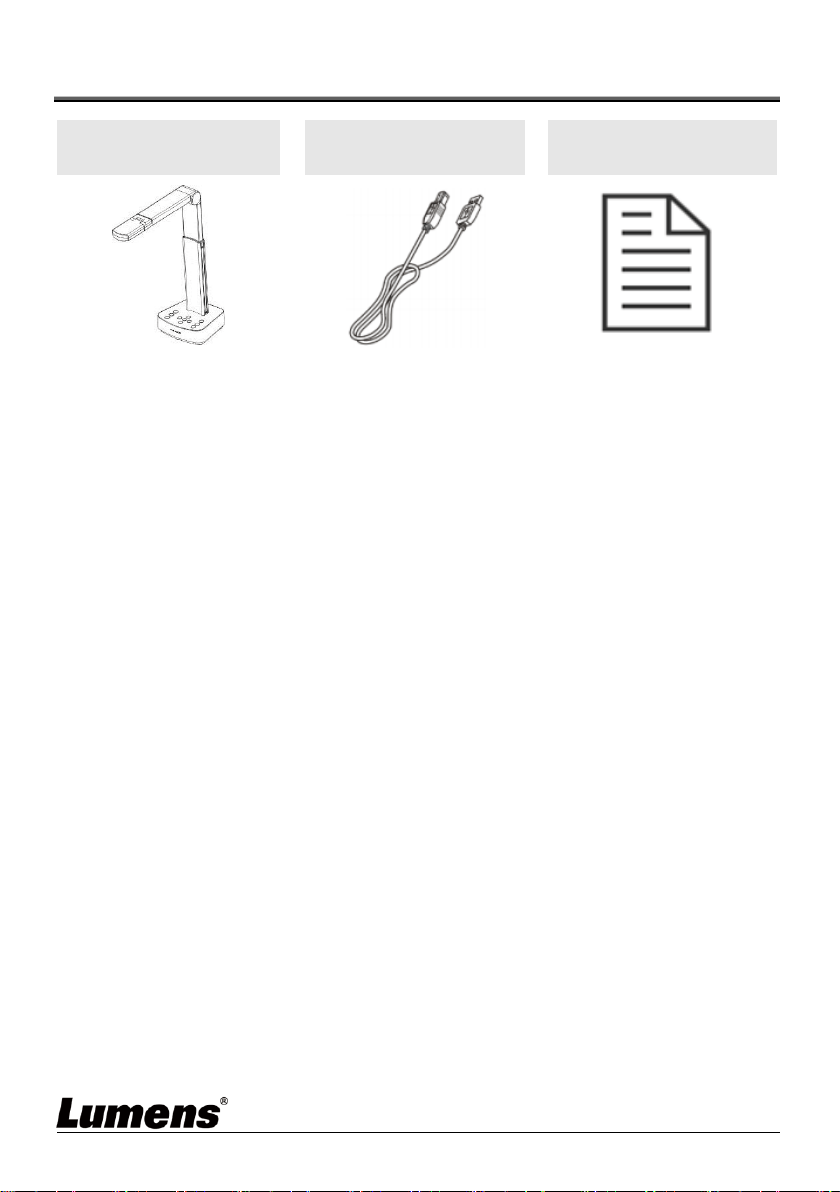
DC-W80
USB cable (USB 2.0)
Quick Installation
Guide
English - 6
Chapter 3 Product Overview
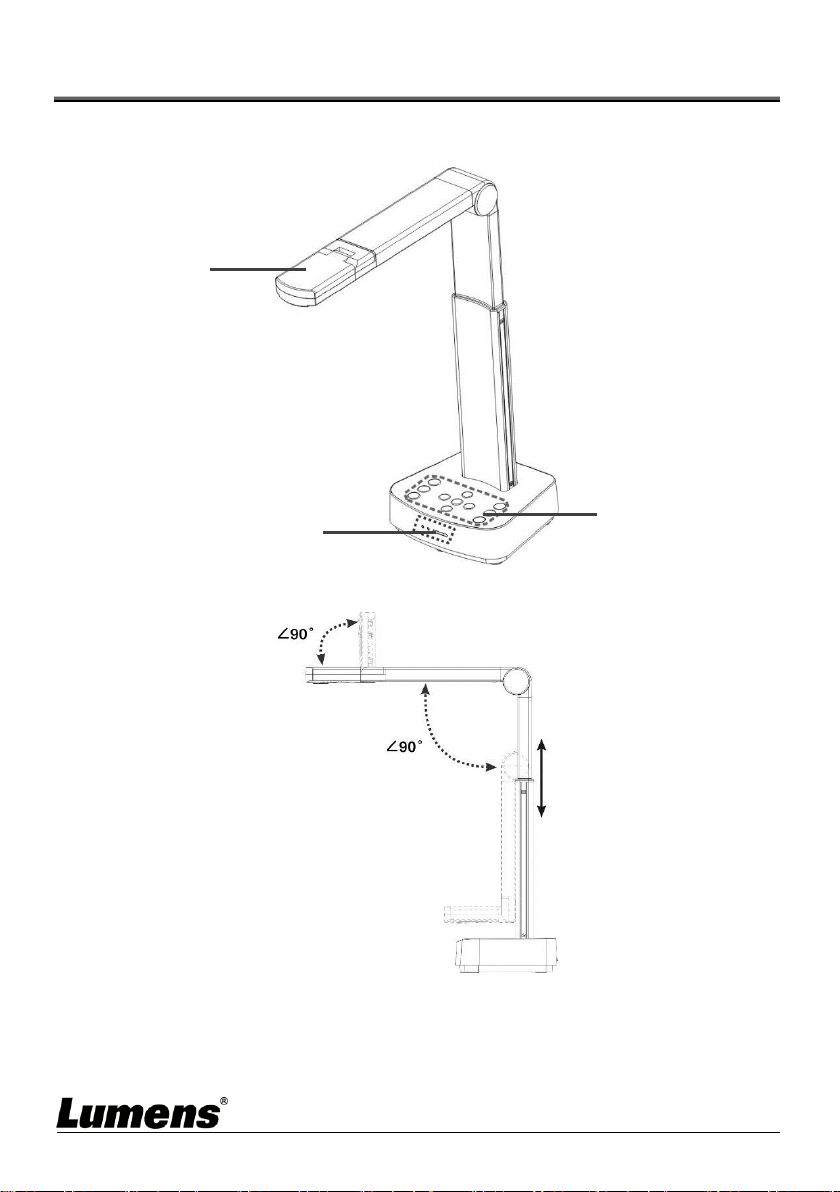
3.1 Overview
3.2 Extension angle
< Caution > Please only operate in the extended angles as illustrated.
Improper usage may damage the machine.
Support Arm
Control panel
LED Indicator
Lens/Lamp
English - 7
3.3 Notes for Operation
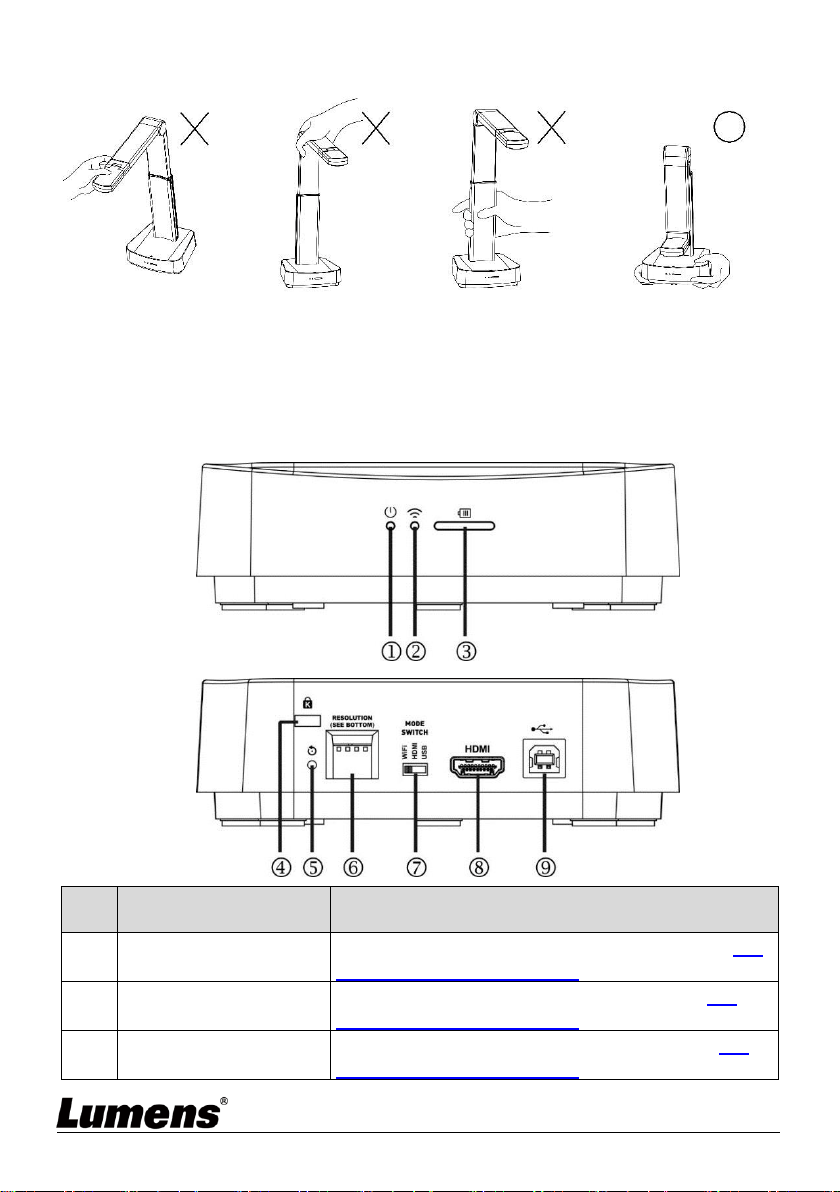
<Note> When moving the device, do not grasp the front of the lens or the
body. Please use both hands to hold the bottom of the device. Handling the
device improperly may cause machine failure.
3.4 I/O functions Introduction
NO.
Item
Function Descriptions
1
Power LED Indicator
Display the status of the machine. Please refer to 3.5
Description of LED indicator
2
Wi-Fi LED Indicator
Display the status of the Wi-Fi. Please refer to 3.5
Description of LED indicator
3
Battery LED Indicator
Display the status of the battery. Please refer to 3.5
Description of LED indicator
Back View
Front View
English - 8
NO.
Item
Function Descriptions
4
Kensington safety lock
Lock hole of safety lock
5
Reset Button
Press the button for initialization to reset to original
factory settings.
6
DIP Switch Setting
Adjust the resolution setting. The default is
1920*1080/30 fps.
To switch the setting, please refer to Chapter 10 DIP
Switch Setting
7
Mode Switch Button
Switch Modes: Wi-Fi / HDMI / USB
8
HDMI output port
Connect to HDMI output signal source
9
USB Type-B port
The USB port is for connecting to the USB port of the
computer which provides USB signal images and
power
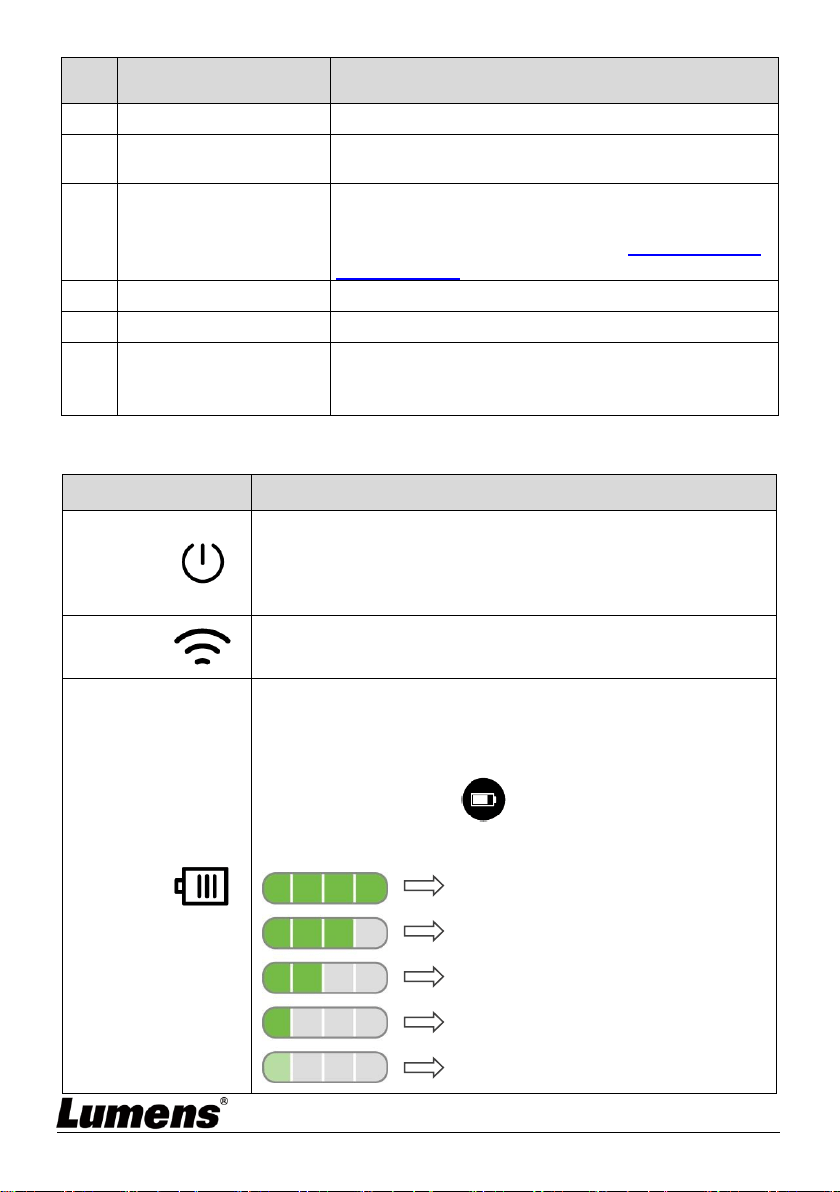
3.5 Description of LED indicator
Name
Indicator Status
Power
Flickering blue light: Startup in progress, initialization
Blue light stays lit: Startup completed
Flickering red light: A startup failure or error has occurred
Pink light stays lit: Already powered on, indicating low power
and need to connect to the USB cable for charging
Wi-Fi
Blue light stays lit: Switched to the Wi-Fi Mode and the startup
is completed
No Light: In another operating mode
Battery
Indicator light is green
After connecting the USB cable and the flickering indicator light
will indicate that it is charging
Press “Battery Check” button to display the battery
level
Battery level ≥ 75%
Battery level 50% ~ 75%
Battery level 25% ~ 50%
Battery level 3% ~ 25%
Battery level < 3%
Flickering green light
English - 9
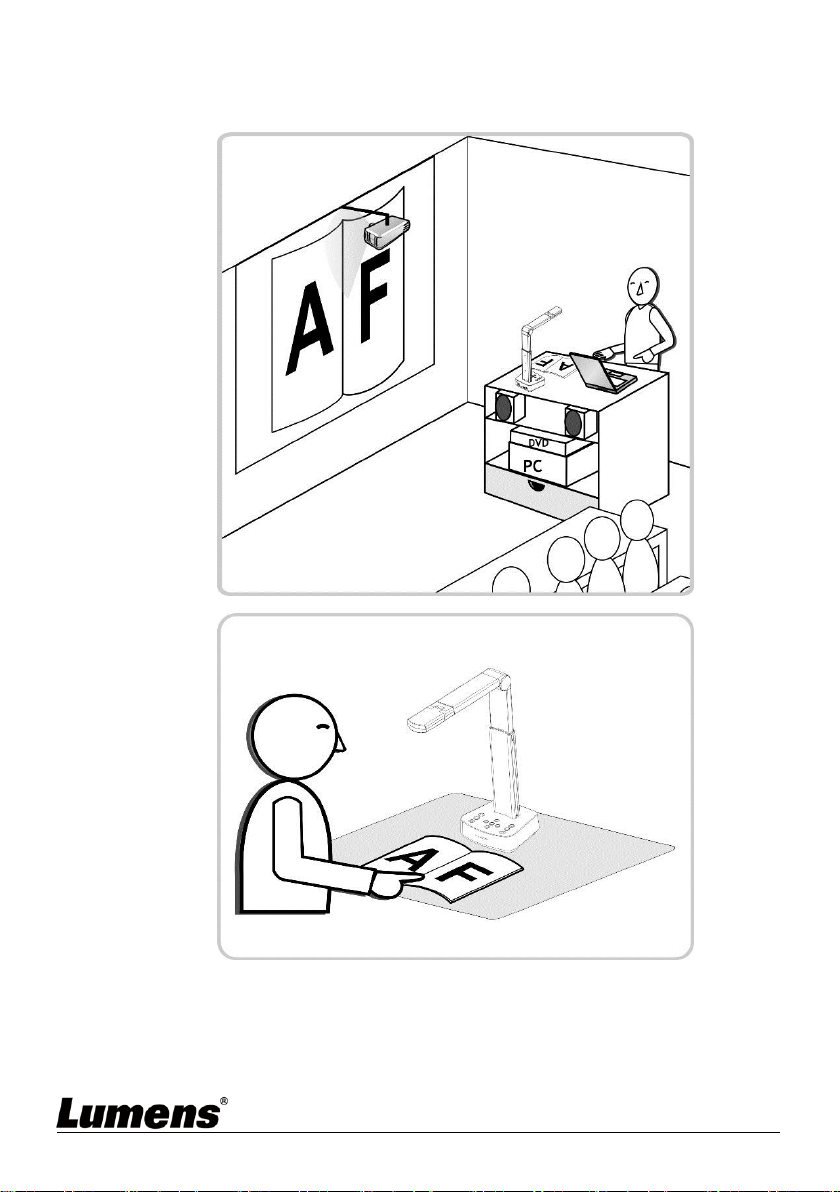
3.6 Relative position of the presenter and document
Computer
Projector
English - 10
Chapter 4 Installation and Connections
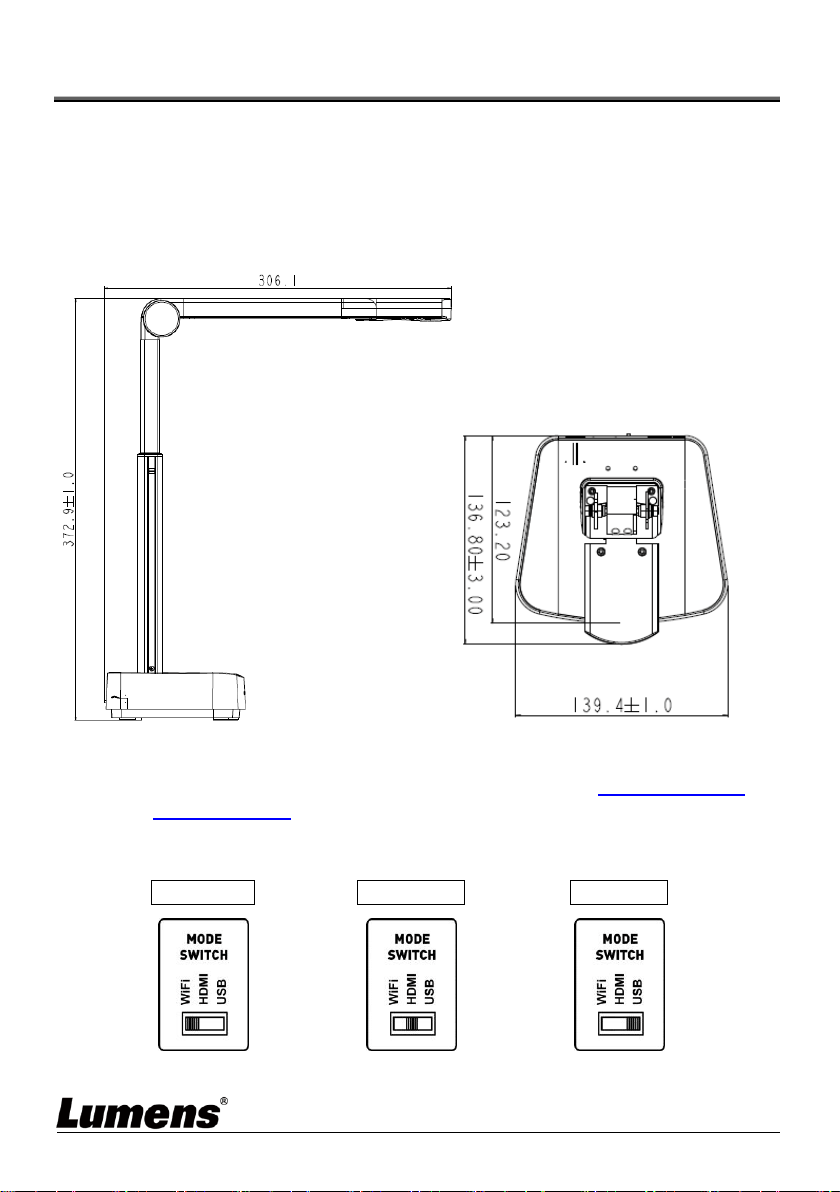
4.1 Machine Size
Length x Width x Height: Extended-306 x 140 x 373 mm
Closed-137 x 140 x 270 mm
Weight: 1.35 kg
4.2 Installation and setup
Please set up the DIP switch setting first. Refer to Chapter 10 DIP
Switch Setting.
Please confirm that the product is switched to the desired mode
(Wi-Fi/HDMI/USB)
Wi-Fi Mode
HDMI Mode
USB Mode
English - 11
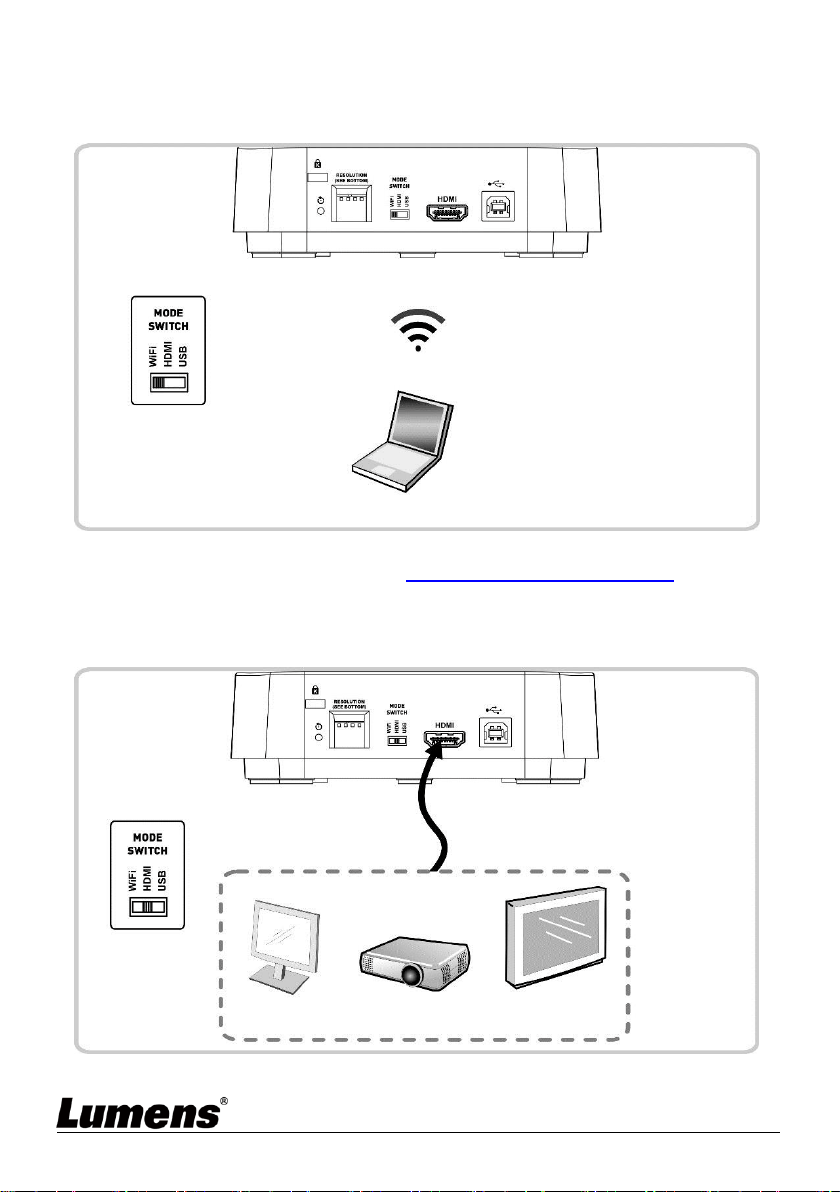
4.3 Connecting to a computer and use Lumens™
software (Wi-Fi mode)
※Please download the relevant software from Lumens website. For more information on the
connection method, please refer to Chapter 8 Wi-Fi Connection Setting.
4.4 Connect to a projector, monitor or HDTV (HDMI mode)
Computer
HDMI cable
Monitor
Projector
HDTV
or
or
English - 12
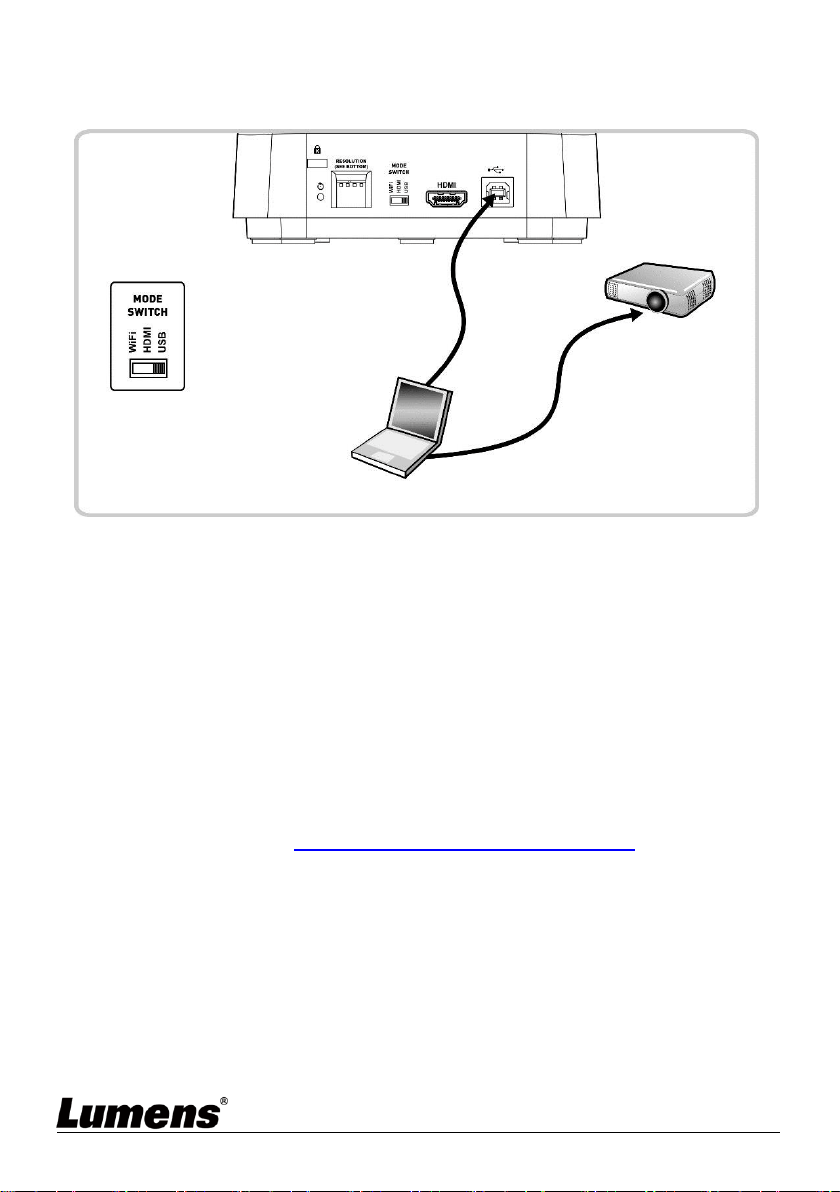
4.5 Connecting to a computer and use Lumens™
software (USB Mode)
<Remark>Please download the relevant software from Lumens website.
4.6 Installing Application Software
The application software installed on the computer enables you to:
Control DC-W80.
Capture and record images.
Annotate the image, highlight important details and save it.
Support the full screen function.
<Caution> Please download the relevant software from the Lumens
website. For installation steps and software operation, please
refer to the Ladibug™ 4K software user manual.
4.6.1 System Requirements
Windows System: Windows 7 or later
Chrome system
Mac System: Mac OS X 10.12 and above
USBCable
HDMICable
Projector
Computer
English - 13
Chapter 5 Start Using
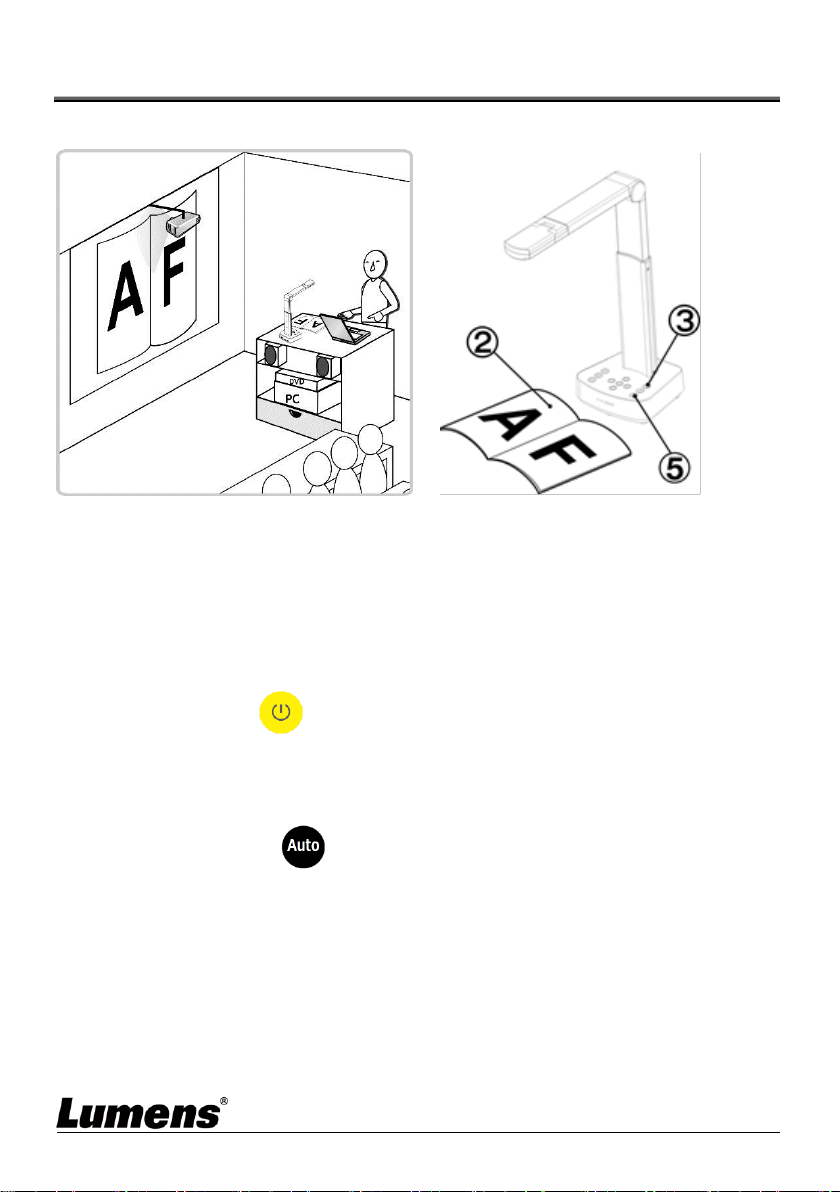
5.1 Direct Use (HDMI Mode)
1. Charge for a recommended 10.5 hours prior to first-time operation. The device
is fully charged when all the power bars are full and the green light is constant
on.
2. Place an object to be displayed under the camera.
3. Turn on the power and adjust the operation mode according to the
connection method.
4. Adjust the support arm and lens to the appropriate positions.
5. Press [AUTO TUNE] button to optimize the image.
6. You are ready to teach/present.
Computer
Projector
English - 14
5.2 Use with Ladibug (Wi-Fi Mode)
5.2.1 Network Connection
Switch DC-W80 to Wi-Fi mode, and Wi-Fi LED light turns blue. Open
the Wi-Fi network list on the computer, and choose
[DC-W80_5G_XXXXXX] (XXXXXX: last six digits of the MAC address).
Enter the connection password (default password: 88889999) to
enable the connection.
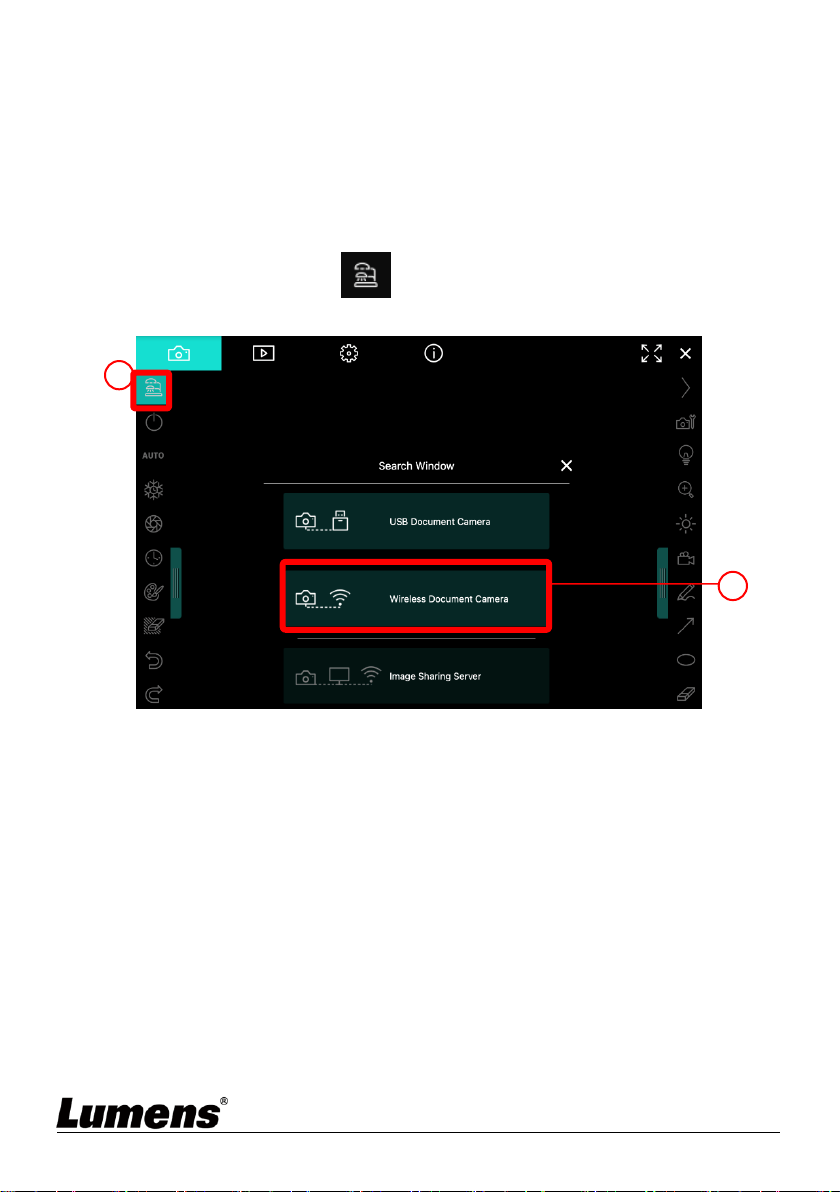
5.2.2 Use Ladibug to connect to DC-W80
1. Open Ladibug, click to open the [Search Window], and select
[Wireless Document Camera].
1
2
English - 15
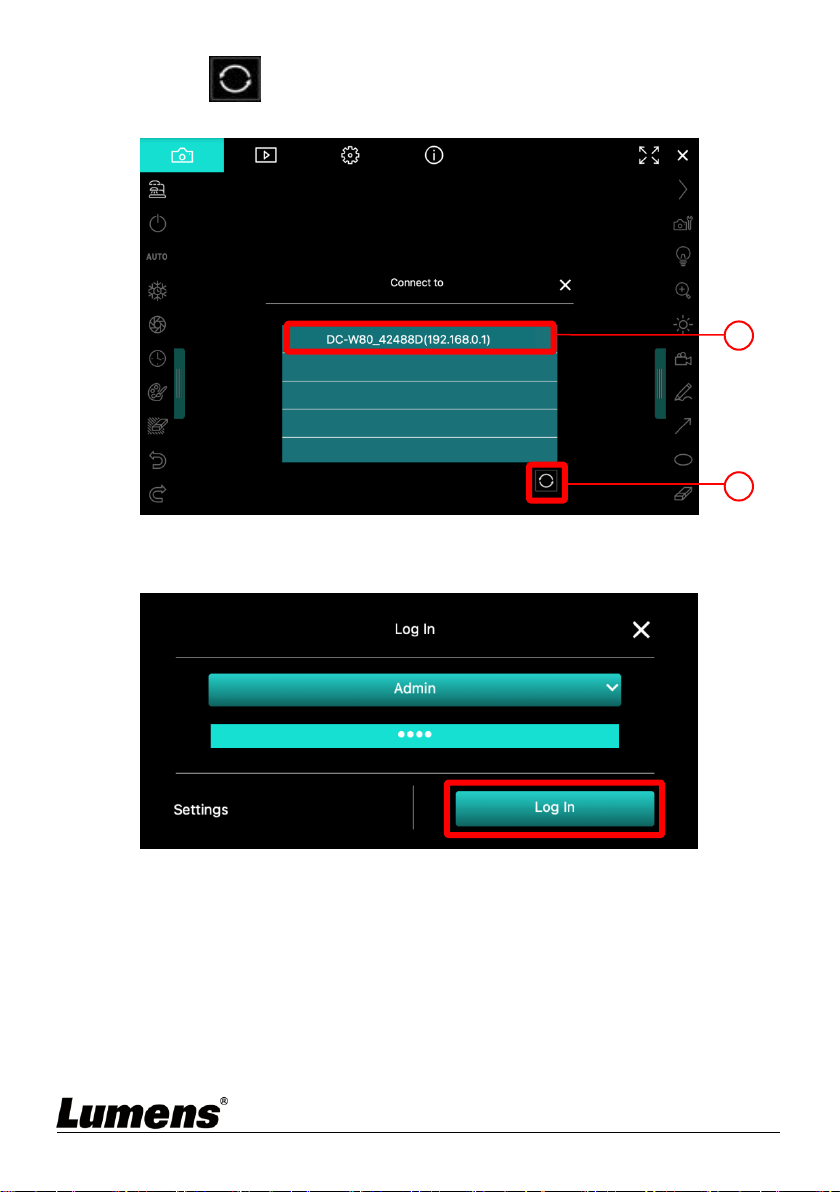
2. Click ,and select a DC-W80 in the list after the search is
completed.
3. Log in as an Admin or a Viewer. The default password for Admin is
9999.
4. After connecting to DC-W80 by clicking [Log In], you can start using it.
1
2
English - 16
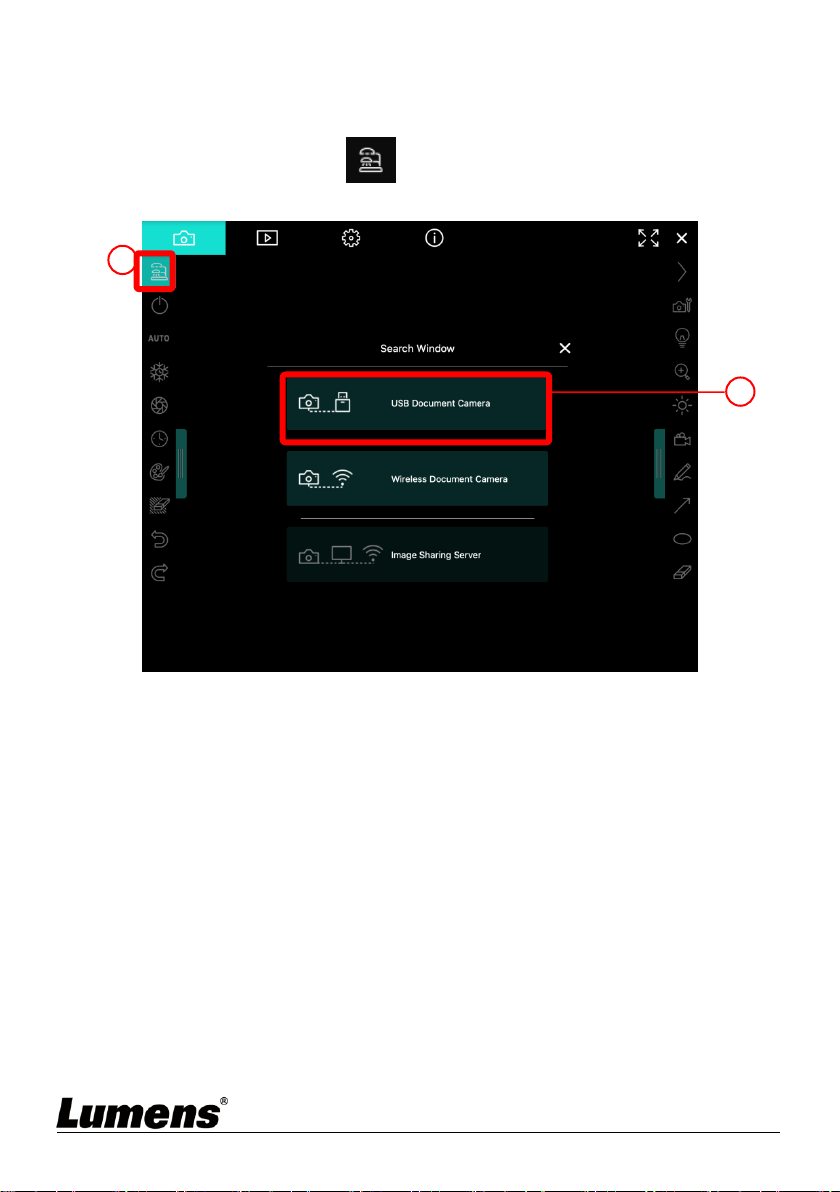
5.3 Use with Ladibug (USB Mode)
1. Switch to USB mode, and use a USB cable to connect DC-W80
and the computer.
2. Open Ladibug, click to open the [Search Window], and
select [USB Document Camera].
3. You can start using DC-W80.
1
2
English - 17
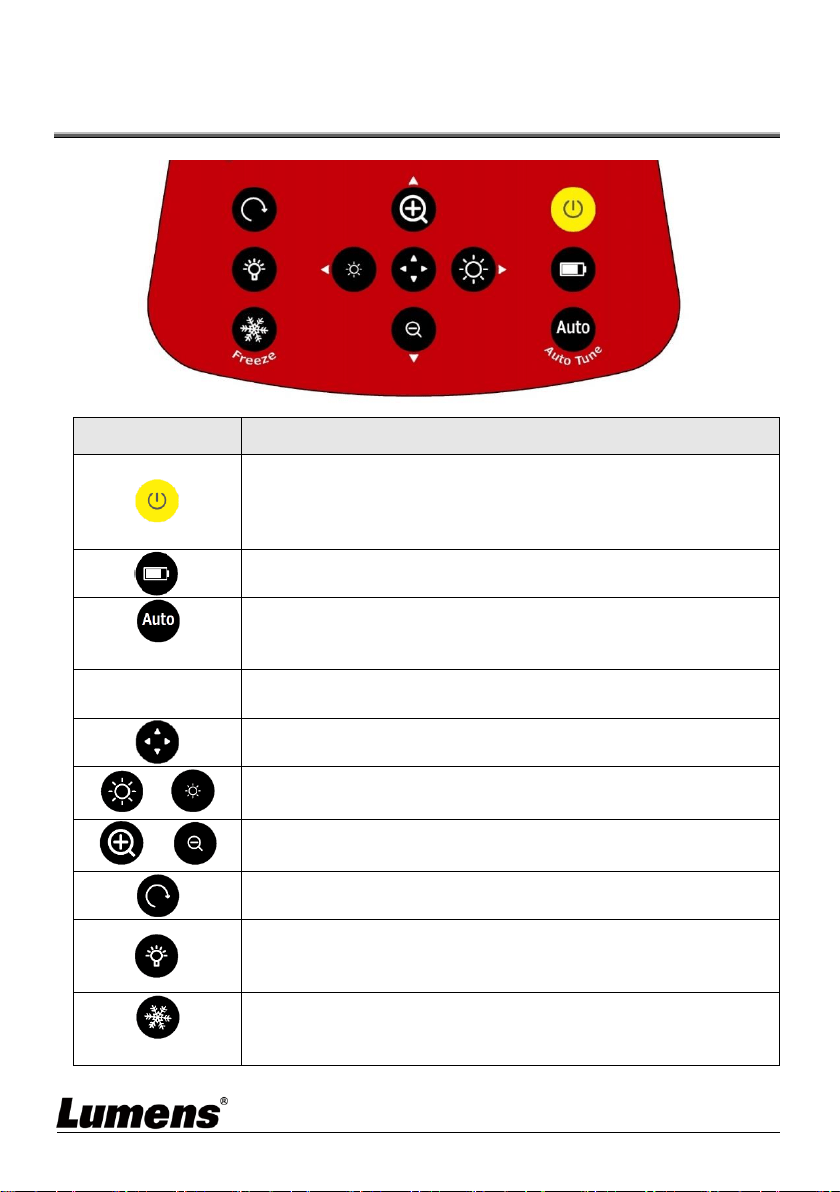
Chapter 6 Introductions to Control Panel
Buttons
Icon
Function Descriptions
Turn on and off
Short press: power on (under stand by)
Press for 1 second: turn off (under power on)
Press for 10 seconds: force to turn off
Battery level check
Auto Tune
Automatically adjust the image to have the best brightness
and focusing performance
,,,
Left, right, up, down buttons, used for moving in a direction
at the partial enlarged mode
Enable/Disable the partial enlarged mode
/
Adjust the brightness of the image
/
Zoom in/out images
Rotate image: 0°/ 90°/ 180°/ 270° /Vertical flip/Horizontal flip
LED lamp mode toggle switch: off / brightness 1 / brightness
2 / brightness 3
<Remark>Brightness 3 is the brightest state
Freeze
Freeze the current image to remain temporarily on the
screen. Press again to defreeze
English - 18
Chapter 7 Descriptions of Major Functions
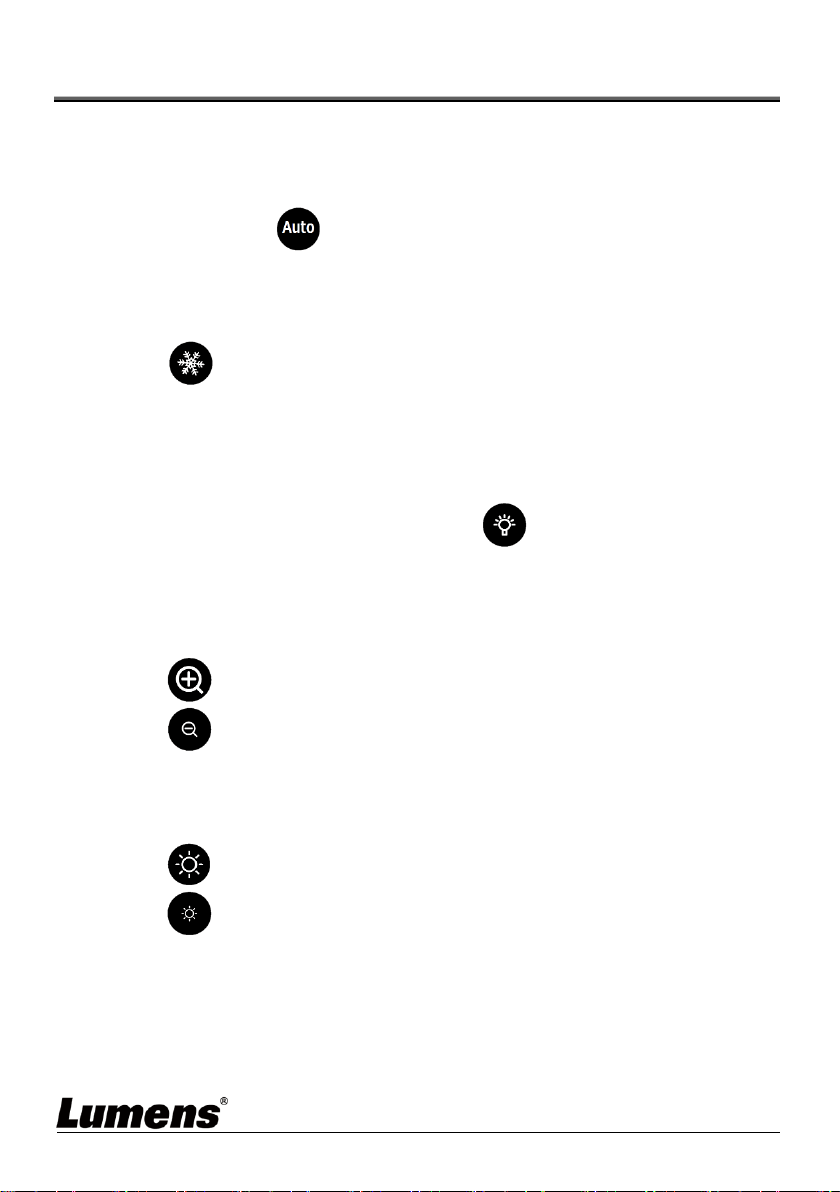
7.1 I would like to automatically adjust the image to have
the best brightness and focusing performance
Press [Auto Tune] for the best brightness and focusing performance.
7.2 I would like to freeze the live image
Press FREEZE to freeze the current image on the screen. Press
again to lift the freeze.
7.3 I would like to turn on/off the lamp
The default state of the lamp is off, press to turn it on or off. There
are three levels of brightness.
7.4 I would like to zoom in/out images
Press to zoom in the image.
Press to zoom out the image.
7.5 I would like to adjust the brightness
Press to make it brighter.
Press to make it darker.

English - 19
7.6 I would like to rotate the image
Press to rotate the image. (The sequence of switching is: 0°/ 90°/
180°/ 270° /Vertical flip/Horizontal flip)
7.7 I would like to enlarge a part of the image
1. Press to activate the partial enlarged mode.
2. Press [], [], [], or []to move and view the partial enlarged images.
3. Press to exit the partial enlarged mode.

English - 20
Chapter 8 Wi-Fi Connection Setting
8.1 Network connection
8.1.1 Switch to the Wi-Fi mode and the Wi-Fi LED indicator will be displayed
in blue.
8.1.2 Open the wireless network list on the computer.
8.1.3 Select the [DC-W80_5G_XXXXXX ] (XXXXXX: last 6-digits of the
MAC address) in the network list, and input the password for
connection (default: 88889999) to start the connection.
8.2 Log in to the web page
8.2.1 Open the web browser and enter the default IP address [192.168.0.1]
in the address bar.
8.2.2 Enter the login account [admin] and default password [9999], and click
Login.
8.2.3 After the login, you can do the live preview and configure the settings
on the web page.
<Caution> For a first-time login, please refer to 8.3.5 System Information
to change the default password

English - 21
8.3 Web Page Menu Function Description
8.3.1 Login Screen
No
Item
Function Descriptions
1
User Login
Account
Enter user login account (default: admin)
2
User Password
Enter user password (default: 9999)
3
Remember user
account and
password
Save user login account and password to the
browser. When you log in next time, there is no
need to re-enter them
4
Login
Log into the administrator screen on the website
1
2
3
4

English - 22
8.3.2 Live Viewing
No
Item
Function Descriptions
1
Preview window
Display the screen currently captured by DC-W80
2
Automatic Image
Optimization
Automatically adjust the image to have the best
brightness and focusing performance
3
Freeze the
image
Freeze the current image on the screen
4
Lamp mode
toggle switch
Click lamp mode toggle switch: off / brightness 1 /
brightness 2 / brightness 3
5
Rotate the image
Rotate the image: 0° / 90° / 180° / 270° / Flip /
Mirror.
6
Image Mode
toggle switch
Select Photo/Text/Gray Mode
7
Logout
Log out of the web page
8
Fold/Expand
Function Bar
Click to fold/expand the Function Bar on the left
1
5
6
7
8
2
3
4

English - 23
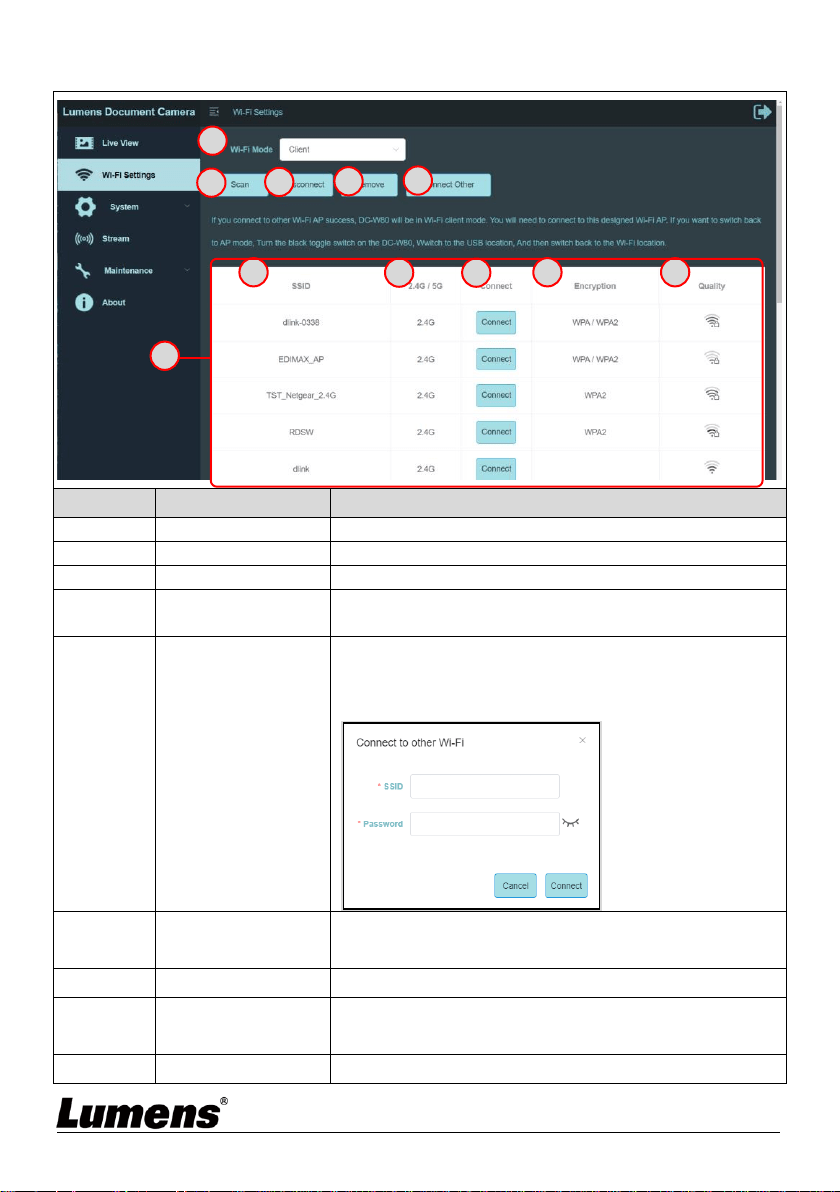
8.3.3 Wi-Fi Setting (Access Point Mode)
No
Item
Function Descriptions
1
Wi-Fi Mode
Select Access Point or Client Mode
2
Wi-Fi 5G/2.4G
Switch between 5G / 2.4G under Wi-Fi Access
Point mode
3
Device Name
Device name of wireless network
4
Channel
Select the channel based on different regions
5
Security
Wi-Fi encryption setting
6
Password
Password to connect to this Wi-Fi SSID
/ : Click the icon to hide/display the
password
7
Save
Click the save your settings
8
Cancel
Click to cancel the modified settings
1
2
3
4
5
6
7
8
English - 24
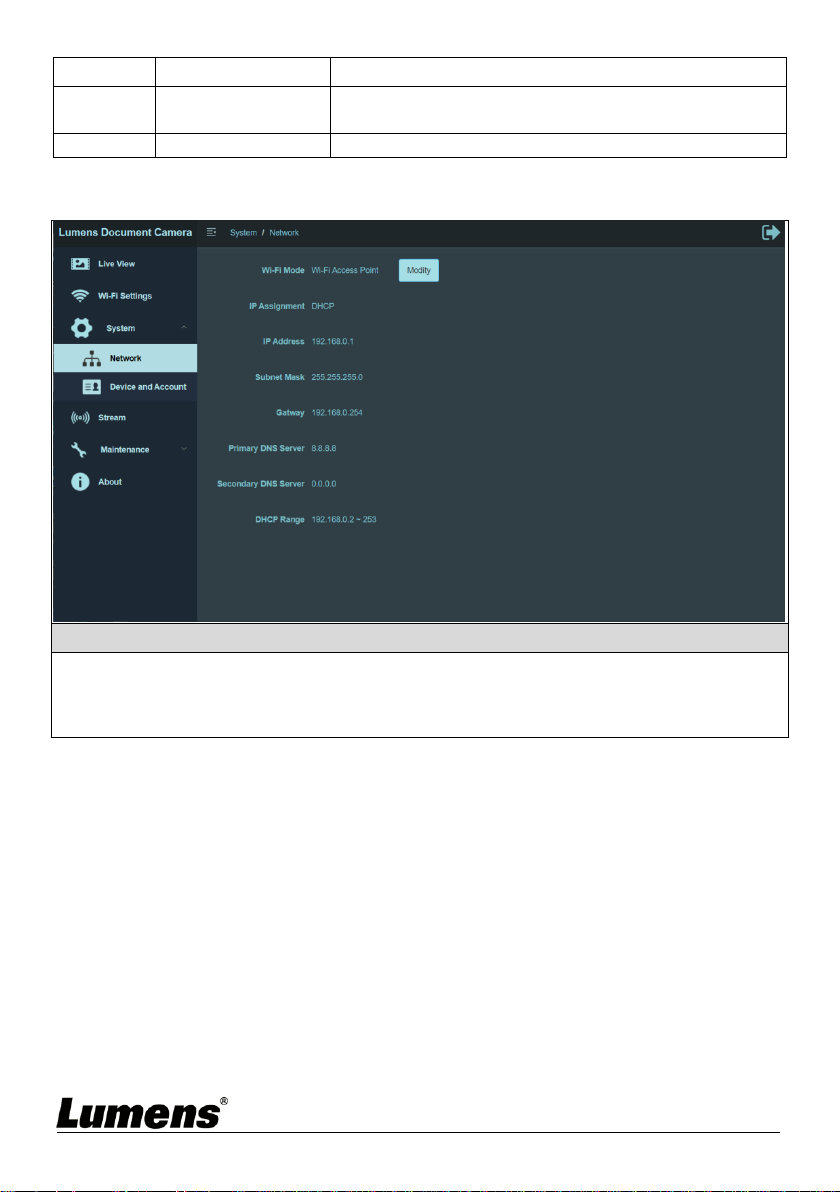
8.3.4 Wi-Fi Setting (Client Mode)
No
Item
Function Descriptions
1
Wi-Fi Mode
Select Access Point or Client Mode
2
Scan
Scan nearby wireless network devices
3
Disconnection
Disconnect from current wireless network device
4
Remove
Remove the selected wireless network device
from the list
5
Connect to Other
Wi-Fi Device
Click to show the following window. Enter the
SSID and the password of the wireless device to
be connected to perform the connection
6
Wi-Fi Device List
Display the currently found Wi-Fi wireless
devices
7
SSID
Device name of the wireless network
8
2.4G/5G
frequency band
Show that the wireless network device is in the
2.4G or 5G frequency band
9
Connect
Click this button and enter the password of the
3
11
7
8
9
1
2
4
5
6
10
English - 25
wireless device to be connected for connection
10
Encryption
The current encryption setting of the wireless
network device
11
Signal Status
Show the degree of the Wi-Fi signal
8.3.5 System Information-Network
Function Descriptions
Display the current network setting information of this DC-W80.
Click the [Modify] button, and it will jump to the Wi-Fi settings page, where you can
make modifications.
English - 26
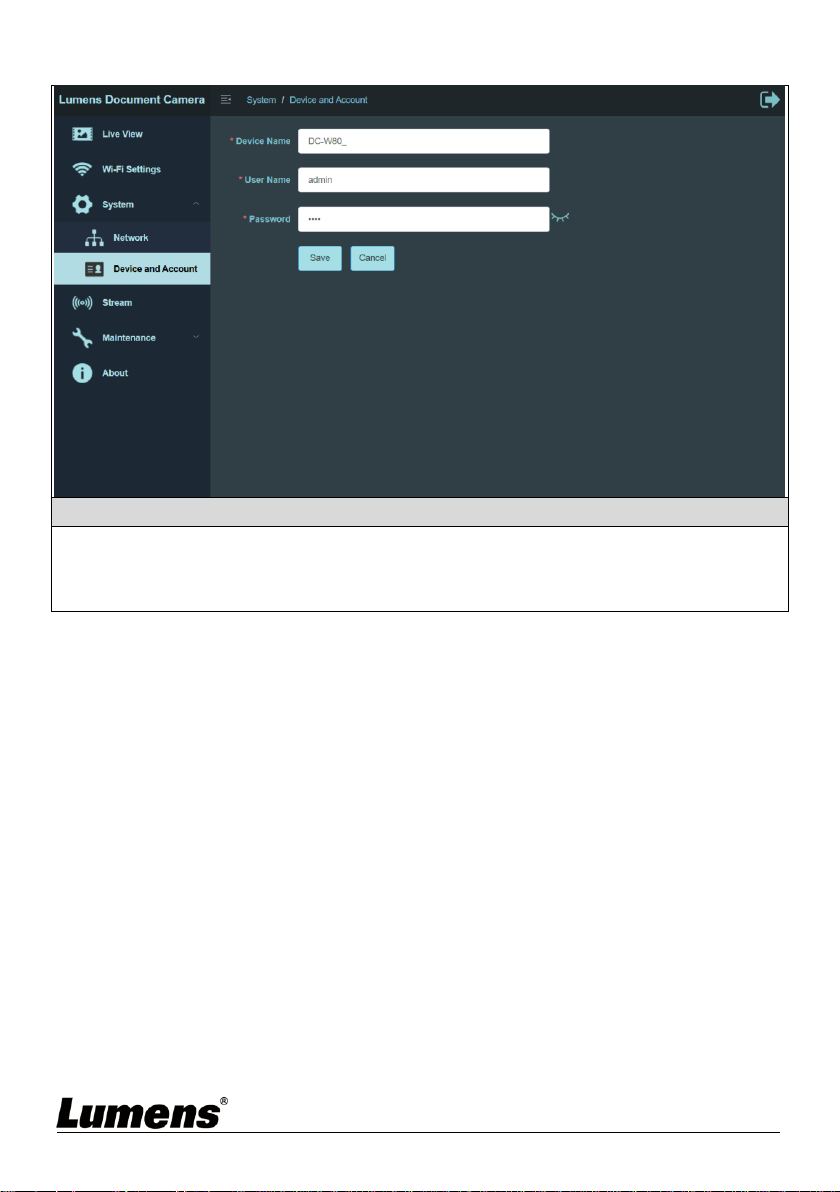
8.3.6 System Information-Device
Function Descriptions
Display current device name of this DC-W80 and login settings.
You can modify the device name, user name, and password. Click [Save] to store
your change, or click [Cancel] to cancel the modified settings.
English - 27
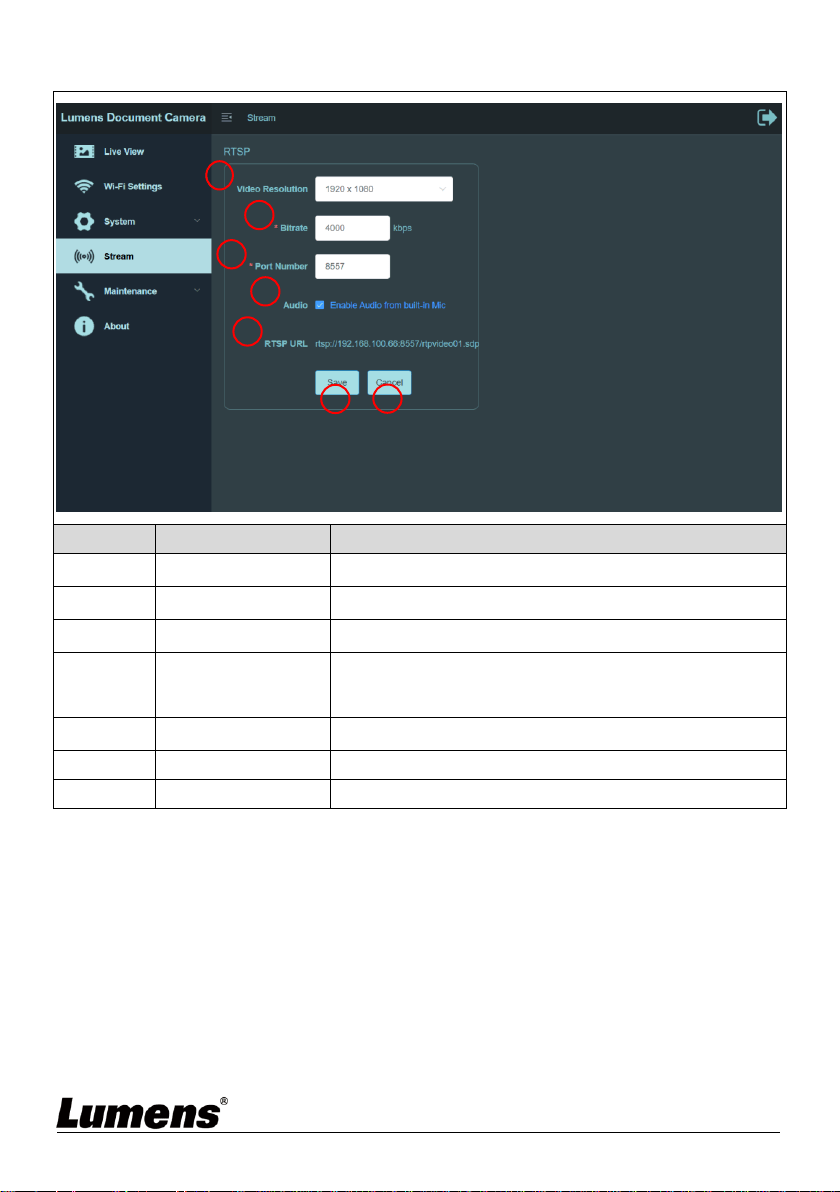
8.3.7 Streaming Parameter
No
Item
Function Descriptions
1
Resolution
Show or set the RTSP output resolution and fps
2
Bitrate (kbps)
Show or set the RTSP Bit rate (0 ~ 20000)
3
Port Number
Set the RTSP port (100 ~ 10000)
4
Audio Setting
Turn on/off RTSP audio
Check to turn on/off RSTP audio
5
RTSP URL
Show current RTSP URL connection
6
Save
Click to save settings
7
Cancel
Click to cancel the modified settings
1
2
3
4
5
6
7
English - 28
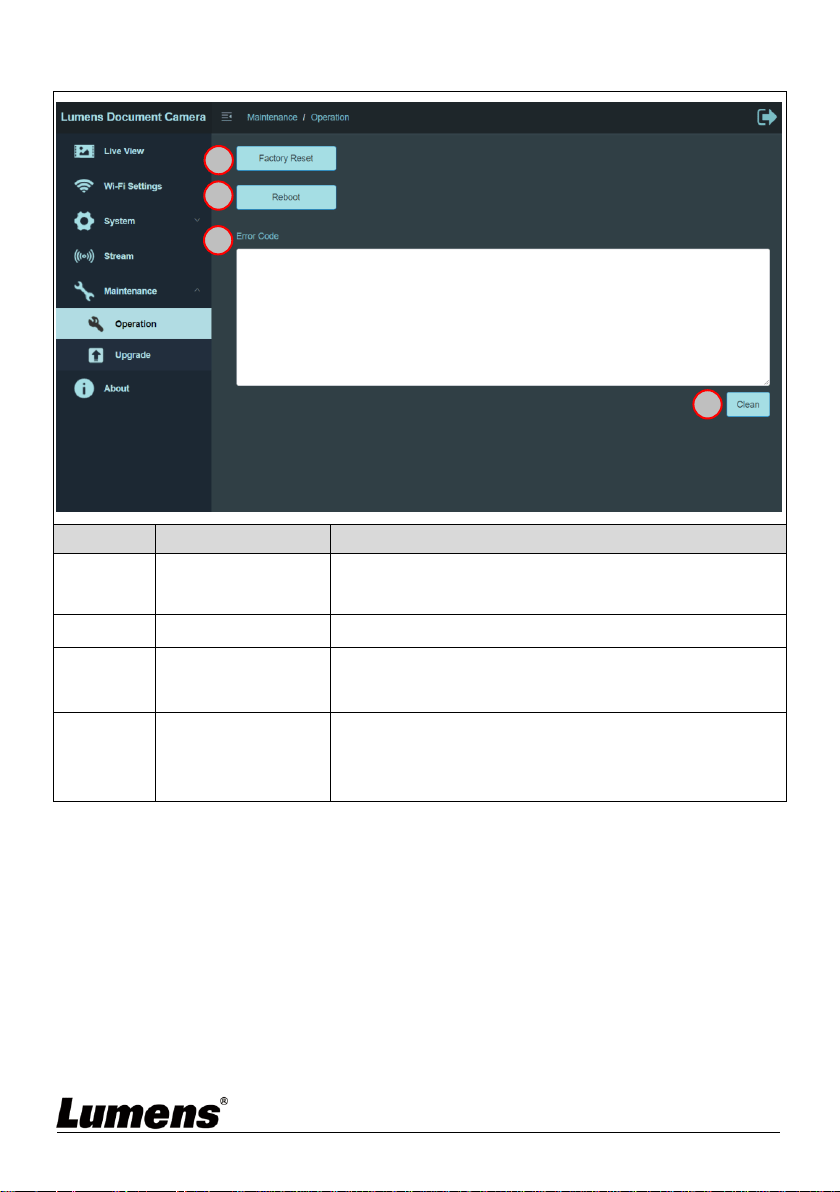
8.3.8 Maintenance
No
Item
Function Descriptions
1
Reset to the
default value
Select the reset button to resume the factory
default setting as the web page setting
2
Reboot
Click the reboot button and reboot the device
3
Error Code
In the event of an error, an error code log will be
established
4
Clean
If an error code appears, the user may try to click
the Clean button to confirm if the error will repeat
itself.
2
3
1
4
English - 29
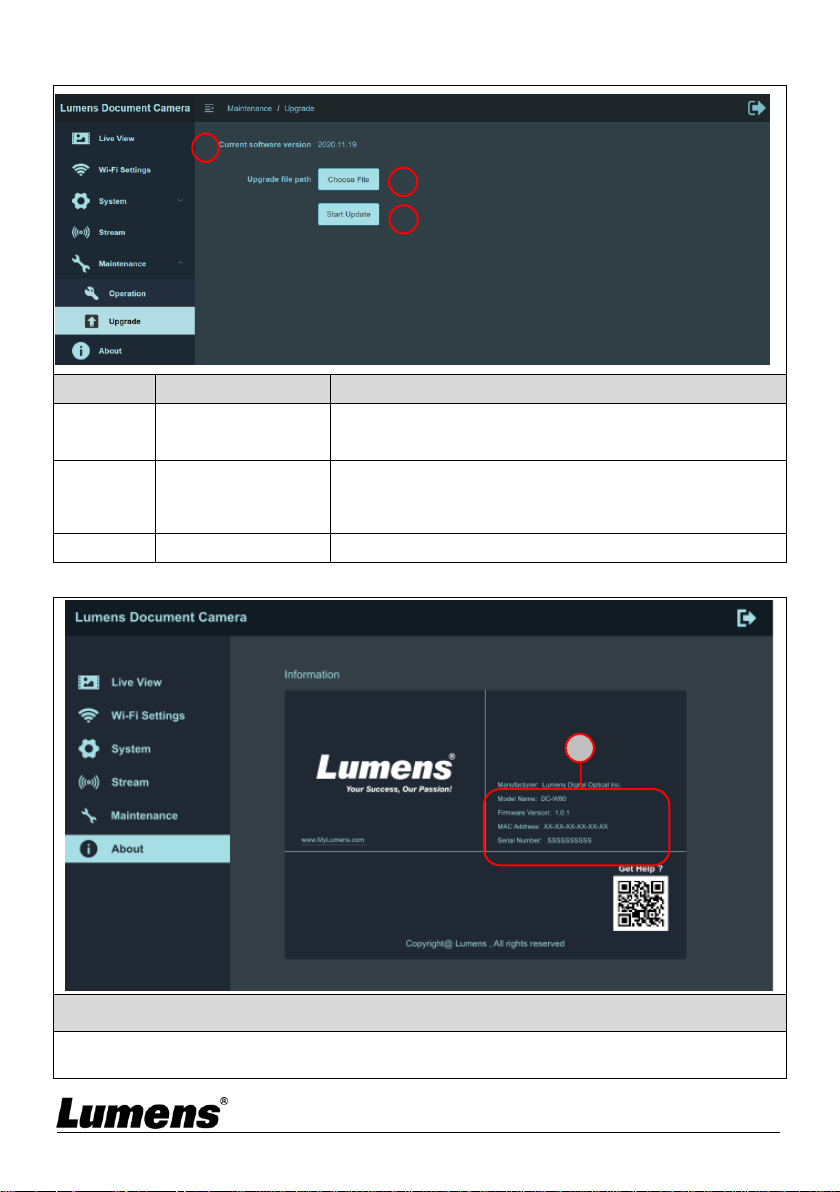
8.3.9 Maintenance-Upgrade
No
Item
Function Descriptions
1
Current software
version
Display the current software version of DC-W80
2
Upgrade file path
Click Choose File to select the software file to be
updated, and the selected file name will be
displayed after selection
3
Start Update
Click to start upgrade the software
8.3.10 About
Function Descriptions
Display the related manufacturing information of this device, including device
name, firmware version, MAC address, serial number, and others.
1
1
2
3
English - 30
Chapter 9 Set DC-W80 as an AP
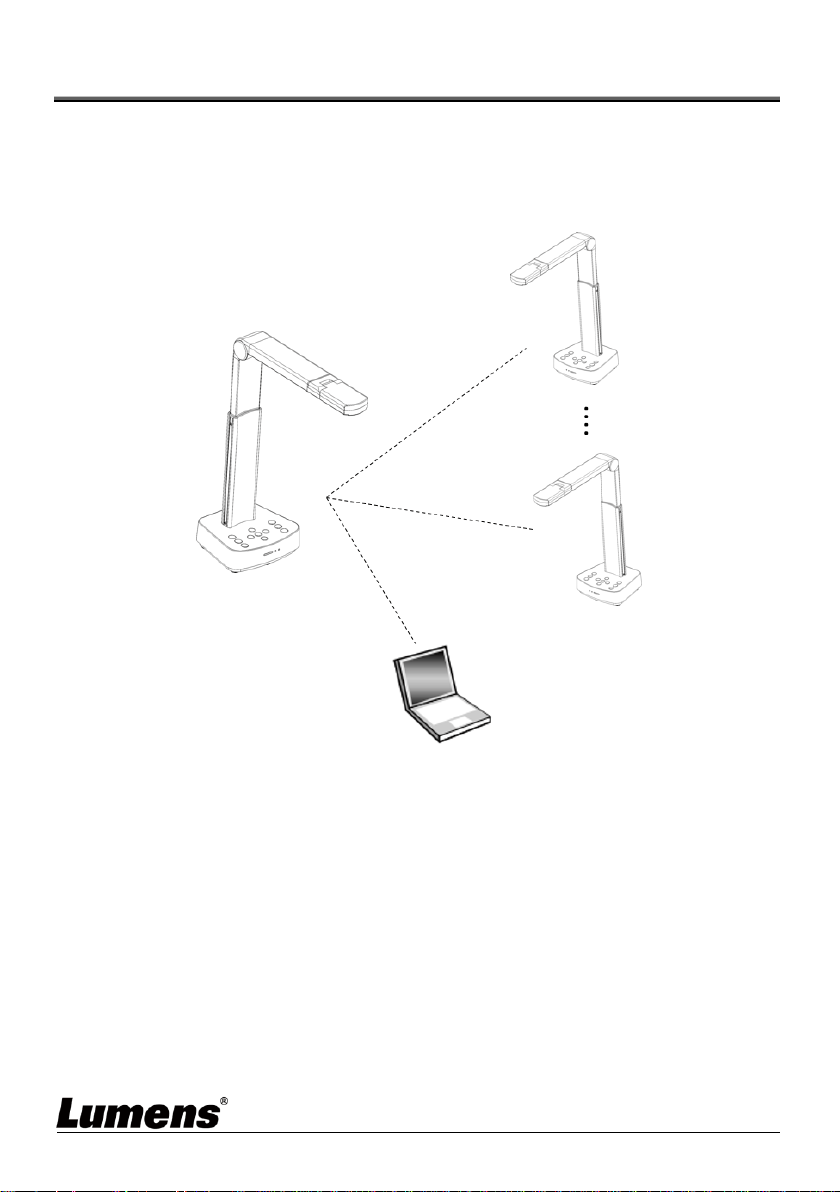
With this connection method, multiple DC-W80s can be controlled via the DC-W80
on the host side.
9.1 Connection Diagram
9.2 Device Requirements
More than two DC-W80s
One computer
One router (depends on the network environment)
9.3 Setting DC-W80
9.3.1 Setting the Host DC-W80
a. Turn on the host DC-W80
b. Open the wireless network list, and connect to [DC-W80_5G_XXXXXX]
(XXXXXX: last six digits of the MAC address). Enter the password
Computer
DC-W80
(Host)
DC-W80
(Client)
DC-W80
(Client)
English - 31
(default password: 88889999) to enable the connection.
c. Open the web browser and enter the default IP address [192.168.0.1].
d. Enter the login account [admin] and the default password [9999], and
click login.
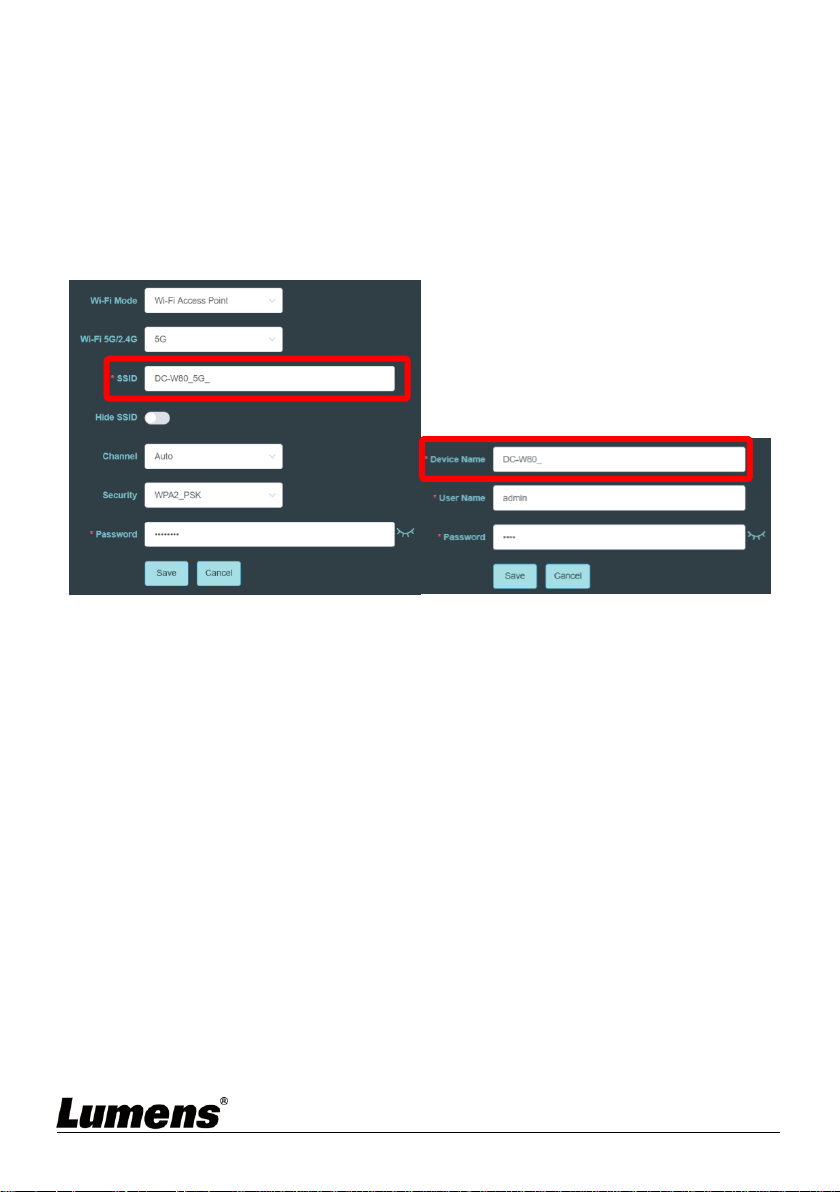
e. Enter [Wi-Fi Settings] and [Device and Account] pages to modify
[SSID] and [Device Name] of the AP.
SSID: DC-W80_5G_ AP (user-defined)
Device Name: DC-W80_5G_AP (user-defined)
f. Click [Save] to apply the changes.
9.3.2 Setting Client DC-W80s
a. Turn on client DC-W80s
[Note] For initial setting, please turn on only one client DC-W80 at a
time.
b. Open the wireless network list, and connect to [DC-W80_5G_XXXXXX]
(XXXXXX: last six digits of the MAC address). Enter the password
(default: 88889999) to enable the connection.
c. Open the web browser and enter the default IP address [192.168.0.1].
d. Enter the login account [admin] and the default password [9999], and
click login.
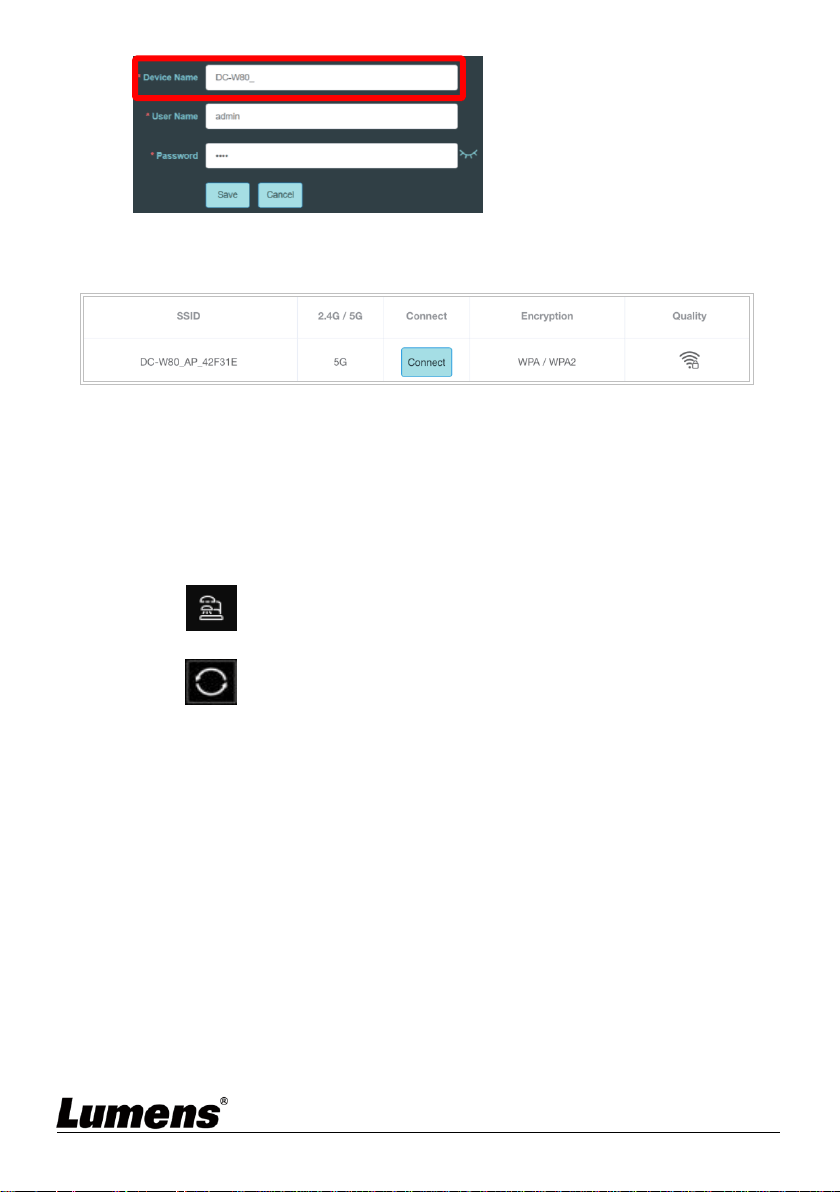
e. Enter the [Device and Account] page to modify the [Device Name].
Device Name: DC-W80_5G_Client (user-defined)
English - 32
f. Go to the [Wi-Fi Settings] page and select the [Wi-Fi Mode] as [Client].
g. Find the SSID of the AP in the list, and click [Connect] to enter the
password.
h. Click [Connect] to enable the connection.
9.3.3 Get Started
a. Open the wireless network list, and connect to [DC-W80_AP_XXXXXX].
Enter the password (default: 88889999) to complete the network
connection with DC-W80 AP.
b. Open Ladibug.
c. Click to open[Search Window], and select [Wireless Document
Camera]
d. Click to search for a DC-W80 that can be connected. After the
search is complete, click on a DC-W80 in the list for connection and start
the operation.
e. To switch to another DC-W80, please open the [Search Window] again
and click other DC-W80s.
English - 33
Chapter 10 DIP Switch Setting
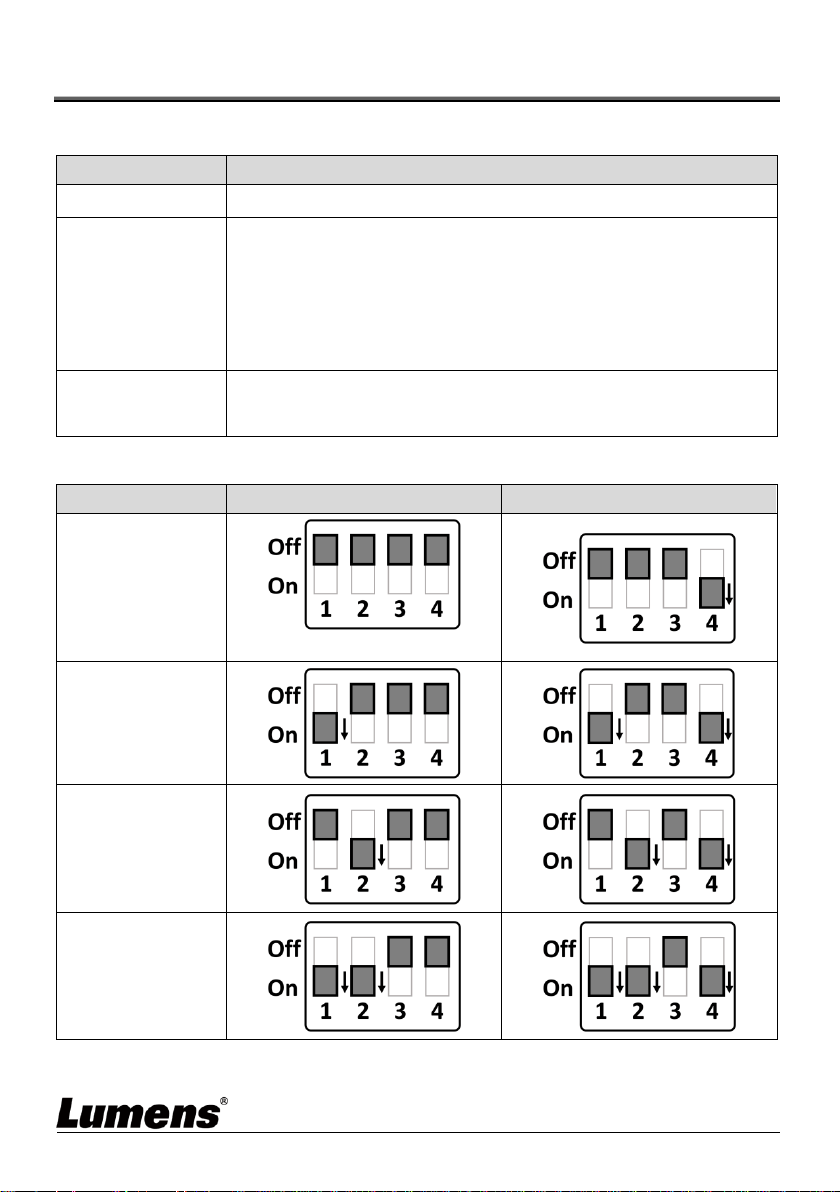
10.1 Description of DIP
DIP
Function Descriptions
DIP1 & DIP2
Output Resolution
DIP3
OFF (Normal mode): 30/25 fps, applicable to general
scene
ON (High-speed mode): 60/50 fps, applicable to support
rapidly changing scene
(Only applicable to 1080P)
DIP4
OFF: 60Hz
ON: 50Hz
10.2 Resolution Switch
Resolution
60Hz
50Hz
1920 x 1080
(Default Values)
3840 x 2160
1280 x 720
1024 x 768
English - 34
Chapter 11 Troubleshooting
This chapter describes problems you may encounter while using DC-W80. If you
have questions, please refer to related chapters and follow all the suggested
solutions. If the problem still occurred, please contact your distributor or the
service center.
No.
Problems
Solutions
1
Boot without
power signal
Please press the battery level check button to confirm
there is still power. Refer to 3.5 Description of LED
indicator in this manual. If there is no power left,
please charge the device by connecting the USB
cable.
2
There is no
image output
from DC-W80
1. Check the power.
2. Check all cable connections. Refer to Chapter 4
Installation and Connections in this manual.
3. Check if DIP switch is properly set. Please refer to
Chapter 10 DIP Switch Setting for related
settings.
3
Unable to focus
Probably the document is too close. Press [ZOOM -]
on the control panel. Or pull the document away
from the lens. And then press [Auto Focus] button.
4
When the device
is turned on, the
LED floodlight is
off.
The default setting of the LED floodlight is “OFF”,
please use the control panel to set the LED floodlight
as “ON”.
5
Ladibug™ and
other
applications
cannot be used
simultaneously
Ladibug™ and other applications cannot be used
simultaneously. Only one application can be executed
at a time. Please close the currently running
applications and then execute the application to be
used.
6
The output
image is too
bright, too dark,
or vague.
Press [AUTO TUNE] button to automatically adjust
the image to have the best brightness and focusing
performance.
7
The operating
steps in the
manual are not
applicable to the
machine.
The operating steps in the manual may be not
applicable to the machine due to improvement in
functions.
Please confirm the firmware of your machine and go
to check for any updated version on the Lumens
website.
https://www.mylumens.com/support

English - 35
Supplier's Declaration of Conformity
47 CFR § 2.1077 Compliance Information
Manufacturer:Lumens Digital Optics Inc.
Product Name:DC-W80
Model Number:4K Document Camera
Responsible Party – U.S. Contact Information
Supplier:Lumens Integration, Inc.
4116 Clipper Court, Fremont, CA 94538, United States
FCC Compliance Statement
This device complies with Part 15 of the FCC Rules. Operation is subject to the
following two conditions : (1) This device may not cause harmful interference,
and (2) this device must accept any interference received, including
interference that may cause undesired operation.