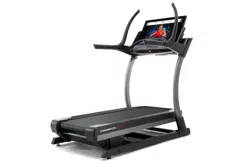
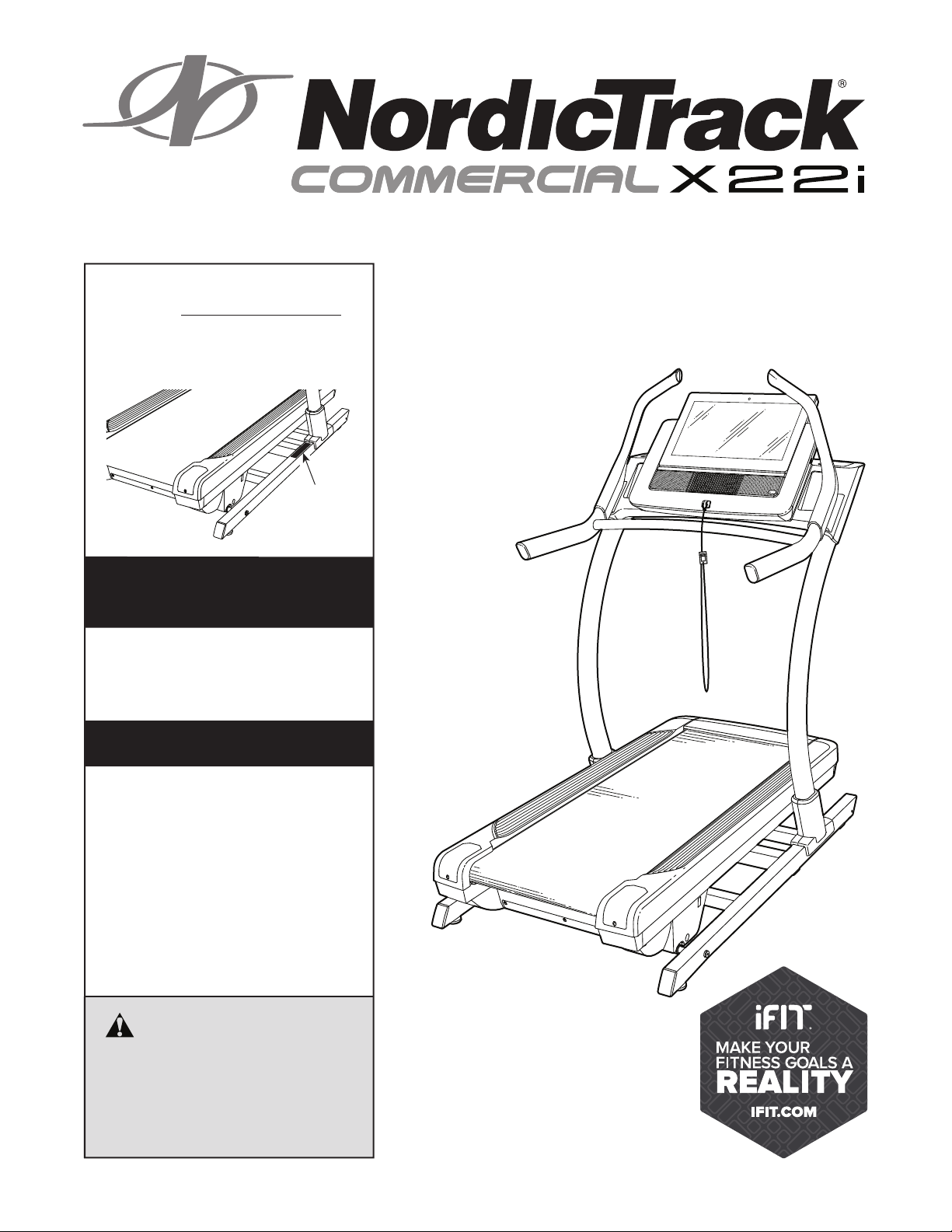
USER’S MANUAL
nordictrack.com
Model No. NTL29019.1
Serial No.
Write the serial number in the space
above for reference.
CAUTION
Read all precautions and
instructions in this manual before
using this equipment. Save this
manual for future reference.
ACTIVATE YOUR
WARRANTY
To register your product and
activate your warranty today,
go to my.nordictrack.com
CUSTOMER CARE
For service at any time, go to
nordictrackservice.com.
Or call 1-800-TO-BE-FIT
(1-800-862-3348)
Mon.–Fri. 6 a.m.–6 p.m. MT
Sat. 8 a.m.–12 p.m. MT
Please do not contact the store.
Serial
Number
Decal
2
TABLE OF CONTENTS
WARNING DECAL PLACEMENT . . . . . . . . . . . . . . . . . . . . . . . . . . . . . . . . . . . . . . . . . . . . . . . . . . . . . . . . . . . . . . .2
IMPORTANT PRECAUTIONS . . . . . . . . . . . . . . . . . . . . . . . . . . . . . . . . . . . . . . . . . . . . . . . . . . . . . . . . . . . . . . . . . .3
BEFORE YOU BEGIN. . . . . . . . . . . . . . . . . . . . . . . . . . . . . . . . . . . . . . . . . . . . . . . . . . . . . . . . . . . . . . . . . . . . . . . .7
PART IDENTIFICATION CHART. . . . . . . . . . . . . . . . . . . . . . . . . . . . . . . . . . . . . . . . . . . . . . . . . . . . . . . . . . . . . . . .8
ASSEMBLY . . . . . . . . . . . . . . . . . . . . . . . . . . . . . . . . . . . . . . . . . . . . . . . . . . . . . . . . . . . . . . . . . . . . . . . . . . . . . . . .9
THE CHEST HEART RATE MONITOR. . . . . . . . . . . . . . . . . . . . . . . . . . . . . . . . . . . . . . . . . . . . . . . . . . . . . . . . . . 14
HOW TO USE THE INCLINE TRAINER . . . . . . . . . . . . . . . . . . . . . . . . . . . . . . . . . . . . . . . . . . . . . . . . . . . . . . . . .15
HOW TO MOVE THE INCLINE TRAINER . . . . . . . . . . . . . . . . . . . . . . . . . . . . . . . . . . . . . . . . . . . . . . . . . . . . . . .27
MAINTENANCE AND TROUBLESHOOTING . . . . . . . . . . . . . . . . . . . . . . . . . . . . . . . . . . . . . . . . . . . . . . . . . . . . .28
EXERCISE GUIDELINES . . . . . . . . . . . . . . . . . . . . . . . . . . . . . . . . . . . . . . . . . . . . . . . . . . . . . . . . . . . . . . . . . . . .31
PART LIST. . . . . . . . . . . . . . . . . . . . . . . . . . . . . . . . . . . . . . . . . . . . . . . . . . . . . . . . . . . . . . . . . . . . . . . . . . . . . . . .33
EXPLODED DRAWING. . . . . . . . . . . . . . . . . . . . . . . . . . . . . . . . . . . . . . . . . . . . . . . . . . . . . . . . . . . . . . . . . . . . . .35
ORDERING REPLACEMENT PARTS. . . . . . . . . . . . . . . . . . . . . . . . . . . . . . . . . . . . . . . . . . . . . . . . . . . Back Cover
LIMITED WARRANTY. . . . . . . . . . . . . . . . . . . . . . . . . . . . . . . . . . . . . . . . . . . . . . . . . . . . . . . . . . . . . . . Back Cover
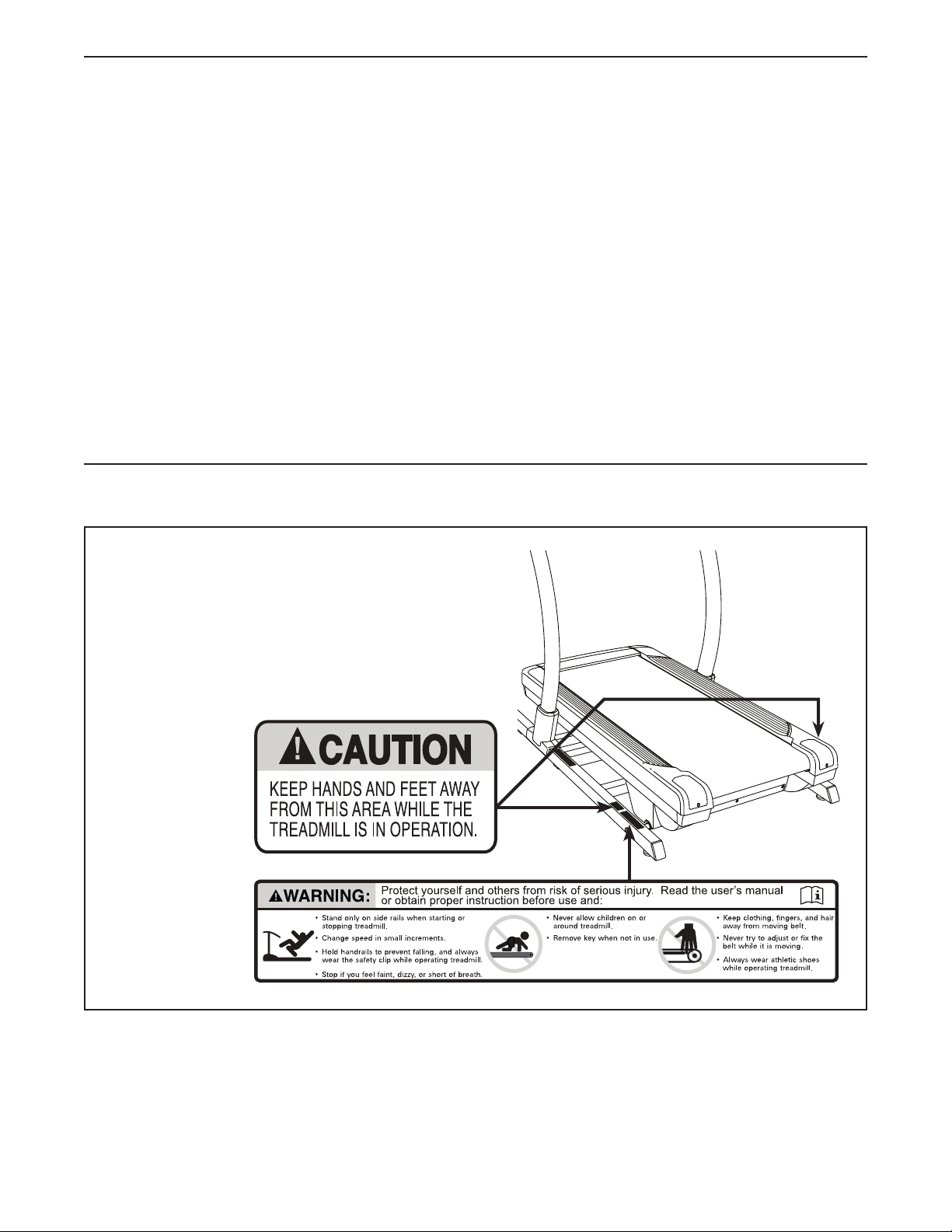
This drawing shows the locations of the warning decals.
If a decal is missing or illegible, call the telephone
number on the front cover of this manual and
request a free replacement decal. Apply the decal
in the location shown. Note: The decals may not be
shown at actual size.
WARNING DECAL PLACEMENT
NORDICTRACK and IFIT are registered trademarks of ICON Health & Fitness, Inc. Google Maps is a trademark
of Google LLC. The Bluetooth
®
word mark and logos are registered trademarks of Bluetooth SIG, Inc. and are
used under license. Wi-Fi is a registered trademark of Wi-Fi Alliance. WPA and WPA2 are trademarks of Wi-Fi
Alliance.

3
1. It is the responsibility of the owner to
ensure that all users of this incline trainer
are adequately informed of all warnings and
precautions.
2. Before beginning any exercise program,
consult your physician. This is especially
important for persons over age 35 or persons
with pre-existing health problems.
3. The incline trainer is not intended for use
by persons with reduced physical, sensory,
or mental capabilities or lack of experience
and knowledge, unless they have been given
supervision or instruction concerning use of
the incline trainer by someone responsible
for their safety.
4. Use the incline trainer only as described in
this manual.
5. The incline trainer is intended for home use
only. Do not use the incline trainer in any
commercial, rental, or institutional setting.
6. Keep the incline trainer indoors, away from
moisture and dust. Do not put the incline
trainer in a garage or covered patio, or near
water.
7. Place the incline trainer on a level surface,
with at least 8 ft. (2.4 m) of clearance behind
it and 2 ft. (0.6 m) on each side. Do not place
the incline trainer on any surface that blocks
air openings. To protect the floor or carpet
from damage, place a mat under the incline
trainer.
8. Do not operate the incline trainer where
aerosol products are used or where oxygen
is being administered.
9. Keep children under age 13 and pets away
from the incline trainer at all times.
10. The incline trainer should be used only by
persons weighing 300 lbs. (136 kg) or less.
11. Never allow more than one person on the
incline trainer at a time.
12. Wear appropriate exercise clothes while
using the incline trainer. Do not wear loose
clothes that could become caught in the
incline trainer. Athletic support clothes are
recommended for both men and women.
Always wear athletic shoes. Never use the
incline trainer with bare feet, wearing only
stockings, or in sandals.
13. Plug the power cord into a surge suppressor
(not included), and plug the surge suppres-
sor into an appropriate outlet (see page 15).
To avoid overloading the circuit, do not plug
other electrical devices, except for low-power
devices such as cell phone chargers, into
the surge suppressor or into an outlet on the
same circuit.
14. Use only a surge suppressor that meets all of
the specifications described on page 15. To
purchase a surge suppressor, see your local
NORDICTRACK dealer, call the telephone
number on the front cover of this manual, or
see your local electronics store.
15. Failure to use a properly functioning surge
suppressor could result in damage to the
control system of the incline trainer. If the
control system is damaged, the walking belt
may slow, accelerate, or stop unexpectedly,
which may result in a fall and serious injury.
16. Keep the power cord and the surge suppres-
sor away from heated surfaces.
17. Do not operate the incline trainer if the
power cord or plug is damaged, or if the
incline trainer is not working properly. (See
MAINTENANCE AND TROUBLESHOOTING
on page 28 if the incline trainer is not work-
ing properly.)
WARNING: To reduce the risk of burns, fire, electric shock, or injury to persons, read all
important precautions and instructions in this manual and all warnings on your incline trainer before
using your incline trainer. ICON assumes no responsibility for personal injury or property damage
sustained by or through the use of this product.
IMPORTANT PRECAUTIONS

4
18. Read, understand, and test the emergency
stop procedure before using the incline
trainer. (See HOW TO TURN ON THE POWER
on page 17.) Always wear the clip while using
the incline trainer.
19. Always stand on the foot rails when starting
or stopping the walking belt. Always hold the
handrails while using the incline trainer.
20. When a person is walking on the incline
trainer, the noise level of the incline trainer
will increase.
21. Keep fingers, hair, and clothing away from
the moving walking belt.
22. The incline trainer is capable of high speeds.
Adjust the speed in small increments to
avoid sudden jumps in speed.
23. The heart rate monitor is not a medical
device. Various factors, including the user’s
movement, may affect the accuracy of heart
rate readings. The heart rate monitor is
intended only as an exercise aid in determin-
ing heart rate trends in general.
24. Never leave the incline trainer unattended
while it is running. Always remove the key,
press the power switch into the off position
(see the drawing on page 7 for the location of
the power switch), and unplug the power cord
when the incline trainer is not in use.
25. Do not attempt to move the incline trainer
until it is properly assembled. (See
ASSEMBLY on page 9, and HOW TO MOVE
THE INCLINE TRAINER on page 27.) You must
be able to safely lift 45 lbs. (20 kg) to raise,
lower, or move the incline trainer.
26. Never insert any object into any opening on
the incline trainer.
27. Inspect and properly tighten all parts each
time the incline trainer is used.
28. DANGER: Always unplug the power
cord immediately after use, before cleaning
the incline trainer, and before performing the
maintenance and adjustment procedures
described in this manual. Never remove the
motor hood unless instructed to do so by an
authorized service representative. Servicing
other than the procedures in this manual
should be performed by an authorized ser-
vice representative only.
29. Over exercising may result in serious injury
or death. If you feel faint, if you become short
of breath, or if you experience pain while
exercising, stop immediately and cool down.
SAVE THESE INSTRUCTIONS

5
6
all
STANDARD SERVICE PLANS
7
Thank you for selecting the revolutionary
NORDICTRACK
®
COMMERCIAL X22I. The
COMMERCIAL X22I offers a selection of features
designed to make your workouts at home more effec-
tive and enjoyable.
For your benefi t, read this manual carefully before
using the incline trainer. If you have questions after
reading this manual, please see the front cover of this
manual. To help us assist you, note the product model
number and serial number before contacting us. The
model number and the location of the serial number
decal are shown on the front cover of this manual.
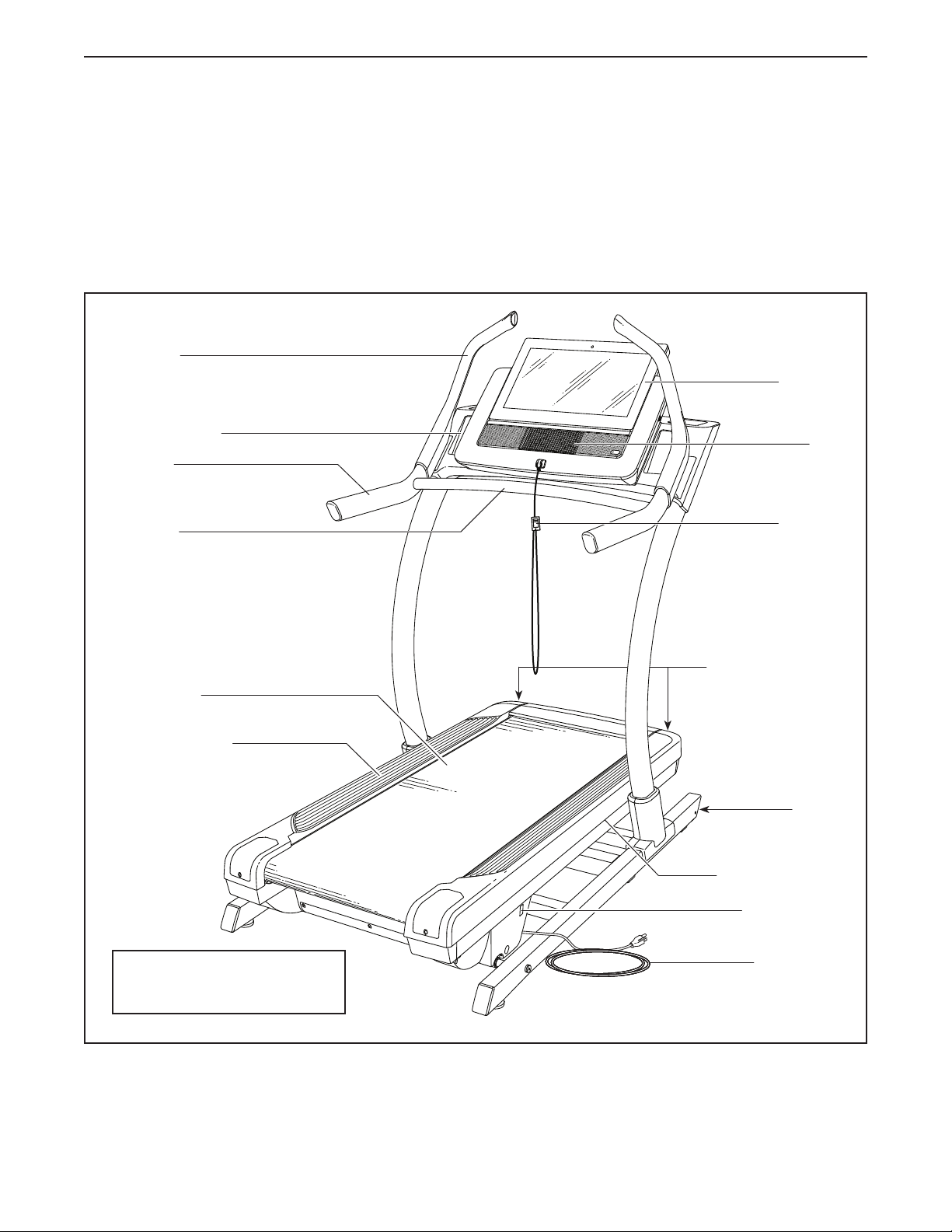
Before reading further, please familiarize yourself with
the parts that are labeled in the drawing below.
BEFORE YOU BEGIN
Console
Key/Clip
Power Switch
Walking Platform
Power Cord
Platform Cushion
Wheel
Idler Roller
Adjustment Screws
Accessory Tray
Walking Belt
Length: 5 ft. 10 in. (178 cm)
Width: 3 ft. 4 in. (101 cm)
Fan
Handrail
Sled Grip
Push Bar
8
PART IDENTIFICATION CHART
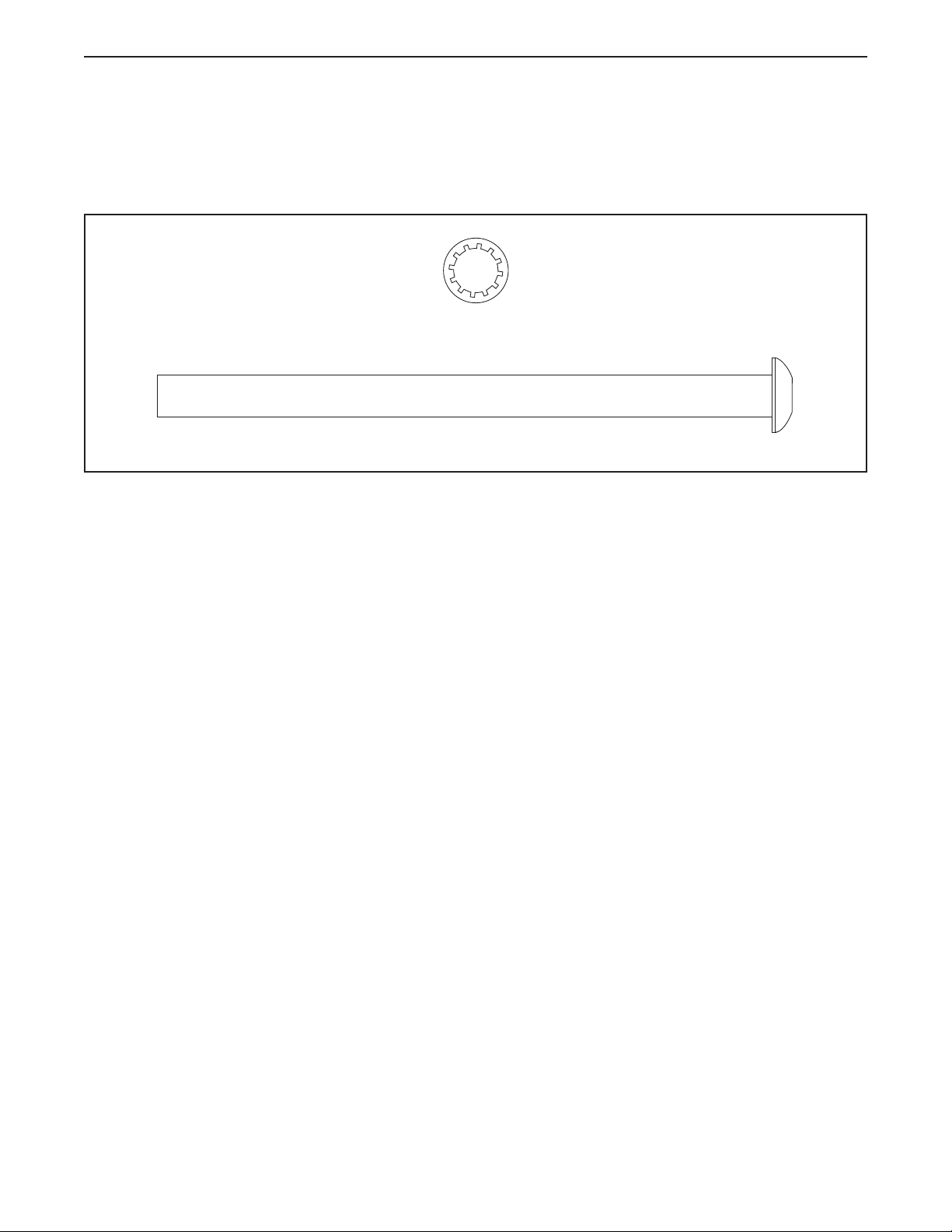
Use the drawings below to identify small parts used for assembly. The number in parentheses below each draw-
ing is the key number of the part, from the PART LIST near the end of this manual. The number following the key
number is the quantity used for assembly. Note: If a part is not in the hardware kit, check to see whether it is
preattached. Extra parts may be included.
3/8" Star
Washer (3)–12
3/8" x 5 1/2" Screw (1)–4
9
ASSEMBLY
• Assembly requires two persons.
• Place all parts in a cleared area and remove the
packing materials. Do not dispose of the packing
materials until you fi nish all assembly steps.
• After shipping, there may be an oily substance on
the exterior of the incline trainer. This is normal.
If there is an oily substance on the incline trainer,
wipe it off with a soft cloth and a mild, non-abra-
sive cleaner.
• To identify small parts, see page 8.
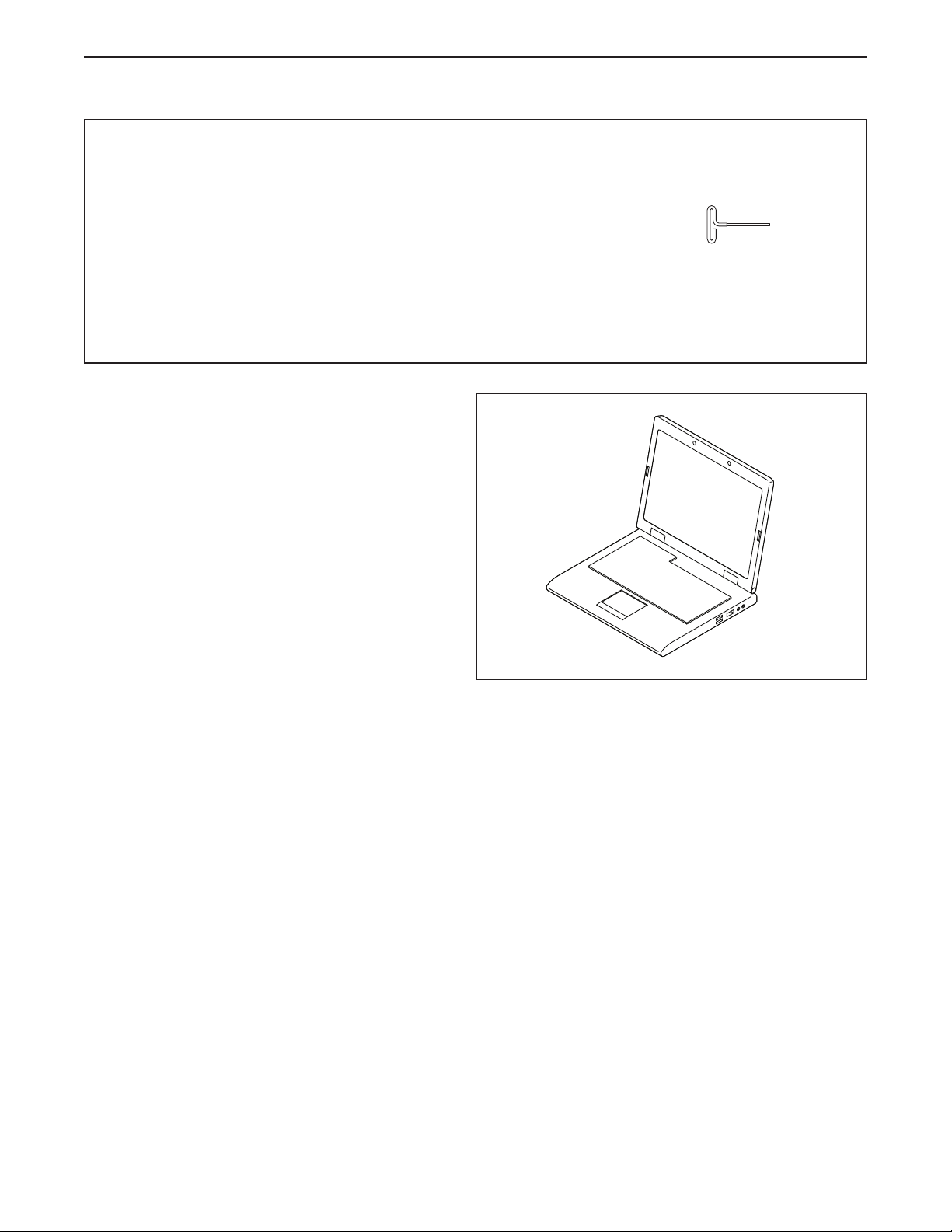
• Assembly requires the following tools:
the included hex keys
To avoid damaging parts, do not use power tools.
1. Go to my.nordictrack.com on your computer
and register your product.
• documents your ownership
• activates your warranty
• ensures priority customer support if assistance
is ever needed
Note: If you do not have internet access, call
Customer Care (see the front cover of this
manual) and register your product.
1
10
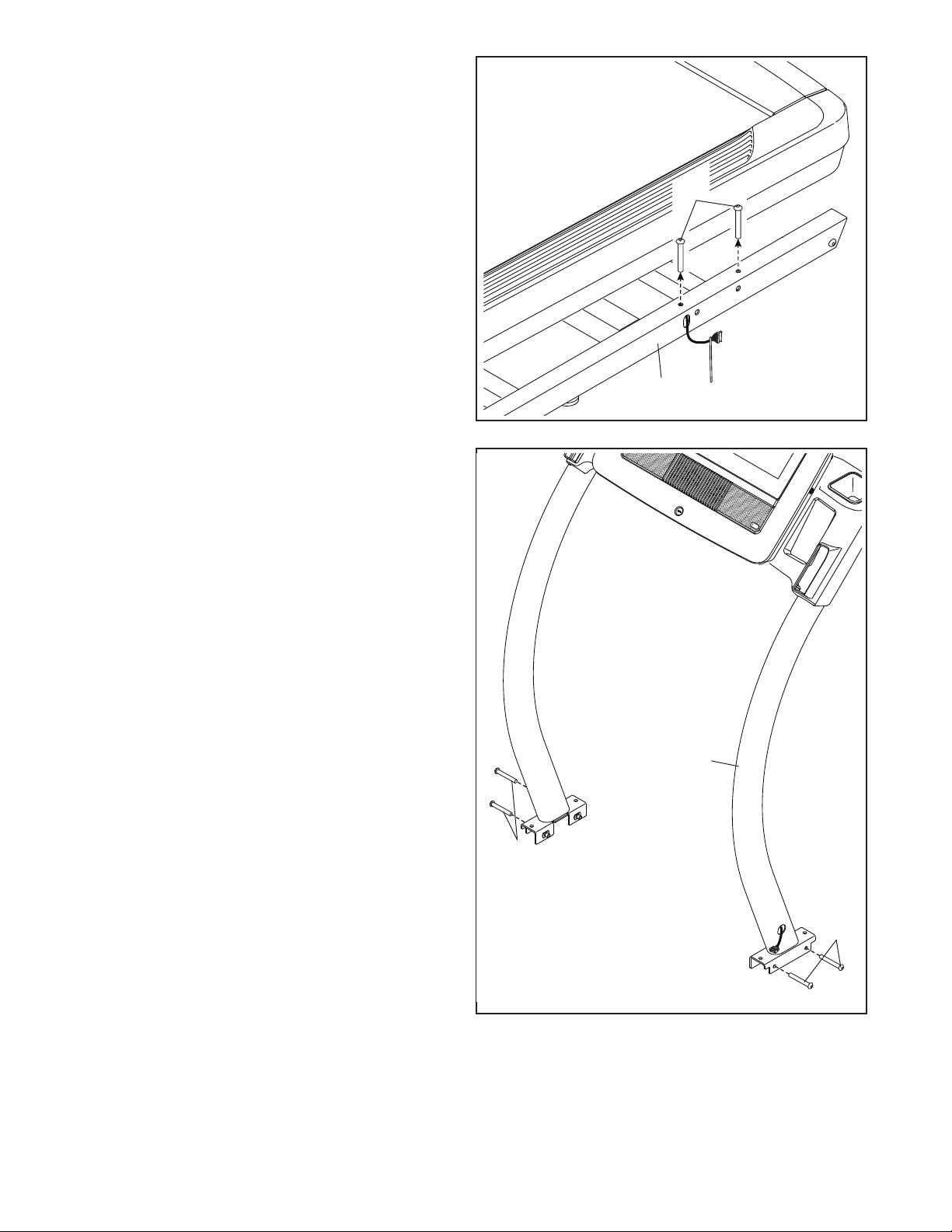
3. Remove the four 3/8" x 2 3/4" Screws (22) from
the Uprights (83). Save the Screws.
3
83
22
22
2. Make sure that the power cord is unplugged.
Remove the four 3/8" x 3 1/4" Screws (18) from
the Base (74) (only one side is shown). Save the
Screws.
2
74
18
11
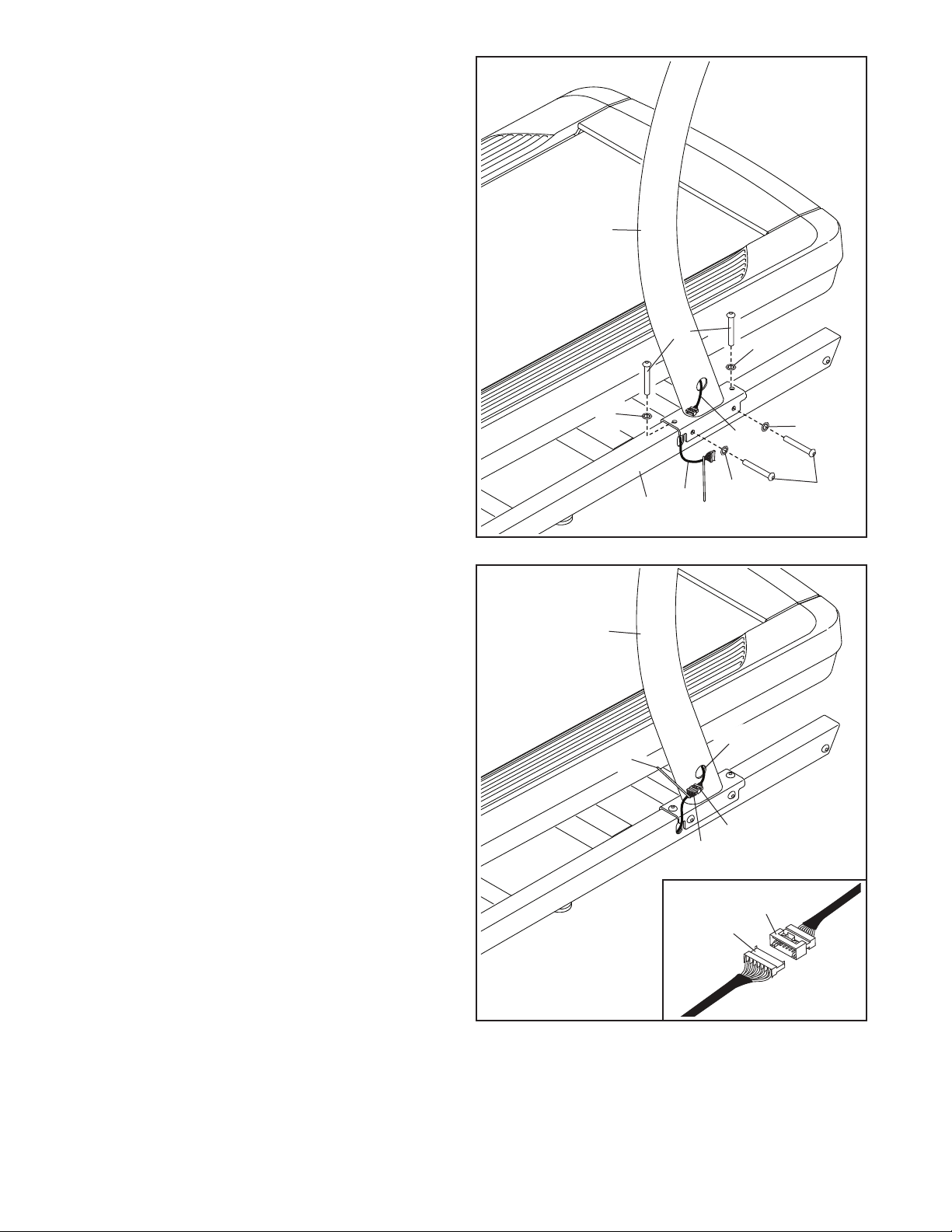
5. See the inset drawing. Connect the Base
Wire (52) to the Upright Wire (75). The connec-
tors should slide together easily and snap
into place. If they do not, turn one connector
and try again. IF YOU DO NOT CONNECT THE
CONNECTORS PROPERLY, THE CONSOLE
MAY BECOME DAMAGED WHEN YOU TURN
ON THE POWER.
Then, remove the tie (A) from the Base Wire
(52), and insert the connectors into the hole (B)
in the right Upright (83).
52
75
75
52
83
A
B
4. Set the Uprights (83) on the Base (74). Make
sure that the hole with the Upright Wire (75)
is on the right side.
Attach the right Upright (83) with two of the
3/8" x 3 1/4" Screws (18) and two of the 3/8" x
2 3/4" Screws (22) that you just removed and
four 3/8" Star Washers (3); do not fully tighten
the Screws yet. Make sure that the Base
Wire (52) is not pinched.
Attach the left Upright (not shown) as
described above. Note: There is not a wire on
the left side.
Then, fully tighten the 3/8" x 3 1/4" Screws
(18) and the 3/8" x 2 3/4" Screws (22).
4
22
3
3
52
74
75
18
83
3
3
5
12
6
87
87
65
65
C
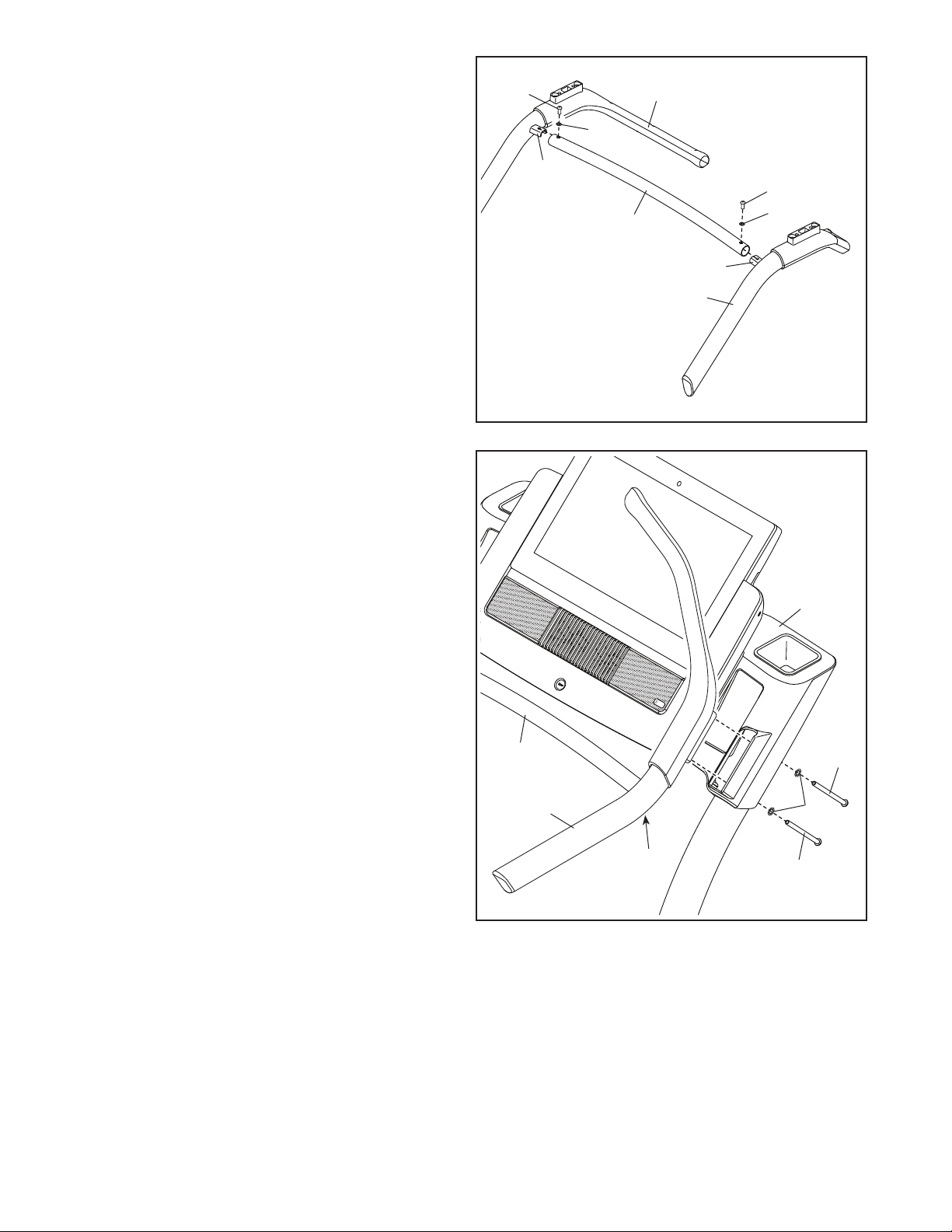
6. Remove the 5/16" x 1" Screws (87) and the
5/16" Star Washers (65) from the brackets (C) on
the right and left handrail assemblies (D, E).
With the help of a second person, position the
right and left handrail assemblies (D, E) upside
down as shown. Attach the Crossbar (85) to
the handrail assemblies with the 5/16" x 1"
Screws (87) and the 5/16" Star Washers (65).
Do not tighten the Screws yet.
C
D
85
E
7
F
7. With the help of a second person, set the hand-
rail assembly (D) on the console assembly (F).
Attach the handrail assembly (D) with four 3/8" x
5 1/2" Screws (1) and four 3/8" Star Washers (3)
(only one side is shown); start all four Screws,
and then tighten them.
Then, firmly tighten the 5/16" x 1" Screw (87)
located under each side of the Crossbar (85).
D
87
85
1
1
3
13
10. Make sure that all parts are properly tightened before you use the incline trainer. Keep the included hex
keys in a secure place. One of the hex keys is used to adjust the walking belt (see page 29). To protect the
floor or carpet from damage, place a mat under the incline trainer. To avoid damage to the console, keep the
incline trainer out of direct sunlight.
77
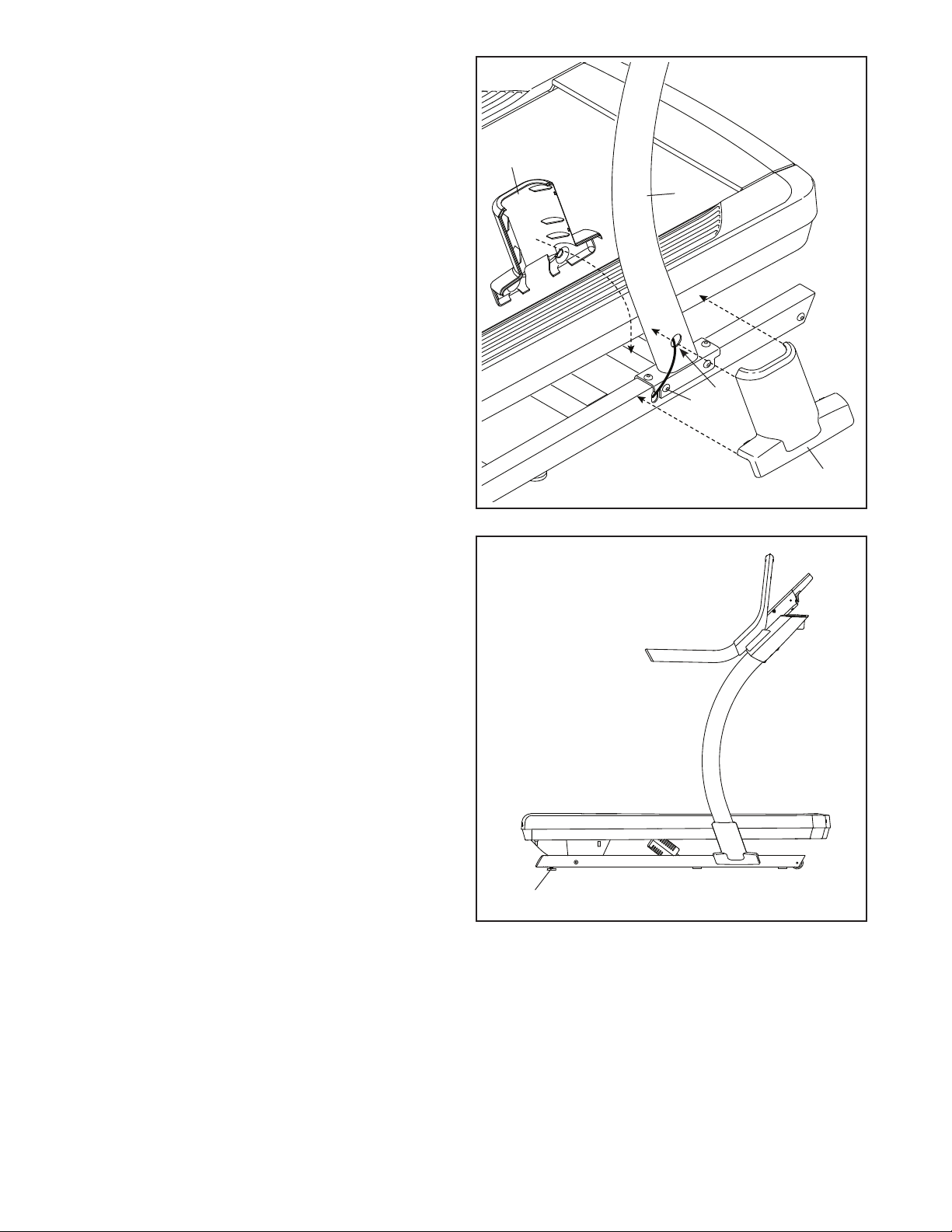
9. If necessary, move the incline trainer to the
desired location (see HOW TO MOVE THE
INCLINE TRAINER on page 27).
After the incline trainer is placed in the loca-
tion where it will be used, make sure that the
incline trainer rests firmly on the floor. If the
incline trainer rocks even slightly, turn a Leveling
Foot (77) as needed until the rocking motion is
eliminated.
9
8. Slide the Right Inside Upright Cover (70) against
the lower end of the right Upright (83). Then,
press the Right Outside Upright Cover (71)
against the Right Inside Upright Cover until it
snaps into place. Make sure that the wires (G)
are not pinched, pulled too tightly, or resting
directly across the indicated screw (H).
Attach the Left Inside Upright Cover (not
shown) and the Left Outside Upright Cover
(not shown) as described above. Note: There
is not a wire on the left side.
70
71
83
G
8
H
14
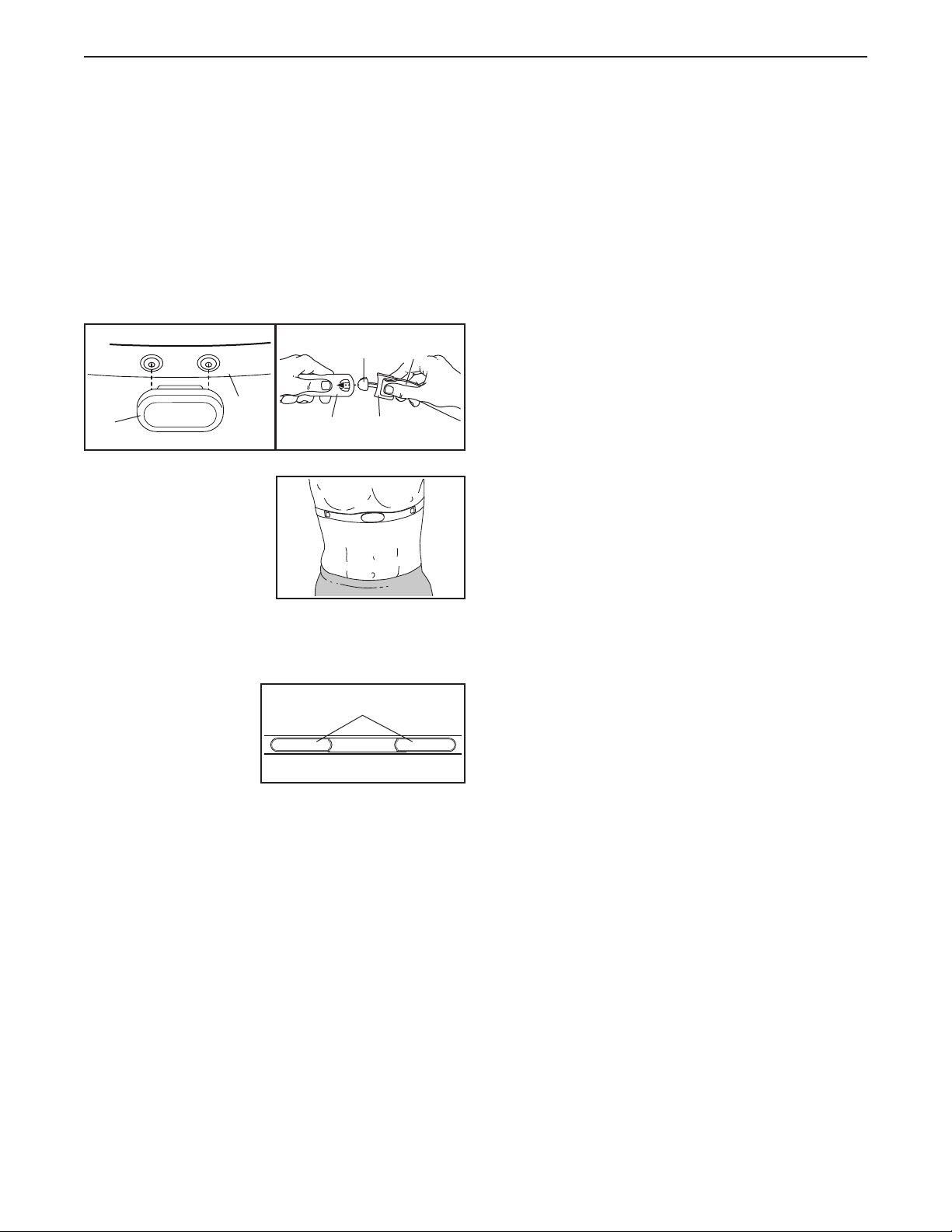
HOW TO PUT ON THE HEART RATE MONITOR
If the heart rate monitor looks like the one shown
in drawing 1, press the transmitter (A) onto the snap
fasteners on the chest strap (B). If the heart rate
monitor looks like the one shown in drawing 2,
insert the tab (C) on one end of the chest strap (D) into
one end of the transmitter (E). Then, press the end of
the transmitter under the buckle (F) on the chest strap;
the tab should be flush with the transmitter.
Next, wrap the heart
rate monitor around
your chest in the loca-
tion shown; the heart
rate monitor must be
under your clothes,
tight against your skin.
Make sure that the logo
is right-side-up. Then, attach the other end of the chest
strap. Adjust the length of the chest strap, if necessary.
Next, pull the trans-
mitter and the chest
strap away from your
body a few inches
and locate the two
electrode areas (G).
Using saliva or con-
tact lens solution, wet the electrode areas. Then, return
the transmitter and the chest strap to a position against
your chest.
CARE AND MAINTENANCE
• Thoroughly dry the electrode areas with a soft towel
after each use. Moisture may keep the heart rate
monitor activated, shortening the life of the battery.
• Store the heart rate monitor in a warm, dry place. Do
not store the heart rate monitor in a plastic bag or
other container that may trap moisture.
• Do not expose the heart rate monitor to direct sun-
light for extended periods of time, and do not expose
it to temperatures above 122°F (50°C) or below 14°F
(-10°C).
• Do not excessively bend or stretch the heart rate
monitor when using or storing it.
• To clean the transmitter, use a damp cloth and a
small amount of mild soap. Then, wipe the transmit-
ter with a damp cloth and thoroughly dry it with a soft
towel. Never use alcohol, abrasives, or chemicals
to clean the transmitter. Hand wash and air dry the
chest strap.
TROUBLESHOOTING
• If the heart rate monitor does not function when posi-
tioned as described at the left, move it slightly lower
or higher on your chest.
• If heart rate readings are not displayed until you
begin perspiring, re-wet the electrode areas.
• For the console to display heart rate readings, you
must be within arm’s length of the console.
• If there is a battery cover on the back of the trans-
mitter, replace the battery with a new battery of the
same type.
• The heart rate monitor is designed to work with
people who have normal heart rhythms. Heart rate
reading problems may be caused by medical condi-
tions such as premature ventricular contractions
(pvcs), tachycardia bursts, and arrhythmia.
• The operation of the heart rate monitor can be
affected by magnetic interference from high power
lines or other sources. If you suspect that magnetic
interference is causing a problem, try relocating the
fitness equipment.
THE CHEST HEART RATE MONITOR
1 2
G
A
B
E
F
C
D
15
HOW TO USE THE INCLINE TRAINER
HOW TO CONNECT THE POWER CORD
Use a Surge Suppressor
Your incline trainer, like other electronic equipment,
can be damaged by sudden voltage changes in your
home’s power. Voltage surges, spikes, and noise
interference can result from weather conditions or from
other appliances being turned on or off. To decrease
the risk of damaging the incline trainer, always
use a surge suppressor with the incline trainer. To
purchase a surge suppressor, see precaution 14 on
page 3.
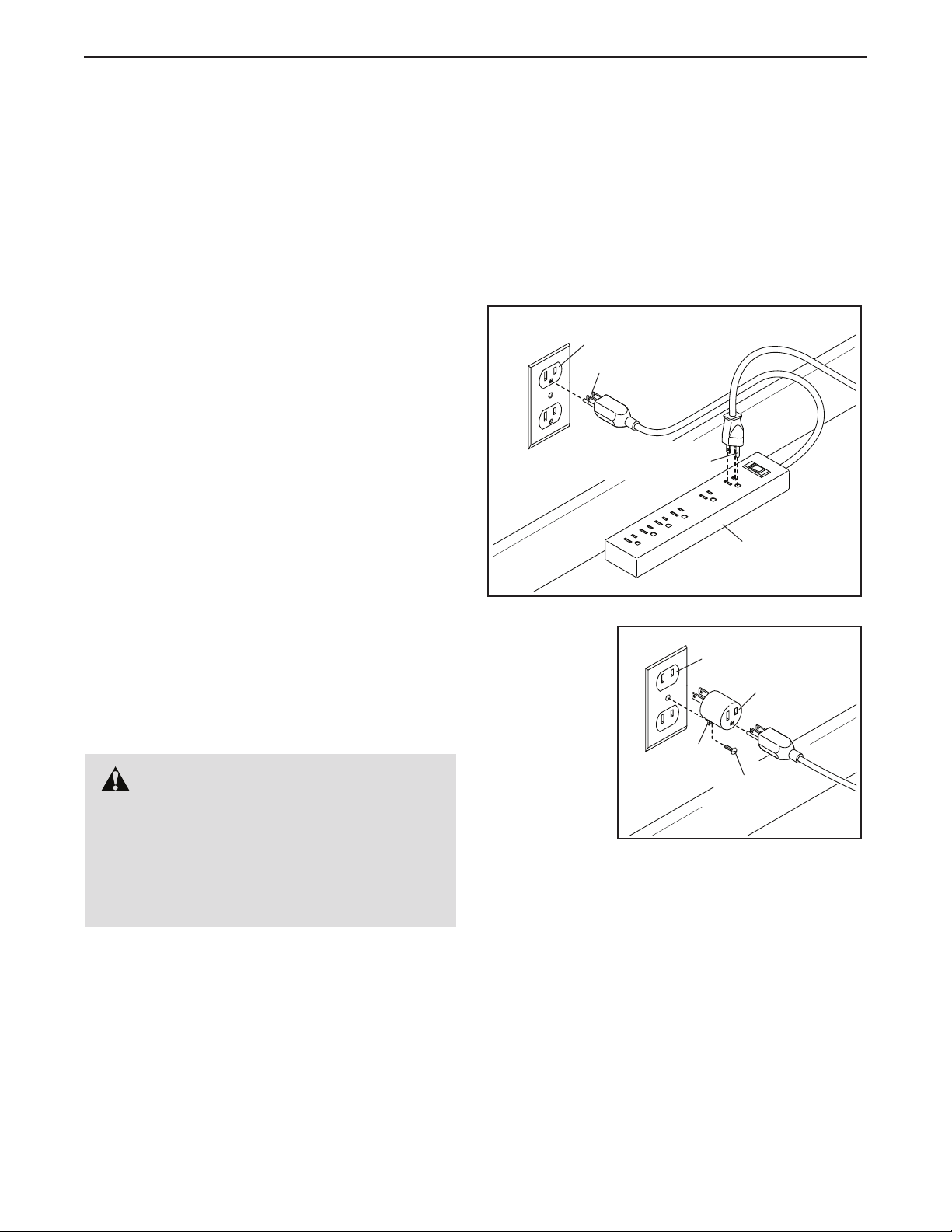
Use only a surge suppressor that is UL 1449 listed as a
transient voltage surge suppressor (TVSS). The surge
suppressor must have a UL suppressed voltage rating
of 400 volts or less and a minimum surge dissipation of
450 joules. The surge suppressor must also be electri-
cally rated for 120 volts AC and 15 amps. There must
be a monitoring light on the surge suppressor to indi-
cate whether it is functioning properly. Failure to use a
properly functioning surge suppressor could result
in damage to the control system of the incline
trainer and serious injury to users.
Plug in the Power Cord
The incline trainer must be grounded. If it should
malfunction or break down, grounding provides a path
of least resistance for electric current to reduce the risk
of electric shock. The incline trainer power cord has a
plug with a grounding pin (see drawing 1 on this page).
Plug the power cord into a surge suppressor, and plug
the surge suppressor into an appropriate outlet that is
properly installed and grounded in accordance with all
local codes and ordinances. The outlet must be on a
nominal 120-volt circuit capable of carrying 15 or
more amps. To avoid overloading the circuit, do
not plug other electrical devices, except for low-
power devices such as cell phone chargers, into
the surge suppressor or into an outlet on the same
circuit. IMPORTANT: If the incline trainer is con-
nected to an AFCI-equipped outlet and your circuit
breaker trips repeatedly when the incline trainer is
used, see the front cover of this manual to pur-
chase an arc filter.
A temporary
adapter may
be used to
connect the
surge sup-
pressor to
a 2-pole
receptacle
if a properly
grounded
outlet is not
available.
The lug or wire extending from the adapter must
be connected with a metal screw to a permanent
ground such as a properly grounded outlet box cover.
Some 2-pole receptacle outlet box covers are not
grounded. Before using an adapter, contact a quali-
fied electrician to determine whether the outlet box
cover is grounded. The temporary adapter should
be used only until a properly grounded outlet can
be installed by a qualified electrician.
DANGER: Improper connec-
tion of the power cord increases the risk of
electric shock. Do not modify the plug—if
it will not fit an outlet, have a proper outlet
installed by a qualified electrician. If you are
unsure whether the incline trainer is properly
grounded, contact a qualified electrician.
1
Surge
Suppressor
Grounding Pin
Grounded Outlet
2
Adapter
2-pole Receptacle
Lug
Grounding Pin
Metal
Screw
16
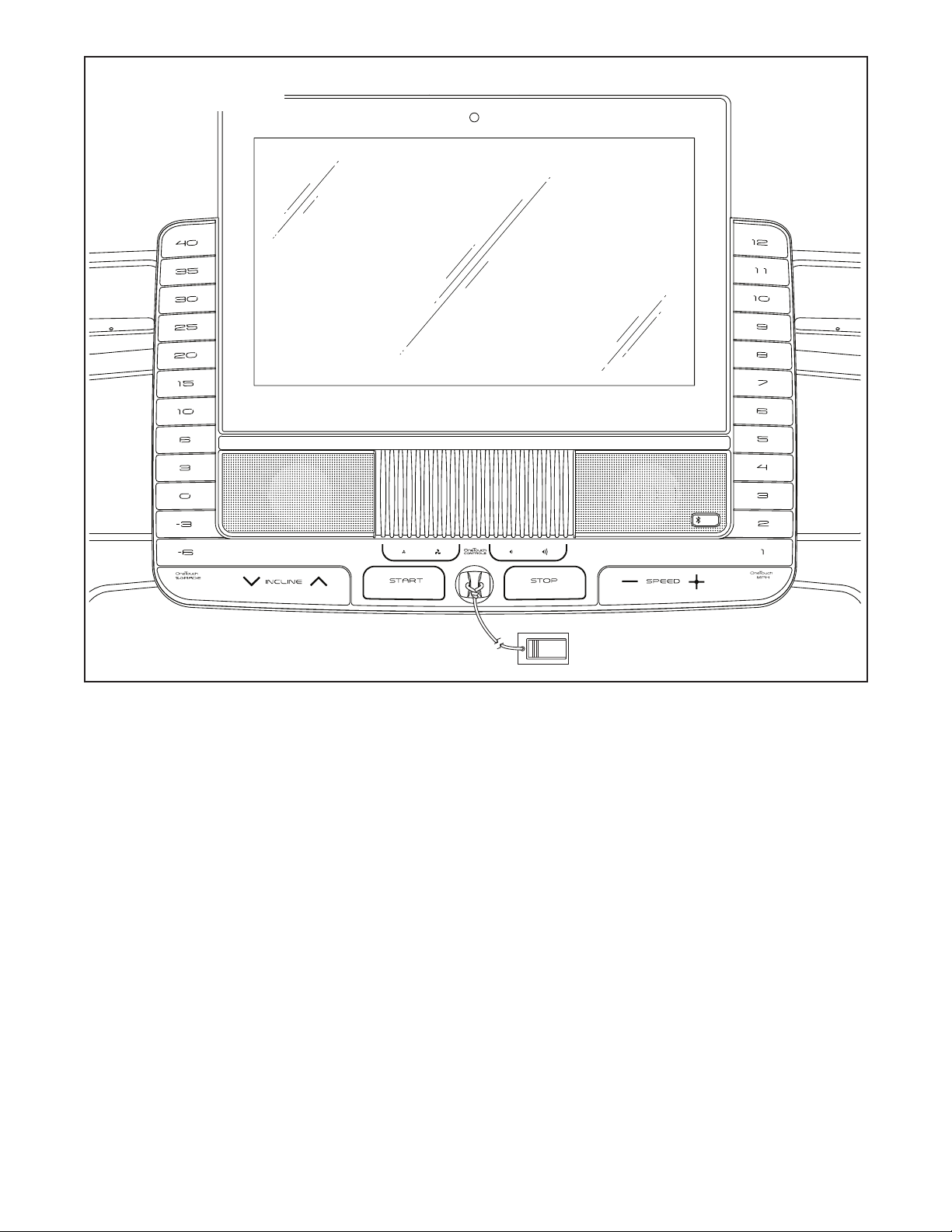
FEATURES OF THE CONSOLE
The advanced incline trainer console offers a selec-
tion of features designed to make your workouts more
effective and enjoyable.
The console features wireless technology that enables
the console to connect to iFit. With iFit, you can access
a large and varied workout library, create your own
workouts, track your workout results, and access many
other features.
When you use the manual mode, you can change the
speed and incline of the incline trainer with the touch
of a button. As you exercise, the console will display
instant exercise feedback. You can also measure your
heart rate using the chest heart rate monitor.
In addition, the console features a selection of
workouts. Each workout automatically controls the
speed and incline of the incline trainer as it guides you
through an effective exercise session.
You can even listen to your favorite workout music or
audio books with the console’s sound system while you
exercise.
To turn on the power, see page 17. To learn how to
use the touch screen, see page 17. To set up the
console, see page 18.
CONSOLE DIAGRAM
17
HOW TO TURN ON THE POWER
IMPORTANT: If the incline trainer has been
exposed to cold temperatures, allow it to warm to
room temperature before you turn on the power. If
you do not do this, you may damage the console
displays or other electrical components.
Plug in the power cord (see
page 15). Next, locate the
power switch on the incline
trainer frame near the power
cord. Press the power switch
into the reset position.
Next, stand on the
foot rails of the
incline trainer. Locate
the clip (A) attached
to the key (B), and
slide the clip securely
onto the waistband of
your clothes. Then,
insert the key into
the console. Note: It
may take some time for the console to be ready for
use. IMPORTANT: In an emergency, the key can be
pulled from the console, causing the walking belt
to slow to a stop. Test the clip by carefully taking
a few steps backward; if the key is not pulled from
the console, adjust the position of the clip.
Note: The console can display speed and distance
in either miles or kilometers. To find which unit of
measurement is selected, see HOW TO USE THE
EQUIPMENT SETTINGS SECTION on page 23. For
simplicity, all instructions in this section refer to miles.
HOW TO USE THE TOUCH SCREEN
The console features a tablet with a full-color touch
screen. The following information will help you become
familiar with the tablet’s advanced technology:
• The console functions similarly to other tablets.
You can slide or flick your finger against the screen
to move certain images on the screen, such as
the displays in a workout (see step 5 on page 19).
However, you cannot zoom in and out by sliding your
fingers on the screen.
• The screen is not pressure sensitive. You do not
need to press hard on the screen.
• To type information into a text box, touch the text
box to view the keyboard. To use numbers or other
characters on the keyboard, touch the ?123 but-
ton. To view more characters, touch the ~[< button.
Touch the ?123 button again to return to the number
keyboard. To return to the letter keyboard, touch the
ABC button. To use a capital character, touch the
button with an upward-facing arrow. To use multiple
capital characters, touch and hold the arrow button.
To return to the lowercase keyboard, touch the arrow
button again. To clear the last character, touch the
button with a backward-facing arrow and an X.
Reset
B
A

18
HOW TO SET UP THE CONSOLE
Before using the incline trainer for the first time, set up
the console.
1. Connect to your wireless network.
To access the internet, download iFit workouts, and
use several other features of the console, you must
be connected to a wireless network. Follow the
prompts on the screen to connect the console to
your wireless network.
2. Customize settings.
Fill in the form on the screen to set the console to
display the desired unit of measurement and your
time zone. Note: If you need to change these set-
tings later, see HOW TO USE THE EQUIPMENT
SETTINGS SECTION on page 23.
3. Log into or create an iFit account.
Provide your email address, and follow the prompts
on the screen to sign up for or log into your iFit
account.
4. Tour the console.
The first time you turn on the incline trainer, dia-
logue boxes on the screen will guide you through
the features of the console.
5. Check for firmware updates.
First, touch your name in the upper-left corner and
touch the Settings button. Next, select the main-
tenance section. Then, touch the Update button
to check for firmware updates using your wireless
network. See HOW TO USE THE MAINTENANCE
SECTION on page 24 for more information.
6. Calibrate the incline system.
First, touch your name in the upper-left corner.
Next, select the settings main menu. Then, select
the maintenance section, touch the Calibrate
Incline button, and then touch the Begin button to
calibrate the incline system. See step 4 on page 24
for more information.
The console is now ready for you to begin working out.
The following pages explain the various workouts and
other features that the console offers.
To use the manual mode, see page 19. To use a
map workout, see page 20. To use a draw your own
map workout, see page 21. To use a distance or
time workout, see page 22. To use the sled push
feature, see page 23.
To use the workout settings section, see page 23.
To use the equipment settings section, see page 23.
To use the maintenance section, see page 24. To
use the wireless network mode, see page 25. To
use the sound system with a Bluetooth
®
device, see
page 26. To use the sound system with an audio
cable, see page 26.
IMPORTANT: If there are sheets of plastic on the
console, remove the plastic. To prevent damage
to the walking platform, wear clean athletic shoes
while using the incline trainer. The first time you
use the incline trainer, observe the alignment of the
walking belt, and center the walking belt if neces-
sary (see page 29).

19
HOW TO USE THE MANUAL MODE
1. Insert the key into the console.
See HOW TO TURN ON THE POWER on page 17.
Note: It may take some time for the console to
be ready for use.
2. Select the main menu.
When you turn on the power, the main menu will
appear after the console boots up. If you are in a
workout or the settings menu, touch the back arrow
or the x on the screen to return to the main menu.
3. Start the walking belt and adjust the speed.
Touch the Manual Start button in the upper-right
corner of the screen or press the Start button on
the console to start the walking belt. The walk-
ing belt will begin to move at a low speed. As you
exercise, change the speed of the walking belt
as desired by pressing the speed increase and
decrease buttons. Each time you press one of the
buttons, the speed setting will change by 0.1 mph;
if you hold down the button, the speed setting will
change in increments of 0.5 mph.
If you press one of the numbered speed buttons,
the walking belt will gradually change speed until it
reaches the selected speed setting.
Note: When the incline setting is below 0% or
above 15.5%, you will not be able to select the
highest speed settings.
To stop the walking belt, press the Stop button or
tap the middle of the screen. To restart the walking
belt, press the Start button.
4. Change the incline of the incline trainer as
desired.
To change the incline of the incline trainer, press
the incline increase and decrease buttons or one of
the numbered incline buttons. Each time you press
one of the buttons, the incline will gradually change
until it reaches the selected incline setting.
Note: If the walking belt is moving at a high
speed and you adjust the incline below 0% or
above 15.5%, the speed of the walking belt may
automatically decrease.
Note: The first time you use the incline trainer, you
must calibrate the incline system (see step 4 on
page 24).
5. Monitor your progress with the display modes.
The console offers several display modes. The
display mode that you select will determine which
workout information is shown. To select the desired
display mode or view stats and charts, drag down
on the screen. You can also touch the + button in
the lower-right corner of the screen to view stats or
charts.
As you walk or run on the incline trainer, the screen
can show the following workout information:
• The incline level of the incline trainer
• Your vertical gain
• Your vertical loss
• The elapsed time
• The approximate number of calories you have
burned
• The approximate number of calories you are
burning per hour
• Your heart rate (see step 6)
• Your average heart rate
• The distance that you have walked or run
• Your pace
• The speed of the walking belt
20
• The average speed of the walking belt
• A track representing 1/4 mile (400 m)
If desired, adjust the volume by pressing the
volume buttons on the console.
To pause the workout, tap the screen or press
the Stop button on the console. To continue the
workout, touch the Resume button or the Start
button. To end the workout session, touch the
Finish button.
6. Measure your heart rate if desired.
For information about the chest heart rate monitor,
see page 14. Note: The console is compatible with
Bluetooth
®
Smart heart rate monitors.
7. Turn on the fan if desired.
The fan features several
speed settings. Press the
fan buttons repeatedly to
select a fan speed or to
turn on or turn off the fan.
8. When you are finished exercising, remove the
key from the console.
Step onto the walking platform and press the Stop
button on the console or tap on the screen. Next,
touch the Finish button. A workout summary will
appear on the screen. If you wish to save one of
the featured workouts for future use, you can add
it as a favorite by touching the heart button in the
upper-right corner of the screen. You may also be
able to either save or publish your results using
one of the options on the screen. Then, remove the
key from the console and put it in a secure place.
When you are finished using the incline trainer,
press the power switch into the off position and
unplug the power cord. IMPORTANT: If you do
not do this, the incline trainer’s electrical com-
ponents may wear prematurely.
HOW TO USE A MAP WORKOUT
Note: To use a map workout, the console must be con-
nected to a wireless network (see HOW TO USE THE
WIRELESS NETWORK MODE on page 25).
1. Insert the key into the console.
See HOW TO TURN ON THE POWER on page 17.
2. Select the main menu or the workout library.
Touch the Home or Browse buttons on the screen
to select either the main menu or the workout
library.
3. Select a map workout.
To select a map workout, touch the desired button
on the screen. Note: The featured map workouts
on your console will change periodically. If you wish
to save one of the featured workouts for future use,
you can add it as a favorite by touching the heart
button in the upper-right corner of the screen. To
draw your own map workout, see page 21.
The screen will show the duration and distance of
the workout, and the approximate number of calo-
ries you will burn during the workout.
4. Start the workout.
Touch the Start button to start the workout. A
moment after you touch the button, the walking belt
will begin to move. Hold the handrails and begin
walking.
During the workout, a map on the screen will show
your progress.
When you reach the end of the workout, the
walking belt will slow to a stop, and a workout
summary will appear on the screen. After you view
the workout summary, touch the Finish button to
return to the main menu. You may also be able to
either save or publish your results using one of the
options on the screen.

21
5. Monitor your progress with the display modes.
See step 5 on page 19.
6. Measure your heart rate if desired.
See step 6 on page 20.
7. Turn on the fan if desired.
See step 7 on page 20.
8. When you are finished exercising, remove the
key from the console.
See step 8 on page 20.
HOW TO USE A DRAW YOUR OWN MAP
WORKOUT
Note: To use a draw your own map workout, the
console must be connected to a wireless network (see
HOW TO USE THE WIRELESS NETWORK MODE on
page 25).
1. Insert the key into the console.
See HOW TO TURN ON THE POWER on
page 17.
2. Select a draw your own map workout.
To select a draw your own map workout, touch the
Create button on the screen.
3. Draw your map.
Navigate to the area on the map where you want
to draw your workout by sliding your fingers on the
screen. Tap the screen to add the start point for
your workout. Then, tap the screen to add the end
point for your workout. Note: If you want to start
and end the workout at the same point, use the
Loop or Out & Back buttons on the left side of the
screen. You can also select whether you want your
workout to snap to the road.
If you make a mistake, you can use the Undo
button on the left side of the screen.
The screen will display the elevation and distance
stats for your workout. If desired, you can change
the default speed.
4. Save your workout.
Touch the Save New Workout button in the lower-
left corner of the screen. If desired, change the title
of the workout or add a description, and then press
the > symbol on the screen.
5. Start the workout.
Touch the Start button on the screen to start the
workout. A moment after you touch the button, the
walking belt will begin to move. Hold the handrails
and begin walking. See step 4 on page 20 for more
information.
6. Monitor your progress with the display modes.
See step 5 on page 19.
7. Measure your heart rate if desired.
See step 6 on page 20.
8. Turn on the fan if desired.
See step 7 on page 20.
9. When you are finished exercising, remove the
key from the console.
See step 8 on page 20.

22
HOW TO USE A DISTANCE OR TIME WORKOUT
Note: To use a distance or time workout, the console
must be connected to a wireless network (see HOW
TO USE THE WIRELESS NETWORK MODE on
page 25). An iFit account is also required.
1. Add workouts to your schedule on iFit.com.
On your computer, smartphone, tablet, or other
device, open an internet browser, go to iFit.com,
and sign in to your iFit account.
Next, navigate to Menu > Library on the website.
Browse the workout programs in the library and join
the desired workouts.
Then, navigate to Menu > Schedule to view your
schedule. All of the workouts that you have joined
will appear on your schedule; you can arrange or
delete the workouts on your schedule as desired.
Take time to explore the iFit.com website before
you log out.
2. Insert the key into the console.
See HOW TO TURN ON THE POWER on
page 17.
3. Select the main menu.
See step 2 on page 19.
4. Log in to your iFit account.
If you have not already done so, touch the Login
button to log in to your iFit account. The screen
will ask for your iFit.com username and password.
Enter them and touch the Submit button. Touch the
Cancel button to exit the login screen.
5. Select a distance or time workout that you have
previously added to your schedule on iFit.com.
Touch the calendar icon to download a distance or
time workout from your schedule.
Note: Before workouts will download, you must
add them to your schedule on iFit.com.
When you select a distance or time workout, the
screen will show the name, the estimated duration,
and the distance of the workout.
6. Start the workout.
See step 4 on page 20. Note: During a distance
or time workout, the display will not show a map.
7. Monitor your progress with the display modes.
See step 5 on page 19. The screen will show
the elapsed distance or time, and the remaining
distance or time.
8. Measure your heart rate if desired.
See step 6 on page 20.
9. Turn on the fan if desired.
See step 7 on page 20.
10. When you are finished exercising, remove the
key from the console.
See step 8 on page 20.
For more information about iFit, go to iFit.com.

23
HOW TO USE THE SLED PUSH FEATURE
1. Insert the key into the console.
See HOW TO TURN ON THE POWER on
page 17.
2. Select the main menu.
See step 2 on page 19.
3. Start the walking belt and adjust the speed to
1 mph. Then, adjust the incline to 0%.
See steps 3 and 4 on page 19. IMPORTANT: Do
not use the sled push feature when the incline
trainer is off or when the speed setting is
higher than 1 mph. Do not use the sled push
feature when the incline setting is higher or
lower than 0%.
4. Grip the push bar or the sled grips with both
hands (see page 7).
5. Use your body to manually move the walking
belt at the desired speed.
HOW TO USE THE WORKOUT SETTINGS SECTION
1. Select the settings main menu.
Insert the key into the console (see HOW TO
TURN ON THE POWER on page 17). Next,
select the main menu (see step 2 on page 19).
Then, touch your name in the upper-left corner of
the screen, and touch the gears button to select the
settings main menu.
2. Select the workout section.
In the settings main menu, scroll to the Workout
section.
3. Customize settings.
To customize settings, touch the desired category,
and then use the toggle button to the side of the
category name.
4. Exit the workout section.
To exit the workout section, touch the back button
on the screen.
HOW TO USE THE EQUIPMENT SETTINGS
SECTION
1. Select the settings main menu.
See step 1 at the left.
2. Select the equipment settings section.
In the settings main menu, scroll to the Equipment
Settings section. Note: Slide or flick the screen to
scroll up or down through the options if necessary.
3. Customize the unit of measurement and other
settings.
To customize the unit of measurement, timezone,
or other settings, touch the desired category, and
then use the toggle button to the side of the cat-
egory name.
4. View machine information.
Touch the Machine Info button to view information
about your incline trainer. After you view the infor-
mation, touch the back button on the screen.
5. Exit the equipment settings section.
To exit the equipment settings section, touch the
back button on the screen.

24
HOW TO USE THE MAINTENANCE SECTION
1. Select the settings main menu.
See step 1 on page 23.
2. Select the maintenance section.
In the settings main menu, scroll to the
Maintenance section.
3. Update the console firmware.
For the best results, regularly check for
firmware updates.
Touch the Update button to check for firmware
updates using your wireless network. The update
will begin automatically.
To avoid damaging the incline trainer, do not
turn off the power or remove the key while the
firmware is being updated.
The screen will show the progress of the update.
When the update is complete, the incline trainer will
turn off and then turn back on. If it does not, press
the power switch into the off position, wait for sev-
eral seconds, and then press the power switch into
the reset position. Note: It may take a few minutes
for the console to be ready for use.
Note: Occasionally, a firmware update may cause
the console to function slightly differently. These
updates are always designed to improve your exer-
cise experience.
4. Calibrate the incline system of the incline
trainer.
Touch the Calibrate Incline button. Then, touch the
Begin button to calibrate the incline system. The
incline trainer will automatically rise to the maxi-
mum incline level, lower to the minimum incline
level, and then return to the starting position. This
will calibrate the incline system. Touch the Cancel
button to return to the maintenance section. When
the incline system is calibrated, touch the Finish
button.
IMPORTANT: Keep pets, feet, and other objects
away from the incline trainer while the incline
system is calibrating. In an emergency, pull
the key from the console to stop the incline
calibration.
5. Exit the maintenance section.
To exit the maintenance section, touch the back
button on the screen.

25
HOW TO USE THE WIRELESS NETWORK MODE
The console features a wireless network mode that
allows you to set up a wireless network connection.
1. Select the main menu.
See step 2 on page 19.
2. Select the wireless network mode.
Touch your name in the upper-left corner, then
touch the Wi-Fi
®
symbol to enter the wireless net-
work mode.
3. Enable Wi-Fi.
Make sure that the Wi-Fi is enabled. If it is not,
touch the Wi-Fi toggle to enable a wireless
connection.
4. Set up and manage a wireless network
connection.
When Wi-Fi is enabled, the screen will show a list
of available networks. Note: It may take several
seconds for the list of wireless networks to appear.
Note: You must have your own wireless network
and an 802.11b/g/n router with SSID broadcast
enabled (hidden networks are not supported).
When a list of networks appears, touch the desired
network. Note: You will need to know your network
name (SSID). If your network has a password, you
will also need to know the password.
An information box will ask if you want to connect
to the wireless network. Touch the Connect button
to connect to the network or touch the Cancel but-
ton to return to the list of networks. If the network
has a password, touch the password entry box. A
keyboard will appear on the screen. To view the
password as you type it, touch the Show Password
checkbox.
To use the keyboard, see HOW TO USE THE
TOUCH SCREEN on page 17.
When the console is connected to your wireless
network, a checkmark will appear next to the wire-
less network name. Then, touch the back button on
the screen to return to the wireless network mode.
To disconnect from a wireless network, touch and
hold the name of the wireless network and then
touch the Forget Network button.
If you are having problems connecting to an
encrypted network, make sure that your password
is correct. Note: Passwords are case-sensitive.
Note: The console supports unsecured and
secured (WEP, WPA™, and WPA2™) encryption.
A broadband connection is recommended; perfor-
mance depends on connection speed.
Note: If you have questions after following
these instructions, go to support.iFit.com for
assistance.
5. Exit the wireless network mode.
To exit the wireless network mode, touch the back
button on the screen.
26
HOW TO USE THE SOUND SYSTEM WITH A
BLUETOOTH DEVICE
1. Place or hold your Bluetooth-enabled device
near the console.
2. Turn on your device’s Bluetooth setting.
3. Pair your device to the console.
Press and hold the Bluetooth button on the con-
sole’s speaker grill for 3 seconds. The Bluetooth
speakers will enter pairing mode. When your
device and the console pair successfully, the audio
from your device will play through the console’s
speakers.
Note: The console can save eight devices in its
memory. If you have previously paired your device
to the console, you can simply press the Bluetooth
button to connect your device to the console.
4. Erase the console’s device memory if
necessary.
If you need to erase all the Bluetooth-enabled
devices saved in the console’s memory, press and
hold the Bluetooth button for 10 seconds.
HOW TO USE THE SOUND SYSTEM WITH AN
AUDIO CABLE
To play music or audio books through the console
sound system while you exercise, plug a 3.5 mm male
to 3.5 mm male audio cable (not included) into the
jack on the console and into a jack on your personal
audio player; make sure that the audio cable is fully
plugged in. Note: To purchase an audio cable, see
your local electronics store.
Next, press the play button on
your personal audio player.
Adjust the volume level using
the volume increase and
decrease buttons on the con-
sole or the volume control on
your personal audio player.
27
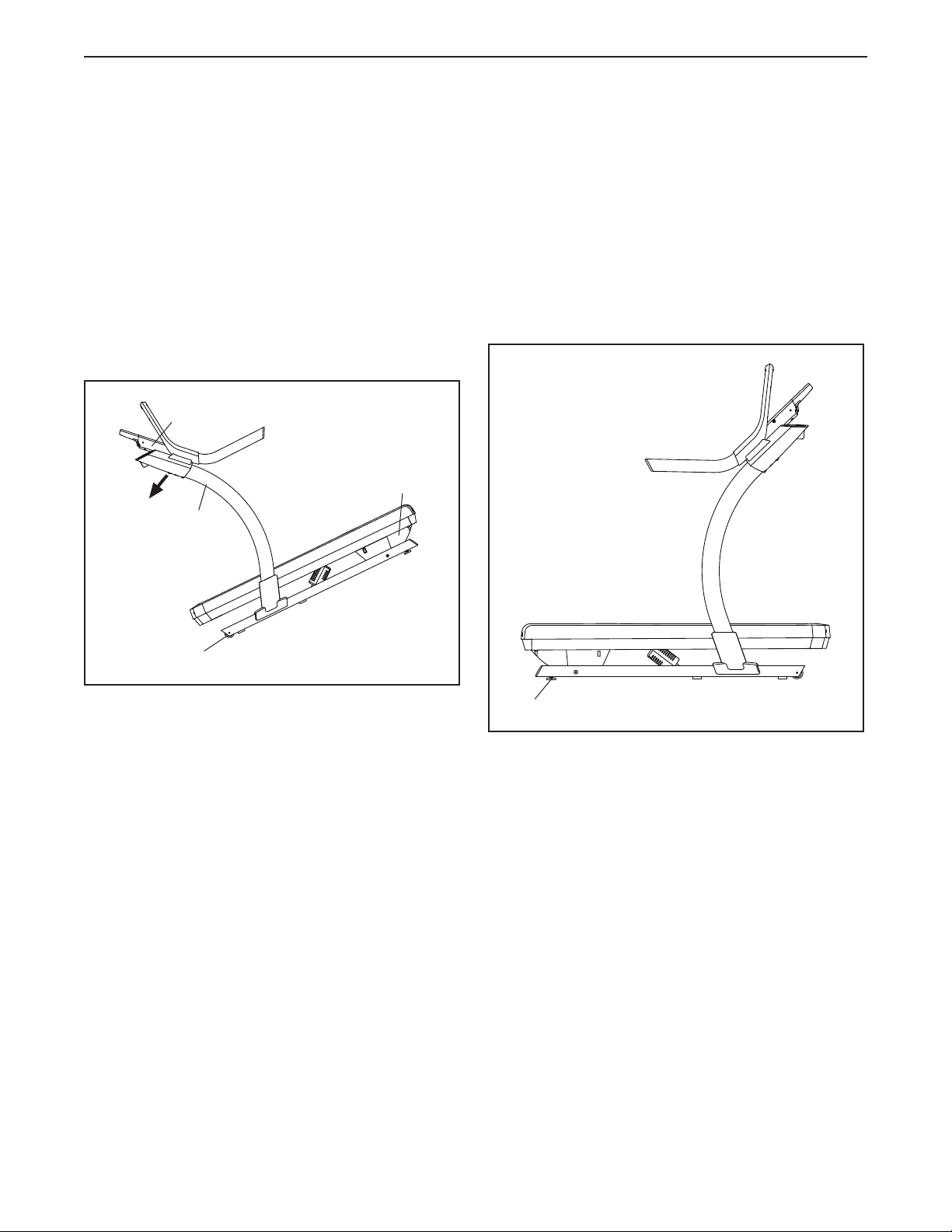
Before moving the incline trainer, insert the key
into the console (A), raise the incline to the maxi-
mum incline level, remove the key, and unplug the
power cord.
Due to the size and weight of the incline trainer,
moving it requires two or three persons. Hold the
uprights (B) firmly near the console (A). Tip the incline
trainer back until it rolls freely on the wheels (C).
CAUTION: To decrease the possibility of injury
or of damage to the incline trainer, do not lift the
incline trainer by the plastic belly pan (D). Do not
pull on the console.
Carefully roll the incline trainer on the wheels to the
desired location, and then lower it to the level position.
CAUTION: To reduce the risk of injury, use extreme
caution while moving the incline trainer. Do not
attempt to move the incline trainer over uneven
surfaces.
Make sure that the incline trainer rests firmly on the
floor. If the incline trainer rocks even slightly, turn the
Leveling Feet (77) as needed until the rocking motion
is eliminated.
C
B
D
A
77
HOW TO MOVE THE INCLINE TRAINER
28
MAINTENANCE
Regular maintenance is important for optimal
performance and to reduce wear. Inspect and properly
tighten all parts each time the incline trainer is used.
Replace any worn parts immediately.
Regularly clean the incline trainer and keep the walking
belt clean and dry. First, press the power switch into
the off position and unplug the power cord. Wipe
exterior parts of the incline trainer with a damp cloth
and a small amount of mild soap. IMPORTANT: Do
not spray liquids directly onto the incline trainer.
To avoid damage to the console, keep liquids away
from the console. Then, thoroughly dry the incline
trainer with a soft towel.
TROUBLESHOOTING
Most incline trainer problems can be solved by fol-
lowing the simple steps below. Find the symptom
that applies, and follow the steps listed. If further
assistance is needed, see the front cover of this
manual.
SYMPTOM: The power does not turn on
a. Make sure that the power cord is plugged into a
surge suppressor, and that the surge suppressor
is plugged into a properly grounded outlet (see
page 15). Use only a surge suppressor that meets
all of the specifications described on page 15.
IMPORTANT: If the incline trainer is connected
to an AFCI-equipped outlet and your circuit
breaker trips repeatedly when the incline trainer
is used, see the front cover of this manual to
purchase an arc filter.
b. After the power cord has been plugged in, make
sure that the key is inserted into the console.
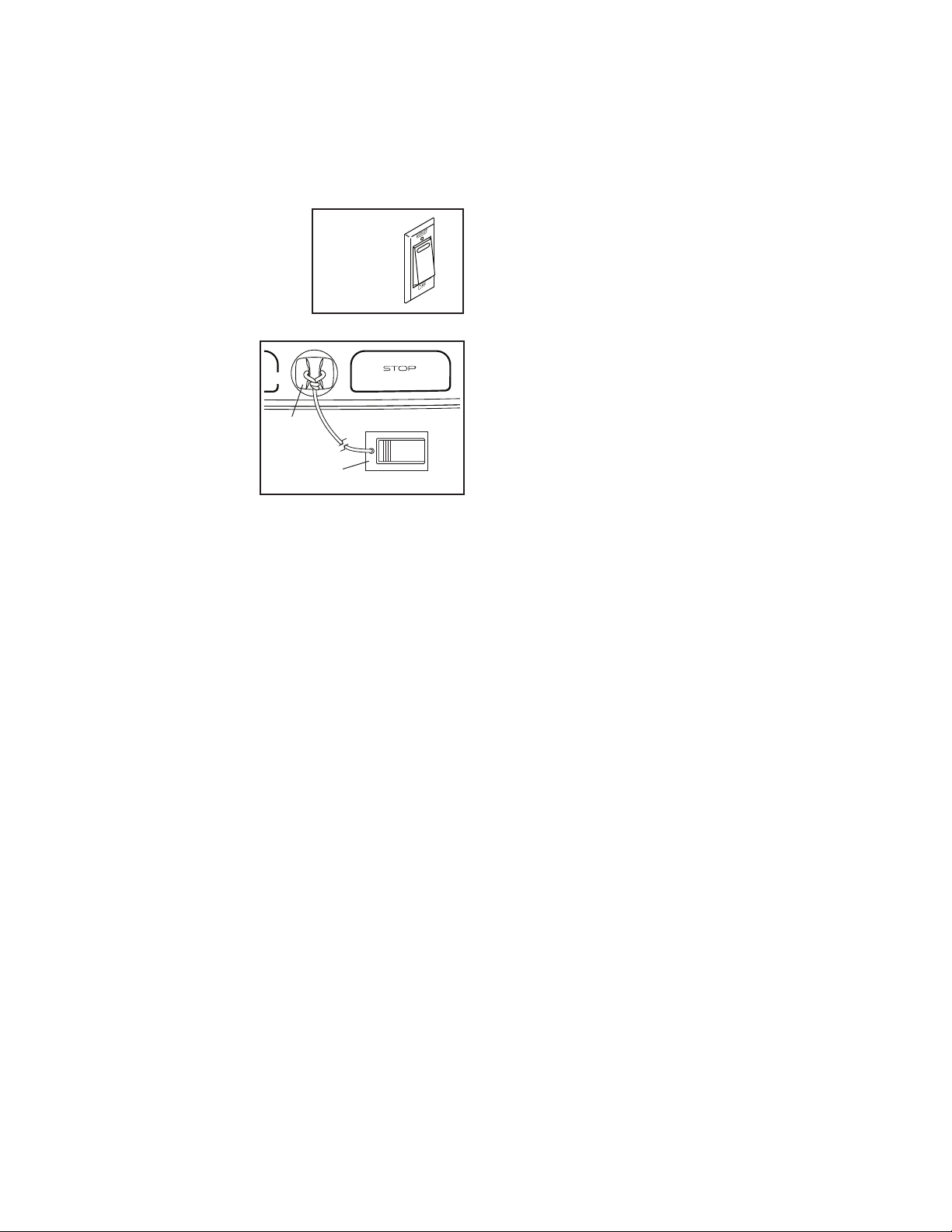
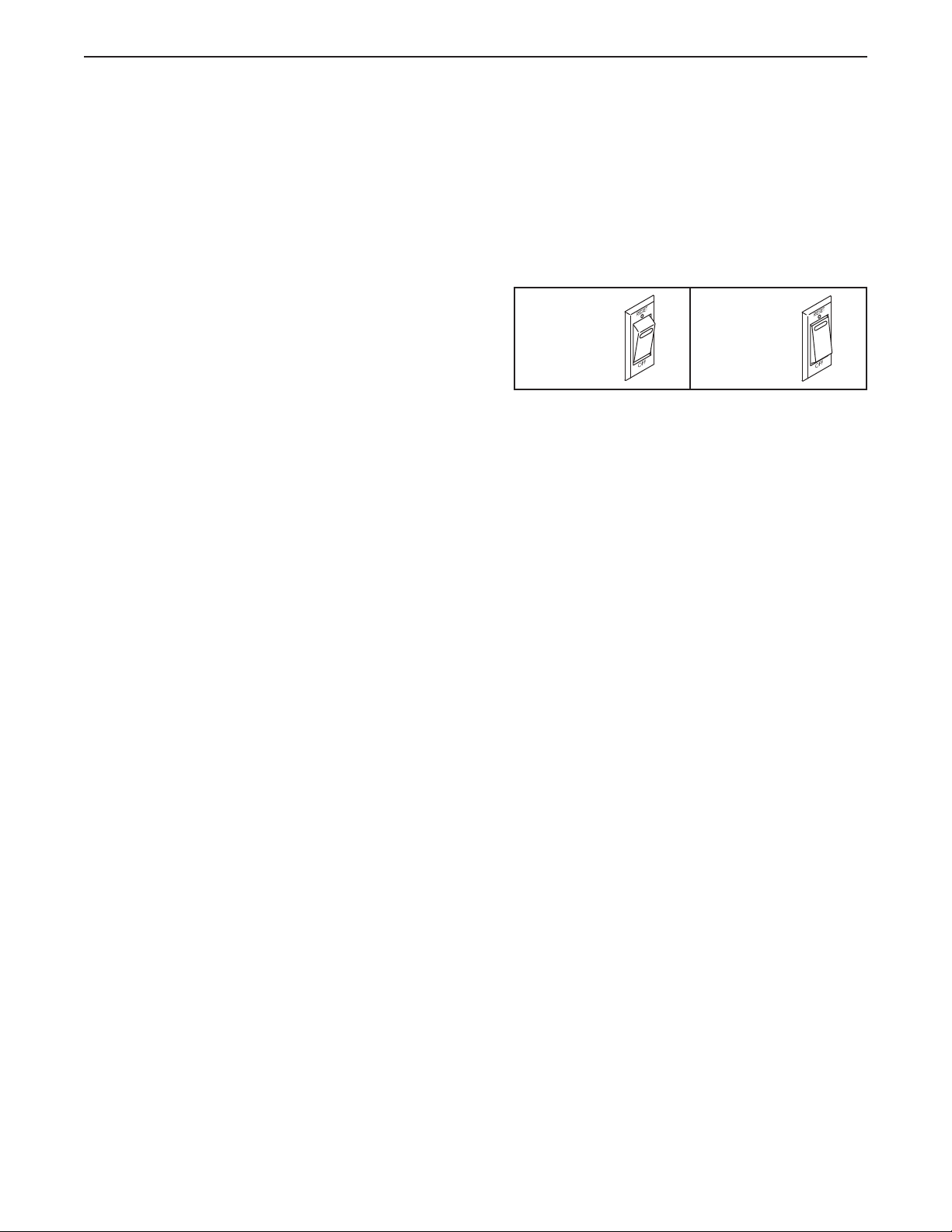
c. Check the power switch located on the incline
trainer frame near the power cord. If the switch pro-
trudes as shown, the switch has tripped. To reset
the power switch, wait for five minutes and then
press the switch back in.
SYMPTOM: The power turns off during use
a. Check the power switch (see the drawing above).
If the switch has tripped, wait for five minutes and
then press the switch back in.
b. Make sure that the power cord is plugged in. If the
power cord is plugged in, unplug it, wait for five
minutes, and then plug it back in.
c. Remove the key from the console, and then
reinsert it.
d. If the incline trainer still will not run, please see the
front cover of this manual.
Reset
Tripped
c
MAINTENANCE AND TROUBLESHOOTING
29
SYMPTOM: The walking belt slows when walked on
a. Use only a surge suppressor that meets all of the
specifications described on page 15.
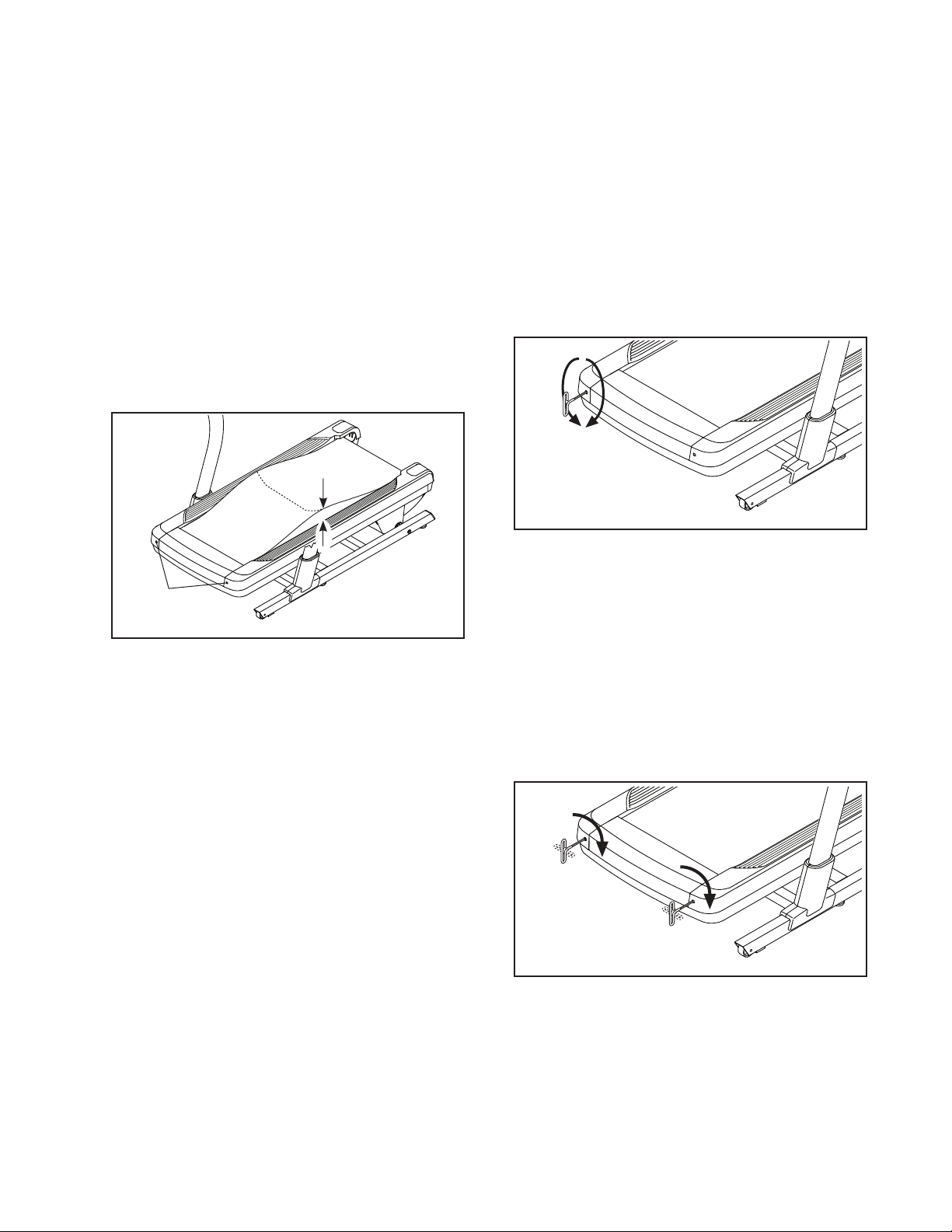
b. If the walking belt is overtightened, incline trainer
performance may decrease and the walking belt
may become damaged. First, adjust the incline to
40 percent. Then, remove the key and UNPLUG
THE POWER CORD. Using the hex key, turn both
idler roller screws (A) counterclockwise, 1/4 of a
turn. When the walking belt is properly tightened,
you should be able to lift each edge of the walking
belt 3 to 4 in. (8 to 10 cm) off the walking platform.
Be careful to keep the walking belt centered. Then,
plug in the power cord, insert the key, and walk on
the incline trainer for a few minutes. Repeat until
the walking belt is properly tightened.
c. The incline trainer features a walking belt coated
with high-performance lubricant. IMPORTANT:
Never apply silicone spray or other substances
to the walking belt or the walking platform
unless instructed to do so by an authorized
service representative. Such substances may
deteriorate the walking belt and cause exces-
sive wear. If you suspect that the walking belt
needs more lubricant, see the front cover of this
manual.
d. If the walking belt still slows when walked on, see
the front cover of this manual.
SYMPTOM: The walking belt is off-center or slips
when walked on
a. If the walking belt is off-center, first adjust the
incline to 40 percent. Next, remove the key and
UNPLUG THE POWER CORD. If the walking belt
has shifted to the left, use the hex key to turn the
left idler roller screw clockwise 1/2 of a turn; if the
walking belt has shifted to the right, turn the left
idler roller screw counterclockwise 1/2 of a turn. Be
careful not to overtighten the walking belt. Then,
plug in the power cord, insert the key, and walk on
the incline trainer for a few minutes. Repeat until
the walking belt is centered.
b. If the walking belt slips when walked on, first
adjust the incline to 40 percent. Next, remove the
key and UNPLUG THE POWER CORD. Using the
hex key, turn both idler roller screws clockwise, 1/4
of a turn. When the walking belt is correctly tight-
ened, you should be able to lift each edge of the
walking belt 3 to 4 in. (8 to 10 cm) off the walking
platform. Be careful to keep the walking belt cen-
tered. Then, plug in the power cord, insert the key,
and walk on the incline trainer for a few minutes.
Repeat until the walking belt is properly tightened.
3–4 in.
b
A
a
b
30
SYMPTOM: The incline trainer will not connect to
the wireless network
a. Make sure that the wireless settings on the console
are correct (see page 25).
b. Make sure that the settings for your wireless net-
work are correct.
c. If you still have questions, go to support.iFit.com.
SYMPTOM: The incline of the incline trainer does
not change correctly
a. Calibrate the incline system (see step 4 on
page 24).
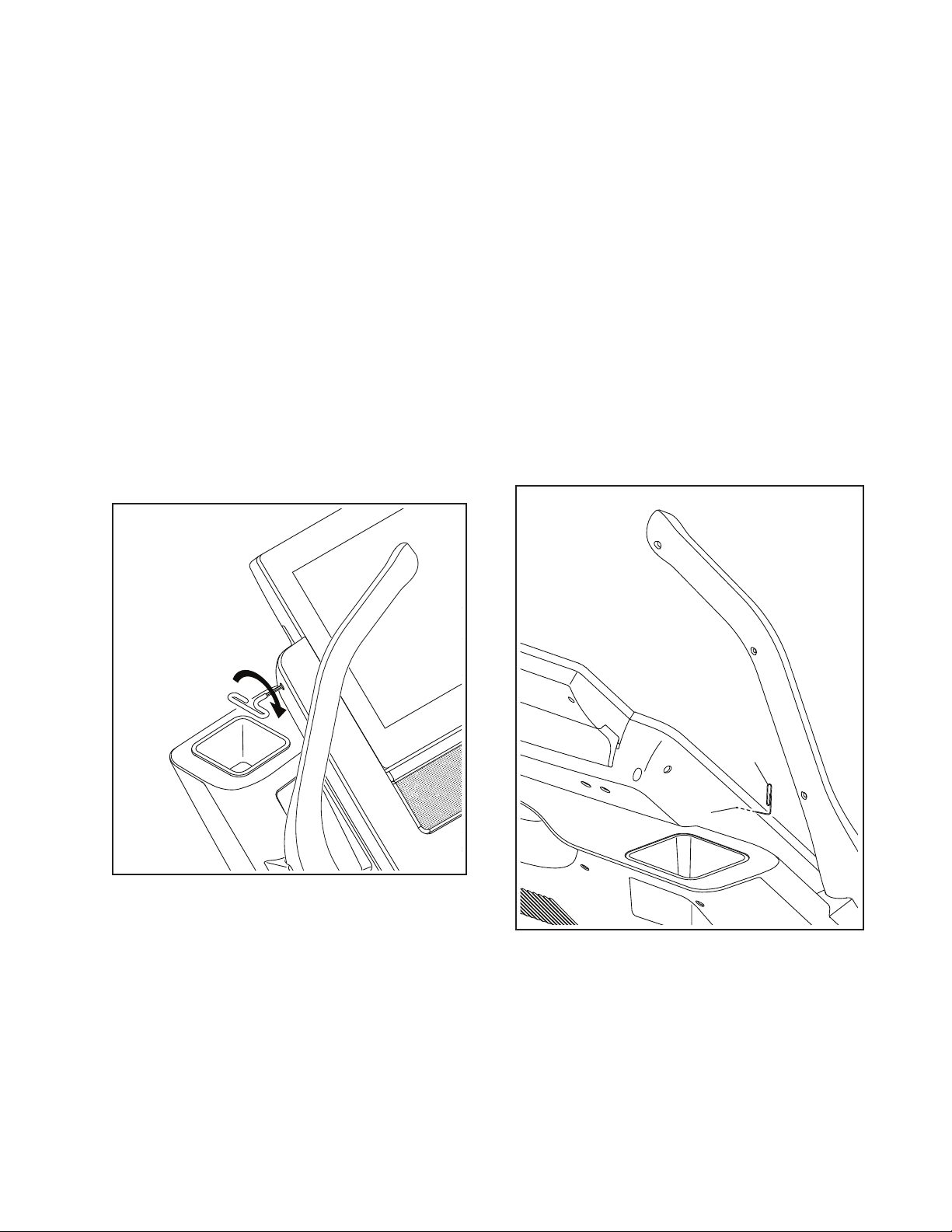
SYMPTOM: The console does not stay in place
a. If the console will not stay in the desired position
because it is too loose, use a hex key to slightly
tighten the console in the indicated location on both
sides (only one side is shown).
SYMPTOM: The displays of the console do not
function properly
a. If the console does not boot up properly, or
if the console freezes and does not respond,
reset the console to the factory default settings.
IMPORTANT: Doing this will erase all the
custom settings you have made to the console.
Resetting the console requires two people. First,
press the power switch into the off position. Next,
locate the small reset opening (B) on the side of
the console. Using a bent paper clip (C), press and
hold the reset button inside the opening, and have
a second person press the power switch into the
on position. Continue holding the reset button until
the console turns on. When the reset operation is
complete, the console will turn off and then turn
back on. If it does not, use the power switch to
turn the incline trainer off and then on again. Once
the console turns on, check for fi rmware updates
(see step 3 on page 24). Note: It may take a few
minutes for the console to be ready for use.
a
a
B
C
31
EXERCISE GUIDELINES
These guidelines will help you to plan your exercise
program. For detailed exercise information, obtain a
reputable book or consult your physician. Remember,
proper nutrition and adequate rest are essential for
successful results.
EXERCISE INTENSITY
Whether your goal is to burn fat or to strengthen your
cardiovascular system, exercising at the proper inten-
sity is the key to achieving results. You can use your
heart rate as a guide to find the proper intensity level.
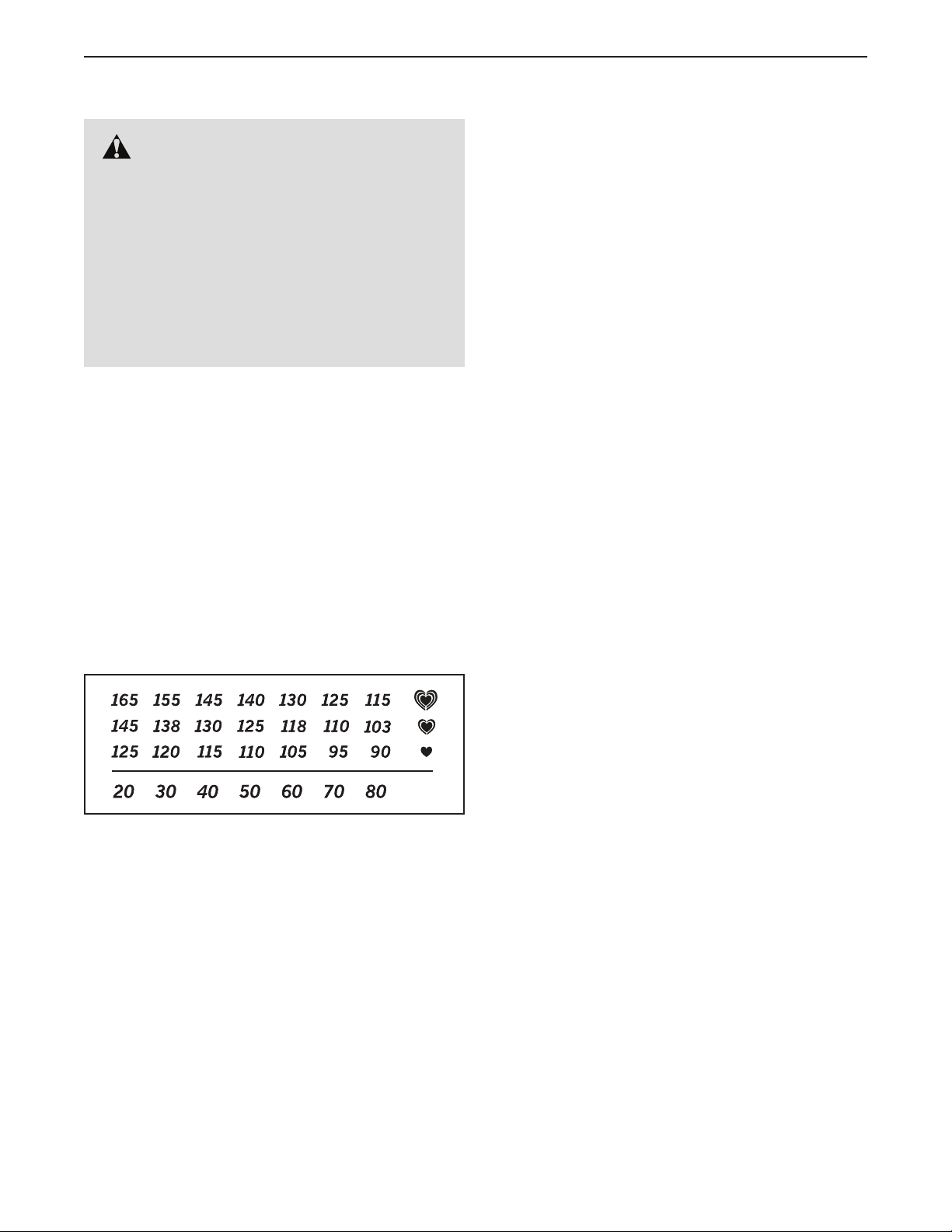
The chart below shows recommended heart rates for
fat burning and aerobic exercise.
To find the proper intensity level, find your age at the
bottom of the chart (ages are rounded off to the near-
est ten years). The three numbers listed above your
age define your “training zone.” The lowest number is
the heart rate for fat burning, the middle number is the
heart rate for maximum fat burning, and the highest
number is the heart rate for aerobic exercise.
Burning Fat—To burn fat effectively, you must exer-
cise at a low intensity level for a sustained period of
time. During the first few minutes of exercise, your
body uses carbohydrate calories for energy. Only after
the first few minutes of exercise does your body begin
to use stored fat calories for energy. If your goal is to
burn fat, adjust the intensity of your exercise until your
heart rate is near the lowest number in your training
zone. For maximum fat burning, exercise with your
heart rate near the middle number in your training
zone.
Aerobic Exercise—If your goal is to strengthen your
cardiovascular system, you must perform aerobic
exercise, which is activity that requires large amounts
of oxygen for prolonged periods of time. For aerobic
exercise, adjust the intensity of your exercise until your
heart rate is near the highest number in your training
zone.
WORKOUT GUIDELINES
Warming Up—Start with 5 to 10 minutes of stretch-
ing and light exercise. A warm-up increases your body
temperature, heart rate, and circulation in preparation
for exercise.
Training Zone Exercise—Exercise for 20 to 30 min-
utes with your heart rate in your training zone. (During
the first few weeks of your exercise program, do not
keep your heart rate in your training zone for longer
than 20 minutes.) Breathe regularly and deeply as you
exercise; never hold your breath.
Cooling Down—Finish with 5 to 10 minutes of stretch-
ing. Stretching increases the flexibility of your muscles
and helps to prevent post-exercise problems.
EXERCISE FREQUENCY
To maintain or improve your condition, complete
three workouts each week, with at least one day of
rest between workouts. After a few months of regular
exercise, you may complete up to five workouts each
week, if desired. Remember, the key to success is to
make exercise a regular and enjoyable part of your
everyday life.
WARNING: Before beginning this
or any exercise program, consult your physi-
cian. This is especially important for persons
over age 35 or persons with pre-existing
health problems.
The heart rate monitor is not a medical device.
Various factors may affect the accuracy of
heart rate readings. The heart rate monitor is
intended only as an exercise aid in determin-
ing heart rate trends in general.
32
SUGGESTED STRETCHES
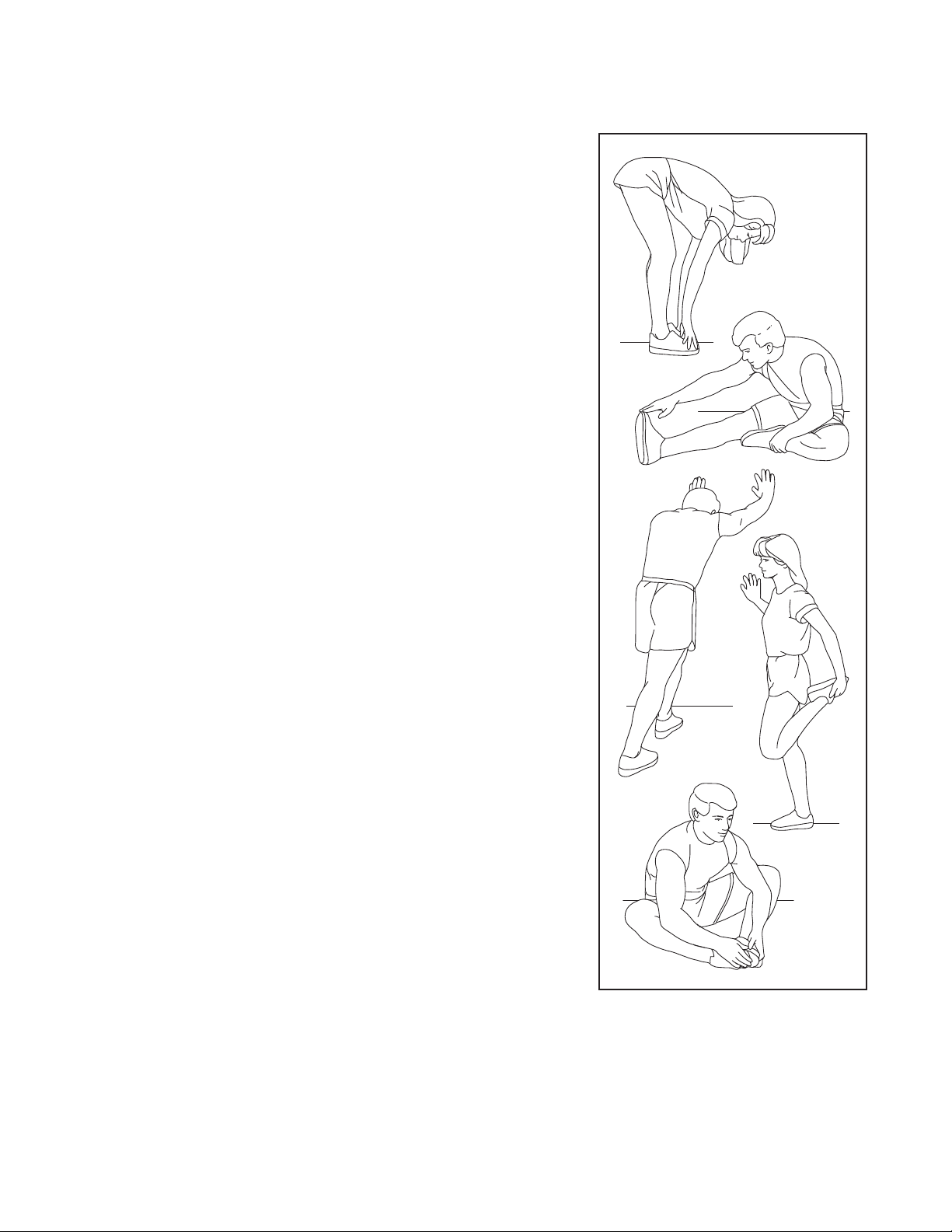
The correct form for several basic stretches is shown at the right. Move slowly as you stretch —never bounce.
1. Toe Touch Stretch
Stand with your knees bent slightly and slowly bend forward from
your hips. Allow your back and shoulders to relax as you reach down
toward your toes as far as possible. Hold for 15 counts, then relax.
Repeat 3 times. Stretches: Hamstrings, back of knees and back.
2. Hamstring Stretch
Sit with one leg extended. Bring the sole of the opposite foot toward
you and rest it against the inner thigh of your extended leg. Reach
toward your toes as far as possible. Hold for 15 counts, then relax.
Repeat 3 times for each leg. Stretches: Hamstrings, lower back and
groin.
3. Calf/Achilles Stretch
With one leg in front of the other, reach forward and place your hands
against a wall. Keep your back leg straight and your back foot flat on
the floor. Bend your front leg, lean forward and move your hips toward
the wall. Hold for 15 counts, then relax. Repeat 3 times for each leg.
To cause further stretching of the achilles tendons, bend your back leg
as well. Stretches: Calves, achilles tendons and ankles.
4. Quadriceps Stretch
With one hand against a wall for balance, reach back and grasp one
foot with your other hand. Bring your heel as close to your buttocks as
possible. Hold for 15 counts, then relax. Repeat 3 times for each leg.
Stretches: Quadriceps and hip muscles.
5. Inner Thigh Stretch
Sit with the soles of your feet together and your knees outward. Pull
your feet toward your groin area as far as possible. Hold for 15 counts,
then relax. Repeat 3 times. Stretches: Quadriceps and hip muscles.
1
2
3
4
5

33
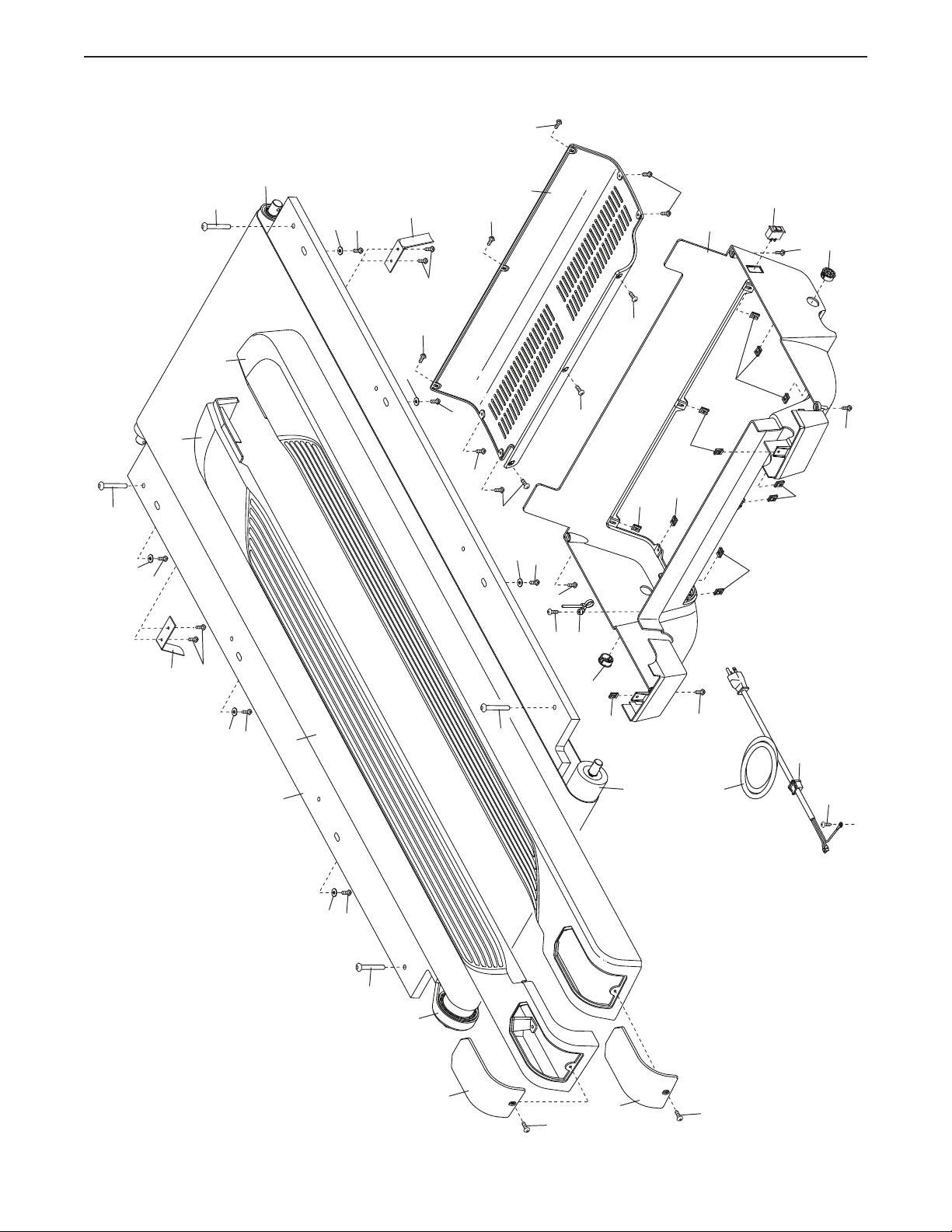
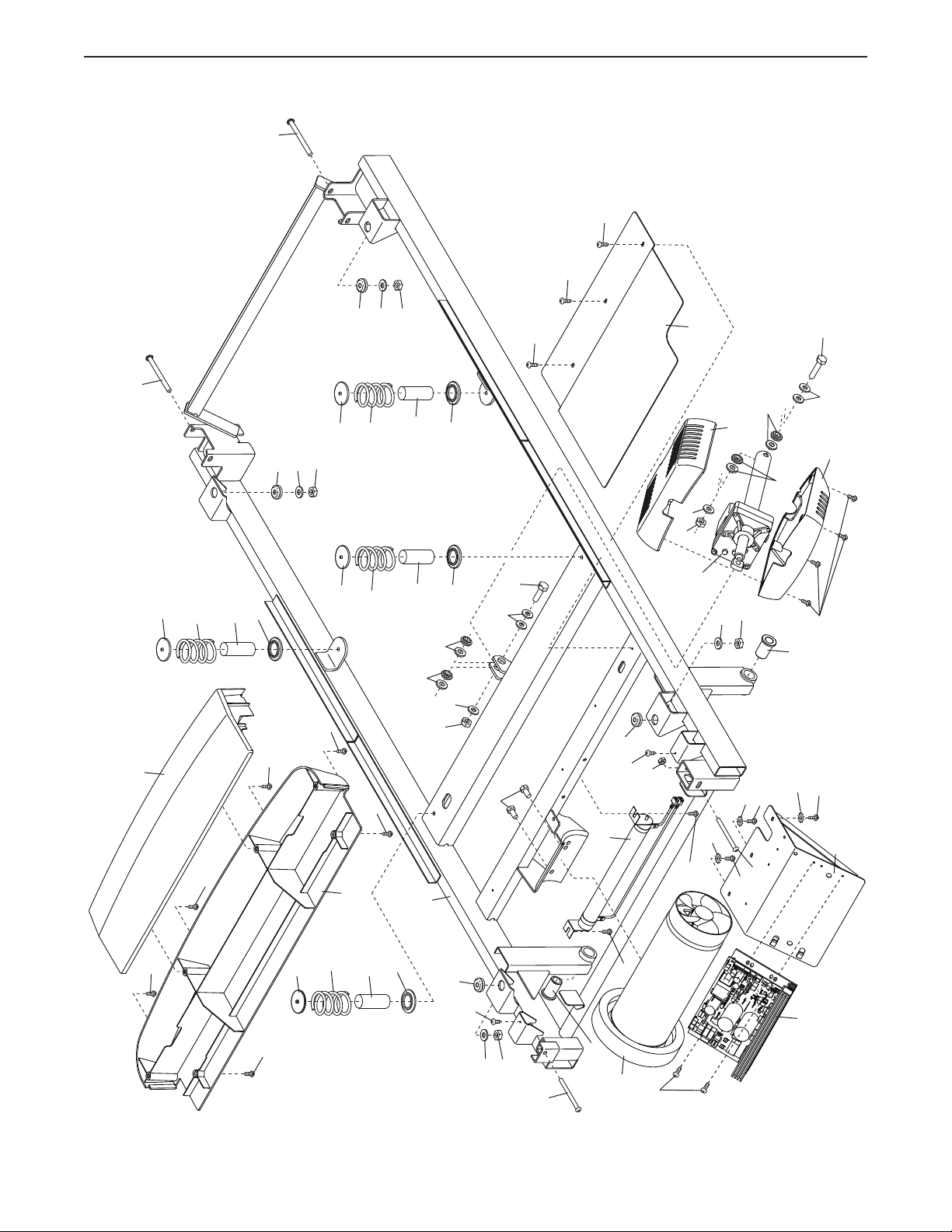
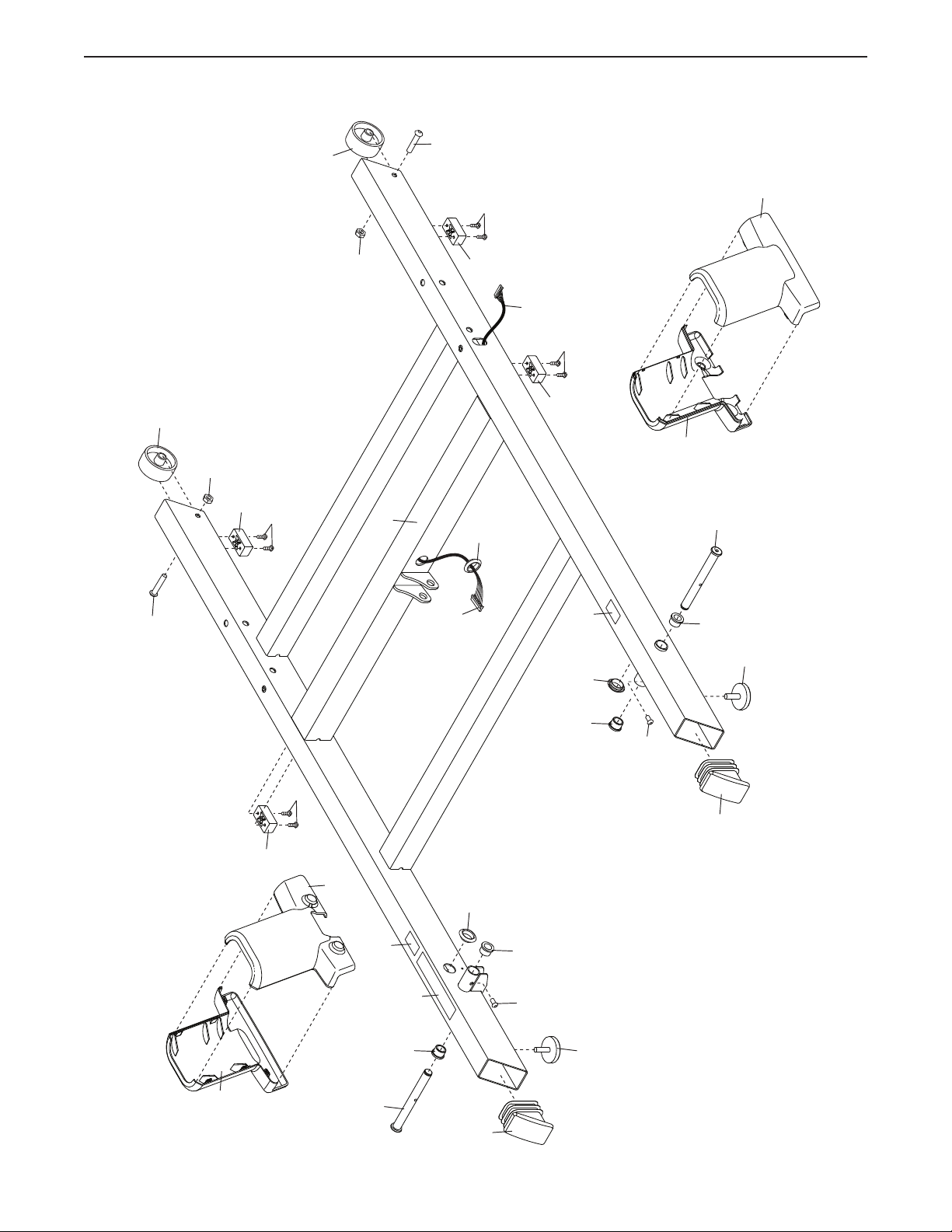
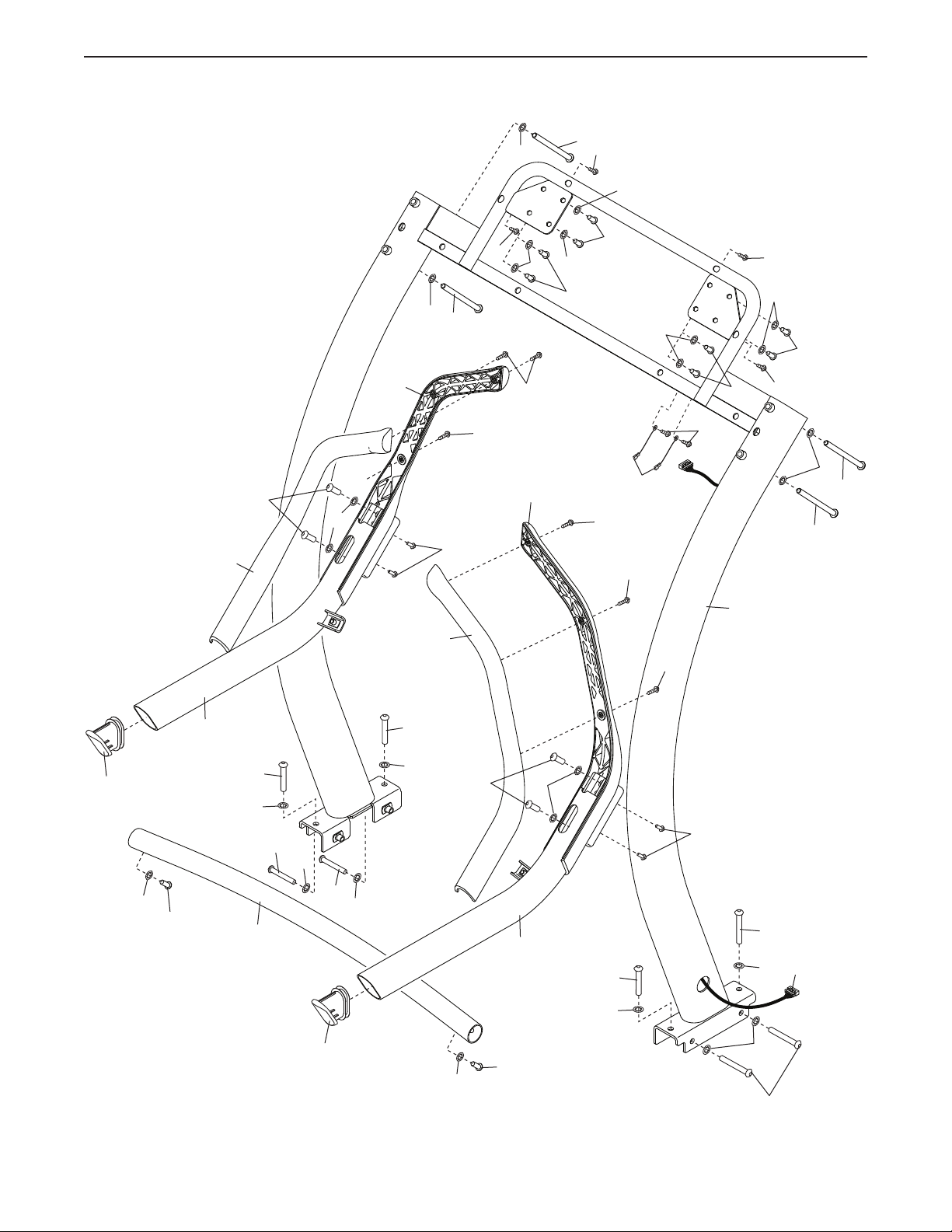
PART LIST
Model No. NTL29019.1 R0519A
Key No. Qty. Description Key No. Qty. Description
1 4 3/8" x 5 1/2" Screw
2 6 #8 x 1 1/4" Screw
3 16 3/8" Star Washer
4 2 #8 x 3/4" Pan Head Tek Screw
5 55 #8 x 3/4" Screw
6 4 #8 Belt Guide Screw
7 7 #8 x 1/2" Screw
8 6 1/4" Flat Washer
9 8 #8 x 3/4" Washer Head Screw
10 8 #8 x 5/8" Screw
11 4 5/16" x 1 1/2" Screw
12 2 1/4" x 1/2" Screw
13 4 1/4" x 2 1/2" Screw
14 1 3/8" x 1 1/2" Bolt
15 1 3/8" x 2 3/8" Bolt
16 12 Hood Clip
17 13 #8 x 1/2" Washer Head Screw
18 4 3/8" x 3 1/4" Screw
19 6 3/8" Washer
20 2 5/16" Motor Bolt
21 2 3/8" x 2 3/8" Screw
22 4 3/8" x 2 3/4" Screw
23 3 #8 Star Washer
24 1 Console Back
25 4 5/16" Flat Washer
26 4 3/8" Nut
27 4 5/16" Nut
28 1 1/4" Nut
29 2 Belt Guide
30 1 Walking Platform
31 1 Walking Belt
32 1 Left Foot Rail
33 1 Right Foot Rail
34 1 Idler Roller
35 1 Belly Pan Cover
36 1 Belly Pan
37 1 Power Switch
38 2 Belly Pan Grommet
39 1 Grommet
40 1 Power Cord
41 8 Tie
42 1 Drive Roller/Pulley
43 1 Right Foot Rail Cover
44 1 Left Foot Rail Cover
45 4 Small Pivot Bushing
46 1 Belt
47 1 Front Hood Cover
48 1 Front Hood
49 8 Cushion Cap
50 4 Spring
51 4 Cushion
52 1 Base Wire
53 4 Rubber Cushion
54 2 Large Pivot Bushing
55 1 Electronics Cover
56 1 Incline Motor Top Cover
57 8 5/16" Star Washer
58 1 Incline Motor Bottom Bracket
59 8 Incline Motor Bushing
60 1 Incline Motor
61 1 Electronics Bracket
62 1 Controller
63 1 Resistor
64 1 Drive Motor
65 2 5/16" Star Washer
66 1 Frame
67 1 Chest Heart Rate Monitor
68 1 Left Outside Upright Cover
69 1 Left Inside Upright Cover
70 1 Right Inside Upright Cover
71 1 Right Outside Upright Cover
72 2 Wheel
73 4 Base Pad
74 1 Base
75 1 Upright Wire
76 3 Round Grommet
77 2 Leveling Foot
78 2 Axle
79 2 Base Cap
80 1 Warning Decal
81 2 Caution Decal
82 1 Left Handrail
83 1 Upright
84 2 Console Ground Wire
85 1 Crossbar
86 2 Handrail Cap
87 2 5/16" x 1" Screw
88 1 Key
89 1 Right Handrail Top
90 1 Left Handrail Top
91 1 Left Tray
92 1 Console Base
93 1 Console
94 1 Right Tray
95 4 #8 x 1" Screw
96 2 #8 x 3/4" Console Screw

34
Note: Specifications are subject to change without notice. For information about ordering replacement parts, see
the back cover of this manual. *These parts are not illustrated.
Key No. Qty. Description Key No. Qty. Description
97 1 Right Handrail
98 1 Left Handrail Bottom
99 1 Right Handrail Bottom
100 4 3/8" x 3/4" Screw
101 4 #8 x 3/4" Machine Screw
102 8 5/16" x 3/4" Screw
* – User’s Manual
35
36
37
38
35
42
38
41
39
30
46
44
40
43
31
32
33
29
29
5
7
10
10
5
5
5
16
16
16
16
16
16
5
16
17
5
5
5
11
6
11
10
10
10
10
34
11
11
6
5
5
5
5
5
5
8
8
8
8
8
8
EXPLODED DRAWING A
Model No. NTL29019.1 R0519A
36
56
61
58
17
23
17
23
17
53
54
17
23
27
25
27
25
53
49
50
51
49
27
53
25
17
17
17
20
17
27
25
4
4
5
5
5
5
5
55
49
47
66
53
48
50
51
49
54
62
63
64
49
50
51
49
49
50
51
49
10
28
13
13
13
13
14
26
59
59
19
19
10
17
60
26
15
19
19
59
59
EXPLODED DRAWING B
Model No. NTL29019.1 R0519A
37
68
21
78
77
69
12
79
80
81
81
52
12
45
45
45
45
26
21
26
70
71
72
76
79
77
78
74
52
76
76
72
9
9
73
73
9
9
73
73
EXPLODED DRAWING C
Model No. NTL29019.1 R0519A
38
1
1
3
84
17
1
5
5
1
3
3
5
5
57
57
102
102
57
102
57
102
57
3
22
18
3
22
3
3
18
75
18
22
3
3
18
3
100
3
89
90
99
98
2
97
82
2
2
2
2
86
86
100
3
101
101
65
65
87
85
87
83
EXPLODED DRAWING D
Model No. NTL29019.1 R0519A
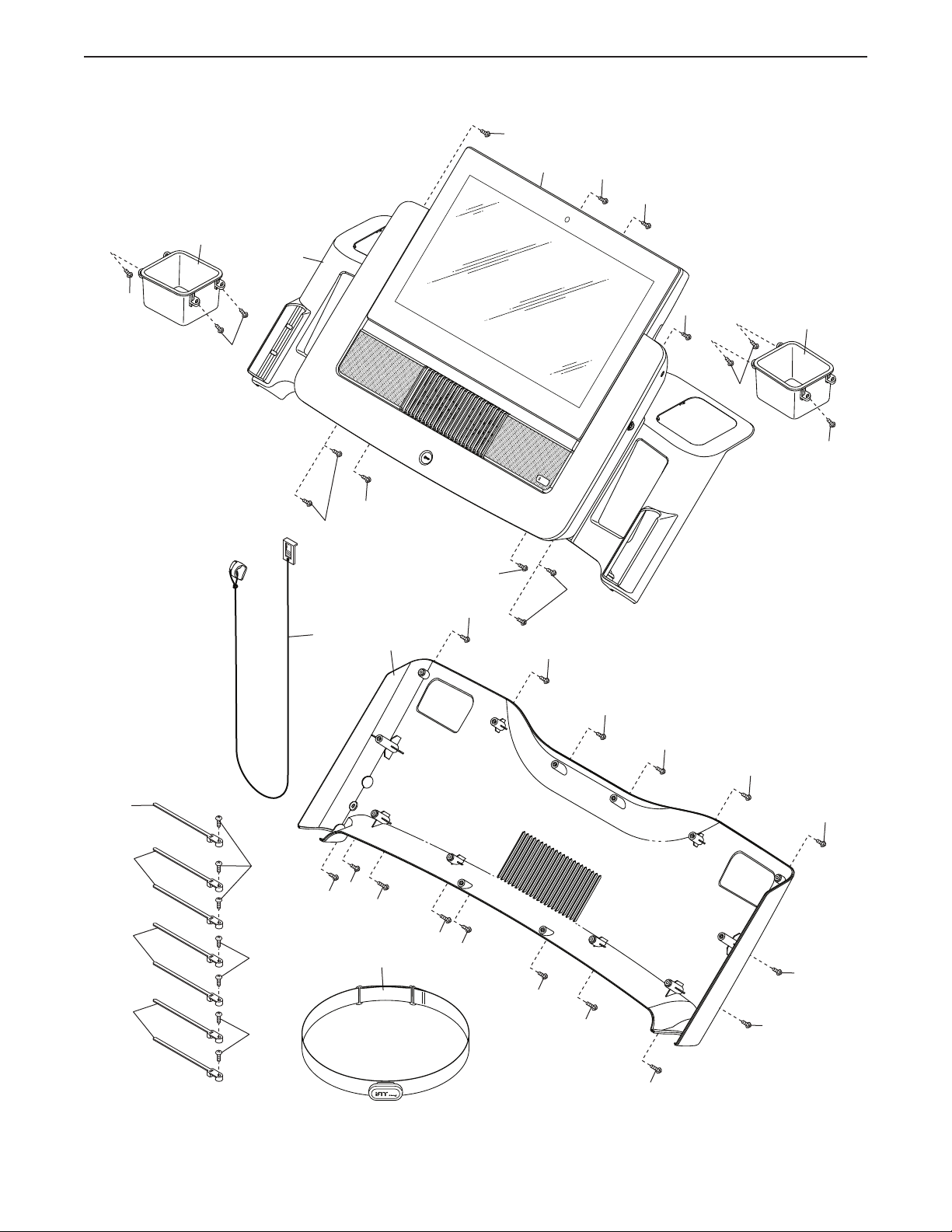
39
88
5
5
41
41
41
41
24
91
5
5
5
95
5
95
5
5
5
5
95
96
95
96
5
5
5
67
94
7
7
7
7
92
5
5
5
5
5
5
5
5
93
EXPLODED DRAWING E
Model No. NTL29019.1 R0519A