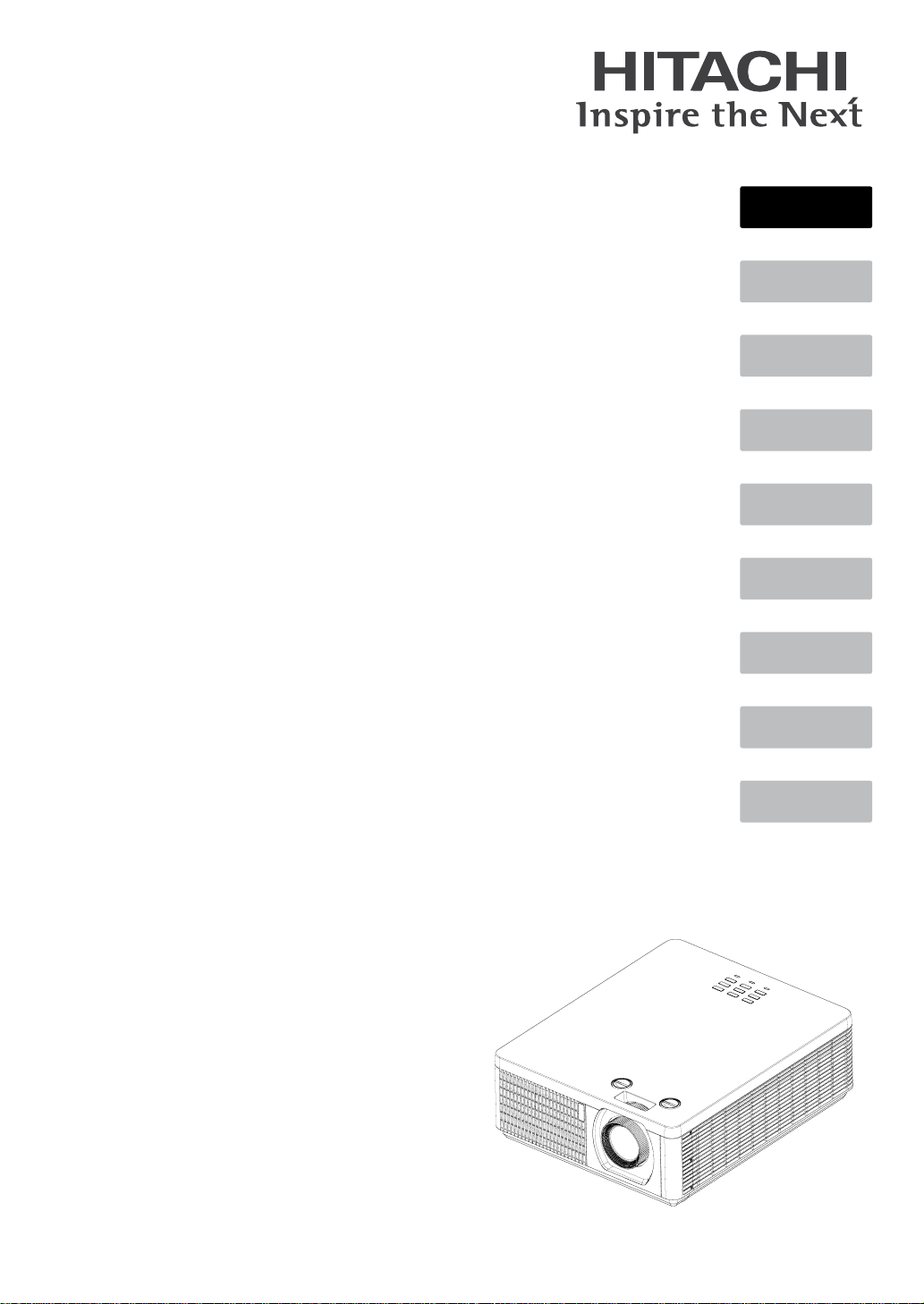
User's Manual
Projector
LP-WU6500
Thank you for purchasing this product.
Please read this manual before using the product.
Store it for future reference.
English
Deutsch
Português
繁體中文
Français
Español
簡体中文
한국어
Русский

English-2
INDEX
Warning, Notices and Safety Instructions 4
Projector parts and functions 17
Front view 17
LED Indicator 17
Rear view 18
Projector keypad 18
I/O Port (Input / Output) 19
Bottom view 20
Remote control 21
Range of effective remote control signal reception 23
Installing batteries in the remote control 23
Projector installation 25
Throw distance 25
Modes of installation 25
Projection 25
Horizontal and vertical lens shift 27
Lens shift 27
Moving the lens vertically 29
Moving the lens horizontally 29
Connecting the projector 30
HDMI / MHL / DVI connection 30
RGB connection 31
HDBaseT connection 32
RJ45 connection 33
USB POWER (5V/1.5A) connection 33
3D SYNC connection 34
VIDEO connection 34
SERVICE connection 35
RS232C connection 35
Audio IN (L/R) connection 36
Audio OUT (Mini jack) connection 36
Audio IN (Mini jack) connection 37
Powering the projector on or off 38
Powering on the projector 38
Connect the power cord to the projector 38
Turning off the projector 38
Selecting an input source 39
Setting an access password (security lock) 40
Choosing a location 42
Adjusting the projector's angle 43
Adjusting the projector’s zoom and focus 43
Zoom 43
Focus 44
Correcting keystone 45
OSD menu tree 46
OSD description 50
Image 50
Display Mode 50
Brightness 51
Contrast 51
Computer 52
Auto Image 53
Advanced 53
Color Manager 55
Settings 1 56
Source 56
Projection 56
Aspect Ratio 57
Keystone 57
Digital Zoom 57
Audio 57
Advanced 1 58
Advanced 2 59
4 Corner 59
Settings 2 60
Auto Source 60
No Signal Power Off 60
Auto Power On 60
Laser Mode 60
Reset All 61
Status 61
Advanced 1 61
Advanced 2 70
Custom Light 70
Cleaning 71
Cleaning the cabinet 71
Cleaning the lens 71
Using the Kensington
®
lock 72
Simple troubleshooting 73
LED status 74
Specications 76
Specications 76
Supported signal input modes 77
MHL timing format 79
3D timing format 79
Dimensions 80

English-3
Communication settings 81
RS-232 communication 81
Connection 81
Command control via the network 83
Connection 83
Communication port 83
Command control settings 84
Communication command table 84
PJLink command 96
Projection distance vs projection size table 97
Copyright information 98
Copyright 98
Trademark 98
Warranty and after-service 98
Warning, Notices and Safety Instructions
English-4
Warning, Notices and Safety Instructions
Notice
This product is intended for the adults who have the ability to operate this machine.
Please write down your projector model number and serial number and keep the information for
maintenance purposes in the future. Should the equipment be lost or stolen, the information could
also be used for the police report.
Model number:
Serial number:
Please check the accessories that come with the projector with the following list. Should you nd any
missing accessory, contact your dealer immediately.
1. AC Power Cord 4. CD-ROM 7. 3D Sync cable 1pcs
2. Remote control 5. Printed Manual 8. RGB cable
3. AAA battery 2pcs 6. EAC Document
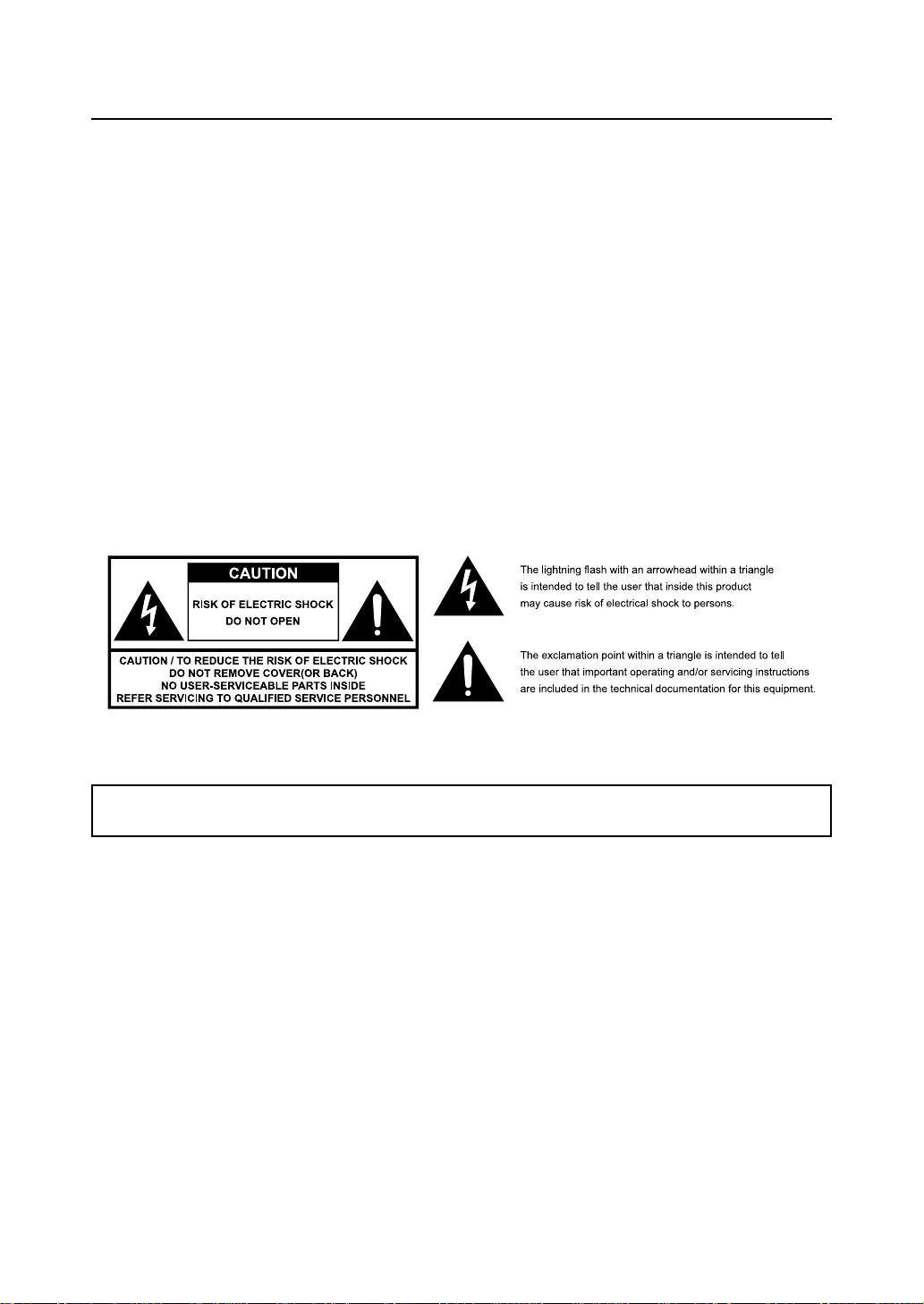
Do not open
About Electro-Magnetic Interference
This is a Class A product. In a domestic environment this product may cause radio interference in
which case the user may be required to take adequate measures.
This product may cause interference if used in residential areas. Such use must be avoided unless
the user takes special measures to reduce electromagnetic emissions to prevent interference to the
reception of radio and television broadcasts.
Description pertaining to FCC Rules Part 15
This device complies with Part 15 of the FCC Rules. Operation is subject to the following two
conditions: (1) this device may not cause harmful interference, and (2) this device must accept any
interference received, including interference that may cause undesired operation.
This device has been tested and found to comply with the limits for a Class A digital device, pursuant
to Part 15 of the FCC Rules. These limits are designed to provide reasonable protection against
harmful interference in a residential installation.
This equipment generates, uses and can radiate radio frequency energy. If not installed and used in
accordance with the instructions, may cause harmful interference to radio or television reception.
Operation of this equipment in a residential area is likely to cause harmful interference in which case.
Warning, Notices and Safety Instructions
English-5
The user will be required to correct the interference at his own expense.
Caution: Changes or modications not expressly approved by the manufacturer void the user’s
authority to operate the equipment.
CAN ICES-3(A) / NMB-3(A)
Information for users applicable in European Union countries
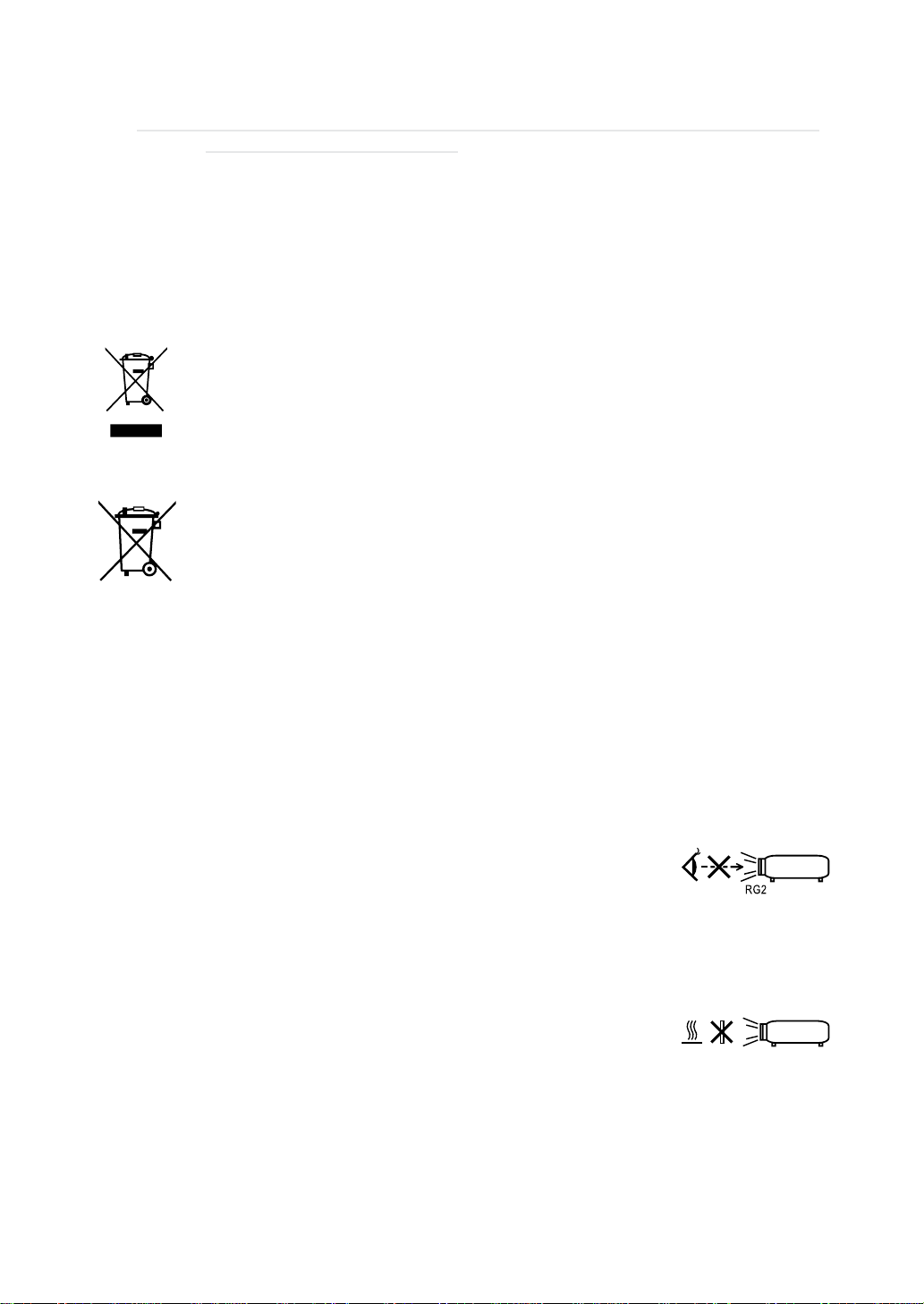
Disposal of Old Equipment and Batteries Only for European Union and countries with recycling systems
The above mark is in compliance with the Waste Electrical and Electronic Equipment Directive
2012/19/EU (WEEE).
The mark indicates the requirement NOT to dispose the equipment including any spent or
discarded batteries as unsorted municipal waste, but use the return and collection systems
available.
If the batteries or accumulators included with this equipment display the chemical symbol
Hg, Cd, or Pb, then it means that the battery has a heavy metal content of more than 0.0005%
Mercury, or more than 0.002% Cadmium or more than 0.004% Lead.
Note for the battery symbol (bottom symbol):
This symbol might be used in combination with a chemical symbol.
In this case it complies with the requirement set by the Directive for the chemical
involved.
Sun light Warning
Avoid using this projector in direct sun light.
Sunlight may cause serious damage to the digital mirror device (DMD™) at the back of the projector
lens.
Never look into the projector light source directly
When turn on the projector, make sure nobody's eye will effects by the
projection of light.
Always avoid to let eyes contact to the light.
As with any bright source, do not stare into the direct beam, RG2 IEC 62471-
5:2015.
Key any object away from concentrated projection light beam
Blocking the beam by something causes high temperature and could result in
re or smoke.

Warning, Notices and Safety Instructions
English-6
Electric shock
To protect your projector, avoid turning on the projector during lightning storms and unplug it from
the wall outlet. This will prevent sudden electrical surges caused by the lightning from damaging the
projector.
Do not overload wall outlets/extension cords
Pay attention to the current load of the outlet and cord you are using to prevent re or electrical shock.
Cleaning
When cleaning the projector, be sure to unplug it from the wall outlet to prevent electric shock.
Do not use liquid or aerosol cleaners. Use a dry/damp cloth with excessive moisture removed for
cleaning. Be sure to use cleaning cloth designed to clean monitors for the projector to prevent
damages to the projector casing due to abrasion.
Dampness, smoke, steam, dust, high temperature and direct exposure to sunlight
Do not operate the projector in environments where it could be expose to dampness, smoke, steam,
dust, high temperature or direct sunlight. For example: bathroom, kitchen, adjacent to washing
machine, damp basement rooms, electric heaters or similar environments. Keeping or operating the
projector in the above-mentioned environment could lead to discoloration, mold formation, grease or
damages to the projector.
Do not place the projector where any oils, such as cooking or machine oil, are used. Oil may harm the
product, resulting in malfunction, or falling from the mounted position. Do not use adhesive such as
threadlocker, lubricant and so on.
Ventilation
The projector case is designed with slots and openings to remove the heat inside the projector so that
it will not overheat and damage the components. Be sure to operate the projector in an environment
with ideal ventilation and don't operate it on a sofa, rug or other closed-in environments that could
obstruct ventilation.
Intrusion of foreign objects
Be sure to keep all foreign objects away from entering the projector because it could be exposed to
hazardous voltages and cause parts to short circuit. This could in turn lead to re hazard or electric
shock. Examples of foreign objects include: cockroach, screws, liquid and so forth.
In addition, never spill liquid into the projector.
Carrying the projector
The projector net weight is approximately 10.9 kg . When moving the projector on a
cart, be sure to handle the cart with care as abrupt stops, jolts of excessive force or
uneven ground could lead the projector to topple.
Warning, Notices and Safety Instructions
English-7
Please install the projector on an even and stable surface
Avoid placing the projector on unstable cart, tripod, table and so forth to prevent the projector from
falling, becoming damaged or causing injuries.
Servicing
Should you encounter problem with the projector, please seek assistance from your local dealer or
qualied service personnel. Do not attempt to service the projector by yourself so that you would not
be exposed to high voltage or other potential hazards.
No service is allowed except by authorized personnel.
Should you encounter any of the following situation, please unplug your projector from the wall outlet
and contact a qualied service personnel for assistance:
• Damaged power cord or power plug.
• If a foreign object has fallen into the projector or if you have spilled water or other liquid into the
projector.
• If the projector has been dropped accidentally or damaged.
• If you experience noticeably poor performance or malfunctioning with the projector despite having
followed instructions for normal operation.
Changing parts
Should any part of the projector be damaged, check with your servicing personnel that only
manufacturer certied parts were used for replacement. Used of non-certied parts may result in
damages to the projector or hazards such as re or electric shock. After changing parts, be sure to
remind the servicing personnel to perform safety inspections to ensure that the projector operates
normally.
No maintenance allowed by end user, Do not open the cabinet.
No user serviceable part inside.
Warning, Notices and Safety Instructions
English-8
Power cord
Don't place the projector where the cord can be walked on. This may result in fraying or damage to
the power cord, especially at the plug and the point of connection between the power cord and the
projector.
Please use the power cord that comes with the projector or the type of power cord specied for
the projector (refer to the descriptions printed on the power cord). If you are not sure of the power
available at the region you are in, consult your local power company to prevent damages to the
projector due to the use of wrong power cord or potential re hazards due to current overload.
Depending on the country and region you are in, the voltage and type of socket of the wall outlet may
be different from the projector. If you are unable to t the power plug into the wall outlet, contact your
local dealer and do not remove the extra pin on the power plug to forcibly t it to the socket at the risk
of your own safety.
Connect the ground terminal for the AC inlet of this unit to the ground terminal of the building using
an appropriate power cord (bundled).
Install the projector where you can access the power outlet easily.
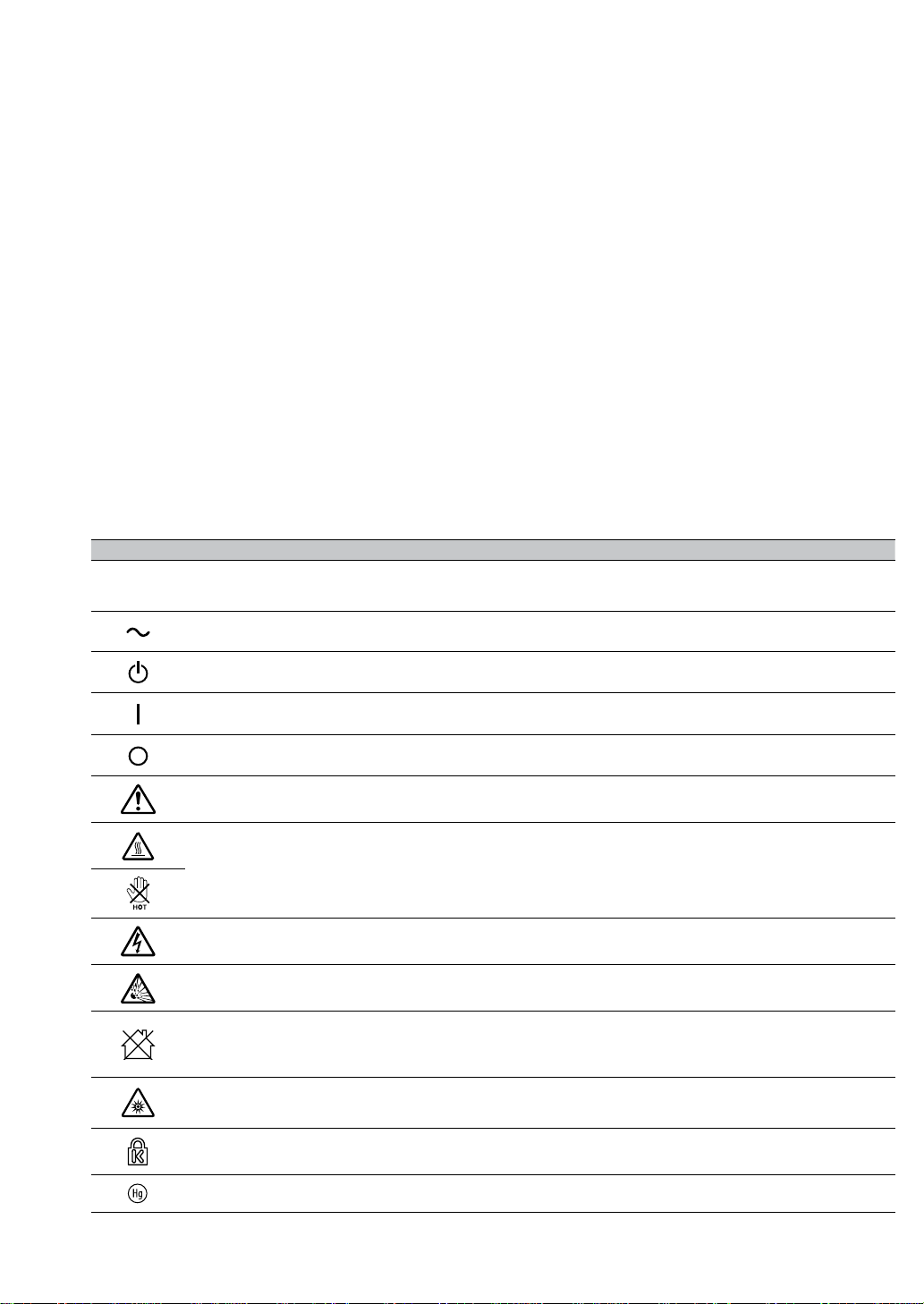
Safety mark
ENGLISH FRANÇAIS DEUTSCH ESPAÑOL PORTUGUÊS
Descriptions of the
symbols displayed on the
projector
Les descriptions de ces
symboles sont afchées
sur le projecteur
Beschreibungen der am
Projektor angezeigten
Symbole
Descripciones de los
símbolos mostrados en el
proyector
Descrições dos símbolos
apresentados no projector
Alternating Current Courant Alternatif Wechselstrom Corriente alterna Corrente alternada
Standby (Power) Veille (Alimentation)
Bereitschaft
(Stromversorgung)
En espera (Alimentación) Em espera (Alimentação)
On (Power) Marche (Alimentation) Ein (Stromversorgung) Encendido (Alimentación) Ligado (Alimentação)
Off (Power) Arrêt (Alimentation) Aus (Stromversorgung) Apagado (Alimentación) Desligue (Alimentação)
WARNING / CAUTION
AVERTISSEMENT /
ATTENTION
WARNUNG /
VORSICHT
ADVERTENCIA /
PRECAUCIÓN
AVISO / PRECAUÇÃO
HIGH TEMPERATURE
HAUTE
TEMPERATURE
HOHE TEMPERATUR ALTA TEMPERATURA TEMPERATURA ALTA
HIGH VOLTAGE HAUTE TENSION HOCHSPANNUNG ALTO VOLTAJE VOLTAGEM ALTA
HIGH PRESSURE HAUTE PRESSION HOCHDRUCK ALTA PRESIÓN PRESSÃO ALTA
PROJECTOR NOT FOR
CONSUMER USE
PROJECTEUR
DESTINÉ À UN USAGE
PROFESSIONNEL
PROJEKTOR NICHT
FÜR DEN PRIVATEN
GEBRAUCH
PROYECTOR NO
DESTINADO A USO
POR PARTE DE
CONSUMIDORES
PROJECTOR NÃO
DESTINADO AO USO
DE CONSUMIDORES
OPTICAL RADIATION
WARNING
ATTENTION
RAYONNEMENT
LASER
WARNUNG! OPTISCHE
STRAHLUNG
ADVERTENCIA SOBRE
LA RADIACIÓN
ÓPTICA
AVISO DE RADIAÇÃO
ÓPTICA
Kensington Kensington Kensington Kensington Kensington
MERCURY
CONTAINED
CONTIENT DU
MERCURE
QUECKSILBERHALTIG CONTIENE MERCURIO CONTÉM MERCÚRIO
Warning, Notices and Safety Instructions
English-9
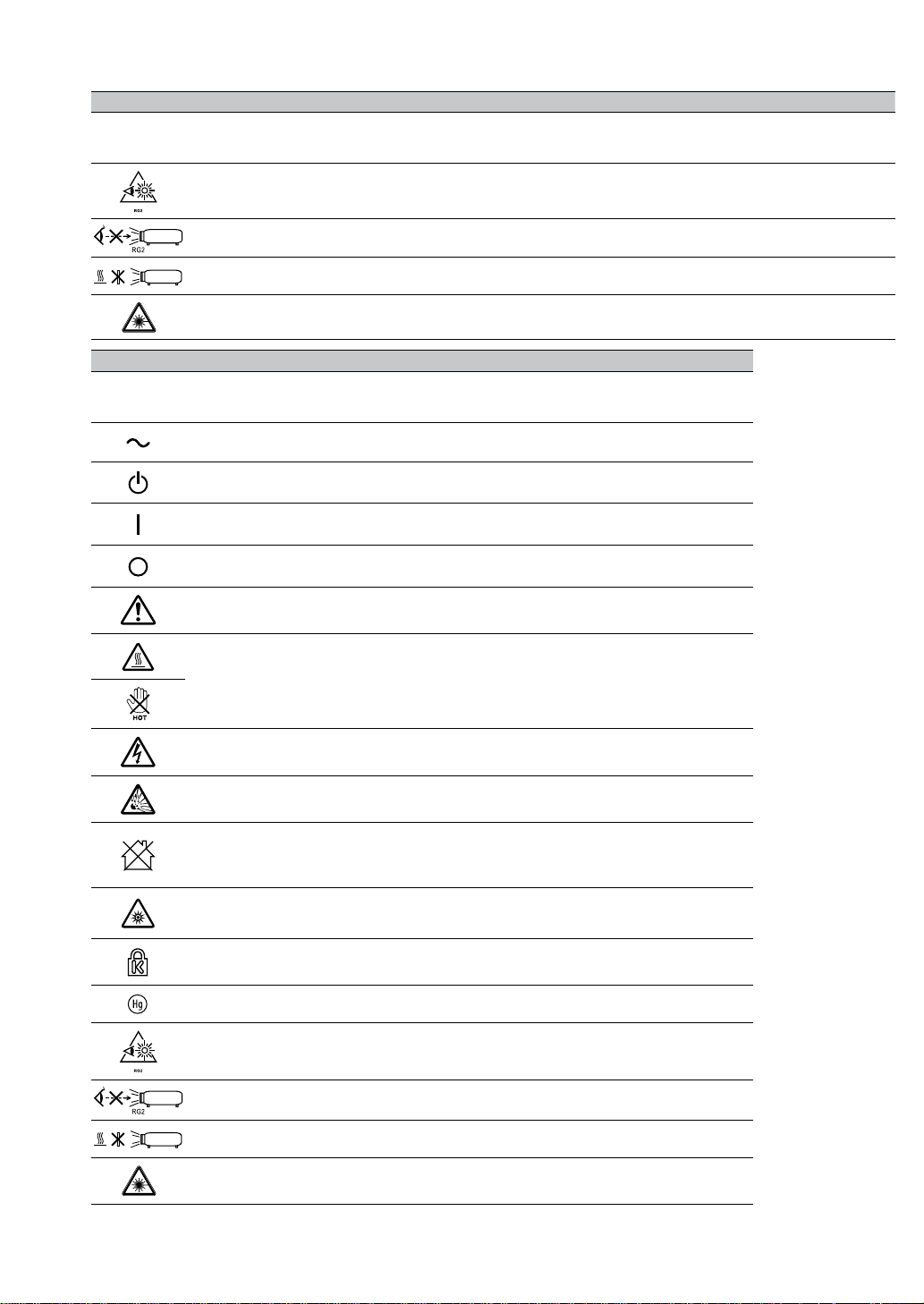
ENGLISH FRANÇAIS DEUTSCH ESPAÑOL PORTUGUÊS
Descriptions of the
symbols displayed on the
projector
Les descriptions de ces
symboles sont afchées
sur le projecteur
Beschreibungen der am
Projektor angezeigten
Symbole
Descripciones de los
símbolos mostrados en el
proyector
Descrições dos símbolos
apresentados no projector
RG2 caution ATTENTION: RG2 Achtung! RG2 Precaución sobre RG2 Atenção RG2
DO NOT LOOK INTO
THE BEAM
NE PAS REGARDER
DANS LE FAISCEAU
NICHT IN DEN
STRAHL BLICKEN
NO MIRE AL HAZ
NÃO OLHE PARA O
FEIXE
DO NOT SHADE THE
LIGHT
NE PAS COUVRIR LA
LUMIÈRE
LICHTWEG NICHT
BLOCKIEREN
NO TAPE LA LUZ NÃO BLOQUEIE A LUZ
Laser Warning
Avertissement Relatif au
Laser
Warnhinweis zum Laser
Advertencia Relacionada
con el Láser
Aviso Relativo ao Laser
中文 한국어
РУССКИЙ
日本語
投影机上显示的标志符
号说明
프로젝터에 표시되 어
있는 기호에 대 한 설명
Описания символов,
отображаемых на
проекторе
機 器上に表示してい るシ
ンボル説明
交流电 교류 전류
Переменный ток
交流電流
待 机(电 源) 스탠바이(전원)
Ожидание (питание)
ス タ ン バ イ(電 源)
开启(电 源) 온(전원)
Включено (питание)
オン(電源)
关 闭(电 源) 끄기 (전원)
выключено (питание)
オフ (電源)
警告 / 注意事项 경고 / 주의
ПРЕДУПРЕЖДЕНИЕ /
ВНИМАНИЕ
注意 / 警告
小心高温 고온 주의
ВЫСОКАЯ
ТЕМПЕРАТУРА
高温注意
小心触电 감전 주의
ВЫСОКОЕ
НАПРЯЖЕНИЕ
感電注意
小心破裂 파열 주의
ВЫСОКОЕ ДАВЛЕНИЕ
破裂注意
该投影机非普通消费
者使用
비소비자용 프로젝 터
ПРОЕКТОР НЕ
ПРЕДНАЗНАЧЕН ДЛЯ
ПОТРЕБИТЕЛЬСКОГО
ИСПОЛЬЗОВАНИЯ
民生用では無い機器
光辐射警告 광 방사 경고
ПРЕДУПРЕЖДЕНИЕ
ОБ ОПТИЧЕСКОМ
ИЗЛУЧЕНИИ
光放射警告
Kensington Kensington
Kensington
Kensington
含水银 수은 함유
РТУТОСОДЕРЖАЩИЙ
水銀含有
小心RG2 RG2 주의
Внимание RG2
RG2 注意 (覗き込み
禁止)
禁止直视光束
빔을 들여다 보지
마십시오
НЕ СМОТРИТЕ НА
ЛУЧ
覗き込み禁止
小心不要遮挡投影机发
出的光
램프를 가리지 마십시오
НЕ ЗАТЕНЯЙТЕ СВЕТ
光を遮るな注意
激光警告 레이저 경고
Предупреждение o
Лазерноем Излучении
レーザーに関する警告

Warning, Notices and Safety Instructions
English-10
Notices you should read prior to the installation of the projector
Take frequent breaks to let your eyes rest
Prolonged viewing of the projector screen could strain your eyes. Please be sure to rest your eyes
adequately.
Installation environment for the projector
You should avoid installing the projector at place of excessive dampness, dust or smoke. If installation
in such environment is unavoidable, be sure to have the interior of the projector.
Cleaned routinely to prolong the projector's lifecycle. Cleaning of the projector's interior should only
be performed by qualied service personnel dispatched by your local dealer and you should not
attempt to clean the inside of the projector by yourself.
If other light source is directly projected onto the projector screen, the color of the picture from the
projector will appear to be pale and the picture quality will be lower. In addition, your eyes would be
more prone to fatigue. Therefore, it is recommended that the projector be installed in places without
direct exposure to sunlight or other sources of intense light.
The ideal operating temperature range for the projector is between 0°C ~ 40°C (32°F ~ 104°F)
The ideal storage temperature range for the projector is between -20°C~ 60°C (4°F ~ 140°F)
Congurationsforprojectoroperationathighaltitudes
When operating the projector at higher altitudes, be sure to manually set the fan mode to "High" or
it could shorten the life of the optical system in the projector. High altitude is dened as places being
1520 meters (5000 feet) or higher.
Please refer to Page 62 and Page 76.
Protect the projector with care
When placing the projector at a high position, be sure to secure the projector rmly so that it would
not fall and cause injuries. Take care to protect the projector's lens from collision, abrasion or other
damages. Be sure to close the lens cover or cover the projector with a dust cover if you need to store
the projector or if it will not be used for an extended time.
Keep the projector's ventilation inlets and outlets free from obstructions
Note the direction of air ow at the designated spot of installation. Do not let the hot air released from
the outlet ow back to the inlet as it will prevent proper cooling and lead to damage of the projector's
internal structure.
In the event of high temperature due to malfunctioning of the internal cooling fan caused by clogging
at the ventilation inlets and outlets, the projector will activate its automatic protection mode and
shutdown. When this happens, it does not necessary mean that the equipment is malfunctioning. Try
to unplug the power cord from the wall outlet and wait for approximately 15 minutes before operating
the projector again (remember to remove the objects that have caused poor ventilation so that the
projector will not go into the protection mode again).
Warning, Notices and Safety Instructions
English-11
Description: The regulation of temperature inside the projector by the cooling fan is automatic. And
as such, the sound of cooling fan changing its operating speed does not imply that a problem has
occurred with the projector.
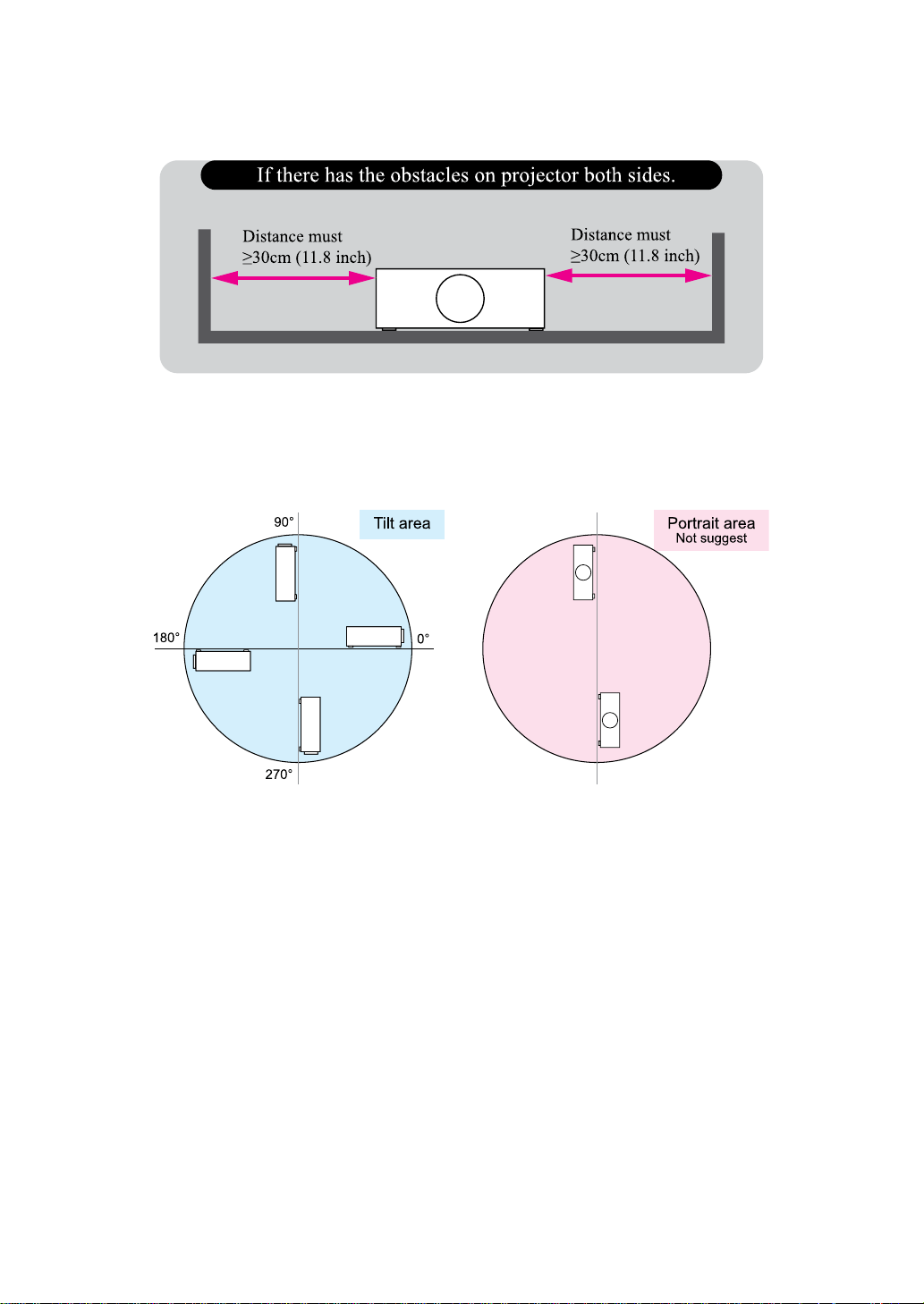
Positioning precautions
This projector can be installed 360° range. But life of optical parts will be shorten as portrait
situation:

Warning, Notices and Safety Instructions
English-12
Caution for 3D
• Don't let children view the 3D by themselves , please always be accompanied by an adult.
• Although more than six years old can view the 3D. But children may not tell you if they are feeling
unwell when viewing 3D content, so always be sure to check with the child.
• When viewing 3D content, be sure you are at an appropriate distance from the front of the screen.
Suggest keep at least three times the height of the screen away from the screen.
• Check that the settings are correct and that the 3D effect is being correctly applied. If the image is
inversed and the left and right eye images are swapped, the 3D effect does not work, which could
cause eye strain or cause you to feel unwell.
3D content not suitable for below situation, it could aggravate their pre-existing conditions.
• People with a history of photosensitive epilepsy.
• People has heart disease.
• Pregnant women.
• People with serious illnesses.
• People with a history of epileptic seizures.
Suggest stop to view the 3D, if has below situation:
• When you feel unwell , tired, sleep deprived, fatigued or inebriated.
• The 3D image doubled or not clear.
• Enjoying 3D content that rotates, rolls, or shakes, some person may feel they are moving and
trigger a form of “sea sickness”.
• Take too long time for viewing 3D content, be sure to take regular breaks to avoid cause eyestrain.

Warning, Notices and Safety Instructions
English-13
LASER WARNING
This symbol indicates that there is a potential hazard of eye exposure to laser radiation
unless the instructions are closely followed.
CLASS 3R LASER PRODUCT
This Laser Product is designated as Class 3R during all procedures of operation.
LASER LIGHT - AVOID DIRECT EYE EXPOSURE.
Do not point laser or allow laser light to be directed or reected toward other people or
reective objects.
Direct or scattered light can be hazardous to eyes and skin.
There is a potential hazard of eye exposure to laser radiation if the included instructions
are not followed.
Caution – use of controls or adjustments or performance of procedures other than those
specied herein may result in hazardous radiation exposure.
Laser parameters
Wavelength
Mode of operation
Pulse width
Pulse repetition rate
Maximum laser energy
Total internal power
Apparent source size
Divergence
450nm - 460nm (Blue)
Pulsed, due to frame rate
1.34ms
120Hz
0.698mJ
>100W
>10mm, at lens stop
>100 mili Radian
Warning, Notices and Safety Instructions
English-14
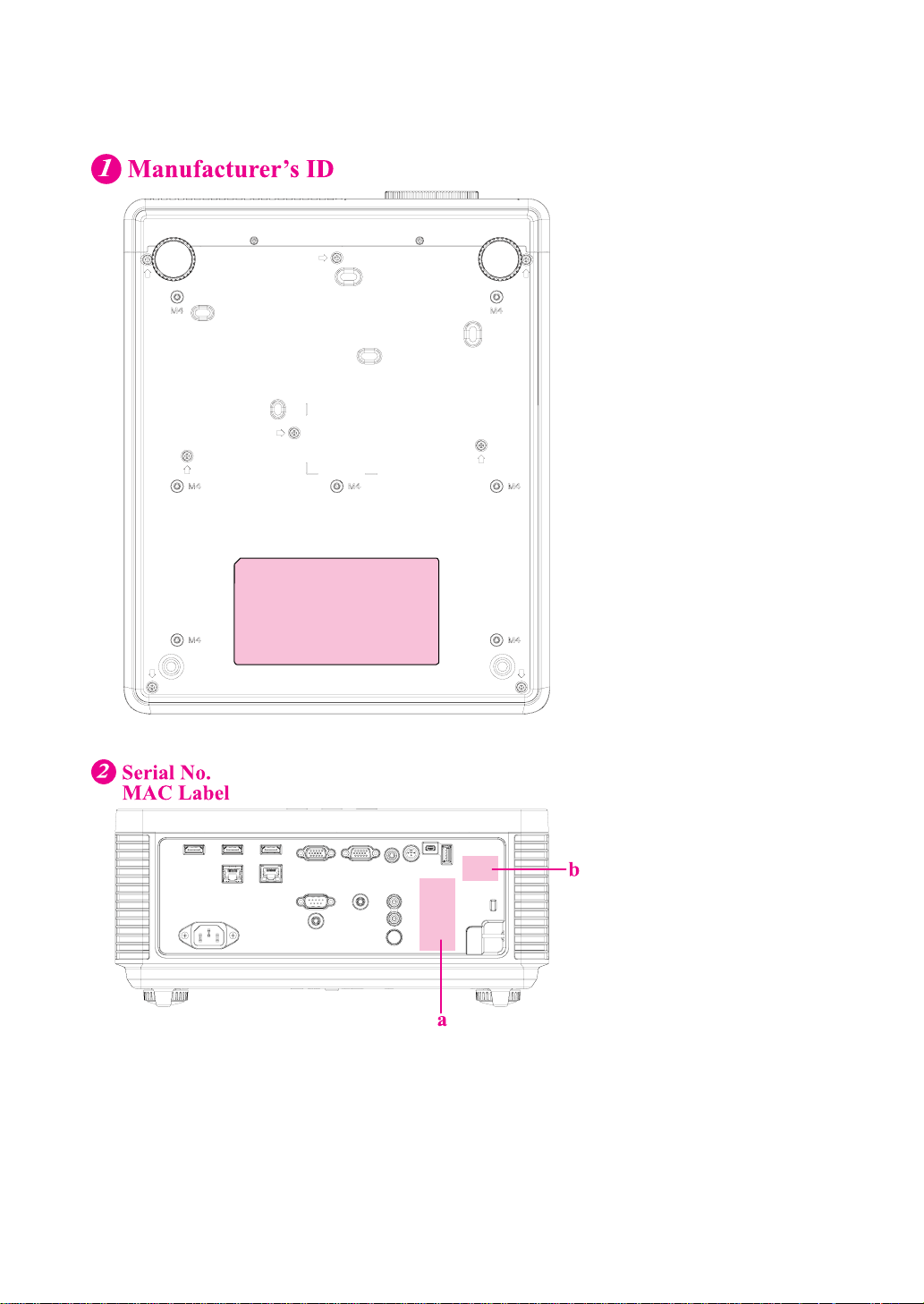
Product labels
Below drawing show the label's location.
a. Serial No.
b. MAC Label
Warning, Notices and Safety Instructions
English-15
Warning, Notices and Safety Instructions
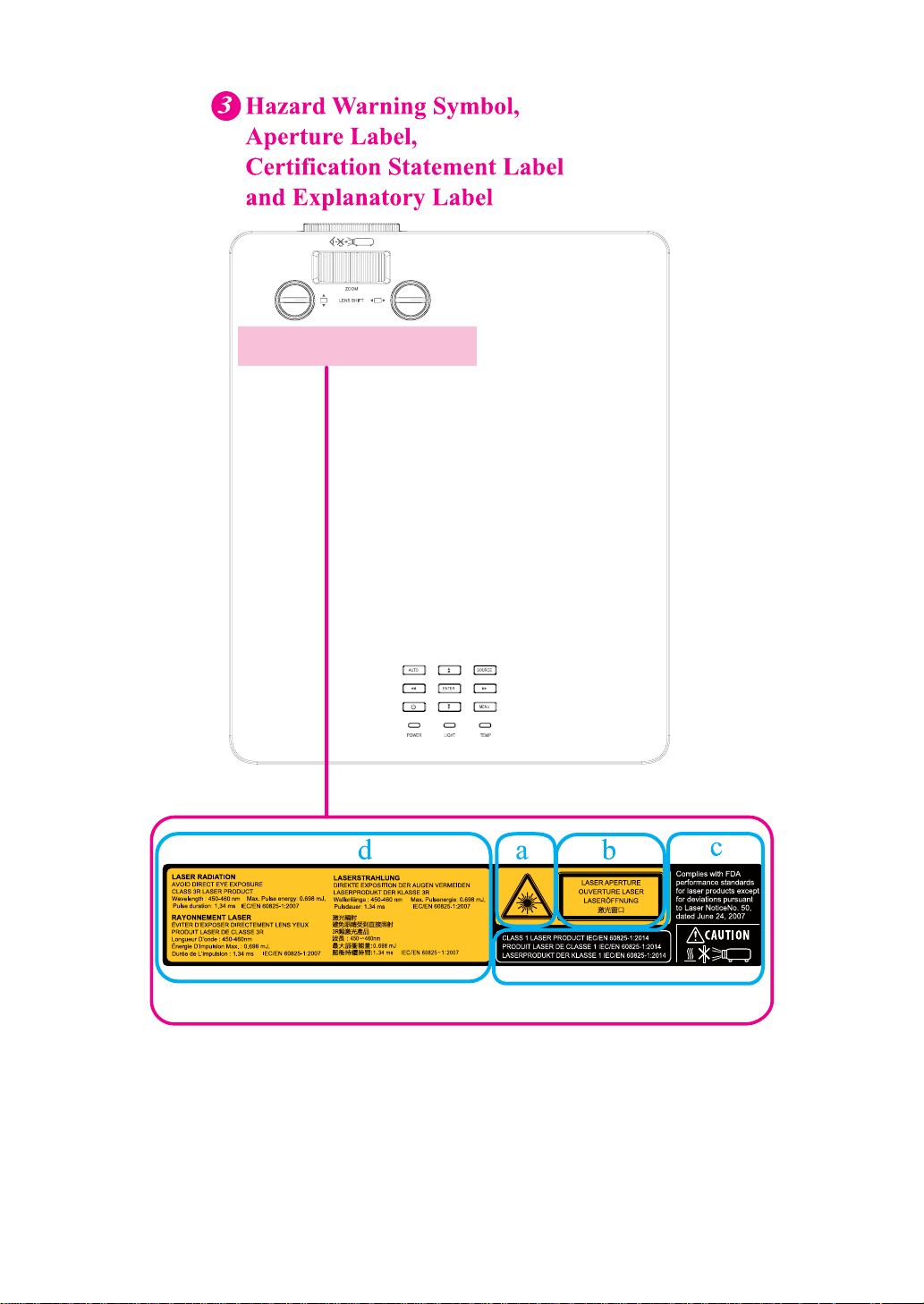
a. Hazard Warning Symbol
b. Aperture Label
c. Certication Statement Label
d. Explanatory Label
Warning, Notices and Safety Instructions
English-16
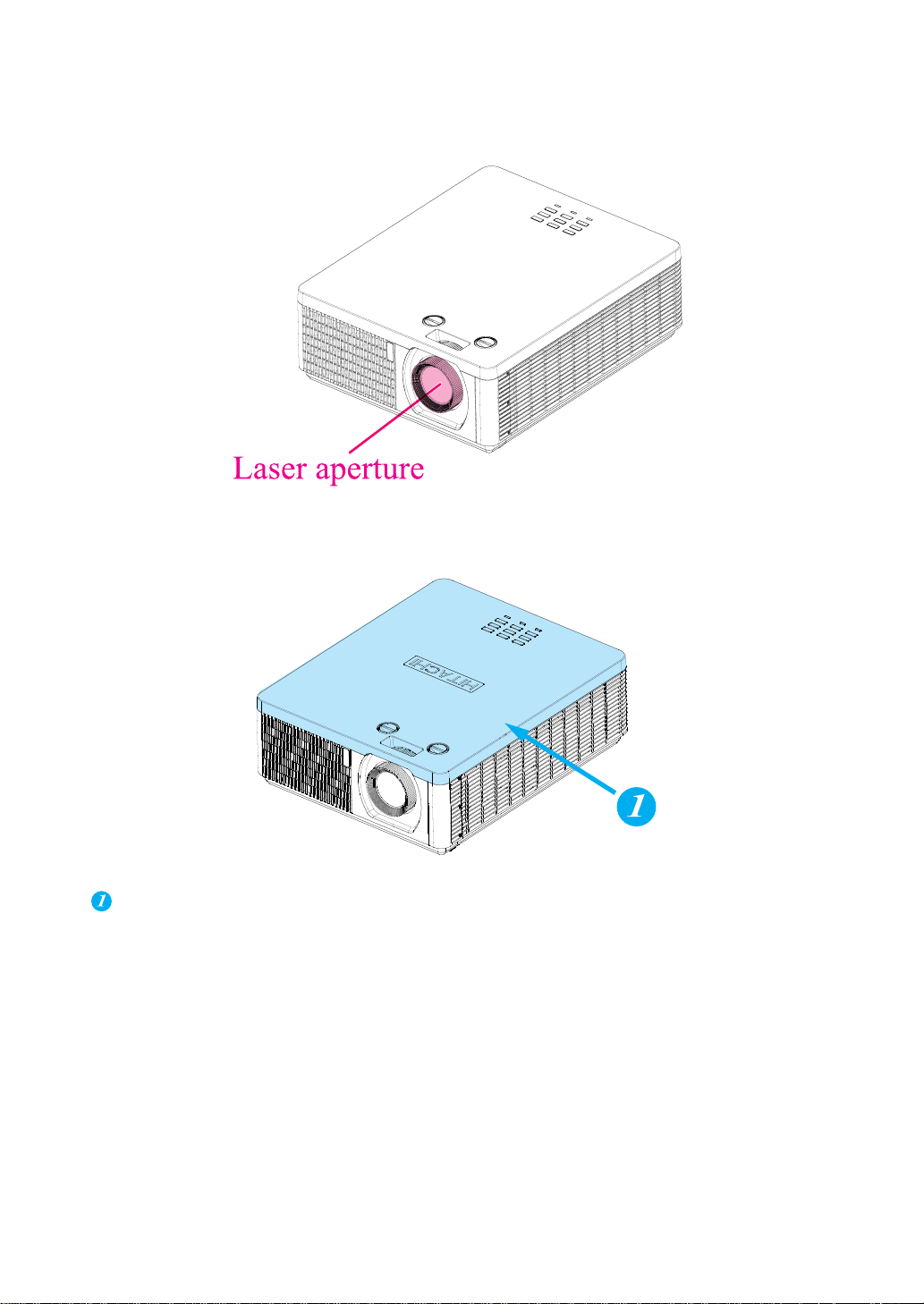
Location of laser aperture
Following drawing shows the laser aperture location. Be careful not to see the light directly.
Interlock switches
This machine has interlock switches to protect the laser light leakage.
Switch will power-off the system when the Top cover is opened.
Projector parts and functions
English-17
Projector parts and functions
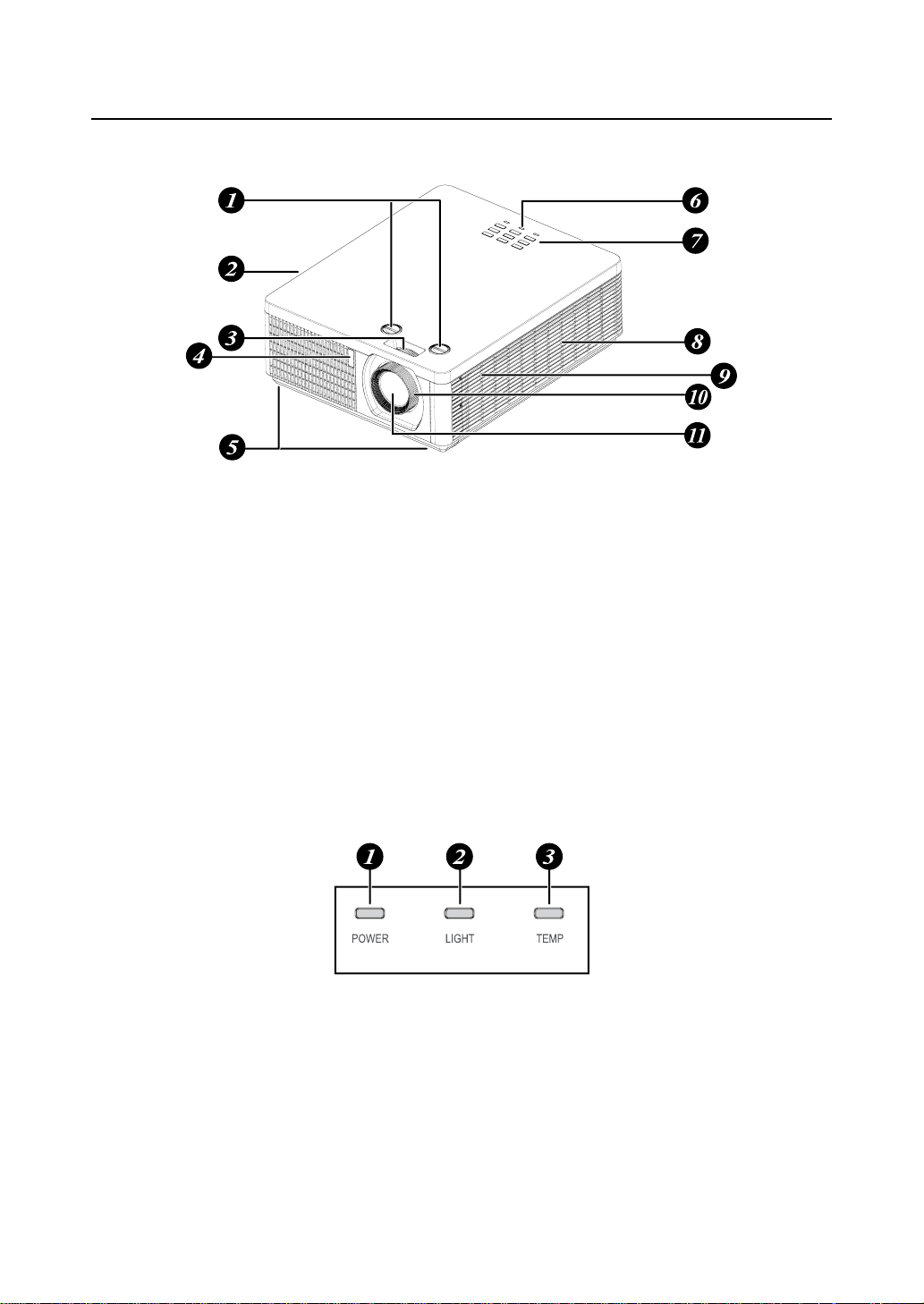
Front view
LED Indicator
1. LENS SHIFT
Adjust the projected image position.
2. Ventilation outlet
The hot air generated inside the projector
is dispersed through the ventilation slot.
Make sure the ventilation slot is free from
obstruction.
3. Zoom
Zoom in or zoom out the projected image
4. Infrared receiver
5. Adjustable foot
Adjust the height and angle of the projector
with the adjustable foot.
6. LED Indicator
7. Projector keypad
8. Ventilation inlet
The internal cooling fan draws cool
air from the ventilation inlet into the
projector.
9. Speaker
10. Focus
Adjust the projected image’s focus.
11. Lens
1. POWER
The indicator shows the power status.
The indicator lights when the projector is
in standby state. The indicator blinks once
every 5 seconds when the projector is an
ON state.
2. LIGHT
The indicator shows the light source and
system error status.
3. TEMP.
The indicator shows the thermal error
message.
Projector parts and functions
English-18
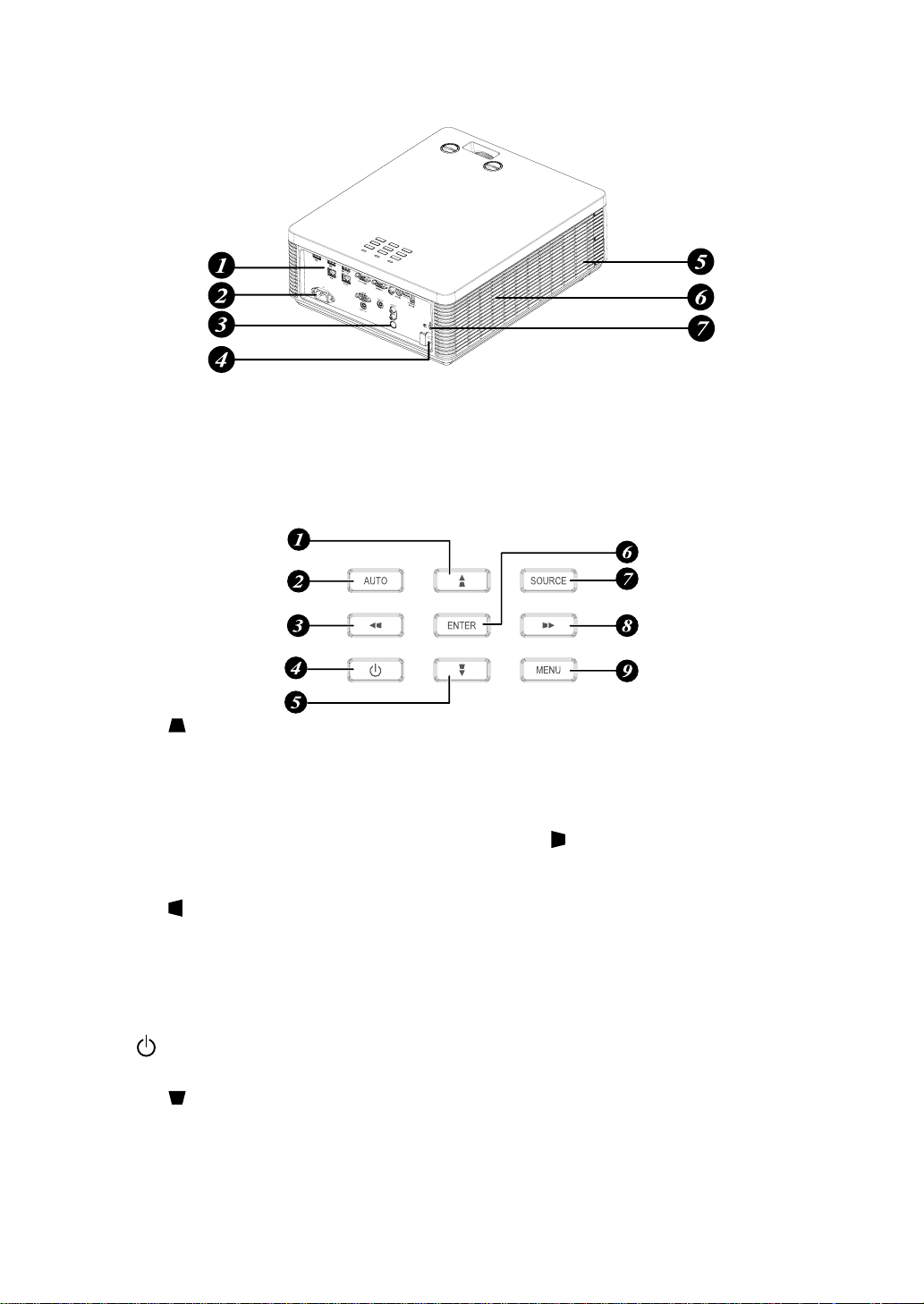
1. I/O port
2. Power inlet
3. Infrared sensor
4. Security bar
5. Speaker
6. Ventilation outlet
7. Kensington
®
lock
1. ▲/
Use this button to make your selection
or congure, adjust conguration on the
menu.
Keystone can be adjusted when no other
menu is displayed.
2. AUTO
Auto adjust the signal synchronization.
3. ◄/
Use this button to make your selection
or congure, adjust conguration on the
menu.
Keystone can be adjusted when no other
menu is displayed.
4.
Press to turn on or off the projector.
5. ▼/
Use this button to make your selection
or congure, adjust conguration on the
menu.
Keystone can be adjusted when no other
menu is displayed.
6. ENTER
Press to select items in the menu or
conrm the settings you have changed.
7. SOURCE
Select input signal source.
8. ►/
Use this button to make your selection
or congure, adjust conguration on the
menu.
Keystone can be adjusted when no other
menu is displayed.
9. MENU
Displays or hides the menu.
Rear view
Projector keypad
Projector parts and functions
English-19
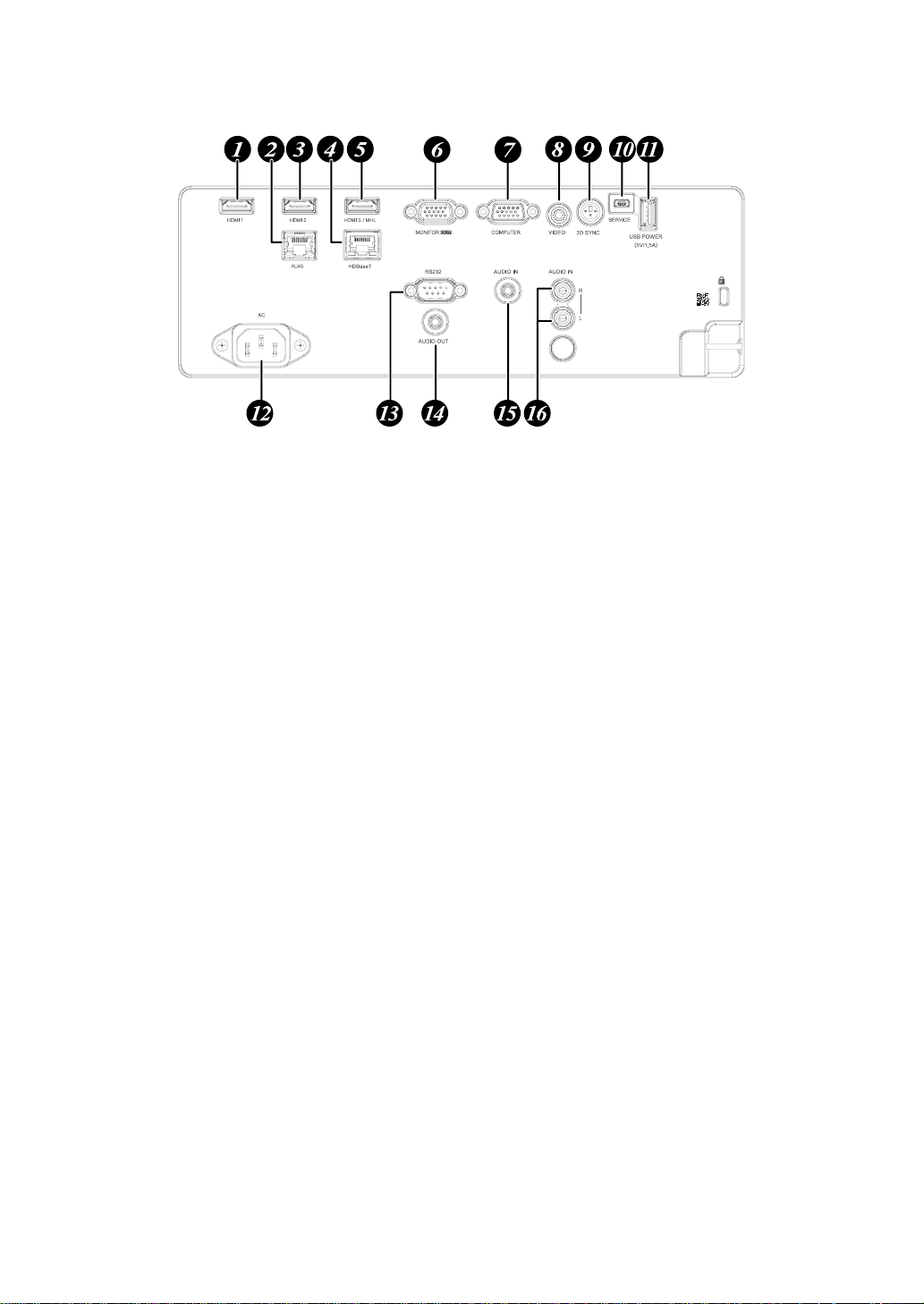
I/O Port (Input / Output)
1. HDMI 1 (Digital audio/video connector)
Connect to HDMI or DVI source.
2. RJ45
Connect a LAN cable from Ethernet.
3. HDMI 2 (Digital audio/video connector)
Connect to HDMI or DVI source.
4. HDBaseT (RJ-45 jack)
Connect to HDBaseT source via LAN
cable.
5. HDMI 3 / MHL (Digital audio/video
connector)
Connect to a HDMI or MHL-compatible
device.
6. MONITOR OUT (D-sub 15-pin mini
shrink jack)
Connect to a monitor.
Loop through only for COMPUTER.
7. COMPUTER (D-sub 15-pin mini shrink
jack)
Connect to a PC.(Support RGB and
component video signal input).
8. VIDEO (RCA jack)
Connect to the composite video device.
9. 3D SYNC (VESA 3-pin)
Connect to 3D IR glasses receiver unit.
10. SERVICE
For service personnel only.
11. USB POWER (USB A type jack)
Connect a USB device. (Support 5V/1.5A
output while the projector Power On.)
12. AC
Connect a POWER cable.
13. RS-232C (9-pin D-sub socket) (Cross
cable)
Connect your PC or system control
equipment.
14. AUDIO OUT (3.5 mm, mini jack)
Connector to an audio amplier device.
15. AUDIO IN (3.5 mm, mini jack)
Connect an audio source input. (Available
for Computer, BNC, DVI-D source.)
16. AUDIO IN (L/R) (RCA jack)
Connect an audio source. (Available for
Video signal input.)
Projector parts and functions
English-20
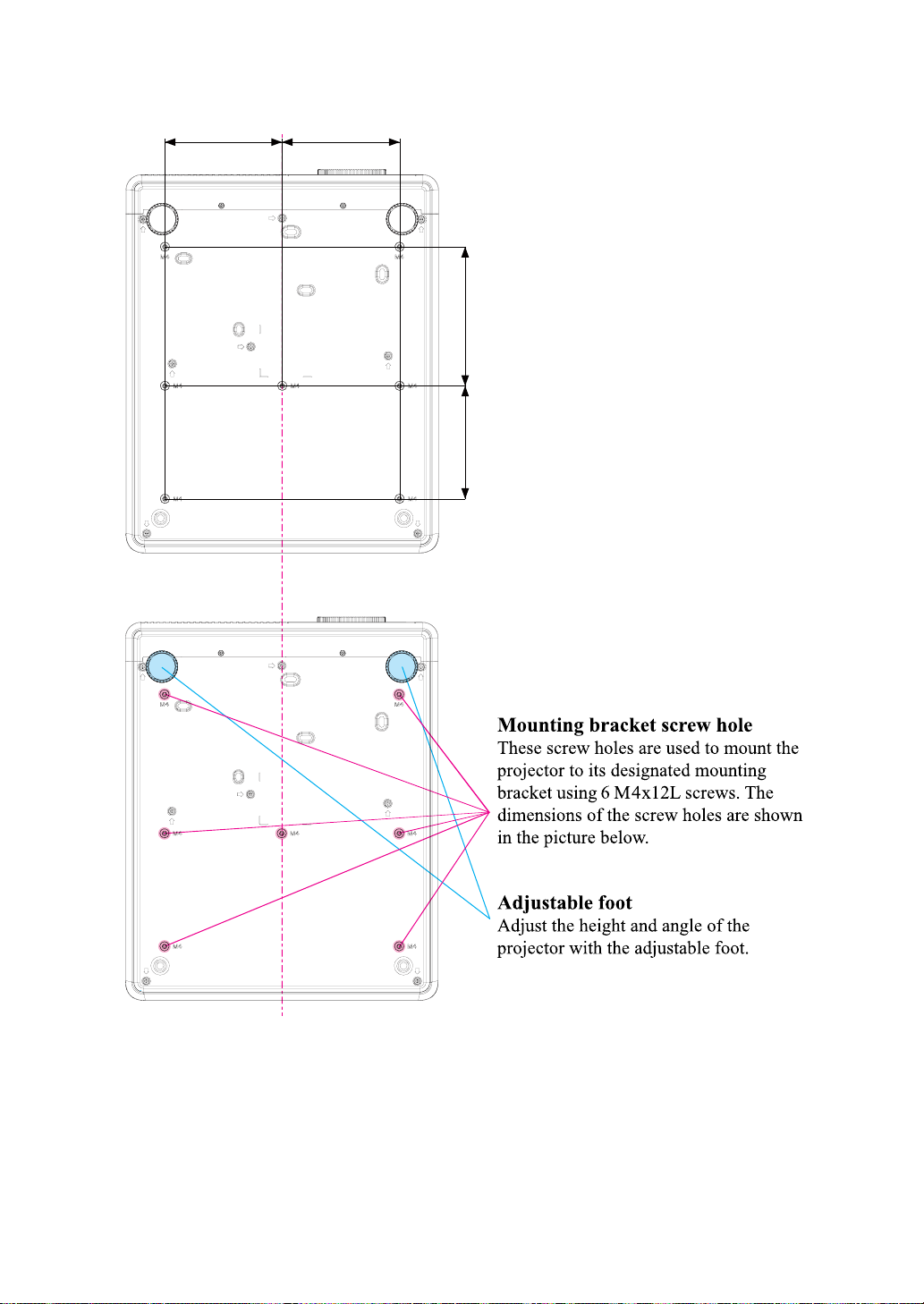
Bottom view
135.0 135.0
130.0 160.0
Remote control
English-21
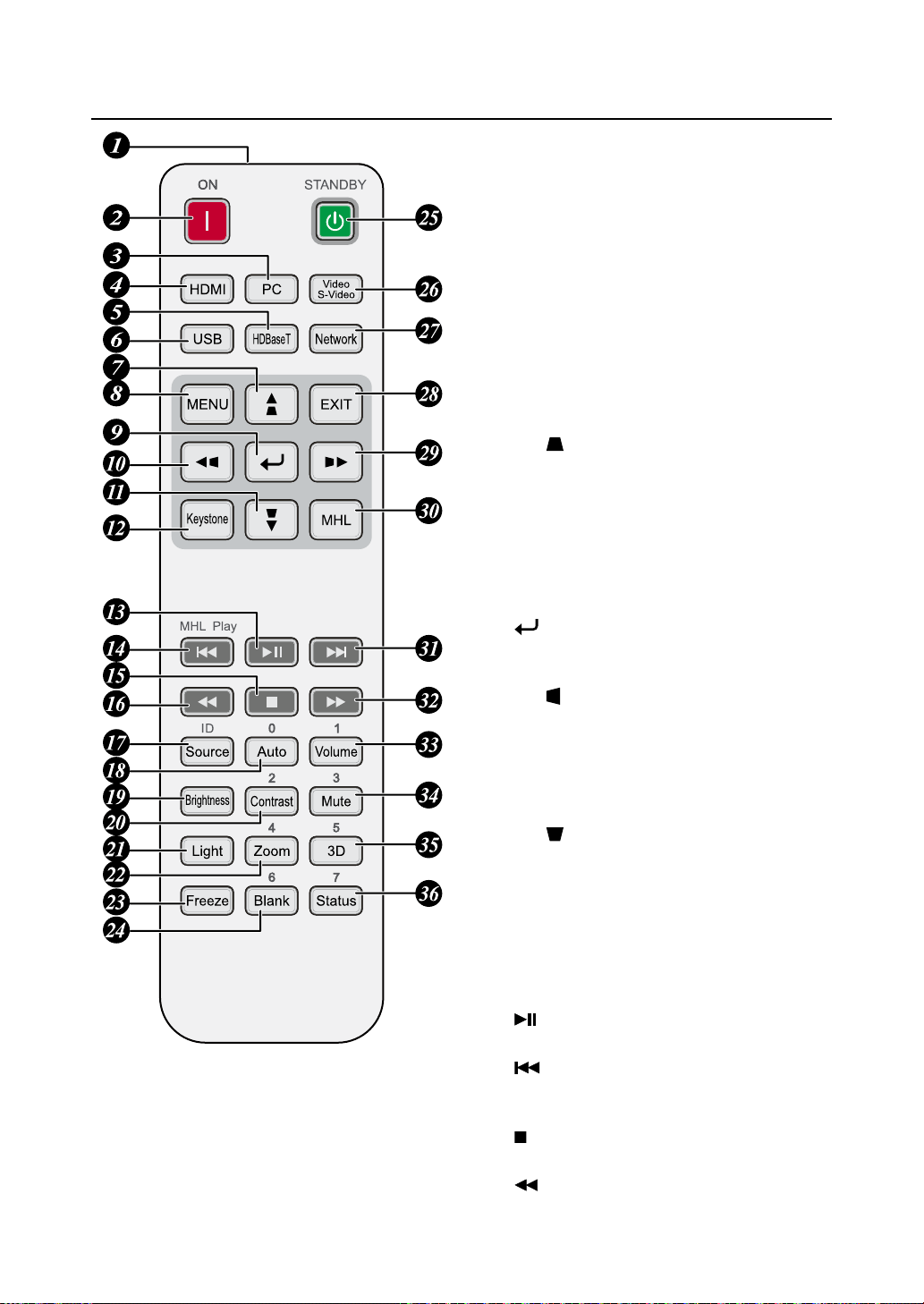
Remote control
1. IR transmitter
2. ON
This button is used to turn on the projector.
3. PC
Displays the VGA (COMPTER IN) / BNC
(R/B/G/H/V) source selection (toggle).
4. HDMI
Displays the HDMI 1/HDMI 2/DVI source
selection (toggle).
5. HDBaseT
Displays the HDBaseT source selection.
6. USB
Not available for this projector.
7. ▲/
Use this button to make your selection
or congure, adjust conguration on the
menu.
Keystone can be adjusted when no other
menu is displayed.
8. MENU
Displays or hides the menu.
9. (ENTER)
Press to select items in the menu or conrm
the settings you have changed.
10. ◄/
Use this button to make your selection
or congure, adjust conguration on the
menu.
Keystone can be adjusted when no other
menu is displayed.
11. ▼/
Use this button to make your selection
or congure, adjust conguration on the
menu.
Keystone can be adjusted when no other
menu is displayed.
12. Keystone
Press to open keystone adjustment menu.
13.
Play or pause video/music for MHL.
14.
Play the previous item on the programming
list for MHL.
15.
Stop video/music playing for MHL.
16.
Reverse in set increments for MHL.

Remote control
English-22
17. Source
Select input source.
Combo key function for Remote Control ID
settings (Press ID button + Number for 3
seconds).
18. Auto / 0
This button is used to Resync the picture;
when the picture signal becomes unstable or
picture quality deteriorates simply press this
button and the projector will automatically
adjust the screen dimension, phase, timing
and so forth.
Number for Remote ID setting used.
19. Brightness
Displays the brightness setting bar.
20. Contrast / 2
Displays the Contrast settings bar.
Number for Remote ID setting used.
21. Light
Displays the light power adjustment menu.
22. Zoom / 4
Displays the digital zoom settings bar.
Number for Remote ID setting used.
23. Freeze
Freeze/unfreeze the picture on the screen.
24. Blank / 6
Makes the screen blank.
Number for Remote ID setting used.
25. STANDBY
This button is used to turn off the projector.
26. Video / S-Video
Displays the Video source selection.
27. Network
Open the Network menu.
28. EXIT
Press this button to exit menu or return to
previous menu level.
29. ►/
Use this button to make your selection or
congure, adjust conguration on the menu.
Keystone can be adjusted when no other
menu is displayed.
30. MHL
Change MHL / Projector mode.
31.
Play the following item on the programming
list for MHL.
32.
Forward in set increments for MHL.
33. Volume / 1
Displays the Volume setting bar.
Number for Remote ID setting used.
34. Mute /3
Mutes the built-in speaker.
Number for Remote ID setting used.
35. 3D / 5
Open the 3D Setting menu.
Number for Remote ID setting used.
36. Status / 7
Opens the Status menu (the menu only
opens when an input device is detected).
Number for Remote ID setting used.
Note:
Remote Combo Key Settings:
ID+0: Reset Remote Control ID to
default settings.
ID+1: Set Remote Control ID to "1".
~
ID+7: Set Remote Control ID to "7".
Projector also need setting ID for
unique control. Refer to Page 62 :
"Remote ID".
Note: When the projector is under MHL
mode, the keypad on projector should
be same denition of the key on remote
control.
With MHL function:
MENU for App settings, ▲ Up, ▼
Down, ◄ Left and ► Right are used
as directional arrows, also included
ENTER and EXIT.
Controlling your smart device with
the remote control:
When the projector displays the
content from your MHL compatible
smart device, you can use the remote
control to control your smart device.
To enter the MHL mode, the following
buttons are available for controlling
your smart device, Arrow keys (▲ Up,
▼ Down, ◄ Left, ► Right), MENU,
EXIT, MHL control buttons.
Remote control
English-23
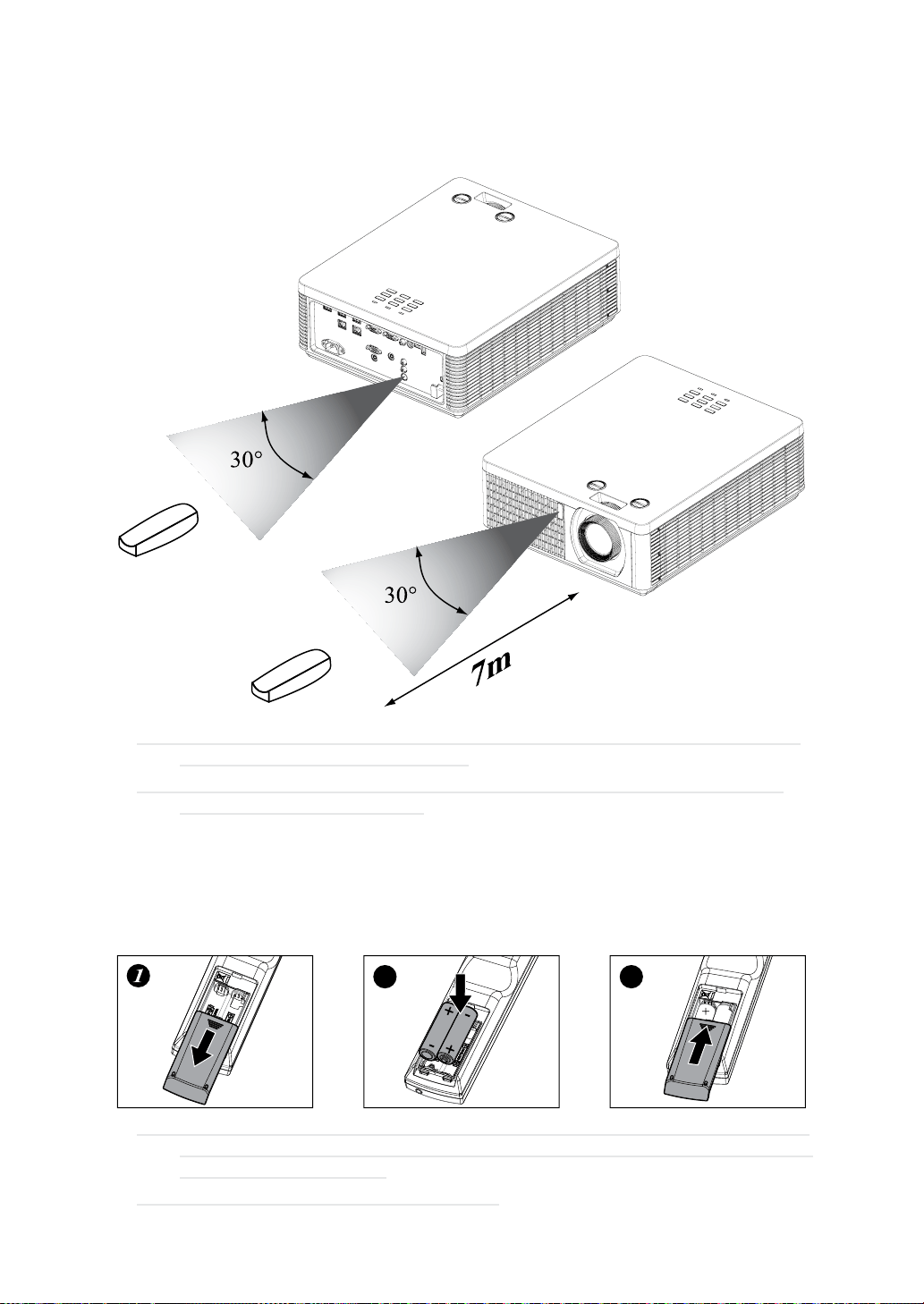
Range of effective remote control signal reception
The diagram below illustrates the range of effective remote control signal reception (Unused new
battery).
Note: Avoid placing the remote control at places of high temperature or humidity as it could
cause the remote control to malfunction.
Note: If the infrared receiver is exposed to uorescent lamp or strong sunlight, the remote
control may not operate normally.
Installing batteries in the remote control
1. Remove the cover by sliding it in the direction indicated by the arrow.
2. Insert two new AAA batteries (check the polarity).
3. Replace the cover.
2
3
Note: Always handle the batteries with care and use them only as directed. Improper use may
result in battery explosion, cracking or leakage, which could result in re, injury and/or
pollution of the surrounding.
Note: Keep a battery away from children and pets.

Remote control
English-24
Note: Do not recharge, short circuit, solder or disassemble a battery.
Note: Be sure to insert the batteries in the corresponding orientations to match the polarities.
Note: Do not mix new battery with used one as it would shorten the life of new one or cause
leakage.
Note: Use AAA batteries as instructed; do not attempt to insert different types of batteries into
the remote control.
Note: If you will not use the remote control for long period, remove the batteries from the remote
control and store them in a safe place.
Note: The liquid contents in the batteries is harmful to the skin; do not touch the leakage with
your bare hands directly. When installing fresh batteries, be sure to clean up the leakage
thoroughly.
Note: If the range of effective remote control signal reception decreases or if the remote control
stops working, replace the batteries.
Note: Refer to the regulations enforced by your local government on the disposal of used
batteries; improper disposal could damage the environment.
Caution: RISK OF THE EXPLOSION IF BATTERY IS REPLACED BY ANY INCORRECT
TYPE.
Caution: DISPOSE OF USED BATTERIES ACCORDING TO THE INSTRUCTIONS.
Projector installation
English-25
Projector installation
Throw distance
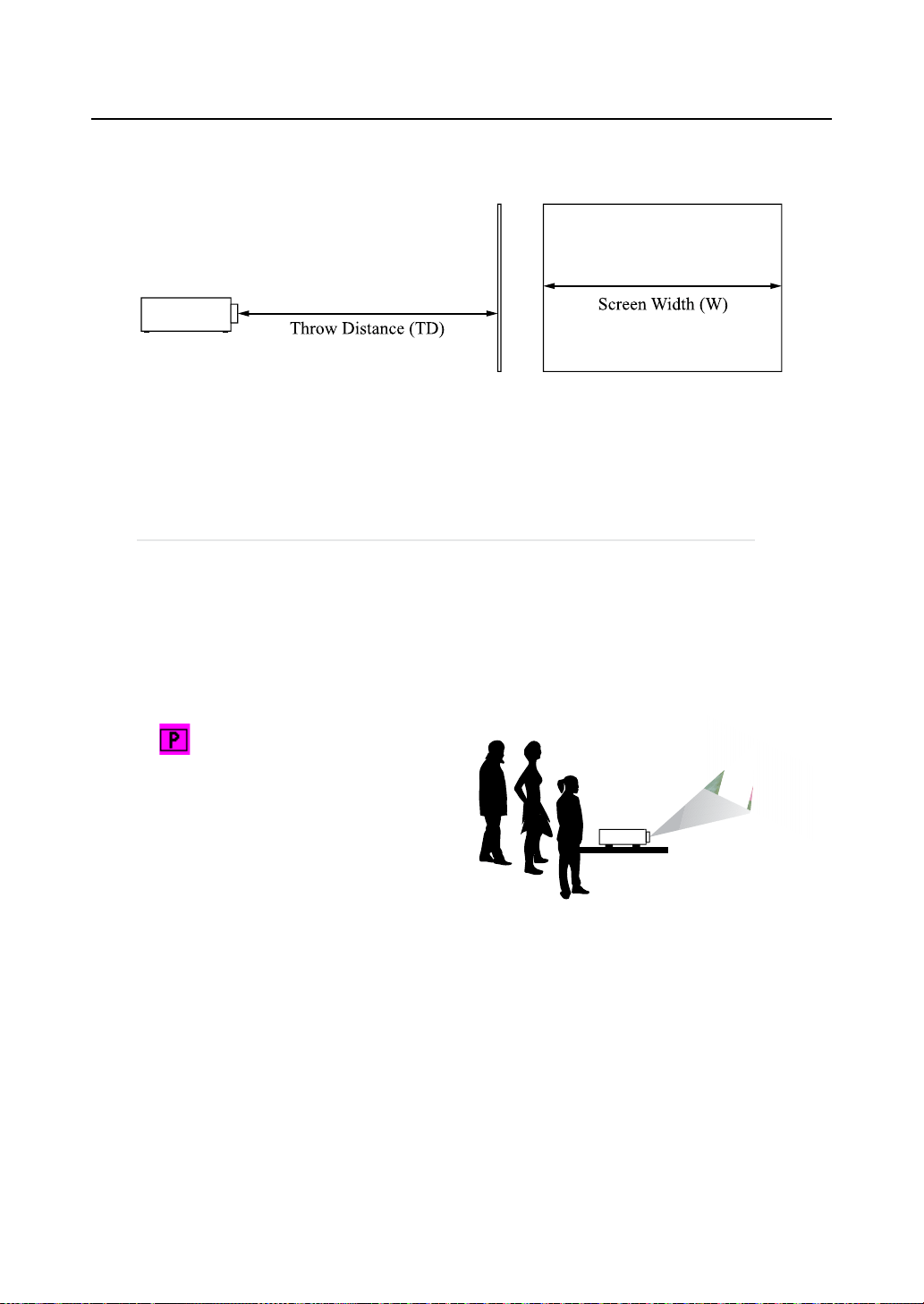
Throw Distance (TD) = Screen Width (W) x Throw Ratio (TR)
Projector offers the following throw ratios:
• 1.15~1.9 : 1, 36.7~201.9inch
Modes of installation
• Install the projector in an environment from 0°C (32°F) to 40°C (104°F). The projector should be
kept away from sources of heat and / or ventilation openings of air conditioner.
Note: The temperature also depends on altitude. Please refer to Page 62 and Page 76.
• The projector should be kept away from devices that emit electromagnetic energy, such as motors
or transformers. Common devices that emit electromagnetic energy include slideshow system,
speakers, power ampliers and elevators.
• If you choose to install the projector from the ceiling, be sure to use the ceiling installation
components veried safety. For details, please contact your local dealer.
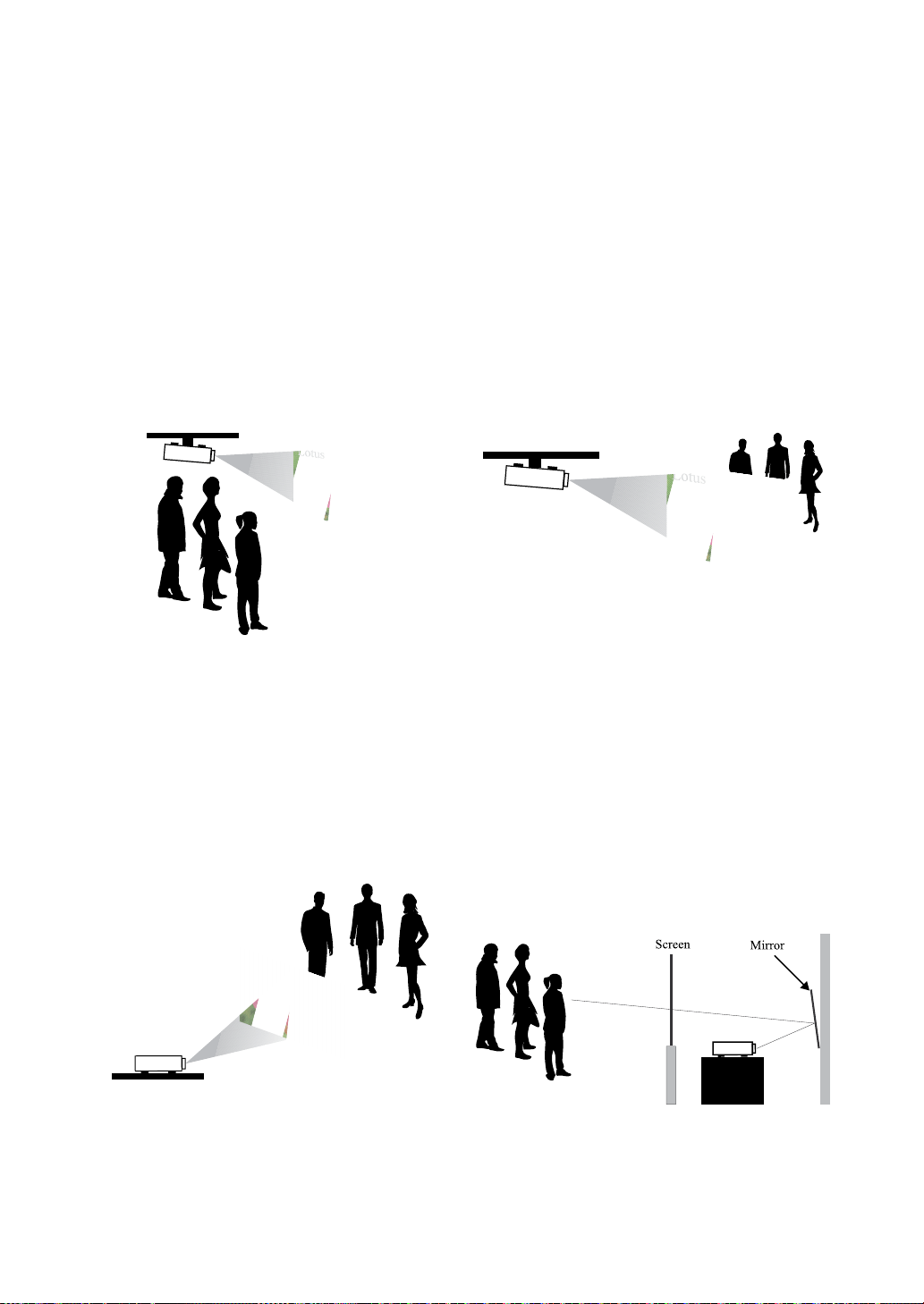
Projection
Normal
Advantages: easy to install can be easily moved
or adjusted easy to operate.
Disadvantage: occupies oor space and limits
seating capacity.
Projector installation
English-26
Ceiling
Refer to Page 42 : “Ceiling”
Advantage: does not occupy oor space does not
draw attention to it.
Eliminates the possibility that
someone would accidentally move
the projector.
Disadvantage: stricter installation requirements
and conditions; care should be
taken during the installation to
ensure the projector has been
securely mounted. Operation
of the projector becomes
inconvenient without the remote
control.
Rear
Refer to Page 42 : “Rear”
Advantage: the projector is completely hidden
from plain view
the projector can be easily operated
this setup usually offers better
reduction of ambient noise.
Disadvantage: requires an additional room for
installation relatively higher costs
for installation.
Rear + Ceiling
Refer to Page 43 : “Rear + Ceiling”
Advantage: the projector is completely hidden
from plain view this setup usually
offers better reduction of ambient
noise.
Disadvantage: requires an additional room for
installation. Stricter installation
requirements and conditions;
care should be taken during the
installation to ensure the projector
has been securely mounted.
Operation of the projector
becomes inconvenient without the
remote control.
Rear with a Mirror
If you wish to have a rear projection setup with
limited space to the rear of the projector, you can
use a mirror to reect the light path.
However, both the projector and the mirror have
to be precisely located. If you are considering
such installation, please contact your dealer for
assistance.
Advantage: the projector is completely hidden
from plain view this setup usually
offers better reduction of ambient
noise.
Disadvantage: requires an additional room for
installation relatively higher costs
for installation.

Projector installation
English-27
Horizontal and vertical lens shift
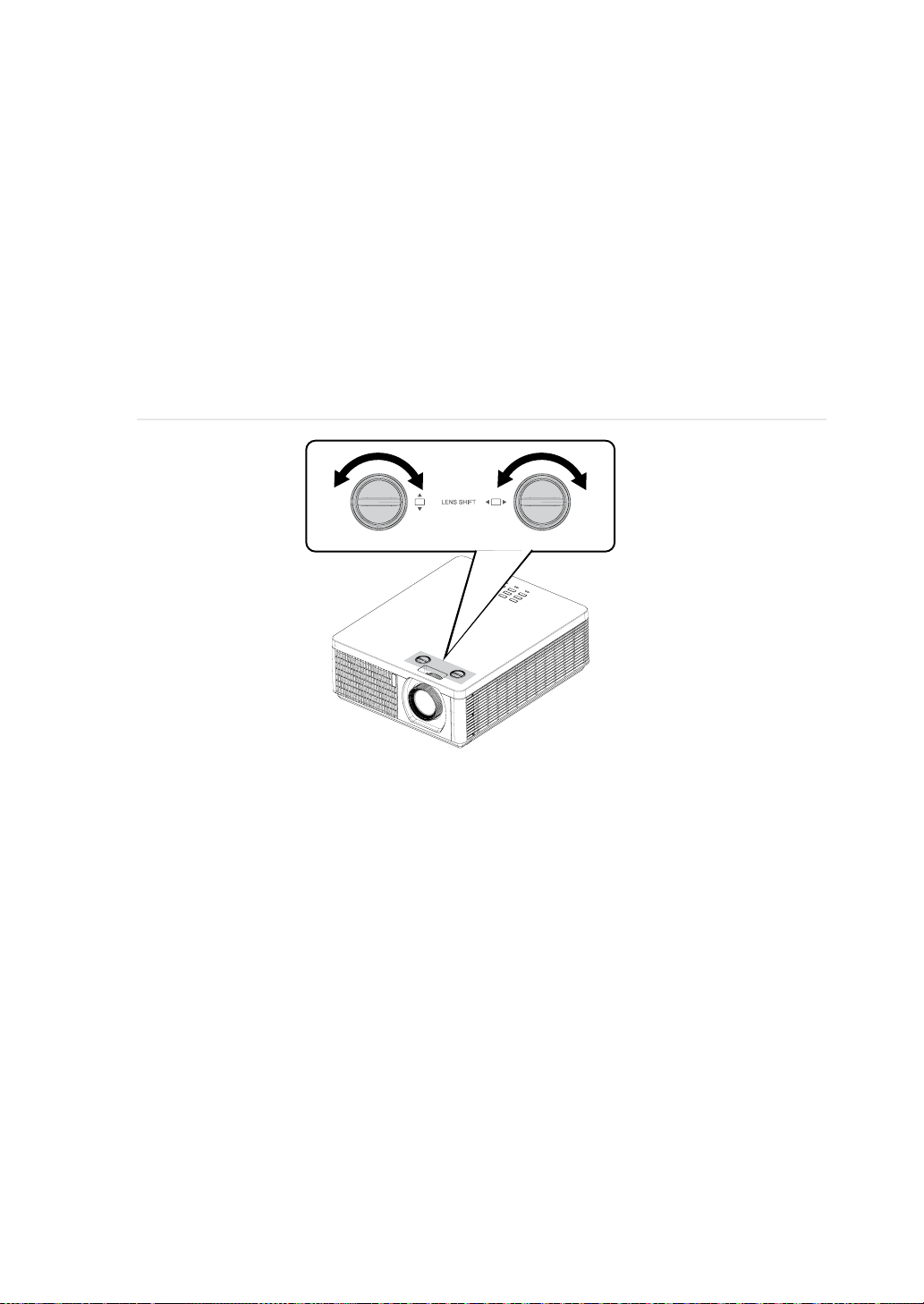
In addition to using the adjustable feet to adjust projection angle, you can also use the Lens Shift
function to adjust the projected picture.
Lens shift
1. Turn the VERTICAL adjuster fully counter clockwise. Then turn it clockwise and adjust the
vertical lens position upward.
2. Turn the HORIZONTAL adjuster clockwise or counter clockwise to adjust the horizontal lens
position.
Note for adjusting the lens shift
1. Adjust the lens shift / zoom / focus after 30 minutes since the projector was turned on.
2. Slight changes of the image position and/or focus may occur within 30 minutes after the
projector was turned on. If the room temperature and humidity have changed after adjusting the
lens shift / zoom / focus, readjust them as necessary.
3. Set the image size including the margin from the screen edge in anticipation of the changes
after installation.
4. When adjusting the lens shift vertically, nish adjusting lens shift by moving the projected
screen upward. If you nish adjusting the lens shift by moving the projected screen downward,
the projected screen may be misaligned slightly downward over time.
Projector installation
English-28
Note for adjusting the lens shift
1. You can feel the rotational resistance of the lens adjuster increasing if the lens shift exceed its
range. Do not turn the lens adjuster further. If the lens adjuster is turned excessively, it runs
idle by a clutch mechanism inside the adjuster. Although it makes a clicking sound, it is not a
malfunction. Turn the lens adjuster to the opposite direction to adjust the lens shift.
2. Keep turning the lens adjuster while pressing it downward if the adjuster is turned to the
opposite direction with a clicking sound and the lens shift does not work after the adjuster has
been turned exceeding the lens shift range. You need to turn the lens adjuster for a while until
the lens shift starts.
3. Do not turn the lens adjuster while pressing it downward out of the lens shift range. The lens
shift may be locked because a clutch mechanism does not work. In such a case, keep turning
the lens adjuster while pressing it downward like in step2.
4. When adjusting the lens shift to the maximal oblique direction, the periphery of the projected
screen may be dark or a shadow may be cast.
Caution: Operate the lens adjusters gently as the lens may malfuction when subjected to shocks.
Projector installation
English-29
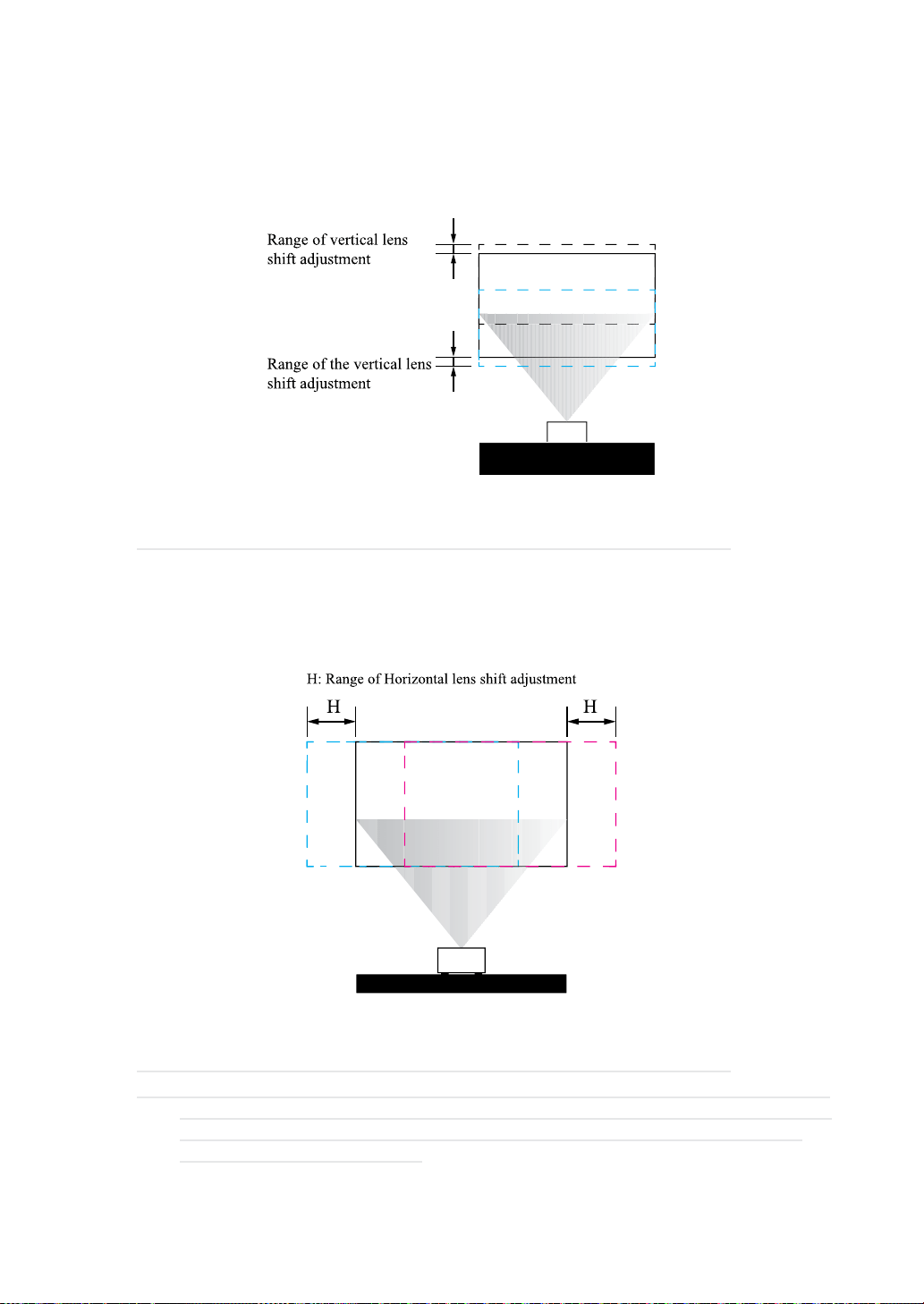
Moving the lens vertically
The distance of vertical lens movement is 12% of the screen height directions (The offset range is
about 63% to 75%). For instance, if you are using a 2.15m × 1.35m (100”) screen, you will be able to
move the picture upwards no more than 13.5cm(10%) and downwards no more than 2.7cm(2%) from
default position. (please conrm the default position in Page 97 ).
This illustration shows normal vertical lens shift without the use of special specication lens or
projector.
Note: Please make sure the center of lens is rectangular to the center of the screen.
Moving the lens horizontally
The distance of horizontal lens movement is 2.5% of the screen width in both directions. For instance,
if you are using a 2.15m × 1.35m (100”) screen, you will be able to move the picture left or right by no
more than 5.4cm.
This illustration shows normal horizontal lens shift without the use of special specication lens or
projector.
Note: Please make sure the center of lens is rectangular to the center of the screen.
Note: Although the lens shift position can be moved beyond the specication, please use it in the
position within the specication. When used at a position outside specications, the corner
of the screen becomes shade or color unevenness becomes large, and sufcient optical
performance can not be obtained.
Projector installation
English-30
Connecting the projector
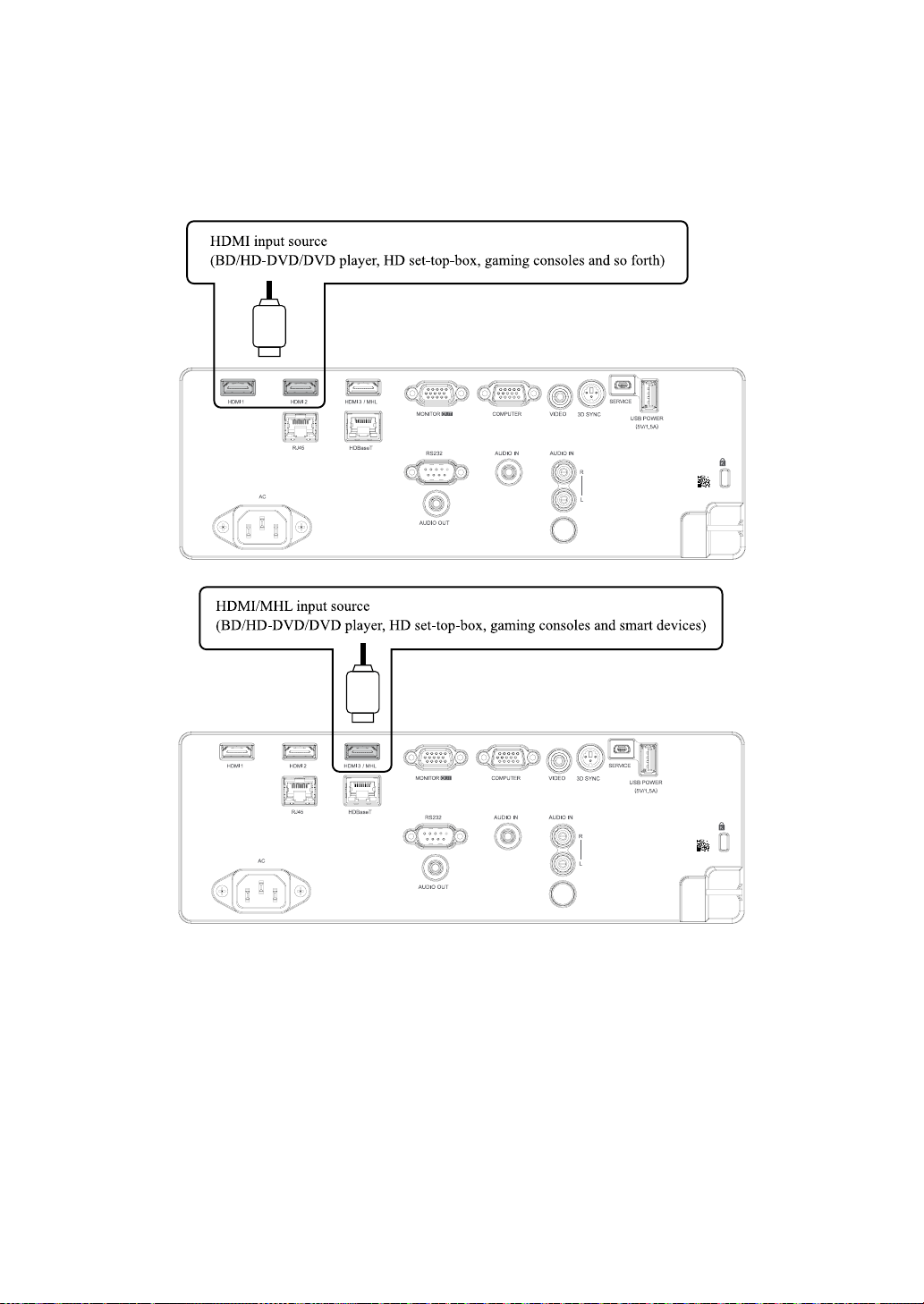
HDMI / MHL / DVI connection
Signals from picture source offer the best projection picture quality when sent through HDMI/DVI.
Therefore, try to use input devices with HDMI/DVI output as the source of picture.
Projector installation
English-31
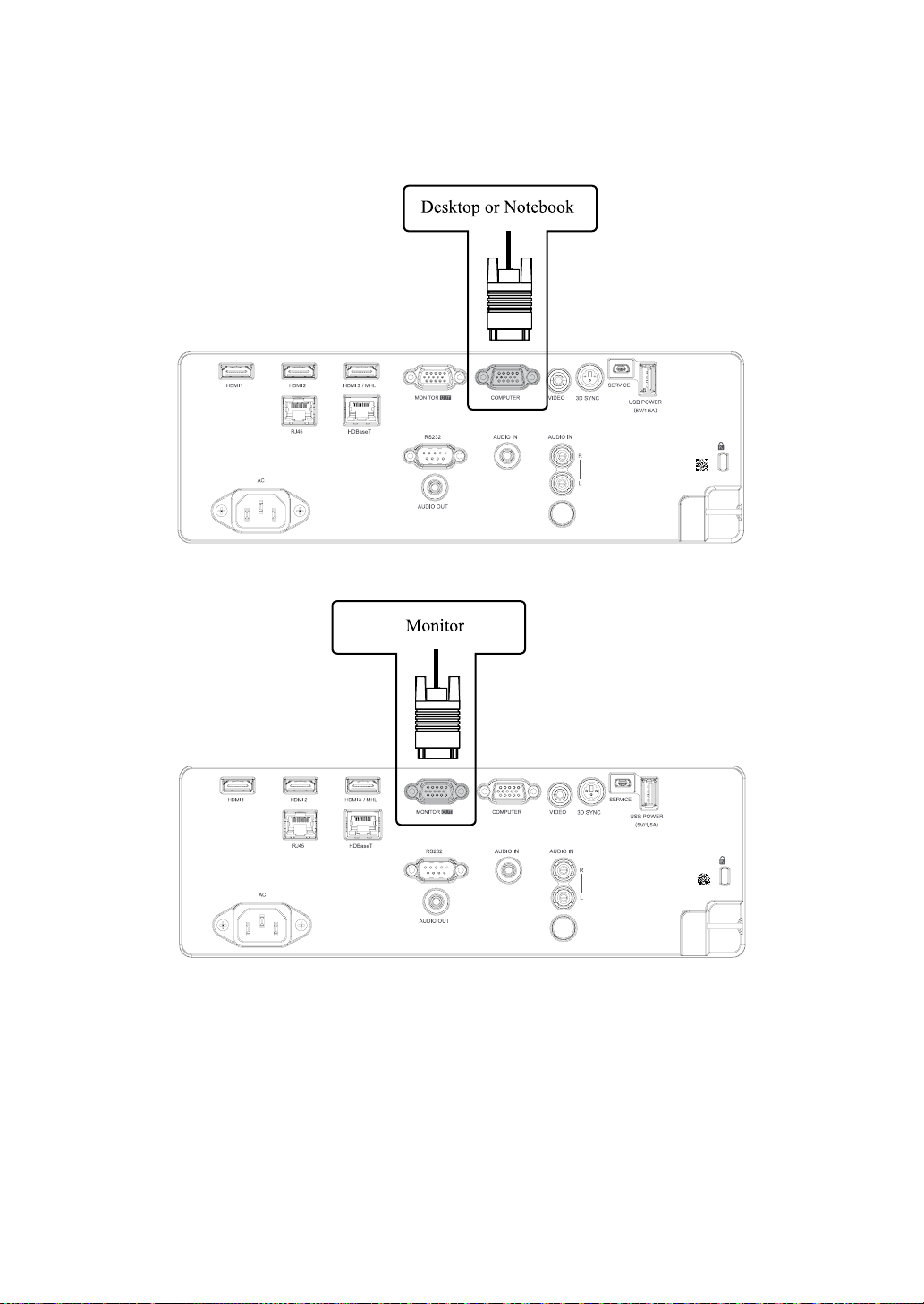
RGB connection
Connect your PC or other devices with RGB output to the RGB input connectors (COMPUTER (in
OSD we say VGA)) on the projector to be used as the source of picture input.
Connect a monitor to MONITOR OUT for through COMPUTER signal.
Projector installation
English-32
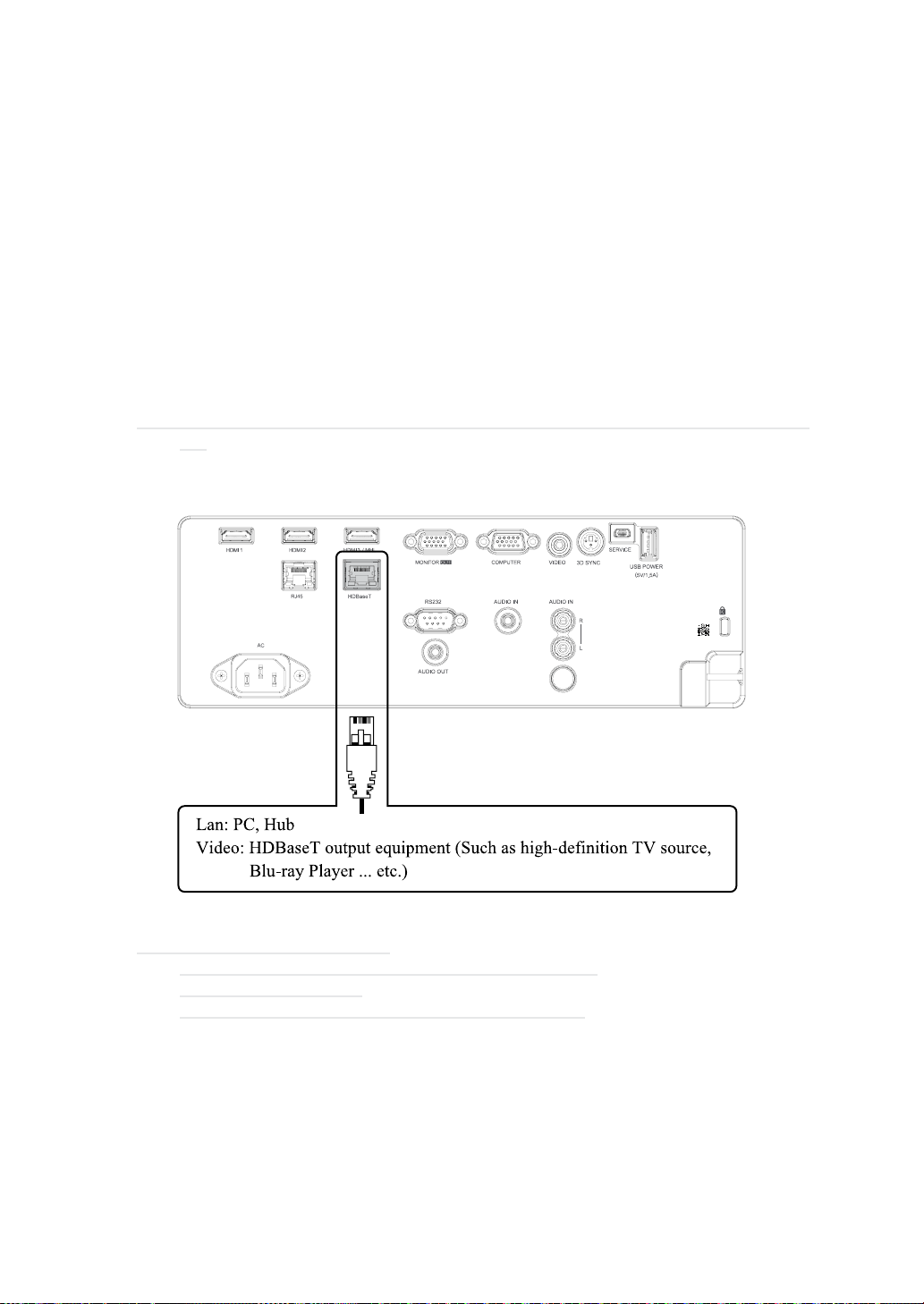
HDBaseT connection
HDBaseT is a technology to transmit image signal use LAN function, RS-232 function and IR
function through a LAN cable.
Connect Cat5e/Cat6 cable from HDBaseT TX Box for HDBaseT signal received.
Video Signal - Connect it to HDBaseT output equipment (Such as high-denition TV source, Blu-ray
Player....etc).
LAN Function - Key in the correct IP Address or the computer host name which is the same as the
projector’s host name, then you can remote control the projector by internet.
RS-232 Function: When the projector connects to HDBaseT by RS-232 communication, the projector
can be controlled with RS-232 commands from the computer. For details of RS-232 commands, refer
to RS-232 Communication command table.
Please turn On the “HDBase-T-IR/RS232/RJ45” in the OSD menu when using LAN function / RS232
function.
Note: RJ45 port and RS-232C port are disabled when “HDBaseT-IR/RS-232/RJ45” is turned
On.
Use LAN cables of up to 100m long. Exceeding this length, the image will be deteriorated, and can
experience malfunction on LAN transmission.
Note: HDBaseT BEST PRACTICE:
1.When In Doubt, Use Shielded Cat6 With Shielded Plugs.
2.Use Proper Grounding.
3.Isolate HDBaseT Cat Cables from Other Signal Types.
Projector installation
English-33
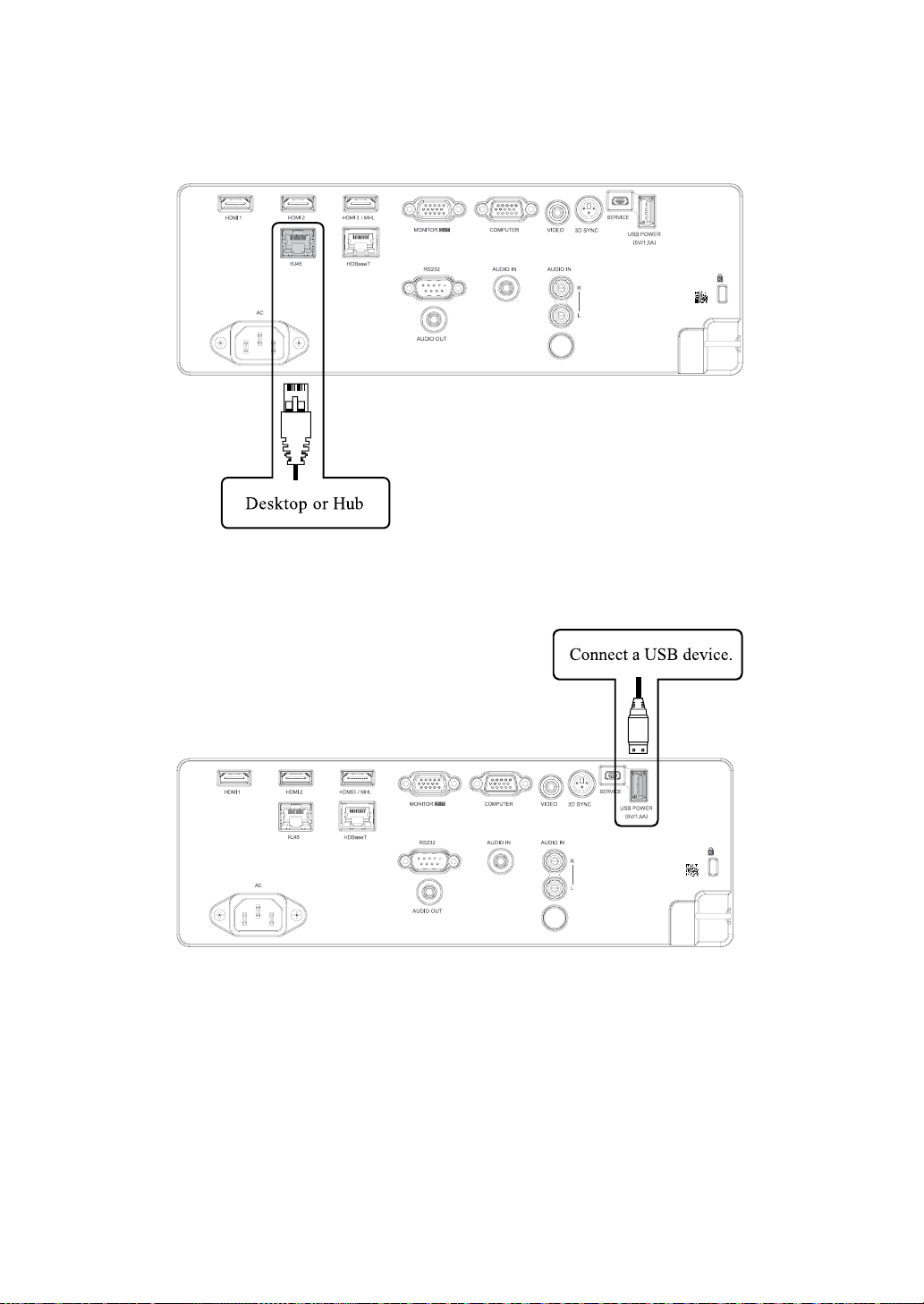
RJ45 connection
Connect it to your computer or Hub. Key in the correct IP Address or the computer host name which
is the same as the projector’s host name then you can remote control the projector by internet.
USB POWER (5V/1.5A) connection
Connect a USB cable for USB device. Support 5V/1.5A output as long as the projector is powered on.
Projector installation
English-34
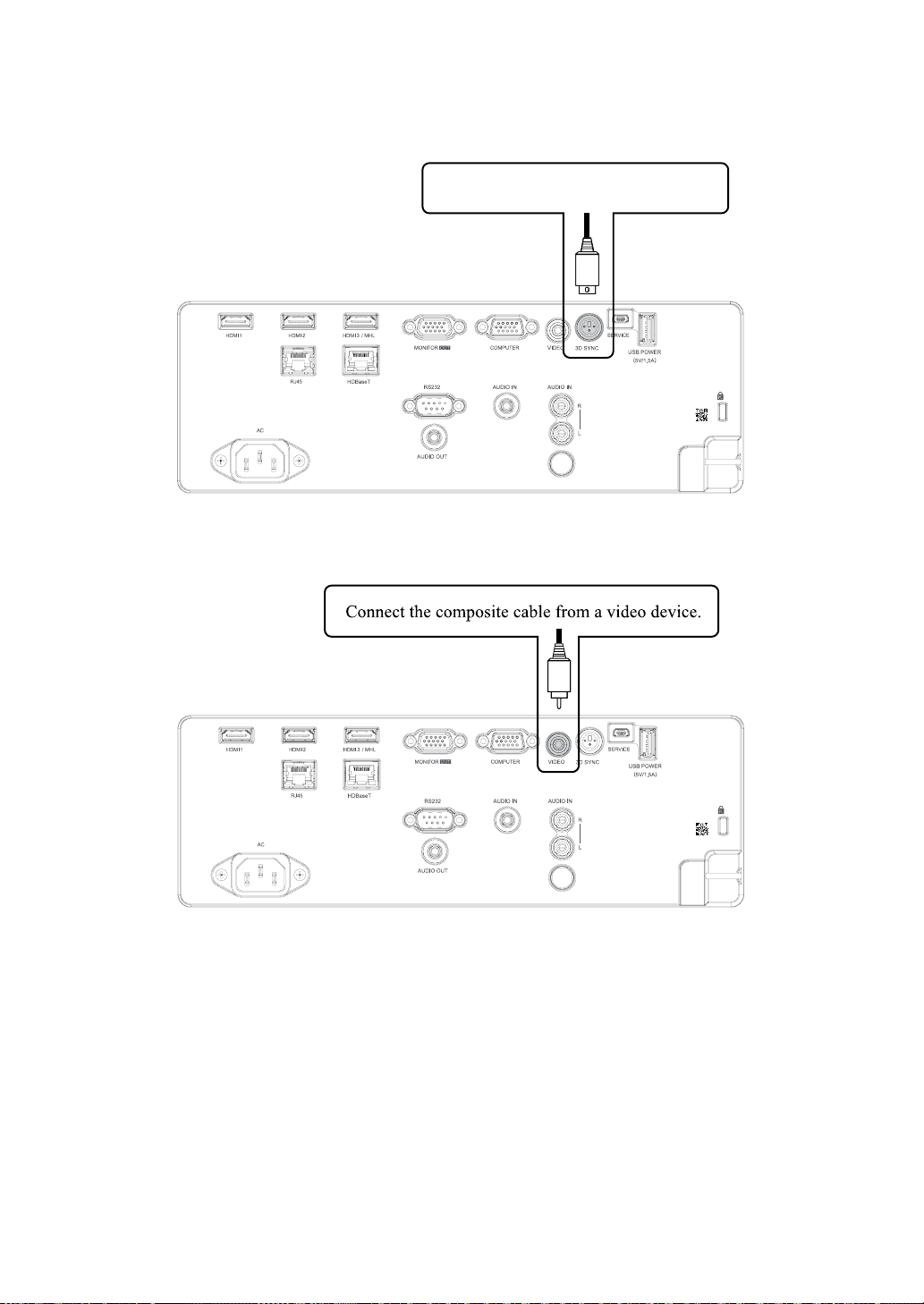
3D SYNC connection
Connect 3D IR glasses receiver unit.
Connect 3D IR glasses receiver unit.
VIDEO connection
Connect the composite cable from a video device.
Projector installation
English-35
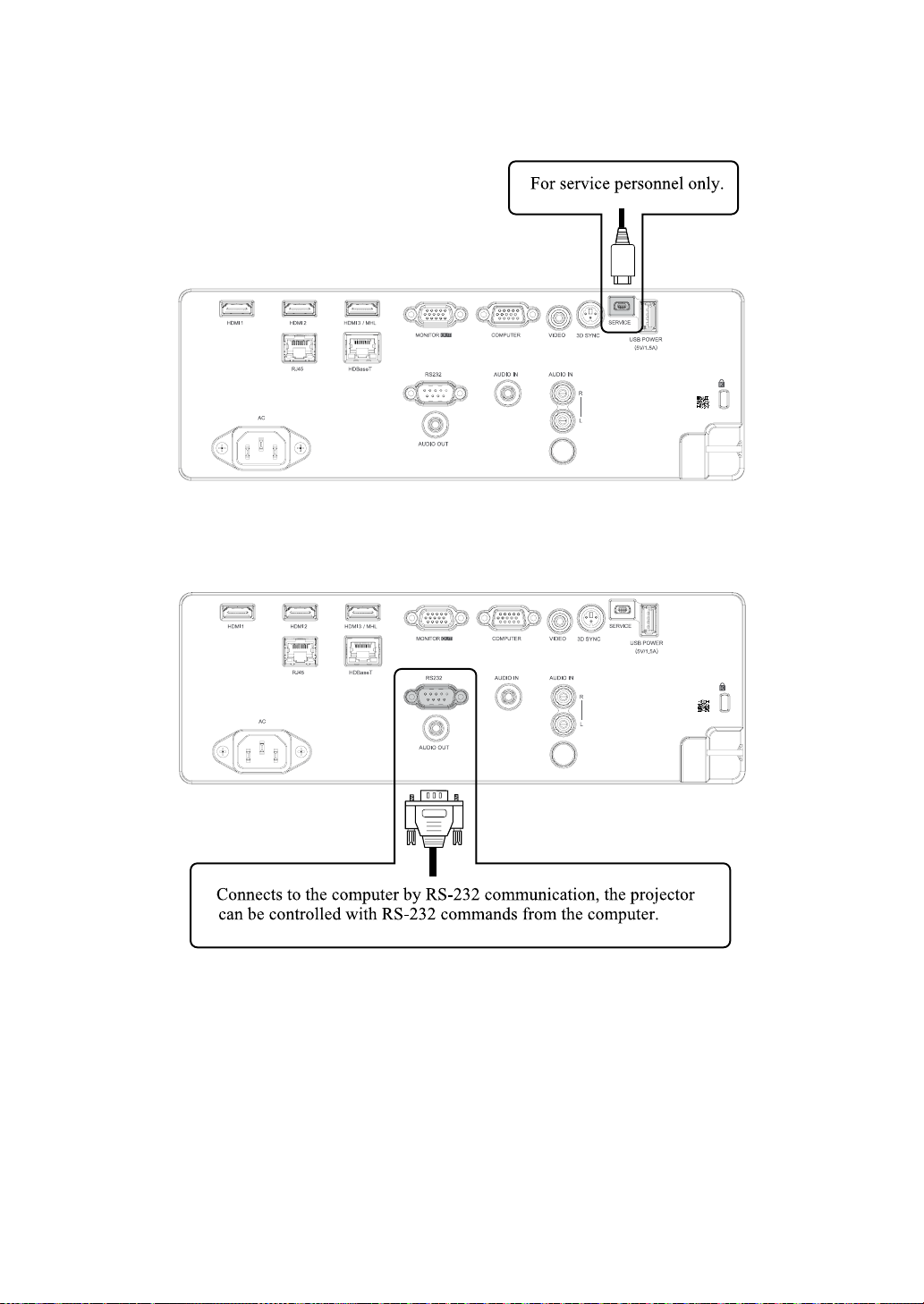
SERVICE connection
For service personnel only.
RS232C connection
Connects to the computer by RS-232 communication, the projector can be controlled with
RS-232 commands from the computer.
Projector installation
English-36
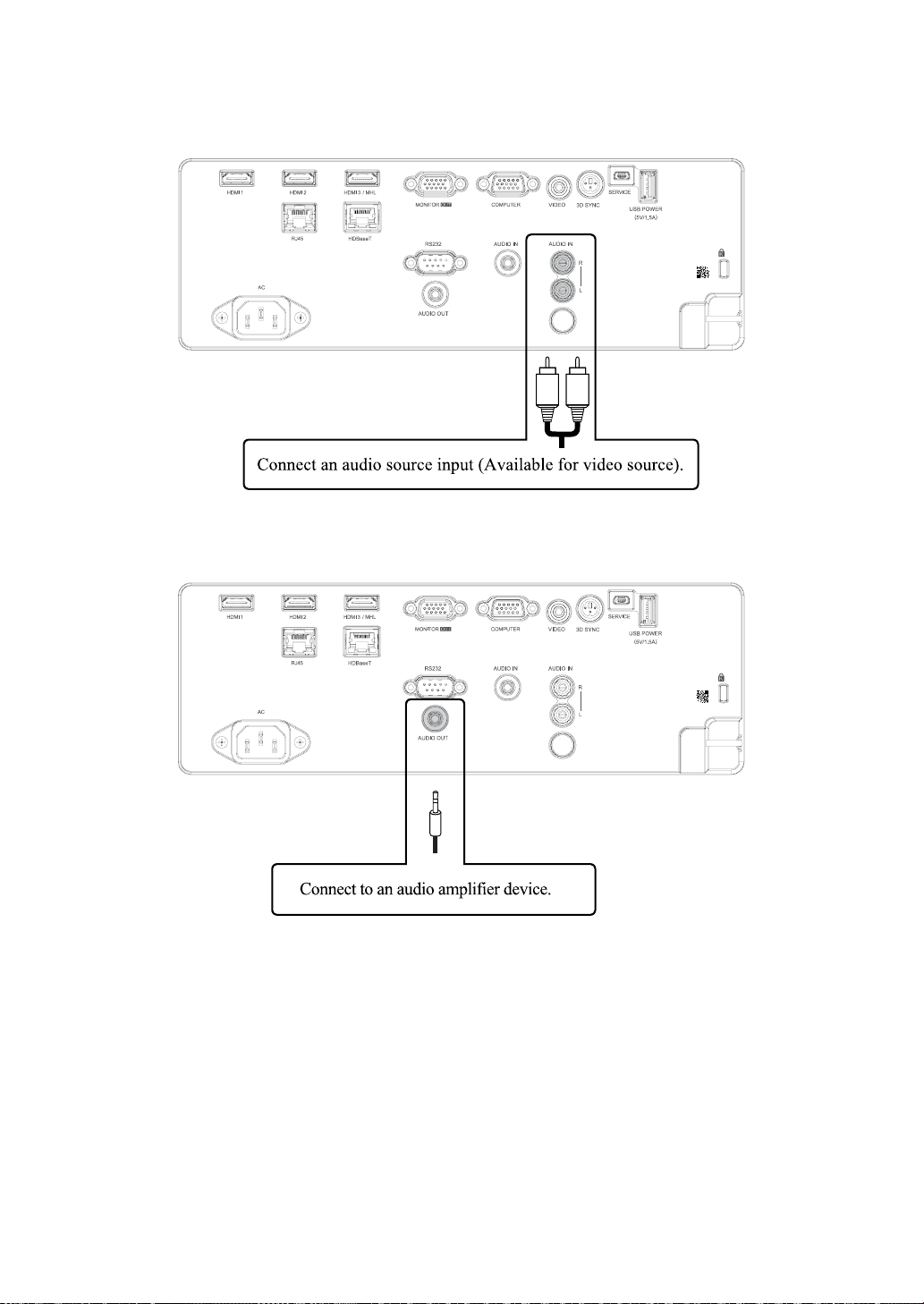
Audio IN (L/R) connection
Connect an audio source input (Available for video source).
Audio OUT (Mini jack) connection
Connect to an audio amplier device.
Projector installation
English-37
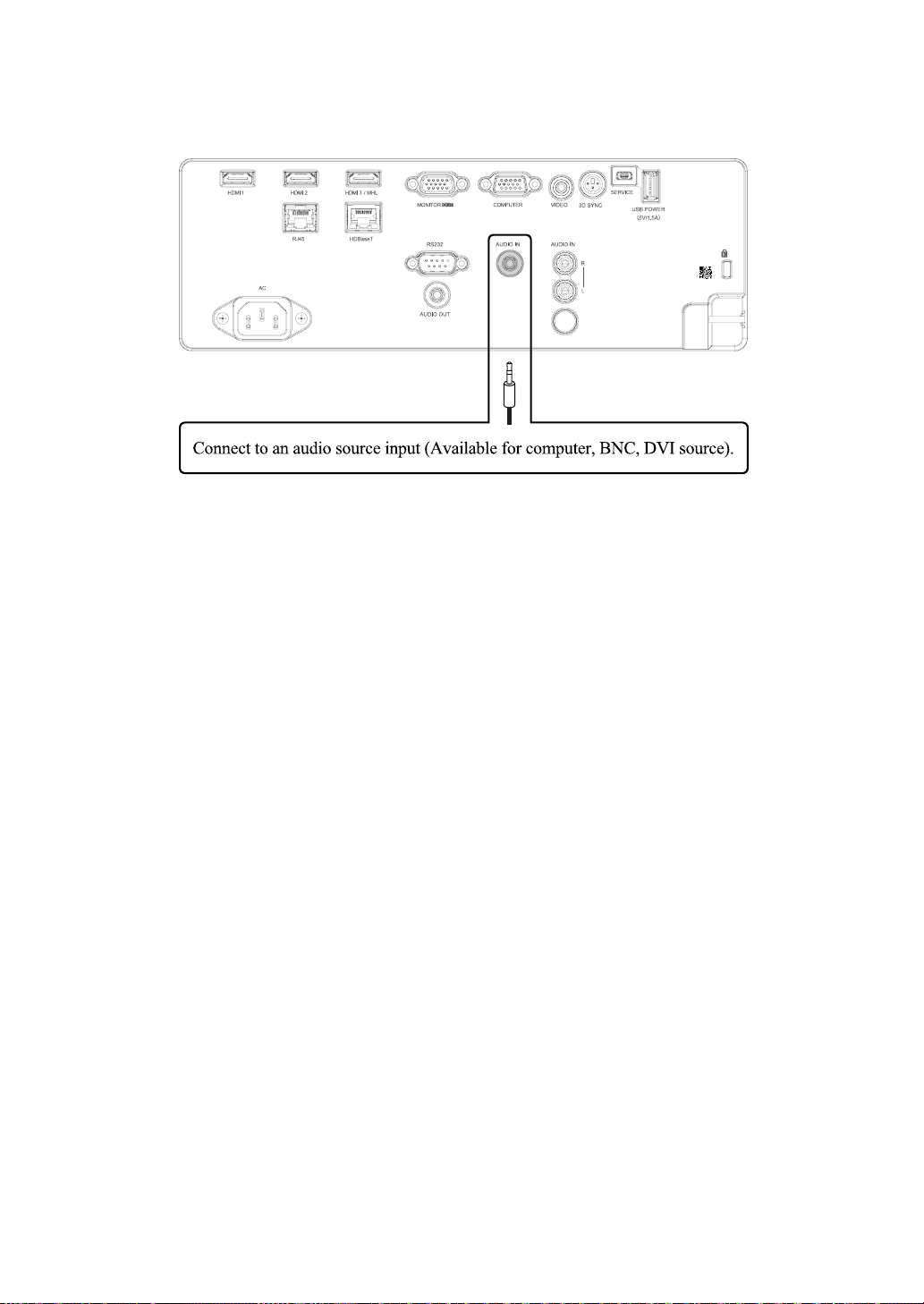
Audio IN (Mini jack) connection
Connect an audio source input (Available for computer, BNC, DVI source).
Projector installation
English-38
Powering the projector on or off
Powering on the projector
Press on the projector or on the remote control to start up the projector.
The POWER LED will now ash green. The startup screen will display in approximately 10 seconds.
The rst time you use the projector, you can select your preferred language from the quick menu after
the startup screen display.
If security lock is enabled, refer to Page 40 : “Setting an access password (security lock)”.
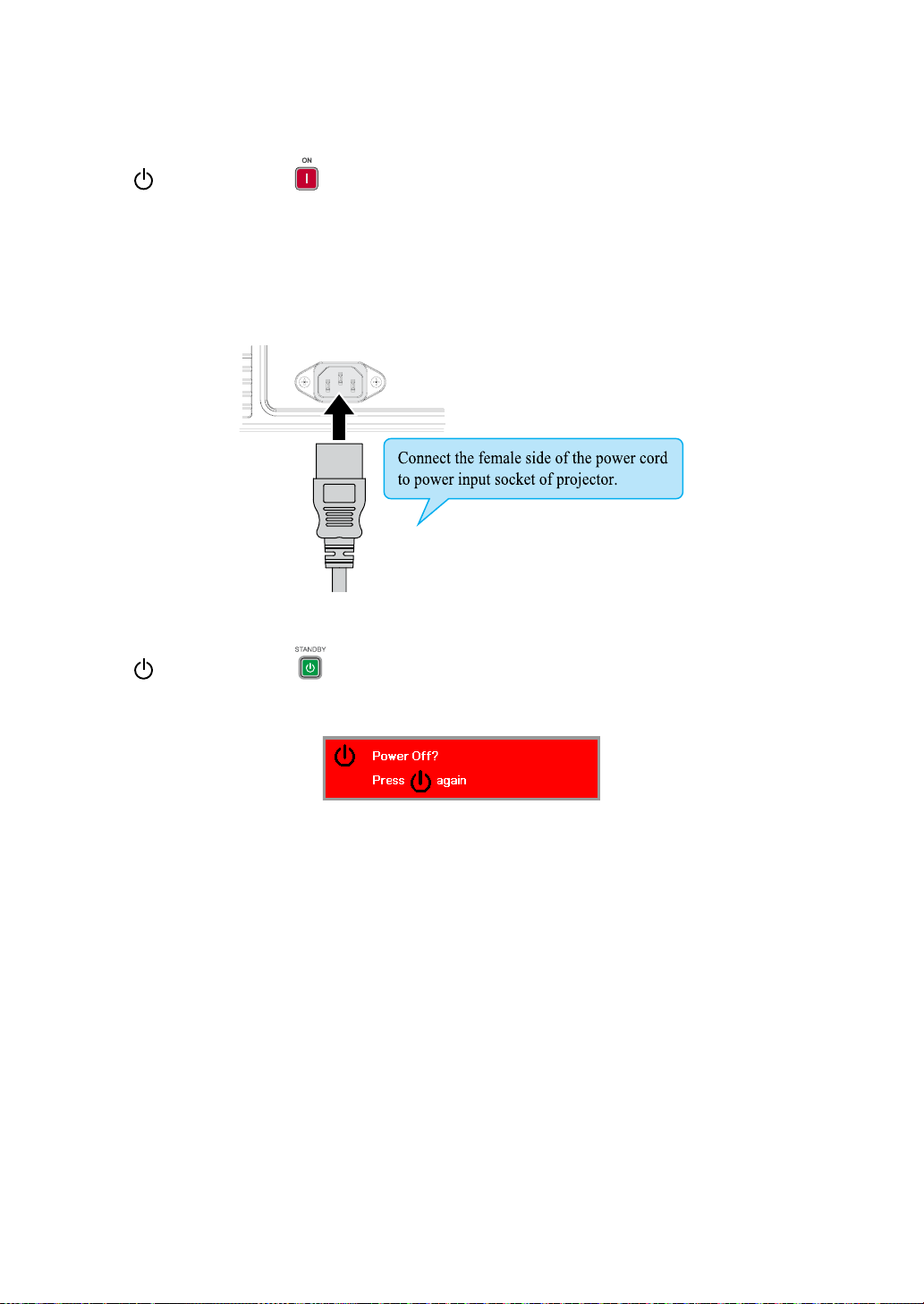
Connect the power cord to the projector
Turning off the projector
Press on the projector or on the remote control. The message “Power Off? /Press Power
again” will appear on the screen. Press the button again while the message appears. When the
projector has been turned off, the cooling fan will remain in operation for approximately 5 seconds.
Projector installation
English-39
Selecting an input source
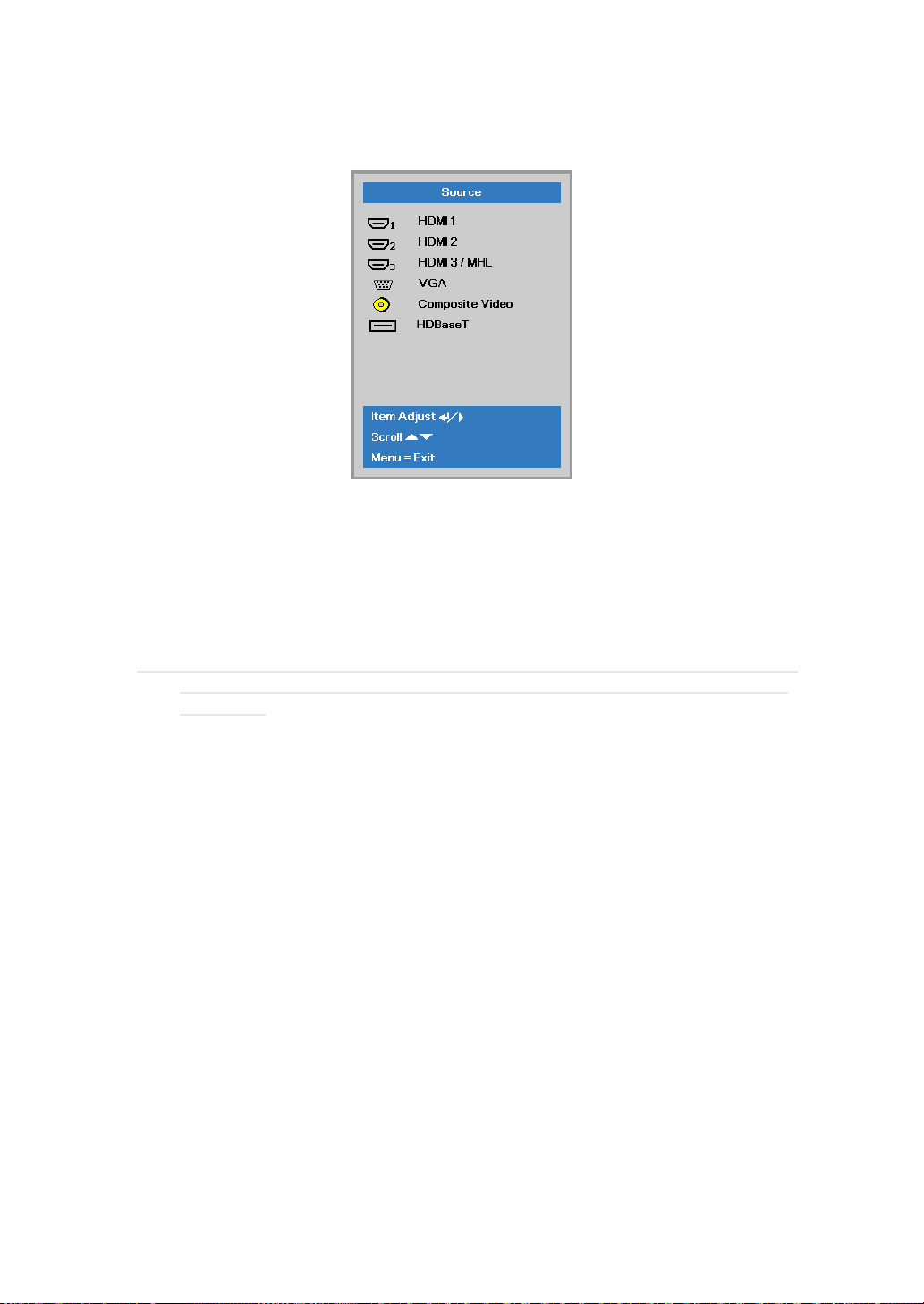
If more than one input device is connected, press SOURCE and press ▲▼ to scroll among devices.
(Component is supported through the RGB to Component adapter.)
• HDMI 1: High-Denition Multimedia Interface compatible
• HDMI 2: High-Denition Multimedia Interface compatible
• HDMI 3 / MHL: High-Denition Multimedia Interface and Mobile High-Denition Link
compatible
• VGA: Analog RGB DVD input YCbCr/ YPbPr, or HDTV input YPbPr via D-sub connector
• Composite Video: Traditional composite video
• HDBaseT: Digital Video trough the HDBaseT transmitter
Note: It is recommended to use a certied TX box for the HDBaseT function. Using a single
HDBaseT CAT5e cable, the projector supports an HDBaseT connection distances to
100m/328ft.
Projector installation
English-40
Setting an access password (security lock)
You can use the four (arrow) buttons to set a password and prevent unauthorized use of the projector.
When enabled, the password must be entered after you power on the projector.
Note: Keep the password in a safe place. Without the password, you will not be able to use the
projector. If you lose the password, contact your dealer for information on clearing the
password.
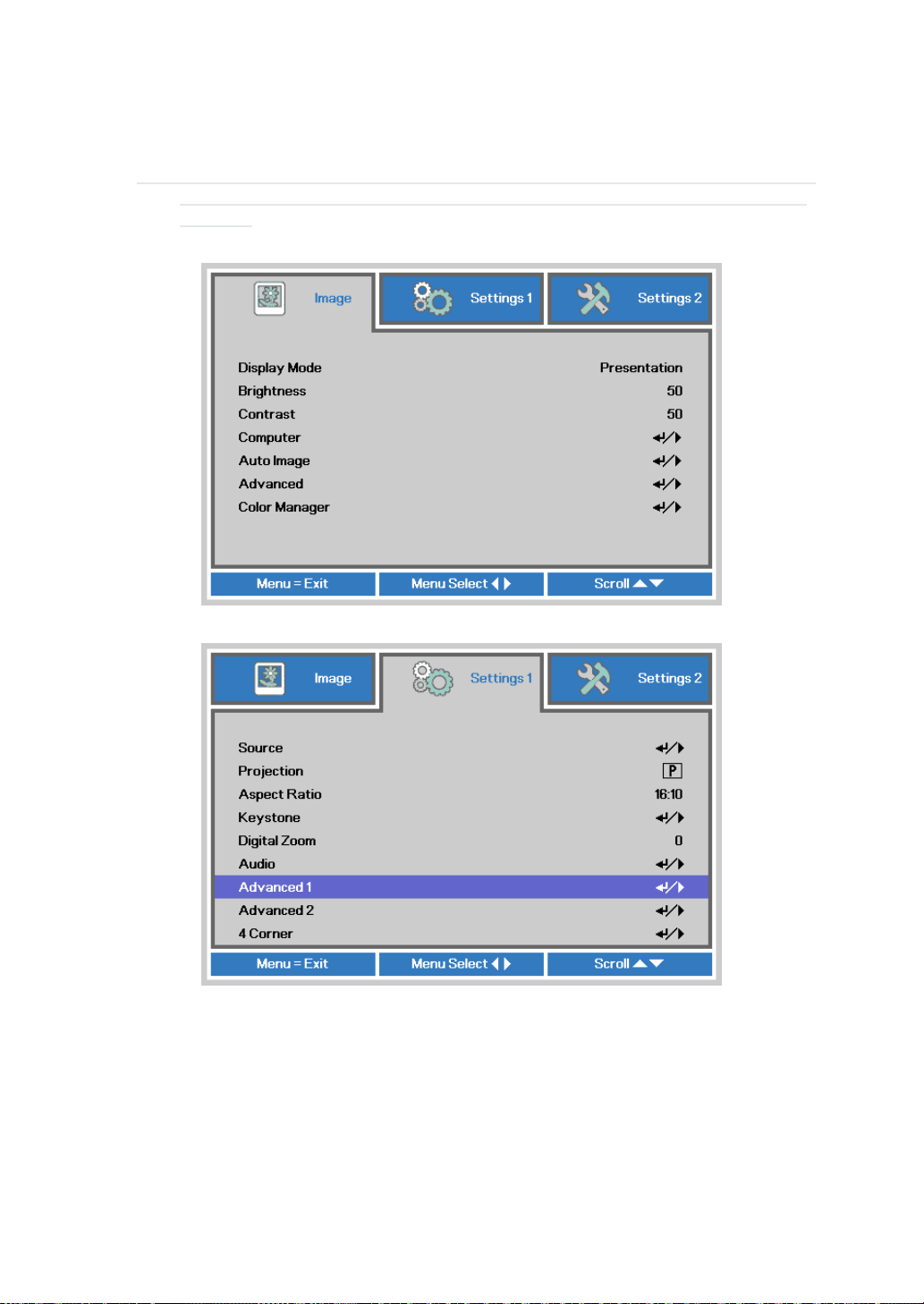
1. Press MENU to open the OSD menu.
2. Press ◄► to move to the Settings 1 menu and press ▲▼ to select Advanced 1.
Projector installation
English-41
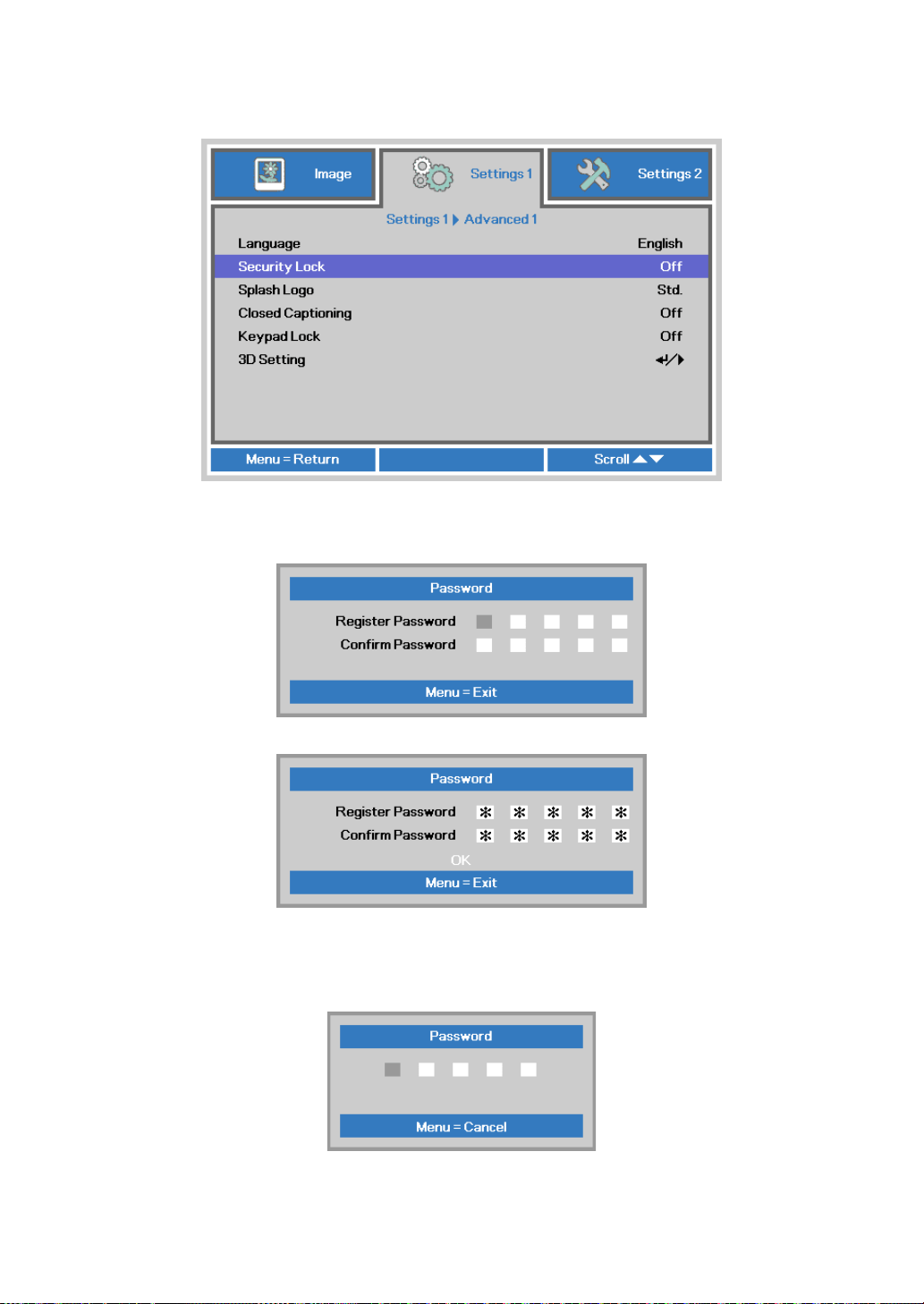
3. Press ENTER / ► to enter the Advanced 1 sub menu. Press ▲▼ to select Security Lock.
4. Press ◄► to enter and enable or disable security lock function.
A password dialog box automatically appears.
5. Press ▲▼◄► either on keypad or IR remote control for password entry. You can use any
combination including the same arrow ve times, but not less than ve.
Press ▲▼◄► in any order to set the password. Push MENU button to exit the dialog box.
6. The password conrm menu appears when user presses the power-on key in case the Security
Lock is enabled. Enter the password in the order you set it at step 5. In case you forget the
password, please contact the service center.
The service center will validate the owner and help reset the password.
Projector installation
English-42
Choosing a location
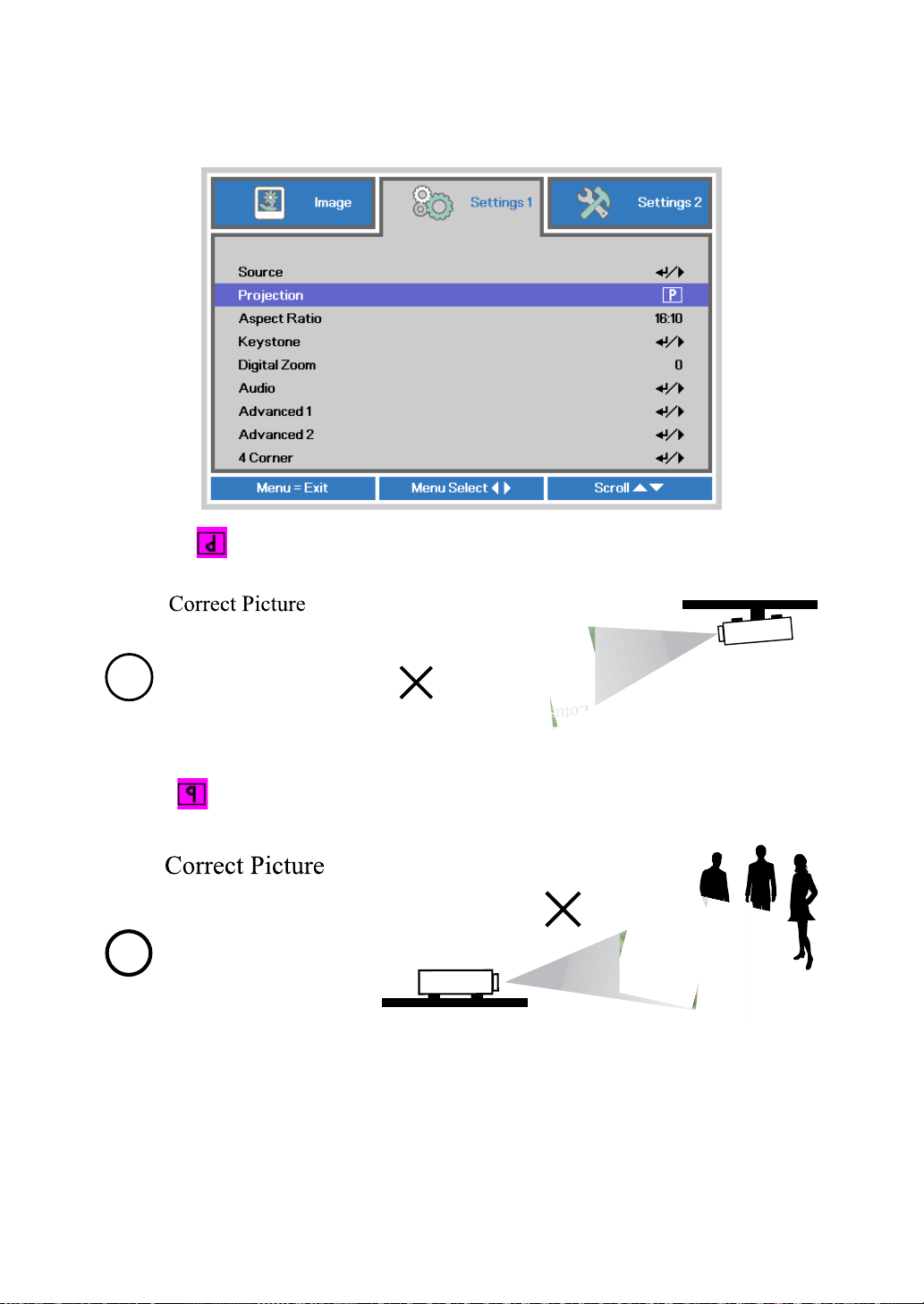
By default, the projector is congured for “Normal”. If you choose to install your projector in
other setups, be sure to adjust the screen orientation to achieve the correct projection mode.
Ceiling
Press MENU Settings 1 Projection, select Ceiling, the projector is now congured for
“Ceiling”.
Rear
Press MENU Settings 1 Projection, select Rear, the projector is now congured for
“Rear”.
Projector installation
English-43
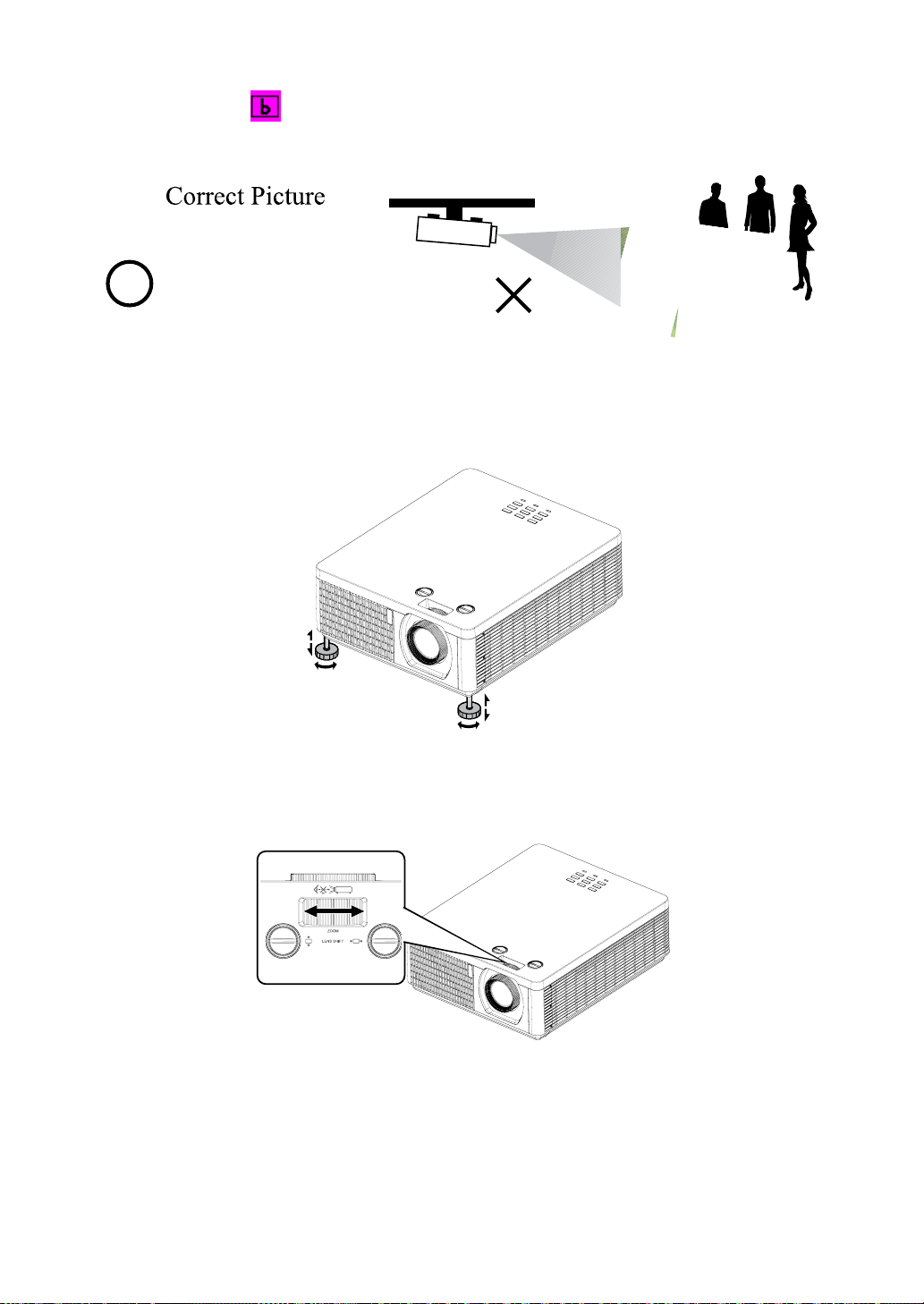
Rear + Ceiling
Press MENU Settings 1 Projection, select Rear + Ceiling, the projector is now
congured for “Rear + Ceiling”.
Adjusting the projector's angle
Use the adjustable feet to change the angle of the projector in order to achieve the most suitable angle
for projection on the screen.
Adjusting the projector’s zoom and focus
Zoom
Projector installation
English-44
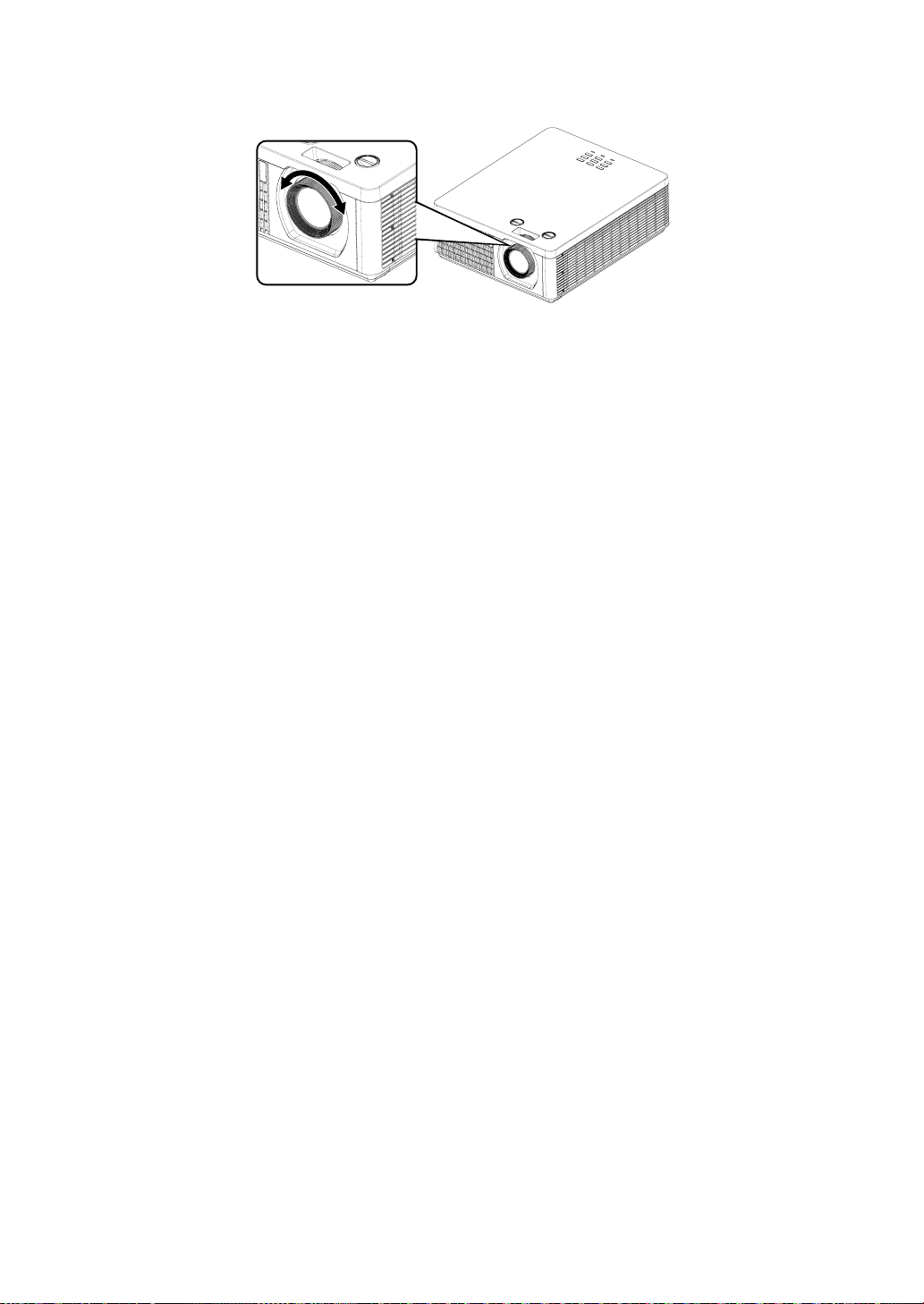
Focus
Note for adjusting the zoom/focus
1. Adjust the lens shift/zoom/focus after 30 minutes have passed since the projector turned on.
2. Slight changes of the image position and/or focus may occur within 30 minutes after the
projector was turned on. If the room temperature and humidity have changed after adjusting the
lens shift/zoom/focus, readjust them as necessary.
3. Set the image size including the margin from the screen edge in anticipation of the changes
after installation.
Projector installation
English-45
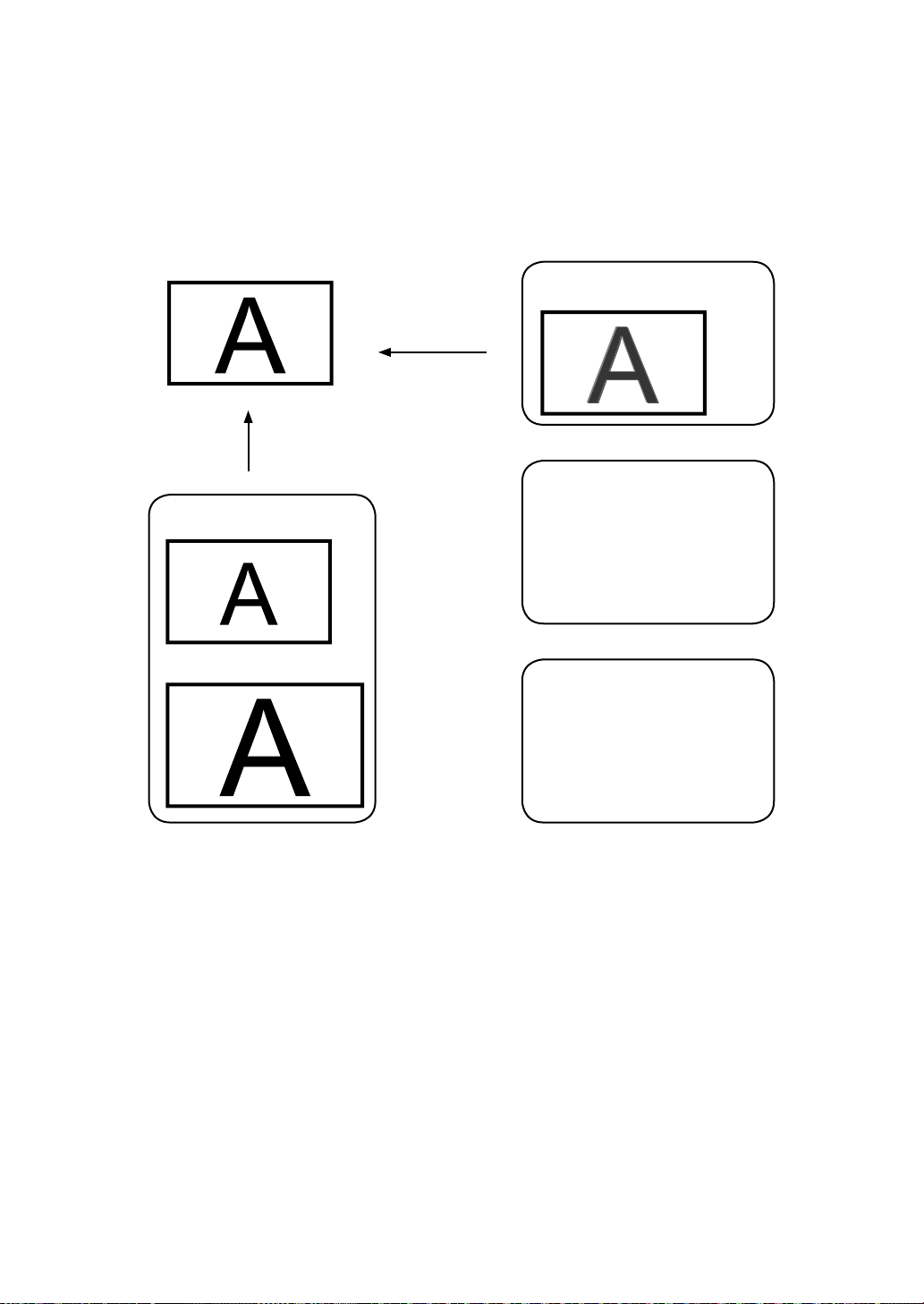
Correcting keystone
1. To adjust keystoning, press ▼▲◄ ► on the keypad or remote control and press ▼▲◄ ► to
adjust Vertical or Horizontal Keystone. Refer to Fig 2 and 3.
2. To adjust keystoning, press the MENU button on the keypad or remote control and choose
Settings 1 Keystone adjust and press ▼▲◄ ► to adjust Vertical and Horizontal Keystone.
Refer to Fig 2 and 3.
The picture after adjust
Adjust
Adjust
Zoom Out
Fig 1
Focus
Fig 2
Vertical Keystone
Fig 3
Horizontal Keystone
Zoom In

( :Country/Region)
Printed in China
Hitachi America, Ltd.
Business Solutions Group
2420 Fenton Street, Suite 200
Chula Vista, CA 91914
USA
CANADA
Tel: +1 -800-448-2244
► http://www.hitachi-america.us/projectors
Hitachi Europe Ltd., Digital Media Group
Whitebrook Park, Lower Cookham Road,
Maidenhead
Berkshire SL6 8YA
UNITED KINGDOM
Tel: 0844 481 0297
(international call is NOT available for this number)
Email: [email protected]
► https://hitachi.equinox.co.uk/
Hitachi Europe S.A.S.,
Digital Media Group
31 bis rue du 35ème Régiment de l’aviation
ZAC DU CHENE, 69500 BRON
FRANCE
Tel: 0 478 262135 +33 478 262135
Email: [email protected]
Hitachi Europe GmbH
Am Seestern 18
40547 Düsseldorf
GERMANY
Tel: 0 40 73353 468 +49 (0) 40 73353 468
Email: [email protected]
Hitachi Europe S.A.
364, Kifissias Ave. & 1, Delfon Str.
152 33 Chalandri
Athens
GREECE
Tel: +30 210 921 0800
Email: [email protected]
Hitachi Europe S.r.l.
Via T. Gulli, 39
20147 MILANO
ITALY
Tel: +39 2 257 12355
Email: [email protected]
Hitachi Europe S.A.
Gran Via Carles III, 86 Planta 5ª
Edificios Trade - Torre Este
08028 Barcelona
SPAIN
Tel: 0 93 266 4747 +34 93 266 4747
Email: [email protected]
Hitachi Europe AB
Frösundaviks Alle 15
169 29 Solna
SWEDEN
Sweden Tel: +46 36 16 16 90
Finland Tel: +358 9 8494 133
Norway Tel: +47 2290 1930
Denmark Tel: +45 7562 4577
Email: [email protected]
► http://www.hitachidigitalmedia.com
Hitachi Australia Pty Ltd.
Suite 801, Level 8, 123 Epping Road
North Ryde N.S.W 2113
AUSTRALIA
Tel: +61 -2-9888-4100
► http://www.hitachi.com.au/dps
Hitachi (Hong Kong), Ltd.
18/F., Ever Gain Centre, 28 On Muk Street,
Shatin, N.T.,
HONG KONG
Tel: +852 -2113-8883
► http://www.hitachi-hk.com.hk
Hitachi Sales (Malaysia) Sdn. Bhd.
Lot 12, Jalan Kamajuan, Bangi Industrial Estate,
43650 Bandar Baru Bangi, Selangor Darul Ehsan
MALAYSIA
Tel: +60 -3-8911-2670
► http://www.hitachiconsumer.com.my
Hitachi Home Electronics Asia (S) Pte. Ltd.
438A Alexandra Road #01-01/02/03
Alexandra Technopark, 119967
SINGAPORE
Tel: +65 -6536-2520
► http://www.hitachiconsumer.com.sg
Hitachi Sales Corp. of Taiwan
2
nd
Floor, No.65, Nanking East Road, Section 3,
Taipei 104
TAIWAN
Tel: +886-2-2516-0500
► http://www.hsct.com.tw
Hitachi Sales (Thailand), Ltd.
333, 333/1-8 Moo 13, Bangna-Trad Road km 7,
Bangkaew, Bangplee, Samutprakarn 10540
THAILAND
Tel: +66-2-335-5455
► http://www.hitachi-th.com
Hitachi Consumer Marketing, Inc.
JAPAN
► http://www.hitachi.co.jp/proj/
* Q R 8 9 0 6 1 *

