
Reference Guide
Brief explanations for routine operations
MFC-J690DW
MFC-J895DW
Brother recommends keeping this guide next to your Brother machine for quick reference.
Online User's Guide
For more advanced instructions, information, and
product specifications, see the Online User's
Guide at support.brother.com/manuals

User's Guides and Where to Find Them
Which Guide? What's in It? Where Is It?
Product Safety Guide Read this guide first. Please read the Safety
Instructions before you set up your machine.
See this guide for trademarks and legal
limitations.
Printed / In the box
Quick Setup Guide Follow the instructions for setting up your
machine, and installing the Full Driver &
Software Package for the operating system
and connection type you are using.
Printed / In the box
Reference Guide Learn the basic PC-Print, PhotoCapture
Center, Scan, Copy and Fax operations and
basic machine maintenance. See
troubleshooting tips.
Printed or on Brother
Installation Disc / In
the Box
Online User's Guide This guide includes the additional contents of
the Reference Guide.
In addition to information about the PC-Print,
PhotoCapture Center, Scan, Copy, Fax,
Internet services, Mobile Functions and
Brother ControlCenter operations, useful
information is included about using the
machine on a network.
Brother Solutions
Center
1
1
Visit support.brother.com/manuals.
For the Latest Driver Updates
Go to your model's Downloads page on the Brother Solutions Center at
support.brother.com to
download drivers. To keep your machine’s performance up-to-date, check there for the latest
firmware upgrades.
©2017 Brother Industries, Ltd. All rights reserved.
1

Questions or Problems? Take a Look at our FAQs,
Solutions, and Videos Online.
Go to your model's FAQs & Troubleshooting page on the Brother Solutions Center at
support.brother.com.
• Provides several ways to search
• Displays related questions for more information
• Receives regular updates based on customer feedback
2
Control Panel Overview
3
2
5
41
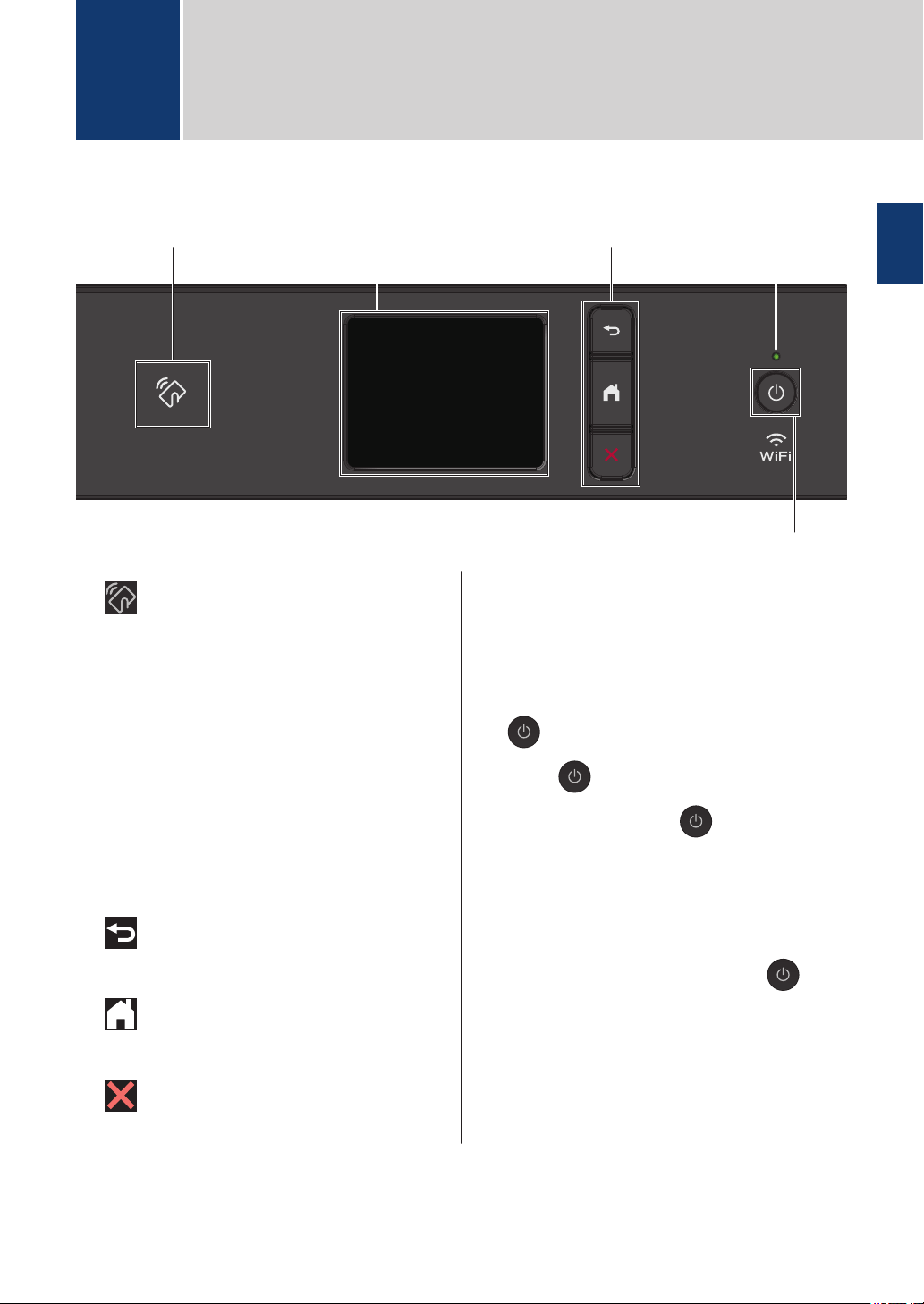
1. NFC (Near Field Communication)
symbol
(MFC-J895DW)
If your Android
™
device supports the NFC
feature, you can print from your device or
scan documents to your device in the
same way.
2. Touchscreen Liquid Crystal Display
(LCD)
Access menus and options by pressing
them on the touchscreen.
3. Menu buttons
(Back)
Press to go back to the previous menu.
(Home)
Press to return to the Home screen.
(Cancel)
Press to cancel an operation.
4. LED Power Indicator
The LED lights up depending on the
machine’s power status.
When the machine is in Sleep Mode, the
LED blinks.
5. Power On/Off
Press to turn on the machine.
Press and hold down to turn off the
machine. The touchscreen displays
[Shutting Down] and stays on for a
few seconds before turning itself off. If you
have connected an external telephone or
TAD, it is always available.
If you turn off the machine using , it
will still clean the print head periodically to
maintain print quality. To prolong print
head life, provide better ink efficiency, and
maintain print quality, keep your machine
connected to a power source at all times.
1
General Information
1
General Information
3
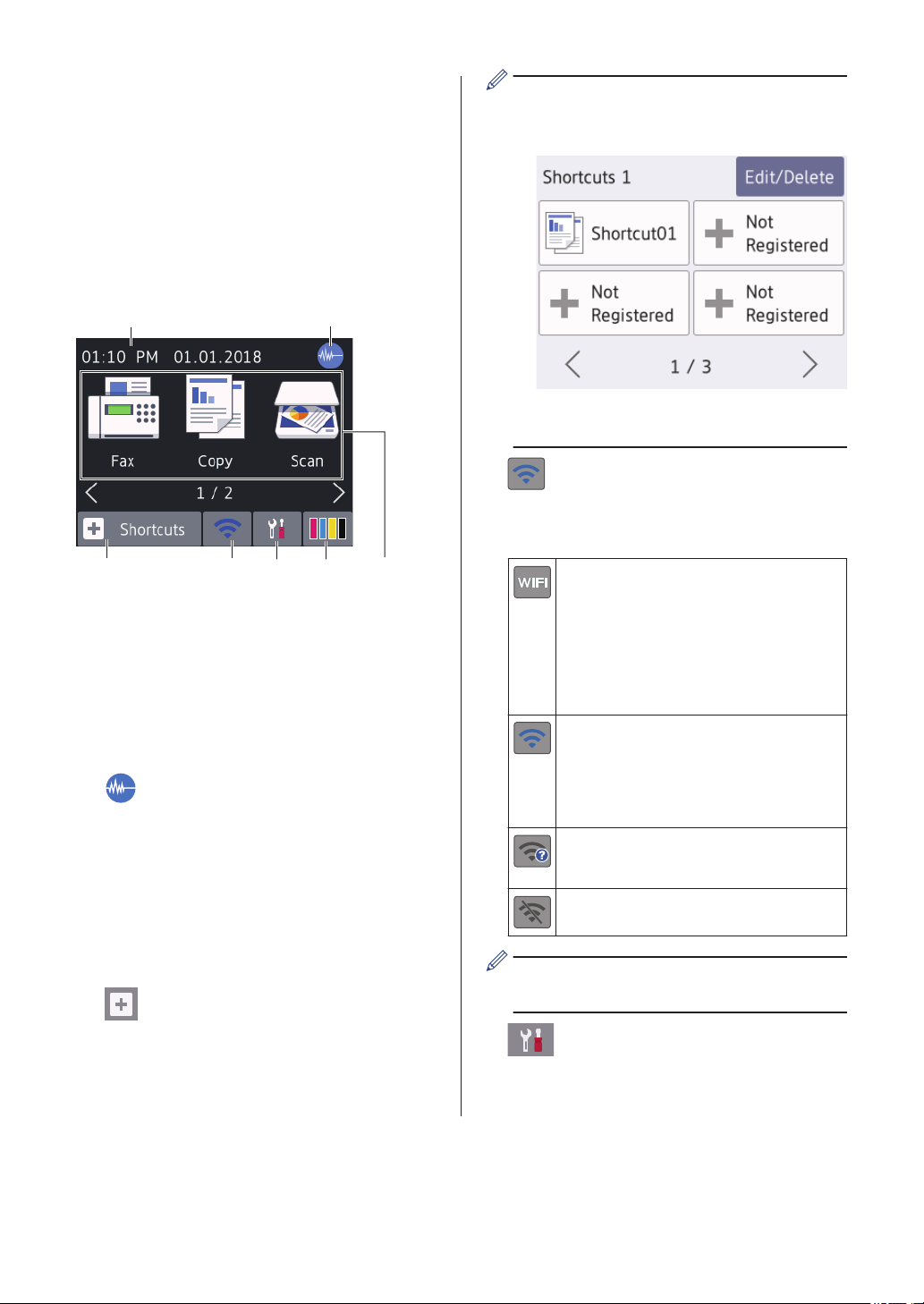
Touchscreen LCD
Overview
You can switch Home screens by pressing d
or c.
From the Home screens, you can access Wi-
Fi
®
setup, Shortcuts, Ink levels and Settings
screens.
Home Screen
1
7
5
2
3
4
6
This screen shows the machine’s status when
the machine is idle. When displayed, it
indicates that your machine is ready for the
next command.
1. Date & Time
Displays the date and time set on the
machine.
2. Quiet Mode
This icon appears when the [Quiet
Mode] setting is set to [On].
The Quiet Mode setting can reduce
printing noise. When Quiet Mode is turned
on, the print speed becomes slower. For
more detailed information, see the Online
User's Guide.
3.
[Shortcuts]
Create Shortcuts for frequently-used
operations, such as sending a fax,
copying, scanning, Web Connect and
Apps services.
• There are three Shortcuts screens.
You can program four shortcuts on
each screen.
• To display the other Shortcuts screens,
press d or c.
4. Wireless Status
Each icon in the following table shows the
wireless network status:
Your machine is not connected to
the wireless access point/router.
Press this button to configure
wireless settings. For more
detailed information, see the Quick
Setup Guide.
Wireless network is connected.
A three-level indicator in each of
the Home screens displays the
current wireless signal strength.
The wireless access point/router
cannot be detected.
The wireless setting is disabled.
You can configure wireless settings by
pressing the Wireless Status button.
5. [Settings]
Press to access the [Settings] menu.
4
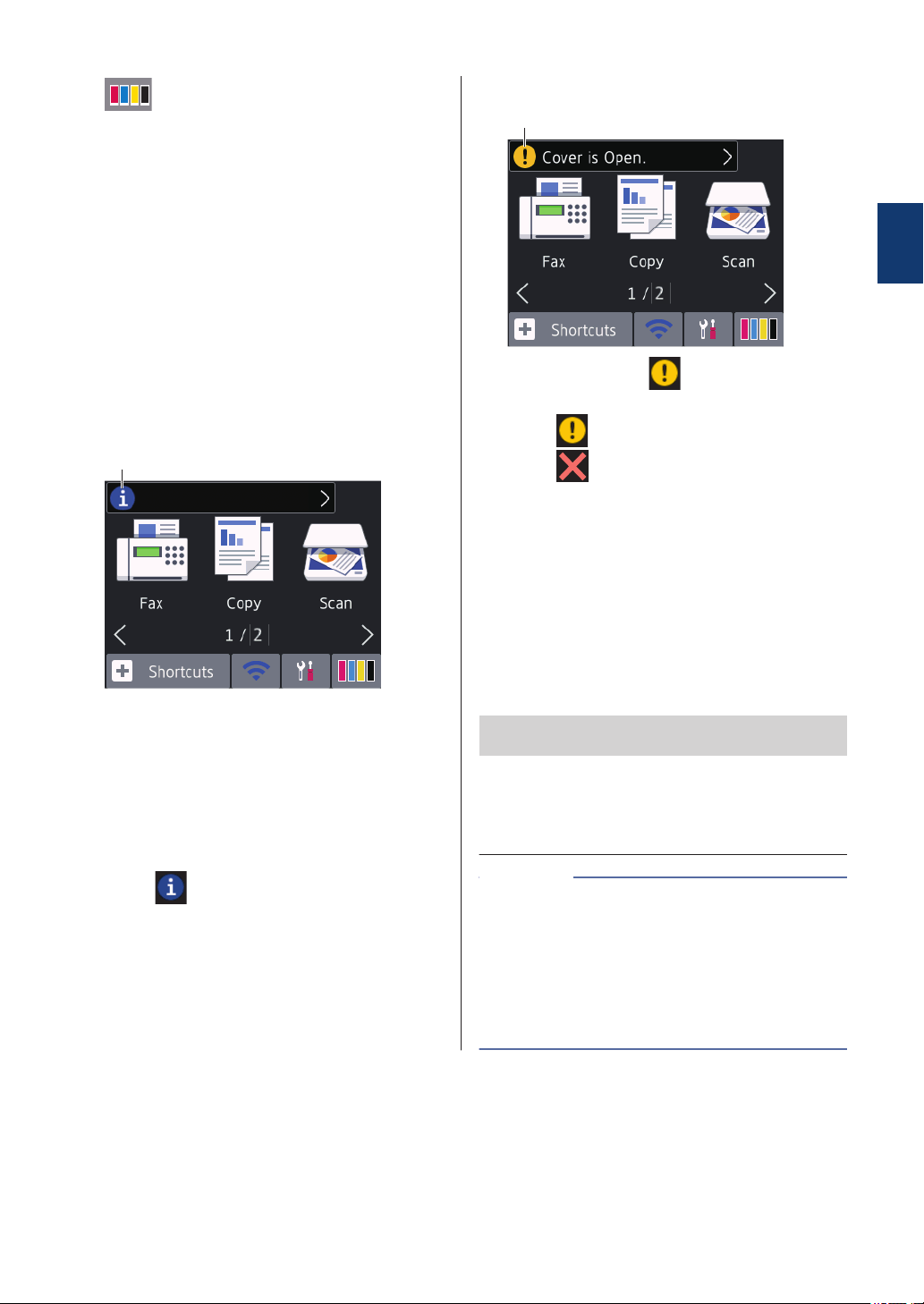
6. [Ink]
Displays the available ink volume. Press
to access the [Ink] menu.
When an ink cartridge is near the end of
its life or having a problem, an error icon is
displayed on the ink color.
7. Modes:
Press to switch to each mode.
[Fax] / [Copy] / [Scan] / [Photo] /
[Web] / [Apps]
For more information on [Web] and
[Apps], see the Online User's Guide.
8. Information icon
8
New information from Brother appears in
the information bar when the notification
settings such as [Message from
Brother] and [Firmware Auto
Check] are set to [On].
(Internet connection is needed, and data
rates may apply.)
Press
to view the details.
9. Warning icon
9
The warning icon appears when there
is an error or maintenance message;
press to view the details, and then
press to return to the Home screen.
Navigate the
touchscreen
Press your finger on the LCD to operate it. To
display and access all the options, press d c
or a b on the LCD to scroll through them.
IMPORTANT
DO NOT press the LCD with a sharp object
such as a pen or stylus. It may damage the
machine.
• This product adopts the font of ARPHIC
TECHNOLOGY CO., LTD.
• DO NOT touch the LCD immediately after
plugging in the power cord or turning on
the machine. Doing this may cause an
error.
NOTE
1
General Information
5
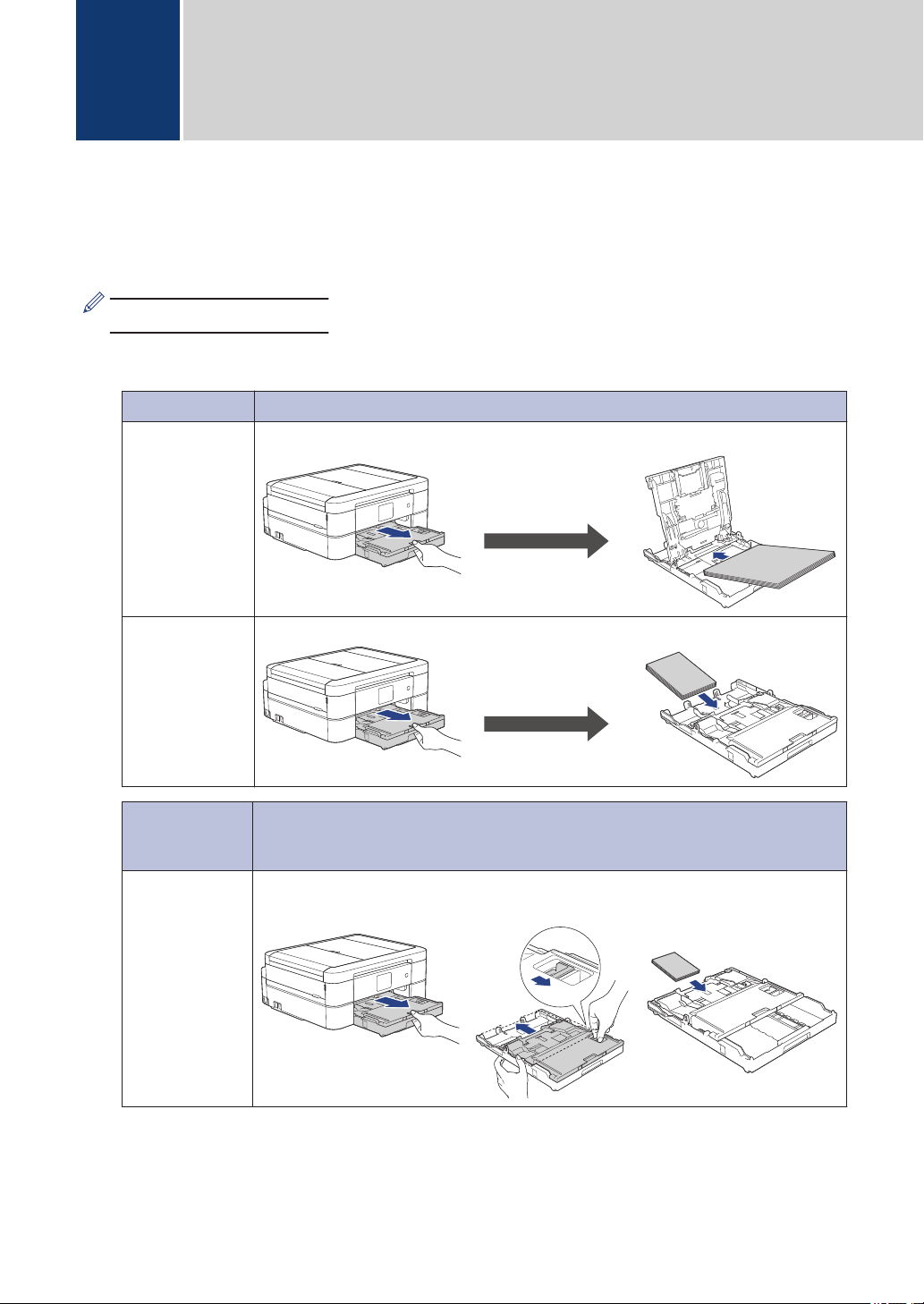
Load Paper
1
Load the paper in the paper tray as follows.
Fan the stack of paper well.
The paper size determines the orientation when loading paper.
Tray #1 How to Load Paper
Letter/A4
Legal
Executive
A5/A6
Photo 2L
Index card
Envelopes
Adjust the paper
guides.
Printing surface: Face down
Photo
Adjust the paper
guides.
Printing surface: Face down
Photo Bypass
Tray
(MFC-J690DW)
How to Load Paper
Photo
Photo L
Slide the whole output
paper tray cover.
Printing surface: Face
down
2
Paper Handling
6
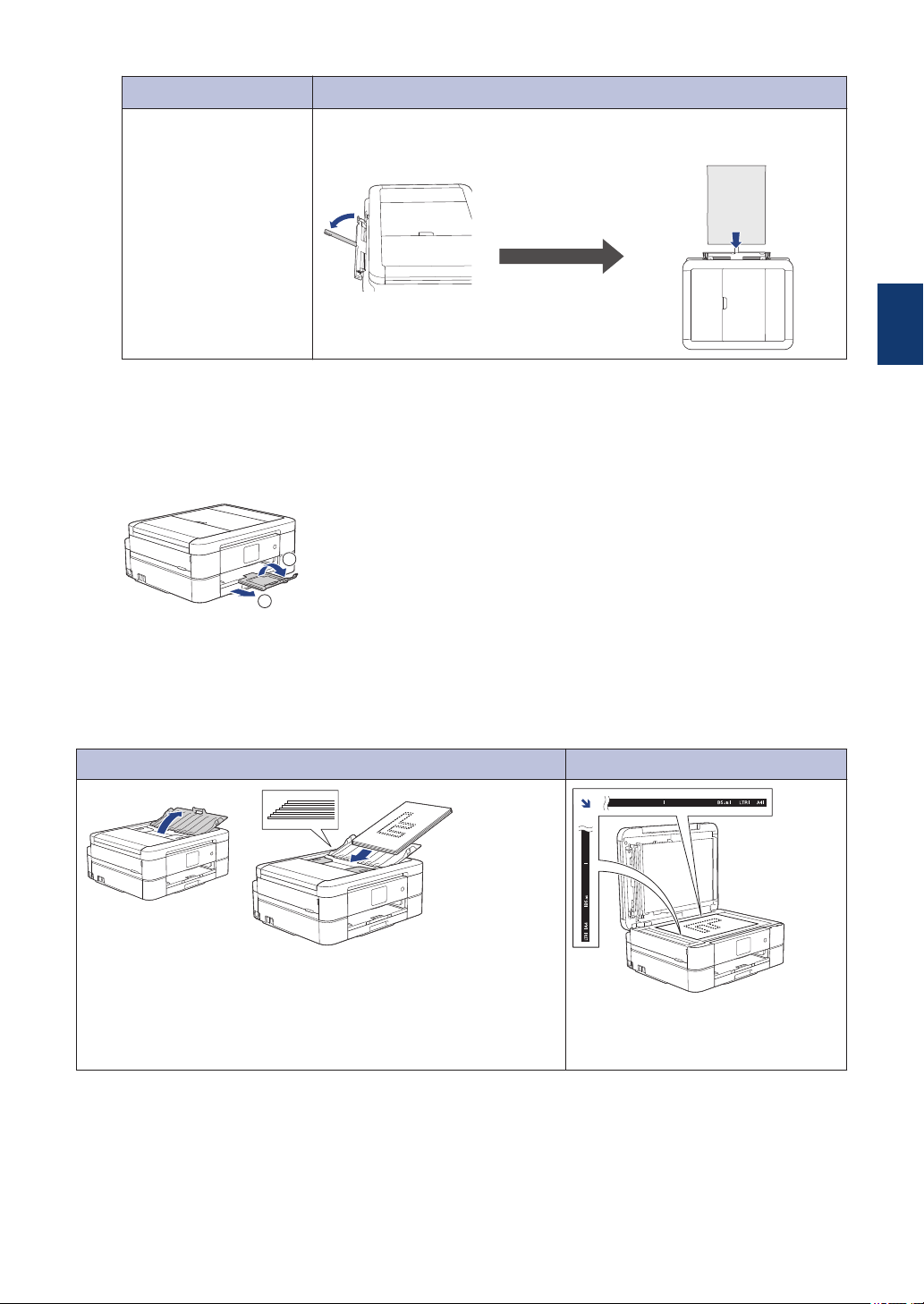
Manual Feed Slot
1
How to Load Paper
Letter/A4
Legal
Executive
A5/A6
Photo
Photo L/2L
Index card
Envelopes
Adjust the manual feed
slot paper guides.
Printing surface: Face
up
1
You can load only one sheet of paper into the manual feed slot at a time.
For more detailed information, see the Online User's Guide: Load Paper.
2
Unfold the paper support flap. Change the paper size setting in the machine's menu, if
needed.
2
1
Load Documents
Place the document in the ADF or on the scanner glass as shown in the illustration.
Automatic Document Feeder (ADF) Scanner Glass
Place your document face down in the ADF.
Place the document face down in the
upper left corner of the scanner
glass.
2
Paper Handling
7
Print from Your
Computer
Before attempting any printing operation,
confirm the following:
• Make sure you have installed the Brother
software and drivers.
• Make sure the USB or network cable is
connected correctly, or that you are
connected to the network using your
wireless access point/router.
Print a Document
(Windows
®
)
1
Select the print command in your
application.
2
Select Brother MFC-XXXX Printer
(where XXXX is the name of your
model).
3
Click Print.
4
Complete your print operation.
Print a Document (Mac)
1
From an application, such as Apple
TextEdit, click the File menu, and then
select Print.
2
Select Brother MFC-XXXX (where
XXXX is the name of your model).
3
Click Print.
4
Complete your print operation.
Various Printing
To use the various printing features, click the
printing properties or preferences button to
change the printer setting.
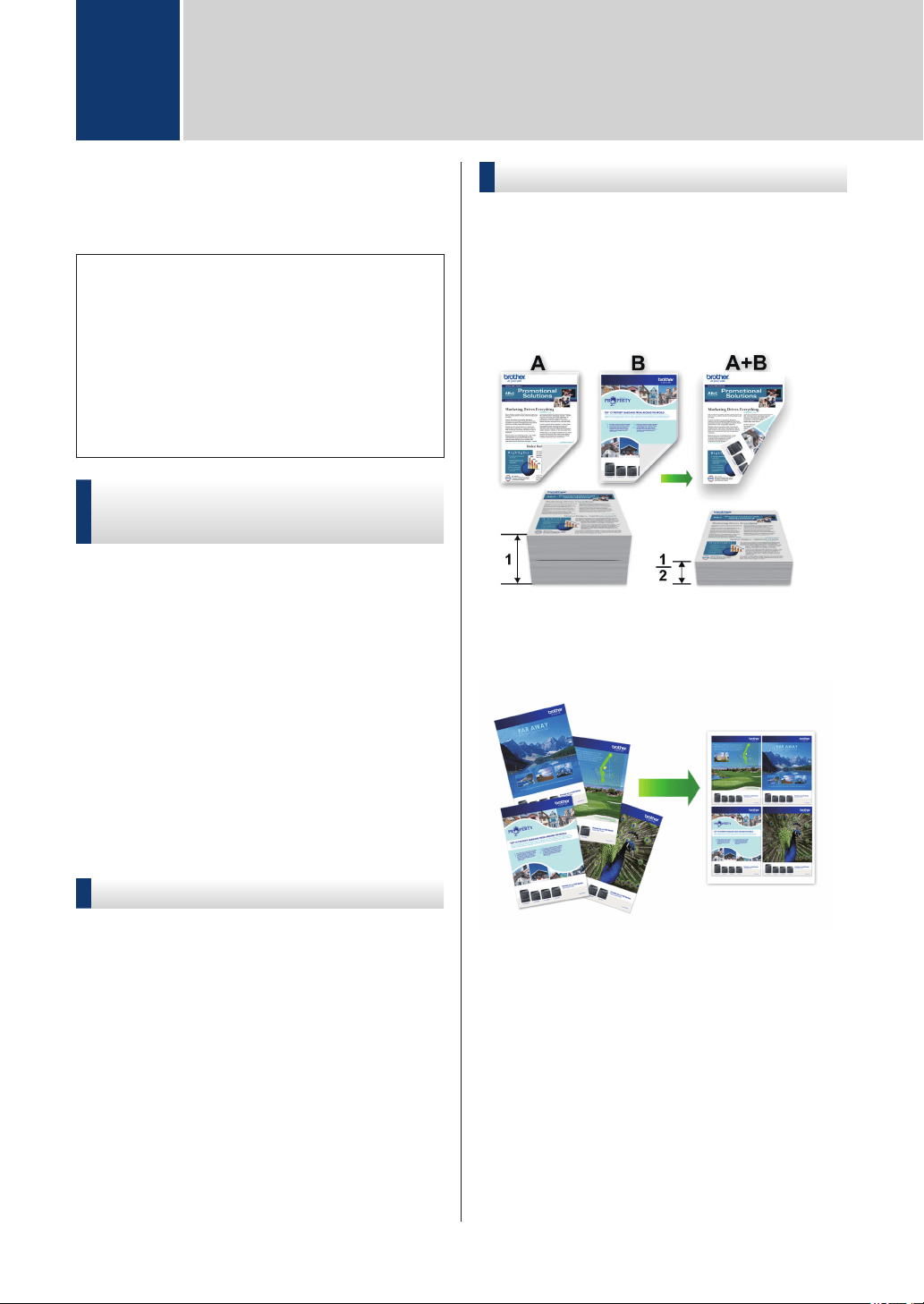
Print on Both Sides of the Paper
Automatically
Print More Than One Page on a Single
Sheet of Paper (N in 1)
For Windows
®
:
For more detailed information, see the Online
User's Guide: Print from Your Computer
(Windows
®
).
For Mac:
For more detailed information, see the Online
User's Guide: Print from Your Computer
(Mac).
3
Print
8

Copy a Document
1
Make sure you have loaded the correct
size paper in the paper tray.
2
Load your document.
3
Press [Copy].
The touchscreen displays:
4
Change the copy settings, if needed.
When you load paper other than Letter
size Plain Paper, you must change the
[Paper Size] and [Paper Type]
settings by pressing [Options].
• (No. of Copies)
Press to display the
keyboard on the touchscreen, and
then enter the number of copies
using the touchscreen keyboard.
Press [OK].
You can also press [-] or [+] on
the touchscreen.
• [Options]
Press to change the copy
settings for the next copy only.
When finished, press [OK].
After you have finished choosing new
options, you can save them by pressing
the [Save as Shortcut] button.
5
Press [Black Start] or [Color
Start].
To stop copying, press .
4
Copy
4
Copy
9
Other Copy Options
You can use various copy features by
changing copy settings. Press the
[Options] button.
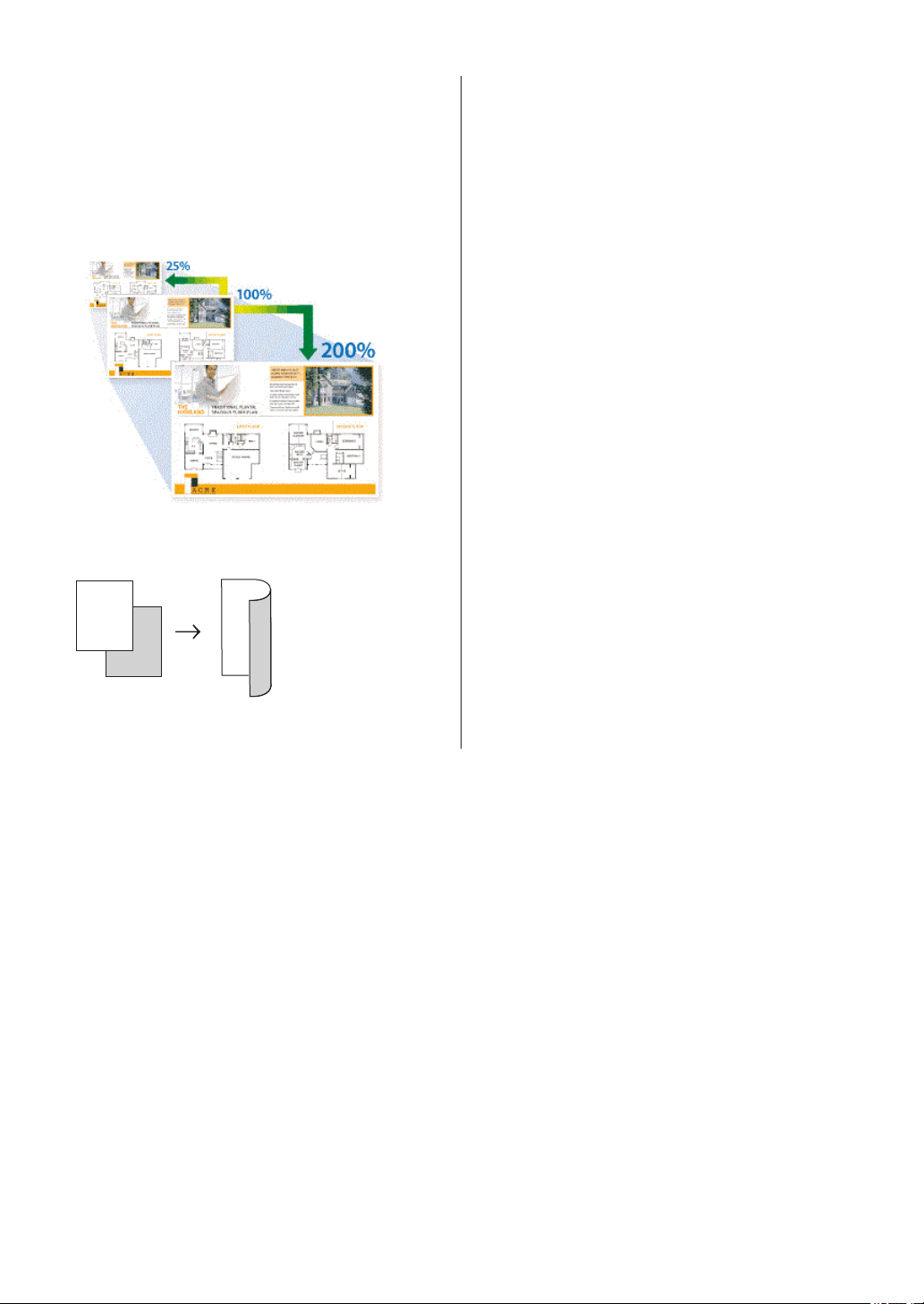
Enlarge or Reduce Copied Images
2-sided Copy
1
2
1
2
For more detailed information, see the Online
User's Guide: Copy.
10

Before Scanning
Before attempting to scan, confirm the
following:
• Make sure you have installed the Brother
software and drivers.
• Make sure the USB or network cable is
connected correctly, or that you are
connected to the network using your
wireless access point/router.
Scan from Your
Computer
There are several ways you can use your
computer to scan photos and documents on
your Brother machine. Use the software
applications provided by Brother, or use your
favorite scanning application.
For more detailed information, see the Online
User's Guide: Scan from Your Computer
(Windows
®
) or Scan from Your Computer
(Mac).
Scan Using the Scan
Button on the Machine
1
Load your document.
2
Press [Scan] > [to PC] > [to
File].
3
If the machine is connected over the
network, press a or b to display the
computer where you want to send data,
and then press the computer name.
If the LCD prompts you to enter a PIN,
use the LCD to enter the four-digit PIN for
the computer, and then press [OK].
4
Do one of the following:
• To change the settings, press
[Options] or [Set at Device],
and then go to the next step.
• Press [Start] to start scanning
without changing additional settings.
The machine starts scanning. If using
the machine's scanner glass, follow
the LCD instructions to complete the
scanning job.
To use the [Options] or [Set at
Device] settings, a computer with
ControlCenter4 (Windows
®
) or Brother
iPrint&Scan (Mac) installed must be
connected to the machine.
5
Change the scan settings you want to
change, such as scan type, resolution,
file type and document size, if needed.
When finished press [OK].
6
Press [Start].
The machine starts scanning. If using
the machine's scanner glass, follow the
LCD instructions to complete the
scanning job.
5
Scan
5
Scan
11
Print Photos Directly
from Media
Preview and Print Photos
from Media
Preview your photos on the LCD before you
print them.
1
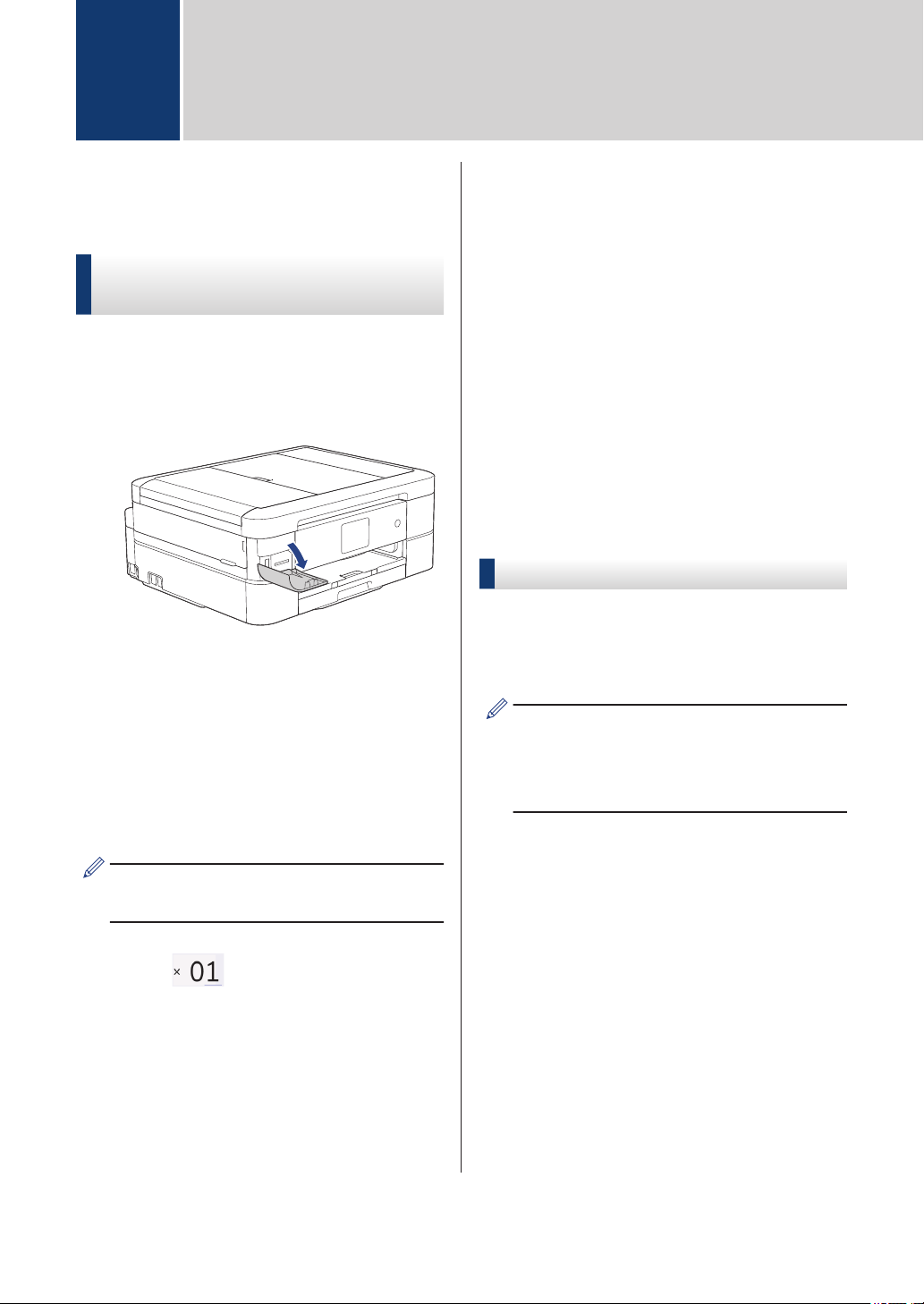
Open the media slot cover.
2
Put the memory card or USB flash drive
in the correct slot.
3
Press [Photo] > [Select Files].
4
Press d or c to display the photo you
want to print, and then press it.
To print all photos, press [Print All],
and then press [Yes] to confirm.
5
Press to display the keyboard on
the touchscreen, and then enter the
number of copies using the touchscreen
keyboard. Press [OK].
You can also press [-] or [+] on the
touchscreen.
6
Press [OK].
7
Repeat the last three steps until you
have selected all the photos you want to
print.
8
Press [OK].
9
Read and confirm the displayed list of
options.
10
To change the print settings, press
[Print Settings].
When finished, press [OK].
11
Press [Start].
Print Settings Overview
The Print Settings you change are temporary
for your current printout. The machine returns
to its default settings after printing is
complete.
You can save the print settings you use
most often by setting them as the default.
For more detailed information, see the
Online User's Guide.
6
PhotoCapture Center
12
Before Faxing
Telephone Line Interference/
VoIP
If you are having problems sending or
receiving a fax due to possible interference on
the telephone line or if you are using a VoIP
system, we recommend changing the modem
speed to minimize errors in fax operations.
1
Press [Settings] > [All
Settings] > [Initial Setup] >
[Compatibility].
2
Press the option you want.
• [Basic(for VoIP)] reduces the
modem speed to 9,600 bps and turns
off color fax receiving and Error
Correction Mode (ECM), except for
color fax-sending. Unless
interference is a recurring problem on
your telephone line, you may prefer
to use it only when needed.
To improve compatibility with most
VoIP services, Brother recommends
changing the compatibility setting to
[Basic(for VoIP)].
• [Normal] sets the modem speed at
14,400 bps.
3
Press
.
• VoIP (Voice over IP) is a type of phone
system that uses an Internet
connection, rather than a traditional
phone line.
Send a Fax
1
Load your document in the ADF or place
it on the scanner glass.
2
Press [Fax].
(MFC-J895DW)
If [Fax Preview] is set to [On], press
[Fax] > [Sending Faxes].
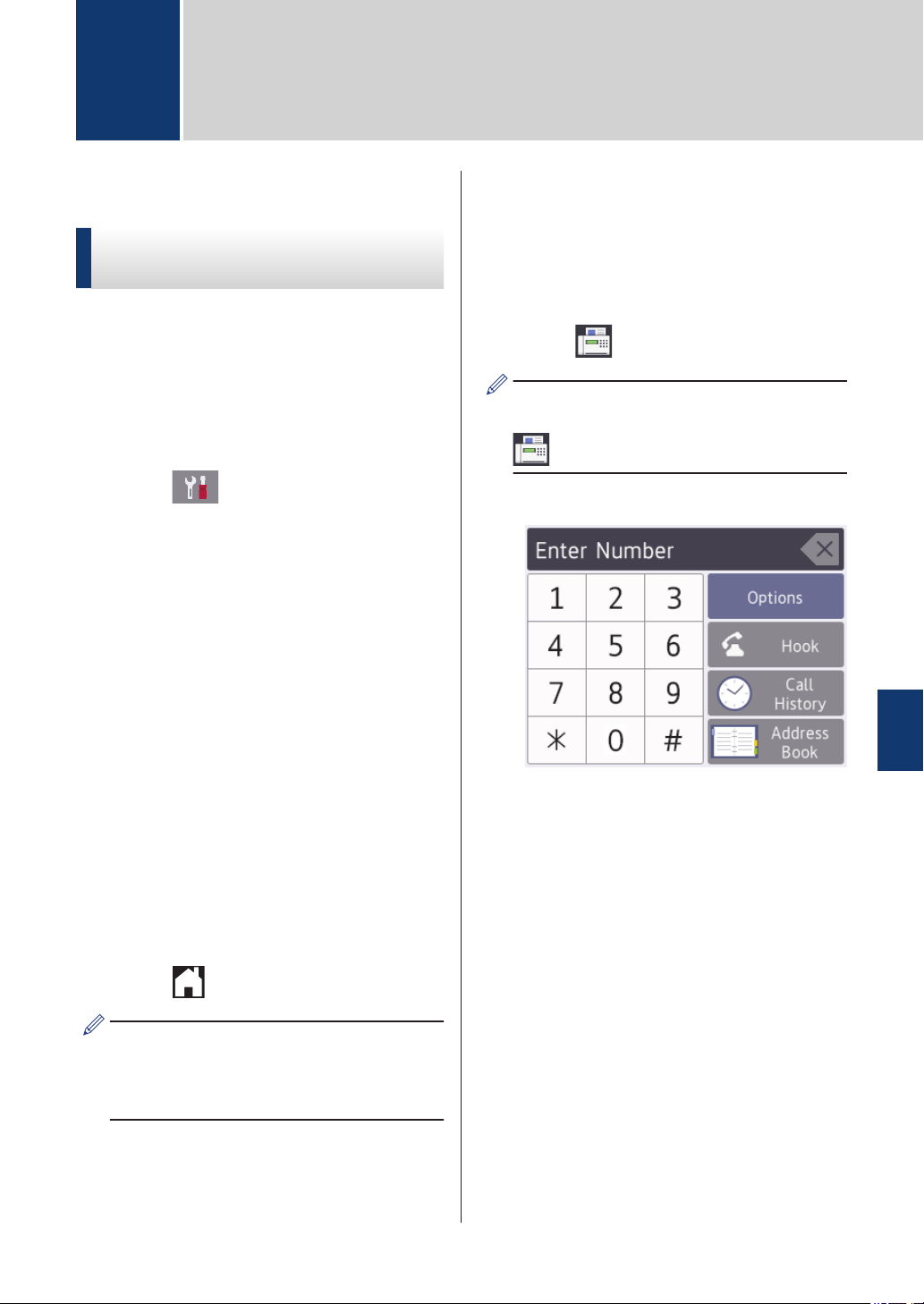
The touchscreen displays:
3
Enter the fax number in one of the
following ways:
• Dial Pad (Enter the fax number
manually.)
Press all digits of the number using
the touchscreen.
• [Call History]
Press [Redial], [Outgoing
Call] or [Caller ID History].
If you select [Outgoing Call] or
[Caller ID History], select the
number you want, and then press
[Apply].
• [Address Book]
Press [Address Book].
Do one of the following:
7
Fax
7
Fax
13

- Select the number you want, and
then press [Apply].
- Press , and then enter the first
letter of the name and press
[OK]. Press the name you want to
dial. If the name has two numbers,
press the number you want. Press
[Apply].
For more detailed information on how
to store address book numbers, see
the Online User's Guide.
4
To change the fax settings, press
[Options].
When finished, press [OK].
5
Press [Fax Start].
• If you are using the ADF, the machine
starts scanning and sending the
document.
• If you are using the scanner glass
and selected [Black] in the
[Color Setting], the machine
starts scanning the first page.
Go to the next step.
• If you are using the scanner glass
and selected [Color] in the
[Color Setting], the touchscreen
asks if you want to send a color fax.
Press [Yes (Color fax)] to
confirm. The machine starts dialing
and sending the document.
6
When the touchscreen displays [Next
page?], do one of the following:
• Press [No] when finished scanning
pages. The machine starts sending
the document.
• Press [Yes] to scan another page.
Place the next page on the scanner
glass, and then press [OK]. The
machine starts scanning the page.
Repeat this step for each additional
page.
Choose the Correct
Receive Mode
The correct Receive Mode for you is
determined by the external devices and
telephone subscriber services (Voice Mail,
Distinctive Ring and so on) you will be using
on the same line as the Brother machine.
Will you be using a Distinctive Ring
number for receiving faxes? (USA and
Canada only)
Brother uses the term "Distinctive Ring" but
different telephone companies may have
other names for this service.
Will you be using Voice Mail on the same
telephone line as your Brother machine?
If you have Voice Mail on the same
telephone line as your Brother machine,
there is a strong possibility that Voice Mail
and the Brother machine will conflict with
each other when receiving incoming calls.
Select Manual Mode as your Receive
Mode.
If you do not want to answer every call
manually to determine whether it's a voice
call or a fax, contact your telephone
provider and ask about Distinctive Ring
services.
Will you be using a Telephone Answering
Device on the same telephone line as your
Brother machine?
Your external telephone answering device
(TAD) will answer every call automatically.
Voice messages are stored on the external
TAD and fax messages are printed. Select
[External TAD] as your Receive Mode.
Will you be using your Brother machine on
a dedicated fax line?
Your machine automatically answers every
call as a fax. Select [Fax Only] as your
Receive Mode.
14

Will you be using your Brother machine on
the same line as your telephone?
• Do you want to receive voice calls
and faxes automatically?
Select [Fax/Tel] mode when your
Brother machine and your telephones
share the same line.
Important Note: You cannot receive
voice messages on either Voice Mail
or an answering machine if you select
[Fax/Tel] mode.
• Do you expect to receive very few
faxes?
Select [Manual] as your Receive
Mode. You control the telephone line
and must answer every call yourself.
1
Press [Settings] > [All
Settings] > [Fax] > [Setup
Receive] > [Receive Mode].
If you cannot change the [Receive
Mode] option, make sure the Distinctive
Ring feature is set to [Off].
2
Press a or b to display the [Fax
Only], [Fax/Tel], [External
TAD], or [Manual] option, and then
press the option you want.
3
Press
.
7
Fax
15
Check the Print Quality
If faded or streaked colors and text appear or
if text is missing on your printouts, the print
head nozzles may be clogged. Print the Print
Quality Check Sheet and look at the nozzle
check pattern.
1
Press [Settings] >
[Maintenance] > [Improve Print
Quality] > [Check Print
Quality].
2
Press [Start].
The machine prints the Print Quality
Check Sheet.
3
Check the quality of the four color
blocks on the sheet.
4
The touchscreen asks about the print
quality. Do one of the following:
• If all lines are clear and visible, press
[No], and then press to finish
the Print Quality check.
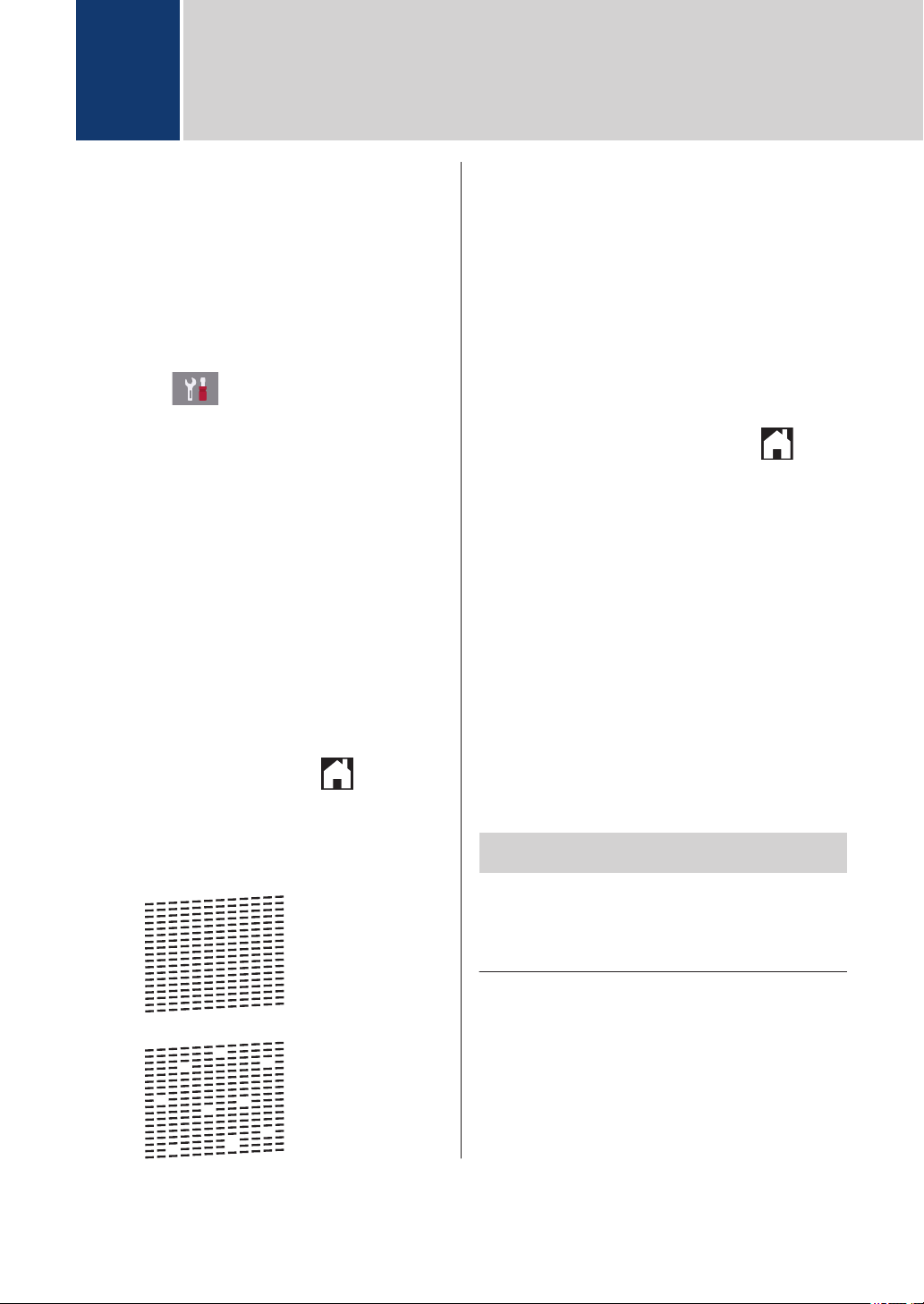
• If lines are missing (see Poor, as
follows), press [Yes].
OK
Poor
5
The touchscreen asks you to check the
print quality of each color. Press the
number of the pattern (1–4) that most
closely matches the printing result.
6
Do one of the following:
• If print head cleaning is needed,
press [Start] to start the cleaning
procedure.
• If print head cleaning is not needed,
the Maintenance screen reappears
on the touchscreen. Press .
7
After the cleaning procedure is finished,
the touchscreen asks if you want to print
the Print Quality Check Sheet again.
Press [Yes], and then press [Start].
The machine prints the Print Quality
Check Sheet again. Check the quality of
the four color blocks on the sheet again.
If you clean the print head and the print has
not improved, try installing a Genuine Brother
Brand replacement ink cartridge for each
problem color. Try cleaning the print head
again. If the print has not improved, contact
Brother Customer Service.
IMPORTANT
DO NOT touch the print head. Touching the
print head may cause permanent damage and
may void the print head's warranty.
A
Routine Maintenance
16
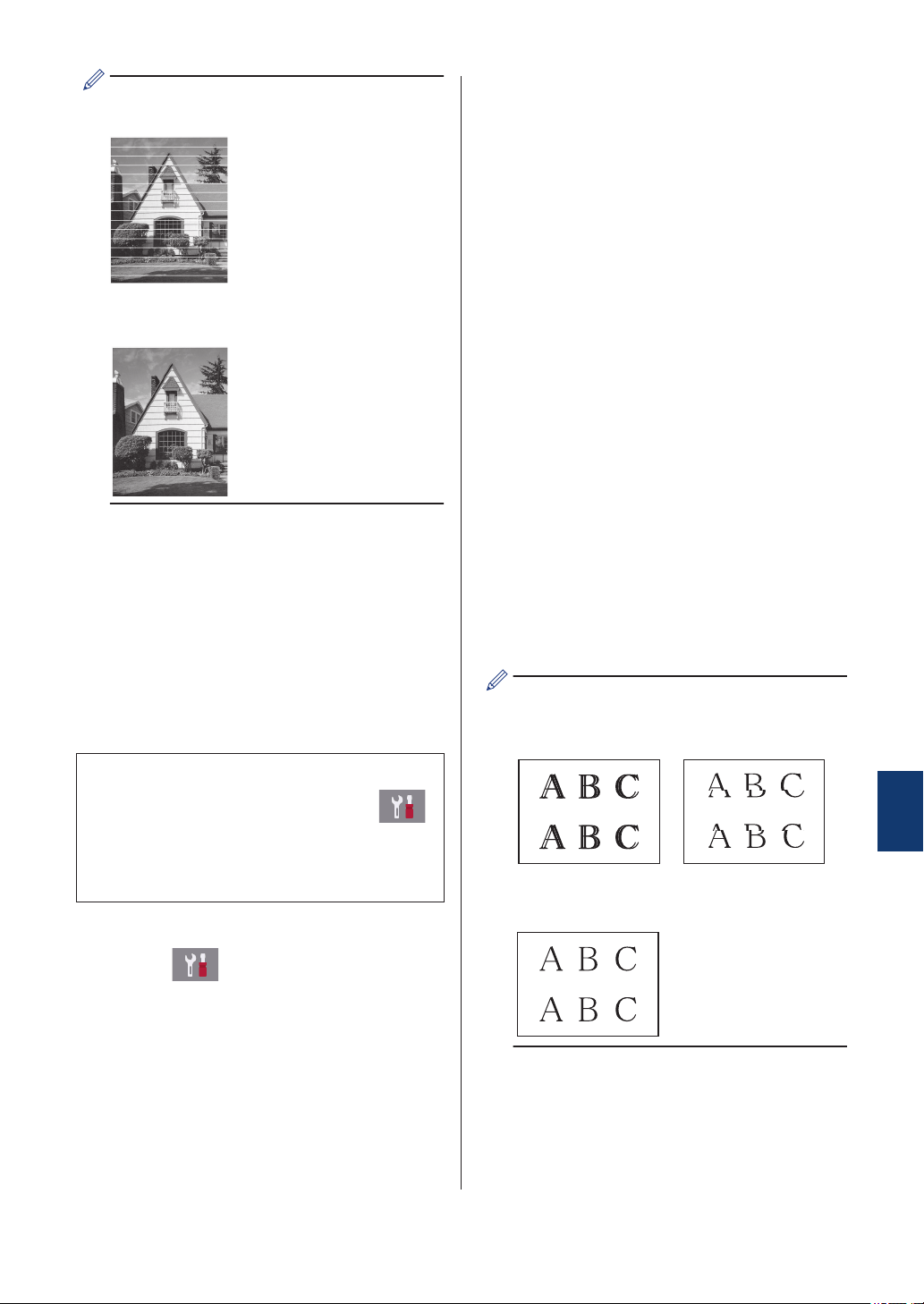
When a print head nozzle is clogged, the
printed sample looks like this.
After the print head nozzle is cleaned, the
lines are gone.
Check the Print
Alignment from Your
Brother Machine
If your printed text becomes blurred or images
become faded after transporting the machine,
adjust the print alignment.
Before adjusting the print alignment, make
a print quality check first by pressing
[Settings] > [Maintenance] >
[Improve Print Quality] > [Check
Print Quality].
1
Press [Settings] >
[Maintenance] > [Improve Print
Quality] > [Alignment].
2
Press [Next].
3
Press [Yes] after a confirmation
message if a print quality check has
been completed appears on the LCD.
4
Press [Auto] or [Manual].
5
Select the paper size to print the
alignment check sheet on.
• If you are selecting the [Manual]
mode, select either [Basic
alignment] or [Advanced
alignment] in the following step.
6
Load specified size paper in the tray,
and then press [Start].
The machine prints the Alignment
Check Sheet.
7
Follow the instructions on the LCD.
• If you are selecting the [Auto]
mode, the print alignment is
automatically adjusted by scanning
the alignment check sheet.
• If you are selecting the [Manual]
mode, you need to input information
printed on the alignment check sheet
manually.
When the print alignment is not adjusted
correctly, text looks blurry or crooked, like
this.
After the print alignment is adjusted
correctly, text looks like this.
A
Routine Maintenance
17
Use this section to resolve problems you may encounter when using your Brother machine.
Identify the Problem
Even if there seems to be a problem with your machine, you can correct most problems yourself.
First, check the following:
• The machine's power cord is connected correctly and the machine's power is on.
• All of the machine's orange protective parts have been removed.
• The ink cartridges are installed correctly.
• The Scanner Cover and the Jam Clear Cover are fully closed.
• Paper is inserted correctly in the paper tray.
• The interface cables are securely connected to the machine and the computer, or the wireless
connection is set up on both the machine and your computer.
• (For network models) The access point (for wireless), router, or hub is turned on and its link
button is blinking.
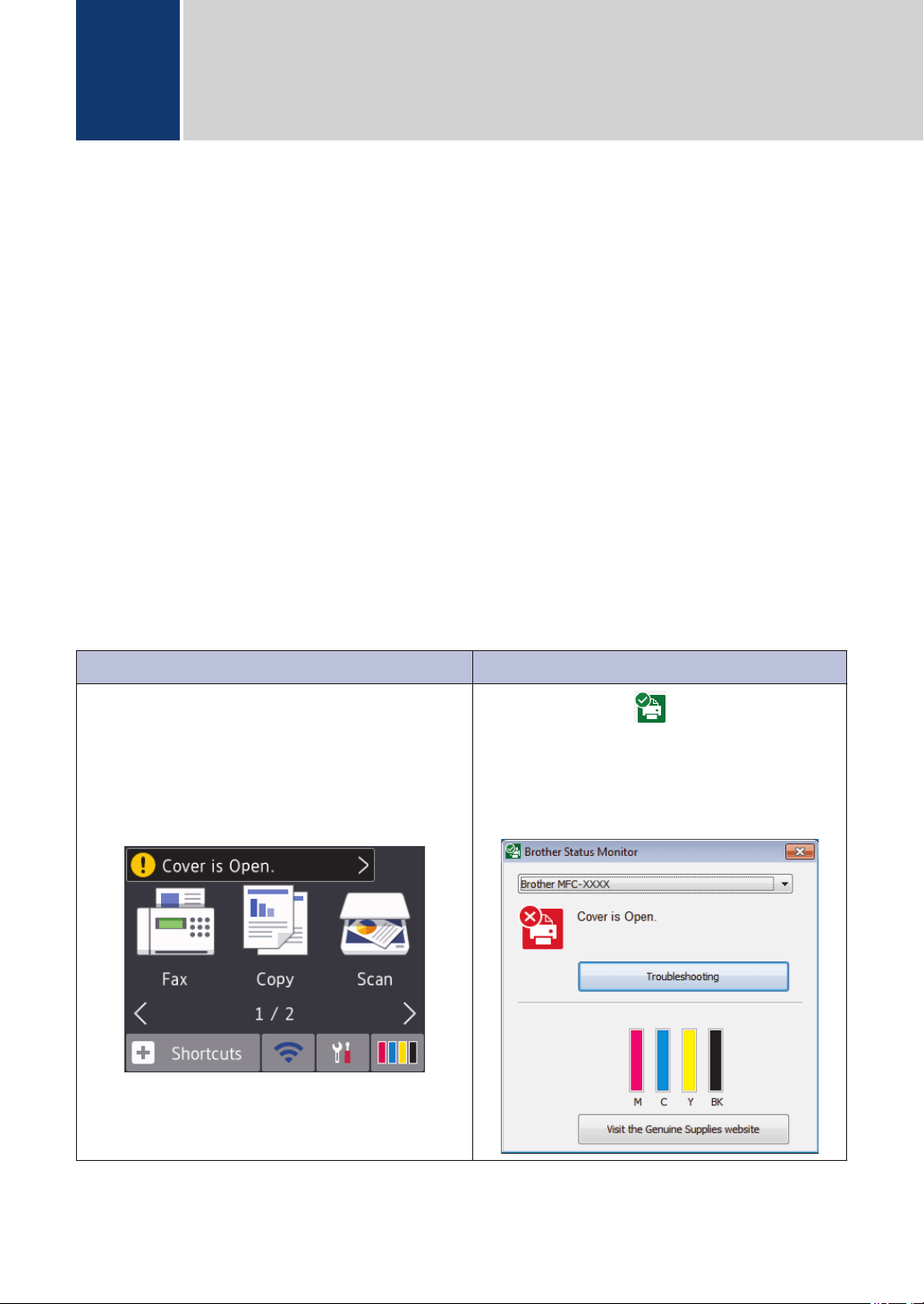
To find the error and the solution, check the LCD or the machine's status in Status Monitor on
your computer.
Using the LCD Using the Status Monitor
1. Follow the messages on the LCD.
2. See the instructions in the following Error
and Maintenance Messages table.
3. If you cannot resolve the error, see the
Online User's Guide: Error and Maintenance
Messages.
• Double-click the icon in the task tray.
• Each color of the icon indicates the
machine's status.
• Click the Troubleshooting button to
access Brother's troubleshooting website.
B
Troubleshooting
18

Error and Maintenance Messages
The most common error and maintenance messages are shown in the table. For more detailed
information, see the Online User's Guide.
You can correct most errors and perform routine maintenance yourself. If you need more tips, go
to your model's FAQs & Troubleshooting page on the Brother Solutions Center at
support.brother.com.
(MFC-J895DW)
If the touchscreen displays error messages and your Android
™
device supports the NFC
feature, touch your device to the NFC symbol on the control panel to access the Brother
Solutions Center and browse the latest FAQs from your device. (Your mobile telephone
provider's message and data rates may apply.)
Make sure the NFC settings of both your Brother machine and your Android
™
device are set
to On.
Error Message Action
B&W Print Only
Replace ink.
One or more of the color ink cartridges have reached the end of their
lives.
Replace the ink cartridges.
For more detailed information, see the Online User's Guide: Replace
the Ink Cartridges.
The machine may stop all print operations and you may not be able to
use the machine until you install a new ink cartridge in the following
cases:
• If you unplug the machine or remove the ink cartridge.
• If you select the Slow Drying Paper option on the machine or in
the printer driver.
Cannot Detect
Remove the used ink cartridge and install a new one.
Use a new Genuine Brother Ink Cartridge. If the error is not cleared,
call Brother Customer Service.
Take out the new ink cartridge and reinstall it slowly and firmly until it
locks into place.
For more detailed information, see the Online User's Guide: Replace
the Ink Cartridges.
Slowly turn the ink cartridge so that the ink supply port is pointing
downward, and then reinstall the cartridge.
Check the model numbers of the ink cartridges and install the correct
ink cartridges.
See Related Information: Supply Specifications at the end of this
section.
Cannot Detect Ink
Volume
Use a new Genuine Brother Ink Cartridge. If the error is not cleared,
call Brother Customer Service.
B
Troubleshooting
19
Error Message Action
Data Remaining in
Memory
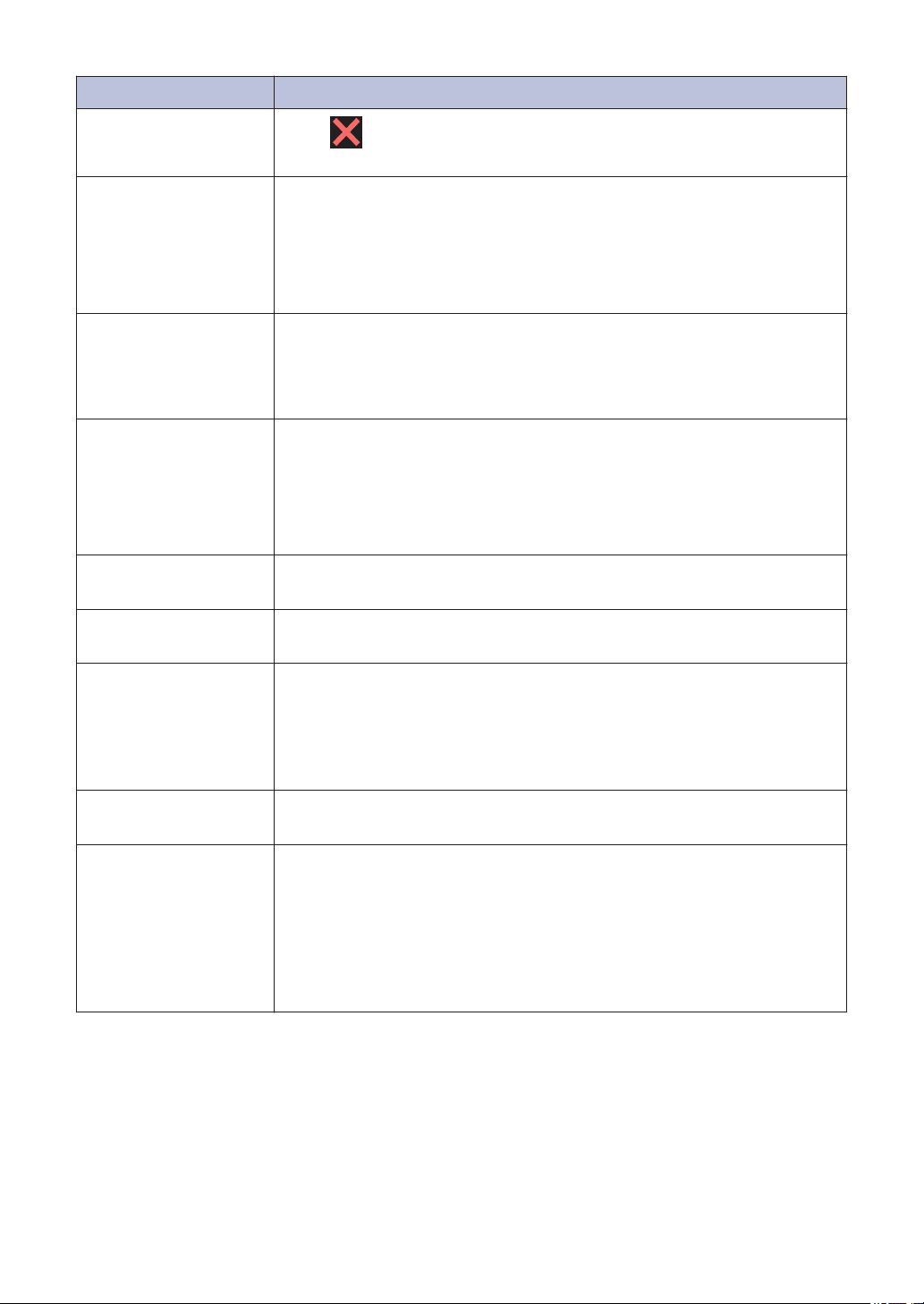
Press . The machine will cancel the job and clear it from the
memory. Try to print again.
Disconnected
Try to send or receive again.
If calls are stopped repeatedly and you are using a VoIP (Voice over
IP) system, try changing the Compatibility to Basic (for VoIP).
See Related Information: Telephone Line Interference/VoIP at the end
of this section.
Document Jam/too
Long
The document was not inserted or fed correctly, or the document
scanned from the ADF was too long.
For more detailed information, see the Online User's Guide: Document
Jams.
DR Mode in Use
The machine is in Distinctive Ring mode. You cannot change the
Receive Mode from Manual to another mode.
Set Distinctive Ring to Off.
For more detailed information, see the Online User's Guide: Turn off
Distinctive Ring.
High Temperature
After cooling the room, allow the machine to cool down to room
temperature. Try again when the machine has cooled down.
Hub is Unusable.
Hubs, including a USB flash drive with a built-in hub, are not
supported. Unplug the device from the USB direct interface.
Ink Absorber
NearFull
The ink absorber box must be replaced soon. Call Brother Customer
Service or a Brother Authorized Service Center to have your machine
serviced.
• The ink absorber box absorbs the small amount of ink emitted
during print head cleaning.
Ink Absorber Pad
Full
The ink absorber box must be replaced. Call Brother Customer Service
or a Brother Authorized Service Center to have your machine serviced.
Ink Low
One or more of the ink cartridges are near the end of their lives.
Order a new ink cartridge. You can continue printing until the
touchscreen displays Replace Ink.
For more detailed information, see the Online User's Guide: Replace
the Ink Cartridges.
• You can still scan even if the ink is low or needs to be replaced.
20

Error Message Action
Jam A Inside/
Front
Repeat Jam A
Inside/Front
Remove the jammed paper.
For more detailed information, see the Online User's Guide: Printer
Jam or Paper Jam.
Make sure the paper guides are set to the correct paper size.
DO NOT extend the paper tray when you load A5 or smaller size
paper.
Do not put more than one sheet of paper in the manual feed slot at any
one time. Wait until the touchscreen prompts you to load another sheet
of paper before you feed the next sheet of paper in the manual feed
slot.
Jam B Front
Repeat Jam B
Front
Remove the jammed paper.
For more detailed information, see the Online User's Guide: Printer
Jam or Paper Jam.
Make sure the paper guides are set to the correct paper size.
DO NOT extend the paper tray when you load A5 or smaller size
paper.
Jam C Rear
Remove the jammed paper.
For more detailed information, see the Online User's Guide: Printer
Jam or Paper Jam.
Make sure the paper guides are set to the correct paper size.
DO NOT extend the paper tray when you load A5 or smaller size
paper.
Clean the paper pick-up rollers.
For more detailed information, see the Online User's Guide: Clean the
Paper Pick-up Rollers.
Low Temperature
After warming the room, allow the machine to warm up to room
temperature. Try again when the machine has warmed up.
Media is Full.
Your machine can only save to your memory card or USB flash drive if
it contains fewer than 999 files. Delete unused files and try again.
Delete unused files from your memory card or USB flash drive to make
some free space, and then try again.
No Caller ID
There is no incoming call history. You did not receive calls or you have
not subscribed to the Caller ID service from your telephone company.
To use the Caller ID feature, call your telephone company.
For more detailed information, see the Online User's Guide: Caller ID.
No Ink Cartridge
Remove the new ink cartridge and re-install it slowly and firmly until it
locks into place.
For more detailed information, see the Online User's Guide: Replace
the Ink Cartridges.
B
Troubleshooting
21
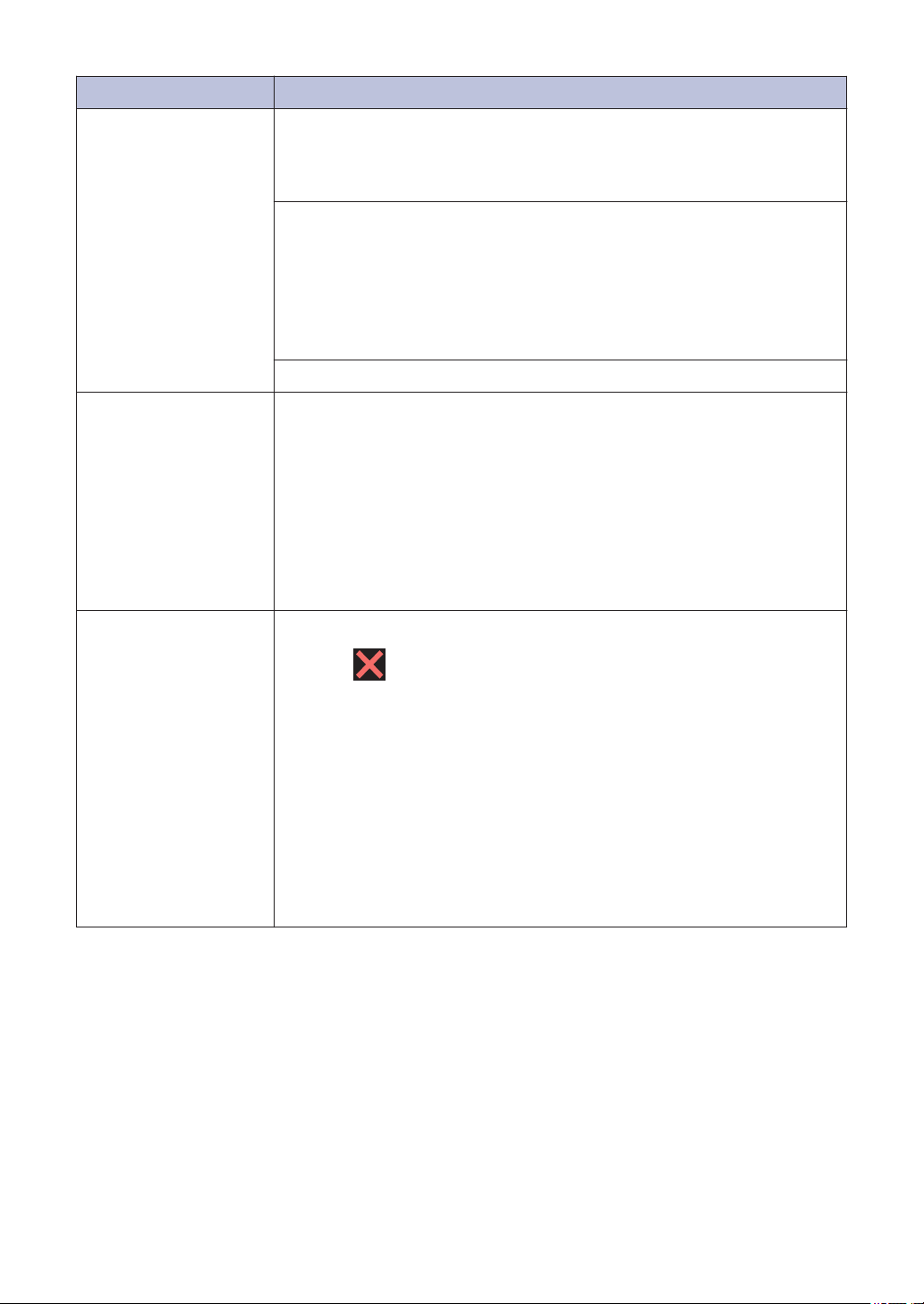
Error Message Action
No Paper Fed
Do one of the following:
• Refill the paper tray, and then follow the LCD instructions.
• Remove and reload the paper, and then follow the LCD instructions.
The paper was not inserted in the center position of the manual feed
slot.
Remove the paper and reinsert it in the center of the manual feed slot,
and then follow the LCD instructions.
For more detailed information, see the Online User's Guide: Load
Paper in the Manual Feed Slot.
The Jam Clear Cover is not closed correctly.
Out of Fax Memory
Do one of the following:
• Clear the data from the memory. To gain extra memory, you can
turn off Memory Receive.
For more detailed information, see the Online User's Guide: Turn
Off Memory Receive.
• Print the faxes stored in the memory.
For more detailed information, see the Online User's Guide: Print a
Fax Stored in the Machine's Memory.
Out of Memory
If a fax-sending or copy operation is in progress:
• Press or Quit or Close and wait until the other operations
that are in progress finish, and then try again.
• Press Partial Print to copy the pages scanned so far.
• Clear the data in the memory. To gain extra memory, you can turn
off Memory Receive.
For more detailed information, see the Online User's Guide: Turn
Off Memory Receive.
• Print the faxes stored in the memory.
For more detailed information, see the Online User's Guide: Print a
Fax Stored in the Machine's Memory.
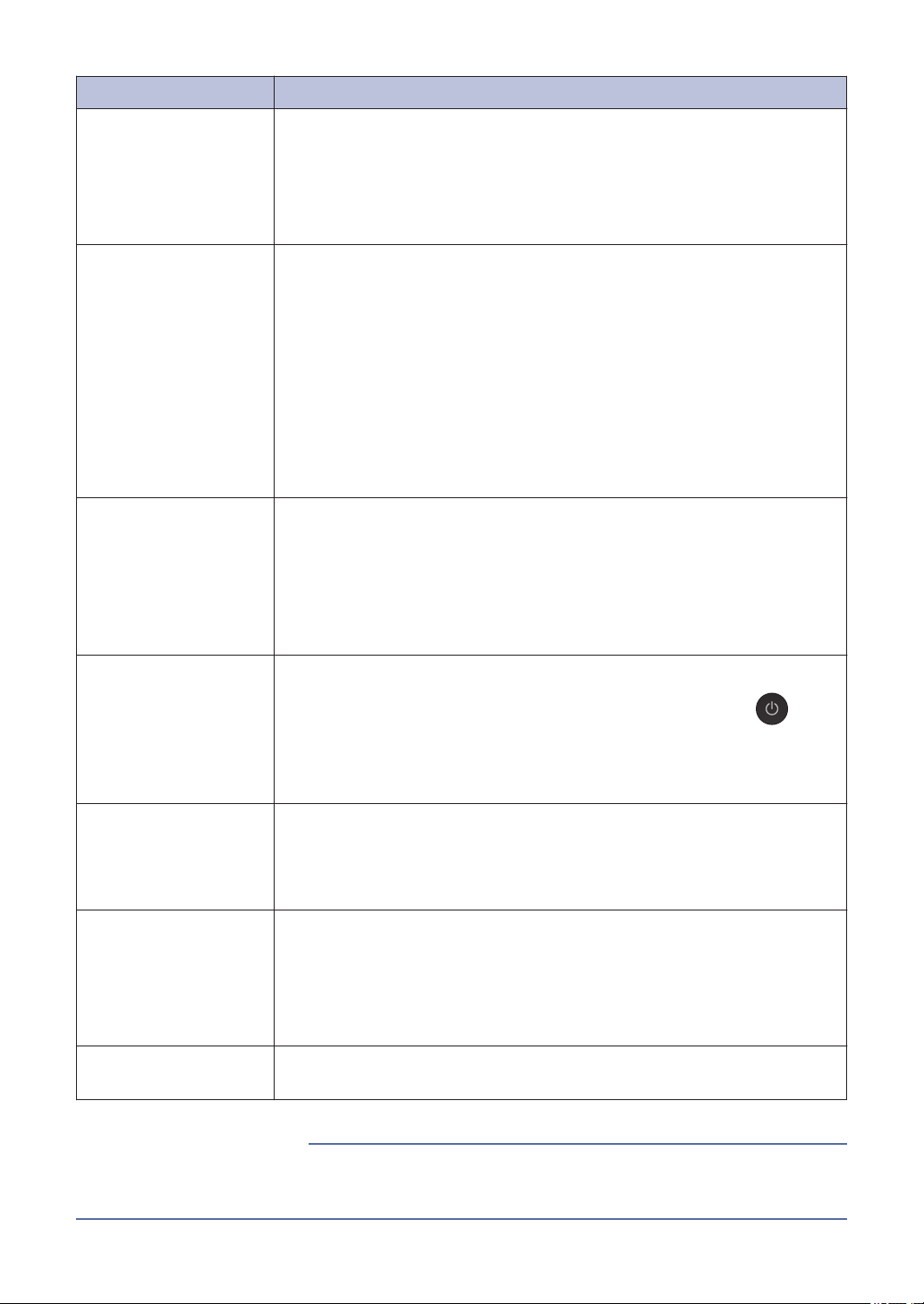
22

Error Message Action
Paper Size
Mismatch
1. Check that the paper size you selected on the machine's display
matches the size of the paper in the tray.
For more detailed information, see the Online User's Guide:
Change the Paper Size and Paper Type.
2. Make sure you loaded the paper in the correct orientation and set
the paper guides at the indicators for your paper size.
For more detailed information, see the Online User's Guide: Load
Paper.
3. After you have checked the paper size and the paper orientation,
follow the LCD instructions.
If printing from your computer, make sure the paper size you selected
in the printer driver matches the size of paper in the tray.
For more detailed information, see the Online User's Guide: Print
Settings (Windows
®
) or Print Options (Mac).
Paper Tray not
detected
Slowly push the paper tray completely into the machine.
Paper or a foreign object has prevented the paper tray from being
inserted correctly.
Pull the paper tray out of the machine, and remove the jammed paper
or foreign object. If you cannot find or remove the jammed paper, see
the Online User's Guide: Printer Jam or Paper Jam.
Repetitive No
Paper Fed
Clean the paper pick-up rollers.
For more detailed information, see the Online User's Guide: Clean the
Paper Pick-up Rollers.
The photo bypass tray is in the wrong position.
Return the photo bypass tray to the Normal printing position when you
use cut sheet paper.
Replace Ink
One or more of the ink cartridges have reached the end of their lives.
Replace the ink cartridges.
For more detailed information, see the Online User's Guide: Replace
the Ink Cartridges.
• You can still scan even if the ink is low or needs to be replaced.
Touchscreen Init.
Failed
The touchscreen was pressed before the power on initialization was
completed.
Make sure nothing is touching or resting on the touchscreen,
especially when plugging the machine in.
Debris may be stuck between the lower part of the touchscreen and its
frame.
Insert a piece of stiff paper between the lower part of the touchscreen
and its frame and slide it back and forth to push out the debris.
B
Troubleshooting
23
Error Message Action
Tray Settings
This message is displayed when the setting to confirm the paper type
and size is enabled.
To not display this confirmation message, change the setting to Off.
For more detailed information, see the Online User's Guide: Change
the Check Paper Size Setting.
Unable to Clean
XX
Unable to
Initialize XX
Unable to Print
XX
A foreign object, such as a paper clip or a piece of ripped paper, is in
the machine.
Open the scanner cover and remove any foreign objects and paper
scraps from inside the machine. If the error message continues,
disconnect the machine from the power for several minutes, and then
reconnect it.
If you cannot print received faxes, transfer them to another fax
machine or to your computer.
For more detailed information, see the Online User's Guide: Transfer
Your Faxes or Fax Journal Report.
Unable to Scan XX
Disconnect the machine from the power for several minutes, and then
reconnect it.
If you cannot print received faxes, transfer them to another fax
machine or to your computer.
For more detailed information, see the Online User's Guide: Transfer
Your Faxes or Fax Journal Report.
Unusable Device
Disconnect device
from front
connector & turn
machine off &
then on
A broken device is connected to the USB direct interface.
Unplug the device from the USB direct interface, then press to
turn the machine off and then on again.
Unusable Device
Please disconnect
USB device.
A USB device or USB flash drive that is not supported has been
connected to the USB direct interface.
Unplug the device from the USB direct interface. Turn the machine off
and then on again.
Wrong Ink
Cartridge
The ink cartridge model number is not compatible with your machine.
Verify whether the cartridge model number will work with your
machine.
See Related Information: Supply Specifications at the end of this
section.
Wrong Ink Color
Check which ink cartridges are not matched by color to their ink
cartridge positions and move them to their correct positions.
• Telephone Line Interference/VoIP on page 13
• Supply Specifications on page 25
Related Information
24
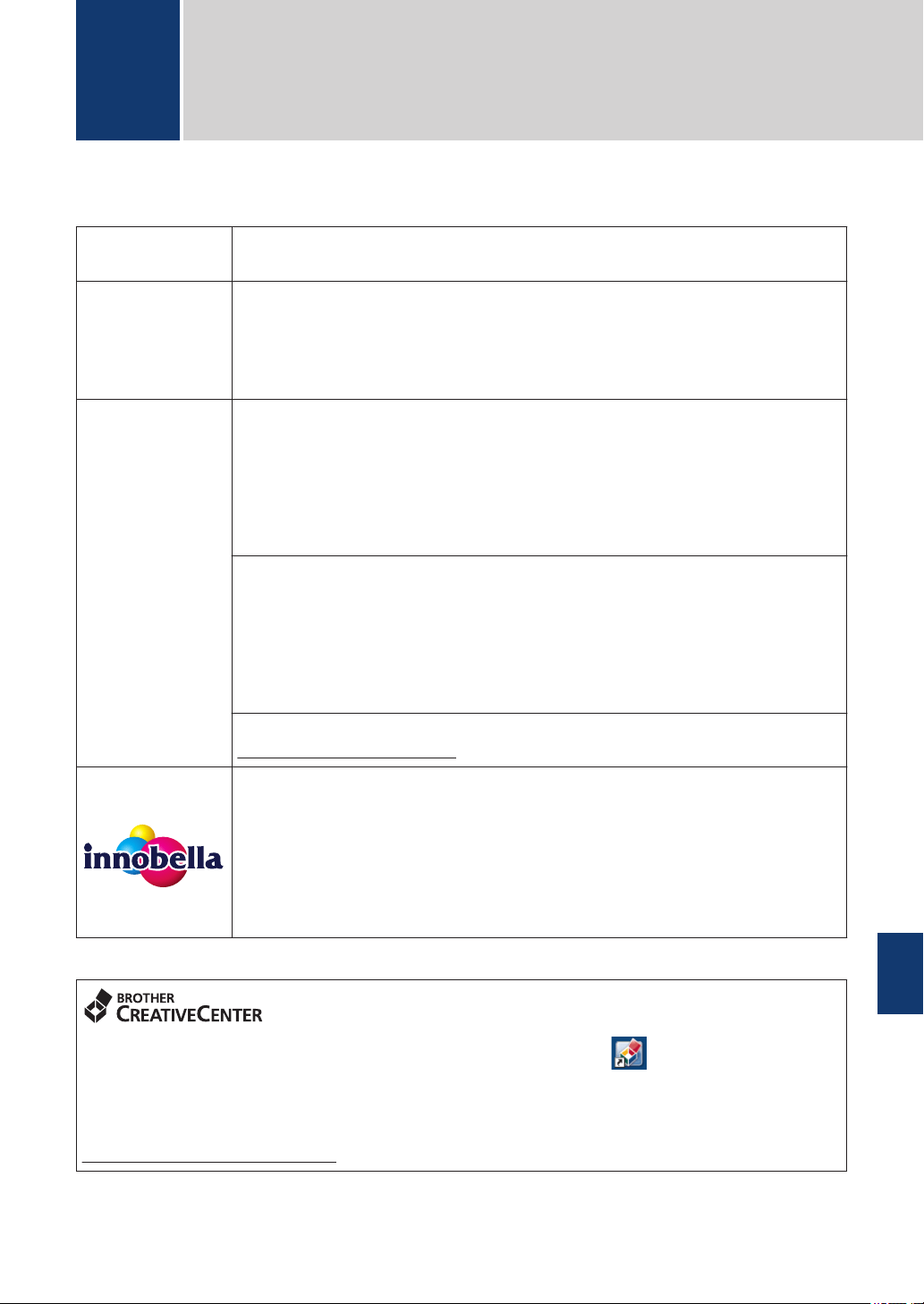
Supply Specifications
Ink The machine uses individual Black, Yellow, Cyan and Magenta ink
cartridges that are separate from the print head assembly.
Service Life of
Ink Cartridge
The first time you install the ink cartridges, the machine will use extra ink to
fill the ink delivery tubes. This is a one-time process that enables high-
quality printing. Replacement ink cartridges will print the number of pages
specified later in this table. Starter cartridge yield is approximately the same
as that of the LC3011 replacement cartridges.
Replacement
Supplies
<Standard Yield Black> LC3011BK
<Standard Yield Yellow> LC3011Y
<Standard Yield Cyan> LC3011C
<Standard Yield Magenta> LC3011M
Black, Yellow, Cyan and Magenta - Approximately 200 pages
1
<High Yield Black> LC3013BK
<High Yield Yellow> LC3013Y
<High Yield Cyan> LC3013C
<High Yield Magenta> LC3013M
Black, Yellow, Cyan and Magenta - Approximately 400 pages
1
For more information about replacement supplies, visit us at
www.brother.com/pageyield
What is
Innobella?
Innobella is a range of genuine supplies offered by Brother. The name
"Innobella" derives from the words "Innovation" and "Bella" (meaning
"Beautiful" in Italian) and is a representation of the "innovative" technology
providing you with "beautiful" and "long lasting" print results.
When you print photo images, Brother recommends Innobella glossy photo
paper (BP71 series) for high quality. Brilliant prints are made easier with
Innobella Ink and paper.
1
Approx. cartridge yield is declared in accordance with ISO/IEC 24711
If using Windows
®
, double-click the Brother Creative Center icon on your desktop to
access our FREE website designed as a resource to help you easily create and print
customized materials for business and home use with photos, text and creativity.
Mac users can access Brother CreativeCenter at this web address:
www.brother.com/creativecenter
C
Appendix
C
Appendix
25
Brother International Corporation
200 Crossing Boulevard
P.O. Box 6911
Bridgewater, NJ 08807-0911 USA
Brother International Corporation (Canada) Ltd.
1 rue Hôtel de Ville,
Dollard-des-Ormeaux, QC, Canada H9B 3H6
Visit us on the World Wide Web
www.brother.com
These machines are approved for use in the country of purchase only. Local Brother
companies or their dealers will support only machines purchased in their own countries.
Made from 100% recycled paper
(excludes cover)
D00YAG001-00
USA/CAN
Version 0