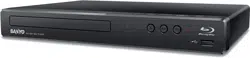
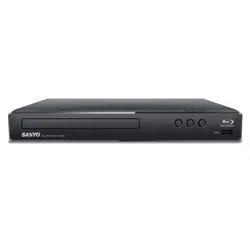
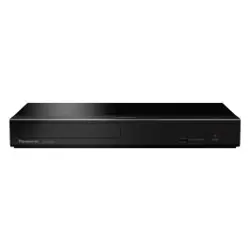
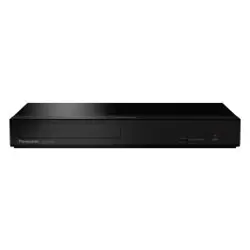
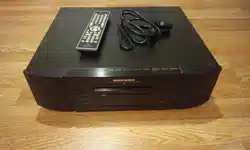
User manual DVD Player
FUNCTIONAL OVERVIEW
Front panel
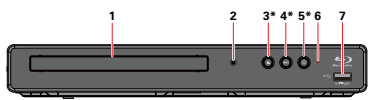
The unit can also be turned on by pressing this button.
1. Disc tray
2. Infrared sensor window
3.  (OPEN/CLOSE) button*
4.  (PLAY/PAUSE) button*
• Press to start playback.
• During playback, press to pause playback.
5.  (POWER) button*
6. Power-on indicator
7. USB input
Caution:
- Do not connect any device other than USB memory stick or USB card reader into the USB input. (e.g. PC, external HDD, digital camera, keyboard, mouse, USB-hub, etc.)
- When connecting a USB memory stick, connect it directly to the USB input. Do not use a USB extension cable.
Note: Due to new ENERGY STAR® requirements, this unit will automatically turn on the screen saver after 5 minutes of inactivity and enter standby mode after 25 minutes of inactivity.
Rear panel
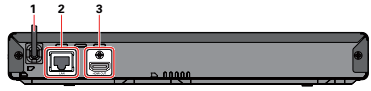
1. AC power cord
2. LAN terminal
3. HDMI OUT jack
Caution:
- Do not touch the inner pins of the jacks on the rear panel. Electrostatic discharge may cause permanent damage to the unit.
- This unit does not have a TV RF modulator.
CONNECTIONS
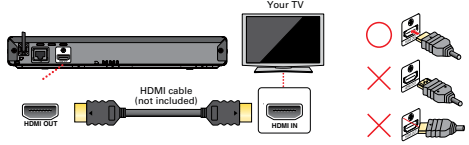
Connection to a TV
HDMI connection (Supports up to 1080i(*1), 1080p(*2), 1080p/24(*3) resolution.)
|
(*1) 1080i:
|
Outputs video data with a frame rate of 30 frames per second.
|
| (*2) 1080p: |
Outputs video data with a frame rate of 60 frames per second. |
| (*3) 1080p/24: |
Outputs video data with a frame rate of 24 frames per second. To enable 1080p/24 output, set “Resolution” to “Auto” or “1080p”, and set “HDMI1080p 24Hz” to “On”. |
- Do not tilt the connector when inserting it into the HDMI jack, and make sure the shapes of the jack and the connector are matched.
- When connected to an HDCP incompatible display device, the picture will not be displayed properly.
- Use an HDMI cable with the HDMI logo (a certified HDMI cable) for this connection. High Speed HDMI cable (also known as HDMI category 2 cable) is recommended for better compatibility.
Note
- If the TV receives no audio / video signal after properly connecting the unit and the TV with an HDMI cable, it may be the TV. Please refer to the TV’s user’s manual.
- If the TV receives no audio signal after properly connecting the unit and the TV with an HDMI cable, make sure the TV input is not an HDMI-DVI input terminal.
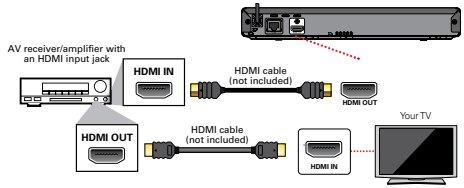
Connection to an audio system
- When you change the connections, all devices should be turned off.
- When connecting the unit to an external audio system, refer to the user manual for setup / configuration help.
HDMI audio connection
Connection to the network
By connecting this unit to the Internet, you can update its software via the Internet, access BD-Live™ and other network services such as Netflix, VUDU and YouTube™.
- Software update: For more information, refer to “Network update” on page 55.
- BD-Live™: For more information, refer to “Enjoying BD-Live™ discs using Internet” on page 30.
- Netflix / VUDU / YouTube™ : For more information, refer to “Information on network services” on page 37
Note:
- A wired connection is the preferred method of connecting this unit to the Internet, especially while performing a software update of this unit via the Internet. It also provides a more stable connection while streaming HD video versus wireless LAN. Wireless LAN performance could be unstable if there are other devices near this unit which also operate in the same frequency spectrum.
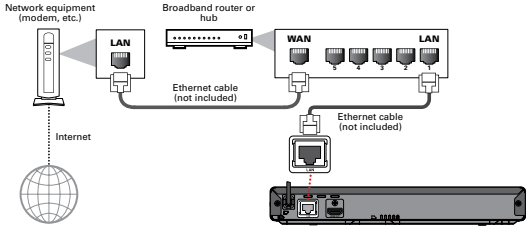
Wired connection
Caution
- Do not insert any cable other than an ethernet cable to the LAN terminal to avoid damaging the unit.
- Do not connect your PC directly to the LAN terminal of this unit.
Note:
- When you connect an ethernet cable from a router with Internet access to this unit, it will automatically configure network settings. (You do not need to manually configure network settings unless particular settings are required.) however, when switching from wireless to wired, you need to select “Ethernet” in the setup.
- If your modem does not have router functions, connect a wired router.
- If your modem has router functions but there is no vacant port, add a switch / hub.
- Please purchase shielded ethernet cables at your local store and use them when you connect to network equipment.
Wireless connection
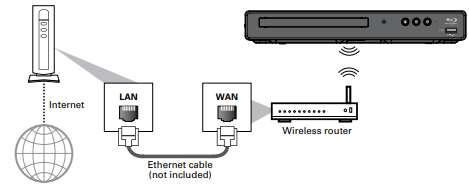
Note:
- If using the wireless connection, refer to “Wireless connection” on page 45 to configure network settings. For a wireless router, use a router that supports IEEE 802.11 b/g/n specifications. (“n” is preferred type for a faster stable operation of the wireless network.)
- Our player supports infrastructure mode when using a wireless router. This unit does not support ad-hoc mode.
- Other radio devices or obstacles may cause interference to the wireless network connection.
- If you are experiencing signal issues with your wireless connection, please confirm that your wireless router is placed close enough to the unit.
BEFORE YOU START
Finding a viewing HDMI input on your TV
After you have completed all of the connections to your TV, review the steps below.
1. Press [ (POWER)] to turn on the unit.
2. Turn on your TV.
3. Switch your TV's input to the HDMI port which your unit is connected to.
This is the correct HDMI input view.
- It may take a few moments for the menu screen to appear.
- When this unit is turned on for the first time, the “Initial Setup” screen will appear.
Initial setup
Please follow the instructions below to complete the initial setup.
1. While Welcome screen is displayed, press [OK].
2. Language setup screen will appear. Use [ ] to select your language, then press [OK].
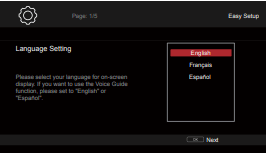
3. Voice guide setup screen will appear. Use [] to select “On” or “Off”, then press [OK].
4. HDMI CEC setup screen will appear. Use [] to select “On” or “Off”, then press [OK].
5. Software update setup (automatically checks for the latest software) screen will appear. Use [] to select “On” or “Off”, then press [OK]
6. Network setup screen will appear. Use [] to select “Set up now” or “Not now”, then press [OK].
• If you select “Set up now”, refer to “Network connection” on page 42 for further operation.
• If you select “Not now”, the home menu screen will appear.
How to reset the OSD language
You can reset the OSD language if you selected the wrong language.
1. Press [HOME] to display the home menu.
2. Use [ ] to select “
 ”, then press [OK].
• This item is “Setup” (English) / “Instalación” (Spanish) / “Installation” (French).
• From here on, please select one of the following items you can find on screen:
3. Use [ ] to select ˝
 ˝, then press [OK].
4. Use [] to select “Language” (English) / “Idioma” (Spanish) / “Langue” (French), then press [OK].
5. Use [] to select “OSD”(English) / “OSD”(Spanish) / “Affichage sur l’écran”(French), then press [OK].
6. Use [] to select your desired language, then press [OK].
7. If the items that were set are displayed in your desired language, then press [HOME] to exit.
Guide to file list
Photo file list
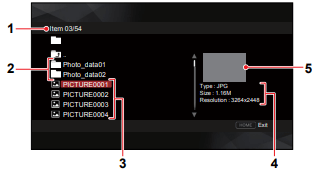
1. Number of folders or files in this directory /
Total number of folders or files in this directory
2. Folder
3. File list
4. File information
5. Thumbnail
Music file list
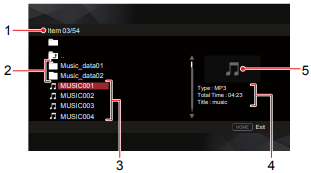
1. Number of folders or files in this directory / Total number of folders or files in this directory
2. Folder
3. File list
4. Track information
5. Cover art (when available)
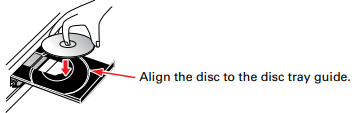
How to insert a disc
1. Press [ (OPEN/CLOSE)] to open the disc tray.
2. Place the disc on the disc tray with its label side facing up.
3. Press [ (OPEN/CLOSE)] to close the disc tray.
• It may take a while to load the disc.
BASIC PLAYBACK
Playing back a disc

1. Insert a disc (refer to “How to insert a disc” on page 23).
• When the disc is BD / DVD / AVCHD / Audio CD, playback starts automatically. If not, press [ (PLAY/PAUSE)].
• When photo / music files are contained on the disc, the file list will be displayed (see step 2). Even if the content type is of one type only, the file list screen will still be displayed.
• Some discs may show a title or a disc menu. In this case, refer to “Using the title / disc / pop menu” on page 26.
• “BD-ROM Data (USB) Check” message may be displayed while loading a Blu-ray Disc™. In such cases, connect a USB memory stick first, then insert the disc. Refer to “Enjoying BD-Live™ discs using Internet” on page 30.
2. Select the type of the file you want to play back, then press [OK].
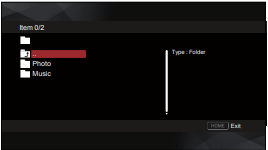
- Select the folder / file to play, and press [ (PLAY/PAUSE)] or [OK]. Refer to “How to navigate through the file list” on page 22.
| To skip to the next title / chapter / track / file: |
Press [  (SKIP)]. (SKIP)]. |
| To skip to the previous title / chapter / track / file: |
Press [  (SKIP)]. (SKIP)]. |
| To pause playback: |
Press [ (PLAY/PAUSE)] |
| To return to normal playback: |
Press [ (PLAY/PAUSE)] |
| To stop playback: |
Press [  (STOP)]. (STOP)]. |
Playback will be in resume-on-stop mode. To clear the resume information, press [ (STOP)] again.
Note:
- Discs containing AVCHD and photo/music files will be played back as AVCHD.
- CDs/DVDs containing FLAC (.flac) files with high frequency and large quantization bit rates may not play properly.
- With regard to the multi-border BD-RE/-R, additionally recorded sections cannot be recognized.
- With regard to the multi-border DVD-RW/-R, additionally recorded sections may not be recognized.
Note for photo file playback
- Every press of [] will turn the Image by 90 degrees when an Image is displayed.
- Some unplayable folders or files may be listed due to the recording status.
- High-resolution photo files take longer to be displayed.
- Progressive photo files (Photo files saved in Progressive format) cannot be played back on this unit.
Caution
- The screen saver and auto power off do not function while displaying the disc menu or title menu. For that reason, leaving the unit on such screens may cause screen burn-in. To avoid this, turn off the unit, or press [HOME] to exit the disc/title menu screen after finishing disc playback.
Resume-on-stop mode
Blu-ray Disc™ / DVD / AVCHD
When you press [OK] next time, playback will start from the point where it had been stopped. If you press [RETURN] instead of [OK], playback will start from the beginning.
Audio CD
Playback will start from the point where it was stopped next time you press [OK]. If you press [RETURN] instead of [OK], playback will start from the beginning of the 1st track of the Audio CD instead of resuming from the stop point.
Music file
When you press [ (PLAY/PAUSE)] or [OK] next time, the playback will start from the point where it has been stopped.
Note
- If [HOME] is pressed during playback, the playback will stop and the resume point will be cleared.
- For BD-Java application, the resume-on-stop may not be available.
- For BD / DVD / AVCHD / Audio CD, except for photo files/music files, resume-on-stop mode remains in effect even after Power is turned off. It will be cancelled once the disc is ejected.
Playing back contents from a USB memory stick

You can play back JPEG / PNG / MP3 / FLAC / AAC / WAV files stored on a USB memory stick. With the USB memory stick, you can also enjoy the following functions.
- Special additional contents for BD-ROM.
(For more information about the special additional contents, refer to the Instruction book that came with the disc.)
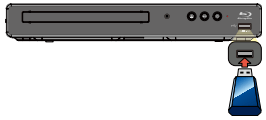
1. Connect a USB memory stick.
2. Press [HOME].
3. Use [] to select “USB”, then press [OK].
4. Select the file type you want to play back, then press [OK].
Caution
- Do not disconnect the USB memory stick or switch the unit to standby mode while contents on the USB memory stick are being accessed. It may result in in malfunction or loss of the stick’s data.
- Occasionally, SD memory cards / Micro SD memory cards will not be recognized when using certain adapters. In such cases, try a different USB adapter.
Note
• The resume information will be cleared when;
- [ (STOP)] or [HOME] is pressed while in resume-on-stop mode.
- the USB memory stick is disconnected.
- the unit is switched to standby mode.
• If a folder / file name contains an unrecognizable character, the folder / file name will not be displayed.
• This unit can read JPEG / PNG / MP3 / FLAC / AAC / WAV files and AVCHD on an SD memory card by using USB card reader.
Using the title / disc / pop menu

Some BD-Videos, DVD-Videos or AVCHD files may contain a title menu which describes the contents of the disc, or a disc menu which guides you through the available functions on the disc.
- With such discs, a title menu or a disc menu may appear automatically when you insert the disc. Otherwise, press [TOP MENU] or [POP MENU/MENU] to call up the menu. Refer to the disc’s manual on how to navigate through the menu.
Note
- Menus vary among discs. Refer to the information accompanying the disc for details.
- [TOP MENU] or [POP MENU/MENU] may not work with some discs.
SPECIAL PLAYBACK
Fast forward / fast reverse

1. During playback, press [  (FORWARD)] repeatedly for fast forward.
During playback, press [  (REVERSE)] repeatedly for fast reverse.
2. Press [ (PLAY/PAUSE)] to return to normal playback.
Note
- For Blu-ray Disc™, DVD, AVCHD, Audio CD, and music files, speed changes at 5 different levels.
- For Audio CD and music files, fast forward / fast reverse search between different tracks/files are not available.
Slow forward playback

1. During playback, press [ (PLAY/PAUSE)]. Then press [ (FORWARD)].
Every time you press [ (FORWARD)], the playback speed changes at 4 different levels.
2. Press [ (PLAY/PAUSE)] to return to normal playback.
Note: Slow Reverse is not available.
PiP (BONUSVIEW™) setting

Some BD-Videos have the PiP function which enables you to display the secondary video in the primary video.
1. During playback, press [MODE] to display the play menu.
2. Use [] to select “PiP” then press [OK].
• PiP information will appear.
3. Use [] to select the secondary video you want to show.
• The secondary video will be displayed with secondary audio.
4. Press [MODE] to exit.
• To select the secondary audio output, refer to “Switching audio soundtrack” on page 34.
Note: Secondary video may not be displayed all the time, depending on the scene, it may or may not be available for display.
Enjoying BD-Live™ discs using Internet
You can enjoy BD-Live™ which enables you to use interactive features when the unit is connected to the Internet.
Examples of BD-Live™ features:
• Online access to additional content such as movie trailers, subtitles, BD-Java applications, etc.
• While downloading, special video data may be played back.
- Service and functions differ depending on the disc. Follow the instructions given by the disc when using the BD-Live™ function.
- Connect a USB memory stick with at least 1 GB of available memory before using BD-Live™ features on a Blu-ray Disc™.
- Do not disconnect the USB memory stick while using BD-Live™ features.
Note
- You must connect the unit to the Internet and set up necessary settings in order to use BD-Live™.
- For the network connection, refer to “Connection to the network” on page 15.
- For the network setup, refer to “Network connection” on page 42.
- For certain discs, “BD-Live Connection” under “Network” under “Setup” may need to be changed.
- Depending on your connection environment, it may take a few moments to connect to the Internet or the Internet may not be connected. Refer to “TROUBLESHOOTING” on page 58.
- Some discs with BD-Live™ function require memory when playing back the content. If you cannot play back a disc with BD-Live™ function, connect a USB memory stick (1GB or more of available memory).
- Not all BD-Video discs have a BD-Live™ content. To enjoy the BD-Live™ features, please use discs with a BD-Live™ content.
Note for AACS online
- The player or disc ID may be sent to the content provider when playing back a disc with BD-Live™ function.
- If you save your viewing history on the server by using these ID’s, you will be introduced to other similar movies.
- You can save game score histories.
SETUPS
Network connection
HOME -> “Setup” -> “” ->“Network”
Perform the network connection setup in order to use network features, such as BD-Live™, Netflix, VUDU, YouTube™ and the network update function.
Connection test
After you enable a network connection or change network settings, always perform the connection test to check to see if the connection is correctly made.
1. Use [] to select “Setup” in the home menu, then press [OK].
2. Use [] to select “ ”, then press [OK].
3. Use [] to select “Network”, then press [OK].
4. Use [] to select “Connection Test”, then press [OK].
• Connection test will automatically start. The test result will appear right after the test finishes.
5. If the connection test passes, press [OK].
Note
- If the connection test passes, you are ready to use BD-Live™, Netflix, VUDU, YouTube™ and network update function, using the Internet without making any additional settings.
- If the connection test fails, you may need to check your router settings and make sure the physical connection is secure. If you need the MAC address of this unit to complete your router settings, you can view it in system information.
- When connecting this unit directly to a modem for the first time or connecting it to a modem which was previously connected to any other network device (e.g. a router, PC, etc.), you may have to power cycle the modem (unplug the modem’s and/or router’s AC power cord from its AC outlet for 30 seconds and then plug it back in), this may reset the settings in the modem. If you have a telephone/Internet modem with your cable service then you may have to use its reset button or remove the backup battery to reset this type of modem.
- If the connection test fails, this unit is not connected to the Internet. In this case, you cannot use the BD-Live™ function or access network services, such as You Tube™, Netflix or VUDU. Please confirm router settings or contact your ISP (Internet Service Provider) for troubleshooting assistance.
Network status
You can check the current status of network status and wireless status.
1. Follow steps 1 to 3 in “Connection test” on page 42.
2. Use [] to select “Network Status”, then press [OK].
• The current network settings and wireless router setting will be displayed.
3. Press [HOME] to return to the home menu.
Netflix ESN
You can view the ESN (Electronic Serial Number, which Netflix uses to identify your device). Netflix customer service might ask you for this number during troubleshooting.
1. Use [] to select “Setup” in the home menu, then press [OK].
2. Use [] to select “”, then press [OK].
3. Use [] to select “Streaming Content”, then press [OK].
4. Use [] to select “Netflix Information”, then press [OK].
5. Press [HOME] to return to the home menu.
TROUBLESHOOTING
| Problem |
Tip |
| No power. |
Check if the AC power cord is properly connected.
Try another power outlet.
Unplug the AC power cord, and wait for about 5-10 seconds. Plug it back in and attempt to power on the unit.
|
| No sound or picture. |
Make sure both the TV and Blu-ray Disc™ player are turned on.
Confirm the connections to the TV are made properly as shown in the “CONNECTIONS” on page 12.
Check to see whether the connected TV or another device supports HDCP. (This unit will not output a video signal unless the other device supports HDCP.)
|
| No reaction to the remote control. |
Reduce the distance to infrared sensor window.
Confirm that the player’s AC power cord is plugged into a power outlet.
Check the batteries in the remote control and make sure they are inserted properly by + or - symbols. See how to check the remote operation on page 64.
|
| No audio / video signal on the display device via HDMI cable. |
If the unit is connected to a non-certified HDMI device, the audio / video signal will not be sent to that device.
Make sure the display device is on the correct input / video source.
Perform an HDMI hotplug: Disconnecting the HDMI cable from the display device, turn on both devices, and replug the HDMI cable back in.
Check with the TV manufacturer, if there are any software updates available for the TV.
Check to see if the HDMI cable is a certified version.
|
| No high-definition video signal on the TV screen. |
Does the disc contain high-definition video? High-definition video is only available when the disc contains it.
Does the TV support high-definition video? High-definition video is only available when the TV supports it.
|
| Distorted picture. |
Sometimes a small amount of picture distortion may appear. This is not a malfunction. |
| Completely distorted picture or black / white picture with Blu-ray Disc™ / DVD Disc. |
Make sure the disc is compatible with this unit. |
| No sound or distorted sound. |
Adjust the volume.
Check to see if the speakers are connected correctly.
Check the HDMI connection.
Make sure the HDMI cable is not plugged into an HDMI-DVI adapter which does not handle digital sound.
Check the settings in “Audio Output” menu.
|
| Picture freezes momentarily during disc playback. |
Check the disc for fingerprints / scratches and clean with a soft cloth wiping from the center to the outer edge. |
| Cannot play back a disc. |
Make sure that the unit supports the disc.
Check the region code for the disc. This unit supports the following region codes.
- Blu-ray Disc™: “A”
- DVD: “ALL” or “1”
For DVD-RW/-R, make sure that the disc is finalized.
Clean the disc.
Is the disc a newer title? This problem may be solved by software update. Refer to “Software update” on page 54.
|
| “BD-ROM Data(USB) Check” message appears when attempting to play a Blu-ray Disc™. |
Connect a USB memory stick first, then insert the Blu-ray Disc™.
• When this unit starts loading a Blu-ray Disc™, it will check the USB memory stick to which BD-Live™ contents will be saved.
|
| A music/photo file does not play. |
Confirm that the file type is supported.
Refer to page 20 for the compatible file extensions.
The file may be corrupted.
Check to see if it is playable on a PC or other devices.
|
| No return to start-up screen when disc is removed. |
Soft reset this unit by turning it off for 30 seconds, then on again.
To completely reset the unit, press and hold [y(POWER)] on the front panel for 10 seconds to shut down the unit or unplug the AC power cord from the AC outlet for 5-10 seconds.
|
 in the upper left hand corner of the TV screen. in the upper left hand corner of the TV screen. |
The operation is not possible. |
| Buttons do not work or the unit stops responding. |
To soft reset the unit, press and hold [ (POWER)] on the front panel for 10 seconds to shut down the unit or to hard reset the unit by unplugging the AC power cord from the AC outlet for 5-10 seconds. |
| The unit does not respond to some operating commands during playback. |
The operations may be prohibited by the disc. Refer to the instructions for the disc. |
| The unit cannot read Blu-ray Disc™ / DVD/CD Disc. |
Condensation? (Let the unit sit and dry for 1 or 2 hours)
Check to see if the disc is compatible with this unit. (Refer to page 19.)
Wipe dirt off the disc from the center to the outside or replace the disc. Refer to “Cleaning discs” on page 64.
|
| Scene shooting angle does not switch. |
Angles cannot be switched for Blu-ray Disc™ / DVD which do not contain multiple angles. in some cases multiple angles are only recorded for specific scenes. |
| Playback does not start when a Title is selected. |
Check the settings in “Parental Control” menu. |
| Cannot play back AVCHD file. |
This unit cannot play back stand-alone AVCHD files (*.m2ts, *.mts or *.m2t) written to a DVD. The DVD containing AVCHD files must have a proper file and folder structure meeting AVCHD format specifications. Please use AVCHD compliant device / software to burn or copy AVCHD files to DVD. (Please refer to user manuals of the device / software for more information.) |
| The capacity of the USB memory stick decreased. |
Data may be written on the USB memory stick when a BD-Video uses the virtual package feature while a USB memory stick is connected to the unit. |
| Cannot play back a MPEG-2 video and audio from the USB memory stick. |
MPEG-2 is not compatible with this unit. |
| Cannot read the contents on the USB memory stick. |
The USB memory stick is not compatible with this unit or the contents may be damaged.
Turn off the unit, then turn it back on.
To soft reset the unit, press and hold [(POWER)] on the front panel for 10 seconds to shut down unit to standby mode or to hard reset the unit by unplugging the AC power cord from the AC outlet for 5-10 seconds.
|
| Cannot play back BD-Video. |
Connect a USB memory stick (1GB or more of available memory). Some discs with BD-Live™ function require memory when playing back content.
Do not disconnect the USB memory stick during playback.
|
| Repeat setting does not work with a Blu-ray Disc™ |
Repeat setting may be unavailable with some Blu-ray™ discs. |
| Cannot play back 3D. |
3D Blu-ray™ discs are not supported by this unit. |
| Cannot load a Blu-ray Disc™ (that is stuck in loading mode and cannot open the disc tray to eject the disc. |
Unplug unit from AC outlet for 20 seconds. Plug unit back in and press the [ (OPEN/CLOSE)] on the unit to eject the disc. |
| Cannot read a USB memory stick. |
The format of the USB memory stick is not compatible with this unit. If the USB memory stick has been formatted on a PC or another device, the file system may be incompatible with this unit. This unit supports the FAT16 / FAT32 file systems. |
| Cannot play back photo files from a disc. |
Make sure that the disc was recorded in the UDF, ISO9660 or JOLIET format. |
| Cannot find a photo file. |
Make sure that the file extension is .jpg / .JPG / .jpeg / .JPEG. / .png / or .PNG. |
| Cannot play back music files from a disc. |
Make sure that the disc was recorded in the UDF, ISO9660 or JOLIET format.
Confirm that the bitrate and sampling frequency are compatible with this unit. (Refer to page 20)
|
| Cannot find a music file. |
Make sure that the file extension is MP3, AAC, FLAC or WAV for music files. |
| Music files play choppy. |
CDs/DVDs containing FLAC (.flac) files with high frequency and large quantization bit rates may not play properly. In such cases, copy the music files to a Blu-ray Disc™ or USB memory stick, then try playing. |
| No audio signal from surround system of the audio system. |
Make sure the audio system is turned on.
Check the input mode on the audio system if it is on the correct channel.
Check if the surround system is compatible with either bitstream or LPCM. If not sure please check the user manual or contact the surround manufacturer. Once confirmed check the setting in the “Setup” on this unit.
Increase the volume level on the surround system.
|
| Cannot connect to the Internet although the connection test passes. |
Make sure that the ethernet cable is properly connected to the modem / router.
Confirm that another device, such as a PC, can connect to the Internet.
|
| Cannot connect to the network. |
Check to see if the modem / router has power turned on.
Make sure that the ethernet cable is properly connected to the modem / router.
Confirm if the Internet light is showing activity (light blinking) on the modem / router.
Check network settings on the unit.
Turn off this unit and the modem/router (if it has a power button), then unplug their AC cords. After 30 seconds, plug them back in and turn the devices back on. If you have a telephone / Internet modem with your cable service, then you may have to use its reset button or remove the backup battery to reset this type of modem. Now wait for the lights to show activity and try reconnecting.
Check the cable connection to the router when connecting with an ethernet cable.
Confirm “Network Status” in the setup.
Turn on the DHCP function on the router.
|
| Cannot use “Auto” to connect to the access point. |
If the access point's security mode is set to “WEP”, change the setting to “WPA” or “WPA2 (recommended)”, then try “Auto” again. Refer to “ Note” on page 45. (For access point configuration, please consult its user manual or manufacturer.) Note” on page 45. (For access point configuration, please consult its user manual or manufacturer.)
Connect the unit to the access point using “Scan” or “Manual” mode.
|
| Cannot use the wireless connection. |
Once you have activated the wireless connection please wait 30 seconds for the connection to be established after turning on the unit, before trying to access network features such as BD-Live™ and third-party network services. |
| Cannot connect to the network while my PC is connected to the network. |
Check the content of your Internet service contract to see if your Internet service provider prevents multiple terminals connecting at the same time. |
| You are not sure if the unit is connected to the Internet. |
Perform the connection test. (refer to page 42)
Confirm that the “ ” icon appears right after the unit is turned on. If the icon does not appear, the unit is not connected to the Internet. Review the connection settings. ” icon appears right after the unit is turned on. If the icon does not appear, the unit is not connected to the Internet. Review the connection settings.
|
| Cannot use the BD-Live™ function or Internet data does not download properly. |
Confirm that this unit is successfully connected to the internet.
Confirm the BD-Live connection setting in the setup.
Connect a USB memory stick before inserting a disc. The USB memory stick must have 1GB or more free space.
Confirm that the USB memory stick is properly connected to this unit. Make sure that the USB memory stick connected to this unit is not write-protected.
|
| Cannot add network services. |
On this unit, only the network services of Netflix, Vudu, and YouTube™ can be used. |
| Cannot use Netflix service. |
Check to see if the network connection is properly made. |
| The picture quality of Netflix streaming movie is poor. |
Check your Internet connection speed.
Contact your Internet service provider. (You may need to improve the broadband speed.)
|
| Netflix streaming movie often stops or starts buffering during playback. |
Contact your Internet service provider. (You may need to improve the broadband speed.) |
| Cannot use the VUDU service. |
VUDU is only available in the united states.
Check to see if the network connection is properly made.
|
| Cannot rent or buy movies / TV shows on VUDU. |
You need to activate the VUDU account. |
| The picture quality of VUDU movie is poor. |
Check your Internet connection speed. You need speeds of at least 9 Mbps to this player for high quality uninterrupted playback. |
| VUDU movie often stops or starts buffering during playback. |
Check your Internet speed. The following are the required connection speeds for picture quality for uninterrupted streaming.
SD quality (1 Mbps - 2 Mbps), HD quality (2.25 Mbps - 4.5 Mbps), HDX quality (4.5 Mbps - 9 Mbps).
|
| Cannot use the YouTube™ service. |
Check to see if the network connection is properly made. |
| No sound with YouTube™. |
If this unit is connected to an AAC-compliant device, the sound may not be output. In such cases, configure as follows: “Setup” -> “Audio Setting” ->“Audio Output” ->“HDMI” -> “PCM”. |
| The picture quality of the YouTube™ video is poor. |
You may experience frequent buffering, distorted pictures or no picture at all depending on your network environment and Internet traffic.
The picture and sound quality differ depending on the Internet service provider.
|
Note:
- Do not attempt to repair the Blu-ray Disc™ player yourself. This may cause severe injury, irreparable damage to your Blu-ray Disc™ player and void your warranty.
- Please have your Blu-ray Disc™ player model and serial number available before contacting us. These numbers are available on the cabinet, as well as on the packaging.
MAINTENANCE
Servicing
- Please refer to relevant topics in “TROUBLESHOOTING” on page 58 before returning the product.
- If this unit becomes inoperative, do not try to correct the problem by yourself. There are no user-serviceable parts inside. Eject the disc (if possible), disconnect the USB memory stick (if connected to the unit), place the unit into standby mode, unplug the AC power cord, and please contact: 1-866-212-0436 or visit : www.sanyo-av.com
Cleaning the cabinet
- Wipe the front panel and other exterior surfaces of the unit with a soft cloth.
- Never use a solvent, thinner, benzene or alcohol to clean the unit. Do not spray insecticide liquid near the unit. Such chemicals may discolor the surface or damage the unit.
Cleaning discs
- When a disc becomes dirty, clean it with a cleaning cloth. Wipe the disc from the center to outside. Do not wipe in a circular motion.
- Do not use solvents such as benzine, thinner, commercially available cleaners, detergent, abrasive cleaning agents or antistatic spray intended for analog records.
Cleaning the disc lens
- If this unit still does not perform properly although you referred to relevant sections and “TROUBLESHOOTING” on page 58 in this user manual, the laser optical pickup unit may be dirty. Consult your dealer or an authorized service center for inspection and cleaning of the laser optical pickup unit. C Disc handling
- Handle the discs so that fingerprints and dust do not adhere to the surfaces of the discs.
- Always store the disc in its protective case when it is not used.
- Note that discs with special shapes (heart-shaped discs, octagonal discs, etc.) cannot be played back on this unit. Do not attempt to play such discs, as they may damage the unit.
IR signal check
- If the remote control does not work properly, you can test IR signal using a digital camera or cell phone camera to see if the remote control sends out the infrared signal.
- Turn on the digital camera or cell phone camera.
- Point the digital camera or cell phone camera towards the front of the remote control.
- Press any arrow key on the remote control and look at the camera display.
- If a pulsating light appears on the display the remote control is sending out an IR signal.