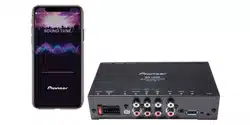
UNIVERSAL SOUND PROCESSOR
PROCESSEUR AUDIO UNIVERSEL
Instruction Manual
Mode d’emploi
5707000012561V-A
DEQ-S1000A
English
Before You Start
Thank you for purchasing this PIONEER product
To ensure proper use, please read through this guide be fore using this product.
It is especially important that you read and observe WARNINGS and CAUTIONS
in this guide. Please keep the guide in a safe and accessible place for future
reference.
Information to User
Alteration or modifications carried out without appropriate authorization may
invalidate the user’s right to operate the equipment.
Note
This equipment has been tested and found to comply with the limits for a Class
B digital device, pursuant to Part 15 of the FCC Rules. These limits are designed
to provide reasonable protection against harmful interference in a re sidential
installation. This equipment generates, uses and can radiate radio frequency
energy and, if not installed and used in accordance with the instructions, may
cause harmful interference to radio communications. However, there is no
guarantee that interference will not occur in a particular installation. If this
equipment does cause harmful interference to radio or television reception,
which can be determined by turning the equipment off and on, the user is
encouraged to try to correct the interference by one or more of the following
measures:
−Reorient or relocate the receiving antenna.
−Increase the separation between the equipment and receiver.
−Connect the equipment into an outlet on a circuit diffe rent from that to which
the receiver is connected.
−Consult the dealer or an experienced radio/TV technician for help.
FEDERAL COMMUNICATIONS COMMISSION SUPPLIER’S
DECLARATION OF CONFORMITY
Product Name: UNIVERSAL SOUND PROCESSOR
Model Number: DEQ-S1000A
Responsible Party Name: PIONEER ELECTRONICS (USA), INC. SERVICE SUPPORT
DIVISION
Address: 2050 W. 190TH STREET, SUITE 100 TORRANCE, CA 90504, U.S.A.
Phone: 1-310-952-2915
URL: http://www.pioneerelectronics.com
The Safety of Your Ears is in Your Hands
Get the most out of your equipment by playing it at a safe level—a level that lets
the sound come through clearly without annoying blaring or distortion and, most
importantly, without affecting your sensitive hearing. Sound can be deceiving.
Over time, your hearing “comfort level” adapts to higher volumes of sound, so
what sounds “normal” can actually be loud and harmful to your hearing. Guard
against this by setting your equipment at a safe level BEFORE your hearing adapts.
ESTABLISH A SAFE LEVEL:
• Set your volume cont rol at a low setting.
• Slowly increase the sound until you can hear it comfortably and clearly, without
distortion.
• Once you have established a comfortable sound level, set the dial and leave it
there.
BE SURE TO OBSERVE THE FOLLOWING GUIDELINES:
• Do not turn up the volume so high that you can’t hear what’s around you.
• Use caution or temporarily discontinue use in potentially hazardous situations.
• Do not use headphones while operating a motorized vehicle; the use of
headphones may create a traffic hazard and is illegal in many areas.
WARNING
• This product contains chemicals known to the State of California and other
governmental entities to cause cancer and birth defects or other reproductive
harm. Wash hands after handling.
CAUTION
• This product is evaluated in moderate and tropical climate condition under the
Audio, video and similar electronic apparatus - Safety requirements, IEC 60065.
Connections
WARNING
Important
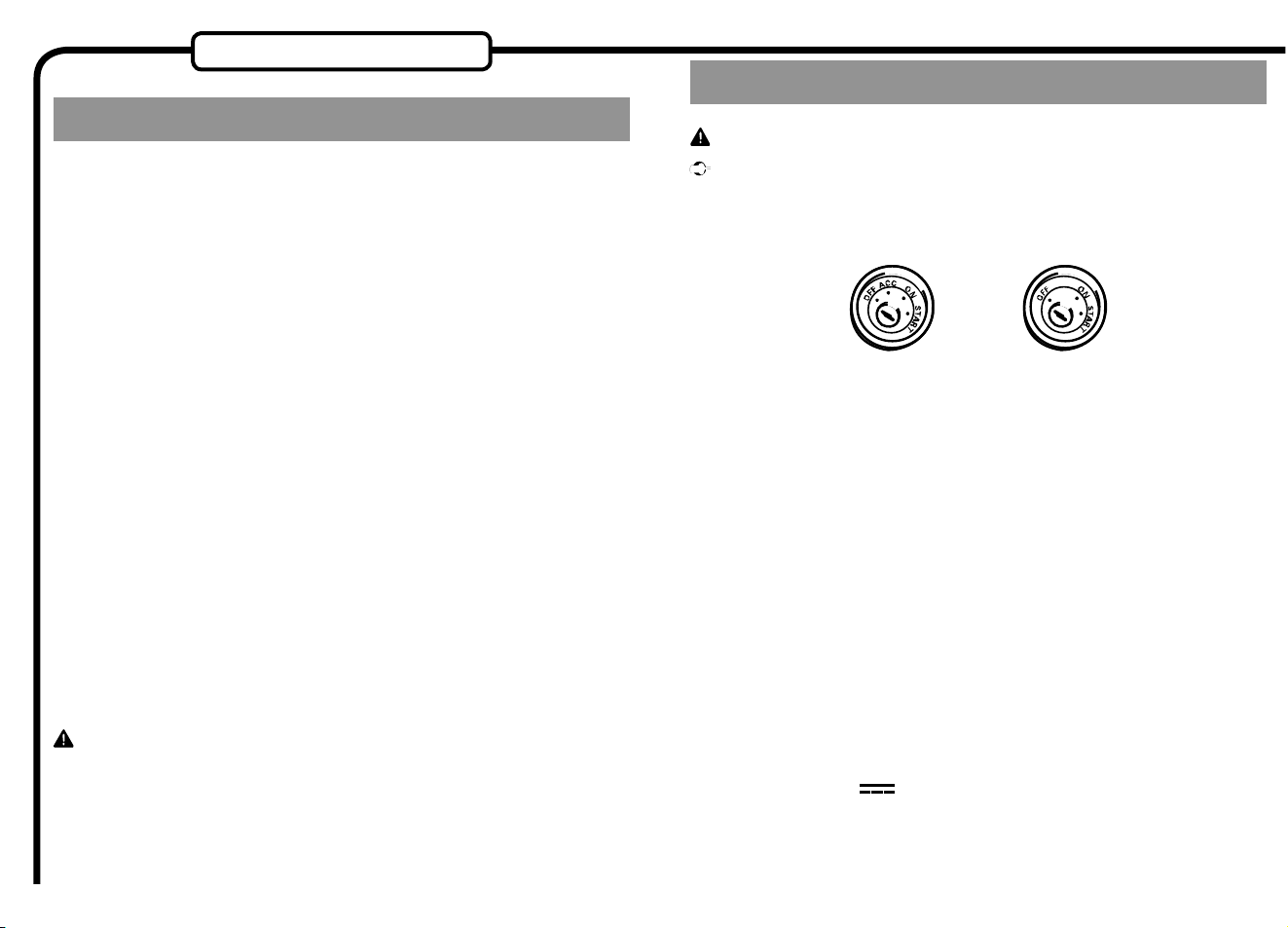
• When installing this unit in a vehicle without an ACC (accessory) position on
the ignition switch, failure to connect the red cable to the terminal that detects
operation of the ignition key may result in battery drain.
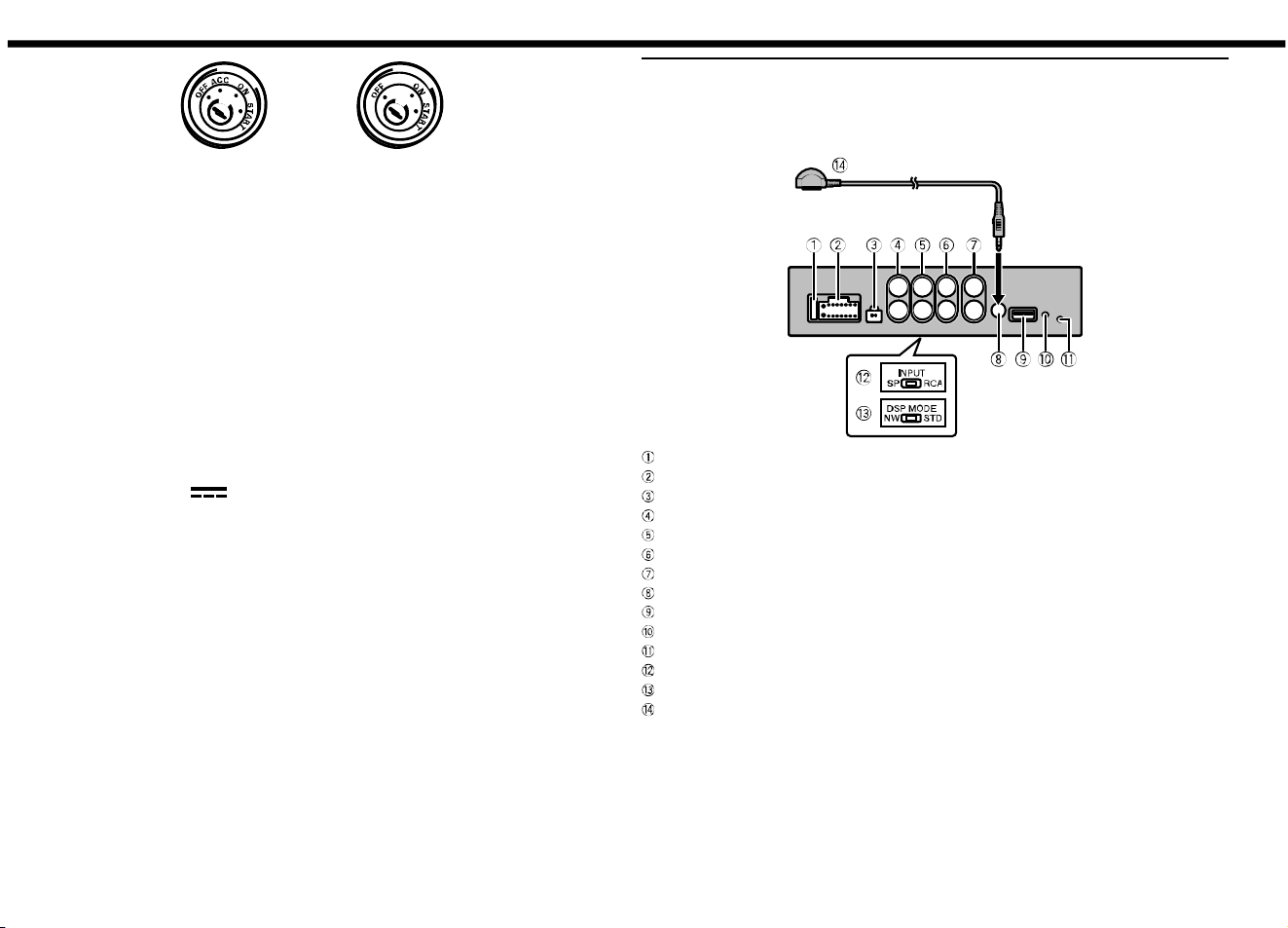
ACC position
No ACC position
• Use this unit with a 12-volt battery and negative grounding only. Failure to do so
may result in a fire or malfunction.
• To prevent a short-circuit, overheating or malfunction, be sure to follow the
directions below.
−Disconnect the negative terminal of the battery before installation.
−Secure the wiring with cable clamps or adhesive tape. Wrap adhesive tape
around wiring that comes into contact with metal parts to protect the wiring.
−Place all cables away from moving parts, such as the shift lever and seat rails.
−Place all cables away from hot places, such as near the heater outlet.
−Do not connect the yellow cable to the battery by passing it through the hole
to the engine compartment.
−Cover any disconnected cable connectors with insulating tape.
−Use a fuse of the rating prescribed.
−Never wire the negative speaker cable directly to ground.
−Never band together negative cables of multiple speakers.
• The graphical symbol placed on the product means direct current.
• Check the connections of the power supply and speakers if this unit fuse blows.
Determine and resolve the cause, then replace the fuse with and identical
equivalent.
• Always install this unit on a flat surface.
Do not install this unit on a surface that is not flat or on a surface with a
protrusion. Doing so could result in malfunction.
• When installing this unit, do not allow parts such as extra screws to get caught
between this unit and the automobile.
Doing so could cause malfunction.
• Do not allow this unit to come into contact with liquids. Electrical shock could
result.
Also, damage to this unit, smoke, and overheating could result from contact with
liquids.
The surfaces of the amplifier and any attached speakers may also heat up and
cause minor burns.
• Do not attempt to disassemble or modify this unit. Doing so may result in fire,
electric shock or other malfunction.
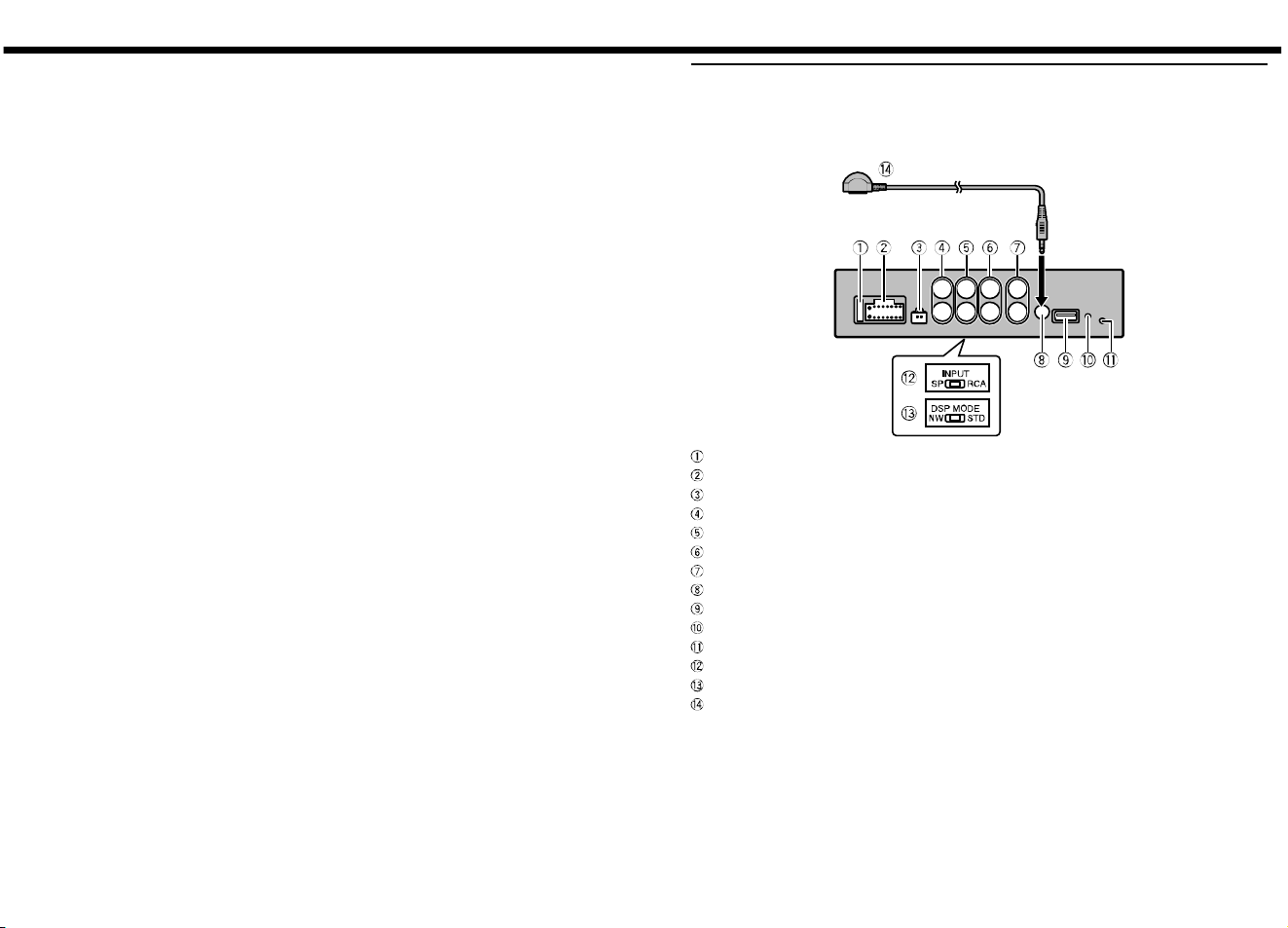
This unit
This unit provides a variety of sound effects by intuitive operation using a
smartphone.
FUSE 10A
Power cord input
Parking brake cord input
Subwoofer output
Rear output/Middle range output
Front output/High range output
RCA input
Remote control sensor input
USB port
Reset button
Power indicator
INPUT select switch
DSP MODE select switch
Remote control sensor
Preparing the remote control
Remove the insulation sheet before use.
How to replace the battery
Insert the battery with the plus (+) and minus (–) poles orientated properly.
WARNING
• Do not ingest the battery, Chemical Burn Hazard.
(The remote control supplied with) This product contains a coin/button cell
battery. If the coin/button cell battery is swallowed, it can cause severe internal
burns in just 2 hours and can lead to death.
Keep new and used batteries away from children.
If the battery compartment does not close securely, stop using the product and
keep it away from children.
If you think batteries might have been swallowed or placed inside any part of
the body, seek immediate medical attention.
• Batteries (battery pack or batteries installed) must not be exposed to excessive
heat such as sunshine, fire or the like.
CAUTION
• There is a danger of explosion if the battery is incorrectly replaced. Replace only
with the same or equivalent type.
• When disposing of used batteries, please comply with governmental regulations
or environmental public institution’s rules that apply in your country / area.
• Perchlorate Material - special handling may apply.
See www.dtsc.ca.gov/hazardouswaste/perchlorate. (Applicable to California,
U.S.A.)
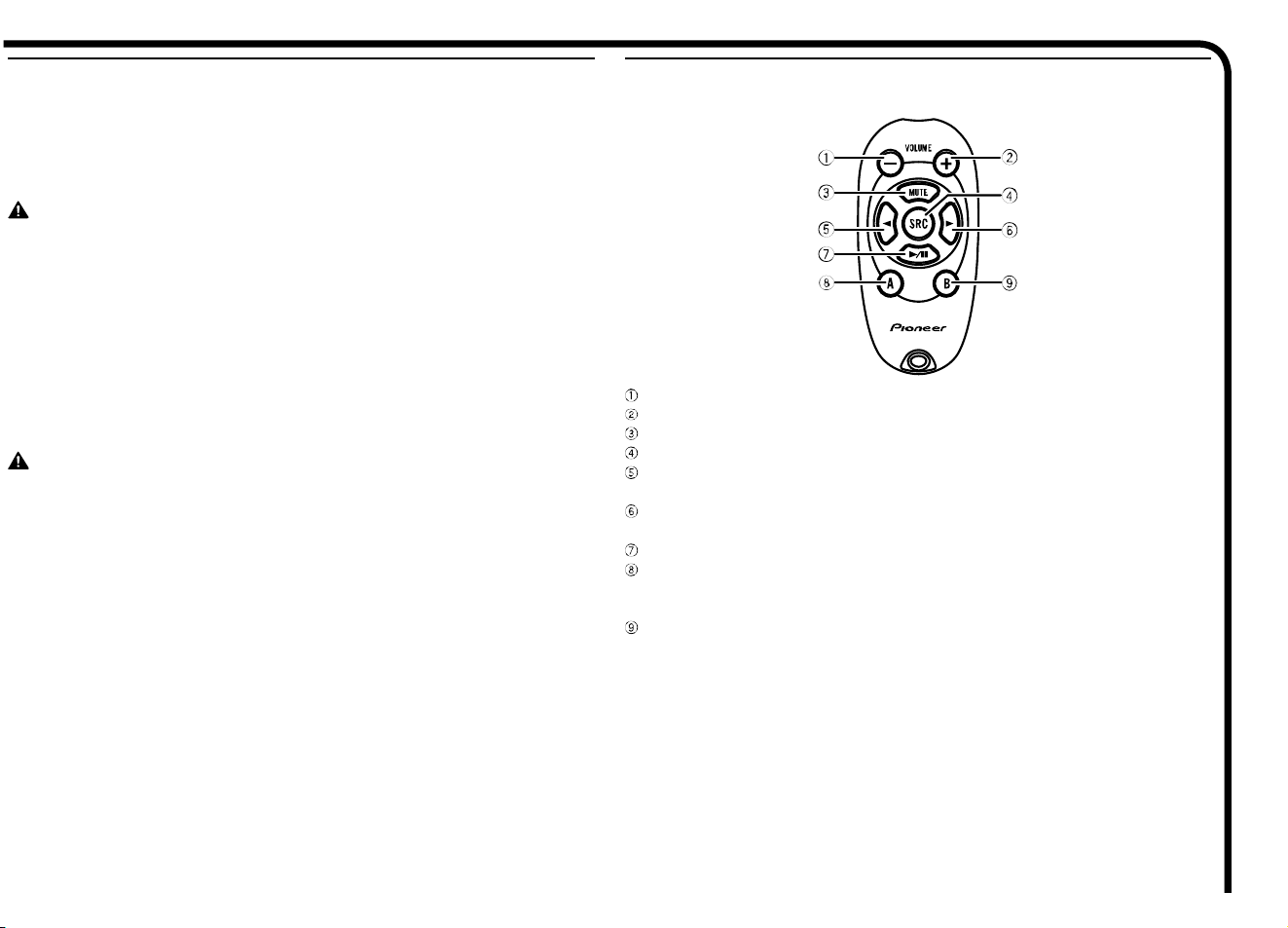
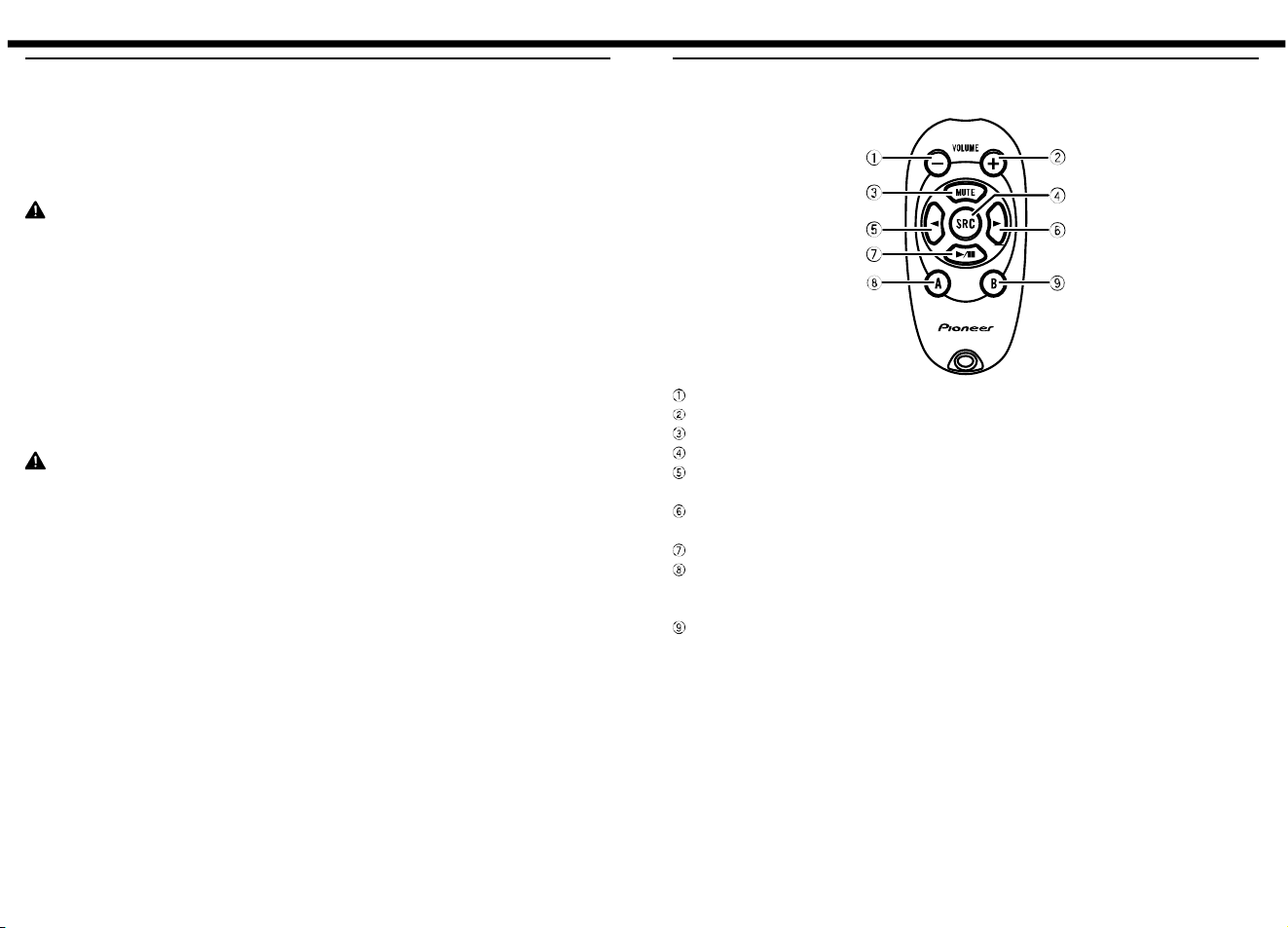
Name of each remote control button
VOLUME –
VOLUME +
MUTE
SRC (source)
Left
Press to select the previous track / song.
Right
Press to select the next track / song.
PLAY/PAUSE
A
Press and hold to change the connection mode (for iPhone® / AOA connection
of smartphone (Android)).
B
Press and hold to change the connection mode (OTG connection of
smartphone (Android)).
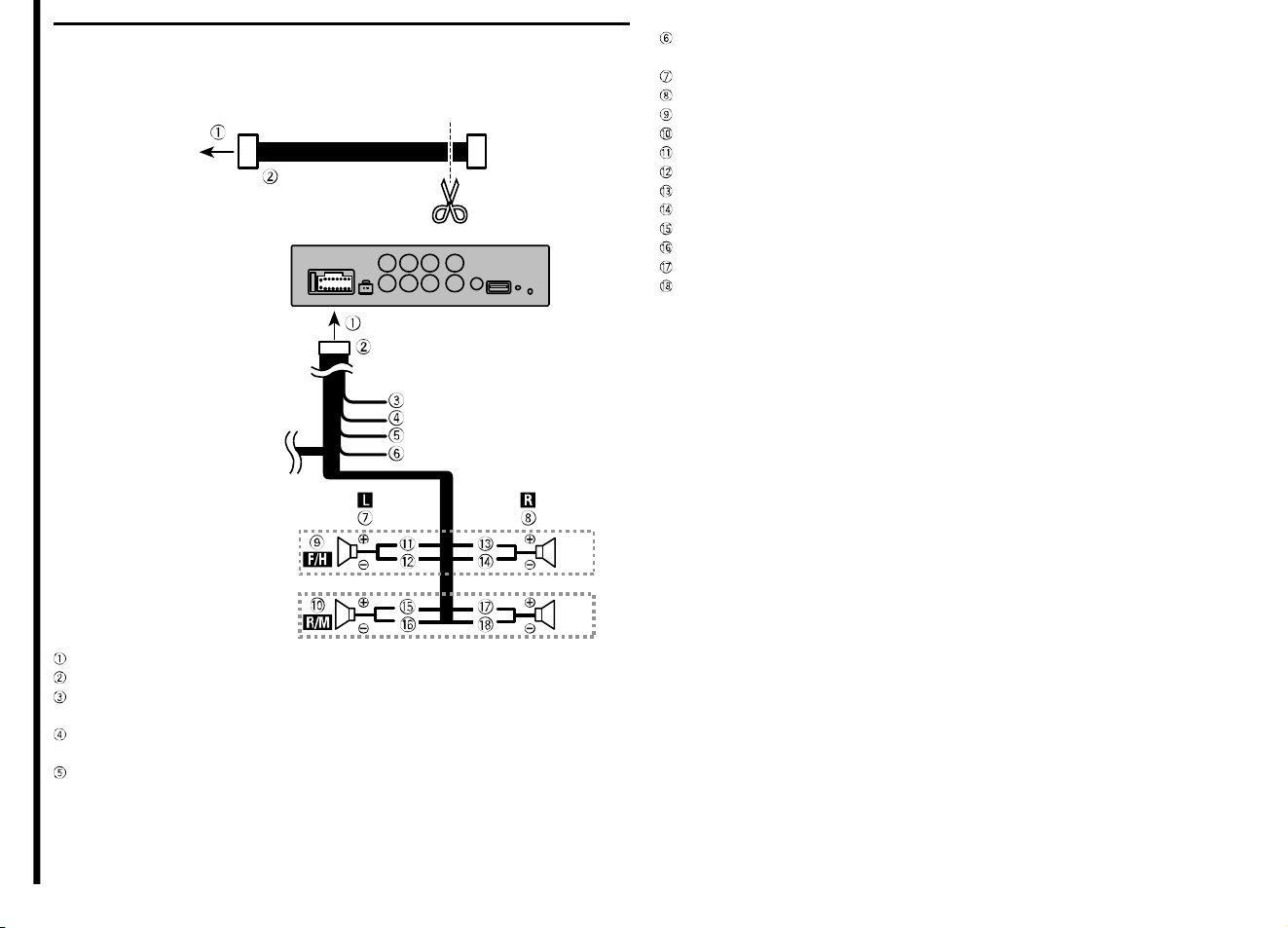
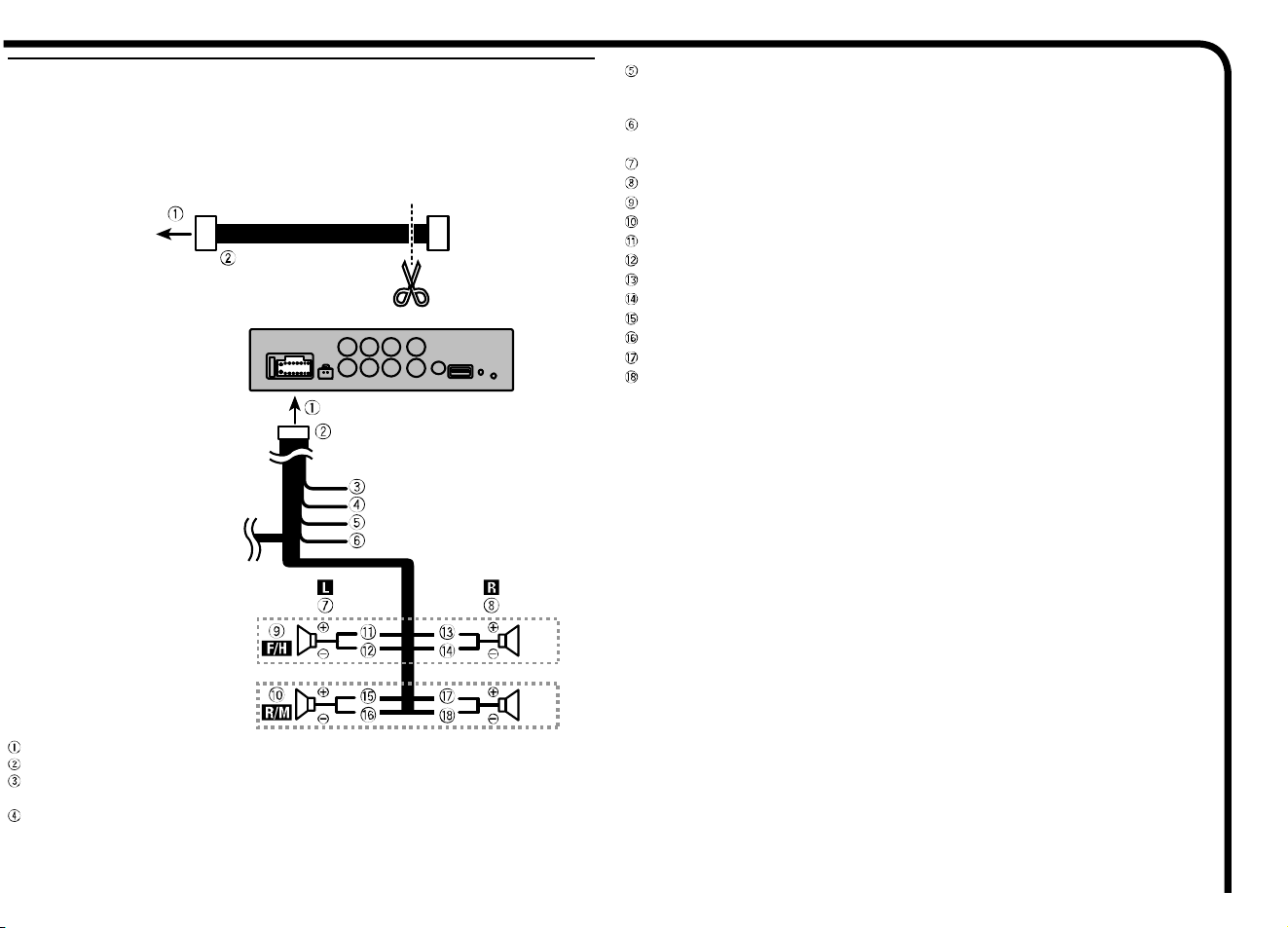
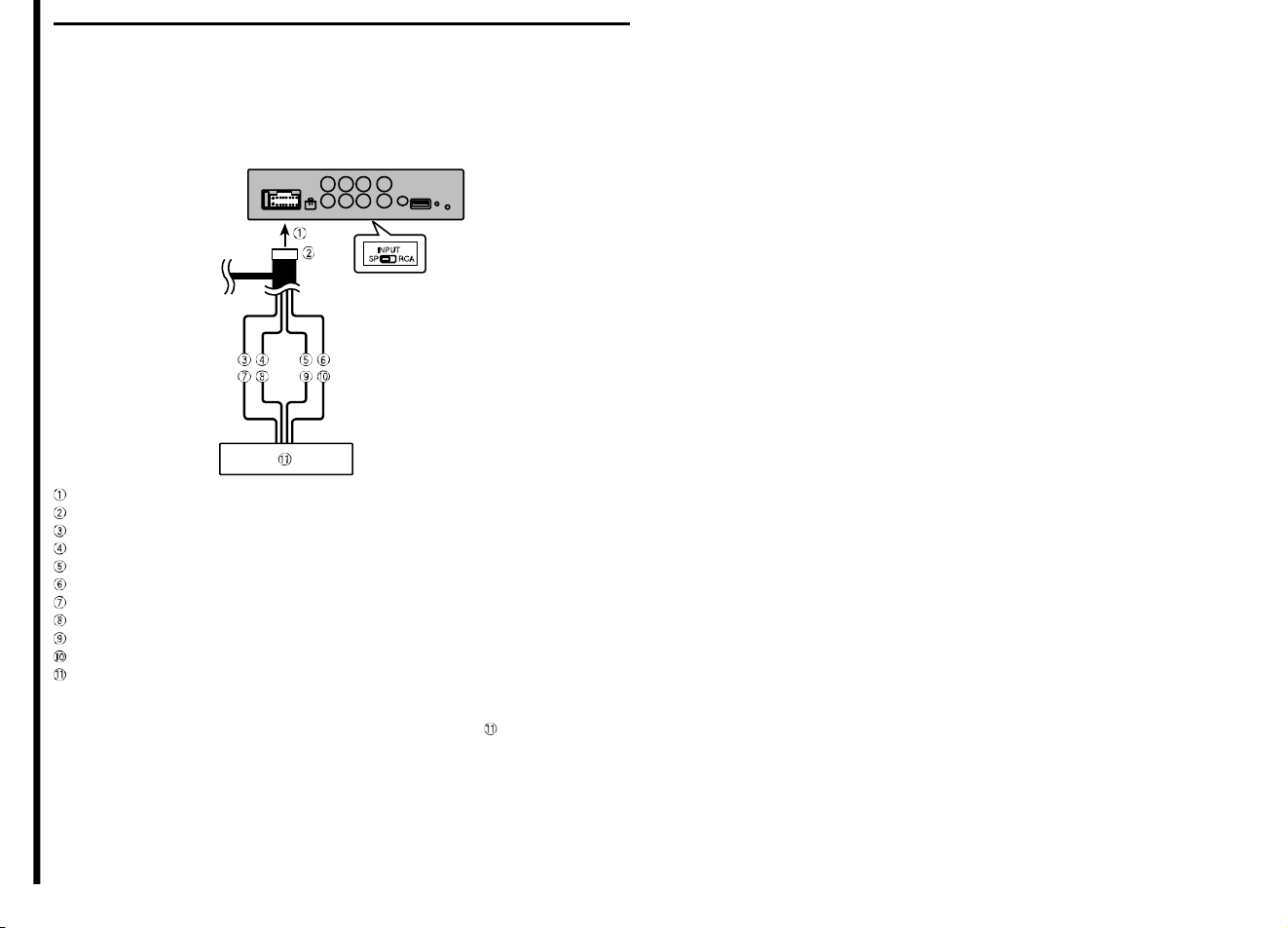
Connection of power cord and speaker
Cut the attached power cord and the n connect it to the vehicle.
The wiring harness kit (sold separately) is also available to connect the cord.
Refer to:
• Connections when using
the speaker input wire
• Connections when using
the RCA input jack
To power cord input
Power cord
Yellow
To terminal supplied with power, regardless of ignition switch position
Red
To electric terminal controlled by ignition switch (12 V DC) ON/OFF
Blue/white
Connect to the system control terminal of the power amp (max. 300 mA 12 V
DC).
Black (ground)
To vehicle (metal) body
Left
Right
Front speaker (STD) or high range speaker (NW)
Rear speaker (STD) or middle range speaker (NW)
White
White/black
Gray
Gray/black
Green
Green/black
Violet
Violet/black
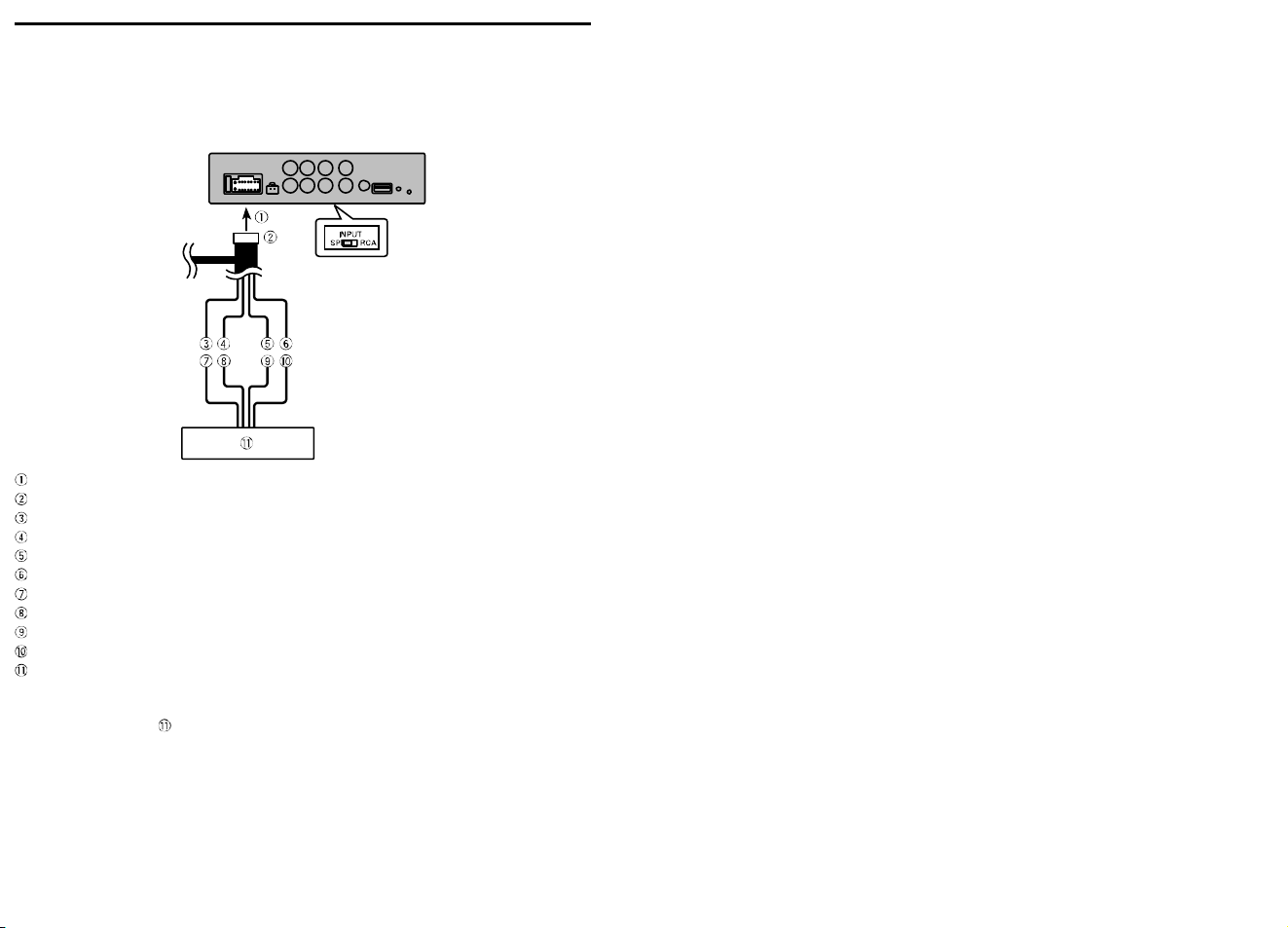
Connections when using the speaker input
wire
Connect the car stereo speaker output wires to this unit using the power cord.
Slide the INPUT select switch to the SP position.
To power cord input
Power cord
Orange
Orange/black
Brown
Brown/black
Left +
Left −
Right +
Right −
Car stereo / navigation system
Note
• The input signal of Car stereo / navigation system is 2ch. The output signal
of this unit will not be reflected even when changing settings other than th e
corresponding channel of the car stereo / navigation system.
• Connect the front speaker output of the car stereo / navigation system.
• Make sure to connect with the speaker input if your vehicle has no ACC
(accessory) position.
This unit activates with the power of the car stereo / navigation system.
This unit may not activate depending on the type of car stereo / navigation
system.
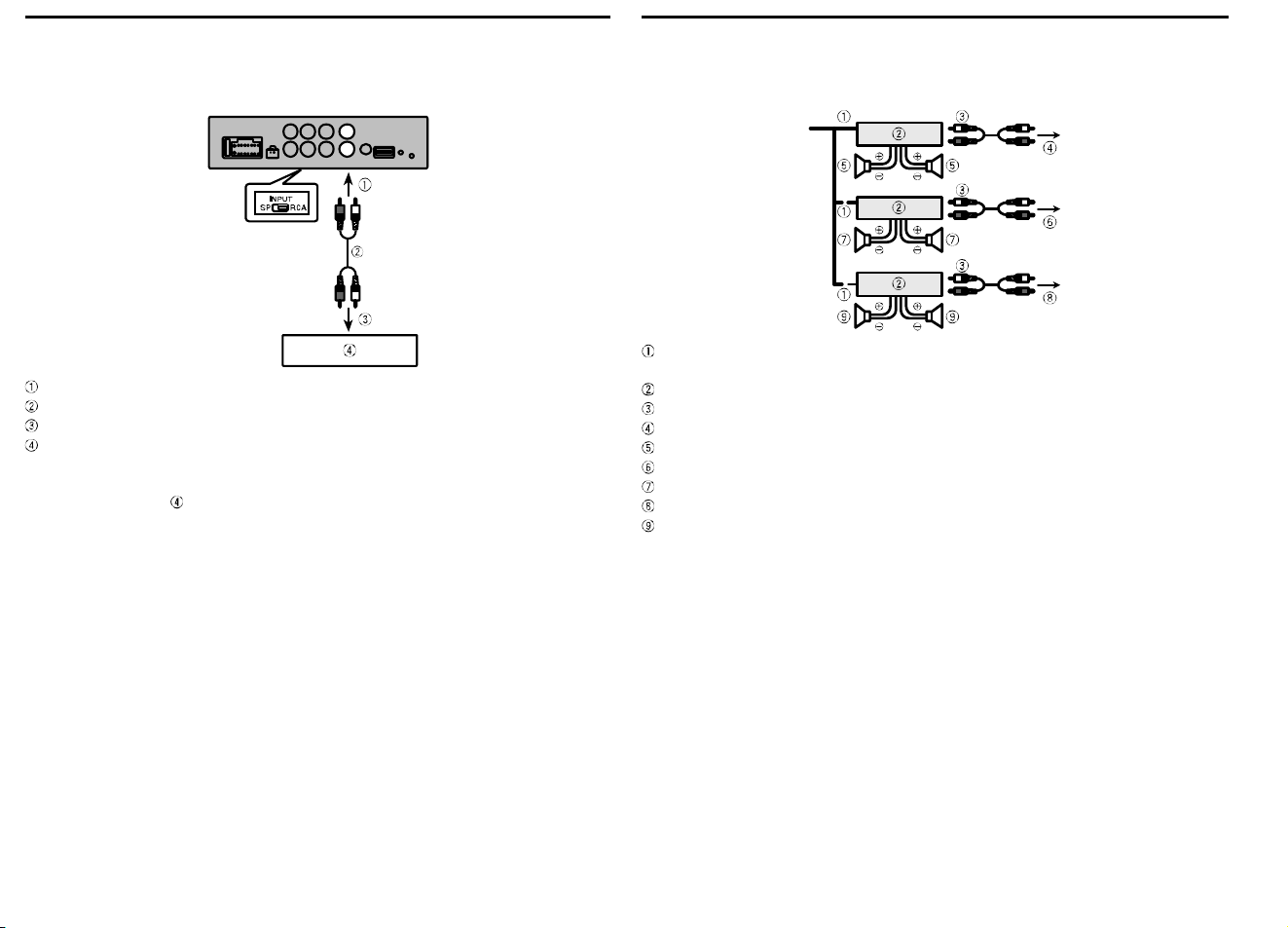
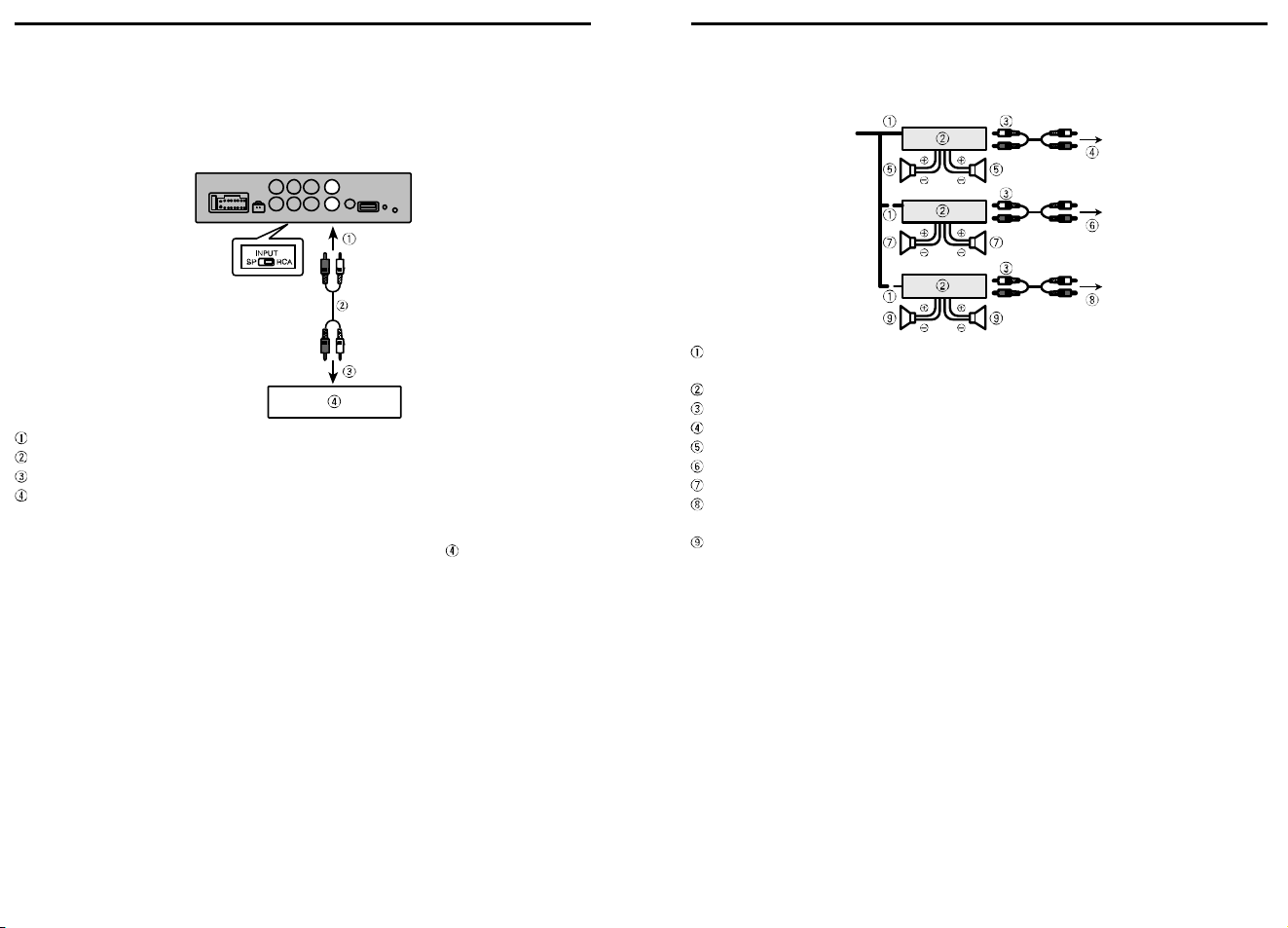
Connections when using the RCA input jack
Connect the car stereo RCA output jack and the RCA input jack of this unit.
Slide the INPUT select switch to the RCA position.
To RCA input
RCA cable (sold separately)
To RCA output
Car stereo / navigation system
Note
• The input signal of Car stereo / navigation system is 2ch. The output signal
of this unit will not be reflected even when changing settings other than the
corresponding channel of the car stereo / navigation system.
• Connect the front RCA output of the car stereo / navigation system.
• Make sure to connect with the speaker input if your vehicle has no ACC
(accessory) position.
This unit activates with the power of the car stereo / navigation system.
This unit may not activate depending on the type of car stereo / navigation
system.
Connections when using the amplier (sold
separately)
System remote control
Connect to Blue/white cable.
Power amp (sold separately)
Connect with RCA cable (sold separately)
To front output (STD) or high range output (NW)
Front speaker (STD) / High range speaker (NW)
To rear output (STD) or middle range output (NW)
Rear speaker (STD) / Middle range speaker (NW)
To subwoofer output (STD) or low range output (NW)
Subwoofer (STD) / Low range speaker (NW)
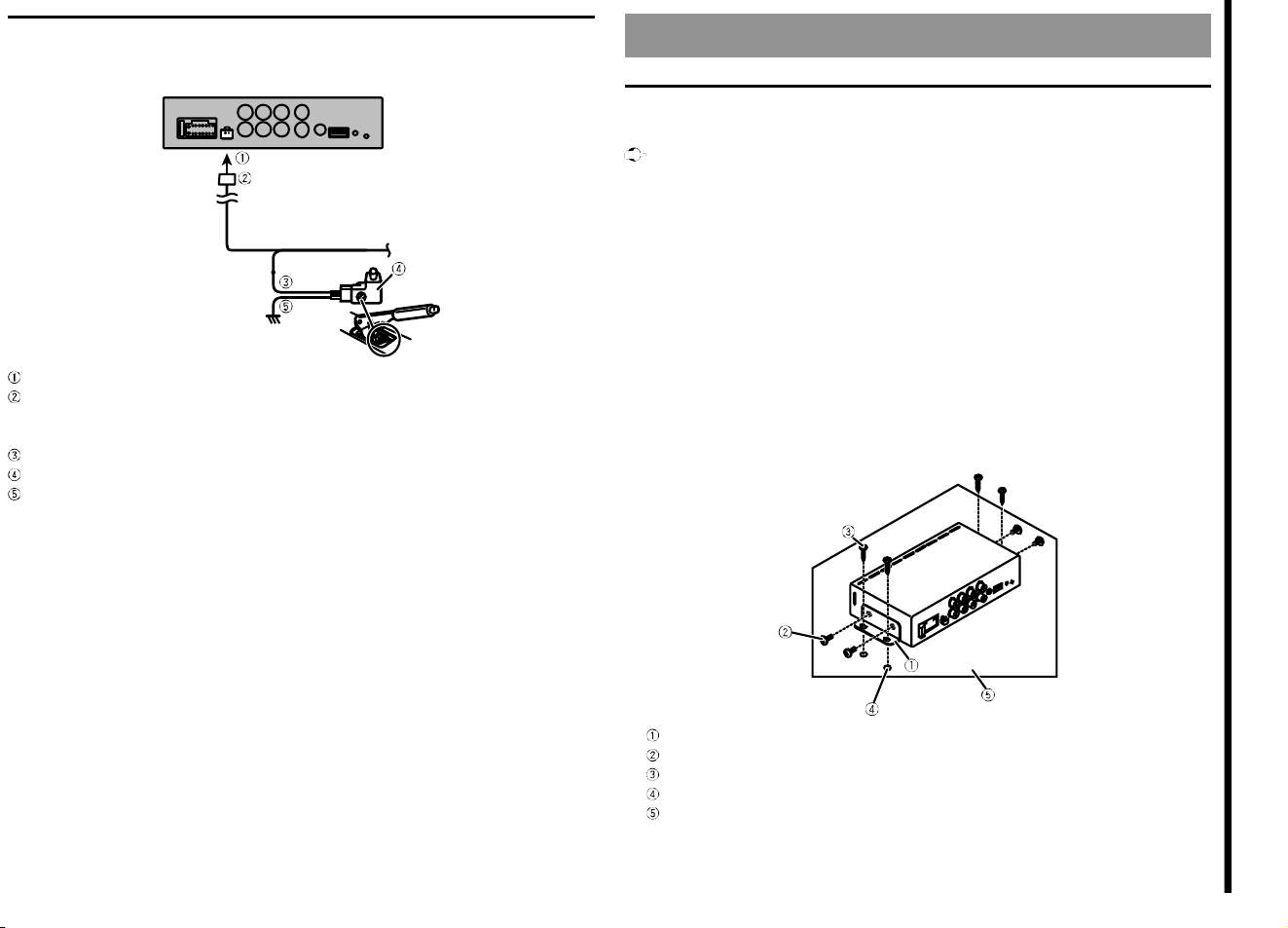
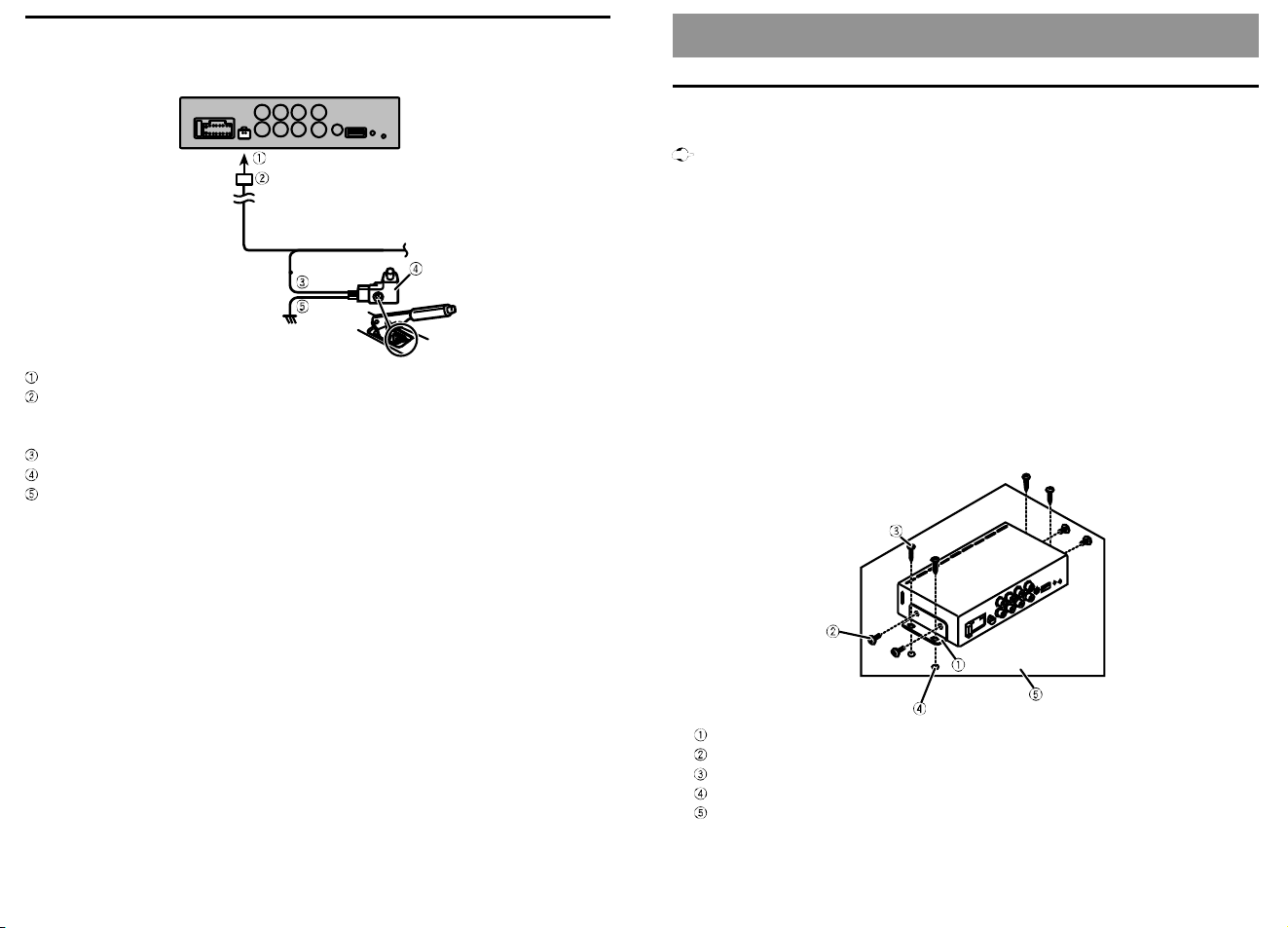
Parking brake cable connections
Connect to the parking brake switch using the parking brake cord.
To parking brake cord input
Parking brake cord
Used to detect the ON/OFF status of the parking brake. This lead must be
connected to the power supply side of the parking brake switch.
Power supply side
Parking brake switch
Ground side
Note
When the parking brake cable is not connected, a part of the exclusive application
(Sound Tune) function is limited.
Installation
This unit
Important
• Check all connections and systems before final installation.
• Do not use unauthorized parts as this may cause malfunctions.
• Consult your dealer if installation requires drilling of holes or other modifications
to the vehicle.
• Do not install this unit where:
−it may interfere with operation of the vehicle.
−it may cause injury to a passenger as a result of a sudden stop.
• Install this unit away from hot places such as near the heater outlet.
• To enable the setting value, change the setting of the INPUT select switch or the
DSP MODE switch and turn the ACC switch OFF/ON.
1. Set the DSP MODE select switch.
2. Set the INPUT select switch.
3. Tighten the screws on each side, then fix the unit.
Bracket
Screw (Washer-faced head 4 mm × 8 mm)
Screw (Tapping screw 4 mm × 12 mm)
Hole (2 mm to 2.5 mm)
Car mat or chassis (installation example)
Download Sound Tune
To use this unit, download Sound Tune to the iPhone or smartphone (Android).
Enter the search term "Pioneer Sound Tune" in the search window or search from
the following QR code.
WARNING
Do not attempt to operate the application while driving. Make sure to pull off the
road and park your vehicle in a safe location before attempting to use the controls
on the application.
Sound Tune can do the following.
Playing songs saved on iPhone / smartphone (Android)
Playable song formats depend on your device. For details, please read the
instruction manual of your device.
Effect settings of iPhone / smartphone (Android) songs and the car stereo /
navigation system sound
• Super “Todoroki” Sound
• Live Simulation
Various settings of this unit
• Standard Mode (Front / Rear / Subwoofer)
• Network Mode (3 Way Network)
• Speaker Setting
−Graphics Equalizer
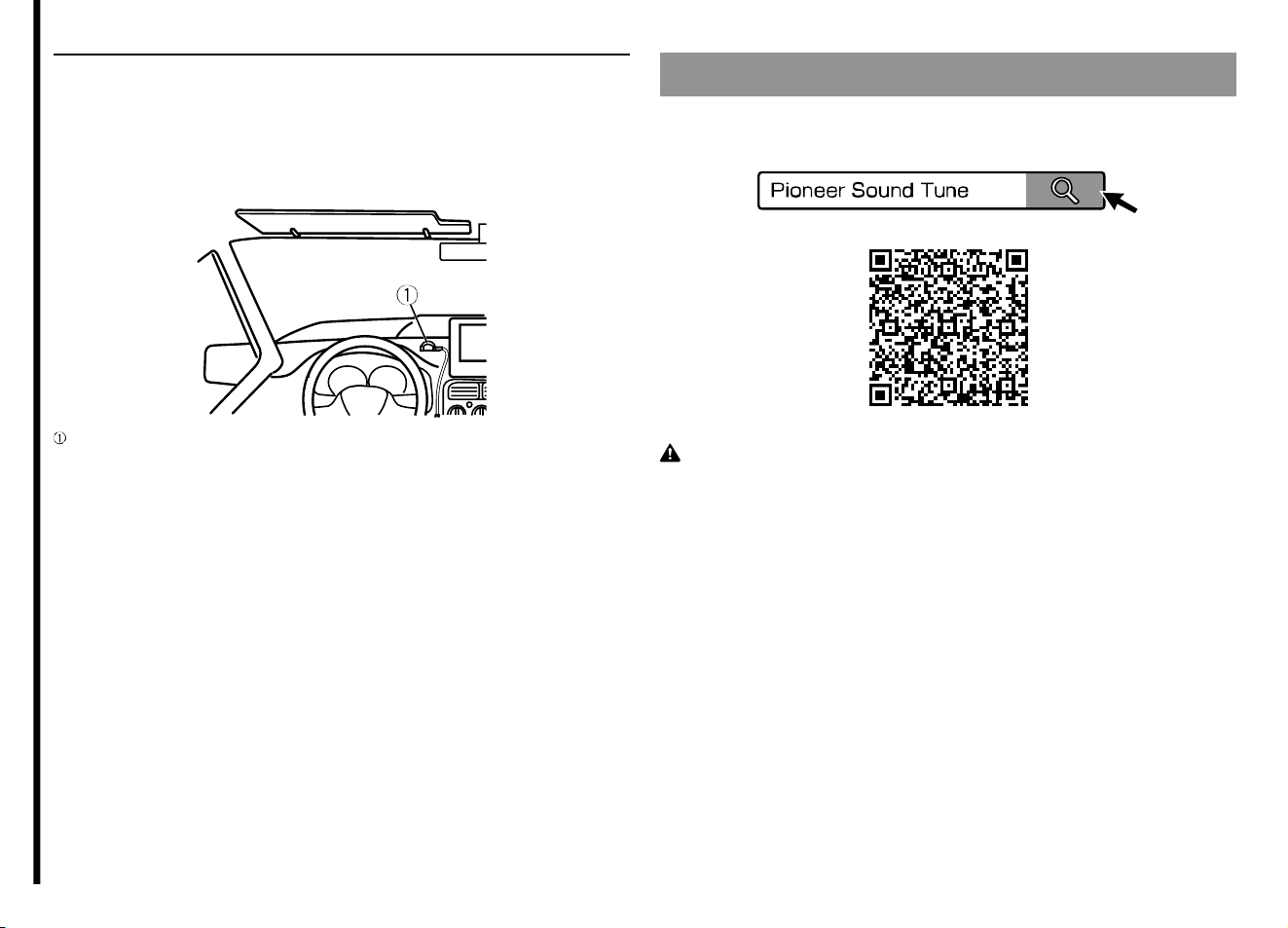
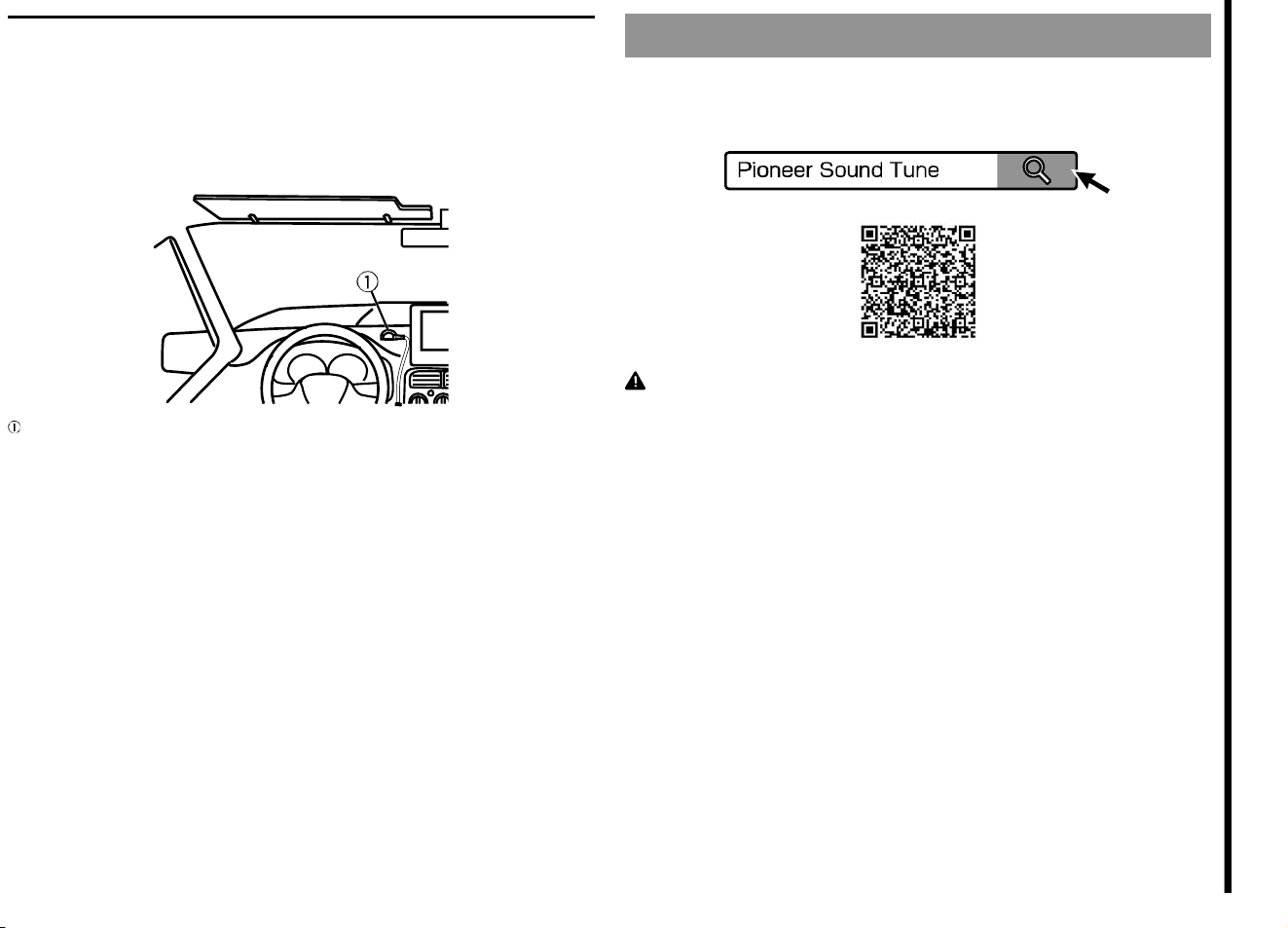
Remote control sensor
1. Con nect the remote control sensor to the remote control sens or input .
Place the light receiving part of the remote control sensor in a place that can
receive the remote control signal.
Wire the cable so that it does not interfere with driving.
Remote control sensor

−Time Alignment
−Network Filter
−Speaker Level
• Fader / Balance
• Source Calibration
For details of each function, please refer to Popup Help in Sound Tune.
How to Use This Unit
Depending on the connection method of the iPhone / smartphone (Android), this
unit can be used as follows.
When using this unit alone (When not
connecting an iPhone or smartphone
(Android))
The unit outputs the sound source of the car stereo / navigation system. Only
the volume adjustment and mute functions can be operated with the supplied
remote control.
For audio adjustment, connection of an iPhone / smartphone (Android) is
necessary.
When connecting an iPhone / smartphone
(Android) to use
The unit can be used in the following four pattern modes.
When using the remote control, press the SRC button to switch the mode.
The mode switches in the order of Car Stereo mode, Through mode, Smartphone
mode, and Mix mode.
Car Stereo mode
The unit outputs the sound source of the car stereo / navigation system by
passing through the iPhone / smartphone (Android).
Smartphone mode
The unit outputs the sound source of the iPhone / smartphone (Android).
Through mode
The unit outputs the sound source of the car stereo / navigation system without
passing through the iPhone / smartphone (Android). (It is the same output as
using this unit alone)
This mode is used when video and audio are misaligned during video playback in
the Car Stereo mode.
Mix mode
The unit mixes and outputs the sound of the iPhone / smartphone (Android) and
the sound of the car stereo / navigation system.
Use this mode when you want to use the voice guidance of the car stereo /
navigation system while listening to the source of the iPhone / smartphone
(Android). In this case, turn off the source of the car stereo / navigation system
and set it so that only the voice guidance is output.
Depending on the car stereo / navigation system, this mode may not be available.
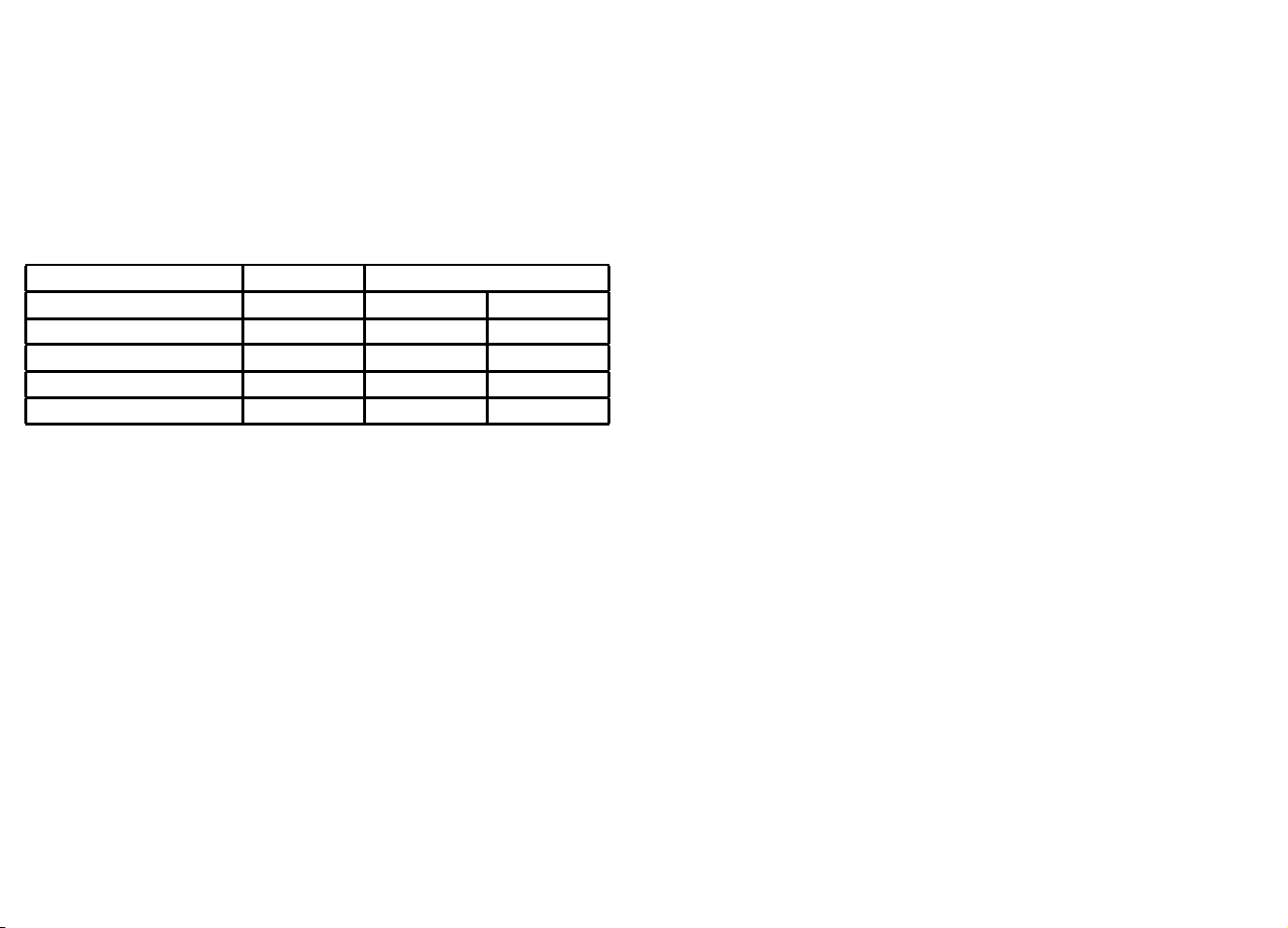
The available functions differ depending on the connection method of the iPhone
/ smartphone (Android).
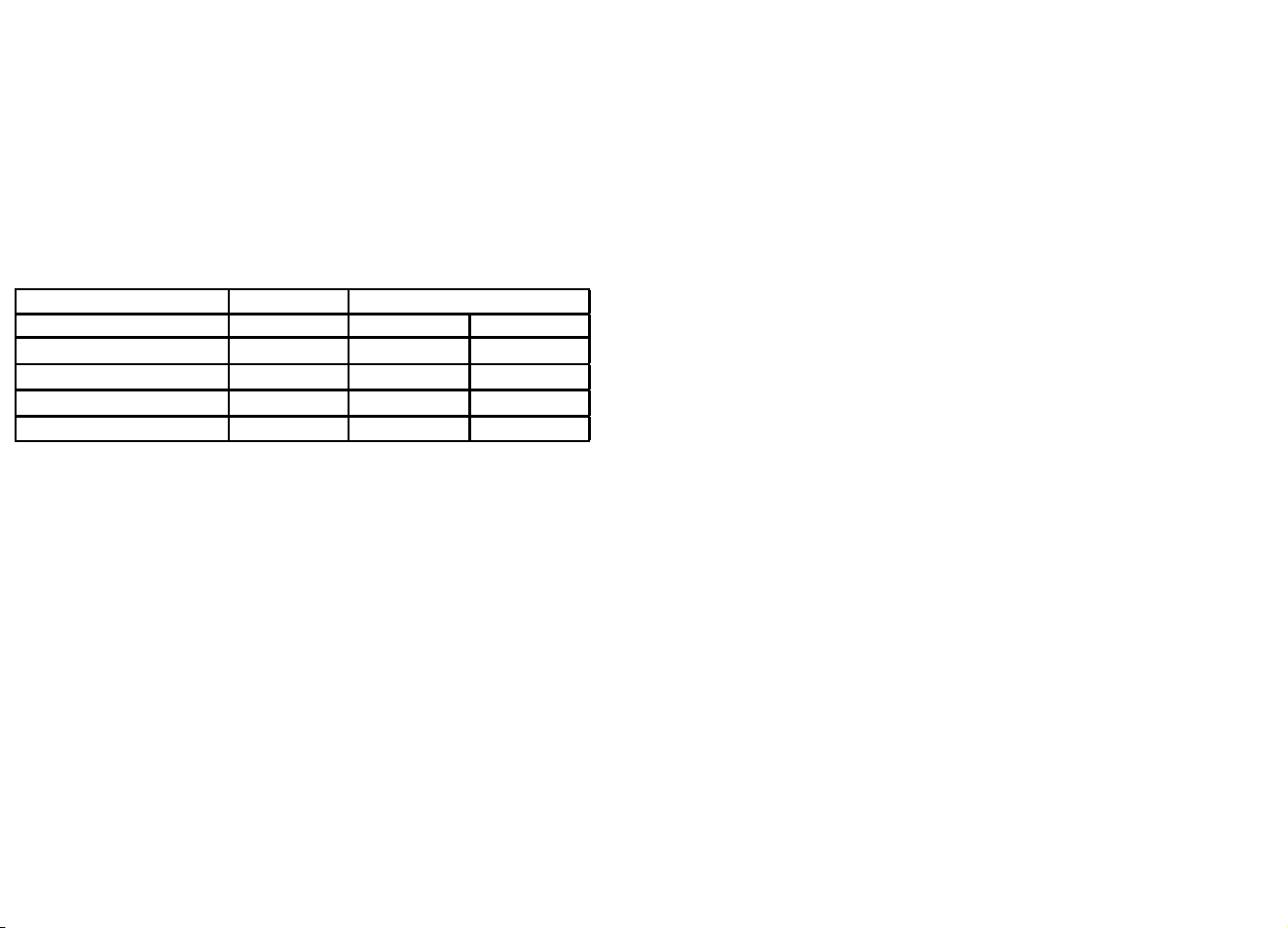
Device iPhone Smartphone (Android)
Connection method - AOA*1 OTG*2
Car Stereo mode ✔ -(*3) ✔
Smartphone mode
✔ ✔
✔(*4)
Through mode ✔ ✔ ✔
Mix mode ✔ ✔ ✔(*4)
*1: AOA (Android Open Accessory) is an interface standard for using USB-loaded
products as accessories on Android terminals.
*2: OTG (On-The-Go) is an interface standard that connects USB devices and USB
devices directly. Smartphones (Android) cannot be charged using the OTG
connection. Pay attention to the battery level of the smartphone (Android).
*3: For the AOA connection, you cannot use the Car Stereo mode. The operation is
the same as Through mode.
*4: For the OTG connection, sounds from applications other than Sound Tune
cannot be output from this unit.
Note
• When the iPhone / smartphone (Android) is disconnected, some functions such
as Super “Todoroki” Sound and Live Simulation cannot be us ed.
Also, even if the iPhone / smartphone (Android) is connected, the above
functions may not be used under the following conditions.
−When selecting Through mode
−When playing media by applications other than Sound Tune
• Although this unit can be connected to smartphones (Android), it does not
guarantee the availability of all terminals.
Depending on the smartphone (Android), the unit may not be operated with an
AOA conn ection. In this case, use an OTG connection.
If all else fails, it might be a terminal that cannot be connected or that is out of
order. Please contact your dealer or service agent.
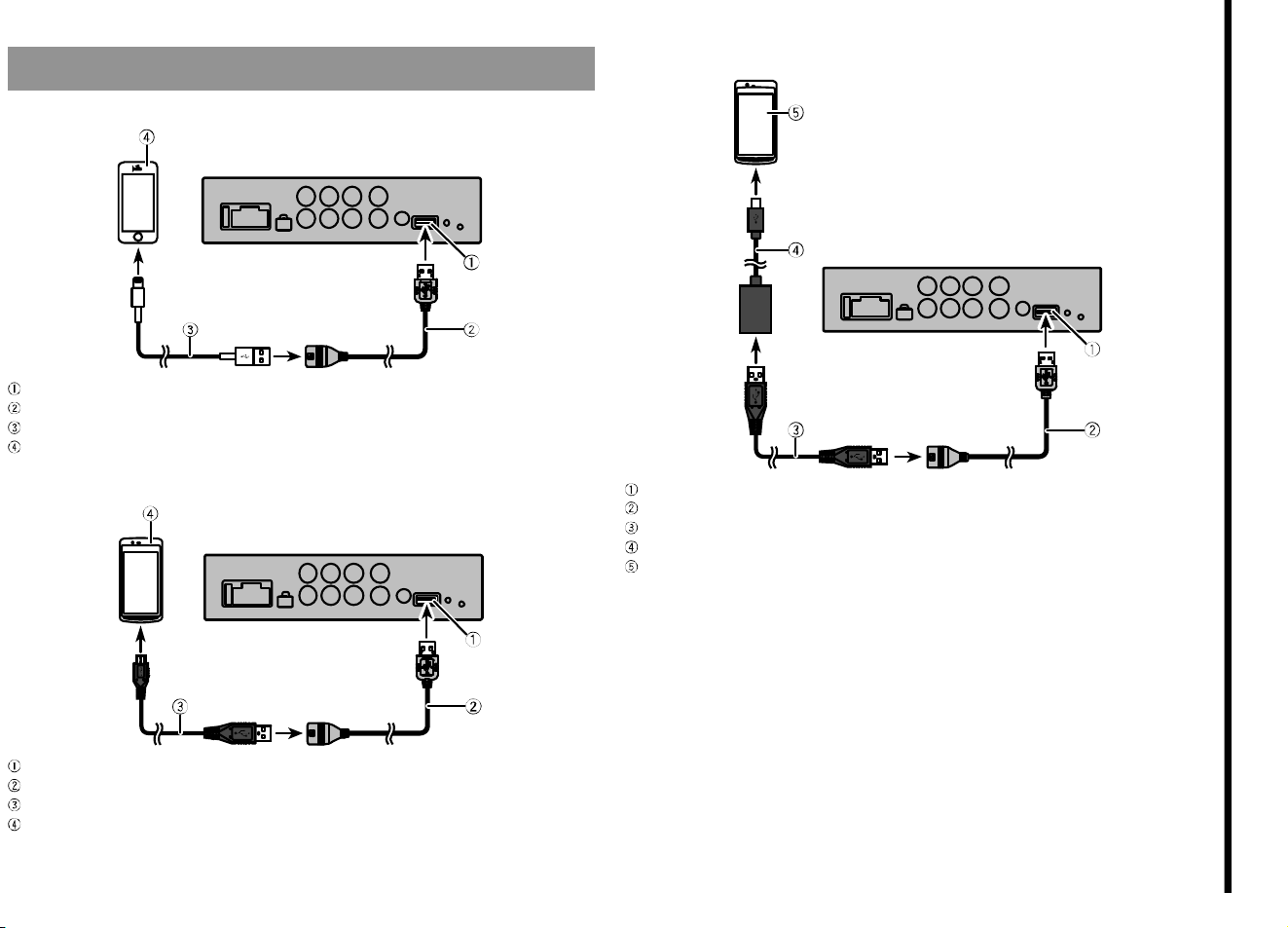
Connecting the Smartphone to This Unit
For iPhone users
USB port
USB cable (for Type-A)
Lightning® – USB cable (genuine product or sold separately)
iPhone
For smartphone (Android) users (AOA connection)
USB port
USB cable (for Type-A)
USB - micro USB cable (sold separately)
Smartphone (Android)
For smartphone (Android) users (OTG connection)
USB port
USB cable (for Type-A)
USB A-A cable (sold separately)
USB OTG cable (sold separately)
Smartphone (Android)
Note
Smartphone (Android) cannot be charged using the OTG connection.
About USB devices
• For details on handling the iPhone / smartphone (Android), please read each
manual.
• Please understand that we do not assume responsibility for compensation even
if data, etc. are lost at the time of use in combination with this unit.
• Be sure to fix the iPhone / smartphone (Android) when using it in combination
with this unit.
About connection with this unit
• Do not connect devices other than t he iPhone / smartphone (Android) (such as
USB fan).
• It is not compatible with connection using USB hub.
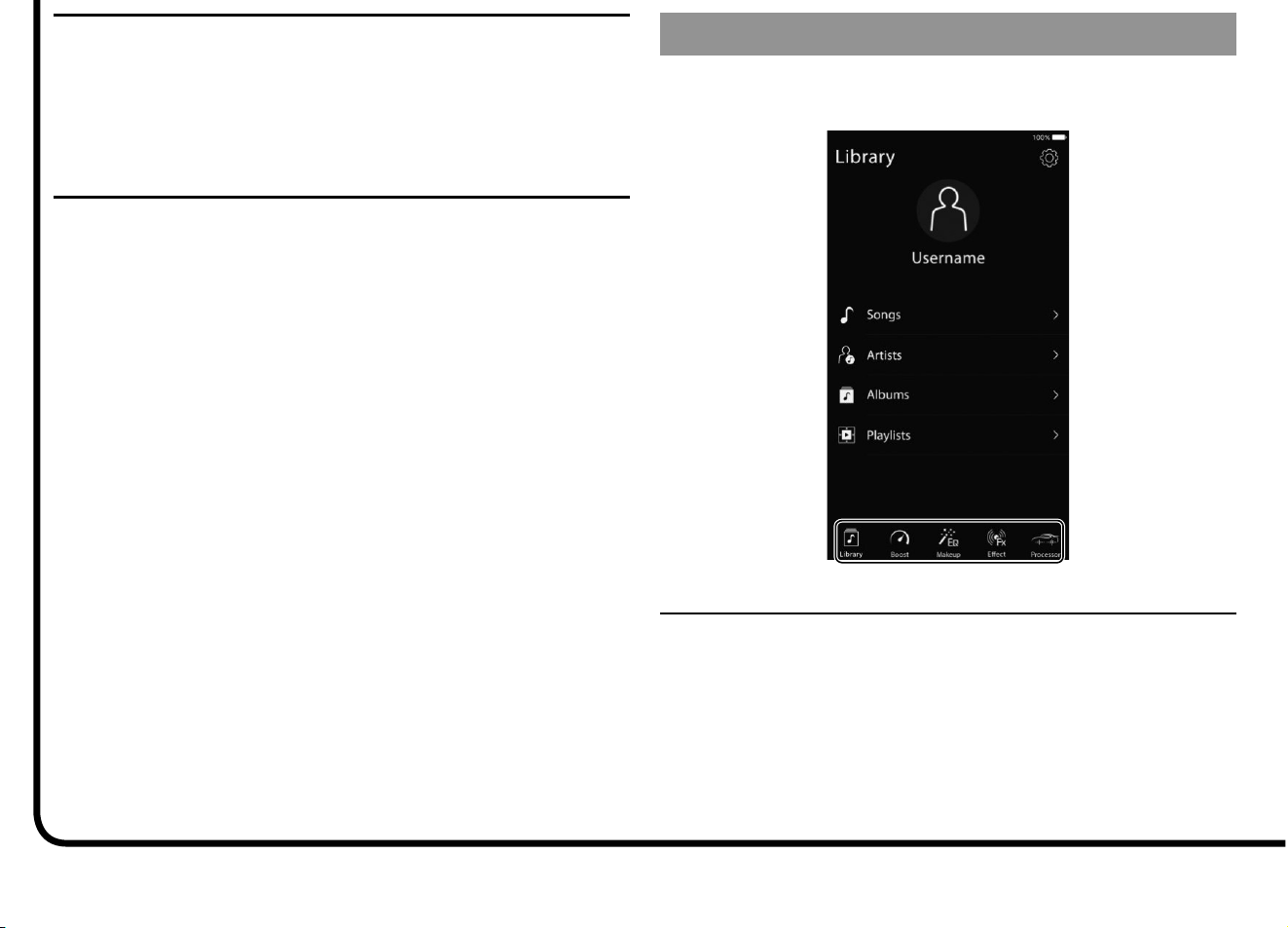
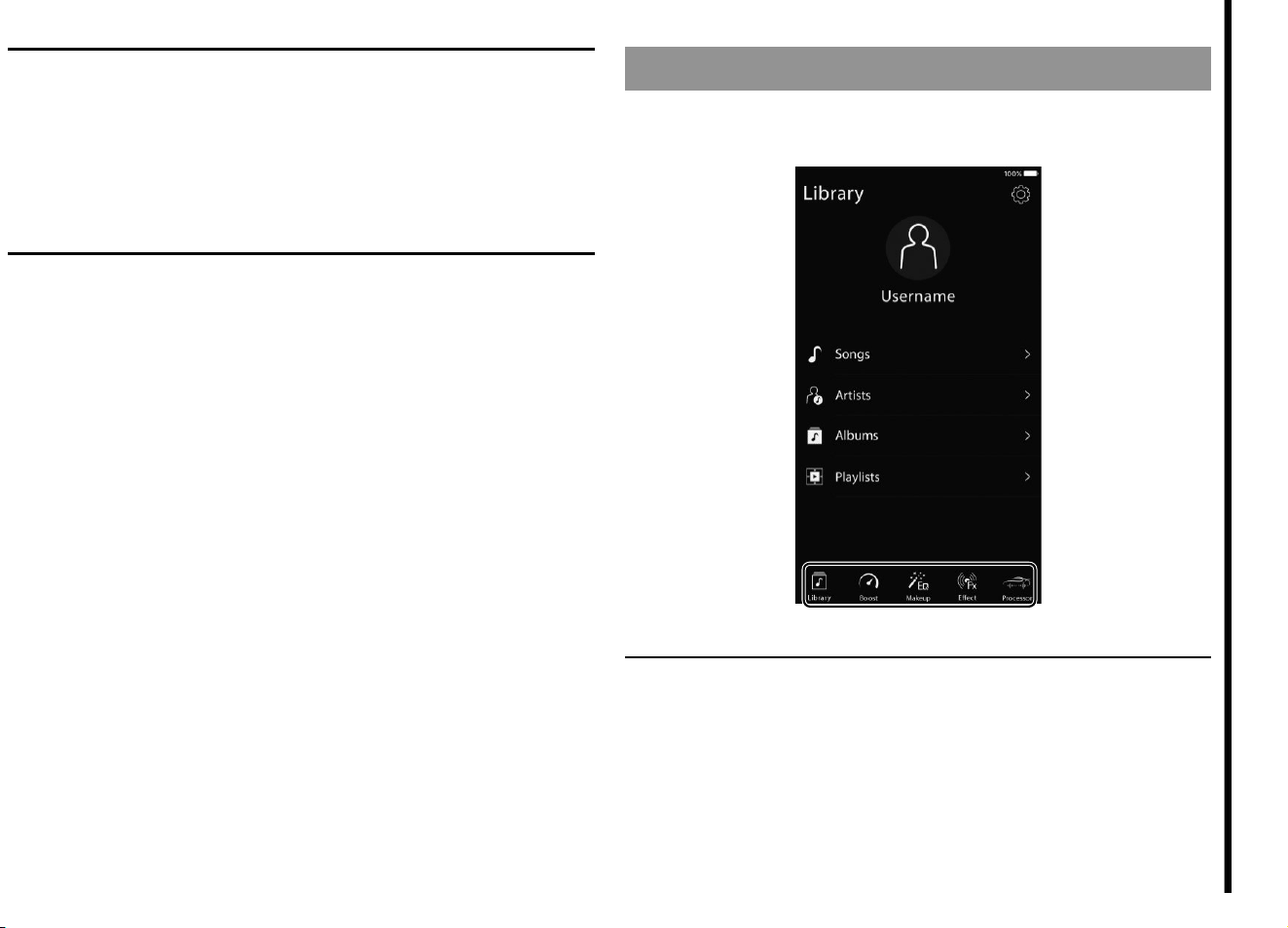
Using Sound Tune
When connecting an iPhone or smartphone (Android) to this unit, a message
is displayed on the iPhone or smartphone (Android). Sound Tune starts when
startup is allowed.
Tap the icon at the bottom of the screen to start the operation.
How to reset
Reset this unit if it does not operate properly or you want to return the setting
value to the factory default.
1. Press the reset button while the unit is in operation.
The settings are initialized when the ignition switch is turned off (ACC OFF).
The factory default setting is applied when the unit is turned o n next time.
When the sound does not sound
If you cannot hear the sound after installing this unit, carry out the following.
• Make sure that the iPhone / smartphone (Android) is connected correctly with a
USB cable.
• Make sure that switching of OTG / AOA is performed correctly.
• Turn the ACC switch OFF / ON.
Please contact your dealer or service agent if improvements are not made even if
you perform the above.
About the protection function
This product has a protection function. When this product detects something
abnormal, the following functions will operate to protect the product and speaker
output.
• The power indicator will turn Red, blink Red, and then the product will power off
in the situations outlined below.
−If the speaker output terminal and speaker wire are short-circuited.
−If a DC voltage is applied to the speaker output terminal.
−If a USB power supply detects something abnormal
−If a USB line has a communication error
Please contact your dealer or service agent if improvements are not made even
after you try turning the ACC switch OFF / ON or removing/reinserting the USB.

Specications
GENERAL
POWER SOURCE 14.4V DC
(10.8-15.1V allowable)
GROUNDING SYSTEM Negative type
MAX. CURRENT CONSUMPTION 9.2A
DIMENSIONS 170(W) x 40(H) x 95(D)<mm>
6-3/4(W) x 1-5/8(H) x 3-3/4(D) <inch>
FUSE 10A
WEIGHT 0.59kg
AUDIO
MAX POWER 50W x 4
50Wx2ch/4Ω + 70Wx1ch/2Ω (for SUB-WOOFER)
CONTINUOUS POWER 22W x 4
(50Hz to 15kHz, 5%THD, 4Ω LOAD, Both Channels Driven)
CEA2006 POWER OUTPUT (at 4 Ohms and
<
=
1% THD+N) 14W RMS x4 Channels
Signal to Noise Ratio (reference:1 Watt into 4 Ohms) 91dBA
LOAD IMPEDANCE 4Ω
(4 - 8Ω(2Ω for 1ch) allowable)
PREOUT OUTPUT LEVEL (MAX) 4.0V
IMPEDANCE 250Ω
FREQUENCY RESPONSE 10Hz to 20kHz (+0dB , -1dB)
S/N RATIO 105dB
THD 0.01%
EQUALIZER (13BAND GRAPHIC EQUALIZER)
FREQUENCY 50Hz, 80Hz, 125Hz, 200Hz, 315Hz, 500Hz
800Hz, 1.25kHz, 2kHz, 3.15kHz, 5kHz, 8kHz, 12.5kHz
GAIN ±12dB(0.1dB step)
SPEAKER SETTING
<STANDARD MODE>
FRONT/REAR (HPF)
FREQUENCY
50Hz, 63Hz, 80Hz, 100Hz, 125Hz, 160Hz, 200H z
SLOPE
0dB(Pass), -6dB/oct, -12dB/oct, -18dB/oct, -24dB/oct
SUB WOOFER (LPF)
FREQUENCY
50Hz, 63Hz, 80Hz, 100Hz, 125Hz, 160Hz, 200H z
SLOPE
0dB(Pass), -6dB/oct, -12dB/oct, -18dB/oct, -24dB/oct
GAIN -24 - +10dB (1dB/Step)
PHASE NORMAL/REVERSE
SPEAKER LEVEL -24 - +10dB (1dB/Step)
TIME ALIGNMENT 0inch - 140inch (1 inch/step)
<NETWORK MODE>
HIGH (HPF) FREQUENCY 1.25kHz, 1.6kHz, 2kHz, 2.5kHz, 3.15kHz
4kHz, 5kHz, 6.3kHz, 8kHz, 10kHz, 12.5kHz
SLOPE -6dB/oct, -12dB/oct, -18dB/oct, -24dB/oct
MID (LPF) FREQUENCY 1.25kHz, 1.6kHz, 2kHz, 2.5kHz, 3.15kHz
4kHz, 5kHz, 6.3kHz, 8kHz, 10kHz, 12.5kHz
SLOPE
0dB(Pass), -6dB/oct, -12dB/oct, -18dB/oct, -24dB/oct
MID (HPF) FREQUENCY 25Hz, 31.5Hz, 40Hz, 50Hz, 63Hz, 80Hz
100Hz, 125Hz, 160Hz, 200Hz, 250Hz
SLOPE
0dB(Pass), -6dB/oct, -12dB/oct, -18dB/oct, -24dB/oct
SUB WOOFER (LPF)
FREQUENCY 25Hz, 31.5Hz, 40Hz, 50Hz, 63Hz, 80Hz
100Hz, 125Hz, 160Hz, 200Hz, 250Hz
SLOPE 0dB(Pass), -12dB/oct, -18dB/oct
-24dB/oct, -30dB/oct, -36dB/oct
GAIN -24 - +10dB (1dB/Step)
PHASE NORMAL/REVERSE
SPEAKER LEVEL -24 - +10dB (1dB/Step)
TIME ALIGNMENT 0inch - 140inch (1 inch/step)
USB
USB STANDARD SPEC. USB2.0 High Speed
MAX CURRENT SUPPLY 1.5A
Trademarks
iPhone, and Lightning are trademarks of Apple Inc., registered in the U.S.
and other countries.
Use of the Made for Apple badge means that an accessory has been
designed to connect specifically to the Apple product(s) identified in the
badge, and has been certified by the developer to meet Apple performance
standards.
Apple is not responsible for the operation of this device or its compliance
with safety and regulatory standards.
Please note that the use of this accessory with an Apple product may affect
wireless performance.
Français
Avant de commencer
Nous vous remercions d’avoir acheté cet appareil PIONEER
Pour garantir une utilisation adéquate, lisez bien ce guide avant d’utiliser cet
appareil. Il est particulièrement important de lire et respecter les indications
MISE EN GARDE et ATTENTION de ce guide. Conservez-le dans un endroit sûr et
facilement accessible pour toute consultation ultérieure.
La protection de votre ouïe est entre vos mains
Pour assurer le rendement optimal de votre matériel et – plus important encore –
la protection de votre ouïe, réglez le volume à un niveau raisonnable. Pour ne pas
altérer votre sens de la perception, le son doit être clair mais ne produire aucun
vacarme et être exempt de toute distorsion. Votre ouïe peut vous jouer des tours.
Avec le temps, votre système auditif peut en effet s’adapter à des volumes
supérieurs, et ce qui vous semble un « niveau de confort normal » pourrait
au contraire être excessif et contribuer à endommager votre ouïe de façon
permanente. Le réglage de votre matériel à un volume sécuritaire AVANT que
votre ouïe s’adapte vous permettra de mieux vous protéger.
CHOISISSEZ UN VOLUME SÉCURITAIRE :
• Réglez d’abord le volume à un niveau inférieur.
• Montez progressivement le volume jusqu’à un niveau d’écoute confortable ; le
son doit être clair et exempt de distorsions.
• Une fois que le son est à un niveau confortable, ne touchez plus au bouton du
volume.
N’OUBLIEZ PAS DE RESPECTER LES DIRECTIVES SUIVANTES :
• Lorsque vous montez le volume, assurez-vous de pouvoir quand même
entendre ce qui se passe autour de vous.
• Faites très attention ou cessez temporairement l’utilisation dans les situations
pouvant s’avérer dangereuses.
• N’utilisez pas des écouteurs ou un casque d’écoute lorsque vous opérez un
véhicule motorisé ; une telle utilisation peut créer des dangers sur la route et est
illégale à de nombreux endroits.
ATTENTION
• Ce produit a été évalué sous des conditions climatiques tempérées et tropicales,
selon la norme CEI 60065, « Appareils audio, vidéo et appareils électroniques
analogues – Exigences de sécurité ».
Connexions
MISE EN GARDE
Important
• Lors de l’installation de cet appareil dans un véhicule sans position ACC
(accessoire) sur le comm utateur d’allumage, le fait de ne pas connecter le câble
rouge à la borne détectant l’utilisation de la clé de contact pourrait entraîner le
déchargement de la batterie.
Avec position ACC
Sans pos ition ACC
• Utilisez cet appareil uniquement avec une batterie 12volts et une mise à la
masse négative. Le non-respect de cette consigne pourrait entraîner un incendie
ou un problème de fonctionnement.
• Pour éviter un court-circuit, une surchauffe ou un problème de fonctionnement,
assurez-vous de respecter les instructions suivantes.
−Déconnectez la borne négative de la batterie avant l’installation.
−Fixez le câblage avec des serre-câbles ou du ruban adhésif. Pour protéger le
câblage, enroulez du ruban adhésif autour des parties du câblage en contact
avec des pièces métalliques.
−Placez tous les câbles à distance des pièces mobiles, telles que le levier de
vitesses et les rails des sièges.
−Placez tous les câbles à distance des endroits chauds, tels que les
emplacements à proximité des sorties de chauffage.
−Ne connectez pas le câble jaune à la batterie en le faisant passer dans
l’ouverture du compartiment moteur.
−Recouvrez tous les connecteurs de câbles qui ne sont pas connectés avec du
ruban isolant.
−Utilisez un fusible correspondant aux caractéristiques spécifiées.
−Ne reliez jamais le câble négatif du haut-parleur directement à la masse.
−Ne réunissez jamais les câbles négatifs de plusieurs haut-parleurs.
• Le symbole graphique placé sur le produit signifie « courant continu ».
• Vérifiez les connexions de l’alimentation et des haut-parleurs si le fusible de cet
appareil est grillé. Déterminez la cause et corrigez le problème, puis remplacez le
fusible par un fusible identique.
• Installez toujours cet appareil sur une surface plane.
N’installez pas cet appareil sur une surface qui n’est pas plane ou sur une surface
présentant une saillie. Cela pourrait entraîner un problème de fonctionnement.
• Lors de l’installation de cet appareil, ne laissez pas des pièces telles que des vis
supplémentaires se coincer entre cet appareil et l’automobile.
Cela pourrait causer un problème de fonctionnem ent.
• Ne laissez pas cet appareil entrer en contact avec des liquides. Cela pourrait
provoquer une électrocution.
Tout contact avec des liquides pourrait également provoquer des dommages, de
la fumée et une surchauffe de l’appareil.
Les surfaces de l’amplificateur et des haut-parleurs connectés peuvent
également chauffer et entraîner des brûlures mineures.
• N’essayez pas de démonter ou modifier cet appareil. Sinon, il pourrait en résulter
un incendie, une électrocution ou tout autre problème de fonctionnement.
Cet appareil
Cet appareil propose divers effets sonores commandés de manière intuitive à
l’aide d’un télépho ne intelligent.
FUSIBLE 10A
Entrée pour cordon d’alimentation
Entrée pour cordon de frein à main
Sortie pour haut-parleur d’extrêmes graves
Sortie arrière/Sortie pour médiums
Sortie avant/Sortie pour aigus
Entrée RCA
Entrée pour capteur de télécommande
Port USB
Touche de réinitialisation
Indicateur d’alimentation
Sélecteur INPUT
Sélecteur DSP MODE
Capteur de télécommande
Préparation de la télécommande
Retirez la feuille de protection avant l’utilisation.
Comment remplacer la pile
Insérez la pile avec les pôles plus (+) et moins (–) orientés correctement.
MISE EN GARDE
• Ne pas ingérer la batterie: risque de brûlure chimique
(La télécommande qui accompagne) Ce produit contient une pile-bouton. Si la
pile-bouton est avalée, elle peut causer de graves brûlures internes au bout d’à
peine deux heures et peut entraîner le décès.
Gardez les batteries neuves et les batteries usées à l’écart des enfants.
Si le logement à pile ne se ferme pas fermement, cessez d’utiliser le produit et
gardez-le à l’écart des enfants.
Si vous croyez que les piles ont peut-être été avalées ou placées à l’intérieur de
toute partie du corps, consultez immédiatement un médecin.
• Les piles (le bloc-piles ou les piles insérées) ne doivent pas être exposées à une
chaleur excessive telle que celle du soleil ou d’un feu.
ATTENTION
• Il y a risque d’explosion si la pile est mal insérée. Remplacez uniquement par des
piles identiques ou de type équivalent.
• Lorsque vous éliminez des piles usées, respectez la réglementation
gouvernementale ou les règlements des institutions publiques
environnementales qui s’appliquent dans votre pays/région.
Nom de chaque touche de télécommande
VOLUME –
VOLUME +
MUTE
SRC (source)
Gauche
Appuyez pour sélectionner la plage/ chanson précédente.
Droite
Appuyez pour sélectionner la plage/ chanson suivante.
LECTURE/PAUSE
A
Appuyez de manière prolongée pour changer le mode de connexion (pour
iPhone®/ connexion AOA d’un téléphone intelligent (Android)).
B
Appuyez de manière prolongée pour changer le mode de connexion
(connexion OTG d’un téléphone intelligent (Android)).
Bleu/blanc
Connectez à la borne de commande du système de l’amplificateur de puissance
(max. 300mA 12VCC).
Noir (masse)
À la carrosserie du véhicule (métallique)
Gauche
Droite
Haut-parleur avant (STD) ou haut-parleur d’aigus (NW)
Haut-parleur arrière (STD) ou haut-parleur de médiums (NW)
Blanc
Blanc/noir
Gris
Gris/noir
Vert
Vert/noir
Violet
Violet/noir
Connexion du cordon d’alimentation et des
haut-parleurs
Coupez le cordon d’alimentation fixé, puis connectez-le au véhicule.
L’ensemble de faisceau de câbles (vendu séparément) est également disponible
pour la connexion du cordon.
Reportez-vous à:
• Connexions lors de
l’utilisation du fil d’entrée
des haut-parleurs
• Connexions lors de
l’utilisation de la prise
d’entrée RCA
Vers l’entrée pour cordon d’alimentation
Cordon d’alimentation
Jaune
Vers la borne alimentée, quelle que soit la position du commutateur d’allumage
Rouge
Vers la borne contrôlée par le commutateur d’allumage (12VCC) MARCHE/ARRÊT
• Assurez-vous de connecter à l’entrée des haut-parleurs si votre véhicule ne
possède pas de position ACC (accessoire).
Cet appareil est activé par l’alimentation de l’autoradio / du système de
navigation.
Cet appareil pourr ait ne pas s’activer selon le type d’autoradio / de système de
navigation.
Connexions lors de l’utilisation du l d’entrée
des haut-parleurs
Connectez les fils de sortie des haut-parleurs de l’autoradio à cet appareil à l’aide
du cordon d’alimentation.
Glissez le sélecteur INPUT à la position SP.
Vers l’entrée pour cordon d’alimentation
Cordon d’alimentation
Orange
Orange/noir
Brun
Brun/noir
Gauche +
Gauche −
Droite +
Droite −
Autoradio / système de navigation
Remarque
• Le signal d’entrée de l’autoradio/ du système de navigation est 2canaux. Le
signal de sortie de cet appareil n’est pas reflété, même lors de la modification
de réglages autres que le canal correspondant de l’autoradio/ du système de
navigation.
• Connectez la sortie de haut-parleur avant de l’autoradio / du système de
navigation.
Connexions lors de l’utilisation de
l’amplicateur (vendu séparément)
Télécommande de système
Connectez au câble bleu/blanc.
Amplificateur de puissance (vendu séparément)
Connectez à l’aide d’un câble RCA (vendu séparément)
Vers la sortie avant (STD) ou sortie pour aigus (NW)
Haut-parleur avant (STD) / Haut-parleur d’aig us (NW)
Vers la sortie arrière (STD) ou sortie pour médiums (NW)
Haut-parleur arrière (STD) / Haut-parleur de médiums (NW)
Vers la sortie de haut-parleur d’extrêmes graves (STD) ou sortie pour graves
(NW)
Haut-parleur d’extrêmes graves (STD) / Haut-parleur de graves (NW)
Connexions lors de l’utilisation de la prise
d’entrée RCA
Connectez la prise de sortie RCA de l’autoradio à la prise d’entrée RCA de cet
appareil.
Glissez le sélecteur INPUT à la position RCA.
Vers l’entrée RCA
Câble RCA (vendu séparément)
Vers la sortie RCA
Autoradio / système de navigation
Remarque
• Le signal d’entrée de l’autoradio/ du système de navigation est 2canaux. Le
signa l de sortie de cet appareil n’est pas reflété, même lors de la modification
de réglages autres que le canal correspondant de l’autoradio/ du système de
navigation.
• Connectez la sortie RCA avant de l’autoradio/ du système de navigation.
• Assurez-vous de connecter à l’entrée des haut-parleurs si votre véhicule ne
possède pas de position ACC (accessoire).
Cet appareil est activé par l’alimentation de l’autoradio / du système de
navigation.
Cet appareil pourrait ne pas s’activer selon le type d’autoradio / de système de
navigation.
Installation
Cet appareil
Important
• Vérifiez toutes les connexions et tous les systèmes avant l’installation finale.
• N’utilisez pas de pièces non autorisées, car il pourrait en résulter des problèmes
de fonctionnement.
• Consultez votre détaillant si l’installation nécessite le perçage de trous ou
d’autres modifications du véhicule.
• N’installez pas cet appareil dans les endroits où:
−il risque de compromettre le fonctionnement du véhicule.
−il pourrait blesser un passager en cas d’arrêt soudain du véhicule.
• Installez cet appareil à distance des endroits chauds, tels que les emplacements
à proximité des sorties de chauffage.
• Pour activer la valeur de réglage, changez le réglage du sélecteur INPUT ou DSP
MODE et tournez le commutateur ACC en position ARRÊT/MARCHE.
1. Réglez le sélecteur DSP MODE.
2. Réglez le sélecteur INPUT.
3. Vissez les vis de chaque cô té, puis fixez l’appareil.
Support
Vis (Tête avec rondelle de 4mm × 8mm)
Vis (Vis taraudeuse de 4mm × 12mm)
Trou (2mm à 2,5mm)
Tapis ou châssis de voiture (exemple d’installation)
Connexions du câble de frein à main
Connectez au commutateur de frein à main en utilisant le cordon de frein à main.
Vers l’entrée pour cordon de frein à main
Cordon de frein à main
Permet de détecter l’état ACTIVÉ/DÉSACTIVÉ du frein à main. Ce fil doit être
connecté au côté d’alimentation du commutateur de frein à main.
Côté d’alimentation
Commutateur de frein à main
Côté de masse
Remarque
Lorsque le câble de frein à main n’est pas connecté, une partie de la fonction
d’application exclusive (Sound Tune) est limitée.
Capteur de télécommande
1. Connectez le capteur de télécommande à l’entrée pour capteur de
télécommande.
Placez la partie réceptrice de lumière du capteur de télécommande dans un
endroit permettant de recevoir le signal de télécommande.
Reliez le câble de manière à ne pas nuire à la conduite.
Capteur de télécommande
Téléchargement de Sound Tune
Pour utiliser cet appareil, téléchargez Sound Tune sur le iPhone ou téléphone
intelligent (Android).
Entrez le terme de recherche «Pioneer Sound Tune» dans la fenêtre de recherche
ou effectuez la recherche à l’aide du code QR suivant.
MISE EN GARDE
N’essayez pas de faire fonctionner l’application pendant que vous conduisez.
Veillez à quitter la route et stationner votre véhicule en lieu sûr avant d’essayer
d’utiliser les commandes de l’application.
Sound Tune permet d’effectuer les opérations suivantes.
Lecture de chansons sur le iPhone/ téléphone intelligent (Android)
Les formats de chanson pouvant être lus varient selon votre périphérique. Pour
plus de détails, veuillez lire le mode d’emploi de votre périphérique.
Réglages d’effets pour les chansons du iPhone/ téléphone intelligent
(Android) et le son de l’autoradio/ du système de navigation
• Super son «Todoroki»
• Simulation en direct
Divers réglages de cet appareil
• Mode standard (Avant / Arrière / Haut-parleur d’extrêmes graves)
• Mode réseau (Réseau 3voies)
• Réglage de haut-parleurs
−Égaliseur graphique
−Alignement temporel
−Filtre réseau
−Niveau de haut-parleurs

• Équilibreur/ Équilibre
• Calibration de source
Pour les détails sur chaque fonction, veuillez vous reporter à l’Aide Contextuelle
dans Sound Tune.
Comment utiliser cet appareil
Selon la méthode de connexion du iPhone/ téléphone intelligent (Android), cet
appareil peut être utilisé comme suit.
Lors de l’utilisation de cet appareil seul
(Sans connexion d’un iPhone ou téléphone
intelligent (Android))
L’appareil émet le son de l’autoradio/ du système de navigation. Seules les
fonctions de réglage de volume et de sourdine peuvent être commandées à l’aide
de la télécommande fournie.
Pour les réglages audio, la connexion d’un iPhone/ téléphone intelligent
(Android) est nécessaire.
Lors de la connexion d’un iPhone/ téléphone
intelligent (Android) à utiliser
L’appareil peut être utilisé dans les quatre modes de modèle suivants.
Lors de l’utilisation de la télécommande, appuyez sur la touche SRC pour
commuter le mode.
Le mode est commuté dans cet ordre: mode Autoradio, mode Passage, mode
Téléphone intelligent et mode Mixage.
Mode Autoradio
L’appareil émet le son de l’autoradio/ du système de navigation en passant par le
iPhone/ téléphone intelligent (Android).
Mode Téléphone intelligent
L’appareil émet le son du iPhone/ téléphone intelligent (Android).
Mode Passage
L’appareil émet le son de l’autoradio/ du système de navigation, sans passer par
le iPhone/ téléphone intelligent (Android). (Le son émis est le même que lors de
l’utilisation de cet appareil seul)
Ce mode est utilisé lorsque la vidéo et l’audio sont désalignés pendant la lecture
vidéo en mode Autoradio.
Mode Mixage
L’appareil effectue le mixage et émet le son du iPhone/ téléphone intelligent
(Android) et le son de l’autoradio/ du système de navigation.
Utilisez ce mode lorsque vous souhaitez utiliser le g uidage vocal de l’autoradio/ du
système de navigation tout en écoutant la source d u iPhone/ téléphone intelligent
(Android). En pareil cas, désactivez la source de l’autoradio/ du système de
navigation et réglez-le de manière à ce que seul le guidage vocal soit émis.
Selon l’autoradio/ le système de navigation, ce mode pourrait ne pas être
disponible.
Les fonctions disponibles varient selon la méthode de connexion du iPhone/
téléphone intelligent (Android).
Périphérique iPhone Téléphone intelligent (Android)
Méthode de connexion - AOA*1 OTG*2
Mode Autoradio
✔
-(*3)
✔
Mode Téléphone intelligent ✔ ✔ ✔(*4)
Mode Passage ✔ ✔ ✔
Mode Mixage
✔ ✔ ✔(*4)
*1: AOA (Android Open Accessory) est une norme d’interface pour l’utilisation de
produits USB comme accessoires sur les bornes Android.
*2: OTG (On-The-Go) est une norme d’interface permettant la connexion des
périphériques USB directement aux périphériques USB. Les téléphones
intelligents (Android) ne peuvent pas être chargés pendant l’utilisation de
la connexion OTG. Portez atten tion au niveau de la batterie du téléphone
intelligent (Android).
*3: Pour la connexion AOA, vous ne pouvez pas utiliser le mode Autoradio. Le
fonctionnement est le même qu’en mode Passage.
*4: Pour la connexion OTG, les sons des applications autres que Sound Tune ne
peuvent pas être émis par cet appareil.
Remarque
• Lorsque le iPhone / téléphone intelligent (Android) est déconnecté, certaines
fonctions comme Super son « Todoroki » et Simulation en direct ne peuvent pas
être utilisées.
De plus, même si le iPhone / téléphone intelligent (Android) est connecté,
les fonctions ci-dessus pourraient ne pas être disponibles dans les conditions
suivantes.
−Lors de la sélection du mode Passage
−Lors de la lecture média à l’aide d’applications autres que Sound Tune
• Bien que cet appareil puisse être connecté à des téléphones intelligents
(Android), la disponibilité de toutes les bornes n’est pas garantie.
Selon le téléphone intelligent (Android), l’appareil pourrait ne pas fonctionner
avec une connexion AOA. En pareil cas, utilisez une connexion OTG.
Si aucune de ces mesures ne donne de résultats, il est possible que la borne ne
puisse pas être connectée ou qu’elle soit hors d’usage. Ve uillez contacter votre
détaillant ou un agent de service.
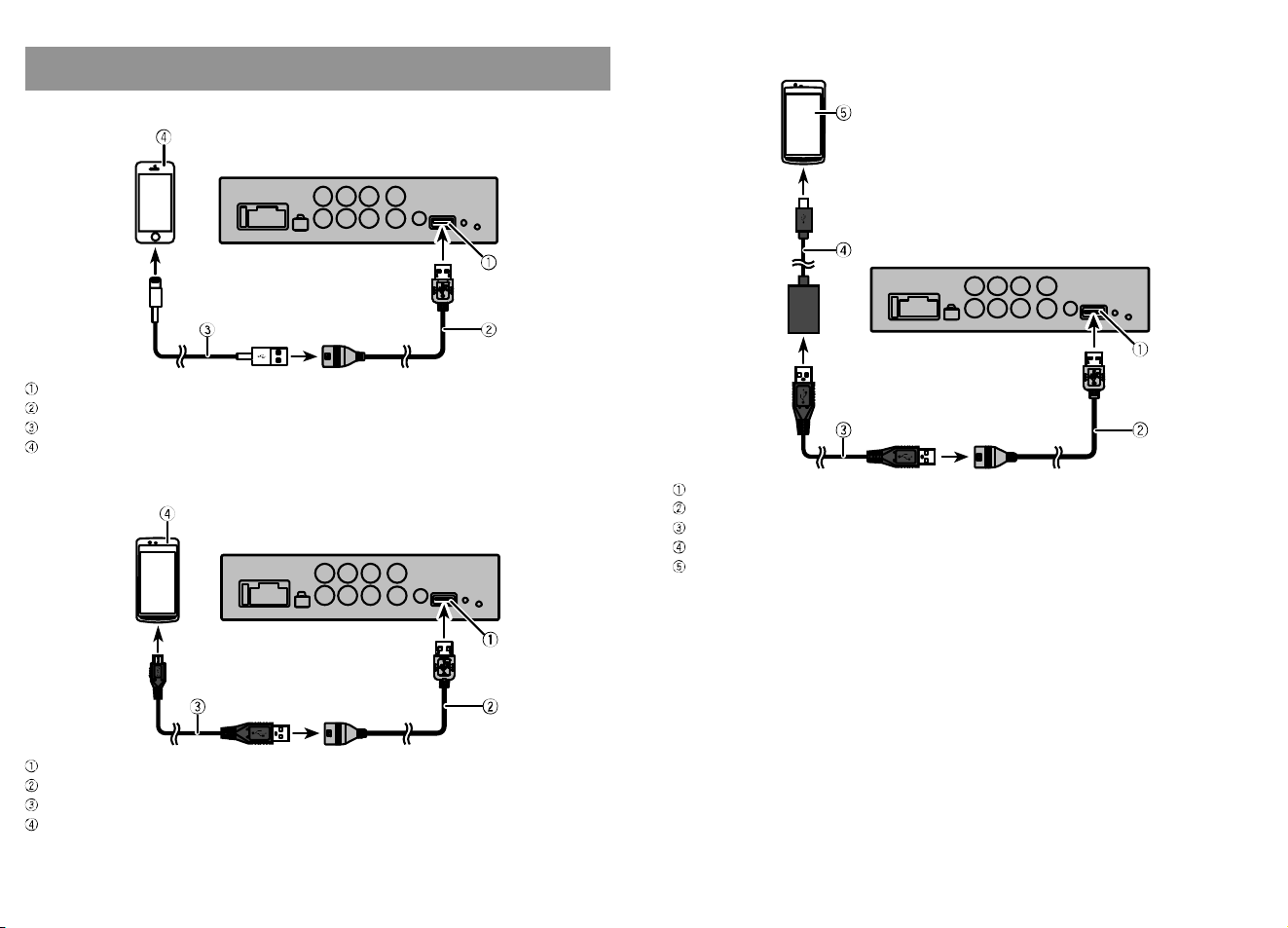
Connexion du téléphone intelligent à cet appareil
Pour les utilisateurs de iPhone
Port USB
Câble USB (pour Type-A)
Câble Lightning® – USB (produit authentique ou vendu séparément)
iPhone
Pour les utilisateurs de téléphone intelligent (Android) (connexion AOA )
Port USB
Câble USB (pour Type-A)
Câble USB - micro USB (vendu séparément)
Téléphone intelligent (Android)
Pour les utilisateurs de téléphone intelligent (Android) (connexion OTG)
Port USB
Câble USB (pour Type-A)
Câble USB A-A (vendu séparément)
Câble USB OTG (vendu séparément)
Téléphone intelligent (Android)
Remarque
Le téléphone intelligent (Android) ne peut pas être chargé pendant l’utilisation de
la connexion OTG.
À propos des périphériques USB
• Pour les détails sur la manipulation du iPhone/ téléphone intelligent (Android),
veuillez lire le mode d’emploi de chaque périphérique.
• Veuillez comprendre que nous n’assumons aucu ne responsabilité
d’indemnisation même si les données, etc. sont perdues au moment de
l’utilisation en combinaison avec cet appareil.
• Assurez-vous de fixer le iPhone/ téléphone intelligent (Android) lors de
l’utilisation en combinaison avec cet appareil.
À propos de la connexion à cet appareil
• Ne connectez pas de périphériques autres qu’un iPhone/ téléphone intelligent
(Android) (par exemple, un ventilateur USB).
• Il n’est pas compatible avec la connexion à l’aide d’un concentrateur USB.
Utilisation de Sound Tune
Lors de la connexion d’un iPhone ou téléphone intelligent (Android) à cet
appareil, un message s’affiche sur le iPhone ou téléphone intelligent (Android).
Sound Tune démarre lorsque le démarrage est permis.
Appuyez sur l’icône dans le bas de l’écran pour commencer l’utilisation.
Comment réinitialiser l’appareil
Réinitialisez cet appareil s’il ne fonctionne pas correctement ou si vous souhaitez
rétablir les réglages aux valeurs d’usine par défaut.
1. Appuyez sur la touche de réinitialisation pendant que l’appareil fonctionne.
Les réglages sont initialisés lorsque le commutateur d’allumage est mis en
position d’arrêt (ACC ARRÊT).
Le réglage d’usine par défaut est appliqué à la prochaine mise en marche de
l’appareil.
Lorsque le son n’est pas émis
Si vous ne pouvez pas entendre le son après l’installation de cet appareil, vérifiez
les points suivants.
• Assurez-vous que le iPhone/ téléphone intelligent (Android) est connecté
correctement à l’aide d’un câble USB.
• Assurez-vous que la commutation OTG/ AOA est effectuée correctement.
• Tournez le commutateur ACC en position ARRÊT/ MARCHE.
Veuillez contacter votre détaillant ou un agent de service s’il n’y a auc une
amélioration même après avoir procédé comme ci-dessus.
À propos de la fonction de protection
Ce produit est muni d’une fonction de protection. Lorsque ce produit détecte une
anomalie, les fonctions suivantes s’activent pour protéger le produit et la sortie de
haut-parleur.
• L’indicateur d’alimentation s’allume en rouge et clignote en rouge, puis le
produit s’éteint dans les situations décrites ci-dessous.
−Si la borne de sortie de haut-parleur et le fil de haut-parleur sont court-
circuités.
−Si une tension CC est appliquée à la borne de sortie de haut-parleur.
−Si une alimentation USB détecte une anomalie
−Si un câble USB présente une erreur de communication
Veuillez contacter votre détaillant ou un agent de service s’il n’y a aucune
amélioration même après avoir essayé de tourner le commutateur ACC en
position ARRÊT / MARCHE ou de retirer/réinsérer le câble USB.

Caractéristiques techniques
GÉNÉRALITÉS
SOURCE D’ALIMENTATION 14,4V CC
(10,8-15,1V acceptable)
MISE À LA MASSE Type négatif
CONSOMMATION DE COURANT MAX. 9,2A
DIMENSIONS 170 (L) x 40 (H) x 95 (P) <mm>
63/4 (L) x 15/8 (H) x 33/4 (P) <po>
FUSIBLE 10A
POIDS 0,59kg
AUDIO
PUISSANCE MAX. 50W x 4
50W x 2canaux/4Ω + 70W x 1canal/2Ω (pour
HAUT-PARLEUR D’EXTRÊMES GRAVES)
PUISSANCE CONTINUE 22W x 4
(50Hz à 15kHz, 5% de DHT, CHARGE de 4Ω , avec les deux canaux entraînés)
CEA2006 PUISSANCE DE SORTIE (à 4Ohms et
<
=
1% de DHT+bruit)
14W efficaces RMS x 4canaux
Rapport signal/bruit (référence: 1Watt dans 4Ohms) 91dBA
IMPÉDANCE DE CHARGE 4Ω
(4 - 8Ω (2Ω pour 1canal) acceptable)
PRÉSORTIE NIVEAU DE SORTIE (MAX.) 4,0V
IMPÉDANCE 250Ω
RÉPONSE EN FRÉQUENCE 10Hz à 20kHz (+0dB, -1dB)
RAPPORT SIGNAL/BRUIT 105dB
DHT 0,01%
ÉGALISEUR (ÉGALISEUR GRAPHIQUE À 13BANDES)
FRÉQUENCE 50Hz, 80Hz, 125Hz, 200Hz, 315Hz, 500Hz
800Hz, 1,25kHz, 2kHz, 3,15kHz, 5kHz, 8kHz, 12,5kHz
GAIN ±12dB (par incréments de 0,1dB)
RÉGLAGE DE HAUT-PARLEURS
<MODE STANDARD>
AVANT/ARRIÈRE (FILTRE PASSE-HAUT)
FRÉQUENCE
50Hz, 63Hz , 80Hz, 100Hz, 125Hz, 160Hz, 200Hz
PENTE
0dB (Passage), -6dB/oct, -12dB/oct, -18dB/oct, -24dB/oct
HAUT-PARLEUR D’EXTRÊMES GRAVES (FILTRE PASSE-BAS)
FRÉQUENCE
50Hz, 63Hz , 80Hz, 100Hz, 125Hz, 160Hz, 200Hz
PENTE
0dB (Passage), -6dB/oct, -12dB/oct, -18dB/oct, -24dB/oct
GAIN -24 - +10dB (1dB/incrément)
PHASE NORMALE/INVERSÉE
NIVEAU DE HAUT-PARLEUR -24 - +10dB (1dB/incrément)
ALIGNEMENT TEMPOREL 0 po - 140po (1po/incrément)
<MODE RÉSEAU>
AIGUS (FILTRE PASSE-HAUT)
FRÉQUENCE 1,25kHz, 1,6kHz, 2kHz, 2,5kHz, 3,15kHz
4kHz, 5kHz, 6,3kHz, 8kHz, 10kHz, 12,5kHz
PENTE -6dB/oct, -12dB/oct, -18dB/oct, -24dB/oct
MÉDIUMS (FILTRE PASSE-BAS)
FRÉQUENCE 1,25kHz, 1,6kHz, 2kHz, 2,5kHz, 3,15kHz
4kHz, 5kHz, 6,3kHz, 8kHz, 10kHz, 12,5kHz
PENTE
0dB (Passage), -6dB/oct, -12dB/oct, -18dB/oct, -24dB/oct
MÉDIUMS (FILTRE PASSE-HAUT)
FRÉQUENCE 25Hz, 31,5Hz, 40Hz, 50Hz, 63Hz, 80Hz
100Hz, 125Hz, 160Hz, 200Hz, 250Hz
PENTE
0dB (Passage), -6dB/oct, -12dB/oct, -18dB/oct, -24dB/oct
HAUT-PARLEUR D’EXTRÊMES GRAVES (FILTRE PASSE-BAS)
FRÉQUENCE 25Hz, 31,5Hz, 40Hz, 50Hz, 63Hz, 80Hz
100Hz, 125Hz, 160Hz, 200Hz, 250Hz
PENTE 0dB (Passage), -12dB/oct, -18dB/oct
-24dB/oct, -30dB/oct, -36dB/oct
GAIN -24 - +10dB (1dB/incrément)
PHASE NORMALE/INVERSÉE
NIVEAU DE HAUT-PARLEUR -24 - +10dB (1dB/incrément)
ALIGNEMENT TEMPOREL 0 po - 140po (1po/incrément)
USB
SPÉC. STANDARD USB USB2.0 haute vitesse
ALIMENTATION MAX. EN COURANT 1,5A
Marques de commerce
iPhone et Lightning sont des marques de commerce d’Apple Inc., déposées
aux États-Unis et dans d’autres pays.
L’utilisation du badge Made for Apple signifie qu’un accessoire a été conçu
pour être connecté spécifiquement à un ou plusieurs produit(s) Apple
identifié(s) dans le badge, et qu’il a été certifié par le développeur comme
étant conforme aux normes de performance d’Apple.
Apple n’est pas responsable du fonctionnement de cet appareil, ni de sa
conformité aux normes sécuritaires et réglementaires.
Veuillez noter que l’utilisation de cet accessoire avec un produit Apple peut
affecter la qualité de la communication sans fil.