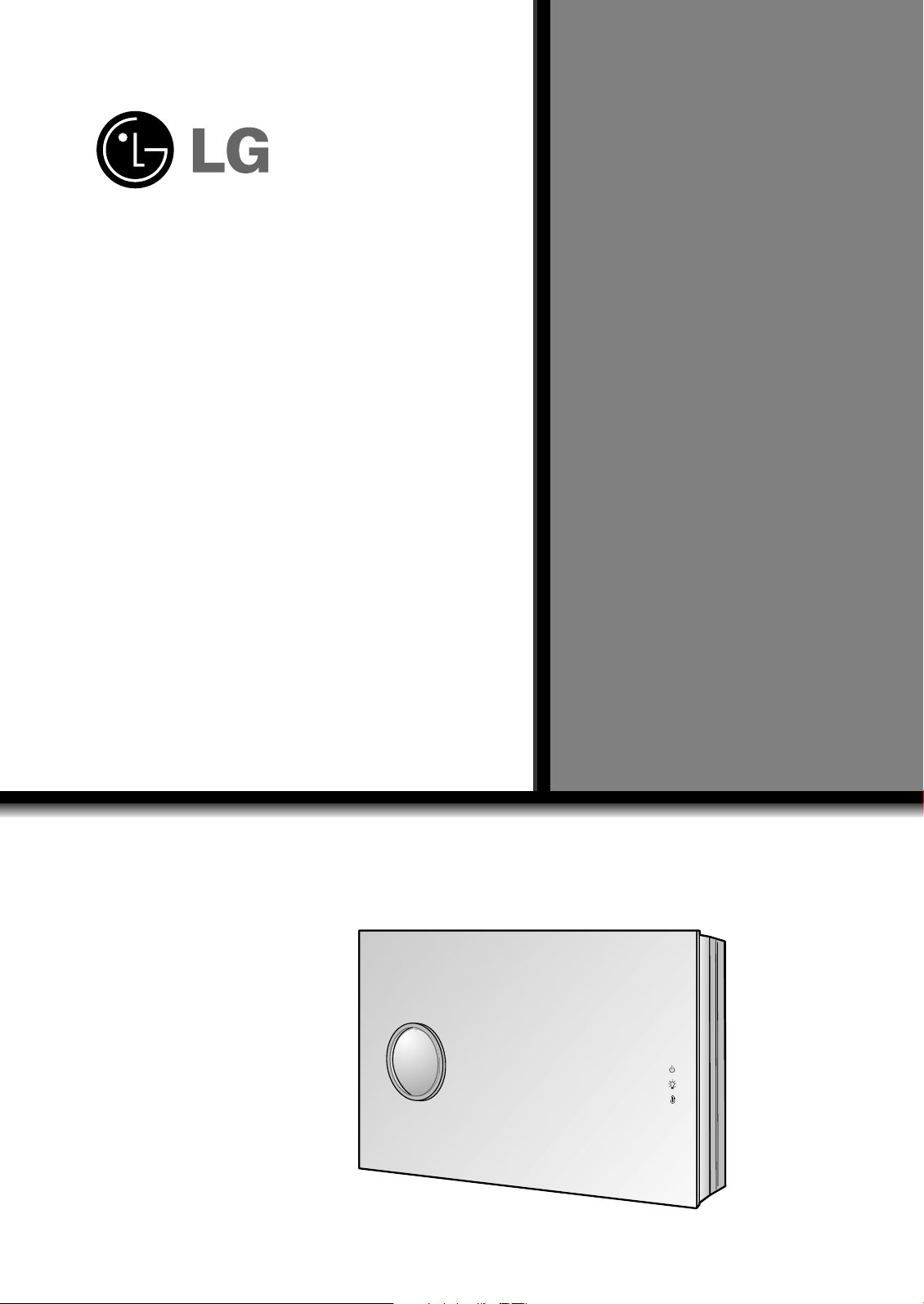
LG DLP PROJECTOR
LG DLP PROJECTOR
Please read this manual carefully before operating your set.
Retain it for future reference.
Record model number and serial number of the set.
See the label attached on the bottom of the set and quote this
information to your dealer when you require service.
Model number :
Serial number :
AN215
OWNER’S MANUAL
DLP PROJECTOR
DLP PROJECTOR
FCC NOTICE
• A Class B digital device
This equipment has been tested and found to comply with the limits for a Class B digital device, pursuant
to Part 15 of the FCC Rules. These limits are designed to provide reasonable protection against harmful
interference in a residential installation. This equipment generates, uses and can radiate radio frequency
energy and, if not installed and used in accordance with the instructions, may cause harmful interference
to radio communications. However, there is no guarantee that interference will not occur in a particular
installation. If this equipment does cause harmful interference to radio or television reception, which can
be determined by turning the equipment off and on, the user is encouraged to try to correct the
interference by one or more of the following measures:
- Reorient or relocate the receiving antenna.
- Increase the separation between the equipment and receiver.
- Connect the equipment into an outlet on a circuit different from that to which the receiver is connected.
- Consult the dealer or an experienced radio/TV technician for help.
• Any changes or modifications not expressly approved by the party responsible for compliance
could void the user’s authority to operate the equipment.
Warning
This is a class B product. In a domestic environment this product may cause radio interference, in
which case the user may be required to take adequate measures.
Contents
3
ENGLISH
Contents
Introduction
Safety Instructions .......................................... 4
Part Descriptions
Main Body ....................................................... 7
Control Panel .................................................. 8
Remote Control............................................... 9
Installing Batteries........................................... 9
Projector Status Indicators.............................. 10
Accessories..................................................... 11
Optional Extras ............................................... 11
Installing and Composition
Installation Instructions ................................... 12
Basic Operation of the Projector..................... 13
Installing the projector to the wall ................... 14
Turning on the Projector ................................. 22
Turning off the Projector ................................. 22
Selecting source mode ................................... 22
Focus, Zoom, Position of the Screen Image
.......... 23
Connection
Connecting to a Desktop PC .......................... 24
Connecting to a Notebook PC ........................ 24
Connecting to a Video Source ........................ 25
Connecting to a DVD ...................................... 25
Connecting to a D-TV Set-Top Box ................ 26
Function
Video Menu Options
Adjusting Video ............................................... 27
APC (Auto Picture Control)............................. 27
Auto Color Temperature Control ..................... 28
Gamma Function ............................................ 28
Brilliant Color
TM
Function ............................... 28
White peaking Function .................................. 29
Black Level Function....................................... 29
Smart Iris Function.......................................... 29
Special Menu Options
Selecting Language ........................................ 30
Using ARC Function........................................ 30
Overscan Function.......................................... 31
Flip horizontal Function................................... 31
Auto sleep Function ........................................ 31
Using Keystone function ................................. 32
Using Blank function ....................................... 32
Selecting Blank image color ........................... 32
Lamp mode Function ...................................... 33
Checking Lamp time ....................................... 33
Using Still function .......................................... 33
Screen Menu Options
Auto configure Function .................................. 34
Using Phase Function..................................... 34
Using Clock Function ...................................... 34
Using Horizontal Function............................... 35
Using Vertical Function ................................... 35
Information
Supported Monitor Display.............................. 36
Maintenance.................................................... 37
Replacing the Lamp ........................................ 38
Memo .............................................................. 41
Specifications .................................................. 43
Disposal of your old appliance
1. When this crossed-out wheeled bin symbol is attached to a product it
means the product is covered by the European Directive 2002/96/EC.
2. All electrical and electronic products should be disposed of separately
from the municipal waste stream via designated collection facilities
appointed by the government or the local authorities.
3. The correct disposal of your old appliance will help prevent potential
negative consequences for the environment and human health.
4. For more detailed information about disposal of your old appliance,
please contact your city office, waste disposal service or the shop
where you purchased the product.
Safety Instructions
4
Safety Instructions
Please take note of the safety instructions to prevent any potential accident or misuse of the projector.
➟ Safety Instructions are given in two forms as detailed below.
WARNING : The violation of this instruction may cause serious injuries and even death.
NOTES : The violation of this instruction may cause light injuries or damage to the projector.
➟
After reading this manual, keep it in the place that the user always can contact easily.
Indoor Installation WARNING
Do not allow children to hang on the installed projector.
It may cause the projector to fall, causing injury or death.
Stand the projector when you
install.
If not, the power turns off.
Do not place the Projector in direct
sunlight or near heat sources such
as radiators, fires and stove etc.
This may cause a fire hazard !
Do not place inflammable materi-
als beside the projector
This may cause a fire hazard !
Outdoor Installation WARNING
Do not use the projector in a damp place such as a bathroom where it is likely to get wet.
This may cause a fire or an electric shock hazard !
Power WARNING
Indoor Installation NOTES
Disconnect the power and
remove all connections before
moving.
Do not place the projector close
to sources of steam or oil such
as a humidifier.
This may create a fire hazard or an
electric shock hazard !
Do not place the projector where
it might be exposed to excessive
dust.
This may cause a fire hazard !
Earth wire should be connected.
If the earth wire is not connected, there is a
possible danger of electric shock caused by
the current leakage.
If grounding methods are not possible, a
separate circuit breaker should be employed
and installed by a qualified electrician.
Do not connect ground to telephone wires,
lightning rods or gas pipe.
The mains plug should be insert-
ed fully into the power outlet to
avoid a fire hazard !
This may cause a fire hazard !
Do not place heavy objects on
the power cord
This may cause a fire or an electric
shock hazard !
Do not place the projector direct-
ly on a carpet, rug or place
where ventilation is restricted.
This would cause its internal tempera-
ture to increase and might create a
fire hazard !
The air flow from the projector inflow from the bottom left part and
outflows to the top right. Therefore when installing a ventilator close,
be careful not to change the direction of the air flow.
When installing the ventilator at the bottom part of the projector, it can cause a
fire by raising the internal temperature.
Only use the projector on a level
and stable place.
It may become unstable and affect
operation.
Ensure good ventilation around the
projector. The distance between the
projector and the ceiling or bottom
should be more than 20cm/8 inches.
An excessive increase in its internal
temperature may cause a fire hazard!
Do not block the vents of the pro-
jector or restrict air-flow in any way.
This would cause the internal tempera-
ture to increase and could cause a fire
hazard!
Safety Instructions
5
ENGLISH
Using WARNING
Do not place anything containing
liquid on top of the projector such
as flowerpot, cup, cosmetics or
candle.
This may cause a fire hazard !
In case of impact shock or
damage to the projector, switch it
off and unplug it from the outlet.
Contact a service center.
This may cause a fire or an electric
shock hazard !
Do not allow any objects to fall
into the projector.
This may cause an electric shock
hazard !
If water is spilt into the projector,
unplug it from the outlet immedi-
ately and consult a Service
Agent.
This may cause an electric shock haz-
ard !
Dispose of used batteries care-
fully and safely.
In the case of a battery being
swallowed by a child please consult a
doctor immediately.
In the event that an image does
not appear on the screen, please
switch the unit off and unplug it
from power outlet. Contact a
Service Agent.
This may cause a fire or an electric
shock hazard !
Do not remove any covers
(except lens cover). High risk of
Electric Shock!
CAUTION concerning the Power Cord
Most appliances recommend they be placed upon a dedicated circuit; that is,a single outlet circuit which
powers only that appliance and has no additional outlets or branch circuits.Check the specification page
of this owner's manual to be certain.
Do not overload wall outlets. Overloaded wall outlets,loose or damaged wall outlets, extension cords,
frayed power cords,or damaged or cracked wire insulation are dangerous.Any of these conditions could
result in electric shock or fire. Periodically examine the cord of your appliance,and if its appearance indi-
cates damage or deterioration, unplug it, discontinue use of the appliance, and have the cord replaced
with an exact replacement part by an authorized services.
Protect the power cord from physical or mechanical abuse, such as being twisted, kinked, pinched,
closed in a door, or walked upon. Pay particular attention to plugs, wall outlets, and the point where the
cord exits the appliance.
Don’t look directly onto the lens
when the projector is in use. Eye
damage may occur!
Do not touch metal parts during or
soon after operation since the
vents and lamp cover will remain
very hot!
Power WARNING
Do not plug too many devices into one outlet.
It may result in overheating of the outlet and causes a fire hazard !
Power NOTES
Never touch the power plug with
a wet hand
This may cause an electric shock
hazard !
Hold the plug firmly when unplug-
ging. If you pull the cord the cord
may be damaged.
This may cause a fire hazard !
Prevent dust collecting on the
power plug pins or outlet.
This may cause a fire hazard !
Do not plug in when the power
cord or the plug is damaged or
the connecting part of the power
outlet is loose.
This may cause a fire or an electric
shock hazard !
Ensure the power cord does not
come into contact with sharp or
hot objects such as a heater.
This may cause a fire or an electric
shock hazard !
Place the projector where people
will not trip or tread on the power
lead.
This may cause a fire or an electric
shock hazard !
Do not turn the projector On/Off by plugging-in or unplugging the power plug to the wall outlet.
(Do not use a switched power outlet to turn the unit on and off.)
It may cause mechanical failure or could give an electric shock.
Safety Instructions
6
Using NOTES
Do not place heavy objects on
top of projector.
This may cause mechanical failure or
personal injury!
Take care not to cause impact to
the lens particularly when moving
the projector.
Do not touch the lens of the pro-
jector. It is delicate and easily
damaged.
Others NOTES
Be sure to unplug if the projector
is not to be used for a long peri-
od.
Accumulated dust may cause a fire
hazard!
Refer to 38~39 page to replace
the lamp.
Do not mix new batteries with old
batteries.
This may cause the batteries to over-
heat and leak.
Cleaning NOTES
Contact a Service Center once a
year to clean the internal parts of
the projector.
Accumulated dust can cause mechan-
ical failure.
When cleaning the plastic parts such as projector case, unplug the
power and wipe it with a soft cloth. Do not use cleanser, spray water
or wipe with a wet cloth. Especially, never use cleanser (glass clean-
er), automobile or industrial shiner, abrasive or wax, benzene, alcohol
etc., which can damage the product.
It can cause fire, electric shock or product damage (deformation, corrosion and
damage).
Do not use any sharp tools on the projector as this will damage the casing.
Cleaning WARNING
Do not use water while cleaning
the projector
This may cause damage to the
projector or an electric shock hazard.
In the unlikely event of smoke or
a strange smell from the projector,
switch it off, unplug it from the wall
outlet and contact your dealer or a
service center.
This may cause a fire or an electric
shock hazard !
Use an air spray or soft cloth that
is moist with a neutral detergent
and water for removing dust or
stains on the projection lens.
Others WARNING
Do not attempt to service the projector yourself. Contact your dealer or a service center.
This may cause damage to the projector and could give an electric Shock as well as invalidating the warranty !
Only use the specified type of battery.
This could cause damage to the remote control.
Watch the projector screen keeping about 5 to 7 times the
diagonal distance of the screen.
Watching the screen too close can reduce your eyesight.
Never touch the wall outlet when
there is leakage of gas, open the
windows and ventilate.
It can cause a fire or a burn by a
spark.
Do not drop the projector or allow impact shock.
This may cause mechanical failure or personal injury !
Using WARNING

Part Descriptions
7
ENGLISH
Part Descriptions
Main Body
Indicators
Remote control sensor
* The projector is manufactured using high-precision technology. You may, however, see on the Projector screen tiny black
points and/or bright points (red, blue, or green). This can be a normal result of the manufacturing process and does not
always indicate a malfunction.
Lens shift
FOCUS Ring
S-Video Input
HDMI Input
AC IN
Video Input
COMPONENT
Input
RGB Input
(PC/DTV)
Part Descriptions
8
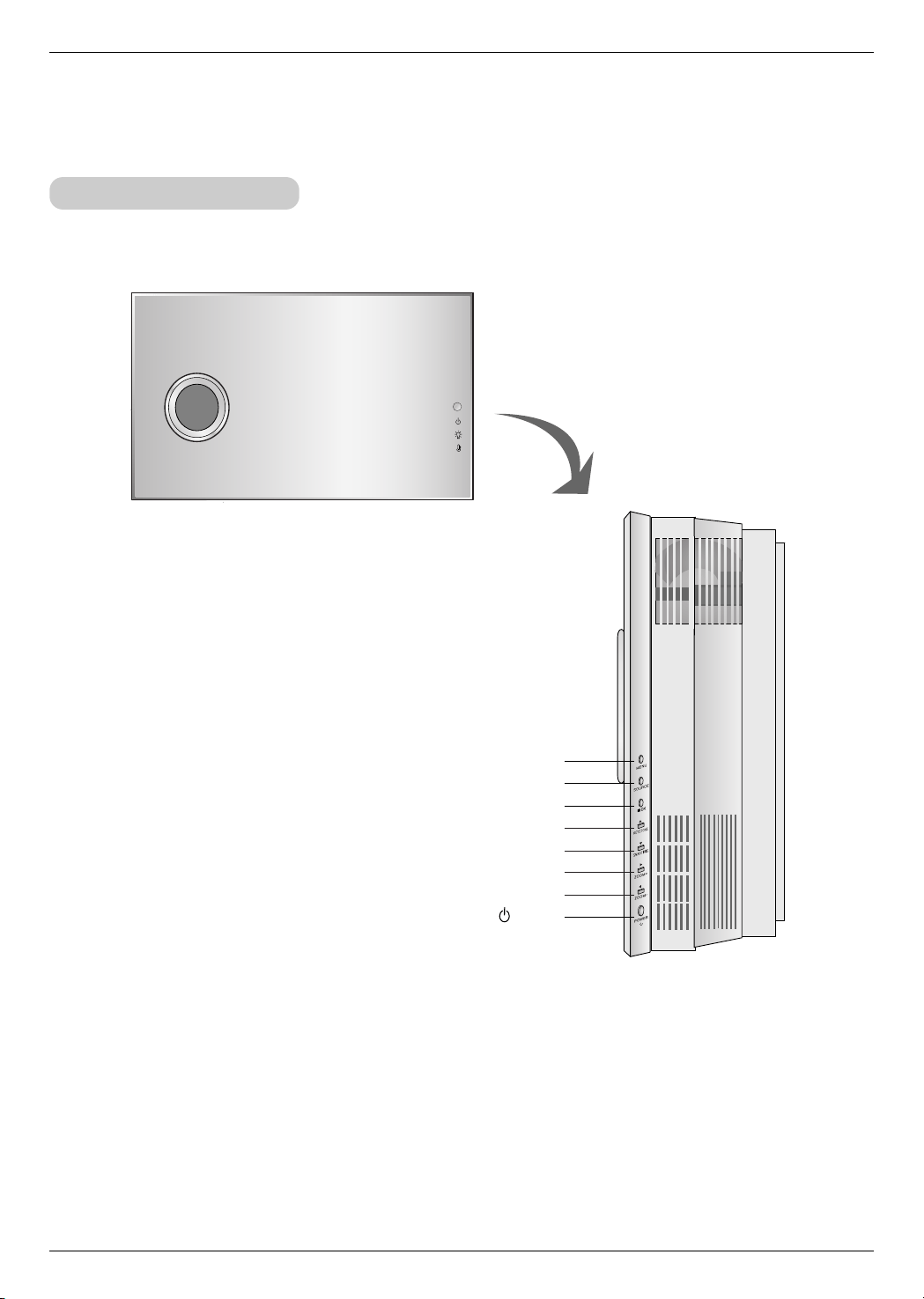
Control Panel
MENU Button
SOURCE Button
A OK Button
D / KEY STONE Button
E / SMART IRIS Button
G / ZOOM + Button
F / ZOOM - Button
POWER Button
Part Descriptions
9
ENGLISH
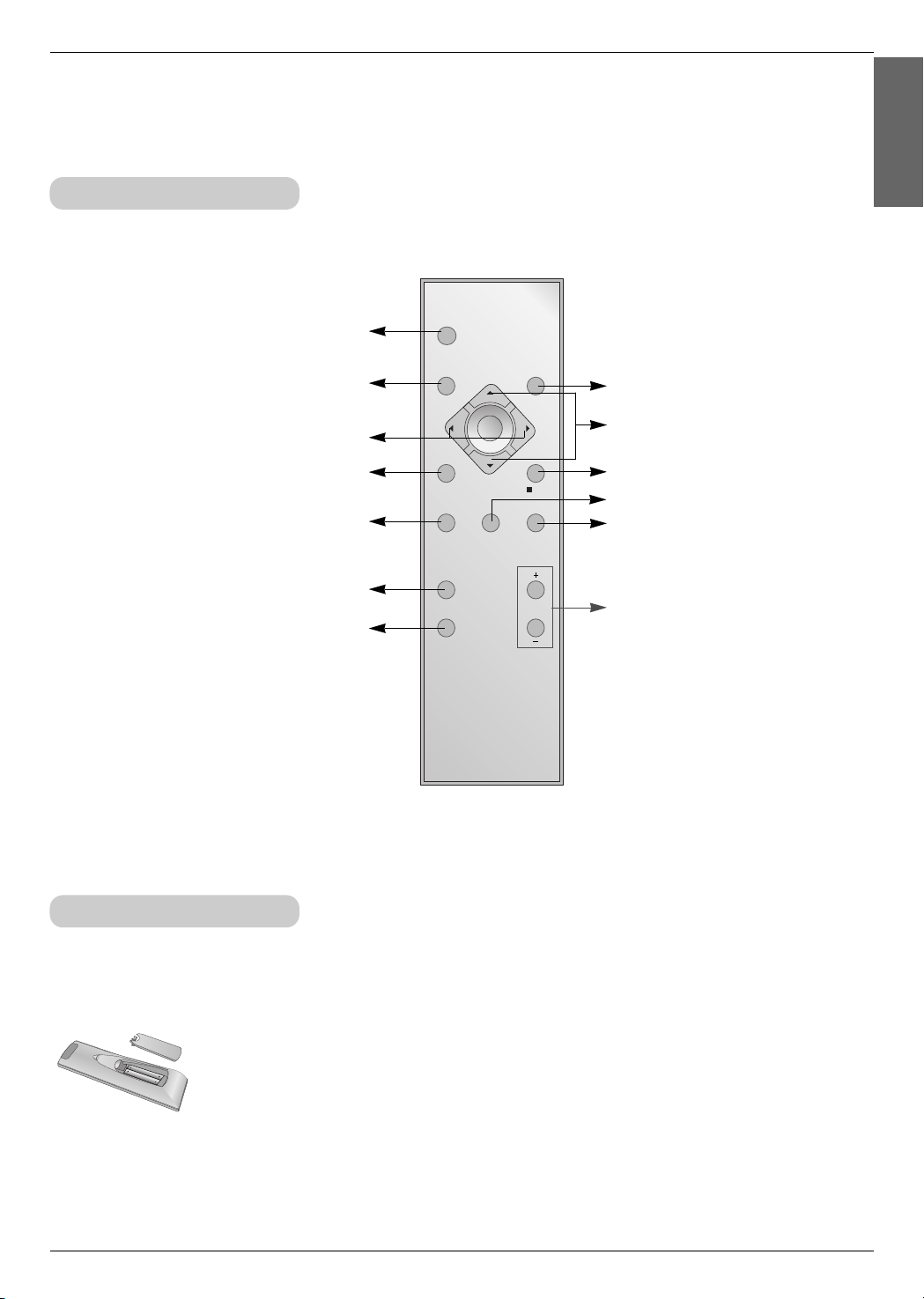
Remote Control
Installing Batteries
POWER
MENU
SOURCE
AUTO
BLANK
KEYSTONE
SMART IRIS
ZOOM
ARC STILL
OK
POWER Button
SOURCE Button
D / E Button
A OK Button
ARC Button (Refer to p.30)
STILL Button (Refer to p.33)
ZOOM +/- Button (Refer to p.23)
AUTO Button (Refer to p.34)
BLANK Button (Refer to p.32)
KEYSTONE Button (Refer to p.32)
F / G Button
• Open the battery compartment cover on the back of the remote control and insert the
batteries with correct polarity, match “+” with “+”, and match “-” with “-”.
• Install two 1.5V batteries.
Don’t mix used batteries with new batteries.
CAUTION
RISK OF EXPLOSION IF BATTERY IS REPLACED BY AN INCORRECT TYPE.
DISPOSE OF USED BATTERIES ACCORDING TO THE INSTRUCTIONS.
MENU Button
SMART IRIS Button (Refer to p.29)
Part Descriptions
10
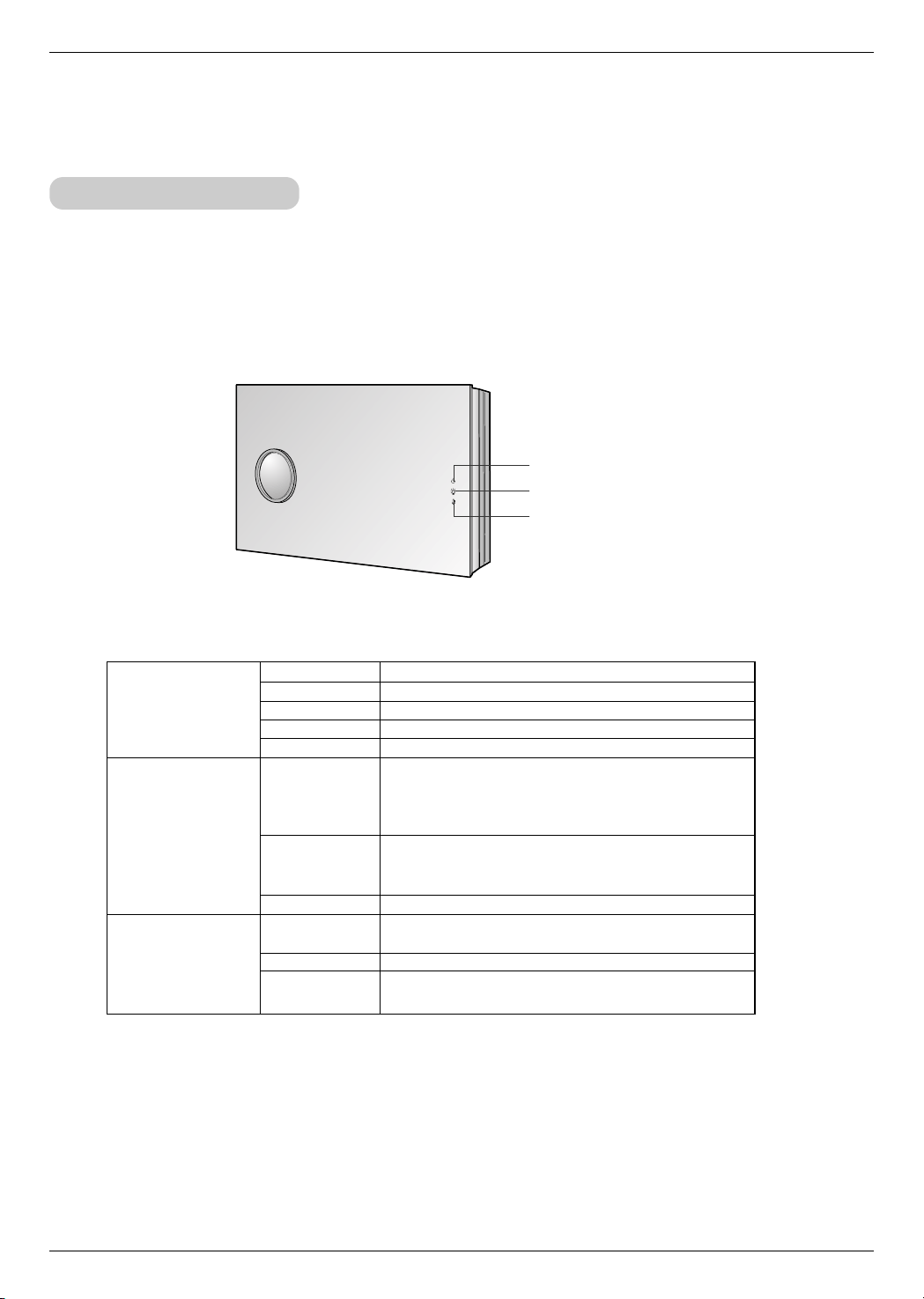
* Lamp Indicator, operation indicator and temperature indicator on the projector show the user the operating status of the pro-
jector.
Lamp Indicator
Temperature Indicator
Operation Indicator
Projector Status Indicators
Operation Indicator
Lamp Indicator
Temperature Indicator
Orange
Green(flashing)
Green
Orange(flashing)
Off
Red
Red(flashing)
Green(flashing)
Orange
Red
Red (flashing)
Standby.
Lamp cooling until the lamp turn on.
On operation. (Turn on the lamp)
Projector lamp is cooling as power out (2 minutes)
Power off.
Projector lamp is reaching the end of its life and needs
to be replaced with a new lamp. (over 2000 hours)
The OSD, “Replace the lamp” is displayed 5 seconds
from the first power on.
The projector has trouble in the lamp or around it at
power-on. Retry Power On again later. If lamp indicator
is red (flashing) again, contact a service center.
The lamp cover is not closed.
This projector is in high temperature. Turn the power of
projector off and check the ventilator.
The projector is turned off as its high temperature.
Power has turned off due to problem with the
internal cooling fan. Contact a service center.
Part Descriptions
11
ENGLISH
Accessories
Optional Extras
POWER
MENU
SOURCE
AUTO
BLANK
KEYSTONE
SMART IRIS
ZOOM
ARC STILL
OK
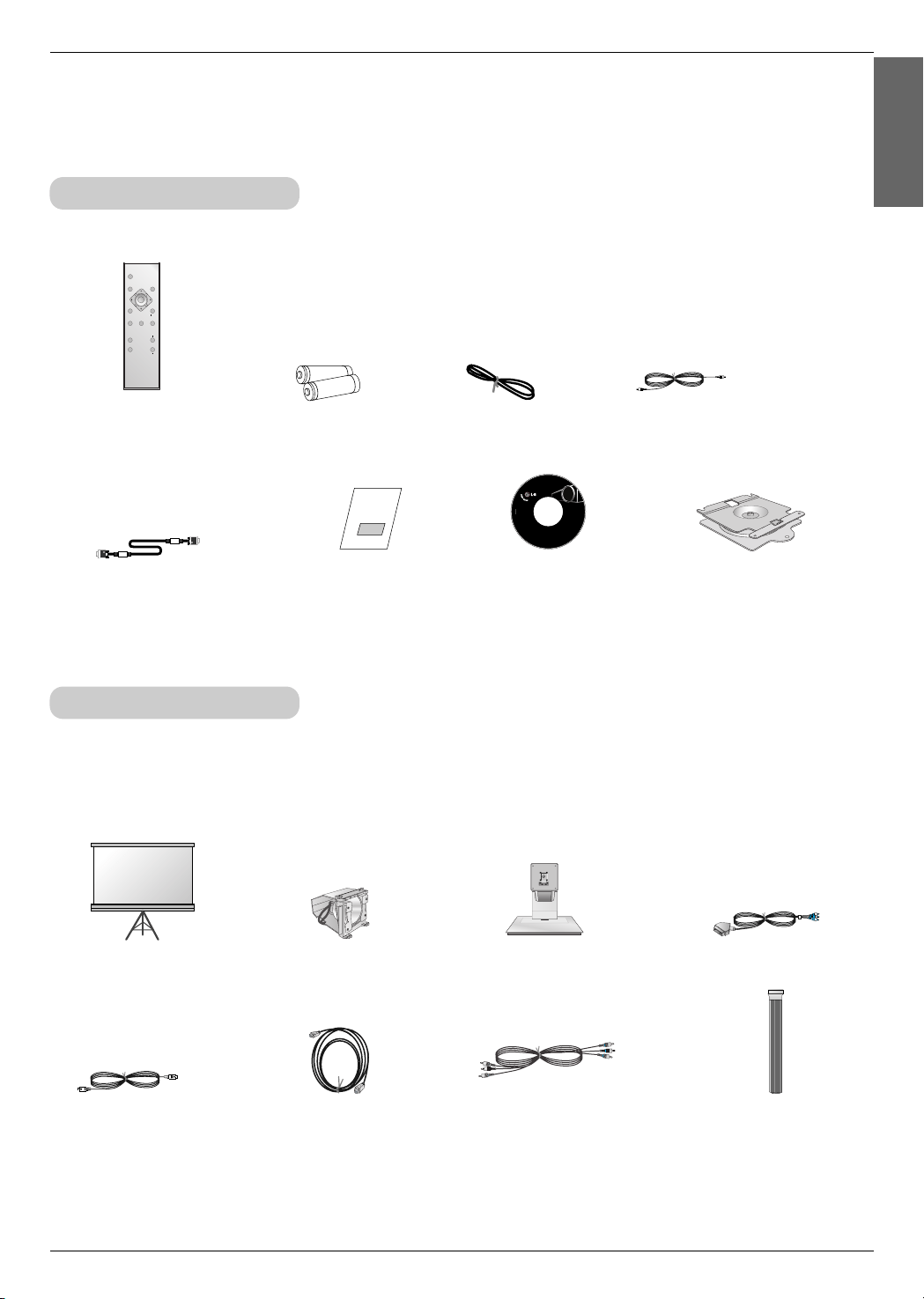
* Contact your dealer to purchase these items.
* Contact your service personnel for replacing a new lamp.
* Projector lamp is reaching the end of its life and needs to be replaced with a new lamp.
* Various separately sold accessories can change to improve the quality of the product or new products can be added.
Remote Control
Power Cord
Video Cable
PROJECTOR
Owner’s manual
Owner’s manual
Wall mounting bracket
* Bolt and anchor are included in
the wall bracket.
Computer Cable
SCART to RCA jack (option)
Lamp
Desktop Stand
S-Video Cable
Projection Screen
HDMI Cable
1.5V
1.5V
2 Batteries
Cable Cover
* Bolt and anchor are
included in the wall bracket.
CD ROM
Component Cable
Installing and Composition
12
Installation and Composition
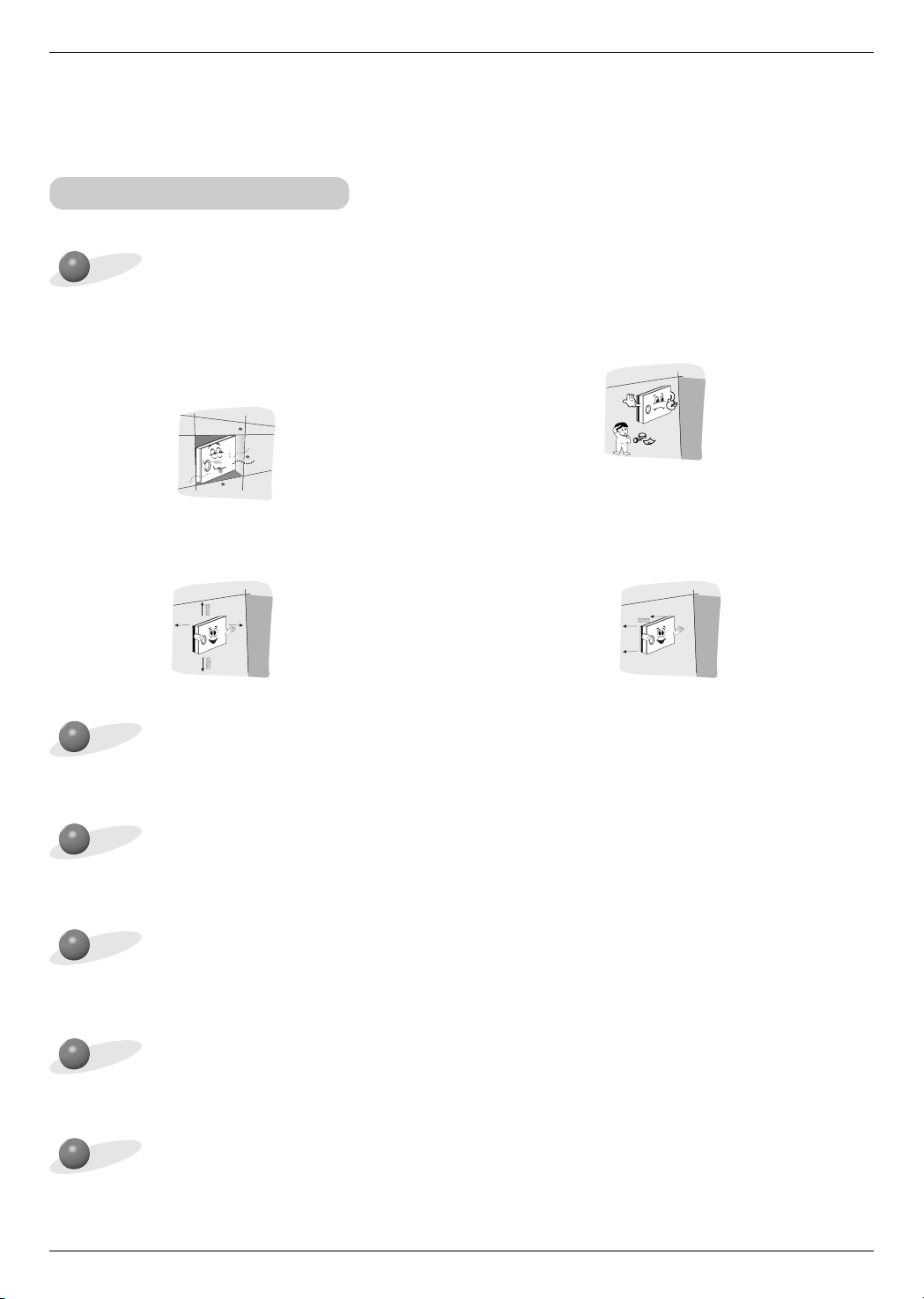
Provide proper ventilation for this projector.
● The projector is equipped with ventilation holes(intake) on
the bottom and ventilation holes(exhaust) on the front. do
not block or place anything near these holes, or internal
heat build-up may occur, causing picture degradation or
damage to the projector.
Place this projector in adequate temperature and humidity conditions.
●
Install this projector only in a location where adequate temperature and humidity is available. (refer p.43)
● Never insert materials as paper into the lower of the
projector.
* Don’t place the projector in the following conditions. It may cause malfunction or product damage.
● For proper ventilation, allow a clearance of 1cm on
each side and from the wall.
1cm
1cm
1cm
● Ensure good ventilation around the projector.
The distance between the projector and the ceiling or
bottom should be more than 20cm/8 inches.
Don’t place the projector where it can be covered with dust.
●
This may cause overheating of the projector.
The projector is manufactured using high-precision technology. You may, however, see tiny black points
and/or bright points (red, blue, or green) that continuously appear on the projector Screen. This is a nor-
mal result of the manufacturing process and does not indicate a malfunction.
To display DTV programs, it is necessary to connect a DTV receiver (Set-top Box) and connect it to the
projector.
If there is no input signal, the Menu will not be displayed on screen.
Installation Instructions
ENGLISH
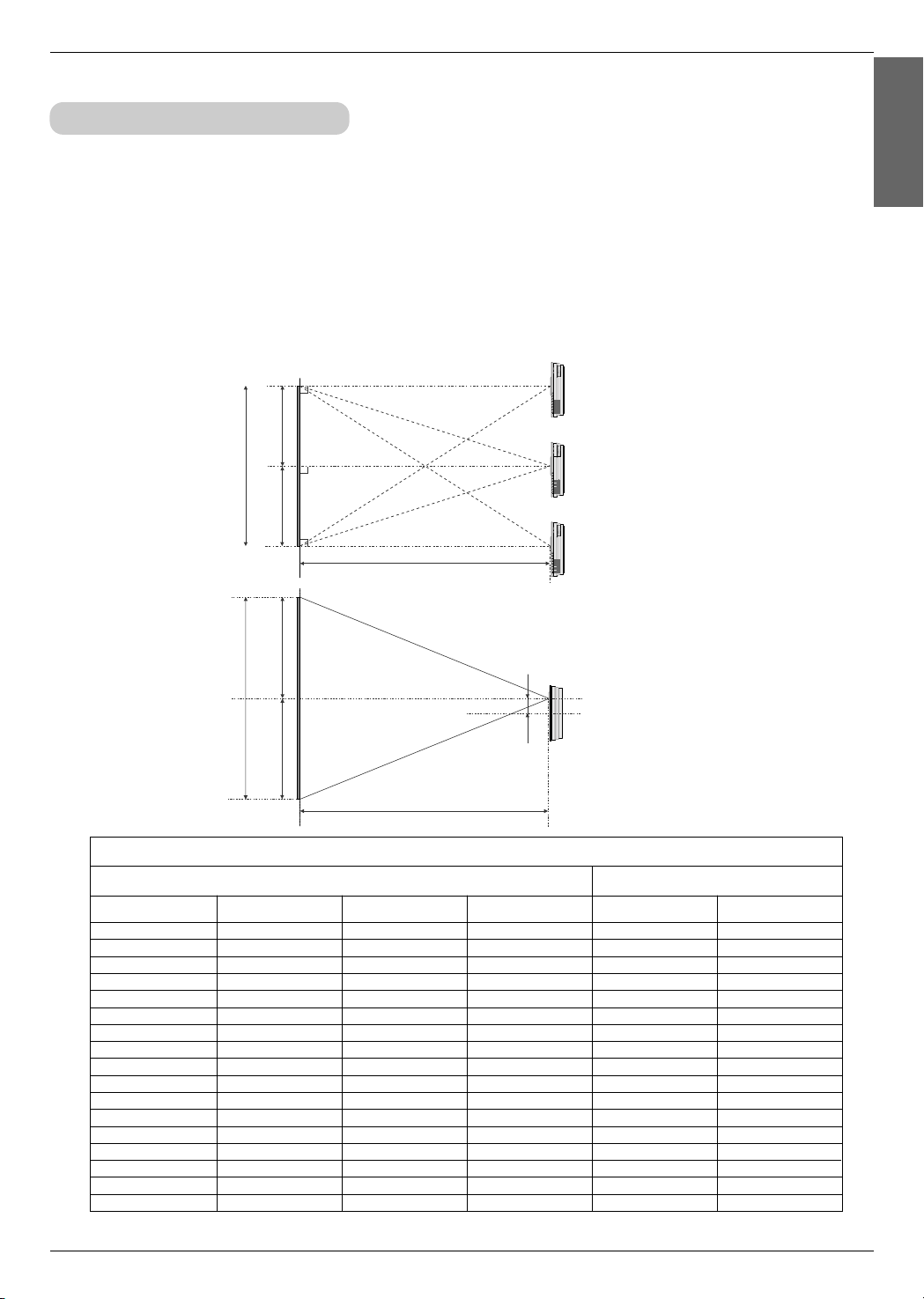
16:9 picture format mm / inches
screen
Projection distance
Installing and Composition
13
1.Place the projector on a wall.
2.Place the projector the correct distance from the screen. The distance between the projector and the
screen determines the actual size of the image.
3.Position the projector so that the lens is set at a right angle to the screen. If the projector is not set at a
right angle, the screen image will be crooked. If this is so then the keystone adjustment may correct this
(Refer to page 32.)
4.Connect the cables of the projector to a wall power socket and other connected sources.
Basic Operation of the Projector
* The longest/shortest distance show status when adjusted by the zoom function.
projection distance based on the picture format
Projection distance (D)
Projection distance (D)
screen size (inches)
40
50
60
70
80
90
100
120
140
160
180
200
220
240
260
280
300
screen size (mm)
1016
1270
1524
1778
2032
2286
2540
3048
3556
4064
4572
5080
5588
6036
6604
7112
7620
screen horizontal
size (mm)
886
1107
1328
1550
1771
1992
2214
2657
3099
3542
3985
4428
4870
5313
5756
6199
6641
screen vertical size
(mm)
498
623
747
872
996
1121
1245
1494
1743
1992
2241
2491
2740
2989
3238
3487
3736
The shortest distance
(mm)
1532
1921
2311
2700
3069
3478
3867
4645
5424
6202
6980
7759
8537
9315
10093
10372
11650
The longest distance
(mm)
2144
2688
3233
3777
4322
4866
5411
6500
7589
8678
9767
10656
11945
13064
14123
15212
16300
Installing and Composition
14
Please take note of the safety instructions to prevent any potential accident or misuse of the projector.
➟ Safety Instructions are given in two forms as detailed below.
WARNING : The violation of this instruction may cause serious injuries and even death.
NOTES : The violation of this instruction may cause light injuries or damage to the projector.
➟
After reading this manual, keep it in the place that the user always can contact easily.
Do not install this product on the place where it cannot
be supported.
It may cause the product to fall and could cause injuries.
Do not hang on or impact this product.
It may cause the product to fall and could cause injuries.
Follow the instructions when installing this product.
Otherwise it may cause serious injuries or damage of the
product.
Do not install this product by yourself. Get some
help from others.
It may cause the product to fall and could cause injuries.
Before installing, check whether the material of wall
satisfies the specifications and make sure to use
enclosed anchors supplied with the product.
Otherwise it may cause safety problem.
When drilling use drill and drill bit specified by the
manufacturer. And the depth of the hole should
satisfy the specifications.
Otherwise it may cause safety problem.
Do not place a heat source (radiator or heater) or a
humidifier under the installed product.
It may cause a fire or could give an electric shock.
Do not install this product near a sprinkler, a sen-
sor, a high voltage electric line, any power source
or the place where impact or vibration can affect.
Unplug the product before installing.
Otherwise it may cause a fire or could give an electric
shock.
Do not install this product barehanded.
It may cause injuries.
Installing the projector to the wall
Safety instructions on installing the wall
WARNING
NOTES
Installing and Composition
15
ENGLISH
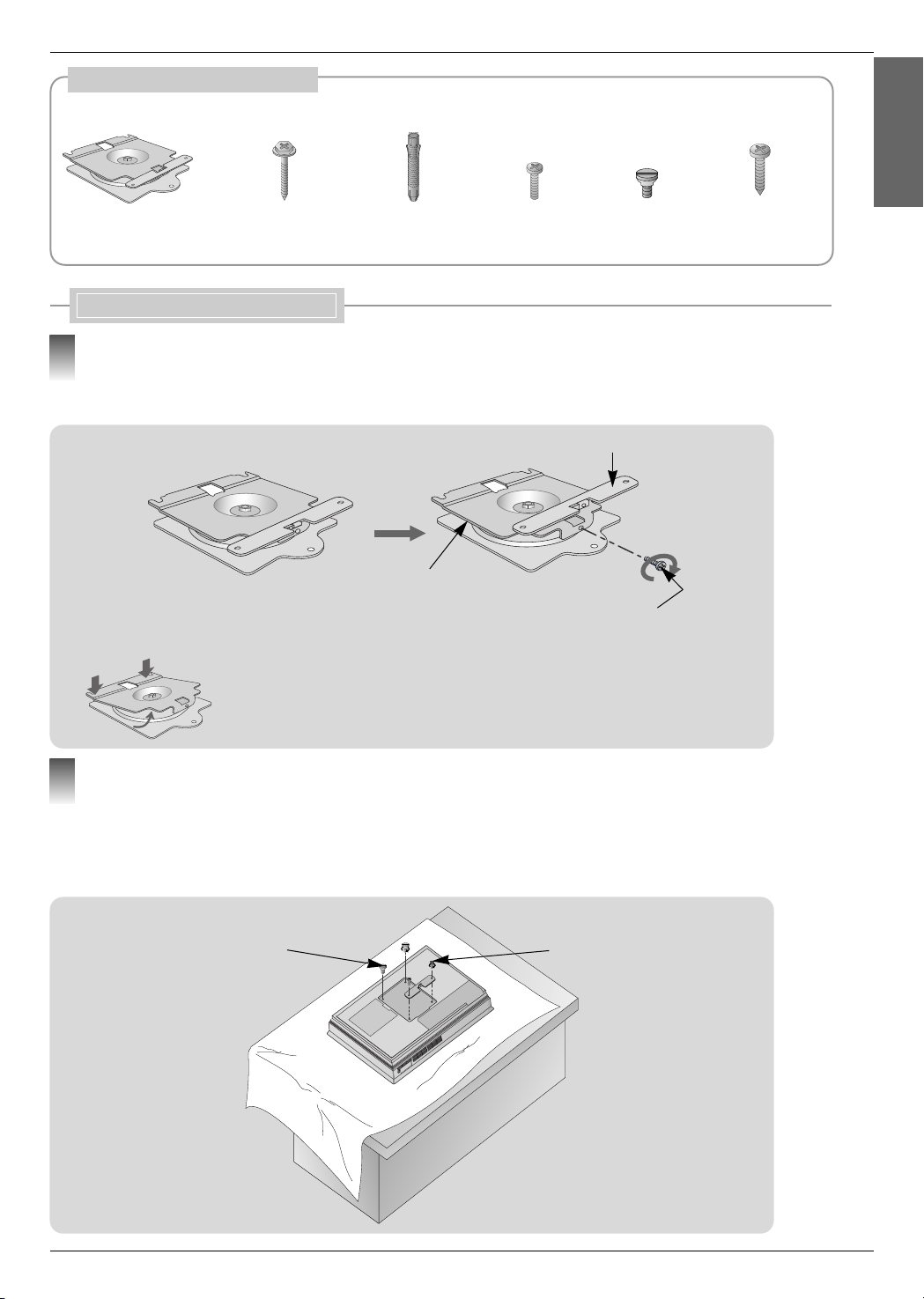
Accessories for wall mounting bracket
Wall mounting bracket
- Detach bolt from wall mounting bracket.
- Detach product fixing bracket from Wall mounting bracket.
Bolts for wall mounting
bracket
Wall anchor bolt
sleeves
Bolts for fixing the
bracket
Fixing fixers
Bolts for using the
wood
Installing Wall mounting bracket
Detach the products
Wall mounting bracket
Product fixing bracket
Bracket fixing bolt
* After inserting the projector,
you use this bolt.(Refer to p.18)
➡ Press the upper of the wall bracket with both
hands to tilt the bracket. It’s convenient when
joining the fixing bolt.(Refer to p.18)
a. Carefully place the lens side down on a cushioned surface that will protect the lens from damage.
b. Insert the 2 fixing fixers on the top of the projector.(It’s top that the point of auto ventilation door.)
c. Insert the product brackets detached in the fig.1 on the projector with bracket fixing bolts.
Bracket fixing bolt
Fixing fixer
1
Assemble projector with the product fixing bracket
2
Installing and Composition
16
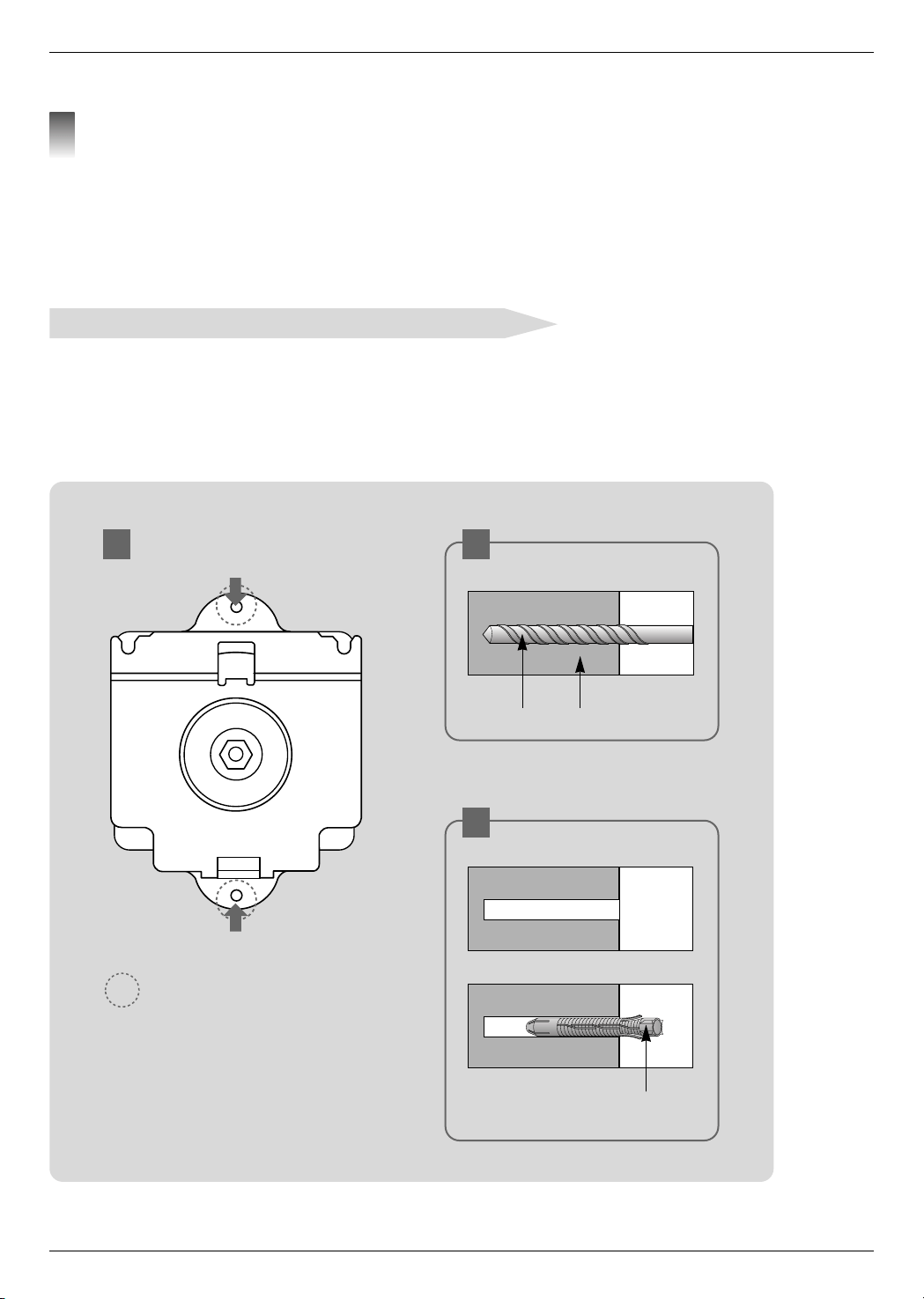
a. After matching the positions of the wall bracket, mark the positions of the anchor.
b. At the position of anchor marked in the wall, using on 6mm drill appropriate for the material on the wall,
drill each hole to a depth of above 40~50mm.
c. Clean each drilled hole and insert an anchor supplied with the wall mounting bracket into each hole.
Ó Check the surface or thickness that the wall mounting bracket.
Ó When the surface that the wall mounting bracket is concrete, strong , weak natural rock, brick and hollow block,
you can use the supplied anchors or bolts.
Ó Only thickness of strike off material is less than 20mm, you can use the supplied anchors or bolts.
Ó Only making wood into wall, you can use the supplied bolts for using the wood.
Ó Plasterboard is not a sufficiently strong enough material.
a b
c
Drill Wall
Anchor
➡ : Anchors insertion position
Using the wall anchor bolt sleeves and bolts for wall mounting bracket
Insert anchors or bolts for using the wood after marking the positions where products are mounted on the wall
3
Installing and Composition
17
ENGLISH
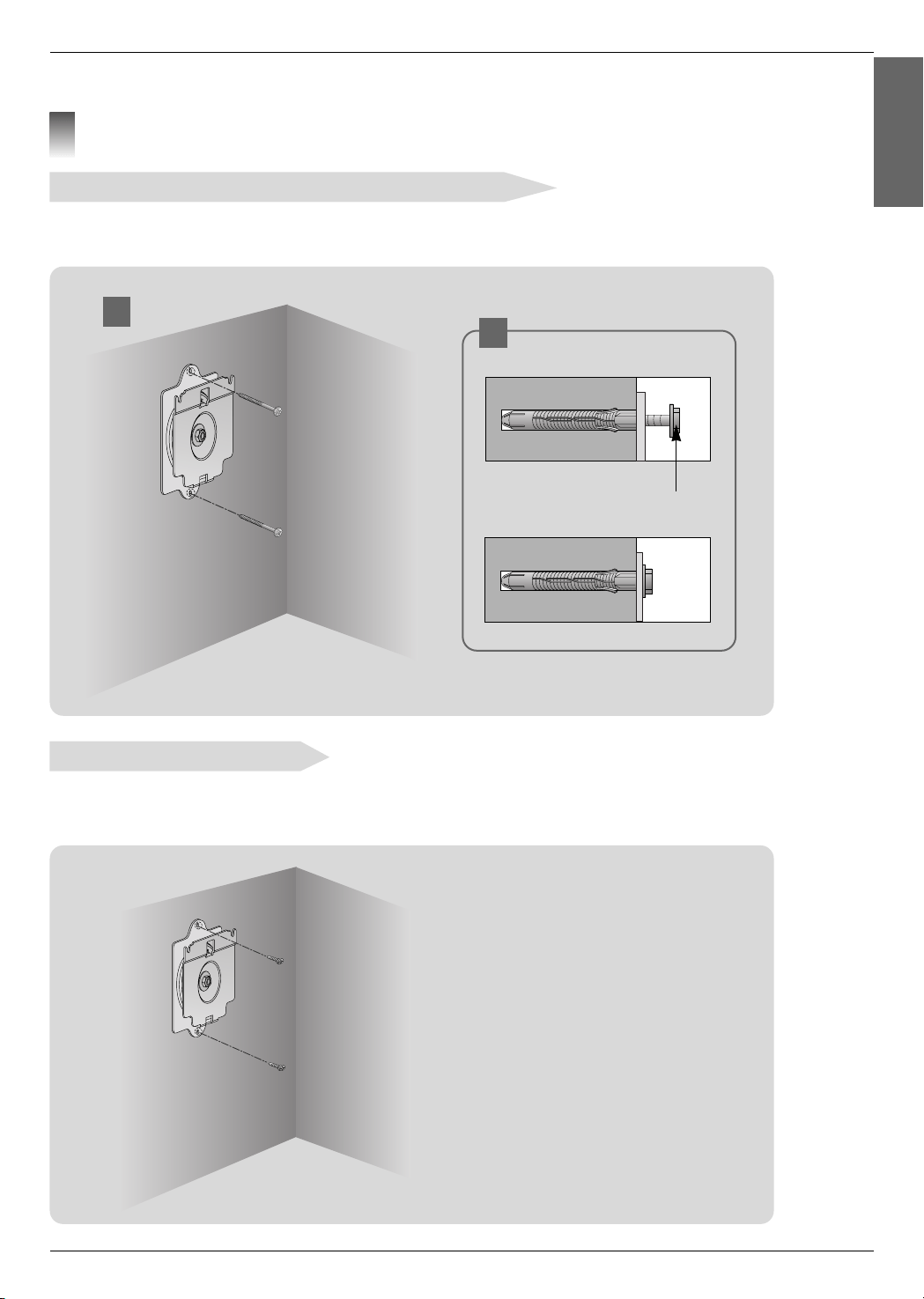
a. Mount the wall mounting bracket on the wall as setting the hole.
b. Insert the bolts for wall mounting bracket as setting the each hole.
a
b
Bolt for wall mounting bracket
Using the wall anchor bolt sleeves and bolts for wall mounting bracket
- After matching the position of the wall, mount the wall mounting bracket using the bolts for using the wood supplied.
Ó Only making wood into wall, you can use.
Using the bolts for using the wood
Install the wall mounting bracket on the wall
4
Installing and Composition
18
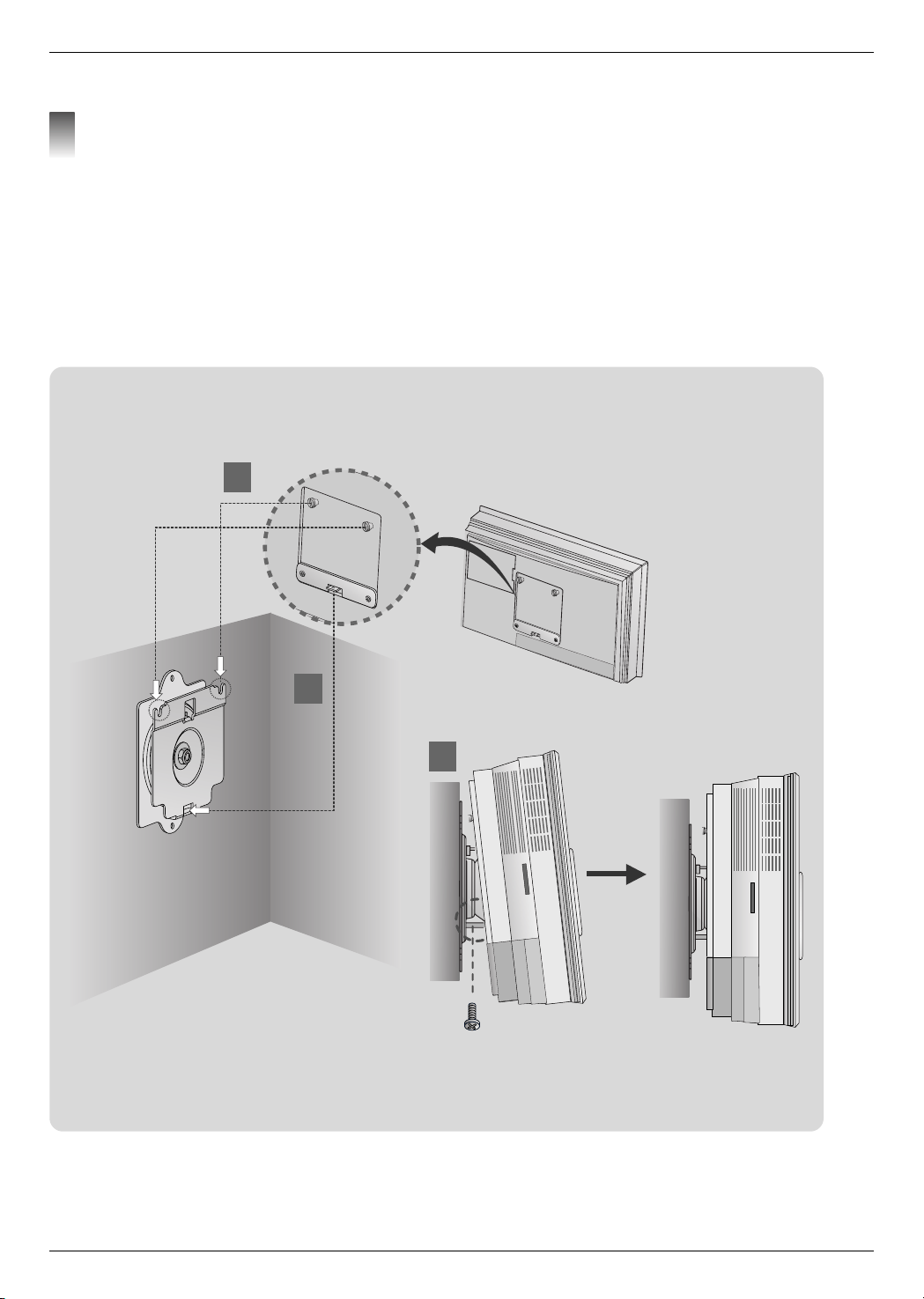
Ó Assemble a projector with the wall mounting bracket installed on the wall as below Fig. Do not install this product by yourself.
Get some help from others. It may cause the product to fall and could cause injuries.
a. Hang fixing 2 fixers on a upper groove.
b. Insert the product bracket to the groove of the lower wall mounting bracket.
c. After assembling and fixing the projector, insert the bolts for fixing bracket to the hole.
d. Entirely check the projector fixed as pulling the lower projector.
Assemble the projector with the wall mounting bracket
5
Fixing fixer
Product bracket
Bolt for fixing the bracket
a
b
c
Installing and Composition
19
ENGLISH
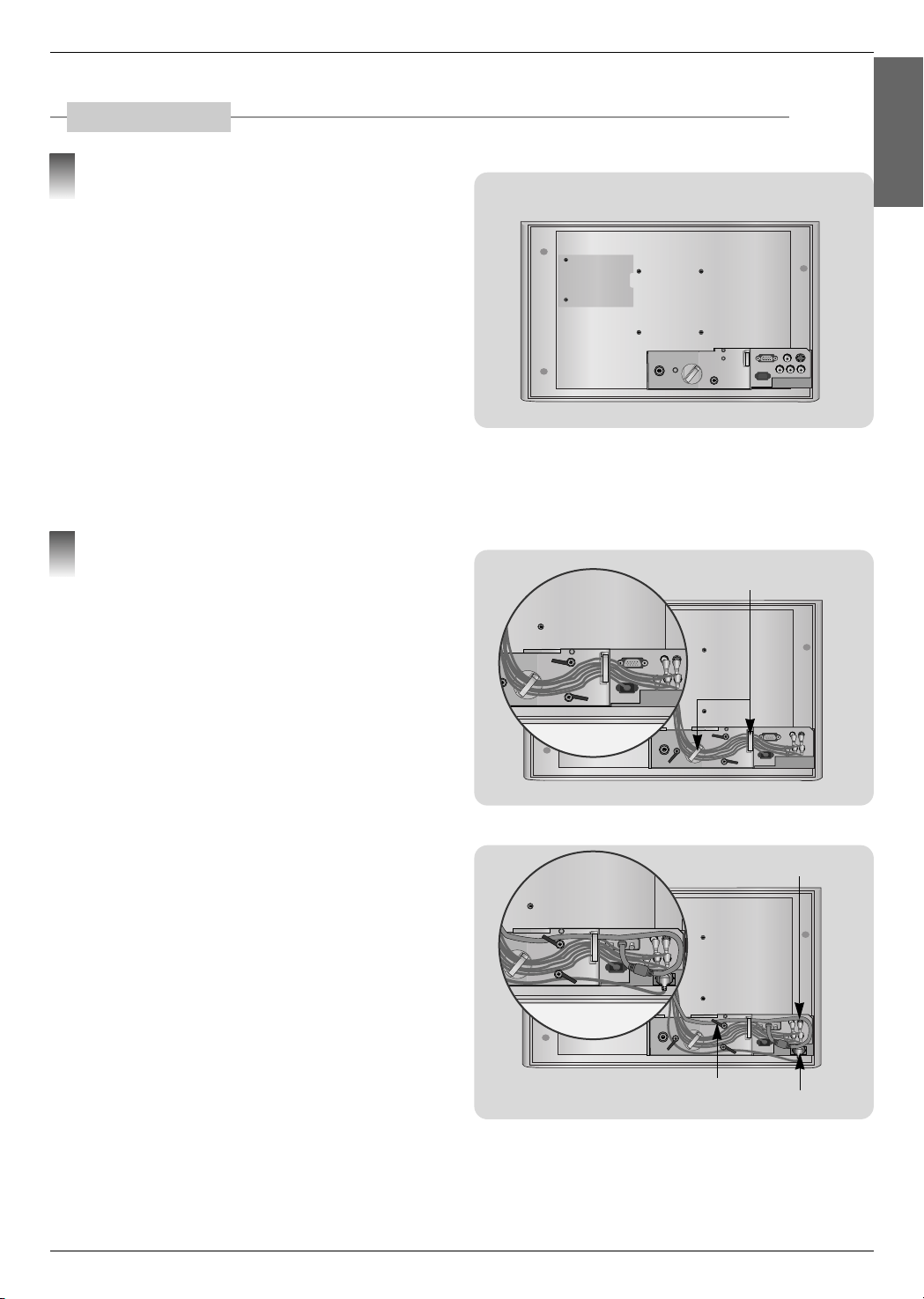
Cable Management
Place the set with the screen facing down on a cushion or
soft cloth.
Pull the back cover upward.
1
Back panel of the set
Connect the cables as necessary.
At first, Bundle the HDMI, VIDEO, S-VIDEO Cables using
the supplied Cable holder as shown.
2
Cable Holder
HDMI cable should be placed on the bottom.
RGB Cable
Power Cord
Cable fixing holder
Installing and Composition
20
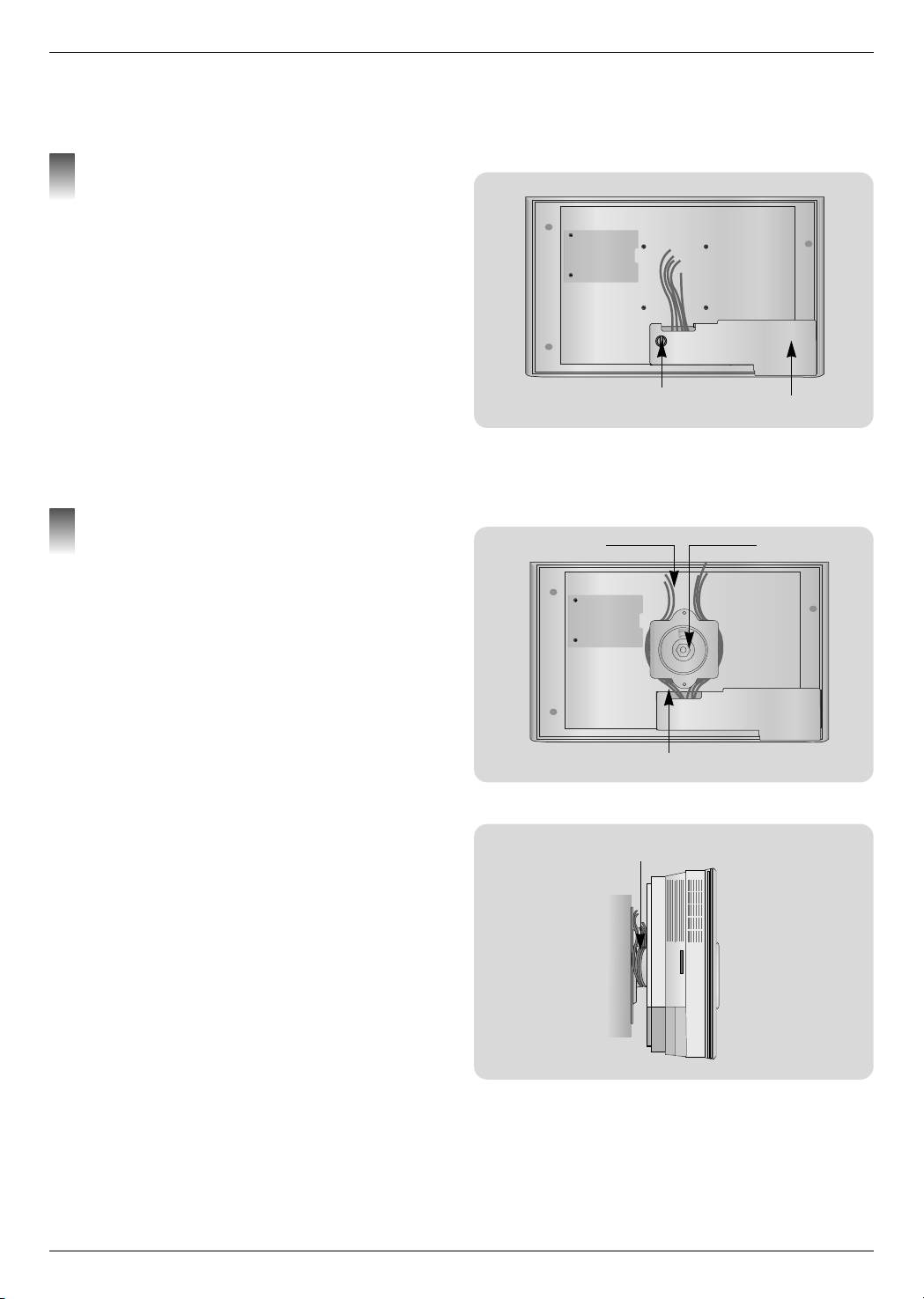
Reinsall the back cover correctly and fix it using the thumb
bolt.
3
Thumb Bolt
Back panel cover
Separate HDMI Cable and Power Code from others and
then bind the cables as shown.
4
Power Cord
HDMI Cable
Wall Bracket
Cables
Installing and Composition
21
ENGLISH
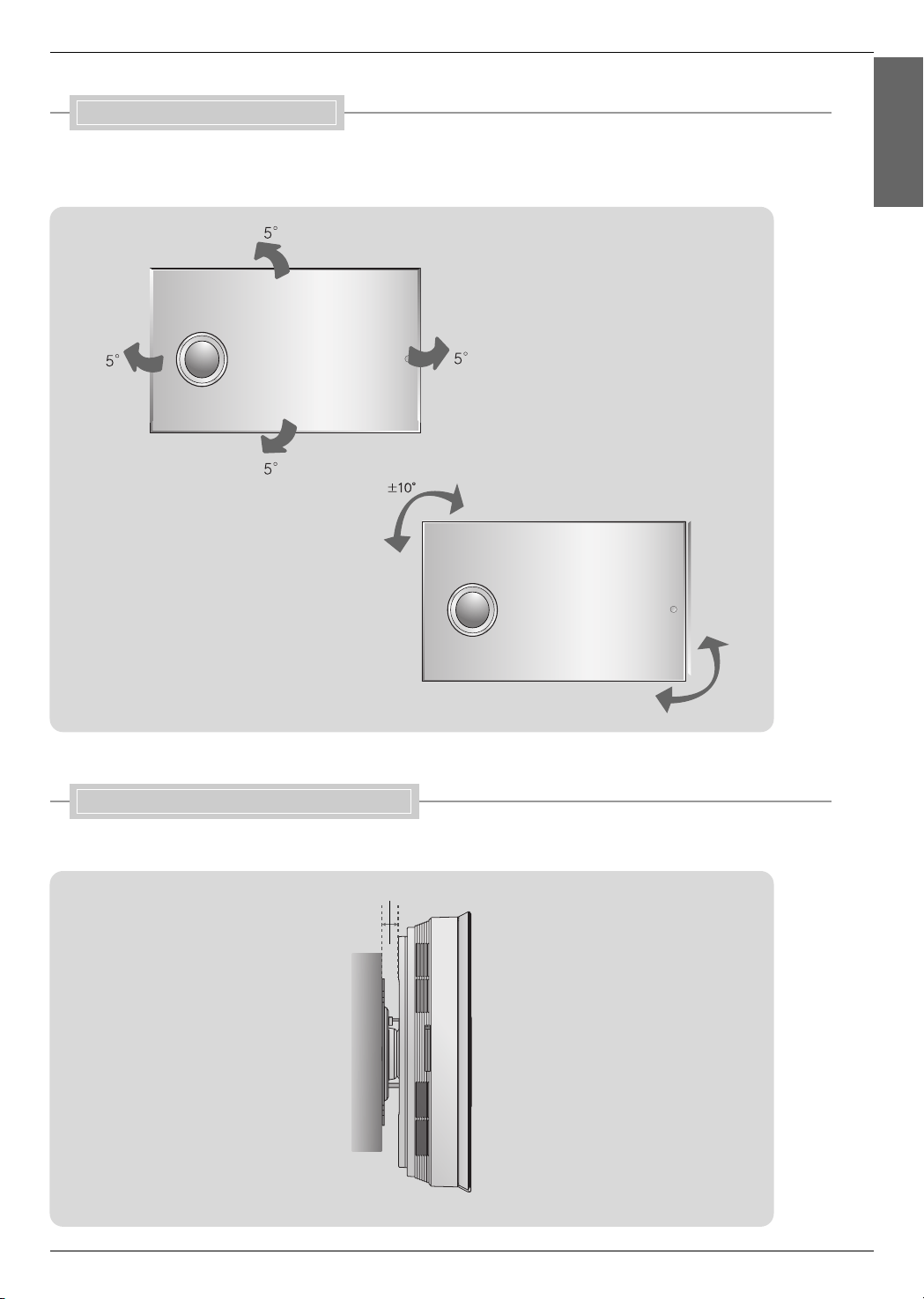
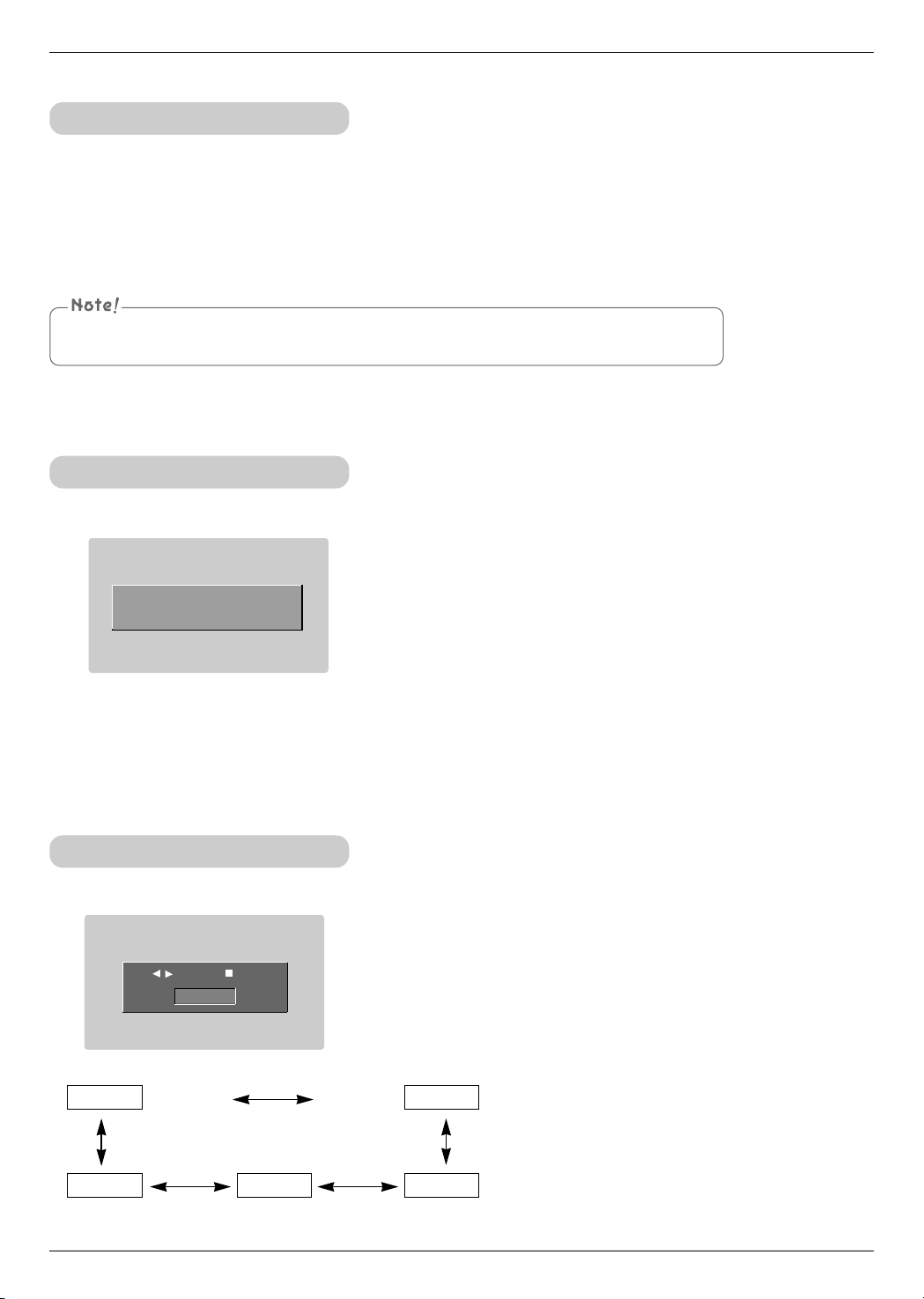
- Adjustable angle range is 5°(upside/downside/left/right) and turn range is ±10.
- Do not adjust tilt angle with too much force. It may cause damage of product or could cause injuries.
<Adjusting Tilt Angle>
- Leave 16.8 mm between the projector and the wall when installing the wall bracket on the wall.
<Turn>
16.8mm
Adjusting Tilt Angle
Adequate installation space from the wall
Installing and Composition
22
* Don’t unplug the power cord while the ventilation fan (inlet/outlet) is working. If so, you take longer time
by lamp on.
Turning on the Projector
Turning off the Projector
1. Connect power cord correctly.
2. Press the POWER button on the remote control or control panel.
(Green operation indicator flashes during cooling of the lamp.)
● An image will appear after the operation indicator light turns (Green).
● Select the source mode with the SOURCE button.
1.Press the POWER button on the control panel or remote control.
2.Press the POWER button on the control panel or remote control again to cut off the power.
3.If the operation indicator LED is orange and blinking, do not disconnect the mains supply until the
operation indicator LED is lit up constantly (orange).
● If the operation indicator LED is orange and blinking, the power button on the control panel or on the remote
control will not operate.
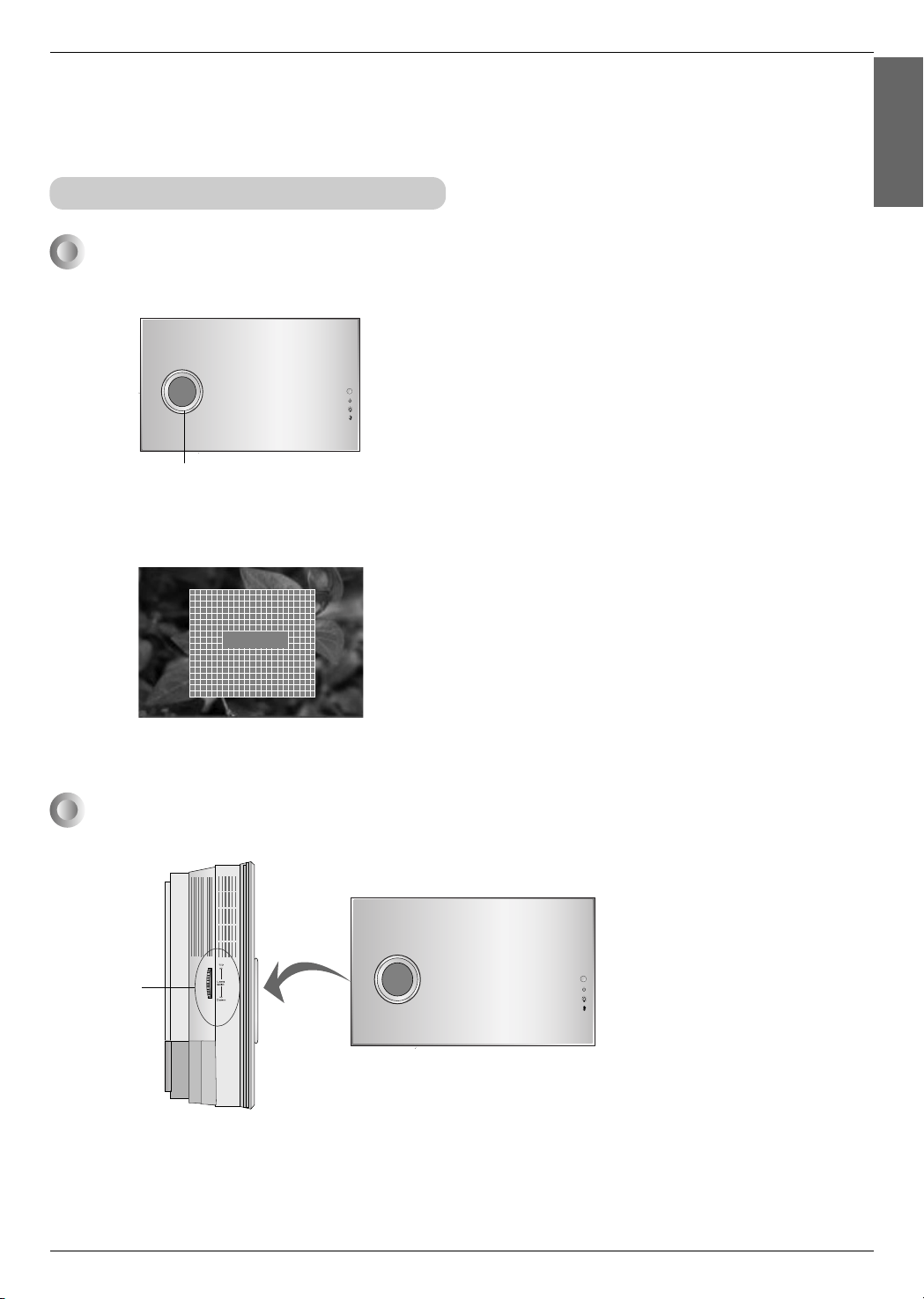
Power off?
Please press Power key again.
Selecting source mode
1. Press the SOURCE button.
2. Each press of the F, G button changes the display as below.
RGB
S-Video
HDMI
VideoComponent
RGB
F
G
Select OK
Installing and Composition
23
ENGLISH
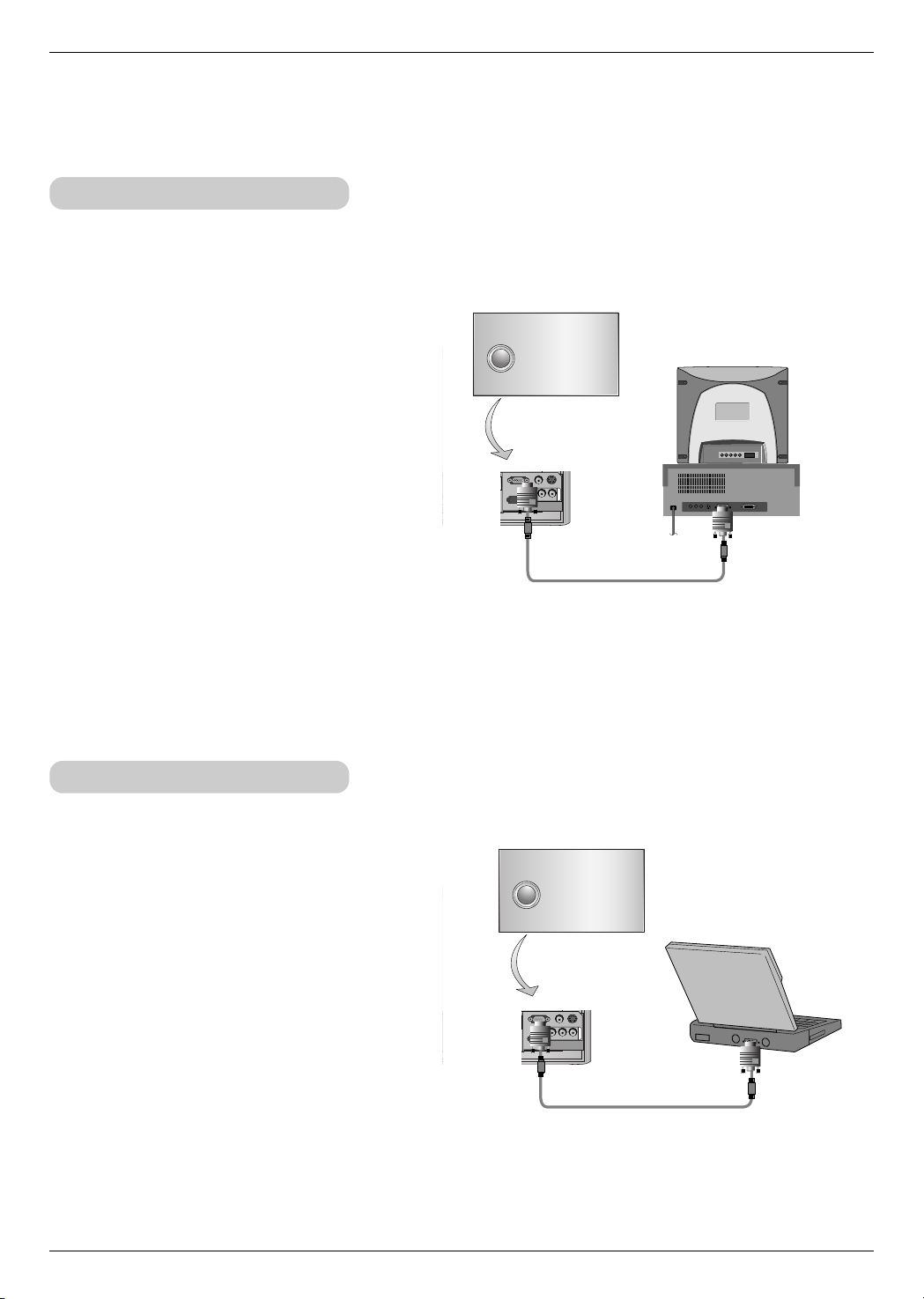
If you want to adjust the screen image to upside/downside, adjust the lens shift as shown below.
● Adjust the Lens shift to upside/downside the set the wanted position of screen.
Lens shift
Focus, Zoom, Position of the Screen Image
When an image appears on the screen, check if it is in focus and fits the screen.
● Adjust the focus by using FOCUS ring of the set.
● Adjust the screen size by using ZOOM+/- button of the remote control or the control panel.
ZOOM
FOCUS Ring
Connection
24
Connection
RGB IN (PC/DTV) VIDEO
YP
B
P
R
S-VIDEO
HDMI IN
COMPONENT IN
RGB IN (PC/DTV) VIDEO
YP
B
P
R
S-VIDEO
HDMI IN
COMPONENT IN
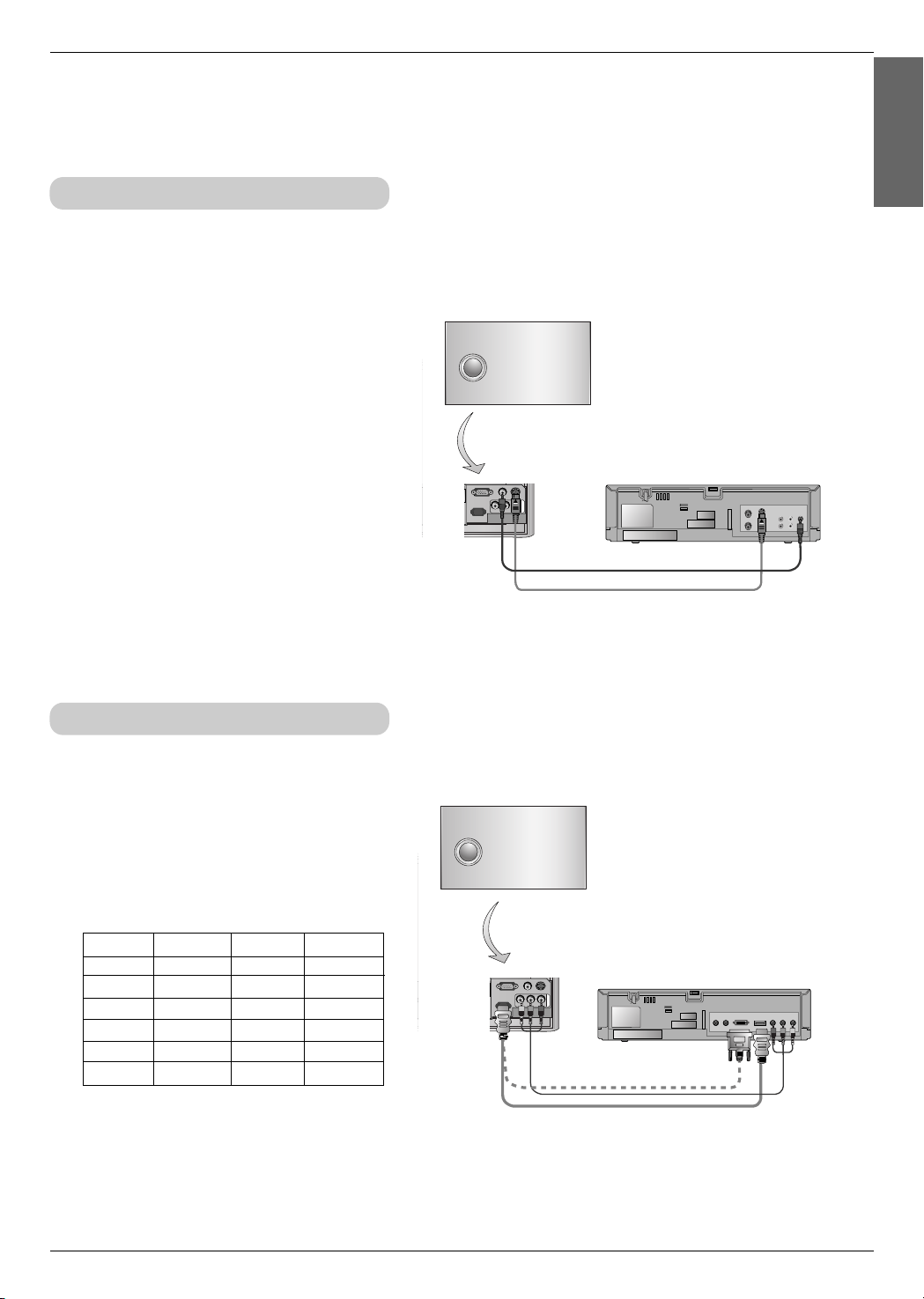
Connecting to a Desktop PC
* You can connect the projector to a computer of VGA, SVGA, XGA and SXGA output.
* Refer to page 36 for the supported monitor displays of the projector.
< How to connect >
Connect computer cable to RGB IN (PC/DTV) of the projector.
* You can get better picture quality when connecting HDMI
source to the projector.
Connecting to a Notebook PC
< How to connect >
Connect computer cable to RGB IN (PC/DTV) of the
projector.
* If you set your computer to output the signal to both the
display of your computer and the external projector, the
picture of the external projector may not appear properly.
In such cases, set the output mode of your computer to
output the signal only to the external projector. For
details, refer to the operating instructions supplied with
your computer.
Connection
25
ENGLISH
RGB IN (PC/DTV) VIDEO
YP
B
P
R
S-VIDEO
HDMI IN
COMPONENT IN
S VIDEO
(R) AUDIO (L) VI DEO
OUT
IN
<VCR>
RGB IN (PC/DTV) VIDEO
YP
B
P
R
S-VIDEO
HDMI IN
COMPONENT IN
PR
PB
Y
(R) AUDIO (L)
HDMI OUTPUTDVI OUTPUT
<DVD>
Component
cable
HDMI to DVI cable
HDMI cable
Connecting to a Video Source
< How to connect 1 >
a. Connect the Video input jacks of the projector to the output
jacks of the A/V source with Video cable.
< How to connect 2 >
b. Connect the S-Video input jack of the projector to the
S-Video output jack of an A/V source with an S-Video cable.
* You can get better picture quality when connecting
S-Video source to the projector.
* You can connect a VTR, a camcorder or any other compatible video image source to the projector.
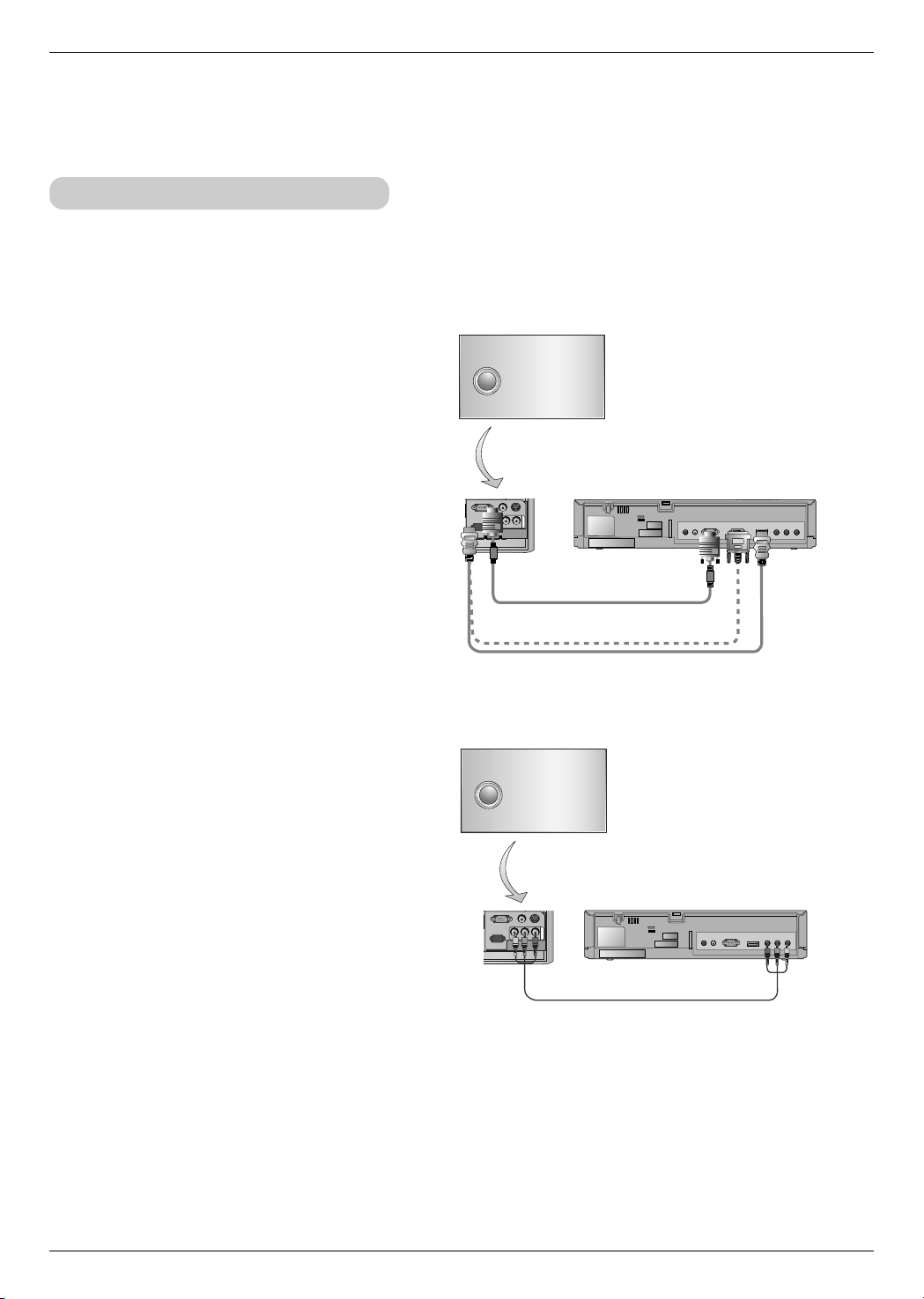
Connecting to a DVD
< How to connect >
a. Connect the DVD Component cable to Component Pr, Pb, Y
of the projector.
* When connecting the component cable, match the jack colors
with the component cable.(Y=green, PB=blue, PR=red)
b. You can select HDMI Mode if DVD player has HDMI output.
* The output jacks (Y, PB, PR) of the DVD might be labeled as Y, Pb, Pr / Y, B-Y, R-Y / Y, Cb, Cr according to the equipment.
Signal
480i
480p
720p
1080i
576i
576p
Component
O
O
O
O
O
O
RGB/DTV
X
O
O
O
X
O
HDMI/DVI
X
O
O
O
X
O
Connection
26
Component cable
RGB IN (PC/DTV) VIDEO
YP
B
P
R
S-VIDEO
HDMI IN
COMPONENT IN
(R) AUDIO (L)
DTV OUTPUT
HDMI OUTPUT
PR
PB
Y
DVI OUTPUT
RGB IN (PC/DTV) VIDEO
YP
B
P
R
S-VIDEO
HDMI IN
COMPONENT IN
(R) AUDIO (L)
DTV OUTPUT
HDMI OUTPUT
PR
PB
Y
<D-TV Set-Top Box>
HDMI to DVI cable
RGB cable
HDMI cable
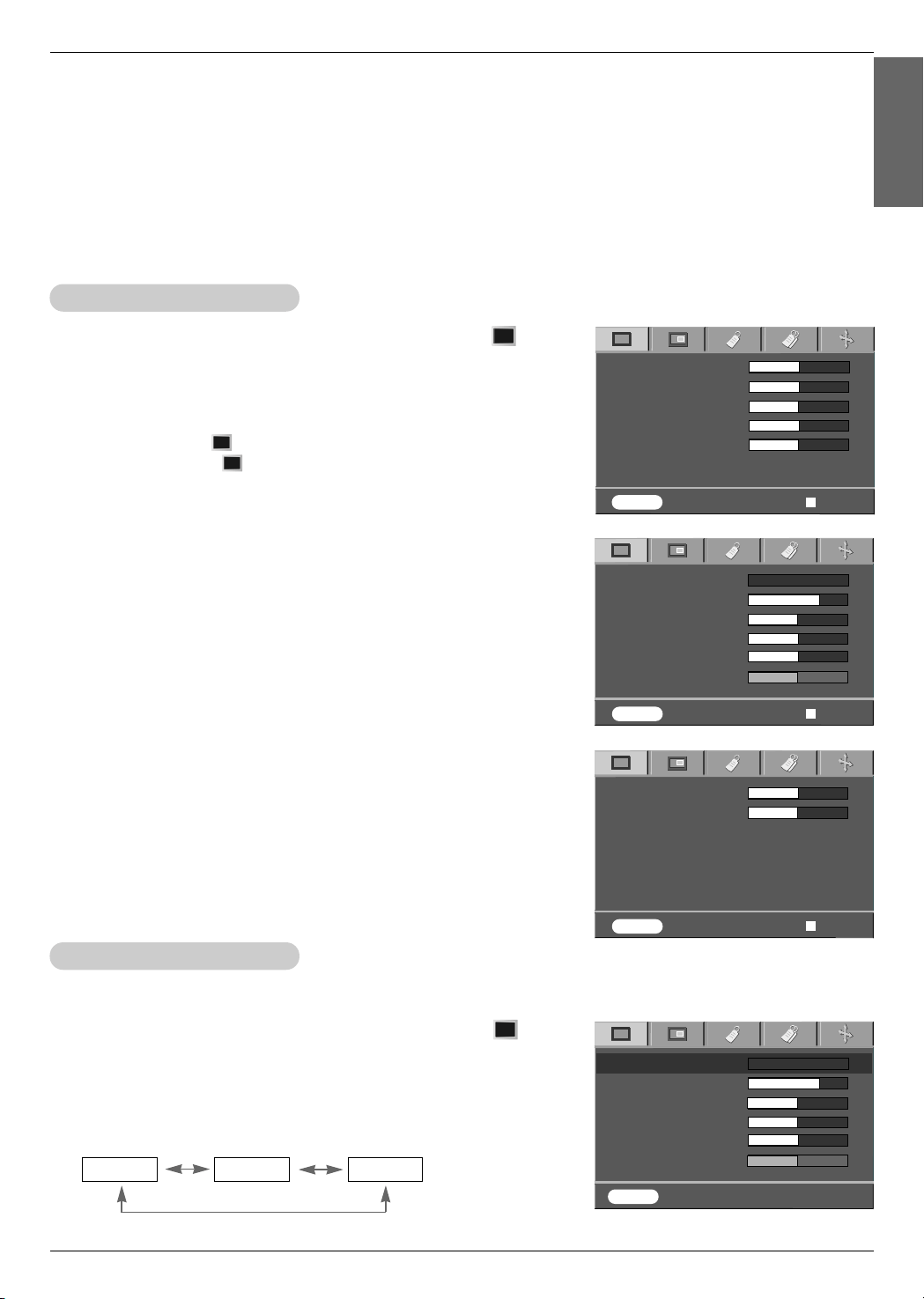
Connecting to a D-TV Set-Top Box
< How to connect an RGB source >
a. Connect RGB cable to RGB IN (PC/DTV) of the
projector.
b. Use a DTV receiver with DTV 480p(576p)/720p/1080i mode.
* HDMI supports HDCP.
< How to connect a HDMI source >
a. Connect the D-TV Set-Top Box HDMI cable to HDMI of the
projector.
b. Use a DTV receiver with DTV 480p(576p)/720p/1080i mode.
* To receive D-TV programmes, it is necessary to purchase a D-TV receiver (Set-Top Box) and
connect it to the projector.
* Please refer to the owner's manual of the D-TV Set-Top Box for the connection between projector and
D-TV Set-Top Box.
< How to connect a Component source >
a. Connect the D-TV Set-Top Box Component cable to
Component P
R, PB, Y of the projector.
* When connecting the component cable, match the jack colors
with the component cable.(Y=green, PB=blue, PR=red)
b. Use a DTV receiver with DTV 480p(576p)/720p/1080i mode.
<D-TV Set-Top Box>
Function
27
Function
Video Menu Options
* In this manual, the OSD(On Screen Display) may be different from your Projector’s because it is just an example to
help with the Projector operation.
* If there is no input signal present, the Menu will not be displayed.
* This operating guide explains operation of RGB(PC) mode mainly.
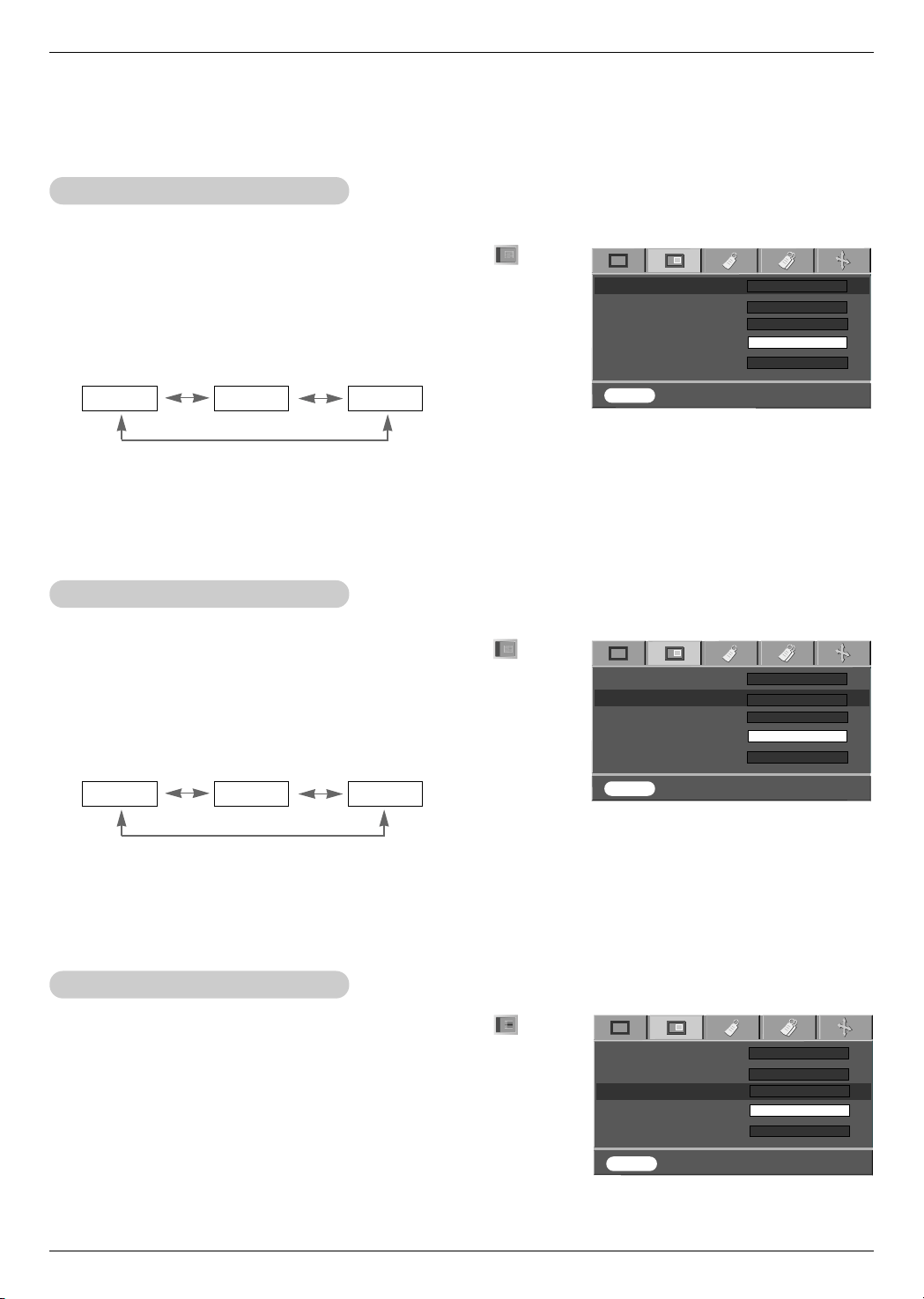
1. Press the MENU button and then use F, G button to select the menu.
2. Press the D , E button to select a video item you want to adjust.
3. Press the F, G button to adjust the screen condition as you want.
< RGB mode >
< Video mode >
●
Each adjustment of menu options will not affect other inputs.
As required, re-adjust menu options for the following input source :
Video/S-Video/Component (480i(576i)), Component (480p(576p), 720p, 1080i)
●
To restore the original image condition after changing it, press A OK button
after selecting [Reset] item.
●
When receiving an NTSC signal, the picture item Tint is displayed and can
be adjusted.(60Hz only)
●
To exit the menu display, repeatedly, press the MENU button.
Adjusting Video
1. Press the MENU button and then use F, G button to select the menu.
2. Press the D , E button to select APC item.
3. Press the
F, G button to adjust the screen condition as you want.
APC (Auto Picture Control)
* Use APC to set the projector for the best picture appearance.
* This function will not work in RGB mode.
●
Each press of the D, E button changes the screen as shown below.
●
To exit the menu display, repeatedly, press the MENU button.
Clear
Soft User
APC
Contrast 80
Brightness 50
Color 50
Sharpness 50
Tint 0
FG
Clear
APC
Contrast 80
Brightness 50
Color 50
Sharpness 50
Tint 0
FG
Clear
Contrast 50
Brightness 50
Color R 50
Color G 50
Color B 50
Reset
MENU Exit Move Enter
FG
< HDMI mode >
Contrast 50
Brightness 50
Reset
MENU Exit Move Enter
FG
MENU Exit Move Enter
FG
MENU Prev. Move Select
D
E
FG
ENGLISH
Function
28
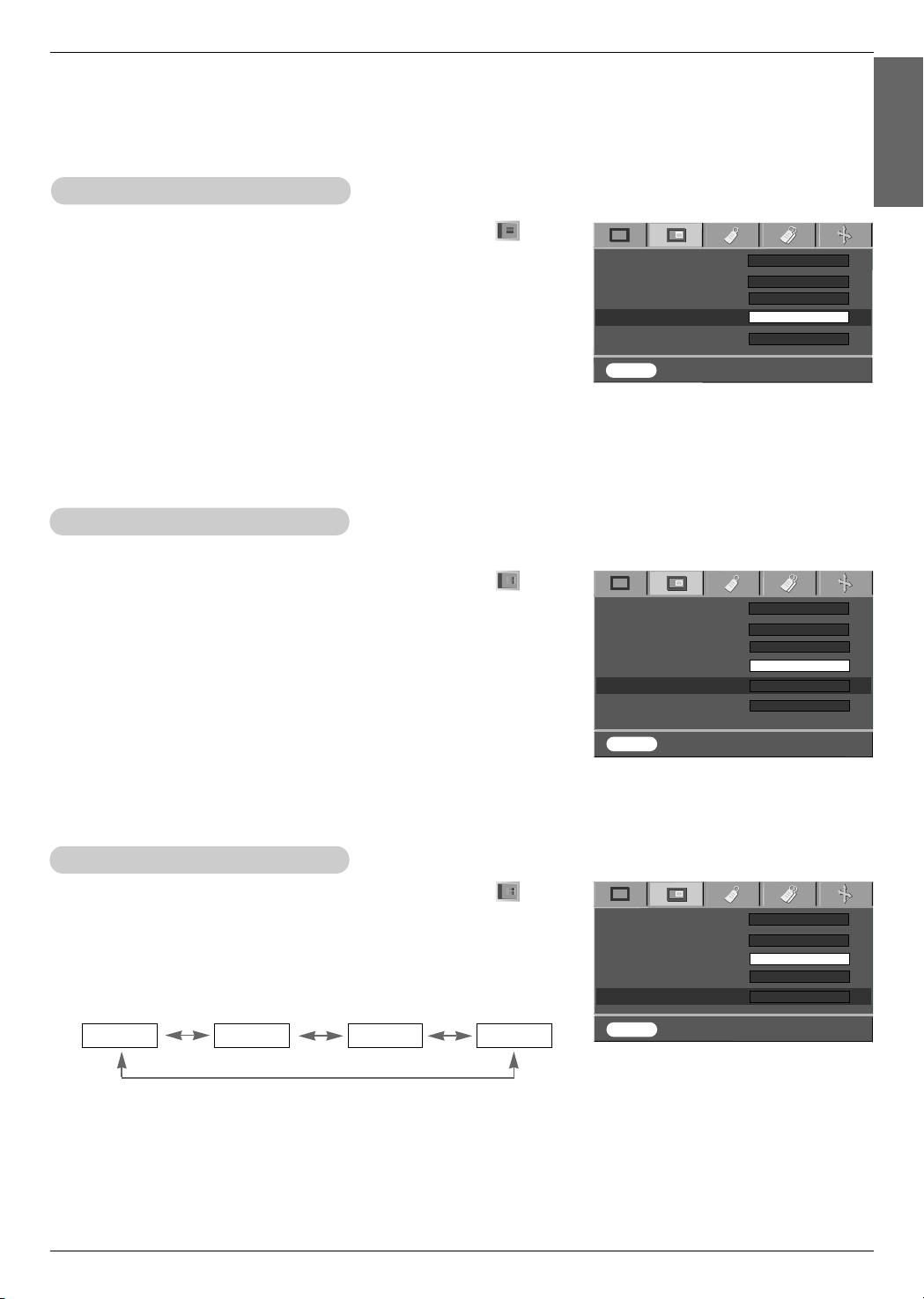
1. Press the MENU button and then use F, G button to select the menu.
2. Press the D , E button to select ACC item.
3. Press the F, G button to make desired adjustments.
Auto Color Temperature Control
●
Each press of the D, E button changes the screen as shown below.
●
To exit the menu display, repeatedly, press the MENU button.
Cool Normal Warm
- To initialize values (reset to default settings), select the Normal option.
1. Press the MENU button and then use F, G button to select the menu.
2. Press the D , E button to select Gamma item.
3. Press the F, G button to adjust the screen condition as required.
Gamma Function
●
Each press of the D, E button changes the screen as shown below.
●
To exit the menu display, repeatedly, press the MENU button.
Normal Film Sports
ACC
Gamma
Brilliant Color
TM
White peaking 10
Smart Iris
FG
Normal
FG
Normal
FG
On
FG
step0
1. Press the MENU button and then use F, G button to select the menu.
2. Press the D , E button to select Brilliant Color
TM
item.
3. Press the F, G button to select On or Off.
*
What does Brilliant Color
TM
do?
This function either increases or decreases entire luminosity by enriching the
impression of a halftone color.
Brilliant Color
TM
Function
MENU Exit Move Select
D
E
FG
ACC
Gamma
Brilliant Color
TM
White peaking 10
Smart Iris
FG
Normal
FG
Normal
FG
On
MENU Exit Move Select
D
E
FG
ACC
Gamma
Brilliant Color
TM
White peaking 10
Smart Iris
FG
Normal
FG
Normal
FG
On
MENU Exit Move Select
D
E
FG
FG
step0
FG
step0
Function
29
1. Press the MENU button and then use F, G button to select the menu.
2. Press the D , E button to select Black Level item.
3. Press the F, G button to select Low or High.
●
Low : The reflection of the screen gets darker.
●
High : The reflection of the screen gets brighter.
Black Level Function
1. Press the MENU button and then use F, G button to select the menu.
2. Press the
D , E button to select White peaking item.
3. Press the F, G button to adjust the screen condition as you want.
●
Adjust to higher setting to achieve brighter picture. Adjust to lower setting for
darker picture.
●
To exit the menu display, repeatedly, press the MENU button.
●
You can adjust White peaking only when Brilliant Color
TM
is On.
White peaking Function
ACC
Gamma
Brilliant Color
TM
White peaking 10
Smart Iris
FG
Normal
FG
Normal
FG
On
MENU Exit Move Adjust
D
E
FG
ACC
Gamma
Brilliant Color
TM
White peaking 10
Black Level
Smart Iris
FG
Normal
FG
Normal
FG
On
FG
step0
FG
High
MENU Exit Move Select
D
E
FG
1. Press the MENU button and then use F, G button to select the menu.
2. Press the D , E button to select Smart Iris item.
3. Press the
F, G button to adjust the contrast as required.
Smart Iris Function
●
Each press of the D, E button changes the screen as shown below.
●
To exit the menu display, repeatedly, press the MENU button.
●
The contrast will be increased to the Step 0.
Step 0 Step 1 Step 2 Step 3
ACC
Gamma
Brilliant Color
TM
White peaking 10
Smart Iris
FG
Normal
FG
Normal
FG
On
FG
step0
MENU Exit Move Select
D
E
FG
FG
step0
< HDMI mode >
- You can adjust Black Level only in HDMI mode.
ENGLISH
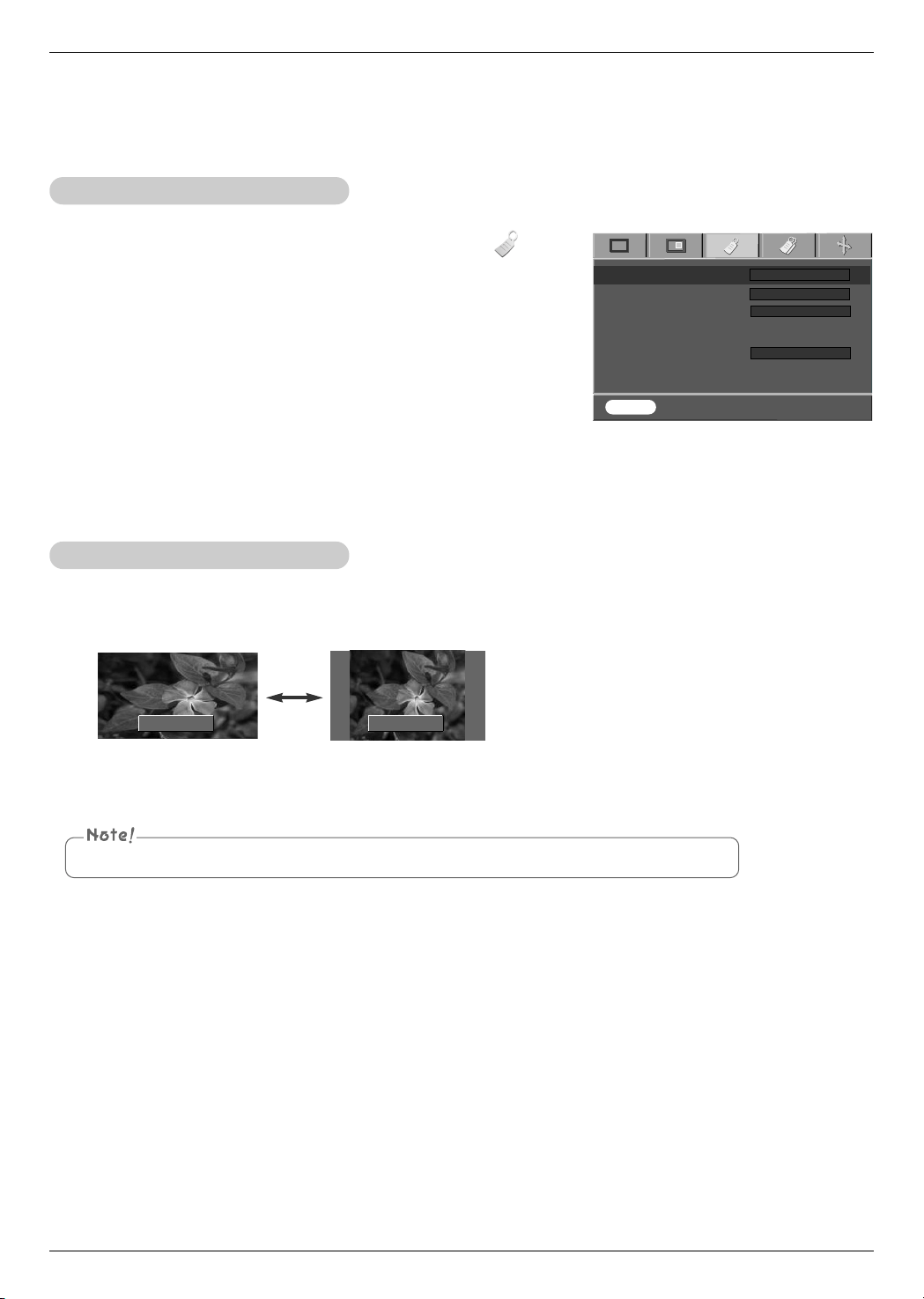
Function
30
Special Menu Options
1. Press the MENU button and then use F, G button to select the menu.
2. Press the D , E button to select Language item.
3. Press the F, G button to select the language you want to use.
●
On-Screen-Display (OSD) is displayed in the selected language.
●
To exit the menu display, repeatedly, press the MENU button.
Selecting Language
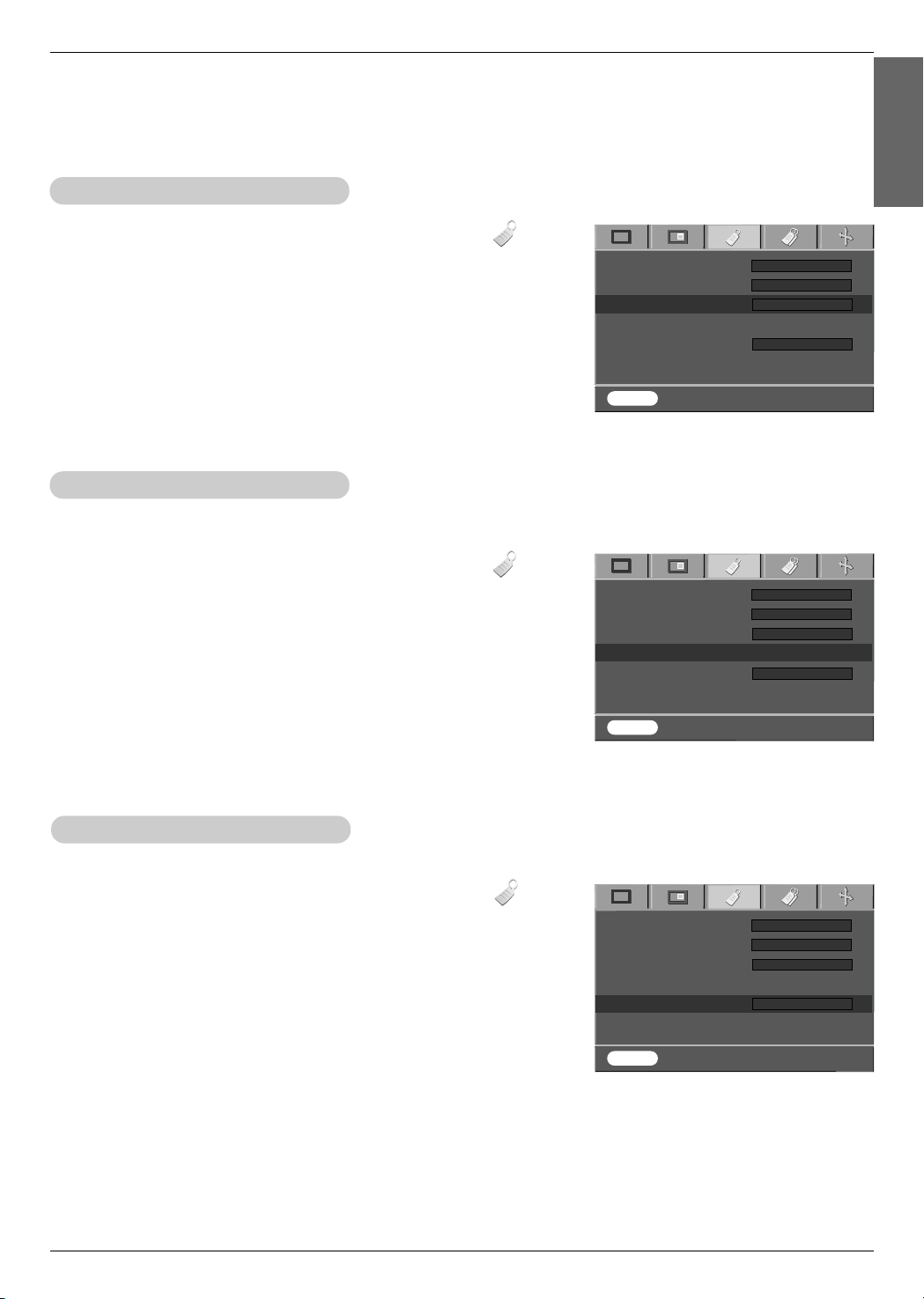
1. Press the ARC button.
Each press of the button changes the display as below.
Using ARC Function
You can also use this function by using the MENU button.
16:9
16:9
4 : 3
4:3
Language
ARC
Overscan
Flip horizontal
Auto sleep
FG
English
FG
4 : 3
FG
On
FG
Off
MENU Prev. Move Select
D
E
FG
Function
31
ENGLISH
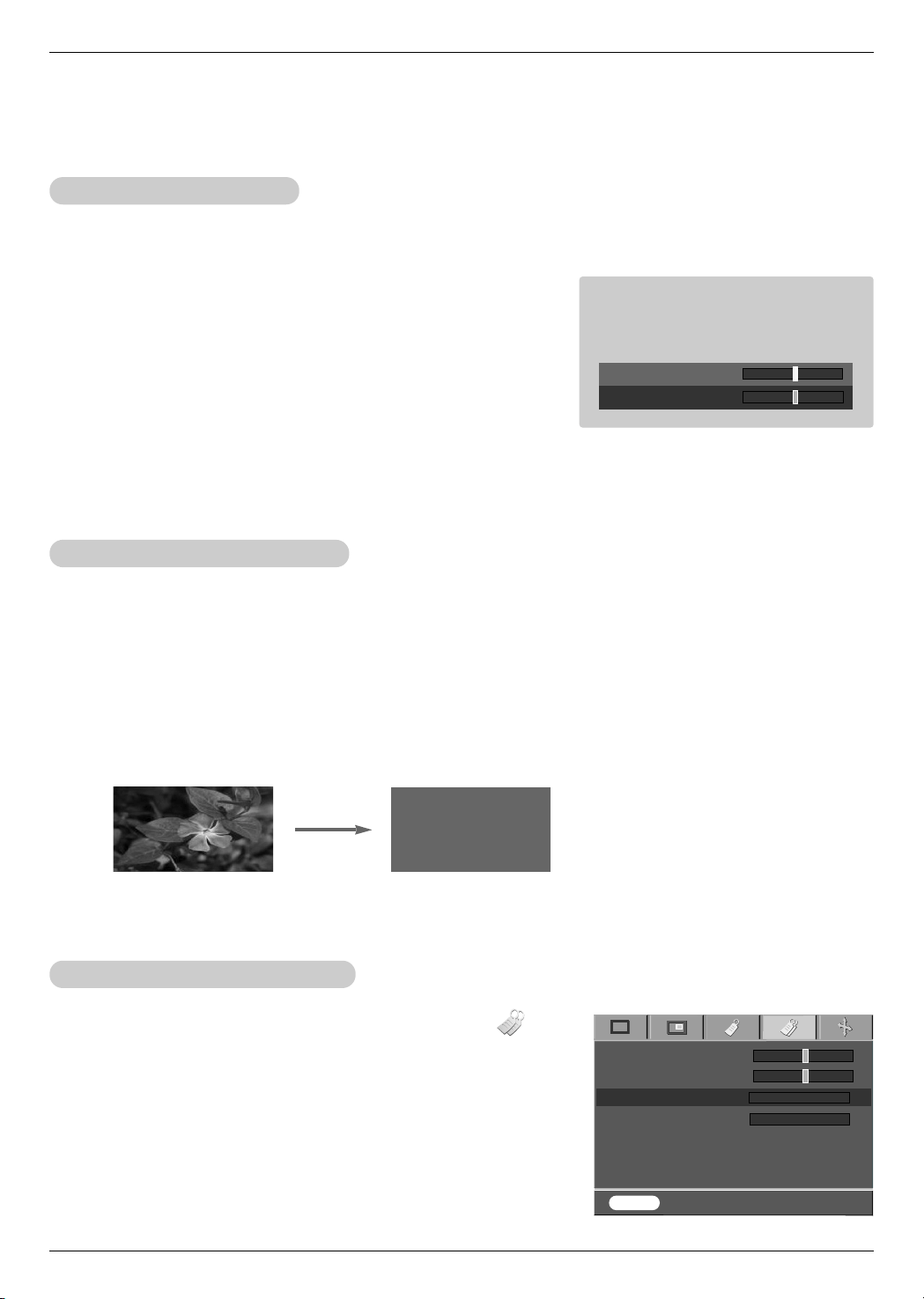
Flip horizontal Function
* This function reverses the projected image horizontally.
Use this function when rear projecting an image.
1. Press the MENU button and then use F, G button to select the menu.
2. Press the D , E button to select Flip horizontal item.
3. Press the A OK button to see reversed image.
●
Each time you press the AOK button, the image will be reversed.
●
To exit the menu display, repeatedly, press the MENU button.
* The sleep timer turns the projector off at the preset time.
1. Press the MENU button and then use F, G button to select the menu.
2. Press the D , E button to select Auto sleep item.
3. Press the F, G button to select the desired preset time.
●
To exit the menu display, repeatedly, press the MENU button.
Auto sleep Function
Overscan Function
1. Press the MENU button and then use F, G button to select the menu.
2. Press the
D , E button to select Overscan item.
3. Press the F, G button to select On or Off.
●
You can adjust Overscan only in RGB-DTV, HDMI-DTV and Component
mode.
Language
ARC
Overscan
Flip horizontal
Auto sleep
FG
English
FG
4 : 3
FG
On
FG
Off
MENU Prev. Move Select
D
E
FG
Language
ARC
Overscan
Flip horizontal
Auto sleep
FG
English
FG
4 : 3
FG
On
FG
Off
MENU Prev. Move Select
D
E
FG
Language
ARC
Overscan
Flip horizontal To flip
Auto sleep
FG
English
FG
4 : 3
FG
On
FG
Off
MENU Prev. Move Enter
D
E
A
Function
32
Special Menu Options
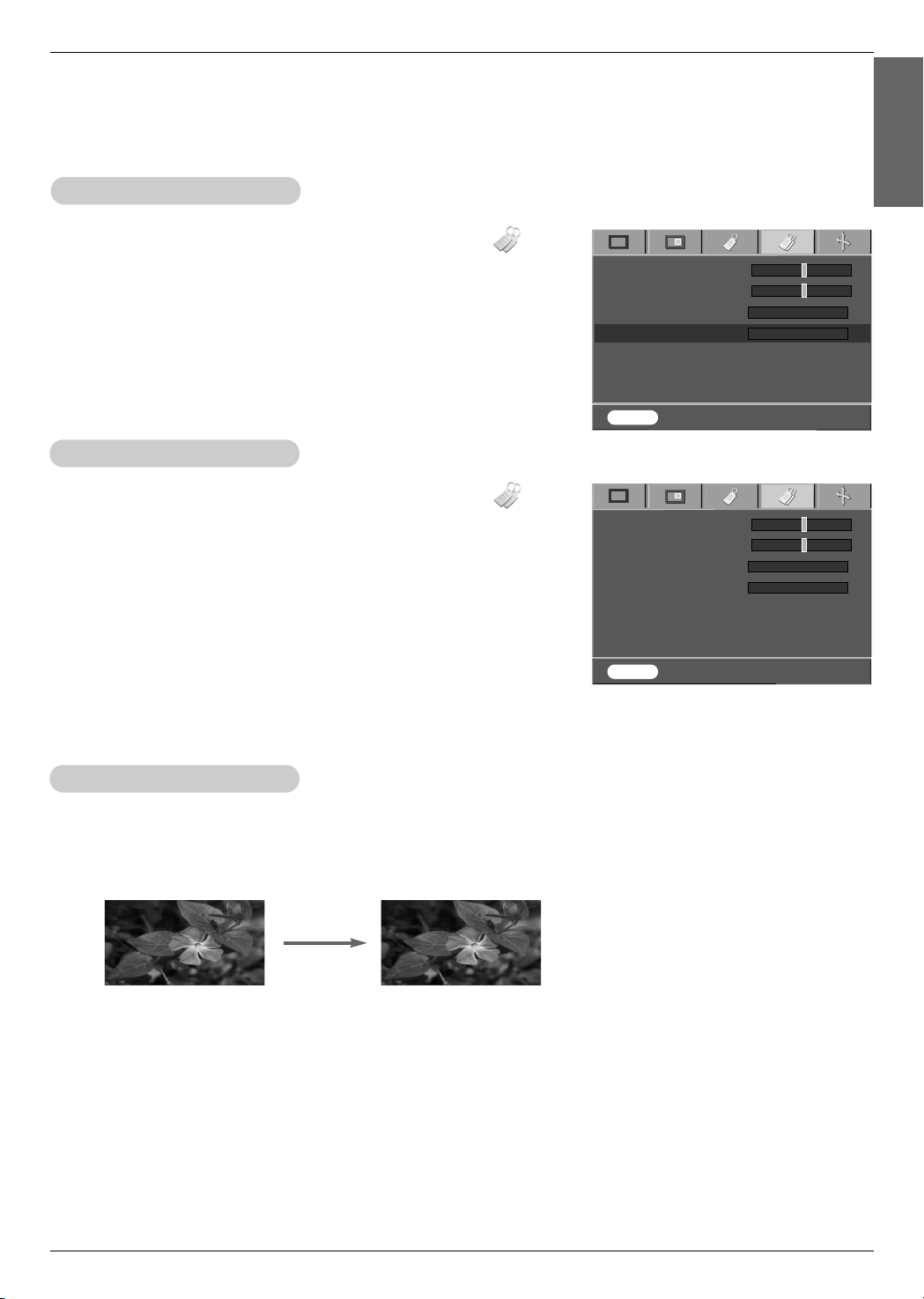
1. Press the KEYSTONE button.
2. Press the D , E button to select V Keystone or H Keystone.
3. Press the F, G button to make desired adjustments.
●
Keystone can be adjusted from -20 to +20.
●
You can also access this function via the MENU button.
Using Keystone Function
* Use this function when the screen is not at a right angle to the projector and the image is a trapezoid shape.
* Only use the Keystone function when you can’t get the best angle of projection.
1. Press the BLANK button.
●
The screen turns off to a background color.
●
You can choose the background color.
(Refer to ‘Selecting blank image color’)
2. Press any button to cancel the blank function.
Using Blank Function
* This function may be effective if you need to get the attention of the audience during presentations, meetings or briefings.
1. Press the MENU button and then use F, G button to select the menu.
2. Press the D , E button to select Blank image item.
3. Press the F, G button to select the color you want to use.
●
Background color will be altered to the selected Blank function color.
●
To exit the menu display, repeatedly, press the MENU button.
Selecting Blank image color
V Keystone 0
H Keystone 0
Blank image
Lamp mode
Lamp time 11 Hr
FG
Logo
FG
High Bright
V Keystone 0
H Keystone 0
MENU Prev. Move Select
D
E
FG
Function
33
ENGLISH
1. Press the MENU button and then use F, G button to select the menu.
2. Press the D , E button to select Lamp mode item.
3. Press the
F, G button to select High Bright or Economic.
●
To exit the menu display, repeatedly, press the MENU button.
1. Press the MENU button and then use F, G button to select the menu.
2. The used lamp time is displayed.
●
When projector lamp is reaching the end of its life (approximately 2000 hours), the lamp
indicator will turn red.
●
The lamp warning LED illuminates red continuously in the case of excessive lamp time.
●
To exit the menu display, repeatedly, press the MENU button.
Lamp mode Function
Checking Lamp time
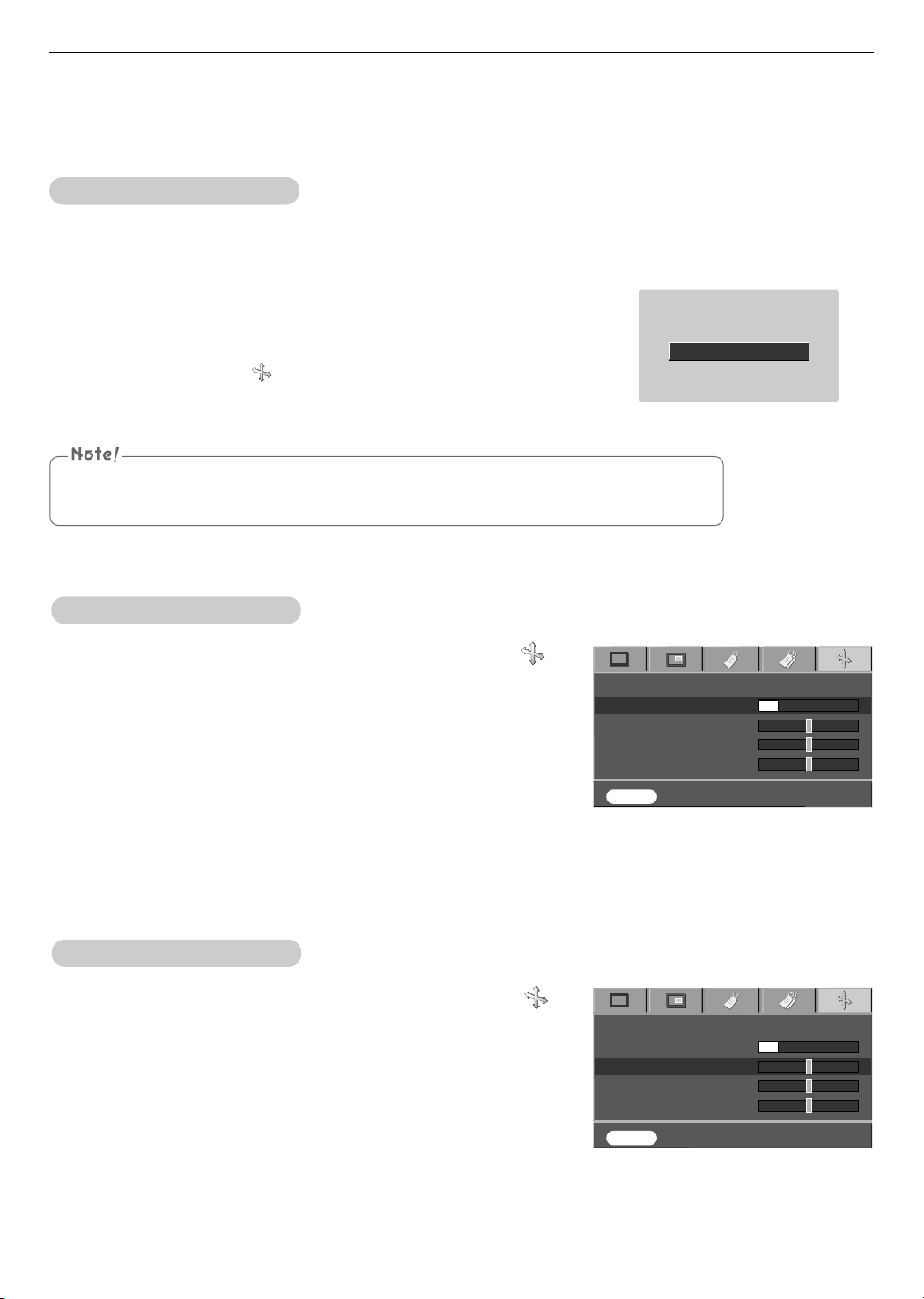
1. Press the STILL button.
* You can freeze the input image.
2.
To exit STILL, press any button .
* The STILL function will release automatically after approximately 10 minutes.
Using Still Function
<Moving Image>
<Still Image>
V Keystone 0
H Keystone 0
Blank image
Lamp mode
Lamp time 11 Hr
FG
Logo
FG
High Bright
MENU Prev. Move Select
D
E
FG
V Keystone 0
H Keystone 0
Blank image
Lamp mode
Lamp time 11 Hr
FG
Logo
FG
High Bright
MENU Exit Move Enter
FG
A
Function
34
1. Press the AUTO button.
●
Image positioning and synchronization are automatically adjusted.
2. You want adjust more by various PC input modes, adjust Phase, Clock,
Horizontal and Vertical in menu. In certain circumstances, you
can’t get the best picture quality by only using auto-correction.
Auto Configure Function
* This function assures you of getting the best video quality by automatically adjusting the horizontal size and synchronization
of the image.
* Auto Tracking function works in RGB PC input only.
Auto Configure
You can also use this function by using the MENU button. (Only in RGB mode)
For best results, perform this function while displaying a still image.
Screen Menu Options
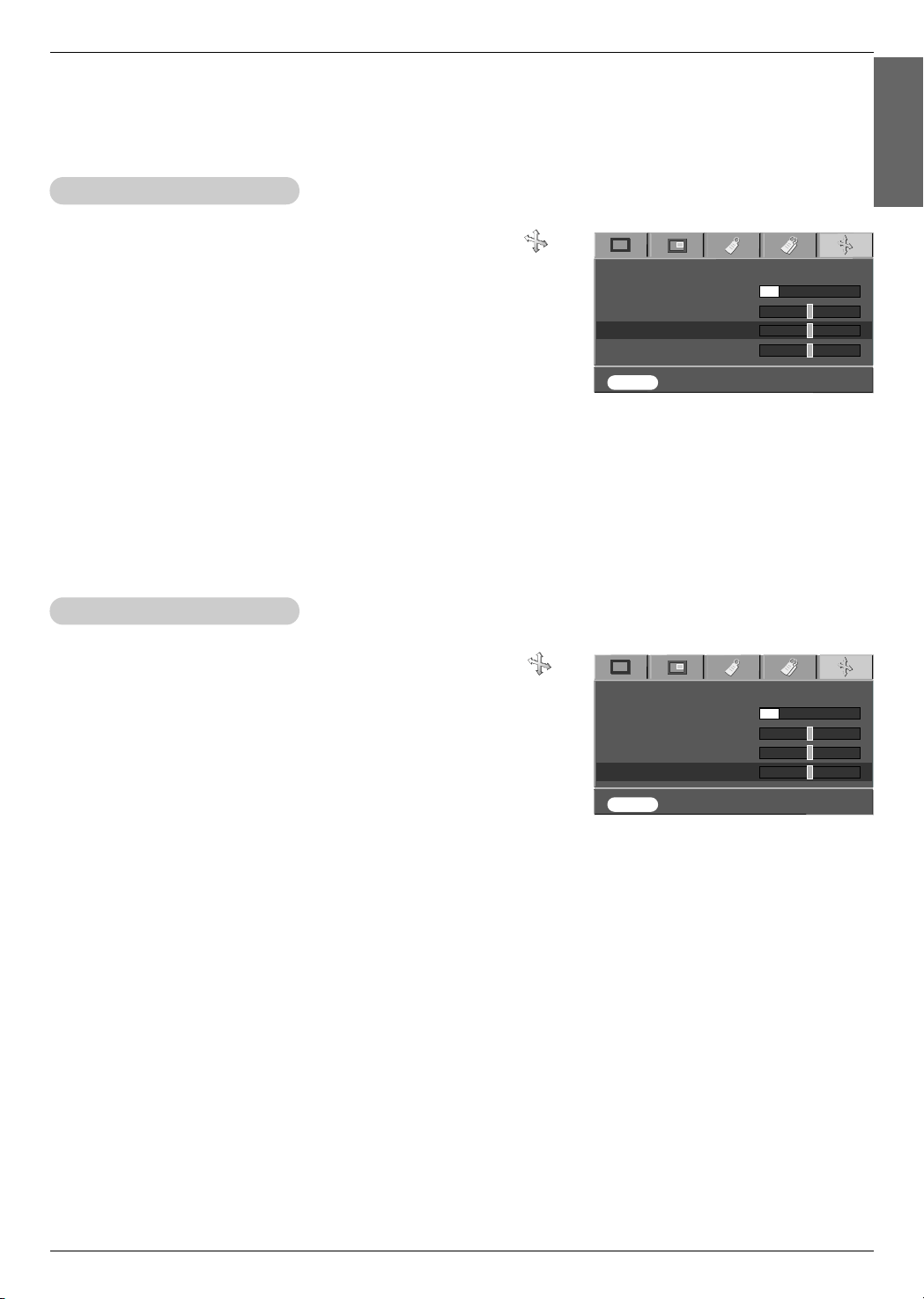
1. Press the MENU button and then use F, G button to select the
menu.
2. Press the D , E button to select Phase item.
3. Press the F, G button to make desired adjustments.
●
Phase adjustment range is 0 ~31.
●
To exit the menu display, repeatedly, press the MENU button.
●
The variable range can be different depends on input resolutions.
1. Press the MENU button and then use F, G button to select the
menu.
2. Press the D , E button to select Clock item.
3. Press the
F, G button to make desired adjustments.
●
Clock adjustment range is -20 ~+20.
●
To exit the menu display, repeatedly, press the MENU button.
●
The variable range can be different depends on input resolutions.
Using Clock Function
Using Phase Function
Auto configure
Phase 8
Clock 0
Horizontal 0
Vertical 0
MENU Store Move Adjust
D
E
FG
Auto configure
Phase 8
Clock 0
Horizontal 0
Vertical 0
MENU Store Move Adjust
D
E
FG
Function
35
ENGLISH
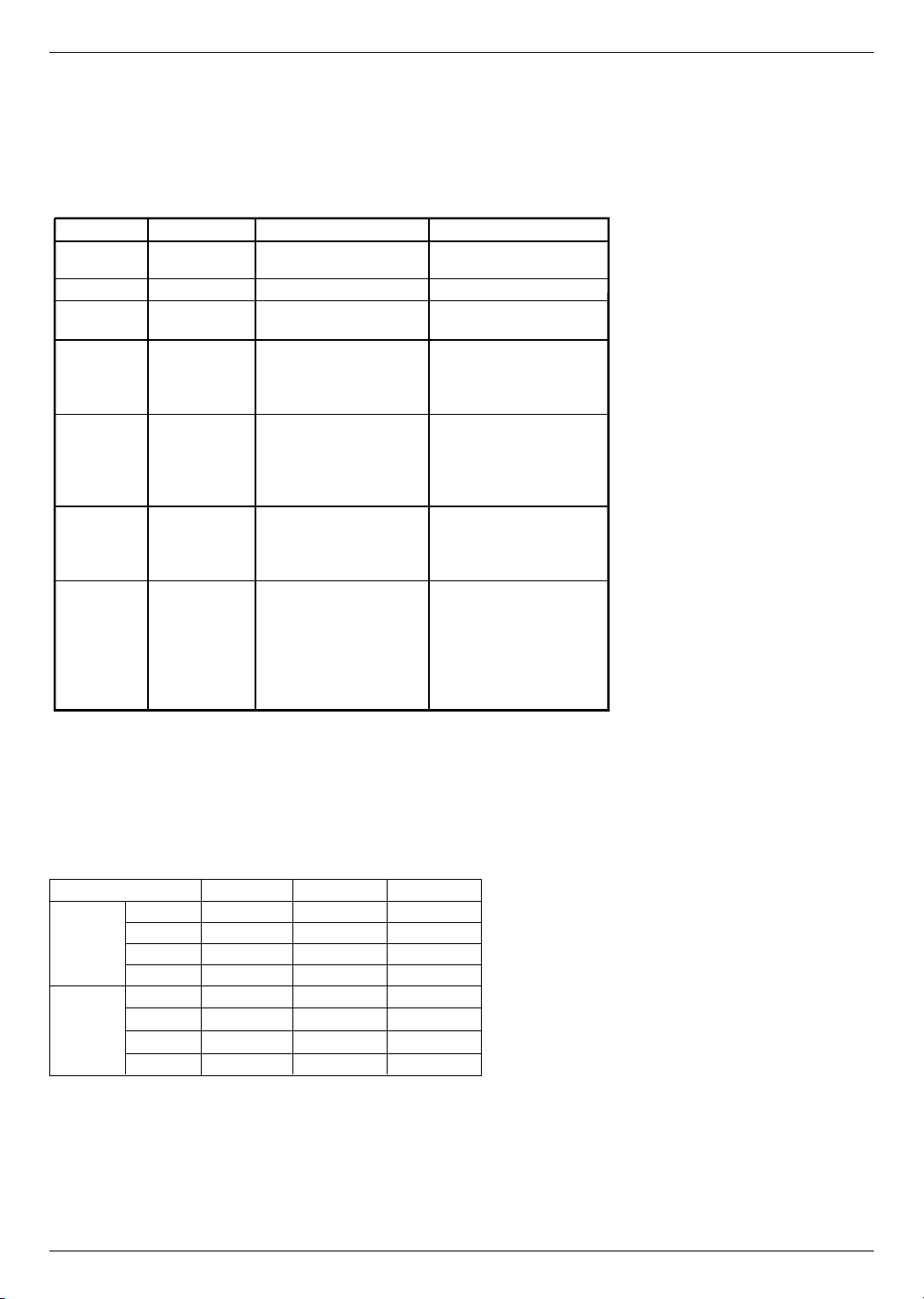
1. Press the MENU button and then use F , G button to select the
menu.
2. Press the D , E button to select Horizontal item.
3. Press the
F, G button to make desired adjustments.
●
Horizontal adjustment range is -25 ~+25.
●
To exit the menu display, repeatedly, press the MENU button.
●
The variable range can be different depends on input resolutions.
1. Press the MENU button and then use F , G button to select the
menu.
2. Press the D , E button to select Vertical item.
3. Press the F, G button to make desired adjustments.
●
Vertical adjustment range is -25 ~+25.
●
To exit the menu display, repeatedly, press the MENU button.
●
The variable range can be different depends on input resolutions.
Using Vertical Function
Using Horizontal Function
Auto configure
Phase 8
Clock 0
Horizontal 0
Vertical 0
MENU Store Move Adjust
D
E
FG
Auto configure
Phase 8
Clock 0
Horizontal 0
Vertical 0
MENU Store Move Adjust
D
E
FG
Information
36
Supported Monitor Display
Component-*1 RGB(DTV)-*2 HDMI(DTV)-*3Signal
< DVD/DTV Input >
* Cable type
1- Component Cable
2- Computer Cable
3- HDMI Cable
* We recommend using 720p
resolution
.
NTSC(60Hz)
480i
480p
720p
1080i
PAL(50Hz)
576i
576p
720p
1080i
O
O
O
O
O
O
O
O
X
O
O
O
X
O
O
O
X
O
O
O
X
O
O
O
640X350 70.09Hz 31.468kHz
640X350 85.08Hz 37.861kHz
PC98 640X400 85.08Hz 37.861kHz
720X400 70.08Hz 31.469kHz
720X400 85.03Hz 37.927kHz
640X480 59.94Hz 31.469kHz
640X480 72.80Hz 37.861kHz
640X480 75.00Hz 37.500kHz
640X480 85.00Hz 43.269kHz
800X600 56.25Hz 35.156kHz
800X600 60.31Hz 37.879kHz
800X600 72.18Hz 48.077kHz
800X600 75.00Hz 46.875kHz
800X600 85.06Hz 53.674kHz
1024X768 60.00Hz 48.363kHz
1024X768 70.06Hz 56.476kHz
1024X768 75.02Hz 60.023kHz
1024X768 84.99Hz 68.677kHz
1152X864 60.05Hz 54.348kHz
1152X864 70.01Hz 63.995kHz
1152X864 75.00Hz 67.500kHz
1280X768 60.00Hz 47.693kHz
1280X960 60.00Hz 60.000kHz
1280X1024 60.02Hz 63.981kHz
1280X1024 75.025Hz 79.976kHz
XGA
SXGA
EGA
DOS
VGA
SVGA
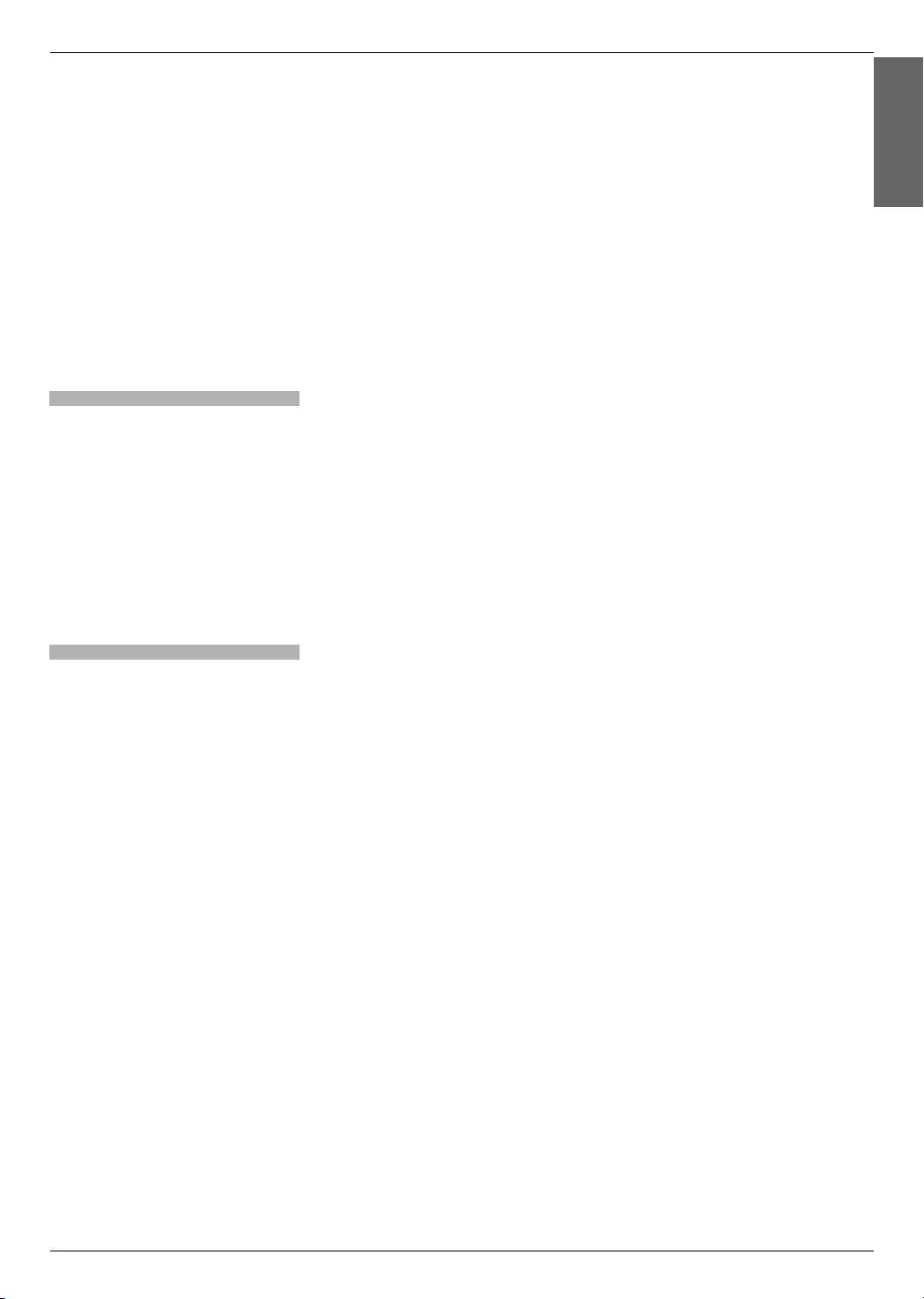
* The following table lists the display formats supported by the projector.
* In case of the use of HDMI To HDMI cable, PC shall not be supported.
* If the projector does not support the input signal, “Out of range” message appears on the screen.
* The projector supports DDC1/2B type as Plug & Play function. (Auto recognition of PC monitor)
* The Synchronization input form for horizontal and vertical frequencies are Separate.
* According to PC, the optimum vertical frequency may not be displayed up to the optimum frequency of set in
‘Registration information (Display registration information)’. (ex, The optimum vertical frequency may be displayed
up to 85Hz or under in the resolution of 640X480 or 800X600.)
Sources Format Vertical Freq.(Hz) Horizontal Freq. (kHz)
Information
37
Maintenance
Cleaning the lens
Clean the lens whenever you notice dirt or dust on the surface of it. Wipe the lens surface gently with an air spray
or a soft, dry lint-free cloth.
To remove dirt or stains on the lens, moisten a soft cloth with water and a neutral detergent and wipe the lens
surface gently.
Cleaning the Projector Case
To clean the projector case, first unplug the power cable. To remove dirt or dust, wipe the casing with a soft, dry,
lint-free cloth. To remove stubborn dirt or stains, moisten a soft cloth with water and a neutral detergent and then
wipe the casing.
Do not use alcohol, benzene, thinners or other chemical detergents as these can cause the casing to be warped
or discolored.
* The projector needs little maintenance. You should keep the lens clean because any dirt or stains may appear
on the screen. If any parts need to be replaced, contact your dealer. When cleaning any part of the projector,
always turn the power off and unplug the projector first.
ENGLISH

Information
38
Replacing the Lamp
Last of Lamp unit replacement
Be careful when replacing lamp
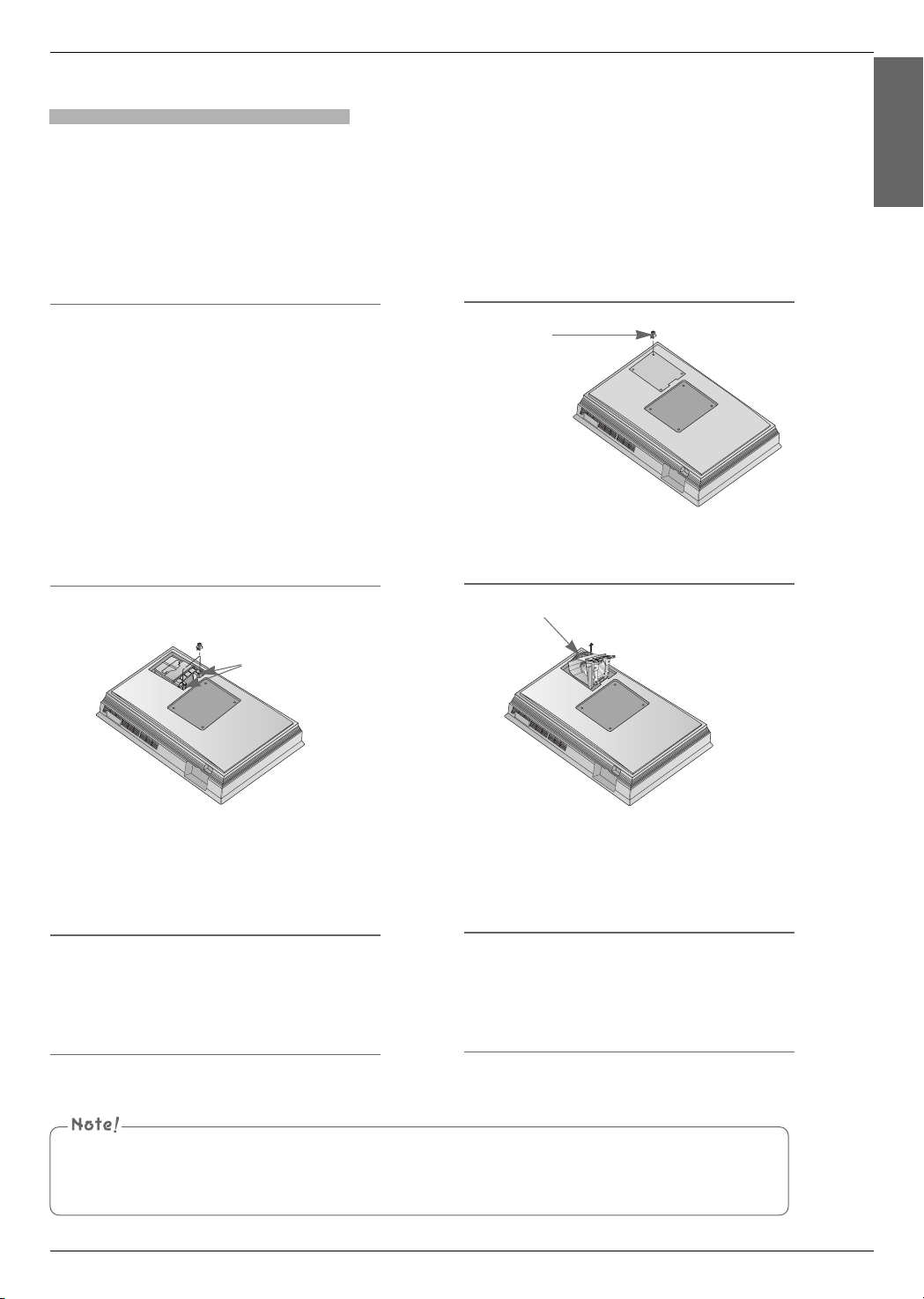
The projector lamp usually lasts for about 2000 hours. You can see the used lamp
time in the Selecting Function section. You must replace the lamp when:
● The projected image gets darker or starts to be deteriorated.
● The lamp indicator is red.
● The message “Replace the lamp” appears on the screen when turning the
projector lamp on.
- Press the POWER button on the control panel or remote control to cut off the power.
- If the operation indicator LED is orange and blinking, do not disconnect the mains supply until the operation indicator LED
is lit up constantly (orange).
- Allow the lamp to cool for 1 hour before replacing it.
- Replace only with the same type lamp from a LG Electronics Service Center using and other lamp
may cause damage to the Projector and lamp.
- Pull out the lamp only when replacing the lamp.
- Keep the lamp unit out of reach of children or and heat sources such as radiators, stoves.
- To reduce the risk of fire, lamp shall not be exposed to liquids or foreign material.
- Do not place the lamp near any heat source.
- Make sure the new lamp is securely tightened with screws. If not, the image may be dark or there could be a risk of fire.
- Never touch the lamp unit glass or otherwise image quality may be worse or lamp life may be reduced.
To obtain a replacement Lamp unit
Lamp model number is on page 43. Check the lamp model and then purchase it at LG Electronics Service Center.
Using other lamp may cause damage to the projector.
Lamp unit disposal
Dispose of the used lamp by returning it to the LG electronic service center.
<Front panel of the Projector>
Lamp indicators
Information
39
1
Turn off the projector and unplug the power cable.
Carefully place the lens side down on a
cushioned surface that will protect the lens
from damage.
(Allow the lamp to cool for 1 hour before
replacing it.)
2
Unscrew the fixing bolts of the lamp cover using a
driver or a similar object.
Lamp case bolt
3
After lifting the lamp cover off, remove the two
retaining screws on the lamp case with a screw-
driver or similar objects.
4
Lift up the fixed wire knob on the lamp.
5
Pull out the handle slowly and remove the lamp
case.
6
Insert the new lamp gently into the correct position.
Make sure it is inserted correctly.
7
Tighten the screws you removed in step 3.
(Make sure it is fixed hardly.)
8
Close the lamp cover and fix it with the bolts from
2.
(If the lamp cover is open, the lamp indicator flashes green
and the projector is not turned on.)
Replacing the Lamp
Bolt
Knob
Using and other lamp may cause damage to the projector or lamp.
Make sure the lamp cover is securely fastened. If the lamp cover is open, and the projector is not turned on.
In this case, contact your service center after checking the lamp to fix well.
ENGLISH

Information
40
Regarding the projector lamp control
● Don’t turn off the projector at least in 5 minutes after activating it.
- The frequent On/Off changes may cause the lamp function to deteriorate.
● Don’t pull out the power cord while activating the projector and the cooling fan.
- It may cause the lamp life-span to shorten and get damaged.
● The life-span of projector may considerably depend on the use environment and treatment conditions.
● The projector uses the high pressure mercury lamp so that the serious caution is essential. The shock or abuse while using
may cause lamp to blow off with explosion.
● When you continue to use the projector after an interval of lamp replacement, the lamp may be blown off with explosion.
● The following treatment should be done, in case of lamp blow-off.
- Pull off the power cord immediately.
- Let some fresh air in immediately (Ventilation).
- Check the product condition at the nearer service center and replace it with new lamp, if necessary.
- Don’t try to disassemble the product without the authorized technician.
WARNING

Information
41
ENGLISH
Memo

Information
42
Memo
Information
43
ENGLISH
Specifications
Operating Condition Projector Lamp
resolution
horizontal / vertical ratio
DLP panel size
screen size
remote control distance
zoom ratio
Video compatibility
Power
height(mm/inches)
breadth(mm/inches)
length(mm/inches)
1280(Horizontal) x 720(Vertical)pixel
16:9(horizontal:vertical)
0.62 inches
1.53~11.65m(40~300 inches)
12m
1:1.4
NTSC/PAL/SECAM/NTSC4.43/PAL-M/PAL-N
AC 100 - 240V~50/60Hz, 3A-1A, 260W
285/11.3
470.0/18.5
107.8/4.3
AN215
AN215-JD
MODEL
temperature
In operation : 32~104°F(0°C~40°C)
In storage and transit : -4~140°F(-20°C~60°C)
humidity
In operation : 0~ 80% relative humidity by dry hygrometer
Not in operation : 0 ~ 90% relative humidity by dry hygrometer
lamp model
AJ-LAN2
lamp power consumption
LAMP Replacement
WARNING : Lamp is no user replaceable part.
Do not touch and open the lamp replace cover of
bottom enclosure. It could cause injury and electric
shock due to high temperature and voltage.
Only service personnel can replace lamp after
minimum 3 min. from disconnect mains plug to
avoid injury cause by high temperature of lamp.
* Applicable Lamp: Manufactured by USHIO Inc.,
type NSH200LG
210W
LG DLP PROJEKTOR
LG DLP PROJEKTOR
Du bedes læse denne brugervejledning grundigt igennem,
førend du betjener enheden.
Gem brugervejledningen til fremtidig brug.
Skriv model- og fabrikationsnummeret på enheden ned
herunder.
Opgiv oplysningerne på mærkatet i bunden af enheden til din
forhandler, hvis du får brug
for service.
Modelnummer :
Fabrikationsnummer :
AN215-JD
BRUGERVEJLEDNING






